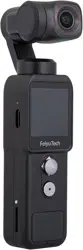

Feiyu Pocket 2
V1.0.1
Stablized Camera Instructions

Contents
1. Overview …………………………………………………………… 1
2. List …………………………………………………………………… 2
3. Start to Use ………………………………………………………… 2
3.1 Charging ……………………………………………………………………2
3.2 Insert MicroSD card …………………………………………………………3
4. Operation …………………………………………………………… 3
4.1 Power Button ………………………………………………………………3
4.2 Shutter Button ………………………………………………………………3
4.3 Function Button ……………………………………………………………4
4.4 Touch Screen ………………………………………………………………4
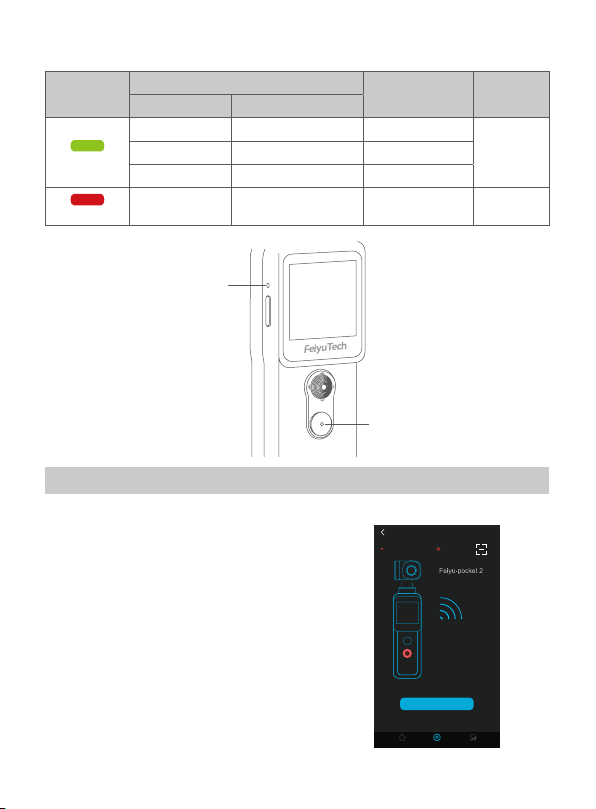
4.5 Indicator light instructions ………………………………………………9
5. Using the Feiyu Cam App ………………………………………… 9
5.1 Connect with Feiyu Pocket 2 via Wi-Fi …………………………………9
5.2 Camera Interface ……………………………………………………………10
6. Maintenance ……………………………………………………… 12
7. Specications ……………………………………………………… 13

Suggestion
This product includes below information, please read the information before
using it.
1. Quick start guide
2. Online instruction
3. Tutorial
Tutorial
* The tutorial videos can be watched at FeiyuTech ocial website or scan the QR
code.
https://www.feiyu-tech.com/play/
Download APP
Connect with Feiyu Cam App to achieve more functions.
Scan the QR code to download the app, or search for "Feiyu Cam" in the App
Store or Google Play.
* Requires iOS 9.0 or above, Android 6.0 or above.
iOS Android
1
1. Overview
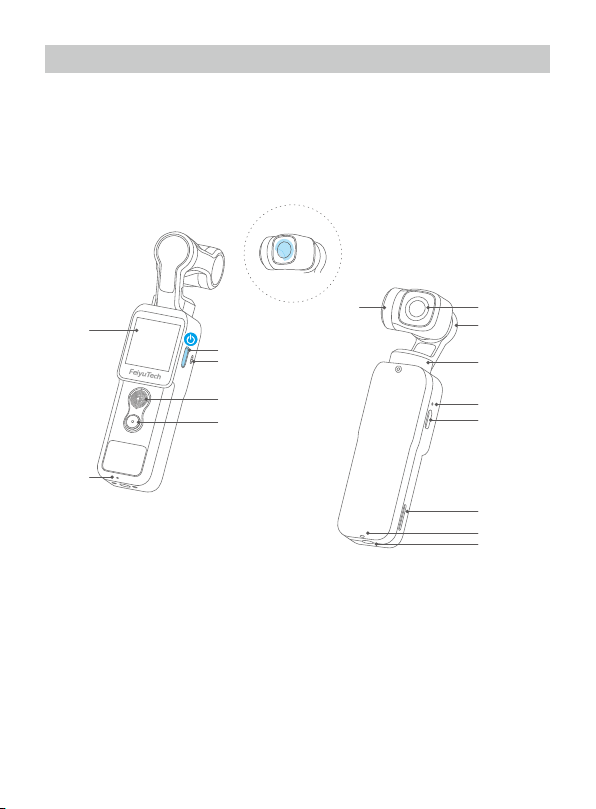
Feiyu Pocket 2 is a portable and controllable HD camera which easy to carry.
Five-way joystick makes operation much easier. It also come with built-in
speaker and 3-axis anti-shake gimbal. Support motion sensing, remote control
via APP, you can select photo/video/timelapse modes and remote control
camera as your wish.
[1]
[2]
[3]
[4]
[5]
[6]
[7] [8]
[9]
[10]
[11]
[12]
[13]
[14]
[15]
Please tear lens lm
before using
Gimbal Camera:
[1] Power Button
[2] Loudspeaker
[3] Joystick/Function Button
[4] Shutter Button/Photo Indicator
[5] Touch Screen
[6] Microphone
[7] Tilt Axis
[8] Camera Lens
[9] Roll Axis
[10] Pan Axis
[11] Charging indicator
[12] USB-C Charging Port
[13] MicroSD card slot
[14] Wrist strap hole
[15] Magnetic base with 1/4 inch screw
hole
2
2. List
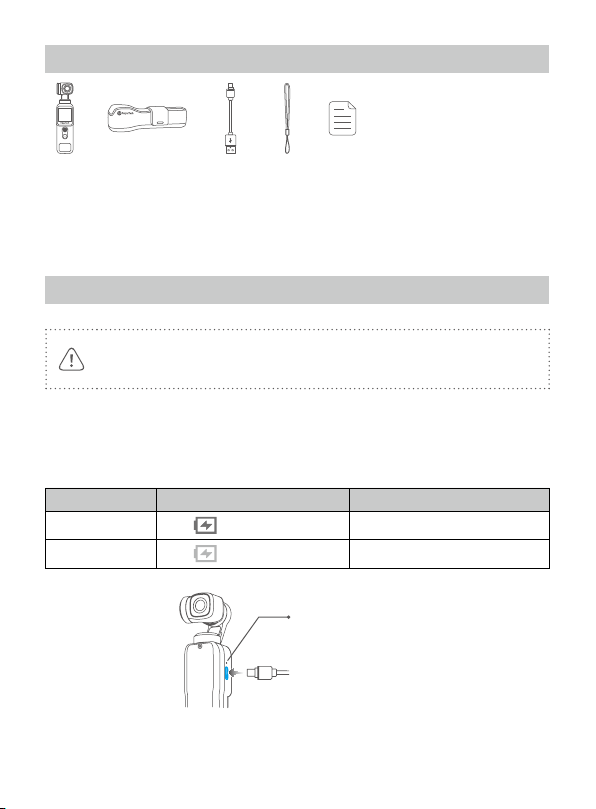
⑤ ① ④③ ②
① Feiyu Pocket 2×1
② Protective cover×1
③ USB-C cable×1
④ Wrist strap×1
⑤ Manual×1
3. Start to Use
(1) Please fully charge the battery before powering on the product for
the rst time.
(2) When not in use, power o the product.
3.1 Charging
Connect USB-C cable with charging port to charge.
We recommend that you charge your camera at least once a month.
Charging status While working (screen status) While o (indicator status)
Charging
Display Red light is on
Complete
Disappear Green light is on
Charging indicator
5V / 2A
3
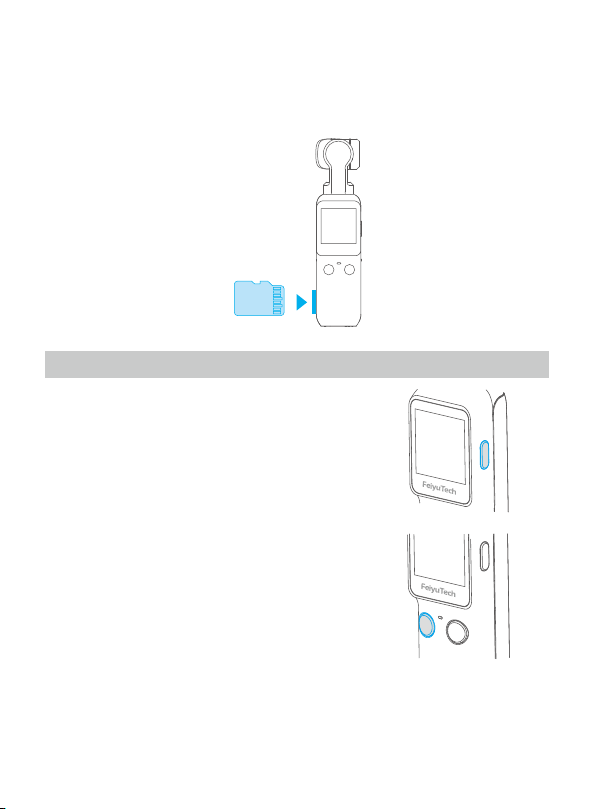
3.2 Insert MicroSD card
An UHS-I Speed Grade 3 (U3) rating microSD card (equipped by user) is required.
Please format the MicroSD card with Feiyu Pocket 2 when insert it at the rst
time.
4. Operation
4.1 Power Button
Long press for 1s: Power ON/ OFF
Single tap:
(1) Switch among video/ photo mode/ recently
used function
(2) Return to the previous menu
4.2 Shutter Button
Single tap: Take photo / video /
return to the home page
Long press for 3s: Turn on / o Wi-Fi
4
4.3 Function Button
Move to left / right: Control pan axis
Move upward / downward: Control tilt axis
Double tap: Recenter
Triple tap: Enter / Exit sele mode
Press and hold: Enter lock mode
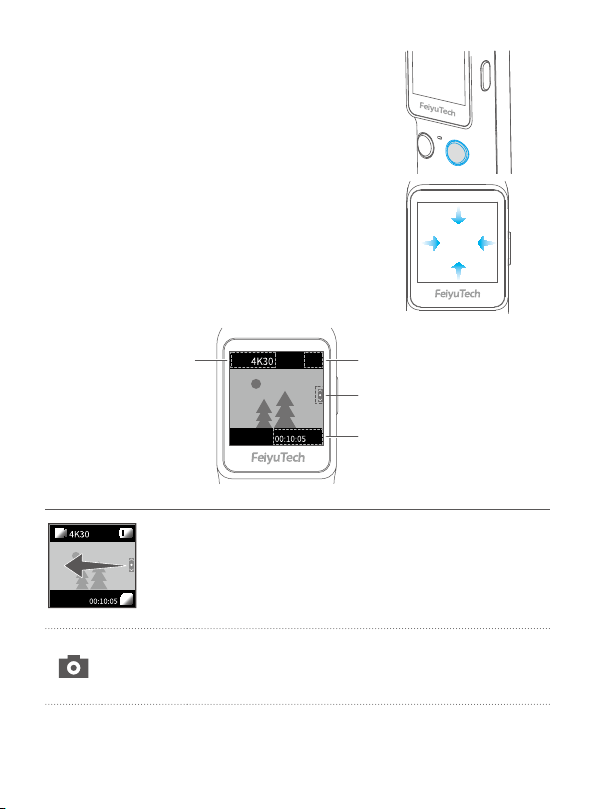
4.4 Touch Screen
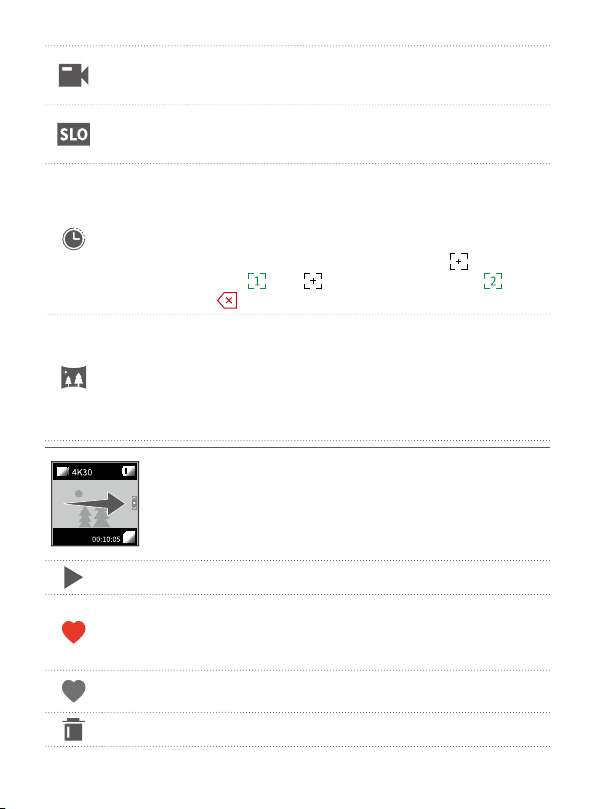
Swipe to Left: Switch shooting modes
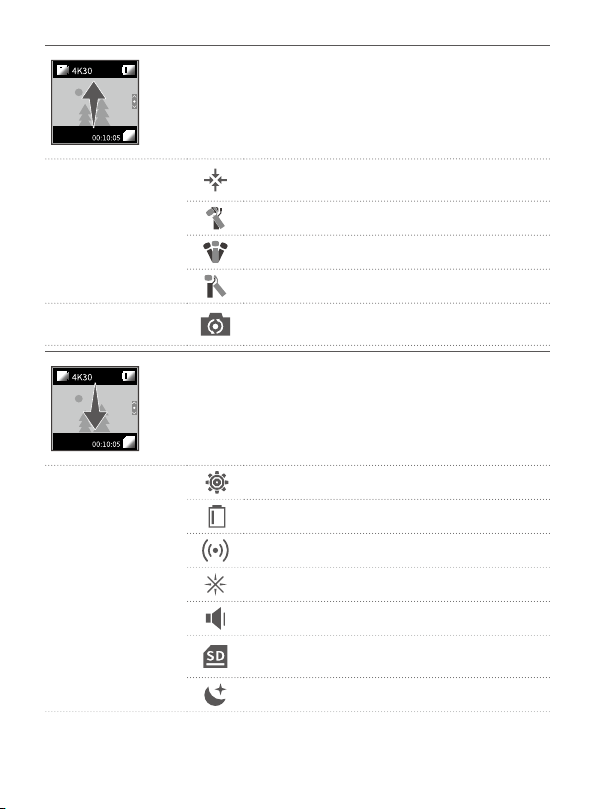
Swipe to right: Enter album
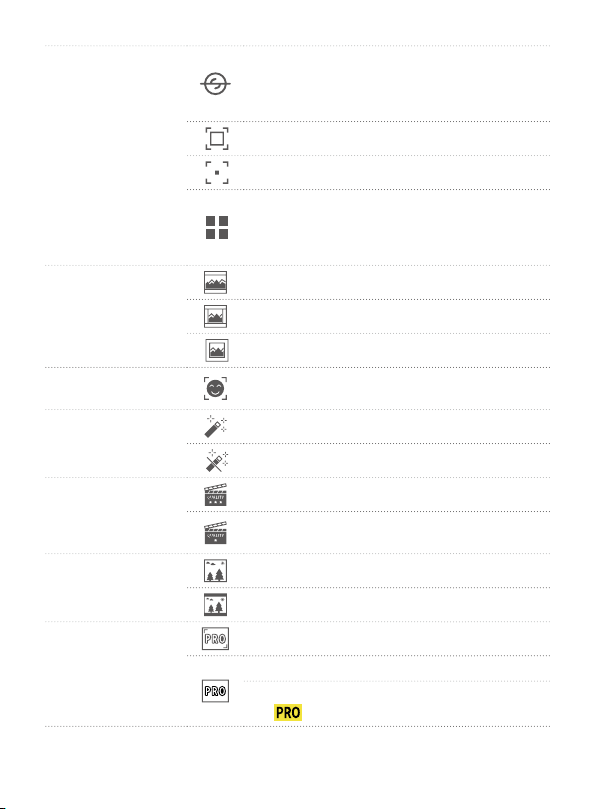
Swipe upward: Gimbal control
Swipe downward: Enter setting
Shooting mode
Battery level
Zoom control
Video duration/ number of
photos can be stored for
reference
Slide from right to left:
·Switch among dierent shooting modes and set corresponding
mode parameters.
·Slide up or down to switch among photo/ video/ slow-motion/
timelapse/ panorama mode, tap to enter corresponding mode
setting.
Photograph
Users can set aspect ratio of photos and countdown to
take photo.
Optional aspect ratio: 4:3 / 16:9
Optional countdown time: O/ 3s/ 5s/ 7
5
Video
Users can set video resolution and FPS.
Optional video resolution: 4K / 2.7K / 1080P / 16:9
Optional FPS: 24 / 25 / 30 / 48 / 50 / 60 /120
Slow motion
Users can shoot slow-motion video.
Optional ratio of slow-motion recording: 4K 2X/1080P
4X/720P 8P
Time-lapse
photography
Users can choose static, motion timelapse, or
hyperlapse and enter shooting interface after chose,
and set shooting interval and duration by tap the
bottom of the interface.
Optional video resolution: 4K / 2.7K / 1080P
When you choose motion timelapse, tap
to set start
position
,tap again to set end position ,
tap
to delete position.
Panorama
mode
Users can choose dierent panorama
modes:2×2/3×3/180°
2×2: two images above and two below combine to one
picture
3×3: 3 images above in every three layers combine to
one picture
180° :4 lateral images combine to one picture
Slide from left to right:
·Enter album.
·Slide up and down to view photos or videos.
Play Tap to play the current video.
Favorite
Photos and videos which are marked as like,
can be viewed in album [ Favorite ] after
connected Feiyu Cam App.
Tap to unmark.
Haven't been marked
as favorite yet
Tap to mark it as favorite.
Delete Delete the current picture or video.
6
Slide upward:
·Enter gimbal control interface.
·Users can recenter gimbal / switch to sele mode /
modify follow sensitivity / switch working modes.
(1) Gimbal follow
mode setting
Tap to recenter, lens return to center and keep
towards front or back as before.
Follow mode
All follow mode(FPV)
Pan mode
(2) Sele mode
Camera horizontally rotate 180° to shoot,
which can be used to take sele.
Slide downward:
·Enter setting interface, slide upward to return the
previous menu.
·Slide to left / right to switch among dierent settings.
(1) System
Slide to left / right to get move settings.
Display battery level
Turn on/o camera Wi-Fi
Anti-icker setting
Key tone on /o
Display remaining storage spaces, tap to show
format option.
Auto power o setting
7
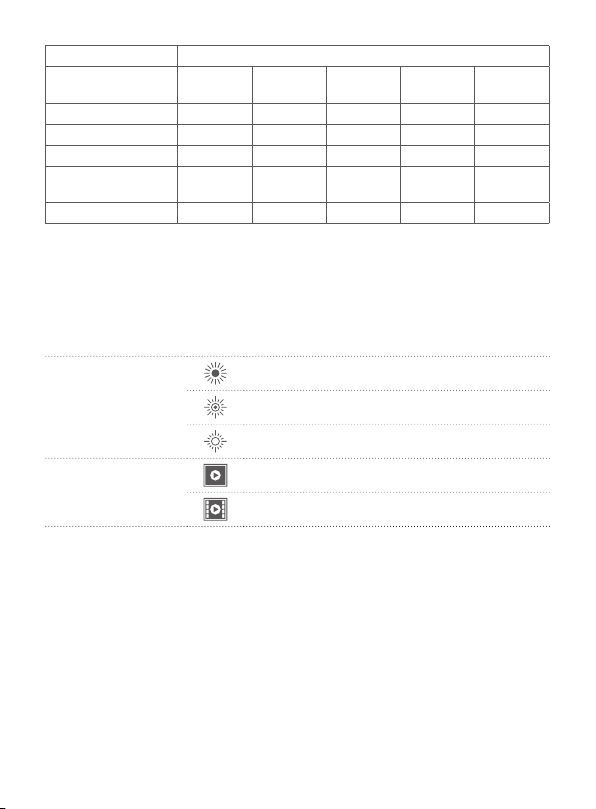
(1) System
Enter calibration. When camera is not level,
users can use it to x. Place the product on
a stable horizontal plane such as table, and
follow the prompts on the screen to operation.
Average metering
Spot metering is available
Move settings, users can switch languages
/ reset system parameters / view device
information ( rmware version, SN code, etc.)/
motor calibration
(2) Viewing angle
Super wide angle
Wide viewing angle
Narrow viewing angle
(3) Face tracking
Turn on/o face tracking( available in photo,
video and slow motion modes)
(4) Beauty
Open beauty
Close beauty ( available in photo modes)
(5) Image quality
Super high quality
High quality ( available in video and slow
motion modes)
(6) Display
Full screen display
Normal display
(7) Professional/
Normal mode
Professional Mode
Normal mode
After switch to professional mode, users can
tap
icon to set the related parameters.
8
Shooting mode PRO mode
Settings
Image
Format
White
balance
Exposure Color Volume
Photograph
√ √ √
Video
√ √
Slow motion
√ √ √ √
Time-lapse
photography
√ √ √
Panoramic photo
√ √ √
Image Format:
Select save format (JPG or J+R) for photo
White balance
: Select a preset white balance mode or set color temperature manually
Exposure: Set ISO, shutter speed or exposure compensation
Color: Switch between normal color and Fy-log color ( Which is advantageous for post-
production color modulation)
Volume
: Set video volume
(8) Brightness
High brightness
Normal brightness
Low brightness
(9) Saving
Save video
Save photos and video
9
4.5 Indicator light instructions
Indicator
light
Indicator status
Instructions Status
Photo indicator Battery indicator
Green light
Flash once - Photograph
Power onKeeps ashing - Video
- Constant green light Finished charging
Red light
-
Battery indicator
keeps on
Charging Power o
Charging indicator
Photo indicator
5. Using the Feiyu Cam App
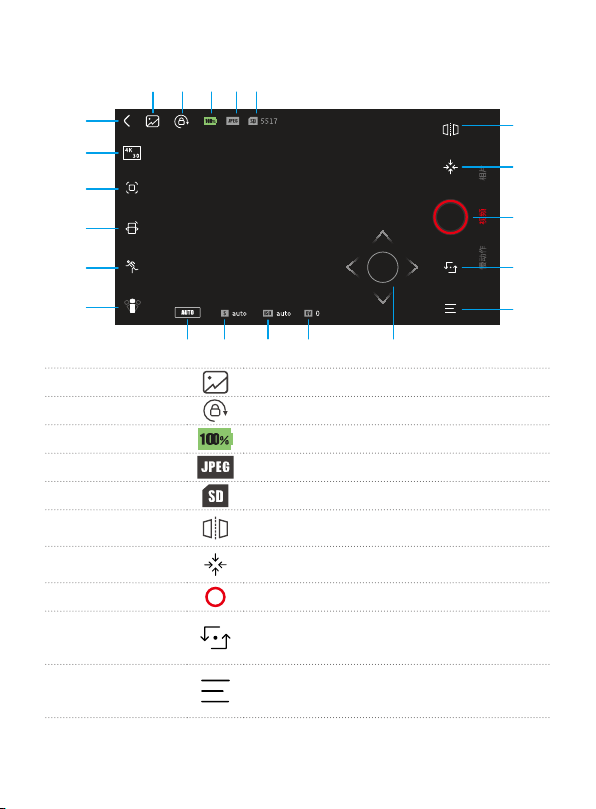
5.1 Connect with Feiyu Pocket 2 via Wi-Fi
Turn on Feiyu Cam App, tap [ Feiyu Pocket ]
option, long press shutter button to turn on
Wi-Fi, follow the prompts to connect Feiyu
pocket.
CONNECTING DEVICES VCAM_XXXX
CONNECTING OTHER DEVICES
No device connected
Help
Connect pocket
Home AlbumFeiyu-Pocket
Steps
1. Long press red button
to turn on Wi-Fi
2. Enter Wi-Fi code to
connect new devices
10
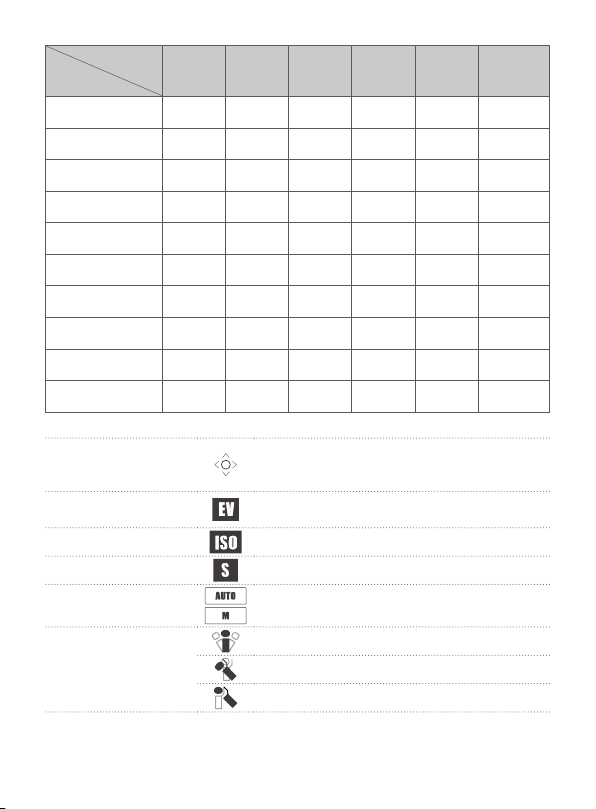
5.2 Camera Interface
[1] [2] [3] [4] [5]
[6]
[7]
[8]
[9]
[10]
[11][12][13][14][15]
[16]
[17]
[18]
[21]
[19]
[20]
[1] Album Enter album
[2] Lock
Screen orientation lock
[3] Battery indicator
Show battery level of Feiyu pocket.
[4] File format
Prompt the le format of the saved le.
[5] Storage spaces
Display remaining storage spaces.
[6] Mirror
Images from the camera are mirrored after turn
it on.
[7] Recenter
Lens return to center and keep towards front or
back as before.
[8] Shoot
Start recording or take photo.
[9] Camera turn
around
Camera horizontally rotate 180° to shoot, which
can be used
to take sele
[10] Camera settings
Set parameters of current shooting mode,
format microSD card,
view device information.
11
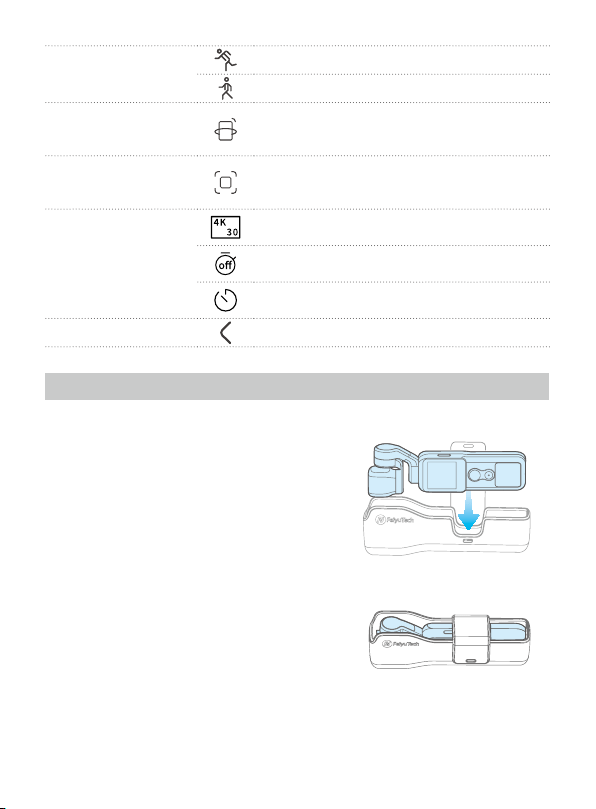
Modes
Parameter
Photo-
graph
Video
Slow
motion
Timelapse
Panoramic
photo
Hyperlapse
Mounting/Handheld
mode
√ √
Viewing angle
√ √ √ √ √ √
Anti-icker
√ √ √ √ √ √
Watermark
√ √ √ √ √
Proportion
√
Photo format
√
Video format
√ √ √ √
Color
√ √ √ √
White balance
√ √ √ √ √ √
Panoramic mosaic
√
[11] Joystick
Long press the circle and turn left and right to
control pan axis, turn up and down to control
tilt axis.
[12] Exposure
compensation
Set or display current exposure compensation.
[13] ISO
Set or display current ISO.
[14] Shutter speed
Set or display current shutter speed.
[15] Auto/manual
mode
Switch between auto/ manual mode.
[16] Follow mode
All follow mode (FPV)
Follow mode
Pan mode
12
[17] Follow sensitivity
Fast follow
Smooth follow
[18] Smartphone
motion sensing mode
Users can use smartphone to control pan and
tilt axis through motion sensing.
*Need smartphone gyroscope sensor support.
[19] AI tracking
Select the object in camera interface to lock
it, and camera will auto rotate to follow the
object movement.
[20] Parameter
settings
Will show in video mode to set video
resolution, FPS and quality of video.
Will show in photo mode to set countdown
time of shooting.
Will show in timelapse mode to set shooting
interval , duration and path.
[21] Return
Return to the previous menu
6. Maintenance
(1) Please place the product into the protective
cover by the right way to avoid damage.
(2) Make sure motor spinning is not blocked by
external force when the product
is power on.
(3) DO NOT drop or strike the product to avoid
damage.
(4) This product is not waterproof, please do
not contact the camera with water
or other liquid.
(5) Please pay attention to dust and sand.
(6) It is recommended to clean the product
surface with a clean, soft dry cloth.
Storage
Storage state
Place the product into the
protective cover

13
7. Specications
Product Size 29.8×40.6×124.6mm ( Working state )
Weight 127g
Material Aluminum alloy, ABS/PC
Waterproof No
Battery
Capacity : 875mAh
Category of Battery: lithium-ion battery
Battery Power: 6.738Wh
Voltage: 7.7V
Operating Temperature: 0℃ ~+40℃
Working Time
220min (Working at 1080 60fps)
190min (Working at 4K 30fps)
Charging Time 1.2h (5V 2A)
Camera
Image Sensor: 1/2.5″ CMOS
Eective Pixels: 8.51M
Lens: FOV: 130° F2.0
Equivalent Focal Length: 12mm
IOS Range: 100~3200
Electronic Shutter Speed: 1/8000~16s
Max Image Size: 3840×2160
Photo Mode: Photo / Panorama / Static Timelapse/
Motion Timelapse
Video Resolution:
4K 3840×2160 60/50/48/30/25/24
2.7K 2720×1520 60/50/48/30/25/24
1080P 1920×1080 120/60/50/48/30/25/24
Video Mode: Video / Timelapse / Slow Motion
Max Video Bit Rate: 4K@ 60fps, Max. Bit rate is
120Mbps
Supported File Formats: FAT32 / exFAT
Photo Formats: JPG / JPG+DNG
Video Formats: MOV, MP4
Supported SD Cards: MmicroSD, Max Capacity: 512G
(U3 and higher speed microSD Card is required)
Audio Output: 48KHz / AAC

14
Screen 1.3 inches/IPS/240×240
Processor V39M
Wi-Fi 2.4GHz, bandwidth: 20MHz
Max. Speed 180° /S
Controllable Range
Controllable Tilt Range: - 95° ~ + 50°
Controllable Roll Range: + 45° ~ - 45°
Controllable Pan Range: - 220° ~ + 40°
Angular Vibration Range ±0.005°
Notice:
1. Make sure motor spinning is not blocked by external force when the product is
power on.
2. The product DO NOT contact water or other liquid if the product is not mark
waterproof or splash-proof. Waterproof and splash-proof product DO NOT
contact sea water or other corrosive liquid.
3. DO NOT disassembly the product except marked detachable. It need send
to FeiyuTech after-sales or authorized service center to x it if you accidently
disassembly and cause abnormal work. The relevant costs are borne by user.
4. Prolonged continuous operation may cause the product surface temperature
to rise, please operate carefully.
5. DO NOT drop or strike the product. If the product is abnormal, contact Feiyu
After-sales support.
Storage and Maintenance:
1. Keep the product out of the reach of children and pets.
2. DO NOT leave the product near heat sources such as a furnace or heater. DO
NOT leave the product inside of a vehicle on hot days.
3. Please storage the product in dry environment.
4. DO NOT overcharge or overuse the battery, otherwise it will cause damage to
the battery core. If does not use the product for a long time, please charge it at
least once within one month.
5. Never use the product when the temperature is too high or too low.

Find More Features
Facebook Youtube Twitter Instagram

This document is subject to change without notice.
If you have any questions about this document, please contact us by the following ways.
Manufactured by: Guilin Feiyu Technology Incorporated Company
Website: www.feiyu-tech.com
Tel: +86 773-2320865
E-mail: support@feiyu-tech.com