
Information in this document is subject to change without notice. Reproduction of this document in any manner, without the written
permission of the D-Link Corporation, is strictly forbidden.
Trademarks used in this text: D-Link and the D-Link logo are trademarks of the D-Link Corporation; Microsoft and Windows are
registered trademarks of the Microsoft Corporation.
Other trademarks and trade names may be used in this document to refer to either as the entities claiming the marks and the
names or their products. D-Link Corporation disclaims any proprietary interest in trademarks and trade names other than its own.
© 2016 D-Link Corporation. All rights reserved.
November, 2016. P/N 651XS3400015G

DXS-3400 Series Lite Layer 3 Stackable 10GbE Managed Switch Web UI Reference Guide
i
Table of Contents
1. Introduction ........................................................................................................................................................... 1
Intended Readers ................................................................................................................................................... 1
Other Documentation .............................................................................................................................................. 1
Typographical Conventions .................................................................................................................................... 1
Notes and Cautions ................................................................................................................................................ 1
2. Web-based Switch Configuration ....................................................................................................................... 2
Management Options ............................................................................................................................................. 2
Logging into the Web UI ......................................................................................................................................... 2
Web User Interface (Web UI) ................................................................................................................................. 3
Areas of the User Interface................................................................................................................................ 3
3. System ................................................................................................................................................................... 5
Device Information .................................................................................................................................................. 5
System Information Settings ................................................................................................................................... 5
Peripheral Settings ................................................................................................................................................. 6
Port Configuration ................................................................................................................................................... 7
Port Settings ...................................................................................................................................................... 7
Port Status ....................................................................................................................................................... 10
Port GBIC ........................................................................................................................................................ 10
Port Auto Negotiation ...................................................................................................................................... 11
Error Disable Settings ...................................................................................................................................... 12
Jumbo Frame .................................................................................................................................................. 13
Loopback Test ...................................................................................................................................................... 14
System Log ........................................................................................................................................................... 16
System Log Settings ........................................................................................................................................ 16
System Log Discriminator Settings ................................................................................................................. 17
System Log Server Settings ............................................................................................................................ 18
System Log ...................................................................................................................................................... 19
System Attack Log ........................................................................................................................................... 19
Time and SNTP .................................................................................................................................................... 20
Clock Settings .................................................................................................................................................. 20
Time Zone Settings ......................................................................................................................................... 20
SNTP Settings ................................................................................................................................................. 22
Time Range .......................................................................................................................................................... 23
PTP (Precise Time Protocol) ................................................................................................................................ 24
PTP Global Settings ........................................................................................................................................ 24
USB Console Settings .......................................................................................................................................... 24
SRM ...................................................................................................................................................................... 25
SRM Prefer Current Settings ........................................................................................................................... 25
SRM Prefer Mode ............................................................................................................................................ 25
4. Management ........................................................................................................................................................ 27
Command Logging ............................................................................................................................................... 27
User Account Settings .......................................................................................................................................... 27
Password Encryption ............................................................................................................................................ 29
Password Recovery .............................................................................................................................................. 29
Login Method ........................................................................................................................................................ 30
SNMP .................................................................................................................................................................... 31
SNMP Global Settings ..................................................................................................................................... 32
SNMP Linkchange Trap Settings .................................................................................................................... 33
SNMP View Table Settings ............................................................................................................................. 34

DXS-3400 Series Lite Layer 3 Stackable 10GbE Managed Switch Web UI Reference Guide
ii
SNMP Community Table Settings ................................................................................................................... 35
SNMP Group Table Settings ........................................................................................................................... 36
SNMP Engine ID Local Settings ...................................................................................................................... 37
SNMP User Table Settings .............................................................................................................................. 37
SNMP Host Table Settings .............................................................................................................................. 39
RMON ................................................................................................................................................................... 40
RMON Global Settings .................................................................................................................................... 40
RMON Statistics Settings ................................................................................................................................ 40
RMON History Settings ................................................................................................................................... 41
RMON Alarm Settings ..................................................................................................................................... 42
RMON Event Settings ..................................................................................................................................... 43
Telnet/Web............................................................................................................................................................ 44
Session Timeout ................................................................................................................................................... 45
DHCP .................................................................................................................................................................... 45
Service DHCP ................................................................................................................................................. 45
DHCP Class Settings ...................................................................................................................................... 46
DHCP Server ................................................................................................................................................... 47
DHCPv6 Server ............................................................................................................................................... 54
DHCP Relay .................................................................................................................................................... 58
DHCPv6 Relay ................................................................................................................................................ 67
DHCP Auto Configuration ..................................................................................................................................... 69
DNS ...................................................................................................................................................................... 69
DNS Global Settings ........................................................................................................................................ 70
DNS Name Server Settings ............................................................................................................................. 70
DNS Host Settings ........................................................................................................................................... 71
NTP ....................................................................................................................................................................... 71
NTP Global Settings ........................................................................................................................................ 71
NTP Server Settings ........................................................................................................................................ 73
NTP Peer Settings ........................................................................................................................................... 73
NTP Access Group Settings ............................................................................................................................ 74
NTP Key Settings ............................................................................................................................................ 75
NTP Interface Settings .................................................................................................................................... 76
NTP Associations ............................................................................................................................................ 77
NTP Status ...................................................................................................................................................... 78
IP Source Interface ............................................................................................................................................... 78
File System ........................................................................................................................................................... 80
Stacking ................................................................................................................................................................ 81
Physical Stacking ............................................................................................................................................ 85
Stacking Bandwidth ......................................................................................................................................... 86
Virtual Stacking (SIM) ........................................................................................................................................... 86
Single IP Settings ............................................................................................................................................ 88
Topology .......................................................................................................................................................... 90
Firmware Upgrade ........................................................................................................................................... 96
Configuration File Backup/Restore .................................................................................................................. 96
Upload Log File ............................................................................................................................................... 97
D-Link Discovery Protocol .................................................................................................................................... 97
SMTP Settings ...................................................................................................................................................... 99
NLB FDB Settings ............................................................................................................................................... 100
5. Layer 2 Features ............................................................................................................................................... 102
FDB ..................................................................................................................................................................... 102
Static FDB...................................................................................................................................................... 102
MAC Address Table Settings ........................................................................................................................ 103

DXS-3400 Series Lite Layer 3 Stackable 10GbE Managed Switch Web UI Reference Guide
iii
MAC Address Table ...................................................................................................................................... 105
MAC Notification ............................................................................................................................................ 105
VLAN ................................................................................................................................................................... 107
802.1Q VLAN ................................................................................................................................................ 107
802.1v Protocol VLAN ................................................................................................................................... 107
GVRP ............................................................................................................................................................. 109
Asymmetric VLAN ......................................................................................................................................... 112
MAC VLAN .................................................................................................................................................... 113
VLAN Interface .............................................................................................................................................. 113
L2VLAN Interface Description ....................................................................................................................... 120
Subnet VLAN ................................................................................................................................................. 121
Auto Surveillance VLAN ................................................................................................................................ 122
Voice VLAN ................................................................................................................................................... 124
Private VLAN ................................................................................................................................................. 128
VLAN Tunnel ...................................................................................................................................................... 129
Dot1q Tunnel ................................................................................................................................................. 129
VLAN Mapping .............................................................................................................................................. 131
VLAN Mapping Profile ................................................................................................................................... 132
STP ..................................................................................................................................................................... 137
STP Global Settings ...................................................................................................................................... 137
STP Port Settings .......................................................................................................................................... 139
MST Configuration Identification ................................................................................................................... 140
STP Instance ................................................................................................................................................. 141
MSTP Port Information .................................................................................................................................. 142
ERPS (G.8032) ................................................................................................................................................... 143
ERPS ............................................................................................................................................................. 143
ERPS Profile .................................................................................................................................................. 147
Loopback Detection ............................................................................................................................................ 148
Link Aggregation ................................................................................................................................................. 150
L2 Protocol Tunnel .............................................................................................................................................. 152
L2 Multicast Control ............................................................................................................................................ 154
IGMP Snooping ............................................................................................................................................. 154
MLD Snooping ............................................................................................................................................... 163
Multicast VLAN .............................................................................................................................................. 172
PIM Snooping ................................................................................................................................................ 176
Multicast Filtering ........................................................................................................................................... 178
LLDP ................................................................................................................................................................... 179
LLDP Global Settings .................................................................................................................................... 179
LLDP Port Settings ........................................................................................................................................ 181
LLDP Management Address List ................................................................................................................... 182
LLDP Basic TLVs Settings ............................................................................................................................ 182
LLDP Dot1 TLVs Settings .............................................................................................................................. 183
LLDP Dot3 TLVs Settings .............................................................................................................................. 184
LLDP-MED Port Settings ............................................................................................................................... 185
LLDP-DCBX Port Settings ............................................................................................................................. 185
LLDP Statistics Information ........................................................................................................................... 186
LLDP Local Port Information ......................................................................................................................... 187
LLDP Neighbor Port Information ................................................................................................................... 189
6. Layer 3 Features ............................................................................................................................................... 190
ARP ..................................................................................................................................................................... 190
ARP Aging Time ............................................................................................................................................ 190
Static ARP ..................................................................................................................................................... 190

DXS-3400 Series Lite Layer 3 Stackable 10GbE Managed Switch Web UI Reference Guide
iv
Proxy ARP ..................................................................................................................................................... 191
ARP Table ..................................................................................................................................................... 192
Gratuitous ARP ................................................................................................................................................... 192
IPv6 Neighbor ..................................................................................................................................................... 193
Interface .............................................................................................................................................................. 194
IPv4 Interface ................................................................................................................................................ 194
IPv6 Interface ................................................................................................................................................ 196
Loopback Interface ........................................................................................................................................ 199
Null Interface ................................................................................................................................................. 201
UDP Helper ......................................................................................................................................................... 201
IP Forward Protocol ....................................................................................................................................... 201
IP Helper Address ......................................................................................................................................... 202
IPv4 Static/Default Route .................................................................................................................................... 202
IPv4 Static Route BFD ........................................................................................................................................ 203
IPv4 Route Table ................................................................................................................................................ 204
IPv6 Static/Default Route .................................................................................................................................... 205
IPv6 Static Route BFD ........................................................................................................................................ 205
IPv6 Route Table ................................................................................................................................................ 206
Route Preference ................................................................................................................................................ 207
IPv6 General Prefix ............................................................................................................................................. 207
RIP ...................................................................................................................................................................... 208
RIP Settings ................................................................................................................................................... 208
RIP Distribute List .......................................................................................................................................... 210
RIP Interface Settings .................................................................................................................................... 210
RIP Database ................................................................................................................................................ 211
RIPng .................................................................................................................................................................. 212
RIPng Settings ............................................................................................................................................... 212
RIPng Interface Settings ................................................................................................................................ 213
RIPng Database ............................................................................................................................................ 214
IP Multicast Routing Protocol.............................................................................................................................. 214
IPMC .............................................................................................................................................................. 214
IPv6MC .......................................................................................................................................................... 216
BFD ..................................................................................................................................................................... 217
BFD Settings ................................................................................................................................................. 217
BFD Neighbor Table ...................................................................................................................................... 218
IP Route Filter ..................................................................................................................................................... 219
Route Map ..................................................................................................................................................... 219
Policy Route ........................................................................................................................................................ 222
VRRP Settings .................................................................................................................................................... 222
VRRPv3 Settings ................................................................................................................................................ 224
7. Quality of Service (QoS) ................................................................................................................................... 227
Basic Settings ..................................................................................................................................................... 227
Port Default CoS ............................................................................................................................................ 227
Port Scheduler Method .................................................................................................................................. 227
Queue Settings .............................................................................................................................................. 229
CoS to Queue Mapping ................................................................................................................................. 229
Port Rate Limiting .......................................................................................................................................... 230
Queue Rate Limiting ...................................................................................................................................... 231
Advanced Settings .............................................................................................................................................. 232
DSCP Mutation Map ...................................................................................................................................... 232
Port Trust State and Mutation Binding .......................................................................................................... 233
DSCP CoS Mapping ...................................................................................................................................... 233

DXS-3400 Series Lite Layer 3 Stackable 10GbE Managed Switch Web UI Reference Guide
v
CoS Color Mapping ....................................................................................................................................... 234
DSCP Color Mapping .................................................................................................................................... 235
Class Map ...................................................................................................................................................... 236
Aggregate Policer .......................................................................................................................................... 237
Policy Map ..................................................................................................................................................... 241
Policy Binding ................................................................................................................................................ 244
QoS PFC ............................................................................................................................................................. 245
Network QoS Class Map ............................................................................................................................... 245
Network QoS Policy Map ............................................................................................................................... 246
Network QoS Policy Binding.......................................................................................................................... 247
PFC Port Settings .......................................................................................................................................... 248
WRED ................................................................................................................................................................. 249
WRED Profile ................................................................................................................................................ 249
WRED Queue ................................................................................................................................................ 250
WRED Drop Counter ..................................................................................................................................... 251
ETS ..................................................................................................................................................................... 251
ETS Port Settings .......................................................................................................................................... 251
ETS Recommend Settings ............................................................................................................................ 253
QCN .................................................................................................................................................................... 254
QCN CNPV Status ........................................................................................................................................ 254
QCN CNPV Settings ...................................................................................................................................... 254
QCN CNPV Interface Settings ...................................................................................................................... 256
QCN CNPV Interface Simple......................................................................................................................... 257
QCN CP Interface Settings ............................................................................................................................ 258
QCN CP Counters ......................................................................................................................................... 259
QCN CPID Table ........................................................................................................................................... 259
iSCSI ................................................................................................................................................................... 260
iSCSI Settings ............................................................................................................................................... 260
iSCSI Sessions .............................................................................................................................................. 261
8. Access Control List (ACL) ............................................................................................................................... 262
ACL Configuration Wizard .................................................................................................................................. 262
Step 1 - Create/Update .................................................................................................................................. 262
Step 2 - Select Packet Type .......................................................................................................................... 263
Step 3 - Add Rule .......................................................................................................................................... 263
Step 4 - Apply Port ........................................................................................................................................ 271
ACL Access List .................................................................................................................................................. 272
Standard IP ACL ............................................................................................................................................ 274
Extended IP ACL ........................................................................................................................................... 275
Standard IPv6 ACL ........................................................................................................................................ 278
Extended IPv6 ACL ....................................................................................................................................... 279
Extended MAC ACL ...................................................................................................................................... 281
Extended Expert ACL .................................................................................................................................... 283
ACL Interface Access Group .............................................................................................................................. 287
ACL VLAN Access Map ...................................................................................................................................... 288
ACL VLAN Filter ................................................................................................................................................. 290
CPU ACL ............................................................................................................................................................ 290
9. Security .............................................................................................................................................................. 293
Port Security ....................................................................................................................................................... 293
Port Security Global Settings......................................................................................................................... 293
Port Security Port Settings ............................................................................................................................ 294
Port Security Address Entries........................................................................................................................ 296
802.1X ................................................................................................................................................................. 296

DXS-3400 Series Lite Layer 3 Stackable 10GbE Managed Switch Web UI Reference Guide
vi
802.1X Global Settings .................................................................................................................................. 301
802.1X Port Settings ...................................................................................................................................... 301
Authentication Sessions Information ............................................................................................................. 302
Authenticator Statistics .................................................................................................................................. 303
Authenticator Session Statistics .................................................................................................................... 304
Authenticator Diagnostics .............................................................................................................................. 304
AAA ..................................................................................................................................................................... 305
AAA Global Settings ...................................................................................................................................... 305
Application Authentication Settings ............................................................................................................... 306
Application Accounting Settings .................................................................................................................... 306
Authentication Settings .................................................................................................................................. 308
Accounting Settings ....................................................................................................................................... 310
RADIUS .............................................................................................................................................................. 312
RADIUS Global Settings ................................................................................................................................ 312
RADIUS Server Settings ............................................................................................................................... 313
RADIUS Group Server Settings .................................................................................................................... 314
RADIUS Statistic ........................................................................................................................................... 315
TACACS+ ........................................................................................................................................................... 316
TACACS+ Global Settings ............................................................................................................................ 316
TACACS+ Server Settings ............................................................................................................................ 317
TACACS+ Group Server Settings ................................................................................................................. 317
TACACS+ Statistic ........................................................................................................................................ 319
IMPB ................................................................................................................................................................... 319
IPv4 ................................................................................................................................................................ 319
IPv6 ................................................................................................................................................................ 332
DHCP Server Screening ..................................................................................................................................... 337
DHCP Server Screening Global Settings ...................................................................................................... 338
DHCP Server Screening Port Settings .......................................................................................................... 339
ARP Spoofing Prevention ................................................................................................................................... 339
BPDU Attack Protection ...................................................................................................................................... 340
NetBIOS Filtering ................................................................................................................................................ 341
MAC Authentication ............................................................................................................................................ 342
Web-based Access Control ................................................................................................................................ 344
Web Authentication ....................................................................................................................................... 346
WAC Port Settings ......................................................................................................................................... 346
WAC Customize Page ................................................................................................................................... 347
Network Access Authentication .......................................................................................................................... 348
Guest VLAN ................................................................................................................................................... 348
Network Access Authentication Global Settings ........................................................................................... 348
Network Access Authentication Port Settings ............................................................................................... 350
Network Access Authentication Sessions Information .................................................................................. 351
Safeguard Engine ............................................................................................................................................... 352
Safeguard Engine Settings ............................................................................................................................ 353
CPU Protect Counters ................................................................................................................................... 354
CPU Protect Sub-Interface ............................................................................................................................ 354
CPU Protect Type .......................................................................................................................................... 355
Trusted Host ....................................................................................................................................................... 356
Traffic Segmentation Settings ............................................................................................................................ 356
Storm Control ...................................................................................................................................................... 357
DoS Attack Prevention Settings ......................................................................................................................... 359
SSH ..................................................................................................................................................................... 360
SSH Global Settings ...................................................................................................................................... 361

DXS-3400 Series Lite Layer 3 Stackable 10GbE Managed Switch Web UI Reference Guide
vii
Host Key ........................................................................................................................................................ 361
SSH Server Connection ................................................................................................................................ 362
SSH User Settings ......................................................................................................................................... 363
SSL ..................................................................................................................................................................... 363
SSL Global Settings ...................................................................................................................................... 364
Crypto PKI Trustpoint .................................................................................................................................... 365
SSL Service Policy ........................................................................................................................................ 366
SFTP Server Settings ......................................................................................................................................... 367
10. OAM .................................................................................................................................................................... 369
CFM .................................................................................................................................................................... 369
CFM Settings ................................................................................................................................................. 369
CFM Port Settings ......................................................................................................................................... 379
CFM Loopback Test ...................................................................................................................................... 380
CFM Linktrace Settings ................................................................................................................................. 381
CFM Packet Counter ..................................................................................................................................... 382
CFM Counter CCM ........................................................................................................................................ 383
CFM MIP CCM Table .................................................................................................................................... 383
CFM MEP Fault Table ................................................................................................................................... 383
Cable Diagnostics ............................................................................................................................................... 383
Ethernet OAM ..................................................................................................................................................... 384
Ethernet OAM Settings .................................................................................................................................. 384
Ethernet OAM Configuration Settings ........................................................................................................... 386
Ethernet OAM Event Log Table .................................................................................................................... 389
Ethernet OAM Statistics Table ...................................................................................................................... 389
Ethernet OAM DULD Settings ....................................................................................................................... 390
DDM .................................................................................................................................................................... 391
DDM Settings ................................................................................................................................................ 392
DDM Temperature Threshold Settings .......................................................................................................... 393
DDM Voltage Threshold Settings .................................................................................................................. 393
DDM Bias Current Threshold Settings .......................................................................................................... 394
DDM TX Power Threshold Settings .............................................................................................................. 394
DDM RX Power Threshold Settings .............................................................................................................. 395
DDM Status Table ......................................................................................................................................... 396
11. Monitoring ......................................................................................................................................................... 397
VLAN Counter ..................................................................................................................................................... 397
Utilization ............................................................................................................................................................ 398
Port Utilization ............................................................................................................................................... 398
History Utilization ........................................................................................................................................... 399
Statistics .............................................................................................................................................................. 400
Port ................................................................................................................................................................ 400
CPU Port........................................................................................................................................................ 401
Interface Counters ......................................................................................................................................... 402
Interface History Counters ............................................................................................................................. 404
Counters ........................................................................................................................................................ 406
Mirror Settings .................................................................................................................................................... 408
sFlow ................................................................................................................................................................... 410
sFlow Agent Information ................................................................................................................................ 410
sFlow Receiver Settings ................................................................................................................................ 411
sFlow Sampler Settings ................................................................................................................................. 411
sFlow Poller Settings ..................................................................................................................................... 412
Device Environment ............................................................................................................................................ 413
External Alarm Settings ...................................................................................................................................... 413

DXS-3400 Series Lite Layer 3 Stackable 10GbE Managed Switch Web UI Reference Guide
viii
12. Green .................................................................................................................................................................. 415
Power Saving ...................................................................................................................................................... 415
EEE ..................................................................................................................................................................... 416
13. Save and Tools ................................................................................................................................................. 418
Save Configuration ............................................................................................................................................. 418
Firmware Upgrade & Backup.............................................................................................................................. 418
Firmware Upgrade from HTTP ...................................................................................................................... 418
Firmware Upgrade from TFTP ...................................................................................................................... 419
Firmware Upgrade from FTP ......................................................................................................................... 419
Firmware Upgrade from RCP ........................................................................................................................ 420
Firmware Backup to HTTP ............................................................................................................................ 421
Firmware Backup to TFTP ............................................................................................................................. 421
Firmware Backup to FTP ............................................................................................................................... 422
Firmware Backup to RCP .............................................................................................................................. 423
Configuration Restore & Backup ........................................................................................................................ 423
Configuration Restore from HTTP ................................................................................................................. 423
Configuration Restore from TFTP ................................................................................................................. 424
Configuration Restore from FTP ................................................................................................................... 424
Configuration Restore from RCP ................................................................................................................... 425
Configuration Backup to HTTP ...................................................................................................................... 426
Configuration Backup to TFTP ...................................................................................................................... 426
Configuration Backup to FTP ........................................................................................................................ 427
Configuration Backup to RCP ....................................................................................................................... 428
Log Backup ......................................................................................................................................................... 428
Log Backup to HTTP ..................................................................................................................................... 428
Log Backup to TFTP ...................................................................................................................................... 429
Log Backup to RCP ....................................................................................................................................... 429
Ping ..................................................................................................................................................................... 430
Trace Route ........................................................................................................................................................ 433
Reset ................................................................................................................................................................... 434
Reboot System ................................................................................................................................................... 434
DLMS Settings .................................................................................................................................................... 435
Appendix A - Password Recovery Procedure .......................................................................................................... 436
Appendix B - System Log Entries ............................................................................................................................. 437
Appendix C - Trap Entries .......................................................................................................................................... 466
Appendix D - RADIUS Attributes Assignment ......................................................................................................... 476
Appendix E - IETF RADIUS Attributes Support ........................................................................................................ 479

DXS-3400 Series Lite Layer 3 Stackable 10GbE Managed Switch Web UI Reference Guide
1
1. Introduction
This manual’s feature descriptions are based on the software release 2.00. The features listed here are the subset of
features that are supported by the DXS-3400 Series Switch.
Intended Readers
This reference manual is intended for network administrators and other IT networking professionals responsible for
managing the Switch by using the Web User Interface (Web UI). The Web UI is the secondary management interface
to the Switch, which will be generally be referred to simply as the “Switch” within this manual. This manual is written in
a way that assumes that you already have the experience and knowledge of Ethernet and modern networking
principles for Local Area Networks. This manual is using the DXS-3400-24TC switche for screen shots.
Other Documentation
The documents below are a further source of information in regards to configuring and troubleshooting the Switch. All
the documents are available either from the CD, bundled with the Switch, or from the D-Link website. Other
documents related to the Switch are:
• DXS-3400 Series Hardware Installation Guide
• DXS-3400 Series CLI Reference Guide
Typographical Conventions
Convention Description
Boldface Font
Indicates a button, a toolbar icon, menu, or menu item. For example: Open the
File menu and choose Cancel. Used for emphasis. May also indicate system
messages or prompts appearing on screen. For example: You have mail. Bold
font is also used to represent filenames, program names and commands. For
example: use the copy command.
Initial capital letter Indicates a window name. Names of keys on the keyboard have initial capitals.
For example: Click Enter.
Menu Name > Menu Option
Indicates the menu structure. Device > Port > Port Properties means the Port
Properties menu option under the Port menu option that is located under the
Device menu.
Blue Courier Font
This convention is used to represent an example of a screen console display
including example entries of CLI command input with the corresponding output.
Notes and Cautions
NOTE: A note indicates important information that helps you make better use of your device.
CAUTION: A caution indicates a potential for property damage, personal injury, or death.

DXS-3400 Series Lite Layer 3 Stackable 10GbE Managed Switch Web UI Reference Guide
2
2. Web-based Switch Configuration
Management Options
Logging into the Web UI
Web User Interface (Web UI)
Management Options
The Switch provides multiple access platforms that can be used to configure, manage, and monitor networking
features available on this Switch. Currently there are three management platforms available which are described
below.
Command Line Interface (CLI)
The Switch can be managed, out-of-band, by using the console port or the MGMT port on the front panel of the Switch.
Alternatively, the Switch can also be managed, in-band, by using a Telnet connection to any of the LAN ports on the
Switch. The command line interface provides complete access to all Switch management features.
For more detailed information about the CLI, refer to the DXS-3400 Series CLI Reference Guide.
SNMP-based Management
The Switch can be managed with an SNMP-compatible console program. The Switch supports SNMP v1/v2c/v3. The
SNMP agent decodes the incoming SNMP messages and responds to requests with MIB objects stored in the
database. The SNMP agent updates the MIB objects to generate statistics and counters.
Web User Interface (Web UI)
The Web UI can be accessed from any computer running web browsing software from its MGMT port or LAN port
when it is connected to any of the RJ45 or SFP/SFP+ ports. The Web UI on the Switch can also be accessed using an
HTTPS (SSL) connection.
This management interface is a more graphical representation of the features that can be viewed and configured on
the Switch. Most of the features available through the CLI can be accessed through the Web UI. Web browsers like
Microsoft’s Internet Explorer, Mozilla Firefox, or Google Chrome can be used.
NOTE: The Command Line Interface (CLI) provides the functionality of managing, configuring, and
monitoring all of the software features that are available on the Switch.
Logging into the Web UI
To access the Web UI open a standard web browser and enter the IP address of the Switch into the address bar of
the browser and press the ENTER key.
NOTE: The default IP address of the Switch is 10.90.90.90, with a subnet mask of 255.0.0.0.
Figure 2-1 Displays entering the IP address in Internet Explorer
DXS-3400 Series Lite Layer 3 Stackable 10GbE Managed Switch Web UI Reference Guide
3
After pressing the ENTER key, the following authentication window should appear, as shown below.
Figure 2-2 Web UI Login Window
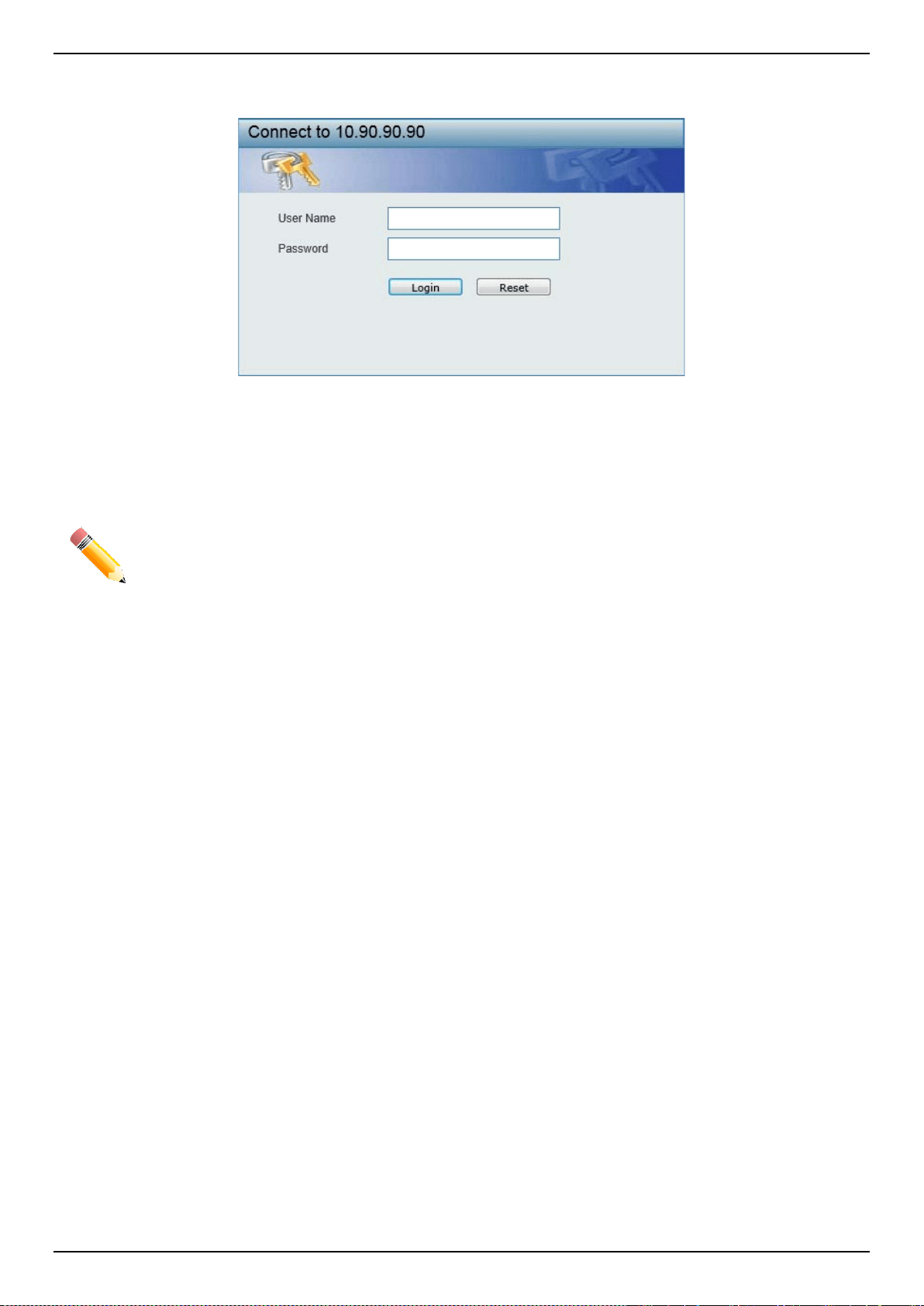
When connecting to the Web UI of the Switch for the first time, leave the User Name and Password fields blank and
click Login since there are no login user accounts created by default on the Switch.
NOTE: After a user account was created, login credentials will be required to access the Web UI.
During the sending and receiving of the login password to and from the Switch, this information
will be protected using a strong encryption algorithm to prevent attackers from snooping this
information to gain unauthorized access to the Switch.
Web User Interface (Web UI)
The Web UI provides access to various Switch configuration and management windows. It allows the user to view
performance statistics, and permits graphical monitoring of the system’s status.
Areas of the User Interface
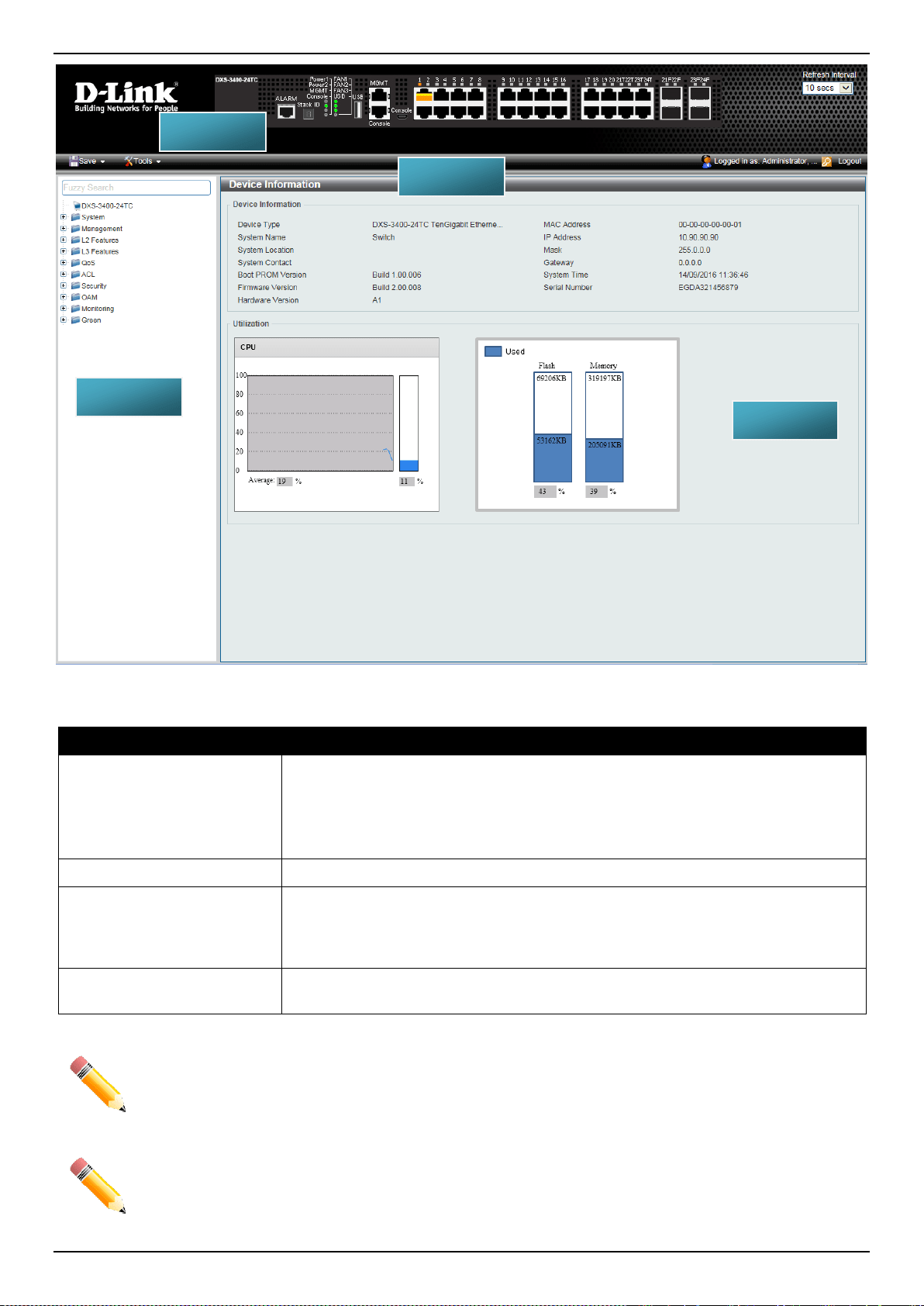
The figure below shows the user interface. Four distinct areas that divide the user interface, as described in the table.
DXS-3400 Series Lite Layer 3 Stackable 10GbE Managed Switch Web UI Reference Guide
4
Figure 2-3 Main Web UI Window
Area Number Description
AREA 1
This area displays a graphical, near real-time image of the front panel of the
Switch. This area displays the Switch’s ports and expansion modules. It also
shows port activity based on a specific mode. Some management functions,
including port monitoring, are accessible from here.
Click the D-Link logo to go to the D-Link website.
AREA 2
This area displays a toolbar used to access Save and Tools menus.
AREA 3
This area displays a file explorer-type menu tree with all configurable options.
Select the folder or window to display. Open folders and click the hyperlinked
window buttons and subfolders contained within them to display information
pertaining to that category.
AREA 4
In this area, the Switch’s configuration page can be found, based on the selection
made in AREA 3.
NOTE: The Switch only supports ASCII characters for input values.
NOTE: The best screen resolution for viewing the Web UI is 1280 x 1024 pixels.
AREA 3
AREA 1
AREA 4
AREA 2
DXS-3400 Series Lite Layer 3 Stackable 10GbE Managed Switch Web UI Reference Guide
5
3. System
Device Information
System Information Settings
Peripheral Settings
Port Configuration
Loopback Test
System Log
Time and SNTP
Time Range
PTP (Precise Time Protocol)
USB Console Settings
SRM
Device Information
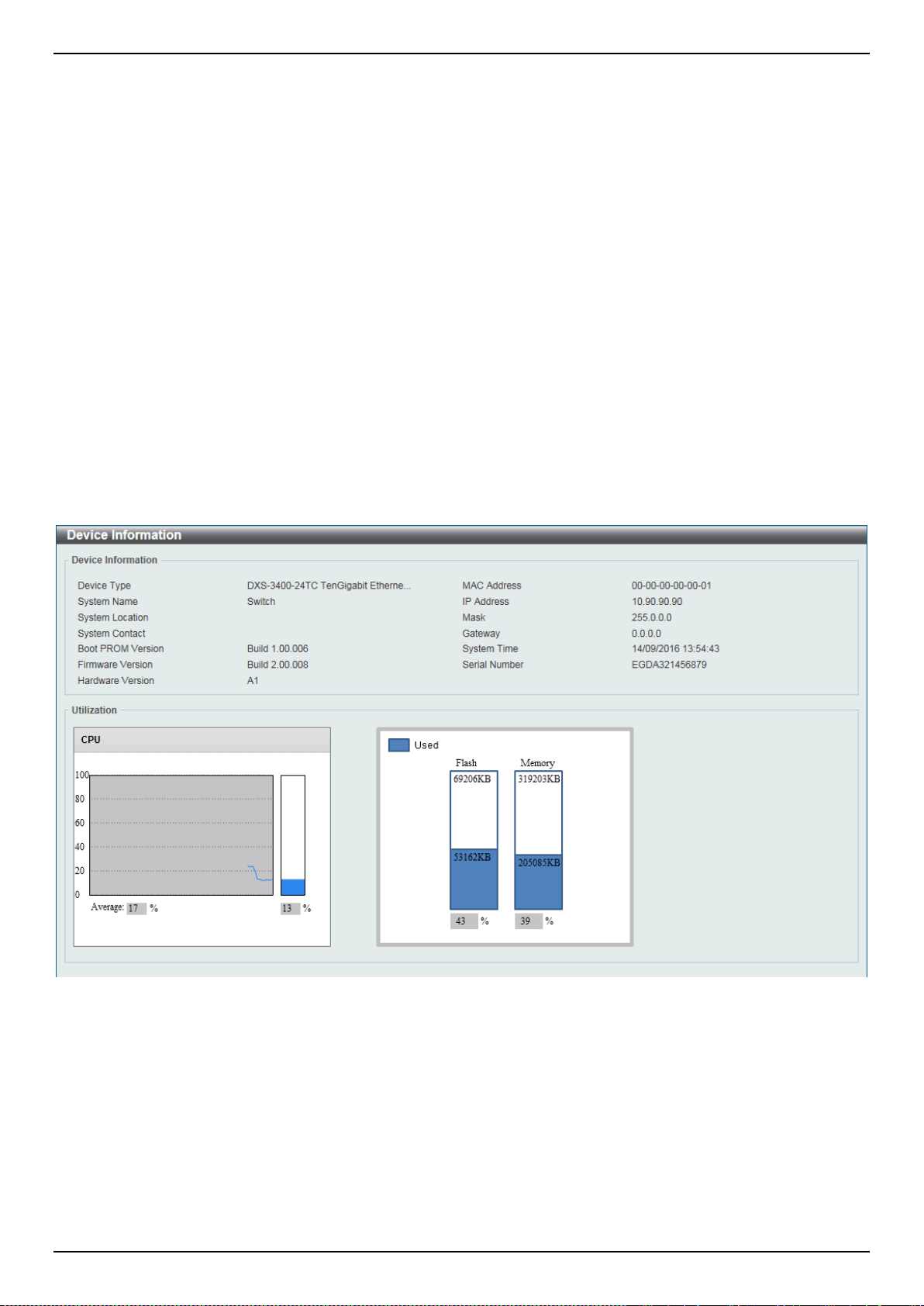
In the Device Information section, the user can view a list of basic information regarding the Switch. It appears
automatically when you log on to the Switch. To return to the Device Information window after viewing other windows,
click the DXS-3400-24TC link.
Figure 3-1 Device Information Window
System Information Settings
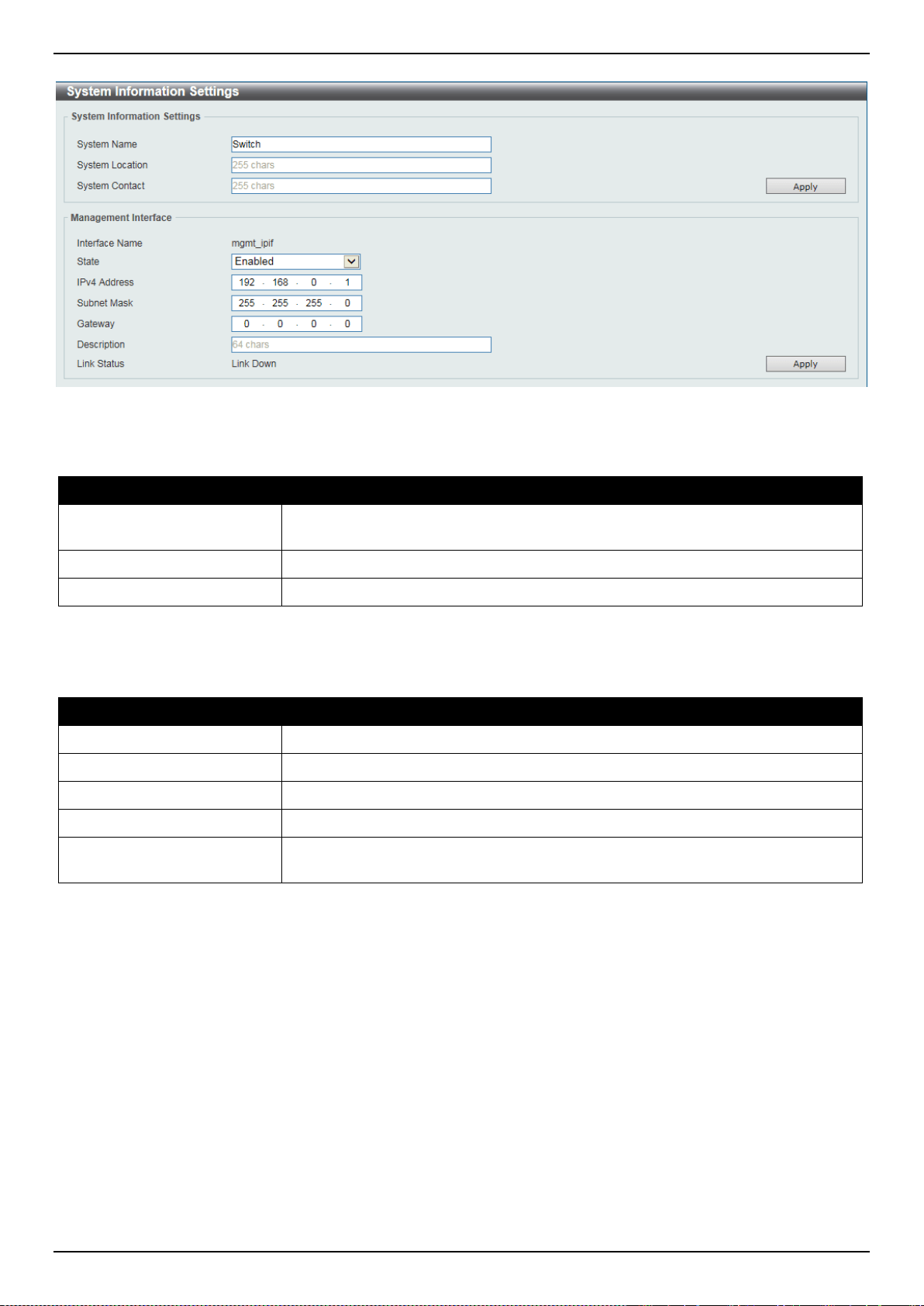
This window is used to display and configure the system information settings and management interface configuration
settings.
To view the following window, click System > System Information Settings, as shown below:
DXS-3400 Series Lite Layer 3 Stackable 10GbE Managed Switch Web UI Reference Guide
6
.
Figure 3-2 System Information Settings Window
The fields that can be configured in System Information Settings are described below:
Parameter Description
System Name
Enter a system name for the Switch, if so desired. This name will identify it in the
Switch network.
System Location
Enter the location of the Switch, if so desired.
System Contact
Enter a contact name for the Switch, if so desired.
Click the Apply button to accept the changes made.
The fields that can be configured in Management Interface are described below:
Parameter Description
State
Select to enable or disable this interface here.
IPv4 Address
Enter the IPv4 address for this interface here.
Subnet Mask
Enter the IPv4 subnet mask for this interface here.
Gateway
Enter the gateway IPv4 address for this interface here.
Description
Enter the description for the management interface here. This can be up to 64
characters long.
Click the Apply button to accept the changes made.
Peripheral Settings
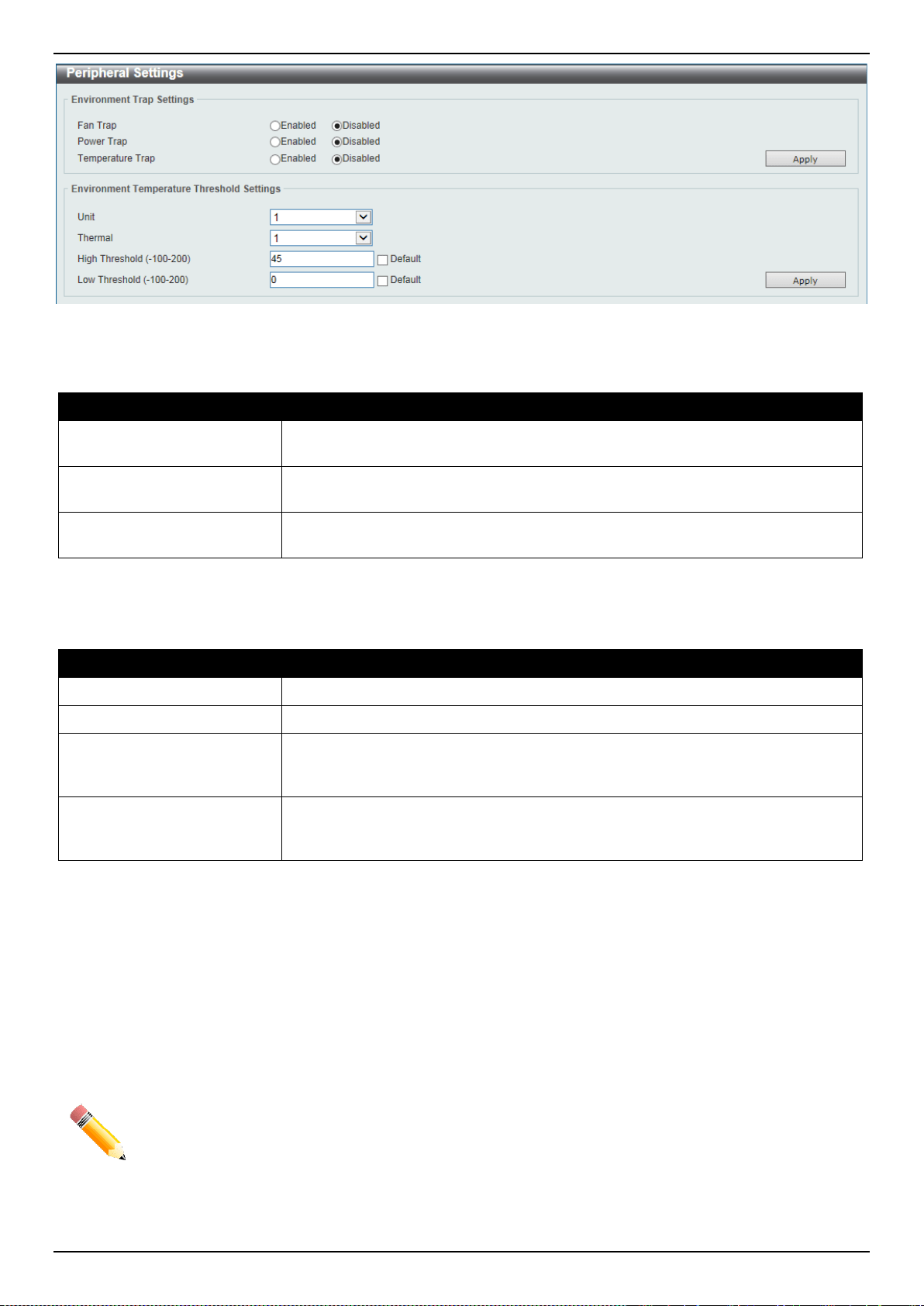
This window is used to display and configure the environment trap settings and environment temperature threshold
settings.
To view the following window, click System > Peripheral Settings, as shown below:
DXS-3400 Series Lite Layer 3 Stackable 10GbE Managed Switch Web UI Reference Guide
7
Figure 3-3 Peripheral Settings Window
The fields that can be configured in Environment Trap Settings are described below:
Parameter Description
Fan Trap
Click to enable or disable the fan trap state for warning fan event (fan failed or fan
recover).
Power Trap
Click to enable or disable the power trap state for warning power event (power
failed or power recover).
Temperature Trap
Click to enable or disable the temperature trap state for warning temperature
event (temperature exceeds the thresholds or temperature recover).
Click the Apply button to accept the changes made.
The fields that can be configured in Environment Temperature Threshold Settings are described below:
Parameter Description
Unit
Select the Switch unit that will be used for this configuration here.
Thermal
Select the thermal sensor ID.
High Threshold
Enter the high threshold value of the warning temperature setting. The range is
from -100 to 200 Celsius degree. Tick the Default check box to return to the
default value.
Low Threshold
Enter the low threshold value of the warning temperature setting. The range is
from -100 to 200 Celsius degree. Tick the Default check box to return to the
default value.
Click the Apply button to accept the changes made.
Port Configuration
Port Settings
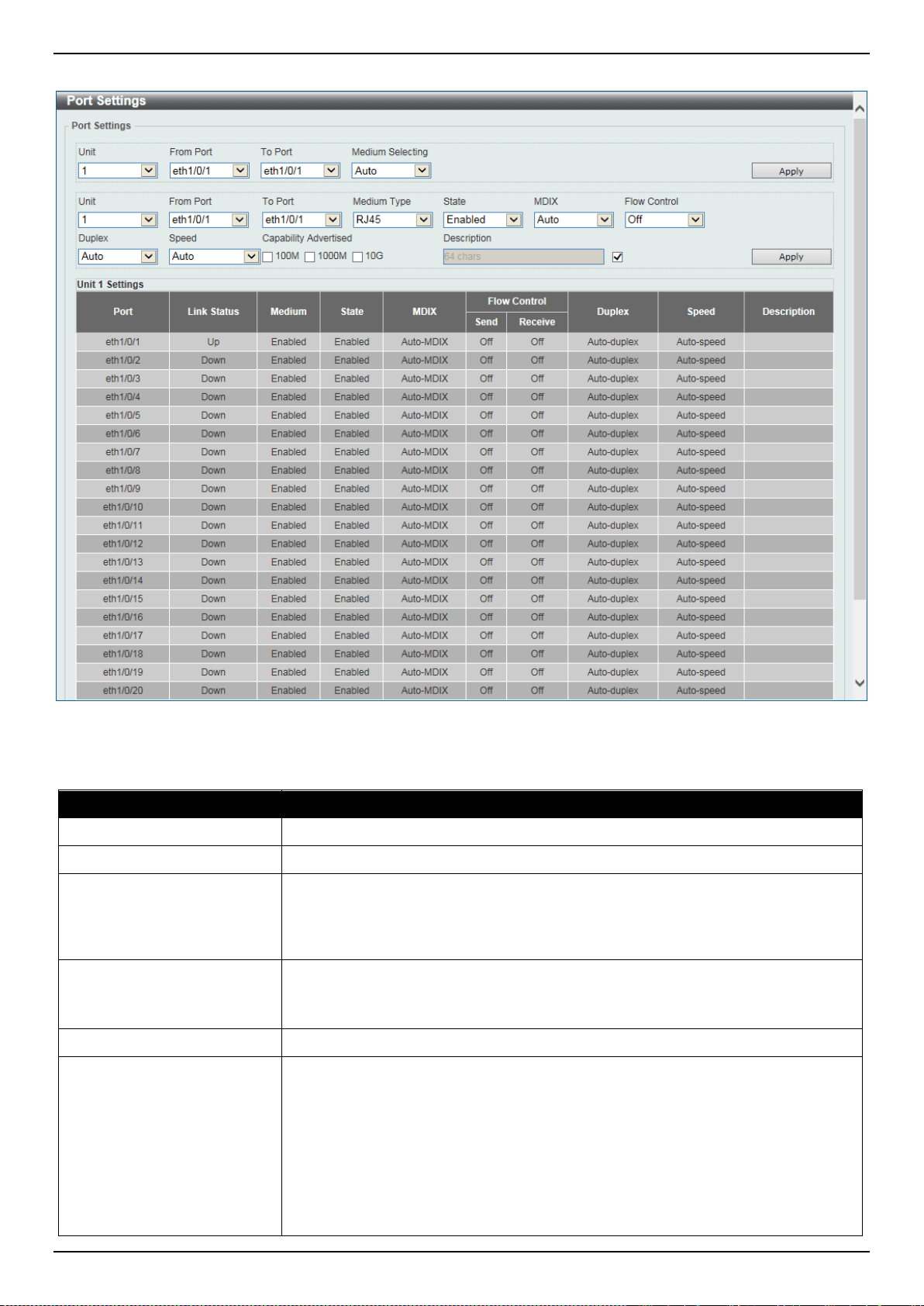
This window is used to display and configure the Switch’s port settings.
NOTE: The 10M and 100M speed options are only applicable when connecting to the Management
Port (Mgmt 0) is used.
To view the following window, click System > Port Configuration > Port Settings, as shown below:
DXS-3400 Series Lite Layer 3 Stackable 10GbE Managed Switch Web UI Reference Guide
8
Figure 3-4 Port Settings Window
The fields that can be configured are described below:
Parameter Description
Unit
Select the stacking unit ID of the Switch that will be configured here.
From Port ~ To Port
Select the appropriate port range used for the configuration here.
Medium Selecting
Select the port medium type here. Options to choose from are Auto, RJ45 and
SFP.
Note: Selecting the SFP option, includes the use of SFP+ transceivers for 10G
connectivity.
Medium Type
Select the port medium type here. Options to choose from are RJ45 and SFP.
Note: Selecting the SFP option, includes the use of SFP+ transceivers for 10G
connectivity.
State
Select this option to enable or disabled the physical port here.
MDIX
Select the Medium Dependent Interface Crossover (MDIX) option here. Options to
choose from are Auto, Normal, and Cross.
• Auto - Select this option for auto-sensing of the optimal type of cabling.
• Normal - Select this option for normal cabling. If this option is selected, the
port is in the MDIX mode and can be connected to a PC’s NIC using a
straight-through cable or a port (in the MDI mode) on another switch through
a cross-over cable.
• Cross - Select this option for cross cabling. If this option is selected, the port

DXS-3400 Series Lite Layer 3 Stackable 10GbE Managed Switch Web UI Reference Guide
9
Parameter Description
is in the MDI mode and can be connected to a port (in the MDIX mode) on
another switch through a straight cable.
Flow Control
Select to either turn flow control On or Off here. Ports configured for full-duplex
use 802.3x flow control, half-duplex ports use back-pressure flow control, and
Auto ports use an automatic selection of the two.
Duplex
Select the duplex mode used here. Options to choose from are Auto and Full.
Speed
Select the port speed option here. This option will manually force the connection
speed on the selected port to only connect at the speed specified here.
Options to choose from are Auto, 100M, 1000M, 1000M Master, 1000M Slave,
10G, 10G Master, and 10G Slave.
The Master setting will allow the port to advertise capabilities related to duplex,
speed and physical layer type. The master setting will also determine the master
and slave relationship between the two connected physical layers. This
relationship is necessary for establishing the timing control between the two
physical layers. The timing control is set on a master physical layer by a local
source.
The Slave setting uses loop timing, where the timing comes from a data stream
received from the master. If one connection is set for master, the other side of the
connection must be set for slave. Any other configuration will result in a link down
status for both ports.
• Auto - Specifies that for copper ports, auto-negotiation will start to negotiate
the speed and flow control with its link partner. For fiber ports, auto-
negotiation will start to negotiate the clock and flow control with its link
partner.
• 100M - Specifies to force the port speed to 100Mbps. This option is only
available for 100Mbps copper connections.
• 1000M - Specifies to force the port speed to 1Gbps. This option is only
available for 1Gbps fiber connections.
• 1000M Master - Specifies to force the port speed to 1Gbps and operates as
the master, to facilitate the timing of transmit and receive operations. This
option is only available for 1Gbps copper connections.
• 1000M Slave - Specifies to force the port speed to 1Gbps and operates as
the slave, to facilitate the timing of transmit and receive operations. This
option is only available for 1Gbps copper connections.
• 10G - Specifies to force the port speed to 10Gbps. This option is only
available for 10Gbps fiber connections.
• 10G Master - Specifies to force the port speed to 10Gbps and operates as
the master, to facilitate the timing of transmit and receive operations. This
option is only available for 10Gbps copper connections.
• 10G Slave - Specifies to force the port speed to 10Gbps and operates as the
slave, to facilitate the timing of transmit and receive operations. This option is
only available for 10Gbps copper connections.
Capability Advertised
When the Speed is set to Auto, these capabilities are advertised during auto-
negotiation.
Description
Enter a 64 characters description for the corresponding port here.
Click the Apply button to accept the changes made.
NOTE: When the state of a port is disabled, settings associated with the port can still be configured.
However, the modified settings will only take effect when the state of the port is enabled.
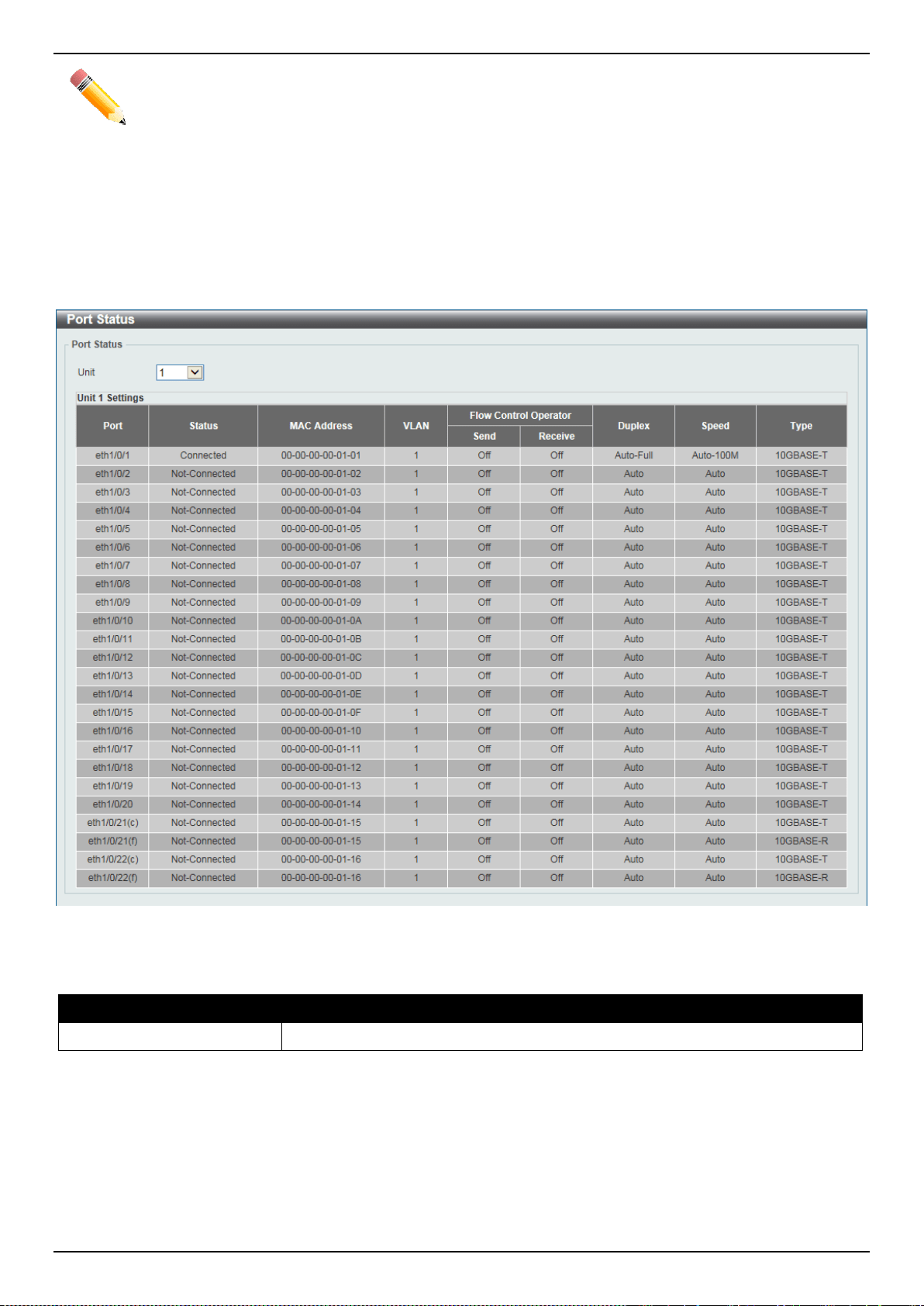
DXS-3400 Series Lite Layer 3 Stackable 10GbE Managed Switch Web UI Reference Guide
10
NOTE: When the state of a combo port is enabled/disabled, regardless of the Medium Type selected,
both the RJ45 and SFP ports will be enabled/disabled.
Port Status
This window is used to display the Switch’s physical port status and settings.
To view the following window, click System > Port Configuration > Port Status, as shown below:
Figure 3-5 Port Status Window
The fields that can be configured are described below:
Parameter Description
Unit
Select the stacking unit ID of the Switch that will be displayed here.
Port GBIC
This window is used to display active GBIC information found on each applicable physical port of the Switch.
To view the following window, click System > Port Configuration > Port GBIC, as shown below:
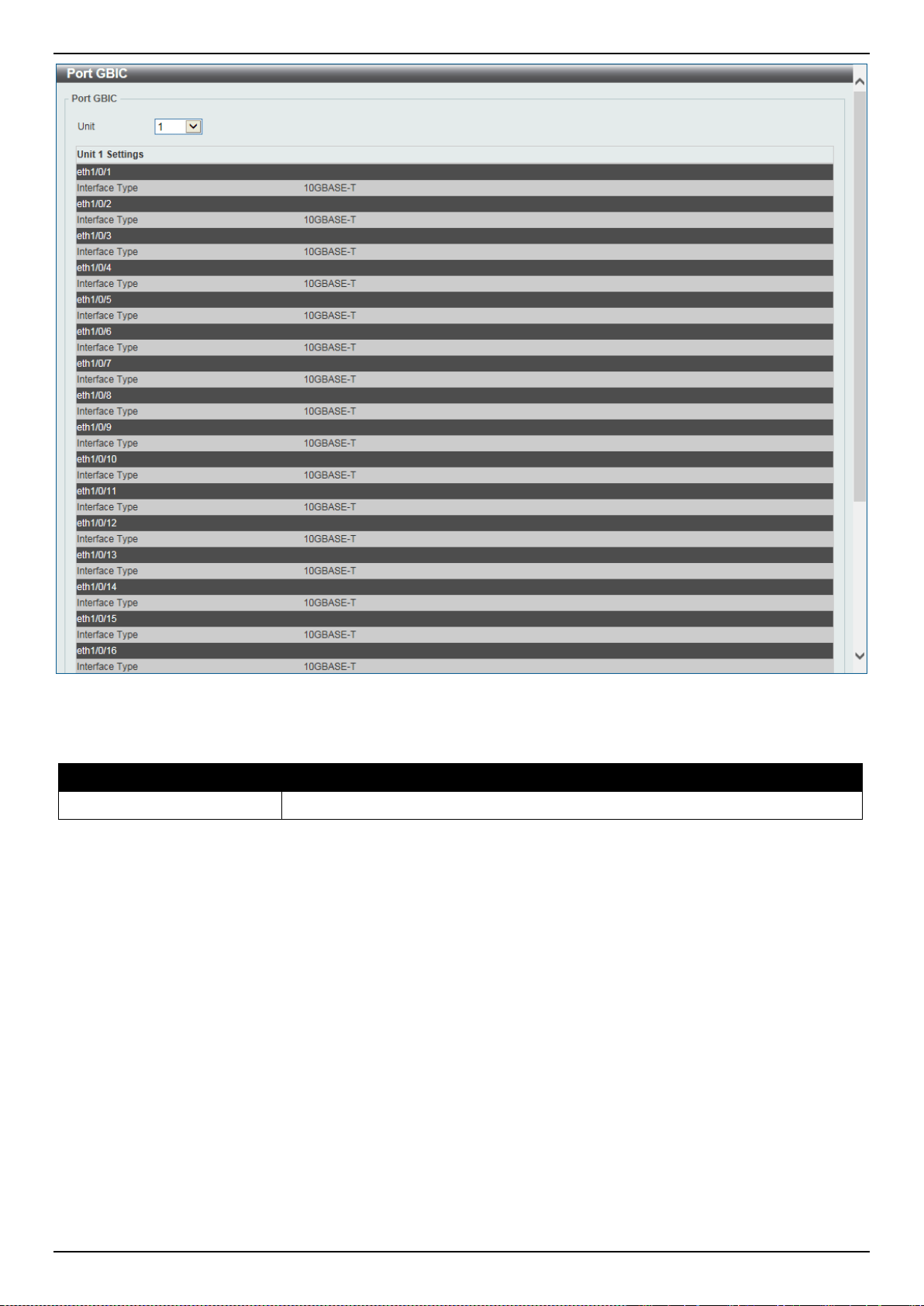
DXS-3400 Series Lite Layer 3 Stackable 10GbE Managed Switch Web UI Reference Guide
11
Figure 3-6 Port GBIC Window
The fields that can be configured are described below:
Parameter Description
Unit
Select the Switch unit that will be used for this display here.
Port Auto Negotiation
This window is used to display detailed port auto-negotiation information.
To view the following window, click System > Port Configuration > Port Auto Negotiation, as shown below:
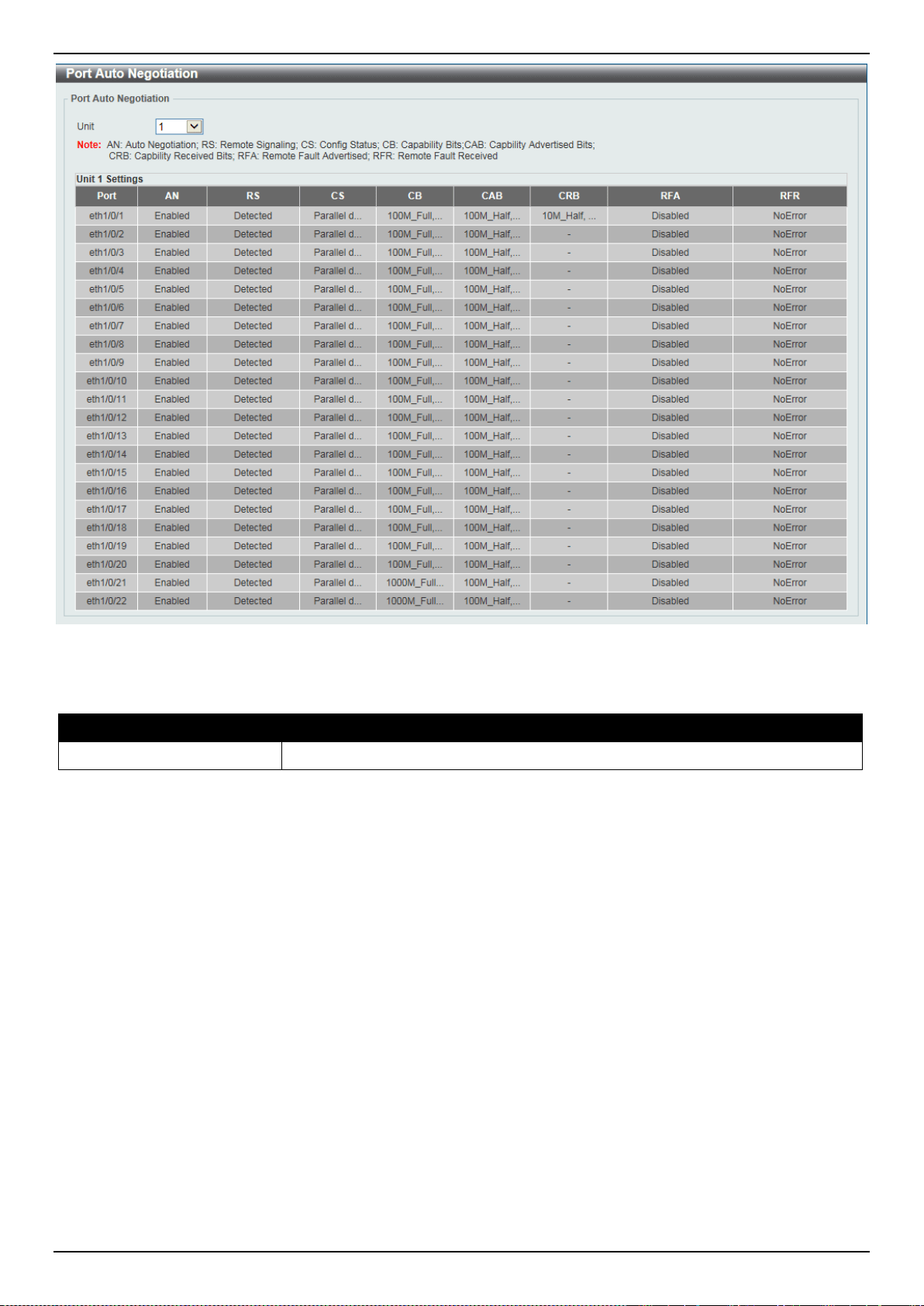
DXS-3400 Series Lite Layer 3 Stackable 10GbE Managed Switch Web UI Reference Guide
12
Figure 3-7 Port Auto Negotiation Window
The fields that can be configured are described below:
Parameter Description
Unit
Select the stacking unit ID of the Switch that will be displayed here.
Error Disable Settings
This window is used to display and configure the error recovery for causes and to configure the recovery interval.
To view the following window, click System > Port Configuration > Error Disable Settings, as shown below:
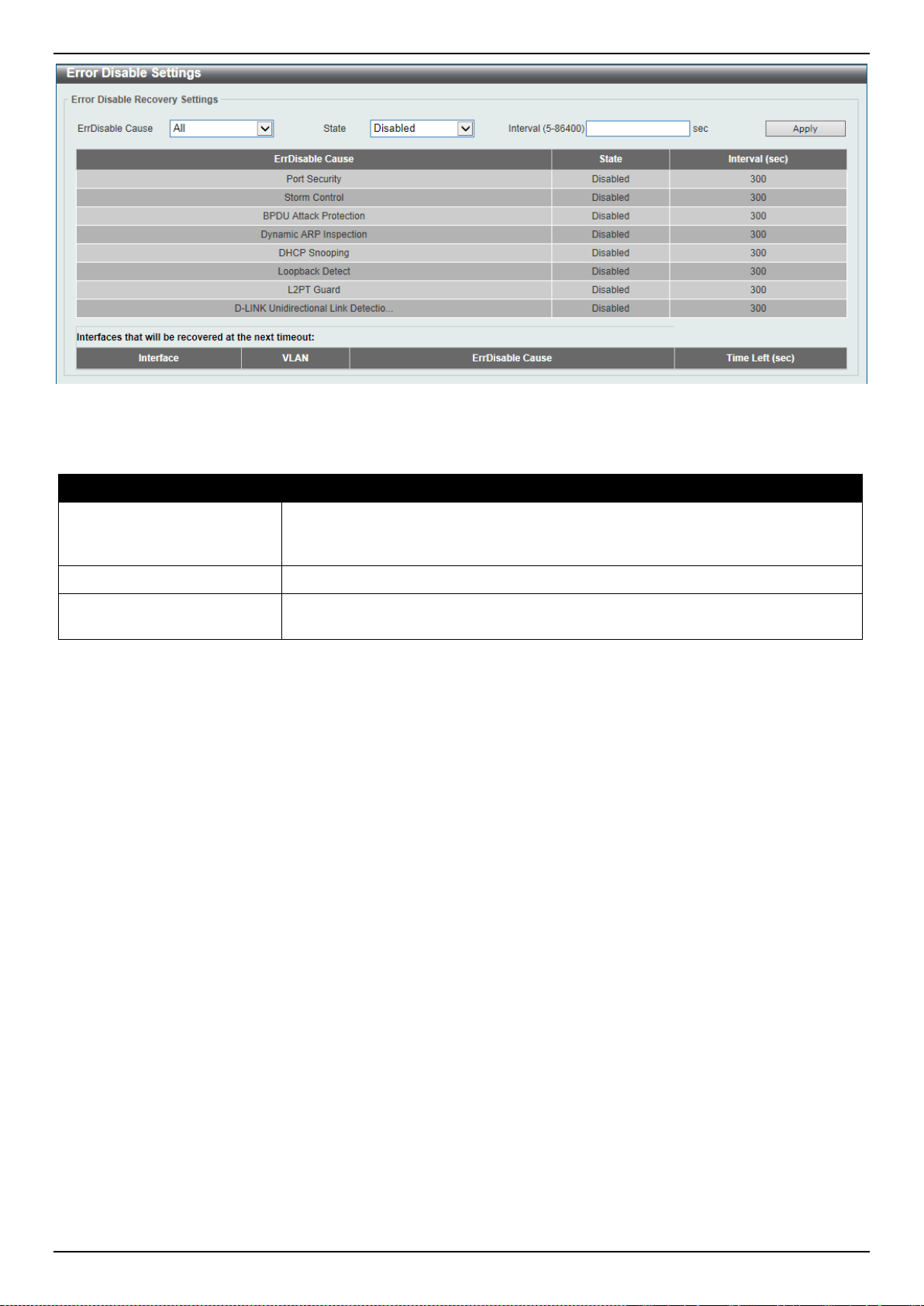
DXS-3400 Series Lite Layer 3 Stackable 10GbE Managed Switch Web UI Reference Guide
13
Figure 3-8 Error Disable Settings Window
The fields that can be configured are described below:
Parameter Description
ErrDisable Cause
Select the error disabled cause here. Options to choose from are Port Security,
Storm Control, BPDU Attack Protection, Dynamic ARP Inspection, DHCP
Snooping, and Loopback Detect.
State
Select the enable or disable the error disabled recovery feature here.
Interval
Enter the time, in seconds, to recover the port from the error state caused by the
specified module. The range is from 5 to 86400.
Click the Apply button to accept the changes made.
Jumbo Frame
This window is used to display and configure the Jumbo Frame size and settings. The Switch supports jumbo frames.
Jumbo frames are Ethernet frames with more than 1,518 bytes of payload. The Switch supports jumbo frames with a
maximum frame size of up to 12288 bytes.
To view the following window, click System > Port Configuration > Jumbo Frame, as shown below:
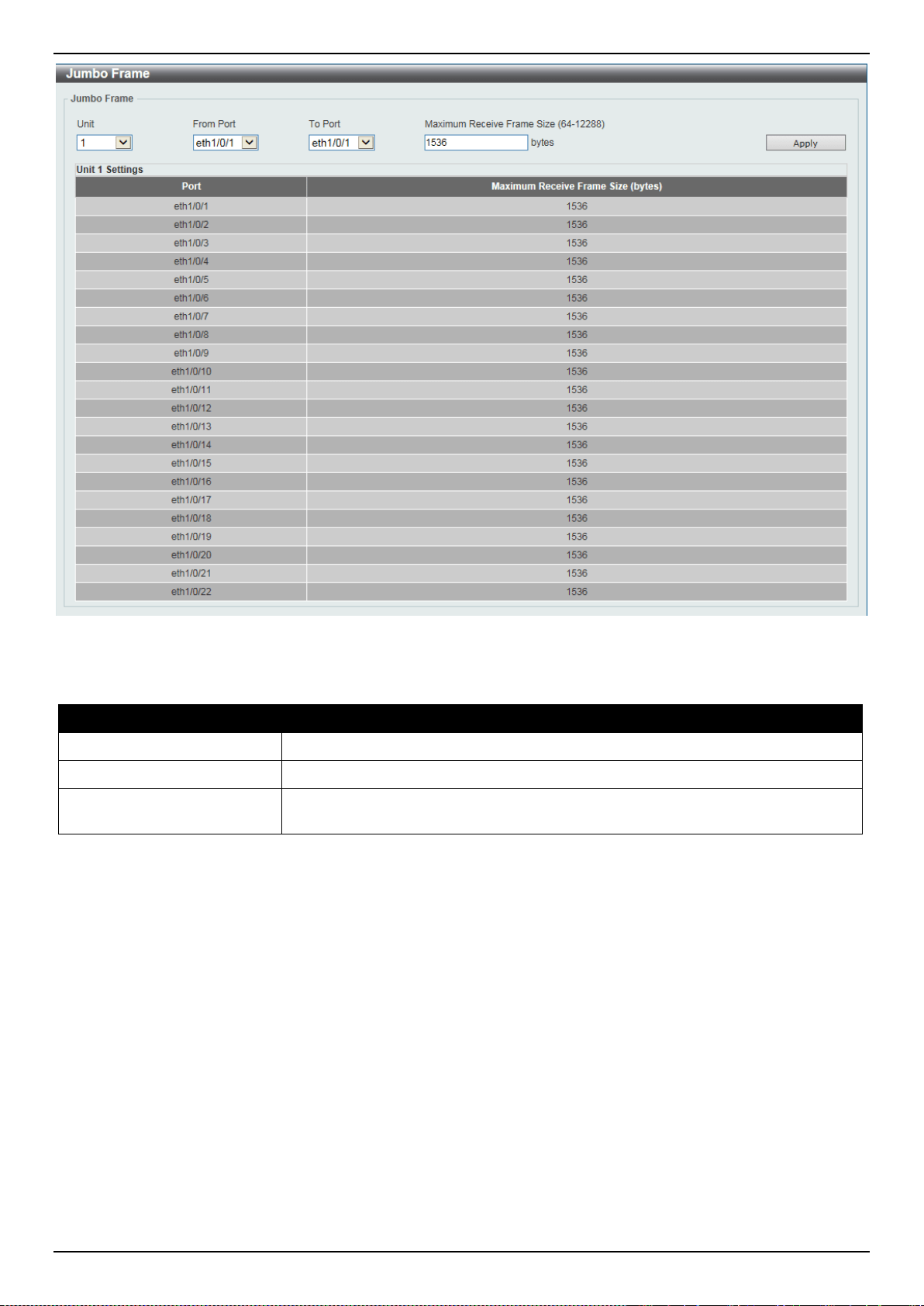
DXS-3400 Series Lite Layer 3 Stackable 10GbE Managed Switch Web UI Reference Guide
14
Figure 3-9 Jumbo Frame Window
The fields that can be configured are described below:
Parameter Description
Unit
Select the stacking unit ID of the Switch that will be configured here.
From Port ~ To Port
Select the appropriate port range used for the configuration here.
Maximum Receive Frame
Size
Enter the maximum receive frame size value here. This value must be between
64 and 12288 bytes. By default, this value is 1536 bytes.
Click the Apply button to accept the changes made.
Loopback Test
This window is used to display and configure the loopback settings of the physical port interfaces and to start testing.
To view the following window, click System > Loopback Test, as shown below:

DXS-3400 Series Lite Layer 3 Stackable 10GbE Managed Switch Web UI Reference Guide
15
Figure 3-10 Loopback Test Window
The fields that can be configured are described below:
Parameter Description
Unit
Select the Switch unit that will be used for this configuration here.
From Port ~ To Port
Select the appropriate port range used for the configuration here.
Loopback Mode
Select the loopback mode here. Options to choose from are:
• None - Specifies not to enable the loopback mode.
• Internal MAC - Specifies the internal loopback mode at the MAC layer.
• Internal PHY Default - Specifies the internal loopback mode at the PHY
layer to test the default medium.
• Internal PHY Copper - Specifies the internal loopback mode at the PHY
layer to test the copper medium.
• Internal PHY Fiber - Specifies the internal loopback mode at the PHY layer
to test the fiber medium.
• External MAC - Specifies the external loopback mode at the MAC layer.
• External PHY Default - Specifies the external loopback mode at the PHY
layer to test the default medium.
• External PHY Copper - Specifies the external loopback mode at the PHY
layer to test the copper medium.
• External PHY Fiber - Specifies the external loopback mode at the PHY layer
to test the fiber medium.
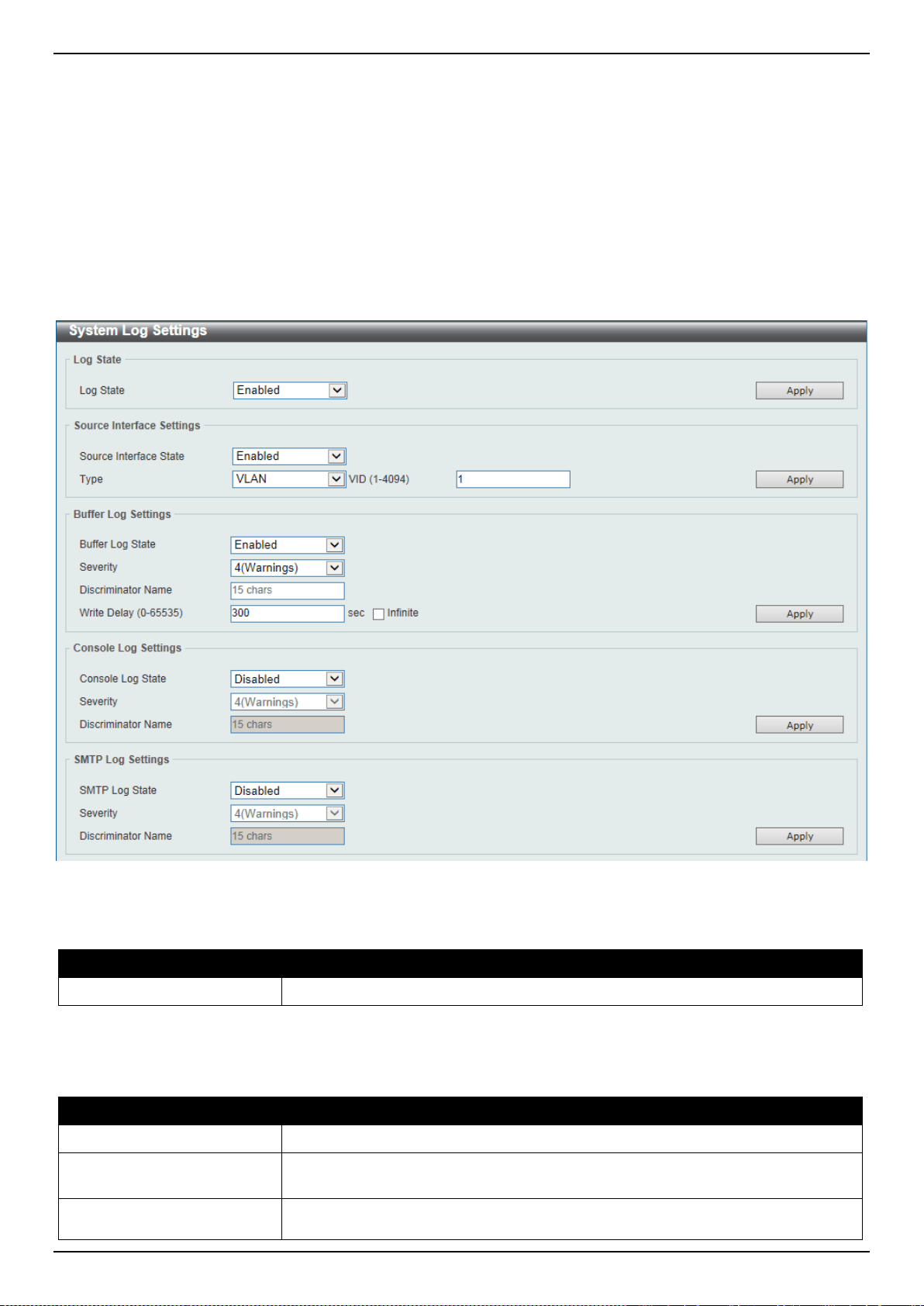
DXS-3400 Series Lite Layer 3 Stackable 10GbE Managed Switch Web UI Reference Guide
16
Click the Apply button to accept the changes made.
System Log
System Log Settings
This window is used to display and configure the system’s log settings.
To view the following window, click System > System Log > System Log Settings, as shown below:
Figure 3-11 System Log Settings Window
The fields that can be configured for Log State are described below:
Parameter Description
Log State
Select the enable or disable the system log feature’s global state here.
Click the Apply button to accept the changes made.
The fields that can be configured for Source Interface Settings are described below:
Parameter Description
Source Interface State
Select this option to enable or disable the source interface’s global state.
Type
Select the type of interface that will be used. Options to choose from are
Loopback, Mgmt, and VLAN.
VID
Enter the interface’s VID used here. For loopback interfaces this ID can be from 1
to 8. For the management (Mgmt) interface this value is always 0. For VLAN

DXS-3400 Series Lite Layer 3 Stackable 10GbE Managed Switch Web UI Reference Guide
17
Parameter Description
interfaces this value is from 1 to 4094.
Click the Apply button to accept the changes made.
The fields that can be configured for Buffer Log Settings are described below:
Parameter Description
Buffer Log State
Select whether the enable or disable the buffer log’s global state here. Options to
choose from are Enable, Disabled, and Default. When selecting the Default
option, the buffer log’s global state will follow the default behavior.
Severity
Select the severity value of the type of information that will be logged. Options to
choose from are 0 (Emergencies), 1 (Alerts), 2 (Critical), 3 (Errors), 4
(Warnings), 5 (Notifications), 6 (Informational), and 7 (Debugging).
Discriminator Name
Enter the discriminator name used here. This name can be up to 15 characters
long.
Write Delay
Enter the log’s write delay value here. This value must be between 0 and 65535
seconds. By default, this value is 300 seconds. Tick the Infinite option, to disable
the write delay feature.
Click the Apply button to accept the changes made.
The fields that can be configured for Console Log Settings are described below:
Parameter Description
Console Log State
Select whether the enable or disable the console log’s global state here.
Severity
Select the severity value of the type of information that will be logged. Options to
choose from are 0 (Emergencies), 1 (Alerts), 2 (Critical), 3 (Errors), 4
(Warnings), 5 (Notifications), 6 (Informational), and 7 (Debugging).
Discriminator Name
Enter the discriminator name used here. This name can be up to 15 characters
long.
Click the Apply button to accept the changes made.
The fields that can be configured for SMTP Log Settings are described below:
Parameter Description
SMTP Log State
Select whether the enable or disable the SMTP log’s global state here.
Severity
Select the severity value of the type of information that will be logged. Options to
choose from are 0 (Emergencies), 1 (Alerts), 2 (Critical), 3 (Errors), 4
(Warnings), 5 (Notifications), 6 (Informational), and 7 (Debugging).
Discriminator Name
Enter the discriminator name used here. This name can be up to 15 characters
long.
Click the Apply button to accept the changes made.
System Log Discriminator Settings
This window is used to display and configure the system log’s discriminator settings.
To view the following window, click System > System Log > System Log Discriminator Settings, as shown below:
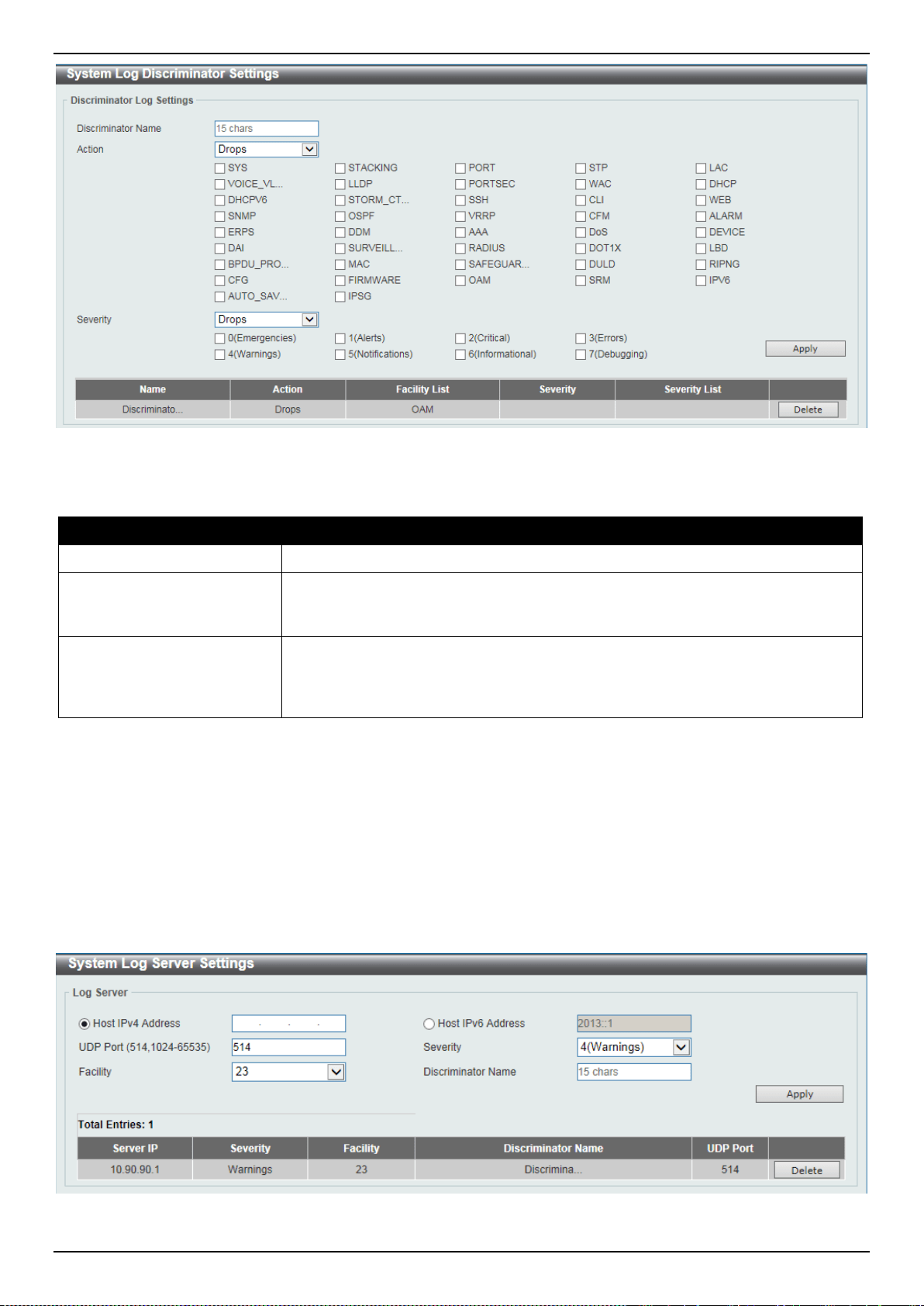
DXS-3400 Series Lite Layer 3 Stackable 10GbE Managed Switch Web UI Reference Guide
18
Figure 3-12 System Log Discriminator Settings Window
The fields that can be configured are described below:
Parameter Description
Discriminator Name
Enter the discriminator name here. This name can be up to 15 characters long.
Action
Select the facility’s behavior option and the type of facility that will be associated
with the selected behavior here. Behavior options to choose from are Drops and
Includes.
Severity
Select the severity behavior option and the value of the type of information that
will be logged. Behavior options to choose from are Drops and Includes. Severity
value options to choose from are 0 (Emergencies), 1 (Alerts), 2 (Critical), 3
(Errors), 4 (Warnings), 5 (Notifications), 6 (Informational), and 7 (Debugging).
Click the Apply button to accept the changes made.
Click the Delete button to delete the specified entry.
System Log Server Settings
This window is used to display and configure system log’s server settings.
To view the following window, click System > System Log > System Log Server Settings, as shown below:
Figure 3-13 System Log Server Settings Window
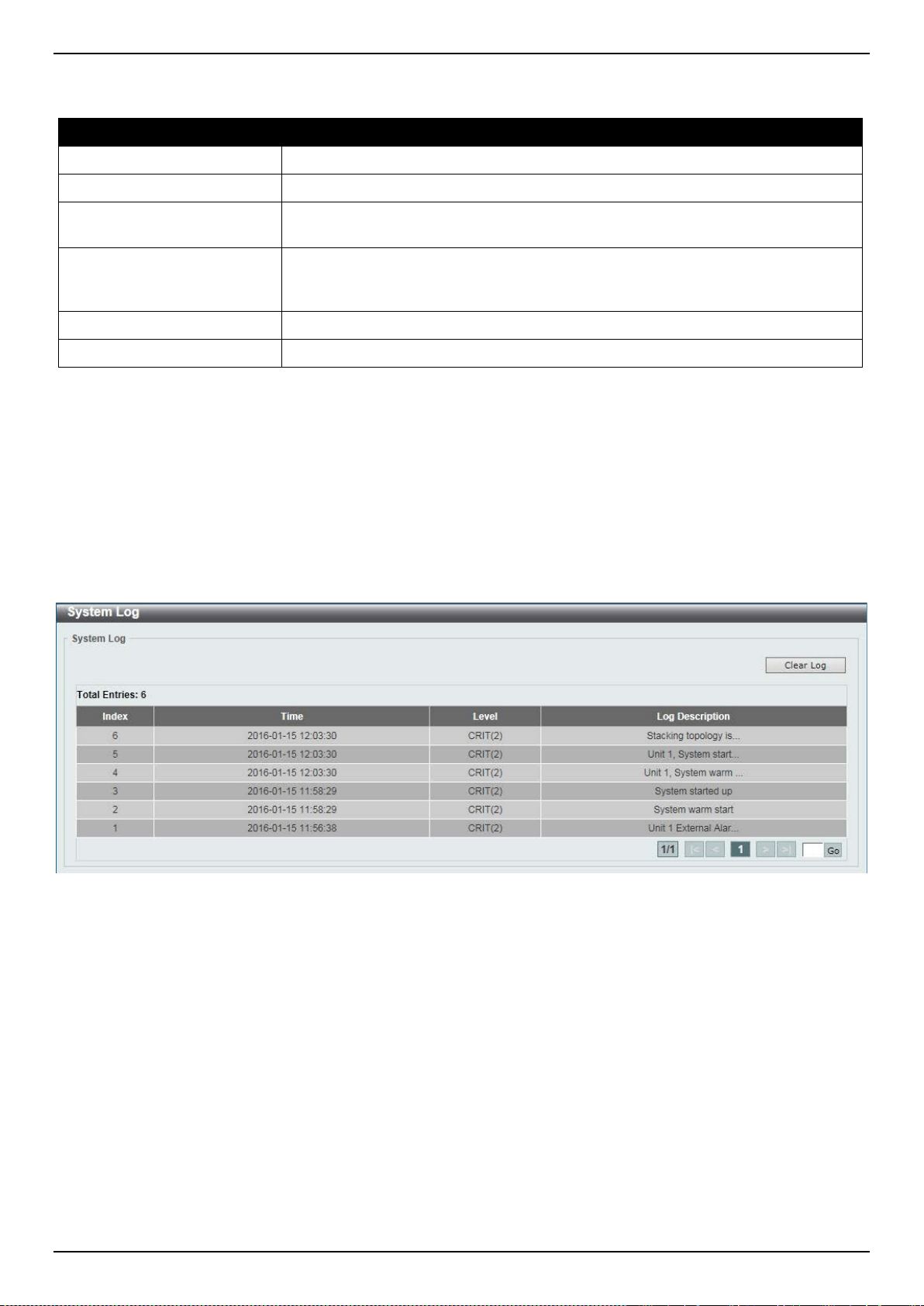
DXS-3400 Series Lite Layer 3 Stackable 10GbE Managed Switch Web UI Reference Guide
19
The fields that can be configured are described below:
Parameter Description
Host IPv4 Address
Enter the system log server’s IPv4 address here.
Host IPv6 Address
Enter the system log server’s IPv6 address here.
UDP Port
Enter the system log server’s UDP port number here. This value must be either
514 or between 1024 and 65535. By default, this value is 514.
Severity
Select the severity value of the type of information that will be logged. Options to
choose from are 0 (Emergencies), 1 (Alerts), 2 (Critical), 3 (Errors), 4
(Warnings), 5 (Notifications), 6 (Informational), and 7 (Debugging).
Facility
Select the facility value here. Options to choose from are 0 to 23.
Discriminator Name
Enter the discriminator name here. This name can be up to 15 characters long.
Click the Apply button to accept the changes made.
Click the Delete button to delete the specified entry.
System Log
This window is used to display and clear the system log.
To view the following window, click System > System Log > System Log, as shown below:
Figure 3-14 System Log Window
Click the Clear Log button to clear the system log entries displayed in the table.
Enter a page number and click the Go button to navigate to a specific page when multiple pages exist.
System Attack Log
This window is used to display and clear the system attack log.
To view the following window, click System > System Log > System Attack Log, as shown below:
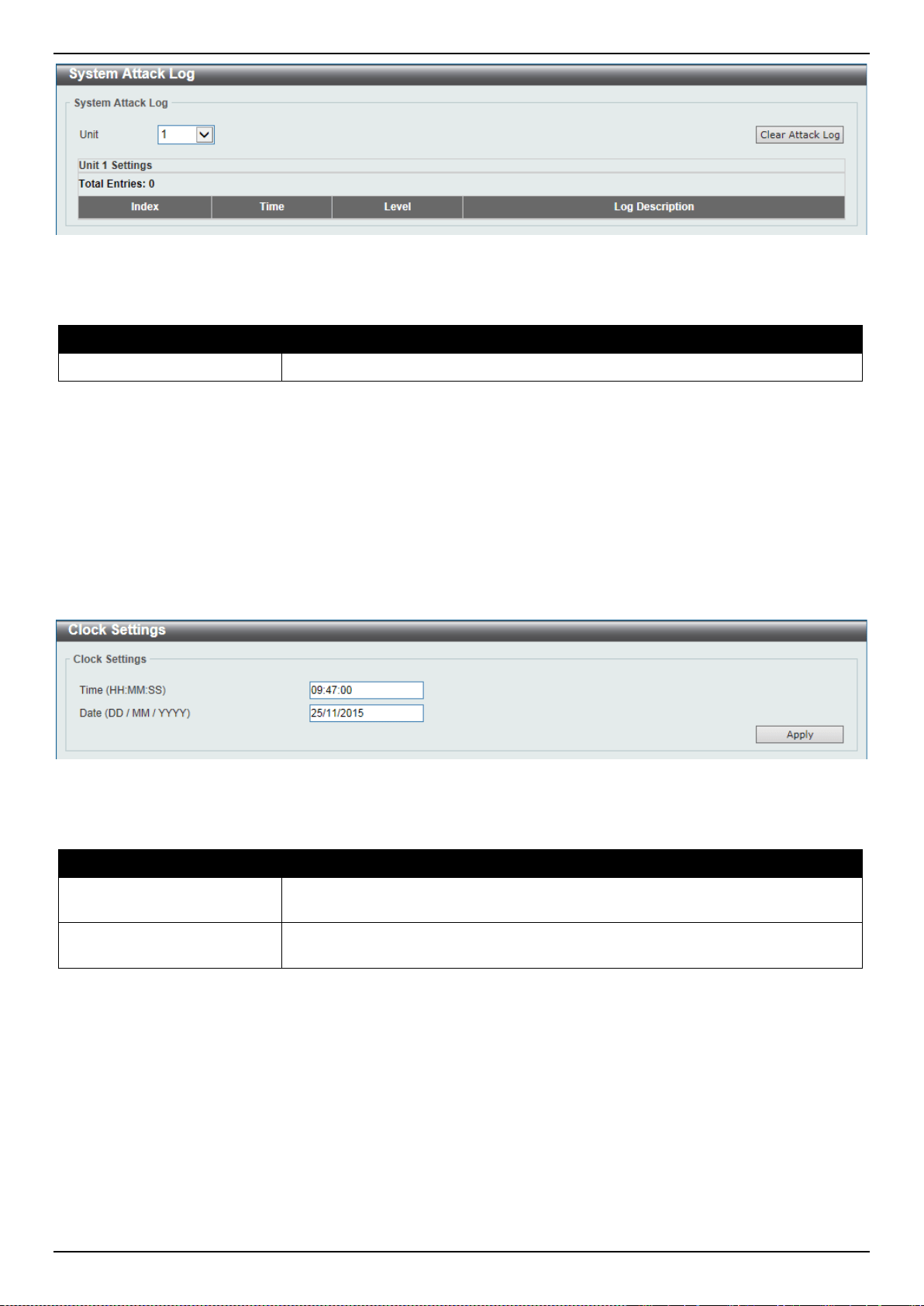
DXS-3400 Series Lite Layer 3 Stackable 10GbE Managed Switch Web UI Reference Guide
20
Figure 3-15 System Attack Log Window
The fields that can be configured are described below:
Parameter Description
Unit
Select the stacking unit ID of the Switch that will be displayed here.
Click the Clear Attack Log button to clear the system attack log entries displayed in the table.
Time and SNTP
Clock Settings
This window is used to display and configure the time settings for the Switch.
To view the following window, click System > Time and SNTP > Clock Settings, as shown below:
Figure 3-16 Clock Settings Window
The fields that can be configured are described below:
Parameter Description
Time
Enter the current time in hours (HH), minutes (MM), and seconds (SS) here. For
example, 18:30:30.
Date
Enter the current day (DD), month (MM), and year (YY) here. For example,
30/04/2015.
Click the Apply button to accept the changes made.
Time Zone Settings
This window is used to display and configure time zones and Daylight Savings Time settings for SNTP.
To view the following window, click System > Time and SNTP > Time Zone Settings, as shown below:
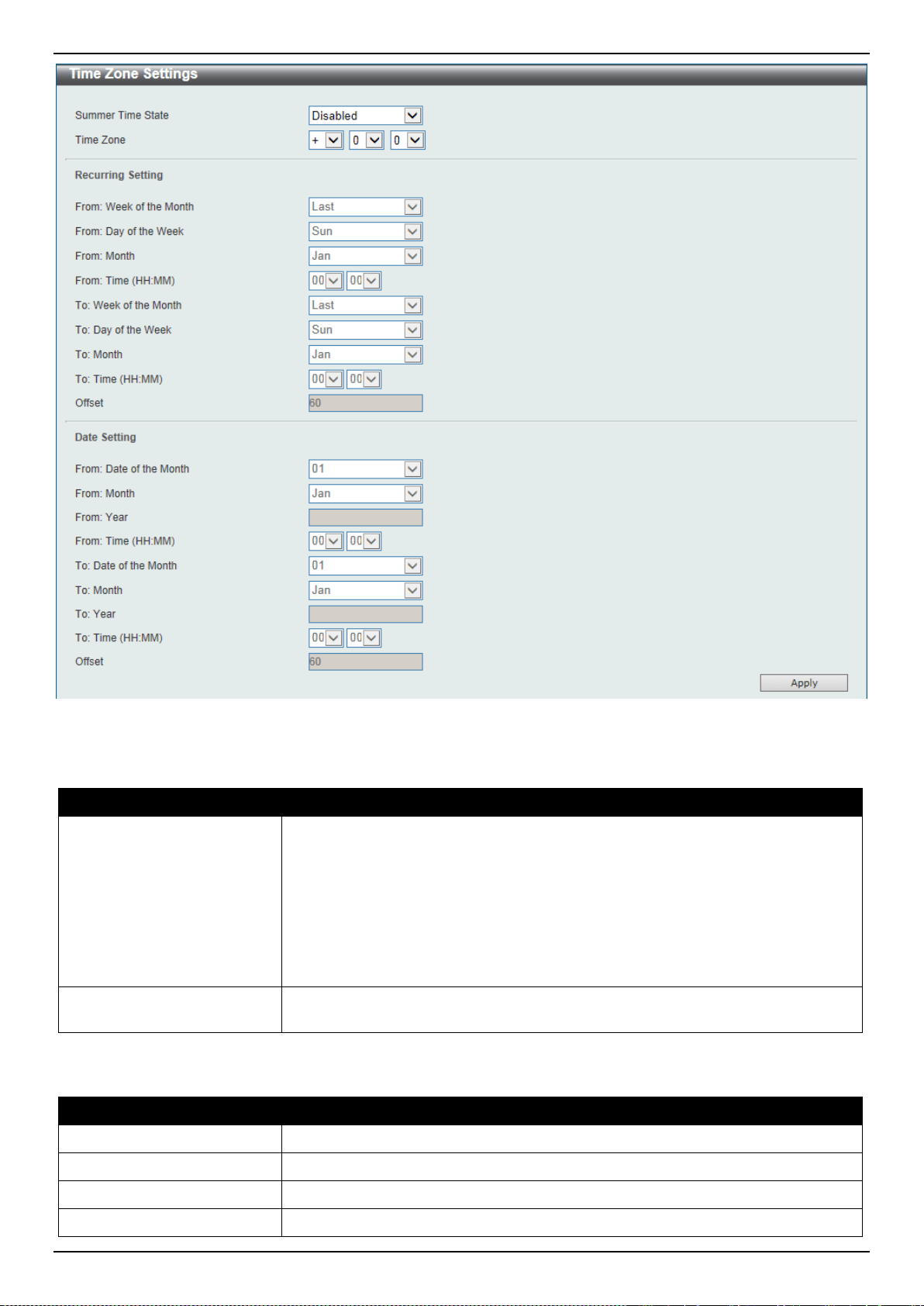
DXS-3400 Series Lite Layer 3 Stackable 10GbE Managed Switch Web UI Reference Guide
21
Figure 3-17 Time Zone Settings Window
The fields that can be configured are described below:
Parameter Description
Summer Time State
Select the summer time setting. Options to choose from are Disabled, Recurring
Setting, and Date Setting.
• Disabled - Select to disable the summer time setting.
• Recurring Setting - Select to configure the summer time that should start
and end on the specified week day of the specified month.
• Date Setting - Select to configure the summer time that should start and end
on the specified date of the specified month.
Time Zone
Select to specify your local time zone’s offset from Coordinated Universal Time
(UTC).
The fields that can be configured in Recurring Settings are described below:
Parameter Description
From: Week of the Month
Select week of the month that summer time will start.
From: Day of the Week
Select the day of the week that summer time will start.
From: Month
Select the month that summer time will start.
From: Time
Select the time of the day that summer time will start.
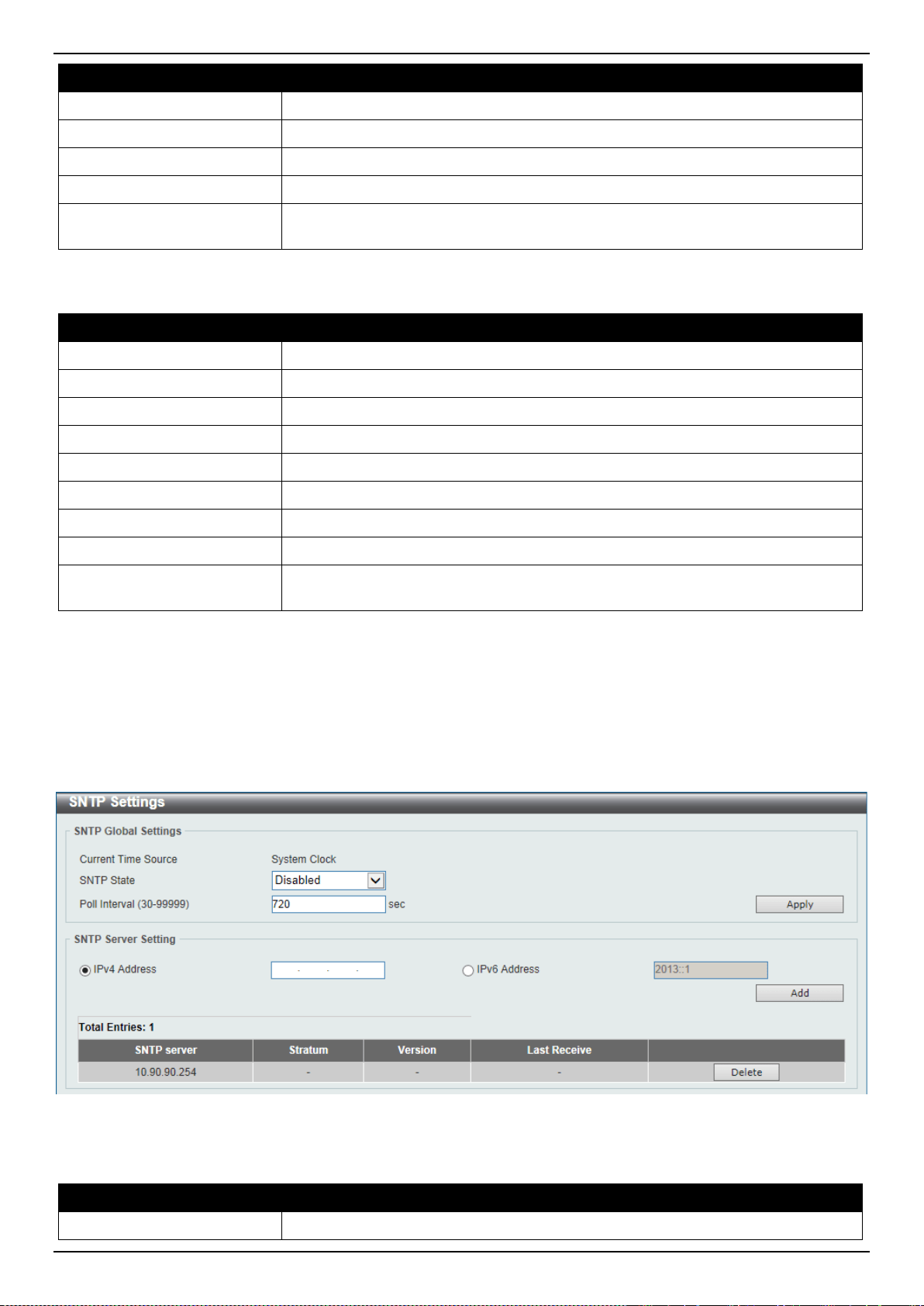
DXS-3400 Series Lite Layer 3 Stackable 10GbE Managed Switch Web UI Reference Guide
22
Parameter Description
To: Week of the Month
Select week of the month that summer time will end.
To: Day of the Week
Select the day of the week that summer time will end.
To: Month
Select the month that summer time will end.
To: Time
Select the time of the day that summer time will end.
Offset
Enter the number of minutes to add during summer time. The default value is 60.
The range of this offset is 30, 60, 90 and 120.
The fields that can be configured in Date Settings are described below:
Parameter Description
From: Date of the Month
Select date of the month that summer time will start.
From: Month
Select the month that summer time will start.
From: Year
Enter the year that the summer time will start.
From: Time
Select the time of the day that summer time will start.
To: Date of the Month
Select date of the month that summer time will end.
To: Month
Select the month that summer time will end.
To: Year
Enter the year that the summer time will end.
To: Time
Select the time of the day that summer time will end.
Offset
Enter the number of minutes to add during summer time. The default value is 60.
The range of this offset is 30, 60, 90 and 120.
Click the Apply button to accept the changes made.
SNTP Settings
This window is used to display configure the SNTP settings for the Switch.
To view the following window, click System > Time and SNTP > SNTP Settings, as shown below:
Figure 3-18 SNTP Settings Window
The fields that can be configured in SNTP Global Settings are described below:
Parameter Description
SNTP State
Select this option to enable or disable SNTP.
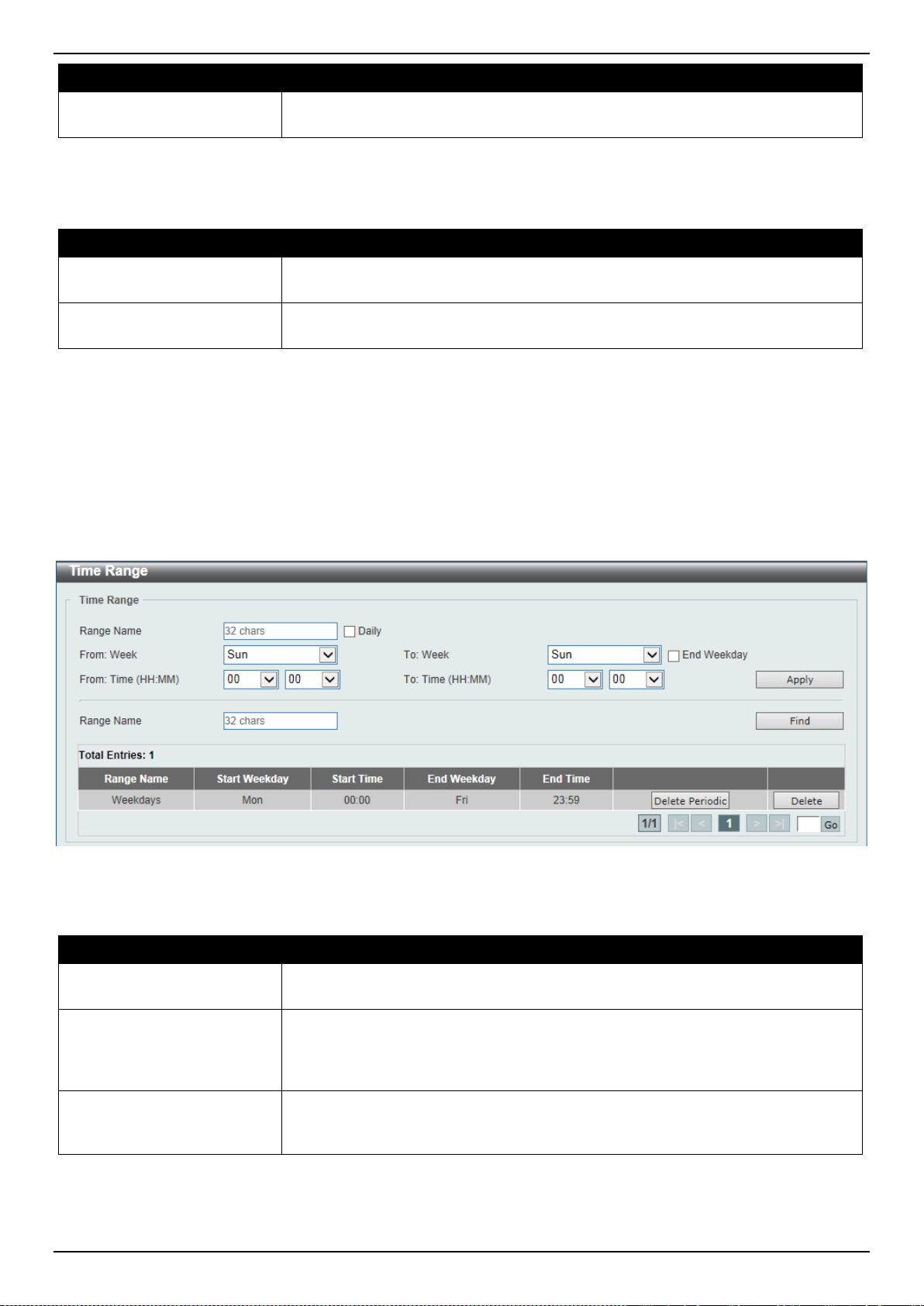
DXS-3400 Series Lite Layer 3 Stackable 10GbE Managed Switch Web UI Reference Guide
23
Parameter Description
Poll Interval
Enter the synchronizing interval in seconds. The value is from 30 to 99999
seconds. The default interval is 720 seconds.
Click the Apply button to accept the changes made.
The fields that can be configured in SNTP Server Settings are described below:
Parameter Description
IPv4 Address
Enter the IPv4 address of the SNTP server which provides the clock
synchronization.
IPv6 Address
Enter the IPv6 address of the SNTP server which provides the clock
synchronization.
Click the Add button to add the SNTP server.
Click the Delete button to remove the specified entry.
Time Range
This window is used to display and configure the time profile settings.
To view the following window, click System > Time Range, as shown below:
Figure 3-19 Time Range Window
The fields that can be configured are described below:
Parameter Description
Range Name
Enter the time profile’s range name here. This name can be up to 32 characters
long.
From Week ~ To Week
Select the starting and ending days of the week that will be used for this time
profile. Tick the Daily option to use this time profile for every day of the week. Tick
the End Week Day option to use this time profile from the starting day of the
week until the end of the week, which is Sunday.
From Time ~ To Time
Select the starting and ending time of the day that will be used for this time profile.
The first drop-down menu selects the hour and the second drop-down menu
selects the minute.
Click the Apply button to accept the changes made.
Click the Find button to locate a specific entry based on the information entered.
Click the Delete Periodic button to delete the periodic entry.
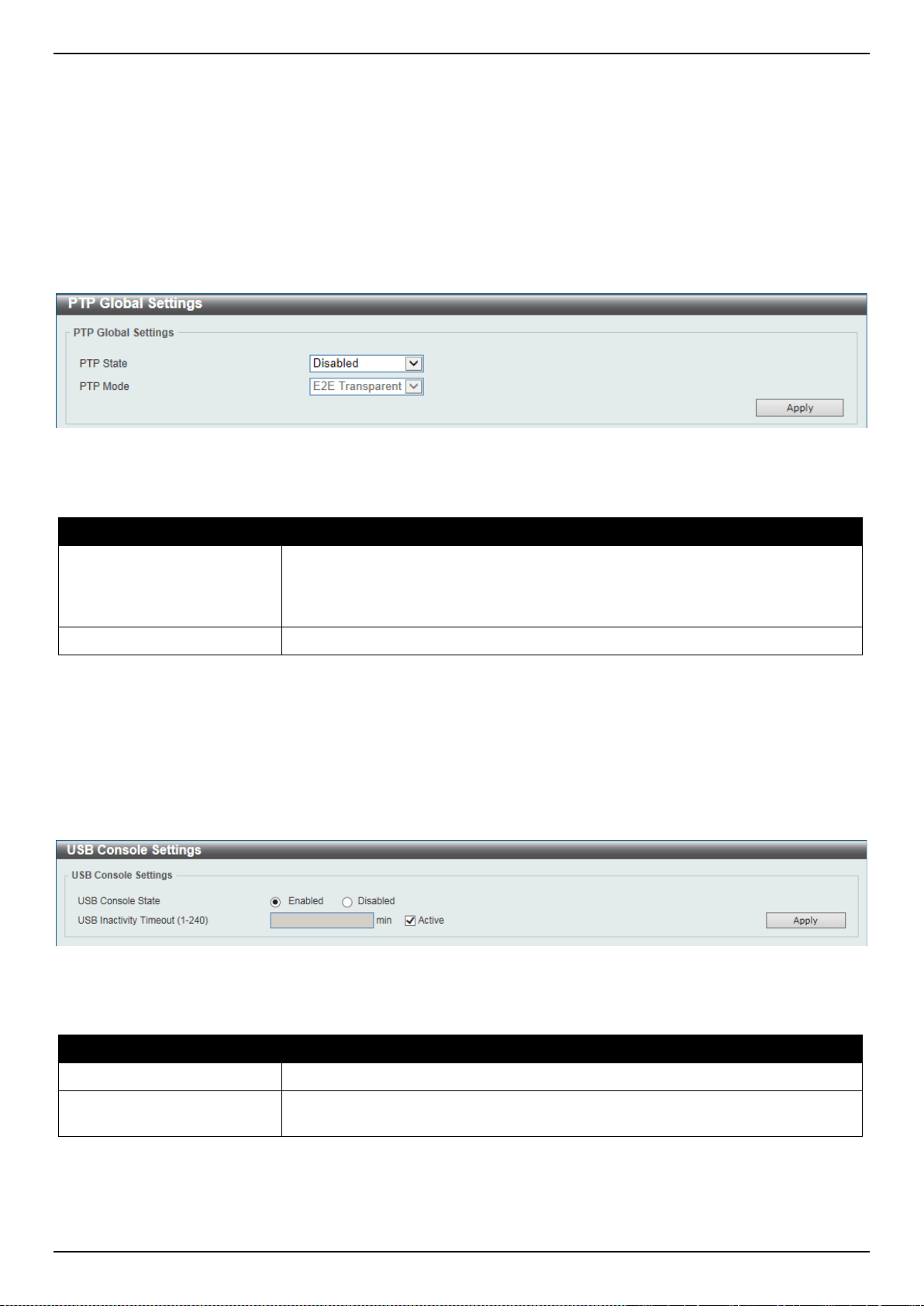
DXS-3400 Series Lite Layer 3 Stackable 10GbE Managed Switch Web UI Reference Guide
24
Click the Delete button to delete the specified entry.
PTP (Precise Time Protocol)
PTP Global Settings
This window is used to display and configure the Precise Time Protocol (PTP) feature’s global settings.
To view the following window, click System > PTP (Precise Time Protocol) > PTP Global Settings, as shown below:
Figure 3-20 PTP Global Settings Window
The fields that can be configured are described below:
Parameter Description
PTP State
Select to enable or disable the PTP feature here. When the PTP function is
enabled, the Switch port will add residence time to correct the field. When the
PTP function is disabled, all Switch ports will forward the PTP packets according
to the multicast filtering configuration.
PTP Mode
Select the PTP mode here.
Click the Apply button to accept the changes made.
USB Console Settings
This window is used to display and configure the USB console settings.
To view the following window, click System > USB Console Settings, as shown below:
Figure 3-21 USB Console Settings Window
The fields that can be configured are described below:
Parameter Description
USB Console State
Select to enable or disable the USB console state here.
USB Inactivity Timeout
Enter the USB inactivity timeout value here. The range is from 1 to 240 minutes.
Select the Active option to disable the timeout feature.
Click the Apply button to accept the changes made.
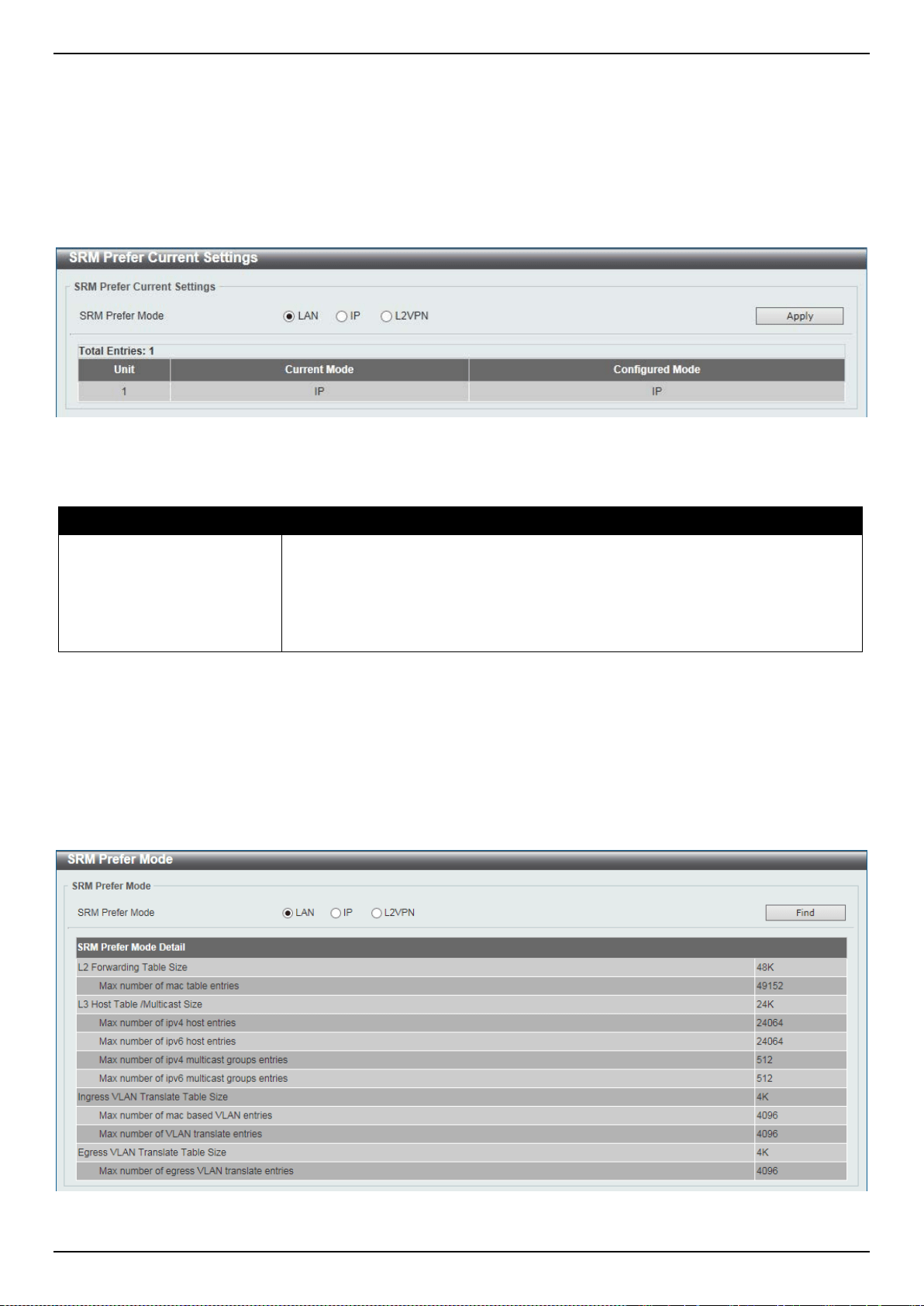
DXS-3400 Series Lite Layer 3 Stackable 10GbE Managed Switch Web UI Reference Guide
25
SRM
SRM Prefer Current Settings
This window is used to display and configure the Switch Resource Management (SRM) settings. This window is used
to specify the SRM mode to be used on the Switch for optimizing resources for various functions.
To view the following window, click System > SRM > SRM Prefer Current Settings, as shown below:
Figure 3-22 SRM Prefer Current Settings Window
The fields that can be configured are described below:
Parameter Description
SRM Prefer Mode
Select the SRM prefer mode here. Options to choose from are:
• LAN - Specifies that the Switch prefers the LAN switch mode.
• IP - Specifies that the Switch prefer the IP route mode.
• L2VPN - Specifies that the Switch prefer the Layer 2 VPN mode.
Click the Apply button to accept the changes made.
SRM Prefer Mode
This window is used to display the SRM preferred mode settings. The entries in this table are fixed values indicating
the maximum number of entries allowed per feature.
To view the following window, click System > SRM > SRM Prefer Mode, as shown below:
Figure 3-23 SRM Prefer Mode Window

DXS-3400 Series Lite Layer 3 Stackable 10GbE Managed Switch Web UI Reference Guide
26
The fields that can be configured are described below:
Parameter Description
SRM Prefer Mode
Select the SRM prefer mode that will be used in the display here. Options to
choose from are LAN, IP, and L2VPN.
Click the Find button to generate the display based on the selections made.

DXS-3400 Series Lite Layer 3 Stackable 10GbE Managed Switch Web UI Reference Guide
27
4. Management
Command Logging
User Account Settings
Password Encryption
Password Recovery
Login Method
SNMP
RMON
Telnet/Web
Session Timeout
DHCP
DHCP Auto Configuration
DNS
NTP
IP Source Interface
File System
Stacking
Virtual Stacking (SIM)
D-Link Discovery Protocol
SMTP Settings
NLB FDB Settings
Command Logging
This window is used to display and configure enable or disable the command logging function. The command logging
function is used to log the commands that have successfully been configured to the Switch via the command line
interface. The requirement is to log the command itself, along with information about the user account that entered the
command into the system log. Commands that do not cause a change in the Switch configuration or operation (such
as show) will not be logged.
To view the following window, click Management > Command Logging, as shown below:
Figure 4-1 Command Logging Window
The fields that can be configured are described below:
Parameter Description
Command Logging State
Select to enable or disable the command logging function here.
Click the Apply button to accept the changes made.
User Account Settings
On this page, user accounts can be created and configured. Also on this page active user account sessions can be
viewed.
There are several configuration options available in the Web User Interface (Web UI). The set of configuration options
available to the user depends on the account’s Privilege Level.
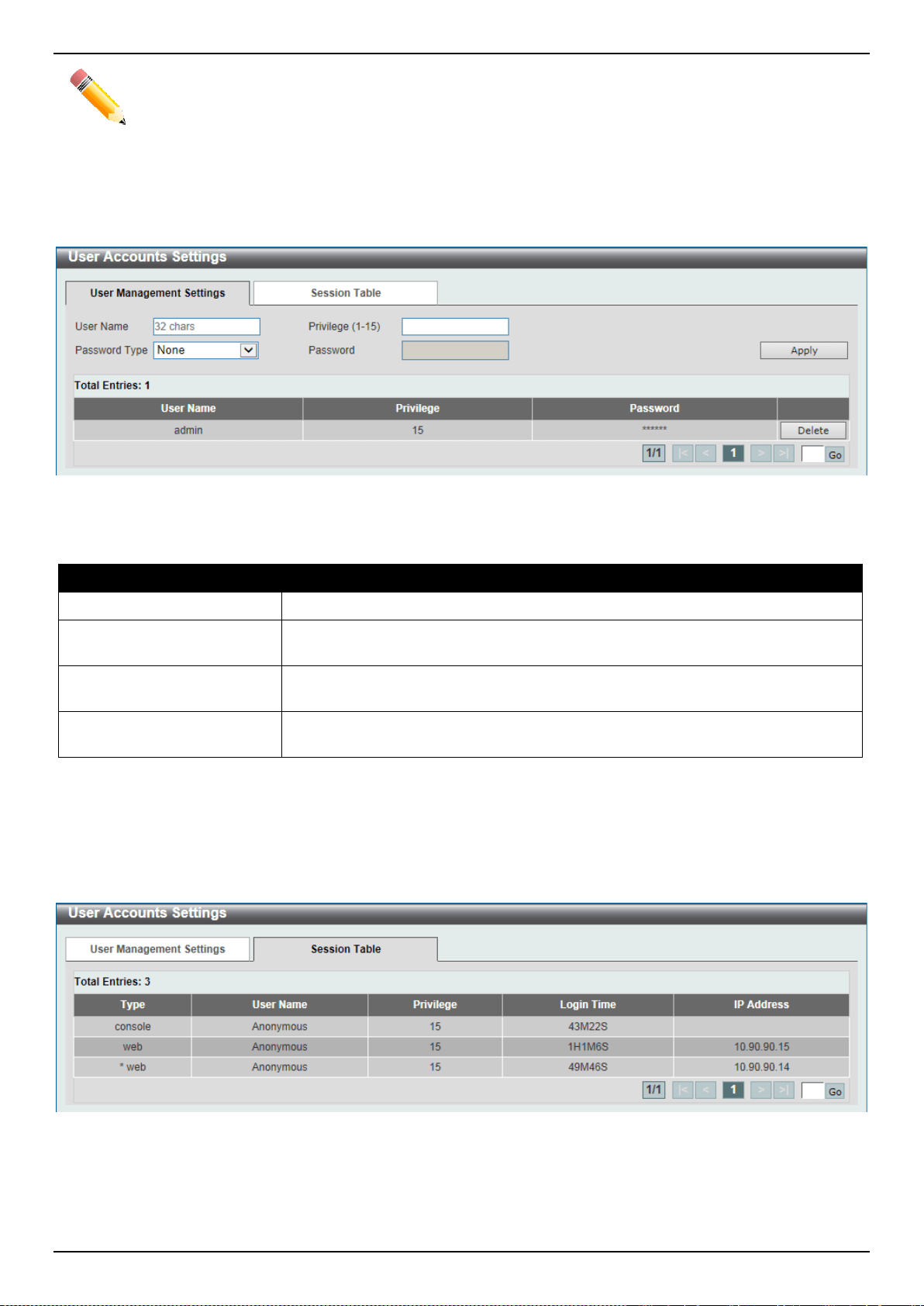
DXS-3400 Series Lite Layer 3 Stackable 10GbE Managed Switch Web UI Reference Guide
28
NOTE: By default, there is no user account created on the Switch.
To view the following window, click Management > User Account Settings, as shown below:
After selecting the User Management Settings tab, the following page will appear.
Figure 4-2 User Management Settings Window
The fields that can be configured are described below:
Parameter Description
User Name
Enter the user account name here. This name can be up to 32 characters long.
Privilege
Enter the privilege level for this account here. This value must be between 1 and
15.
Password Type
Select the password type for this user account here. Options to choose from are
None, Plain Text, and Encrypted.
Password
After selecting either Plain Text or Encrypted as the password type, enter the
password for this user account here.
Click the Apply button to accept the changes made.
Click the Delete button to delete the specified user account entry.
Enter a page number and click the Go button to navigate to a specific page when multiple pages exist.
After selecting the Session Table tab, the following page will appear.
Figure 4-3 Session Table Window
On this page, a list of active user account session will be displayed.
Enter a page number and click the Go button to navigate to a specific page when multiple pages exist.
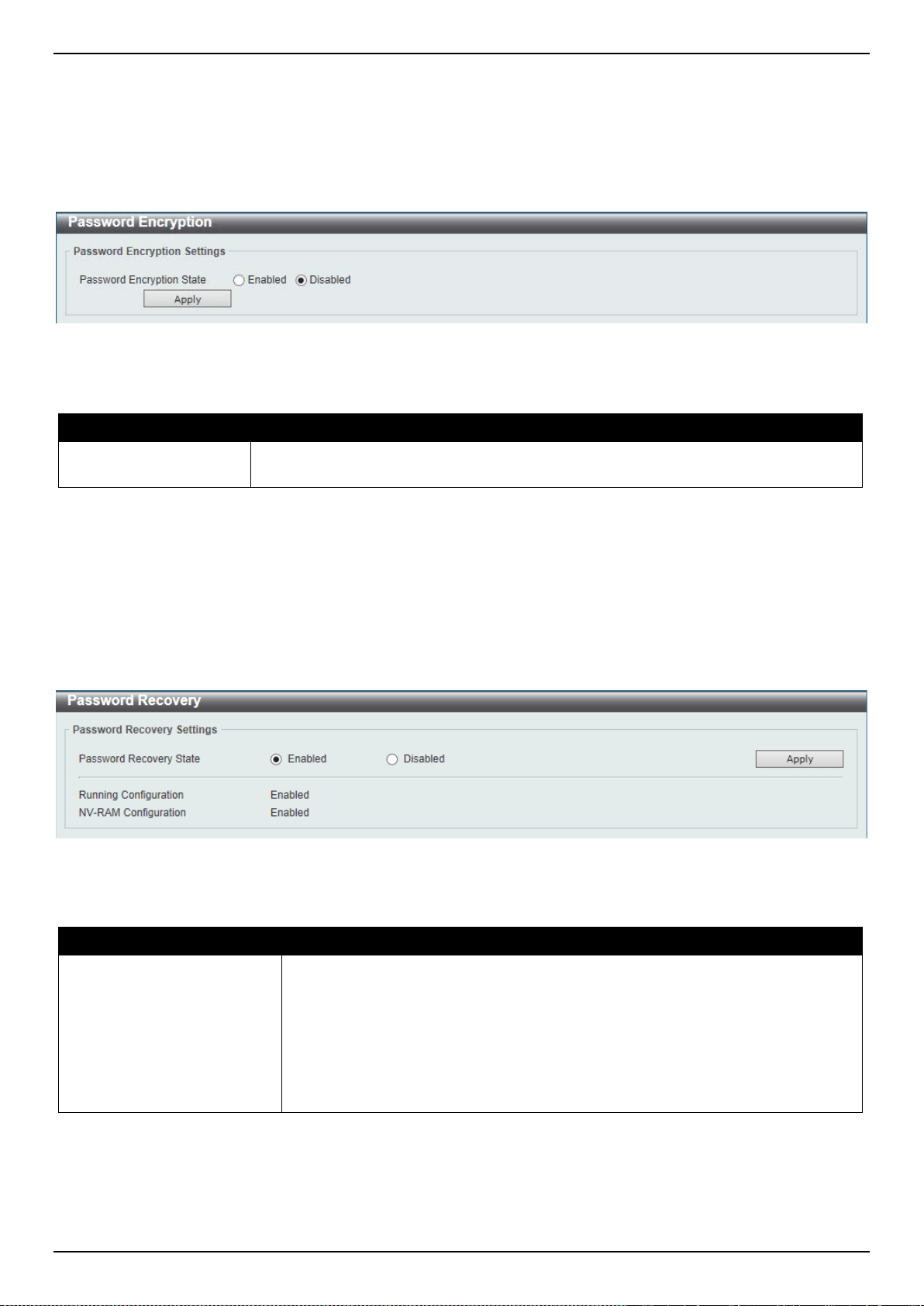
DXS-3400 Series Lite Layer 3 Stackable 10GbE Managed Switch Web UI Reference Guide
29
Password Encryption
This window is used to display and configure whether to save the encryption of the password in the configuration file.
To view the following window, click Management > Password Encryption, as shown below:
Figure 4-4 Password Encryption Window
The fields that can be configured are described below:
Parameter Description
Password Encryption
State
Select this option to enable or disable the encryption of the password before stored in
the configuration file.
Click the Apply button to accept the changes made.
Password Recovery
This window is used to display and configure the password recovery settings. Under certain circumstances, the
administrator may have the need to update a user’s account because the password of the account was forgotten.
To view the following window, click Management > Password Recovery, as shown below:
Figure 4-5 Password Recovery Window
The fields that can be configured are described below:
Parameter Description
Password Recovery State
Select to enable or disable the password recovery feature here. Enabling this
feature allows access to the reset configuration mode in the CLI. From the reset
configuration mode, in the CLI, user accounts can be updated, the enable
password feature can be updated for administrator privilege levels, and the AAA
feature can be disabled to allow local authentication. The running configuration
can then be saved as the startup configuration. A reboot is required.
Also from the reset configuration mode, in the CLI, a factory reset can be
performed if needed by clearing the startup configuration.
Click the Apply button to accept the changes made.
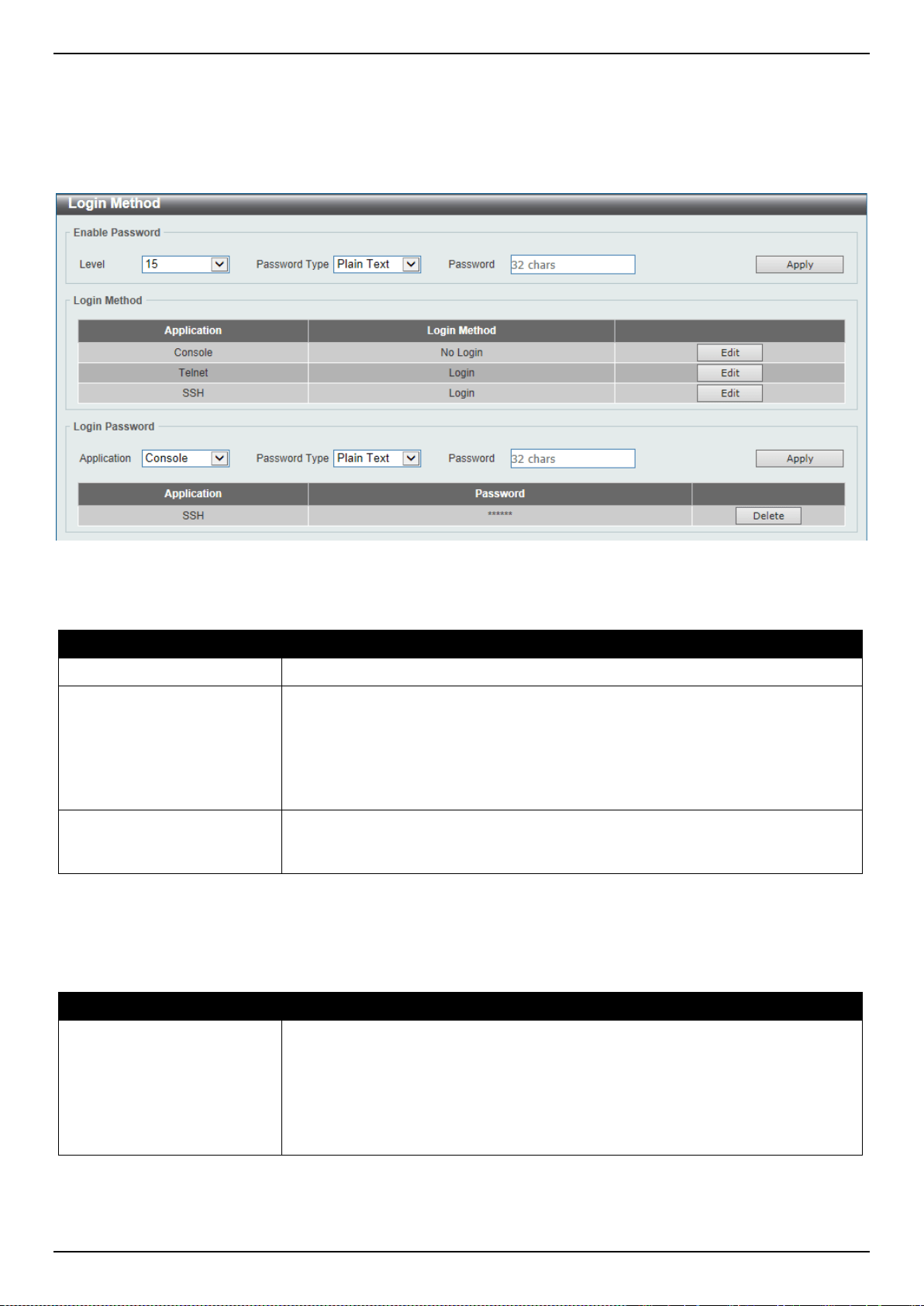
DXS-3400 Series Lite Layer 3 Stackable 10GbE Managed Switch Web UI Reference Guide
30
Login Method
This window is used to display and configure the login method for each management interface that this Switch
supports.
To view the following window, click Management > Login Method, as shown below:
Figure 4-6 Login Method Window
The fields that can be configured in Enable Password are described below:
Parameter Description
Level
Select the privilege level for the user here. The range is from 1 to 15.
Password Type
Select the password type for the user here. Options to choose from are:
• Plain Text - Specifies that the password will be in the plain-text form. This is
the default option.
• Encrypted - Specifies that the password will be in the encrypted form based
on SHA-1.
Password
Enter the password for the user account here. In the plain-text form, the password
can be up to 32 characters long, is case-sensitive, and can contain spaces. In the
encrypted form, the password must be 35 bytes long and is case-sensitive.
Click the Apply button to accept the changes made.
Click the Edit button to re-configure the specified entry.
The fields that can be configured in Login Method are described below:
Parameter Description
Login Method
After clicking the Edit button this parameter can be configured. Select the login
method for the specified application here. Options to choose from are No Login,
Login and Login Local. No Login, as the name implies, requires no login
authentication to access the specified application. Login will require the user to at
least enter a password when trying to access the application specified. Login
Local requires the user to enter a username and a password to access the
specified application.
Click the Apply button to accept the changes made.
The fields that can be configured in Login Password are described below:

DXS-3400 Series Lite Layer 3 Stackable 10GbE Managed Switch Web UI Reference Guide
31
Parameter Description
Application
Select the application that will be configured here. Options to choose from are
Console, Telnet and SSH.
Password Type
Select the password encryption type that will be used here. Options to choose
from are Plain Text and Encrypted.
Password
Enter the password for the selected application here. This password will be used
when the Login Method for the specified application is set as Login.
Click the Apply button to accept the changes made.
Click the Delete button to remove the password from the specified application.
SNMP
Simple Network Management Protocol (SNMP) is an OSI Layer 7 (Application Layer) designed specifically for
managing and monitoring network devices. SNMP enables network management stations to read and modify the
settings of gateways, routers, switches, and other network devices. Use SNMP to configure system features for proper
operation, monitor performance and detect potential problems in the Switch, switch group or network.
Managed devices that support SNMP include software (referred to as an agent), which runs locally on the device. A
defined set of variables (managed objects) is maintained by the SNMP agent and used to manage the device. These
objects are defined in a Management Information Base (MIB), which provides a standard presentation of the
information controlled by the on-board SNMP agent. SNMP defines both the format of the MIB specifications and the
protocol used to access this information over the network.
The Switch supports the SNMP versions 1, 2c, and 3. The three versions of SNMP vary in the level of security
provided between the management station and the network device.
In SNMPv1 and SNMPv2c, user authentication is accomplished using ‘community strings’, which function like
passwords. The remote user SNMP application and the Switch SNMP must use the same community string. SNMP
packets from any station that has not been authenticated are ignored (dropped).
The default community strings for the Switch used for SNMPv1 and SNMPv2c management access are:
• public - Allows authorized management stations to retrieve MIB objects.
• private - Allows authorized management stations to retrieve and modify MIB objects.
SNMPv3 uses a more sophisticated authentication process that is separated into two parts. The first part is to
maintain a list of users and their attributes that are allowed to act as SNMP managers. The second part describes
what each user on that list can do as an SNMP manager.
The Switch allows groups of users to be listed and configured with a shared set of privileges. The SNMP version may
also be set for a listed group of SNMP managers. Thus, you may create a group of SNMP managers that are allowed
to view read-only information or receive traps using SNMPv1 while assigning a higher level of security to another
group, granting read/write privileges using SNMPv3.
Using SNMPv3 individual users or groups of SNMP managers can be allowed to perform or be restricted from
performing specific SNMP management functions. The functions allowed or restricted are defined using the Object
Identifier (OID) associated with a specific MIB. An additional layer of security is available for SNMPv3 in that SNMP
messages may be encrypted. To read more about how to configure SNMPv3 settings for the Switch read the next
section.
Traps
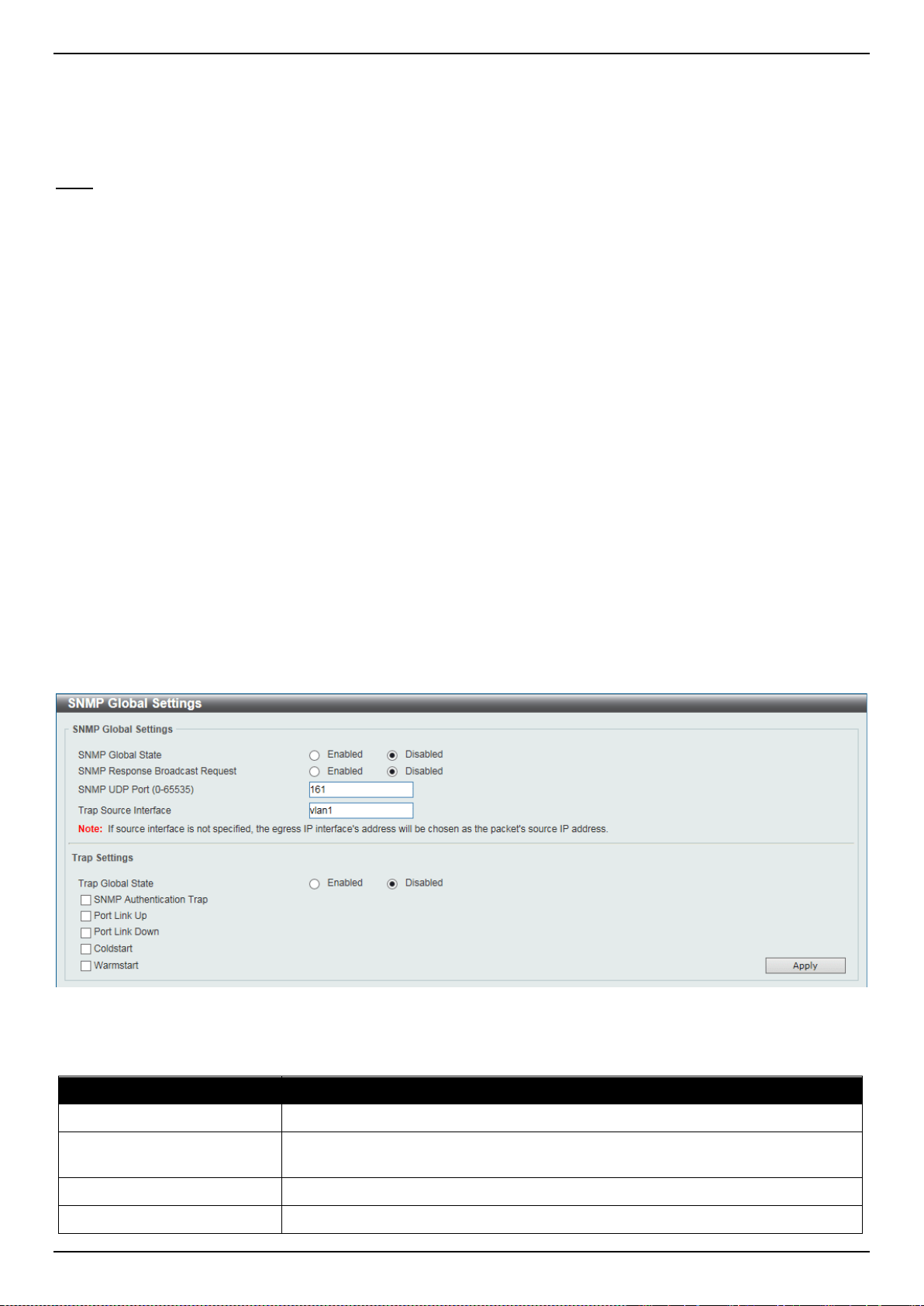
DXS-3400 Series Lite Layer 3 Stackable 10GbE Managed Switch Web UI Reference Guide
32
Traps are messages that alert network personnel of events that occur on the Switch. The events can be as serious as
a reboot (someone accidentally turned OFF the Switch), or less serious like a port status change. The Switch
generates traps and sends them to the trap recipient (or network manager). Typical traps include trap messages for
Authentication Failure, Topology Change and Broadcast\Multicast Storm.
MIBs
The Switch in the Management Information Base (MIB) stores management and counter information. The Switch uses
the standard MIB-II Management Information Base module. Consequently, values for MIB objects can be retrieved
from any SNMP-based network management software. In addition to the standard MIB-II, the Switch also supports its
own proprietary enterprise MIB as an extended Management Information Base. Specifying the MIB Object Identifier
may also retrieve the proprietary MIB. MIB values can be either read-only or read-write.
The Switch incorporates a flexible SNMP management for the Switching environment. SNMP management can be
customized to suit the needs of the networks and the preferences of the network administrator. Use the SNMPv3
menus to select the SNMP version used for specific tasks.
The administrator can specify the SNMP version used to monitor and control the Switch. The three versions of SNMP
vary in the level of security provided between the management station and the network device.
SNMP settings are configured using the menus located on the SNMP V3 folder of the Web manager. Workstations on
the network that are allowed SNMP privileged access to the Switch can be restricted with the Management Station IP
Address menu.
SNMP Global Settings
This window is used to display and configure the SNMP global settings and trap settings.
To view the following window, click Management > SNMP > SNMP Global Settings, as shown below:
Figure 4-7 SNMP Global Settings Window
The fields that can be configured in SNMP Global Settings are described below:
Parameter Description
SNMP Global State
Select this option to enable or disable the SNMP feature.
SNMP Response Broadcast
Request
Select this option to enable or disable the server to response to broadcast SNMP
GetRequest packets.
SNMP UDP Port
Enter the SNMP UDP port number.
Trap Source Interface
Enter the interface whose IP address will be used as the source address for
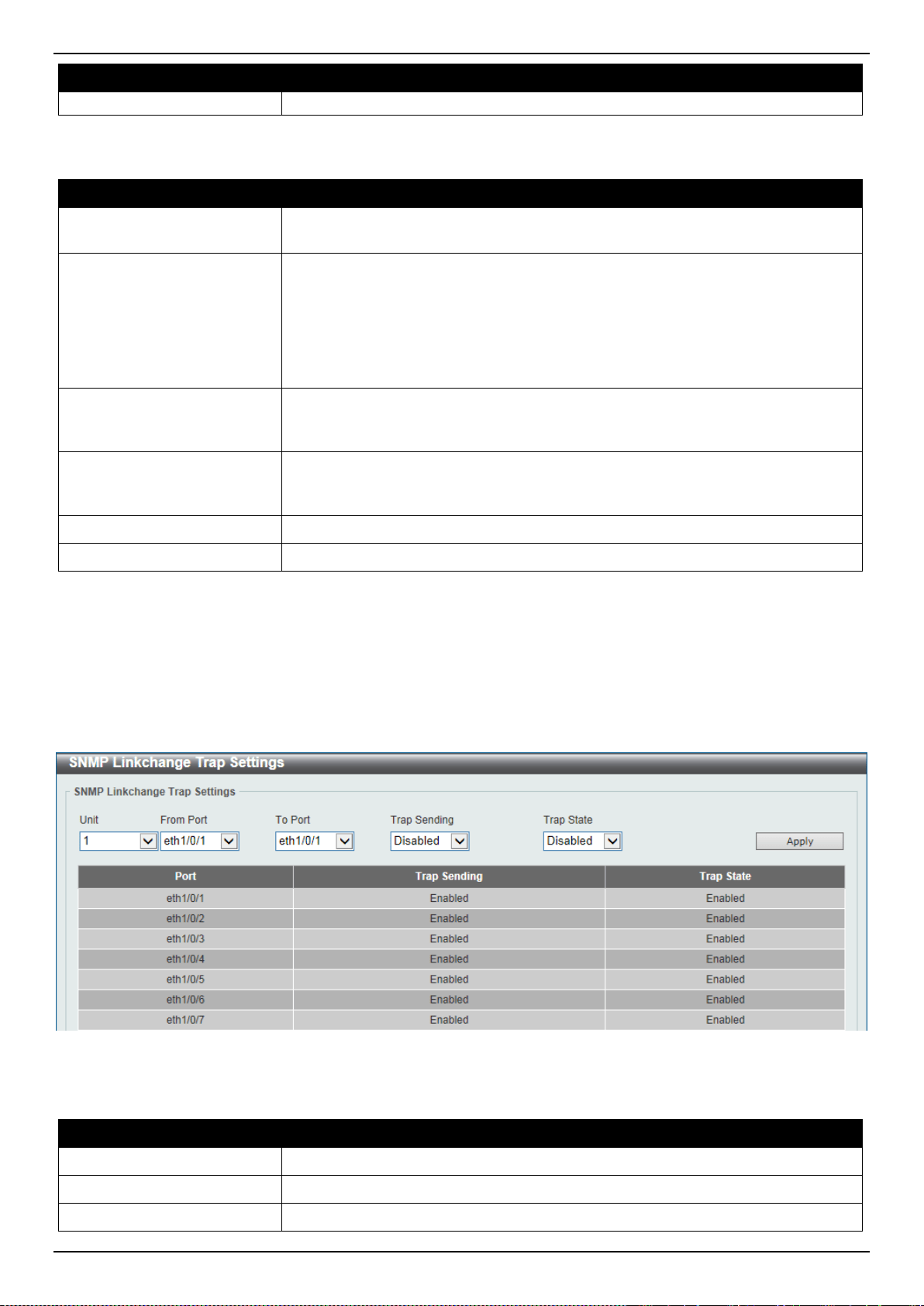
DXS-3400 Series Lite Layer 3 Stackable 10GbE Managed Switch Web UI Reference Guide
33
Parameter Description
sending the SNMP trap packet.
The fields that can be configured in Trap Settings are described below:
Parameter Description
Trap Global State
Select this option to enable or disable the sending of all or specific SNMP
notifications.
SNMP Authentication Trap
Tick this option to control the sending of SNMP authentication failure notifications.
An authenticationFailuretrap is generated when the device receives an SNMP
message that is not properly authenticated. The authentication method depends
on the version of SNMP being used. For SNMPv1 or SNMPv2c, authentication
failure occurs if packets are formed with an incorrect community string. For
SNMPv3, authentication failure occurs if packets are formed with an incorrect
SHA/MD5 authentication key.
Port Link Up
Tick this option to control the sending of port link up notifications. A linkup trap is
generated when the device recognizes that one of the communication links has
come up.
Port Link Down
Tick this option to control the sending of port link down notifications. A linkDown
trap is generated when the device recognizes a failure in one of the
communication links.
Coldstart
Tick this option to control the sending of SNMP coldStart notifications.
Warmstart
Tick this option to control the sending of SNMP warmStart notifications.
Click the Apply button to accept the changes made.
SNMP Linkchange Trap Settings
This window is used to display and configure the SNMP link change trap settings.
To view the following window, click Management > SNMP > SNMP Linkchange Trap Settings, as shown below:
Figure 4-8 SNMP Linkchange Trap Settings Window
The fields that can be configured are described below:
Parameter Description
Unit
Select the Switch unit that will be used for this configuration here.
From Port ~ To Port
Select the appropriate port range used for the configuration here.
Trap Sending
Select this option to enable or disable the sending of the SNMP notification traps
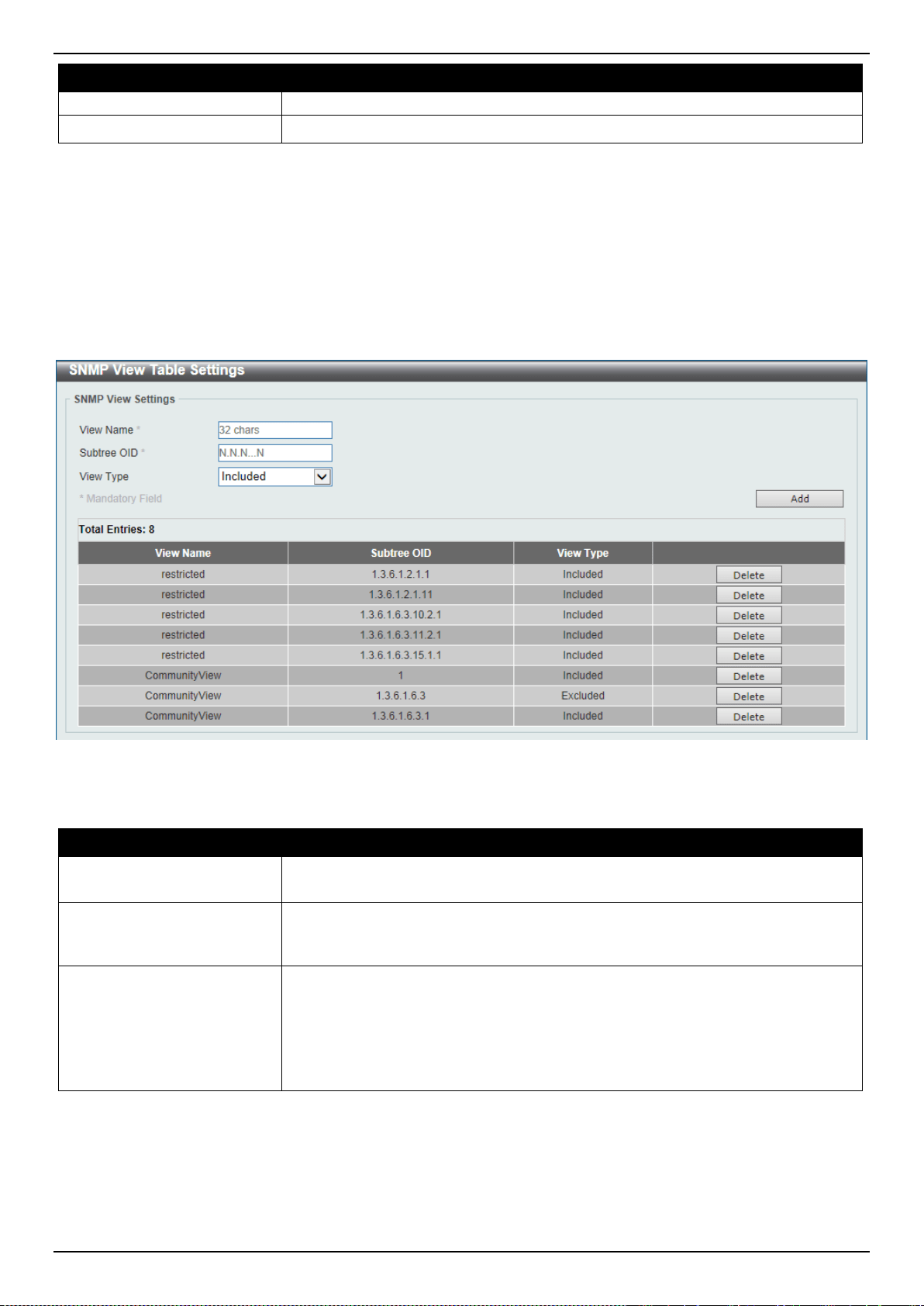
DXS-3400 Series Lite Layer 3 Stackable 10GbE Managed Switch Web UI Reference Guide
34
Parameter Description
that is generated by the system.
Trap State
Select this option to enable or disable the SNMP link change trap.
Click the Apply button to accept the changes made.
SNMP View Table Settings
This window is used to assign views to community strings that define which MIB objects can be accessed by a remote
SNMP manager. The SNMP Group created with this table maps SNMP users (identified in the SNMP User Table) to
the views created in the previous window.
To view the following window, click Management > SNMP > SNMP View Table Settings, as shown below:
Figure 4-9 SNMP View Table Settings Window
The fields that can be configured are described below:
Parameter Description
View Name
Type an alphanumeric string of up to 32 characters. This is used to identify the
new SNMP view being created.
Subtree OID
Type the Object Identifier (OID) sub-tree for the view. The OID identifies an object
tree (MIB tree) that will be included or excluded from access by an SNMP
manager.
View Type
Select the view type here. Options to choose from are Included, and Excluded.
• Included - Select to include this object in the list of objects that an SNMP
manager can access.
• Excluded - Select to exclude this object from the list of objects that an
SNMP manager can access.
Click the Add button to add a new entry based on the information entered.
Click the Delete button to remove the specified entry.
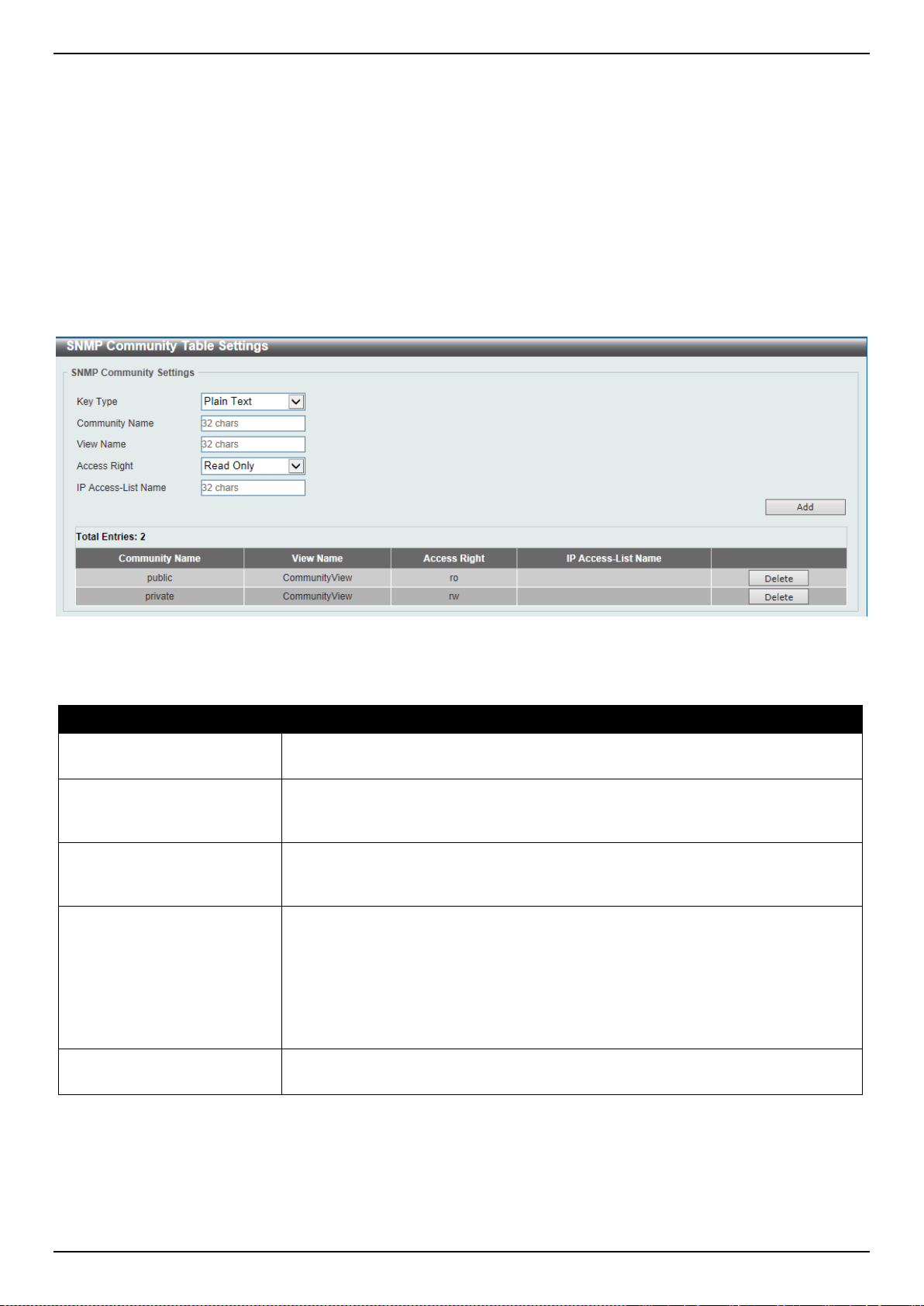
DXS-3400 Series Lite Layer 3 Stackable 10GbE Managed Switch Web UI Reference Guide
35
SNMP Community Table Settings
This window is used to create an SNMP community string to define the relationship between the SNMP manager and
an agent. The community string acts like a password to permit access to the agent on the Switch. One or more of the
following characteristics can be associated with the community string:
• An Access List of IP addresses of SNMP managers that are permitted to use the community string to gain
access to the Switch’s SNMP agent.
• Any MIB view that defines the subset of all MIB objects will be accessible to the SNMP community.
• Read/write or read-only level permission for the MIB objects accessible to the SNMP community.
To view the following window, click Management > SNMP > SNMP Community Table Settings, as shown below:
Figure 4-10 SNMP Community Table Settings Window
The fields that can be configured are described below:
Parameter Description
Key Type
Select the key type for the SNMP community. Options to choose from are Plain
Text, and Encrypted.
Community Name
Enter an alphanumeric string of up to 32 characters that is used to identify
members of an SNMP community. This string is used like a password to give
remote SNMP managers access to MIB objects in the Switch’s SNMP agent.
View Name
Enter an alphanumeric string of up to 32 characters that is used to identify the
group of MIB objects that a remote SNMP manager is allowed to access on the
Switch. The view name must exist in the SNMP View Table.
Access Right
Select the access right here. Options to choose from are Read Only, and Read
Write.
• Read Only - SNMP community members using the community string created
can only read the contents of the MIBs on the Switch.
• Read Write - SNMP community members using the community string
created can read from, and write to the contents of the MIBs on the Switch.
IP Access-List Name
Enter the name of the standard access list to control the user to use this
community string to access to the SNMP agent.
Click the Add button to add a new entry based on the information entered.
Click the Delete button to remove the specified entry.
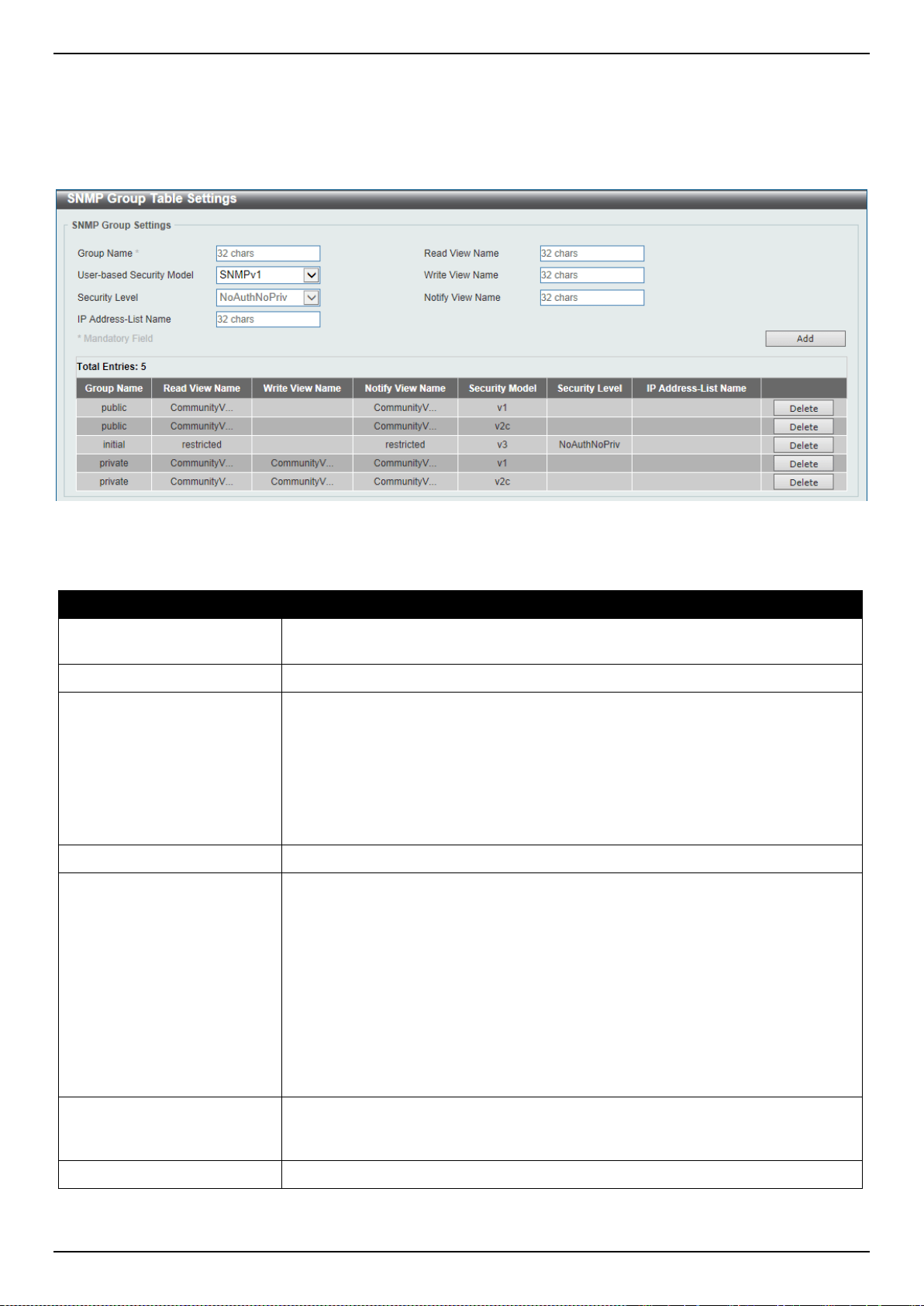
DXS-3400 Series Lite Layer 3 Stackable 10GbE Managed Switch Web UI Reference Guide
36
SNMP Group Table Settings
An SNMP Group created with this table maps SNMP users (identified in the SNMP User Table) to the views created in
the previous window.
To view the following window, click Management > SNMP > SNMP Group Table Settings, as shown below:
Figure 4-11 SNMP Group Table Settings Window
The fields that can be configured are described below:
Parameter Description
Group Name
Enter the group name of a maximum of 32 characters. The syntax is general
string that does not allow space.
Read View Name
Enter the read view name that the group user can access.
User-based Security Model
Select the security model here. Options to choose from are SNMPv1, SNMPv2c,
and SNMPv3.
• SNMPv1 - Select to allow the group user to use the SNMPv1 security model.
• SNMPv2c - Select to allow the group user to use the SNMPv2c security
model.
• SNMPv3 - Select to allow the group user to use the SNMPv3 security model.
Write View Name
Enter the write view name that the group user can access.
Security Level
When selecting SNMPv3 in the User-based Security Model drop-down list, this
option is available.
• NoAuthNoPriv - Specify that there will be no authorization and no
encryption of packets sent between the Switch and a remote SNMP
manager.
• AuthNoPriv - Specify that authorization will be required, but there will be no
encryption of packets sent between the Switch and a remote SNMP
manager.
• AuthPriv - Specify that authorization will be required, and that packets sent
between the Switch and a remote SNMP manger will be encrypted.
Notify View Name
Enter a write view name that the group user can access. The notify view
describes the object that can be reported its status via trap packets to the group
user.
IP Address-List Name
Enter the standard IP access control list (ACL) to associate with the group.
Click the Add button to add a new entry based on the information entered.
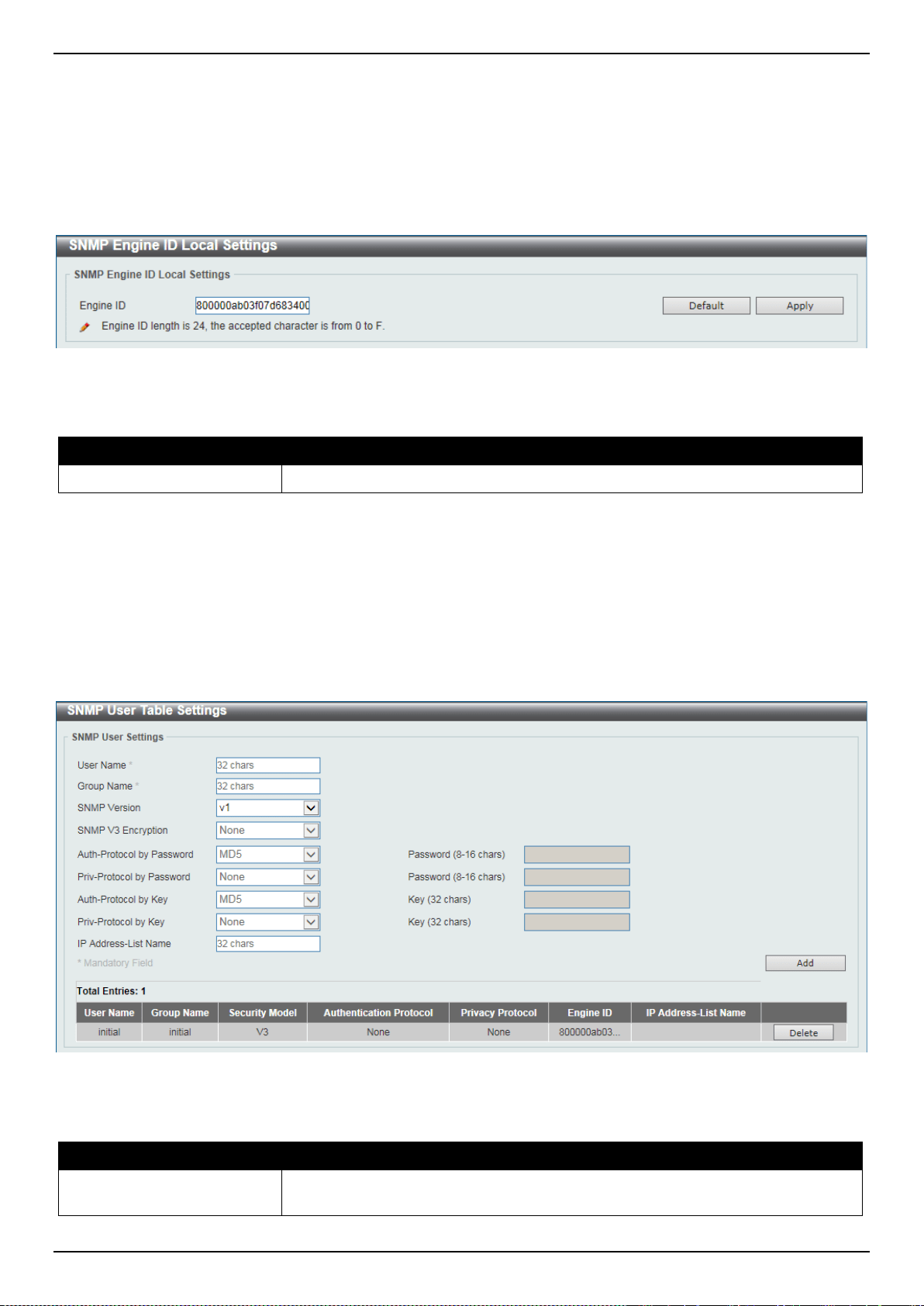
DXS-3400 Series Lite Layer 3 Stackable 10GbE Managed Switch Web UI Reference Guide
37
Click the Delete button to remove the specified entry.
SNMP Engine ID Local Settings
The Engine ID is a unique identifier used for SNMP V3 implementations on the Switch.
To view the following window, click Management > SNMP > SNMP Engine ID Local Settings, as shown below:
Figure 4-12 SNMP Engine ID Local Settings Window
The fields that can be configured are described below:
Parameter Description
Engine ID
Enter the engine ID string with the maximum of 24 characters.
Click the Default button to revert the engine ID to the default.
Click the Apply button to accept the changes made.
SNMP User Table Settings
This window is used to configure and display the SNMP users that are currently configured on the Switch.
To view the following window, click Management > SNMP > SNMP User Table Settings, as shown below:
Figure 4-13 SNMP User Table Settings Window
The fields that can be configured are described below:
Parameter Description
User Name
Enter an alphanumeric string of up to 32 characters. This is used to identify the
SNMP users.

DXS-3400 Series Lite Layer 3 Stackable 10GbE Managed Switch Web UI Reference Guide
38
Parameter Description
Group Name
Enter the SNMP group name to which the user belongs. The syntax is general
string that does not allow spaces.
SNMP Version
Select the SNMP version. Options to choose from are v1, v2c, and v3.
SNMP V3 Encryption
When selecting v3 in the SNMP Version drop-down list, this option is available.
Options to choose from are None, Password, and Key.
Auth-Protocol by Password
When selecting v3 in the SNMP Version drop-down list, and selecting Password
in the SNMP V3 Encryption drop-down list, this option is available. Select the
authentication level. Options to choose from are the following:
• MD5 - Select to use the HMAC-MD5-96 authentication level. This field will
require the user to enter a password or a key.
• SHA - Specify that the HMAC-SHA authentication protocol will be used. This
field will require the user to enter a password or a key.
Password
Enter the authentication protocol password here. For MD5 this password must be
between 8 and 16 characters long. For SHA this password must be between 8
and 20 characters long.
Priv-Protocol by Password
When selecting v3 in the SNMP Version drop-down list, and selecting Password
in the SNMP V3 Encryption drop-down list, this option is available. Select the
private protocol. Options to choose from are the following:
• None - Specify that no authorization protocol is in use.
• DES56 - Specify that DES 56-bit encryption is in use, based on the CBC-
DES (DES-56) standard. This field will require the user to enter a password
or a key.
Password
Enter the private protocol password here. For none, this field will be disabled. For
DES56 this password must be between 8 and 16 characters long.
Auth-Protocol by Key
When selecting v3 in the SNMP Version drop-down list, and selecting Key in the
SNMP V3 Encryption drop-down list, this option is available. Select the
authentication level. Options to choose from are the following:
• MD5 - Select to use the HMAC-MD5-96 authentication level. This field will
require the user to enter a password or a key.
• SHA - Specify that the HMAC-SHA authentication protocol will be used. This
field will require the user to enter a password or a key.
Key
Enter the authentication protocol key here. For MD5 this key must be 32
characters long. For SHA this key must be 40 characters long.
Priv-Protocol by Key
When selecting v3 in the SNMP Version drop-down list, and selecting Key in the
SNMP V3 Encryption drop-down list, this option is available. Select the private
protocol. Options to choose from are the following:
• None - Specify that no authorization protocol is in use.
• DES56 - Specify that DES 56-bit encryption is in use, based on the CBC-
DES (DES-56) standard. This field will require the user to enter a password
or a key.
Key
Enter the private protocol key here. For none, this field will be disabled. For
DES56 this key must be 32 characters long.
IP Address-List Name
Enter the standard IP access control list (ACL) to associate with the user.
Click the Add button to add a new entry based on the information entered.
Click the Delete button to remove the specified entry.
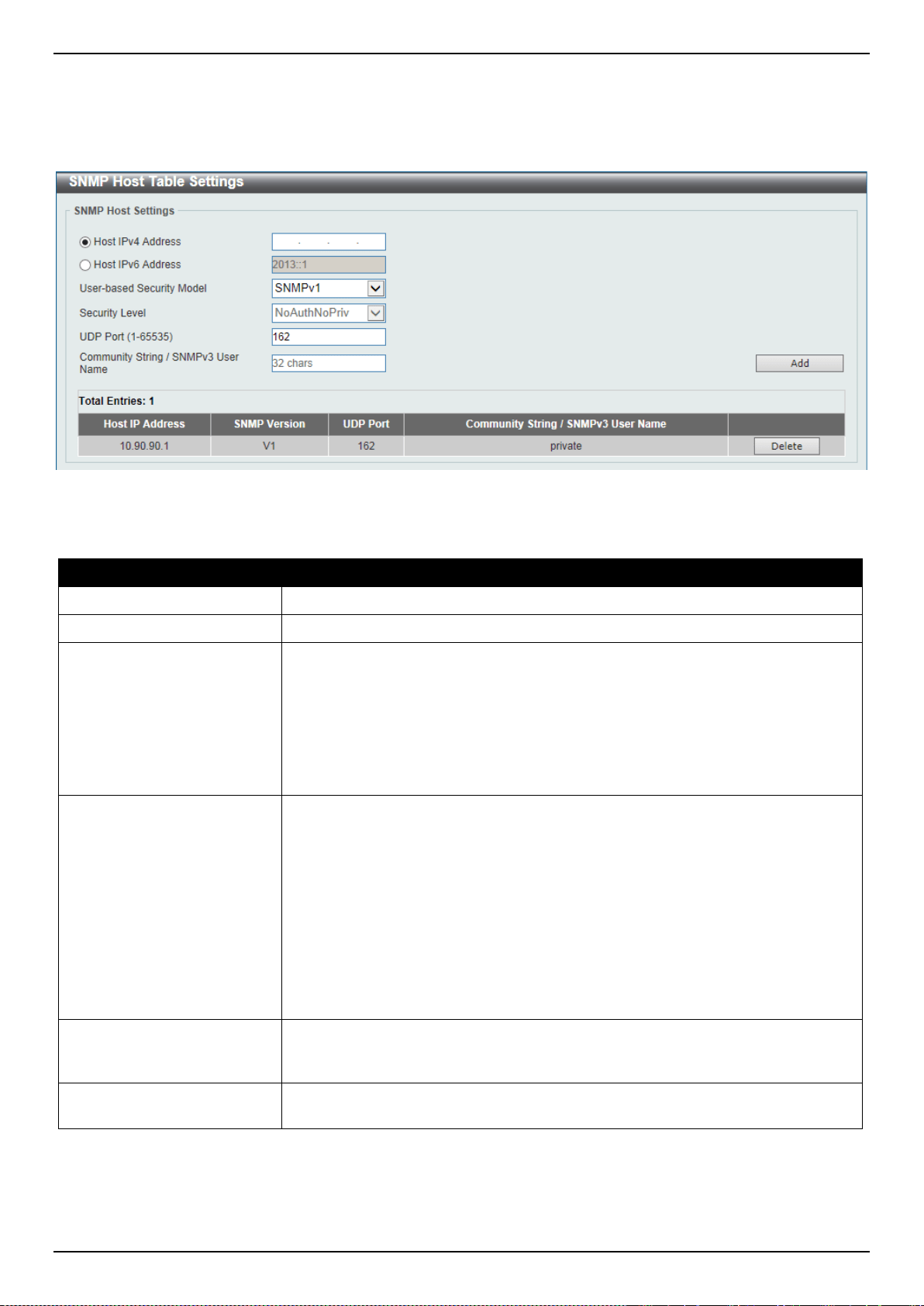
DXS-3400 Series Lite Layer 3 Stackable 10GbE Managed Switch Web UI Reference Guide
39
SNMP Host Table Settings
This window is used to display and configure the recipient of the SNMP notification.
To view the following window, click Management > SNMP > SNMP Host Table Settings, as shown below:
Figure 4-14 SNMP Host Table Settings Window
The fields that can be configured are described below:
Parameter Description
Host IPv6 Address
Enter the IPv4 address of the SNMP notification host.
Host IPv6 Address
Enter the IPv6 address of the SNMP notification host.
User-based Security Model
Select the security model here. Options to choose from are SNMPv1, SNMPv2c,
and SNMPv3.
• SNMPv1 - Select to allow the group user to use the SNMPv1 security model.
• SNMPv2c - Select to allow the group user to use the SNMPv2c security
model.
• SNMPv3 - Select to allow the group user to use the SNMPv3 security model.
Security Level
When selecting SNMPv3 in the User-based Security Model drop-down list, this
option is available.
• NoAuthNoPriv - Specify that there will be no authorization and no
encryption of packets sent between the Switch and a remote SNMP
manager.
• AuthNoPriv - Specify that authorization will be required, but there will be no
encryption of packets sent between the Switch and a remote SNMP
manager.
• AuthPriv - Specify that authorization will be required, and that packets sent
between the Switch and a remote SNMP manger will be encrypted.
UDP Port
Enter the UDP port number. The default trap UDP port number is 162. The range
of UDP port numbers is from 1 to 65535. Some port numbers may conflict with
other protocols.
Community String /
SNMPv3 User Name
Enter the community string to be sent with the notification packet.
Click the Add button to add a new entry based on the information entered.
Click the Delete button to remove the specified entry.
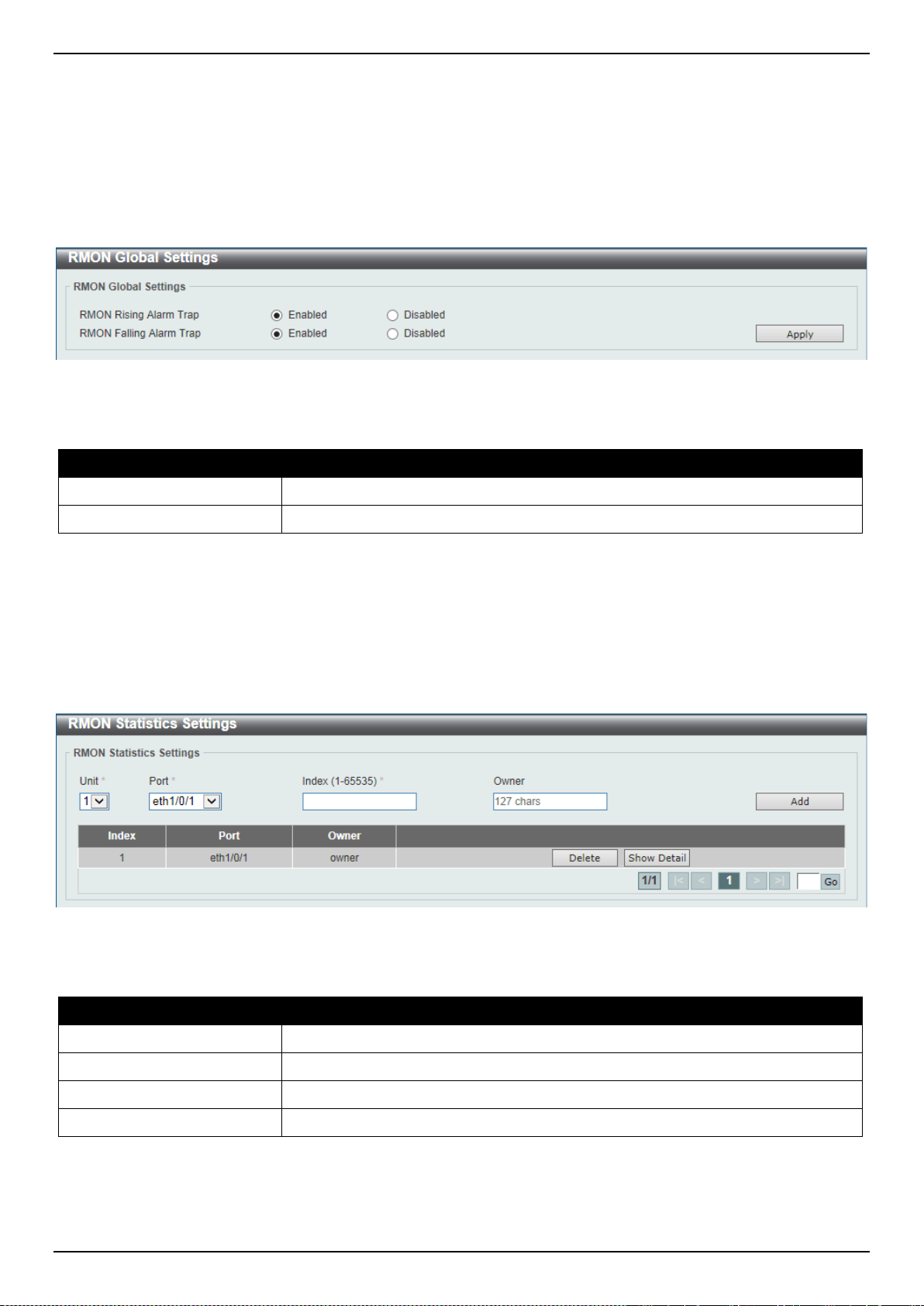
DXS-3400 Series Lite Layer 3 Stackable 10GbE Managed Switch Web UI Reference Guide
40
RMON
RMON Global Settings
This window is used to enable or disable remote monitoring (RMON) for the rising and falling alarm trap feature for the
SNMP function on the Switch.
To view the following window, click Management > RMON > RMON Global Settings, as shown below:
Figure 4-15 RMON Global Settings Window
The fields that can be configured are described below:
Parameter Description
RMON Rising Alarm Trap
Select this option to enable or disable the RMON Rising Alarm Trap Feature.
RMON Falling Alarm Trap
Select this option to enable or disable the RMON Falling Alarm Trap Feature.
Click the Apply button to accept the changes made.
RMON Statistics Settings
This window is used to configure and display the RMON statistics on the specified port.
To view the following window, click Management > RMON > RMON Statistics Settings, as shown below:
Figure 4-16 RMON Statistics Settings Window
The fields that can be configured are described below:
Parameter Description
Unit
Select the Switch unit that will be used for this configuration here.
Port
Select to choose the port.
Index
Enter the RMON table index. The value is from 1 to 65535
Owner
Enter the owner string. The string can be up to 127 characters.
Click the Add button to add a new entry based on the information entered.
Click the Delete button to remove the specified entry.
Click the Show Detail button to see the detail information of the specific port.
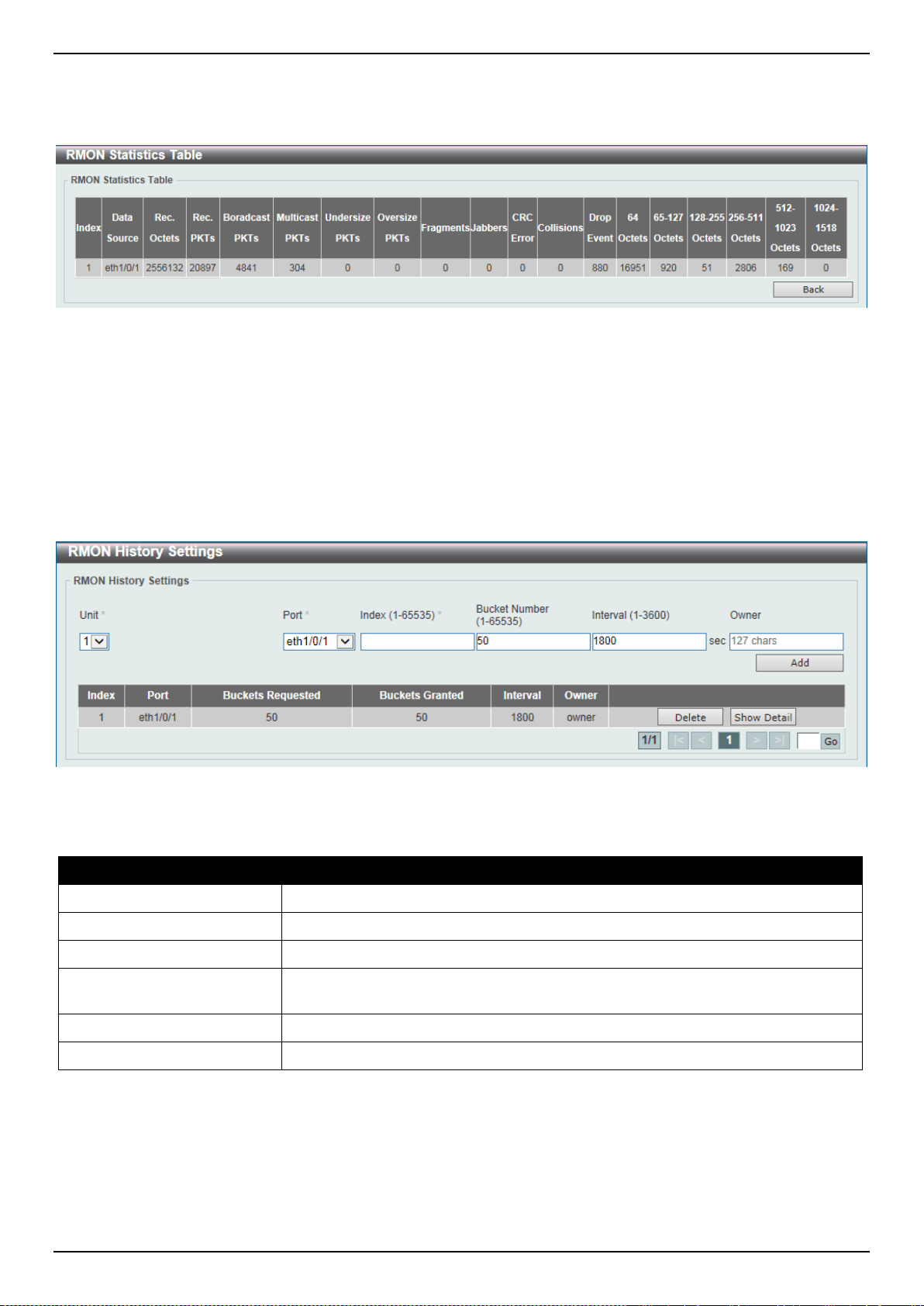
DXS-3400 Series Lite Layer 3 Stackable 10GbE Managed Switch Web UI Reference Guide
41
Enter a page number and click the Go button to navigate to a specific page when multiple pages exist.
After clicking the Show Detail button, the following window will appear.
Figure 4-17 RMON Statistics Settings (Show Detail) Window
Click the Back button to return to the previous window.
RMON History Settings
This window is used to display and configure RMON MIB history statistics gathered on the specified port.
To view the following window, click Management > RMON > RMON History Settings, as shown below:
Figure 4-18 RMON History Settings Window
The fields that can be configured are described below:
Parameter Description
Unit
Select the Switch unit that will be used for this configuration here.
Port
Select the port that will be used here.
Index
Enter the history group table index. The value is from 1 to 65535
Bucket Number
Enter the number of buckets specified for the RMON collection history group of
statistics. The range is from 1 to 65535. The default value is 50.
Interval
Enter the time in seconds in each polling cycle. The range is from 1 to 3600.
Owner
Enter the owner string. The string can be up to 127 characters.
Click the Add button to add a new entry based on the information entered.
Click the Delete button to remove the specified entry.
Click the Show Detail button to see the detail information of the specific port.
Enter a page number and click the Go button to navigate to a specific page when multiple pages exist.
After clicking the Show Detail button, the following window will appear.

DXS-3400 Series Lite Layer 3 Stackable 10GbE Managed Switch Web UI Reference Guide
42
Figure 4-19 RMON History Settings (Show Detail) Window
Click the Back button to return to the previous window.
RMON Alarm Settings
This window is used to display and configure alarm entries to monitor an interface.
To view the following window, click Management > RMON > RMON Alarm Settings, as shown below:
Figure 4-20 RMON Alarm Settings Window
The fields that can be configured are described below:
Parameter Description
Index
Enter the alarm index. The range is from 1 to 65535.
Interval
Enter the interval in seconds for the sampling of the variable and checking against
the threshold. The valid range is from 1 to 2147483648 seconds.
Variable
Enter the object identifier of the variable to be sampled.
Type
Select the monitoring type. Options to choose from are Absolute and Delta.
Rising Threshold
Enter the rising threshold value between 0 and 2147483647.
Falling Threshold
Enter the falling threshold value between 0 and 2147483647.
Rising Event Number
Enter the index of the event entry that is used to notify the rising threshold
crossing event. The valid range is from 1 to 65535. If not specified, no action is
taken while crossing the ringing threshold.
Falling Event Number
Enter the index of the event entry that is used to notify the falling threshold
crossing event. The valid range is from 1 to 65535. If not specified, no action is
taken while crossing the falling threshold.
Owner
Enter the owner string up to 127 characters.
Click the Add button to add a new entry based on the information entered.
Click the Delete button to remove the specified entry.
Enter a page number and click the Go button to navigate to a specific page when multiple pages exist.
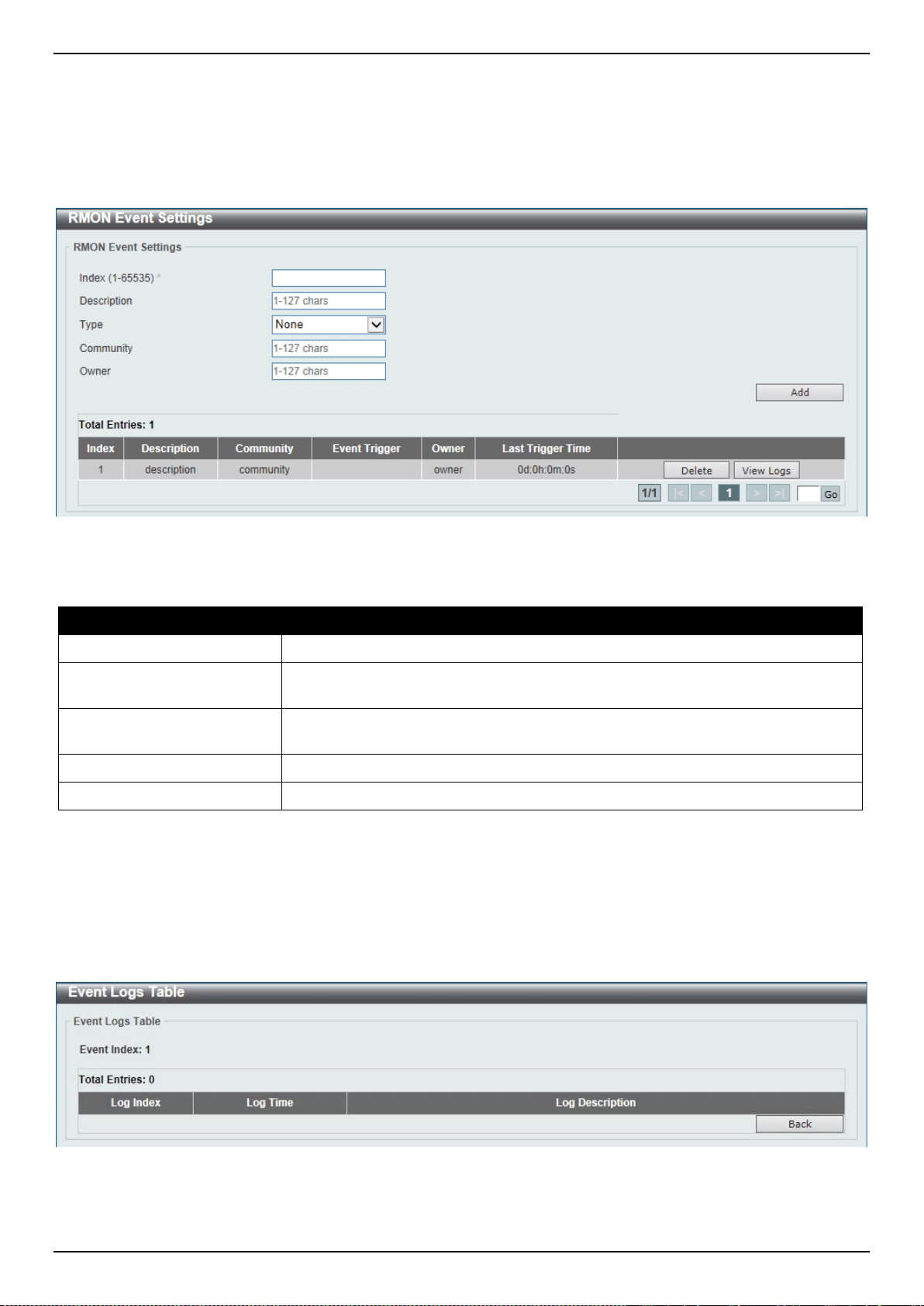
DXS-3400 Series Lite Layer 3 Stackable 10GbE Managed Switch Web UI Reference Guide
43
RMON Event Settings
This window is used to display and configure event entries.
To view the following window, click Management > RMON > RMON Event Settings, as shown below:
Figure 4-21 RMON Event Settings Window
The fields that can be configured are described below:
Parameter Description
Index
Enter the index of the alarm entry between 1 and 65535.
Description
Enter a description for the RMON event entry. The string is up to 127 characters
long.
Type
Select the RMON event entry type. Options to choose from are None, Log, Trap,
and Log and Trap.
Community
Enter the community string. The string can be up to 127 characters.
Owner
Enter the owner string. The string can be up to 127 characters.
Click the Add button to add a new entry based on the information entered.
Click the Delete button to remove the specified entry.
Click the View Logs button to see the detail information of the specific port.
Enter a page number and click the Go button to navigate to a specific page when multiple pages exist.
After clicking the View Logs button, the following window will appear.
Figure 4-22 RMON Event Settings (View Logs) Window
Click the Back button to return to the previous window.
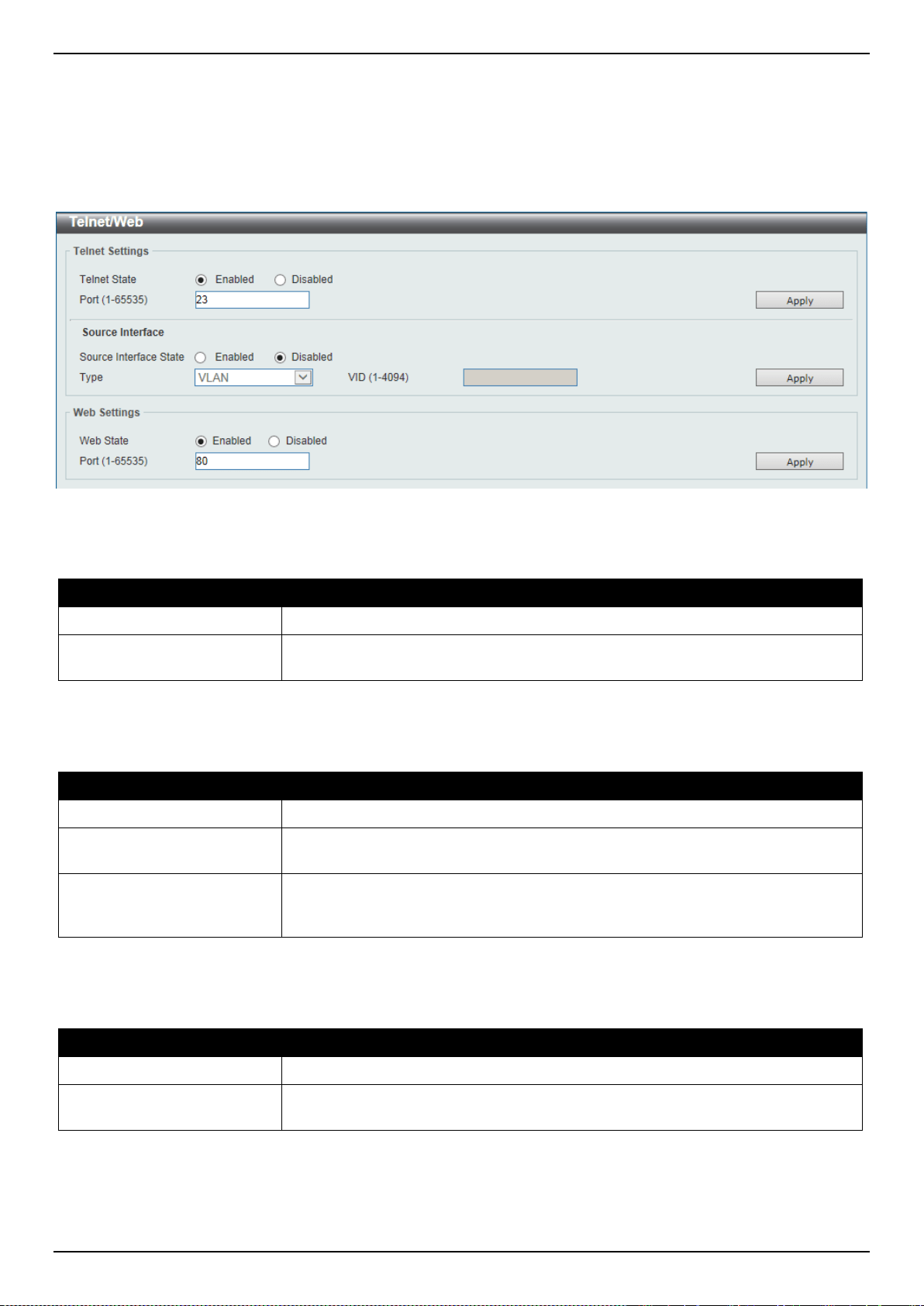
DXS-3400 Series Lite Layer 3 Stackable 10GbE Managed Switch Web UI Reference Guide
44
Telnet/Web
This window is used to display and configure Telnet and Web settings on the Switch.
To view the following window, click Management > Telnet/Web, as shown below:
Figure 4-23 Telnet/Web Window
The fields that can be configured in Telnet Settings are described below:
Parameter Description
Telnet State
Select this option to enable or disable the configuration through Telnet.
Port
Enter the TCP port number used for Telnet management of the Switch. The “well-
known” TCP port for the Telnet protocol is 23.
Click the Apply button to accept the changes made.
The fields that can be configured in Source Interface are described below:
Parameter Description
Source Interface State
Select to enable or disable the source interface’s state here.
Type
Select the type of source interface that will be used here. Options to choose from
are Loopback, Mgmt, and VLAN.
VID
Enter the interface’s ID here. For loopback interfaces the range is from 1 to 8. For
the management (Mgmt) interface this value can only be 0. For VLAN interfaces
the range is from 1 to 4094.
Click the Apply button to accept the changes made.
The fields that can be configured in Web Settings are described below:
Parameter Description
Web State
Select this option to enable or disable the configuration through the web.
Port
Enter the TCP port number used for Telnet management of the Switch. The “well-
known” TCP port for the Telnet protocol is 80.
Click the Apply button to accept the changes made.

DXS-3400 Series Lite Layer 3 Stackable 10GbE Managed Switch Web UI Reference Guide
45
Session Timeout
This window is used to display and configure the session timeout settings.
To view the following window, click Management > Session Timeout, as shown below:
Figure 4-24 Session Timeout Window
The fields that can be configured are described below:
Parameter Description
Web Session Timeout
Enter the time in seconds of the web session timeout. Tick the Default check box
to return to the default setting. The value is from 60 to 36000 seconds. The
default value is 180 seconds.
Console Session Timeout
Enter the time in minutes of the web session timeout. Tick the Default check box
to return to the default setting. The value is from 0 to 1439 minutes. 0 means
never timeout. The default value is 3 minutes.
Telnet Session Timeout
Enter the time in minutes of the Telnet session timeout. Tick the Default check
box to return to the default setting. The value is from 0 to 1439 minutes. 0 means
never timeout. The default value is 3 minutes.
SSH Session Timeout
Enter the time in minutes of the SSH session timeout. Tick the Default check box
to return to the default setting. The value is from 0 to 1439 minutes. 0 means
never timeout. The default value is 3 minutes.
Click the Apply button to accept the changes made.
DHCP
Service DHCP
This window is used to display and configure the DHCP relay and server service on the Switch.
To view the following window, click Management > DHCP > Service DHCP, as shown below:
Figure 4-25 Service DHCP Window
The fields that can be configured in Service DHCP are described below:
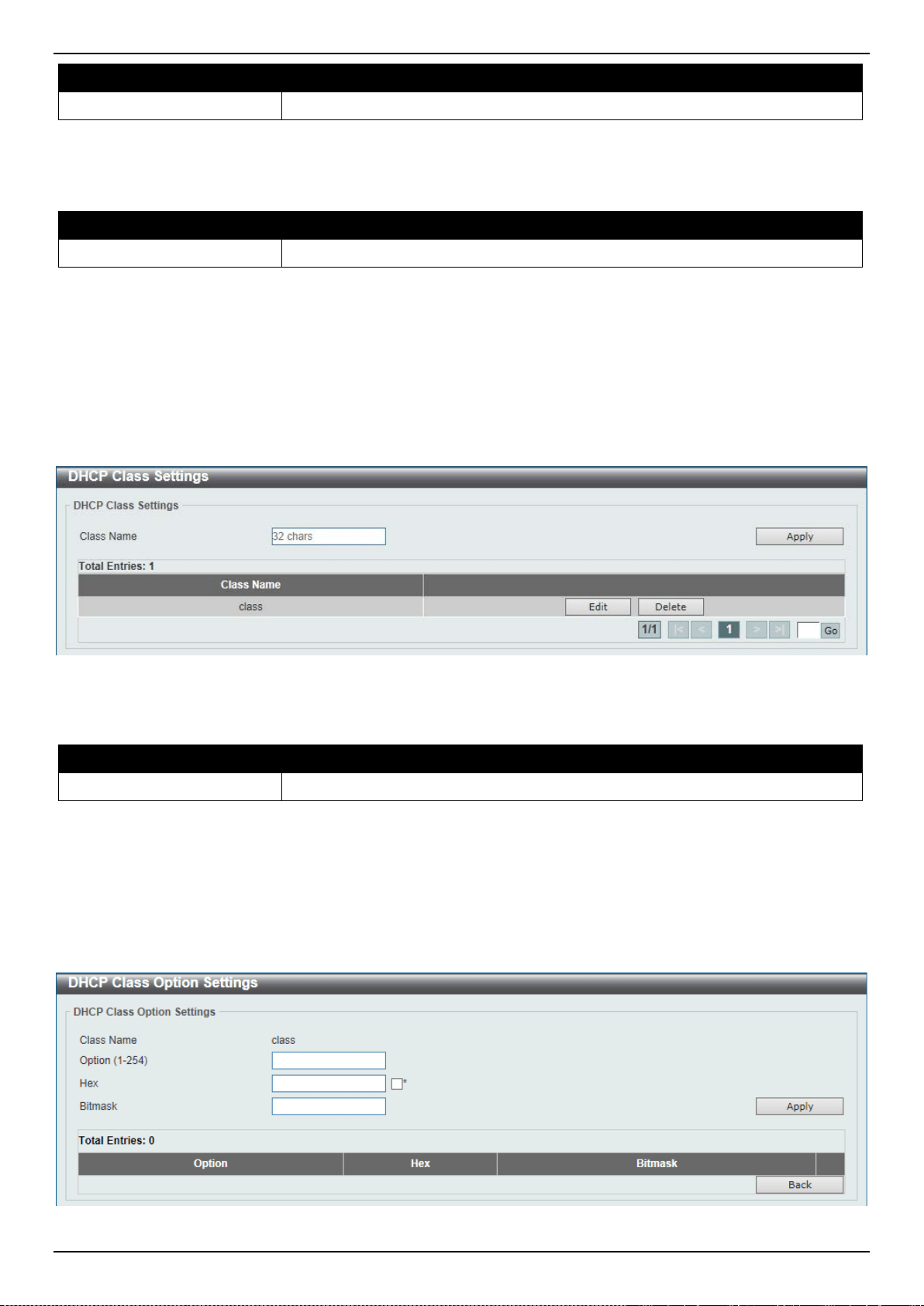
DXS-3400 Series Lite Layer 3 Stackable 10GbE Managed Switch Web UI Reference Guide
46
Parameter Description
Service DHCP State
Select this option to enable or disable the DHCP relay and server service.
Click the Apply button to accept the changes made.
The fields that can be configured in Service IPv6 DHCP are described below:
Parameter Description
Service IPv6 DHCP State
Select this option to enable or disable the IPv6 DHCP relay and server service.
Click the Apply button to accept the changes made.
DHCP Class Settings
This window is used to display and configure the DHCP class and the DHCP option matching pattern for the DCHP
class.
To view the following window, click Management > DHCP > DHCP Class Settings, as shown below:
Figure 4-26 DHCP Class Settings Window
The fields that can be configured are described below:
Parameter Description
Class Name
Enter the DHCP class name with a maximum of 32 characters.
Click the Apply button to accept the changes made.
Click the Edit button to modify the DHCP option matching pattern for the corresponding DCHP class.
Click the Delete button to remove the specified entry.
Enter a page number and click the Go button to navigate to a specific page when multiple pages exist.
After clicking the Edit button, the following window will appear.
Figure 4-27 DHCP Class Settings (Edit) Window
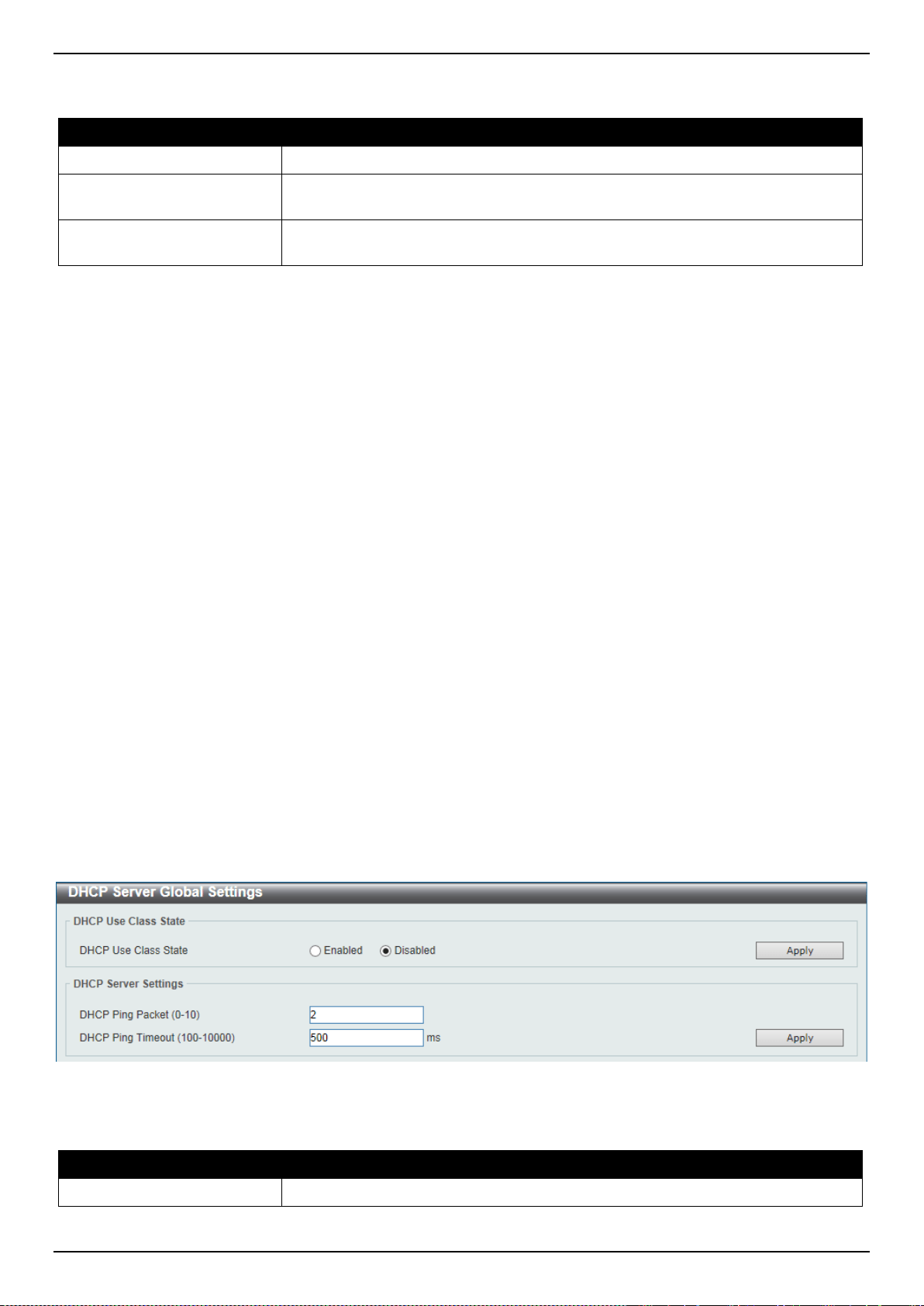
DXS-3400 Series Lite Layer 3 Stackable 10GbE Managed Switch Web UI Reference Guide
47
The fields that can be configured are described below:
Parameter Description
Option
Enter the DHCP option number. The range is from 1 to 255.
Hex
Enter the hex pattern of the specified DHCP option. Tick the * check box not to
match the remaining bits of the option.
Bitmask
Enter the hex bit mask for masking of the pattern. The masked pattern bits will be
matched. If not specified, all bits entered in Hex will be checked.
Click the Apply button to accept the changes made.
Click the Delete button to remove the specified entry.
Click the Back button to return to the previous window.
DHCP Server
DHCP, or Dynamic Host Configuration Protocol, allows the Switch to delegate IP addresses, subnet masks, default
gateways and other IP parameters to devices that request this information. This occurs when a DHCP enabled device
is booted on or attached to the locally attached network. This device is known as the DHCP client and when enabled,
it will emit query messages on the network before any IP parameters are set. When the DHCP server receives this
request, it will allocate an IP address to the client. The DHCP client may be then utilize the IP address allocated by the
DHCP server as its local configuration.
The user can configure many DHCP related parameters that it will utilize on its locally attached network, to control and
limit the IP settings of clients desiring an automatic IP configuration, such as the lease time of the allotted IP address,
the range of IP addresses that will be allowed in its DHCP pool, the ability to exclude various IP addresses within the
pool so as not to make identical entries on its network, or to assign the IP address of an important device (such as a
DNS server or the IP address of the default route) to another device on the network.
Users also have the ability to bind IP addresses within the DHCP pool to specific MAC addresses in order to keep
consistent the IP addresses of devices that may be important to the upkeep of the network that require a static IP
address.
DHCP Server Global Settings
This window is used to display and configure the DHCP server global parameters.
To view the following window, click Management > DHCP > DHCP Server > DHCP Server Global Settings, as
shown below:
Figure 4-28 DHCP Server Global Settings Window
The fields that can be configured in DHCP Use Class State are described below:
Parameter Description
DHCP Use Class State
Select to enable or disable the feature where the DHCP server uses a class.
Click the Apply button to accept the changes made.
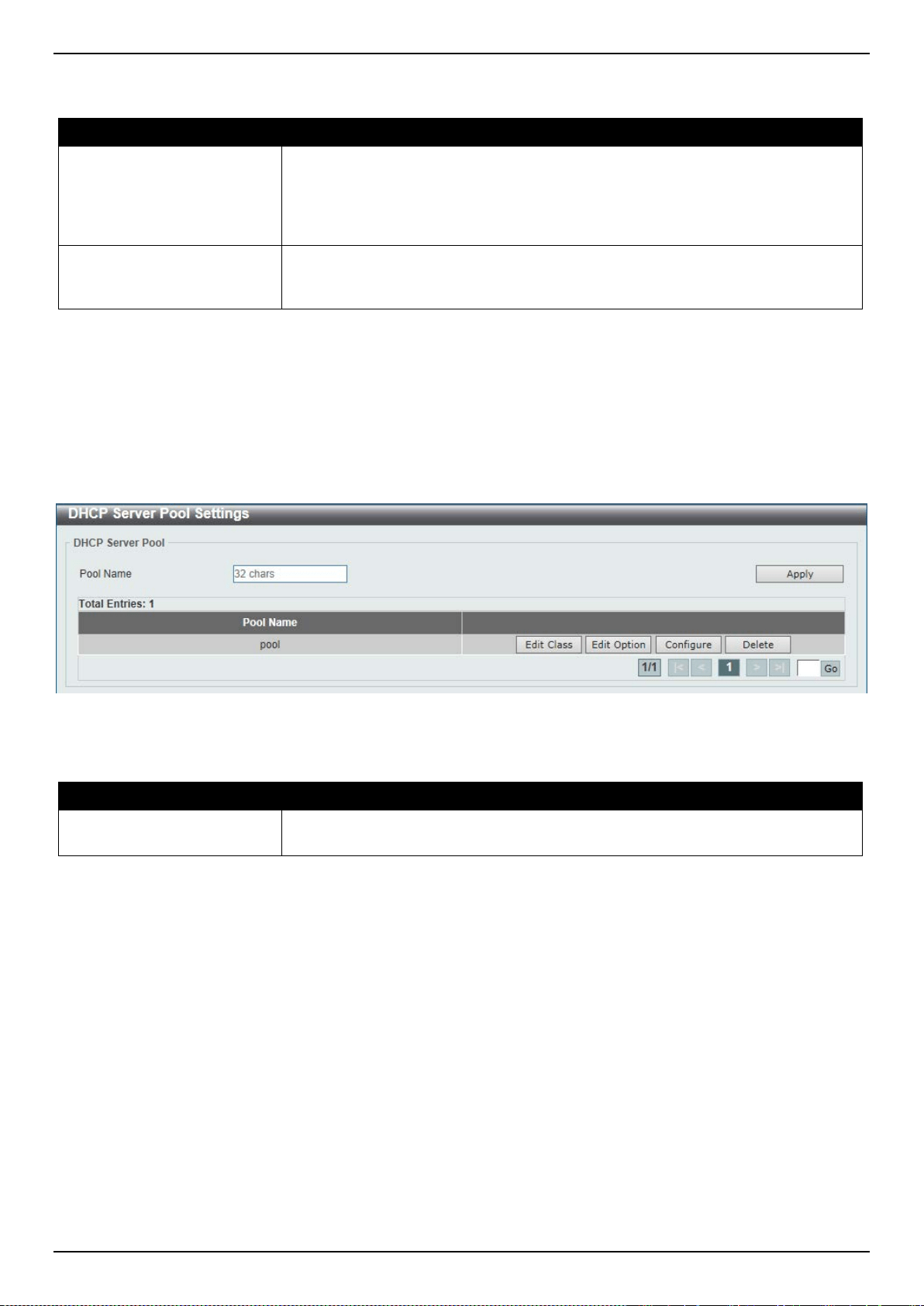
DXS-3400 Series Lite Layer 3 Stackable 10GbE Managed Switch Web UI Reference Guide
48
The fields that can be configured in DHCP Server Settings are described below:
Parameter Description
DHCP Ping Packet
Enter the number of ping packets that the Switch will send out on the network
containing the IP address to be allotted. If the ping request is not returned, the IP
address is considered unique to the local network and then allotted to the
requesting client. 0 means there is no ping test. The range is from 0 to 10. The
default value is 2.
DHCP Ping Timeout
Enter the amount of time the DHCP server must waits before timing out a ping
packet. The range is from 100 to 10000 milliseconds. The default value is 100
milliseconds.
Click the Apply button to accept the changes made.
DHCP Server Pool Settings
This window is used to display and configure the DHCP server pool settings.
To view the following window, click Management > DHCP > DHCP Server > DHCP Server Pool Settings, as shown
below:
Figure 4-29 DHCP Server Pool Settings Window
The fields that can be configured are described below:
Parameter Description
Pool Name
Enter the DHCP server’s pool name here. This name can be up to 32 characters
long.
Click the Apply button to accept the changes made.
Click the Edit Class button to configure the DHCP class.
Click the Edit Option button to configure the DHCP server pool’s option settings.
Click the Configure button to configure the DHCP server pool’s settings.
Click the Delete button to remove the specified entry.
Enter a page number and click the Go button to navigate to a specific page when multiple pages exist.
After clicking the Edit Class button, the following page will appear.
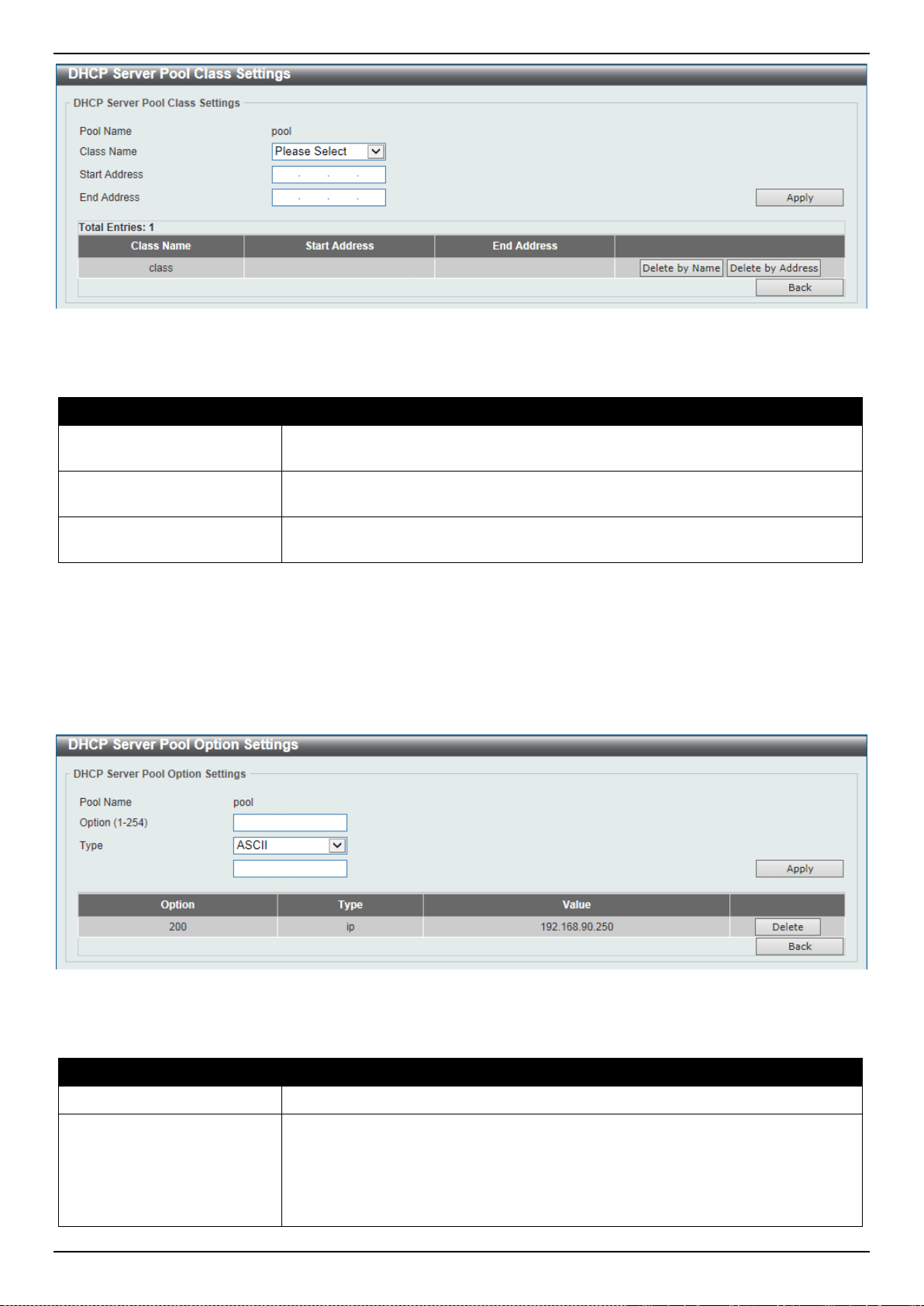
DXS-3400 Series Lite Layer 3 Stackable 10GbE Managed Switch Web UI Reference Guide
49
Figure 4-30 DHCP Server Pool Settings (Edit Class) Window
The fields that can be configured are described below:
Parameter Description
Class Name
Select an existing DHCP class’ name here that will be associated with this DHCP
pool.
Start Address
Enter the starting IPv4 address that will be associated with the DHCP class in the
DHCP pool here.
End Address
Enter the ending IPv4 address that will be associated with the DHCP class in the
DHCP pool here.
Click the Apply button to accept the changes made.
Click the Delete by Name button to remove the DHCP class association by name.
Click the Delete by Address button to remove the DHCP class association by address.
Click the Back button to return to the previous window.
After clicking the Edit Option button, the following page will appear.
Figure 4-31 DHCP Server Pool Settings (Edit Option) Window
The fields that can be configured are described below:
Parameter Description
Option
Enter the DHCP option number here. The range is from 1 to 254.
Type
Select the DHCP option type here. Options to choose from are ASCII, HEX, and
IP. After selecting ASCII, enter the ASCII string in the space provided. This string
can be up to 255 characters long. After selecting HEX, enter the hexadecimal
string in the space provided. This string can be up to 254 characters long. Select
the None option to specify to use a zero-length hexadecimal string. After selecting
IP, enter the IPv4 address(es) in the space(s) provided. Up to 8 IPv4 address can
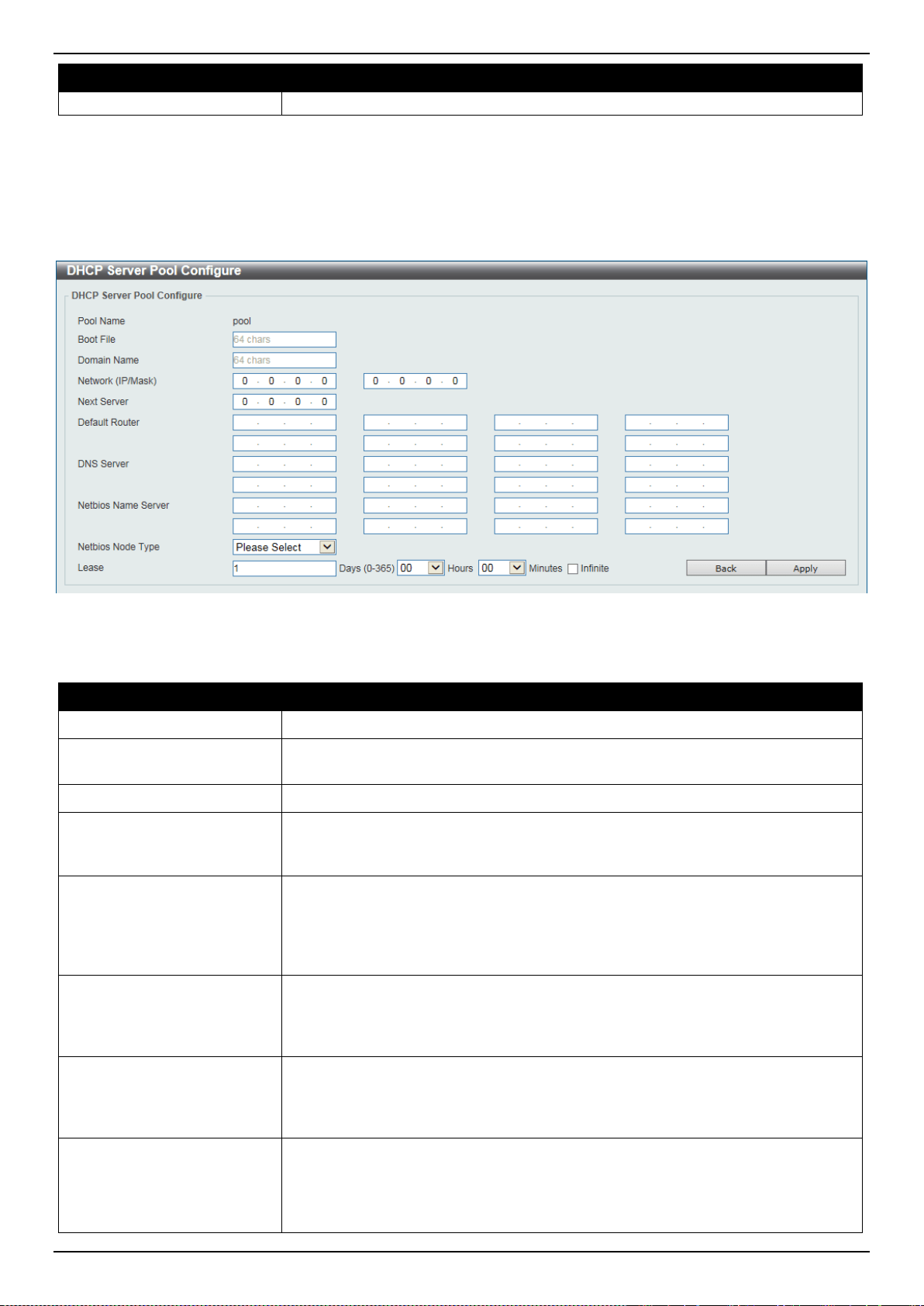
DXS-3400 Series Lite Layer 3 Stackable 10GbE Managed Switch Web UI Reference Guide
50
Parameter Description
be entered.
Click the Apply button to accept the changes made.
Click the Delete button to remove the specified entry.
Click the Back button to return to the previous window.
After clicking the Configure button, the following page will appear.
Figure 4-32 DHCP Server Pool Settings (Configure) Window
The fields that can be configured are described below:
Parameter Description
Boot File
Enter the boot file’s name here. This name can be up to 64 characters long.
Domain Name
Enter the domain name for the DHCP client here. This name can be up to 64
characters long.
Network (IP/Mask)
Enter the network IPv4 address and subnet mask for the DHCP client here.
Next Server
Enter the next server’s IPv4 address here. This parameter is used to specify the
server IP address for the client to boot the image. The server is typically a TFTP
server. Only one boot server can be specified.
Default Router
Enter the IPv4 address of the default router for the DHCP client here. Up to 8 IPv4
address can be entered here. The IP address of the router should be on the same
subnet as the client’s subnet. Routers are listed in the order of preference. If
default routers are already configured, the default routers configured later will be
added to the default interface list.
DNS Server
Enter the IPv4 address to be used by the DHCP client as the DNS server here.
Up to 8 IPv4 address can be entered here. Servers are listed in the order of
preference. If DNS servers are already configured, the DNS servers configured
later will be added to the DNS server list.
Netbios Name Server
Enter the WINS name server’s IPv4 address for the DHCP client here. Up to 8
IPv4 address can be entered here. Servers are listed in the order of preference. If
name servers are already configured, the name server configured later will be
added to the default interface list.
Netbios Node Type
Select the NetBIOS node type for Microsoft DHCP clients here. Options to choose
from are Broadcast, Peer To Peer, Mixed, and Hybrid. The node type of the h-
node (Hybrid) is recommended. The node type determines the method NetBIOS
use to register and resolve names. The broadcast system uses broadcasts. A p-
node system uses only point-to-point name queries to a name server (WINS). An
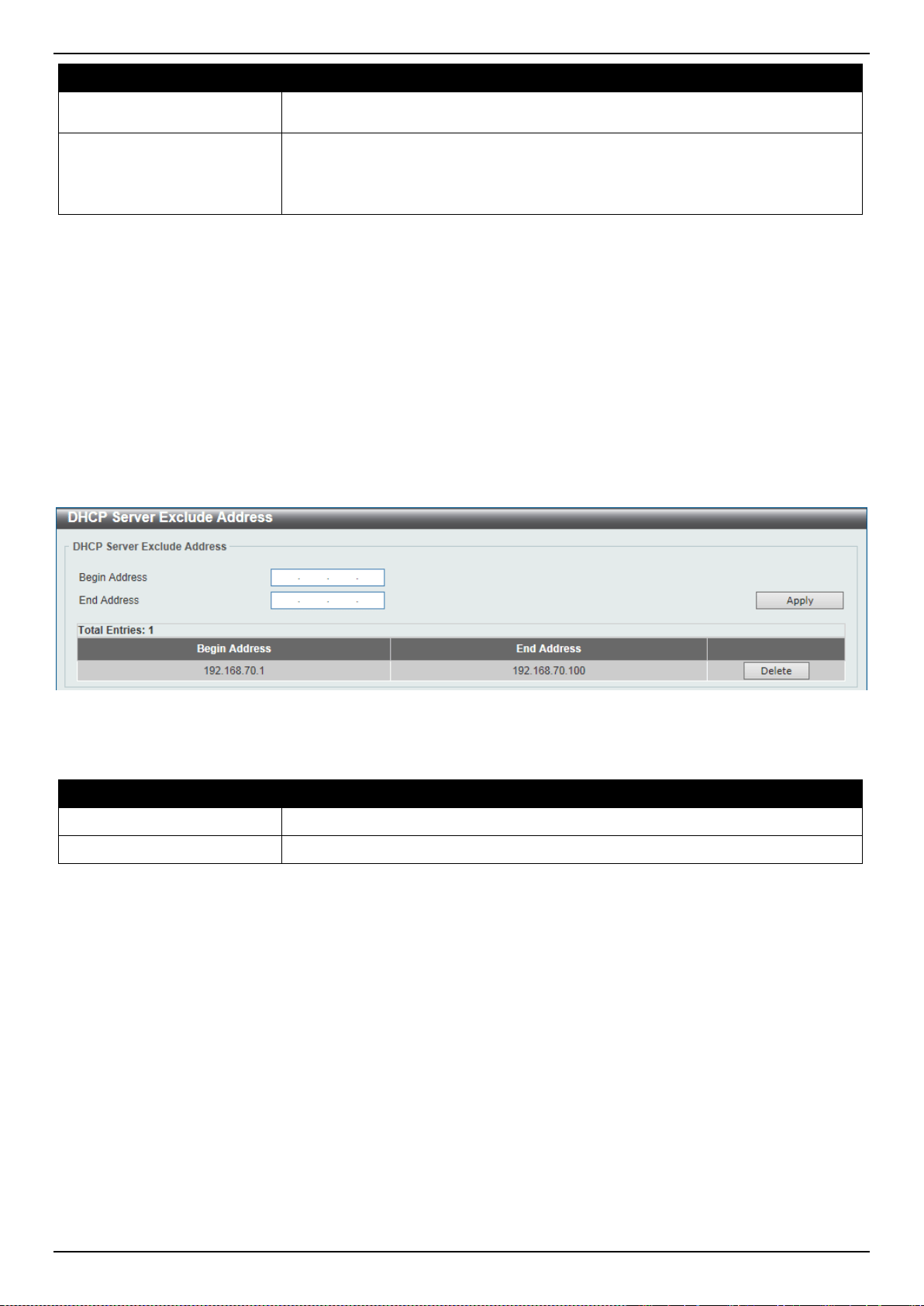
DXS-3400 Series Lite Layer 3 Stackable 10GbE Managed Switch Web UI Reference Guide
51
Parameter Description
m-node system broadcasts first, and then queries the name server. A hybrid
system queries the name server first, and then broadcasts.
Lease
Enter and select the lease time for an IPv4 address that is assigned from the
address pool here. Enter the Days in the range from 0 to 365. Select the Hours
and Minutes from the drop-down menus. Alternatively, the Infinite option can be
selected to specify that the lease time is unlimited.
Click the Apply button to accept the changes made.
Click the Back button to return to the previous window.
DHCP Server Exclude Address
This window is used to display and exclude a range of IPv4 addresses from being allocated to the DHCP client. The
DHCP server automatically allocates addresses in DHCP address pools to DHCP clients. All the addresses except the
interface’s IP address on the router and the excluded address(es) specified here are available for allocation. Multiple
ranges of addresses can be excluded. To remove a range of excluded addresses, administrators must specify the
exact range of addresses previously configured.
To view the following window, click Management > DHCP > DHCP Server > DHCP Server Exclude Address, as
shown below:
Figure 4-33 DHCP Server Exclude Address Window
The fields that can be configured are described below:
Parameter Description
Begin Address
Enter the first IPv4 address of a range of addresses to be excluded here.
End Address
Enter the last IPv4 address of a range of addresses to be excluded here.
Click the Apply button to accept the changes made.
Click the Delete button to remove the specified entry.
DHCP Server Manual Binding
This window is used to display and configure the DHCP server feature’s manual binding settings. With a manual
binding entry, the IP address can be either be bound with a client-identifier or bound with the hardware address of the
host.
To view the following window, click Management > DHCP > DHCP Server > DHCP Server Manual Binding, as
shown below:
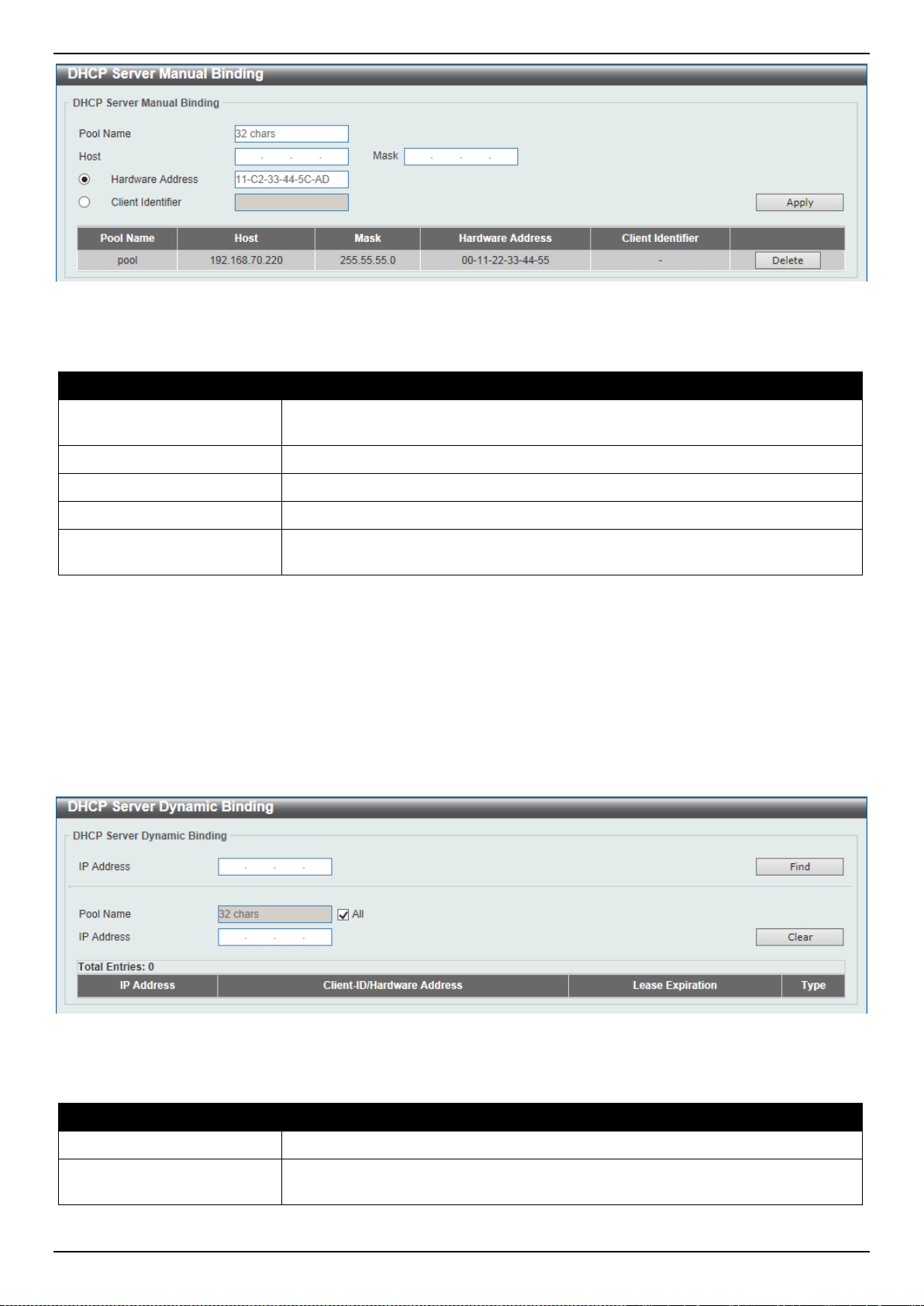
DXS-3400 Series Lite Layer 3 Stackable 10GbE Managed Switch Web UI Reference Guide
52
Figure 4-34 DHCP Server Manual Binding Window
The fields that can be configured are described below:
Parameter Description
Pool Name
Enter the DHCP server’s pool name here. This name can be up to 32 characters
long.
Host
Enter the DHCP host’s IPv4 address here.
Mask
Enter the DHCP host’s network subnet mask here.
Hardware Address
Enter the DHCP host’s MAC address here.
Client Identifier
Enter the DHCP host's identifier in hexadecimal notation here. The client identifier
is formatted by the media type and the MAC address.
Click the Apply button to accept the changes made.
Click the Delete button to remove the specified entry.
DHCP Server Dynamic Binding
This window is used to display and clear the DHCP server’s dynamic binding entries.
To view the following window, click Management > DHCP > DHCP Server > DHCP Server Dynamic Binding, as
shown below:
Figure 4-35 DHCP Server Dynamic Binding Window
The fields that can be configured are described below:
Parameter Description
IP Address
Enter the binding entry’s IPv4 address here.
Pool Name
Enter the DHCP server’s pool name here. This name can be up to 32 characters
long. Select the All option to clear the binding entries for all pools.
Click the Find button to locate a specific entry based on the information entered.
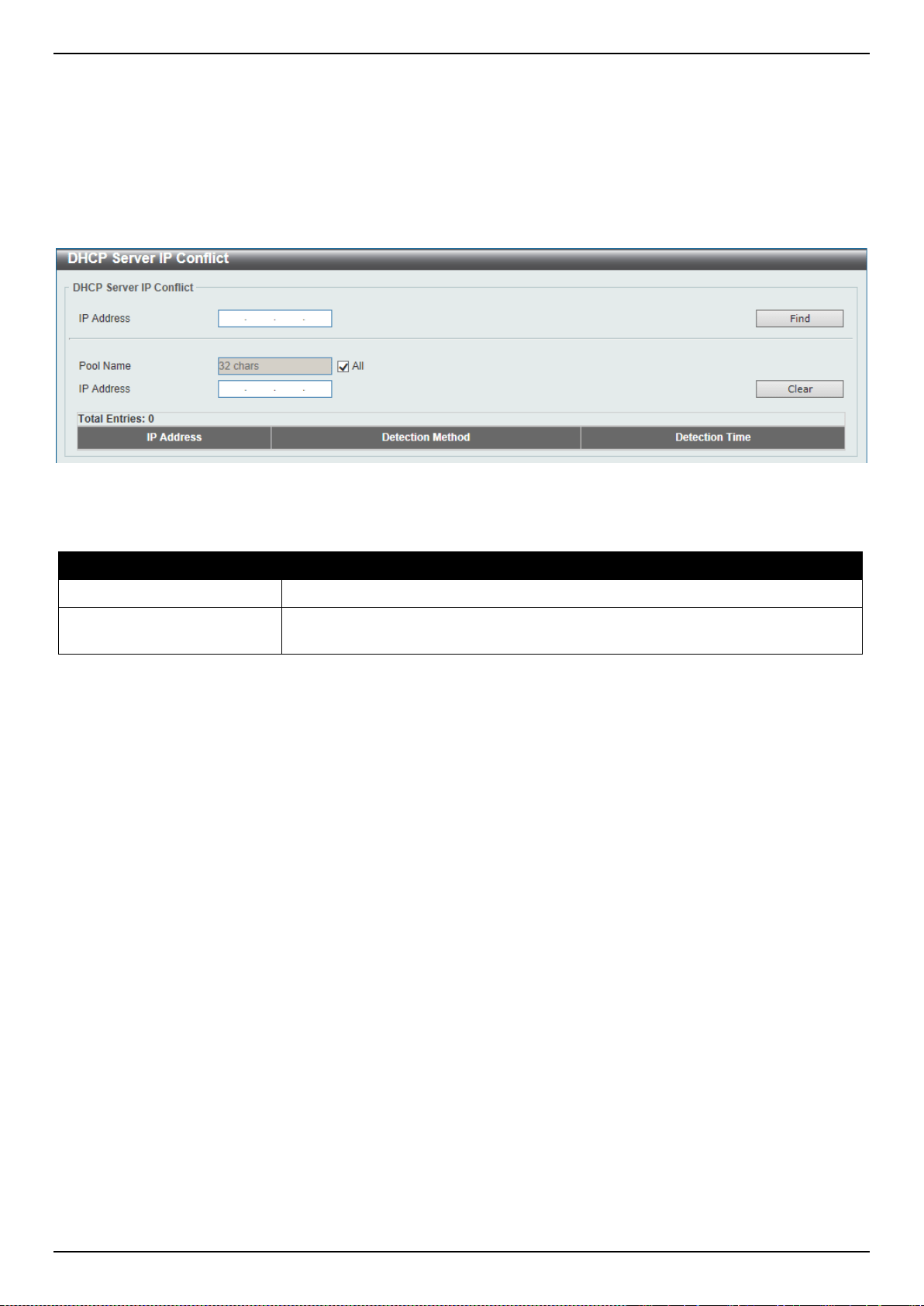
DXS-3400 Series Lite Layer 3 Stackable 10GbE Managed Switch Web UI Reference Guide
53
Click the Clear button to clear the entries based on the information specified.
DHCP Server IP Conflict
This window is used to display and clear the DHCP conflict entries from the DHCP server database.
To view the following window, click Management > DHCP > DHCP Server > DHCP Server IP Conflict, as shown
below:
Figure 4-36 DHCP Server IP Conflict Window
The fields that can be configured are described below:
Parameter Description
IP Address
Enter the IPv4 address of the conflict entry to be located or cleared.
Pool Name
Enter the DHCP server’s pool name here. This name can be up to 32 characters
long. Select the All option to clear the conflict entries for all pools.
Click the Find button to locate a specific entry based on the information entered.
Click the Clear button to clear the entries based on the information specified.
DHCP Server Statistic
This window is used to display DHCP server statistics.
To view the following window, click Management > DHCP > DHCP Server > DHCP Server Statistic, as shown below:
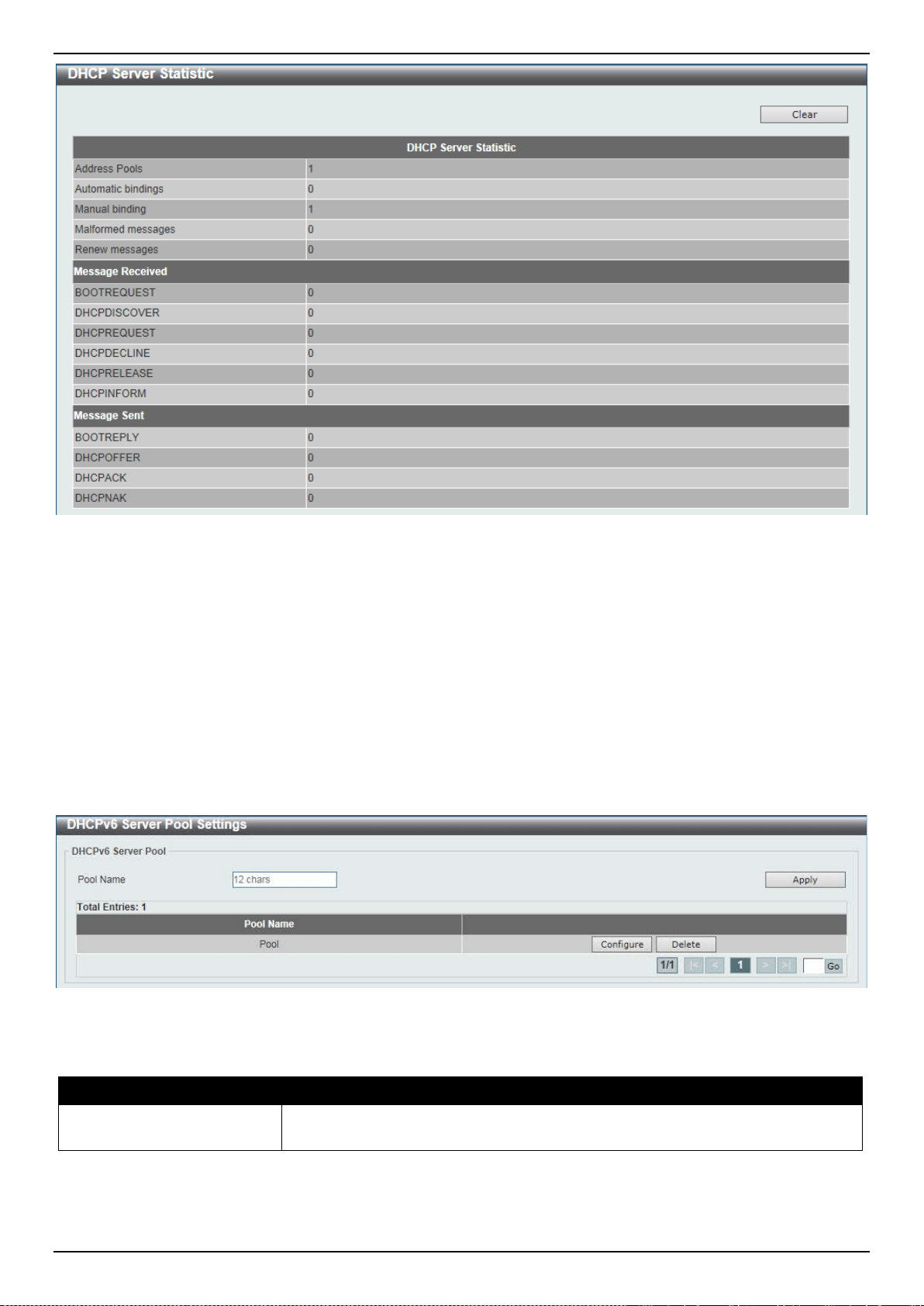
DXS-3400 Series Lite Layer 3 Stackable 10GbE Managed Switch Web UI Reference Guide
54
Figure 4-37 DHCP Server Statistic Window
Click the Clear button to clear the statistics information displayed here.
DHCPv6 Server
DHCPv6 Server Pool Settings
This window is used to display and configure the DHCPv6 server pool settings.
To view the following window, click Management > DHCP > DHCPv6 Server > DHCPv6 Server Pool Settings, as
shown below:
Figure 4-38 DHCPv6 Server Pool Settings Window
The fields that can be configured are described below:
Parameter Description
Pool Name
Enter the DHCPv6 server’s pool name here. This name can be up to 12
characters long.
Click the Apply button to accept the changes made.
Click the Configure button to configure the DHCPv6 server pool’s settings.
Click the Delete button to remove the specified entry.
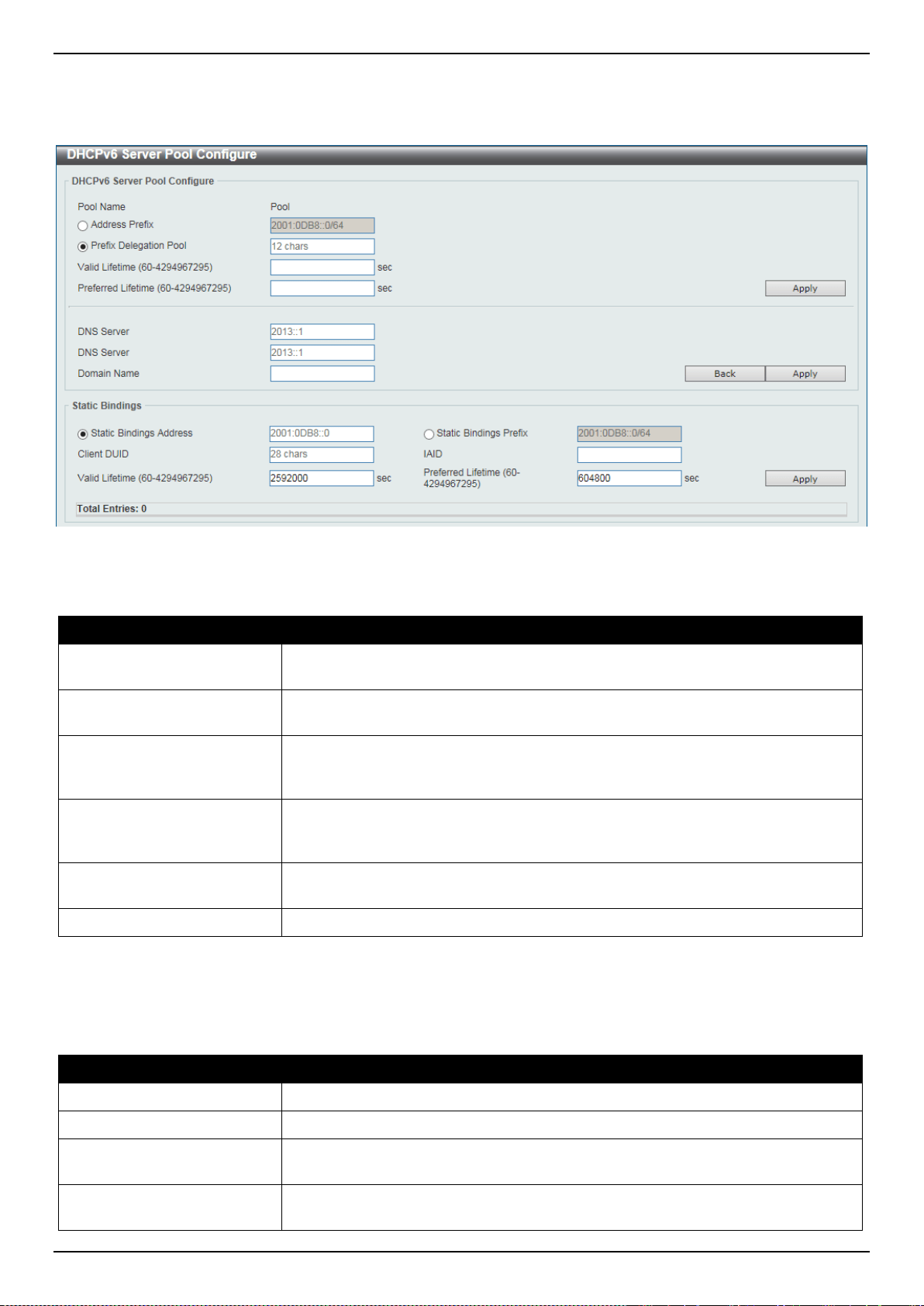
DXS-3400 Series Lite Layer 3 Stackable 10GbE Managed Switch Web UI Reference Guide
55
Enter a page number and click the Go button to navigate to a specific page when multiple pages exist.
After clicking the Configure button, the following page will appear.
Figure 4-39 DHCPv6 Server Pool Settings (Configure) Window
The fields that can be configured in DHCPv6 Server Pool Configure are described below:
Parameter Description
Address Prefix
Select and enter the DHCPv6 server pool’s IPv6 network address and prefix
length here. For example, 2015::0/64.
Prefix Delegation Pool
Select and enter the DHCPv6 server pool’s prefix delegation name here. This
name can be up to 12 characters long.
Valid Lifetime
Enter the valid lifetime value here. The range is from 60 to 4294967295 seconds.
The valid lifetime should be greater than preferred lifetime. If this value is not
specified, then the default valid lifetime will be 2592000 seconds (30 days).
Preferred Lifetime
Enter the preferred lifetime value here. The range is from 60 to 4294967295
seconds. If this value is not specified, then the default preferred lifetime will be
604800 seconds (7 days).
DNS Server
Enter the DNS server’s IPv6 address to be assigned to requesting DHCPv6
clients here.
Domain Name
Enter the domain name to be assigned to requesting DHCPv6 clients here.
Click the Apply button to accept the changes made.
Click the Back button to return to the previous window.
The fields that can be configured in Static Bindings are described below:
Parameter Description
Static Bindings Address
Enter the static binding IPv6 address assign to the specific client here.
Static Bindings Prefix
Enter the static binding IPv6 network address and prefix length here.
Client DUID
Enter the client DHCP Unique Identifier (DUID) here. This string can be up to 28
characters long.
IAID
Enter the Identity Association Identifier (IAID) here. The IAID here uniquely
identifies a collection of non-temporary addresses (IANA) assigned on the client.
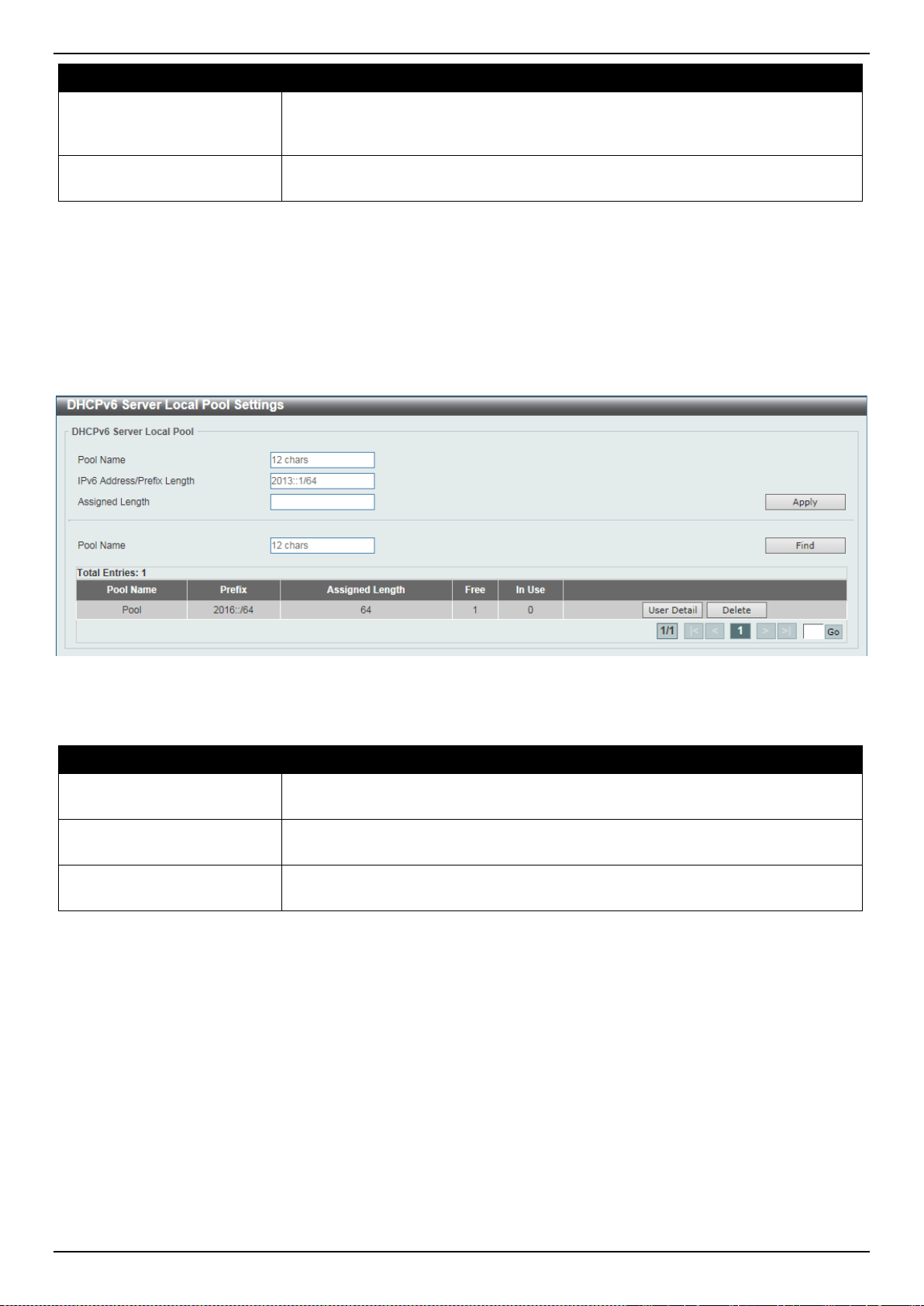
DXS-3400 Series Lite Layer 3 Stackable 10GbE Managed Switch Web UI Reference Guide
56
Parameter Description
Valid Lifetime
Enter the valid lifetime value here. The valid lifetime should be greater than the
preferred lifetime. The range is from 60 to 4294967295 seconds. By default, this
value is 2592000 seconds (30 days).
Preferred Lifetime
Enter the preferred lifetime value here. The range is from 60 to 4294967295
seconds. By default, this value is 604800 seconds (7 days).
Click the Apply button to accept the changes made.
DHCPv6 Server Local Pool Settings
This window is used to display and configure the DHCPv6 server’s local pool settings.
To view the following window, click Management > DHCP > DHCPv6 Server > DHCPv6 Server Local Pool Settings,
as shown below:
Figure 4-40 DHCPv6 Server Local Pool Settings Window
The fields that can be configured are described below:
Parameter Description
Pool Name
Enter the DHCPv6 server’s pool name here. This name can be up to 12
characters long.
IPv6 Address / Prefix
Length
Enter the IPv6 prefix address and prefix length of the local pool here.
Assigned Length
Enter the prefix length to be delegated to the user from the pool here. The value
of the assigned length cannot be less than the value of the prefix length.
Click the Apply button to accept the changes made.
Click the Find button to locate a specific entry based on the information entered.
Click the User Detail button to view the user information displayed in the lower table.
Click the Delete button to remove the specified entry.
Enter a page number and click the Go button to navigate to a specific page when multiple pages exist.
DHCPv6 Server Exclude Address
This window is used to specify IPv6 addresses that a DHCPv6 server should not assign to DHCPv6 clients. The
DHCPv6 server assumes that all addresses (excluding the Switch’s IPv6 address) can be assigned to clients. Use this
window to exclude a single IPv6 address or a range of IPv6 addresses. The excluded addresses are only applied to
the pool(s) for address assignment.
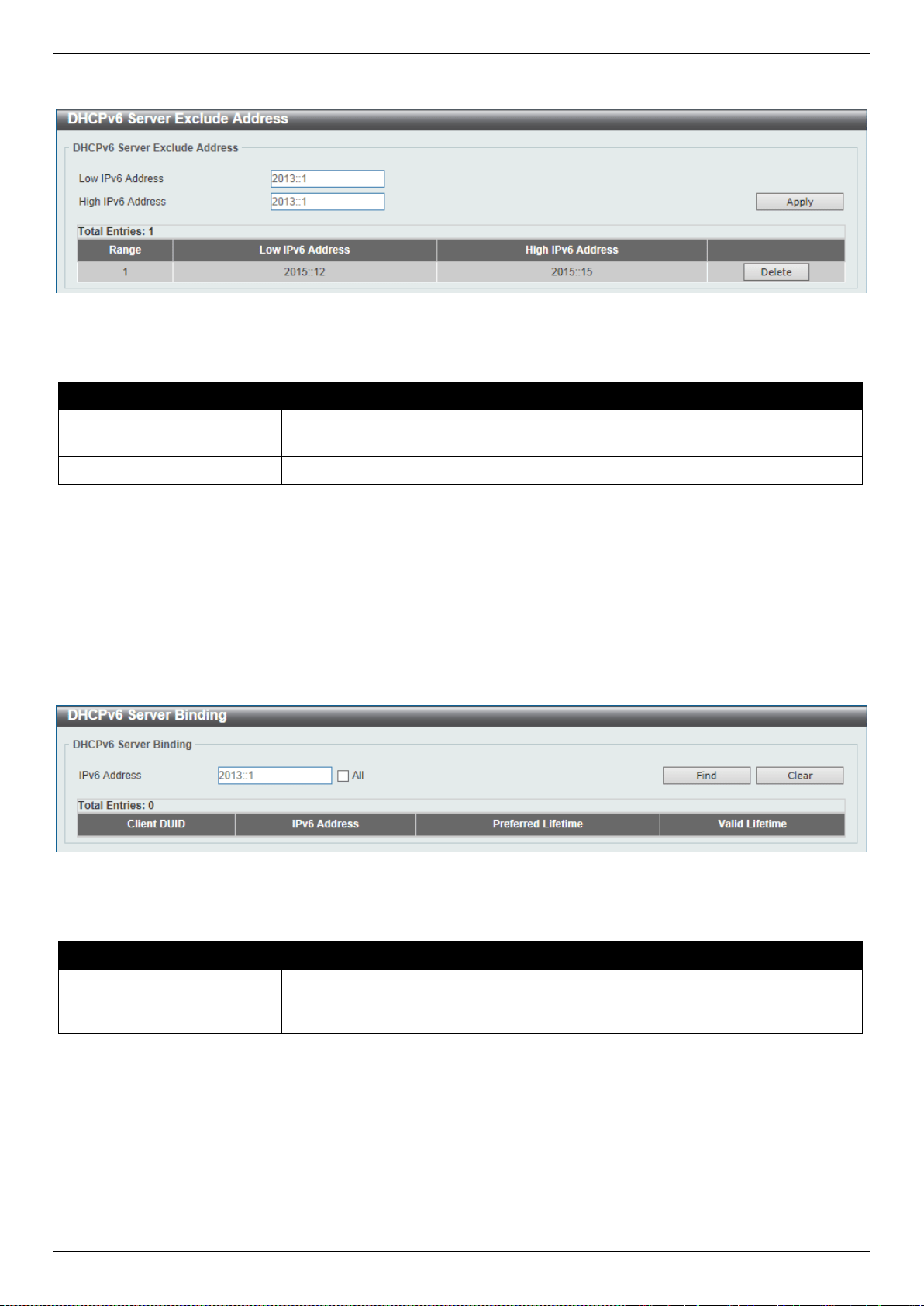
DXS-3400 Series Lite Layer 3 Stackable 10GbE Managed Switch Web UI Reference Guide
57
To view the following window, click Management > DHCP > DHCPv6 Server > DHCPv6 Server Exclude Address,
as shown below:
Figure 4-41 DHCPv6 Server Exclude Address Window
The fields that can be configured are described below:
Parameter Description
Low IPv6 Address
Enter the excluded IPv6 address or first IPv6 address in an excluded address
range here.
High IPv6 Address
Optionally, enter the last IPv6 address in the excluded address range.
Click the Apply button to accept the changes made.
Click the Delete button to remove the specified entry.
DHCPv6 Server Binding
This window is used to display and clear the DHCPv6 server’s binding entries.
To view the following window, click Management > DHCP > DHCPv6 Server > DHCPv6 Server Binding, as shown
below:
Figure 4-42 DHCPv6 Server Binding Window
The fields that can be configured are described below:
Parameter Description
IPv6 Address
Enter the binding entry’s IPv6 address to be displayed or cleared here. Select the
All option to display or clear all DHCPv6 client prefix bindings in or from the
binding table.
Click the Find button to locate a specific entry based on the information entered.
Click the Clear button to clear the entries based on the information specified.
DHCPv6 Server Interface Settings
This window is used to display and configure the DHCPv6 server’s interface settings.
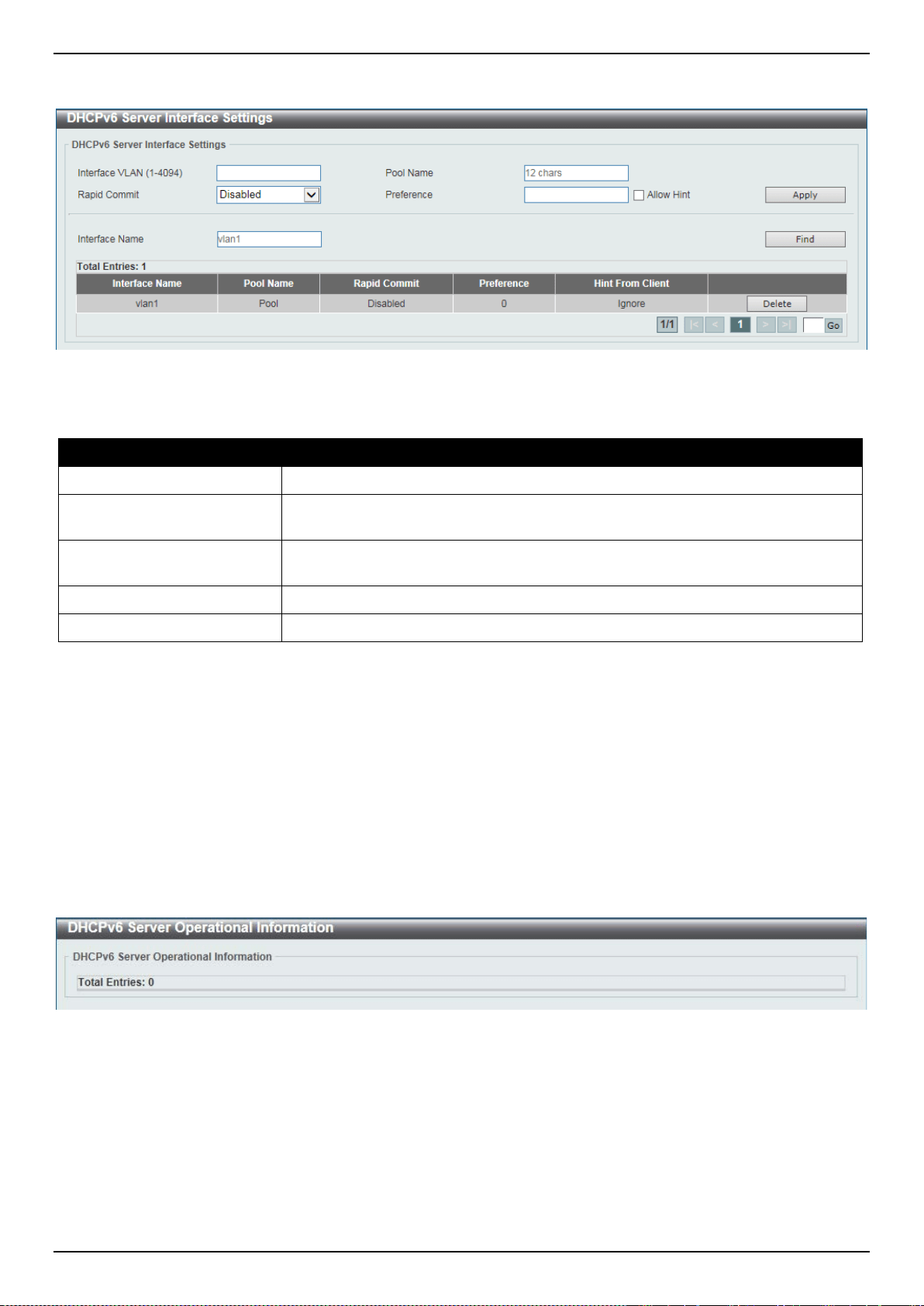
DXS-3400 Series Lite Layer 3 Stackable 10GbE Managed Switch Web UI Reference Guide
58
To view the following window, click Management > DHCP > DHCPv6 Server > DHCPv6 Server Interface Settings,
as shown below:
Figure 4-43 DHCPv6 Server Interface Settings Window
The fields that can be configured are described below:
Parameter Description
Interface VLAN
Enter the interface’s VLAN ID here. The range is from 1 to 4094.
Pool Name
Enter the DHCPv6 server’s pool name here. This name can be up to 12
characters long.
Rapid Commit
Select to allow the proceeding of two-message exchanges or not by enabling or
disabling this option. By default, two-message exchange is not allowed.
Preference
Enter the preference value here. Select the Allow Hint option to allow hints.
Interface Name
Enter the interface’s name here.
Click the Apply button to accept the changes made.
Click the Find button to locate a specific entry based on the information entered.
Click the Delete button to remove the specified entry.
Enter a page number and click the Go button to navigate to a specific page when multiple pages exist.
DHCPv6 Server Operational Information
This window is used to display the DHCPv6 server’s operational information.
To view the following window, click Management > DHCP > DHCPv6 Server > DHCPv6 Server Operational
Information, as shown below:
Figure 4-44 DHCPv6 Server Operational Information Window
DHCP Relay
DHCP Relay Global Settings
This window is used to display and configure the DHCP relay feature’s global settings.
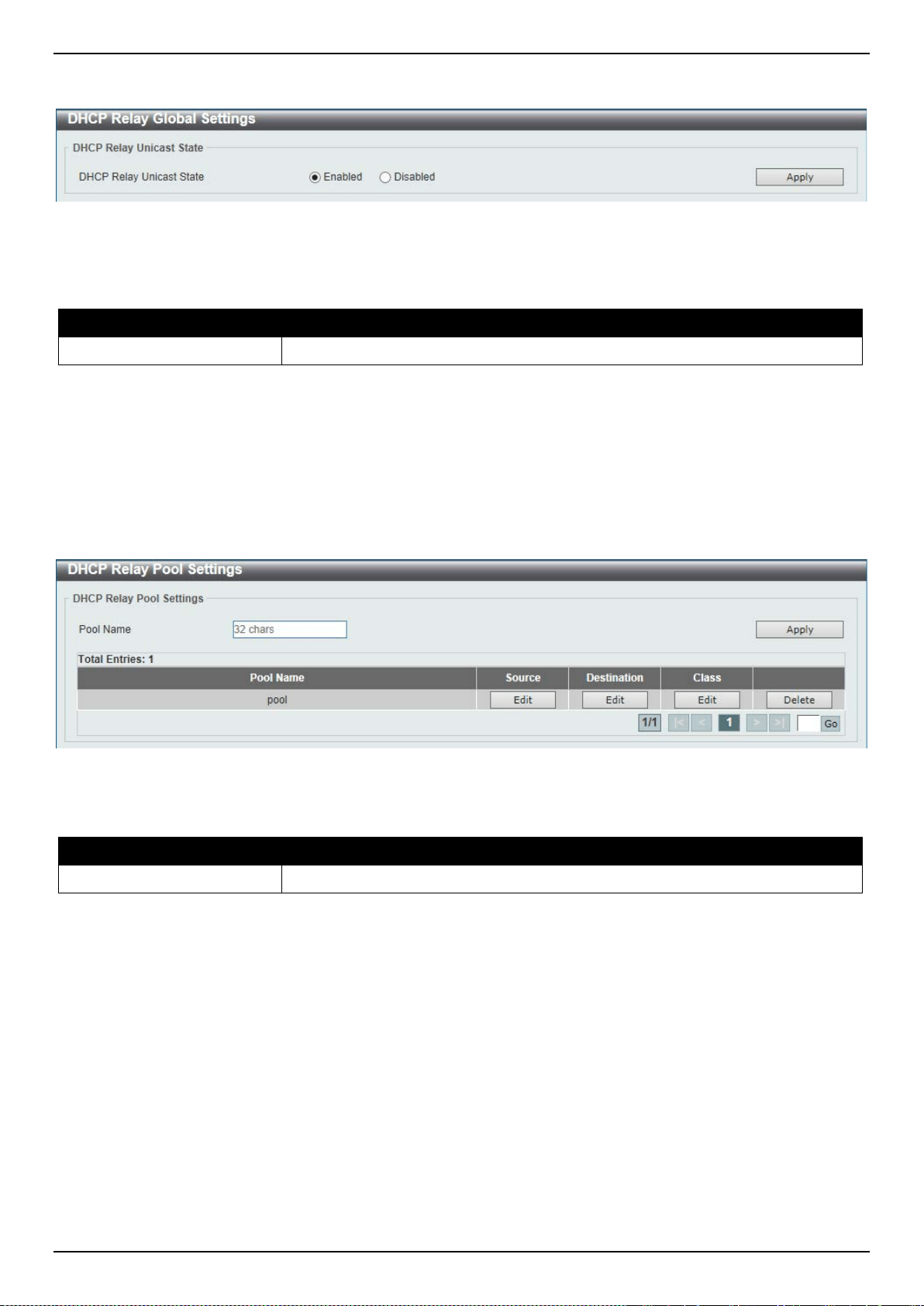
DXS-3400 Series Lite Layer 3 Stackable 10GbE Managed Switch Web UI Reference Guide
59
To view the following window, click Management > DHCP > DHCP Relay > DHCP Relay Global Settings, as shown
below:
Figure 4-45 DHCP Relay Global Settings Window
The fields that can be configured are described below:
Parameter Description
DHCP Relay Unicast State
Select to globally enable the DHCP relay unicast state here.
Click the Apply button to accept the changes made.
DHCP Relay Pool Settings
This window is used to display and configure the DHCP relay pool on a DHCP relay agent.
To view the following window, click Management > DHCP > DHCP Relay > DHCP Relay Pool Settings, as shown
below:
Figure 4-46 DHCP Relay Pool Settings Window
The fields that can be configured are described below:
Parameter Description
Pool Name
Enter the address pool name with a maximum of 32 characters.
Click the Apply button to accept the changes made.
Click the Edit button to modify the corresponding information of the specific DHCP pool.
Click the Delete button to remove the specified entry.
Enter a page number and click the Go button to navigate to a specific page when multiple pages exist.
After clicking the Edit button under Source, the following window will appear.
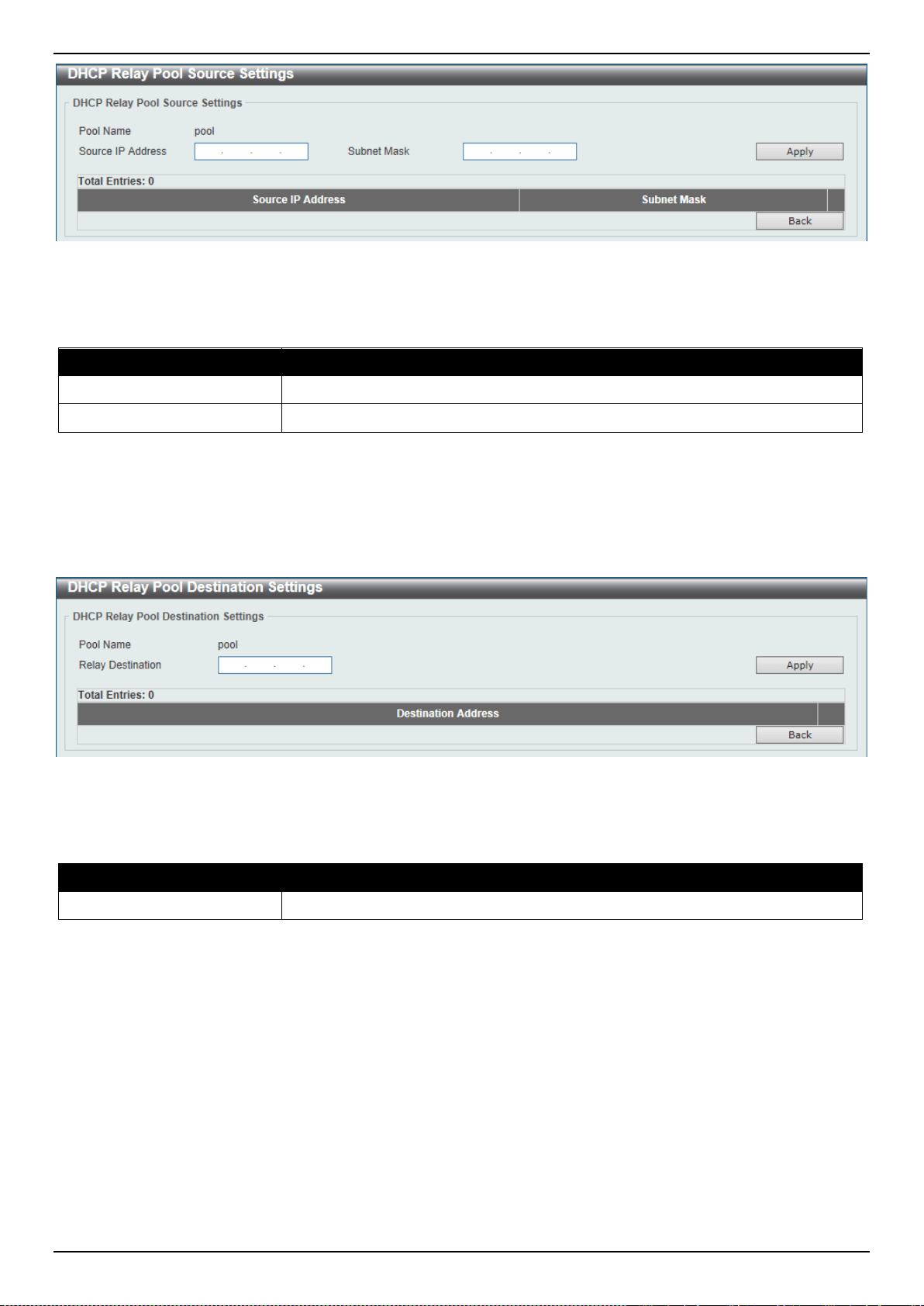
DXS-3400 Series Lite Layer 3 Stackable 10GbE Managed Switch Web UI Reference Guide
60
Figure 4-47 DHCP Relay Pool Settings (Source Edit) Window
The fields that can be configured are described below:
Parameter Description
Source IP Address
Enter the source subnet of client packets.
Subnet Mask
Enter the network mask of the source subnet.
Click the Apply button to accept the changes made.
Click the Delete button to remove the specified entry.
Click the Back button to return to the previous window.
After clicking the Edit button under Destination, the following window will appear.
Figure 4-48 DHCP Relay Pool Settings (Destination Edit) Window
The fields that can be configured are described below:
Parameter Description
Relay Destination
Enter the relay destination DHCP server IP address.
Click the Apply button to accept the changes made.
Click the Delete button to remove the specified entry.
Click the Back button to return to the previous window.
After clicking the Edit button under Class, the following window will appear.
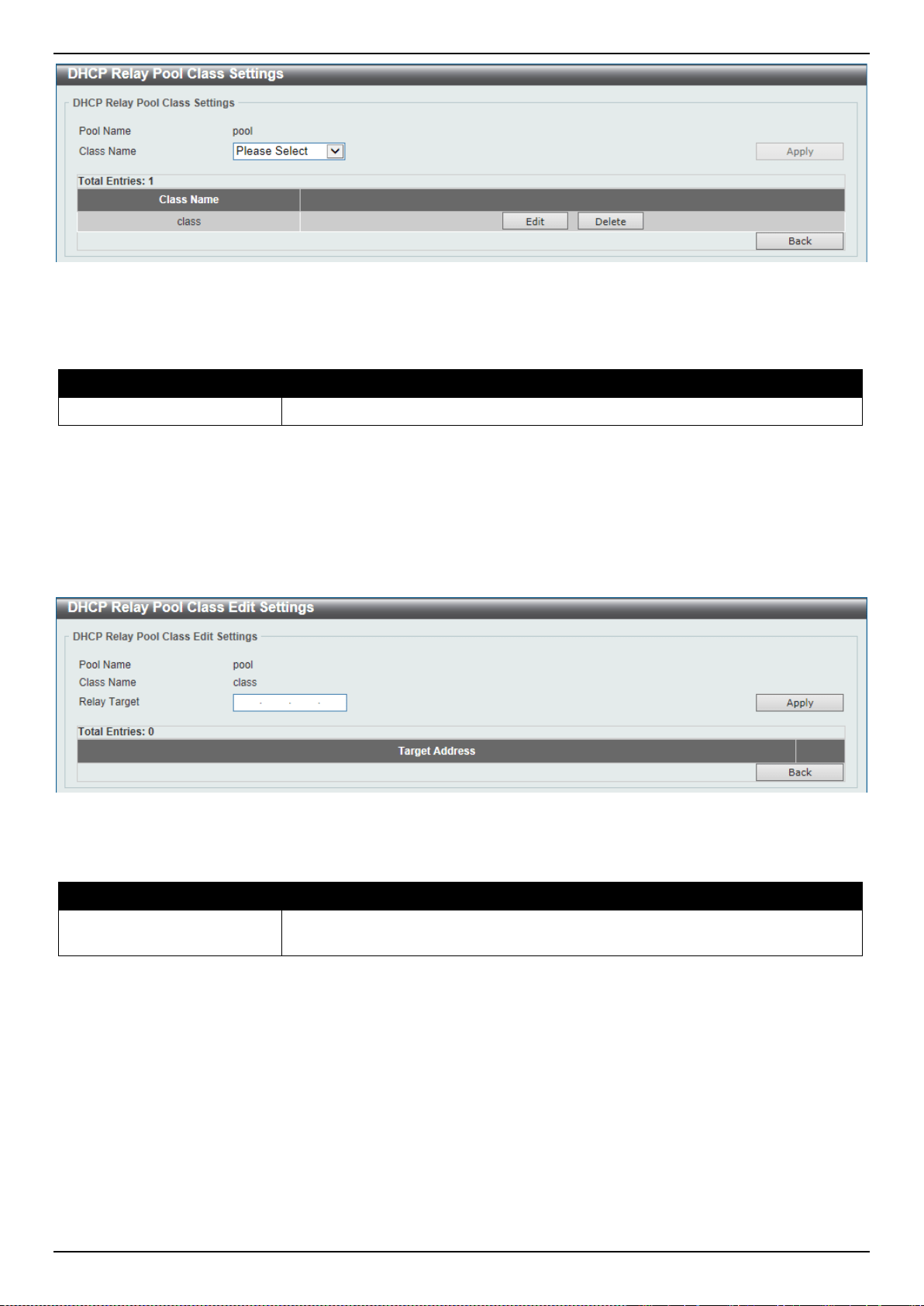
DXS-3400 Series Lite Layer 3 Stackable 10GbE Managed Switch Web UI Reference Guide
61
Figure 4-49 DHCP Relay Pool Settings (Class Edit) Window
The fields that can be configured are described below:
Parameter Description
Class Name
Select the DHCP class name.
Click the Apply button to accept the changes made.
Click the Edit button to edit more information.
Click the Delete button to remove the specified entry.
Click the Back button to return to the previous window.
After clicking the Edit button, the following window will appear.
Figure 4-50 DHCP Relay Pool Settings (Class Edit, Edit) Window
The fields that can be configured are described below:
Parameter Description
Relay Target
Enter the DHCP relay target for relaying packets that matches the value pattern of
the option defined in the DHCP class.
Click the Apply button to accept the changes made.
Click the Delete button to remove the specified entry.
Click the Back button to return to the previous window.
DHCP Relay Information Settings
This window is used to display and configure the DHCP relay information.
To view the following window, click Management > DHCP > DHCP Relay > DHCP Relay Information Settings, as
shown below:
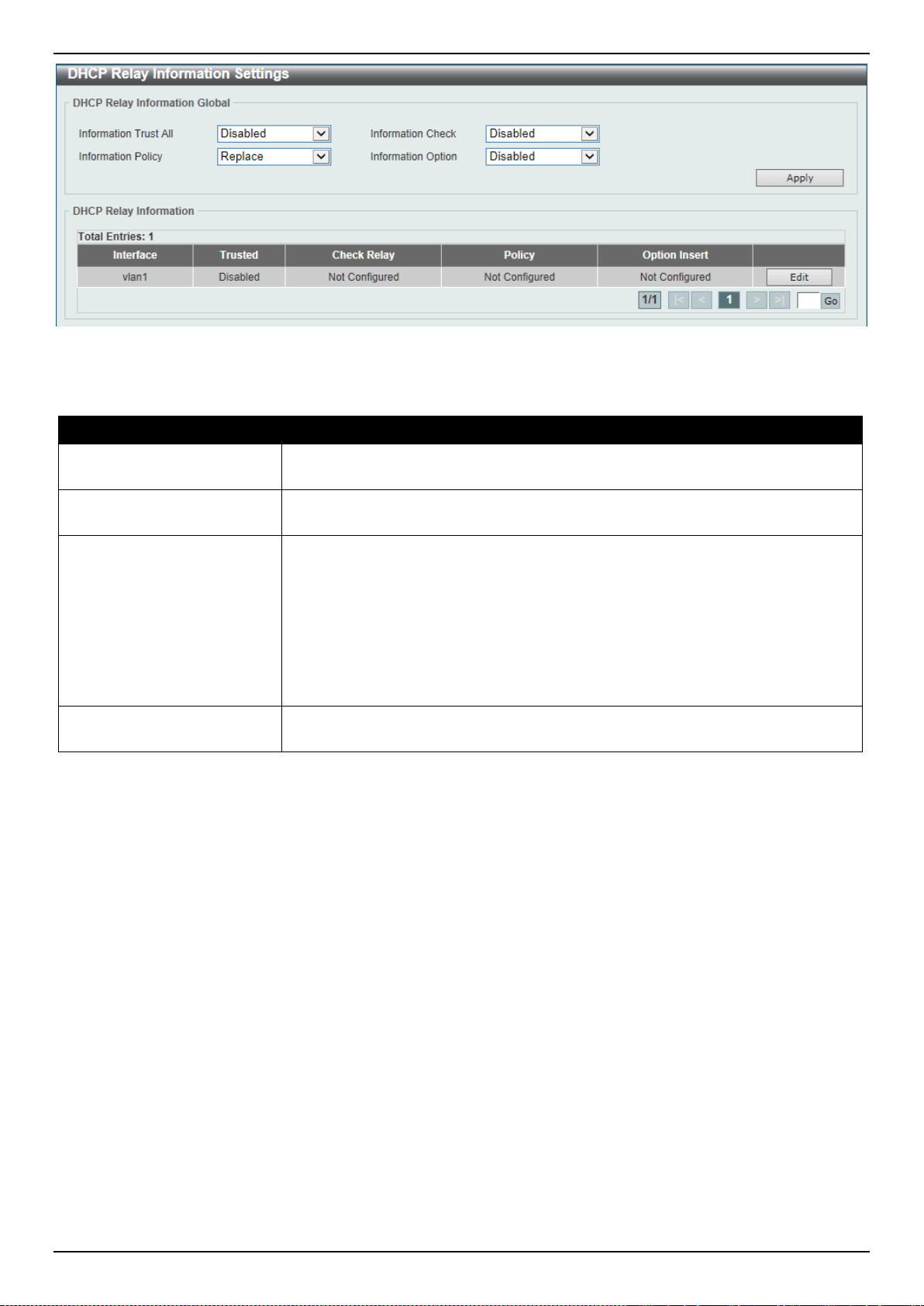
DXS-3400 Series Lite Layer 3 Stackable 10GbE Managed Switch Web UI Reference Guide
62
Figure 4-51 DHCP Relay Information Settings Window
The fields that can be configured are described below:
Parameter Description
Information Trust All
Select this option to enable or disable the DHCP relay agent to trust the IP DHCP
relay information for all interfaces.
information Check
Select this option to enable or disable the DHCP relay agent to validate and
remove the relay agent information option in the received DHCP reply packet.
Information Policy
Select the Option 82 re-forwarding policy for the DHCP relay agent. Options to
choose from are Keep, Drop, and Replace.
• Keep - Select that the DHCP request packet that already has the relay
option is left unchanged and directly relayed to the DHCP server.
• Drop - Select to discard the packet that already has the relay option.
• Replace - Select that the DHCP request packet that already has the relay
option will be replaced by a new option.
Information Option
Select this option to enable or disable the insertion of relay agent information
(Option 82) during the relay of DHCP request packets.
Click the Apply button to accept the changes made.
Click the Edit button to modify the corresponding interface.
Enter a page number and click the Go button to navigate to a specific page when multiple pages exist.
DHCP Relay Information Option Format Settings
This window is used to display and configure the DHCP information format.
To view the following window, click Management > DHCP > DHCP Relay > DHCP Relay Information Option
Format Settings, as shown below:
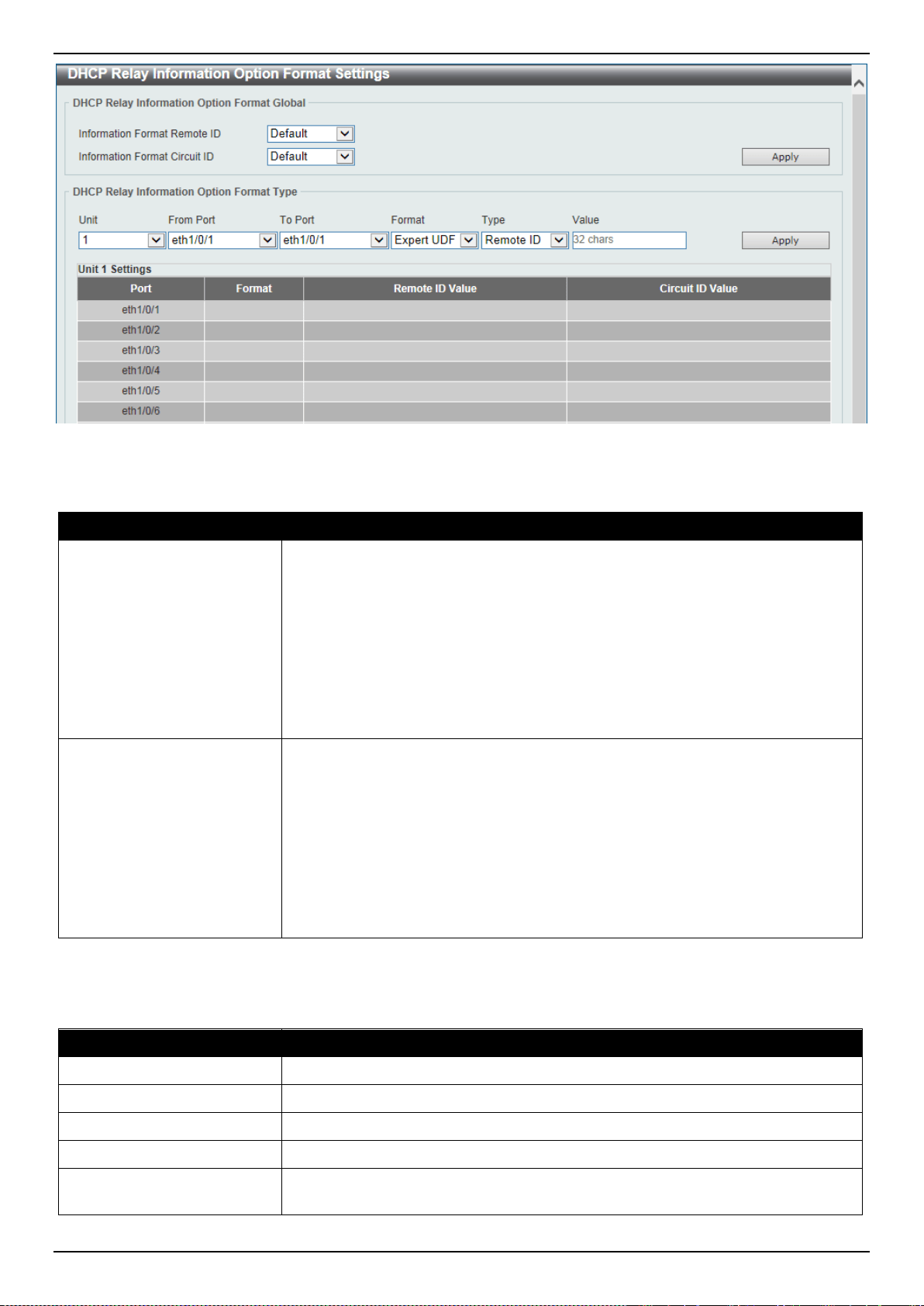
DXS-3400 Series Lite Layer 3 Stackable 10GbE Managed Switch Web UI Reference Guide
63
Figure 4-52 DHCP Relay Information Option Format Settings Window
The fields that can be configured in DHCP Relay Information Option Format Global are described below:
Parameter Description
Information Format Remote
ID
Select the DHCP information remote ID sub-option. Options to choose from are
Default, User Define, and Vendor2.
• Default - Select to use the Switch's system MAC address as the remote ID.
• User Define - Select to use a user-defined remote ID. Enter the user-defined
string with the maximum of 32 characters in the text box.
• Vendor2 - Select to use vender 2 as the remote ID.
• Expert UDF - Select to use the expert UDF remote ID. Select the stand-
alone unit format after this selection here.
Information Format Circuit
ID
Select the DHCP information circuit ID sub-option. Options to choose from are
Default, User Define, and Vendor1.
• Default - Select to use the default circuit ID sub-option.
• User Define - Select to use a user-defined circuit ID. Enter the user-defined
string with the maximum of 32 characters in the text box.
• Vendor1 - Select to use vender 1 as the circuit ID.
• Expert UDF - Select to use the expert UDF circuit ID. Select the stand-alone
unit format after this selection here.
Click the Apply button to accept the changes made.
The fields that can be configured in DHCP Relay Information Option Format Global are described below:
Parameter Description
Unit
Select the Switch unit that will be used for this configuration here.
From Port ~ To Port
Select the range of ports that will be used for this configuration here.
Format
Specifies that the expert UDF format will be used.
Type
Select to use the Remote ID type or Circuit ID type here.
Value
Enter the vendor-defined string for Option 82 information in the remote/circuit ID
sub-option here. This string can be up to 32 characters long.
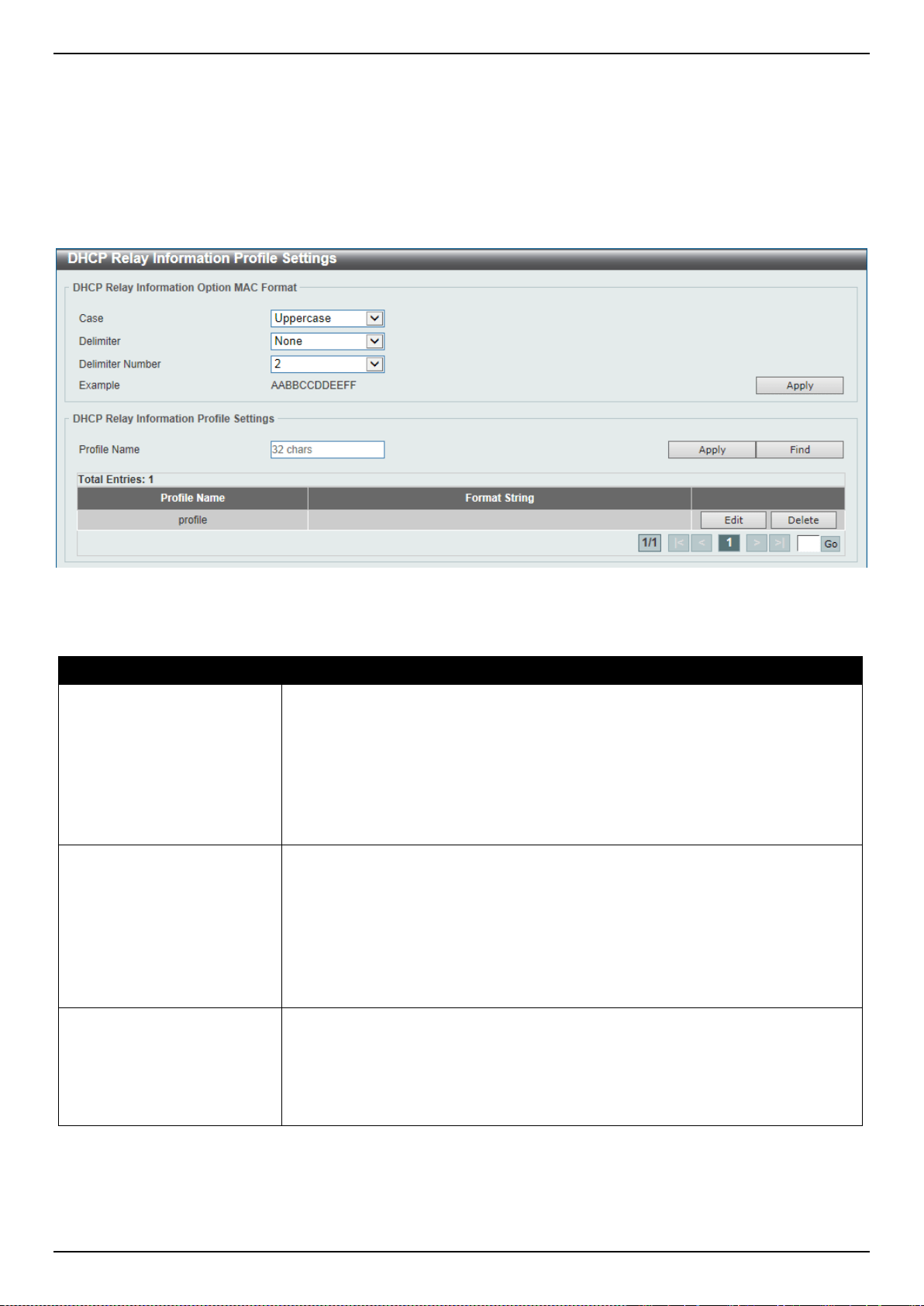
DXS-3400 Series Lite Layer 3 Stackable 10GbE Managed Switch Web UI Reference Guide
64
Click the Apply button to accept the changes made.
DHCP Relay Information Profile Settings
This window is used to display and configure the DHCP relay information profile settings.
To view the following window, click Management > DHCP > DHCP Relay > DHCP Relay Information Profile
Settings, as shown below:
Figure 4-53 DHCP Relay Information Profile Settings Window
The fields that can be configured in DHCP Relay Information Option MAC Format are described below:
Parameter Description
Case
Select the case that will be used here. Options to choose from are:
• Lowercase - Specifies that when using the lowercase format, the Option 82
MAC address for the user-defined profile will be formatted as: aa-bb-cc-dd-
ee-ff.
• Uppercase - Specifies that when using the uppercase format, the Option 82
MAC address for the user-defined profile username will be formatted as: AA-
BB-CC-DD-EE-FF.
Delimiter
Select the delimiter that will be used here. Options to choose from are:
• Hyphen - Specifies that the format will be AA-BB-CC-DD-EE-FF.
• Colon - Specifies that the format will be AA:BB:CC:DD:EE:FF.
• Dot - Specifies that the format will be AA.BB.CC.DD.EE.FF.
• None - Specifies that when not using any delimiter, the format will be
AABBCCDDEEFF.
Delimiter Number
Select the delimiter number here. Options to choose from are:
• 1 - Single delimiter, the format is: AABBCC.DDEEFF.
• 2 - Double delimiters, the format is: AABB.CCDD.EEFF.
• 5 - Multiple delimiters, the format is: AA.BB.CC.DD.EE.FF.
Click the Apply button to accept the changes made.
The fields that can be configured in DHCP Relay Information Profile Settings are described below:

DXS-3400 Series Lite Layer 3 Stackable 10GbE Managed Switch Web UI Reference Guide
65
Parameter Description
Profile Name
Enter the Option 82 profile name here. The profile can be used to define the
flexible user-defined Option 82 entry.
Format String
After clicking the Edit button, enter the user-defined DHCP Option 82 format
string here. This string can be up to 251 characters long.
The following rules need to be considered:
• This string can be a hexadecimal value, an ASCII string, or any combination
of hexadecimal values and ASCII characters. An ASCII string needs to be
enclosed with quotation marks (“”) like “Ethernet”. Any ASCII characters
outside of the quotation marks will be interpreted as hexadecimal values.
• A formatted key string is a string that should be translated before being
encapsulated in the packet. A formatted key string can be contained both
ASCII strings and hexadecimal values. For example, “%” +“$”+“1~32”+
“keyword”+ “:”:
○ % - Indicates that the string that follows this character is a formatted
key string.
○ “$” or “0” - (Optional) Indicates a fill indicator. This option specifies
how to fill the formatted key string to meet the length option. This option
can be either “$” or “0”, and cannot be specified as both at the same
time.
“$” - Indicates to fill the leading space (0x20).
“0” - Indicates to fill the leading 0. The fill the leading 0 (0) is the
default setting.
○ 1~32 - (Optional) Indicates a length option. This specifies how many
characters or bytes the translated key string should occupy. If the
actual length of the translated key string is less than the length
specified by this option, a fill indicator will be used to fill. Otherwise, this
length option and fill indicator will be ignored and the actual string will
be used directly.
○ keyword - Indicates that the keyword will be translated based on the
actual value of the system. The following keyword definitions specifies
that a command will be refused if an unknown or unsupported keyword
is detected:
devtype - The model name of the device. Only an ASCII string is
allowed.
sysname - Indicates the System name of the Switch. Only an
ASCII string is allowed.
ifdescr - Derived from ifDescr (IF-MIB). Only an ASCII string is
allowed.
portmac - Indicates the MAC address of a port. This can be either
an ASCII string or a hexadecimal value. When in the format of an
ASCII string, the MAC address format can be customized using
special CLI commands. When in the format of a hexadecimal
value, the MAC address will be encapsulated by order in
hexadecimal.
sysmac - Indicates the system MAC address. This can be either
an ASCII string or a hexadecimal value. In the ASCII string format,
the MAC address format can be customized using special CLI
commands. In the hexadecimal format, the MAC address will be
encapsulated by order in hexadecimal.
unit - Indicates the unit ID. This can be either an ASCII string or a
hexadecimal value. For a standalone device, the unit ID is 0.
module - Indicates the module ID number. This can be either an
ASCII string or a hexadecimal value.
port - Indicates the local port number. This can be either an ASCII
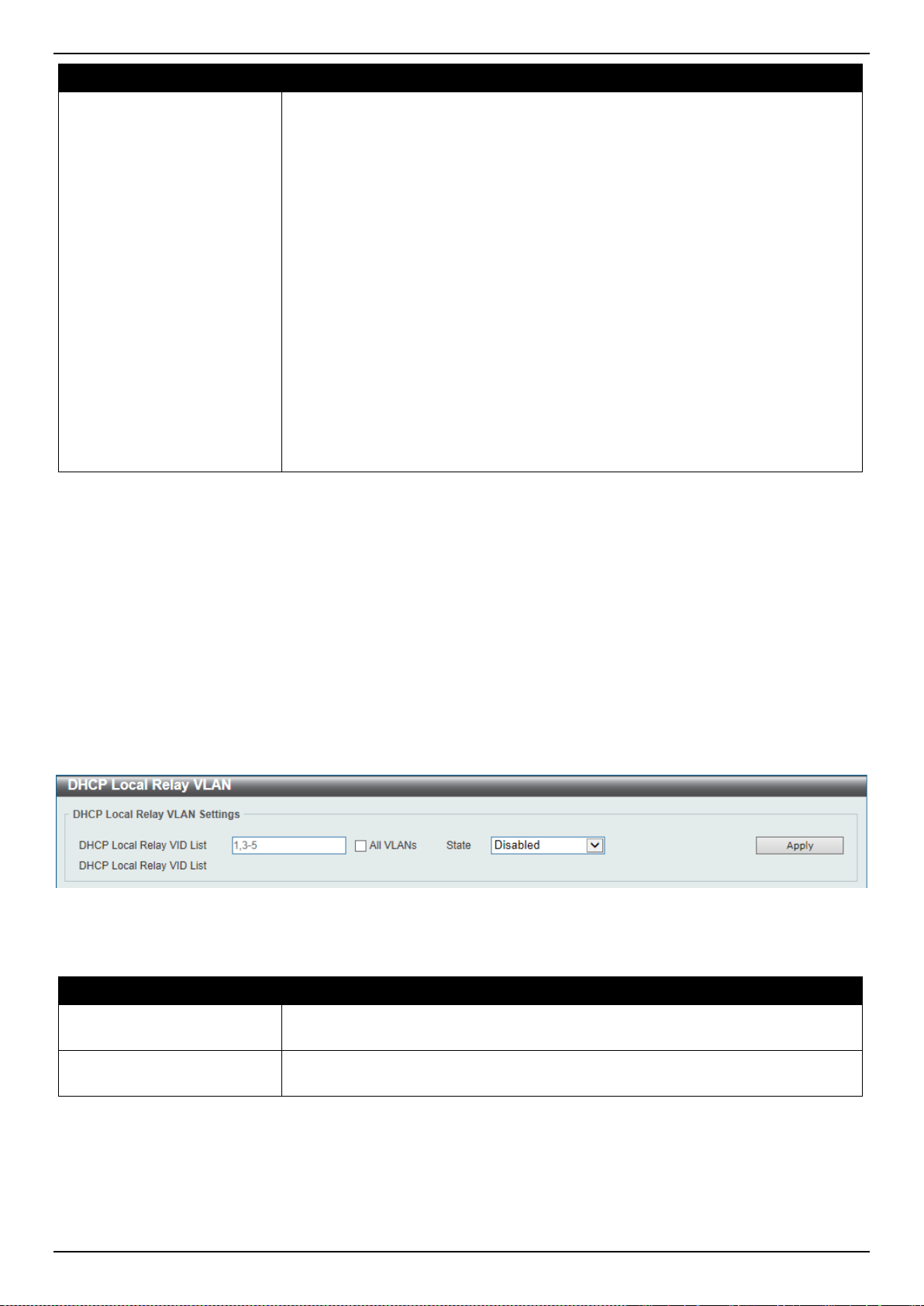
DXS-3400 Series Lite Layer 3 Stackable 10GbE Managed Switch Web UI Reference Guide
66
Parameter Description
string or a hexadecimal value.
svlan - Indicates the outer VLAN ID. This can be either an ASCII
string or a hexadecimal value.
cvlan - Indicates the inner VLAN ID. This can be either an ASCII
string or a hexadecimal value.
○ : - Indicates the end of the formatted key sting. If a formatted key string
is the last parameter of the command, its ending character (“:”) can be
ignored. The space (0x20) between “%” and “:” will be ignored. Other
spaces will be encapsulated.
• ASCII strings can be any combination of formatted key strings and 0~9, a~z,
A~Z, !@#$%^&*()_+|-=\[]{};:'"/?.,<>`, and space characters. “\” is the escape
character. The special character after “\” is the character itself, for example,
“\%” is “%” itself, not the start indicator of a formatted key string. Spaces not
in the formatted key string will also be encapsulated.
• Hexadecimal values can be any combination of formatted key strings and
0~9, A~F, a~f, and space characters. The formatted key strings only support
keywords that support hexadecimal values. Spaces not in the formatted key
string will be ignored.
Click the Apply button to accept the changes made.
Click the Find button to locate a specific entry based on the information entered.
Click the Edit button to re-configure the specific entry.
Click the Delete button to delete the specified entry.
Enter a page number and click the Go button to navigate to a specific page when multiple pages exist.
DHCP Local Relay VLAN
This window is used to display and configure local relay on a VLAN or a group of VLANs.
To view the following window, click Management > DHCP > DHCP Relay > DHCP Local Relay VLAN, as shown
below:
Figure 4-54 DHCP Local Relay VLAN Window
The fields that can be configured are described below:
Parameter Description
DHCP Local Relay VID List
Enter the VLAN ID for DHCP local relay. Tick the All VLANs check box to select
all VLANs.
State
Select this option to enable or disable the DHCP local relay on the specific
VLAN(s).
Click the Apply button to accept the changes made.
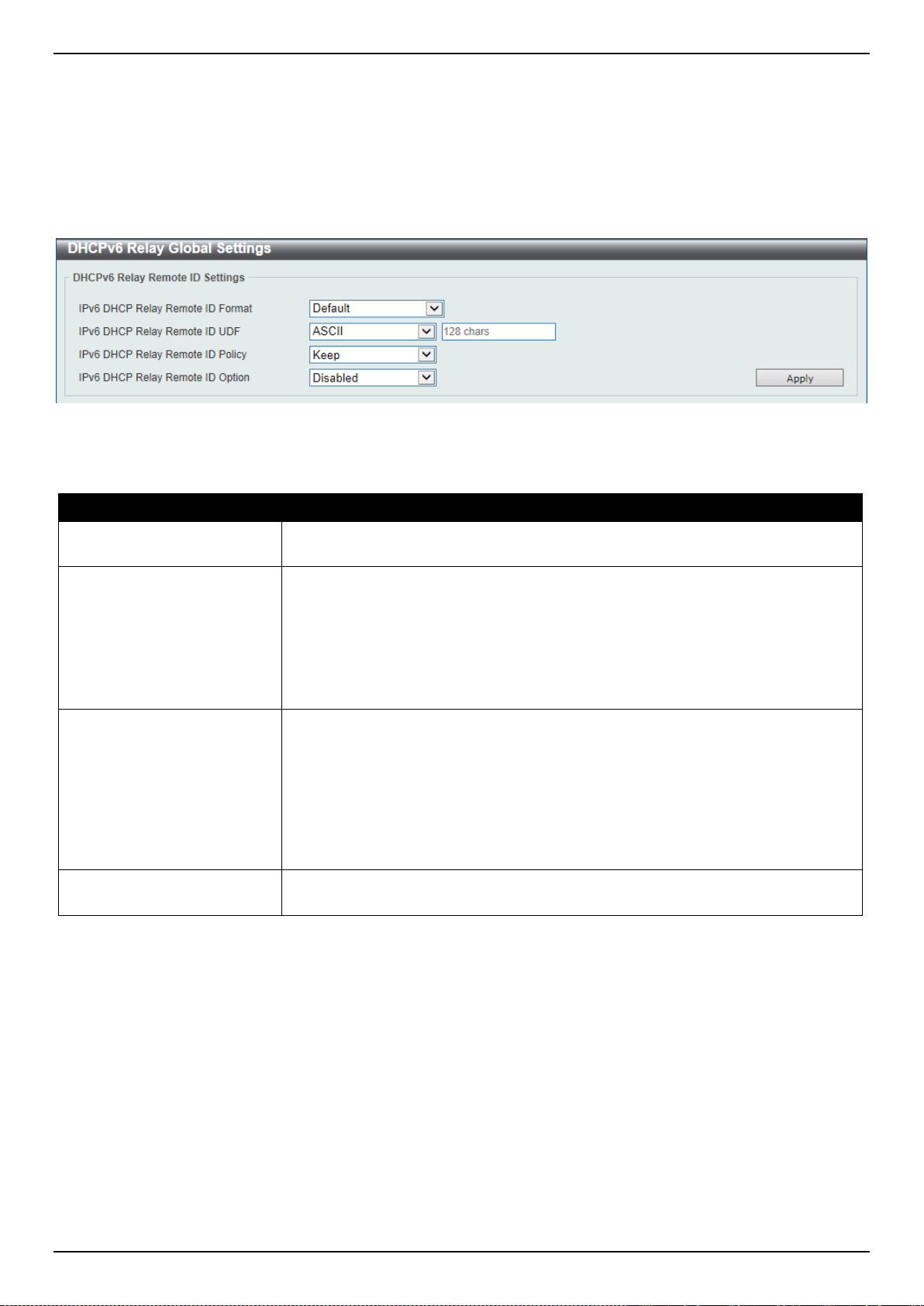
DXS-3400 Series Lite Layer 3 Stackable 10GbE Managed Switch Web UI Reference Guide
67
DHCPv6 Relay
DHCPv6 Relay Global Settings
This window is used to display and configure the DHCPv6 relay remote ID settings.
To view the following window, click Management > DHCP > DHCPv6 Relay > DHCPv6 Relay Global Settings, as
shown below:
Figure 4-55 DHCPv6 Relay Global Settings Window
The fields that can be configured are described below:
Parameter Description
IPv6 DHCP Relay Remote
ID Format
Select to choose the sub-type of the remote ID. Options to choose from are
Default, CID with User Define, and User Define.
IPv6 DHCP Relay Remote
ID UDF
Select to choose the User Define Field (UDF) for remote ID. Options to choose
from are ASCII, and Hex.
• ASCII - Select to enter the ASCII string with a maximum of 128 characters in
the text box.
• HEX - Select to enter the hexadecimal string with a maximum of 256
characters in the text box.
IPv6 DHCP Relay Remote
ID Policy
Select to choose Option 37 forwarding policy for the DHCPv6 relay agent. Options
to choose from are Keep, and Drop.
• Keep - Select that the DHCPv6 request packet that already has the relay
agent Remote-ID option is left unchanged and directly relayed to the
DHCPv6 server.
• Drop - Select to discard the packet that already has the relay agent Remote-
ID Option 37.
IPv6 DHCP Relay Remote
ID Option
Select this option to enable or disable the insertion of the relay agent remote ID
Option 37 during the relay of DHCP for IPv6 request packets.
Click the Apply button to accept the changes made.
DHCPv6 Relay Interface Settings
This window is used to display and configure the DHCPv6 relay interface settings.
To view the following window, click Management > DHCP > DHCPv6 Relay > DHCPv6 Relay Interface Settings, as
shown below:
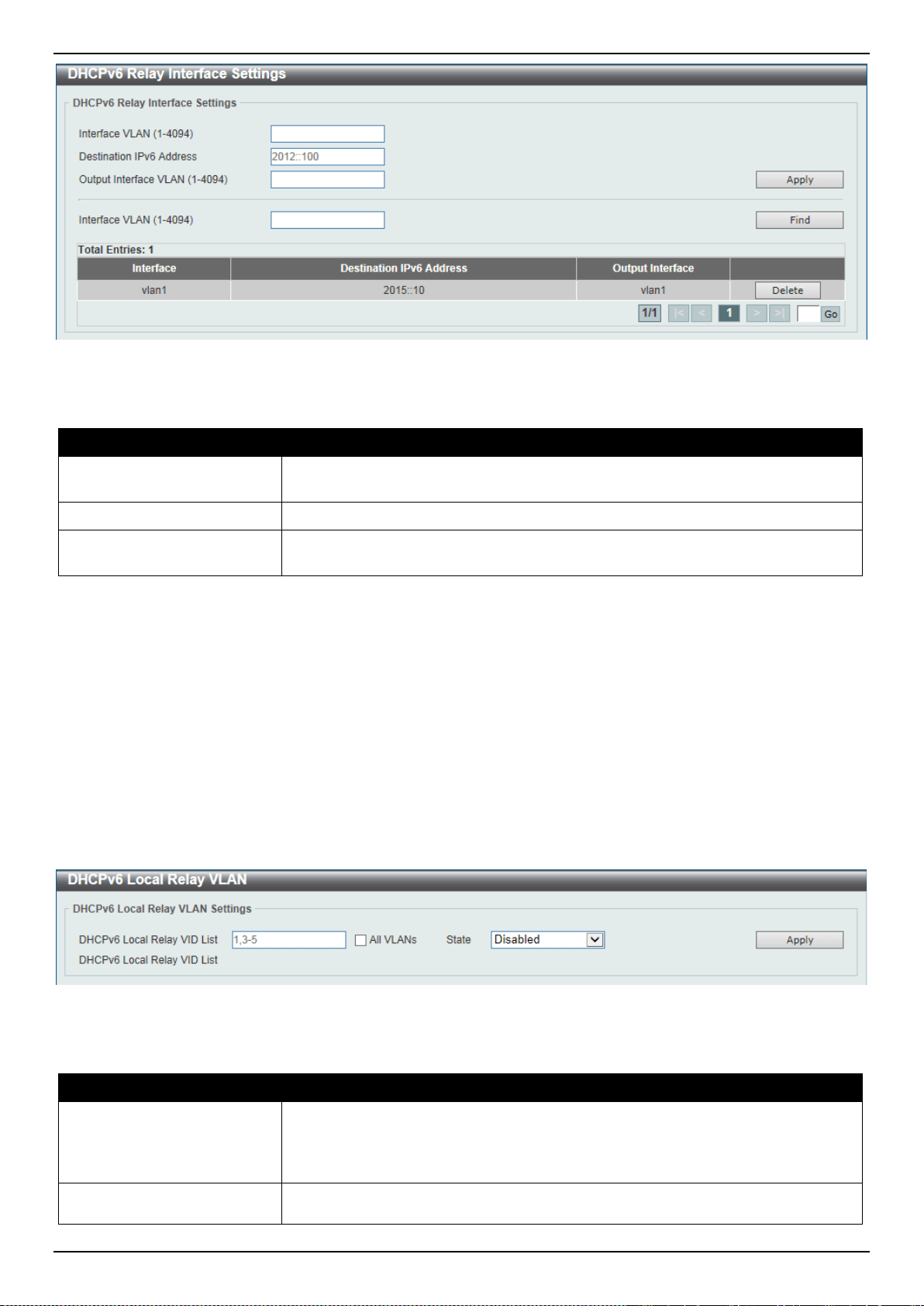
DXS-3400 Series Lite Layer 3 Stackable 10GbE Managed Switch Web UI Reference Guide
68
Figure 4-56 DHCPv6 Relay Interface Settings Window
The fields that can be configured are described below:
Parameter Description
Interface VLAN
Enter the interface’s VLAN ID used in the DHCPv6 relay here. The range is from
1 to 4094.
Destination IPv6 Address
Enter the DHCPv6 relay destination address.
Output Interface VLAN
Enter the output interface’s VLAN ID for the relay destination here. The range is
from 1 to 4094.
Click the Apply button to accept the changes made.
Click the Find button to locate a specific entry based on the information entered.
Click the Delete button to remove the specified entry.
Enter a page number and click the Go button to navigate to a specific page when multiple pages exist.
DHCPv6 Local Relay VLAN
This window is used to display and configure the DHCPv6 local relay VLAN settings. This window is used to enable
DHCPv6 local relay on a VLAN or a group of VLANs.
To view the following window, click Management > DHCP > DHCPv6 Relay > DHCPv6 Local Relay VLAN, as
shown below:
Figure 4-57 DHCPv6 Local Relay VLAN Window
The fields that can be configured are described below:
Parameter Description
DHCPv6 Local Relay VID
List
Enter the DHCPv6 local relay VLAN ID(s) here. A series of VLAN IDs can be
entered, separated by commas, or a range of VLAN IDs can be entered,
separated by a hyphen. Select the All VLANs option to use all the configured
VLANs.
State
Select to enable or disable the DHCPv6 local relay feature on the specified
VLAN(s). When DHCPv6 local relay is enabled, the Switch will add Option 37 and
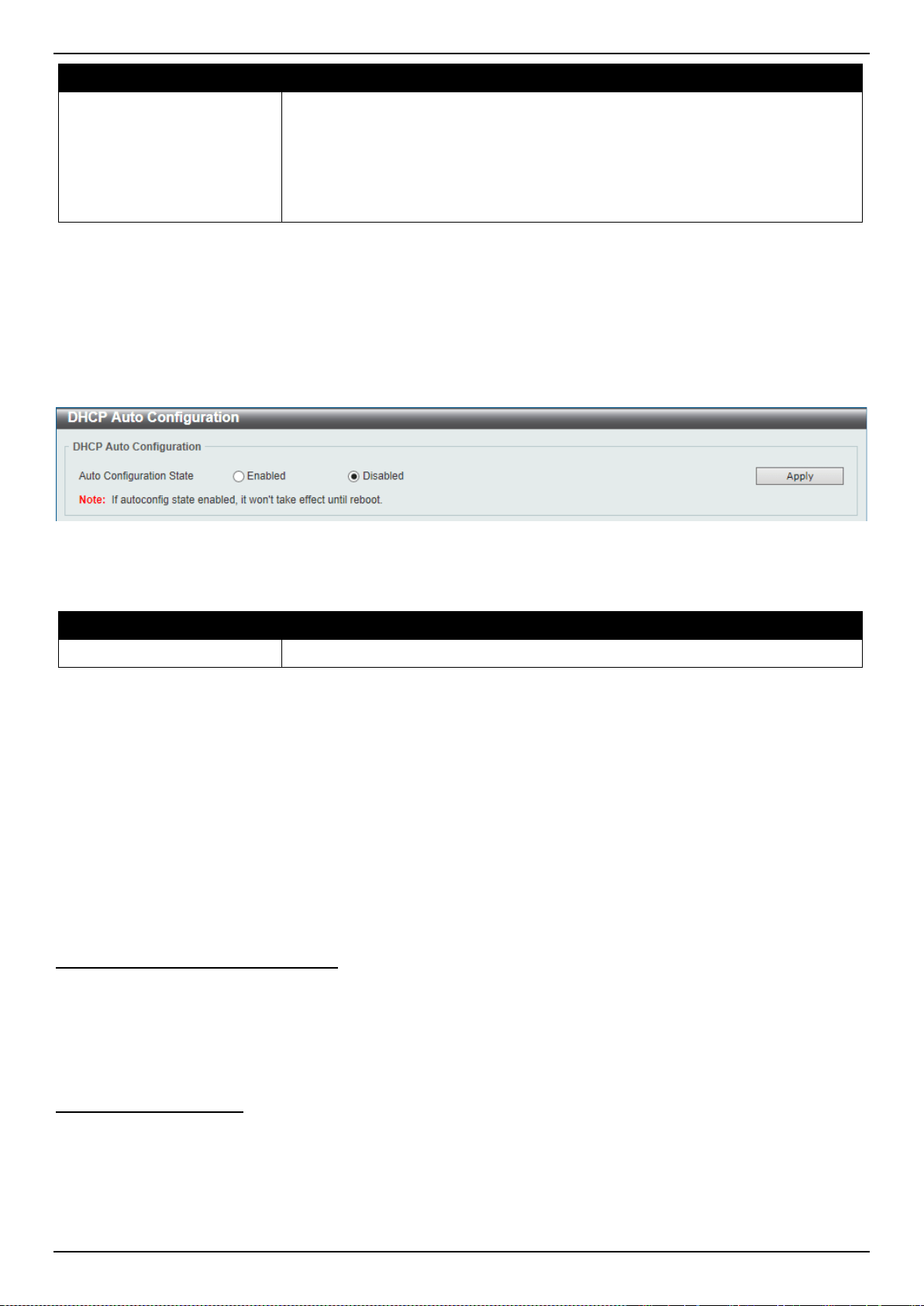
DXS-3400 Series Lite Layer 3 Stackable 10GbE Managed Switch Web UI Reference Guide
69
Parameter Description
Option 18 to the request packets from the client. If the Option 37 check state is
enabled, the Switch will check the request packet from the client and drop the
packet if it contains Option 37 as specified in the DHCPv6 relay function. If the
Option 37 check state is disabled, the local relay function will always add Option
37 to the request packet, regardless whether the state of Option 37 is enabled or
disabled. The DHCPv6 local relay function will directly forward the packet from the
server to the client after which no more processing is done.
Click the Apply button to accept the changes made.
DHCP Auto Configuration
This window is used to display and configure the DHCP auto-configuration function.
To view the following window, click Management > DHCP Auto Configuration, as shown below:
Figure 4-58 DHCP Auto Configuration Window
The fields that can be configured are described below:
Parameter Description
Auto Configuration State
Select this option to enable or disable the auto-configuration function.
Click the Apply button to accept the changes made.
DNS
Computer users usually prefer to use text names for computers for which they may want to open a connection.
Computers themselves, require 32 bit IP addresses. Somewhere, a database of network devices’ text names and their
corresponding IP addresses must be maintained.
The Domain Name System (DNS) is used to map names to IP addresses throughout the Internet and has been
adapted for use within intranets. For two DNS servers to communicate across different subnets, the DNS Relay of the
Switch must be used. The DNS servers are identified by IP addresses.
Mapping Domain Names to Addresses
Name-to-address translation is performed by a program called a Name server. The client program is called a Name
resolver. A Name resolver may need to contact several Name servers to translate a name to an address.
The Domain Name System (DNS) servers are organized in a somewhat hierarchical fashion. A single server often
holds names for a single network, which is connected to a root DNS server - usually maintained by an ISP.
Domain Name Resolution
The domain name system can be used by contacting the name servers one at a time, or by asking the domain name
system to do the complete name translation. The client makes a query containing the name, the type of answer
required, and a code specifying whether the domain name system should do the entire name translation, or simply
return the address of the next DNS server if the server receiving the query cannot resolve the name.
When a DNS server receives a query, it checks to see if the name is in its sub domain. If it is, the server translates the
name and appends the answer to the query, and sends it back to the client. If the DNS server cannot translate the
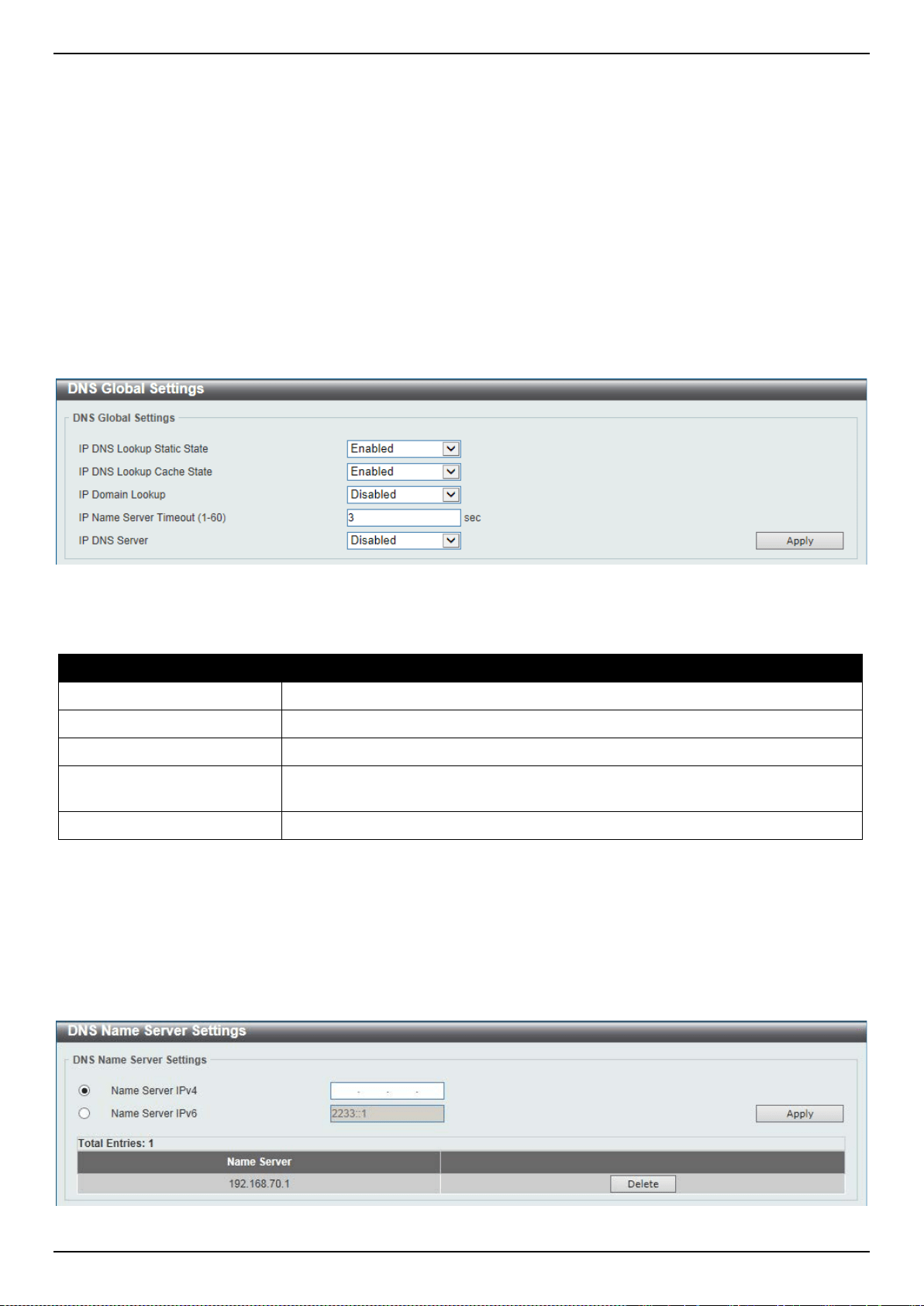
DXS-3400 Series Lite Layer 3 Stackable 10GbE Managed Switch Web UI Reference Guide
70
name, it determines what type of name resolution the client requested. A complete translation is called recursive
resolution and requires the server to contact other DNS servers until the name is resolved. Iterative resolution
specifies that if the DNS server cannot supply an answer, it returns the address of the next DNS server the client
should contact.
Each client must be able to contact at least one DNS server, and each DNS server must be able to contact at least
one root server.
The address of the machine that supplies domain name service is often supplied by a DHCP or BOOTP server, or can
be entered manually and configured into the operating system at startup.
DNS Global Settings
This window is used to display and configure the DNS global settings.
To view the following window, click Management > DNS > DNS Global Settings, as shown below:
Figure 4-59 DNS Global Settings Window
The fields that can be configured are described below:
Parameter Description
IP DNS Lookup Static State
Select to enable or disable the IP DNS lookup static state here.
IP DNS Lookup Cache State
Select to enable or disable the IP DNS lookup cache state here.
IP Domain Lookup
Select to enable or disable the IP domain lookup state here.
IP Name Server Timeout
Enter the maximum time to wait for a response from a specified name server. This
value is between 1 and 60 seconds.
IP DNS Server
Select the globally enable or disable the DNS server feature here.
Click the Apply button to accept the changes made.
DNS Name Server Settings
This window is used to display and configure the IP address of a domain name server.
To view the following window, click Management > DNS > DNS Name Server Settings, as shown below:
Figure 4-60 DNS Name Server Settings Window
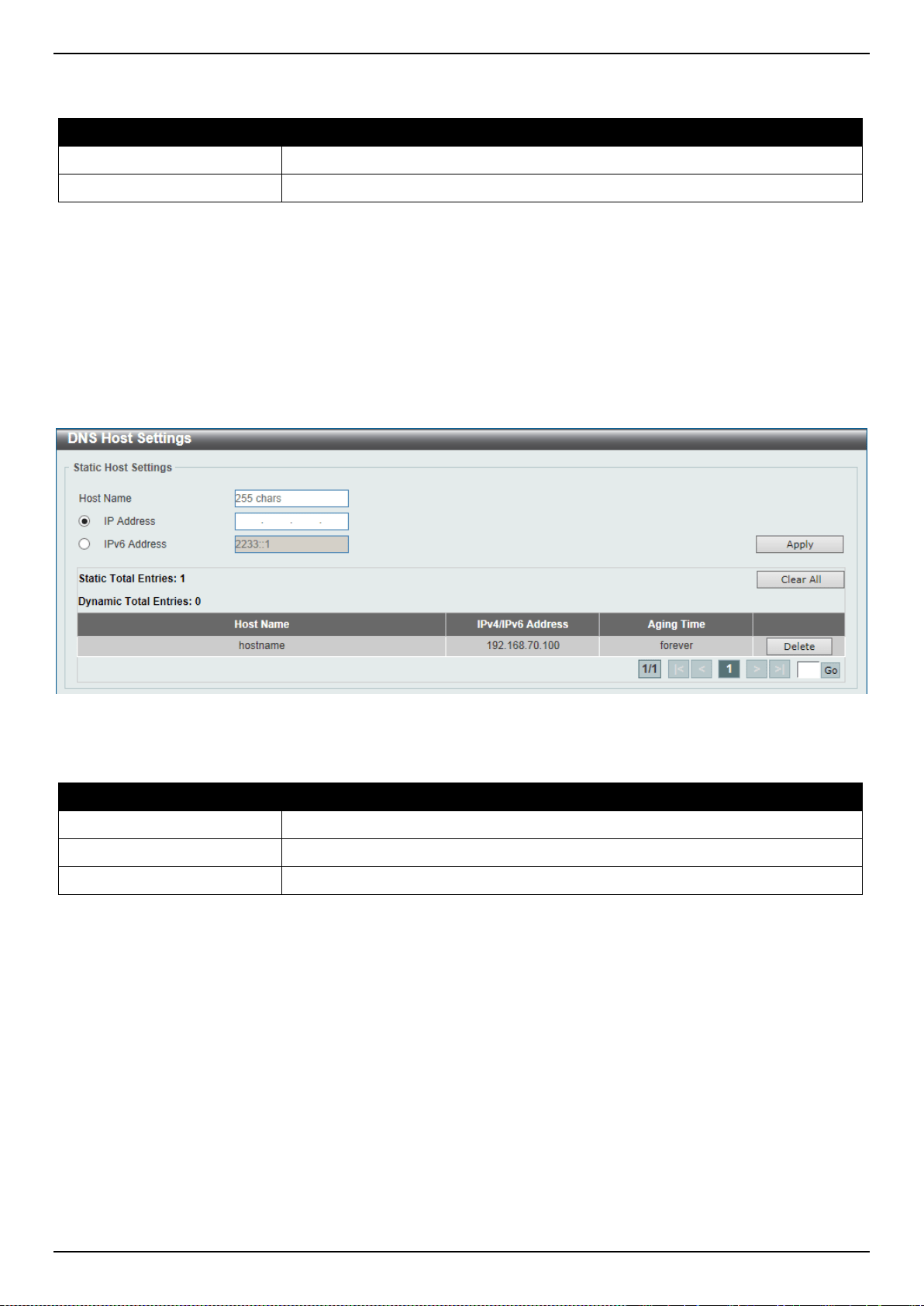
DXS-3400 Series Lite Layer 3 Stackable 10GbE Managed Switch Web UI Reference Guide
71
The fields that can be configured are described below:
Parameter Description
Name Server IPv4
Select and enter the IPv4 address of the DNS server.
Name Server IPv6
Select and enter the IPv6 address of the DNS server.
Click the Apply button to accept the changes made.
Click the Delete button to remove the specified entry.
DNS Host Settings
This window is used to display and configure the static mapping entry for the host name and the IP address in the host
table.
To view the following window, click Management > DNS > DNS Host Settings, as shown below:
Figure 4-61 DNS Host Settings Window
The fields that can be configured are described below:
Parameter Description
Host Name
Enter the host name of the equipment.
IP Address
Select and enter the IPv4 address of the equipment.
IPv6 Address
Select and enter the IPv6 address of the equipment.
Click the Apply button to accept the changes made.
Click the Clear All button to clear the information entered in all the fields on this page.
Click the Delete button to remove the specified entry.
Enter a page number and click the Go button to navigate to a specific page when multiple pages exist.
NTP
NTP Global Settings
This window is used to display and configure the global Network Time Protocol (NTP) settings.
To view the following window, click Management > NTP > NTP Global Settings, as shown below:
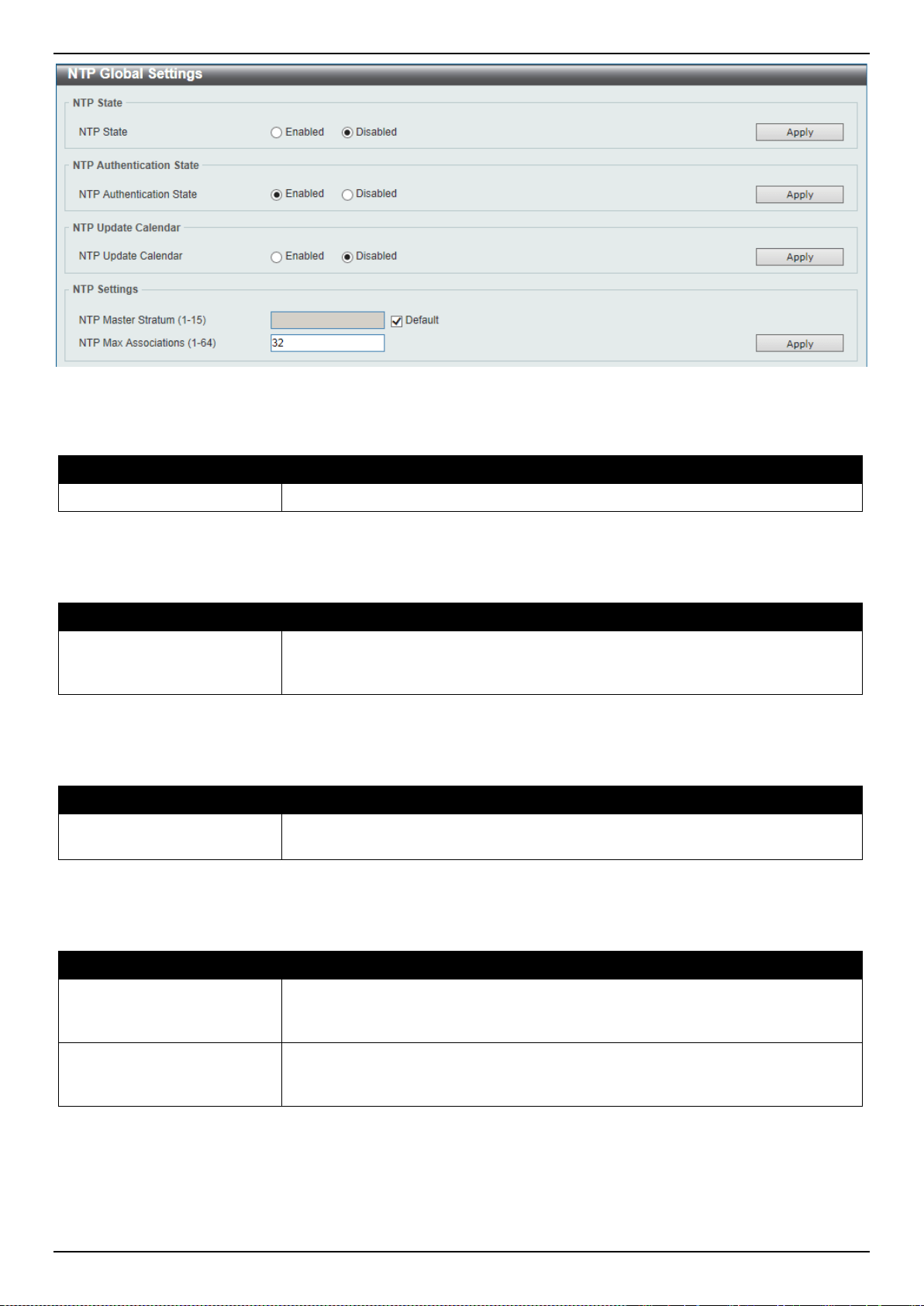
DXS-3400 Series Lite Layer 3 Stackable 10GbE Managed Switch Web UI Reference Guide
72
Figure 4-62 NTP Global Settings Window
The fields that can be configured in NTP State are described below:
Parameter Description
NTP State
Select to globally enable or disable the NTP feature here.
Click the Apply button to accept the changes made.
The fields that can be configured in NTP Authentication State are described below:
Parameter Description
NTP Authentication State
Select to enable or disable the NTP authentication state here. When this feature
is enabled, networking nodes will not synchronize with the Switch unless it carries
one of the authentication keys.
Click the Apply button to accept the changes made.
The fields that can be configured in NTP Update Calendar are described below:
Parameter Description
NTP Update Calendar
Select to enable or disable the NTP update calendar feature here. This is used to
periodically update the hardware clock from an NTP source.
Click the Apply button to accept the changes made.
The fields that can be configured in NTP Settings are described below:
Parameter Description
NTP Master Stratum
Enter the NTP master stratum value here. This is used to configure RTC as an
NTP master clock when an external NTP is not available. The range is from 1 to
15. Select the Default option to use the default value.
NTP Max Associations
Enter the NTP maximum association value here. This is used to configure the
maximum number of NTP peers and clients on the Switch. The range is from 1 to
64.
Click the Apply button to accept the changes made.
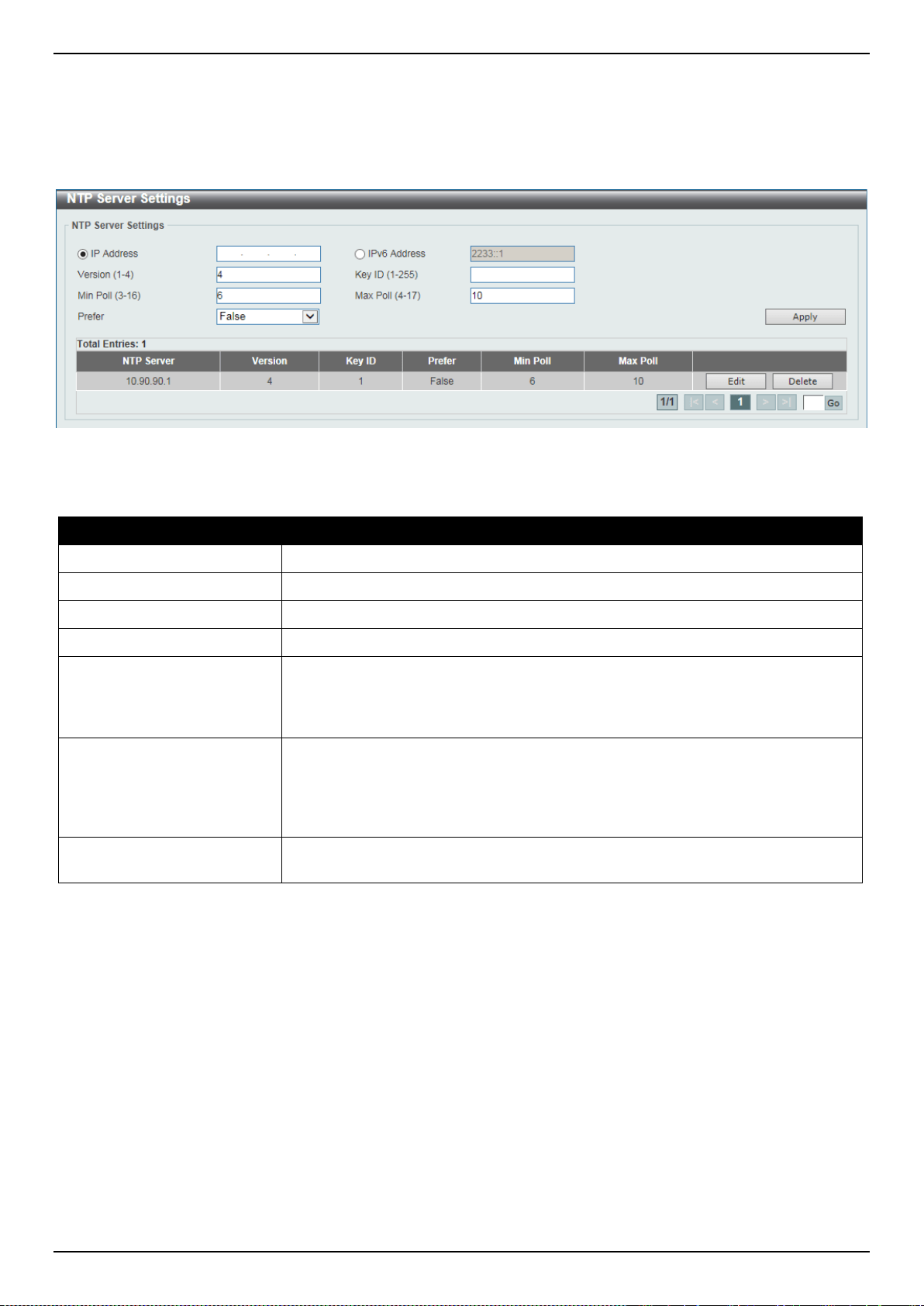
DXS-3400 Series Lite Layer 3 Stackable 10GbE Managed Switch Web UI Reference Guide
73
NTP Server Settings
This window is used to display and configure the NTP server settings. This is used to enable the Switch to
synchronize the time with an NTP server.
To view the following window, click Management > NTP > NTP Server Settings, as shown below:
Figure 4-63 NTP Server Settings Window
The fields that can be configured are described below:
Parameter Description
IP Address
Select and enter the IPv4 address of the NTP server here.
IPv6 Address
Select and enter the IPv6 address of the NTP server here.
Version
Enter the NTP version number here. The range is from 1 to 4.
Key ID
Enter the authentication key ID here. The range is from 1 to 255.
Min Poll
Enter the minimum poll value here. This specifies the minimum poll interval for
NTP messages. This value is calculated as 2 to the power of the minimum poll
interval value specified. For example, if the value specified here is 6, the minimum
poll interval that will be used is 64 seconds (2
6
=64). The range is from 3 to 16.
Max Poll
Enter the maximum poll value here. This specifies the maximum poll interval for
NTP messages. This value is calculated as 2 to the power of the maximum poll
interval value specified. For example, if the value specified here is 6, the
maximum poll interval that will be used is 64 seconds (2
6
=64). The range is from 4
to 17.
Prefer
Select whether or not this entry will be the preferred server for synchronization.
Options to choose from are True and False.
Click the Apply button to accept the changes made.
Click the Delete button to delete the specified entry.
Enter a page number and click the Go button to navigate to a specific page when multiple pages exist.
NTP Peer Settings
This window is used to display and configure the NTP peer settings.
To view the following window, click Management > NTP > NTP Peer Settings, as shown below:
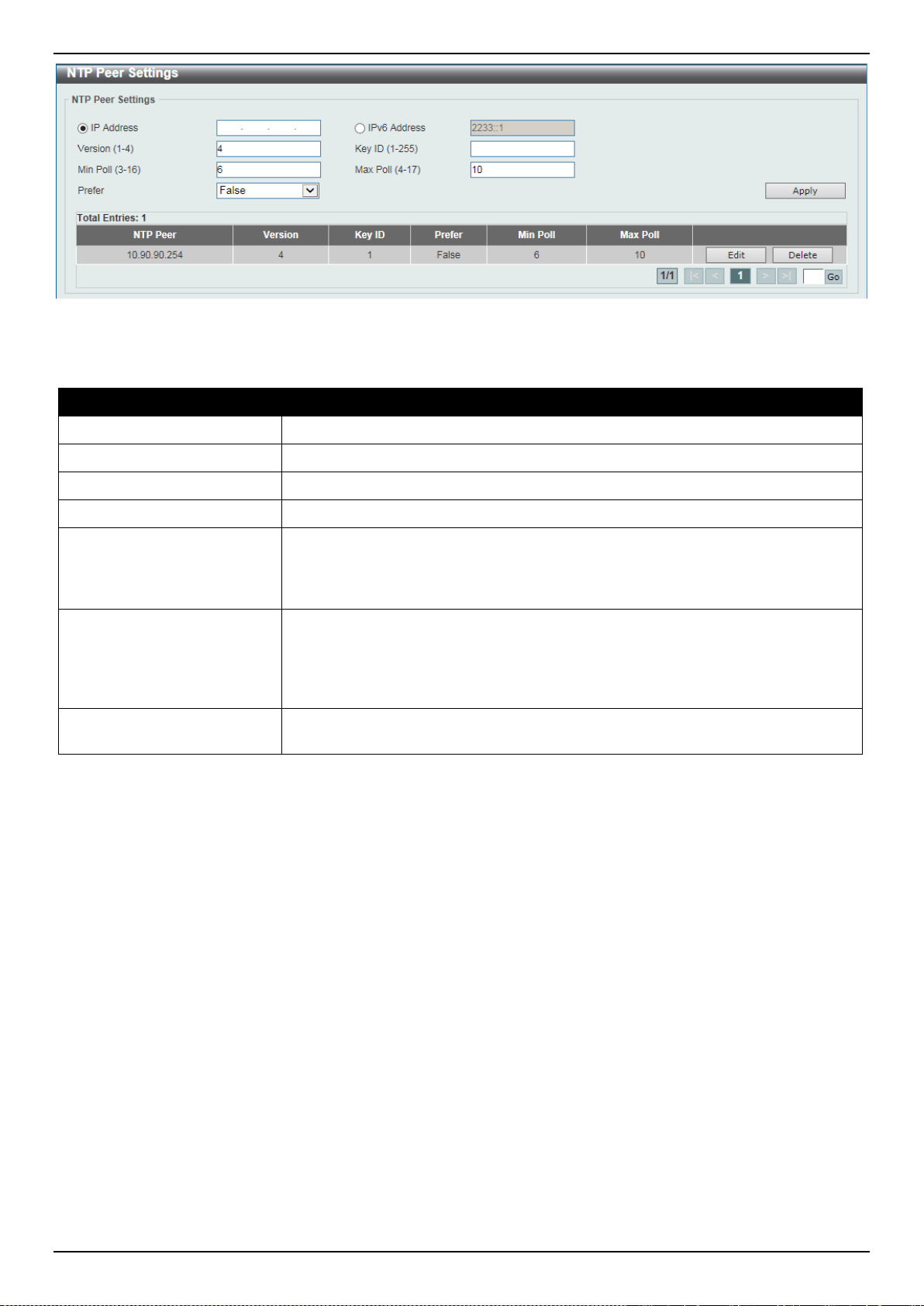
DXS-3400 Series Lite Layer 3 Stackable 10GbE Managed Switch Web UI Reference Guide
74
Figure 4-64 NTP Peer Settings Window
The fields that can be configured are described below:
Parameter Description
IP Address
Select and enter the IPv4 address of the NTP peer here.
IPv6 Address
Select and enter the IPv6 address of the NTP peer here.
Version
Enter the NTP version number here. The range is from 1 to 4.
Key ID
Enter the authentication key ID here. The range is from 1 to 255.
Min Poll
Enter the minimum poll value here. This specifies the minimum poll interval for
NTP messages. This value is calculated as 2 to the power of the minimum poll
interval value specified. For example, if the value specified here is 6, the minimum
poll interval that will be used is 64 seconds (2
6
=64). The range is from 3 to 16.
Max Poll
Enter the maximum poll value here. This specifies the maximum poll interval for
NTP messages. This value is calculated as 2 to the power of the maximum poll
interval value specified. For example, if the value specified here is 6, the
maximum poll interval that will be used is 64 seconds (2
6
=64). The range is from 4
to 17.
Prefer
Select whether or not this entry will be the preferred peer for synchronization.
Options to choose from are True and False.
Click the Apply button to accept the changes made.
Click the Delete button to delete the specified entry.
Enter a page number and click the Go button to navigate to a specific page when multiple pages exist.
NTP Access Group Settings
This window is used to display and configure the NTP access group settings. The NTP implements a general purpose
Access Control List (ACL) containing address/match entries sorted first by increasing address values and then by
increasing mask values. A match occurs when the bitwise AND of the mask and the packet source address is equal to
the bitwise AND of the mask and address in the list. The list is searched in order with the last match found defining the
restriction flags associated with the entry.
To view the following window, click Management > NTP > NTP Access Group Settings, as shown below:
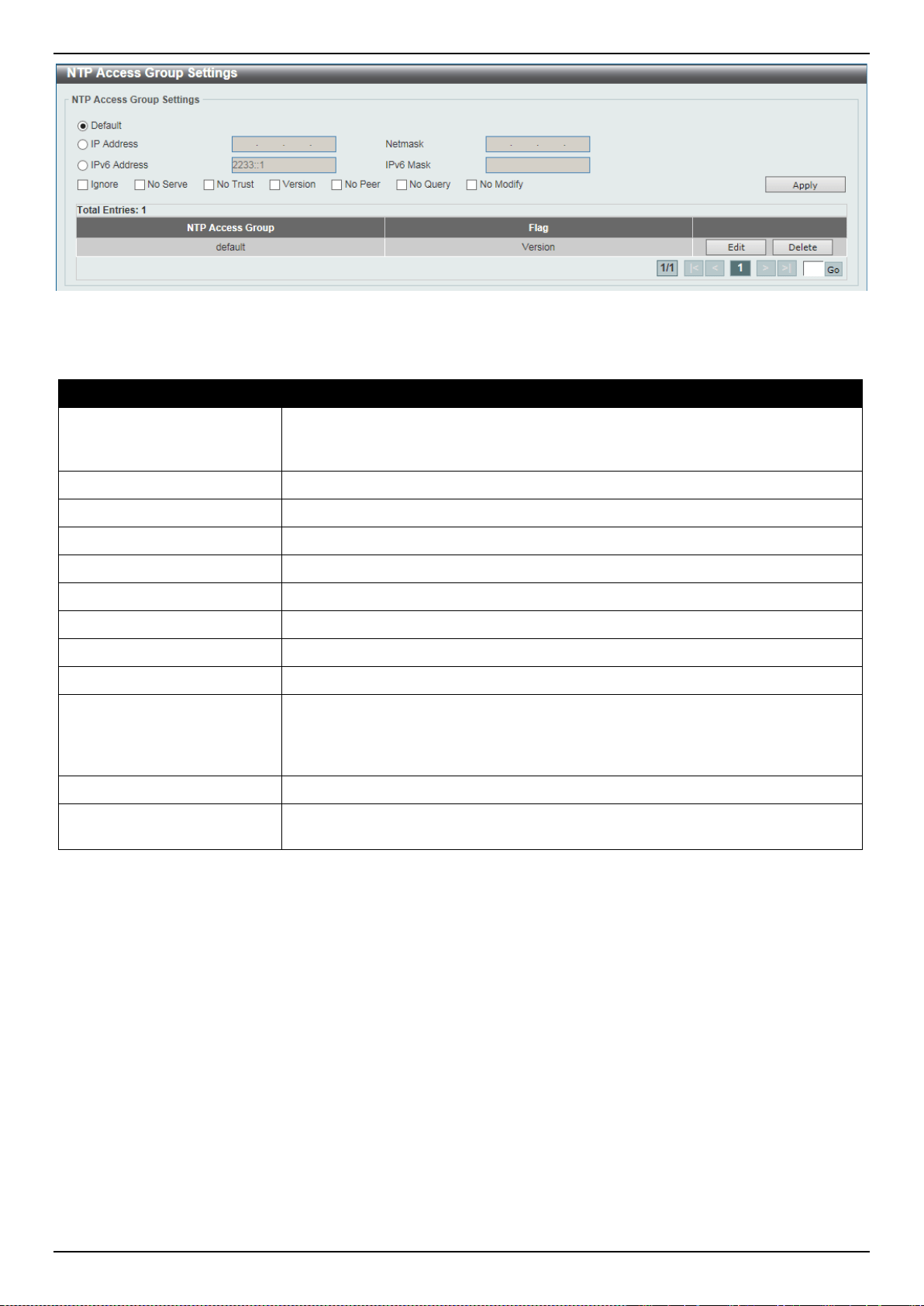
DXS-3400 Series Lite Layer 3 Stackable 10GbE Managed Switch Web UI Reference Guide
75
Figure 4-65 NTP Access Group Settings Window
The fields that can be configured are described below:
Parameter Description
Default
Select this option to specify to use the default IPv4 (0.0.0.0/0.0.0.0) or IPv6 (::/::)
address. The default IP address is always included with the lowest priority in the
list.
IP Address
Select and enter the host IPv4 address here.
Netmask
Enter the IPv4 netmask of the host network here.
IPv6 Address
Select and enter the host IPv6 address here.
IPv6 Mask
Enter the IPv6 prefix length of the host network here.
Ignore
Select this option to deny all packets, including NTP control queries.
No Serve
Select this option to deny all packets except NTP control queries.
No Trust
Select this option to deny packets that are not cryptographically authenticated.
Version
Select this option to deny packets that mismatch the current NTP version
No Peer
Select this option to deny packets that might mobilize an association unless
authenticated. The packets include broadcast, symmetric-active and manycast
server packets when a configured association does not exist. Note that this flag
does not apply to packets that do not attempt to mobilize an association.
No Query
Select this option to deny all NTP control queries.
No Modify
Select this option to deny the NTP control queries that attempt to modify the state
of the server.
Click the Apply button to accept the changes made.
Click the Edit button to re-configure the specific entry.
Click the Delete button to delete the specified entry.
Enter a page number and click the Go button to navigate to a specific page when multiple pages exist.
NTP Key Settings
This window is used to display and configure the NTP key settings.
To view the following window, click Management > NTP > NTP Key Settings, as shown below:
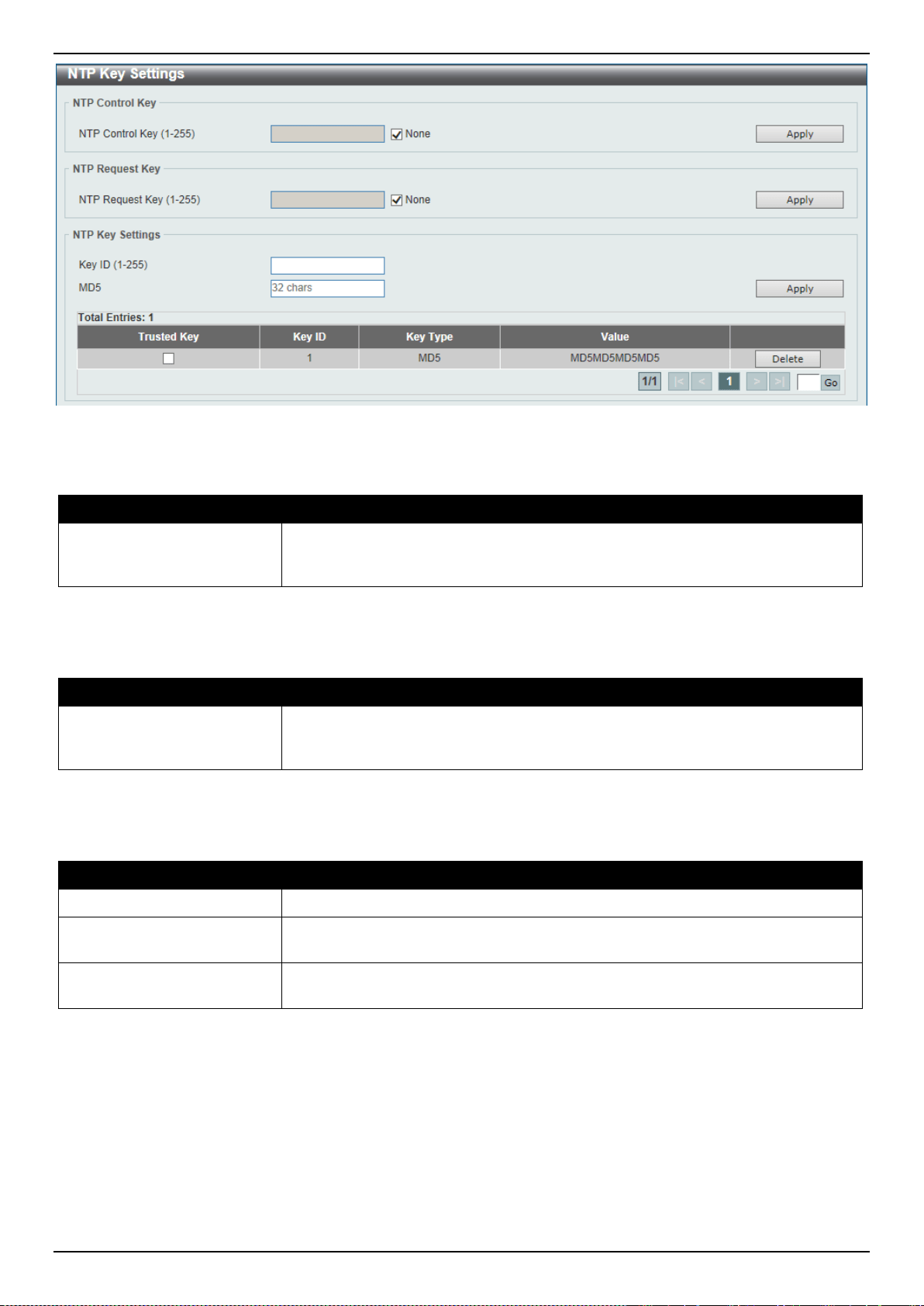
DXS-3400 Series Lite Layer 3 Stackable 10GbE Managed Switch Web UI Reference Guide
76
Figure 4-66 NTP Key Settings Window
The fields that can be configured in NTP Control Key are described below:
Parameter Description
NTP Control Key
Enter the NTP control key here. This is used to define the key ID for the NTP
control messages. The range is from 1 to 255. Select the None option to disable
this feature.
Click the Apply button to accept the changes made.
The fields that can be configured in NTP Request Key are described below:
Parameter Description
NTP Request Key
Enter the NTP request key here. This is used to define the key ID for NTP mode 7
packets, used by the ntpdc utility program. The range is from 1 to 255. Select the
None option to disable this feature.
Click the Apply button to accept the changes made.
The fields that can be configured in NTP Key Settings are described below:
Parameter Description
Key ID
Enter the NTP key ID here. The range is from 1 to 255.
MD5
Enter the MD5 authentication key string here. This string must be 32 characters
long.
Trusted Key
Select this option to specify that the key for a peer NTP system is trusted to
authenticate.
Click the Apply button to accept the changes made.
Click the Delete button to delete the specified entry.
Enter a page number and click the Go button to navigate to a specific page when multiple pages exist.
NTP Interface Settings
This window is used to display and configure NTP interface settings. This is used to either prevent or allow an
interface from receiving NTP packets.
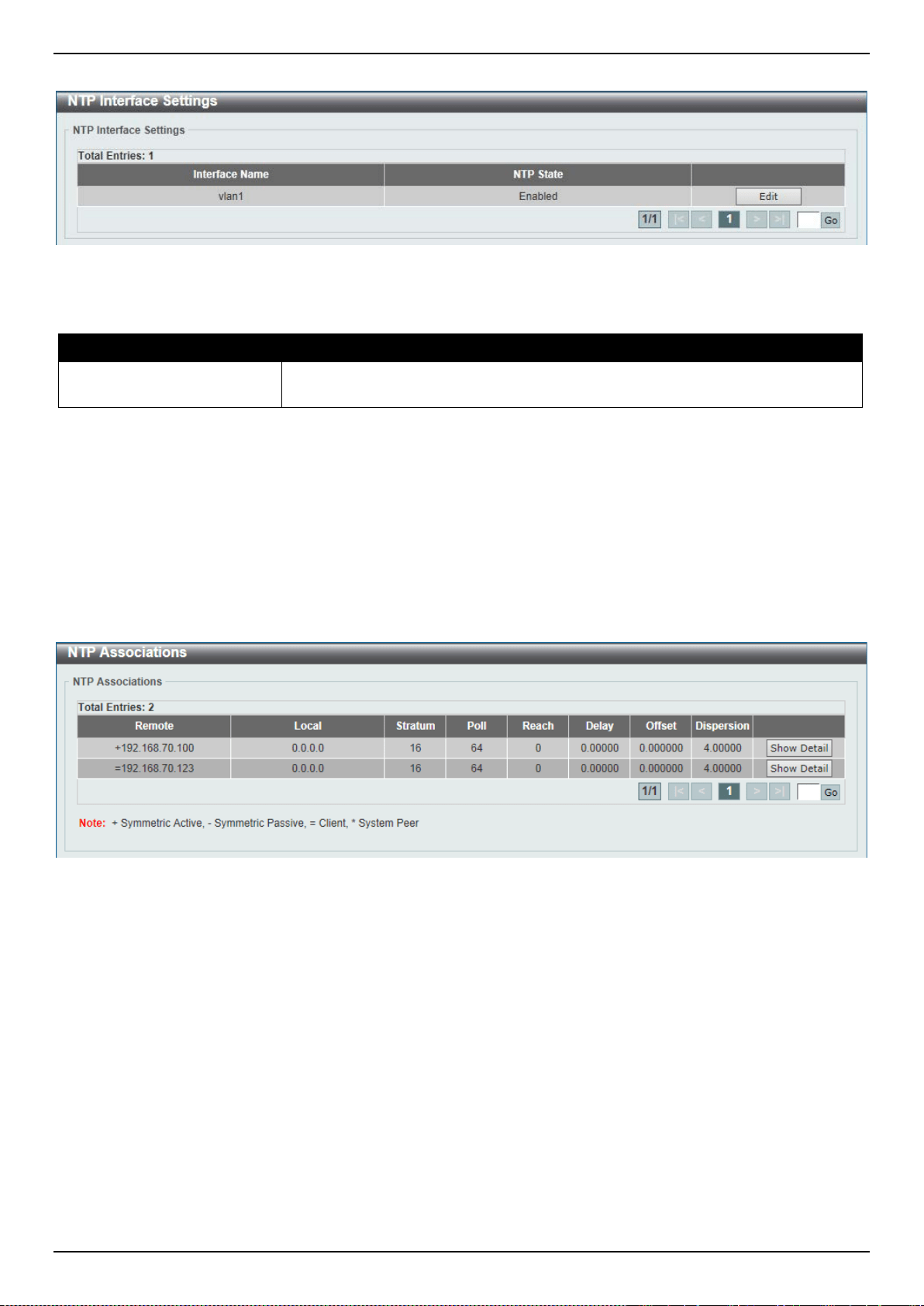
DXS-3400 Series Lite Layer 3 Stackable 10GbE Managed Switch Web UI Reference Guide
77
To view the following window, click Management > NTP > NTP Interface Settings, as shown below:
Figure 4-67 NTP Interface Settings Window
The fields that can be configured are described below:
Parameter Description
NTP State
After click the Edit button, select to enable or disable the NTP state for the
specified VLAN interface here.
Click the Edit button to re-configure the specific entry.
Click the Apply button to accept the changes made.
Enter a page number and click the Go button to navigate to a specific page when multiple pages exist.
NTP Associations
This window is used to display NTP association information.
To view the following window, click Management > NTP > NTP Associations, as shown below:
Figure 4-68 NTP Associations Window
Click the Show Detail button to view more detailed information about the entry.
After clicking the Show Detail button, the following window will appear:
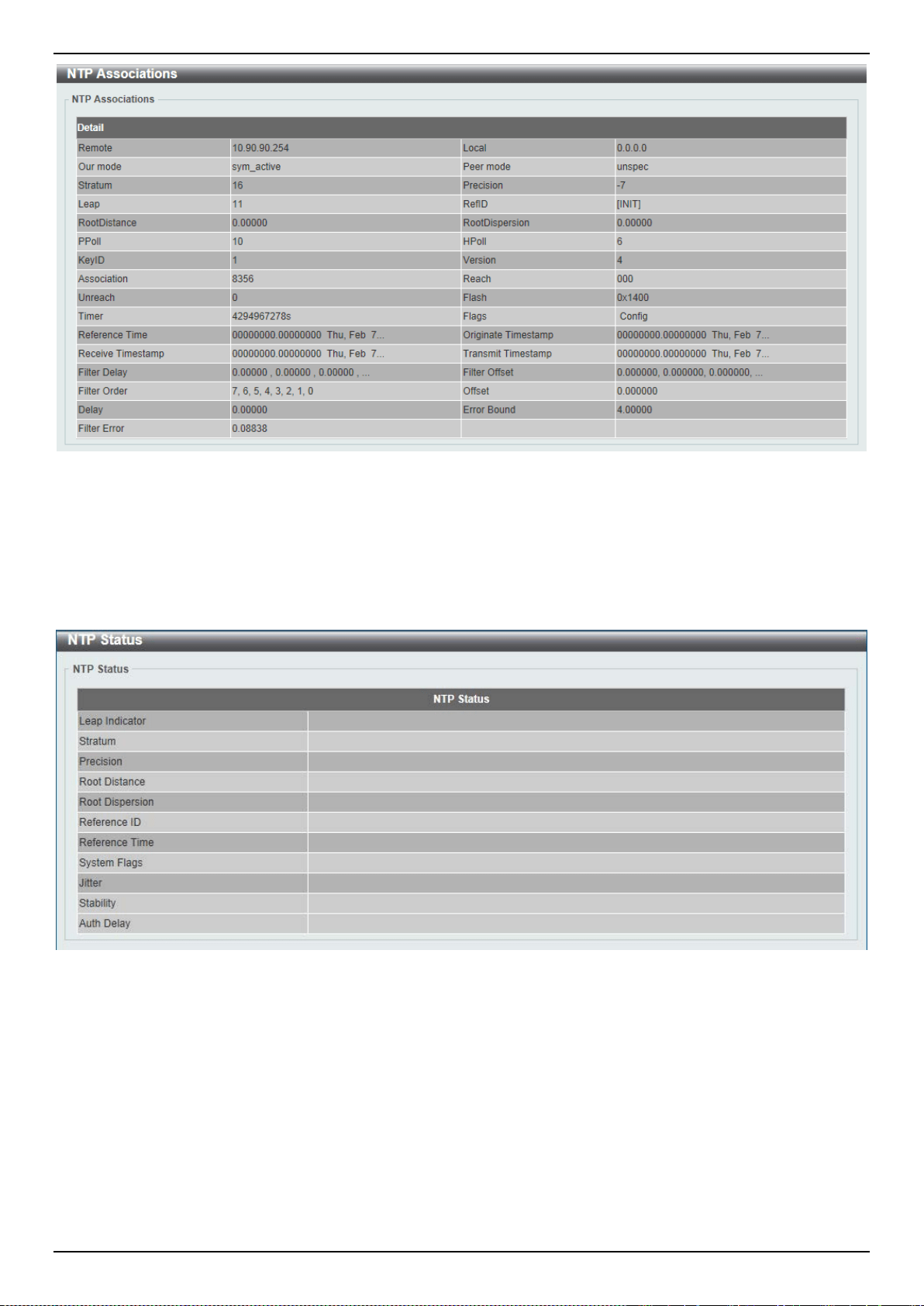
DXS-3400 Series Lite Layer 3 Stackable 10GbE Managed Switch Web UI Reference Guide
78
Figure 4-69 NTP Associations (Show Detail) Window
NTP Status
This window is used to display NTP status information.
To view the following window, click Management > NTP > NTP Status, as shown below:
Figure 4-70 NTP Status Window
IP Source Interface
This window is used to display and configure the IP source interface settings.
To view the following window, click Management > IP Source Interface, as shown below:
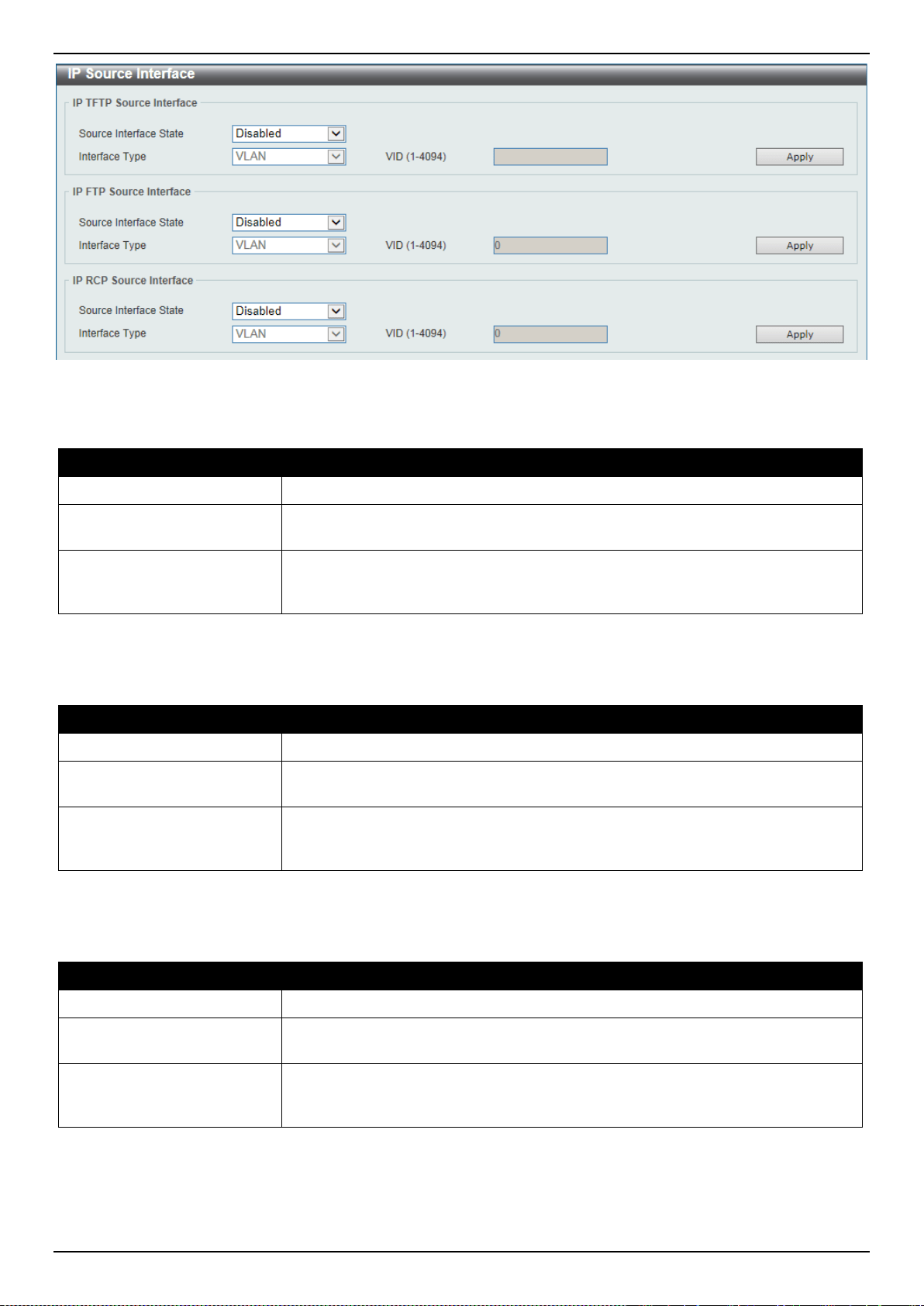
DXS-3400 Series Lite Layer 3 Stackable 10GbE Managed Switch Web UI Reference Guide
79
Figure 4-71 IP Source Interface Window
The fields that can be configured in IP TFTP Source Interface are described below:
Parameter Description
Source Interface State
Select to enable or disable the IP TFTP source interface’s state here.
Interface Type
After enabling the Source Interface State option, select the interface type here.
Options to choose from are Loopback, Mgmt, and VLAN.
VID
Enter the interface’s ID here. For loopback interfaces this value is from 1 to 8. For
the management interface (Mgmt) this value can only be 0. For VLAN interfaces
this value is from 1 to 4094.
Click the Apply button to accept the changes made.
The fields that can be configured in IP FTP Source Interface are described below:
Parameter Description
Source Interface State
Select to enable or disable the IP FTP source interface’s state here.
Interface Type
After enabling the Source Interface State option, select the interface type here.
Options to choose from are Loopback, Mgmt, and VLAN.
VID
Enter the interface’s ID here. For loopback interfaces this value is from 1 to 8. For
the management interface (Mgmt) this value can only be 0. For VLAN interfaces
this value is from 1 to 4094.
Click the Apply button to accept the changes made.
The fields that can be configured in IP RCP Source Interface are described below:
Parameter Description
Source Interface State
Select to enable or disable the IP RCP source interface’s state here.
Interface Type
After enabling the Source Interface State option, select the interface type here.
Options to choose from are Loopback, Mgmt, and VLAN.
VID
Enter the interface’s ID here. For loopback interfaces this value is from 1 to 8. For
the management interface (Mgmt) this value can only be 0. For VLAN interfaces
this value is from 1 to 4094.
Click the Apply button to accept the changes made.
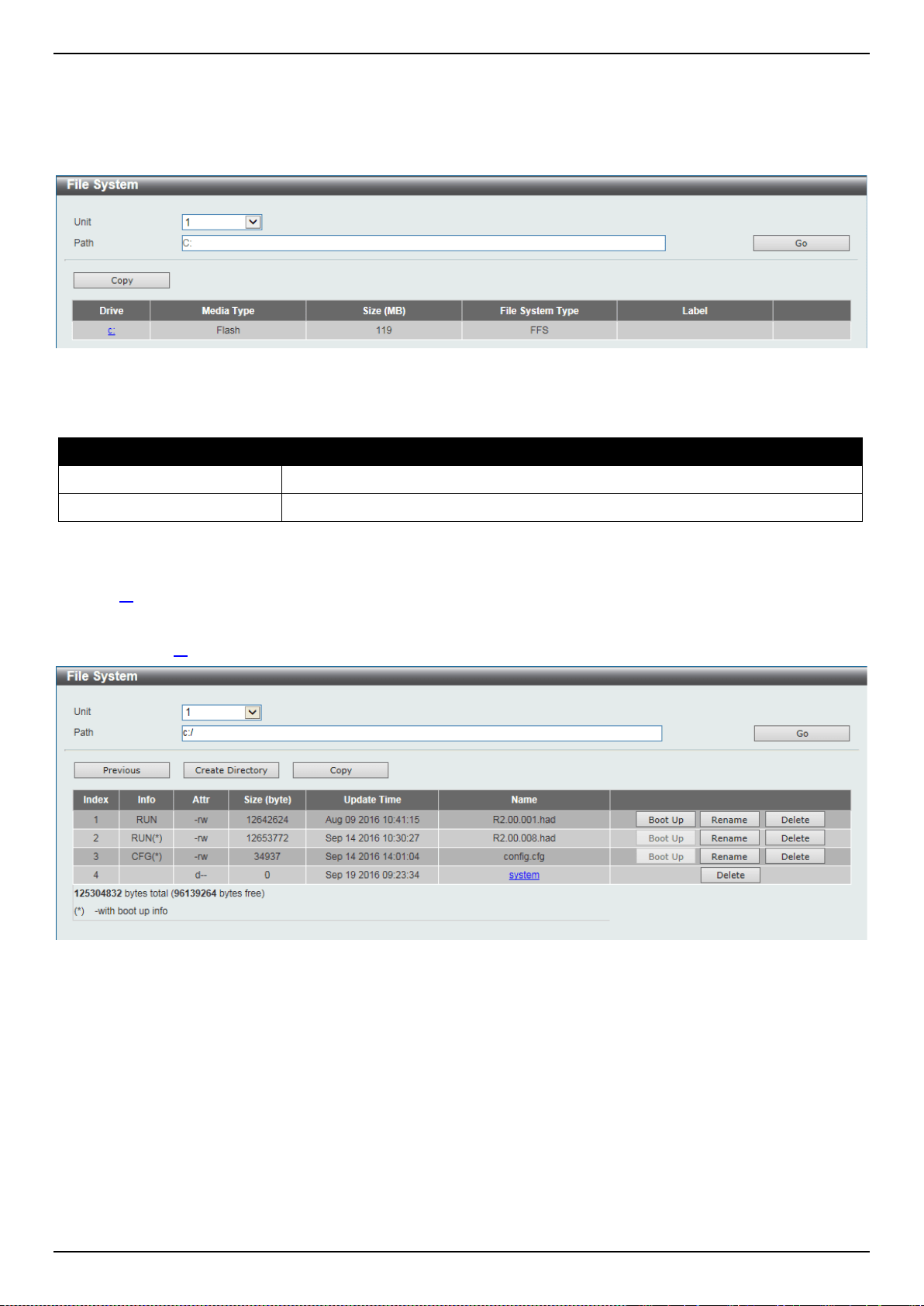
DXS-3400 Series Lite Layer 3 Stackable 10GbE Managed Switch Web UI Reference Guide
80
File System
This window is used to display, manage and configure the Switch’s file system.
To view the following window, click Management > File System, as shown below:
Figure 4-72 File System Window
The fields that can be configured are described below:
Parameter Description
Unit
Select the Switch unit that will be used for this configuration here.
Path
Enter the path string
Click the Go button to navigate to the path entered.
Click the Copy button to copy a specific file to the Switch.
Click the c: hyperlink to navigate the C: drive
After clicking the c: hyperlink, the following window will appear:
Figure 4-73 File System (Drive) Window
Click the Go button to navigate to the path entered.
Click the Previous button to return to the previous window.
Click the Create Directory to create a new directory within the file system of the Switch.
Click the Copy button to copy a specific file to the Switch.
Click the Boot Up button to set a specific runtime image as the boot up image.
Click the Rename button to rename a specific file’s name.
Click the Delete button to remove a specific file from the file system.
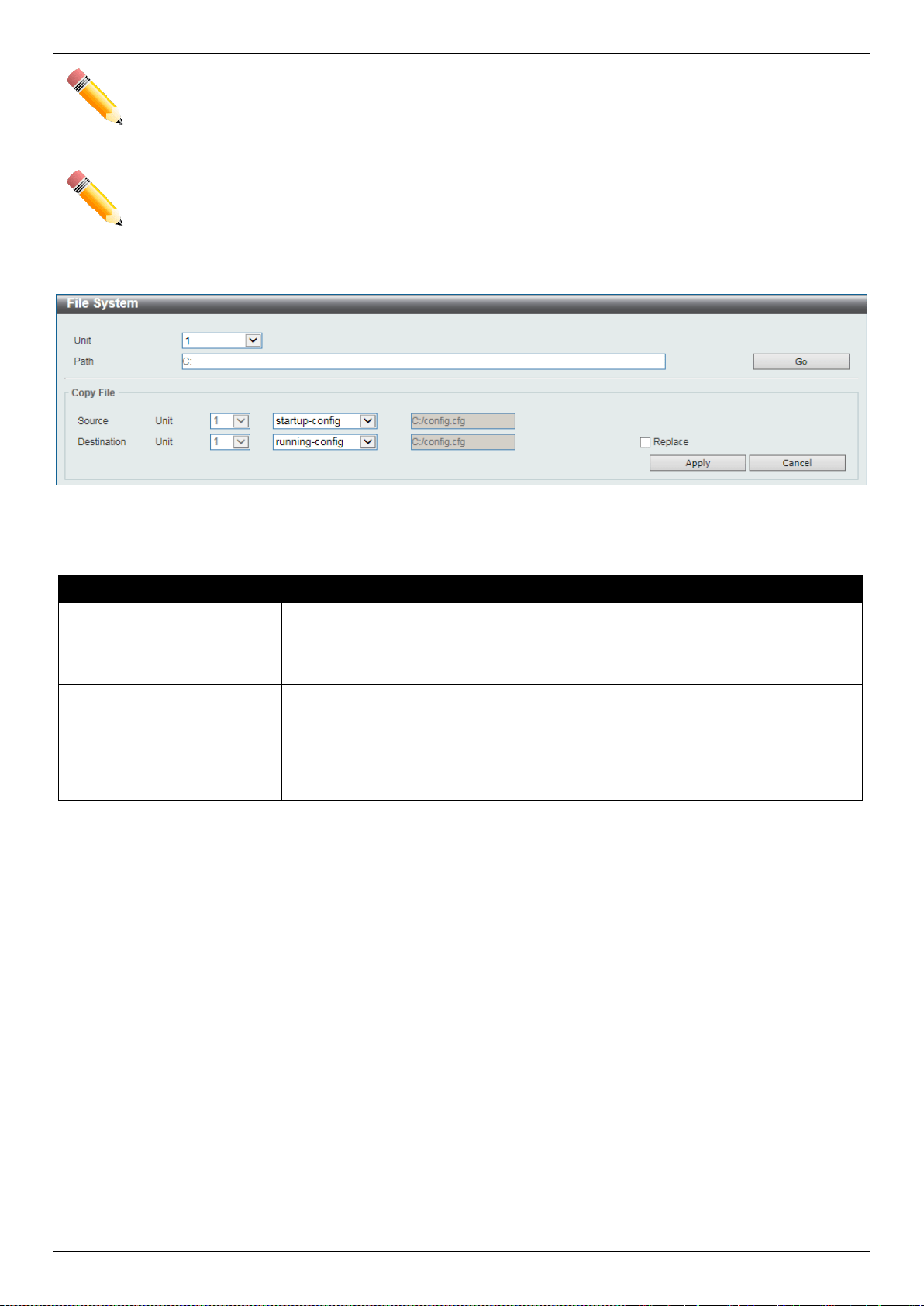
DXS-3400 Series Lite Layer 3 Stackable 10GbE Managed Switch Web UI Reference Guide
81
NOTE: If the boot configuration file is damaged, the Switch will automatically revert back to the default
configuration.
NOTE: If the boot image file is damaged, the Switch will automatically use the backup image file in the
next boot up.
Click the Copy button to see the following window.
Figure 4-74 File System (Copy) Window
The fields that can be configured in Copy File are described below:
Parameter Description
Source
Select the source file’s Switch Unit ID. Select the type of source file that will be
copied next. Options to choose from are startup-config and Source File. Only
after selecting the Source File option can the source file’s path and filename be
entered in the space provided.
Destination
Select the destination file’s Switch Unit ID. Select the type of destination file that
will be copied next. Options to choose from are startup-config, running-config,
and Destination File. Only after selecting the Destination File option can the
destination file’s path and filename be entered in the space provided. Tick the
Replace check box to replace the current running configuration with the indicated
configuration file.
Click the Apply button to initiate the copy.
Click the Cancel button the discard the process.
Stacking
The Switch supports stacking 4 Switches together while being managed by one console connection to any one of the
console ports on the master Switch, or by an IP address through the MGMT port, or by multiple IP addresses through
any of the RJ45/SFP+ ports using Telnet, the Web User Interface, and SNMP. This cost effective Switch provides an
affordable solution for administrators to upgrade their networks using the combo RJ45/SFP+ ports to scale and stack
the Switches. This increases overall reliability, serviceability, and availability.
• Duplex Chain – The Duplex Chain topology stacks Switches together in a chain-link format. Using this method,
data transfer is only possible in one direction and if there is a break in the chain, then data transfer will
obviously be affected.
• Duplex Ring – The Duplex Ring stacks Switches in a ring or circle format where data can be transferred in two
directions. This topology is very resilient due to the fact that if there is a break in the ring, data can still be
transferred through the stacking cables between Switches in the stack.
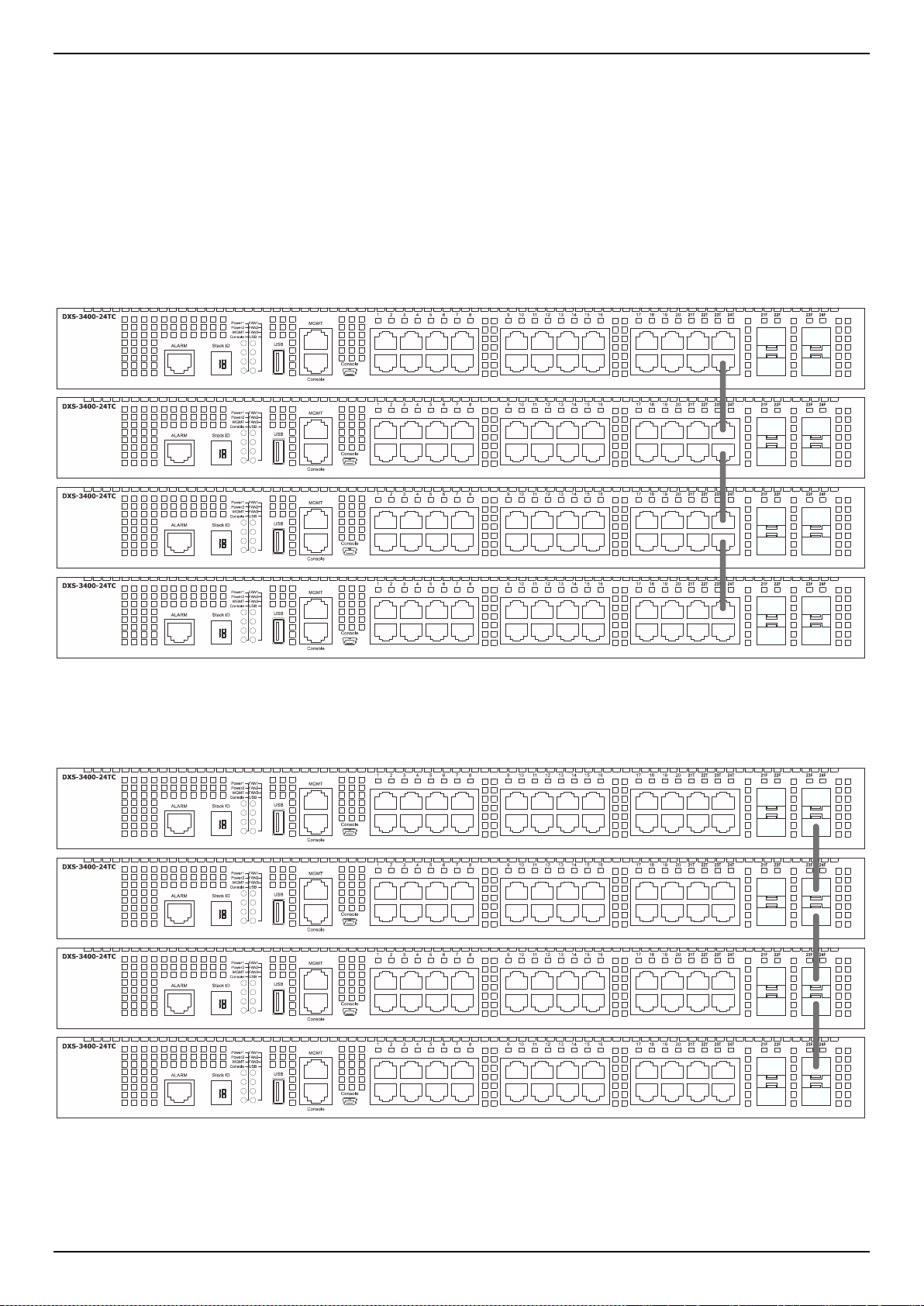
DXS-3400 Series Lite Layer 3 Stackable 10GbE Managed Switch Web UI Reference Guide
82
Switches in the series can be physically stacked using standard Category 6a cables with RJ45 connectors, optical
fiber cables connected to SFP+ transceivers, or Direct Attached Cables (DAC) with SFP+ connectors. Only the last 4
ports can be used for physical stacking.
Physical stacking needs to be enabled and can be configured to support either a 2-port or a 4-port stacking
configuration. When the 2-port stacking configuration is used, a full-duplex speed of up to 40Gbps will be used
between two Switches. When the 4-port stacking configuration is used, a full-duplex speed of up to 80Gbps will be
used between two Switches.
The figure below illustrates how Switches can be stacked in a Duplex Chain formation using Category 6a cables with
RJ45 connectors where the 2-port stacking configuration is used.
Figure 4-75 Duplex Chain stacking topology (RJ45)
The figure below illustrates how Switches can be stacked in a Duplex Chain formation using optical fiber cables
connected to SFP+ transceivers or DAC with SFP+ connectors where the 2-port stacking configuration is used.
Figure 4-76 Duplex Chain stacking topology (SFP+)
The figure below illustrates how Switches can be stacked in a Duplex Ring formation using Category 6a cables with
RJ45 connectors where the 2-port stacking configuration is used.
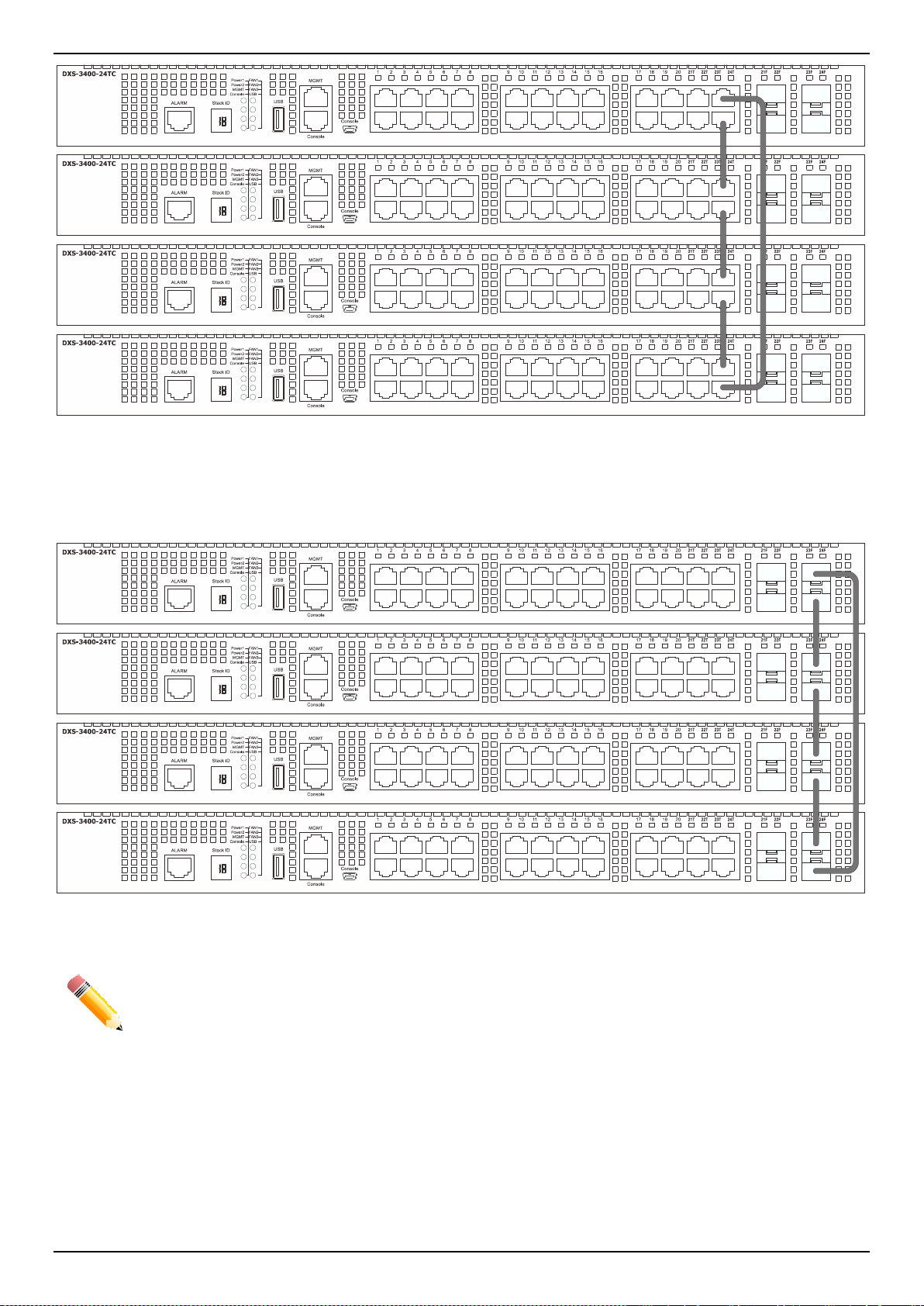
DXS-3400 Series Lite Layer 3 Stackable 10GbE Managed Switch Web UI Reference Guide
83
Figure 4-77 Duplex Ring stacking topology (RJ45)
The figure below illustrates how Switches can be stacked in a Duplex Ring formation using optical fiber cables
connected to SFP+ transceivers or Direct Attached Cables (DAC) with SFP+ connectors where the 2-port stacking
configuration is used.
Figure 4-78 Duplex Ring stacking topology (SFP+)
NOTE: SIO1 is a logical stacking port pair. SIO2 is also a logical stacking port pair. A logical stacking
port pair must always be connected to the same Switch in the stack. Splitting logical stacking
port pairs between different Switches in the stack might not guarantee a stable stacking
connection.
Within each of these topologies, each Switch plays a role in the Switch stack. These roles can be set by the user per
individual Switch, or if desired, can be automatically determined by the Switch stack. Three possible roles exist when
stacking with the Switch.
Primary Master - The Primary Master is the leader of the stack. It will maintain normal operations, monitor operations
and the running topology of the Stack. The Switch will also assign Stack Unit IDs, synchronize configurations and
transmit commands to remaining Switches in the Switch stack. The Primary Master can be manually set by assigning

DXS-3400 Series Lite Layer 3 Stackable 10GbE Managed Switch Web UI Reference Guide
84
this Switch the highest priority (a lower number denotes a higher priority) before physically assembling the stack, or it
can be determined automatically by the stack through an election process which determines the lowest MAC address
and then will assign that Switch as the Primary Master, if all priorities are the same. The Primary master are physically
displayed by the seven segment LED to the far left on the front panel of the Switch where this LED will flash between
its given Box ID and ‘H’.
Backup Master - The Backup Master is the backup to the Primary Master, and will take over the functions of the
Primary Master if the Primary Master fails or is removed from the Stack. It also monitors the status of neighboring
Switches in the stack, will perform commands assigned to it by the Primary Master and will monitor the running status
of the Primary Master. The Backup Master can be set by the user by assigning this Switch the second highest priority
before physically assembling the stack, or it can be determined automatically by the stack through an election process
which determines the second lowest MAC address and then will assign that Switch as the Backup Master, if all
priorities are the same. The Backup master are physically displayed by the seven segment LED to the far left on the
front panel of the Switch where this LED will flash between its given Box ID and ‘h’.
Slave - Slave Switches constitute the rest of the Switch stack and although not Primary or Backup Masters, they can
be placed into these roles when these other two roles fail or are removed from the stack. Slave Switches perform
operations requested by the master, monitor the status of neighbor Switches in the stack and the stack topology and
adhere to the Backup Master’s commands once it becomes a Primary Master. Slave Switches will do a self-check to
determine if it is to become the Backup Master if the Backup Master is promoted to the Primary Master, or if the
Backup Master fails or is removed from the Switch stack. If both Primary and Backup masters fail, or are removed
from the Switch stack, it will determine if it is to become the Primary Master. These roles will be determined, first by
priority and if the priority is the same, the lowest MAC address.
Once Switches have been assembled in the topology desired by the user and powered on, the stack will undergo
three processes until it reaches a functioning state.
• Initialization State - This is the first state of the stack, where the runtime codes are set and initialized and the
system conducts a peripheral diagnosis to determine each individual Switch is functioning properly.
• Master Election State - Once the codes are loaded and initialized, the stack will undergo the Master Election
State where it will discover the type of topology used, elect a Primary Master and then a Backup Master.
• Synchronization State - Once the Primary Master and the Backup Master have been established, the Primary
Master will assign Stacking Unit IDs to Switches in the stack, synchronize configurations for all Switches and
then transmit commands to the rest of the Switches based on the users configurations of the Primary Master.
Once these steps have been completed, the Switch stack will enter a normal operating mode.
Stack Switch Swapping
The stacking feature of the Switch supports “hot swapping” of Switches in and out of the running stack. Users may
remove or add Switches to the stack without powering down or largely affecting the transfer of data between Switches
in the stack, with a few minor provisions.
When Switches are “hot inserted” into the running stack, the new Switch may take on the Primary Master, Backup
Master or Slave role, depending on configurations set on the newly added Switch, such as configured priority or MAC
address. Yet, if adding two stacks together that have both previously undergone the election process, and therefore
both have a Primary Master and a Backup master, a new Primary Master will be elected from one of the already
existing Primary Masters, based on priority or MAC address. This Primary Master will take over all of the Primary
Master’s roles for all new Switches that were hot inserted. This process is done using discovery packets that circulate
through the Switch stack every 1.5 seconds until the discovery process has been completed.
The “hot remove” action means removing a device from the stack while the stack is still running. The hot removal is
detected by the stack when it fails to receive heartbeat packets during its specified interval from a device, or when one
of the stacking ports links is down. Once the device has been removed, the remaining Switches will update their
stacking topology database to reflect the change. Any one of the three roles, Primary Master, Backup Master or Slave,
may be removed from the stack, yet different processes occur for each specific device removal.
If a Slave device has been removed, the Primary Master will inform other Switches of the hot remove of this device
through the use of unit leave messages. Switches in the stack will clear the configurations of the unit removed, and
dynamically learned databases, such as ARP, will be cleared as well.
If the Backup Master has been hot removed, a new Backup Master will be chosen through the election process
previously described. Switches in the stack will clear the configurations of the unit removed, and dynamically learned
databases, such as ARP, will be cleared as well. Then the Backup Master will begin backing up the Primary Master
when the database synchronization has been completed by the stack.
If the Primary Master is removed, the Backup Master will assume the Primary Master’s role and a new Backup Master
will be chosen using the election process. Switches in the stack will clear the configurations of the unit removed, and
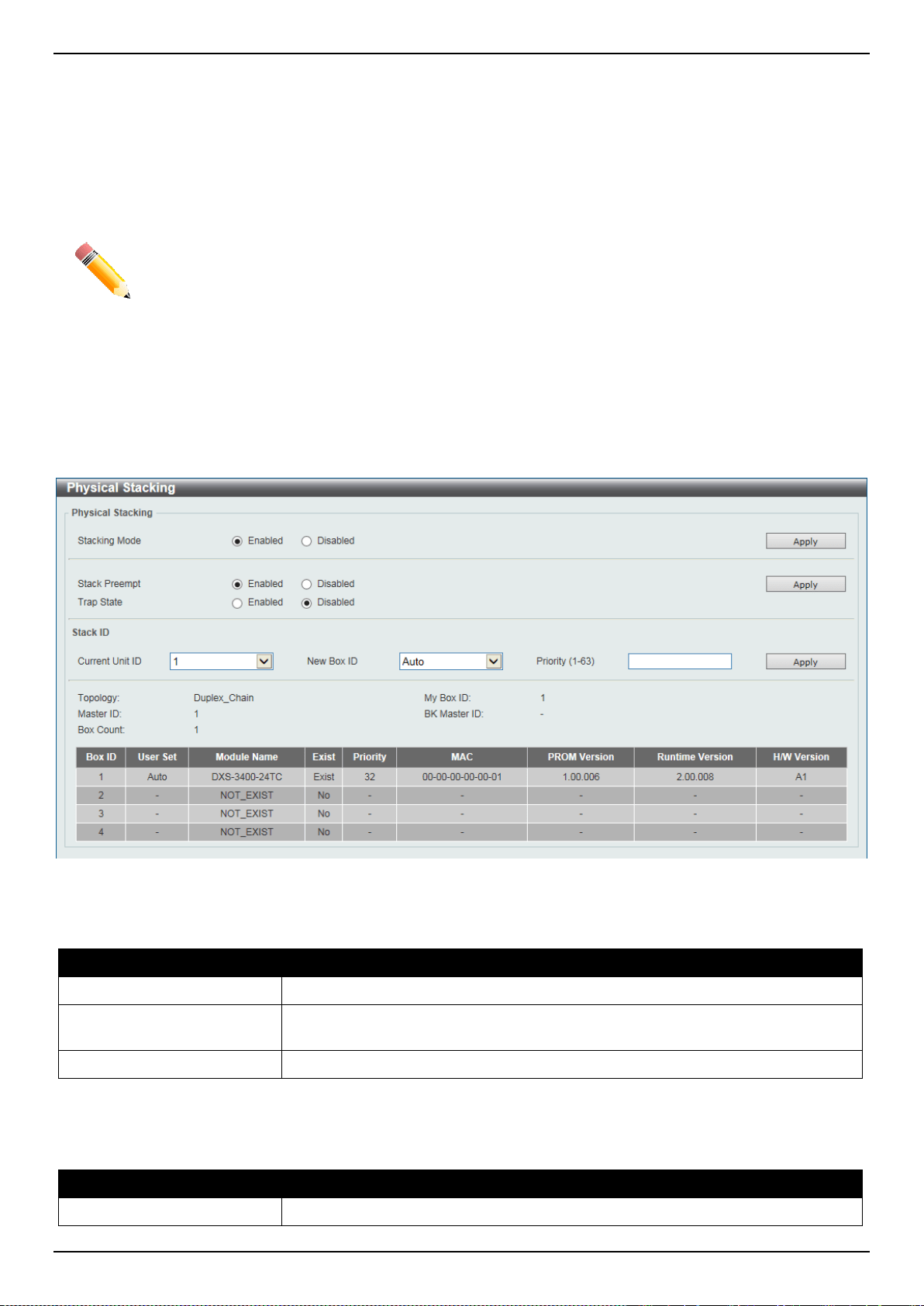
DXS-3400 Series Lite Layer 3 Stackable 10GbE Managed Switch Web UI Reference Guide
85
dynamically learned databases, such as ARP, will be cleared as well. The new Primary Master will inherit the MAC
and IP address of the previous Primary Master to avoid conflict within the stack and the network itself.
If both the Primary Master and the Backup Master are removed, the election process is immediately processed, and a
new Primary Master and Backup Master are determined. Switches in the stack will clear the configurations of the units
removed, and dynamically learned databases, such as ARP, will be cleared as well. Static Switch configurations still
remain in the database of the remaining Switches in the stack and those functions will not be affected.
NOTE: If there is a Box ID conflict when the stack is in the discovery phase, the device will enter a
special standalone topology mode. Users can only get device information, configure Box IDs,
save and reboot. All stacking ports will be disabled and an error message will be produced on
the local console port of each device in the stack. Users must reconfigure Box IDs and reboot
the stack.
Physical Stacking
This window is used to display and configure the physical stacking settings.
To view the following window, click Management > Physical Stacking, as shown below:
Figure 4-79 Physical Stacking Window
The fields that can be configured in Physical Stacking are described below:
Parameter Description
Stacking Mode
Select this option to enable or disable the stacking mode.
Stack Preempt
Select this option to enable or disable preemption of the master role to come into
play when a unit with a better priority is added to the Switch later.
Trap State
Select this option to enable or disable sending of stacking related traps.
Click the Apply button to accept the changes made.
The fields that can be configured in Stack ID are described below:
Parameter Description
Current Unit ID
Select the unit ID of the Switch in the stack.

DXS-3400 Series Lite Layer 3 Stackable 10GbE Managed Switch Web UI Reference Guide
86
Parameter Description
New Box ID
Select the new box ID for the Switch that is selected in the Current Unit ID. The
user may choose any number between 1 and 4 to identify the Switch in the Switch
stack. Auto will automatically assign a box number to the Switch in the Switch
stack.
Priority
Enter the priority of the Switch stacking unit. The range is from 1 to 63.
Click the Apply button to accept the changes made.
Stacking Bandwidth
This window is used to display and configure the stacking bandwidth settings. Physical stacking needs to be enabled
and can be configured to support either a 2-port or a 4-port stacking configuration.
• When the 2-port stacking configuration is used, a full-duplex speed of up to 40Gbps will be used between two
Switches using the physical ports 23 and 24. Port 23 will act as SIO1 and port 24 will act as SIO2.
• When the 4-port stacking configuration is used, a full-duplex speed of up to 80Gbps will be used between two
Switches using ports 21 to 24 aggregated into two virtual stacking ports. Ports 21 and 23 will act as SIO1 and
ports 22 and 24 will act as SIO2.
SIO1 is a logical stacking port pair and SIO2 is a logical stacking port pair. A logical stacking port pair must always be
connected to the same Switch in the stack. Splitting logical stacking port pairs between different Switches in the stack
might not guarantee a stable stacking connection.
The stacking bandwidth must be configured before the Switch is stacked with other Switches.
To view the following window, click Management > Stacking > Stacking Bandwidth, as shown below:
Figure 4-80 Stacking Bandwidth Window
The fields that can be configured are described below:
Parameter Description
Stack Bandwidth
Select the stacking bandwidth here. Option to choose from are:
• 2-Port - Specifies 2 Switch ports to be used for stacking.
• 4-Port - Specifies 4 Switch ports to be used for stacking.
Click the Apply button to accept the changes made.
Virtual Stacking (SIM)
D-Link Single IP Management (SIM) is a concept that will stack Switches together over Ethernet instead of using
stacking ports or modules. There are some advantages in implementing the Single IP Management feature:

DXS-3400 Series Lite Layer 3 Stackable 10GbE Managed Switch Web UI Reference Guide
87
• SIM can simplify management of small workgroups or wiring closets while scaling the network to handle
increased bandwidth demand.
• SIM can reduce the number of IP address needed in your network.
• SIM can eliminate any specialized cables for stacking connectivity and remove the distance barriers that
typically limit your topology options when using other stacking technology.
Switches using D-Link Single IP Management (labeled here as SIM) must conform to the following rules:
• SIM is an optional feature on the Switch and can easily be enabled or disabled through the Command Line
Interface or Web Interface. SIM grouping has no effect on the normal operation of the Switch in the user’s
network.
• There are three classifications for Switches using SIM. The Commander Switch (CS), which is the master
Switch of the group, Member Switch (MS), which is a Switch that is recognized by the CS a member of a SIM
group, and a Candidate Switch (CaS), which is a Switch that has a physical link to the SIM group but has not
been recognized by the CS as a member of the SIM group.
• A SIM group can only have one Commander Switch (CS).
• A SIM group accepts up to 32 Switches (numbered 1-32), not including the Commander Switch (numbered 0).
• Members of a SIM group cannot cross a router.
• There is no limit to the number of SIM groups in the same IP subnet (broadcast domain); however a single
Switch can only belong to one group.
• If multiple VLANs are configured, the SIM group will only utilize the management VLAN on any Switch.
• SIM allows intermediate devices that do not support SIM. This enables the user to manage Switches that are
more than one hop away from the CS.
The SIM group is a group of Switches that are managed as a single entity. The Switch may take on three different
roles:
1. Commander Switch (CS) - This is a Switch that has been manually configured as the controlling device for a
group, and takes on the following characteristics:
It has an IP Address.
It is not a command Switch or member Switch of another Single IP group.
It is connected to the member Switches through its management VLAN.
2. Member Switch (MS) - This is a Switch that has joined a single IP group and is accessible from the CS, and it
takes on the following characteristics:
It is not a CS or MS of another IP group.
It is connected to the CS through the CS management VLAN.
3. Candidate Switch (CaS) - This is a Switch that is ready to join a SIM group but is not yet a member of the SIM
group. The Candidate Switch may join the SIM group of the Switch by manually configuring it to be a MS of a
SIM group. A Switch configured as a CaS is not a member of a SIM group and will take on the following
characteristics:
It is not a CS or MS of another Single IP group.
It is connected to the CS through the CS management VLAN
The following rules also apply to the above roles:
• Each device begins in a Candidate state.
• A CS must change its role to CaS and then to MS, to become a MS of a SIM group. Thus, the CS cannot
directly be converted to a MS.
• The user can manually configure a CS to become a CaS.
• A MS can become a CaS by:
Being configured as a CaS through the CS.
If report packets from the CS to the MS time out.
• The user can manually configure a CaS to become a CS

DXS-3400 Series Lite Layer 3 Stackable 10GbE Managed Switch Web UI Reference Guide
88
• The CaS can be configured through the CS to become a MS.
After configuring one Switch to operate as the CS of a SIM group, additional Switches may join the group by manually
configuring the Switch to be a MS. The CS will then serve as the in band entry point for access to the MS. The CS’s IP
address will become the path to all MS’s of the group and the CS’s Administrator’s password, and/or authentication
will control access to all MS’s of the SIM group.
With SIM enabled, the applications in the CS will redirect the packet instead of executing the packets. The
applications will decode the packet from the administrator, modify some data, and then send it to the MS. After
execution, the CS may receive a response packet from the MS, which it will encode and send it back to the
administrator.
When a CaS becomes a MS, it automatically becomes a member of the first SNMP community (includes read/write
and read only) to which the CS belongs. However, if a MS has its own IP address, it can belong to SNMP
communities to which other Switches in the group, including the CS, do not belong.
Upgrade to v1.61
To better improve SIM management, the Switches have been upgraded to version 1.61 in this release. Many
improvements have been made, including the Commander Switch (CS) now has the capability to automatically
rediscover member Switches that have left the SIM group, either through a reboot or web malfunction. This feature is
accomplished through the use of Discover packets and Maintenance packets that previously set SIM members will
emit after a reboot. Once a MS has had its MAC address and password saved to the CS’s database, if a reboot
occurs in the MS, the CS will keep this MS information in its database and when a MS has been rediscovered, it will
add the MS back into the SIM tree automatically. No configuration will be necessary to rediscover these Switches.
There are some instances where pre-saved MS Switches cannot be rediscovered. For example, if the Switch is still
powered down, if it has become the member of another group, or if it has been configured to be a Commander Switch,
the rediscovery process cannot occur.
The topology map now includes new features for connections that are a member of a port trunking group. It will
display the speed and number of Ethernet connections creating this port trunk group, as shown in the adjacent picture.
This version will support Switch upload and downloads for firmware, configuration files and log files, as follows:
• Firmware - The Switch now supports MS firmware downloads from a TFTP server.
• Configuration Files - The Switch now supports downloading and uploading of configuration files both to (for
configuration restoration) and from (for configuration backup) MS’s, using a TFTP server.
• Log - The Switch now supports uploading MS log files to a TFTP server.
The user may zoom in and zoom out when utilizing the topology window to get a better, more defined view of the
configurations.
Single IP Settings
This window is used to display and configure the SIM settings. The Switch is set as a Candidate (CaS) as the factory
default configuration and Single IP Management is disabled.
To view the following window, click Management > Virtual Stacking (SIM) > Single IP Settings, as shown below:
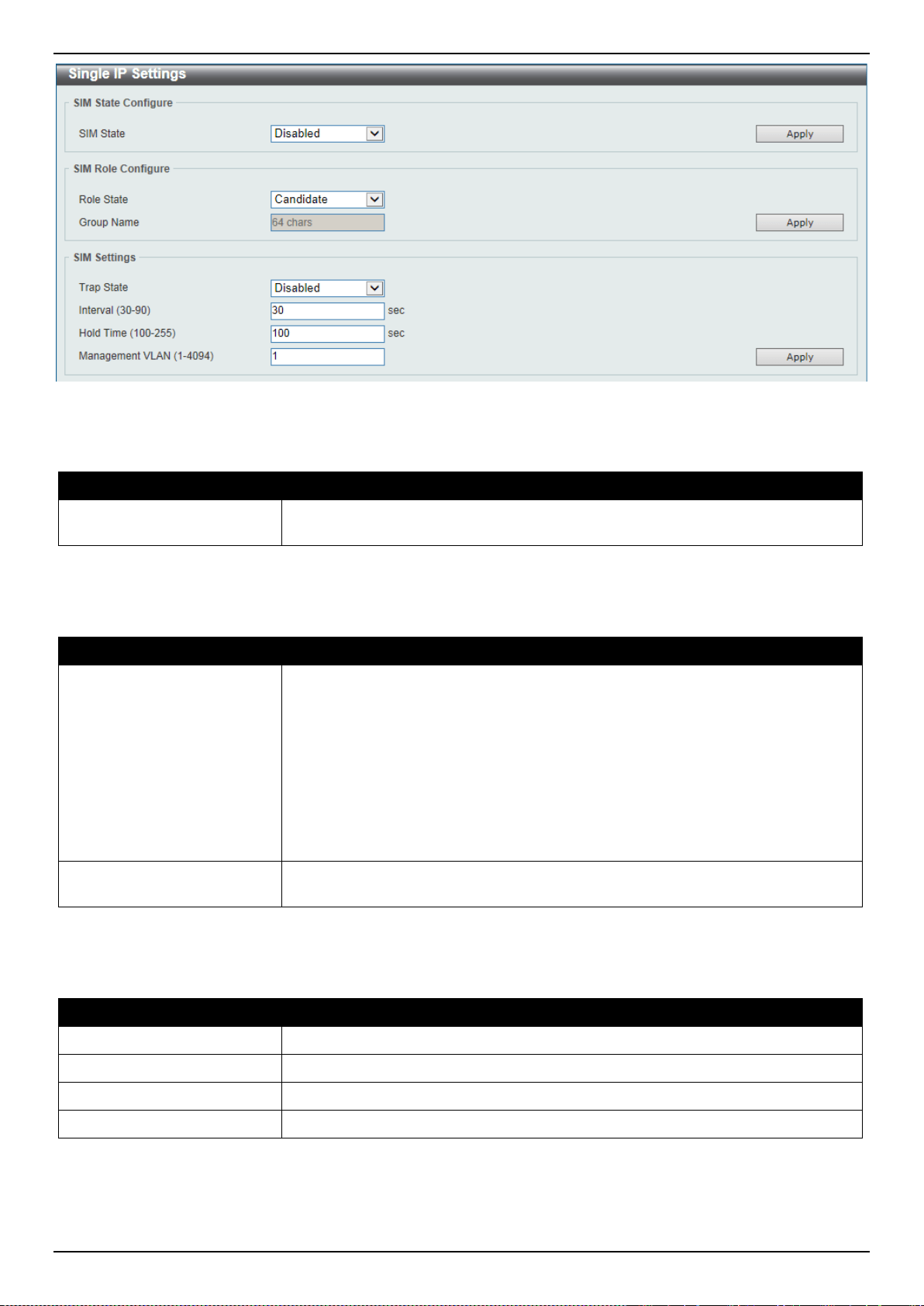
DXS-3400 Series Lite Layer 3 Stackable 10GbE Managed Switch Web UI Reference Guide
89
Figure 4-81 Single IP Settings Window
The fields that can be configured in SIM State Configure are described below:
Parameter Description
SIM State
Select this option to enable or disable the SIM state on the Switch. Select
Disabled to render all SIM functions on the Switch inoperable.
Click the Apply button to accept the changes made.
The fields that can be configured in SIM Role Configure are described below:
Parameter Description
Role State
Select to change the SIM role of the Switch. Options to choose from are
Candidate, and Commander.
• Candidate - A Candidate Switch (CaS) is not the member of a SIM group but
is connected to a Commander Switch. This is the default setting for the SIM
role of the Switch.
• Commander - Select to make the Switch a Commander Switch (CS). The
user may join other Switches to this Switch, over Ethernet, to be part of its
SIM group. Choosing this option will also enable the Switch to be configured
for SIM.
Group Name
Enter a group name. This is optional. This name is used to segment Switches into
different SIM groups.
Click the Apply button to accept the changes made.
The fields that can be configured in SIM Settings are described below:
Parameter Description
Trap State
Select to enable or disable the SIM trap state here.
Interval
Enter the interval in seconds. The range is from 30 to 90.
Hold Time
Enter the hold-time in seconds. The range is from 100 to255.
Management VLAN
Enter the single IP management message VLAN ID.
Click the Apply button to accept the changes made.
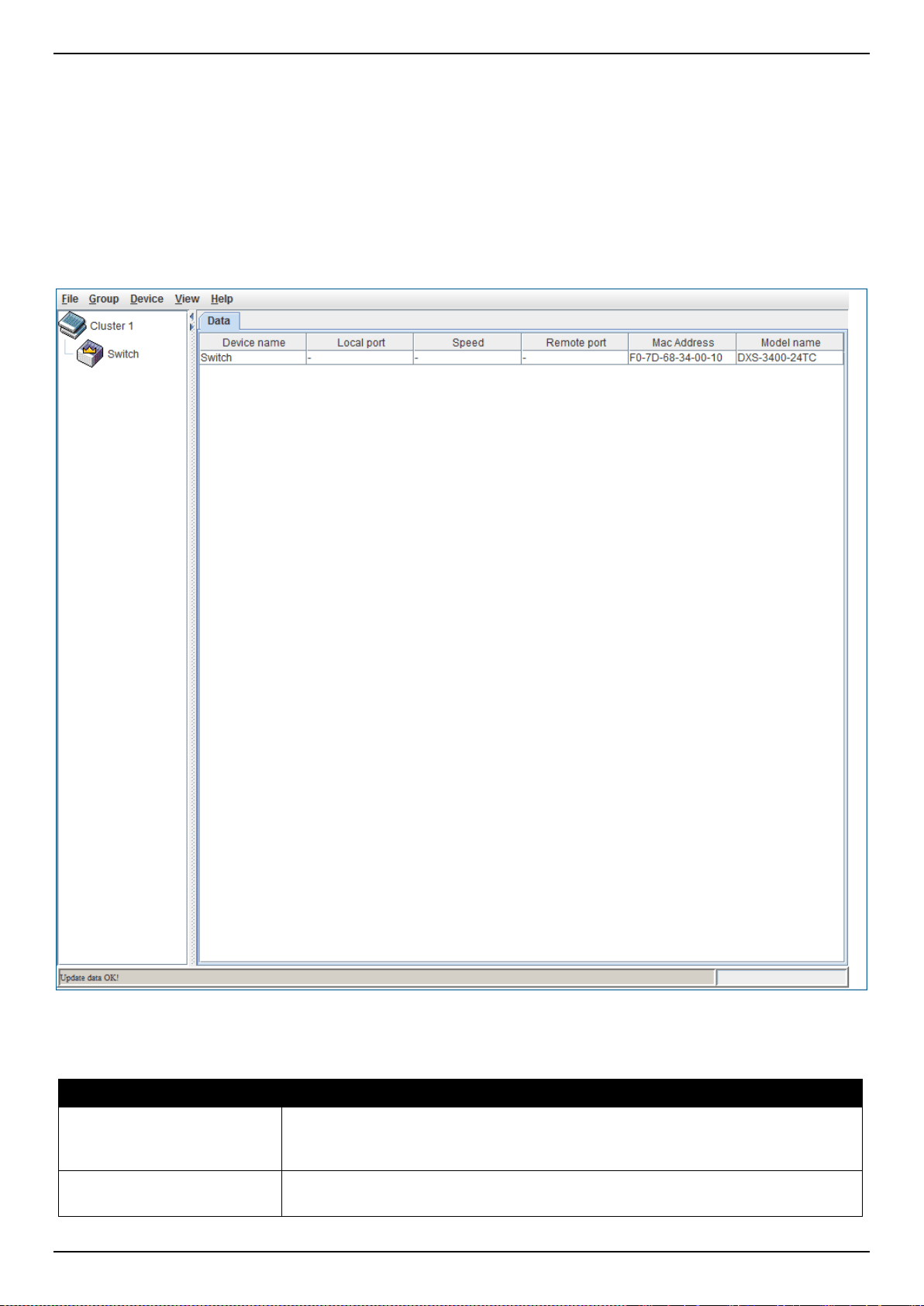
DXS-3400 Series Lite Layer 3 Stackable 10GbE Managed Switch Web UI Reference Guide
90
After enabling the Switch to be a Commander Switch (CS), the Single IP Management folder will then contain four
added links to aid the user in configuring SIM through the web, including Topology, Firmware Upgrade,
Configuration Backup/Restore and Upload Log File.
Topology
This window is used to display, manage and configure the Switch within the SIM group and requires Java script to
function properly on your computer.
To view the following window, click Management > Virtual Stacking (SIM) > Topology, as shown below:
Figure 4-82 Topology Window
The fields that can be configured are described below:
Parameter Description
Device Name
Display the Device Name of the Switches in the SIM group configured by the
user. If no device is configured by the name, it will be given the name default and
tagged with the last six digits of the MAC Address to identify it.
Local Port
Display the number of the physical port on the CS that the MS or CaS is
connected to. The CS will have no entry in this field.
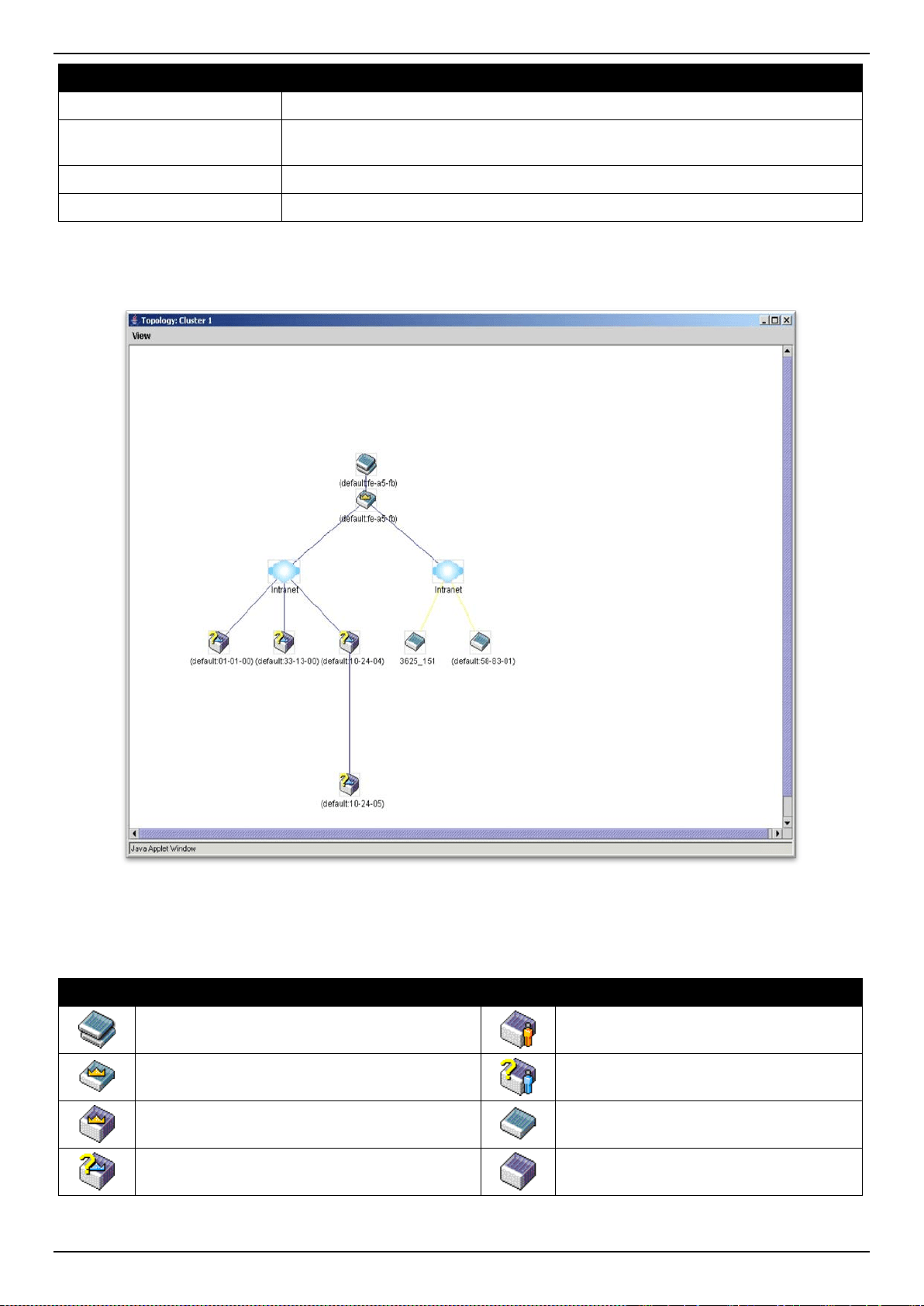
DXS-3400 Series Lite Layer 3 Stackable 10GbE Managed Switch Web UI Reference Guide
91
Parameter Description
Speed
Display the connection speed between the CS and the MS or CaS.
Remote Port
Display the number of the physical port on the MS or CaS to which the CS is
connected. The CS will have no entry in this field.
MAC Address
Display the MAC Address of the corresponding Switch.
Model Name
Display the full Model Name of the corresponding Switch.
To view the Topology View window, open the View drop-down menu in the toolbar and then click Topology, which
will open the following Topology Map. This window will refresh itself periodically (20 seconds by default).
Figure 4-83 Topology View
This window will display how the devices within the Single IP Management Group connect to other groups and
devices. Possible icons on this window are as follows:
Icon Description Icon Description
Group
Layer 3 member Switch
Layer 2 commander Switch
Member Switch of other group
Layer 3 commander Switch
Layer 2 candidate Switch
Commander Switch of other group
Layer 3 candidate Switch
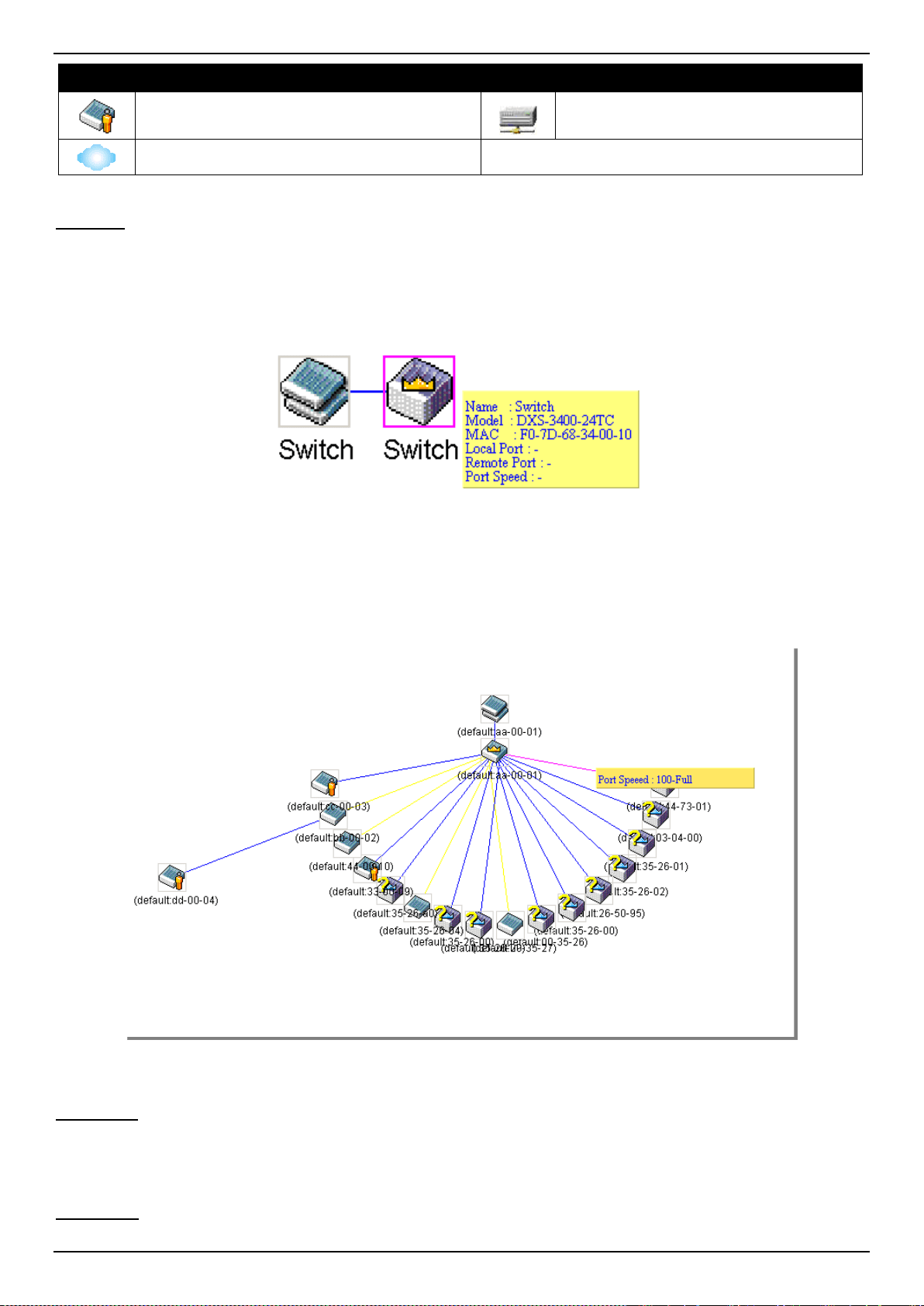
DXS-3400 Series Lite Layer 3 Stackable 10GbE Managed Switch Web UI Reference Guide
92
Icon Description Icon Description
Layer 2 member Switch
Unknown device
Non-SIM devices
Tool Tips
In the Topology view window, the mouse plays an important role in configuration and in viewing device information.
Setting the mouse cursor over a specific device in the topology window (tool tip) will display the same information
about a specific device as the Tree view does. See the window below for an example.
Figure 4-84 Device Information Utilizing the Tool Tip
Setting the mouse cursor over a line between two devices will display the connection speed between the two devices,
as shown below.
Figure 4-85 Port Speed Utilizing the Tool Tip
Right-Click
Right-clicking on a device will allow the user to perform various functions, depending on the role of the Switch in the
SIM group and the icon associated with it.
Group Icon
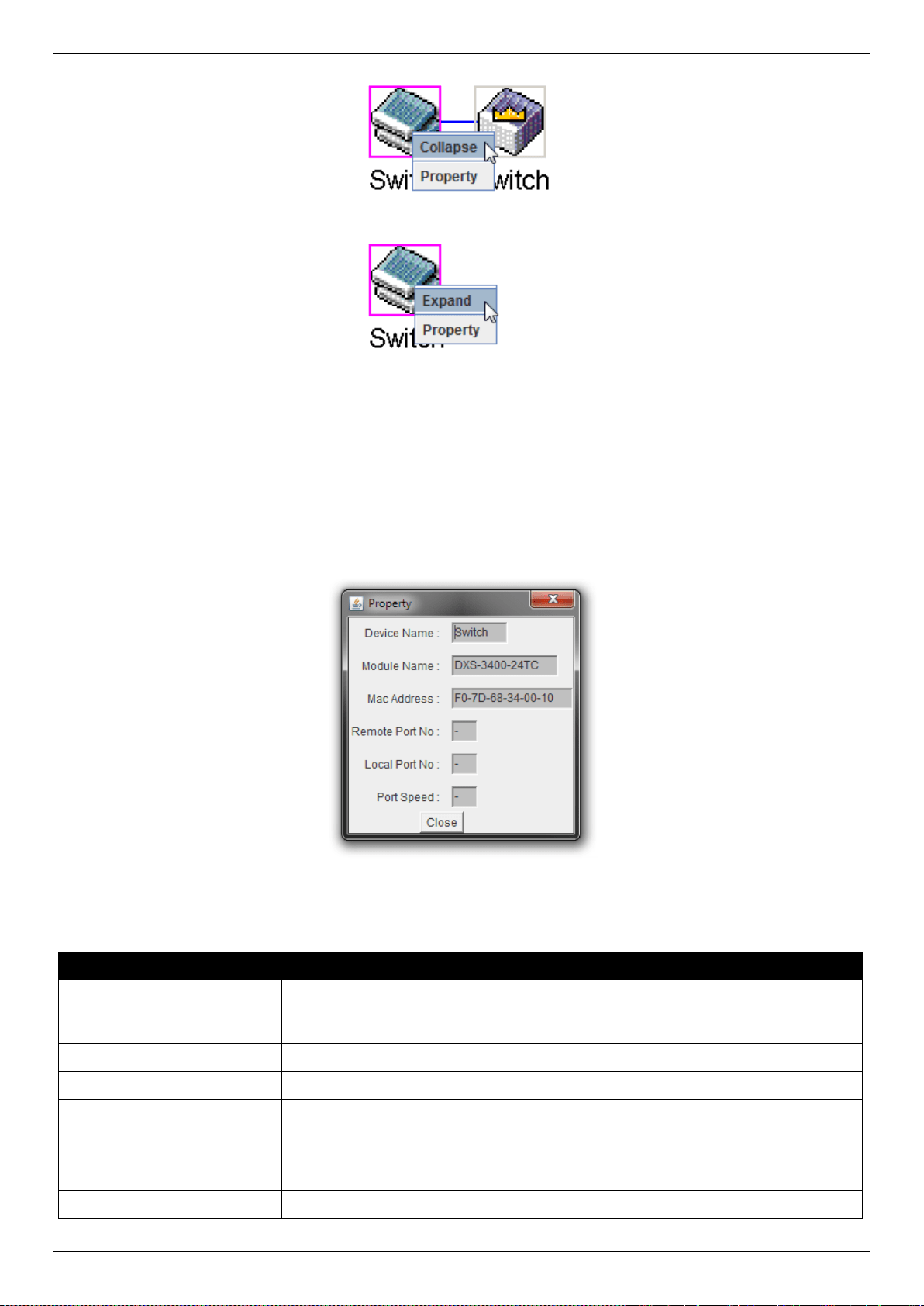
DXS-3400 Series Lite Layer 3 Stackable 10GbE Managed Switch Web UI Reference Guide
93
Figure 4-86 Right-Clicking a Group Icon
The following options may appear for the user to configure:
• Collapse - To collapse the group that will be represented by a single icon.
• Expand - To expand the SIM group, in detail.
• Property - To pop up a window to display the group information.
Figure 4-87 Property Window
The fields that can be displayed are described below:
Parameter Description
Device Name
Display the Device Name of the Switches in the SIM group configured by the
user. If no Device Name is configured by the name, it will be given the name
default and tagged with the last six digits of the MAC Address to identify it.
Module Name
Display the full module name of the Switch that was right-clicked.
MAC Address
Display the MAC Address of the corresponding Switch.
Remote Port No
Display the number of the physical port on the MS or CaS that the CS is
connected to. The CS will have no entry in this field.
Local Port No
Display the number of the physical port on the CS that the MS or CaS is
connected to. The CS will have no entry in this field.
Port Speed
Display the connection speed between the CS and the MS or CaS.
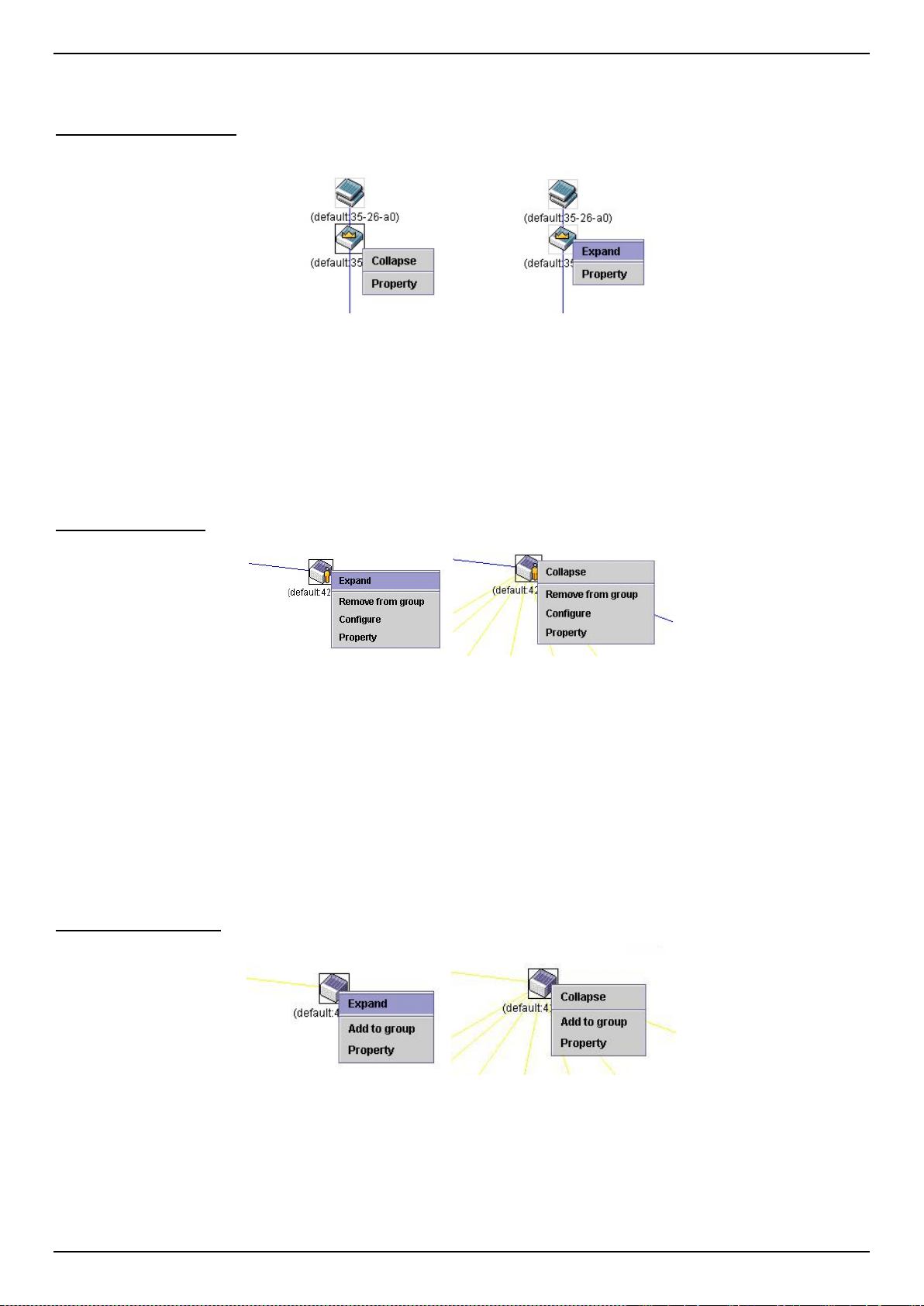
DXS-3400 Series Lite Layer 3 Stackable 10GbE Managed Switch Web UI Reference Guide
94
Click the Close button to close the property window.
Commander Switch Icon
Figure 4-88 Right-clicking a Commander Icon
The following options may appear for the user to configure:
• Collapse - To collapse the group that will be represented by a single icon.
• Expand - To expand the SIM group, in detail.
• Property - To pop up a window to display the group information.
Member Switch Icon
Figure 4-89 Right-clicking a Member icon
The following options may appear for the user to configure:
• Collapse - To collapse the group that will be represented by a single icon.
• Expand - To expand the SIM group, in detail.
• Remove from group - Remove a member from a group.
• Configure - Launch the web management to configure the Switch.
• Property - To pop up a window to display the device information.
Candidate Switch Icon
Figure 4-90 Right-clicking a Candidate icon
The following options may appear for the user to configure:
• Collapse - To collapse the group that will be represented by a single icon.
• Expand - To expand the SIM group, in detail.
DXS-3400 Series Lite Layer 3 Stackable 10GbE Managed Switch Web UI Reference Guide
95
• Add to group - Add a candidate to a group. Clicking this option will reveal the following dialog box for the user
to enter a password for authentication from the Candidate Switch before being added to the SIM group. Click
OK to enter the password or Cancel to exit the dialog box.
Figure 4-91 Input password Window
• Property - To pop up a window to display the device information.
Menu Bar
The Single IP Management window contains a menu bar for device configurations, as seen below.
Figure 4-92 Menu Bar of the Topology View
File
• Print Setup - Will view the image to be printed.
• Print Topology - Will print the topology map.
• Preference - Will set display properties, such as polling interval, and the views to open at SIM startup.
Group
• Add to group - Add a candidate to a group. Clicking this option will reveal the following dialog box for the user
to enter a password for authentication from the Candidate Switch before being added to the SIM group. Click
OK to enter the password or Cancel to exit the dialog box.
Figure 4-93 Input password Window
• Remove from group - Remove an MS from the group.
Device
• Configure - Will open the Web manager for the specific device.
View
• Refresh - Update the views with the latest status.
• Topology - Display the Topology view.
Help
• About - Will display the SIM information, including the current SIM version.
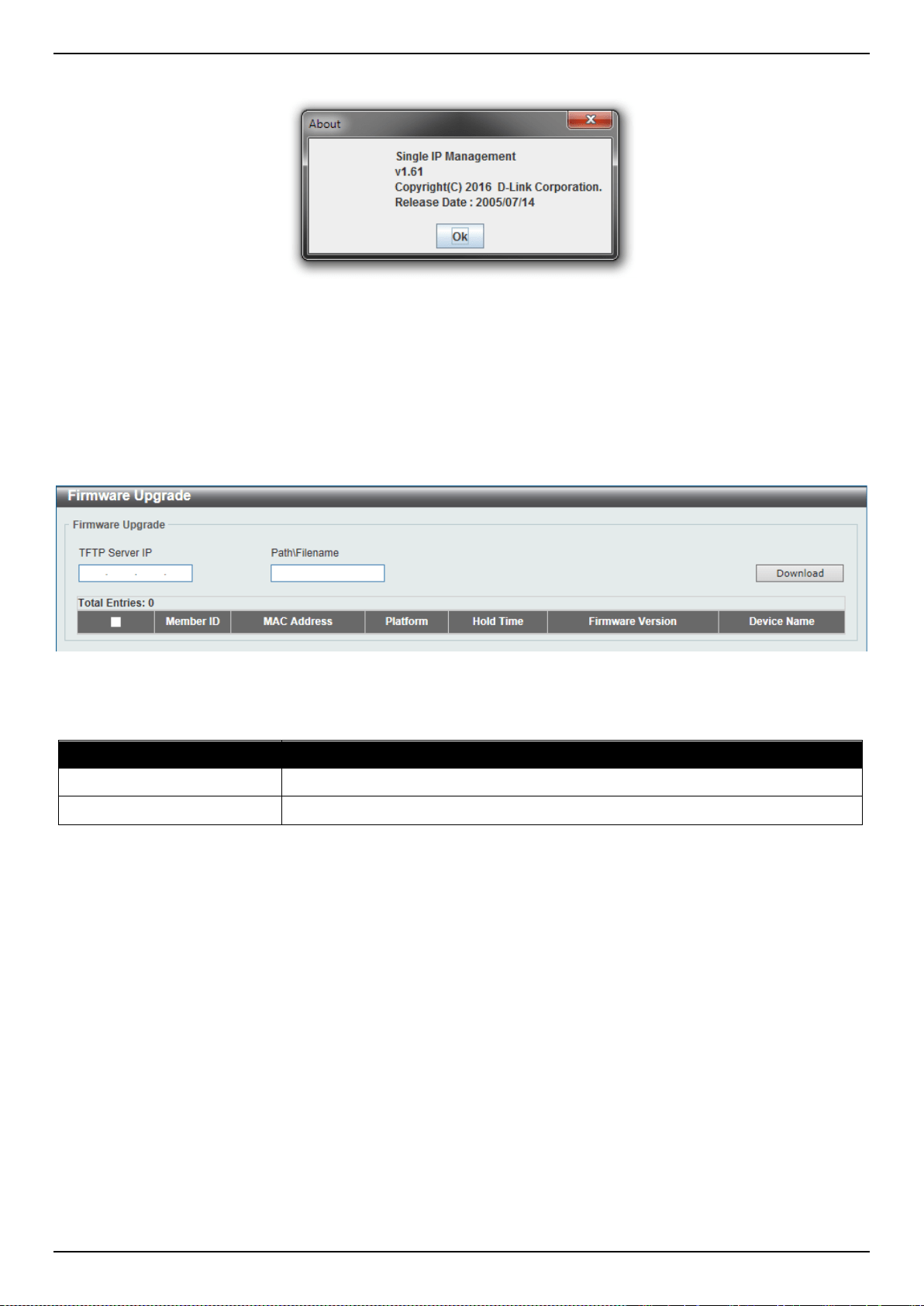
DXS-3400 Series Lite Layer 3 Stackable 10GbE Managed Switch Web UI Reference Guide
96
Figure 4-94 About Window
Firmware Upgrade
This window is used to display and upgrade firmware from the Commander Switch to the Member Switch. Member
Switches will be listed in the table
To view the following window, click Management > Virtual Stacking (SIM) > Firmware Upgrade, as shown below:
Figure 4-95 Firmware Upgrade Window
The fields that can be configured are described below:
Parameter Description
TFTP Server IP
Enter the TFTP server IP address.
Path \ Filename
Enter the path and file name.
Click the Download button to update the firmware.
To specify a certain Switch for firmware download, tick its corresponding check box.
Configuration File Backup/Restore
This window is used to display and upgrade configuration files from the Commander Switch to the Member Switch
using a TFTP server. Member Switches will be listed in the table.
To view the following window, click Management > Virtual Stacking (SIM) > Configuration File Backup/Restore,
as shown below:
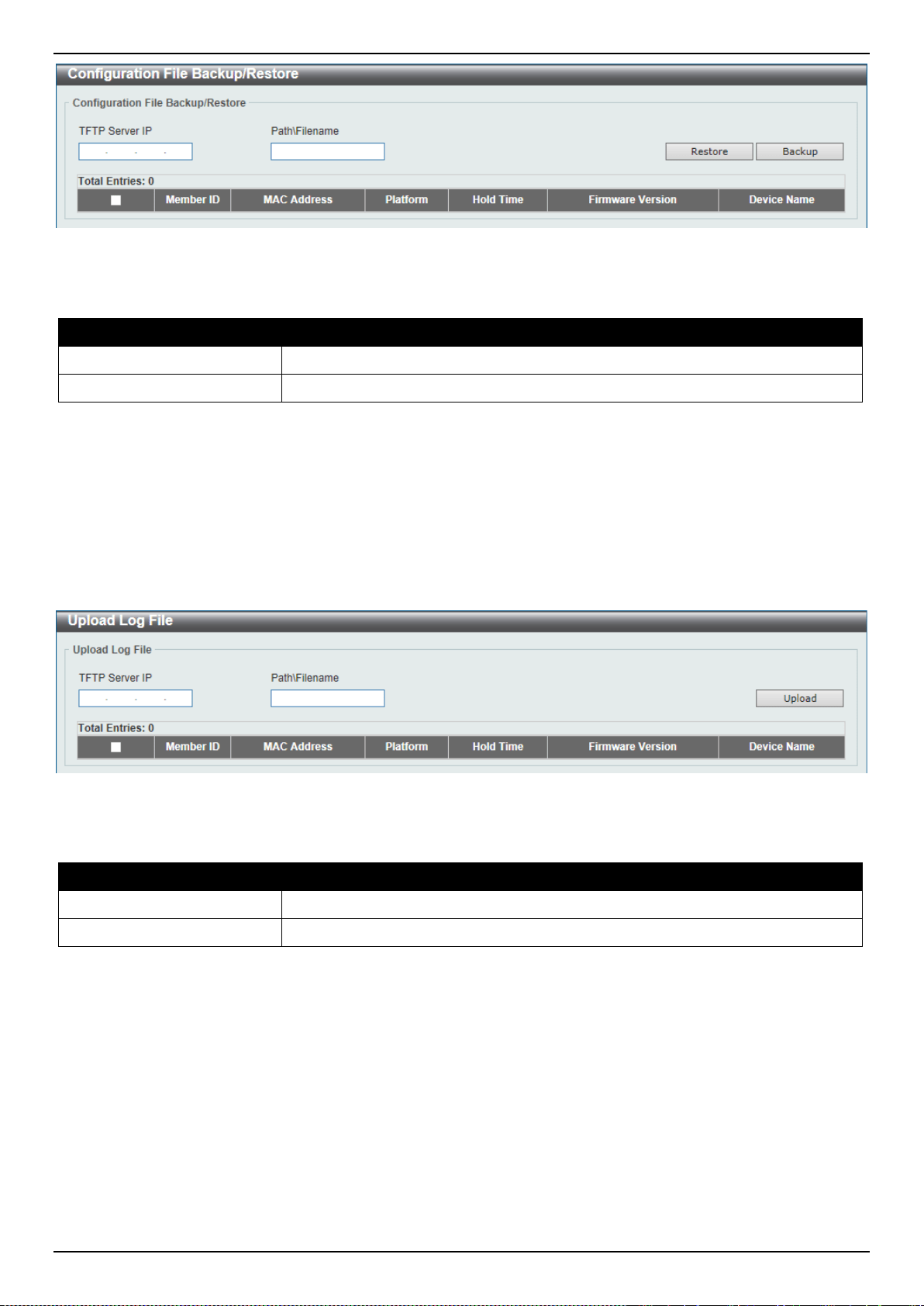
DXS-3400 Series Lite Layer 3 Stackable 10GbE Managed Switch Web UI Reference Guide
97
Figure 4-96 Configuration File Backup/Restore Window
The fields that can be configured are described below:
Parameter Description
TFTP Server IP
Enter the TFTP server IP address.
Path \ Filename
Enter the path and file name.
Click the Restore button to update the configuration from a TFTP server to the member Switch.
Click the Backup button to back up the configuration file to a TFTP server.
Upload Log File
This window is used to display and upload log files from SIM member Switches to a specified PC.
To view the following window, click Management > Virtual Stacking (SIM) > Upload Log File, as shown below:
Figure 4-97 Upload Log File Window
The fields that can be configured are described below:
Parameter Description
TFTP Server IP
Enter the TFTP server IP address.
Path \ Filename
Enter the path and file name.
Click the Upload button to initiate the file transfer.
D-Link Discovery Protocol
This window is used to display and configure the D-Link Discovery Protocol (DDP) settings.
To view the following window, click Management > D-Link Discovery Protocol, as shown below:
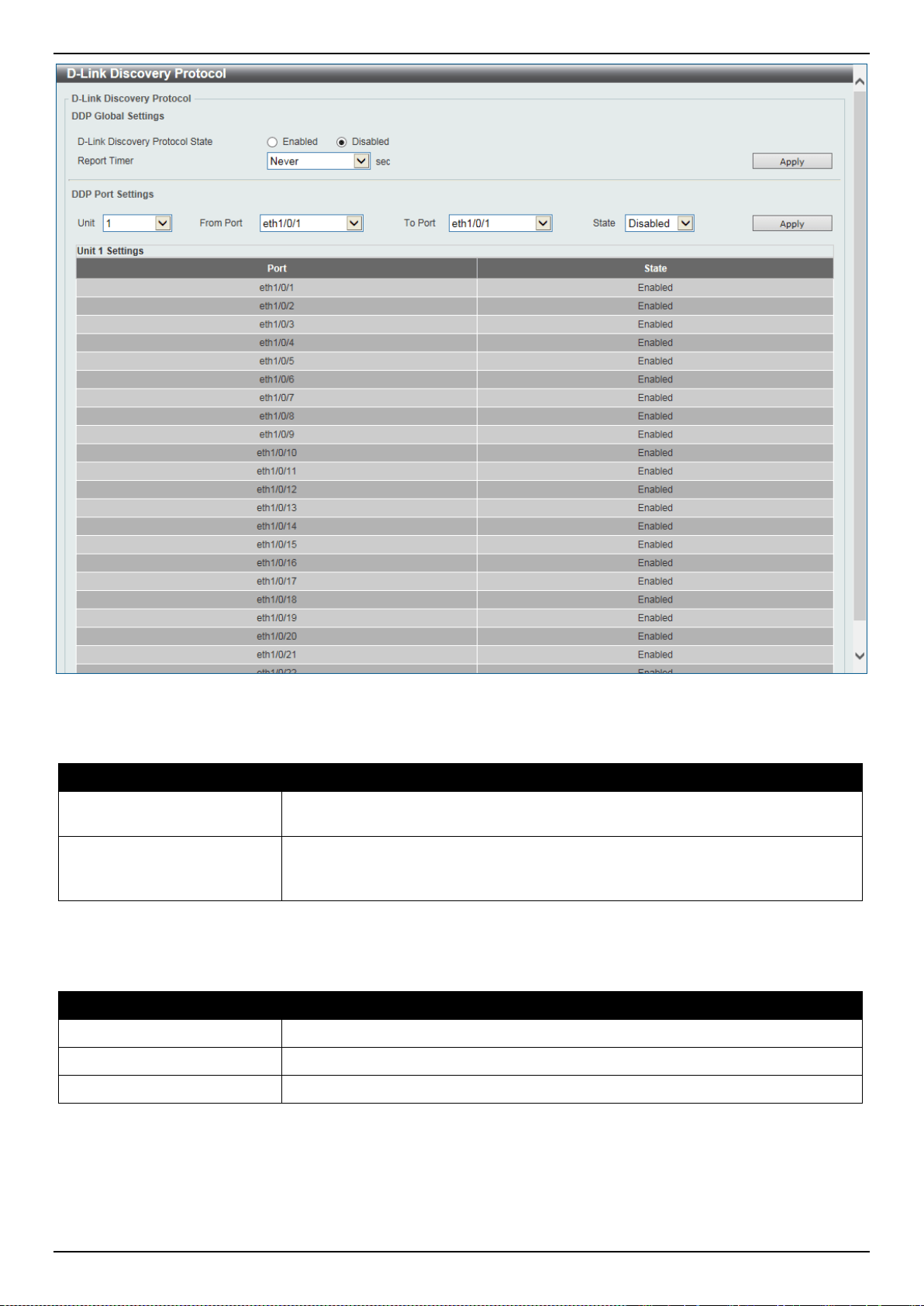
DXS-3400 Series Lite Layer 3 Stackable 10GbE Managed Switch Web UI Reference Guide
98
Figure 4-98 D-Link Discovery Protocol Window
The fields that can be configured in D-Link Discovery Protocol are described below:
Parameter Description
D-Link Discovery Protocol
State
Select to globally enable or disable the DDP feature here.
Report Timer
Select the report timer value here. This is used to configure interval between two
consecutive DDP report messages. Options to choose from are 30, 60, 90, 120
seconds; or Never. Selecting Never specifies to stop sending report messages.
Click the Apply button to accept the changes made.
The fields that can be configured in DDP Port Settings are described below:
Parameter Description
Unit
Select the Switch unit that will be used for this configuration here.
From Port ~ To Port
Select the range of ports that will be used for this configuration here.
State
Select to enable or disable the DDP feature on the specified port(s) here.
Click the Apply button to accept the changes made.
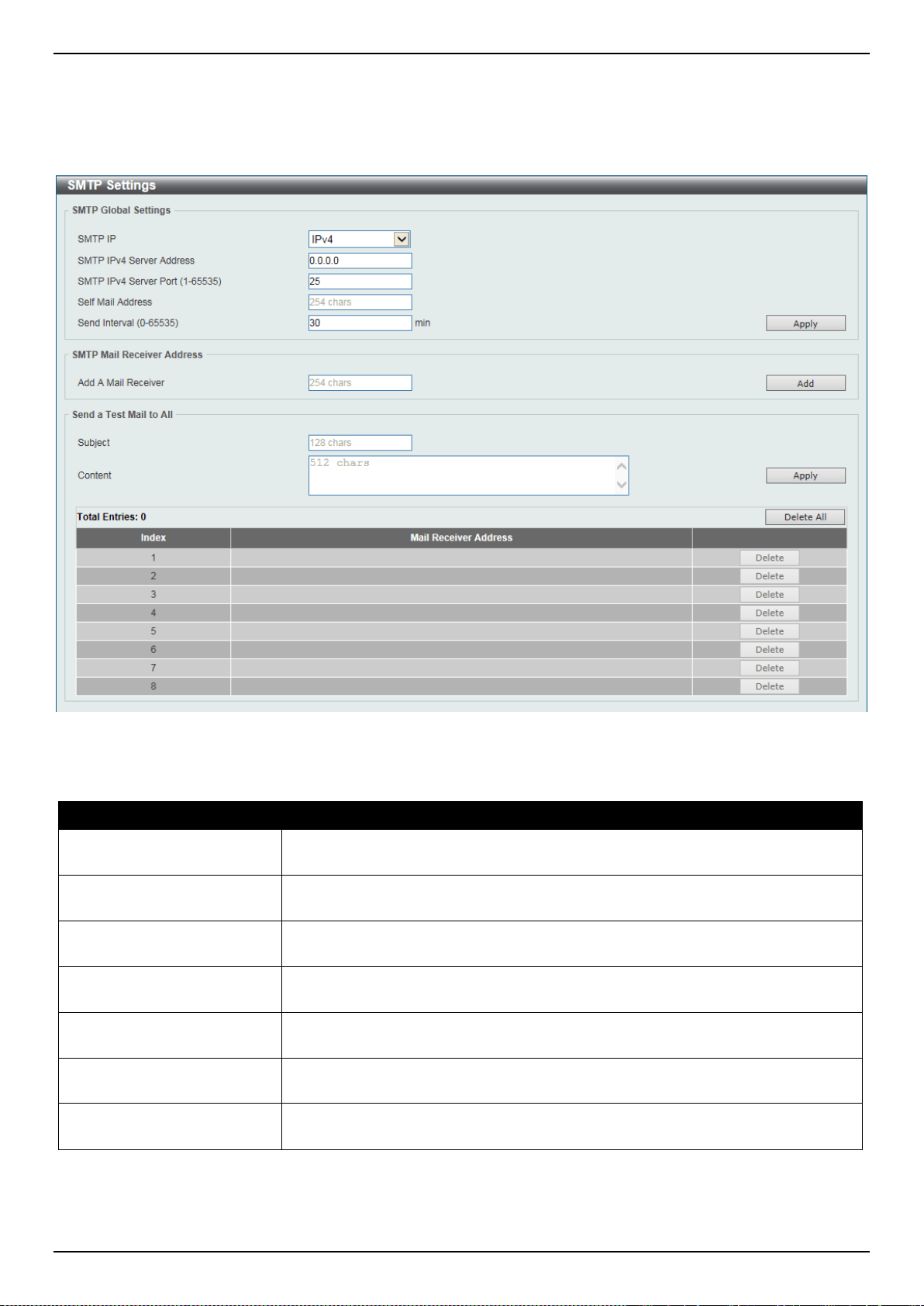
DXS-3400 Series Lite Layer 3 Stackable 10GbE Managed Switch Web UI Reference Guide
99
SMTP Settings
This window is used to display and configure the Simple Mail Transfer Protocol (SMTP) settings.
To view the following window, click Management > SMTP Settings, as shown below:
Figure 4-99 SMTP Settings Window
The fields that can be configured in SMTP Global Settings are described below:
Parameter Description
SMTP IP
Select the SMTP server’s IP address type here. Options to choose from are IPv4
and IPv6.
SMTP IPv4 Server Address
After selecting IPv4 as the SMTP IP type enter the SMTP server’s IPv4 address
here.
SMTP IPv6 Server Address
After selecting IPv6 as the SMTP IP type enter the SMTP server’s IPv6 address
here.
SMTP IPv4 Server Port
After selecting IPv4 as the SMTP IP type enter the SMTP server’s port number
here. The range is from 1 to 65535. By default, this value is 25.
SMTP IPv6 Server Port
After selecting IPv6 as the SMTP IP type enter the SMTP server’s port number
here. The range is from 1 to 65535. By default, this value is 25.
Self Mail Address
Enter the email address that represents the Switch here. This string can be up to
254 characters long.
Send Interval
Enter the sending interval value here. The range is from 0 to 65535 minutes. By
default, this value is 30 minutes.
Click the Apply button to accept the changes made.
The fields that can be configured in SMTP Mail Receiver Address are described below:
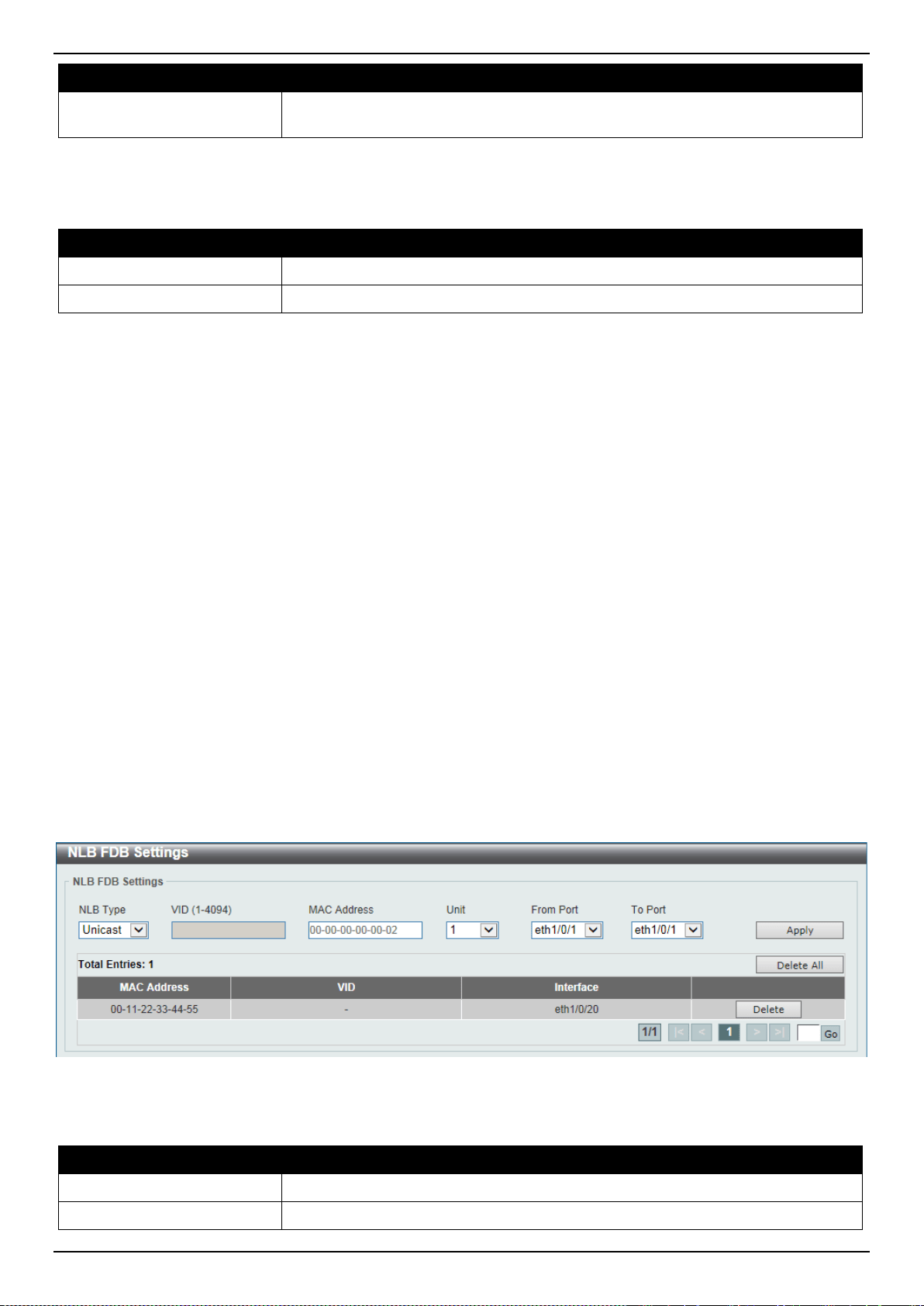
DXS-3400 Series Lite Layer 3 Stackable 10GbE Managed Switch Web UI Reference Guide
100
Parameter Description
Add A Mail Receiver
Enter the email address of the receiver here. This string can be up to 254
characters long.
Click the Add button to add a new SMTP email recipient.
The fields that can be configured in Send a Test Mail to All are described below:
Parameter Description
Subject
Enter the subject of the email here. This string can be up to 128 characters long.
Content
Enter the content of the email here. This string can be up to 512 characters long.
Click the Apply button to accept the changes made.
Click the Delete All button to delete all the entries found in the display table.
Click the Delete button to delete the specified entry.
NLB FDB Settings
This window is used to display and configure the Network Load Balancing (NLB) FDB settings.
The Network Load Balancing (NLB) function is used to support the Microsoft server load balancing application where
multiple servers can share the same IP address and MAC address. The requests from clients will be forwarded to all
the servers, but will only be processed by one of them. The server can work in two different modes:
• Unicast mode: The client uses a unicast MAC address as the destination MAC address to reach the server.
• Multicast mode: The client uses a multicast MAC address as the destination MAC address to reach the server.
This destination MAC address is called the shared MAC address. However, the server uses its own MAC address
(rather than the shared MAC address) as the source MAC address in the reply packet. In other words, a NLB unicast
address usually is not the source MAC address of a packet.
When the received packet contains the destination MAC address matches the configured unicast MAC address, it will
be forwarded to those configured ports, regardless of the VLAN membership configuration.
Administrators cannot configure a static address of the MAC address table as a NLB address. However, if a MAC
address is created as a NLB MAC address entry, the same MAC address can be still dynamically learnt in the Layer 2
MAC address table. In this situation, the NLB has higher priority; the dynamically learnt FDB entry won't take effect.
To view the following window, click Management > NLB FDB Settings, as shown below:
Figure 4-100 NLB FDB Settings Window
The fields that can be configured are described below:
Parameter Description
NLB Type
Select the NLB type here. Options to choose from are Unicast and Multicast.
VID
After selecting Multicast as the NLB type, enter the VLAN ID used in this

DXS-3400 Series Lite Layer 3 Stackable 10GbE Managed Switch Web UI Reference Guide
101
Parameter Description
configuration here.
MAC Address
Enter the unicast or multicast MAC address of the entry here. If a received packet
contains a destination MAC address that matches the specified MAC address, it
will be forwarded to the specified interface.
Unit
Select the Switch’s unit ID that will be used here.
From Port ~ To Port
Select the Switch’s port range that will be used here.
Click the Apply button to accept the changes made.
Click the Delete All button to delete all the entries found in the display table.
Click the Delete button to delete the specified entry.
Enter a page number and click the Go button to navigate to a specific page when multiple pages exist.
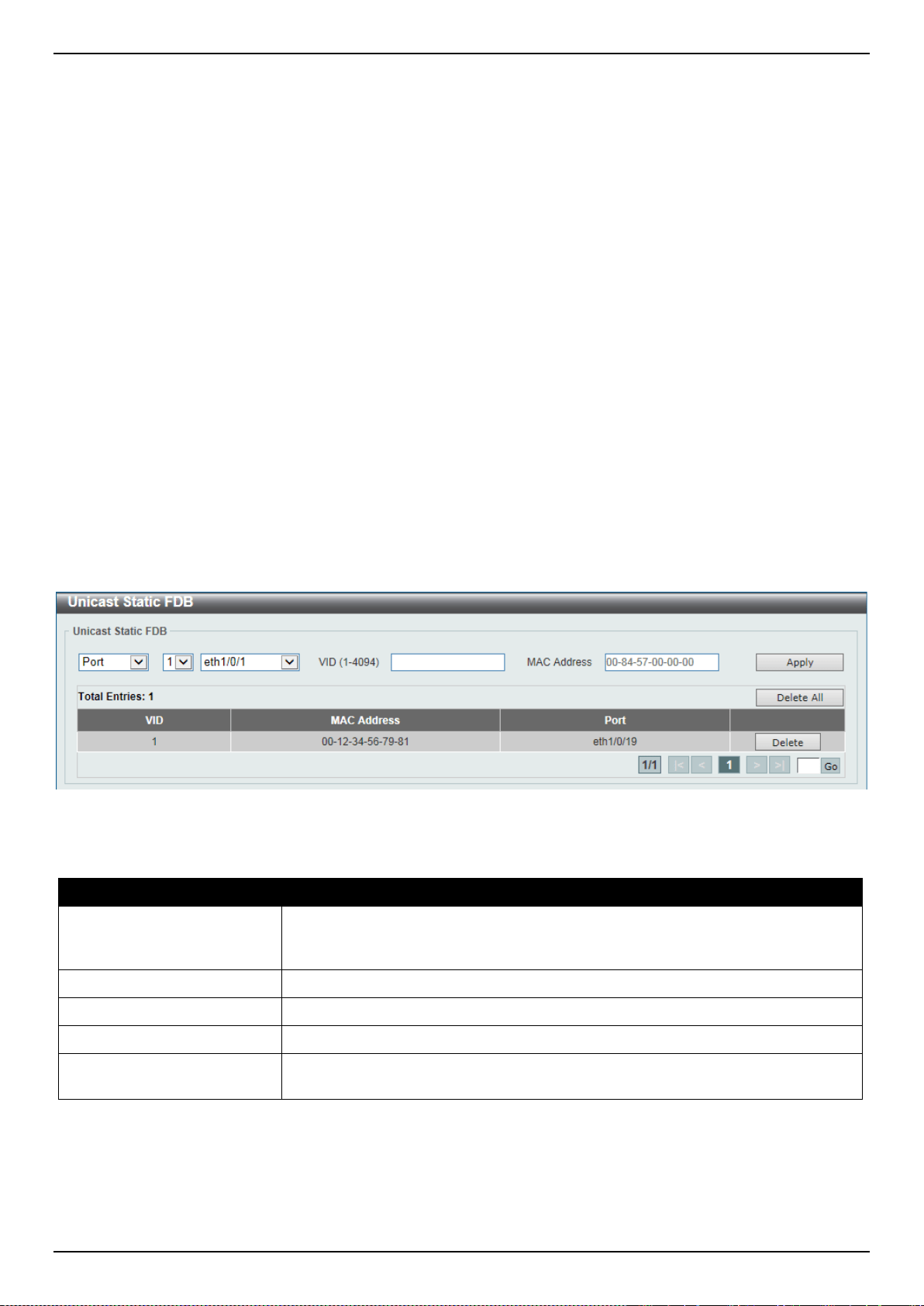
DXS-3400 Series Lite Layer 3 Stackable 10GbE Managed Switch Web UI Reference Guide
102
5. Layer 2 Features
FDB
VLAN
VLAN Tunnel
STP
ERPS (G.8032)
Loopback Detection
Link Aggregation
L2 Protocol Tunnel
L2 Multicast Control
LLDP
FDB
Static FDB
Unicast Static FDB
This window is used to display and configure the static unicast forwarding settings on the Switch.
To view the following window, click L2 Features > FDB > Static FDB > Unicast Static FDB, as shown below:
Figure 5-1 Unicast Static FDB Window
The fields that can be configured are described below:
Parameter Description
Port/Drop
Allows the selection of the port number on which the MAC address entered
resides This option could also drop the MAC address from the unicast static FDB.
When selecting Port, select the port number.
Unit
Select the stacking unit ID of the Switch that will be configured here.
Port Number
After selecting the Port option, select the port number used here.
VID
Enter the VLAN ID on which the associated unicast MAC address resides.
MAC Address
Enter the MAC address to which packets will be statically forwarded. This must be
a unicast MAC address.
Click the Apply button to accept the changes made.
Click the Delete All button to delete all the entries found in the display table.
Click the Delete button to delete the specified entry.
Enter a page number and click the Go button to navigate to a specific page when multiple pages exist.
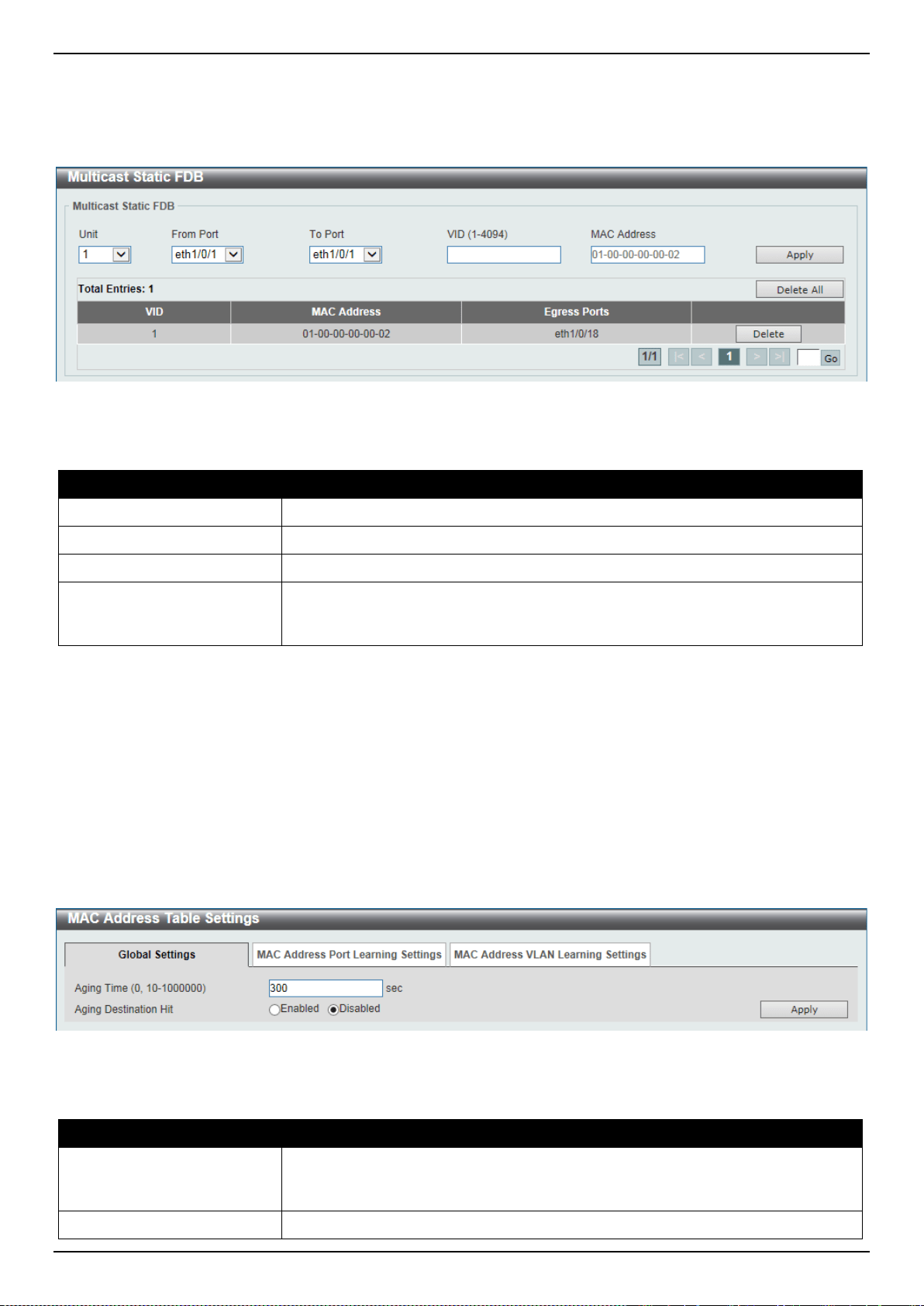
DXS-3400 Series Lite Layer 3 Stackable 10GbE Managed Switch Web UI Reference Guide
103
Multicast Static FDB
This window is used to display and configure the multicast static FDB settings.
To view the following window, click L2 Features > FDB > Static FDB > Multicast Static FDB, as shown below:
Figure 5-2 Multicast Static FDB Window
The fields that can be configured are described below:
Parameter Description
Unit
Select the stacking unit ID of the Switch that will be configured here.
From Port ~ To Port
Select the range of ports that will be used for this configuration here.
VID
Enter the VLAN ID of the VLAN the corresponding MAC address belongs to.
MAC Address
Enter the static destination MAC address of the multicast packets. This must be a
multicast MAC address. The format of the destination MAC address is 01-XX-XX-
XX-XX-XX.
Click the Apply button to accept the changes made.
Click the Delete All button to remove all the entries.
Click the Delete button to remove the specific entry.
Enter a page number and click the Go button to navigate to a specific page when multiple pages exist.
MAC Address Table Settings
This window is used to display and configure the MAC address table’s global settings.
To view the following window, click L2 Features > FDB > MAC Address Table Settings, as shown below:
Figure 5-3 MAC Address Table Settings (Global Settings) Window
The fields that can be configured are described below:
Parameter Description
Aging Time
Enter the MAC address table’s aging time value here. This value must be
between 10 and 1000000 seconds. Entering 0 will disable MAC address aging. By
default, this value is 300 seconds.
Aging Destination Hit
Select to enable or disable the aging destination hit function.
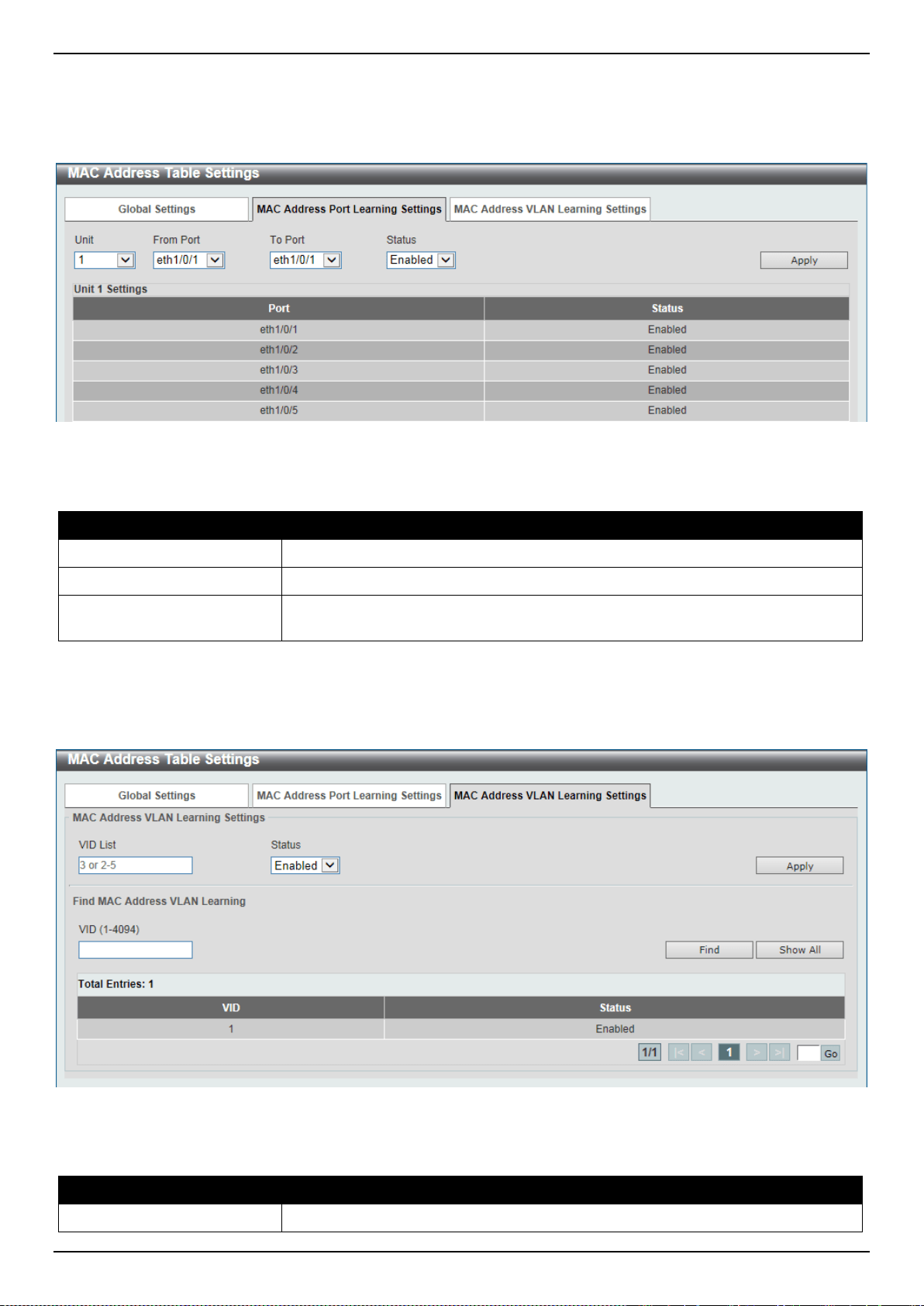
DXS-3400 Series Lite Layer 3 Stackable 10GbE Managed Switch Web UI Reference Guide
104
Click the Apply button to accept the changes made.
After selecting the MAC Address Port Learning Settings tab option, at the top of the page, the following page will be
available.
Figure 5-4 MAC Address Table Settings (MAC Address Port Learning Settings) Window
The fields that can be configured are described below:
Parameter Description
Unit
Select the stacking unit ID of the Switch that will be configured here.
From Port ~ To Port
Select the range of ports that will be used for this configuration here.
Status
Select to enable or disable the MAC address learning function on the ports
specified here.
Click the Apply button to accept the changes made.
After selecting the MAC Address VLAN Learning Settings tab option, at the top of the page, the following page will
be available.
Figure 5-5 MAC Address Table Settings (MAC Address VLAN Learning Settings) Window
The fields that can be configured are described below:
Parameter Description
VID List
Enter the VLAN ID(s) that will be used in this configuration or display here. A
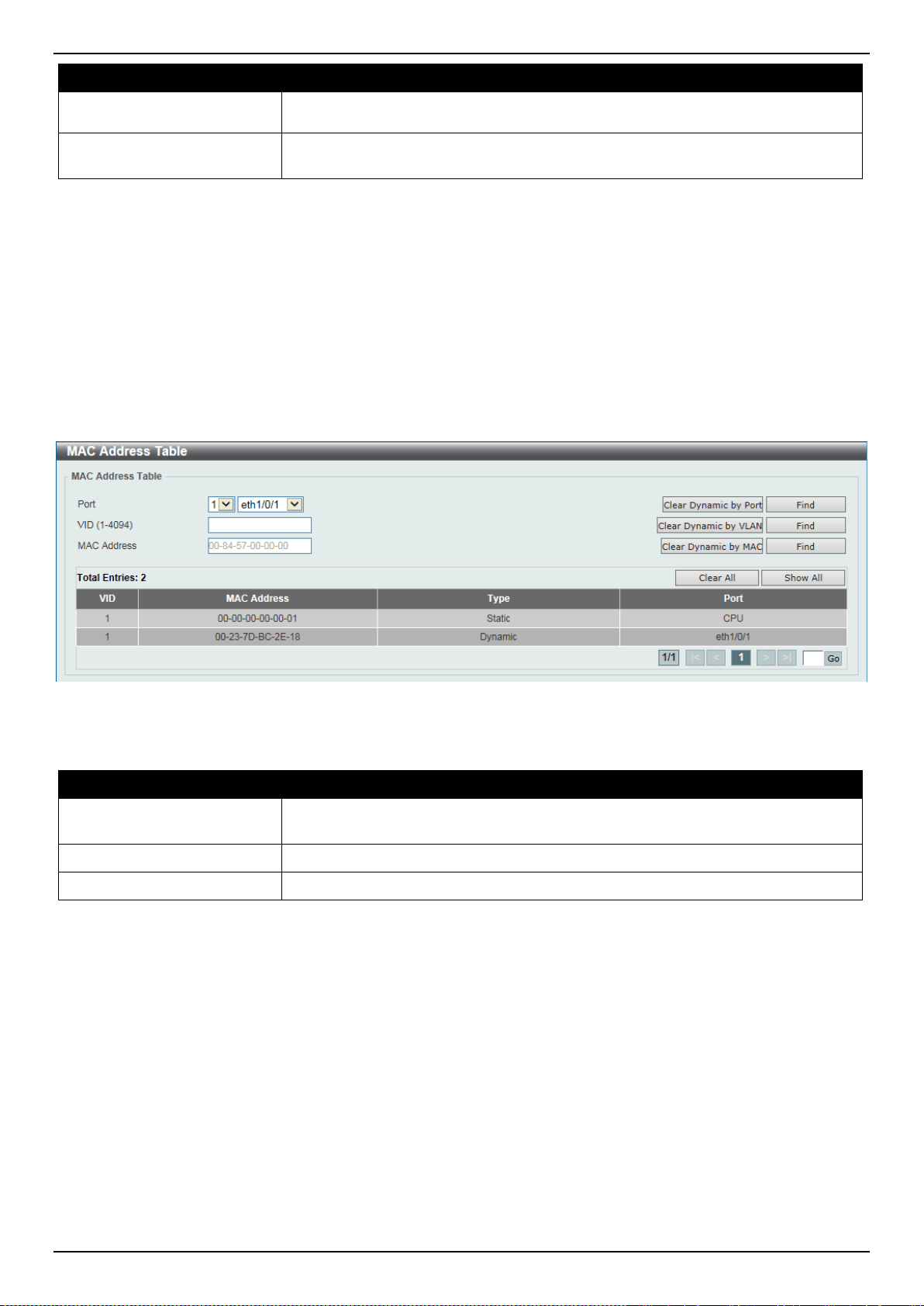
DXS-3400 Series Lite Layer 3 Stackable 10GbE Managed Switch Web UI Reference Guide
105
Parameter Description
series of VLAN IDs can be entered separated by commas or a range of VLAN IDs
can be entered separated by a hyphen.
Status
Select to enable or disable the MAC address learning function on the VLAN(s)
specified here.
Click the Apply button to accept the changes made.
Click the Find button to locate a specific entry based on the information entered.
Click the Show All button to display all the available entries.
Enter a page number and click the Go button to navigate to a specific page when multiple pages exist.
MAC Address Table
This window is used to display the entries listed in the MAC address table.
To view the following window, click L2 Features > FDB > MAC Address Table, as shown below:
Figure 5-6 MAC Address Table Window
The fields that can be configured are described below:
Parameter Description
Port
Select the stacking unit ID and the port number of the Switch that will be
configured here.
VID
Enter the VLAN ID that will be used for this configuration here.
MAC Address
Enter the MAC address that will be used for this configuration here.
Click the Clear Dynamic by Port button to clear the dynamic MAC address listed on the corresponding port.
Click the Clear Dynamic by VLAN button to clear the dynamic MAC address listed on the corresponding VLAN.
Click the Clear Dynamic by MAC button to clear the dynamic MAC address entered.
Click the Find button to locate a specific entry based on the information entered.
Click the Clear All button to clear all dynamic MAC addresses.
Click the Show All button to display all the MAC addresses recorded in the MAC address table.
Enter a page number and click the Go button to navigate to a specific page when multiple pages exist.
MAC Notification
This window is used to display and configure MAC notification.
To view the following window, click L2 Features > FDB > MAC Notification, as shown below:
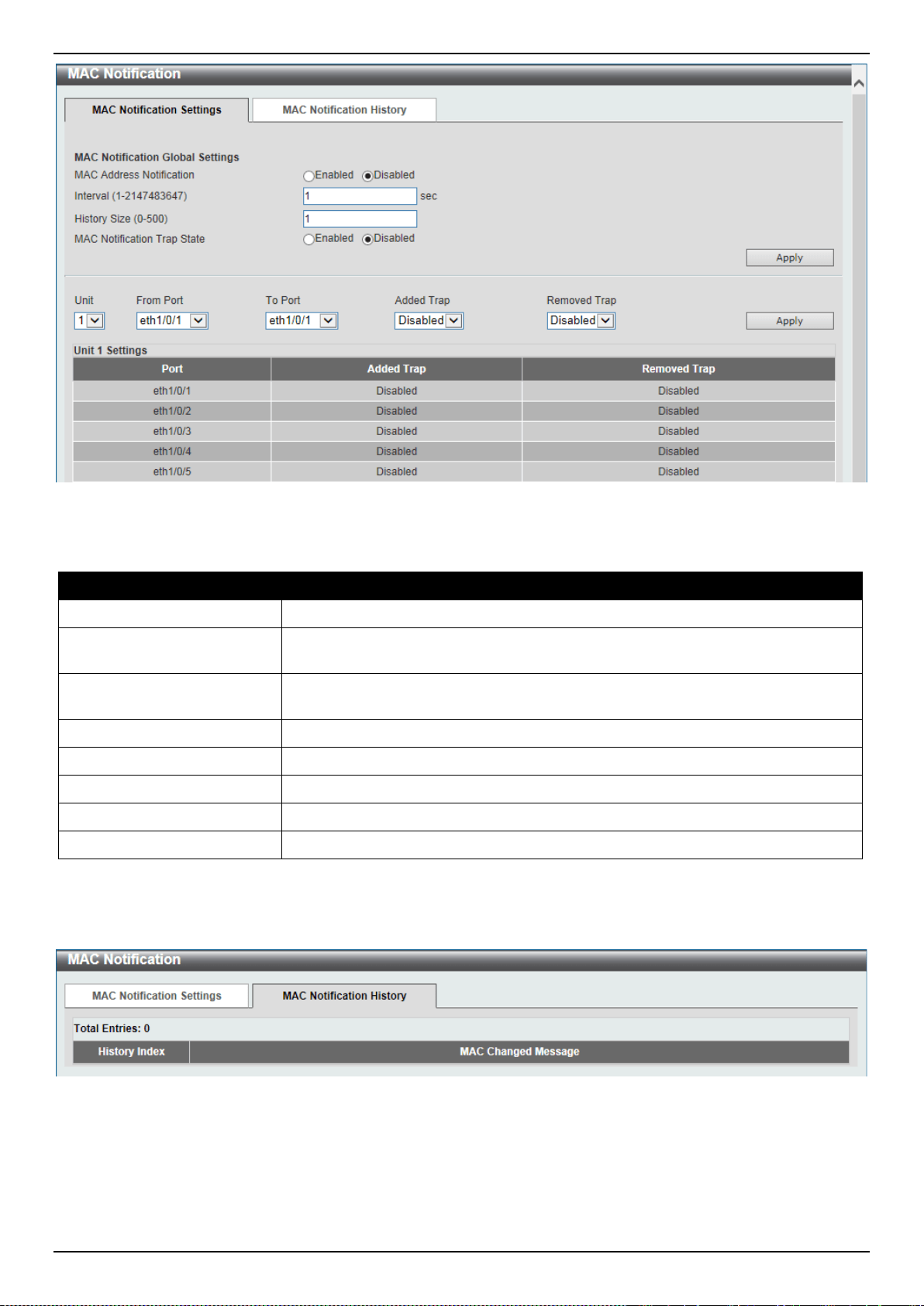
DXS-3400 Series Lite Layer 3 Stackable 10GbE Managed Switch Web UI Reference Guide
106
Figure 5-7 MAC Notification (MAC Notification Settings) Window
The fields that can be configured are described below:
Parameter Description
MAC Address Notification
Select to enable or disable MAC notification globally on the Switch
Interval
Enter the time value between notifications. This value must be between 1 and
2147483647 seconds. By default, this value is 1 second.
History Size
Enter the maximum number of entries listed in the history log used for notification.
This value must be between 0 and 500. By default, this value is 1.
MAC Notification Trap State
Select to enable or disable the MAC notification trap state.
Unit
Select the stacking unit ID of the Switch that will be configured here.
From Port ~ To Port
Select the range of ports that will be used for this configuration here.
Added Trap
Select to enable or disable the added trap for the port(s) selected.
Removed Trap
Select to enable or disable the removed trap for the port(s) selected.
Click the Apply button to accept the changes made for each individual section.
After selecting the MAC Notification History tab, at the top of the page, the following page will be available.
Figure 5-8 MAC Notification (MAC Notification History) Window
On this page, a list of MAC notification messages will be displayed.
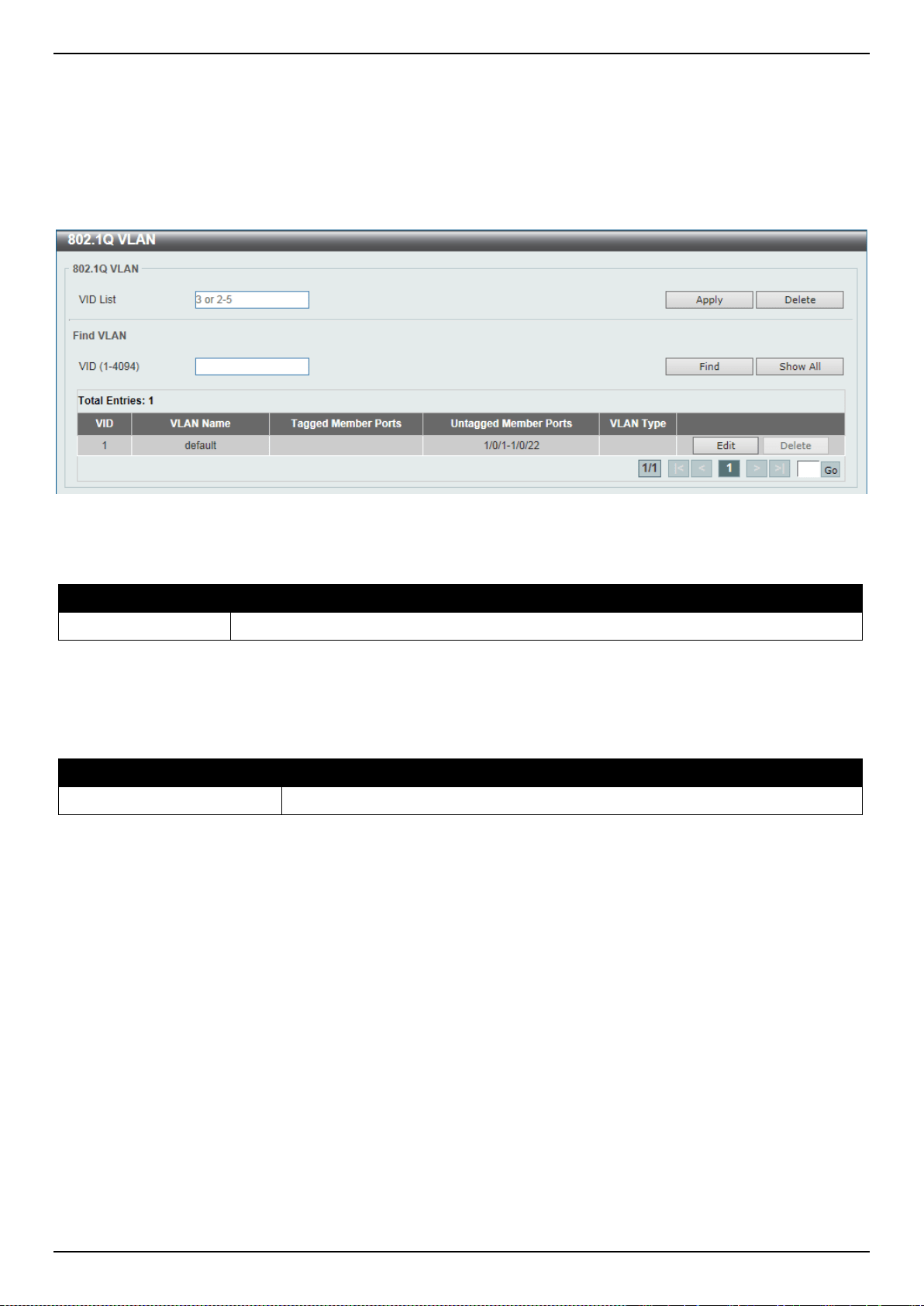
DXS-3400 Series Lite Layer 3 Stackable 10GbE Managed Switch Web UI Reference Guide
107
VLAN
802.1Q VLAN
This window is used to display and configure the VLAN settings on the Switch.
To view the following window, click L2 Features > VLAN > 802.1Q VLAN, as shown below:
Figure 5-9 802.1Q VLAN Window
The fields that can be configured in 802.1Q VLAN are described below:
Parameter Description
VID List
Enter the VLAN ID list that will be created here.
Click the Apply button to create a new 802.1Q VLAN.
Click the Delete button to remove the 802.1Q VLAN specified.
The fields that can be configured in Find VLAN are described below:
Parameter Description
VID
Enter the VLAN ID that will be displayed here.
Click the Find button to locate a specific entry based on the information entered.
Click the Show All button to locate all the entries.
Click the Edit button to re-configure the specific entry.
Click the Delete button to remove the specific entry.
Enter a page number and click the Go button to navigate to a specific page when multiple pages exist.
802.1v Protocol VLAN
Protocol VLAN Profile
This window is used to display and configure 802.1v protocol VLAN profiles. The 802.1v Protocol VLAN Group
Settings support multiple VLANs for each protocol and allows the user to configure the untagged ports of different
protocols on the same physical port. For example, it allows the user to configure an 802.1Q and 802.1v untagged port
on the same physical port.
To view the following window, click L2 Features > VLAN > 802.1v Protocol VLAN > Protocol VLAN Profile, as
shown below:

DXS-3400 Series Lite Layer 3 Stackable 10GbE Managed Switch Web UI Reference Guide
108
Figure 5-10 Protocol VLAN Profile Window
The fields that can be configured are described below:
Parameter Description
Profile ID
Enter the 802.1v protocol VLAN profile ID here. This value must be between 1
and 16.
Frame Type
Select the frame type option here. This function maps packets to protocol-defined
VLANs by examining the type octet within the packet header to discover the type
of protocol associated with it. Options to choose from are Ethernet 2, SNAP, and
LLC.
Ether Type
Enter the Ethernet type value for the group here. The protocol value is used to
identify a protocol of the frame type specified. The form of the input is 0x0 to
0xFFFF. Depending on the frame type, the octet string will have one of the
following values:
• For Ethernet 2, this is a 16-bit (2-octet) hex value. For example, IPv4 is
0800, IPv6 is 86DD, ARP is 0806, etc…
• For IEEE802.3 SNAP, this is a 16-bit (2-octet) hex value.
• For IEEE802.3 LLC, this is a 2-octet IEEE 802.2 Link Service Access Point
(LSAP) pair. The first octet is for Destination Service Access Point (DSAP)
and the second octet is for Source.
Click the Apply button to accept the changes made.
Click the Delete button to remove the specific entry.
Protocol VLAN Profile Interface
This window is used to display and configure the protocol VLAN profile’s interface settings.
To view the following window, click L2 Features > VLAN > 802.1v Protocol VLAN > Protocol VLAN Profile
Interface, as shown below:
Figure 5-11 Protocol VLAN Profile Interface Window
The fields that can be configured are described below:
Parameter Description
Port
Select the stacking unit ID and the port number of the Switch that will be
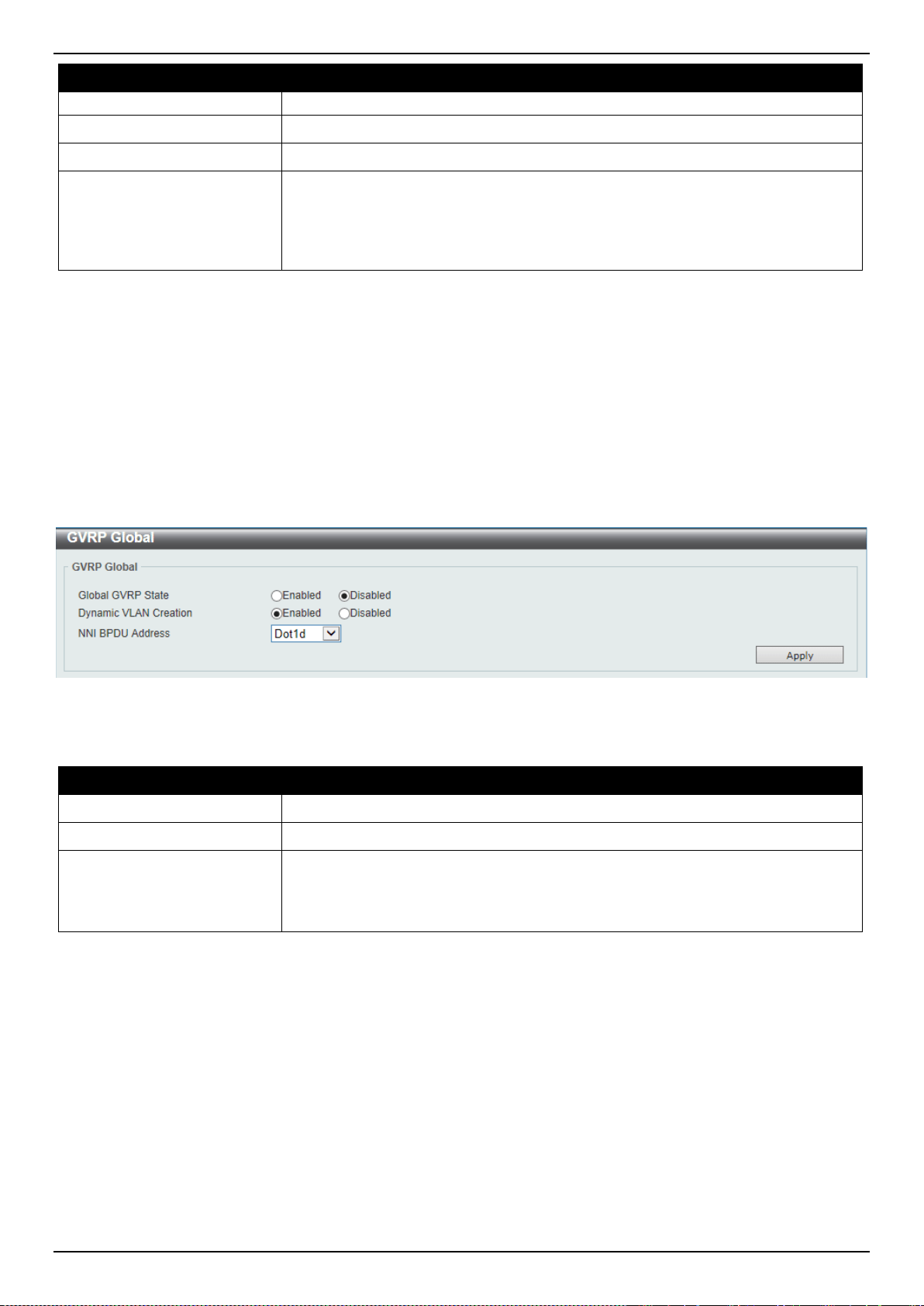
DXS-3400 Series Lite Layer 3 Stackable 10GbE Managed Switch Web UI Reference Guide
109
Parameter Description
configured here.
Profile ID
Select the 802.1v protocol VLAN profile ID here.
VID
Enter the VLAN ID used here.
Priority
Select the priority value used here. This value is between 0 and 7. This parameter
is specified to re-write the 802.1p default priority previously set in the Switch,
which is used to determine the CoS queue to which packets are forwarded to.
Once this field is specified, packets accepted by the Switch that match this priority
are forwarded to the CoS queue specified previously by the user.
Click the Apply button to accept the changes made.
Click the Delete button to remove the specific entry.
GVRP
GVRP Global
This window is used to display and configure the GARP VLAN Registration Protocol (GVRP) global settings.
To view the following window, click L2 Features > VLAN > GVRP > GVRP Global, as shown below:
Figure 5-12 GVRP Global Window
The fields that can be configured are described below:
Parameter Description
Global GVRP State
Select to enable or disable the global GVRP state here.
Dynamic VLAN Creation
Select to enable or disable the dynamic VLAN creation function here.
NNI BPDU Address
Select the NNI BPDU address option here. This option is used to determine the
BPDU protocol address for GVRP in service provide site. It can use 802.1d GVRP
address or 802.1ad service provider GVRP address. Options to choose from are
Dot1d and Dot1ad.
Click the Apply button to accept the changes made.
GVRP Port
This window is used to display and configure the GVRP port settings.
To view the following window, click L2 Features > VLAN > GVRP > GVRP Port, as shown below:
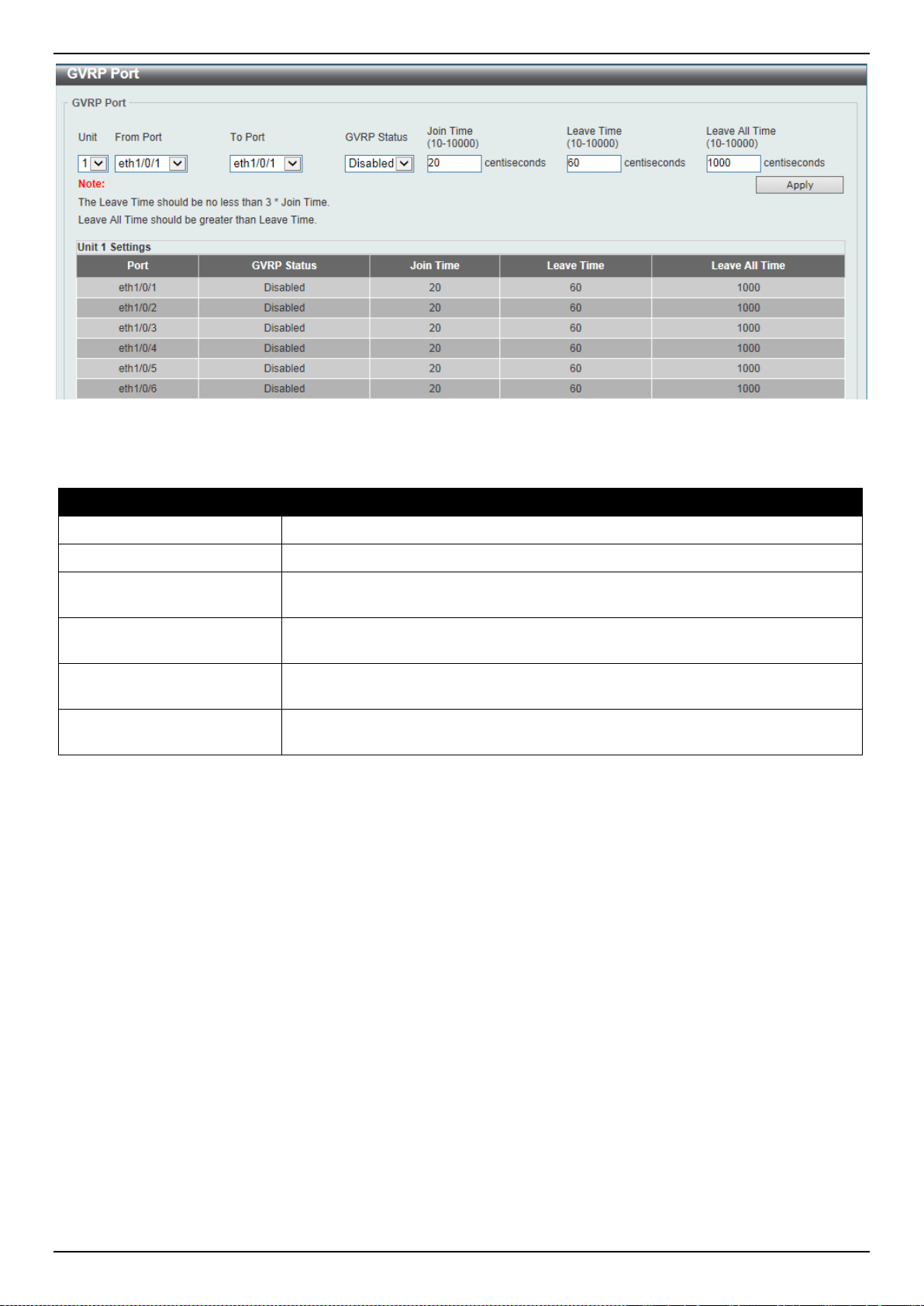
DXS-3400 Series Lite Layer 3 Stackable 10GbE Managed Switch Web UI Reference Guide
110
Figure 5-13 GVRP Port Window
The fields that can be configured are described below:
Parameter Description
Unit
Select the Switch unit that will be used for this configuration here.
From Port ~ To Port
Select the range of ports that will be used for this configuration here.
GVRP Status
Select the enable or disable the GVRP port status. This enables the port to
dynamically become a member of a VLAN. By default, this option is disabled.
Join Time
Enter the Join Time value in centiseconds. This value must be between 10 and
10000 centiseconds. By default, this value is 20 centiseconds.
Leave Time
Enter the Leave Time value in centiseconds. This value must be between 10 and
10000 centiseconds. By default, this value is 60 centiseconds.
Leave All Time
Enter the Leave All Time value in centiseconds. This value must be between 10
and 10000 centiseconds. By default, this value is 1000 centiseconds.
Click the Apply button to accept the changes made.
GVRP Advertise VLAN
This window is used to display and configure the GVRP advertised VLAN settings.
To view the following window, click L2 Features > VLAN > GVRP > GVRP Advertise VLAN, as shown below:

DXS-3400 Series Lite Layer 3 Stackable 10GbE Managed Switch Web UI Reference Guide
111
Figure 5-14 GVRP Advertise VLAN Window
The fields that can be configured are described below:
Parameter Description
Unit
Select the Switch unit that will be used for this configuration here.
From Port ~ To Port
Select the range of ports that will be used for this configuration here.
Action
Select the advertised VLAN to port mapping action that will be taken here.
Options to choose from are All, Add, Remove, and Replace. When selecting All,
all the advertised VLANs will be used.
Advertise VID List
Enter the advertised VLAN ID list here.
Click the Apply button to accept the changes made.
GVRP Forbidden VLAN
This window is used to display and configure the GVRP forbidden VLAN settings.
To view the following window, click L2 Features > VLAN > GVRP > GVRP Forbidden VLAN, as shown below:
Figure 5-15 GVRP Forbidden VLAN Window
The fields that can be configured are described below:
Parameter Description
Unit
Select the Switch unit that will be used for this configuration here.
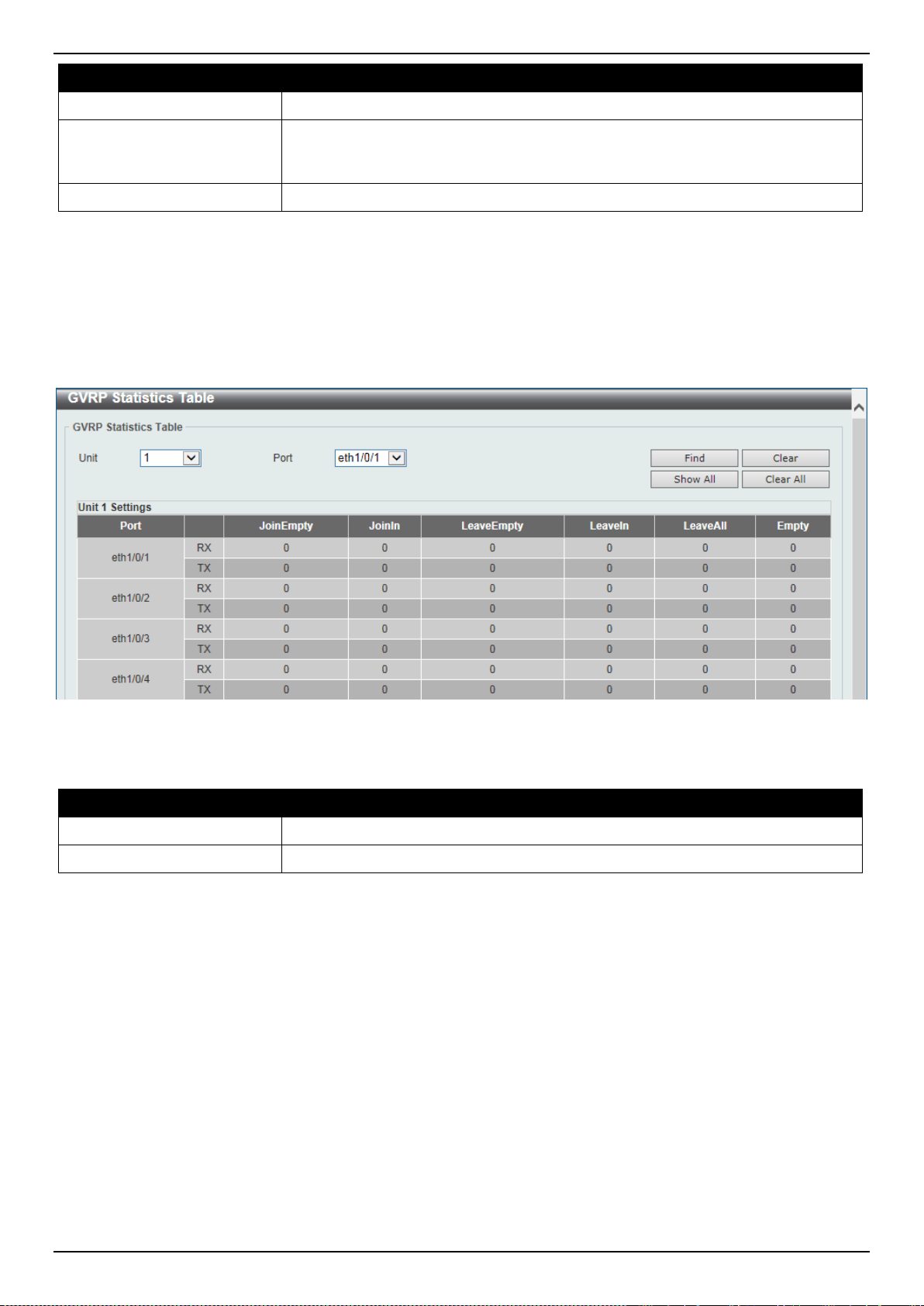
DXS-3400 Series Lite Layer 3 Stackable 10GbE Managed Switch Web UI Reference Guide
112
Parameter Description
From Port ~ To Port
Select the range of ports that will be used for this configuration here.
Action
Select the forbidden VLAN to port mapping action that will be taken here. Options
to choose from are All, Add, Remove and Replace. When selecting All, all the
forbidden VLANs will be used.
Forbidden VID List
Enter the forbidden VLAN ID list here.
Click the Apply button to accept the changes made.
GVRP Statistics Table
This window is used to display GVRP statistics information.
To view the following window, click L2 Features > VLAN > GVRP > GVRP Statistics Table, as shown below:
Figure 5-16 GVRP Statistics Table Window
The fields that can be configured are described below:
Parameter Description
Unit
Select the Switch unit that will be used for this display here.
Port
Select the port number of which GVRP statistic information will be displayed.
Click the Find button to locate a specific entry based on the information entered.
Click the Clear button to clear all the information for the specific port.
Click the Show All button to view all GVRP statistic information.
Click the Clear All button to clear all the information in this table.
Asymmetric VLAN
This window is used to display and configure the asymmetric VLAN settings.
To view the following window, click L2 Features > VLAN > Asymmetric VLAN, as shown below:
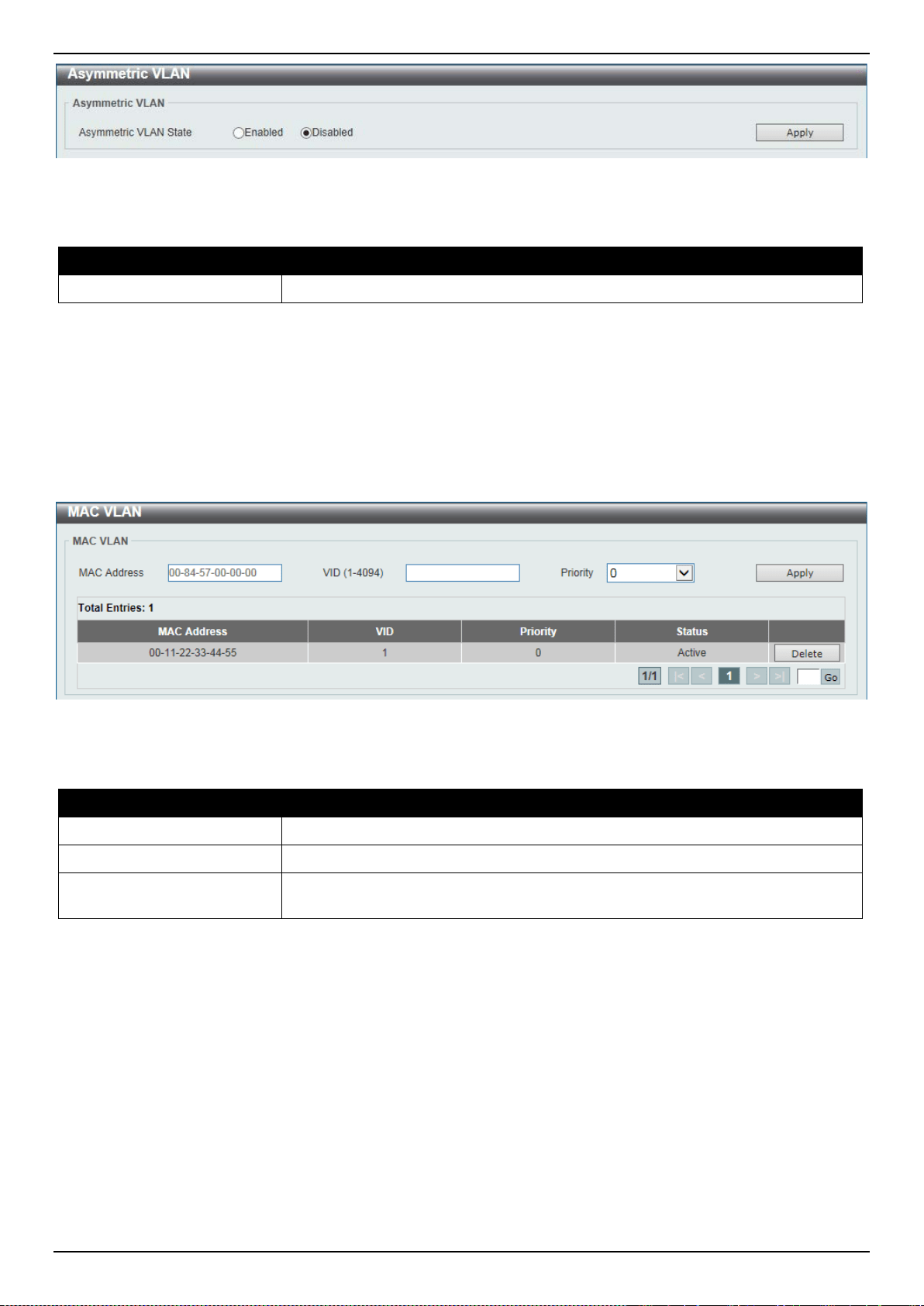
DXS-3400 Series Lite Layer 3 Stackable 10GbE Managed Switch Web UI Reference Guide
113
Figure 5-17 Asymmetric VLAN Window
The fields that can be configured are described below:
Parameter Description
Asymmetric VLAN State
Select to enable or disable the asymmetric VLAN feature here.
Click the Apply button to accept the changes made.
MAC VLAN
This window is used to display and configure the MAC-based VLAN information. When a static MAC-based VLAN
entry is created for a user, the traffic according to the specified VLAN operating on this port will be configured.
To view the following window, click L2 Features > VLAN > MAC VLAN, as shown below:
Figure 5-18 MAC VLAN Window
The fields that can be configured are described below:
Parameter Description
MAC Address
Enter the unicast MAC address.
VID
Enter the VLAN ID that will be used.
Priority
Select the priority that is assigned to untagged packets. This value is between 0
and 7.
Click the Apply button to accept the changes made.
Click the Delete button to remove the specific entry.
Enter a page number and click the Go button to navigate to a specific page when multiple pages exist.
VLAN Interface
This window is used to display and configure VLAN interface settings.
To view the following window, click L2 Features > VLAN > VLAN Interface, as shown below:
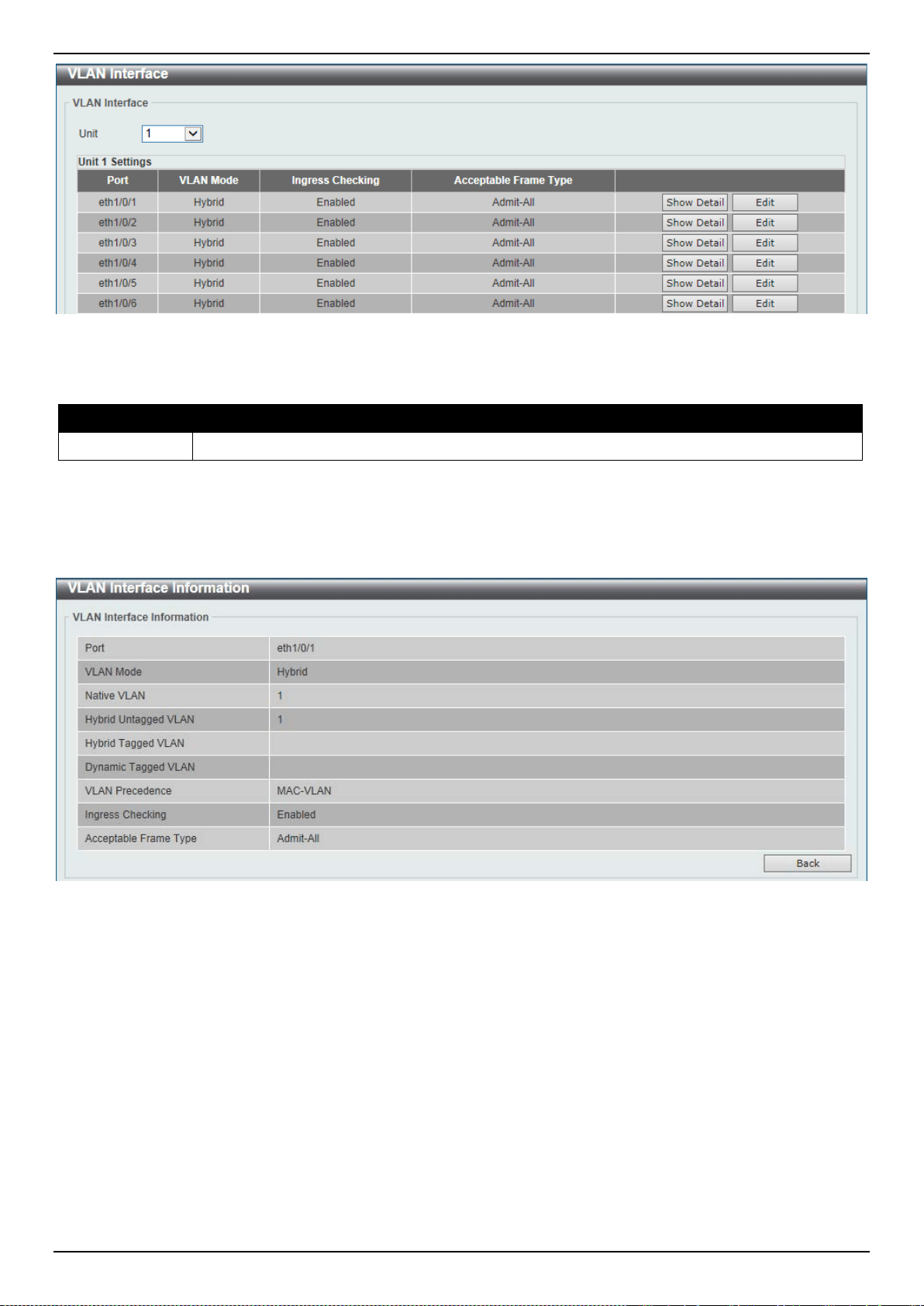
DXS-3400 Series Lite Layer 3 Stackable 10GbE Managed Switch Web UI Reference Guide
114
Figure 5-19 VLAN Interface Window
The fields that can be configured are described below:
Parameter Description
Unit
Select the Switch unit that will be used for this configuration here.
Click the Show Detail button to view more detailed information about the VLAN on the specific interface.
Click the Edit button to re-configure the specific entry.
After clicking the Show Detail button, the following page will appear.
Figure 5-20 VLAN Interface (VLAN Detail) Window
On this page, more detailed information about the VLAN of the specific interface is displayed.
Click the Back button to return to the previous page.
After click the Edit button, the following page will appear. This is a dynamic page that will change when a different
VLAN Mode was selected. When Access was selected as the VLAN Mode, the following page will appear.
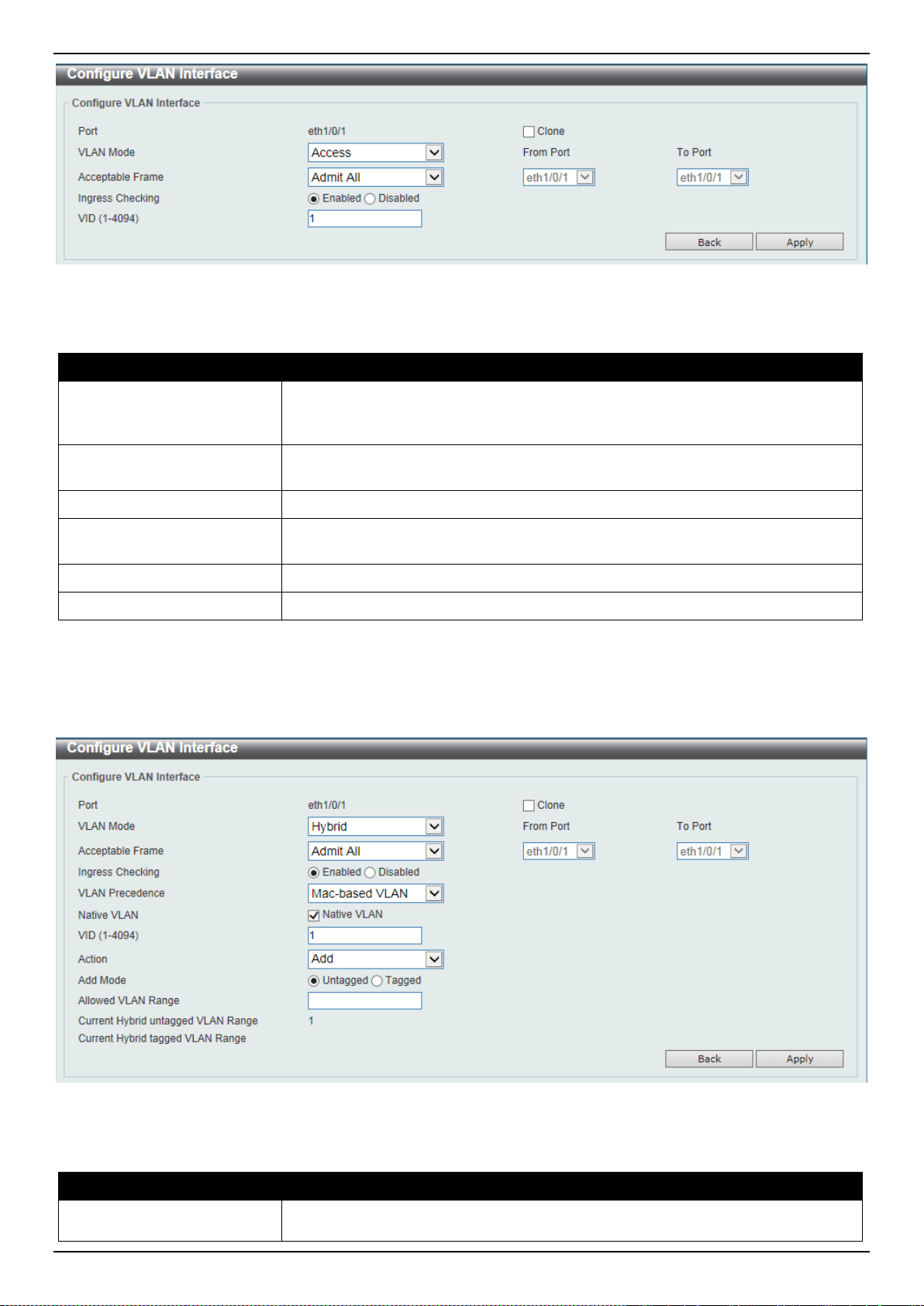
DXS-3400 Series Lite Layer 3 Stackable 10GbE Managed Switch Web UI Reference Guide
115
Figure 5-21 VLAN Interface (Access) Window
The fields that can be configured are described below:
Parameter Description
VLAN Mode
Select the VLAN mode option here. Options to choose from are Access, Hybrid,
Trunk, 802.1Q-Tunnel, Promiscuous, Host, Trunk Promiscuous, and Trunk
Secondary.
Acceptable Frame
Select the acceptable frame behavior option here. Options to choose from are
Tagged Only, Untagged Only, and Admit All.
Ingress Checking
Select to enable or disable the ingress checking function.
VLAN ID
Enter the VLAN ID used for this configuration here. This value must be between 1
and 4094.
Clone
Select this option to enable the clone feature.
From Port ~ To Port
Select the range of ports that will be used in the clone feature here.
Click the Apply button to accept the changes made.
Click the Back button to discard the changes made and return to the previous page.
When Hybrid was selected as the VLAN Mode, the following page will appear.
Figure 5-22 VLAN Interface (Hybrid) Window
The fields that can be configured are described below:
Parameter Description
VLAN Mode
Select the VLAN mode option here. Options to choose from are Access, Hybrid,
Trunk, 802.1Q-Tunnel, Promiscuous, Host, Trunk Promiscuous, and Trunk
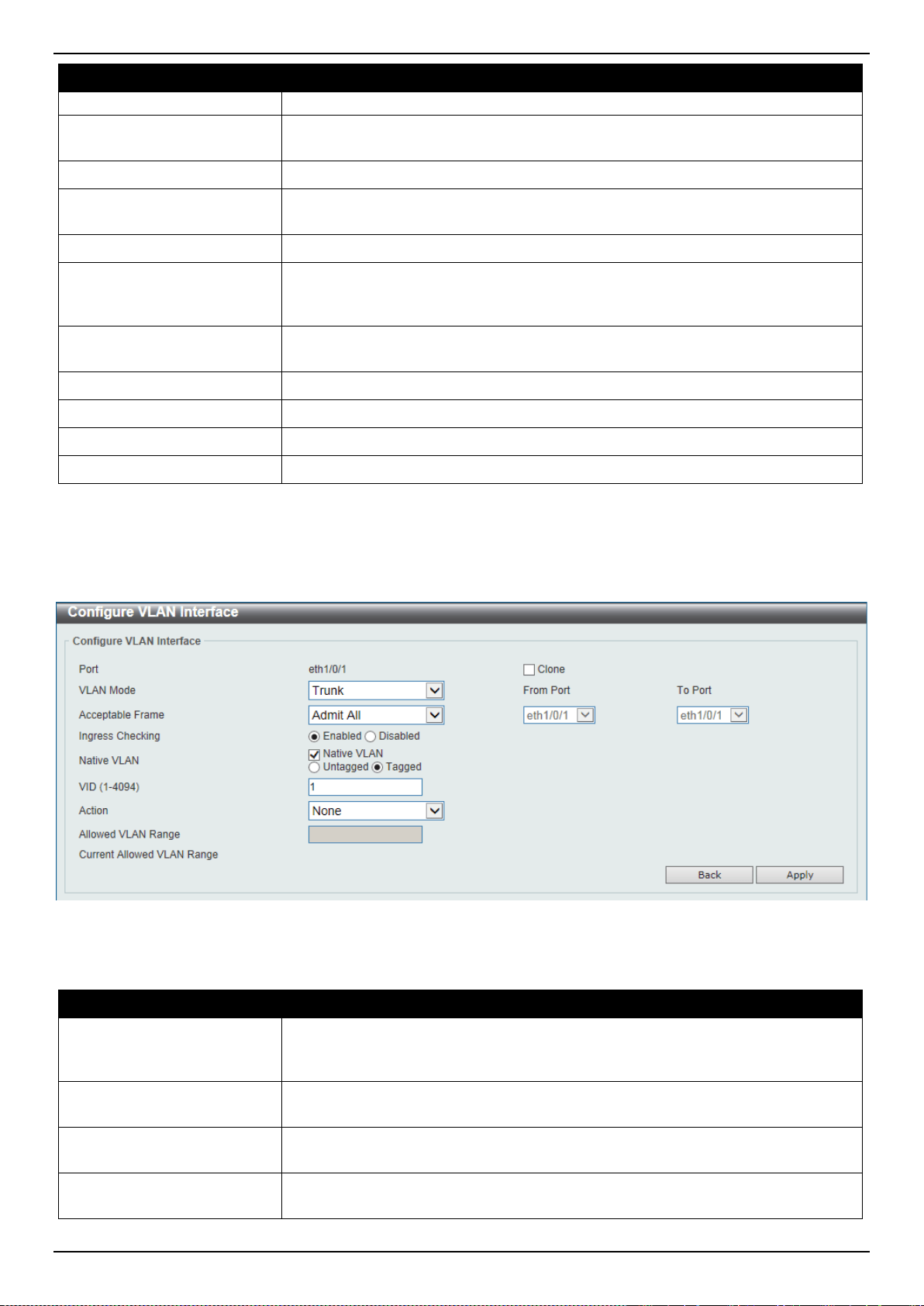
DXS-3400 Series Lite Layer 3 Stackable 10GbE Managed Switch Web UI Reference Guide
116
Parameter Description
Secondary.
Acceptable Frame
Select the acceptable frame behavior option here. Options to choose from are
Tagged Only, Untagged Only, and Admit All.
Ingress Checking
Select to enable or disable the ingress checking function.
VLAN Precedence
Select the VLAN precedence option here. Options to choose from are Mac-based
VLAN and Subnet-based VLAN.
Native VLAN
Tick this option to enable the native VLAN function.
VID
After ticking the Native VLAN option the following parameter will be available.
Enter the VLAN ID used for this configuration here. This value must be between 1
and 4094.
Action
Select the action that will be taken here. Options to choose from are Add,
Remove, Tagged, and Untagged.
Add Mode
Select whether to add an Untagged or Tagged parameters.
Allowed VLAN Range
Enter the allowed VLAN range information here.
Clone
Select this option to enable the clone feature.
From Port ~ To Port
Select the range of ports that will be used in the clone feature here.
Click the Apply button to accept the changes made.
Click the Back button to discard the changes made and return to the previous page.
When Trunk was selected as the VLAN Mode, the following page will appear.
Figure 5-23 VLAN Interface (Trunk) Window
The fields that can be configured are described below:
Parameter Description
VLAN Mode
Select the VLAN mode option here. Options to choose from are Access, Hybrid,
Trunk, 802.1Q-Tunnel, Promiscuous, Host, Trunk Promiscuous, and Trunk
Secondary.
Acceptable Frame
Select the acceptable frame behavior option here. Options to choose from are
Tagged Only, Untagged Only, and Admit All.
Ingress Checking
After selecting Trunk as the VLAN Mode the following parameter will be
available. Select to enable or disable the ingress checking function.
Native VLAN
Tick this option to enable the native VLAN function. Also select if this VLAN
supports Untagged or Tagged frames.
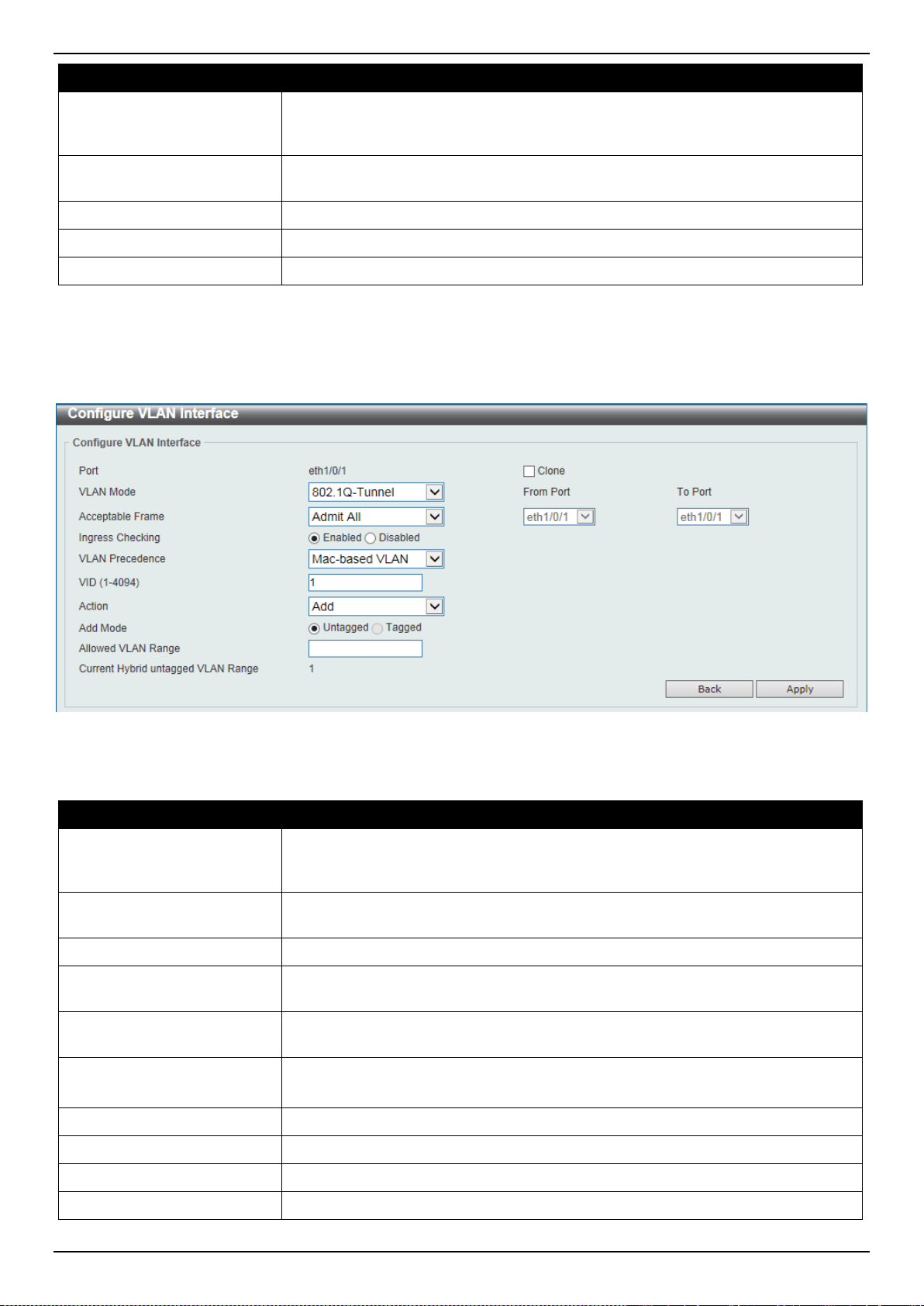
DXS-3400 Series Lite Layer 3 Stackable 10GbE Managed Switch Web UI Reference Guide
117
Parameter Description
VID
After ticking the Native VLAN option the following parameter will be available.
Enter the VLAN ID used for this configuration here. This value must be between 1
and 4094.
Action
Select the action that will be taken here. Options to choose from are All, Add,
Remove, Except, and Replace.
Allowed VLAN Range
Enter the allowed VLAN range information here.
Clone
Select this option to enable the clone feature.
From Port ~ To Port
Select the range of ports that will be used in the clone feature here.
Click the Apply button to accept the changes made.
Click the Back button to discard the changes made and return to the previous page.
When 802.1Q-Tunnel was selected as the VLAN Mode, the following page will appear.
Figure 5-24 VLAN Interface (802.1Q-Tunnel) Window
The fields that can be configured are described below:
Parameter Description
VLAN Mode
Select the VLAN mode option here. Options to choose from are Access, Hybrid,
Trunk, 802.1Q-Tunnel, Promiscuous, Host, Trunk Promiscuous, and Trunk
Secondary.
Acceptable Frame
Select the acceptable frame behavior option here. Options to choose from are
Tagged Only, Untagged Only, and Admit All.
Ingress Checking
Select to enable or disable the ingress checking function.
VLAN Precedence
Select the VLAN precedence option here. Options to choose from are Mac-based
VLAN and Subnet-based VLAN.
VID
Enter the VLAN ID used for this configuration here. This value must be between 1
and 4094.
Action
Select Add to add a new entry based in the information entered.
Select Remove to remove an entry based in the information entered.
Add Mode
Select to add an Untagged parameter.
Allowed VLAN Range
Enter the allowed VLAN range information here.
Clone
Select this option to enable the clone feature.
From Port ~ To Port
Select the range of ports that will be used in the clone feature here.

DXS-3400 Series Lite Layer 3 Stackable 10GbE Managed Switch Web UI Reference Guide
118
Click the Apply button to accept the changes made.
Click the Back button to discard the changes made and return to the previous page.
When Promiscuous was selected as the VLAN Mode, the following page will appear.
Figure 5-25 VLAN Interface (Promiscuous) Window
The fields that can be configured are described below:
Parameter Description
VLAN Mode
Select the VLAN mode option here. Options to choose from are Access, Hybrid,
Trunk, 802.1Q-Tunnel, Promiscuous, Host, Trunk Promiscuous, and Trunk
Secondary.
Acceptable Frame
Select the acceptable frame behavior option here. Options to choose from are
Tagged Only, Untagged Only, and Admit All.
Ingress Checking
Select to enable or disable the ingress checking function.
Clone
Select this option to enable the clone feature.
From Port ~ To Port
Select the range of ports that will be used in the clone feature here.
Click the Apply button to accept the changes made.
Click the Back button to discard the changes made and return to the previous page.
When Host was selected as the VLAN Mode, the following page will appear.
Figure 5-26 VLAN Interface (Host) Window
The fields that can be configured are described below:
Parameter Description
VLAN Mode
Select the VLAN mode option here. Options to choose from are Access, Hybrid,
Trunk, 802.1Q-Tunnel, Promiscuous, Host, Trunk Promiscuous, and Trunk
Secondary.
Acceptable Frame
Select the acceptable frame behavior option here. Options to choose from are
Tagged Only, Untagged Only, and Admit All.
Ingress Checking
Select to enable or disable the ingress checking function.
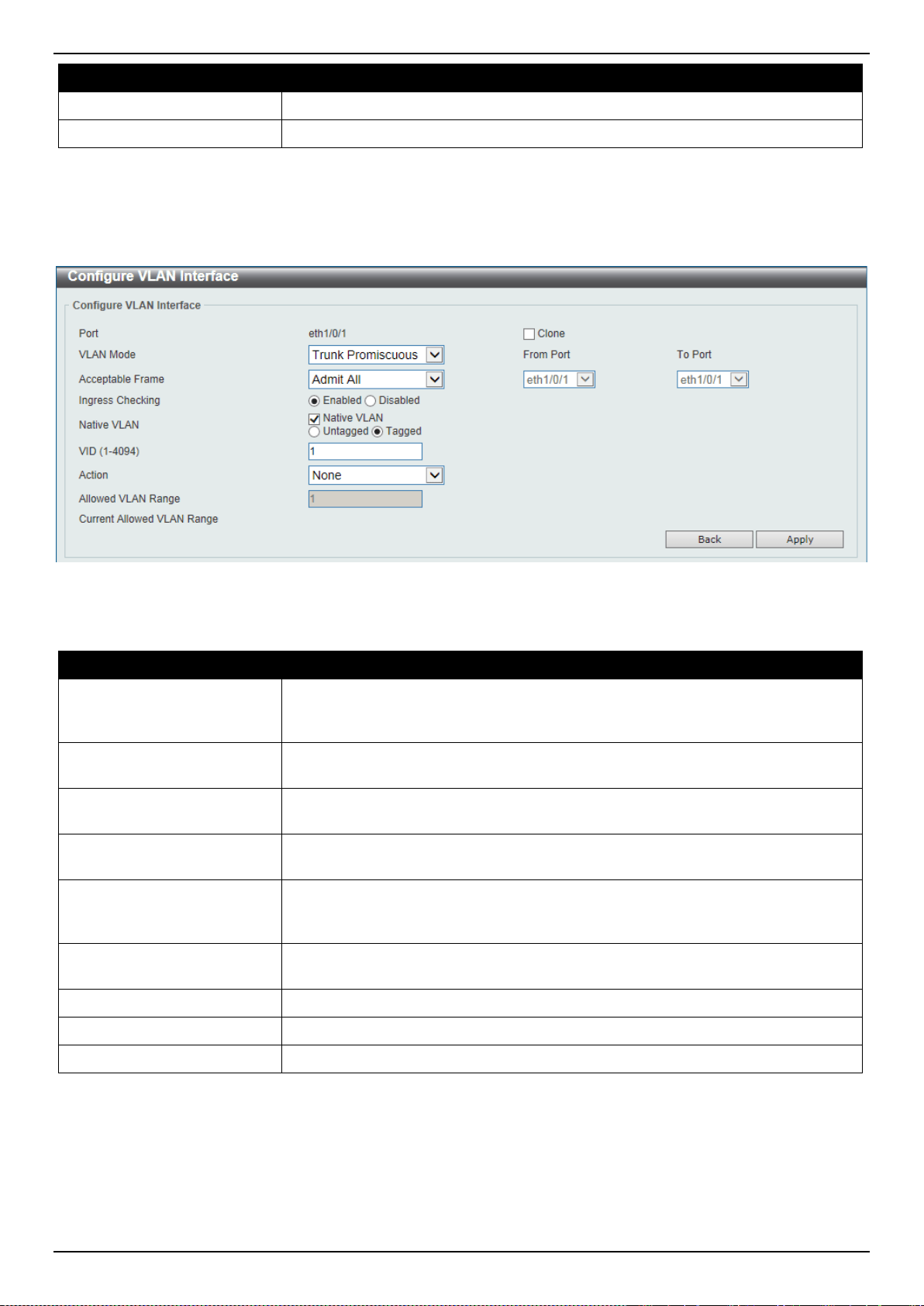
DXS-3400 Series Lite Layer 3 Stackable 10GbE Managed Switch Web UI Reference Guide
119
Parameter Description
Clone
Select this option to enable the clone feature.
From Port ~ To Port
Select the range of ports that will be used in the clone feature here.
Click the Apply button to accept the changes made.
Click the Back button to discard the changes made and return to the previous page.
When Trunk Promiscuous was selected as the VLAN Mode, the following page will appear.
Figure 5-27 VLAN Interface (Trunk Promiscuous) Window
The fields that can be configured are described below:
Parameter Description
VLAN Mode
Select the VLAN mode option here. Options to choose from are Access, Hybrid,
Trunk, 802.1Q-Tunnel, Promiscuous, Host, Trunk Promiscuous, and Trunk
Secondary.
Acceptable Frame
Select the acceptable frame behavior option here. Options to choose from are
Tagged Only, Untagged Only, and Admit All.
Ingress Checking
After selecting Trunk Promiscuous as the VLAN Mode the following parameter
will be available. Select to enable or disable the ingress checking function.
Native VLAN
Tick this option to enable the native VLAN function. Also select if this VLAN
supports Untagged or Tagged frames.
VID
After ticking the Native VLAN option the following parameter will be available.
Enter the VLAN ID used for this configuration here. This value must be between 1
and 4094.
Action
Select the action that will be taken here. Options to choose from are All, Add,
Remove, Except, and Replace.
Allowed VLAN Range
Enter the allowed VLAN range information here.
Clone
Select this option to enable the clone feature.
From Port ~ To Port
Select the range of ports that will be used in the clone feature here.
Click the Apply button to accept the changes made.
Click the Back button to discard the changes made and return to the previous page.
When Trunk Secondary was selected as the VLAN Mode, the following page will appear.
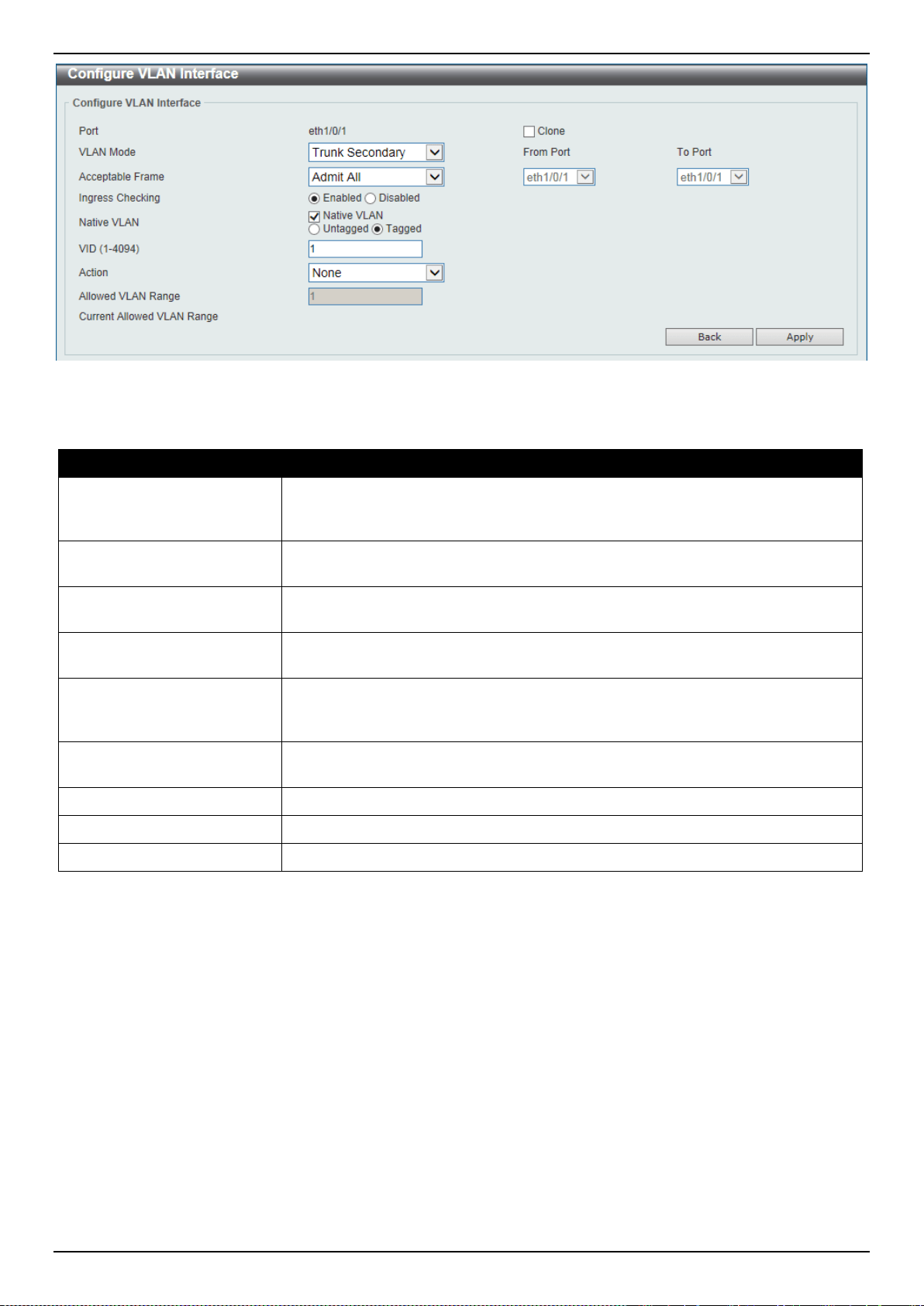
DXS-3400 Series Lite Layer 3 Stackable 10GbE Managed Switch Web UI Reference Guide
120
Figure 5-28 VLAN Interface (Trunk Secondary) Window
The fields that can be configured are described below:
Parameter Description
VLAN Mode
Select the VLAN mode option here. Options to choose from are Access, Hybrid,
Trunk, 802.1Q-Tunnel, Promiscuous, Host, Trunk Promiscuous, and Trunk
Secondary.
Acceptable Frame
Select the acceptable frame behavior option here. Options to choose from are
Tagged Only, Untagged Only, and Admit All.
Ingress Checking
After selecting Trunk Secondary as the VLAN Mode the following parameter will
be available. Select to enable or disable the ingress checking function.
Native VLAN
Tick this option to enable the native VLAN function. Also select if this VLAN
supports Untagged or Tagged frames.
VID
After ticking the Native VLAN option the following parameter will be available.
Enter the VLAN ID used for this configuration here. This value must be between 1
and 4094.
Action
Select the action that will be taken here. Options to choose from are All, Add,
Remove, Except, and Replace.
Allowed VLAN Range
Enter the allowed VLAN range information here.
Clone
Select this option to enable the clone feature.
From Port ~ To Port
Select the range of ports that will be used in the clone feature here.
Click the Apply button to accept the changes made.
Click the Back button to discard the changes made and return to the previous page.
L2VLAN Interface Description
This window is used to display and configure the Layer 2 VLAN interface description.
To view the following window, click L2 Features > VLAN > L2VLAN Interface Description, as shown below:
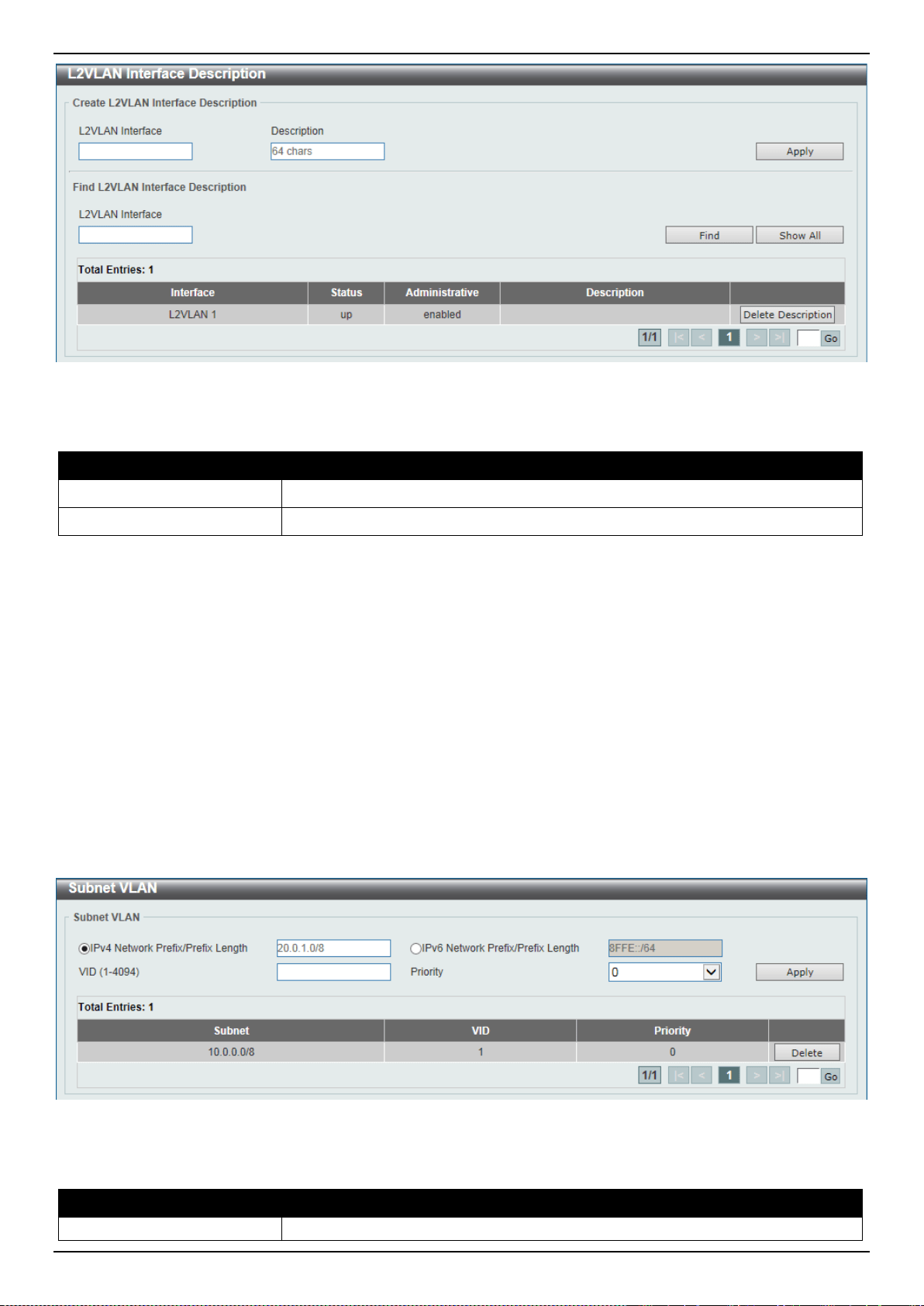
DXS-3400 Series Lite Layer 3 Stackable 10GbE Managed Switch Web UI Reference Guide
121
Figure 5-29 L2VLAN Interface Description Window
The fields that can be configured are described below:
Parameter Description
L2VLAN Interface
Enter the ID of the Layer 2 VLAN interface here.
Description
Enter the description for the Layer 2 VLAN interface here.
Click the Apply button to accept the changes made.
Click the Find button to generate the display based on the information entered.
Click the Show All button to display all the available entries.
Click the Delete Description button to remove the description from the specified Layer 2 VLAN.
Enter a page number and click the Go button to navigate to a specific page when multiple pages exist.
Subnet VLAN
This window is used to display and configure the subnet VLAN settings. A subnet VLAN entry is an IP subnet-based
VLAN classification rule. If an untagged or priority-tagged IP packet is received on a port, its source IP address will be
used to match the subnet VLAN entries. If the source IP is in the subnet of an entry, the packet will be classified to the
VLAN defined for this subnet.
To view the following window, click L2 Features > VLAN > Subnet VLAN, as shown below:
Figure 5-30 Subnet VLAN Window
The fields that can be configured are described below:
Parameter Description
IPv4 Network Prefix / Prefix
Select and enter the IPv4 address and prefix length value for the subnet VLAN
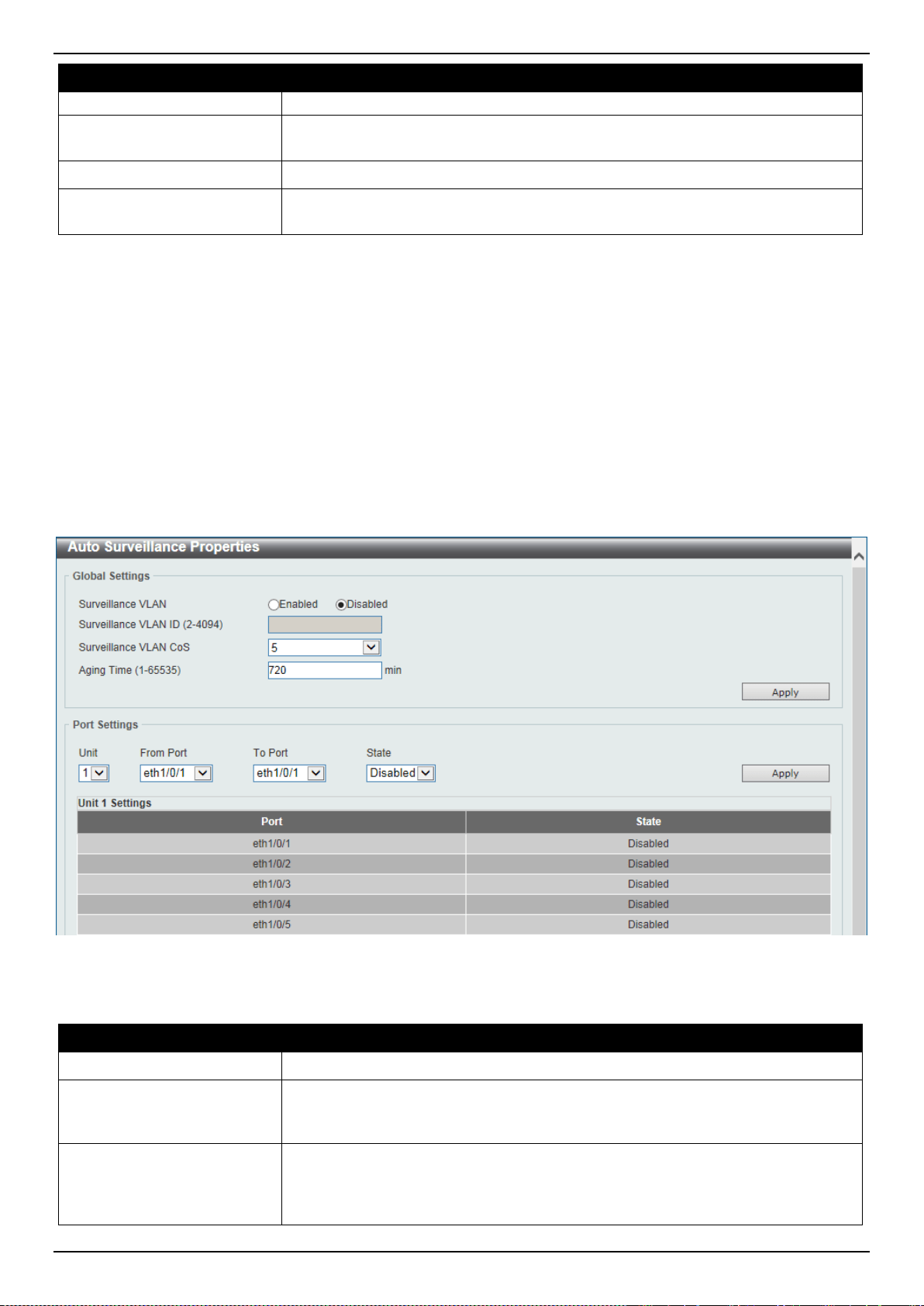
DXS-3400 Series Lite Layer 3 Stackable 10GbE Managed Switch Web UI Reference Guide
122
Parameter Description
Length
here.
IPv6 Network Prefix / Prefix
Length
Select and enter the IPv6 address and prefix length value for the subnet VLAN
here.
VID
Enter the VLAN ID for the subnet VLAN here.
Priority
Select the priority value used here. This value is between 0 and 7. A lower value
takes higher priority.
Click the Apply button to accept the changes made.
Click the Delete button to remove the specific entry.
Enter a page number and click the Go button to navigate to a specific page when multiple pages exist.
Auto Surveillance VLAN
Auto Surveillance Properties
This window is used to display and configure the auto surveillance VLAN properties.
To view the following window, click L2 Features > VLAN > Auto Surveillance VLAN > Auto Surveillance
Properties, as shown below:
Figure 5-31 Auto Surveillance Properties Window
The fields that can be configured in Global Settings are described below:
Parameter Description
Surveillance VLAN
Select to enable or disable the surveillance VLAN feature here.
Surveillance VLAN ID
Enter the VLAN ID of the surveillance VLAN here. The range is from 2 to 4094. A
normal VLAN needs to be created before assigning the VLAN as a surveillance
VLAN.
Surveillance VLAN CoS
Enter the CoS value for the surveillance VLAN here. The surveillance packets
arriving at the surveillance VLAN enabled port are marked to the CoS specified by
the command. The remarking of CoS allows the surveillance VLAN traffic to be
distinguished from data traffic in quality of service. The range is from 0 to 7.
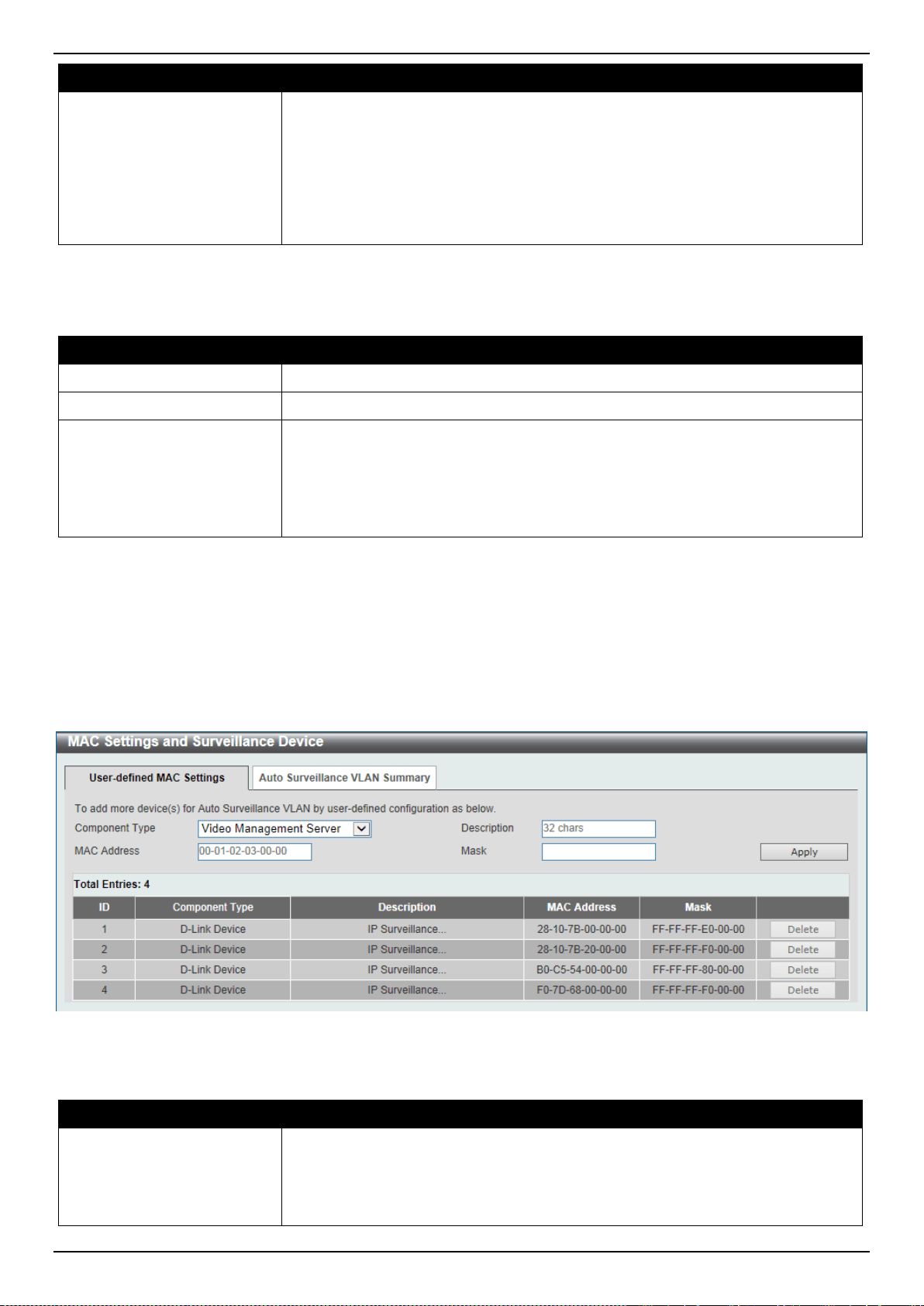
DXS-3400 Series Lite Layer 3 Stackable 10GbE Managed Switch Web UI Reference Guide
123
Parameter Description
Aging Time
Enter the aging time value here. This is used to configure the aging time for aging
out the surveillance VLAN dynamic member ports. The range is from 1 to 65535
minutes. When the last surveillance device connected to the port stops sending
traffic, and the MAC address of this surveillance device is aged out, the
surveillance VLAN aging timer will be started. The port will be removed from the
surveillance VLAN after expiration of surveillance VLAN aging timer. If the
surveillance traffic resumes during the aging time, the aging timer will be
cancelled.
Click the Apply button to accept the changes made.
The fields that can be configured in Port Settings are described below:
Parameter Description
Unit
Select the Switch unit that will be used for this configuration here.
From Port ~ To Port
Select the range of ports that will be used for this configuration here.
State
Select to enable or disable the surveillance VLAN feature on the specified port(s)
here. When surveillance VLAN is enabled for a port, the port will be automatically
learned as surveillance VLAN untagged member, the received untagged
surveillance packets will be forwarded to surveillance VLAN. The received
packets are determined as surveillance packets if the source MAC addresses of
packets comply with the Organizationally Unique Identifier (OUI) addresses.
Click the Apply button to accept the changes made.
MAC Settings and Surveillance Device
This window is used to display and configure surveillance devices and their MAC settings.
To view the following window, click L2 Features > VLAN > Auto Surveillance VLAN > MAC Settings and
Surveillance Device, as shown below:
Figure 5-32 MAC Settings and Surveillance Device Window
The fields that can be configured are described below:
Parameter Description
Component Type
Select the component type here. Option to choose from are:
• Video Management server - Specifies the surveillance components type as
Video Management Server (VMS).
• VMS Client/Remote Viewer - Specifies the surveillance components type as
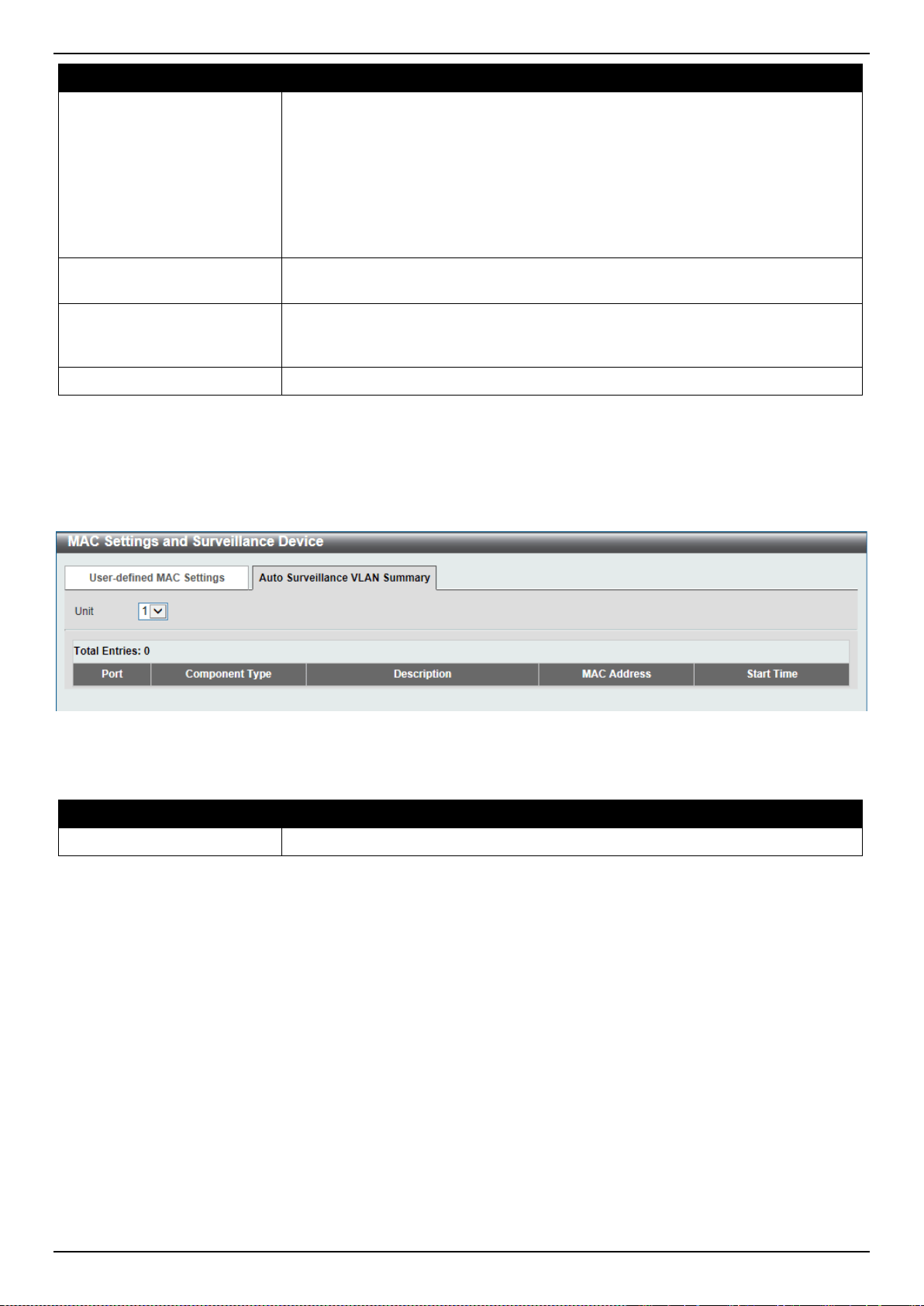
DXS-3400 Series Lite Layer 3 Stackable 10GbE Managed Switch Web UI Reference Guide
124
Parameter Description
VMS client.
• Video Encoder - Specifies the surveillance components type as Video
Encoder.
• Network Storage - Specifies the surveillance components type as Network
Storage.
• Other IP Surveillance Device - Specifies the surveillance components type
as other IP Surveillance Devices.
Description
Enter the description for the user-defined OUI here. This string can be up to 32
characters long.
MAC Address
Enter the OUI MAC address here. If the source MAC addresses of the received
packet matches any of the OUI pattern, the received packet is determined as a
surveillance packet.
Mask
Enter the matching bitmask for the OUI MAC address here.
Click the Apply button to accept the changes made.
Click the Delete button to delete the specified entry.
After selecting the Auto Surveillance VLAN Summary tab option, at the top of the page, the following page will be
available.
Figure 5-33 MAC Settings and Surveillance Device (Auto Surveillance VLAN Summary) Window
The fields that can be configured are described below:
Parameter Description
Unit
Select the stacking unit ID of the Switch that will be used in this display here.
Voice VLAN
Voice VLAN Global
This window is used to display and configure the global voice VLAN settings. This is used to enable the global voice
VLAN function and to specify the voice VLAN on a Switch. The Switch has only one voice VLAN.
To view the following window, click L2 Features > VLAN > Voice VLAN > Voice VLAN Global, as shown below:
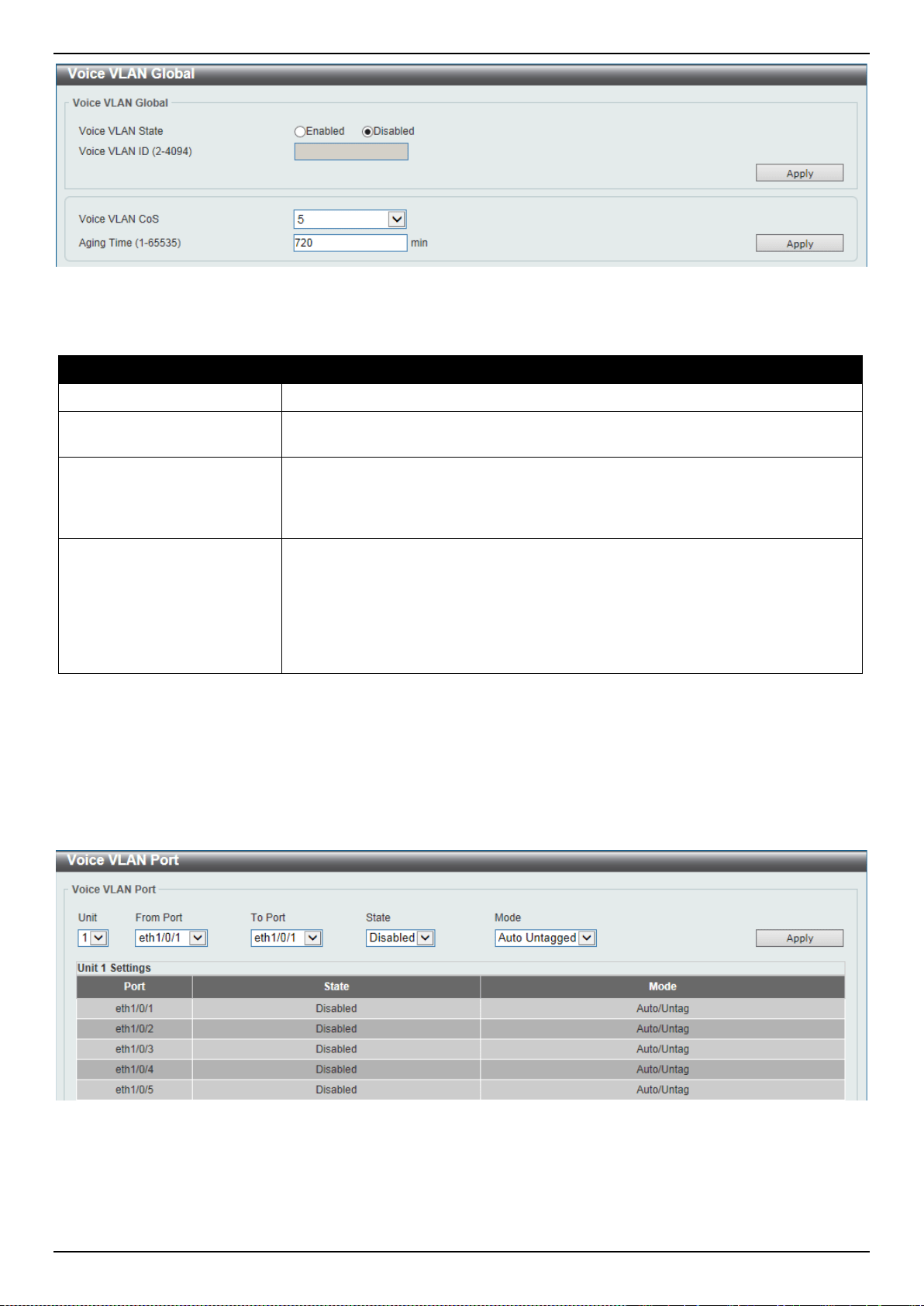
DXS-3400 Series Lite Layer 3 Stackable 10GbE Managed Switch Web UI Reference Guide
125
Figure 5-34 Voice VLAN Global Window
The fields that can be configured are described below:
Parameter Description
Voice VLAN State
Select to globally enable or disable the voice VLAN feature here.
Voice VLAN ID
Enter the VLAN ID of the voice VLAN here. The VLAN to be specified as the voice
VLAN needs to pre-exist before configuration. The range is from 2 to 4094.
Voice VLAN CoS
Select the CoS of the voice VLAN here. The range is from 0 to 7. The voice
packets arriving at the voice VLAN enabled port are marked to the CoS specified
here. The remarking of CoS allows the voice VLAN traffic to be distinguished from
data traffic in quality of service.
Aging Time
Enter the aging time value here. This is used to configure the aging time for aging
out the voice device and the voice VLAN automatically learned member ports.
When the last voice device connected to the port stops sending traffic and the
MAC address of this voice device is aged out from FDB, the voice VLAN aging
timer will be started. The port will be removed from the voice VLAN after the
expiration of the voice VLAN aging timer. If voice traffic resumes during the aging
time, the aging timer will be cancelled. The range is from 1 to 65535 minutes.
Click the Apply button to accept the changes made.
Voice VLAN Port
This window is used to display and configure the voice VLAN interface settings.
To view the following window, click L2 Features > VLAN > Voice VLAN > Voice VLAN Port, as shown below:
Figure 5-35 Voice VLAN Port Window
The fields that can be configured are described below:

DXS-3400 Series Lite Layer 3 Stackable 10GbE Managed Switch Web UI Reference Guide
126
Parameter Description
Unit
Select the Switch unit that will be used for this configuration here.
From Port ~ To Port
Select the range of ports that will be used for this configuration here.
State
Select to enable or disable the voice VLAN feature on the specified port(s) here.
When the voice VLAN is enabled for a port, the received voice packets will be
forwarded in the voice VLAN. The received packets are determined as voice
packets if the source MAC addresses of packets comply with the OUI addresses.
Mode
Select the mode here. Options to choose from are:
• Auto Untagged - Specifies that voice VLAN untagged membership will be
automatically learned.
• Auto Tagged - Specifies that voice VLAN tagged membership will be
automatically learned.
• Manual - Specifies that voice VLAN membership will be manually
configured.
If auto-learning is enabled, the port will automatically be learned as a voice VLAN
member. This membership will automatically be aged out. When the port is
working in the auto-tagged mode and the port captures a voice device through the
device's OUI, it will join the voice VLAN as a tagged member automatically. When
the voice device sends tagged packets, the Switch will change its priority. When
the voice device sends untagged packets, it will forward them in port's PVID
VLAN.
When the port is working in auto-untagged mode, and the port captures a voice
device through the device's OUI, it will join the voice VLAN as an untagged
member automatically. When the voice device sends tagged packets, the Switch
will change its priority. When the voice device sends untagged packets, it will
forward them in voice VLAN.
When the Switch receives LLDP-MED packets, it checks the VLAN ID, tagged
flag, and priority flag. The Switch should follow the tagged flag and priority setting.
Click the Apply button to accept the changes made.
Voice VLAN OUI
This window is used to display and configure the voice VLAN OUI settings. Use this window to add a user-defined OUI
for the voice VLAN. The OUI for the voice VLAN is used to identify the voice traffic by using the voice VLAN function.
If the source MAC addresses of the received packet matches any of the OUI patterns, the received packet is
determined as a voice packet.
The user-defined OUI cannot be the same as the default OUI. The default OUI cannot be deleted.
To view the following window, click L2 Features > VLAN > Voice VLAN > Voice VLAN OUI, as shown below:
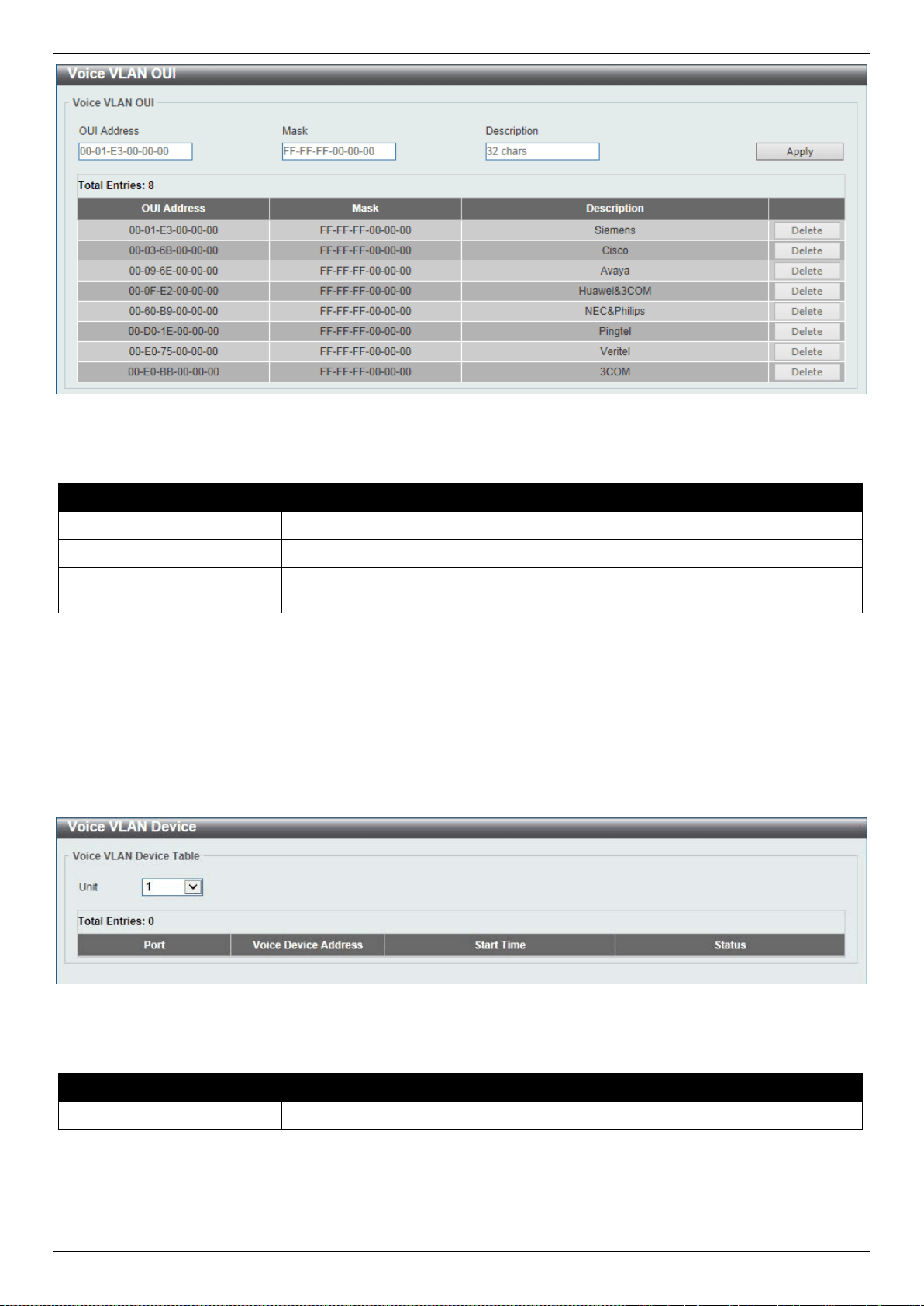
DXS-3400 Series Lite Layer 3 Stackable 10GbE Managed Switch Web UI Reference Guide
127
Figure 5-36 Voice VLAN OUI Window
The fields that can be configured are described below:
Parameter Description
OUI Address
Enter the voice VLAN OUI MAC address here.
Mask
Enter the matching bitmask for the voice VLAN OUI MAC address here.
Description
Enter the description for the user-defined OUI MAC address here. This string can
be up to 32 characters long.
Click the Apply button to accept the changes made.
Click the Delete button to delete the specified entry.
Voice VLAN Device
This window is used to display the voice VLAN device table.
To view the following window, click L2 Features > VLAN > Voice VLAN > Voice VLAN Device, as shown below:
Figure 5-37 Voice VLAN Device Window
The fields that can be configured are described below:
Parameter Description
Unit
Select the Switch unit that will be used in this display here.
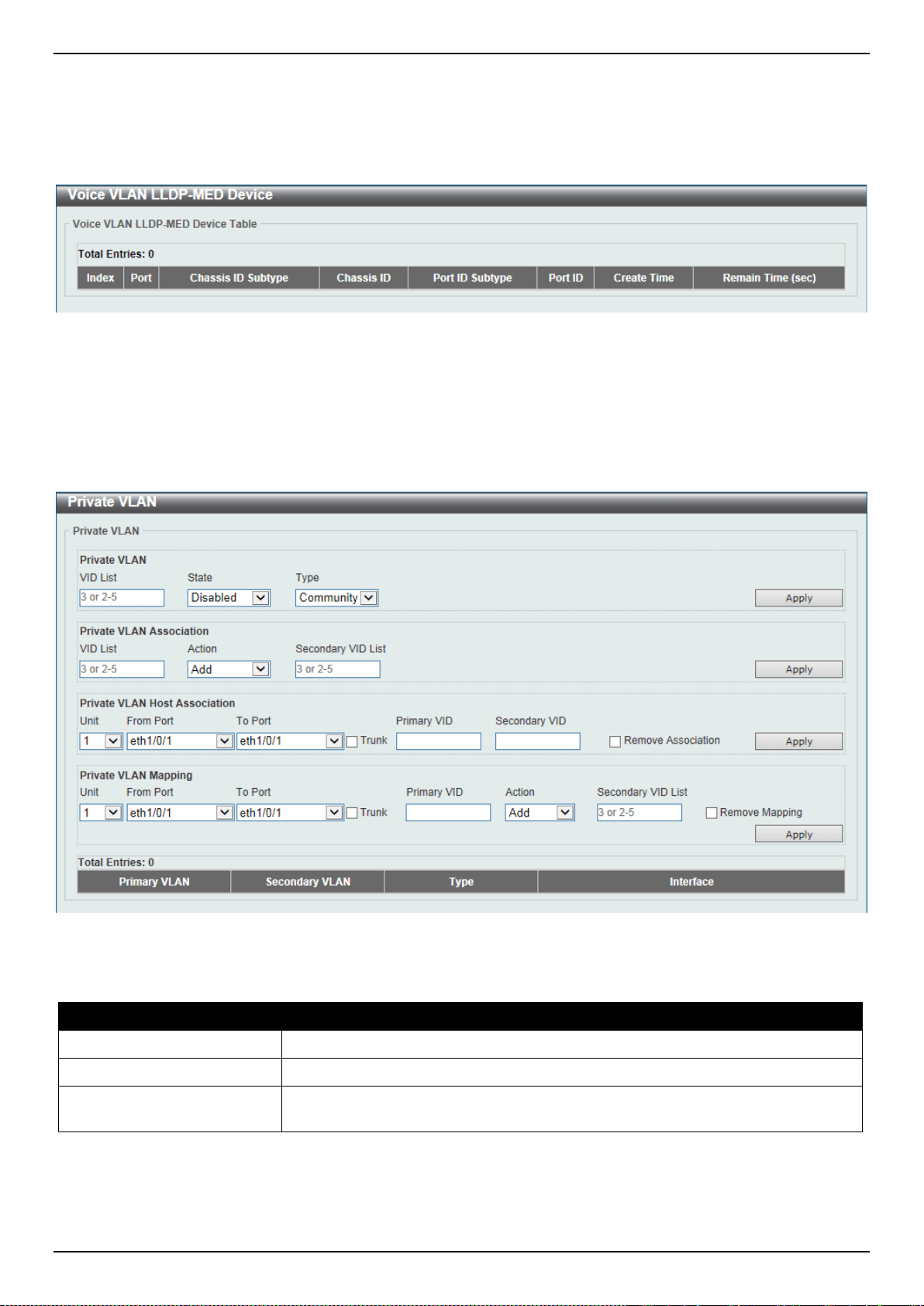
DXS-3400 Series Lite Layer 3 Stackable 10GbE Managed Switch Web UI Reference Guide
128
Voice VLAN LLDP-MED Device
This window is used to display the voice VLAN LLDP-MED device table.
To view the following window, click L2 Features > VLAN > Voice VLAN > Voice VLAN LLDP-MED Device, as
shown below:
Figure 5-38 Voice VLAN LLDP-MED Device Window
Private VLAN
This window is used to display and configure the private VLAN settings.
To view the following window, click L2 Features > VLAN > Private VLAN, as shown below:
Figure 5-39 Private VLAN Window
The fields that can be configured for Private VLAN are described below:
Parameter Description
VID List
Enter the private VLAN ID list here.
State
Select to enable or disable the private VLAN state here.
Type
Select the type of private VLAN that will be created here. Options to choose from
are Community, Isolated, and Primary.
Click the Apply button to accept the changes made.
The fields that can be configured for Private VLAN Association are described below:
DXS-3400 Series Lite Layer 3 Stackable 10GbE Managed Switch Web UI Reference Guide
129
Parameter Description
VID List
Enter the private VLAN ID list here.
Action
Select the action that will be taken for the private VLAN here. Options to choose
from are Add, Remove, and Disabled.
Secondary VID List
Enter the secondary private VLAN ID here.
Click the Apply button to accept the changes made.
The fields that can be configured for Private VLAN Host Association are described below:
Parameter Description
Unit
Select the Switch unit that will be used for this configuration here.
From Port ~ To Port
Select the range of ports that will be used for this configuration here. Select the
Trunk option to specify that the trunk port will be associated with the private
VLAN host association.
Primary VID
Enter the primary private VLAN ID here.
Secondary VID
Enter the secondary private VLAN ID here. When ticking the Remove
Association option, specifies that this configuration will not be enabled.
Click the Apply button to accept the changes made.
The fields that can be configured for Private VLAN Mapping are described below:
Parameter Description
Unit
Select the Switch unit that will be used for this configuration here.
From Port ~ To Port
Select the range of ports that will be used for this configuration here. Select the
Trunk option to specify that the trunk port will be associated with the private
VLAN map.
Primary VID
Enter the primary private VLAN ID here.
Action
Select Add to add a new entry based in the information entered.
Select Remove to remove an entry based in the information entered.
Secondary VID List
Enter the secondary private VLAN ID here. When ticking the Remove Mapping
option, specifies that this configuration will not be enabled.
Click the Apply button to accept the changes made.
VLAN Tunnel
Dot1q Tunnel
This window is used to display and configure the 802.1Q VLAN tunnel’s settings.
An 802.1Q tunnel port behaves as an UNI port of a service VLAN. The trunk ports which are tagged members of the
service VLAN behave as the NNI ports of the service VLAN.
Only configure the 802.1Q tunneling Ethernet type on ports that are connected to the provider bridge network, which
receives and transmits the service VLAN tagged frames. If the tunnel Ethernet type is configured, the specified value
will be the TPID in the outer VLAN tag of the transmitted frames out of this port. The specified TPID is also used to
identify the service VLAN tag for the received frame on this port.
To view the following window, click L2 Features > VLAN Tunnel > Dot1q Tunnel, as shown below:
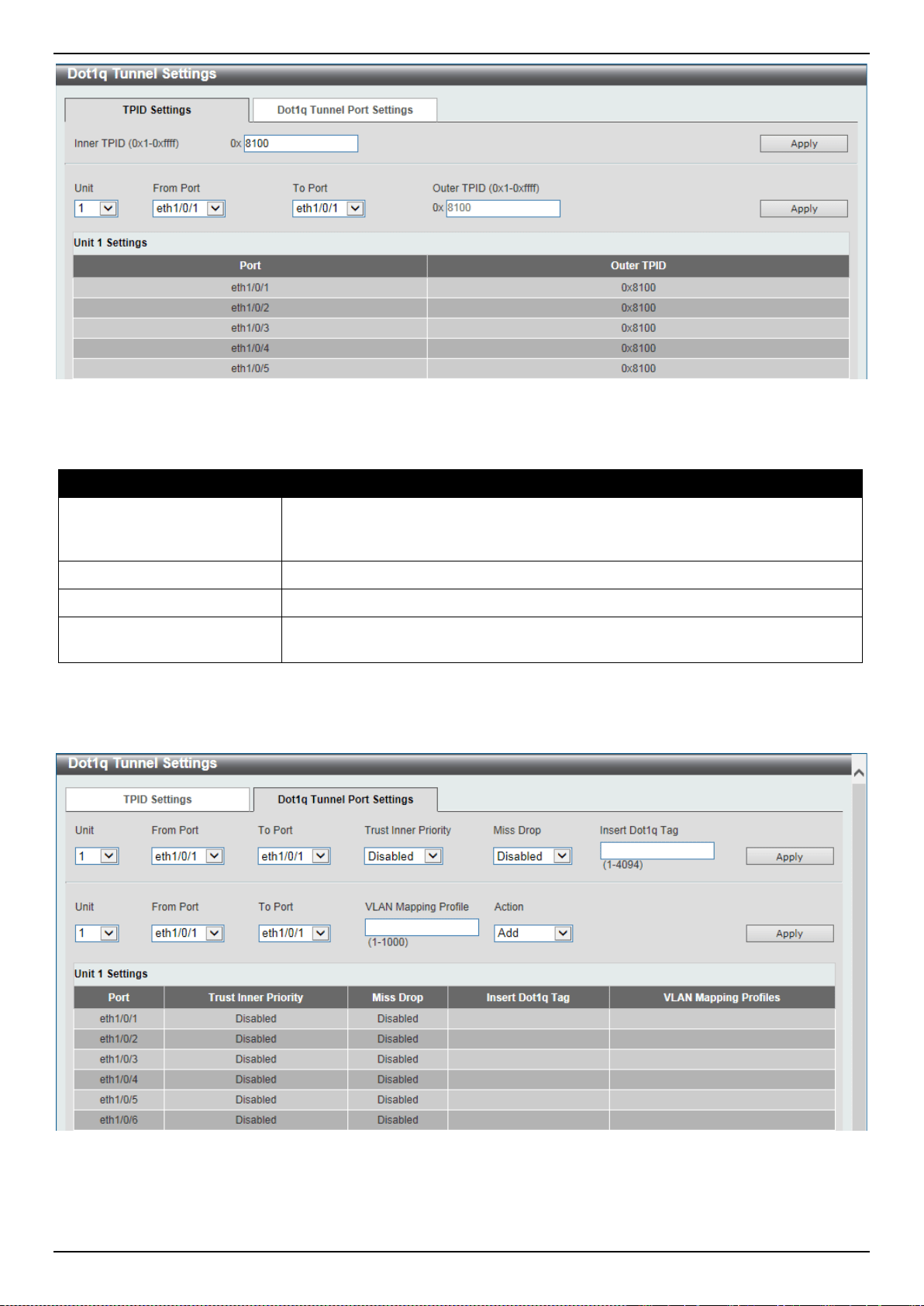
DXS-3400 Series Lite Layer 3 Stackable 10GbE Managed Switch Web UI Reference Guide
130
Figure 5-40 Dot1q Tunnel Settings Window
The fields that can be configured are described below:
Parameter Description
Inner TPID
Enter the inner TPID value here. This value is in the hexadecimal form. The range
is from 0x1 to 0xFFFF. The inner TPID is used to decide if the ingress packet is
C-tagged. The Inner TPID is per system configurable.
Unit
Select the Switch’s unit ID that will be used here.
From Port ~ To Port
Select the Switch’s port range that will be used here.
Outer TPID
Enter the outer TPID value here. This value is in the hexadecimal form. The range
is from 0x1 to 0xFFFF.
Click the Apply button to accept the changes made.
After clicking the Dot1q Tunnel Port Settings tab, the following page will appear.
Figure 5-41 Dot1q Tunnel Settings (Dot1q Tunnel Port Settings) Window
The fields that can be configured are described below:
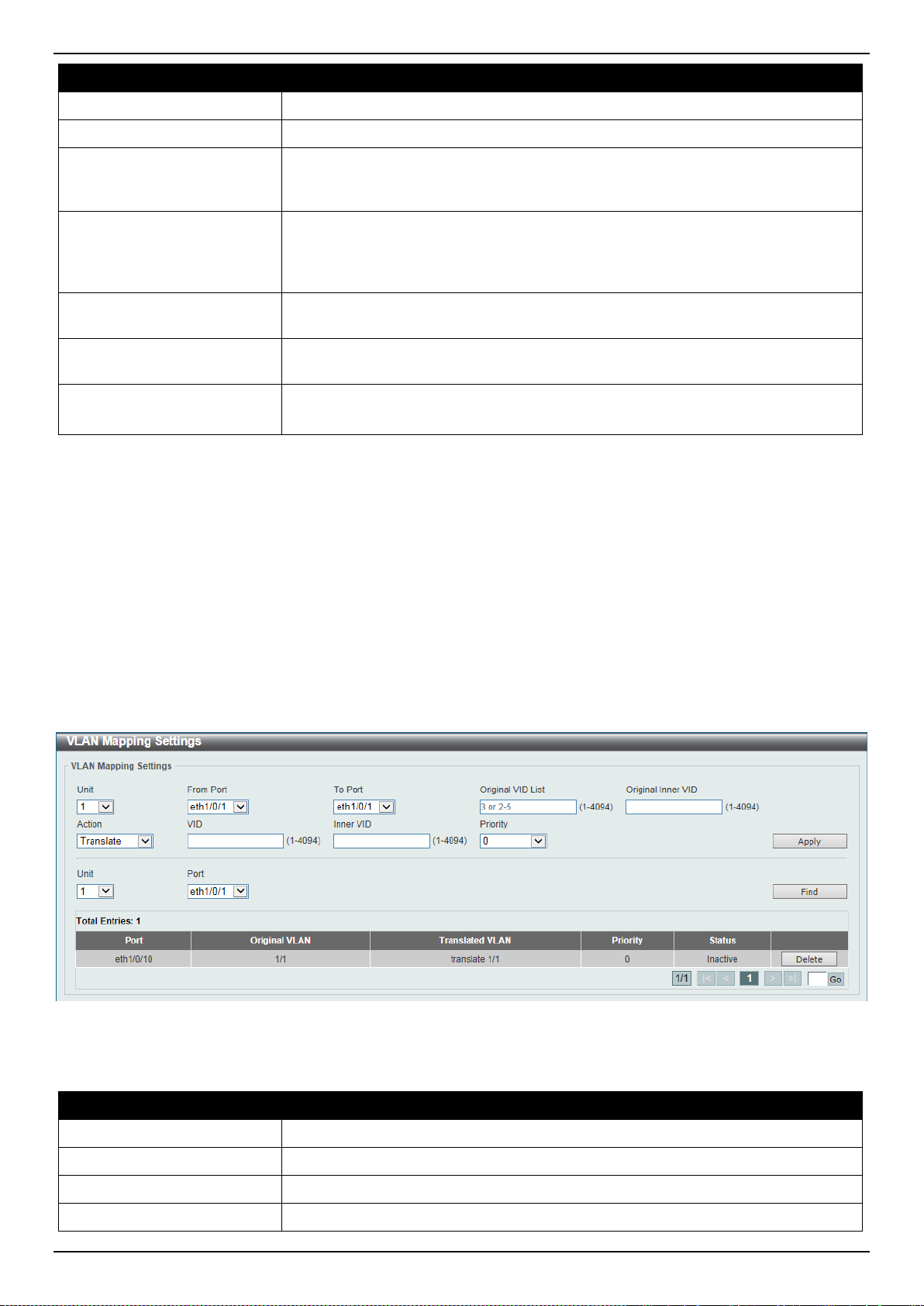
DXS-3400 Series Lite Layer 3 Stackable 10GbE Managed Switch Web UI Reference Guide
131
Parameter Description
Unit
Select the Switch’s unit ID that will be used here.
From Port ~ To Port
Select the Switch’s port range that will be used here.
Trust Inner Priority
Select to enable or disable the 802.1Q inner trust priority feature here. When the
trusting priority option, on an 802.1Q tunnel port, is enabled the priority of the
VLAN tag in the received packets will be copied to the service VLAN tag.
Miss Drop
Select to enable or disable the miss drop feature here. If the VLAN mapping miss
drop option is enabled on the receiving port, when the original VLAN of the
received packets cannot match the VLAN mapping entries or rules on this port,
the received packets will be dropped.
Insert Dot1q Tag
Enter the 802.1Q VLAN ID that is inserted to the untagged packets which are
received on the 802.1Q tunnel port(s) here. The range is from 1 to 4094.
VLAN Mapping Profile
Enter the ID of the VLAN mapping profile here. A lower ID has a higher priority.
The ID range is from 1 to 1000.
Action
Select Add to add a new entry based in the information entered.
Select Remove to remove an entry based in the information entered.
Click the Apply button to accept the changes made.
VLAN Mapping
This window is used to display and configure the VLAN mapping settings. If a profile is applied on an interface, the
Switch matches the incoming packets according to the rules of the profile. If the packets match a rule, the action of the
rule will be taken. The action may be adding or replacing the outer-VID. Optionally, specify the priority of the new
outer-TAG or specify the packets new inner-VID.
The match order depends on the rule’s sequence number of the profile and stopped when first matched. If the
sequence number is not specified, it will be allocated automatically. The sequence number begins from 10 and the
increment is 10. Multiple different types of profiles could be configured onto one interface.
To view the following window, click L2 Features > VLAN Tunnel > VLAN Mapping, as shown below:
Figure 5-42 VLAN Mapping Settings Window
The fields that can be configured are described below:
Parameter Description
Unit
Select the Switch’s unit ID that will be used here.
From Port ~ To Port
Select the Switch’s port range that will be used here.
Port
Select the Switch’s port that will be used for the search here.
Original VID List
Enter the original VLAN’s ID list here. The range is from 1 to 4094.
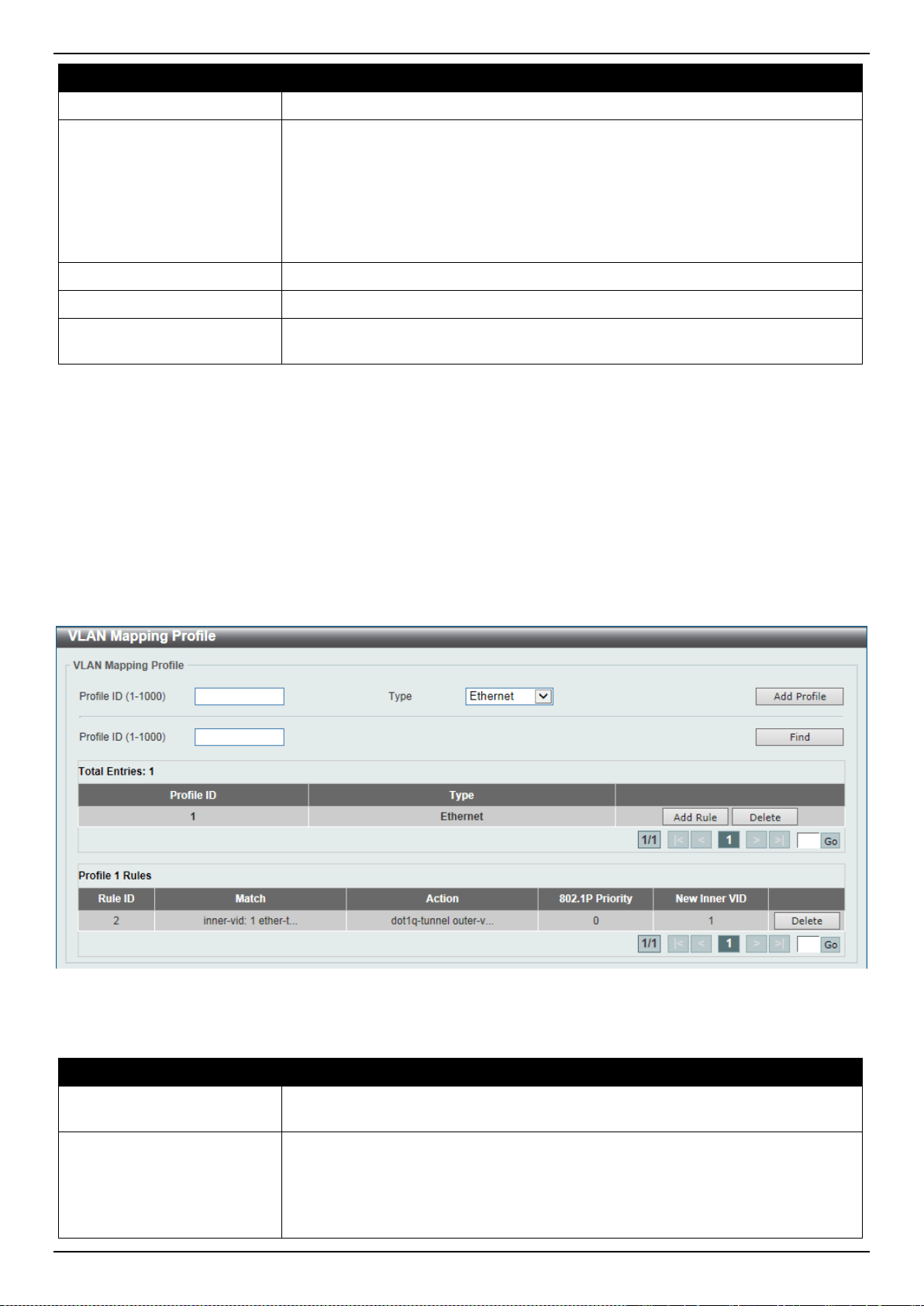
DXS-3400 Series Lite Layer 3 Stackable 10GbE Managed Switch Web UI Reference Guide
132
Parameter Description
Original Inner VID
Enter the original inner VLAN’s ID here. The range is from 1 to 4094.
Action
Select the action that will be taken here. Options to choose from are Translate
and Dot1q-tunnel.
• Translate - Specifies that the outer-VID will replace the outer-VID of the
matched packets.
• Dot1q-tunnel - Specifies that the outer-VID will be added for matched
packets.
VID
Enter the VLAN’s ID here. The range is from 1 to 4094.
Inner VID
Enter the inner VLAN’s ID here. The range is from 1 to 4094.
Priority
Select the 802.1p priority value here. The range is from 0 to 7. A lower value has
a higher priority.
Click the Apply button to accept the changes made.
Click the Find button to locate a specific entry based on the information entered.
Click the Delete button to delete the specified entry.
Enter a page number and click the Go button to navigate to a specific page when multiple pages exist.
VLAN Mapping Profile
This window is used to display and configure the VLAN mapping profile settings.
To view the following window, click L2 Features > VLAN Tunnel > VLAN Mapping Profile, as shown below:
Figure 5-43 VLAN Mapping Profile Window
The fields that can be configured are described below:
Parameter Description
Profile ID
Enter the ID of the VLAN mapping profile here. A lower ID has a higher priority.
The ID range is from 1 to 1000.
Type
Select the profile type here. Different profiles can match different fields. Options to
choose from are Ethernet, IP, IPv6, and Ethernet-IP.
• Ethernet - The profile can match Layer 2 fields.
• IP - The profile can match Layer 3 IP fields.
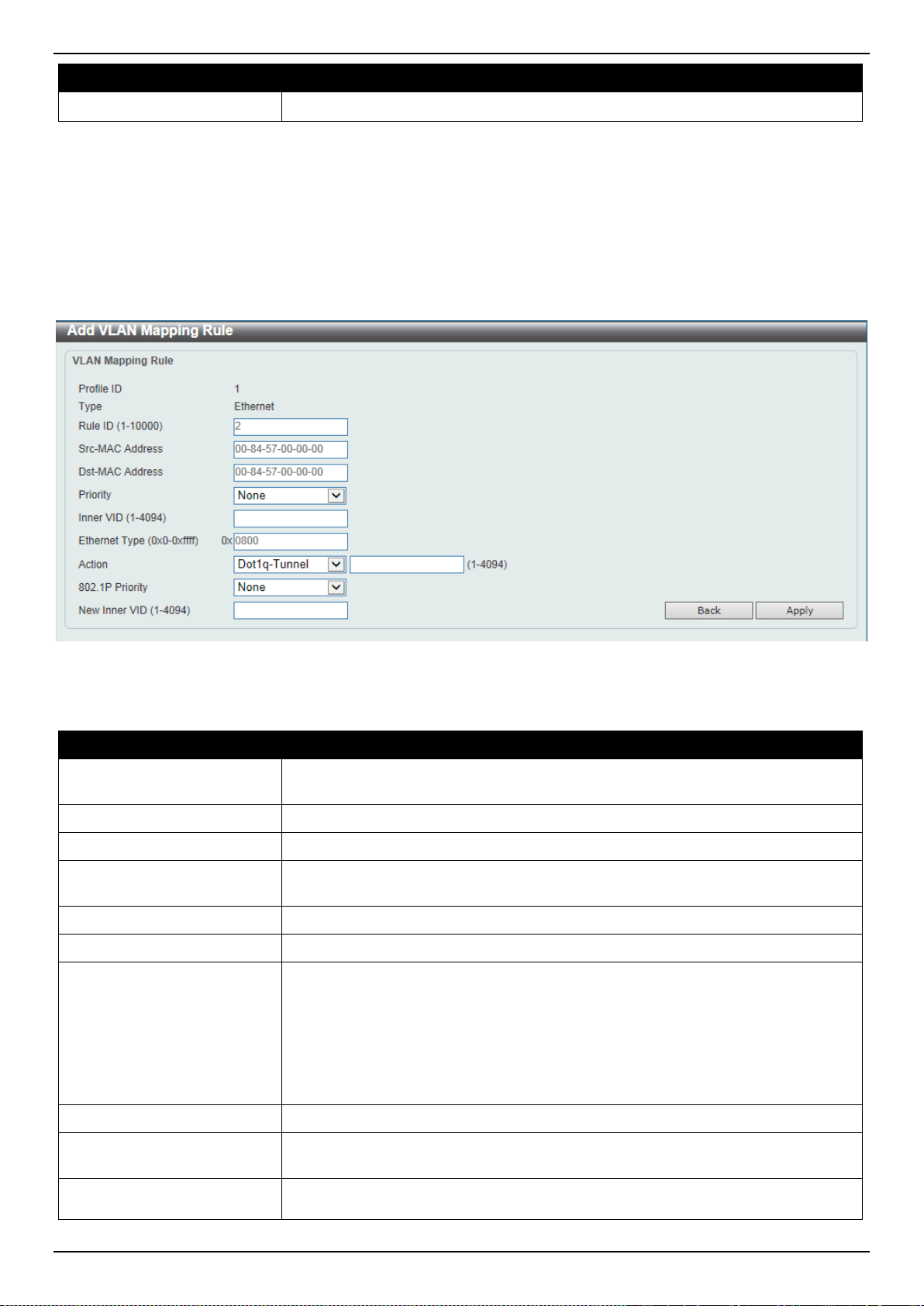
DXS-3400 Series Lite Layer 3 Stackable 10GbE Managed Switch Web UI Reference Guide
133
Parameter Description
• IPv6 - The profile can match IPv6 destination or source addresses.
Click the Add Profile button to add a new VLAN mapping profile.
Click the Find button to locate a specific entry based on the information entered.
Click the Add Rule button to create a new rule.
Click the Delete button to remove the specified entry.
Enter a page number and click the Go button to navigate to a specific page when multiple pages exist.
After clicking the Add Rule button next to an Ethernet type profile, the following page will appear.
Figure 5-44 VLAN Mapping Profile (Ethernet, Add Rule) Window
The fields that can be configured are described below:
Parameter Description
Rule ID
Enter the VLAN mapping rule’s ID here. If not specified, the rule ID begins from
10 and is incremented by 10 for every new rule. The range is from 1 to 10000
Src-MAC Address
Enter the source MAC address here.
Dst-MAC Address
Enter the destination MAC address here.
Priority
Select the 802.1p priority value here. The range is from 0 to 7. A lower value has
a higher priority.
Inner VID
Enter the inner VLAN’s ID here. The range is from 1 to 4094.
Ethernet Type
Enter the Ethernet type value here. The range is from 0x0 to 0xFFFF.
Action
Select the action that will be taken here. Options to choose from are Dot1q-
Tunnel and Translate.
• Dot1q-Tunnel - Specifies that the outer-VID will be added for matched
packets.
• Translate - Specifies that the outer-VID will replace the outer-VID of the
matched packets.
New Outer VID
Enter the new outer VLAN’s ID here. The range is from 1 to 4094.
802.1P Priority
Select the 802.1p priority value here. The range is from 0 to 7. A lower value has
a higher priority.
New Inner VID
After selecting Dot1q-Tunnel as the action, enter the new inner VLAN’s ID here.
The range is from 1 to 4094. This option is only available when Dot1q-Tunnel
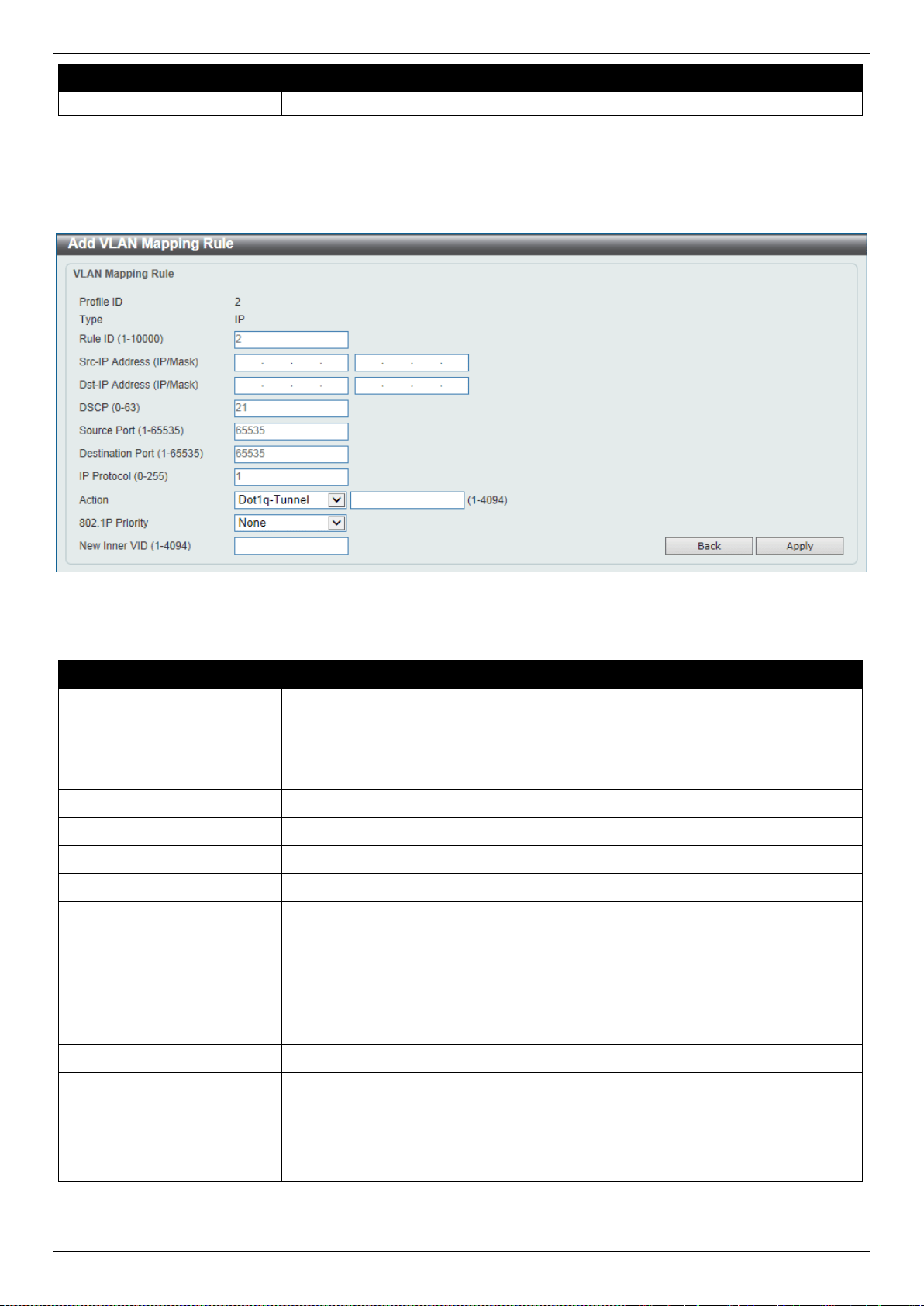
DXS-3400 Series Lite Layer 3 Stackable 10GbE Managed Switch Web UI Reference Guide
134
Parameter Description
was selected as the action.
Click the Back button to return to the previous window.
Click the Apply button to accept the changes made.
After clicking the Add Rule button next to an IP type profile, the following page will appear.
Figure 5-45 VLAN Mapping Profile (IP, Add Rule) Window
The fields that can be configured are described below:
Parameter Description
Rule ID
Enter the VLAN mapping rule’s ID here. If not specified, the rule ID begins from
10 and is incremented by 10 for every new rule. The range is from 1 to 10000
Src-IP Address (IP/Mask)
Enter the source IPv4 address and subnet mask here.
Dst-IP Address (IP/Mask)
Enter the destination IPv4 address and subnet mask here.
DSCP
Enter the DSCP value here. The range is from 0 to 63.
Source Port
Enter the source TCP/UDP port’s number here. The range is from 1 to 65535.
Destination Port
Enter the destination TCP/UDP port’s number here. The range is from 1 to 65535.
IP Protocol
Enter the Layer 3 IP protocol value here. The range is from 0 to 255.
Action
Select the action that will be taken here. Options to choose from are Dot1q-
Tunnel and Translate.
• Dot1q-Tunnel - Specifies that the outer-VID will be added for matched
packets.
• Translate - Specifies that the outer-VID will replace the outer-VID of the
matched packets.
New Outer VID
Enter the new outer VLAN’s ID here. The range is from 1 to 4094.
802.1P Priority
Select the 802.1p priority value here. The range is from 0 to 7. A lower value has
a higher priority.
New Inner VID
After selecting Dot1q-Tunnel as the action, enter the new inner VLAN’s ID here.
The range is from 1 to 4094. This option is only available when Dot1q-Tunnel
was selected as the action.
Click the Back button to return to the previous window.
Click the Apply button to accept the changes made.
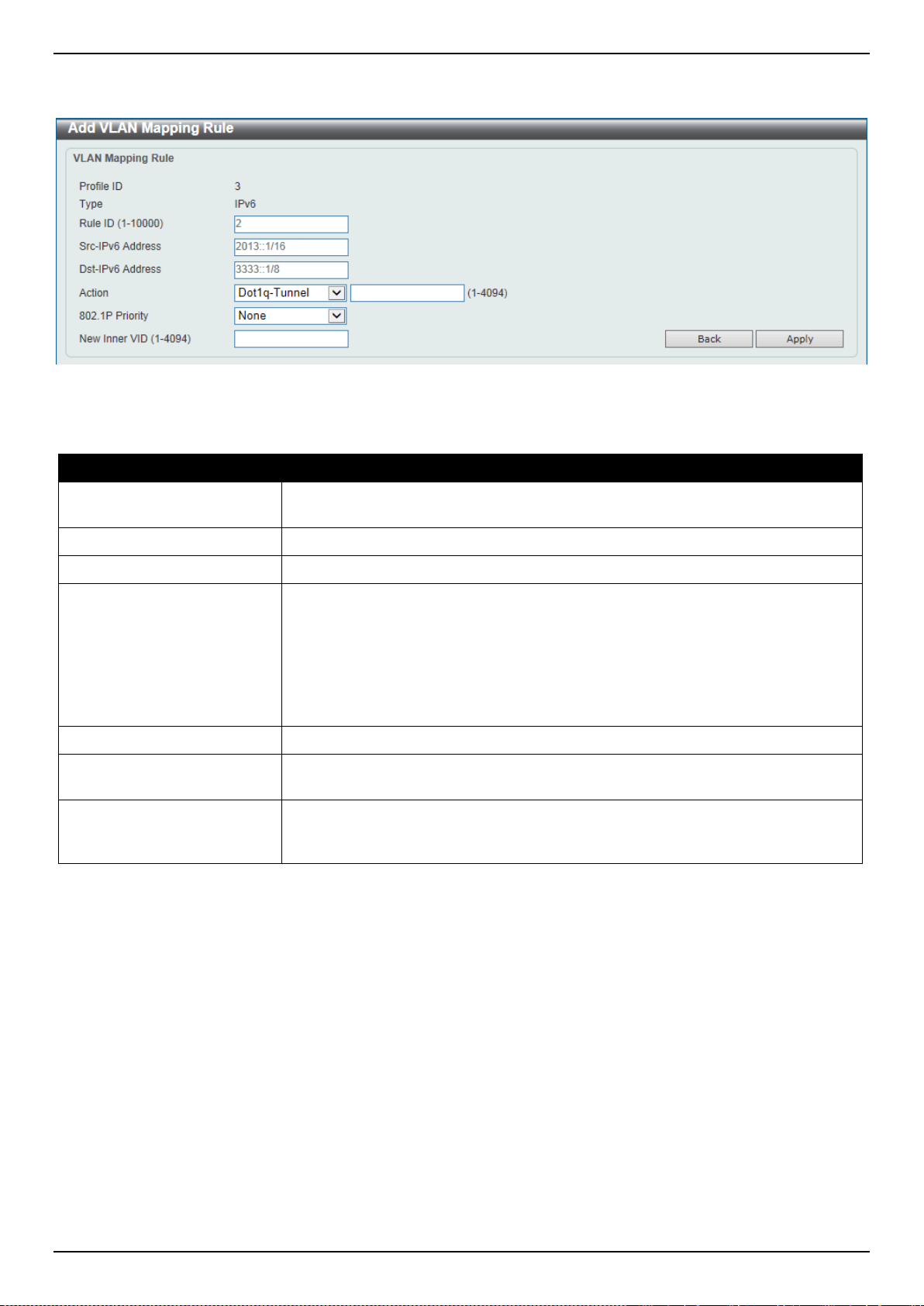
DXS-3400 Series Lite Layer 3 Stackable 10GbE Managed Switch Web UI Reference Guide
135
After clicking the Add Rule button next to an IPv6 type profile, the following page will appear.
Figure 5-46 VLAN Mapping Profile (IPv6, Add Rule) Window
The fields that can be configured are described below:
Parameter Description
Rule ID
Enter the VLAN mapping rule’s ID here. If not specified, the rule ID begins from
10 and is incremented by 10 for every new rule. The range is from 1 to 10000
Src-IPv6 Address
Enter the source IPv6 address and prefix length here.
Dst-IPv6 Address
Enter the destination IPv6 address and prefix length here.
Action
Select the action that will be taken here. Options to choose from are Dot1q-
Tunnel and Translate.
• Dot1q-Tunnel - Specifies that the outer-VID will be added for matched
packets.
• Translate - Specifies that the outer-VID will replace the outer-VID of the
matched packets.
New Outer VID
Enter the new outer VLAN’s ID here. The range is from 1 to 4094.
802.1P Priority
Select the 802.1p priority value here. The range is from 0 to 7. A lower value has
a higher priority.
New Inner VID
After selecting Dot1q-Tunnel as the action, enter the new inner VLAN’s ID here.
The range is from 1 to 4094. This option is only available when Dot1q-Tunnel
was selected as the action.
Click the Back button to return to the previous window.
Click the Apply button to accept the changes made.
After clicking the Add Rule button next to an Ethernet-IP type profile, the following page will appear.
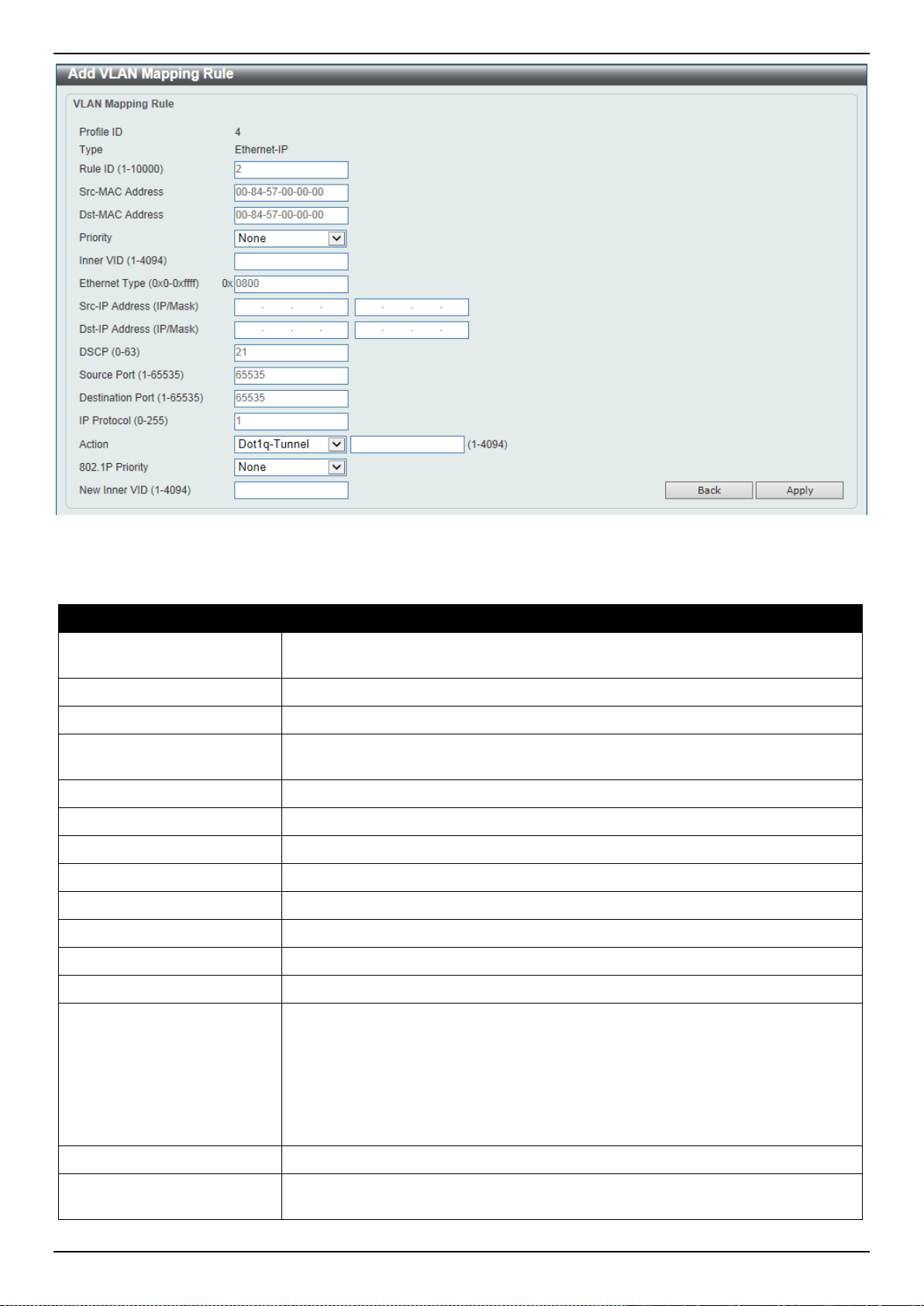
DXS-3400 Series Lite Layer 3 Stackable 10GbE Managed Switch Web UI Reference Guide
136
Figure 5-47 VLAN Mapping Profile (Ethernet-IP, Add Rule) Window
The fields that can be configured are described below:
Parameter Description
Rule ID
Enter the VLAN mapping rule’s ID here. If not specified, the rule ID begins from
10 and is incremented by 10 for every new rule. The range is from 1 to 10000
Src-MAC Address
Enter the source MAC address here.
Dst-MAC Address
Enter the destination MAC address here.
Priority
Select the 802.1p priority value here. The range is from 0 to 7. A lower value has
a higher priority.
Inner VID
Enter the inner VLAN’s ID here. The range is from 1 to 4094.
Ethernet Type
Enter the Ethernet type value here. The range is from 0x0 to 0xFFFF.
Src-IP Address
Enter the source IPv4 address and subnet mask here.
Dst-IP Address
Enter the destination IPv4 address and subnet mask here.
DSCP
Enter the DSCP value here. The range is from 0 to 63.
Source Port
Enter the source TCP/UDP port’s number here. The range is from 1 to 65535.
Destination Port
Enter the destination TCP/UDP port’s number here. The range is from 1 to 65535.
IP Protocol
Enter the Layer 3 IP protocol value here. The range is from 0 to 255.
Action
Select the action that will be taken here. Options to choose from are Dot1q-
Tunnel and Translate.
• Dot1q-Tunnel - Specifies that the outer-VID will be added for matched
packets.
• Translate - Specifies that the outer-VID will replace the outer-VID of the
matched packets.
New Outer VID
Enter the new outer VLAN’s ID here. The range is from 1 to 4094.
802.1P Priority
Select the 802.1p priority value here. The range is from 0 to 7. A lower value has
a higher priority.
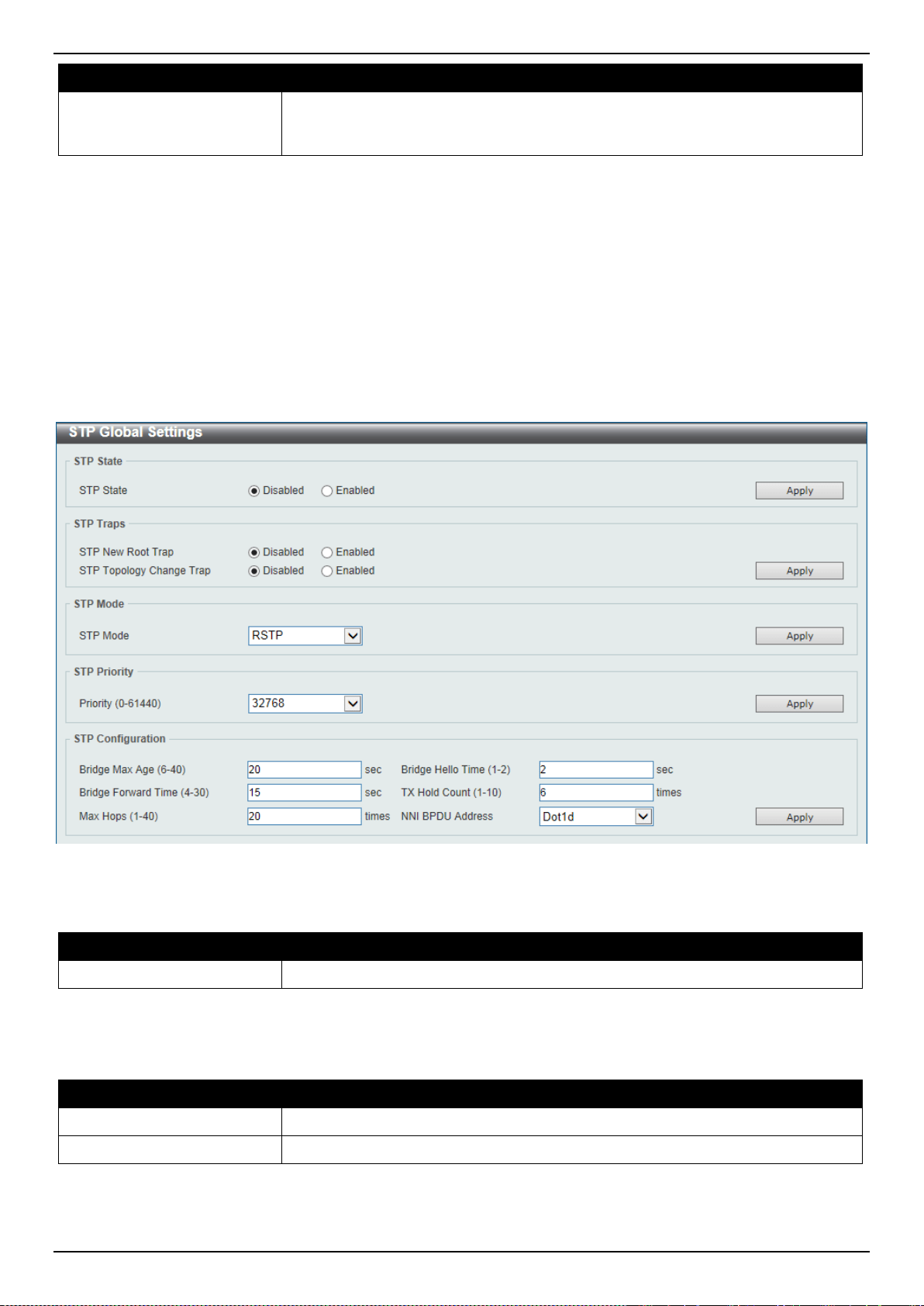
DXS-3400 Series Lite Layer 3 Stackable 10GbE Managed Switch Web UI Reference Guide
137
Parameter Description
New Inner VID
After selecting Dot1q-Tunnel as the action, enter the new inner VLAN’s ID here.
The range is from 1 to 4094. This option is only available when Dot1q-Tunnel
was selected as the action.
Click the Back button to return to the previous window.
Click the Apply button to accept the changes made.
STP
STP Global Settings
This window is used to display and configure the STP global settings.
To view the following window, click L2 Features > STP > STP Global Settings, as shown below:
Figure 5-48 STP Global Settings Window
The field that can be configured for STP State is described below:
Parameter Description
STP State
Select to enable or disable the STP global state here.
Click the Apply button to accept the changes made.
The fields that can be configured for STP Traps are described below:
Parameter Description
STP New Root Trap
Select to enable or disable the STP new root trap option here.
STP Topology Change Trap
Select to enable or disable the STP topology change trap option here.
Click the Apply button to accept the changes made.

DXS-3400 Series Lite Layer 3 Stackable 10GbE Managed Switch Web UI Reference Guide
138
The fields that can be configured for STP Mode are described below:
Parameter Description
STP Mode
Select the STP mode used here. Options to choose from are MSTP, RSTP, and
STP.
Click the Apply button to accept the changes made.
The fields that can be configured for STP Priority are described below:
Parameter Description
Priority
Select the STP priority value here. This value is between 0 and 61440. By default,
this value is 32768. The lower the value, the higher the priority.
Click the Apply button to accept the changes made.
The fields that can be configured for STP Configuration are described below:
Parameter Description
Bridge Max Age
Enter the bridge’s maximum age value here. This value must be between 6 and
40 seconds. By default, this value is 20 seconds. The maximum age value may
be set to ensure that old information does not endlessly circulate through
redundant paths in the network, preventing the effective propagation of the new
information. Set by the Root Bridge, this value will aid in determining that the
Switch has spanning tree configuration values consistent with other devices on
the bridged LAN.
Bridge Hello Time
After selecting RSTP/STP as the Spanning Tree Mode, this parameter will be
available. Enter the bridge’s hello time value here. This value must be between 1
and 2 seconds. By default, this value is 2 seconds. This is the interval between
two transmissions of BPDU packets sent by the Root Bridge to tell all other
Switches that it is indeed the Root Bridge. This field will only appear here when
STP or RSTP is selected for the STP Version. For MSTP, the Hello Time must be
set on a port per port basis.
Bridge Forward Time
Enter the bridge’s forwarding time value here. This value must be between 4 and
30 seconds. By default, this value is 15 seconds. Any port on the Switch spends
this time in the listening state while moving from the blocking state to the
forwarding state.
TX Hold Count
Enter the transmit hold count value here. This value must be between 1 and 10
times. By default, this value is 6 times. This value is used to set the maximum
number of Hello packets transmitted per interval.
Max Hops
Enter the maximum number of hops that are allowed. This value must be between
1 and 40 hops. By default, this value is 20 hops. This value is used to set the
number of hops between devices in a spanning tree region before the BPDU
(bridge protocol data unit) packet sent by the Switch will be discarded. Each
Switch on the hop count will reduce the hop count by one until the value reaches
zero. The Switch will then discard the BDPU packet and the information held for
the port will age out.
NNI BPDU Address
Select the NNI BPDU Address option here. Options to choose from are Dot1d
and Dot1ad. By default, this option is Dot1d. This parameter is used to determine
the BPDU protocol address for STP in the service provide site. It can use an
802.1d STP address, 802.1ad service provider STP address, or a user defined
multicast address.
Click the Apply button to accept the changes made.
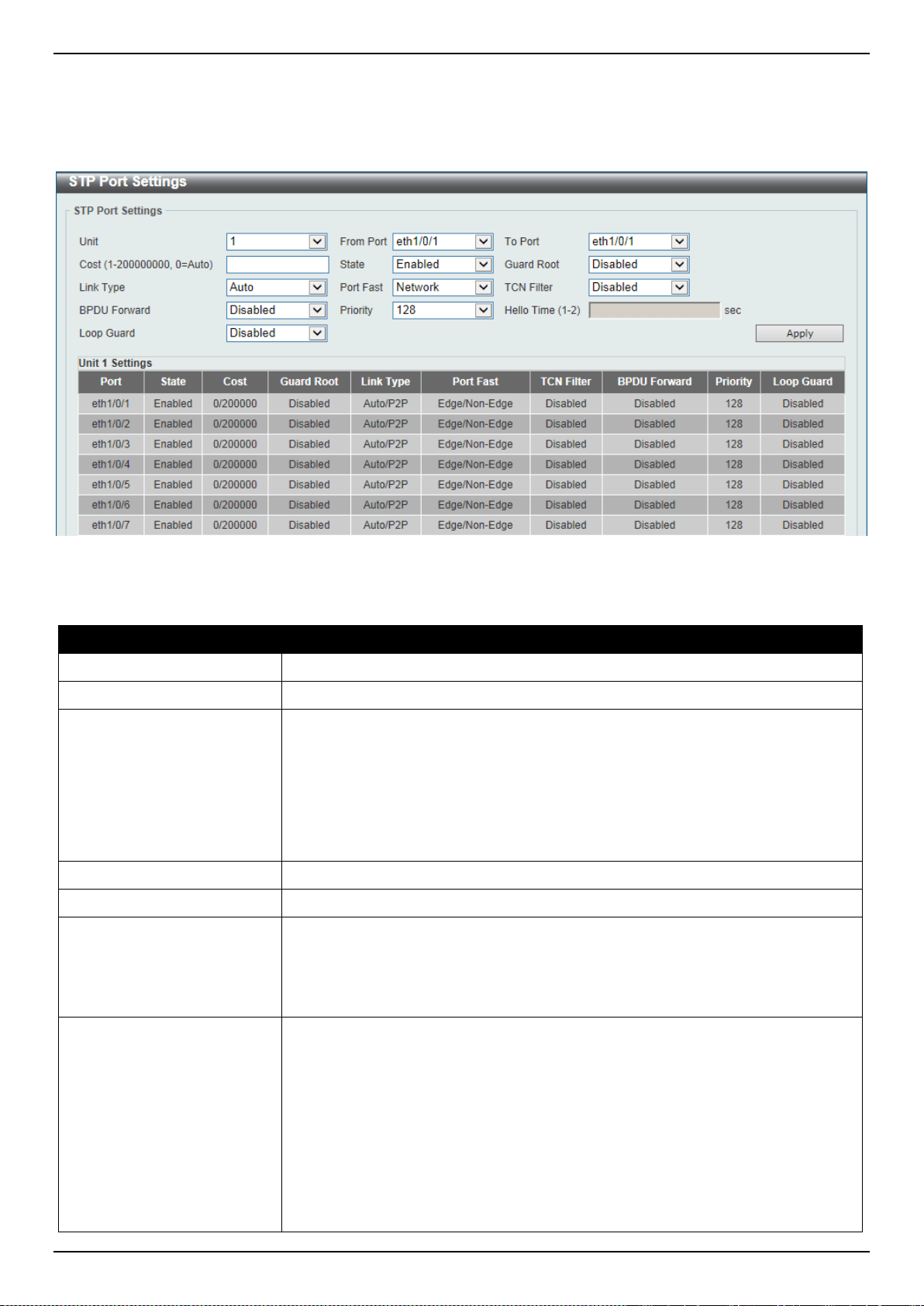
DXS-3400 Series Lite Layer 3 Stackable 10GbE Managed Switch Web UI Reference Guide
139
STP Port Settings
This window is used to display and configure the STP port settings.
To view the following window, click L2 Features > STP > STP Port Settings, as shown below:
Figure 5-49 STP Port Settings Window
The fields that can be configured are described below:
Parameter Description
Unit
Select the Switch unit that will be used for this configuration here.
From Port ~ To Port
Select the range of ports that will be used for this configuration here.
Cost
Enter the cost value here. This value must be between 1 and 200000000. This
value defines a metric that indicates the relative cost of forwarding packets to the
specified port list. Port cost can be set automatically or as a metric value. The
default value is 0 (auto). Setting 0 for the external cost will automatically set the
speed for forwarding packets to the specified port(s) in the list for optimal
efficiency. The default port cost for a 100Mbps port is 200000, a Gigabit port is
20000, and a 10 Gigabit port is 2000. The lower the number, the greater the
probability the port will be chosen to forward packets.
State
Select to enable or disable the STP port state.
Guard Root
Select to enable or disable the guard root function.
Link Type
Select the link type option here. Options to choose from are Auto, P2P, and
Shared. A full-duplex port is considered to have a point-to-point (P2P)
connection. On the opposite, a half-duplex port is considered to have a Shared
connection .The port cannot transit into the forwarding state rapidly by setting the
link type to Shared. By default this option is Auto.
Port Fast
Select the port fast option here. Options to choose from are Network, Disabled,
and Edge.
• In the Network mode the port will remain in the non-port-fast state for three
seconds. The port will change to the port-fast state if no BPDU is received
and changes to the forwarding state. If the port received the BPDU later, it
will change to the non-port-fast state.
• In the Disable mode, the port will always be in the non-port-fast state. It will
always wait for the forward-time delay to change to the forwarding state.
• In the Edge mode, the port will directly change to the spanning-tree
forwarding state when a link-up occurs without waiting for the forward-time

DXS-3400 Series Lite Layer 3 Stackable 10GbE Managed Switch Web UI Reference Guide
140
Parameter Description
delay. If the interface receives a BPDU later, its operation state changes to
the non-port-fast state.
By default, this option is Network.
TCN Filter
Select to enable or disable the TCN filter option. Enabling TC filtering on a port is
useful for an ISP to prevent the external bridge to a core region of the network,
causing address flushing in that region, possibly because those bridges are not
under the full control of the administrator. When a port is set to the TCN filter
mode, the TC event received by the port will be ignored. By default, this option is
Disabled.
BPDU Forward
Select to enable or disable BPDU forwarding. If enabled, the received STP BPDU
will be forwarded to all VLAN member ports in the untagged form. By default, this
option is Disabled.
Priority
Select the priority value here. Options to choose from are 0 to 240. By default this
option is 0. A lower value has higher priority.
Hello Time
Enter the hello time value here. This value must be between 1 and 2 seconds.
This value specifies the interval that a designated port will wait between the
periodic transmissions of each configuration message.
Loop Guard
Select to enable or disable the loop guard feature on the specified port(s) here.
The STP loop guard feature provides additional protection against Layer 2
forwarding loops (STP loops). An STP loop is created when an STP blocking port
in a redundant topology erroneously transitions to the forwarding state. This
usually happens because one of the ports of a physically redundant topology (not
necessarily the STP blocking port) no longer receives STP BPDUs. In its
operation, STP relies on continuous reception or transmission of BPDUs based
on the port role. The designated port transmits BPDUs, and the non-designated
port receives BPDUs.
When one of the ports in a physically redundant topology no longer receives
BPDUs, the STP conceives that the topology is loop free. Eventually, the blocking
port from the alternate or backup port becomes designated and moves to a
forwarding state. This situation creates a loop.
Click the Apply button to accept the changes made.
MST Configuration Identification
This window is used to display and configure the MST configuration identification settings. These settings will uniquely
identify a multiple spanning tree instance set on the Switch. The Switch initially possesses one CIST, or Common
Internal Spanning Tree, of which the user may modify the parameters for but cannot change the MSTI ID for, and
cannot be deleted.
To view the following window, click L2 Features > STP > MST Configuration Identification, as shown below:
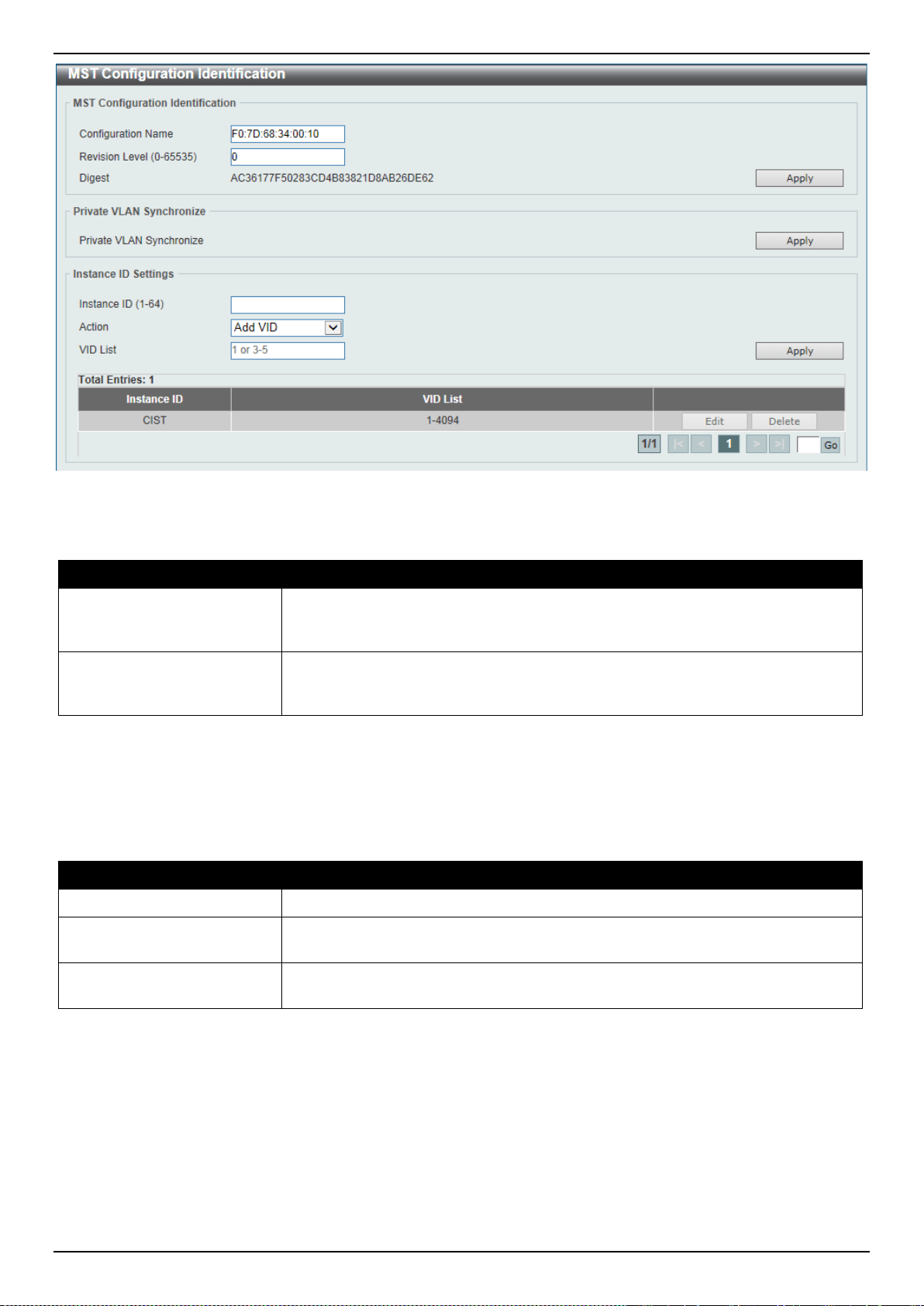
DXS-3400 Series Lite Layer 3 Stackable 10GbE Managed Switch Web UI Reference Guide
141
Figure 5-50 MST Configuration Identification Window
The fields that can be configured for MST Configuration Identification are described below:
Parameter Description
Configuration Name
Enter the MST. This name uniquely identifies the MSTI (Multiple Spanning Tree
Instance). If a Configuration Name is not set, this field will show the MAC address
to the device running MSTP.
Revision Level
Enter the revision level value here. This value must be between 0 and 65535. By
default, this value is 0. This value, along with the Configuration Name, identifies
the MSTP region configured on the Switch.
Click the Apply button to accept the changes made.
In the Private VLAN Synchronize section, the user can click the Apply button to synchronize the private VLANs.
The fields that can be configured for Instance ID Settings are described below:
Parameter Description
Instance ID
Enter the instance ID here. This value must be between 1 and 64.
Action
Select the action that will be taken here. Options to choose from are Add VID and
Remove VID.
VID List
Enter the VID list value here. This field is used to specify the VID range from
configured VLANs set on the Switch.
Click the Apply button to accept the changes made.
Click the Edit button to re-configure the specific entry.
Click the Delete button to remove the specific entry.
Enter a page number and click the Go button to navigate to a specific page when multiple pages exist.
STP Instance
This window is used to display and configure the STP instance settings.
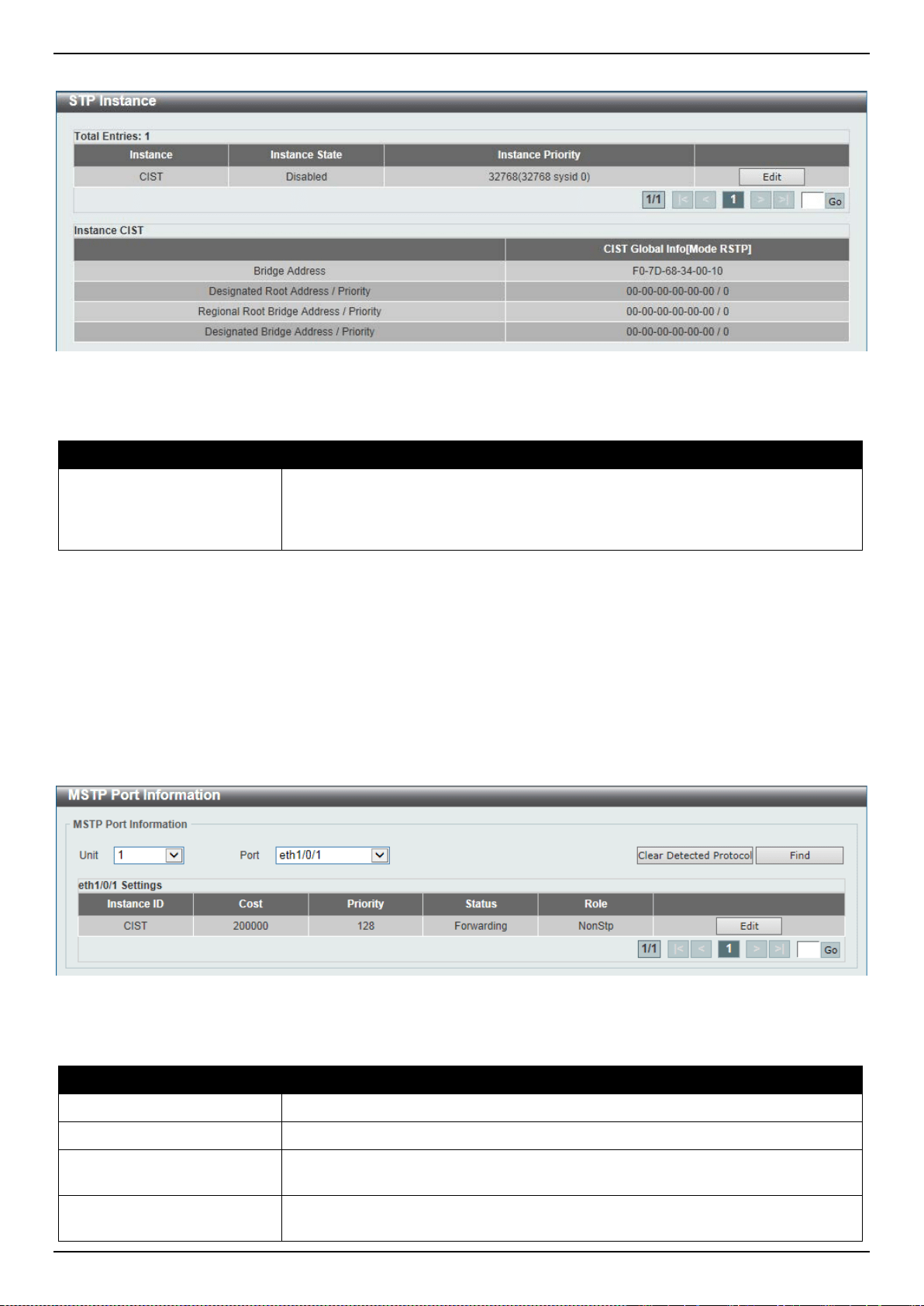
DXS-3400 Series Lite Layer 3 Stackable 10GbE Managed Switch Web UI Reference Guide
142
To view the following window, click L2 Features > STP > STP Instance, as shown below:
Figure 5-51 STP Instance Window
The fields that can be configured are described below:
Parameter Description
Instance Priority
After clicking the Edit button, enter the instance priority value here. This specifies
that the bridge priority and bridge MAC address together forms the Spanning-Tree
Bridge-ID, which is an important factor in the Spanning Tree topology. The range
is from 0 to 61440.
Click the Edit button to re-configure the specific entry.
Click the Apply button to accept the changes made.
Enter a page number and click the Go button to navigate to a specific page when multiple pages exist.
MSTP Port Information
This window is used to display and configure the MSTP port information settings.
To view the following window, click L2 Features > STP > MSTP Port Information, as shown below:
Figure 5-52 MSTP Port Information Window
The fields that can be configured are described below:
Parameter Description
Unit
Select the Switch unit that will be used for this display here.
Port
Select the port number that will be cleared here.
Cost
After clicking the Edit button, enter the cost value here. This value must be
between 1 and 200000000.
Priority
After clicking the Edit button, select the priority value here. Options to choose
from are 0 to 240. By default this option is 0. A lower value has higher priority.
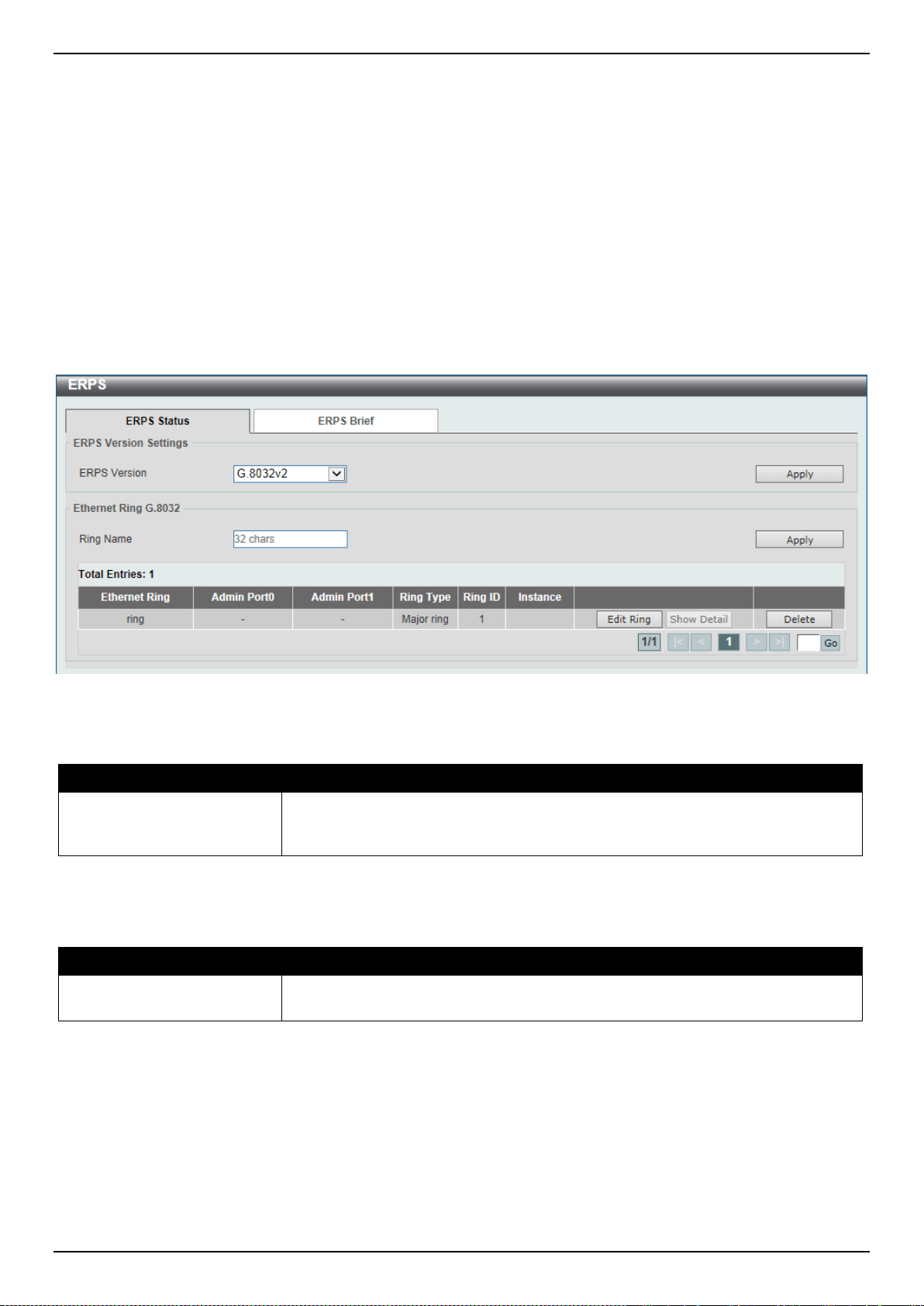
DXS-3400 Series Lite Layer 3 Stackable 10GbE Managed Switch Web UI Reference Guide
143
Click the Clear Detected Protocol button to clear the detected protocol settings for the port selected.
Click the Find button to locate a specific entry based on the information entered.
Click the Edit button to re-configure the specific entry.
Enter a page number and click the Go button to navigate to a specific page when multiple pages exist.
ERPS (G.8032)
ERPS
This window is used to display and configure Ethernet Ring Protection Switching (ERPS) settings.
To view the following window, click L2 Features > ERPS (G.8032) > ERPS, as shown below:
Figure 5-53 ERPS Window
The fields that can be configured in ERPS Version Settings are described below:
Parameter Description
ERPS Version
Select the ERPS version here. Options to choose from are G.8032v1 and
G.8032v2. Before specifying G.8032v1 for a G.8032v2 device, changing the
ERPS version will lead to the restart of the running protocol.
Click the Apply button to accept the changes made.
The fields that can be configured in Ethernet Ring G.8032 are described below:
Parameter Description
Ring Name
Enter the Ethernet Ring Protection (ERP) instance’s name here. This name can
be up to 32 characters long.
Click the Apply button to create an ITU-T G.8032 ERP physical ring.
Click the Edit Ring button to modify an ITU-T G.8032 ERP physical ring.
Click the Show Detail button to view the ITU-T G.8032 ERP physical ring’s status information.
Click the Delete button to delete the specified ITU-T G.8032 ERP physical ring.
Enter a page number and click the Go button to navigate to a specific page when multiple pages exist.
After click the Edit Ring button, the following window will appear.
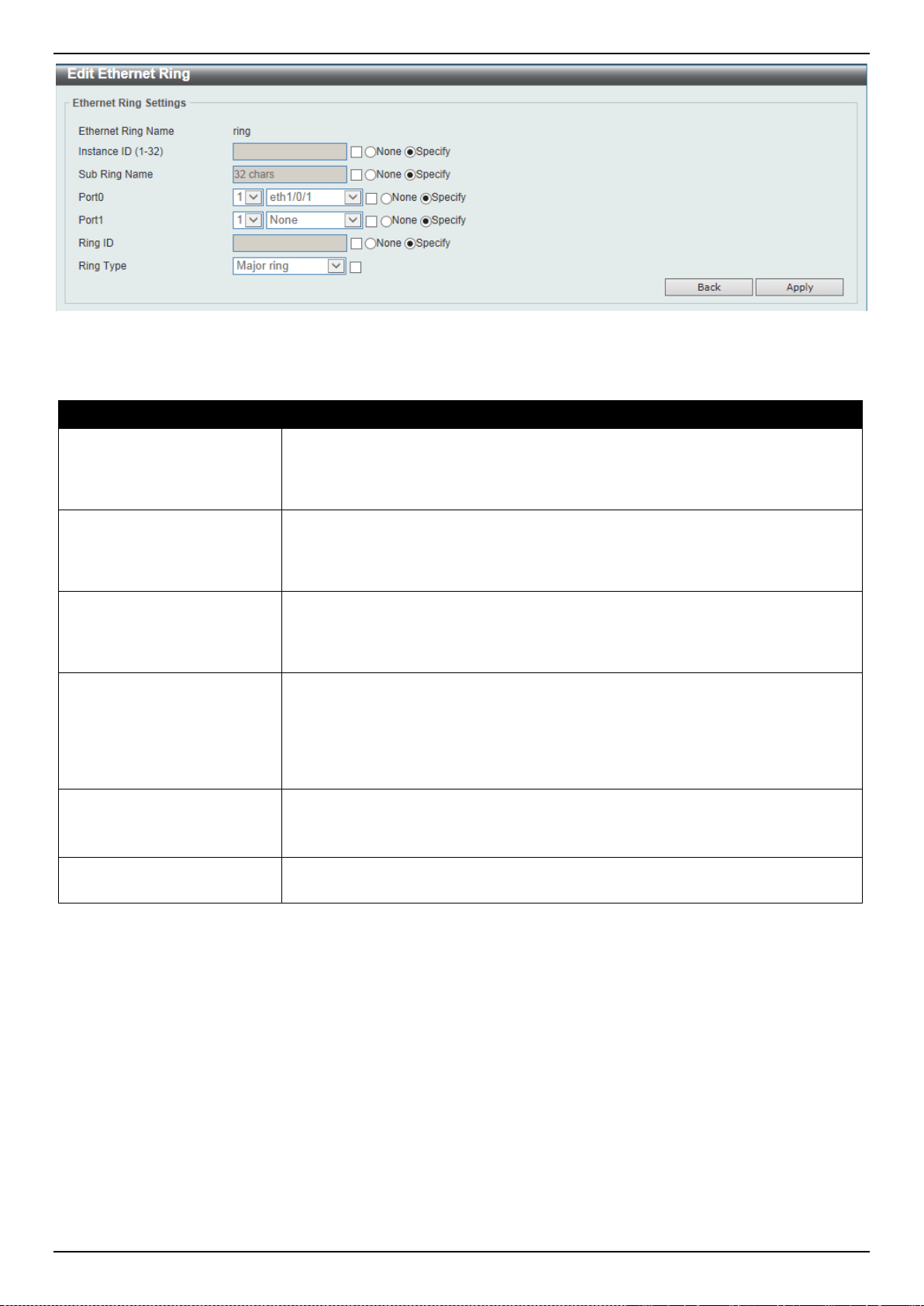
DXS-3400 Series Lite Layer 3 Stackable 10GbE Managed Switch Web UI Reference Guide
144
Figure 5-54 ERPS (Edit Ring) Window
The fields that can be configured are described below:
Parameter Description
Instance ID
Select the checkbox and enter the ERP instance number here. This value must
be between 1 and 32. Select the Specify radio button to configure this parameter
as per normal. Select the None radio button to revert this parameter to the default
setting.
Sub Ring Name
Select the checkbox and enter the physical ring’s sub-ring name here. This name
can be up to 32 characters long. Select the Specify radio button to configure this
parameter as per normal. Select the None radio button to revert this parameter to
the default setting.
Port0
Select the checkbox and then select the Switch’s unit ID and the port number that
will be the first ring port of the physical ring. Select the Specify radio button to
configure this parameter as per normal. Select the None radio button to revert this
parameter to the default setting.
Port1
Select the checkbox and then select the Switch’s unit ID and the port number that
will be the second ring port of the physical ring. Select the None option, from the
drop-down menu, specifies that the inter-connected node is a local node endpoint
of an open ring. Select the Specify radio button to configure this parameter as per
normal. Select the None radio button to revert this parameter to the default
setting.
Ring ID
Select the checkbox and enter the ring ID here. The range is from 1 to 239.
Select the Specify radio button to configure this parameter as per normal. Select
the None radio button to revert this parameter to the default setting.
Ring Type
Select the checkbox and then select the ring type here. Options to choose from
are Major Ring and Sub Ring.
Click the Back button to discard the changes made and return to the previous window.
Click the Apply button to accept the changes made.
After click the Show Detail button, the following window will appear.
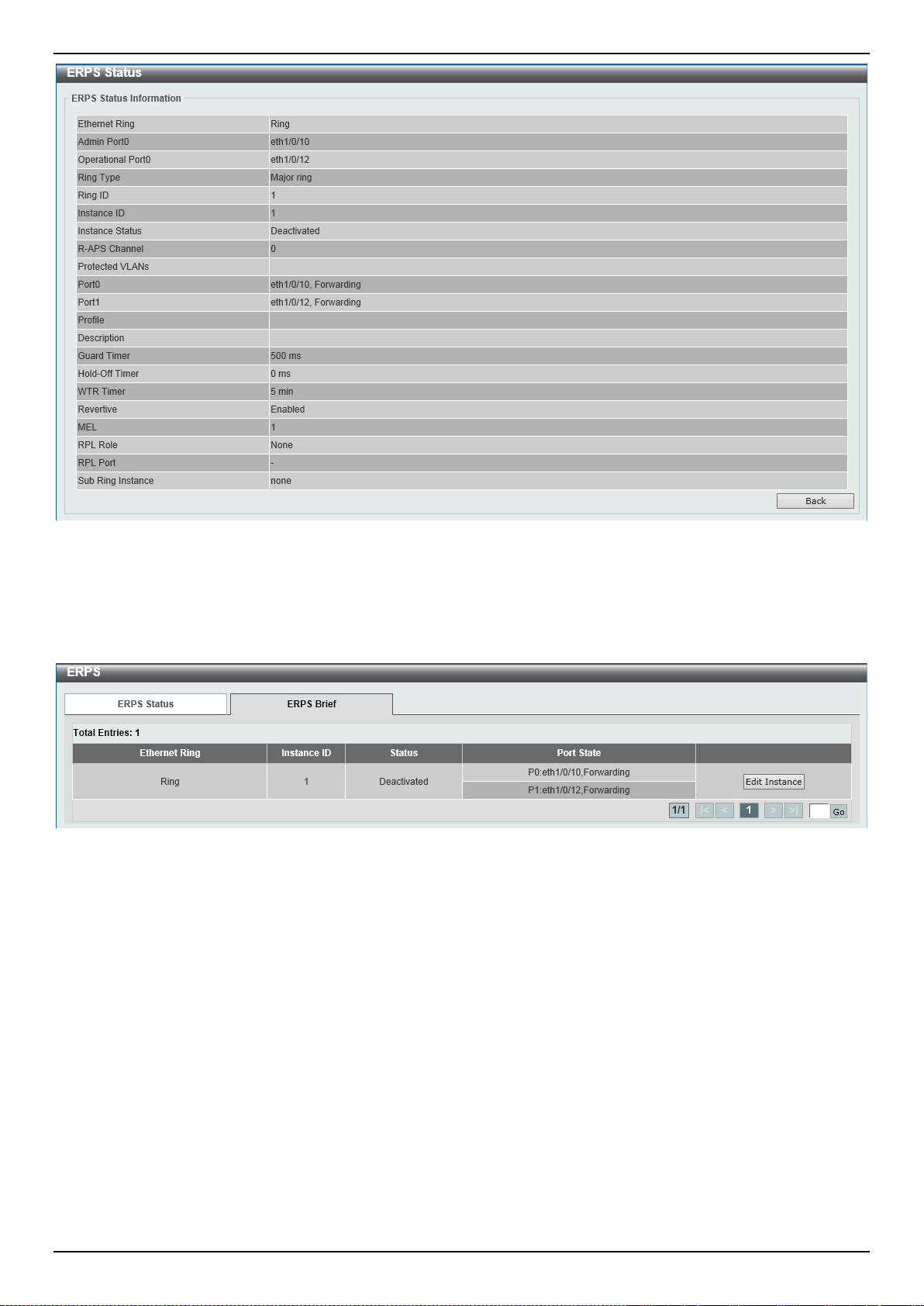
DXS-3400 Series Lite Layer 3 Stackable 10GbE Managed Switch Web UI Reference Guide
145
Figure 5-55 ERPS (View Detail) Window
Click the Back button to return to the previous window.
After selecting the ERPS Brief tab option, at the top of the page, the following page will be available.
Figure 5-56 ERPS (ERPS Brief) Window
Click the Edit Instance button to configure the ERP instance.
Enter a page number and click the Go button to navigate to a specific page when multiple pages exist.
After click the Edit Instance button, the following window will appear.
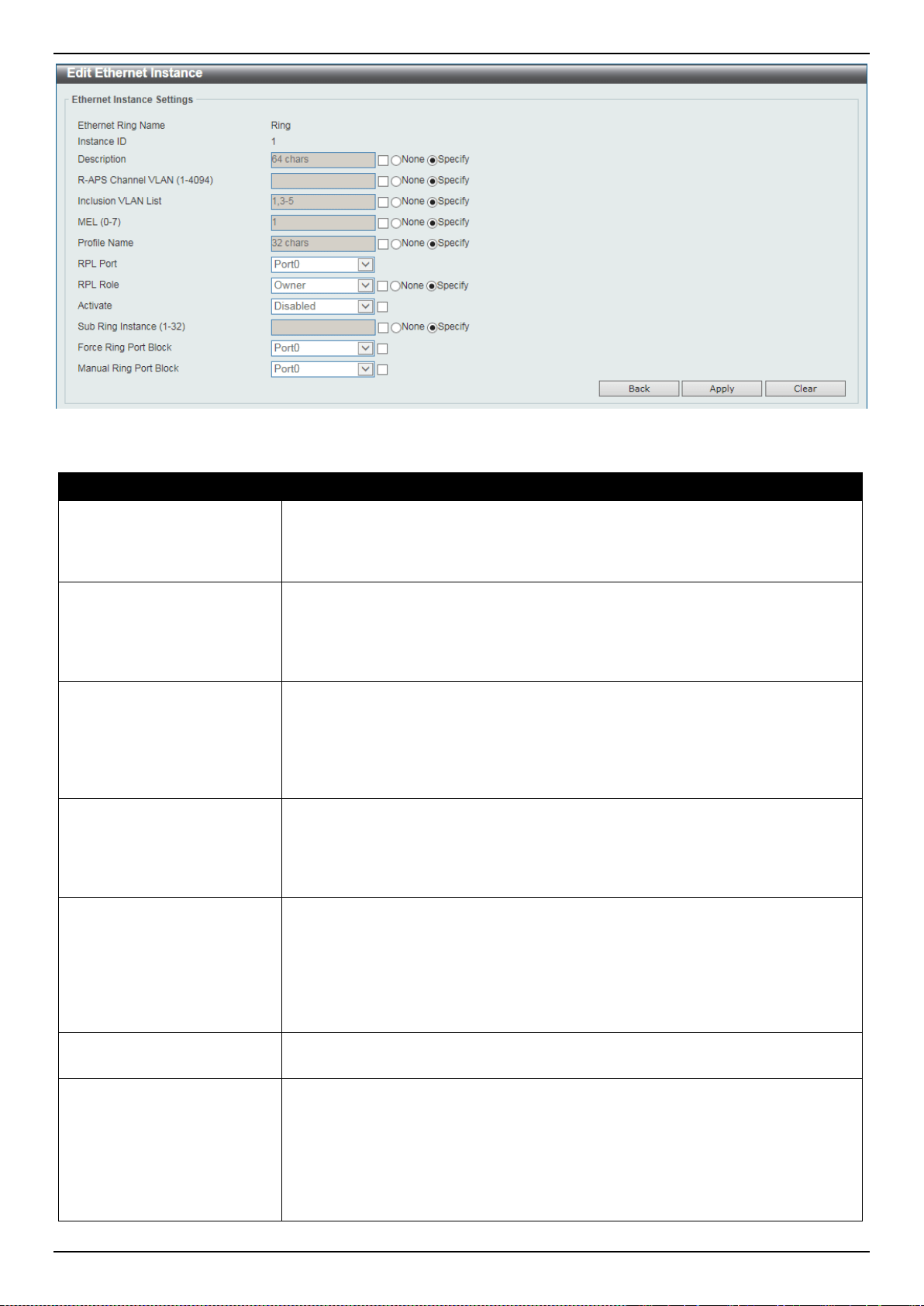
DXS-3400 Series Lite Layer 3 Stackable 10GbE Managed Switch Web UI Reference Guide
146
The fields that can be configured are described below:
Parameter Description
Description
Select the checkbox and enter the ERP instance’s description here. This
description can be up to 64 characters long. Select the Specify radio button to
configure this parameter as per normal. Select the None radio button to revert this
parameter to the default setting.
R-APS Channel VLAN
Select the checkbox and enter the R-APS channel VLAN’s ID for the ERP
instance here. The APS channel VLAN of a sub-ring instance is also the virtual
channel of the sub-ring. This value must be between 1 and 4094. Select the
Specify radio button to configure this parameter as per normal. Select the None
radio button to revert this parameter to the default setting.
Inclusion VLAN List
Select the checkbox and enter the inclusion VLAN list here. A range is identified
when a hyphen (-) is used. For example VLANs 1 to 5 can be entered as 1-5. A
list is identified when commas (,) are used. For example, use VLANs 1,3,5. The
VLANs specified here will be protected by the ERP mechanism. Select the
Specify radio button to configure this parameter as per normal. Select the None
radio button to revert this parameter to the default setting.
MEL
Select the checkbox and enter the ring MEL value of the ERP instance here. This
value must be between 0 and 7. The configured MEL value of all ring nodes that
participate in the same ERP instance should be identical. Select the Specify radio
button to configure this parameter as per normal. Select the None radio button to
revert this parameter to the default setting.
Profile Name
Select the checkbox and enter the G.8032 profile’s name here that will be
associated with this ERP instance. Multiple ERP instances can be associated with
the same G.8032 profile. The instances associated with the same profile protect
the same set of VLANs, or the VLANs protected by one instance are a subset of
LANs protected by another instance. This name can be up to 32 characters long.
Select the Specify radio button to configure this parameter as per normal. Select
the None radio button to revert this parameter to the default setting.
RPL Port
Select the checkbox and then select the RPL port option here. Options to choose
from are Port0 and Port1. The option selected will be configured as the RPL port.
RPL Role
Select the RPL role here. Options to choose from are:
• Owner - Specifies the ring node as the RPL owner node for the configured
instance.
• Neighbor - Specifies the ring node as the RPL neighbor node for the
configured instance.
Select the Specify radio button to configure this parameter as per normal. Select
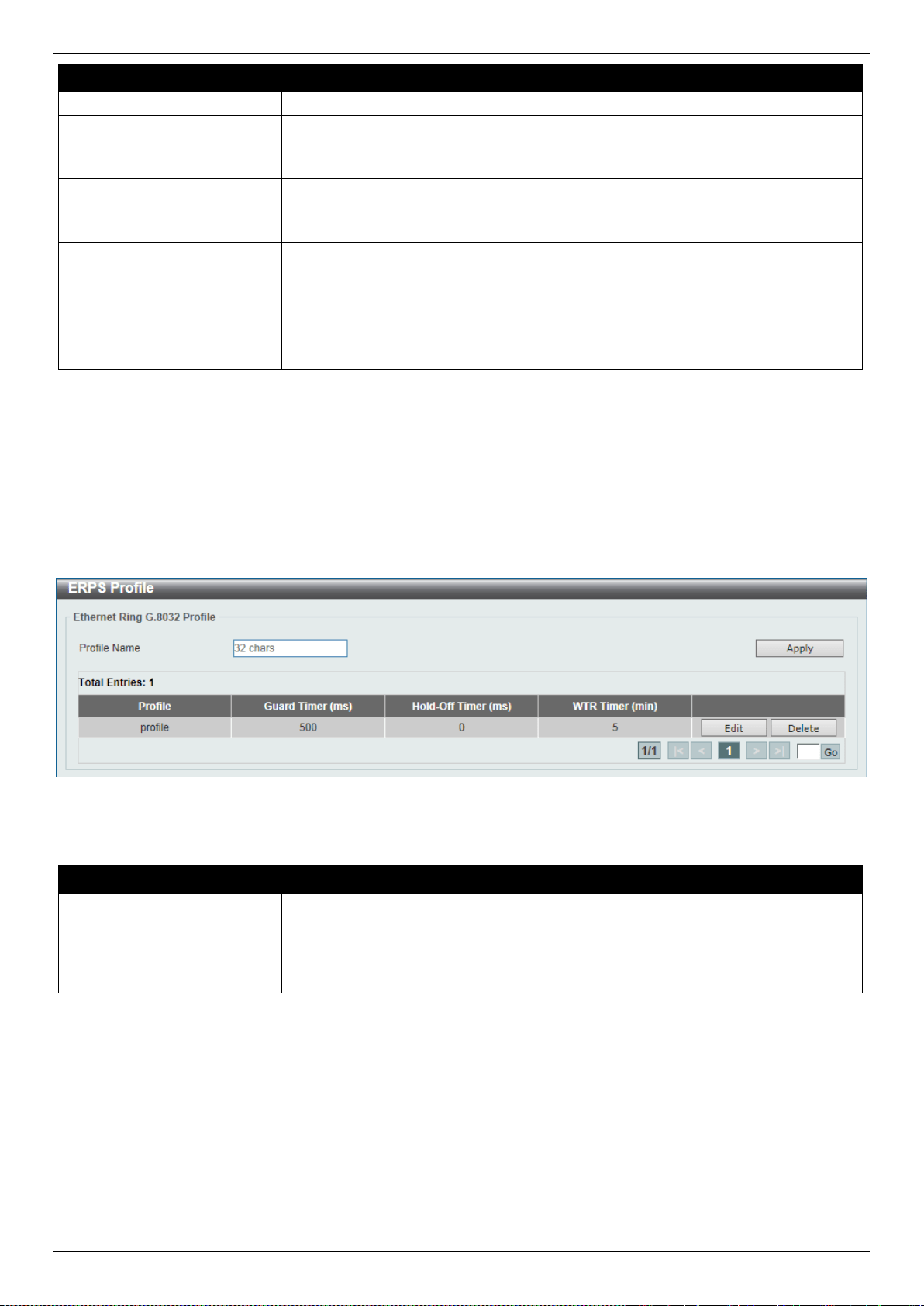
DXS-3400 Series Lite Layer 3 Stackable 10GbE Managed Switch Web UI Reference Guide
147
Parameter Description
the None radio button to revert this parameter to the default setting.
Activate
Select the checkbox and then select whether or not to active this ERP instance.
Options to choose from are Enabled and Disabled. Enabling this option will
active this ERP instance.
Sub Ring Instance
Select and enter the sub-ring instance ID here. The range is from 1 to 32. Select
the Specify radio button to configure this parameter as per normal. Select the
None radio button to revert this parameter to the default setting.
Force Ring Port Block
Select the ERP instance port that will be blocked here. This forcibly blocks an
instance port immediately after force is configured, irrespective of whether link
failures have occurred. Options to choose from are Port0 and Port1.
Manual Ring Port Block
Select the ERP instance port that will be blocked here. This forcibly blocks a port
on which MS is configured when link failures and FS conditions are absent.
Options to choose from are Port0 and Port1.
Click the Back button to discard the changes made and return to the previous window.
Click the Apply button to accept the changes made.
ERPS Profile
This window is used to display and configure the Ethernet Ring G.8032 profile settings.
To view the following window, click L2 Features > ERPS (G.8032) > ERPS Profile, as shown below:
Figure 5-57 ERPS Profile Window
The fields that can be configured are described below:
Parameter Description
Profile Name
Enter the G.8032 profile’s name here. This name can be up to 32 characters long.
Multiple ERP instances can be associated with the same G.8032 profile. The
instances associated with the same profile protect the same set of VLANs, or the
VLANs protected by one instance are a subset of LANs protected by another
instance.
Click the Apply button to associate the G.8032 profile with the ERP instance created.
Click the Edit button to modify the specified G.8032 profile.
Click the Delete button to disassociate the G.8032 profile.
Enter a page number and click the Go button to navigate to a specific page when multiple pages exist.
After click the Edit button, the following window will appear.
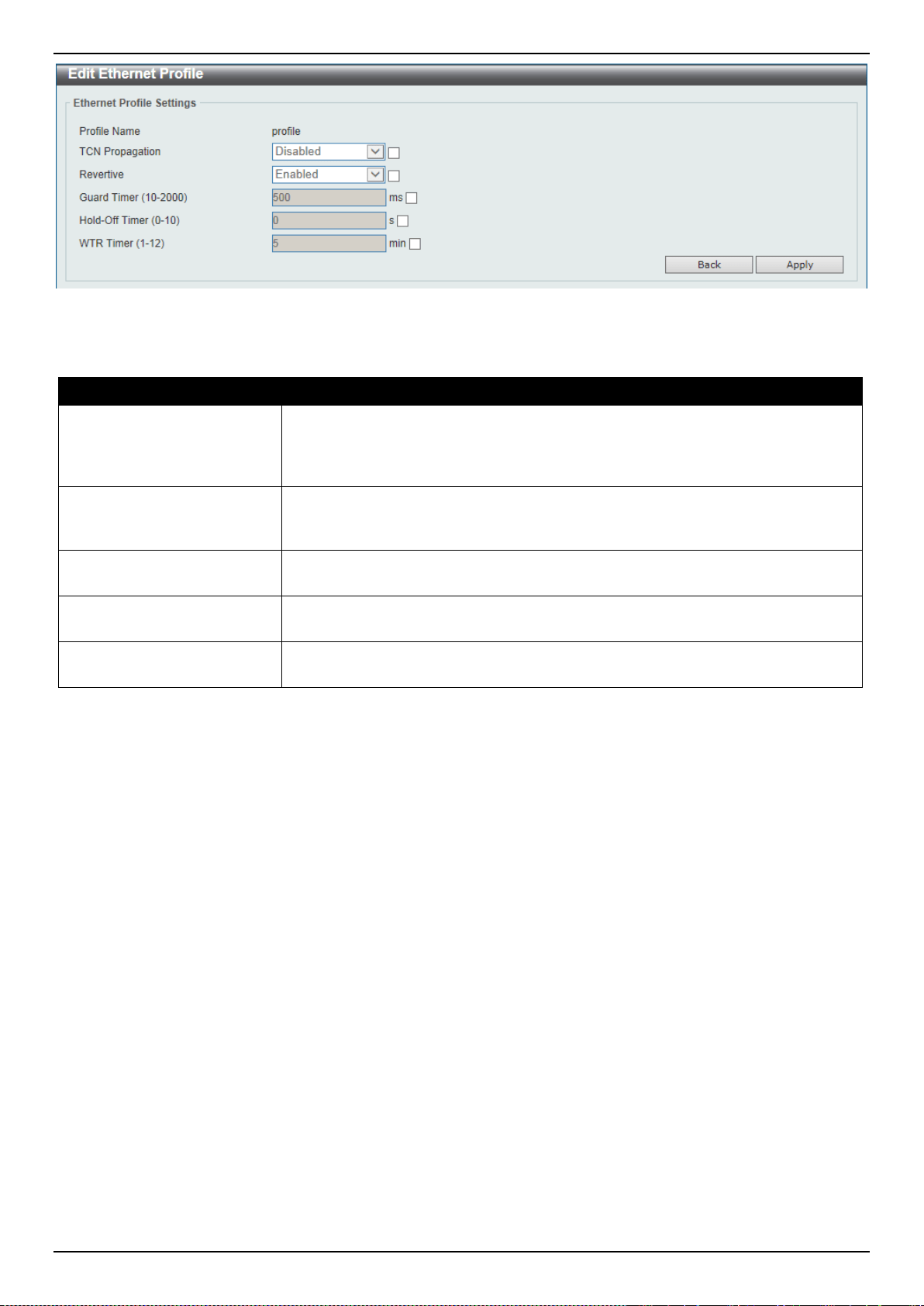
DXS-3400 Series Lite Layer 3 Stackable 10GbE Managed Switch Web UI Reference Guide
148
Figure 5-58 ERPS Profile (Edit) Window
The fields that can be configured are described below:
Parameter Description
TCN Propagation
Select the checkbox and then select the TCN propagation state. Options to
choose from are Enable and Disabled. This function is used to enable the
propagation of the topology change notifications from the sub-ERP instance to the
major instance.
Revertive
Select the checkbox and then select the revertive state. Options to choose from
are Enable and Disabled. This function is used to revert back to the working
transport entity, for example, when the RPL was blocked.
Guard Timer
Select the checkbox and enter the guard timer value here. This value must be
between 10 and 2000 milliseconds. By default, this value is 500 milliseconds.
Hold-Off Timer
Select the checkbox and enter hold-off timer value here. This value must be
between 0 and 10 seconds. By default, this value is 0 seconds.
WTR Timer
Select the checkbox and enter the WTR timer value here. This value must be
between 1 and 12 minutes. By default, this value is 5 minutes.
Click the Back button to discard the changes made and return to the previous window.
Click the Apply button to accept the changes made.
Loopback Detection
The Loopback Detection (LBD) function is used to detect the loop created by a specific port. This feature is used to
temporarily shut down a port on the Switch when a CTP (Configuration Testing Protocol) packet has been looped
back to the Switch. When the Switch detects CTP packets received from a port or a VLAN, this signifies a loop on the
network. The Switch will automatically block the port or the VLAN and send an alert to the administrator. The
Loopback Detection port will restart (change to normal state) when the Loopback Detection Recover Time times out.
The Loopback Detection function can be implemented on a range of ports at a time. The user may enable or disable
this function using the drop-down menu.
To view the following window, click L2 Features > Loopback Detection, as shown below:
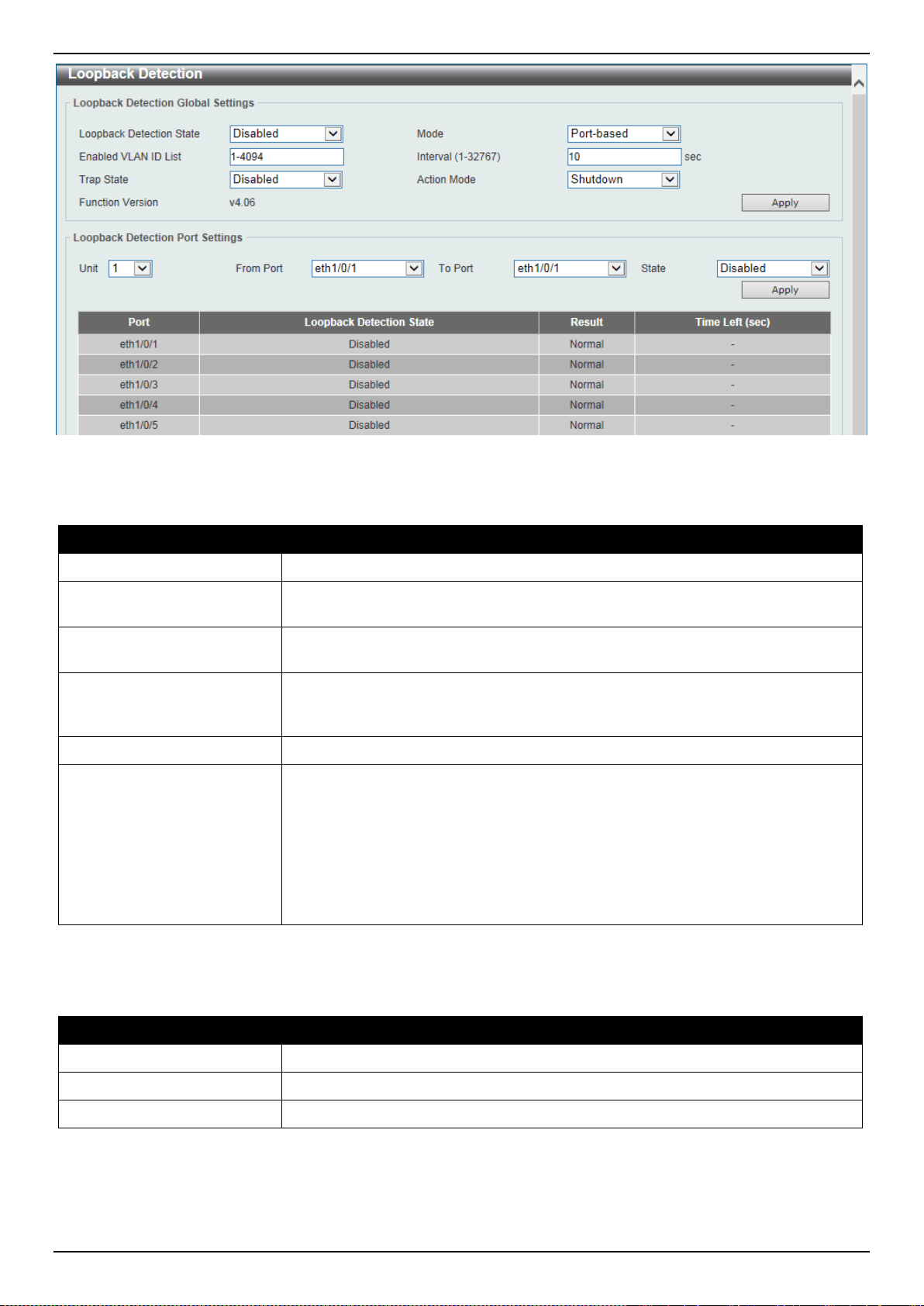
DXS-3400 Series Lite Layer 3 Stackable 10GbE Managed Switch Web UI Reference Guide
149
Figure 5-59 Loopback Detection Window
The fields that can be configured in Loopback Detection Global Settings are described below:
Parameter Description
Loopback Detection State
Select to enable or disable loopback detection. The default is Disabled.
Mode
Select the loopback detection mode. Options to choose from are Port-based and
VLAN-based.
Enabled VLAN ID List
Enter the VLAN ID for loop detection. This only takes effect when the VLAN-
based is selected in the Mode drop-down list.
Interval
Enter the interval in seconds that the device will transmit all the CTP
(Configuration Test Protocol) packets to detect a loop-back event. The valid range
is from 1 to 32767 seconds. The default setting is 10 seconds.
Trap State
Select to enable or disable the loopback detection trap state.
Action Mode
Select the action mode here. Option to choose from are:
• Shutdown - Specifies to shut down the port in the port-based mode or block
traffic on the specific VLAN in the VLAN-based mode when the loop has
been detected.
• None - Specifies not to shut down the port in the port-based mode or block
traffic on the specific VLAN in the VLAN-based mode when the loop has
been detected.
Click the Apply button to accept the changes made.
The fields that can be configured in Loopback Detection Port Settings are described below:
Parameter Description
Unit
Select the Switch unit that will be used for this configuration here.
From Port ~ To Port
Select the appropriate port range used for the configuration here.
State
Select this option to enable or disable the state of the port.
Click the Apply button to accept the changes made.
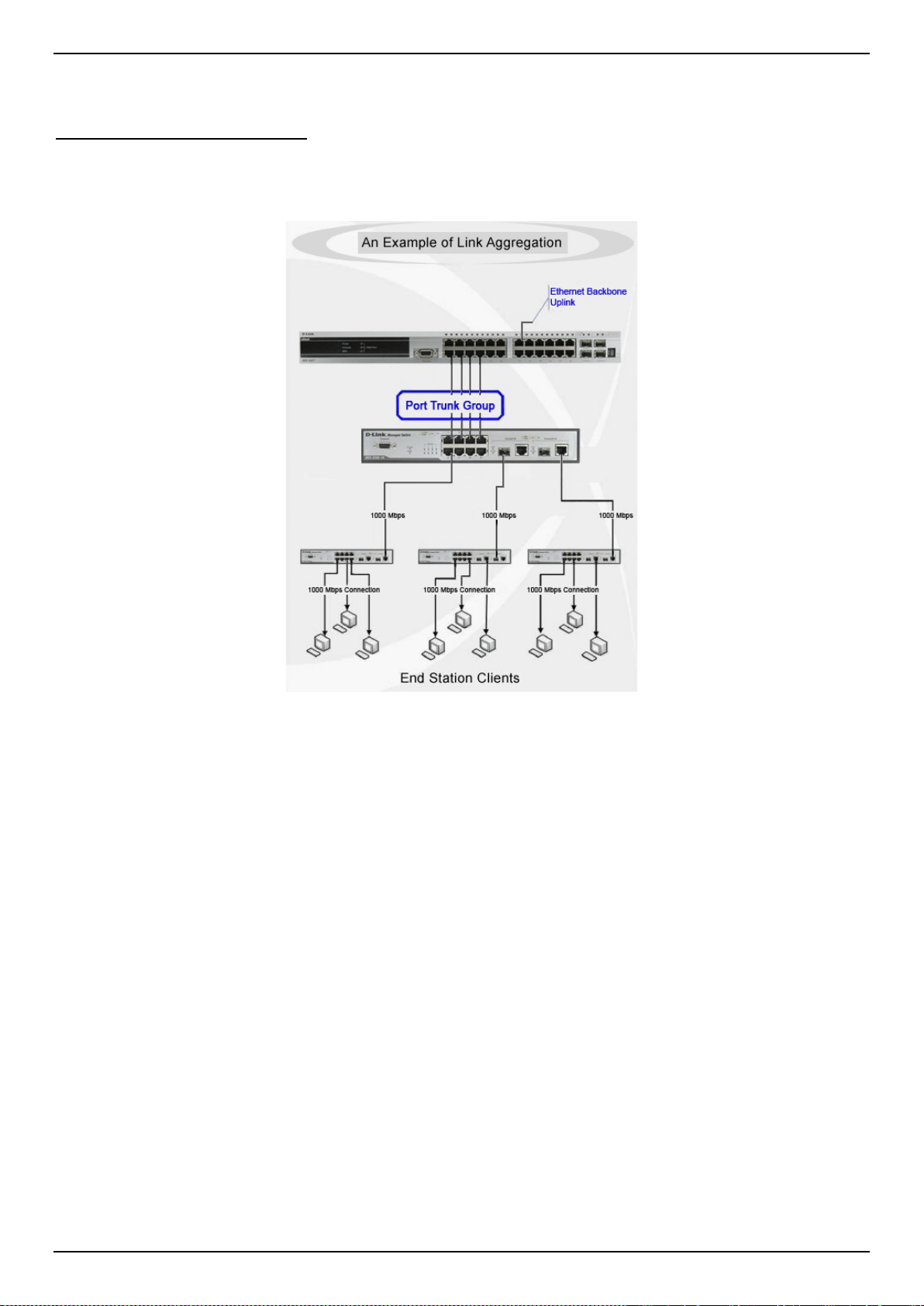
DXS-3400 Series Lite Layer 3 Stackable 10GbE Managed Switch Web UI Reference Guide
150
Link Aggregation
Understanding Port Trunk Groups
Port trunk groups are used to combine a number of ports together to make a single high-bandwidth data pipeline. The
Switch supports up to 32 port trunk groups with up to 8 ports in each group.
Figure 5-60 Example of Port Trunk Group
The Switch treats all ports in a trunk group as a single port. Data transmitted to a specific host (destination address)
will always be transmitted over the same port in a trunk group. This allows packets in a data stream to arrive in the
same order they were sent.
Link aggregation allows several ports to be grouped together and to act as a single link. This gives a bandwidth that is
a multiple of a single link's bandwidth.
Link aggregation is most commonly used to link a bandwidth intensive network device or devices, such as a server, to
the backbone of a network.
The Switch allows the creation of up to 32 link aggregation groups, each group consisting of up to 8 links (ports). Each
port can only belong to a single link aggregation group.
All of the ports in the group must be members of the same VLAN, and their STP status, static multicast, traffic control;
traffic segmentation and 802.1p default priority configurations must be identical. Port locking and 802.1X must not be
enabled on the trunk group. Further, the LACP aggregated links must all be of the same speed and should be
configured as full duplex.
Load balancing is automatically applied to the ports in the aggregated group, and a link failure within the group causes
the network traffic to be directed to the remaining links in the group.
The Spanning Tree Protocol will treat a link aggregation group as a single link, on the Switch level. On the port level,
the STP will use the port parameters of the Master Port in the calculation of port cost and in determining the state of
the link aggregation group. If two redundant link aggregation groups are configured on the Switch, STP will block one
entire group; in the same way STP will block a single port that has a redundant link.
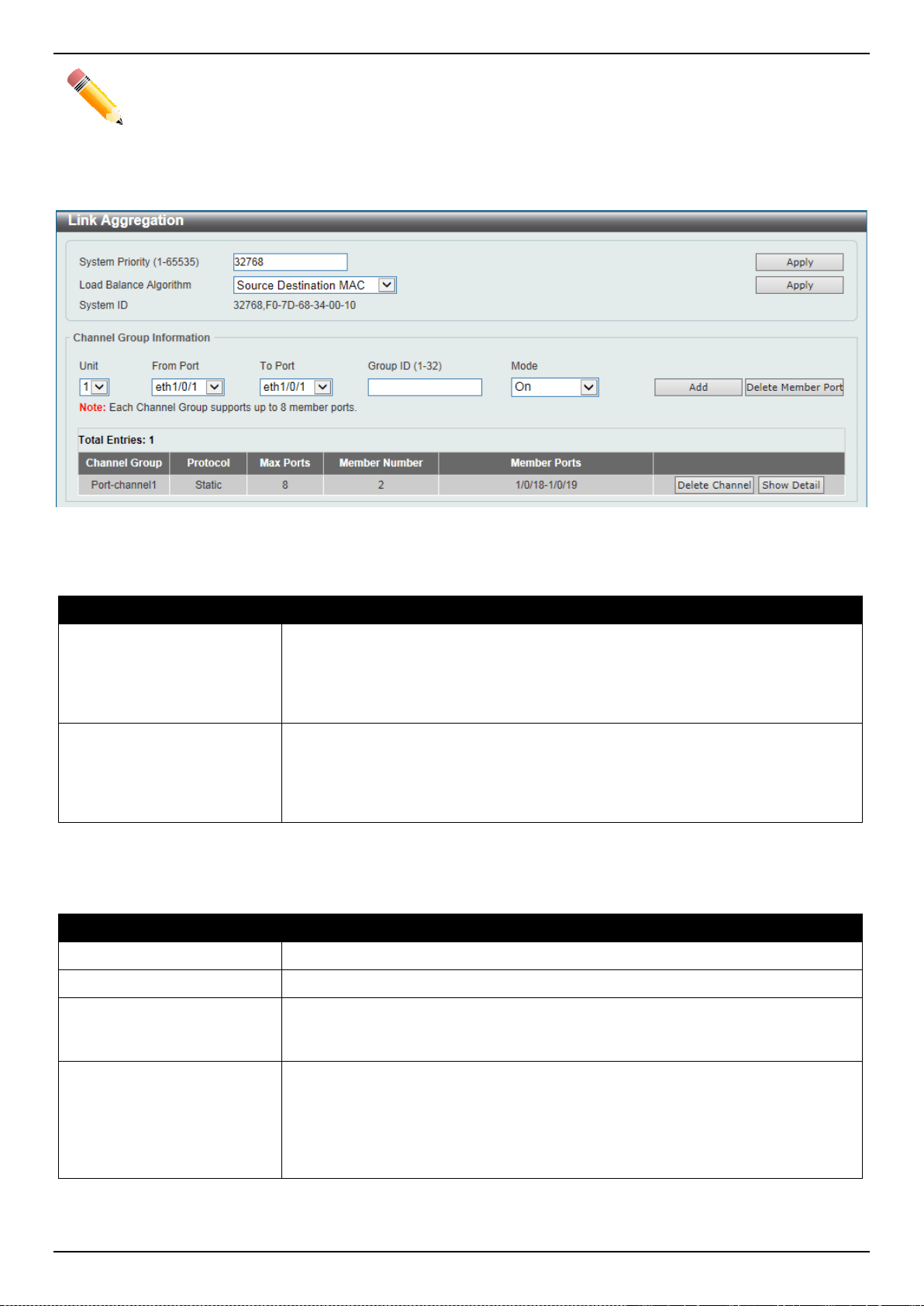
DXS-3400 Series Lite Layer 3 Stackable 10GbE Managed Switch Web UI Reference Guide
151
NOTE: If any ports within the trunk group become disconnected, packets intended for the disconnected
port will be load shared among the other linked ports of the link aggregation group.
This window is used to display and configure the link aggregation settings. To view the following window, click L2
Features > Link Aggregation, as shown below:
Figure 5-61 Link Aggregation Window
The fields that can be configured for Link Aggregation are described below:
Parameter Description
System Priority
Enter the system’s priority value used here. This value must be between 1 and
65535. By default, this value is 32768. The system priority determines which ports
can join a port-channel and which ports are put in the stand-alone mode. The
lower value has a higher priority. If two or more ports have the same priority, the
port number determines the priority
Load Balance Algorithm
Select the load balancing algorithm that will be used here. Options to choose from
are Source MAC, Destination MAC, Source Destination MAC, Source IP,
Destination IP, Source Destination IP, Source L4 Port, Destination L4 Port,
and Source Destination L4 Port. By default, this option is Source Destination
MAC.
Click the Apply button to accept the changes made.
The fields that can be configured for Channel Group Information are described below:
Parameter Description
Unit
Select the Switch unit that will be used for this configuration here.
From Port ~ To Port
Select the list of ports that will be associated with this configuration here.
Group ID
Enter the channel group number here. This value must be between 1 and 32. The
system will automatically create the port-channel when a physical port first joins a
channel group. An interface can only join one channel-group.
Mode
Select the mode option here. Options to choose from are On, Active, and
Passive. If the mode On is specified, the channel group type is static. If the mode
Active or Passive is specified, the channel group type is LACP. A channel group
can only consist of either static members or LACP members. Once the type of
channel group has been determined, other types of interfaces cannot join the
channel group.
Click the Add button to add a new channel group.
Click the Delete Member Port button, to delete the member port(s) specified from the group.
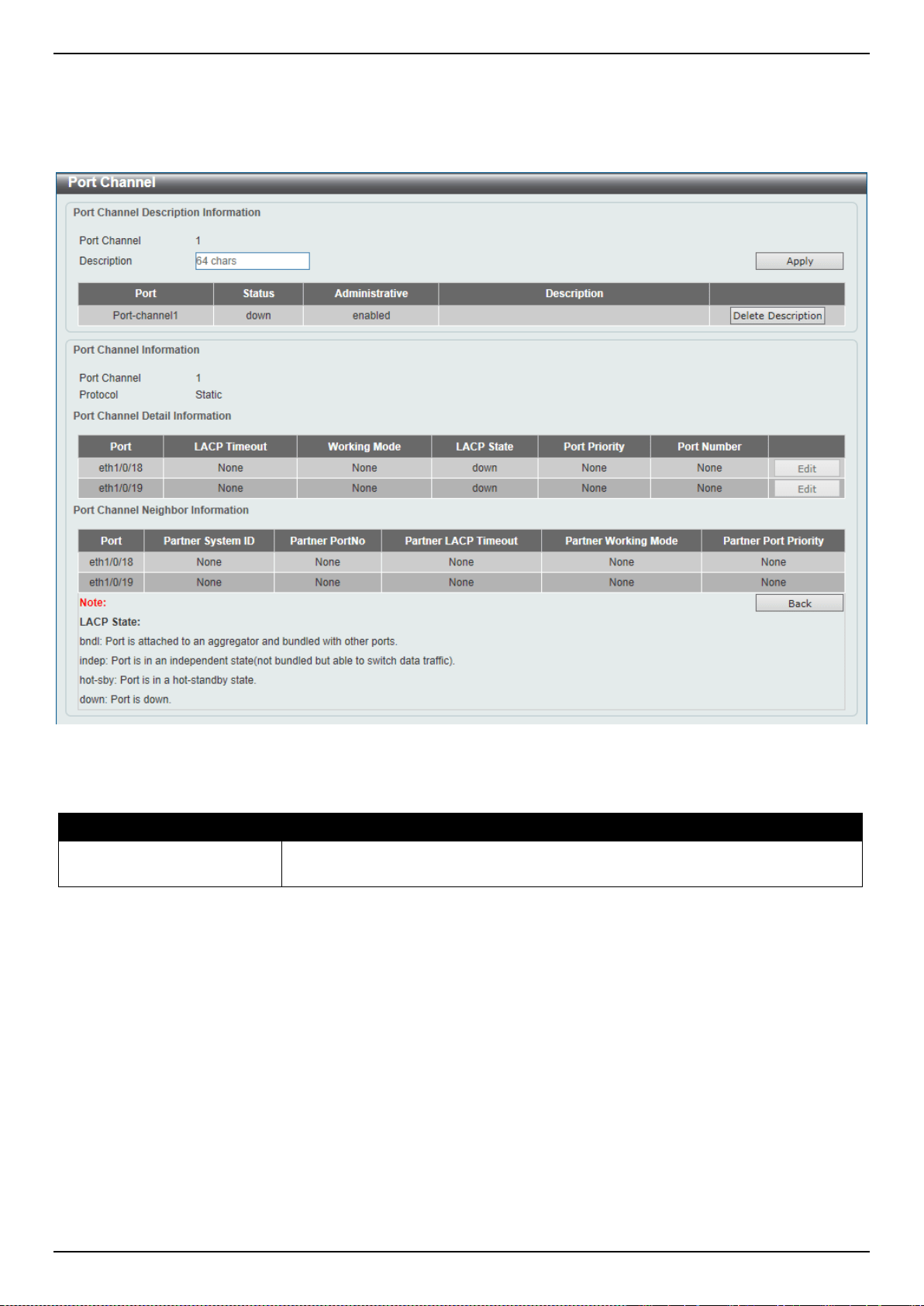
DXS-3400 Series Lite Layer 3 Stackable 10GbE Managed Switch Web UI Reference Guide
152
Click the Delete Channel button to delete the specified channel group.
Click the Show Detail button to view more detailed information about the channel.
After clicking the Show Detail button, the following page will be available.
Figure 5-62 Link Aggregation (Channel Detail) Window
The fields that can be configured are described below:
Parameter Description
Description
Enter the description for the port channel here. This string can be up to 64
characters long.
Click the Apply button to accept the changes made.
Click the Delete Description button to delete the description for the port channel.
Click the Edit button to re-configure the specific entry.
Click the Back button to return to the previous page.
L2 Protocol Tunnel
This window is used to display and configure the Layer 2 protocol tunnel settings.
To view the following window, click L2 Features > L2 Protocol Tunnel, as shown below:
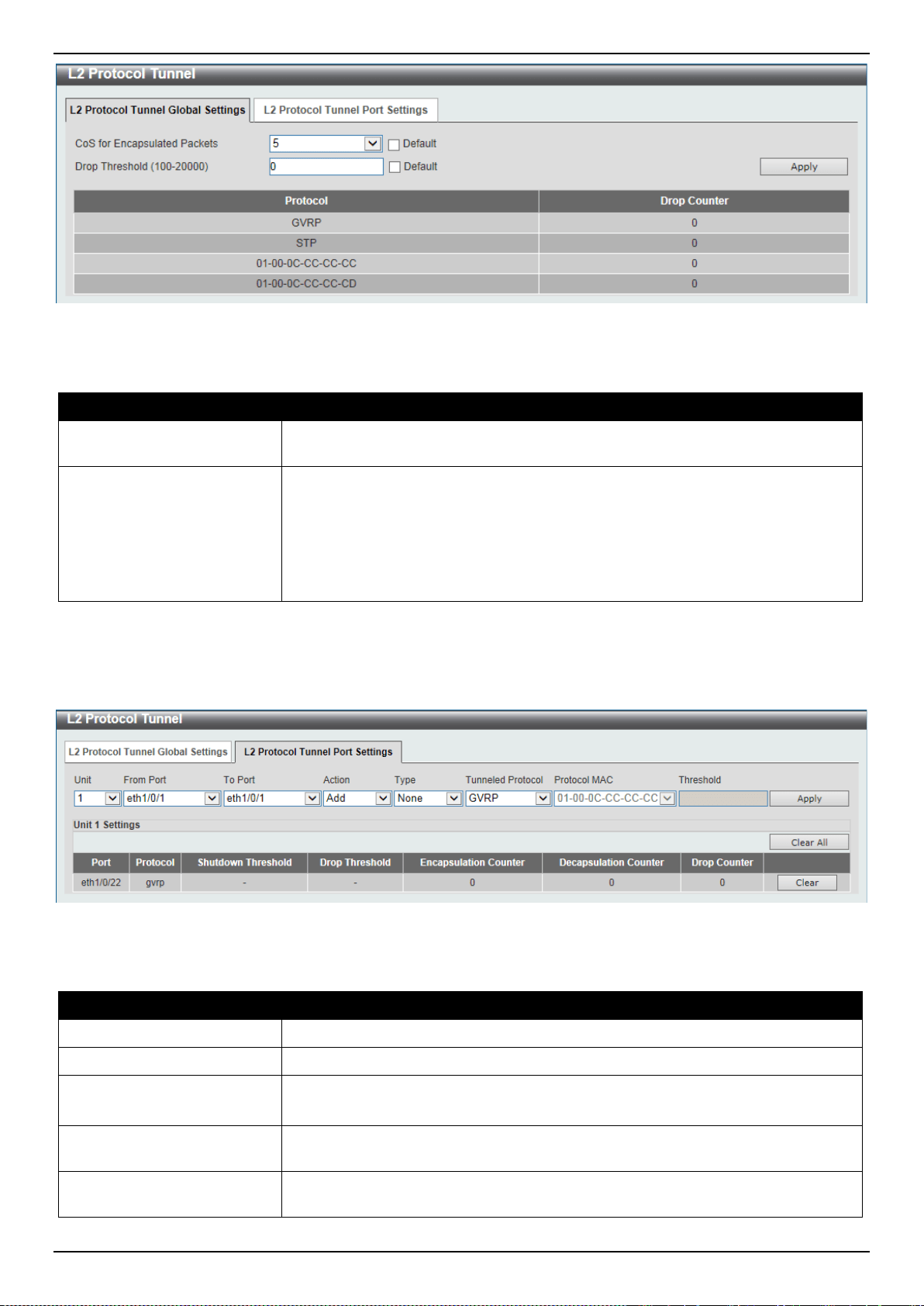
DXS-3400 Series Lite Layer 3 Stackable 10GbE Managed Switch Web UI Reference Guide
153
Figure 5-63 L2 Protocol Tunnel (L2 Protocol Tunnel Global Setting) Window
The fields that can be configured are described below:
Parameter Description
CoS for Encapsulated
Packets
Select the CoS value for encapsulated packets here. This value is between 0 and
7. Tick the Default option to use the default value.
Drop Threshold
Enter the drop threshold value here. This value must be between 100 and 20000.
By default, this value is 0. The tunneling of the Layer 2 protocol packets will
consume CPU processing power in encapsulating, decapsulating, and forwarding
of the packet. Use this option to restrict the CPU processing bandwidth consumed
by specifying a threshold on the number of all Layer 2 protocol packets that can
be processed by the system. When the maximum number of packets is exceeded,
the excessive protocol packets are dropped.
Click the Apply button to accept the changes made.
After selecting the L2 Protocol Tunnel Port Setting tab option, at the top of the page, the following page will be
available.
Figure 5-64 L2 Protocol Tunnel (L2 Protocol Tunnel Port Setting) Window
The fields that can be configured are described below:
Parameter Description
Unit
Select the Switch unit that will be used for this configuration here.
From Port ~ To Port
Select the range of ports that will be used for this configuration here.
Action
Select Add to add a new entry based in the information entered.
Select Delete to delete an entry based in the information entered.
Type
Select the type option here. Options to choose from are None, Shutdown, and
Drop.
Tunneled Protocol
Select the tunneled protocol option here. Options to choose from are GVRP, STP,
Protocol MAC, and All.
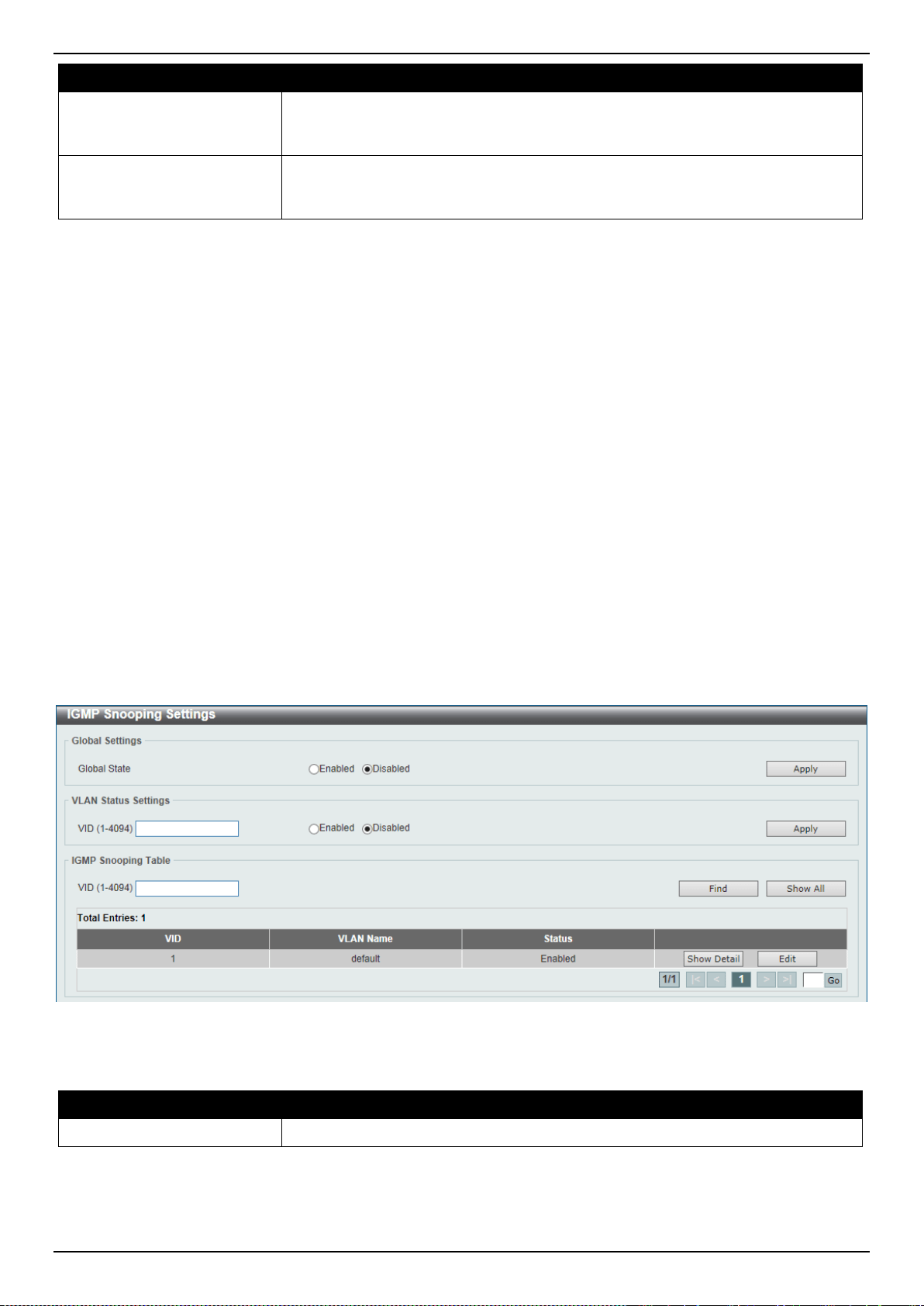
DXS-3400 Series Lite Layer 3 Stackable 10GbE Managed Switch Web UI Reference Guide
154
Parameter Description
Protocol MAC
After selecting the Protocol MAC option as the Tunneled Protocol, the following
option will be available. Select the protocol MAC option here. Options to choose
from are 01-00-0C-CC-CC-CC and 01-00-0C-CC-CC-CD.
Threshold
After selecting the Shutdown or Drop options as the Type, the following
parameter will be available. Enter the threshold value here. This value must be
between 1 and 4096.
Click the Apply button to accept the changes made.
Click the Clear All button to clear all the counter information.
Click the Clear button to clear all the counter information of the specific entry.
L2 Multicast Control
IGMP Snooping
Internet Group Management Protocol (IGMP) snooping allows the Switch to recognize IGMP queries and reports sent
between network stations or devices and an IGMP host.
IGMP Snooping Settings
In order to use IGMP Snooping it must first be enabled for the entire Switch under IGMP Global Settings at the top of
the window. You may then fine-tune the settings for each VLAN by clicking the corresponding Edit button. When
enabled for IGMP snooping, the Switch can open or close a port to a specific multicast group member based on IGMP
messages sent from the device to the IGMP host or vice versa. The Switch monitors IGMP messages and
discontinues forwarding multicast packets when there are no longer hosts requesting that they continue.
To view the following window, click L2 Features > L2 Multicast Control > IGMP Snooping > IGMP Snooping
Settings, as shown below:
Figure 5-65 IGMP Snooping Settings Window
The fields that can be configured in Global Settings are described below:
Parameter Description
Global State
Select this option to enable or disable IGMP snooping global state.
Click the Apply button to accept the changes made.
The fields that can be configured in VLAN Status Settings are described below:
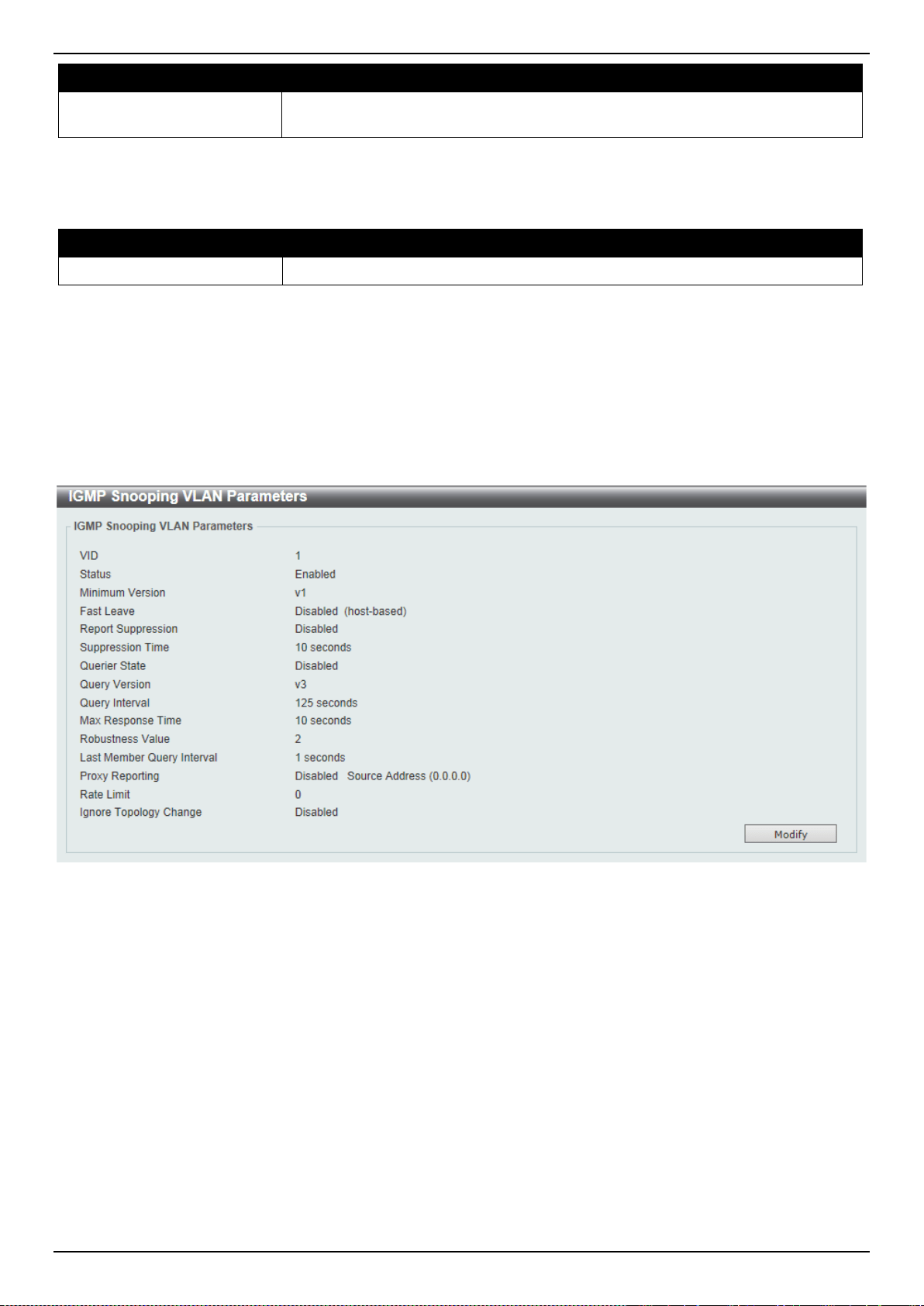
DXS-3400 Series Lite Layer 3 Stackable 10GbE Managed Switch Web UI Reference Guide
155
Parameter Description
VID
Enter a VLAN ID from 1 to 4094, and select to enable or disable IGMP snooping
on the VLAN.
Click the Apply button to accept the changes made.
The fields that can be configured in IGMP Snooping Table are described below:
Parameter Description
VID
Enter a VLAN ID from 1 to 4094.
Click the Find button to locate a specific entry based on the information entered.
Click the Show All button to view all the entries.
Click the Show Detail button to see the detail information of the specific VLAN.
Click the Edit button to re-configure the specific entry.
Enter a page number and click the Go button to navigate to a specific page when multiple pages exist.
After clicking the Show Detail button, the following window will appear.
Figure 5-66 IGMP Snooping Settings (Show Detail) Window
The window displays the detail information about IGMP snooping VLAN.
Click the Modify button to edit the information in the following window.
After clicking the Modify or Edit button in IGMP Snooping Settings window, the following window will appear.
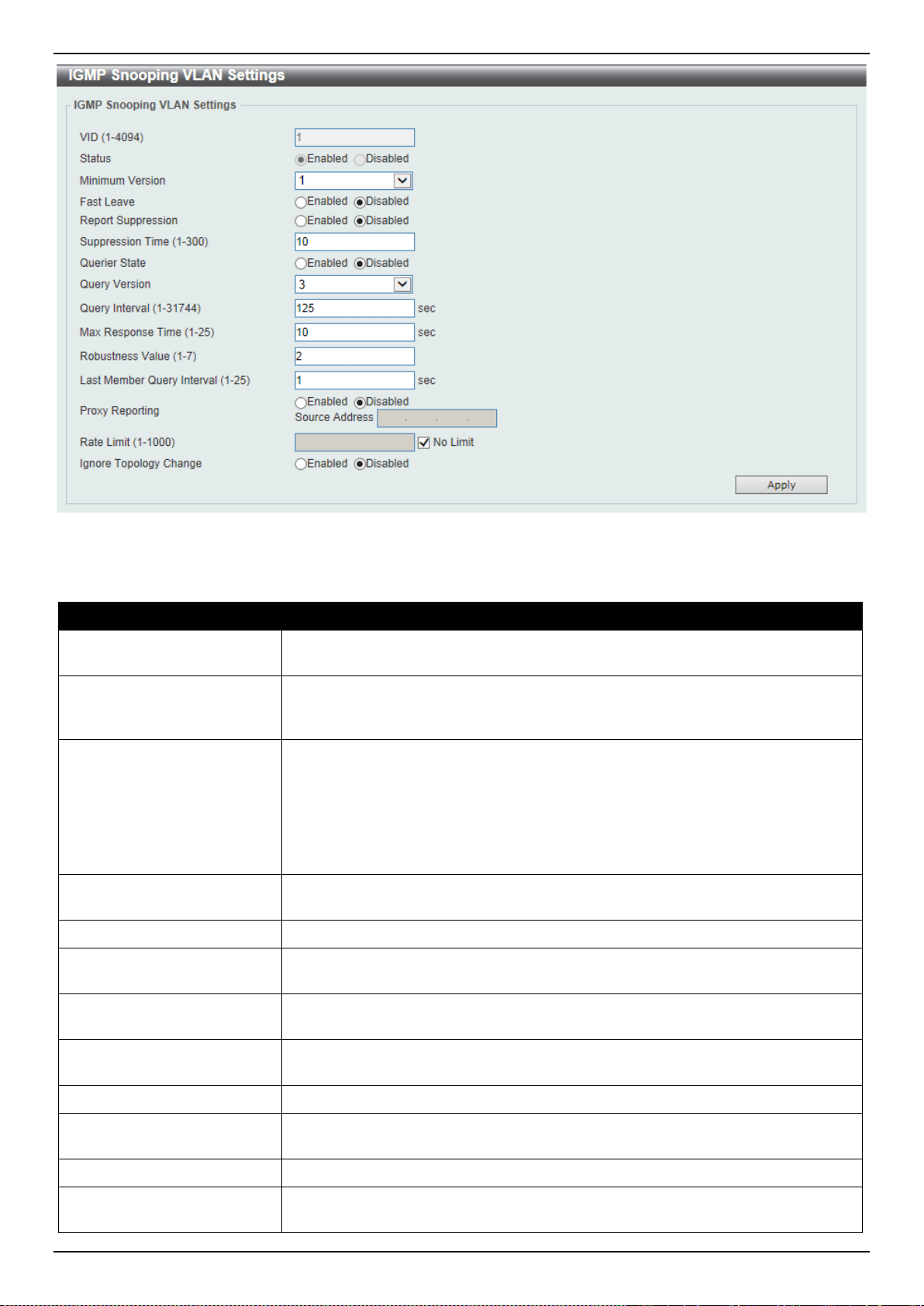
DXS-3400 Series Lite Layer 3 Stackable 10GbE Managed Switch Web UI Reference Guide
156
Figure 5-67 IGMP Snooping Settings (Modify, Edit) Window
The fields that can be configured are described below:
Parameter Description
Minimum Version
Select the minimum IGMP host version that is allowed on the VLAN. Options to
choose from are 1, 2, and 3.
Fast Leave
Select this option to enable or disable the IGMP snooping fast leave function. If
enabled, the membership is immediately removed when the system receive the
IGMP leave message.
Report Suppression
Select this option to enable or disable the report suppression. The report
suppression function only works for IGMPv1 and IGMPv2 traffic. When report
suppression is enabled, the Switch suppresses the duplicate reports sent by
hosts. The suppression for the same group report or leave will continue until the
suppression time expired. For report or leave messages to the same group, only
one report or leave message is forwarded. The remaining report and leave
messages are suppressed.
Suppression Time
Enter the interval of suppressing duplicate IGMP reports or leaves. The range is
from 1 to 300.
Querier State
Select this option to enable or disable the querier state.
Query Version
Select the general query packet version sent by the IGMP snooping querier.
Options to choose from are 1, 2, and 3.
Query Interval
Enter the interval at which the IGMP snooping querier sends IGMP general query
messages periodically. The range is from 1 to 31744.
Max Response Time
Enter the maximum response time, in seconds, advertised in IGMP snooping
queries. The range is from 1 to 25.
Robustness Value
Enter the robustness variable used in IGMP snooping. The range is from 1 to 7.
Las Member Query Interval
Enter the interval at which the IGMP snooping querier sends IGMP group-specific
or group-source-specific (channel) query messages. The range is from 1 to 25.
Proxy Reporting
Select this option to enable or disable the proxy-reporting function.
Source Address
Enter the source IP of proxy reporting. This is available when Enabled is selected
in Proxy Reporting.
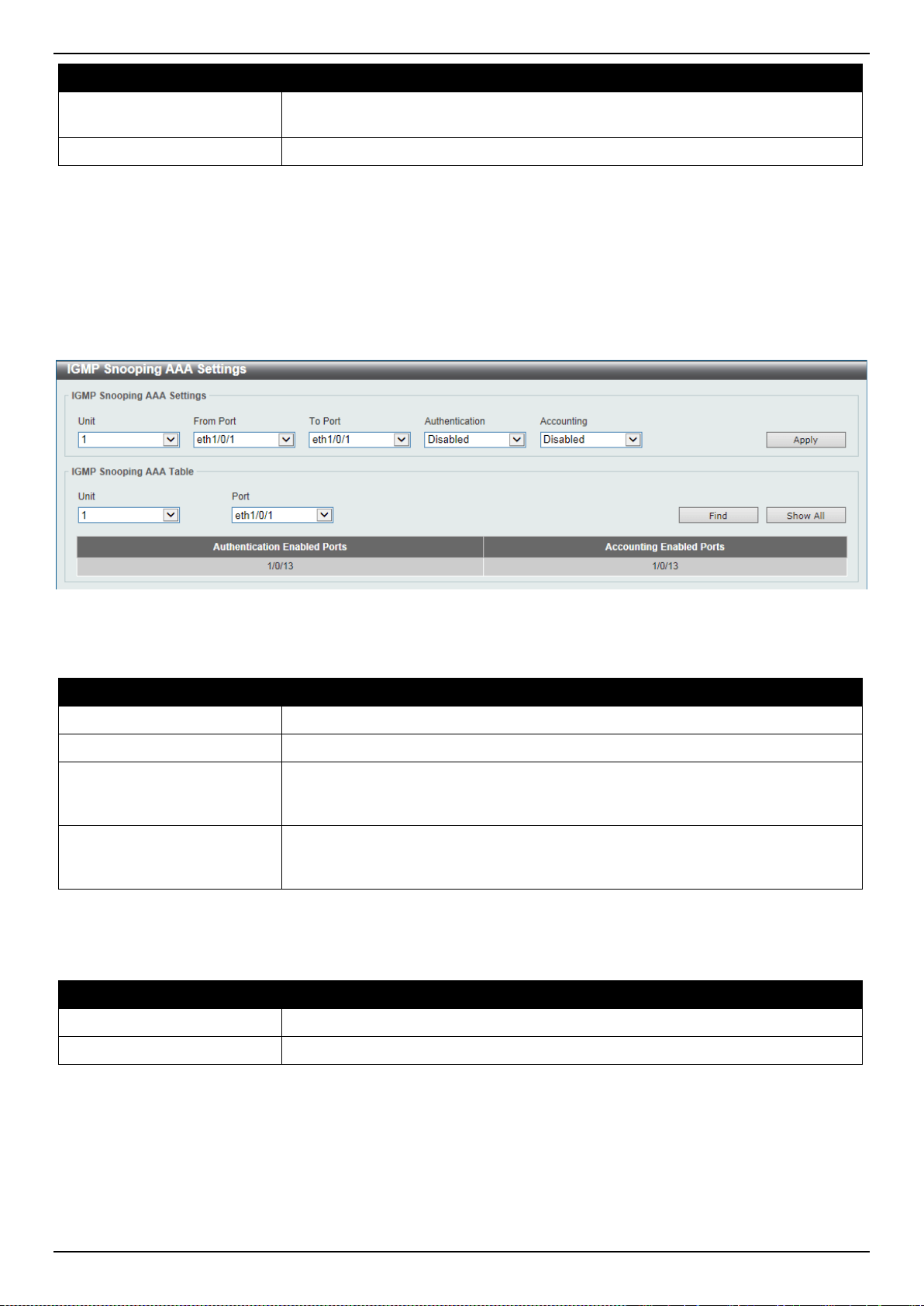
DXS-3400 Series Lite Layer 3 Stackable 10GbE Managed Switch Web UI Reference Guide
157
Parameter Description
Rate Limit
Enter the rate limit value here. The range is from 1 to 1000. Tick the No Limit
option to apply no rate limit on this profile.
Ignore Topology Change
Select to enable or disable the ignore topology change feature here.
Click the Apply button to accept the changes made.
IGMP Snooping AAA Settings
This window is used to display and configure the IGMP snooping AAA settings.
To view the following window, click L2 Features > L2 Multicast Control > IGMP Snooping > IGMP Snooping AAA
Settings, as shown below:
Figure 5-68 IGMP Snooping AAA Settings Window
The fields that can be configured in IGMP Snooping AAA Settings are described below:
Parameter Description
Unit
Select the Switch unit that will be used for this configuration here.
From Port ~ To Port
Select the range of ports that will be used for this configuration here.
Authentication
Select to enable or disable authentication here. This is used to enable or disable
the authentication function for IGMP join messages. When enabled and the client
wants to join a group, the system will perform authentication first.
Accounting
Select to enable or disable accounting here. This is used to enable or disable
accounting when a listener joining an IGMP group. When enabled and the client
joins a group, the accounting message will be sent to RADIUS.
Click the Apply button to accept the changes made.
The fields that can be configured in IGMP Snooping AAA Table are described below:
Parameter Description
Unit
Select the Switch unit that will be used for this display here.
From Port ~ To Port
Select the range of ports that will be used for this display here.
Click the Find button to generate the display based on the selections made.
Click the Show All button to display all the available entries.
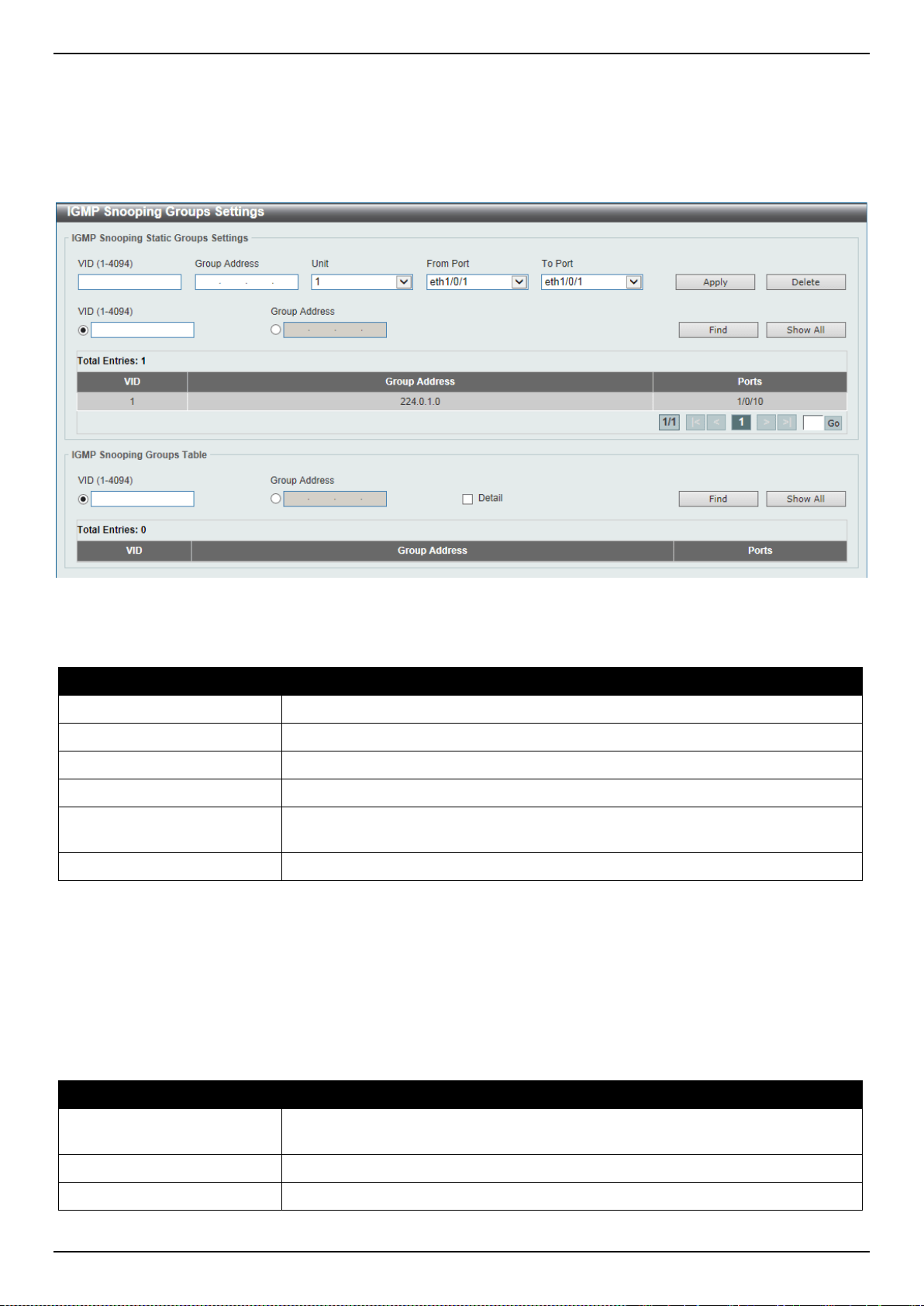
DXS-3400 Series Lite Layer 3 Stackable 10GbE Managed Switch Web UI Reference Guide
158
IGMP Snooping Groups Settings
This window is used to display and configure and view the IGMP snooping static group, and view IGMP snooping
group.
To view the following window, click L2 Features > L2 Multicast Control > IGMP Snooping > IGMP Snooping
Groups Settings, as shown below:
Figure 5-69 IGMP Snooping Groups Settings Window
The fields that can be configured in IGMP Snooping Static Groups Settings are described below:
Parameter Description
VID
Enter a VLAN ID of the multicast group. The range is from 1 to 4094.
Group Address
Enter an IP multicast group address.
Unit
Select the Switch unit that will be used for this configuration here.
From Port ~ To Port
Select the appropriate port range used for the configuration here.
VID
Click the radio button and enter a VLAN ID of the multicast group. The range is
from 1 to 4094.
Group Address
Click the radio button and enter an IP multicast group address.
Click the Apply button to accept the changes made.
Click the Delete button to remove the specified entry.
Click the Find button to locate a specific entry based on the information entered.
Click the Show All button to view all the entries.
Enter a page number and click the Go button to navigate to a specific page when multiple pages exist.
The fields that can be configured in IGMP Snooping Groups Table are described below:
Parameter Description
VID
Click the radio button and enter a VLAN ID of the multicast group. The range is
from 1 to 4094.
Group Address
Click the radio button and enter an IP multicast group address.
Detail
Select this option to display the IGMP group detail information.
Click the Find button to locate a specific entry based on the information entered.

DXS-3400 Series Lite Layer 3 Stackable 10GbE Managed Switch Web UI Reference Guide
159
Click the Show All button to view all the entries.
IGMP Snooping Filter Settings
This window is used to display and configure the IGMP snooping feature’s filter settings.
To view the following window, click L2 Features > L2 Multicast Control > IGMP Snooping > IGMP Snooping Filter
Settings, as shown below:
Figure 5-70 IGMP Snooping Filter Settings Window
The fields that can be configured in IGMP Snooping Rate Limit Settings are described below:
Parameter Description
Unit
Select the Switch’s unit ID that will be used here.
From Port ~ To Port
Select the Switch’s port range that will be used here. This is only available if the
Port option was selected as the action below.
Limit Number
Enter the limit number here. This is to configure the rate of IGMP control packets
that the Switch can process on a specific interface. The range is from 1 to 1000
packets per second. Select the No Limit option to remove the limitation.
Action
Select the action that will be taken here. Options to choose from are Port and
VLAN.
VID
Enter the VLAN’s ID here. This is the Layer 2 VLAN on a trunk port and applies
the filter to packets that arrive on that VLAN. The range is from 1 to 4094. This is
only available if the VLAN option was selected as the action.
Click the Apply button to accept the changes made.

DXS-3400 Series Lite Layer 3 Stackable 10GbE Managed Switch Web UI Reference Guide
160
The fields that can be configured in IGMP Snooping Limit Settings are described below:
Parameter Description
Unit
Select the Switch unit that will be used for this configuration here.
From Port ~ To Port
Select the appropriate port range used for the configuration here.
Limit Number
Enter the limit number here. This is used to set the limitation on the number of
IGMP cache entries that can be created. The range is from 1 to 512.
Exceed Action
Select the exceed action here. This parameter specifies the action for handling
newly learned groups when the limitation is exceeded.
Options to choose from are Default, Drop and Replace.
• Default - Specifies that the default action will be taken.
• Drop - Specifies that the new group will be dropped.
• Replace - Specifies that the new group will replace the oldest group.
Except ACL Name
Enter the standard IP access list’s name here. The group (*,G), or channel (S,G)
permitted by the access list will be excluded from the limit. To permit a channel
(S,G), specify S in the source address field and G in the destination address field
of the access list entry. To permit a group (*,G), specify “any” in the source
address field and G in the destination address field of the access list entry. This
name can be up to 32 characters long. Alternatively, click the Please Select
button to find and select any of the exiting access lists configured on the Switch to
be used in this configuration.
VID
Enter the Layer 2 VLAN’s name on a trunk port here. This applies the filter to
packets that arrive on that VLAN. The range is from 1 to 4094.
Click the Apply button to accept the changes made.
Click the Delete button to delete an entry based on the information entered.
The fields that can be configured in Access Group Settings are described below:
Parameter Description
Unit
Select the Switch unit that will be used for this configuration here.
From Port ~ To Port
Select the appropriate port range used for the configuration here.
Action
Select Add to add a new entry based in the information entered.
Select Delete to delete an entry based in the information entered.
ACL Name
Enter the standard IP access list’s name here. This is used to permit users to join
a group (*, G), specify “any” in source address field and G in destination address
field of the access list entry. This name can be up to 32 characters long.
Alternatively, click the Please Select button to find and select any of the exiting
access lists configured on the Switch to be used in this configuration.
VID
Enter the VLAN’s ID used for this configuration here. The range is from 1 to 4094.
Click the Apply button to accept the changes made.
The fields that can be configured in IGMP Snooping Filter Table are described below:
Parameter Description
Unit
Select the Switch’s unit ID that will be used here.
From Port ~ To Port
Select the Switch’s port range that will be used here.
Click the Find button to locate a specific entry based on the information entered.
Click the Show All button to display all the entries.
Click the Show Detail button to view more detailed information associated with the entry.
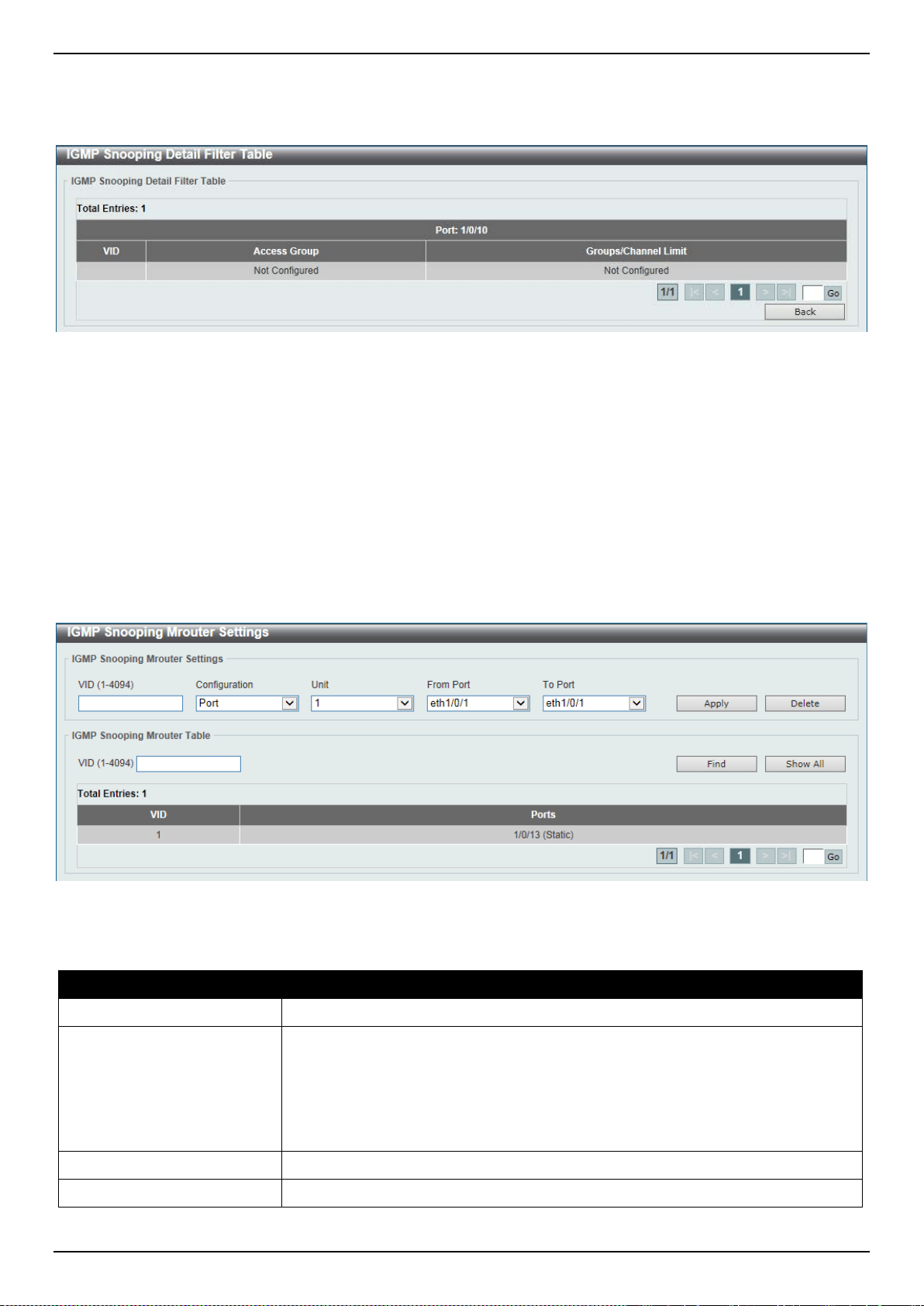
DXS-3400 Series Lite Layer 3 Stackable 10GbE Managed Switch Web UI Reference Guide
161
Enter a page number and click the Go button to navigate to a specific page when multiple pages exist.
After clicking the Show Detail button, the following page will appear.
Figure 5-71 IGMP Snooping Filter Settings (Show Detail) Window
Click the Back button to return to the previous window.
Enter a page number and click the Go button to navigate to a specific page when multiple pages exist.
IGMP Snooping Mrouter Settings
This window is used to display and configure the specified interface(s) as the multicast router ports or as forbidden to
be multicast router ports on the Switch.
To view the following window, click L2 Features > L2 Multicast Control > IGMP Snooping > IGMP Snooping
Mrouter Settings, as shown below:
Figure 5-72 IGMP Snooping Mrouter Settings Window
The fields that can be configured in IGMP Snooping Mrouter Settings are described below:
Parameter Description
VID
Enter the VLAN ID used here. The range is from 1 to 4094.
Configuration
Select the port configuration. Options to choose from are Port, and Forbidden
Port.
• Port - Select to have the configured ports to be static multicast router ports.
• Forbidden Port - Select to have the configured ports not to be multicast
router ports.
Unit
Select the Switch unit that will be used for this configuration here.
From Port ~ To Port
Select the appropriate port range used for the configuration here.
Click the Apply button to accept the changes made.
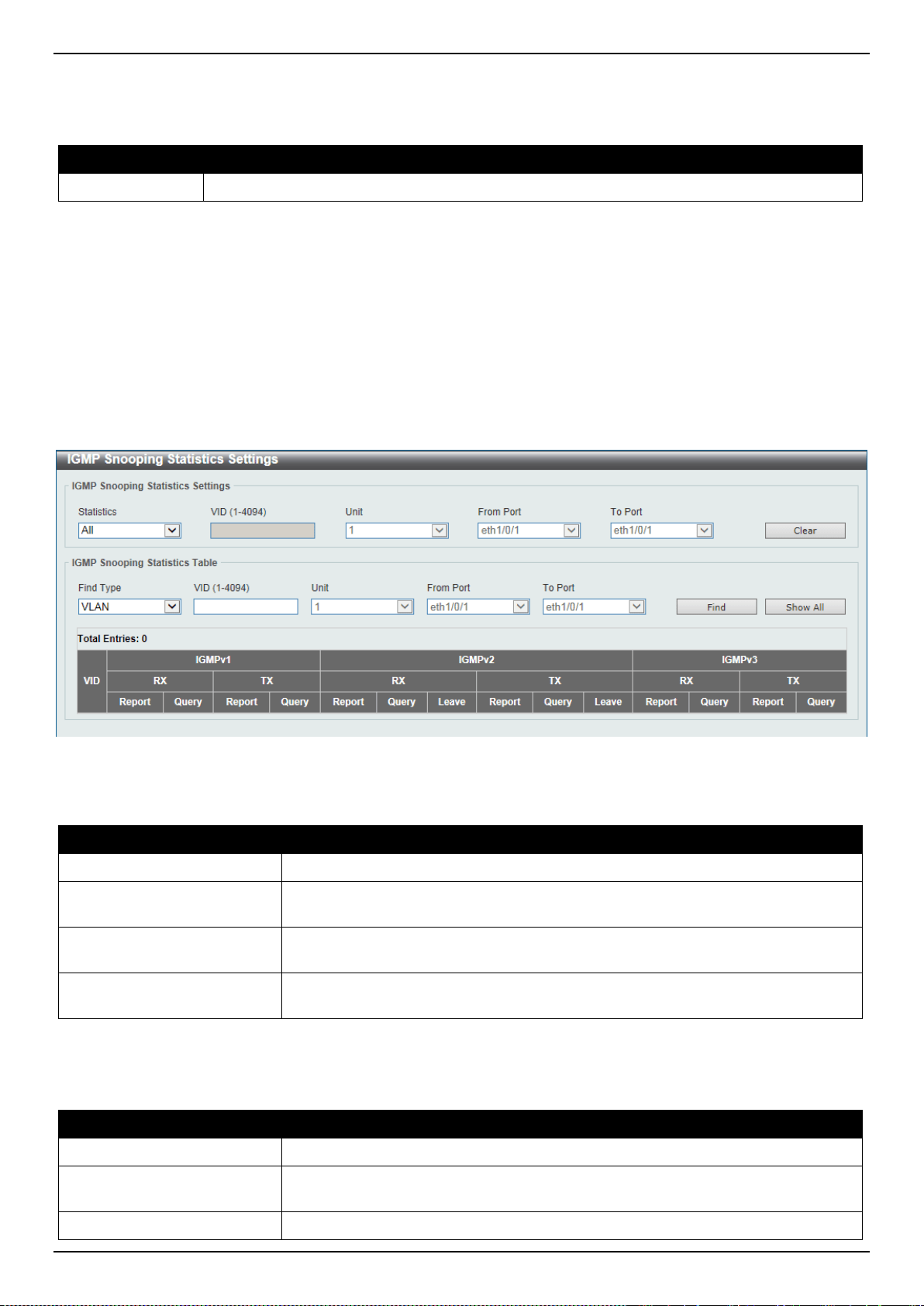
DXS-3400 Series Lite Layer 3 Stackable 10GbE Managed Switch Web UI Reference Guide
162
Click the Delete button to remove the specified entry.
The fields that can be configured in IGMP Snooping Mrouter Table are described below:
Parameter Description
VID
Enter the VLAN ID used here. The range is from 1 to 4094.
Click the Find button to locate a specific entry based on the information entered.
Click the Show All button to view all the entries.
Enter a page number and click the Go button to navigate to a specific page when multiple pages exist.
IGMP Snooping Statistics Settings
This window is used to display and clear the IGMP snooping related statistics.
To view the following window, click L2 Features > L2 Multicast Control > IGMP Snooping > IGMP Snooping
Statistics Settings, as shown below:
Figure 5-73 IGMP Snooping Statistics Settings Window
The fields that can be configured in IGMP Snooping Statistics Settings are described below:
Parameter Description
Statistics
Select the interface here. Options to choose from are All, VLAN, and Port.
VID
Enter a VLAN ID between 1 and 4094. This is available when VLAN is selected in
the Statistics drop-down list.
Unit
Select the Switch unit that will be used for this configuration here. This is available
when Port is selected in the Statistics drop-down list.
From Port ~ To Port
Select the appropriate port range used for the configuration here. This is available
when Port is selected in the Statistics drop-down list.
Click the Clear button to clear the IGMP snooping related statistics.
The fields that can be configured in IGMP Snooping Statistics Table are described below:
Parameter Description
Find Type
Select the interface type. Options to choose from are VLAN, and Port.
VID
Enter a VLAN ID between 1 and 4094. This is available when VLAN is selected in
the Find Type drop-down list.
Unit
Select the Switch unit that will be used for this configuration here. This is available

DXS-3400 Series Lite Layer 3 Stackable 10GbE Managed Switch Web UI Reference Guide
163
Parameter Description
when Port is selected in the Find Type drop-down list.
From Port ~ To Port
Select the appropriate port range used for the configuration here. This is available
when Port is selected in the Find Type drop-down list.
Click the Find button to locate a specific entry based on the information entered.
Click the Show All button to view all the entries.
Enter a page number and click the Go button to navigate to a specific page when multiple pages exist.
MLD Snooping
Multicast Listener Discovery (MLD) Snooping is an IPv6 function used similarly to IGMP snooping in IPv4. It is used to
discover ports on a VLAN that are requesting multicast data. Instead of flooding all ports on a selected VLAN with
multicast traffic, MLD snooping will only forward multicast data to ports that wish to receive this data through the use
of queries and reports produced by the requesting ports and the source of the multicast traffic.
MLD snooping is accomplished through the examination of the layer 3 part of an MLD control packet transferred
between end nodes and a MLD router. When the Switch discovers that this route is requesting multicast traffic, it adds
the port directly attached to it into the correct IPv6 multicast table, and begins the process of forwarding multicast
traffic to that port. This entry in the multicast routing table records the port, the VLAN ID, and the associated multicast
IPv6 multicast group address, and then considers this port to be an active listening port. The active listening ports are
the only ones to receive multicast group data.
MLD Control Messages
These types of messages are transferred between devices using MLD snooping. These messages are all defined by
four ICMPv6 packet headers, labeled 130, 131, 132, and 143.
• Multicast Listener Query - Similar to the IGMPv2 Host Membership Query for IPv4, and labeled as 130 in the
ICMPv6 packet header, this message is sent by the router to ask if any link is requesting multicast data. There
are two types of MLD query messages emitted by the router. The General Query is used to advertise all
multicast addresses that are ready to send multicast data to all listening ports, and the Multicast Specific query,
which advertises a specific multicast address that is also ready. These two types of messages are distinguished
by a multicast destination address located in the IPv6 header and a multicast address in the Multicast Listener
Query Message.
• Multicast Listener Report, Version 1 - Comparable to the Host Membership Report in IGMPv2, and labeled
as 131 in the ICMP packet header, this message is sent by the listening port to the Switch stating that it is
interested in receiving multicast data from a multicast address in response to the Multicast Listener Query
message.
• Multicast Listener Done - Akin to the Leave Group Message in IGMPv2, and labeled as 132 in the ICMPv6
packet header, this message is sent by the multicast listening port stating that it is no longer interested in
receiving multicast data from a specific multicast group address, therefore stating that it is “done” with the
multicast data from this address. Once this message is received by the Switch, it will no longer forward
multicast traffic from a specific multicast group address to this listening port.
• Multicast Listener Report, Version 2 - Comparable to the Host Membership Report in IGMPv3, and labeled
as 143 in the ICMP packet header, this message is sent by the listening port to the Switch stating that it is
interested in receiving multicast data from a multicast address in response to the Multicast Listener Query
message.
MLD Snooping Settings
This window is used to display and configure the MLD snooping settings.
To view the following window, click L2 Features > L2 Multicast Control > MLD Snooping > MLD Snooping
Settings, as shown below:
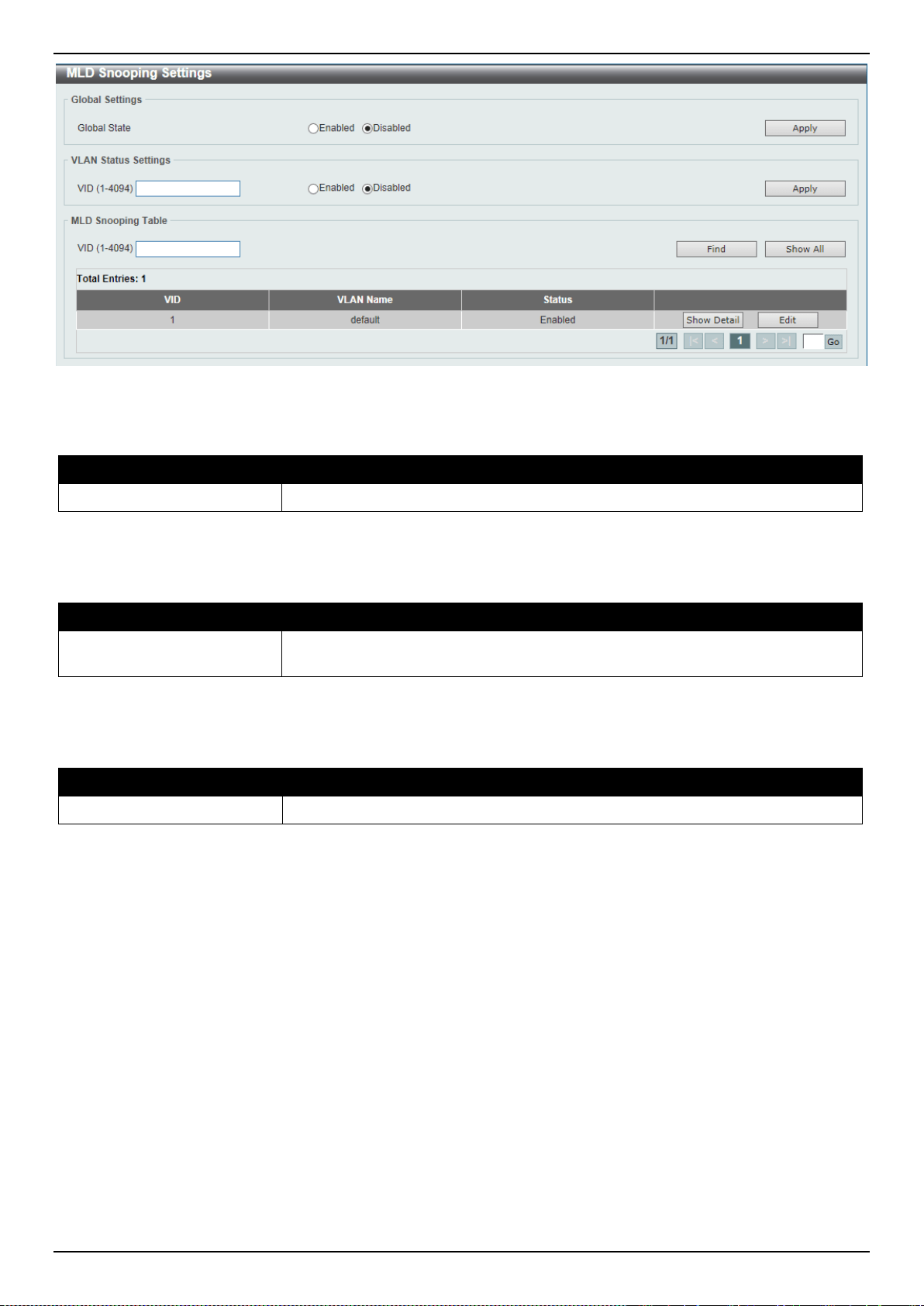
DXS-3400 Series Lite Layer 3 Stackable 10GbE Managed Switch Web UI Reference Guide
164
Figure 5-74 MLD Snooping Settings Window
The fields that can be configured in Global Settings are described below:
Parameter Description
Global State
Select this option to enable or disable MLD snooping global state.
Click the Apply button to accept the changes made.
The fields that can be configured in VLAN Status Settings are described below:
Parameter Description
VID
Enter a VLAN ID from 1 to 4094, and select to enable or disable MLD snooping
on the VLAN.
Click the Apply button to accept the changes made.
The fields that can be configured in MLD Snooping Table are described below:
Parameter Description
VID
Enter a VLAN ID from 1 to 4094.
Click the Find button to locate a specific entry based on the information entered.
Click the Show All button to view all the entries.
Click the Show Detail button to see the detail information of the specific VLAN.
Click the Edit button to re-configure the specific entry.
Enter a page number and click the Go button to navigate to a specific page when multiple pages exist.
After clicking the Show Detail button, the following window will appear.
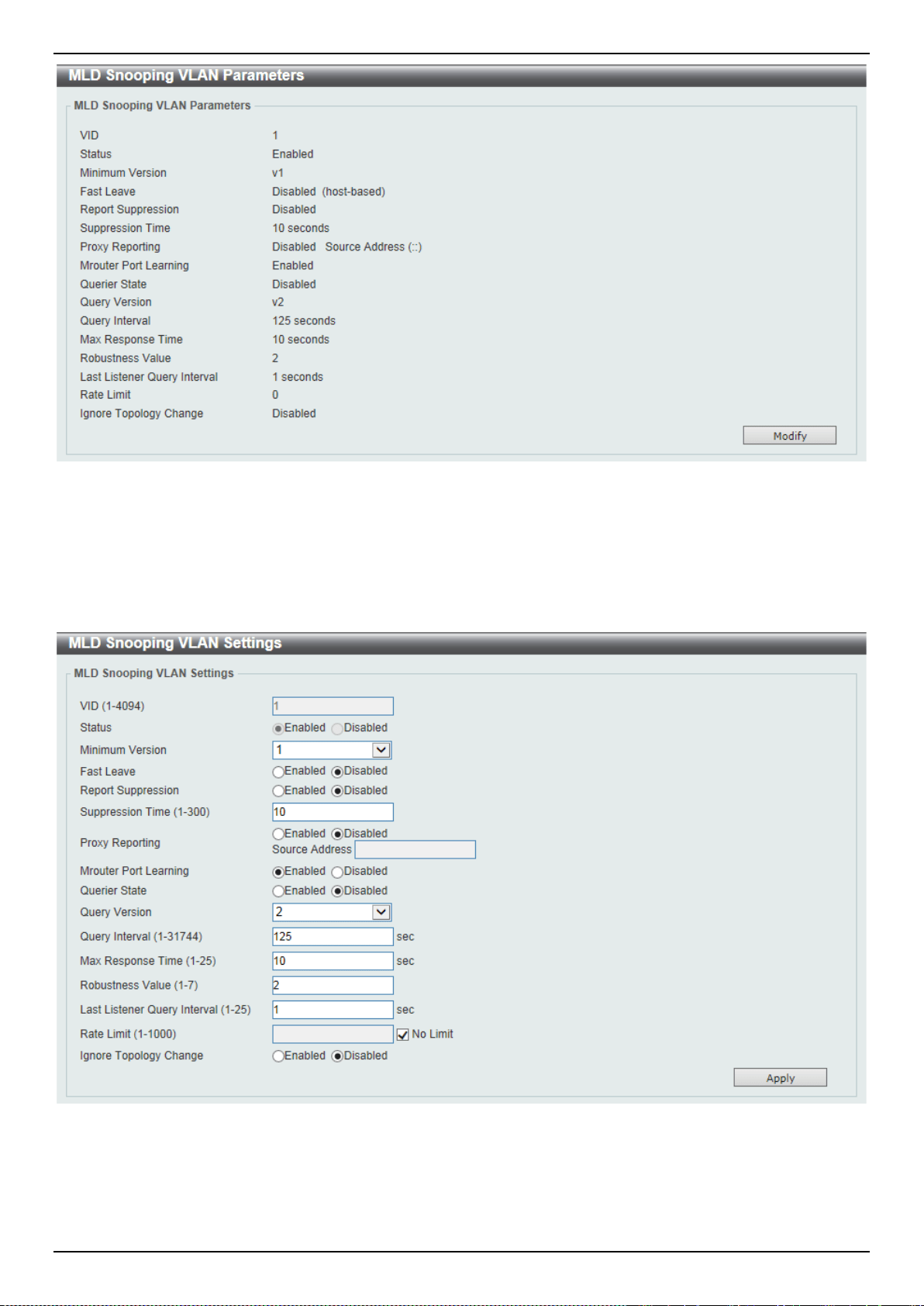
DXS-3400 Series Lite Layer 3 Stackable 10GbE Managed Switch Web UI Reference Guide
165
Figure 5-75 MLD Snooping Settings (Show Detail) Window
The window displays the detail information about MLD snooping VLAN.
Click the Modify button to edit the information in the following window.
After clicking the Modify or Edit button in MLD Snooping Settings window, the following window will appear.
Figure 5-76 MLD Snooping Settings (Modify, Edit) Window
The fields that can be configured are described below:

DXS-3400 Series Lite Layer 3 Stackable 10GbE Managed Switch Web UI Reference Guide
166
Parameter Description
Minimum Version
Select the minimum version of MLD hosts that is allowed on the VLAN. Options to
choose from are 1 and 2.
Fast Leave
Select this option to enable or disable the MLD snooping fast leave function. If
enabled, the membership is immediately removed when the system receive the
MLD leave message.
Report Suppression
Select this option to enable or disable the report suppression.
Suppression Time
Enter the interval of suppressing duplicate MLD reports or leaves. The range is
from 1 to 300.
Proxy Reporting
Select this option to enable or disable the proxy-reporting function.
Source Address
Enter the source IP of proxy reporting. This is available when Enabled is selected
in Proxy Reporting.
Mrouter Port Learning
Select this option to enable or disable Mrouter port learning.
Querier State
Select this option to enable or disable the querier state.
Query Version
Select the general query packet version sent by the MLD snooping querier.
Options to choose from are 1, and 2.
Query Interval
Enter the interval at which the MLD snooping querier sends MLD general query
messages periodically. The range is from 1 to 31744.
Max Response Time
Enter the maximum response time, in seconds, advertised in MLD snooping
queries. The range is from 1 to 25.
Robustness Value
Enter the robustness variable used in MLD snooping. The range is from 1 to 7.
Last Listener Query Interval
Enter the interval at which the MLD snooping querier sends MLD group-specific or
group-source-specific (channel) query messages. The range is from 1 to 25.
Rate Limit
Enter the rate limit value here. The range is from 1 to 1000. Tick the No Limit
option to apply no rate limit on this profile.
Ignore Topology Change
Select to enable or disable the ignore topology change feature here.
Click the Apply button to accept the changes made.
MLD Snooping Groups Settings
This window is used to display and configure the MLD snooping static group, and view MLD snooping group.
To view the following window, click L2 Features > L2 Multicast Control > MLD Snooping > MLD Snooping Groups
Settings, as shown below:

DXS-3400 Series Lite Layer 3 Stackable 10GbE Managed Switch Web UI Reference Guide
167
Figure 5-77 MLD Snooping Groups Settings Window
The fields that can be configured in MLD Snooping Static Groups Settings are described below:
Parameter Description
VID
Enter the VLAN ID of the multicast group here. The range is from 1 to 4094.
Group Address
Enter the IPv6 multicast group address here.
Unit
Select the Switch unit that will be used for this configuration here.
From Port ~ To Port
Select the appropriate port range used for the configuration here.
VID
Click the radio button and enter a VLAN ID of the multicast group. The range is
from 1 to 4094.
Group Address
Click the radio button and enter an IP multicast group address.
Click the Apply button to accept the changes made.
Click the Delete button to remove the specified entry.
Click the Find button to locate a specific entry based on the information entered.
Click the Show All button to view all the entries.
Enter a page number and click the Go button to navigate to a specific page when multiple pages exist.
The fields that can be configured in MLD Snooping Groups Table are described below:
Parameter Description
VID
Click the radio button and enter a VLAN ID of the multicast group. The range is
from 1 to 4094.
Group Address
Click the radio button and enter an IP multicast group address.
Detail
Select this option to display the MLD group detail information.
Click the Find button to locate a specific entry based on the information entered.
Click the Show All button to view all the entries.
MLD Snooping Filter Settings
This window is used to display and configure the MLD snooping feature’s settings.
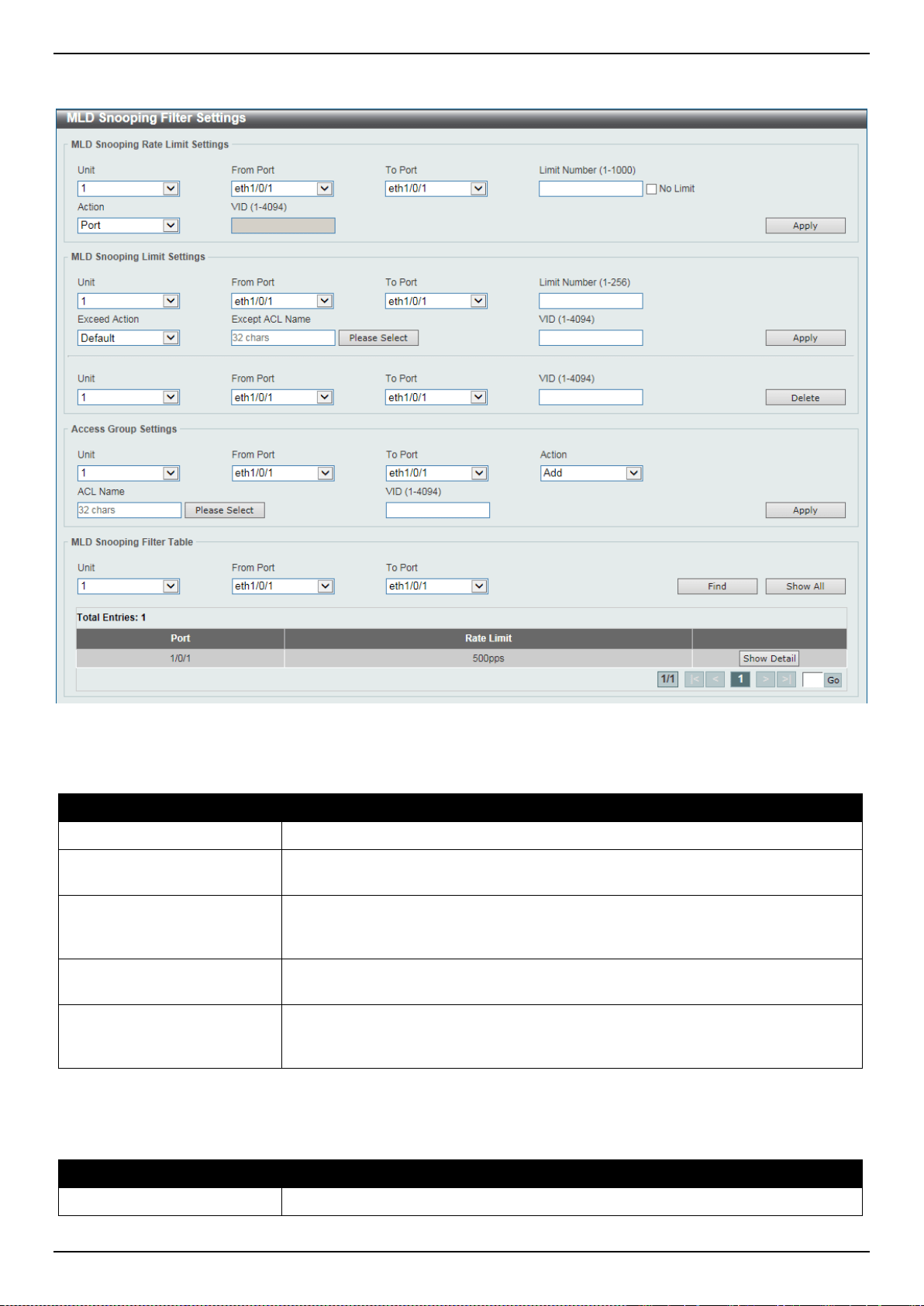
DXS-3400 Series Lite Layer 3 Stackable 10GbE Managed Switch Web UI Reference Guide
168
To view the following window, click L2 Features > L2 Multicast Control > MLD Snooping > MLD Snooping Filter
Settings, as shown below:
Figure 5-78 MLD Snooping Filter Settings Window
The fields that can be configured in MLD Snooping Rate Limit Settings are described below:
Parameter Description
Unit
Select the Switch’s unit ID that will be used here.
From Port ~ To Port
Select the Switch’s port range that will be used here. This is only available if the
Port option was selected as the action below.
Limit Number
Enter the limit number here. This is to configure the rate of MLD control packets
that the Switch can process on a specific interface. The range is from 1 to 1000
packets per second. Select the No Limit option to remove the limitation.
Action
Select the action that will be taken here. Options to choose from are Port and
VLAN.
VID
Enter the VLAN’s ID here. This is the Layer 2 VLAN on a trunk port and applies
the filter to packets that arrive on that VLAN. The range is from 1 to 4094. This is
only available if the VLAN option was selected as the action.
Click the Apply button to accept the changes made.
The fields that can be configured in MLD Snooping Limit Settings are described below:
Parameter Description
Unit
Select the Switch unit that will be used for this configuration here.

DXS-3400 Series Lite Layer 3 Stackable 10GbE Managed Switch Web UI Reference Guide
169
Parameter Description
From Port ~ To Port
Select the appropriate port range used for the configuration here.
Limit Number
Enter the limit number here. This is used to set the limitation on the number of
MLD cache entries that can be created. The range is from 1 to 256.
Exceed Action
Select the exceed action here. This parameter specifies the action for handling
newly learned groups when the limitation is exceeded.
Options to choose from are Default, Drop and Replace.
• Default - Specifies that the default action will be taken.
• Drop - Specifies that the new group will be dropped.
• Replace - Specifies that the new group will replace the oldest group.
Except ACL Name
Enter the standard IP access list’s name here. The group (*,G), or channel (S,G)
permitted by the access list will be excluded from the limit. To permit a channel
(S,G), specify S in the source address field and G in the destination address field
of the access list entry. To permit a group (*,G), specify “any” in the source
address field and G in the destination address field of the access list entry. This
name can be up to 32 characters long. Alternatively, click the Please Select
button to find and select any of the exiting access lists configured on the Switch to
be used in this configuration.
VID
Enter the Layer 2 VLAN’s name on a trunk port here. This applies the filter to
packets that arrive on that VLAN. The range is from 1 to 4094.
Click the Apply button to accept the changes made.
Click the Delete button to delete an entry based on the information entered.
The fields that can be configured in Access Group Settings are described below:
Parameter Description
Unit
Select the Switch unit that will be used for this configuration here.
From Port ~ To Port
Select the appropriate port range used for the configuration here.
Action
Select Add to add a new entry based in the information entered.
Select Delete to delete an entry based in the information entered.
ACL Name
Enter the standard IP access list’s name here. This is used to permit users to join
a group (*, G), specify “any” in source address field and G in destination address
field of the access list entry. This name can be up to 32 characters long.
Alternatively, click the Please Select button to find and select any of the exiting
access lists configured on the Switch to be used in this configuration.
VID
Enter the VLAN’s ID used for this configuration here. The range is from 1 to 4094.
Click the Apply button to accept the changes made.
The fields that can be configured in MLD Snooping Filter Table are described below:
Parameter Description
Unit
Select the Switch’s unit ID that will be used here.
From Port ~ To Port
Select the Switch’s port range that will be used here.
Click the Find button to locate a specific entry based on the information entered.
Click the Show All button to display all the entries.
Click the Show Detail button to view more detailed information about the entry.
Enter a page number and click the Go button to navigate to a specific page when multiple pages exist.
After clicking the Show Detail button, the following window will appear.
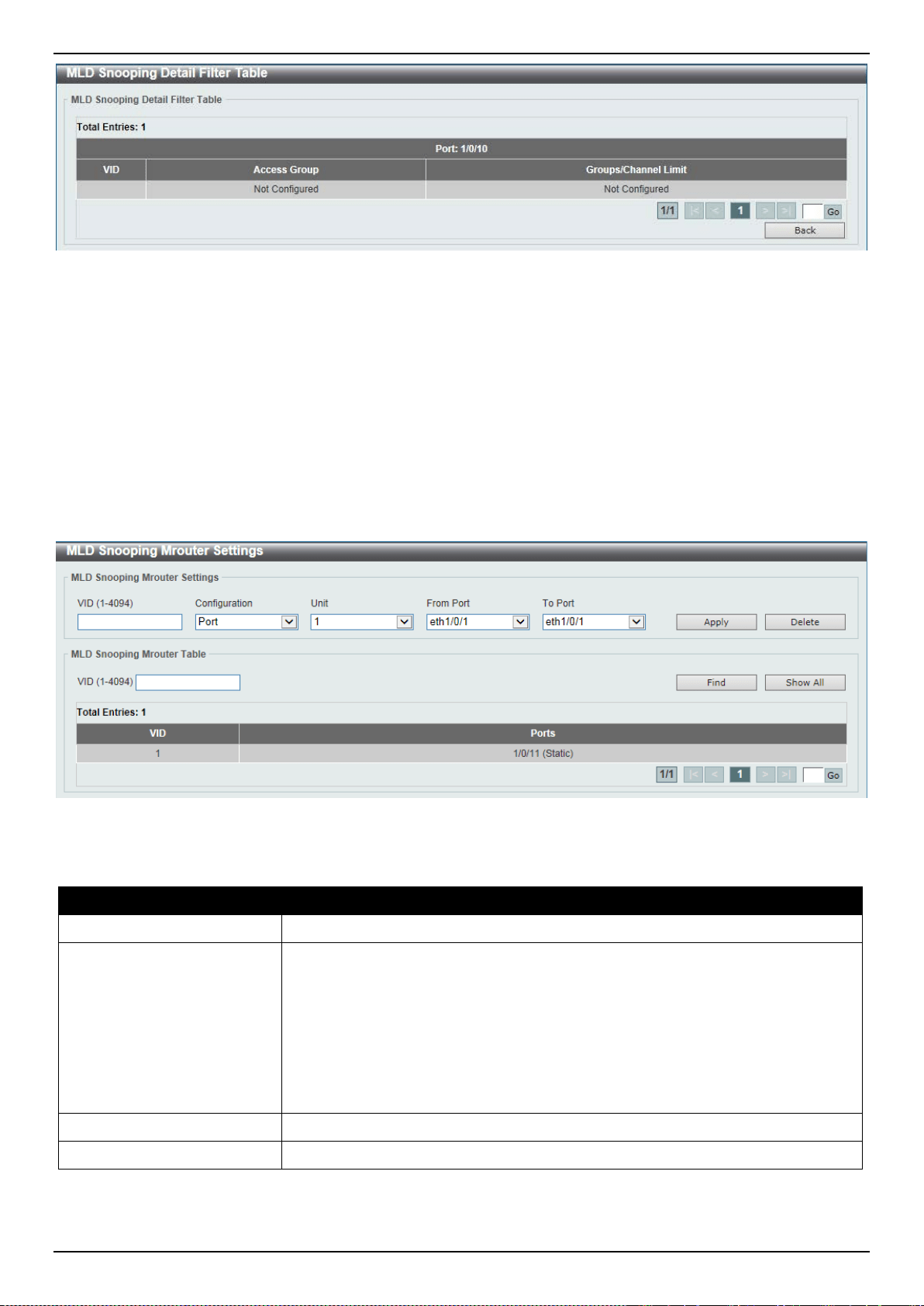
DXS-3400 Series Lite Layer 3 Stackable 10GbE Managed Switch Web UI Reference Guide
170
Figure 5-79 MLD Snooping Filter Settings Window
Click the Back button to return to the previous window.
Enter a page number and click the Go button to navigate to a specific page when multiple pages exist.
MLD Snooping Mrouter Settings
This window is used to display and configure the specified interface(s) as the router ports or forbidden to be IPv6
multicast router ports on the VLAN interface on the Switch.
To view the following window, click L2 Features > L2 Multicast Control > MLD Snooping > MLD Snooping
Mrouter Settings, as shown below:
Figure 5-80 MLD Snooping Mrouter Settings Window
The fields that can be configured in MLD Snooping Mrouter Settings are described below:
Parameter Description
VID
Enter a VLAN ID between 1 and 4094.
Configuration
Select the port configuration. Options to choose from are Port, Forbidden Port,
and Learn PIMv6.
• Port - Select to have the configured ports as being connected to multicast-
enabled routers.
• Forbidden Port - Select to have the configured ports as being not connected
to multicast-enabled routers.
• Learn PIMv6 - Select to enable dynamic learning of multicast router port.
Unit
Select the Switch unit that will be used for this configuration here.
From Port ~ To Port
Select the appropriate port range used for the configuration here.
Click the Apply button to accept the changes made.
Click the Delete button to remove the specified entry.
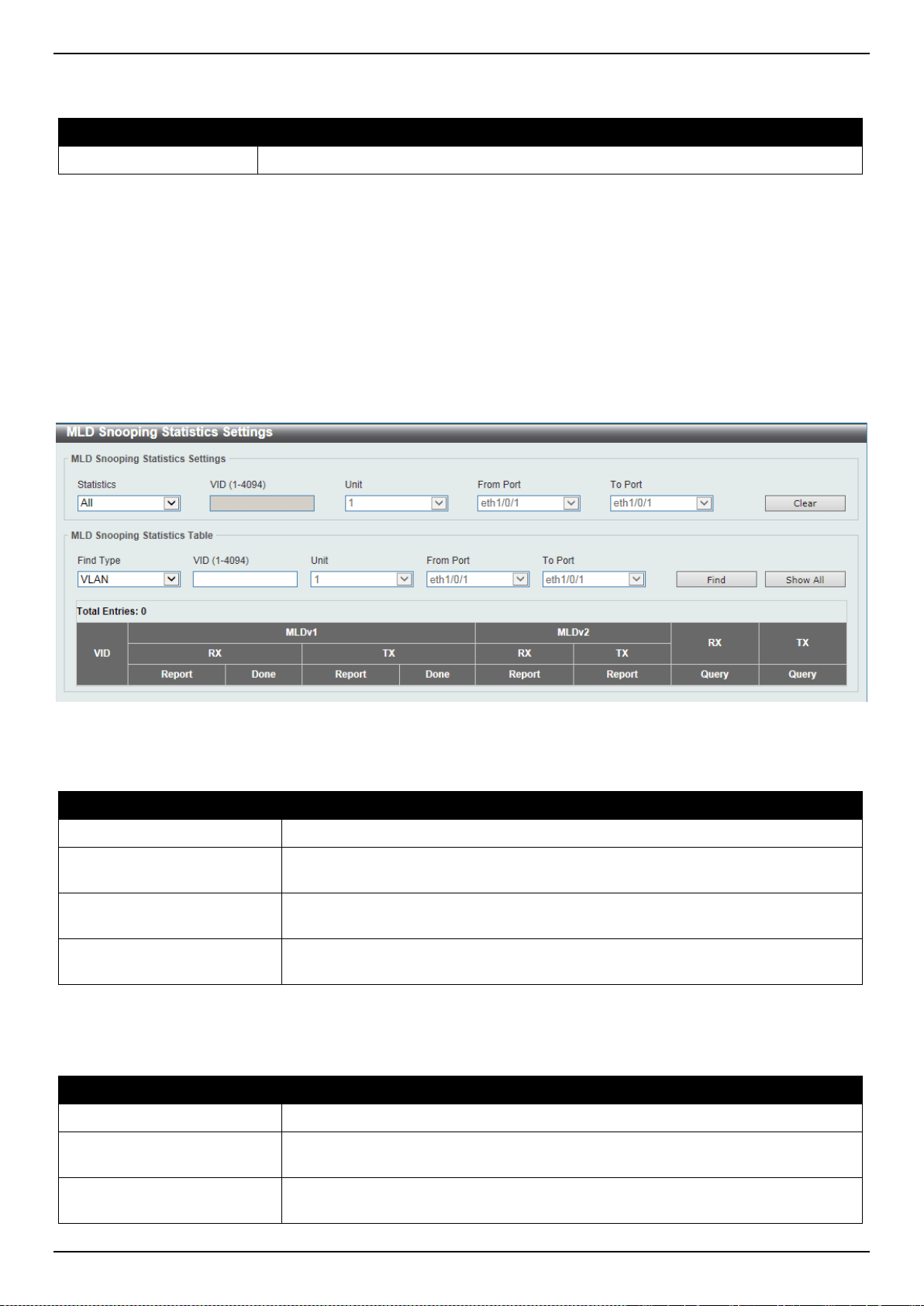
DXS-3400 Series Lite Layer 3 Stackable 10GbE Managed Switch Web UI Reference Guide
171
The fields that can be configured in MLD Snooping Mrouter Table are described below:
Parameter Description
VID
Enter a VLAN ID between 1 and 4094.
Click the Find button to locate a specific entry based on the information entered.
Click the Show All button to view all the entries.
Enter a page number and click the Go button to navigate to a specific page when multiple pages exist.
MLD Snooping Statistics Settings
This window is used to display and clear the MLD snooping related statistics.
To view the following window, click L2 Features > L2 Multicast Control > MLD Snooping > MLD Snooping
Statistics Settings, as shown below:
Figure 5-81 MLD Snooping Statistics Settings Window
The fields that can be configured in MLD Snooping Statistics Settings are described below:
Parameter Description
Statistics
Select the interface here. Options to choose from are All, VLAN, and Port.
VID
Enter a VLAN ID between 1 and 4094. This is available when VLAN is selected in
the Statistics drop-down list.
Unit
Select the Switch unit that will be used for this configuration here. This is available
when Port is selected in the Statistics drop-down list.
From Port ~ To Port
Select the appropriate port range used for the configuration here. This is available
when Port is selected in the Statistics drop-down list.
Click the Clear button to clear the MLD snooping related statistics.
The fields that can be configured in MLD Snooping Statistics Table are described below:
Parameter Description
Find Type
Select the interface type. Options to choose from are VLAN, and Port.
VID
Enter a VLAN ID between 1 and 4094. This is available when VLAN is selected in
the Find Type drop-down list.
Unit
Select the Switch unit that will be used for this configuration here. This is available
when Port is selected in the Find Type drop-down list.
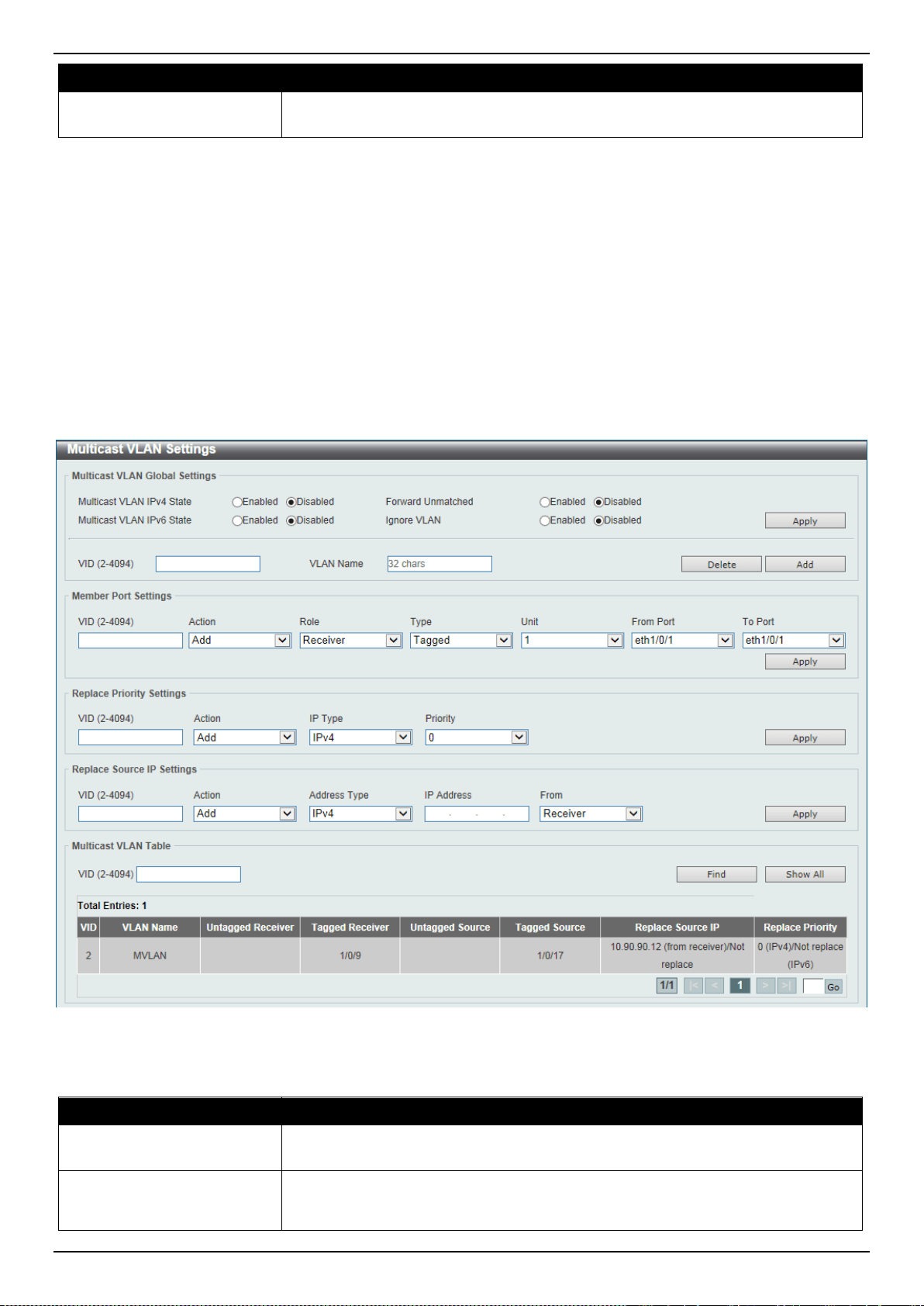
DXS-3400 Series Lite Layer 3 Stackable 10GbE Managed Switch Web UI Reference Guide
172
Parameter Description
From Port ~ To Port
Select the appropriate port range used for the configuration here. This is available
when Port is selected in the Find Type drop-down list.
Click the Find button to locate a specific entry based on the information entered.
Click the Show All button to view all the entries.
Enter a page number and click the Go button to navigate to a specific page when multiple pages exist.
Multicast VLAN
Multicast VLAN Settings
This window is used to display and configure the multicast VLAN settings.
To view the following window, click L2 Features > L2 Multicast Control > Multicast VLAN > Multicast VLAN
Settings, as shown below:
Figure 5-82 Multicast VLAN Settings Window
The fields that can be configured in Multicast VLAN Global Settings are described below:
Parameter Description
Multicast VLAN IPv4 State
Select to enable or disable the IPv4 IGMP control packet process in multicast
VLANs.
Forward Unmatched
Select the enable or disable the forward unmatched feature here. This specifies
that if the received IGMP or MLD control packet is untagged, does not match any
profile, and the associated default VLAN is a multicast VLAN, or is tagged with a

DXS-3400 Series Lite Layer 3 Stackable 10GbE Managed Switch Web UI Reference Guide
173
Parameter Description
multicast VLAN, but does not match the associated profile, then the packet will be
forwarded or dropped based on this setting. By default, the packet will be
dropped.
Multicast VLAN IPv6 State
Select to enable or disable the IPv6 IGMP control packet process in multicast
VLANs.
Ignore VLAN
Select the enable or disable the ignore VLAN feature here. This specifies the
setting for tagged IGMP or MLD control packets. If enabled, then the packet’s
VLAN is ignored and taken to match the profile to find its multicast VLAN. When
this option is enabled, the Switch will ignore the VLAN of the receiving IGMP or
MLD control packet and try to find a match profile.
VID
Enter the VLAN ID of the multicast VLAN that will be created or deleted here. The
range is 2 to 4094.
VLAN Name
Enter the VLAN name of the multicast VLAN that will be created or deleted here.
Click the Apply button to accept the changes made.
Click the Delete button to delete an entry based on the information entered.
Click the Add button to add a new entry based on the information entered.
The fields that can be configured in Member Port Settings are described below:
Parameter Description
VID
Enter the multicast VLAN’s ID that will be used here. The range is 2 to 4094.
Action
Select Add to add a new entry based in the information entered.
Select Delete to delete an entry based in the information entered.
Role
Select the role here. Options to choose from are Receiver and Source.
• Receiver - Specifies to configure the port as a subscriber port that can only
receive multicast data in the multicast VLAN.
• Source - Specifies to configure the port as an uplink port that can send
multicast data in the multicast VLAN.
Type
Select the type here. Options to choose from are Tagged and Untagged.
• Tagged - Specifies that if a port is a tagged member, the packets sent from
the port are tagged with the Multicast VLAN ID.
• Untagged - Specifies that if the port is an untagged member, then the
packets will be forwarded in the untagged form.
Unit
Select the Switch’s unit ID that will be used here.
From Port ~ To Port
Select the Switch’s port range that will be used here.
Click the Apply button to accept the changes made.
The fields that can be configured in Replace Priority Settings are described below:
Parameter Description
VID
Enter the multicast VLAN’s ID that will be used here. The range is 2 to 4094.
Action
Select Add to add a new entry based in the information entered.
Select Delete to delete an entry based in the information entered.
IP Type
Select the IP type here. Options to choose from are IPv4 and IPv6.
• IPv4 - Specifies to the remap priority for IPv4 multicast packets forwarded on
the multicast VLAN.
• IPv6 - Specifies to the remap priority for IPv6 multicast packets forwarded on

DXS-3400 Series Lite Layer 3 Stackable 10GbE Managed Switch Web UI Reference Guide
174
Parameter Description
the multicast VLAN.
Priority
Select the priority value here. The range is from 0 to 7. A lower value represents a
higher priority.
Click the Apply button to accept the changes made.
The fields that can be configured in Replace Source IP Settings are described below:
Parameter Description
VID
Enter the multicast VLAN’s ID that will be used here. The range is 2 to 4094.
Action
Select Add to add a new entry based in the information entered.
Select Delete to delete an entry based in the information entered.
Address Type
Select the address type here. Options to choose from are IPv4 and IPv6.
• IPv4 - Specifies to enter the source IPv4 address for IGMP control packet
reporting up to routers.
• IPv6 - Specifies to enter the source IPv6 address for MLD control packet
reporting up to routers.
IP Address
Enter the IPv4/IPv6 address here.
From
Select the “from” option here. Options to choose from are Receiver, Source, and
Both.
• Receiver - Specifies that the source IPv4/IPv6 address of the IGMP/MLD
report/leave packet received on any multicast VLAN receiver port will be
replaced.
• Source - Specifies that the source IPv4/IPv6 address of the IGMP/MLD
report/leave packet received on any multicast VLAN source port will be
replaced.
• Both - Specifies that the source IPv4/IPv6 address of the IGMP/MLD
report/leave packet received on any port in the multicast VLAN will be
replaced.
Click the Apply button to accept the changes made.
The fields that can be configured in Multicast VLAN Table are described below:
Parameter Description
VID
Enter the multicast VLAN’s ID that will be used here. The range is 2 to 4094.
Click the Find button to locate a specific entry based on the information entered.
Click the Show All button to view all the entries.
Enter a page number and click the Go button to navigate to a specific page when multiple pages exist.
Multicast VLAN Group Settings
This widow is used to view and configure the multicast VLAN’s group settings.
To view the following window, click L2 Features > L2 Multicast Control > Multicast VLAN > Multicast VLAN Group
Settings, as shown below:
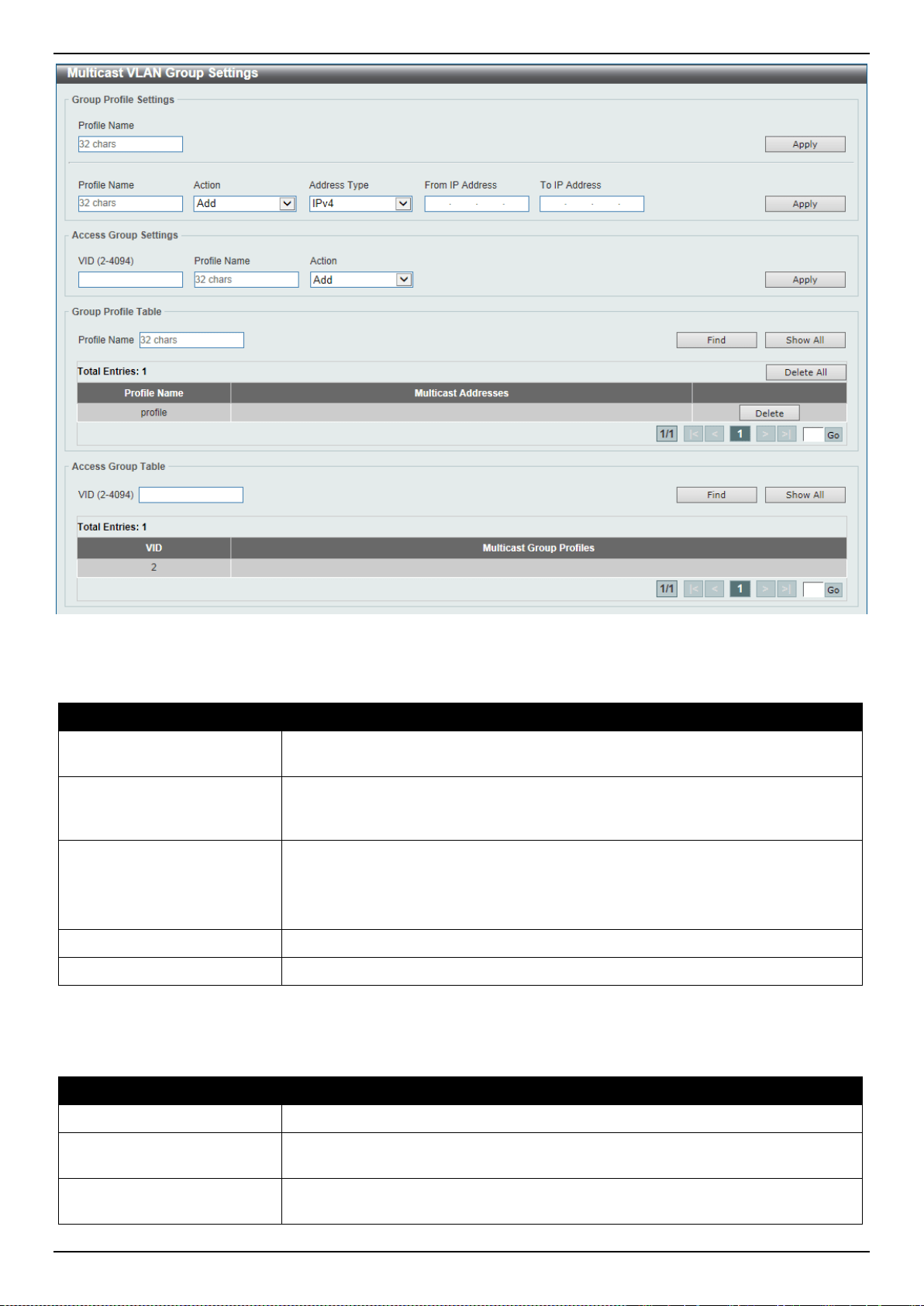
DXS-3400 Series Lite Layer 3 Stackable 10GbE Managed Switch Web UI Reference Guide
175
Figure 5-83 Multicast VLAN Group Settings Window
The fields that can be configured in Group Profile Settings are described below:
Parameter Description
Profile Name
Enter the group profile name for the multicast VLAN feature here. This name can
be up to 32 characters long.
Action
Select the action that will be taken here. Options to choose from are Add and
Delete. Multiple ranges can be added to a multicast VLAN profile. The IP address
ranges, specified in a single profile, must be of the same address family.
Address Type
Select the address type here. Options to choose from are IPv4 and IPv6.
• IPv4 - Specifies to use IPv4 multicast addresses in the range.
• IPv6 - Specifies to use IPv6 multicast addresses in the range.
From IP Address
Enter the source IPv4/IPv6 address here.
To IP Address
Enter the destination IPv4/IPv6 address here.
Click the Apply button to accept the changes made.
The fields that can be configured in Access Group Settings are described below:
Parameter Description
VID
Enter the multicast VLAN’s ID that will be used here. The range is 1 to 4094.
Profile Name
Enter the group profile name for the multicast VLAN feature here. This name can
be up to 32 characters long.
Action
Select the action that will be taken here. Options to choose from are Add and
Delete. This is to add or delete the multicast group entirely.
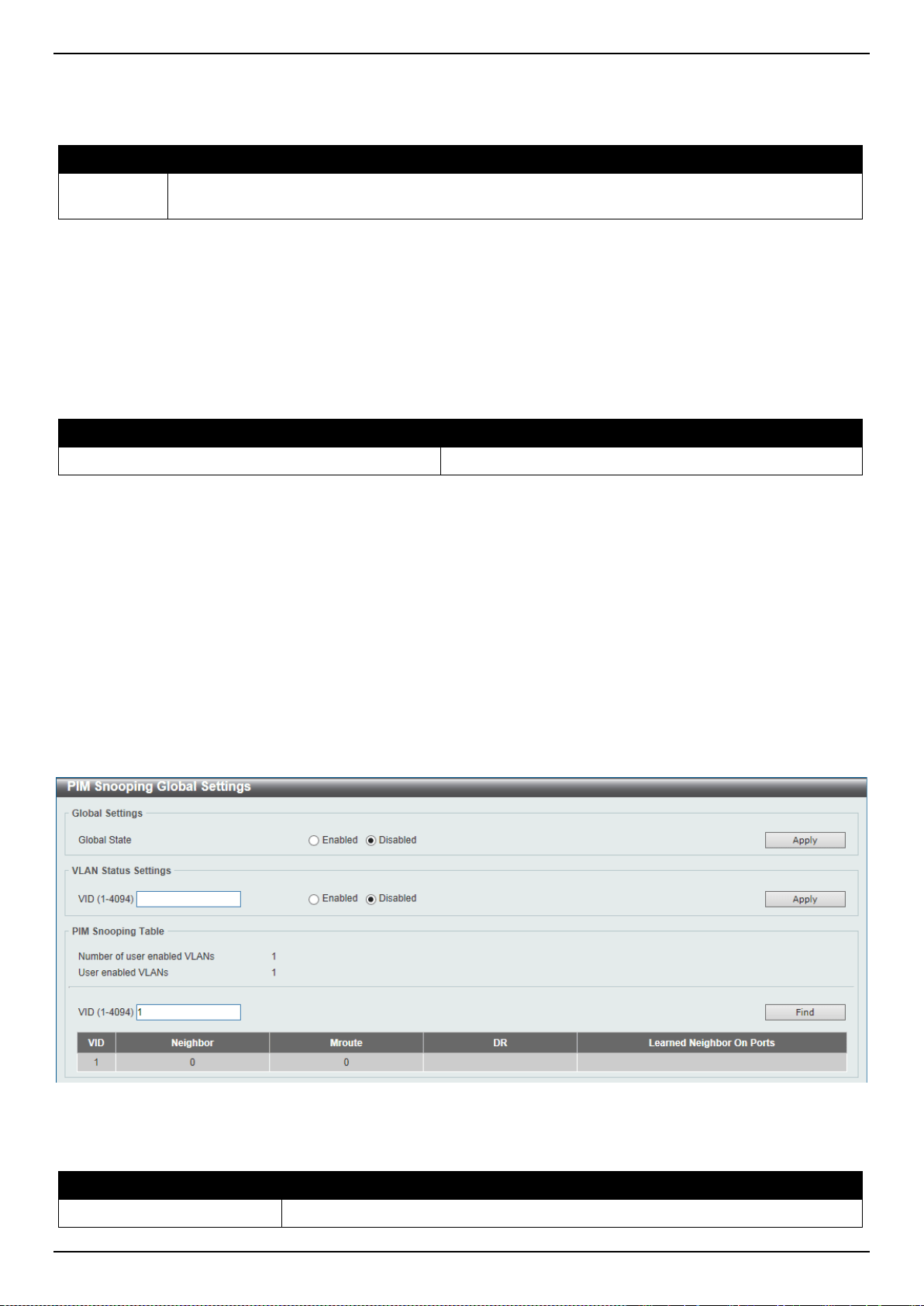
DXS-3400 Series Lite Layer 3 Stackable 10GbE Managed Switch Web UI Reference Guide
176
Click the Apply button to accept the changes made.
The fields that can be configured in Group Profile Table are described below:
Parameter Description
Profile
Name
Enter the group profile name for the multicast VLAN feature here. This name can be up to 32
characters long.
Click the Find button to locate a specific entry based on the information entered.
Click the Show All button to display all the entries.
Click the Delete All button to delete all the entries found in the display table.
Click the Delete button to delete the specified entry.
Enter a page number and click the Go button to navigate to a specific page when multiple pages exist.
The fields that can be configured in Access Group Table are described below:
Parameter Description
VID
Click the Find button to locate a specific entry based on the information entered.
Click the Show All button to display all the entries.
Enter a page number and click the Go button to navigate to a specific page when multiple pages exist.
PIM Snooping
PIM Snooping Global Settings
This window is used to display and configure the Protocol Independent Multicast (PIM) snooping global settings.
To view the following window, click L2 Features > L2 Multicast Control > PIM Snooping > PIM Snooping Global
Settings, as shown below:
Figure 5-84 PIM Snooping Global Settings Window
The fields that can be configured in Global Settings are described below:
Parameter Description
Global State
Select to globally enable or disable the PIM snooping feature here.
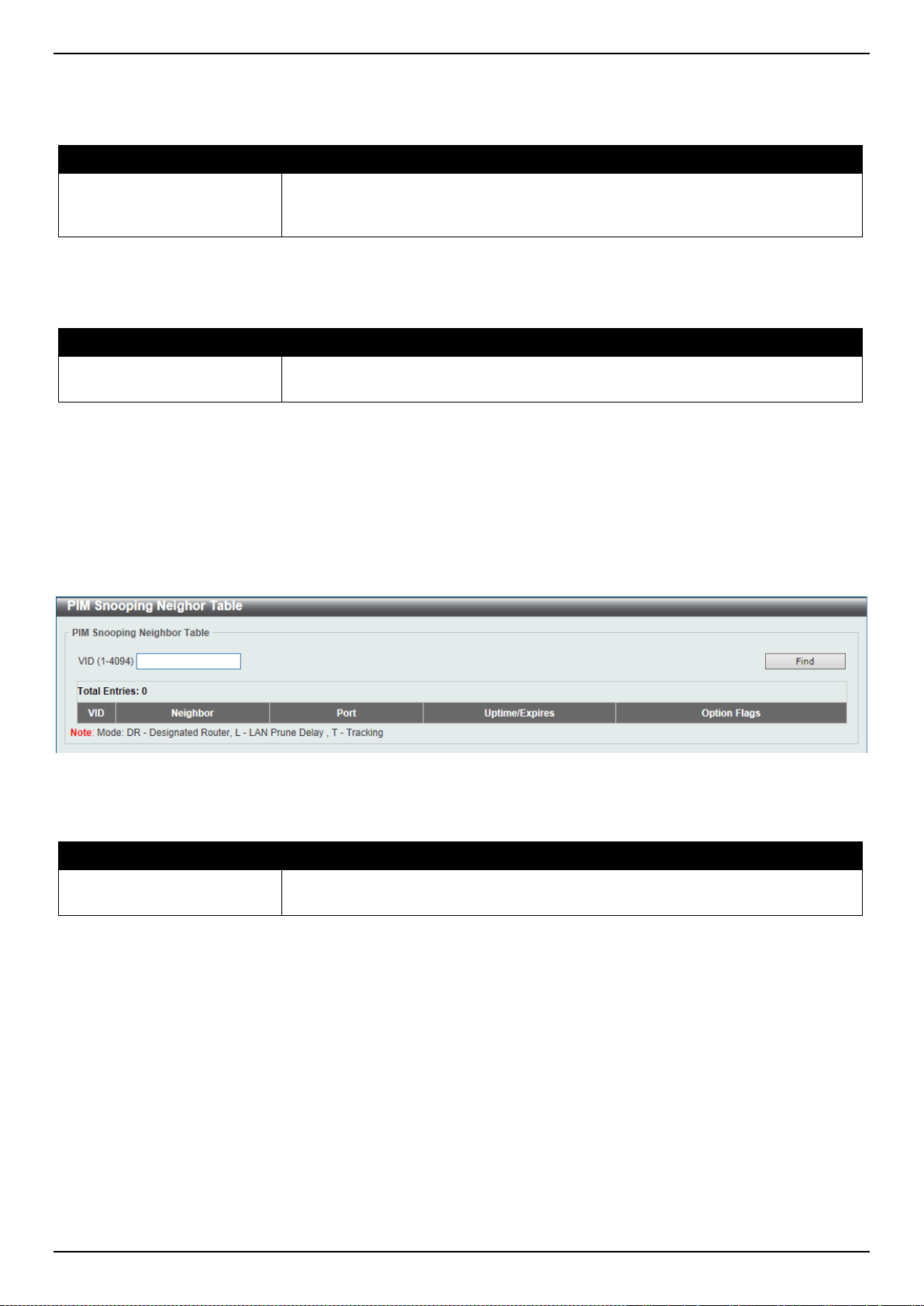
DXS-3400 Series Lite Layer 3 Stackable 10GbE Managed Switch Web UI Reference Guide
177
Click the Apply button to accept the changes made.
The fields that can be configured in VLAN Status Settings are described below:
Parameter Description
VID
Enter the VLAN ID on which the PIM snooping feature will be used here. The
range is from 1 to 4094. Select to enable or disable the PIM snooping feature on
the specified VLAN here.
Click the Apply button to accept the changes made.
The fields that can be configured in PIM Snooping Table are described below:
Parameter Description
VID
Enter the VLAN ID that will be used in the display here. The range is from 1 to
4094.
Click the Find button to generate the display based on the information entered.
PIM Snooping Neighbor Table
This window is used to display the PIM snooping neighbor table.
To view the following window, click L2 Features > L2 Multicast Control > PIM Snooping > PIM Snooping Neighbor
Table, as shown below:
Figure 5-85 PIM Snooping Neighbor Table Window
The fields that can be configured are described below:
Parameter Description
VID
Enter the VLAN ID that will be used in this display here. The range is from 1 to
4094.
Click the Find button to generate the display based on the information entered.
PIM Snooping Mroute Table
This window is used to display the PIM snooping multicast route table.
To view the following window, click L2 Features > L2 Multicast Control > PIM Snooping > PIM Snooping Mroute
Table, as shown below:
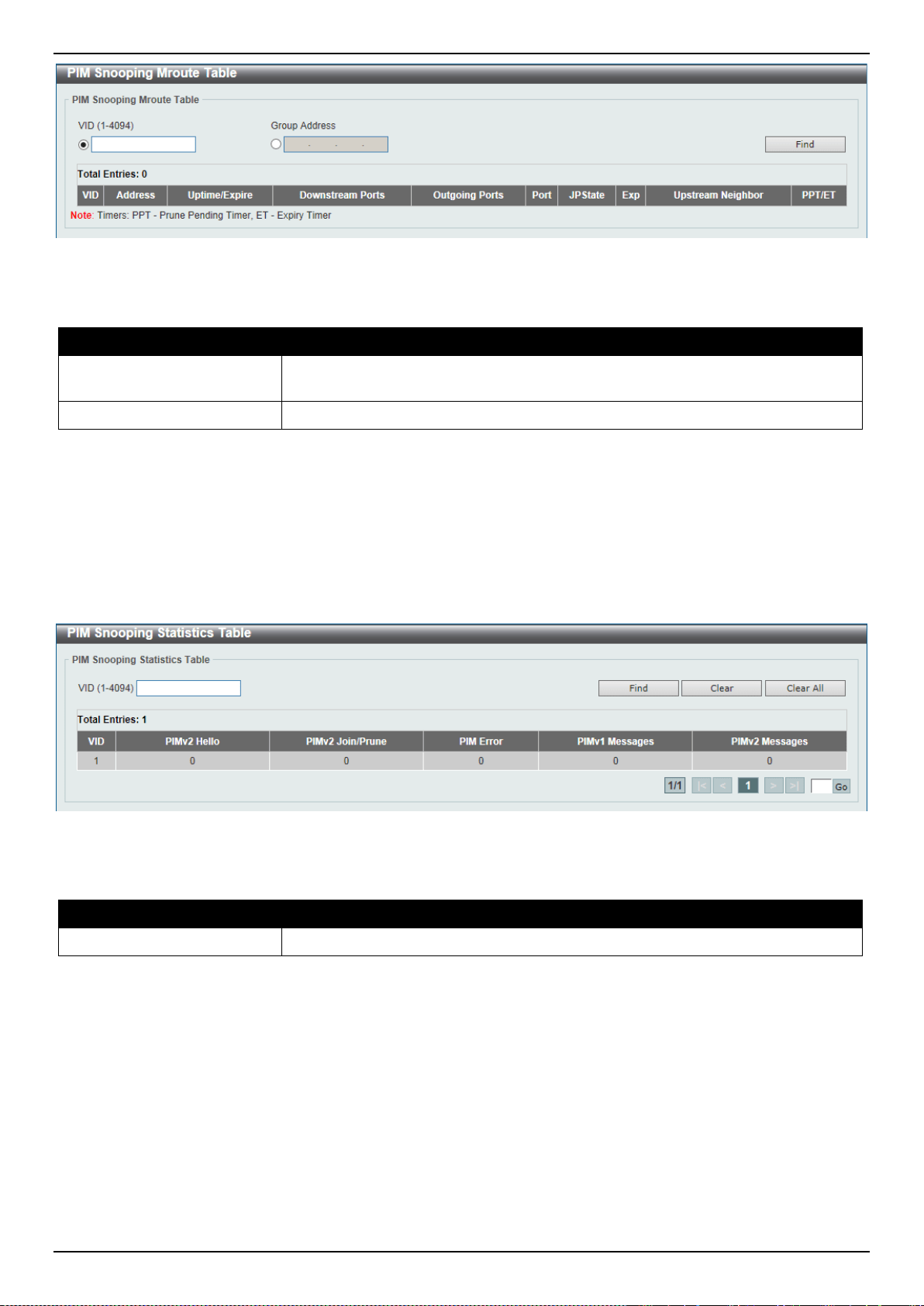
DXS-3400 Series Lite Layer 3 Stackable 10GbE Managed Switch Web UI Reference Guide
178
Figure 5-86 PIM Snooping Mroute Table Window
The fields that can be configured are described below:
Parameter Description
VID
Select and enter the VLAN ID that will be used in this display here. The range is
from 1 to 4094.
Group Address
Select and enter the group address here.
Click the Find button to generate the display based on the information entered.
PIM Snooping Statistics Table
This window is used to display and clear the PIM snooping statistics table.
To view the following window, click L2 Features > L2 Multicast Control > PIM Snooping > PIM Snooping
Statistics Table, as shown below:
Figure 5-87 PIM Snooping Statistics Table Window
The fields that can be configured are described below:
Parameter Description
VID
Select and enter the VLAN ID that will be used here. The range is from 1 to 4094.
Click the Find button to generate the display based on the information entered.
Click the Clear button to clear the statistics information related to the specified VLAN.
Click the Clear All button to clear all the statistics information displayed in the table.
Enter a page number and click the Go button to navigate to a specific page when multiple pages exist.
Multicast Filtering
This window is used to display and configure the Layer 2 multicast filtering settings.
To view the following window, click L2 Features > L2 Multicast Control > Multicast Filtering, as shown below:
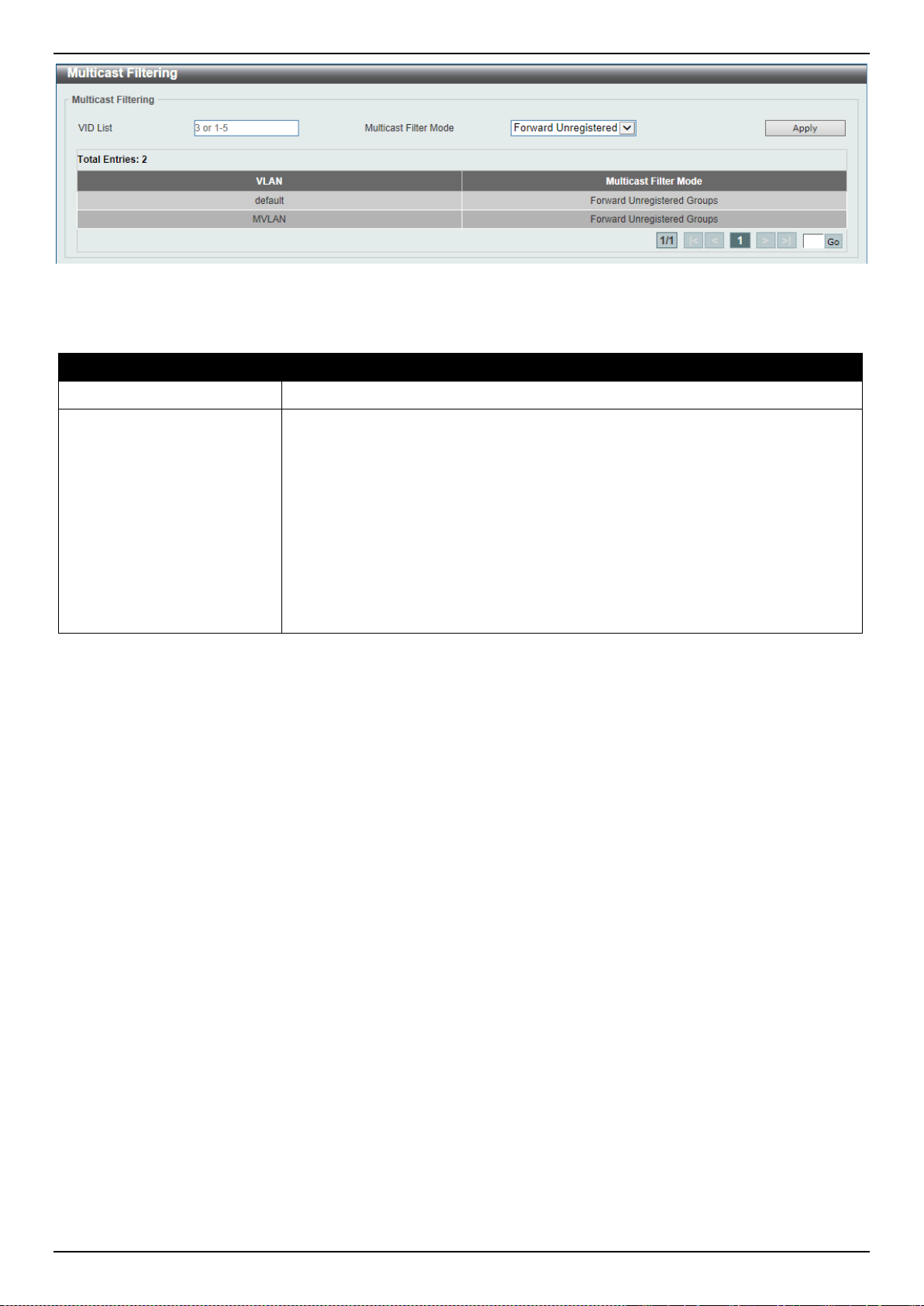
DXS-3400 Series Lite Layer 3 Stackable 10GbE Managed Switch Web UI Reference Guide
179
Figure 5-88 Multicast Filtering Window
The fields that can be configured are described below:
Parameter Description
VID List
Enter the VLAN ID list that will be used for this configuration here.
Multicast Filter Mode
Select the multicast filter mode here. Options to choose from are Forward
Unregistered, Forward All, and Filter Unregistered.
• When selecting the Forward Unregistered option, registered multicast
packets will be forwarded based on the forwarding table and all unregistered
multicast packets will be flooded based on the VLAN domain.
• When selecting the Forward All option, all multicast packets will be flooded
based on the VLAN domain.
• When selecting the Filter Unregistered option, registered packets will be
forwarded based on the forwarding table and all unregistered multicast
packets will be filtered.
Click the Apply button to accept the changes made.
Enter a page number and click the Go button to navigate to a specific page when multiple pages exist.
LLDP
LLDP Global Settings
This window is used to display and configure the LLDP global settings.
To view the following window, click L2 Features > LLDP > LLDP Global Settings, as shown below:
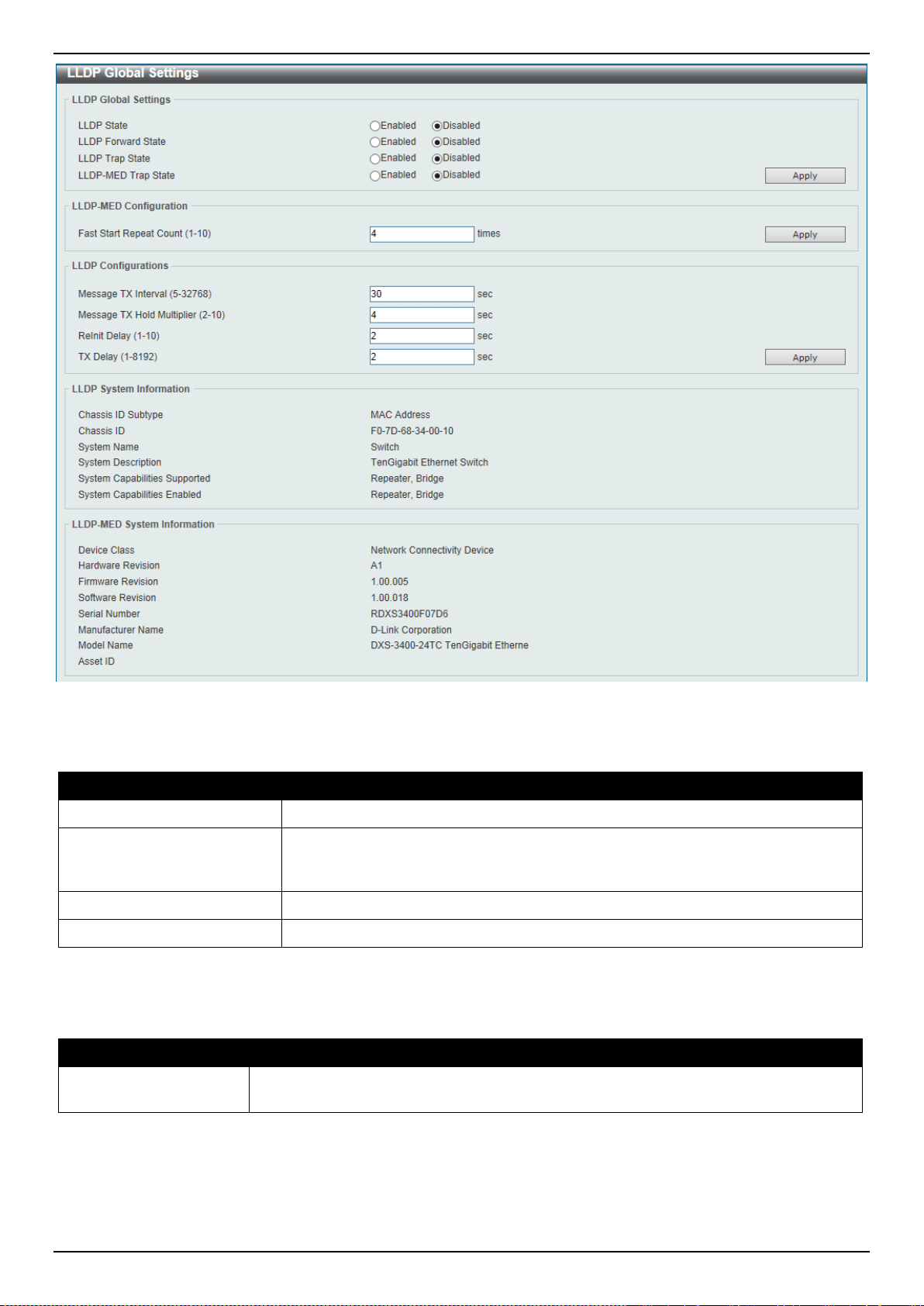
DXS-3400 Series Lite Layer 3 Stackable 10GbE Managed Switch Web UI Reference Guide
180
Figure 5-89 LLDP Global Settings Window
The fields that can be configured in LLDP Global Settings are described below:
Parameter Description
LLDP State
Select this option to enable or disable the LLDP feature
LLDP Forward State
Select this option to enable or disable LLDP forward state. When the LLDP State
is disabled and LLDP Forward Sate is enabled, the received LLDPDU packet will
be forwarded.
LLDP Trap State
Select this option to enable or disable the LLDP trap state.
LLDP-MED Trap State
Select this option to enable or disable the LLDP-MED trap state.
Click the Apply button to accept the changes made.
The fields that can be configured in LLDP-MED Settings are described below:
Parameter Description
Fast Start Repeat
Count
Enter the LLDP-MED fast start repeat count value. This value must be between 1 and
10.
Click the Apply button to accept the changes made.
The fields that can be configured in LLDP Configurations are described below:
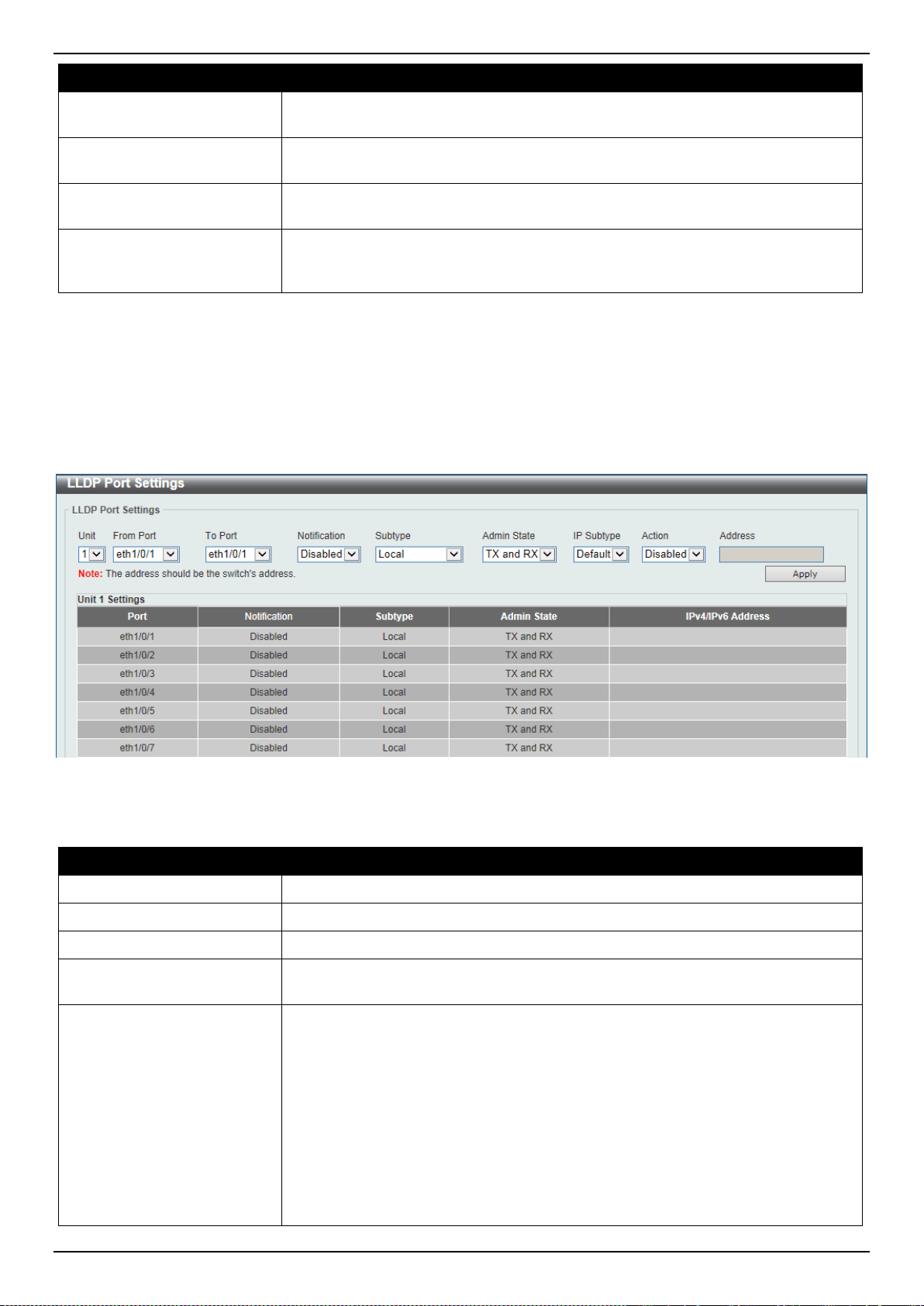
DXS-3400 Series Lite Layer 3 Stackable 10GbE Managed Switch Web UI Reference Guide
181
Parameter Description
Message TX Interval
Enter the interval between consecutive transmissions of LLDP advertisements on
each physical interface. The range is from 5 to 32768 seconds.
Message TX Hold Multiplier
Enter the multiplier on the LLDPDUs transmission interval that used to compute
the TTL value of an LLDPDU. This value must be between 2 and 10.
ReInit Delay
Enter the delay value for LLDP initialization on an interface. This value must be
between 1 and 10 seconds.
TX Delay
Enter the delay value for sending successive LLDPDUs on an interface. The valid
values are from 1 to 8192 seconds and should not be greater than one-fourth of
the transmission interval timer.
Click the Apply button to accept the changes made.
LLDP Port Settings
This window is used to display and configure the LLDP port settings.
To view the following window, click L2 Features > LLDP > LLDP Port Settings, as shown below:
Figure 5-90 LLDP Port Settings Window
The fields that can be configured are described below:
Parameter Description
Unit
Select the Switch unit that will be used for this configuration here.
From Port ~ To Port
Select the appropriate port range used for the configuration here.
Notification
Select to enable or disable the notification feature here.
Subtype
Select the subtype of LLDP TLV(s). Options to choose from are MAC Address,
and Local.
Admin State
Select the local LLDP agent and allow it to send and receive LLDP frames on the
port. Options to choose from are TX, RX, TX and RX, and Disabled.
• TX - The local LLDP agent can only transmit LLDP frames.
• RX - The local LLDP agent can only receive LLDP frames.
• TX and RX - The local LLDP agent can both transmit and receive LLDP
frames.
• Disabled - The local LLDP agent can neither transmit nor receive LLDP
frames.
The default value is TX and RX.

DXS-3400 Series Lite Layer 3 Stackable 10GbE Managed Switch Web UI Reference Guide
182
Parameter Description
IP Subtype
Select the type of the IP address information to be sent. Options to choose from
are Default, IPv4 and IPv6.
Action
Select this option to enable or disable the action field
Address
Enter the IP address that will be sent.
Click the Apply button to accept the changes made.
NOTE: The IPv4 or IPv6 address entered here should be an existing LLDP management IP address.
LLDP Management Address List
This window is used to display the LLDP management address list.
To view the following window, click L2 Features > LLDP > LLDP Management Address List, as shown below:
Figure 5-91 LLDP Management Address List Window
The fields that can be configured are described below:
Parameter Description
Subtype
Select the subtype. Options to choose from are All, IPv4 and IPv6. After selecting
the IPv4 option, enter the IPv4 address in the space provided. After selecting the
IPv6 option, enter the IPv6 address in the space provided.
Click the Find button to locate a specific entry based on the selection made.
LLDP Basic TLVs Settings
Type-length-value (TLV) allows the specific sending information as a TLV element within LLDP packets. This window
is used to enable the settings for the Basic TLVs Settings. An active LLDP port on the Switch always included
mandatory data in its outbound advertisements. There are four optional data types that can be configured for an
individual port or group of ports to exclude one or more of these data types from outbound LLDP advertisements. The
mandatory data type includes four basic types of information (end of LLDPDU TLV, chassis ID TLV, port ID TLV, and
Time to Live TLV). The mandatory data types cannot be disabled. There are also four data types which can be
optionally selected. These include Port Description, System Name, System Description and System Capability.
To view the following window, click L2 Features > LLDP > LLDP Basic TLVs Settings, as shown below:
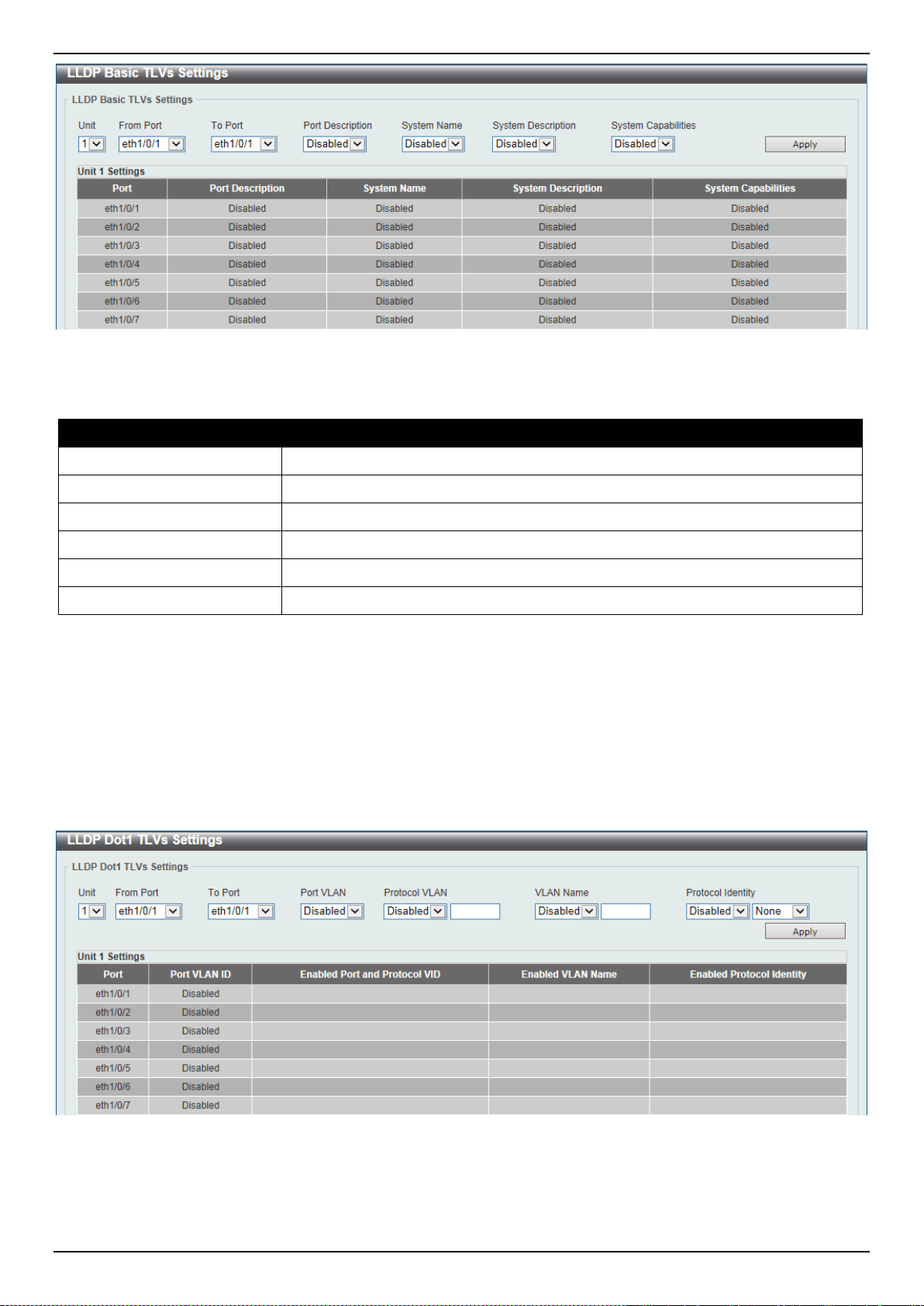
DXS-3400 Series Lite Layer 3 Stackable 10GbE Managed Switch Web UI Reference Guide
183
Figure 5-92 LLDP Basic TLVs Settings Window
The fields that can be configured are described below:
Parameter Description
Unit
Select the Switch unit that will be used for this configuration here.
From Port ~ To Port
Select the appropriate port range used for the configuration here.
Port Description
Select this option to enable or disable the Port Description option.
System Name
Select this option to enable or disable the System Name option.
System Description
Select this option to enable or disable the System Description option.
System Capabilities
Select this option to enable or disable the System Capabilities option.
Click the Apply button to accept the changes made.
LLDP Dot1 TLVs Settings
LLDP Dot1 TLVs are organizationally specific TLVs which are defined in IEEE 802.1 and used to configure an
individual port or group of ports to exclude one or more of the IEEE 802.1 organizational port VLAN ID TLV data types
from outbound LLDP advertisements.
To view the following window, click L2 Features > LLDP > LLDP Dot1 TLVs Settings, as shown below:
Figure 5-93 LLDP Dot1 TLVs Settings Window
The fields that can be configured are described below:
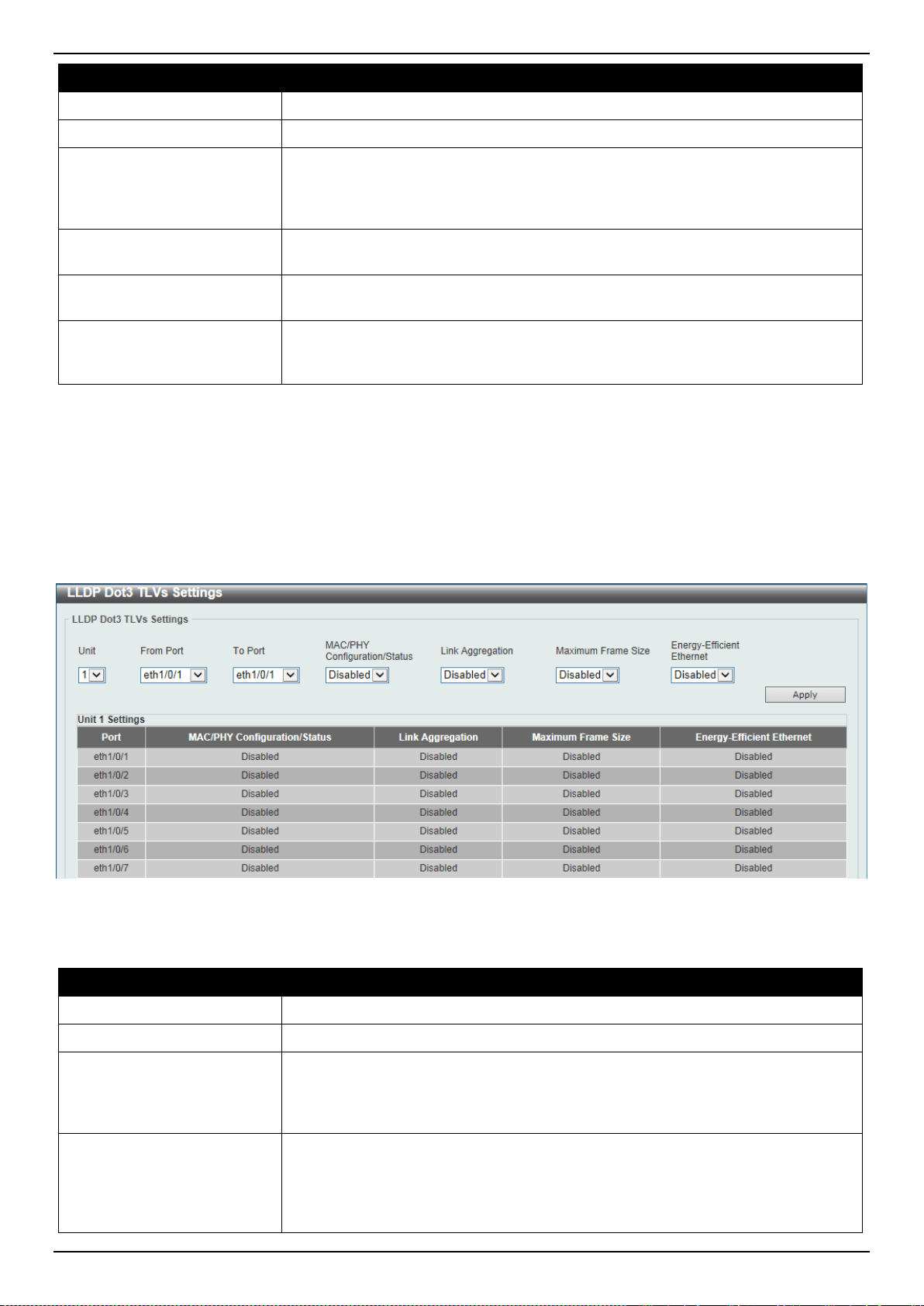
DXS-3400 Series Lite Layer 3 Stackable 10GbE Managed Switch Web UI Reference Guide
184
Parameter Description
Unit
Select the Switch unit that will be used for this configuration here.
From Port ~ To Port
Select the appropriate port range used for the configuration here.
Port VLAN
Select this option to enable or disable the port VLAN ID TLV to send. The Port
VLAN ID TLV is an optional fixed length TLV that allows a VLAN bridge port to
advertise the port’s VLAN identifier (PVID) that will be associated with untagged
or priority tagged frames.
Protocol VLAN
Select this option to enable or disable Port and Protocol VLAN ID (PPVID) TLV to
send, and enter the VLAN ID in PPVID TLV.
VLAN Name
Select this option to enable or disable the VLAN name TLV to send, and enter the
ID of the VLAN in the VLAN name TLV.
Protocol Identity
Select this option to enable or disable the Protocol Identity TLV to send, and the
protocol name. Options for protocol name to choose from are None, EAPOL,
LACP, GVRP, STP, and All.
Click the Apply button to accept the changes made.
LLDP Dot3 TLVs Settings
This window is used to display and configure an individual port or group of ports to exclude one or more IEEE 802.3
organizational specific TLV data type from outbound LLDP advertisements.
To view the following window, click L2 Features > LLDP > LLDP Dot3 TLVs Settings, as shown below:
Figure 5-94 LLDP Dot3 TLVs Settings Window
The fields that can be configured are described below:
Parameter Description
Unit
Select the Switch unit that will be used for this configuration here.
From Port ~ To Port
Select the appropriate port range used for the configuration here.
MAC/PHY
Configuration/Status
Select this option to enable or disable the MAC/PHY Configuration/Status TLV to
send. The MAC/PHY Configuration/Status TLV is an optional TLV that identifies
(1) the duplex and bit-rate capability of the sending IEEE 802.3 LAN node, and (2)
the current duplex and bit-rate settings of the sending IEEE 802.3 LAN node.
Link Aggregation
Select this option to enable or disable the Link Aggregation TLV to send. The Link
Aggregation TLV indicates contains the following information. Whether the link is
capable of being aggregated, whether the link is currently in an aggregation, and
the aggregated port channel ID of the port. If the port is not aggregated, then the
ID is 0.
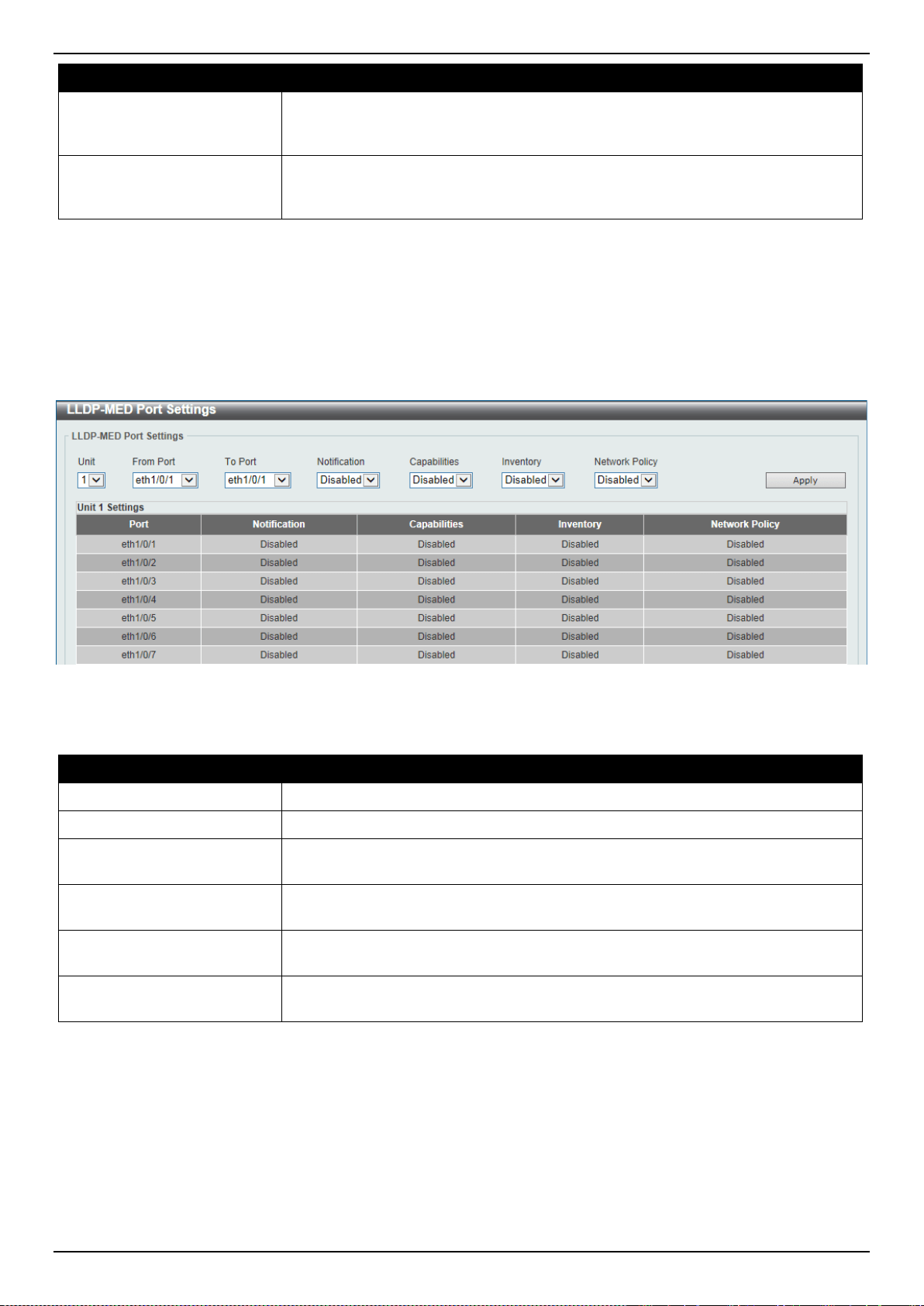
DXS-3400 Series Lite Layer 3 Stackable 10GbE Managed Switch Web UI Reference Guide
185
Parameter Description
Maximum Frame Size
Select this option to enable or disable the Maximum Frame Size TLV to send. The
Maximum Frame Size TLV indicates the maximum frame size capability of the
implemented MAC and PHY.
Energy-Efficient Ethernet
Select this option to enable or disable the Energy Efficient Ethernet TLV to send.
The Energy Efficient Ethernet TLV indicates the reduce energy consumption
capability of a link when no packets are being sent.
Click the Apply button to accept the changes made.
LLDP-MED Port Settings
This window is used to enable or disable transmitting LLDP-MED TLVs.
To view the following window, click L2 Features > LLDP > LLDP-MED Port Settings, as shown below:
Figure 5-95 LLDP-MED Port Settings Window
The fields that can be configured are described below:
Parameter Description
Unit
Select the Switch unit that will be used for this configuration here.
From Port ~ To Port
Select the appropriate port range used for the configuration here.
Notification
Select this option to enable or disable transmitting the LLDP-MED notification
TLV.
Capabilities
Select this option to enable or disable transmitting the LLDP-MED capabilities
TLV.
Inventory
Select this option to enable or disable transmitting the LLDP-MED inventory
management TLV.
Network Policy
Select this option to enable or disable transmitting the LLDP-MED network policy
TLV.
Click the Apply button to accept the changes made.
LLDP-DCBX Port Settings
This window is used to display and configure which optional type-length-value settings (TLVs) in the Data Center
Bridging Exchange protocol (DCBX) TLV set will be transmitted and encapsulated in the LLDPDUs and sent to
neighbor devices.
To view the following window, click L2 Features > LLDP > LLDP-DCBX Port Settings, as shown below:
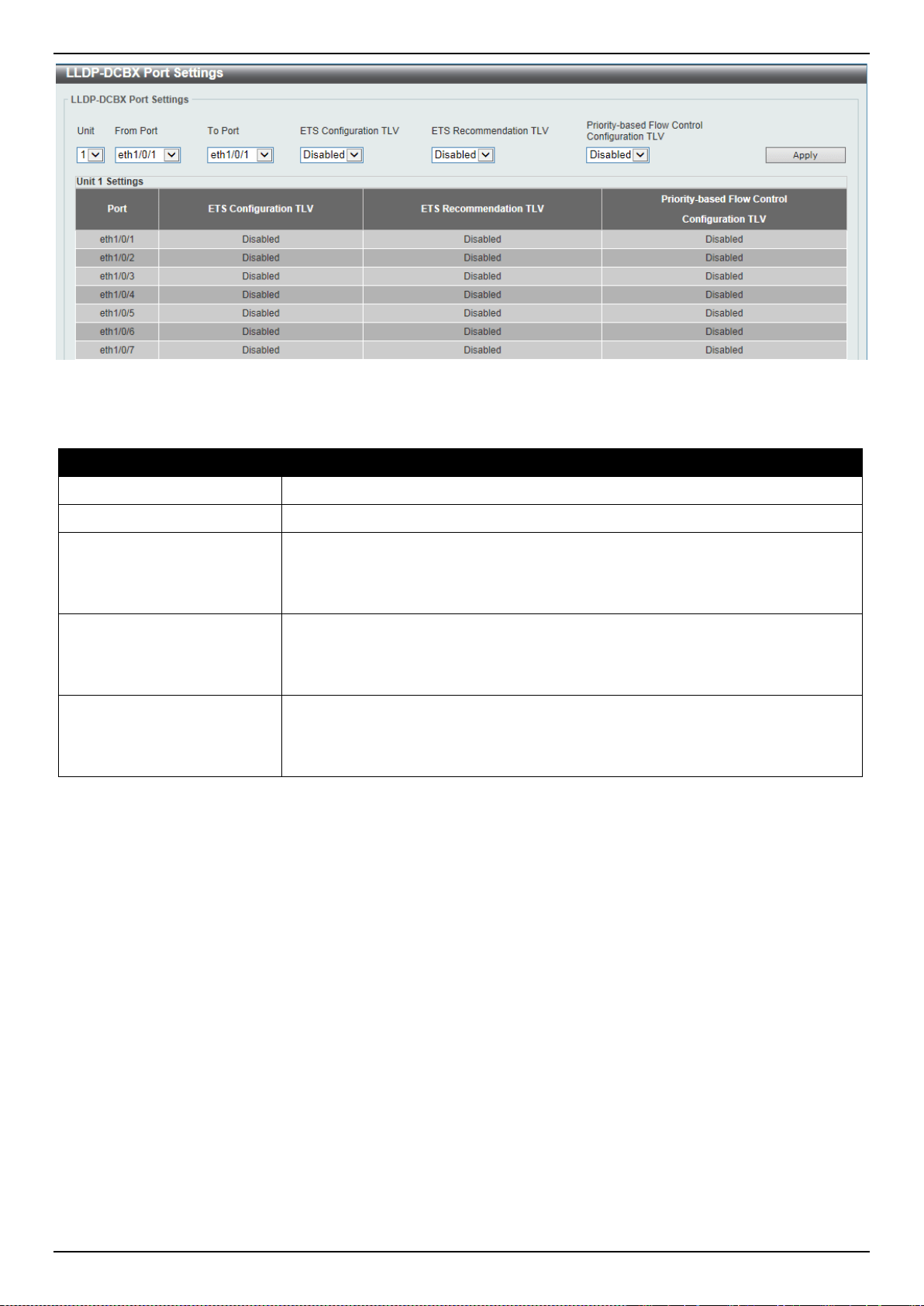
DXS-3400 Series Lite Layer 3 Stackable 10GbE Managed Switch Web UI Reference Guide
186
Figure 5-96 LLDP-DCBX Port Settings Window
The fields that can be configured are described below:
Parameter Description
Unit
Select the Switch’s unit ID that will be used here.
From Port ~ To Port
Select the Switch’s port range that will be used here.
ETS Configuration TLV
Select to enable or disable Enhanced Transmission Selection (ETS) configuration
TLV feature here. This specifies the ETS Configuration TLV to be sent. The
Enhanced Transmission Selection Configuration TLV is an optional TLV that
allows a bridge port to advertise the current ETS operational state and willing bit.
ETS Recommendation TLV
Select to enable or disable the ETS recommendation TLV feature here. This
specifies the ETS Recommendation TLV to be sent. The Enhanced Transmission
Selection Recommendation TLV is an optional TLV that allows a bridge port to
advertise the ETS recommendation for the operational state of the remote port.
Priority-based Flow Control
Configuration TLV
Select to enable or disable the Priority-based Flow Control (PFC) configuration
TLV feature here. This specifies the PFC Configuration TLV to be sent. The
Priority-based Flow Control TLV is an optional TLV that allows a bridge port to
advertise the PFC current operational state and willing bit.
Click the Apply button to accept the changes made.
LLDP Statistics Information
This window is used to display the neighbor detection activity, LLDP Statistics and the settings for individual ports on
the Switch.
To view the following window, click L2 Features > LLDP > LLDP Statistics Information, as shown below:
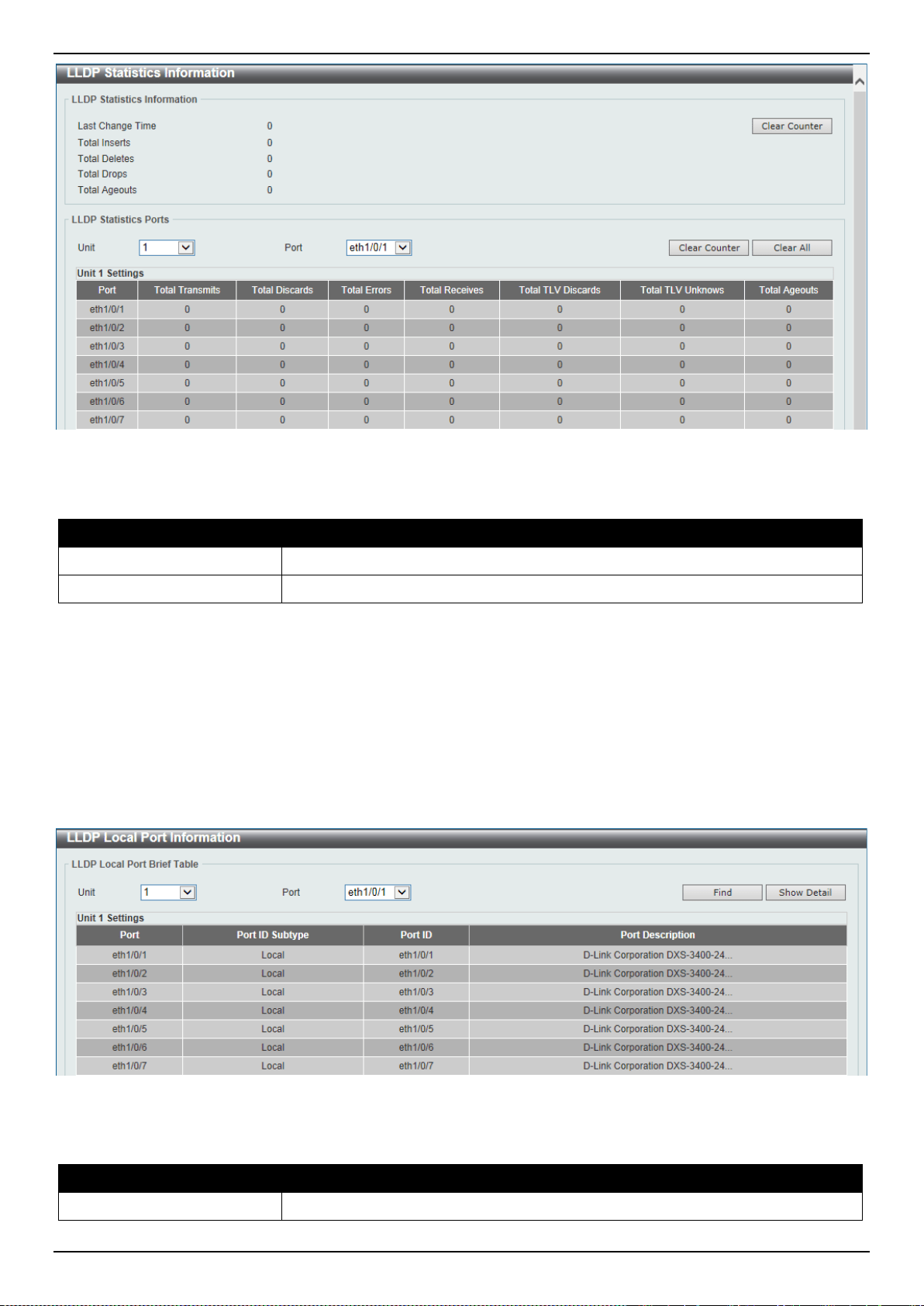
DXS-3400 Series Lite Layer 3 Stackable 10GbE Managed Switch Web UI Reference Guide
187
Figure 5-97 LLDP Statistics Information Window
The fields that can be configured are described below:
Parameter Description
Unit
Select the Switch unit that will be used here.
Port
Select the port number that will be used here.
Click the Clear Counter button to clear the counter information for the statistics displayed.
Click the Clear All button to clear all the counter information displayed.
LLDP Local Port Information
This window is used to display the information on a per port basis currently available for populating outbound LLDP
advertisements in the local port brief table shown below.
To view the following window, click L2 Features > LLDP > LLDP Local Port Information, as shown below:
Figure 5-98 LLDP Local Port Information Window
The fields that can be configured are described below:
Parameter Description
Unit
Select the Switch unit that will be displayed.
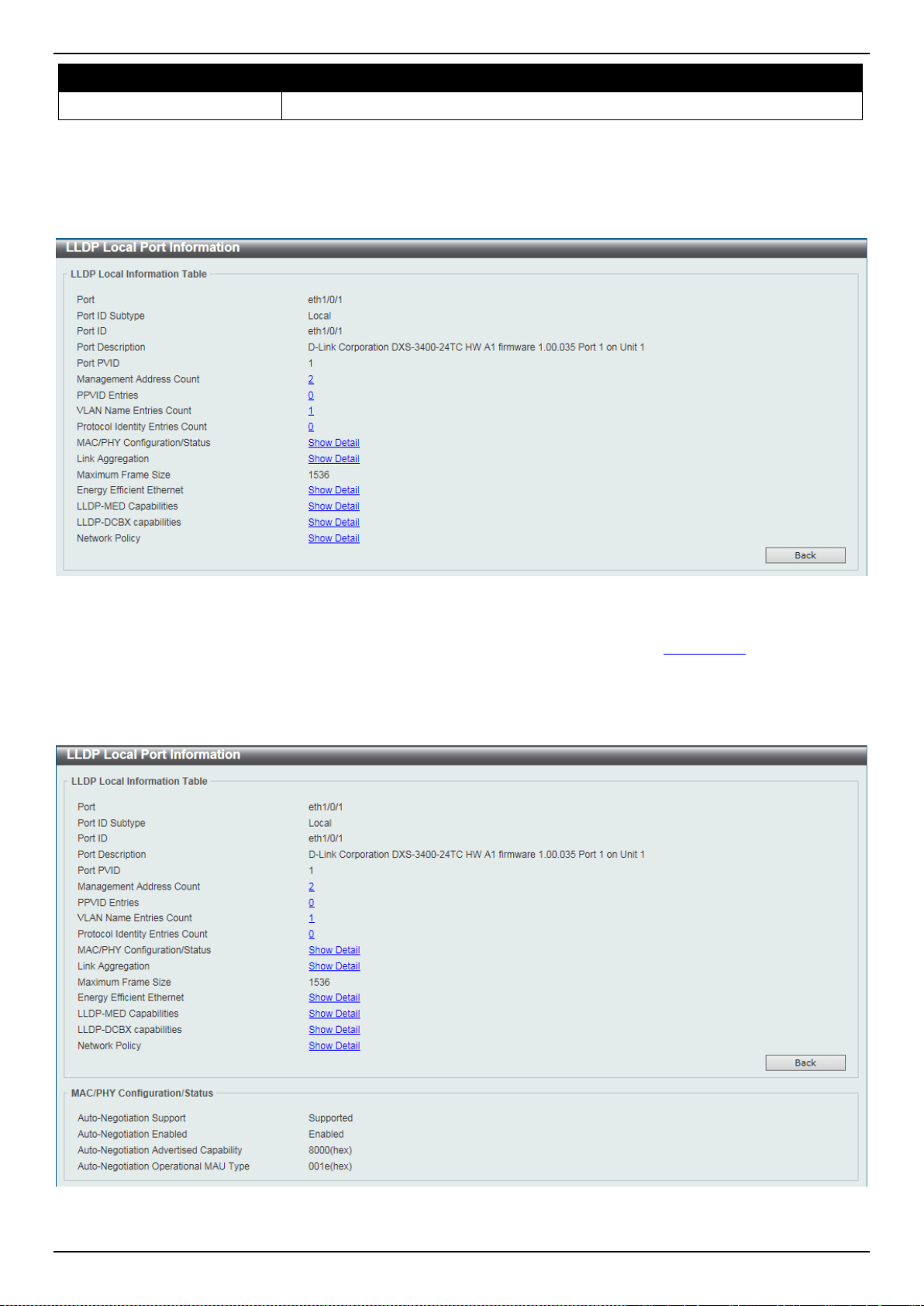
DXS-3400 Series Lite Layer 3 Stackable 10GbE Managed Switch Web UI Reference Guide
188
Parameter Description
Port
Select the port number that will be displayed.
Click the Find button to locate a specific entry based on the information entered.
Click the Show Detail button to view detailed information of the specific port.
After clicking the Show Detail button, the following window will appear.
Figure 5-99 LLDP Local Port Information (Show Detail) Window
To view more details about, for example, the MAC/PHY Configuration/Status, click the Show Detail hyperlink.
Click the Back button to return to the previous window.
After clicking a hyperlink, a new section will appear at the bottom of the window.
Figure 5-100 LLDP Local Port Information (Show Detail) Window
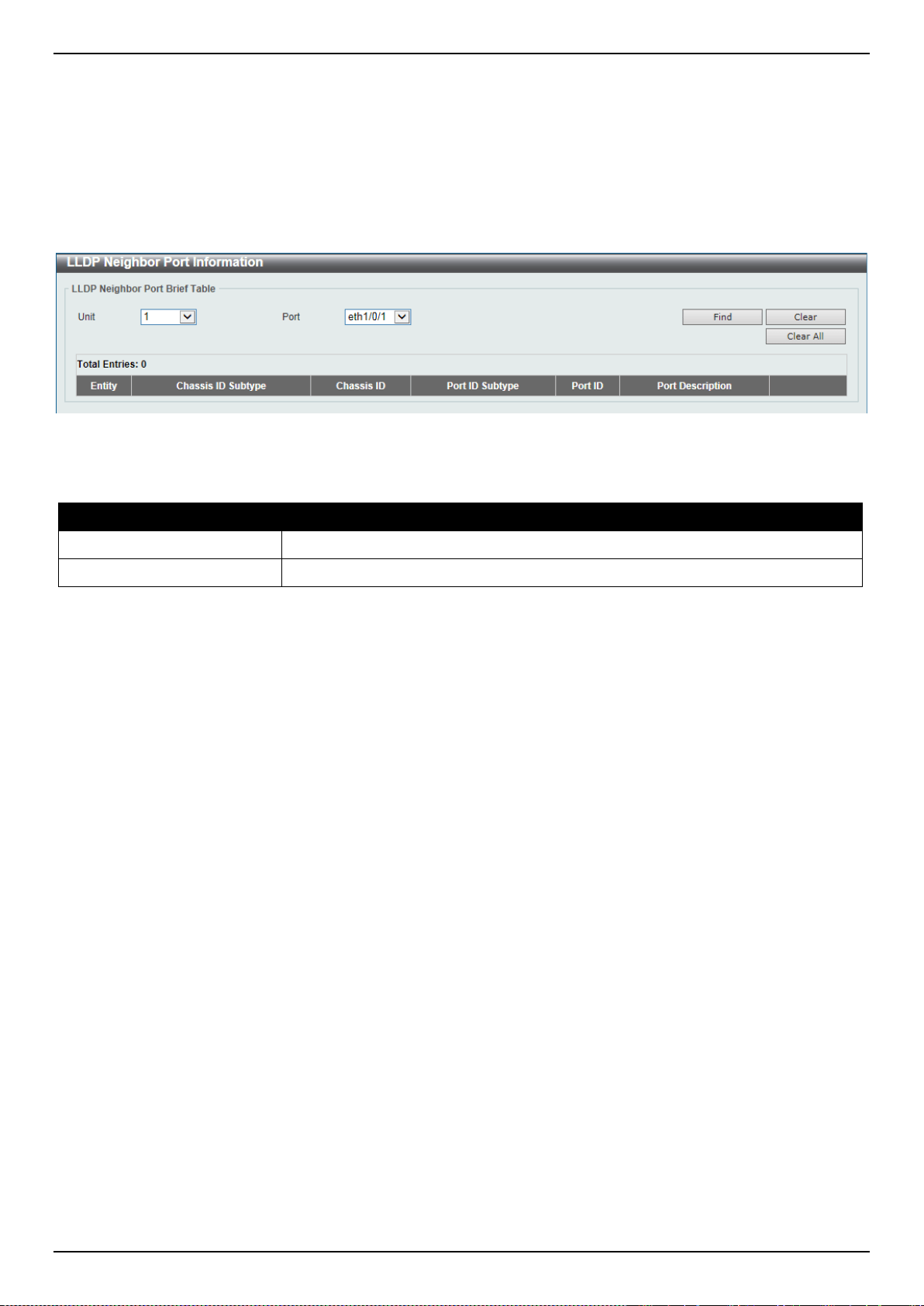
DXS-3400 Series Lite Layer 3 Stackable 10GbE Managed Switch Web UI Reference Guide
189
Click the Back button to return to the previous window.
LLDP Neighbor Port Information
This window is used to display the information learned from the neighbors. The Switch receives packets from a remote
station but is able to store the information as local.
To view the following window, click L2 Features > LLDP > LLDP Neighbor Port Information, as shown below:
Figure 5-101 LLDP Neighbor Port Information Window
The fields that can be configured are described below:
Parameter Description
Unit
Select the Switch unit that will be displayed.
Port
Select the port number that will be displayed.
Click the Find button to locate a specific entry based on the information entered.
Click the Clear button to clear the specific port information.
Click the Clear All button to clear all the port information displayed.
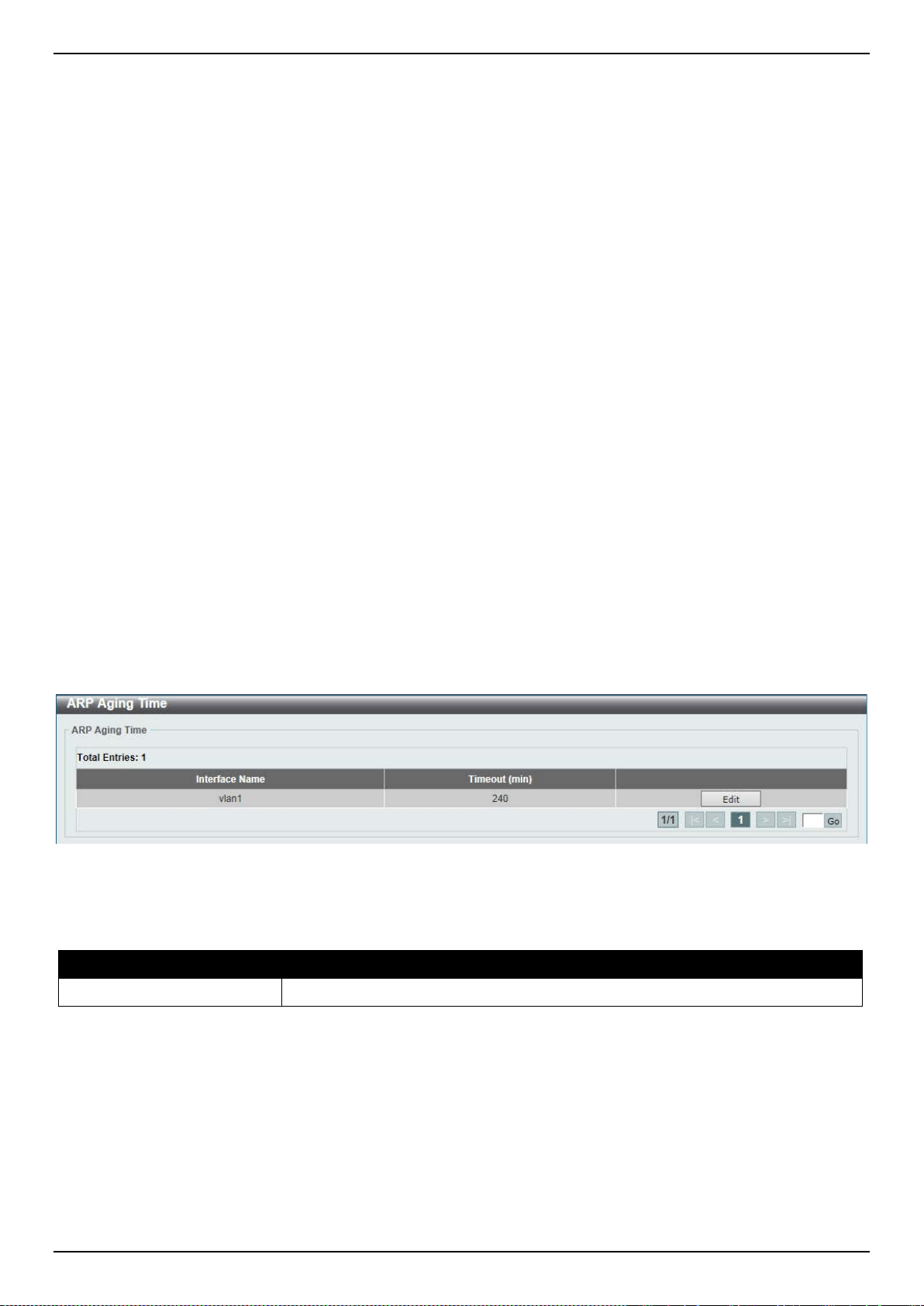
DXS-3400 Series Lite Layer 3 Stackable 10GbE Managed Switch Web UI Reference Guide
190
6. Layer 3 Features
ARP
Gratuitous ARP
IPv6 Neighbor
Interface
UDP Helper
IPv4 Static/Default Route
IPv4 Static Route BFD
IPv4 Route Table
IPv6 Static/Default Route
IPv6 Route Table
Route Preference
IPv6 General Prefix
RIP
RIPng
IP Multicast Routing Protocol
BFD
IP Route Filter
Policy Route
VRRP Settings
VRRPv3 Settings
ARP
ARP Aging Time
This window is used to display and configure the ARP aging time settings.
To view the following window, click L3 Features > ARP > ARP Aging Time, as shown below:
Figure 6-1 ARP Aging Time Window
The fields that can be configured are described below:
Parameter Description
Timeout
After click the Edit button, enter the ARP aging timeout value here.
Click the Edit button to re-configure the specific entry.
Click the Apply button to accept the changes made.
Enter a page number and click the Go button to navigate to a specific page when multiple pages exist.
Static ARP
This window is used to display and configure the static ARP settings.
To view the following window, click L3 Features > ARP > Static ARP, as shown below:
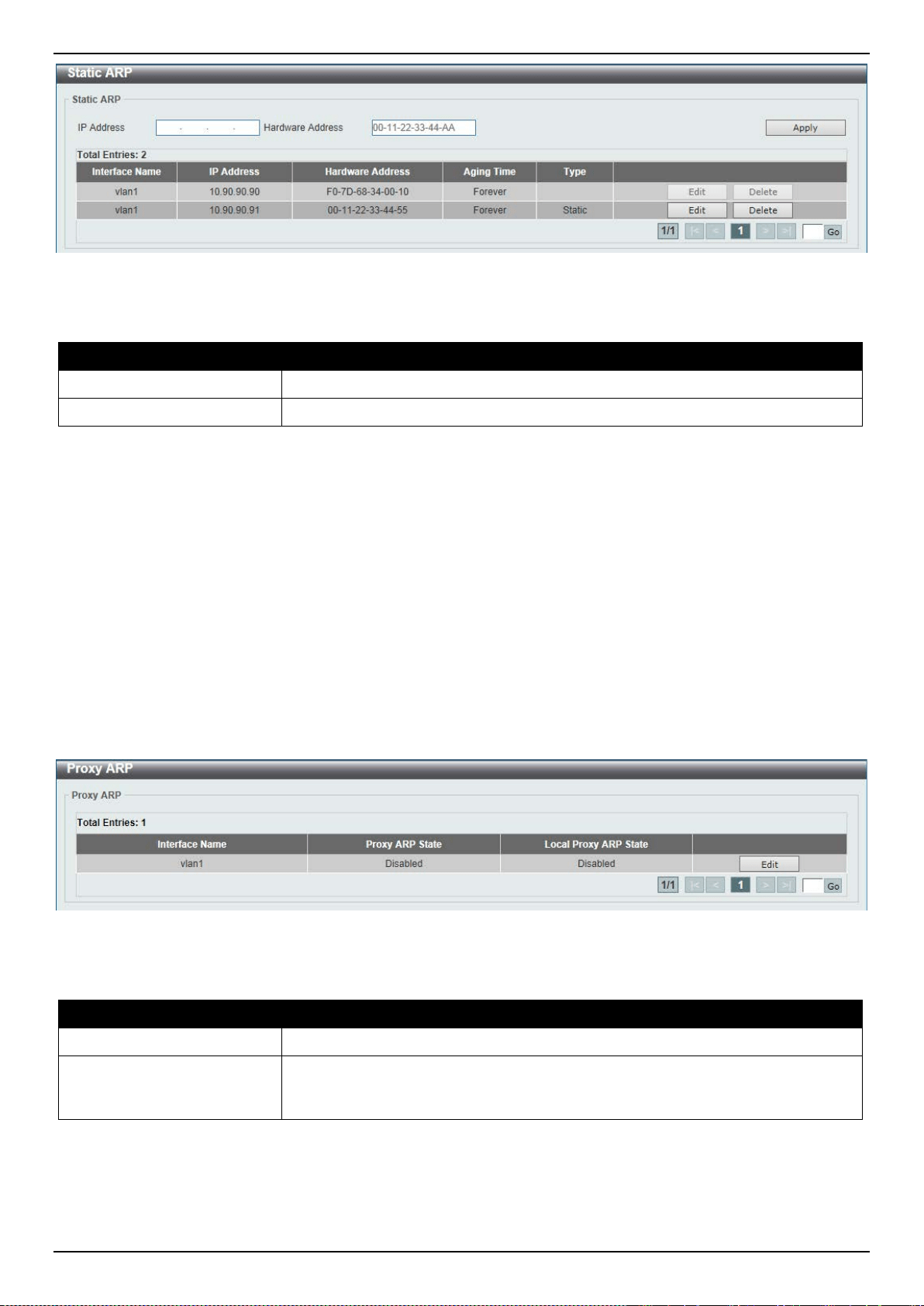
DXS-3400 Series Lite Layer 3 Stackable 10GbE Managed Switch Web UI Reference Guide
191
Figure 6-2 Static ARP Window
The fields that can be configured are described below:
Parameter Description
IP Address
Enter the IP address that will be associated with the MAC address here.
Hardware Address
Enter the MAC address that will be associated with the IP address here.
Click the Apply button to accept the changes made.
Click the Edit button to re-configure the specific entry.
Click the Delete button to remove the specific entry.
Enter a page number and click the Go button to navigate to a specific page when multiple pages exist.
Proxy ARP
This window is used to display and configure the proxy ARP settings. The Proxy ARP feature of the Switch will allow
the Switch to reply to ARP requests destined for another device by faking its identity (IP and MAC Address) as the
original ARP responder. Therefore, the Switch can then route packets to the intended destination without configuring
static routing or a default gateway. The host, usually a Layer 3 Switch, will respond to packets destined for another
device.
To view the following window, click L3 Features > ARP > Proxy ARP, as shown below:
Figure 6-3 Proxy ARP Window
The fields that can be configured are described below:
Parameter Description
Proxy ARP State
Select to enable or disable the proxy ARP state here.
Local Proxy ARP State
Select to enable or disable the local proxy ARP state here. This local proxy ARP
function allows the Switch to respond to the proxy ARP, if the source IP and
destination IP are in the same interface.
Click the Edit button to re-configure the specific entry.
Click the Apply button to accept the changes made.
Enter a page number and click the Go button to navigate to a specific page when multiple pages exist.
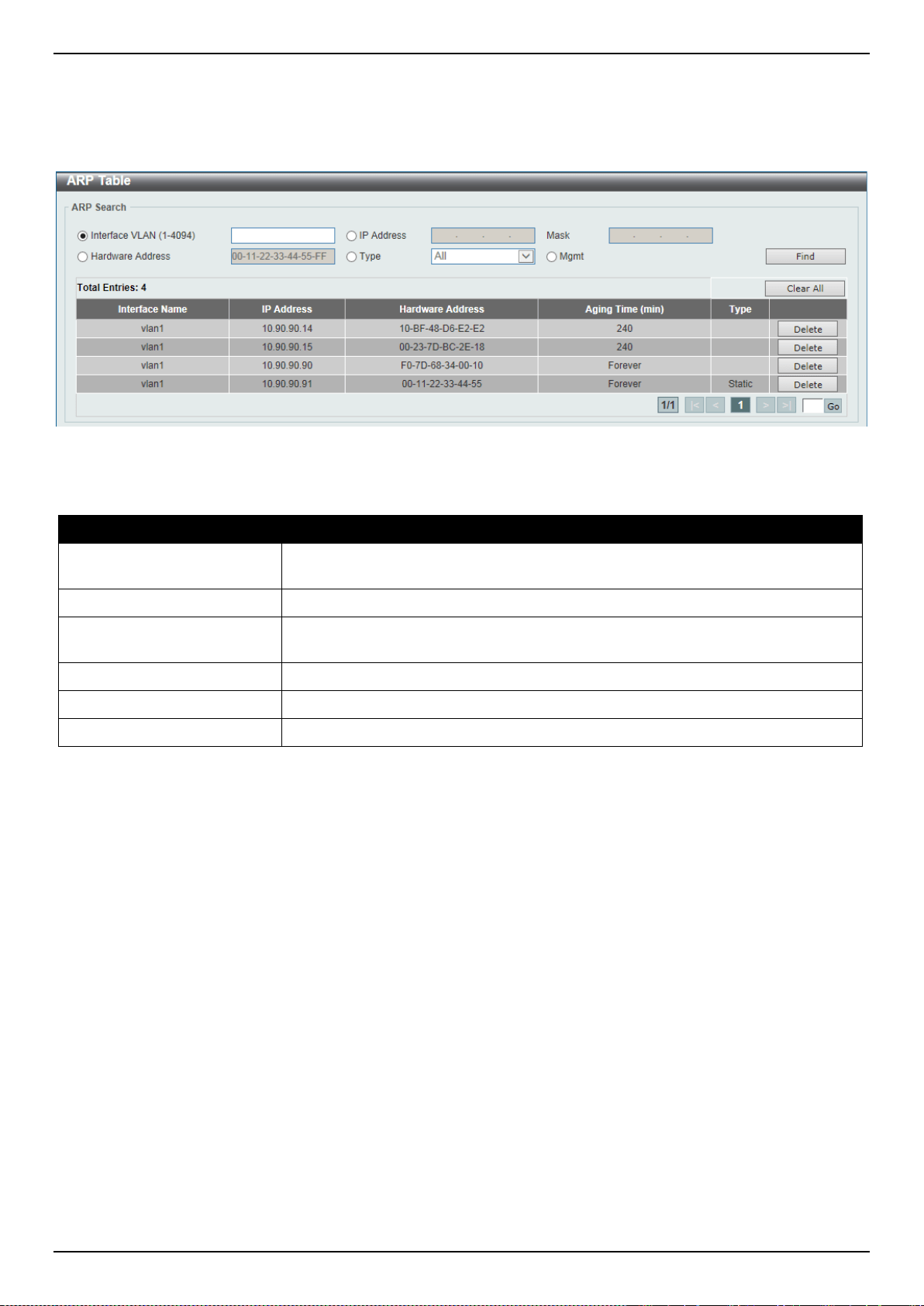
DXS-3400 Series Lite Layer 3 Stackable 10GbE Managed Switch Web UI Reference Guide
192
ARP Table
This window is used to display and configure the ARP table settings.
To view the following window, click L3 Features > ARP > ARP Table, as shown below:
Figure 6-4 ARP Table Window
The fields that can be configured are described below:
Parameter Description
Interface VLAN
Enter the interface’s VLAN ID used here. This value must be between 1 and
4094.
IP Address
Select and enter the IP address to display here.
Mask
After the IP Address option was selected, enter the mask address for the IP
address here.
Hardware Address
Select and enter the MAC address to display here.
Type
Select the type option here. Options to choose from are All and Dynamic.
Mgmt
Select this option to display the Management port’s information.
Click the Find button to locate a specific entry based on the information entered.
Click the Clear All button to clear all the information.
Click the Delete button to remove the specific entry.
Enter a page number and click the Go button to navigate to a specific page when multiple pages exist.
Gratuitous ARP
This window is used to display and configure the gratuitous ARP settings. A gratuitous ARP request packet is an ARP
request packet where the source and the destination IP address are both set to the IP address of the sending device
and the destination MAC address is the broadcast address.
Generally, a device uses the gratuitous ARP request packet to discover whether the IP address is duplicated by other
hosts or to preload or reconfigure the ARP cache entry of hosts connected to the interface.
To view the following window, click L3 Features > Gratuitous ARP, as shown below:
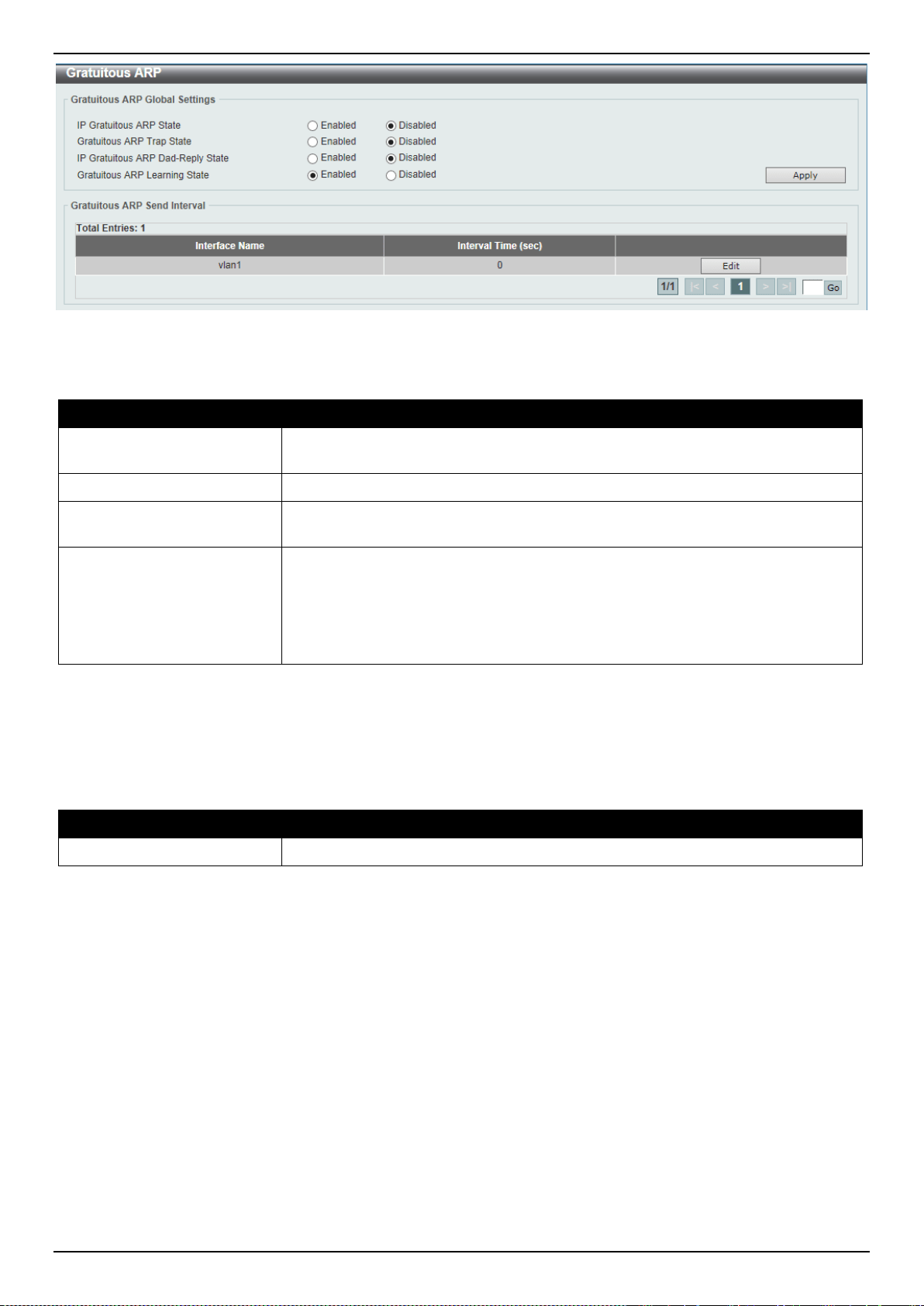
DXS-3400 Series Lite Layer 3 Stackable 10GbE Managed Switch Web UI Reference Guide
193
Figure 6-5 Gratuitous ARP Window
The fields that can be configured are described below:
Parameter Description
IP Gratuitous ARP State
Select to enable or disable the learning of gratuitous ARP packets in the ARP
cache table.
Gratuitous ARP Trap State
Select to enable or disable the gratuitous ARP feature’s trap state here.
IP Gratuitous ARP Dad-
Reply State
Select to enable or disable the IP gratuitous ARP Dad-reply state.
Gratuitous ARP Learning
State
Select to enable or disable the gratuitous ARP learning state. Normally, the
system will only learn the ARP reply packet or a normal ARP request packet that
asks for the MAC address that corresponds to the system’s IP address. This
option used to enable or disable the learning of ARP entries in the ARP cache
based on the received gratuitous ARP packet. The gratuitous ARP packet is sent
by a source IP address that is identical to the IP that the packet is queries for.
Click the Apply button to accept the changes made.
Click the Edit button to re-configure the specific entry.
Enter a page number and click the Go button to navigate to a specific page when multiple pages exist.
After clicking the Edit button, the field that can be configured for Gratuitous ARP Send Interval is described below:
Parameter Description
Interval Time
Enter the gratuitous ARP sending interval time, in seconds, here.
Click the Apply button to accept the changes made.
IPv6 Neighbor
This window is used to display and configure the IPv6 neighbor settings.
To view the following window, click L3 Features > IPv6 Neighbor, as shown below:
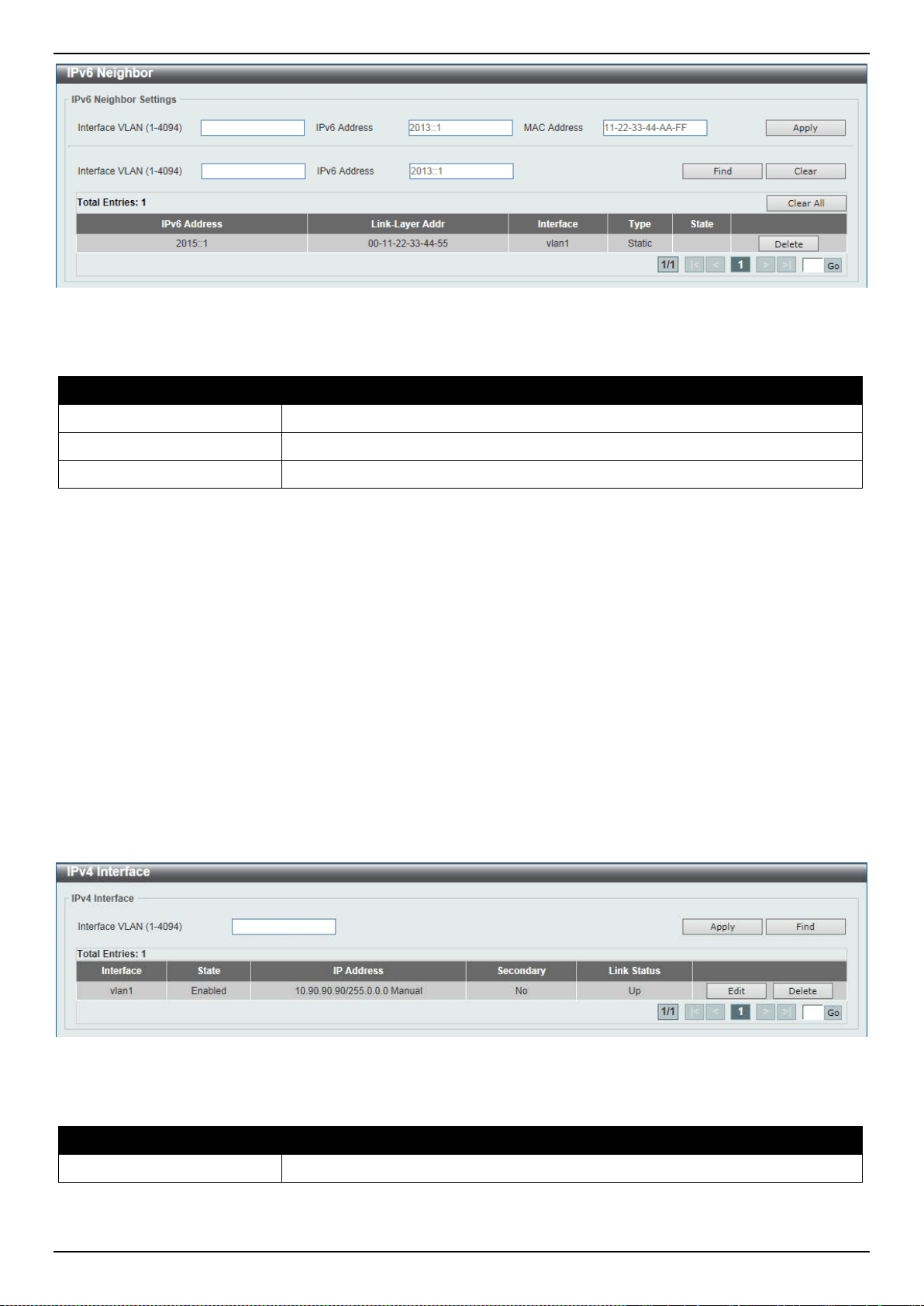
DXS-3400 Series Lite Layer 3 Stackable 10GbE Managed Switch Web UI Reference Guide
194
Figure 6-6 IPv6 Neighbor Window
The fields that can be configured are described below:
Parameter Description
Interface VLAN
Enter the VLAN interface’s ID here.
IPv6 Address
Enter the IPv6 address.
MAC Address
Enter the MAC address.
Click the Apply button to accept the changes made.
Click the Find button to locate a specific entry based on the information entered.
Click the Clear button to clear all the information for the specific port.
Click the Clear All button to clear all the dynamic IPv6 neighbor information in this table.
Click the Delete button to remove the specific entry.
Enter a page number and click the Go button to navigate to a specific page when multiple pages exist.
Interface
IPv4 Interface
This window is used to display and configure the IPv4 interface settings.
To view the following window, click L3 Features > Interface > IPv4 Interface, as shown below:
Figure 6-7 IPv4 Interface Window
The fields that can be configured are described below:
Parameter Description
Interface VLAN
Enter the interface’s VLAN ID here. This value must be between 1 and 4094.
Click the Apply button to accept the changes made.
Click the Find button to locate a specific entry based on the information entered.
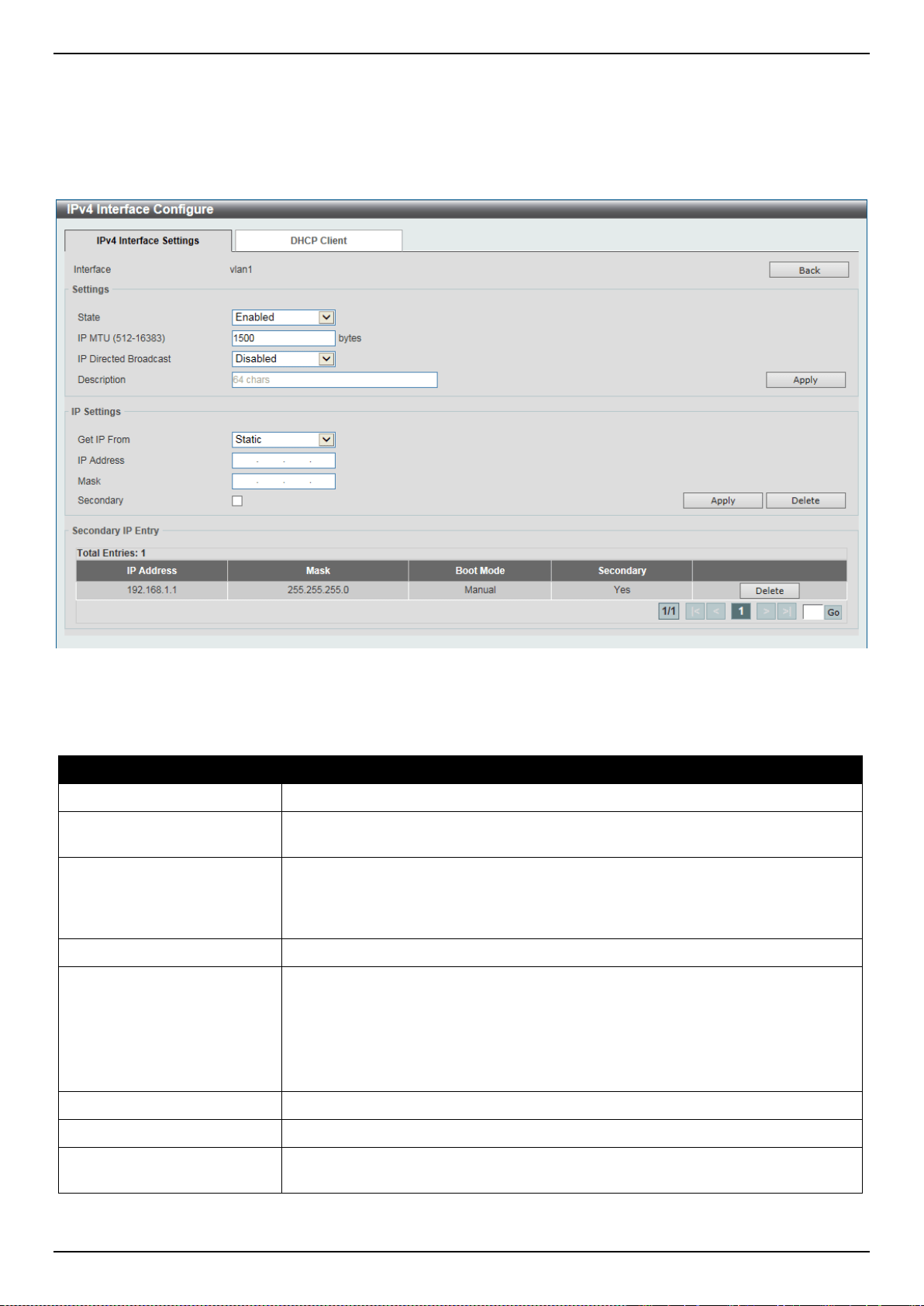
DXS-3400 Series Lite Layer 3 Stackable 10GbE Managed Switch Web UI Reference Guide
195
Click the Edit button to re-configure the specific entry.
Click the Delete button to remove the specific entry.
Enter a page number and click the Go button to navigate to a specific page when multiple pages exist.
After clicking the Edit button, the following page will be available.
Figure 6-8 IPv4 Interface (Edit) Window
The fields that can be configured are described below:
Parameter Description
State
Select to enable or disable the IPv4 interface’s global state.
IP MTU
Enter the MTU value here. The range is from 512 to 16383 bytes. By default, this
value is 1500 bytes.
IP Directed Broadcast
Select to enable to disable the IP directed broadcast feature here. This parameter
is used to enable or disable the conversion of IP directed broadcasts received by
the interface to physical broadcasts when the destination network is directly
connected to the Switch.
Description
Enter the description for the interface.
Get IP From
Select the get IP from option here. Options to choose from are Static and DHCP.
• When the Static option is selected, users can enter the IPv4 address of this
interface manually in the fields provided.
• When the DHCP option is selected, this interface will obtain IPv4 information
automatically from the DHCP server located on the local network.
IP Address
Enter the IPv4 address for this interface here.
Mask
Enter the IPv6 subnet mask for this interface here.
Secondary
Tick this option to use the IPv4 address and mask as the secondary interface
configuration.
Click the Back button to return to the previous window.
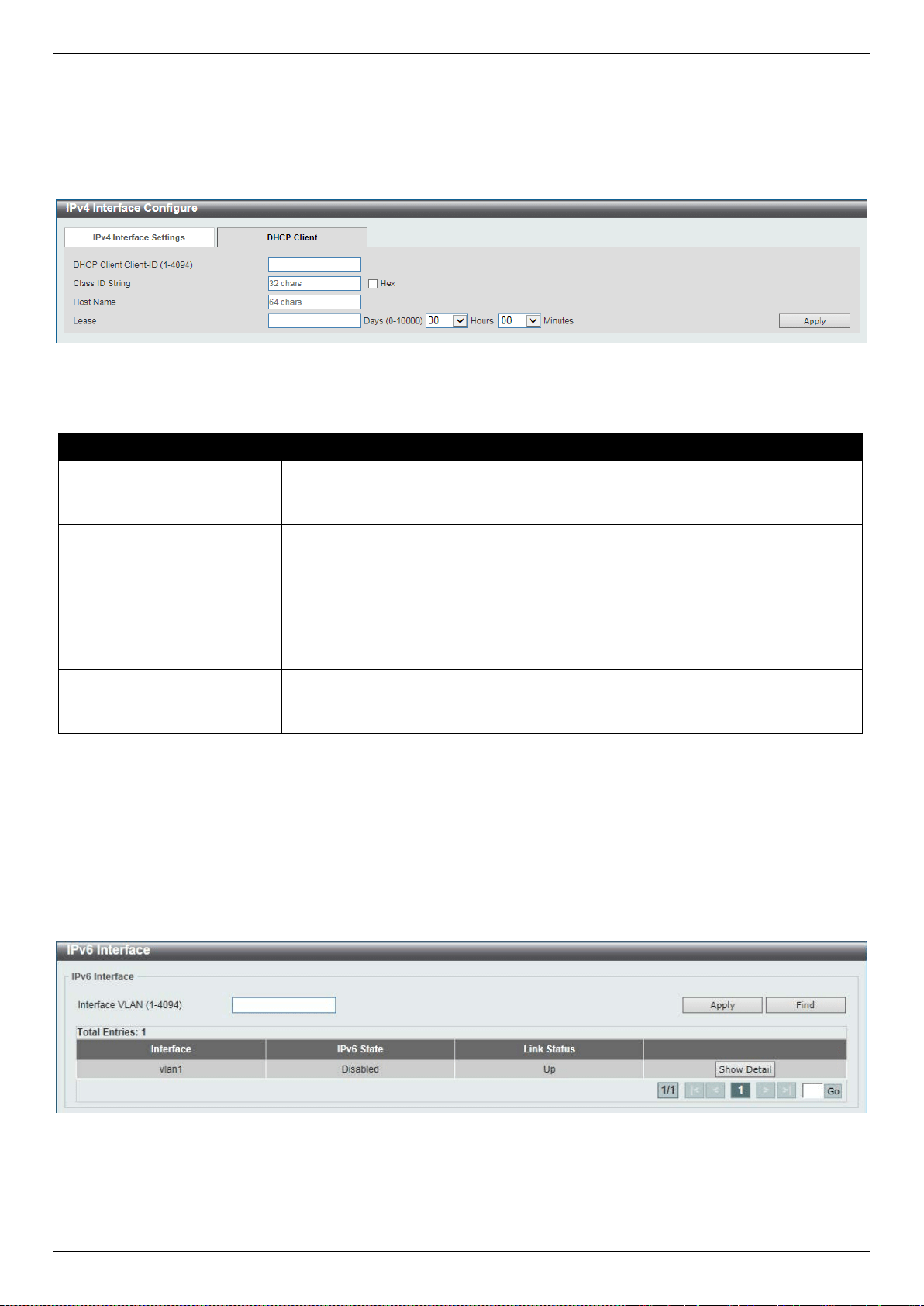
DXS-3400 Series Lite Layer 3 Stackable 10GbE Managed Switch Web UI Reference Guide
196
Click the Apply button to accept the changes made.
Click the Delete button to remove the specific entry.
Enter a page number and click the Go button to navigate to a specific page when multiple pages exist.
After selecting the DHCP Client tab, the following page will appear.
Figure 6-9 User Management Settings Window
The fields that can be configured are described below:
Parameter Description
DHCP Client Client-ID
Enter the DHCP client’s client ID here. The range is from 1 to 4094. This
parameter is used to specify the VLAN interface whose hexadecimal MAC
address will be used as the client ID sent with the discover message.
Class ID String
Enter the class ID string here. This string can be up to 32 characters long. Select
the Hex option to enter the class ID string in the hexadecimal format. This string
can be up to 64 characters long. This parameter is used to specify the vendor
class identifier used as the value of Option 60 for the DHCP discover message.
Host Name
Enter the host name here. This string can be up to 64 characters long. This
parameter is used to specify the value of the host name option to be sent with the
DHCP discover message.
Lease
Enter and optionally select the DHCP client lease time here. In the text box the
lease time, in days, can be entered. The range is from 0 to 10000 days. Hours
and Minutes can also be selected optionally.
Click the Apply button to accept the changes made.
IPv6 Interface
This window is used to display and configure the IPv6 interface’s settings.
To view the following window, click L3 Features > Interface > IPv6 Interface, as shown below:
Figure 6-10 IPv6 Interface Window
The fields that can be configured are described below:
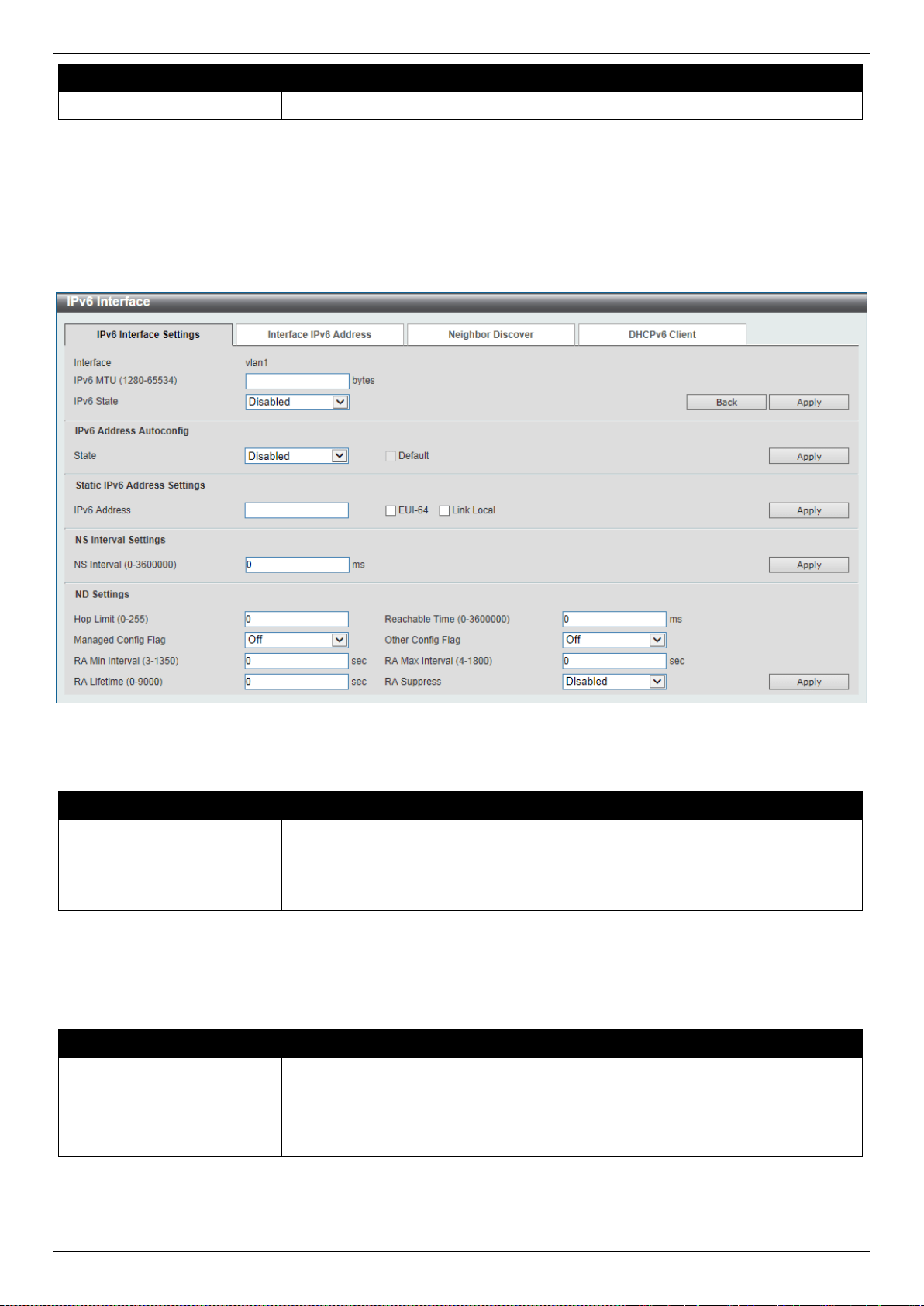
DXS-3400 Series Lite Layer 3 Stackable 10GbE Managed Switch Web UI Reference Guide
197
Parameter Description
Interface VLAN
Enter the VLAN interface’s ID that will be associated with the IPv6 entry.
Click the Apply button to accept the changes made.
Click the Find button to locate a specific entry based on the information entered.
Click the Show Detail button to view and configure more detailed settings for the IPv6 interface entry.
Enter a page number and click the Go button to navigate to a specific page when multiple pages exist.
After clicking the Show Detail button, the following page will be available.
Figure 6-11 IPv6 Interface (Detail, IPv6 Interface Settings) Window
The fields that can be configured are described below:
Parameter Description
IPv6 MTU
Enter the IPv6 MTU value here. The range is from 1280 to 65534 bytes. By
default, this value is 1500 bytes. This parameter is used to configure the MTU to
be advertised in RA messages.
IPv6 State
Select to enable or disable the IPv6 interface’s global state here.
Click the Back button to discard the changes made and return to the previous page.
Click the Apply button to accept the changes made.
The fields that can be configured for IPv6 Address Autoconfig are described below:
Parameter Description
State
Select to enable or disable the automatic configuration of the IPv6 address using
the stateless auto-configuration feature here. Select the Default option to specify
that if the default router is selected on this interface, a default route will be
installed using that default router. This option can be specified only on one
interface.
Click the Apply button to accept the changes made.
The fields that can be configured for Static IPv6 Address Settings are described below:
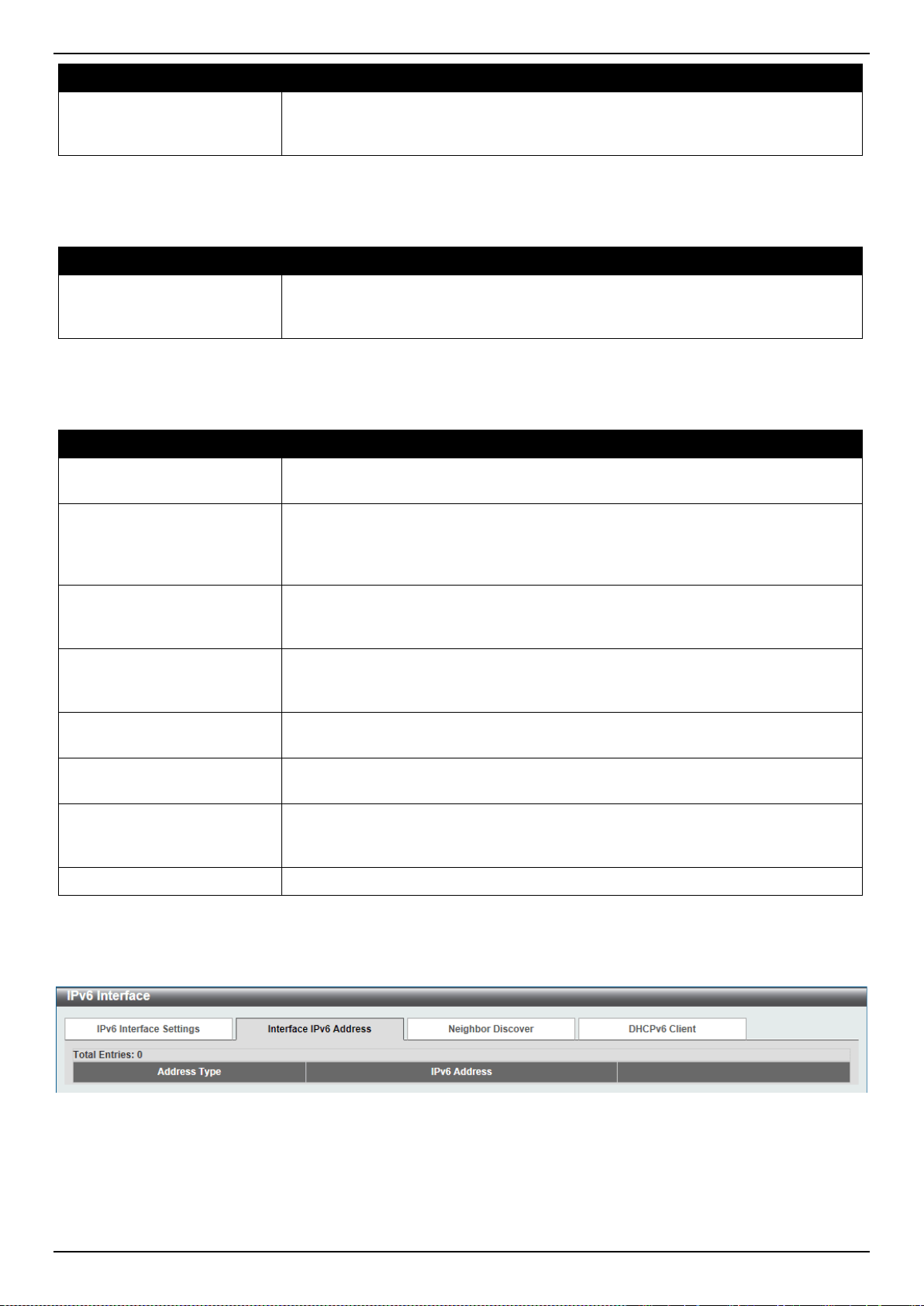
DXS-3400 Series Lite Layer 3 Stackable 10GbE Managed Switch Web UI Reference Guide
198
Parameter Description
IPv6 Address
Enter the IPv6 address for this IPv6 interface here. Select the EUI-64 option to
configure an IPv6 address on the interface using the EUI-64 interface ID. Select
the Link Local option to configure a link-local address for the IPv6 interface.
Click the Apply button to accept the changes made.
The fields that can be configured for NS Interval Settings are described below:
Parameter Description
NS Interval
Enter the Neighbor Solicitation (NS) interval value here. The range is from 0 to
3600000 milliseconds, in multiples of 1000. If the specified time is 0, the router will
use 1 second on the interface and advertise 0 (unspecified) in the RA message.
Click the Apply button to accept the changes made.
The fields that can be configured for ND Settings are described below:
Parameter Description
Hop Limit
Enter the hop limit value here. The range is from 0 to 255. The IPv6 packet
originated at the system will also use this value as the initial hop limit.
Reachable Time
Enter the reachable time here. The range is from 0 to 3600000 milliseconds. If the
specified time is 0, the router will use 1200 seconds on the interface and advertise
1200 (unspecified) in the RA message. The reachable time is used by the IPv6
node in determining the reachability of the neighbor nodes.
Managed Config Flag
Turn the managed config flag option On or Off here. When the neighbor host
receives the RA which has flag turned on, the host should use a stateful
configuration protocol to obtain IPv6 addresses.
Other Config Flag
Turn the other config flag option On or Off here. By setting the other configuration
flag on, the router instructs the connected hosts to use a stateful configuration
protocol to obtain auto-configuration information other than the IPv6 address.
RA Min Interval
Enter the minimum RA interval time value here. The range is from 3 to 1350
seconds. This value must be smaller than 0.75 times the maximum value.
RA Max Interval
Enter the maximum RA interval time value here. The range is from 4 to 1800
seconds.
RA Lifetime
Enter the RA lifetime value here. The range is from 0 to 9000 seconds. The
lifetime value in RA instructs the received host the lifetime value for taking the
router as the default router.
RA Suppress
Select to enable or disable the RA suppress feature here.
Click the Apply button to accept the changes made.
After selecting the Interface IPv6 Address tab option, at the top of the page, the following page will be available.
Figure 6-12 IPv6 Interface (Detail, Interface IPv6 Address) Window
Click the Delete button to delete the specified entry.
After selecting the Neighbor Discover tab option, at the top of the page, the following page will be available.
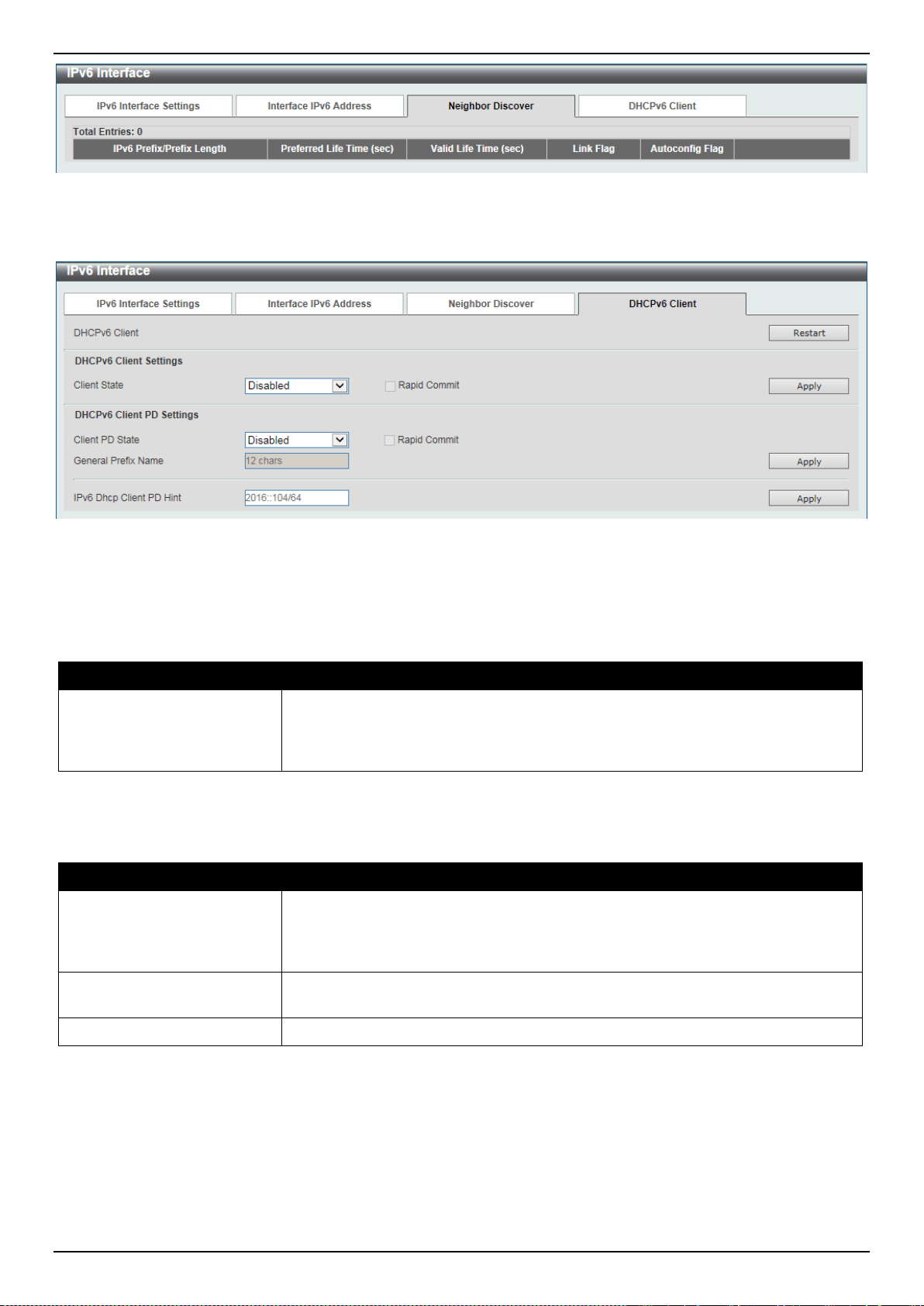
DXS-3400 Series Lite Layer 3 Stackable 10GbE Managed Switch Web UI Reference Guide
199
Figure 6-13 IPv6 Interface (Detail, Neighbor Discover) Window
After selecting the DHCPv6 Client tab option, at the top of the page, the following page will be available.
Figure 6-14 IPv6 Interface (Detail, DHCPv6 Client) Window
Click the Restart button to restart the DHCPv6 client service.
The fields that can be configured for DHCPv6 Client Settings are described below:
Parameter Description
Client State
Select to enable or disable the DHCPv6 client service here. Select the Rapid
Commit option to proceed with two-message exchange for address delegation.
The rapid-commit option will be filled in the Solicit message to request two
messages handshake.
Click the Apply button to accept the changes made.
The fields that can be configured for DHCPv6 Client PD Settings are described below:
Parameter Description
Client PD State
Select to enable or disable the DHCPv6 client process to request the prefix
delegation through a specified interface. Select the Rapid Commit option to
proceed with two-message exchange for prefix delegation. The rapid-commit
option will be filled in the Solicit message to request two messages handshake.
General Prefix Name
Enter the IPv6 general prefix name here. This name can be up to 12 characters
long.
IPv6 DHCP Client PD Hint
Enter the IPv6 prefix to be sent in the message as a hint here.
Click the Apply button to accept the changes made.
Loopback Interface
This window is used to display and configure the loopback interface settings. A loopback interface is a software only
interface which always stays in the up status.
To view the following window, click L3 Features > Interface > Loopback Interface, as shown below:
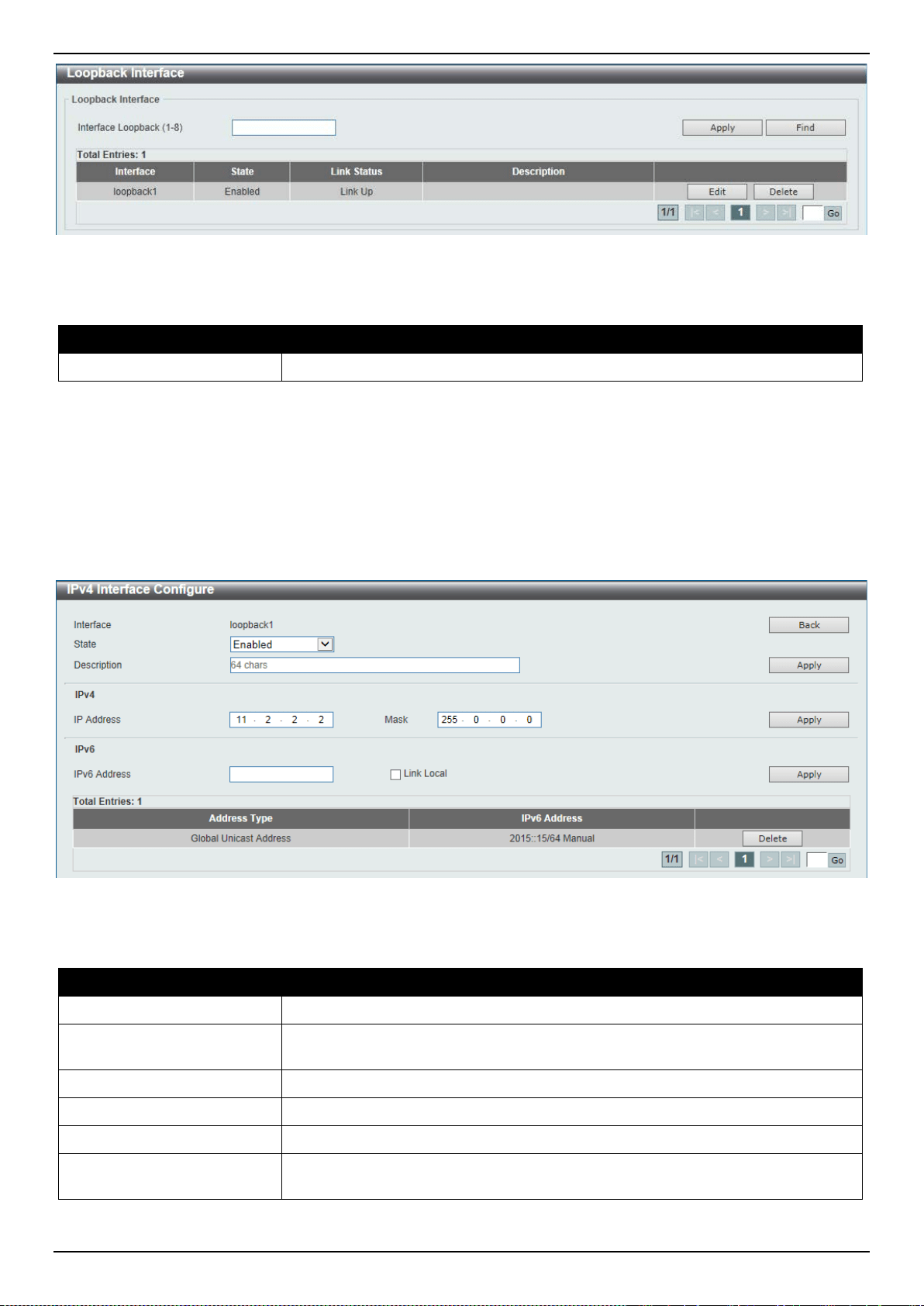
DXS-3400 Series Lite Layer 3 Stackable 10GbE Managed Switch Web UI Reference Guide
200
Figure 6-15 Loopback Interface Window
The fields that can be configured are described below:
Parameter Description
Interface Loopback
Enter the loopback interface’s ID here. The range is from 1 to 8.
Click the Apply button to accept the changes made.
Click the Find button to locate a specific entry based on the information entered.
Click the Edit button to modify the specified entry.
Click the Delete button to delete the specified entry.
Enter a page number and click the Go button to navigate to a specific page when multiple pages exist.
After clicking the Edit button, the following page will appear.
Figure 6-16 Loopback Interface (Edit) Window
The fields that can be configured are described below:
Parameter Description
State
Select to enable or disable the loopback interface here.
Description
Enter the description for the loopback interface here. This string can be up to 64
characters long.
IP Address
Enter the IPv4 address associated with this loopback interface here.
Mask
Enter the IPv4 subnet mask associated with this loopback interface here.
IPv6 Address
Enter the IPv6 address associated with this loopback interface here.
Link Local
Select this option to specify that the IPv6 address entered is the link-local IPv6
address.
Click the Back button to return to the previous window.
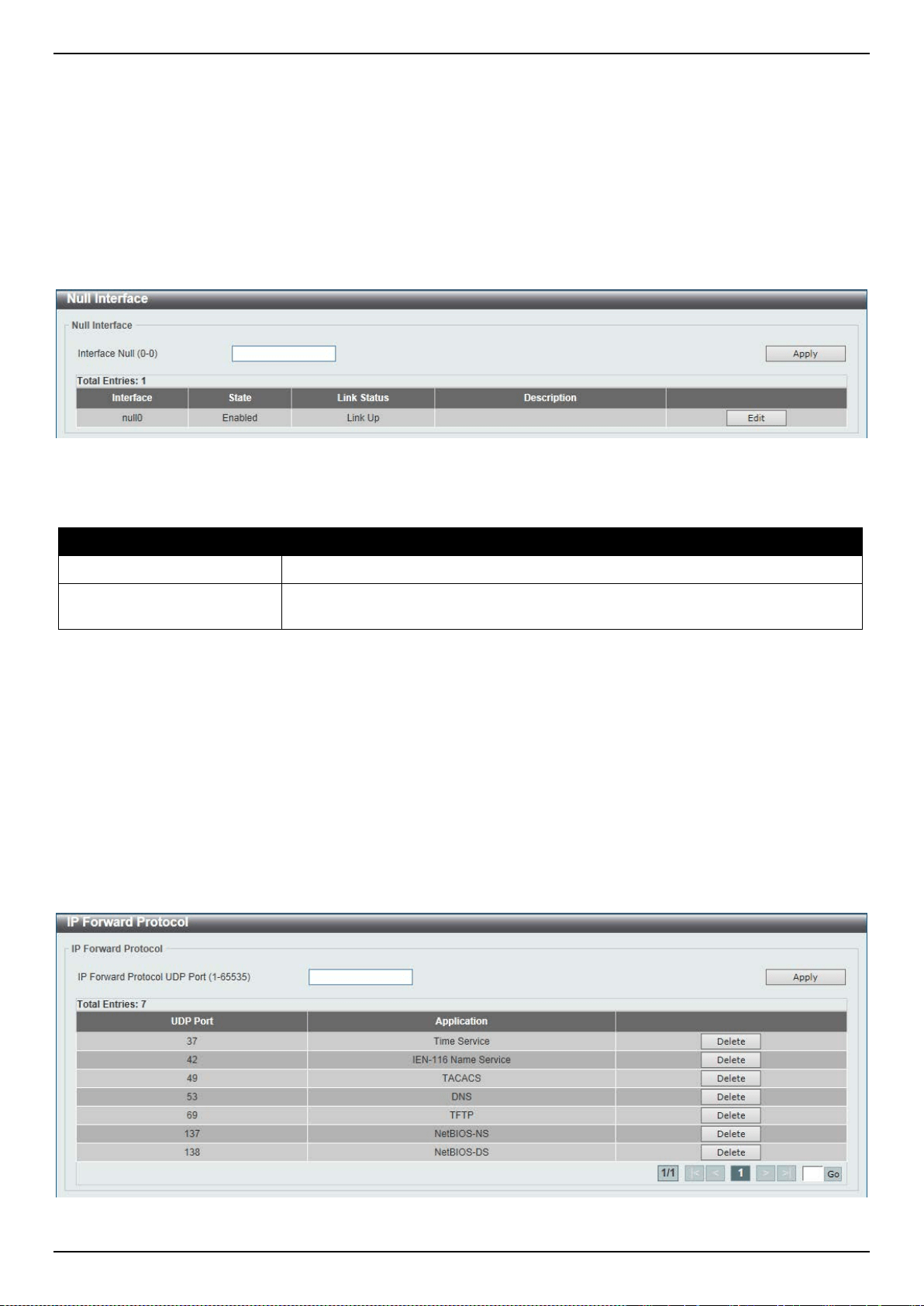
DXS-3400 Series Lite Layer 3 Stackable 10GbE Managed Switch Web UI Reference Guide
201
Click the Apply button to accept the changes made.
Click the Delete button to delete the specified entry.
Enter a page number and click the Go button to navigate to a specific page when multiple pages exist.
Null Interface
This window is used to display and configure the NULL interface settings.
To view the following window, click L3 Features > Interface > Null Interface, as shown below:
Figure 6-17 Null Interface Window
The fields that can be configured are described below:
Parameter Description
Interface Null
Enter the NULL interface’s ID here. This value can only be 0.
Description
After clicking the Edit button, enter the description for the NULL interface here.
This string can be up to 64 characters long.
Click the Apply button to accept the changes made.
Click the Edit button to modify the description for the NULL interface.
UDP Helper
IP Forward Protocol
This window is used to display and configure the IP forward protocol settings. This feature is used to enable the
forwarding of a specific UDP service type of packets.
To view the following window, click L3 Features > UDP Helper > IP Forward Protocol, as shown below:
Figure 6-18 IP Forward Protocol Window
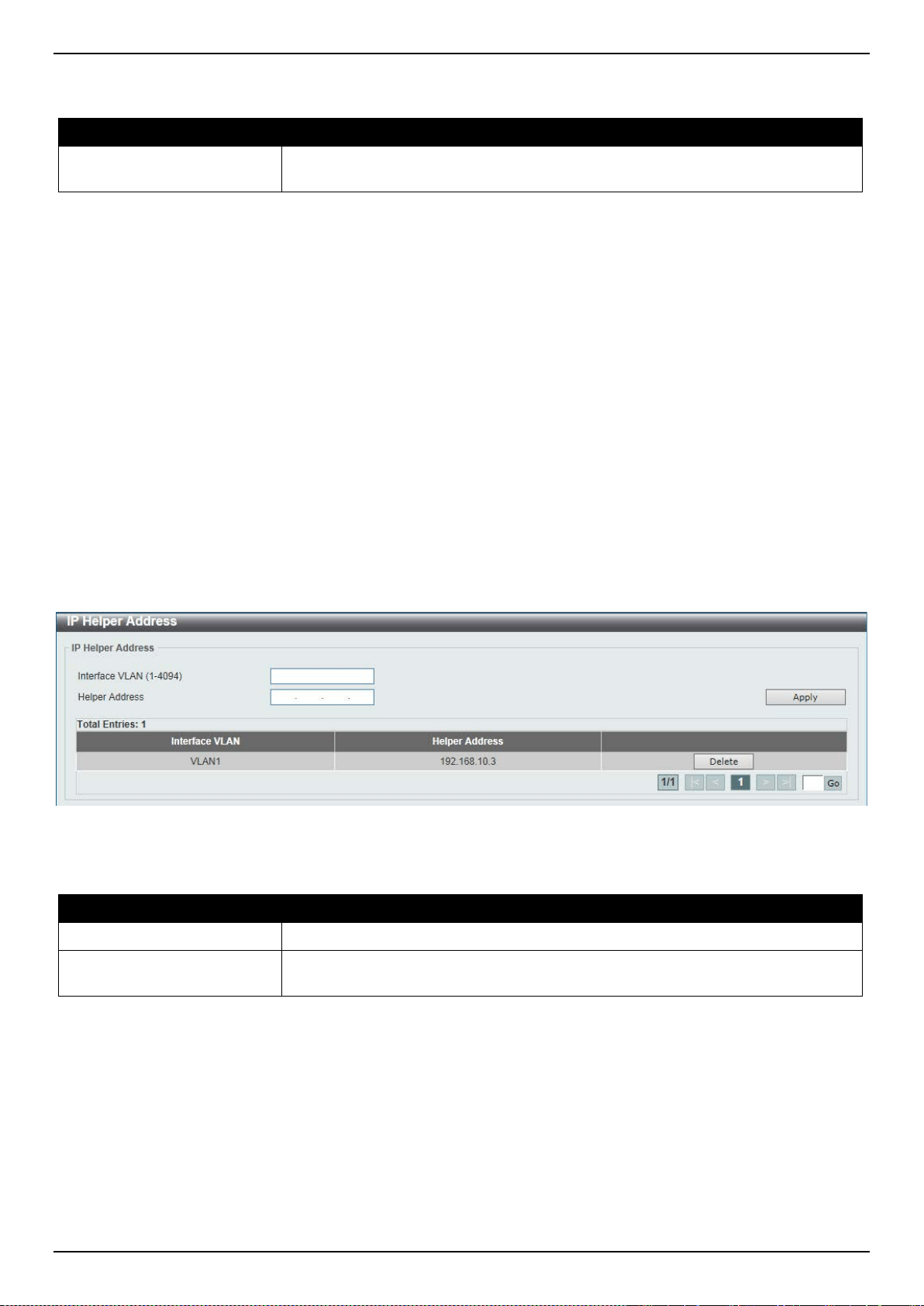
DXS-3400 Series Lite Layer 3 Stackable 10GbE Managed Switch Web UI Reference Guide
202
The fields that can be configured are described below:
Parameter Description
IP Forward Protocol UDP
Port
Enter the destination port of the UDP service to be forwarded here. The range is
from 1 to 65535.
Click the Apply button to accept the changes made.
Click the Delete button to delete the specified entry.
Enter a page number and click the Go button to navigate to a specific page when multiple pages exist.
IP Helper Address
This window is used to add or remove a target address for the forwarding of UDP broadcast packets. This feature
takes effect only when the received interface has an IP address assigned.
The system only forwards the packet that satisfies the following restriction.
• The destination MAC address must be a broadcast address.
• The destination IP address must be an all-one broadcast.
• The packets are IPv4 UDP packets.
• The IP TTL value must be greater than or equal to 2.
To view the following window, click L3 Features > UDP Helper > IP Helper Address, as shown below:
Figure 6-19 IP Helper Address Window
The fields that can be configured are described below:
Parameter Description
Interface VLAN
Enter the VLAN interface’s ID used here. The range is from 1 to 4094.
Helper Address
Enter the target IPv4 address for the forwarding of the UDP broadcast packet
here.
Click the Apply button to accept the changes made.
Click the Delete button to delete the specified entry.
Enter a page number and click the Go button to navigate to a specific page when multiple pages exist.
IPv4 Static/Default Route
This window is used to display and configure the IPv4 static and default route settings. The Switch supports static
routing for IPv4 formatted addressing. Users can create up to 256 static route entries for IPv4. For IPv4 static routes,
once a static route has been set, the Switch will send an ARP request packet to the next hop router that has been set
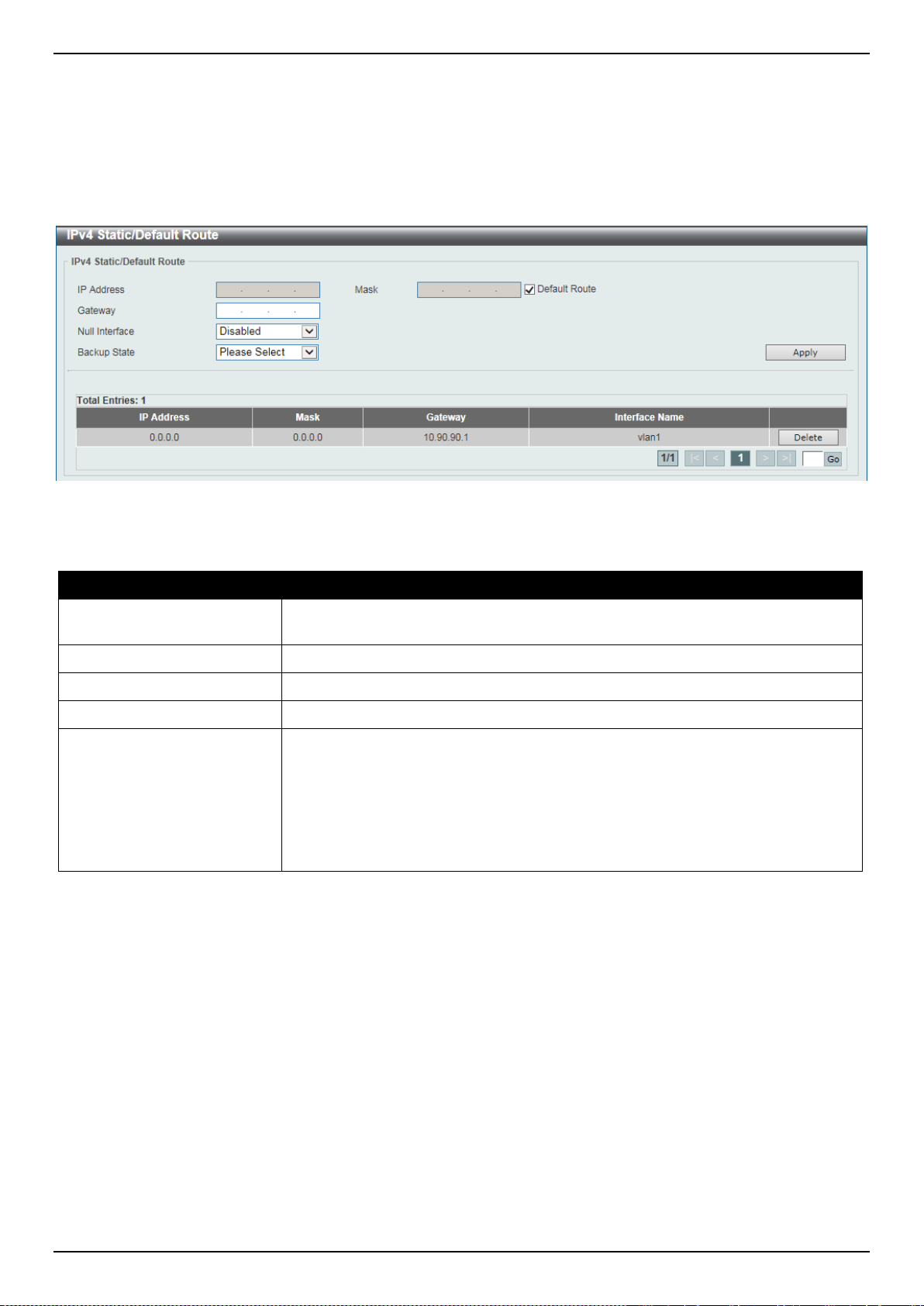
DXS-3400 Series Lite Layer 3 Stackable 10GbE Managed Switch Web UI Reference Guide
203
by the user. Once an ARP response has been retrieved by the Switch from that next hop, the route becomes enabled.
However, if the ARP entry already exists, an ARP request will not be sent.
The Switch also supports a floating static route, which means that the user may create an alternative static route to a
different next hop. This secondary next hop device route is considered as a backup static route for when the primary
static route is down. If the primary route is lost, the backup route will uplink and its status will become active.
Entries into the Switch’s forwarding table can be made using both an IP address subnet mask and a gateway.
To view the following window, click L3 Features > IPv4 Static/Default Route, as shown below:
Figure 6-20 IPv4 Static/Default Route Window
The fields that can be configured are described below:
Parameter Description
IP Address
Enter the IPv4 address for this route here. Tick the Default Route option to use
the default route as the IPv4 address.
Mask
Enter the IPv4 network mask for this route here.
Gateway
Enter the gateway address for this route here.
Null Interface
Select to enable or disable the NULL interface here.
Backup State
Select the backup state option here. Options to choose from are Primary and
Backup.
• When the Primary option is selected, the route will be used as the primary
route to the destination.
• When the Backup option is selected, the route will be used as the backup
route to the destination.
Click the Apply button to accept the changes made.
Click the Delete button to remove the specific entry.
Enter a page number and click the Go button to navigate to a specific page when multiple pages exist.
IPv4 Static Route BFD
This window is used to display and configure the IPv4 static route Bidirectional Forwarding Detection (BFD) settings.
To view the following window, click L3 Features > IPv4 Static Route BFD, as shown below:
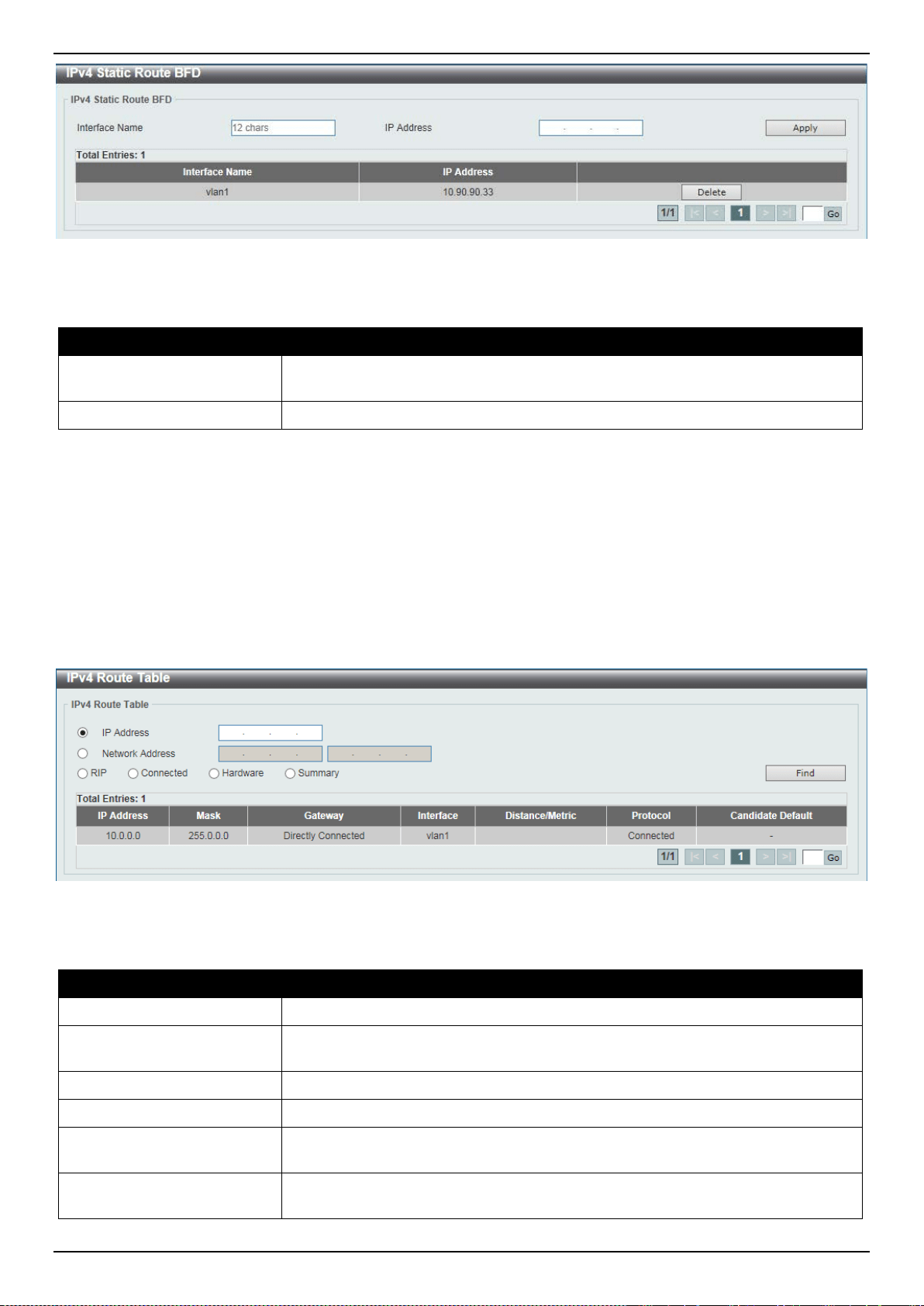
DXS-3400 Series Lite Layer 3 Stackable 10GbE Managed Switch Web UI Reference Guide
204
Figure 6-21 IPv4 Static Route BFD Window
The fields that can be configured are described below:
Parameter Description
Interface Name
Enter the name of the interface that will be used to create the BFD session here.
This name can be up to 12 characters long.
IP Address
Enter the IP address of the BFD peer here.
Click the Apply button to accept the changes made.
Click the Delete button to remove the specific entry.
Enter a page number and click the Go button to navigate to a specific page when multiple pages exist.
IPv4 Route Table
This window is used to display and configure the IPv4 route table settings.
To view the following window, click L3 Features > IPv4 Route Table, as shown below:
Figure 6-22 IPv4 Route Table Window
The fields that can be configured are described below:
Parameter Description
IP Address
Select and enter the single IPv4 address here.
Network Address
Select and enter the IPv4 network address here. In the first space enter the
network prefix and in the second space enter the network mask.
RIP
Select this option to display only RIP routes.
Connected
Select this option to display only connected routes.
Hardware
Select this option to display only hardware routes. Hardware routes are routes
that have been written into the hardware chip.
Summary
Select this option to display a summary and count of the route sources configured
on the Switch.
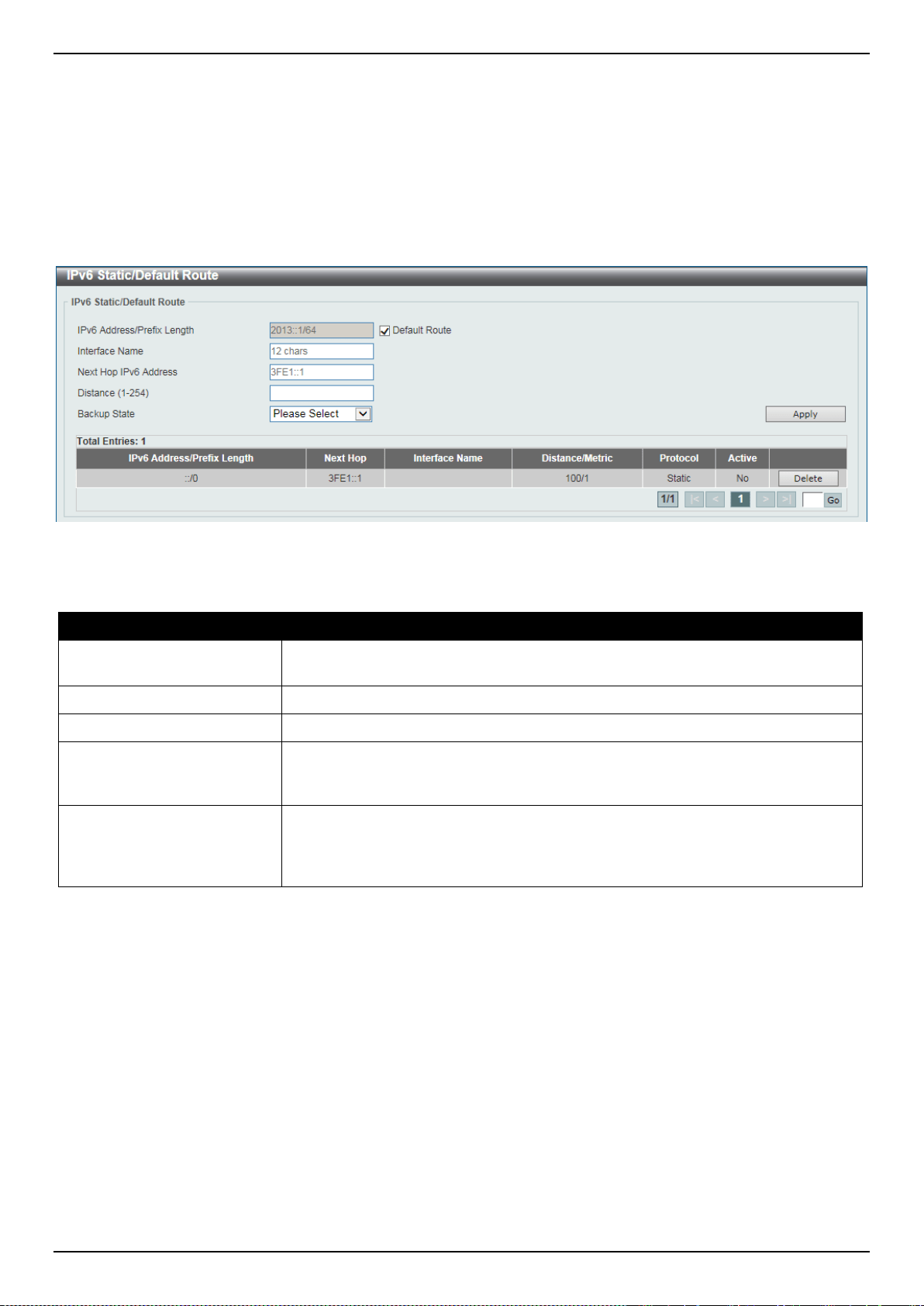
DXS-3400 Series Lite Layer 3 Stackable 10GbE Managed Switch Web UI Reference Guide
205
Click the Find button to locate a specific entry based on the information entered.
Enter a page number and click the Go button to navigate to a specific page when multiple pages exist.
IPv6 Static/Default Route
This window is used to display and configure the IPv6 static or default routes.
To view the following window, click L3 Features > IPv6 Static/Default Route, as shown below:
Figure 6-23 IPv6 Static/Default Route Window
The fields that can be configured are described below:
Parameter Description
IPv6 Address/Prefix Length
Enter the IPv6 address and prefix length for this route here. Tick the Default
Route option to use this route as the default route.
Interface Name
Enter the name of the interface that will be associated with this route here.
Next Hop IPv6 Address
Enter the next hop IPv6 address here.
Distance
Enter the administrative distance of the static route here. This value must be
between 1 and 254. A lower value represents a better route. If not specified, the
default administrative distance for a static route is 1.
Backup State
Select the backup state option here. Options to choose from are Primary, and
Backup. When the Primary option is selected, the route is specified as the
primary route to the destination. When the Backup option is selected, the route is
specified as the backup route to the destination.
Click the Apply button to accept the changes made.
Click the Delete button to remove the specific entry.
Enter a page number and click the Go button to navigate to a specific page when multiple pages exist.
IPv6 Static Route BFD
This window is used to display and configure the IPv6 static route BFD.
To view the following window, click L3 Features > IPv6 Static Route BFD, as shown below:
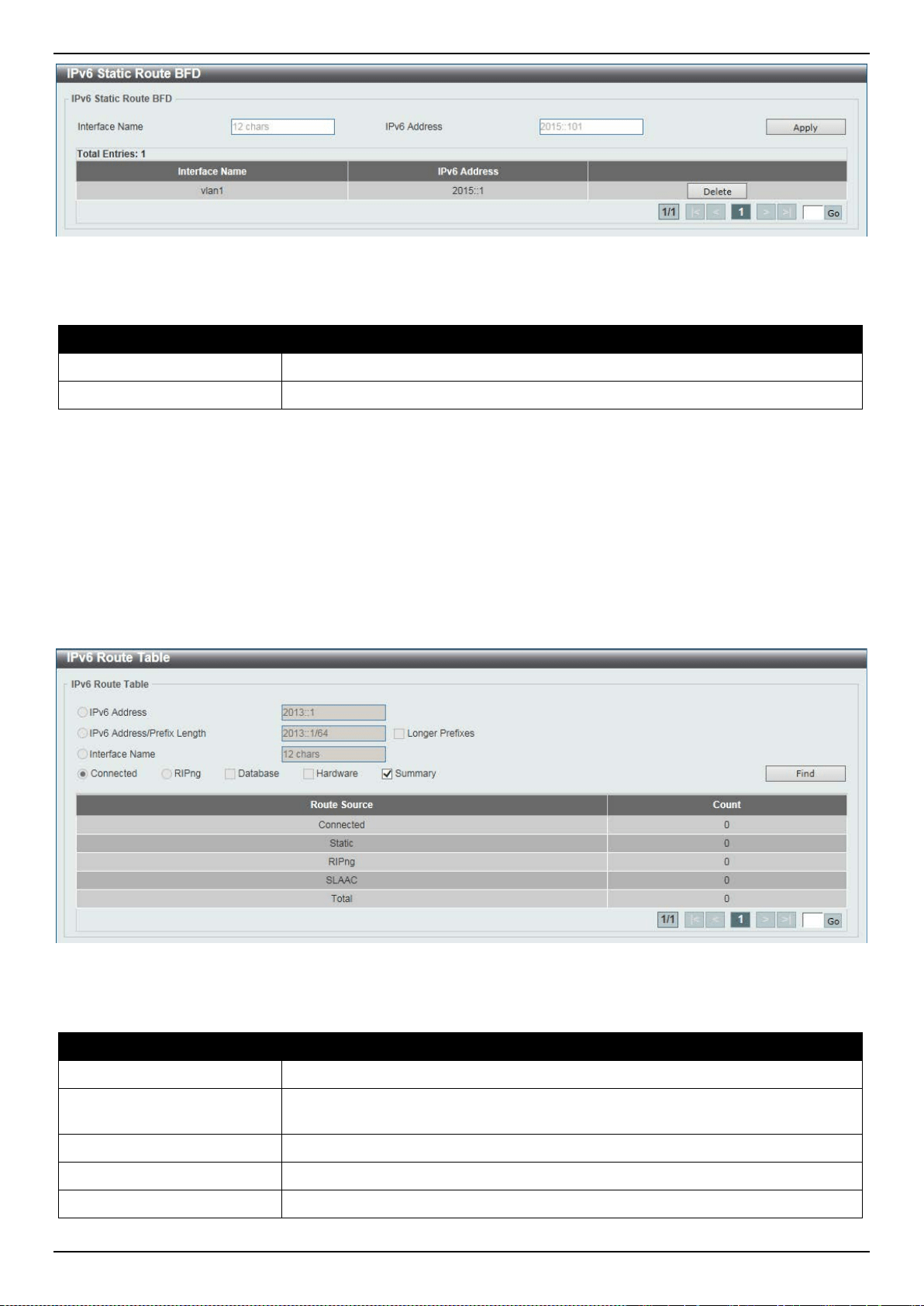
DXS-3400 Series Lite Layer 3 Stackable 10GbE Managed Switch Web UI Reference Guide
206
Figure 6-24 IPv6 Static Route BFD Window
The fields that can be configured are described below:
Parameter Description
Interface Name
Enter the name of the interface that will be associated with this route here.
IPv6 Address
Enter the IPv6 address for this IPv6 interface here.
Click the Apply button to accept the changes made.
Click the Delete button to remove the specific entry.
Enter a page number and click the Go button to navigate to a specific page when multiple pages exist.
IPv6 Route Table
This window is used to display and configure the IPv6 route table.
To view the following window, click L3 Features > IPv6 Route Table, as shown below:
Figure 6-25 IPv6 Route Table Window
The fields that can be configured are described below:
Parameter Description
IPv6 Address
Select and enter the IPv6 address to display here.
IPv6 Address/Prefix Length
Select and enter the IPv6 address and prefix length to display here. Select the
Longer Prefixes option to display the route and all of the more specific routes.
Interface Name
Select and enter the name of the interface to display here.
Connected
Select this option to display only connected routes.
RIPng
Select this option to display only RIPng routes.
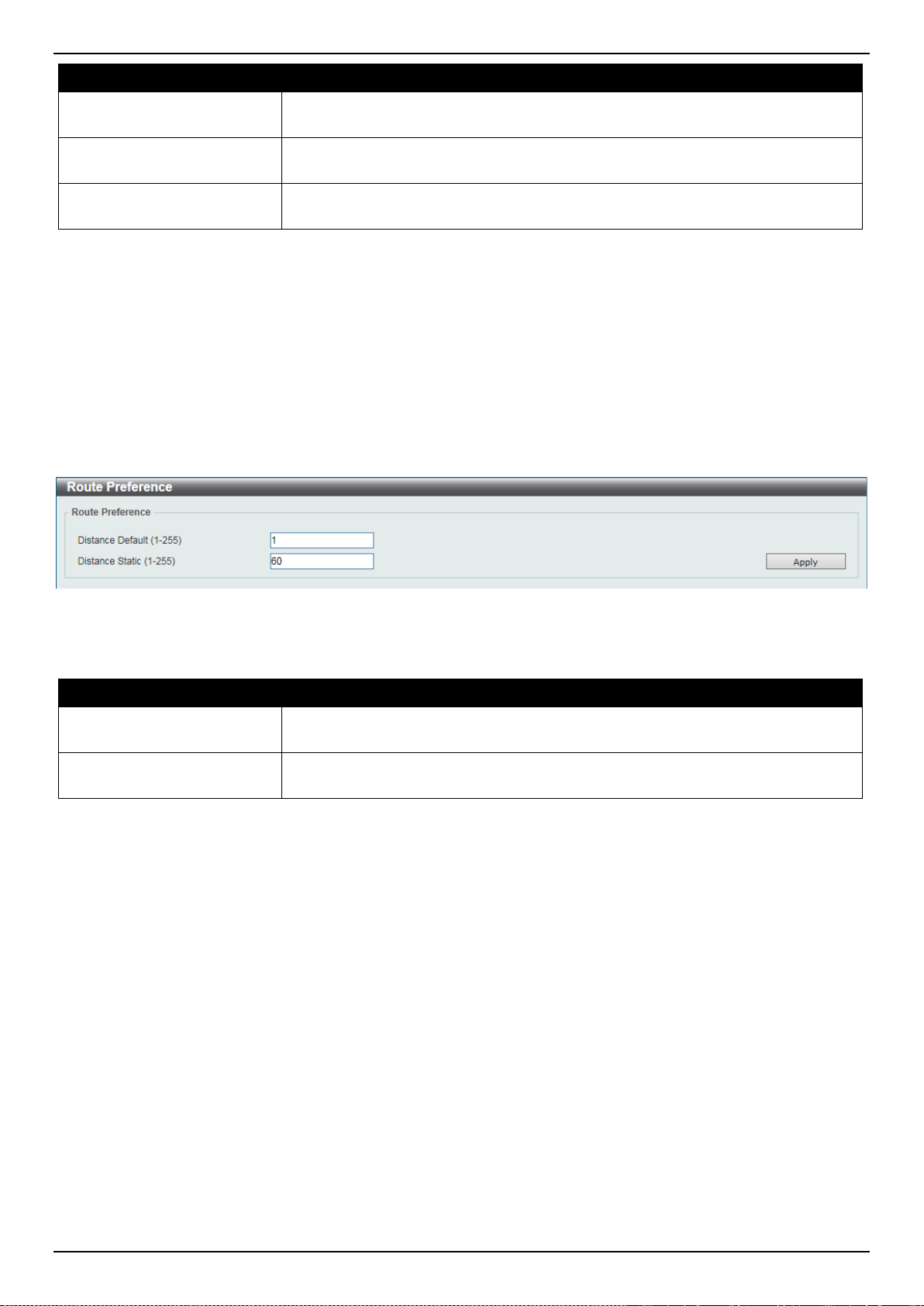
DXS-3400 Series Lite Layer 3 Stackable 10GbE Managed Switch Web UI Reference Guide
207
Parameter Description
Database
Select this option to display all the related entries in the routing database instead
of just the best route.
Hardware
Select this option to display only hardware routes. Hardware routes are routes
that have been written into the hardware chip.
Summary
Select this option to display a summary and count of the route sources configured
on the Switch.
Click the Find button to locate a specific entry based on the information entered.
Enter a page number and click the Go button to navigate to a specific page when multiple pages exist.
Route Preference
This window is used to display and configure the preference setting of the IPv4 default route and static route. The
distance of the default route and the static route will be compared with other IPv4 routes learned by the dynamic
routing protocol if they have the same destination network address. The lower distance value is preferred.
To view the following window, click L3 Features > Route Preference, as shown below:
Figure 6-26 Route Preference Window
The fields that can be configured are described below:
Parameter Description
Distance Default
Enter the administrative distance of default routes here. The range is from 1 to
255. By default, this value is 1.
Distance Static
Enter the administrative distance of static default routes here. The range is from 1
to 255. By default, this value is 60.
Click the Apply button to accept the changes made.
IPv6 General Prefix
This window is used to display and configure the VLAN interface’s IPv6 general prefix settings.
To view the following window, click L3 Features > IPv6 General Prefix, as shown below:
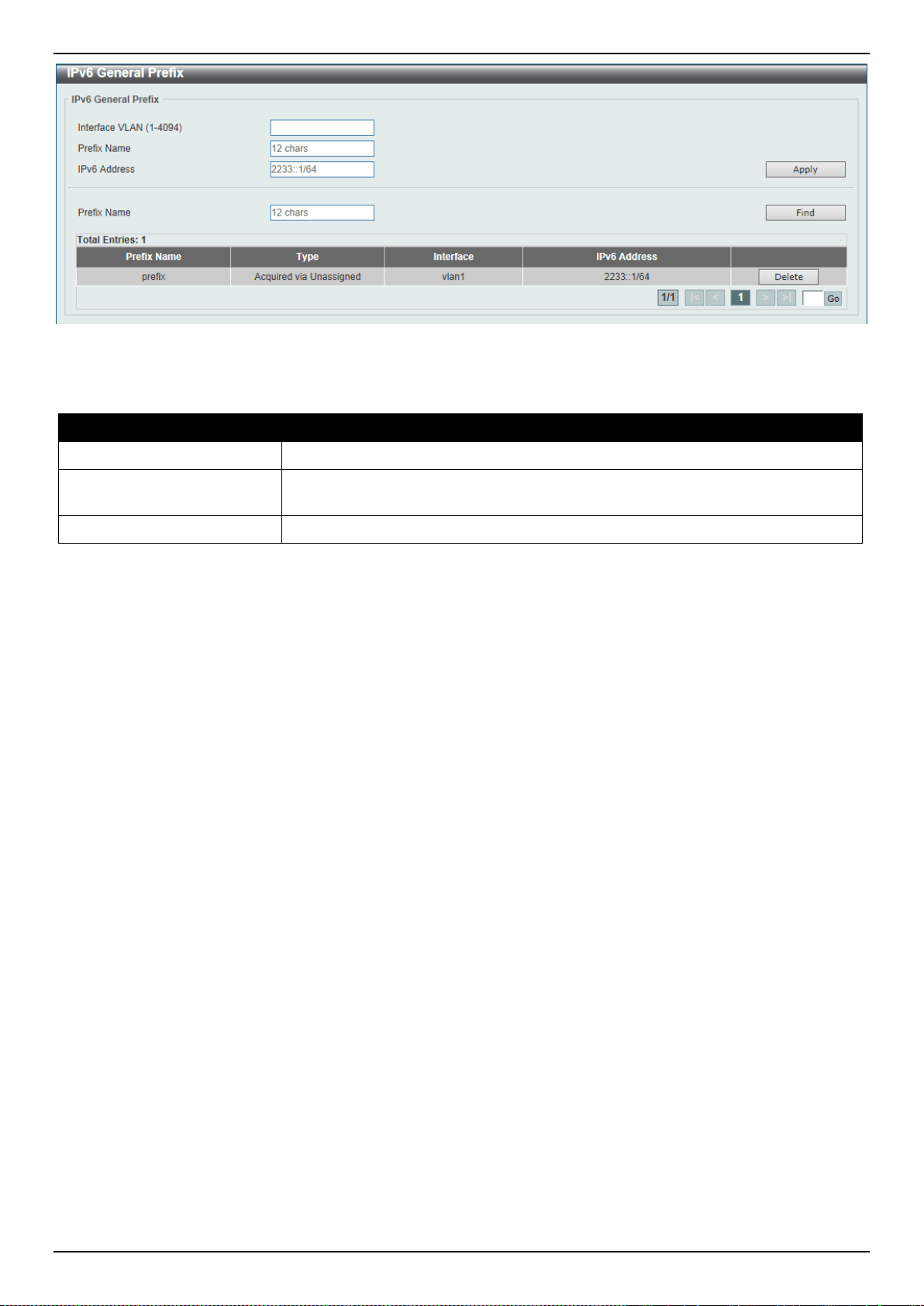
DXS-3400 Series Lite Layer 3 Stackable 10GbE Managed Switch Web UI Reference Guide
208
Figure 6-27 IPv6 General Prefix Window
The fields that can be configured are described below:
Parameter Description
Interface VLAN
Enter the VLAN interface ID used here. The range is from 1 to 4094.
Prefix Name
Enter the IPv6 general prefix entry’s name here. This name can be up to 12
characters long.
IPv6 Address
Enter the IPv6 address and prefix length here.
Click the Apply button to accept the changes made.
Click the Find button to locate a specific entry based on the information entered.
Click the Delete button to delete the specified entry.
Enter a page number and click the Go button to navigate to a specific page when multiple pages exist.
RIP
RIP Settings
This window is used to display and configure the Routing Information Protocol (RIP) feature’s settings.
To view the following window, click L3 Features > RIP > RIP Settings, as shown below:
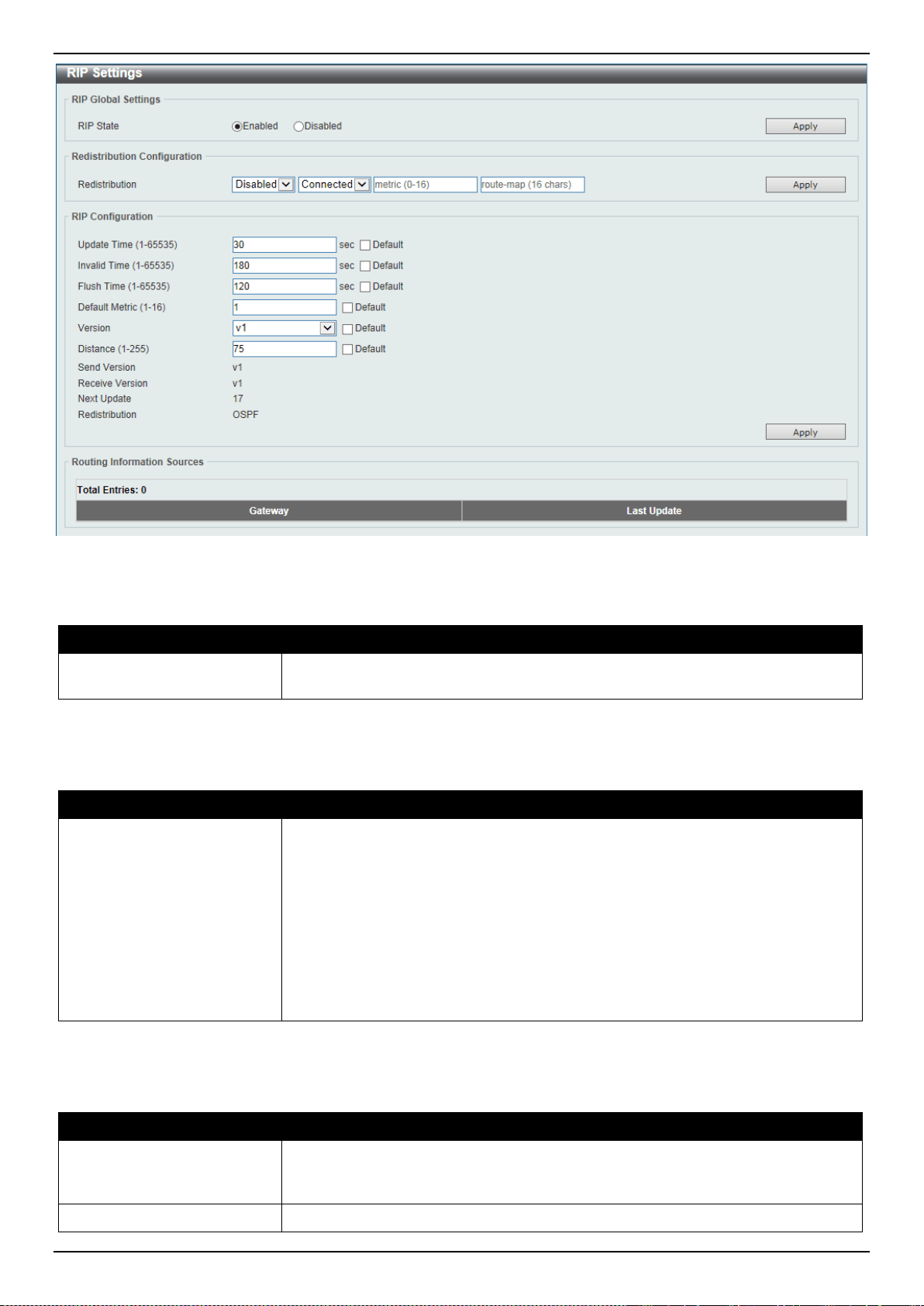
DXS-3400 Series Lite Layer 3 Stackable 10GbE Managed Switch Web UI Reference Guide
209
Figure 6-28 RIP Settings Window
The fields that can be configured in RIP Global Settings are described below:
Parameter Description
RIP State
Select to globally enable or disable the Routing Information Protocol (RIP) feature
here.
Click the Apply button to accept the changes made.
The fields that can be configured in Redistribution Configuration are described below:
Parameter Description
Redistribution
First, select to enable or disable the RIP redistribution feature here.
Second, select the routing protocol (domain) that will be redistributed into RIP.
Options to choose from are Connected and Static. The Static option means to
redistribute IP static routes. The Connected option refers to routes that are
established automatically by virtue of configuring IP address on an interface.
Third, enter the value to be used as the metric for the redistributed route here.
The range is from 0 to 16.
Fourth, enter the route map’s name that is used in the filtering of the routes to be
redistributed to the current routing protocol. If not specified, all routes are
redistributed.
Click the Apply button to accept the changes made.
The fields that can be configured in RIP Configuration are described below:
Parameter Description
Update Time
Enter the update interval in seconds at which the update message is sent. The
range is from 1 to 65535 seconds. Select the Default option to use the default
value here which is 30 seconds.
Invalid Time
Enter the invalidate timer value in seconds here. The range is from 1 to 65535
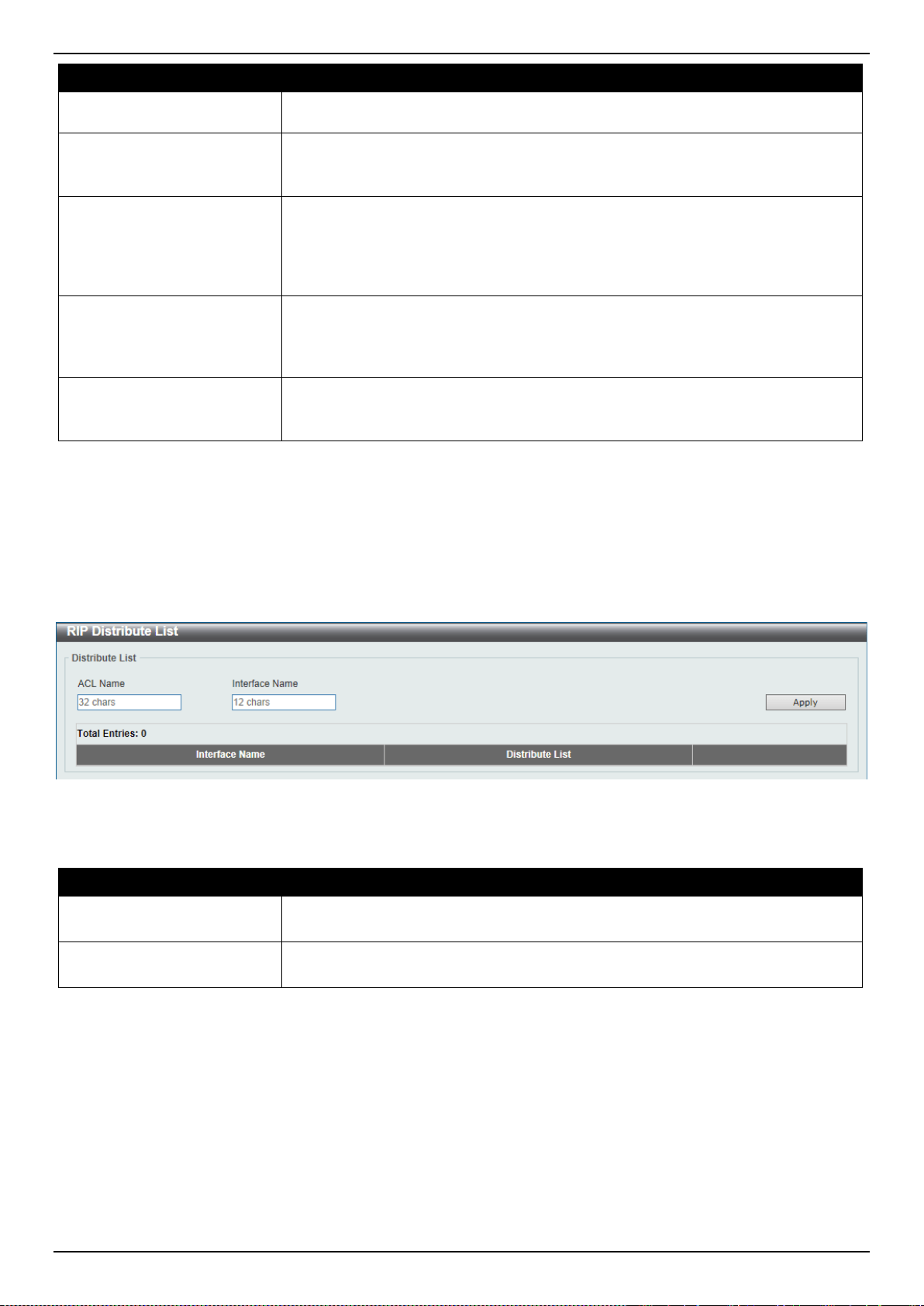
DXS-3400 Series Lite Layer 3 Stackable 10GbE Managed Switch Web UI Reference Guide
210
Parameter Description
seconds. Select the Default option to use the default value here which is 180
seconds.
Flush Time
Enter the flush timer value in seconds here. The range is from 1 to 65535
seconds. Select the Default option to use the default value here which is 120
seconds.
Default Metric
Enter the default metric value here. The range is from 1 to 16. The default metric
is used in redistributing routes from other routing protocols. The routes being
redistributed are learned by other protocols and have incompatible metric as RIP.
The specifying of the metric allows the metric to be synced. Select the Default
option to use the default metric value, which is 0.
Version
Select the global RIP version that will be used as the default version for all
interfaces here. Options to choose from are v1 (RIPv1) and v2 (RIPv2). Select the
Default option to specify that this feature should use the default configuration. By
default, RIPv1 and RIPv2 packets are received, but only RIPv1 packets are sent.
Distance
Enter the administrative distance for RIP here. The range is from 1 to 255. A
lower value represents a better route. Select the Default option to use the default
administrative distance for RIP, which is 100.
Click the Apply button to accept the changes made.
RIP Distribute List
This window is used to display and configure the RIP distribution list settings.
To view the following window, click L3 Features > RIP > RIP Distribute List, as shown below:
Figure 6-29 RIP Distribute List Window
The fields that can be configured are described below:
Parameter Description
ACL Name
Enter the name of the standard IP access list that will be used here. This name
can be up to 32 characters long.
Interface Name
Enter the name of the interface that will be used here. This name can be up to 12
characters long.
Click the Apply button to accept the changes made.
RIP Interface Settings
This window is used to display and configure the RIP interface’s settings.
To view the following window, click L3 Features > RIP > RIP Interface Settings, as shown below:
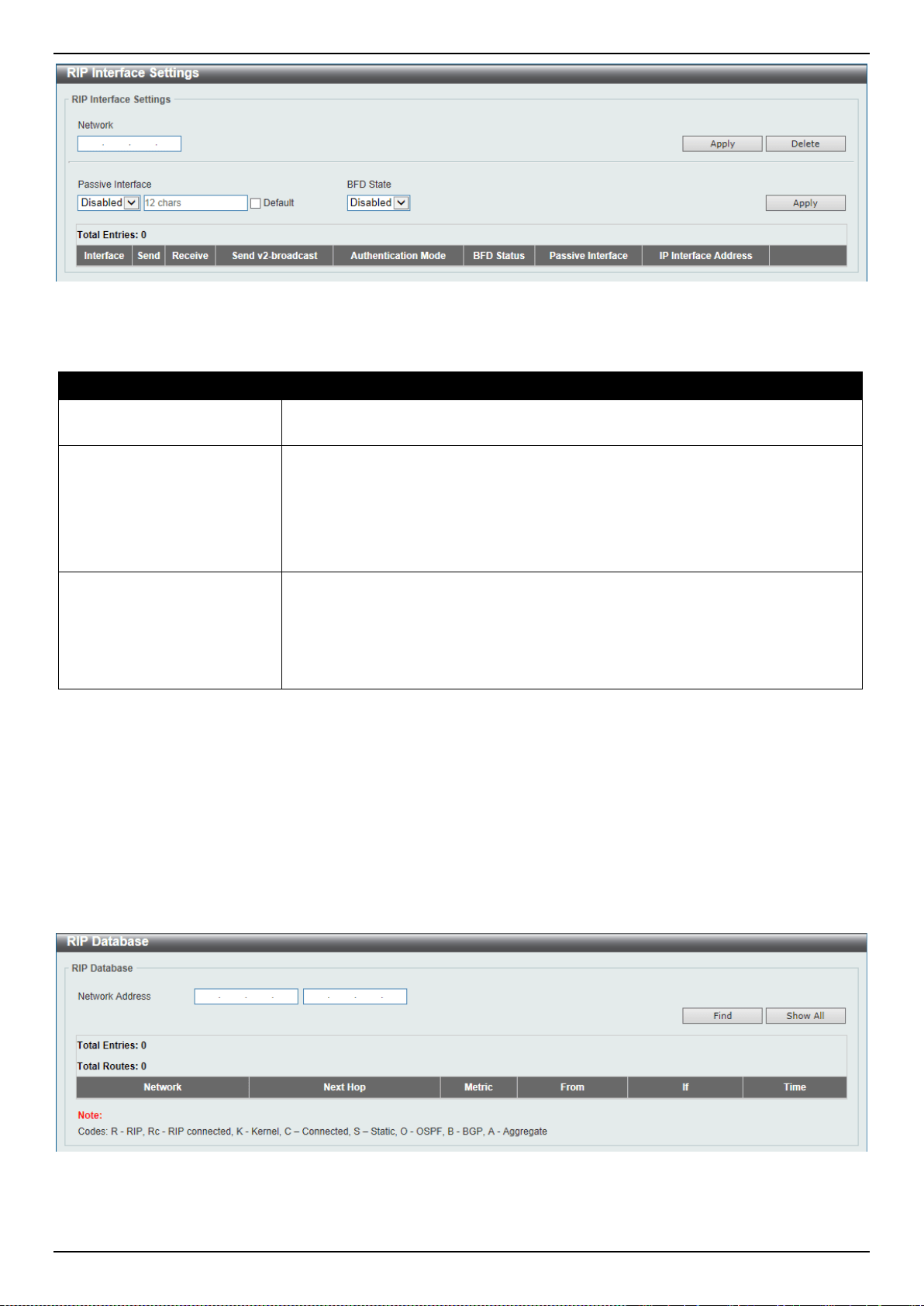
DXS-3400 Series Lite Layer 3 Stackable 10GbE Managed Switch Web UI Reference Guide
211
Figure 6-30 RIP Interface Settings Window
The fields that can be configured are described below:
Parameter Description
Network
Enter the IPv4 network address used by RIP here. The interface that has a subnet
defined belonging to a network specified here will be activated with RIP.
Passive Interface
Select to enable or disable the passive interface feature here. This feature is used
to disable the sending of routing updates on an interface. However, RIP packet
from other routers received on this interface will continue to be processed.
Enter the name of the passive interface in the space provided. This name can be
up to 12 characters long.
Select the Default option to use the global default passive state for all interfaces.
BFD State
Select to enable or disable the BFD feature on the specified interface. When BFD
is enabled on an interface, the router creates BFD peers with the current RIP
peers of the interface, and BFD peers will be created when new RIP peers are
added. If an RIP peer is removed because RIP is disabled, the related BFD peer
will be removed. When the BFD session goes down, the RIP routes learned from
the peer will be deleted.
Click the Apply button to accept the changes made.
Click the Delete button to delete an entry based on the information entered.
RIP Database
This window is used to display the Routing Information Protocol (RIP) routing database. Summary address entries will
appear in the database only if relevant child routes exist and are being summarized. When the last child route for a
summary address becomes invalid, the summary address is also removed from the routing table.
To view the following window, click L3 Features > RIP > RIP Database, as shown below:
Figure 6-31 RIP Database Window
The fields that can be configured are described below:
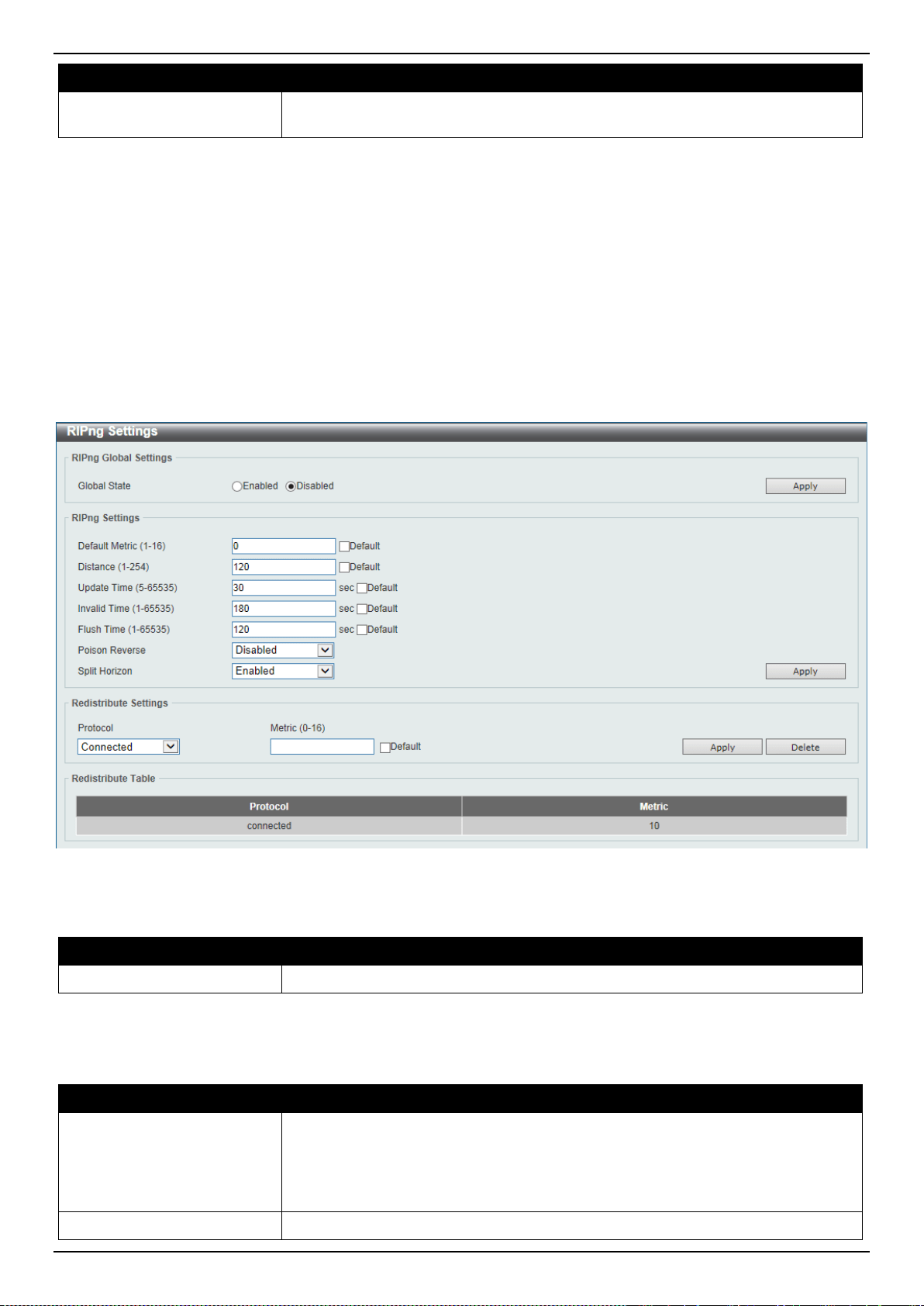
DXS-3400 Series Lite Layer 3 Stackable 10GbE Managed Switch Web UI Reference Guide
212
Parameter Description
Network Address
Enter the subnet prefix and the prefix length of the network(s) to be displayed
here.
Click the Find button to locate a specific entry based on the information entered.
Click the Show All button to display all the entries.
RIPng
RIPng Settings
This window is used to display and configure the Routing Information Protocol Next Generation (RIPng) settings, also
known as IPv6 RIP.
To view the following window, click L3 Features > RIPng > RIPng Settings, as shown below:
Figure 6-32 RIPng Settings Window
The fields that can be configured in RIPng Global Settings are described below:
Parameter Description
Global State
Select to globally enable or disable the RIPng feature here.
Click the Apply button to accept the changes made.
The fields that can be configured in RIPng Settings are described below:
Parameter Description
Default Metric
Enter the default metric value here. The range is from 1 to 16. This value is used
to specify the default metric for routes redistributed from other routing protocols. If
the routes being redistributed are learned from other protocols, then they have an
incompatible metric as IPv6 RIP. Re-specifying of metric allows the metric to be
synced. Select the Default option to use the default metric value, which is 1.
Distance
Enter the administrative distance for RIPng here. The range is from 1 to 254. The
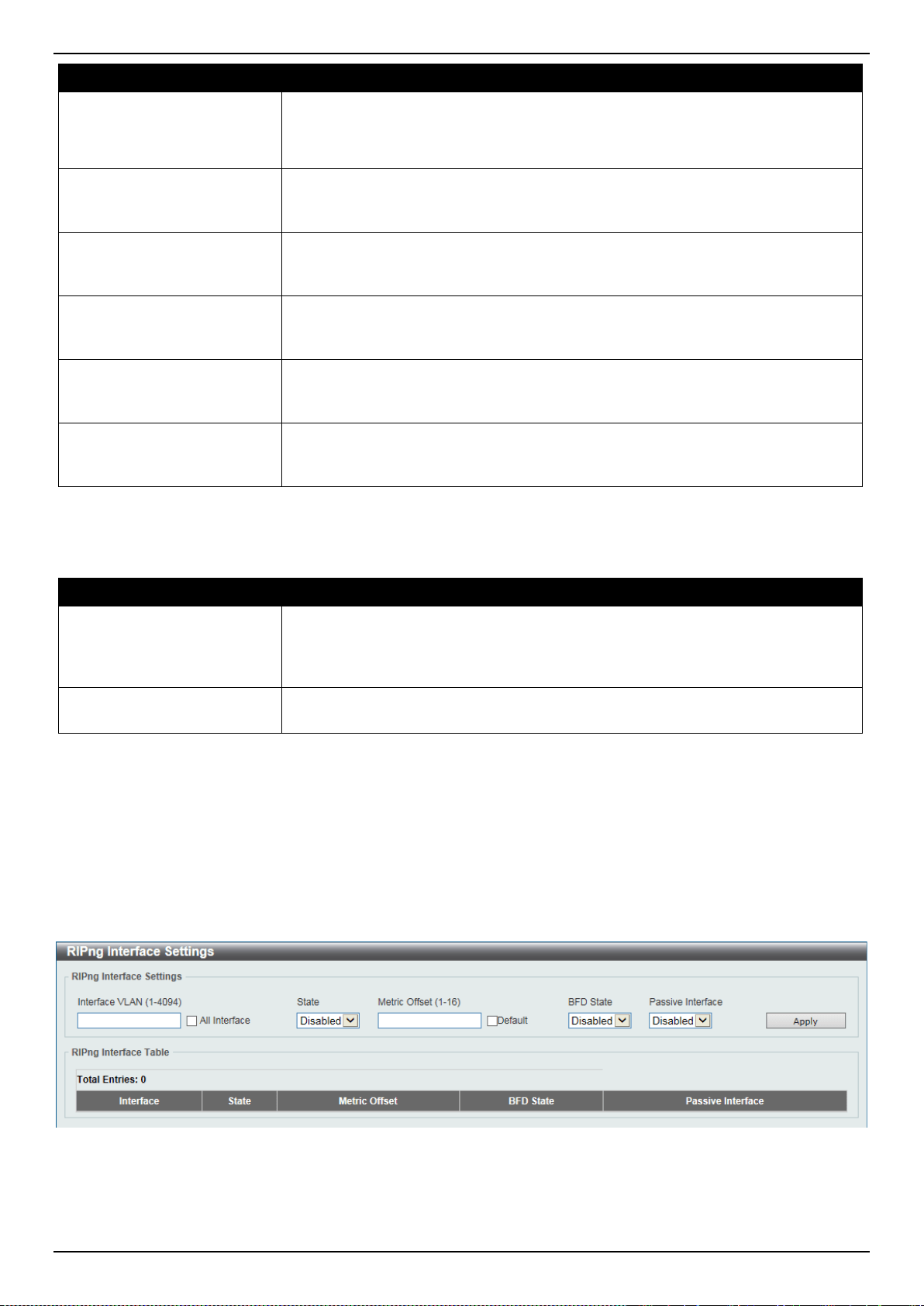
DXS-3400 Series Lite Layer 3 Stackable 10GbE Managed Switch Web UI Reference Guide
213
Parameter Description
distance value represents the trust rating of the route. The route with a lower
distance value is preferred over the route with the higher distance value. Select
the Default option to use the default administrative distance for RIPng, which is
120.
Update Time
Enter the update interval value at which the update message is sent here. The
range is from 5 to 65535 seconds. Select the Default option to use the default
value here which is 30 seconds.
Invalid Time
Enter the invalidate timer value in seconds here. The range is from 1 to 65535
seconds. Select the Default option to use the default value here which is 180
seconds.
Flush Time
Enter the flush timer value in seconds here. The range is from 1 to 65535
seconds. Select the Default option to use the default value here which is 120
seconds.
Poison Reverse
Select to enable or disable the poison reverse feature here. When poison reverse
is enabled, the routes learned from an interface will be advertised out to the same
interface with an unreachable metric.
Split Horizon
Select to enable or disable the split horizon feature here. When split horizon is
enabled, the routes learned from an interface will be not advertised out to the
same interface.
Click the Apply button to accept the changes made.
The fields that can be configured in Redistribute Settings are described below:
Parameter Description
Protocol
Select the protocol whose routes are to be redistributed here. Options to choose
from are Connected and Static. The Static option means to redistribute IPv6
static routes. The Connected option refers to routes that are established
automatically by virtue of configuring IPv6 address on an interface.
Metric
Enter the value to be used as the metric for the redistributed routes here. The
range is from 0 to 16. Select the Default option to use the default metric value.
Click the Apply button to accept the changes made.
Click the Delete button to delete an entry based on the information entered.
RIPng Interface Settings
This window is used to display and configure the RIPng feature’s interface settings.
To view the following window, click L3 Features > RIPng > RIPng Interface Settings, as shown below:
Figure 6-33 RIPng Interface Settings Window
The fields that can be configured are described below:

DXS-3400 Series Lite Layer 3 Stackable 10GbE Managed Switch Web UI Reference Guide
214
Parameter Description
Interface VLAN
Enter the VLAN interface’s ID here. The range is from 1 to 4094. Tick the All
Interface check box to configure all interfaces.
State
Select to enable or disable the IPv6 RIP feature on the VLAN interface specified.
Metric Offset
Enter the value to be added to the metric of an IPv6 RIP route received on the
configured interface here. The range is from 1 to 16. The metric refers to the hop
count. By default, when receiving an IPv6 RIP route, a metric value of 1 is added
to the route before it is inserted into the routing table. Use this option to influence
the metric of routes received on different interfaces and thus influence the
preference of the route.
Select the Default option to use the default metric offset value, which is 1.
BFD State
Select to enable or disable the BFD state.
Passive Interface
Select to enable or disable the passive interface feature here. If this option is
enabled, the router will not send RIPng packets out through the interface.
However, RIPng packets from other routers received on the interface will continue
to be processed.
Click the Apply button to accept the changes made.
Enter a page number and click the Go button to navigate to a specific page when multiple pages exist.
RIPng Database
This window is used to display the RIPng feature’s routing database.
To view the following window, click L3 Features > RIPng > RIPng Database, as shown below:
Figure 6-34 RIPng Database Window
The fields that can be configured are described below:
Parameter Description
IPv6 Address/Prefix Length
Enter the IPv6 address that will be used for this display here.
Click the Find button to locate a specific entry based on the information entered.
IP Multicast Routing Protocol
IPMC
IP Multicast Global Settings
This window is used to display and configure the IP Multicast (IPMC) global settings.
To view the following window, click L3 Features > IP Multicast Routing Protocol > IPMC > IP Multicast Global
Settings, as shown below:
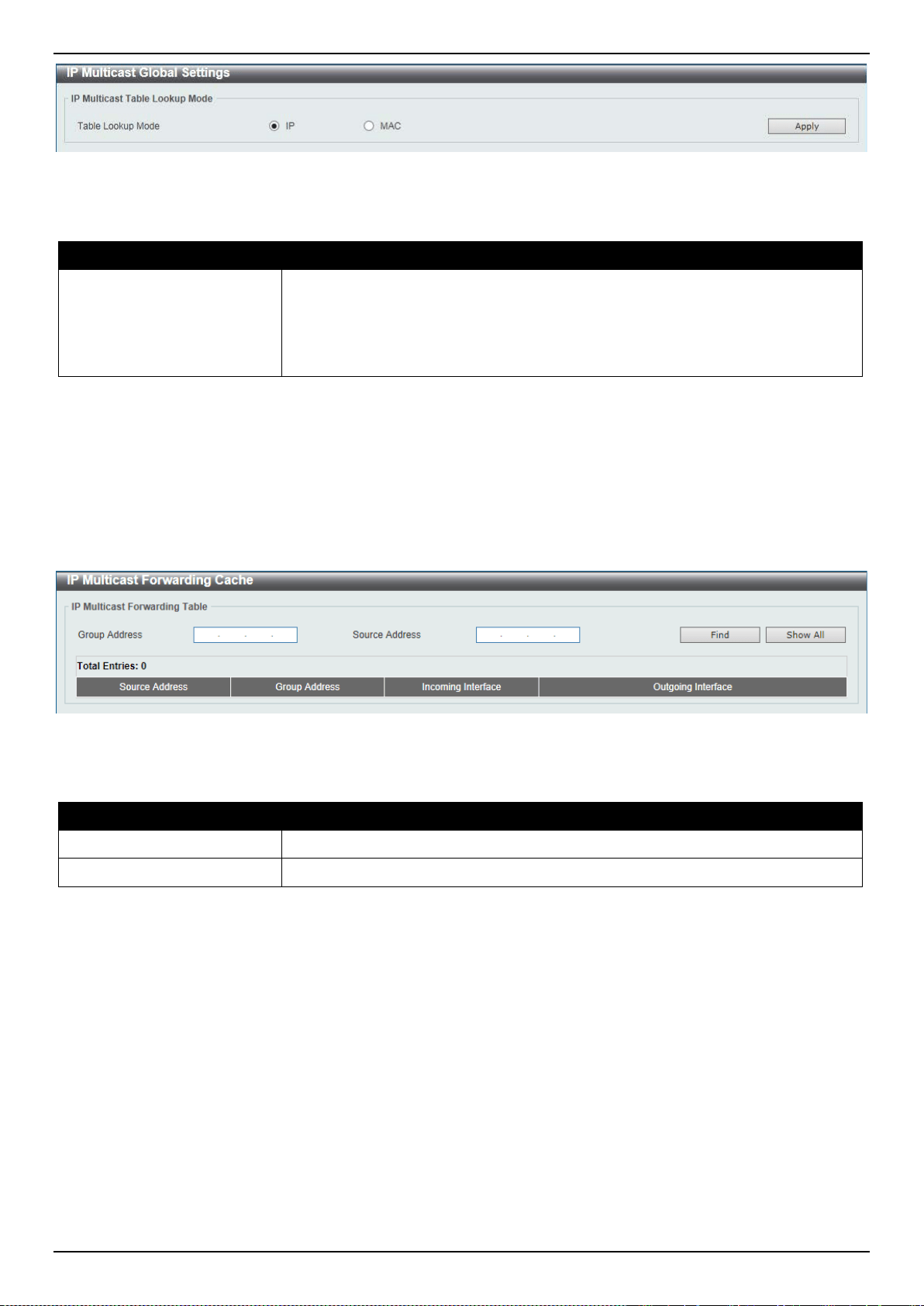
DXS-3400 Series Lite Layer 3 Stackable 10GbE Managed Switch Web UI Reference Guide
215
Figure 6-35 IP Multicast Global Settings Window
The fields that can be configured are described below:
Parameter Description
Table Lookup Mode
Select the IP multicast table lookup mode here. Options to choose from are IP
and MAC.
• IP - Specifies the multicast forwarding lookup based on the IP address.
• MAC - Specifies the multicast forwarding lookup based on the MAC address.
Click the Apply button to accept the changes made.
IP Multicast Forwarding Cache
This window is used to display the content of the IP multicast routing forwarding cache database.
To view the following window, click L3 Features > IP Multicast Routing Protocol > IPMC > IP Multicast
Forwarding Cache, as shown below:
Figure 6-36 IP Multicast Forwarding Cache Window
The fields that can be configured are described below:
Parameter Description
Group Address
Enter the multicast group’s IP address here.
Source Address
Enter the multicast source’s IP address here.
Click the Find button to locate a specific entry based on the information entered.
Click the Show All button to display all the entries.
Control Packet CPU Filtering
This window is used to display and configure the IPMC control packet CPU filtering settings.
To view the following window, click L3 Features > IP Multicast Routing Protocol > IPMC > Control Packet CPU
Filtering, as shown below:
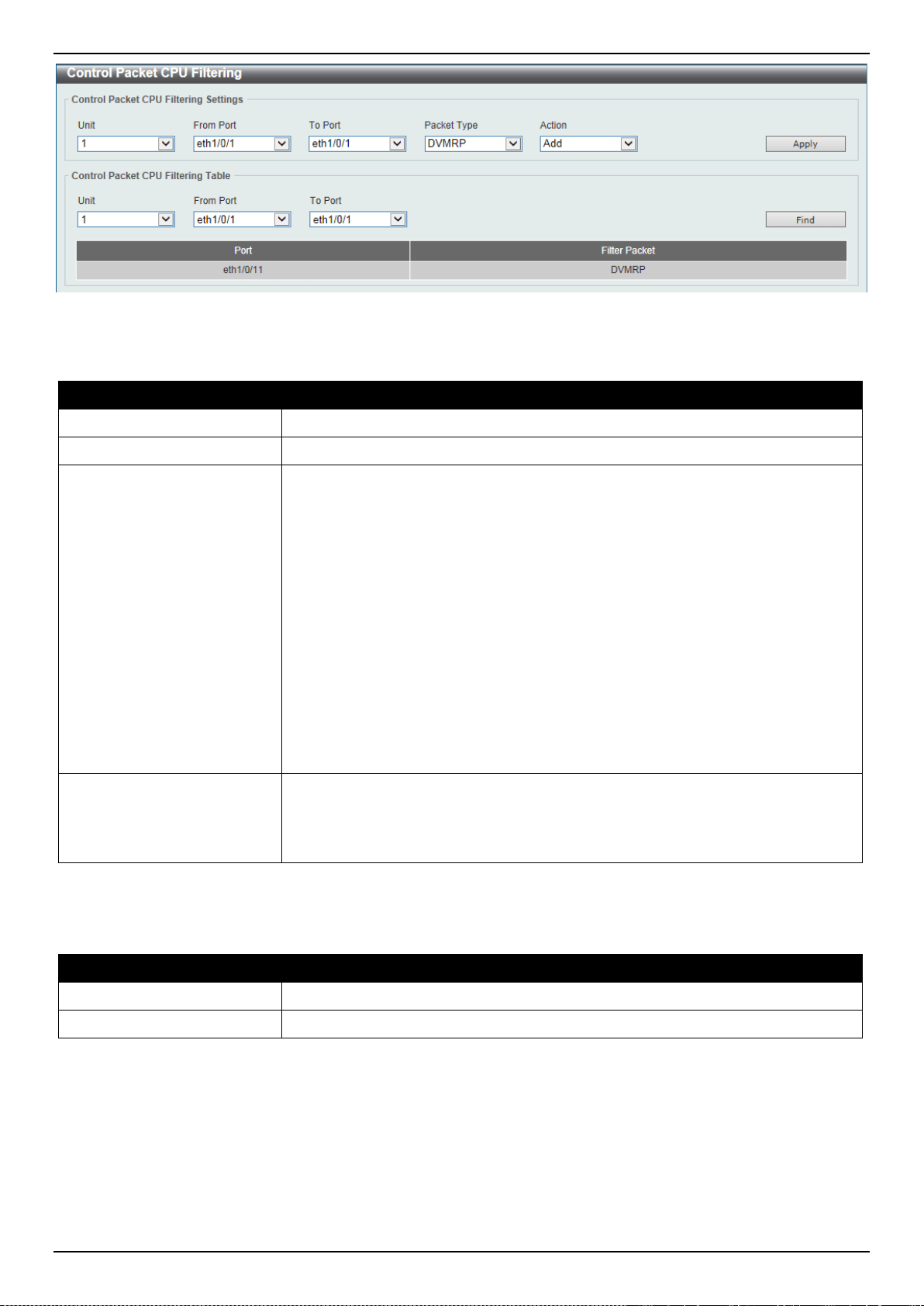
DXS-3400 Series Lite Layer 3 Stackable 10GbE Managed Switch Web UI Reference Guide
216
Figure 6-37 Control Packet CPU Filtering Window
The fields that can be configured in Control Packet CPU Filtering Settings are described below:
Parameter Description
Unit
Select the Switch unit that will be used for this configuration here.
From Port ~ To Port
Select the range of ports that will be used for this configuration here.
Packet Type
Select the packet type here. Options to choose from are:
• DVMRP - Specifies that the CPU will discard Distance Vector Multicast
Routing Protocol (DVMRP) Layer 3 control packets sent to it.
• PIM - Specifies that the CPU will discard Protocol Independent Multicast
(PIM) Layer 3 control packets sent to it.
• IGMP Query - Specifies that the CPU will discard Internet Group
Management Protocol (IGMP) Query Layer 3 control packets sent to it.
• OSPF - Specifies that the CPU will discard Open Shortest Path First (OSPF)
Layer 3 control packets sent to it.
• RIP - Specifies that the CPU will discard Routing Information Protocol (RIP)
Layer 3 control packets sent to it.
• VRRP - Specifies that the CPU will discard Virtual Router Redundancy
Protocol (VRRP) Layer 3 control packets sent to it.
Action
Select the action that will be taken here. Options to choose from are:
• Add - Specifies to add a new entry based on the information entered.
• Delete - Specifies to delete an entry based on the information entered.
Click the Apply button to accept the changes made.
The fields that can be configured in Control Packet CPU Filtering Settings are described below:
Parameter Description
Unit
Select the Switch unit that will be used for this display here.
From Port ~ To Port
Select the range of ports that will be used for this display here.
Click the Find button to find and display entries based on the selections made.
IPv6MC
IPv6 Multicast Routing Forwarding Cache Table
This window is used to display the contents of the IPv6 multicast routing forwarding cache database.
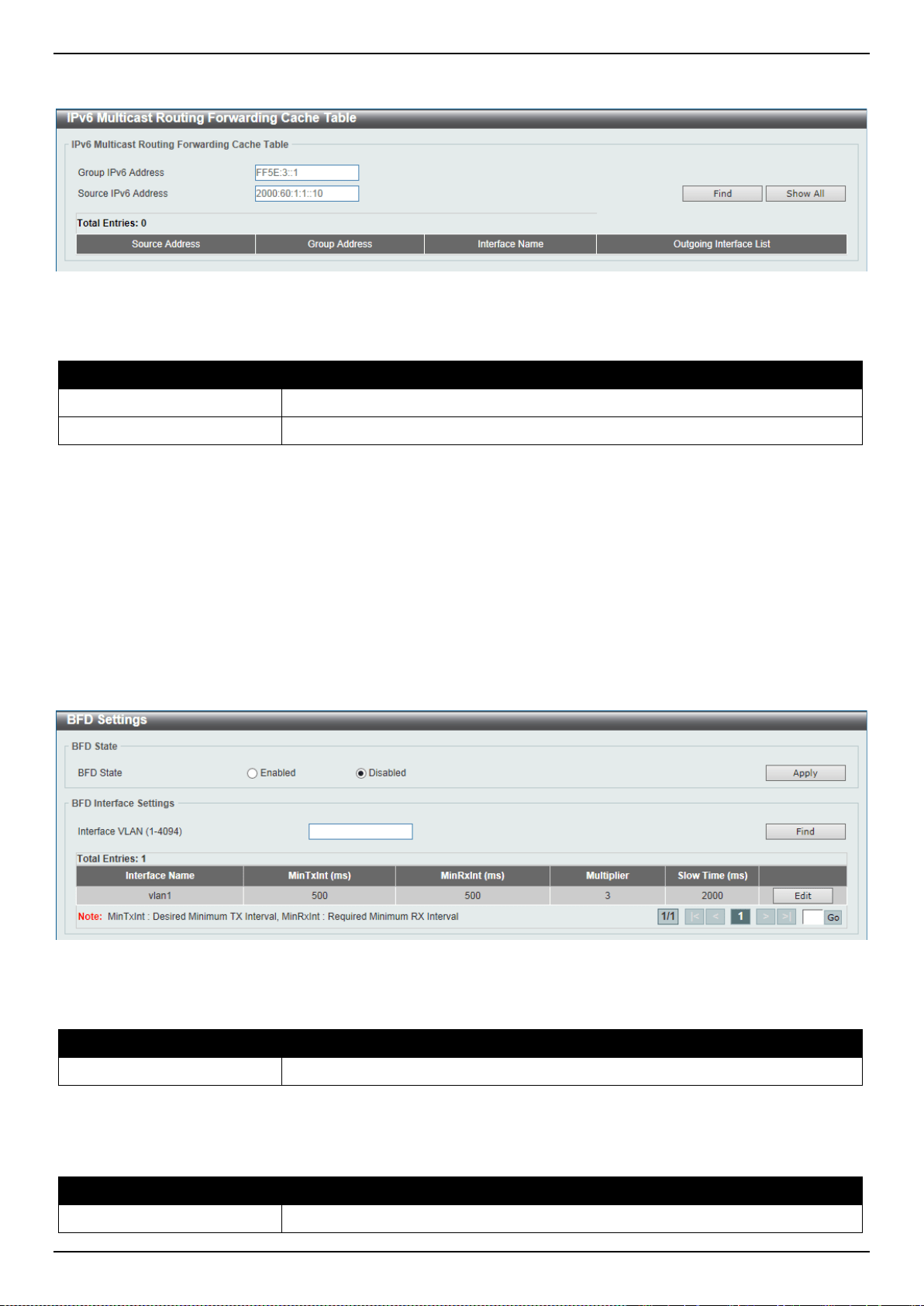
DXS-3400 Series Lite Layer 3 Stackable 10GbE Managed Switch Web UI Reference Guide
217
To view the following window, click L3 Features > IP Multicast Routing Protocol > IPv6MC > IPv6 Multicast
Routing Forwarding Cache Table, as shown below:
Figure 6-38 IPv6 Multicast Routing Forwarding Cache Table Window
The fields that can be configured are described below:
Parameter Description
Group IPv6 Address
Enter the multicast group’s IPv6 address here.
Source IPv6 Address
Enter the multicast source’s IPv6 address here.
Click the Find button to locate a specific entry based on the information entered.
Click the Show All button to display all the entries.
BFD
BFD Settings
This window is used to display and configure the Bidirectional Forwarding Detection (BFD) settings.
To view the following window, click L3 Features > BFD > BFD Settings, as shown below:
Figure 6-39 BFD Settings Window
The fields that can be configured in BFD State are described below:
Parameter Description
BFD State
Select to globally enable or disable the BFD feature here.
Click the Apply button to accept the changes made.
The fields that can be configured in BFD Interface Settings are described below:
Parameter Description
Interface VLAN
Enter the ID of the VLAN interface that will be used here.
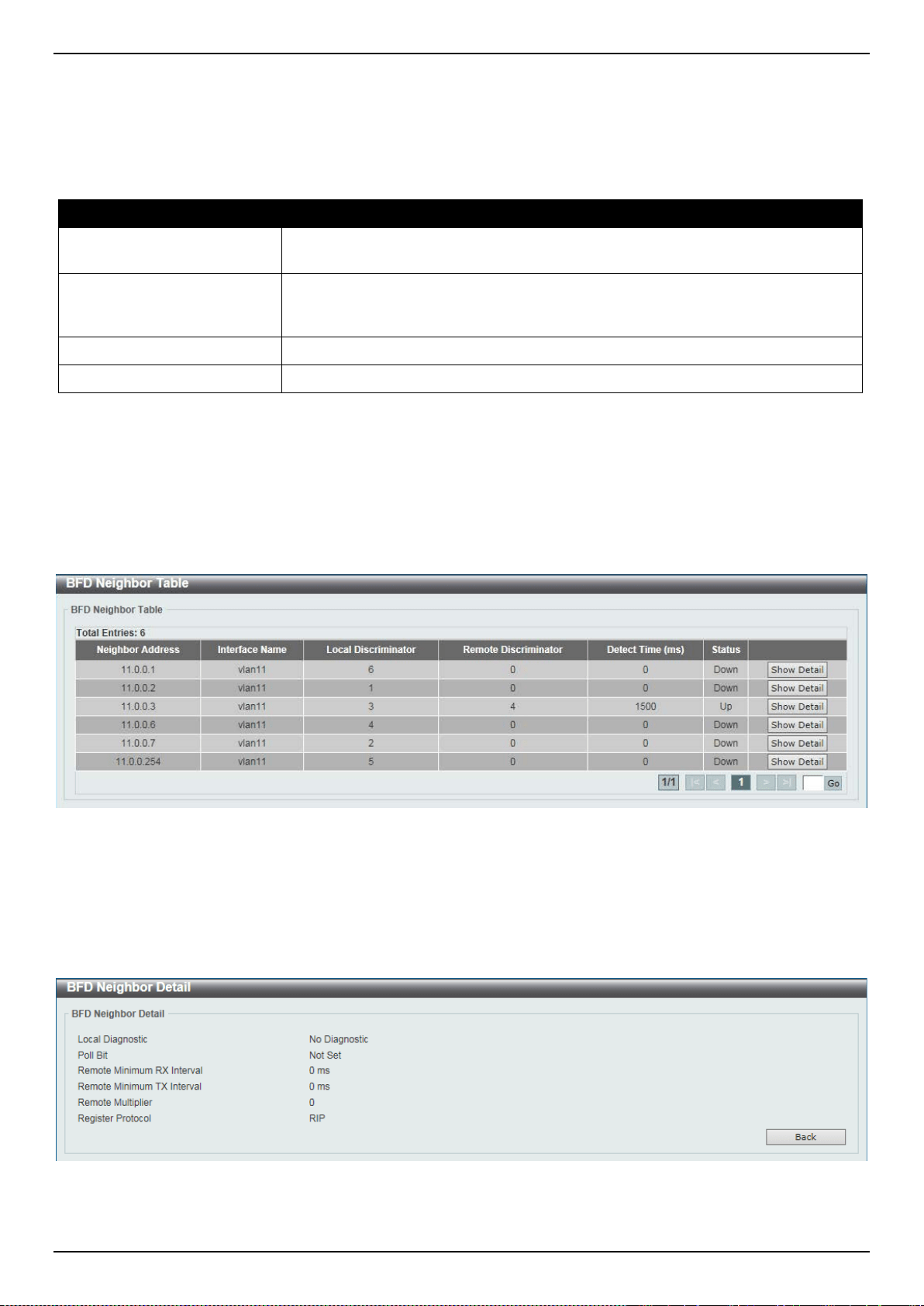
DXS-3400 Series Lite Layer 3 Stackable 10GbE Managed Switch Web UI Reference Guide
218
Click the Find button to find and display an entry based on the information entered.
Click the Edit button to configure the interval settings for the specific entry.
Enter a page number and click the Go button to navigate to a specific page when multiple pages exist.
After clicking the Edit button, the fields that can be configured are described below:
Parameter Description
MinTxInt
Enter the minimum time interval value that the local system will use when
transmitting BFD control packets here. The range is from 50 to 1000 milliseconds.
MinRxInt
Enter the minimum time interval value between received BFD control packets that
this system is capable of supporting here. The range is from 50 to 1000
milliseconds.
Multiplier
Enter the BFD detection time multiplier value here. The range is from 3 to 99.
Slow Time
Enter the BFD slow time value here. The range is from 1000 to 3000 milliseconds.
Click the Apply button to accept the changes made.
BFD Neighbor Table
This window is used to display the BFD neighbor table.
To view the following window, click L3 Features > BFD > BFD Neighbor Table, as shown below:
Figure 6-40 BFD Neighbor Table Window
Click the Show Detail button to view more detailed information for the specified entry.
Enter a page number and click the Go button to navigate to a specific page when multiple pages exist.
After clicking the Show Detail button, the following page will appear.
Figure 6-41 BFD Neighbor Table (Show Detail) Window
Click the Back button to return to the previous window.
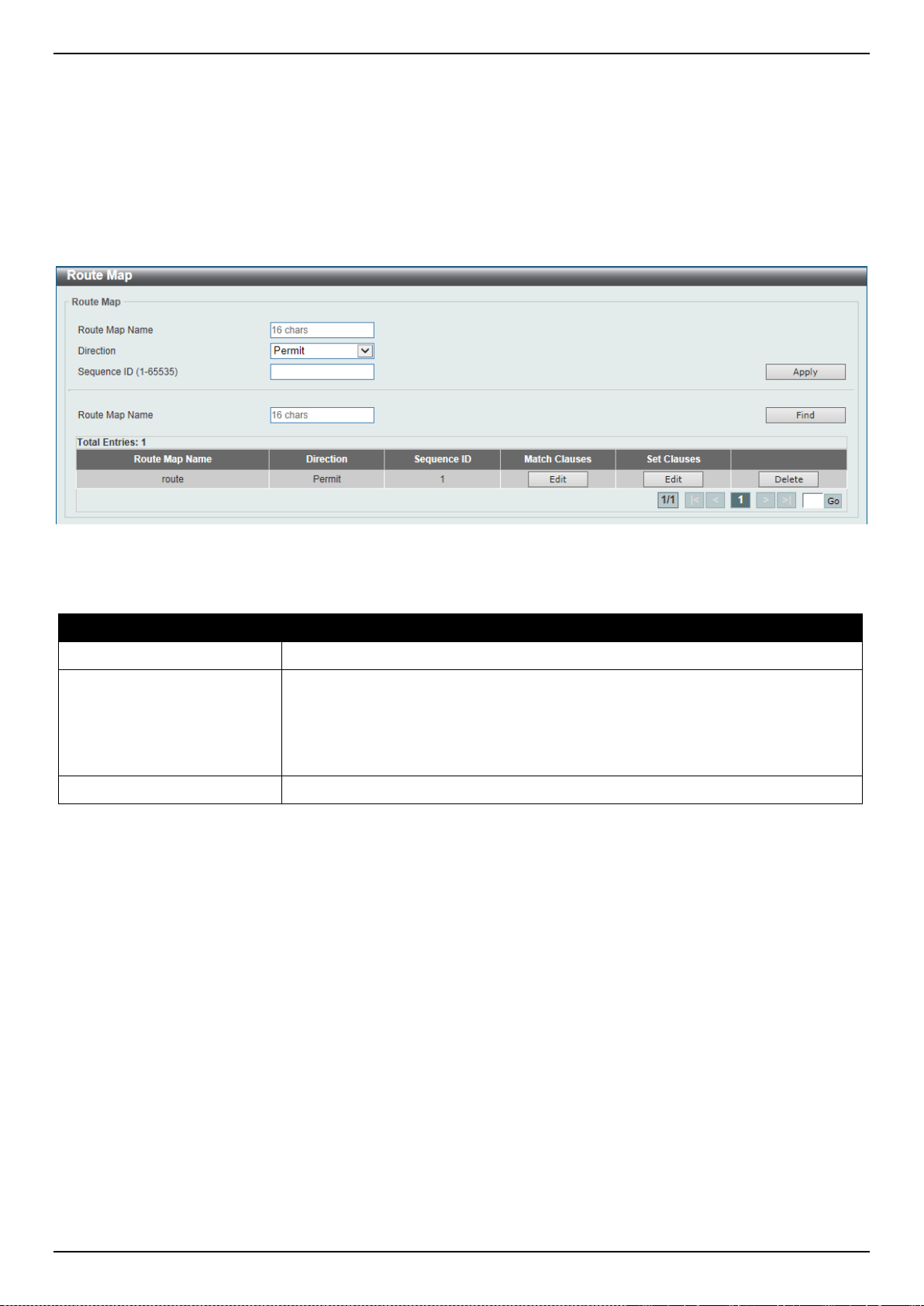
DXS-3400 Series Lite Layer 3 Stackable 10GbE Managed Switch Web UI Reference Guide
219
IP Route Filter
Route Map
This window is used to display and configure the route map’s settings.
To view the following window, click L3 Features > IP Route Filter > Route Map, as shown below:
Figure 6-42 Route Map Window
The fields that can be configured are described below:
Parameter Description
Route Map Name
Enter the route map’s name here. This name can be up to 16 characters long.
Direction
Select the direction for this rule here. Options to choose from are Permit and
Deny.
• Permit - Specifies that routes that match the rule entry are permitted.
• Deny - Specifies that routes that match the rule entry are denied.
Sequence ID
Enter the sequence ID for this rule here. The range is from 1 to 65535.
Click the Apply button to accept the changes made.
Click the Find button to locate a specific entry based on the information entered.
Click the Edit button to modify the specified entry.
Click the Delete button to delete the specified entry.
Enter a page number and click the Go button to navigate to a specific page when multiple pages exist.
After clicking the Edit button in the Match Clauses column, the following page will appear.
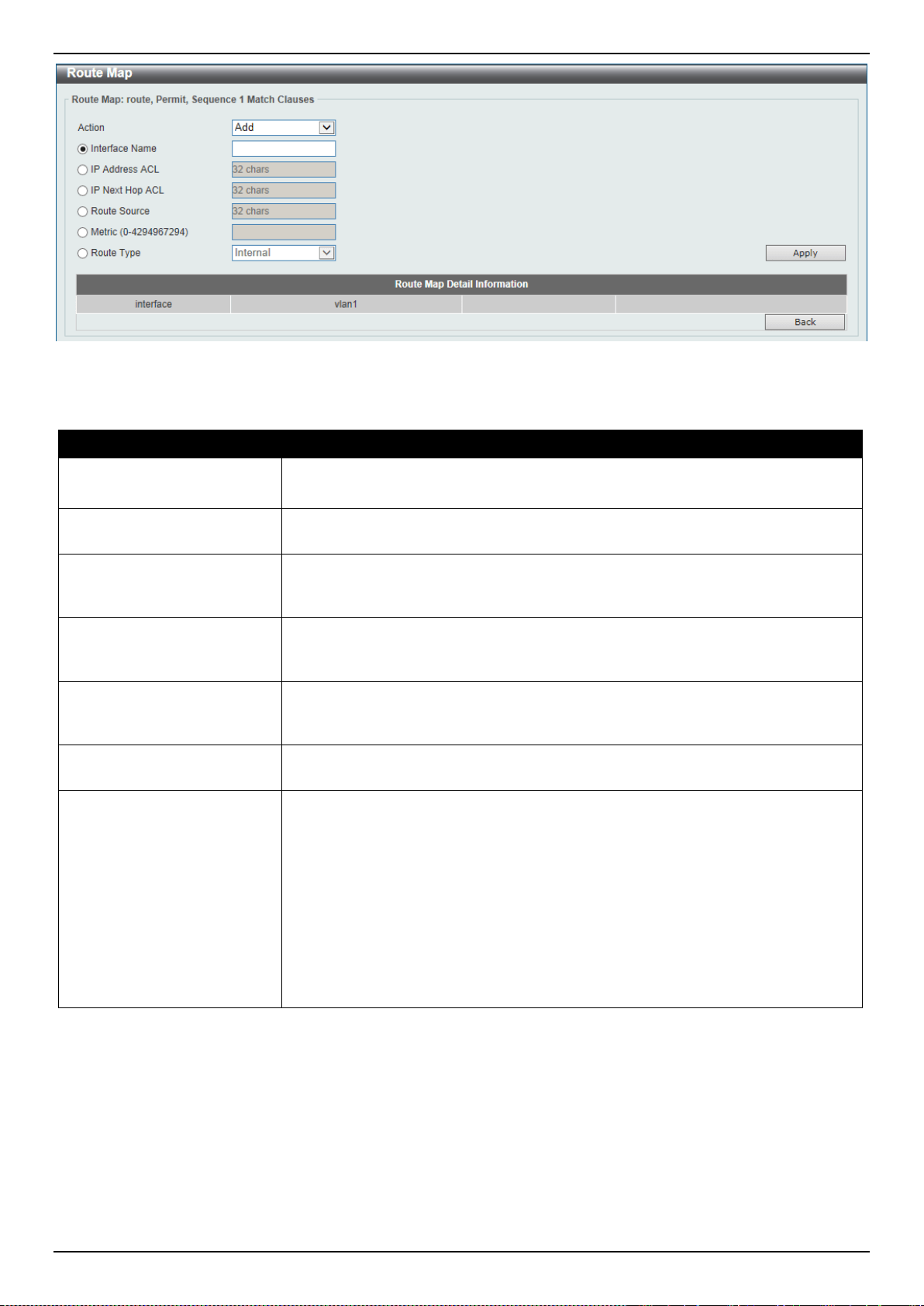
DXS-3400 Series Lite Layer 3 Stackable 10GbE Managed Switch Web UI Reference Guide
220
Figure 6-43 Route Map (Match Clauses, Edit) Window
The fields that can be configured are described below:
Parameter Description
Action
Select Add to add a new entry based in the information entered.
Select Delete to delete an entry based in the information entered.
Interface Name
Select and enter the interface’s name that will be used here. This option is used to
define a clause to match the route’s outgoing interface.
IP Address ACL
Select and enter the standard or extended IP access list’s name here. This option
is used to define a clause to match the route based on the standard or extended
IP access list.
IP Next Hop ACL
Select and enter the standard IP access list’s name here. This option is used to
define a clause to match the route’s next hop based on the standard or extended
IP access list.
Route Source
Select and enter the standard or extended IP access list’s name here. This option
is used to define a clause to match the route’s source based on the standard or
extended IP access list.
Metric
Select and enter the metric value of the route here. The range is from 0 to
4294967294. This option is used to define a clause to match the route’s metric.
Route Type
Select the route type here. Options to choose from are Internal, External,
External Type-1, and External Type-2.
• Internal - Specifies the intra-area and inter-area routes of Open Shortest
Path First (OSPF).
• External - Specifies the autonomous system’s external route of OSPF. If the
type-1 and type-2 options are not specified, type-1 and type-2 external routes
are included.
• External Type-1 - Specifies the type-1 external route of OSPF.
• External Type-2 - Specifies the type-2 external route of OSPF.
Click the Apply button to accept the changes made.
Click the Back button to return to the previous window.
After clicking the Edit button in the Set Clauses column, the following page will appear.
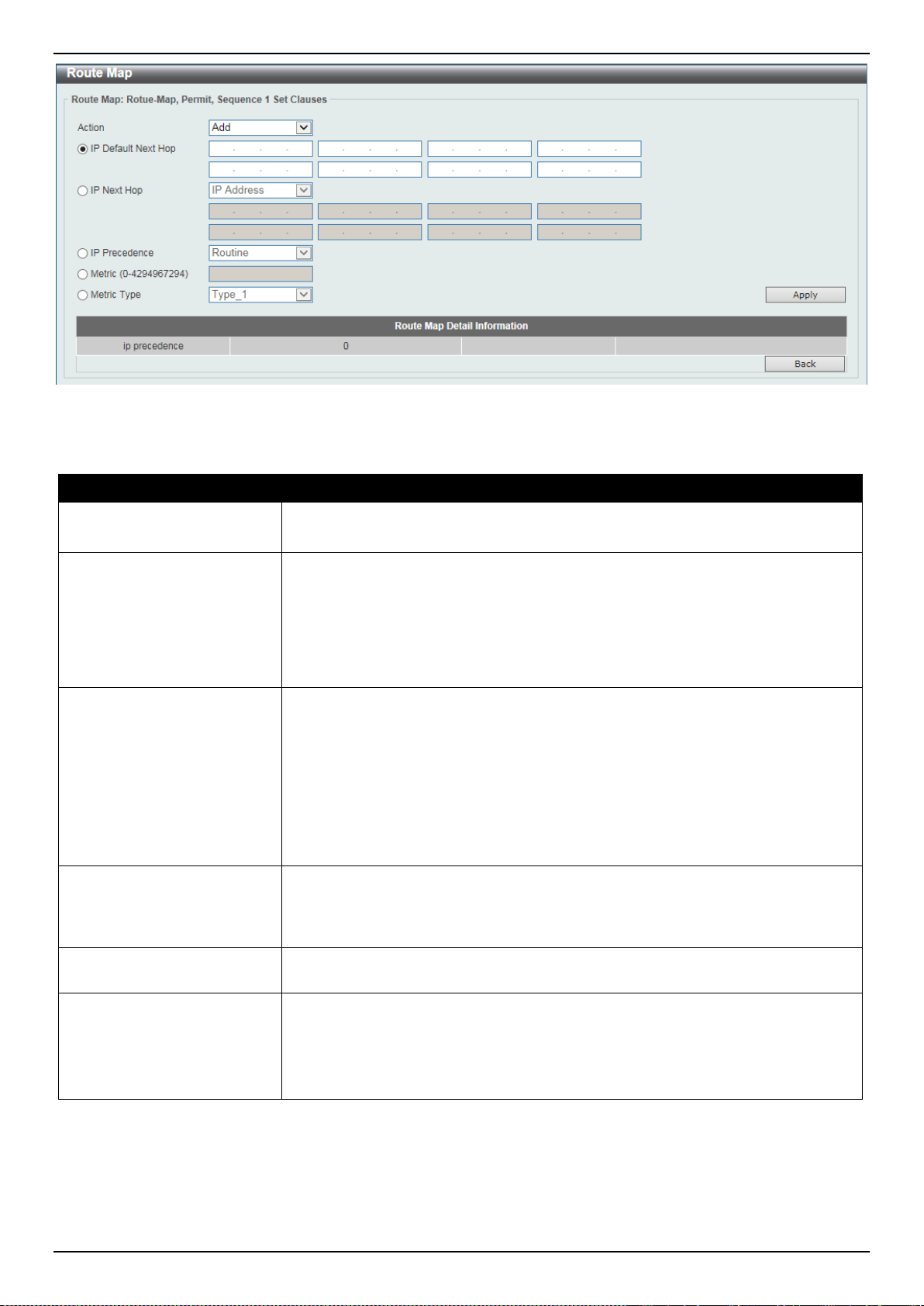
DXS-3400 Series Lite Layer 3 Stackable 10GbE Managed Switch Web UI Reference Guide
221
Figure 6-44 Route Map (Set Clauses, Edit) Window
The fields that can be configured are described below:
Parameter Description
Action
Select Add to add a new entry based in the information entered.
Select Delete to delete an entry based in the information entered.
IP Default Next Hop
Enter the default next-hop IP addresses in the spaces provided that will be used
to route the packet. This feature can be used to specify multiple default next hop
routers. If default next hops are already configured, the default next hops
configured later will be added to the default next hop list. When the first default
next hop router specified is down, the next default next hop router specified is
tried in turn to route the packet. Up to 8 default next-hop IP addresses can be
entered.
IP Next Hop
Select the IP next hop type here. This feature is used to configure the next-hop
router to route the packet that passes the match clauses of the configured route
map sequence. Options to choose from are IP Address and Recursive.
• IP Address - Specifies the IP addresses of the next-hops to route the
packet. Enter the next-hop IP addresses in the spaces provided here. Up to
8 next-hop IP addresses can be entered.
• Recursive - Specifies the IP address of the recursive as the next-hop router.
Enter the recursive next-hop IP address in the space provided here.
IP Precedence
Select the IP precedence option here. Options to choose from are Routine,
Priority, Immediate, Flash, Flash Override, Critical, Internet, and Network.
Use this feature to set the precedence value in the IP header. This option only
takes effect when policy routing involves the IPv4 packet.
Metric
Select and enter the metric value here that will be used in the modification. The
range is from 0 to 4294967294.
Metric Type
Select the metric type here that will be used in the modification. Options to choose
from are Type-1 and Type-2.
• Type-1 - Specifies to use the OSPF external type-1 metric.
• Type-2 - Specifies to use the OSPF external type-2 metric.
Click the Apply button to accept the changes made.
Click the Back button to return to the previous window.
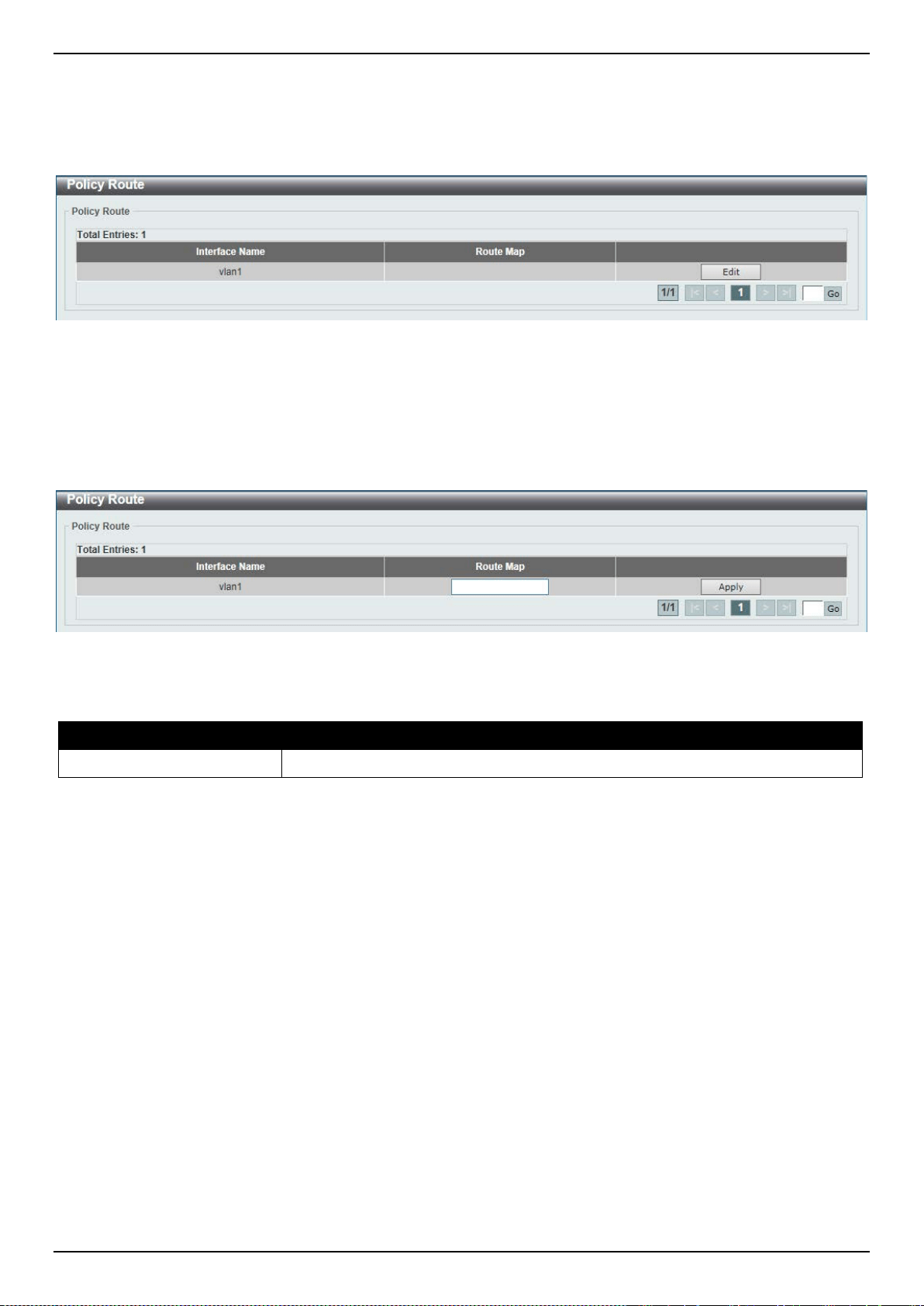
DXS-3400 Series Lite Layer 3 Stackable 10GbE Managed Switch Web UI Reference Guide
222
Policy Route
This window is used to display and configure the policy route settings.
To view the following window, click L3 Features > Policy Route, as shown below:
Figure 6-45 Policy Route Window
Click the Edit button to modify the specified entry.
Enter a page number and click the Go button to navigate to a specific page when multiple pages exist.
After clicking the Edit button, the following page will appear.
Figure 6-46 Policy Route (Edit) Window
The fields that can be configured are described below:
Parameter Description
Route Map
Enter the route map’s name here that will be used in this policy route entry.
Click the Apply button to accept the changes made.
VRRP Settings
This window is used to display and configure the Virtual Router Redundancy Protocol (VRRP) feature’s settings. All
routers in the same VRRP group must be configured with the same virtual router ID and IP address.
A virtual router group is represented by a virtual router ID. The IP address of the virtual router is the default router
configured on hosts. The virtual router’s IP address can be a real address configured on the routers, or an unused IP
address. If the virtual router address is a real IP address, the router that has this IP address is the IP address owner.
A master will be elected in a group of routers that supports the same virtual routers. Others are the backup routers.
The master is responsible for forwarding the packets that are sent to the virtual router.
To view the following window, click L3 Features > VRRP Settings, as shown below:
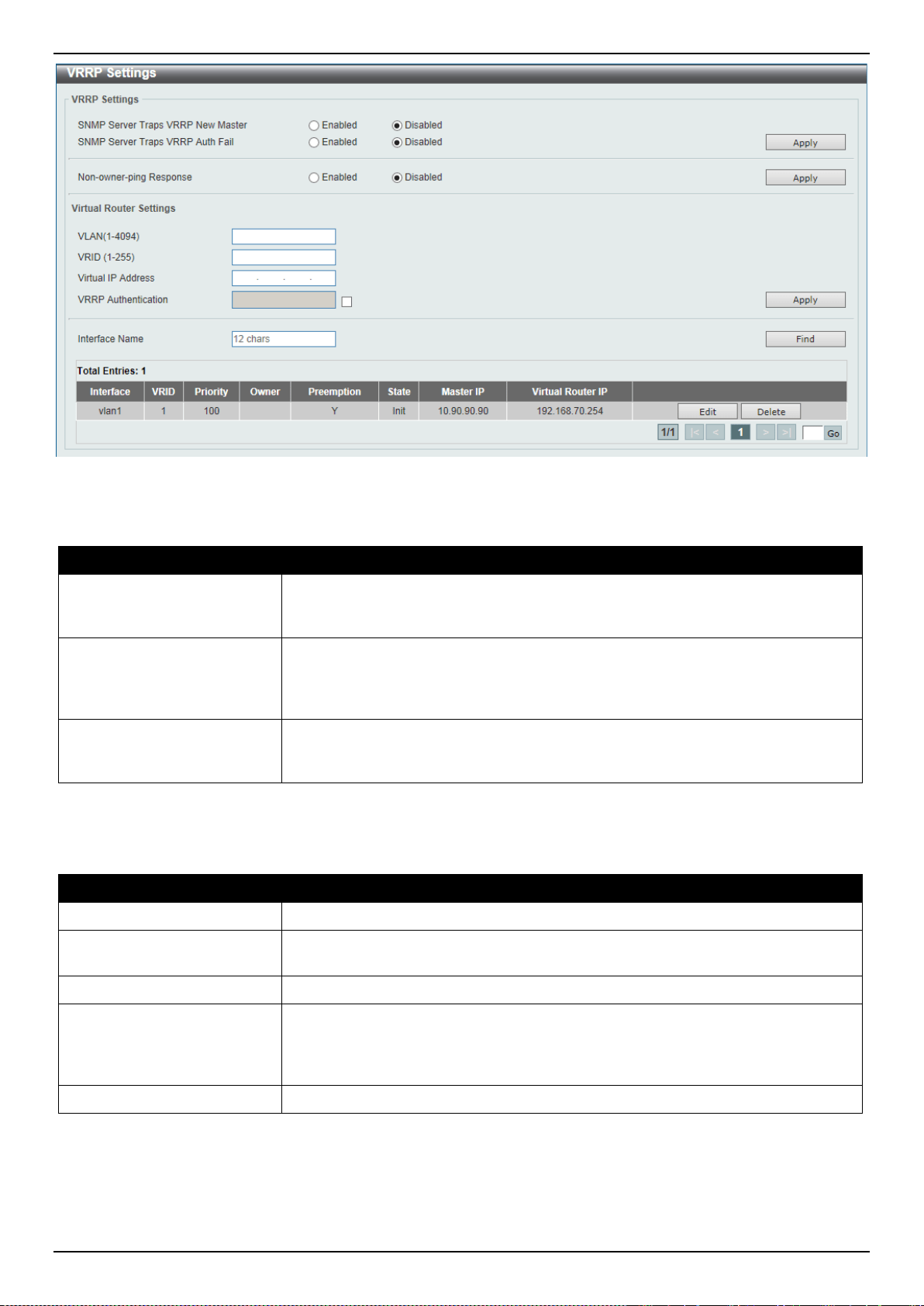
DXS-3400 Series Lite Layer 3 Stackable 10GbE Managed Switch Web UI Reference Guide
223
Figure 6-47 VRRP Settings Window
The fields that can be configured in VRRP Settings are described below:
Parameter Description
SNMP Server Traps VRRP
New Master
Select to enable or disable the SNMP server traps feature for the new VRRP
master. If enabled, once the device has transitioned to the master state, a trap will
be sent out.
SNMP Server Traps VRRP
Auth Fail
Select to enable or disable the SNMP server traps feature for authentication
failures. If enabled, if a packet has been received from a router whose
authentication key or authentication type conflicts with this router's authentication
key or authentication type, then a trap will be sent out.
Non-owner-ping Response
Select to enable or disable the non-owner ping response feature here. This
feature is used to enable the virtual router in the master state to respond to ICMP
echo requests for an IP address not owned but associated with this virtual router.
Click the Apply button to accept the changes made.
The fields that can be configured in Virtual Router Settings are described below:
Parameter Description
VLAN
Enter the VLAN interface’s ID used here. The range is from 1 to 4094.
VRID
Enter the virtual router’s ID used here. This ID is used to identify the virtual router
in the VRRP group. The range is from 1 to 255.
Virtual IP Address
Enter the IPv4 address for the created virtual router group here.
VRRP Authentication
Select to enable and then enter the plain text authentication password for VRRP
authentication on the interface here. This string can be up to 8 characters long.
The authentication is applied to all virtual routers on this interface. The devices in
the same VRRP group must have the same authentication password.
Interface Name
Enter the interface’s name used here. This name can be up to 12 characters long.
Click the Apply button to accept the changes made.
Click the Find button to locate a specific entry based on the information entered.
Click the Edit button to modify the specified entry.
Click the Delete button to delete the specified entry.
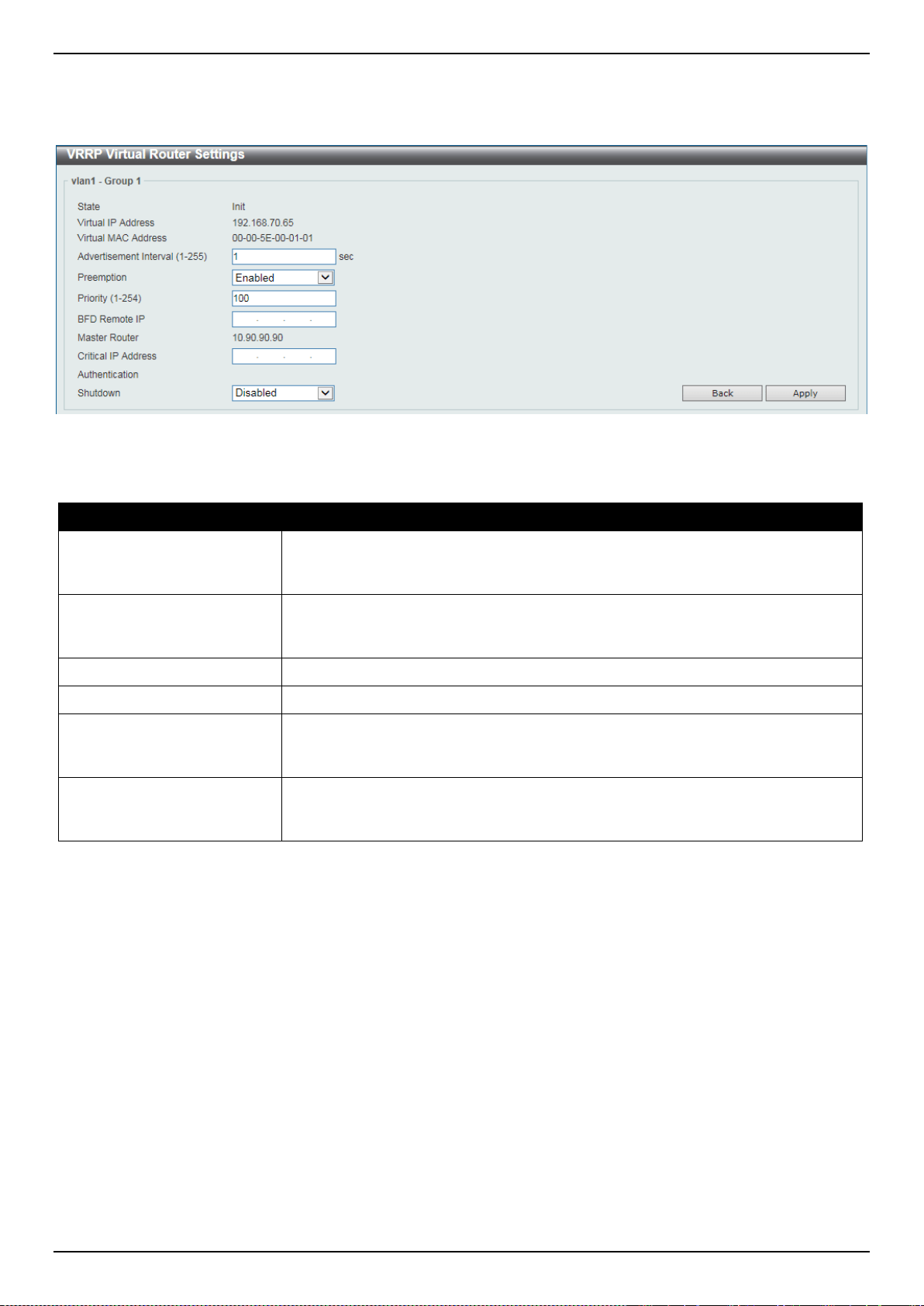
DXS-3400 Series Lite Layer 3 Stackable 10GbE Managed Switch Web UI Reference Guide
224
Enter a page number and click the Go button to navigate to a specific page when multiple pages exist.
After clicking the Edit button, the following page will appear.
Figure 6-48 VRRP Settings (Edit) Window
The fields that can be configured are described below:
Parameter Description
Advertisement Interval
Enter the advertisement interval value here. This is the time interval between
successive VRRP advertisements by the master router. The range is from 1 to
255 seconds. By default, this value is 1 second.
Preemption
Select to enable or disable the preemption feature here. This feature is used to
allow a router to take over the master role if it has a better priority than the current
master.
Priority
Enter the priority value here. The range is from 1 to 254.
BFD Remote IP
Enter the VRRP group's BFD peer address here.
Critical IP Address
Enter the critical IPv4 address here. If the critical IP is configured on one virtual
router, the virtual router cannot be activated when the critical IP address is
unreachable. One VRRP group can only track one critical IP.
Shutdown
Select to enable or disable the shutdown feature here. This feature is used to
disable a virtual router on an interface. Avoid the common mistake of shutting
down the IP address owner router before shutting down other non-owner routers.
Click the Back button to return to the previous window.
Click the Apply button to accept the changes made.
VRRPv3 Settings
This window is used to display and configure VRRP version 3 (VRRPv3) settings.
To view the following window, click L3 Features > VRRPv3 Settings, as shown below:
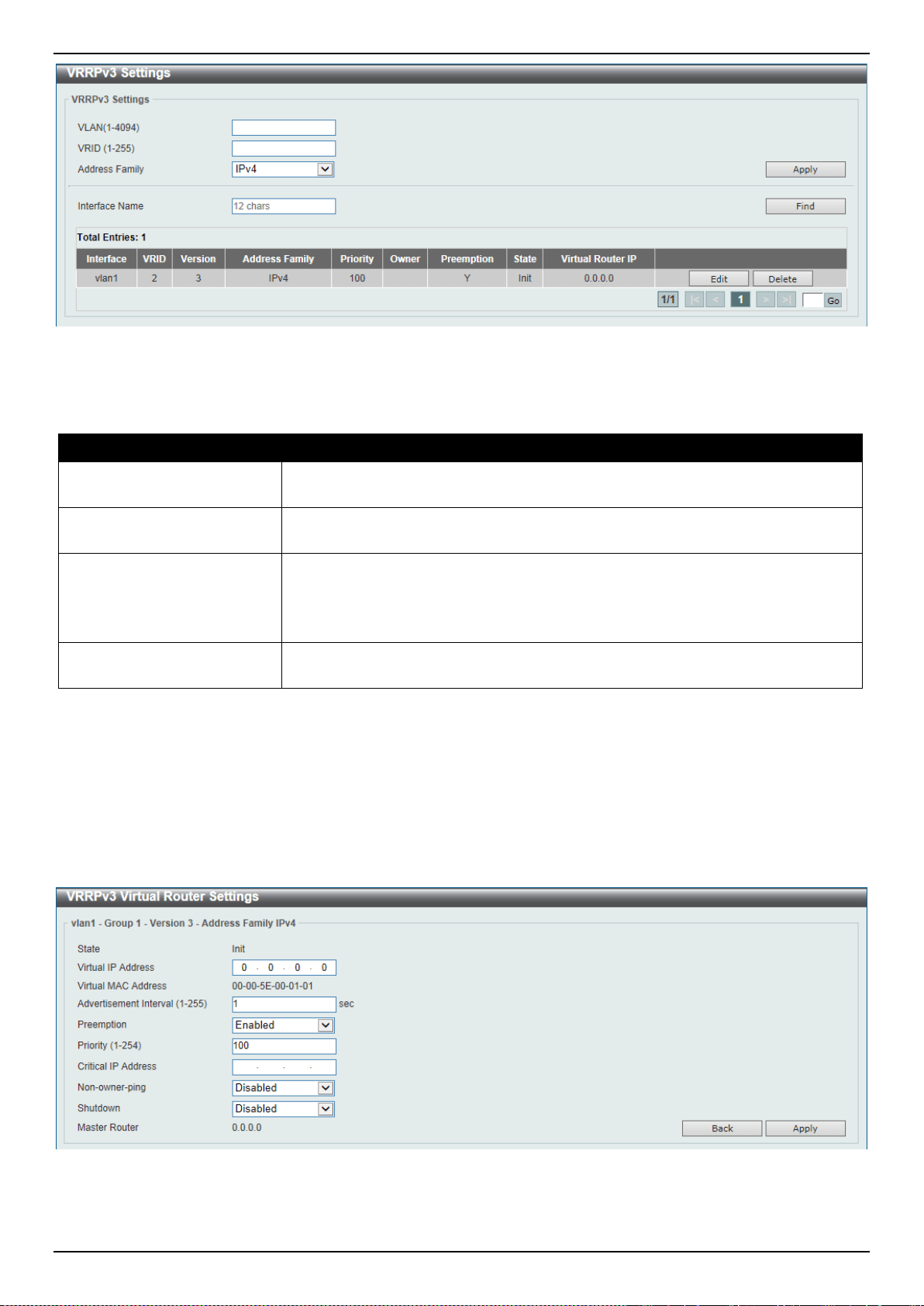
DXS-3400 Series Lite Layer 3 Stackable 10GbE Managed Switch Web UI Reference Guide
225
Figure 6-49 VRRPv3 Settings Window
The fields that can be configured are described below:
Parameter Description
VLAN
Enter the ID of the VLAN interface that will be used here. The range is from 1 to
4094.
VRID
Enter the virtual router ID used to identify the VRRP group here. The range is
from 1 to 255.
Address Family
Select the address family used here. Option to choose from are:
• IPv4 - Specifies to create an IPv4 virtual router.
• IPv6 - Specifies to create an IPv6 virtual router.
Interface Name
Enter the name of the VLAN interface that will be used in the display here. This
string can be up to 12 characters long.
Click the Apply button to accept the changes made.
Click the Find button to find and display an entry based on the information entered.
Click the Edit button to configure more detailed settings of the specified entry.
Click the Delete button to delete the specified entry.
Enter a page number and click the Go button to navigate to a specific page when multiple pages exist.
After clicking the Edit button, the following window will appear:
Figure 6-50 VRRPv3 Settings (Edit) Window
The fields that can be configured are described below:

DXS-3400 Series Lite Layer 3 Stackable 10GbE Managed Switch Web UI Reference Guide
226
Parameter Description
Virtual IP Address
Enter the virtual IPv4/IPv6 address here. This parameter will be either IPv4 or
IPv6 depending on the Address Family selection made in the previous step. All
routers in the same VRRP group must be configured with the same virtual router
ID and virtual address. The IP address of the virtual router can be a real address
configured on the routers or an unused address. If the virtual address is equal to
the real address of the interface, this virtual router is the IP address owner.
Advertisement Interval
Enter the time interval value between successive advertisements by the master
router here. The range is from 1 to 255 seconds. The master will constantly send
VRRP advertisements. All virtual routers in a VRRP group must use the same
timer values.
Preemption
Select to enable or disable the preemption feature here. This is used to allow a
router to take over the master role if it has a better priority than the current
master.
Priority
Enter the priority value of the virtual router here. The range is from 1 to 254. The
master of a VRRP group is elected based on the priority. The virtual router with
the highest priority becomes the master and others with lower priorities act as the
backup for the VRRP group. If there are multiple routers with the same highest
priority value, the router with the larger IP address will become the Master. The
router that is the IP address owner of the VRRP group is always the master of the
VRRP group, and has the highest priority of 255.
Critical IP Address
Enter the critical IP address here. If the critical IP is configured on one virtual
router, the virtual router cannot be activated when the critical IP address is
unreachable. One VRRP group can only track one critical IP address.
Non-owner ping
Select to enable or disable the non-owner ping feature here. This is used to
enable a non-IP address owner virtual router in the master state to response the
ICMP echo request for IPv4 addresses or the ND request for IPv6 addresses.
Shutdown
Select to enable or disable the shutdown feature here. Avoid the common mistake
of shutting down the IP address owner routers before shutting down other non-
owner routers.
Click the Back button to return to the previous window.
Click the Apply button to accept the changes made.
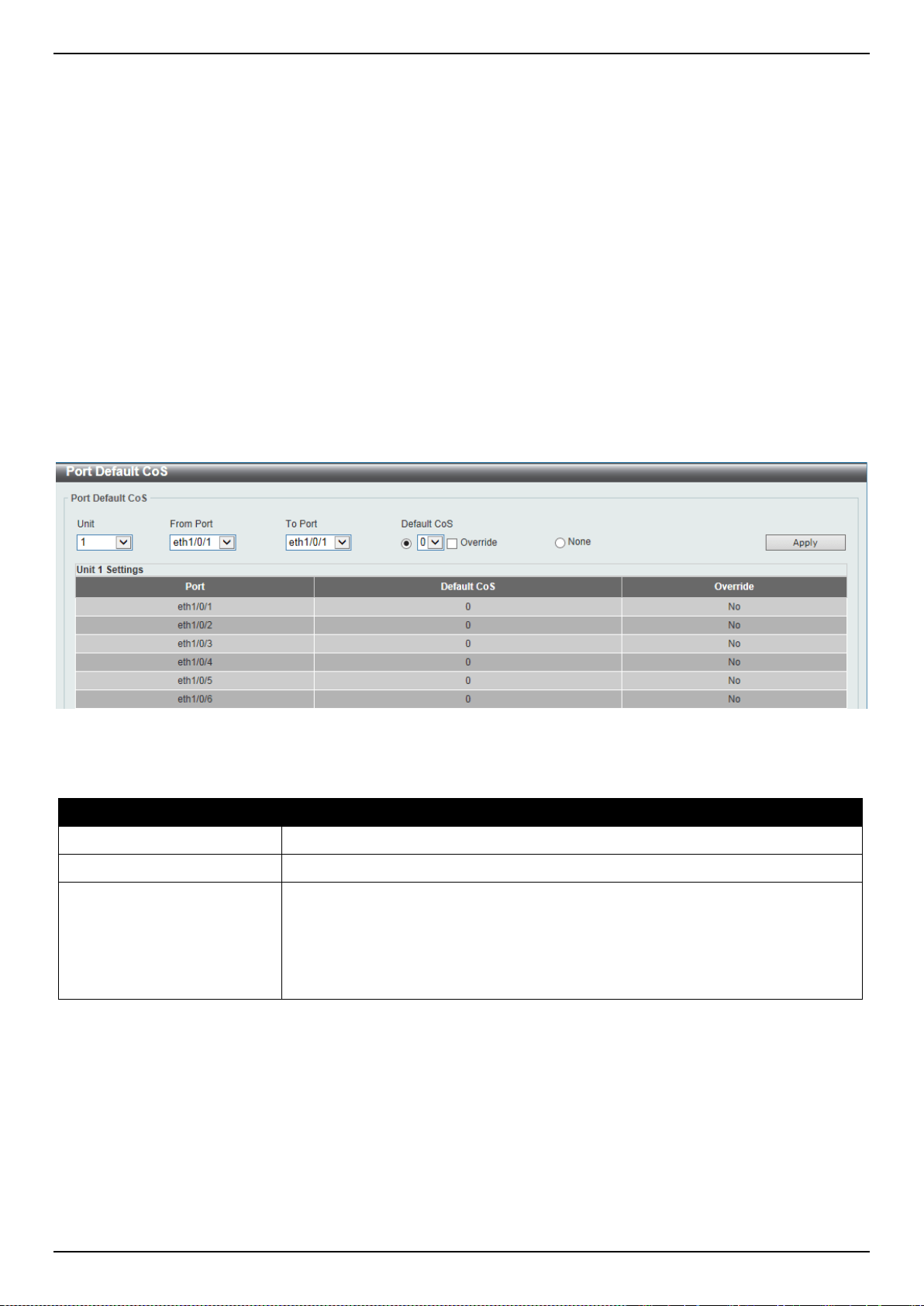
DXS-3400 Series Lite Layer 3 Stackable 10GbE Managed Switch Web UI Reference Guide
227
7. Quality of Service (QoS)
Basic Settings
Advanced Settings
QoS PFC
WRED
ETS
QCN
iSCSI
Basic Settings
Port Default CoS
This window is used to display and configure the port’s default CoS settings.
To view the following window, click QoS > Basic Settings > Port Default CoS, as shown below:
Figure 7-1 Port Default CoS Window
The fields that can be configured are described below:
Parameter Description
Unit
Select the Switch unit that will be used for this configuration here.
From Port ~ To Port
Select the range of ports that will be used for this configuration here.
Default CoS
Select the default CoS option for the port(s) specified here. Options to choose
from are 0 to 7. Select the Override option to override the CoS of the packets.
The default CoS will be applied to all incoming packets, tagged or untagged,
received by the port. Select the None option to specify that the CoS of the
packets will be the packet’s CoS if the packets are tagged, and will be the port
default CoS if the packet is untagged.
Click the Apply button to accept the changes made.
Port Scheduler Method
This window is used to display and configure the port scheduler method settings. To view the following window, click
QoS > Basic Settings > Port Scheduler Method, as shown below:
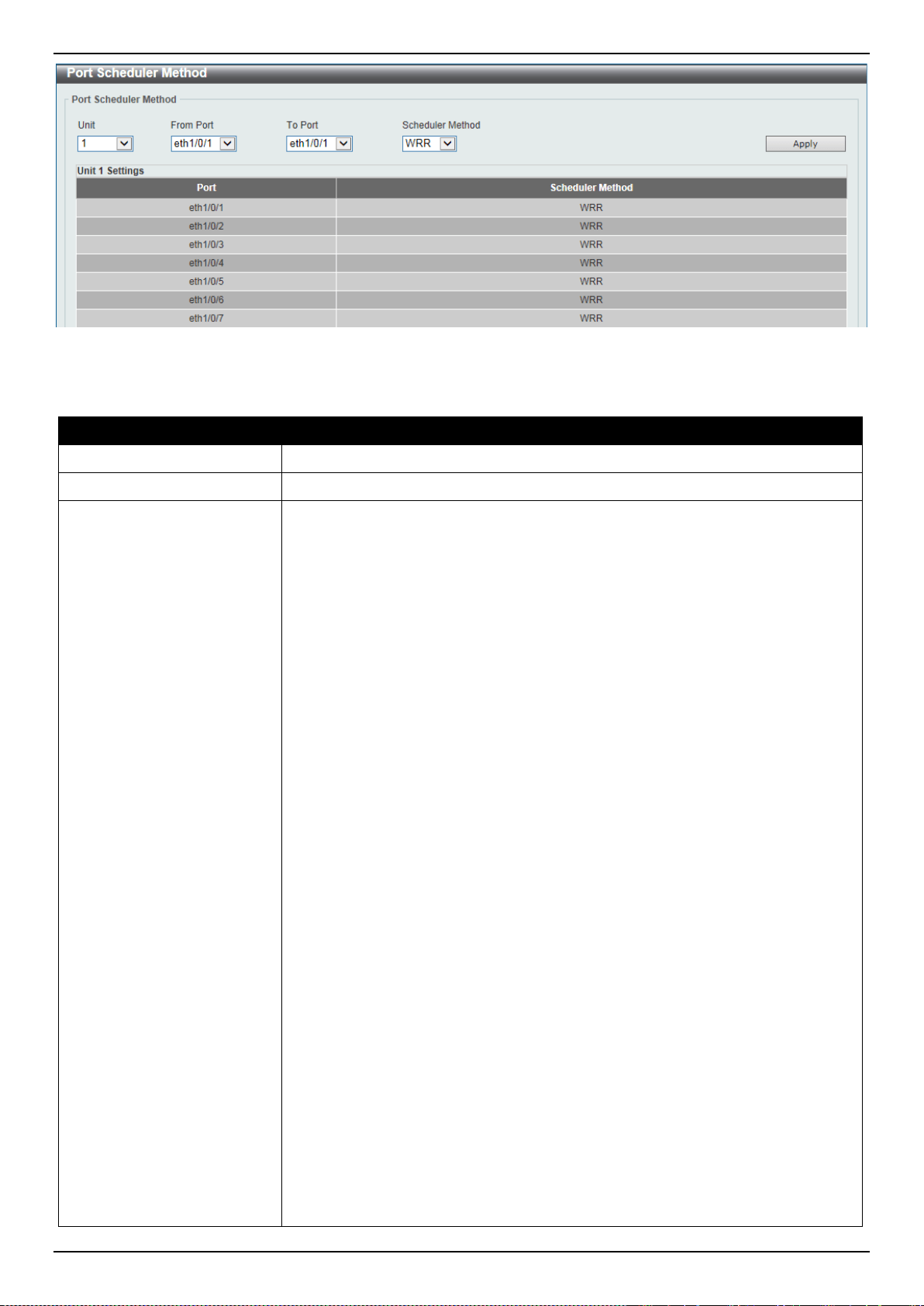
DXS-3400 Series Lite Layer 3 Stackable 10GbE Managed Switch Web UI Reference Guide
228
Figure 7-2 Port Scheduler Method Window
The fields that can be configured are described below:
Parameter Description
Unit
Select the Switch unit that will be used for this configuration here.
From Port ~ To Port
Select the range of ports that will be used for this configuration here.
Scheduler Method
Select the scheduler method that will be applied to the specified port(s). Options
to choose from are Strict Priority (SP), Round-Robin (RR), Weighted Round-
Robin (WRR), Weighted Deficit Round-Robin (WDRR), and Enhanced
Transmission Selection (ETS). By default, the output queue scheduling algorithm
is WRR.
• Strict Priority (SP) specifies that all queues use strict priority scheduling. It
provides strict priority access to the queues from the highest CoS queue to
the lowest.
• Round-Robin (RR) specifies that all queues use round-robin scheduling. It
provides fair access to service a single packet at each queue before moving
on to the next one.
• Weighted Round-Robin (WRR) operates by transmitting permitted packets
into the transmit queue in a round robin order. Initially, each queue sets its
weight to a configurable weighting. Every time a packet from a higher priority
CoS queue is sent, the corresponding weight is subtracted by 1 and the
packet in the next lower CoS queue will be serviced. When the weight of a
CoS queue reaches zero, the queue will not be serviced until its weight is
replenished. When weights of all CoS queues reach 0, the weights get
replenished at a time.
• Weighted Deficit Round-Robin (WDRR) operates by serving an
accumulated set of backlogged credits in the transmit queue in a round robin
order. Initially, each queue sets its credit counter to a configurable quantum
value. Every time a packet from a CoS queue is sent, the size of the packet
is subtracted from the corresponding credit counter and the service right is
turned over to the next lower CoS queue. When the credit counter drops
below 0, the queue is no longer serviced until its credits are replenished.
When the credit counters of all CoS queues reaches 0, the credit counters
will be replenished at that time. All packets are serviced until their credit
counter is zero or negative and the last packet is transmitted completely.
When this condition happens, the credits are replenished. When the credits
are replenished, a quantum of credits are added to each CoS queue credit
counter. The quantum for each CoS queue may be different based on the
user configuration.
To set a CoS queue in the SP mode, any higher priority CoS queue must
also be in the strict priority mode.
• Enhanced Transmission Selection (ETS) provides bandwidth allocation on
converged links in end stations and bridges in a Data Center Bridging (DCB)
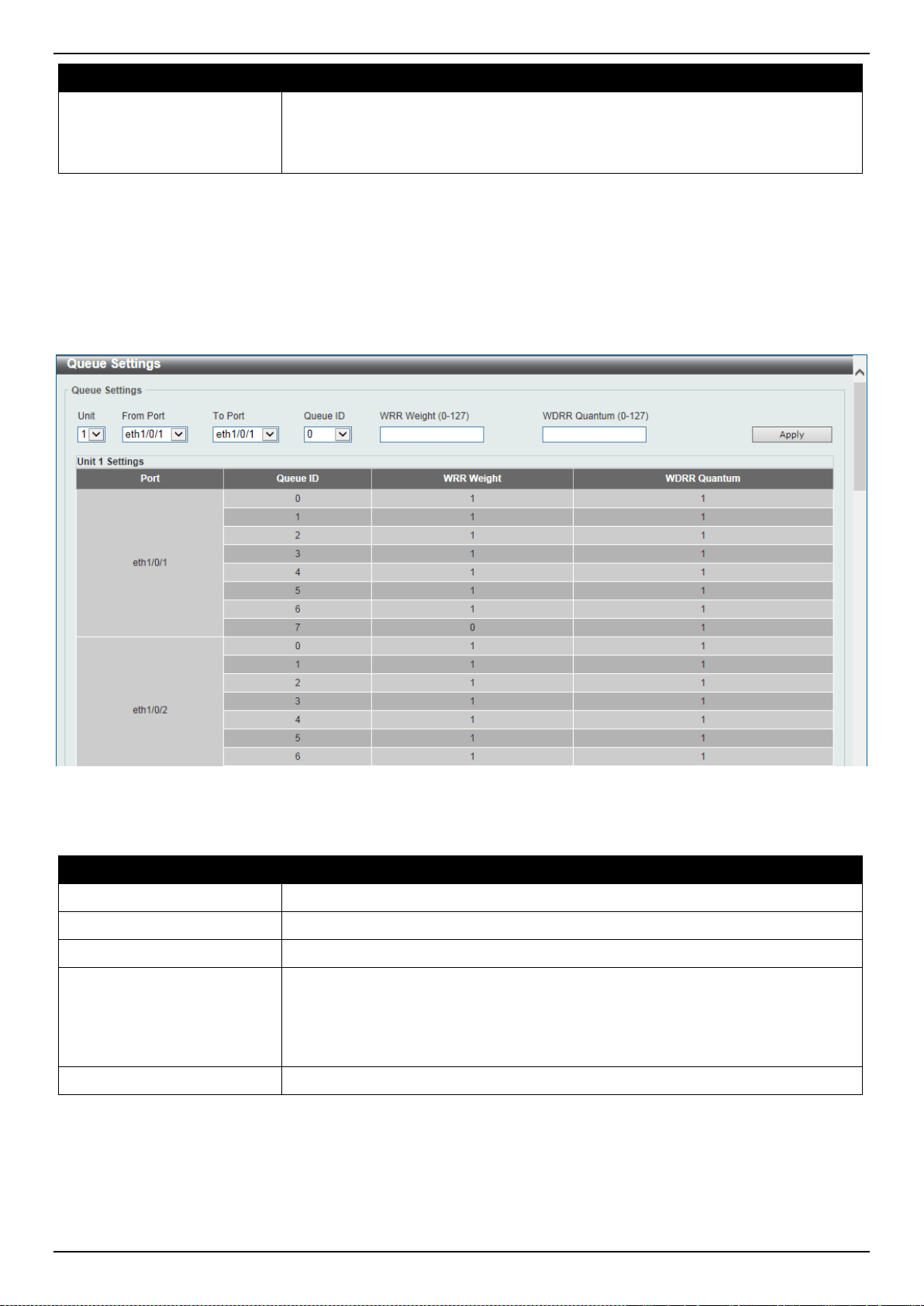
DXS-3400 Series Lite Layer 3 Stackable 10GbE Managed Switch Web UI Reference Guide
229
Parameter Description
environment. Using bandwidth allocations, different traffic classes within
different traffic types such as LAN, SAN, IPC and management can be
configured to provide bandwidth allocation, low-latency or best effort transmit
characteristics.
Click the Apply button to accept the changes made.
Queue Settings
This window is used to display and configure the queue settings.
To view the following window, click QoS > Basic Settings > Queue Settings, as shown below:
Figure 7-3 Queue Settings Window
The fields that can be configured are described below:
Parameter Description
Unit
Select the Switch unit that will be used for this configuration here.
From Port ~ To Port
Select the range of ports that will be used for this configuration here.
Queue ID
Enter the queue ID value here. This value must be between 0 and 7.
WRR Weight
Enter the WRR weight value here. This value must be between 0 and 127. To
satisfy the behavior requirements of Expedited Forwarding (EF), the highest
queue is always selected by the Per-hop Behavior (PHB) EF and the schedule
mode of this queue should be strict priority scheduling. So the weight of the last
queue should be zero while the Differentiate Service is supported.
WDRR Quantum
Enter the WDRR quantum value here. This value must be between 0 and 127.
Click the Apply button to accept the changes made.
CoS to Queue Mapping
This window is used to display and configure the CoS-to-Queue mapping settings.
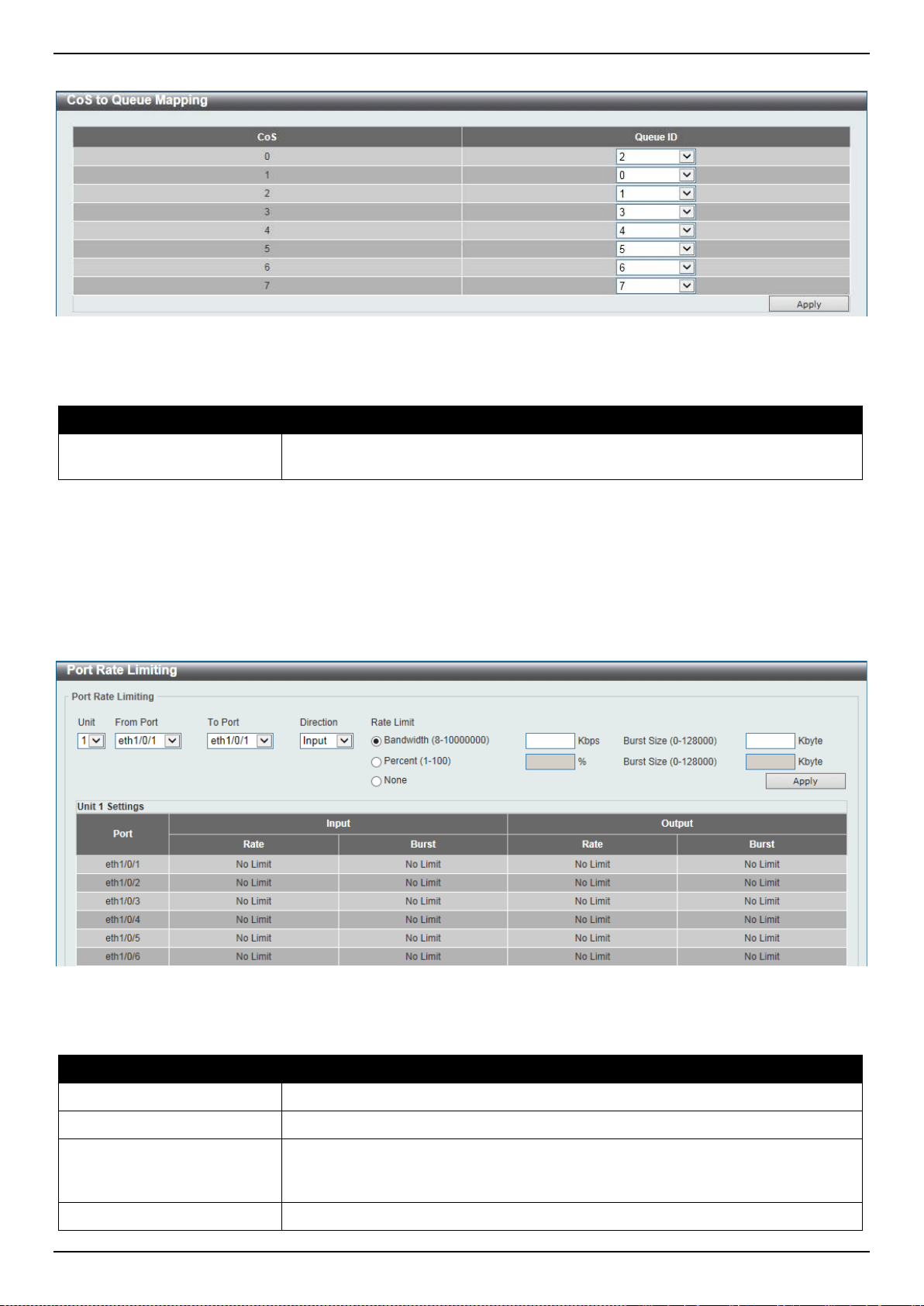
DXS-3400 Series Lite Layer 3 Stackable 10GbE Managed Switch Web UI Reference Guide
230
To view the following window, click QoS > Basic Settings > CoS to Queue Mapping, as shown below:
Figure 7-4 CoS to Queue Mapping Window
The fields that can be configured are described below:
Parameter Description
Queue ID
Select the queue ID that will be mapped to the corresponding CoS value. Options
to choose from are 0 to 7.
Click the Apply button to accept the changes made.
Port Rate Limiting
This window is used to display and configure the port rate limiting settings.
To view the following window, click QoS > Basic Settings > Port Rate Limiting, as shown below:
Figure 7-5 Port Rate Limiting Window
The fields that can be configured are described below:
Parameter Description
Unit
Select the Switch unit that will be used for this configuration here.
From Port ~ To Port
Select the range of ports that will be used for this configuration here.
Direction
Select the direction option here. Options to choose from are Input and Output.
When Input is selected, the rate limit for ingress packets is configured. When
Output is selected, the rate limit for egress packets is configured.
Rate Limit
Select and enter the rate limit value here.
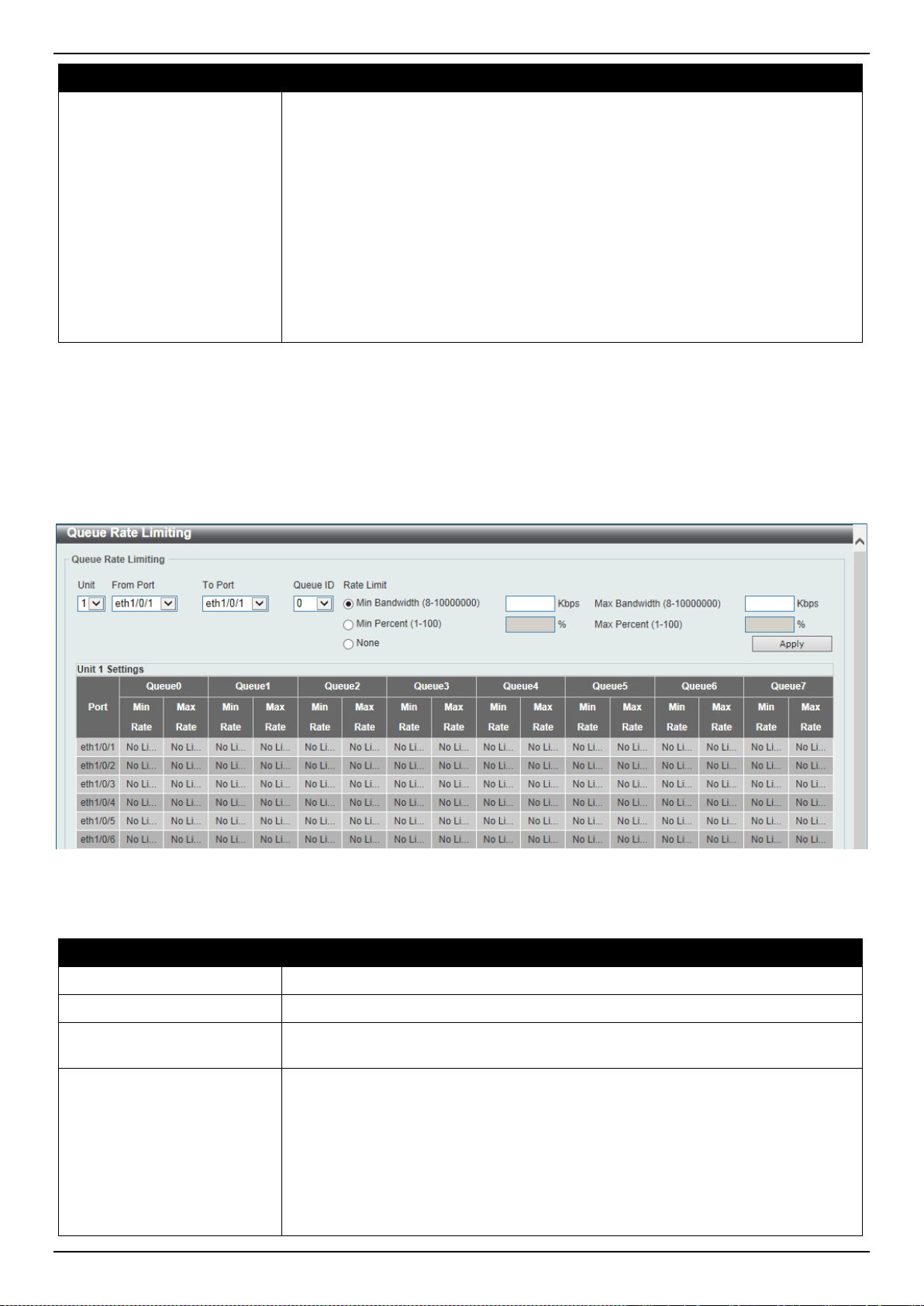
DXS-3400 Series Lite Layer 3 Stackable 10GbE Managed Switch Web UI Reference Guide
231
Parameter Description
• When Bandwidth is selected, enter the input/output bandwidth value used in
the space provided. This value must be between 8 and 10000000 kbps. Also,
enter the Burst Size value in the space provided. This value must be
between 0 and 128000 kilobytes.
• When Percent is selected, enter the input/output bandwidth percentage
value used in the space provided. This value must be between 1 and 100
percent (%). Also, enter the Burst Size value in the space provided. This
value must be between 0 and 128000 kilobytes.
• Select the None option to remove the rate limit on the specified port(s). The
specified limitation cannot exceed the maximum speed of the specified
interface. For the ingress bandwidth limitation, the ingress will send a pause
frame or a flow control frame when the received traffic exceeds the limitation.
Click the Apply button to accept the changes made.
Queue Rate Limiting
This window is used to display and configure the queue rate limiting settings.
To view the following window, click QoS > Basic Settings > Queue Rate Limiting, as shown below:
Figure 7-6 Queue Rate Limiting Window
The fields that can be configured are described below:
Parameter Description
Unit
Select the Switch unit that will be used for this configuration here.
From Port ~ To Port
Select the range of ports that will be used for this configuration here.
Queue ID
Select the queue ID that will be configured here. Options to choose from are 0 to
7.
Rate Limit
Select and enter the queue rate limit settings here.
• When the Min Bandwidth option is selected, enter the minimum bandwidth
rate limit value in the space provided. This value must be between 8 and
10000000 kbps. Also enter the maximum bandwidth (Max Bandwidth) rate
limit in the space provided. This value must be between 8 and 10000000
kbps.
When the minimal bandwidth is configured, the packet transmitted from the
queue can be guaranteed. When the maximum bandwidth is configured,
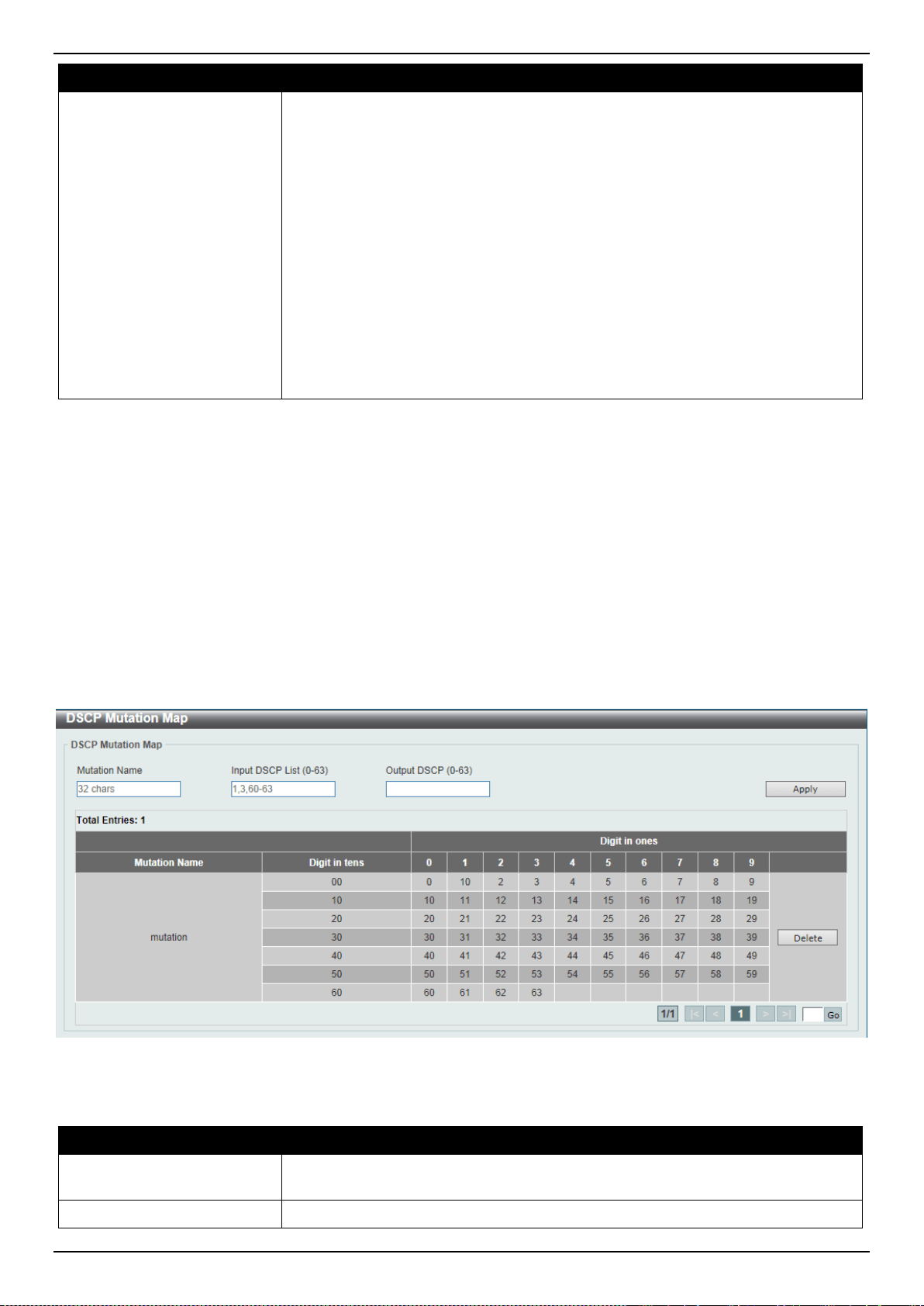
DXS-3400 Series Lite Layer 3 Stackable 10GbE Managed Switch Web UI Reference Guide
232
Parameter Description
packets transmitted from the queue cannot exceed the maximum bandwidth
even if the bandwidth is available.
When configuring the minimal bandwidth, the aggregate of the configured
minimum bandwidth must be less than 75 percent of the interface bandwidth
to make sure the configured minimal bandwidth can be guaranteed. It is not
necessary to set the minimum guaranteed bandwidth for the highest strict
priority queue. This is because the traffic in this queue will be serviced first if
the minimal bandwidth of all queues is satisfied.
The configuration of this command can only be attached to a physical port
but not a port-channel. That is the minimum guaranteed bandwidth of one
CoS cannot be used across physical ports.
• When the Min Percent option is selected, enter the minimum bandwidth
percentage value in the space provided. This value must be between 1 and
100 percent (%). Also enter the maximum percentage value (Max Percent)
in the space provided. This value must be between 1 and 100 percent (%).
Click the Apply button to accept the changes made.
Advanced Settings
DSCP Mutation Map
This window is used to display and configure the Differentiated Services Code Point (DSCP) mutation map settings.
When a packet is received by an interface, based on a DSCP mutation map, the incoming DSCP can be mutated to
another DSCP immediately before any QoS operations. The DSCP mutation is helpful to integrate domains with
different DSCP assignments. The DSCP-CoS map and DSCP-color map will still be based on the packet’s original
DSCP. All the subsequent operations will base on the mutated DSCP.
To view the following window, click QoS > Advanced Settings > DSCP Mutation Map, as shown below:
Figure 7-7 DSCP Mutation Map Window
The fields that can be configured are described below:
Parameter Description
Mutation Name
Enter the DSCP mutation map name here. This name can be up to 32 characters
long.
Input DSCP List
Enter the input DSCP list value here. This value must be between 0 and 63.
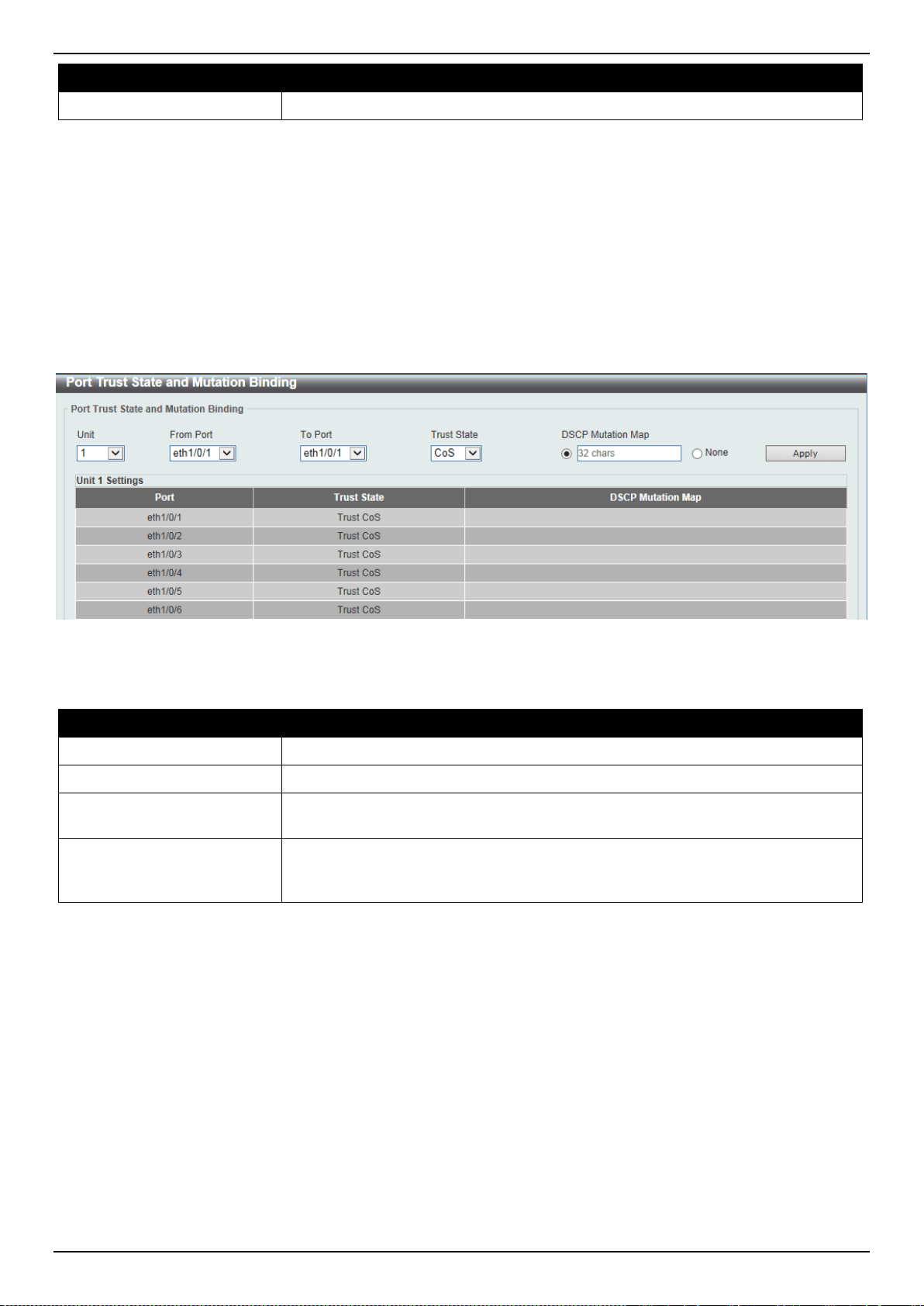
DXS-3400 Series Lite Layer 3 Stackable 10GbE Managed Switch Web UI Reference Guide
233
Parameter Description
Output DSCP List
Enter the output DSCP list value here. This value must be between 0 and 63.
Click the Apply button to accept the changes made.
Click the Delete button to remove the specific entry.
Enter a page number and click the Go button to navigate to a specific page when multiple pages exist.
Port Trust State and Mutation Binding
This window is used to display and configure port trust state and mutation binding settings.
To view the following window, click QoS > Advanced Settings > Port Trust State and Mutation Binding, as shown
below:
Figure 7-8 Port Trust State and Mutation Binding Window
The fields that can be configured are described below:
Parameter Description
Unit
Select the Switch unit that will be used for this configuration here.
From Port ~ To Port
Select the range of ports that will be used for this configuration here.
Trust State
Select the port trust state option here. Options to choose from are CoS and
DSCP.
DSCP Mutation Map
Select and enter the DSCP mutation map name used here. This name can be up
to 32 characters long. Select the None option to not allocate a DSCP mutation
map to the port(s).
Click the Apply button to accept the changes made.
DSCP CoS Mapping
This window is used to display and configure the DSCP CoS mapping settings.
To view the following window, click QoS > Advanced Settings > DSCP CoS Mapping, as shown below:
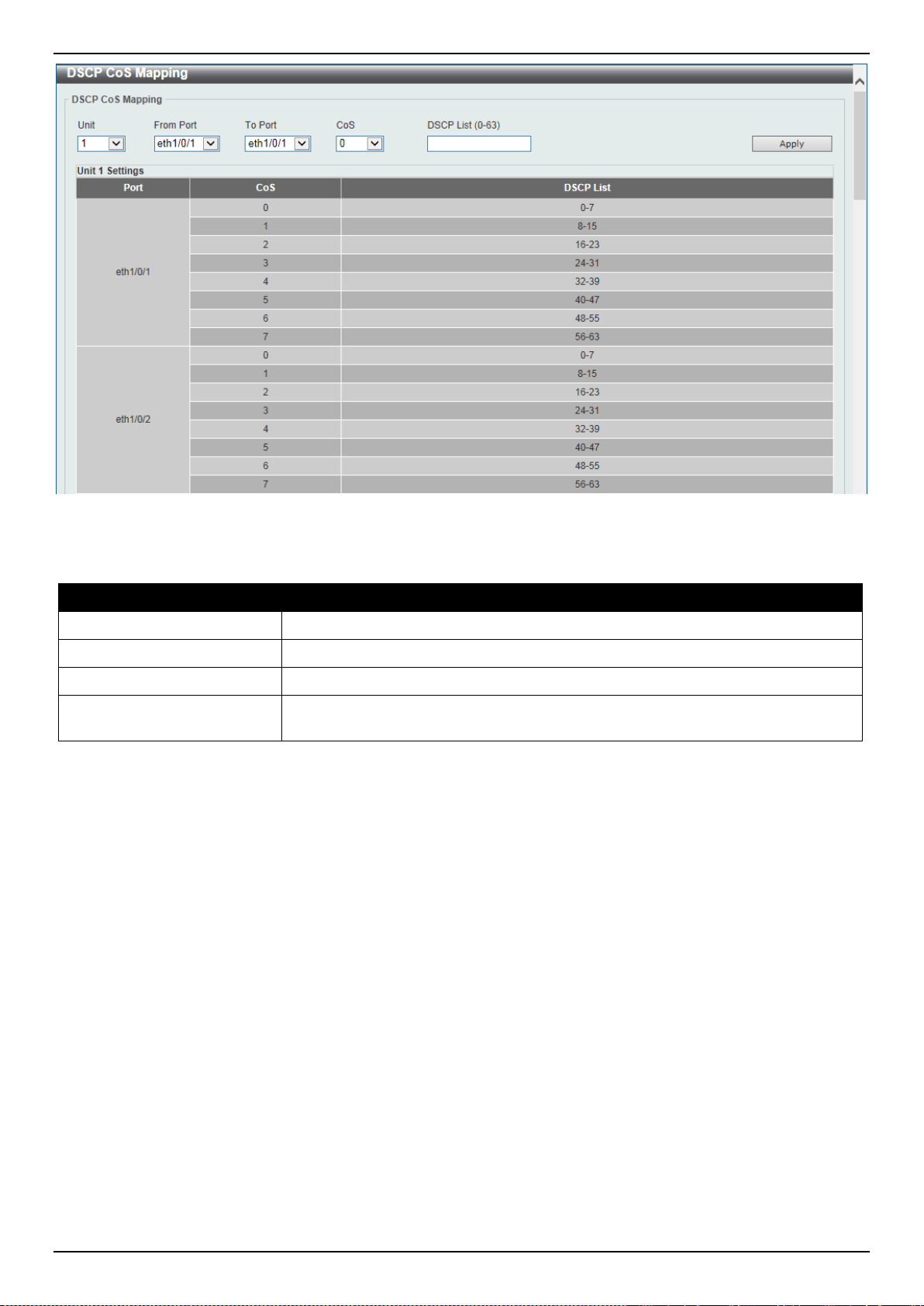
DXS-3400 Series Lite Layer 3 Stackable 10GbE Managed Switch Web UI Reference Guide
234
Figure 7-9 DSCP CoS Mapping Window
The fields that can be configured are described below:
Parameter Description
Unit
Select the Switch unit that will be used for this configuration here.
From Port ~ To Port
Select the range of ports that will be used for this configuration here.
CoS
Select the CoS value to map to the DSCP list. Options to choose from are 0 to 7.
DSCP List
Enter the DSCP list value to map to the CoS value here. This value must be
between 0 and 63.
Click the Apply button to accept the changes made.
CoS Color Mapping
This window is used to display and configure the CoS color mapping settings.
To view the following window, click QoS > Advanced Settings > CoS Color Mapping, as shown below:
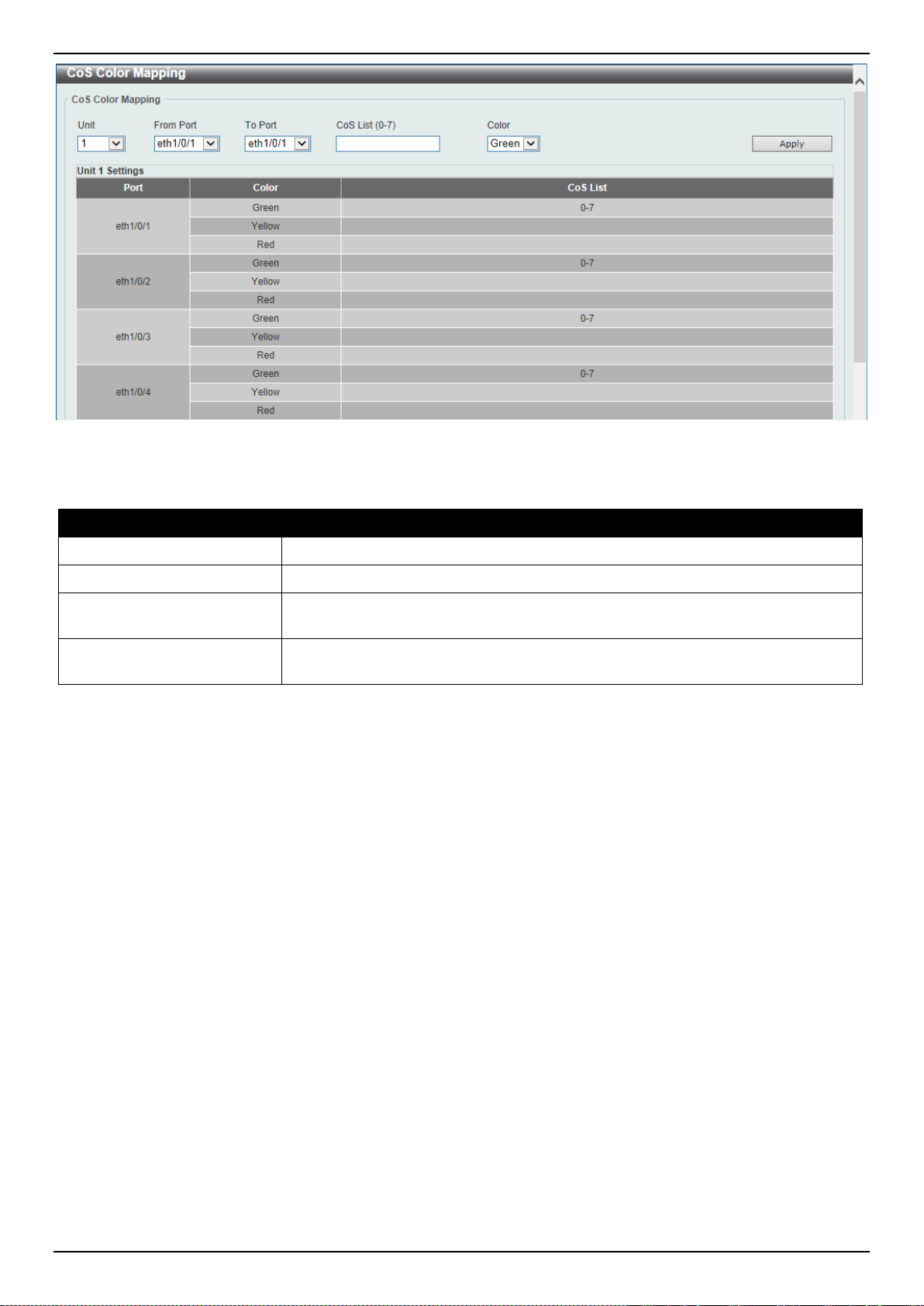
DXS-3400 Series Lite Layer 3 Stackable 10GbE Managed Switch Web UI Reference Guide
235
Figure 7-10 CoS Color Mapping Window
The fields that can be configured are described below:
Parameter Description
Unit
Select the Switch unit that will be used for this configuration here.
From Port ~ To Port
Select the range of ports that will be used for this configuration here.
CoS List
Enter the CoS value that will be mapped to the color. This value must be between
0 and 7.
Color
Select the color option that will be mapped to the CoS value. Options to choose
from are Green, Yellow, and Red.
Click the Apply button to accept the changes made.
DSCP Color Mapping
This window is used to display and configure the DSCP color mapping settings.
To view the following window, click QoS > Advanced Settings > DSCP Color Mapping, as shown below:

DXS-3400 Series Lite Layer 3 Stackable 10GbE Managed Switch Web UI Reference Guide
236
Figure 7-11 DSCP Color Mapping Window
The fields that can be configured are described below:
Parameter Description
Unit
Select the Switch unit that will be used for this configuration here.
From Port ~ To Port
Select the range of ports that will be used for this configuration here.
DSCP List
Enter the DSCP list value here that will be mapped to a color. This value must be
between 0 and 63.
Color
Select the color option that will be mapped to the DSCP value. Options to choose
from are Green, Yellow, and Red.
Click the Apply button to accept the changes made.
Class Map
This window is used to display and configure the class map settings.
To view the following window, click QoS > Advanced Settings > Class Map, as shown below:
Figure 7-12 Class Map Window
The fields that can be configured are described below:
Parameter Description
Class Map Name
Enter the class map name here. This name can be up to 32 characters long.
Multiple Match Criteria
Select the multiple match criteria option here. Options to choose from are Match
All and Match Any.
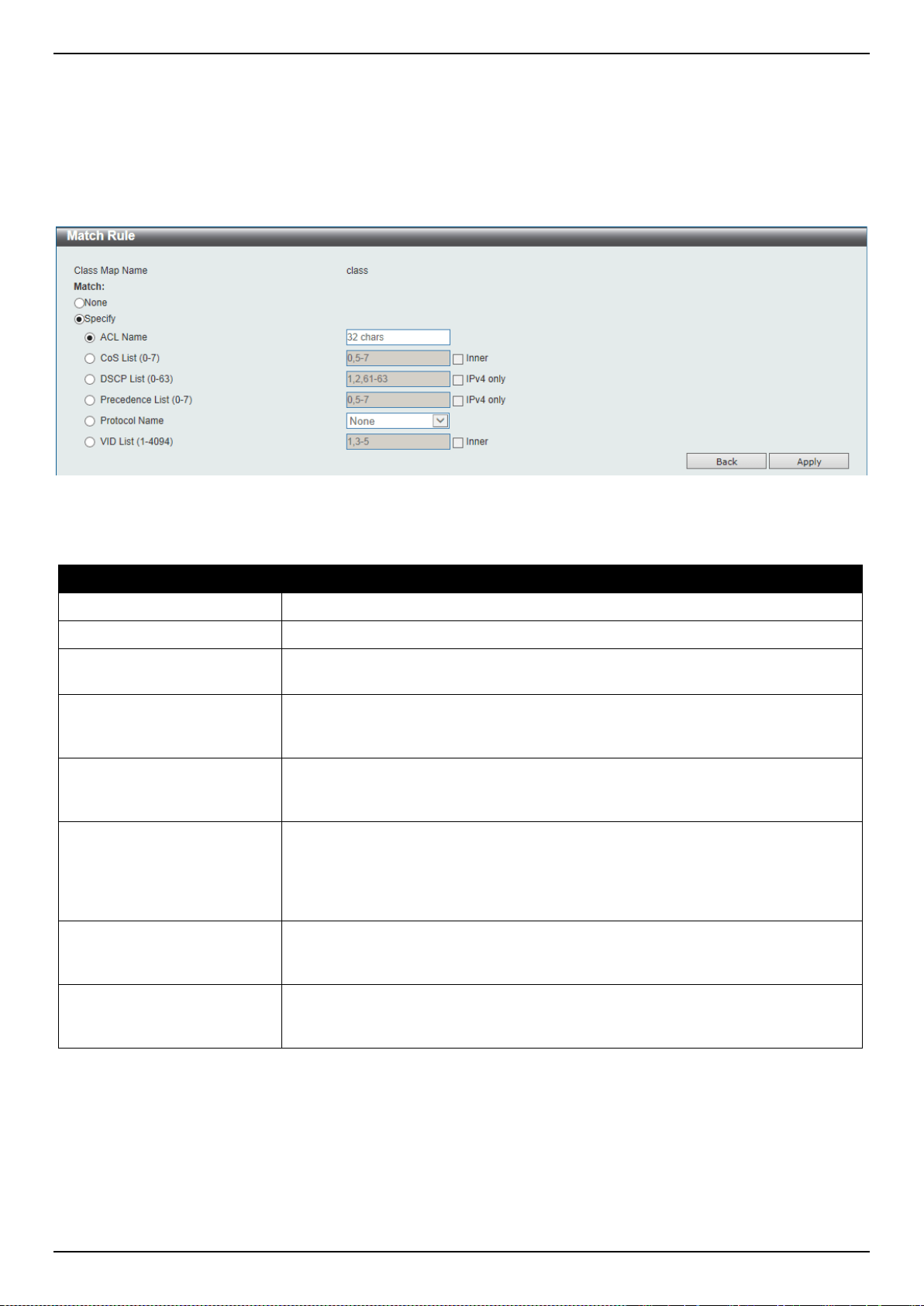
DXS-3400 Series Lite Layer 3 Stackable 10GbE Managed Switch Web UI Reference Guide
237
Click the Apply button to accept the changes made.
Click the Match button to configure the specific entry.
Click the Delete button to remove the specific entry.
Enter a page number and click the Go button to navigate to a specific page when multiple pages exist.
After clicking the Match button, the following page will be available.
Figure 7-13 Class Map (Match) Window
The fields that can be configured are described below:
Parameter Description
None
Select this option to match nothing to this class map.
Specify
Select the option to match something to this class map.
ACL Name
Select and enter the access list name that will be matched with this class map
here. This name can be up to 32 characters long.
CoS List
Select and enter the CoS list value that will be matched with this class map here.
This value must be between 0 and 7. Tick the Inner option to match the inner
most CoS of QinQ packets on a Layer 2 class of service (CoS) marking.
DSCP List
Select and enter the DSCP list value that will be matched with this class map
here. This value must be between 0 and 63. Tick the IPv4 only option to match
IPv4 packets only. If not specified, the match is for both IPv4 and IPv6 packets.
Precedence List
Select and enter the precedence list value that will be matched with this class
map here. This value must be between 0 and 7. Tick the IPv6 only option to
match IPv6 packets only. If not specified, the match is for both IPv4 and IPv6
packets. For IPv6 packets, the precedence is most three significant bits of traffic
class of IPv6 header.
Protocol Name
Select the protocol name that will be matched with the class map here. Options to
choose from are ARP, BGP, DHCP, DNS, EGP, FTP, IPv4, IPv6, NetBIOS, NFS,
NTP, OSPF, PPPOE, RIP, RSTP, SSH, Telnet, and TFTP.
VLAN List
Select and enter the VLAN list value that will be matched with the class map here.
This value must be between 1 and 4094. Tick the Inner option to match the inner-
most VLAN ID in an 802.1Q double tagged frame.
Click the Apply button to accept the changes made.
Click the Back button to discard the changes made and return to the previous page.
Aggregate Policer
This window is used to display and configure the aggregate policer settings.
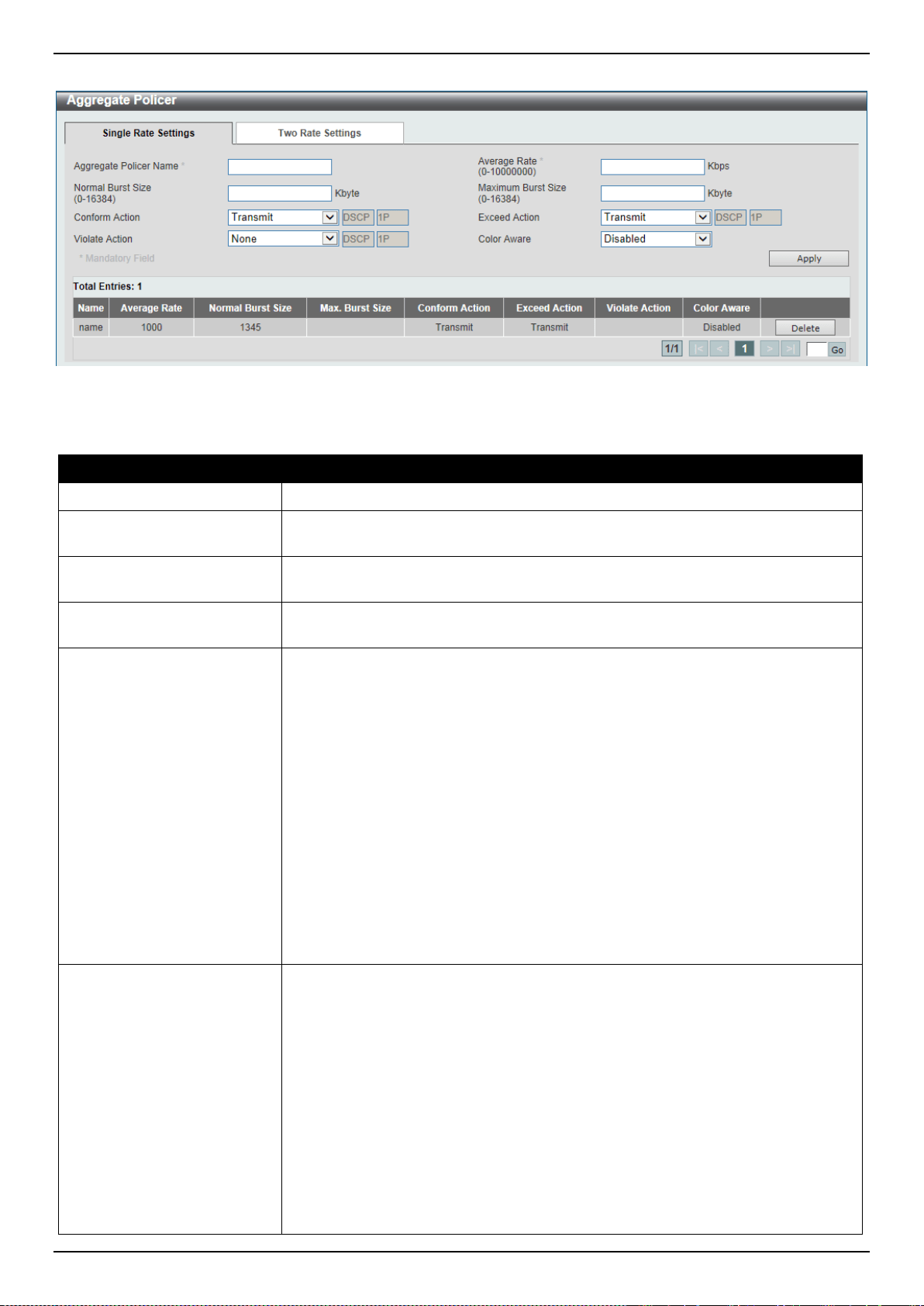
DXS-3400 Series Lite Layer 3 Stackable 10GbE Managed Switch Web UI Reference Guide
238
To view the following window, click QoS > Advanced Settings > Aggregate Policer, as shown below:
Figure 7-14 Aggregate Policer (Single Rate Setting) Window
The fields that can be configured are described below:
Parameter Description
Aggregate Policer Name
Enter the aggregate policer’s name here.
Average Rate
Enter the average rate value here. This value must be between 0 and 10000000
kbps.
Normal Burst Size
Enter the normal burst size value here. This value must be between 0 and 16384
Kbytes.
Maximum Burst Size
Enter the maximum burst size value here. This value must be between 0 and
16384 Kbytes.
Confirm Action
Select the confirm action here. The confirm action specifies the action to take on
green color packets. If the confirm action is not specified, the default action is to
Transmit. Options to choose from are Drop, Set-DSCP-Transmit, Set-1P-
Transmit, Transmit, and Set-DSCP-1P.
• When selecting the Drop option, the packet will be dropped.
• When selecting the Set-DSCP-Transmit option, enter the IP DSCP value in
the space provided. This value sets the IP differentiated services code point
(DSCP) value and transmits the packet with the new IP DSCP value.
• When selecting the Set-1P-Transmit option, enter the 1P transmit value in
the space provided. This value sets the 802.1p value and transmits the
packet with the new value.
• When selecting the Transmit option, packets will be transmitted unaltered.
• When selecting the Set-DSCP-1P option, enter the IP DSCP and 1P transmit
values in the spaces provided.
Exceed Action
Select the exceed action here. The exceed action specifies the action to take on
packets that exceed the rate limit. For a two rate policer, if the exceed action is
not specified, the default action is Drop. Options to choose from are Drop, Set-
DSCP-Transmit, Set-1P-Transmit, Transmit, and Set-DSCP-1P.
• When selecting the Drop option, the packet will be dropped.
• When selecting the Set-DSCP-Transmit option, enter the IP DSCP value in
the space provided. This value sets the IP differentiated services code point
(DSCP) value and transmits the packet with the new IP DSCP value.
• When selecting the Set-1P-Transmit option, enter the 1P transmit value in
the space provided. This value sets the 802.1p value and transmits the
packet with the new value.
• When selecting the Transmit option, packets will be transmitted unaltered.

DXS-3400 Series Lite Layer 3 Stackable 10GbE Managed Switch Web UI Reference Guide
239
Parameter Description
• When selecting the Set-DSCP-1P option, enter the IP DSCP and 1P transmit
values in the spaces provided.
Violate Action
Select the violate action here. The violate action specifies the action to take on
packets that violate the normal and maximum burst sizes for singe rate policing. It
specifies the action to take for those packets that did not conform to both CIR and
PIR. For a single rate policer, if the violate action is not specified, it will create a
single-rate two-color policer. For a two-rate policer, if the violation action is not
specified, the default action is equal to the exceed action. Options to choose from
are None, Drop, Set-DSCP-Transmit, Set-1P-Transmit, Transmit, and Set-
DSCP-1P.
• When selecting the None option, no action will be taken.
• When selecting the Drop option, the packet will be dropped.
• When selecting the Set-DSCP-Transmit option, enter the IP DSCP value in
the space provided. This value sets the IP differentiated services code point
(DSCP) value and transmits the packet with the new IP DSCP value.
• When selecting the Set-1P-Transmit option, enter the 1P transmit value in
the space provided. This value sets the 802.1p value and transmits the
packet with the new value.
• When selecting the Transmit option, packets will be transmitted unaltered.
• When selecting the Set-DSCP-1P option, enter the IP DSCP and 1P transmit
values in the spaces provided.
Color Aware
Select the color aware option here. Options to choose from are Enabled and
Disabled. When color aware is disabled, the policer works in the color blind
mode. When color aware is enabled, the policer works in the color aware mode.
Click the Apply button to accept the changes made.
Click the Delete button to remove the specific entry.
Enter a page number and click the Go button to navigate to a specific page when multiple pages exist.
After selecting the Two Rate Settings tab option, at the top of the page, the following page will be available.
Figure 7-15 Aggregate Policer (Two Rate Settings) Window
The fields that can be configured are described below:
Parameter Description
Aggregate Policer Name
Enter the aggregate policer’s name here.
CIR
Enter the Committed Information Rate (CIR) value here. This value must be
between 0 and 10000000 kbps. The committed packet rate is the first token

DXS-3400 Series Lite Layer 3 Stackable 10GbE Managed Switch Web UI Reference Guide
240
Parameter Description
bucket for the two-rate metering.
Confirm Burst
Enter the confirm burst value here. This value must be between 0 and 16384
Kbytes. The confirm burst value specifies the burst size for the first token bucket
in kbps.
PIR
Enter the Peak Information Rate (PIR) value here. This value must be between 0
and 10000000 kbps. The peak information rate is the second token bucket for the
two-rate metering.
Peak Burst
Enter the peak burst value here. This value must be between 0 and 16384
Kbytes. The peak burst value is the burst size for the second token bucket in
kilobytes.
Confirm Action
Select the confirm action here. The confirm action specifies the action to take on
green color packets. If the confirm action is not specified, the default action is to
Transmit. Options to choose from are Drop, Set-DSCP-Transmit, Set-1P-
Transmit, Transmit, and Set-DSCP-1P.
• When selecting the Drop option, the packet will be dropped.
• When selecting the Set-DSCP-Transmit option, enter the IP DSCP value in
the space provided. This value sets the IP differentiated services code point
(DSCP) value and transmits the packet with the new IP DSCP value.
• When selecting the Set-1P-Transmit option, enter the 1P transmit value in
the space provided. This value sets the 802.1p value and transmits the
packet with the new value.
• When selecting the Transmit option, packets will be transmitted unaltered.
• When selecting the Set-DSCP-1P option, enter the IP DSCP and 1P transmit
values in the spaces provided.
Exceed Action
Select the exceed action here. The exceed action specifies the action to take on
packets that exceed the rate limit. For a two rate policer, if the exceed action is
not specified, the default action is Drop. Options to choose from are Drop, Set-
DSCP-Transmit, Set-1P-Transmit, Transmit, and Set-DSCP-1P.
• When selecting the Drop option, the packet will be dropped.
• When selecting the Set-DSCP-Transmit option, enter the IP DSCP value in
the space provided. This value sets the IP differentiated services code point
(DSCP) value and transmits the packet with the new IP DSCP value.
• When selecting the Set-1P-Transmit option, enter the 1P transmit value in
the space provided. This value sets the 802.1p value and transmits the
packet with the new value.
• When selecting the Transmit option, packets will be transmitted unaltered.
• When selecting the Set-DSCP-1P option, enter the IP DSCP and 1P transmit
values in the spaces provided.
Violate Action
Select the violate action here. The violate action specifies the action to take on
packets that violate the normal and maximum burst sizes for singe rate policing. It
specifies the action to take for those packets that did not conform to both CIR and
PIR. For a single rate policer, if the violate action is not specified, it will create a
single-rate two-color policer. For a two-rate policer, if the violation action is not
specified, the default action is equal to the exceed action. Options to choose from
are Drop, Set-DSCP-Transmit, Set-1P-Transmit, Transmit, and Set-DSCP-1P.
• When selecting the Drop option, the packet will be dropped.
• When selecting the Set-DSCP-Transmit option, enter the IP DSCP value in
the space provided. This value sets the IP differentiated services code point
(DSCP) value and transmits the packet with the new IP DSCP value.
• When selecting the Set-1P-Transmit option, enter the 1P transmit value in
the space provided. This value sets the 802.1p value and transmits the
packet with the new value.
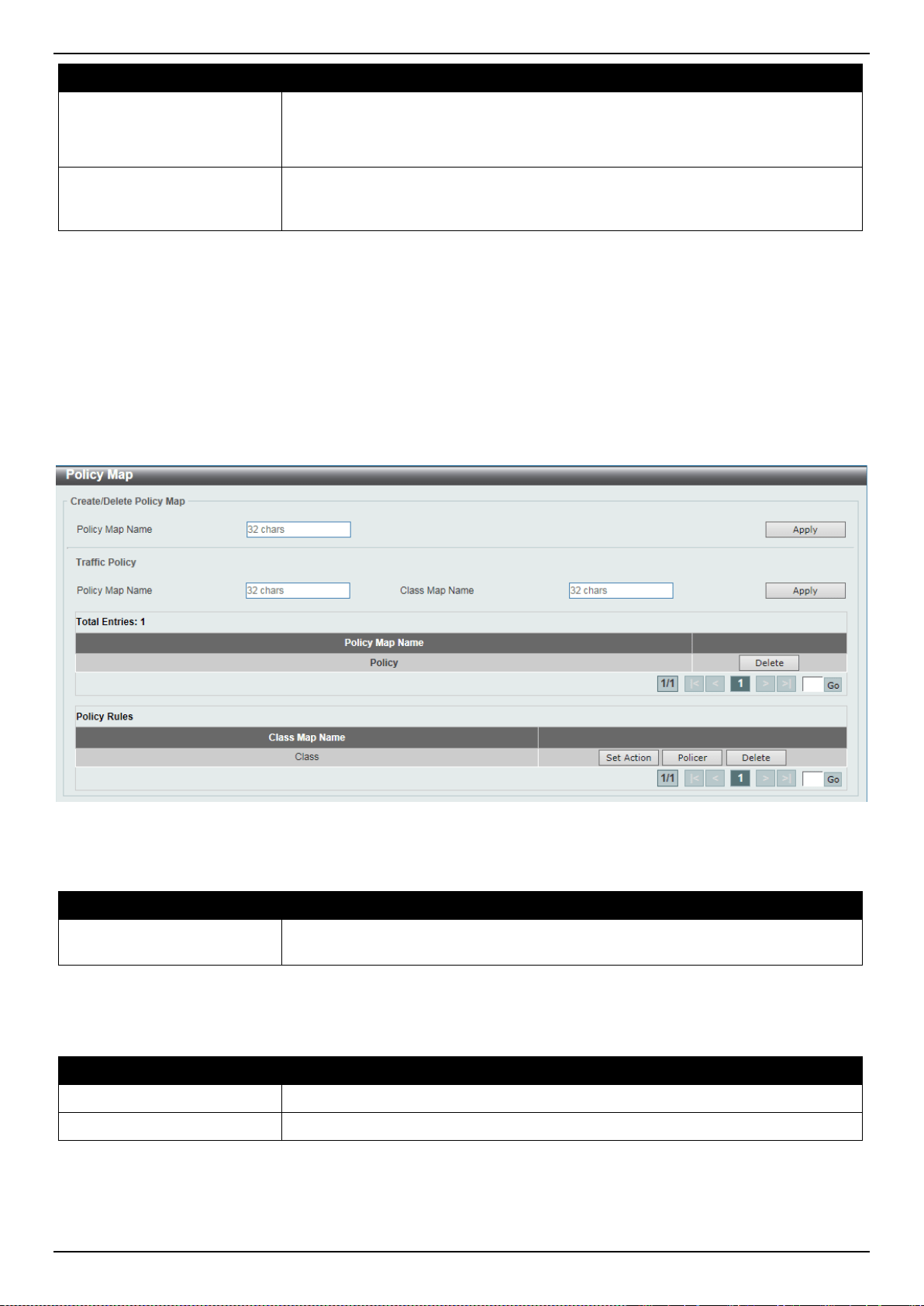
DXS-3400 Series Lite Layer 3 Stackable 10GbE Managed Switch Web UI Reference Guide
241
Parameter Description
• When selecting the Transmit option, packets will be transmitted unaltered.
• When selecting the Set-DSCP-1P option, enter the IP DSCP and 1P transmit
values in the spaces provided.
Color Aware
Select the color aware option here. Options to choose from are Disabled and
Enabled. When color aware is disabled, the policer works in the color blind mode.
When color aware is enabled, the policer works in the color aware mode.
Click the Apply button to accept the changes made.
Click the Delete button to remove the specific entry.
Enter a page number and click the Go button to navigate to a specific page when multiple pages exist.
Policy Map
This window is used to display and configure the policy map settings.
To view the following window, click QoS > Advanced Settings > Policy Map, as shown below:
Figure 7-16 Policy Map Window
The fields that can be configured for Create/Delete Policy Map are described below:
Parameter Description
Policy Map Name
Enter the policy map’s name here that will be created or deleted. This name can
be up to 32 characters long.
Click the Apply button to accept the changes made.
The fields that can be configured for Traffic Policy are described below:
Parameter Description
Policy Map Name
Enter the policy map’s name here. This name can be up to 32 characters long.
Class Map Name
Enter the class map’s name here. This name can be up to 32 characters long.
Click the Apply button to accept the changes made.
Click the Delete button to remove the specific entry.
Enter a page number and click the Go button to navigate to a specific page when multiple pages exist.
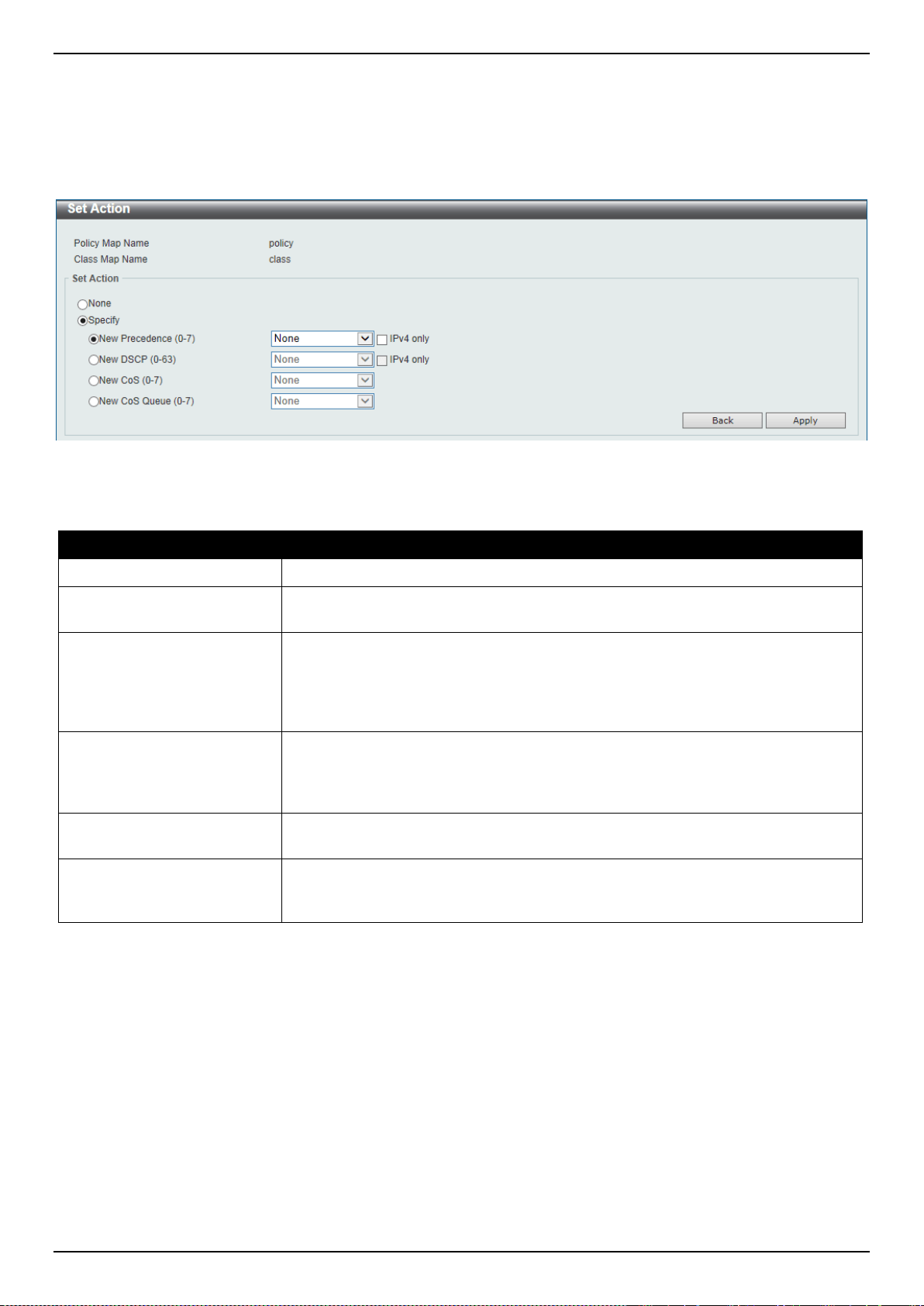
DXS-3400 Series Lite Layer 3 Stackable 10GbE Managed Switch Web UI Reference Guide
242
Click the Set Action button to configure the set action settings for the specified entry.
Click the Policer button to configure the policer settings for the specified entry.
Enter a page number and click the Go button to navigate to a specific page when multiple pages exist.
After clicking the Set Action button, the following page will appear.
Figure 7-17 Policy Map (Set Action) Window
The fields that can be configured are described below:
Parameter Description
None
Select this option to specify that no action will be taken.
Specify
Select this option to specify that action will be taken based on the configurations
made.
New Precedence
Select the new precedence value for the packet here. The range is from 0 to 7.
Select the IPv4 only option to specify that IPv4 precedence will be marked only. If
not selected, then both IPv4 and IPv6 precedence will be marked. For IPv6
packets, the precedence is the most three significant bits of the traffic class of the
IPv6 header. Setting the precedence will not affect the CoS queue selection.
New DSCP
Select the new DSCP value for the packet here. The range is from 0 to 63. Select
the IPv4 only option to specify that the IPv4 DSCP will be marked only. If not
selected, then both the IPv4 and IPv6 DSCP will be marked. Setting the DSCP
will not affect the CoS queue selection.
New CoS
Select the new CoS value to the packet here. The range is from 0 to 7. Setting the
CoS will not affect the CoS queue selection.
New Cos Queue
Select the new CoS queue value to the packets here. This will overwrite the
original CoS queue selection. Setting the CoS queue will not take effect if the
policy map is applied for the egress flow on the interface.
Click the Back button to return to the previous window.
Click the Apply button to accept the changes made.
After clicking the Policer button, the following page will appear.
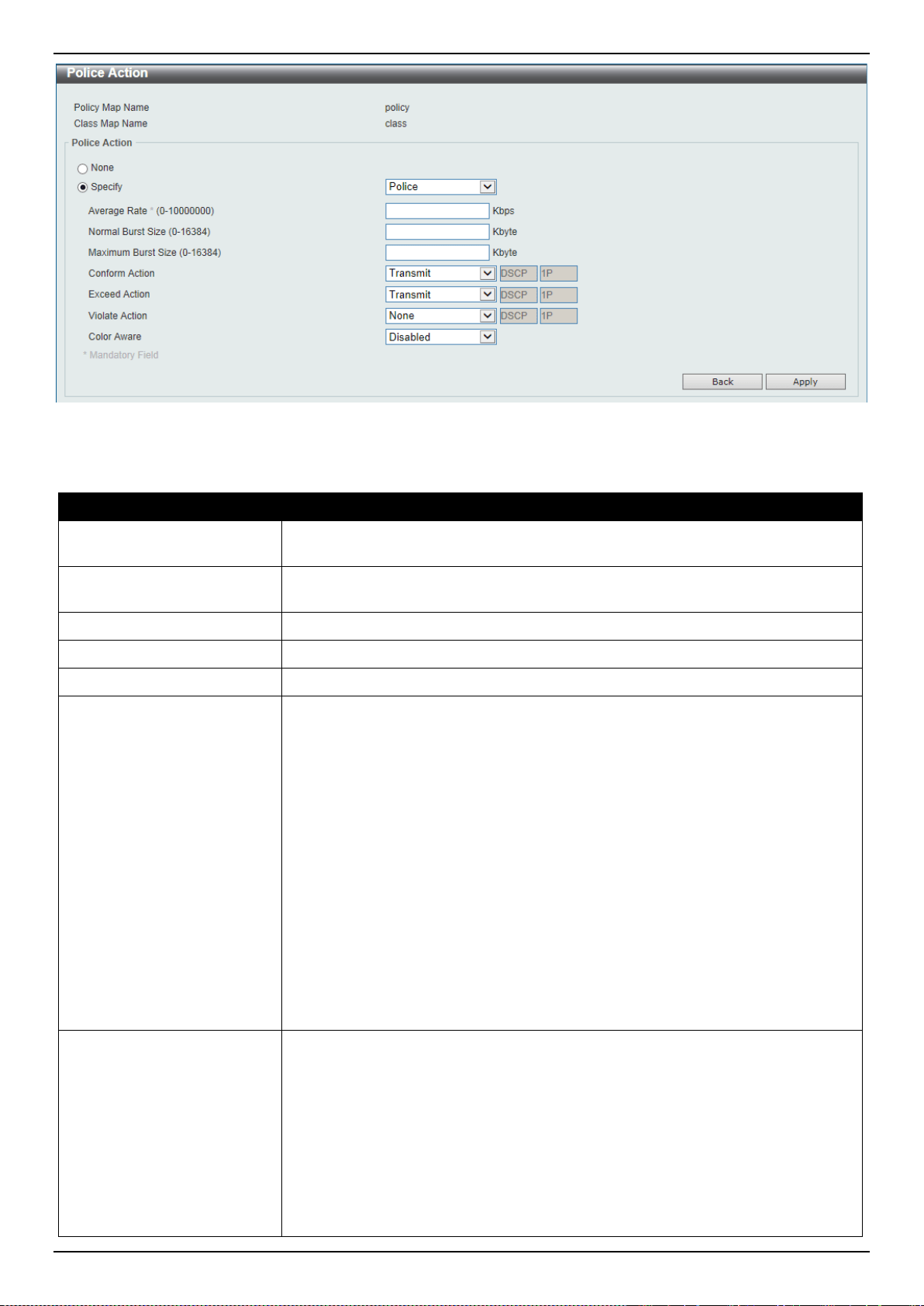
DXS-3400 Series Lite Layer 3 Stackable 10GbE Managed Switch Web UI Reference Guide
243
Figure 7-18 Policy Map (Policer) Window
The fields that can be configured are described below:
Parameter Description
None
Select this option to specify that no policer settings will be configured for this
entry.
Specify
Select this option to specify that the following policer settings will be applied to
this entry.
Average Rate
Enter the average rate value here. The range is from 0 to 10000000 Kbps.
Normal Burst Size
Enter the normal burst size value here. The range is from 0 to 16384 Kbps.
Maximum Burst Size
Enter the maximum burst size value here. The range is from 0 to 16384 Kbps.
Conform Action
Select the conform action that will be taken here. This action will be taken on
green color packets. Option to choose from are:
• Drop - Specifies that the conform action is to drop the packet.
• Set-DSCP-Transmit - Specifies that the conform action is to modify the
DSCP value and then to transmit the packet with the new DSCP value. Enter
the new DSCP value in the space provided.
• Set-1P-Transmit - Specifies that the conform action is to modify the 802.1p
value and then to transmit the packet with the new 802.1p value. Enter the
new 802.1p value in the space provided.
• Transmit - Specifies that the conform action is to transmit the packet
unmodified.
• Set-DSCP-1P - Specifies that the conform action is to modify the DSCP and
802.1p values and then to transmit the packet with the new DSCP and
802.1p values. Enter the new DSCP and 802.1p values in the spaces
provided.
Exceed Action
Select the exceed action that will be taken here. This action will be taken on
yellow color packets that exceed the rate limit. Option to choose from are:
• Drop - Specifies that the exceed action is to drop the packet.
• Set-DSCP-Transmit - Specifies that the exceed action is to modify the
DSCP value and then to transmit the packet with the new DSCP value. Enter
the new DSCP value in the space provided.
• Set-1P-Transmit - Specifies that the exceed action is to modify the 802.1p
value and then to transmit the packet with the new 802.1p value. Enter the
new 802.1p value in the space provided.
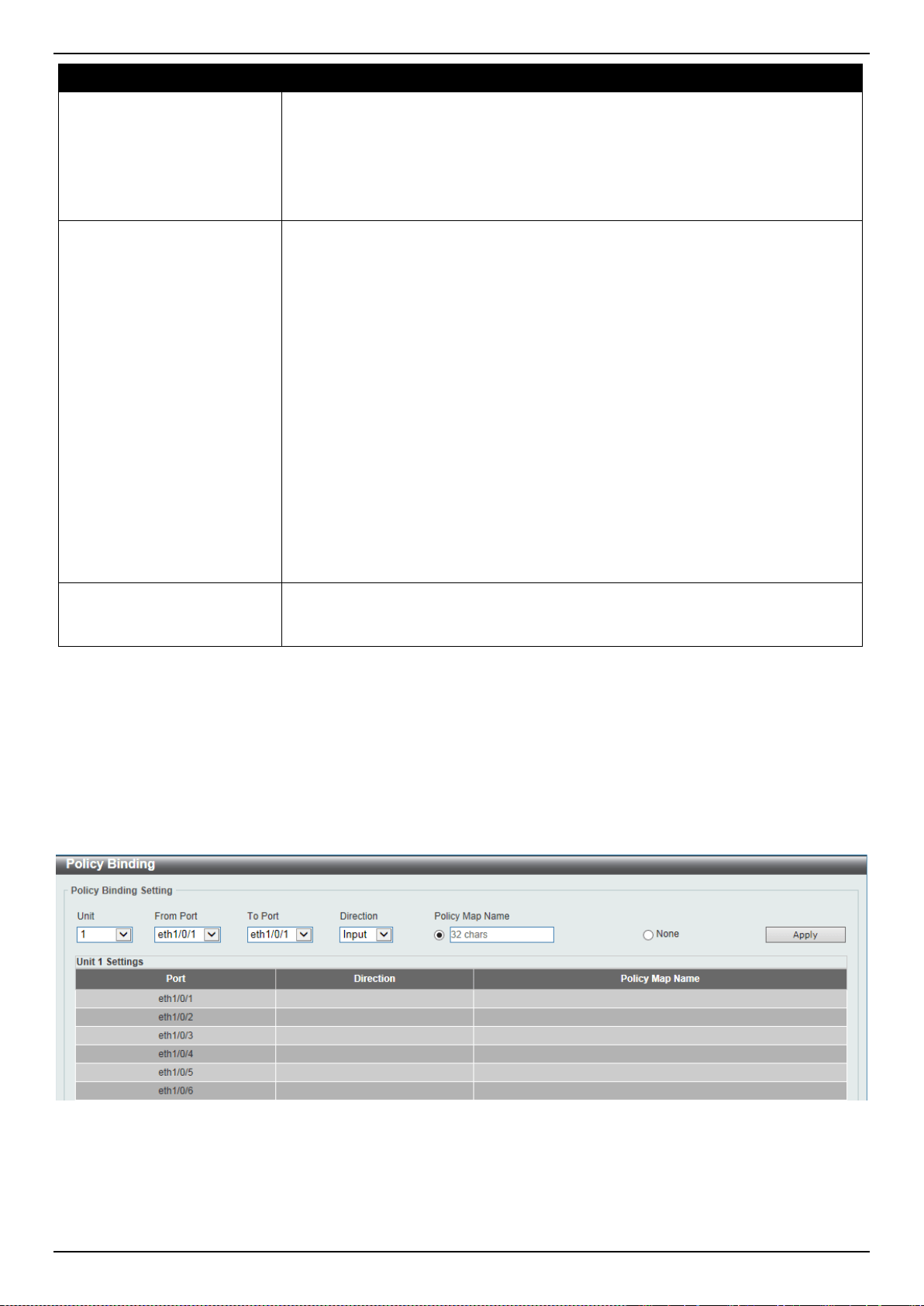
DXS-3400 Series Lite Layer 3 Stackable 10GbE Managed Switch Web UI Reference Guide
244
Parameter Description
• Transmit - Specifies that the exceed action is to transmit the packet
unmodified.
• Set-DSCP-1P - Specifies that the exceed action is to modify the DSCP and
802.1p values and then to transmit the packet with the new DSCP and
802.1p values. Enter the new DSCP and 802.1p values in the spaces
provided.
Violate Action
Select the violate action that will be taken here. This action will be taken on red
color packets. Option to choose from are:
• None - Specifies that no violate action will be taken.
• Drop - Specifies that the violate action is to drop the packet.
• Set-DSCP-Transmit - Specifies that the violate action is to modify the DSCP
value and then to transmit the packet with the new DSCP value. Enter the
new DSCP value in the space provided.
• Set-1P-Transmit - Specifies that the violate action is to modify the 802.1p
value and then to transmit the packet with the new 802.1p value. Enter the
new 802.1p value in the space provided.
• Transmit - Specifies that the violate action is to transmit the packet
unmodified.
• Set-DSCP-1P - Specifies that the violate action is to modify the DSCP and
802.1p values and then to transmit the packet with the new DSCP and
802.1p values. Enter the new DSCP and 802.1p values in the spaces
provided.
Color Aware
Select to enable or disable the color aware feature here. When disabled, the
policer works in the color blind mode. When enabled, the policer works in the
color aware mode.
Click the Back button to return to the previous window.
Click the Apply button to accept the changes made.
Policy Binding
This window is used to display and configure the policy binding settings.
To view the following window, click QoS > Advanced Settings > Policy Binding, as shown below:
Figure 7-19 Policy Binding Window
The fields that can be configured are described below:
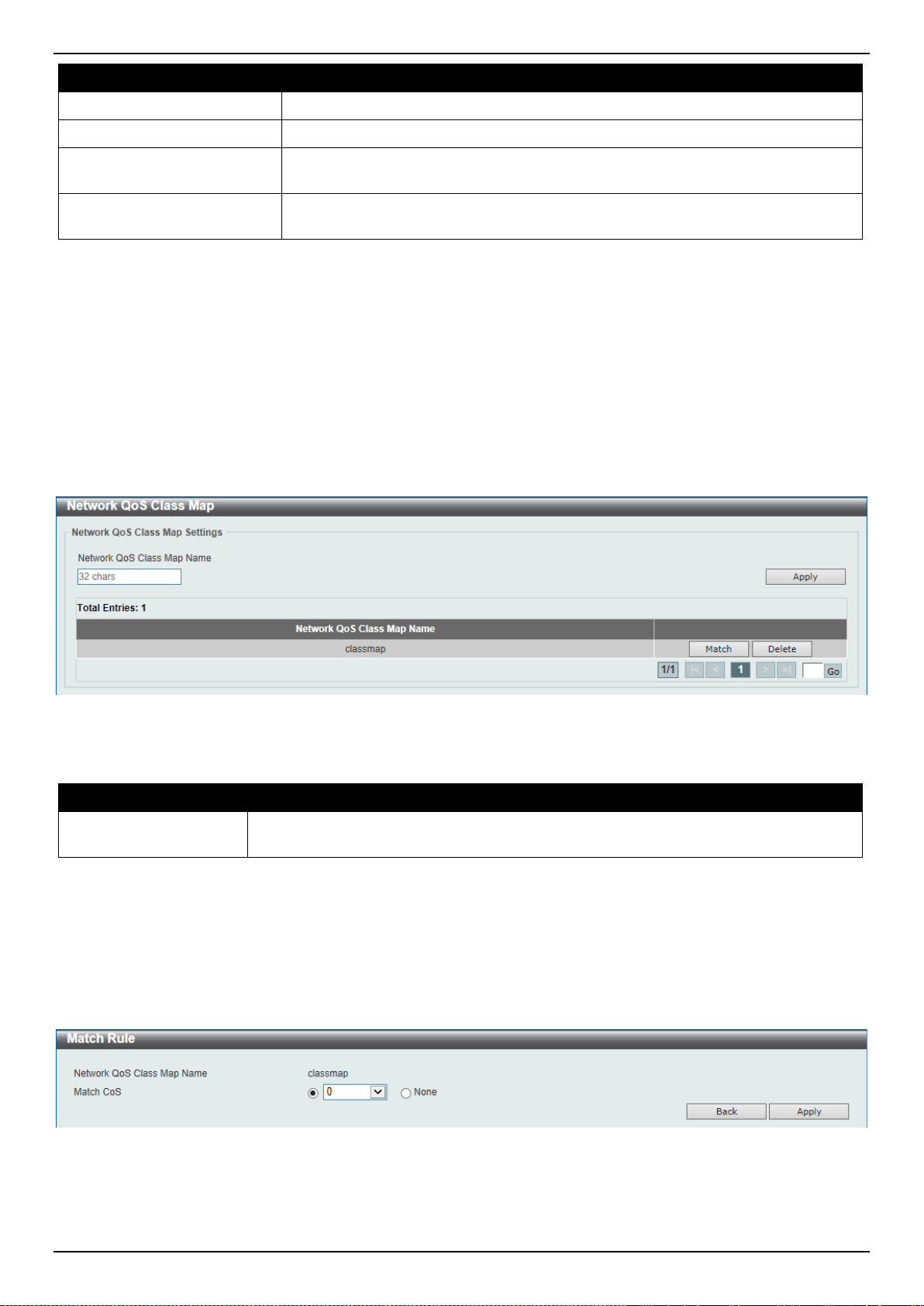
DXS-3400 Series Lite Layer 3 Stackable 10GbE Managed Switch Web UI Reference Guide
245
Parameter Description
Unit
Select the Switch unit that will be used for this configuration here.
From Port ~ To Port
Select the range of ports that will be used for this configuration here.
Direction
Select the direction option here. Options to choose from are Input and Output.
Input specified ingress traffic and output specifies egress traffic.
Policy Map Name
Enter the policy map name here. This name can be up to 32 characters long.
Select the None option to not tie a policy map to this entry.
Click the Apply button to accept the changes made.
QoS PFC
Network QoS Class Map
This window is used to display and configure the network Quality of Service (QoS) feature’s Priority-based Flow
Control (PFC) class map settings.
To view the following window, click QoS > QoS PFC > Network QoS Class Map, as shown below:
Figure 7-20 Network QoS Class Map Window
The fields that can be configured are described below:
Parameter Description
Network QoS Class
Map Name
Enter the network QoS class map’s name to be associated with a traffic policy here.
This name can be up to 32 characters long.
Click the Apply button to accept the changes made.
Click the Match button to configure the match rule settings for the map name.
Click the Delete button to delete the specified entry.
Enter a page number and click the Go button to navigate to a specific page when multiple pages exist.
After clicking the Match button, the following page will appear.
Figure 7-21 Network QoS Class Map (Match) Window
The fields that can be configured are described below:

DXS-3400 Series Lite Layer 3 Stackable 10GbE Managed Switch Web UI Reference Guide
246
Parameter Description
Match
CoS
Select the IEEE 802.1Q Class of Service (CoS) value to be matched here. The range is from 0 to 7.
When a packet is received, the packet will be given an internal CoS. This internal CoS is used to
select the transmit queue based on the CoS to queue map. The CoS queue with a higher number will
receive a higher priority. Select to None option to disable the matching of CoS values.
Click the Back button to return to the previous window.
Click the Apply button to accept the changes made.
Network QoS Policy Map
This window is used to display and configure the network QoS policy map settings.
To view the following window, click QoS > QoS PFC > Network QoS Policy Map, as shown below:
Figure 7-22 Network QoS Policy Map Window
The fields that can be configured in Create/Delete Network QoS Policy Map are described below:
Parameter Description
Network QoS Policy Map
name
Enter the network QoS policy map’s name here. This name can be up to 32
characters long.
Click the Apply button to accept the changes made.
The fields that can be configured in Traffic Policy are described below:
Parameter Description
Network QoS Policy Map
Name
Enter the network QoS policy map’s name here that will be associated with the
class map. This name can be up to 32 characters long.
Network QoS Class Map
Name
Enter the network QoS class map’s name here that will be associated with the
policy map. This name can be up to 32 characters long.
Click the Apply button to accept the changes made.
Click the Edit button to modify the specified entry.
Click the Delete button to delete the specified entry.
Enter a page number and click the Go button to navigate to a specific page when multiple pages exist.
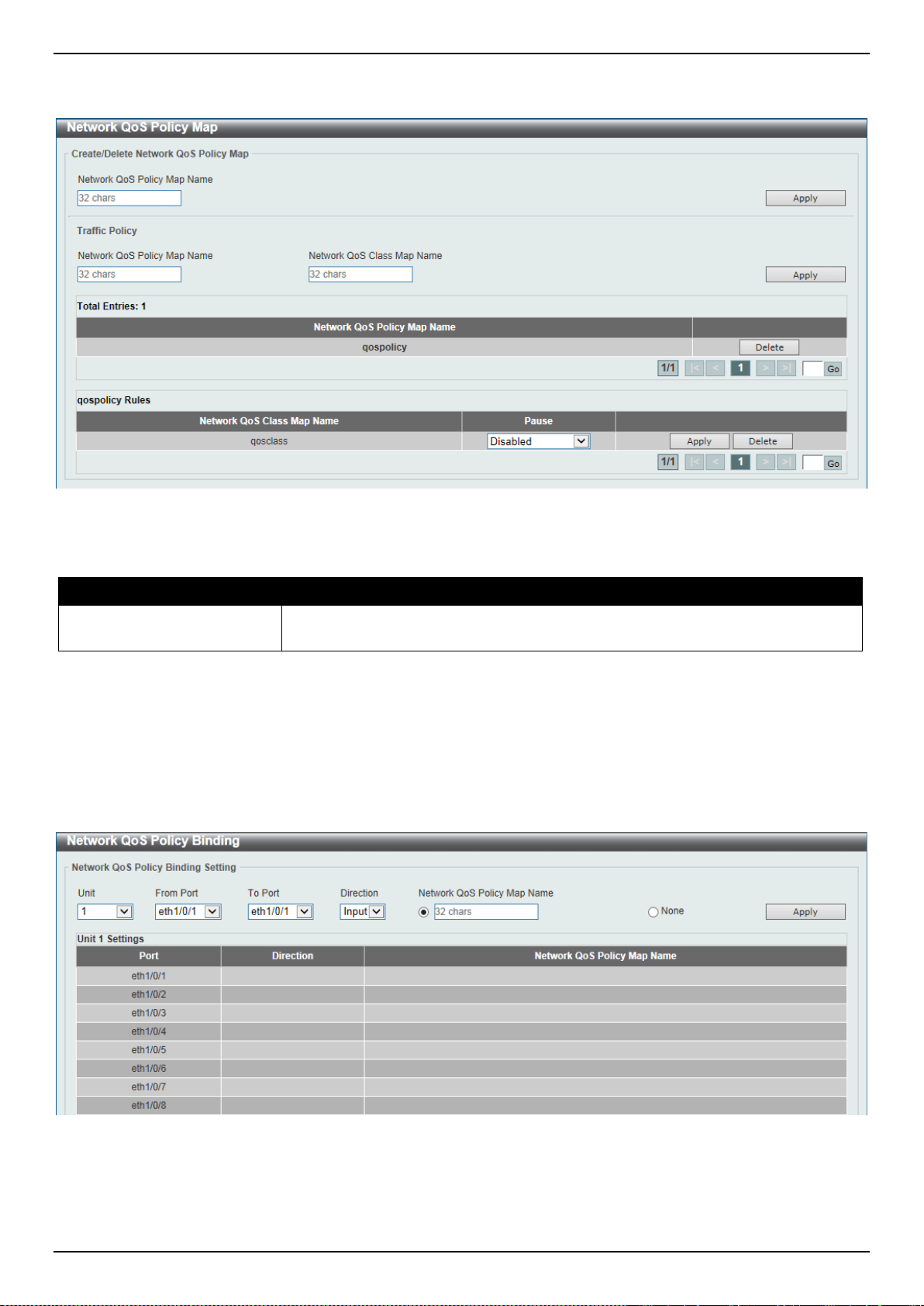
DXS-3400 Series Lite Layer 3 Stackable 10GbE Managed Switch Web UI Reference Guide
247
After clicking the Edit button, the following page will appear.
Figure 7-23 Network QoS Policy Map (Edit) Window
The fields that can be configured are described below:
Parameter Description
Pause
Select to enable or disable the pause feature here. This feature is used to enable
PFC on a class referenced in a type network QoS policy map.
Click the Apply button to accept the changes made.
Network QoS Policy Binding
This window is used to display and configure the network QoS policy’s binding settings.
To view the following window, click QoS > QoS PFC > Network QoS Policy Binding, as shown below:
Figure 7-24 Network QoS Policy Binding Window
The fields that can be configured are described below:
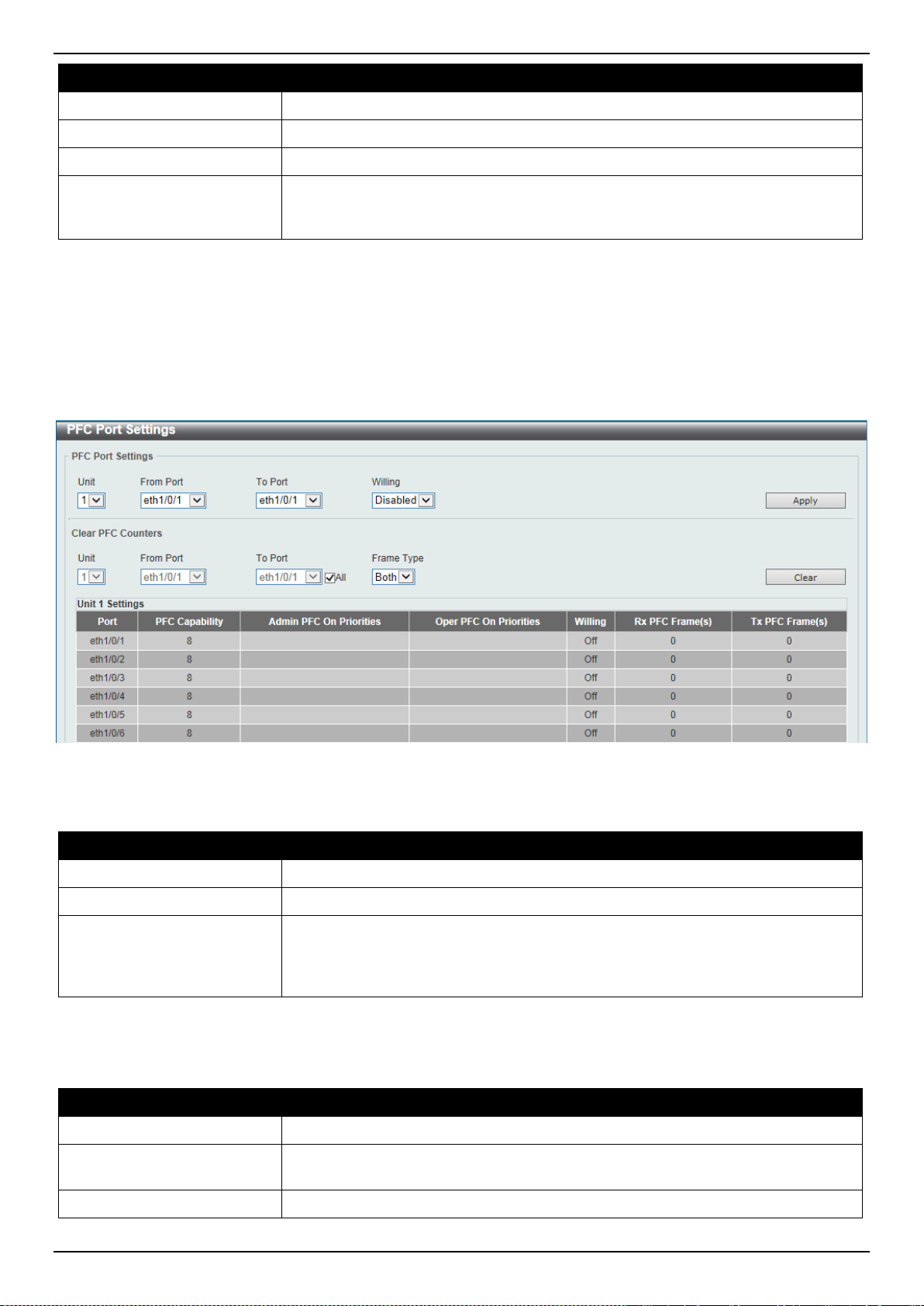
DXS-3400 Series Lite Layer 3 Stackable 10GbE Managed Switch Web UI Reference Guide
248
Parameter Description
Unit
Select the Switch’s unit ID that will be used here.
From Port ~ To Port
Select the Switch’s port range that will be used here.
Direction
Specifies to apply the policy map for ingress flow on the interface.
Network QoS Policy Map
Name
Enter the network QoS policy map’s name here. This name can be up to 32
characters long. Select the None option to not associate this configuration with a
network QoS policy map.
Click the Apply button to accept the changes made.
PFC Port Settings
This window is used to display and configure the Priority-based Flow Control (PFC) port settings.
To view the following window, click QoS > QoS PFC > PFC Port Settings, as shown below:
Figure 7-25 PFC Port Settings Window
The fields that can be configured in PFC Port Settings are described below:
Parameter Description
Unit
Select the Switch’s unit ID that will be used here.
From Port ~ To Port
Select the Switch’s port range that will be used here.
Willing
Select to enable or disable the willing feature here. This is used to turn on the
Data Center Bridging Exchange Protocol (DCBX) PFC willing feature which
indicates that the specified local port(s) is/are willing to accept PFC configurations
from a remote system.
Click the Apply button to accept the changes made.
The fields that can be configured in Clear PFC Counters are described below:
Parameter Description
Unit
Select the Switch’s unit ID that will be used here.
From Port ~ To Port
Select the Switch’s port range that will be used here. Select the All option to
specify that all ports will be used here.
Frame Type
Select the frame type that will be cleared here. Options to choose from are:
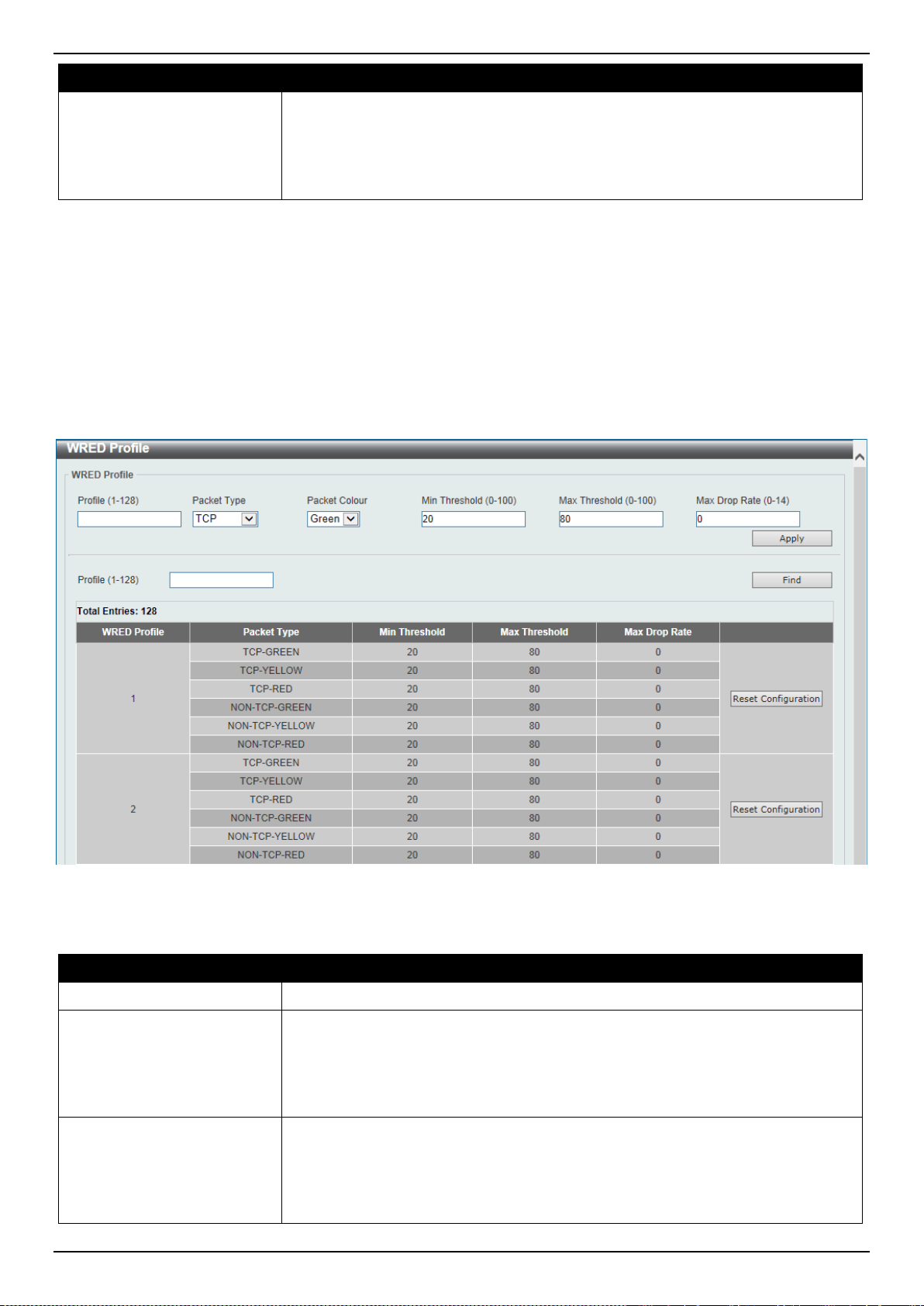
DXS-3400 Series Lite Layer 3 Stackable 10GbE Managed Switch Web UI Reference Guide
249
Parameter Description
• RX - Specifies to clear the counters of received PFC frames.
• TX - Specifies to clear the counters of transmitted PFC frames.
• Both - Specifies to clear the counters of received and transmitted PFC
frames.
Click the Clear button to clear the counters based on the selections made.
WRED
WRED Profile
This window is used to display and configure the Weighted Random Early Detection (WRED) feature’s profile settings.
To view the following window, click QoS > WRED > WRED Profile, as shown below:
Figure 7-26 WRED Profile Window
The fields that can be configured are described below:
Parameter Description
Profile
Enter the WRED profile’s ID here. The range is from 1 to 128.
Packet Type
Select the packet type here. Options to choose from are TCP and Non-TCP.
• TCP - Specifies the WRED drop parameters for the TCP packets to be set.
• Non-TCP - Specifies the WRED drop parameters for non-TCP packets to be
set.
Packet Colour
Select the packet color here. Options to choose from are Green, Yellow, and
Red.
• Green - Specifies the WRED drop parameters for green packets to be set.
• Yellow - Specifies the WRED drop parameters for yellow packets to be set.
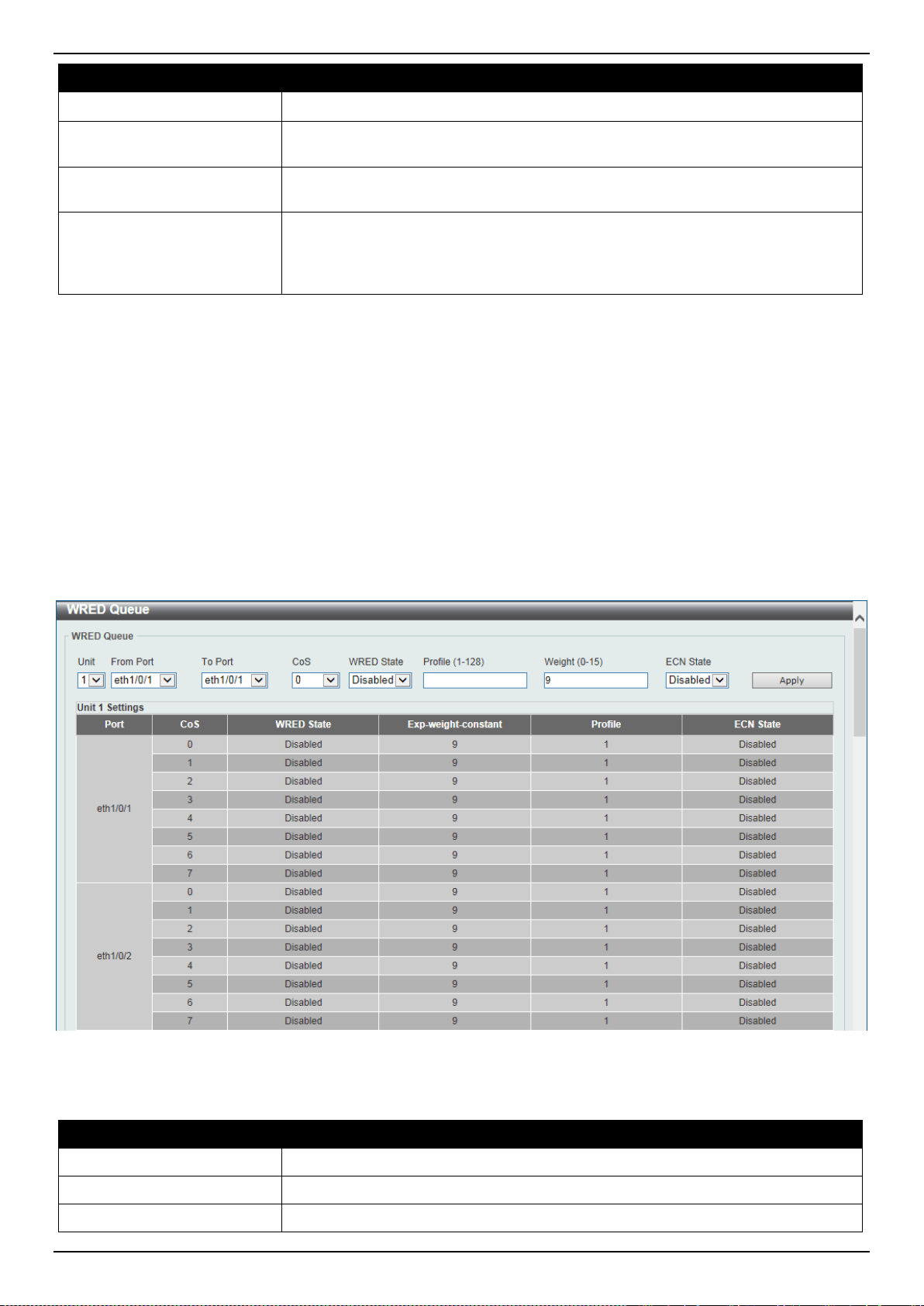
DXS-3400 Series Lite Layer 3 Stackable 10GbE Managed Switch Web UI Reference Guide
250
Parameter Description
• Red - Specifies the WRED drop parameters for red packets to be set.
Min Threshold
Enter the minimum threshold value here that will be used to start WRED dropping.
The range is from 0 to 100.
Max Threshold
Enter the maximum threshold value here over which WRED will drop all packets
destined for this queue. The range is from 0 to 100.
Max Drop Rate
Enter the maximum drop-rate value here. The range is from 0 to 14. This feature
specifies the drop probability when the average queue size reaches the maximum
threshold. When this value is zero, then the packet will not be dropped or
remarked for ECN.
Click the Apply button to accept the changes made.
Click the Find button to locate a specific entry based on the information entered.
Click the Reset Configuration button to reset the configuration on the specified entry.
WRED Queue
This window is used to display and configure the WRED feature’s queue settings. WRED drops packets, based on the
average queue size exceeding a specific threshold, to indicate congestion. Explicit Congestion Notification (ECN) is
an extension to WRED in that ECN marks packets instead of dropping them when the average queue size exceeds a
specific threshold value. When configuring the WRED ECN feature, routers and end hosts would use this marking as
a signal that the network is congested and slow down sending packets.
To view the following window, click QoS > WRED > WRED Queue, as shown below:
Figure 7-27 WRED Queue Window
The fields that can be configured are described below:
Parameter Description
Unit
Select the Switch’s unit ID that will be used here.
From Port ~ To Port
Select the Switch’s port range that will be used here.
CoS
Select the CoS value here. The range is from 0 to 7.
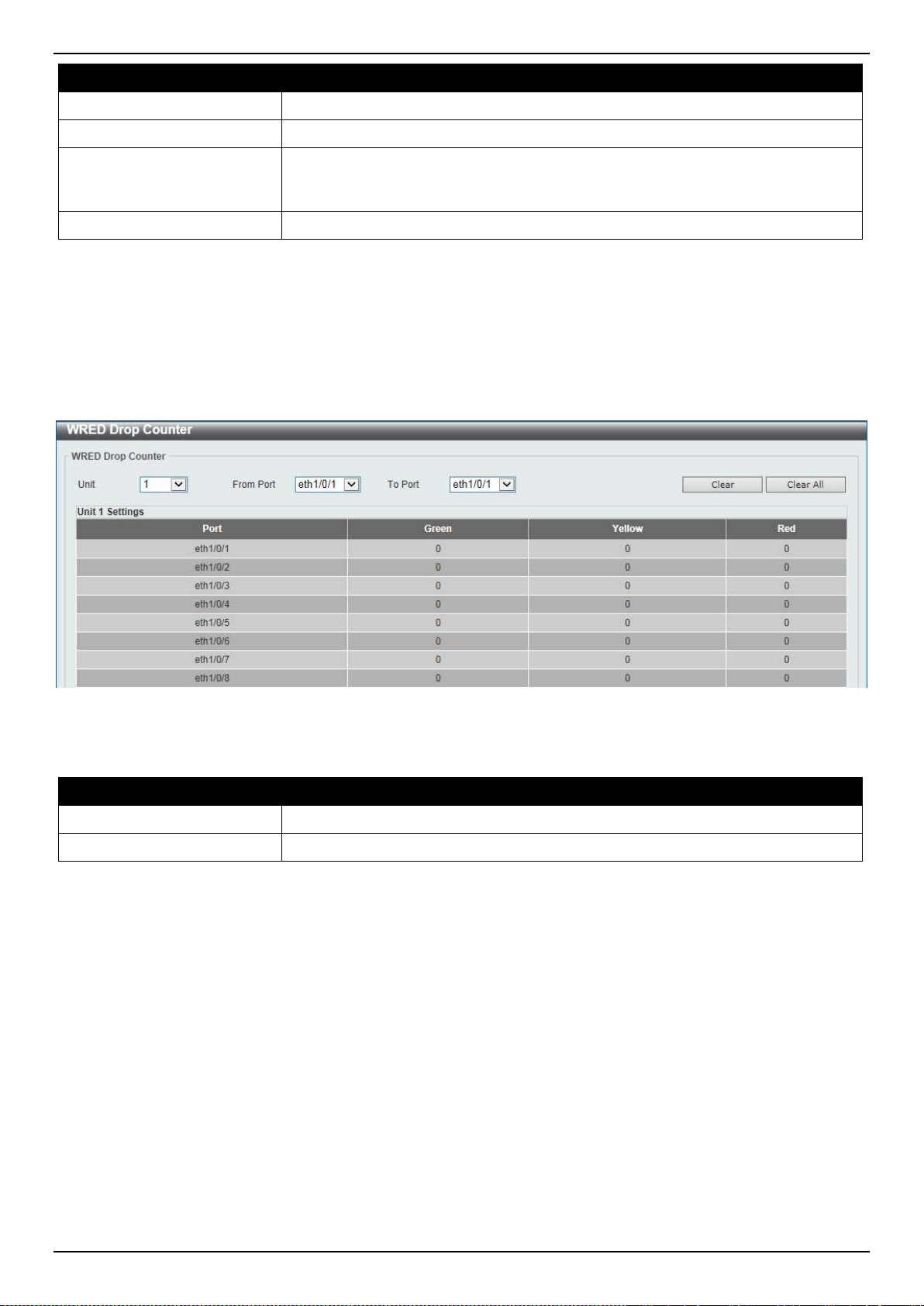
DXS-3400 Series Lite Layer 3 Stackable 10GbE Managed Switch Web UI Reference Guide
251
Parameter Description
WRED State
Select to enable or disable the WRED feature state on the specified port(s) here.
Profile
Enter the WRED profile’s ID here. The range is from 1 to 128.
Weight
Enter the exponential weight value here. The range is from 0 to 15. This feature is
used to configure the WRED exponential weight factor for the average queue size
calculation for the queue.
ECN State
Select to enable or disable the ECN feature on the specified port(s) here.
Click the Apply button to accept the changes made.
WRED Drop Counter
This window is used to display and clear the WRED feature’s drop counter information.
To view the following window, click QoS > WRED > WRED Drop Counter, as shown below:
Figure 7-28 WRED Drop Counter Window
The fields that can be configured are described below:
Parameter Description
Unit
Select the Switch’s unit ID that will be used here.
From Port ~ To Port
Select the Switch’s port range that will be used here.
Click the Clear button to clear the counter information based on the selections made.
Click the Clear All button to clear the counter information associated with all entries.
ETS
ETS Port Settings
This window is used to display and configure the Enhanced Transmission Selection (ETS) willing mode for the Data
Center Bridging Exchange Protocol (DCBX) on the specified interface(s).
To view the following window, click QoS > ETS > ETS Port Settings, as shown below:
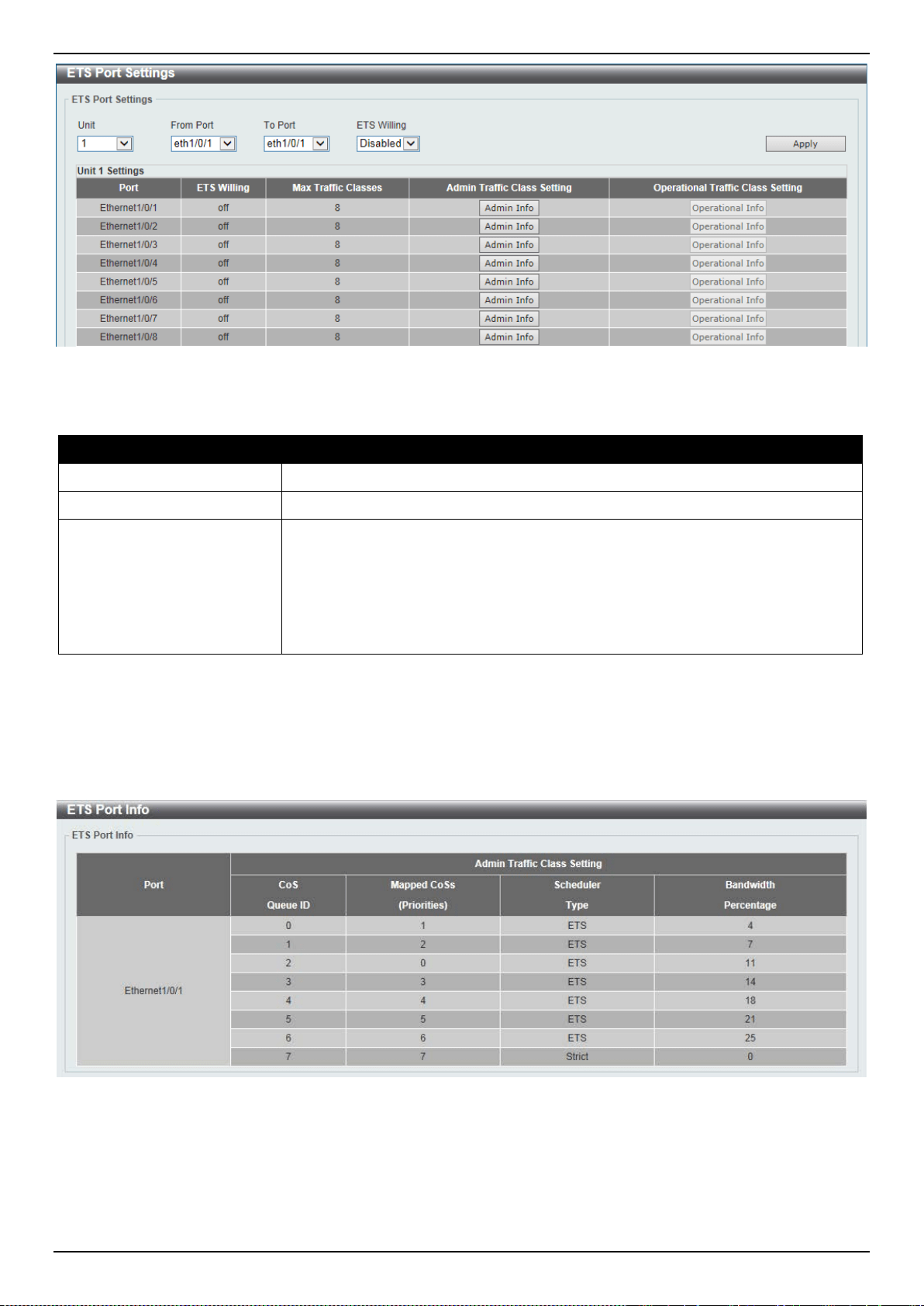
DXS-3400 Series Lite Layer 3 Stackable 10GbE Managed Switch Web UI Reference Guide
252
Figure 7-29 ETS Port Settings Window
The fields that can be configured are described below:
Parameter Description
Unit
Select the Switch’s unit ID that will be used here.
From Port ~ To Port
Select the Switch’s port range that will be used here.
ETS Willing
Select to enable or disable the ETS willing mode for DCBX on the specified
port(s). This indicates that the interface is willing to accept configurations from the
remote Switch. DCBX is used by DCB devices to exchange configuration
information with directly connected peers. The protocol may also be used for
misconfiguration detection and for configuration of the peer. The willing mode
indicates that the local port has been administratively configured to accept
configurations from the remote device.
Click the Apply button to accept the changes made.
Click the Admin Info button to view ETS administrative information associated with the port.
Click the Operational Info button to view ETS operational information associated with the port.
After clicking the Admin Info button, the following page will appear.
Figure 7-30 ETS Port Settings (Admin Info) Window
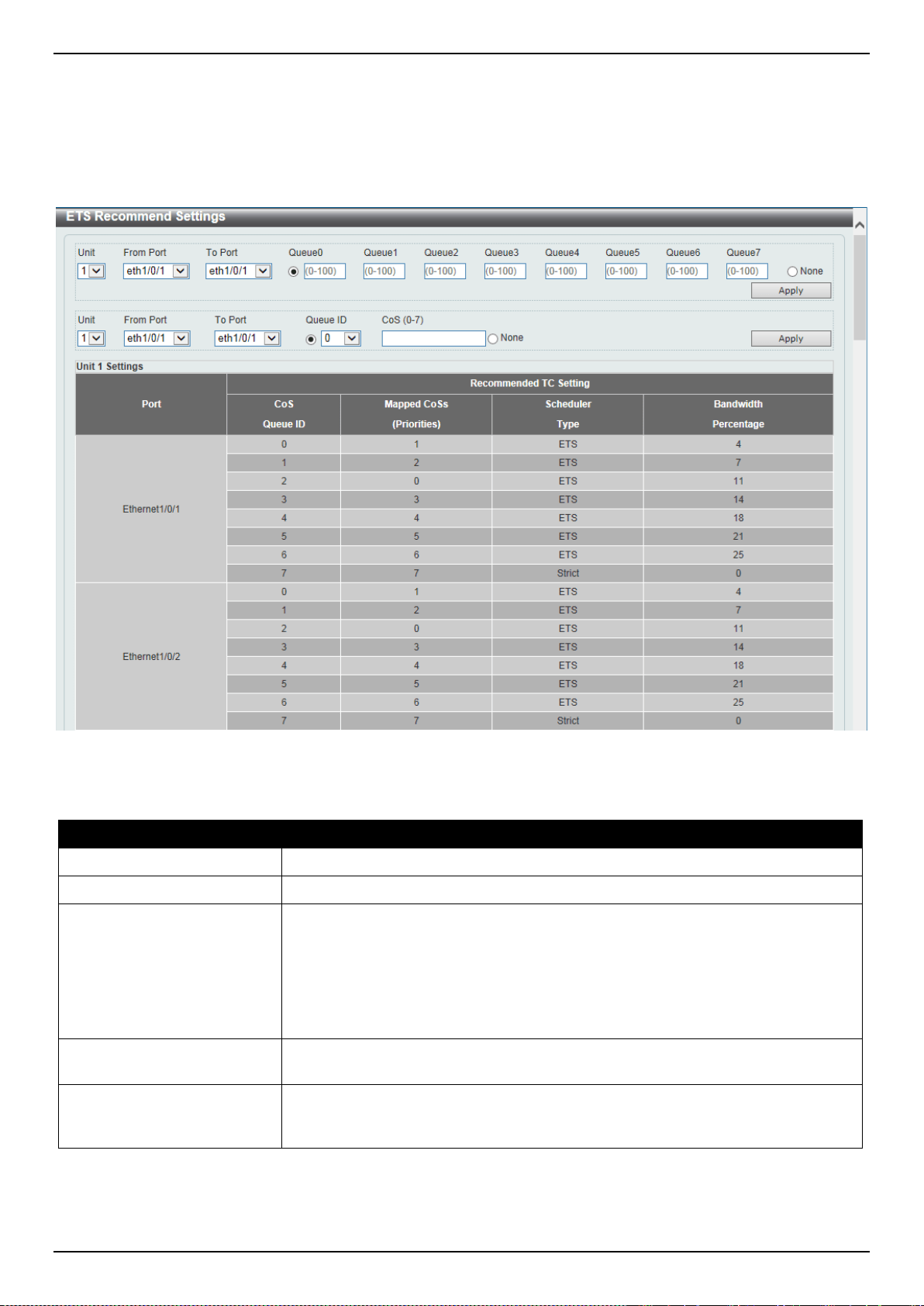
DXS-3400 Series Lite Layer 3 Stackable 10GbE Managed Switch Web UI Reference Guide
253
ETS Recommend Settings
This window is used to display and configure the ETS recommended settings on the specified interface. These
settings will be translated to a DCBX ETS recommendation TLV. The TLV is encoded into each LLDP message and
may be transmitted by a system in order to indicate a recommendation on how ETS should be configured.
To view the following window, click QoS > ETS > ETS Recommended Settings, as shown below:
Figure 7-31 ETS Recommend Settings Window
The fields that can be configured are described below:
Parameter Description
Unit
Select the Switch’s unit ID that will be used here.
From Port ~ To Port
Select the Switch’s port range that will be used here.
Queue 1 ~ Queue 7
Select and enter the recommended bandwidth for traffic classes 0 to 7 here that
will be associated with the selected port(s). It is required to specify 8 values for
traffic class 0 to 7 respectively. The sum of the bandwidth assigned to a given port
is required at all times to be equal to 100. An operation that attempts to change
the bandwidth where the sum is not 100 will be rejected. The range is from 0 to
100 percent. The value of zero stands for strict priority mode. Select the None
option to disable this feature on the specified port(s).
Queue ID
Select the queue ID (traffic class ID) that will be associated with the port(s) here.
The range is from 0 to 7.
CoS
Enter the CoS value that will be associated with the selected port(s) here. The
range is from 0 to 7. Select the None option to disable this feature on the
specified port(s)
Click the Apply button to accept the changes made.
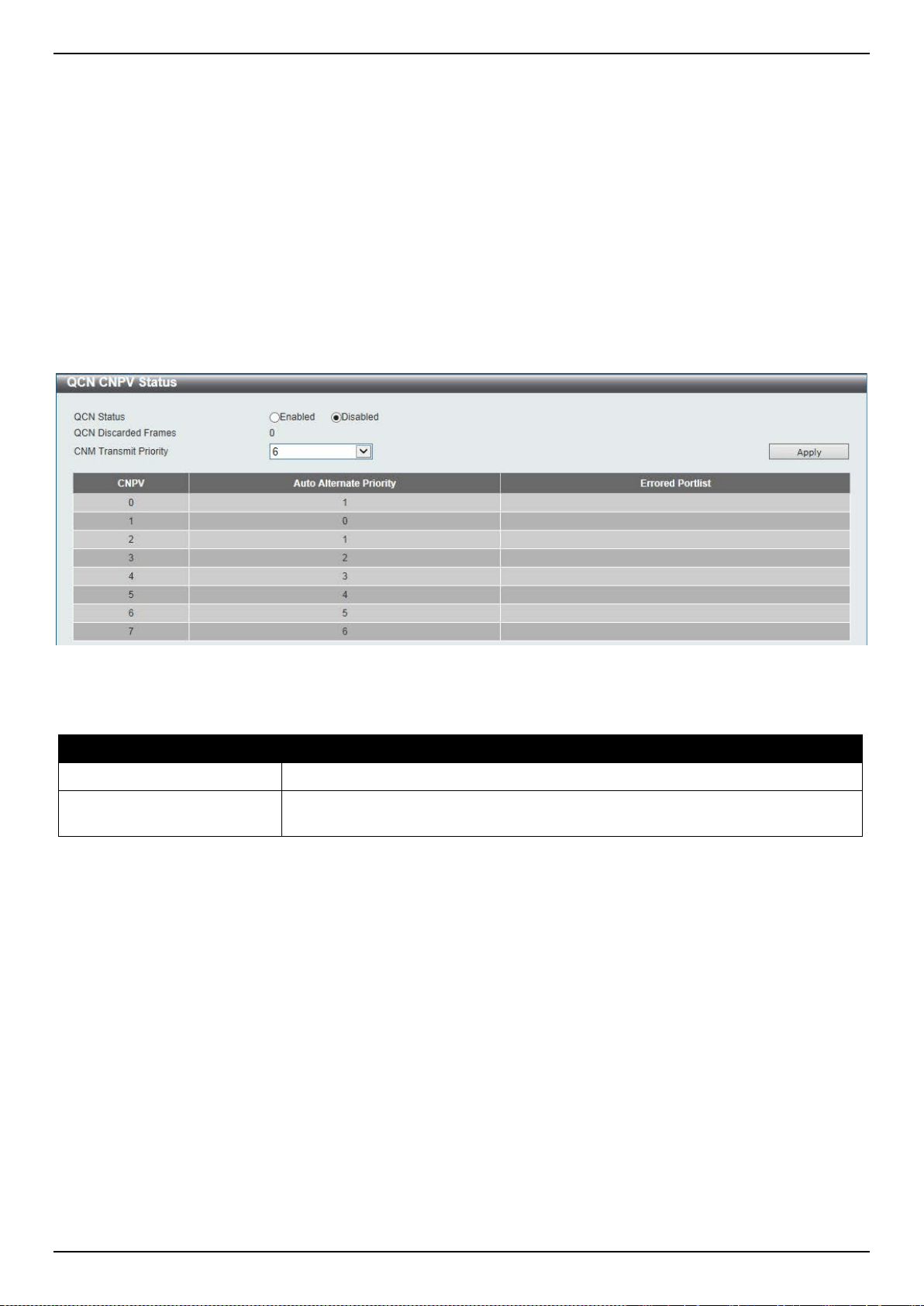
DXS-3400 Series Lite Layer 3 Stackable 10GbE Managed Switch Web UI Reference Guide
254
QCN
QCN CNPV Status
This window is used to display and configure the Quantized Congestion Notification (QCN) Congestion Notification
Priority Value (CNPV) status on the Switch.
QCN is a form of end-to-end congestion management defined in IEEE 802.1.Qau. The purpose of QCN is to ensure
that congestion is controlled from the sending device to the receiving device in a dynamic fashion that can deal with
changing bottlenecks.
When an IEEE 802.1p priority is assigned as a CNPV globally, the CNPV configuration for all interfaces will be
created with a default value. When a priority is deleted from CNPV, the CNPV configuration for all interfaces will be
deleted.
To view the following window, click QoS > QCN > QCN CNPV Status, as shown below:
Figure 7-32 QCN CNPV Status Window
The fields that can be configured are described below:
Parameter Description
QCN Status
Select to globally enable or disable the QCN feature here.
CNM Transmit Priority
Select the IEEE 802.1p priority value for all Congestion Notification Messages
(CNMs) here. The range is from 0 to 7. By default, this value is 6.
Click the Apply button to accept the changes made.
QCN CNPV Settings
This window is used to display and configure the QCN feature’s CNPV settings.
To view the following window, click QoS > QCN > QCN CNPV Settings, as shown below:
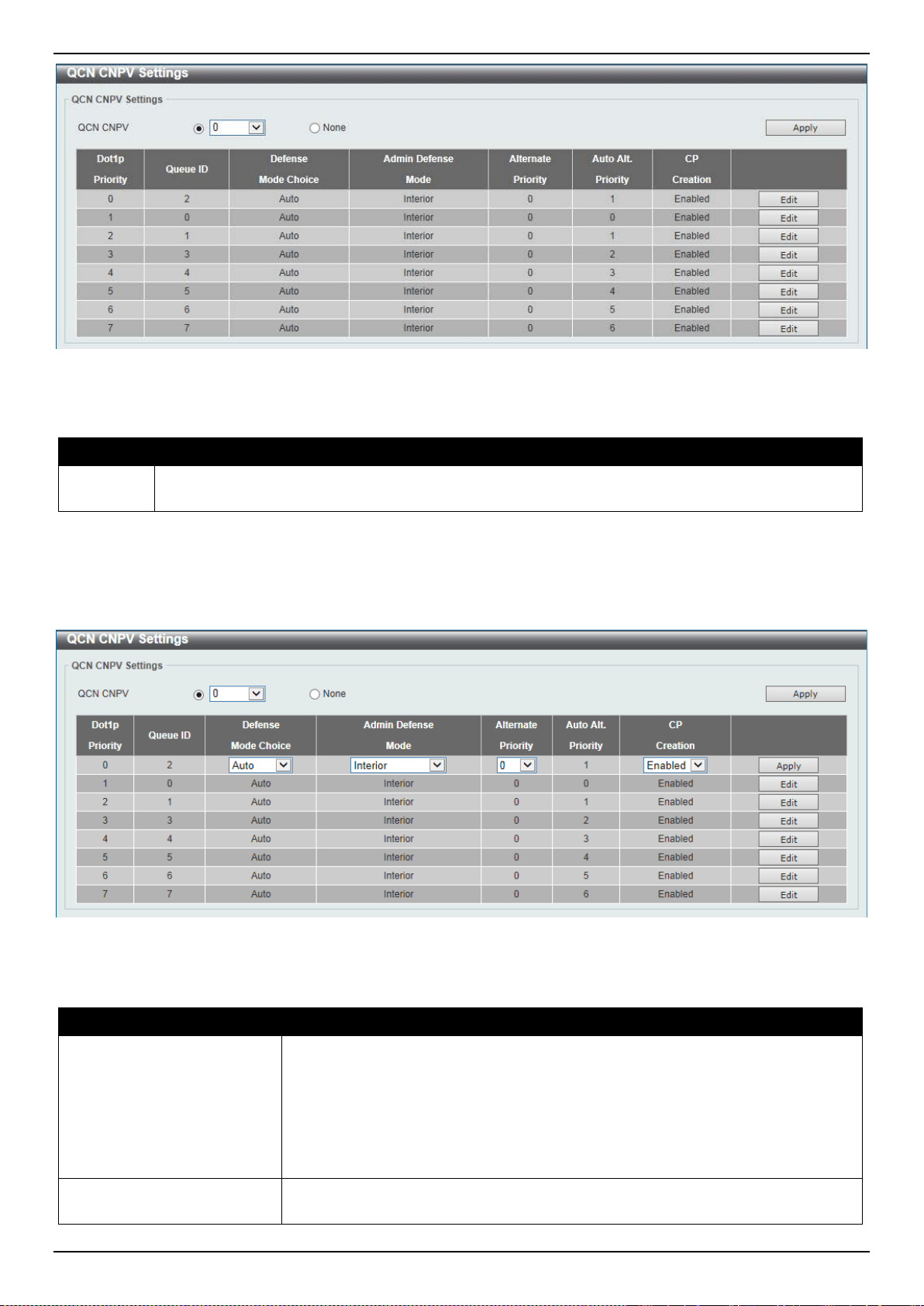
DXS-3400 Series Lite Layer 3 Stackable 10GbE Managed Switch Web UI Reference Guide
255
Figure 7-33 QCN CNPV Settings Window
The fields that can be configured are described below:
Parameter Description
QCN
CNPV
Select the IEEE 802.1p priority value to be the Congestion Notification Priority Value (CNPV) here.
The range is from 0 to 7. Select the None option to use the default value.
Click the Apply button to accept the changes made.
Click the Edit button to modify the specified entry.
After clicking the Edit button, the following page will appear.
Figure 7-34 QCN CNPV Settings (Edit) Window
The fields that can be configured in the table are described below:
Parameter Description
Defense Mode Choice
Select the defense mode choice here. Options to choose from are Admin and
Auto. By default, this option is Auto.
• Admin - Specifies that the default Congestion Notification Domain (CND)
defense mode and alternate priority are specified by administrator.
• Auto - Specifies that the default CND defense mode and alternate priority
are controlled automatically.
Admin Defense Mode
Select the admin defense mode here. Options to choose from are Disabled,
Interior, Interior-ready, and Edge. By default, this option is Interior.
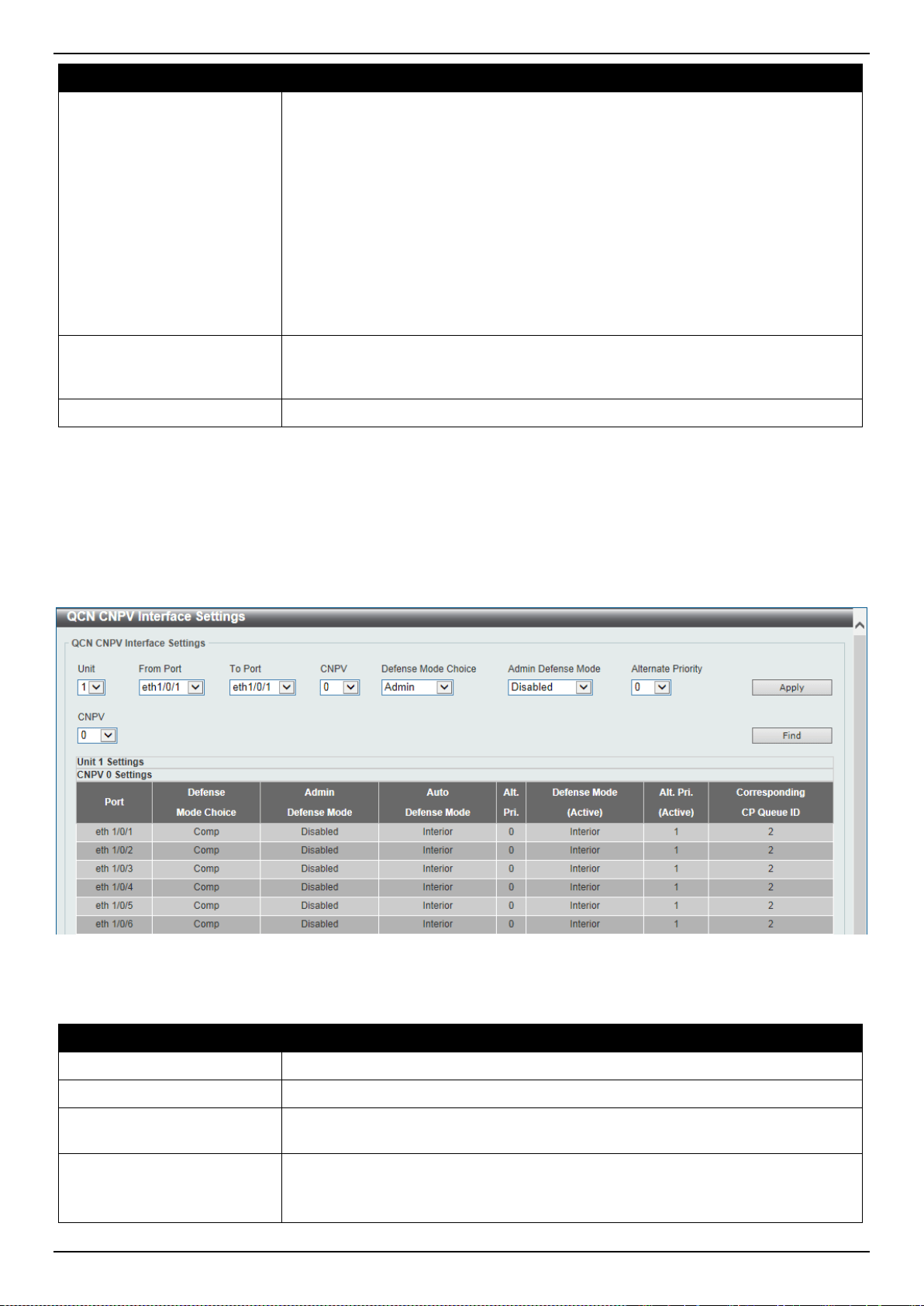
DXS-3400 Series Lite Layer 3 Stackable 10GbE Managed Switch Web UI Reference Guide
256
Parameter Description
• Disable - Specifies that the congestion notification capability is
administratively disabled for this priority.
• Interior - Specifies that the priority parameter of the frame input is not
remapped to or from this priority and the frames are transmitted without a
CN-TAG.
• Interior-ready - Specifies that the priority parameter of the frame input is not
remapped to or from this priority and the CN-TAGs won’t be stripped when
transmitting the frames.
• Edge - Specifies that the priority parameter of the frame input at this priority
is remapped to an alternate value. Frames at other priorities are not
remapped to this priority and the frames are transmitted without a CN-TAG.
Alternate Priority
Select the alternate priority value here. This specifies a priority value to which this
priority value is to be remapped when the receiving frame with an 802.1p priority
equal to the specified CNPV at Edge port. The range is from 0 to 7.
CP Creation
Select to enable or disable the CP creation feature here.
Click the Apply button to accept the changes made.
QCN CNPV Interface Settings
This window is used to display and configure the QCN CNPV interface settings.
To view the following window, click QoS > QCN > QCN CNPV Interface Settings, as shown below:
Figure 7-35 QCN CNPV Interface Settings Window
The fields that can be configured are described below:
Parameter Description
Unit
Select the Switch’s unit ID that will be used here.
From Port ~ To Port
Select the Switch’s port range that will be used here.
CNPV
Select the CNPV value that will be used on the specified port(s) here. The range
is from 0 to 7.
Defense Mode Choice
Select the defense mode choice that will be used on the specified port(s) here.
Options to choose from are Admin, Auto, and Comp.
• Admin - Specifies that the default CND defense mode and alternate priority
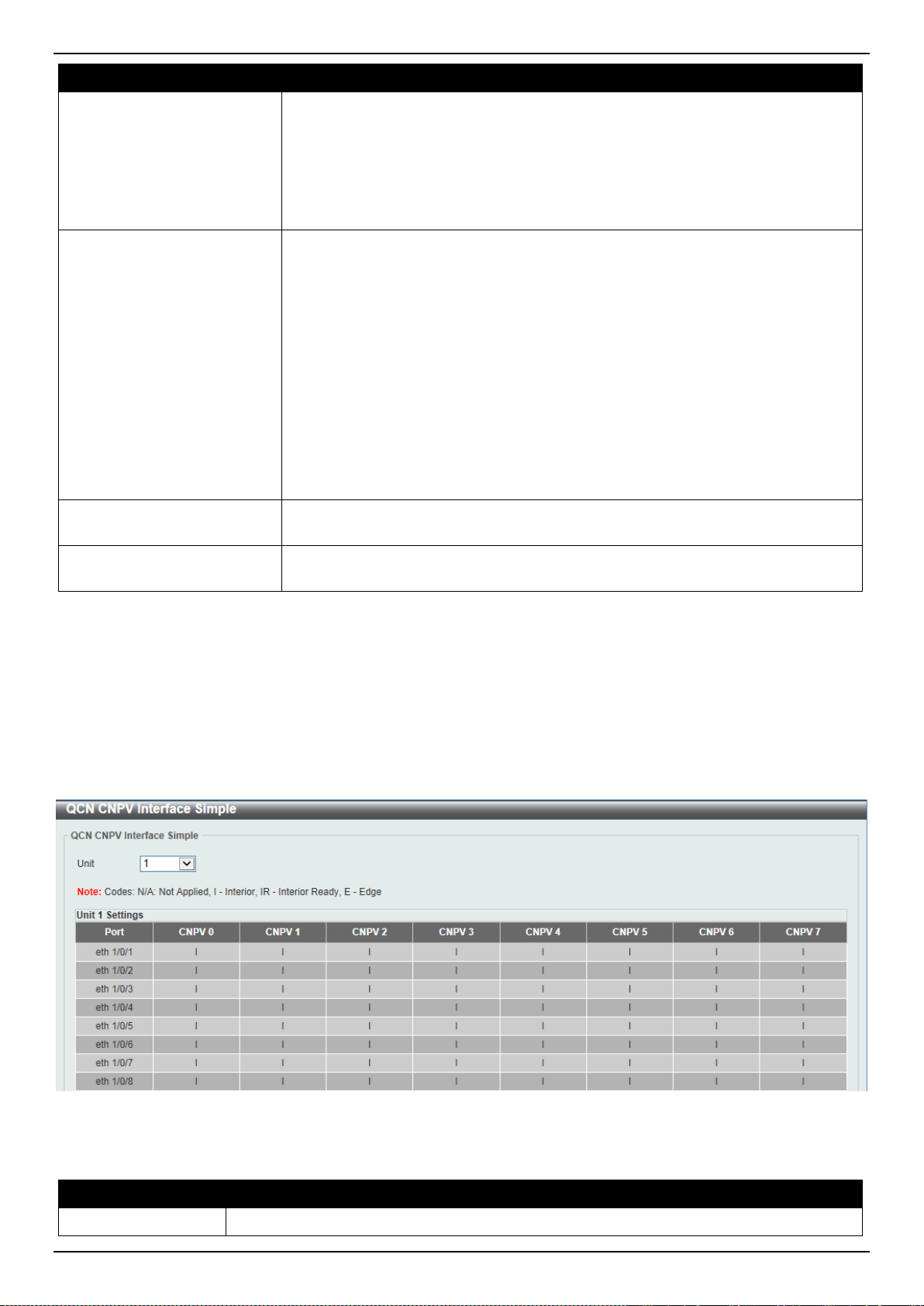
DXS-3400 Series Lite Layer 3 Stackable 10GbE Managed Switch Web UI Reference Guide
257
Parameter Description
are specified by administrator.
• Auto - Specifies that the default CND defense mode and alternate priority
are controlled automatically.
• Comp - Specifies that the default CND defense mode and alternate priority
are determined by global setting. This is the default option. Comp stands for
Component.
Admin Defense Mode
Select the admin defense mode that will be used on the specified port(s) here.
Option to choose from are Disabled, Interior, Interior-ready, and Edge.
• Disable - Specifies that the congestion notification capability is
administratively disabled for this priority. This is the default option.
• Interior - Specifies that the priority parameter of frame input is not remapped
to or from this priority and the frames are transmitted without a CN-TAG.
• Interior-ready - Specifies that the priority parameter of frame input is not
remapped to or from this priority and the CN-TAGs won’t be stripped off
when transmitting the frames.
• Edge - Specifies that the priority parameter of frame input at this priority is
remapped to an alternate value. Frames at other priorities are not remapped
to this priority and the frames are transmitted without a CN-TAG.
Alternate Priority
Select the alternate priority value that will be used on the specified port(s) here.
The range is from 0 to 7.
CNPV
Select the CNPV value that will be used in the search here. The range is from 0 to
7.
Click the Apply button to accept the changes made.
Click the Find button to locate a specific entry based on the information entered.
QCN CNPV Interface Simple
This window is used to display the simple QCN configuration and status for each CNPV.
To view the following window, click QoS > QCN > QCN CNPV Interface Simple, as shown below:
Figure 7-36 QCN CNPV Interface Simple Window
The fields that can be configured are described below:
Parameter Description
Unit
Select the Switch’s unit ID that will be used here.
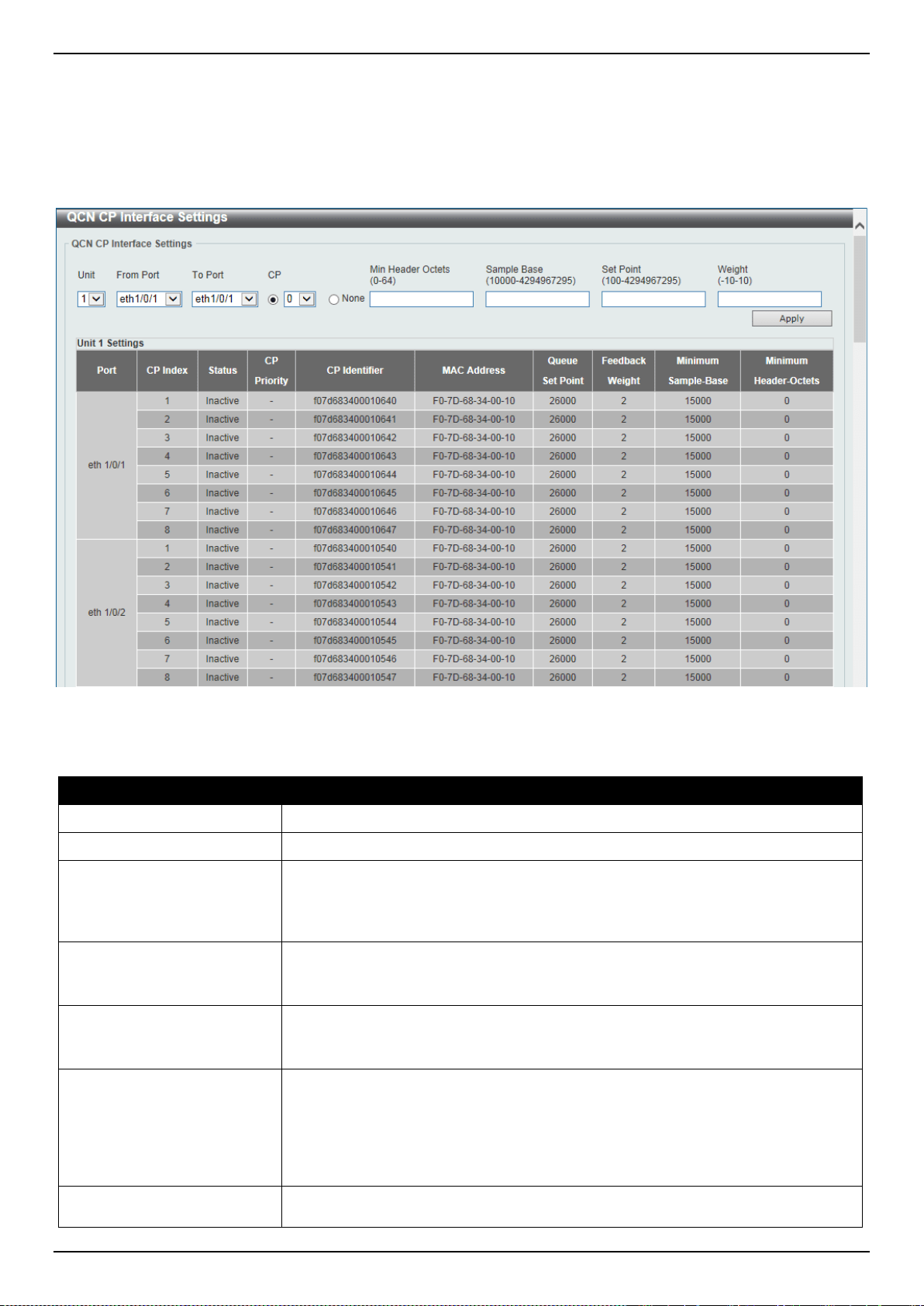
DXS-3400 Series Lite Layer 3 Stackable 10GbE Managed Switch Web UI Reference Guide
258
QCN CP Interface Settings
This window is used to display and configure the QCN Congestion Point (CP) interface settings.
To view the following window, click QoS > QCN > QCN CP Interface Settings, as shown below:
Figure 7-37 QCN CP Interface Settings Window
The fields that can be configured are described below:
Parameter Description
Unit
Select the Switch’s unit ID that will be used here.
From Port ~ To Port
Select the Switch’s port range that will be used here.
CP
Select the queue ID that the Congestion Point (CP) is attached to here. The
relation between the queue ID and CP is one-to-one. The CP is specified by the
queue ID to which the CP is attached to. The range is from 0 to 7. Select the
None option to use the default settings on the specified port(s).
Min Header Octets
Enter the minimum number of octets to be returned in a CNM from the data frame
that triggered transmission of the CNM here. The range is from 0 to 64. By
default, this value is 0.
Sample Base
Enter the minimum number of octets to queue in the CP’s queue between
transmissions of CNMs here. The range is from 10000 to 4294967295 octets. By
default, this value is 15000 octets.
Set Point
Enter the CP Queue Set-point (cpQSp) value in octets for the queue managed by
this CP here. The cpQSp is defined in IEEE 802.1Qau as an unsigned integer.
The set-point for the queue. This is the target number of octets in the CP’s queue.
CNMs are transmitted to the sources of the frames queued in this CP's queue in
order to keep the total number of octets stored in the queue at this set point. The
range is from 100 to 4294967295 octets. By default, this value is 26000 octets.
Weight
Enter the weight change value in the queue length in the CP Quantized Feedback
(cpFb) calculation here. The weight (cpW) is equal to two to the power of this
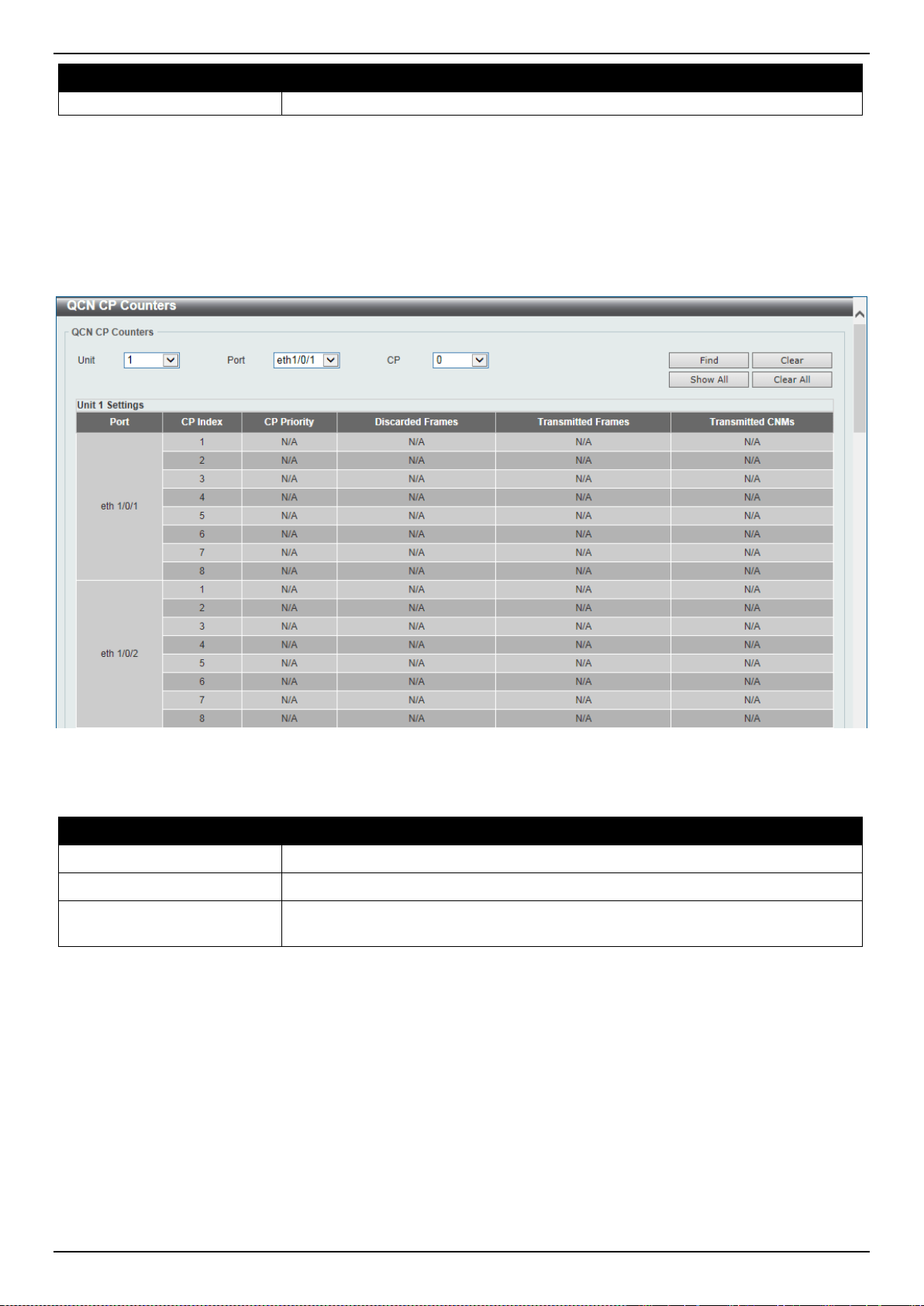
DXS-3400 Series Lite Layer 3 Stackable 10GbE Managed Switch Web UI Reference Guide
259
Parameter Description
value. The range is from -10 to 10. By default, this value is 2.
Click the Apply button to accept the changes made.
QCN CP Counters
This window is used to display and clear the QCN CP counters.
To view the following window, click QoS > QCN > QCN CP Counters, as shown below:
Figure 7-38 QCN CP Counters Window
The fields that can be configured are described below:
Parameter Description
Unit
Select the Switch’s unit ID that will be used here.
Port
Select the port that will be used here.
CP
Select the queue ID (same as the outbound queue ID) to specify which
Congestion Point (CP) to clear counters.
Click the Find button to locate a specific entry based on the information entered.
Click the Clear button to clear the counter information based on the information specified.
Click the Show All button to display all the entries.
Click the Clear All button to clear the counter information associated with all entries.
QCN CPID Table
This window is used to display the relationship between the CP identifier, interface, and CP index.
To view the following window, click QoS > QCN > QCN CPID Table, as shown below:
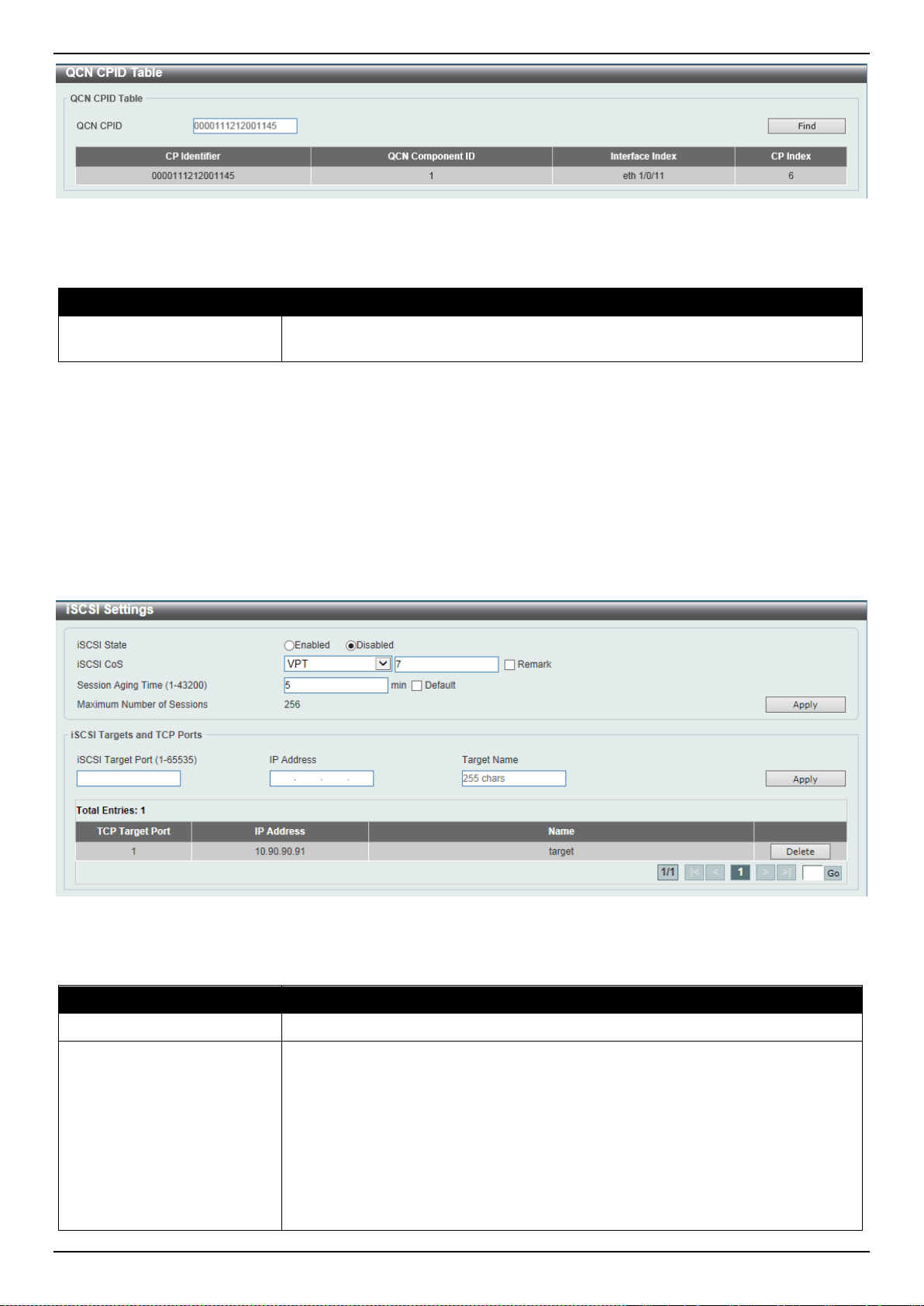
DXS-3400 Series Lite Layer 3 Stackable 10GbE Managed Switch Web UI Reference Guide
260
Figure 7-39 QCN CPID Table Window
The fields that can be configured are described below:
Parameter Description
QCN CPID
Enter the Congestion Point Identifier (CPID) to get the corresponding interface ID
and CP index. This ID is 16 hexadecimal digits long.
Click the Find button to locate a specific entry based on the information entered.
iSCSI
iSCSI Settings
This window is used to display and configure the Internet Small Computer Systems Interface (iSCSI) settings.
To view the following window, click QoS > iSCSI > iSCSI Settings, as shown below:
Figure 7-40 iSCSI Settings Window
The fields that can be configured are described below:
Parameter Description
iSCSI State
Select to globally enable or disable the iSCSI awareness feature here.
iSCSI CoS
Select the iSCSI CoS that will be configured here. Options to choose from are:
• VPT - Specifies to use VLAN Priority Tag (VPT) to assign iSCSI session
packets. Enter the VPT value in the space provided.
• DSCP - Specifies to use DSCP to assign iSCSI session packets. Enter the
DSCP value in the space provided.
• Default - Specifies to use the default settings. By default, the VPT is used
with the value of 7.
Select the Remark option to mark the iSCSI frames with the configured VPT or
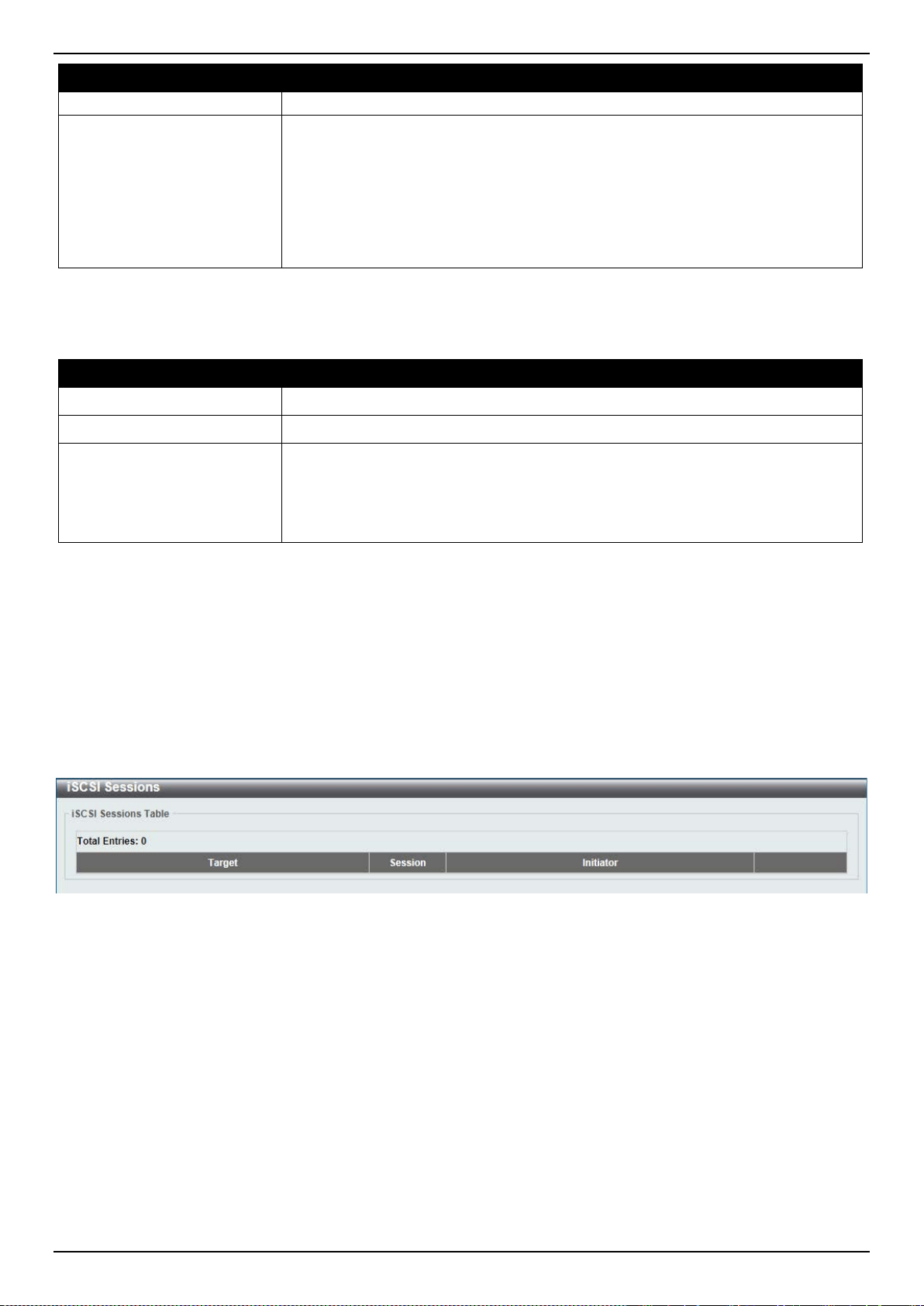
DXS-3400 Series Lite Layer 3 Stackable 10GbE Managed Switch Web UI Reference Guide
261
Parameter Description
DSCP when egressing the Switch.
Session Aging Time
Enter the session aging time value here. The range is from 1 to 43200 minutes.
This is used to configure the aging time for iSCSI sessions. When configuring the
aging time to be longer than the current setting, the current sessions will be timed
out and use the new aging time. When configuring the aging time to be shorter
than the current setting, sessions that are longer than the new aging time will be
deleted, and sessions that are shorter than or equal to the new aging time will be
continue to be monitored with the new setting. Select the Default option to use
the default value which is 5 minutes.
Click the Apply button to accept the changes made.
The fields that can be configured in iSCSI Targets and TCP Ports are described below:
Parameter Description
iSCSI Target Port
Enter the iSCSI target port number here. The range is from 1 to 65535.
IP Address
Enter the IP address of the iSCSI target here.
Target Name
Enter the iSCSI target name here. This string can be up to 255 characters long.
The name can be manually configured, or obtained from iSNS or from a
sendTargets response. The initiator must present both its iSCSI Initiator Name
and the iSCSI Target Name to connect in the first login request of a new session
or connection.
Click the Apply button to accept the changes made.
Click the Delete button to delete the specified entry.
Enter a page number and click the Go button to navigate to a specific page when multiple pages exist.
iSCSI Sessions
This window is used to display the iSCSI active session table.
To view the following window, click QoS > iSCSI > iSCSI Sessions, as shown below:
Figure 7-41 iSCSI Sessions Window
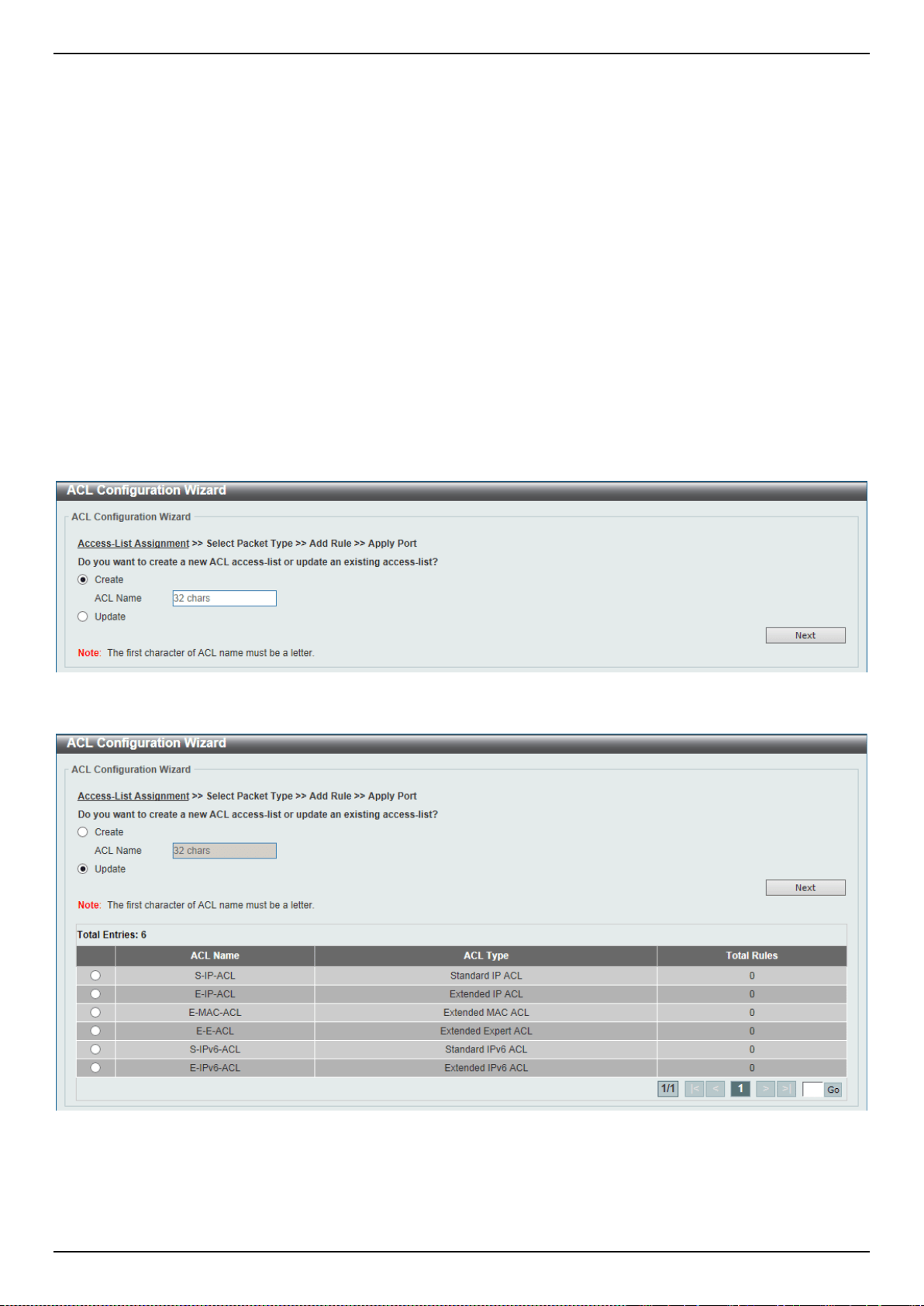
DXS-3400 Series Lite Layer 3 Stackable 10GbE Managed Switch Web UI Reference Guide
262
8. Access Control List (ACL)
ACL Configuration Wizard
ACL Access List
ACL Interface Access Group
ACL VLAN Access Map
ACL VLAN Filter
CPU ACL
ACL Configuration Wizard
This window is used to guide the user to create a new ACL access list or configure an existing ACL access list.
Step 1 - Create/Update
To view the following window, click ACL > ACL Configuration Wizard, as shown below:
Figure 8-1 ACL Configuration Wizard (Create) Window
Figure 8-2 ACL Configuration Wizard (Update) Window
The fields that can be configured are described below:
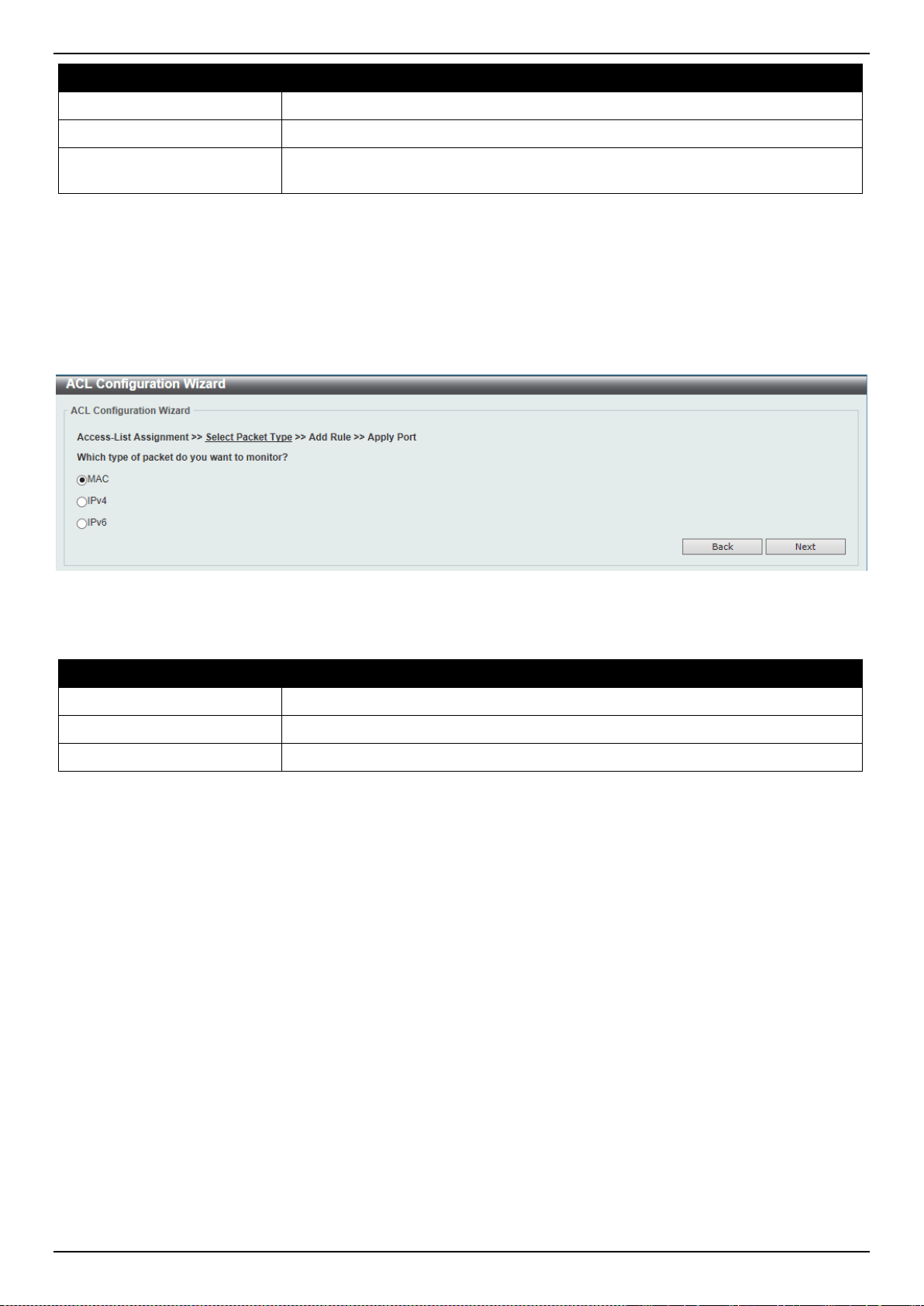
DXS-3400 Series Lite Layer 3 Stackable 10GbE Managed Switch Web UI Reference Guide
263
Parameter Description
Create
Select this option to create a new ACL access list using the configuration wizard.
ACL Name
Enter the new ACL’s name here. This name can be up to 32 characters long.
Update
Select this option to update an existing ACL access list. Select the existing ACL in
the table to process with the update.
Click the Next button to continue to the next step.
Enter a page number and click the Go button to navigate to a specific page when multiple pages exist.
Step 2 - Select Packet Type
After clicking the Next button, the following window will appear.
Figure 8-3 ACL Configuration Wizard (Create, Packet Type) Window
The fields that can be configured are described below:
Parameter Description
MAC
Select to create/update a MAC ACL.
IPv4
Select to create/update an IPv4 ACL.
IPv6
Select to create/update an IPv6 ACL.
Click the Back button to return to the previous step.
Click the Next button to continue to the next step.
Step 3 - Add Rule
MAC
After clicking the MAC radio button and the Next button, the following window will appear.
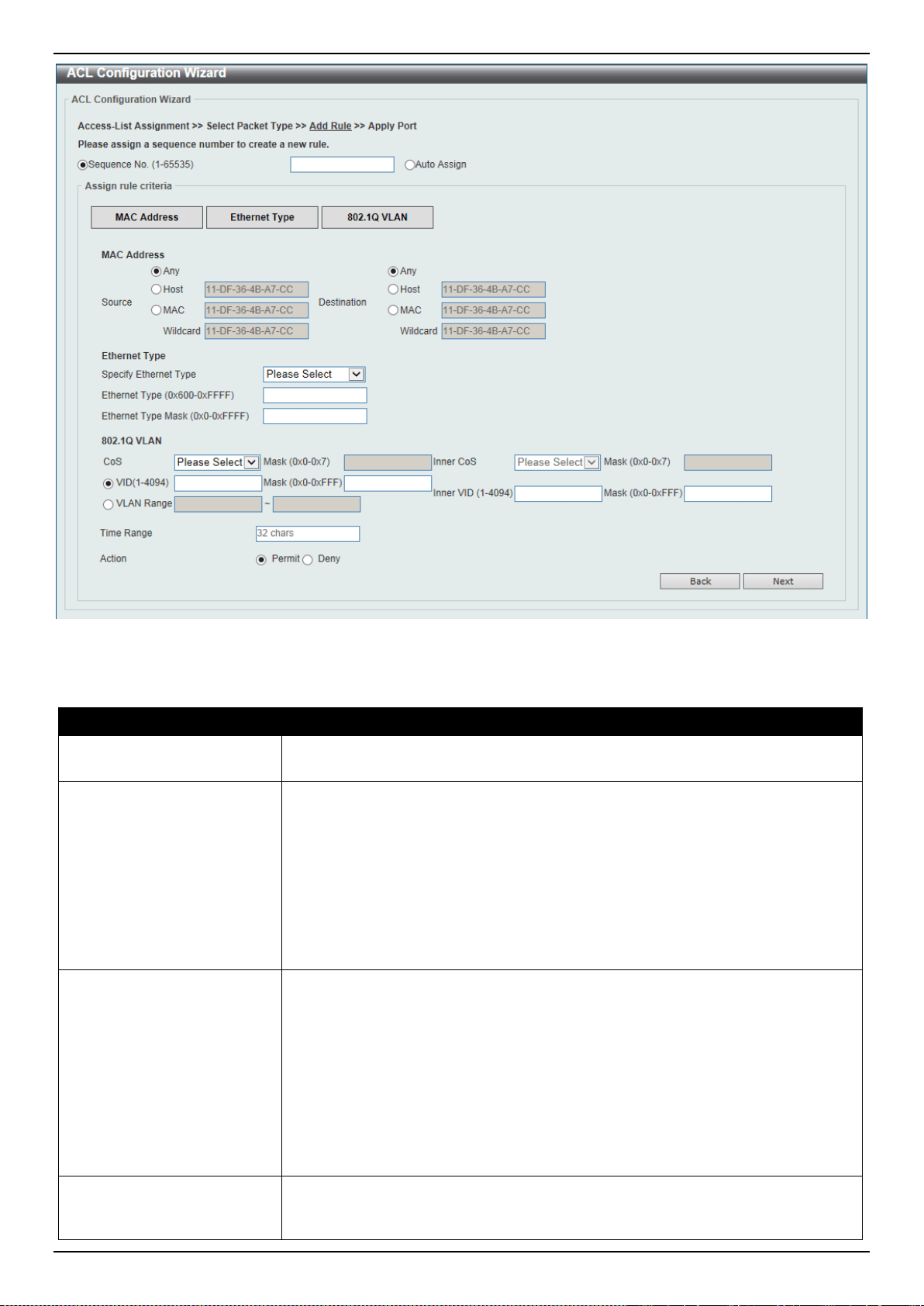
DXS-3400 Series Lite Layer 3 Stackable 10GbE Managed Switch Web UI Reference Guide
264
Figure 8-4 ACL Configuration Wizard (Create, Packet Type, MAC) Window
The fields that can be configured are described below:
Parameter Description
Sequence No.
Enter the ACL rule number here. This value must be between 1 and 65535.
Select Auto Assign to automatically generate an ACL rule number for this entry.
Source
Select and enter the source MAC address information here. Options to choose
from are Any, Host, and MAC.
• When the Any option is selected, any source traffic will be evaluated
according to the conditions of this rule.
• When the Host option is selected, enter the source host’s MAC address
here.
• When the MAC option is selected, the Wildcard option will also be available.
Enter the source MAC address and wildcard value in the spaces provided.
Destination
Select and enter the destination MAC address information here. Options to
choose from are Any, Host, and MAC.
• When the Any option is selected, any destination traffic will be evaluated
according to the conditions of this rule.
• When the Host option is selected, enter the destination host’s MAC address
here.
• When the MAC option is selected, the Wildcard option will also be available.
Enter the destination MAC address and wildcard value in the spaces
provided.
Specify Ethernet Type
Select the Ethernet type option here. Options to choose from are aarp, appletalk,
decent-iv, etype-6000, etype-8042, lat, lavc-sca, mop-console, mop-dump,
vines-echo, vines-ip, xns-idp, and arp.

DXS-3400 Series Lite Layer 3 Stackable 10GbE Managed Switch Web UI Reference Guide
265
Parameter Description
Ethernet Type
Enter the Ethernet type hexadecimal value here. This value must be between
0x600 and 0xFFFF. When any Ethernet type profile is selected in the Specify
Ethernet Type drop-down list, the appropriate hexadecimal value will
automatically be entered.
Ethernet Type Mask
Enter the Ethernet type mask hexadecimal value here. This value must be
between 0x0 and 0xFFFF. When any Ethernet type profile is selected in the
Specify Ethernet Type drop-down list, the appropriate hexadecimal value will
automatically be entered.
CoS
Select the CoS value that will be used here. The range is from 0 to 7.
• Mask - Enter the CoS mask value here. The range is from 0x0 to 0x7.
Inner CoS
After selecting the CoS value, select the inner CoS value that will be used here.
The range is from 0 to 7.
• Mask - Enter the inner CoS mask value here. The range is from 0x0 to 0x7.
VID
Enter the VLAN ID that will be associated with this ACL rule here. The range is
from 1 to 4094.
• Mask - Enter the VLAN ID mask value here. The range is from 0x0 to 0xFFF.
Inner VID
Enter the inner VLAN ID that will be associated with this ACL rule here. The range
is from 1 to 4094.
• Mask - Enter the inner VLAN ID mask value here. The range is from 0x0 to
0xFFF.
VLAN Range
Select and enter the VLAN range that will be associated with this ACL rule here.
Enter the starting and ending VLANs in the spaces provided. The range is from 1
to 4094.
Time Range
Enter the name of the time range profile that will be used in this ACL rule here.
This name can be up to 32 characters long.
Action
Select the action that this rule will take here. Options to choose from are Permit
and Deny.
Click the Back button to return to the previous step.
Click the Next button to continue to the next step.
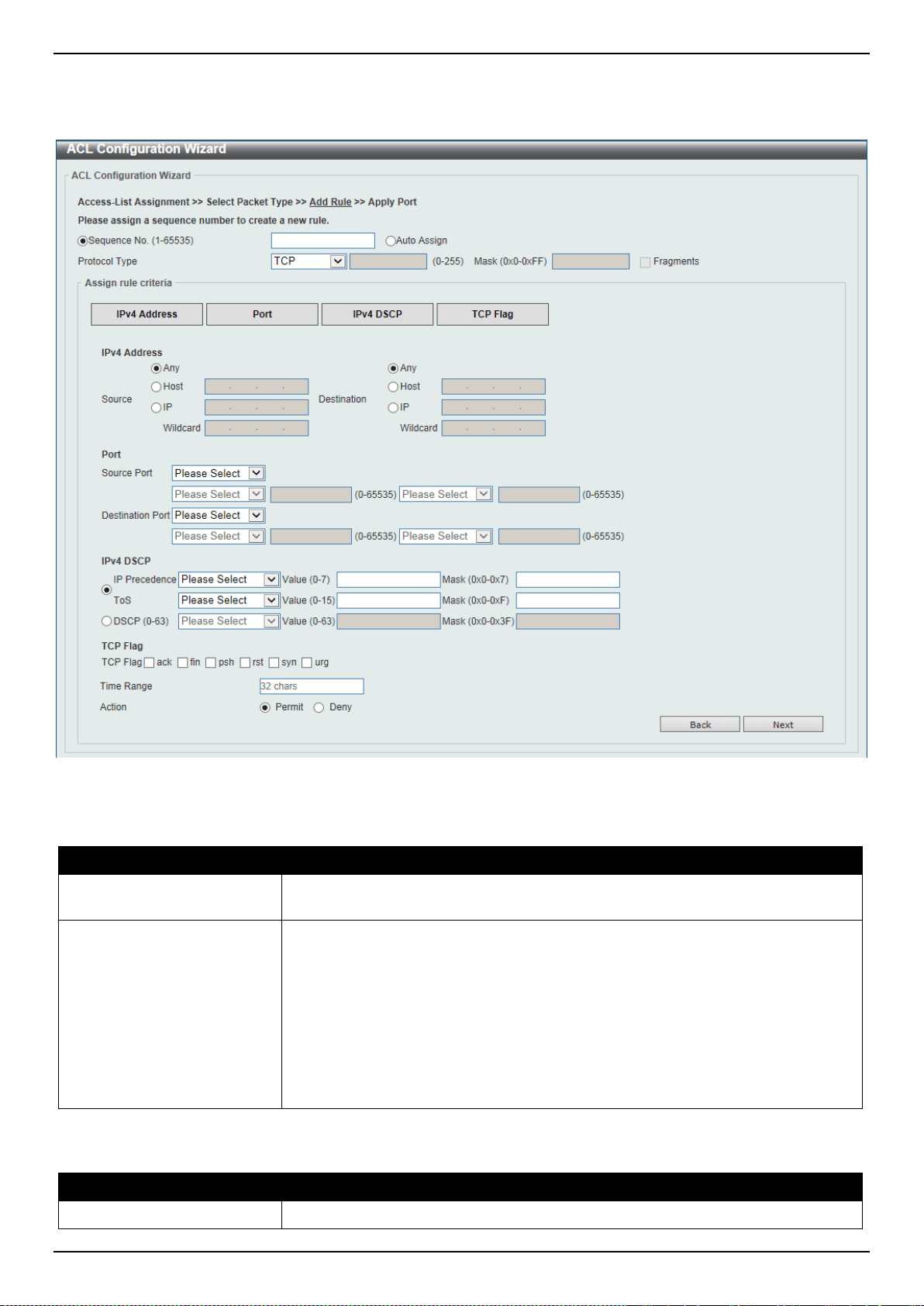
DXS-3400 Series Lite Layer 3 Stackable 10GbE Managed Switch Web UI Reference Guide
266
IPv4
After clicking the IPv4 radio button and the Next button, the following window will appear.
Figure 8-5 ACL Configuration Wizard (Create, Packet Type, IPv4) Window
The fields that can be configured are described below:
Parameter Description
Sequence No.
Enter the ACL rule number here. This value must be between 1 and 65535.
Select Auto Assign to automatically generate an ACL rule number for this entry.
Protocol Type
Select the protocol type option here. Options to choose from are TCP, UDP,
ICMP, EIGRP (88), ESP (50), GRE (47), IGMP (2), OSPF (89), PIM (103), VRRP
(112), IP-in-IP (94), PCP (108), Protocol ID, and None.
• Value - The protocol ID can also manually be entered here. The range is
from 0 to 255.
• Mask - After selecting the Protocol ID option, manually enter the protocol
mask value here. The range is from 0x0 to 0xFF.
• Fragments - Select this option to include packet fragment filtering.
The fields that can be configured in Assign rule criteria are described below:
Parameter Description
Source
Select and enter the source information here. Options to choose from are Any,

DXS-3400 Series Lite Layer 3 Stackable 10GbE Managed Switch Web UI Reference Guide
267
Parameter Description
Host, and IP.
• When the Any option is selected, any source traffic will be evaluated
according to the conditions of this rule.
• When the Host option is selected, enter the source host’s IP address here.
• When the IP option is selected, the Wildcard option will also be available.
Enter the group of source IP addresses by using a wildcard bitmap. The bit
corresponding to the bit value 1 will be ignored. The bit corresponding to the
bit value 0 will be checked.
Destination
Select and enter the destination information here. Options to choose from are
Any, Host, and IP.
• When the Any option is selected, any destination traffic will be evaluated
according to the conditions of this rule.
• When the Host option is selected, enter the destination host’s IP address
here.
• When the IP option is selected, the Wildcard option will also be available.
Enter the group of destination IP addresses by using a wildcard bitmap. The
bit corresponding to the bit value 1 will be ignored. The bit corresponding to
the bit value 0 will be checked.
Source Port
Select and enter the source port value here. Options to choose from are =, >, <, ≠,
Range, and Mask.
• When selecting the = option, the specific selected port number will be used.
• When selecting the > option, all ports greater than the selected port, will be
used.
• When selecting the < option, all ports smaller than the selected port, will be
used.
• When selecting the ≠ option, all ports, excluding the selected port, will be
used.
• When selecting the Range option, the start port number and end port
number selected, of the range, will be used. Alternatively, the port number(s)
can manually be entered in the space(s) provided, if the port number(s)
is/are not available in the drop-down list.
• When selecting the Mask option, the specified source port number and mask
will be used. Enter the source port mask value in the space provided. The
range is from 0x0 to 0xFFFF.
This parameter is only available in the protocol type TCP and UDP.
Destination Port
Select and enter the destination port value here. Options to choose from are =, >,
<, ≠, Range, and Mask.
• When selecting the = option, the specific selected port number will be used.
• When selecting the > option, all ports greater than the selected port, will be
used.
• When selecting the < option, all ports smaller than the selected port, will be
used.
• When selecting the ≠ option, all ports, excluding the selected port, will be
used.
• When selecting the Range option, the start port number and end port
number selected, of the range, will be used. Alternatively, the port number(s)
can manually be entered in the space(s) provided, if the port number(s)
is/are not available in the drop-down list.
• When selecting the Mask option, the specified destination port number and
mask will be used. Enter the destination port mask value in the space

DXS-3400 Series Lite Layer 3 Stackable 10GbE Managed Switch Web UI Reference Guide
268
Parameter Description
provided. The range is from 0x0 to 0xFFFF.
This parameter is only available in the protocol type TCP and UDP.
Specify ICMP Message
Type
Select the ICMP message type used here.
This parameter is only available in the protocol type ICMP.
ICMP Message Type
When the ICMP Message Type is not selected, enter the ICMP Message Type
numerical value used here. The range is from 0 to 255. When the ICMP Message
Type is selected, this numerical value will automatically be entered.
This parameter is only available in the protocol type ICMP.
Message Code
When the ICMP Message Type is not selected, enter the Message Code
numerical value used here. The range is from 0 to 255. When the ICMP Message
Type is selected, this numerical value will automatically be entered.
This parameter is only available in the protocol type ICMP.
IP Precedence
Select the IP precedence value used here. Options to choose from are routine
(0), priority (1), immediate (2), flash (3), flash-override (4), critical (5), internet
(6), and network (7).
• Value - The IP precedence value can also manually be entered here. The
range is from 0 to 7.
• Mask - Enter the IP precedence mask value here. The range is from 0x0 to
0x7.
ToS
Select the Type-of-Service (ToS) value that will be used here. Options to choose
from are normal (0), min-monetary-cost (1), max-reliability (2), max-
throughput (4), and min-delay (8).
• Value - The ToS value can also manually be entered here. The range is from
0 to 15.
• Mask - Enter the ToS mask value here. The range is from 0x0 to 0xF.
DSCP
Select the DSCP value that will be used here. Options to choose from are default
(0), af11 (10), af12 (12), af13 (14), af21 (18), af22 (20), af23 (22), af31 (26), af32
(28), af33 (30), af41 (34), af42 (36), af43 (38), cs1 (8), cs2 (16), cs3 (24), cs4
(32), cs5 (40), cs6 (48), cs7 (56), and ef (46).
• Value - The DSCP value can also manually be entered here. The range is
from 0 to 63.
• Mask - Enter the DSCP mask value here. The range is from 0x0 to 0x3F.
TCP Flag
Tick the appropriate TCP flag option to include the flag in this rule. Options to
choose from are ack, fin, psh, rst, syn, and urg.
This parameter is only available in the protocol type TCP.
Time Range
Enter the name of the time range profile that will be used in this ACL rule here.
This name can be up to 32 characters long.
Action
Select the action that this rule will take here. Options to choose from are Permit
and Deny.
Click the Back button to return to the previous step.
Click the Next button to continue to the next step.
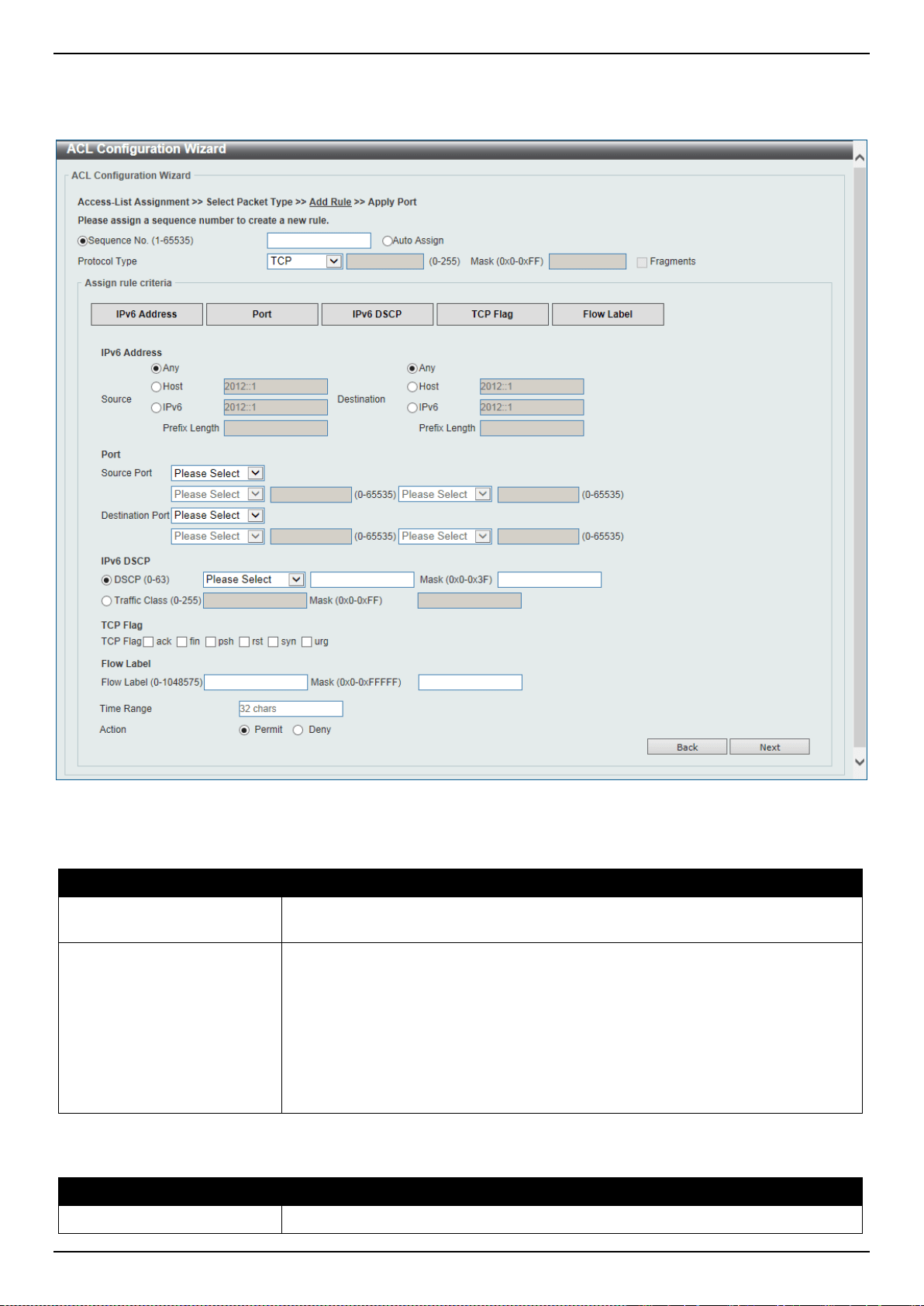
DXS-3400 Series Lite Layer 3 Stackable 10GbE Managed Switch Web UI Reference Guide
269
IPv6
After clicking the IPv6 radio button and the Next button, the following window will appear.
Figure 8-6 ACL Configuration Wizard (Create, Packet Type, IPv6) Window
The fields that can be configured are described below:
Parameter Description
Sequence No.
Enter the ACL rule number here. This value must be between 1 and 65535.
Select Auto Assign to automatically generate an ACL rule number for this entry.
Protocol Type
Select the protocol type option here. Options to choose from are TCP, UDP,
ICMP, Protocol ID, ESP (50), PCP (108), SCTP (132), and None.
• Value - The protocol ID can also manually be entered here. The range is
from 0 to 255.
• Mask - After selecting the Protocol ID option, manually enter the protocol
mask value here. The range is from 0x0 to 0xFF.
• Fragments - Select this option to include packet fragment filtering.
The fields that can be configured in Assign rule criteria are described below:
Parameter Description
Source
Select and enter the source information here. Options to choose from are Any,

DXS-3400 Series Lite Layer 3 Stackable 10GbE Managed Switch Web UI Reference Guide
270
Parameter Description
Host, and IPv6.
• When the Any option is selected, any source traffic will be evaluated
according to the conditions of this rule.
• When the Host option is selected, enter the source host’s IPv6 address here.
• When the IPv6 option is selected, the Prefix Length option will also be
available. Enter the source IPv6 address and prefix length value in the
spaces provided.
Destination
Select and enter the destination information here. Options to choose from are
Any, Host, and IPv6.
• When the Any option is selected, any destination traffic will be evaluated
according to the conditions of this rule.
• When the Host option is selected, enter the destination host’s IPv6 address
here.
• When the IPv6 option is selected, the Prefix Length option will also be
available. Enter the destination IPv6 address and prefix length value in the
spaces provided.
Source Port
Select and enter the source port value here. Options to choose from are =, >, <, ≠,
Range, and Mask.
• When selecting the = option, the specific selected port number will be used.
• When selecting the > option, all ports greater than the selected port, will be
used.
• When selecting the < option, all ports smaller than the selected port, will be
used.
• When selecting the ≠ option, all ports, excluding the selected port, will be
used.
• When selecting the Range option, the start port number and end port
number selected, of the range, will be used. Alternatively, the port number(s)
can manually be entered in the space(s) provided, if the port number(s)
is/are not available in the drop-down list.
• When selecting the Mask option, the specified source port number and mask
will be used. Enter the source port mask value in the space provided. The
range is from 0x0 to 0xFFFF.
This parameter is only available in the protocol type TCP and UDP.
Destination Port
Select and enter the destination port value here. Options to choose from are =, >,
<, ≠, Range, and Mask.
• When selecting the = option, the specific selected port number will be used.
• When selecting the > option, all ports greater than the selected port, will be
used.
• When selecting the < option, all ports smaller than the selected port, will be
used.
• When selecting the ≠ option, all ports, excluding the selected port, will be
used.
• When selecting the Range option, the start port number and end port
number selected, of the range, will be used. Alternatively, the port number(s)
can manually be entered in the space(s) provided, if the port number(s)
is/are not available in the drop-down list.
• When selecting the Mask option, the specified destination port number and
mask will be used. Enter the destination port mask value in the space
provided. The range is from 0x0 to 0xFFFF.
This parameter is only available in the protocol type TCP and UDP.

DXS-3400 Series Lite Layer 3 Stackable 10GbE Managed Switch Web UI Reference Guide
271
Parameter Description
Specify ICMP Message
Type
Select the ICMP message type used here.
This parameter is only available in the protocol type ICMP.
ICMP Message Type
When the ICMP Message Type is not selected, enter the ICMP Message Type
numerical value used here. When the ICMP Message Type is selected, this
numerical value will automatically be entered.
This parameter is only available in the protocol type ICMP.
Message Code
When the ICMP Message Type is not selected, enter the Message Code
numerical value used here. When the ICMP Message Type is selected, this
numerical value will automatically be entered.
This parameter is only available in the protocol type ICMP.
DSCP
Select the DSCP value that will be used here. Options to choose from are default
(0), af11 (10), af12 (12), af13 (14), af21 (18), af22 (20), af23 (22), af31 (26), af32
(28), af33 (30), af41 (34), af42 (36), af43 (38), cs1 (8), cs2 (16), cs3 (24), cs4
(32), cs5 (40), cs6 (48), cs7 (56), and ef (46).
• Value - The DSCP value can also manually be entered here. The range is
from 0 to 63.
• Mask - Enter the DSCP mask value here. The range is from 0x0 to 0x3F.
Traffic Class
Select and enter the traffic class value here. The range is from 0 to 255.
• Mask - Enter the traffic class mask value here. The range is from 0x0 to
0x3F.
TCP Flag
Tick the appropriate TCP flag option to include the flag in this rule. Options to
choose from are ack, fin, psh, rst, syn, and urg.
This parameter is only available in the protocol type TCP.
Flow Label
Enter the flow label value here. This value must be between 0 and 1048575.
• Mask - Enter the flow label mask value here. The range is from 0x0 to
0xFFFFF.
Time Range
Enter the name of the time range profile that will be used in this ACL rule here.
This name can be up to 32 characters long.
Action
Select the action that this rule will take here. Options to choose from are Permit
and Deny.
Click the Back button to return to the previous step.
Click the Next button to continue to the next step.
Step 4 - Apply Port
After clicking the Next button, the following window will appear.
Figure 8-7 ACL Configuration Wizard (Create, Port) Window
The fields that can be configured are described below:
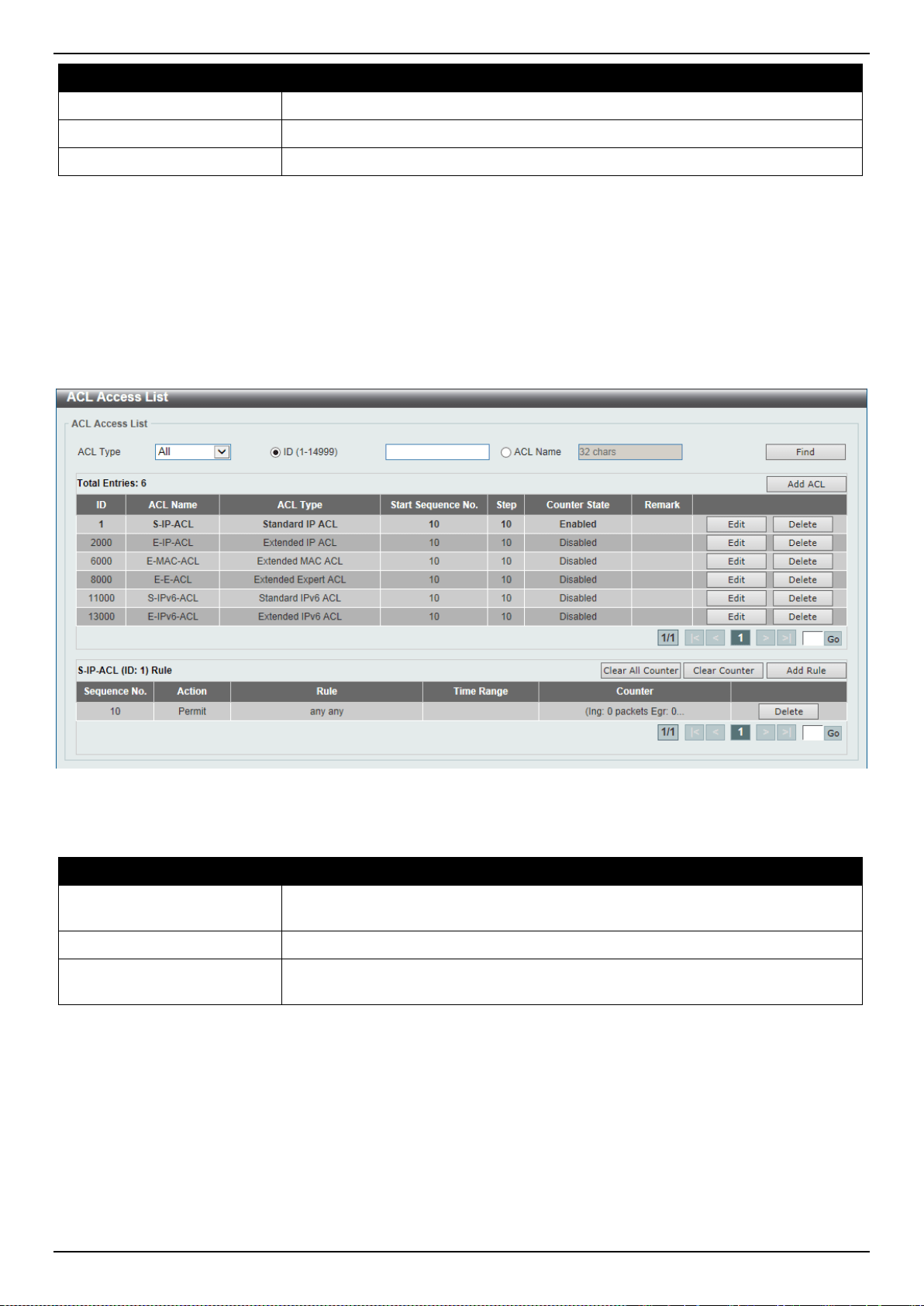
DXS-3400 Series Lite Layer 3 Stackable 10GbE Managed Switch Web UI Reference Guide
272
Parameter Description
Unit
Select the Switch unit that will be used for this configuration here.
From Port ~ To Port
Select the appropriate port range used for the configuration here.
Direction
Select the direction here. Options to choose from are In and Out.
Click the Back button to return to the previous step.
Click the Apply button to accept the changes made and return to the main ACL Wizard window.
ACL Access List
This window is used to display and configure the ACLs, ACL rules and settings.
To view the following window, click ACL > ACL Access List, as shown below:
Figure 8-8 ACL Access List Window
The fields that can be configured are described below:
Parameter Description
ACL Type
Select the ACL type to find here. Options to choose from are All, IP ACL, IPv6
ACL, MAC ACL, and Expert ACL.
ID
Select and enter the access list’s ID here. The range is from 1 to 14999.
ACL Name
Select and enter the access list’s name here. This name can be up to 32
characters long.
Click the Find button to locate a specific entry based on the information entered.
Click the Add ACL button to create a new ACL.
Click the Edit button to re-configure the specific ACL.
Click the Delete button, next to the ACL, to remove the specific ACL.
Enter a page number and click the Go button to navigate to a specific page when multiple pages exist.
Click the Clear All Counter button to clear all the counter information displayed.
Click the Clear Counter button to clear the counter information for the rule displayed.
Click the Add Rule button to create an ACL rule for the ACL selected.
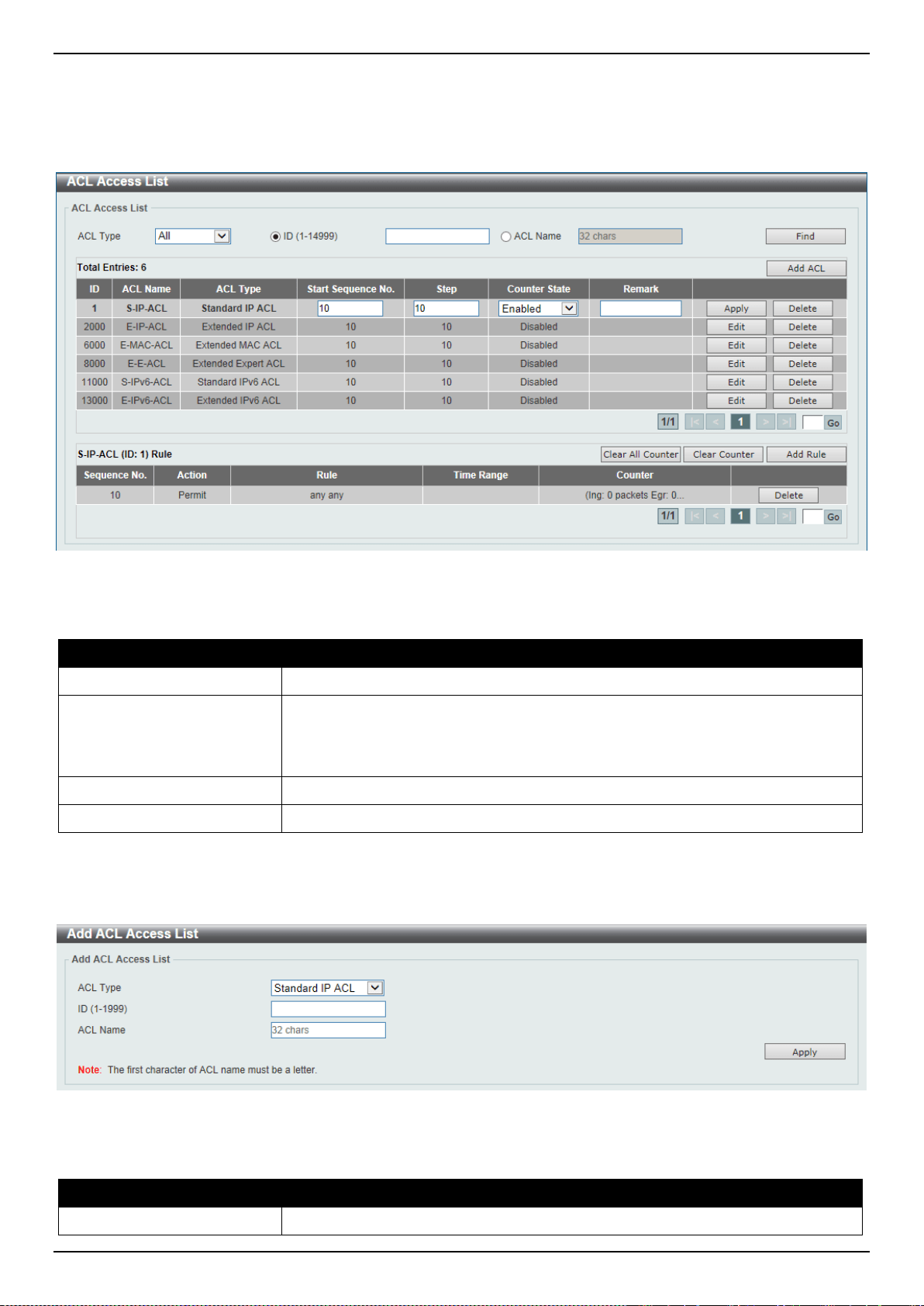
DXS-3400 Series Lite Layer 3 Stackable 10GbE Managed Switch Web UI Reference Guide
273
Click the Delete button, next to the ACL rule, to remove the specific ACL rule.
Enter a page number and click the Go button to navigate to a specific page when multiple pages exist.
After clicking the Edit button, the following page will appear.
Figure 8-9 ACL Access List (Edit) Window
After clicking the Edit button, the fields that can be configured are described below:
Parameter Description
Start Sequence No.
Enter the start sequence number here.
Step
Enter the sequence number step here. The step range is from 1 to 32. This
specifies the number that the sequence numbers step. The default value is 10.
For example, if the increment (step) value is 5 and the beginning sequence
number is 20, the subsequent sequence numbers are 25, 30, 35, 40, and so on.
Counter State
Select to enable or disable the counter state option here.
Remark
Enter an optional remark that will be associated with this ACL here.
Click the Apply button to accept the changes made.
After clicking the Add ACL button, the following page will appear.
Figure 8-10 ACL Access List (Add ACL) Window
After clicking the Add ACL button, the fields that can be configured are described below:
Parameter Description
ACL Type
Select the ACL type that will be created here. Options to choose from are
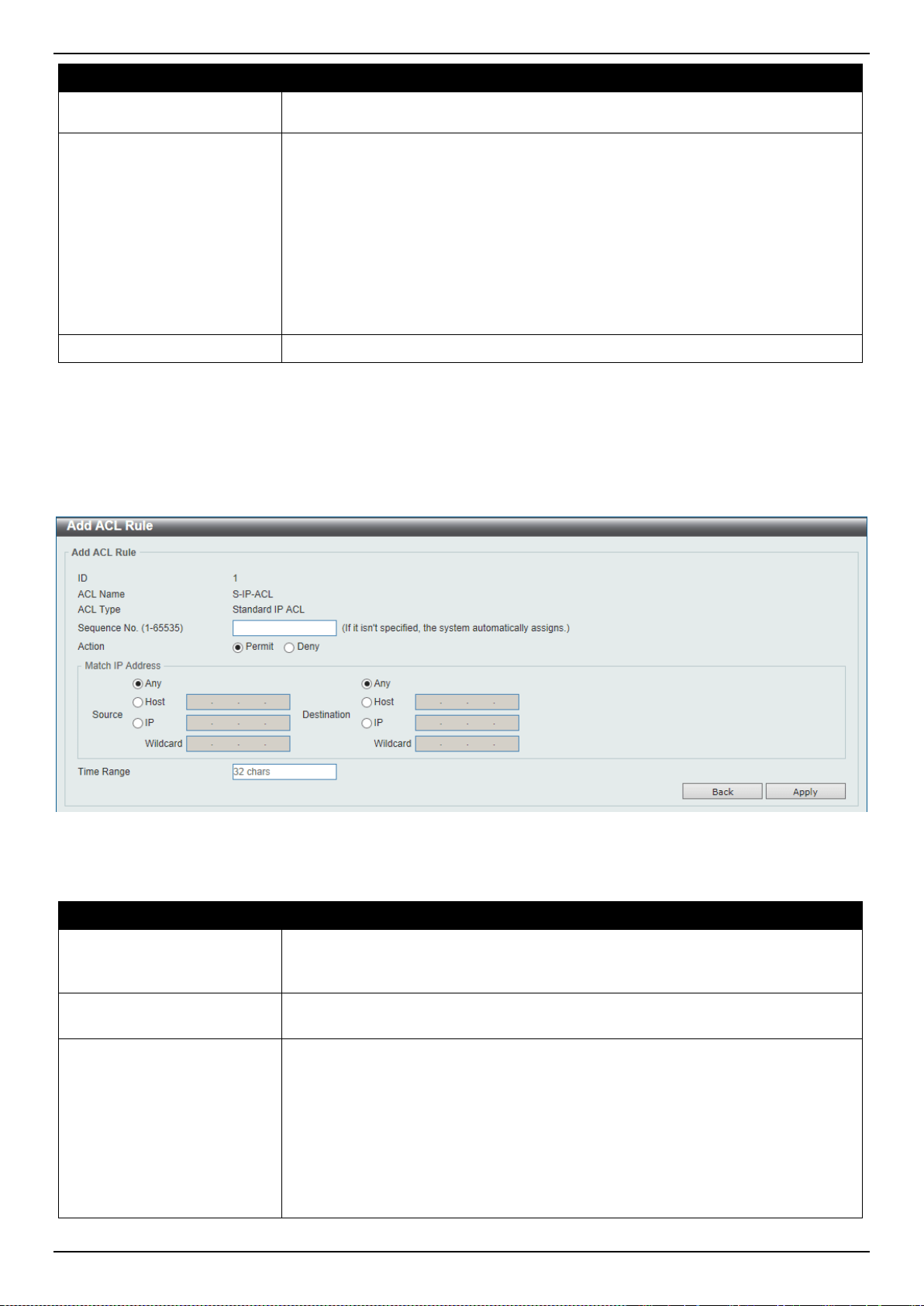
DXS-3400 Series Lite Layer 3 Stackable 10GbE Managed Switch Web UI Reference Guide
274
Parameter Description
Standard IP ACL, Extended IP ACL, Standard IPv6 ACL, Extended IPv6 ACL,
Extended MAC ACL, and Extended Expert ACL.
ID
Enter the ID for the ACL here.
• For a Standard IP ACL, the range from 1 to 1999.
• For an Extended IP ACL, the range from 2000 to 3999.
• For a Standard IPv6 ACL, the range from 11000 to 12999.
• For an Extended IPv6 ACL, the range from 13000 to 14999.
• For an Extended MAC ACL, the range from 6000 to 7999.
• For an Extended Expert ACL, the range from 8000 to 9999.
ACL Name
Enter the name of the ACL here. This name can be up to 32 characters long.
Click the Apply button to accept the changes made.
Standard IP ACL
After selecting a Standard IP ACL and clicking the Add Rule button, the following page will appear.
Figure 8-11 Standard IP ACL (Add Rule) Window
The fields that can be configured are described below:
Parameter Description
Sequence No.
Enter the sequence number of this ACL rule here. The range is from 1 to 65535. If
this value is not specified, the system will automatically generate an ACL rule
number for this entry.
Action
Select the action that this rule will take here. Options to choose from are Permit
and Deny.
Source
Select and enter the source information here. Options to choose from are Any,
Host, IP, and Wildcard.
• When the Any option is selected, any source traffic will be evaluated
according to the conditions of this rule.
• When the Host option is selected, enter the source host’s IP address here.
• When the IP option is selected, the Wildcard option will also be available.
Enter the group of source IP addresses by using a wildcard bitmap. The bit
corresponding to the bit value 1 will be ignored. The bit corresponding to the
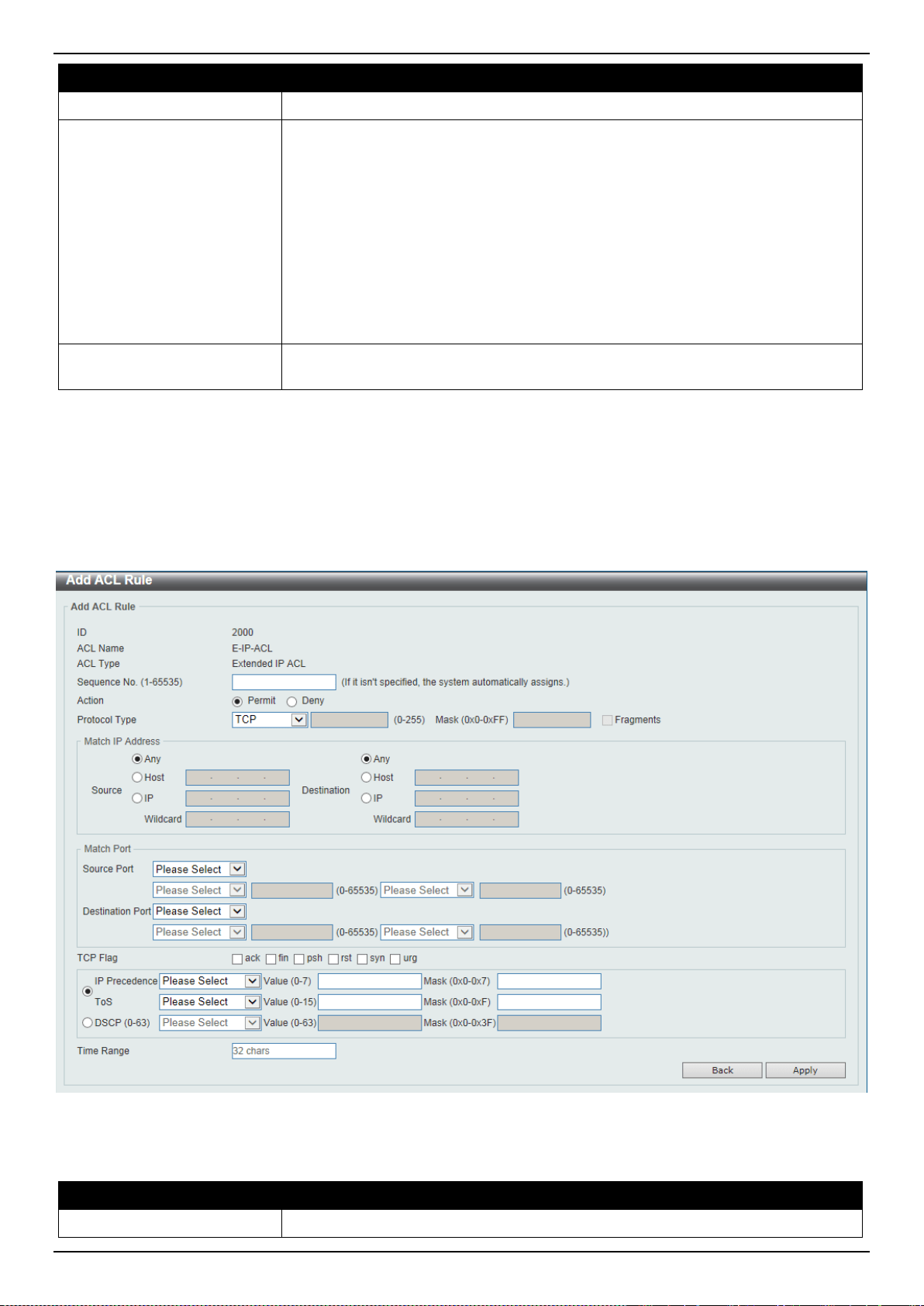
DXS-3400 Series Lite Layer 3 Stackable 10GbE Managed Switch Web UI Reference Guide
275
Parameter Description
bit value 0 will be checked.
Destination
Select and enter the destination information here. Options to choose from are
Any, Host, IP, and Wildcard.
• When the Any option is selected, any destination traffic will be evaluated
according to the conditions of this rule.
• When the Host option is selected, enter the destination host’s IP address
here.
• When the IP option is selected, the Wildcard option will also be available.
Enter the group of destination IP addresses by using a wildcard bitmap. The
bit corresponding to the bit value 1 will be ignored. The bit corresponding to
the bit value 0 will be checked.
Time Range
Enter the name of the time range profile that will be used in this ACL rule here.
This name can be up to 32 characters long.
Click the Apply button to accept the changes made.
Click the Back button to discard the changes made and return to the previous page.
Extended IP ACL
After selecting an Extended IP ACL and clicking the Add Rule button, the following page will appear.
Figure 8-12 Extended IP ACL (Add Rule) Window
The fields that can be configured are described below:
Parameter Description
Sequence No.
Enter the sequence number of this ACL rule here. The range is from 1 to 65535. If

DXS-3400 Series Lite Layer 3 Stackable 10GbE Managed Switch Web UI Reference Guide
276
Parameter Description
this value is not specified, the system will automatically generate an ACL rule
number for this entry.
Action
Select the action that this rule will take here. Options to choose from are Permit
and Deny.
Protocol Type
Select the protocol type option here. Options to choose from are TCP, UDP,
ICMP, EIGRP (88), ESP (50), GRE (47), IGMP (2), OSPF (89), PIM (103), VRRP
(112), IP-in-IP (94), PCP (108), Protocol ID, and None.
• Value - The protocol ID can also manually be entered here. The range is
from 0 to 255.
• Mask - After selecting the Protocol ID option, manually enter the protocol
mask value here. The range is from 0x0 to 0xFF.
• Fragments - Select this option to include packet fragment filtering.
Source
Select and enter the source IP information here. Options to choose from are Any,
Host, and IP.
• When the Any option is selected, any source traffic will be evaluated
according to the conditions of this rule.
• When the Host option is selected, enter the source host’s IP address here.
• When the IP option is selected, the Wildcard option will also be available.
Enter the group of source IP addresses by using a wildcard bitmap. The bit
corresponding to the bit value 1 will be ignored. The bit corresponding to the
bit value 0 will be checked.
Destination
Select and enter the destination IP information here. Options to choose from are
Any, Host, and IP.
• When the Any option is selected, any destination traffic will be evaluated
according to the conditions of this rule.
• When the Host option is selected, enter the destination host’s IP address
here.
• When the IP option is selected, the Wildcard option will also be available.
Enter the group of destination IP addresses by using a wildcard bitmap. The
bit corresponding to the bit value 1 will be ignored. The bit corresponding to
the bit value 0 will be checked.
Source Port
Select and enter the source port value here. Options to choose from are =, >, <, ≠,
Range, and Mask.
• When selecting the = option, the specific selected port number will be used.
• When selecting the > option, all ports greater than the selected port, will be
used.
• When selecting the < option, all ports smaller than the selected port, will be
used.
• When selecting the ≠ option, all ports, excluding the selected port, will be
used.
• When selecting the Range option, the start port number and end port
number selected, of the range, will be used. Alternatively, the port number(s)
can manually be entered in the space(s) provided, if the port number(s)
is/are not available in the drop-down list.
• When selecting the Mask option, the specified source port number and mask
will be used. Enter the source port mask value in the space provided. The
range is from 0x0 to 0xFFFF.
This parameter is only available in the protocol type TCP and UDP.
Destination Port
Select and enter the destination port value here. Options to choose from are =, >,
<, ≠, Range, and Mask.

DXS-3400 Series Lite Layer 3 Stackable 10GbE Managed Switch Web UI Reference Guide
277
Parameter Description
• When selecting the = option, the specific selected port number will be used.
• When selecting the > option, all ports greater than the selected port, will be
used.
• When selecting the < option, all ports smaller than the selected port, will be
used.
• When selecting the ≠ option, all ports, excluding the selected port, will be
used.
• When selecting the Range option, the start port number and end port
number selected, of the range, will be used. Alternatively, the port number(s)
can manually be entered in the space(s) provided, if the port number(s)
is/are not available in the drop-down list.
• When selecting the Mask option, the specified destination port number and
mask will be used. Enter the destination port mask value in the space
provided. The range is from 0x0 to 0xFFFF.
This parameter is only available in the protocol type TCP and UDP.
Specify ICMP Message
Type
Select the ICMP message type used here.
This parameter is only available in the protocol type ICMP.
ICMP Message Type
When the ICMP Message Type is not selected, enter the ICMP Message Type
numerical value used here. The range is from 0 to 255. When the ICMP Message
Type is selected, this numerical value will automatically be entered.
This parameter is only available in the protocol type ICMP.
Message Code
When the ICMP Message Type is not selected, enter the Message Code
numerical value used here. The range is from 0 to 255. When the ICMP Message
Type is selected, this numerical value will automatically be entered.
This parameter is only available in the protocol type ICMP.
TCP Flag
Tick the appropriate TCP flag option to include the flag in this rule. Options to
choose from are ack, fin, psh, rst, syn, and urg.
This parameter is only available in the protocol type TCP.
IP Precedence
Select the IP precedence value used here. Options to choose from are routine
(0), priority (1), immediate (2), flash (3), flash-override (4), critical (5), internet
(6), and network (7).
• Value - The IP precedence value can also manually be entered here. The
range is from 0 to 7.
• Mask - Enter the IP precedence mask value here. The range is from 0x0 to
0x7.
ToS
Select the Type-of-Service (ToS) value that will be used here. Options to choose
from are normal (0), min-monetary-cost (1), max-reliability (2), max-
throughput (4), and min-delay (8).
• Value - The ToS value can also manually be entered here. The range is from
0 to 15.
• Mask - Enter the ToS mask value here. The range is from 0x0 to 0xF.
DSCP
Select the DSCP value that will be used here. Options to choose from are default
(0), af11 (10), af12 (12), af13 (14), af21 (18), af22 (20), af23 (22), af31 (26), af32
(28), af33 (30), af41 (34), af42 (36), af43 (38), cs1 (8), cs2 (16), cs3 (24), cs4
(32), cs5 (40), cs6 (48), cs7 (56), and ef (46).
• Value - The DSCP value can also manually be entered here. The range is
from 0 to 63.
• Mask - Enter the DSCP mask value here. The range is from 0x0 to 0x3F.
Time Range
Enter the name of the time range profile that will be used in this ACL rule here.
This name can be up to 32 characters long.
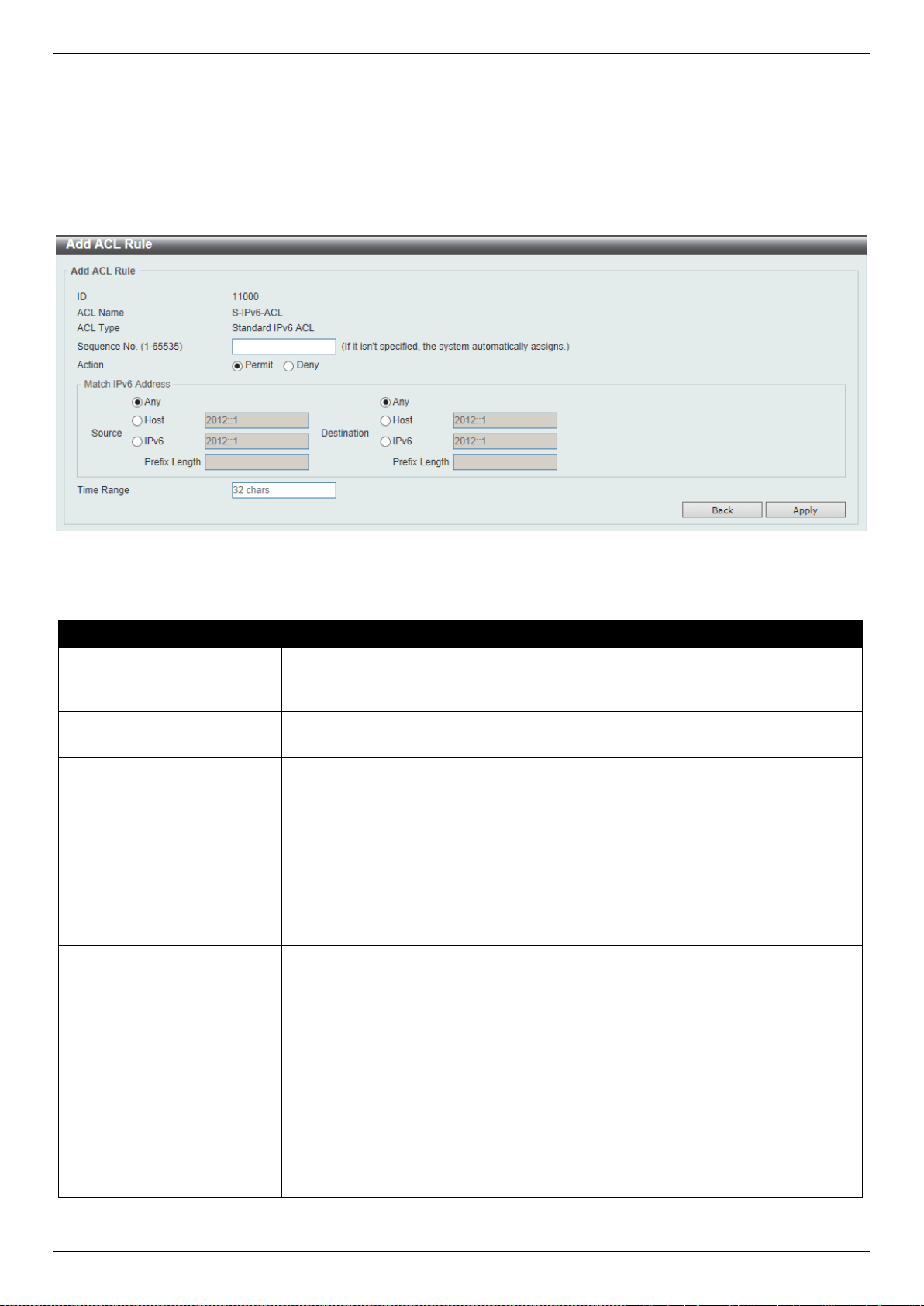
DXS-3400 Series Lite Layer 3 Stackable 10GbE Managed Switch Web UI Reference Guide
278
Click the Apply button to accept the changes made.
Click the Back button to discard the changes made and return to the previous page.
Standard IPv6 ACL
After selecting a Standard IPv6 ACL and clicking the Add Rule button, the following page will appear.
Figure 8-13 Standard IPv6 ACL (Add Rule) Window
The fields that can be configured are described below:
Parameter Description
Sequence No.
Enter the sequence number of this ACL rule here. The range is from 1 to 65535. If
this value is not specified, the system will automatically generate an ACL rule
number for this entry.
Action
Select the action that this rule will take here. Options to choose from are Permit
and Deny.
Source
Select and enter the source IPv6 information here. Options to choose from are
Any, Host, IPv6, and Prefix Length.
• When the Any option is selected, any source traffic will be evaluated
according to the conditions of this rule.
• When the Host option is selected, enter the source host’s IPv6 address here.
• When the IPv6 option is selected, the Prefix Length option will also be
available. Enter the source IPv6 address and prefix length value in the
spaces provided.
Destination
Select and enter the destination IPv6 information here. Options to choose from
are Any, Host, IPv6, and Prefix Length.
• When the Any option is selected, any destination traffic will be evaluated
according to the conditions of this rule.
• When the Host option is selected, enter the destination host’s IPv6 address
here.
• When the IPv6 option is selected, the Prefix Length option will also be
available. Enter the destination IPv6 address and prefix length value in the
spaces provided.
Time Range
Enter the name of the time range profile that will be used in this ACL rule here.
This name can be up to 32 characters long.
Click the Apply button to accept the changes made.
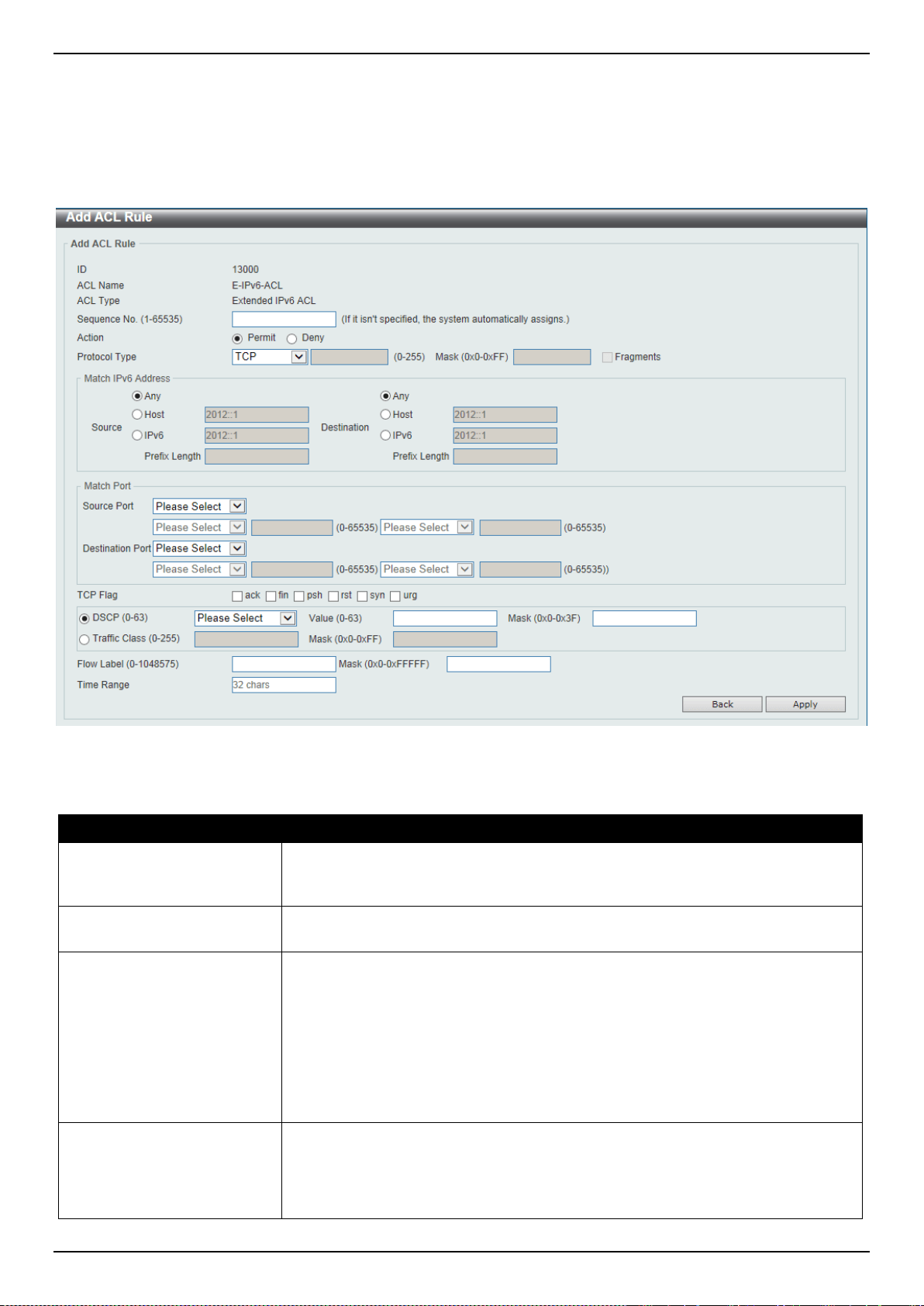
DXS-3400 Series Lite Layer 3 Stackable 10GbE Managed Switch Web UI Reference Guide
279
Click the Back button to discard the changes made and return to the previous page.
Extended IPv6 ACL
After selecting an Extended IPv6 ACL and clicking the Add Rule button, the following page will appear.
Figure 8-14 Extended IPv6 ACL (Add Rule) Window
The fields that can be configured are described below:
Parameter Description
Sequence No.
Enter the sequence number of this ACL rule here. The range is from 1 to 65535. If
this value is not specified, the system will automatically generate an ACL rule
number for this entry.
Action
Select the action that this rule will take here. Options to choose from are Permit
and Deny.
Protocol Type
Select the protocol type option here. Options to choose from are TCP, UDP,
ICMP, Protocol ID, ESP (50), PCP (108), SCTP (132), and None.
• Value - The protocol ID can also manually be entered here. The range is
from 0 to 255.
• Mask - After selecting the Protocol ID option, manually enter the protocol
mask value here. The range is from 0x0 to 0xFF.
• Fragments - Select this option to include packet fragment filtering.
Source
Select and enter the source IPv6 information here. Options to choose from are
Any, Host, and IPv6.
• When the Any option is selected, any source traffic will be evaluated
according to the conditions of this rule.

DXS-3400 Series Lite Layer 3 Stackable 10GbE Managed Switch Web UI Reference Guide
280
Parameter Description
• When the Host option is selected, enter the source host’s IPv6 address here.
• When the IPv6 option is selected, the Prefix Length option will also be
available. Enter the source IPv6 address and prefix length value in the
spaces provided.
Destination
Select and enter the destination IPv6 information here. Options to choose from
are Any, Host, and IPv6.
• When the Any option is selected, any destination traffic will be evaluated
according to the conditions of this rule.
• When the Host option is selected, enter the destination host’s IPv6 address
here.
• When the IPv6 option is selected, the Prefix Length option will also be
available. Enter the destination IPv6 address and prefix length value in the
spaces provided.
Source Port
Select and enter the source port value here. Options to choose from are =, >, <, ≠,
Range, and Mask.
• When selecting the = option, the specific selected port number will be used.
• When selecting the > option, all ports greater than the selected port, will be
used.
• When selecting the < option, all ports smaller than the selected port, will be
used.
• When selecting the ≠ option, all ports, excluding the selected port, will be
used.
• When selecting the Range option, the start port number and end port
number selected, of the range, will be used. Alternatively, the port number(s)
can manually be entered in the space(s) provided, if the port number(s)
is/are not available in the drop-down list.
• When selecting the Mask option, the specified source port number and mask
will be used. Enter the source port mask value in the space provided. The
range is from 0x0 to 0xFFFF.
This parameter is only available in the protocol type TCP and UDP.
Destination Port
Select and enter the destination port value here. Options to choose from are =, >,
<, ≠, Range, and Mask.
• When selecting the = option, the specific selected port number will be used.
• When selecting the > option, all ports greater than the selected port, will be
used.
• When selecting the < option, all ports smaller than the selected port, will be
used.
• When selecting the ≠ option, all ports, excluding the selected port, will be
used.
• When selecting the Range option, the start port number and end port
number selected, of the range, will be used. Alternatively, the port number(s)
can manually be entered in the space(s) provided, if the port number(s)
is/are not available in the drop-down list.
• When selecting the Mask option, the specified destination port number and
mask will be used. Enter the destination port mask value in the space
provided. The range is from 0x0 to 0xFFFF.
This parameter is only available in the protocol type TCP and UDP.
TCP Flag
Tick the appropriate TCP flag option to include the flag in this rule. Options to
choose from are ack, fin, psh, rst, syn, and urg.
This parameter is only available in the protocol type TCP.

DXS-3400 Series Lite Layer 3 Stackable 10GbE Managed Switch Web UI Reference Guide
281
Parameter Description
Specify ICMP Message
Type
Select the ICMP message type used here.
This parameter is only available in the protocol type ICMP.
ICMP Message Type
When the ICMP Message Type is not selected, enter the ICMP Message Type
numerical value used here. When the ICMP Message Type is selected, this
numerical value will automatically be entered.
This parameter is only available in the protocol type ICMP.
Message Code
When the ICMP Message Type is not selected, enter the Message Code
numerical value used here. When the ICMP Message Type is selected, this
numerical value will automatically be entered.
This parameter is only available in the protocol type ICMP.
DSCP
Select the DSCP value that will be used here. Options to choose from are default
(0), af11 (10), af12 (12), af13 (14), af21 (18), af22 (20), af23 (22), af31 (26), af32
(28), af33 (30), af41 (34), af42 (36), af43 (38), cs1 (8), cs2 (16), cs3 (24), cs4
(32), cs5 (40), cs6 (48), cs7 (56), and ef (46).
• Value - The DSCP value can also manually be entered here. The range is
from 0 to 63.
• Mask - Enter the DSCP mask value here. The range is from 0x0 to 0x3F.
Traffic Class
Select and enter the traffic class value here. The range is from 0 to 255.
• Mask - Enter the traffic class mask value here. The range is from 0x0 to
0x3F.
Flow Label
Enter the flow label value here. This value must be between 0 and 1048575.
• Mask - Enter the flow label mask value here. The range is from 0x0 to
0xFFFFF.
Time Range
Enter the name of the time range profile that will be used in this ACL rule here.
This name can be up to 32 characters long.
Click the Apply button to accept the changes made.
Click the Back button to discard the changes made and return to the previous page.
Extended MAC ACL
After selecting an Extended MAC ACL and clicking the Add Rule button, the following page will appear.
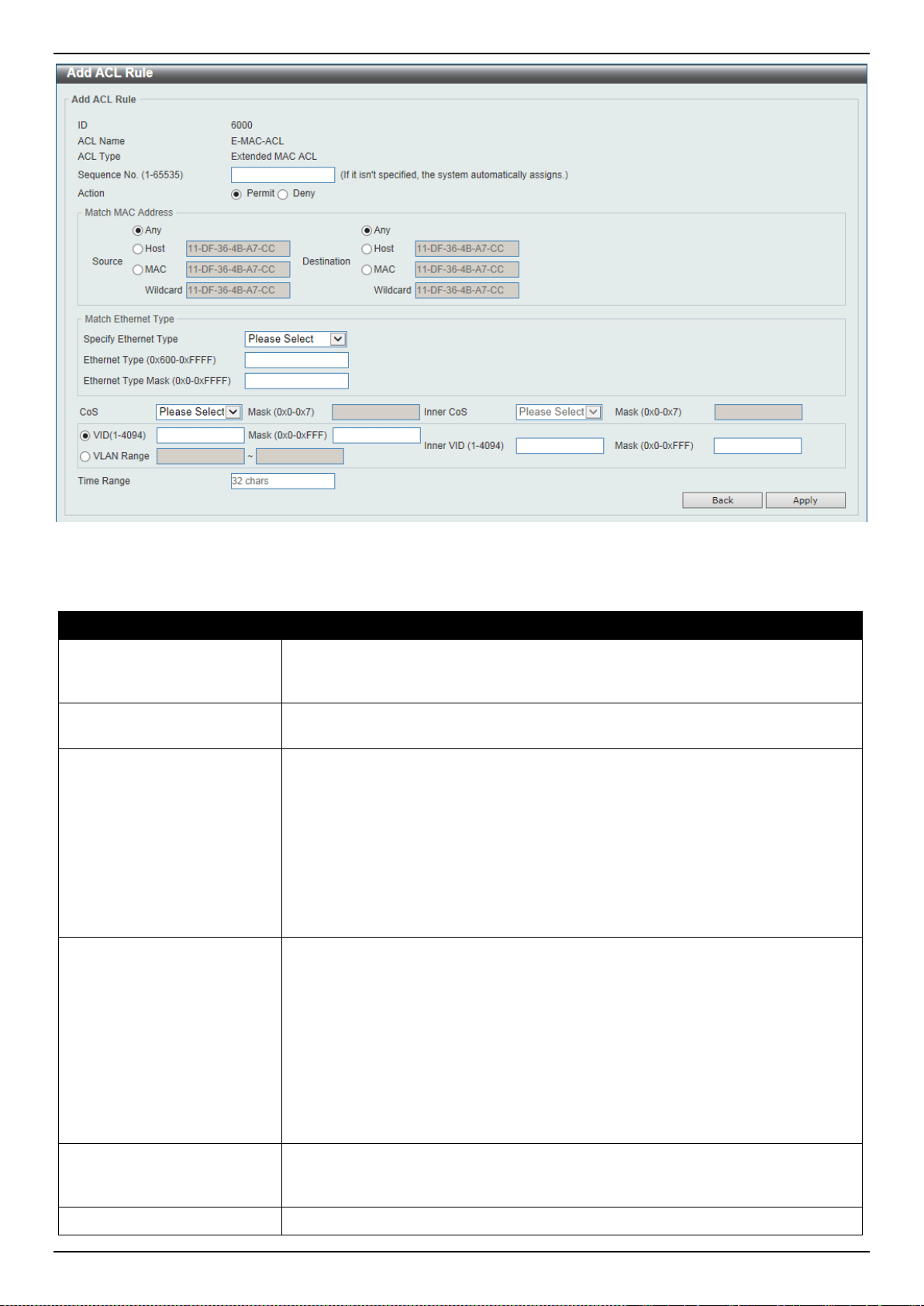
DXS-3400 Series Lite Layer 3 Stackable 10GbE Managed Switch Web UI Reference Guide
282
Figure 8-15 Extended MAC ACL (Add Rule) Window
The fields that can be configured are described below:
Parameter Description
Sequence No.
Enter the sequence number of this ACL rule here. The range is from 1 to 65535. If
this value is not specified, the system will automatically generate an ACL rule
number for this entry.
Action
Select the action that this rule will take here. Options to choose from are Permit
and Deny.
Source
Select and enter the source MAC address information here. Options to choose
from are Any, Host, MAC, and Wildcard.
• When the Any option is selected, any source traffic will be evaluated
according to the conditions of this rule.
• When the Host option is selected, enter the source host’s MAC address
here.
• When the MAC option is selected, the Wildcard option will also be available.
Enter the source MAC address and wildcard value in the spaces provided.
Destination
Select and enter the destination MAC address information here. Options to
choose from are Any, Host, MAC, and Wildcard.
• When the Any option is selected, any destination traffic will be evaluated
according to the conditions of this rule.
• When the Host option is selected, enter the destination host’s MAC address
here.
• When the MAC option is selected, the Wildcard option will also be available.
Enter the destination MAC address and wildcard value in the spaces
provided.
Specify Ethernet Type
Select the Ethernet type option here. Options to choose from are aarp, appletalk,
decent-iv, etype-6000, etype-8042, lat, lavc-sca, mop-console, mop-dump,
vines-echo, vines-ip, xns-idp, and arp.
Ethernet Type
Enter the Ethernet type hexadecimal value here. This value must be between

DXS-3400 Series Lite Layer 3 Stackable 10GbE Managed Switch Web UI Reference Guide
283
Parameter Description
0x600 and 0xFFFF. When the Ethernet type profile is selected, above, the
appropriate hexadecimal value will automatically be entered.
Ethernet Type Mask
Enter the Ethernet type mask hexadecimal value here. This value must be
between 0x0 and 0xFFFF. When the Ethernet type profile is selected, above, the
appropriate hexadecimal value will automatically be entered.
CoS
Select the CoS value that will be used here. The range is from 0 to 7.
• Mask - Enter the CoS mask value here. The range is from 0x0 to 0x7.
Inner CoS
After selecting the CoS value, select the inner CoS value that will be used here.
The range is from 0 to 7.
• Mask - Enter the inner CoS mask value here. The range is from 0x0 to 0x7.
VID
Enter the VLAN ID that will be associated with this ACL rule here. The range is
from 1 to 4094.
• Mask - Enter the VLAN ID mask value here. The range is from 0x0 to 0xFFF.
Inner VID
Enter the inner VLAN ID that will be associated with this ACL rule here. The range
is from 1 to 4094.
• Mask - Enter the inner VLAN ID mask value here. The range is from 0x0 to
0xFFF.
VLAN Range
Select and enter the VLAN range that will be associated with this ACL rule here.
Enter the starting and ending VLANs in the spaces provided. The range is from 1
to 4094.
Time Range
Enter the name of the time range profile that will be used in this ACL rule here.
This name can be up to 32 characters long.
Click the Apply button to accept the changes made.
Click the Back button to discard the changes made and return to the previous page.
Extended Expert ACL
After selecting an Extended Expert ACL and clicking the Add Rule button, the following page will appear.

DXS-3400 Series Lite Layer 3 Stackable 10GbE Managed Switch Web UI Reference Guide
284
Figure 8-16 Extended Expert ACL (Add Rule) Window
The fields that can be configured are described below:
Parameter Description
Sequence No.
Enter the sequence number of this ACL rule here. The range is from 1 to 65535. If
this value is not specified, the system will automatically generate an ACL rule
number for this entry.
Action
Select the action that this rule will take here. Options to choose from are Permit
and Deny.
Protocol Type
Select the protocol type option here. Options to choose from are TCP, UDP,
ICMP, EIGRP (88), ESP (50), GRE (47), IGMP (2), OSPF (89), PIM (103), VRRP
(112), IP-in-IP (94), PCP (108), Protocol ID, and None.
• Value - The protocol ID can also manually be entered here. The range is
from 0 to 255.
• Mask - After selecting the Protocol ID option, manually enter the protocol
mask value here. The range is from 0x0 to 0xFF.
• Fragments - Select this option to include packet fragment filtering.
Source
Select and enter the source IP information here. Options to choose from are Any,
Host, and IP.
• When the Any option is selected, any source traffic will be evaluated
according to the conditions of this rule.
• When the Host option is selected, enter the source host’s IP address here.
• When the IP option is selected, the Wildcard option will also be available.
Enter the group of source IP addresses by using a wildcard bitmap. The bit

DXS-3400 Series Lite Layer 3 Stackable 10GbE Managed Switch Web UI Reference Guide
285
Parameter Description
corresponding to the bit value 1 will be ignored. The bit corresponding to the
bit value 0 will be checked.
Destination
Select and enter the destination IP information here. Options to choose from are
Any, Host, and IP.
• When the Any option is selected, any destination traffic will be evaluated
according to the conditions of this rule.
• When the Host option is selected, enter the destination host’s IP address
here.
• When the IP option is selected, the Wildcard option will also be available.
Enter the group of destination IP addresses by using a wildcard bitmap. The
bit corresponding to the bit value 1 will be ignored. The bit corresponding to
the bit value 0 will be checked.
Source
Select and enter the source MAC address information here. Options to choose
from are Any, Host, MAC, and Wildcard.
• When the Any option is selected, any source traffic will be evaluated
according to the conditions of this rule.
• When the Host option is selected, enter the source host’s MAC address
here.
• When the MAC option is selected, the Wildcard option will also be available.
Enter the source MAC address and wildcard value in the spaces provided.
Destination
Select and enter the destination MAC address information here. Options to
choose from are Any, Host, MAC, and Wildcard.
• When the Any option is selected, any destination traffic will be evaluated
according to the conditions of this rule.
• When the Host option is selected, enter the destination host’s MAC address
here.
• When the MAC option is selected, the Wildcard option will also be available.
Enter the destination MAC address and wildcard value in the spaces
provided.
Source Port
Select and enter the source port value here. Options to choose from are =, >, <, ≠,
Range, and Mask.
• When selecting the = option, the specific selected port number will be used.
• When selecting the > option, all ports greater than the selected port, will be
used.
• When selecting the < option, all ports smaller than the selected port, will be
used.
• When selecting the ≠ option, all ports, excluding the selected port, will be
used.
• When selecting the Range option, the start port number and end port
number selected, of the range, will be used. Alternatively, the port number(s)
can manually be entered in the space(s) provided, if the port number(s)
is/are not available in the drop-down list.
• When selecting the Mask option, the specified source port number and mask
will be used. Enter the source port mask value in the space provided. The
range is from 0x0 to 0xFFFF.
This parameter is only available in the protocol type TCP and UDP.
Destination Port
Select and enter the destination port value here. Options to choose from are =, >,
<, ≠, Range, and Mask.
• When selecting the = option, the specific selected port number will be used.
• When selecting the > option, all ports greater than the selected port, will be

DXS-3400 Series Lite Layer 3 Stackable 10GbE Managed Switch Web UI Reference Guide
286
Parameter Description
used.
• When selecting the < option, all ports smaller than the selected port, will be
used.
• When selecting the ≠ option, all ports, excluding the selected port, will be
used.
• When selecting the Range option, the start port number and end port
number selected, of the range, will be used. Alternatively, the port number(s)
can manually be entered in the space(s) provided, if the port number(s)
is/are not available in the drop-down list.
• When selecting the Mask option, the specified destination port number and
mask will be used. Enter the destination port mask value in the space
provided. The range is from 0x0 to 0xFFFF.
This parameter is only available in the protocol type TCP and UDP.
Specify ICMP Message
Type
Select the ICMP message type used here.
This parameter is only available in the protocol type ICMP.
ICMP Message Type
When the ICMP Message Type is not selected, enter the ICMP Message Type
numerical value used here. The range is from 0 to 255. When the ICMP Message
Type is selected, this numerical value will automatically be entered.
This parameter is only available in the protocol type ICMP.
Message Code
When the ICMP Message Type is not selected, enter the Message Code
numerical value used here. The range is from 0 to 255. When the ICMP Message
Type is selected, this numerical value will automatically be entered.
This parameter is only available in the protocol type ICMP.
IP Precedence
Select the IP precedence value used here. Options to choose from are routine
(0), priority (1), immediate (2), flash (3), flash-override (4), critical (5), internet
(6), and network (7).
• Value - The IP precedence value can also manually be entered here. The
range is from 0 to 7.
• Mask - Enter the IP precedence mask value here. The range is from 0x0 to
0x7.
ToS
Select the Type-of-Service (ToS) value that will be used here. Options to choose
from are normal (0), min-monetary-cost (1), max-reliability (2), max-
throughput (4), and min-delay (8).
• Value - The ToS value can also manually be entered here. The range is from
0 to 15.
• Mask - Enter the ToS mask value here. The range is from 0x0 to 0xF.
DSCP
Select the DSCP value that will be used here. Options to choose from are default
(0), af11 (10), af12 (12), af13 (14), af21 (18), af22 (20), af23 (22), af31 (26), af32
(28), af33 (30), af41 (34), af42 (36), af43 (38), cs1 (8), cs2 (16), cs3 (24), cs4
(32), cs5 (40), cs6 (48), cs7 (56), and ef (46).
• Value - The DSCP value can also manually be entered here. The range is
from 0 to 63.
• Mask - Enter the DSCP mask value here. The range is from 0x0 to 0x3F.
TCP Flag
Tick the appropriate TCP flag option to include the flag in this rule. Options to
choose from are ack, fin, psh, rst, syn, and urg.
This parameter is only available in the protocol type TCP.
VID
Enter the VLAN ID that will be associated with this ACL rule here. The range is
from 1 to 4094.
• Mask - Enter the VLAN ID mask value here. The range is from 0x0 to 0xFFF.
Inner VID
Enter the inner VLAN ID that will be associated with this ACL rule here. The range
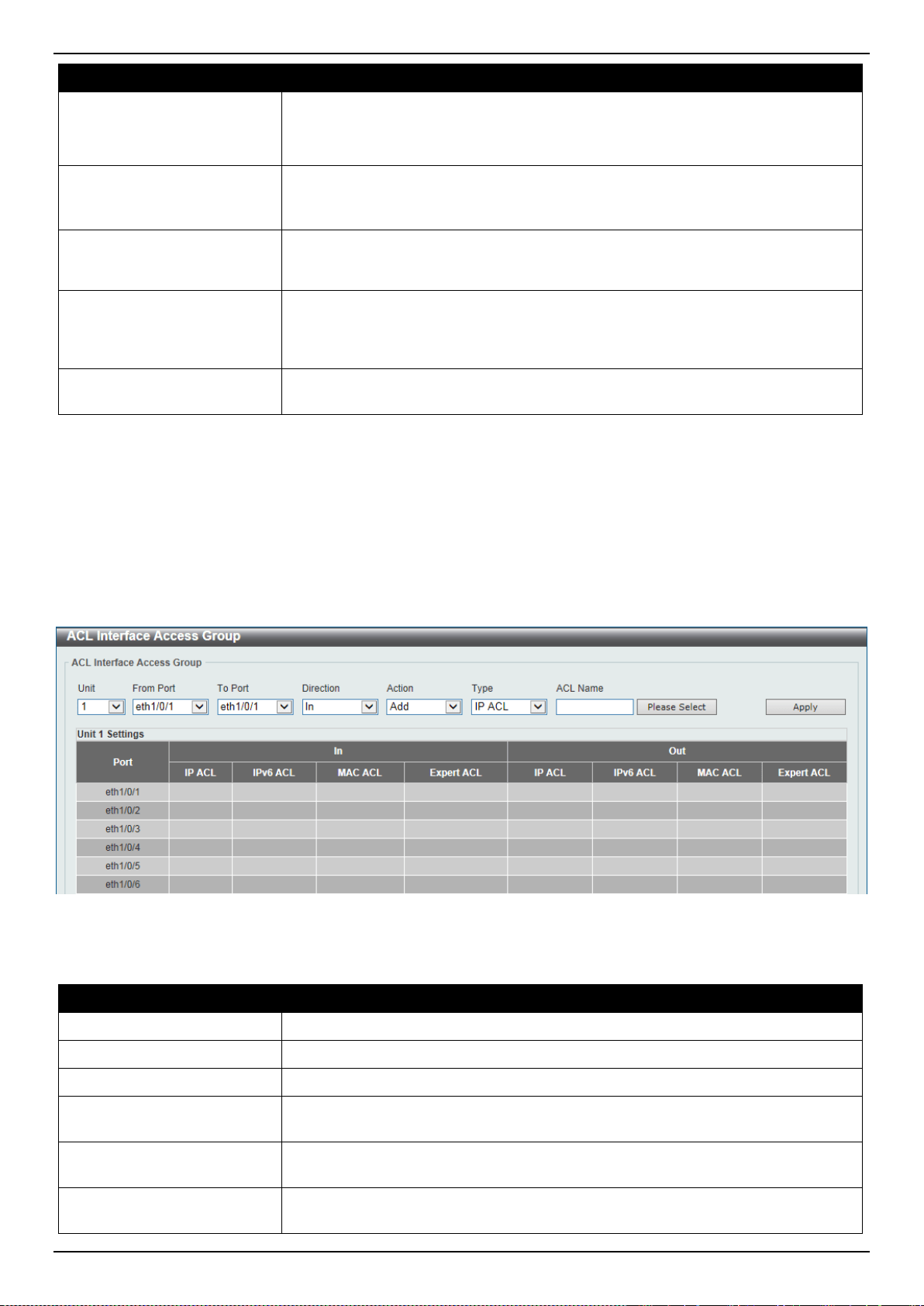
DXS-3400 Series Lite Layer 3 Stackable 10GbE Managed Switch Web UI Reference Guide
287
Parameter Description
is from 1 to 4094.
• Mask - Enter the inner VLAN ID mask value here. The range is from 0x0 to
0xFFF.
VLAN Range
Select and enter the VLAN range that will be associated with this ACL rule here.
Enter the starting and ending VLANs in the spaces provided. The range is from 1
to 4094.
CoS
Select the CoS value that will be used here. The range is from 0 to 7.
• Mask - Enter the CoS mask value here. The range is from 0x0 to 0x7.
Inner CoS
After selecting the CoS value, select the inner CoS value that will be used here.
The range is from 0 to 7.
• Mask - Enter the inner CoS mask value here. The range is from 0x0 to 0x7.
Time Range
Enter the name of the time range profile that will be used in this ACL rule here.
This name can be up to 32 characters long.
Click the Apply button to accept the changes made.
Click the Back button to discard the changes made and return to the previous page.
ACL Interface Access Group
This window is used to display and configure the ACL interface access group settings.
To view the following window, click ACL > ACL Interface Access Group, as shown below:
Figure 8-17 ACL Interface Access Group Window
The fields that can be configured are described below:
Parameter Description
Unit
Select the Switch unit that will be used for this configuration here.
From Port ~ To Port
Select the range of ports that will be used for this configuration here.
Direction
Select the direction here. Options to choose from are In and Out.
Action
Select the action that will be taken here. Options to choose from are Add and
Delete.
Type
Select the ACL type here. Options to choose from are IP ACL, IPv6 ACL, MAC
ACL, and Expert ACL.
ACL Name
Enter the ACL’s name here. This name can be up to 32 characters long. Click the
Please Select button to select an existing ACL from the list.
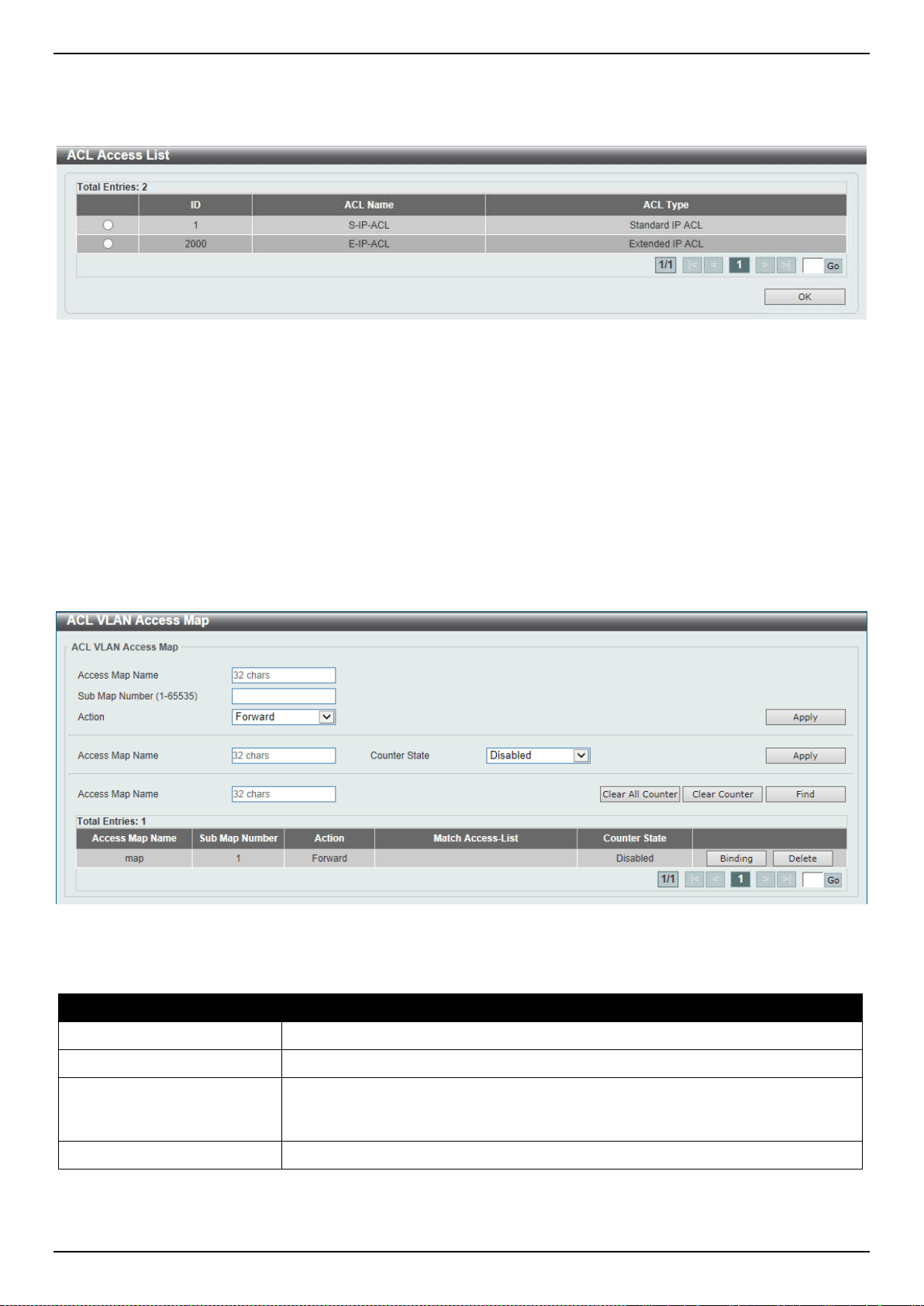
DXS-3400 Series Lite Layer 3 Stackable 10GbE Managed Switch Web UI Reference Guide
288
Click the Apply button to accept the changes made.
After clicking the Please Select button, the following window will appear:
Figure 8-18 ACL Interface Access Group (Please Select) Window
Select the radio button next to the entry to use that ACL in the configuration.
Enter a page number and click the Go button to navigate to a specific page when multiple pages exist.
Click the OK button to accept the selection made.
ACL VLAN Access Map
This window is used to display and configure the ACL VLAN access map settings.
To view the following window, click ACL > ACL VLAN Access Map, as shown below:
Figure 8-19 ACL VLAN Access Map Window
The fields that can be configured are described below:
Parameter Description
Access Map Name
Enter the access map’s name here. This name can be up to 32 characters long.
Sub Map Number
Enter the sub-map’s number here. This value must be between 1 and 65535.
Action
Select the action that will be taken here. Options to choose from are Forward,
Drop, and Redirect. When the Redirect option is selected, select the redirected
interface from the drop-down list.
Counter State
Select whether to enable or disable the counter state.
Click the Apply button to accept the changes made.
Click the Clear All Counter button to clear the counter information for all the access maps.
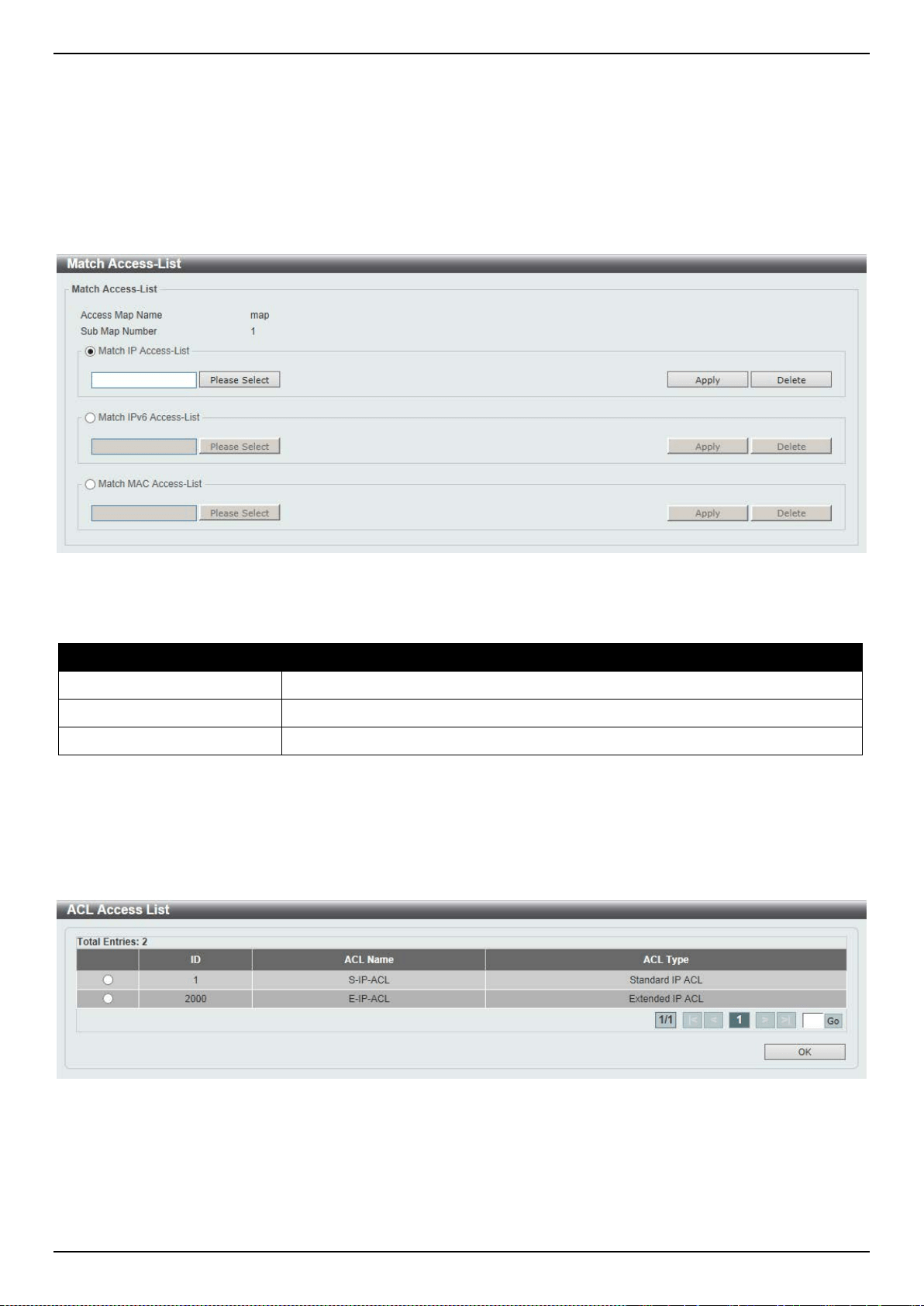
DXS-3400 Series Lite Layer 3 Stackable 10GbE Managed Switch Web UI Reference Guide
289
Click the Clear Counter button to the clear the counter information for the specified access map.
Click the Find button to locate a specific entry based on the information entered.
Click the Binding button to match an access list to the ACL VLAN access map.
Click the Delete button to remove the specific entry.
Enter a page number and click the Go button to navigate to a specific page when multiple pages exist.
After clicking the Binding button, the following window will appear:
Figure 8-20 ACL VLAN Access Map (Binding) Window
The fields that can be configured are described below:
Parameter Description
Match IP Access-List
Here the IP access list that will be matched will be displayed.
Match IPv6 Access-List
Here the IPv6 access list that will be matched will be displayed.
Match MAC Access-List
Here the MAC access list that will be matched will be displayed.
Click the Please Select button navigate to a list of access lists that can be selected to be used in this configuration.
Click the Apply button to accept the changes made.
Click the Delete button to remove the specific entry.
After clicking the Please Select button, the following window will appear:
Figure 8-21 ACL VLAN Access Map (Binding, Selection) Window
Select the radio button next to the entry to use that access list in the configuration.
Enter a page number and click the Go button to navigate to a specific page when multiple pages exist.
Click the OK button to accept the selection made.
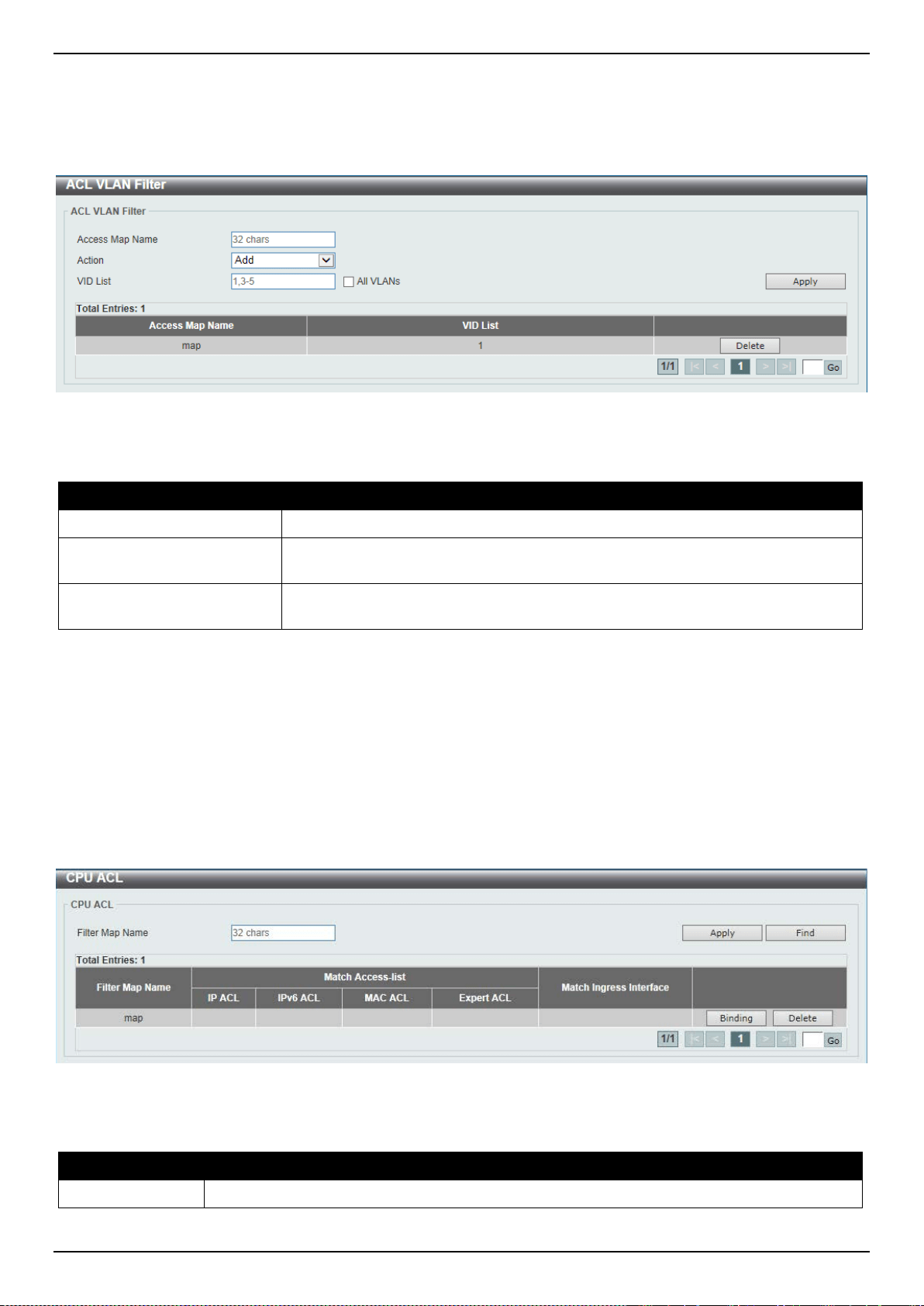
DXS-3400 Series Lite Layer 3 Stackable 10GbE Managed Switch Web UI Reference Guide
290
ACL VLAN Filter
This window is used to display and configure the ACL VLAN filter settings.
To view the following window, click ACL > ACL VLAN Filter, as shown below:
Figure 8-22 ACL VLAN Filter Window
The fields that can be configured are described below:
Parameter Description
Access Map Name
Enter the access map’s name here. This name can be up to 32 characters long.
Action
Select the action that will be taken here. Options to choose from are Add and
Delete.
VID List
Enter the VLAN ID list that will be used here. Select the All VLANs option to
apply this configuration to all the VLANs configured on the Switch.
Click the Apply button to accept the changes made.
Click the Delete button to remove the specific entry.
Enter a page number and click the Go button to navigate to a specific page when multiple pages exist.
CPU ACL
This window is used to display and configure the CPU ACL settings.
To view the following window, click ACL > CPU ACL, as shown below:
Figure 8-23 CPU ACL Window
The fields that can be configured are described below:
Parameter Description
Filter Map Name
Enter the CPU ACL filter map’s name here. This name can be up to 32 characters long.
Click the Apply button to accept the changes made.
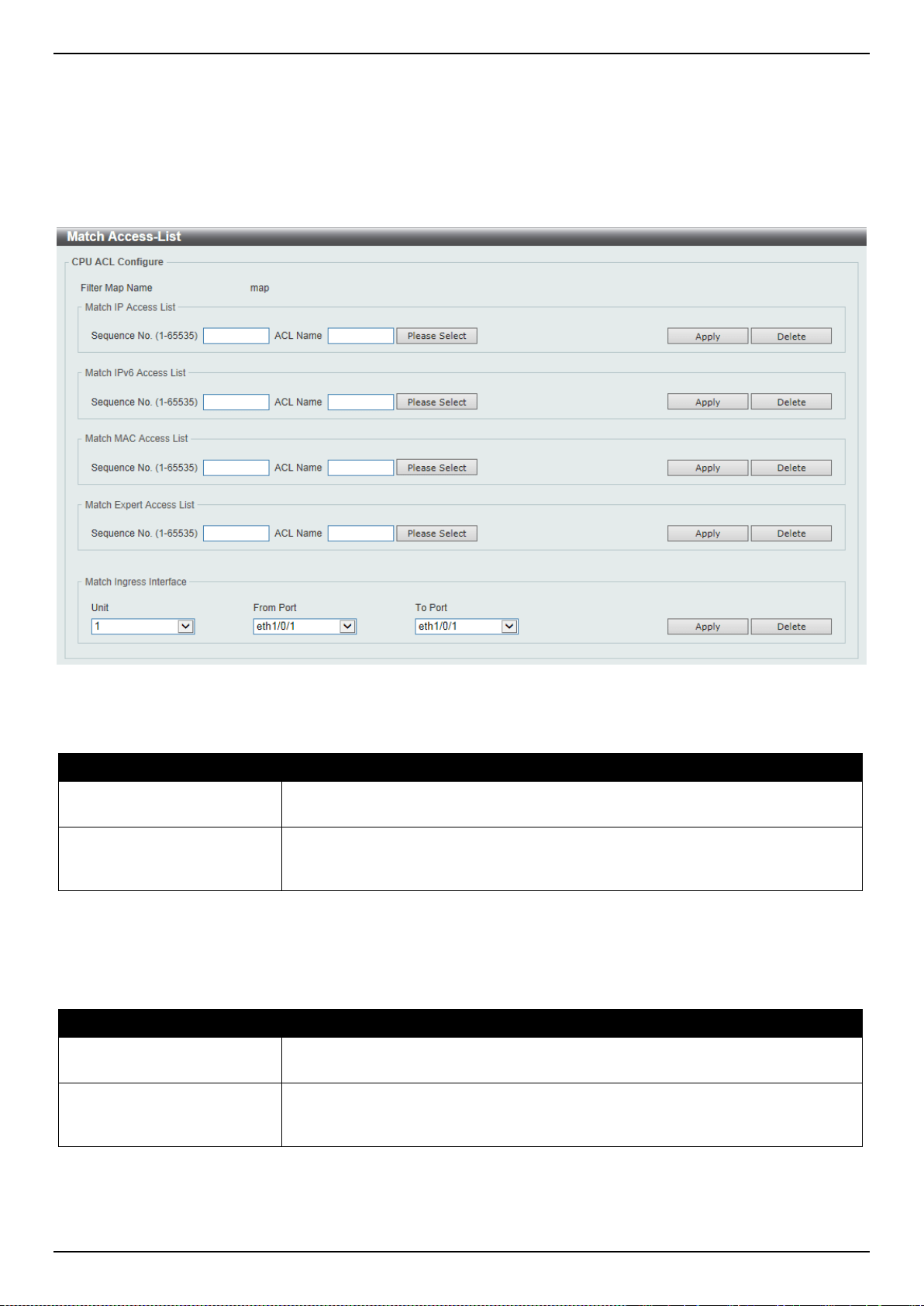
DXS-3400 Series Lite Layer 3 Stackable 10GbE Managed Switch Web UI Reference Guide
291
Click the Find button to locate a specific entry based on the information entered.
Click the Binding button to configure the binding settings for the specified entry.
Click the Delete button to delete the specified entry.
Enter a page number and click the Go button to navigate to a specific page when multiple pages exist.
After clicking the Binding button, the following page will appear.
Figure 8-24 CPU ACL (Binding) Window
The fields that can be configured in Match IP Access List are described below:
Parameter Description
Sequence No.
Enter the sequence number of the associated match entry here. The range is
from 1 to 65535. The lower the number is, the higher the priority of the access list.
ACL Name
Enter the standard or extended IP access list’s name to be matched here. This
name can be up to 32 characters long. Alternatively, click the Please Select
button to select an existing ACL from the list.
Click the Apply button to accept the changes made.
Click the Delete button to delete the specified entry.
The fields that can be configured in Match IPv6 Access List are described below:
Parameter Description
Sequence No.
Enter the sequence number of the associated match entry here. The range is
from 1 to 65535. The lower the number is, the higher the priority of the access list.
ACL Name
Enter the standard or extended IPv6 access list’s name to be matched here. This
name can be up to 32 characters long. Alternatively, click the Please Select
button to select an existing ACL from the list.
Click the Apply button to accept the changes made.
Click the Delete button to delete the specified entry.
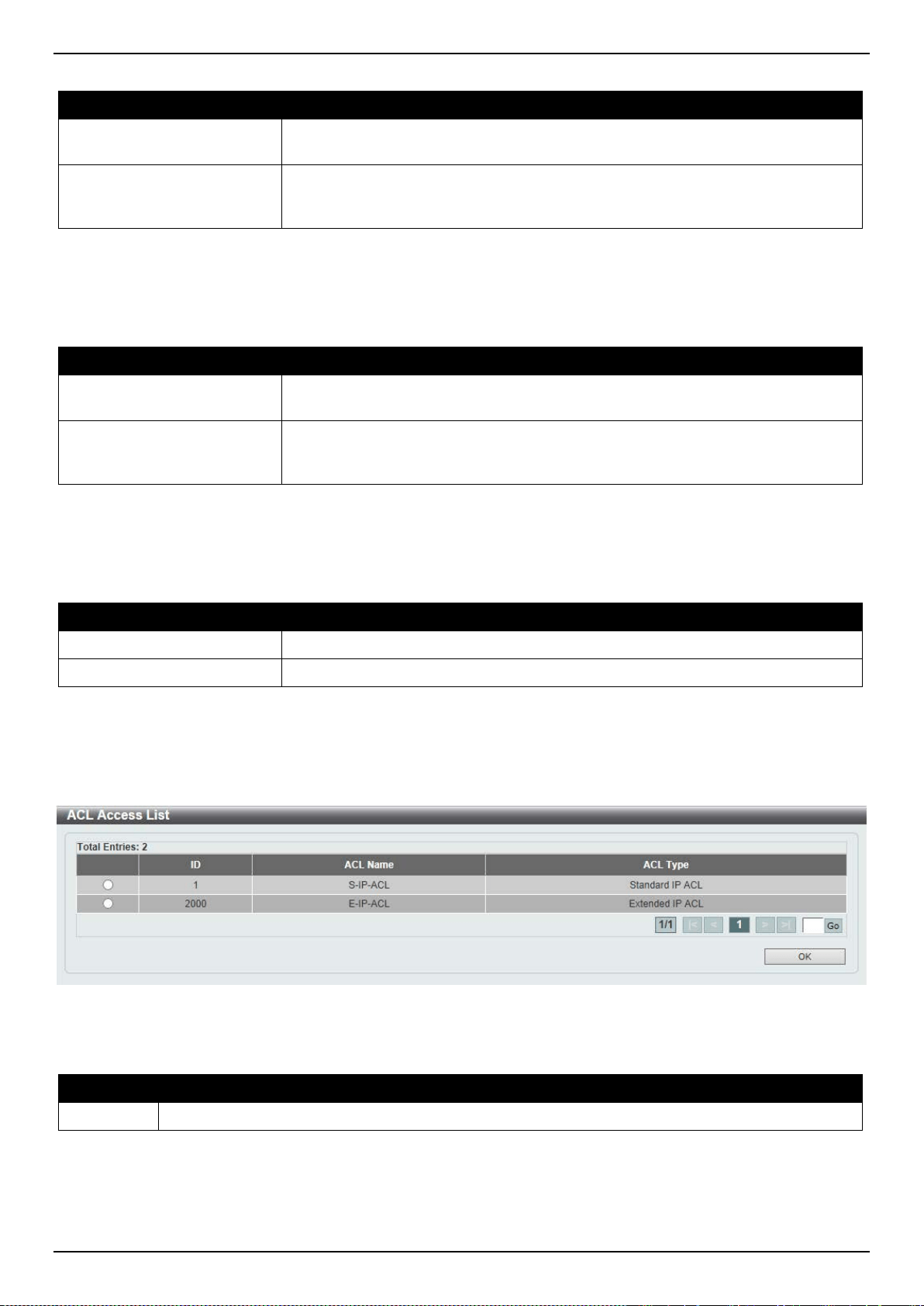
DXS-3400 Series Lite Layer 3 Stackable 10GbE Managed Switch Web UI Reference Guide
292
The fields that can be configured in Match MAC Access List are described below:
Parameter Description
Sequence No.
Enter the sequence number of the associated match entry here. The range is
from 1 to 65535. The lower the number is, the higher the priority of the access list.
ACL Name
Enter the extended MAC access list’s name to be matched here. This name can
be up to 32 characters long. Alternatively, click the Please Select button to select
an existing ACL from the list.
Click the Apply button to accept the changes made.
Click the Delete button to delete the specified entry.
The fields that can be configured in Match Expert Access List are described below:
Parameter Description
Sequence No.
Enter the sequence number of the associated match entry here. The range is
from 1 to 65535. The lower the number is, the higher the priority of the access list.
ACL Name
Enter the extended expert access list’s name to be matched here. This name can
be up to 32 characters long. Alternatively, click the Please Select button to select
an existing ACL from the list.
Click the Apply button to accept the changes made.
Click the Delete button to delete the specified entry.
The fields that can be configured in Match Ingress Interface are described below:
Parameter Description
Unit
Select the Switch’s unit ID that will be used here.
From Port ~ To Port
Select the Switch’s port range that will be used here.
Click the Apply button to accept the changes made.
Click the Delete button to delete the specified entry.
After clicking the Please Select button, the following window will appear:
Figure 8-25 CPU ACL (Binding, Please Select) Window
The fields that can be configured are described below:
Parameter Description
ACL List
Select the radio button next to the access list entry to use that access list in the configuration.
Select the ACL and click the OK button to accept the selection made.
Enter a page number and click the Go button to navigate to a specific page when multiple pages exist.

DXS-3400 Series Lite Layer 3 Stackable 10GbE Managed Switch Web UI Reference Guide
293
9. Security
Port Security
802.1X
AAA
RADIUS
TACACS+
IMPB
DHCP Server Screening
ARP Spoofing Prevention
BPDU Attack Protection
NetBIOS Filtering
MAC Authentication
Web-based Access Control
Network Access Authentication
Safeguard Engine
Trusted Host
Traffic Segmentation Settings
Storm Control
DoS Attack Prevention Settings
SSH
SSL
SFTP Server Settings
Port Security
Port Security Global Settings
This window is used to display and configure the port security global settings. Port Security is a security feature that
prevents unauthorized computers (with source MAC addresses) unknown to the Switch prior to locking the port (or
ports) from connecting to the Switch's locked ports and gaining access to the network.
To view the following window, click Security > Port Security > Port Security Global Settings, as shown below:
Figure 9-1 Port Security Global Settings Window
The fields that can be configured in Port Security Trap Settings are described below:

DXS-3400 Series Lite Layer 3 Stackable 10GbE Managed Switch Web UI Reference Guide
294
Parameter Description
Trap State
Click to enable or disable port security traps on the Switch.
Click the Apply button to accept the changes made.
The fields that can be configured in Port Security Trap Rate Settings are described below:
Parameter Description
Trap Rate
Enter the number of traps per second. The range is from 0 to 1000. The default
value 0 indicates an SNMP trap to be generated for every security violation.
Click the Apply button to accept the changes made.
The fields that can be configured in Port Security System Settings are described below:
Parameter Description
System Maximum Address
Enter the maximum number of secure MAC addresses allowed. If not specified,
the default value is No Limit. The valid range is from 1 to 6656. Tick the No Limit
checkbox to allow the maximum number of secure MAC address.
Click the Apply button to accept the changes made.
The fields that can be configured in Port Security VLAN Settings are described below:
Parameter Description
VID List
Enter the VLAN ID(s) here.
VLAN Max Learning
Address
Enter the maximum number of allowed MAC addresses that can be learned on
the specified VLAN(s) here. The range is from 1 to 12288. Tick the No Limit
checkbox to allow the maximum number of secure MAC address.
Click the Apply button to accept the changes made.
The fields that can be configured in Find VLAN are described below:
Parameter Description
VID
Enter the VLAN ID that will be located here.
Click the Find button to locate a specific entry based on the information entered.
Port Security Port Settings
This window is used to display and configure the port security port settings.
To view the following window, click Security > Port Security > Port Security Port Settings, as shown below:
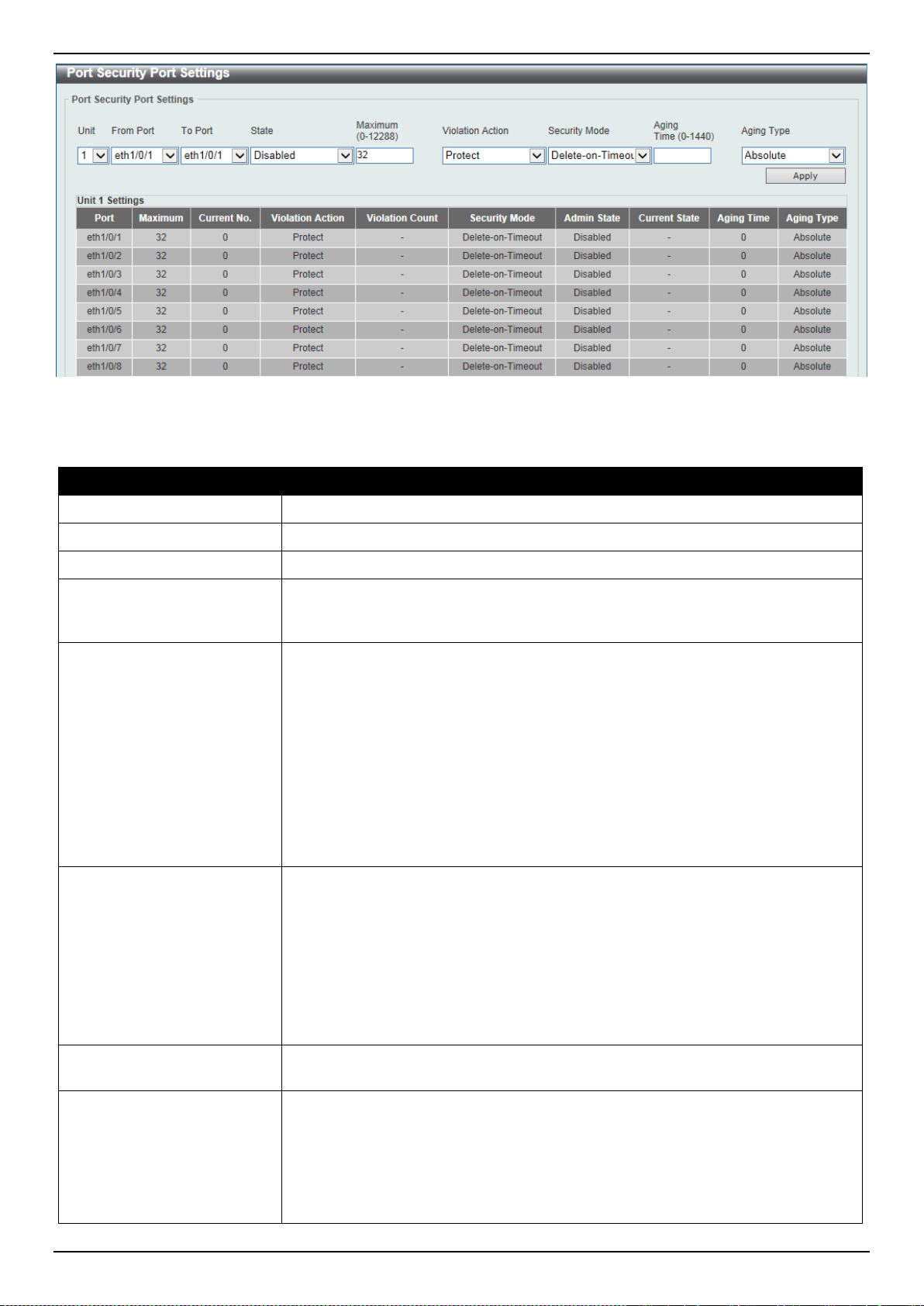
DXS-3400 Series Lite Layer 3 Stackable 10GbE Managed Switch Web UI Reference Guide
295
Figure 9-2 Port Security Port Settings Window
The fields that can be configured are described below:
Parameter Description
Unit
Select the Switch unit that will be used for this configuration here.
From Port ~ To Port
Select the appropriate port range used for the configuration here.
State
Select to enable or disable the port security feature on the port(s) specified.
Maximum
Enter the maximum number of secure MAC addresses that will be allowed on the
port(s) specified. This value must be between 0 and 6656. By default, this value is
32.
Violation Action
Select the violation action that will be taken here. Options to choose from are
Protect, Restrict, and Shutdown.
• Selecting Protect specifies to drop all packets from the insecure hosts at the
port-security process level, but does not increment the security-violation
count.
• Selecting Restrict specifies to drop all packets from the insecure hosts at the
port-security process level and increments the security-violation count and
record the system log.
• Selecting Shutdown specifies to shut down the port if there is a security
violation and record the system log.
Security Mode
Select the security mode option here. Options to choose from are Permanent and
Delete-on-Timeout.
• Selecting Permanent specifies that under this mode, all learned MAC
addresses will not be purged out unless the user manually deletes those
entries.
• Selecting Delete-on-Timeout specifies that under this mode, all learned
MAC addresses will be purged out when an entry is aged out or when the
user manually deletes these entries.
Aging Time
Enter the aging time value used for auto-learned dynamic secured addresses on
the specified port here. This value must be between 0 and 1440 minutes.
Aging Type
Select the aging type here. Options to choose from are Absolute and Inactivity.
• Selecting Absolute specifies that all the secure addresses on this port age
out exactly after the time specified and is removed from the secure address
list. This is the default type.
• Selecting Inactivity specifies that the secure addresses on this port age out
only if there is no data traffic from the secure source address for the
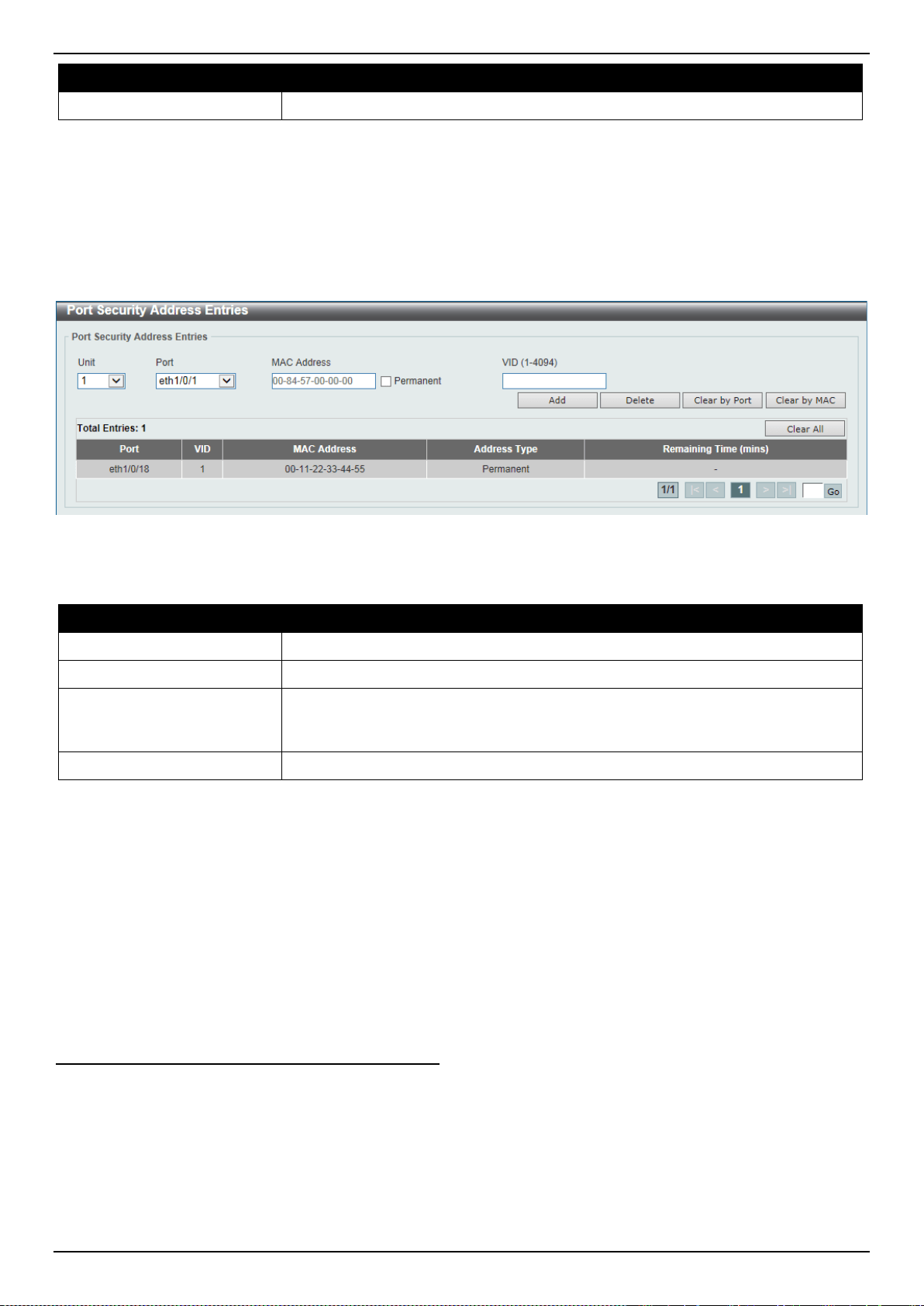
DXS-3400 Series Lite Layer 3 Stackable 10GbE Managed Switch Web UI Reference Guide
296
Parameter Description
specified time period.
Click the Apply button to accept the changes made.
Port Security Address Entries
This window is used to display, clear and configure the port security address entries.
To view the following window, click Security > Port Security > Port Security Address Entries, as shown below:
Figure 9-3 Port Security Address Entries Window
The fields that can be configured are described below:
Parameter Description
Unit
Select the Switch unit that will be used for this configuration here.
Port
Select the appropriate port range used for the configuration here.
MAC Address
Enter the MAC address here. Select the Permanent option to specify that all
learned MAC addresses will not be purged out unless the user manually deletes
those entries.
VID
Enter the VLAN ID here. This value must be between 1 and 4094.
Click the Add button to add a new entry based on the information entered.
Click the Delete button to remove a new entry based on the information entered.
Click the Clear by Port button to clear the information based on the port selected.
Click the Clear by MAC button to clear the information based on the MAC address entered.
Click the Clear All button to clear all the information in this table.
Enter a page number and click the Go button to navigate to a specific page when multiple pages exist.
802.1X
802.1X (Port-based and Host-based Access Control)
The IEEE 802.1X standard is a security measure for authorizing and authenticating users to gain access to various
wired or wireless devices on a specified Local Area Network by using a Client and Server based access control model.
This is accomplished by using a RADIUS server to authenticate users trying to access a network by relaying
Extensible Authentication Protocol over LAN (EAPOL) packets between the Client and the Server.
The following figure represents a basic EAPOL packet:
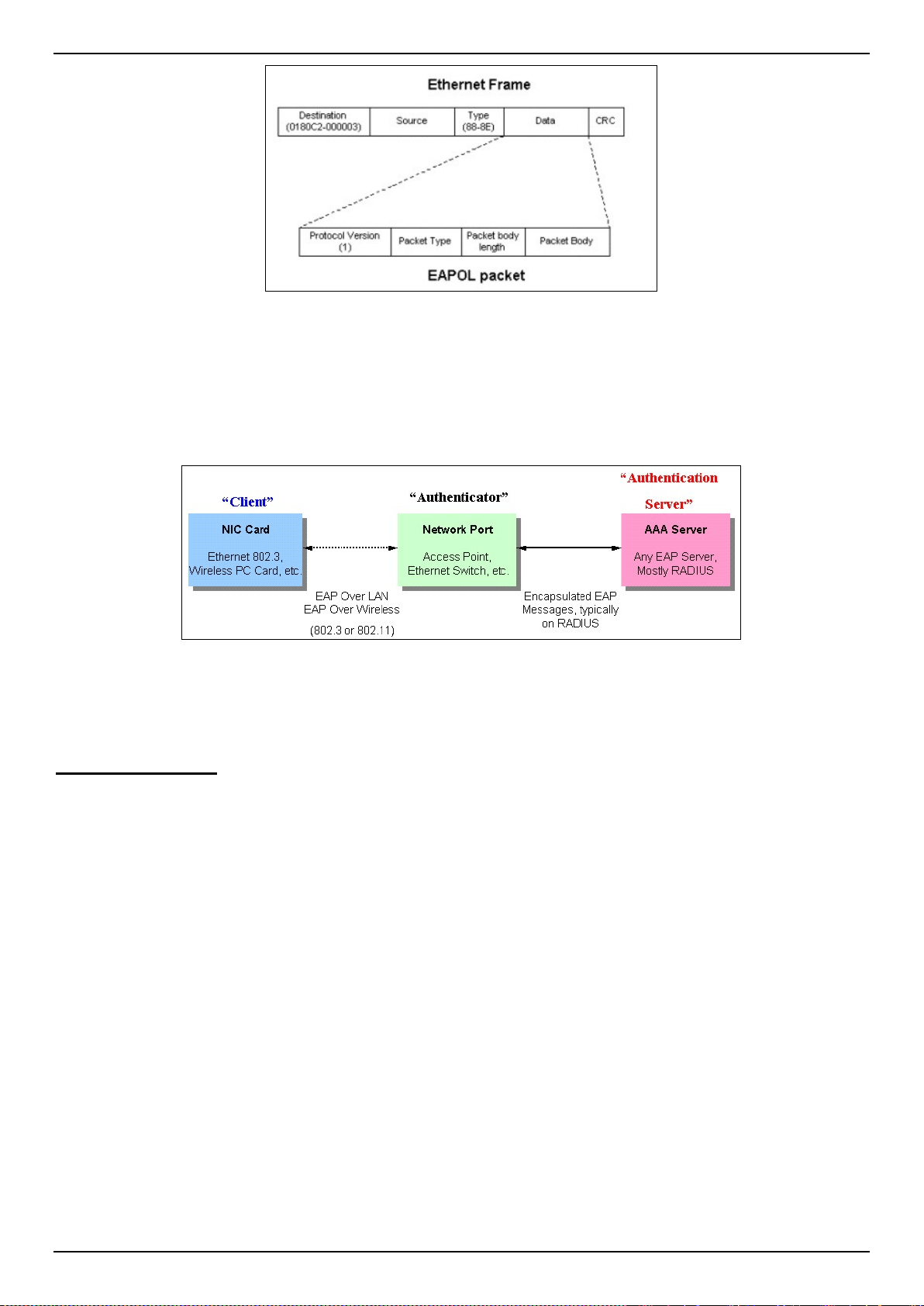
DXS-3400 Series Lite Layer 3 Stackable 10GbE Managed Switch Web UI Reference Guide
297
Figure 9-4 The EAPOL Packet
Utilizing this method, unauthorized devices are restricted from connecting to a LAN through a port to which the user is
connected. EAPOL packets are the only traffic that can be transmitted through the specific port until authorization is
granted. The 802.1X access control method has three roles, each of which are vital to creating and up keeping a
stable and working Access Control security method.
Figure 9-5 The three roles of 802.1X
The following section will explain the three roles of Client, Authenticator and Authentication Server in greater detail.
Authentication Server
The Authentication Server is a remote device that is connected to the same network as the Client and Authenticator,
must be running a RADIUS Server program and must be configured properly on the Authenticator (Switch). Clients
connected to a port on the Switch must be authenticated by the Authentication Server (RADIUS) before attaining any
services offered by the Switch on the LAN. The role of the Authentication Server is to certify the identity of the Client
attempting to access the network by exchanging secure information between the RADIUS server and the Client
through EAPOL packets and, in turn, informs the Switch whether or not the Client is granted access to the LAN and/or
Switches services.
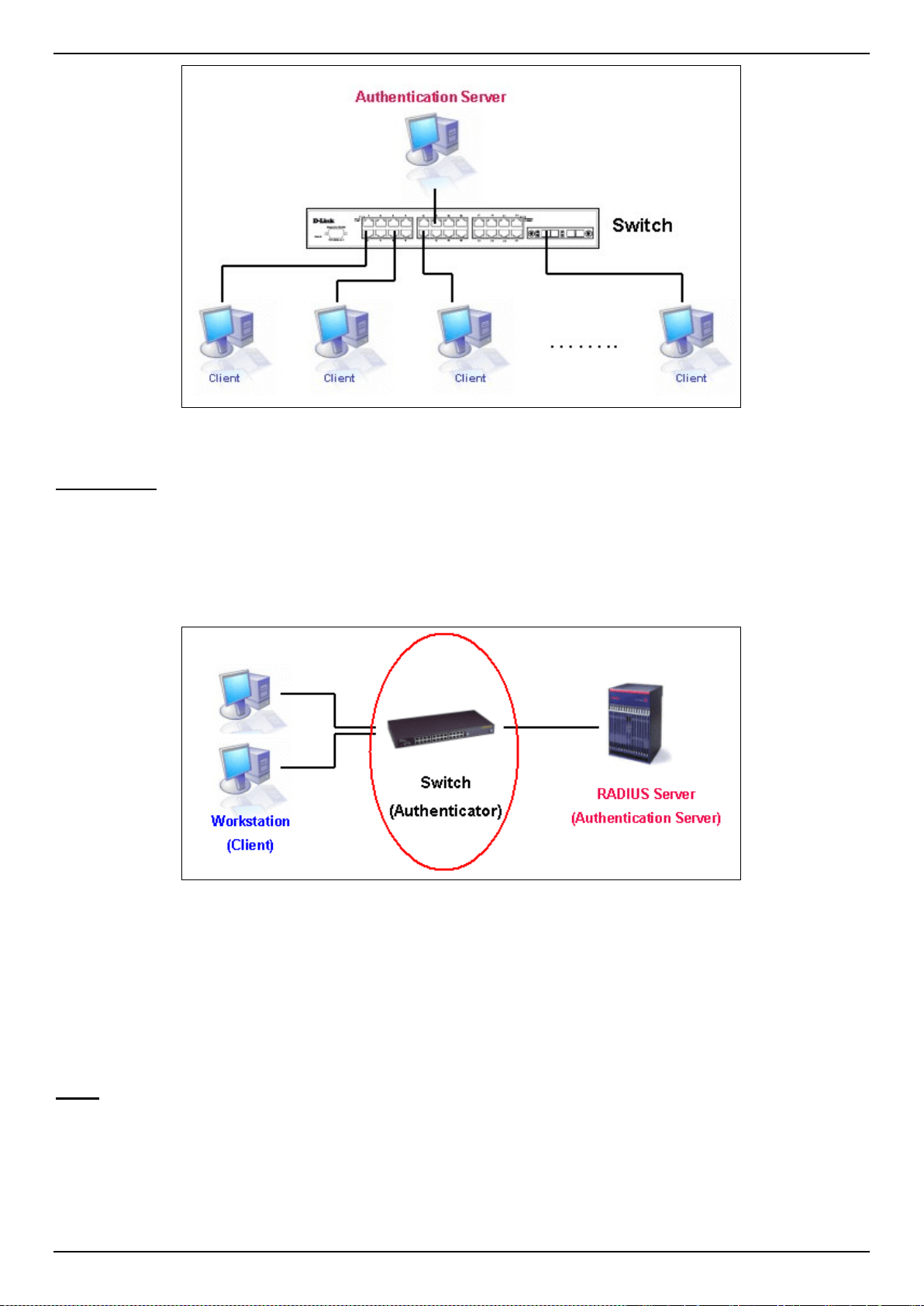
DXS-3400 Series Lite Layer 3 Stackable 10GbE Managed Switch Web UI Reference Guide
298
Figure 9-6 The Authentication Server
Authenticator
The Authenticator (the Switch) is an intermediary between the Authentication Server and the Client. The Authenticator
serves two purposes when utilizing the 802.1X function. The first purpose is to request certification information from
the Client through EAPOL packets, which is the only information allowed to pass through the Authenticator before
access is granted to the Client. The second purpose of the Authenticator is to verify the information gathered from the
Client with the Authentication Server, and to then relay that information back to the Client.
Figure 9-7 The Authenticator
Three steps must be implemented on the Switch to properly configure the Authenticator.
• The 802.1X State must be Enabled. (Security > 802.1X > 802.1X Global Settings)
• The 802.1X settings must be implemented by port (Security > 802.1X > 802.1X Port Settings)
• A RADIUS server must be configured on the Switch. (Security > RADIUS > RADIUS Server Settings)
Client
The Client is simply the end station that wishes to gain access to the LAN or Switch services. All end stations must be
running software that is compliant with the 802.1X protocol. For users running windows XP and windows Vista, that
software is included within the operating system. All other users are required to attain 802.1X client software from an
outside source. The Client will request access to the LAN and or Switch through EAPOL packets and, in turn will
respond to requests from the Switch.
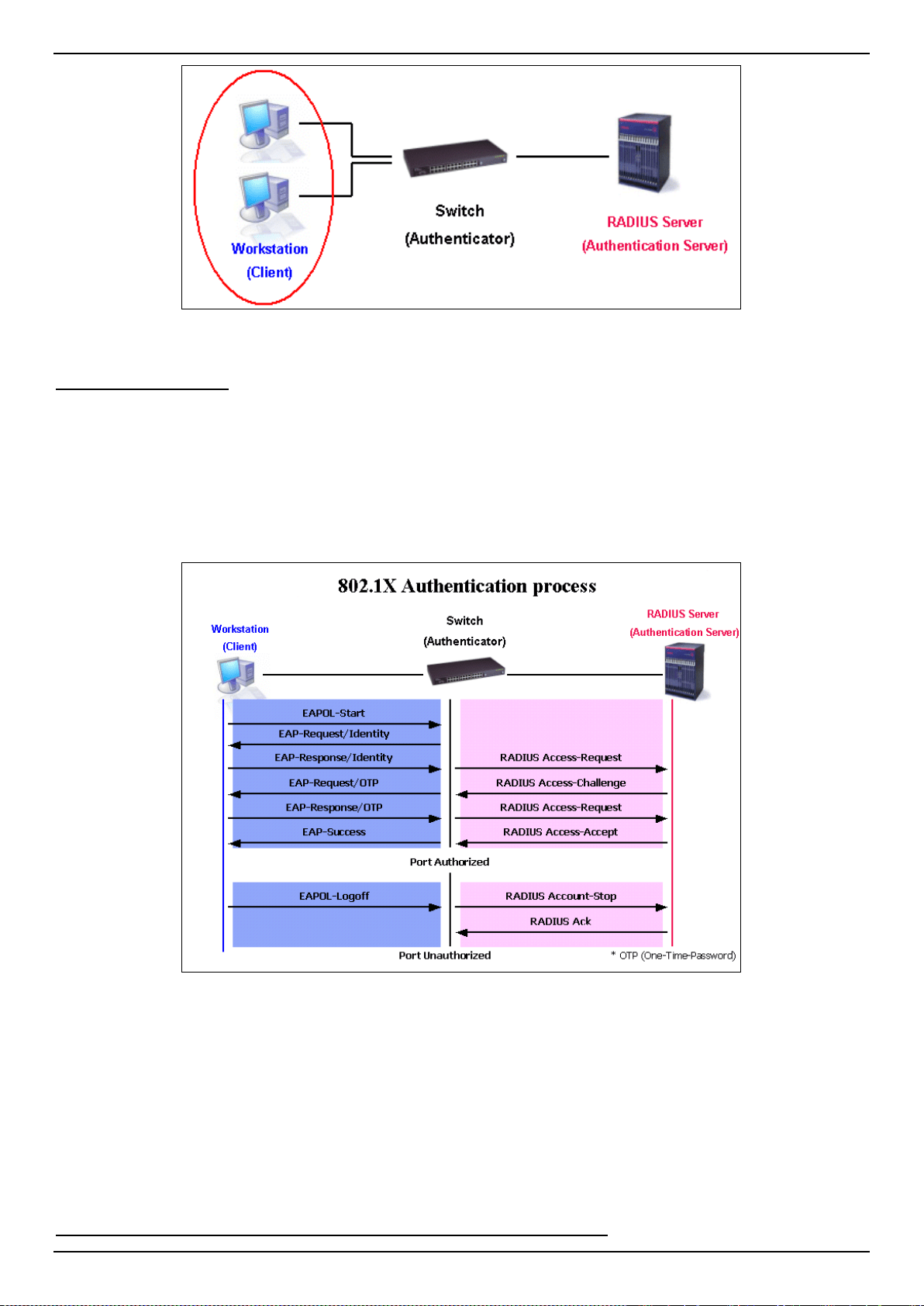
DXS-3400 Series Lite Layer 3 Stackable 10GbE Managed Switch Web UI Reference Guide
299
Figure 9-8 The Client
Authentication Process
Utilizing the three roles stated above, the 802.1X protocol provides a stable and secure way of authorizing and
authenticating users attempting to access the network. Only EAPOL traffic is allowed to pass through the specified
port before a successful authentication is made. This port is “locked” until the point when a Client with the correct
username and password (and MAC address if 802.1X is enabled by MAC address) is granted access and therefore
successfully “unlocks” the port. Once the port is unlocked, normal traffic is allowed to pass through the port. The
following figure displays a more detailed explanation of how the authentication process is completed between the
three roles stated above.
Figure 9-9 The 802.1X Authentication Process
The D-Link implementation of 802.1X allows network administrators to choose between two types of Access Control
used on the Switch, which are:
• Port-based Access Control - This method requires only one user to be authenticated per port by a remote
RADIUS server to allow the remaining users on the same port access to the network.
• Host-based Access Control - Using this method, the Switch will automatically learn up to a maximum of 4096
MAC addresses by port and set them in a list. Each MAC address must be authenticated by the Switch using a
remote RADIUS server before being allowed access to the Network.
Understanding 802.1X Port-based and Host-based Network Access Control
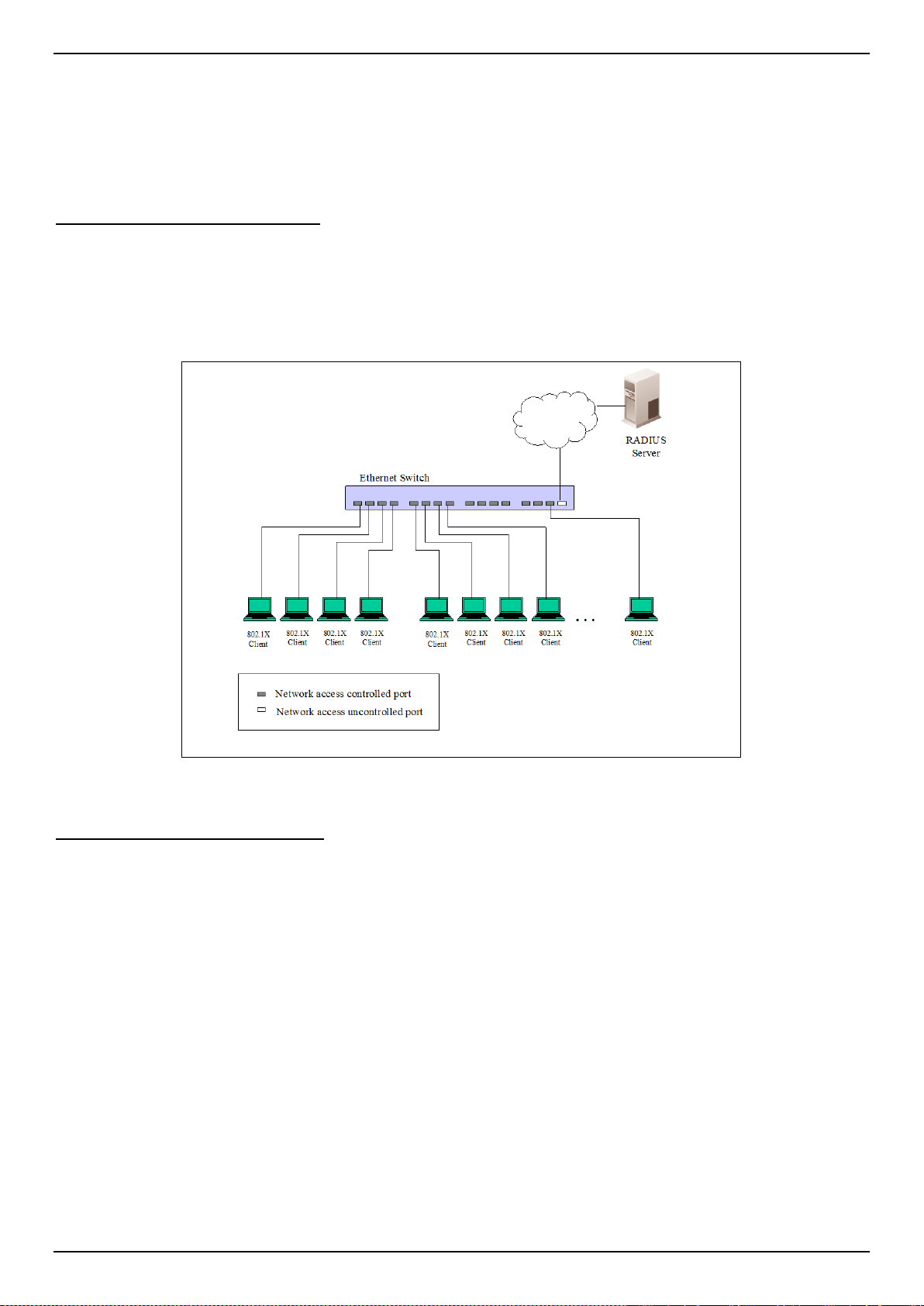
DXS-3400 Series Lite Layer 3 Stackable 10GbE Managed Switch Web UI Reference Guide
300
The original intent behind the development of 802.1X was to leverage the characteristics of point-to-point in LANs. As
any single LAN segment in such infrastructures has no more than two devices attached to it, one of which is a Bridge
Port. The Bridge Port detects events that indicate the attachment of an active device at the remote end of the link, or
an active device becoming inactive. These events can be used to control the authorization state of the Port and initiate
the process of authenticating the attached device if the Port is unauthorized. This is the Port-based Network Access
Control.
Port-based Network Access Control
Once the connected device has successfully been authenticated, the Port then becomes Authorized, and all
subsequent traffic on the Port is not subject to access control restriction until an event occurs that causes the Port to
become Unauthorized. Hence, if the Port is actually connected to a shared media LAN segment with more than one
attached device, successfully authenticating one of the attached devices effectively provides access to the LAN for all
devices on the shared segment. Clearly, the security offered in this situation is open to attack.
Figure 9-10 Example of Typical Port-based Configuration
Host-based Network Access Control
In order to successfully make use of 802.1X in a shared media LAN segment, it would be necessary to create “logical”
Ports, one for each attached device that required access to the LAN. The Switch would regard the single physical Port
connecting it to the shared media segment as consisting of a number of distinct logical Ports, each logical Port being
independently controlled from the point of view of EAPOL exchanges and authorization state. The Switch learns each
attached devices’ individual MAC addresses, and effectively creates a logical Port that the attached device can then
use to communicate with the LAN via the Switch.
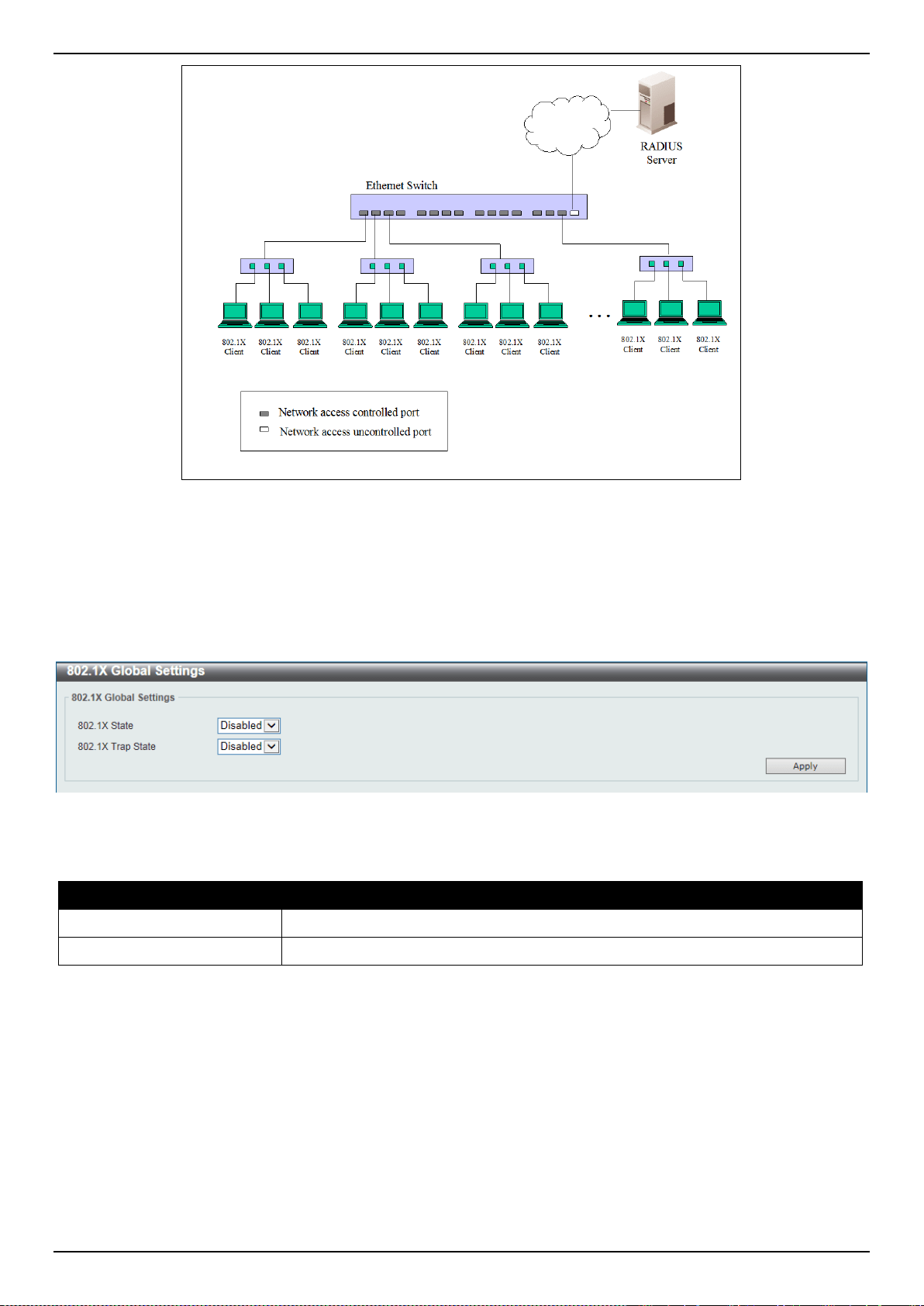
DXS-3400 Series Lite Layer 3 Stackable 10GbE Managed Switch Web UI Reference Guide
301
Figure 9-11 Example of Typical Host-based Configuration
802.1X Global Settings
This window is used to display and configure the 802.1X global settings.
To view the following window, click Security > 802.1X > 802.1X Global Settings, as shown below:
Figure 9-12 802.1X Global Settings Window
The fields that can be configured are described below:
Parameter Description
802.1X State
Select to enable or disable the 802.1X global state here.
802.1XTrap State
Select to enable or disable the 802.1X trap state here.
Click the Apply button to accept the changes made.
802.1X Port Settings
This window is used to display and configure the 802.1X port settings.
To view the following window, click Security > 802.1X > 802.1X Port Settings, as shown below:
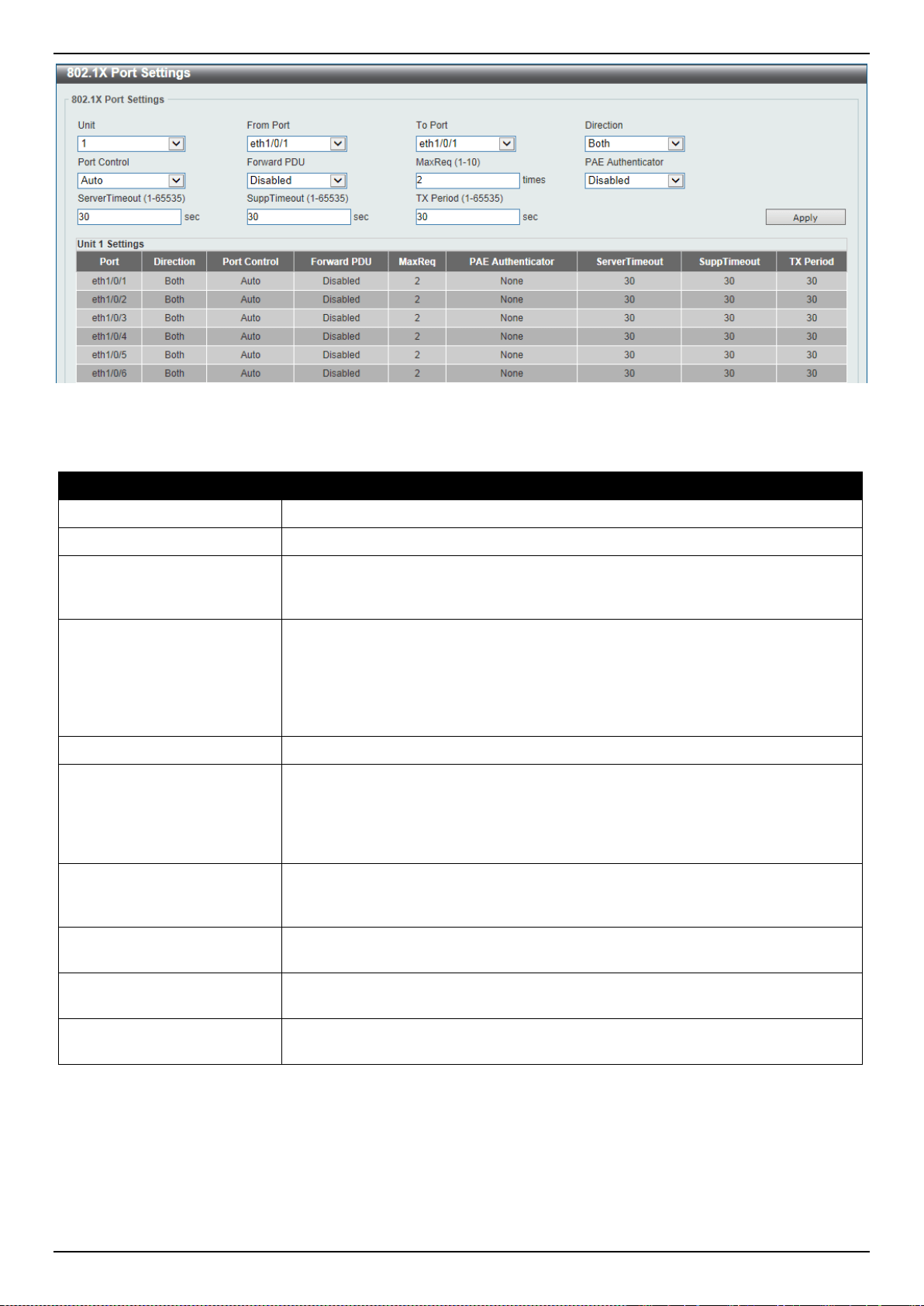
DXS-3400 Series Lite Layer 3 Stackable 10GbE Managed Switch Web UI Reference Guide
302
Figure 9-13 802.1X Port Settings Window
The fields that can be configured are described below:
Parameter Description
Unit
Select the Switch unit that will be used for this configuration here.
From Port ~ To Port
Select the appropriate port range used for the configuration here.
Direction
Select the direction here. Options to choose from are Both and In. This option
configures the direction of the traffic on a controlled port as unidirectional (In) or
bidirectional (Both).
Port Control
Select the port control option here. Options to choose from are ForceAuthorized,
Auto, and ForceUnauthorized. If the port control is set to force-authorized, then
the port is not controlled in both directions. If the port control is set to automatic,
then the access to the port for the controlled direction needs to be authenticated.
If the port control is set to force-unauthorized, then the access to the port for the
controlled direction is blocked.
Forward PDU
Select to enable or disable the forward PDU option here.
MaxReq
Enter the maximum required times value here. This value must be between 1 and
10. By default, this option is 2. This option configures the maximum number of
times that the backend authentication state machine will retransmit an Extensible
Authentication Protocol (EAP) request frame to the supplicant before restarting
the authentication process.
PAE Authenticator
Select to enable or disable the PAE authenticator option here. This option
configures a specific port as an IEEE 802.1X port access entity (PAE)
authenticator.
Server Timeout
Enter the server timeout value here. This value must be between 1 and 65535
seconds. By default, this value is 30 seconds.
SuppTimeout
Enter the supplicant timeout value here. This value must be between 1 and 65535
seconds. By default, this value is 30 seconds.
TX Period
Enter the transmission period value here. This value must be between 1 and
65535 seconds. By default, this value is 30 seconds.
Click the Apply button to accept the changes made.
Authentication Sessions Information
This window is used to display and configure the authentication session information.
To view the following window, click Security > 802.1X > Authentication Sessions Information, as shown below:
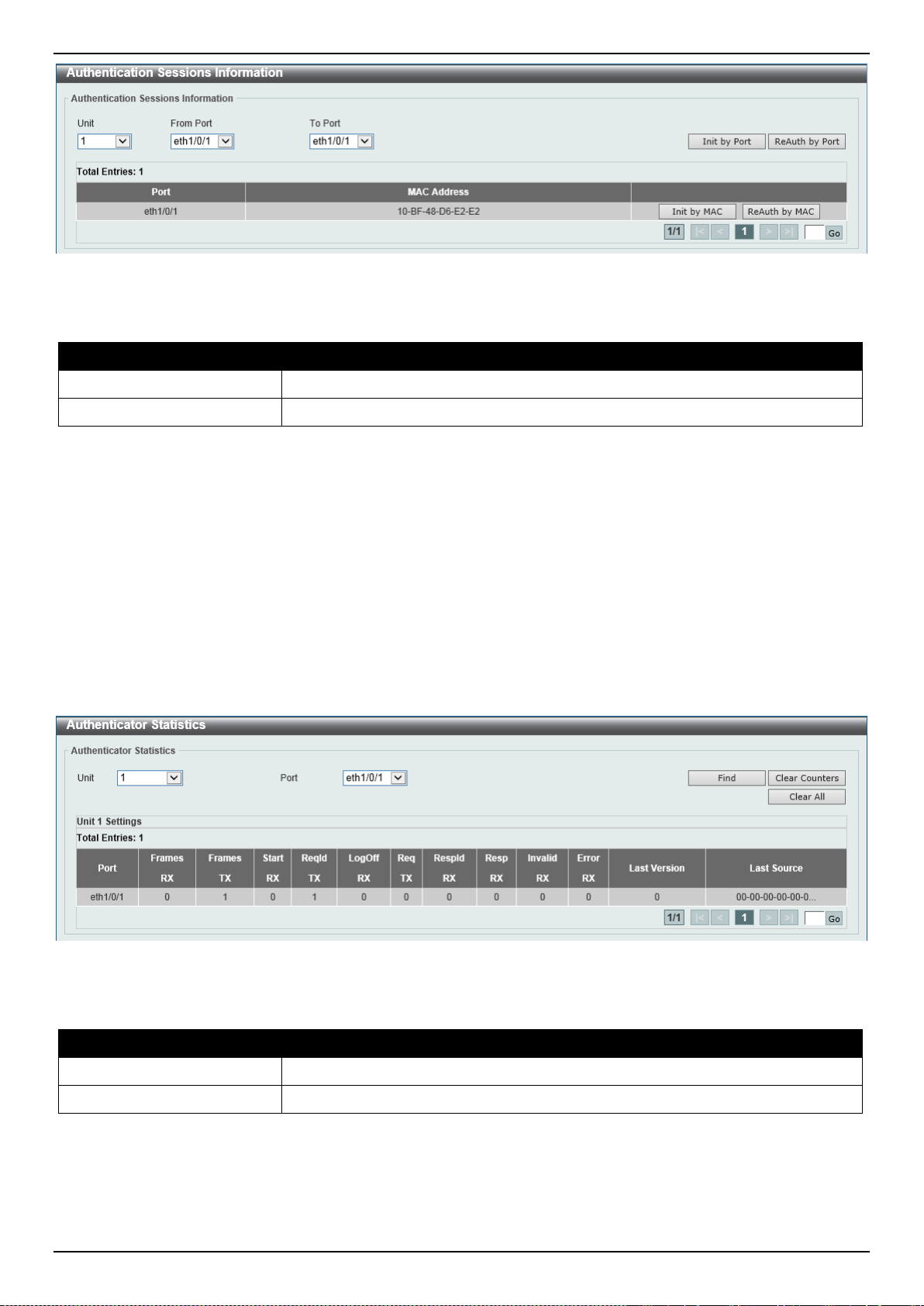
DXS-3400 Series Lite Layer 3 Stackable 10GbE Managed Switch Web UI Reference Guide
303
Figure 9-14 Authentication Sessions Information Window
The fields that can be configured are described below:
Parameter Description
Unit
Select the Switch unit that will be used for this configuration here.
From Port ~ To Port
Select the appropriate port range used for the configuration here.
Click the Init by Port button to initiate the session information based on the port selections made.
Click the ReAuth by Port button to re-authenticate the session information based on the port selections made.
Click the Init by MAC button to initiate the session information based on the MAC address.
Click the ReAuth by Port button to re-authenticate the session information based on the MAC address.
Enter a page number and click the Go button to navigate to a specific page when multiple pages exist.
Authenticator Statistics
This window is used to display and clear the authenticator statistics.
To view the following window, click Security > 802.1X > Authenticator Statistics, as shown below:
Figure 9-15 Authenticator Statistics Window
The fields that can be configured are described below:
Parameter Description
Unit
Select the Switch unit that will be used for this query here.
Port
Select the appropriate port used for the query here.
Click the Find button to locate a specific entry based on the information entered.
Click the Clear Counters button to clear the counter information based on the selections made.
Click the Clear All button to clear all the information in this table.
Enter a page number and click the Go button to navigate to a specific page when multiple pages exist.
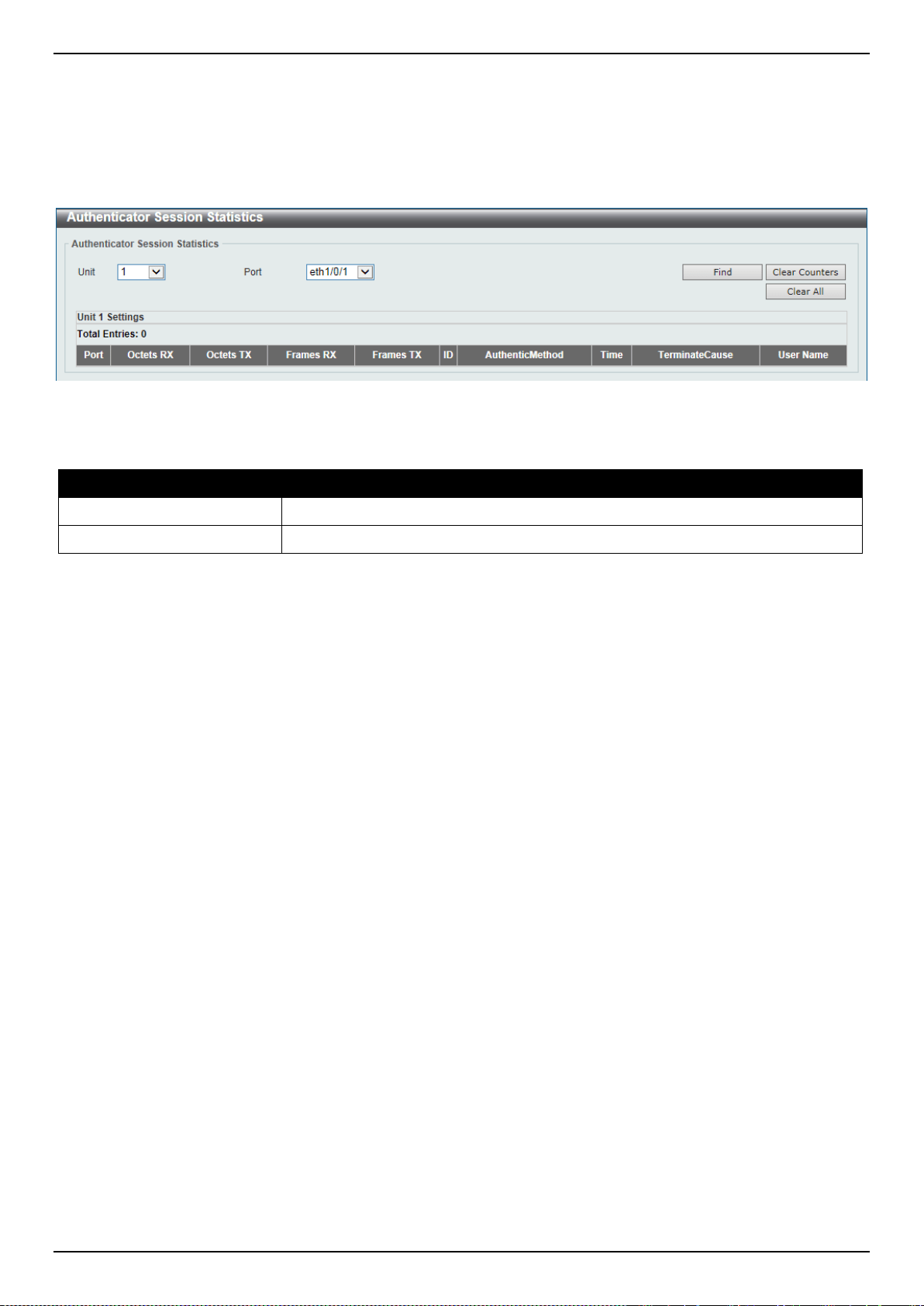
DXS-3400 Series Lite Layer 3 Stackable 10GbE Managed Switch Web UI Reference Guide
304
Authenticator Session Statistics
This window is used to display and clear the authenticator session statistics.
To view the following window, click Security > 802.1X > Authenticator Session Statistics, as shown below:
Figure 9-16 Authenticator Session Statistics Window
The fields that can be configured are described below:
Parameter Description
Unit
Select the Switch unit that will be used for this query here.
Port
Select the appropriate port used for the query here.
Click the Find button to locate a specific entry based on the information entered.
Click the Clear Counters button to clear the counter information based on the selections made.
Click the Clear All button to clear all the information in this table.
Authenticator Diagnostics
This window is used to display and clear the authenticator diagnostics information.
To view the following window, click Security > 802.1X > Authenticator Diagnostics, as shown below:
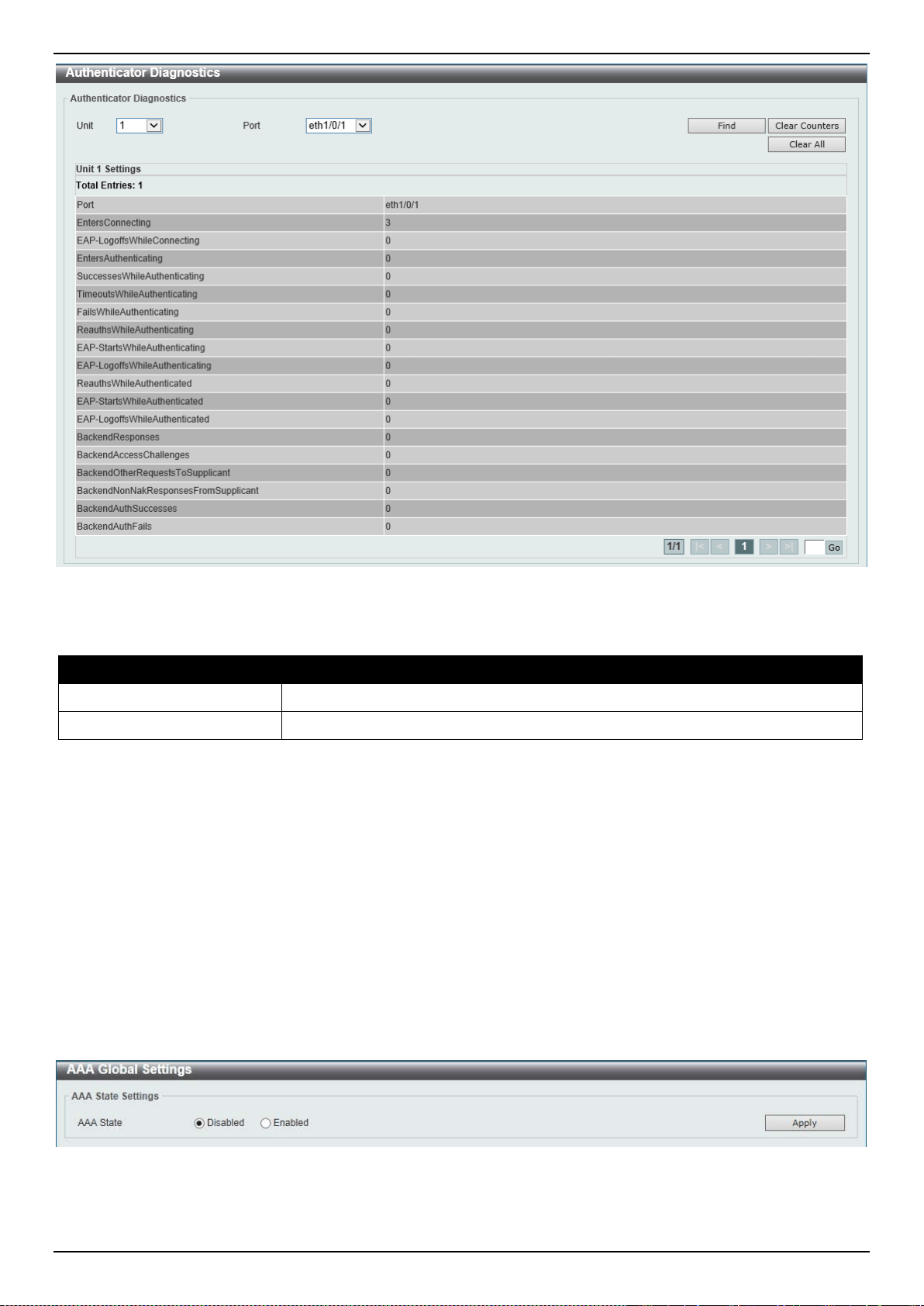
DXS-3400 Series Lite Layer 3 Stackable 10GbE Managed Switch Web UI Reference Guide
305
Figure 9-17 Authenticator Diagnostics Window
The fields that can be configured are described below:
Parameter Description
Unit
Select the Switch unit that will be used for this query here.
Port
Select the appropriate port used for the query here.
Click the Find button to locate a specific entry based on the information entered.
Click the Clear Counters button to clear the counter information based on the selections made.
Click the Clear All button to clear all the information in this table.
Enter a page number and click the Go button to navigate to a specific page when multiple pages exist.
AAA
AAA Global Settings
This window is used to enable or disable the Authentication, Authorization, and Accounting (AAA) global state.
To view the following window, click Security > AAA > AAA Global Settings, as shown below:
Figure 9-18 AAA Global Settings Window
The fields that can be configured are described below:
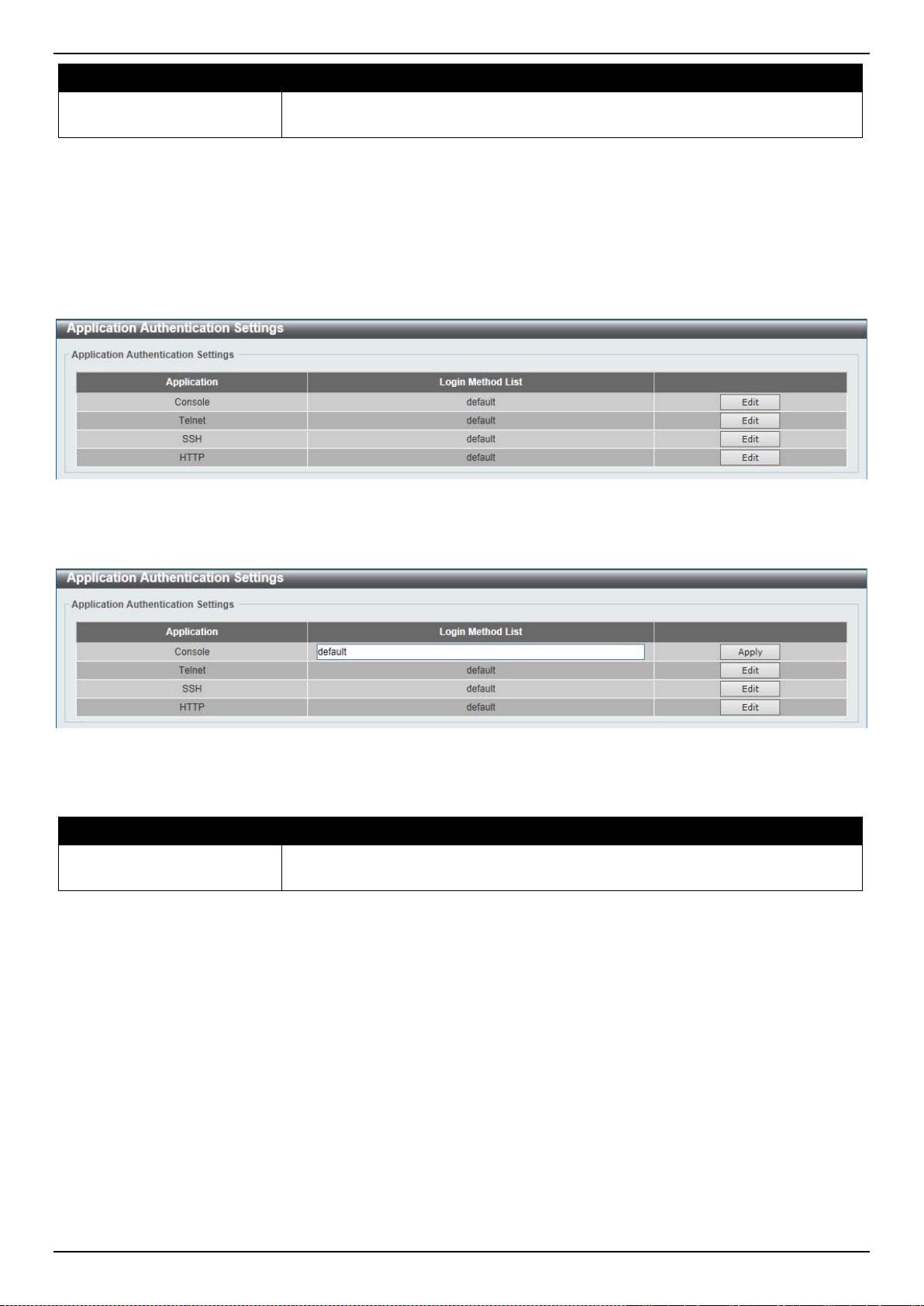
DXS-3400 Series Lite Layer 3 Stackable 10GbE Managed Switch Web UI Reference Guide
306
Parameter Description
AAA State
Select to enable or disable the Authentication, Authorization, and Accounting
(AAA) global state.
Click the Apply button to accept the changes made.
Application Authentication Settings
This window is used to display and configure the application authentication settings.
To view the following window, click Security > AAA > Application Authentication Settings, as shown below:
Figure 9-19 Application Authentication Settings Window
Click the Edit button to re-configure the specific entry.
Figure 9-20 Application Authentication Settings (Edit) Window
The fields that can be configured are described below:
Parameter Description
Login Method List
After clicking the Edit button for the specific entry, enter the login method list
name used here.
Click the Edit button to re-configure the specific entry.
Click the Apply button to accept the changes made.
Application Accounting Settings
This window is used to display and configure the application accounting settings.
To view the following window, click Security > AAA > Application Accounting Settings, as shown below:
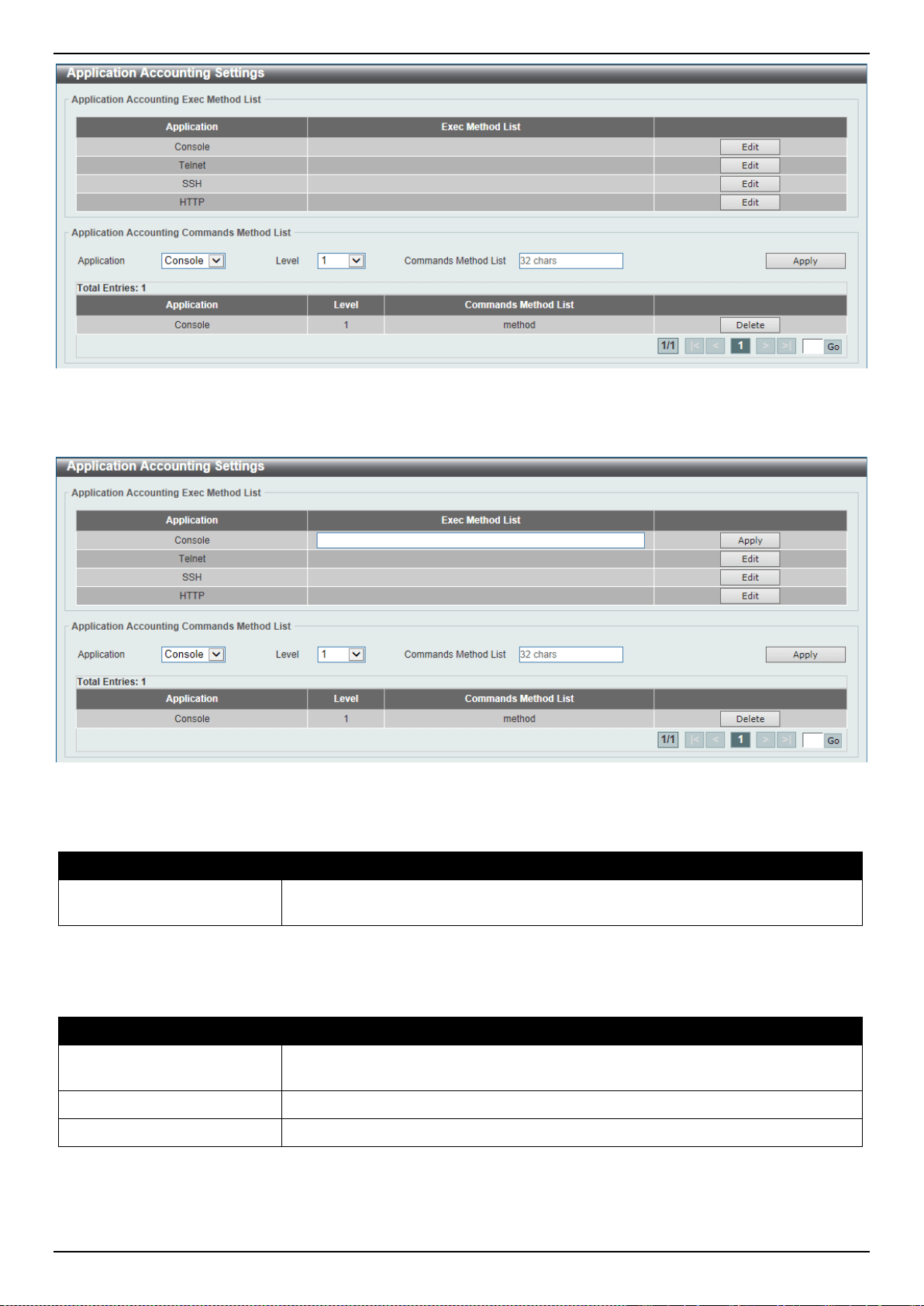
DXS-3400 Series Lite Layer 3 Stackable 10GbE Managed Switch Web UI Reference Guide
307
Figure 9-21 Application Accounting Settings Window
Click the Edit button to re-configure the specific entry.
Figure 9-22 Application Accounting Settings (Edit) Window
The fields that can be configured in Application Accounting Exec Method list are described below:
Parameter Description
Exec Method List
After clicking the Edit button for the specific entry, enter the EXEC method list
name used here.
Click the Apply button to accept the changes made.
The fields that can be configured in Application Accounting Commands Method List are described below:
Parameter Description
Application
Select the application used here. Options to choose from are Console, Telnet,
and SSH.
Level
Select the privilege level used here. Options to choose from are levels 1 to 15.
Commands Method List
Enter the commands method list name used here.
Click the Edit button to re-configure the specific entry.
Click the Apply button to accept the changes made.
Click the Delete button to remove the specified entry.

DXS-3400 Series Lite Layer 3 Stackable 10GbE Managed Switch Web UI Reference Guide
308
Enter a page number and click the Go button to navigate to a specific page when multiple pages exist.
Authentication Settings
This window is used to display and configure the AAA network and EXEC authentication settings.
To view the following window, click Security > AAA > Authentication Settings, as shown below:
Figure 9-23 Authentication Settings Window
The fields that can be configured in AAA Authentication 802.1X are described below:
Parameter Description
Status
Select to enable or disable the AAA 802.1X authentication state here.
Method 1 ~ Method 4
Select the method lists that will be used for this configuration here. Options to
choose from are:
• none - Normally, the method is listed as the last method. The user will pass
authentication if it is not denied by previous method authentication.
• local - Specifies to use the local database for authentication.
• group - Specifies to use the server groups defined by the AAA group server.
Enter the AAA group server name in the space provided. This string can be
up to 32 characters long.
• radius - Specifies to use the servers defined by the RADIUS server host
command.
Click the Apply button to accept the changes made.
The fields that can be configured in AAA Authentication MAC-Auth are described below:
Parameter Description
Status
Select to enable or disable the AAA MAC authentication state here.
Method 1 ~ Method 4
Select the method lists that will be used for this configuration here. Options to
choose from are:
• none - Normally, the method is listed as the last method. The user will pass
authentication if it is not denied by previous method authentication.
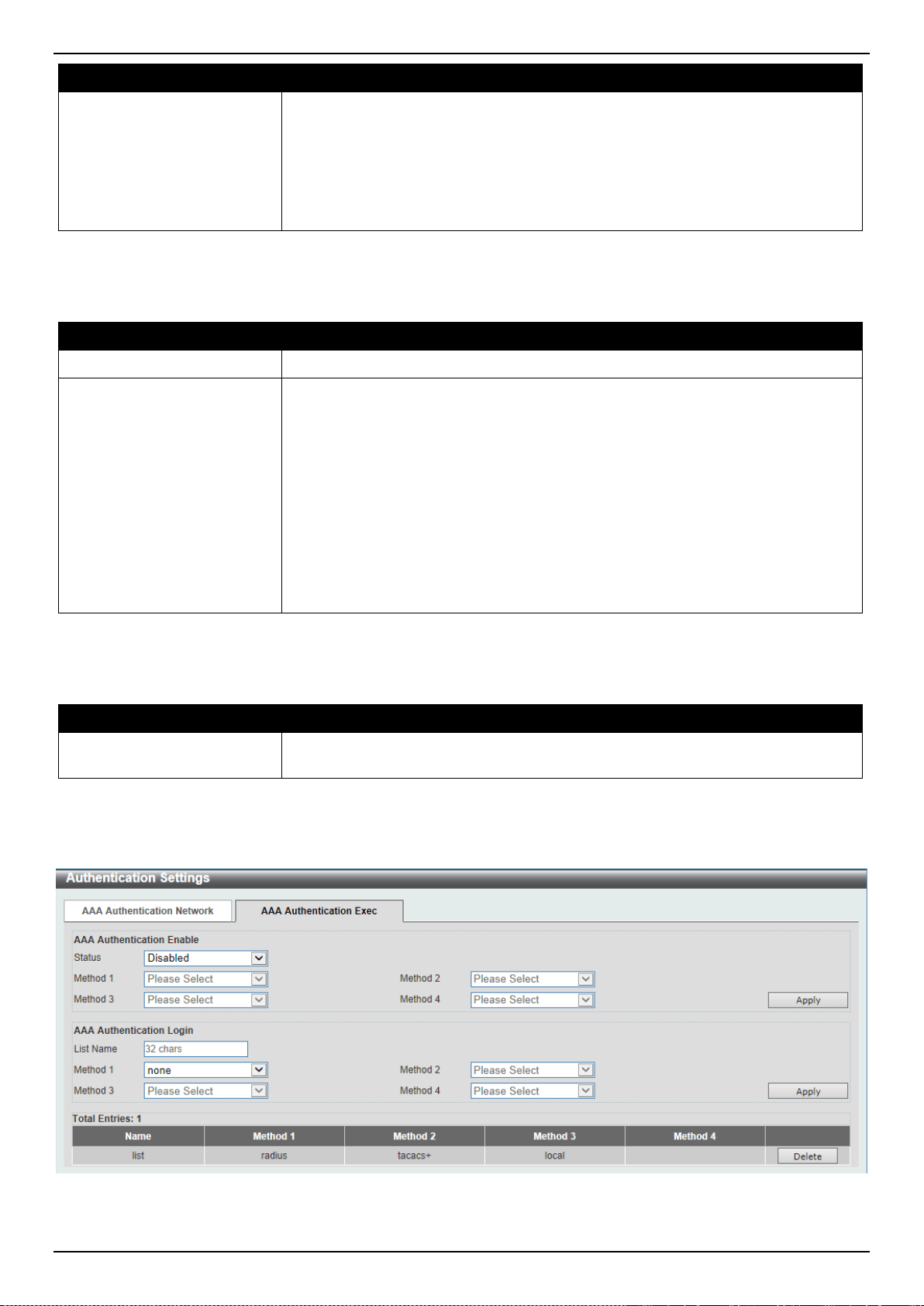
DXS-3400 Series Lite Layer 3 Stackable 10GbE Managed Switch Web UI Reference Guide
309
Parameter Description
• local - Specifies to use the local database for authentication.
• group - Specifies to use the server groups defined by the AAA group server.
Enter the AAA group server name in the space provided. This string can be
up to 32 characters long.
• radius - Specifies to use the servers defined by the RADIUS server host
command.
Click the Apply button to accept the changes made.
The fields that can be configured in AAA Authentication WEB-Auth are described below:
Parameter Description
Status
Select to enable or disable the AAA Web authentication state here.
Method 1 ~ Method 4
Select the method lists that will be used for this configuration here. Options to
choose from are:
• none - Normally, the method is listed as the last method. The user will pass
authentication if it is not denied by previous method authentication.
• local - Specifies to use the local database for authentication.
• group - Specifies to use the server groups defined by the AAA group server.
Enter the AAA group server name in the space provided. This string can be
up to 32 characters long.
• radius - Specifies to use the servers defined by the RADIUS server host
command.
Click the Apply button to accept the changes made.
The fields that can be configured in AAA Authentication IGMP-Auth Default Group RADIUS are described below:
Parameter Description
Status
Select to enable or disable the AAA authentication IGMP authentication default
group RADIUS feature here.
Click the Apply button to accept the changes made.
After clicking the AAA Authentication Exec tab, the following page will appear.
Figure 9-24 Authentication Settings (AAA Authentication EXEC) Window

DXS-3400 Series Lite Layer 3 Stackable 10GbE Managed Switch Web UI Reference Guide
310
The fields that can be configured in AAA Authentication Enable are described below:
Parameter Description
Status
Select to enable or disable the AAA authentication enable state here.
Method 1 ~ Method 4
Select the method lists that will be used for this configuration here. Options to
choose from are:
• none - Normally, the method is listed as the last method. The user will pass
the authentication if it is not denied by previous method authentication.
• enable - Specifies to use the local enable password for authentication.
• group - Specifies to use the server groups defined by the AAA group server
command. Enter the AAA group server name in the space provided. This
string can be up to 32 characters long.
• radius - Specifies to use the servers defined by the RADIUS server host
command.
• tacacs+ - Specifies to use the servers defined by the TACACS+ server host
command.
Click the Apply button to accept the changes made.
The fields that can be configured in AAA Authentication Login are described below:
Parameter Description
List Name
Enter the method list name that will be used with the AAA authentication login
option here.
Method 1 ~ Method 4
Select the method lists that will be used for this configuration here. Options to
choose from are:
• none - Normally, the method is listed as the last method. The user will pass
authentication if it is not denied by previous method’s authentication.
• local - Specifies to use the local database for authentication.
• group - Specifies to use the server groups defined by the AAA group server
command. Enter the AAA group server name in the space provided. This
string can be up to 32 characters long.
• radius - Specifies to use the servers defined by the RADIUS server host
command.
• tacacs+ - Specifies to use the servers defined by the TACACS+ server host
command.
Click the Apply button to accept the changes made.
Click the Delete button to remove the specified entry.
Accounting Settings
This window is used to display and configure the AAA accounting settings.
To view the following window, click Security > AAA > Accounting Settings, as shown below:
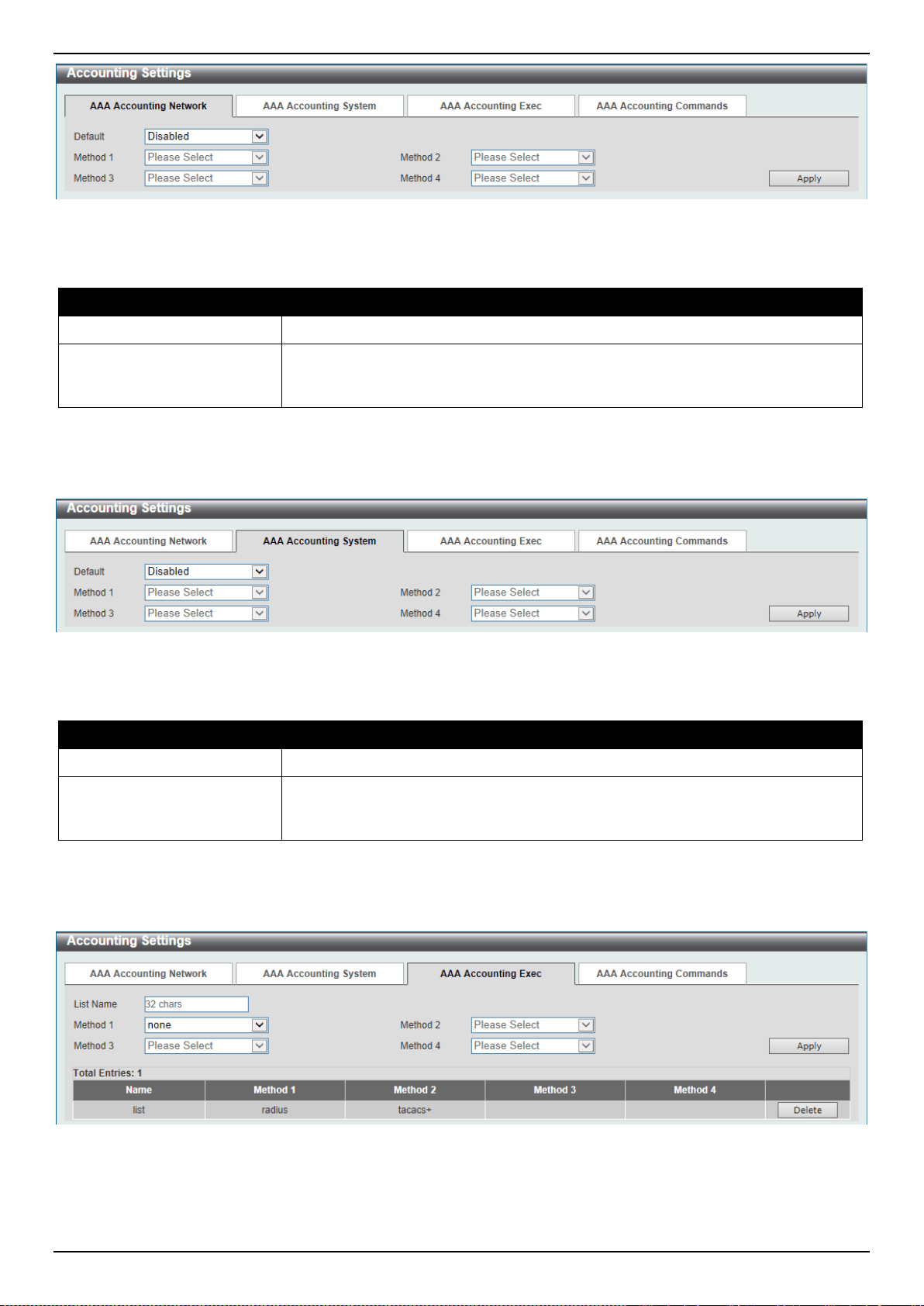
DXS-3400 Series Lite Layer 3 Stackable 10GbE Managed Switch Web UI Reference Guide
311
Figure 9-25 Accounting Settings Window
The fields that can be configured in AAA Accounting Network are described below:
Parameter Description
Default
Select to enable or disable the use of the default method list here.
Method 1 ~ Method 4
Select the method lists that will be used for this configuration here. Options to
choose from are none, group, radius, and tacacs+. Only method 1 can be
specified as none.
Click the Apply button to accept the changes made.
After clicking the AAA Accounting System tab, the following page will appear.
Figure 9-26 Accounting Settings (AAA Accounting System) Window
The fields that can be configured in AAA Accounting System are described below:
Parameter Description
Default
Select to enable or disable the use of the default method list here.
Method 1 ~ Method 4
Select the method lists that will be used for this configuration here. Options to
choose from are none, group, radius, and tacacs+. Only method 1 can be
specified as none.
Click the Apply button to accept the changes made.
After clicking the AAA Accounting Exec tab, the following page will appear.
Figure 9-27 Accounting Settings (AAA Accounting Exec) Window
The fields that can be configured in AAA Accounting Exec are described below:
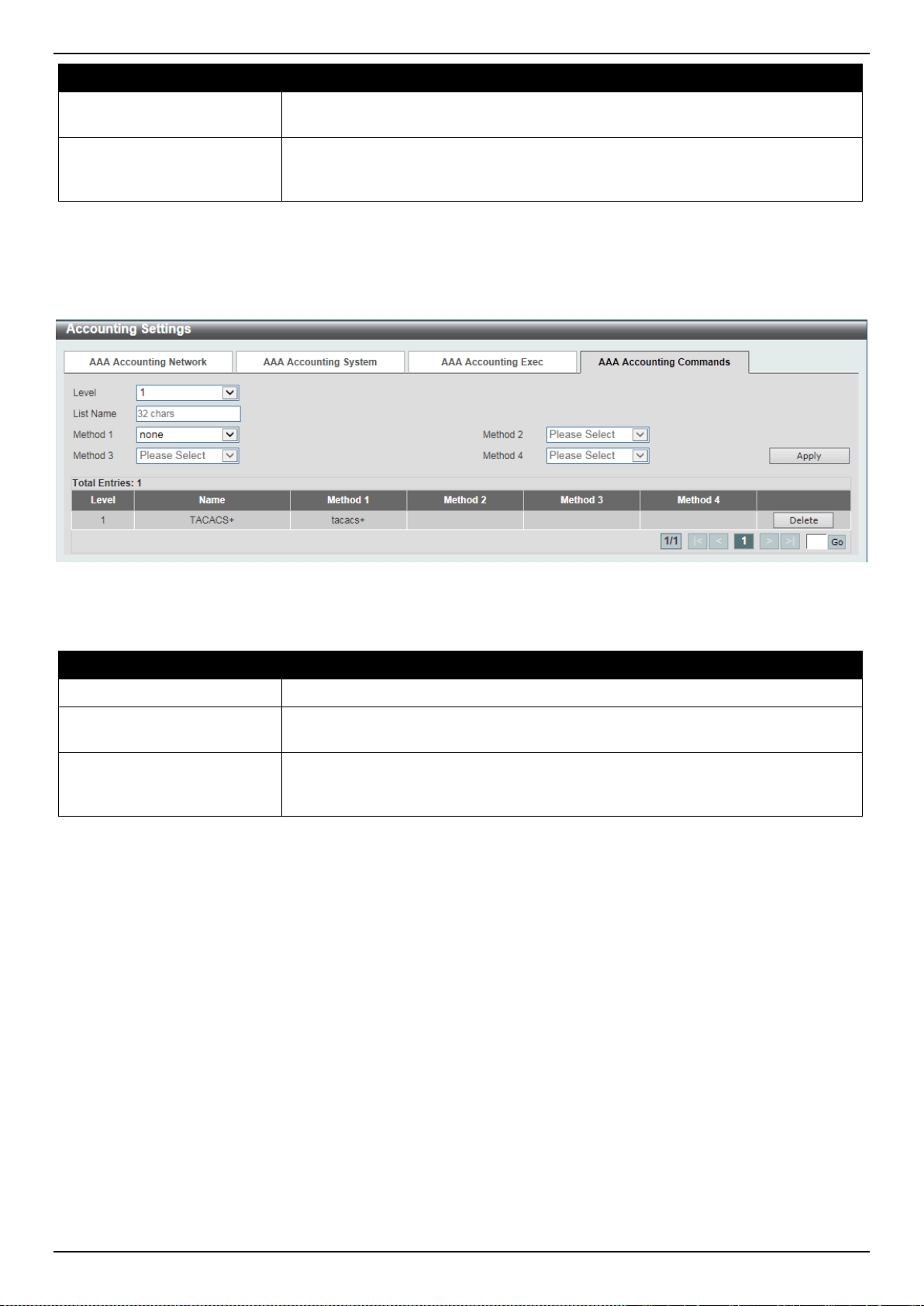
DXS-3400 Series Lite Layer 3 Stackable 10GbE Managed Switch Web UI Reference Guide
312
Parameter Description
List Name
Enter the method list name that will be used with the AAA accounting EXEC
option here.
Method 1 ~ Method 4
Select the method lists that will be used for this configuration here. Options to
choose from are none, group, radius, and tacacs+. Only method 1 can be
specified as none.
Click the Apply button to accept the changes made.
Click the Delete button to remove the specified entry.
After clicking the AAA Accounting Commands tab, the following page will appear.
Figure 9-28 Accounting Settings (AAA Accounting Commands) Window
The fields that can be configured are described below:
Parameter Description
Level
Select the privilege level used here. Options to choose from are levels 1 to 15.
List Name
Enter the method list name that will be used with the AAA accounting commands
option here.
Method 1 ~ Method 4
Select the method lists that will be used for this configuration here. Options to
choose from are none, group, and tacacs+. Only method 1 can be specified as
none.
Click the Apply button to accept the changes made.
Click the Delete button to remove the specified entry.
Enter a page number and click the Go button to navigate to a specific page when multiple pages exist.
RADIUS
RADIUS Global Settings
This window is used to display and configure the RADIUS global settings.
To view the following window, click Security > RADIUS > RADIUS Global Settings, as shown below:
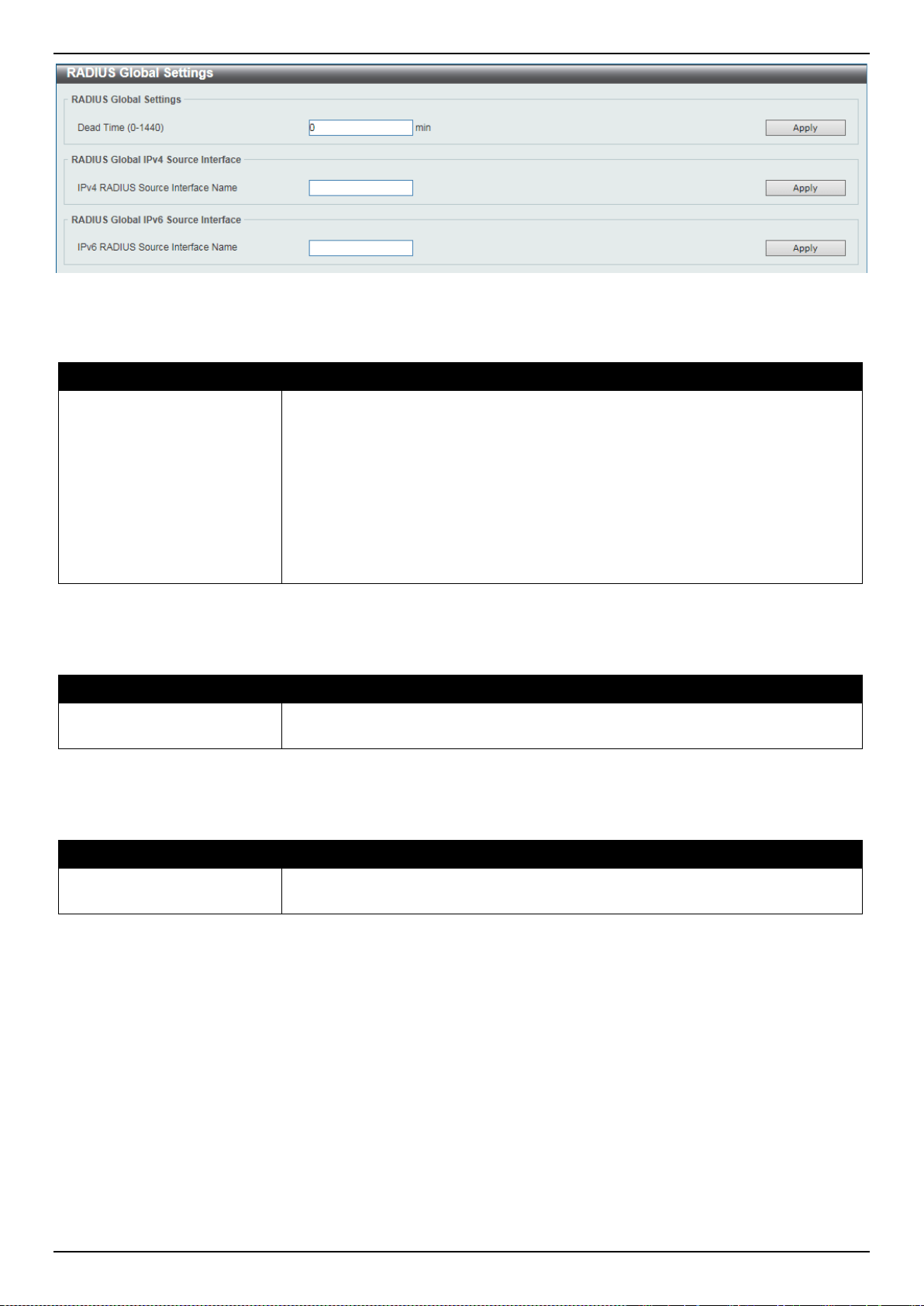
DXS-3400 Series Lite Layer 3 Stackable 10GbE Managed Switch Web UI Reference Guide
313
Figure 9-29 RADIUS Global Settings Window
The fields that can be configured in RADIUS Global Settings are described below:
Parameter Description
DeadTime
Enter the dead time value here. This value must be between 1 and 1440 minutes.
By default, this value is 0 minutes. When this option is 0, the unresponsive server
will not be marked as dead. This setting can be used to improve the
authentication processing time by setting the dead time to skip the unresponsive
server host entries.
When the system performs authentication with the authentication server, it
attempts one server at a time. If the attempted server does not respond, the
system will attempt the next server. When the system finds a server does not
respond, it will mark the server as down, start a dead time timer, and skip them in
authentication of the following requests until expiration of the dead time.
Click the Apply button to accept the changes made.
The fields that can be configured in RADIUS Global IPv4 Source Interface are described below:
Parameter Description
IPv4 RADIUS Source
Interface Name
Enter the name of the source IPv4 RADIUS interface here.
Click the Apply button to accept the changes made.
The fields that can be configured in RADIUS Global IPv4 Source Interface are described below:
Parameter Description
IPv6 RADIUS Source
Interface Name
Enter the name of the source IPv6 RADIUS interface here.
Click the Apply button to accept the changes made.
RADIUS Server Settings
This window is used to display and configure the RADIUS server settings.
To view the following window, click Security > RADIUS > RADIUS Server Settings, as shown below:
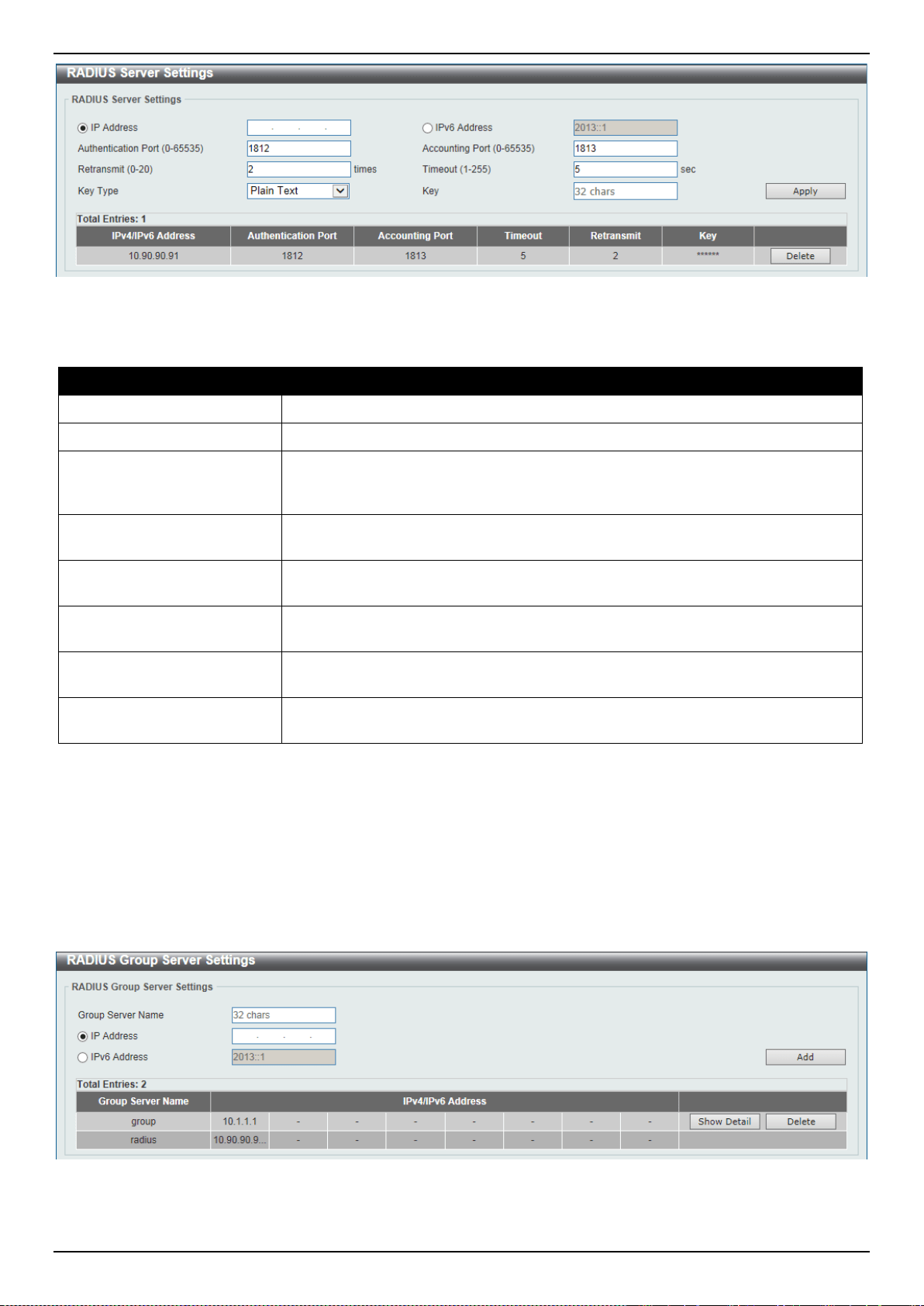
DXS-3400 Series Lite Layer 3 Stackable 10GbE Managed Switch Web UI Reference Guide
314
Figure 9-30 RADIUS Server Settings Window
The fields that can be configured are described below:
Parameter Description
IP Address
Enter the RADIUS server’s IPv4 address here.
IPv6 Address
Enter the RADIUS server’s IPv6 address here.
Authentication Port
Enter the authentication port number used here. This value must be between 0
and 65535. By default, this value is 1812. If no authentication is used, use the
value 0.
Accounting Port
Enter the accounting port number used here. This value must be between 0 and
65535. By default, this value is 1813. If no accounting is used, use the value 0.
Retransmit
Enter the retransmit value used here. This value must be between 0 and 20. By
default, this value is 3. To disable this option, enter the value 0.
Timeout
Enter the timeout value used here. This value must be between 1 and 255
seconds. By default, this value is 5 seconds.
Key Type
Select the key type that will be used here. Options to choose from are Plain Text
and Encrypted.
Key
Enter the key, used to communicate with the RADIUS server, here. This key can
be up to 32 characters long.
Click the Apply button to accept the changes made.
Click the Delete button to remove the specified entry.
RADIUS Group Server Settings
This window is used to display and configure the RADIUS group server settings.
To view the following window, click Security > RADIUS > RADIUS Group Server Settings, as shown below:
Figure 9-31 RADIUS Group Server Settings Window
The fields that can be configured are described below:
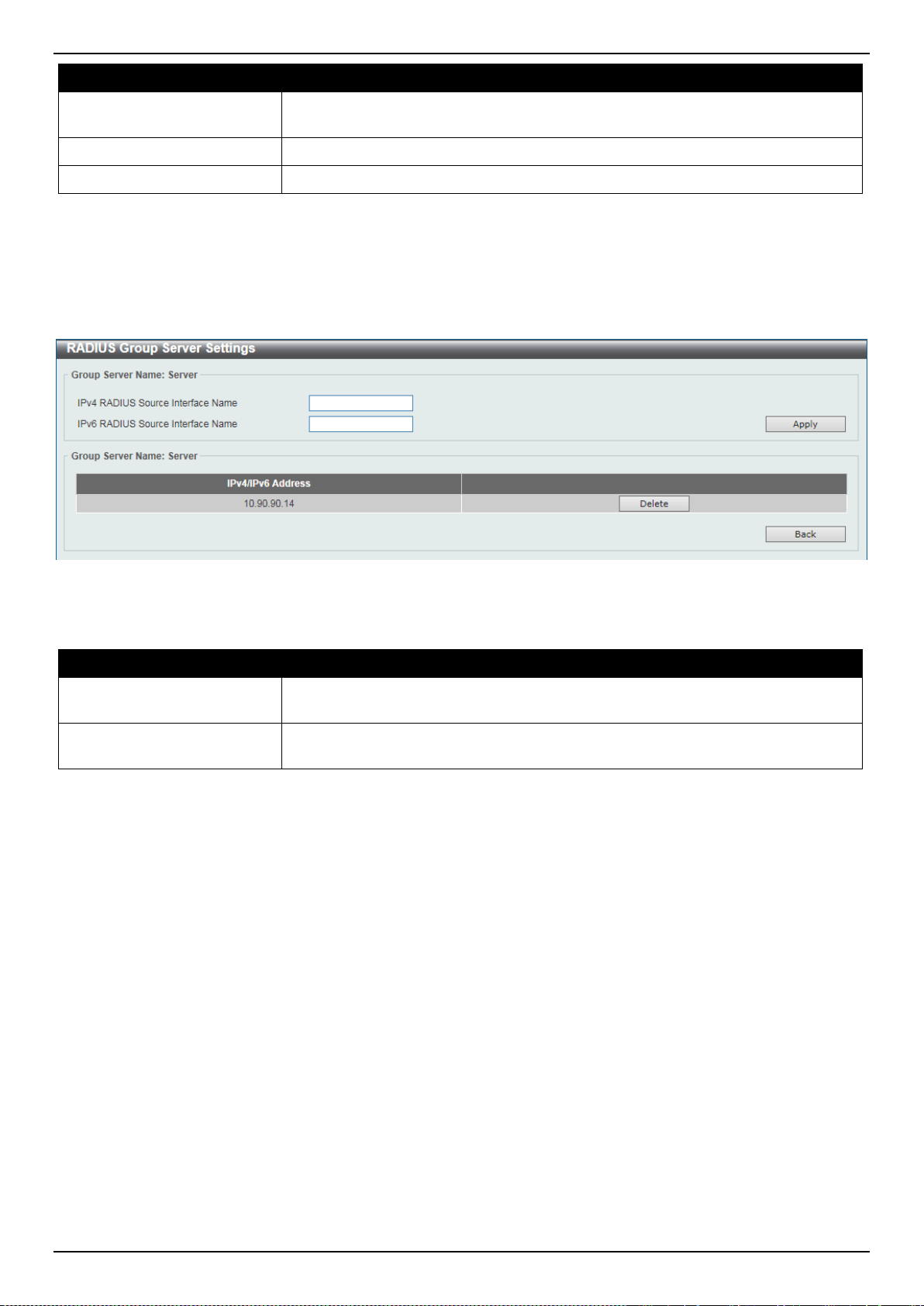
DXS-3400 Series Lite Layer 3 Stackable 10GbE Managed Switch Web UI Reference Guide
315
Parameter Description
Group Server Name
Enter the RADIUS group server’s name here. This name can be up to 32
characters long.
IP Address
Enter the group server’s IPv4 address here.
IPv6 Address
Enter the group server’s IPv6 address here.
Click the Add button to add a new entry based on the information entered.
Click the Show Detail button to view and configure more detailed settings for the RADIUS group server.
Click the Delete button to remove the specified entry.
After clicking the Show Detail button, the following page will be available.
Figure 9-32 RADIUS Group Server Settings (Detail) Window
The fields that can be configured are described below:
Parameter Description
IPv4 RADIUS Source
Interface Name
Enter the name of the source IPv4 RADIUS interface here.
IPv6 RADIUS Source
Interface Name
Enter the name of the source IPv6 RADIUS interface here.
Click the Apply button to accept the changes made.
Click the Delete button to remove the specified entry.
Click the Back button to return to the previous window.
RADIUS Statistic
This window is used to display and clear the RADIUS statistics information.
To view the following window, click Security > RADIUS > RADIUS Statistic, as shown below:
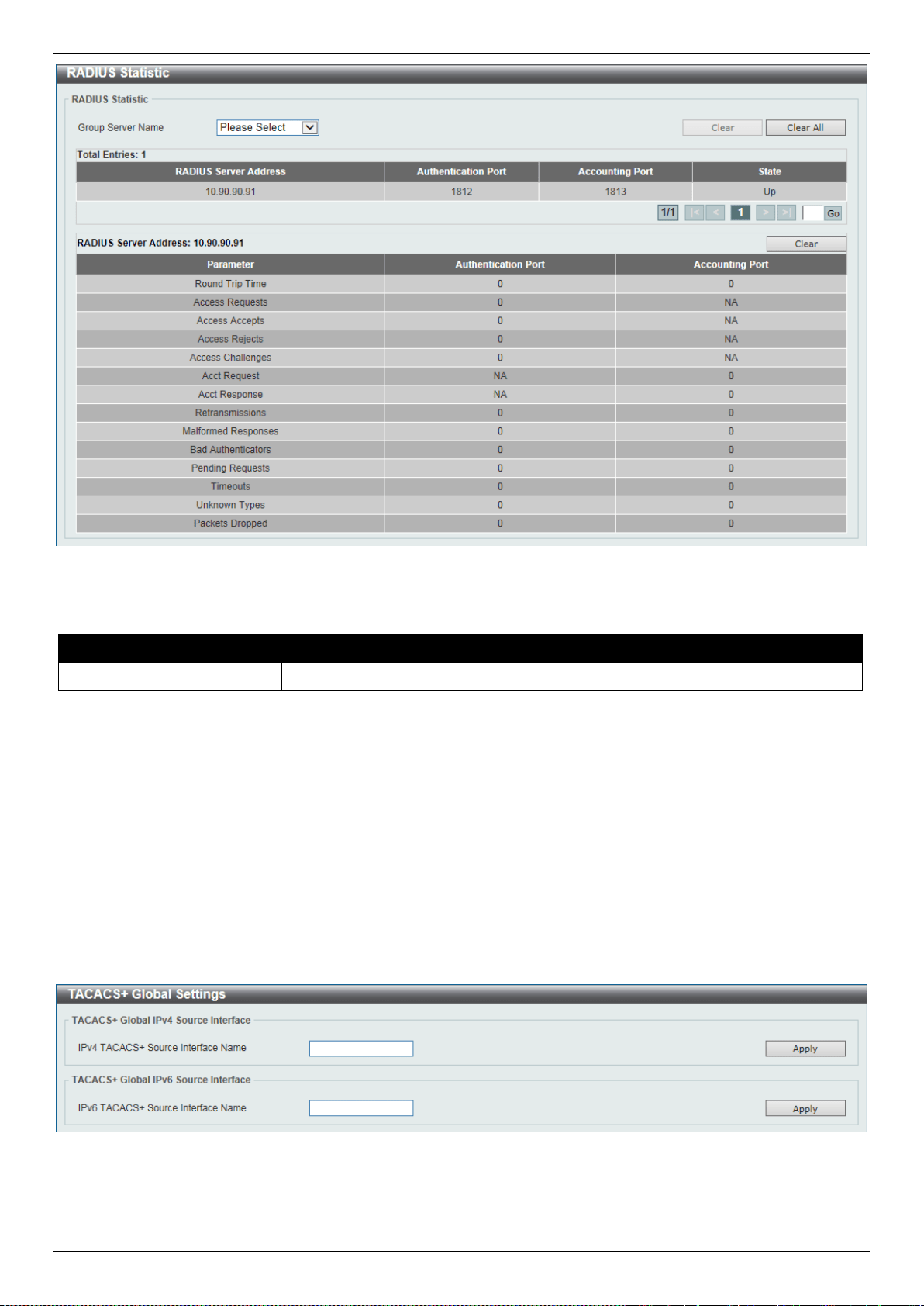
DXS-3400 Series Lite Layer 3 Stackable 10GbE Managed Switch Web UI Reference Guide
316
Figure 9-33 RADIUS Statistic Window
The fields that can be configured are described below:
Parameter Description
Group Server Name
Select the RADIUS group server name from this list here.
Click the Clear button to clear the information based on the selections made.
Click the Clear All button to clear all the information in this table.
Enter a page number and click the Go button to navigate to a specific page when multiple pages exist.
TACACS+
TACACS+ Global Settings
This window is used to display and configure the global TACACS+ server settings.
To view the following window, click Security > TACACS+ > TACACS+ Global Settings, as shown below:
Figure 9-34 TACACS+ Global Settings Window
The fields that can be configured in TACACS+ Global IPv4 Source Interface are described below:
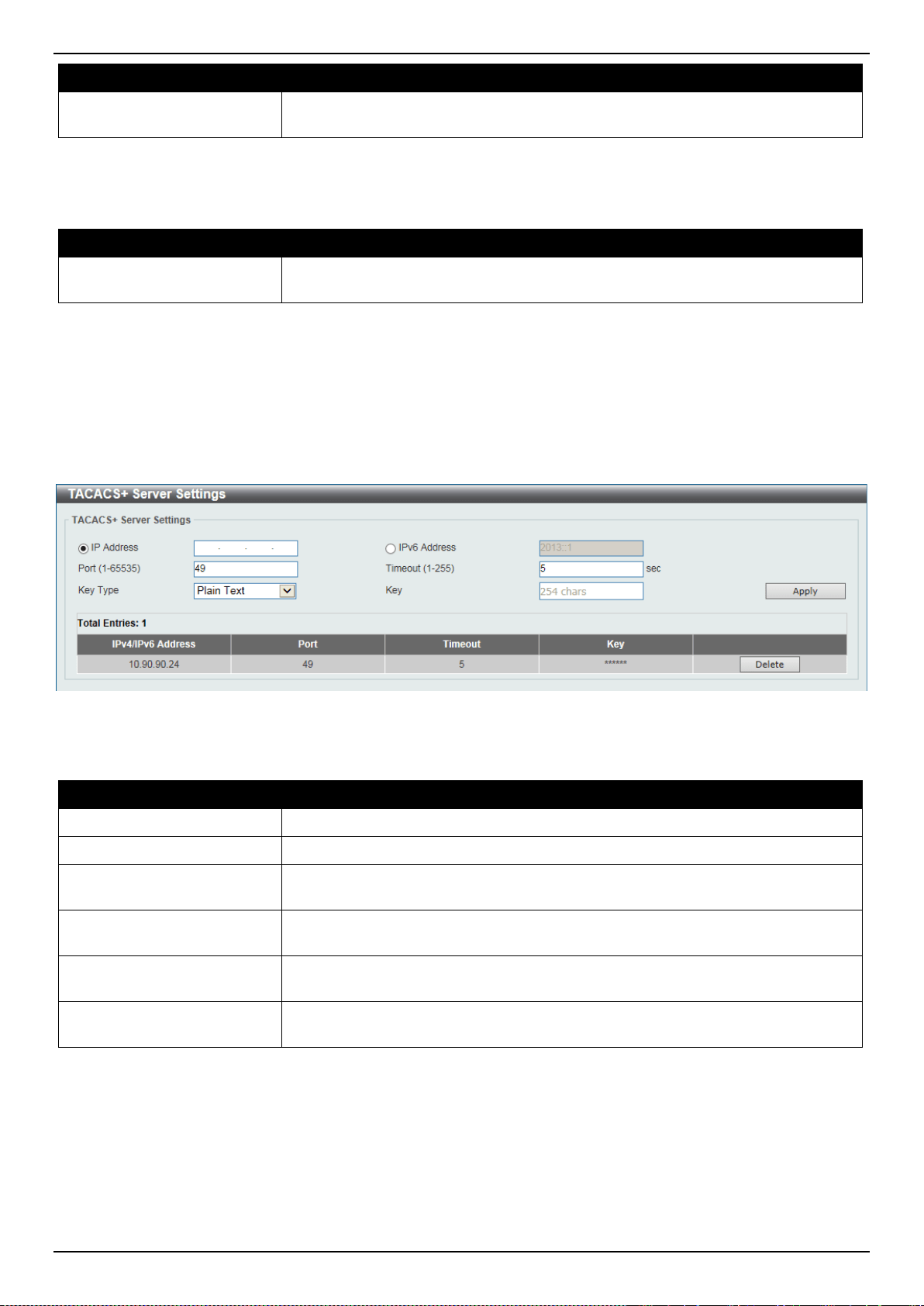
DXS-3400 Series Lite Layer 3 Stackable 10GbE Managed Switch Web UI Reference Guide
317
Parameter Description
IPv4 TACACS+ Source
Interface Name
Enter the name of the IPv4 TACACS+ source interface here.
Click the Apply button to accept the changes made.
The fields that can be configured in TACACS+ Global IPv6 Source Interface are described below:
Parameter Description
IPv6 TACACS+ Source
Interface Name
Enter the name of the IPv6 TACACS+ source interface here.
Click the Apply button to accept the changes made.
TACACS+ Server Settings
This window is used to display and configure the TACACS+ server settings.
To view the following window, click Security > TACACS+ > TACACS+ Server Settings, as shown below:
Figure 9-35 TACACS+ Server Settings Window
The fields that can be configured are described below:
Parameter Description
IP Address
Enter the TACACS+ server’s IPv4 address here.
IPv6 Address
Enter the TACACS+ server’s IPv6 address here.
Port
Enter the port number used here. This value must be between 1 and 65535. By
default, this value is 49.
Timeout
Enter the timeout value here. This value must be between 1 and 255 seconds. By
default, this value is 5 seconds.
Key Type
Select the key type that will be used here. Options to choose from are Plain Text
and Encrypted.
Key
Enter the key, used to communicate with the TACACS+ server, here. This key
can be up to 254 characters long.
Click the Apply button to accept the changes made.
Click the Delete button to remove the specified entry.
TACACS+ Group Server Settings
This window is used to display and configure the TACACS+ group server settings.
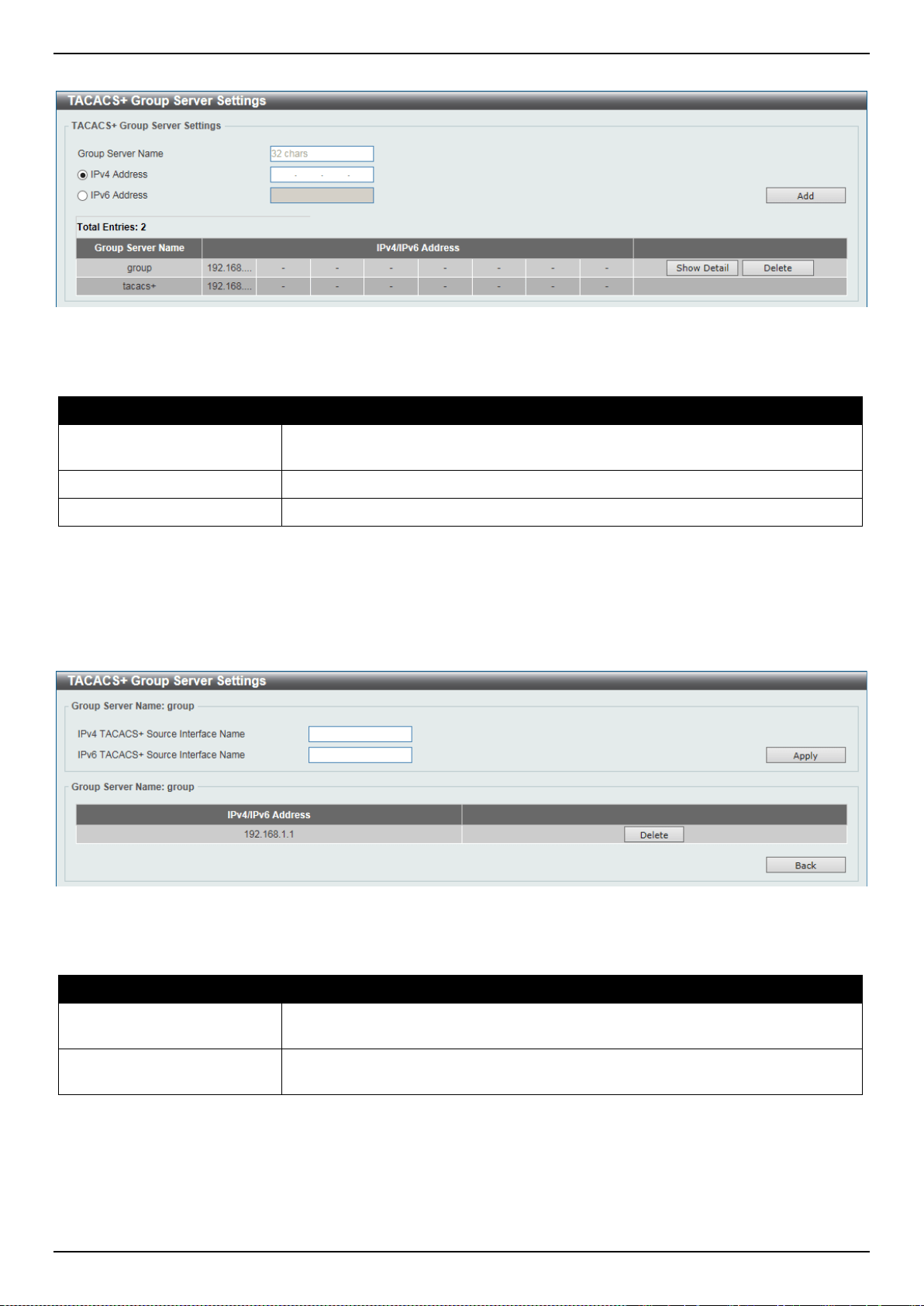
DXS-3400 Series Lite Layer 3 Stackable 10GbE Managed Switch Web UI Reference Guide
318
To view the following window, click Security > TACACS+ > TACACS+ Group Server Settings, as shown below:
Figure 9-36 TACACS+ Group Server Settings Window
The fields that can be configured are described below:
Parameter Description
Group Server Name
Enter the TACACS+ group server’s name here. This name can be up to 32
characters long.
IPv4 Address
Enter the group server’s IPv4 address here.
IPv6 Address
Enter the group server’s IPv6 address here.
Click the Add button to add a new entry based on the information entered.
Click the Show Detail button to view and configure more detailed settings for the TACACS+ group server.
Click the Delete button to remove the specified entry.
After clicking the Show Detail button, the following page will be available.
Figure 9-37 TACACS+ Group Server Settings (Show Detail) Window
The fields that can be configured are described below:
Parameter Description
IPv4 TACACS+ Source
Interface Name
Enter the name of the IPv4 TACACS+ source interface here.
IPv6 TACACS+ Source
Interface Name
Enter the name of the IPv6 TACACS+ source interface here.
Click the Apply button to accept the changes made.
Click the Delete button to remove the specified entry.
Click the Back button to return to the previous window.
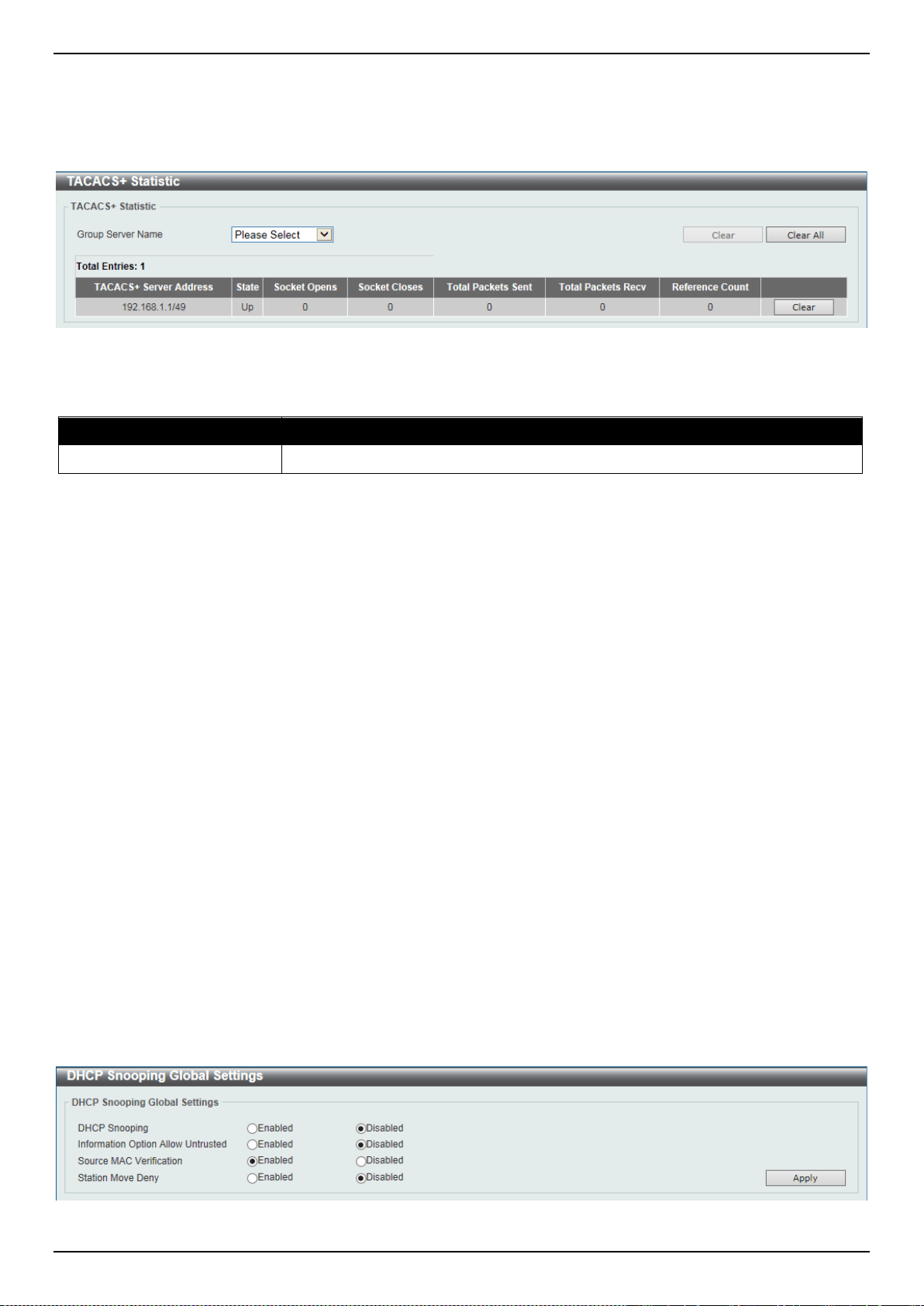
DXS-3400 Series Lite Layer 3 Stackable 10GbE Managed Switch Web UI Reference Guide
319
TACACS+ Statistic
This window is used to display and clear the TACACS+ statistic information.
To view the following window, click Security > TACACS+ > TACACS+ Statistic, as shown below:
Figure 9-38 TACACS+ Statistic Window
The fields that can be configured are described below:
Parameter Description
Group Server Name
Select the TACACS+ group server name from this list here.
Click the first Clear button to clear the information based on the group selected.
Click the Clear All button to clear all the information in this table.
Click the second Clear button to clear all the information for the specific entry.
IMPB
The IP network layer uses a four-byte address. The Ethernet link-layer uses a six-byte MAC address. Binding these
two address types together allows the transmission of data between the layers. The primary purpose of IP-MAC-Port
Binding (IMPB) is to restrict the access to a Switch to a number of authorized users. Authorized clients can access a
Switch’s port by either checking the pair of IP-MAC addresses with the pre-configured database or if DHCP snooping
has been enabled in which case the Switch will automatically learn the IP/MAC pairs by snooping DHCP packets and
saving them to the IMPB white list. If an unauthorized user tries to access an IP-MAC binding enabled port, the
system will block the access by dropping its packet. Active and inactive entries use the same database. The function
is port-based, meaning a user can enable or disable the function on the individual port.
IPv4
DHCPv4 Snooping
DHCP Snooping Global Settings
This window is used to display and configure the DHCP snooping global settings.
To view the following window, click Security > IMPB > IPv4 > DHCPv4 Snooping > DHCP Snooping Global
Settings, as shown below:
Figure 9-39 DHCP Snooping Global Settings Window
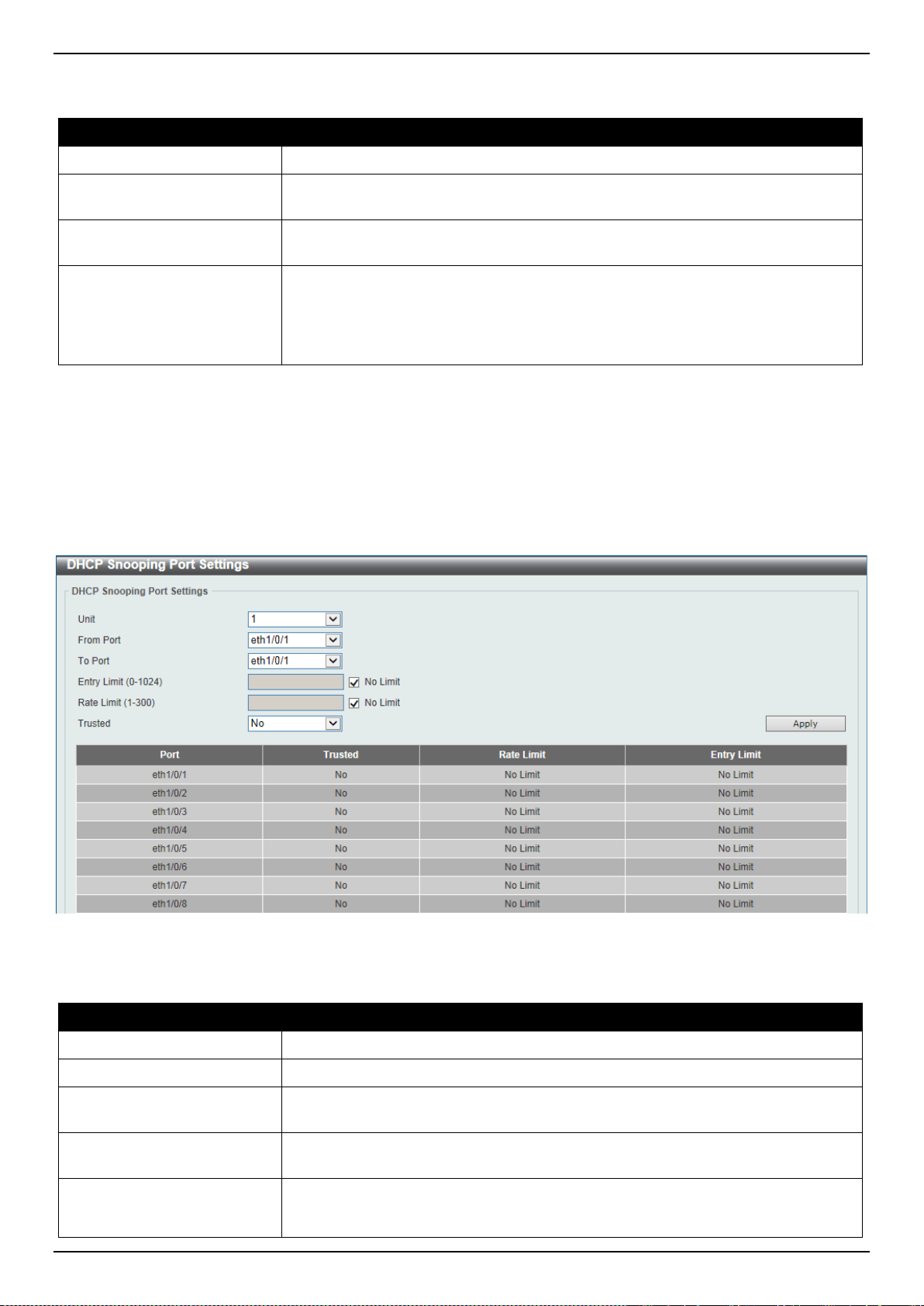
DXS-3400 Series Lite Layer 3 Stackable 10GbE Managed Switch Web UI Reference Guide
320
The fields that can be configured are described below:
Parameter Description
DHCP Snooping
Select to enable or disable the DHCP snooping global status.
Information Option Allow
Untrusted
Select to enable or disable the option to globally allow DHCP packets with the
relay Option 82 on the untrusted interface.
Source MAC Verification
Select to enable or disable the verification that the source MAC address in a
DHCP packet matches the client hardware address.
Station Move Deny
Select to enable or disable the DHCP snooping station move state. When DHCP
snooping station move is enabled, the dynamic DHCP snooping binding entry with
the same VLAN ID and MAC address on the specific port can move to another
port if it detects that a new DHCP process belong to the same VLAN ID and MAC
address.
Click the Apply button to accept the changes made.
DHCP Snooping Port Settings
This window is used to display and configure the DHCP snooping port settings.
To view the following window, click Security > IMPB > IPv4 > DHCPv4 Snooping > DHCP Snooping Port Settings,
as shown below:
Figure 9-40 DHCP Snooping Port Settings Window
The fields that can be configured are described below:
Parameter Description
Unit
Select the Switch unit that will be used for this configuration here.
From Port ~ To Port
Select the appropriate port range used for the configuration here.
Entry Limit
Enter the entry limit value here. This value must be between 0 and 1024. Tick the
No Limit option to disable the function.
Rate Limit
Enter the rate limit value here. This value must be between 1 and 300. Tick the
No Limit option to disable the function.
Trusted
Select the trusted option here. Options to choose from are No and Yes. Ports
connected to the DHCP server or to other Switches should be configured as
trusted interfaces. The ports connected to DHCP clients should be configured as
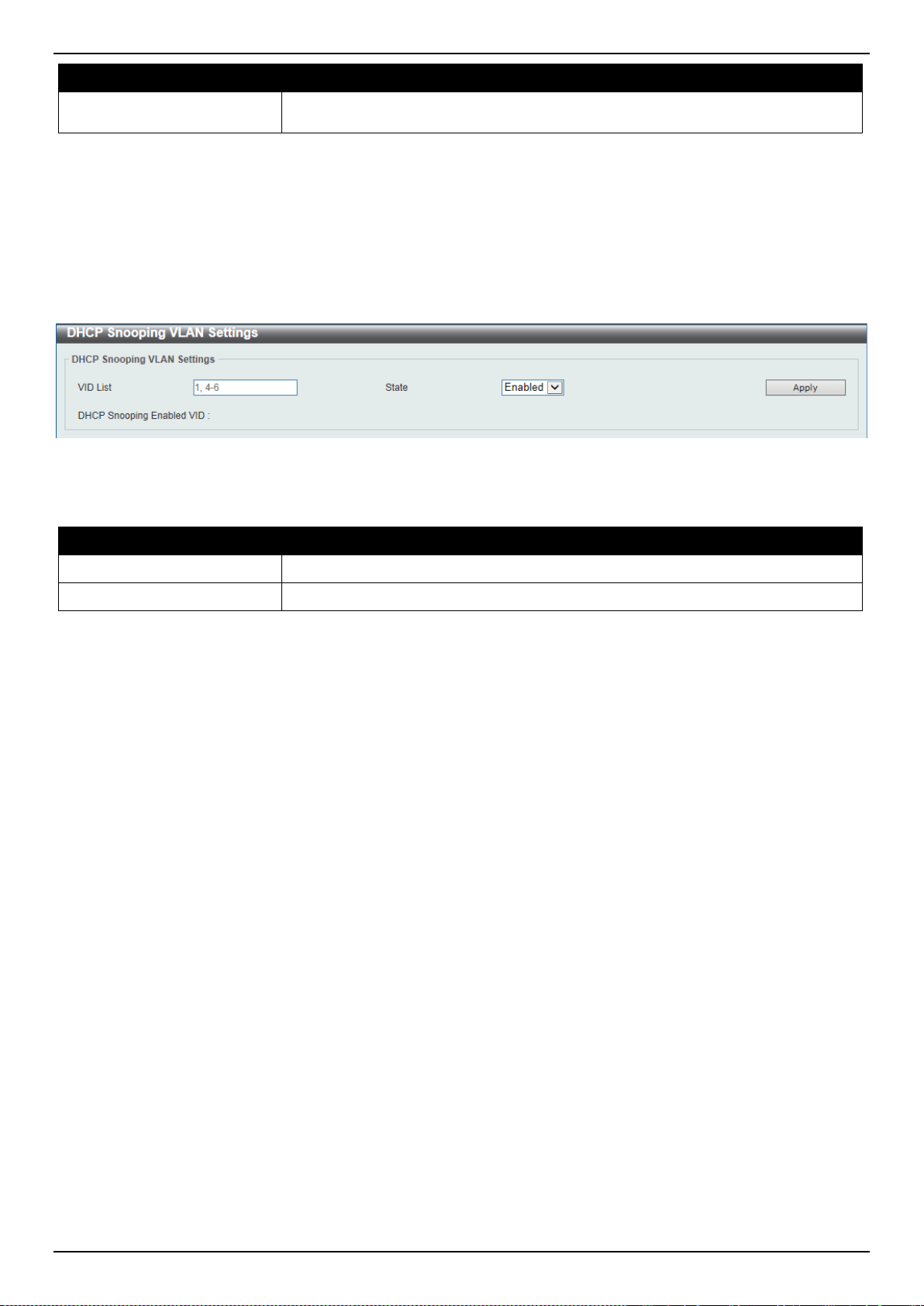
DXS-3400 Series Lite Layer 3 Stackable 10GbE Managed Switch Web UI Reference Guide
321
Parameter Description
untrusted interfaces. DHCP snooping acts as a firewall between untrusted
interfaces and DHCP servers.
Click the Apply button to accept the changes made.
DHCP Snooping VLAN Settings
This window is used to display and configure the DHCP snooping VLAN settings.
To view the following window, click Security > IMPB > IPv4 > DHCPv4 Snooping > DHCP Snooping VLAN
Settings, as shown below:
Figure 9-41 DHCP Snooping VLAN Settings Window
The fields that can be configured are described below:
Parameter Description
VID List
Enter the VLAN ID list used here.
State
Select to enable or disable the DHCP snooping VLAN setting here.
Click the Apply button to accept the changes made.
DHCP Snooping Database
This window is used to display and configure the DHCP snooping database settings.
To view the following window, click Security > IMPB > IPv4 > DHCPv4 Snooping > DHCP Snooping Database, as
shown below:
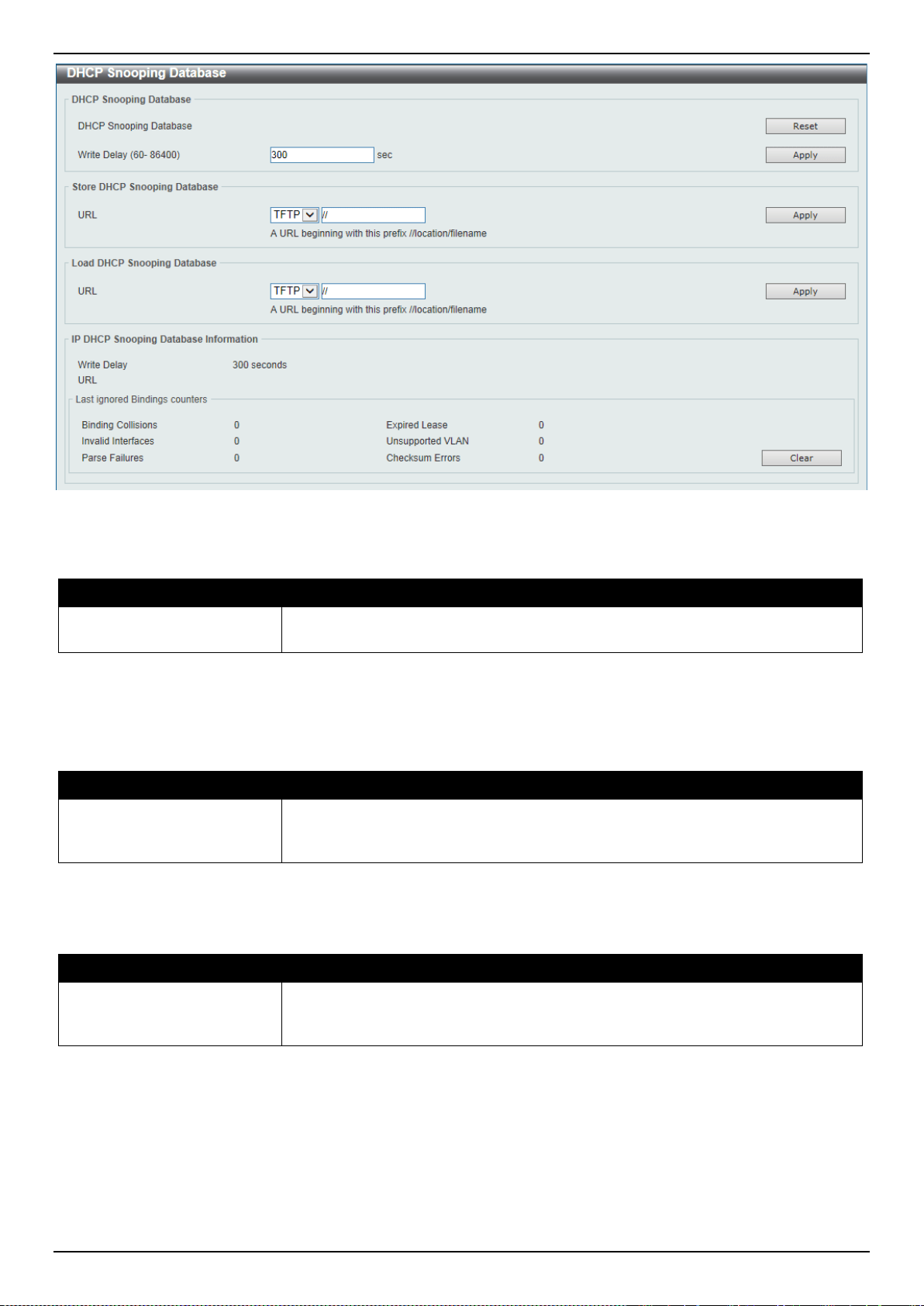
DXS-3400 Series Lite Layer 3 Stackable 10GbE Managed Switch Web UI Reference Guide
322
Figure 9-42 DHCP Snooping Database Window
The fields that can be configured in DHCP Snooping Database are described below:
Parameter Description
Write Delay
Enter the write delay time value here. This value must be between 60 and 86400
seconds. By default, this value is 300 seconds.
Click the Reset button to reset the information entered.
Click the Apply button to accept the changes made.
The fields that can be configured in Store DHCP Snooping Database are described below:
Parameter Description
URL
Select the location from the drop-down list and enter the URL where the DHCP
snooping database will be stored to here. Locations to choose from are TFTP,
FTP, and Flash. An example URL is given.
Click the Apply button to accept the changes made.
The fields that can be configured in Load DHCP Snooping Database are described below:
Parameter Description
URL
Select the location from the drop-down list and enter the URL where the DHCP
snooping database will be loaded from here. Locations to choose from are TFTP,
FTP, and Flash. An example URL is given.
Click the Apply button to accept the changes made.
Click the Clear button to clear all the counter information.
DHCP Snooping Binding Entry
This window is used to display and configure the DHCP snooping binding entries.
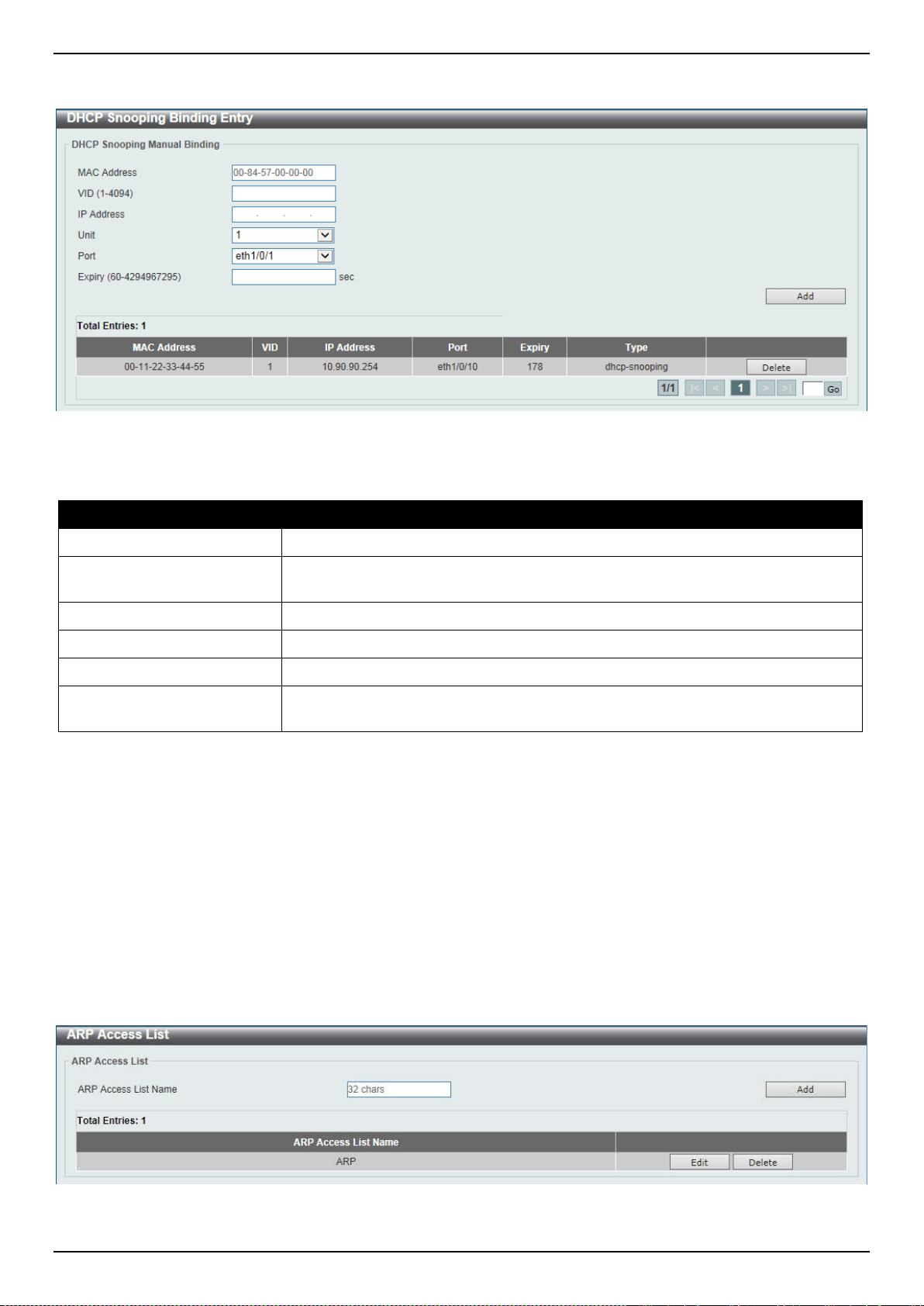
DXS-3400 Series Lite Layer 3 Stackable 10GbE Managed Switch Web UI Reference Guide
323
To view the following window, click Security > IMPB > IPv4 > DHCPv4 Snooping > DHCP Snooping Binding Entry,
as shown below:
Figure 9-43 DHCP Snooping Binding Entry Window
The fields that can be configured are described below:
Parameter Description
MAC Address
Enter the MAC address of the DHCP snooping binding entry here.
VID
Enter the VLAN ID of the DHCP snooping binding entry here. This value must be
between 1 and 4094.
IP Address
Enter the IP address of the DHCP snooping binding entry here.
Unit
Select the Switch unit that will be used for this configuration here.
Port
Select the appropriate port used for the configuration here.
Expiry
Enter the expiry time value used here. This value must be between 60 and
4294967295 seconds.
Click the Add button to add a new entry based on the information entered.
Click the Delete button to remove the specified entry.
Enter a page number and click the Go button to navigate to a specific page when multiple pages exist.
Dynamic ARP Inspection
ARP Access List
This window is used to display and configure the dynamic ARP inspection settings.
To view the following window, click Security > IMPB > IPv4 > Dynamic ARP Inspection > ARP Access List, as
shown below:
Figure 9-44 ARP Access List Window
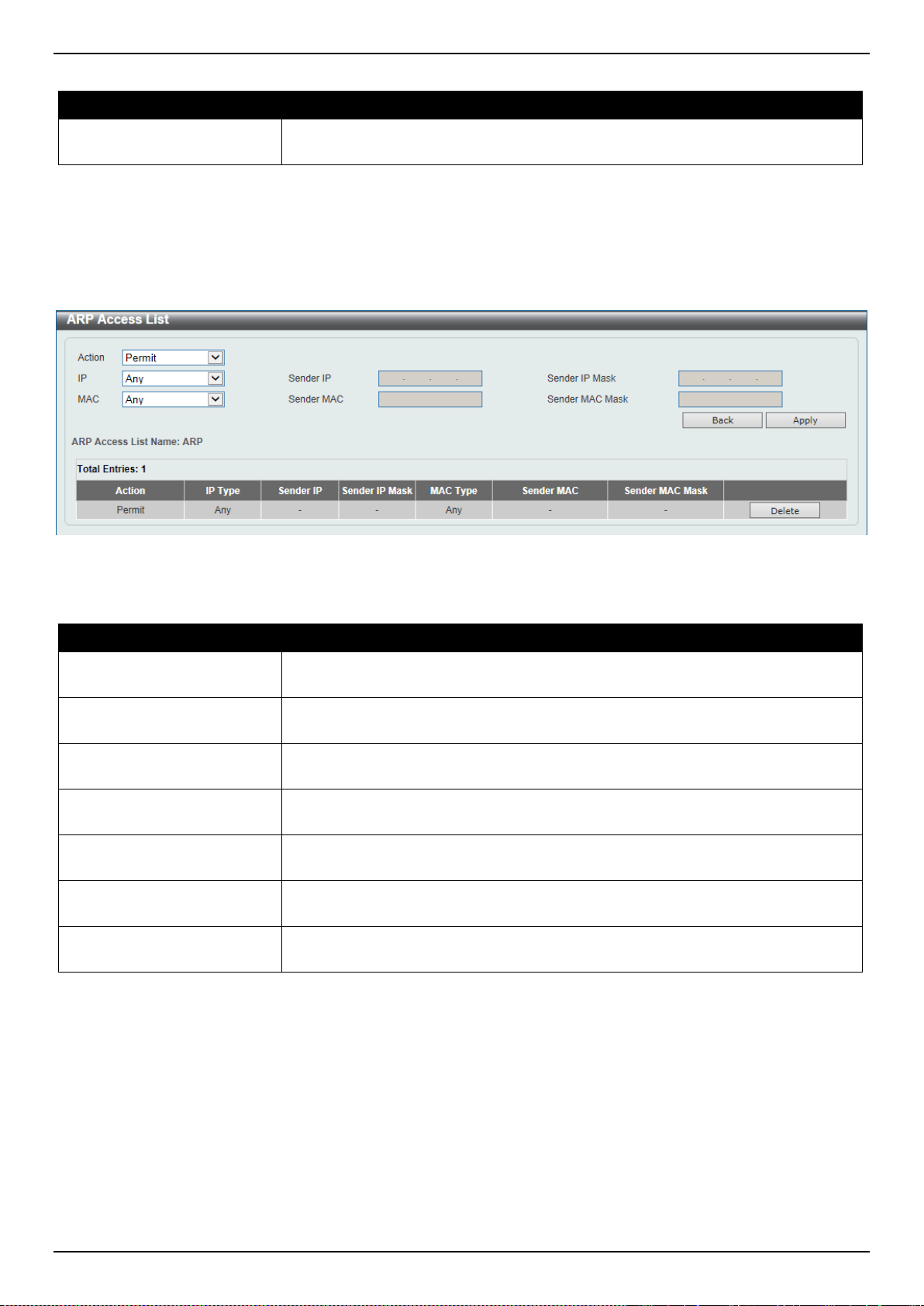
DXS-3400 Series Lite Layer 3 Stackable 10GbE Managed Switch Web UI Reference Guide
324
The fields that can be configured are described below:
Parameter Description
ARP Access List Name
Enter the ARP access list name used here. This name can be up to 32 characters
long.
Click the Add button to add a new entry based on the information entered.
Click the Edit button to re-configure the specific entry.
Click the Delete button to remove the specified entry.
After clicking the Edit button, the following window will appear.
Figure 9-45 ARP Access List (Edit) Window
The fields that can be configured are described below:
Parameter Description
Action
Select the action that will be taken here. Options to choose from are Permit and
Deny.
IP
Select the type of sender IP address that will be used here. Options to choose
from are Any, Host, and IP with Mask.
Sender IP
After selecting the Host or IP with Mask options as the type of IP, enter the
sender IP address used here.
Sender IP Mask
After selecting the IP with Mask option as the type of IP, enter the sender IP
mask used here.
MAC
Select the type of sender MAC address that will be used here. Options to choose
from are Any, Host, and MAC with Mask.
Sender MAC
After selecting the Host or MAC with Mask options as the type of MAC, enter the
sender MAC address used here.
Sender MAC Mask
After selecting the MAC with Mask option as the type of MAC, enter the sender
MAC mask used here.
Click the Back button to return to the previous page.
Click the Apply button to accept the changes made.
Click the Delete button to remove the specified entry.
ARP Inspection Settings
This window is used to display and configure the ARP inspection settings.
To view the following window, click Security > IMPB > IPv4 > Dynamic ARP Inspection > ARP Inspection Settings,
as shown below:
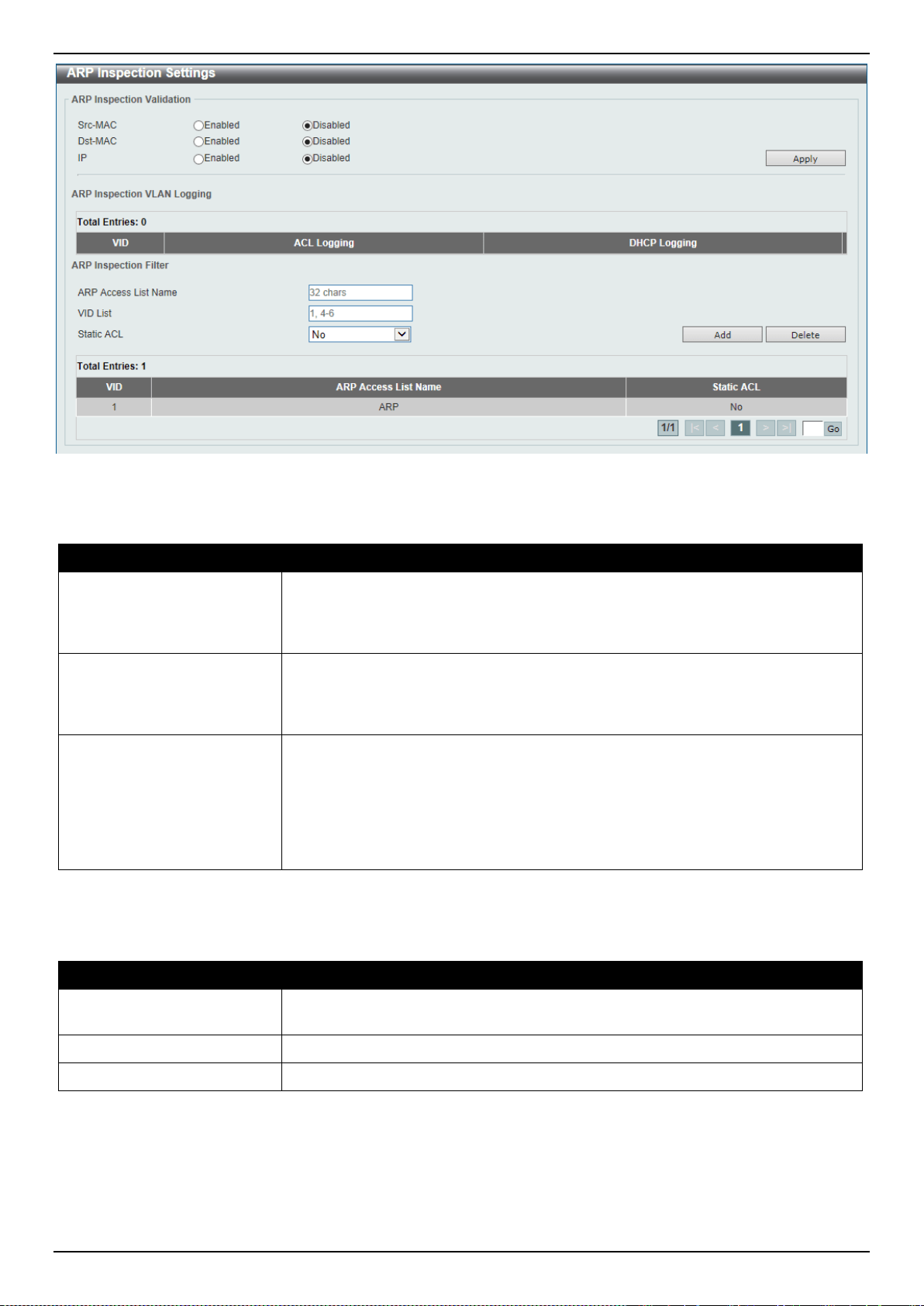
DXS-3400 Series Lite Layer 3 Stackable 10GbE Managed Switch Web UI Reference Guide
325
Figure 9-46 ARP Inspection Settings Window
The fields that can be configured in ARP Inspection Validation are described below:
Parameter Description
Src-MAC
Select to enable or disable the source MAC option here. This option specifies to
check for ARP requests and response packets and the consistency of the source
MAC address in the Ethernet header against the sender MAC address in the ARP
payload.
Dst-MAC
Select to enable or disable the destination MAC option here. This option specifies
to check for ARP response packets and the consistency of the destination MAC
address in the Ethernet header against the target MAC address in the ARP
payload.
IP
Select to enable or disable the IP option here. This option specifies to check the
ARP body for invalid and unexpected IP addresses. It also specifies to check the
validity of IP address in the ARP payload. The sender IP in both the ARP request
and response and target IP in the ARP response are validated. Packets destined
for the IP addresses 0.0.0.0, 255.255.255.255, and all IP multicast addresses are
dropped. Sender IP addresses are checked in all ARP requests and responses,
and target IP addresses are checked only in ARP responses.
Click the Apply button to accept the changes made.
The fields that can be configured in ARP Inspection Filter are described below:
Parameter Description
ARP Access List Name
Enter the ARP access list name used here. This name can be up to 32 characters
long.
VID List
Enter the VLAN ID list used here.
Static ACL
Select whether to use a static ACL or not here by either selecting Yes or No.
Click the Add button to add a new entry based on the information entered.
Click the Delete button to remove an entry based on the information entered.
Enter a page number and click the Go button to navigate to a specific page when multiple pages exist.
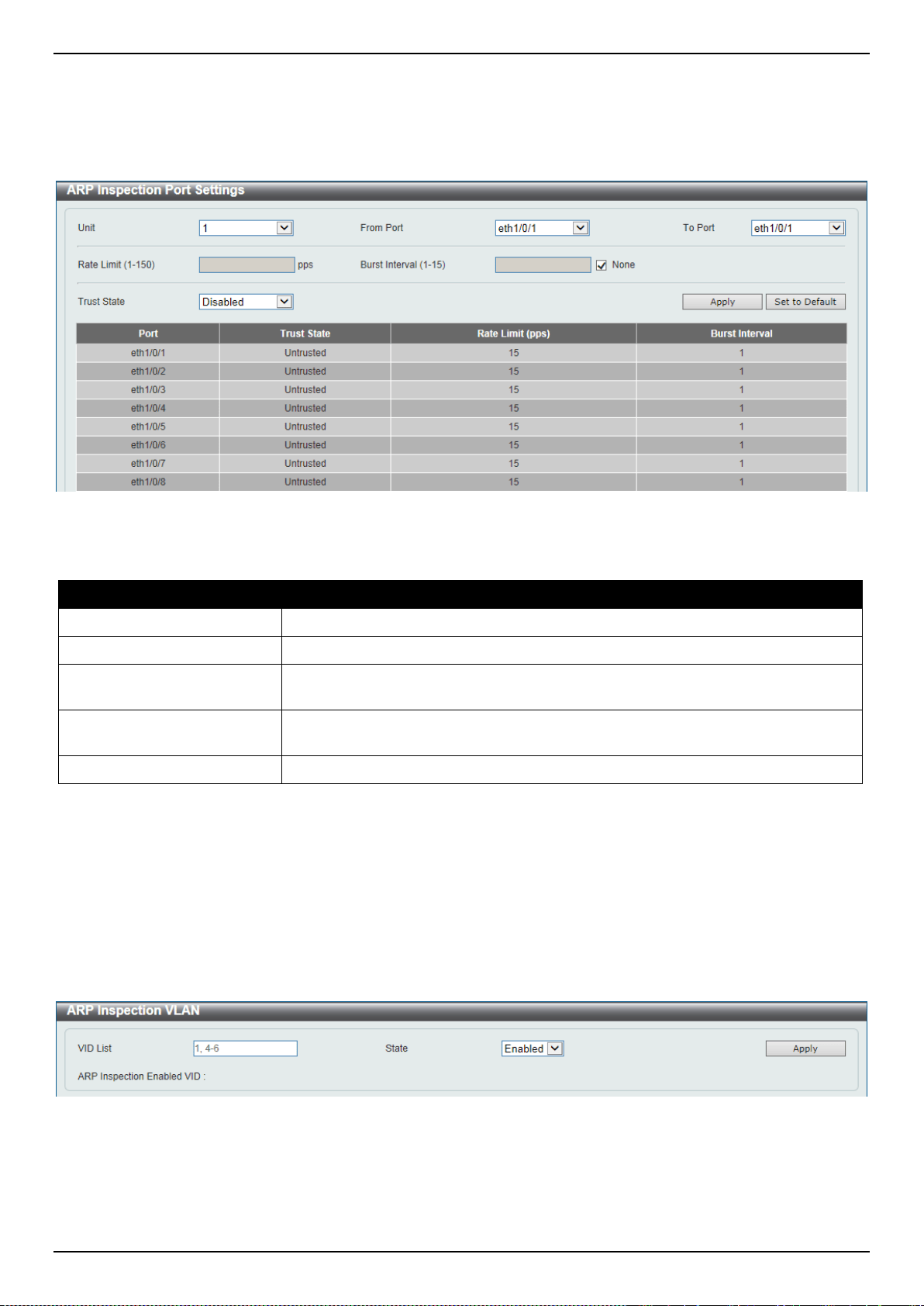
DXS-3400 Series Lite Layer 3 Stackable 10GbE Managed Switch Web UI Reference Guide
326
ARP Inspection Port Settings
This window is used to display and configure the ARP inspection port settings.
To view the following window, click Security > IMPB > IPv4 > Dynamic ARP Inspection > ARP Inspection Port
Settings, as shown below:
Figure 9-47 ARP Inspection Port Settings Window
The fields that can be configured are described below:
Parameter Description
Unit
Select the Switch unit that will be used for this configuration here.
From Port ~ To Port
Select the appropriate port range used for the configuration here.
Rate Limit
Enter the rate limit value here. This value must be between 1 and 150 packets per
seconds.
Burst Interval
Enter the burst interval value here. This value must be between 1 and 15. Tick the
None option to disable the option.
Trust State
Select to enable or disable the trust state here.
Click the Apply button to accept the changes made.
Click the Set to Default button to change the information to the default values.
ARP Inspection VLAN
This window is used to display and configure the ARP inspection VLAN settings.
To view the following window, click Security > IMPB > IPv4 > Dynamic ARP Inspection > ARP Inspection VLAN,
as shown below:
Figure 9-48 ARP Inspection VLAN Window
The fields that can be configured are described below:
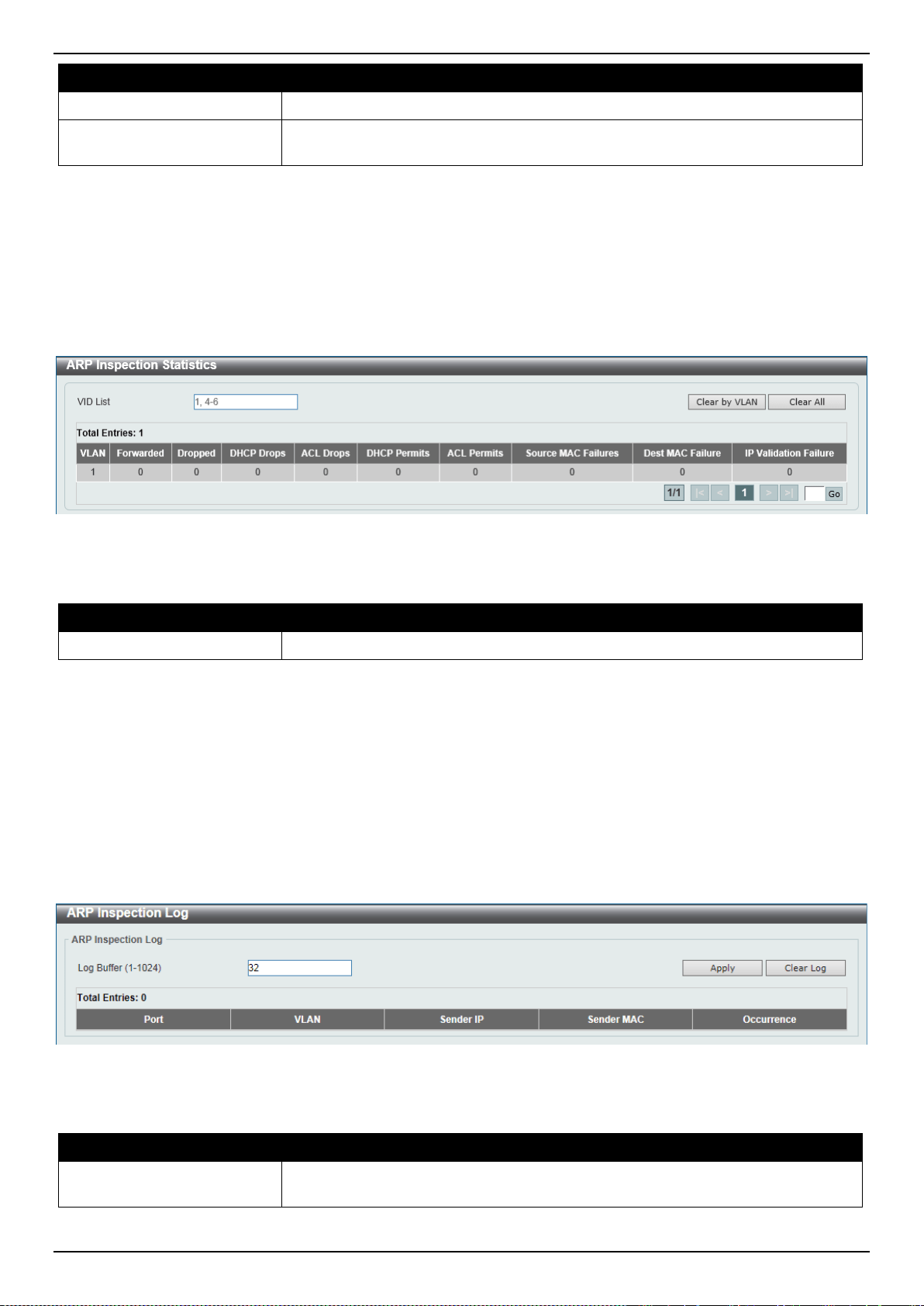
DXS-3400 Series Lite Layer 3 Stackable 10GbE Managed Switch Web UI Reference Guide
327
Parameter Description
VID List
Enter the VLAN ID list used here.
State
Select to enable or disable the ARP inspection option’s state for the specified
VLAN here.
Click the Apply button to accept the changes made.
ARP Inspection Statistics
This window is used to display and clear the ARP inspection statistics information.
To view the following window, click Security > IMPB > IPv4 > Dynamic ARP Inspection > ARP Inspection
Statistics, as shown below:
Figure 9-49 ARP Inspection Statistics Window
The fields that can be configured are described below:
Parameter Description
VID List
Enter the VLAN ID list used here.
Click the Clear by VLAN button to clear the information based on the VLAN ID(s) entered.
Click the Clear All button to clear all the information in this table.
Enter a page number and click the Go button to navigate to a specific page when multiple pages exist.
ARP Inspection Log
This window is used to display, configure and clear the ARP inspection log information.
To view the following window, click Security > IMPB > IPv4 > Dynamic ARP Inspection > ARP Inspection Log, as
shown below:
Figure 9-50 ARP Inspection Log Window
The fields that can be configured are described below:
Parameter Description
Log Buffer
Enter the log’s buffer value used here. This value must be between 1 and 1024.
By default, this value is 32.
Click the Apply button to accept the changes made.
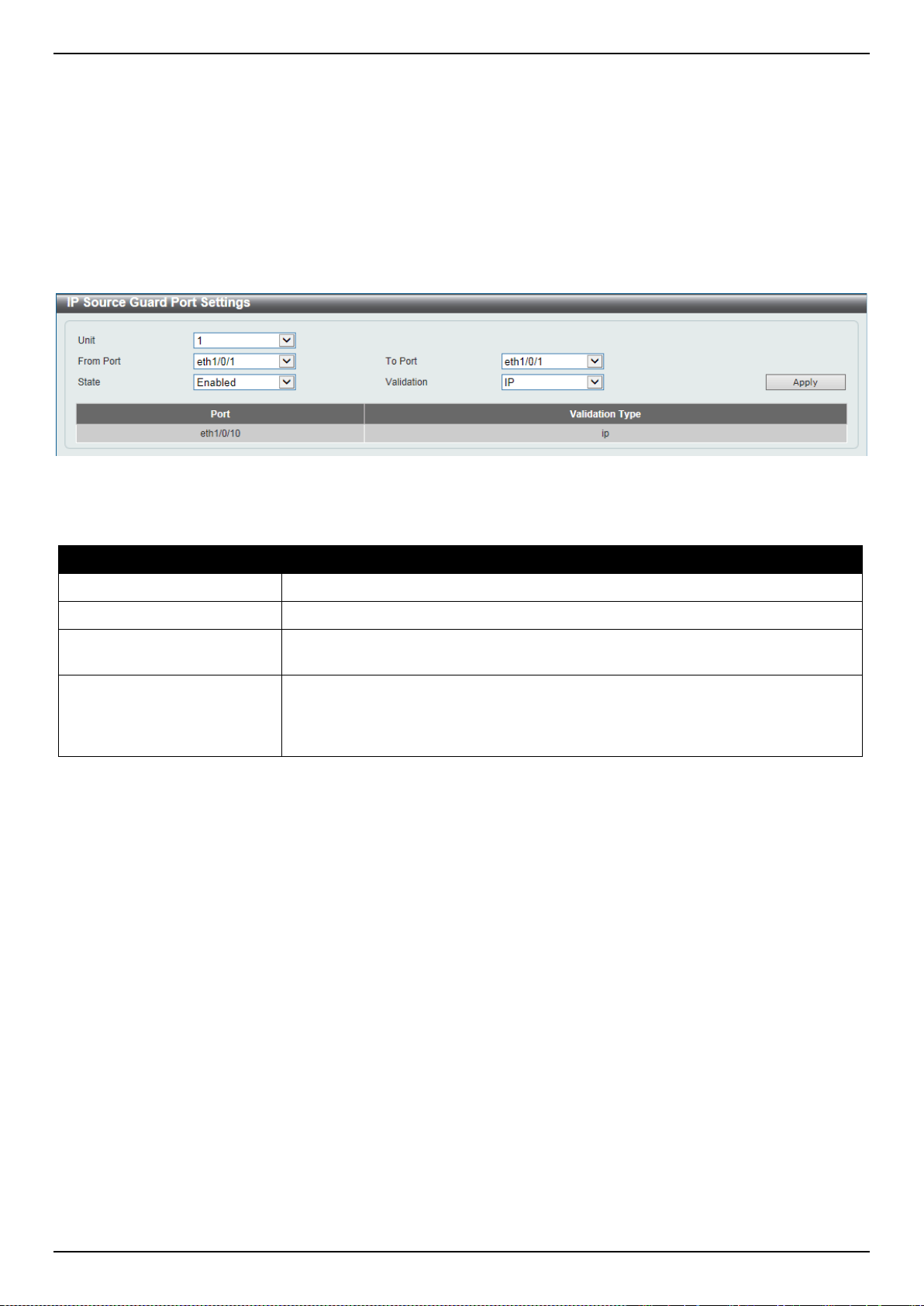
DXS-3400 Series Lite Layer 3 Stackable 10GbE Managed Switch Web UI Reference Guide
328
Click the Clear Log button to clear the log.
IP Source Guard
IP Source Guard Port Settings
This window is used to display and configure the IP source guard port settings.
To view the following window, click Security > IMPB > IPv4 > IP Source Guard > IP Source Guard Port Settings,
as shown below:
Figure 9-51 IP Source Guard Port Settings Window
The fields that can be configured are described below:
Parameter Description
Unit
Select the Switch unit that will be used for this configuration here.
From Port ~ To Port
Select the appropriate port range used for the configuration here.
State
Select to enable or disable the IP source guard’s state for the specified port(s)
here.
Validation
Select the validation method used here. Options to choose from are IP and IP-
MAC. Selecting IP means that the IP address of the received packets will be
checked. Selecting IP-MAC means that the IP address and the MAC address of
the received packets will be checked.
Click the Apply button to accept the changes made.
IP Source Guard Binding
This window is used to display and configure the IP source guard binding settings.
To view the following window, click Security > IMPB > IPv4 > IP Source Guard > IP Source Guard Binding, as
shown below:
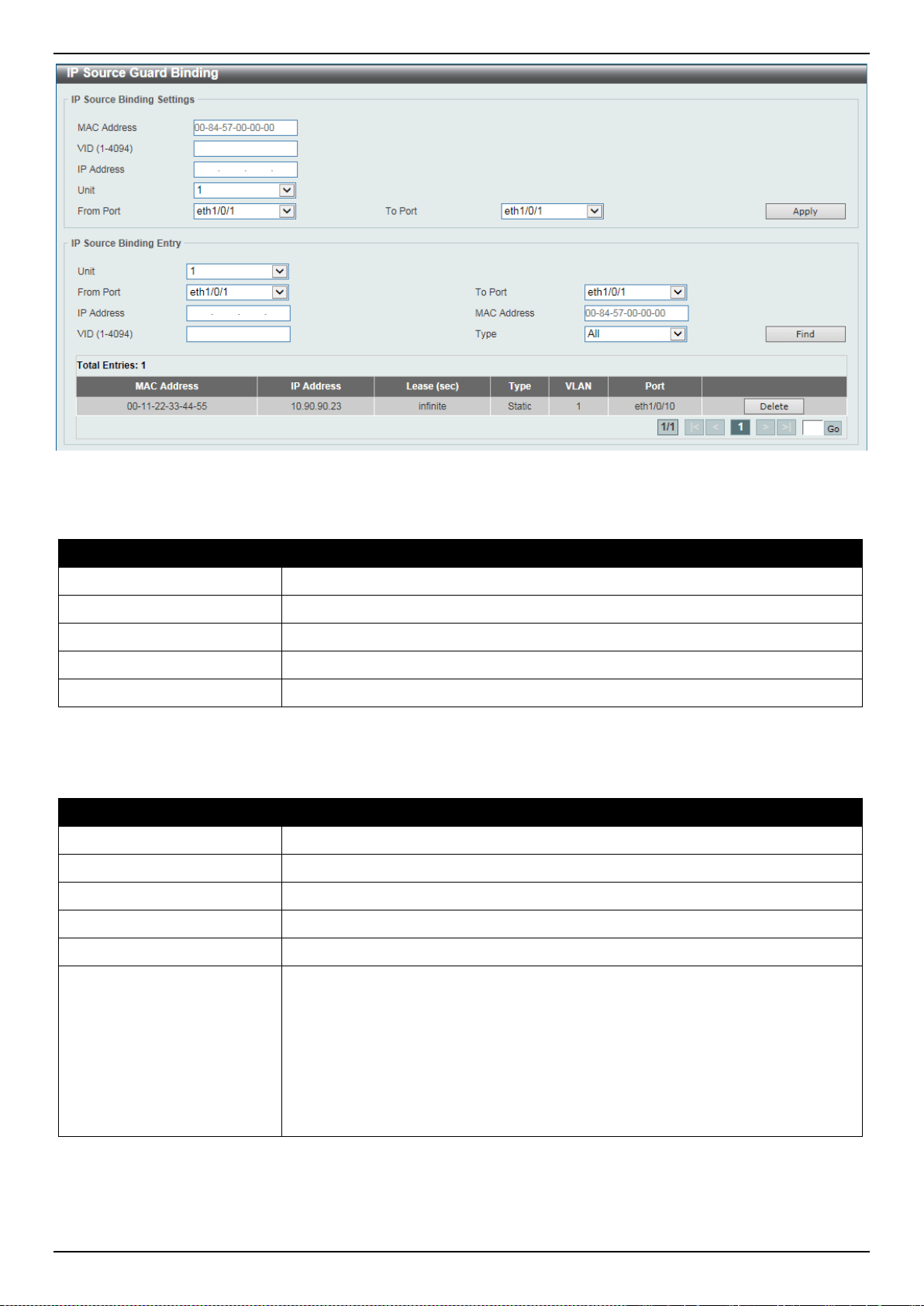
DXS-3400 Series Lite Layer 3 Stackable 10GbE Managed Switch Web UI Reference Guide
329
Figure 9-52 IP Source Guard Binding Window
The fields that can be configured in IP Source Binding Settings are described below:
Parameter Description
MAC Address
Enter the MAC address of the binding entry here.
VID
Enter the VLAN ID of the binding entry here.
IP Address
Enter the IP address of the binding entry here.
Unit
Select the Switch unit that will be used for this configuration here.
From Port ~ To Port
Select the appropriate port range used for the configuration here.
Click the Apply button to accept the changes made.
The fields that can be configured in IP Source Binding Entry are described below:
Parameter Description
Unit
Select the Switch unit that will be used for this query here.
From Port ~ To Port
Select the appropriate port range used for the query here.
IP Address
Enter the IP address of the binding entry here.
MAC Address
Enter the MAC address of the binding entry here.
VID
Enter the VLAN ID of the binding entry here.
Type
Select the type of binding entry to find here. Options to choose from are All,
DHCP Snooping, and Static.
• Selecting All specifies that all the DHCP binding entries will be displayed.
• Selecting DHCP Snooping specifies to display the IP-source guard binding
entry learned by DHCP binding snooping.
• Selecting Static specifies to display the IP-source guard binding entry that is
manually configured.
Click the Find button to locate a specific entry based on the information entered.
Click the Delete button to remove the specified entry.
Enter a page number and click the Go button to navigate to a specific page when multiple pages exist.
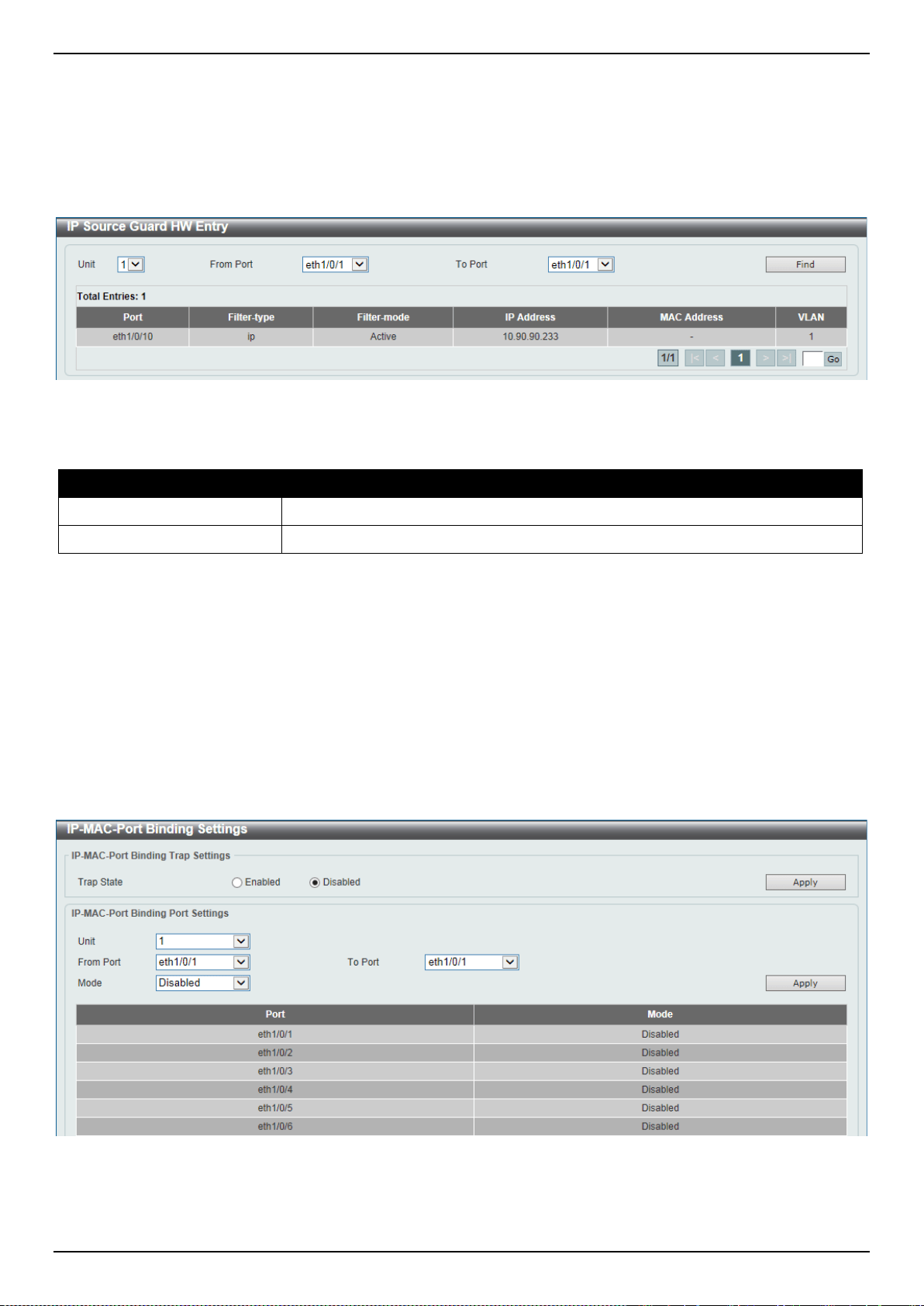
DXS-3400 Series Lite Layer 3 Stackable 10GbE Managed Switch Web UI Reference Guide
330
IP Source Guard HW Entry
This window is used to display the IP source guard hardware entries.
To view the following window, click Security > IMPB > IPv4 > IP Source Guard > IP Source Guard HW Entry, as
shown below:
Figure 9-53 IP Source Guard HW Entry Window
The fields that can be configured are described below:
Parameter Description
Unit
Select the Switch unit that will be used for this query here.
From Port ~ To Port
Select the appropriate port range used for the query here.
Click the Find button to locate a specific entry based on the information entered.
Enter a page number and click the Go button to navigate to a specific page when multiple pages exist.
Advanced Settings
IP-MAC-Port Binding Settings
This window is used to display and configure the IP-MAC-Port binding settings.
To view the following window, click Security > IMPB > IPv4 > Advanced Settings > IP-MAC-Port Binding Settings,
as shown below:
Figure 9-54 IP-MAC-Port Binding Settings Window
The fields that can be configured in IP-MAC-Port Binding Trap Settings are described below:
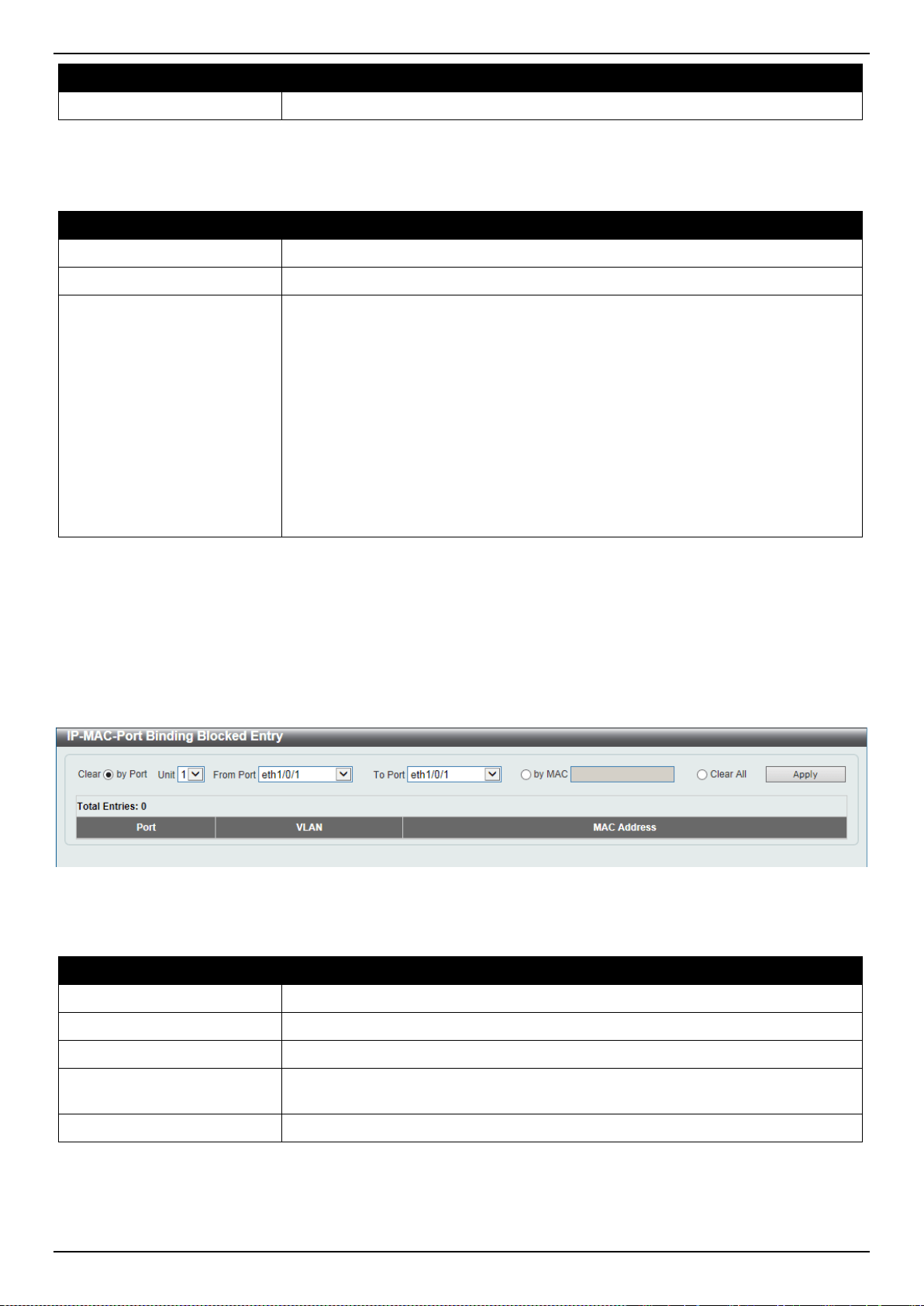
DXS-3400 Series Lite Layer 3 Stackable 10GbE Managed Switch Web UI Reference Guide
331
Parameter Description
Trap State
Select the enable or disable the IP-MAC-Port binding option’s trap state.
Click the Apply button to accept the changes made.
The fields that can be configured in IP-MAC-Port Binding Port Settings are described below:
Parameter Description
Unit
Select the Switch unit that will be used for this configuration here.
From Port ~ To Port
Select the appropriate port range used for the configuration here.
Mode
Select the mode of access control that will be used here. Options to choose from
are Disabled, Strict, and Loose. When a port is enabled for IMPB strict-mode
access control, a host can only access the port after the host sends ARP or IP
packets and the ARP packet or IP packet sent by the host passes the binding
check. To pass the binding check, the source IP address, source MAC address,
VLAN ID, and arrival port number must match any of the entries defined by either
the IP source guard static binding entry or the DHCP snooping learned dynamic
binding entry. When a port is enabled for IMPB loose-mode access control, a host
will be denied to access the port after the host sends ARP or IP packets and the
ARP packet or IP packet sent by the host does not pass the binding check. To
pass the binding check, the source IP address, source MAC address, VLAN ID,
and arrival port must match any of the entries defined by either the IP source
guard static binding entry or the DHCP snooping learned dynamic binding entry.
Click the Apply button to accept the changes made.
IP-MAC-Port Binding Blocked Entry
This window is used to display and clear the IP-MAC-Port binding blocked entry table.
To view the following window, click Security > IMPB > IPv4 > Advanced Settings > IP-MAC-Port Binding Blocked
Entry, as shown below:
Figure 9-55 IP-MAC-Port Binding Blocked Entry Window
The fields that can be configured are described below:
Parameter Description
Clear by Port
Select this option to clear the entry table based on the port(s) selected.
Unit
Select the Switch unit that will be clear here.
From Port ~ To Port
Select the appropriate port range that will be cleared here.
Clear by MAC
Select this option to clear the entry table based on the MAC address entered.
Enter the MAC address that will be cleared in the space provided.
Clear All
Select this option to clear all entries that contain MAC addresses.
Click the Apply button to accept the changes made.
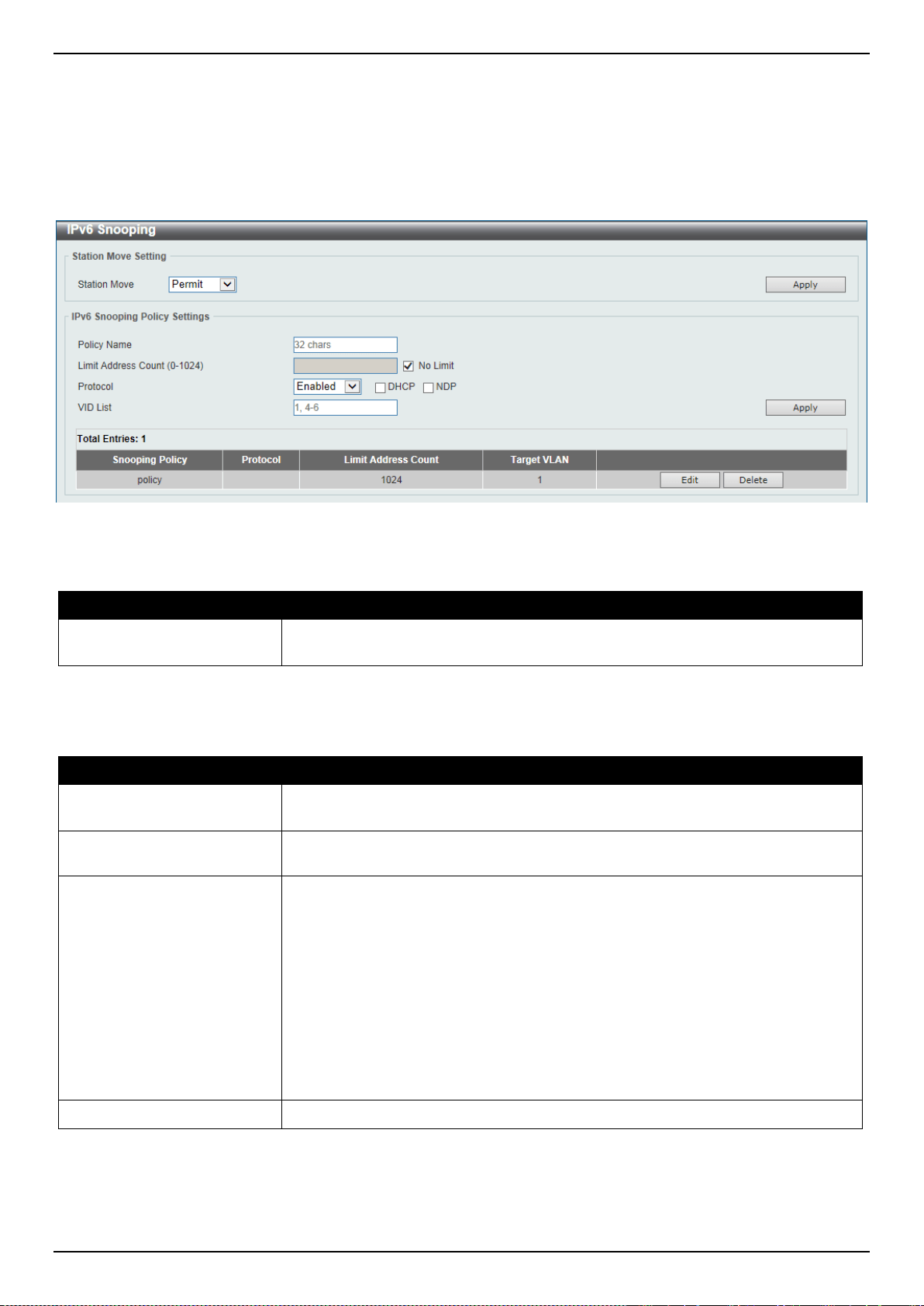
DXS-3400 Series Lite Layer 3 Stackable 10GbE Managed Switch Web UI Reference Guide
332
IPv6
IPv6 Snooping
This window is used to display and configure the IPv6 snooping settings.
To view the following window, click Security > IMPB > IPv6 > IPv6 Snooping, as shown below:
Figure 9-56 IPv6 Snooping Window
The fields that can be configured in Station Move Setting are described below:
Parameter Description
Station Move
Select the station move options here. Options to choose from are Permit and
Deny.
Click the Apply button to accept the changes made.
The fields that can be configured in IPv6 Snooping Policy Settings are described below:
Parameter Description
Policy Name
Enter the IPv6 snooping policy name used here. This name can be up to 32
characters long.
Limit Address Count
Enter the address count limit value used here. This value must be between 0 and
511. Tick the No Limit option to disable this option.
Protocol
Select the protocol state here. Options to choose from are Enabled and
Disabled. Select DHCP to associate the DHCP protocol with this policy. Select
NDP to associate the NDP protocol with this policy. DHCPv6 Snooping sniffs the
DHCPv6 packets sent between the DHCPv6 client and server in the address
assigning procedure. When a DHCPv6 client successfully got a valid IPv6
address, DHCPv6 snooping creates its binding database. ND Snooping is
designed for a stateless auto-configuration assigned IPv6 address and manually
configured IPv6 address. Before assigning an IPv6 address, the host must
perform Duplicate Address Detection first. ND snooping detects DAD messages
(DAD Neighbor Solicitation (NS) and DAD Neighbor Advertisement (NA)) to build
its binding database. The NDP packet (NS and NA) is also used to detect whether
a host is still reachable and determine whether to delete a binding or not.
VID List
Enter the VLAN ID list used here.
Click the Apply button to accept the changes made.
Click the Edit button to re-configure the specific entry.
Click the Delete button to remove the specified entry.

DXS-3400 Series Lite Layer 3 Stackable 10GbE Managed Switch Web UI Reference Guide
333
IPv6 ND Inspection
This window is used to display and configure the IPv6 ND inspection settings.
To view the following window, click Security > IMPB > IPv6 > IPv6 ND Inspection, as shown below:
Figure 9-57 IPv6 ND Inspection Window
The fields that can be configured are described below:
Parameter Description
Policy Name
Enter the policy name used here. This name can be up to 32 characters long.
Device Role
Select the device role here. Options to choose from are Host and Router. By
default, the device’s role is set as host and inspection for NS and NA messages
are performed. If the device role is set as router, the NS and NA inspection is not
performed. When performing NS/NA inspection, the message will be verified
against the dynamic binding table learned from the ND protocol or from the
DHCP.
Validate Source-MAC
Select to enable or disable the validation of the source MAC address option here.
When the Switch receives an ND message that contains a link-layer address, the
source MAC address is checked against the link-layer address. The packet will be
dropped if the link-layer address and the MAC addresses are different from each
other.
Target Port
Tick this option to specify the target port.
Unit
Select the Switch unit that will be used for this configuration here.
From Port ~ To Port
Select the appropriate port range used for the configuration here.
Click the Apply button to accept the changes made.
Click the Edit button to re-configure the specific entry.
Click the Delete button to remove the specified entry.
IPv6 RA Guard
This window is used to display and configure the IPv6 Router Advertisement (RA) guard settings.
To view the following window, click Security > IMPB > IPv6 > IPv6 RA Guard, as shown below:
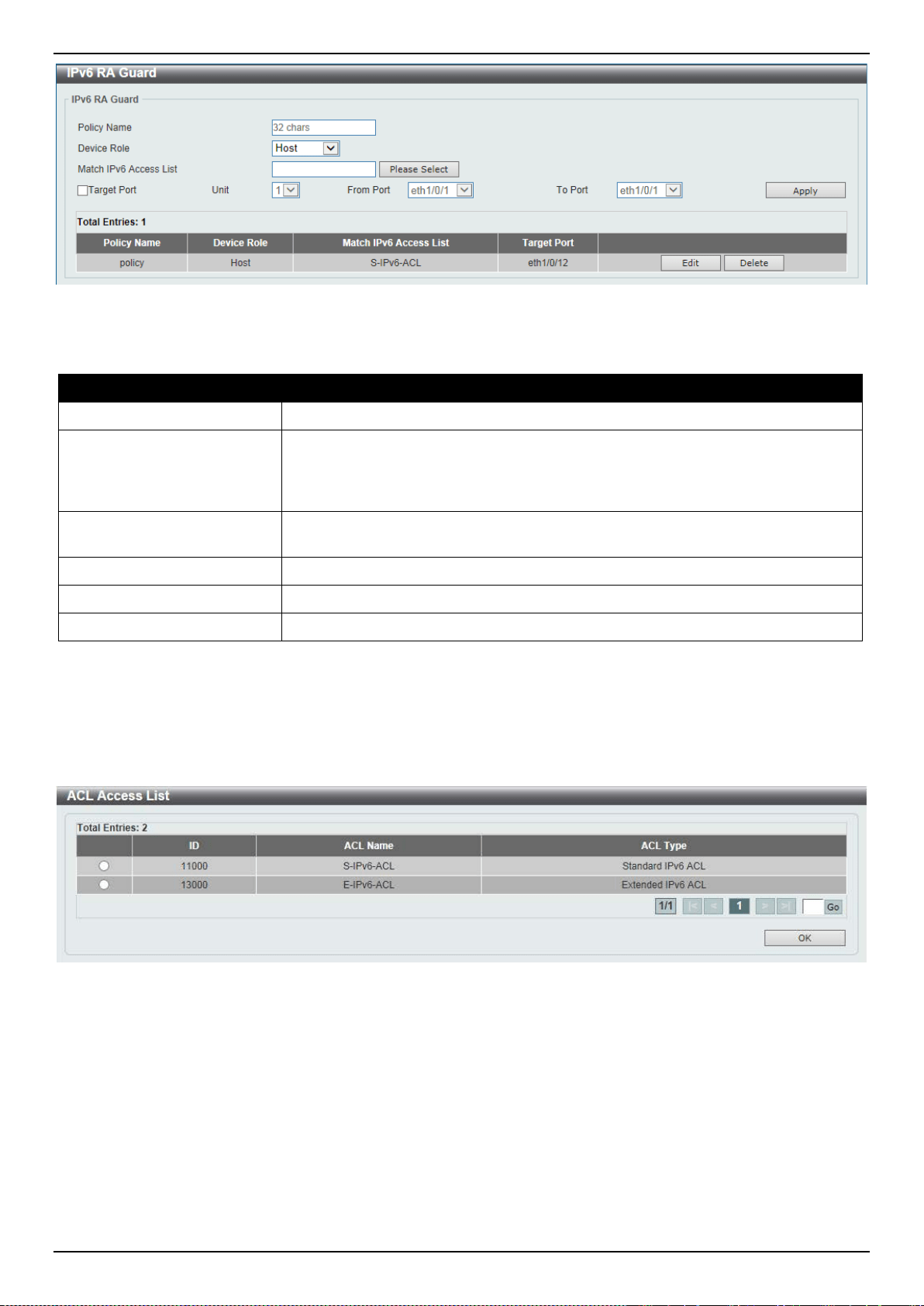
DXS-3400 Series Lite Layer 3 Stackable 10GbE Managed Switch Web UI Reference Guide
334
Figure 9-58 IPv6 RA Guard Window
The fields that can be configured are described below:
Parameter Description
Policy Name
Enter the policy name here. This name can be up to 32 characters long.
Device Role
Select the device role here. Options to choose from are Host and Router. By
default, the device's role is Host, which will block all the RA packets. If the
device's role is Router, RA packets will be forwarded according to the port's
bound ACL.
Match IPv6 Access List
Enter or select the IPv6 access list to match here. Click the Please Select button
to select an existing ACL from the list.
Target Port
Tick this option to specify the target port.
Unit
Select the Switch unit that will be used for this configuration here.
From Port ~ To Port
Select the appropriate port range used for the configuration here.
Click the Apply button to accept the changes made.
Click the Edit button to re-configure the specific entry.
Click the Delete button to remove the specified entry.
After clicking the Please Select button, the following window will appear:
Figure 9-59 IPv6 RA Guard (Please Select) Window
Select the radio button next to the entry to use that ACL in the configuration.
Enter a page number and click the Go button to navigate to a specific page when multiple pages exist.
Click the OK button to accept the selection made.
IPv6 DHCP Guard
This window is used to display and configure the IPv6 DHCP guard settings.
To view the following window, click Security > IMPB > IPv6 > IPv6 DHCP Guard, as shown below:
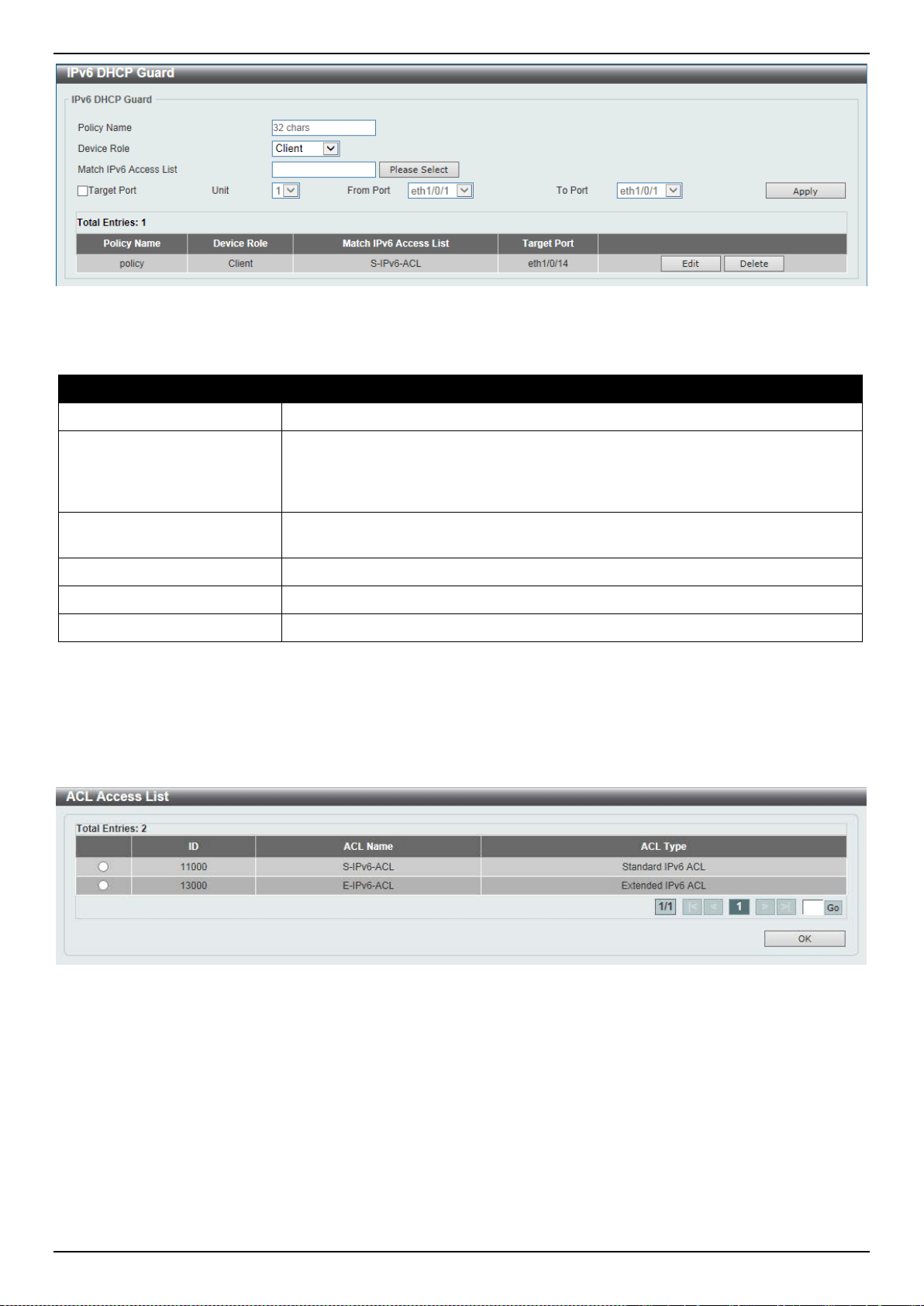
DXS-3400 Series Lite Layer 3 Stackable 10GbE Managed Switch Web UI Reference Guide
335
Figure 9-60 IPv6 DHCP Guard Window
The fields that can be configured are described below:
Parameter Description
Policy Name
Enter the policy name here. This name can be up to 32 characters long.
Device Role
Select the device role here. Options to choose from are Client and Server. By
default, the device's role is set as Client, which will block all the DHCPv6 packets
from the DHCPv6 Server. If the device's role is set as Server, DHCPv6 Server
packets will be forwarded according to the port's bound ACL.
Match IPv6 Access List
Enter or select the IPv6 access list to match here. Click the Please Select button
to select an existing ACL from the list.
Target Port
Tick this option to specify the target port.
Unit
Select the Switch unit that will be used for this configuration here.
From Port ~ To Port
Select the appropriate port range used for the configuration here.
Click the Apply button to accept the changes made.
Click the Edit button to re-configure the specific entry.
Click the Delete button to remove the specified entry.
After clicking the Please Select button, the following window will appear:
Figure 9-61 IPv6 DHCP Guard (Please Select) Window
Select the radio button next to the entry to use that ACL in the configuration.
Enter a page number and click the Go button to navigate to a specific page when multiple pages exist.
Click the OK button to accept the selection made.
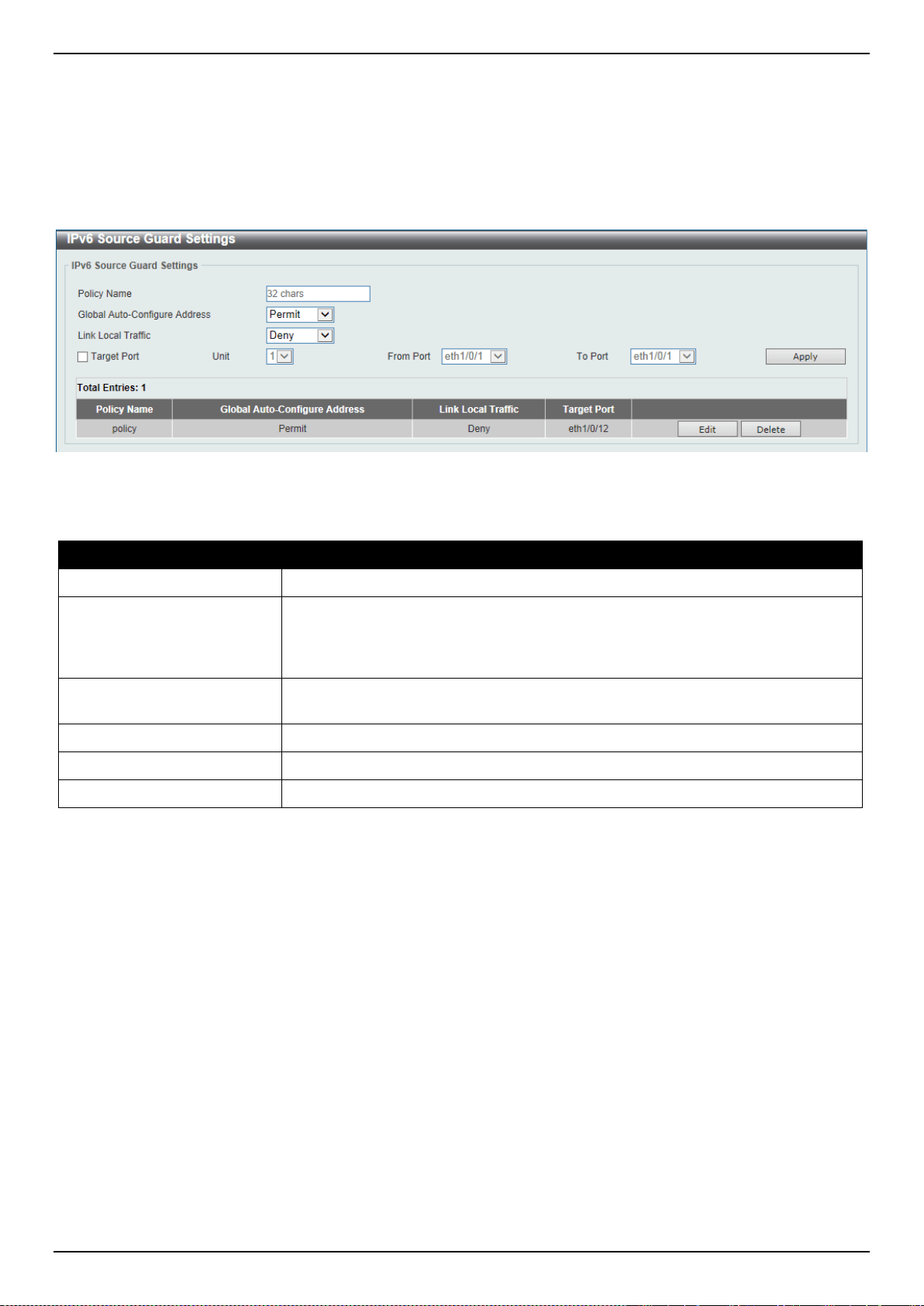
DXS-3400 Series Lite Layer 3 Stackable 10GbE Managed Switch Web UI Reference Guide
336
IPv6 Source Guard
IPv6 Source Guard Settings
This window is used to display and configure the IPv6 source guard settings.
To view the following window, click Security > IMPB > IPv6 > IPv6 Source Guard > IPv6 Source Guard Settings,
as shown below:
Figure 9-62 IPv6 Source Guard Settings Window
The fields that can be configured are described below:
Parameter Description
Policy Name
Enter the policy name here. This name can be up to 32 characters long.
Global Auto-Configure
Address
Select to permit of deny data traffic from the auto-configured global address. It is
useful when all global addresses on a link are assigned by DHCP and the
administrator that wants to block hosts with self-configured addresses from
sending traffic.
Link Local Traffic
Select to permit of deny hardware permitted data traffic send by the link-local
address.
Target Port
Tick this option to specify the target port.
Unit
Select the Switch unit that will be used for this configuration here.
From Port ~ To Port
Select the appropriate port range used for the configuration here.
Click the Apply button to accept the changes made.
Click the Edit button to re-configure the specific entry.
Click the Delete button to remove the specified entry.
IPv6 Neighbor Binding
This window is used to display and configure the IPv6 neighbor binding settings.
To view the following window, click Security > IMPB > IPv6 > IPv6 Source Guard > IPv6 Neighbor Binding, as
shown below:
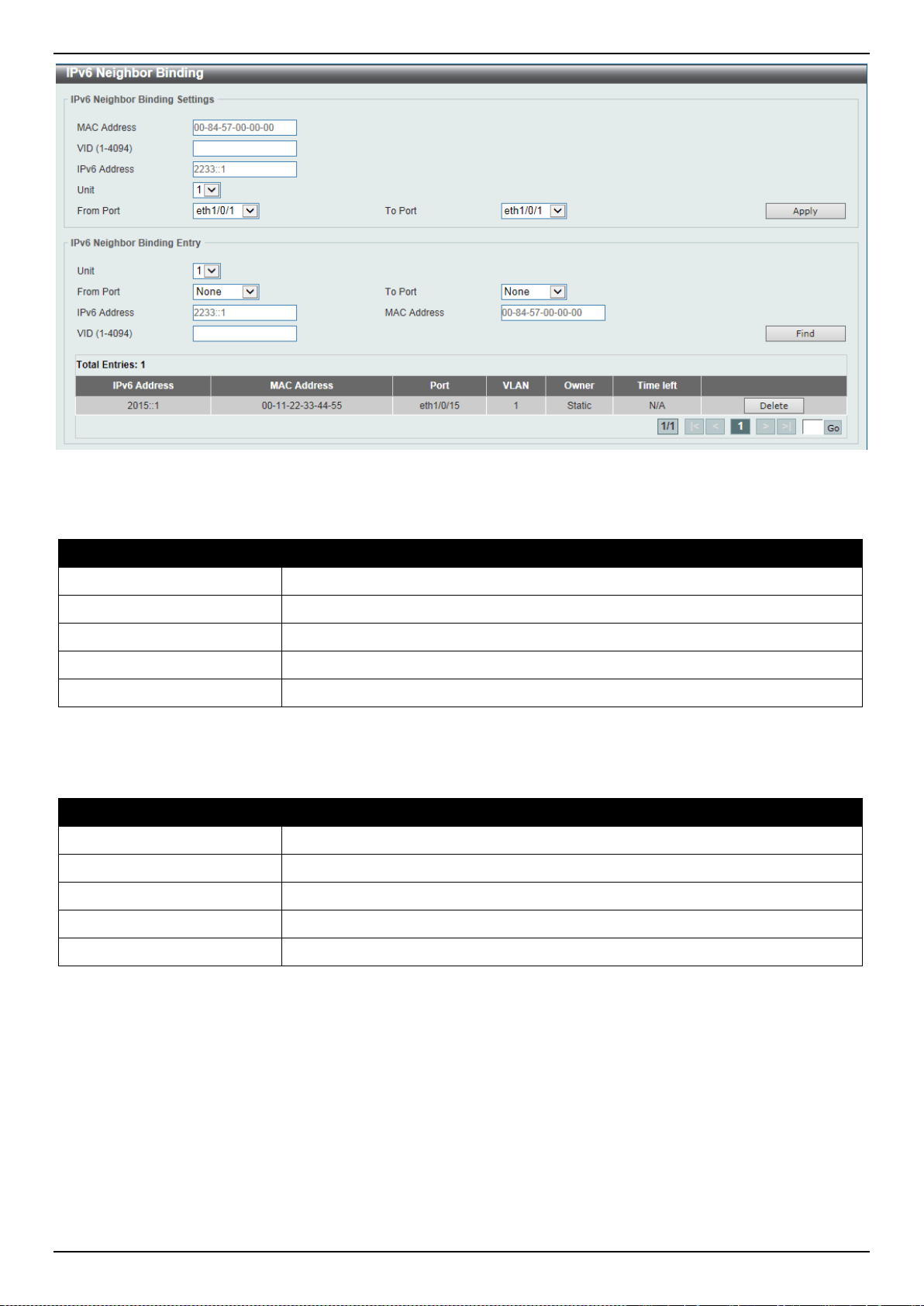
DXS-3400 Series Lite Layer 3 Stackable 10GbE Managed Switch Web UI Reference Guide
337
Figure 9-63 IPv6 Neighbor Binding Window
The fields that can be configured in IPv6 Neighbor Binding Settings are described below:
Parameter Description
MAC Address
Enter the MAC address used here.
VID
Enter the VLAN ID used here. This value must be between 1 and 4094.
IPv6 Address
Enter the IPv6 address used here.
Unit
Select the Switch unit that will be used for this configuration here.
From Port ~ To Port
Select the appropriate port range used for the configuration here.
Click the Apply button to accept the changes made.
The fields that can be configured in IPv6 Neighbor Binding Entry are described below:
Parameter Description
Unit
Select the Switch unit that will be used for this search here.
From Port ~ To Port
Select the appropriate port range used for the search here.
IPv6 Address
Enter the IPv6 address to find here.
MAC Address
Enter the MAC address to find here.
VID
Enter the VLAN ID to find here.
Click the Find button to locate a specific entry based on the information entered.
Click the Delete button to remove the specified entry.
Enter a page number and click the Go button to navigate to a specific page when multiple pages exist.
DHCP Server Screening
This function allows users to not only to restrict all DHCP server packets but also to receive any specified DHCP
server packet by any specified DHCP client. It is useful when one or more DHCP servers are present on the network
and both provide DHCP services to different distinct groups of clients.
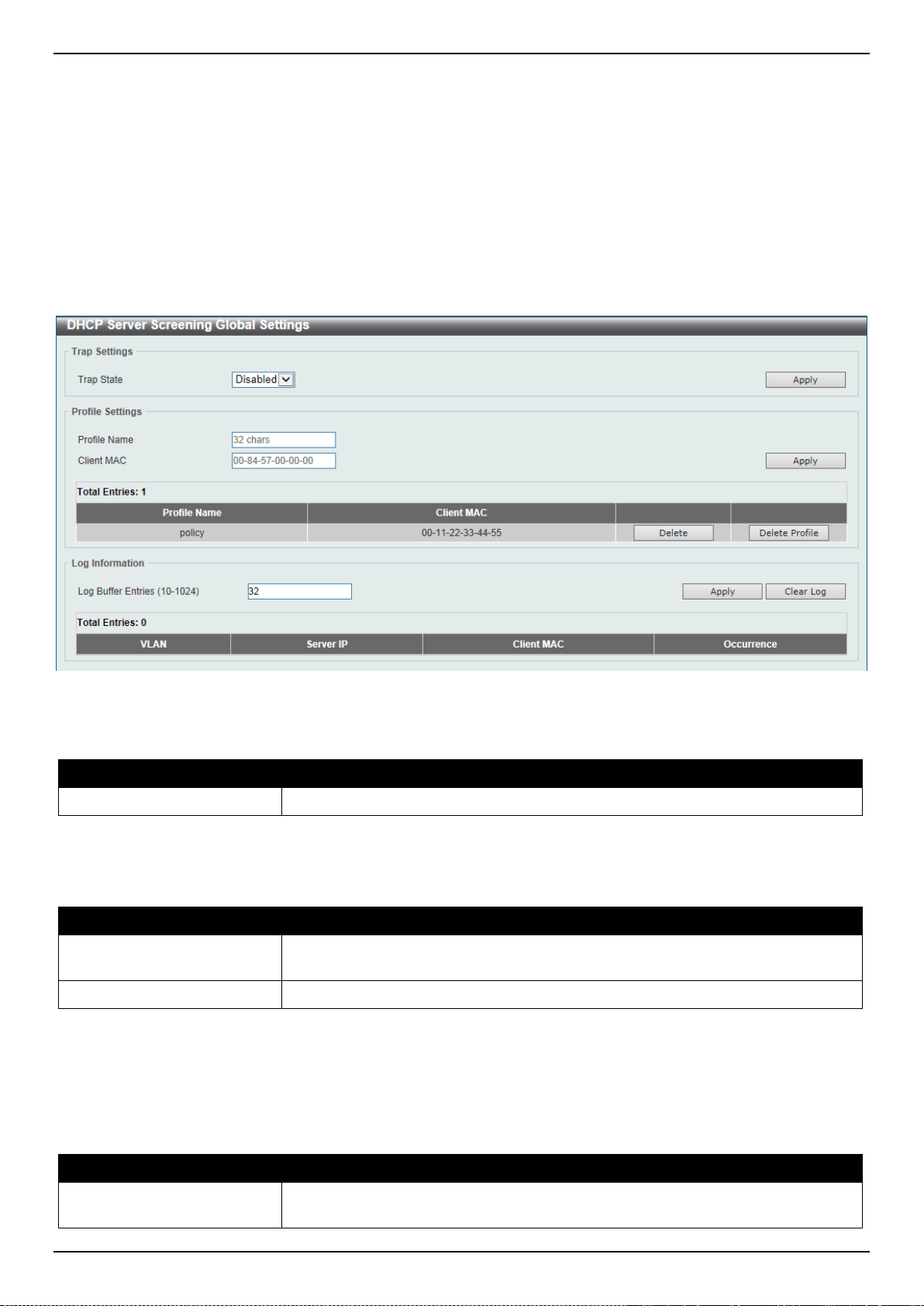
DXS-3400 Series Lite Layer 3 Stackable 10GbE Managed Switch Web UI Reference Guide
338
When the DHCP Server Screening function is enabled on a port, all DHCP server packets received on this ports will
be redirected to the CPU for a software-based check. Legal DHCP server packets will be forwarded out and illegal
DHCP server packets will be dropped.
When the DHCP Server Screening function is enabled all DHCP Server packets will be filtered from a specific port.
DHCP Server Screening Global Settings
This window is used to display and configure the DHCP server screening global settings.
To view the following window, click Security > DHCP Server Screening > DHCP Server Screening Global Settings,
as shown below:
Figure 9-64 DHCP Server Screening Global Settings Window
The fields that can be configured in Trap Settings are described below:
Parameter Description
Trap State
Select to enable or disable the DHCP server screening trap here.
Click the Apply button to accept the changes made.
The fields that can be configured in Profile Settings are described below:
Parameter Description
Profile Name
Enter the DHCP server screening profile name here. This name can be up to 32
characters long.
Client MAC
Enter the MAC address used here.
Click the Apply button to accept the changes made.
Click the Delete button to remove the specified entry.
Click the Delete Profile button to remove the specified profile.
The fields that can be configured in Log Information are described below:
Parameter Description
Log Buffer Entries
Enter the logged buffer entries value here. This value must be between 10 and
1024. By default, this value is 32.
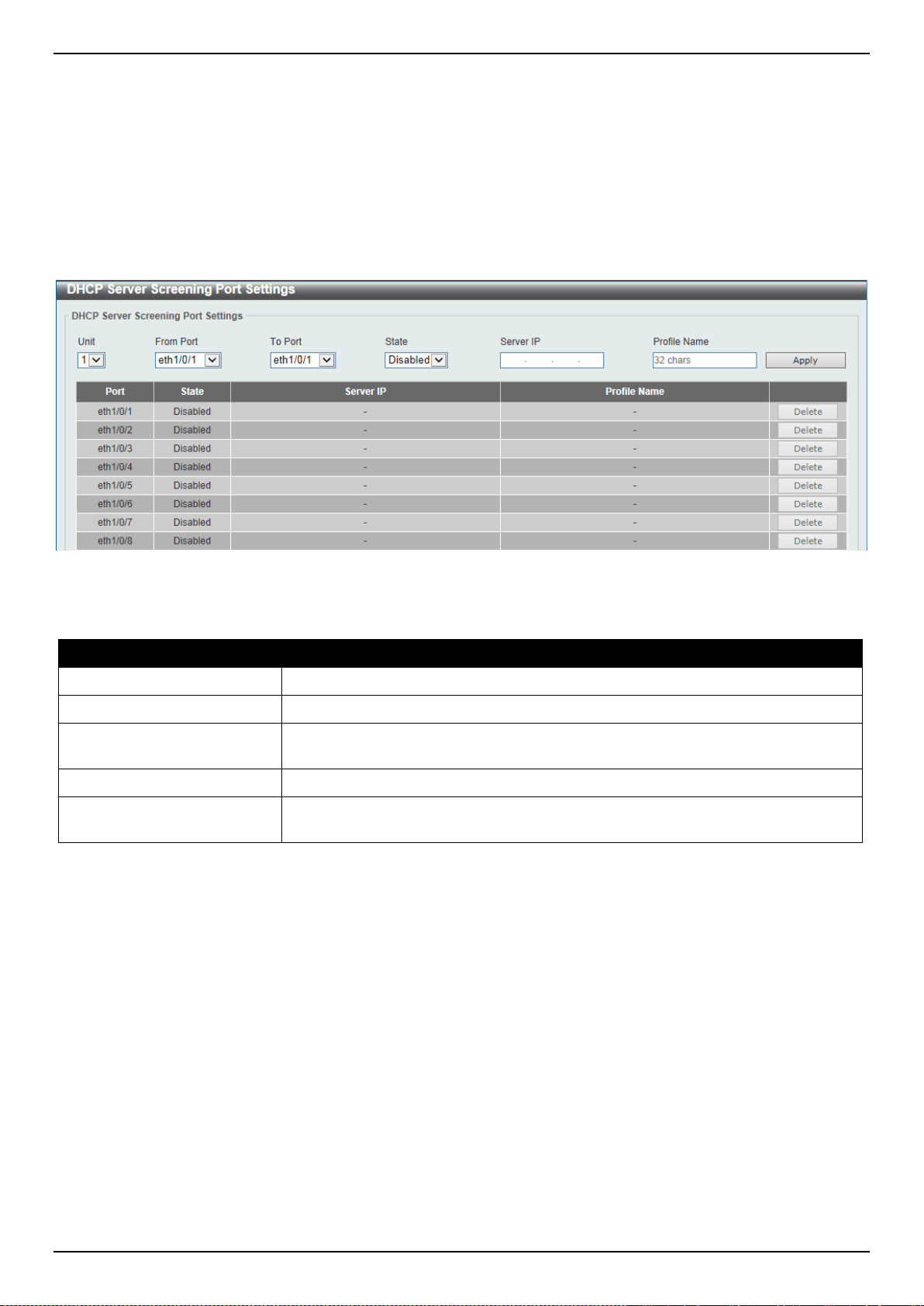
DXS-3400 Series Lite Layer 3 Stackable 10GbE Managed Switch Web UI Reference Guide
339
Click the Apply button to accept the changes made.
Click the Clear Log button to clear the log.
DHCP Server Screening Port Settings
This window is used to display and configure the DHCP server screening port settings.
To view the following window, click Security > DHCP Server Screening > DHCP Server Screening Port Settings,
as shown below:
Figure 9-65 DHCP Server Screening Port Settings Window
The fields that can be configured are described below:
Parameter Description
Unit
Select the Switch unit that will be used for this configuration here.
From Port ~ To Port
Select the appropriate port range used for the configuration here.
State
Select to enable or disable the DHCP server screening function on the port(s)
specified.
Server IP
Enter the DHCP server’s IP address here.
Profile Name
Enter the DHCP server screening profile that will be used for the port(s) specified
here.
Click the Apply button to accept the changes made.
Click the Delete button to remove the specified entry.
ARP Spoofing Prevention
This window is used to display and configure the ARP spoofing prevention settings. When an entry is created, ARP
packets whose sender IP address matches the gateway IP address, of an entry, but its sender MAC address field
does not match the gateway MAC address, of the entry, will be dropped by the system. The ASP will bypass the ARP
packets whose sender IP address doesn’t match the configured gateway IP address.
If an ARP address matches a configured gateway’s IP address, MAC address, and port list, then bypass the Dynamic
ARP Inspection (DAI) check no matter if the receiving port is ARP trusted or untrusted.
To view the following window, click Security > ARP Spoofing Prevention, as shown below:
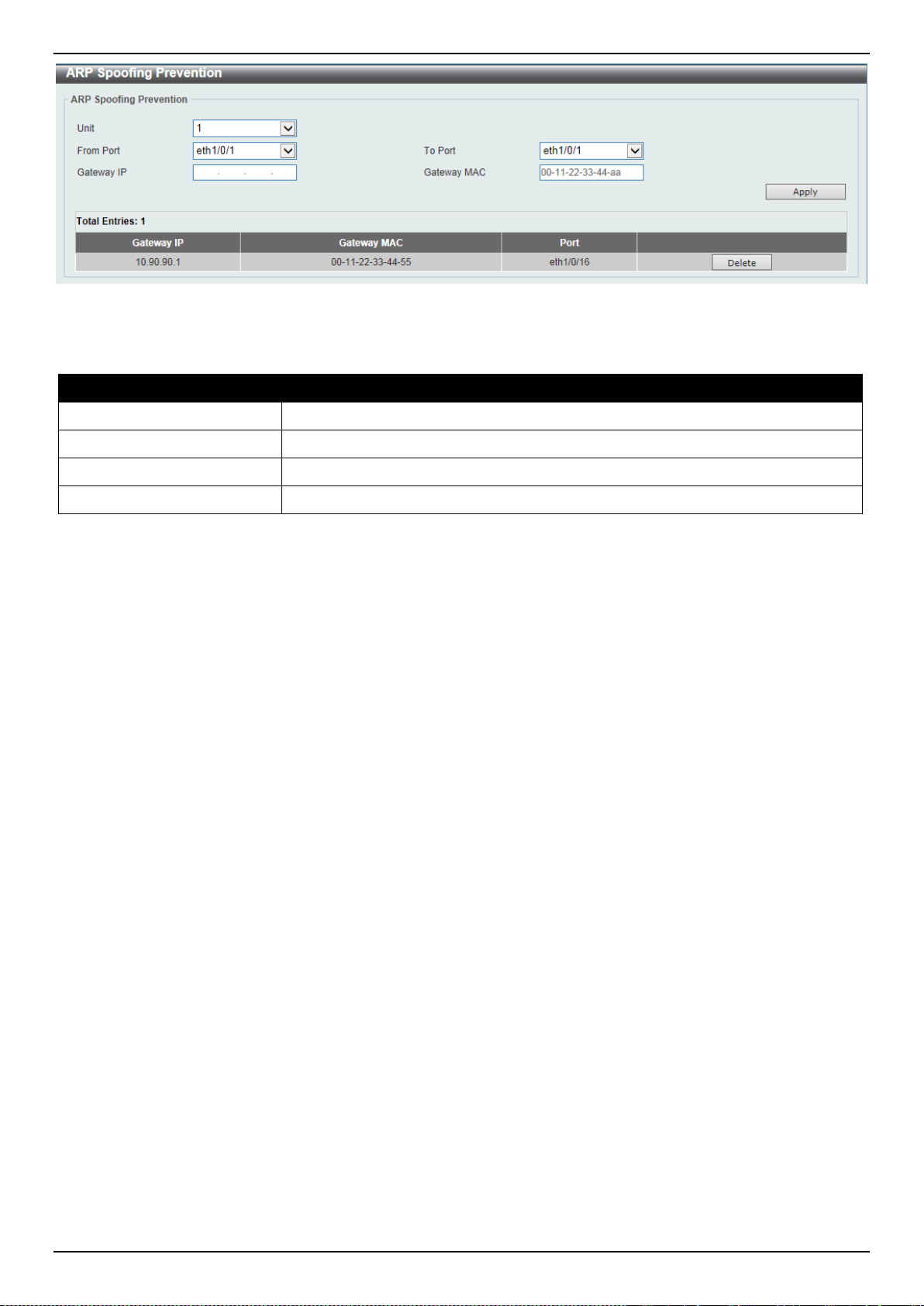
DXS-3400 Series Lite Layer 3 Stackable 10GbE Managed Switch Web UI Reference Guide
340
Figure 9-66 ARP Spoofing Prevention Window
The fields that can be configured are described below:
Parameter Description
Unit
Select the Switch unit that will be used for this configuration here.
From Port ~ To Port
Select the appropriate port range used for the configuration here.
Gateway IP
Enter the gateway’s IP address used here.
Gateway MAC
Enter the gateway’s MAC address used here.
Click the Apply button to accept the changes made.
Click the Delete button to remove the specified entry.
BPDU Attack Protection
This window is used to display and configure the BPDU attack protection settings. In generally, there are two states in
the BPDU attack protection function. One is normal state, and another is under attack state. The under attack state
has three modes: drop, block, and shutdown. A BPDU protection enabled port will enter an under attack state when it
receives one STP BPDU packet and it will take action based on the configuration. Thus, BPDU protection can only be
enabled on the STP-disabled port.
BPDU protection has a higher priority than the (Forward BPDU) FBPDU setting configured by configure STP
command in the determination of BPDU handling. That is, when FBPDU is configured to forward STP BPDU but
BPDU protection is enabled, then the port will not forward STP BPDU.
BPDU protection also has a higher priority than the BPDU tunnel port setting in determination of BPDU handling. That
is, when a port is configured as BPDU tunnel port for STP, it will forward STP BPDU. But if the port is BPDU
protection enabled. Then the port will not forward STP BPDU.
To view the following window, click Security > BPDU Attack Protection, as shown below:
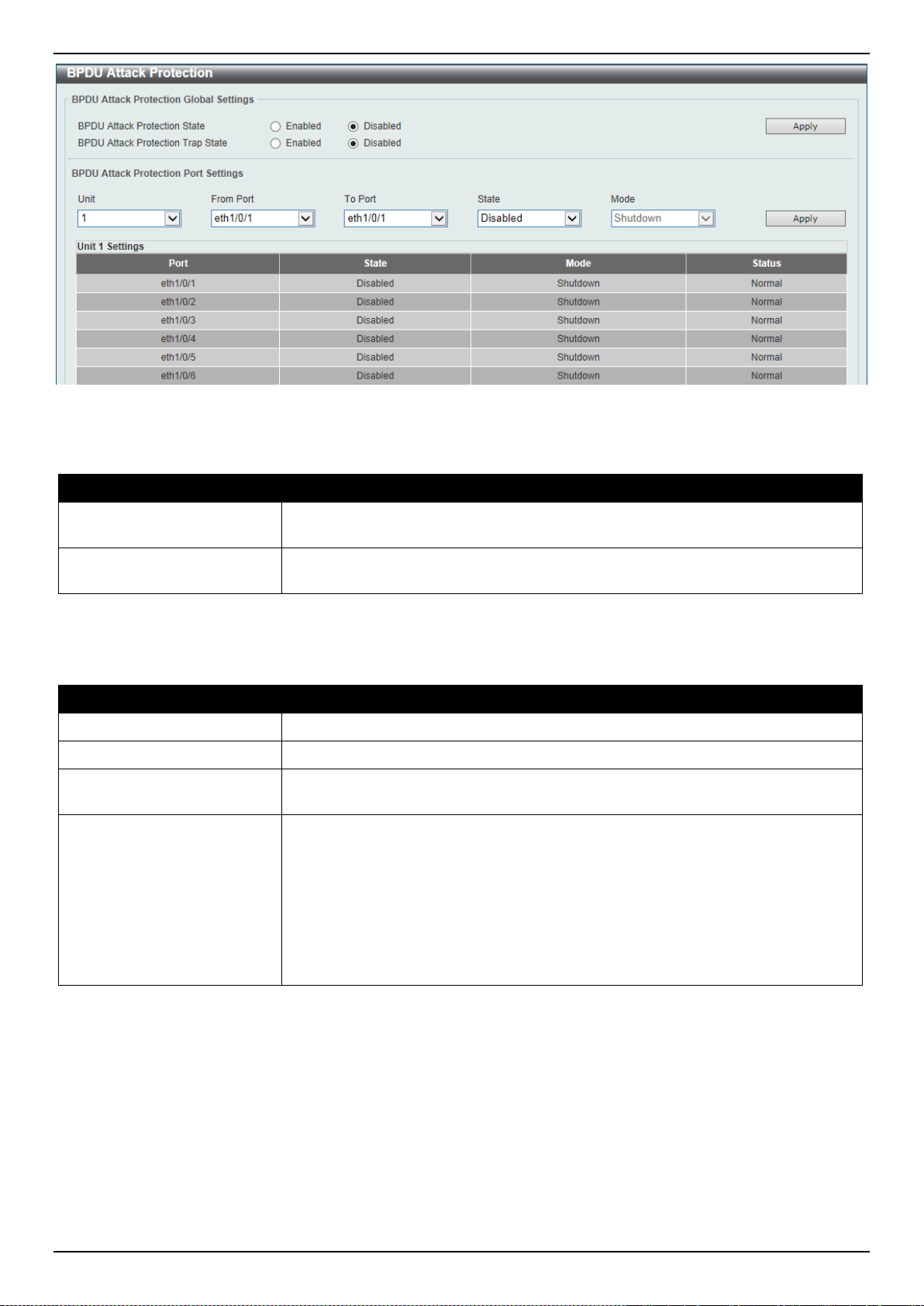
DXS-3400 Series Lite Layer 3 Stackable 10GbE Managed Switch Web UI Reference Guide
341
Figure 9-67 BPDU Attack Protection Window
The fields that can be configured in BPDU Attack Protection Global Settings are described below:
Parameter Description
BPDU Attack Protection
State
Select to enable or disable the BPDU attack protection feature’s global state here.
BPDU Attack Protection
Trap State
Select to enable or disable the BPDU attack protection feature’s trap state here.
Click the Apply button to accept the changes made.
The fields that can be configured in BPDU Attack Protection Port Settings are described below:
Parameter Description
Unit
Select the Switch unit that will be used for this configuration here.
From Port ~ To Port
Select the appropriate port range used for the configuration here.
State
Select to enable or disable the BPDU attack protection feature’s state on the
port(s) specified.
Mode
Select the BPDU attack protection feature’s mode that will be applied to the
port(s) specified. Options to choose from are Drop, Block and Shutdown.
• Drop - Drop all received BPDU packets when the port enters under attack
state.
• Block - Drop all packets (include BPDU and normal packets) when the port
enters under attack state.
• Shutdown - Shut down the port when the port enters under attack state.
Click the Apply button to accept the changes made.
NetBIOS Filtering
This window is used to display and configure the NetBIOS filtering settings.
To view the following window, click Security > NetBIOS Filtering, as shown below:
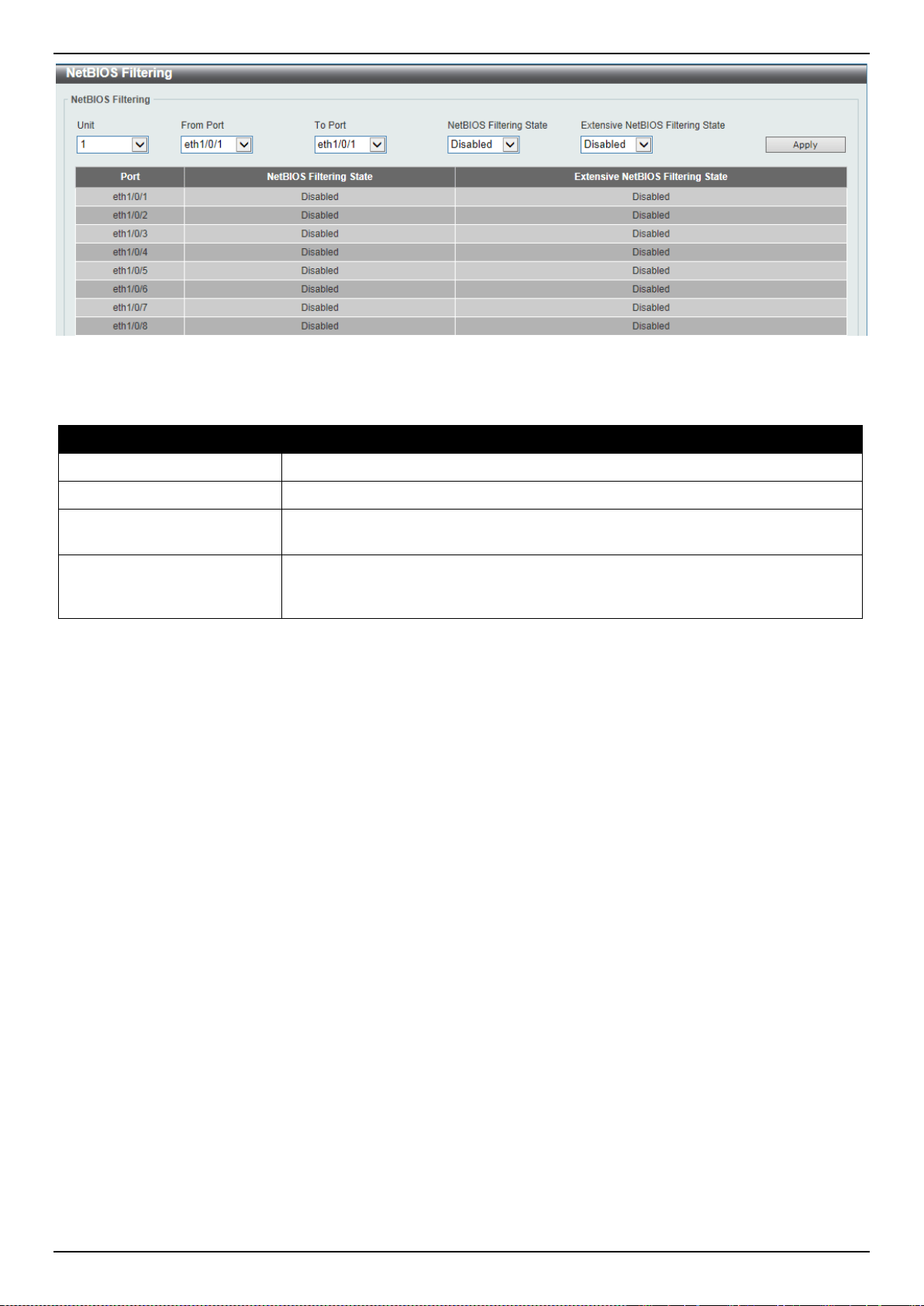
DXS-3400 Series Lite Layer 3 Stackable 10GbE Managed Switch Web UI Reference Guide
342
Figure 9-68 NetBIOS Filtering Window
The fields that can be configured are described below:
Parameter Description
Unit
Select the Switch unit that will be used for this configuration here.
From Port ~ To Port
Select the range of ports that will be used for this configuration here.
NetBIOS Filtering State
Select to enable or disable the NetBIOS filtering state on the specified port(s).
This is used to permit or deny NetBIOS packets on physical ports.
Extensive NetBIOS Filtering
State
Select to enable or disable the extensive NetBIOS filtering state on the specified
port(s). This is used to permit or deny NetBIOS packets over 802.3 frames on
physical ports.
Click the Apply button to accept the changes made.
MAC Authentication
This window is used to display and configure the MAC authentication settings. MAC authentication is a feature
designed to authenticate a user by MAC address when the user is trying to access the network via the Switch. The
Switch itself can perform the authentication based on a local database or be a RADIUS client and perform the
authentication process via the RADIUS protocol with a remote RADIUS server.
To view the following window, click Security > MAC Authentication, as shown below:
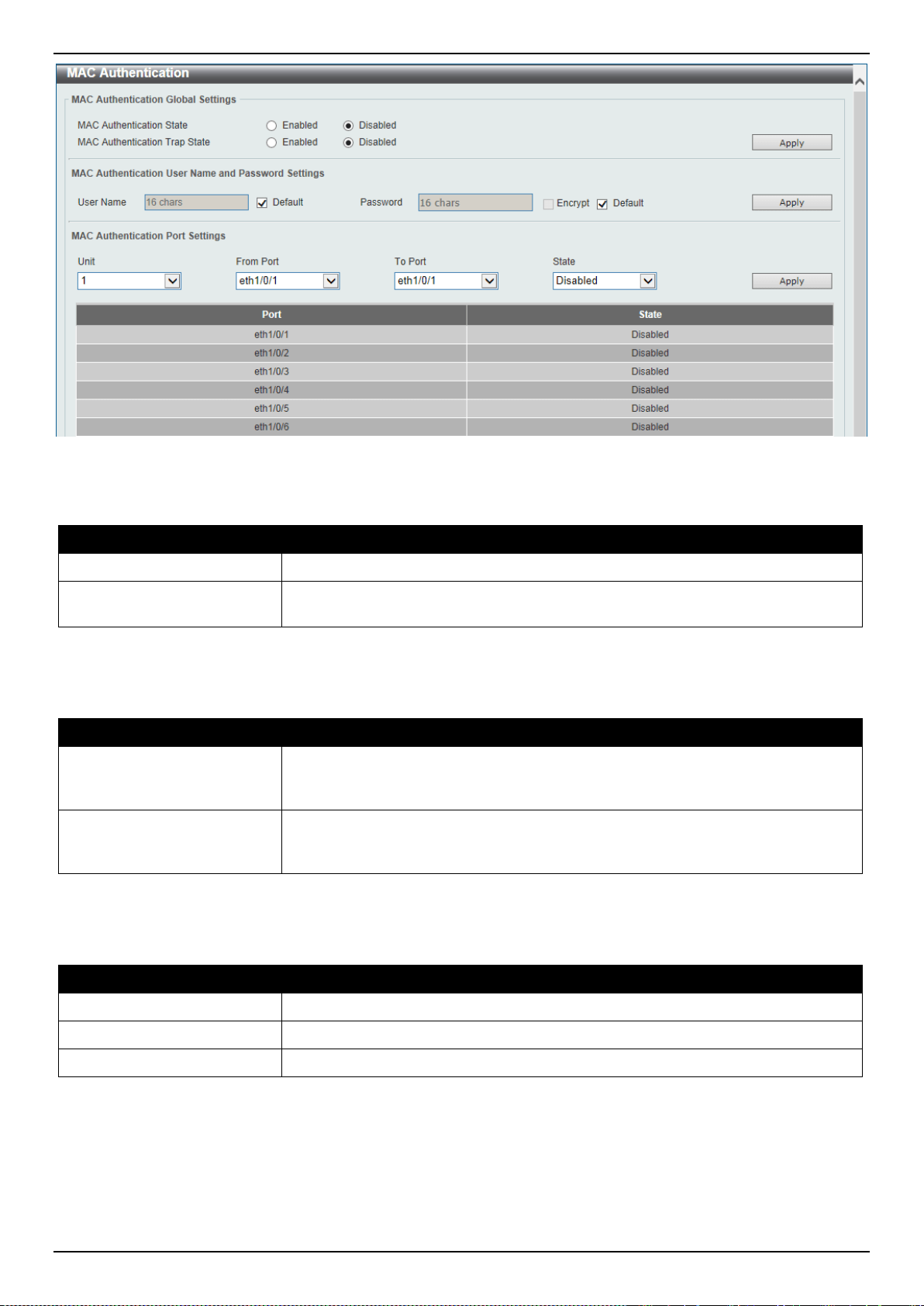
DXS-3400 Series Lite Layer 3 Stackable 10GbE Managed Switch Web UI Reference Guide
343
Figure 9-69 MAC Authentication Window
The fields that can be configured in MAC Authentication Global Settings are described below:
Parameter Description
MAC Authentication State
Select to enable or disable the MAC authentication feature’s global state.
MAC Authentication Trap
State
Select to enable or disable the MAC authentication feature’s trap state.
Click the Apply button to accept the changes made.
The fields that can be configured in MAC Authentication User Name and Password Settings are described below:
Parameter Description
User Name
Enter the username used for MAC authentication here. This name can be up to
16 characters long. Tick the Default option to restore the username to the client’s
MAC address here.
Password
Enter the password used for MAC authentication here. Tick the Encrypt option
save this password in the encrypted form. Tick the Default option to restore the
password to the client’s MAC address here.
Click the Apply button to accept the changes made.
The fields that can be configured in MAC Authentication Port Settings are described below:
Parameter Description
Unit
Select the Switch unit that will be used for this configuration here.
From Port ~ To Port
Select the appropriate port range used for the configuration here.
State
Select to enable or disable MAC authentication for the port(s) specified here.
Click the Apply button to accept the changes made.

DXS-3400 Series Lite Layer 3 Stackable 10GbE Managed Switch Web UI Reference Guide
344
Web-based Access Control
Web-based Access Control (WAC) is a feature designed to authenticate a user when the user is trying to access the
Internet via the Switch. The authentication process uses the HTTP or HTTPS protocol. The Switch enters the
authenticating stage when users attempt to browse Web pages (e.g., http://www.dlink.com) through a Web browser.
When the Switch detects HTTP or HTTPS packets and this port is unauthenticated, the Switch will launch the
authentication window prompting users to enter a user name and password. Users are not able to access the Internet
until the authentication process is passed.
The Switch can be the authentication server itself and do the authentication based on a local database, or be a
RADIUS client and perform the authentication process via the RADIUS protocol with a remote RADIUS server. The
client user initiates the authentication process of WAC by attempting to gain Web access.
D-Link’s implementation of WAC uses a virtual IP that is exclusively used by the WAC function and is not known by
any other modules of the Switch. In fact, to avoid affecting a Switch’s other features, WAC will only use a virtual IP
address to communicate with hosts. Thus, all authentication requests must be sent to a virtual IP address but not to
the IP address of the Switch’s physical interface.
Virtual IP works like this, when a host PC communicates with the WAC Switch through a virtual IP, the virtual IP is
transformed into the physical IPIF (IP interface) address of the Switch to make the communication possible. The host
PC and other servers’ IP configurations do not depend on the virtual IP of WAC. The virtual IP does not respond to
any ICMP packets or ARP requests, which means it is not allowed to configure a virtual IP on the same subnet as the
Switch’s IPIF (IP interface) or the same subnet as the host PCs’ subnet.
As all packets to a virtual IP from authenticated and authenticating hosts will be trapped to the Switch’s CPU, if the
virtual IP is the same as other servers or PCs, the hosts on the WAC-enabled ports cannot communicate with the
server or PC which really own the IP address. If the hosts need to access the server or PC, the virtual IP cannot be
the same as the one of the server or PC. If a host PC uses a proxy to access the Web, to make the authentication
work properly the user of the PC should add the virtual IP to the exception of the proxy configuration. For users to be
able to access the WAC pages through the Switch’s system IP, a virtual IP address must be specified. When a virtual
IP is not specified, the authenticating Web request will be redirected to the Switch’s system IP.
The following diagram illustrates the basic six steps all parties go through in a successful Web Authentication process:
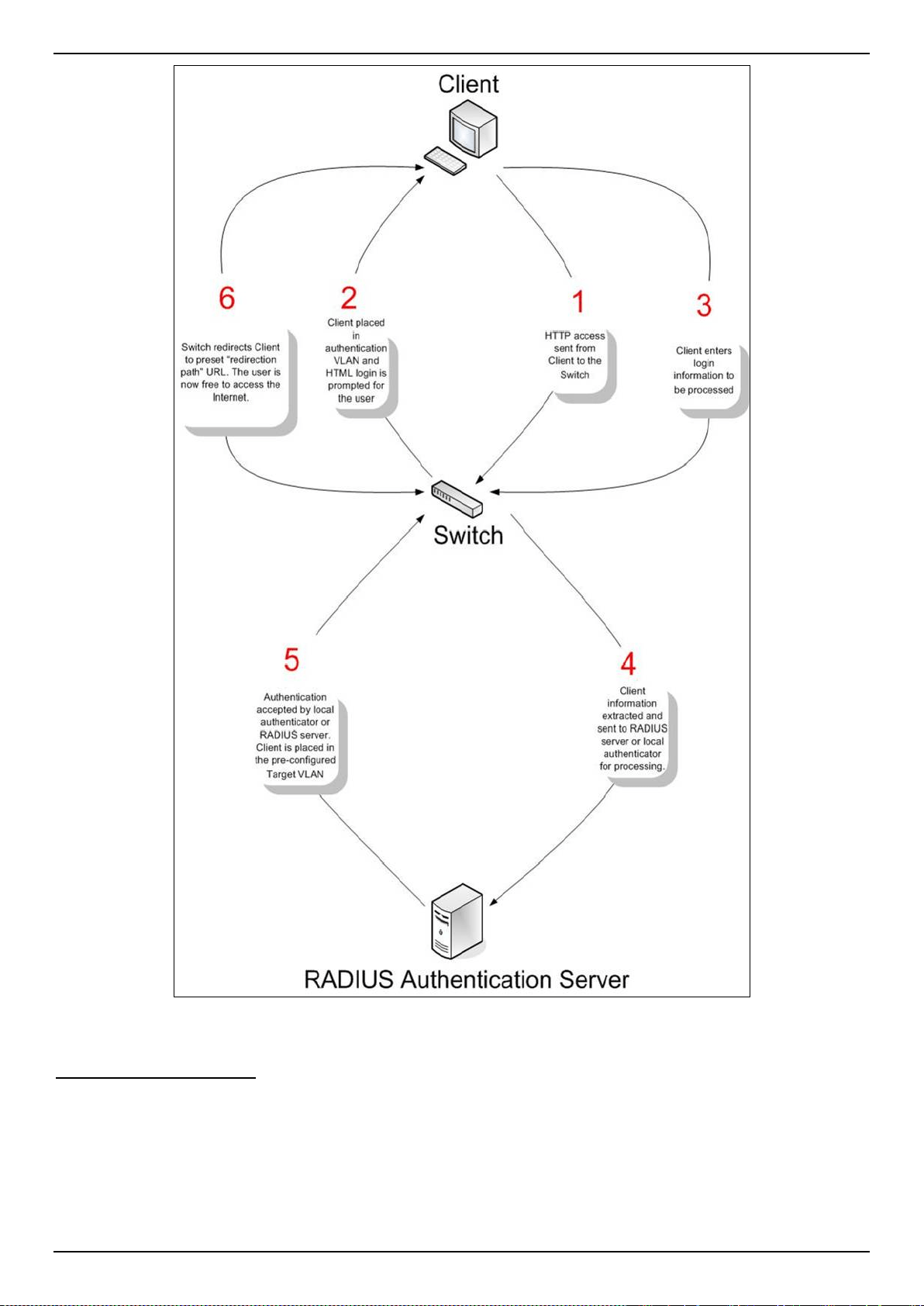
DXS-3400 Series Lite Layer 3 Stackable 10GbE Managed Switch Web UI Reference Guide
345
Figure 9-70 RADIUS Authentication Server
Conditions and Limitations
• If the client is utilizing DHCP to attain an IP address, the authenticating VLAN must provide a DHCP server or a
DHCP relay function so that client may obtain an IP address.
• Certain functions exist on the Switch that will filter HTTP packets, such as the ACL function. The user needs to
be very careful when setting filter functions for the target VLAN, so that these HTTP packets are not denied by
the Switch.
• If a RADIUS server is to be used for authentication, the user must first establish a RADIUS Server with the
appropriate parameters, including the target VLAN, before enabling Web Authentication on the Switch.
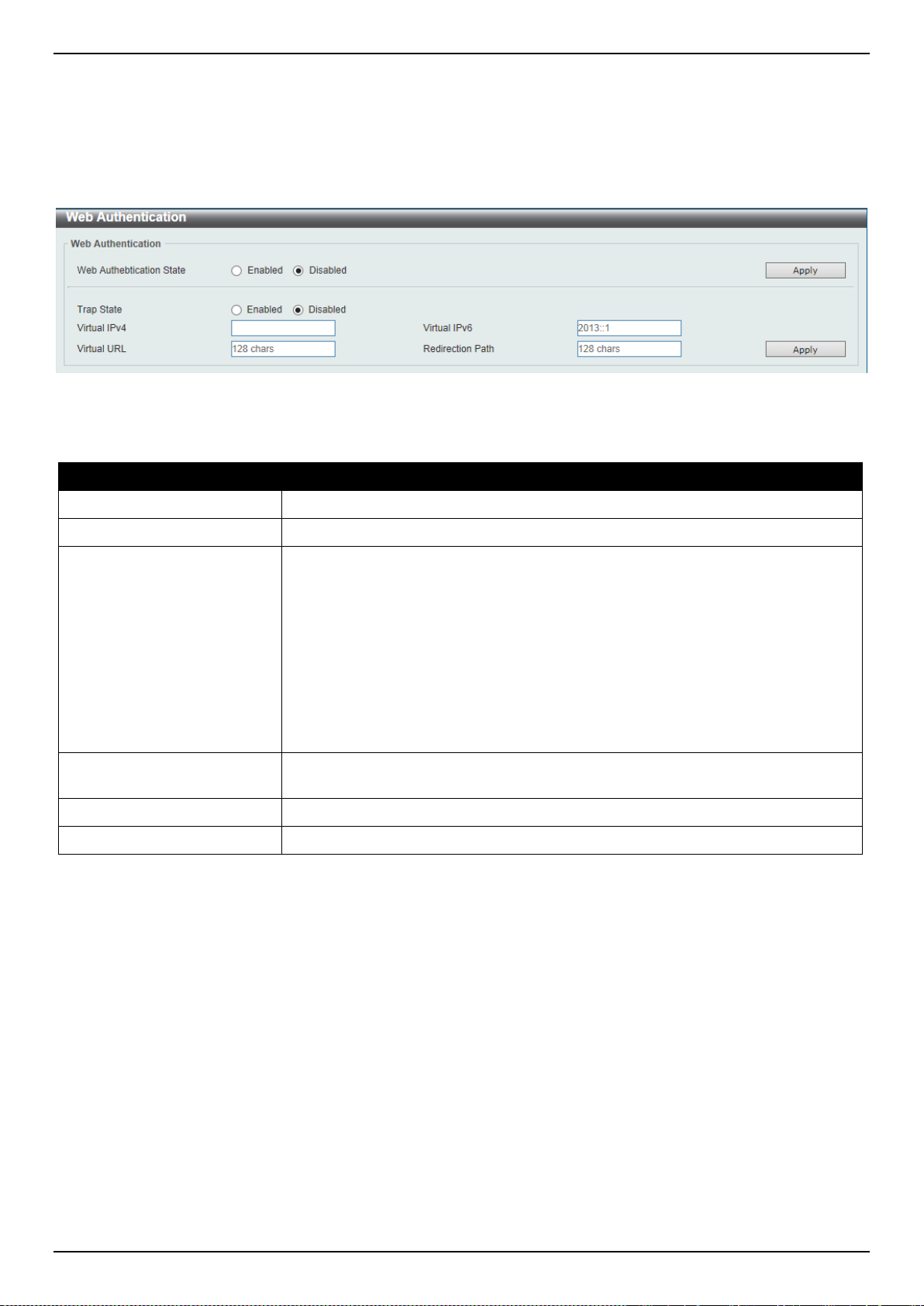
DXS-3400 Series Lite Layer 3 Stackable 10GbE Managed Switch Web UI Reference Guide
346
Web Authentication
This window is used to display and configure the Web authentication settings.
To view the following window, click Security > Web-based Access Control > Web Authentication, as shown below:
Figure 9-71 Web Authentication Window
The fields that can be configured are described below:
Parameter Description
Web Authentication State
Select to enable or disable the Web authentication feature’s global state.
Trap State
Select to enable or disable the Web authentication feature’s trap state.
Virtual IPv4
Enter the virtual IPv4 address used here. The virtual IP of Web authentication is
just the characterization of the Web authentication function on the Switch. All Web
authentication processes communicate with this IP address, however, the virtual
IP does not respond to any ICMP packet or ARP request. So it’s not allowed to
configure virtual IP in the same subnet as the Switch’s IP interface or the same
subnet as the host PCs’ subnet, otherwise the Web authentication cannot operate
correctly. The defined URL only takes effect when the virtual IP address is
configured. The users get the FQDN URL stored on the DNS server to get the
virtual IP address. The obtained IP address must match the virtual IP address
configured by the command. If the IPv4 virtual IP is not configured, the IPv4
access cannot start a Web authentication.
Virtual IPv6
Enter the virtual IPv6 address used here. If the IPv6 virtual IP is not configured,
the IPv6 access cannot start a Web authentication.
Virtual URL
Enter the virtual URL used here. This URL can be up to 128 characters long.
Redirection Path
Enter the redirection path here. This path can be up to 128 characters long.
Click the Apply button to accept the changes made.
WAC Port Settings
This window is used to display and configure the WAC port settings.
To view the following window, click Security > Web-based Access Control > WAC Port Settings, as shown below:
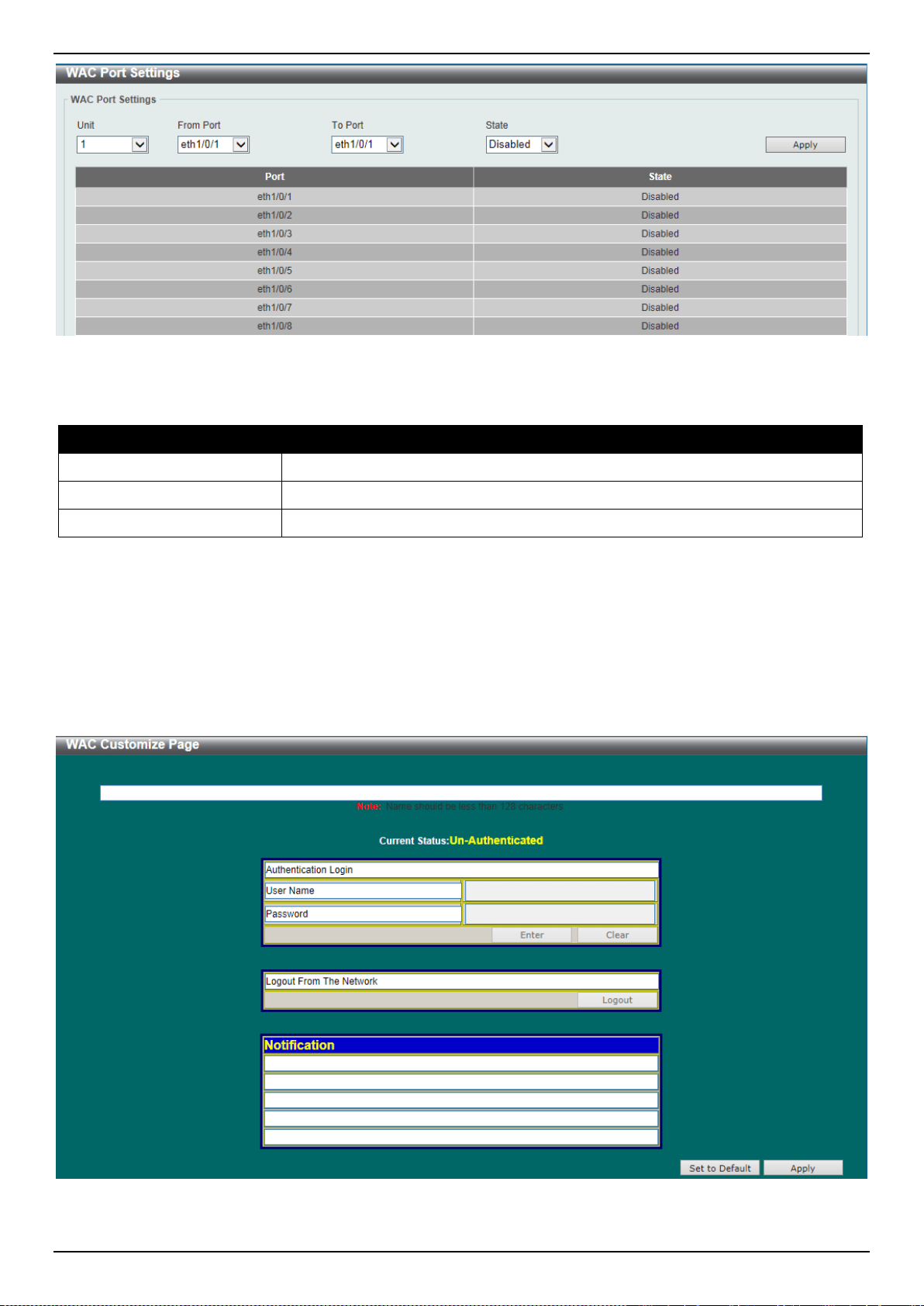
DXS-3400 Series Lite Layer 3 Stackable 10GbE Managed Switch Web UI Reference Guide
347
Figure 9-72 WAC Port Settings Window
The fields that can be configured are described below:
Parameter Description
Unit
Select the Switch unit that will be used for this configuration here.
From Port ~ To Port
Select the appropriate port range used for the configuration here.
State
Select to enable or disable the WAC feature on the port(s) specified.
Click the Apply button to accept the changes made.
WAC Customize Page
This window is used to display and configure the WAC customized login page.
To view the following window, click Security > Web-based Access Control > WAC Customize Page, as shown
below:
Figure 9-73 WAC Customize Page Window
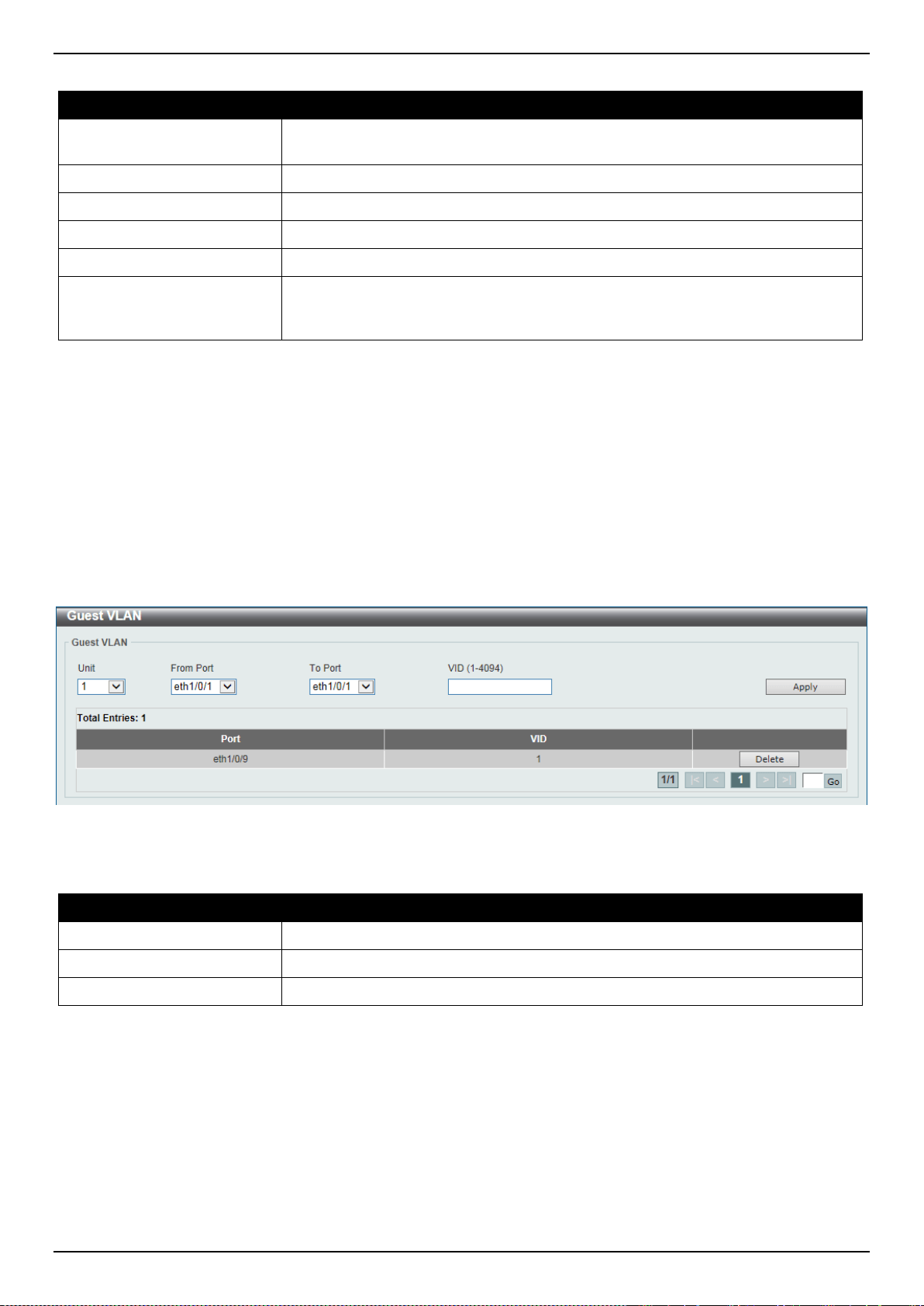
DXS-3400 Series Lite Layer 3 Stackable 10GbE Managed Switch Web UI Reference Guide
348
The fields that can be configured are described below:
Parameter Description
Page Title
Enter a custom page title message here. This message can be up to 128
characters long.
Login Window Title
Enter a custom login window title here. This title can be up to 64 characters long.
User Name Title
Enter a custom username title here. This title can be up to 32 characters long.
Password Title
Enter a custom password title here. This title can be up to 32 characters long.
Logout Window Title
Enter a custom logout window title here. This title can be up to 64 characters long.
Notification
Enter additional information to display in the notification area here. This
information can be up to 128 characters long for each line. There a 5 lines
available for additional information.
Click the Set to Default button to replace the information with the default information.
Click the Apply button to accept the changes made.
Network Access Authentication
Guest VLAN
This window is used to display and configure the network access authentication guest VLAN settings.
To view the following window, click Security > Network Access Authentication > Guest VLAN, as shown below:
Figure 9-74 Guest VLAN Window
The fields that can be configured are described below:
Parameter Description
Unit
Select the Switch unit that will be used for this configuration here.
From Port ~ To Port
Select the appropriate port range used for the configuration here.
VID
Enter the VLAN ID used here. This value must be between 1 and 4094.
Click the Apply button to accept the changes made.
Click the Delete button to remove the specified entry.
Enter a page number and click the Go button to navigate to a specific page when multiple pages exist.
Network Access Authentication Global Settings
This window is used to display and configure the network access authentication global settings.
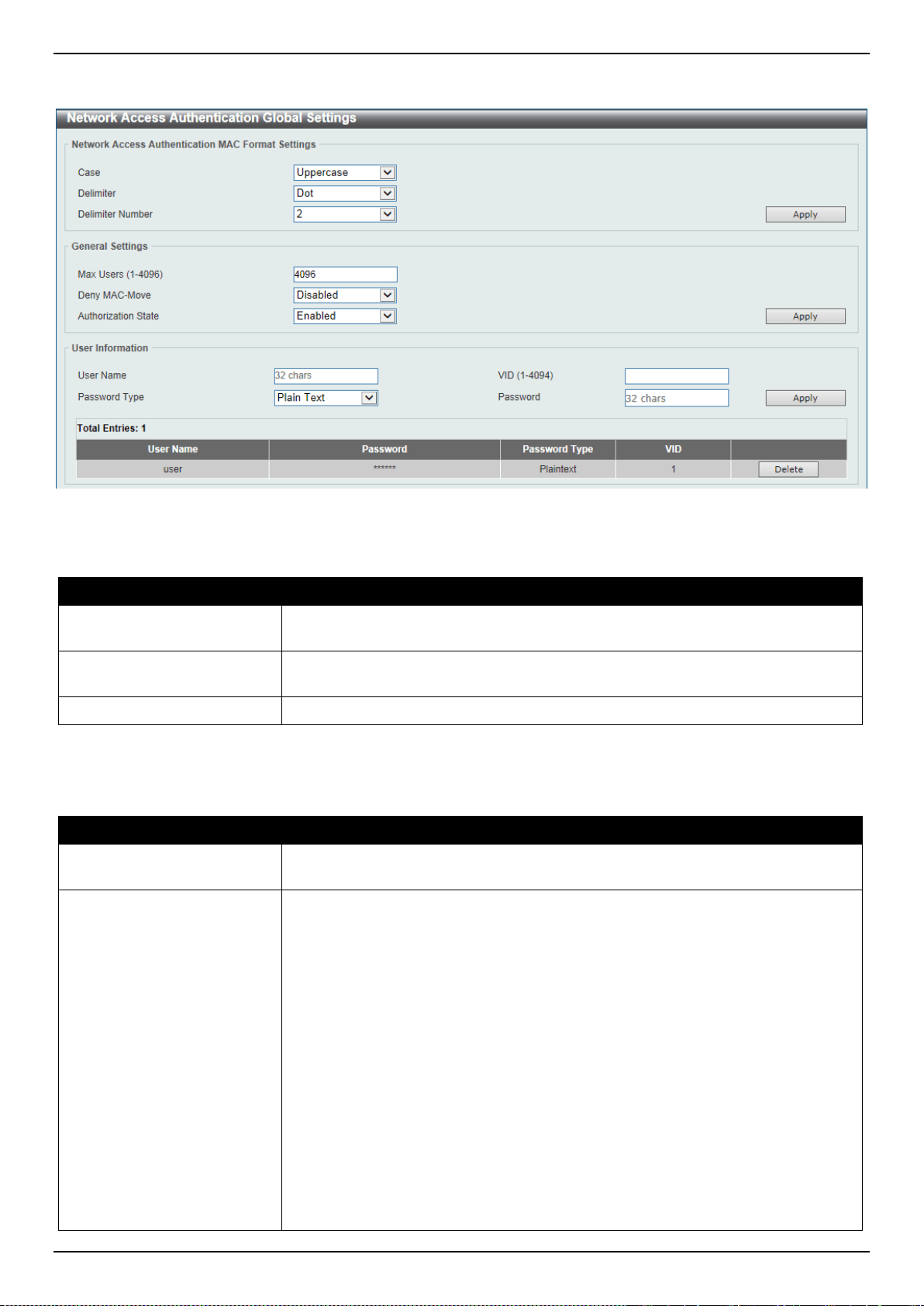
DXS-3400 Series Lite Layer 3 Stackable 10GbE Managed Switch Web UI Reference Guide
349
To view the following window, click Security > Network Access Authentication > Network Access Authentication
Global Settings, as shown below:
Figure 9-75 Network Access Authentication Global Settings Window
The fields that can be configured in Network Access Authentication MAC Format Settings are described below:
Parameter Description
Case
Select the case format that will be used for the network access authentication
MAC address here. Options to choose from are Lowercase and Uppercase.
Delimiter
Select the delimiter that will be used for the network access authentication MAC
address here. Options to choose from are Hyphen, Colon, Dot, and None.
Delimiter Number
Select the delimiter number option here. Options to choose from are 1, 2, and 5.
Click the Apply button to accept the changes made.
The fields that can be configured in General Settings are described below:
Parameter Description
Max Users
Enter the maximum amount of users allowed here. This value must be between 1
and 1000. By default, this option is 1000.
Deny MAC-Move
Select to enable or disable the deny MAC-move feature here. This option controls
whether to allow authenticated hosts to do roaming across different Switch ports
and only controls whether a host, which is authenticated at a port set to the multi-
authenticate mode, is allowed to move to another port.
If a station is allowed to move, there are two situations. It may either need to be
re-authenticated or directly moved to the new port without re-authentication based
on the following rule. If the new port has the same authentication configuration as
the original port, then re-authentication is not needed. The host will inherit the
same authorization attributes with new port. The authenticated host can do
roaming from port 1 to port 2, and inherit the authorization attributes without re-
authentication. If the new port has the different authentication configuration as the
original port, then re-authentication is needed. The authenticated host on port 1
can move and re-authenticated by port 2. If the new port has no authentication
method enabled, then the station is directly moved to the new port. The session
with the original port is removed. The authenticated host on port 1 can be moved
to port 2.
If this feature is disabled and an authenticated host moves to another port, then
this is treated as a violation error.
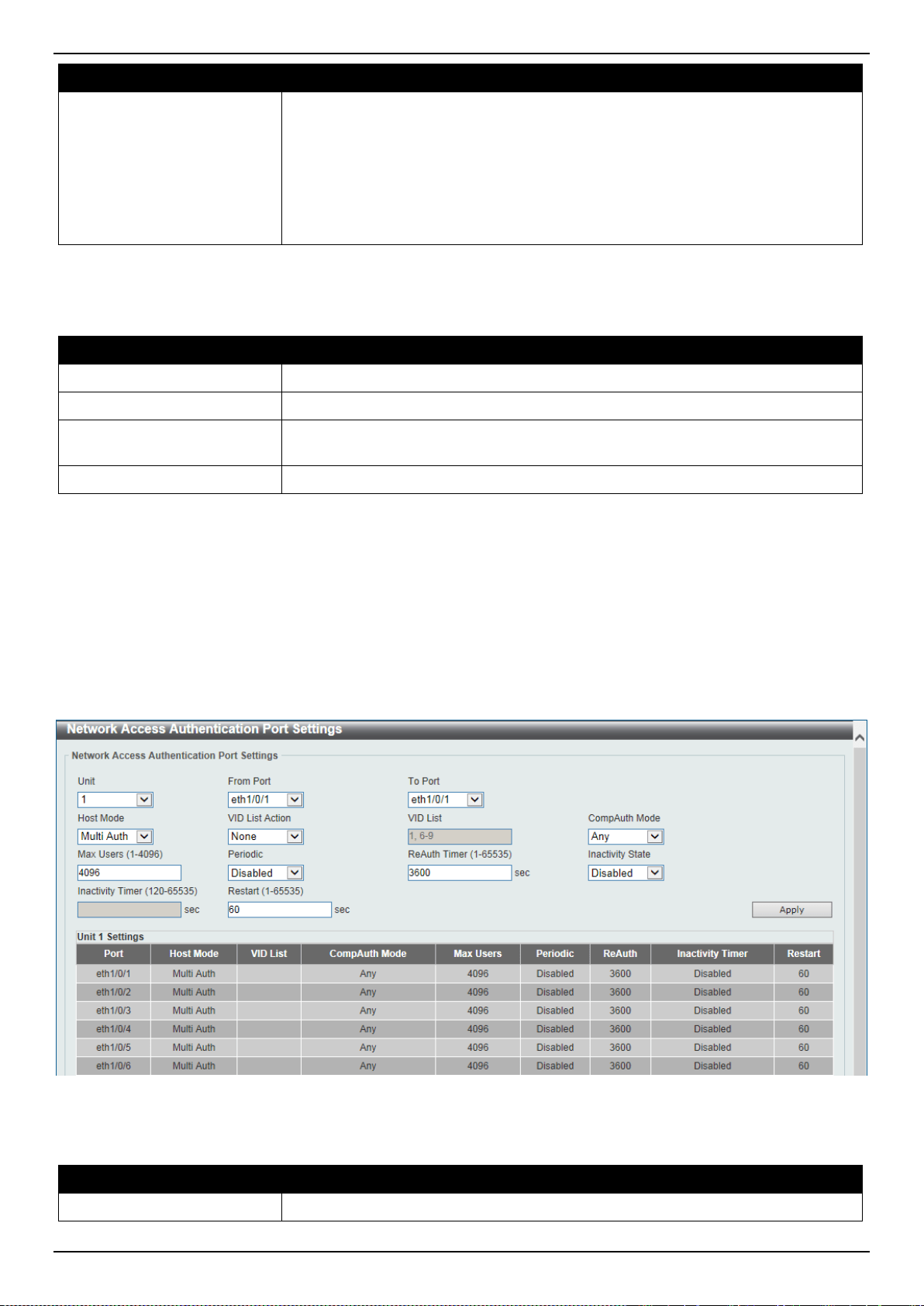
DXS-3400 Series Lite Layer 3 Stackable 10GbE Managed Switch Web UI Reference Guide
350
Parameter Description
Authorization State
Select to enable or disable the authorized state here. The option is used to enable
or disable the acceptance of an authorized configuration. When authorization is
enabled for authentication, the authorized attributes (for example VLAN, 802.1p
default priority, bandwidth, and ACL) assigned by the RADIUS server will be
accepted if the authorization status is enabled. Bandwidth and ACL are assigned
on a per-port basis. If in the multi-authenticated mode, VLAN and 802.1p are
assigned on a per-host basis. Otherwise, Bandwidth and ACL are assigned on a
per-port basis.
Click the Apply button to accept the changes made.
The fields that can be configured in User Information are described below:
Parameter Description
User Name
Enter the user name used here. This name can be up to 32 characters long.
VID
Enter the VLAN ID used here.
Password Type
Select the password type option here. Options to choose from are Plain Text and
Encrypted.
Password
Enter the password used here.
Click the Apply button to accept the changes made.
Click the Delete button to remove the specified entry.
Network Access Authentication Port Settings
This window is used to display and configure the network access authentication port settings.
To view the following window, click Security > Network Access Authentication > Network Access Authentication
Port Settings, as shown below:
Figure 9-76 Network Access Authentication Port Settings Window
The fields that can be configured are described below:
Parameter Description
Unit
Select the Switch unit that will be used for this configuration here.

DXS-3400 Series Lite Layer 3 Stackable 10GbE Managed Switch Web UI Reference Guide
351
Parameter Description
From Port ~ To Port
Select the appropriate port range used for the configuration here.
Host Mode
Select the host mode option that will be associated with the selected port(s) here.
Options to choose from are Multi Host and Multi Auth. If the port is operated in
the multi-host mode, and if one of the hosts is authenticated, then all other hosts
are allowed to access the port. According to 802.1X authentication, if the re-
authentication fails or the authenticated user logs off, the port will be blocked for a
quiet period. The port restores the processing of EAPOL packets after the quiet
period. If the port is operated in the multi-authenticated mode, then each host
needs to be authenticated individually to access the port. A host is represented by
its MAC address. Only the authorized host is allowed to access.
VID List Action
Select the VID list action here. Options to choose from are None, Add, and
Delete.
VID List
After selecting the Multi Auth option as the Host Mode, the following parameter
is available. Enter the VLAN ID used here. This is useful when different VLANs on
the Switch have different authentication requirements. After the client is
authenticated, the client will not be re-authenticated when received from other
VLANs. This option is useful for trunk ports to do per-VLAN authentication control.
When a port’s authentication mode is changed to multi-host, the previous
authentication VLAN(s) on this port will be cleared.
CompAuth Mode
Select the compound authentication mode option here. Options to choose from
are Any and MAC-WAC.
• Selecting Any specifies that if any of the authentication method (802.1X,
MAC-based Access Control or WAC) to passes, then pass.
• Selecting MAC-WAC specifies to verify MAC-based authentication first. If the
client passes, WAC will be verified next. Both authentication methods need
to be passed.
Max Users
Enter the maximum users value used here. This value must be between 1 and
4094.
Periodic
Select to enable or disable periodic re-authentication for the selected port here.
This parameter only affects the 802.1X protocol.
ReAuth Timer
Enter the re-authentication timer value here. This value must be between 1 and
65535 seconds. By default, this value is 3600 seconds.
Inactivity State
Select to enable or disable the inactivity state here. Select the Time option to
enable this feature.
Inactivity Timer
When the Inactivity State is enabled, enter the inactivity timer value here. This
value must be between 120 and 65535 seconds. This parameter only affects the
WAC authentication protocol.
Restart
Enter the restart time value used here. This value must be between 1 and 65535
seconds.
Click the Apply button to accept the changes made.
Network Access Authentication Sessions Information
This window is used to display and clear the network access authentication session information.
To view the following window, click Security > Network Access Authentication > Network Access Authentication
Sessions Information, as shown below:
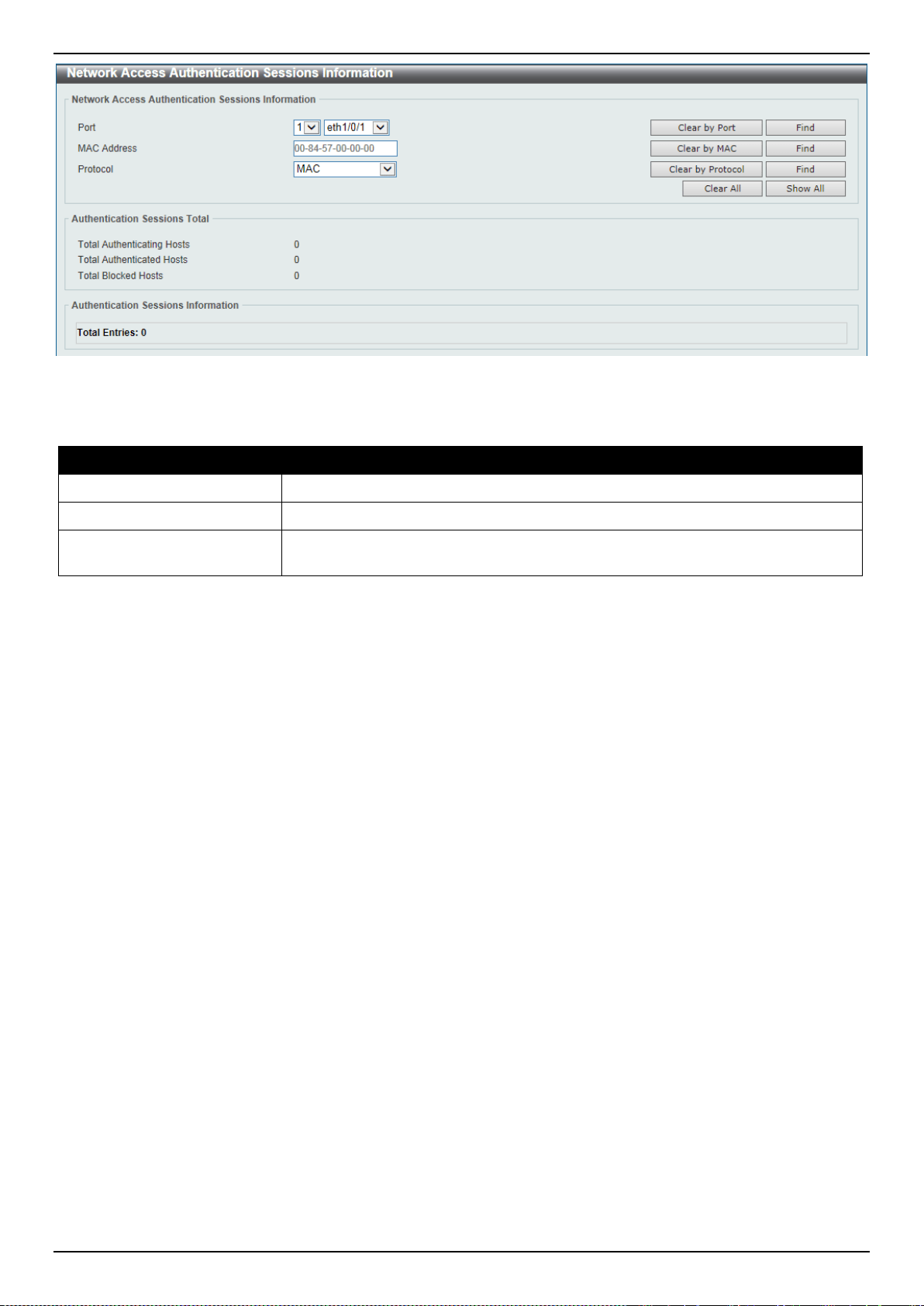
DXS-3400 Series Lite Layer 3 Stackable 10GbE Managed Switch Web UI Reference Guide
352
Figure 9-77 Network Access Authentication Sessions Information Window
The fields that can be configured are described below:
Parameter Description
Port
Select the appropriate Switch unit and port used for the query here.
MAC Address
Enter the MAC address used here.
Protocol
Select the protocol option used here. Options to choose from are MAC, WAC,
and DOT1X.
Click the Clear by Port button to the clear the information based on the port selected.
Click the Clear by MAC button to the clear the information based on the MAC address entered.
Click the Clear by Protocol button to the clear the information based on the protocol selected.
Click the Clear All button to clear all the information in this table.
Click the Find button to locate a specific entry based on the information entered.
Click the Show All button to locate and display all the entries.
Safeguard Engine
Periodically, malicious hosts on the network will attack the Switch by utilizing packet flooding (ARP Storm) or other
methods. These attacks may increase the Switch’s CPU load beyond its capability. To alleviate this problem, the
Safeguard Engine function was added to the Switch’s software.
The Safeguard Engine can help the overall operability of the Switch by minimizing the workload of the Switch while the
attack is ongoing, thus making it capable to forward essential packets over its network in a limited bandwidth.
If the CPU load rises above the rising threshold value, the Safeguard Engine function will be activated and the Switch
will enter the exhausted mode. In the exhausted mode, the Switch will limit the bandwidth available for ARP and
broadcast IP packets. If the CPU load falls below the falling threshold value, the Safeguard Engine will be deactivated
and the Switch will exit the exhausted mode and enter the normal mode.
Packets that are destined to the CPU can be classified into three groups. These groups, otherwise known as sub-
interfaces, are logical interfaces that the CPU will use to identify certain types of traffic. The three groups are Protocol,
Manage, and Route. Generally, the Protocol group should receive the highest priority when the Switch’s CPU
processes received packets and the Route group should receive the lowest priority as the Switch’s CPU usually does
get involved in the processing of routing packets. In the Protocol group, packets are protocol control packets
identified by the router. In the Manage group, packets are destined to any router or system network management
interface by means of interactive access protocols, like Telnet and SSH. In the Route group, packets are identified as
traversing routing packets that is generally processed by the router CPU.
In the following table a list of supported protocols are displayed with their respective sub-interfaces (groups):
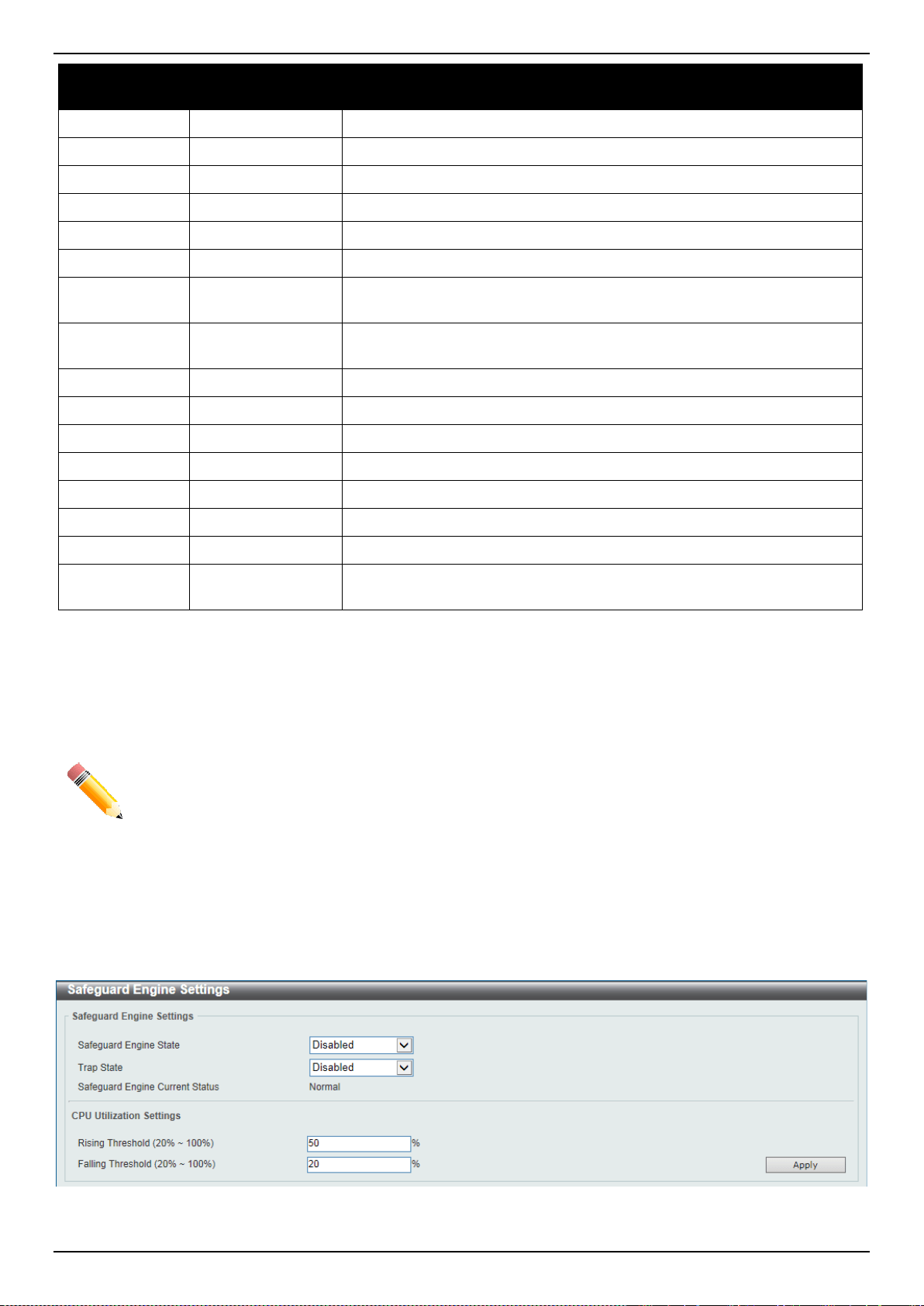
DXS-3400 Series Lite Layer 3 Stackable 10GbE Managed Switch Web UI Reference Guide
353
Protocol Name Sub-interface
(Group)
Description
802.1X
Protocol Port-based Network Access Control
ARP
Protocol Address resolution Protocol (ARP)
DHCP
Protocol Dynamic Host Configuration Protocol
DNS
Protocol Domain Name System
GVRP
Protocol GARP VLAN Registration Protocol
ICMPv4
Protocol Internet Control Message Protocol
ICMPv6-
Neighbor
Protocol IPv6 Internet Control Message Protocol Neighbor Discovery Protocol
(NS/NA/RS/RA)
ICMPv6-Other
Protocol IPv6 Internet Control Message Protocol except Neighbor Discovery
Protocol (NS/NA/RS/RA)
IGMP
Protocol Internet Group Management Protocol
LACP
Protocol Link Aggregation Control Protocol
SNMP
Manage Simple Network Management Protocol
SSH
Manage Secure Shell
STP
Protocol Spanning Tree Protocol
Telnet
Manage Telnet
TFTP
Manage Trivial File Transfer Protocol
Web
Manage Hypertext Transfer Protocol (HTTP) and Hypertext Transfer Protocol
Secure (HTTPS)
A customized rate limit (in packets per second) can be assigned to the Safeguard Engine’s sub-interfaces as a whole
or to individual protocols specified by the user in the management interface. Be careful when customizing the rate limit
for individual protocols, using this function, as improper rate limits can cause the Switch to process packets
abnormally.
NOTE: When Safeguard Engine is enabled, the Switch will allot bandwidth to various traffic flows (ARP,
IP) using the FFP (Fast Filter Processor) metering table to control the CPU utilization and limit
traffic. This may limit the speed of routing traffic over the network.
Safeguard Engine Settings
This window is used to display and configure the safeguard engine settings.
To view the following window, click Security > Safeguard Engine > Safeguard Engine Settings, as shown below:
Figure 9-78 Safeguard Engine Settings Window
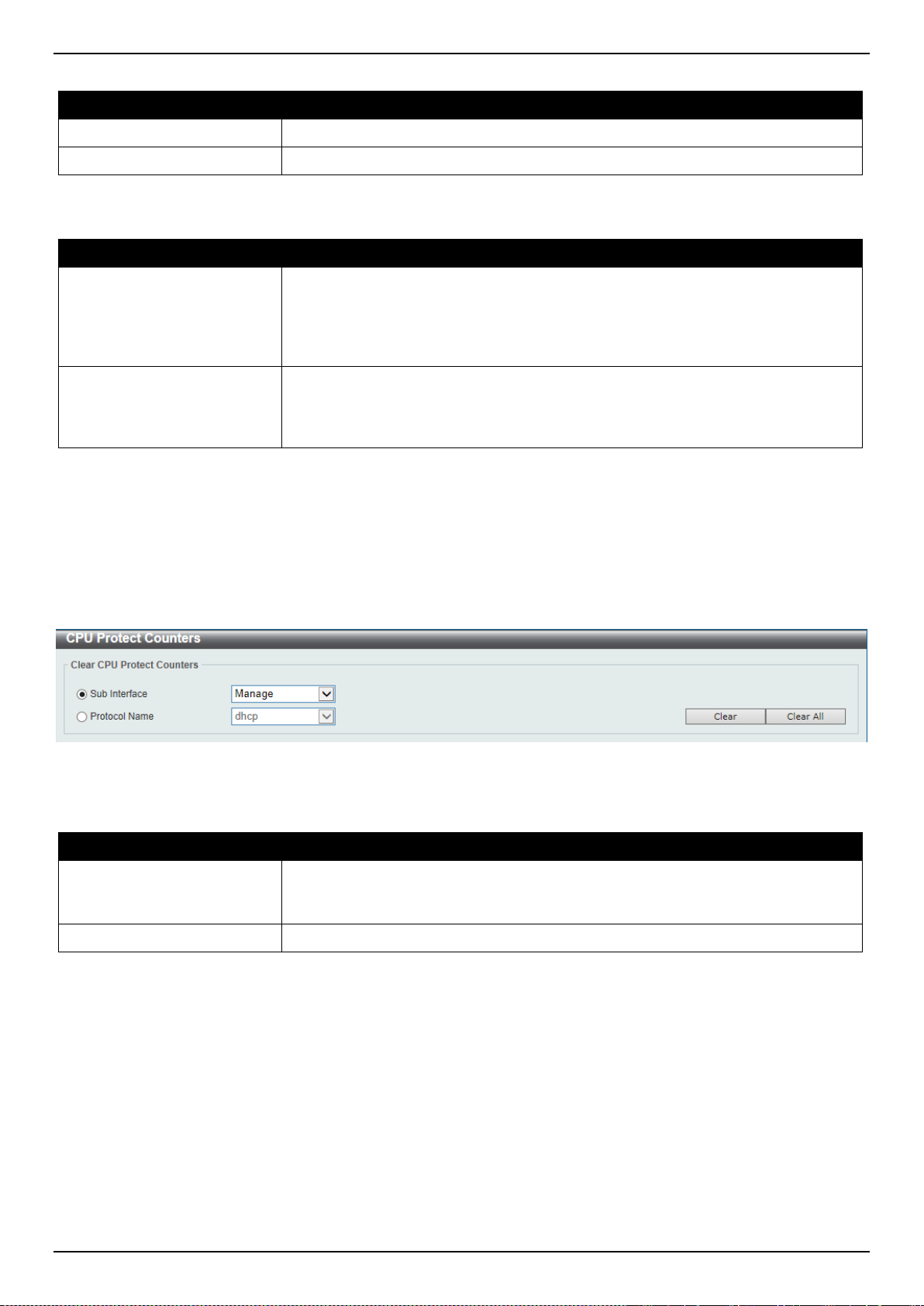
DXS-3400 Series Lite Layer 3 Stackable 10GbE Managed Switch Web UI Reference Guide
354
The fields that can be configured in Safeguard Engine Settings are described below:
Parameter Description
Safeguard Engine State
Select to enable or disable the safeguard engine feature here.
Trap State
Select to enable or disable the safeguard engine trap state here.
The fields that can be configured in CPU Utilization Settings are described below:
Parameter Description
Rising Threshold
Enter the rising threshold value here. This value must be between 20% and
100%. This value is used to configure the acceptable level of CPU utilization
before the Safeguard Engine mechanism is enabled. Once the CPU utilization
reaches this percentage level, the Switch will move into Exhausted mode, based
on the parameters provided in this window.
Falling Threshold
Enter the falling threshold value here. This value must be between 20% and
100%. This value is used to configure the acceptable level of CPU utilization as a
percentage, where the Switch leaves the Safeguard Engine state and returns to
normal mode.
Click the Apply button to accept the changes made.
CPU Protect Counters
This window is used to display and clear the CPU protection counter information.
To view the following window, click Security > Safeguard Engine > CPU Protect Counters, as shown below:
Figure 9-79 CPU Protect Counters Window
The fields that can be configured are described below:
Parameter Description
Sub Interface
Select the sub-interface option here. Options to choose from are Manage,
Protocol, Route, and All. This option specifies to clear the CPU protect related
counters of sub-interfaces.
Protocol Name
Select the protocol name option here.
Click the Clear button to clear the information based on the selections made.
Click the Clear All button to clear all the information in this table.
CPU Protect Sub-Interface
This window is used to display and configure the CPU protection sub-interface settings.
To view the following window, click Security > Safeguard Engine > CPU Protect Sub-Interface, as shown below:
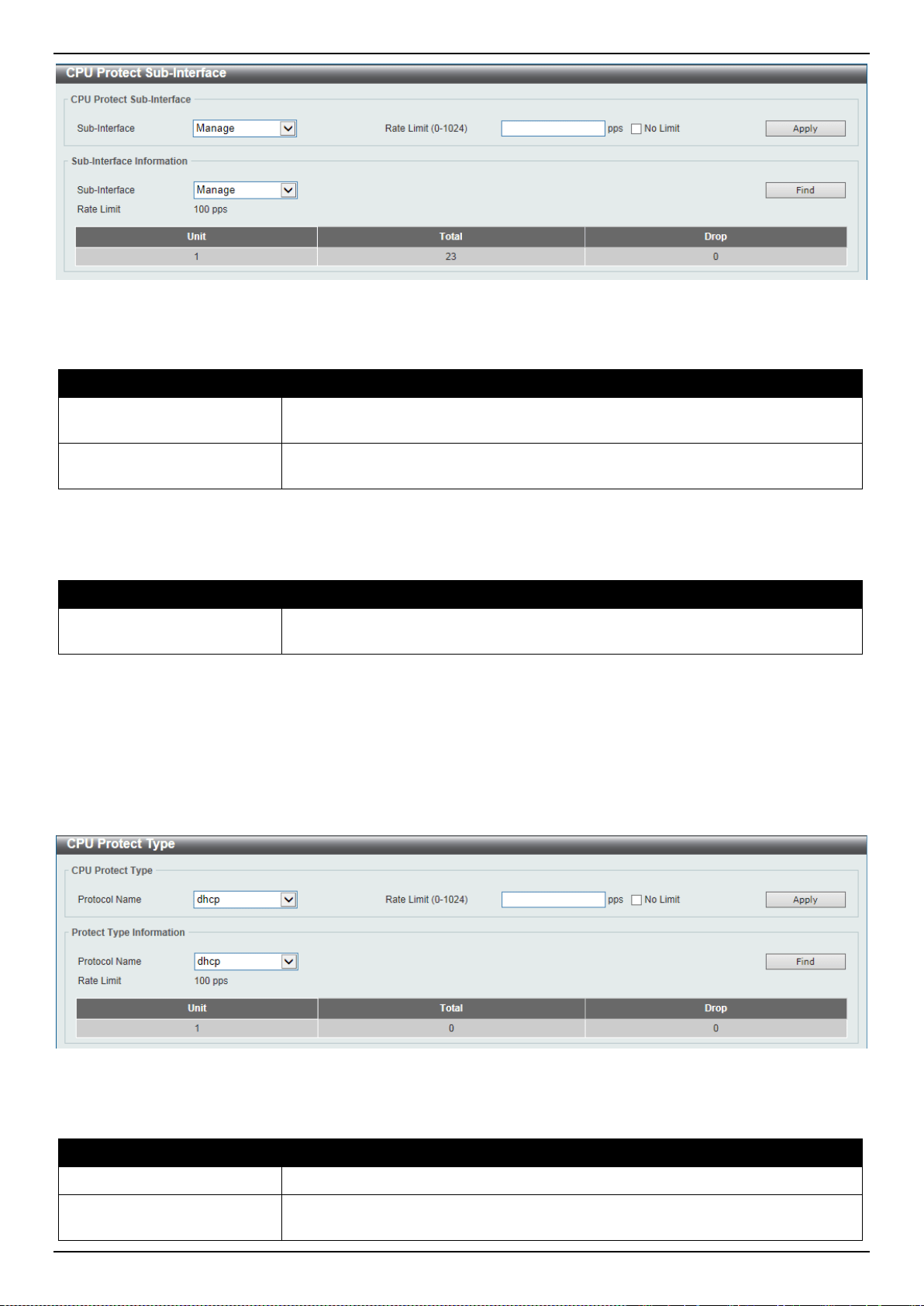
DXS-3400 Series Lite Layer 3 Stackable 10GbE Managed Switch Web UI Reference Guide
355
Figure 9-80 CPU Protect Sub-Interface Window
The fields that can be configured in CPU Protect Sub-Interface are described below:
Parameter Description
Sub-Interface
Select the sub-interface option here. Options to choose from are Manage,
Protocol, and Route.
Rate Limit
Enter the rate limit value used here. This value must be between 0 and 1024
packets per second. Tick the No Limit option to disable the rate limit.
Click the Apply button to accept the changes made.
The fields that can be configured in Sub-Interface Information are described below:
Parameter Description
Sub-Interface
Select the sub-interface option here. Options to choose from are Manage,
Protocol, and Route.
Click the Find button to locate a specific entry based on the information entered.
CPU Protect Type
This window is used to display and configure the CPU protection type settings.
To view the following window, click Security > Safeguard Engine > CPU Protect Type, as shown below:
Figure 9-81 CPU Protect Type Window
The fields that can be configured in CPU Protect Type are described below:
Parameter Description
Protocol Name
Select the protocol name option here.
Rate Limit
Enter the rate limit value used here. This value must be between 0 and 1024
packets per second. Tick the No Limit option to disable the rate limit.
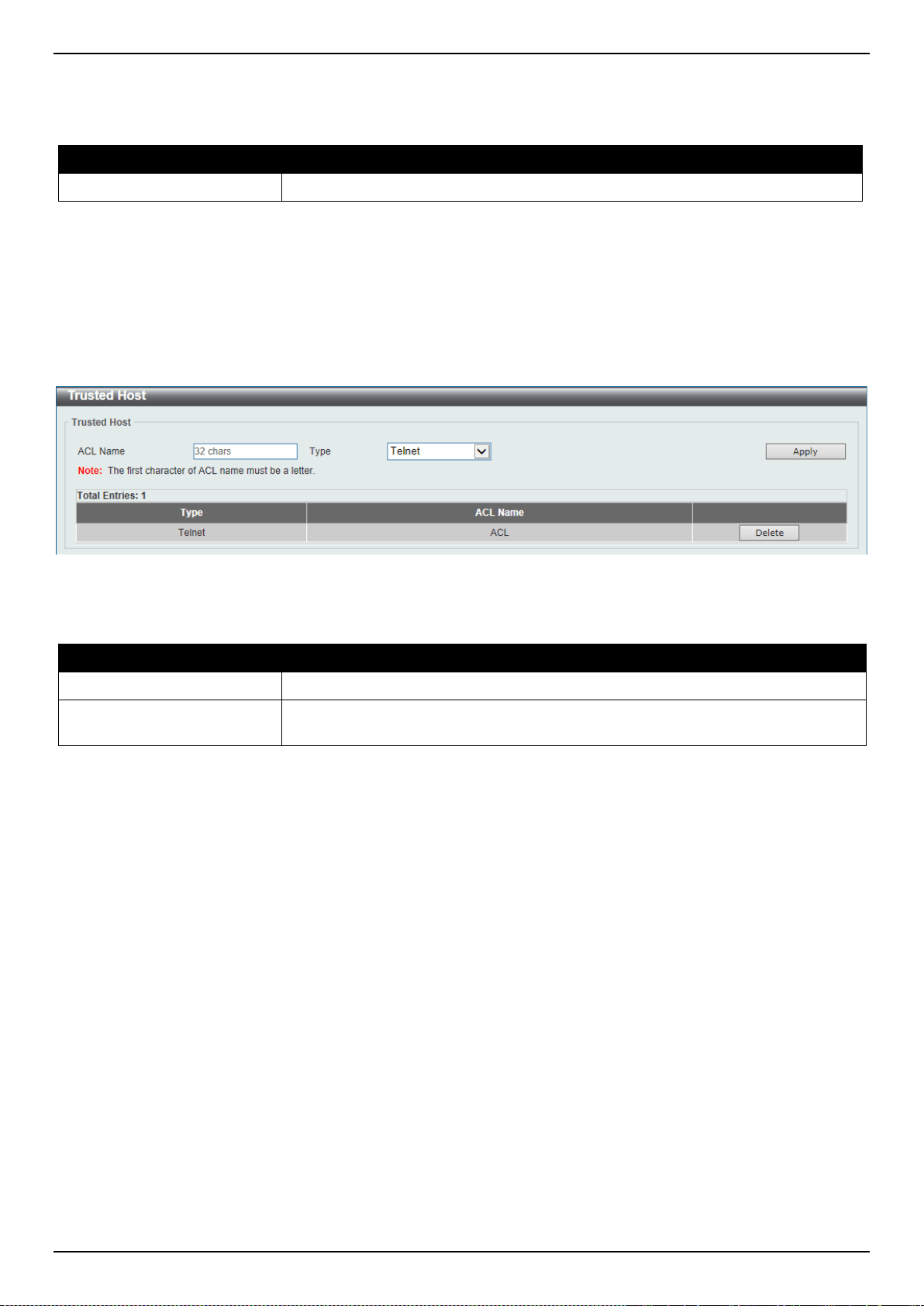
DXS-3400 Series Lite Layer 3 Stackable 10GbE Managed Switch Web UI Reference Guide
356
Click the Apply button to accept the changes made.
The fields that can be configured in Protect Type Information are described below:
Parameter Description
Protocol Name
Select the protocol name option here.
Click the Find button to locate a specific entry based on the information entered.
Trusted Host
This window is used to display and configure the trusted host settings.
To view the following window, click Security > Trusted Host, as shown below:
Figure 9-82 Trusted Host Window
The fields that can be configured are described below:
Parameter Description
ACL Name
Enter the access class’ name here. This name can be up to 32 characters long.
Type
Select the trusted host type here. Options to choose from are Telnet, SSH, Ping,
HTTP, and HTTPS.
Click the Apply button to accept the changes made.
Click the Delete button to remove the specific entry.
Traffic Segmentation Settings
This window is used to display and configure the traffic segmentation settings. When the traffic segmentation
forwarding domain is specified, packets received by the port will be restricted in Layer 2 packet forwarding to
interfaces within the domain. When the forwarding domain of a port is empty, Layer 2 forwarding for packets received
by the port is not restricted.
The traffic segmentation member list can be comprised of different interface types, for example port and port-channel
in the same forwarding domain. If the interfaces specified by the command include a port-channel, all the member
ports of this port-channel will be included in the forwarding domain.
If the forwarding domain of an interface is empty, then there is no restriction on Layer 2 forwarding of packets received
by the port.
To view the following window, click Security > Traffic Segmentation Settings, as shown below:
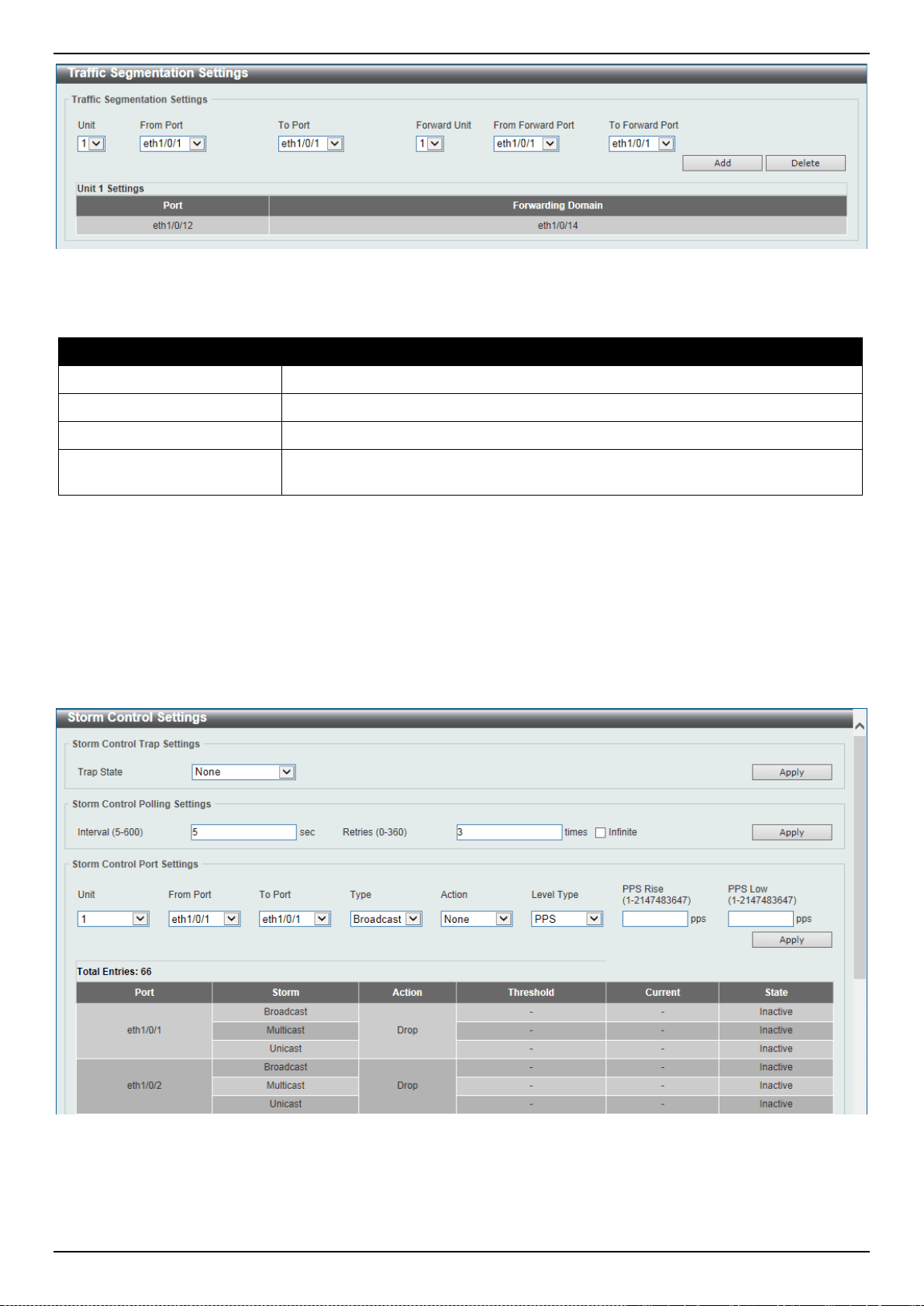
DXS-3400 Series Lite Layer 3 Stackable 10GbE Managed Switch Web UI Reference Guide
357
Figure 9-83 Traffic Segmentation Settings Window
The fields that can be configured are described below:
Parameter Description
Unit
Select the receiving Switch unit that will be used for this configuration here.
From Port ~ To Port
Select the receiving port range used for the configuration here.
Forward Unit
Select the forward Switch unit that will be used for this configuration here.
From Forward Port ~ To
Forward Port
Select the forward port range used for the configuration here.
Click the Add button to add a new entry based on the information entered.
Click the Delete button to remove an entry based on the information entered.
Storm Control
This window is used to display and configure the storm control settings.
To view the following window, click Security > Storm Control, as shown below:
Figure 9-84 Storm Control Window
The fields that can be configured in Storm Control Trap Settings are described below:
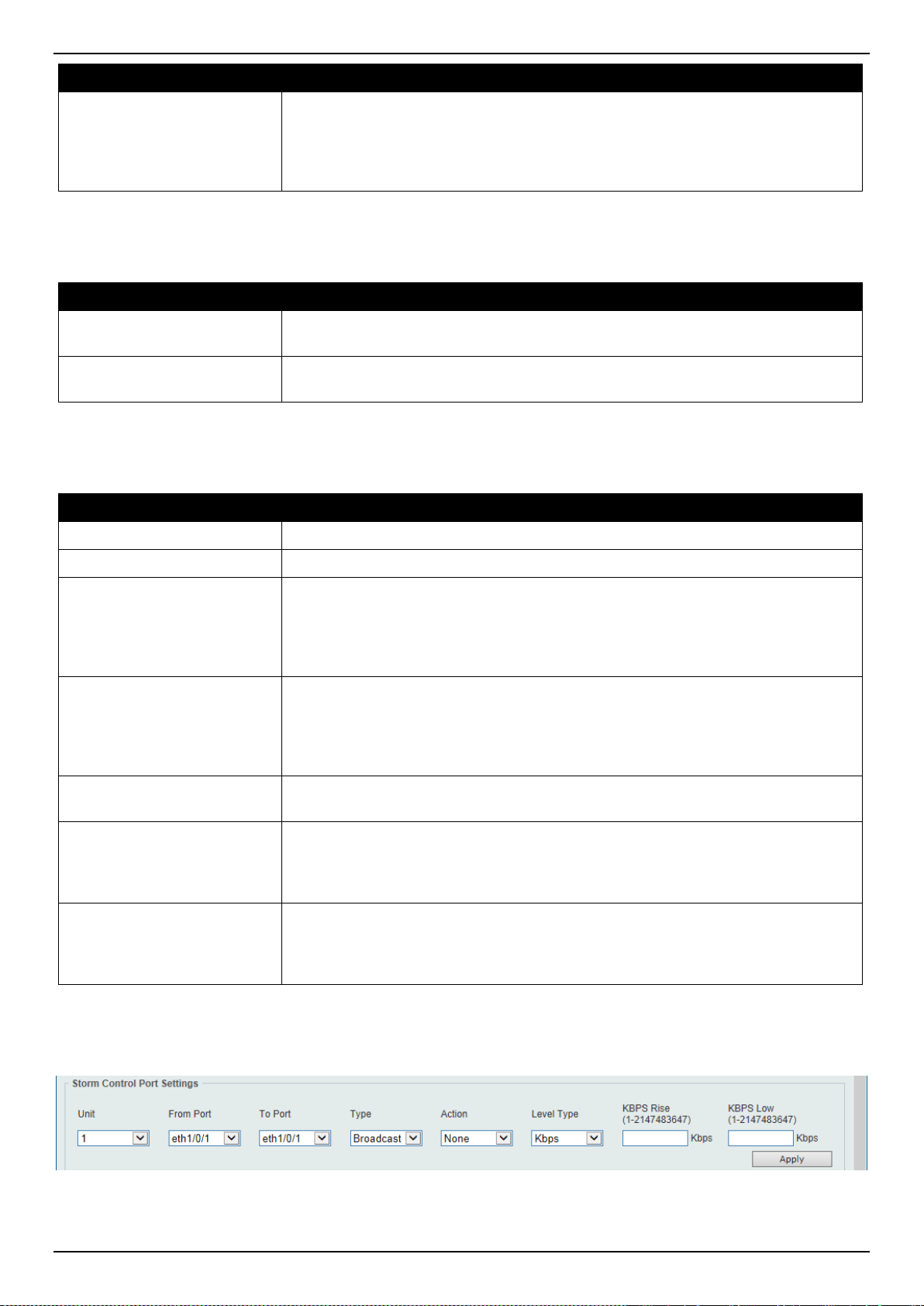
DXS-3400 Series Lite Layer 3 Stackable 10GbE Managed Switch Web UI Reference Guide
358
Parameter Description
Trap State
Select the storm control trap option here. Options to choose from are None,
Storm Occur, Storm Clear, and Both. When None is selected, no traps will be
sent. When Storm Occur is selected, a trap notification will be sent when a storm
event is detected. When Storm Clear is selected, a trap notification will be sent
when a storm event is cleared.
Click the Apply button to accept the changes made.
The fields that can be configured in Storm Control Polling Settings are described below:
Parameter Description
Interval
Enter the interval value used here. This value must be between 5 and 600
seconds. By default, this value is 5 seconds.
Retries
Enter the retries value used here. This value must be between 0 and 360. By
default, this value is 3. Tick the Infinite option to disable this feature.
Click the Apply button to accept the changes made.
The fields that can be configured in Storm Control Port Settings are described below:
Parameter Description
Unit
Select the Switch unit that will be used for this configuration here.
From Port ~ To Port
Select the appropriate port range used for the configuration here.
Type
Select the type of storm attack that will be controlled here. Options to choose from
are Broadcast, Multicast, and Unicast. When the action is configured as the
shutdown mode, the unicast refers to both known and unknown unicast packets;
that is, if the known and unknown unicast packets hit the specified threshold, the
port will be shutdown. Otherwise, unicast refers to unknown unicast packets.
Action
Select the action that will be taken here. Options to choose from are None,
Shutdown, and Drop. Selecting None specifies not to filter the storm packets.
Selecting Shutdown specifies to shut down the port when the value specified for
rise threshold is reached. Selecting Drop specifies to discards packets that
exceed the risen threshold.
Level Type
Select the level type option here. Options to choose from are PPS, Kbps, and
Level.
PPS Rise
Enter the rise packets per second value here. This option specifies the rise
threshold value in packets count per second. This value must be between 0 and
2147483647 packets per second. If the low PPS value is not specified, the default
value is 80% of the specified risen PPS.
PPS Low
Enter the low packets per second value here. This option specifies the low
threshold value in packets count per second. This value must be between 0 and
2147483647 packets per second. If the low PPS value is not specified, the default
value is 80% of the specified risen PPS.
Click the Apply button to accept the changes made.
After selecting the Kbps option as the Level Type, the following parameters are available.
Figure 9-85 Storm Control (Level Type - Kbps) Window
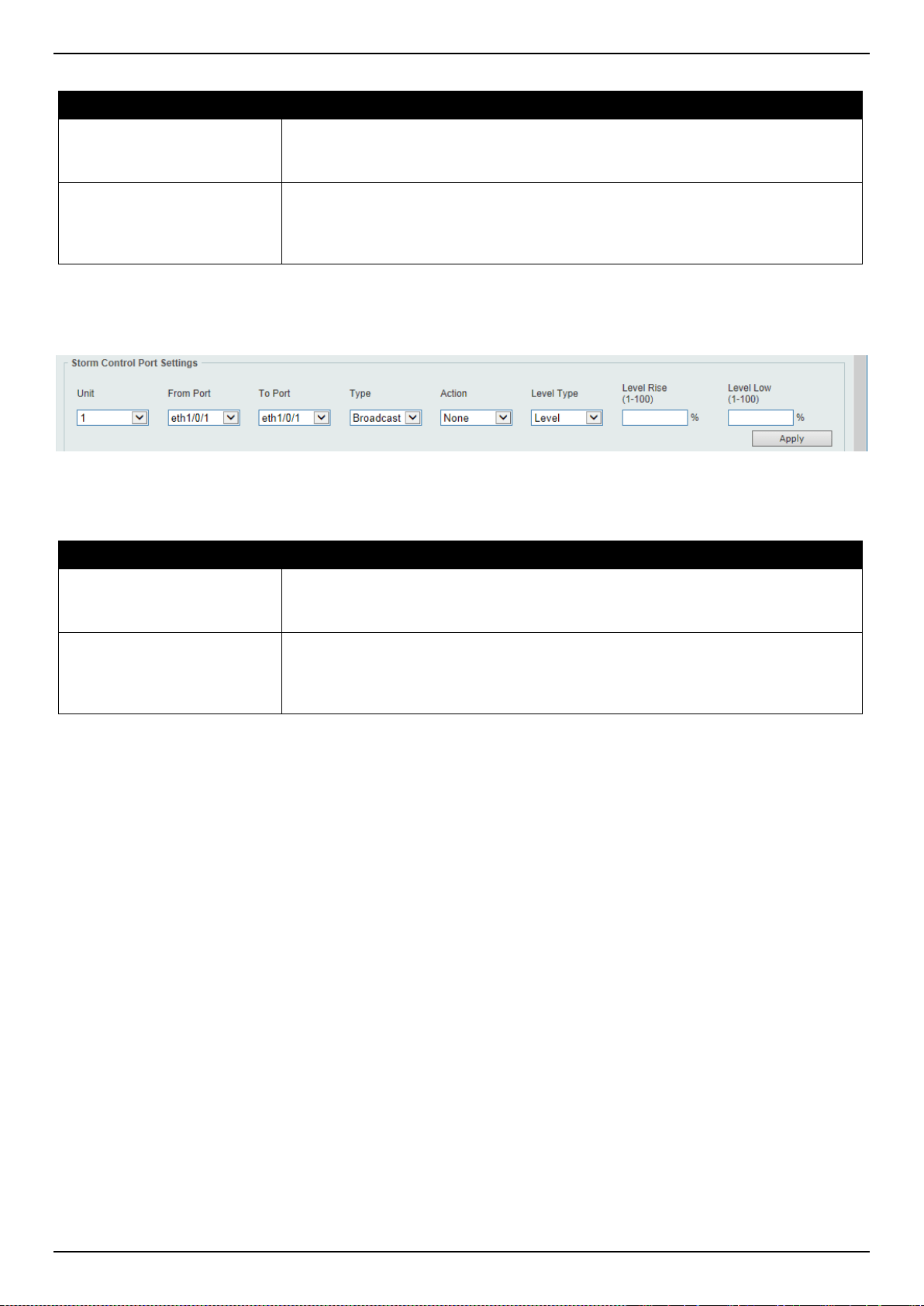
DXS-3400 Series Lite Layer 3 Stackable 10GbE Managed Switch Web UI Reference Guide
359
The additional fields that can be configured in Storm Control Port Settings are described below:
Parameter Description
KBPS Rise
Enter the rise KBPS value used here. This option specifies the rise threshold
value as a rate of kilobits per second at which traffic is received on the port. This
value must be between 0 and 2147483647 Kbps.
KBPS Low
Enter the low KBPS value used here. This option specifies the low threshold value
as a rate of kilobits per second at which traffic is received on the port. This value
must be between 0 and 2147483647 Kbps. If the low KBPS is not specified, the
default value is 80% of the specified risen KBPS.
Click the Apply button to accept the changes made.
After selecting the Level option as the Level Type, the following parameters are available.
Figure 9-86 Storm Control (Level Type - Level) Window
The additional fields that can be configured in Storm Control Port Settings are described below:
Parameter Description
Level Rise
Enter the rise level value used here. This option specifies the rise threshold value
as a percentage of the total bandwidth per port at which traffic is received on the
port. This value must be between 0% and 100%.
Level Low
Enter the low level value used here. This option specifies the low threshold value
as a percentage of the total bandwidth per port at which traffic is received on the
port. This value must be between 0% and 100%. If the low level is not specified,
the default value is 80% of the specified risen level.
Click the Apply button to accept the changes made.
DoS Attack Prevention Settings
This window is used to display and configure the Denial-of-Service (DoS) attack prevention settings. The following
well-known DoS types which can be detected by most Switches:
• Land Attack: This type of attack involves IP packets where the source and destination address are set to the
address of the target device. It may cause the target device to reply to itself continuously.
• Blat Attack: This type of attack will send packets with the TCP/UDP source port equal to the destination port of
the target device. It may cause the target device to respond to itself.
• TCP-Null: This type of attack involves port scanning by using specific packets which contain a sequence
number of 0 and no flags.
• TCP-Xmas: This type of attack involves port scanning by using specific packets which contain a sequence
number of 0 and the Urgent (URG), Push (PSH), and FIN flags.
• TCP SYN-FIN: This type of attack involves port scanning by using specific packets which contain SYN and FIN
flags.
• TCP SYN SrcPort Less 1024: This type of attack involves port scanning by using specific packets which
contain source port 0 to 1023 and SYN flag.
• Ping of Death Attack: A ping of death is a type of attack on a computer that involves sending a malformed or
otherwise a malicious ping to a computer. A ping is normally 64 bytes in size (many computers cannot handle a
ping larger than the maximum IP packet size which is 65535 bytes). The sending of a ping of this size can crash
the target computer. Traditionally, this bug has been relatively easy to exploit. Generally, sending a 65536 byte
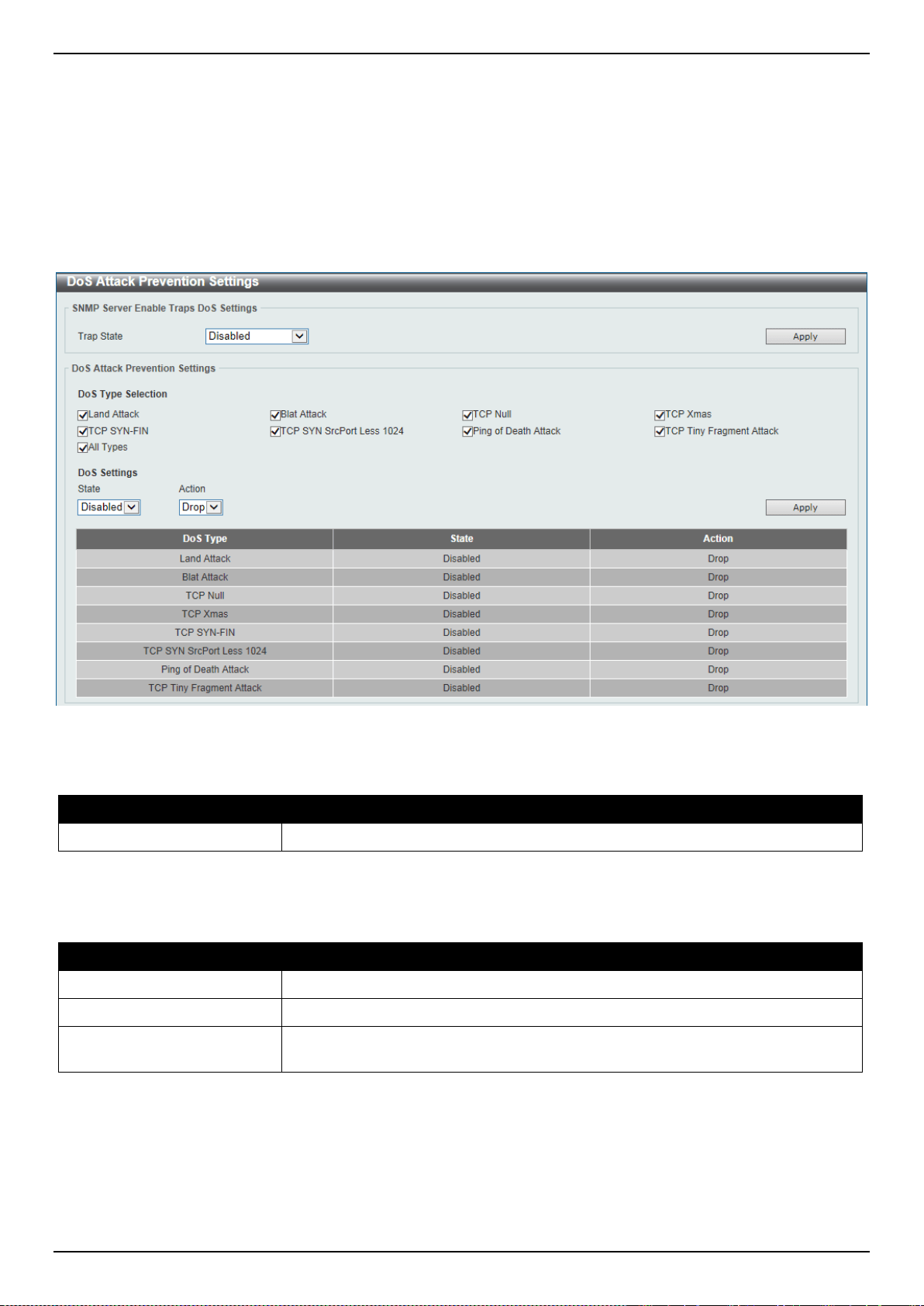
DXS-3400 Series Lite Layer 3 Stackable 10GbE Managed Switch Web UI Reference Guide
360
ping packet is illegal according to networking protocol, but a packet of such a size can be sent if it is fragmented;
when the target computer reassembles the packet, a buffer overflow can occur, which often causes a system
crash.
• TCP Tiny Fragment Attack: The Tiny TCP Fragment attacker uses IP fragmentation to create extremely small
fragments and force the TCP header information into a separate packet fragment to pass through the check
function of the router and issue an attack.
• All Types: All of above types.
To view the following window, click Security > DoS Attack Prevention Settings, as shown below:
Figure 9-87 DoS Attack Prevention Settings Window
The fields that can be configured in SNMP Server Enable Traps DoS Settings are described below:
Parameter Description
Trap State
Select to enable or disable the DoS attack prevention trap state here.
Click the Apply button to accept the changes made.
The fields that can be configured in DoS Attack Prevention Settings are described below:
Parameter Description
DoS Type Selection
Tick the DoS type option that will be prevented here.
State
Select to enable or disable the DoS attack prevention feature’s global state here.
Action
Select the action that will be taken when the DoS attack was detected here. The
only option to select here is Drop.
Click the Apply button to accept the changes made.
SSH
Secure Shell (SSH) is a program allowing secure remote login and secure network services over an insecure network.
It allows a secure login to remote host computers, a safe method of executing commands on a remote end node, and
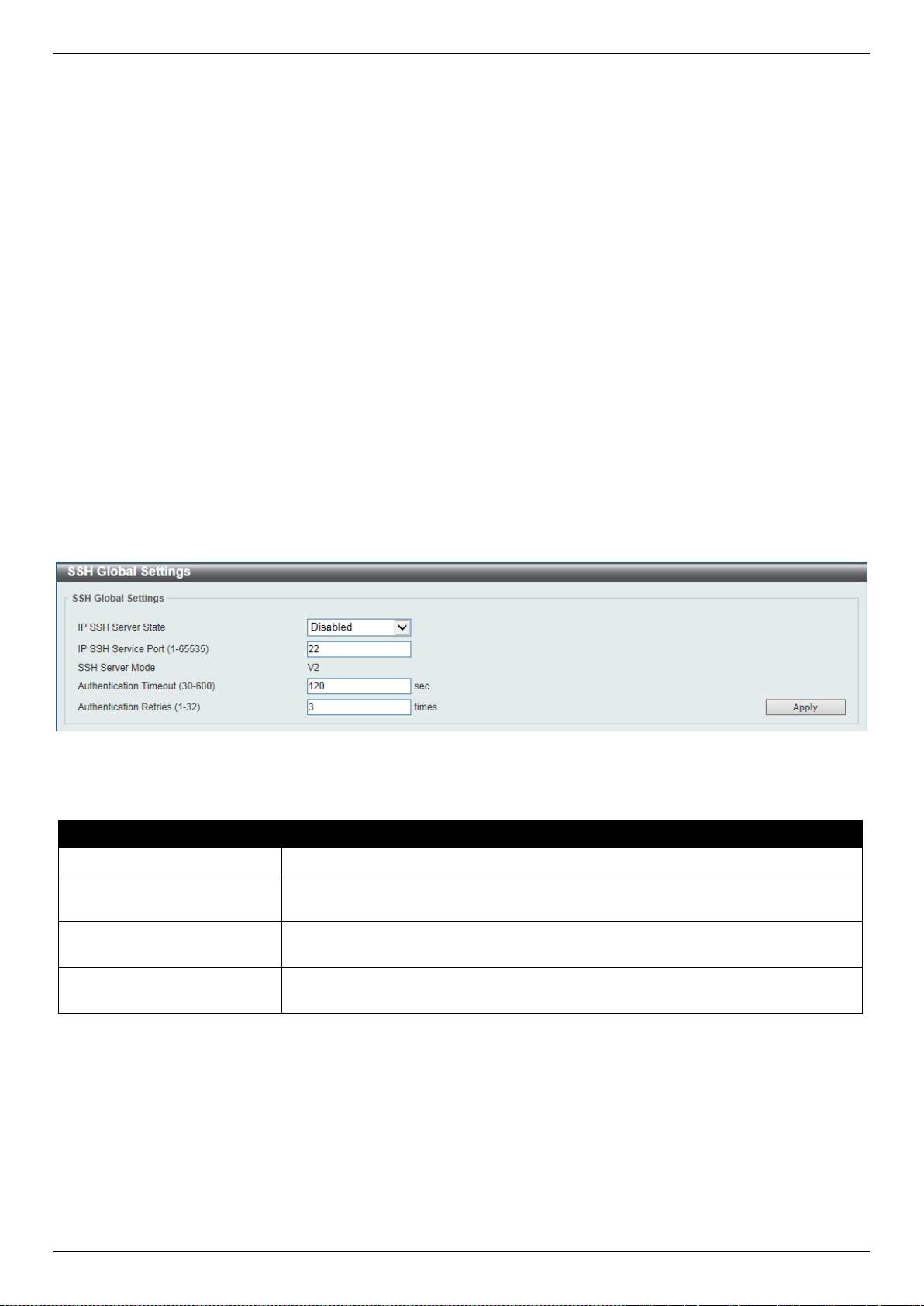
DXS-3400 Series Lite Layer 3 Stackable 10GbE Managed Switch Web UI Reference Guide
361
will provide secure encrypted and authenticated communication between two non-trusted hosts. SSH, with its array of
unmatched security features is an essential tool in today’s networking environment. It is a powerful guardian against
numerous existing security hazards that now threaten network communications.
The steps required to use the SSH protocol for secure communication between a remote PC (the SSH client) and the
Switch (the SSH server) are as follows:
• Create a user account with admin-level access using the User Accounts window. This is identical to creating
any other admin-level User Account on the Switch, including specifying a password. This password is used to
logon to the Switch, once a secure communication path has been established using the SSH protocol.
• Configure the User Account to use a specified authorization method to identify users that are allowed to
establish SSH connections with the Switch using the SSH User Authentication Mode window. There are three
choices as to the method SSH will use to authorize the user, which are Host Based, Password, and Public Key.
• Configure the encryption algorithm that SSH will use to encrypt and decrypt messages sent between the SSH
client and the SSH server, using the SSH Authentication Method and Algorithm Settings window.
• Finally, enable SSH on the Switch using the SSH Configuration window.
After completing the preceding steps, a SSH Client on a remote PC can be configured to manage the Switch using a
secure, in band connection.
SSH Global Settings
This window is used to display and configure the SSH global settings.
To view the following window, click Security > SSH > SSH Global Settings, as shown below:
Figure 9-88 SSH Global Settings Window
The fields that can be configured are described below:
Parameter Description
IP SSH Server State
Select to enable or disable the SSH server’s global state.
IP SSH Service Port
Enter the SSH service port number used here. This value must be between 1 and
65535. By default, this number is 22.
Authentication Timeout
Enter the authentication timeout value here. This value must be between 30 and
600 seconds. By default, this value is 120 seconds.
Authentication Retries
Enter the authentication retries value here. This value must be between 1 and 32.
By default, this value is 3.
Click the Apply button to accept the changes made.
Host Key
This window is used to display and generate the SSH host key.
To view the following window, click Security > SSH > Host Key, as shown below:
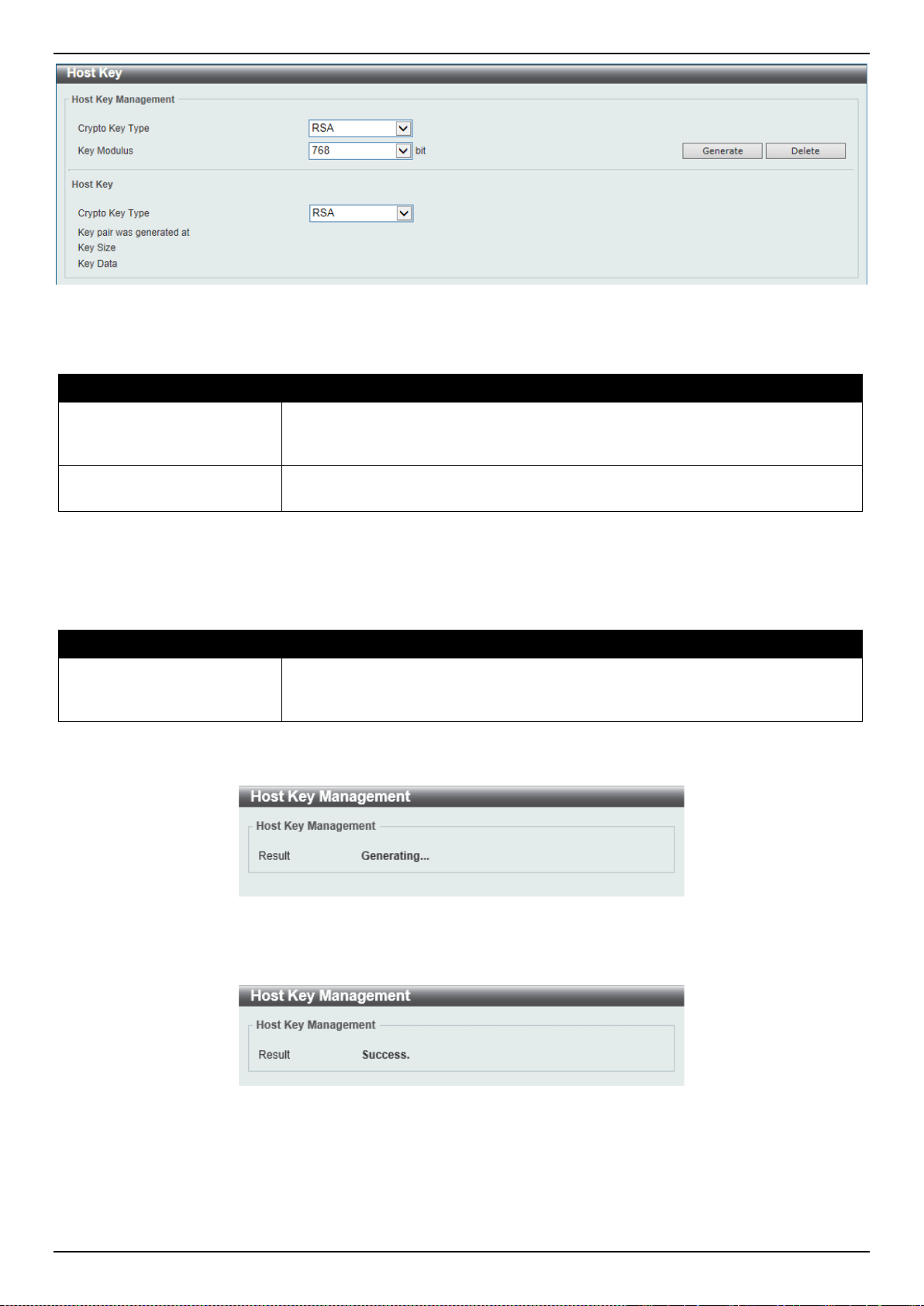
DXS-3400 Series Lite Layer 3 Stackable 10GbE Managed Switch Web UI Reference Guide
362
Figure 9-89 Host Key Window
The fields that can be configured in Host Key Management are described below:
Parameter Description
Crypto Key Type
Select the crypto key type used here. Options to choose from are the Rivest
Shamir Adleman (RSA) key type and the Digital Signature Algorithm (DSA) key
type.
Key Modulus
Select the key modulus value here. Options to choose from are 360, 512, 768,
1024, and 2048 bit.
Click the Generate button to generate a host key based on the selections made.
Click the Delete button to remove a host key based on the selections made.
The fields that can be configured in Host Key are described below:
Parameter Description
Crypto Key Type
Select the crypto key type used here. Options to choose from are the Rivest
Shamir Adleman (RSA) key type and the Digital Signature Algorithm (DSA) key
type.
After clicking the Generate button, the following window will appear:
Figure 9-90 Host Key (Generating) Window
After the key was successfully generated, the following window will appear.
Figure 9-91 Host Key (Generating, Success) Window
SSH Server Connection
This window is used to display the SSH server connections table.
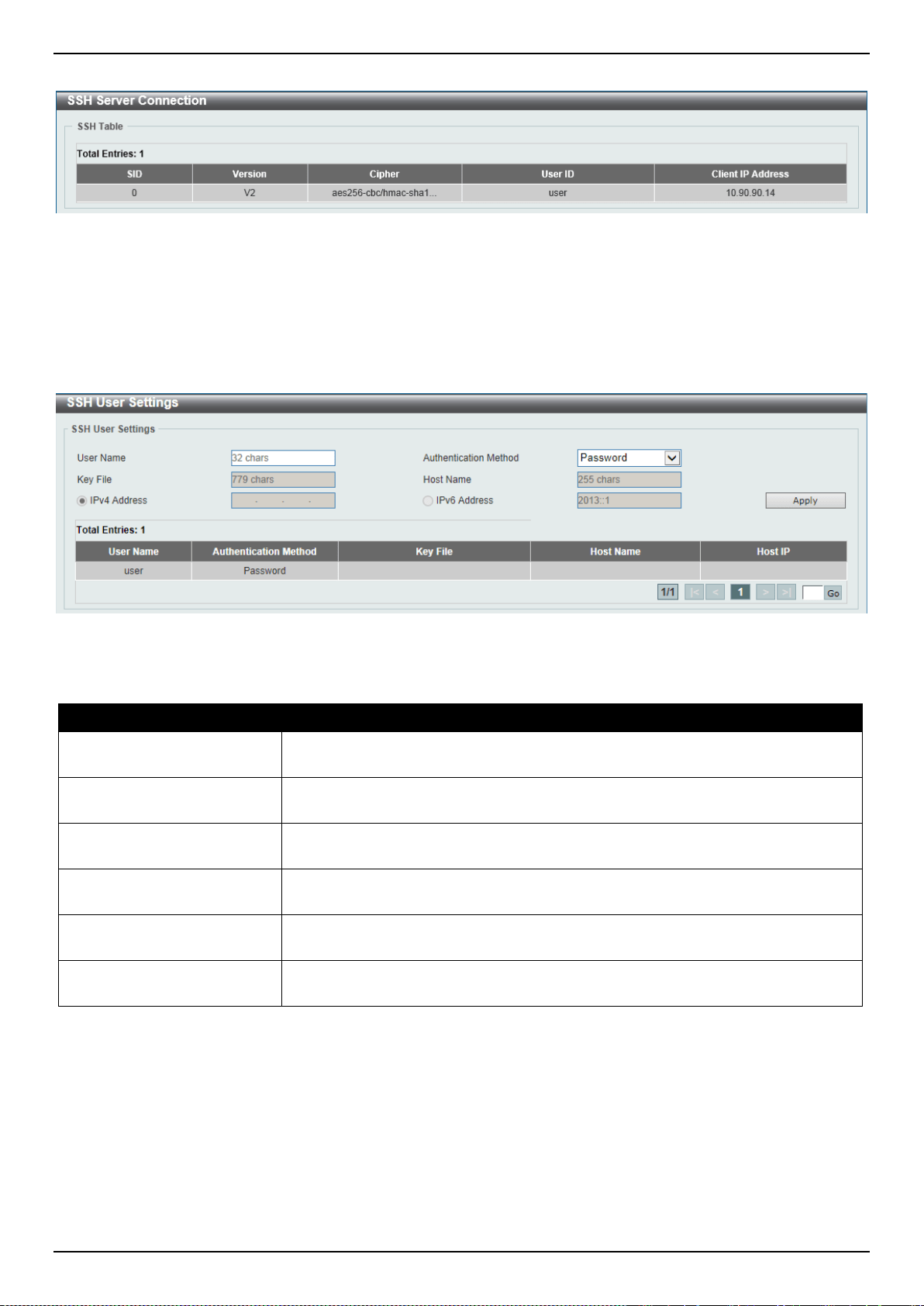
DXS-3400 Series Lite Layer 3 Stackable 10GbE Managed Switch Web UI Reference Guide
363
To view the following window, click Security > SSH > SSH Server Connection, as shown below:
Figure 9-92 SSH Server Connection Window
SSH User Settings
This window is used to display and configure the SSH user settings.
To view the following window, click Security > SSH > SSH User Settings, as shown below:
Figure 9-93 SSH User Settings Window
The fields that can be configured are described below:
Parameter Description
User Name
Enter the SSH user’s username used here. This name can be up to 32 characters
long.
Authentication Method
Select the authentication methods used here. Options to choose from are
Password, Public Key, and Host-based.
Key File
After selecting the Public Key or Host-based option as the Authentication
Method, enter the public key here.
Host Name
After selecting the Host-based option as the Authentication Method, enter the
host name here.
IPv4 Address
After selecting the Host-based option as the Authentication Method, select and
enter the IPv4 address here.
IPv6 Address
After selecting the Host-based option as the Authentication Method, select and
enter the IPv6 address here.
Click the Apply button to accept the changes made.
Enter a page number and click the Go button to navigate to a specific page when multiple pages exist.
SSL
Secure Sockets Layer (SSL) is a security feature that will provide a secure communication path between a host and
client through the use of authentication, digital signatures and encryption. These security functions are implemented
through the use of a cipher suite, which is a security string that determines the exact cryptographic parameters,
specific encryption algorithms and key sizes to be used for an authentication session and consists of three levels:
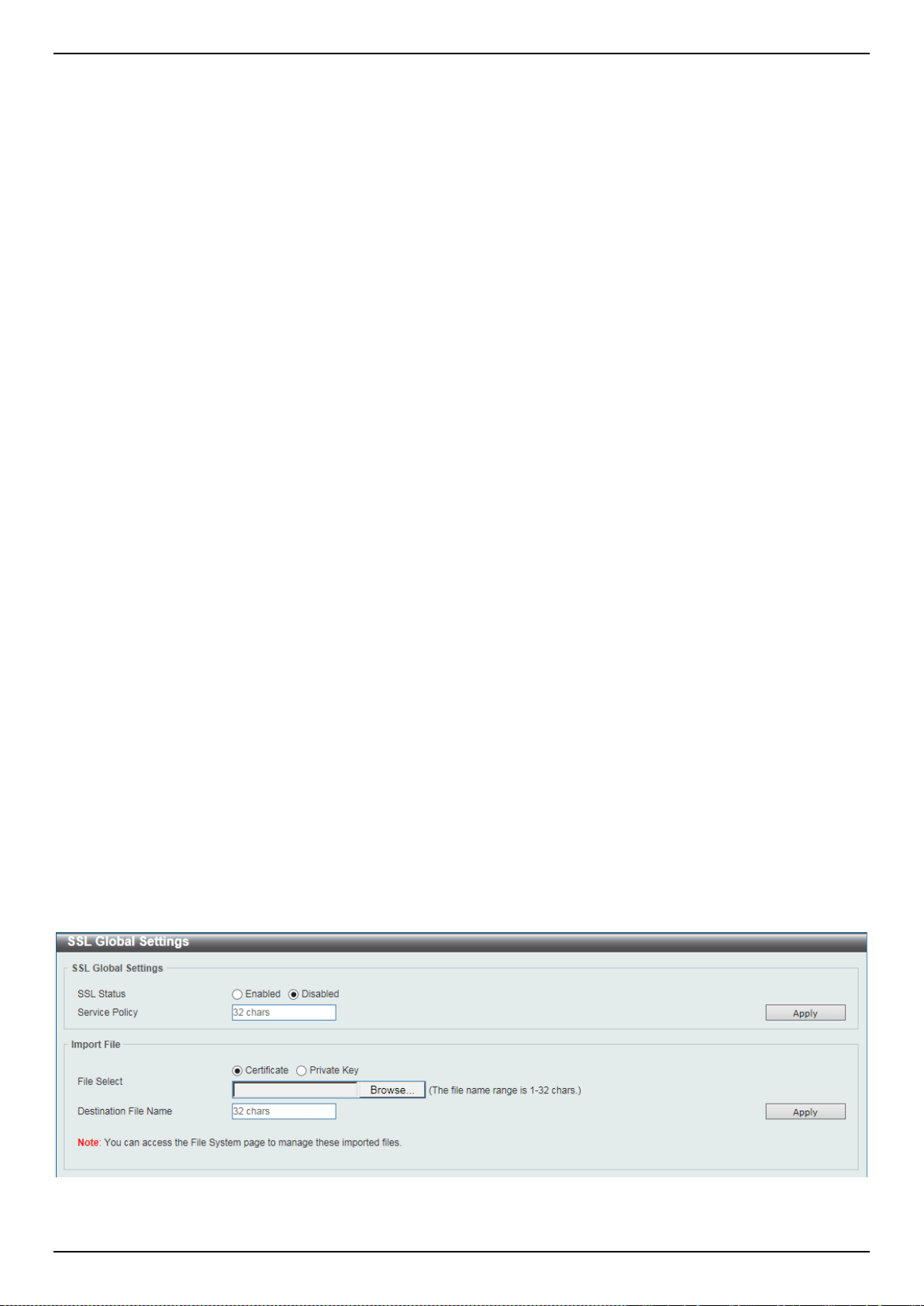
DXS-3400 Series Lite Layer 3 Stackable 10GbE Managed Switch Web UI Reference Guide
364
• Key Exchange: The first part of the Cipher suite string specifies the public key algorithm to be used. This
switch utilizes the Rivest Shamir Adleman (RSA) public key algorithm and the Digital Signature Algorithm (DSA),
specified here as the DHE DSS Diffie-Hellman (DHE) public key algorithm. This is the first authentication
process between client and host as they “exchange keys” in looking for a match and therefore authentication to
be accepted to negotiate encryptions on the following level.
• Encryption: The second part of the cipher suite that includes the encryption used for encrypting the messages
sent between client and host. The Switch supports two types of cryptology algorithms:
Stream Ciphers - There are two types of stream ciphers on the Switch, RC4 with 40-bit keys and RC4
with 128-bit keys. These keys are used to encrypt messages and need to be consistent between client
and host for optimal use.
CBC Block Ciphers - CBC refers to Cipher Block Chaining, which means that a portion of the previously
encrypted block of encrypted text is used in the encryption of the current block. The Switch supports the
3DES EDE encryption code defined by the Data Encryption Standard (DES) to create the encrypted text
and the Advanced Encryption Standard (AES).
• Hash Algorithm: This part of the cipher suite allows the user to choose a Message Digest function which will
determine a Message Authentication Code. This Message Authentication Code will be encrypted with a sent
message to provide integrity and prevent against replay attacks. The Switch supports three hash algorithms,
MD5 (Message Digest 5), SHA (Secure Hash Algorithm), and SHA-256.
These three parameters are uniquely assembled in four choices on the Switch to create a three-layered encryption
code for secure communication between the server and the host. The user may implement any one or combination of
the cipher suites available, yet different cipher suites will affect the security level and the performance of the secured
connection. The information included in the cipher suites is not included with the Switch and requires downloading
from a third source in a file form called a certificate. This function of the Switch cannot be executed without the
presence and implementation of the certificate file and can be downloaded to the Switch by utilizing a TFTP server.
The Switch supports SSLv3. Other versions of SSL may not be compatible with this Switch and may cause problems
upon authentication and transfer of messages from client to host.
When the SSL function has been enabled, the web will become disabled. To manage the Switch through the web
based management while utilizing the SSL function, the web browser must support SSL encryption and the header of
the URL must begin with https://. (Ex. https://xx.xx.xx.xx) Any other method will result in an error and no access can
be authorized for the web-based management.
Users can download a certificate file for the SSL function on the Switch from a TFTP server. The certificate file is a
data record used for authenticating devices on the network. It contains information on the owner, keys for
authentication and digital signatures. Both the server and the client must have consistent certificate files for optimal
use of the SSL function. Currently, the Switch comes with a certificate pre-loaded though the user may need to
download more, depending on user circumstances.
The Switch also supports Transport Layer Security (TLS) versions 1.0, 1.1, and 1.2.
SSL Global Settings
This window is used to display and configure the SSL feature’s global settings.
To view the following window, click Security > SSL > SSL Global Settings, as shown below:
Figure 9-94 SSL Global Settings Window
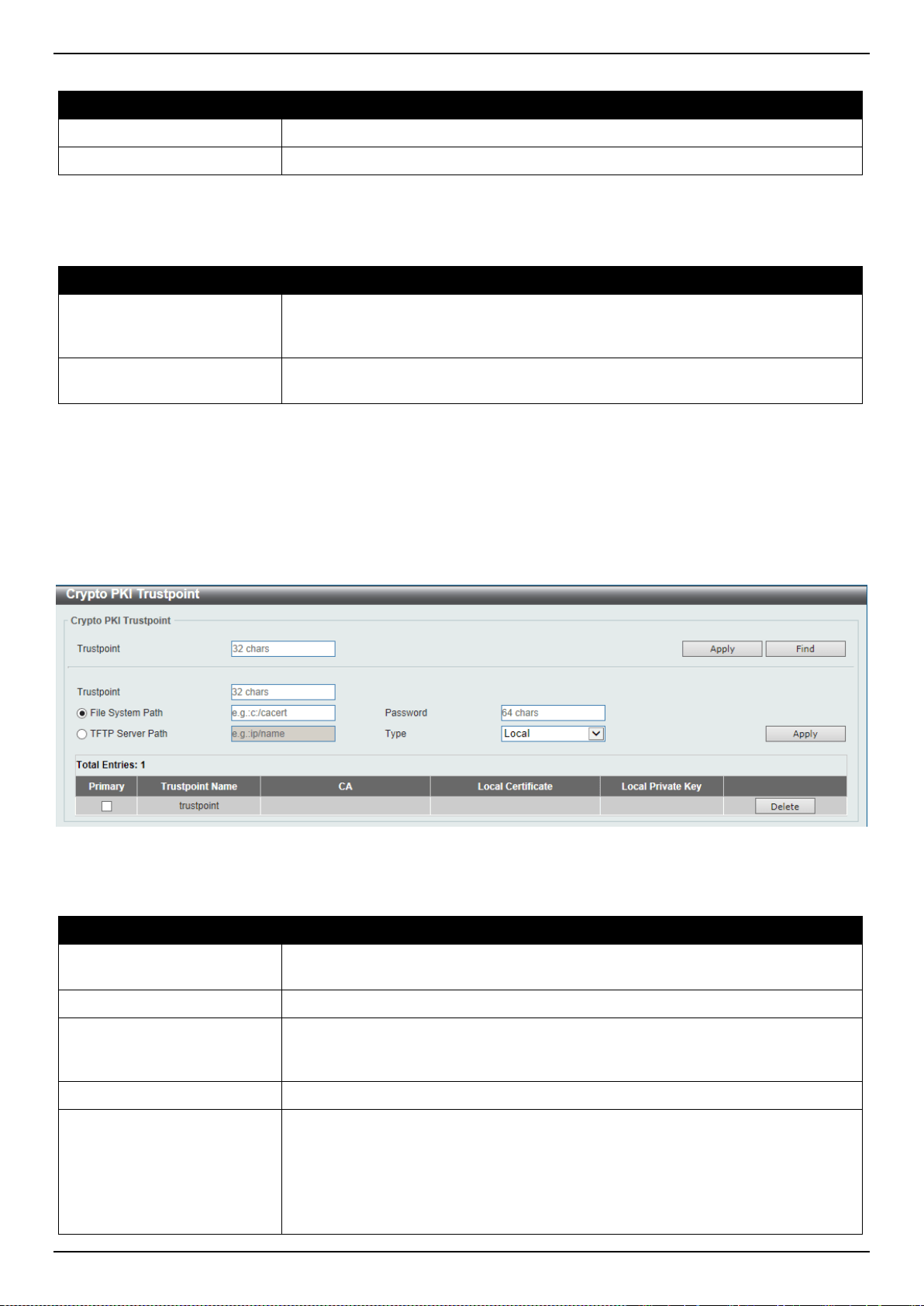
DXS-3400 Series Lite Layer 3 Stackable 10GbE Managed Switch Web UI Reference Guide
365
The fields that can be configured in SSL Global Settings are described below:
Parameter Description
SSL Status
Select to enable or disable the SSL feature’s global status here.
Service Policy
Enter the service policy name here. This name can be up to 32 characters long.
Click the Apply button to accept the changes made.
The fields that can be configured in Import File are described below:
Parameter Description
File Select
Select the file type that will be loaded here. Options to choose from are
Certificate and Private Key. After selecting the file type, browse to the
appropriate file, located on the local computer, by pressing the Browse button.
Destination File Name
Enter the destination file name used here. This name can be up to 32 characters
long.
Click the Apply button to accept the changes made.
Crypto PKI Trustpoint
This window is used to display and configure the crypto PKI trust point settings.
To view the following window, click Security > SSL > Crypto PKI Trustpoint, as shown below:
Figure 9-95 Crypto PKI Trustpoint Window
The fields that can be configured are described below:
Parameter Description
Trustpoint
Enter the name of the trust-point that is associated with the imported certificates
and key pairs here. This name can be up to 32 characters long.
File System Path
Enter the file system path for certificates and key pairs here.
Password
Enter the encrypted password phrase that is used to undo encryption when the
private keys are imported here. The password phrase is a string of up to 64
characters. If the password phrase is not specified, the NULL string will be used.
TFTP Server Path
Enter the TFTP server’s path here.
Type
Select the type of certificate that will be imported here. Options to choose from
are Both, CA, and Local.
• Selecting Both specifies to import the CA certificate, local certificate and key
pairs.
• Selecting CA specifies to import the CA certificate only.
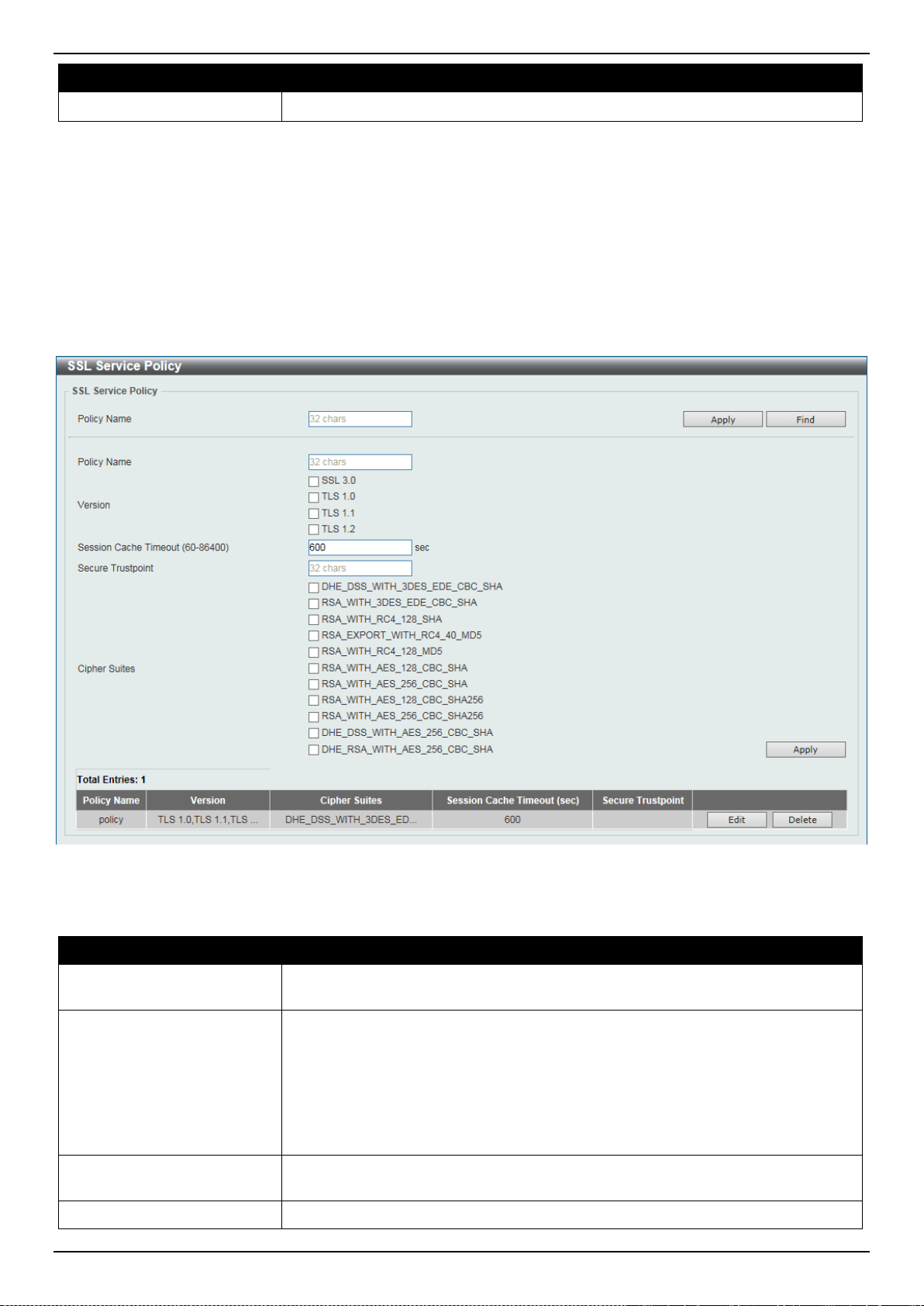
DXS-3400 Series Lite Layer 3 Stackable 10GbE Managed Switch Web UI Reference Guide
366
Parameter Description
• Selecting Local specifies to import local certificate and key pairs only.
Click the Apply button to accept the changes made.
Click the Find button to locate a specific entry based on the information entered.
Click the Delete button to remove the specified entry.
SSL Service Policy
This window is used to display and configure the SSL service policy settings.
To view the following window, click Security > SSL > SSL Service Policy, as shown below:
Figure 9-96 SSL Service Policy Window
The fields that can be configured are described below:
Parameter Description
Policy Name
Enter the SSL service policy name here. This name can be up to 32 characters
long.
Version
Select the SSL or TLS version.
• SSL 3.0: Select to use SSL version 3.0 as the SSL service policy.
• TLS 1.0: Select to use TLS version 1.0 as the SSL service policy.
• TLS 1.1: Select to use TLS version 1.1 as the SSL service policy.
• TLS 1.2: Select to use TLS version 1.2 as the SSL service policy.
Session Cache Timeout
Enter the session cache timeout value used here. This value must be between 60
and 86400 seconds. By default, this value is 600 seconds.
Secure Trustpoint
Enter the secure trust point’s name here. This name can be up to 32 characters

DXS-3400 Series Lite Layer 3 Stackable 10GbE Managed Switch Web UI Reference Guide
367
Parameter Description
long.
Cipher Suites
Select the cipher suites that should be used by the secure service when
negotiating a connection with a remote peer. When no cipher suite is selected, the
SSL client and server will negotiate the best cipher suite that they both support
from the available cipher suites.
• DHE_DSS_WITH_3DES_EDE_CBC_SHA: Select to use DH key exchange
with 3DES-EDE-CBC encryption and SHA for message digest.
• RSA_WITH_3DES_EDE_CBC_SHA: Select to use RSA key exchange with
3DES and DES-EDE3-CBC for message encryption and the Secure Hash
Algorithm (SHA) for message digest.
• RSA_WITH_RC4_128_SHA: Select to use RSA key exchange with RC4
128-bit encryption for message encryption and SHA for message digest.
• RSA_EXPORT_WITH_RC4_40_MD5: Select to use RSA EXPORT key
exchange with RC4 40 bits for message encryption and MD5 for message
digest.
• RSA_WITH_RC4_128_MD5: Select to use RSA key exchange with RC4
128-bit encryption for message encryption and Message Digest 5 (MD5) for
message digest.
• RSA_WITH_AES_128_CBC_SHA: Select to use RSA key exchange with
AES 128-bit encryption for message encryption and SHA for message
digest.
• RSA_WITH_AES_256_CBC_SHA: Select to use RSA key exchange with
AES 256-bit encryption for message encryption and SHA for message
digest.
• RSA_WITH_AES_128_CBC_SHA256: Select to use RSA key exchange
with AES 128-bit encryption for message encryption and SHA 256-bit for
message digest.
• RSA_WITH_AES_256_CBC_SHA256: Select to use RSA key exchange
with AES 256-bit encryption for message encryption and SHA 256-bit for
message digest.
• DHE_DSS_WITH_AES_256_CBC_SHA: Select to use DH key exchange
with AES 256-bit encryption and SHA for message digest.
• DHE_RSA_WITH_AES_256_CBC_SHA: Select to use DH key exchange
with AES 256-bit encryption and SHA for message digest.
Click the Apply button to accept the changes made.
Click the Find button to locate a specific entry based on the information entered.
Click the Edit button to re-configure the specific entry.
Click the Delete button to remove the specified entry.
SFTP Server Settings
This window is used to display and configure the Secure File Transfer Protocol (SFTP) server’s settings. SFTP is a
remotely secure file transfer protocol over a reliable data stream. Because SFTP itself does not provide authentication
and security, the SFTP server runs as a sub-system of the SSH server.
To view the following window, click Security > SFTP Server Settings, as shown below:
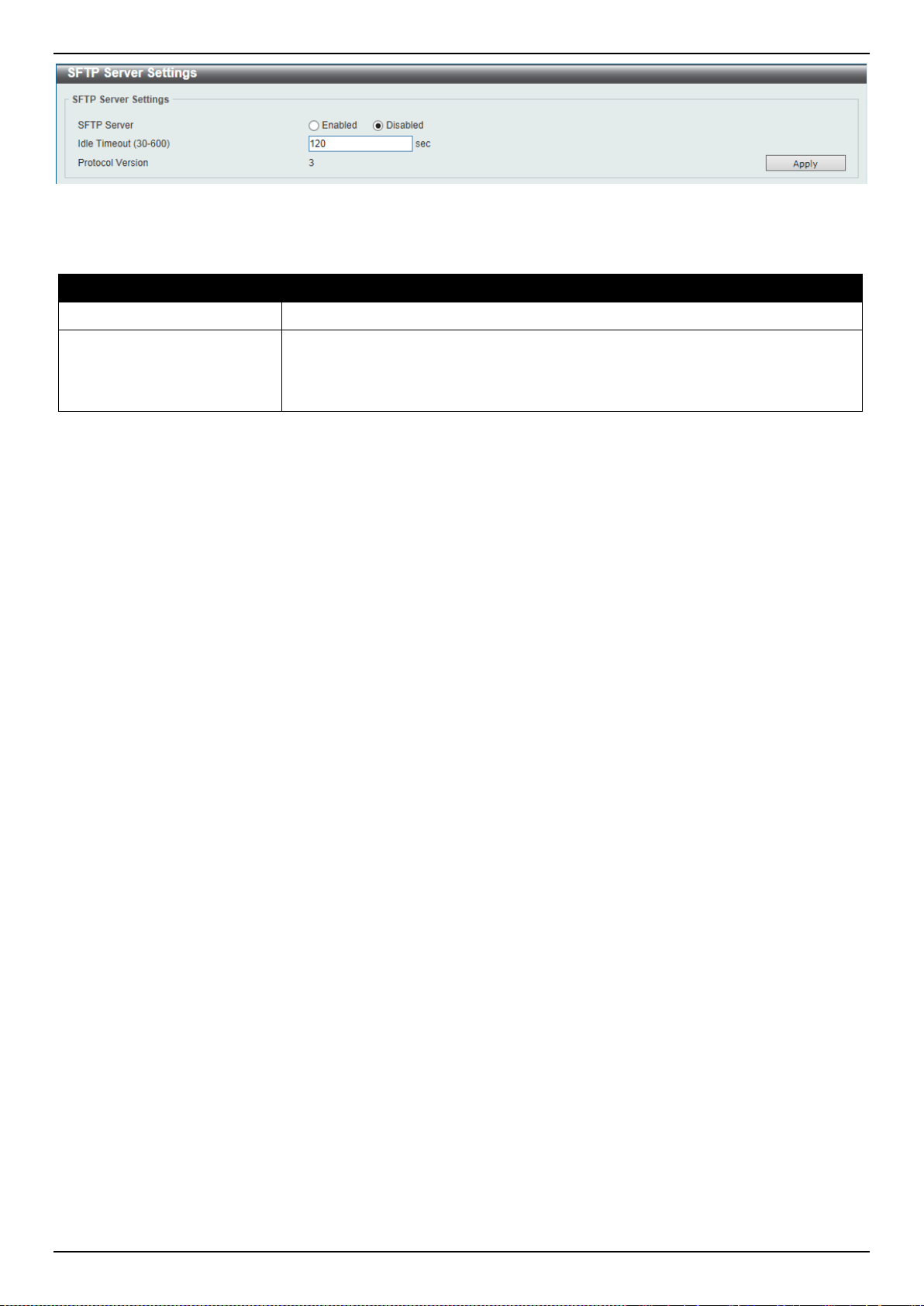
DXS-3400 Series Lite Layer 3 Stackable 10GbE Managed Switch Web UI Reference Guide
368
Figure 9-97 SFTP Server Settings Window
The fields that can be configured are described below:
Parameter Description
SFTP Server
Select to globally enable or disable the SFTP server feature here.
Idle Timeout
Enter the idle timeout value here. If the SFTP server detects no operation after
the duration of the idle timer for a specific SFTP session, the Switch will close this
SFTP session. The range is from 30 to 600 seconds. By default, this value is 120
seconds.
Click the Apply button to accept the changes made.
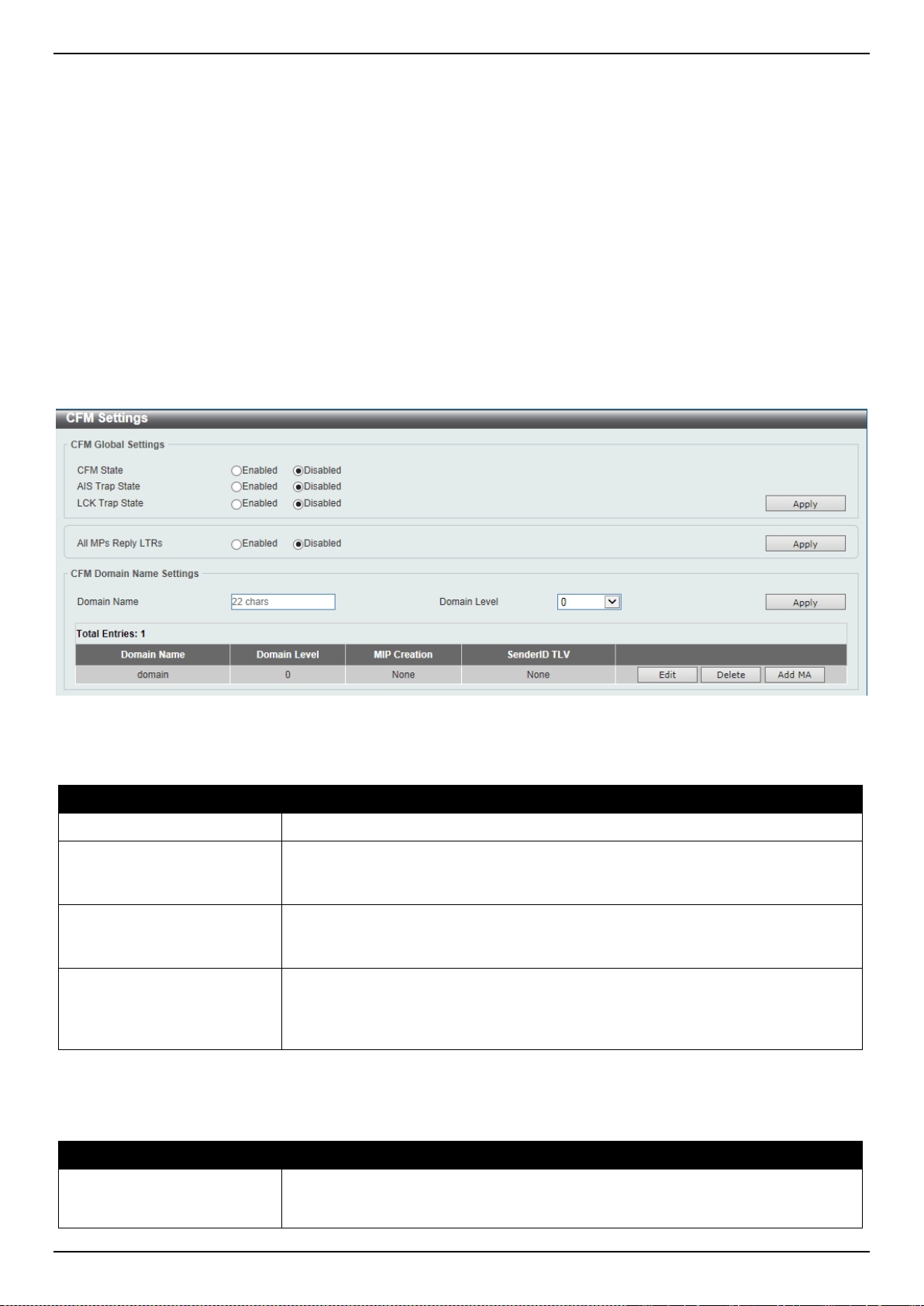
DXS-3400 Series Lite Layer 3 Stackable 10GbE Managed Switch Web UI Reference Guide
369
10. OAM
CFM
Cable Diagnostics
Ethernet OAM
DDM
CFM
CFM Settings
This window is used to display and configure the Connectivity Fault Management (CFM) feature’s settings.
To view the following window, click OAM > CFM > CFM Settings, as shown below:
Figure 10-1 CFM Settings Window
The fields that can be configured in CFM Global Settings are described below:
Parameter Description
CFM State
Select to globally enable or disable the CFM feature here.
AIS Trap State
Select to enable or disable the CFM Alarm Indication Signal (AIS) trap feature
here. If the trap status of AIS is enabled, once an ETH-AIS event occurs or an
ETH-AIS event clears, a trap will be sent out.
LCK Trap State
Select to enable or disable the CFM Locked Signal (LCK) trap feature here. If the
trap status of LCK is enabled, once an ETH-LCK event occurs or an ETH-LCK
event clears, a trap will be sent out.
All MPs Reply LTRs
Select to enable or disable the all MPs Linktrace Reply (LTR) feature here.
According to IEEE 802.1ag, a Bridge replies with one LTR to a Linktrace Message
(LTM). This feature can make all MPs on an LTM’s forwarding path reply with
LTRs, whether they are on a Bridge or not.
Click the Apply button to accept the changes made.
The fields that can be configured in CFM Domain Name Settings are described below:
Parameter Description
Domain Name
Enter the Maintenance Domain’s (MD’s) name here. This name can be up to 22
characters long. The name does not allow spaces. Each MD has a unique name
amongst all those used or available to a service provider or operator. It facilitates
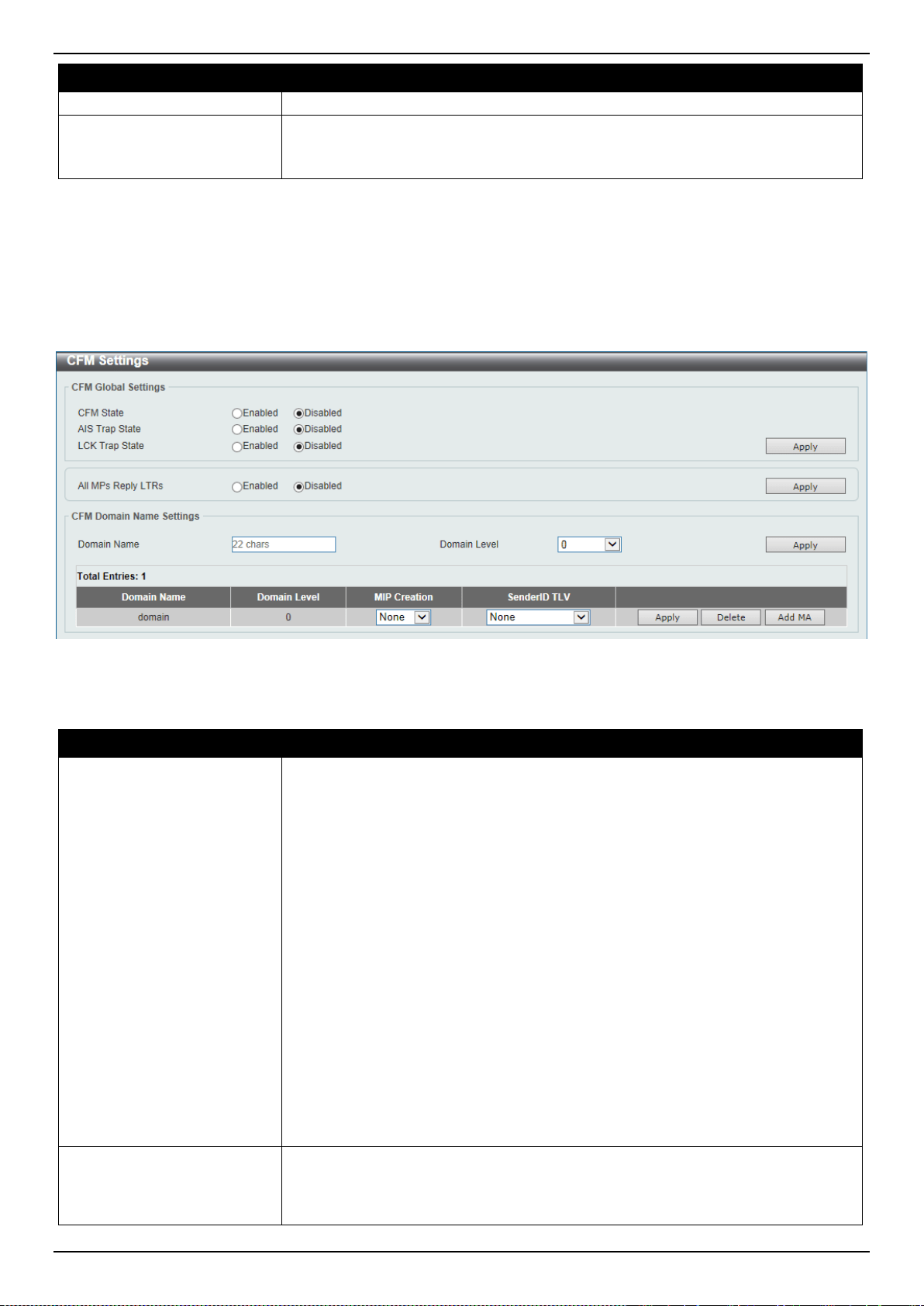
DXS-3400 Series Lite Layer 3 Stackable 10GbE Managed Switch Web UI Reference Guide
370
Parameter Description
easy identification of administrative responsibility for each maintenance domain.
Domain Level
Enter the Maintenance Domain’s (MD’s) level here. The range is from 0 to 7. A
unique MD level is assigned to define the hierarchical relationship between
domains. The larger range of domain has the higher value of level.
Click the Apply button to accept the changes made.
Click the Edit button to modify the specified entry.
Click the Delete button to delete the specified entry.
Click the Add MA button to add a new Maintenance Association (MA) rule.
After clicking the Edit button, the following page will appear.
Figure 10-2 CFM Settings (Edit) Window
The fields that can be configured in the table are described below:
Parameter Description
MIP Creation
Select the Maintenance domain Intermediate Point (MIP) option here. The
creation of MIPs on a maintenance domain is useful for tracing the link, MIP by
MIP. It also allows the user to perform a loopback from an MEP to an MIP. An
enumerated value indicates whether the management entity can create MIP Half
Functions (MHF) for a maintenance domain.
Options to choose from are None, Auto, and Explicit.
• None - Specifies not to create the MIP for a maintenance domain.
• Auto - Specifies that MIPs will be created on any port for the MAs in this
maintenance domain, when there is no MEP configured on that port for the
MAs with the same VID at this MD level or any higher active MD levels, and
at the same time there is an MEP configured on that port for the MA with the
same VID at the next lower active MD level or there is no MA with the same
VID at any lower active MD levels. For an intermediate Switch in an MA, the
setting must be Auto in order for the MIPs to be created on this device.
• Explicit - Specifies that MIPs will be created on any port for the MAs in this
maintenance domain, when there is no MEP configured on that port for the
MAs with the same VID at this MD level or any higher active MD levels, and
at the same time there is an MEP configured on that port for the MA with the
same VID at the next lower active MD level.
SenderID TLV
This option is used to configure the default transmission of the sender ID TLV by
MPs in an MD. Select one of the following options:
• None - Specifies not to transmit the sender ID TLV.
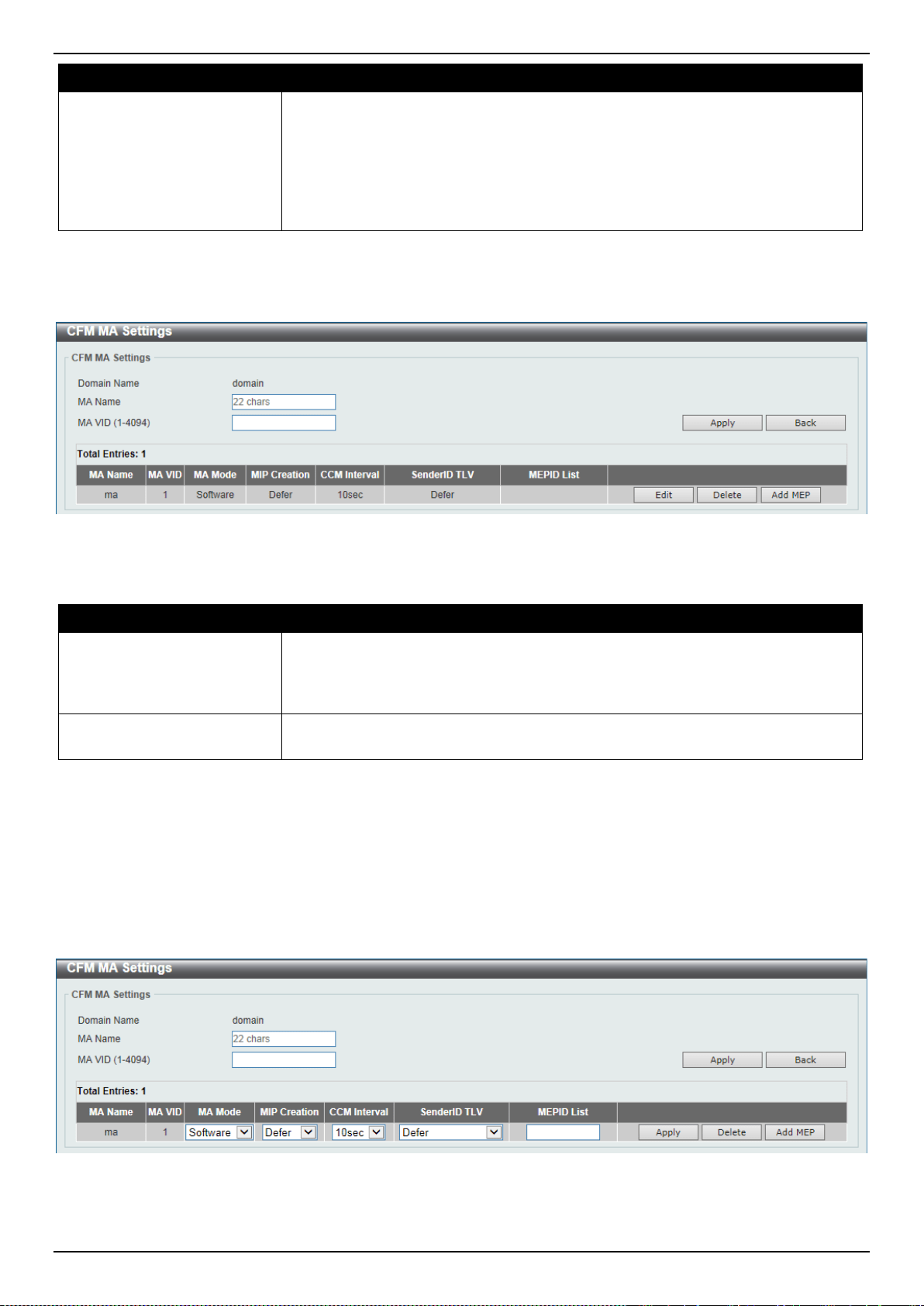
DXS-3400 Series Lite Layer 3 Stackable 10GbE Managed Switch Web UI Reference Guide
371
Parameter Description
• Chassis - Specifies to transmit the sender ID TLV with the chassis ID
information.
• Manage - Specifies to transmit the sender ID TLV with the managed address
information.
• Chassis-Manage - Specifies to transmit the sender ID TLV with the chassis
ID information and the managed address information.
Click the Apply button to accept the changes made.
After clicking the Add MA button, the following page will appear.
Figure 10-3 CFM Settings (Add MA) Window
The fields that can be configured are described below:
Parameter Description
MA Name
Enter the Maintenance Association (MA) entry’s name here. This name can be up
to 22 characters long. Each MA in an MD must have a unique MA name. MAs
configured in different MDs may have the same MA identifier. When the MA entry
is deleted, the configuration on it is also deleted.
MA VID
Enter the Maintenance Association (MA) entry’s VLAN ID here. The range is from
1 to 4094.
Click the Apply button to accept the changes made.
Click the Back button to return to the previous window.
Click the Edit button to modify the specified entry.
Click the Delete button to delete the specified entry.
Click the Add MEP button to add a new Maintenance association End Point (MEP) entry.
After clicking the Edit button, the following page will appear.
Figure 10-4 CFM Settings (Add MA, Edit) Window
The fields that can be configured in the table are described below:

DXS-3400 Series Lite Layer 3 Stackable 10GbE Managed Switch Web UI Reference Guide
372
Parameter Description
MA Mode
Select the MA mode here. Options to choose from are:
• Software - Specifies that the MA works in the CFM software mode.
• Hardware - Specifies that the MA works in the CFM hardware mode.
The CFM hardware mode is used to improve the performance of the CCM
process. In the CFM hardware mode, the CCM packet is processed by hardware
and in general does not need to involve the CPU. In addition, the CCM interval
can be set to the lowest value of 3.3ms which is not supported in the CFM
software mode due to the CPU capability constraints.
The CFM hardware and software mode can be used together. The user can
configure an MA as the CFM hardware mode. Then, all MEPs in the MA will be
working in the CFM hardware mode. For some MAs, if the performance of the
CCM process is considered, e.g. requiring 3.3ms and 10ms CCM interval, and the
MEPs in the MA are down MEPs, the user can use the CFM hardware mode; For
other MAs, if the performance of the CCM process is not a problem, or up MEPs
and MIPs need to be set up, or full CFM function are required, the CFM software
mode is a better choice.
MIP Creation
This option is used to configure the MIP creation for an MA. Select one of the
following options:
• None - Specifies not to create the MIP on ports in an MA.
• Auto - Specifies that MIPs will be created on any port for the MAs in this
maintenance domain, when there is no MEP configured on that port for the
MAs with the same VID at this MD level or any higher active MD levels, and
at the same time there is an MEP configured on that port for the MA with the
same VID at the next lower active MD level or there is no MA with the same
VID at any lower active MD levels. For an intermediate Switch in an MA, the
setting must be Auto in order for the MIPs to be created on this device.
• Explicit - Specifies that MIPs will be created on any port for the MAs in this
maintenance domain, when there is no MEP configured on that port for the
MAs with the same VID at this MD level or any higher active MD levels, and
at the same time there is an MEP configured on that port for the MA with the
same VID at the next lower active MD level.
• Defer - Specifies to inherit the settings configured for the maintenance
domain that the MA is associated with. This is the default value.
CCM Interval
Select the Continuity Check Message (CCM) interval value here. Options to
choose from are 3.3ms, 10ms, 100ms, 1sec, 10sec, 1min, and 10min. An MEP
will transmit a CCM packet periodically across the MA. The CCM interval
indicates the interval at which CCMs are sent by a MEP in a MA.
SenderID TLV
This option is used to configure the transmission of the sender ID TLV by MPs for
an MA. Select one of the following options:
• None - Specifies not to transmit the sender ID TLV. In the CFM hardware
mode, the value is fixed to none.
• Chassis - Specifies to transmit the sender ID TLV with the chassis ID
information.
• Manage - Specifies to transmit the sender ID TLV with the managed address
information.
• Chassis-Manage - Specifies to transmit the sender ID TLV with the chassis
ID information and the managed address information.
• Defer - Specifies to inherit the setting configured for the maintenance domain
that the MA is associated with. This is the default value.
MEPID List
Enter the Maintenance association End Point’s (MEP’s) ID contained in the MA
here. The range is from 1 to 8191.
Click the Apply button to accept the changes made.
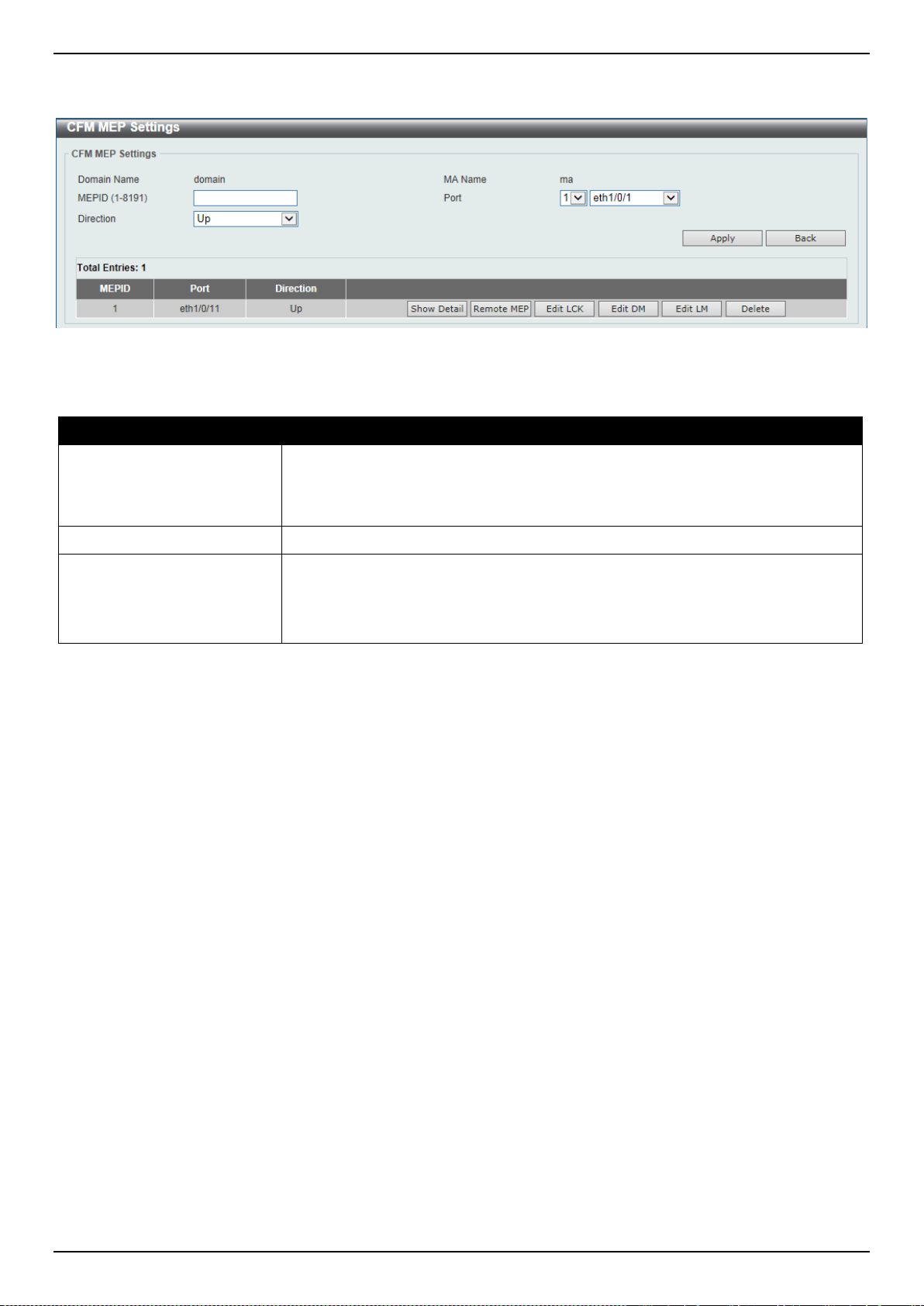
DXS-3400 Series Lite Layer 3 Stackable 10GbE Managed Switch Web UI Reference Guide
373
After clicking the Add MEP button, the following page will appear.
Figure 10-5 CFM Settings (Add MA, Add MEP) Window
The fields that can be configured are described below:
Parameter Description
MEPID
Enter the MEP’s ID here. The range is from 1 to 8191. Each MEP configured in
the same MA must have a unique MEP ID. The MEP on different MA can have
the same MEPID. Before creating a MEP, its MEP ID should be configured in the
MA’s MEP ID list.
Port
Select the Switch’s unit ID and port number that will be used here.
Direction
Select the direction of the MEP here. Options to choose from are Up and Down.
• Up - Specifies to create an inward facing (up) MEP.
• Down - Specifies to create an outward facing (down) MEP.
Click the Apply button to accept the changes made.
Click the Back button to return to the previous window.
Click the Show Detail button to view more detailed information about the specified MEP.
Click the Remove MEP button to view the remove MEP table.
Click the Edit LCK button to modify the LCK settings of the specified entry.
Click the Edit DM button to access the CFM Delay Measurement (DM) settings.
Click the Edit LM button to access the CFM Loss Measurement (LM) settings.
Click the Delete button to delete the specified entry.
After clicking the Show Detail button, the following page will appear.
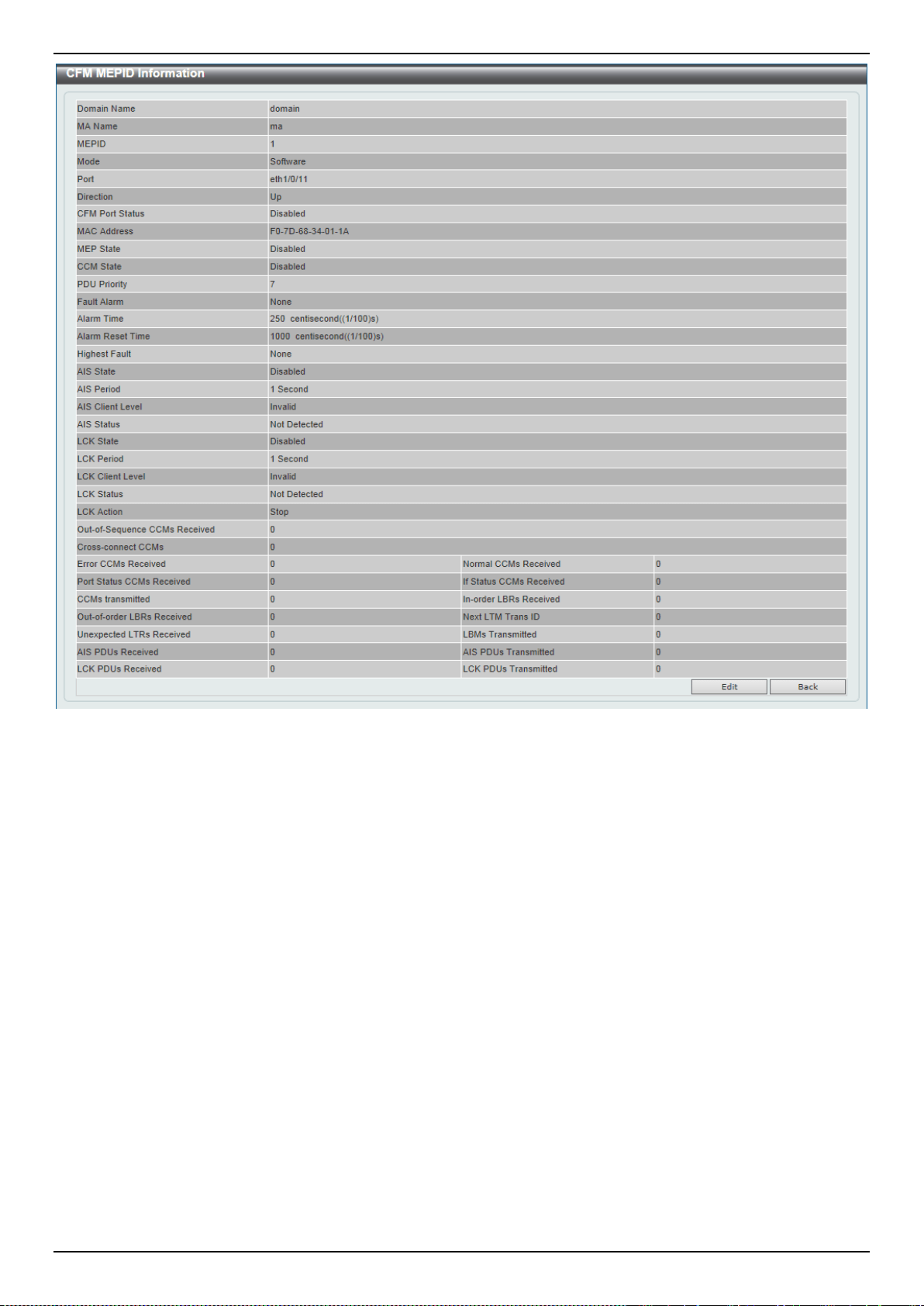
DXS-3400 Series Lite Layer 3 Stackable 10GbE Managed Switch Web UI Reference Guide
374
Figure 10-6 CFM Settings (Add MA, Add MEP, MEPID Detail) Window
Click the Edit button to modify the specified entry.
Click the Back button to return to the previous window.
After clicking the Edit button, the following page will appear.
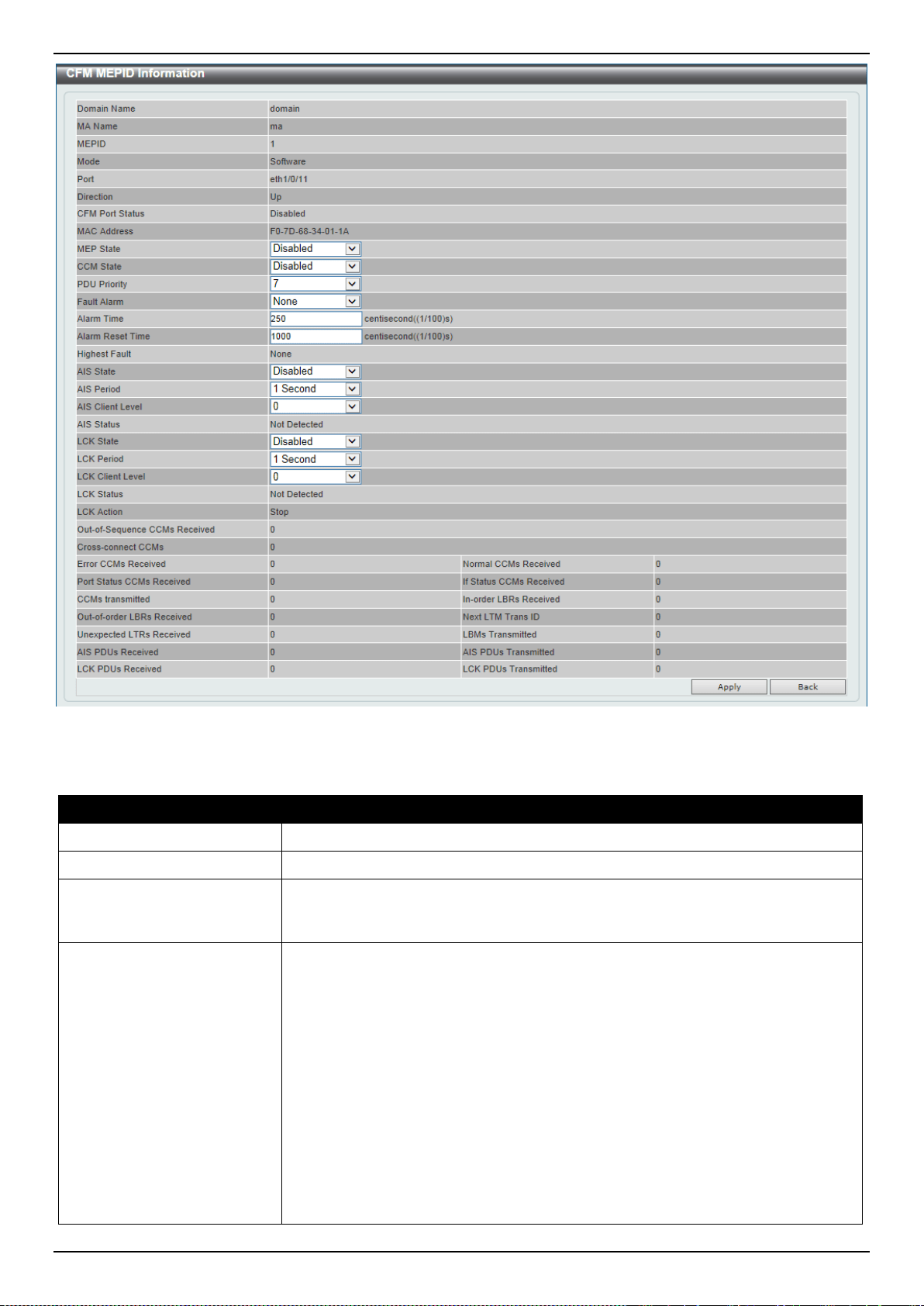
DXS-3400 Series Lite Layer 3 Stackable 10GbE Managed Switch Web UI Reference Guide
375
Figure 10-7 CFM Settings (Add MA, Add MEP, MEPID Detail, Edit) Window
The fields that can be configured are described below:
Parameter Description
MEP State
Select to enable or disable the MEP’s state on the interface here.
CCM State
Select to enable or disable the CCM feature’s state here.
PDU Priority
Select the PDU priority value here. The range is from 0 to 7. This feature is used
to define the 802.1p priority that is set in the CCM and the LTM messages
transmitted by the MEP.
Fault Alarm
Select the type of defects whose fault alarms can be sent by this MEP. Options to
choose from are None, All, MAC-Status, Remote-CCM, Error-CCM, and XCON-
CCM.
• None - Specifies that no fault alarm will be sent.
• All - Specifies that the fault alarms for all types of defects can be sent.
• MAC-Status - Specifies that the fault alarms for the defects whose priority is
equal to or higher than the DefMACstatus can be sent.
• Remote-CCM - Specifies that the fault alarms for the defects whose priority
is equal to or higher than the DefRemoteCCM can be sent.
• Error-CCM - Specifies that the fault alarms for the defects whose priority is
equal to or higher than the DefErrorCCM can be sent.
• XCON-CCM - Specifies that only the fault alarm of the DefXconCCM can be
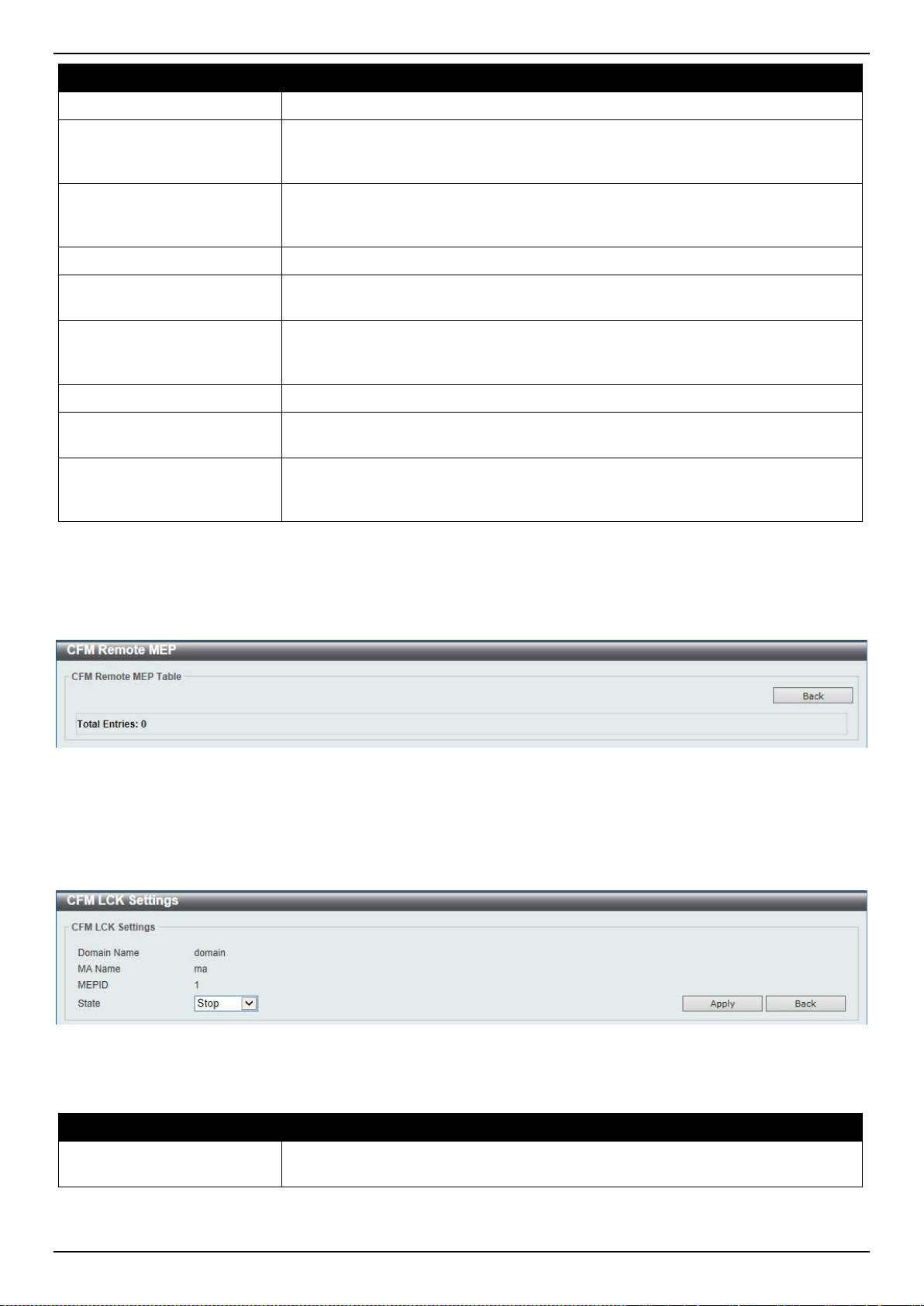
DXS-3400 Series Lite Layer 3 Stackable 10GbE Managed Switch Web UI Reference Guide
376
Parameter Description
sent.
Alarm Time
Enter the time period to control the period time from when a defect is detected on
the MEP to a fault alarm that will be sent. The range is from 250 to 1000
centiseconds. By default, this value is 250 centiseconds.
Alarm Reset Time
Enter the time period to control the period time from when all defects detected on
the MEP are removed to the fault alarm mechanism that will be reset. The range
is from 250 to 1000 centiseconds. By default, this value is 1000 centiseconds.
AIS State
Select the enable or disable the AIS feature on this interface here.
AIS Period
Select the transmitting interval of the AIS PDU here. Options to choose from are 1
Seconds and 1 Minute. The default period is 1 second.
AIS Client Level
Select the client level ID to which the MEP sends the AIS PDUs here. The default
client MD level is that the most immediate client layer Maintenance domain
Intermediate Points (MIP) and MEPs exist on. The range is from 0 to 7.
LCK State
Select the enable or disable the LCK feature on this interface here.
LCK Period
Select the transmitting interval of the LCK PDU here. Options to choose from are
1 Seconds and 1 Minute. The default period is 1 second.
LCK Client Level
Select the client level ID to which the MEP sends the LCK PDU here. The default
client MD level is the MD level that the most immediate client layer MIPs and
MEPs exist on. The range is from 0 to 7.
Click the Apply button to accept the changes made.
Click the Back button to return to the previous window.
After clicking the Remote MEP button, the following page will appear.
Figure 10-8 CFM Settings (Add MA, Add MEP, Remote MEP) Window
Click the Back button to return to the previous window.
After clicking the Edit LCK button, the following page will appear.
Figure 10-9 CFM Settings (Add MA, Add MEP, Edit LCK) Window
The fields that can be configured are described below:
Parameter Description
State
Select to Start or Stop the CFM management lock here. This feature will result in
the MEP to send LCK PDUs to a client level MEP.
Click the Apply button to accept the changes made.
Click the Back button to return to the previous window.
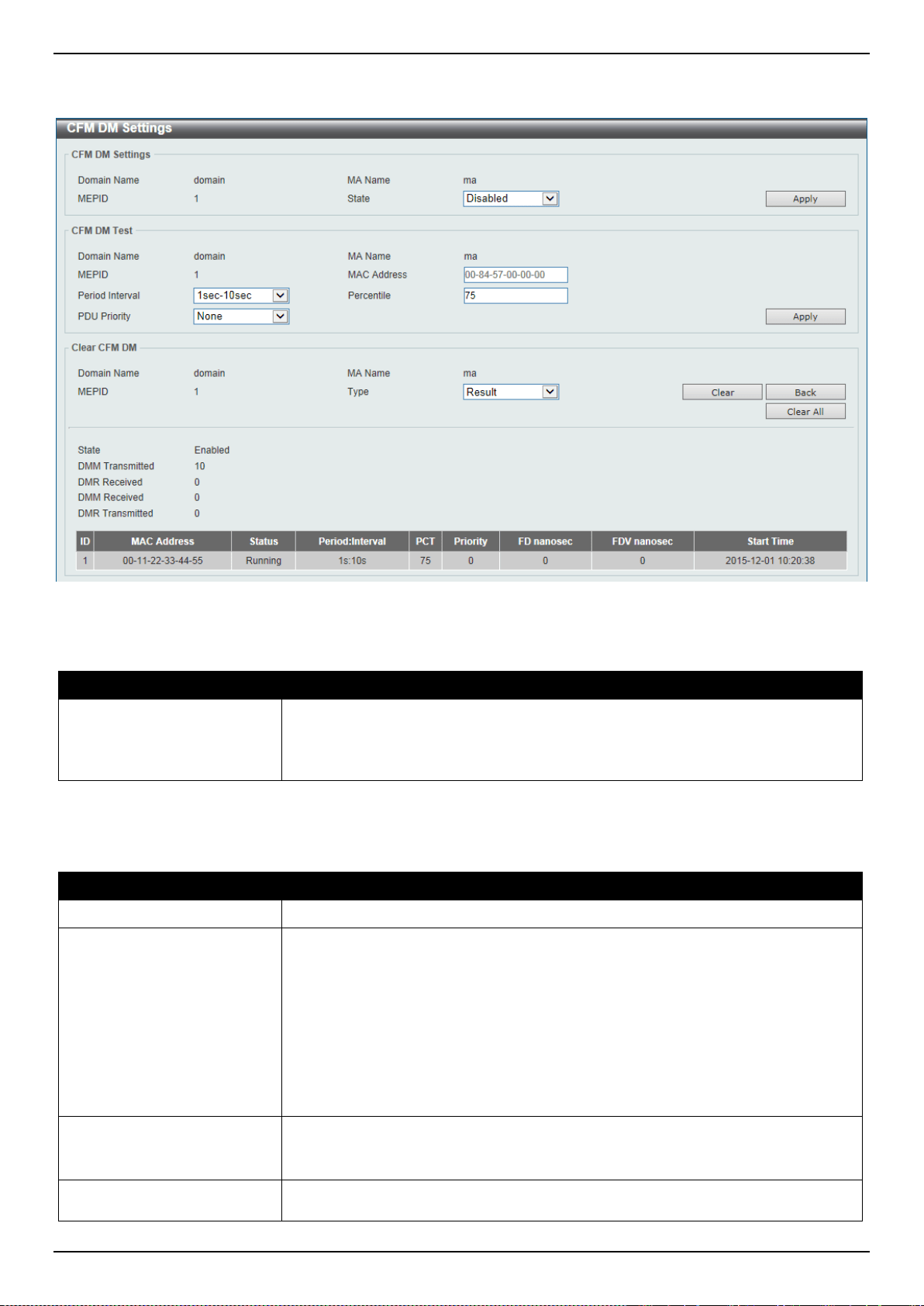
DXS-3400 Series Lite Layer 3 Stackable 10GbE Managed Switch Web UI Reference Guide
377
After clicking the Edit DM button, the following page will appear.
Figure 10-10 CFM Settings (Add MA, Add MEP, Edit DM) Window
The fields that can be configured in CFM DM Settings are described below:
Parameter Description
State
Select to enable or disable the ITU Y.1731 frame Delay Measurement (DM)
feature here. When the administrative state of frame delay measurement function
is enabled on an MEP, the MEP will be enabled to generate timestamp
information, and can reply DMR messages when receiving DMM messages.
Click the Apply button to accept the changes made.
The fields that can be configured in CFM DM Test are described below:
Parameter Description
MAC Address
Enter the MAC address for the DM test here.
Period Interval
Select the period interval time here. This specifies the transmitting period of the
DDM message and diagnostic interval. Options to choose from are:
• 100ms-1sec - The transmission period is 100 milliseconds and the
diagnostic interval is 1 second.
• 1sec-10sec - The transmission period is 1 second and the diagnostic interval
is 10 seconds. This is the default value.
• 10sec-1min - The transmission period is 10 seconds and the diagnostic
interval is 1 minute.
Percentile
Enter the percentile value here. This specifies the percentile of Frame Delay (FD)
and Frame Delay Variation (FDV) measurement. The range is from 0 to 100. The
default value is 75.
PDU Priority
Select the PDU priority value here. The range is from 0 to 7. This specifies the
802.1p priority to be set in the DMM messages transmitted by the MEP. The
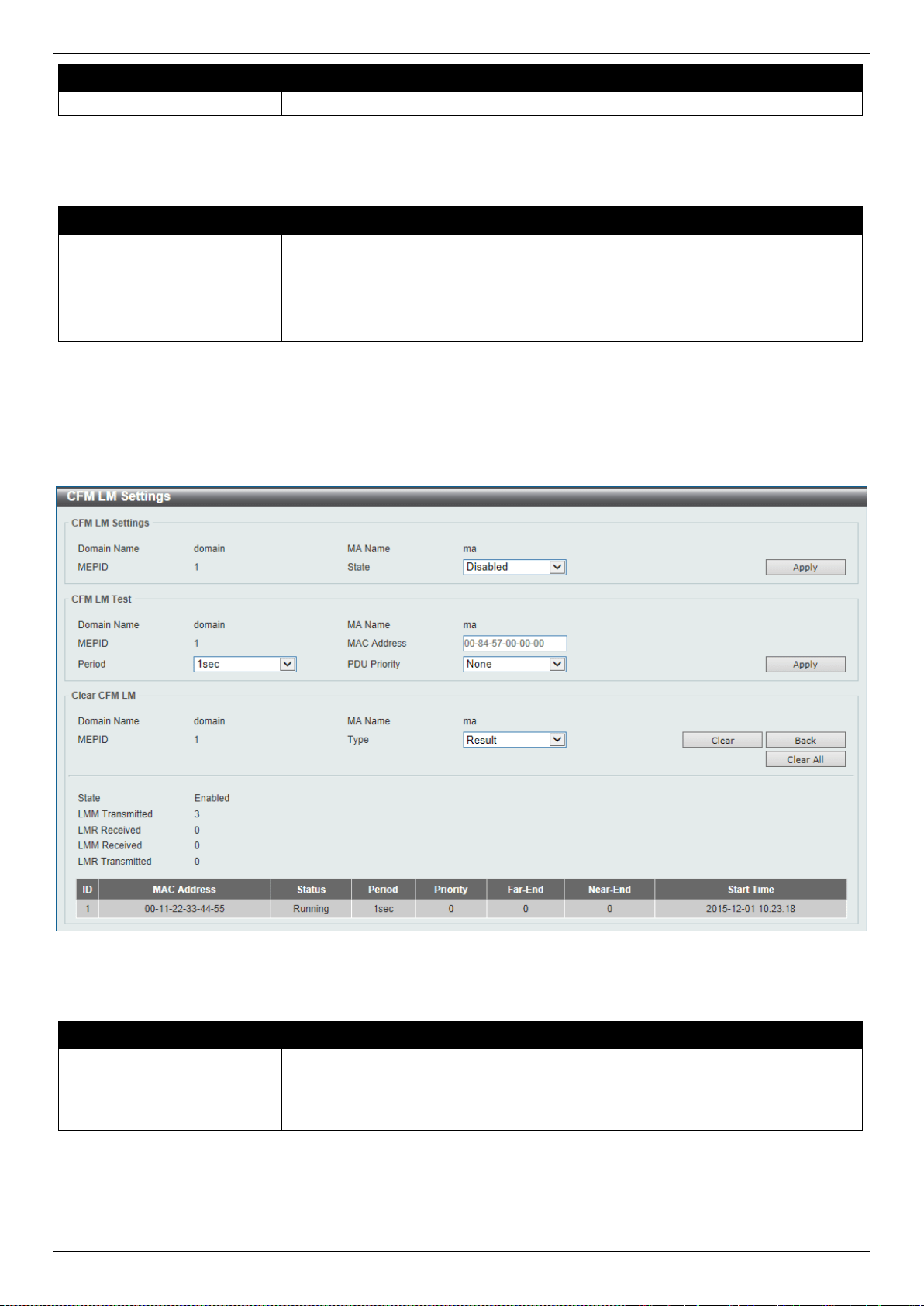
DXS-3400 Series Lite Layer 3 Stackable 10GbE Managed Switch Web UI Reference Guide
378
Parameter Description
default value is the PDU priority of the MEP.
Click the Apply button to accept the changes made.
The fields that can be configured in Clear CFM DM are described below:
Parameter Description
Type
Select the type of information to clear here. Options to choose from are:
• Result - Specifies to clear the stored DM results.
• Statistics - Specifies to clear the stored statistics of ETH-DM frames (DMM
and DMR).
Click the Clear button to clear the CFM DM statistics information based on the selection made.
Click the Clear All button to clear all the CFM DM statistics information.
Click the Back button to return to the previous window.
After clicking the Edit LM button, the following page will appear.
Figure 10-11 CFM Settings (Add MA, Add MEP, Edit LM) Window
The fields that can be configured in CFM LM Settings are described below:
Parameter Description
State
Select to enable or disable the ITU Y.1731 Loss Measurement (LM) feature here.
When the administrative state of frame loss measurement function is enabled on
an MEP, the MEP will maintain the counters of frame loss measurement function,
and can reply LMR messages when receiving LMM messages.
Click the Apply button to accept the changes made.
The fields that can be configured in CFM LM Test are described below:
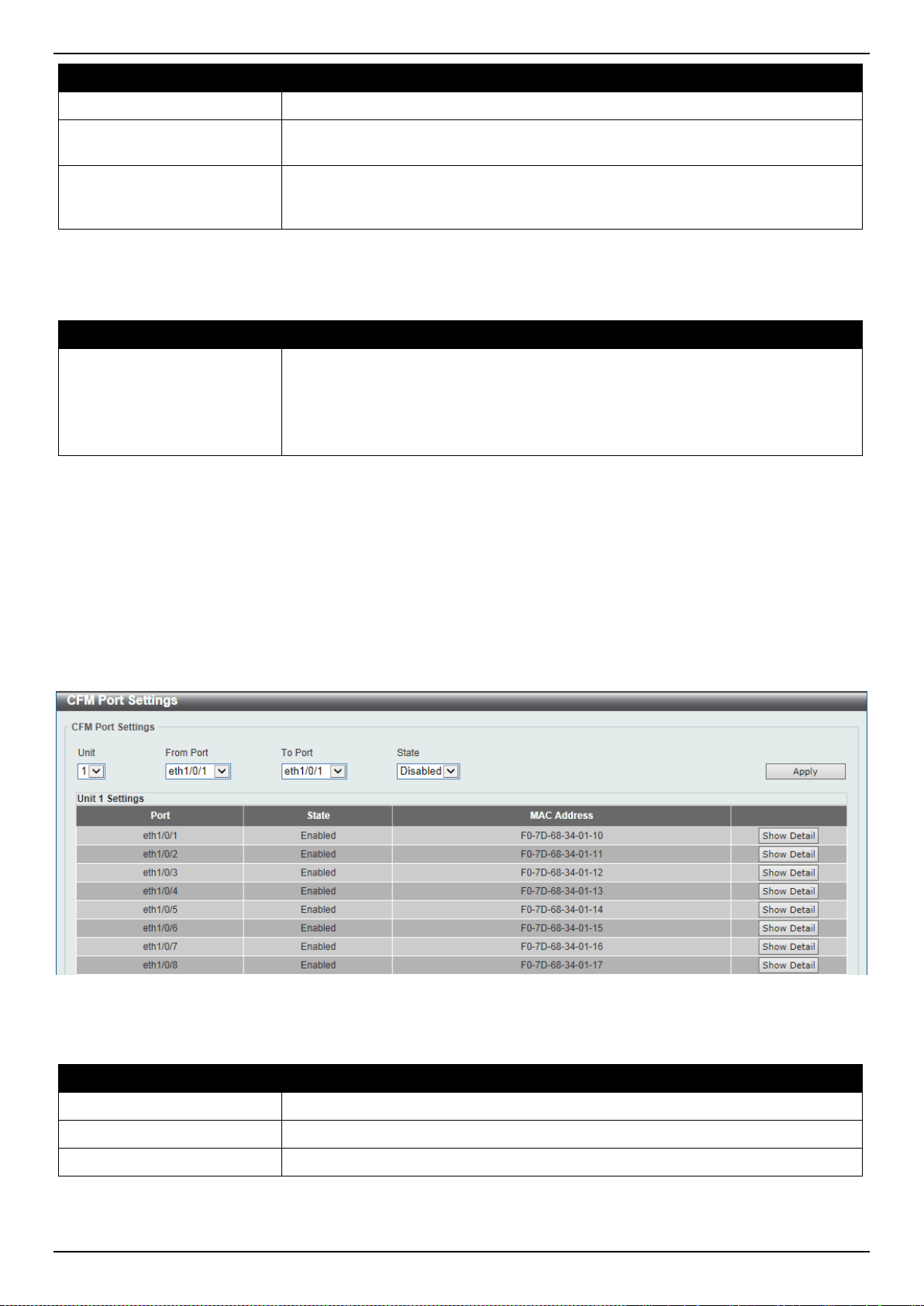
DXS-3400 Series Lite Layer 3 Stackable 10GbE Managed Switch Web UI Reference Guide
379
Parameter Description
MAC Address
Enter the MAC address for the LM test here.
Period
Select the time period here. This specifies the transmitting interval of the LM PDU.
Options to choose from are 100ms, 1sec, and 10sec.
PDU Priority
Select the PDU priority value here. The range is from 0 to 7. This specifies the
802.1p priority to be set in the LMM messages transmitted by the MEP. The
default value is the PDU priority of the MEP.
Click the Apply button to accept the changes made.
The fields that can be configured in Clear CFM LM are described below:
Parameter Description
Type
Select the type of information to clear here. Options to choose from are:
• Result - Specifies to clear the stored LM results.
• Statistics - Specifies to clear the stored statistics of ETH-LM frames (LMM
and LMR).
Click the Clear button to clear the CFM LM statistics information based on the selection made.
Click the Clear All button to clear all the CFM LM statistics information.
Click the Back button to return to the previous window.
CFM Port Settings
This window is used to display and configure the CFM feature’s port settings.
To view the following window, click OAM > CFM > CFM Port Settings, as shown below:
Figure 10-12 CFM Port Settings Window
The fields that can be configured are described below:
Parameter Description
Unit
Select the Switch’s unit ID that will be used here.
From Port ~ To Port
Select the Switch’s port range that will be used here.
State
Select the enable or disable the CFM feature on the specified port(s) here.
Click the Apply button to accept the changes made.
Click the Show Detail button to more detailed information about the CFM settings on the specified port.
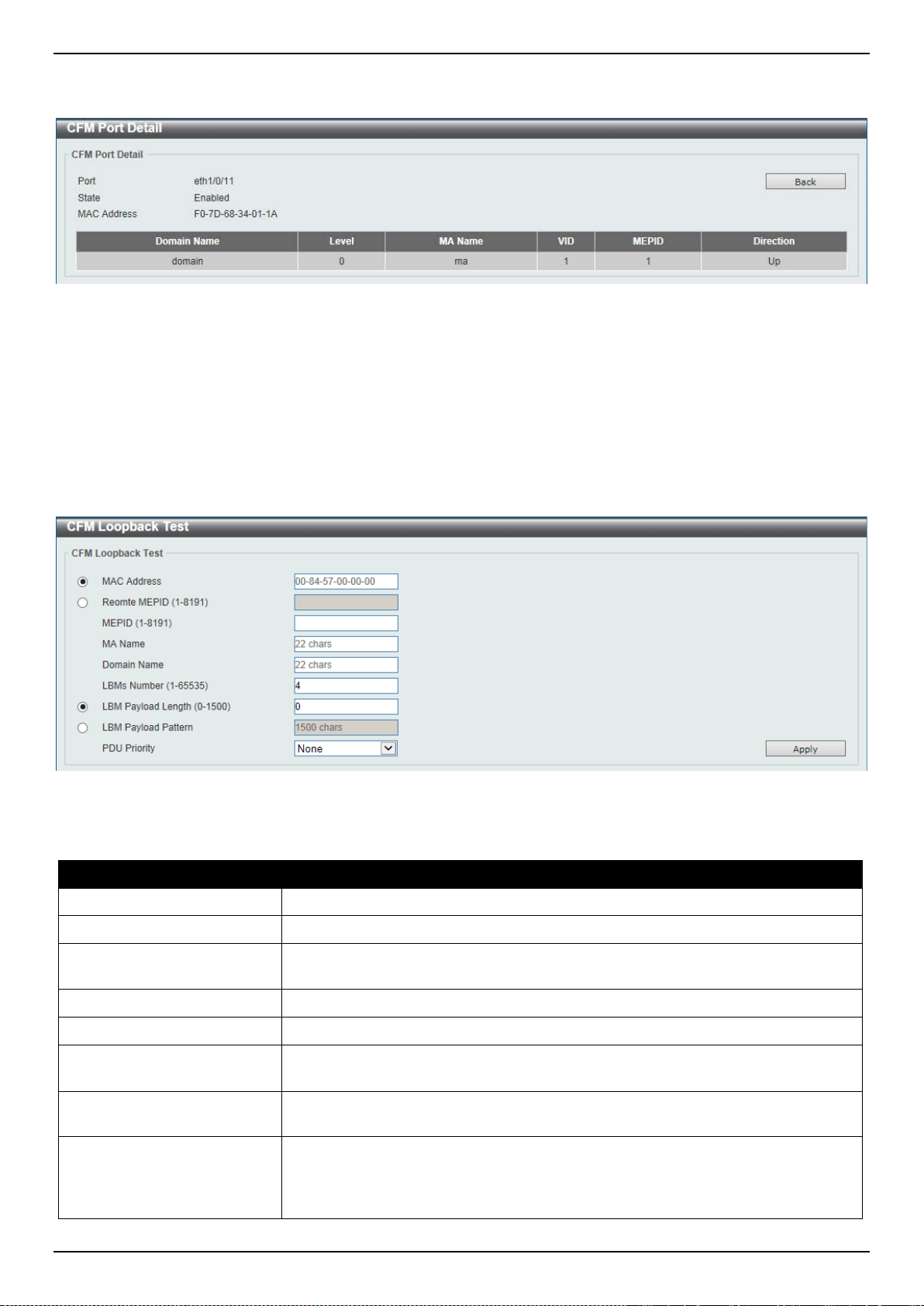
DXS-3400 Series Lite Layer 3 Stackable 10GbE Managed Switch Web UI Reference Guide
380
After clicking the Show Detail button, the following page will appear.
Figure 10-13 CFM Port Settings (View Detail) Window
Click the Back button to return to the previous window.
CFM Loopback Test
This window is used to display and configure the CFM loopback test settings.
To view the following window, click OAM > CFM > CFM Loopback Test, as shown below:
Figure 10-14 CFM Loopback Test Window
The fields that can be configured are described below:
Parameter Description
MAC Address
Select and enter the destination MAC address here.
Remote MEPID
Select and enter the remote MEP’s ID here. The range is from 1 to 8191.
MEPID
Enter the MEP’s ID that will initiate the loopback test here. The range is from 1 to
8191.
MA Name
Enter the MA’s name here. This name can be up to 22 characters long.
Domain Name
Enter the MD’s name here. This name can be up to 22 characters long.
LBMs Number
Enter the number of LBMs to be sent here. The range is from 1 to 65535. By
default, this value is 4.
LBM Payload Length
Select and enter the payload length of the LBM to be sent here. The range is from
0 to1500. By default, this value is 0.
LBM Payload Pattern
Select and enter the LBM payload pattern here. This specifies an arbitrary amount
of data to be included in a Data TLV, along with an indication whether the Data
TLV is to be included. This string can be up to 1500 characters long. No spaces
are allowed.
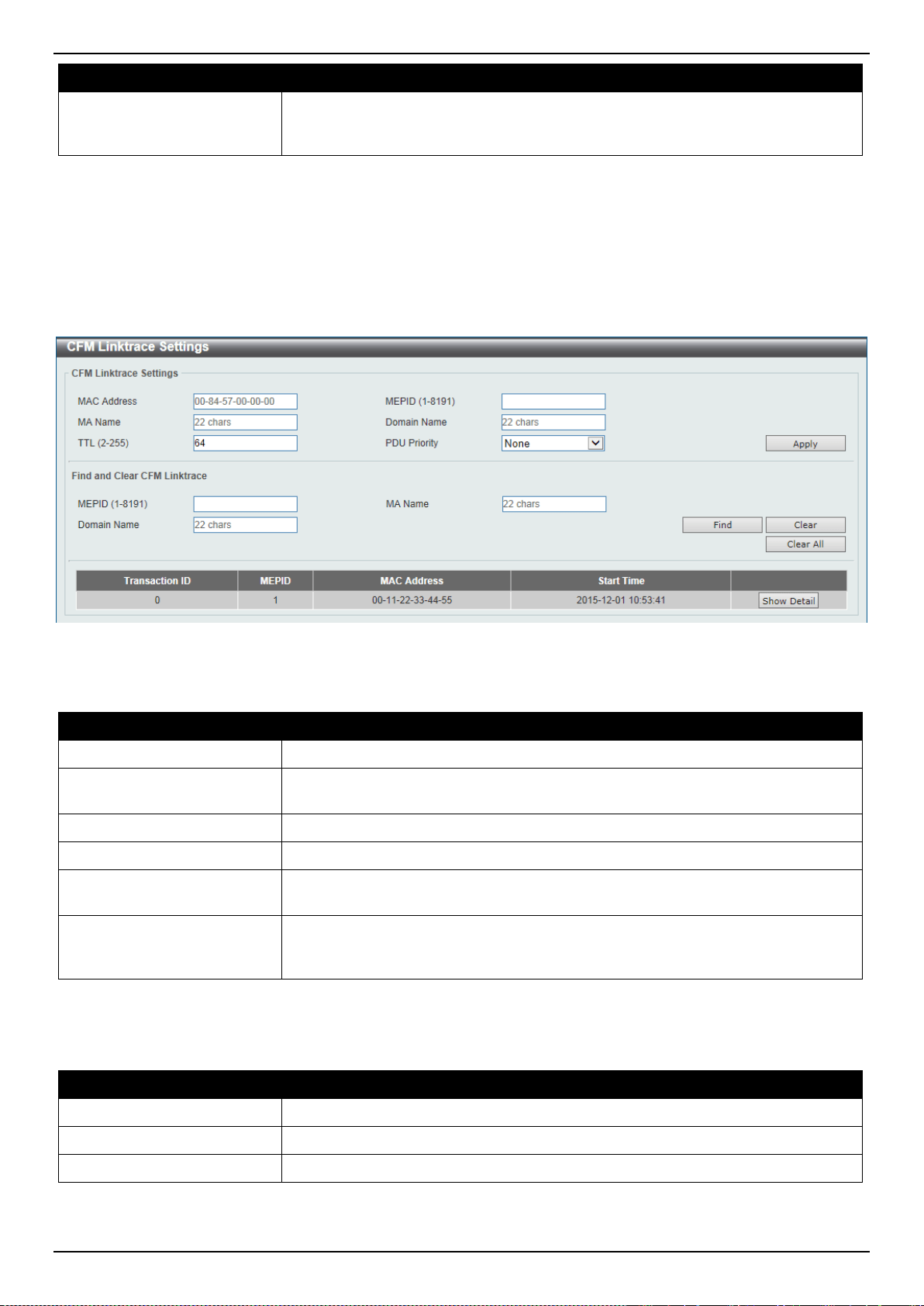
DXS-3400 Series Lite Layer 3 Stackable 10GbE Managed Switch Web UI Reference Guide
381
Parameter Description
PDU Priority
Select the 802.1p priority to be set in the transmitted LBMs here. If not specified, it
uses the same priority as the CCMs sent by the MEP. The range is from 0 to 7.
Select the None option to use the default setting.
Click the Apply button to accept the changes made.
CFM Linktrace Settings
This window is used to display and configure the CFM link-trace feature’s settings.
To view the following window, click OAM > CFM > CFM Linktrace Settings, as shown below:
Figure 10-15 CFM Linktrace Settings Window
The fields that can be configured in CFM Linktrace Settings are described below:
Parameter Description
MAC Address
Enter the destination MAC address here.
MEPID
Enter the MEP’s ID here used to initiate the link-trace feature. The range is from 1
to 8191.
MA Name
Enter the MA’s name here. The name can be up to 22 characters long.
Domain Name
Enter the MD’s name here. The name can be up to 22 characters long.
TTL
Enter the link-trace message’s TTL value here. The range is from 2 to 255. The
default value is 64.
PDU Priority
Select the 802.1p priority to be set in the transmitted LBMs here. If not specified, it
uses the same priority as the CCMs sent by the MEP. The range is from 0 to 7.
Select the None option to use the default setting.
Click the Apply button to accept the changes made.
The fields that can be configured in Find and Clear CFM Linktrace are described below:
Parameter Description
MEPID
Enter the MEP’s ID here. The range is from 1 to 8191.
MA Name
Enter the MA’s name here. The name can be up to 22 characters long.
Domain Name
Enter the MD’s name here. The name can be up to 22 characters long.
Click the Find button to locate a specific entry based on the information entered.
Click the Clear button to clear the entries based on the information specified.
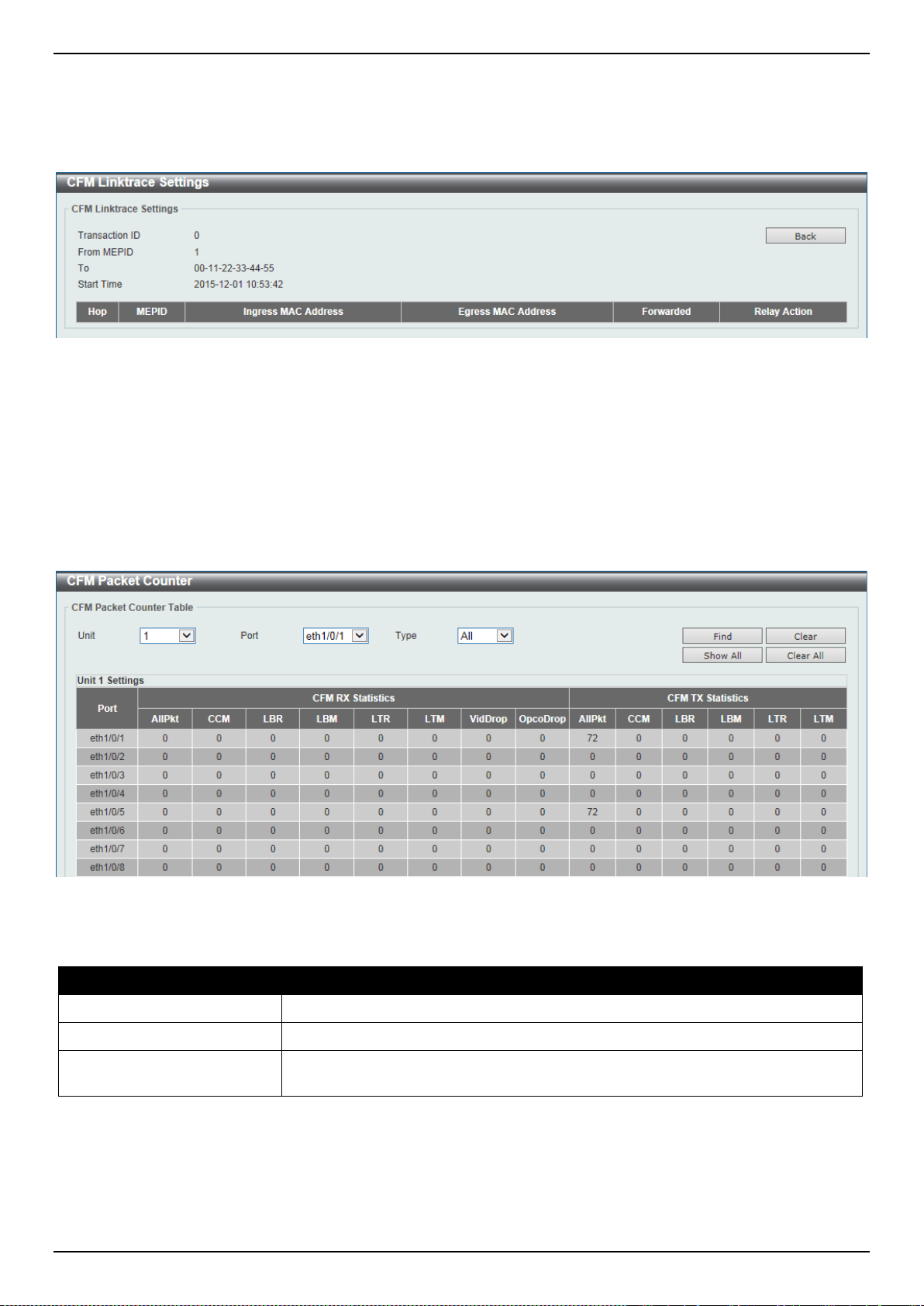
DXS-3400 Series Lite Layer 3 Stackable 10GbE Managed Switch Web UI Reference Guide
382
Click the Clear All button to clear the information associated with all entries.
Click the Show Detail button to view more detailed information about the link-trace entry.
After clicking the Show Detail button, the following page will appear.
Figure 10-16 CFM Linktrace Settings (Show Detail) Window
Click the Back button to return to the previous window.
CFM Packet Counter
This window is used to find and display the CFM packet counter information.
To view the following window, click OAM > CFM > CFM Packet Counter, as shown below:
Figure 10-17 CFM Packet Counter Window
The fields that can be configured are described below:
Parameter Description
Unit
Select the Switch’s unit ID that will be used here.
Port
Select the Switch’s port that will be used here.
Type
Select the type of counter information that will be cleared or displayed here.
Options to choose from are All, TX, and RX.
Click the Find button to locate a specific entry based on the information entered.
Click the Clear button to clear the counter information based on the information specified.
Click the Show All button to display all the entries.
Click the Clear All button to clear the counter information associated with all entries.

DXS-3400 Series Lite Layer 3 Stackable 10GbE Managed Switch Web UI Reference Guide
383
CFM Counter CCM
This window is used to display and clear the CFM CCM counter information.
To view the following window, click OAM > CFM > CFM Counter CCM, as shown below:
Figure 10-18 CFM Counter CCM Window
Click the Clear button to clear the counter information associated with all entries.
Enter a page number and click the Go button to navigate to a specific page when multiple pages exist.
CFM MIP CCM Table
This window is used to display the MIP CCM database entries.
To view the following window, click OAM > CFM > CFM MIP CCM Table, as shown below:
Figure 10-19 CFM MIP CCM Table Window
CFM MEP Fault Table
This window is used to display the MEPs that have faults.
To view the following window, click OAM > CFM > CFM MEP Fault Table, as shown below:
Figure 10-20 CFM MEP Fault Table Window
Cable Diagnostics
The cable diagnostics feature is designed primarily for administrators or customer service representatives to verify and
test copper cables; it can rapidly determine the quality of the cables and the types of error.
To view the following window, click OAM > Cable Diagnostics, as shown below:
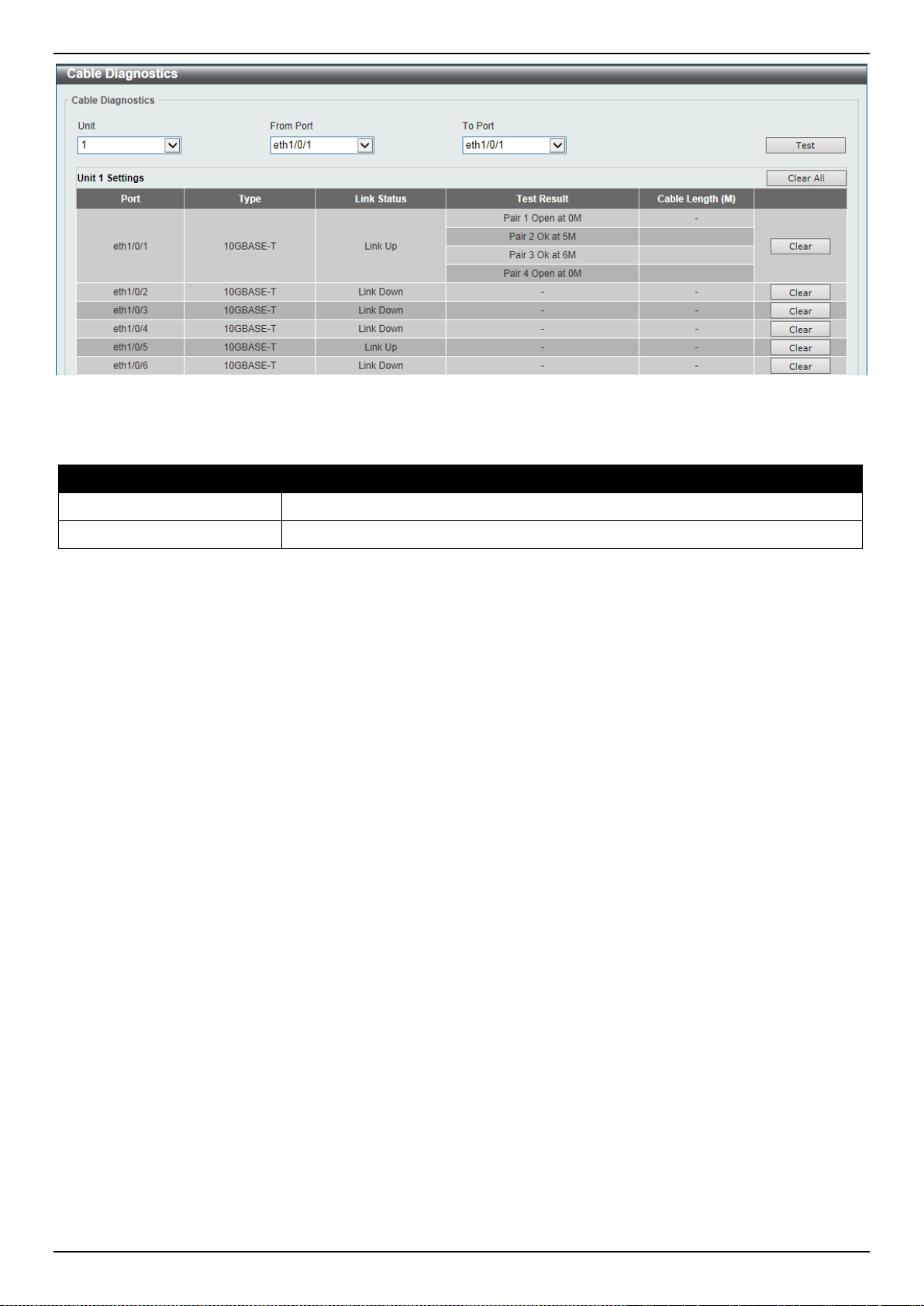
DXS-3400 Series Lite Layer 3 Stackable 10GbE Managed Switch Web UI Reference Guide
384
Figure 10-21 Cable Diagnostics Window
The fields that can be configured are described below:
Parameter Description
Unit
Select the Switch unit that will be used for this configuration here.
From Port ~ To Port
Select the appropriate port range used for the configuration here.
Click the Test button to test the specific port.
Click the Clear button to clear all the information for the specific port.
Click the Clear All button to clear all the information in this table.
Ethernet OAM
Ethernet OAM Settings
This window is used to display and configure the Ethernet Operations, Administration, and Maintenance (OAM)
settings.
To view the following window, click OAM > Ethernet OAM > Ethernet OAM Settings, as shown below:
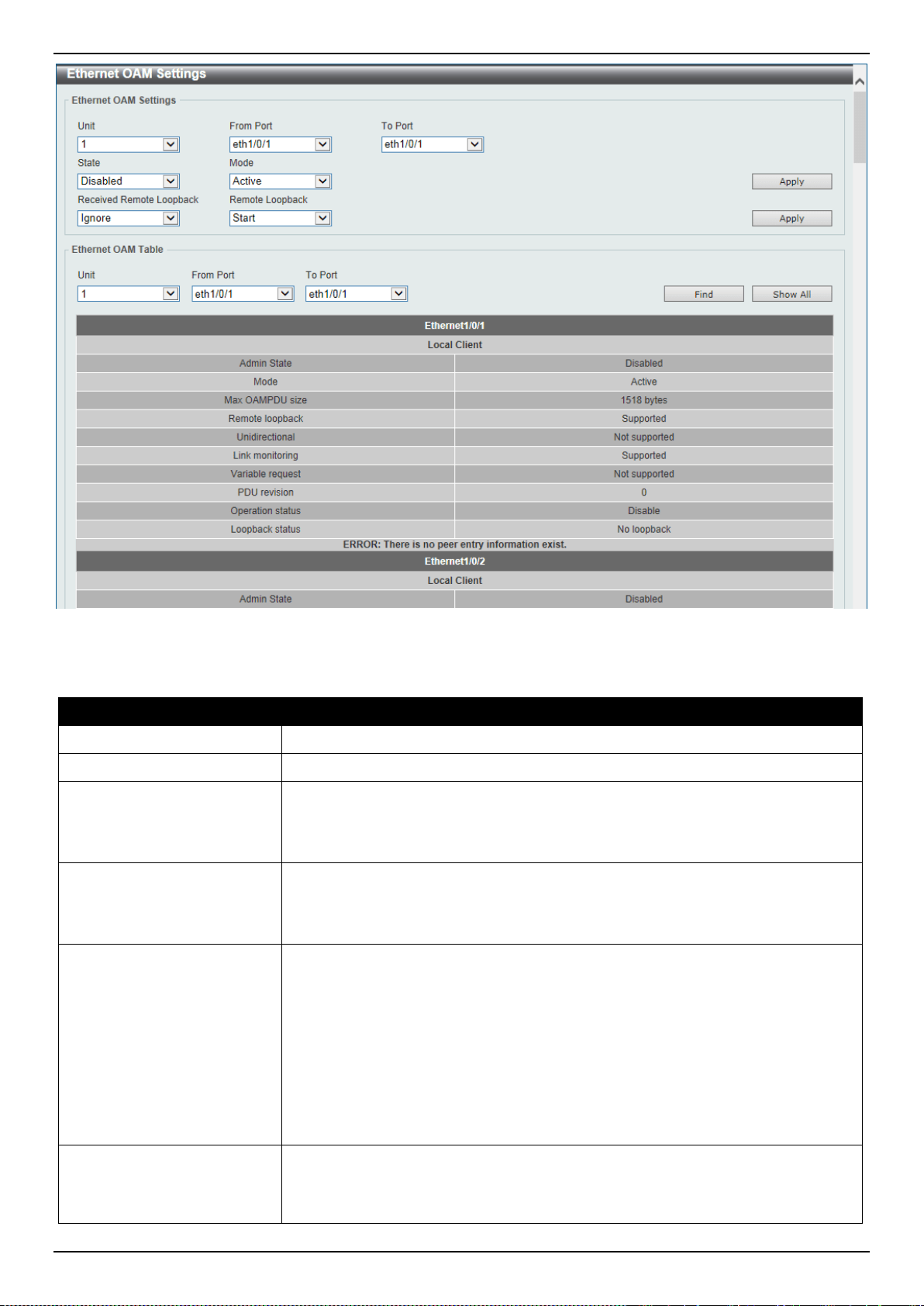
DXS-3400 Series Lite Layer 3 Stackable 10GbE Managed Switch Web UI Reference Guide
385
Figure 10-22 Ethernet OAM Settings Window
The fields that can be configured in Ethernet OAM Settings are described below:
Parameter Description
Unit
Select the Switch’s unit ID that will be used here.
From Port ~ To Port
Select the Switch’s port range that will be used here.
State
Select to enable or disable the Ethernet OAM feature on the specified port(s)
here. After enabling this function on the interface, the interface will start OAM
discovery. If the OAM mode of this interface is active, it initiates the discovery.
Otherwise, it reacts to the discovery received from the peer.
Mode
Select the Ethernet OAM mode here. Options to choose from are Active and
Passive. The following two actions are allowed by ports in the active mode, but
disallowed by ports in the passive mode. (1) Initiate OAM discovery. (2) Start or
stop remote loopback.
Received Remote
Loopback
Select to configure the behavior of the received remote loopback requirement
from the peer on the specified port(s) here. Options to choose from are Ignore
and Process.
• Ignore - Specifies not to react to remote loopback requirements from a peer.
• Process - Specifies to react to remote loopback requirements from a peer.
The feature is used to configure the client to process or to ignore the received
Ethernet OAM remote loopback feature. In the remote loopback mode, all user
traffic will not be processed. Ignoring the received remote loopback feature will
prevent the port from entering the remote loopback mode.
Remote Loopback
Select the remote loopback action here. Options to choose from are Start and
Stop.
• Start - Specifies to request the peer to change to the remote loopback mode.
DXS-3400 Series Lite Layer 3 Stackable 10GbE Managed Switch Web UI Reference Guide
386
Parameter Description
• Stop - Specifies to request the peer to change to the normal operation mode.
If the remote peer is configured to ignore the remote loopback request, then the
remote peer will not enter or exit the remote loopback mode upon receiving the
request. To start the remote peer to enter the remote loopback mode,
administrators must ensure that the local client is in the active mode and the OAM
connection is established. If the local client is already in the remote loopback
mode, then this feature cannot be applied.
Click the Apply button to accept the changes made.
The fields that can be configured in Ethernet OAM Table are described below:
Parameter Description
Unit
Select the Switch’s unit ID that will be used here.
From Port ~ To Port
Select the Switch’s port range that will be used here.
Click the Find button to locate a specific entry based on the information entered.
Click the Show All button to display all the entries.
Ethernet OAM Configuration Settings
This window is used to display and configure the Ethernet OAM feature’s configuration settings.
To view the following window, click OAM > Ethernet OAM > Ethernet OAM Configuration Settings, as shown below:
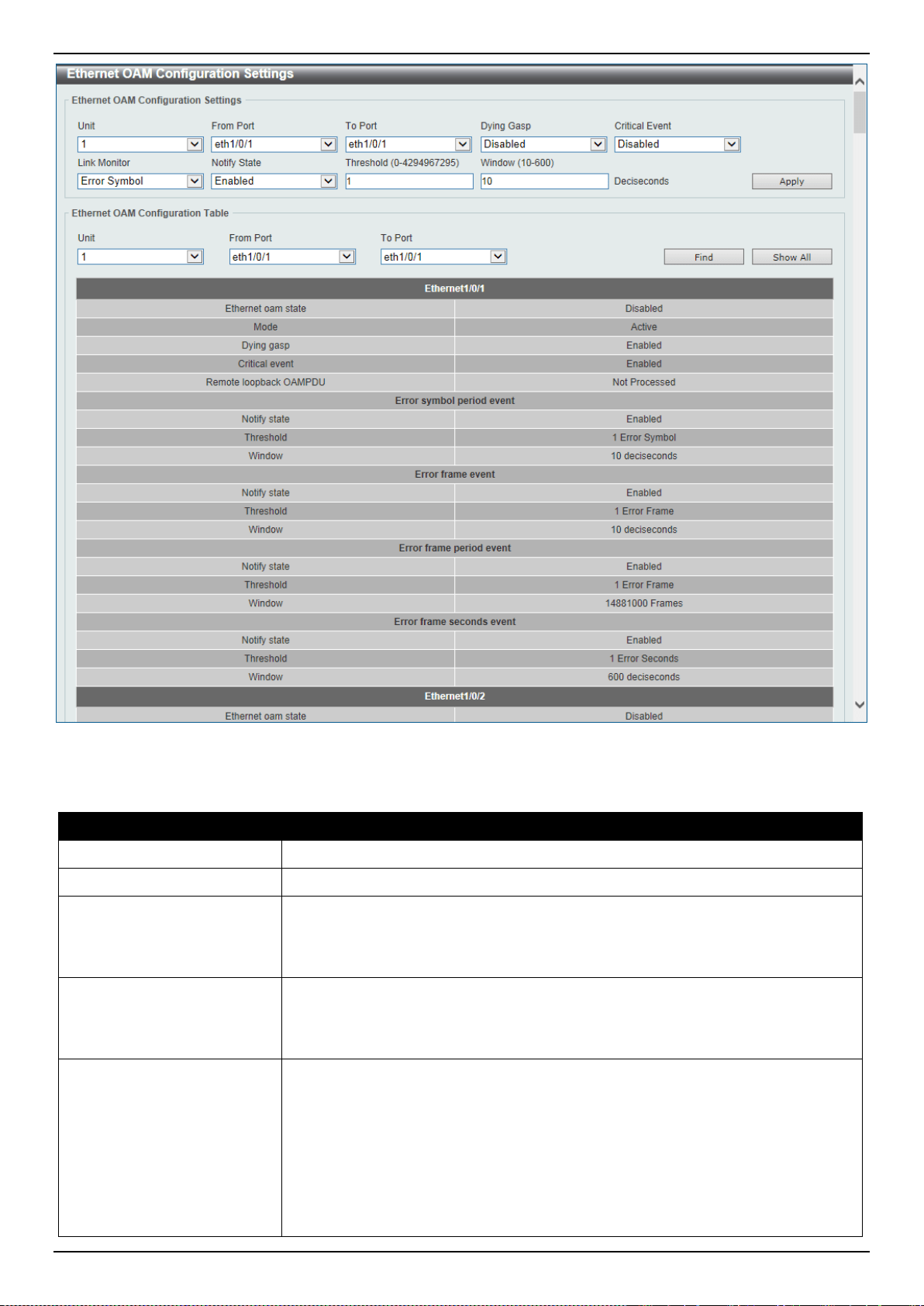
DXS-3400 Series Lite Layer 3 Stackable 10GbE Managed Switch Web UI Reference Guide
387
Figure 10-23 Ethernet OAM Configuration Settings Window
The fields that can be configured in Ethernet OAM Configuration Settings are described below:
Parameter Description
Unit
Select the Switch’s unit ID that will be used here.
From Port ~ To Port
Select the Switch’s port range that will be used here.
Dying Gasp
Select to enable or disable the dying gasp feature here. This feature is used to
configure the capability of the dying gasp event. If the capability for the dying gasp
event is disabled, the port will never send out OAM PDUs with the dying gasp
event bit set when an unrecoverable local failure condition has occurred.
Critical Event
Select to enable or disable the critical event feature here. This feature is used to
configure the capability of the critical event. If the capability for a critical event is
disabled, the port will never send out OAM PDUs with critical event bit set when
an unspecified critical event has occurred.
Link Monitor
Select the link monitor feature here. Options to choose from are Error Symbol,
Error Frame, Error Frame Seconds, and Error Frame Period.
• Error Symbol - This feature is used to enable notifying the Ethernet OAM
error symbol event and configure the monitor threshold and window on the
specified port.
• Error Frame - This feature is used to enable notifying the Ethernet OAM
error frame event and configure the monitor threshold and window on the
specified port.

DXS-3400 Series Lite Layer 3 Stackable 10GbE Managed Switch Web UI Reference Guide
388
Parameter Description
• Error Frame Seconds - This feature is used to enable notifying the Ethernet
OAM error frame second event and configure the monitor threshold and
window on the specified port.
• Error Frame Period - This feature is used to enable notifying the Ethernet
OAM error frame period event and configure the monitor threshold and
window on the specified port.
Notify State
Select to enable or disable the notify state here.
Threshold
Enter the threshold value here.
• When Error Symbol is selected as the link monitor, enter the number of
symbol errors here. If symbol errors occur in the specified window and it
exceeds the threshold value, then the event is generated. The range is from
0 to 4294967295.
• When Error Frame is selected as the link monitor, enter the number of frame
errors here. If the error frames occur in the specified window and exceeds
the threshold value, then an error frame event is triggered. The range is from
0 to 4294967295.
• When Error Frame Seconds is selected as the link monitor, enter the
number of error frames in seconds here. If the number of the error frames
occurred in the specified window and exceeds the threshold value, then the
frame event is triggered. The range is from 1 to 900 seconds.
• When Error Frame Period is selected as the link monitor, enter the number
of frame errors that must occur for this event to be triggered here. The range
is from 0 to 4294967295.
Window
Enter the window value here.
• When Error Symbol is selected as the link monitor, enter the amount of time
over which the threshold is defined here. If threshold symbol errors occur
within the period, an event notification OAM PDU should be generated with
an error symbol period event TLV, indicating that the threshold has been
crossed in this window. The range is from 10 to 600 deciseconds.
• When Error Frame is selected as the link monitor, enter the amount of time
over which the threshold is defined here. If the threshold frame errors occur
within the period, an event notification OAM PDU will be generated with an
error frame event TLV, indicating that the threshold has been crossed in this
window. The range is from 10 to 600 deciseconds.
• When Error Frame Seconds is selected as the link monitor, enter the
amount of time over which the threshold is defined here. If threshold frame
errors occur within the period, an event notification OAM PDU will be
generated with an error frame seconds summary event TLV indicating that
the threshold has been crossed in this window. The range is from 100 to
9000 deciseconds.
• When Error Frame Period is selected as the link monitor, enter the number
of frames over which the threshold is defined here. If threshold frame errors
occur within the period, an event notification OAM PDU should be generated
with an error frame period event TLV indicating that the threshold has been
crossed in this window. The lower bound is the number of minimum frame-
size frames that can be received in 100ms on the underlying physical layer.
The upper bound is the number of minimum frame-size frames that can be
received in one minute on the underlying physical layer. The range is from
148810 to 89286000.
Click the Apply button to accept the changes made.
The fields that can be configured in Ethernet OAM Configuration Table are described below:
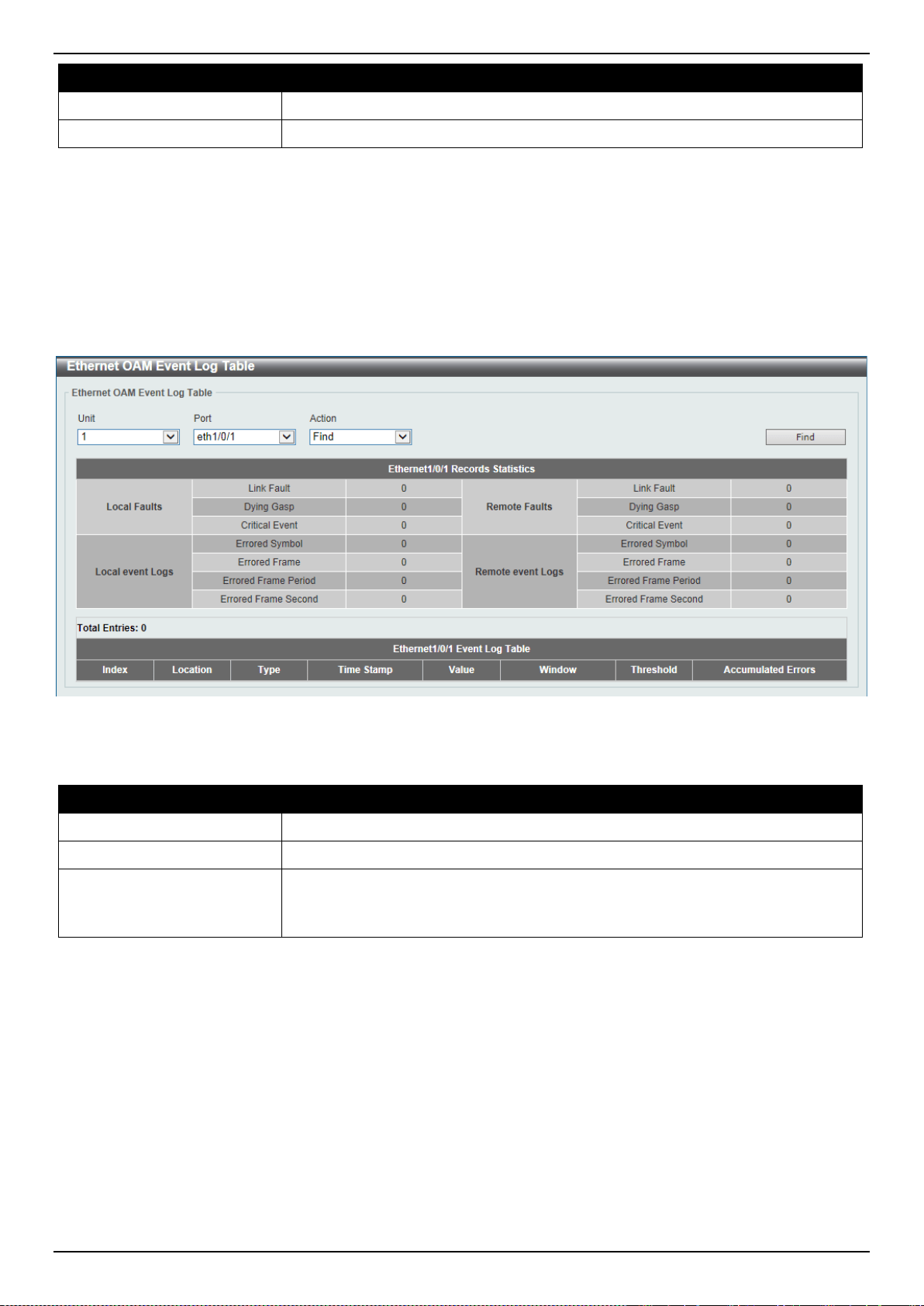
DXS-3400 Series Lite Layer 3 Stackable 10GbE Managed Switch Web UI Reference Guide
389
Parameter Description
Unit
Select the Switch’s unit ID that will be used here.
From Port ~ To Port
Select the Switch’s port range that will be used here.
Click the Find button to locate a specific entry based on the information entered.
Click the Show All button to display all the entries.
Ethernet OAM Event Log Table
This window is used to display and clear the Ethernet OAM event log table.
To view the following window, click OAM > Ethernet OAM > Ethernet OAM Event Log Table, as shown below:
Figure 10-24 Ethernet OAM Event Log Table Window
The fields that can be configured are described below:
Parameter Description
Unit
Select the Switch’s unit ID that will be used here.
Port
Select the Switch’s port that will be used here.
Action
Select the Find option to find and display the log entries associated with the
specified port.
Select the Clear option to clear the log entries associated with the specified port.
Click the Find button to find and display the log entries associated with the specified port.
Ethernet OAM Statistics Table
This window is used to display and clear the Ethernet OAM statistics table.
To view the following window, click OAM > Ethernet OAM > Ethernet OAM Statistics Table, as shown below:
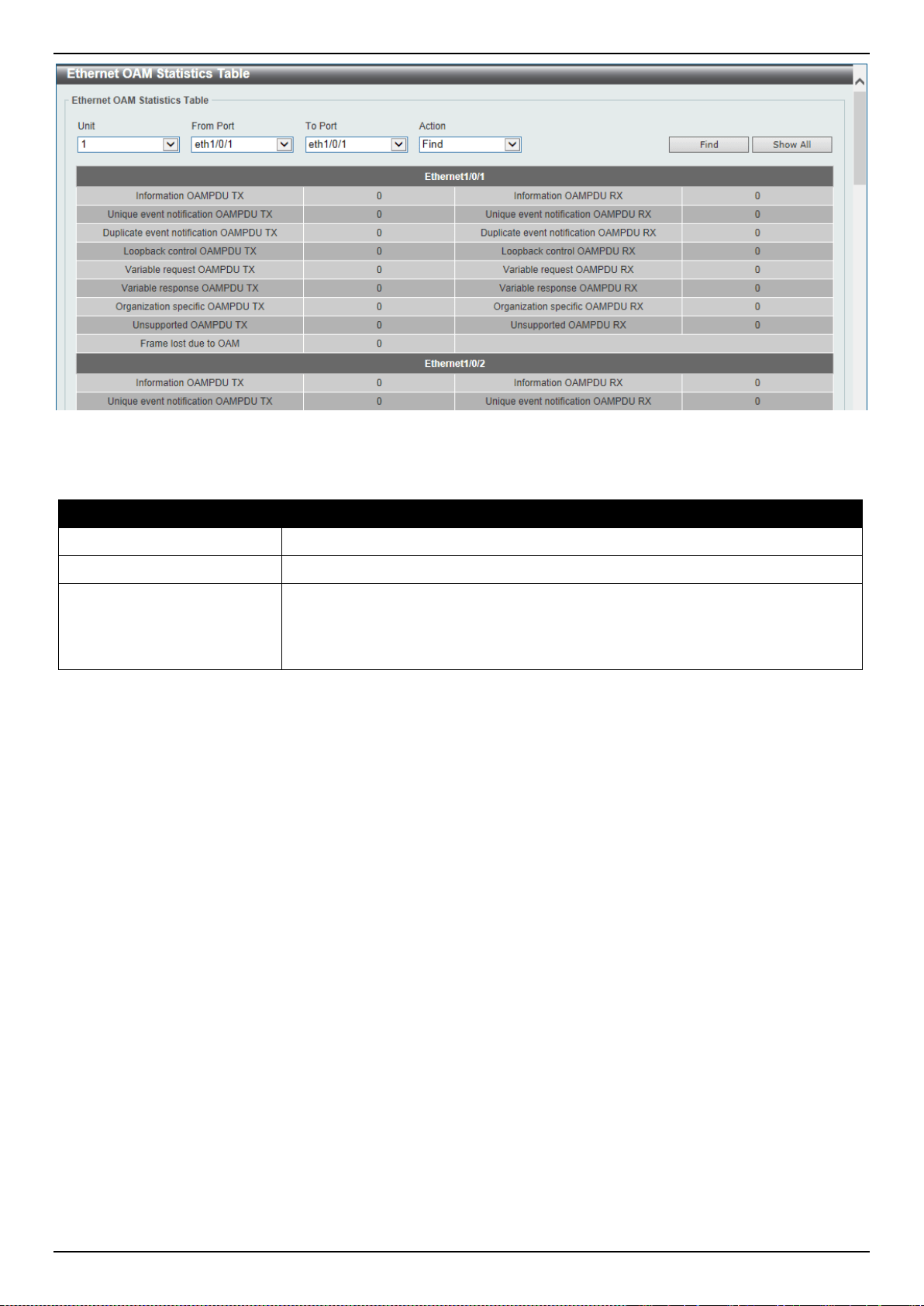
DXS-3400 Series Lite Layer 3 Stackable 10GbE Managed Switch Web UI Reference Guide
390
Figure 10-25 Ethernet OAM Statistics Table Window
The fields that can be configured are described below:
Parameter Description
Unit
Select the Switch’s unit ID that will be used here.
From Port ~ To Port
Select the Switch’s port range that will be used here.
Action
Select the Find option to find and display the statistics information associated with
the specified port.
Select the Clear option to clear the statistics information associated with the
specified port(s).
Click the Find button to find and display the statistics information associated with the specified port(s).
Click the Show All button to display all the statistics information.
Ethernet OAM DULD Settings
This window is used to display and configure the Ethernet OAM feature’s D-Link Unidirectional Link Detection (DULD)
settings. DULD is an extension of 802.3ah Ethernet OAM. It provides a mechanism to detect a unidirectional point-to-
point Ethernet link without PHY support. OAM vendor specific messages are used in the detection. The detection
process is started after OAM discovery was started but does not complete the negotiation in the configured discovery
time.
To view the following window, click OAM > Ethernet OAM > Ethernet OAM DULD Settings, as shown below:
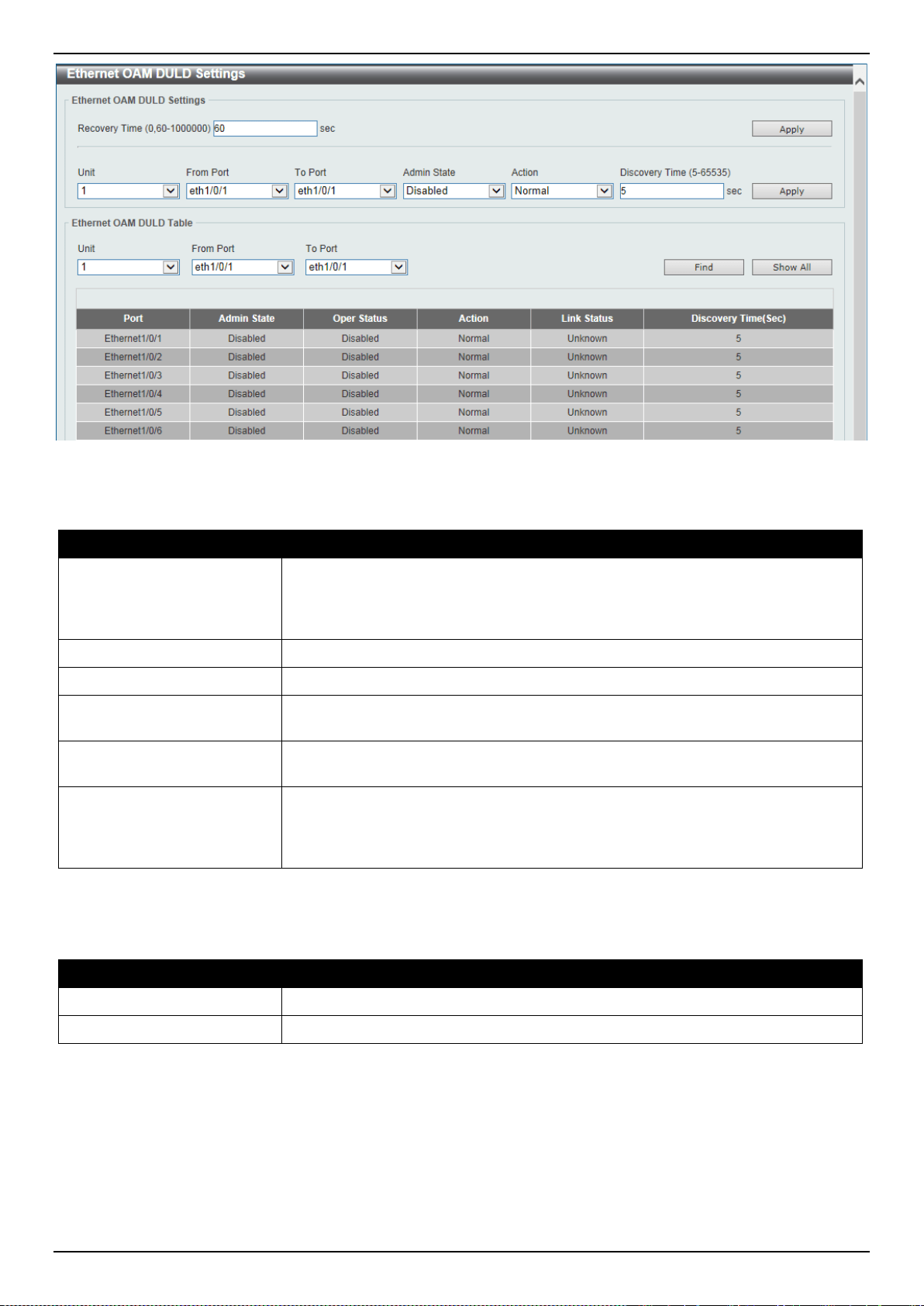
DXS-3400 Series Lite Layer 3 Stackable 10GbE Managed Switch Web UI Reference Guide
391
Figure 10-26 Ethernet OAM DULD Settings Window
The fields that can be configured in Ethernet OAM DULD Settings are described below:
Parameter Description
Recovery Time
Enter the time interval value used by DULD to decide how long to recover the
disabled port here. When the timer has expired, the disabled port by DULD will be
recovered automatically. 0 represents that this function is disabled. This value is
either 0 seconds or in the range from 60 to 1000000 seconds.
Unit
Select the Switch’s unit ID that will be used here.
From Port ~ To Port
Select the Switch’s port range that will be used here.
Admin State
Select to enable or disable the admin state here. This feature is used to enable
Ethernet OAM unidirectional link detection on the specified port(s).
Action
Select the action that will be taken here. Options to choose from are Normal and
Shutdown.
Discovery Time
Enter the discovery time value here. The range is from 5 to 65535 seconds. By
default, this value is 5 seconds. If the OAM discovery does not successfully
negotiate before discovery time expired, OAM unidirectional link detection will
start.
Click the Apply button to accept the changes made.
The fields that can be configured in Ethernet OAM DULD Table are described below:
Parameter Description
Unit
Select the Switch’s unit ID that will be used here.
From Port ~ To Port
Select the Switch’s port range that will be used here.
Click the Find button to locate a specific entry based on the information entered.
Click the Show All button to display all the entries.
DDM
This folder contains windows that perform Digital Diagnostic Monitoring (DDM) functions on the Switch. There are
windows that allow the user to view the digital diagnostic monitoring status of SFP/SFP+ modules inserting to the
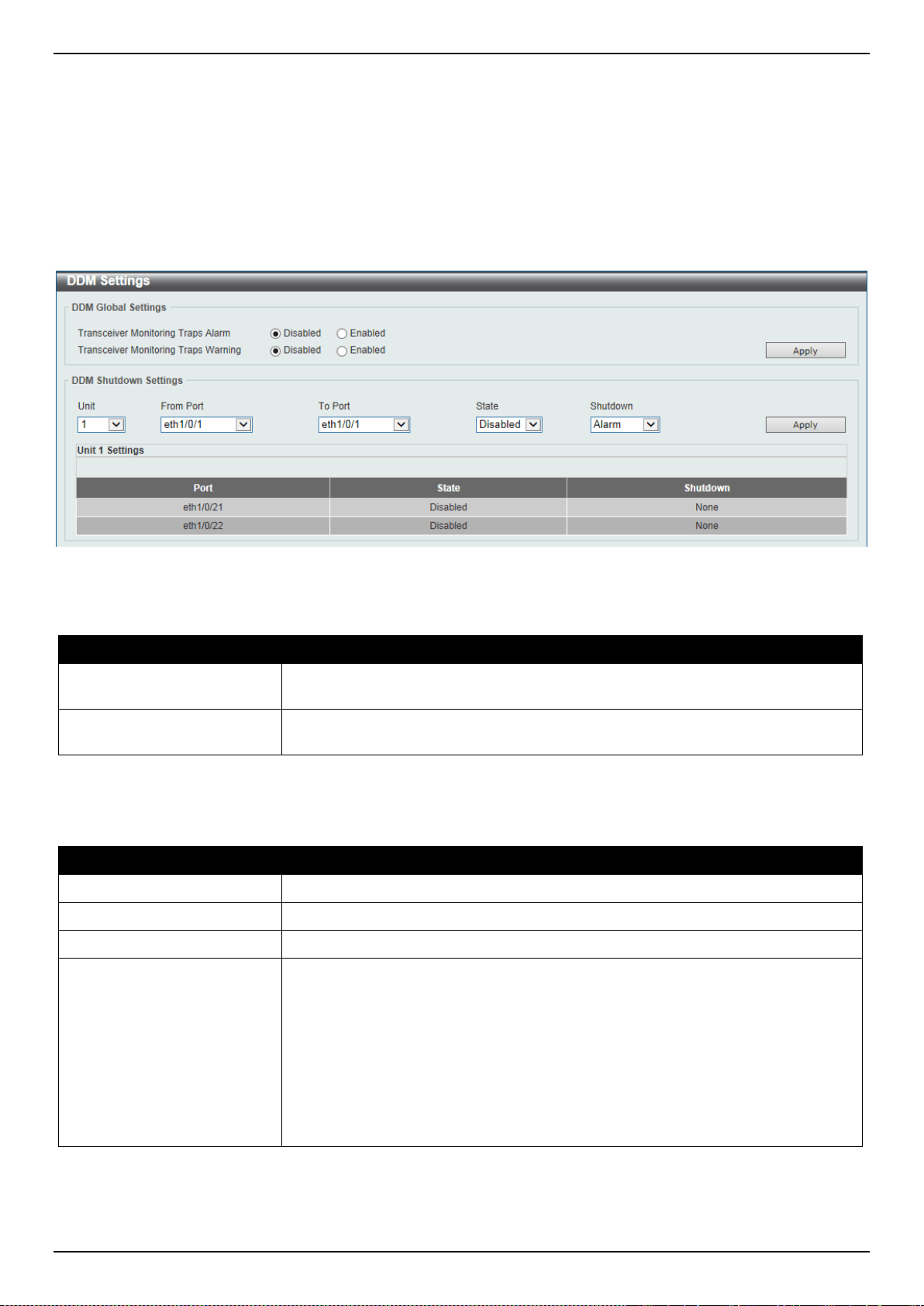
DXS-3400 Series Lite Layer 3 Stackable 10GbE Managed Switch Web UI Reference Guide
392
Switch and to configure alarm settings, warning settings, temperature threshold settings, voltage threshold settings,
bias current threshold settings, Tx power threshold settings, and Rx power threshold settings.
DDM Settings
The window is used to view and configure the action that will occur for specific ports when an exceeding alarm
threshold or warning threshold event is encountered.
To view the following window, click OAM > DDM > DDM Settings, as shown below:
Figure 10-27 DDM Settings Window
The fields that can be configured in DDM Global Settings are described below:
Parameter Description
Transceiver Monitoring
Traps Alarm
Select to enable or disable the transceiver monitoring traps alarm feature here.
Transceiver Monitoring
Traps Warning
Select to enable or disable the transceiver monitoring traps warning feature here.
Click the Apply button to accept the changes made.
The fields that can be configured in DDM Shutdown Settings are described below:
Parameter Description
Unit
Select the Switch unit that will be used for this configuration here.
From Port ~ To Port
Select the appropriate port range used for the configuration here.
State
Use the drop-down menu to enable or disable the DDM state.
Shutdown
Specify whether to shut down the port, when the operating parameter exceeds the
Alarm or Warning threshold.
• Alarm - Shutdown the port when the configured alarm threshold range is
exceeded.
• Warning - Shutdown the port when the configured warning threshold range
is exceeded.
• None - The port will never shutdown regardless if the threshold ranges are
exceeded or not. This is the default.
Click the Apply button to accept the changes made.
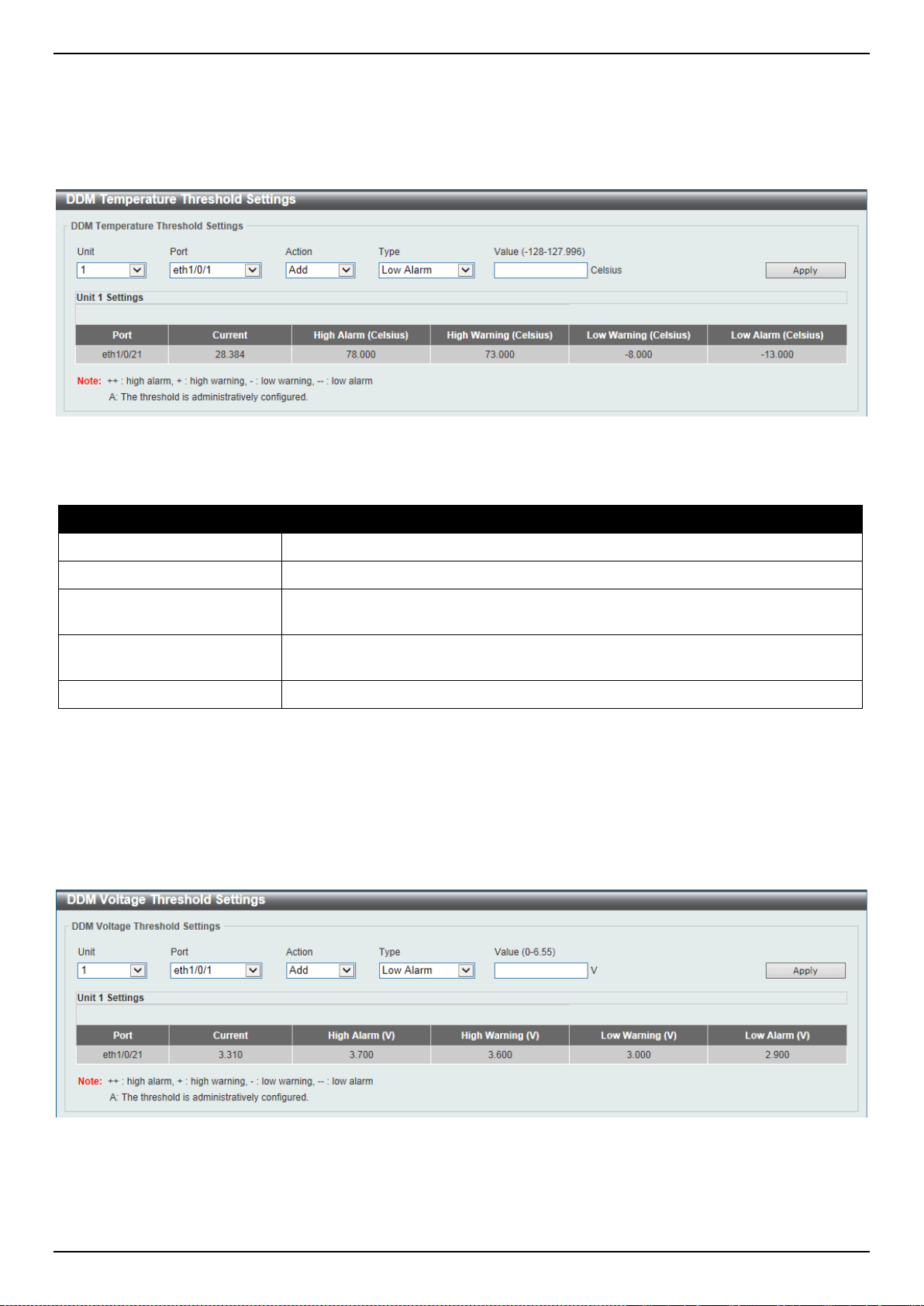
DXS-3400 Series Lite Layer 3 Stackable 10GbE Managed Switch Web UI Reference Guide
393
DDM Temperature Threshold Settings
This window is used to display and configure the DDM Temperature Threshold Settings for specific ports on the
Switch.
To view the following window, click OAM > DDM > DDM Temperature Threshold Settings, as shown below:
Figure 10-28 DDM Temperature Threshold Settings Window
The fields that can be configured are described below:
Parameter Description
Unit
Select the Switch unit that will be used for this configuration here.
Port
Select the port used for the configuration here.
Action
Select the action that will be taken here. Options to choose from are Add and
Delete.
Type
Select the type of temperature threshold. Options to choose from are Low Alarm,
Low Warning, High Alarm, and High Warning.
Value
Enter the threshold value. This value must be between -128 and 127.996 °C.
Click the Apply button to accept the changes made.
DDM Voltage Threshold Settings
This window is used to display and configure the DDM Voltage Threshold Settings for specific ports on the Switch.
To view the following window, click OAM > DDM > DDM Voltage Threshold Settings, as shown below:
Figure 10-29 DDM Voltage Threshold Settings Window
The fields that can be configured are described below:
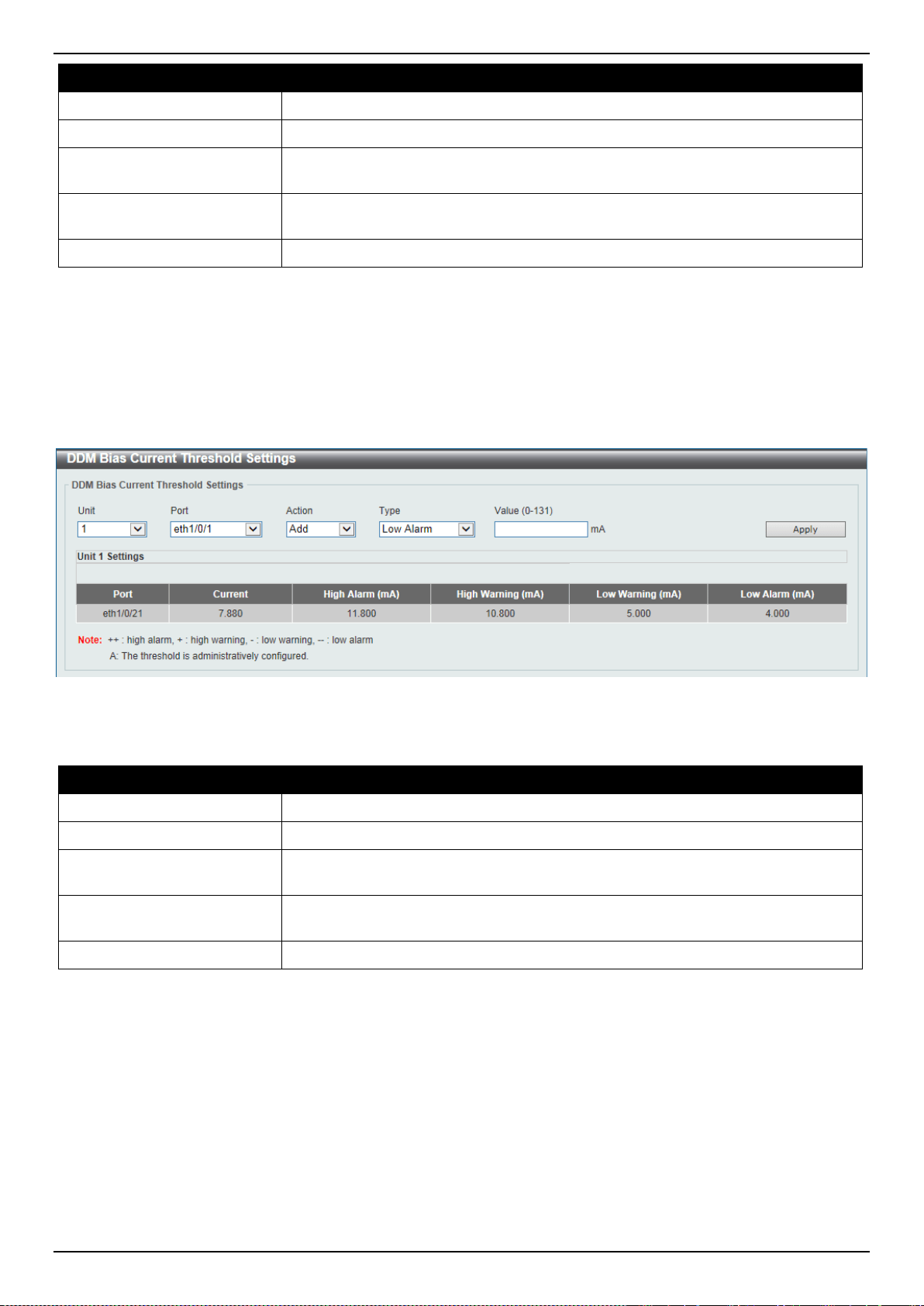
DXS-3400 Series Lite Layer 3 Stackable 10GbE Managed Switch Web UI Reference Guide
394
Parameter Description
Unit
Select the Switch unit that will be used for this configuration here.
Port
Select the port used for the configuration here.
Action
Select the action that will be taken here. Options to choose from are Add and
Delete.
Type
Select the type of voltage threshold. Options to choose from are Low Alarm, Low
Warning, High Alarm, and High Warning.
Value
Enter the threshold value. This value must be between 0 and 6.55 Volt.
Click the Apply button to accept the changes made.
DDM Bias Current Threshold Settings
This window is used to display and configure the threshold of the bias current for specific ports on the Switch.
To view the following window, click OAM > DDM > DDM Bias Current Threshold Settings, as shown below:
Figure 10-30 DDM Bias Current Threshold Settings Window
The fields that can be configured are described below:
Parameter Description
Unit
Select the Switch unit that will be used for this configuration here.
Port
Select the port used for the configuration here.
Action
Select the action that will be taken here. Options to choose from are Add and
Delete.
Type
Select the type of bias current threshold. Options to choose from are Low Alarm,
Low Warning, High Alarm, and High Warning.
Value
Enter the threshold value. This value must be between 0 and 131 mA.
Click the Apply button to accept the changes made.
DDM TX Power Threshold Settings
This window is used to display and configure the threshold of TX power for specific ports on the Switch.
To view the following window, click OAM > DDM > DDM TX Power Threshold Settings, as shown below:
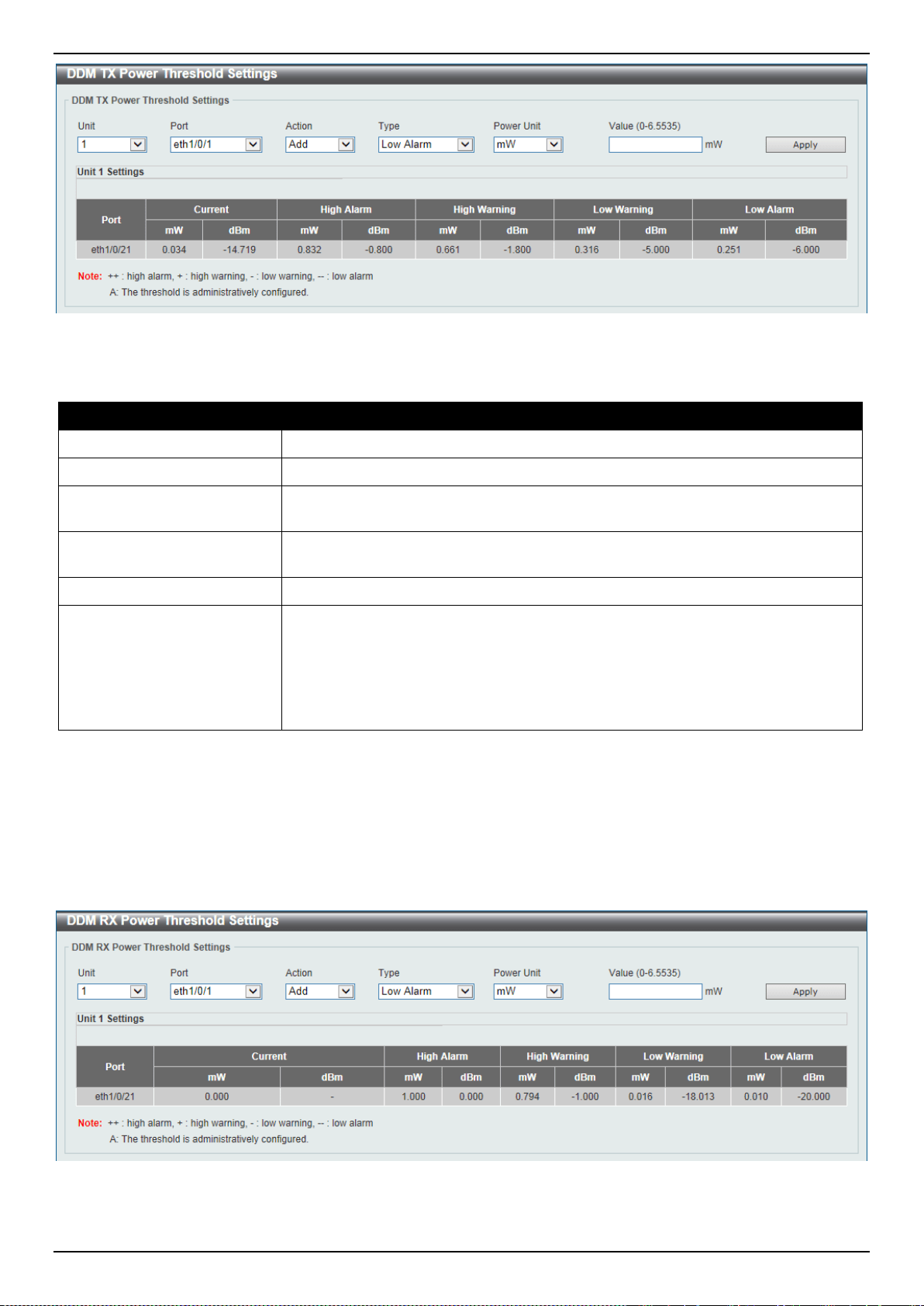
DXS-3400 Series Lite Layer 3 Stackable 10GbE Managed Switch Web UI Reference Guide
395
Figure 10-31 DDM TX Power Threshold Settings Window
The fields that can be configured are described below:
Parameter Description
Unit
Select the Switch unit that will be used for this configuration here.
Port
Select the port used for the configuration here.
Action
Select the action that will be taken here. Options to choose from are Add and
Delete.
Type
Select the type of TX power threshold. Options to choose from are Low Alarm,
Low Warning, High Alarm, and High Warning.
Power Unit
Select the power unit here. Options to choose from are mW and dBm.
Value
Enter the threshold value either in mW or dBm here.
• When selecting mW in the Power Unit drop-down list, this value must be
between 0 and 6.5535.
• When selecting dBm in the Power Unit drop-down list, this value must be
between -40 and 8.1647.
Click the Apply button to accept the changes made.
DDM RX Power Threshold Settings
This window is used to display and configure the threshold of RX power for specific ports on the Switch.
To view the following window, click OAM > DDM > DDM RX Power Threshold Settings, as shown below:
Figure 10-32 DDM RX Power Threshold Settings Window
The fields that can be configured are described below:
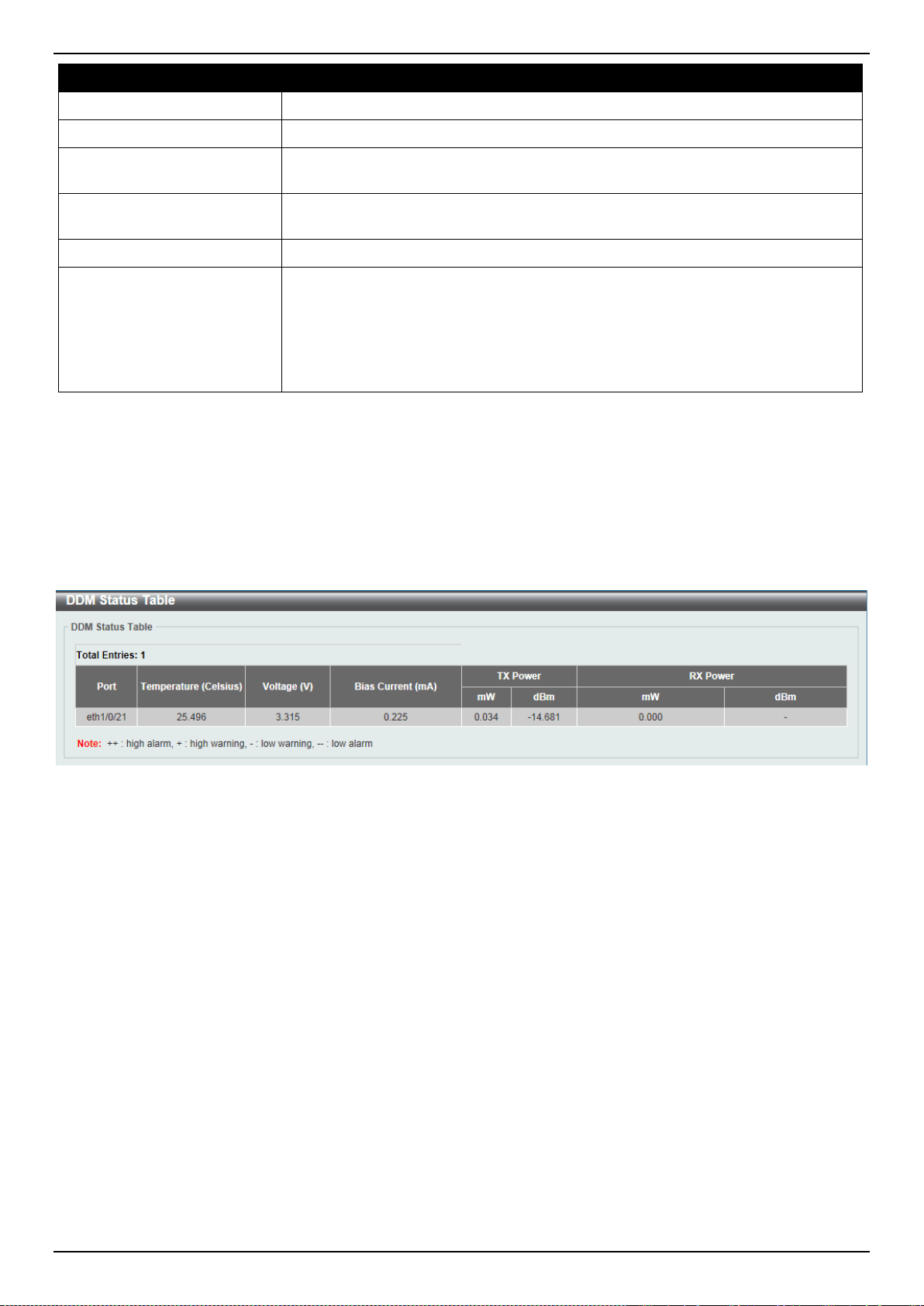
DXS-3400 Series Lite Layer 3 Stackable 10GbE Managed Switch Web UI Reference Guide
396
Parameter Description
Unit
Select the Switch unit that will be used for this configuration here.
Port
Select the port used for the configuration here.
Action
Select the action that will be taken here. Options to choose from are Add and
Delete.
Type
Select the type of RX power threshold. Options to choose from are Low Alarm,
Low Warning, High Alarm, and High Warning.
Power Unit
Select the power unit here. Options to choose from are mW and dBm.
Value
Enter the threshold value either in mW or dBm here.
• When selecting mW in the Power Unit drop-down list, this value must be
between 0 and 6.5535.
• When selecting dBm in the Power Unit drop-down list, this value must be
between -40 and 8.1647.
Click the Apply button to accept the changes made.
DDM Status Table
This window is used to display the current operating digital diagnostic monitoring parameters and their values on the
SFP module for specified ports.
To view the following window, click OAM > DDM > DDM Status Table, as shown below:
Figure 10-33 DDM Status Table Window
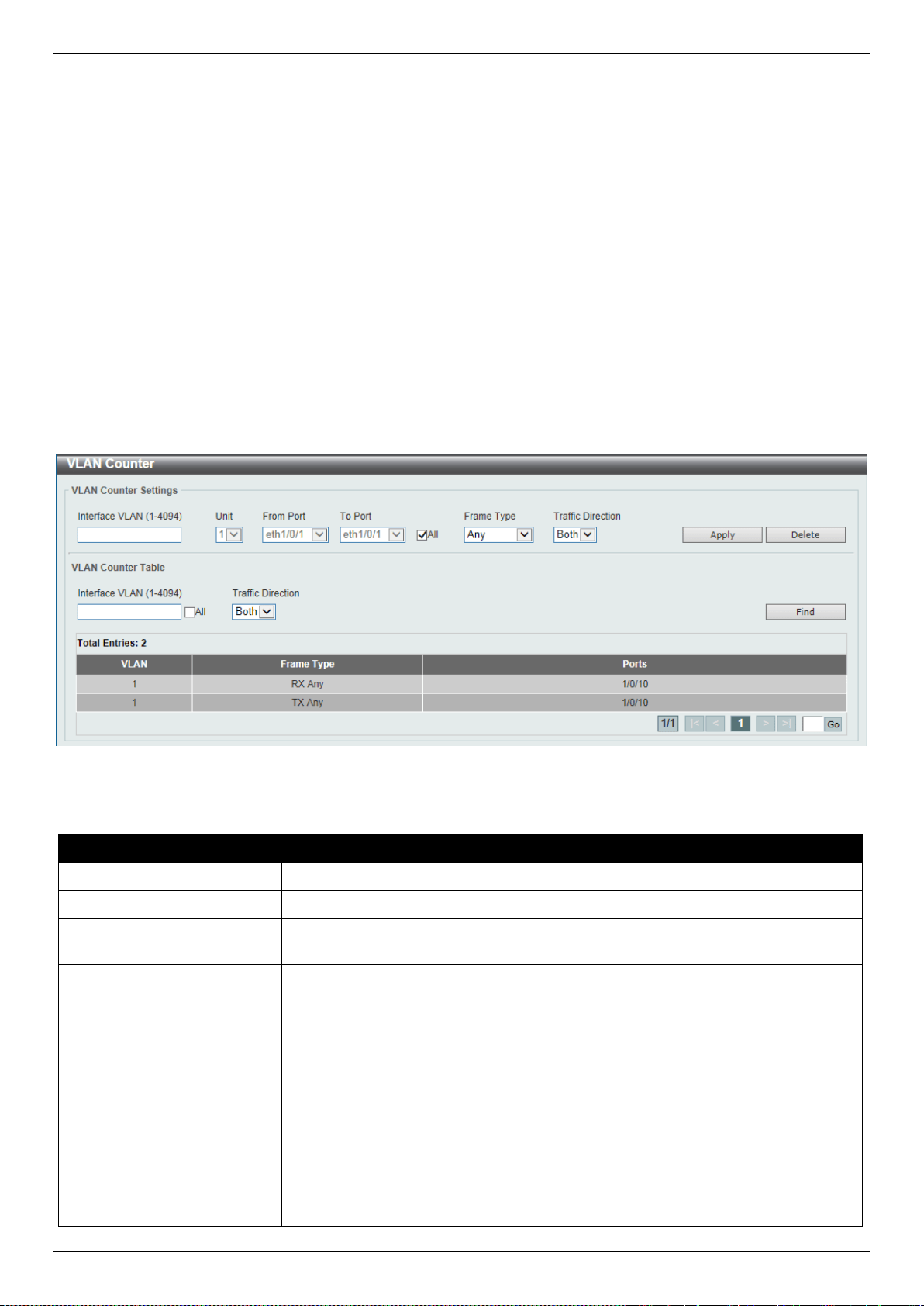
DXS-3400 Series Lite Layer 3 Stackable 10GbE Managed Switch Web UI Reference Guide
397
11. Monitoring
VLAN Counter
Utilization
Statistics
Mirror Settings
sFlow
Device Environment
External Alarm Settings
VLAN Counter
This window is used to display and configure the VLAN counter settings. This is used to create a control entry for
traffic statistics on specified Layer 2 VLAN interface(s).
To view the following window, click Monitoring > VLAN Counter, as shown below:
Figure 11-1 VLAN Counter Window
The fields that can be configured for VLAN Counter Settings are described below:
Parameter Description
Interface VLAN
Enter the VLAN ID that will be used here. The range is from 1 to 4094.
Unit
Select the Switch unit that will be used for this configuration here.
From Port ~ To Port
Select the range of ports that will be used for this configuration here. Select the
All option to use all the ports in this configuration.
Frame Type
Select the frame type here. Options to choose from are:
• Broadcast - Specifies to count only broadcast frames.
• Multicast - Specifies to count only multicast frames.
• Unicast - Specifies to count only unicast frames.
• Any - Specifies to count all frames regardless of the frame type.
• All - Specifies to count all frames regardless of the frame type.
Traffic Direction
Select the traffic direction here. Options to choose from are:
• RX - Specifies to count ingress traffic.
• TX - Specifies to count egress traffic.
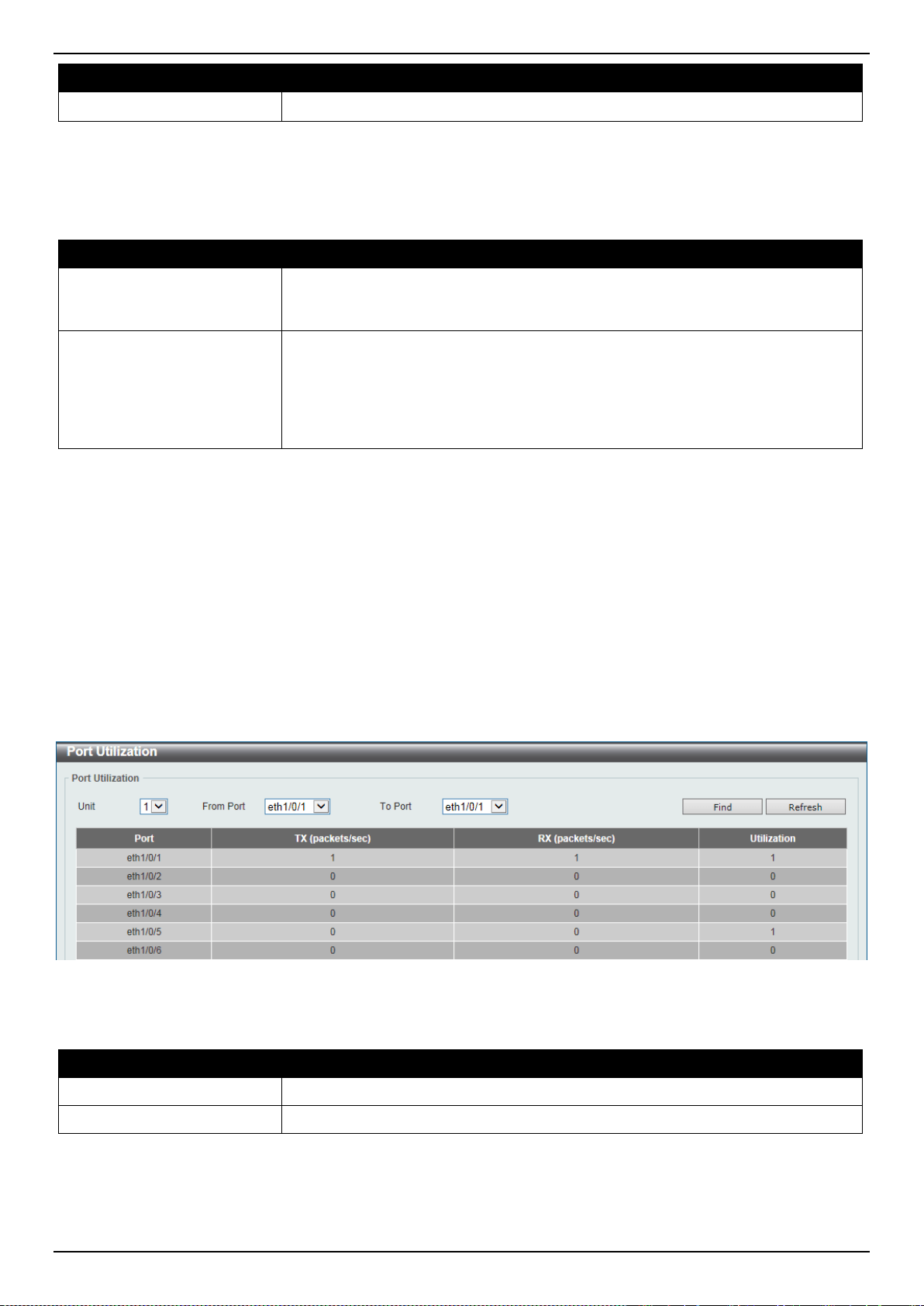
DXS-3400 Series Lite Layer 3 Stackable 10GbE Managed Switch Web UI Reference Guide
398
Parameter Description
• Both - Specifies to count ingress and egress traffic.
Click the Apply button to accept the changes made.
Click the Delete button to delete the specified entry based on the information entered/selected.
The fields that can be configured for VLAN Counter Table are described below:
Parameter Description
Interface VLAN
Enter the VLAN ID that will be used in the display here. The range is from 1 to
4094. Select the All option to display counter information associated with all
VLAN interfaces.
Traffic Direction
Select the traffic direction to display here. Options to choose from are:
• RX - Specifies to display ingress traffic count settings.
• TX - Specifies to display egress traffic count settings.
• Both - Specifies to display ingress and egress traffic count settings.
Click the Find button to display entries in the table based on the information entered/selected.
Enter a page number and click the Go button to navigate to a specific page when multiple pages exist.
Utilization
Port Utilization
This window is used to display the port utilization table.
To view the following window, click Monitoring > Utilization > Port Utilization, as shown below:
Figure 11-2 Port Utilization Window
The fields that can be configured are described below:
Parameter Description
Unit
Select the Switch unit that will be used here.
From Port ~ To Port
Select the range of ports that will be used here.
Click the Find button to display entries in the table based on the information entered/selected.
Click the Refresh button to refresh the information displayed in the table.
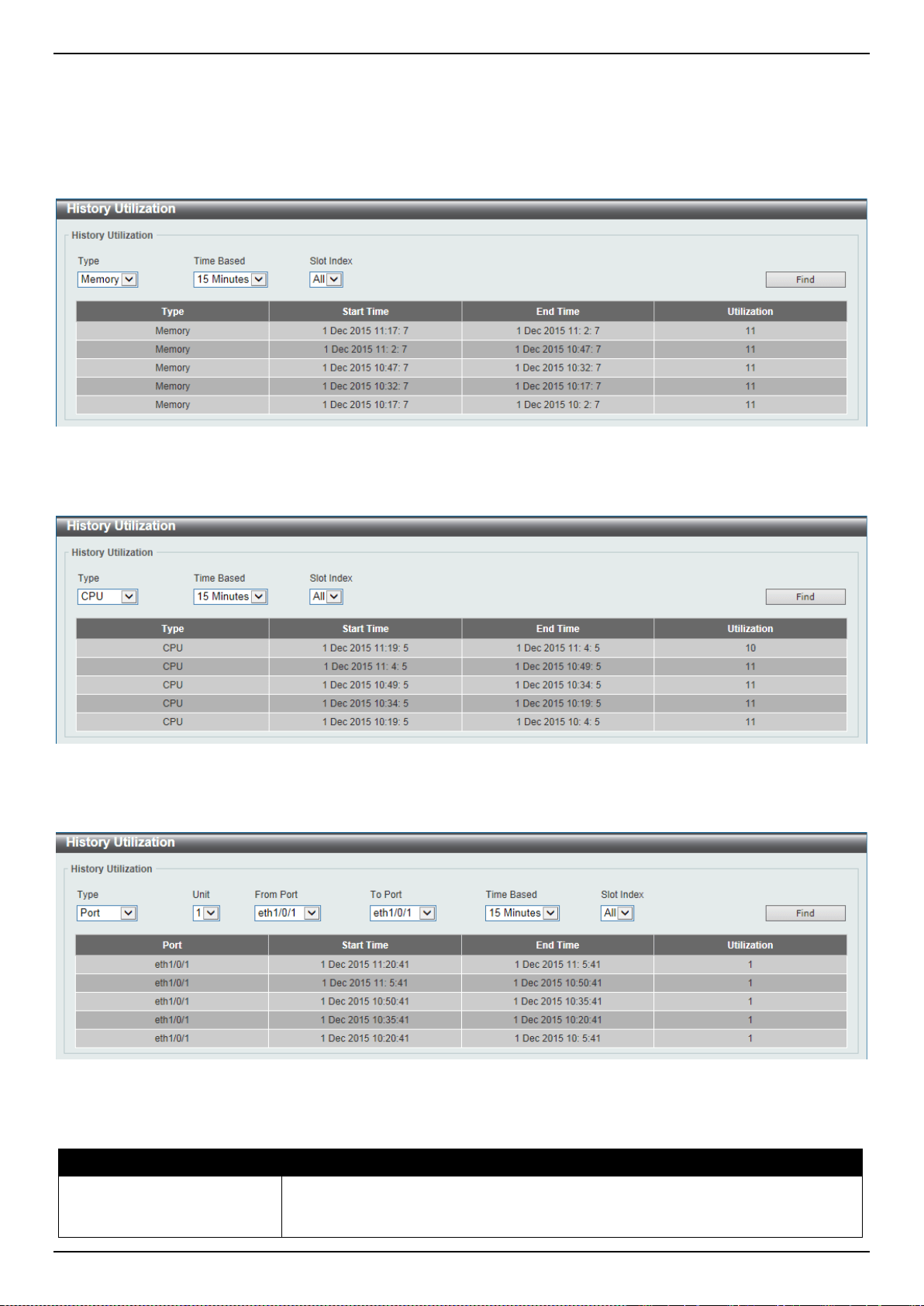
DXS-3400 Series Lite Layer 3 Stackable 10GbE Managed Switch Web UI Reference Guide
399
History Utilization
This window is used to display the memory, CPU and port history utilization.
To view the following window, click Monitoring > Utilization > History Utilization, as shown below:
Figure 11-3 History Utilization (Memory) Window
After selecting CPU as the Type, the following window will appear:
Figure 11-4 History Utilization (CPU) Window
After selecting Port as the Type, the following window will appear:
Figure 11-5 History Utilization (Port) Window
The fields that can be configured are described below:
Parameter Description
Type
Select the history utilization type to display here. Options to choose from are:
• Memory - Specifies to display the historical memory utilization information.
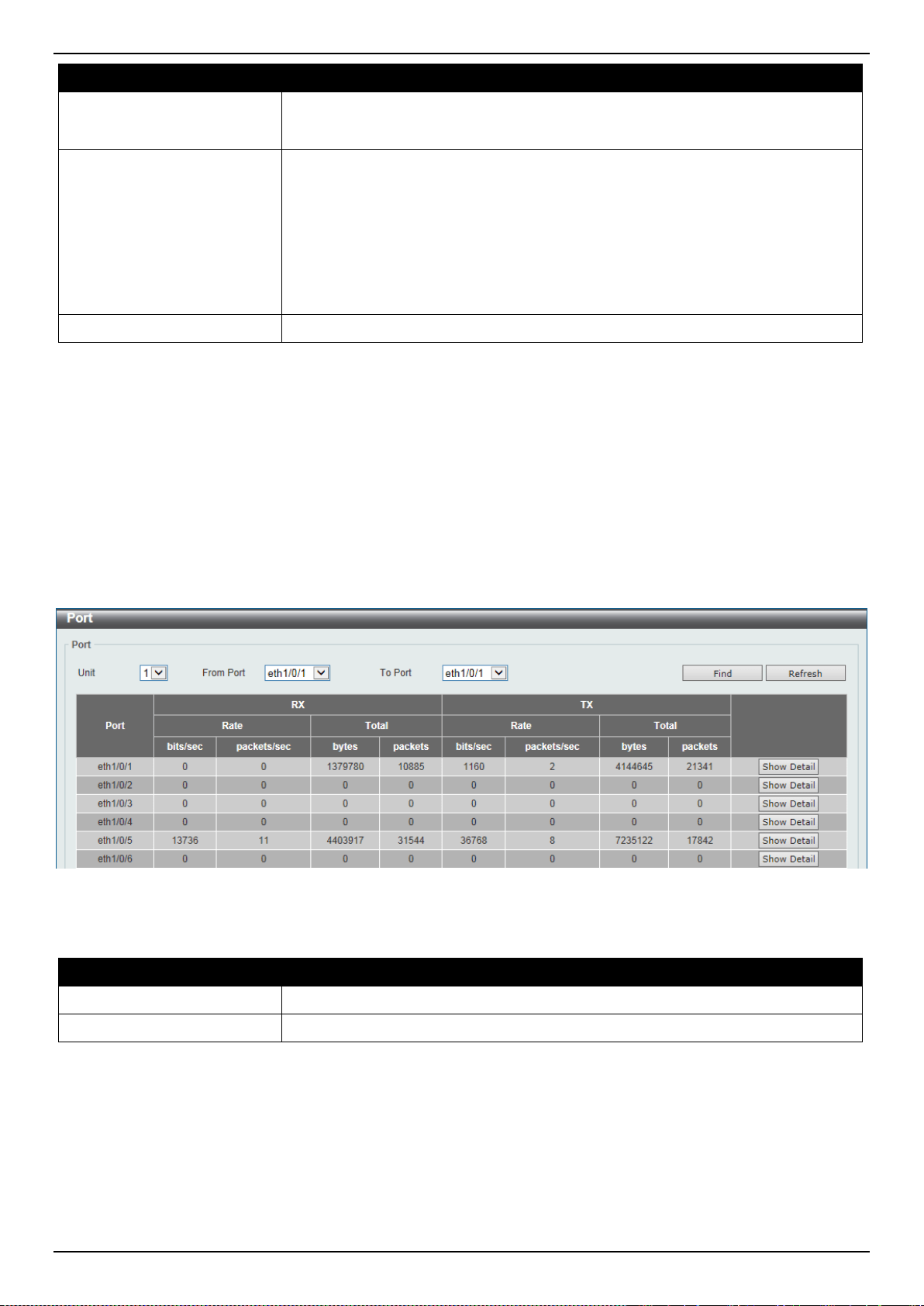
DXS-3400 Series Lite Layer 3 Stackable 10GbE Managed Switch Web UI Reference Guide
400
Parameter Description
• CPU - Specifies to display the historical CPU utilization information.
• Port - Specifies to display the historical port utilization information.
Time Based
Select the time-based statistical count value here. Options to choose from are:
• 15 Minutes - Specifies to display 15-minute based statistics count.
• 1 Day - Specifies to display daily based statistics count.
For 15-minute based statistics, slot 1 represents the time from 15 minutes ago
until now, slot 2 represents the time from 30 minutes ago until 15 minutes ago and
so on. For 1-day based statistics, slot 1 represents the time from 24 hours ago
until now and slot 2 represents the time from 48 hours ago until 24 hours ago.
Slot Index
Select the slot index here. Options to choose from are All, and 1 to 5.
Click the Find button to display entries in the table based on the information selected.
Statistics
Port
This window is used to display the port statistics information.
To view the following window, click Monitoring > Statistics > Port, as shown below:
Figure 11-6 Port Window
The fields that can be configured are described below:
Parameter Description
Unit
Select the Switch unit that will be used in this display here.
From Port ~ To Port
Select the range of ports that will be used in this display here.
Click the Find button to display entries in the table based on the information selected.
Click the Refresh button to refresh the information displayed in the table.
Click the Show Detail button to view more detailed statistics information on the specified port.
After clicking the Show Detail button, the following window will appear:
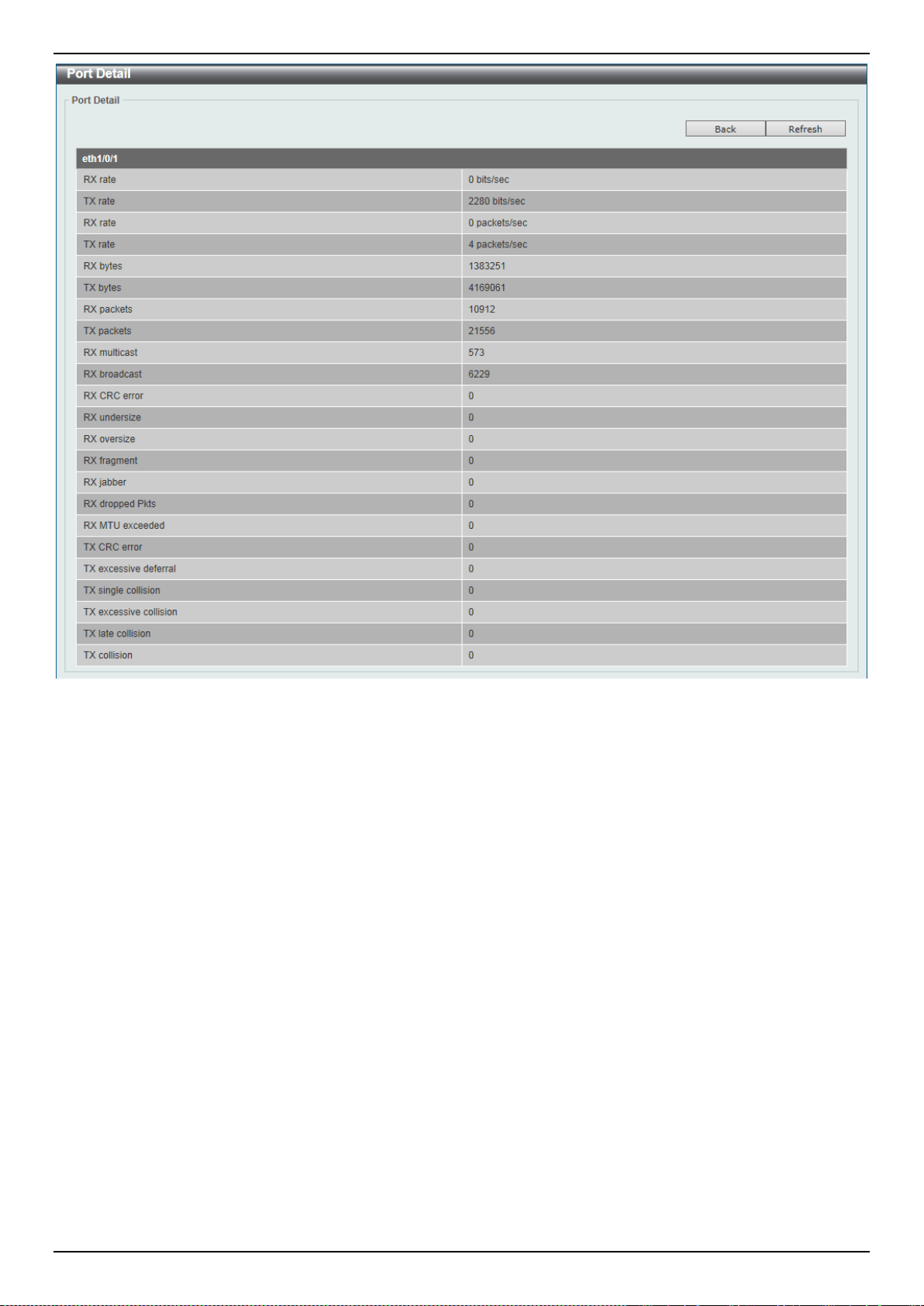
DXS-3400 Series Lite Layer 3 Stackable 10GbE Managed Switch Web UI Reference Guide
401
Figure 11-7 Port (Show Detail) Window
Click the Back button to return to the previous window.
Click the Refresh button to refresh the information displayed in the table.
CPU Port
This window is used to display the CPU statistics information.
To view the following window, click Monitoring > Statistics > CPU Port, as shown below:
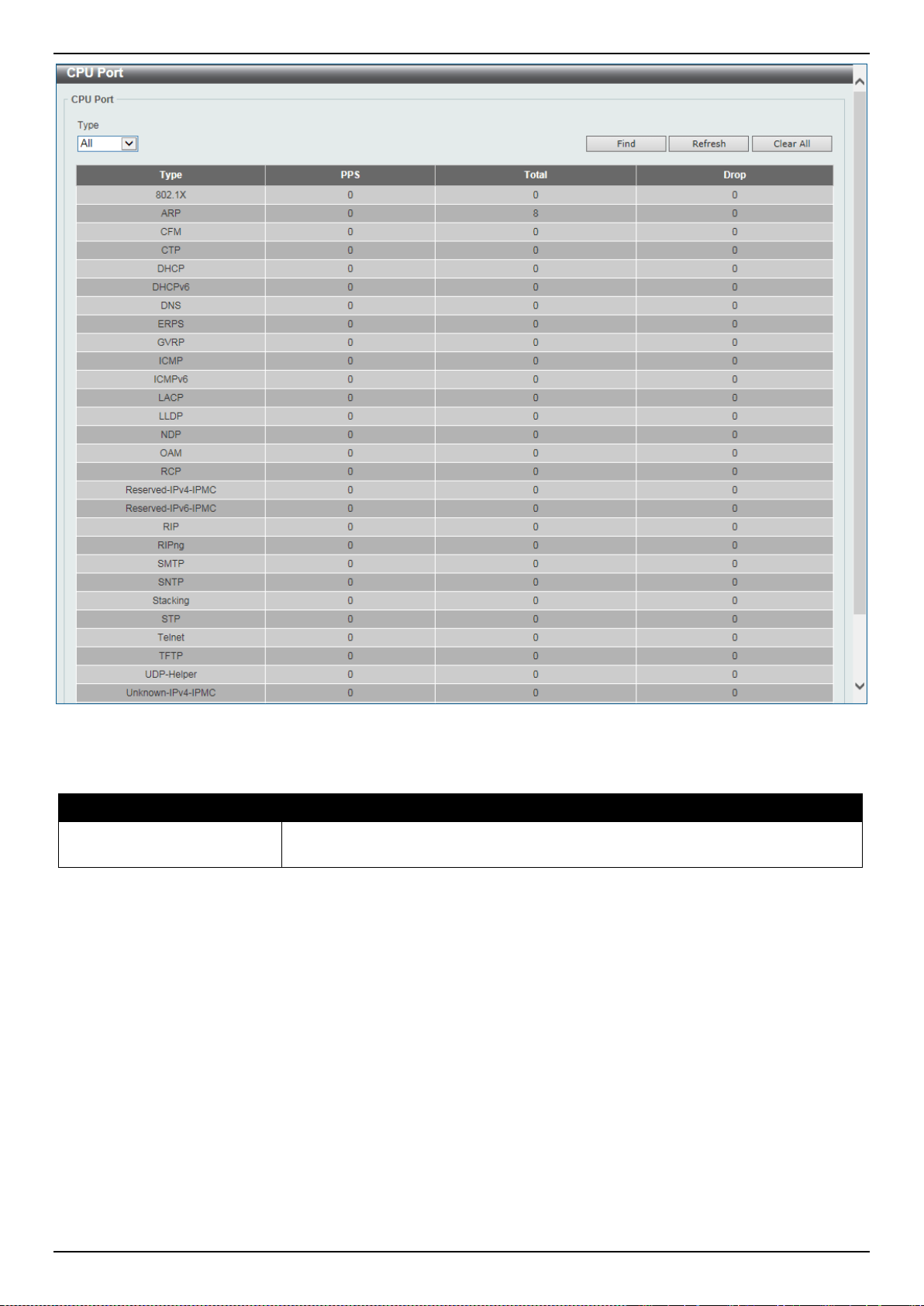
DXS-3400 Series Lite Layer 3 Stackable 10GbE Managed Switch Web UI Reference Guide
402
Figure 11-8 CPU Port Window
The fields that can be configured are described below:
Parameter Description
Type
Select the type of information to display here. Options to choose from are All,
Layer 2 (L2), Layer 3 (L3), and Protocol.
Click the Find button to display entries in the table based on the information selected.
Click the Refresh button to refresh the information displayed in the table.
Click the Clear All button clear all the statistics information displayed in the table.
Interface Counters
This window is used to display the interface counter information.
To view the following window, click Monitoring > Statistics > Interface Counters, as shown below:
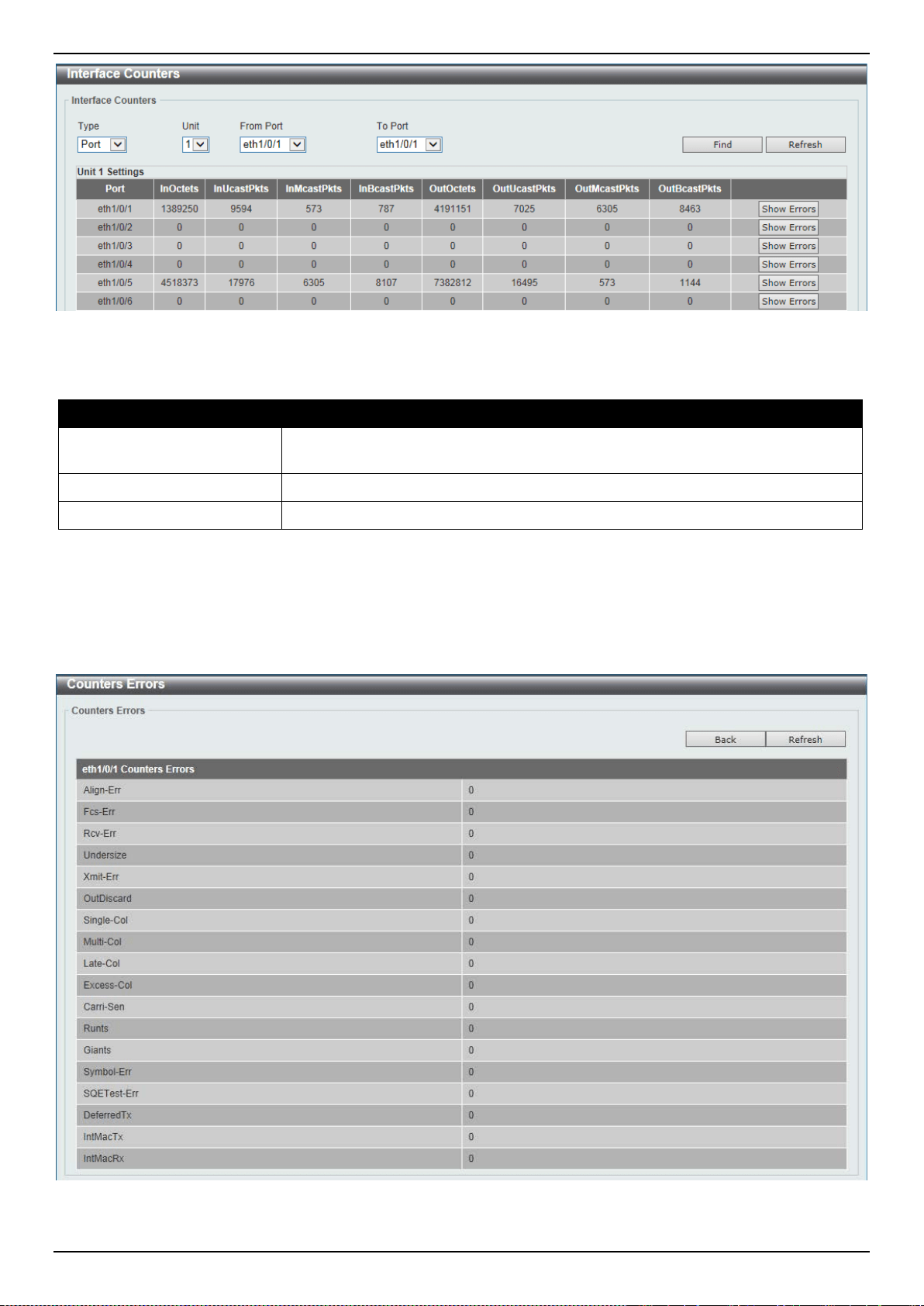
DXS-3400 Series Lite Layer 3 Stackable 10GbE Managed Switch Web UI Reference Guide
403
Figure 11-9 Interface Counters (Port) Window
The fields that can be configured are described below:
Parameter Description
Type
Select the type of information to display here. Options to choose from are Port
and VLAN.
Unit
Select the Switch unit that will be used in this display here.
From Port ~ To Port
Select the range of ports that will be used in this display here.
Click the Find button to display entries in the table based on the information selected.
Click the Refresh button to refresh the information displayed in the table.
Click the Show Errors button to view more detailed error information on the specified port.
After clicking the Show Errors button, the following window will appear:
Figure 11-10 Interface Counters (Show Errors) Window
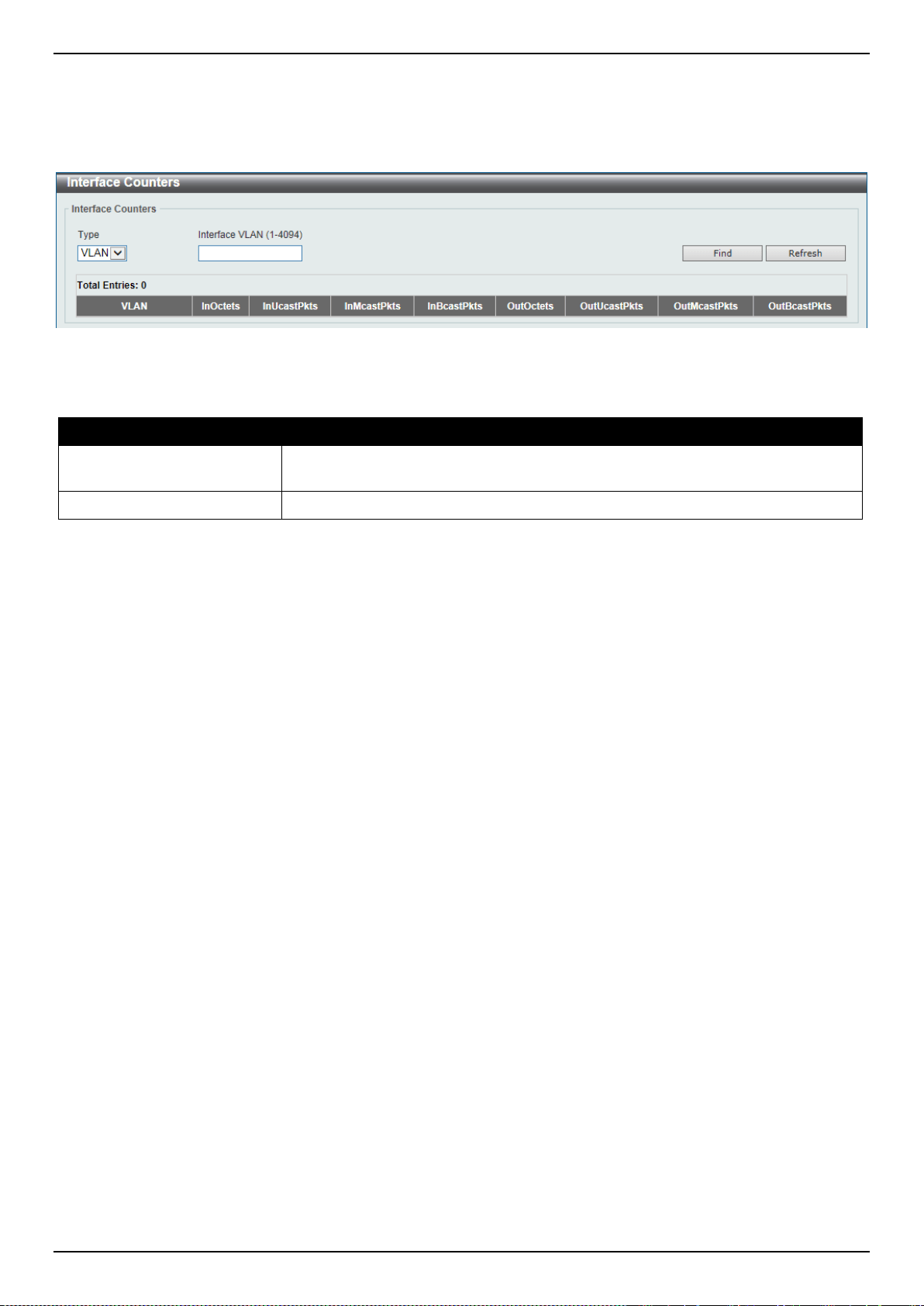
DXS-3400 Series Lite Layer 3 Stackable 10GbE Managed Switch Web UI Reference Guide
404
Click the Back button to return to the previous window.
Click the Refresh button to refresh the information displayed in the table.
After selecting VLAN as the Type, the following window will appear:
Figure 11-11 Interface Counters (VLAN) Window
The fields that can be configured are described below:
Parameter Description
Type
Select the type of information to display here. Options to choose from are Port
and VLAN.
Interface VLAN
Enter the VLAN ID that will be used in this display here.
Click the Find button to display entries in the table based on the information selected/entered.
Click the Refresh button to refresh the information displayed in the table.
Interface History Counters
This window is used to display the history counter information per interface.
To view the following window, click Monitoring > Statistics > Interface History Counters, as shown below:
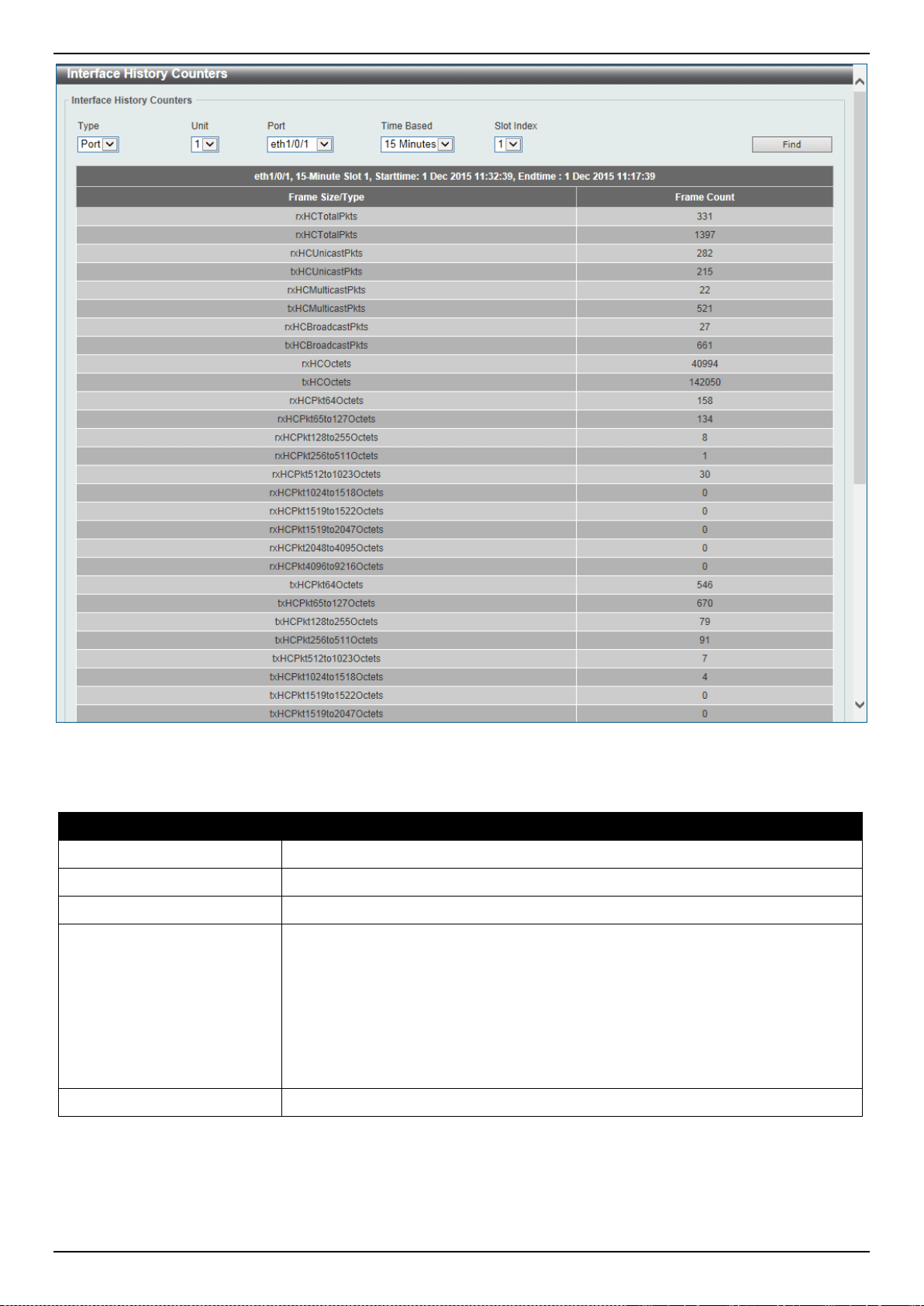
DXS-3400 Series Lite Layer 3 Stackable 10GbE Managed Switch Web UI Reference Guide
405
Figure 11-12 Interface History Counters (Port) Window
The fields that can be configured are described below:
Parameter Description
Type
Select the type of information to display here.
Unit
Select the Switch unit that will be used in this display here.
Port
Select the port that will be used in this display here.
Time Based
Select the time-based statistical count value here. Options to choose from are:
• 15 Minutes - Specifies to display 15-minute based statistics count.
• 1 Day - Specifies to display daily based statistics count.
For 15-minute based statistics, slot 1 represents the time from 15 minutes ago
until now, slot 2 represents the time from 30 minutes ago until 15 minutes ago and
so on. For 1-day based statistics, slot 1 represents the time from 24 hours ago
until now and slot 2 represents the time from 48 hours ago until 24 hours ago.
Slot index
Select the slot index here. Options to choose from are 1 to 5.
Click the Find button to display entries in the table based on the information selected/entered.
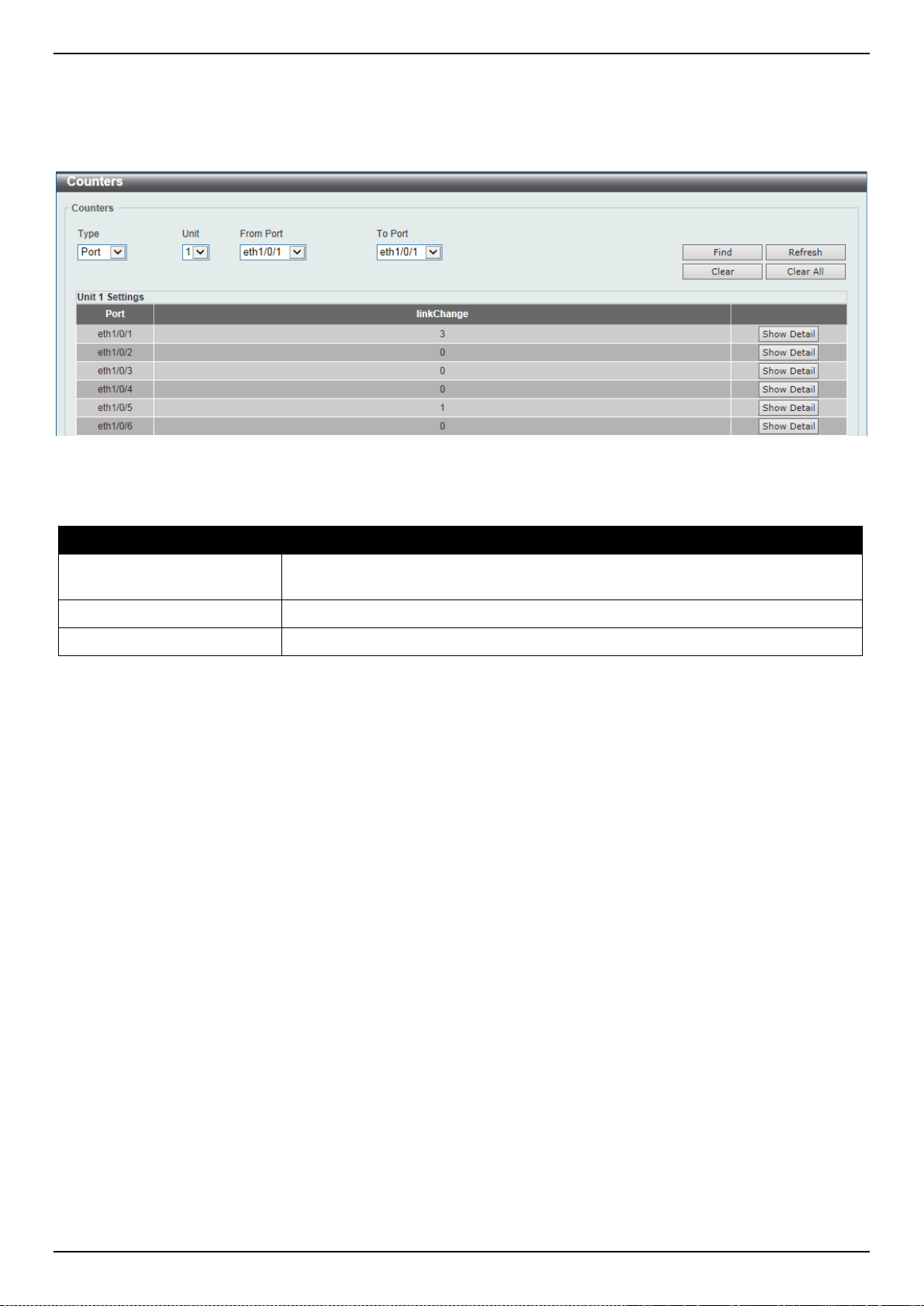
DXS-3400 Series Lite Layer 3 Stackable 10GbE Managed Switch Web UI Reference Guide
406
Counters
This window is used to display and clear counter information.
To view the following window, click Monitoring > Statistics > Counters, as shown below:
Figure 11-13 Counters (Port) Window
The fields that can be configured are described below:
Parameter Description
Type
Select the type of information to display here. Options to choose from are Port
and VLAN.
Unit
Select the Switch unit that will be used in this display here.
From Port ~ To Port
Select the range of ports that will be used in this display here.
Click the Find button to display entries in the table based on the information selected.
Click the Refresh button to refresh the counter information displayed in the table.
Click the Clear button clear the counter information displayed in the table based on the information selected.
Click the Clear All button clear all the counter information displayed in the table.
Click the Show Detail button to view more detailed counter information on the specified port.
After clicking the Show Detail button, the following window will appear:
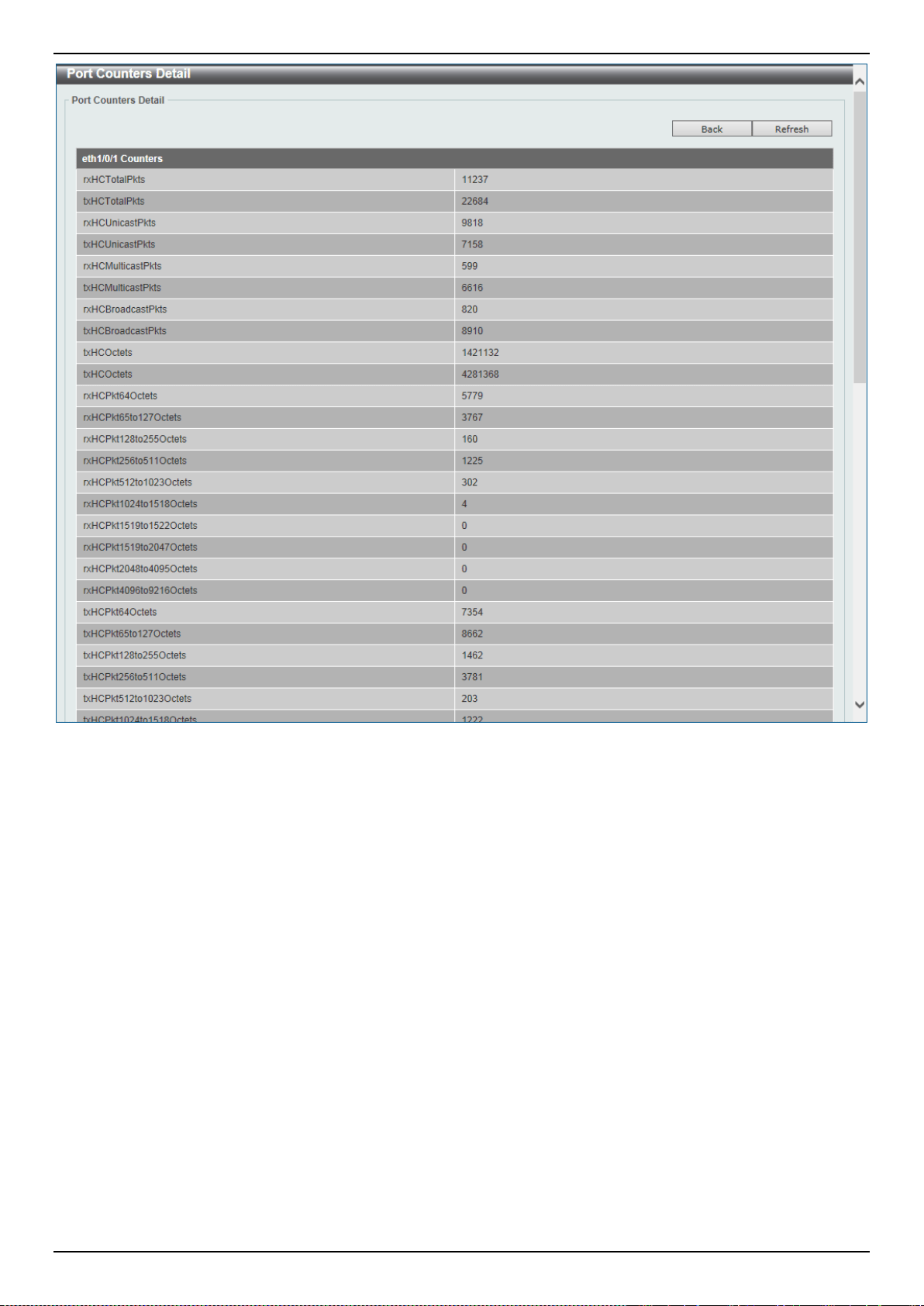
DXS-3400 Series Lite Layer 3 Stackable 10GbE Managed Switch Web UI Reference Guide
407
Figure 11-14 Counters (Show Detail) Window
Click the Back button to return to the previous window.
Click the Refresh button to refresh the information displayed in the table.
After selecting VLAN as the Type, the following window will appear:
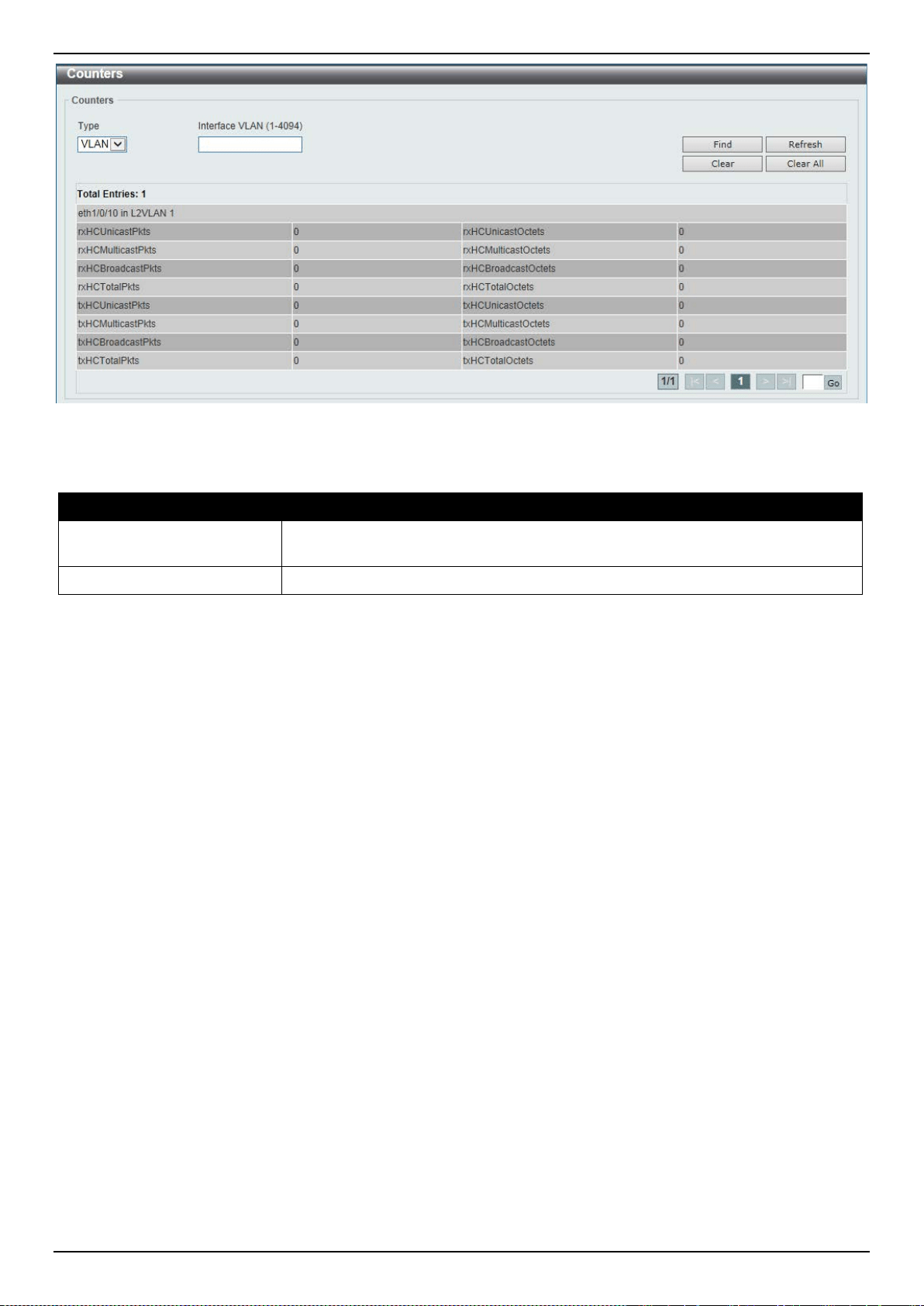
DXS-3400 Series Lite Layer 3 Stackable 10GbE Managed Switch Web UI Reference Guide
408
Figure 11-15 Counters (VLAN) Window
The fields that can be configured are described below:
Parameter Description
Type
Select the type of information to display here. Options to choose from are Port
and VLAN.
Interface VLAN
Enter the VLAN ID that will be used in this display here.
Click the Find button to display entries in the table based on the information selected/entered.
Click the Refresh button to refresh the counter information displayed in the table.
Click the Clear button clear the counter information displayed in the table based on the information selected/entered.
Click the Clear All button clear all the counter information displayed in the table.
Mirror Settings
This window is used to display and configure the mirror feature’s settings. The Switch allows users to copy frames
transmitted and received on a port and redirect the copies to another port. Attach a monitoring device to the mirroring
port, such as a sniffer or an RMON probe, to view details about the packets passing through the first port. This is
useful for network monitoring and troubleshooting purposes.
To view the following window, click Monitoring > Mirror Settings, as shown below:
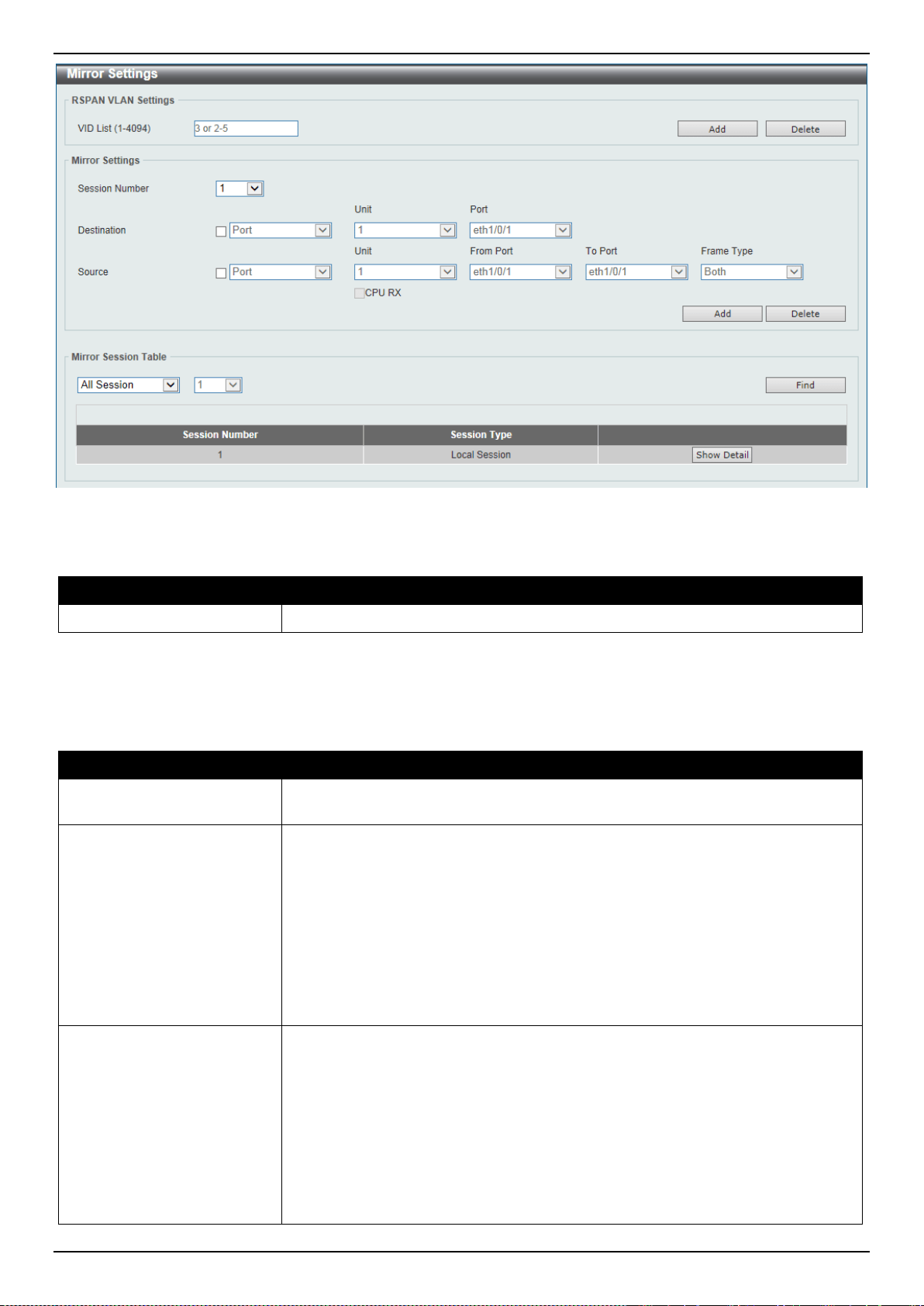
DXS-3400 Series Lite Layer 3 Stackable 10GbE Managed Switch Web UI Reference Guide
409
Figure 11-16 Mirror Settings Window
The fields that can be configured for RSPAN VLAN Settings are described below:
Parameter Description
VID List
Enter the VLAN list’s ID(s) that will be associated with this configuration here.
Click the Add button to add the VLAN(s) to the configuration.
Click the Delete button to delete the VLAN(s) from the configuration.
The fields that can be configured for Mirror Settings are described below:
Parameter Description
Session Number
Select the mirror session number for this entry here. This number is between 1
and 4.
Destination
Tick the checkbox, next to the Destination option, to configure the destination for
this port mirror entry.
In the first drop-down menu select the destination type option. Options to choose
from are Port and Remote VLAN.
• Port - After selecting this option, select the Switch’s unit ID and destination
port number from the drop-down menus.
• Remote VLAN - After selecting this option, select the Switch’s unit ID and
destination port number from the drop-down menus and enter the VID in the
space provided. The VID must be between 2 and 4094.
Source
Tick the checkbox, next to the Source option, to configure the source for this port
mirror entry.
In the first drop-down menu select the source type option. Options to choose from
are Port, ACL, VLAN, and Remote VLAN.
• Port - After selecting this option, select the Switch’s unit ID, From Port and
To Port numbers from the drop-down menus. Lastly select the Frame Type
option from the last drop-down menu. Options to choose from are Both, RX,
TX, and TX Forwarding. When selecting Both, traffic in both the incoming
and outgoing directions will be mirrored. When selecting RX, traffic in only
the incoming direction will be mirrored. When selecting TX, traffic in only the
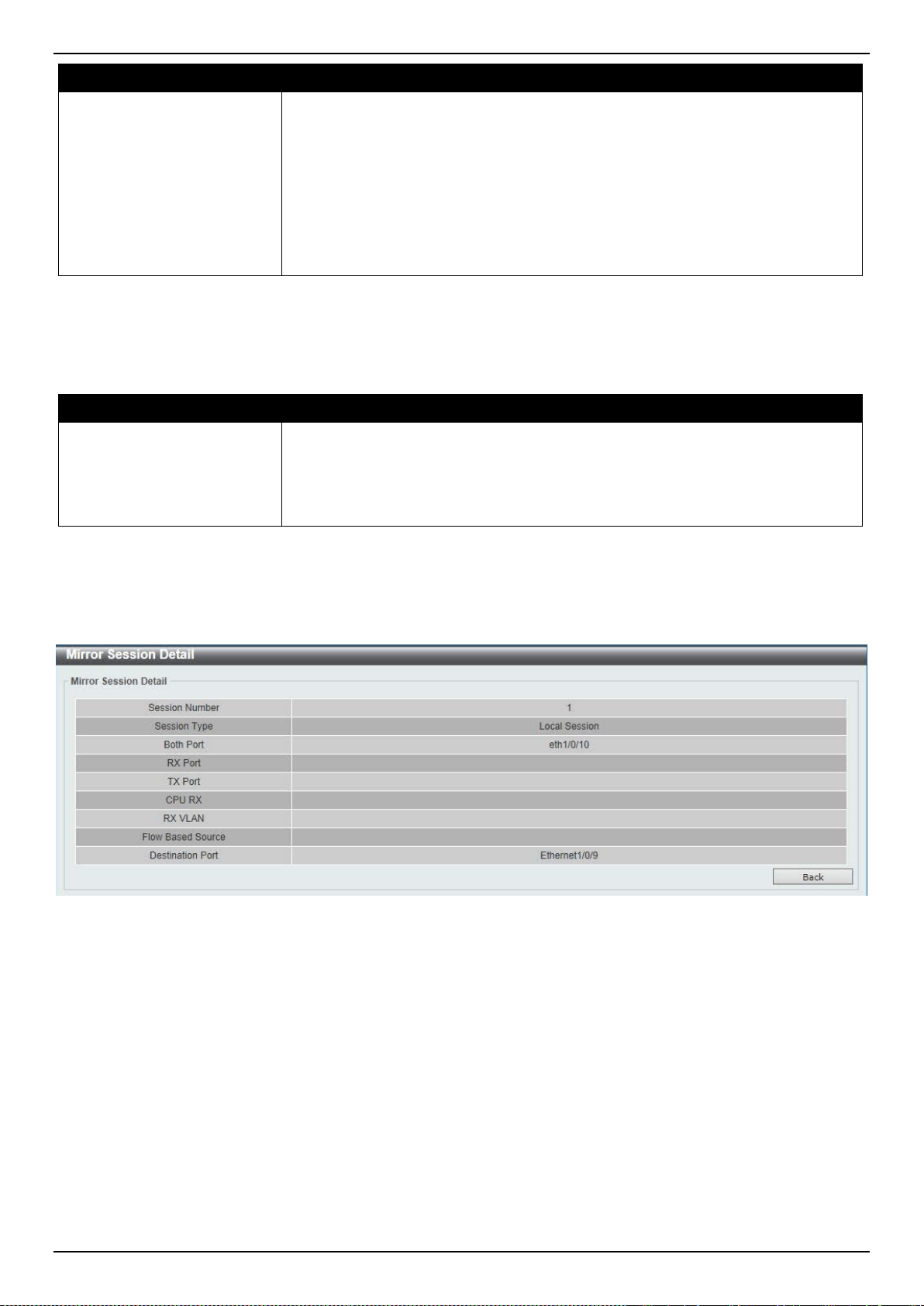
DXS-3400 Series Lite Layer 3 Stackable 10GbE Managed Switch Web UI Reference Guide
410
Parameter Description
outgoing direction will be mirrored. When selecting TX Forwarding, traffic in
only the outgoing direction will be mirrored and forwarded. Select the CPU
RX option to also monitor CPU traffic.
• ACL - After selecting this option, enter the ACL name in the space provided.
• VLAN - After selecting this option, enter the VID List in the space provided
and select the Frame Type from the drop-down menu.
• Remote VLAN - After selecting this option, enter the VID in the space
provided. The VID must be between 2 and 4094.
Click the Add button to add the newly configured mirror entry based on the information entered.
Click the Delete button to delete an existing mirror entry based on the information entered.
The fields that can be configured for Mirror Session Table are described below:
Parameter Description
Mirror Session Type
Select the mirror session type of information that will be displayed from the drop-
down menu. Options to choose from are All Session, Session Number, Remote
Session, and Local Session.
After selecting the Session Number option, select the session number from the
second drop-down menu. This number is from 1 to 4.
Click the Find button to locate a specific entry based on the information entered.
Click the Show Detail button to view more detailed information about the mirror session.
After clicking the Show Detail button, the following window will appear:
Figure 11-17 Mirror Settings (Show Detail) Window
Click the Back button to return to the previous page.
sFlow
sFlow Agent Information
This window is used to display the sFlow agent information.
To view the following window, click Monitoring > sFlow > sFlow Agent Information, as shown below:
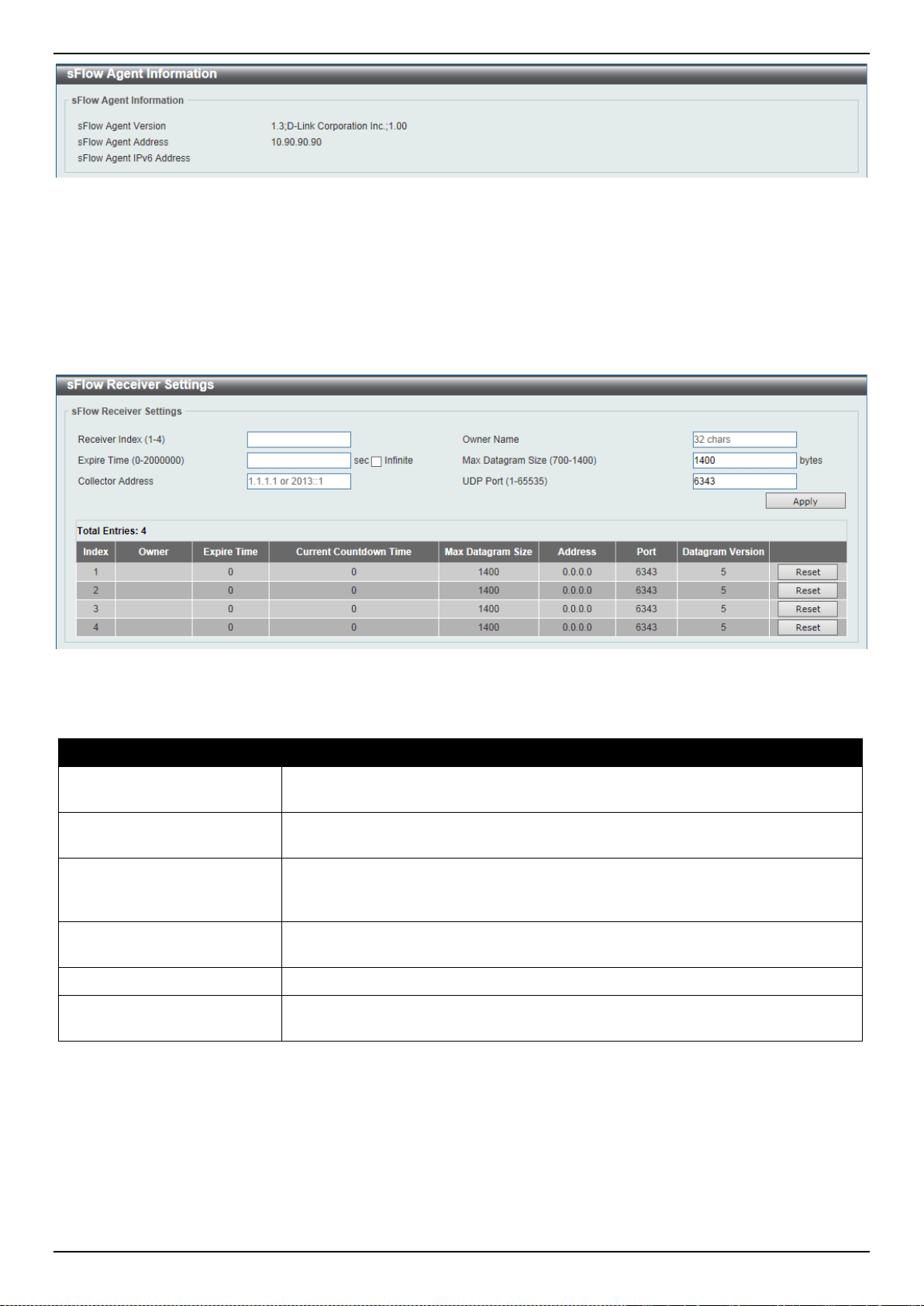
DXS-3400 Series Lite Layer 3 Stackable 10GbE Managed Switch Web UI Reference Guide
411
Figure 11-18 sFlow Agent Information Window
sFlow Receiver Settings
This window is used to display and configure receivers for the sFlow agents. Receivers cannot be added to or
removed from the sFlow agent.
To view the following window, click Monitoring > sFlow > sFlow Receiver Settings, as shown below:
Figure 11-19 sFlow Receiver Settings Window
The fields that can be configured are described below:
Parameter Description
Receiver Index
Enter the index number of the receiver here. This number must be between 1 and
4.
Owner Name
Enter the owner name of the receiver here. This name can be up to 32 characters
long.
Expire Time
Enter the expiration time for the entry here. The parameters of the entry will reset
when the timer expired. The range is from 0 to 2000000 seconds. Selecting
Infinite specifies that the entry will not expire.
Max Datagram Size
Enter the maximum number of data bytes of a single sFlow datagram here. The
range is from 700 to 1400 bytes. By default, this value is 1400 bytes.
Collector Address
Enter the remote sFlow collector’s IPv4 or IPv6 address here.
UDP Port
Enter the remote sFlow collector’s UDP port number here. This number must be
between 1 and 65535. By default, this value is 6343.
Click the Apply button to accept the changes made.
Click the Reset button to reset the specified entry’s settings to the default settings.
sFlow Sampler Settings
This window is used to display and configure the sFlow sampler settings.
To view the following window, click Monitoring > sFlow > sFlow Sampler Settings, as shown below:
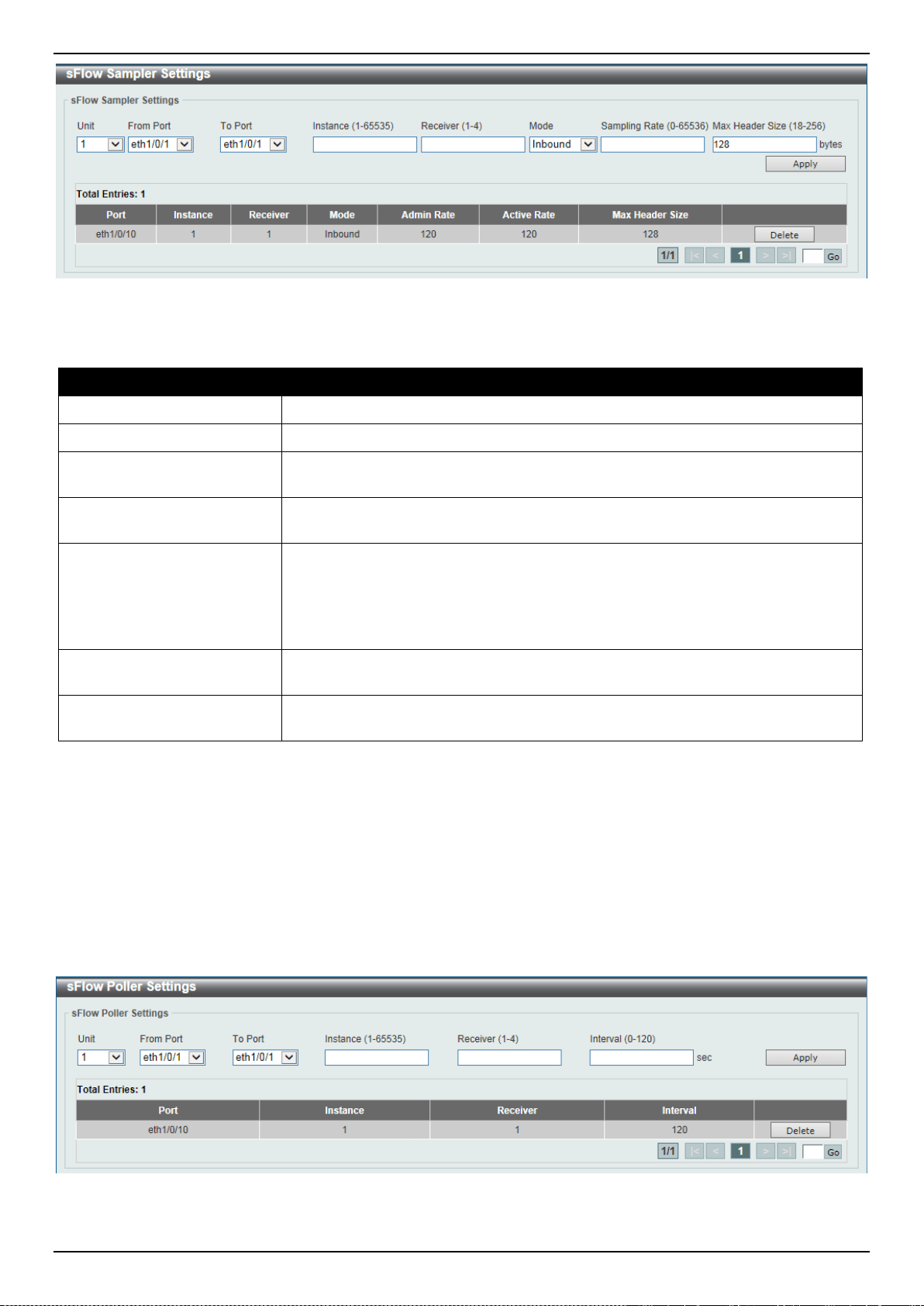
DXS-3400 Series Lite Layer 3 Stackable 10GbE Managed Switch Web UI Reference Guide
412
Figure 11-20 sFlow Sampler Settings Window
The fields that can be configured are described below:
Parameter Description
Unit
Select the Switch unit that will be used for this configuration here.
From Port ~ To Port
Select the appropriate port range used for the configuration here.
Instance
Enter the instance’s index number if multiple samplers are associated with one
interface. The valid range is from 1 to 65535.
Receiver
Enter the receiver’s index for this sampler. If not specified, the value is 0. This
value must be between 1 and 4.
Mode
Select the mode here. Options to choose from are Inbound and Outbound.
• Selecting Inbound specifies to sample ingress packets. This is the default
direction of a sampler.
• Selecting Outbound specifies to sample egress packets.
Sampling Rate
Enter packet sampling rate here. This value must be between 0 and 65536.
Entering 0 will disable this function. If not specified, the default value is 0.
Max Header Size
Enter the maximum number of bytes that should be copied from sampled packets.
This value must be between 18 and 256 bytes. By default, this value is 128 bytes.
Click the Apply button to accept the changes made.
Click the Delete button to remove the specified entry.
Enter a page number and click the Go button to navigate to a specific page when multiple pages exist.
sFlow Poller Settings
This window is used to display and configure the sFlow poller settings.
To view the following window, click Monitoring > sFlow > sFlow Poller Settings, as shown below:
Figure 11-21 sFlow Poller Settings Window

DXS-3400 Series Lite Layer 3 Stackable 10GbE Managed Switch Web UI Reference Guide
413
The fields that can be configured are described below:
Parameter Description
Unit
Select the Switch unit that will be used for this configuration here.
From Port ~ To Port
Select the appropriate port range used for the configuration here.
Instance
Enter the instance’s index number if multiple samplers are associated with one
interface. The valid range is from 1 to 65535.
Receiver
Enter the receiver’s index value for this poller here. This value must be between 1
and 4.
Interval
Enter the maximum number of seconds between successive polling samples. This
value must be between 0 and 120 seconds. Entering 0 will disable this feature. By
default this value is 0.
Click the Apply button to accept the changes made.
Click the Delete button to remove the specified entry.
Enter a page number and click the Go button to navigate to a specific page when multiple pages exist.
Device Environment
The device environment feature displays the Switch internal temperature status.
To view the following window, click Monitoring > Device Environment, as shown below:
Figure 11-22 Device Environment Window
External Alarm Settings
This window is used to display and configure the external alarm settings. This is used to enable monitoring the
external alarm source status or to configure external alarm message for a channel. The source of alarm is located
outside of the Switch and is monitored via pre-defined connecting channels. Each channel represents a specific alarm
event. The status of an alarm source can be either in the alarm state or in the normal state. If the source is absent or
the source is present and in the normal state, the status will be normal. The status will be abnormal if the source is in
the abnormal state. A notification will be sent when the monitoring status is changed.
To view the following window, click Monitoring > External Alarm Settings, as shown below:
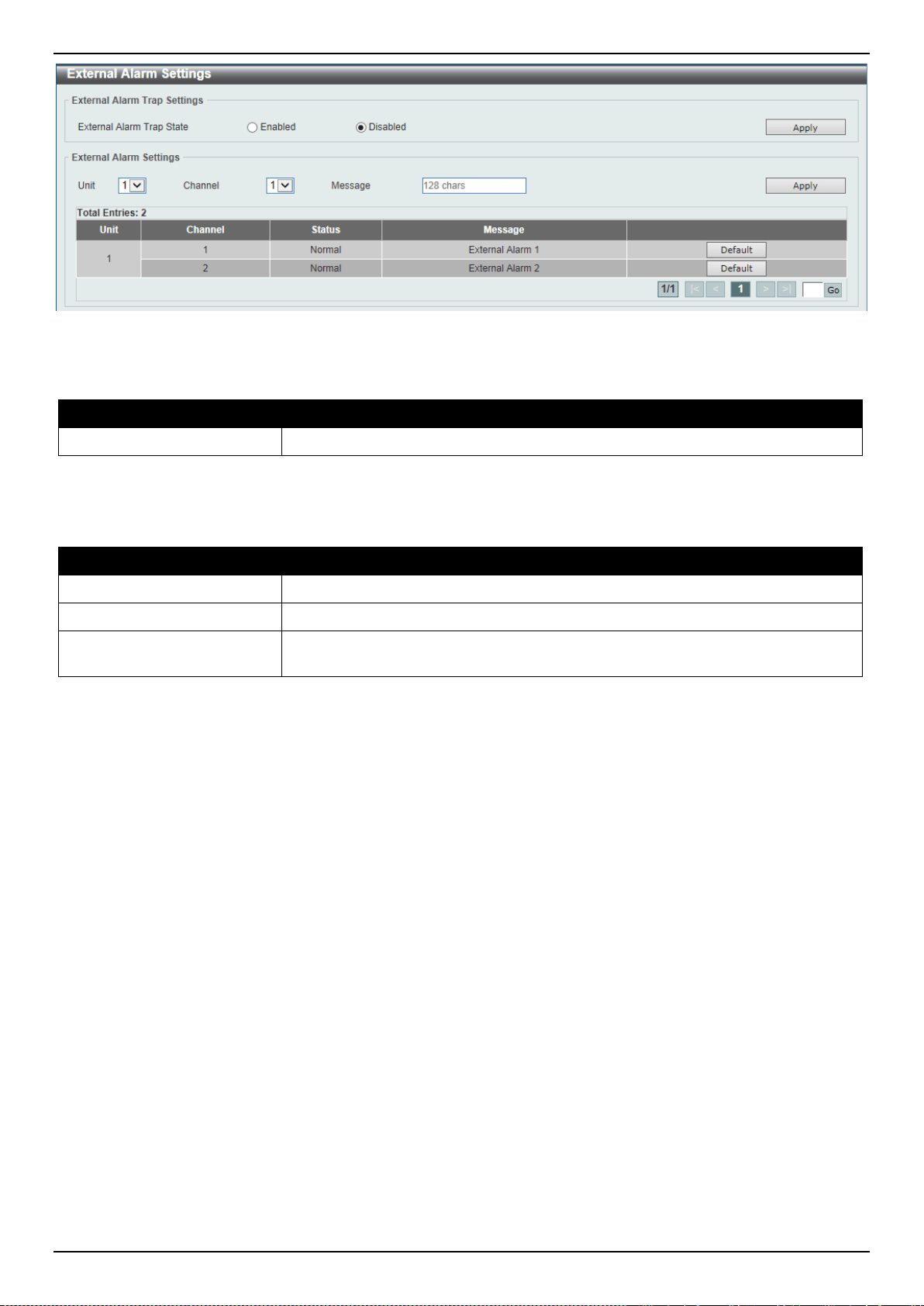
DXS-3400 Series Lite Layer 3 Stackable 10GbE Managed Switch Web UI Reference Guide
414
Figure 11-23 External Alarm Settings Window
The fields that can be configured in External Alarm Trap Settings are described below:
Parameter Description
External Alarm Trap State
Select to enable or disable the external alarm trap state here.
Click the Apply button to accept the changes made.
The fields that can be configured in External Alarm Settings are described below:
Parameter Description
Unit
Select the Switch unit that will be used for this configuration here.
Channel
Select the channel to be configured here. The range is from 1 to 4.
Message
Enter the alarm message associated with the channel here. This string can be up
to 128 characters long.
Click the Apply button to accept the changes made.
Click the Default button return the entry to the default settings.
Enter a page number and click the Go button to navigate to a specific page when multiple pages exist.
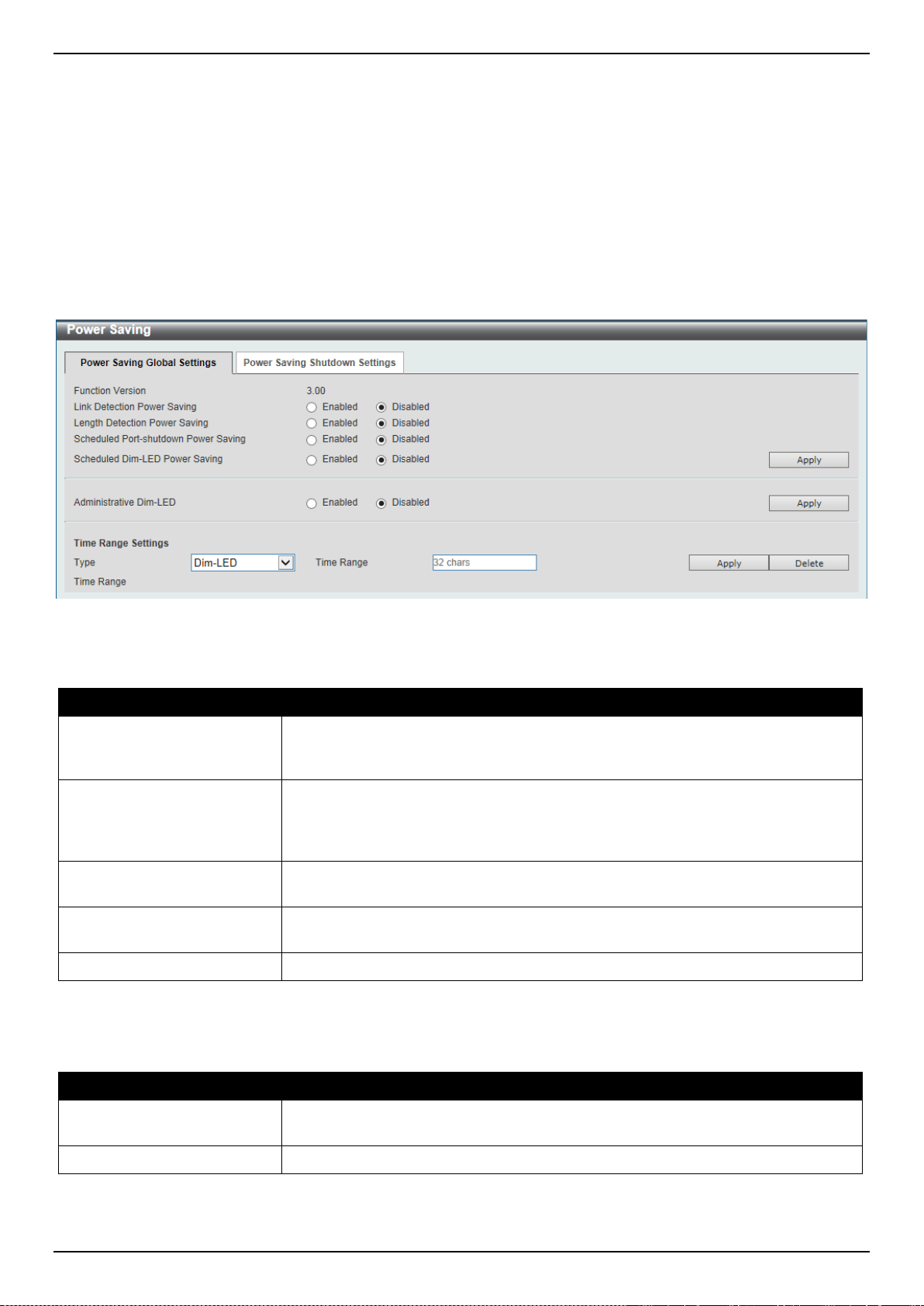
DXS-3400 Series Lite Layer 3 Stackable 10GbE Managed Switch Web UI Reference Guide
415
12. Green
Power Saving
EEE
Power Saving
This window is used to configure the power saving settings of the Switch.
To view the following window, click Green > Power Saving, as shown below:
Figure 12-1 Power Saving Global Settings Window
The fields that can be configured in Power Saving Global Settings are described below:
Parameter Description
Link Detection Power
Saving
Select this option to enable or disable the link detection state. When enabled, a
port which has a link down status will be turned off to save power to the Switch.
This will not affect the port’s capabilities when the port status is link up.
Length Detection Power
Saving
Select this option to enable or disable the cable length detection power saving
feature. This feature will allow the Switch to automatically detect the cable length
connected to the port and increase or reduce the required power to this port
accordingly to save power.
Scheduled Port-shutdown
Power Saving
Select this option to enable or disable applying the power saving by scheduled
port shutdown.
Scheduled Dim-LED Power
Saving
Select this option to enable or disable applying the power saving by scheduled
dimming LEDs.
Administrative Dim-LED
Select this option to enable or disable the port LED function.
Click the Apply button to accept the changes made.
The fields that can be configured in Time Range Settings are described below:
Parameter Description
Type
Select the type of power saving. Options to choose from are Dim-LED and
Hibernation.
Time Range
Enter the name of the time range to associate with the power saving type.
Click the Apply button to accept the changes made for each individual section.
Click the Delete button to remove the specified entry.
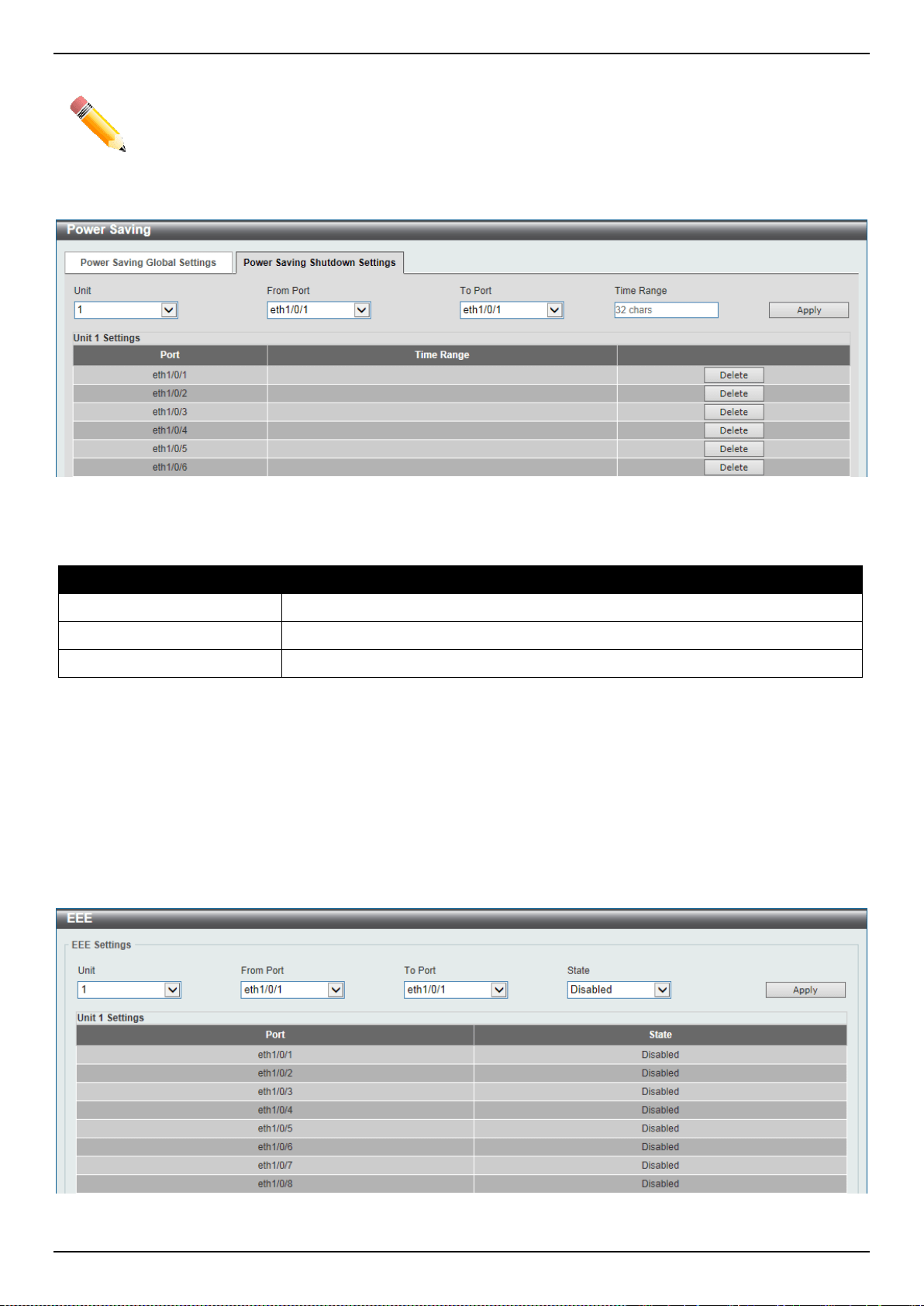
DXS-3400 Series Lite Layer 3 Stackable 10GbE Managed Switch Web UI Reference Guide
416
NOTE: The hibernation feature can only be configured when physical stacking is disabled on the
Switch.
After clicking the Power Saving Shutdown Settings tab, the following page will appear.
Figure 12-2 Power Saving Shutdown Settings Window
The fields that can be configured are described below:
Parameter Description
Unit
Select the Switch unit that will be used for this configuration here.
From Port ~ To Port
Select the appropriate port range used for the configuration here.
Time Range
Enter the name of the time range to associate with the ports.
Click the Apply button to accept the changes made.
Click the Delete button to remove the specified entry.
EEE
Energy Efficient Ethernet (EEE) is defined in IEEE 802.3az. It is designed to reduce the energy consumption of a link
when no packets are being sent.
To view the following window, click Green > EEE, as shown below:
Figure 12-3 EEE Window

DXS-3400 Series Lite Layer 3 Stackable 10GbE Managed Switch Web UI Reference Guide
417
The fields that can be configured are described below:
Parameter Description
Unit
Select the Switch unit that will be used for this configuration here.
From Port ~ To Port
Select the appropriate port range used for the configuration here.
State
Select this option to enable or disable the state of this feature here.
Click the Apply button to accept the changes made.
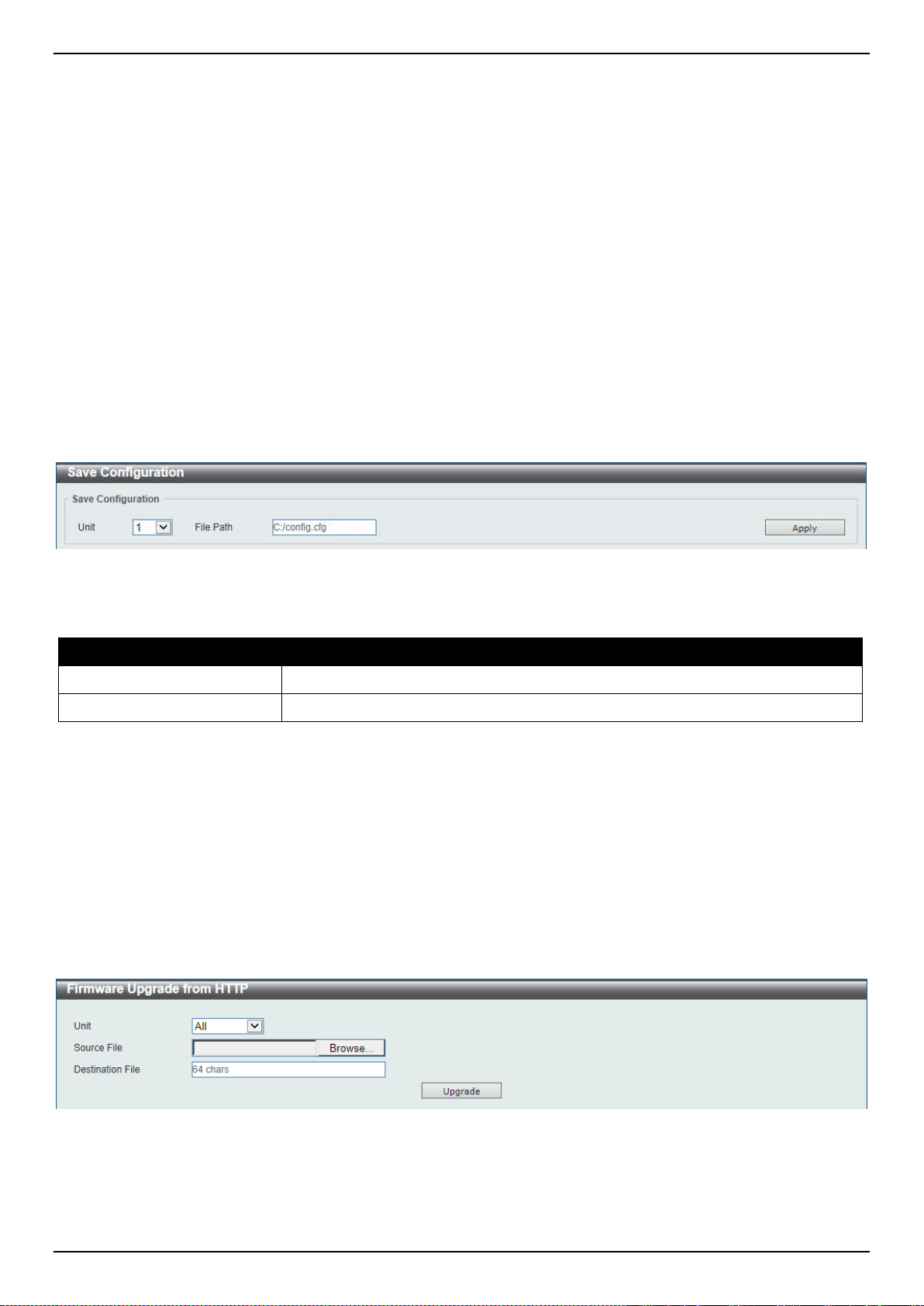
DXS-3400 Series Lite Layer 3 Stackable 10GbE Managed Switch Web UI Reference Guide
418
13. Save and Tools
Save Configuration
Firmware Upgrade & Backup
Configuration Restore & Backup
Log Backup
Ping
Trace Route
Reset
Reboot System
DLMS Settings
Save Configuration
This window is used to save the running configuration to the start-up configuration. This is to prevent the loss of
configuration in the event of a power failure.
To view the following window, click Save > Save Configuration, as shown below:
Figure 13-1 Save Configuration Window
The fields that can be configured are described below:
Parameter Description
Unit
Select the Switch unit that will be used for this configuration here.
File Path
Enter the filename and path in the space provided.
Click the Apply button to save the configuration.
Firmware Upgrade & Backup
Firmware Upgrade from HTTP
This window is used to initiate a firmware upgrade from a local PC using HTTP.
To view the following window, click Tools > Firmware Upgrade & Backup > Firmware Upgrade from HTTP, as
shown below:
Figure 13-2 Firmware Upgrade from HTTP Window
The fields that can be configured are described below:
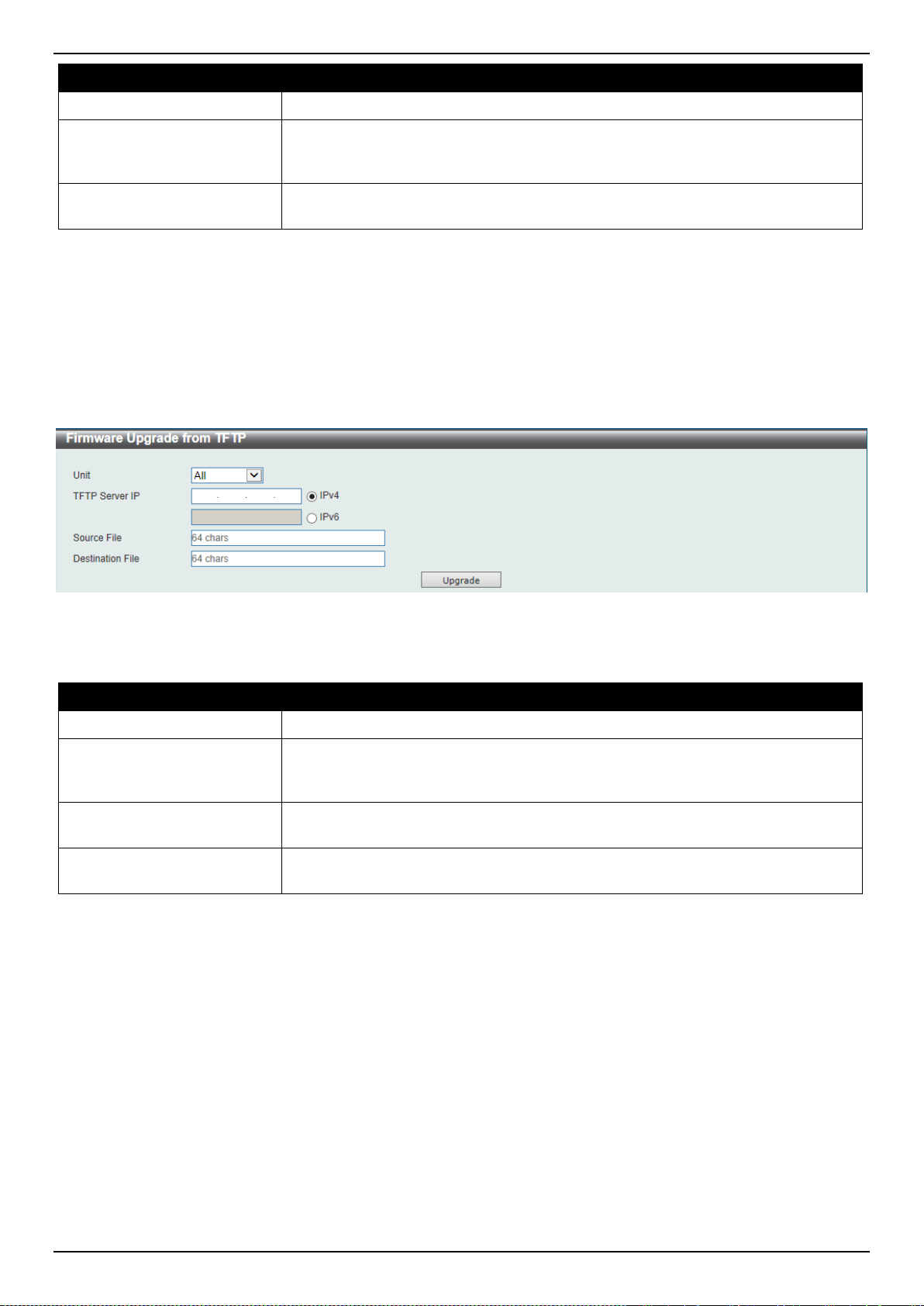
DXS-3400 Series Lite Layer 3 Stackable 10GbE Managed Switch Web UI Reference Guide
419
Parameter Description
Unit
Select the Switch unit that will be used for this configuration here.
Source File
In this field the source firmware file’s filename and path will be displayed after
selection. To navigate to the location of the firmware file located on the local PC,
either double click in the text box or click the Browse button.
Destination File
Enter the destination path and location where the new firmware should be stored
on the Switch. This field can be up to 64 characters long.
Click the Upgrade button to initiate the firmware upgrade.
Firmware Upgrade from TFTP
This window is used to initiate a firmware upgrade from a TFTP server.
To view the following window, click Tools > Firmware Upgrade & Backup > Firmware Upgrade from TFTP, as
shown below:
Figure 13-3 Firmware Upgrade from TFTP Window
The fields that can be configured are described below:
Parameter Description
Unit
Select the Switch unit that will be used for this configuration here.
TFTP Server IP
Enter the TFTP server’s IP address here. When select the IPv4 option, enter the
IPv4 address of the TFTP server in the space provided. When the IPv6 option is
selected, enter the IPv6 address of the TFTP server in the space provided.
Source File
Enter the source filename and path of the firmware file located on the TFTP
server here. This field can be up to 64 characters long.
Destination File
Enter the destination path and location where the new firmware should be stored
on the Switch. This field can be up to 64 characters long.
Click the Upgrade button to initiate the firmware upgrade.
Firmware Upgrade from FTP
This window is used to initiate a firmware upgrade from an FTP server.
To view the following window, click Tools > Firmware Upgrade & Backup > Firmware Upgrade from FTP, as
shown below:
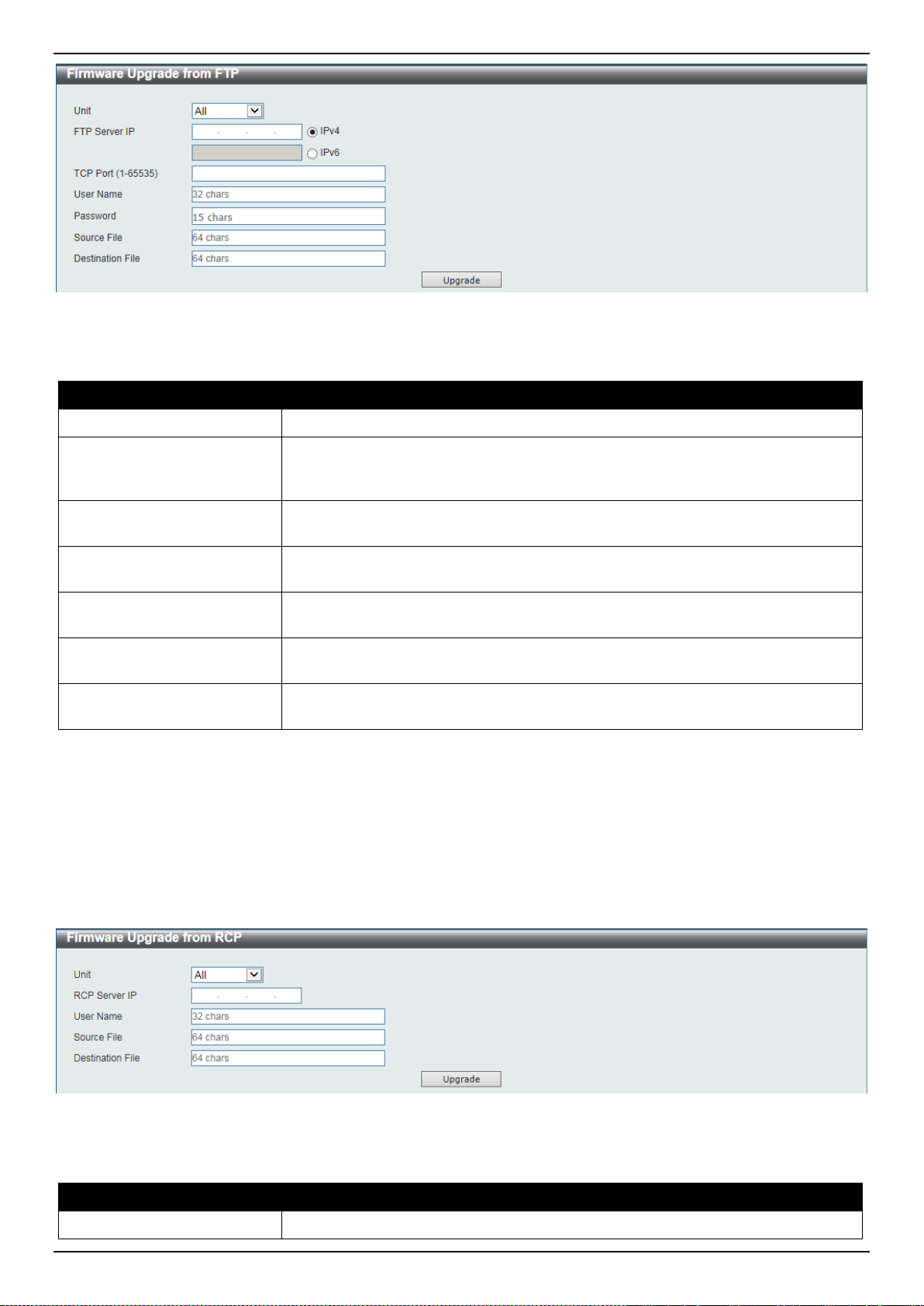
DXS-3400 Series Lite Layer 3 Stackable 10GbE Managed Switch Web UI Reference Guide
420
Figure 13-4 Firmware Upgrade from FTP Window
The fields that can be configured are described below:
Parameter Description
Unit
Select the Switch unit that will be used for this configuration here.
FTP Server IP
Enter the FTP server’s IP address here. When select the IPv4 option, enter the
IPv4 address of the FTP server in the space provided. When the IPv6 option is
selected, enter the IPv6 address of the FTP server in the space provided.
TCP Port
Enter the TCP port number used for the FTP connection here. The range is from
1 to 65535.
User Name
Enter the user name used for the FTP connection here. This name can be up to
32 characters long.
Password
Enter the password used for the FTP connection here. This password can be up
to 15 characters long.
Source File
Enter the source filename and path of the firmware file located on the FTP server
here. This field can be up to 64 characters long.
Destination File
Enter the destination path and location where the new firmware should be stored
on the Switch. This field can be up to 64 characters long.
Click the Upgrade button to initiate the firmware upgrade.
Firmware Upgrade from RCP
This window is used to initiate a firmware upgrade from an RCP server.
To view the following window, click Tools > Firmware Upgrade & Backup > Firmware Upgrade from RCP, as
shown below:
Figure 13-5 Firmware Upgrade from RCP Window
The fields that can be configured are described below:
Parameter Description
Unit
Select the Switch unit that will be used for this configuration here.
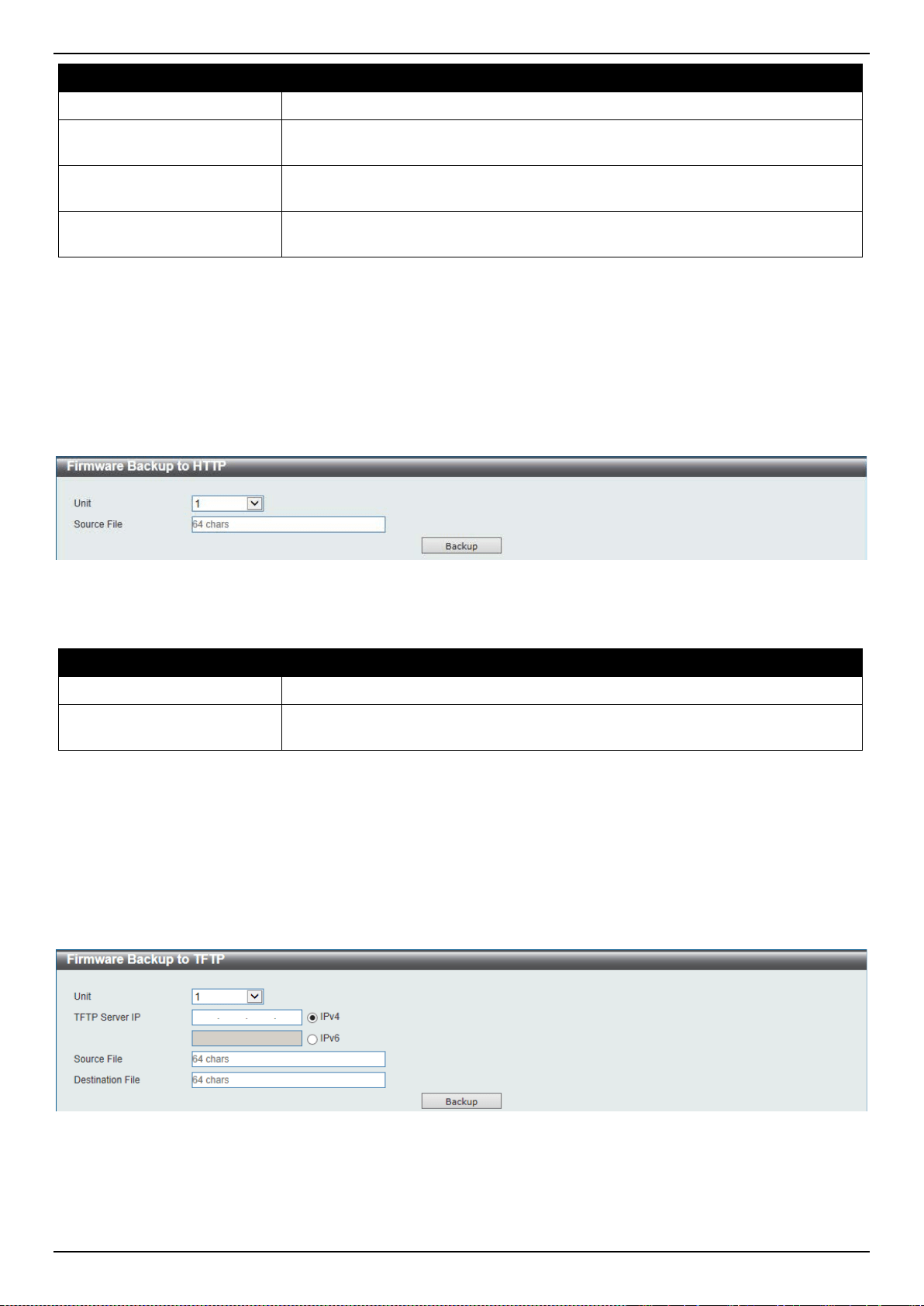
DXS-3400 Series Lite Layer 3 Stackable 10GbE Managed Switch Web UI Reference Guide
421
Parameter Description
RCP Server IP
Enter the RCP server’s IP address here.
User Name
Enter the user name used for the RCP connection here. This name can be up to
32 characters long.
Source File
Enter the source filename and path of the firmware file located on the RCP server
here. This field can be up to 64 characters long.
Destination File
Enter the destination path and location where the new firmware should be stored
on the Switch. This field can be up to 64 characters long.
Click the Upgrade button to initiate the firmware upgrade.
Firmware Backup to HTTP
This window is used to initiate a firmware backup to a local PC using HTTP.
To view the following window, click Tools > Firmware Upgrade & Backup > Firmware Backup to HTTP, as shown
below:
Figure 13-6 Firmware Backup to HTTP Window
The fields that can be configured are described below:
Parameter Description
Unit
Select the Switch unit that will be used for this configuration here.
Source File
Enter the source filename and path of the firmware file located on the Switch
here. This field can be up to 64 characters long.
Click the Backup button to initiate the firmware backup.
Firmware Backup to TFTP
This window is used to initiate a firmware backup to a TFTP server.
To view the following window, click Tools > Firmware Upgrade & Backup > Firmware Backup to TFTP, as shown
below:
Figure 13-7 Firmware Backup to TFTP Window
The fields that can be configured are described below:
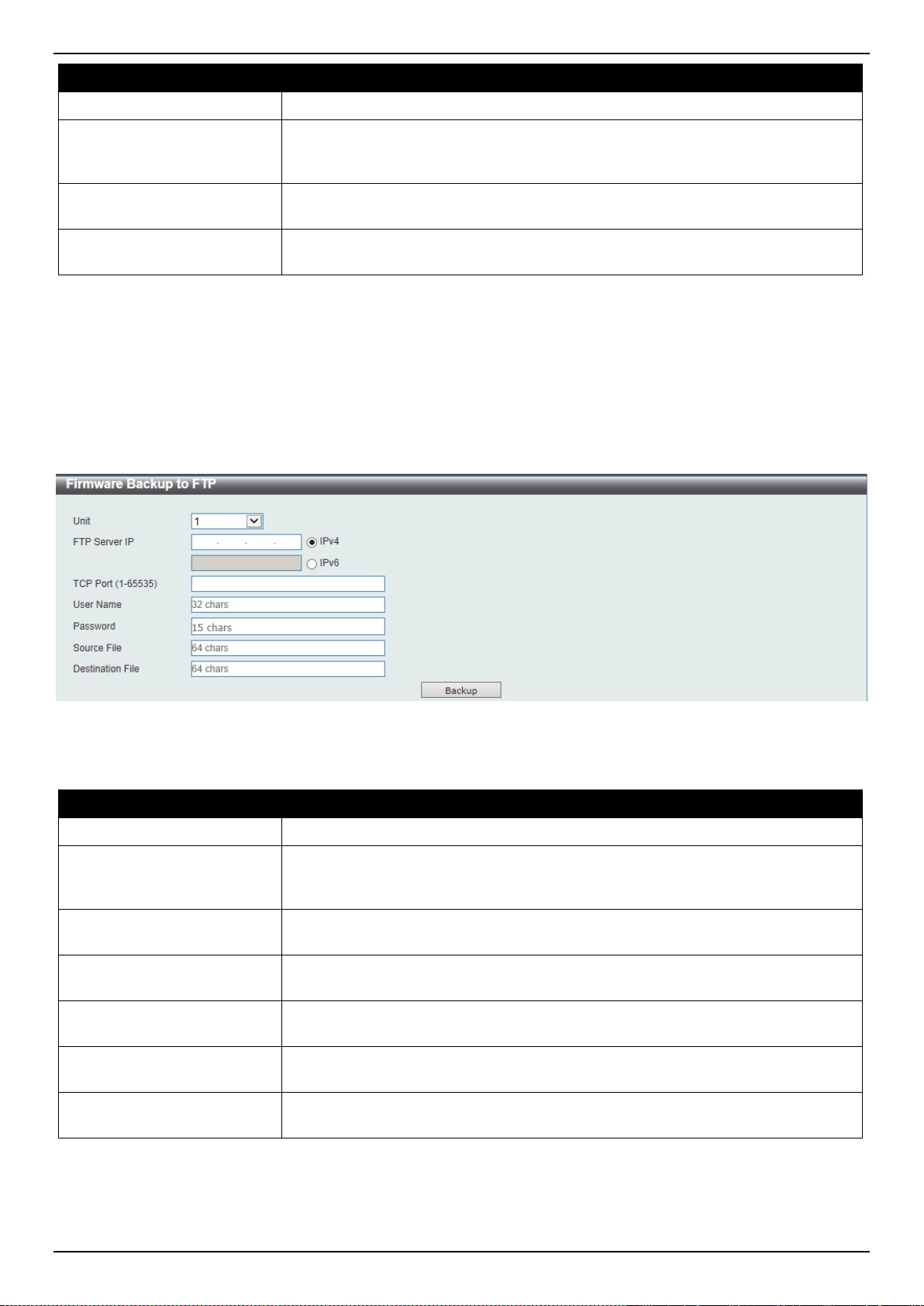
DXS-3400 Series Lite Layer 3 Stackable 10GbE Managed Switch Web UI Reference Guide
422
Parameter Description
Unit
Select the Switch unit that will be used for this configuration here.
TFTP Server IP
Enter the TFTP server’s IP address here. When select the IPv4 option, enter the
IPv4 address of the TFTP server in the space provided. When the IPv6 option is
selected, enter the IPv6 address of the TFTP server in the space provided.
Source File
Enter the source filename and path of the firmware file located on the Switch
here. This field can be up to 64 characters long.
Destination File
Enter the destination filename and path of the firmware file to be backed up to the
TFTP server here. This field can be up to 64 characters long.
Click the Backup button to initiate the firmware backup.
Firmware Backup to FTP
This window is used to initiate a firmware backup to an FTP server.
To view the following window, click Tools > Firmware Upgrade & Backup > Firmware Backup to FTP, as shown
below:
Figure 13-8 Firmware Backup to FTP Window
The fields that can be configured are described below:
Parameter Description
Unit
Select the Switch unit that will be used for this configuration here.
FTP Server IP
Enter the FTP server’s IP address here. When select the IPv4 option, enter the
IPv4 address of the FTP server in the space provided. When the IPv6 option is
selected, enter the IPv6 address of the FTP server in the space provided.
TCP Port
Enter the TCP port number used for the FTP connection here. The range is from
1 to 65535.
User Name
Enter the user name used for the FTP connection here. This name can be up to
32 characters long.
Password
Enter the password used for the FTP connection here. This password can be up
to 15 characters long.
Source File
Enter the source filename and path of the firmware file located on the Switch
here. This field can be up to 64 characters long.
Destination File
Enter the destination filename and path of the firmware file to be backed up to the
FTP server here. This field can be up to 64 characters long.
Click the Backup button to initiate the firmware backup.
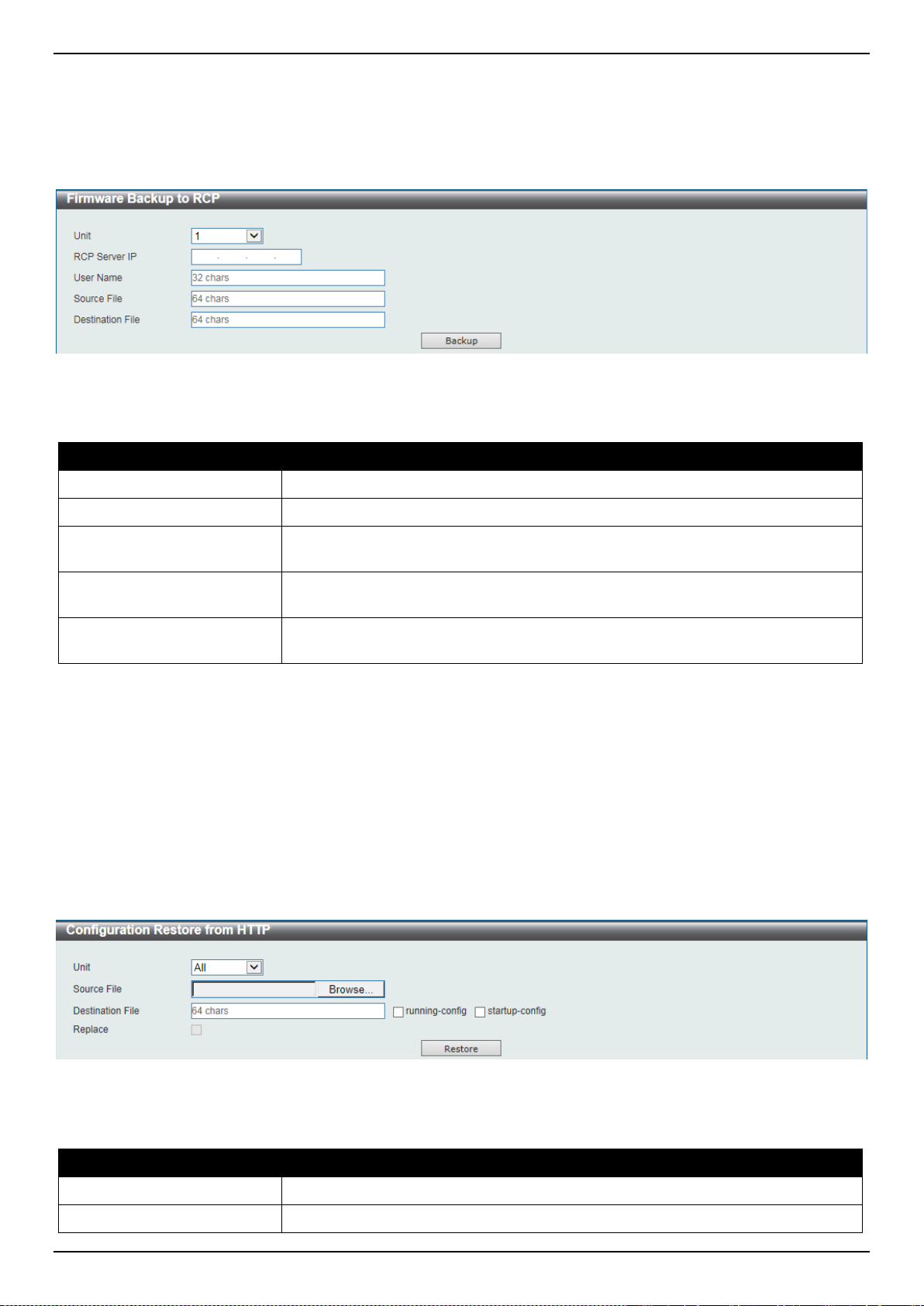
DXS-3400 Series Lite Layer 3 Stackable 10GbE Managed Switch Web UI Reference Guide
423
Firmware Backup to RCP
This window is used to initiate a firmware backup to an RCP server.
To view the following window, click Tools > Firmware Upgrade & Backup > Firmware Backup to RCP, as shown
below:
Figure 13-9 Firmware Backup to RCP Window
The fields that can be configured are described below:
Parameter Description
Unit
Select the Switch unit that will be used for this configuration here.
RCP Server IP
Enter the RCP server’s IP address here.
User Name
Enter the user name used for the RCP connection here. This name can be up to
32 characters long.
Source File
Enter the source filename and path of the firmware file located on the Switch
here. This field can be up to 64 characters long.
Destination File
Enter the destination filename and path of the firmware file to be backed up to the
RCP server here. This field can be up to 64 characters long.
Click the Backup button to initiate the firmware backup.
Configuration Restore & Backup
Configuration Restore from HTTP
This window is used to initiate a configuration restore from a local PC using HTTP.
To view the following window, click Tools > Configuration Restore & Backup > Configuration Restore from HTTP,
as shown below:
Figure 13-10 Configuration Restore from HTTP Window
The fields that can be configured are described below:
Parameter Description
Unit
Select the Switch unit that will be used for this configuration here.
Source File
In this field the source configuration file’s filename and path will be displayed after
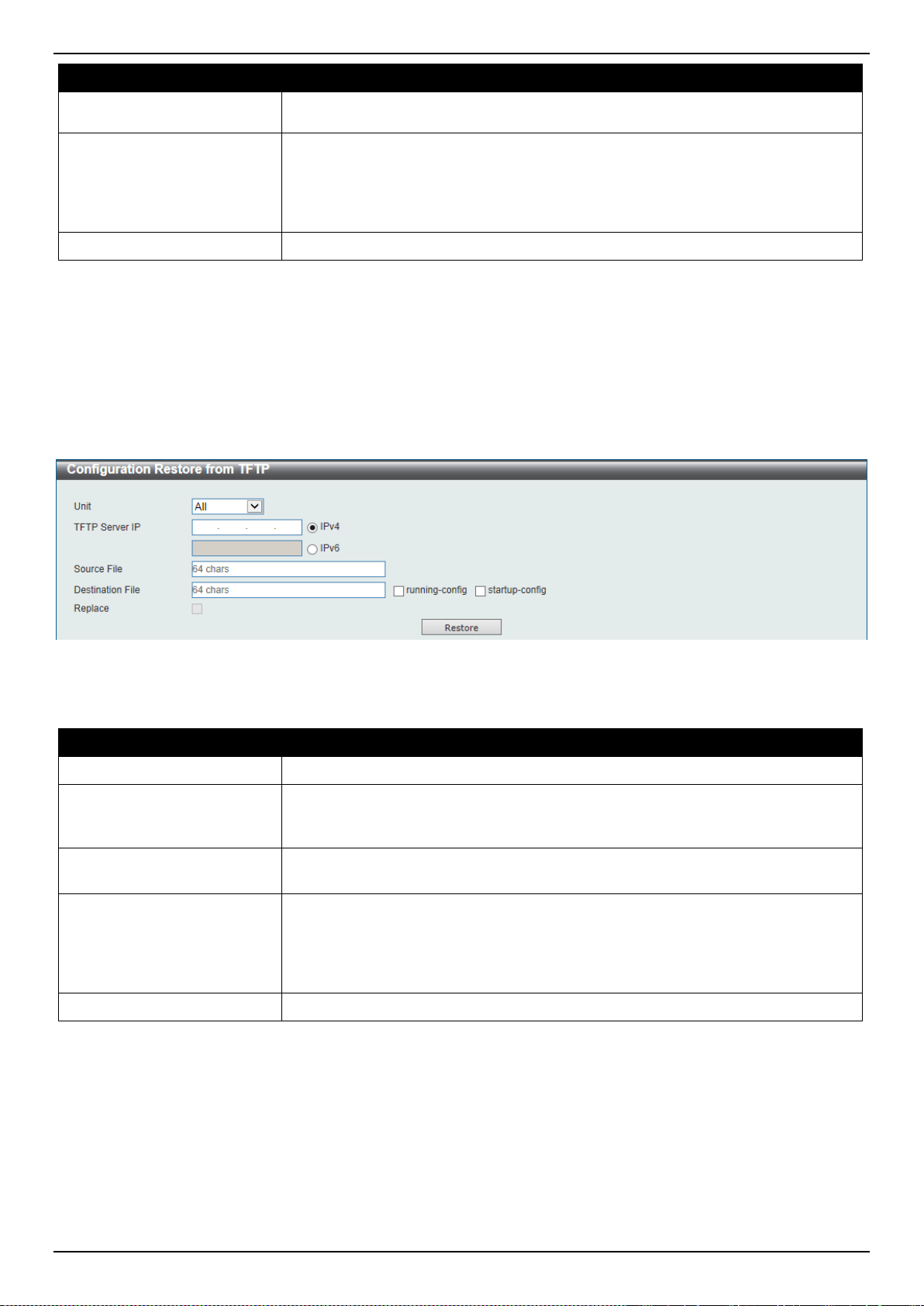
DXS-3400 Series Lite Layer 3 Stackable 10GbE Managed Switch Web UI Reference Guide
424
Parameter Description
selection. To navigate to the location of the configuration file located on the local
PC, either double click in the text box or click the Browse button.
Destination File
Enter the destination path and location where the configuration file should be
stored on the Switch. This field can be up to 64 characters long. Select the
running-config option to restore and overwrite the running configuration file on
the Switch. Select the startup-config option to restore and overwrite the start-up
configuration file on the Switch.
Replace
Select this option to replace the configuration file on the Switch with this one.
Click the Restore button to initiate the configuration restore.
Configuration Restore from TFTP
This window is used to initiate a configuration restore from a TFTP server.
To view the following window, click Tools > Configuration Restore & Backup > Configuration Restore from TFTP,
as shown below:
Figure 13-11 Configuration Restore from TFTP Window
The fields that can be configured are described below:
Parameter Description
Unit
Select the Switch unit that will be used for this configuration here.
TFTP Server IP
Enter the TFTP server’s IP address here. When select the IPv4 option, enter the
IPv4 address of the TFTP server in the space provided. When the IPv6 option is
selected, enter the IPv6 address of the TFTP server in the space provided.
Source File
Enter the source filename and path of the configuration file located on the TFTP
server here. This field can be up to 64 characters long.
Destination File
Enter the destination path and location where the configuration file should be
stored on the Switch. This field can be up to 64 characters long. Select the
running-config option to restore and overwrite the running configuration file on
the Switch. Select the startup-config option to restore and overwrite the start-up
configuration file on the Switch.
Replace
Select this option to replace the configuration file on the Switch with this one.
Click the Restore button to initiate the configuration restore.
Configuration Restore from FTP
This window is used to initiate a configuration restore from an FTP server.
To view the following window, click Tools > Configuration Restore & Backup > Configuration Restore from FTP,
as shown below:
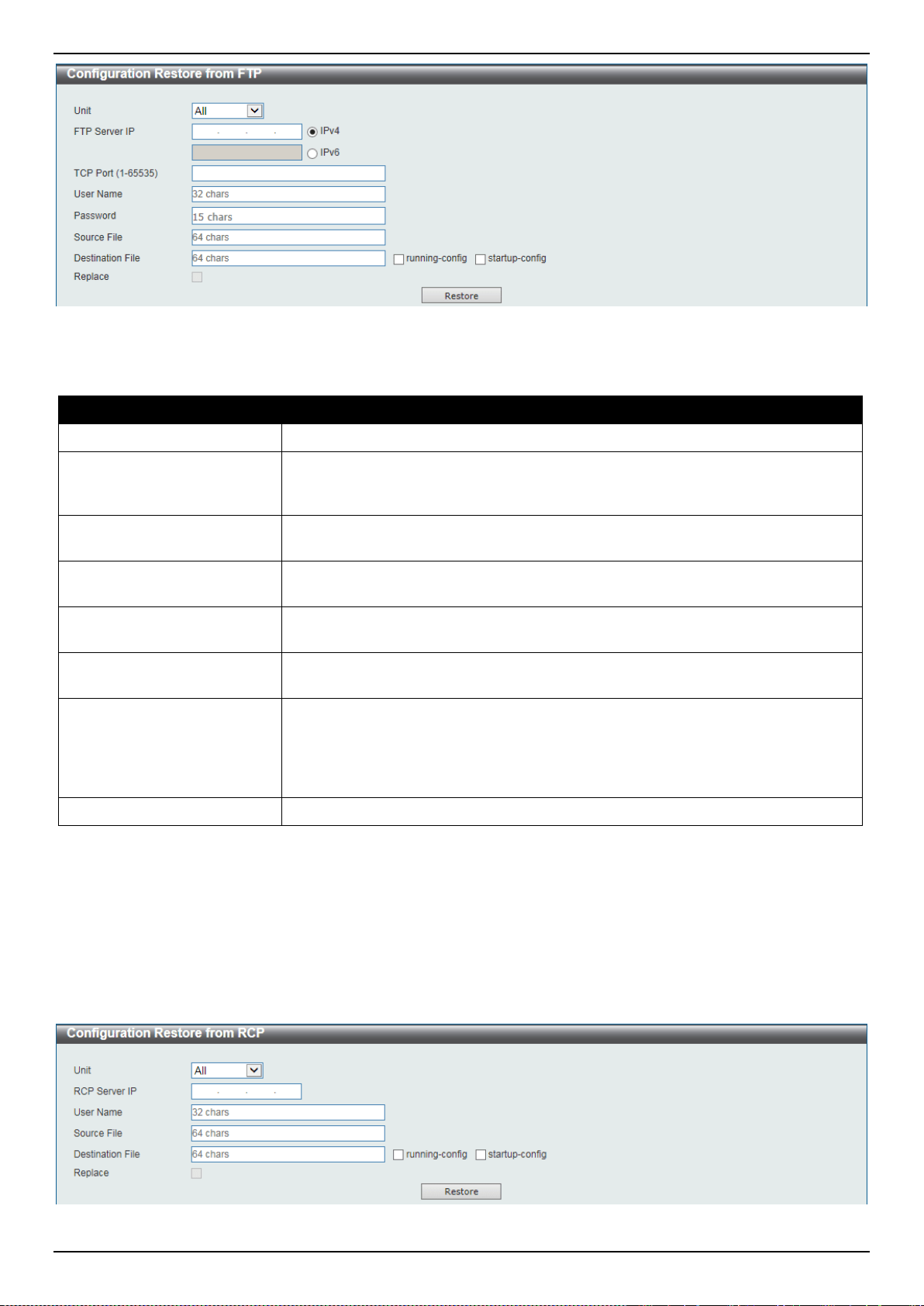
DXS-3400 Series Lite Layer 3 Stackable 10GbE Managed Switch Web UI Reference Guide
425
Figure 13-12 Configuration Restore from FTP Window
The fields that can be configured are described below:
Parameter Description
Unit
Select the Switch unit that will be used for this configuration here.
FTP Server IP
Enter the FTP server’s IP address here. When select the IPv4 option, enter the
IPv4 address of the FTP server in the space provided. When the IPv6 option is
selected, enter the IPv6 address of the FTP server in the space provided.
TCP Port
Enter the TCP port number used for the FTP connection here. The range is from
1 to 65535.
User Name
Enter the user name used for the FTP connection here. This name can be up to
32 characters long.
Password
Enter the password used for the FTP connection here. This password can be up
to 15 characters long.
Source File
Enter the source filename and path of the configuration file located on the FTP
server here. This field can be up to 64 characters long.
Destination File
Enter the destination path and location where the configuration file should be
stored on the Switch. This field can be up to 64 characters long. Select the
running-config option to restore and overwrite the running configuration file on
the Switch. Select the startup-config option to restore and overwrite the start-up
configuration file on the Switch.
Replace
Select this option to replace the configuration file on the Switch with this one.
Click the Restore button to initiate the configuration restore.
Configuration Restore from RCP
This window is used to initiate a configuration restore from an RCP server.
To view the following window, click Tools > Configuration Restore & Backup > Configuration Restore from RCP,
as shown below:
Figure 13-13 Configuration Restore from RCP Window
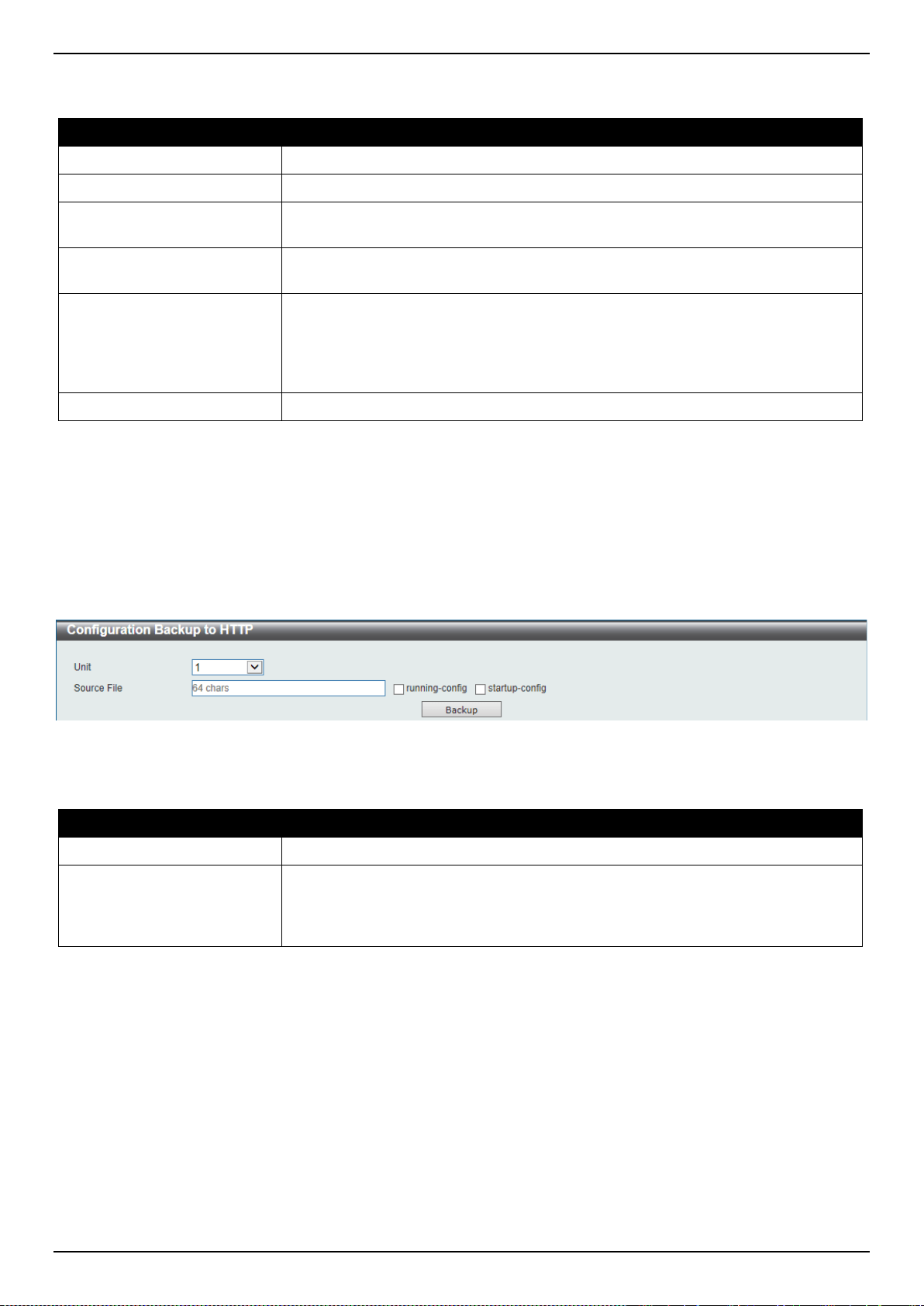
DXS-3400 Series Lite Layer 3 Stackable 10GbE Managed Switch Web UI Reference Guide
426
The fields that can be configured are described below:
Parameter Description
Unit
Select the Switch unit that will be used for this configuration here.
RCP Server IP
Enter the RCP server’s IP address here.
User Name
Enter the user name used for the RCP connection here. This name can be up to
32 characters long.
Source File
Enter the source filename and path of the configuration file located on the RCP
server here. This field can be up to 64 characters long.
Destination File
Enter the destination path and location where the configuration file should be
stored on the Switch. This field can be up to 64 characters long. Select the
running-config option to restore and overwrite the running configuration file on
the Switch. Select the startup-config option to restore and overwrite the start-up
configuration file on the Switch.
Replace
Select this option to replace the configuration file on the Switch with this one.
Click the Restore button to initiate the configuration restore.
Configuration Backup to HTTP
This window is used to initiate a configuration file backup to a local PC using HTTP.
To view the following window, click Tools > Configuration Restore & Backup > Configuration Backup to HTTP, as
shown below:
Figure 13-14 Configuration Backup to HTTP Window
The fields that can be configured are described below:
Parameter Description
Unit
Select the Switch unit that will be used for this configuration here.
Source File
Enter the source filename and path of the configuration file located on the Switch
here. This field can be up to 64 characters long. Select the running-config option
to back up the running configuration file from the Switch. Select the startup-
config option to back up the start-up configuration file from the Switch.
Click the Backup button to initiate the configuration file backup.
Configuration Backup to TFTP
This window is used to initiate a configuration file backup to a TFTP server.
To view the following window, click Tools > Configuration Restore & Backup > Configuration Backup to TFTP, as
shown below:
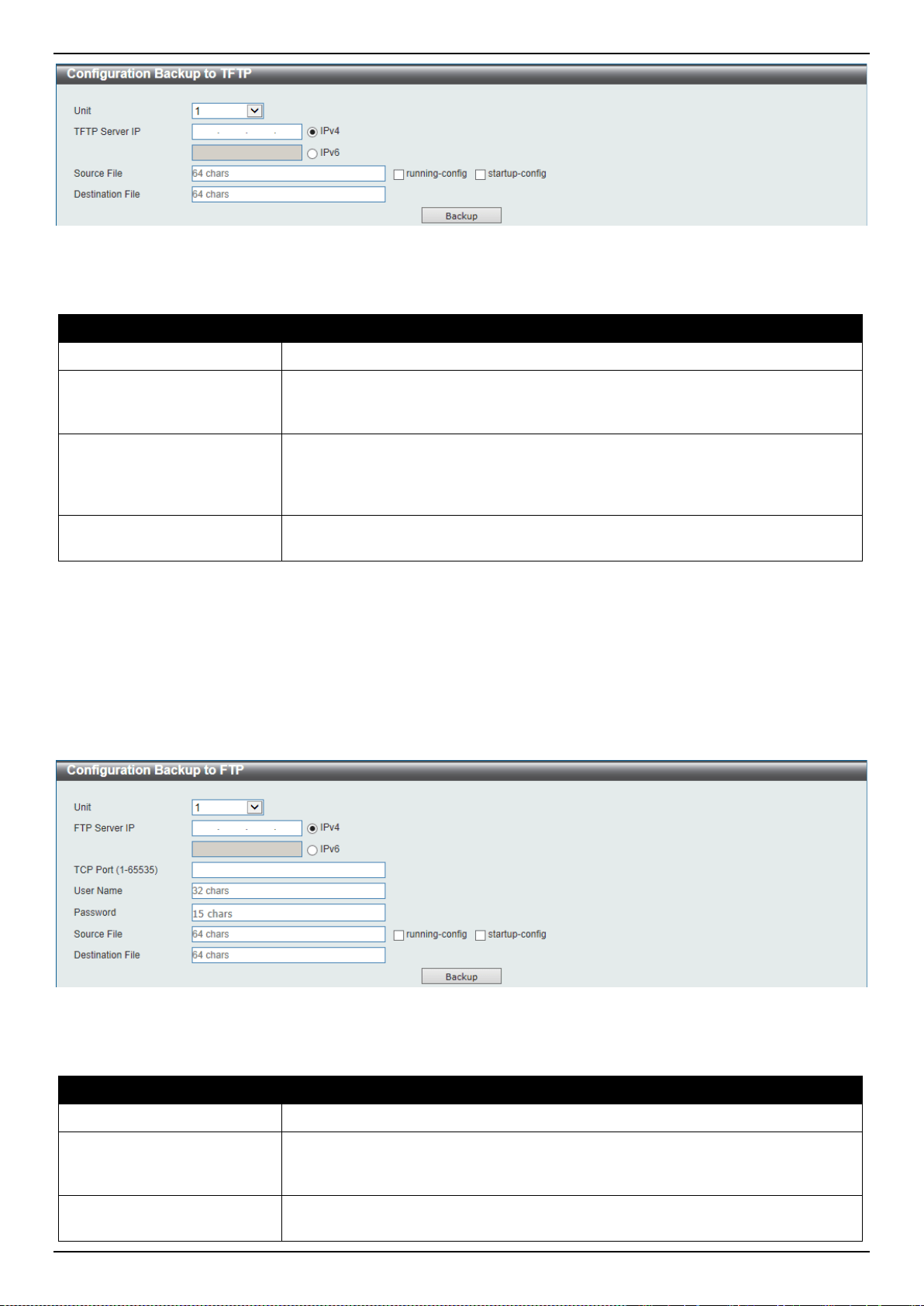
DXS-3400 Series Lite Layer 3 Stackable 10GbE Managed Switch Web UI Reference Guide
427
Figure 13-15 Configuration Backup to TFTP Window
The fields that can be configured are described below:
Parameter Description
Unit
Select the Switch unit that will be used for this configuration here.
TFTP Server IP
Enter the TFTP server’s IP address here. When select the IPv4 option, enter the
IPv4 address of the TFTP server in the space provided. When the IPv6 option is
selected, enter the IPv6 address of the TFTP server in the space provided.
Source File
Enter the source filename and path of the configuration file located on the Switch
here. This field can be up to 64 characters long. Select the running-config option
to back up the running configuration file from the Switch. Select the startup-
config option to back up the start-up configuration file from the Switch.
Destination File
Enter the destination path and location where the configuration file should be
stored on the TFTP server. This field can be up to 64 characters long.
Click the Backup button to initiate the configuration file backup.
Configuration Backup to FTP
This window is used to initiate a configuration file backup to an FTP server.
To view the following window, click Tools > Configuration Restore & Backup > Configuration Backup to FTP, as
shown below:
Figure 13-16 Configuration Backup to FTP Window
The fields that can be configured are described below:
Parameter Description
Unit
Select the Switch unit that will be used for this configuration here.
FTP Server IP
Enter the FTP server’s IP address here. When select the IPv4 option, enter the
IPv4 address of the FTP server in the space provided. When the IPv6 option is
selected, enter the IPv6 address of the FTP server in the space provided.
TCP Port
Enter the TCP port number used for the FTP connection here. The range is from
1 to 65535.
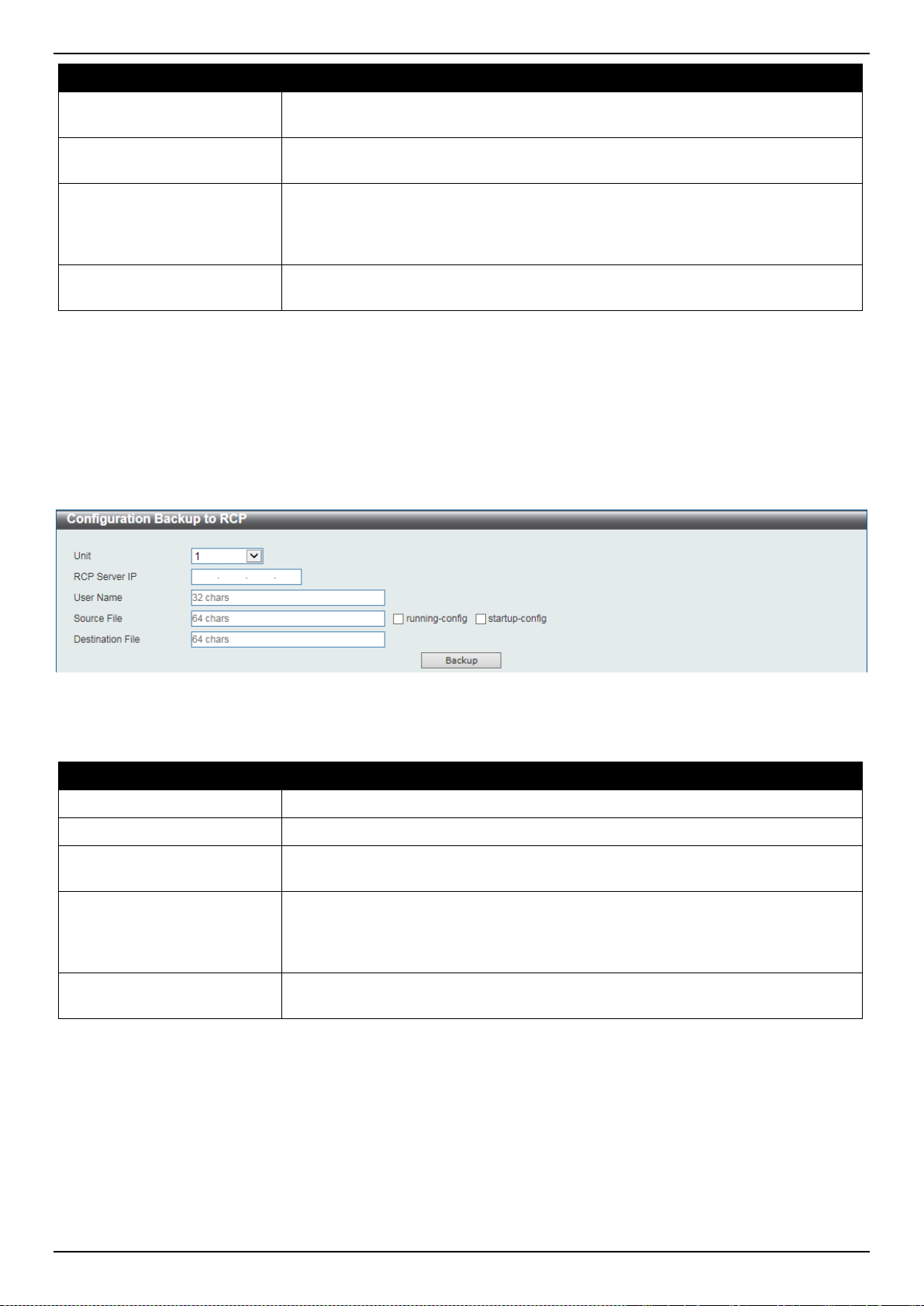
DXS-3400 Series Lite Layer 3 Stackable 10GbE Managed Switch Web UI Reference Guide
428
Parameter Description
User Name
Enter the user name used for the FTP connection here. This name can be up to
32 characters long.
Password
Enter the password used for the FTP connection here. This password can be up
to 15 characters long.
Source File
Enter the source filename and path of the configuration file located on the Switch
here. This field can be up to 64 characters long. Select the running-config option
to back up the running configuration file from the Switch. Select the startup-
config option to back up the start-up configuration file from the Switch.
Destination File
Enter the destination path and location where the configuration file should be
stored on the FTP server. This field can be up to 64 characters long.
Click the Backup button to initiate the configuration file backup.
Configuration Backup to RCP
This window is used to initiate a configuration file backup to an RCP server.
To view the following window, click Tools > Configuration Restore & Backup > Configuration Backup to RCP, as
shown below:
Figure 13-17 Configuration Backup to RCP Window
The fields that can be configured are described below:
Parameter Description
Unit
Select the Switch unit that will be used for this configuration here.
RCP Server IP
Enter the RCP server’s IP address here.
User Name
Enter the user name used for the RCP connection here. This name can be up to
32 characters long.
Source File
Enter the source filename and path of the configuration file located on the Switch
here. This field can be up to 64 characters long. Select the running-config option
to back up the running configuration file from the Switch. Select the startup-
config option to back up the start-up configuration file from the Switch.
Destination File
Enter the destination path and location where the configuration file should be
stored on the RCP server. This field can be up to 64 characters long.
Click the Backup button to initiate the configuration file backup.
Log Backup
Log Backup to HTTP
This window is used to initiate a system log backup to a local PC using HTTP.
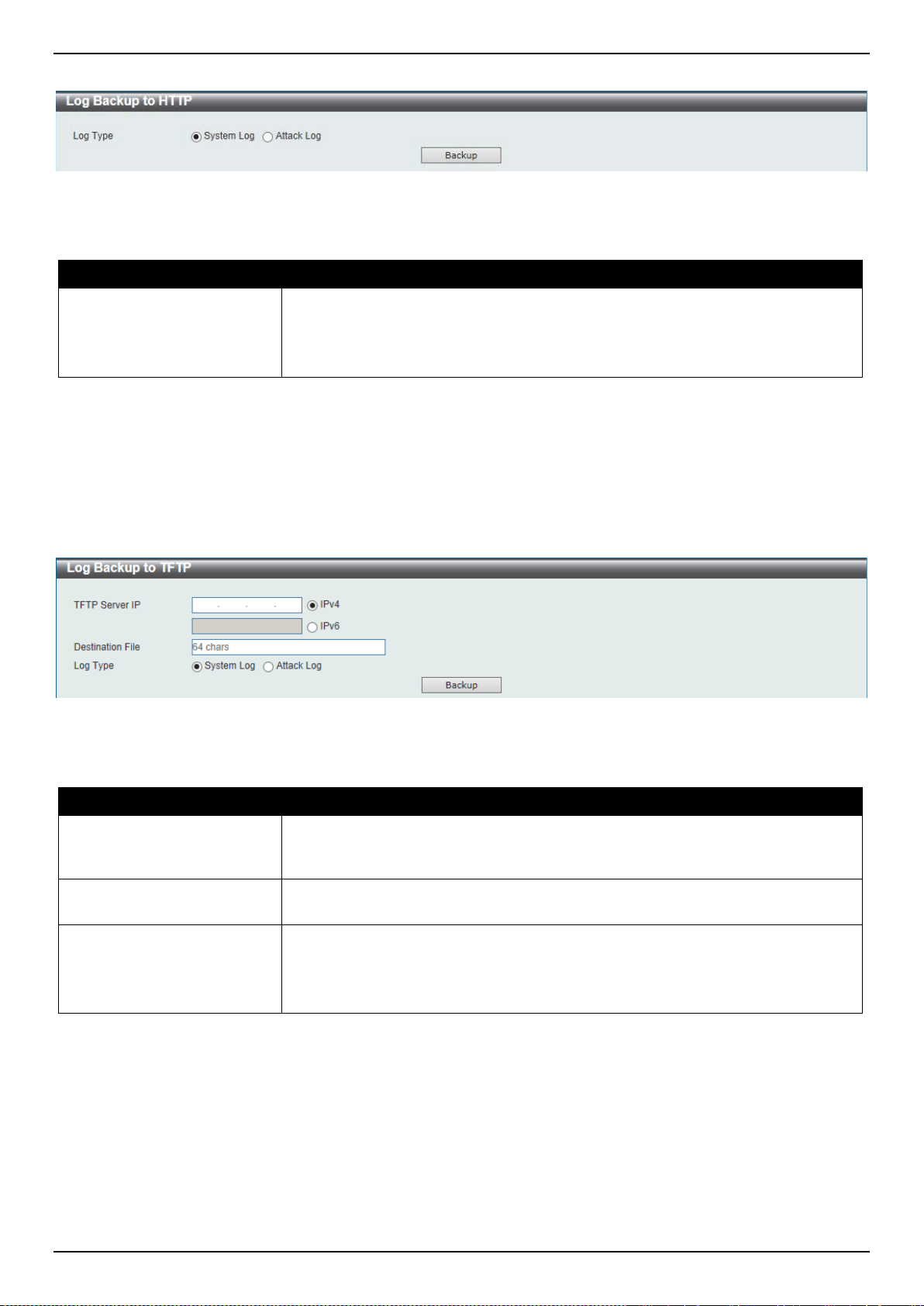
DXS-3400 Series Lite Layer 3 Stackable 10GbE Managed Switch Web UI Reference Guide
429
To view the following window, click Tools > Log Backup > Log Backup to HTTP, as shown below:
Figure 13-18 Log Backup to HTTP Window
The fields that can be configured are described below:
Parameter Description
Log Type
Select the log type that will be backed up to the local PC using HTTP.
• When the System Log option is selected, the system log will be backed up.
• When the Attack Log is selected, the attack log will be backed up.
Click the Backup button to initiate the system log backup.
Log Backup to TFTP
This window is used to initiate a system log backup to a TFTP server.
To view the following window, click Tools > Log Backup > Log Backup to TFTP, as shown below:
Figure 13-19 Log Backup to TFTP Window
The fields that can be configured are described below:
Parameter Description
TFTP Server IP
Enter the TFTP server’s IP address here. When select the IPv4 option, enter the
IPv4 address of the TFTP server in the space provided. When the IPv6 option is
selected, enter the IPv6 address of the TFTP server in the space provided.
Destination File
Enter the destination path and location where the log file should be stored on the
TFTP server. This field can be up to 64 characters long.
Log Type
Select the log type that will be backed up to the TFTP server.
• When the System Log option is selected, the system log will be backed up.
• When the Attack Log is selected, the attack log will be backed up.
Click the Backup button to initiate the system log backup.
Log Backup to RCP
This window is used to initiate a system log backup to an RCP server.
To view the following window, click Tools > Log Backup > Log Backup to RCP, as shown below:
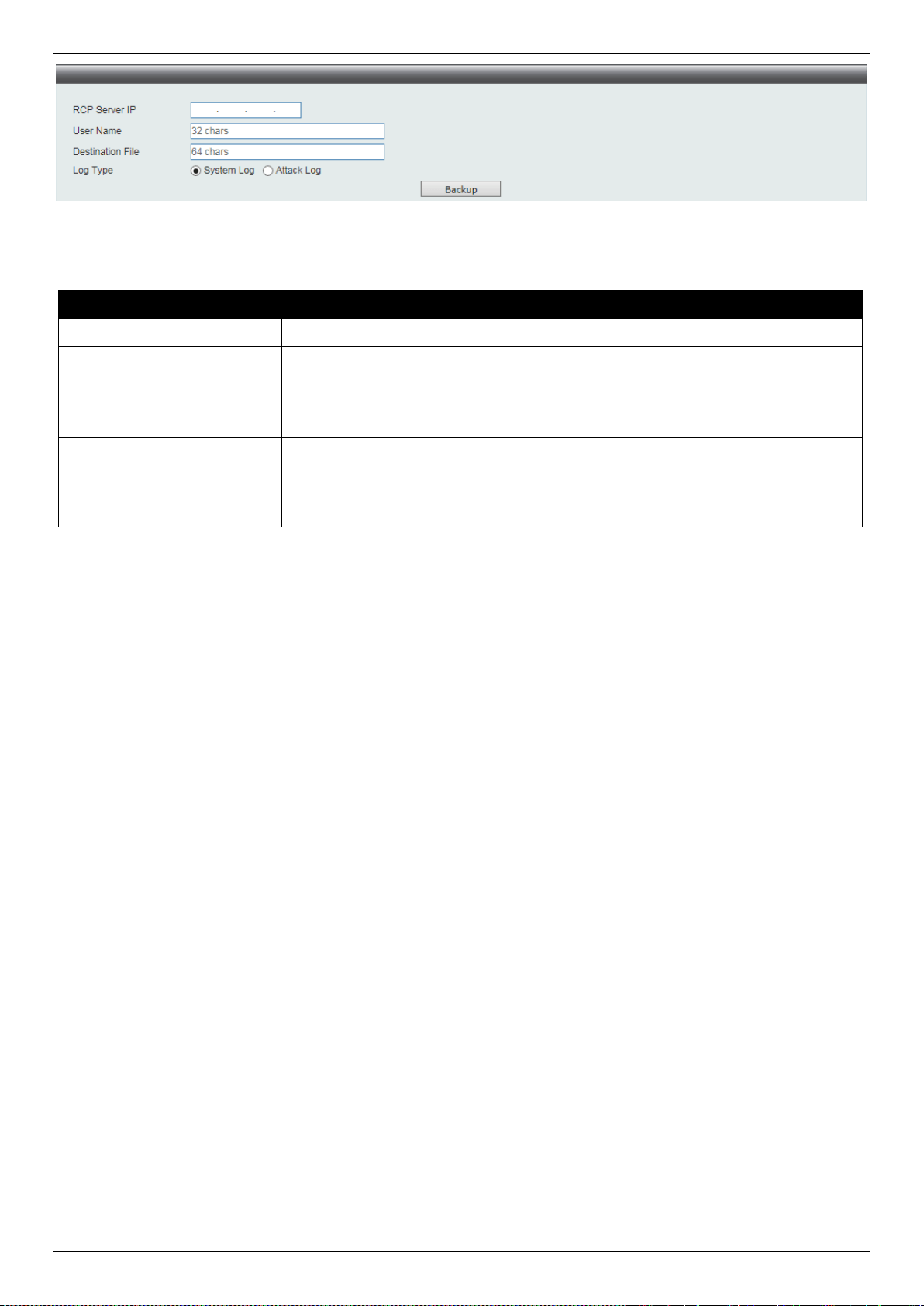
DXS-3400 Series Lite Layer 3 Stackable 10GbE Managed Switch Web UI Reference Guide
430
Figure 13-20 Log Backup to RCP Window
The fields that can be configured are described below:
Parameter Description
RCP Server IP
Enter the RCP server’s IP address here.
User Name
Enter the user name used for the RCP connection here. This name can be up to
32 characters long.
Destination File
Enter the destination path and location where the log file should be stored on the
RCP server. This field can be up to 64 characters long.
Log Type
Select the log type that will be backed up to the RCP server.
• When the System Log option is selected, the system log will be backed up.
• When the Attack Log is selected, the attack log will be backed up.
Click the Backup button to initiate the system log backup.
Ping
Ping is a small program that sends ICMP Echo packets to the IP address you specify. The destination node then
responds to or “echoes” the packets sent from the Switch. This is very useful to verify connectivity between the Switch
and other nodes on the network.
To view the following window, click Tools > Ping, as shown below:
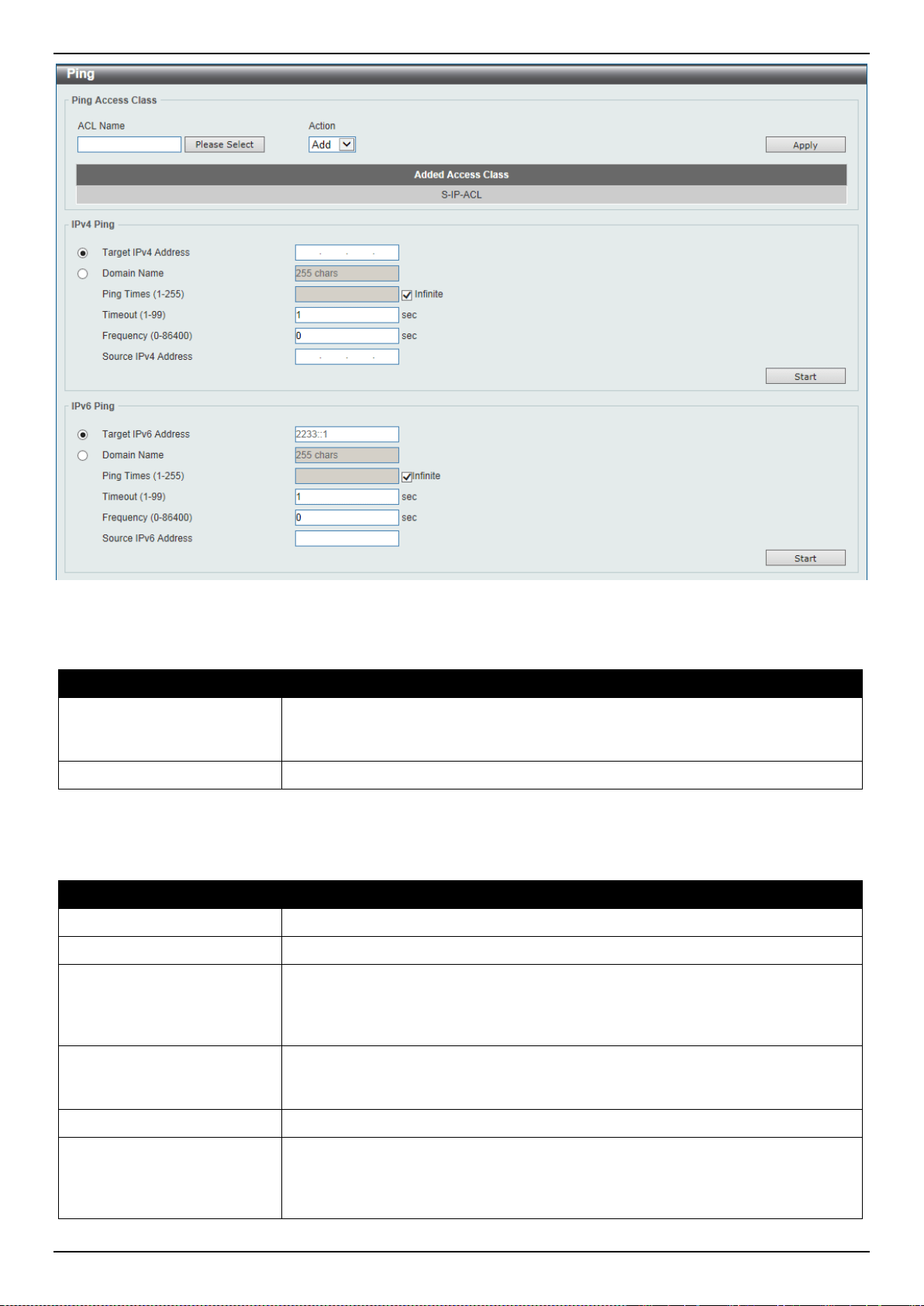
DXS-3400 Series Lite Layer 3 Stackable 10GbE Managed Switch Web UI Reference Guide
431
Figure 13-21 Ping Window
The fields that can be configured in Ping Access Class are described below:
Parameter Description
ACL Name
Enter the name of the ACL that will be used here. This name can be up to 32
characters long. Click the Please Select button to select an existing ACL from the
list.
Action
Select the action to be taken here. Options to choose from are Add and Clear.
Click the Apply button to accept the changes made.
The fields that can be configured in IPv4 Ping are described below:
Parameter Description
Target IPv4 Address
Select and enter an IP address to be pinged.
Domain Name
Select and enter the domain name of the system to discover.
Ping Times
Enter the number of times desired to attempt to Ping the IPv4 address configured
in this window. Users may enter a number of times between 1 and 255. Tick the
Infinite check box to keep sending ICMP Echo packets to the specified IP
address until the program is stopped.
Timeout
Select a timeout period between 1 and 99 seconds for this Ping message to reach
its destination. If the packet fails to find the IP address in this specified time, the
Ping packet will be dropped.
Frequency
Enter the frequency time for the ping here. The range is from 0 to 86400.
Source IPv4 Address
Enter the source IPv4 address. If the current Switch has more than one IP
address, you can enter one of them to this field. When entered, this IPv4 address
will be used as the packets’ source IP address sent to the remote host, or as
primary IP address.

DXS-3400 Series Lite Layer 3 Stackable 10GbE Managed Switch Web UI Reference Guide
432
Click the Start button to initiate the Ping Test for each individual section.
The fields that can be configured in IPv6 Ping are described below:
Parameter Description
Target IPv6 Address
Enter an IPv6 address to be pinged.
Domain Name
Select and enter the domain name of the system to discover.
Ping Times
Enter the number of times desired to attempt to Ping the IPv6 address configured
in this window. Users may enter a number of times between 1 and 255. Tick the
Infinite check box to keep sending ICMP Echo packets to the specified IPv6
address until the program is stopped.
Timeout
Select a timeout period between 1 and 99 seconds for this Ping message to reach
its destination. If the packet fails to find the IP address in this specified time, the
Ping packet will be dropped.
Frequency
Enter the frequency time for the ping here. The range is from 0 to 86400.
Source IPv6 Address
Enter the source IPv6 address. If the current Switch has more than one IPv6
address, you can enter one of them to this field. When entered, this IPv6 address
will be used as the packets’ source IP address sent to the remote host, or as
primary IP address.
Click the Start button to initiate the Ping Test for each individual section.
After clicking the Please Select button, the following window will appear:
Figure 13-22 Ping (Please Select) Window
Select the radio button next to the entry to use that ACL in the configuration.
Enter a page number and click the Go button to navigate to a specific page when multiple pages exist.
Click the OK button to accept the selection made.
After clicking the Start button in IPv4 Ping section, the following IPv4 Ping Result section will appear:
Figure 13-23 Ping (Start) Window
Click the Stop button to halt the Ping Test.
Click the Back button to return to the IPv4 Ping section.
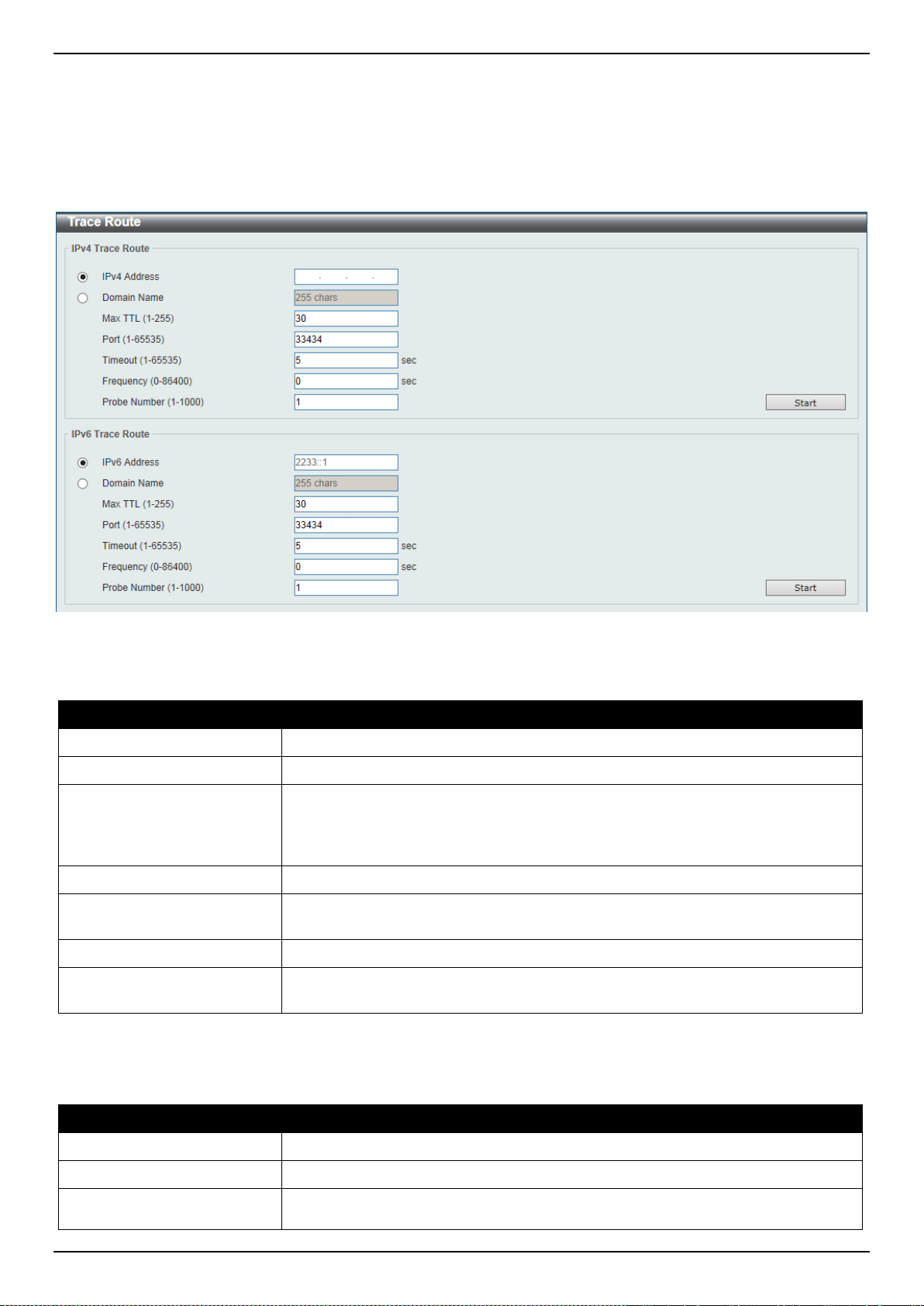
DXS-3400 Series Lite Layer 3 Stackable 10GbE Managed Switch Web UI Reference Guide
433
Trace Route
The trace route page allows the user to trace a route between the Switch and a given host on the network.
To view the following window, click Tools > Trace Route, as shown below:
Figure 13-24 Trace Route Window
The fields that can be configured in IPv4 Trace Route are described below:
Parameter Description
IPv4 Address
Select and enter the IPv4 address of the destination here.
Domain Name
Select and enter the domain name of the destination here.
Max TTL
Enter the Time-To-Live (TTL) value of the trace route request here. This is the
maximum number of routers that a trace route packet can pass. The trace route
option will cross while seeking the network path between two devices. The range
for the TTL is 1 to 255 hops.
Port
Enter the port number here. The value range is from 1 to 65535.
Timeout
Enter the timeout period while waiting for a response from the remote device
here. A value of 1 to 65535 seconds can be specified. The default is 5 seconds.
Frequency
Enter the frequency time for the trace route here. The range is from 0 to 86400.
Probe Number
Enter the probe time number here. The range is from 1 to 1000. If unspecified, the
default value is 1.
Click the Start button to initiate the route trace for each individual section.
The fields that can be configured in IPv6 Trace Route are described below:
Parameter Description
IPv6 Address
Select and enter the IPv6 address of the destination here.
Domain Name
Select and enter the domain name of the destination here.
Max TTL
Enter the Time-To-Live (TTL) value of the trace route request here. This is the
maximum number of routers that a trace route packet can pass. The trace route

DXS-3400 Series Lite Layer 3 Stackable 10GbE Managed Switch Web UI Reference Guide
434
Parameter Description
option will cross while seeking the network path between two devices. The range
for the TTL is 1 to 255 hops.
Port
Enter the port number here. The value range is from 1 to 65535.
Timeout
Enter the timeout period while waiting for a response from the remote device
here. A value of 1 to 65535 seconds can be specified. The default is 5 seconds.
Probe Number
Enter the probe time number here. The range is from 1 to 1000. If unspecified, the
default value is 1.
Click the Start button to initiate the route trace for each individual section.
After clicking the Start button in IPv4 Trace Route section, the following IPv4 Trace Route Result section will appear:
Figure 13-25 Trace Route (Start) Window
Click the Back button to stop the trace route and return to the IPv4 Trace Route section.
Reset
This window is used to reset the Switch’s configuration to the factory default settings.
To view the following window, click Tools > Reset, as shown below:
Figure 13-26 Reset Window
Select one of the following options:
• The Switch will reset to its factory default settings and then reboot.
• The Switch will reset to its factory default settings and then reboot. This option excludes the IP address.
• The Switch will reset to its factory default settings and not reboot. This option excludes the stacking information.
Click the Apply button to initiate the reset.
Reboot System
This window is used to reboot the Switch and alternatively save the configuration before doing so.
To view the following window, click Tools > Reboot System, as shown below:
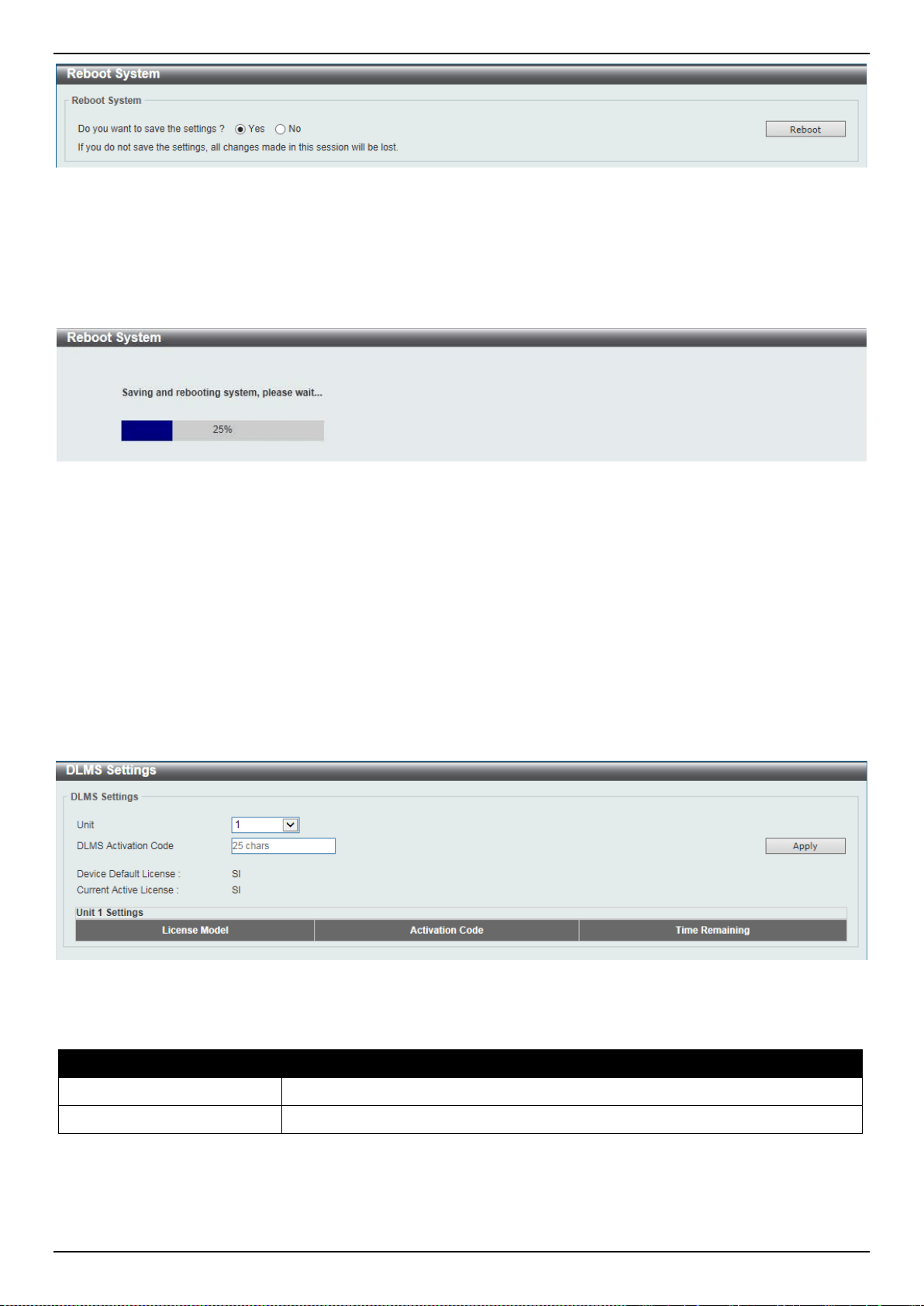
DXS-3400 Series Lite Layer 3 Stackable 10GbE Managed Switch Web UI Reference Guide
435
Figure 13-27 Reboot System Window
When rebooting the Switch, any configuration changes that was made during this session, will be lost unless the Yes
option is selected when asked to save the settings.
Click the Reboot button to alternatively save the settings and reboot the Switch.
Figure 13-28 Reboot System (Rebooting) Window
DLMS Settings
This window is used to display and configure the D-Link License Management System (DLMS) settings.
The license specifies the feature options that are enabled on the Switch. License keys are sold in the market. It may
be printed on a physical package or be displayed in an e-mail or a portal.
The user needs to register the license key on the Global Registration Portal to get the activation code. Install the
proper activation code rather than license key to activate/unlock some features.
After the activation code was installed successfully, reboot the Switch to activate the license.
To view the following window, click Tools > DLMS Settings, as shown below:
Figure 13-29 DLMS Settings Window
The fields that can be configured are described below:
Parameter Description
Unit
Select the Switch’s unit ID that will be used here.
DLMS Activation Code
Enter the DLMS activation code. This code should be 25 characters long.
Click the Apply button to accept the changes made.

DXS-3400 Series Lite Layer 3 Stackable 10GbE Managed Switch Web UI Reference Guide
436
Appendix A - Password Recovery Procedure
This section describes the procedure for resetting passwords on the D-Link DXS-3400 Series Switch.
Authenticating any user who tries to access networks is necessary and important. The basic authentication method
used to accept qualified users is through a local login, utilizing a Username and Password. Sometimes, passwords will
be forgotten or destroyed, so network administrators need to reset these passwords. This section will explain how the
Password Recovery feature can help network administrators reach this goal.
The following steps explain how to use the Password Recovery feature on the Switch to easily recover passwords.
Complete these steps to reset the password:
• For security reasons, the Password Recovery feature requires the user to physically access the device.
Therefore this feature is only applicable when there is a direct connection to the console port of the device. It is
necessary for the user needs to attach a terminal or PC with terminal emulation to the console port of the
Switch.
• Power on the Switch. After the ‘Starting runtime image’ message was displayed, the Switch will allow 1 second
for the user to press the hotkey ^ (Shift+6) to enter the Password Recovery Mode. Enter the hotkey
continuously to ensure that the timing is correct. Once the Switch enters the Password Recovery Mode, all
ports on the Switch will be disabled.
Boot Procedure V1.00.006
-------------------------------------------------------------------------------
Power On Self Test ........................................ 100 %
MAC Address : F0-7D-68-34-00-10
H/W Version : A1
Please Wait, Loading 1.00.037 Runtime Image ............... 100 %
UART init ................................................. 100 %
Starting runtime image
Password Recovery Mode
Switch(reset-config)#
In the “Password Recovery Mode” only the following commands can be used.
Command Description
no enable password
This command is used to delete all account level passwords.
no login password
This command is used to clear the local login methods.
no username
This command is used to delete all local user accounts.
password-recovery
This command is used to initiate the password recovery procedure.
reload
This command is used to reload the Switch.
reload clear running-
config
This command is used to reset the running configuration to the factory default
settings, save and then reboot the Switch.
show running-config
This command is used to display the current running configuration.
show username
This command is used to display local user account information.

DXS-3400 Series Lite Layer 3 Stackable 10GbE Managed Switch Web UI Reference Guide
437
Appendix B - System Log Entries
The following table lists all possible entries and their corresponding meanings that will appear in the System Log of the
Switch.
802.1X
Log Description Severity
Event description: 802.1X Authentication failure.
Log Message: 802.1X authentication fail [due to <reason>] from (Username: <username>,
<interface-id>, MAC: <mac-address>)
Parameters description:
reason: The reason for the failed authentication.
username: The user that is being authenticated.
interface-id: The interface name.
macaddr: The MAC address of the authenticated device.
Warning
Event description: 802.1X Authentication successful.
Log Message: 802.1X authentication success (Username: <username>, <interface-id>,
MAC: <mac-address>)
Parameters description:
username: The user that is being authenticated.
interface-id: The interface name.
macadd r: The MAC address of the authenticated device.
Informational
AAA
Log Description Severity
Event description: AAA global state is enabled or disabled.
Log Message: AAA is <status>.
Parameters description:
status: The status indicates the AAA enabled or disabled.
Informational
Event description: Successful login.
Log Message: Successful login through <exec-type> from <client-ip> authenticated by
AAA <aaa-method> <server-ip> (Username: <username>).
Parameters description:
exec-type: It indicates the EXEC types, e.g.: Console, Telnet, SSH, Web, Web(SSL).
client-ip: It indicates the client’s IP address if valid through IP protocol.
aaa-method: It indicates the authentication method, e.g.: none, local, server.
server-ip: It indicates the AAA server IP address if authentication method is remote server.
username: It indicates the username for authentication.
Informational
Event description: Login failed.
Log Message: Login failed through <exec-type> from <client-ip> authenticated by AAA
<aaa-method> <server-ip> (Username: <username>).
Parameters description:
exec-type: It indicates the EXEC types, e.g.: Console, Telnet, SSH, Web, Web(SSL).
client-ip: It indicates the client’s IP address if valid through IP protocol.
aaa-method: It indicates the authentication method, e.g.: none, local, server.
server-ip: It indicates the AAA server IP address if authentication method is remote server.
username: It indicates the username for authentication.
Warning

DXS-3400 Series Lite Layer 3 Stackable 10GbE Managed Switch Web UI Reference Guide
438
Log Description Severity
Event description: Login failed due to AAA server timeout or improper configuration.
Log Message: Login failed through <exec-type> from <client-ip> due to AAA server
<server-ip> timeout (Username: <username>).
Parameters description:
exec-type: It indicates the EXEC types, e.g.: Console, Telnet, SSH, Web, Web(SSL).
client-ip: It indicates the client’s IP address if valid through IP protocol.
server-ip: It indicates the AAA server IP address if authentication method is remote server.
username: It indicates the username for authentication.
Warning
Event description: Enable privilege successfully.
Log Message: Successful enable privilege through <exec-type> from <client-ip>
authenticated by AAA <aaa-method> <server-ip> (Username: <username>).
Parameters description:
exec-type: It indicates the EXEC types, e.g.: Console, Telnet, SSH, Web, Web(SSL).
client-ip: It indicates the client’s IP address if valid through IP protocol.
aaa-method: It indicates the authentication method, e.g.: none, local, server.
server-ip: It indicates the AAA server IP address if authentication method is remote server.
username: It indicates the username for authentication.
Informational
Event description: Enable privilege failure.
Log Message: Enable privilege failed through <exec-type> from <client-ip> authenticated
by AAA <aaa-method> <server-ip> (Username: <username>).
Parameters description:
exec-type: It indicates the EXEC types, e.g.: Console, Telnet, SSH, Web, Web(SSL).
client-ip: It indicates the client’s IP address if valid through IP protocol.
aaa-method: It indicates the authentication method, e.g.: none, local, server.
server-ip: It indicates the AAA server IP address if authentication method is remote server.
username: It indicates the username for authentication.
Warning
Event description: the remote server does not respond to the enable password
authentication request.
Log Message: Enable privilege failed through <exec-type> from <client-ip> due to AAA
server <server-ip> timeout (Username: <username>).
Parameters description:
exec-type: It indicates the EXEC types, e.g.: Console, Telnet, SSH, Web, Web(SSL).
client-ip: It indicates the client’s IP address if valid through IP protocol.
server-ip: It indicates the AAA server IP address if authentication method is remote server.
username: It indicates the username for authentication.
Warning
Event description: RADIUS assigned a valid VLAN ID attributes.
Log Message: RADIUS server <server-ip> assigned VID: <vid> to port <interface-id>
(Username: <username>)
Parameters description:
server-ip: It indicates the RADIUS server IP address.
vid: The assign VLAN ID that authorized by from RADIUS server.
interface-id: It indicates the port number of the client authenticated.
username: It indicates the username for authentication.
Informational
Event description: RADIUS assigned a valid bandwidth attributes.
Log Message: RADIUS server <server-ip> assigned <direction> bandwidth: <threshold>
to port < interface -id> (Username: <username>)
Parameters description:
server-ip: It indicates the RADIUS server IP address.
direction: It indicates the direction for bandwidth control, e.g.: ingress or egress.
threshold: The assign threshold of bandwidth that authorized by from RADIUS server.
interface-id: It indicates the port number of the client authenticated.
Informational

DXS-3400 Series Lite Layer 3 Stackable 10GbE Managed Switch Web UI Reference Guide
439
Log Description Severity
username: It indicates the username for authentication.
Event description: RADIUS assigned a valid priority attributes.
Log Message: RADIUS server <server-ip> assigned 802.1p default priority: <priority> to
port < interface -id> (Username: <username>)
Parameters description:
server-ip: It indicates the RADIUS server IP address.
priority: The assign priority that authorized by from RADIUS server.
interface-id: It indicates the port number of the client authenticated.
username: It indicates the username for authentication.
Informational
Event description: RADIUS assigned ACL script but fails to apply to the system due to
insufficient resource.
Log Message: RADIUS server <server-ip> assigns <username> ACL failure at port <
interface -id> (<acl-script>)
Parameters description:
server-ip: It indicates the RADIUS server IP address.
username: It indicates the username for authentication.
interface-id: It indicates the port number of the client authenticated.
acl-script: The assign ACL script that authorized by from RADIUS server.
Warning
Auto Save Config
Log Description Severity
Event description: Record the event when the configure information of DDP is saved
automatically.
Log Message:CONFIG-6-DDPSAVECONFIG: [Unit <unitID>, ]Configuration automatically
saved to flash due to configuring from DDP(Username: <username>, IP: <ipaddr>)
Parameters description:
Unit: Box ID
username: Represent current login user.
ipaddr: Represent client IP address
Informational
BPDU Protection
Log Description Severity
Event description: Record the event when the BPDU attack happened.
Log Message: <interface-id> enter STP BPDU under protection state (mode: <mode>)
Parameters description:
interface-id: Interface on which detected STP BPDU attack.
mode: BPDU Protection mode of the interface.
Mode can be drop, block, or shutdown
Informational
Event description: Record the event when the STP BPDU attack recovered.
Log Message: <interface-id> recover from BPDU under protection state.
Parameters description:
interface-id: Interface on which detected STP BPDU attack.
Informational
CFM

DXS-3400 Series Lite Layer 3 Stackable 10GbE Managed Switch Web UI Reference Guide
440
Log Description Severity
Event description: Cross-connect is detected
Log Message: CFM cross-connect. VLAN:<vlanid>, Local(MD Level:<mdlevel>,
Interface:<interface-id>, Direction:<mepdirection>) Remote(MEPID:<mepid>,
MAC:<macaddr>)
Parameters description:
vlanid: Represents the VLAN identifier of the MEP.
mdlevel: Represents the MD level of the MEP.
interface-id: Represents the interface number of the MEP.
mepdirection: Can be "inward" or "outward".
mepid: Represents the MEPID of the MEP. The value 0 means unknown MEPID.
macaddr: Represents the MAC address of the MEP. The value all zeros mean unknown
MAC address.
Note: In CFM hardware mode, remote MEP information (mepid and macaddr) is unknown.
Critical
Event description: Error CFM CCM packet is detected
Log Message: CFM error ccm. MD Level:<mdlevel>, VLAN:<vlanid>,
Local(Interface:<interface-id>, Direction:<mepdirection>) Remote(MEPID:<mepid>,
MAC:<macaddr>)
Parameters description:
vlanid: Represents the VLAN identifier of the MEP.
mdlevel: Represents MD level of the MEP.
interface-id: Represents the interface number of the MEP.
mepdirection: Can be "inward" or "outward".
mepid: Represents the MEPID of the MEP. The value 0 means unknown MEPID.
macaddr: Represents the MAC address of the MEP. The value all zeros means unknown
MAC address.
Note: In CFM hardware mode, remote MEP information (mepid and macaddr) is unknown.
Warning
Event description: Cannot receive the remote MEP's CCM packet
Log Message: CFM remote down. MD Level:<mdlevel>, VLAN:<vlanid>,
Local(Interface:<interface-id>, Direction:<mepdirection>)
Parameters description:
vlanid: Represents the VLAN identifier of the MEP.
mdlevel: Represents the MD level of the MEP.
interface-id: Represents the interface number of the MEP.
mepdirection: Represents the MEP direction, which can be "inward" or "outward".
mepid: Represents the MEPID of the MEP.
macaddr: Represents the MAC address of the MEP.
Warning
Event description: Remote MEP's MAC reports an error status
Log Message: CFM remote MAC error. MD Level:<mdlevel>, VLAN:<vlanid>,
Local(Interface:<interface-id>, Direction:<mepdirection>)
Parameters description:
vlanid: Represents the VLAN identifier of the MEP.
mdlevel: Represents the MD level of the MEP.
interface-id: Represents the interface number of the MEP.
mepdirection: Represents the MEP direction, which can be "inward" or "outward".
mepid: Represents the MEPID of the MEP.
macaddr: Represents the MAC address of the MEP.
Warning
Event description: Remote MEP detects CFM defects
Log Message: CFM remote detects a defect. MD Level:<mdlevel>, VLAN:<vlanid>,
Local(Interface:<interface-id>, Direction:<mepdirection>)
Parameters description:
vlanid: Represents the VLAN identifier of the MEP.
Informational

DXS-3400 Series Lite Layer 3 Stackable 10GbE Managed Switch Web UI Reference Guide
441
Log Description Severity
mdlevel: Represents the MD level of the MEP.
interface-id: Represents the interface number of the MEP.
mepdirection: Represents the MEP direction, which can be "inward" or "outward".
mepid: Represents the MEPID of the MEP.
macaddr: Represents the MAC address of the MEP.
CFM Extension
Log Description Severity
Event description: AIS condition detected
Log Message: AIS condition detected. MD Level:<mdlevel>, VLAN:<vlanid>,
Local(Interface:<interface-id>, Direction:<mepdirection>, MEPID:<mepid>)
Parameters description:
vlanid: Represents the VLAN identifier of the MEP.
mdlevel: Represents the MD level of the MEP.
interface-id: Represents the interface number of the MEP.
mepdirection: Represents the direction of the MEP. This can be "inward" or "outward".
mepid: Represents the MEPID of the MEP.
Notice
Event description: AIS condition cleared
Log Message: AIS condition cleared. MD Level:<mdlevel>, VLAN:<vlanid>,
Local(Interface:<interface-id>, Direction:<mepdirection>, MEPID:<mepid>)
Parameters description:
vlanid: Represents the VLAN identifier of the MEP.
mdlevel: Represents the MD level of the MEP.
interface-id: Represents the interface number of the MEP.
mepdirection: Represents the direction of the MEP. This can be "inward" or "outward".
mepid: Represents the MEPID of the MEP.
Notice
Event description: LCK condition detected
Log Message: LCK condition detected. MD Level:<mdlevel>, VLAN:<vlanid>,
Local(Interface:<interface-id>, Direction:<mepdirection>, MEPID:<mepid>)
Parameters description:
vlanid: Represents the VLAN identifier of the MEP.
mdlevel: Represents the MD level of the MEP.
interface-id: Represents the interface number of the MEP.
mepdirection: Represents the direction of the MEP. This can be "inward" or "outward".
mepid: Represents the MEPID of the MEP.
Notice
Event description: LCK condition cleared
Log Message: LCK condition cleared. MD Level:<mdlevel>, VLAN:<vlanid>,
Local(Interface:<interface-id>, Direction:<mepdirection>, MEPID:<mepid>)
Parameters description:
vlanid: Represents the VLAN identifier of the MEP.
mdlevel: Represents the MD level of the MEP.
interface-id: Represents the interface number of the MEP.
mepdirection: Represents the direction of the MEP. This can be "inward" or "outward".
mepid: Represents the MEPID of the MEP.
Notice
Configuration/Firmware

DXS-3400 Series Lite Layer 3 Stackable 10GbE Managed Switch Web UI Reference Guide
442
Log Description Severity
Event description: Firmware upgraded successfully.
Log Message: [Unit <unitID>, ]Firmware upgraded by <session> successfully (Username:
<username>[, IP: <ipaddr>, MAC: <macaddr>], Server IP: <serverIP>, File Name:
<pathFile>)
Parameters description:
unitID: The unit ID.
session: The user’s session.
username: Represent current login user.
ipaddr: Represent client IP address.
macaddr : Represent client MAC address.
serverIP: Server IP address.
pathFile: Path and file name on server.
Informational
Event description: Firmware upgraded unsuccessfully.
Log Message: [Unit <unitID>, ]Firmware upgraded by <session> unsuccessfully
(Username: <username>[, IP: <ipaddr>, MAC: <macaddr>], Server IP: <serverIP>, File
Name: <pathFile>)
Parameters description:
unitID: The unit ID.
session: The user’s session.
username: Represent current login user.
ipaddr: Represent client IP address.
macaddr : Represent client MAC address.
serverIP: Server IP address.
pathFile: Path and file name on server.
Warning
Event description: Firmware uploaded successfully.
Log Message: [Unit <unitID>, ]Firmware uploaded by <session> successfully (Username:
<username>[, IP: <ipaddr>, MAC: <macaddr>], Server IP: <serverIP>, File Name:
<pathFile>)
Parameters description:
unitID: The unit ID.
session: The user’s session.
username: Represent current login user.
ipaddr: Represent client IP address.
macaddr : Represent client MAC address.
serverIP: Server IP address.
pathFile: Path and file name on server.
Informational
Event description: Firmware uploaded unsuccessfully.
Log Message: [Unit <unitID>, ]Firmware uploaded by <session> unsuccessfully
(Username: <username>[, IP: <ipaddr>, MAC: <macaddr>], Server IP: <serverIP>, File
Name: <pathFile>)
Parameters description:
unitID: The unit ID.
session: The user’s session.
username: Represent current login user.
ipaddr: Represent client IP address.
macaddr : Represent client MAC address.
serverIP: Server IP address.
pathFile: Path and file name on server.
Warning
Event description: Configuration downloaded successfully.
Log Message: [Unit <unitID>, ]Configuration downloaded by <session> successfully.
(Username: <username>[, IP: <ipaddr>, MAC: <macaddr>], Server IP: <serverIP>, File
Informational

DXS-3400 Series Lite Layer 3 Stackable 10GbE Managed Switch Web UI Reference Guide
443
Log Description Severity
Name: <pathFile>)
Parameters description:
unitID: The unit ID.
session: The user’s session.
username: Represent current login user.
ipaddr: Represent client IP address.
macaddr : Represent client MAC address.
serverIP: Server IP address.
pathFile: Path and file name on server.
Event description: Configuration downloaded unsuccessfully.
Log Message: [Unit <unitID>, ]Configuration downloaded by <session> unsuccessfully.
(Username: <username>[, IP: <ipaddr>, MAC: <macaddr>], Server IP: <serverIP>, File
Name: <pathFile>)
Parameters description:
unitID: The unit ID.
session: The user’s session.
username: Represent current login user.
ipaddr: Represent client IP address.
macaddr : Represent client MAC address.
serverIP: Server IP address.
pathFile: Path and file name on server.
Warning
Event description: Configuration uploaded successfully.
Log Message: [Unit <unitID>, ]Configuration uploaded by <session> successfully.
(Username: <username>[, IP: <ipaddr>, MAC: <macaddr>], Server IP: <serverIP>, File
Name: <pathFile>)
Parameters description:
unitID: The unit ID.
session: The user’s session.
username: Represent current login user.
ipaddr: Represent client IP address.
macaddr : Represent client MAC address.
serverIP: Server IP address.
pathFile: Path and file name on server.
Informational
Event description: Configuration uploaded unsuccessfully.
Log Message: [Unit <unitID>, ]Configuration uploaded by <session> unsuccessfully.
(Username: <username>[, IP: <ipaddr>, MAC: <macaddr>], Server IP: <serverIP>, File
Name: <pathFile>)
Parameters description:
unitID: The unit ID.
session: The user’s session.
username: Represent current login user.
ipaddr: Represent client IP address.
macaddr : Represent client MAC address.
serverIP: Server IP address.
pathFile: Path and file name on server.
Warning
Event description: Unknown type files downloaded unsuccessfully.
Log Message: [Unit <unitID>, ]Downloaded by <session> unsuccessfully. (Username:
<username>[, IP: <ipaddr>, MAC: <macaddr>], Server IP: <serverIP>, File Name:
<pathFile>)
Parameters description:
unitID: The unit ID.
Warning

DXS-3400 Series Lite Layer 3 Stackable 10GbE Managed Switch Web UI Reference Guide
444
Log Description Severity
session: The user’s session.
username: Represent current login user.
ipaddr: Represent client IP address.
macaddr : Represent client MAC address.
serverIP: Server IP address.
pathFile: Path and file name on server.
DAD
Log Description Severity
Event description: When DUT receives Neighbor Solicitation (NS) message with
reduplicated address in the DAD duration, DUT will add a log..
Log Message: Duplicate address <ipv6address > on <interface-id> via receiving Neighbor
Solicitation Messages..
Parameters description:
ipv6address : ipv6 address in Neighbor Solicitation Messages
interface-id : port interface ID
Warning
Event description: When DUT receives Neighbor Advertisement (NA) message with
reduplicated address in the DAD duration, DUT will add a log..
Log Message: Duplicate address <ipv6address > on <interface-id> via receiving Neighbor
Advertisement Messages..
Parameters description:
ipv6address : ipv6 address in Neighbor Advertisement Messages
interface-id : port interface ID
Warning
DDM
Log Description Severity
Event description: when the any of SFP parameters exceeds from the warning threshold.
Log Message: Optical transceiver <interface-id> <component> <high-low> warning
threshold exceeded.
Parameters description:
interface-id: port interface ID.
component: DDM threshold type. It can be one of the following types:
temperature
supply voltage
bias current
TX power
RX power
high-low: High or low threshold.
Warning
Event description: when the any of SFP parameters exceeds from the alarm threshold.
Log Message: Optical transceiver <interface-id> <component> <high-low> alarm
threshold exceeded.
Parameters description:
interface-id: port interface ID.
component: DDM threshold type. It can be one of the following types:
temperature
supply voltage
bias current
Critical

DXS-3400 Series Lite Layer 3 Stackable 10GbE Managed Switch Web UI Reference Guide
445
Log Description Severity
TX power
RX power
high-low: High or low threshold.
Event description: when the any of SFP parameters recovers from the warning threshold.
Log Message: Optical transceiver <interface-id> <component> back to normal.
Parameters description:
interface-id: port interface ID.
component: DDM threshold type. It can be one of the following types:
temperature
supply voltage
bias current
TX power
RX power
Warning
DHCPv6 Client
Log Description Severity
Event description: DHCPv6 client interface administrator state changed.
Log Message: DHCPv6 client on interface <ipif-name> changed state to [enabled |
disabled].
Parameters description:
<ipif-name>: Name of the DHCPv6 client interface.
Informational
Event description: DHCPv6 client obtains an ipv6 address from a DHCPv6 server.
Log Message: DHCPv6 client obtains an ipv6 address < ipv6address > on interface <ipif-
name>.
Parameters description:
ipv6address: ipv6 address obtained from a DHCPv6 server.
ipif-name: Name of the DHCPv6 client interface.
Informational
Event description: The ipv6 address obtained from a DHCPv6 server starts renewing.
Log Message: The IPv6 address < ipv6address > on interface <ipif-name> starts
renewing.
Parameters description:
ipv6address: ipv6 address obtained from a DHCPv6 server.
ipif-name: Name of the DHCPv6 client interface.
Informational
Event description: The ipv6 address obtained from a DHCPv6 server renews success.
Log Message: The IPv6 address < ipv6address > on interface <ipif-name> renews
success.
Parameters description:
ipv6address: ipv6 address obtained from a DHCPv6 server.
ipif-name: Name of the DHCPv6 client interface.
Informational
Event description: The ipv6 address obtained from a DHCPv6 server starts rebinding
Log Message: The IPv6 address < ipv6address > on interface <ipif-name> starts
rebinding.
Parameters description:
ipv6address: ipv6 address obtained from a DHCPv6 server.
ipif-name: Name of the DHCPv6 client interface.
Informational
Event description: The ipv6 address obtained from a DHCPv6 server rebinds success
Log Message: The IPv6 address < ipv6address > on interface <ipif-name> rebinds
success.
Informational

DXS-3400 Series Lite Layer 3 Stackable 10GbE Managed Switch Web UI Reference Guide
446
Log Description Severity
Parameters description:
ipv6address: ipv6 address obtained from a DHCPv6 server.
ipif-name: Name of the DHCPv6 client interface..
Event description: The ipv6 address from a DHCPv6 server was deleted.
Log Message: The IPv6 address < ipv6address > on interface <ipif-name> was deleted.
Parameters description:
ipv6address: ipv6 address obtained from a DHCPv6 server.
ipif-name: Name of the DHCPv6 client interface.
Informational
Event description: DHCPv6 client PD interface administrator state changed.
Log Message: DHCPv6 client PD on interface <intf-name> changed state to <enabled |
disabled>
Parameters description:
intf-name: Name of the DHCPv6 client PD interface.
Informational
Event description: DHCPv6 client PD obtains an IPv6 prefix from a delegation router.
Log Message: DHCPv6 client PD obtains an ipv6 prefix < ipv6networkaddr> on interface
<intf-name>
Parameters description:
ipv6networkaddr: ipv6 prefix obtained from a delegation router.
intf-name: Name of the DHCPv6 client PD interface.
Informational
Event description: The IPv6 prefix obtained from a delegation router starts renewing.
Log Message: The IPv6 prefix < ipv6networkaddr > on interface <intf-name> starts
renewing.
Parameters description:
ipv6networkaddr: IPv6 prefix obtained from a delegation router.
intf-name: Name of the DHCPv6 client PD interface.
Informational
Event description: The IPv6 prefix obtained from a delegation router renews success.
Log Message: The IPv6 prefix < ipv6networkaddr > on interface <intf-name> renews
success.
Parameters description:
ipv6anetworkaddr: IPv6 prefix obtained from a delegation router.
intf-name: Name of the DHCPv6 client PD interface.
Informational
Event description: The IPv6 prefix obtained from a delegation router starts rebinding.
Log Message: The IPv6 prefix < ipv6networkaddr > on interface <intf-name> starts
rebinding.
Parameters description:
ipv6address: IPv6 prefix obtained from a delegation router.
intf-name: Name of the DHCPv6 client PD interface.
Informational
Event description: The IPv6 prefix obtained from a delegation router rebinds success.
Log Message: The IPv6 prefix < ipv6networkaddr > on interface <intf-name> rebinds
success.
Parameters description:
ipv6address: IPv6 prefix obtained from a delegation router.
intf-name: Name of the DHCPv6 client PD interface.
Informational
Event description: The IPv6 prefix from a delegation router was deleted.
Log Message: The IPv6 prefix < ipv6networkaddr > on interface <intf-name> was deleted.
Parameters description:
ipv6address: IPv6 prefix obtained from a delegation router.
intf-name: Name of the DHCPv6 client PD interface.
Informational

DXS-3400 Series Lite Layer 3 Stackable 10GbE Managed Switch Web UI Reference Guide
447
DHCPv6 Relay
Log Description Severity
Event description: DHCPv6 relay on a specify interface’s administrator state changed
Log Message: DHCPv6 relay on interface <ipif-name> changed state to [enabled |
disabled]
Parameters description:
<ipif-name>: Name of the DHCPv6 relay agent interface.
Informational
DHCPv6 Server
Log Description Severity
Event description: The address of the DHCPv6 Server pool is used up
Log Message: The address of the DHCPv6 Server pool <pool-name> is used up.
Parameters description:
<pool-name>: Name of the DHCPv6 Server pool.
Informational
Event description: The number of allocated ipv6 addresses is equal to 4096
Log Message: The number of allocated ipv6 addresses of the DHCPv6 Server pool is
equal to 4096.
Informational
DLMS
Log Description Severity
Event Description: Input an illegal activation code.
Log Message: Illegal activation code (AC: <string25>).
Parameters Description:
<string25>: Activation Code
Informational
Event Description: License Expired.
Log Message: License expired (license:<license-model>, AC: <string25>).
Parameters Description:
<license-model>: License Model Name.
<string25>: Activation Code
Critical
Event Description: License successfully installed.
Log Message: License successfully installed (license:<license-model>, AC: <string25>).
Parameters Description:
<license-model>: License Model Name.
<string25>: Activation Code
Informational
Event Description: The Activation Code is unbound.
Log Message: Unbound Activation Code (AC: <string25>).
Parameters Description:
<string25>: Activation Code
Critical
Event Description: When a license is going to expire, it will be logged before 30 days.
Log Message: License will expire in 30 days. (license:<license-model>, AC: <string25>).
Parameters Description:
<license-model>: License Model Name.
<string25>: Activation Code
Informational

DXS-3400 Series Lite Layer 3 Stackable 10GbE Managed Switch Web UI Reference Guide
448
DNS Resolver
Log Description Severity
Event description: Duplicate Domain name cache added, leads a dynamic domain name
cache be deleted
Log Message: [DNS_RESOLVER(1):]Duplicate Domain name case name:
<domainname>, static IP: <ipaddr>, dynamic IP:<ipaddr>
Parameters description:
domainame: the domain name string.
ipaddr: IP address.
Informational
DoS Prevention
Log Description Severity
Event description: Detect DOS attack.
Log Message: <dos-type> is dropped from (IP: <ip-address> Port <interface-id>).
Parameters description:
dos-type: DOS attack type
ip-address: IP address.
interface-id: Interface name
Notice
DULD
Log Description Severity
Event description: A unidirectional link has been detected on this port.
Log Message: DULD <INTERFACE-ID> is detected as unidirectional link.
Parameters description:
INTERFACE-ID: The interface name.
Warning
Dynamic ARP Inspection
Log Description Severity
Event description: Detect illegal ARP packet
Log Message: Illegal ARP <type> packets (IP: <ip-address>, MAC: <mac-address>,
VLAN <vlan-id>, on <interface-id>).
Parameters description:
type: The type of ARP packet, it indicates that ARP packet is request or ARP response.
ipaddr: IP address
macaddr: MAC address.
vlanid: VLAN ID
interface-id: Interface name
Warning
Event description: Detect legal ARP packet.
Log Message: Legal ARP <type> packets (IP: <ip-address>, MAC: <mac-address>, VLAN
<vlan-id>, on <interface-id>).
Parameters description:
type: The type of ARP packet, it indicates that ARP packet is request or ARP response.
ipaddr: IP address
macaddr: MAC address.
Informational

DXS-3400 Series Lite Layer 3 Stackable 10GbE Managed Switch Web UI Reference Guide
449
Log Description Severity
vlanid: VLAN ID
interface-id: Interface name
Ethernet OAM
Log Description Severity
Event description: Dying gasp event(remote)
Log Message: OAM dying gasp event received (Port<interface-id>)
Parameters description:
interface-id: The interface name.
Warning
Event description: Dying gasp event(local)
Log Message: Device encountered an OAM dying gasp event.
Warning
Event description: Critical event(remote)
Log Message: OAM critical event received (Port< interface-id >)
Parameters description:
interface-id: The interface name.
Warning
Event description: Critical event(local)
Log Message: Device encountered an OAM critical event (Port< interface-id >,
<condition>)
Parameters description:
interface-id: The interface name.
condition: Display string for the condition of generating critical link event. e.g. OAM
disable, Port shutdown, Port link down, Packet overload.
Warning
Event description: Error Symbol Period Event(remote)
Log Message: Error symbol period event received (Port < interface-id >)
Parameters description:
interface-id: The interface name.
Warning
Event description: Error Frame Event
Log Message: Error frame event received(Port < interface-id >)
Parameters description:
interface-id: The interface name.
Warning
Event description: Error Frame Period Event
Log Message: Error frame period event received(Port < interface-id >)
Parameters description:
interface-id: The interface name.
Warning
Event description: Error Frame Seconds Summary Event
Log Message: Error frame seconds summary event received (Port < interface-id >)
Parameters description:
interface-id: The interface name.
Warning
Event description: Remote loopback start
Log Message: OAM Remote loopback started (Port < interface-id >)
Parameters description:
interface-id: The interface name.
Warning
Event description: Remote loopback stop
Log Message: OAM Remote loopback stopped (Port < interface-id >)
Parameters description:
interface-id: The interface name.
Warning

DXS-3400 Series Lite Layer 3 Stackable 10GbE Managed Switch Web UI Reference Guide
450
Interface
Log Description Severity
Event description: Port link up.
Log Message: Port <portNum> link up, <link state>
Parameters description:
portNum: 1.Interger value;2.Represent the logic port number of the device.
link state: for ex: , 100Mbps FULL duplex
Informational
Event description: Port link down.
Log Message: Port <portNum> link down
Parameters description:
portNum: 1.Interger value;2.Represent the logic port number of the device.
Informational
IP Directed Broadcast
Log Description Severity
Event description: IP Directed-broadcast rate exceed 50 packets per second on a certain
subnet.
Log Message: IP Directed Broadcast packet rate is high on subnet. [(IP: %s)]
Parameters description:
IP: the Broadcast IP destination address.
Informational
Event description: IP Directed-broadcast rate exceed 100 packets per second
Log Message: IP Directed Broadcast rate is high.
Informational
IPSG
Log Description Severity
Event description: When there is no hardware rule resource to set DHCP Snooping entry
into IPSG table, the syslog will be record
Log Message: Failed to set IPSG entry due to no hardware rule resource. (IP: <IPADDR>,
MAC: <MACADDR>, VID: <VLANID>, Interface <INTERFACE-ID>)
Parameters description:
ipaddr: IP address
macaddr: MAC address.
vlanid: VLAN ID
interface-id: Interface name
Warning
LBD
Log Description Severity
Event Description: Loop back is detected under port-based mode.
Log Message:
Port < [unitID:] portNum> LBD loop occurred. Port blocked.
Parameters Description:
unitID: The unit ID.
portNum: The port number.
Critical

DXS-3400 Series Lite Layer 3 Stackable 10GbE Managed Switch Web UI Reference Guide
451
Log Description Severity
Event Description: Port recovered from LBD blocked state under port-based mode.
Log Message:
Port< [unitID:] portNum> LBD port recovered. Loop detection restarted.
Parameters Description:
unitID: The unit ID.
portNum: The port number.
Informational
Event Description: Loop back is detected under VLAN-based mode.
Log Message:
Port < [unitID:] portNum> VID <vlanID> LBD loop occurred. Packet discard begun.
Parameters Description:
unitID: The unit ID.
portNum: The port number.
vlanID: The VLAN ID number.
Critical
Event Description: Port recovered from LBD blocked state under VLAN-based mode.
Log Message:
Port < [unitID:] portNum> VID <vlanID> LBD recovered. Loop detection restarted.
Parameters Description:
unitID: The unit ID.
portNum: The port number.
vlanID: The VLAN ID number.
Informational
Event Description: The number of VLANs that loop back has occurred hit the specified
number.
Log Message:
Loop VLAN number overflow.
Parameters Description:
None
Informational
LLDP-MED
Log Description Severity
Event description: LLDP-MED topology change detected
Log Message: LLDP-MED topology change detected (on port <portNum>. chassis id:
<chassisType>, <chassisID>, port id: <portType>, <portID>, device class: <deviceClass>)
Parameters description:
portNum: The port number.
chassisType: chassis ID subtype.
Value list:
1. chassisComponent(1)
2. interfaceAlias(2)
3. portComponent(3)
4. macAddress(4)
5. networkAddress(5)
6. interfaceName(6)
7. local(7)
chassisID: chassis ID.
portType: port ID subtype.
Value list:
1. interfaceAlias(1)
2. portComponent(2)
Notice

DXS-3400 Series Lite Layer 3 Stackable 10GbE Managed Switch Web UI Reference Guide
452
Log Description Severity
3. macAddress(3)
4. networkAddress(4)
5. interfaceName(5)
6. agentCircuitId(6)
7. local(7)
portID: port ID.
deviceClass: LLDP-MED device type.
Event description: Conflict LLDP-MED device type detected
Log Message: Conflict LLDP-MED device type detected ( on port < portNum >, chassis id:
< chassisType>, <chassisID>, port id: < portType>, <portID>, device class:
<deviceClass>)
Parameters description:
portNum: The port number.
chassisType: chassis ID subtype.
Value list:
1. chassisComponent(1)
2. interfaceAlias(2)
3. portComponent(3)
4. macAddress(4)
5. networkAddress(5)
6. interfaceName(6)
7. local(7)
chassisID: chassis ID.
portType: port ID subtype.
Value list:
1. interfaceAlias(1)
2. portComponent(2)
3. macAddress(3)
4. networkAddress(4)
5. interfaceName(5)
6. agentCircuitId(6)
7. local(7)
portID: port ID.
deviceClass: LLDP-MED device type.
Notice
Event description: Incompatible LLDP-MED TLV set detected
Log Message: Incompatible LLDP-MED TLV set detected ( on port < portNum >, chassis
id: < chassisType>, <chassisID>, port id: < portType>, <portID>, device class:
<deviceClass>)
Parameters description:
portNum: The port number.
chassisType: chassis ID subtype.
Value list:
1. chassisComponent(1)
2. interfaceAlias(2)
3. portComponent(3)
4. macAddress(4)
5. networkAddress(5)
6. interfaceName(6)
7. local(7)
chassisID: chassis ID.
portType: port ID subtype.
Notice

DXS-3400 Series Lite Layer 3 Stackable 10GbE Managed Switch Web UI Reference Guide
453
Log Description Severity
Value list:
1. interfaceAlias(1)
2. portComponent(2)
3. macAddress(3)
4. networkAddress(4)
5. interfaceName(5)
6. agentCircuitId(6)
7. local(7)
portID: port ID.
deviceClass: LLDP-MED device type.
Login/Logout
Log Description Severity
Event description: Login through console successfully.
Log Message: [Unit <unitID>, ]Successful login through Console (Username:
<username>)
Parameters description:
unitID: The unit ID.
username: Represent current login user.
Informational
Event description: Login through console unsuccessfully.
Log Message: [Unit <unitID>, ] Login failed through Console (Username: <username>)
Parameters description:
unitID: The unit ID.
username: Represent current login user.
Warning
Event description: Console session timed out.
Log Message: [Unit <unitID>, ] Console session timed out (Username: <username>)
Parameters description:
unitID: The unit ID.
username: Represent current login user.
Informational
Event description: Logout through console.
Log Message: [Unit <unitID>, ] Logout through Console (Username: <username>)
Parameters description:
unitID: The unit ID.
username: Represent current login user.
Informational
Event description: Login through telnet successfully.
Log Message: Successful login through Telnet (Username: <username>, IP: <ipaddr |
ipv6address>)
Parameters description:
username: Represent current login user.
ipaddr: Represent client IP address.
ipv6addr: Represent client IPv6 address.
Informational
Event description: Login through telnet unsuccessfully.
Log Message: Login failed through Telnet (Username: <username>, IP: <ipaddr |
ipv6address>)
Parameters description:
username: Represent current login user.
ipaddr: Represent client IP address.
ipv6addr: Represent client IPv6 address.
Warning

DXS-3400 Series Lite Layer 3 Stackable 10GbE Managed Switch Web UI Reference Guide
454
Log Description Severity
Event description: Telnet session timed out.
Log Message: Telnet session timed out (Username: <username>, IP: <ipaddr |
ipv6address>)
Parameters description:
username: Represent current login user.
ipaddr: Represent client IP address.
ipv6addr: Represent client IPv6 address.
Informational
Event description: Logout through telnet.
Log Message: Logout through Telnet (Username: <username>, IP: <ipaddr |
ipv6address>)
Parameters description:
username: Represent current login user.
ipaddr: Represent client IP address.
ipv6addr: Represent client IPv6 address.
Informational
Event description: Login through SSH successfully.
Log Message: Successful login through SSH (Username: <username>, IP: <ipaddr |
ipv6address>)
Parameters description:
username: Represent current login user.
ipaddr: Represent client IP address.
ipv6addr: Represent client IPv6 address.
Informational
Event description: Login through SSH unsuccessfully.
Log Message: Login failed through SSH (Username: <username>, IP: <ipaddr |
ipv6address>)
Parameters description:
username: Represent current login user.
ipaddr: Represent client IP address.
ipv6addr: Represent client IPv6 address.
Critical
Event description: SSH session timed out.
Log Message: SSH session timed out (Username: <username>, IP: <ipaddr |
ipv6address>)
Parameters description:
username: Represent current login user.
ipaddr: Represent client IP address.
ipv6addr: Represent client IPv6 address.
Informational
Event description: Logout through SSH.
Log Message: Logout through SSH (Username: <username>, IP: <ipaddr | ipv6address>)
Parameters description:
username: Represent current login user.
ipaddr: Represent client IP address.
ipv6addr: Represent client IPv6 address.
Informational
MAC
Log Description Severity
Event description: the host has passed MAC authentication
Log Message: MAC-based Access Control host login success (MAC: <mac-address>,
<interface-id>, VID: <vlan-id>).
Parameters description:
Informational

DXS-3400 Series Lite Layer 3 Stackable 10GbE Managed Switch Web UI Reference Guide
455
Log Description Severity
mac-address: the host MAC addresses.
interface-id: the interface on which the host is authenticated.
vlan-id: the VLAN ID on which the host exists.
Event description: the host has aged out.
Log Message: MAC-based Access Control host aged out (MAC: <mac-address>,
<interface-id>, VID: <vlan-id>).
Parameters description:
mac-address: the host MAC addresses.
interface-id: the interface on which the host is authenticated.
vlan-id: the VLAN ID on which the host exists.
Informational
Event description: the host failed to pass the authentication.
Log Message: MAC-based Access Control host login fail (MAC: <mac-address>,
<interface-id>, VID: <vlan-id>).
Parameters description:
mac-address: the host MAC addresses.
interface-id: the interface on which the host is authenticated.
vlan-id: the VLAN ID on which the host exists.
Critical
Event description: the authorized user number on the whole device has reached the
maximum user limit.
Log Message: MAC-based Access Control enters stop learning state..
Warning
Event description: the authorized user number on the whole device is below the maximum
user limit in a time interval.
Log Message: MAC-based Access Control recovers from stop learning state.
Warning
Event description: the authorized user number on an interface has reached the maximum
user limit.
Log Message: <interface-id> enters MAC-based Access Control stop learning state
Parameters description:
interface-id: the interface on which the host is authenticated.
Warning
Event description: the authorized user number on an interface is below the maximum user
limit in a time interval.
Log Message: <interface-id> recovers from MAC-based Access Control stop learning
state.
Parameters description:
interface-id: the interface on which the host is authenticated.
Warning
MSTP Debug Enhancement
Log Description Severity
Event description: Topology changed.
Log Message: Topology changed [( [Instance:<InstanceID> ] ,port:< portNum> ,MAC:
<macaddr>)]
Parameters description:
InstanceID: Instance ID.
portNum: Port ID
macaddr: MAC address
Notice
Event description: Spanning Tree new Root Bridge
Log Message: [CIST | CIST Regional | MSTI Regional] New Root bridge
selected( [Instance: <InstanceID> ]MAC: <macaddr> Priority :<value>)
Parameters description:
Informational

DXS-3400 Series Lite Layer 3 Stackable 10GbE Managed Switch Web UI Reference Guide
456
Log Description Severity
InstanceID: Instance ID.
macaddr: Mac address
value: priority value
Event description: Spanning Tree Protocol is enabled
Log Message: Spanning Tree Protocol is enabled
Informational
Event description: Spanning Tree Protocol is disabled
Log Message: Spanning Tree Protocol is disabled
Informational
Event description: New root port
Log Message: New root port selected [( [Instance:<InstanceID> ], port:< portNum>)]
Parameters description:
InstanceID: Instance ID.
portNum: Port ID
Notice
Event description: Spanning Tree port status changed
Log Message: Spanning Tree port status changed [( [Instance:<InstanceID> ], port:<
portNum>)] <old_status> -> <new_status>
Parameters description:
InstanceID: Instance ID.
portNum: Port ID
old_status: Old status
new_status: New status
Notice
Event description: Spanning Tree port role changed.
Log Message: Spanning Tree port status changed. [( [Instance:<InstanceID> ],
port:<[ portNum>)] <old_role> -> <new_role>
Parameters description:
InstanceID: Instance ID.
portNum: Port ID/
old_role: Old role
new_status: New role
Informational
Event description: Spanning Tree instance created.
Log Message: Spanning Tree instance created. Instance:<InstanceID>
Parameters description:
InstanceID: Instance ID.
Informational
Event description: Spanning Tree instance deleted.
Log Message: Spanning Tree instance deleted. Instance:<InstanceID>
Parameters description:
InstanceID: Instance ID.
Informational
Event description: Spanning Tree Version changed.
Log Message: Spanning Tree version changed. New version:<new_version>
Parameters description:
new_version: New STP version.
Informational
Event description: Spanning Tree MST configuration ID name and revision level changed.
Log Message: Spanning Tree MST configuration ID name and revision level changed
(name:<name> ,revision level <revision_level>).
Parameters description:
name : New name.
revision_level: New revision level.
Informational
Event description: Spanning Tree MST configuration ID VLAN mapping table deleted.
Log Message: Spanning Tree MST configuration ID VLAN mapping table changed
(instance: <InstanceID> delete vlan <startvlanid> [- <endvlanid>]).
Informational

DXS-3400 Series Lite Layer 3 Stackable 10GbE Managed Switch Web UI Reference Guide
457
Log Description Severity
Parameters description:
InstanceID: Instance ID.
startvlanid- endvlanid: VLANlist
Event description: Spanning Tree MST configuration ID VLAN mapping table added.
Log Message: Spanning Tree MST configuration ID VLAN mapping table changed
(instance: <InstanceID> add vlan <startvlanid> [- <endvlanid>]).
Parameters description:
InstanceID: Instance ID.
startvlanid- endvlanid: VLANlist
Informational
Peripheral
Log Description Severity
Event description: Fan Recovered .
Log Message: Unit <id>, Fan <id> recovered
Parameters description:
Unit <id>: The unit ID.
Fan <id>: The FAN ID.
Critical
Event description: Fan Fail
Log Message: Unit <id>, Fan <id> failed.
Parameters description:
Unit <id>: The unit ID.
Fan <id>: The FAN ID.
Critical
Event description: Temperature sensor enters alarm state.
Log Message: [Unit <unitID>] Temperature sensor <sensorID> enters alarm state (current
temperature: <temperature>)
Parameters description:
unitID: The unit ID.
sensorID: The sensor ID.
temperature: The temperature.
Warning
Event description: Temperature recovers to normal.
Log Message: [Unit <unitID>] Temperature sensor <sensorID> recovers to normal state
(current temperature: <temperature>)
Parameters description:
unitID: The unit ID.
sensorID: The sensor ID.
temperature: The temperature.
Informational
Event description: Power failed.
Log Message: Unit <id>, Power <id> failed
Parameters description:
Unit <id>: The unit ID.
Power <id>: The Power ID..
Critical
Event description: Power is recovered.
Log Message: Unit <id>, Power <id> is recovered
Parameters description:
Unit <id>: The unit ID.
Power <id>: The Power ID.
Critical
Event description: External Alarm state to change. Critical

DXS-3400 Series Lite Layer 3 Stackable 10GbE Managed Switch Web UI Reference Guide
458
Log Description Severity
Log Message: Unit <unitID> External Alarm Channel < channelID> :< alarmMsg >
Parameters description:
unitID: The unit ID.
channelID: The channel ID.
alarmMsg: The alarm Msg.
Event description: Chip temperature over 107 C.
Log Message: Chip temperature over 107 C.
Warning
Event description: Chip temperature over 110 C.
Log Message: Chip temperature over 110 C.
Critical
Event description: Chip temperature back to 107 C below.
Log Message: Chip temperature back to 107 C below.
Notice
Port
Log Description Severity
Event description: port linkup
Log Message: Port <port> link up, <nway>
Parameters description:
port: Represents the logical port number.
nway: Represents the speed and duplex of link.
Informational
Event description: port link down
Log Message: Port <port> link down
Parameters description:
port: Represents the logical port number.
Informational
Port Security
Log Description Severity
Event description: Address full on a port
Log Message: MAC address <mac-address> causes port security violation on <interface-
id>.
Parameters description:
macaddr: The violation MAC address.
interface-id: The interface name.
Warning
Event description: Address full on system
Log Message: Limit on system entry number has been exceeded.
Warning
Safeguard
Log Description Severity
Event description: When the CPU utilization is over the rising threshold, the Switch enters
exhausted mode, and the syslog will be recorded.
Log Message: Unit <unit-id>, Safeguard Engine enters EXHAUSTED mode.
Parameters description:
unit-id: Unit ID.
Warning
Event description: When the CPU utilization is lower than the falling threshold, the Switch Informational

DXS-3400 Series Lite Layer 3 Stackable 10GbE Managed Switch Web UI Reference Guide
459
Log Description Severity
enters normal mode, and the syslog will be recorded.
Log Message: Unit <unit-id>, Safeguard Engine enters NORMAL mode.
Parameters description:
unit-id: Unit ID.
SNMP
Log Description Severity
Event Description: SNMP request received with invalid community string
Log Message: SNMP request received from <ipaddr> with invalid community string.
Parameters Description:
ipaddr: The IP address.
Informational
SRM
Log Description Severity
Event description: When stacking succeed and the master detects some slave has
different SRM mode.
Log Message: Unit <unitID> SRM mode is different with master.
Parameters description:
unitID: the Unit ID of device in the stacking system.
Alert
SSH
Log Description Severity
Event description: SSH server is enabled.
Log Message: SSH server is enabled
Informational
Event description: SSH server is disabled.
Log Message: SSH server is disabled
Informational
Event description: Login failed through SSH.
Log Message: Login failed through SSH (Username: <username>, IP: <ipaddr |
ipv6address>).
Parameters description:
username: Represent current login user.
ipaddr: Represent client IP address.
ipv6addr: Represent client IPv6 address.
Critical
Stacking
Log Description Severity
Event description: Hot insertion.
Log Message: Unit: <unitID>, MAC: <macaddr> Hot insertion.
Parameters description:
unitID: Box ID.
Macaddr: MAC address.
Informational
Event description: Hot removal. Informational

DXS-3400 Series Lite Layer 3 Stackable 10GbE Managed Switch Web UI Reference Guide
460
Log Description Severity
Log Message: Unit: <unitID>, MAC: <macaddr> Hot removal.
Parameters description:
unitID: Box ID.
Macaddr: MAC address.
Event description: Stacking topology change.
Log Message: Stacking topology is <Stack_TP_TYPE>. Master(Unit <unitID>,
MAC:<macaddr>).
Parameters description:
Stack_TP_TYPE: The stacking topology type is one of the following:
1. Ring,
2. Chain.
unitID: Box ID.
Macaddr: MAC address.
Informational
Event description: Backup master changed to master.
Log Message: Backup master changed to master. Master (Unit: <unitID>).
Parameters description:
unitID: Box ID.
Informational
Event description: Slave changed to master
Log Message: Slave changed to master. Master (Unit: <unitID>).
Parameters description:
unitID: Box ID.
Informational
Event description: Box ID conflict.
Log Message: Hot insert failed, box ID conflict: Unit <unitID> conflict (MAC: <macaddr>
and MAC: <macaddr>).
Parameters description:
unitID: Box ID.
macaddr: The MAC addresses of the conflicting boxes.
Critical
Storm Control
Log Description Severity
Event description: Storm occurrence.
Log Message: <Broadcast | Multicast | Unicast> storm is occurring on <interface-id>.
Parameters description:
Broadcast: Storm is resulted by broadcast packets(DA = FF:FF:FF:FF:FF:FF).
Multicast: Storm is resulted by multicast packets, including unknown L2 multicast, known
L2 multicast, unknown IP multicast and known IP multicast.
Unicast: Storm is resulted by unicast packets, including both known and unknown unicast
packets
interface-id: The interface ID on which a storm is occurring.
Warning
Event description: Storm cleared.
Log Message: <Broadcast | Multicast | Unicast> storm is cleared on <interface-id>.
Parameters description:
Broadcast: Broadcast storm is cleared.
Multicast: Multicast storm is cleared.
Unicast: Unicast storm (including both known and unknown unicast packets) is cleared.
interface-id: The interface ID on which a storm is cleared.
Informational
Event description: Port shut down due to a packet storm
Log Message: <interface-id> is currently shut down due to the <Broadcast | Multicast |
Warning

DXS-3400 Series Lite Layer 3 Stackable 10GbE Managed Switch Web UI Reference Guide
461
Log Description Severity
Unicast> storm.
Parameters description:
interface-id: The interface ID on which is error-disabled by storm.
Broadcast: The interface is disabled by broadcast storm.
Multicast: The interface is disabled by multicast storm.
Unicast: The interface is disabled by unicast storm (including both known and unknown
unicast packets).
Telnet
Log Description Severity
Event description: Successful login through Telnet.
Log Message: Successful login through Telnet (Username: <username>, IP: <ipaddr>)
Parameters description:
ipaddr: The IP address of telnet client.
username: the user name that used to login telnet server.
Informational
Event description: Login failed through Telnet.
Log Message: Login failed through Telnet (Username: <username>, IP: <ipaddr>)
Parameters description:
ipaddr: The IP address of telnet client.
username: the user name that used to login telnet server.
Warning
Event description: Logout through Telnet.
Log Message: Logout through Telnet (Username: <username>, IP: <ipaddr>)
Parameters description:
ipaddr: The IP address of telnet client.
username: the user name that used to login telnet server.
Informational
Event description: Telnet session timed out.
Log Message: Telnet session timed out (Username: <username>, IP: <ipaddr>).
Parameters description:
ipaddr: The IP address of telnet client.
username: the user name that used to login telnet server.
Informational
VRRP Debug Enhancement
Log Description Severity
Event description: One virtual router state becomes Master.
Log Message: VR <vr-id> at interface <intf-name> switch to Master
Parameters description:
vr-id: VRRP virtual router ID.
intf-name: Interface name on which virtual router is based.
Informational
Event description: One virtual router state becomes Backup.
Log Message: VR <vr-id> at interface <intf-name> switch to Backup
Parameters description:
vr-id: VRRP virtual router ID.
intf-name: Interface name on which virtual router is based.
Informational
Event description: One virtual router state becomes Init.
Log Message: VR <vr-id> at interface <intf-name> switch to Init
Informational

DXS-3400 Series Lite Layer 3 Stackable 10GbE Managed Switch Web UI Reference Guide
462
Log Description Severity
Parameters description:
vr-id: VRRP virtual router ID.
intf-name: Interface name on which virtual router is based.
Event description: Authentication type mismatch of one received VRRP advertisement
message.
Log Message: Authentication type mismatch on VR <vr-id> at interface <intf-name>
Parameters description:
vr-id: VRRP virtual router ID.
intf-name: Interface name on which virtual router is based.
Warning
Event description: Authentication checking fail of one received VRRP advertisement
message.
Log Message: Authentication fail on VR <vr-id> at interface <intf-name>. Auth type <auth-
type>
Parameters description:
vr-id: VRRP virtual router ID.
intf-name: Interface name on which virtual router is based.
Auth-type: VRRP interface authentication type.
Warning
Event description: Checksum error of one received VRRP advertisement message.
Log Message: Received an ADV msg with incorrect checksum on VR <vr-id> at interface
<intf-name>
Parameters description:
vr-id: VRRP virtual router ID.
intf-name: Interface name on which virtual router is based.
Warning
Event description: Virtual router ID mismatch of one received VRRP advertisement
message.
Log Message: Received ADV msg virtual router ID mismatch. VR <vr-id> at interface
<intf-name>
Parameters description:
vr-id: VRRP virtual router ID.
intf-name: Interface name on which virtual router is based.
Warning
Event description: Advertisement interval mismatch of one received VRRP advertisement
message.
Log Message: Received ADV msg adv interval mismatch. VR <vr-id> at interface <intf-
name>
Parameters description:
vr-id: VRRP virtual router ID.
intf-name: Interface name on which virtual router is based.
Warning
Event description: A virtual MAC address is added into switch L2 table
Log Message: Added a virtual MAC <vrrp-mac-addr> into L2 table
Parameters description:
vrrp-mac-addr: VRRP virtual MAC address
Notice
Event description: A virtual MAC address is deleted from switch L2 table.
Log Message: Deleted a virtual MAC <vrrp-mac-addr> from L2 table
Parameters description:
vrrp-mac-addr: VRRP virtual MAC address
Notice
Event description: A virtual MAC address is adding into switch L3 table.
Log Message: Added a virtual IP <vrrp-ip-addr> MAC <vrrp-mac-addr> into L3 table
Parameters description:
vrrp-ip-addr: VRRP virtual IP address
vrrp-mac-addr: VRRP virtual MAC address
Notice

DXS-3400 Series Lite Layer 3 Stackable 10GbE Managed Switch Web UI Reference Guide
463
Log Description Severity
Event description: A virtual MAC address is deleting from switch L3 table.
Log Message: Deleted a virtual IP <vrrp-ip-addr> MAC <vrrp-mac-addr> from L3 table
Parameters description:
vrrp-ip-addr: VRRP virtual IP address
vrrp-mac-addr: VRRP virtual MAC address
Notice
Event description: Failed when adding a virtual MAC into switch chip L2 table.
Log Message: Failed to add virtual MAC <vrrp-mac-addr> into chip L2 table. Errcode
<vrrp-errcode>
Parameters description:
vrrp-mac-addr: VRRP virtual MAC address
vrrp-errcode: Errcode of VRRP protocol behavior.
Error
Event description: Failed when deleting a virtual MAC from switch chip L2 table.
Log Message: Failed to delete virtual MAC <vrrp-mac-addr> from chip L2 table. Errcode
<vrrp-errcode>
Parameters description:
vrrp-mac-addr: VRRP virtual MAC address
vrrp-errcode: Errcode of VRRP protocol behavior.
Error
Event description: Failed when adding a virtual MAC into switch L3 table. The L3 table is
full.
Log Message: Failed to add virtual IP <vrrp-ip-addr> MAC <vrrp-mac-addr> into L3 table.
L3 table is full
Parameters description:
vrrp-ip-addr: VRRP virtual IP address
vrrp-mac-addr: VRRP virtual MAC address
Error
Event description: Failed when adding a virtual MAC into switch L3 table. The port where
the MAC is learned from is invalid.
Log Message: Failed to add virtual IP <vrrp-ip-addr> MAC <vrrp-mac-addr> into L3 table.
Port <mac-port> is invalid
Parameters description:
vrrp-ip-addr: VRRP virtual IP address
vrrp-mac-addr: VRRP virtual MAC address
mac-port: port number of VRRP virtual MAC.
Error
Event description: Failed when adding a virtual MAC into switch L3 table. The interface
where the MAC is learned from is invalid.
Log Message: Failed to add virtual IP <vrrp-ip-addr> MAC <vrrp-mac-addr> into L3 table.
Interface <mac-intf> is invalid
Parameters description:
vrrp-ip-addr: VRRP virtual IP address
vrrp-mac-addr: VRRP virtual MAC address
mac-intf: interface id on which VRRP virtual MAC address is based.
Error
Event description: Failed when adding a virtual MAC into switch L3 table. The box where
the MAC is learned from is invalid.
Log Message: Failed to add virtual IP <vrrp-ip-addr> MAC <vrrp-mac-addr> into L3 table.
Box id <mac-box> is invalid
Parameters description:
vrrp-ip-addr: VRRP virtual IP address
vrrp-mac-addr: VRRP virtual MAC address
mac-box: stacking box number of VRRP virtual MAC.
Error
Event description: Failed when adding a virtual MAC into switch chip’s L3 table.
Log Message: Failed to add virtual IP <vrrp-ip-addr> MAC <vrrp-mac-addr> into chip L3
table. Errcode <vrrp-errcode>
Error

DXS-3400 Series Lite Layer 3 Stackable 10GbE Managed Switch Web UI Reference Guide
464
Log Description Severity
Parameters description:
vrrp-ip-addr: VRRP virtual IP address
vrrp-mac-addr: VRRP virtual MAC address
vrrp-errcode: Err code of VRRP protocol behavior.
Event description: Failed when deleting a virtual MAC from switch chip’s L3 table.
Log Message: Failed to delete virtual IP <vrrp-ip-addr> MAC <vrrp-mac-addr> from chip
L3 table. Errcode <vrrp-errcode>
Parameters description:
vrrp-ip-addr: VRRP virtual IP address
vrrp-mac-addr: VRRP virtual MAC address
vrrp-errcode: Err code of VRRP protocol behavior.
Error
WAC
Log Description Severity
Event description: When a client host fails to authenticate.
Log Message: Web-Authentication host login fail (User Name: <string>, IP: <ipaddr |
ipv6address>, MAC: <macaddr>, Port: <[unitID:]portNum>)
Parameters description:
string: User name
ipaddr: IP address
ipv6address: IPv6 address
macaddr: MAC address
unitID: The unit ID
portNum : The port number
Warning
Event description: This log will be triggered when the number of authorized users reaches
the maximum user limit on the whole device.
Log Message: Web-Authentication enters stop learning state.
Warning
Event description: This log will be triggered when the number of authorized users is below
the maximum user limit on whole device in a time interval (The interval is project
dependent).
Log Message: Web-Authentication recovered from stop learning state.
Warning
Event description: When a client host authenticated successful.
Log Message: Web-Authentication host login success (Username: <string>, IP: <ipaddr |
ipv6address>, MAC: <macaddr>, Port: <[unitID:] portNum>)
Parameters description:
string: User name
ipaddr: IP address
ipv6address: IPv6 address
macaddr: MAC address
unitID: The unit ID
portNum : The port number
Informational
Event description: The log message occurs when the ACL hardware resource is
exhausted.
Log Message: Web-Authentication cannot work correctly because ACL rule resource is
not available.
Alert
Web

DXS-3400 Series Lite Layer 3 Stackable 10GbE Managed Switch Web UI Reference Guide
465
Log Description Severity
Event description: Successful login through Web.
Log Message: Successful login through Web (Username: <username>, IP: <ipaddr>).
Parameters description:
username: The username that used to login HTTP server.
ipaddr: The IP address of HTTP client.
Informational
Event description: Login failed through Web.
Log Message: Login failed through Web (Username: <username>, IP: <ipaddr>).
Parameters description:
username: The username that used to login HTTP server.
ipaddr: The IP address of HTTP client.
Warning
Event description: Web session timed out.
Log Message: Web session timed out (Username: <username>, IP: <ipaddr>).
Parameters description:
username: The username that used to login HTTP server.
ipaddr: The IP address of HTTP client.
Informational
Event description: Logout through Web.
Log Message: Logout through Web (Username: <username>, IP: <ipaddr>).
Parameters description:
username: The username that used to login HTTP server.
ipaddr: The IP address of HTTP client.
Informational
Event description: Successful login through Web (SSL).
Log Message: Successful login through Web (SSL) (Username: <username>, IP:
<ipaddr>).
Parameters description:
username: The username that used to login SSL server.
ipaddr: The IP address of SSL client.
Informational
Event description: Login failed through Web (SSL).
Log Message: Login failed through Web (SSL) (Username: <username>, IP: <ipaddr>).
Parameters description:
username: The username that used to login SSL server.
ipaddr: The IP address of SSL client.
Warning
Event description: Web (SSL) session timed out.
Log Message: Web (SSL) session timed out (Username: <username>, IP: <ipaddr>).
Parameters description:
username: The username that used to login SSL server.
ipaddr: The IP address of SSL client.
Informational
Event description: Logout through Web(SSL).
Log Message: Logout through Web(SSL) (Username: <username>, IP: <ipaddr>).
Parameters description:
username: The username that used to login SSL server.
ipaddr: The IP address of SSL client.
Informational

DXS-3400 Series Lite Layer 3 Stackable 10GbE Managed Switch Web UI Reference Guide
466
Appendix C - Trap Entries
The following table lists all possible trap log entries and their corresponding meanings that will appear in the Switch.
802.1X
Trap Name Description OID
dDot1xExtLoggedSuccess The trap is sent when a host has successfully logged in
(passed 802.1X authentication).
Binding objects:
(1) ifIndex,
(2) dnaSessionClientMacAddress
(3) dnaSessionAuthVlan
(4) dnaSessionAuthUserName
1.3.6.1.4.1.171
.14.30.0.1
dDot1xExtLoggedFail The trap is sent when a host failed to pass 802.1X
authentication (login failed).
Binding objects:
(1) ifIndex,
(2) dnaSessionClientMacAddress
(3) dnaSessionAuthVlan
(4) dnaSessionAuthUserName
(5) dDot1xExtNotifyFailReason
1.3.6.1.4.1.171
.14.30.0.2
Authentication Fail
Trap Name Description OID
authenticationFailure An authenticationFailure trap signifies that the SNMPv2
entity, acting in an agent role, has received a protocol
message that is not properly authenticated. While all
implementations of the SNMPv2 must be capable of
generating this trap, the snmpEnableAuthenTraps object
indicates whether this trap will be generated.
1.3.6.1.6.3.1.1.
5.5
BPDU Protection
Trap Name Description OID
dBpduProtectionAttackOccur This trap is sent when the BPDU attack happened on an
interface.
Binding objects:
(1) ifIndex
(2) dBpduProtectionIfCfgMode
1.3.6.1.4.1.171
.14.47.0.1
dBpduProtectionAttackRecover This trap is sent when the BPDU attack recovered on an
interface.
Binding objects:
(1) ifIndex
1.3.6.1.4.1.171
.14.47.0.2
CFM

DXS-3400 Series Lite Layer 3 Stackable 10GbE Managed Switch Web UI Reference Guide
467
Trap Name Description OID
dot1agCfmFaultAlarm This trap is initiated when a connectivity defect is
detected.
Binding objects:
(1) dot1agCfmMepHighestPrDefect
1.3.111.2.802.
1.1.8.0.1
CFM Extension
Trap Name Description OID
dCfmAisOccurred This trap is initiated when local MEP enters AIS status.
Binding objects:
(1) dCfmEventMdIndex
(2) dCfmEventMaIndex
(3) dCfmEventMepIdentifier
1.3.6.1.4.1.171
.14.86.0.1
dCfmAisCleared This trap is initiated when local MEP exits AIS status.
Binding objects:
(1) dCfmEventMdIndex
(2) dCfmEventMaIndex
(3) dCfmEventMepIdentifier
1.3.6.1.4.1.171
.14.86.0.2
dCfmLockOccurred This trap is initiated when local MEP enters lock status.
Binding objects:
(1) dCfmEventMdIndex
(2) dCfmEventMaIndex
(3) dCfmEventMepIdentifier
1.3.6.1.4.1.171
.14.86.0.3
dCfmLockCleared This trap is initiated when local MEP exits lock status.
Binding objects:
(1) dCfmEventMdIndex
(2) dCfmEventMaIndex
(3) dCfmEventMepIdentifier
1.3.6.1.4.1.171
.14.86.0.4
DDM
Trap Name Description OID
dDdmAlarmTrap A notification is generated when an abnormal alarm
situation occurs or recovers from an abnormal alarm
situation to normal status. Only when the current value >
low warning or current value < high warning will send
recover trap.
Binding objects:
(1) dDdmNotifyInfoIfIndex,
(2) dDdmNotifyInfoComponent
(3) dDdmNotifyInfoAbnormalLevel
(4) dDdmNotifyInfoThresholdExceedOrRecover
1.3.6.1.4.1.171
.14.72.0.1
dDdmWarningTrap A notification is generated when an abnormal warning
situation occurs or recovers from an abnormal warning
situation to normal status.
Binding objects:
(1) dDdmNotifyInfoIfIndex,
(2) dDdmNotifyInfoComponent
1.3.6.1.4.1.171
.14.72.0.2

DXS-3400 Series Lite Layer 3 Stackable 10GbE Managed Switch Web UI Reference Guide
468
Trap Name Description OID
(3) dDdmNotifyInfoAbnormalLevel
(4) dDdmNotifyInfoThresholdExceedOrRecover
DHCP Server Screen Prevention
Trap Name Description OID
dDhcpFilterAttackDetected When DHCP Server Screen is enabled, if the Switch
received the forge DHCP Server packet, the Switch will
trap the event if any attacking packet is received..
Binding objects:
(1) dDhcpFilterLogBufServerIpAddr
(2) dDhcpFilterLogBufClientMacAddr
(3) dDhcpFilterLogBufferVlanId
(4) dDhcpFilterLogBufferOccurTime
1.3.6.1.4.1.171
.14.133.0.1
DoS Prevention
Trap Name Description OID
dDosPreveAttackDetectedPacket The trap is sent when detect DOS attack.
Binding objects:
(1) dDoSPrevCtrlAttackType
(2) dDosPrevNotiInfoDropIpAddr
(3) dDosPrevNotiInfoDropPortNumber
1.3.6.1.4.1.171
.14.59.0.2
ERPS
Trap Name Description OID
dErpsFailuredetectedNotif A dErpsFailureNotification is sent when
dErpsNotificationEnabled is 'true' and a signal failure is
detected.
1.3.6.1.4.1.171
.14.78.0.1
dErpsFailureClearedNotif A dErpsFailureClearedNotif is sent when
dErpsNotificationEnabled is 'true' and a signal failure is
cleared.
1.3.6.1.4.1.171
.14.78.0.2
dErpsRPLOwnerConflictNotif A dErpsOwnerConflictNotif is sent when
dErpsNotificationEnabled is 'true' and RPL owner conflict
is detected
1.3.6.1.4.1.171
.14.78.0.3
External Alarm
Trap Name Description OID
dExternalAlarmStatusChg The commander Switch will send this notification when
External alarm state is changed.
Binding objects:
(1) dExternalAlarmUnitID
(2) dExternalAlarmChannel
(3) dExternalAlarmStatus
1.3.6.1.4.1.171
.14.32.0.1

DXS-3400 Series Lite Layer 3 Stackable 10GbE Managed Switch Web UI Reference Guide
469
Gratuitous ARP
Trap Name Description OID
agentGratuitousARPTrap The trap is sent when IP address conflicted.
Binding objects:
(1) ipaddr
(2) macaddr
(3) portNumber
(4) agentGratuitousARPInterfaceName
1.3.6.1.4.1.171
.14.75.0.1
IP-MAC-Port Binding
Trap Name Description OID
dImpbViolationTrap The address violation notification is generated when IP-
MAC-Port Binding address violation is detected.
Binding objects:
(1) ifIndex
(2) dImpbViolationIpAddrType
(3) dImpbViolationIpAddress
(4) dImpbViolationMacAddress
(5) dImpbViolationVlan
1.3.6.1.4.1.171
.14.22.0.1
LBD
Trap Name Description OID
swPortLoopOccurred The trap is sent when a port loop occurs.
Binding objects:
(1) swLoopDetectPortIndex
1.3.6.1.4.1.171
.14.46.0.1
swPortLoopRestart The trap is sent when a port loop restarts after the interval
time.
Binding objects:
(1) swLoopDetectPortIndex
1.3.6.1.4.1.171
.14.46.0.2
swVlanLoopOccurred The trap is sent when a port loop occurs under LBD
VLAN-based mode.
Binding objects:
(1) swLoopDetectPortIndex
(2) swVlanLoopDetectVID
1.3.6.1.4.1.171
.14.46.0.3
swVlanLoopRestart The trap is sent when a port loop restarts under LBD
VLAN-based mode after the interval time.
Binding objects:
(1) swLoopDetectPortIndex
(2) swVlanLoopDetectVID
1.3.6.1.4.1.171
.14.46.0.4
MAC Notification
Trap Name Description OID

DXS-3400 Series Lite Layer 3 Stackable 10GbE Managed Switch Web UI Reference Guide
470
Trap Name Description OID
dL2FdbMacNotification This trap indicates the MAC addresses variation in the
address table.
Binding objects:
(1) dL2FdbMacChangeNotifyInfo
1.3.6.1.4.1.171
.14.3.0.1
MAC-based Access Control
Trap Name Description OID
dMacAuthLoggedSuccess The trap is sent when a MAC-based Access Control host
is successfully logged in.
Binding objects:
(1) ifIndex,
(2) dnaSessionClientMacAddress
(3) dnaSessionAuthVlan
1.3.6.1.4.1.171
.14.153.0.1
dMacAuthLoggedFail The trap is sent when a MAC-based Access Control host
login fails.
Binding objects:
(1) ifIndex,
(2) dnaSessionClientMacAddress
(3) dnaSessionAuthVlan
1.3.6.1.4.1.171
.14.153.0.2
dMacAuthLoggedAgesOut The trap is sent when a MAC-based Access Control host
ages out.
Binding objects:
(1) ifIndex,
(2) dnaSessionClientMacAddress
(3) dnaSessionAuthVlan
1.3.6.1.4.1.171
.14.153.0.3
MSTP
Trap Name Description OID
newRoot The newRoot trap indicates that the sending agent has
become the new root of the Spanning Tree; the trap is
sent by a bridge soon after its election as the new root,
e.g., upon expiration of the Topology Change Timer,
immediately subsequent to its election. Implementation of
this trap is optional.
1.3.6.1.2.1.17.
0.1
topologyChange A topologyChange trap is sent by a bridge when any of its
configured ports transitions from the Learning state to the
Forwarding state, or from the Forwarding state to the
Blocking state. The trap is not sent if a newRoot trap is
sent for the same transition. Implementation of this trap
is optional
1.3.6.1.2.1.17.
0.2
OAM
Trap Name Description OID
dot3OamThresholdEvent This notification is sent when a local or remote threshold
crossing event is detected.
Binding objects:
1.3.6.1.
2.1.158.
0.1

DXS-3400 Series Lite Layer 3 Stackable 10GbE Managed Switch Web UI Reference Guide
471
Trap Name Description OID
(1) dot3OamEventLogTimestamp
(2) dot3OamEventLogOui
(3) dot3OamEventLogType
(4) dot3OamEventLogLocation
(5) dot3OamEventLogWindowHi
(6) dot3OamEventLogWindowLo
(7) dot3OamEventLogThresholdHi
(8) dot3OamEventLogThresholdLo
(9) dot3OamEventLogValue
(10) dot3OamEventLogRunningTotal
(11) dot3OamEventLogEventTotal
dot3OamNonThresholdEvent This notification is sent when a local or remote non-
threshold crossing event is detected.
Binding objects:
(1) dot3OamEventLogTimestamp
(2) dot3OamEventLogOui
(3) dot3OamEventLogType
(4) dot3OamEventLogLocation
(5) dot3OamEventLogEventTotal
1.3.6.1.
2.1.158.
0.2
Peripheral
Trap Name Description OID
dEntityExtFanStatusChg The commander Switch will send this notification when a
fan fails (dEntityExtEnvFanStatus is 'fault') or recovers
(dEntityExtEnvFanStatus is 'ok')..
Binding objects:
(1) dEntityExtEnvFanUnitId
(2) dEntityExtEnvFanIndex
(3) dEntityExtEnvFanStatus
1.3.6.1.4.1.171
.14.5.0.1
dEntityExtThermalStatusChg The commander Switch will send this notification when a
thermal alarms (dEntityExtEnvTempStatus
is 'abnormal') or recover(dEntityExtEnvTempStatus is
'ok').
Binding objects:
(1) dEntityExtEnvTempUnitId
(2) dEntityExtEnvTempIndex
(3) dEntityExtEnvTempStatus
1.3.6.1.4.1.171
.14.5.0.2
dEntityExtPowerStatusChg The commander Switch will send this notification when a
power module fails, recovers or is removed.
Binding objects:
(1) dEntityExtEnvPowerUnitId
(2) dEntityExtEnvPowerIndex
(3) dEntityExtEnvPowerStatus
1.3.6.1.4.1.171
.14.5.0.3
Port
Trap Name Description OID

DXS-3400 Series Lite Layer 3 Stackable 10GbE Managed Switch Web UI Reference Guide
472
Trap Name Description OID
linkUp A notification is generated when port linkup.
Binding objects:
(1) ifIndex,
(2) if AdminStatus
(3) ifOperStatus
1.3.6.1.6.3.1.1.
5.4
linkDown A notification is generated when port linkdown.
Binding objects:
(1) ifIndex,
(2) if AdminStatus
(3) ifOperStatus
1.3.6.1.6.3.1.1.
5.3
Port Security
Trap Name Description OID
dPortSecMacAddrViolation When the port security trap is enabled, new MAC
addresses that violate the pre-defined port security
configuration will trigger trap messages to be sent out.
Binding objects:
(1) ifIndex,
(2) dPortSecIfCurrentStatus
(3) dPortSecIfLastMacAddress
1.3.6.1.4.1.171
.14.8.0.1
RMON
Trap Name Description OID
risingAlarm The SNMP trap that is generated when an alarm entry
crosses its rising threshold and generates an event that is
configured for sending SNMP traps.
Binding objects:
(1) alarmIndex
(2) alarmVariable
(3) alarmSampleType
(4) alarmValue
(5) alarmRisingThreshold
1.3.6.1.2.1.16.
0.1
fallingAlarm The SNMP trap that is generated when an alarm entry
crosses its falling threshold and generates an event that
is configured for sending SNMP traps.
Binding objects:
(1) alarmIndex
(2) alarmVariable
(3) alarmSampleType
(4) alarmValue
(5) alarmFallingThreshold
1.3.6.1.2.1.16.
0.2
Safeguard
Trap Name Description OID

DXS-3400 Series Lite Layer 3 Stackable 10GbE Managed Switch Web UI Reference Guide
473
Trap Name Description OID
dSafeguardChgToExhausted This trap indicates System change operation mode from
normal to exhaust.
Binding objects:
(1) dSafeguardEngineCurrentMode
1.3.6.1.4.1.171
.14.19.1.1.0.1
dSafeguardChgToNormal This trap indicates system change operation mode from
exhausted to normal.
Binding objects:
(1) dSafeguardEngineCurrentMode
1.3.6.1.4.1.171
.14.19.1.1.0.2
SIM
Trap Name Description OID
swSingleIPMSColdStart The commander Switch will send this notification when its
member generates a cold start notification.
Binding objects:
(1) swSingleIPMSID
(2) swSingleIPMSMacAddr
1.3.6.1.4.1.171
.12.8.6.0.11
swSingleIPMSWarmStart The commander Switch will send this notification when its
member generates a warm start notification.
Binding objects:
(1) swSingleIPMSID
(2) swSingleIPMSMacAddr
1.3.6.1.4.1.171
.12.8.6.0.12
swSingleIPMSLinkDown The commander Switch will send this notification when its
member generates a link down notification.
Binding objects:
(1) swSingleIPMSID
(2) swSingleIPMSMacAddr
(3) ifIndex
1.3.6.1.4.1.171
.12.8.6.0.13
swSingleIPMSLinkUp The commander Switch will send this notification when its
member generates a link up notification.
Binding objects:
(1) swSingleIPMSID
(2) swSingleIPMSMacAddr
(3) ifIndex
1.3.6.1.4.1.171
.12.8.6.0.14
swSingleIPMSAuthFail The commander Switch will send this notification when its
member generates an authentication failure notification.
Binding objects:
(1) swSingleIPMSID
(2) swSingleIPMSMacAddr
1.3.6.1.4.1.171
.12.8.6.0.15
swSingleIPMSnewRoot The commander Switch will send this notification when its
member generates a new root notification.
Binding objects:
(1) swSingleIPMSID
(2) swSingleIPMSMacAddr
1.3.6.1.4.1.171
.12.8.6.0.16
swSingleIPMSTopologyChange The commander Switch will send this notification when its
member generates a topology change notification.
Binding objects:
(1) swSingleIPMSID
(2) swSingleIPMSMacAddr
1.3.6.1.4.1.171
.12.8.6.0.17

DXS-3400 Series Lite Layer 3 Stackable 10GbE Managed Switch Web UI Reference Guide
474
Start
Trap Name Description OID
coldStart A coldStart trap signifies that the SNMPv2 entity, acting in
an agent role, is reinitializing itself and that its
configuration may have been altered.
1.3.6.1.6.3.1.1.
5.1
warmStart A warmStart trap signifies that the SNMPv2 entity, acting
in an agent role, is reinitializing itself such that its
configuration is unaltered.
1.3.6.1.6.3.1.1.
5.2
Storm Control
Trap Name Description OID
dStormCtrlOccurred This trap is sent when dStormCtrlNotifyEnable is
'stormOccurred' or 'both' and a storm is detected.
Binding objects:
(1) ifIndex,
(2) dStormCtrlNotifyTrafficType
1.3.6.1.4.1.171
.14.25.0.1
dStormCtrlStormCleared This trap is sent when dStormCtrlNotifyEnable is
'stormCleared' or 'both' and a storm is cleared.
Binding objects:
(1) ifIndex,
(2) dStormCtrlNotifyTrafficType
1.3.6.1.4.1.171
.14.25.0.2
System File
Trap Name Description OID
dsfUploadImage The notification is sent when the user uploads image file
successfully.
1.3.6.1.4.1.171
.14.14.0.1
dsfDownloadImage The notification is sent when the user downloads image
file successfully.
1.3.6.1.4.1.171
.14.14.0.2
dsfUploadCfg The notification is sent when the user uploads
configuration file successfully.
1.3.6.1.4.1.171
.14.14.0.3
dsfDownloadCfg The notification is sent when the user downloads
configuration file successfully.
1.3.6.1.4.1.171
.14.14.0.4
dsfSaveCfg The notification is sent when the user saves configuration
file successfully.
1.3.6.1.4.1.171
.14.14.0.5
Upload/Download
Trap Name Description OID
agentFirmwareUpgrade This trap is sent when the process of upgrading the
firmware via SNMP has finished.
Binding objects:
(1) swMultiImageVersion
1.3.6.1.4.1.171
.12.1.7.2.0.7
agentCfgOperCompleteTrap The trap is sent when the configuration is completely
saved, uploaded or downloaded
1.3.6.1.4.1.171
.12.1.7.2.0.9

DXS-3400 Series Lite Layer 3 Stackable 10GbE Managed Switch Web UI Reference Guide
475
Trap Name Description OID
Binding objects:
(1) unitID
(2) agentCfgOperate
(3) agentLoginUserName
VRRP
Trap Name Description OID
vrrpTrapNewMaster The newMaster trap indicates that the sending agent has
transitioned to 'Master' state.
Binding objects:
(1) vrrpOperMasterIpAddr
1.3.6.1.2.1.68.
0.1
vrrpTrapAuthFailure A vrrpAuthFailure trap signifies that a packet has been
received from a router whose authentication key or
authentication type conflicts with this router's
authentication key or authentication type. Implementation
of this trap is optional.
Binding objects:
(1) vrrpTrapPacketSrc
(2) vrrpTrapAuthErrorType
1.3.6.1.2.1.68.
0.2
WAC
Trap Name Description OID
swWACLoggedSuccess The trap is sent when a WAC client pass the
authentication.
Binding objects:
(1) swWACAuthStatePort
(2) swWACAuthStateOriginalVid
(3) swWACAuthStateMACAddr
(4) swWACAuthUserName
(5) swWACClientAddrType
(6) swWACClientAddress
1.3.6.1.4.1.171
.14.154.0.1
swWACLoggedFail The trap is sent when a WAC client failed to pass the
authentication.
Binding objects:
(1) swWACAuthStatePort
(2) swWACAuthStateOriginalVid
(3) swWACAuthStateMACAddr
(4) swWACAuthUserName
(5) swWACClientAddrType
(6) swWACClientAddress
1.3.6.1.4.1.171
.14.154.0.2

DXS-3400 Series Lite Layer 3 Stackable 10GbE Managed Switch Web UI Reference Guide
476
Appendix D - RADIUS Attributes Assignment
The RADIUS Attributes Assignment on the Switch is used in the following modules: Console, Telnet, SSH, Web,
802.1X, MAC-based Access Control, and WAC.
The description that follows explains the following RADIUS Attributes Assignment types:
• Privilege Level
• Ingress/Egress Bandwidth
• 802.1p Default Priority
• VLAN
• ACL
To assign the Privilege Level by the RADIUS server, the proper parameters should be configured on the RADIUS
server. The table below shows the parameters for the bandwidth.
The parameters of the Vendor-Specific attributes are:
Vendor-Specific
Attribute
Description Value Usage
Vendor-ID Defines the vendor. 171 (DLINK) Required
Vendor-Type Defines the attribute. 1 Required
Attribute-Specific Field Used to assign the privilege level of the user to operate the
Switch.
Range (1-
15)
Required
If the user has configured the privilege level attribute of the RADIUS server (for example, level 15) and the Console,
Telnet, SSH, and Web authentication is successful, the device will assign the privilege level (according to the RADIUS
server) to this access user. However, if the user does not configure the privilege level attribute and authenticates
successfully, the device will not assign any privilege level to the access user. If the privilege level is configured less
than the minimum supported value or greater than the maximum supported value, the privilege level will be ignored.
To assign the Ingress/Egress Bandwidth by the RADIUS server, the proper parameters should be configured on the
RADIUS Server. The table below shows the parameters for bandwidth.
The parameters of the Vendor-Specific attributes are:
Vendor-Specific Attribute Description Value Usage
Vendor-ID Defines the vendor. 171 (DLINK) Required
Vendor-Type Defines the attribute. 2 (for ingress bandwidth)
3 (for egress bandwidth)
Required
Attribute-Specific Field Used to assign the bandwidth of a port. Unit (Kbits) Required
If the user has configured the bandwidth attribute of the RADIUS server (for example, ingress bandwidth 1000Kbps)
and 802.1X authentication is successful, the device will assign the bandwidth (according to the RADIUS server) to the
port. However, if the user does not configure the bandwidth attribute and authenticates successfully, the device will
not assign any bandwidth to the port. If the bandwidth attribute is configured on the RADIUS server with a value of “0”,
the effective bandwidth will be set “no_limited”, and if the bandwidth is configured less than “0” or greater than
maximum supported value, the bandwidth will be ignored.

DXS-3400 Series Lite Layer 3 Stackable 10GbE Managed Switch Web UI Reference Guide
477
To assign the 802.1p Default Priority by the RADIUS server, the proper parameters should be configured on the
RADIUS server. The table below shows the parameters for 802.1p default priority.
The parameters of the Vendor-Specific attributes are:
Vendor-Specific Attribute Description Value Usage
Vendor-ID Defines the vendor. 171 (DLINK) Required
Vendor-Type Defines the attribute. 4 Required
Attribute-Specific Field Used to assign the 802.1p default priority of the port. 0 to 7 Required
If the user has configured the 802.1p priority attribute of the RADIUS server (for example, priority 7) and the 802.1X,
or MAC based authentication is successful, the device will assign the 802.1p default priority (according to the RADIUS
server) to the port. However, if the user does not configure the priority attribute and authenticates successfully, the
device will not assign a priority to this port. If the priority attribute is configured on the RADIUS server is a value out of
range (>7), it will not be set to the device.
To assign the VLAN by the RADIUS server, the proper parameters should be configured on the RADIUS server. To
use VLAN assignment, RFC 3580 defines the following tunnel attributes in RADIUS packets.
The table below shows the parameters for a VLAN:
RADIUS
Tunnel
Attribute
Description Value Usage
Tunnel-Type This attribute indicates the tunneling protocol(s) to be used (in the case
of a tunnel initiator) or the tunneling protocol in use (in the case of a
tunnel terminator).
13
(VLAN)
Required
Tunnel-Medium-
Type
This attribute indicates the transport medium being used. 6 (802) Required
Tunnel-Private-
Group-ID
This attribute indicates group ID for a particular tunneled session. A string
(VID)
Required
A summary of the Tunnel-Private-Group-ID Attribute format is shown below.
0 1 2 3
0 1 2 3 4 5 6 7 8 9 0 1 2 3 4 5 6 7 8 9 0 1 2 3 4 5 6 7 8 9 0 1
+-+-+-+-+-+-+-+-+-+-+-+-+-+-+-+-+-+-+-+-+-+-+-+-+-+-+-+-+-+-+-+-+
| Type | Length | Tag | String...
+-+-+-+-+-+-+-+-+-+-+-+-+-+-+-+-+-+-+-+-+-+-+-+-+-+-+-+-+-+-+-+-+
The table below shows the definition of Tag field (different with RFC 2868):
Tag field
value
String field format
0x01 VLAN name (ASCII)
0x02 VLAN ID (ASCII)
Others
(0x00, 0x03
~ 0x1F,
>0x1F)
When the Switch receives the VLAN setting string, it will think it is the VLAN ID first. In other words,
the Switch will check all existing VLAN IDs and check if there is one matched. If the Switch can find
one matched, it will move to that VLAN. If the Switch cannot find the matched VLAN ID, it will think
the VLAN setting string as a “VLAN Name”. Then it will check that it can find out a matched VLAN
Name.

DXS-3400 Series Lite Layer 3 Stackable 10GbE Managed Switch Web UI Reference Guide
478
NOTE: A tag field of greater than 0x1F is interpreted as the first octet of the following field.
If the user has configured the VLAN attribute of the RADIUS server (for example, VID 3) and the 802.1X, or MAC
based Access Control, or WAC authentication is successful, the port will be assigned to VLAN 3. However if the user
does not configure the VLAN attributes, when the port is not guest VLAN member, it will be kept in its current
authentication VLAN, and when the port is guest VLAN member, it will be assigned to its original VLAN.
To assign the ACL by the RADIUS server, the proper parameters should be configured on the RADIUS server. The
table below shows the parameters for an ACL.
The parameters of the Vendor-Specific Attribute are:
RADIUS
Tunnel
Attribute
Description Value Usage
Vendor-ID Defines the vendor. 171 (DLINK) Required
Vendor-Type Defines the attribute. 14 (for ACL script) Required
Attribute-
Specific Field
Used to assign the ACL script. The
format is based on Access Control
List (ACL) Commands.
ACL Script
For example:
ip access-list a1;permit host
10.90.90.100;exit; mac access-list extended
m1;permit host 00-00-00-01-90-10 any; exit;
Required
If the user has configured the ACL attribute of the RADIUS server (for example, ACL script: ip access-list a1;permit
host 10.90.90.100;exit; mac access-list extended m1;permit host 00-00-00-01-90-10 any; exit;), and the 802.1X or
MAC-based Access Control WAC is successful, the device will assign the ACL script according to the RADIUS server.
The enter Access-List Configuration Mode and exit Access-List Configuration Mode must be a pair, otherwise
the ACP script will be reject. For more information about the ACL module, please refer to Access Control List (ACL)
Commands chapter.

DXS-3400 Series Lite Layer 3 Stackable 10GbE Managed Switch Web UI Reference Guide
479
Appendix E - IETF RADIUS Attributes Support
Remote Authentication Dial-In User Service (RADIUS) attributes carry specific authentication, authorization,
information and configuration details for the request and reply. This appendix lists the RADIUS attributes currently
supported by the Switch.
RADIUS attributes are supported by the IETF standard and Vendor-Specific Attribute (VSA). VSA allows the vendor to
create an additionally owned RADIUS attribute. For more information about D-Link VSA, refer to the RADIUS
Attributes Assignment Appendix.
IETF standard RADIUS attributes are defined in the RFC 2865 Remote Authentication Dial-In User Service (RADIUS),
RFC 2866 RADIUS Accounting, RFC 2868 RADIUS Attributes for Tunnel Protocol Support, and RFC 2869 RADIUS
Extensions.
The following table lists the IETF RADIUS attributes supported by the D-Link Switch.
RADIUS Authentication Attributes:
Number IETF Attribute
1 User-Name
2 User-Password
3 CHAP-Password
4 NAS-IP-Address
5 NAS-Port
6 Service-Type
7 Framed-Protocol
8 Framed-IP-Address
12 Framed-MTU
18 Reply-Message
24 State
26 Vendor-Specific
27 Session-Timeout
29 Termination-Action
30 Called-Station-ID
31 Calling-Station-ID
32 NAS-Identifier
60 CHAP-Challenge
61 NAS-Port-Type
64 Tunnel-Type
65 Tunnel-Medium-Type
77 Connect-Info
79 EAP-Message
80 Message-Authenticator
81 Tunnel-Private-Group-ID
85 Acct-Interim-Interval
87 NAS-Port-ID
95 NAS-IPv6-Address

DXS-3400 Series Lite Layer 3 Stackable 10GbE Managed Switch Web UI Reference Guide
480
RADIUS Accounting Attributes:
Number IETF Attribute
1 User-Name
4 NAS-IP-Address
5 NAS-Port
6 Service-Type
8 Framed-IP-Address
31 Calling-Station-ID
32 NAS-Identifier
40 Acct-Status-Type
41 Acct-Delay-Time
42 Acct-Input-Octets
43 Acct-Output-Octets
44 Acct-Session-ID
45 Acct-Authentic
46 Acct-Session-Time
47 Acct-Input-Packets
48 Acct-Output-Packets
49 Acct-Terminate-Cause
52 Acct-Input-Gigawords
53 Acct-Output-Gigawords
61 NAS-Port-Type
95 NAS-IPv6-Address