the possibilities
Thank you for purcnaslng this Samsung product.
To receive more complete service.
p_ease register your product at
www.samsung.com/reg_ster
,f
Ii fori n ioi
TOREDUCETHERISKOFELECTRICSHOCK,DONOTREMOVETHECOVER(ORBACK).
NOUSER-SERVICEABLEPARTSAREINSIDE.REFERSERVICINGTOQUALIFIEDSERVICEPERSONNEL.
,a,
The lightingflashandArrowhead
withinTriangleIsawarningsign
abrtingyou of dangerousvoltage
Insidethe product.
CAUTION :TOREDUCETHERISKOF
ELECTRICSHOCK,DONOTREMOVE
COVER(ORBACK)NOUSERSERVICEABLE
PARTSINSIDE.REFERSERVICINGTO
QUALIFIEDSERVICEPERSONNEL.
The expbnation pointwithin the
triangle is a warning sign abrting
you of important instructions
accompanying the product.
WARNING
- To reduce the risk of fire or electric shock, do
not expose this appliance to rain or moisture.
CAUTION
- Apparatus shallnot be exposed to dripping or
splashing and no objects filledwith liquids, such as
vases, shallbe placed on the apparatus.
- The Mains plug is used as a disconnect device and
shall stay readilyoperable at anytime.
CLASS 1 LASER PRODUCT
, This product is classified as a CLASS 1
LASER product.
Use of controls, adjustments or performance
of procedures other than those specified
herein may result in hazardous radiation
exposure.
- Complies with 21CFR 1040.10 except for
deviations pursuant to Laser Notice No. 50,
dated June 24, 2007.
DANGER
VISIBLEAND INVISIBLELASER RADIATIONWHEN
OPEN. AVOID DIRECTEXPOSURETO BEAM. (FDA
21 CFR)
CAUTION
CLASS 3B VISIBLEAND INVISIBLELASER
RADIATIONWHEN OPEN.AVOID EXPOSURETO
THE BEAM (lEO60825-1)
THIS PRODUCTUTILIZESA LASER. USEOF
CONTROLS ORADJUSTMENTSOR
PERFORMANCEOF PROCEDURESOTHER
THAN THOSE SPECIFIEDHEREINMAY RESULT
IN HAZARDOUSRADIATIONEXPOSURE.DO
NOT OPEN COVERAND DO NOT REPAIR
YOURSELF.REFERSERVICINGTO QUALIFIED
PERSONNEL.
2 English
This product satisfies FCC regulations when shielded cables and connectors are used to connect the
unit to other equipment, To prevent electromagnetic interference with electric appliances, such as
radios and televisions, use shielded cables and connectors for connections,
FCC NOTE (for U.S.A)
This equipment has been tested and found to comply with the limits for a Class B digital device,
pursuant to Part 15 of the FCC Rules, These limits are designed to provide reasonable protection
against harmful interference in a residential installation,
This equipment generates, uses and can radiate radio frequency energy and, if not installed and used
in accordance with the instructions, may cause harmful interference to radio communications,
However, there is no guarantee that interference will not occur in a particular installation.
If this equipment does cause harmful interference to radio or television reception, which can be
determined by turning the equipment off and on, the user is encouraged to try to correct the
interference by one or more of the following measures:
- Reorient or relocate the receiving antenna,
- Increase the separation between the equipment and receiver,
- Connect the equipment into an outlet on a circuit different from that to which the receiver is
connected,
- Consult the dealer or an experienced radio/TV technician for help,
CAUTION : FCC regulations state that any unauthorized changes or modifications to this equip-
ment may void the user's authority to operate it,
RF Radiation Exposure Statement
This equipment complies with FCC RF Radiation Exposure limits set forth for an uncontrolled
environment.
This equipment should be installed and operated with a minimum distance of 20cm between the
radiator and your body.
This transmitter must not be co-located or operating in conjunction with any other antenna or
transmitter,
This device complies with part 15 of the FCC Rules. Operation is subject to the following two
conditions:
(1) This device may not cause harmful interference, and
(2) this device must accept any interference received, including interference that may cause
undesired operation.
Changes or modifications not expressly approved by the party responsible for compliance
could void the user's authority to operate the equipment.
To comply with the FCC RF exposure compliance requirements, this device and its antenna
must not be co-located or operated in conjunction
The final device into which this transmitter module is installed must be labeled with the following
statement:
"This device contains TX FCC ID: A3LDNUBS1 ." If this transmitter will be configured as a pc
peripheral, it will be the OEM's responsibility to obtain authorization as such (either through
Certification of Declaration of Conformity) prior to marketing of the device,
English ,3
Read these operating instructions carefully before using the unit. Follow all the safety instructions listed
below. Keep these operating instructions handy for future reference.
1) Read these instructions.
2) Keep these Instructions.
3) Heed all warnings.
4) Follow all instructions.
5) Do not use this apparatus near water.
6) Clean only with dry cloth.
7) Do not block any ventilation openings. Install in accordance with the manufacturer's instructions.
8) Do not install near any heat sources such as radiators, heat registers, stoves, or other apparatus
(including amplifiers) that produce heat.
9) Do not defeat the safety purpose of the polarized or grounding-type plug. A polarized plug has two
blades with one wider than the other. A grounding type plug has two blades and a third grounding
prong. The wide blade or the third prong are provided for your safety. If the provided plug does not fit
into your outlet, consult an electrician for replacement of the obsolete outlet.
10) Protect the power cord from being walked on or pinched particularly at plugs, convenience receptacles,
and the point where they exit from the apparatus.
11) Only use attachment/accessories specified by the manufacturer.
12) Use only with the cart, stand, tripod, bracket, or table specified by the manufacturer, or
sold with the apparatus. When a cart is used, use caution when moving the caw
apparatus combination to avoid injury from tip-over.
13) Unplug this apparatus during lightning storms or when unused for long periods of time.
14) Refer all servicing to qualified service personnel. Servicing is required when the apparatus has been
damaged in any way, such as power supply cord or plug is damaged, liquid has been spilled or objects
have fallen into the apparatus, the apparatus has been exposed to rain or moisture, does not operate
normally, or has been dropped.
4' English
_, Ensure that the AC power supply in your house complies with the identification sticker located on the back
of your product.
_, Install your product horizontally, on a suitable base (furniture), with enough space around it for ventilation
(3-4 inches).
_, Do net place the product on amplifiers or other equipment which may become hot.
Make sure the ventilation slots are net covered.
_, Do net stack anything on top of the product.
_, Before moving the product, ensure the Disc Insert Hole is empty.
_, In order to disconnect the product completely from the power supply, remove the main plug from the wall
outlet, especially when left unused for a long period of time.
_, During thunderstorms, disconnect the AC main plug from the wall outlet. Voltage peaks due to lightning
could damage the product.
_, Do net expose the product to direct sunlight or other heat sources. This could lead to overheating and
malfunction of the product.
_, Protect the product from moisture, and excess heat or equipment creating strong magnetic or electric
fields (i.e.speakers.).
_, Disconnect the power cable from the AC supply if the product malfunctions.
o Your product is not intended for industrial use. Use of this product is for personal use only.
_, Condensation may occur if your product or disc has been stored in cold temperatures. If transporting the
product during the winter, wait approximately 2 hours until the product has reached room temperature
before using.
_,The batteries used with this product contain chemicals that are harmful to the environment.
Do net dispose of batteries in the general household trash.
V!ewing TV using 3D function .......................................................
Important safety Information. Read the following warnings before you or your child use the 3D function.
,, The pregnant, elderly and epileptic and those suffering from a weak heart or serious carsickness are
advised to avoid watching 3D pictures.
- We don't recommend 3D pictures to those who are in bad physical condition, who are sleep-deprived or
who drank liquor. Some 3D pictures may startle viewers.
,, De net place a sharp-edged or easily breaking object around you when playing a 3D video. If you feel and
respond your body to the 3D video like it's real, you can break the object around you or be physically
damaged.
_, Photosensitive Seizure Warning and Other Health Risks
- Some viewers may experience an epileptic seizure or stroke when exposed to certain flashing
images or lights contained in certain television pictures or video games. If you or any of your
relatives has a history of epilepsy or strokes, please consult with a medical specialist before using
the 3D function.
- If you have any one of the following symptoms or conditions while watching 3D pictures, stop
watching immediately and rest: dizziness, eye or facial instability, involuntary movement, cramps,
clouded consciousness, mental disorder, disorientation or nausea. (Ifthe symptom persists, please
consult a medical specialist.)
- In particular, children or teenagers need parent care and guard when they watching the 3D video.
- Do not watch 3D pictures when you feel incoherent, sleepy, tired or sick. Avoid watching 3D
pictures for long hours.
English 5
,f
II fOIrm iOI
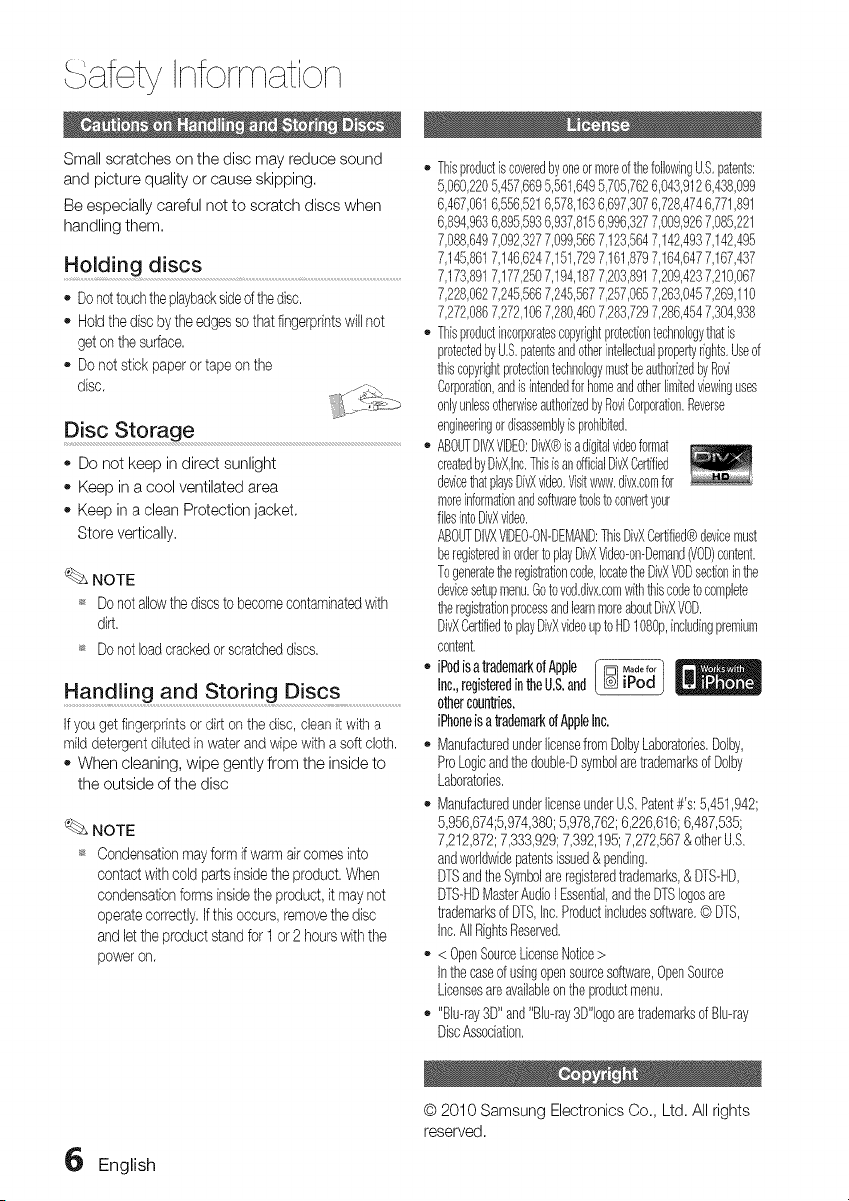
Small scratches on the disc may reduce sound
and picture quality or cause skipping.
Be especially careful not to scratch discs when
handling them.
Holding discs ...............................................................................................................
- Donottouchtheplaybacksided thedisc.
- Holdthe discby the edgesso thatfingerprintswill not
geton the surface.
- Do not stick paperor tape on the
disc.
Disc Storage
- Do not keep in direct sunlight
- Keep in a cool ventilated area
- Keep in a clean Protection jacket.
Store vertically.
NOTE
_, Donot allowthe discsto becomecontaminatedwith
dirt.
_ Donot loadcrackedor scratcheddiscs.
Handling and Storing Disc s...........................................
ifyou get fingerprintsordirt on the disc, dean it witha
milddetergentdilutedin water andwipe with a softcloth.
- When cleaning, wipe gently from the inside to
the outside of the disc
NOTE
_s Condensationmayform if warmaircomes into
contact with cold partsinsidethe product.When
condensationforms insidethe product, it may not
operatecorrectly.If this occurs, removethe disc
and let the productstand for 1 or 2 hourswiththe
power on.
ThisproductiscoveredbyoneormoreofthefollowingU.S.patents:
5,060,2205,457,6695,561,6495,705,7626,043,9126,438,099
6,467,0616,556,5216,578,1636,697,3076,728,4746,771,891
6,894,9636,895,5936,937,8156,996,3277,009,9267,085,221
7,088,6497,092,3277,099,5667,1235647,142,4937,142,495
7,145,8617,146,6247,151,7297,161,8797,164,6477,167,437
7,173,8917,177,2507,194,1877,203,8917,209,4237,210,067
7,228,0627,245,5667,245,5677,257,0657,263,0457,269,110
7,272,0867,272,1067,280,4607,283,7297,286,4547,304,938
Thisproductincorporatescopyrightprotectiontechnologythatis
protectedbyU.S.patentsandotherintelledualpropertyrights.Useof
thiscopyrightprotectiontechnologymustbeauthorizedbyRovi
Corporation,andis intendedforhomeandotherlimitedviewinguses
onlyunlessotherwiseauthorizedbyRoviCorporation.Reverse
engineeringordisassemblyis prohibited.
ABOUTDIVXVIDEO:DivX@isadigitalvideoformat
createdbyaivX,lnc.ThisisanofficialBid Certified
devicethatplaysDivXvideo.Visitwww.divx.comfor
moreinformationandsoftwaretoolstoconvertyour
filesintoDivXvideo.
ABOUTBIVXVIDEO-ON-DEMAND:ThisaivXCerlJfied®devicemust
beregisteredinordertoplayDivXVideo-on-Demand(VOB)content.
Togeneratetheregistrationcode,locatetheDidVOBsectioninthe
devicesetupmenu.Gotovod.divx.comwiththiscodetocomplete
theregistrationprocessandlearnmoreaboutBivXVOB.
BivXCerlJfledto playDivXvideouptoHa1080p,inchd[ngpremium
content.
iPadisatrademarkofApple
Inc.,registeredintheU.S.and
othercountries.
iPhoneisa trademarkofAppleInc.
ManufacturedunderlicensefromDolbyLaboratories,Doiby,
ProLogicandthedouble-Dsymbolaretrademarksof Dolby
Laboratodes.
- ManufacturedunderlicenseunderU.S.Patent#'s:5,451,942;
5,956,674;5,974,380;5,978,762;6,226,616;6,487,535;
7,212,872;7,333,929;7,392,195;7,272,567& otherU.S.
andworldwidepatentsissued&pending.
DTSandtheSymbolareregisteredtrademarks,& DTS-HD,
DTS-HDMasterAudioI Essential,andtheDTSlogesare
trademarksof DTS,Inc.Product[nchdessoftware.© DTS,
Inc.AllRightsReserved.
- < OpenSourceLicenseNotice>
Inthecaseof usingopensourcesoftware,OpenSource
Licensesareavailableontheproductmenu.
- "Bh-ray3D"and"Bh-ray3D"logoaretrademarksofBh-ray
DiscAssociation.
English
© 2010 Samsung Electronics Co., Ltd. All rights
reserved.
Coi t i t
2 Safety Warnings
4 Important Safety Instructions
5 Precautions
6 Cautions on Handling and Storing Discs
6 License
6 Copyright
g Key features of your new Blu-ray Home Theater
10 Icons that will be used in manual
11 Disc Types and Characteristics
15 Accessories
16 Description
16 Front Panel
17 Rear Panel
18 Remote control
iiiiiiiiiiiiiiiiiiiiiiiiiiiiiiiiiiiiiiiiiiiiiiiiiiiiiiiiiiiiiiiiiiiiiiiiiiiiiiiiiiiiiiiiiiiiiiiiiiiiiiiiiiiiiiiiiiiiiiiiiiiiiiiiiiiiiiiiiiiiiiii ! iiiiiiii! Ei i U i ! ! ! !
20 Connecting the Speakers
25 Connecting External Devices/your TVvia HDMI
26 Connecting the FM Antenna
27 Connecting the Video Out to your TV
28 Connecting Audio from External Components
29 Connecting to the Network
31 Before Starting (Initial settings)
32 Setting the Menu
33 Display
33 3D
34 TV Aspect Ratio
34 BD Wise (Samsung Products only)
34 Resolution
36 HDMI Format
36 Movie Frame (24 Fs)
36 Progressive Mode
36 Still Mode
36 HDMI Deep Color
37 Audio
37 Speaker Setting
38 Musical Room Calibration
38 EQ Optimizer
38 HDMI Audio
39 Digital Output
40 Dynamic Range Control
40 AV Sync
40 System
40 Initial Settings
40 Intemet@TV Screen Size
40 Anynet+ (HDMI-CEC)
40 BD Data Management
41 Clock
41 DivX(R) Registration
41 DivX(R) Deactivation
42 Network Setup
42 Network Settings
45 Network Status
45 BD-LIVE Intemet Connection
45 Language
46 Security
46 Parental Rating
46 Change Password
English 7

CoNt I t
iiiiiiiiiiiiiiiiiiiiiiiiiiiiiiiiiiiiiiiiiiiiiiiiiiiiiiiiiiiiiiiiiiiiiiiiiiiiiiiiiiii i i ! ! i i i !ii!ii!ii!i! ! i ! i ! ! ! !
46 General
46 Background
46 Front Display
46 Power On/Off Sound
46 Light Effect
47 Support
47 Soffwar_ Upgrade
47 Contact Samsung
48 Playing a Disc
48 Using the Disc menu / Title menu / Popup menu
49 Using the Search and Skip Functions
50 Slow Motion Play/Step Motion Play
50 Repeat Playback
51 Using the TOOLS button
53 Listening to Music
55 Sound Mode
56 Playing back a Picture
57 Playing Back a USB Storage Device
57 Listening to Radio
58 Using an iPod
60 Using Intemet@TV
64 BD-LIVE TM
64 Software Upgrade Notification
64 Using the AIIShare Function
66 Troubleshooting
69 Index
70 Specifications
_ FiguresandillustrationsinthisUserManualareprovidedforreferenceon!yandmaydifferfromactualproductappearance.
8 English
Product Features
Playback of many disc types, plus an FM tuner
This product allows you to play various discs, including BD-ROM/RE/R, DVD-VIDEO, DVD-RW/-R
(V mode), DVD+RW/+R, MP3/WMA, JPEG, DivX/MKV/MP4, and CD-R/RW, and has a sophisticated
FM tuner, all in a single player.
Full HD audio decoding support (Dolby Digital, Dolby Pro Logic IIx, Dolby Pro Logic IIz,
Dolby Digital Plus, Dolby TrueHD, DTS, DTS-HD HRA, DTS-HD MA Essential)
Please refer to www.DOLBY.COM and DTS.COM for more detail.
HDMI
HDMI transmits Blu-Ray/DVD video and audio signals simultaneously, and provides a clearer picture.
The 1080p (Full HD) resolution provides even clearer pictures.
AV SYNC function
Video may lag behind the audio if the product is connected to a digital TV.
To compensate for this, you can adjust the audio delay time to sync up with the video.
Wireless receiver module
Samsung's rear-channel wireless receiver module does away with cables running between the product
and rear-channel speakers. Instead, the rear speakers connect to a compact wireless receiver module
that communicates with the product.
iPod & iPhone support
You can enjoy music files by connecting your iPod to the product with the supplied iPod dock.
BD Wise
BD Wise automatically adjusts BD Wise-compliant Samsung products to their optimal settings.
This feature is enabled only if BD Wise-compliant Samsung products are connected to each other using
an HDMI cable.
Internet@TV
You can download various fee charged or free of charge applications through the network connection.
Various internet services and content are provided, including news, weather forecast, stock
market, games, movies and music.
3D
This product can play 3D contents through an HDMI cable.
To implement the 3D effect, connect a 3D device (3D-compliant AV receiver, 3D-compliant TV) to the
product using an HDMI cable, and play the 3D content while wearing 3D vision glasses.
Blu-ray Disc Features
Blu-ray Discs support the highest quality HD video available in the industry - Large capacity means no
compromise in video quality. Furthermore, a Blu-ray Disc has the same familiar size and look as a DVD.
* The following Blu-ray Disc features are disc dependant and will vary. Appearance and navigation of
features will also vary from disc to disc. Not all discs will have the features described below.
Video highlights
The BD-ROM format for movie distribution supports three highly advanced video codecs, including AVC,
VC-1, and MPEG-2.
HD video resolutions are also available:
1920 x 1080 HD
1280 x 720 HD
For high-definition playback
To view high-definition content on a Blu-ray disc, an HDTV (High Definition Television) is required.
Some discs may require using the product's HDMI OUT to view high-definition content. The ability to view
high-definition content on Blu-ray disc may be limited depending on the resolution of your TV.
BD-LIVE
You can use a Blu-ray Disc supporting BD-LIVE through the network connection to enjoy special content
provided by the disc manufacturer.
English 9
etting Stai ted
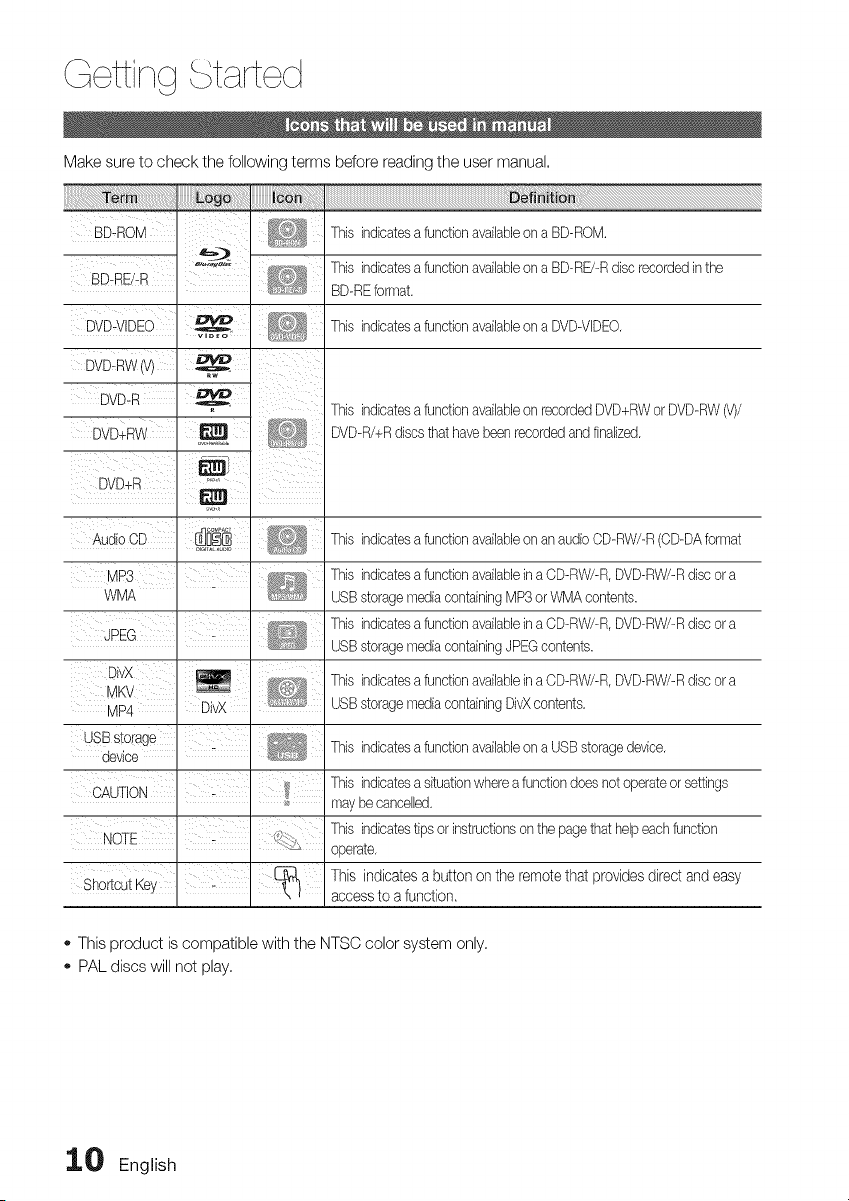
Make sure to check the following terms before reading the user manual,
iiiiiiiiiiiiiiiiiiiiiiiiiiiiiiiiiiiiiiiiiiiiiiiiiiiiiiiiiiiiiiiiiiiiiiiiiiiiiiiiiiiiiiiiiiiiiiiiiiiiiiiiiiiiiiiiiiiiiiiiiiiiiiiiiiiiiiiiiiiiiiiiiiiiiiiiiiiiiiiiiiiiiiiiiiiiiiiiiiiiiiiiiiiiiiiiiiiiiiiiiiiiiiiiiiiiiiiiiiiiiiiiiiiiiiiiiiiiiiiiiiiiiiiii_i_!_!_b_i_:i_!i_i_!_!_!_!i!iiii_iiiiiiiiiiiiiiiiiiiiiiiiiiiiiiiiiiiiiiiiiiiiiiiiiiiiiiiiiiiiiiiiiiiiiiiiiiiiiiiiiiiiiiiiiiiiiiiiiiiiiiiiiiiiiiiiiiiiiiiiiiiiiiiiiiiiiiiiiiiiiiiiiiiiiiiiiiiiiiiiiiiiiiiiiiiiiiiiiiiiiiiiiiiiiiiiiiiiiiiiiiiiiiiiiiiiiiiiiiiiiiiiiiiiiiiiiiiiiiiiiiiiiiiiiiiiiiiiiiiiiiiiiiiiiiiiiiiiiiiiiiiiiiiiiiiiiiiiiiiiiiiiiiiiiiiiiiiiiiiiiiiiiiiiiiiiiiiiiiii_i_i_i_!!!!!!
BD-ROM I "_;
This indicatesa functionavailableon a BD-ROM.
BD RE/-R , This indicatesa functionavailableon a BD-RE/-Rdisc recordedinthe
. BD-REformat.
i
DVDuVIDEO This indicatesa functionavailableon a DVD-VlDEO,
DVDuR
DVD+RW
DVD+R
AudioOD
This indicatesa functionavailableon recordedDVD+RWor DVD-RW6/)/
@_ _ s;_@ DVD-R/+Rdiscsthat havebeenrecordedandfinalized.
This indicatesa functionavailableon an audioOD-RW/-R(OD-DAformat
WMA
I I
DivX
MKV
MP4
This indicatesa functionavailableina CD-RW/-R,DVD-RW/-Rdisc or a
USBstoragemediacontainingMP3or WMAcontents.
This indicatesa functionavailableina CD-RW/-R,DVD-RW/-Rdisc or a
USBstoragemediacontainingJPEGcontents.
This indicatesa functionavailableina CD-RW/-R,DVD-RW/-Rdisc or a
USBstoragemediacontainingDivXcontents.
This indicatesa functionavailableon a USBstoragedevice.
NOTE f
ShortcutKey
This indicatesa situationwhere a functiondoesnot operateor settings
maybe cancelled.
This indicatestips or instructionson the pagethat helpeachfunction
operate.
This indicates a button on the remote that provides directand easy
access to a function,
o This product is compatible with the NTSC color system only,
PAL discs will not play,
1_ English

Blu"ray Disc Compat!bilitY .................................................
Blu-rayis a new and evolvingformat, Accordingly, disc
compatibilityissuesare possible,Not all discs are
compatible and not everydisc will play back, For
additional information,referto the DiscTypes and
Characteristicssectionof this Manual, Ifyou encounter
compatibilityproblems, pleasecontact the SAMSUNG
customer care centerat 1-800 SAMSUNG,
NOTE
_ Playbackmaynot work for sometypes of discs, or
when specificoperations,such asangle change
and aspect ratioadjustment,are being performed,
Informationaboutthe discs iswritten in detailon
the box, Pleasereferto this if necessary,
_ Do not allowthe discto become dirtyor scratched,
Fingerprints,dirt, dust, scratchesor deposits of
cigarettesmoke on the recordingsurface may
make it impossibleto use the disc for playback,
_ Whena BD-Javatitle is played,loading maytake
longerthan a normaltitle, or somefunctions may
perform slowly,
Discs that cannot be played
- HD DVD Disc
- DVD-RAM
- 3,9 GB DVD-R Disc for Authoring,
- DVD-RW (VR mode)
- Super Audio OD (except OD layer)
- DVD-ROM/PD/MV-Disc, etc CVD/CD-ROM/
CDV/CD-G/CD-I/LD
- CDGs play audio only, not graphics,
NOTE
_ Somecommercialdiscs and DVDdiscs purchased
outsideyourregionmaynot be playablewiththis
product.Whenthesediscs are played,"Cannot read
this disc.Pleasecheckthe regionalcode of the
disc." willbe displayed.
_ If a DVD-R/-RWdisc hasnot beenrecorded
properlyin DVDvideoformat,it willnot be playable.
Logos of Discs that can be played
N TSc J
st.ysti
[_BOLBY
i High ResolutionAudb
English ii
t rt ct
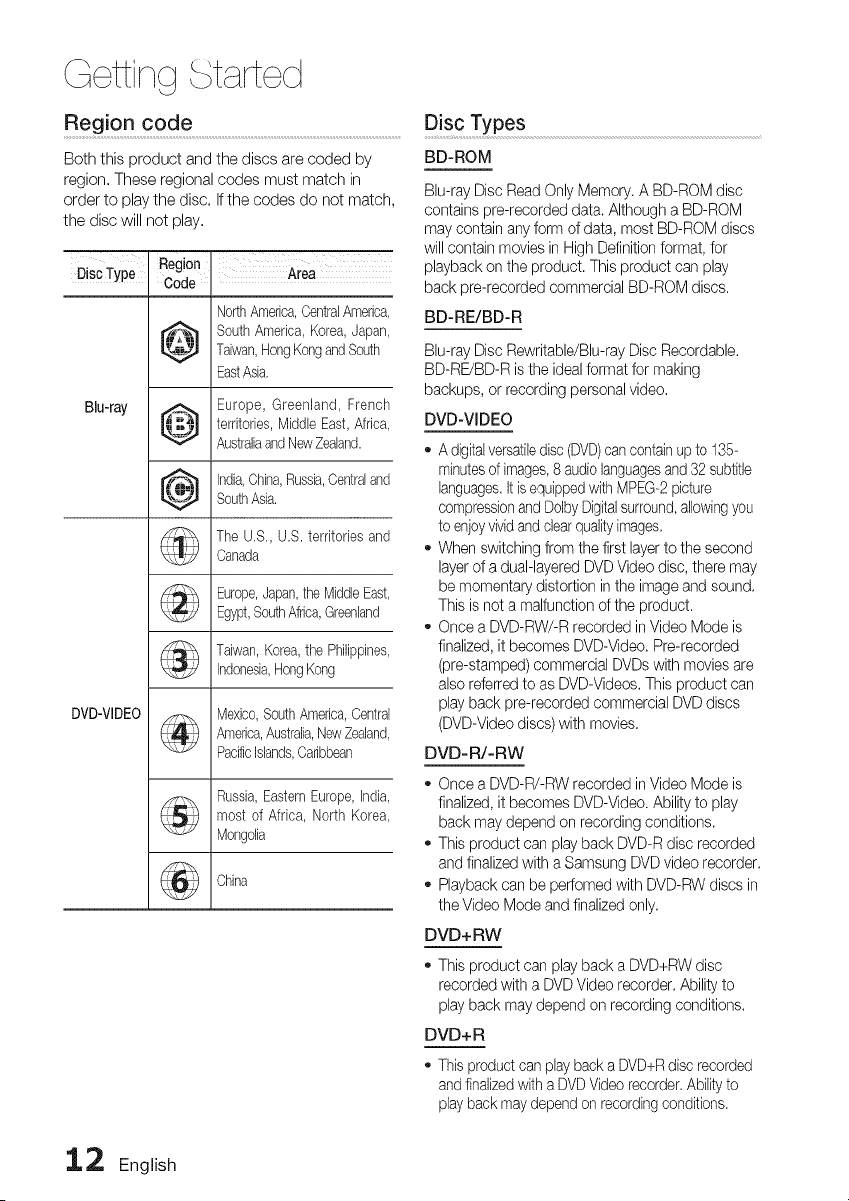
Region code ...................................................................................................................................................Disc Types
BD-ROM
Both this product and the discs are coded by
region, These regional codes must match in
order to play the disc, If the codes do not match,
the disc will not play,
w
Disc Type
Blu-ray
Region
Code
tl llh_
Area
NorthAmerica,CentralAmerica,
SouthAmerica,Korea,Japan,
Taiwan,HongKongandSouth
EastAsia.
Europe, Greenland, French
territories,MiddleEast, Africa,
AustraliaandNewZealand.
India,China,Russia,Centraland
SouthAsia.
The U.S., U.S. territories and
Canada
Europe,Japan,the MiddleEast,
Egypt,SouthAfrica,Greenland
Taiwan,Korea,the Philippines,
Indonesia,HongKong
Mexico,SouthAmerica,Central
America,Australia,NewZealand,
PacificIslands,Caribbean
Russia,EasternEurope,India,
most of Africa, North Korea,
Mongolia
China
DVD-VIDEO
Blu-ray Disc Read Only Memory. A BD-ROM disc
contains pre-recorded data. Although a BD-ROM
may contain any form of data, most BD-ROM discs
will contain movies in High Definition format, for
playback on the product. This product can play
back pre-recorded commercial BD-ROM discs,
BD-RE/BD-R
Blu-ray Disc Rewritable/Blu-ray Disc Recordable,
BD-RE/BD-R is the ideal format for making
backups, or recording personal video,
DVD-VIDEO
* A digital versatiledisc (DVD)can contain up to 135-
minutesof images,8 audio languagesand 32 subtitle
languages,It is equipped with MPEG-2 picture
compressionand Do[by Digitalsurround,allowingyou
to enjoyvividand clear qua@ images,
* When switching from the first layerto the second
layer of a dual-layered DVD Video disc, there may
be momentary distortion in the image and sound.
This is net a malfunction of the product.
* Once a DVD-RW/-R recorded in Video Mode is
finalized, it becomes DVD-Videe. Pre-recorded
(pre-stamped) commercial DVDs with movies are
also referred to as DVD-Videos, This product can
play back pre-recorded commercial DVD discs
(DVD-Video discs) with movies,
DVD-R/-RW
* Once a DVD-R/-RW recorded in Video Mode is
finalized, it becomes DVD-Video, Ability to play
back may depend on recording conditions.
* This product can play back DVD-R disc recorded
and finalized with a Samsung DVD video recorder.
* Playback can be peffomed with DVD-RW discs in
the Video Mode and finalized only,
DVD+RW
* This product can play back a DVD+RW disc
recorded with a DVD Video recorder. Ability to
play back may depend on recording conditions,
DVD+R
* This product can play back a DVD+R disc recorded
and finalizedwith a DVDVideo recorder, Abilityto
play back may depend on recording conditions.
12 English
Audio CD
o An audio disc on which 44,1kHz PCM Audio is
recorded.
This product can play back CD-DA format audio
OD-R and CD-RW discs.
The product may not be able to play some CD-R or
CD-RW discs due to the condition of the recording,
DivX (Digital Video Express)
DivXis a video file format developed by Microsoft and is
based on MPEG4 compression technology to provide
audio and video data over the Intemet in real-time,
MPEG4 is used for video encoding and MP3 for audio
encoding so that the users can watch a movie at near
DVD-qualityvideo and audio.
CD-R/-RW
,, Usea 700MB (80 minute)CD-R/-RWdisc,
If possible,do not use a 800MB (90 minute)or above
disc, as the disc may not play back,
If the CD-R/-RW disc was not recorded as a closed
session,you may experiencedelayswhen playing
back the beginningof the disc or all recorded files
maynot play,
SomeCD-R/-RW discs may not be playablewith this
product, depending on the devicewhich was used to
burn them, Forcontents recorded on CD-R/-RW
media from CDsfor your personaluse, playability
mayvary dependingon contents and discs.
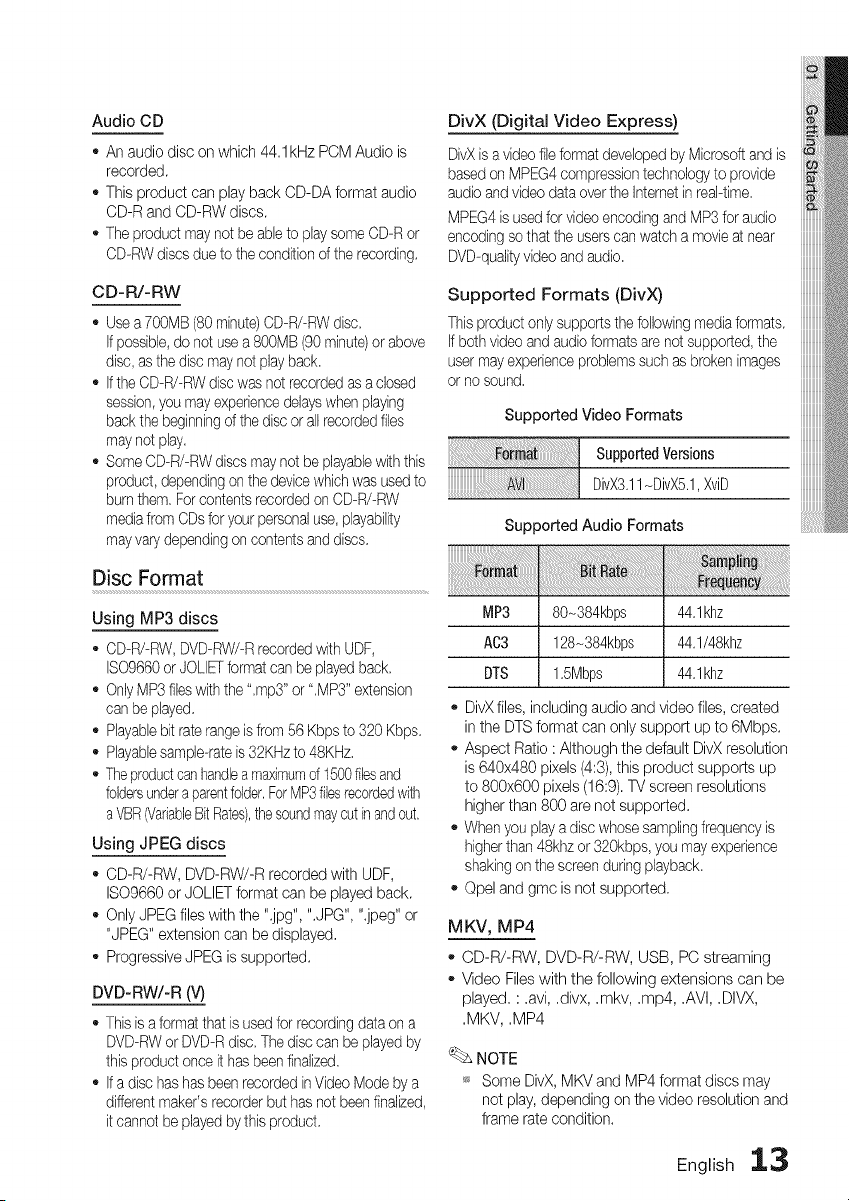
Supported Formats (DivX)
This product only supports the following mediaformats,
If both video and audio formats are not supported, the
user mayexperience problems such as broken images
or no sound,
Supported Video Formats
supposedVe io.s
DivX3,11-DivX5,1,XviD
Supported Audio Formats
Disc Format
Using MP3 discs
CD-R/-RW, DVD-RW/-Rrecorded with UDF,
ISO9660or JOLIETformat can be played back
OnlyMP3 fileswith the Lmp3" or ".MP3" extension
can be played.
Playablebit raterange is from 56 Kbps to 320 Kbps.
Playablesample-rate is32KHz to 48KHz,
The productcanhandlea maximumof 1500filesand
foldersundera parentfolder,ForMP3filesrecordedwith
a VBR(VariableBit Rates),thesoundmaycutin andout,
Using JPEG discs
CD-R/-RW, DVD-RW/-R recorded with UDF,
ISO9660 or JOLIET format can be played back.
- Only JPEG files with the ".jpg", ".JPG", ",jpeg" or
"JPEG" extension can be displayed,
Progressive JPEG is supported.
DVD-RW/-R (V)
,, This is a format that is used for recording data on a
DVD-RWor DVD-Rdisc, Thedisc can be played by
this product once it has been finalized,
If a disc has has been recorded in Video Mode by a
differentmaker's recorder but has not beenfinalized,
it cannot be played bythis product.
MP3 80-384kbps 44,1khz
AC3 128_384kbps 44,1/48khz
DTS 1,5Mbps 44,1khz
DivX files, including audio and video files, created
in the DTS format can only support up to 6Mbps.
Aspect Ratio : Although the default DivX resolution
is 640x480 pixels (4:3), this product supports up
to 800x600 pixels (16:9). TV screen resolutions
higher than 800 are not supported.
When you play a disc whose sampling frequency is
higherthan 48khz or 320kbps, you may experience
shaking on the screen during playback.
Opel and gmc is net supported,
MKV, MP4
CD-R/-RW, DVD-R/-RW, USB, PC streaming
Video Files with the following extensions can be
played, : ,avi, ,divx, ,mkv, ,mp4, ,AVI, ,DIVX,
,MKV, ,MP4
NOTE
_s Some DivX, MKV and MP4 format discs may
net play, depending on the video resolution and
frame rate condition,
English 13
ttin j tart d
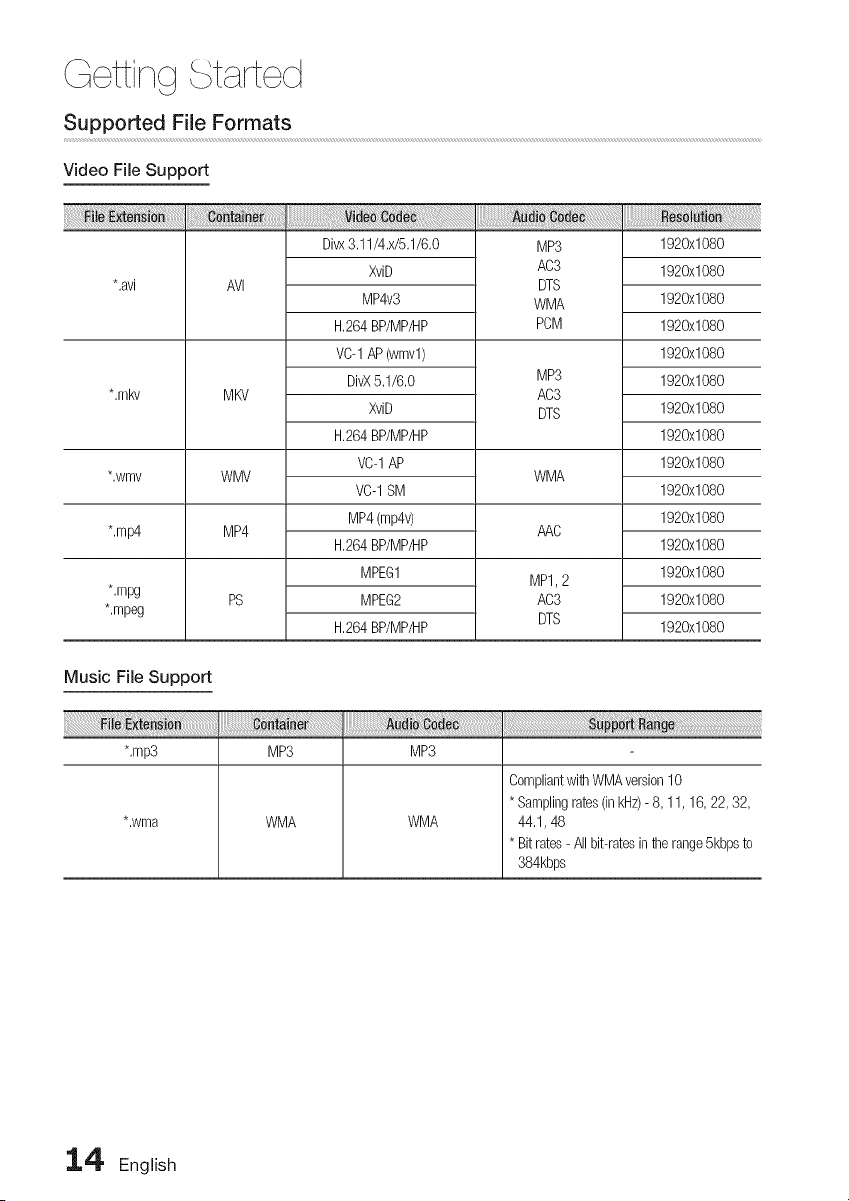
Supported File Formats
Video File Support
*,avi
*,mkv
*,wmv
*,mp4
*,mpg
*,mpeg
AVl
MKV
WMV
MP4
PS
Divx3,11/4,x/5,1/6,0
XviD
MP4v3
H,264BP/MP/HP
VC-1AP(wmvl)
DivX5,1/6,0
XviD
H,264BP/MP/HP
VC-1AP
VC-1SM
MP4(mp4v)
H,264BP/MP/HP
MPEG1
MPEG2
H,264BP/MP/HP
MP3
AC3
DTS
WMA
PCM
MP3
AC3
DTS
WMA
AAC
MP1,2
AC3
DTS
1920x1080
1920x1080
1920x1080
1920x1080
1920x1080
1920x1080
1920x1080
1920x1080
1920x1080
1920x1080
1920x1080
1920x1080
1920x1080
1920x1080
1920x1080
Music File Support
*,mp3 MP3 MP3
*,wma WMA WMA
CompliantwithWMAversion10
* Samplingrates(in kHz)-8, 11, 16, 22, 32,
44,1, 48
* Bitrates- All bit-ratesinthe range5kbpsto
384kbps
14, English
USB Host Specification ......................................................................
USB Host Specification
,, SupportsUSB1.1or USB2.0compliantdevices.
,, Supports devices connected using the USB
A type cable.
• Supports UMS (USB Mass Storage Device)
V1.0 compliant devices.
,, Supports FAT(FAT, FAT16, FAT32)file
system formatting.
Non-compliance
• Does not support a device that requires installing
a separate driver on the PC (VVindows). 1.
• Does not support connection to a USB hub. 2.
• A USB device that is connected using a USB
extension cable may not be recognized. 3.
Operational Limitations 4.
• If the connected device has multiple drives
(or partitions) installed, only one drive
(or partition) can be connected.
• A device supporting USB 1.1 alone may
cause a difference in the picture quality,
depending on the device.
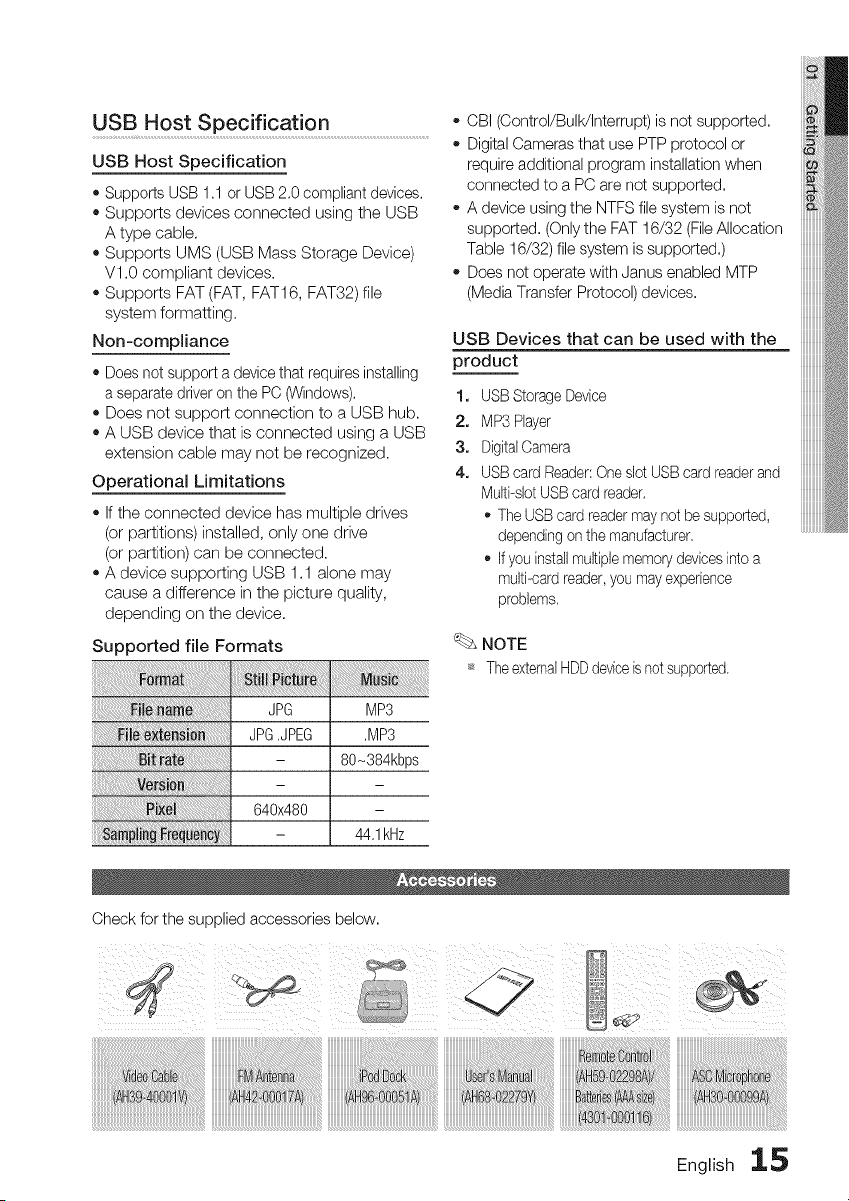
Supported file Formats
,, CBI (Control/Bulk/Interrupt) is not supported.
o Digital Cameras that use PTP protocol or
require additional program installation when
connected to a PC are not supported.
A device using the NTFS file system is not
supported. (Only the FAT 16/32 (File Allocation
Table 16/32) file system is supported.)
Does not operate with Janus enabled MTP
(Media Transfer Protocol) devices.
USB Devices that can be used with the
product
USB Storage Device
MP3 Player
DigitalCamera
USB card Reader: Oneslot USB card reader and
Multi-slot USB card reader.
The USB card reader may not be supported,
depending on the manufacturer.
If you install multiple memory devices into a
multi-card reader,you mayexperience
problems.
NOTE
_ TheexternalHDDdeviceisnotsupported.
JPG MP3
JPG,JPEG ,MP3
- 80-384kbps
640x480
- 44,1kHz
Check for the supplied accessories below.
English 15
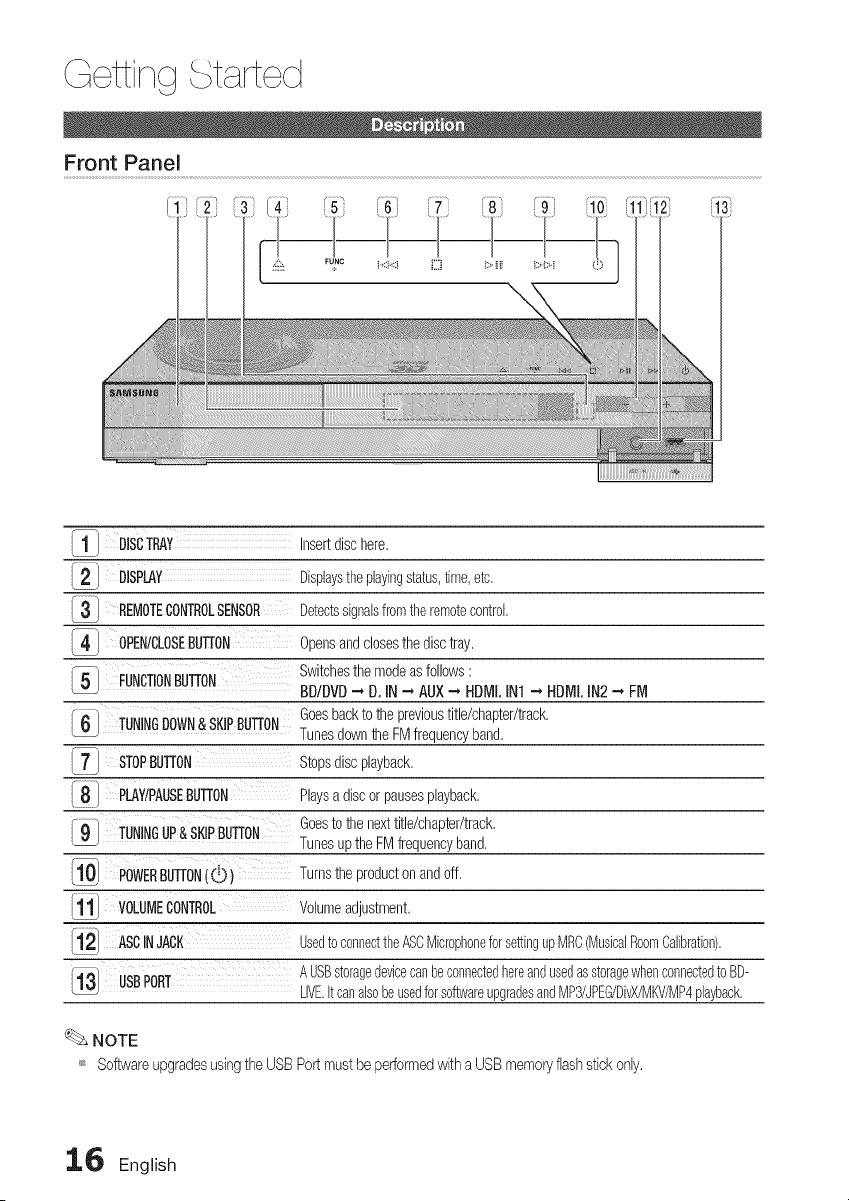
ttirq
Front Panel
FUNC
\
_1_ DISCTRAY Insertdischere,
DISPLAY Displaystheplayingstatus,time,etc,
.3 REMOTECONTROLSENSOR Detectsdgnalsfromthe remotecontrol,
OPEN/CLOSEBUT[ON Opensandclosesthe disctray,
FUNCTIONBUTTON Switchesthe modeasfollows:
BDIDVD--, D. IN --, AUX--, HDMI.INI --, HDMLIN2 - FM
Goesbackto the previoustitle/chapter/track,
6 TUNINGDOWN&SKIPBUT[ON Tunesdownthe FMfrequencyband,
STOPBUTTON Stopsdiscplayback,
8 PLAY/PAUSEBUTTON Playsa discor pausesplayback,
Goesto the nexttitle/chapter/track,
- 9 TUNINGUP& SKIPBUT[ON Tunesup the FMfrequencyband,
_10 POWERBUT[ON((!.)) Turnsthe productonand off,
1.1 VOLUMECONTROL Volumeadjustment,
i2 ASCINJACK Usedto connecttheASCMicrophoneforsettingupMRC(MusicalRoomCalibration).
I_ USBPORT A USBstoragedevicecanbeconnectedhereandusedasstoragewhenconnectedto BD-
LIVE.itcanalsobeusedforsoftwareupgradesandMP3/JPEG/DivX/MKV/MP4playback.
NOTE
_ SoftwareupgradesusingtheUSBPortmustbeperformedwithaUSBmemoryflashstickonly.
16 English
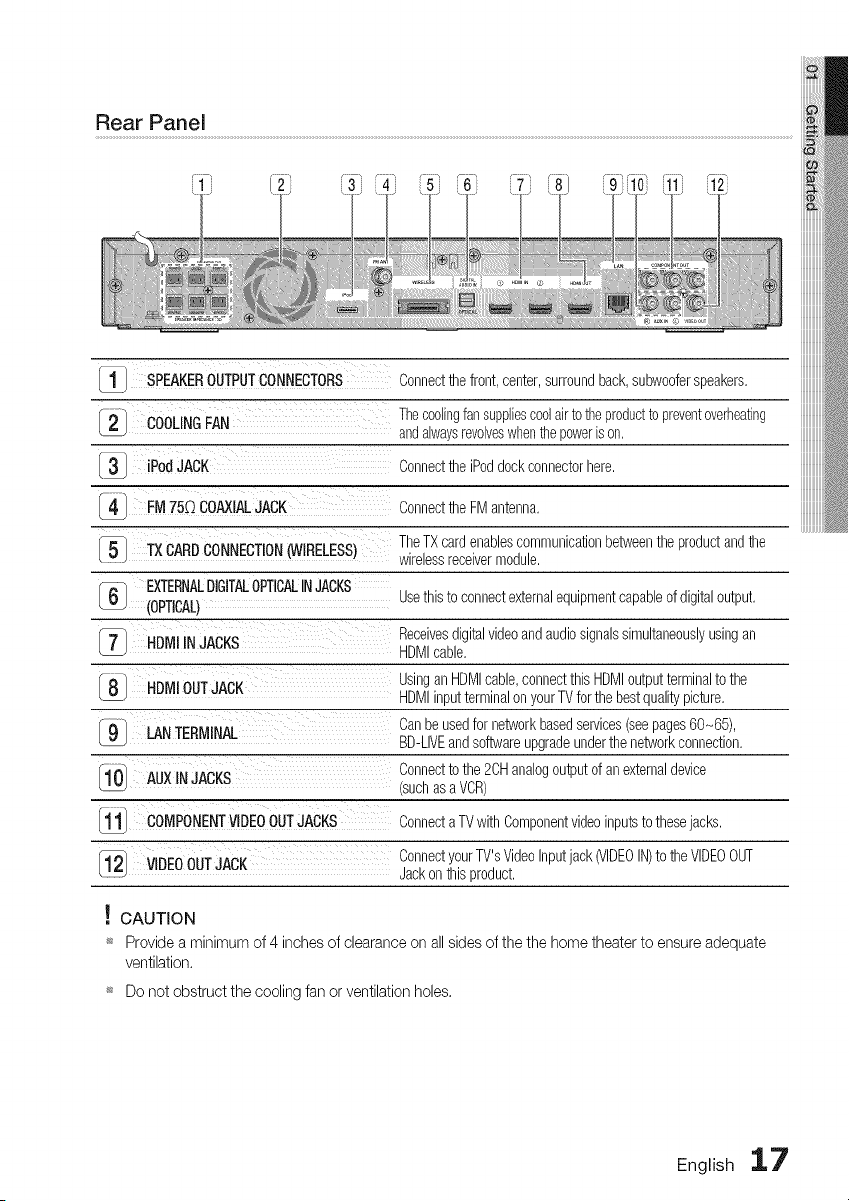
Rear Panel
1 SPEAKEROUTPUTCONNECTORS Connectthefront, center,surroundback,subwooferspeakers,
Thecoolingfansuppliescoolairto theproductto preventoverheating
COOLINGFAN
andalwaysrevolveswhenthe powerison,
iPod JACK Connectthe iPoddock connectorhere,
I4 ConnecttheFM antenna,
FM 75D COAXIALJACK
5 TheTXcardenablescommunicationbetweenthe productandthe
TX CARDCONNECTION
WIRELESS)
wirelessreceivermodule,
- EXTERNALDIGITALOPTICALINJACKS
(OPTICAL) Usethis to connectexternalequipmentcapableof digitaloutput,
HDMIIN JACKS Receivesdigitalvideoandaudiosignalssimultaneouslyusingan
HDMIcable,
_8 Usingan HDMIcable,connectthis HDMIoutputterminalto the
HDMIOUTJACK
HDMIinput terminalon yourTV for the bestqualitypicture,
(9 Canbe usedfor networkbasedservices(seepages60-65),
LANTERMINAL
BD-LIVEandsoftwareupgradeunderthe networkconnection,
Connectto the 2CHanalogoutputof an externaldevice
(suchasa VCR)
AUXINJACKS
I11 COMPONENTVIDEOOUTJACKS Connecta TVwith Componentvideoinputsto thesejacks,
12 ConnectyourTV'sVideoInputjack (VIDEOIN)to the VIDEOOUT
VIDEOOUTJACK
Jackonthis product,
! CAUTION
_ Providea minimumof 4 inchesof clearanceon all sidesof the thehometheaterto ensureadequate
ventilation,
_ Donotobstructthecoolingfanor ventilationholes,
English 17
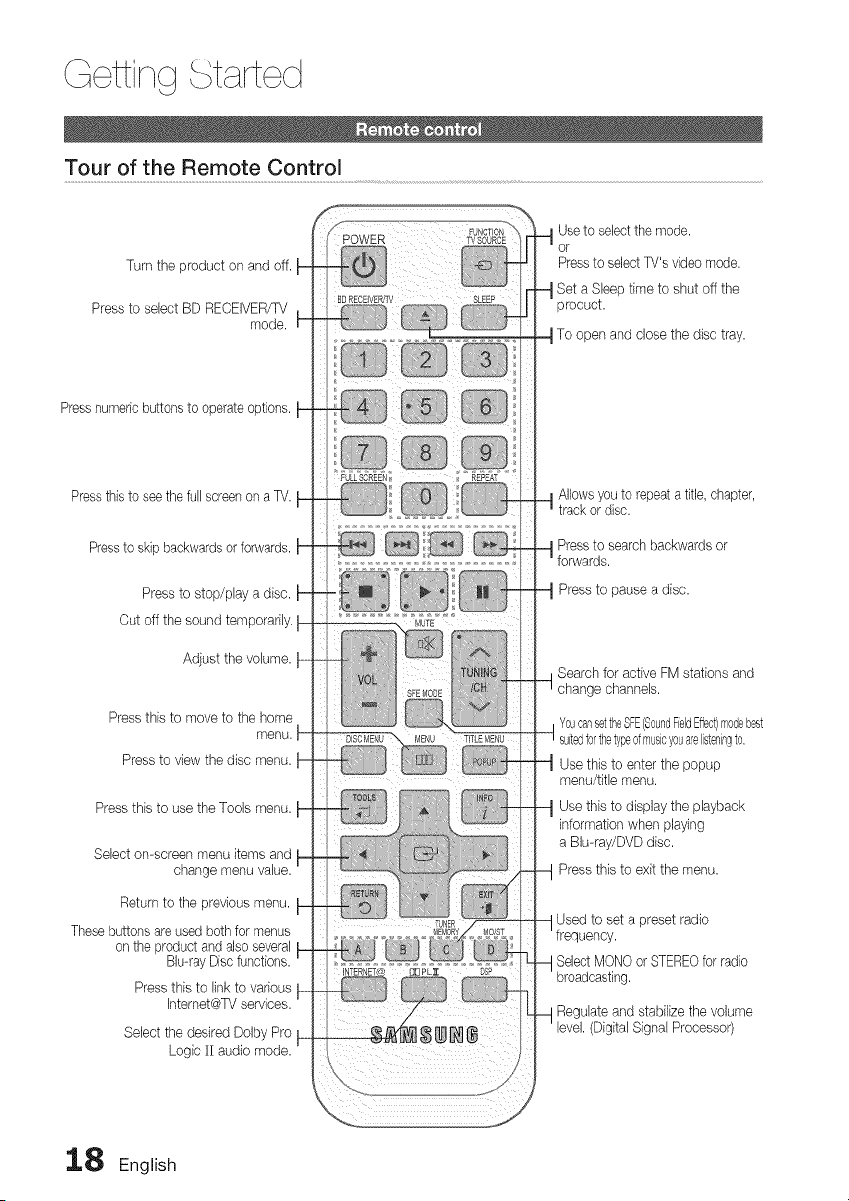
Q ttirq
Tour of the Remote Control
Turn the product on and off.
Press to select BD RECEWER/TV
mode.
Press numeric buttons to operate options.
Press this to see the full screen on a TV.
Press to skip backwards or forwards.
Press to stop/play a disc.
Cut off the sound temporarily.
Adjust the volume.
Press this to move to the home
menu.
Press to view the disc menu.
Press this to use the Tools menu.
Select on-screen menu items and
change menu value.
Return to the previous menu.
These buttons are used both for menus
on the product and also several
Blu-ray Disc functions.
Press this to link to various
Internet@TV services.
Select the desired Dolby Pro
Logic ]l audio mode.
Use to select the mode.
or
Press to select TV's video mode.
Set a Sleep time to shut off the
procuct.
To open and close the disc tray.
Allowsyou to repeata title,chapter,
trackor disc.
Pressto searchbackwardsor
forwards.
Pressto pause a disc.
Searchfor activeFM stations and
change channels.
YoucansettheSFE(SoundHeldEffect)
Use this to enter the popup
menu/title menu.
Use this to display the playback
information when playing
a Blu-ray/DVD disc.
Press this to exit the menu.
Used to set a preset radio
Select MONO or STEREO for radio
broadcasting.
Regulate and stabilize the volume
level. (Digital Signal Processor)
18 English
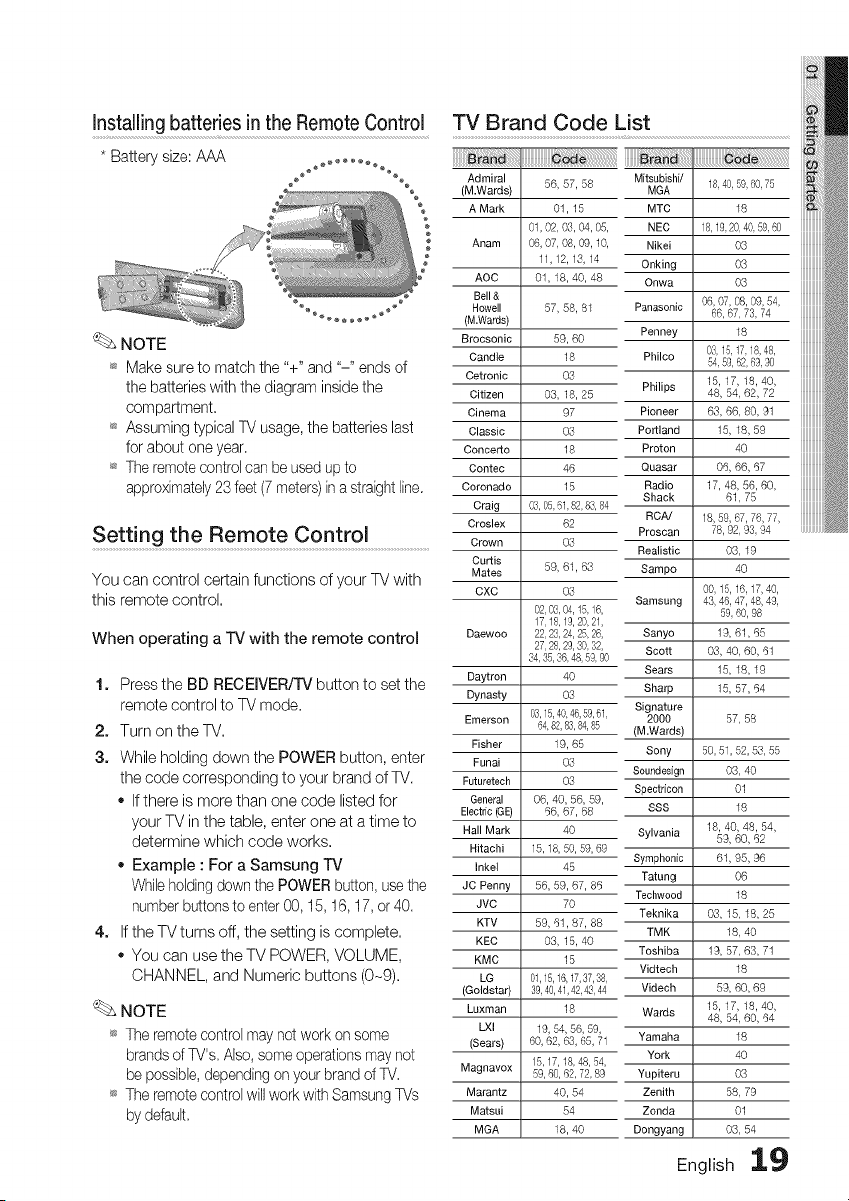
Installing batteries in the Remote Control
* Batterysize:AAA
NOTE
_ Make sure to match the "+" and "-" ends of
the batteries with the diagram inside the
compartment.
_ Assuming typical TV usage, the batteries last
for about one year.
_ The remote control can be used up to
approximately23 feet (7 meters)in a straight line.
Setting the Remote Control ...........................................
You can control certainfunctions of your TVwith
this remote control.
When operating a TV with the remote control
1. Press the BD RECEIVER/TV button to set the
remote control to TV mode.
2. Turn on the TV.
3. While holding down the POWER button, enter
the code corresponding to your brand of TV.
o If there is more than one code listed for
your TV in the table, enter one at a time to
determine which code works.
Example : For a Samsung TV
While holding down the POWER button, usethe
number buttons to enter 00, 15, 16, 17, or 40.
4. If the TV turns off, the setting is complete.
You can use the TV POWER, VOLUME,
CHANNEL, and Numeric buttons (0-9).
NOTE
_ The remote control may not work on some
brands of TV's, Also, some operations may not
be possible, depending on your brand of TV,
_ The remote control will work with Samsung TVs
by default.
TV Brand Code List
_ra_a
Admiral
(M.Wards)
A Mark
Anam
AOC
Bell &
Howell
(M.Wards)
Brocsonic
Candle
Cetronic
Citizen
Cinema
Classic
Concerto
Contec
Coronado
Craig
Croslex
Crown
Curtis
Mates
CXC
Daewoo
Daytron
Dynasty
Emerson
Fisher
Funai
Futuretsch
General
Electric (GE)
Hall Mark
Hitachi
Inkel
JC Penny
JVC
KTV
KEC
KMC
LG
(Goldstar)
Luxman
LXI
(Sears)
Magnavox
Marantz
Matsui
MGA
56, 57, 58
01, 15
01, 02, 03, 04, 05,
06, 07, 08, 09, 10,
11,12, 16, 14
01, 18, 40, 48
57, 58, 81
59, 60
18
O3
03,18,25
97
O3
18
46
15
03,05,61,82,83,84
62
O3
59, 61, 63
03
02,03,04,15,16,
17,18,19,20,21,
22,23,24,25,26,
27,28,29,30,32,
34,%,36,48,59,90
4O
O3
03,15,40,46,59,61,
64,82,83,84,85
19,65
O3
O3
06,40,56,59,
66, 67, 68
40
15,18,50,59,69
45
56,59,67,86
70
59, 61,87, 88
03,15,40
15
01,15,16,17,37,38,
39,40,41,42,_,44
18
19,54,56,59,
60, 62,63, 65, 71
15,17,18,48,54,
59,60,62,72,89
40, 54
54
18, 40
Mitsubishi/ 18,40, 59,60,75
MGA
MTC 18
NEC 18,19,20,40,59,60
Nikei 03
Onking 03
Onwa 03
Panasonic 06, 07, 08, 09, 54,
66, 67, 73, 74
Penney 18
Philco 03,15,17,18,48,
54,59, 62,69,90
Philips 15, 17, 18, 40,
48, 54, 62, 72
Pioneer 63, 66, 80, 91
Portland 15, 18, 59
Proton 40
Quasar 06, 66, 67
Radio 17, 48, 56, 60,
Shack 61,75
RCA/ 18, 59, 67, 76, 77,
Proscan 78, 92, 93, 94
Realistic 03, 19
Sampo 40
00,15,16,17,40,
Samsung 43, 46, 47, 48,49,
59,60, 98
Sanyo 19, 61,65
Scott 03, 40, 60, 61
Sears 15, 18, 19
Sharp 15, 57, 64
Signature
2000 57, 56
(M.Wards)
Sony 50, 51, 52, 56, 55
Soundeeign 03, 40
Spectricon 01
SSS 18
18, 40, 48, 54,
Sylvania 59, 60, 62
Symphonic 61, 95, 96
Tatung 06
Techwood 18
Teknika 03, 15, 18, 25
TMK 18, 40
Toshiba 19, 57, 63, 71
Vidtech 18
Videsh 59, 60, 69
15, 17, 18, 40,
Wards 48, 54, 60, 64
Yamaha 18
York 40
Yupiteru 03
Zenith 58, 79
Zonda 01
Dongyang 03, 54
English ig
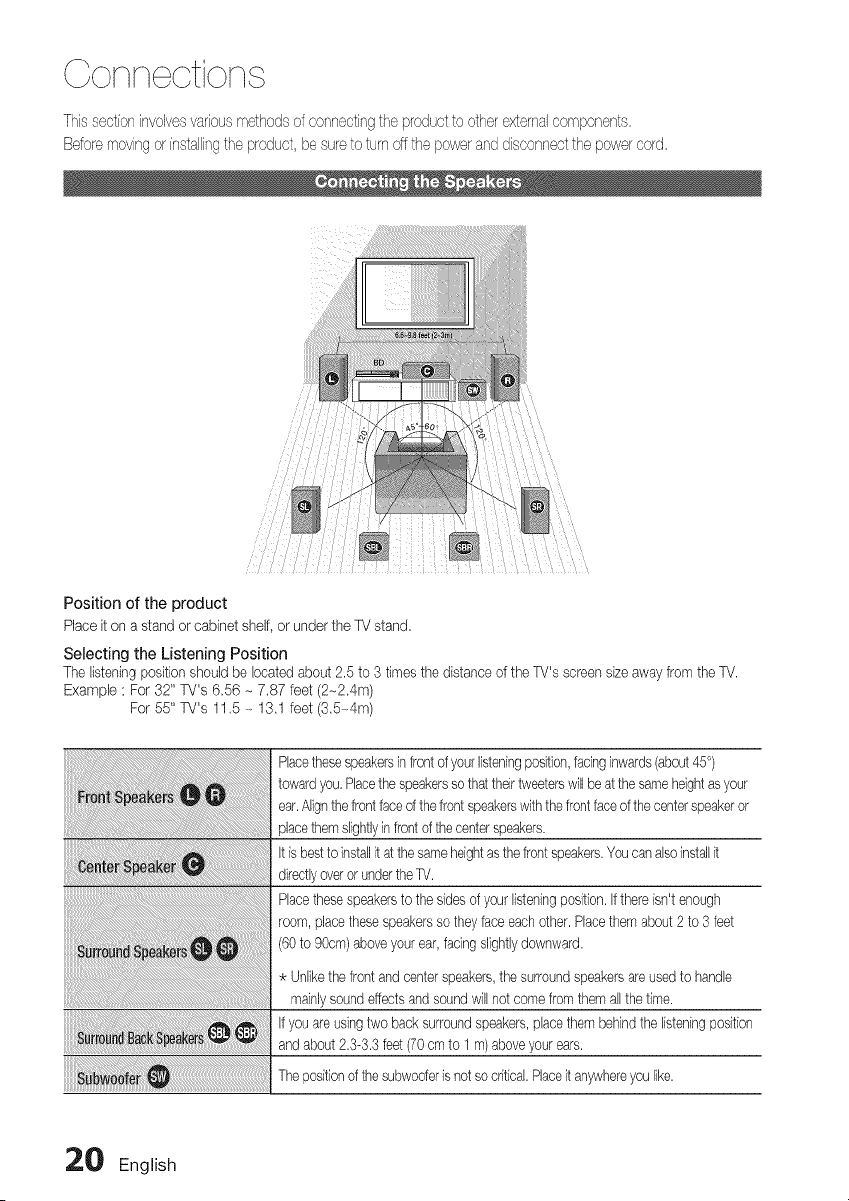
Thissectioninvolvesvariousmethodsof cor'nectingtheproductto otherexternalcompor'ents,
Beforemovl'ngor i'nstallingthe product,be sureto turnoffthepoweranddisconnectthe powercord,
Position of the product
Placeit on a stand or cabinetshelf, or under the TV stand.
Selecting the Listening Position
The listeningpositionshould be locatedabout2.5 to 3 times the distanceof the TV's screensize awayfrom the TV.
Example : For 32" TV's 6.56 - 7.87 feet (2-2.4m)
For 55" TV's 11.5 - 13.1 feet (3.5_4m)
Placethesespeakersinfrontof yourlisteningposition,faringinwards(about45°)
towardyou, Placethespeakerssothattheirtweeterswillbe atthe sameheightasyour
ear.Alignthefrontfaceof thefrontspeakerswiththefrontfaceof thecenterspeakeror
placethemslightlyinfrontof thecenterspeakers.
It is bestto installitat thesameheightasthefrontspeakers.Youcanalsoinstallit
directlyoverorundertheTV.
Placethesespeakersto the sidesof your listeningposition.If thereisn'tenough
room,placethesespeakerssothey face eachother,Placethemabout2 to 3 feet
(60to 90cm)aboveyourear,facingslightlydownward.
Unlikethefront andcenterspeakers,the surroundspeakersare usedto handle
mainlysound effectsandsoundwill notcomefromthemall the time.
If you are usingtwo back surroundspeakers,placethembehindthe listeningposition
andabout2.3-3.3feet(70cm to 1 m)aboveyourears.
Thepositionofthe subwooferis notsocritical.Placeit anywhereyou like.
20 English
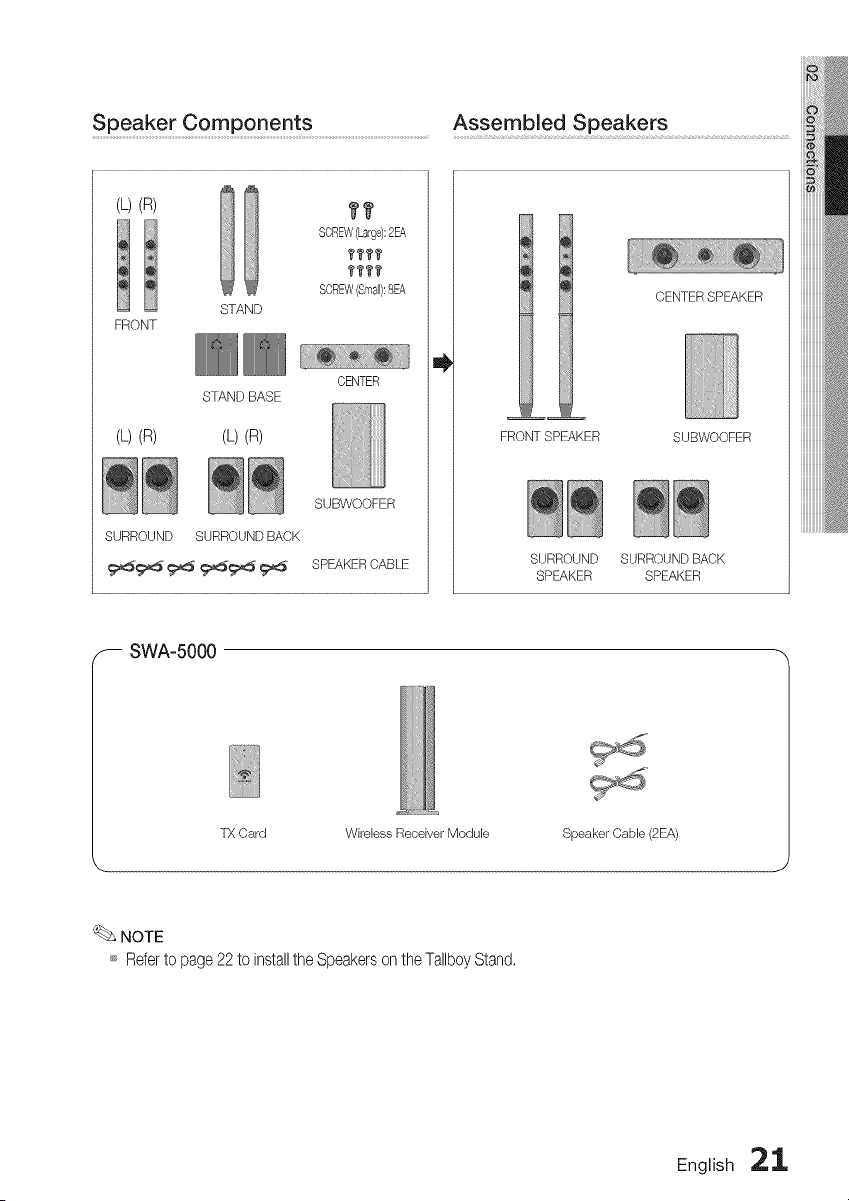
Speaker Components ................................................................................Assembled S#eaker s.........................................................................................................
(L)(R)
FRONT
STAND
??
SCREW(Large):2EA
????
?177
SCREW(Sm@:8EA
(L)(R)
STAND BASE
(L)(R)
CENTER
SUBWOOFER
SURROUND SURROUND BACK
€_<_,_ _ _cj:_ _ SPEAKER CABLE
CENTER SPEAKER
FRONT SPEAKER SUBWOOFER
SURROUND SURROUND BACK
SPEAKER SPEAKER
_-- SWA-5000
TX Card Wirebss Receiver Module Speaker Cabb (2EA)
NOTE
_ Referto page22 to installthe Speakerson the TallboyStand.
English 21
Conn otion
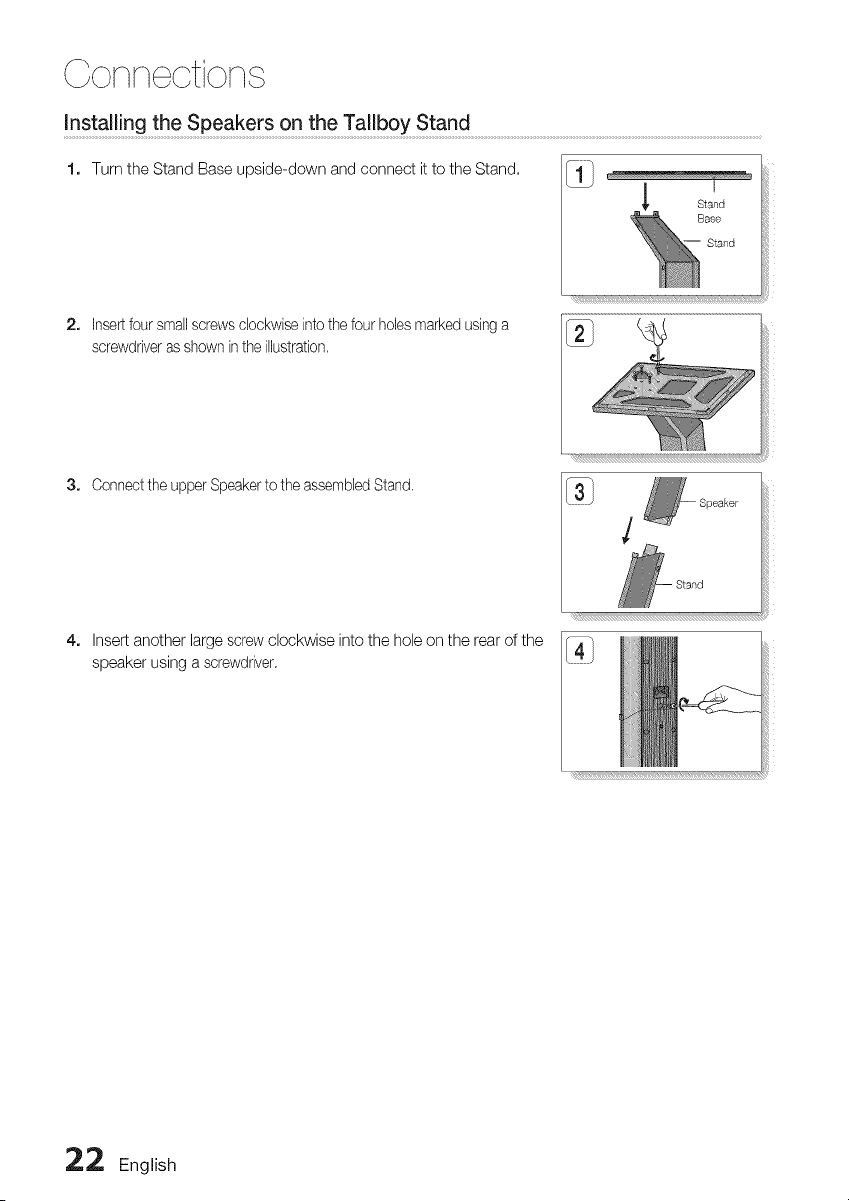
Insta!!ing the Speakers on the Ta!lbo y Stand ...........................................................................................................................................................................................................
1. Turn the Stand Base upside-down and connect it to the Stand.
2, Insertfoursmallscrewsclockwiseintothe fourholesmarkedusinga
screwdriverasshownintheillustration.
3. Connect the upper Speaker to the assembled Stand.
4.
Insert another large screw clockwise into the hole on the rear of the
speaker using a screwdriver.
22 English
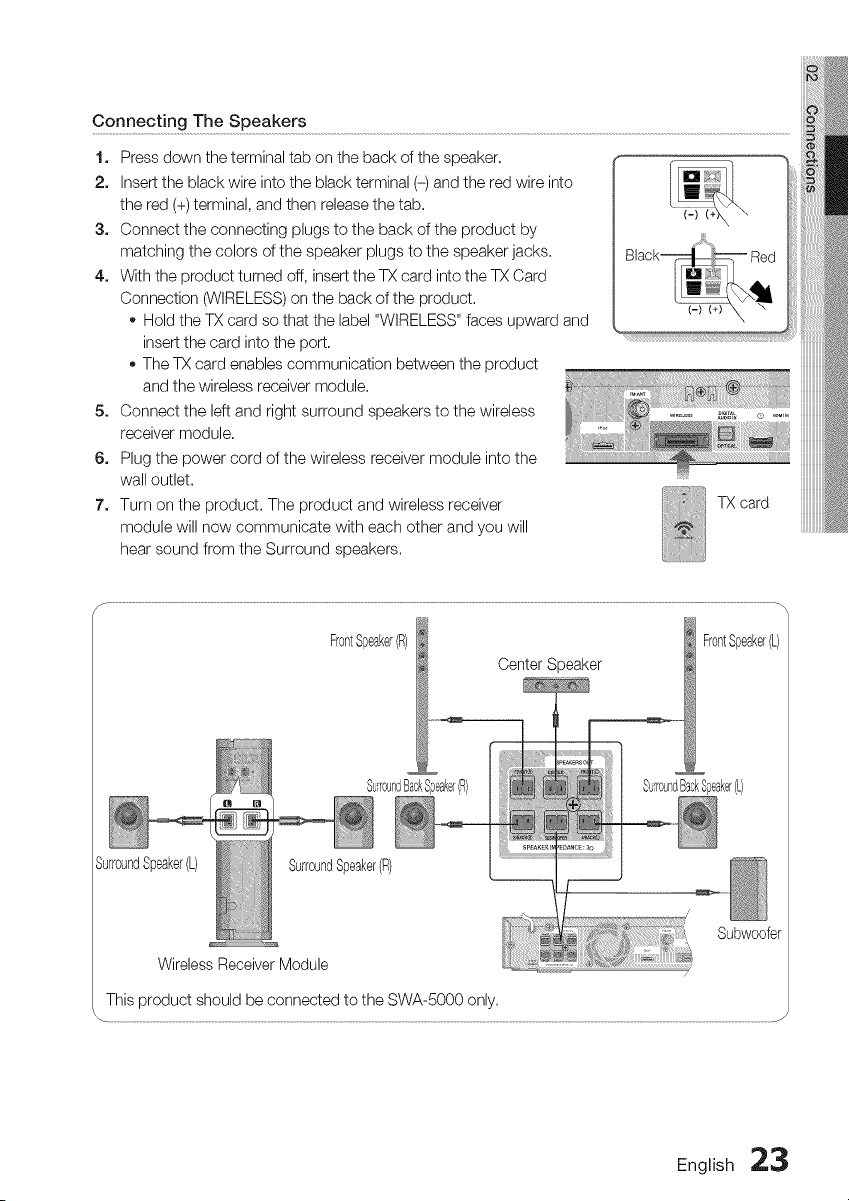
connect!ngThespeakers................................................................................................................................................................................................................................................................................................................................................
1. Press down the terminal tab on the back of the speaker.
2. Insert the black wire into the black terminal (-) and the red wire into
the red (+) terminal, and then release the tab.
3. Connect the connecting plugs to the back of the product by
matching the colors of the speaker plugs to the speaker jacks.
4. With the product turned off, insert the TX card into the TX Card
Connection (WIRELESS) on the back of the product.
- Hold the TX card so that the label "WIRELESS" faces upward and
insert the card into the port.
- The TX card enables communication between the product
and the wireless receiver module.
5. Connect the left and right surround speakers to the wireless
receiver module.
6. Plug the power cord of the wireless receiver module into the
wall outlet.
7. Turn on the product. The product and wireless receiver
module will now communicate with each other and you will
hear sound from the Surround speakers.
TX card
FrontSpeaker(R) FrontSpeaker(L)
Center Speaker
Surr0undBackSpeaker(L)
E ,ish23
Connections
! CAUTION
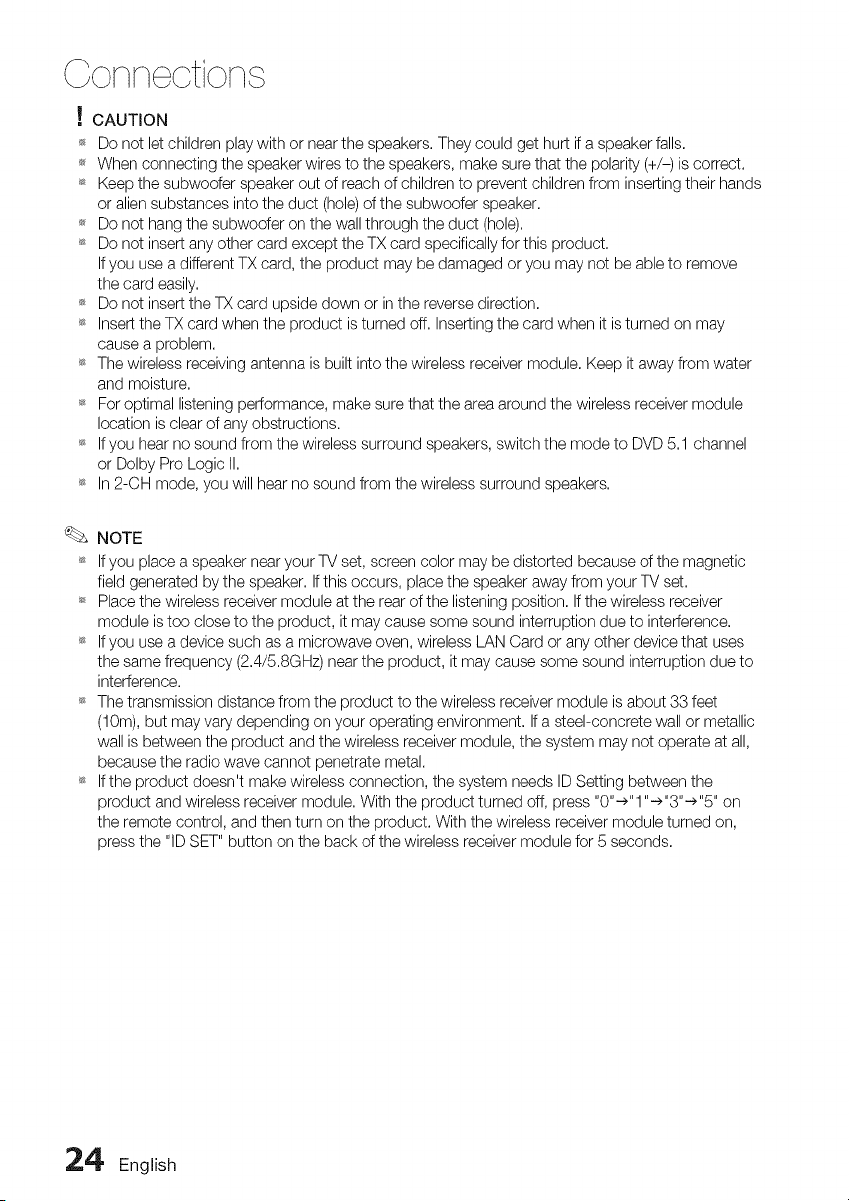
_ Do not let children play with or near the speakers. They could get hurt if a speaker falls.
_ When connecting the speaker wires to the speakers, make sure that the polarity (+/-) is correct.
_ Keep the subwoofer speaker out of reach of children to prevent children from inserting their hands
or alien substances into the duct (hole) of the subwoofer speaker.
_ Do not hang the subwoofer on the wall through the duct (hole).
_ Do not insert any other card except the TX card specifically for this product.
If you use a different TX card, the product may be damaged or you may not be able to remove
the card easily.
_ Do not insert the TX card upside down or in the reverse direction.
_ Insert the TX card when the product is turned off. Inserting the card when it is turned on may
cause a problem.
_ The wireless receiving antenna is built into the wireless receiver module. Keep it away from water
and moisture.
_ For optimal listening performance, make sure that the area around the wireless receiver module
location is clear of any obstructions.
_ If you hear no sound from the wireless surround speakers, switch the mode to DVD 5.1 channel
or Dolby Pro Logic II.
_ In 2-CH mode, you will hear no sound from the wireless surround speakers.
NOTE
_ If you place a speaker near your TV set, screen color may be distorted because of the magnetic
field generated by the speaker. If this occurs, place the speaker away from your TV set.
_ Place the wireless receiver module at the rear of the listening position. If the wireless receiver
module is too close to the product, it may cause some sound interruption due to interference.
_ If you use a device such as a microwave oven, wireless LAN Card or any other device that uses
the same frequency (2.4/5.8GHz) near the product, it may cause some sound interruption due to
interference.
_ The transmission distance from the product to the wireless receiver module is about 33 feet
(10m), but may vary depending on your operating environment. If a steel-concrete wall or metallic
wall is between the product and the wireless receiver module, the system may not operate at all,
because the radio wave cannot penetrate metal.
_ If the product doesn't make wireless connection, the system needs ID Setting between the
product and wireless receiver module. With the product turned off, press "0"->"1 "->"3"->"5" on
the remote control, and then turn on the product. With the wireless receiver module turned on,
press the "ID SET" button on the back of the wireless receiver module for 5 seconds.
24 English

HDMI is the standard digital interface for connecting to devices such as a TV, projector, DVD player, Blu-ray
player, set top box, and more.
Because HDMI is all digital, you'll enjoy digital quality video and sound as it was originally created, without
the distortions that can be caused when digital content is converted to analog.
DVD or Blu-ray Player ( } [ _-_ o_o} SAT (Satellite/Set top box)
HDMI IN
HDMIOUT: Conne ctingtoaTvwithanHDMI Cable (BEST QUALITY) .......................
Connect an HDMI cable (not supplied) from the HDMI OUT jack on the back of the product to the
HDMI IN jack on your TV,
NOTE
_ Certain HDMI output resolutions may not work, depending on your TV.
_s If an HDMIcable is connected or removed during playback of a CD-DA, MP3 or JPEG file, the product will
stop playing,
_s After making the video connection, set the Video input source on your TV to match the correspondingVideo
output (HDMI, Component or Composite)on your product,
Seeyour TV owner's manual for more informationon how to selectthe TV's Video Input source,
_s If you have set the product's remote control to operate your TV, press the SOURCE button on the remote
control and select HDMI as the external source of the TV,
_ You must have an HDMI connection to enjoy videos with 3D technology,
_s A long HDMI cable may cause a screen noise, If this is the case, set Deep Color to Off in the menu,
English 25
HDMI IN i Cennect!ng to an External Component with an HDMI Cable
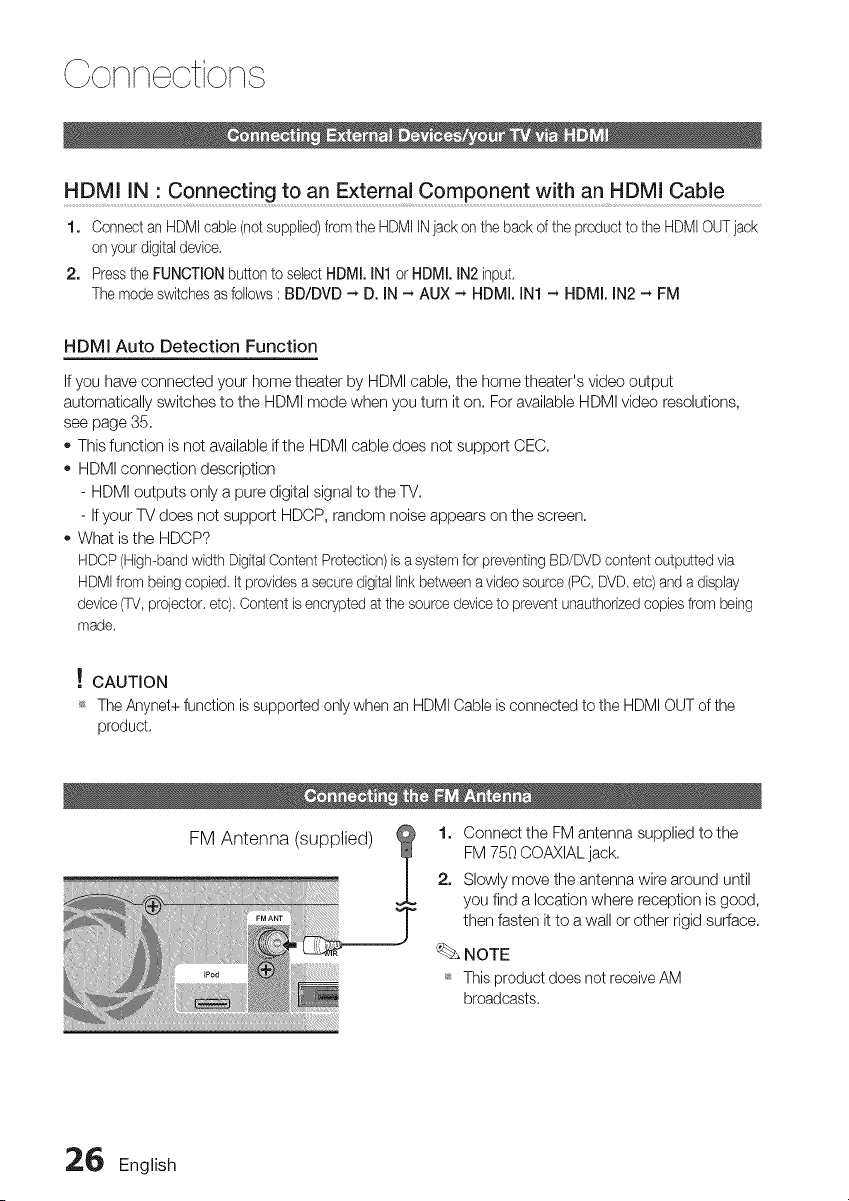
1. Connect an HDMI cable (not supplied)from the HDMI IN jack on the back of the product to the HDMI OUTjack
on your digitaldevice,
2. Pressthe FUNCTION button to select HDMI. IN1 or HDMI. IN2 input,
The mode switches as follows : BD/DVD ._ D. IN ._ AUX ._ HDMI. IN1 ._ HDMI. IN2 ._ FM
HDMI Auto Detection Function
If you have connected your home theater by HDMI cable, the home theater's video output
automatically switches to the HDMI mode when you turn it on. For available HDMI video resolutions,
see page 35.
o This function is not available if the HDMI cable does not support CEC.
HDMI connection description
- HDMI outputs only a pure digital signal to the TV.
- If your TV does not support HDCP, random noise appears on the screen.
What is the HDCP?
HDCP (High-bandwidth DigitalContent Protection)is a systemfor preventingBD/DVD content outputted via
HDMIfrom being copied It provides a secure digital linkbetween a video source (PC, DVD,etc) and a display
device _, projector, etc), Content is encrypted at the source device to prevent unauthorizedcopiesfrom being
made,
! CAUTION
_ TheAnynet+functionis supportedonlywhen an HDMICableis connectedto the HDMIOUTof the
product.
FM Antenna (supplied)
1. Connect the FM antenna supplied to the
FM 750 COAXIAL jack.
2. Slowly move the antenna wire around until
you find a location where reception is good,
then fasten it to a wall or other rigid surface.
_. NOTE
_ This product does not receive AM
broadcasts.
26 English
Red Blue Green
METHOD1
LAN
METHOD2
®
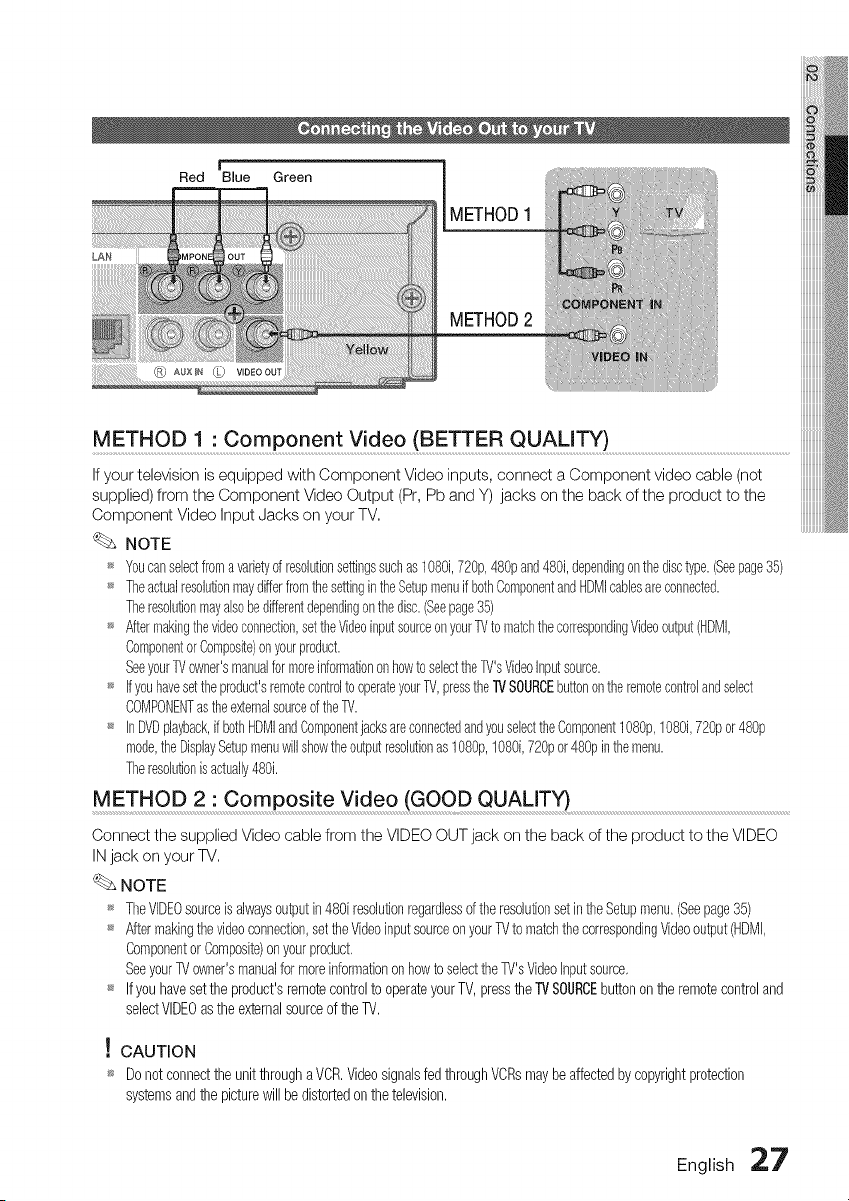
METHOD 1 " Component Video (BETTER QUALITY)
If your television is equipped with Component Video inputs, connect a Component video cable (not
supplied) from the Component Video Output (Pr, Pb and Y) jacks on the back of the product to the
Component Video Input Jacks on your TV,
NOTE
_ Youcanselectfromavarietyof resolutionsettingssuchas108gi,720p,480pand480i,dependingonthedisctype.(Seepage35)
_ TheactualresolutionmaydifferfromthesettingintheSetupmenuifbothComponentandHDMIcablesareconnected.
Theresolutionmayalsobedifferentdependingonthedisc.(Seepage35)
_ Aftermakingthevideoconnection,settheVideoinputsourceonyourTVto matchthecorrespondingVideooutput(HDMI,
ComponentorComposite)onyourproduct.
SeeyourTVowner'smanualfor moreinformationonhowtoselecttheTV'sVideoInputsource.
_ Ifyouhavesettheproduct'sremotecontrolto operateyourTV,presstheTVSOURCEbuttonontheremotecontrolandselect
COMPONENTastheexternalsourceoftheTV.
_ InDVDplayback,if bothHDMIandComponentjacksareconnectedandyouselecttheComponent108%,1080i,720por480p
mode,theDisplaySetupmenuwillshowtheoutputresolutionas108%,1080i,720por 480pinthemenu.
Theresolutionis actually480i.
METHOD 2 • Composite Video (GOOD QUALITY)
Connect the supplied Video cable from the VIDEO OUT jack on the back of the product to the VIDEO
IN jack on your TV,
NOTE
_ TheVIDE0sourceis alwaysoutputin480i resohtionregardlessoftheresohtionsetin theSetupmenu,(Seepage35)
_ Aftermakingthevideoconnection,settheVideoinputsourceonyourTVto matchthecorrespondingVideooutput(HDMI,
Componentor Composite)onyourproduct,
SeeyourIV owner'smanualformoreinformationon howto selecttheTV'sVideoInputsource,
_ Ifyou havesetthe product'sremotecontrolto operateyourTV, presstheTVSOURCEbuttonon the remotecontroland
selectVIDEOasthe externalsourceof theTV,
! CAUTION
_ Donot connectthe unitthroughaVCR,Videosignalsfed throughVCRsmay beaffectedbycopyrightprotection
systemsandthe picturewill bedistortedon thetelevision,
English 27
Connections
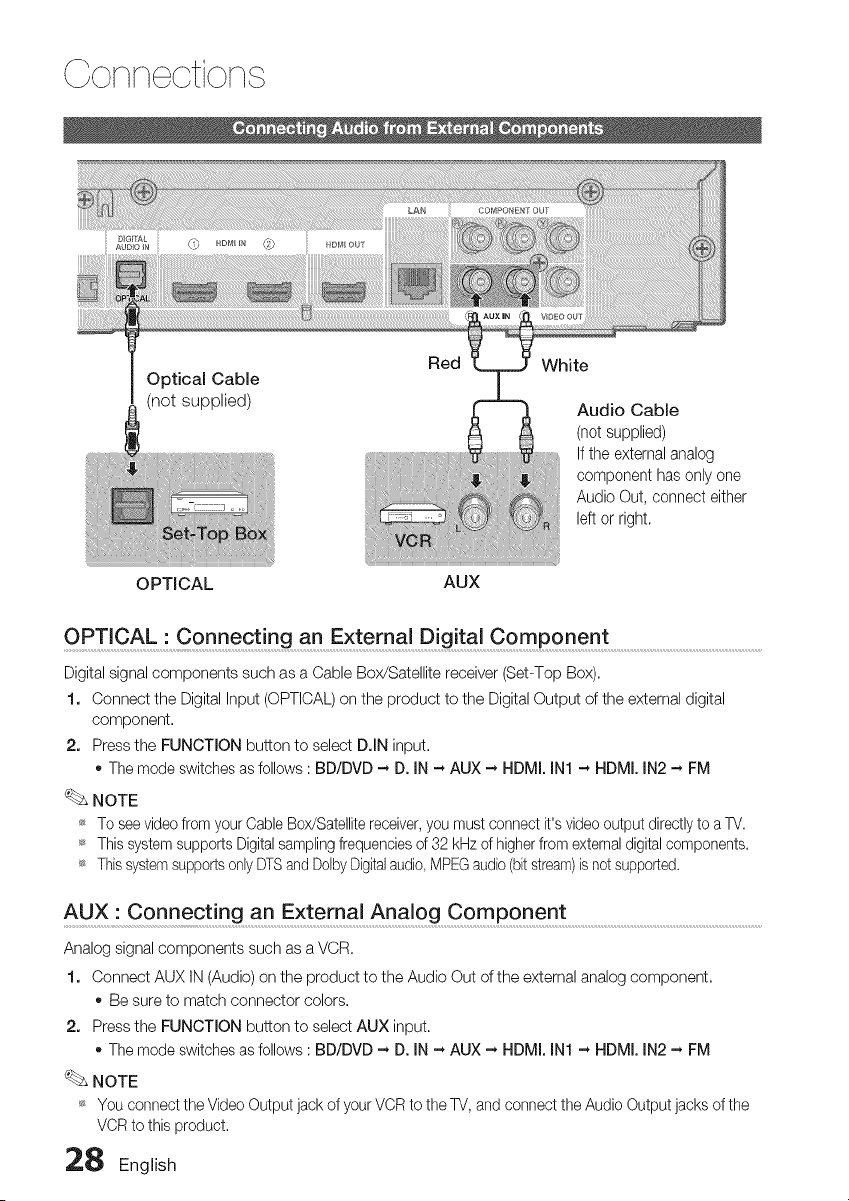
Optical Cable
(not supplied)
White
Audio Cable
(not supplied)
If the externalanalog
componenthas only one
AudioOut, connecteither
left or right.
OPTICAL AUX
OPTI CAL i C on n e ct!n g an Extern a D!g italC o m port ent ..........................................................................................................
Digital signal components such as a Cable Box/Satellite receiver (Set-Top Box).
1. Connect the Digital Input (OPTICAL) on the product to the Digital Output of the external digital
component.
2. Press the FUNCTION button to select D.IN input.
o The mode switches as follows : BD/DVD -_ D. IN -_ AUX -_ HDMI. IN1 -_ HDMI. IN2 -_ FM
NOTE
_ To see video from your Cable Box/Satellite receiver, you must connect it's video output directly to a TV.
_ This system supports Digital sampling frequencies of 32 kHz of higher from external digital components.
_ This system supports only DTS and Delby Digitalaudio, MPEGaudio (bit stream)is not supported.
AUX" Connect!rig an External Analog Component ........................................................................................................................................
Analog signal components such as a VCR.
1. Connect AUX IN (Audio) on the product to the Audio Out of the external analog component.
Be sure to match connector colors.
2. Press the FUNCTION button to select AUX input.
The mode switches as follows : BD/DVD -_ D. IN -_ AUX -_ HDMI. IN1 -_ HDMI. IN2 -_ FM
NOTE
_ You connect the Video Output jack of your VCR to the TV, and connect the Audio Output jacks of the
VCR to this product.
28 English
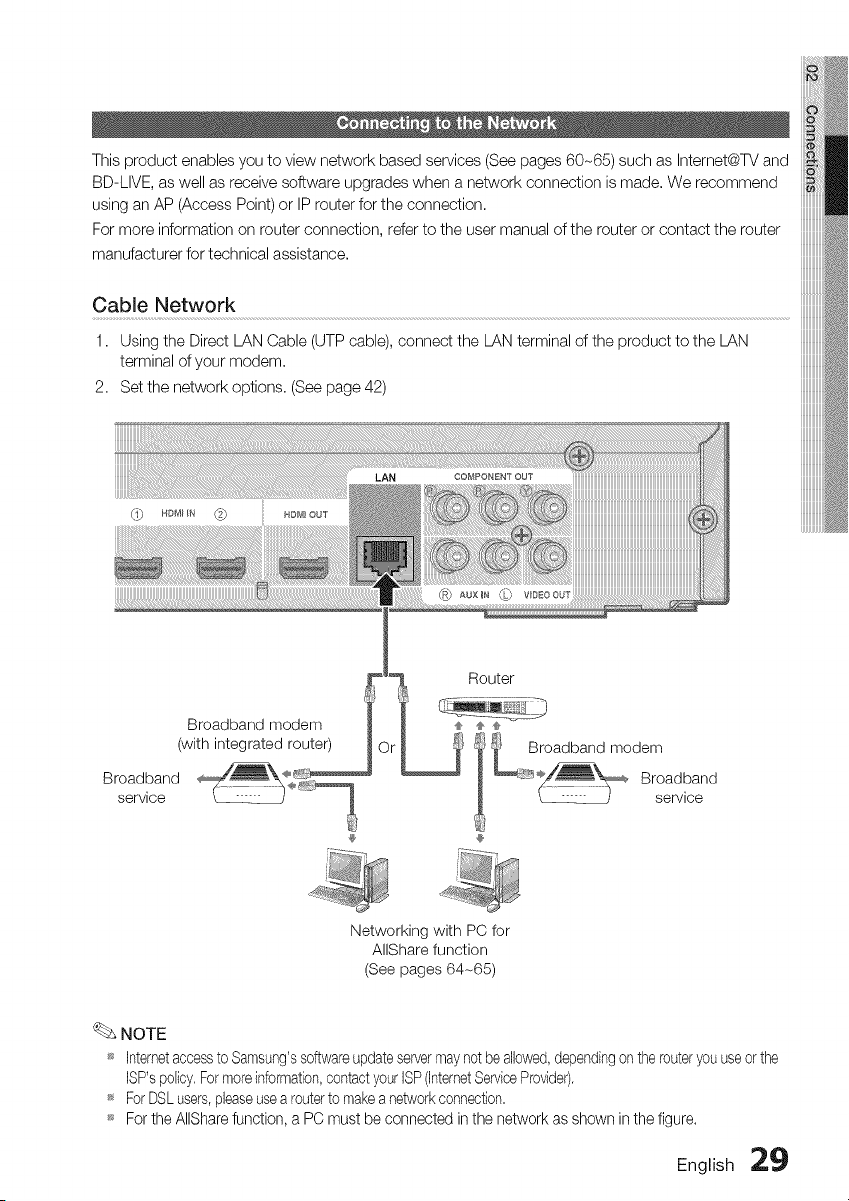
Thisproductenablesyoutoviewnetworkbasedservices(Seepages60-65)suchasIntemet@TVand
BD-LIVE,aswellasreceivesoftwareupgradeswhenanetworkconnectionismade,Werecommend
usinganAP(AccessPoint)orIProuterfortheconnection,
Formoreinformationonrouterconnection,refertotheusermanualoftherouterorcontacttherouter
manufacturerfortechnicalassistance.
Cable Network
1. Using the Direct LAN Cable (UTP cable), connect the LAN terminal of the product to the LAN
terminal of your modem.
2. Set the network options. (See page 42)
CD
®
Broadband modem
(with integrated router)
Broadband
service
Networking with PC for
AIIShare function
(See pages 64-65)
NOTE
_ Internetaccessto Samsung'ssoftwareupdateservermaynot be allowed,dependingon the routeryouuseor the
ISP'spolicy. Formoreinformation,contactyour ISP(InternetServiceProvider).
_ ForDSLusers,pleaseuse a routerto make a networkconnection.
_ For the AIIShare function, a PC must be connected in the network as shown in the figure,
English 29
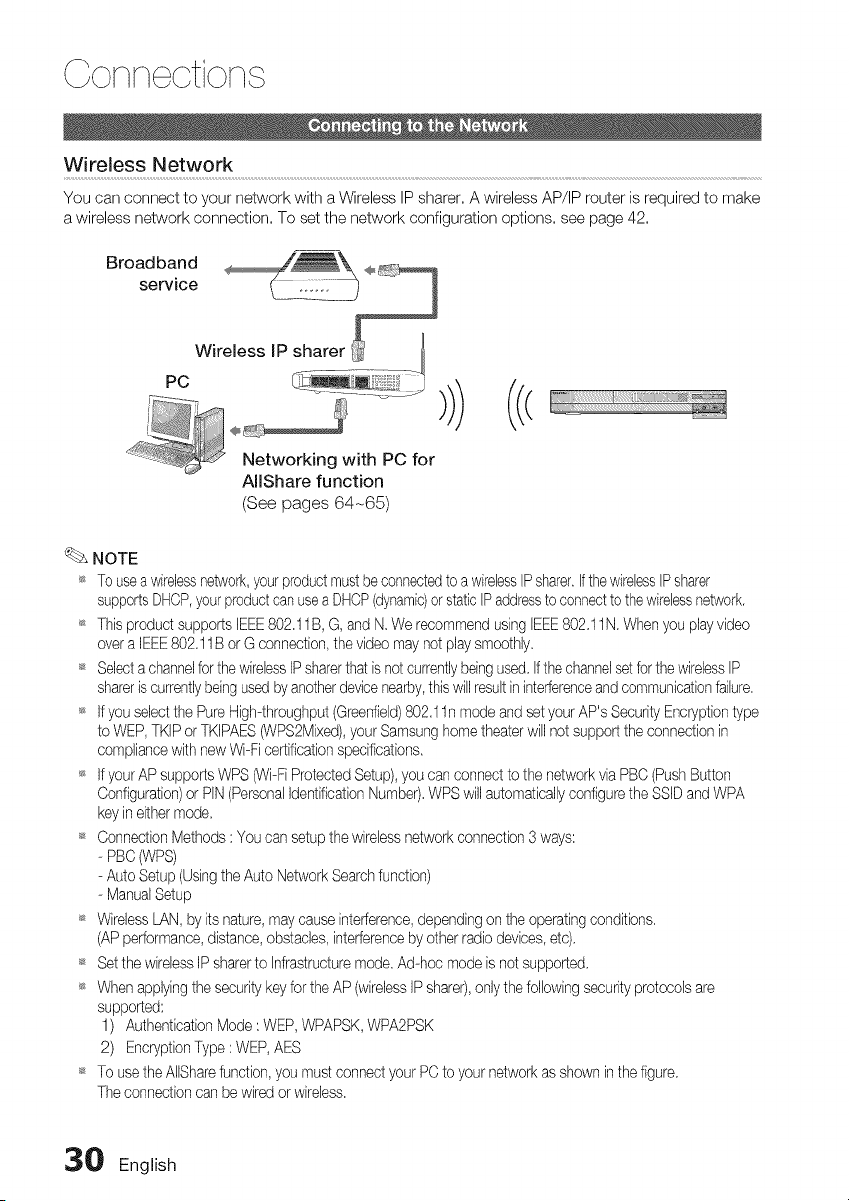
Colqlq otiolq
Wireless Network
You can connect to your network with a Wireless IP sharer. A wireless AP/IP router is required to make
a wireless network connection. To set the network configuration options, see page 42.
i....... !
Networking with PC for
A[IShare function
(See pages 64-65)
NOTE
_s To usea wirelessnetwork,your product must be connectedto a wire[esslPsharer.If thewirelesslPsharer
supports DHCP,your product can usea DHCP(dynamic)orstatic IPaddressto connectto the wirelessnetwork.
_s This product supports IEEE802,11B, G, and N, We recommend using IEEE802.11N. When you play video
over a IEEE802.11B or G connection, the video may not play smoothly,
_s Selecta channelfor the wireless iP sharerthat is not currentlybeing used. Ifthe channelset forthe wirelessIP
sharer is currentlybeing used byanotherdevice nearby,this will resultininterferenceand communicationfailure,
_s If you select the Pure High-throughput (Greenfield)802,11n mode and setyour AP's Security Encryptiontype
to WEP, TKIP or TKIPAES_/PS2Mixed), your Samsung home theater will not support the connection in
compliance with new Wi-Fi certificationspecifications.
_s If your AP supports WPS 0Ni-FiProtected Setup),you can connect to the network via PBC(Push Button
Configuration) or PIN (PersonalIdentificationNumber).WPS will automatically configure the SSID and WPA
key in either mode,
_s Connection Methods : You can setup the wireless network connection 3 ways:
- PBC (WPS)
- Auto Setup (Usingthe Auto Network Search function)
- Manual Setup
_s Wireless LAN, by its nature, may cause interference,depending on the operating conditions.
(AP performance,distance, obstacles, interference by other radio devices, etc),
_s Set the wirelessIP sharer to Infrastructure mode, Ad-hoc mode is not supported,
_s When applying the security key for the AP (wirelessIP sharer),only the followingsecurity protocols are
supported:
1) Authentication Mode : WEP, WPAPSK, WPA2PSK
2) Encryption Type : WEP, AES
_s To usethe A[[Sharefunction, you must connect your PC to your network as shown inthe figure.
The connection can be wired or wireless.
30 English
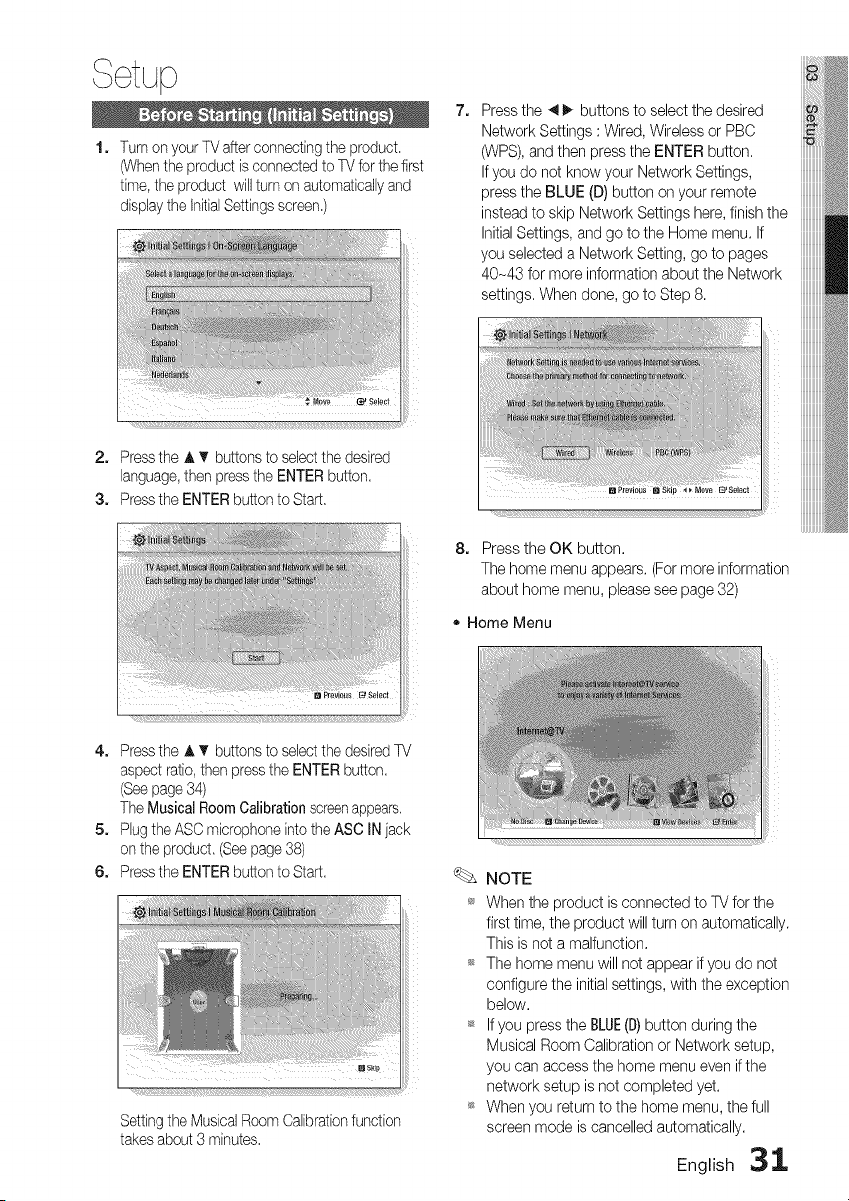
, ¢tup
1. Turn on your TV after connecting the product.
(Whenthe product is connected to TV for the first
time, the product will turn on automatically and
display the InitialSettings screen.)
7,
Press the 4 I_ buttons to select the desired
Network Settings : Wired, Wireless or PBC
(WPS), and then press the ENTER button.
If you do not know your Network Settings,
press the BLUE (D) button on your remote
instead to skip Network Settings here, finish the
Initial Settings, and go to the Home menu. If
you selected a Network Setting, go to pages
40-43 for more information about the Network
settings. When done, go to Step 8.
2. Press the A T buttons to select the desired
language,then press the ENTER button.
3. Press the ENTER button to Start.
8. Press the OK button.
The home menu appears. (For more information
about home menu, please see page 32)
* Home Menu
4. Press the J, T buttons to selectthe desired TV
aspect ratio, then press the ENTER button.
(See page 34)
The Musical Room Calibration screenappears.
5. Plug the ASC microphone into the ASC IN jack
on the product. (See page 38)
6. Press the ENTER button to Start.
Setting the Musical Room Calibrationfunction
takes about 3 minutes.
NOTE
_ When the product is connected to TV for the
first time, the product will turn on automatically.
This is not a malfunction.
t_ The home menu will not appear if you do not
configure the initial settings, with the exception
below.
_* If you press the BLUE(I}) button during the
Musical Room Calibration or Network setup,
you can access the home menu even if the
network setup is not completed yet.
_* When you return to the home menu, the full
screen mode is cancelled automatically.
English 3_
Setup
_* If you want to display the InitialSettings screen
again to make changes, press the STOP(I)
button on the front panel of the product for
more than 5 seconds with no disc inserted.
_* Use the HDMI cable to connect the product to
an Anynet+ (HDMI-CEC)-compliantSamsung TV.
If the TV uses a language supported by the
product, that language will be set to a
preferred language automatically.
For this to work, the Anynet+ (HDMI-CEC)
feature must be set to Onin both TV and the
product.
_ If the product is left in the stop mode for more
than 5 minutes without being operated, a
screen saver will appear on your TV. If the
product is left in the screen saver mode for
more than 25 minutes, the power will
automatically turn off except during playback
of a CD-DA (Automatic Power-Off Function).
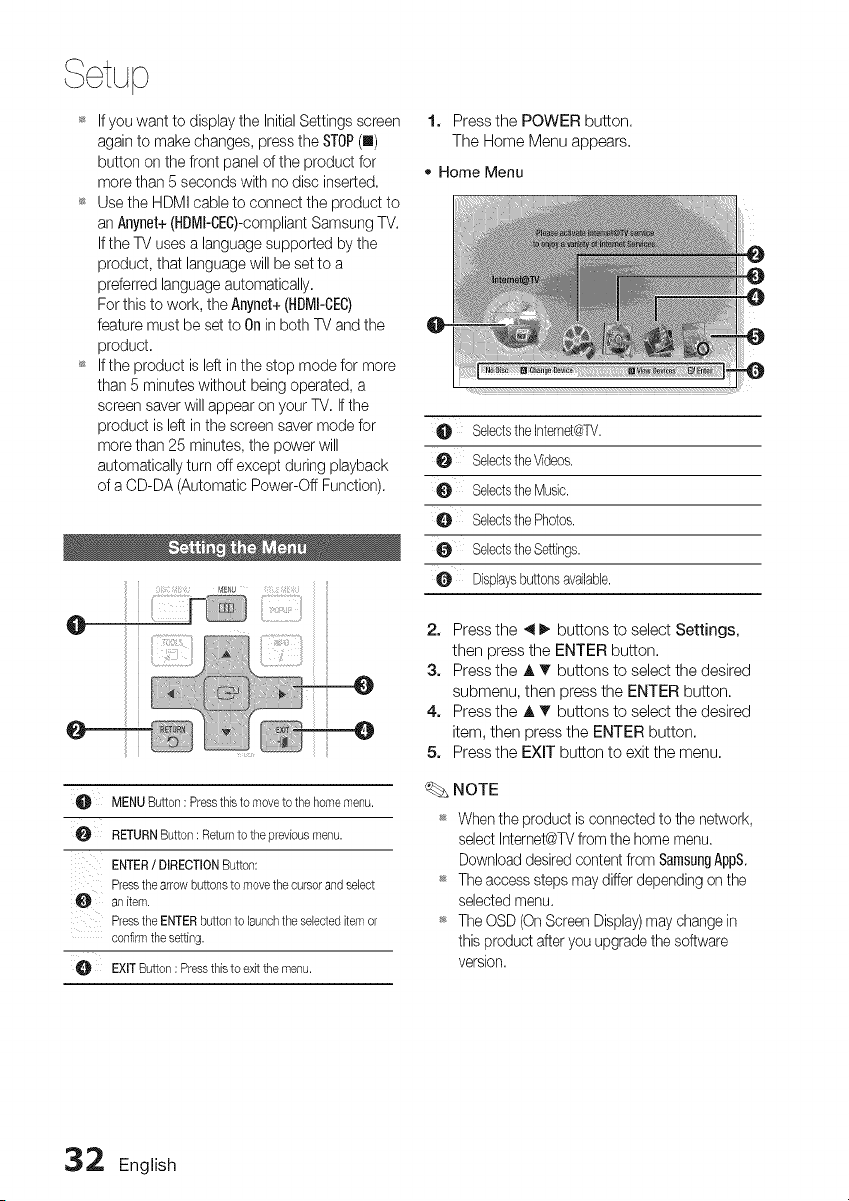
M_NU
AU MENUButton: Pressthis to moveto thehomemenu.
0 RETURNButton: Returnto the previousmenu.
ENTER/ DIRECTIONButton:
Pressthe arrowbuttonsto movethecursorand select
an item.
Pressthe ENTERbuttonto launchthe selecteditemor
confirmthesetting.
EXITButton: Pressthisto exit the menu.
1, Press the POWER button.
The Home Menu appears.
• Home Menu
SelectstheIntemet@TV.
SelectstheVideos.
0 SebctstheMusic.
O SebctsthePhotos.
0 SelectstheSettings.
O Displaysbuttonsavailable.
2.
3,
4.
5.
Press the 4 I_ buttons to select Settings,
then press the ENTER button.
Press the A T buttons to select the desired
submenu, then press the ENTER button.
Press the A T buttons to select the desired
item, then press the ENTER button.
Press the EXIT button to exit the menu.
NOTE
When the product is connected to the network,
select Internet@TVfrom the home menu.
Download desired content from San]sungAppS.
The access steps may differ depending en the
selected menu.
The OSD (OnScreen Display) may change in
this product after you upgrade the software
version.
3:2 English
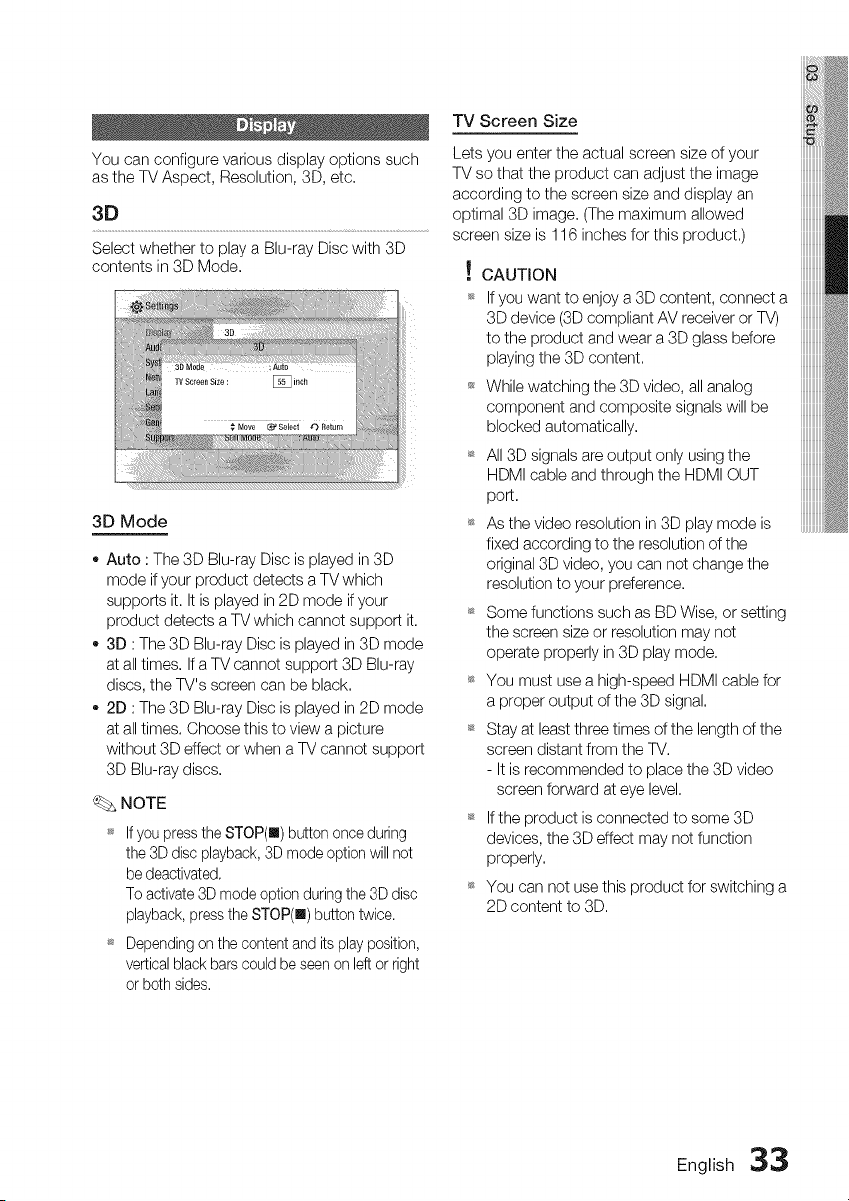
You can configure various display options such
as the TV Aspect, Resolution, 3D, etc.
3D
Select whether to play a Blu-ray Disc with 3D
contents in 3D Mode.
iiiiii
3D Mode
o Auto : The 3D Blu-ray Disc is played in 3D
mode if your product detects a TV which
supports it. It is played in 2D mode if your
product detects a TV which cannot support it,
3D : The 3D Blu-ray Disc is played in 3D mode
at all times, If a TV cannot support 3D Blu-ray
discs, the TV's screen can be black,
2D : The 3D Blu-ray Disc is played in 2D mode
at all times. Choose this to view a picture
without 3D effect or when a TV cannot support
3D Blu-ray discs,
NOTE
_ If you press the STOP(U) button once during
the 3D disc playback, 3D mode option will not
be deactivated,
To activate 3D mode option during the 3D disc
playback, press the STOP(m) button twice.
_ Depending on the content and its play position,
vertical black bars could be seen on left or right
or both sides,
TV Screen Size
Lets you enter the actual screen size of your
TV so that the product can adjust the image
according to the screen size and display an
optimal 3D image, (The maximum allowed
screen size is 116 inches for this product,)
! CAUTION
_ If you want to enjoy a 3D content, connect a
3D device (3D compliant AV receiver or TV)
to the product and wear a 3D glass before
playing the 3D content,
While watching the 3D video, all analog
component and composite signals will be
blocked automatically,
_ All 3D signals are output only using the
HDMI cable and through the HDMI OUT
port,
_ As the video resolution in 3D play mode is
fixed according to the resolution of the
original 3D video, you can not change the
resolution to your preference.
_ Some functions such as BD Wise, or setting
the screen size or resolution may not
operate properly in 3D play mode,
_ You must use a high-speed HDMI cable for
a proper output of the 3D signal,
_ Stay at least three times of the length of the
screen distant from the TV.
- It is recommended to place the 3D video
screen forward at eye level,
_ If the product is connected to some 3D
devices, the 3D effect may not function
properly,
_ You can not use this product for switching a
2D content to 3D,
English 33
Setup
TV Aspect Ratio
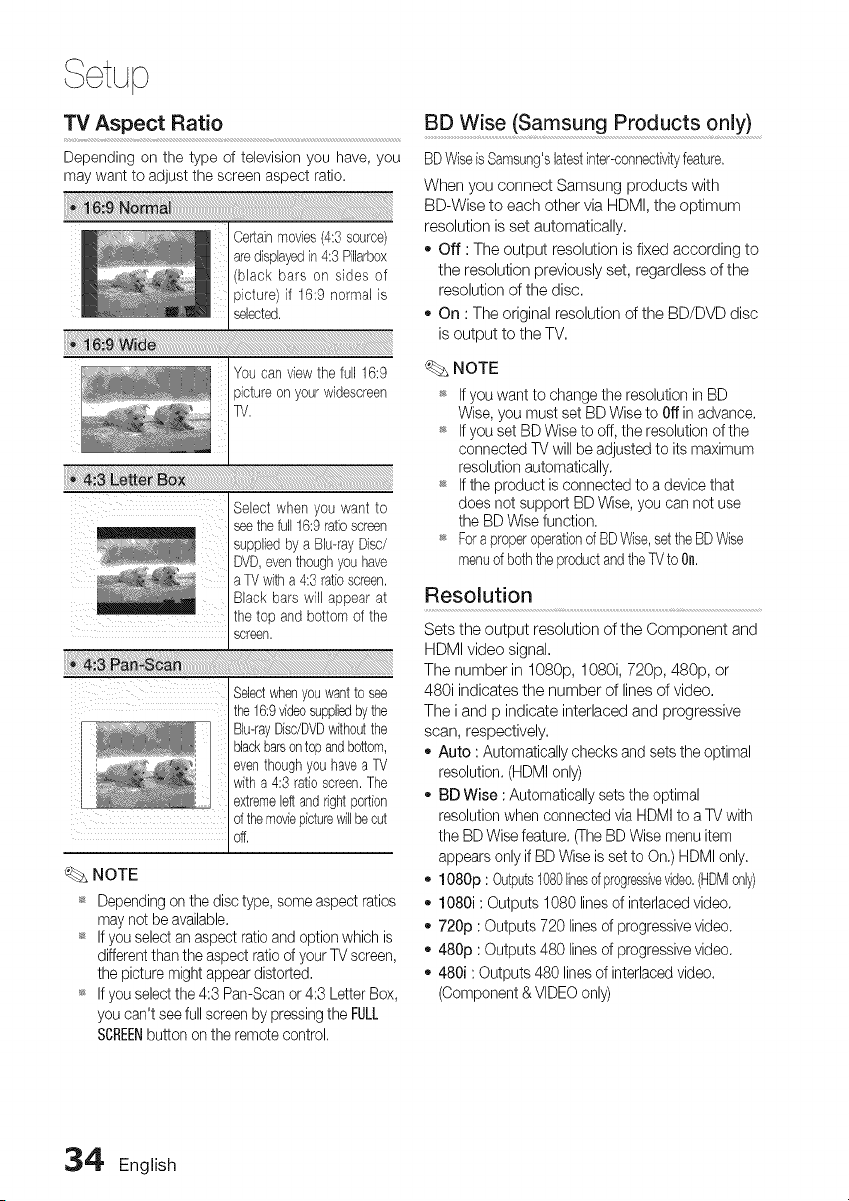
Depending on the type of television you have, you
may want to adjust the screen aspect ratio.
Certainmovies(4:3 source)
are displayedin4:3 Pillarbox
(black bars on sides of
picture) if 16:9 normal is
selected.
Select when you want to
seethefull 16:9ratioscreen
suppliedby a Blu-rayDisc/
DVD,eventhoughyou have
a TV witha 4:3 ratioscreen.
Black bars will appear at
the top and bottom of the
screen.
_!_111111%1!i x_M _ii
_B_!xl xx_! iy _
Selectwhenyouwantto see
the 16:9videosuppliedbythe
Blu-rayDisc/DVDwithoutthe
blackbarsontopandbottom,
eventhoughyouhavea TV
with a 4:3 ratioscreen.The
extremeleftandrightportion
of themoviepicturewillbecut
Of_,
NOTE
_* Depending on the disc type, some aspect ratios
may not be available.
_* If you select an aspect ratio and option which is
different than the aspect ratio of your TV screen,
the picture might appear distorted.
_ If you select the 4:3 Pan-Scan or 4:3 Letter Box,
you can't see full screen by pressing the FULL
SCREENbutton on the remote control.
BD Wise (Samsung Products only)
BDWiseis Samsung'slatestinter-connectivityfeature.
When you connect Samsung products with
BD-Wise to each other via HDMI, the optimum
resolution is set automatically.
,, Off : The output resolution is fixed according to
the resolution previously set, regardless of the
resolution of the disc.
,, On : The original resolution of the BD/DVD disc
is output to the TV.
NOTE
If you want to change the resolution in BD
Wise, you must set BD Wise to Offin advance.
_ If you set BD Wise to off, the resolution of the
connected TV will be adjusted to its maximum
resolution automatically.
_ If the product is connected to a device that
does not support BD Wise, you can net use
the BD Wise function.
_* Fora properoperationd BDWise,settheBD Wise
menuof boththe productandthe TVto On.
Resolution
Sets the output resolution of the Component and
HDMI video signal.
The number in 1080p, 1080i, 720p, 480p, or
480i indicates the number of lines of video.
The i and p indicate interlaced and progressive
scan, respectively.
,, Auto : Automatically checks and sets the optimal
resolution. (HDMI only)
,, BD Wise : Automatically sets the optimal
resolution when connected via HDMI to a TV with
the BD Wise feature. (TheBD Wise menu item
appears only if BD Wise is set to On.) HDMI only.
,, 1080p : Outputs1080linesofprogressivevideo.(HDMIonly)
,, 1080i : Outputs 1080 lines of interlaced video.
,, 720p : Outputs 720 lines of progressive video.
,, 480p : Outputs 480 lines of progressive video.
,, 480i : Outputs 480 lines of interlaced video.
(Component & VIDEO only)
34 English
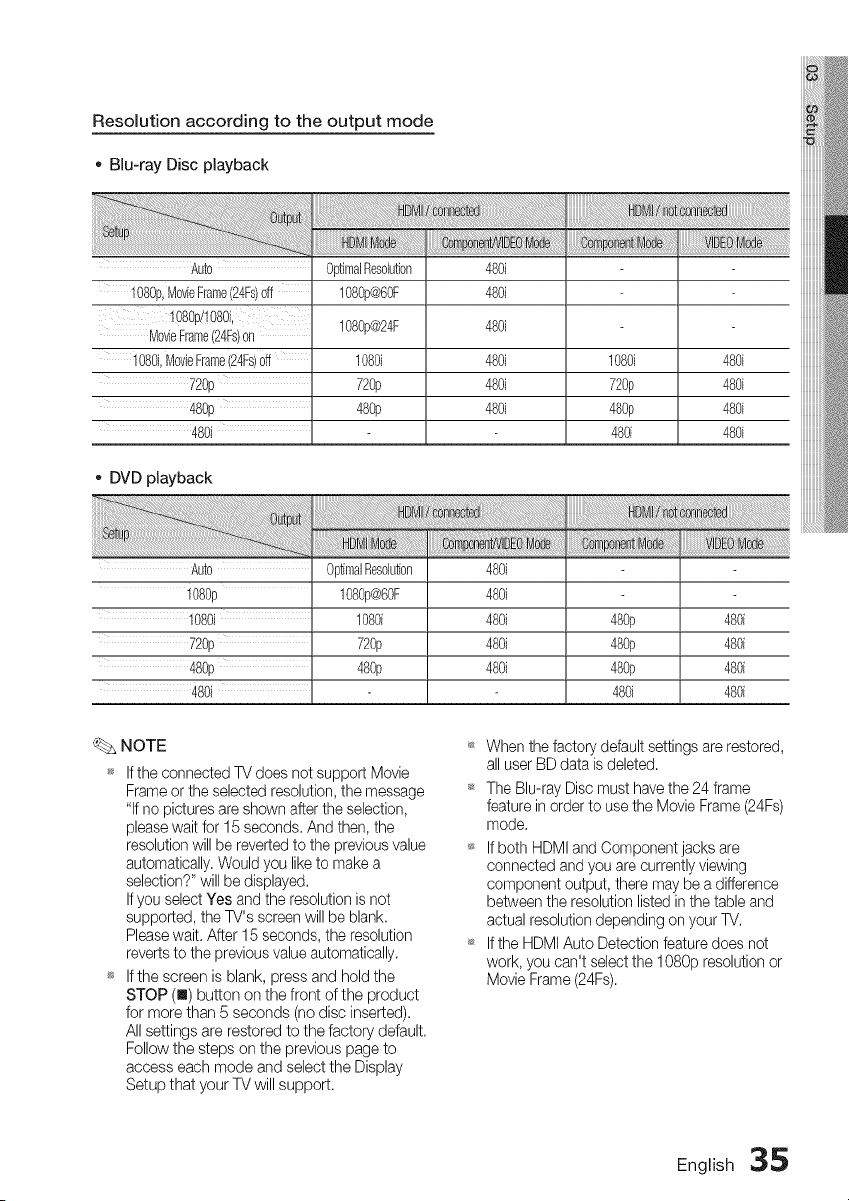
Resolution according to the output mode
., Blu-ray Disc playback
Auto
1080p,M0vieFrame(24Fs)off
t080p/!080i,
MovieFrame(24Fs)on
1080i,MovieFrame(24Fs)0ff
720p
480p
480i
0ptimalResolu_on 480i
1080p@60F 480i
1080p@24F 480i
1080i 480i 1080i 480i
72@ 480i 720p 480i
48@ 480i 48@ 480i
480i 480i
., DVD playback
Auto 0ptimalRes01uti0n
1080p 1080p@60F
1080i 1080i
720p 720p
480p 48@
480i
480i
480i
480i
480i
480i
mr,
480p 480i
480p 480i
480p 480i
480i 480i
NOTE
_ If the connected TV does not support Movie
Frame or the selected resolution, the message
"If no pictures are shown after the selection,
please wait for 15 seconds. And then, the
resolution will be reverted to the previous value
automatically. Would you like to make a
selection?" will be displayed.
If you select Yes and the resolution is not
supported, the TV's screen will be blank.
Please wait. After 15 seconds, the resolution
reverts to the previous value automatically.
_ If the screen is blank, press and hold the
STOP (I) button on the front of the product
for more than 5 seconds (no disc inserted).
All settings are restored to the factory default.
Follow the steps on the previous page to
access each mode and select the Display
Setup that your TV will support.
When the factory default settings are restored,
all user BD data is deleted.
The Blu-ray Disc must have the 24 frame
feature in order to use the Movie Frame (24Fs)
mode.
If both HDMI and Component jacks are
connected and you are currently viewing
component output, there may be a difference
between the resolution listed in the table and
actual resolution depending on your TV.
If the HDMI Auto Detection feature does not
work, you can't select the 1080p resolution or
Movie Frame (24Fs).
English _
Setup
HDMI Format ........................................................................Progressive Mode
You can optimize the color setting from the HDMI
output by selecting a connected device Type:
o TV : Select if connected to a TV via HDMk
Monitor : Select if connected to a Monitor via
HDMI.
NOTE
_* A TV or monitor has to be connected to the
product before you select this option.
Movie Frame (24 Fs) ..................................................................
Setting the Movie Frame (24Fs) feature to On
allows you to adjust the product's HDMI output to
24 frames per second for improved picture quality.
You can enjoy the Movie Frame (24Fs) feature only
on a TV supporting this frame rate. This menu can
only be selected in 1080i or 1080p HDMI output
resolution modes.
- Off : Movie Frame (24Fs) function is off,
- On : Movie Frame (24Fs) function is on,
NOTE
_* Two types of frame rates may be included,
depending on the disc: Movie material (24
frame) and Video material (30 frame). When the
setting switches between Movie (24 frame) and
Video (30 frame), the screen may blink for a
few seconds.
_ If your TV does net support Movie Frame
(24Fs)function, a pop-up message is
displayed.
Set to improve picture quality when you view DVDs,
Auto : Select to have the product automatically
set the best picture for the DVD you're
watching.
Video : Select for the best picture from
Concert or TV show DVDs.
Still Mode
Set the type of picture the home theater shows
when you pause DVD playback.
Auto: Automatically show the best still picture
depending on the content.
Frame : Select when pausing a scene with a
little action.
Field : Select when pausing a scene with a lot
of action.
HDMI Deep Color ...............
Set to output the picture from the HDMI OUT jack
with Deep Color or without. Deep Color allows mere
accurate color reproduction with deeper color depth,
- Auto: The picture is output with Deep Color to
the connected TV which supports HDMI Deep
Color.
Off : The picture is output without Deep Color.
36 English
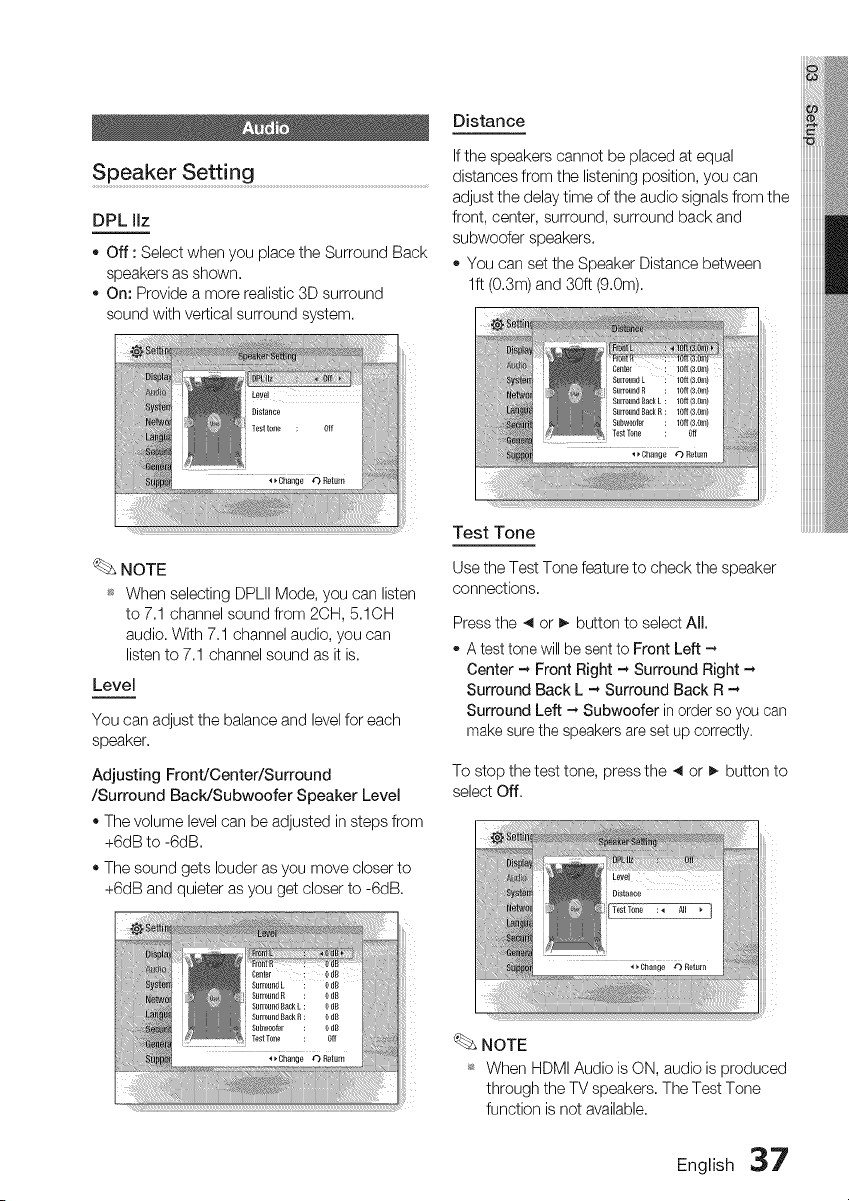
Speaker Setting ........................................................................................................................
DPL IIz
o Off : Select when you place the Surround Back
speakers as shown.
On: Provide a more realistic 3D surround
sound with vertical surround system.
Distance
If the speakers cannot be placed at equal
distances from the listening position, you can
adjust the delay time of the audio signals from the
front, center, surround, surround back and
subwoofer speakers.
You can set the Speaker Distance between
lft (0.3m) and 30ft (9.0m).
NOTE
_ When selecting DPLII Mode, you can listen
to 7.1 channel sound from 2CH, 5.1CH
audio. With 7.1 channel audio, you can
listen to 7.1 channel sound as it is.
Level
You can adjustthe balance andlevelforeach
speaker.
Adjusting Front/Center/Surround
/Surround BacWSubwoofer Speaker Level
• The volume level can be adjusted in steps from
+6dB to -6dB.
• The sound gets louder as you move closer to
+6dB and quieter as you get closer to -6dB.
Test Tone
Use the Test Tone feature to check the speaker
connections.
Press the 4 or I_ button to select All.
A test tone will be sent to Front Left -
Center - Front Right - Surround Right -
Surround Back L - Surround Back R -
Surround Left - Subwoofer in order so you can
make sure the speakers are set up correctly.
To stop the test tone, press the 4 or _ button to
select Off,
NOTE
_ When HDMI Audiois ON,audio is produced
throughthe TVspeakers,The Test Tone
function is not available,
English 37
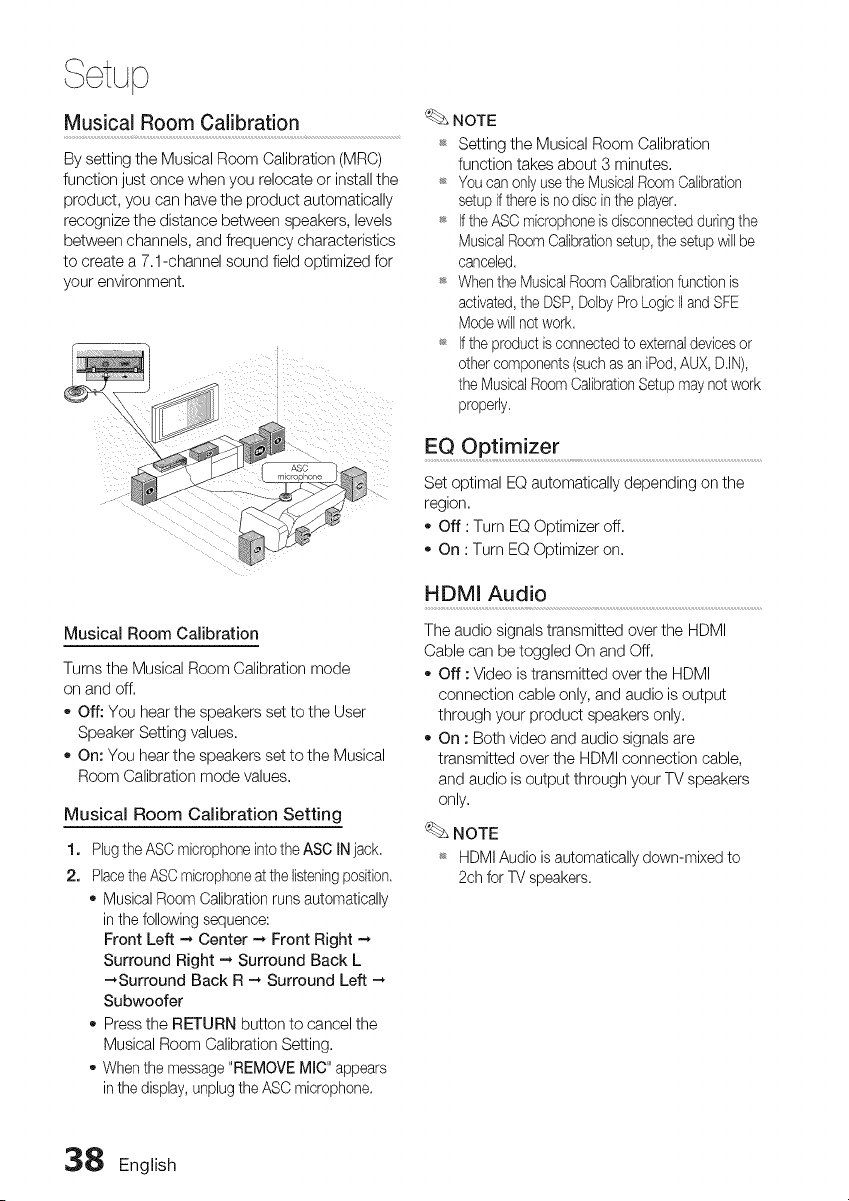
Setup
MusicaJ Room CaJibration
By setting the Musical Room Calibration (MRC)
function just once when you relocate or install the
product, you can have the product automatically
recognize the distance between speakers, levels
between channels, and frequency characteristics
to create a 7.1-channel sound field optimized for
your environment.
Musical Room Calibration
Turns the Musical Room Calibration mode
on and off.
o Off: You hear the speakers set to the User
Speaker Setting values.
On: You hear the speakers set to the Musical
Room Calibration mode values.
Musical Room Calibration Setting
1.
2.
Plug the ASC microphone into the ASC iN jack,
Placethe ASC microphoneat the listeningposition,
Musical Room Calibration runs automatically
in the following sequence:
Front Left -_ Center -_ Front Right -,
Surround Right -_ Surround Back L
•-*Surround Back R -_ Surround Left -_
Subwoofer
Press the RETURN button to cancel the
Musical Room Calibration Setting.
When the message "REMOVE MIC" appears
in the display, unplug the ASC microphone.
NOTE
_* Setting the Musical Room Calibration
function takes about 3 minutes.
_* You can only use the MusicalRoom Calibration
setup ifthere is no disc inthe player,
_* if the ASC microphone is disconnected duringthe
Musical Room Calibrationsetup, the setup will be
canceled,
_* When the MusicalRoom Calibrationfunction is
activated,the DSP, Dolby Pro Logic IIand SFE
Mode will not work,
_ if the product isconnected to externaldevices or
other components (such as an iPod,AUX, DJN),
the Musical Room CalibrationSetup may not work
properly,
EQ Optimizer .............................................................................................................................................
Set optimal EQ automatically depending on the
region.
- Off : Turn EQ Optimizer off.
o On : Turn EQ Optimizer on.
HDMI Audio
The audio signals transmitted over the HDMI
Cable can be toggled On and Off.
Off : Video is transmitted over the HDMI
connection cable only, and audio is output
through your product speakers only.
On : Both video and audio signals are
transmitted over the HDMI connection cable,
and audio is output through your TV speakers
only.
NOTE
_ HDMI Audio is automatically down-mixed to
2ch for TV speakers,
38 English
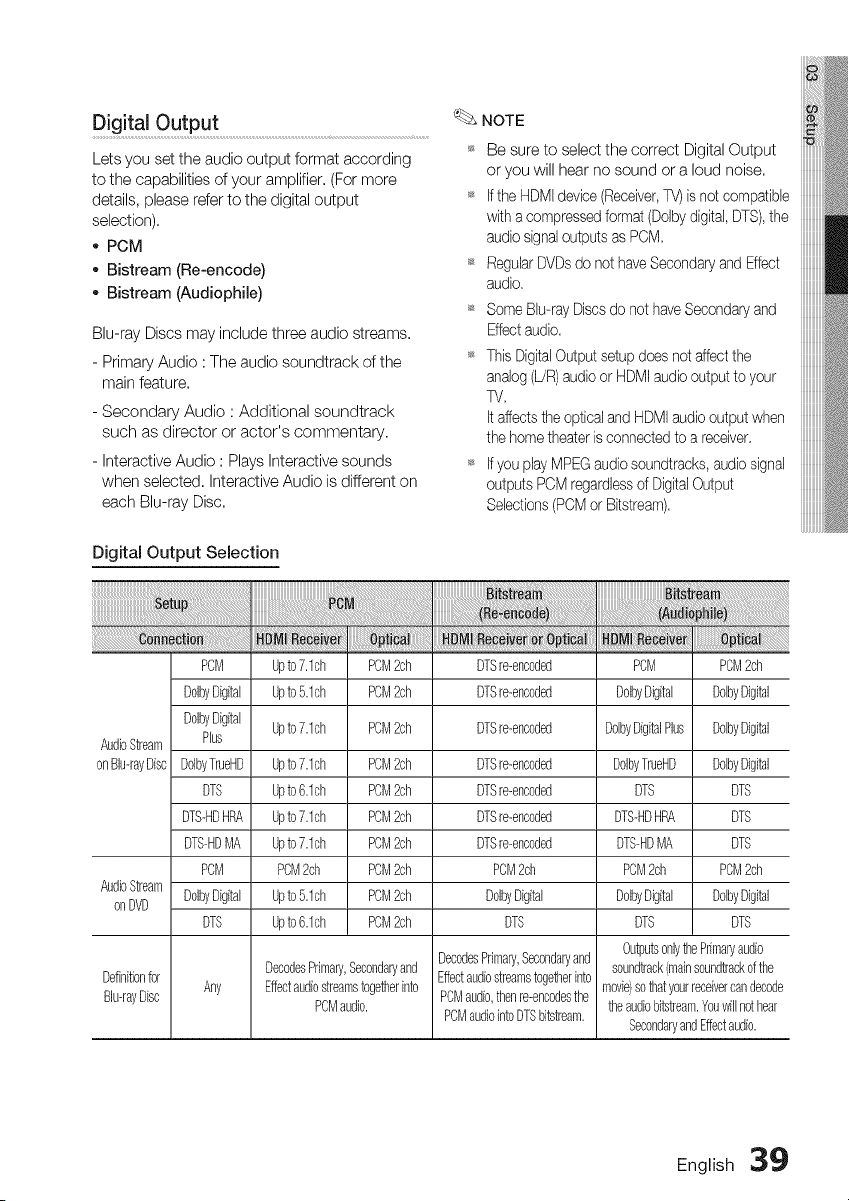
Digital Output ............................................................................................
Lets you set the audio output format according
to the capabilities of your amplifier, (For more
details, please refer to the digital output
selection),
* PCM
* Bistream (Re-encode)
* Bistream (Audiophile)
Blu-ray Discs may include three audio streams.
- Primary Audio : The audio soundtrack of the
main feature.
- Secondary Audio : Additional soundtrack
such as director or actor's commentary.
- Interactive Audio : Plays Interactive sounds
when selected. Interactive Audio is different on
each BID-ray Disc.
Digital Output Selection
NOTE
_s Be sure to select the correct Digital Output
or you will hear no sound or a loud noise.
_s If the HDMIdevice (Receiver,TV)is not compatible
with a compressed format (Doby digital, DTS),the
audio signal outputs as PCM.
_s RegularDVDs do not haveSecondary and Effect
audio.
_s Some Bb-ray Discs do not have Secondaryand
Effect audio.
_s This DigitalOutput setup does not affect the
analog (L/R)audio or HDMIaudio output to your
TV.
It affects the optical and HDMI audiooutput when
the home theater is connectedto a receiver.
_s If you play MPEG audio soundtracks, audio signal
outputs PCM regardlessof DigitalOutput
Selections(PCMor Bitstream).
AudioStream
onBh-rayDisc
AudioStream
onDVD
PCM
D0lbyDigital
D01byDigital
Plus
D01byTrueHD
DTS
DTS-HDHRA
DTS-HDMR
PCM
U01byDigital
DTS
Upto7.1ch PCM2ch
Upto5.1ch PCM2ch
Upto7.1ch PCM2ch
Upto7.1ch PCM2ch
Upto6.1ch PCM2ch
Upto7.1ch PCM2ch
Upto7.1ch PCM2ch
PDM2@ PDM2ch
Upto5.1ch PCM2ch
Upto6.1ch PCM2ch
DTSre-encoded
DTSre-encoded
DTSre-encoded
DTSre-encoded
DTSre-encoded
DTSre-encoded
DTSre-encoded
POM2ch
U01byDigital
DTS
DecodesPrlman/,Secondaryand
DecodesPrimary,Secondaryand Effectaudiostreamstogetherinto
Definitionfor Any Effectaudiostreamstogetherinto PCMaudio,thenre-encodesthe
Bh-rayDisc PDMaudio.
PCMaudiointoDTSbitstream.
PCM
DolbyDigital
DoibyDigitalPlus
DolbyTrueHD
DTS
DTS-HDHRA
DTS-HDMA
PCM2@
DdbyDigital
DTS
PCM2ch
DoibyDigital
DoibyDigital
DoibyDigital
DTS
DTS
DTS
PCM2ch
DoibyDigital
DTS
Outputs0nlythePrimaB/audio
s0undtrack(mainsoundtrack0fthe
movie)sothatyourreceivercandecode
theaudiobitstream.Youwillnothear
SecondaryandEffectaudio.
English 39

Setup
Dynamic Range Control
You can listen at low volumes but still hear dialog
clearly. This is only active when a Dolby Digital
signal is detected.
o Auto : The Dynamic Range Control will be set
automatically based on the information
provided by the Dolby TrueHD Soundtrack,
Off : Turn Dynamic Range Control off,
On : Choose to listen to a movie at a lower
volume without losing clarity of dialog.
AV Sync
Video may not sync with the audio when the
product is connected to a digital TV, If this occurs,
adjust the audio delay time to match the video.
You can set the audio delay time between
0 msec and 300 msec, Adjust it to the optimal
setting.
Initi al Settings .......................................................................................................................................
By using the Initial Settings, you can set
language, TV aspect, Musical Room Calibration
and Network setting, etc.
For more information on the settings, refer to the
corresponding section in this user manual.
Internet@TV Screen Size
Set the Internet@TV Screen to the optimal size.
- Size 1 : Display smaller application icons, You
may see some black on the sides of the
screen.
Size 2 : Display normal application icons,
Size 3 : Display larger application icons. The
image may be too large for your TV screen.
Anynet+ (HDMI-CEC)
Anynet+ is a convenient function that offers linked
operations with other Samsung products that
have the Anynet+ feature,
To operate this function, connect this product to
a Samsung TV with an HDMI cable,
You can then operate this product using a
Samsung TV remote control and start disc
playback simply by pressing the PLAY (_) button
on the TV's remote control.
For more information, please see the TV user
manual,
Off : Anynet+ function is off.
On : Anynet+ function is on,
NOTE
_ This function is net available if the HDMI cable
does not support CEC,
_* If your Samsung TV has an _4_x,,_t÷ logo, then
it supports the Anynet+ function.
_* Depending on your TV, certain HDMI output
resolutions may not work.
Please refer to the user manual of your TV,
_ The Anynet+ function is supported only when
an HDMI Cable is connected to the HDMI OUT
of the product.
_ If the HDMI cable or the power code is
unplugged, or if the product is turned off
abnormally due to power failure, first connect
the HDMI cable again; turn on all devices
including the product, and use the ANYNET+
function under the TV menu to activate all
connected devices again,
BD Data Management
Letsyoumanagethe downloadedcontentsfrom a Blu-ray
Discthat supportsthe BD-LIVEservice.
Youcan check the deviceinformationincludingthe
storagesize,deletethe BD dataor changethe Flash
memorydevice.ChangeDeviceallowsyou to selecteither
theproduct's InternalMemoryor ExternalMemory
(connectedUSBDevice).Ifthe datato be storedfrom
BD-LIVEis greaterthan thesizeof the remainingmemory
orthe InternalMemoryis full, connectan ExternalUSB
device,thenselect ExternalDevicein the menu.
4'0 English
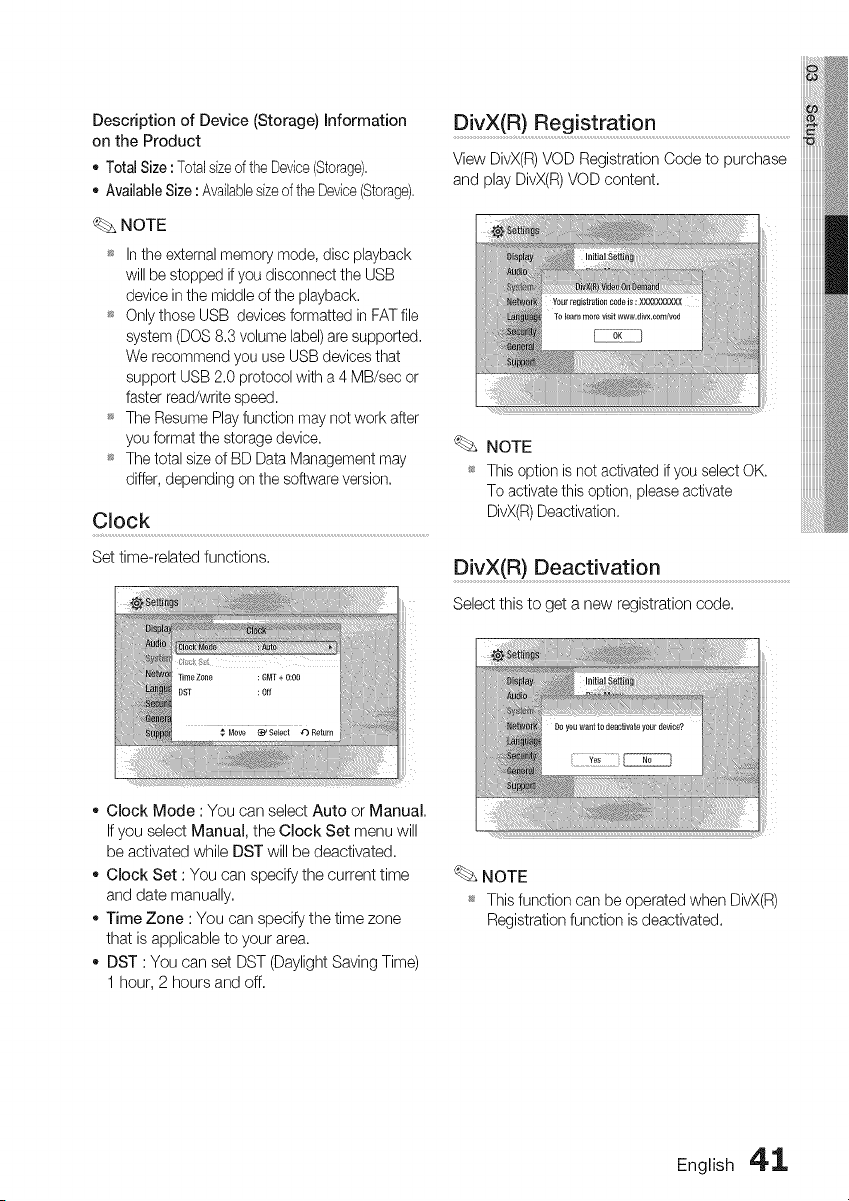
Description of Device (Storage) Information
on the Product
- Total Size : Totalsizeof the Device(Storage).
,, Available Size : Availablesizeof the Device(Storage).
NOTE
_ In the external memory mode, disc playback
will be stopped if you disconnect the USB
device in the middle of the playback.
_ Only those USB devices formatted in FAT file
system (DOS 8.3 volume label) are supported.
We recommend you use USB devices that
support USB 2.0 protocol with a 4 MB/sec or
faster read/write speed.
_ The Resume Play function may not work after
you format the storage device.
_ The total size of BD Data Management may
differ, depending en the software version.
Clock
Set time-related functions,
DivX(R) Registration ............................................................................................
View DivX(R)VOD Registration Code to purchase
and play DivX(R)VOD content,
NOTE
_ This option is net activated if you select OK.
To activate this option, please activate
DivX(R)Deactivation.
DivX(R) Deact !vation .........................................................................................
Select this to get a new registration code,
,, Clock Mode : You can select Auto or Manual.
If you select Manual, the Clock Set menu will
be activated while DST will be deactivated.
,, Clock Set : You can specify the current time
and date manually.
,, Time Zone : You can specify the time zone
that is applicable to your area.
,, DST : You can set DST (Daylight Saving Time)
1 hour, 2 hours and off.
NOTE
_ Thisfunction can be operatedwhen DivX(R)
Registrationfunction is deactivated.
English 4'1,
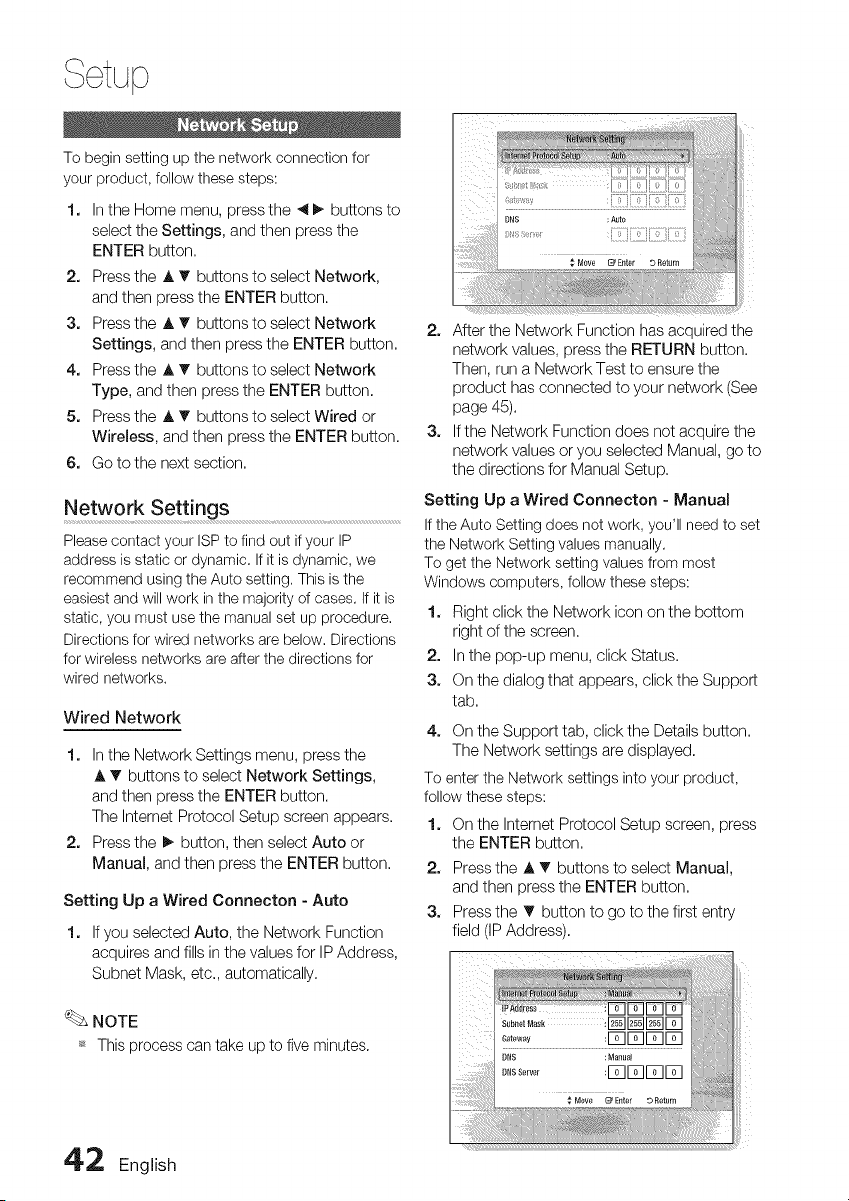
, ¢tup
To begin setting up the network connection for
your product, follow these steps:
1. In the Home menu, press the _1_. buttons to
select the Settings, and then press the
ENTER button.
2. Press the A _' buttons to select Network,
and then press the ENTER button.
3. Press the A T buttons to select Network
Settings, and then press the ENTER button.
4. Press the A T buttons to select Network
Type, and then press the ENTER button.
5. Press the A T buttons to select Wired or
Wireless, and then press the ENTER button.
6. Go to the next section.
Network Settings
Please contact your ISP to find out if your IP
address is static or dynamic. If it is dynamic, we
recommend using the Auto setting. This is the
easiest and will work in the majority of cases. If it is
static, you must use the manual set up procedure.
Directions for wired networks are below. Directions
for wireless networks are after the directions for
wired networks.
Wired Network
1. In the Network Settings menu, press the
A T buttons to select Network Settings,
and then press the ENTER button.
The Intemet Protocol Setup screen appears.
2. Press the _ button, then select Auto or
Manual, and then press the ENTER button.
Setting Up a Wired Connecton - Auto
1. If you selected Auto, the Network Function
acquires and fills in the values for IP Address,
Subnet Mask, etc. automatically.
NOTE
_* Thisprocess can take up to fiveminutes.
2. After the Network Function has acquired the
network values, press the RETURN button.
Then, run a Network Test to ensure the
product has connected to your network (See
page 45).
3. If the Network Function does not acquire the
network values or you selected Manual, go to
the directions for Manual Setup.
Setting Up a Wired Connecton - Manual
If the Auto Setting does not work, you'll need to set
the Network Setting values manually.
To get the Network setting values from most
Windows computers, follow these steps:
1. Right click the Network icon on the bottom
right of the screen.
2. In the pop-up menu, click Status.
3. On the dialog that appears, click the Support
tab.
4. On the Support tab, click the Details button.
The Network settings are displayed.
To enter the Network settings into your product,
follow these steps:
1. On the Intemet Protocol Setup screen, press
the ENTER button.
2. Press the A T buttons to select Manual,
and then press the ENTER button.
3. Press the T button to go to the first entry
field (IP Address).
42 English
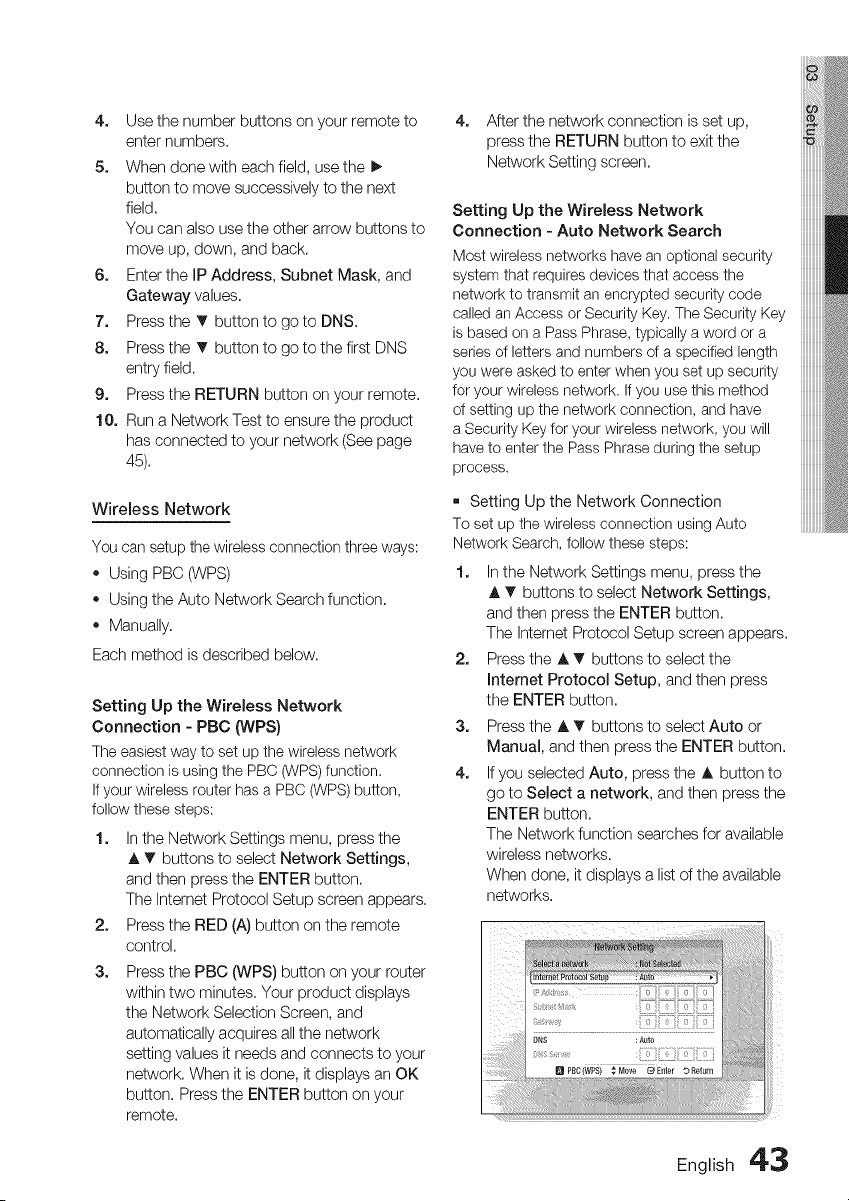
4. Use the number buttons on your remote to
enter numbers.
5. When done with each field, use the I_
button to move successively to the next
field.
You can also use the other arrow buttons to
move up, down, and back.
6. Enter the IP Address, Subnet Mask, and
Gateway values.
7. Press the T button to go to DNS.
8. Press the T button to go to the first DNS
entry field.
9. Press the RETURN button on your remote.
10. Run a Network Test to ensure the product
has connected to your network (See page
45).
Wireless Network
You can setup the wireless connection three ways:
• Using PBC (WPS)
o Using the Auto Network Search function.
• Manually.
Each method is described below.
Setting Up the Wireless Network
Connection - PBC ONPS}
The easiest way to set up the wireless network
connection is using the PBC (WPS)function.
If your wireless router has a PBC (WPS) button,
follow these steps:
1. In the Network Settings menu, press the
A T buttons to select Network Settings,
and then press the ENTER button.
The Internet Protocol Setup screen appears.
2. Press the RED (A) button on the remote
control.
3. Press the PBC (WPS) button on your router
within two minutes. Your product displays
the Network Selection Screen, and
automatically acquires all the network
setting values it needs and connects to your
network. When it is done, it displays an OK
button. Press the ENTER button on your
remote.
4. After the network connection is set up,
press the RETURN button to exit the
Network Setting screen.
Setting Up the Wireless Network
Connection - Auto Network Search
Most wireless networks have an optional security
system that requires devices that access the
network to transmit an encrypted security code
called an Access or Security Key. The Security Key
is based on a Pass Phrase, typically a word or a
series of letters and numbers of a specified length
you were asked to enter when you set up security
for your wireless network. If you use this method
of setting up the network connection, and have
a Security Key for your wireless network, you will
have to enter the Pass Phrase during the setup
process.
[] Setting Up the Network Connection
To set up the wireless connection using Auto
Network Search, follow these steps:
1. In the Network Settings menu, press the
A T buttons to select Network Settings,
and then press the ENTER button.
The Internet Protocol Setup screen appears.
2. Press the A T buttons to select the
Internet Protocol Setup, and then press
the ENTER button.
3. Press the A T buttons to select Auto or
Manual, and then press the ENTER button.
4. If you selected Auto, press the A button to
go to Select a network, and then press the
ENTER button.
The Network function searches for available
wireless networks.
When done, it displays a list of the available
networks.
English 4'3
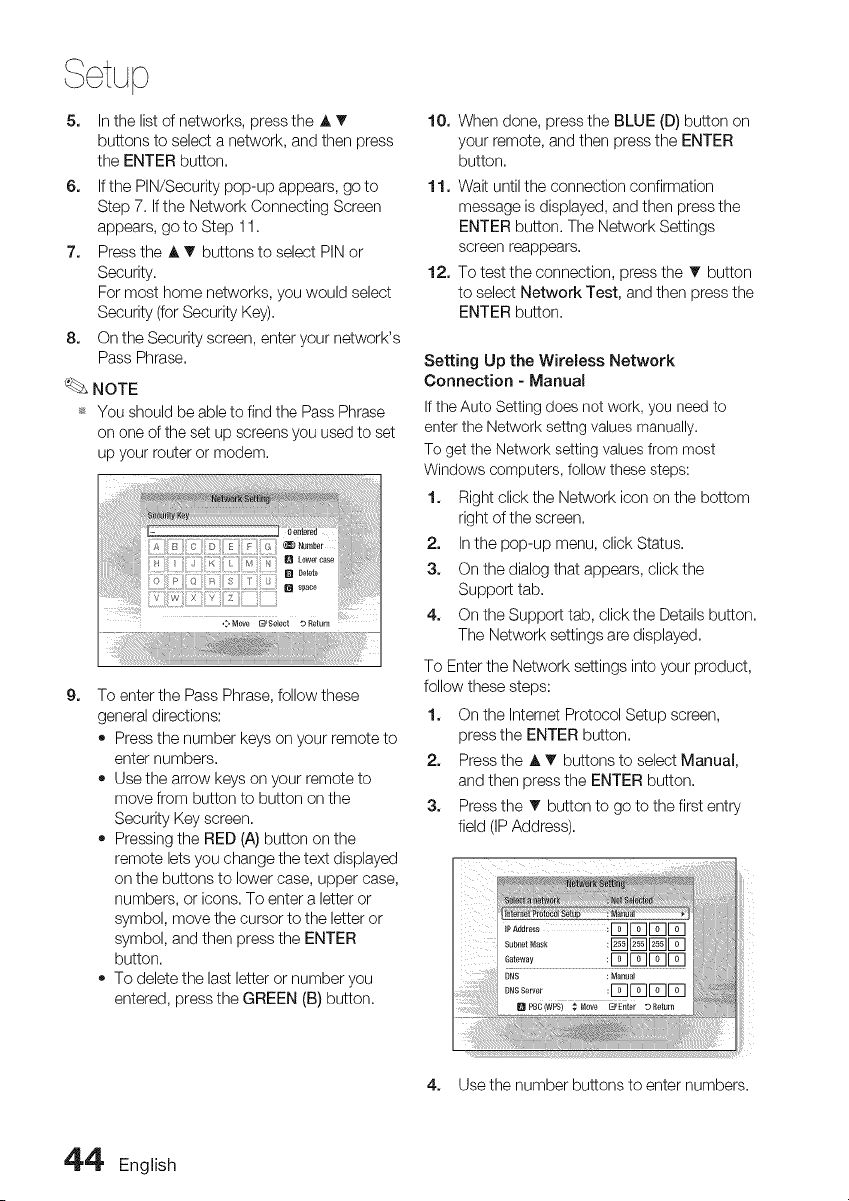
5. In the list of networks, press the A T
buttons to select a network, and then press
the ENTER button.
6. If the PIN/Security pop-up appears, go to
Step 7. If the Network Connecting Screen
appears, go to Step 11.
7. Press the A T buttons to select PIN or
Security.
For most home networks, you would select
Security (for Security Key).
8. On the Security screen, enter your network's
Pass Phrase.
NOTE
_* You should be able to find the Pass Phrase
on one of the set up screens you used to set
up your router or modem.
_:,M0ve _Select DRetuln
9. To enter the Pass Phrase, follow these
general directions:
• Press the number keys on your remote to
enter numbers.
• Use the arrow keys on your remote to
move from button to button on the
Security Key screen.
• Pressing the RED (A) button on the
remote lets you change the text displayed
on the buttons to lower case, upper case,
numbers, or icons. To enter a letter or
symbol, move the cursor to the letter or
symbol, and then press the ENTER
button.
• To delete the last letter or number you
entered, press the GREEN (B) button.
10. When done, press the BLUE (D) button on
your remote, and then press the ENTER
button.
11. Wait until the connection confirmation
message is displayed, and then press the
ENTER button. The Network Settings
screen reappears.
12. To test the connection, press the T button
to select Network Test, and then press the
ENTER button.
Setting Up the Wireless Network
Connection - Manual
If the Auto Setting does not work, you need to
enter the Network settng values manually.
To get the Network setting values from most
Windows computers, follow these steps:
1. Right click the Network icon on the bottom
right of the screen.
2. In the pop-up menu, click Status.
3. On the dialog that appears, click the
Support tab.
4. On the Support tab, click the Details button.
The Network settings are displayed.
To Enter the Network settings into your product,
follow these steps:
1. On the Internet Protocol Setup screen,
press the ENTER button.
2. Press the A T buttons to select Manual,
and then press the ENTER button.
3. Press the T button to go to the first entry
field (IP Address).
iiiii
iiiii
iiiii _
iiiii_
4. Use the number buttons to enter numbers.
4'4' English
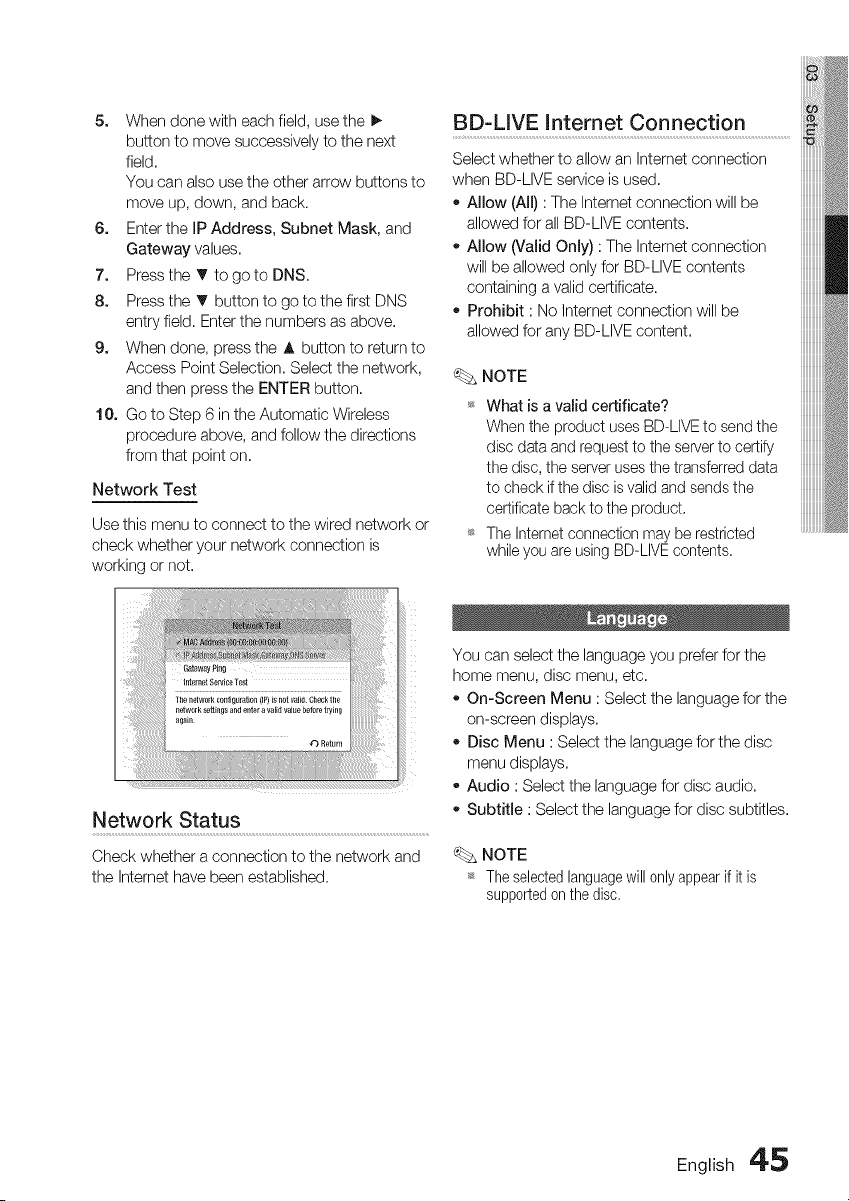
5. When done with each field, use the I_
button to move successively to the next
field.
You can also use the other arrow buttons to
move up, down, and back.
6. Enter the IP Address, Subnet Mask, and
Gateway values.
7. Press the T to go to DNS.
8. Press the T button to go to the first DNS
entry field. Enter the numbers as above.
9. When done, press the A button to return to
Access Point Selection. Select the network,
and then press the ENTER button.
10. Go to Step 6 in the Automatic Wireless
procedure above, and follow the directions
from that point on.
Network Test
Use this menu to connect to the wired network or
check whether your network connection is
working or not.
Network Status
Check whether a connection to the network and
the Intemet have been established,
BD-LIVE Internet Connection
Select whether to allow an Intemet connection
when BD-LIVE service is used.
- Allow (All) : The Intemet connection will be
allowed for all BD-LIVE contents.
o Allow (Valid Only) : The Intemet connection
will be allowed only for BD-LIVE contents
containing a valid certificate.
Prohibit : No Intemet connection will be
allowed for any BD-LIVE content.
NOTE
_ What is a valid certificate?
When the product uses BD-LIVE to send the
disc data and request to the server to certify
the disc, the server uses the transferred data
to check if the disc is valid and sends the
certificate back to the product.
_ The Internet connection may be restricted
while you are using BD-LIVE contents.
You can select the language you prefer for the
home menu, disc menu, etc.
• On-Screen Menu : Select the language for the
on-screen displays.
• Disc Menu : Select the language for the disc
menu displays.
Audio : Select the language for disc audio.
Subtitle : Select the language for disc subtitles.
NOTE
_ Theselectedlanguagewill 0nlyappearif it is
supportedonthe disc,
English 4'5
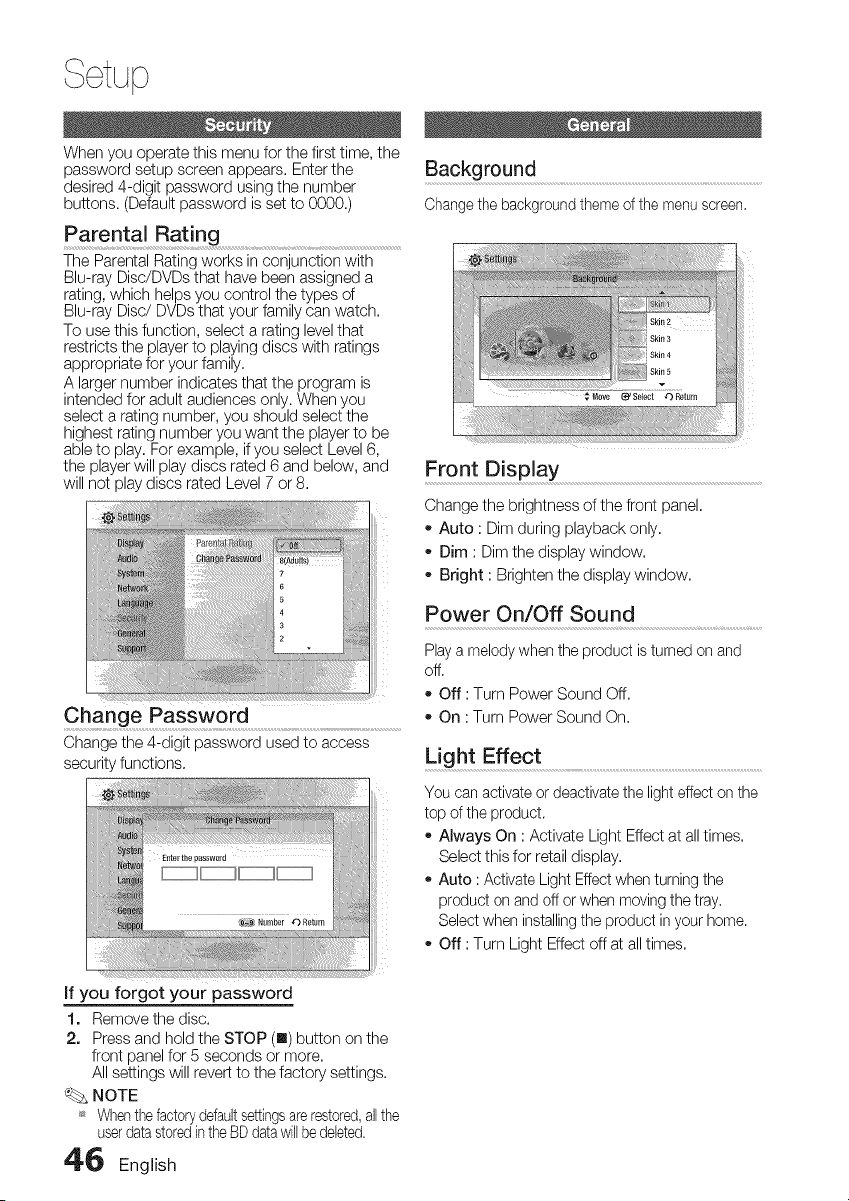
When you operate this menu for the first time, the
password setup screen appears. Enter the
desired 4-digit password using the number
buttons. (Default password is set to 0000.)
Parental Rating .....................
The Parental Rating works in conjunction with
Blu-ray Disc/DVDs that have been assigned a
rating, which helps you control the types of
Blu-ray Disc/DVDs that your family can watch.
To use this function, select a rating level that
restricts the player to playing discs with ratings
appropriate for your family.
A larger number indicates that the program is
intended for adult audiences only. When you
select a rating number, you should select the
highest rating number you want the player to be
able to play. For example, if you select Level 6,
the player will play discs rated 6 and below, and
will not play discs rated Level 7 or 8.
¢: i¢i; i¸i !!:iili;¸ii ¸ii!_iti;i;i;i;i;i;i;i;i!
Change Password
Change the 4-digit password used to access
security functions.
Background .............................................................................................................................................
Change the background theme of the menu screen.
Front Display
Change the brightness of the front panel.
o Auto : Dim during playback only.
Dim : Dim the display window.
Bright : Brighten the display window.
Power On/Off Sound
Play a melody when the product is turned on and
off.
Off : Turn Power Sound Off.
On : Turn Power Sound On.
Light Effect ........................................................................................................................................
You can activate or deactivate the light effect on the
top of the product.
• Always On : Activate Light Effect at all times.
Select this for retail display.
Auto : Activate Light Effect when turning the
product on and off or when moving the tray.
Select when installing the product in your home.
Off : Turn Light Effect off at all times.
If you forgot your password
1. Remove the disc.
2. Press and hold the STOP (m) button on the
front panel for 5 seconds or more.
All settings will revert to the factory settings.
NOTE
_* When the factorydefaultsettingsare restored,all the
userdatastoredin the BD datawillbe deleted.
46 English
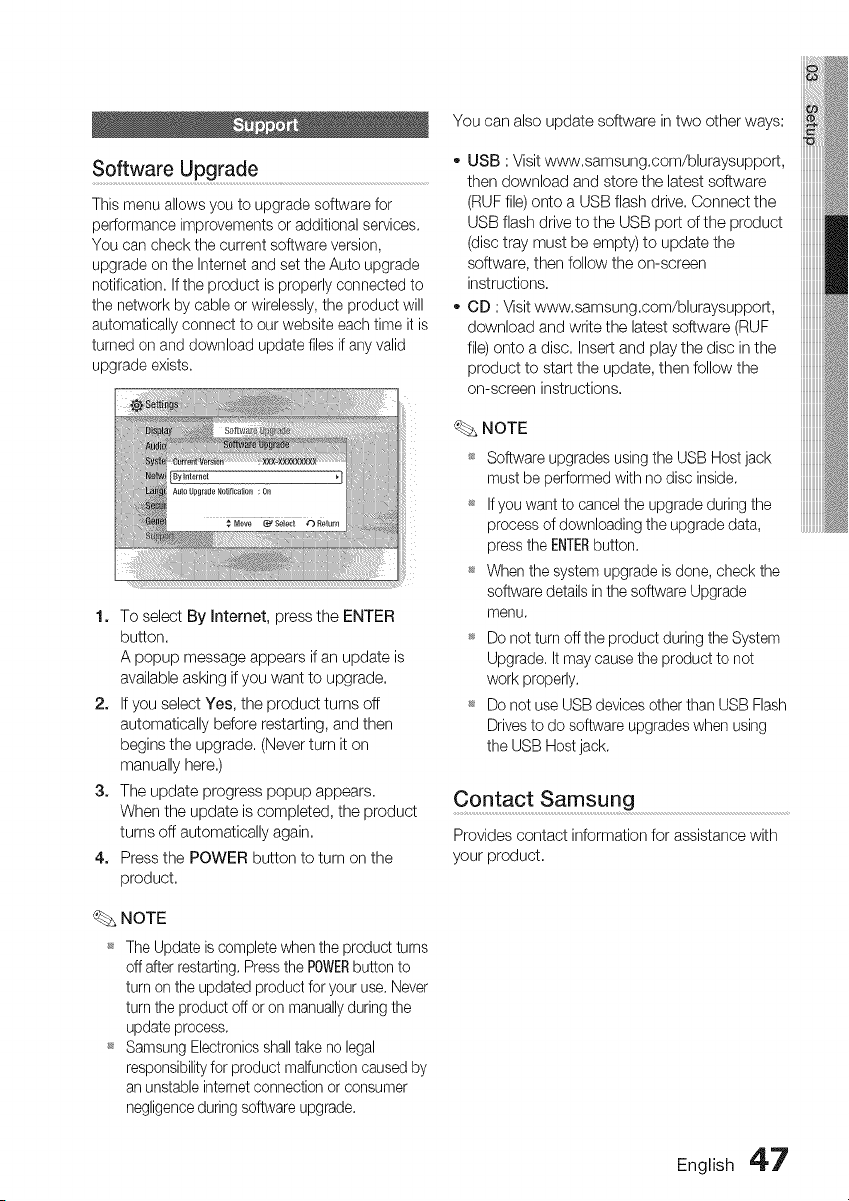
Software Upgrade ..................
This menu allows you to upgrade software for
performance improvements or additional services,
You can check the current software version,
upgrade on the Internet and set the Auto upgrade
notification. If the product is properly connected to
the network by cable or wirelessly, the product will
automatically connect to our website each time it is
turned on and download update files if any valid
upgrade exists.
iiiii
iiiii_
1. To select By Internet, press the ENTER
button.
A popup message appears if an update is
available asking if you want to upgrade.
2. If you select Yes, the product turns off
automatically before restarting, and then
begins the upgrade. (Never turn it on
manually here.)
3. The update progress popup appears.
When the update is completed, the product
turns off automatically again.
4. Press the POWER button to turn on the
product.
_. NOTE
_ The Update is complete when the product turns
off after restarting, Press the POWERbutton to
turn on the updated product for your use. Never
turn the product off or on manually during the
update process.
_ Samsung Electronics shall take no legal
responsibility for product malfunction caused by
an unstable internet connection or consumer
negligence during software upgrade.
You can also update software in two other ways:
o USB : Visit www.samsung.com/bluraysupport,
then download and store the latest software
(RUF file) onto a USB flash drive. Connect the
USB flash drive to the USB port of the product
(disc tray must be empty) to update the
software, then follow the on-screen
instructions.
CD : Visit www.samsung.com/bluraysupport,
download and write the latest software (RUF
file) onto a disc. Insert and play the disc in the
product to start the update, then follow the
on-screen instructions.
NOTE
_ Software upgrades using the USB Host jack
must be performed with no disc inside.
_ Ifyou want to cancel the upgrade during the
process of downloading the upgrade data,
press the ENTERbutton.
_ When the system upgrade is done, check the
software details in the software Upgrade
menu.
_ Do net turn off the product during the System
Upgrade. It may cause the product to not
work properly.
_ Do net use USB devices other than USB Flash
Drives to do software upgrades when using
the USB Host jack.
Contact Samsung
Provides contact information for assistance with
your product.
English 4'7
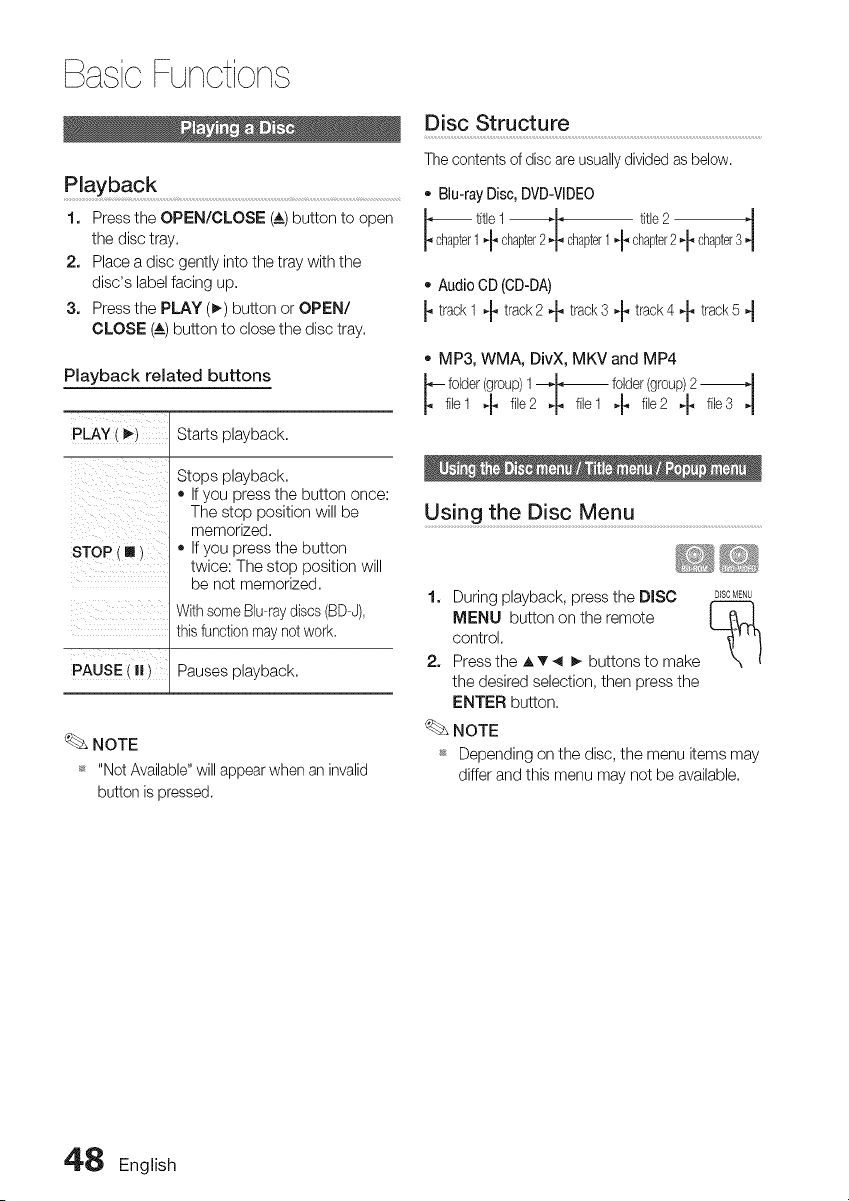
} asioFunctions
Playback...........................................................................................................................................
I. PresstheOPEN/CLOSE (_A)buttontoopen
the disctray,
2. Placea discgentlyintothetraywiththe
disc'slabelfacingup,
3. PressthePLAY (_,)buttonorOPEN/
CLOSE (A) button to close the disc tray.
Playback related buttons
PLAY(_,)
sToPi,,i
Starts playback.
Stops playback.
• If you press the button once:
The stop position will be
memorized.
• If you press the button
twice: The stop position will
be not memorized.
With some Blu-raydiscs (BD-J),
this function maynot work.
PAUSE (|1) Pauses playback.
NOTE
_ "Not Available" will appear when an invalid
button is pressed.
Disc Structure ......................................................................................................................................
The contents of disc are usually divided as below.
- Blu-ray Disc, DVD-VIDEO
titlel ---,-I_--_ -, title2
1-_ chapter2 ,_ chapter1_ chapter2-_ chapter3
,, Audio CD (CD-DA)
_, track 1 "1_track2 + track 3 *_ track 4 _ track 5 4
,, MP3, WMA, DivX, MKV and MP4
--folder (group)1--"1_ folder(group)2 ---"1
filel,-_ file2.p filel._ file2,-p file34
Using the D!sc Menu ..........................................................................................
1. During playback, press the DISC D_SCMENU
MENU button on the remote I _
control.
2. Press the A • _ _ buttons to make
the desired selection, then press the
ENTER button.
NOTE
_ Depending on the disc, the menu items may
differ and this menu may not be available.
4'8 English
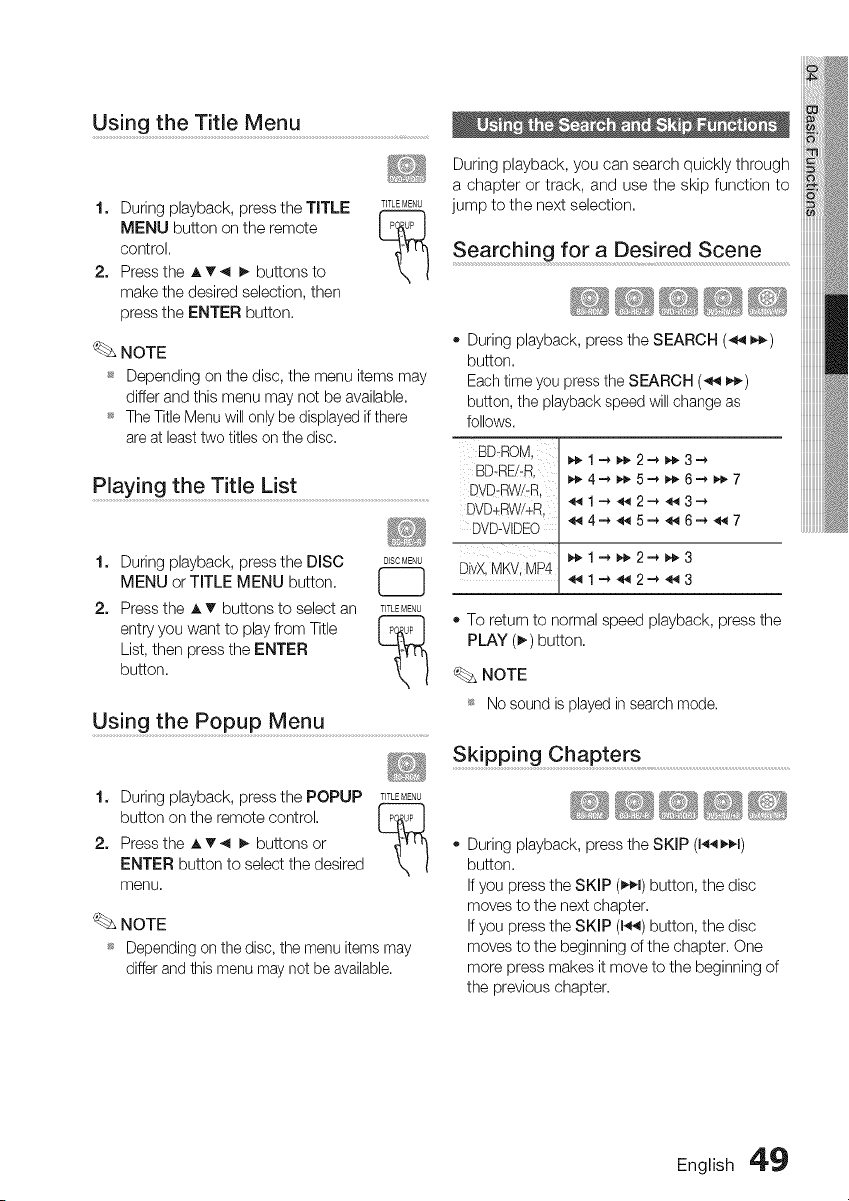
Using the Title Menu .............................................................................
1. During playback, press the TITLE TITLEMENU
MENU button on the remote I _bP I
control.
2. Press the A'v _ _ buttons to
make the desired selection, then
press the ENTER button,
NOTE
_ Depending on the disc, the menu items may
differ and this menu may not be available,
_ The Title Menu will only be displayed if there
are at least two titles on the disc.
Playing the Title List
1. During playback, press the DISC
MENU or TITLE MENU button,
DISCMENU
2. Press the A'v buttons to select an TITLEMENU
entry you want to play from Title I P_upI
List, then press the ENTER
button,
Using the Popup Menu .........................................................................
1. During playback, press the POPUP TITLEMENU
button on the remote control, I po_upI
2. Press the A • _ _ buttons or
ENTER button to select the desired
menu,
NOTE
_ Depending on the disc, the menu items may
differ and this menu may not be available.
During playback, you can search quickly through
a chapter or track, and use the skip function to
jump to the next selection,
Searching for a Desired Scene
- During playback, press the SEARCH (_ _)
button,
Each time you press the SEARCH (_ _)
button, the playback speed will change as
follows.
BD,ROM,
BD_RE/-R,
DVD-RW/-R,
DVD÷RW/+R,
DVD-VIDEO
_,_ 1 _ _,_ 2 _ _,_3
DivX,MKV, MP4
_ 1--__ 2--_ _ 3
_1_2_3_
_ 4_ _ 5_ _ 6---,_ 7
_ 1 ---__ 2---__ 3 _
_4_5_6_7
• To return to normalspeed playback, pressthe
PLAY (_) button,
NOTE
_ No sound is played in search mode.
Skipping Chapters .......................................................................................................
- During playback, press the SKIP (1_1)
button,
If you press the SKIP (_,_1)button, the disc
moves to the next chapter,
If you press the SKIP (1_) button, the disc
moves to the beginning of the chapter. One
more press makes it move to the beginning of
the previous chapter,
English 4'_
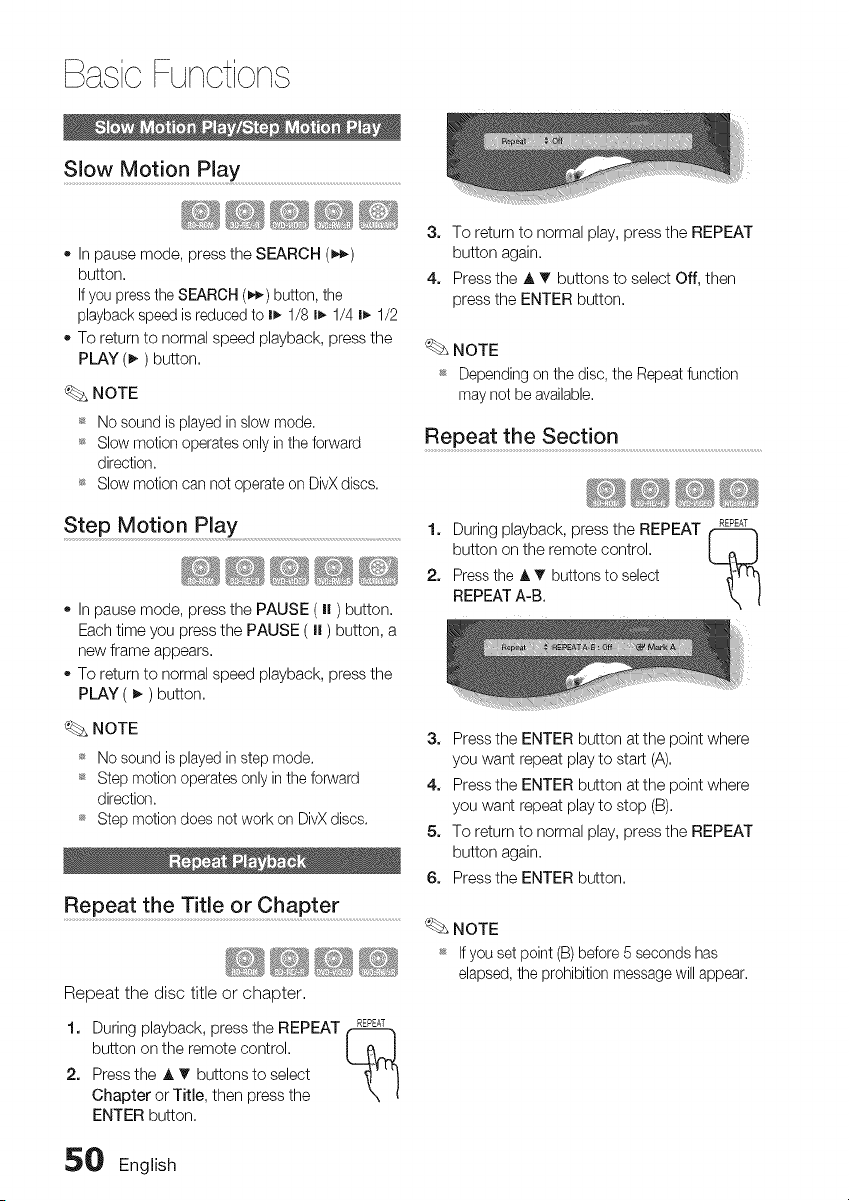
} asioFunctions
Slow Mot!on Play ................................................................................................................
In pause mode, press the SEARCH (_.-_)
button.
If you press the SEARCH (_) button, the
playback speed is reduced to I_- 1/8 I_ 1/4 I_ 1/2
To return to normal speed playback, press the
PLAY (_) button.
NOTE
_ No sound is played in slow mode.
_ Slow motion operates only in the forward
direction.
_ Slow motion can net operate on DivX discs.
Step Motion Play 1.
- In pause mode, press the PAUSE ( I| ) button.
Each time you press the PAUSE ( I| ) button, a
new frame appears.
To return to normal speed playback, press the
PLAY ( I_ ) button.
NOTE
_ No sound is played in step mode.
_ Step motion operates only in the forward
direction.
_ Step motion does not work on DivX discs.
Repeat the Title or Chapter
Repeat the disc title or chapter.
1. During playback, pressthe REPEAT RE_AT
button on the remote control. I _J
2. Press the • T buttons to select
Chapter or Title, then press the
ENTER button.
3. To return to normal play, press the REPEAT
button again.
4. Press the • T buttons to select Off, then
press the ENTER button.
NOTE
_ Depending on the disc, the Repeat function
may not be available.
Repeat the Section .....................................................................................................
During playback, press the REPEAT REPEAT
¢--------q
button on the remote control. [ _ J
Press the • • buttons to select
REPEAT A-B.
3_
4.
5.
6.
%,
Press the ENTER button at the point where
you want repeat play to start (A).
Press the ENTER button at the point where
you want repeat play to stop (B).
To return to normal play, press the REPEAT
button again.
Press the ENTER button.
NOTE
Ifyou set point(B)before5 secondshas
elapsed,the prohibitionmessagewill appear.
_ English
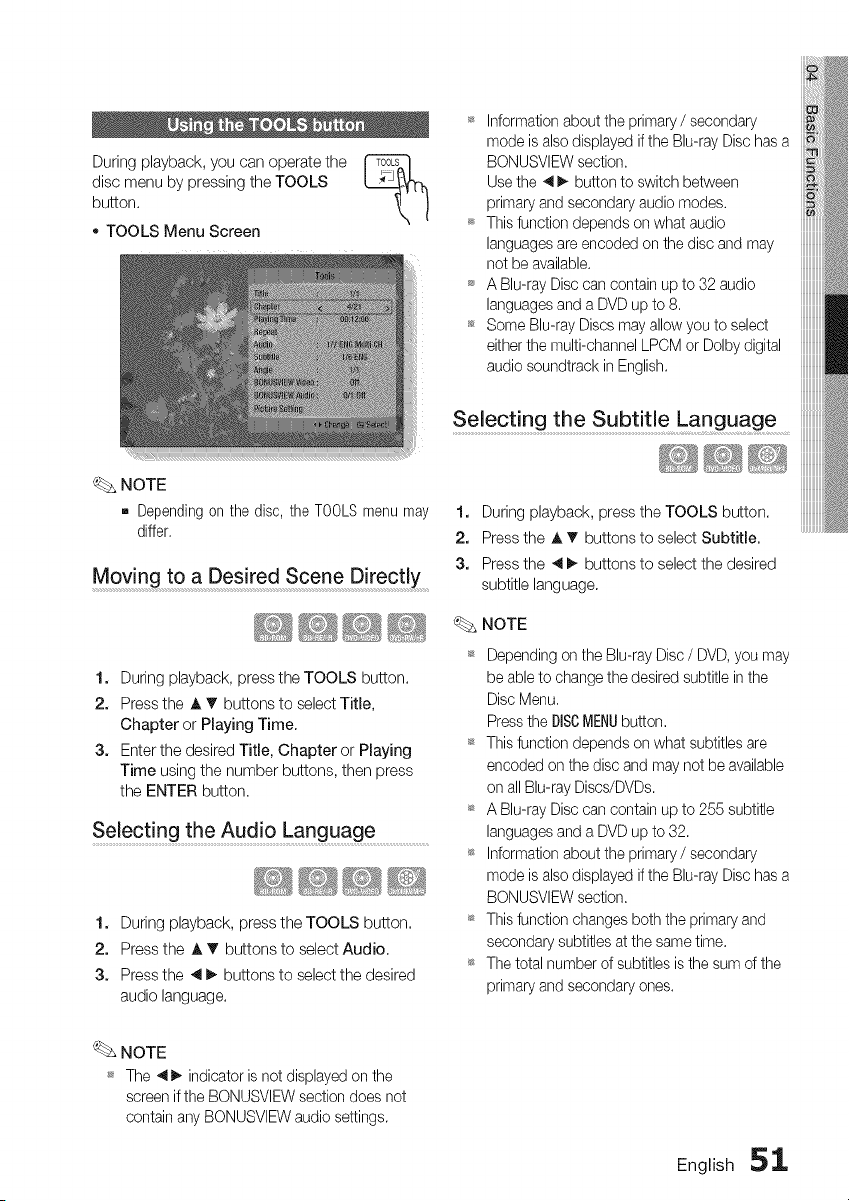
During playback, you can operate the
disc menu by pressing the TOOLS
button.
o TOOLS Menu Screen
_ Information about the primary / secondary
mode is also displayed if the Blu-ray Disc has a
BONUSVIEW section.
Use the 41_. button te switch between
primary and secondary audio modes.
_ This function depends on what audio
languages are encoded on the disc and may
net be available.
_ A Blu-ray Disc can contain up to 32 audio
languages and a DVD up to 8.
_ Some Blu-ray Discs may allow you to select
either the multi-channel LPCM or Dolby digital
audio soundtrack in English.
NOTE
m Dependingon the disc,the TOOLSmenumay
differ,
Moving to a Des!red Scene Direct!y ......
1. During playback, press the TOOLS button.
2. Press the A T buttons to select Title,
Chapter or Playing Time.
3. Enter the desired Title, Chapter or Playing
Time using the number buttons, then press
the ENTER button.
Selecting the Aud!o Language ......................................
1. During playback, press the TOOLS button,
2. Press the A T buttons to select Audio,
3. Press the _1_ buttons to select the desired
audio language.
Selecting the Subtitle Language
1. During playback, press the TOOLS button.
2. Press the A _' buttons to select Subtitle,
3. Press the _1_ buttons to select the desired
subtitle language.
NOTE
_ Depending on the Blu-ray Disc / DVD, you may
be able to change the desired subtitle in the
Disc Menu,
Press the DISCMENUbutton.
_ This function depends on what subtitles are
encoded on the disc and may not be available
on all Blu-ray Discs/DVDs.
_ A Blu-ray Disc can contain up to 255 subtitle
languages and a DVD up to 32.
_ Information about the primary / secondary
mode is also displayed if the Blu-ray Disc has a
BONUSVIEW section.
_ This function changes both the primary and
secondary subtitles at the same time.
_ The total number of subtitles is the sum of the
primary and secondary ones,
NOTE
_ The ",__ indicator is not displayed on the
screen if the BONUSVIEW section does net
contain any BONUSVIEW audio settings.
English _,
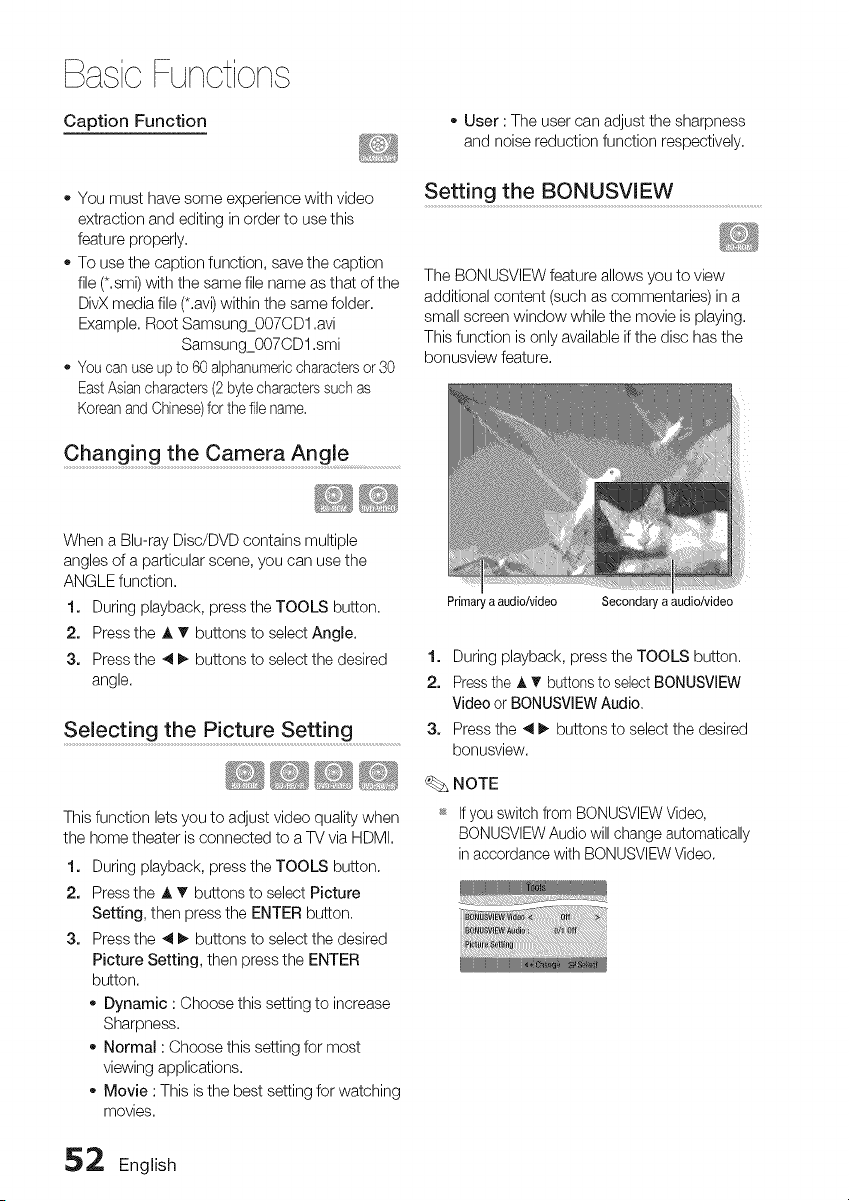
BasicFunctions
Caption Function o User : The user can adjust the sharpness
and noise reduction function respectively.
You must have some experience with video
extraction and editing in order to use this
feature properly.
To use the caption function, save the caption
file (*.smi) with the same file name as that of the
DivX media file (*.avi) within the same folder.
Example. Root Samsung_OO7CD1 .avi
Samsung_OO7CD1 .smi
You can use up to 60 alphanumeric charactersor 30
EastAsian characters (2 byte characters such as
Koreanand Chinese)for the file name.
Setting the BONUSV[EW ...............................................................
The BONUSVIEW feature allows you to view
additional content (such as commentaries) in a
small screen window while the movie is playing.
This function is only available if the disc has the
bonusview feature.
Changing the Camera Angle ..............
When a Blu-ray Disc/DVD contains multiple
angles of a particular scene, you can use the
ANGLE function.
1. During playback, press the TOOLS button.
2. Press the A _' buttons to select Angle.
3. Press the 4 _ buttons to select the desired
angle.
Selecting the P!cture Setting .......................
This function lets you to adjust video quality when
the home theater is connected to a TV via HDMI.
1. During playback, press the TOOLS button.
2. Press the A T buttons to select Picture
Setting, then press the ENTER button.
3. Press the 4 _ buttons to select the desired
Picture Setting, then press the ENTER
button.
Dynamic : Choose this setting to increase
Sharpness.
Normal : Choose this setting for most
viewing applications.
Movie : This is the best setting for watching
movies.
Primaryaaudio/video Secondary a audio/video
1. During playback, press the TOOLS button.
2. Press the A T buttons to select BONUSVIEW
Video or BONUSVIEW Audio.
3. Press the _1_ buttons to select the desired
bonusview.
NOTE
_ If you switch from BONUSVIEW Video,
BONUSVIEW Audio will change automatically
in accordance with BONUSVIEW Video.
_2 English
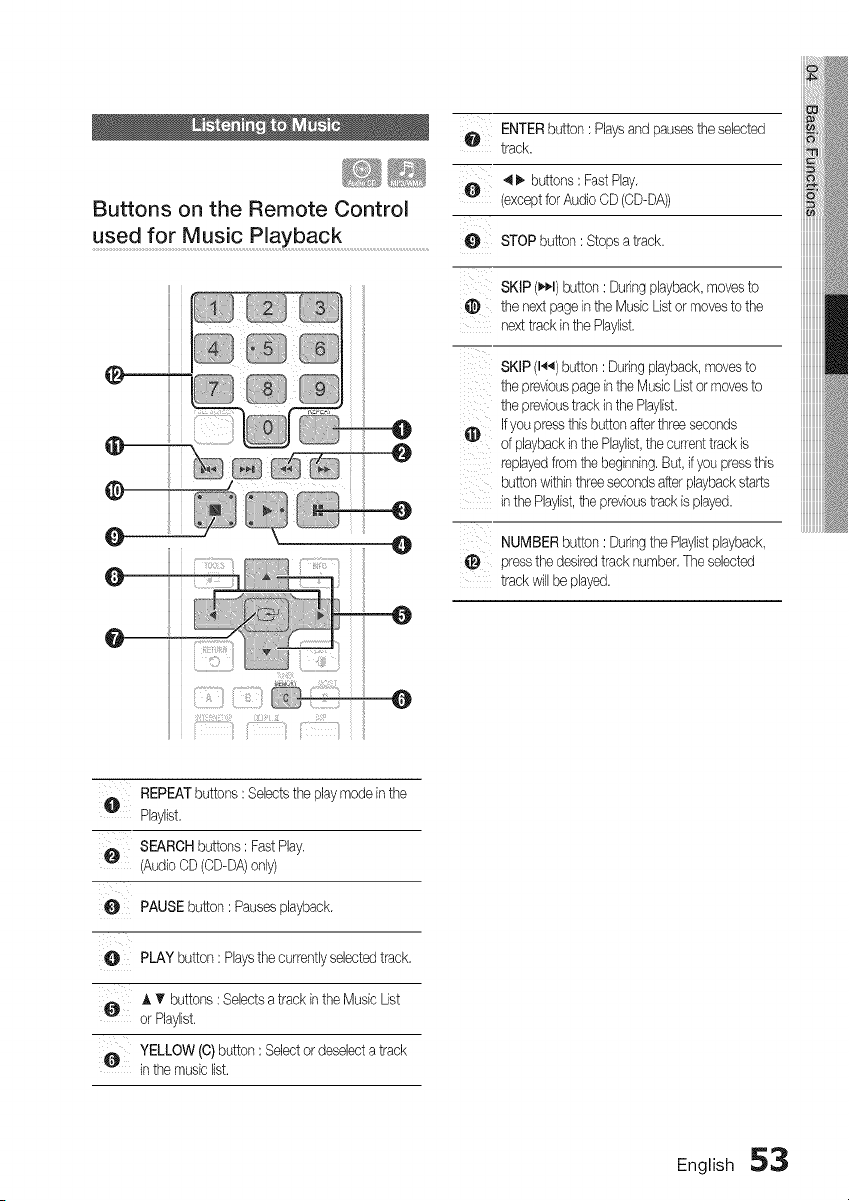
Buttons on the Remote Control
used for Music Playback .............................................................
o ENTERbutton:P,aysandpausestheselected
track.
_,_ 4_" buttons: FastPlay.
(exceptfor AudioCD (CD-DA))
O STOP button: Stopsa track.
SKIP (_l) button: Duringplayback,movesto
the nextpagein theMusicListor movesto the
nexttrackin the Raylist.
SKIP (1_) button: Duringplayback,movesto
the previouspageinthe MusicList or movesto
the previoustrack inthe Playlist.
_) If youpressthis buttonafterthreeseconds
of playbackin thePhylist,the currenttrack is
replayedfrom thebeginning.But,if you pressthis
buttonwithinthreesecondsafterplaybackstarts
inthe Playlist,the previoustrack is played.
NUMBERbutton: Duringthe Phylistplayback,
pressthe desiredtrack number.Theselected
trackwillbe played.
u REPEATbuttons: Selectsthe playmodeinthe
Phylist.
,_ SEARCHbuttons: FastPlay.
(AudioOD(CD-DA)only)
O PAUSEbutton: Pausesplayback.
O PLAY button: Playsthe currentlyselectedtrack.
O A T buttons: Selectsa track in theMusic List
or Phylist.
,_, YELLOW(0) button: Selector deselecta track
inthe musiclist.
English 53
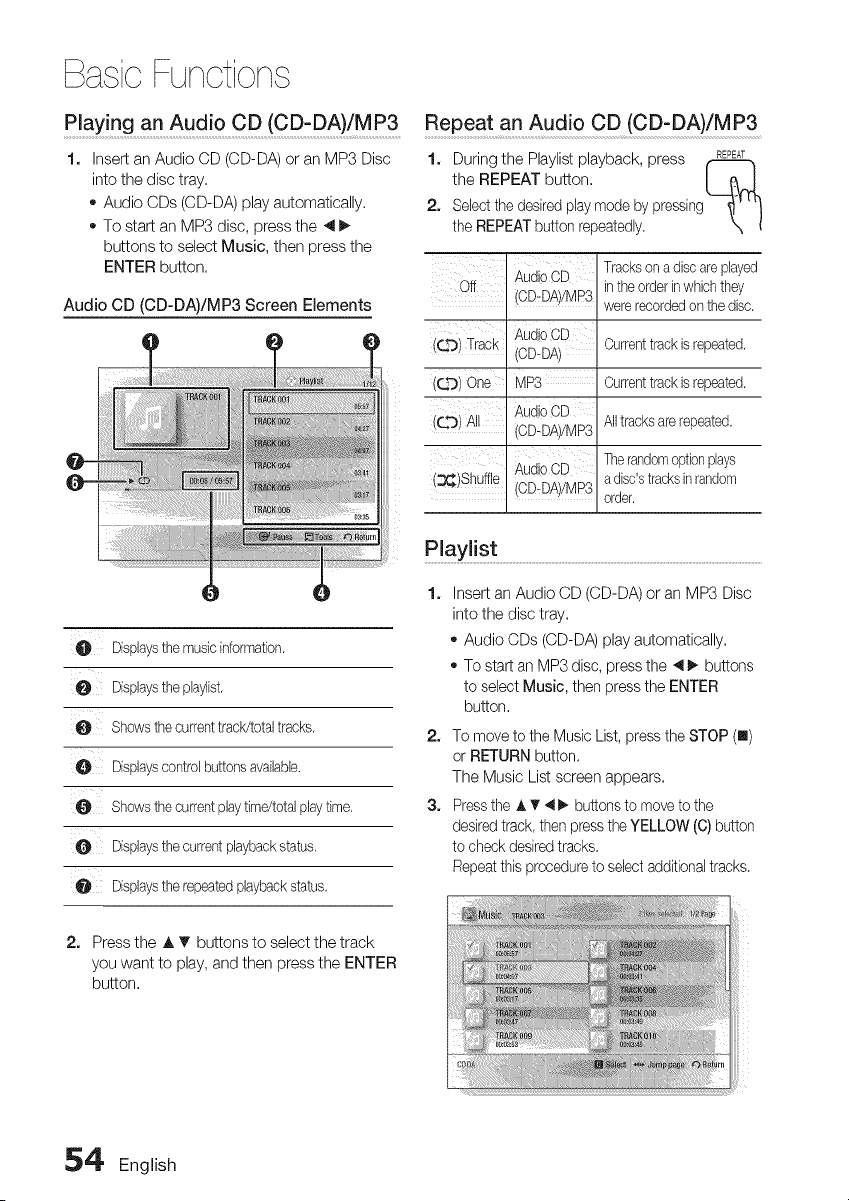
BasicFunctions
Play!nganAud!oCD(CD-DA)!MP3 .... Repeat an Audio CD(CD-DA)/MP3
Insert an Audio CD (CD-DA) or an MP3 Disc
into the disc tray.
o Audio CDs (CD-DA) play automatically.
To start an MP3 disc, press the _
buttons to select Music, then press the
ENTER button.
1.
Audio CD (CD-DA)/MP3 Screen Elements
1. During the Playlist playback, press REPEAT
the REPEAT button. I _..J
2. Selectthe desired play mode by pressing
the REPEAT button repeatedly.
AudioCD
Off
OD-DA;/MR3
AudioCD
OD-DA/
MP3
AudioCD
OD-DA;/MP3
AudioCD
(3_)Shuffle
(QO Track
(¢_r) One
(_ AJ
Trackson a discare played
intheorderinwhich they
wererecordedon the disc.
Currenttrack is repeated.
Currenttrack is repeated.
All tracksare repeated.
Therandomoptionplays
a disc'stracksinrandom
OD-DA//MP3
. order.
O Displaysthe musicinformation.
Dfspbysthe pbylist.
O Shows thecurrenttrack/totaltracks.
O Dfspbyscontrol buttonsavaibbb.
O Shows thecurrentplaytime/totalplaytime.
O Dfspbysthe currentplaybackstatus.
O Dfspbysthe repeatedplaybackstatus.
2. Press the A T buttons to select the track
you want to play, and then press the ENTER
button.
Playlist ........................................................................................................................................................................................
1.
Insert an Audio CD (CD-DA) or an MP3 Disc
into the disc tray.
Audio CDs (CD-DA) play automatically.
To start an MP3 disc, press the 4 _ buttons
to select Music, then press the ENTER
button.
2. To move to the Music List, press the STOP (I)
or RETURN button.
The Music List screen appears.
3. Press the A T 4 _. buttons to move to the
desired track, then press the YELLOW (C) button
to check desired tracks.
Repeat this procedureto select additionaltracks.
54' English
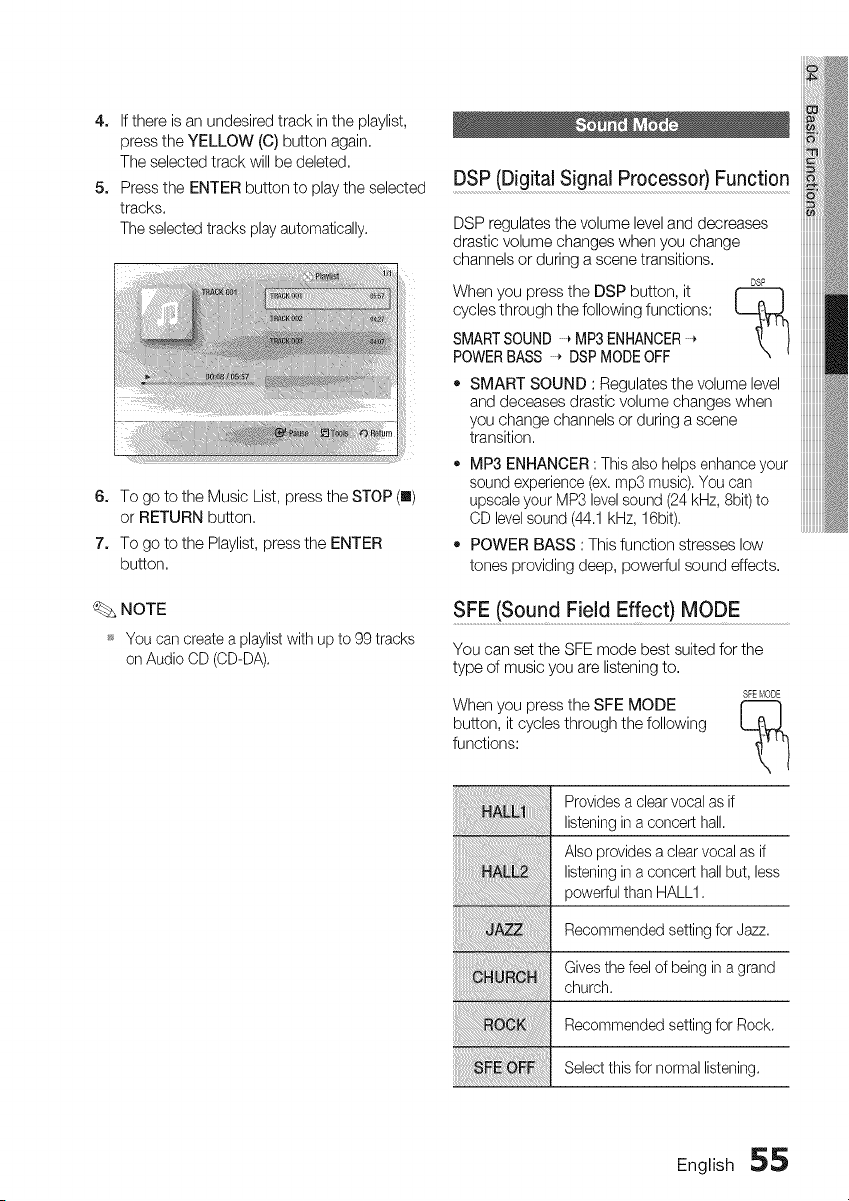
4. If there is an undesired track in the playlist,
press the YELLOW (C) button again,
The selected track will be deleted,
5. Press the ENTER button to play the selected
tracks.
The selected tracks play automatically.
6. To go to the Music List, press the STOP (I)
or RETURN button,
7. To go to the Playlist, press the ENTER
button,
_. NOTE
_ You can create a playlist with up to 99 tracks
on Audio OD (CD-DA).
DSP (Digital Signal Processor} Function
DSP regulates the volume level and decreases
drastic volume changes when you change
channels or during a scene transitions.
DSP
When you press the DSP button, it
cycles through the following functions:
SMARTSOUND * MP3 ENHANCER
POWERBASS * DSP MODEOFF
• SMART SOUND : Regulates the volume level
and deceases drastic volume changes when
you change channels or during a scene
transition,
• MP3 ENHANCER : This also helps enhance your
sound experience (ex. mp3 music). You can
upscale your MP3 level sound (24 kHz, 8bit) to
CD level sound (44.1 kHz, 16bit).
• POWER BASS : This function stresses low
tones providing deep, powerful sound effects,
When you press the SFE MODE
button, it cycles through the following
functions:
SFE (Sound Field Effect)MODE
You can set the SFE mode best suited for the
type of music you are listening to.
SFEI_IODE
Provides a clear vocal as if
listening in a concert hall.
Also provides a clear vocal as if
listening in a concert hall but, less
powerful than HALL1.
Recommended setting for Jazz,
Gives the feel of being in a grand
church.
Recommended setting for Rock.
Select this for normal listening.
English 55
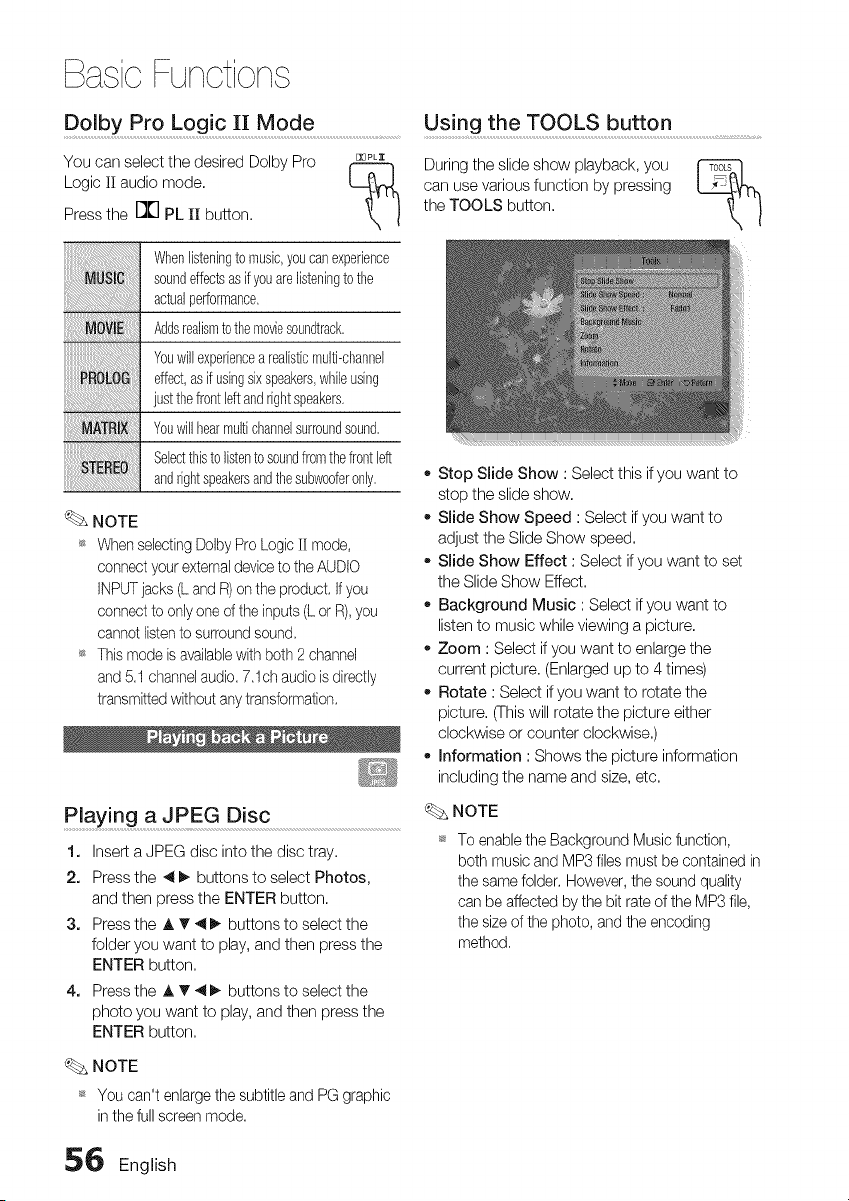
BasicFunctions
Dolby Pro Logic II Mode ..................................................Using the TOOLS button
You can select the desired Dolby Pro usPLx
Logic II audio mode.
Press the r]["l PL II button.
During the slide show playback, you
can use various function by pressing
the TOOLS button.
Whenlisteningto music,youcanexperbnce
soundeffectsasifyou arelisteningto the
actualperformance,
Addsrealismto themovies0undtrack.
Youwillexperiencea realisticmulti-channel
effect,asif usingsixspeakers,whib using
just thefrontleftandrightspeakers,
Youwillhearmultichannelsurroundsound,
Selectthisto listento soundfromthefrontleft
andfightspeakersandthesubwooferonly,
NOTE
_s When selecting Dolby Pro Logic II mode,
connect your external deviceto the AUDIO
INPUTjacks (L and R) on the product. Ifyou
connect to only one of the inputs (L or R),you
cannot listen to surround sound.
_s This mode is availablewith both 2 channel
and 5.1 channel audio. 7.1ch audio is directly
transmitted without any transformation.
Playing a JPEG Disc
1. Insert a JPEG disc into the disc tray.
2. Press the _ _- buttons to select Photos,
and then press the ENTER button.
3. Press the A T _ D,- buttons to select the
folder you want to play, and then press the
ENTER button.
4.. Press the A T _ _ buttons to select the
photo you want to play, and then press the
ENTER button.
_, Stop Slide Show : Select this if you want to
stop the slide show.
_, Slide Show Speed : Select if you want to
adjust the Slide Show speed.
_, Slide Show Effect : Select if you want to set
the Slide Show Effect.
_, Background Music : Select if you want to
listen to music while viewing a picture.
_, Zoom : Select if you want to enlarge the
current picture. (Enlarged up to 4 times)
_, Rotate : Select if you want to rotate the
picture. (This will rotate the picture either
clockwise or counter clockwise.)
e Information : Shows the picture information
including the name and size, etc.
NOTE
_ To enable the Background Music function,
both music and MP3 files must be contained in
the same folder. However, the sound quality
can be affected by the bit rate of the MP3 file,
the size of the photo, and the encoding
method.
NOTE
_ You can't enlarge the subtitle and PG graphic
in the full screen mode.
56 English
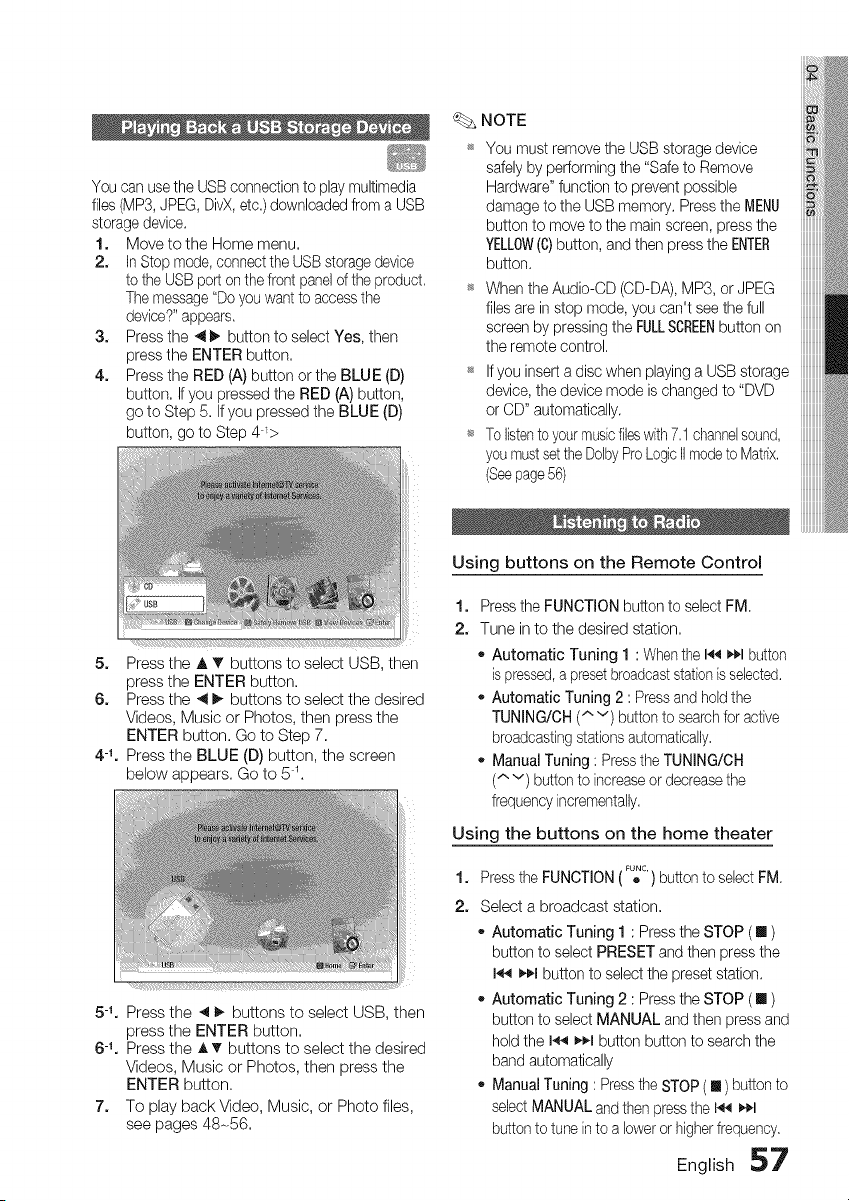
You can usethe USB connection to play multimedia
files (MP3, JPEG, DivX, etc.) downloaded from a USB
storage device.
1. Move to the Home menu.
2. In Stop mode, connect the USB storage device
to the USB port on the front panel of the product. _
The message "Do you want to access the
device?"appears.
3. Press the _ _, button to select Yes, then
press the ENTER button.
4. Press the RED (A) button or the BLUE (D) _
button. If you pressed the RED (A) button,
go to Step 5. If you pressed the BLUE (D)
button, go to Step 44> _
S,
Press the A _' buttons to select USB, then
press the ENTER button.
6. Press the _1_, buttons to select the desired
Videos, Music or Photos, then press the
ENTER button. Go to Step 7.
4 -1, Press the BLUE (D) button, the screen
below appears. Go to 5 1.
NOTE
You must remove the USB storage device
safely by performing the "Safe to Remove
Hardware" function to prevent possible
damage to the USB memory. Press the MENU
button to move to the main screen, press the
YELLOW(C)button, and then press the ENTER
button.
When the Audio-CD (CD-DA), MP3, or JPEG
files are in stop mode, you can't see the full
screen by pressing the FULLSCREENbutton on
the remote control.
If you insert a disc when playing a USB storage
device, the device mode ischanged to "DVD
or CD" automatically.
To listento yourmusicfileswith 7.1 channelsound,
you mustset the DolbyPro LogicIImodeto Matrix.
(Seepage56)
Using buttons on the Remote Control
1.
2.
Press the FUNCTION button to select FM.
Tune in to the desired station.
* Automatic Tuning 1 : Whenthe I_ _1 button
is pressed,a presetbroadcaststation is selected.
* Automatic Tuning 2 : Press and hold the
TUNING/OH ("" v) button to search for active
broadcasting stations automatically.
* Manual Tuning : Press the TUNING/OH
(^ v) button to increaseor decrease the
frequency incrementally.
Using the buttons on the home theater
5% Press the 4 I_ buttons to select USB, then
press the ENTER button.
6 -1. Press the A T buttons to select the desired
Videos, Music or Photos, then press the
ENTER button.
7. To play back Video, Music, or Photo files,
see pages 48-56.
1,
2.
Press the FUNCTION (F_c.) button to select FM.
Select a broadcast station.
* Automatic Tuning 1 : Press the STOP (! )
button to select PRESET and then press the
I._q _,_1button to select the preset station.
* Automatic Tuning 2 : Press the STOP ([] )
button to select MANUAL and then press and
hold the I.,_ _,€,1button button to search the
band automatically
* Manual Tuning : Pressthe STOP ( [] ) button to
selectMANUAL and then press the I_ _1
button to tune into a lower or higher frequency.
English 57
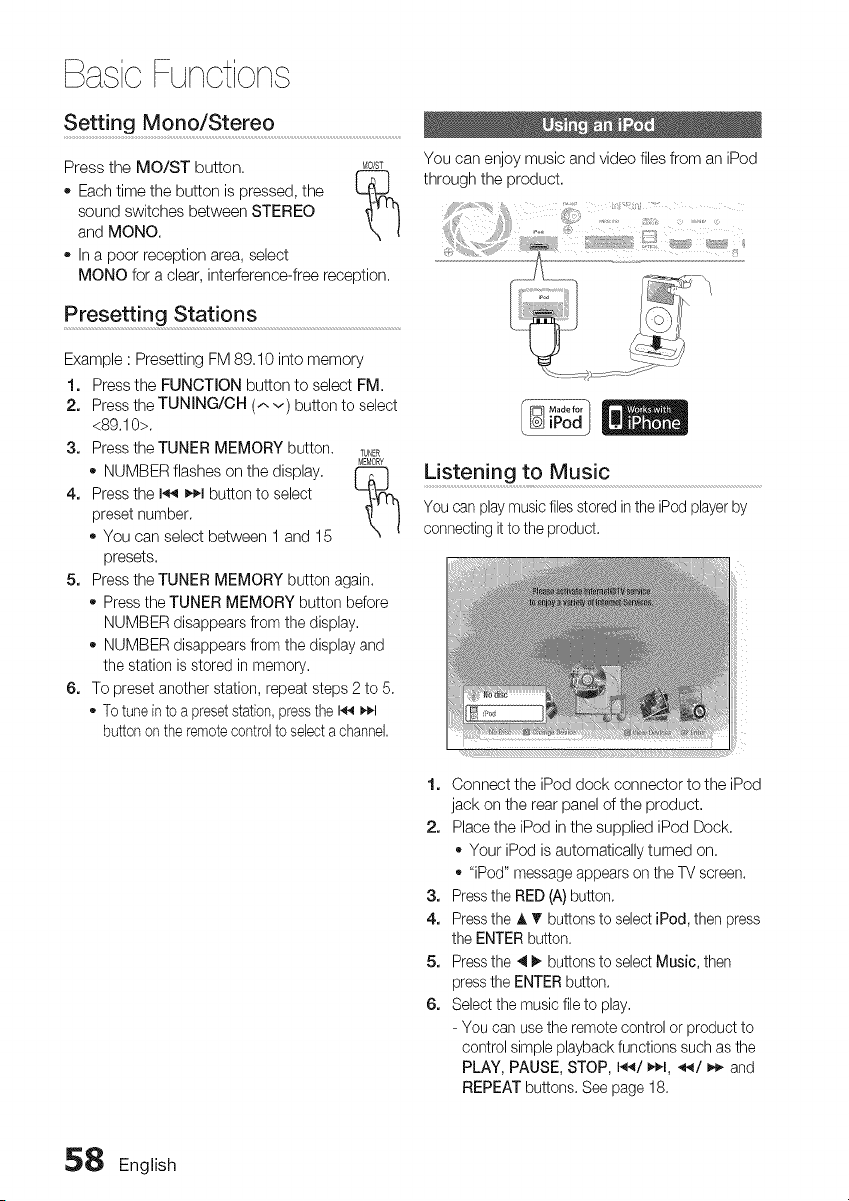
BasicFunctions
Setting Mono/Stereo .........................................................................................
Press the MO/ST button. MOIST
" Each time the button is pressed, the L__[.
sound switches between STEREO
and MONO.
- In a poor reception area, select
MONO for a clear, interference-free reception.
Presetting Stations
Example : Presetting FM 89.10 into memory
1. Press the FUNCTION button to select FM.
2. Press the TUNING/CH (^v) button to select
<89.10>.
3. Press the TUNER MEMORY button. TUNER
ME_
- NUMBER flashes on the display.
4. Press the I_ _.1 button to select
preset number.
- You can select between 1 and 15
presets.
5. Press the TUNER MEMORY button again.
- Press the TUNER MEMORY button before
NUMBER disappears from the display.
- NUMBER disappears from the display and
the station is stored in memory.
6. To preset another station, repeat steps 2 to 5.
- To tune into a presetstation,press the I_ _4_1
button on the remotecontrol to select a channel.
You can enjoymusic and video filesfrom an iPod
through the product.
Listening to Music
You can play music files stored in the iPod player by
connecting it to the product.
1. Connect the iPod dock connector to the iPod
jack on the rear panel of the product.
2. Place the iPod in the supplied iPod Dock.
- Your iPod is automatically turned on.
- "iPod" message appears on the TV screen.
3. Press the RED (A) button.
4. Press the A V buttons to select iPod, then press
the ENTER button.
5. Press the _ _ buttons to select Music, then
press the ENTER button.
6. Select the music file to play.
- You can use the remote control or product to
control simple playback functions such as the
PLAY, PAUSE, STOP, 144/_1, _/_._ and
REPEAT buttons. See page 18.
58 English
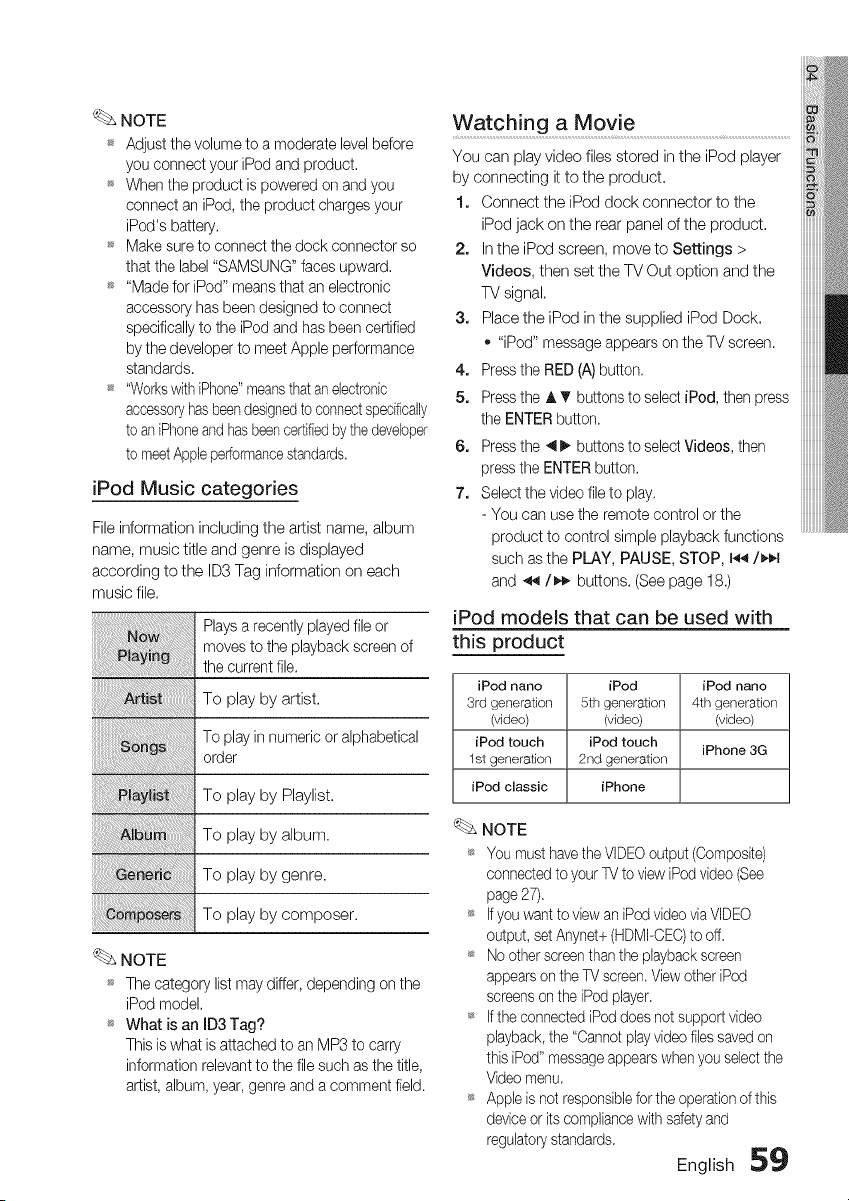
NOTE
_ Adjust the volume to a moderate level before
you connect your iPod and product.
_ When the product is powered on and you
connect an iPod, the product charges your
iPod's battery.
_ Make sure to connect the dock connector so
that the label "SAMSUNG" faces upward.
_ "Made for iPod" means that an electronic
accessory has been designed to connect
specifically to the iPod and has been certified
by the developer to meet Apple performance
standards.
_ "Workswith iPhone"meansthat an electronic
accessoryhasbeendesignedto connectspecifically
to an iPhoneand hasbeencertifiedbythe developer
to meetApple performancestandards.
iPod Music categories
File information including the artist name, album
name, music title and genre is displayed
according to the ID3 Tag information on each
music file.
_. NOTE
Plays a recently played file or
moves to the playback screen of
the current file.
To play by artist.
To play in numeric or alphabetical
order
To play by Playlist.
To play by album.
To play by genre.
To play by composer.
_ The category list may differ, depending on the
iPod model.
_ What is an ID3 Tag?
This is what is attached to an MP3 to carry
information relevant to the file such as the title,
artist, album, year, genre and a comment field.
Watching a Movie ............................................................................................................
You can play video files stored in the iPod player
by connecting it to the product.
1. Connect the iPod dock connector to the
iPod jack on the rear panel of the product.
2. In the iPod screen, move to Settings >
Videos, then set the TV Out option and the
TV signal.
3. Place the iPod in the supplied iPod Dock.
- "iPod" message appears on the TV screen.
4, Press the RED (A) button.
5, Press the A T buttons to select iPod, then press
the ENTER button.
6, Press the 4 _ buttons to select Videos, then
press the ENTER button.
7, Select the video file to play.
- You can use the remote control or the
product to control simple playback functions
such as the PLAY, PAUSE, STOP, 14,_/_1
and _'_/_,_ buttons. (See page 18.)
iPod models that can be used with
this product
iPod hang iPod iPod nano
3rd generation 5th generation 4th generation
(video) (video) (video)
iPod touch iPod touch
iPhone 3G
1st generation 2nd generation
iPod classic iPhone
NOTE
_ You must have the VIDEOoutput (Composite)
connected to your TV to view iPod video (See
page 27).
_ If you want to view an iPod video via VIDEO
output, setAnynet+ (HDMFCEC)to off.
_ No other screen than the playback screen
appears on the TV screen. View other iPod
screens on the iPod player.
_ If the connected iPod does not support video
playback, the "Cannot playvideo filessaved on
this iPod" messageappears when you select the
Video menu.
_ Apple is not responsiblefor the operation of this
deviceor its compliance with safetyand
regulatory standards.
English 59
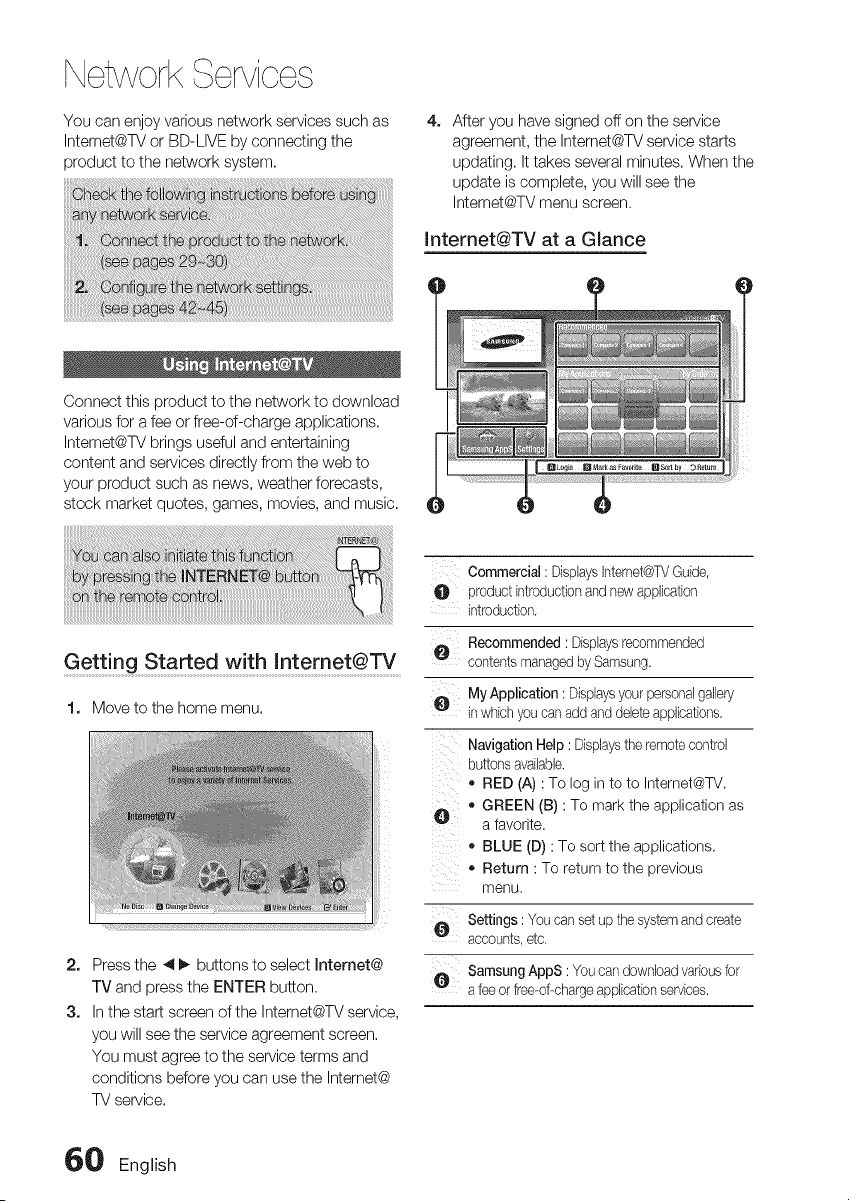
NetworkServices
You can enjoy various network services such as
Intemet@TV or BD-LIVE by connecting the
product to the network system.
4, After you have signed off on the service
agreement, the Intemet@TV service starts
updating. It takes several minutes. When the
update is complete, you will see the
Intemet@TV menu screen.
Internet@TV at a Glance
Connect this product to the network to download
various for a fee or free-of-charge applications.
Intemet@TV brings useful and entertaining
content and services directly from the web to
your product such as news, weather forecasts,
stock market quotes, games, movies, and music.
Get ting Started with Internet@TV ....
1, Move to the home menu.
2.
3.
Press the _ _ buttons to select Internet@
TV and press the ENTER button.
In the start screen of the Intemet@TV service,
you will see the service agreement screen.
You must agree to the service terms and
conditions before you can use the Intemet@
TV service.
Commercial: DisplaysInternet@TVGuide,
O productintroductionand newapplication
introduction.
Recommended: Displaysrecommended
contentsmanagedby Samsung.
_, MyApplication : Displaysyourpersonalgallery
inwhichyoucanadd anddeleteapplications.
Navigation Help: Displaystheremotecontrol
buttonsavailable.
• RED (A) : To log in to to Internet@TV.
GREEN (B) : To mark the application as
O a favorite.
BLUE (D) : To sort the applications.
• Return : To return to the previous
menu.
t_,_, Settings: Youcanset up thesystemand create
accounts,etc.
@ SamsungAppS : Youcandownloadvariousfor
a feeor free-of-chargeapplicationservices.
60 English
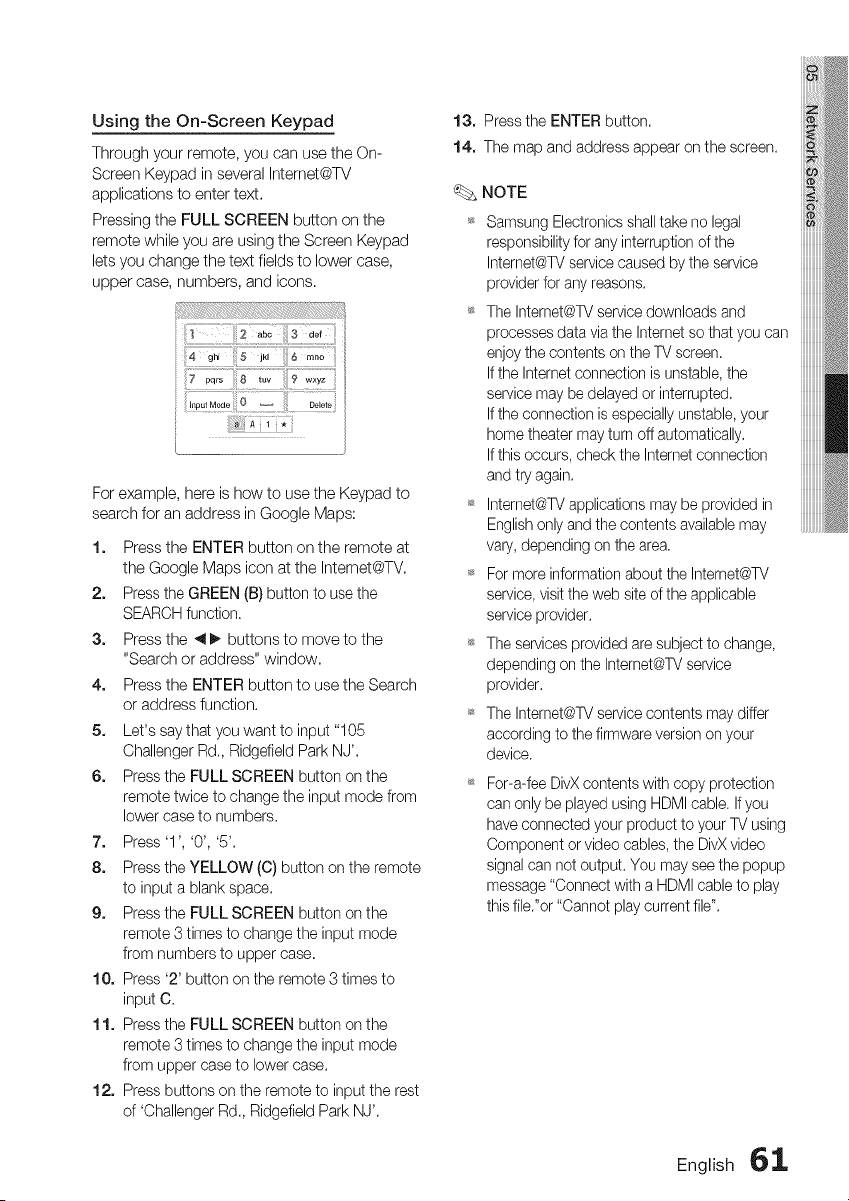
Using the On-Screen Keypad
Through your remote, you can use the On-
Screen Keypad in several Intemet@TV
applications to enter text.
Pressing the FULL SCREEN button on the
remote while you are using the Screen Keypad
lets you change the text fields to lower case,
upper case, numbers, and icons.
_A
For example, here is how to use the Keypad to
search for an address in Google Maps:
1. Press the ENTER button on the remote at
the Google Maps icon at the Intemet@TV,
2. Press the GREEN (B) button to use the
SEARCH function.
3. Press the _11_ buttons to move to the
"Search or address" window,
4. Press the ENTER button to use the Search
or address function.
5. Let's say that you want to input "105
Challenger Rd., Ridgefield Park NJ',
6. Press the FULL SCREEN button on the
remote twice to change the input mode from
lower case to numbers.
7. Press'l', '0', '5'.
8. Press the YELLOW (C) button on the remote
to input a blank space,
9. Press the FULL SCREEN button on the
remote 3 times to change the input mode
from numbers to upper case,
10. Press '2' button on the remote 3 times to
input C.
11. Press the FULL SCREEN button on the
remote 3 times to change the input mode
from upper case to lower case.
12. Press buttons on the remote to input the rest
of 'Challenger Rd., Ridgefield Park NJ'.
13. Press the ENTER button.
14. The map and address appear on the screen.
NOTE
_ Samsung Electronics shall take no legal
responsibility for any interruption of the
Internet@TV service caused by the service
provider for any reasons.
_ The Internet@TVservice downloads and
processes data via the Internet so that you can
enjoy the contents on the TV screen.
If the Internet connection is unstable, the
service may be delayed or interrupted,
If the connection is especially unstable, your
home theater may turn off automatically,
If this occurs, check the Internet connection
and try again.
_ Internet@TV applications may be provided in
English only and the contents available may
vary, depending on the area,
_ For more information about the Intemet@TV
service, visit the web site of the applicable
service provider.
_ The services provided are subject to change,
depending on the Internet@TV service
provider,
_ The Internet@TVservice contents may differ
according to the firmware version on your
device.
For-a-fee DivX contents with copy protection
can only be played using HDMI cable. If you
have connected your product to your W using
Component or video cables, the DivX video
signal can net output. You may see the popup
message "Connect with a HDMI cable to play
this file."or "Cannot play current file".
English 61

NetworkServices
Account Login
For a more enjoyable application experience,
register and log in to your account.
To do this, you must create an account first. (For
instructions on creating an account, refer to
Intemet@TV ID on this page)
1. Press the A T 4 _. buttons to select the
desired application and press the RED (A)
button.
System Setup
Reset
Resets Intemet@TV settings to factory default
settings.
NOTE
_ If you forgot your password, press the STOP
(m) button on the front panel of the product for
more than 5 seconds with no disc inserted.
UserAcc0w_t: d_i : ,,,,
Password:
2. Enter the user account and password.
Settings
Create IDs and configure Intemet@TV settings on
this screen.
Internet@TV ID
Use this menu to create or delete an account and
enter or delete account information.
You can control your account including the
content site's account information.
This account is only for Intemet@TV.
Create
Create an account and link it with desired service
applications.
NOTE
_ The account name must be at least 1
character in length but ne more than 8.
_ You can register up to 10 User Account
Names.
Manager
o Service Site : Register Iogin information for
service sites.
Change Password : Change account
password,
DeJete : Delete the account,
62 English
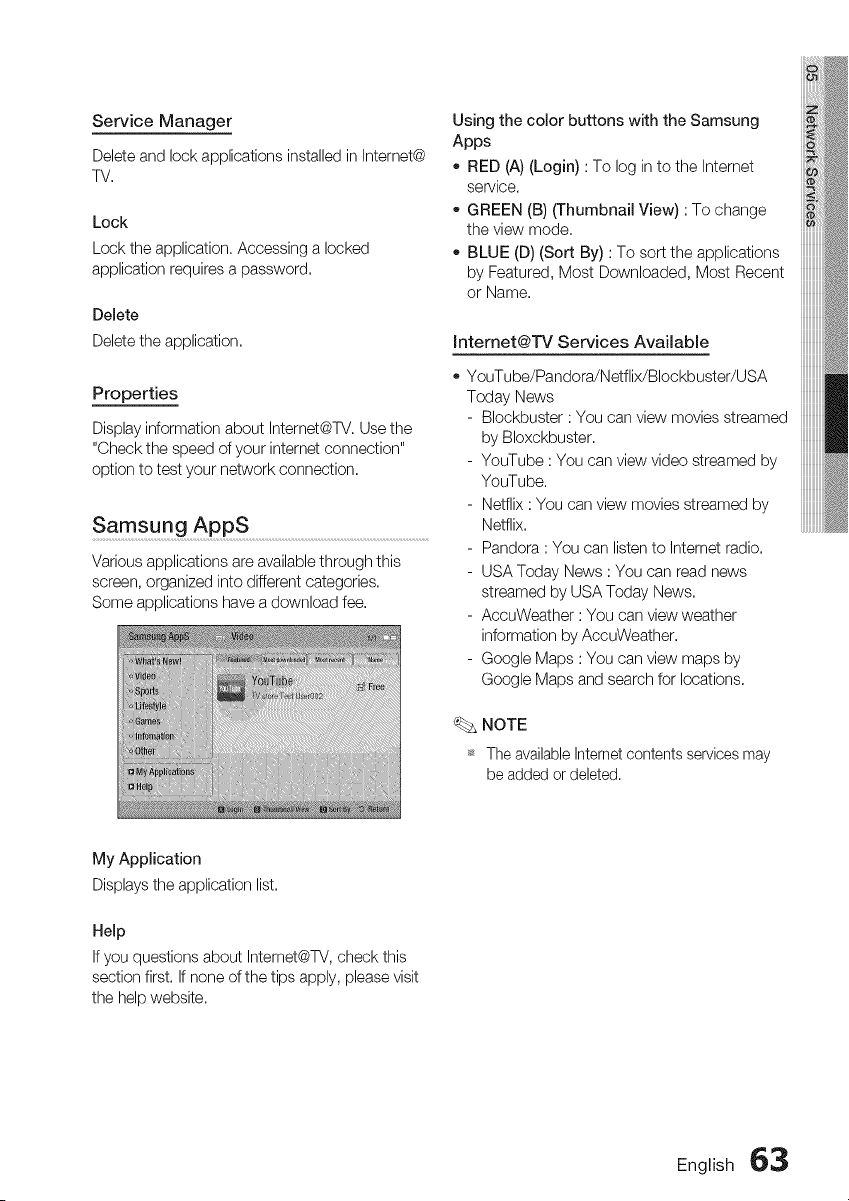
Service Manager
Delete and lock applications installed in Internet@
TV.
Lock
Lock the application. Accessing a locked
application requires a password.
Delete
Delete the application.
Properties
Display information about Intemet@TV. Use the
"Check the speed of your intemet connection"
option to test your network connection.
Samsung AppS ..............................................................................................................................
Various applications are available through this
screen, organized into different categories.
Some applications have a download fee.
Using the color buttons with the Samsung
Apps
- RED (A) (Login) : To log in to the Internet
service.
o GREEN (B) (Thumbnail View) : To change
the view mode.
BLUE (D) (Sort By) : To sort the applications
by Featured, Most Downloaded, Most Recent
or Name.
Intemet@iV Services Available
YouTube/Pandora/Netflix/Blockbuster/USA
Today News
- Blockbuster : You can view movies streamed
by Bloxckbuster.
- YouTube : You can view video streamed by
YouTube.
- Netflix : You can view movies streamed by
Netflix.
- Pandora : You can listen to Intemet radio.
- USA Today News : You can read news
streamed by USA Today News.
- AccuWeather : You can view weather
information by AccuWeather.
- Google Maps : You can view maps by
Google Maps and search for locations.
NOTE
_ The available Intemet contents services may
be added or deleted.
My Application
Displays the application list.
Help
If you questions about Intemet@TV, check this
section first. If none of the tips apply, please visit
the help website.
English 63
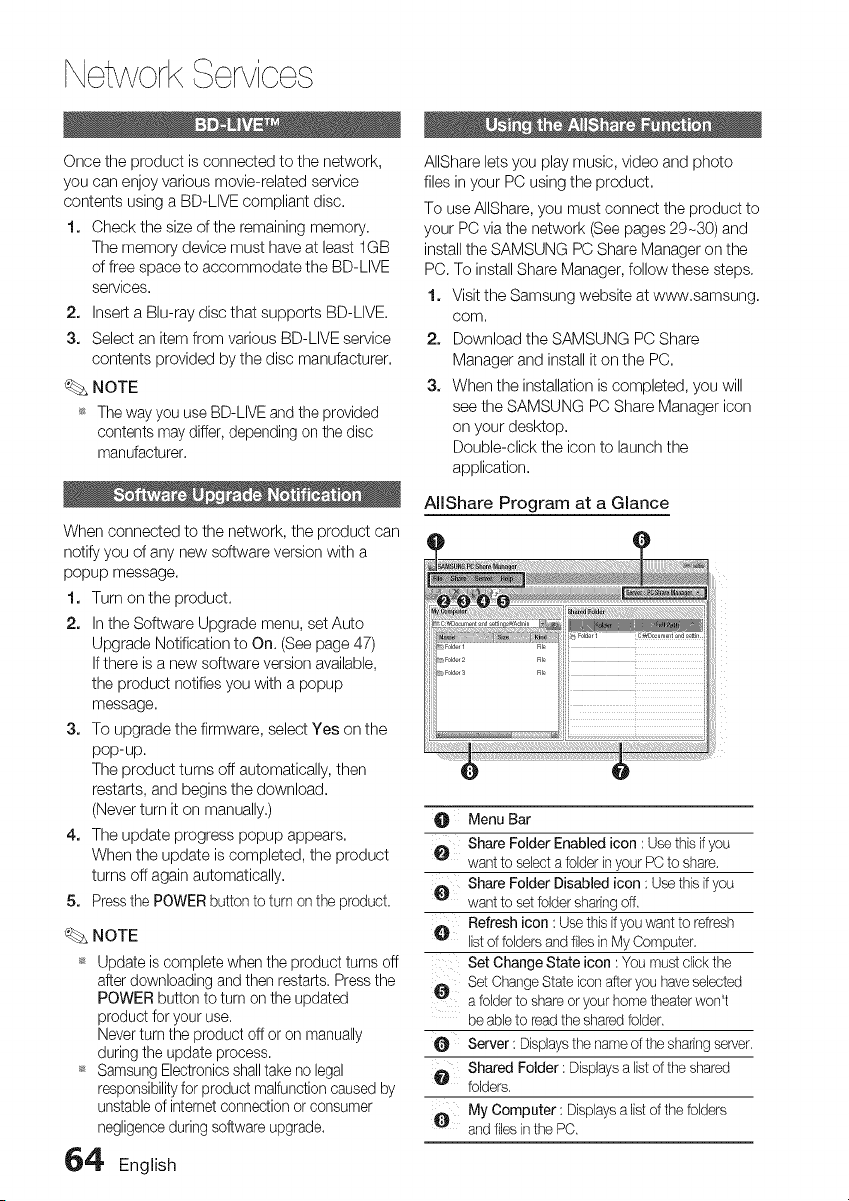
NetworkServices
Once the product is connected to the network,
you can enjoy various movie-related service
contents using a BD-LIVE compliant disc.
1. Check the size of the remaining memory.
The memory device must have at least 1GB
of free space to accommodate the BD-LIVE
services.
2. Insert a Blu-ray disc that supports BD-LIVE.
3. Select an item from various BD-LIVE service
contents provided by the disc manufacturer.
NOTE
_ The way you use BD-LIVE and the provided
contents may differ, depending on the disc
manufacturer.
When connected to the network, the product can
notify you of any new software version with a
popup message.
1. Turn on the product.
2. In the Software Upgrade menu, set Auto
Upgrade Notification to On. (See page 47)
If there is a new software version available,
the product notifies you with a popup
message.
3. To upgrade the firmware, select Yes on the
pop-up.
The product turns off automatically, then
restarts, and begins the download.
(Never turn it on manually.)
4. The update progress popup appears.
When the update is completed, the product
turns off again automatically.
5. Pressthe POWER button to turn on the product.
NOTE
_ Update is complete when the product turns off
after downloading and then restarts. Press the
POWER button to turn on the updated
product for your use.
Never turn the product off or on manually
during the update process.
_ Samsung Electronics shall take no legal
responsibilityfor product malfunction caused by
unstable of intemet connection or consumer
negligence during software upgrade.
AIIShare lets you play music, video and photo
files in your PC using the product.
To use AIIShare, you must connect the product to
your PC via the network (See pages 29-30) and
install the SAMSUNG PC Share Manager on the
PC. To install Share Manager, follow these steps.
1. Visit the Samsung website at www.samsung.
COrn,
2. Download the SAMSUNG PC Share
Manager and install it on the PC.
3. When the installation is completed, you will
see the SAMSUNG PC Share Manager icon
on your desktop.
Double-click the icon to launch the
application.
AIIShare Program at a Glance
O Menu Bar
Share Folder Enabled icon : Usethis if you
0 want to selecta folder inyour PC to share.
Share Folder Disabled icon : Use this ifyou
want to set folder sharingoff.
Refresh icon : Use this ifyou want to refresh
listof folders and files inMy Computer
Set Change State icon : You must cJickthe
Set ChangeState icon after you haveselected
a folderto shareor your hometheater won't
be ableto read the sharedfolder.
O Server : Displaysthe nameof the sharingserver.
,_, Shared Folder : Displaysa list of the shared
folders.
_, My Computer : Displaysa listof the folders
andfiles inthe PC.
64' English
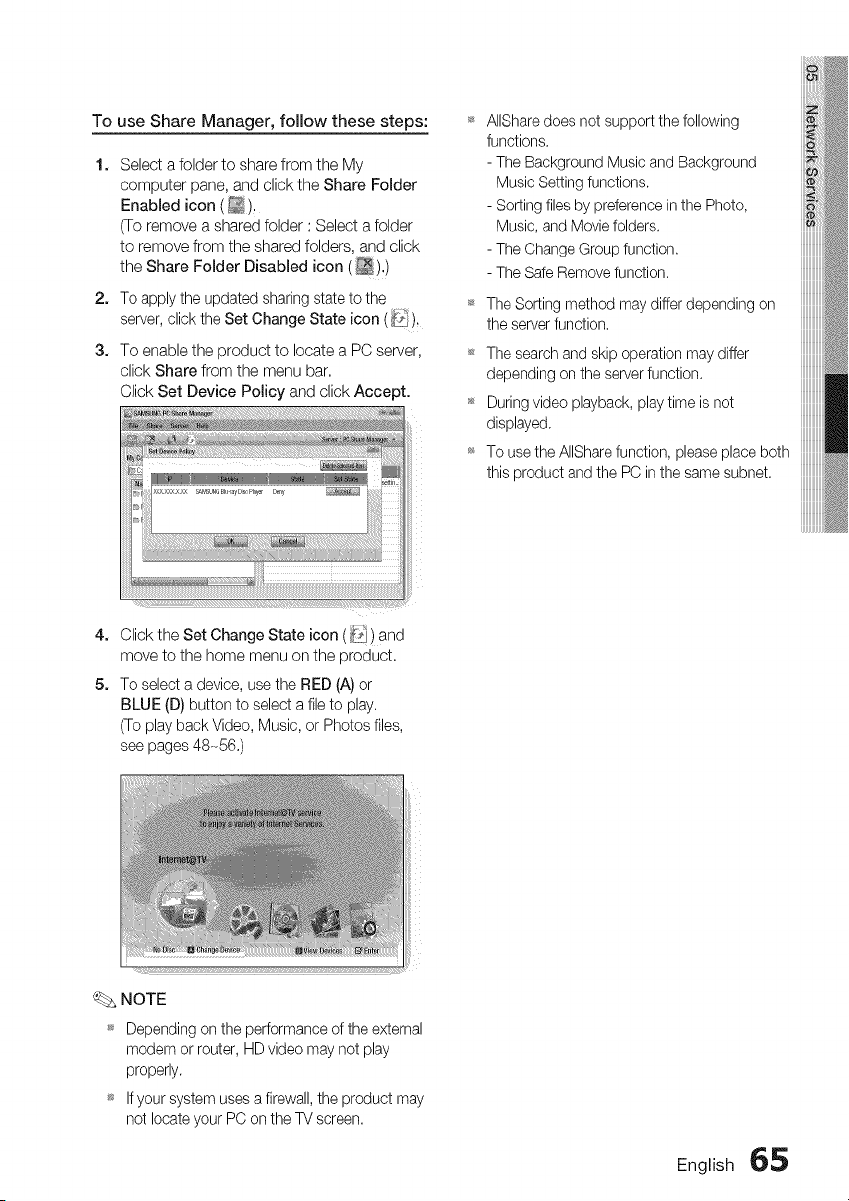
To use Share Manager, follow these steps: _
1. Select a folder to share from the My
computer pane, and click the Share Folder
Enabled icon (_).
(To remove a shared folder : Select a folder
to remove from the shared folders, and click
the Share Folder Disabled icon (_),)
2. To apply the updated sharing state to the
server, click the Set Change State icon ( _' ),
3. To enable the product to locate a PC server,
click Share from the menu bar,
Click Set Device Policy and click Accept.
4. Click the Set Change State icon (_i_'i) and
move to the home menu on the product,
5. To select a device, use the RED (A) or
BLUE (D) button to select a file to play.
(To play back Video, Music, or Photos files,
see pages 48-56.)
AIISharedoes not support the following
functions.
- The Background Music and Background
Music Setting functions.
- Sorting files by preference in the Photo,
Music, and Movie folders.
- The Change Group function.
- The Safe Remove function.
The Sorting method may differ depending on
the server function.
_ The search and skip operation may differ
depending on the server function.
_ During video playback, play time is not
displayed,
*_ To use the AIIShare function, please place both
this product and the PC in the same subnet.
NOTE
_ Depending on the performance of the external
modem or router, HD video may net play
properly.
_ If your system uses a firewall, the product may
net locate your PC on the TV screen,
English 65
Otherinbrrn ion
Refer to the chart below when this product does not function properly, If the problem you are
experiencing is not listed below or if the instructions below do not help, turn off the product,
disconnect the power cord, and contact Samsung Electronics at 1-800-SAMSUNG,
cannotejectthe disc.
TheiPodfailsto connect.
• Isthe powercordpluggedsecurelyintotheoutlet?
• Turnoffthe powerandthenturn it backon,
• Checkthe conditionof the iPodconnectorandDock,
• Keepthe iPodS/Wversionupto date,
Playbackdoes not start. • Checkthe regionnumberof the BD/DVD,
BD/DVDdiscspurchasedfrom abroadmaynot beplayable,
• CD-ROMsandDVD-ROMscannotbe playedonthis Product,
• Makesurethatthe ratingleveliscorrect,
Playbackdoesnot start • Areyou usinga deformeddiscor a discwith scratcheson thesurface?
immediatelywhenthe • Wipethedisc clean,
Play/Pausebuttonis pressed.
Soundis not produced. • Nosoundis hearddudngfastplayback,slowplayback,andstepmotionplayback,
• Arethespeakersconnectedproperly?Isthespeakersetupcorrectlycustomized?
• Isthe discseverelydamaged?
Soundcanbe heardonlyfroma
fewspeakersandnotall8.
DolbyDigital7.1CHSurround
Soundis notproduced.
Theremotecontroldoesnotwork,
• Discis rotatingbut no
pictureis produced.
• Picturequalityis poorand
pictureisshaking.
Audiolanguageandsubtitlesdo
notwork.
• OncertainBD/DVDdiscs,soundis outputfromthe frontspeakersonly,
• Checkif the speakersare connectedproperly,
• Adjustthe volume,
• Whenlisteningto a CD,radioor TV,soundis outputto thefront speakersonly,
Select"PROLOGICII" bypressing[]["] PLII (DolbyProLogicII) onthe remote
controlto useall sixspeakers,
• Isthere"DolbyDigital7.1OH"markonthedisc?DolbyDigital7.1CHSurroundSoundis
producedonlyifthediscisrecordedwith7.1channelsound.
• Isthe audiolanguagecorrectlysetto DolbyDigital7.1-CHinthe information
display?
• Istheremotecontrolbeingoperatedwithinitsoperationalangleanddistanceranges?
• Arethe batteriesdrained?
• Haveyouselectedthemode_/BD)functionsoftheremotecontrol_ orBD)correctly?
• Isthe TVpoweron?
• Arethe videocablesconnectedproperly?
• Isthe discdirtyor damaged?
• A poorlymanufactureddiscmaynotbe playable,
• Audiolanguageandsubtitleswill notworkif the discdoesnotcontainthem,
Menuscreen does not appear • Areyou usinga discthat doesnotcontainmenus?
even when the menufunction is
selected.
66 English
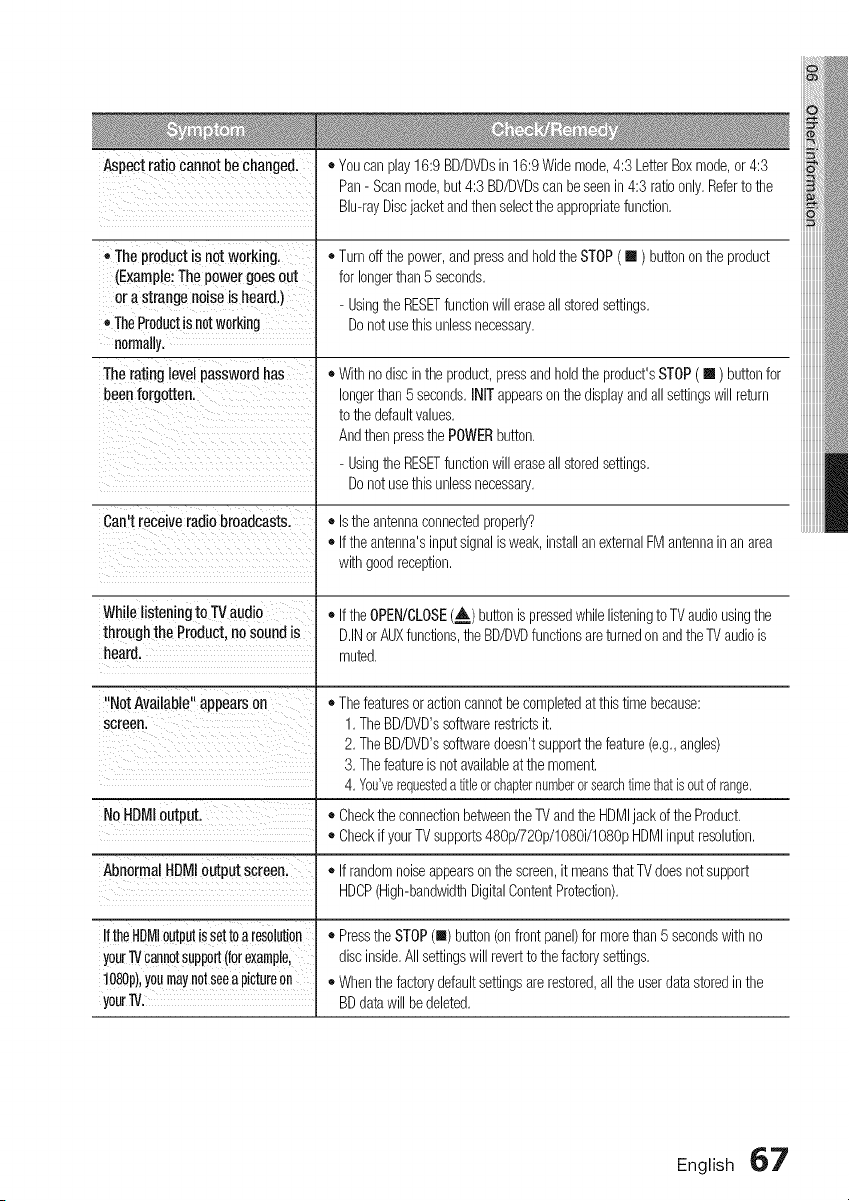
Aspect ratio cannot be changed. • Youcan play16:9 BD/DVDsin 16:9Wide mode,4:3 LetterBoxmode,or 4:3
Pan- Scanmode.but4:3 BD/DVDscanbeseen in4:3 ratioonly.Referto the
Blu-rayDiscjacketandthenselectthe appropriatefunction.
, Theproductis not working.
(Example:Thepowergoesout
orastrangenoiseisheard.)
• TheProductisnotworking
normally.
Theratinglevelpasswordhas
beenforgotten.
• Turnoffthe power,and pressand holdthe STOP( [] ) buttononthe product
for longerthan 5 seconds.
- Usingthe RESETfunctionwill eraseall storedsettings.
Donot usethis unlessnecessary.
• With nodisc inthe product,pressand holdthe product'sSTOP( [] ) buttonfor
longerthan 5 seconds.[NITappearsonthe displayandall settingswill return
to the defaultvalues.
Andthenpressthe POWERbutton.
- Usingthe RESETfunctionwill eraseall storedsettings.
Donot usethis unlessnecessary.
Can't receive radio broadcasts. ,, Isthe antennaconnectedproperly?
• If the antenna'sinput signalis weak, installan externalFM antennain anarea
with goodreception.
While listening to TVaudio • If the OPEN/CLOSE(A) buttonis pressedwhile listeningto TVaudiousingthe
through the Product, no sound is D.INor AUXfunctions,the BD/DVDfunctionsareturnedonandthe TVaudiois
heard, muted.
"Not Available" appearson
screen.
• Thefeaturesor actioncannotbecompletedat this timebecause:
1. The BD/DVD'ssoftwarerestrictsit.
2. The BD/DVD'ssoftwaredoesn'tsupportthefeature(e.g.,angles)
3. Thefeatureis notavailableat the moment.
4. You'verequesteda titleorchapternumberor searchtimethatisoutof range.
No NDMIoutput. • Checkthe connectionbetweenthe TVandthe HDMIjackof the Product.
• CheckifyourTVsupports480p/720p/1080i/1080pHDMIinput resolution.
Abnormal HDMIoutput screen. • If randomnoiseappearson the screen,it meansthatTVdoesnot support
HDCP(High-bandwidthDigitalContentProtection).
If theHDMIoutputis settoa resolution
yourTVcannotsuDport(forexample,
1080p),youmaynotseea pictureon
yourW.
• Pressthe STOP(u) button(onfront panel)for morethan5 secondswith no
discinside.All settingswill revertto thefactorysettings.
• Whenthe factorydefaultsettingsare restored,all the userdatastoredinthe
BDdatawill be deleted.
English 67
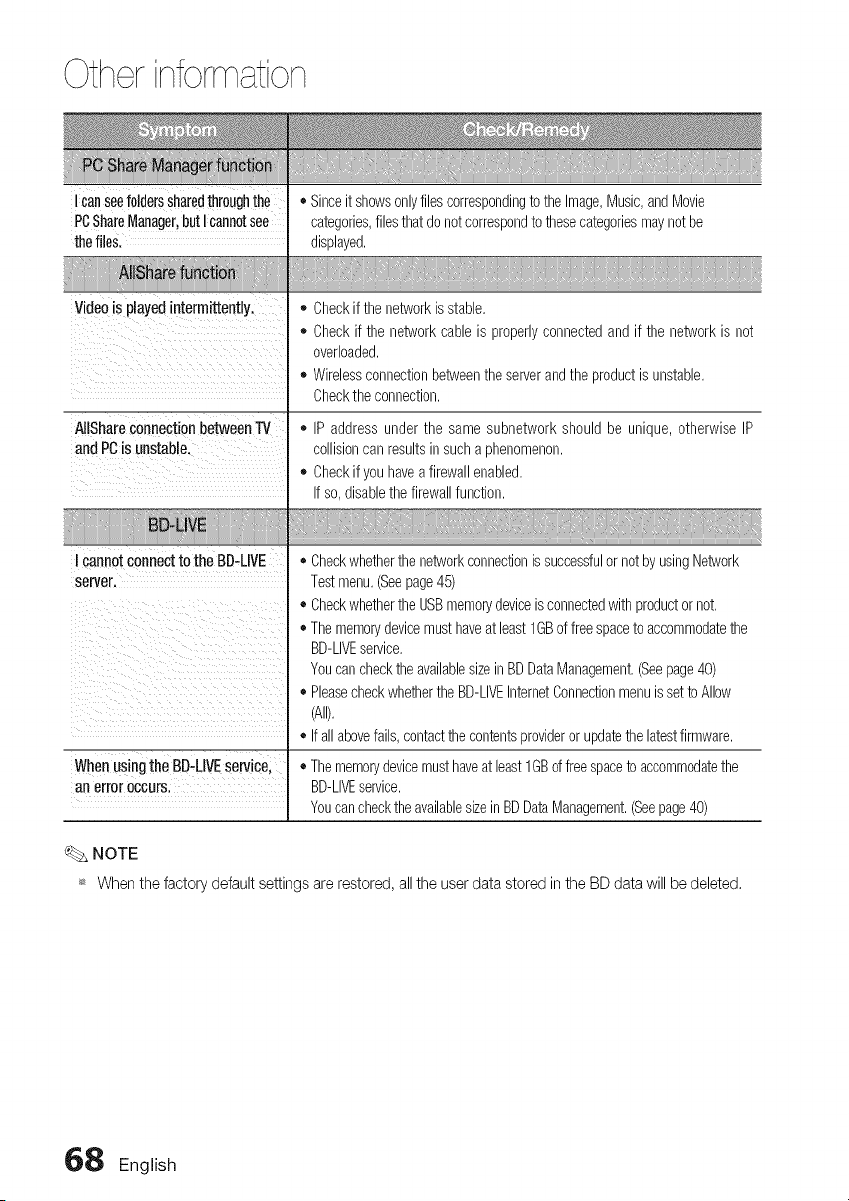
Otherinbrrn ion
lean seefolderssharedthroughthe
PCShareManager,butIcannotsee
theflies.
Videois playedintermittently,
Alishare€onnectionbetween
andPCis unstable,
cannotconnecttotheBD-LIVE
server,
Whenusingthe BD-LIVEservice
an erroroccurs,
• Sinceit showsonlyfilescorrespondingto the Image,Music,and Movie
categories,filesthat do notcorrespondto thesecategoriesmay notbe
displayed,
• Checkif the networkis stable,
• Check if the networkcable is properlyconnectedand if the networkis not
overloaded,
• Wirelessconnectionbetweenthe serverandthe productis unstable,
Checkthe connection,
• IP address under the same subnetwork should be unique, otherwise IP
collisioncan resultsinsuch a phenomenon,
• Checkif you havea firewallenabled,
If so,disablethe firewallfunction,
• Checkwhetherthe networkconnectionis successfulor not byusingNetwork
Testmenu,(Seepage45)
• Checkwhetherthe USBmemorydeviceisconnectedwith productor not,
• The memorydevicemusthaveat least 1GBof free spaceto accommodatethe
BD-LIVEservice,
Youcancheckthe availablesizeinBD DataManagement,(Seepage40)
• PleasecheckwhethertheBD-LIVEInternetConnectionmenuis setto Allow
(All),
• If all abovefails,contactthe contentsprovideror updatethe latestfirmware,
• Thememorydevicemusthaveat least1GBoffreespaceto accommodatethe
BD-LIVEservice,
Youcancheckthe availablesizein BDDataManagement,(Seepage40)
NOTE
_ Whenthe factorydefaultsettingsarerestored,all the userdatastoredinthe BD data will be deleted.
68 English
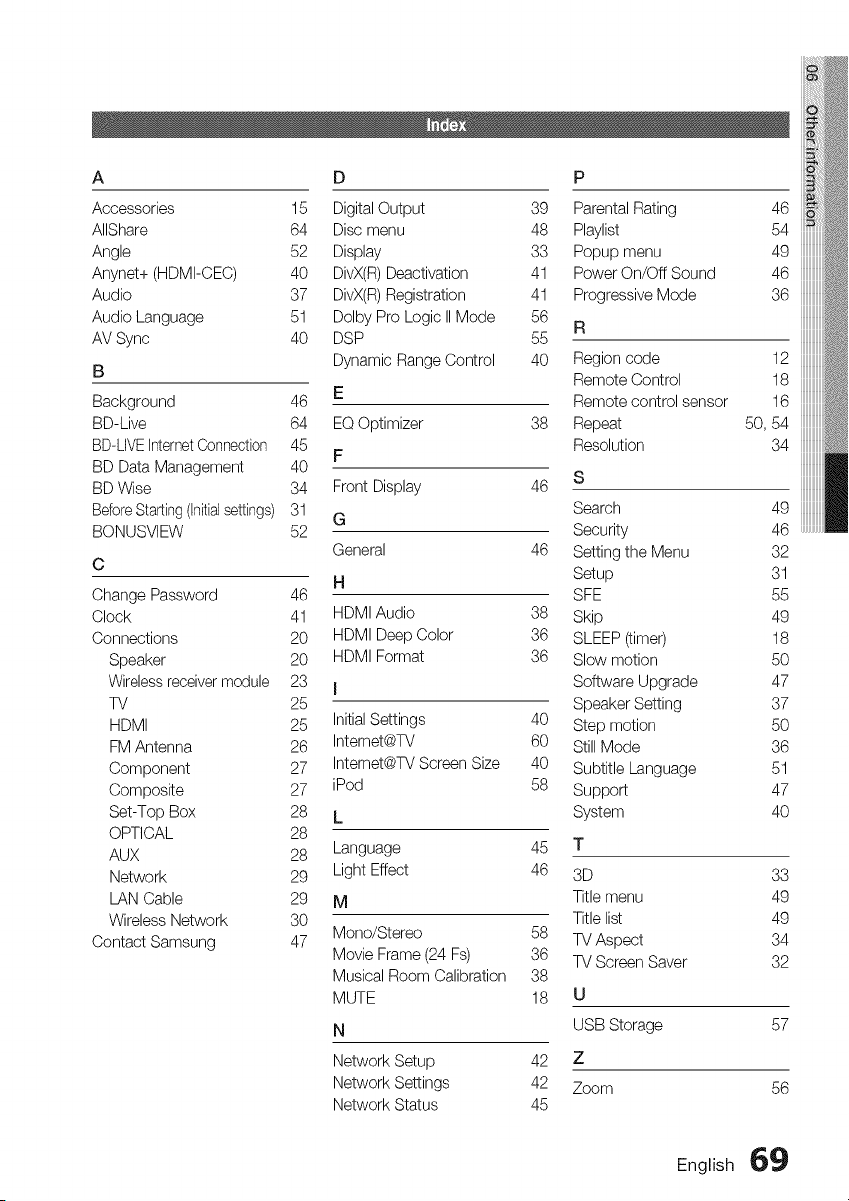
A D P
Accessories 15 Digital Output 39 Parental Rating 46
AIIShare 64 Disc menu 48 Playlist 54
Angle 52 Display 33 Popup menu 49
Anynet+ (HDMI-CEC) 40 DivX(R) Deactivation 41 Power On/Off Sound 46
Audio 37 DivX(R) Registration 41 Progressive Mode 36
Audio Language 51 Dolby Pro Logic II Mode 56
R
AV Sync 40 DSP 55
B Dynamic Range Control 40 Region code 12
Remote Control 18
Background 46 E Remote control sensor 16
BD-Live 64 EQ Optimizer 38 Repeat 50, 54
BD-LIVEInternetConnection 45 Resolution 34
F
BD Data Management 40
BD Wise 34 Front Display 46 S
BeforeStarting (Initialsettings) 31 G Search 49
BONUSVIEW 52 Security 46
General 46 Setting the Menu 32
C
H Setup 31
Change Password 46 SFE 55
Clock 41 HDMI Audio 38 Skip 49
Connections 20 HDMI Deep Color 36 SLEEP (timer) 18
Speaker 20 HDMI Format 36 Slow motion 50
Wireless receiver module 23 I Software Upgrade 47
TV 25 Speaker Setting 37
HDMI 25 Initial Settings 40 Step motion 50
FM Antenna 26 Internet@TV 60 Still Mode 36
Component 27 Internet@TV Screen Size 40 Subtitle Language 51
Composite 27 iPod 58 Support 47
Set-Top Box 28 L System 40
OPTICAL 28
AUX 28 Language 45 T
Network 29 Light Effect 46 3D 33
LAN Cable 29 M Title menu 49
Wireless Network 30 Title list 49
Contact Samsung 47 Mono/Stereo 58 TV Aspect 34
Movie Frame (24 Fs) 36 TV Screen Saver 32
Musical Room Calibration 38
MUTE 18 U
N USB Storage 57
Network Setup 42 Z
Network Settings 42 Zoom 56
Network Status 45
English 69
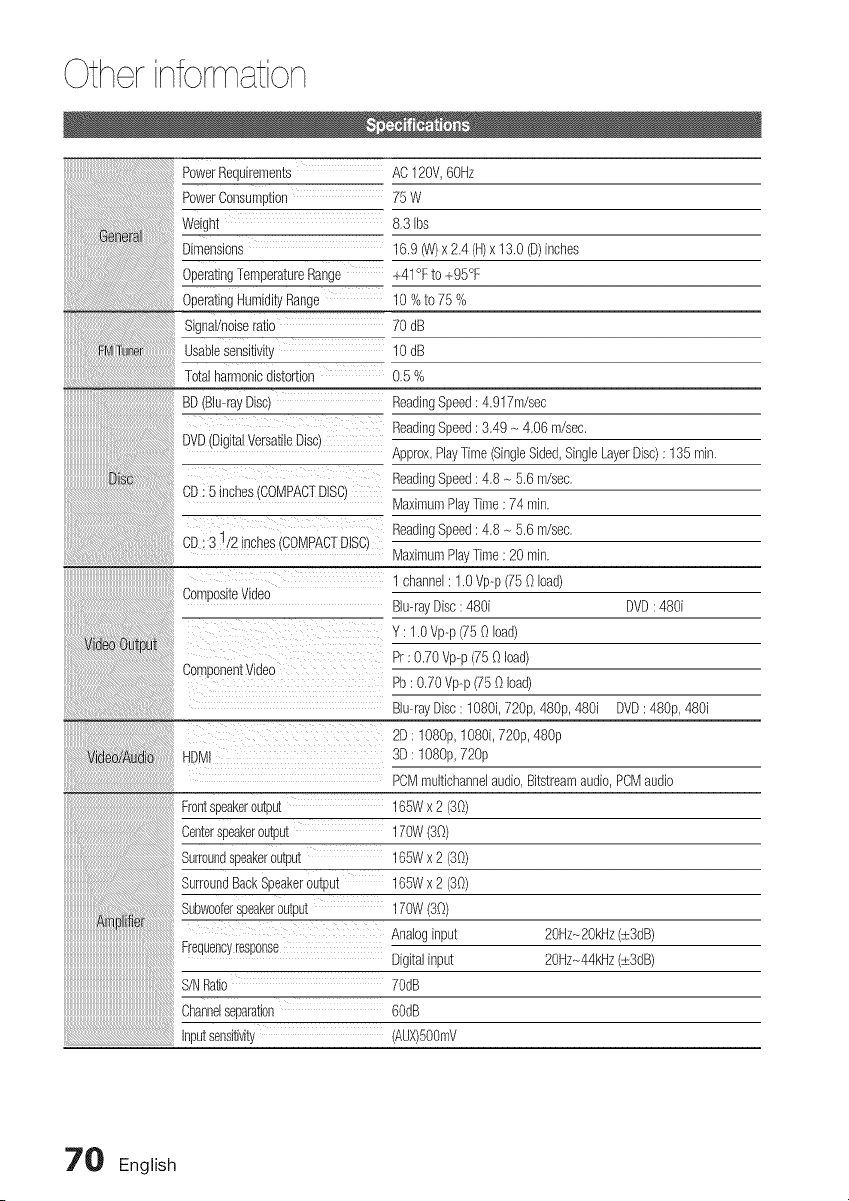
Otherinformation
BD(Bh-rayDisc)
DVD(DigitalVersatileDisc)
Dis CD: 5 inches(COMPACTDISC)
CD: 3 1/2 inches(COMPACFDISC)
1 channel:1.0Vp-p(75 0 load)
CompositeVideo
Videodut_ut
ComponentVideo
Video/Audio HDMI
Frontsoeakeroutou_
PowerRequirements AC120V,60Hz
PowerConsumption 75W
Weight 8.3 Ibs
Dimensions 16.9_) x 2.4 (m)x 13.0(D)inches
OperatingTemperatureRange +41°Fto +95°F
OperatingHumidityRange 10 %to 75 %
Signal/noiseratio 70 dB
Usablesensitivity 10 dB
Totalharmonicdistortion 0.5 %
Readij Speed: 4.917m/sec,
ReadingSpeed: 3.49 - 4.06m/sec.
Approx,PlayTime(SingleSided,SingleLayerDisc): 135 min.
ReadingSpeed: 4.8 - 5.6m/sec.
MaximumPlayTime:_74_in_
ReadingSpeed: 4.8 _ 5.6m/sec.
MaximumPlayTime: 20 min.
;enterspeakercutout
Surroundsoeakeroutou; 165Wx 2 (30)
SurroundBackSpeakeroutoul 165Wx 2 (30)
SubwootersoeaKercutout 170W(30)
Blu-rayDisc: 480i DVD: 480i
Y: 1.0Vp--p(75 0 load)
Pr : 0.70Vp-p(75 0 load)
Pb: 0.70Vp--p(750 load)
Bh-rayDisc: 1080i,720p,480p,480i DVD: 48%, 480i
2D: 108% 1080i,720p,48%
3D: 1080p,72%
PCMmultichannelaudio,Bitstreamaudio,PCMaudio
165Wx 2 (30)
170W(30)
Analoginput
Frequencyresponse
Digitalinput
S/NRatio 70dB
Channelseparation 60dB
Inputsensitivity (AUX)5OOmV
20Hz_2OkHz(=±:3dB)
20Hz_44kHz(=±:3dB)
70 English
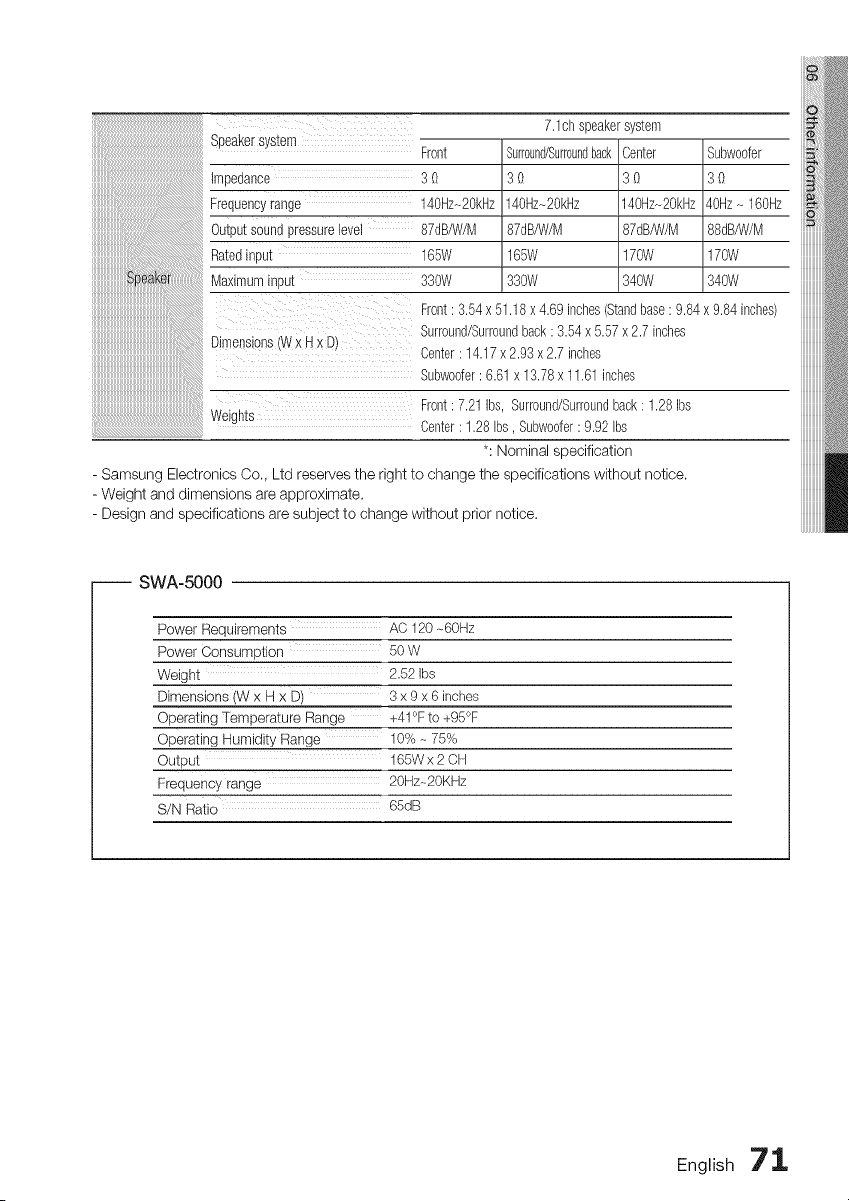
7.1chspeakersystem
b_U_tK_l _y_Wl]l
Front
Impedance 3 0
Frequencyrange 14OHz-2OkHz
Outputsoundpressurelevel 87dB/W/M
Ratedinput 165W
Maximuminput 330W
Dimensons(Wx Hx Dt
Surround/Surroundback
30
140Hz~2OkHz
87dB/W/M
165W
330W
Center
3_)
140Hz-20kHz
87dB/W/M
170W
340W
Subwoofer
30
40Hz- 160Hz
88dB/W/M
170W
340W
Front: 3.54x 51.18x 4.69inches(Standbase: 9.84x 9.84inches)
Surround/Surroundback: 3.54x 5.57x2.7 inches
Center: 14.17x2.93x 2.7 inches
Subwoofer: 6.61x13.78x 11.61inches
Front: 7.21Ibs, Surround/Surroundback: 1.28Ibs
Weign[s Center: 1.28Ibs, Subwoofer: 9.92Ibs
*: Nominal specification
- Samsung Electronics Co., Ltd reserves the right to change the specifications without notice.
- Weight and dimensions are approximate.
- Design and specifications are subject to change without prior notice.
-- SWA-5000
Power Requirements AC 120 ,_60Hz
Power Consumption 50 W
Weight 2.52 Ibs
Dimensions (W x H x D) 3 x 9 x 6 inches
Operating Temperature Range +41 °F to +95°F
Operating Humidity Range 10% ,475%
Output 165Wx2 CH
Frequency range 20Hz,_2OKHz
S/N Ratio 65dB
English 71
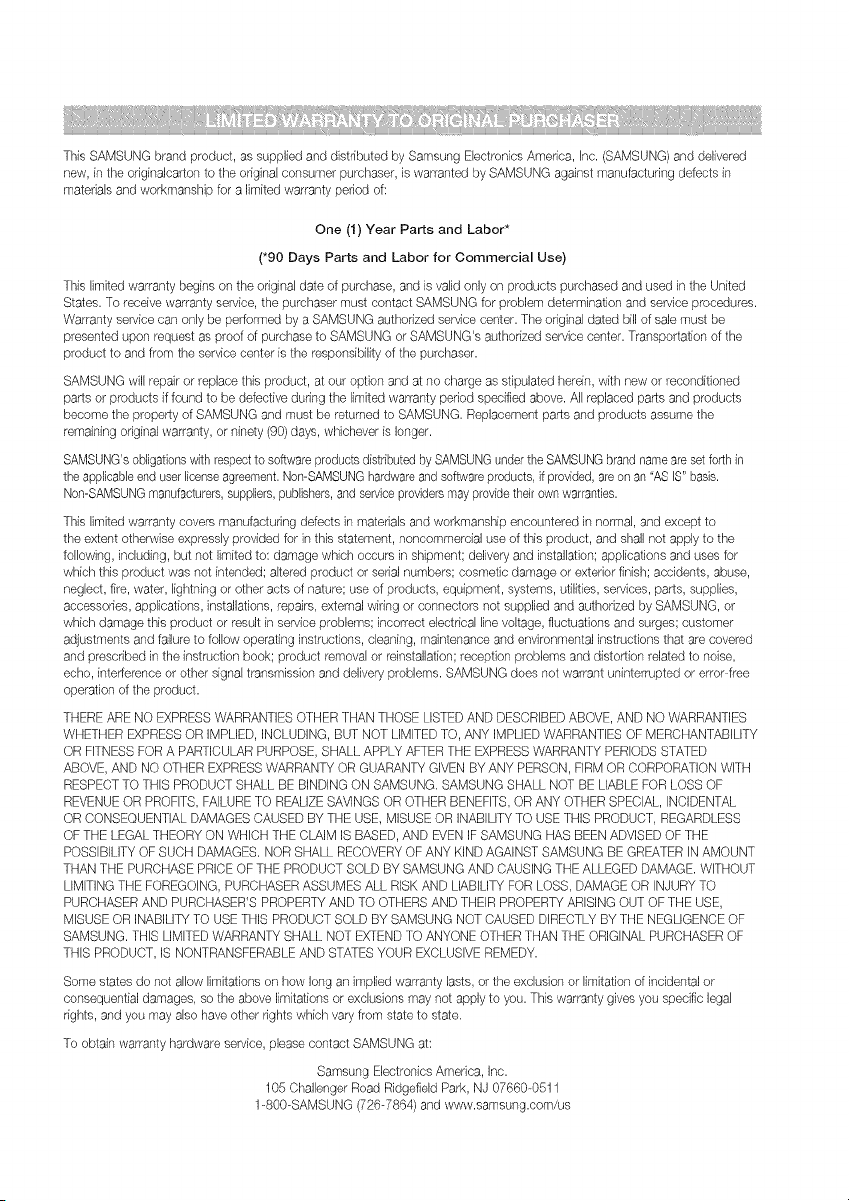
This SAMSUNG brand product, as supplied and distributed by Samsung Electronics America, inc. (SAMSUNG) and delivered
new, in the originalcarton to the original consumer purchaser, is warranted by SAMSUNG against manufacturing defects in
materials and workmanship for a limited warranty period of:
One (1) Year Parts and Labor*
(*90 Days Parts and Labor for Commercial Use)
This limited warranty begins on the original date of purchase, and is valid only on products purchased and used in the United
States. To receive warranty service, the purchaser must contact SAMSUNG for problem determination and service procedures.
Warranty service can only be performed by a SAMSUNG authorized service center. The original dated bill of sale must be
presented upon request as proof of purchase to SAMSUNG or SAMSUNG's authorized service center. Transportation of the
product to and from the service center is the responsibility of the purchaser.
SAMSUNG will repair or replace this product, at our option and at no charge as stipulated herein, with new or reconditioned
parts or products if found to be defective during the limited warranty period specified above. All replaced parts and products
become the property of SAMSUNG and must be returned to SAMSUNG. Replacement parts and products assume the
remaining original warranty, or ninety (90) days, whichever is longer.
SAMSUNG'sobligationswith respectto softwareproducts distributedby SAMSUNGunderthe SAMSUNGbrandname are set forth in
the applicableend user licenseagreement.Non-SAMSUNGhardwareand softwareproducts, if provided, areon an"AS IS"basis.
Non-SAMSUNGmanufacturers,suppliers,publishers,and serviceprovidersmay providetheir own warranties.
This limited warranty covers manufacturing defects in materials and workmanship encountered in normal, and except to
the extent otherwise expressly provided for in this statement, noncommercial use of this product, and shall not apply to the
following, including, but not limited to: damage which occurs in shipment; delivery and installation; applications and uses for
which this product was not intended; altered product or serial numbers; cosmetic damage or exterior finish; accidents, abuse,
neglect, fire, water, lightning or other acts of nature; use of products, equipment, systems, utilities, services, parts, supplies,
accessories, applications, installations, repairs, external wiring or connectors not supplied and authorized by SAMSUNG, or
which damage this product or result in service problems; incorrect electrical line voltage, fluctuations and surges; customer
adjustments and failure to fellow operating instructions, cleaning, maintenance and environmental instructions that are covered
and prescribed in the instruction book; product removal or reinstallation; reception problems and distortion related to noise,
echo, interference or other signal transmission and delivery problems. SAMSUNG does not warrant uninterrupted or error-free
operation of the product.
THERE ARE NO EXPRESS WARRANTIES OTHER THAN THOSE LISTED AND DESCRIBED ABOVE, AND NO WARRANTIES
WHETHER EXPRESSOR IMPLIED, INCLUDING, BUT NOT LiMiTED TO, ANY IMPLIED WARRANTIES OF MERCHANTABILITY
OR FITNESS FOR A PARTICULAR PURPOSE, SHALL APPLY AFTER THE EXPRESS WARRANTY PERIODS STATED
ABOVE, AND NO OTHER EXPRESSWARRANTY OR GUARANTY GIVEN BY ANY PERSON, FiRM OR CORPORATION WiTH
RESPECTTO THiS PRODUCT SHALL BE BINDING ON SAMSUNG. SAMSUNG SHALL NOT BE LIABLE FOR LOSS OF
REVENUEOR PROFITS, FAILURETO REALIZESAVINGS OR OTHER BENEFITS, OR ANY OTHER SPECIAL, iNCIDENTAL
OR CONSEQUENTIAL DAMAGES CAUSED BY THE USE, MISUSE OR INABiLiTY TO USETHIS PRODUCT, REGARDLESS
OF THE LEGAL THEORY ON WHICH THE CLAIM IS BASED, AND EVENIF SAMSUNG HAS BEEN ADVISED OF THE
POSSIBILITYOF SUCH DAMAGES. NOR SHALL RECOVERYOF ANY KIND AGAINST SAMSUNG BE GREATER IN AMOUNT
THAN THE PURCHASEPRICE OF THE PRODUCT SOLD BY SAMSUNG AND CAUSING THE ALLEGED DAMAGE. WITHOUT
LIMITING THE FOREGOING, PURCHASER ASSUMES ALL RISK AND LiABiLITY FOR LOSS, DAMAGE OR iNJURY TO
PURCHASERAND PURCHASER'S PROPERTY AND TO OTHERS AND THEIR PROPERTY ARISING OUT OF THE USE,
MISUSE OR INABILITYTO USE THIS PRODUCT SOLD BY SAMSUNG NOT CAUSED DIRECTLY BY THE NEGLIGENCE OF
SAMSUNG. THiS LIMITED WARRANTY SHALL NOT EXTENDTO ANYONE OTHER THAN THE ORIGINAL PURCHASER OF
THIS PRODUCT, IS NONTRANSFERABLE AND STATES YOUR EXCLUSIVEREMEDY.
Some states do not allow limitations on how long an implied warranty lasts, or the exclusion or limitafion of inddental or
consequential damages, so the above limitations or exclusions may not apply to you. This warranty gives you specific legal
rights, and you may also have other rights which vary from state to state.
To obtain warranty hardware service, please contact SAMSUNG at:
Samsung Electronics America, Inc.
105 Challenger Road Ridgefield Park, NJ 07660-0511
1-800-SAMSUNG (726-7864) and www.samsung.com/us
Contact SAMSUNG WORLD WIDE
If you have any questions or comments relating to Sarnsung products, please contact the SAMSUNG
customer care center.
North America
Canada 1-800-SAMSUNG(726-7864) _.samsung.com
Mexico 01-800-SAMSUNG(726-7864) _.samsung.com
U.S.A 1-800-SAMSUNG(726-7864) _.samsung.com
Latin America
Argentine 0800-333-3733 _.samsung.com
0800-124-421
Brazil 4004-0000 _.samsung.com
Chile 800-SAMSUNG(726-7864) _.samsung.com
Nicaragua 00-1800-5077267 _.samsung.com
Honduras 800-7919267 _.samsung.com
Costa Rica 0-800-507-7267 _.samsung.com
Ecuador 1-800-10-7267 _.samsung.com
ElSalvador 800-6225 _.samsung.com
Guatemala 1-800-299-0013 _.samsung.com
Jamaica 1-800-234-7267 _.samsung.com
Panama 800-7267 _.samsung.com
PuertoRico 1-800-682-3180 _.samsung.com
Rep.Dominica 1-800-751-2676 _.samsung.com
Trinidad & 1-800-SAMSUNG(726-7864) _.samsung.com
Tobago
Venezuela 0-800-100-5303 _.samsung.com
Colombia 01-8000112112 _.samsung.com
, Europe
0810 - SAMSUNG
Austria (7267864, € O.07/min) _.samsung.com
_%_.samsung.com/
be (Dutch)
Belgium 02-201-24-18 www.samsung.com/
be fr (French)
800 - SAMSUNG
Czech (800-726786) _.samsung.com
Denmark 70 70 19 70 _.samsung.com
Finland 030 - 6227 515 _.samsung.com
France 01 48 63 O0O0 _.samsung.com
01805 - SAMSUNG
Germany (726-7864 € 0,14/Min) _.samsung.com
Hungary 06-80-SAMSUNG(726-7864) _.samsung.com
italia 800-SAMSUNG(726-7864) _.samsung.com
Luxemburg 261 03 710 _.samsung.com
0900-SAMSUNG
Netherlands (0900-7267864) (60,10/Min', _.samsung.com
Norway 815-56 480 _.samsung.com
Poland 0 801 1SAMSUNG(172678)
022-607-93-33 _.samsung.com
Portugal 80820-SAMSUNG(726-7864) _,_'v.samsung.com
SIovakia 0800-SAMSUNG(726-7864) _,_'v.samsung.com
902 - 1 - SAMSUNG
Spain (902 172 678) _,_'v.samsung.com
Sweden 0771 726 7864 (SAMSUNG) _,_'v.samsung.com
U.K 0845 SAMSUNG(7267864) _,_'v.samsung.com
Eire 0818 717100 _,_'v.samsung.com
co.
0848- SAMSUNG(7267864, www.samsung.eom/ch
www.samsung.com/
Switzerland CHF 0.OS/min) chit/(French)
Lithuania 8-800-77777 _%_.samsung.com
Latvia 8000-7267 _w.samsung.com
Estonia 800-7267 _w.samsung.com
DIS
Russia 8-800-555-55-55 _/vw.samsung.com
Georgia 8-800-555-555
Armenia 0-800-05-555
Azerbaijan 088-55-55-555
Kazakhstan 8-10-800-500-55-500
Uzbekistan 8-10-800-500-55-500 _/vw.samsung.com
Kyrgyzstan 00-800-500-55-500 _/vw.samsung.com
Tadjikistan 8-10-800-500-55-500 _/vw.samsung.com
_vw.samsung.ua
Ukraine 0-800-502-000 _/vw.samsung.com/
uaru
Belarus 810-800-500-55-500
Moldova 00-800-500 -55 -500
Asia Pacific
Australia 1300 362 603 _/vw.samsung.com
New Zealand 0800 SAMSUNG(0800726 78_ _/vw.samsung.com
400-810-5858
China 010-6475 1880 _w.samsung.com
_vw.samsung.com/
hk
Hong Kong (852) 3698-4698 _w.samsung.com/
hken/
3030 8282
india 1800 110011
1800 3000 8282 _w.samsung.com
1800 266 8282
indonesia 0800-112-8888
021-5699-7777 _w.samsung.com
Japan 0120-327-527 _w.samsung.com
Malaysia 1800-88-9999 _.samsung.com
1-800-10-SAMSUNG
(726-7864)
1-800-3-SAMSUNG
Philippines (726-7864) _w.samsung.com
1-800-8-SAMSUNG
(726-7864)
02-5805777
Singapore 1800-SAMSUNG(726-7864) _/vw.samsung.com
Thailand 1800-29-3232
02-689-3232 _/vw.samsung.com
Taiwan 0800-329-999 _,_'v.samsung.com
Vietnam 1 800 588 889 _/vw.samsung.com
Middle East & Africa
Turkey 444 77 11 _/vw.samsung.com
South Africa 0860-SAMSUNG (726-7864) _/vw.samsung.com
U.A.E 800-SAMSUNG (726-7864) _/vw.samsung.com
Bahrain 8000-4726
Jordan 800-22273
QUESTIONS OR COMMENTS?
I i
COUNTRY CALL OR VISIT US ONLINE AT WRITE
1-800-SAMSUNG Samsung Electronics America, Inc.
IN THE US (7267864) www.samsung.com/us 105 Challenger Road Ridgefield Park,
NJ 07660-0511
Code No. AH68-02279Y