
HD Series
1
CONTENTS
PRODUCT OVERVIEW....................................................... 2
PRODUCT STRUCTURE .................................................... 3
HOST CONFIGURATION .................................................. 4
PRINTER CONFIGURATION (OPTIONAL) .................... 5
POWER ON/OFF ................................................................ 5
VEHICLE DIAGNOSTIC PREPARATION ......................... 6
INTRODUCTION OF EACH FUNCTION MENU ........... 9
DIAGNOSTIC FUNCTION ............................................... 11
DPF REGENERATION ...................................................... 17
PIN DETECT ................................................................... 18
DATA MANAGEMENT ................................................ 18
DIAGNOSTIC SOFTWARE UPGRADE ...................... 19
SETTINGS ....................................................................... 20
13.1 Wi-Fi Connection ............................................................... 20
13.2 Brightness ............................................................................. 21
13.3 Volumes ................................................................................. 21
13.4 User Information and Activation ................................... 21
13.5 Storage ................................................................................... 23
13.6 General ................................................................................... 23
PRINTER INTRODUCTION(OPTIONAL) ............ 26
FAQ (FREQUENTLY ASKED QUESTIONS) ............... 29

HD Series
2
Product Overview
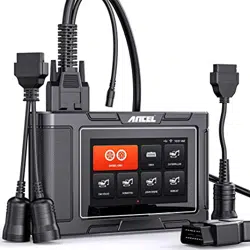
HD3600 is a diagnostic tool for the construction machinery
vehicles based on the Android tablet. Caterpillar, Komatsu,
John Deere, Volvo, Bobcat, Case, and Hitachi, along with
Yanmar are fully covered.
This product integrates commercial vehicle OBD standard
diagnostic protocols, including SAE J1939, SAE J1708, SAE
J1850 PWM, SAE J1850 VPW, ISO 14230-4, ISO 9141-2, ISO
15765-4 and ISO 27145-4. The commercial vehicles are
classified according to the vehicle type information, and the
operation interface is very clear, which makes it convenient for
users to diagnose commercial vehicles.
There’s an optional printer module available to have diagnosis
data and report printed. At the same time, the product supports
online upgrade of diagnostic program and diagnostic data.
HD Series
3
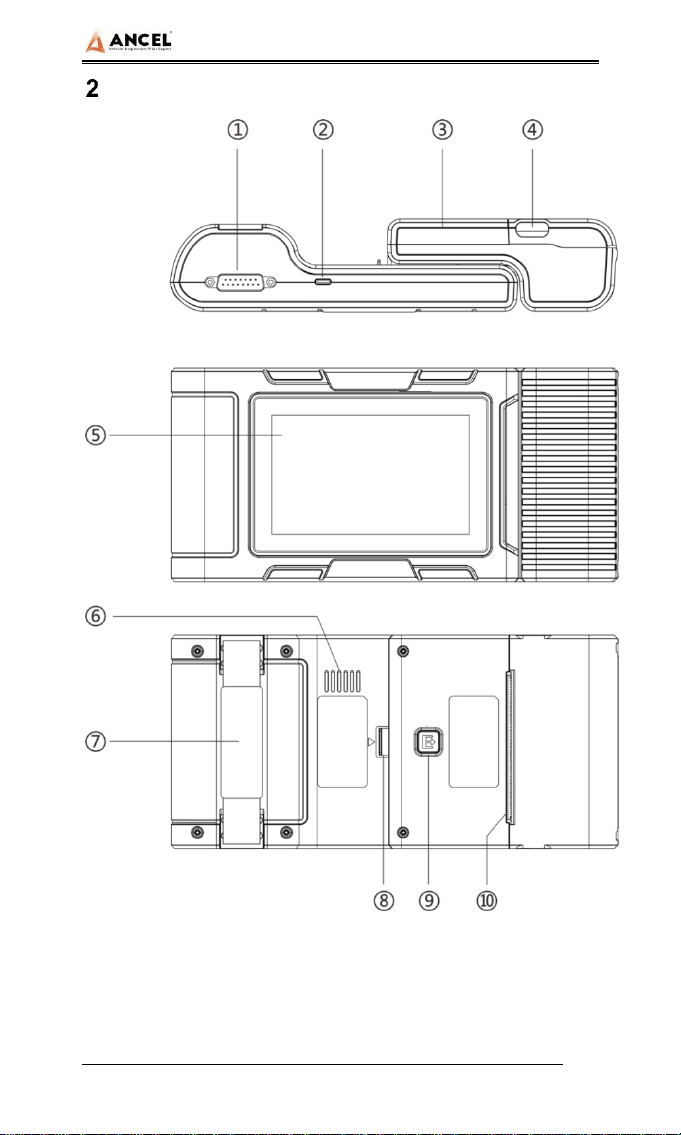
Product Structure
HD Series
4
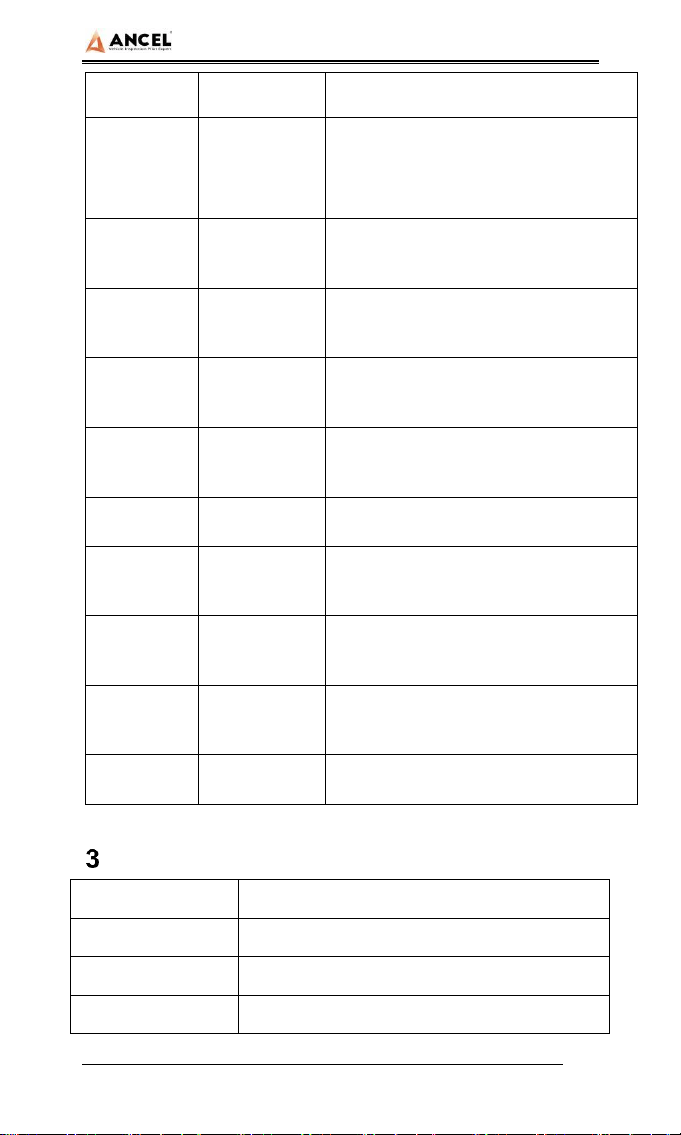
Serial No.
Name
Function Description
①
Main Testing
Cable
Connection interface connects
vehicle communication cable during
vehicle diagnosis
②
USB Port
Used to connect to an external
computer
③
Print
Used to print diagnostic reports and
results
④
Paper bin
cover
After opening, you can install and
replace the printing paper
⑤
Touch
screen
Display content and touch operation
area
⑥
Speaker
Device sound output
⑦
Auxiliary
bandage
Auxiliary for hand holding
⑧
Separation
switch
Host and printer separation switch
⑨
Test key
Printer self-test and paper feed
button
⑩
Paper outlet
Printer paper outlet
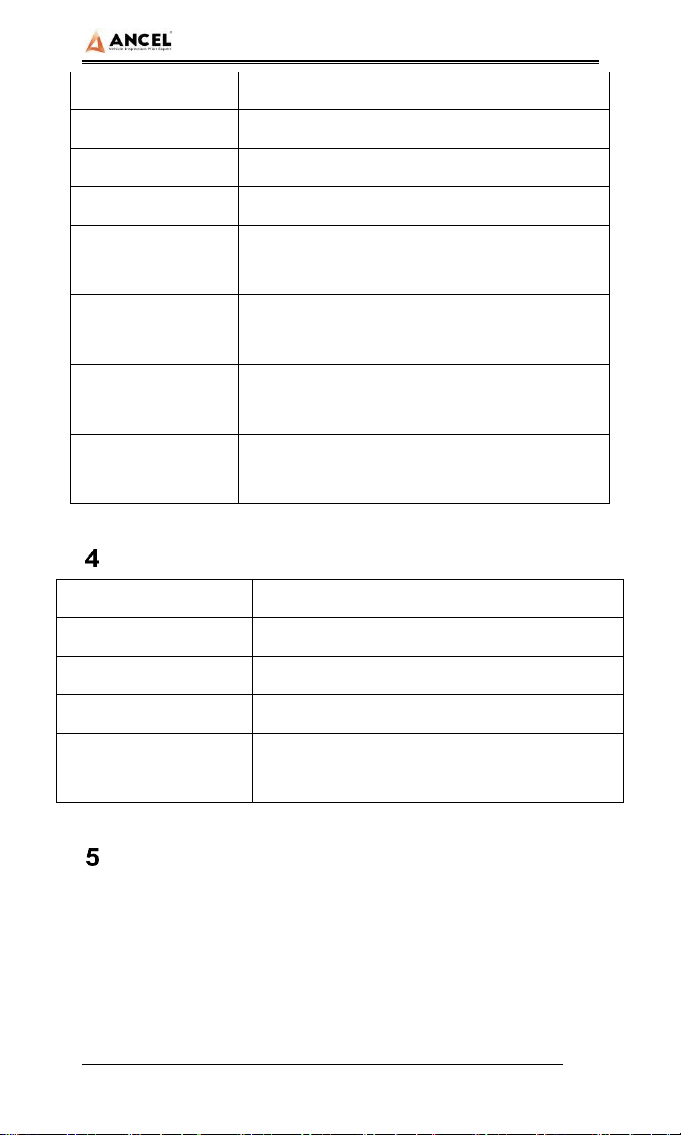
Host Configuration
CPU
Quad-Core ARM Cortex-A7
RAM
1GB
Flash
8GB
Display
5 inches LCD, resolution ratio 800*480
HD Series
5
TP touch screen
Capacitive screen
WIFI
802.11b/g/n 2.4GHz
Horn
Support
USB interface
Type C interface
Diagnose
interface
DB15 interface
Operating
voltage
DC 10V~24V/3A
Operating
temperature
-20℃~60℃
Storage
temperature
-30℃~70℃
Printer Configuration (Optional)
Printer
80mm thermal printer
Print speed
60mm/s
Effective print width
72mm
Print resolution
203dpi 1mm=8dots
Print paper
specifications
80mm*30mm
Power On/Off
Power on
The device can be powered on in the following ways:
Vehicle power on: plug one end of the main diagnostic test line
into the DB-15 interface of the device, and the other end into the
diagnostic interface of the vehicle, and the device will

HD Series
6
automatically start up. If it doesn’t start up, it may be that there is
no power supply for the vehicle diagnostic seat, and the device
can be powered by the cigarette lighter or battery clamp.
Power on the power adapter: plug one end of the main
diagnostic test line into the DB-15 interface of the device,
connect the power adapter, and the device will start
automatically.
Note: the voltage of the power supply should be within the
scope of application of the product equipment. If it is beyond the
scope, the product may be damaged.
Power off
Before power off, please stop all diagnostic items and return
back to the main interface.
Pull out the diagnostic main test line from the diagnostic
interface of the vehicle. If the device is not equipped with
battery, the device will shut down automatically after
disconnecting the main test line from the diagnostic interface of
the vehicle.
Vehicle Diagnostic Preparation
The diagnostic program establishes data connection through
the vehicle electronic control system connected with the
equipment, which can read the vehicle diagnostic information,
view the data flow, and perform action test and other functions.
For details of the functions, please refer to the model which you
purchased.
To establish good communication between the diagnostic

HD Series
7
program and the vehicle, the following operations need to be
performed:
1) Turn off the ignition;
2) Find the diagnostic interface of the vehicle: it is usually
located on the driver side; If the diagnostic interface is not
found, please refer to the vehicle maintenance manual.
3) Insert one end of the diagnostic main test line into the
device DB-15 connector and tighten the retaining screws. The
other end is connected to the vehicle's diagnostic interface.
Note: Before the equipment is connected to the vehicle, it is
necessary to judge whether the diagnostic seat of the vehicle is
a standard OBD-II interface or a non-standard OBD-II interface.
The vehicle compatible with OBD-II management system
only needs to use the integrated main test line OBD
connector to connect with the vehicle diagnosis seat and
provide power;
For vehicles that are not compatible with the OBD-II
management system, the corresponding connector should
be selected; Some vehicles need to be powered by other
vehicle power sources.
The following is an operation description of these two
connection modes.
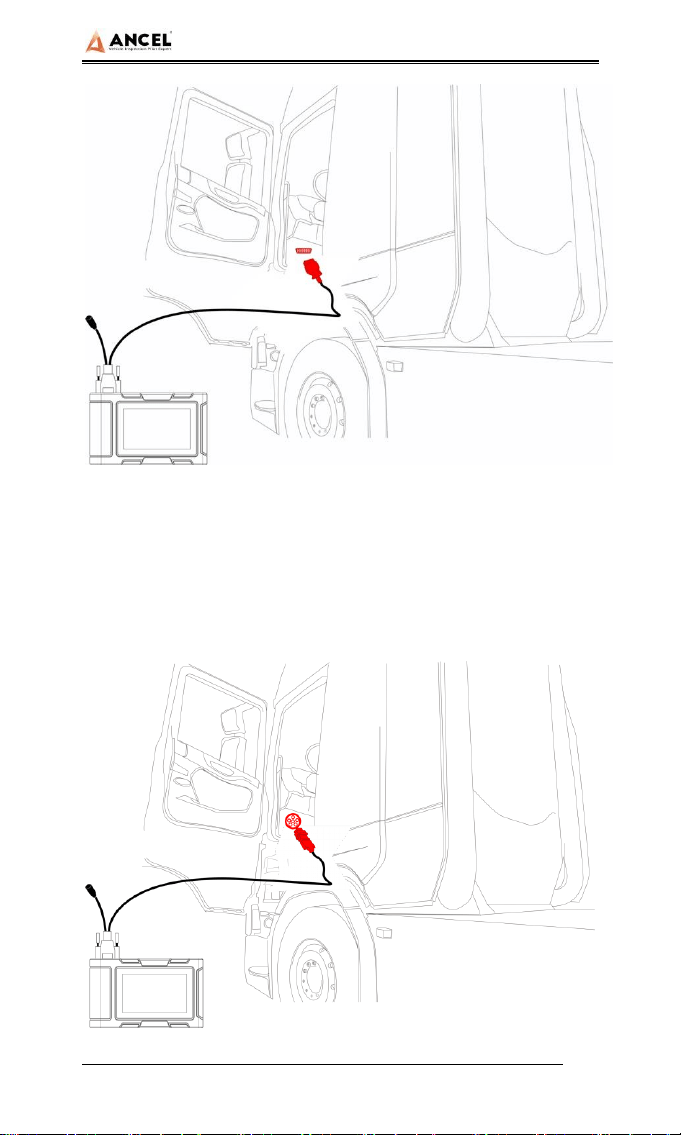
1) Connection of standard OBD-II interface
The vehicle connected with standard OBD-II interface only
needs to use the integrated main test line OBD connector, and
no other connectors are needed, as shown in the figure:
HD Series
8
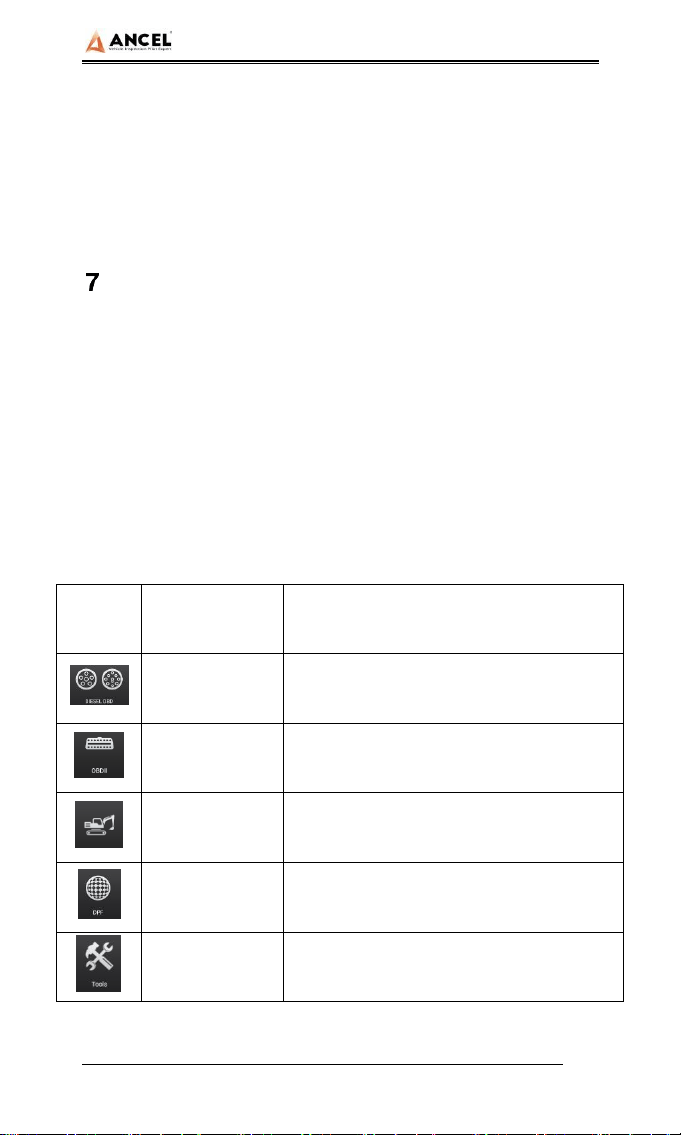
2) Connection of non OBD-II interface
Vehicles with non OBD-II interface need to connect the main
test line with the corresponding special connector, as shown in
the figure:
HD Series
9
Note: at this time, the equipment is powered by the vehicle
diagnosis seat, and the equipment starts automatically. If not, it
may be that the vehicle diagnosis seat has no power supply,
and the equipment can be powered by the cigarette lighter or
battery clip.
Introduction of Each Function Menu
After the system is started, the main menu of function will be
entered. The main menu of each version of model will be
slightly different. Please refer to the display of the model you
purchased.
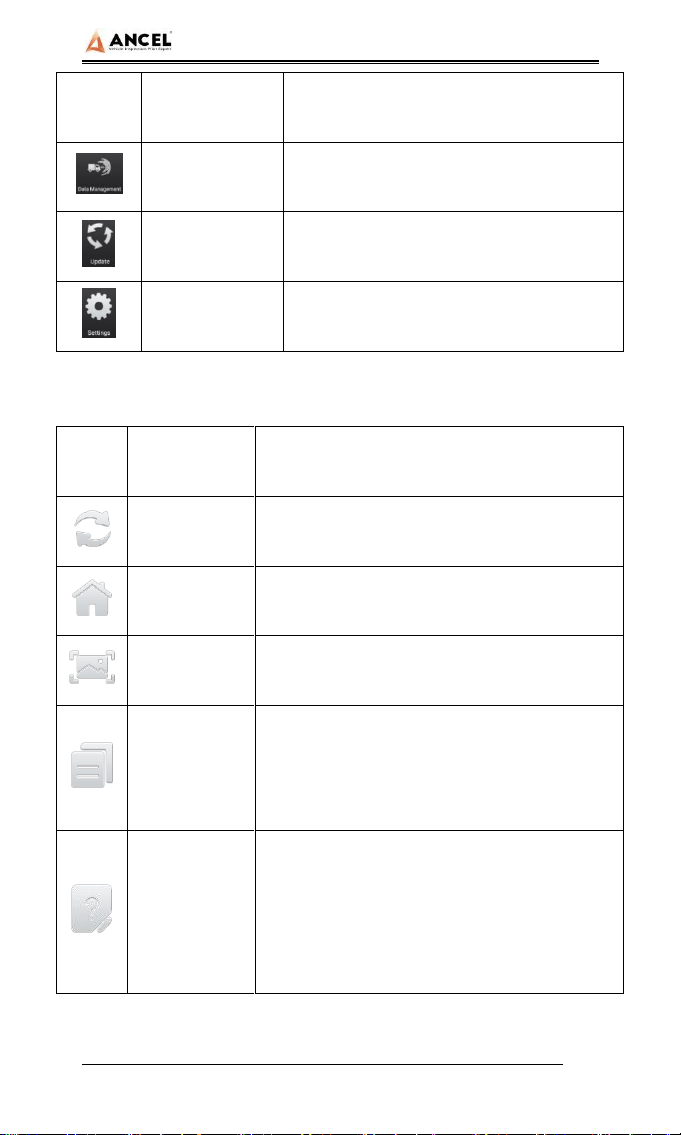
1) Function main menu (see Table 1)
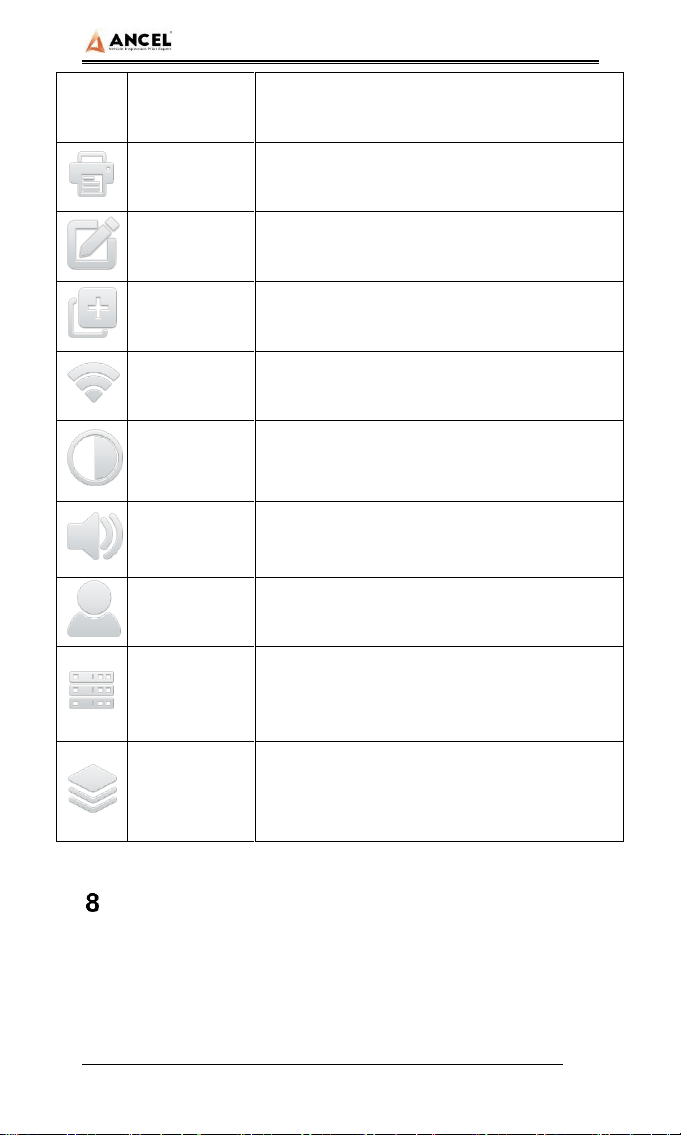
2) Toolbar (see Table 2)
Table 1: Function main menu
Icon
Function
name
Function description
Diesel OBD
Diagnostic procedure: Diesel OBD
OBD-II
Diagnostic procedure: OBD-II
Model
diagnosis
The diagnosis procedure of
construction machinery vehicles
DPF
DPF regeneration
Tools
(Pin Detect)For the measurement of pin
voltage of diagnostic interface
HD Series
10
Icon
Function
name
Function description
Data
management
For browsing and managing saved data
files
Update
For online upgrade of system software
and vehicle software
Settings
Set and view system information
Table 2: Toolbar
Icon
Function
name
Function description
Refresh
Refresh upgrade menu
Home
Return to the main interface of the system
Screenshot
Capture current screen picture
Test report
Used to save test data during diagnosis
(can be viewed in data management menu)
Feedback
Used to report the problem to the
company's service system (need to
connect to the network) when the system
cannot be accessed during the diagnosis
process
HD Series
11
Icon
Function
name
Function description
Print
Used to print test results or reports. The
printer is optional
Edit
Used to edit files, lock, unlock or delete
files
Added
Used to add feedback information
WIFI
WIFI connection network
Brightness
Used to adjust the brightness of the device
screen
Volume
Used to adjust the volume of the device
User info
Used to view device status and user
information
Data
cleaning
Used to remove useless data from the
device
General
Used to set device language, unit and time,
view device information and restore factory
settings
Diagnostic Function
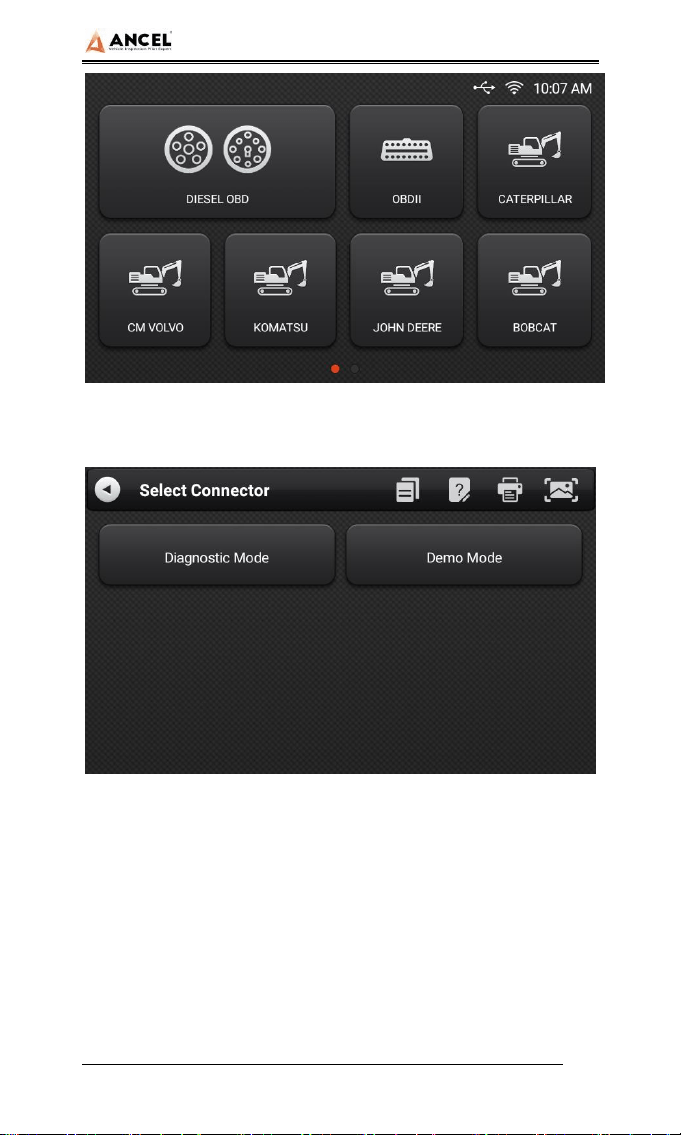
Take【CM VOLVO】as an example.
1)Click【CM VOLVO】menu enter the diagnostic interface.
HD Series
12
2) Select【Diagnostic Mode】
Note: 【Demo Mode】 Give a diagnostic demonstration for
your reference.
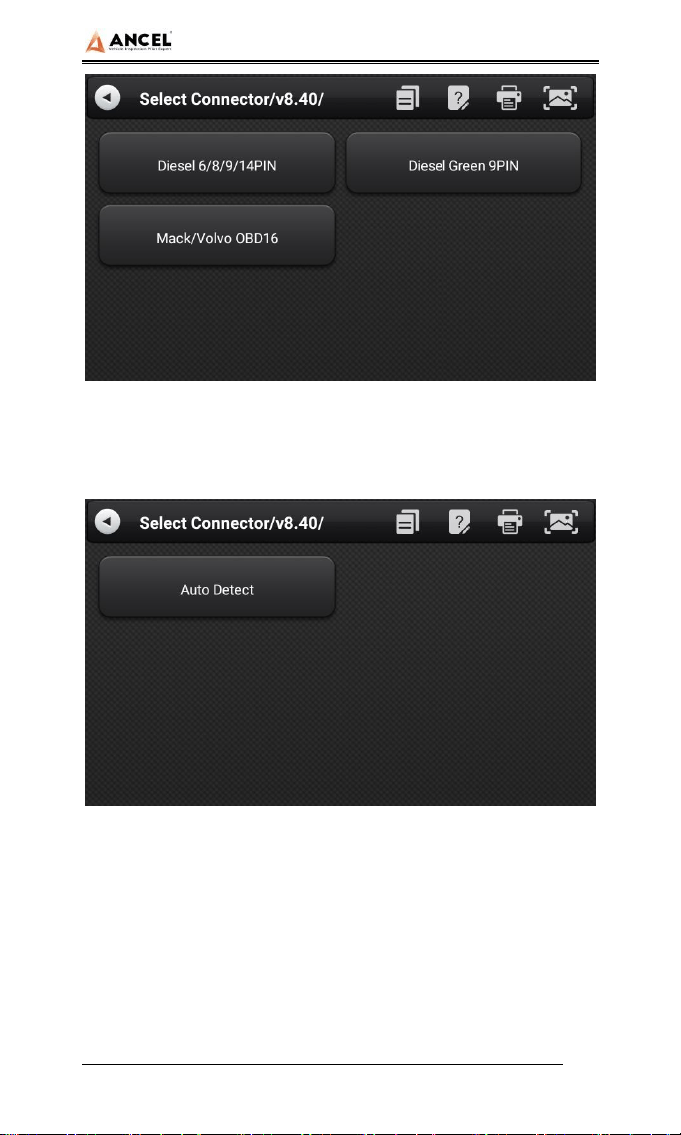
3) Select connector according to the specific situation, such as
【Diesel Green 9PIN】;
HD Series
13
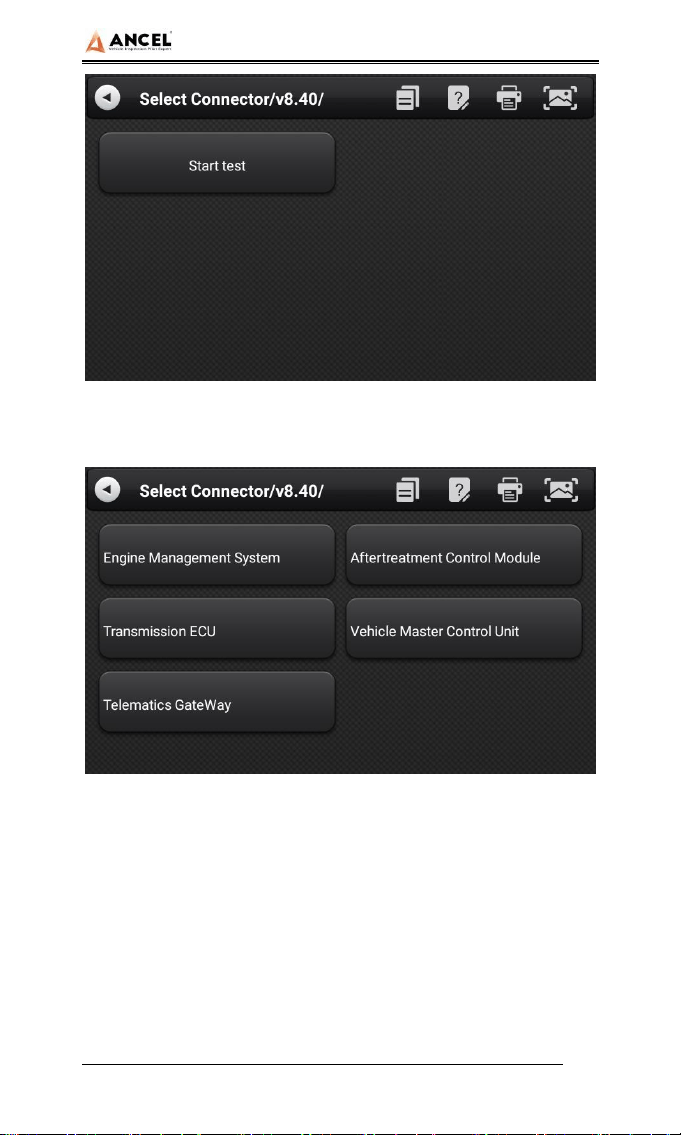
4) Select the required diagnostic method, such as 【Auto
Detect】;
5) Click 【Start test】
HD Series
14
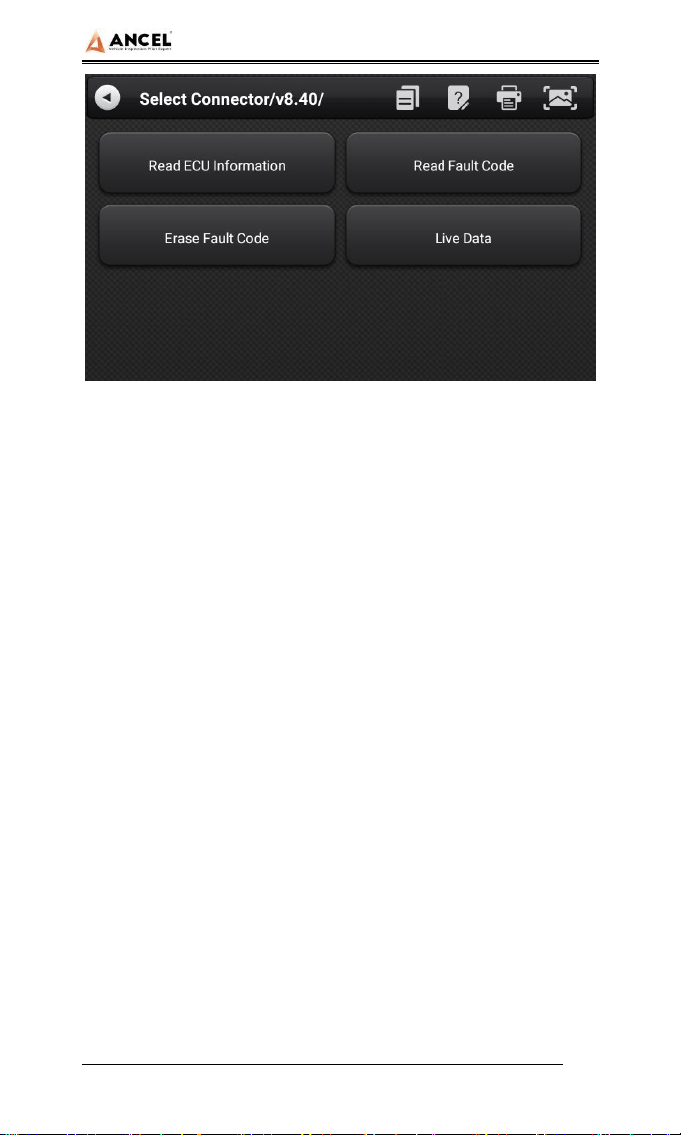
6) Select【Transmission ECU】;
7) Enter the diagnostic home page.
HD Series
15
The diagnostic home page usually includes the following
options:
1) ECU Information: Read and display the control system
module information detected from ECU.
2) Read Fault Code: Read the fault code information
retrieved from the vehicle system module.
3) Erase Fault Code: Clear the fault code and freeze frame
data retrieved from the vehicle system module
4) Live Data: Read and display the real-time operation
parameters of the current system module
HD Series
16
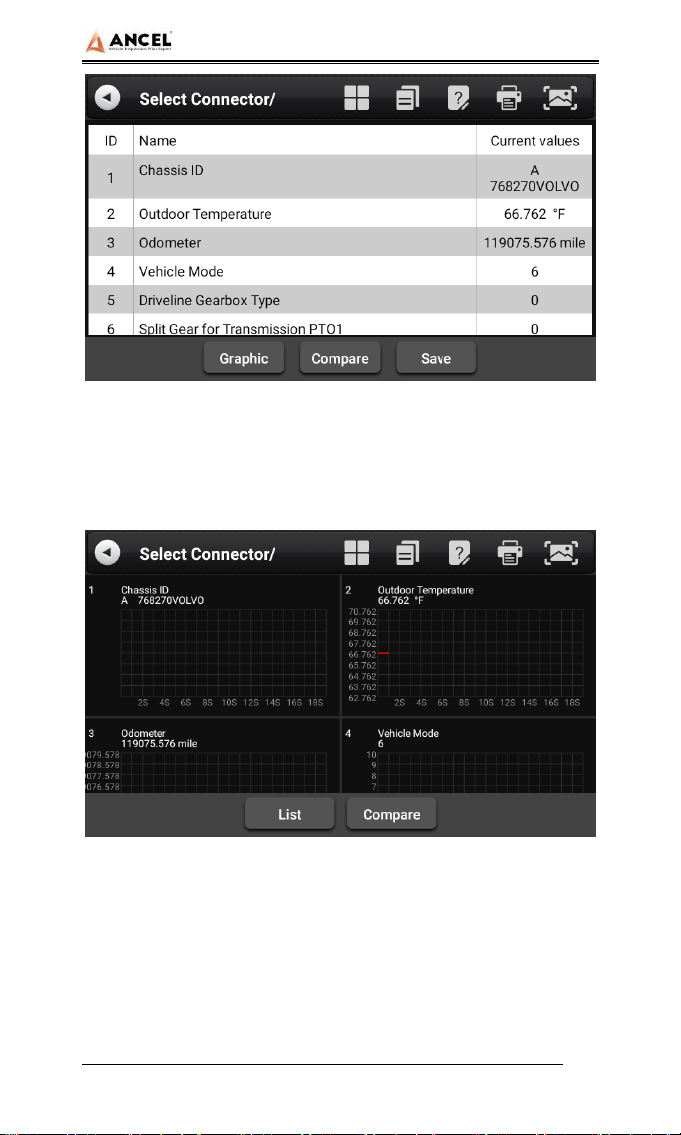
Graphic: View the real-time operating parameters of the
unit in the data stream waveform graph mode, and select
[List] to return to the numerical display state.
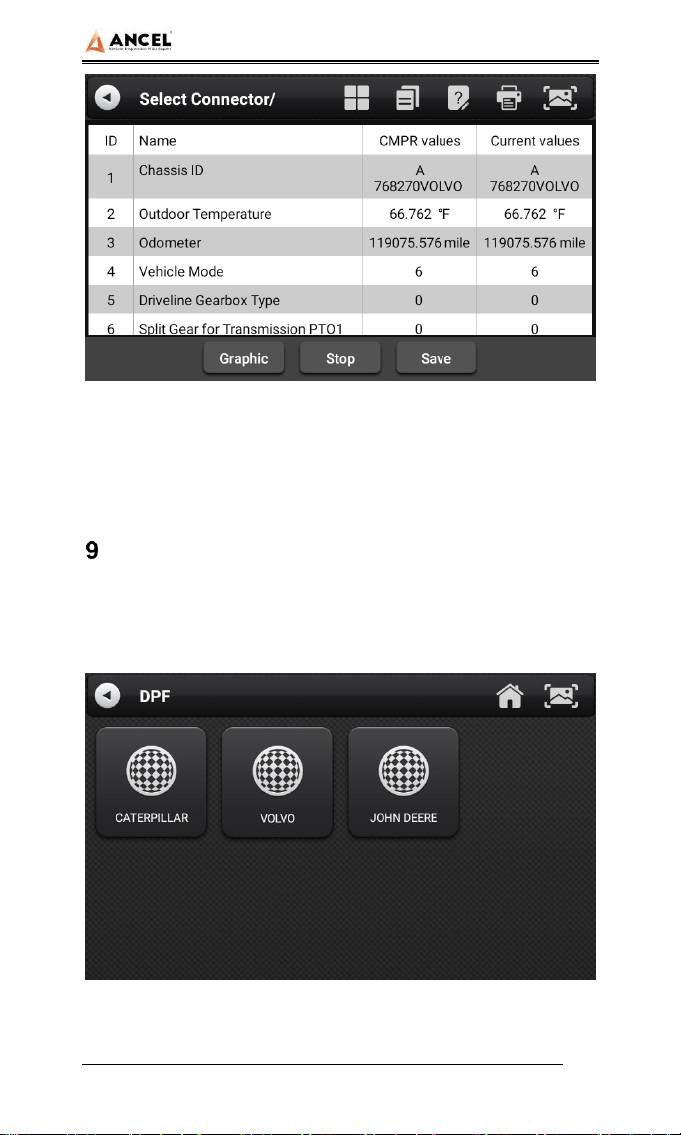
Compare: Compare the data steam. Select a saved data
file of the same vehicle type in the pop-up dialog box, and
select [OK] to return, and then an additional column
"CMPR values" in the data stream interface.
HD Series
17
Save: Save the current data stream (for subsequent data
stream comparison)
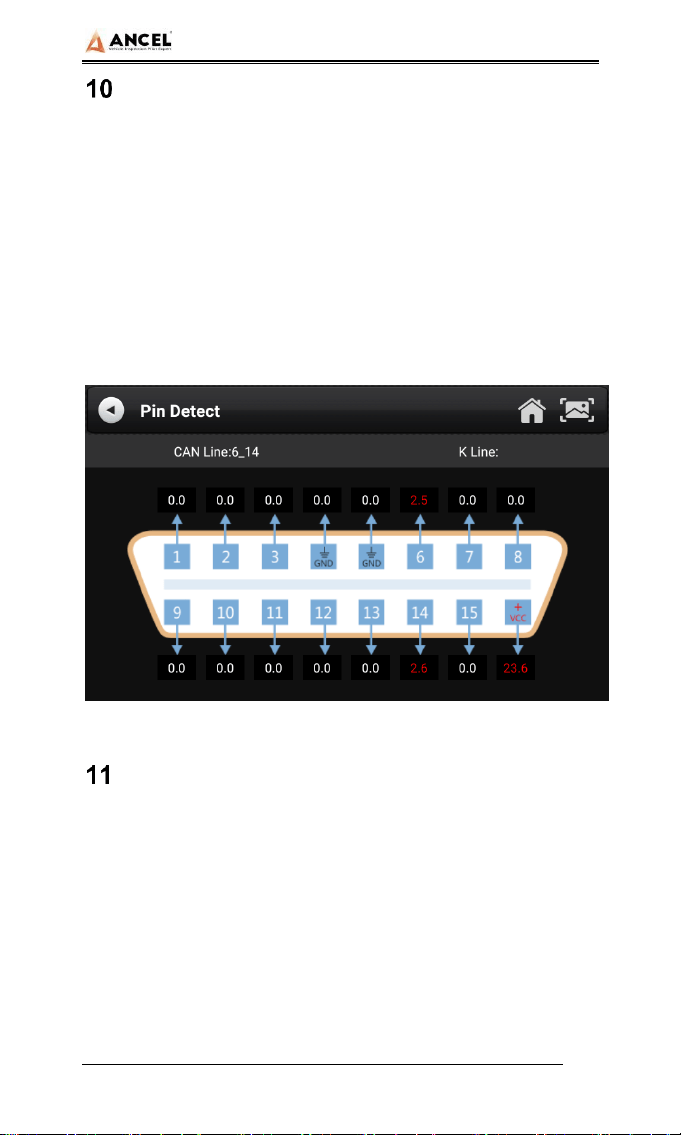
DPF Regeneration
Select【DPF】 in main menu, the screen will display the
vehicle model list and then operate according to the screen
prompt.
HD Series
18
Pin Detect
This function mainly measures the voltage of 16 PIN of OBD
diagnostic interface, and judges the pin position of K- line and
CAN line.
After connecting the OBD interface of vehicle, click the main
interface 【Tools】 to select pin detection. The program
automatically measures the 16pin voltage of OBD diagnosis
interface, and judges the pin position of K-line and can line, as
shown in the figure below:
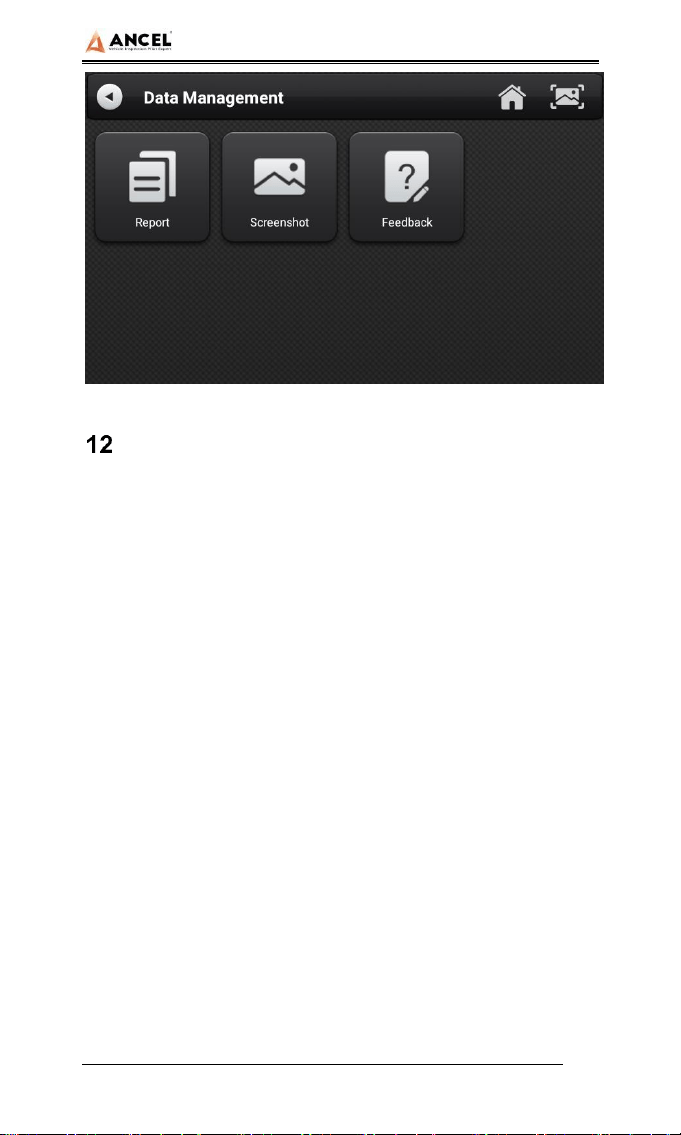
Data Management
【Data Management】The function is used to save and view
test reports, screenshots and problem feedback files. Most of
the files are generated by executing the toolbar operation of the
vehicle diagnosis interface.
HD Series
19
Diagnostic Software Upgrade
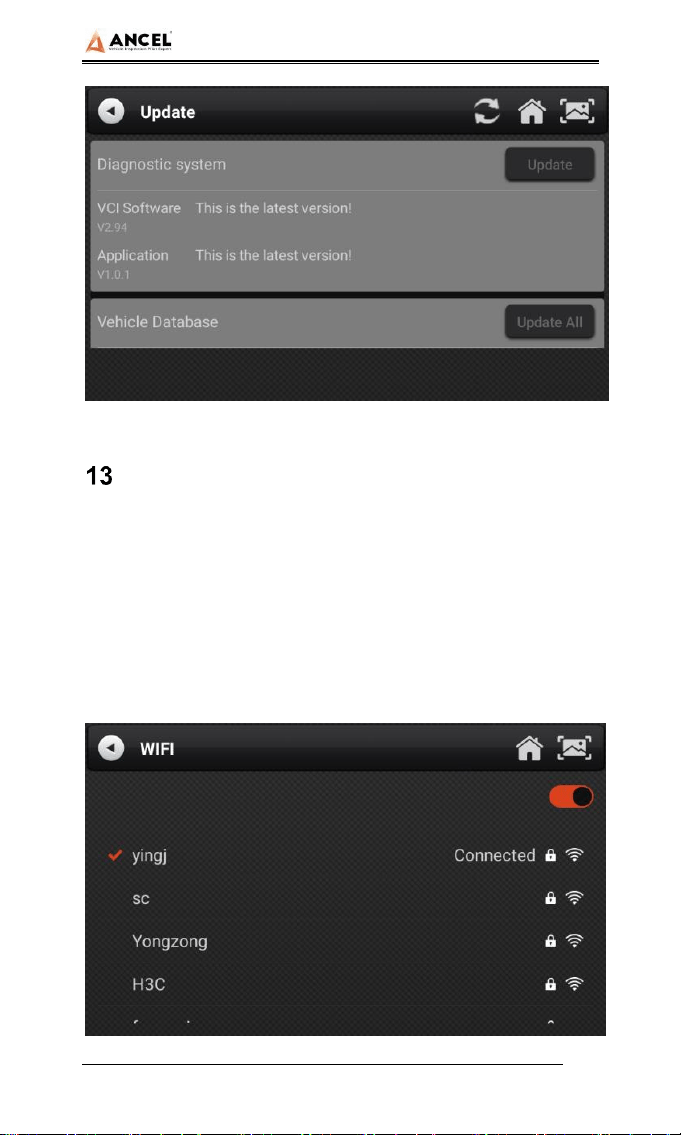
By connecting the device to the wireless network, the diagnostic
software can be upgraded and the product function can be
improved in time. Open 【Update】 in the function main menu,
and the system will automatically search for the latest update
program, as shown in the figure below. Click 【Update】 to
upgrade the model and other applications to the latest version.
Note: Please ensure the VCI Software version and the
Application version are the latest before upgrading the vehicle
database, otherwise you need to upgrade the VCI Software
and the Application to the latest version first.
HD Series
20
Settings
Select 【Settings】 from the main menu to open the setting
interface, where you can adjust the following system settings.
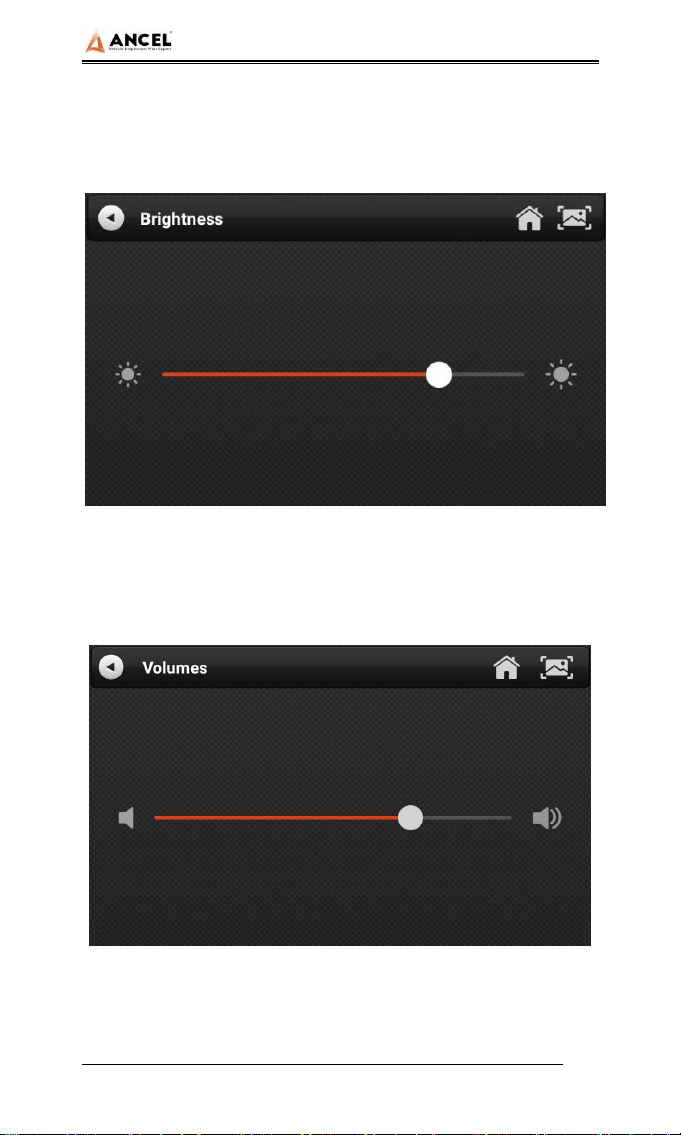
13.1 Wi-Fi Connection
The device supports wireless network connection for diagnosis
software upgrade and problem feedback.
HD Series
21
13.2 Brightness
The device supports screen brightness setting, please adjust it
according to your adaptive brightness.
13.3 Volumes
The device supports volume adjustment.
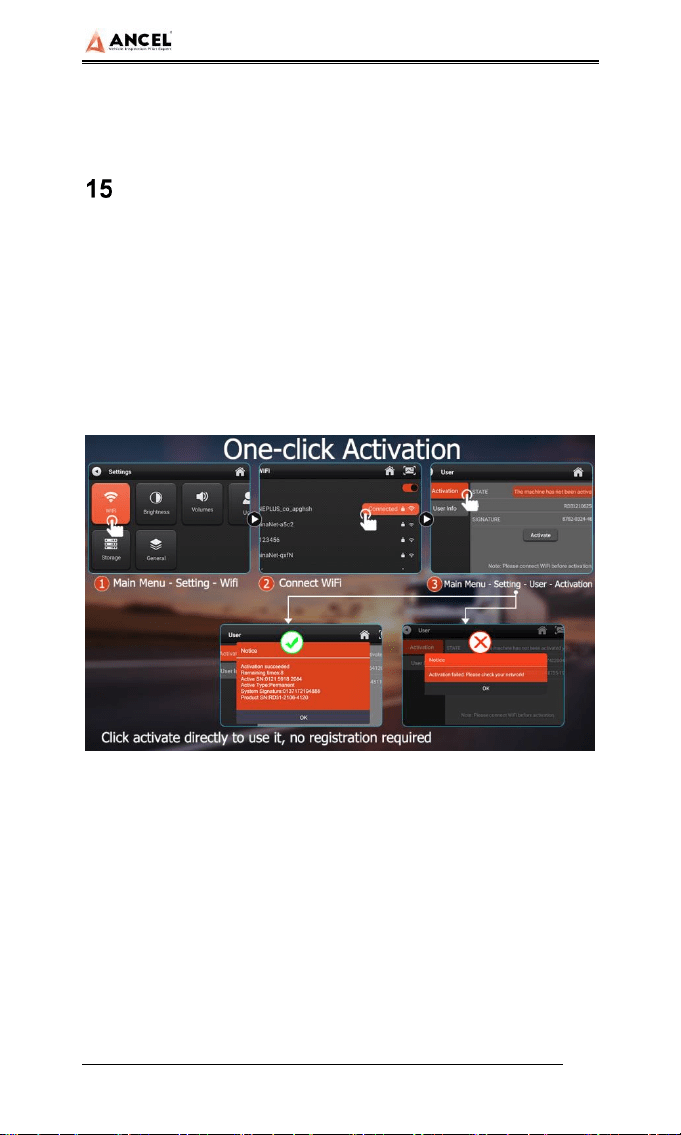
13.4 User Information and Activation
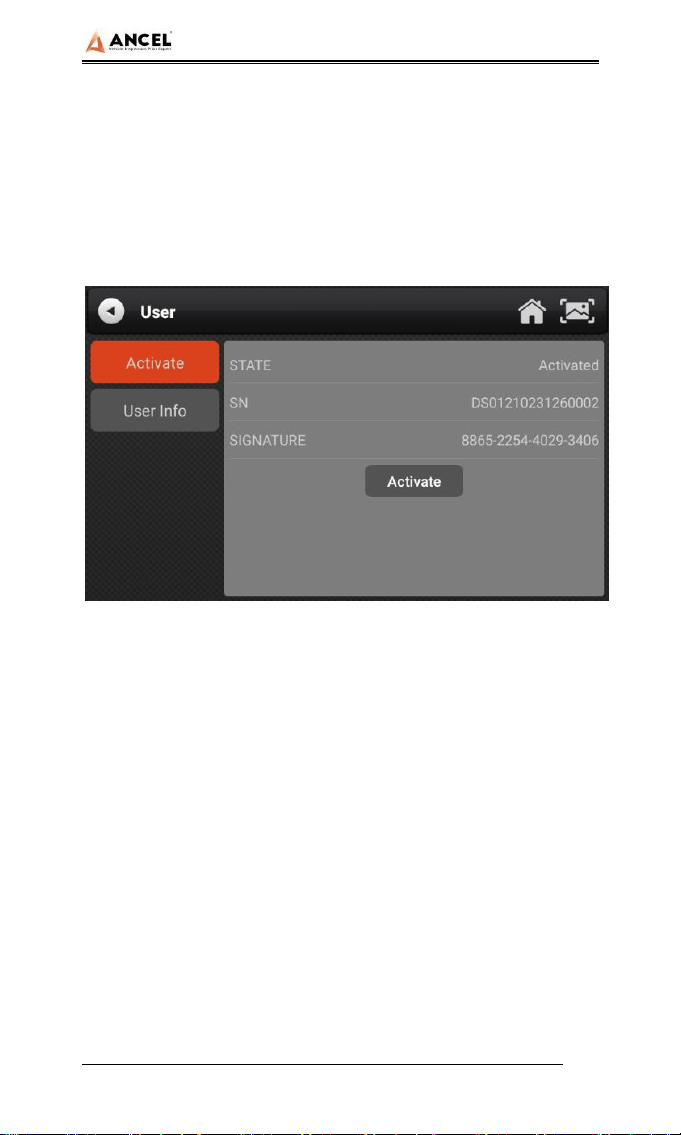
1) Activation
HD Series
22
The products are not activated when they leave the factory.
Connect the network to enter the setting, and click
【Activation】 to activate the machine.
Note: Please ensure that the device is connected to an
effective Wi-Fi network before performing the activation
operation.
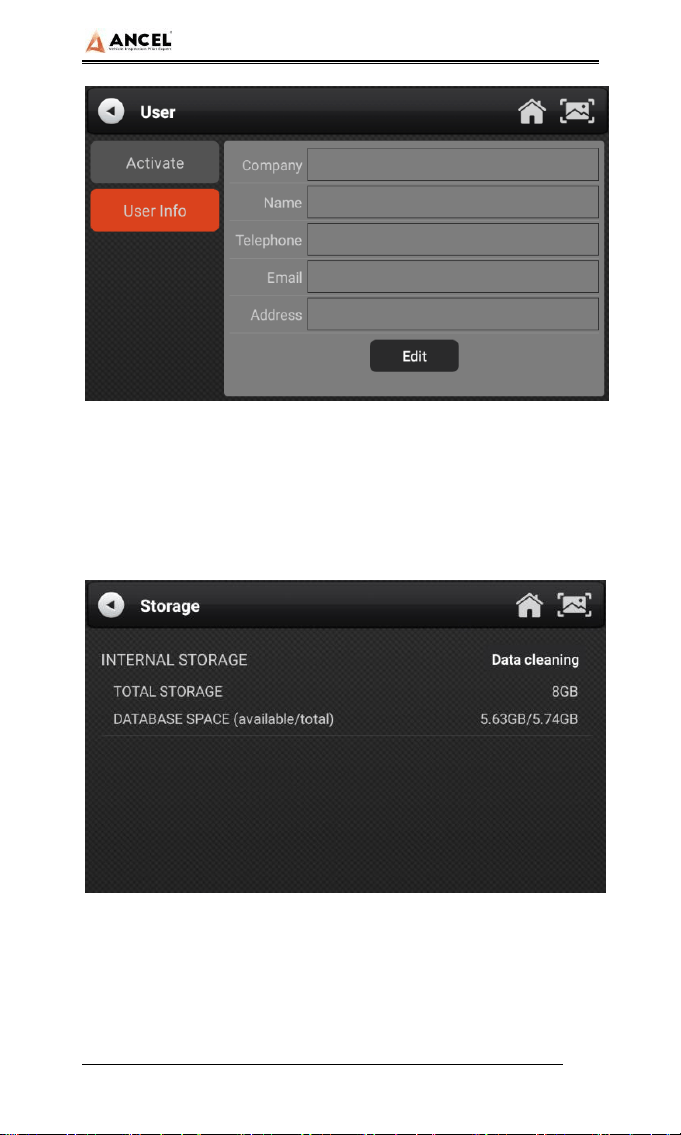
2) User Info
Set your personal information: name, telephone, email,
address, etc.
HD Series
23
13.5 Storage
Cleaning up useless data with one click, freeing up more space
and cleaning up regularly will help the system run more stably.
13.6 General
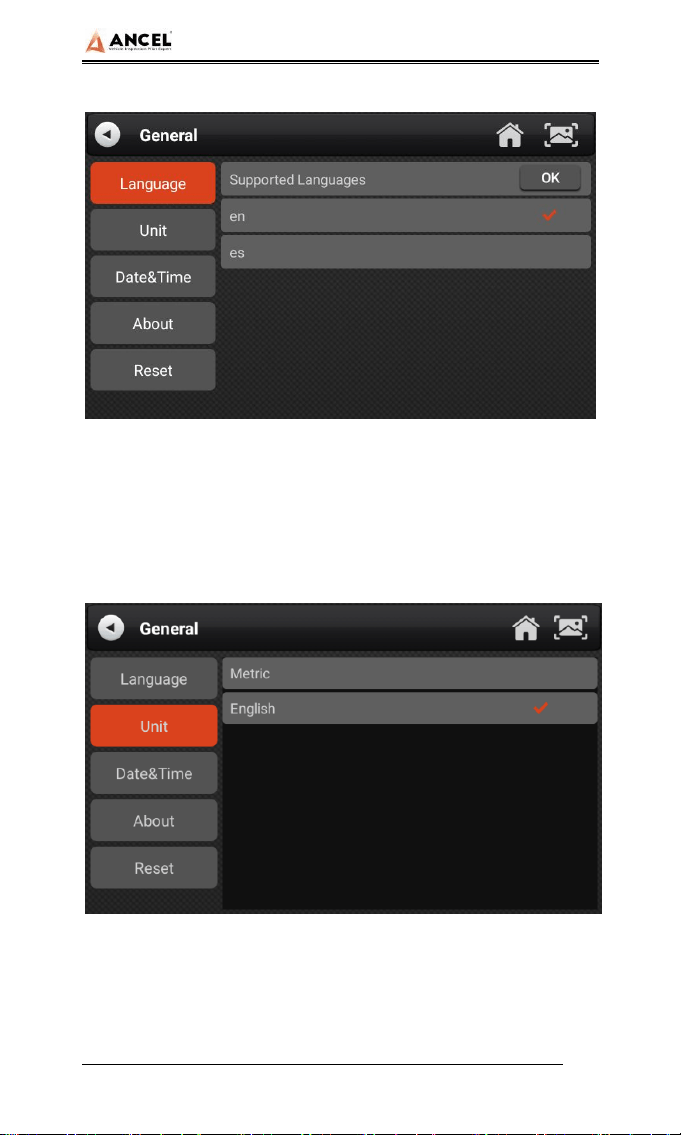
1) Language
Please select settings based on the language you support for
HD Series
24
the model you purchased.
2) Unit
This option can set the data flow unit in the diagnostic
equipment software. Please select metric system or English
system as required.
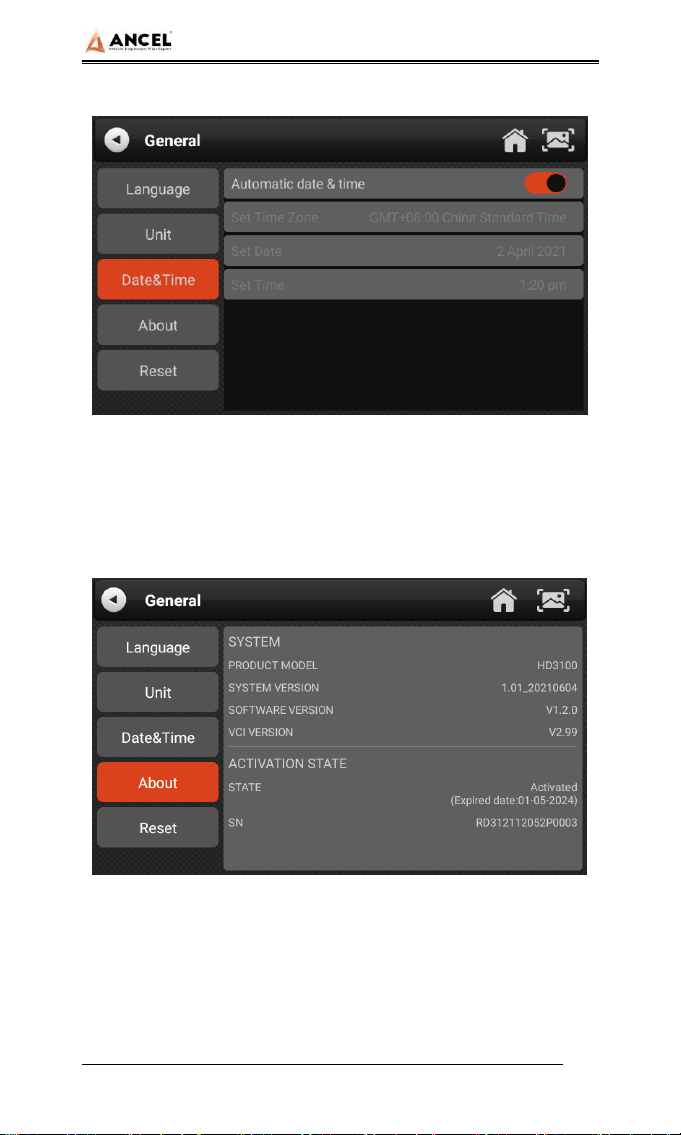
3) Date&Time
This option can set the date / time of the device. The default is
automatic network synchronization update, or it can be set
HD Series
25
manually.
4) About
This option is used to look up the device model, version, serial
number, etc.
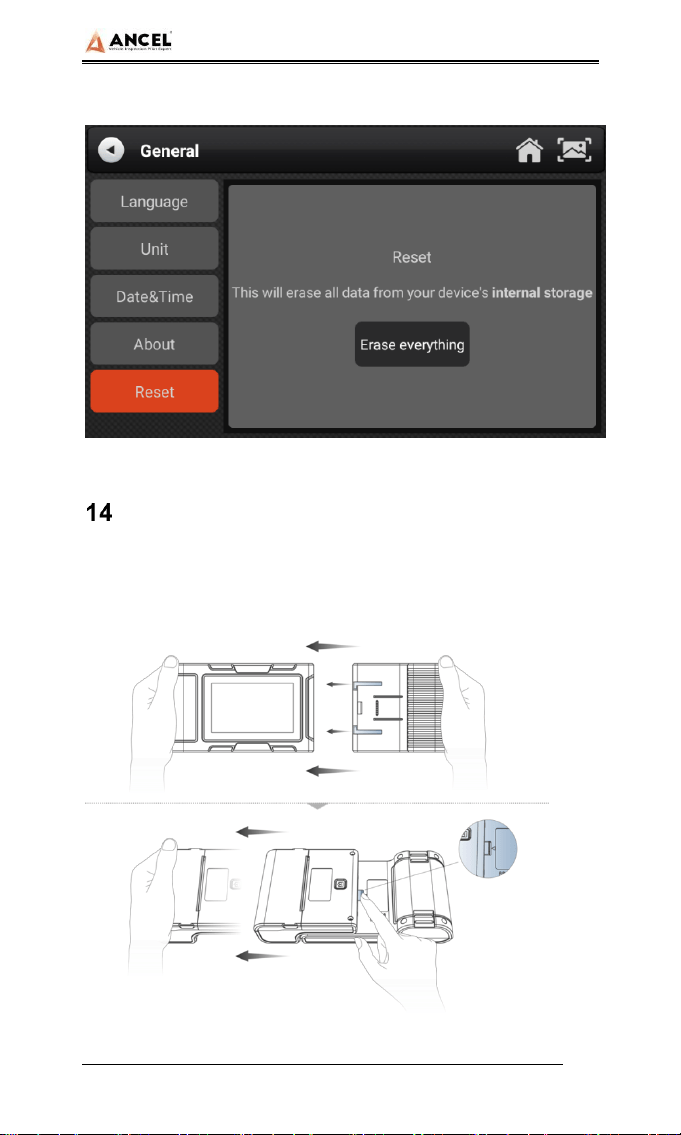
5) Reset
This option can restore the original settings of the device, which
will delete all the data stored in the device, including the
activation information and model data. You need to re-connect
HD Series
26
the network to activate and download the model data package.
Printer Introduction(Optional)
The printer function is optional. It depends on the model you
buy.
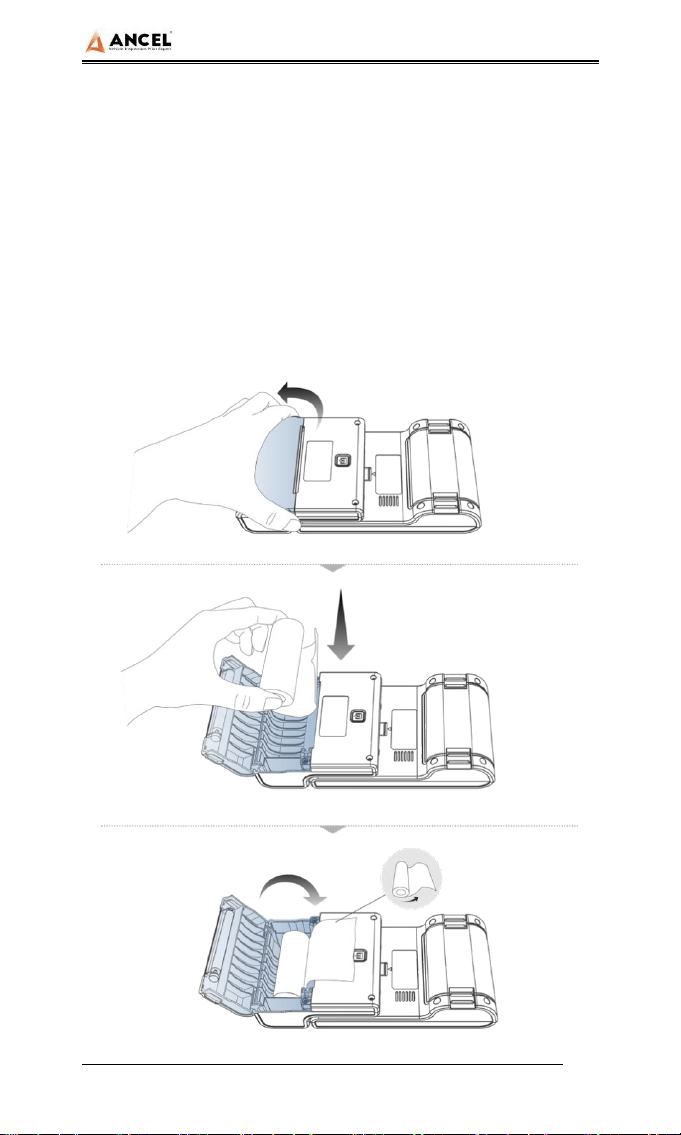
1) Printer combination and split
HD Series
27
1. Hold the printer in your hand, aim at the lead-in slot on the
back of the main unit, push it in slightly, and you will hear a
“click” voice, which means the main unit and the printer
has already connected together.
2. After pressing the separation switch, hold the printer in
your hand and gently pull it out. The printer will be
separated from the host.
2) Printer loading and changing paper
HD Series
28
1. Hold the position of the printer paper bin cover with your
fingers and open the cover up;
2. Put the printing paper into the paper bin according to the
diagram. Pay attention to the direction of the paper. If the
installation is reversed, the printing will be blank;
3. Just close the paper bin cover.
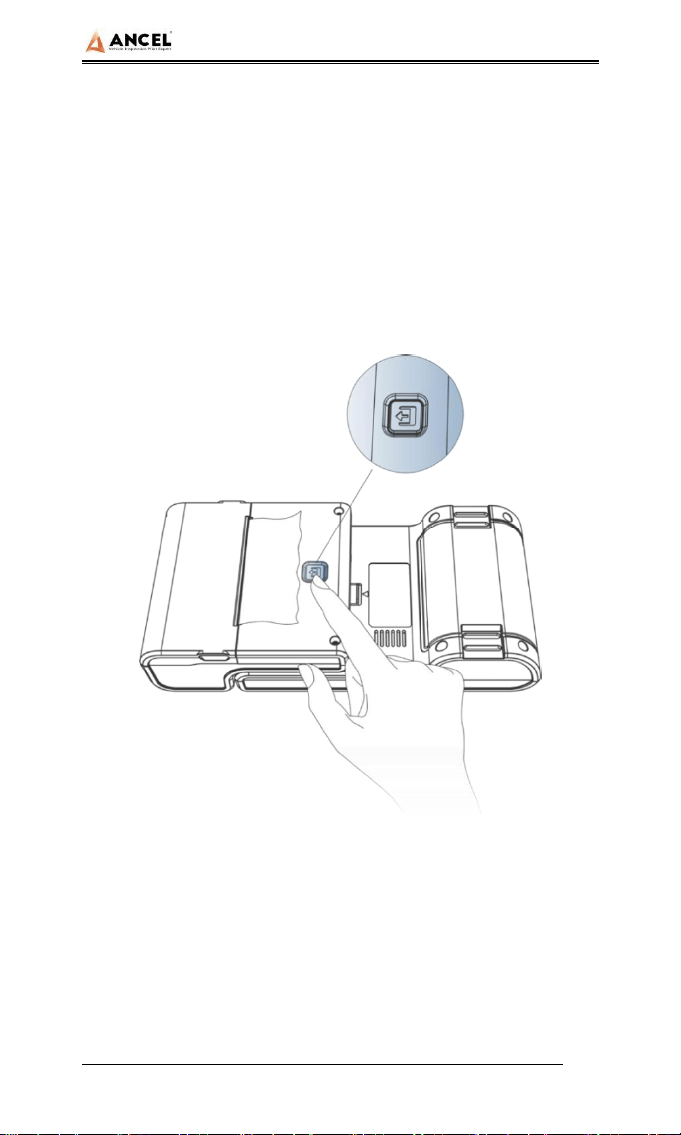
3) Printer self-test function
1. When the machine is turned on, press the printer test key
briefly, and the printer will automatically print out a piece of
blank paper.
2. In the case of power on, long press the printer test key for
three seconds, the printer will automatically print a section
HD Series
29
of self-test content, indicating that the printer function is
normal.
FAQ (Frequently Asked Questions)
Here are some frequently asked questions and
answers.
Question: I cannot activate and register the tool.
Answer: There is no need to register the machine. If
your activation was failed, please kindly check your
network.
Question: What does the Simulate and DEMO
menus mean?
Answer: Simulate and DEMO are both DEMO menus,
not diagnosis function menus. The information in these
menus was collected according to the actual vehicle
diagnosis in the past, just for better understanding of
product functions for users.

HD Series
30
Question: I can’t diagnose my vehicle with the
tool. It shows “ECU no response”.
Answer: Please do a voltage test via [Pin detect]. If
the voltage is abnormal, please check the hardware
first.

HD Series
31
Statement
This equipment has been tested and found to comply with the
limits for a Class B digital device, pursuant to Part 15 of the
FCC Rules. These limits are designed to provide reasonable
protection against harmful interference in a residential
installation. This equipment generates uses and can radiate
radio frequency energy and, if not installed and used in
accordance with the instructions, may cause harmful
interference to radio communications. However, there is no
guarantee that interference will not occur in a particular
installation. If this equipment does cause harmful interference to
radio or television reception, which can be determined by
turning the equipment off and on, the user is encouraged to try
to correct the interference by one or more of the following
measures:
-- Reorient or relocate the receiving antenna.
-- Increase the separation between the equipment and receiver.
-- Connect the equipment into an outlet on a circuit different
from that to which the receiver is connected.
-- Consult the dealer or an experienced radio/TV technician for
help.
Changes or modifications not expressly approved by the party
responsible for compliance could void the user's authority to
operate the equipment.
This device complies with part 15 of the FCC Rules. Operation
is subject to the following two conditions: (1) This device may
not cause harmful interference, and (2) this device must accept
any interference received, including interference that may
cause undesired operation.
HD Series
32
