HUAWEI TECHNOLOGIES CO., LTD.
Issue: 05
Part Number: 31500ADX
Date: 2021-09-14
SUN2000-(50KTL-JPM0, 50KTL-JPM1, 63KTL-JPM0)
Quick Guide
1
Indicator
Status
Description
PV connection
indicator
Steady green
At least one PV string is properly connected, and the
DC input voltage of the corresponding MPPT circuit is
higher than or equal to 200 V.
Off
The SUN2000 disconnects from all PV strings, or the DC
input voltage of each MPPT circuit is less than 200 V.
Grid
-tied
indicator
Steady green
The SUN2000 has connected to the power grid.
Off
The SUN2000 does not connect to the power grid.
Communicatio
n indicator
Blinking green (on
for 0.2s and then off
for 0.2s)
The SUN2000 receives data over RS485 communication.
Off
The SUN2000 has not received data over RS485
communication for 10 seconds.
•
The information in this document is subject to change without notice. Every effort has been
made in the preparation of this document to ensure accuracy of the contents, but all
statements, information, and recommendations in this document do not constitute a warranty
of any kind, express or implied.
•
Before installing the device, carefully read the user manual to get familiar with product
information and precautions.
•
Only qualified and trained electrical technicians are allowed to operate the device. Operators
should understand the components and functioning of a grid-tied PV power system, and they
should be familiar with relevant local standards.
•
Before installing the device, check that package contents are intact and complete against the
packing list. If any damage is found or any component is missing, contact the dealer.
•
Use insulated tools when installing the device. For personal safety, wear proper personal
protective equipment (PPE).
•
Huawei shall not be liable for any consequence caused by violation of the storage, moving,
installation, and operation regulations specified in this document and the user manual.
1
Product Overview
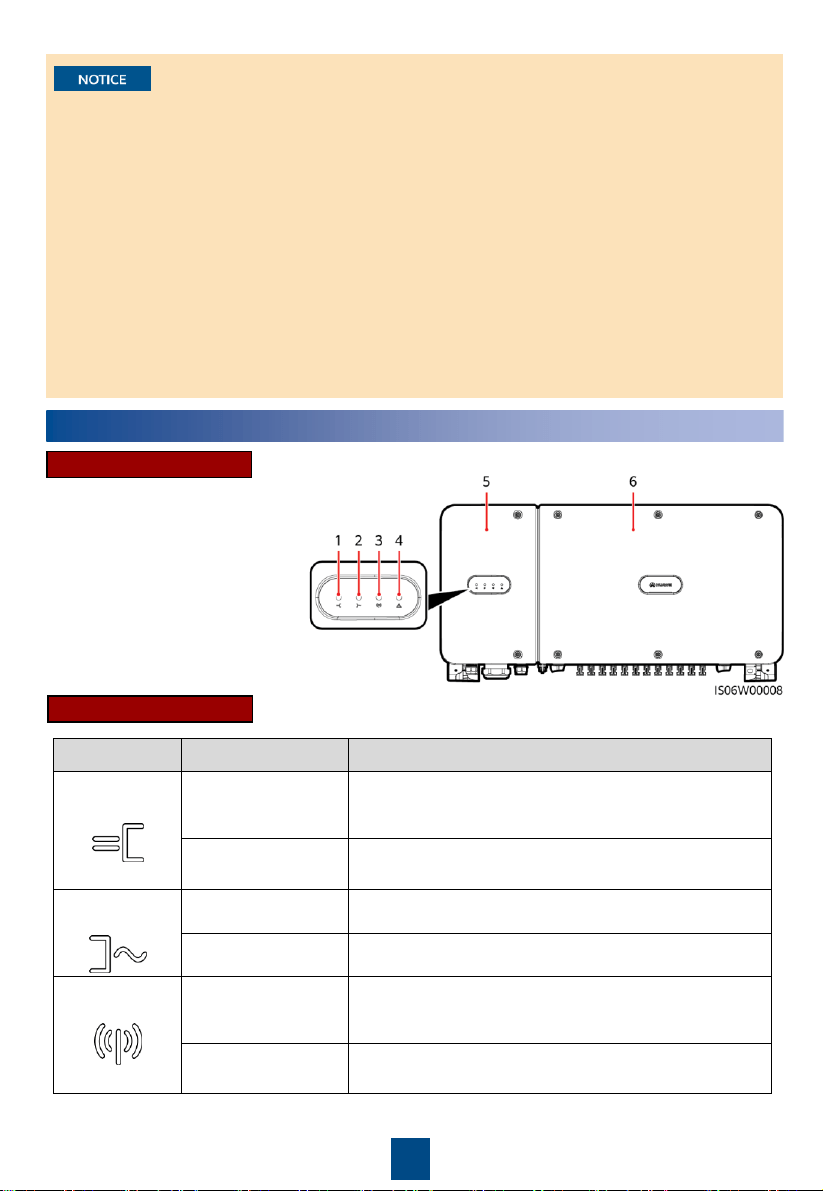
Indicator Description
Front View
(1) PV connection indicator
(2) Grid-tied indicator
(3) Communication indicator
(4) Alarm/Maintenance indicator
(5) Maintenance compartment door
(6) Host panel cover
Copyright © Huawei Technologies Co., Ltd.
2021. All rights reserved.
2
Indicator
Status
Description
Alarm/Mainte
nance
indicator
Alarm status
Blinking red at long intervals (on
for 1s and then off for 4s)
A warning alarm is
generated.
Blinking red at short intervals (on
for 0.5s and then off for 0.5s)
A minor alarm is
generated.
Steady red
A m
ajor alarm is
generated.
Local
maintenance
status
Blinking green at long intervals (on
for 1s and then off for 1s)
Local maintenance is in
progress.
Blinking green at short intervals (on
for 0.125s and then off for 0.125s)
Local maintenance fails.
Steady green
Local maintenance
succeeds.
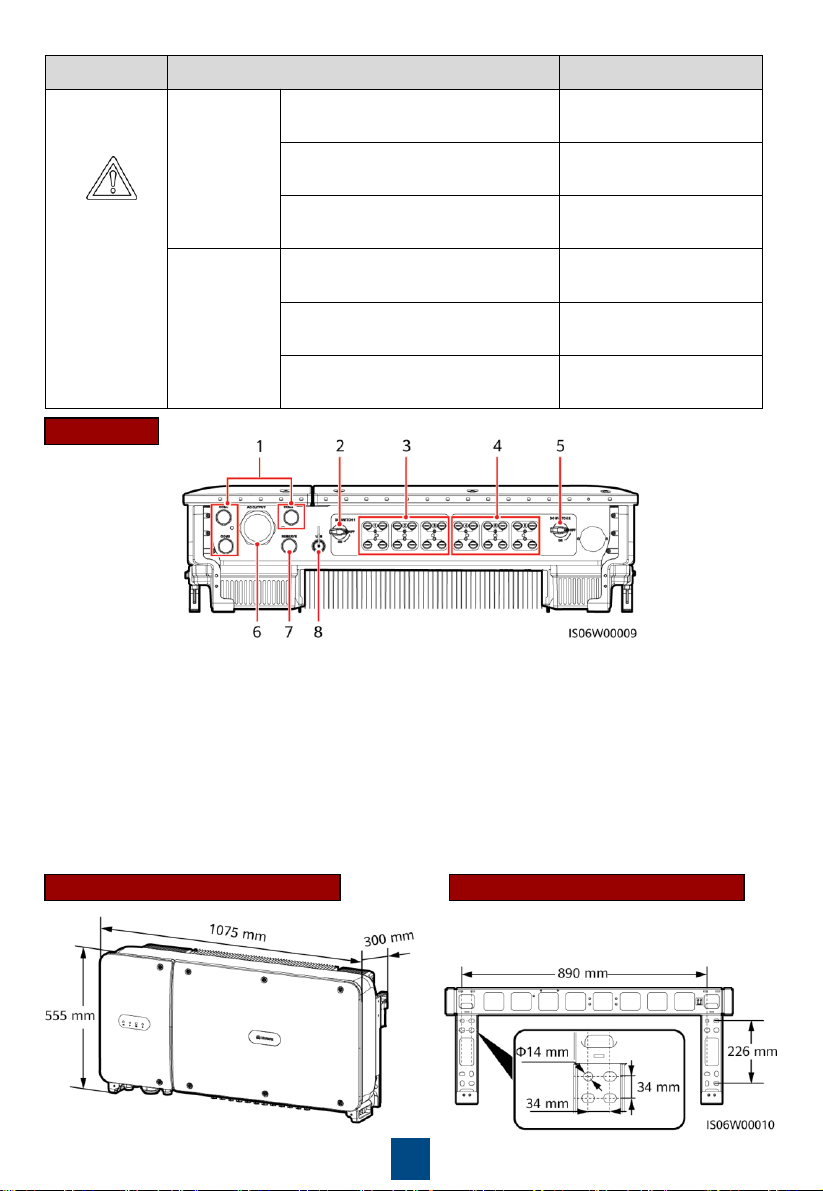
Ports
SUN2000 Dimensions
Mounting Bracket Dimensions
(1) Cable gland (COM1, COM2,
and COM3)
(2) DC switch 1 (DC SWITCH 1)
(3) DC input terminals (controlled by DC
SWITCH 1)
(4) DC input terminals (controlled by DC
SWITCH 2)
(5) DC switch 2 (DC SWITCH 2)
(6) Cable gland (AC OUTPUT)
(7) Cable gland (RESERVE)
(8) USB port (USB)
3
2
Installation Requirements
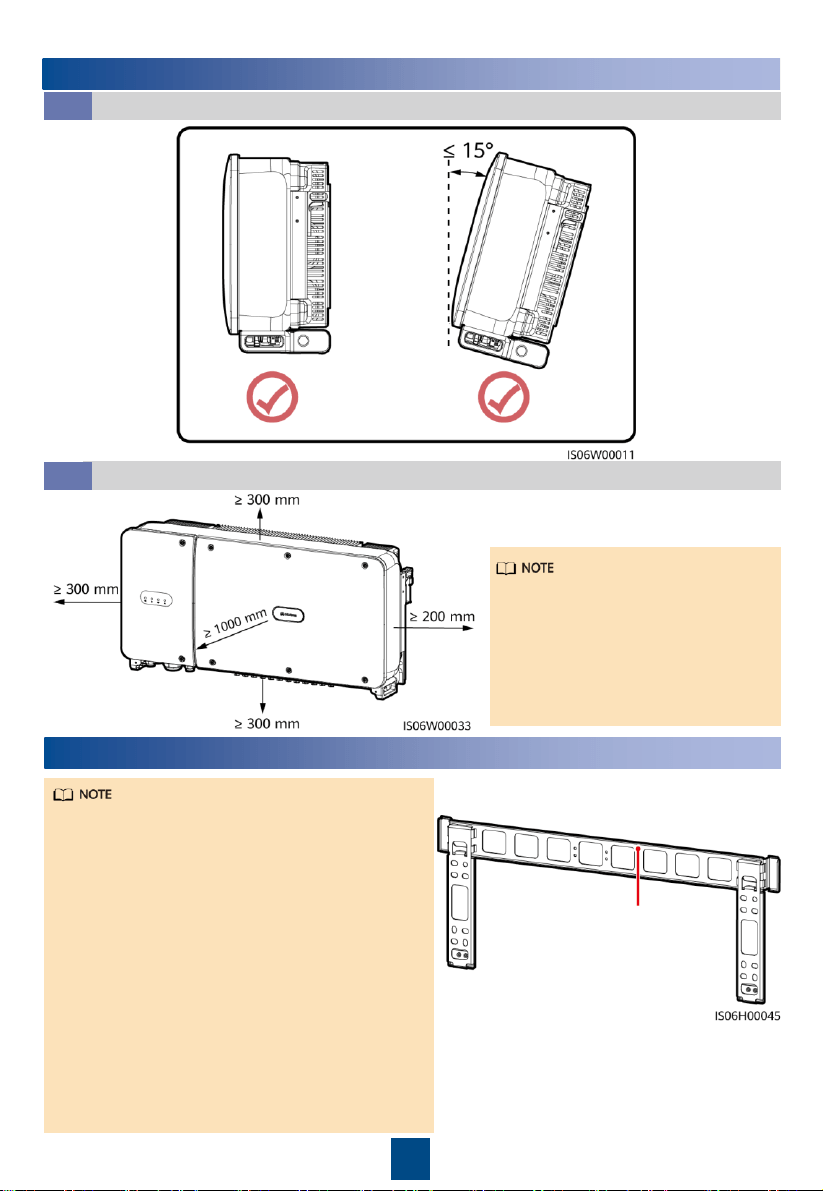
Installation Angle
2.1
Installation Space
2.2
For ease of installing the SUN2000 on
the mounting bracket, connecting
cables to the bottom of the SUN2000,
and maintaining the SUN2000 in
future, it is recommended that the
bottom clearance be between 300
mm and 730 mm.
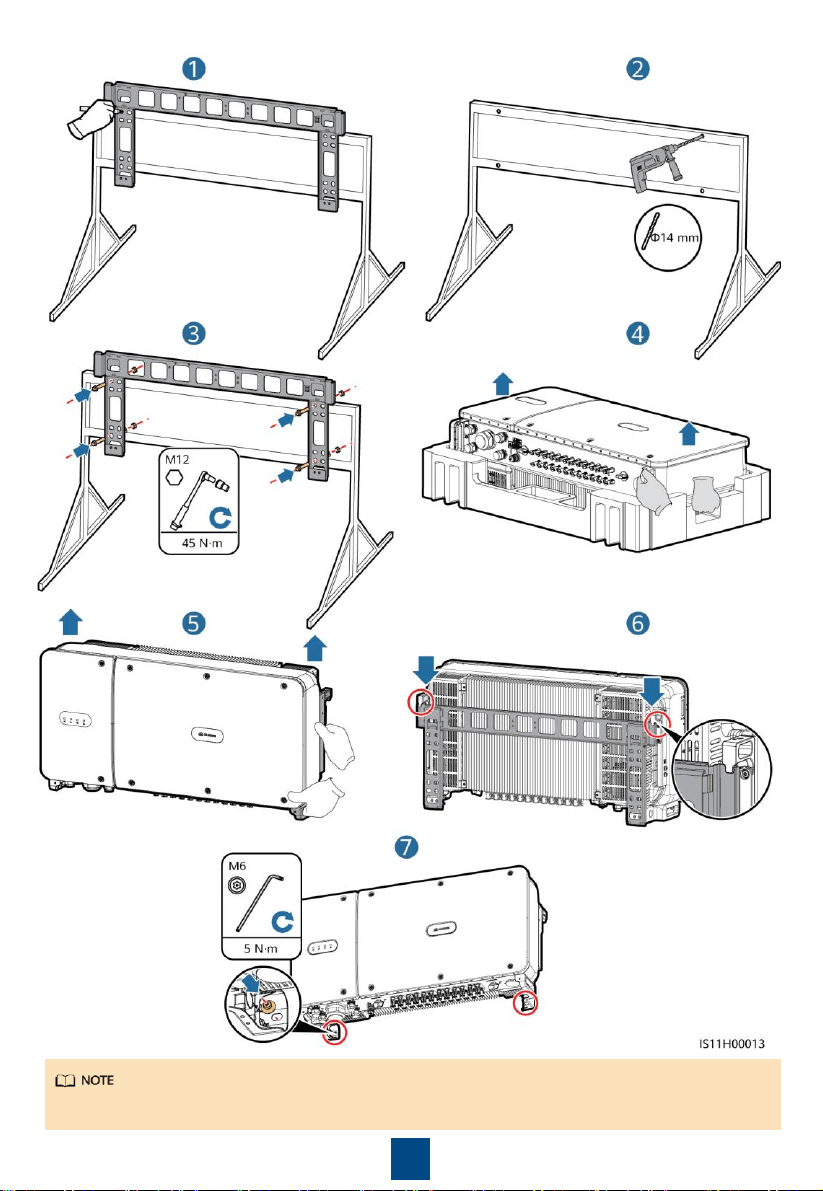
The SUN2000 mounting bracket has four
groups of tapped holes, each group
containing four tapped holes. Mark any hole
in each group based on site requirements and
mark four holes in total. Two round holes are
preferred.
M12x40 bolt assemblies are supplied with the
SUN2000. If the bolt length does not meet
the installation requirements, prepare M12
bolt assemblies by yourself and use them
together with the supplied M12 nuts.
The following describes how to install the
SUN2000 by using support installation as an
example. For details about wall-mounted
installation, see the user manual.
Save the security torx wrench for later use
after removing it from the mounting bracket.
3
Installing the SUN2000
Position for saving
a security torx
wrench
4
You are advised to apply anti-rust paint on the hole positions for protection.
5
Installation Preparations
4.1
4
Installing Cables
No.
Name
Model/
Specifications
Description
1
Ground cable
16
mm
2
outdoor copper
cable
If you connect the ground cable to
the ground point on the
enclosure,
prepare the ground cable.
2
AC output power
cable
38
mm
2
outdoor copper
cable
• If you connect the ground cable to
the ground point on the enclosure,
use a three-core cable (U, V, and
W).
• If you connect the ground cable to
the ground point in the
maintenance compartment, use a
four-
core cable (U, V, W, and PE).
There is no need to prepare the
ground cable.
3
OT terminal
M8
When using outdoor copper cables
for AC connection, select copper
wiring terminals. For requirements on
the cables and terminals of other
materials, see the
user manual.
4
DC input power cable
PV cable that meets the
1100 V standard
N/A
5
RS485
communications cable
(terminal block)
Communications cable with
a conductor cross
-sectional
area of 1
mm
2
and outer
diameter of 14
–18 mm
A terminal block is recommended for
connecting the RS485
communications cable.
RS485
communications cable
(RJ45 network port)
CAT 5E o
utdoor shielded
network cable
with an
outer
diameter less than 9
mm and internal resistance
not
greater than 1.5
ohms/10 m, as well as
shielded RJ45 connectors
6
Cable tie
N/A
N/A
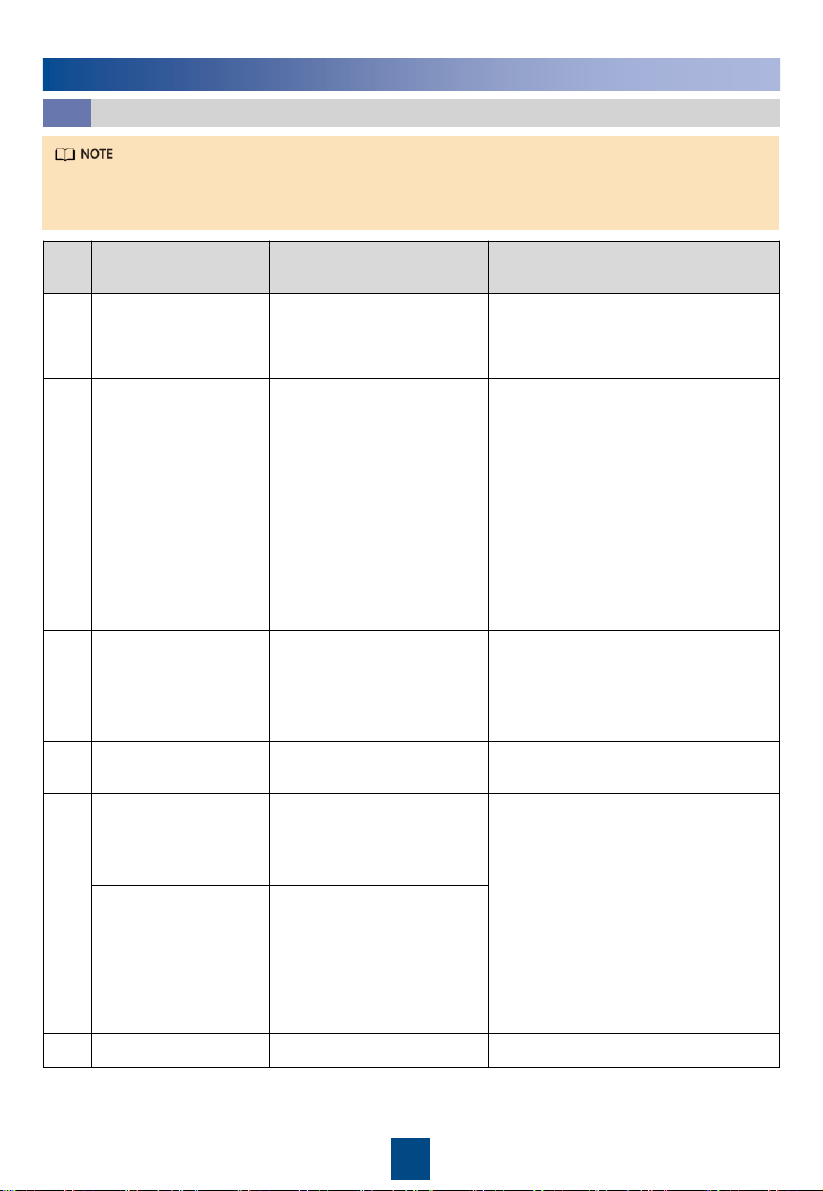
•
Before installing cables, ensure that all required OT terminals and cables are prepared.
•
The following table lists only recommended cable specifications. For more cable
specifications, see the user manual.
6
Installing the Ground Cable
4.2
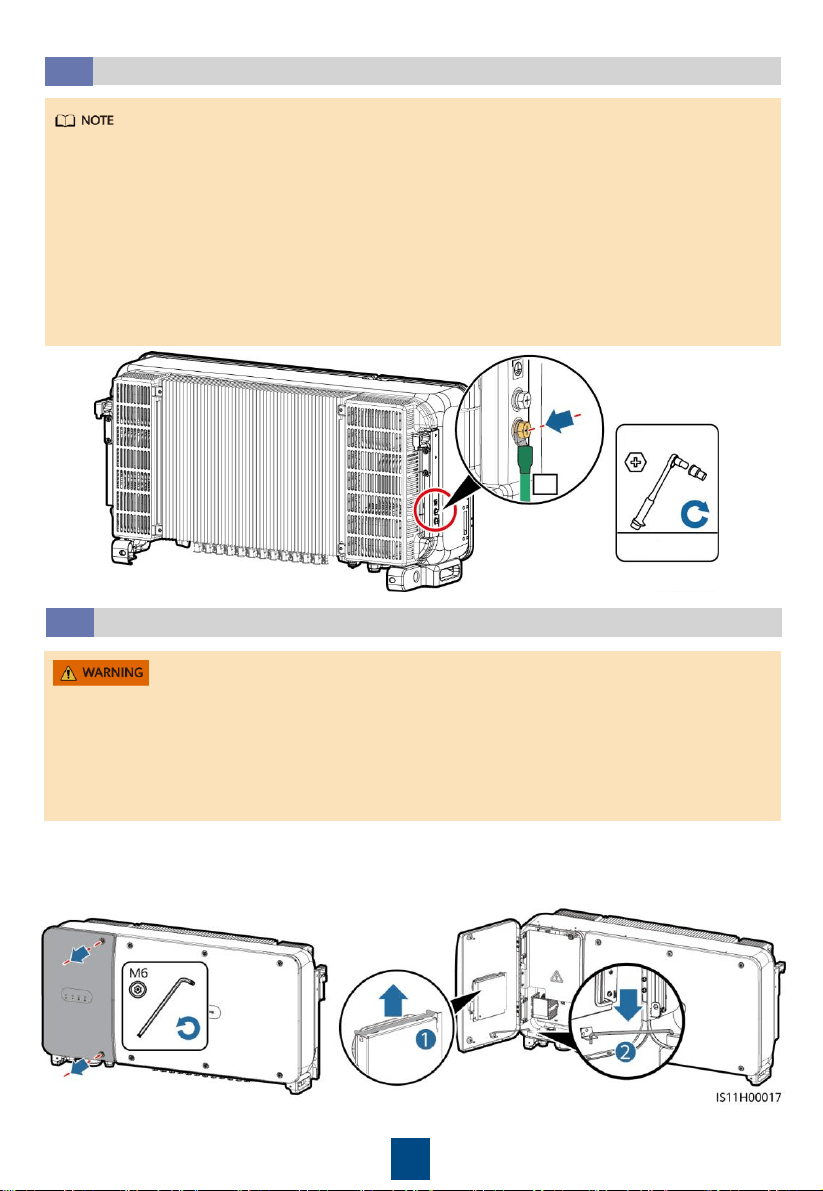
•
The ground point on the enclosure is preferred to connect to the PE cable for the SUN2000.
•
The ground point in the maintenance compartment is mainly used for connecting to the
ground cable included in the multi-core AC power cable. For details, see section " 4.4
Installing AC Output Power Cables."
•
The ground cable must be secured.
•
It is recommended that the ground cable of the SUN2000 be connected to the nearest
ground point. For a system with multiple SUN2000s connected in parallel, connect the
ground points of all SUN2000s to ensure equipotential connections to ground cables.
•
To enhance the corrosion resistance of the PE terminal, apply silica gel or paint on it after
connecting the ground cable.
Opening the Maintenance Compartment Door
4.3
•
Never open the host panel of the SUN2000.
•
Before opening the maintenance compartment door, turn off the downstream AC output
switch and the two DC switches at the bottom.
•
Do not open the maintenance compartment door in rainy or snowy days. If unavoidable, take
protective measures to prevent rain or snow from entering the maintenance compartment.
•
Do not leave unused screws in the maintenance compartment.
2. Open the maintenance compartment door
and install the support bar.
1. Loosen the two screws on the maintenance
compartment door using a security torx
wrench.
PE
M8
8 N·m
7
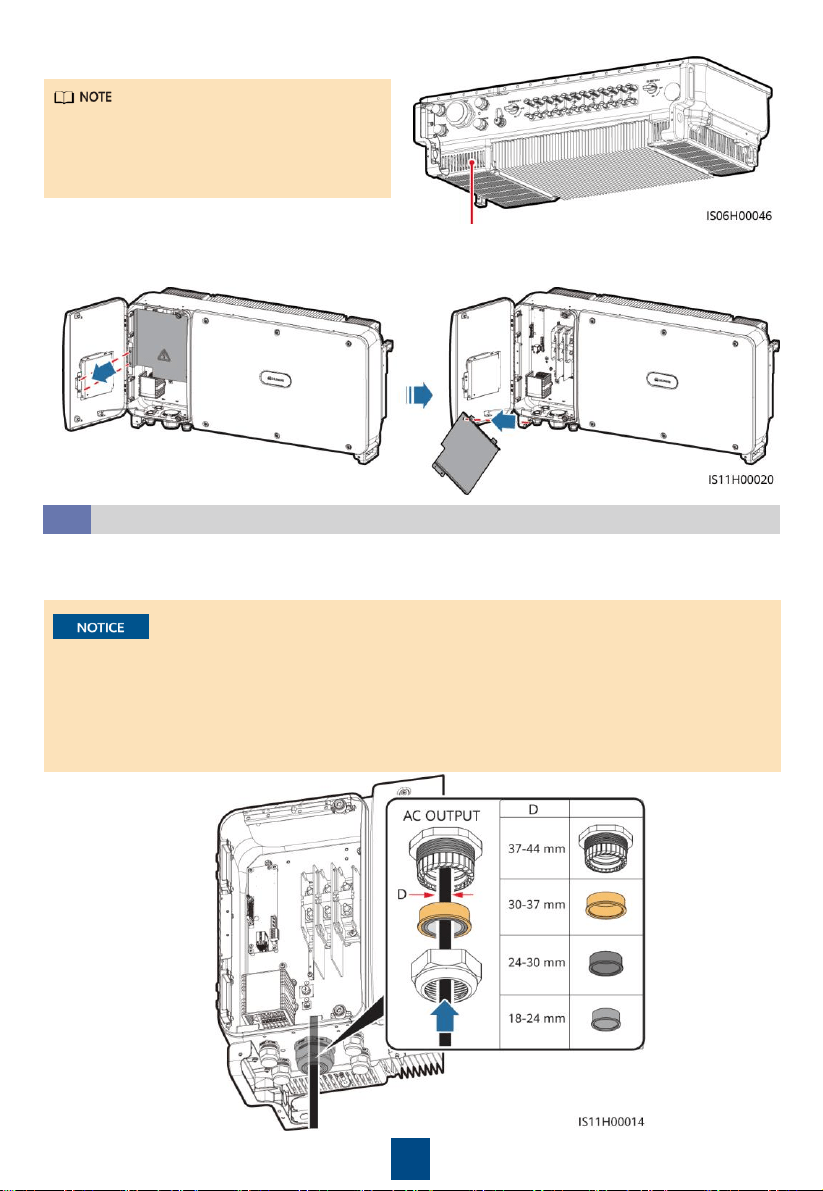
If the screws on the enclosure door are lost,
obtain spare screws from the fitting bag
bound to the inductor cover at the bottom
of the enclosure.
Position for saving spare screws
3. Remove the cover and hang it on the hook of the enclosure door.
Installing AC Output Power Cables
4.4
1. Remove the sealing nut and rubber liner from the AC OUTPUT cable gland.
2. Route the cable through the cable gland.
1. Select an appropriate rubber fitting based on the outer diameter of the AC power cable to
ensure proper sealing.
2. To avoid damaging the rubber fitting, do not route a cable with a crimped OT terminal
through the rubber fitting.
3. Do not adjust the cable when the thread-lock sealing nut is tightened. Otherwise, the rubber
fitting will shift, which affects the Ingress Protection Rating of the device.
8
L2=L1+3 mm
L1
L1
L2=L1+3 mm
≤ 230 mm
≤ 230 mm
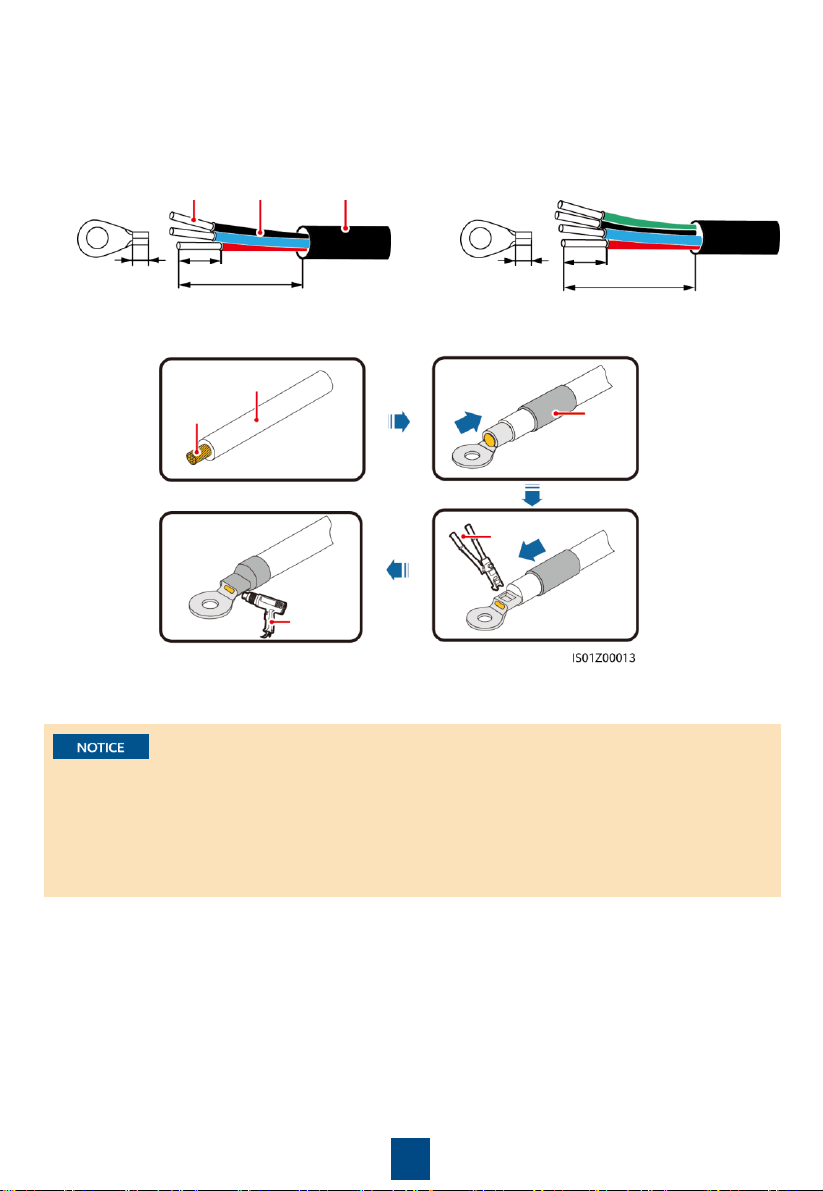
3. Remove an appropriate length of the jacket and insulation layer from the AC output power
cable using a wire stripper. (Ensure that the jacket is in the maintenance compartment.)
4. Crimp an OT terminal.
Jacket
Insulation
layer
a. Three-core cable (excluding the ground
cable)
b. Four-core cable (including the ground
cable)
Core wire
Insulation layer
Heat
gun
Hydraulic pliers
Heat shrink
tubing
Core
wire
5. Connect the AC output power cable to the terminal block, and then tighten the nut using a
torque wrench that has an extension rod.
• Ensure that AC terminations provide firm and solid electrical connections. Failing to do so may
cause SUN2000 malfunction and damage to its terminal block, even starting thermal events.
• When connecting a PE cable, secure the screws using a socket wrench with an extension wrench
longer than 200 mm.
• If the AC output power cables are subject to a pulling force because the inverter is not installed
stably, ensure that the last cable that bears the stress is the PE cable.
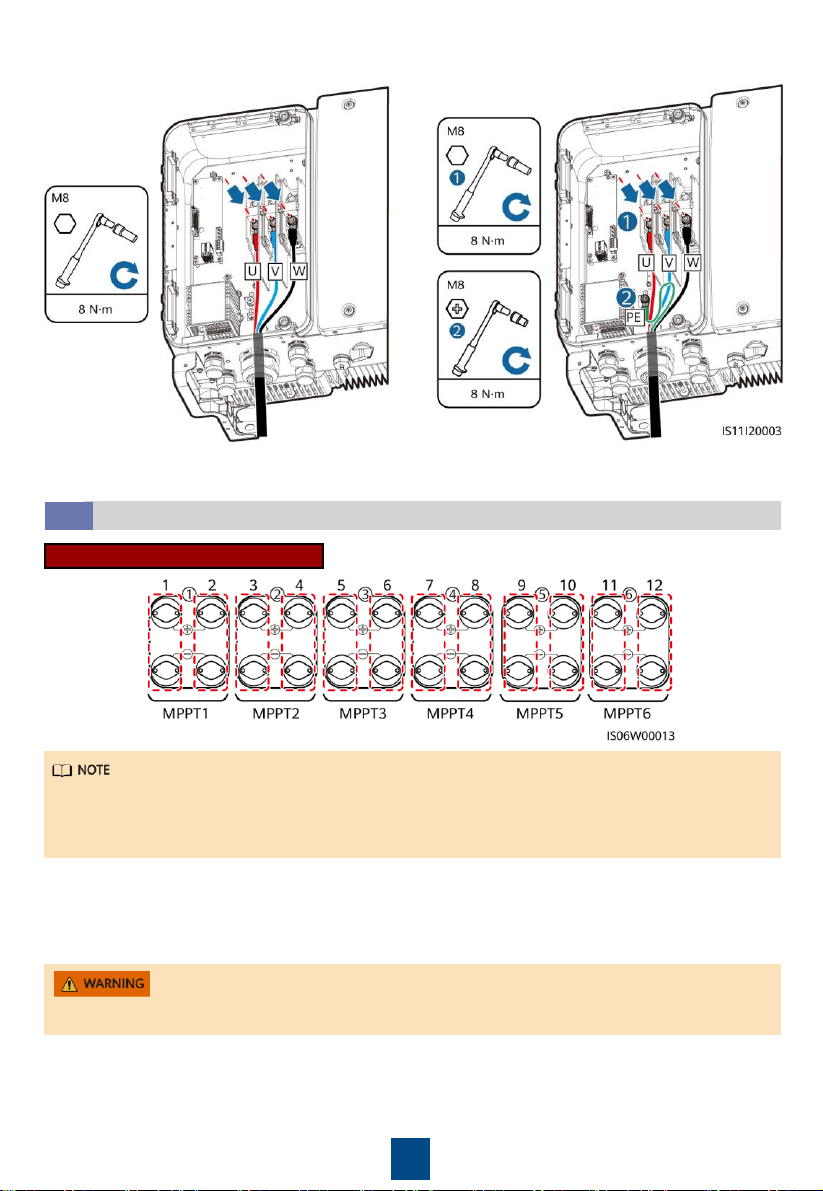
9
a. Three-core cable (excluding the ground
cable)
b. Four-core cable (including the ground
cable)
6. Tighten the thread-lock sealing nut.
7. Clear debris from the maintenance compartment.
Installing DC Input Power Cables
4.5
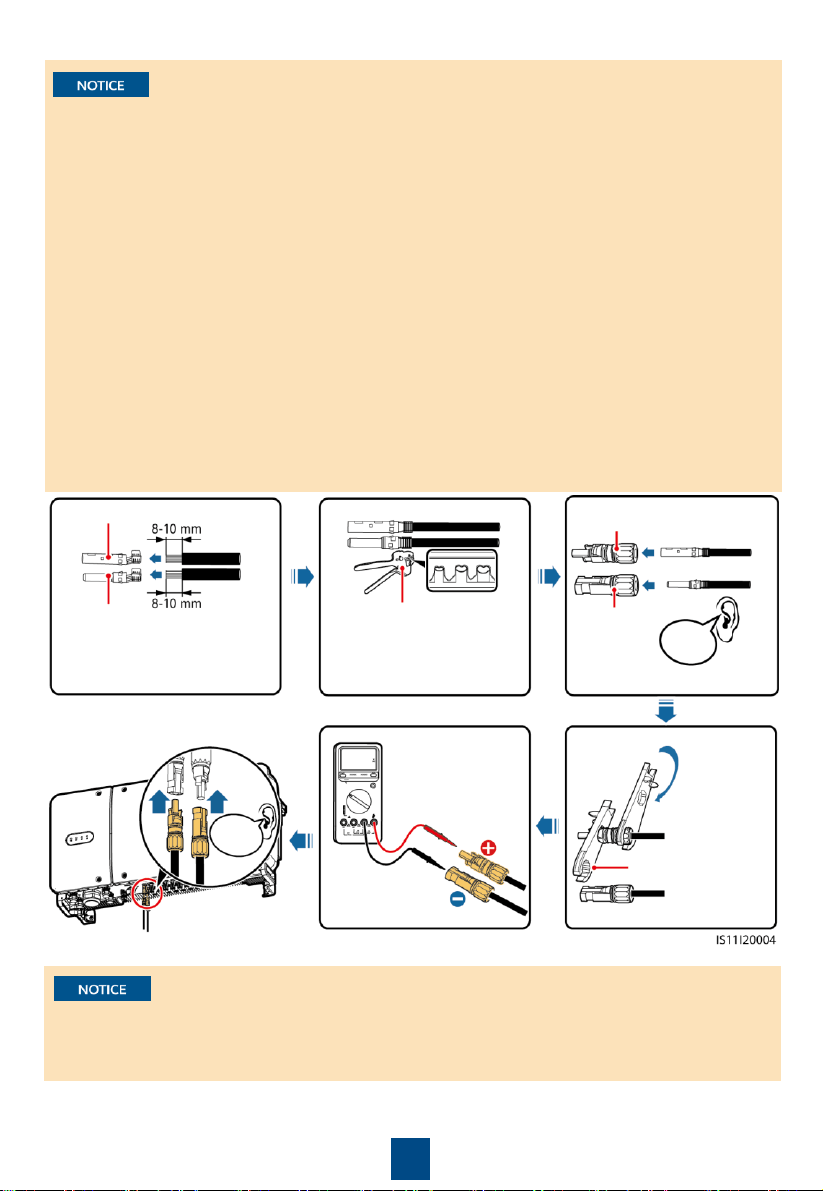
Selecting DC Input Terminals
The SUN2000 provides two DC switches, named as DC SWITCH 1 and DC SWITCH 2. DC
SWITCH 1 controls the 1st to 6th sets of DC input terminals, whereas DC SWITCH 2 controls the
7th to 12th sets of DC input terminals.
Select DC input terminals according to the following rules:
1. Evenly distribute DC input power cables on the DC input terminals controlled by the two DC
switches.
2. Maximize the number of connected MPPT circuits.
Ensure that the PV module output is well insulated to ground.
10
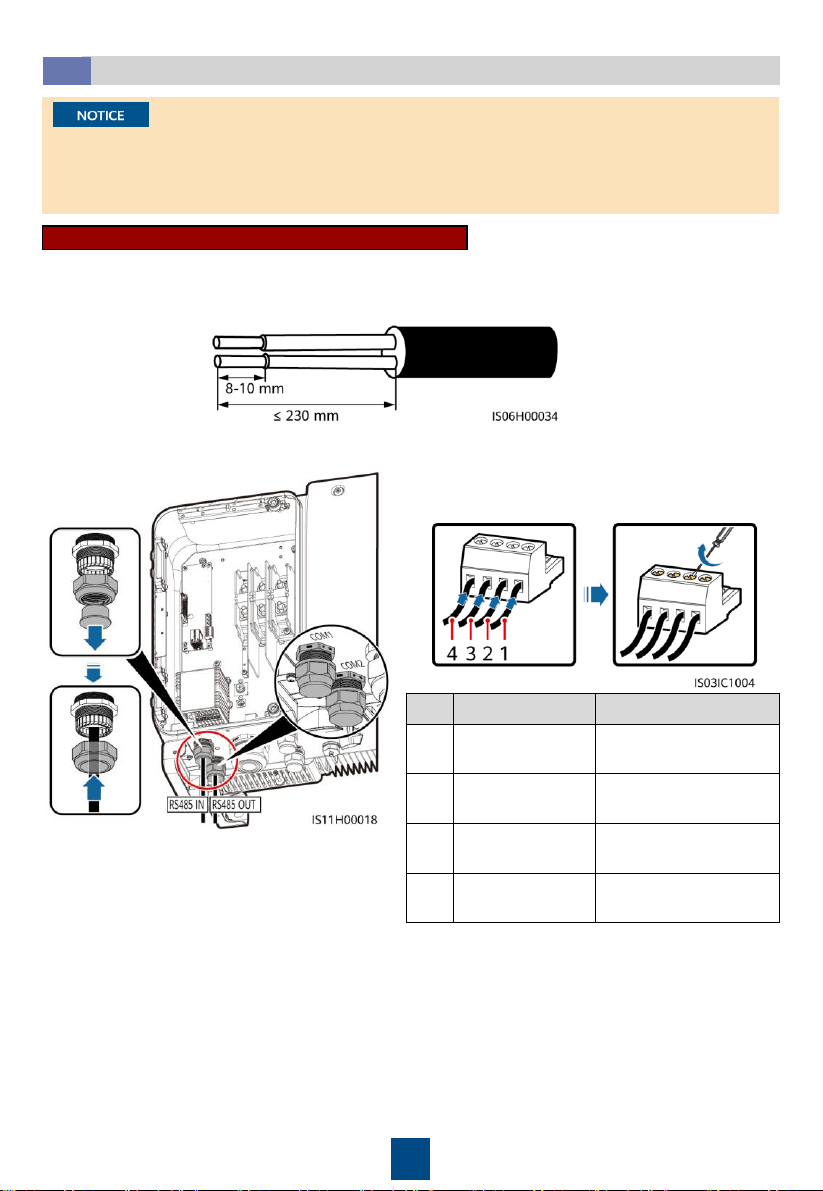
1. Use the Amphenol Helios H4 PV connectors provided with the SUN2000. If the terminals
are lost or damaged, purchase the PV connectors of the same model. The device damaged
caused by incompatible PV connectors is not covered under any warranty or service
agreement.
2. Before connecting DC input power cables, label the cable polarities to ensure correct cable
connections. If the cables are connected incorrectly, the SUN2000 may be damaged.
3. Crimp the metal contacts using crimping tool H4TC0003 (Amphenol, recommended) or
H4TC0002 (Amphenol).
4. Insert the crimped metal terminals of the positive and negative power cables into the
appropriate positive and negative connectors. Then pull the DC input power cables to
ensure that they are connected securely.
5. Connect the positive and negative connectors to the appropriate positive and negative DC
input terminals. Then pull the DC input power cables to ensure that they are connected
securely.
6. If polarity of the DC input power cable is reversed and the DC switch is ON, do not turn off
the DC switch immediately or unplug positive and negative connectors. The device may be
damaged if you do not follow the instruction. The caused equipment damage is beyond the
warranty scope. Wait until the solar irradiance declines and the PV string current reduces to
below 0.5 A, and then turn off the two DC switches and remove the positive and negative
connectors. Correct the string polarity before reconnecting the string to the SUN2000.
• The DC voltage measurement range of the multimeter must be at least 1100 V.
• If the voltage is a negative value, the DC input polarity is incorrect. Correct the polarity.
• If the voltage is greater than 1100 V DC, too many PV modules are configured to the same
string. Remove some PV modules.
Positive metal contact
Negative metal contact
Recommended: PV cable
that meets the 1100 V
standard.
H4TC0003
(Amphenol)
Ensure that the cable
cannot be removed
after crimped.
Positive connector
Negative
connector
Click
Ensure that
the locking
nut is
secured.
H4TW0001
(Amphenol)
Use a multimeter
to measure the
DC voltage.
Click
11
Installing the RS485 Communications Cable
4.6
•
When routing communications cables, separate communications cables from power cables to
prevent communication from being affected.
•
An RS485 cable can connect to either a terminal block or an RJ45 network port. It is
recommended that the RS485 cable connect to a terminal block.
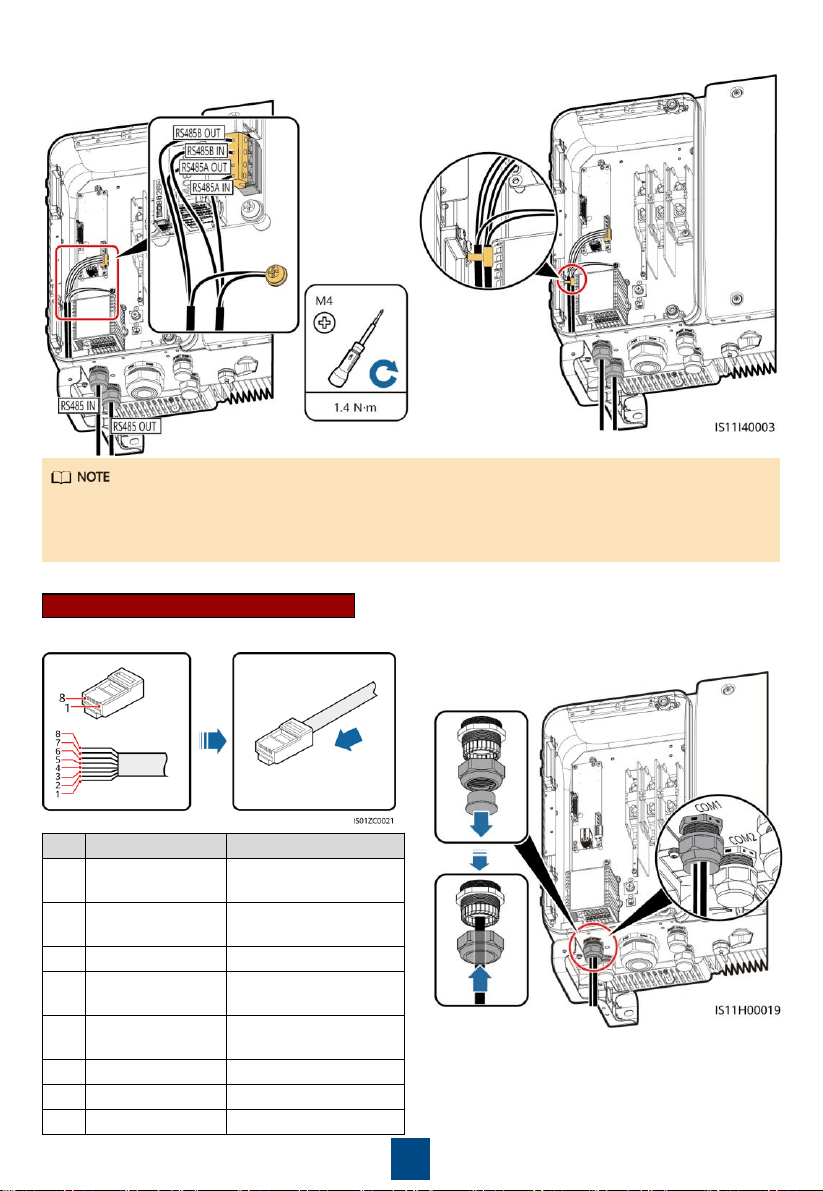
1. Remove an appropriate length of the jacket and core wire insulation layer from the
communications cable using a wire stripper.
Terminal Block Connection (Recommended)
2. Route the cable through the cable gland. 3. Remove the cable terminal base from the
terminal block. Connect the
communications cable to the terminal
base.
No.
Port Definition
Description
1
RS485A IN
RS485A, RS485
differential signal+
2
RS485A OUT
RS485A, RS485
differential signal+
3
RS485B IN
RS485B, RS485
differential signal
–
4
RS485B OUT
RS485B, RS485
differential signal
–
12
5. Bind the communications cable.
4. Install the terminal base on the terminal
block, and connect the shield layer to the
ground point.
• When connecting the shielded cable, choose whether to crimp the OT terminal based on site
requirements.
• Tie the communication cables with the cables on internal side of the maintenance compartment.
6. Tighten the thread-lock sealing nut and seal the cable gland.
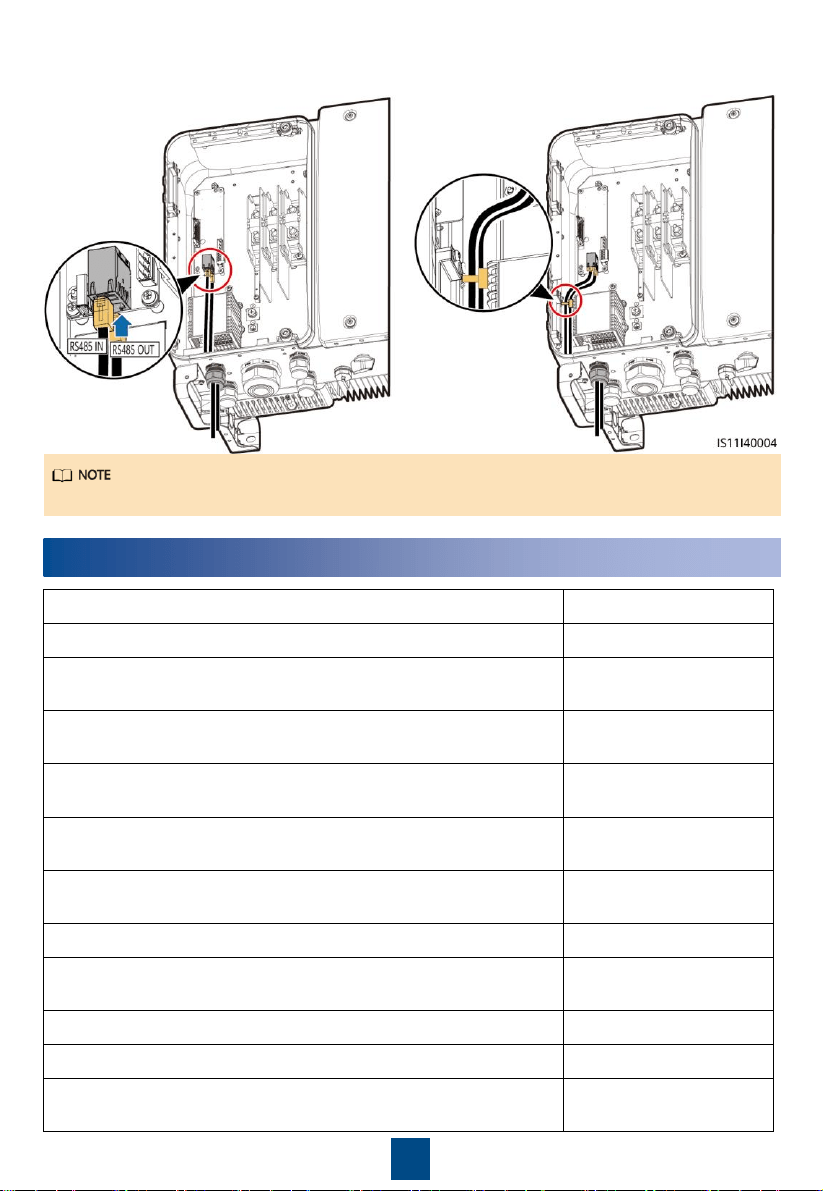
1. Prepare an RJ45 connector. 2. Route the cable through the cable gland.
RJ45 Network Port Connection
No.
Color
Pin Definition
1
White
-and-
orange
RS485A, RS485
differential signal+
2
Orange
RS485B, RS485
differential signal
–
3
White
-and-green
N/A
4
Blue
RS485A, RS485
differential signal+
5
White
-and-blue
RS485B, RS485
differential signal
–
6
Green
N/A
7
White
-and-
brown
N/A
8
Brown
N/A
13
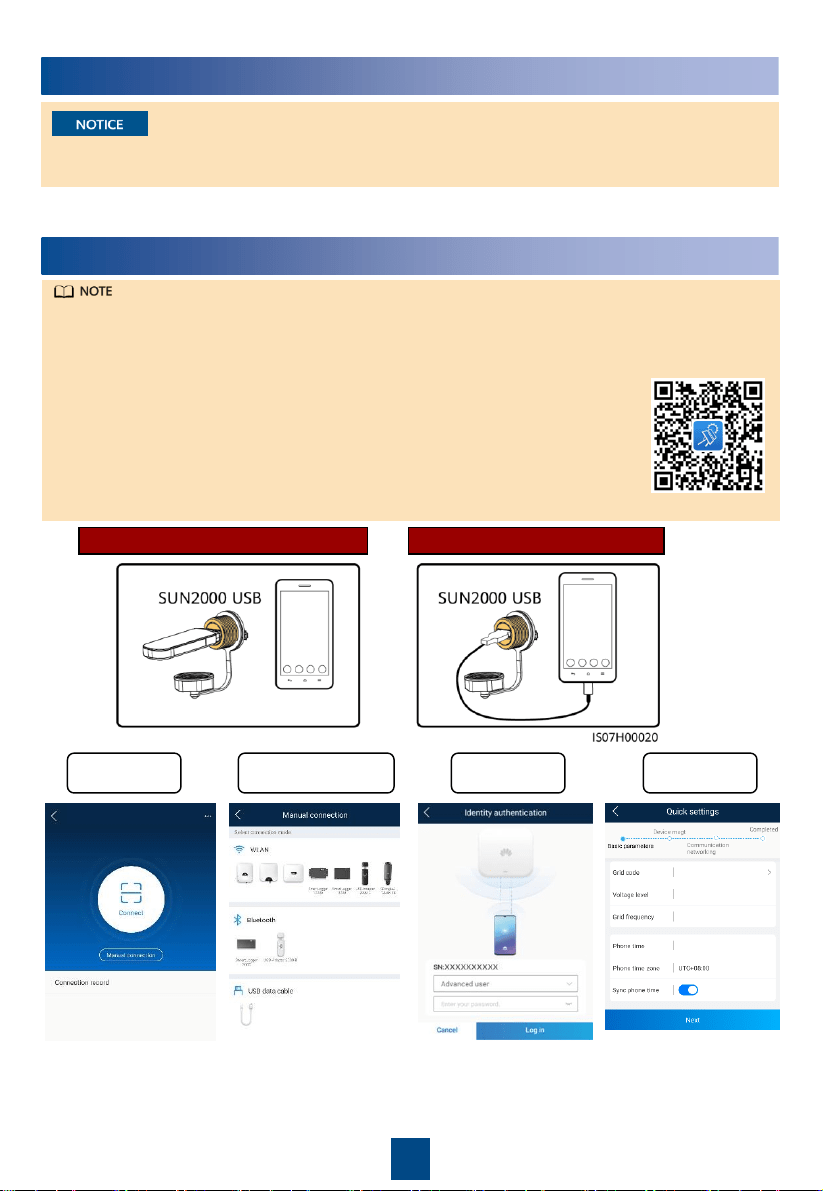
3. Insert the RJ45 connector into the RJ45 network
port in the SUN2000 maintenance compartment.
4. Bind the communications cable.
5. Tighten the thread-lock sealing nut and seal the cable gland.
Tie the communication cables with the cables on internal side of the maintenance compartment.
5
Verifying the Installation
1.
The SUN2000 is installed correctly and securely.
Yes
□
No
□
N/A
□
2.
The DC switches and downstream AC switch are OFF.
Yes
□
No
□
N/A
□
3. All ground cables are connected securely, without open circuits or
short circuits.
Yes
□
No
□
N/A
□
4.
AC output power cables are connected correctly and securely,
without open circuits or short circuits.
Yes
□
No
□
N/A
□
5.
DC input power cables are connected correctly and securely,
without open circuits or short circuits.
Yes
□
No
□
N/A
□
6.
The RS485 communications cable is connected correctly and
securely.
Yes
□
No
□
N/A
□
7.
Check that all used cable glands at the bottom of the enclosure
are sealed, and that the thread-lock sealing nut is tightened.
Yes
□
No
□
N/A
□
8.
The AC terminal cover is reinstalled.
Yes
□
No
□
N/A
□
9.
The maintenance compartment door is closed and the door
screws are tightened.
Yes
□
No
□
N/A
□
10.
Unused DC input terminals are sealed.
Yes
□
No
□
N/A
□
11.
Unused USB ports are plugged with watertight caps.
Yes
□
No
□
N/A
□
12.
Unused cable glands are plugged and the thread-lock sealing
nuts are tightened.
Yes
□
No
□
N/A
□
14
6
Powering On the System
Before turning on the AC switch between the SUN2000 and the power grid, use a multimeter to
check that the AC voltage is within the specified range.
1. Turn on the AC switch between the SUN2000 and the power grid.
2. Turn on the DC switches at the SUN2000 bottom.
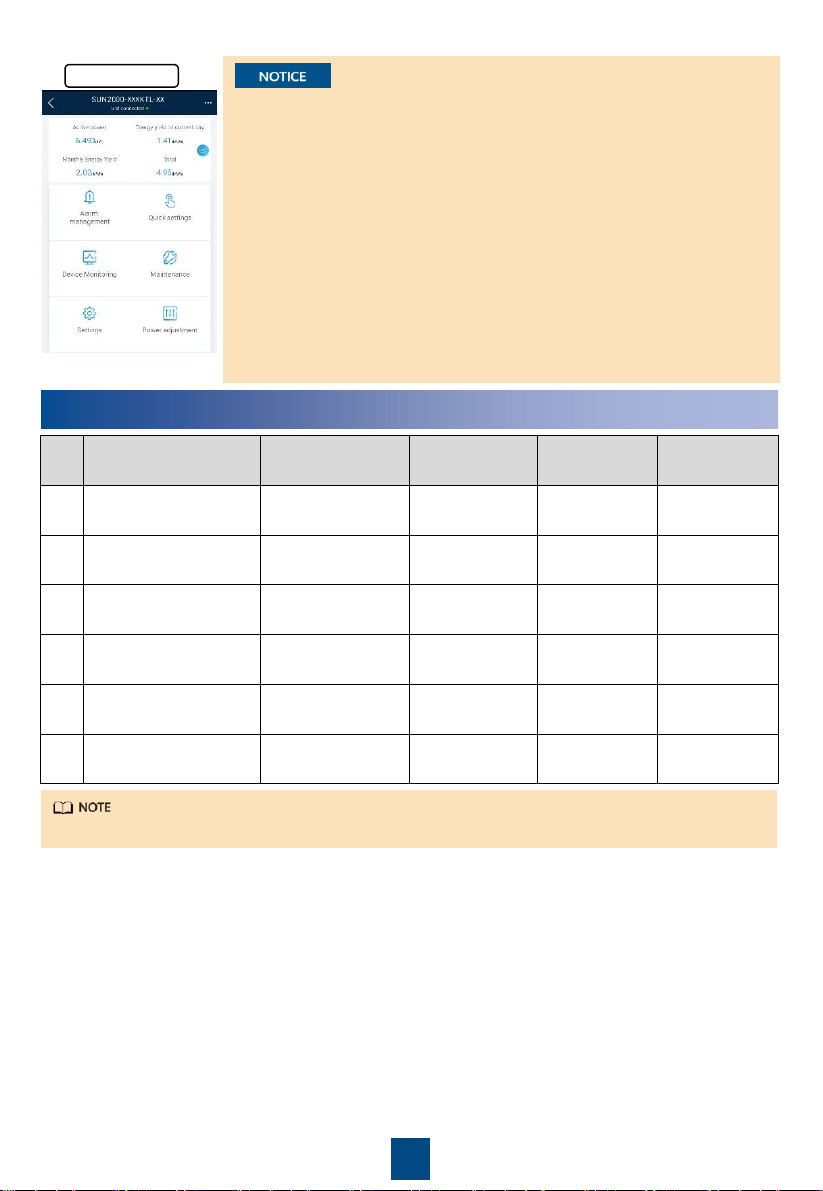
SUN2000 App
7
Login Page
WLAN or Bluetooth Connection USB Data Cable Connection
Select Connection
Mode
Select User Quick Settings
1. The SUN2000 app is mobile phone app that communicates with the SUN2000
monitoring system over a USB data cable, Bluetooth module, or WLAN
module. As a convenient local monitoring and maintenance platform, it
supports alarm query, parameter configuration, and routine maintenance. The
app name is SUN2000.
2. Log in to Huawei AppGallery (https://appstore.huawei.com), search for
SUN2000, and download the app installation package. You can also scan the
QR code (https://appgallery.cloud.huawei.com/appdl/C10279542) to
download the installation package.
3. Connect a USB data cable, a Bluetooth module, or a WLAN module to the
USB port of the SUN2000 to implement the communication between the
SUN2000 and the app.
15
8
Grid Codes
No. Grid Code Description
SUN2000-
50KTL-JPM0
SUN2000-
50KTL-JPM1
SUN2000-
63KTL-JPM0
1
Japan standard (50Hz)
Japan power grid
(MV480
-50 Hz)
Supported
Supported
Supported
2
Japan standard (60Hz)
Japan power grid
(MV480
-60 Hz)
Supported
Supported
Supported
3
Japan standard
(MV420
-50Hz)
Japan power grid
(MV420
-50 Hz)
Supported
N/A
N/A
4
Japan standard
(MV420
-60Hz)
Japan power grid
(MV420
-60 Hz)
Supported
N/A
N/A
5
Japan standard
(MV440
-50Hz)
Japan power grid
(MV440
-50 Hz)
Supported
Supported
Supported
6
Japan standard
(MV440
-60Hz)
Japan power grid
(MV420
-60 Hz)
Supported
Supported
Supported
The grid codes are subject to change. The listed codes are for your reference only.
•
The screenshots in this document correspond to app version
3.2.00.013 (Android).
•
When the WLAN connection is used, the initial name of the WLAN
hotspot is
Adapter-WLAN module SN
, and the initial password is
Changeme.
•
The initial password for Common User, Advanced User, and Special
User is 00000a.
•
Use the initial password upon first power-on and change it
immediately after login. To ensure account security, change the
password periodically and keep the new password in mind. Not
changing the initial password may cause password disclosure. A
password left unchanged for a long period of time may be stolen or
cracked. If a password is lost, devices cannot be accessed. In these
cases, the user is liable for any loss caused to the PV plant.
•
Set the correct grid code based on the application area and scenario
of the solar inverter.
Function Menu

Huawei Technologies Co., Ltd.
Huawei Industrial Base, Bantian, Longgang
Shenzhen 518129 People's Republic of China
www.huawei.com