Prisual
PTZ Video Camera
User Manual
Model Nos: TEM-20N
(English)
Copyright Notice
The entire contents of this manual, whose copyright belongs to Prisual Corporation, may not be cloned, copied
or translated in any way without the explicit permission of the company. Product specifications and information
referred to in this document are for reference only and as such are subject to updating at any time without prior
notice

Prisual
Preface
Thank you for using the HD Professional Video Conferencing Camera. This manual introduces the function, installation and
operation of the HD camera. Prior to installation and usage, please read the manual thoroughly.
Precautions
This product can only be used in the specified conditions in order to avoid any damage to the camera:
• Don’t subject the camera to rain or moisture.
• Don’t remove the cover. Removal of the cover may result in an electric shock, in addition to voiding the warranty.
In case of abnormal operation, contact the manufacturer.
• Never operate outside of the specified operating temperature range, humidity, or with any other power supply
than the one originally provided with the camera.
• Please use a soft dry cloth to clean the camera. If the camera is very dirty, clean it with diluted neutral detergent;
do not use any type of solvents, which may damage the surface.
Note
This is an FCC Class A Digital device. As such, unintentional electromagnetic radiation may affect the image quality of TV in a
home environment.

Prisual
Contents
Supplied Accessories ....................................................................................................................................................... 1
Notes ............................................................................................................................................................................... 1
Quick Start ....................................................................................................................................................................... 2
Features .......................................................................................................................................................................... 4
Product Specifications ..................................................................................................................................................... 5
Back of the Camera ......................................................................................................................................................... 7
Dimensional Drawings (mm) ........................................................................................................................................... 7
IR Remote Controller ...................................................................................................................................................... 8
Using the IR Remote Controller .................................................................................................................................... 10
RS-232 Interface ............................................................................................................................................................ 13
VISCA Network Configuration ....................................................................................................................................... 14
Serial Communication Control ...................................................................................................................................... 14
Command List ............................................................................................................................................................... 15
Menu Settings ............................................................................................................................................................... 30
Network Connection ..................................................................................................................................................... 34
Setting up a Network Video Stream .............................................................................................................................. 35
Additional Network Info ............................................................................................................................................... 37
Camera Web Interface .................................................................................................................................................. 38
Menu ......................................................................................................................................................................................... 38
Live ............................................................................................................................................................................................ 38
Directional Arrows ..................................................................................................................................................................... 38
Video .......................................................................................................................................................................................... 39
Image ......................................................................................................................................................................................... 40
Network ..................................................................................................................................................................................... 41
Information ............................................................................................................................................................................... 43
Language ................................................................................................................................................................................... 43
Network Camera Control Protocol ................................................................................................................................ 43
Photobooth Functionality ............................................................................................................................................. 47
Maintenance and Troubleshooting ............................................................................................................................... 49
Page 1
Prisual
Support: [email protected] www.prisual.us
Supplied Accessories
When you unpack your camera, check that all the supplied accessories are included:
⚫ Camera .......................... 1
⚫ AC Power Adaptor ......... 1
⚫ Power Cord ................... 1
⚫ RS232 Cable................... 1
⚫ IR Remote Controller ..... 1
⚫ User Manual .................. 1
Notes
⚫ Electrical Safety
Installation and operation must be in accordance with national and local electric safety standards.
Do not use any power supply other than the one originally supplied with this camera.
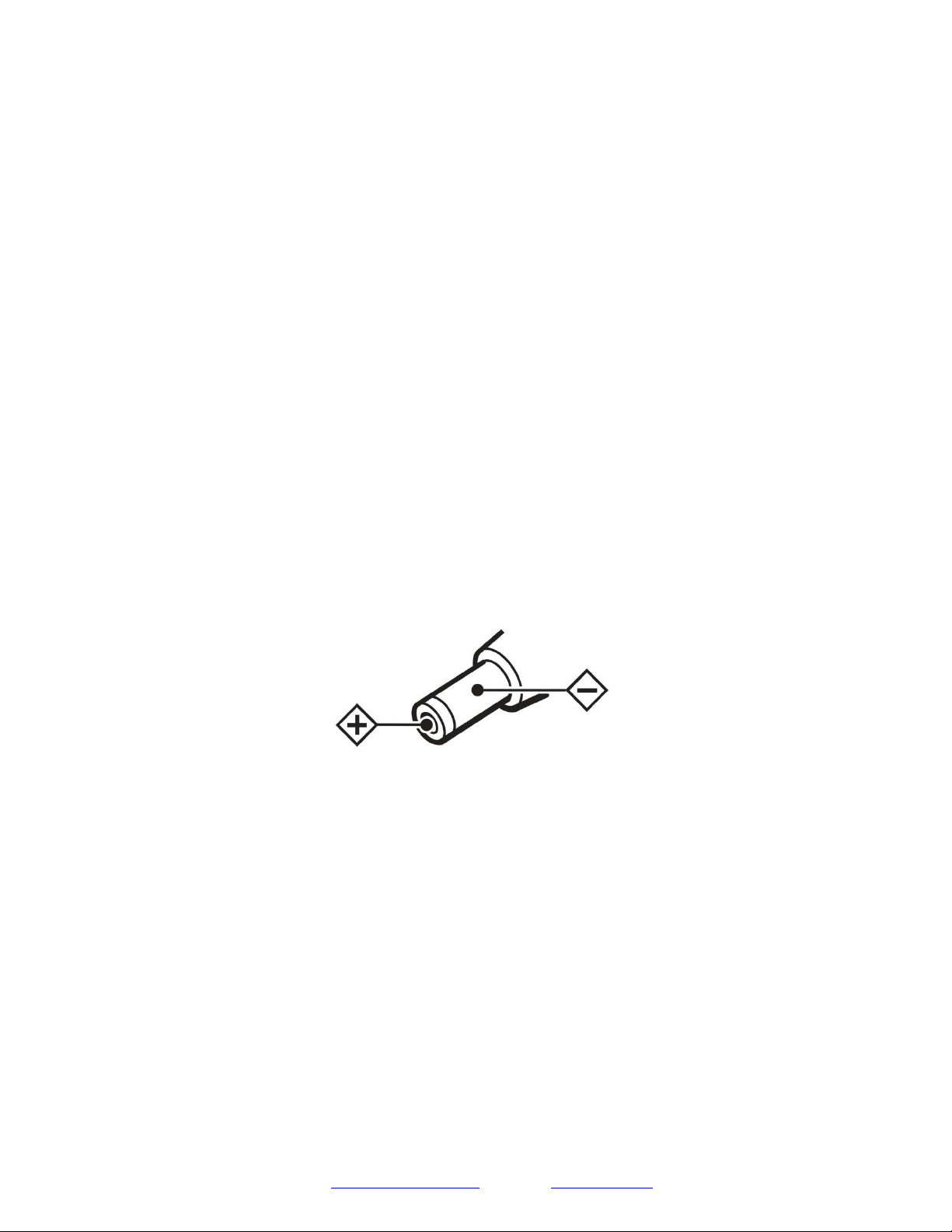
⚫ Polarity of power supply
The power supply output for this product is 12VDC with a maximum current supply of 2A. Polarity of
the power supply plug is critical and is as follows.
⚫ Handling
■
Avoid any stress, vibration, or moisture during transportation, storage, installation and operation.
■
Do not lift or move the camera by grasping the camera head. Do not turn the camera head by hand. Doing so may
result in mechanical damage.
■
Do not expose camera to any corrosive solid, liquid, or gas to avoid damage to the cover which is made of a plastic
material.
■
Ensure that there are no obstacles in the tilt or pan ranges of the camera lens.
■
Never power camera on before installation is complete.
■
DO NOT DISMANTLE THE CAMERA – The manufacturer is not responsible for any unauthorized modification
or dismantling.
Page 2
Prisual
Support: [email protected] www.prisual.us
Quick Start
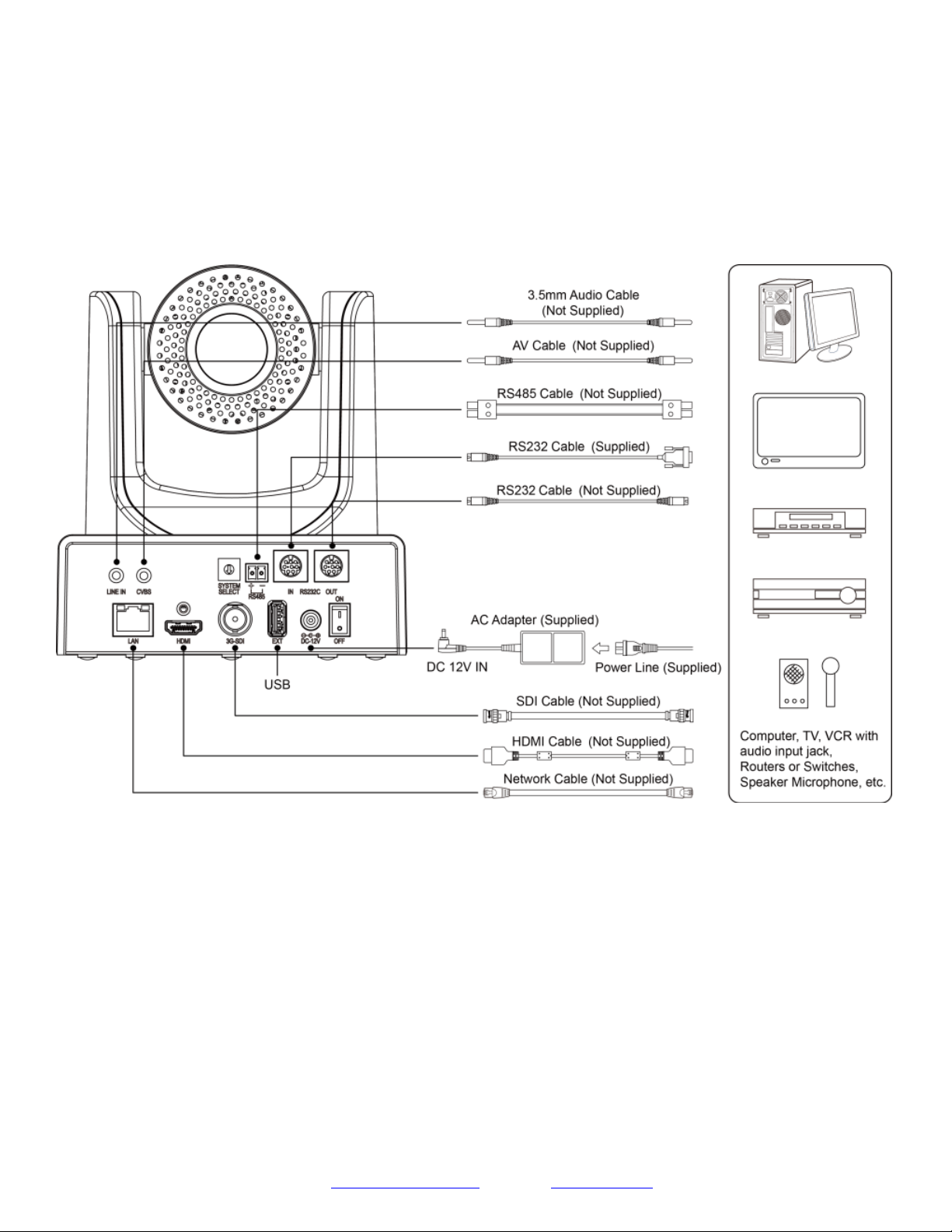
Step1. Please check that all connections are correct before powering on the camera.
Page 3
Prisual
Support: [email protected] www.prisual.us
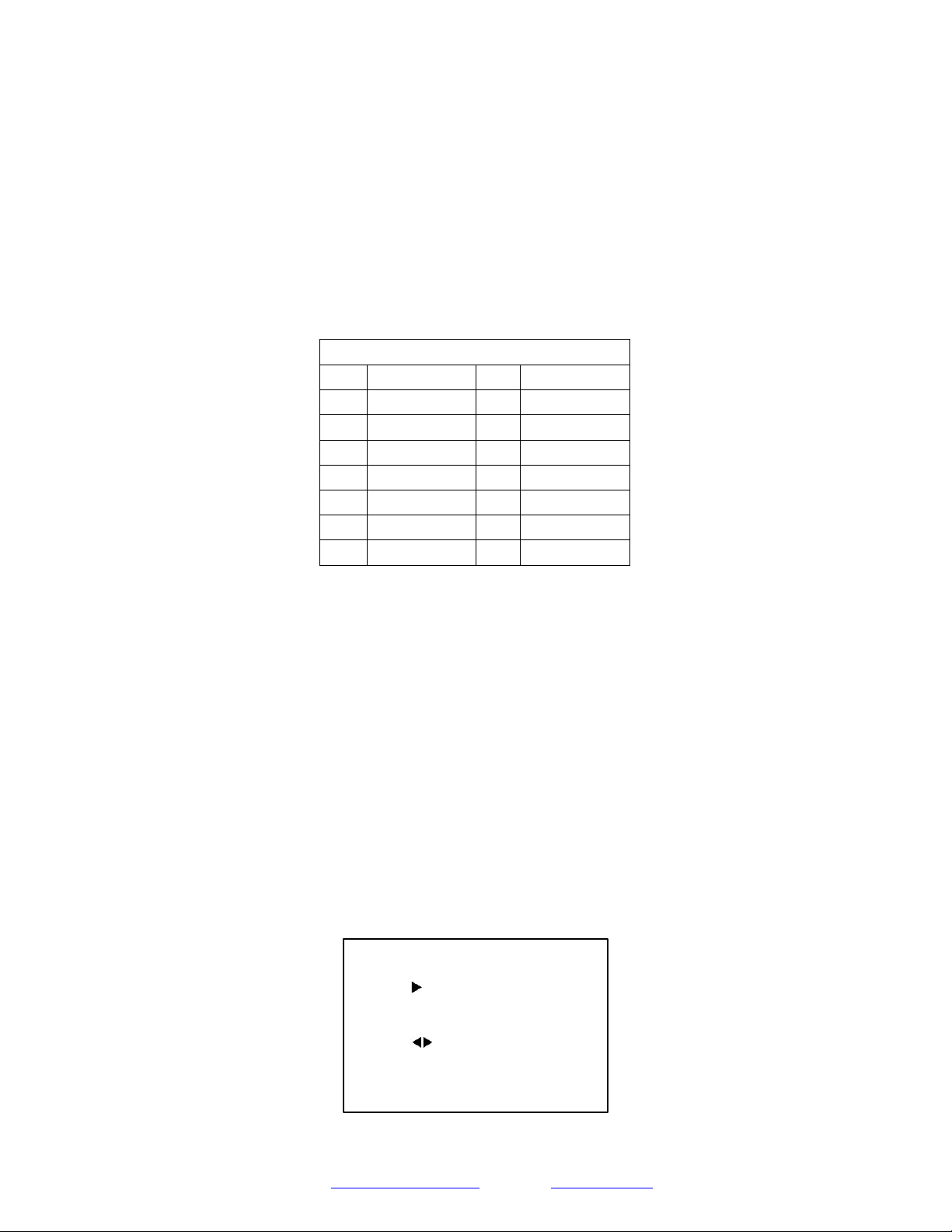
Step2. Set the system select switch for your desired video output resolution and frame rate.
For many applications, setting 0 (1080p-60) will provide the best overall performance.
For highest possible resolution, use setting 0 (1080p-60) or 6 (1080p-30), however your actual realized frame rate may
be limited to a lower value than 60 fps by your software and/or network connection.
NOTE: After changing this dial, you need to restart the camera to see the effect. Turn the camera off.
VIDEO SYSTEM
0
1080p60
8
720p30
1
1080p50
9
720p25
2
1080i60
A
1080p59.94
3
1080i50
B
1080i59.94
4
720p60
C
1080p29.97
5
720p50
D
576i
6
1080p30
E
480i
7
1080p25
F
720p59.94
CAUTION: After changing the system (rotary) switch, you need to restart the camera to take effect.
CAUTION: A, B, C, & F Broadcast frame rate options are considered BETA features and may not be supported by all
platforms
Step3. Press the Switch ON button on the rear of the camera, the power lamp will illuminate.
Step 4. The Pan-Tilt mechanism will rotate the lens to the maximum position of top right after the camera starts, then it will
return to the “center”. The process of initialization is now complete.
(Note: If the position preset 0 has been stored, the position preset 0 will be called up after initialization in lieu of “center”)
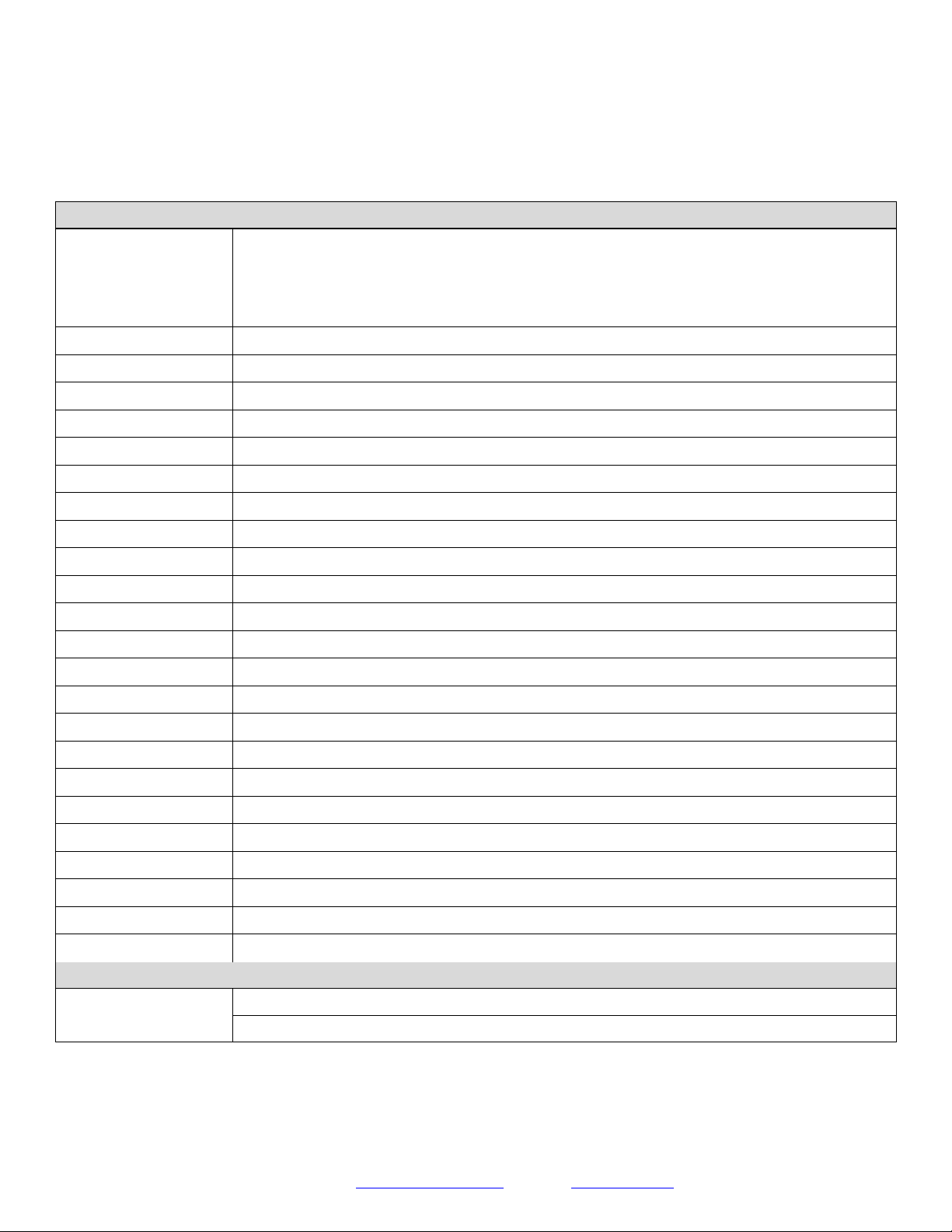
Step 5. (Optional) If you want to restore the factory default settings, press [MENU] button to display the OSD menu. Select the
item [MENU] -> [RESTORE DEFAULT] -> [Restore]. Set the value [Yes], press [HOME] button to restore the factory default
settings. Or when using the IR remote, press [*] + [#] + [6] in succession to restore to factory default settings.
RESTORE DEFAULT
Restore
Yes
Change Value
[Home] OK
[Menu] Back

Page 4
Prisual
Support: [email protected] www.prisual.us
Features
• Image Sensor
o Panasonic 1/2.7”, 2.07 million effective pixels, HD CMOS sensor
o TAMRON high quality telephoto lens supporting 20X optical zoom and optional 16X digital zoom
o Full HD 1920x1080p resolution up to 60 frames per second
o 2D & 3D noise reduction with our latest “low noise CMOS sensor”
o 0.05 Lux @ F1.8 AGC On
o Wide angle 60.7° horizontal field of view
o Dynamic Range Control (DRC) for higher image quality and detail across simultaneously well lit and shadowed
scenes.
o Image Freeze to temporarily pause the video while calling presets (so viewers won’t see camera movement)
o High SNR (signal to noise ratio) of the CMOS sensor (≥55dB), combined with 2D & 3D noise reduction algorithms,
effectively reduces noise, even under low illumination conditions.
• Video Outputs
o Simultaneous IP network streaming, 3G-SDI, and HDMI video outputs.
o 3G-SDI High Definition video output up to 60 frames per second
o HDMI 1.3 High efinition video output up to 60 frames per second
o RTSP, RTMP, & RTMPS streaming using H.264, H.265, & MJPEG
o Line level audio embedding over IP network stream & HDMI. Uses AAC audio encoding for better sound quality
and lower bandwidth usage.
o Support for ultra-high FPS mode 1280x720p @ 120 frames per second over IP network stream.
o Supports non-simultaneous CVBS (composite video) output via 3.5mm connector (480i or 576i)
• Control and Settings
o VISCA over IP
o Onvif
o IR Remote Control
o Web-based IP remote control interface
o RS232 & RS485 VISCA, Pelco-D, & Pelco-P control
• Installation
o Standard 1/4-20 female thread for camera mounting
o Power over Ethernet – Supports 802.3af
o 12V DC 2A Power Supply provided for non-PoE infrastructure
Page 5
Prisual
Support: [email protected] www.prisual.us
Product Specifications
Camera
Video System
1080p-60/50/30/25/59.94*/29.97*, 1080i-60/50/59.94*, 720p-60/50/59.94*
CVBS: 576i, 480i
Sensor
1/2.7", CMOS, Effective Pixel: 2.07M
Scanning Mode
Progressive
Lens
20x, f4.42mm ~ 88.5mm, F1.8 ~ F2.8
Digital Zoom
16x
Minimal Illumination
0.05 Lux (@F1.8, AGC ON)
Shutter
1/30s ~ 1/10000s
White Balance
Auto, 3000K/Indoor, 4000K,5000K/Outdoor, 6500K_1,6500K_2,6500K_3, One Push, Manual
Backlight Compensation
Support
Digital Noise Reduction
2D & 3D Digital Noise Reduction
Video S/N
≥55dB
Horizontal Angle of View
3.36° ~ 60.7°
Vertical Angle of View
1.89° ~ 34.1°
Horizontal Rotation Range
±170°
Vertical Rotation Range
-30° ~ +90°
Pan Speed Range
1.7° ~ 100°/s
Tilt Speed Range
1.7° ~ 69.9°/s
Image Flip
Support
Image Mirror
Support
Image Freeze
Support
PoE
Support (802.3af)
Local Storage
Support
Number of Preset
255
Preset Accuracy
0.1°
Input/Output Interface
HD Output
1 x HDMI: Version 1.3
1 x 3G-SDI: BNC type, 800mVp-p, 75Ω, Along to SMPTE 424M standard
Page 6
Prisual
1 x RJ45 IP Network streaming 10/100/1000 Ethernet port
SD Output
1 x CVBS: RCA jack, 1Vp-p, 75Ω
Network Interface
1 x RJ45: 10/100/1000M Adaptive Ethernet ports (Support POE)
Audio Input
1-ch 3.5mm audio interface, Line In (IP Network stream and HDMI only) (Unbalanced stereo)
USB
1 x USB2.0: type A jack (Local storage only)
Communication Interface
1 x RS-232 IN: 8pin Min DIN, Max Distance: 30m, Protocol: VISCA/Pelco-D/Pelco-P
1 x RS-232 OUT: 8pin Min DIN, Max Distance: 30m, Protocol: VISCA network use only
1 x RS-485: 2pin Phoenix port, Max Distance: 1200m, Protocol: VISCA/Pelco-D/Pelco-P
Power Jack
JEITA type (DC IN 12V)
IP Codec Features
Video Compression
H.264 / H.265 / MJPEG
Video Stream
Two (2) IP video output streams available (Main Stream, Sub Stream)
First Stream Resolutions
1920x1080, 1280x720, 1024x576, 960x540, 640x480, 640x360
Second Stream Resolutions
1280x720, 1024x576, 720x480, 720x408, 640x360, 480x270, 320x240, 320x180
Video Bit Rate
32Kbps ~ 102400Kbps
Bit Rate Type
Variable Rate, Fixed Rate
Frame Rate
50Hz: 1 FPS ~ 50 FPS, 60Hz: 1 FPS ~ 60 FPS
Audio Compression
AAC
Audio Bit Rate
96Kbps, 128Kbps, 256Kbps
Supported Protocols
TCP/IP, HTTP, RTSP, RTMP, DHCP, Multicast, etc.
Generic Specification
Input Voltage
DC 12V / PoE (802.3af) (optional)
Current Consumption
1.0A (Max)
Operating Temperature
-10°C ~ 40°C (14°F ~ 104°F)
Storage Temperature
-40°C ~ 60°C (-40°F ~ 140°F)
Operating Humidity
10% - 80%
Power Consumption
12W (Max)
MTBF
>30000h
Size in. (W x D x H)
5.6” W x 6.7” D x 6.5” H (7.8” H w/ max tilt)
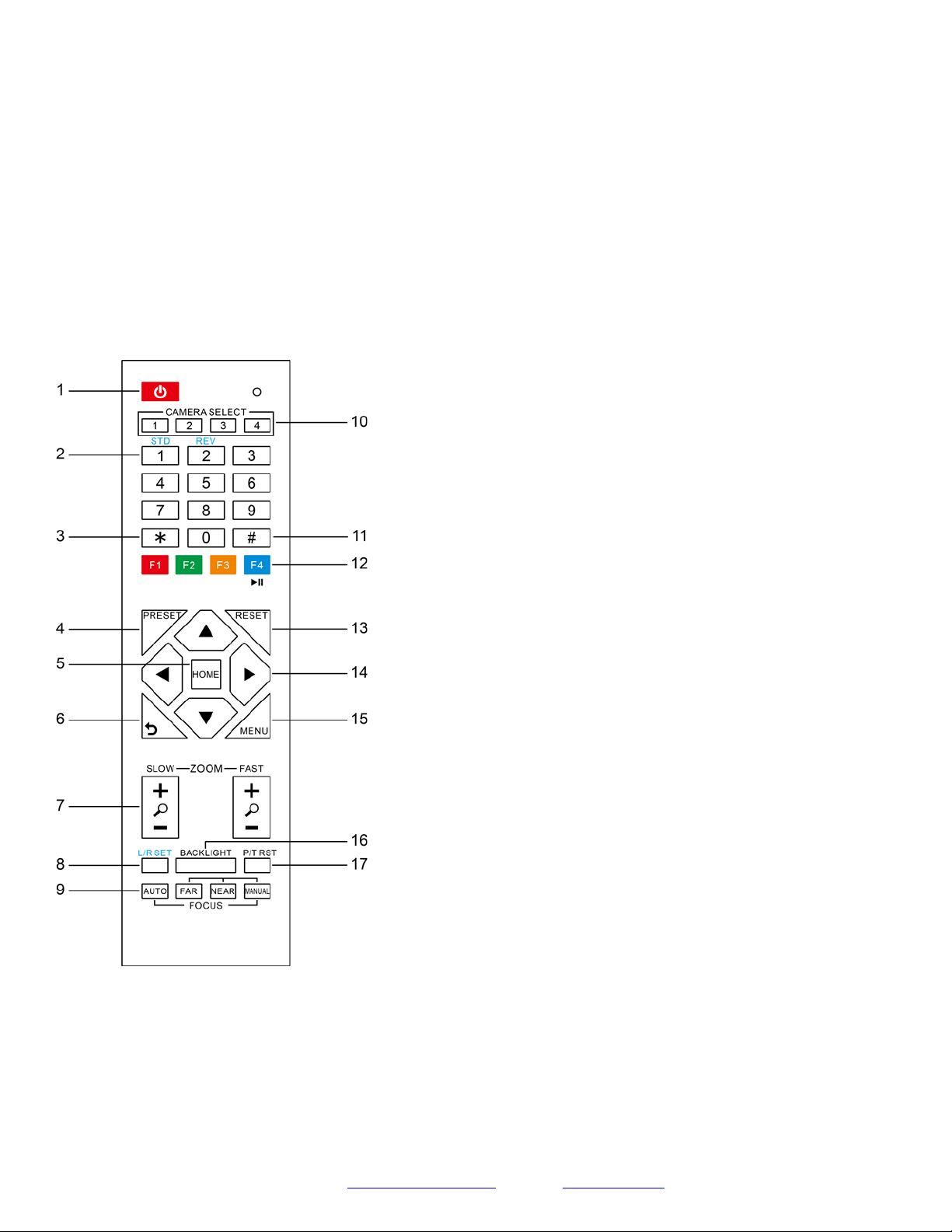
Size mm. (W x D x H)
142mm W x 169mm D x 164mm H (168mm H w/ max tilt)
Camera Weight
3.01 lbs [1.35 kg]
Box Weight
5.4 lbs [2.45 kg]
Page 7
Prisual
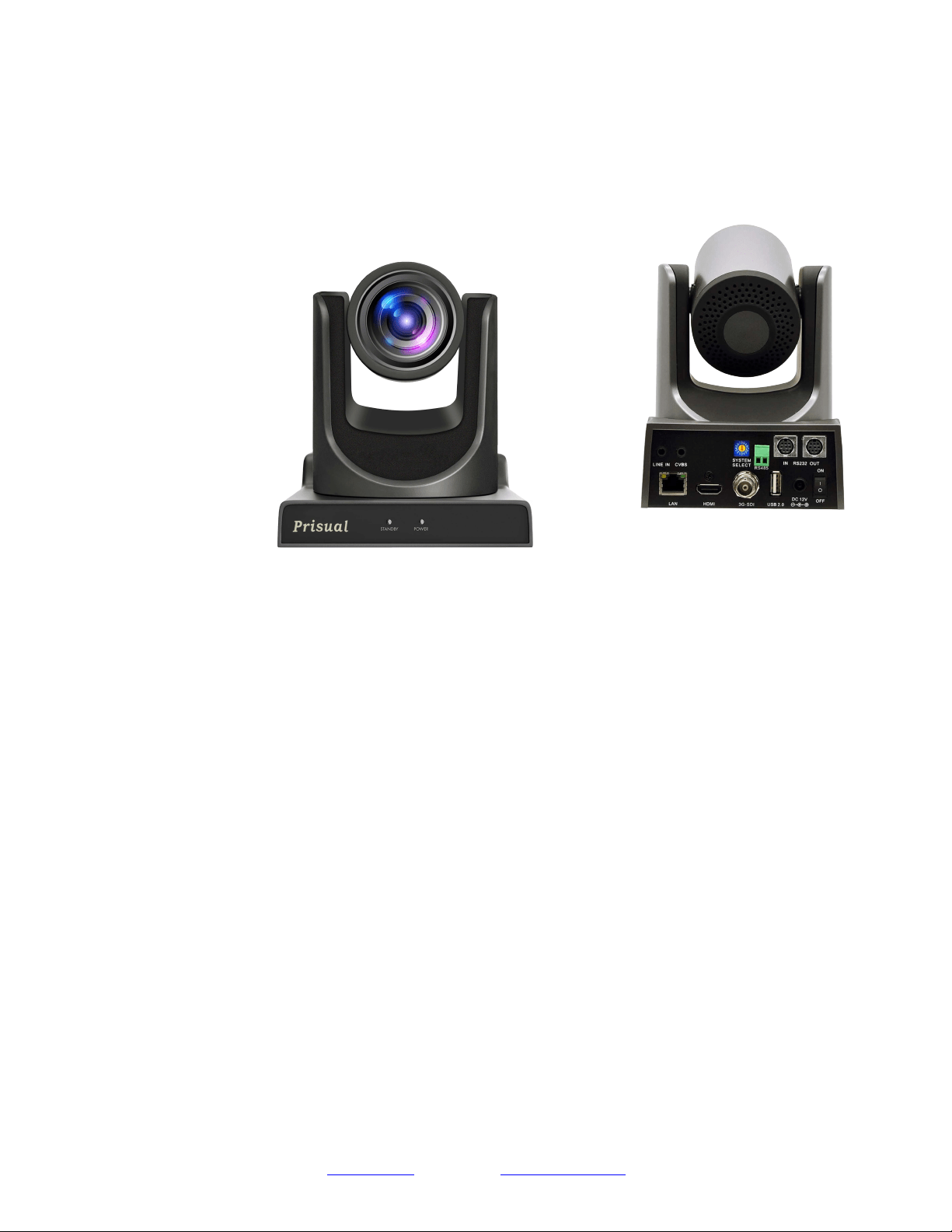
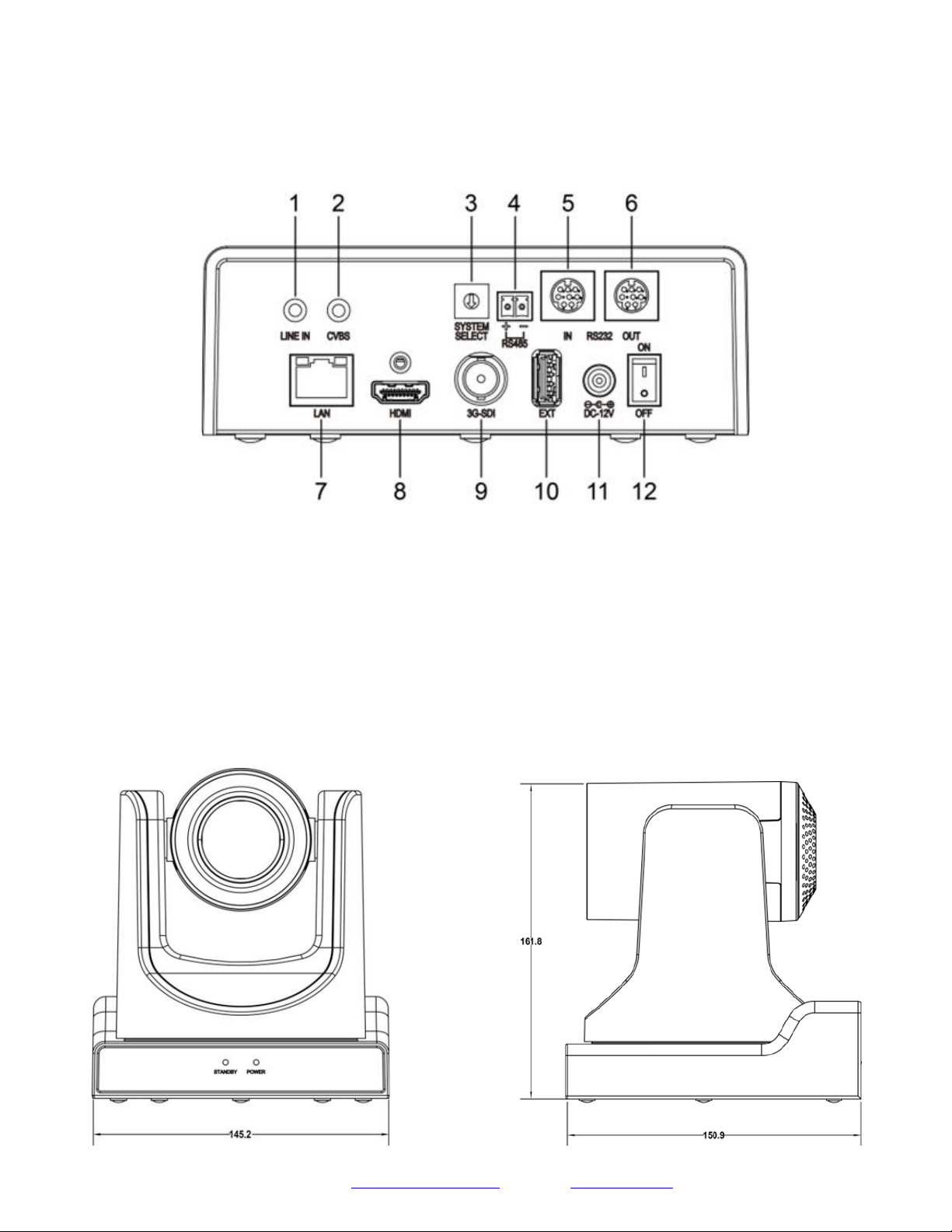
Back of the Camera
1. Audio LINE IN Interface (HDMI & IP) 7. Network (IP streaming & control)
2. CVBS (composite video SD) Interface 8. HDMI (Digital Video Output)
3. System select dial (resolution) 9. HD-SDI (Serial Digital Video Output)
4. RS485 jack 10. USB 2.0 (*no video out* Future - USB Storage)
5. RS232 IN jack 11.DC 12V power jack
6. RS232 OUT jack (pass through for daisy chain) 12. Power switch
Dimensional Drawings (mm)
Page 8
Prisual
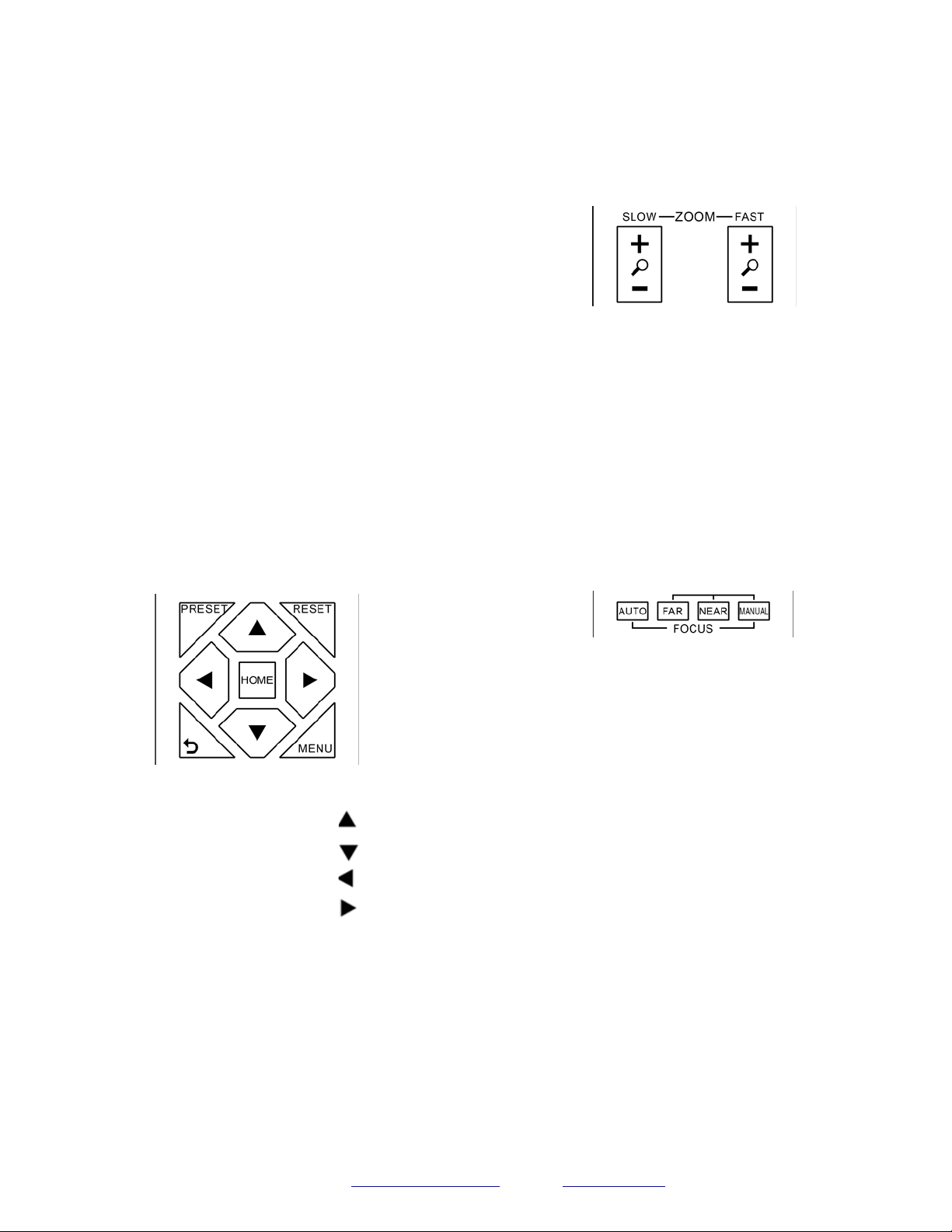
IR Remote Controller
1. Standby Button
Press this button to enter standby mode. Press it again to enter normal mode.
NOTE: Power consumption in standby mode is approximately half of the normal mode.
2. Position Buttons
To set preset or call preset.
3. * Button
For multiple function.
4. &13. Set/Clear Preset Buttons
Set preset: Store a preset position
[PRESET] + Numeric button (0-9): Setting a corresponding numeric key preset
position
NOTE: Preset 0 - 9 via remote control and the rest from web, keyboard and the
serial port.
Clear preset: Erase a preset position [RESET] + Numeric button (0-9), or: [*] +
[#] + [RESET]: Erase all presets
5. &14. Pan/Tilt Control Buttons
Press the arrow buttons to perform panning and tilting. Press the [HOME] button
to face the camera back to front.
6. Return Button
Press the button to back previous menu.
7. Zoom Buttons
Zoom+: Zoom In (Slow and fast speed)
Zoom-: Zoom Out (Slow and fast speed)
8. L/R Set Button
Set the left & right direction of the remote control.
[L/R Set] + [1]: Normal direction.
[L/R Set] + [2]: Left and right direction will be reversed.
9. Focus Buttons
Used for focus adjustment.
Press [AUTO] to adjust the focus on the center of the object automatically. To
adjust the focus manually, press the [MANUAL] button, and adjust it with [Far]
(focus on far object) and [Near] (focus on near object).
10. Camera Address Select Buttons
Press the button corresponding to the camera which you want to operate with the remote controller.
11. # Button
For multiple function.

Page 9
Prisual
Support: [email protected] www.prisual.us
12. Multiple Function Buttons
Function 1. Set camera IR address
Press 3 keys contiguously can set camera IR address as follow:
[*] + [#] + [F1]: Address 1
[*] + [#] + [F2]: Address 2
[*] + [#] + [F3]: Address 3
[*] + [#] + [F4]: Address 4
Function 2. Image freezing function
Press [F4] to start the freeze function. The word "Freeze" displays on the upper left corner. After five seconds, the display
disappears automatically (though the freeze feature continues). To cancel the freeze, press the [F4] key the word "Unfreeze"
displays on the upper left corner. After five seconds, the display disappears automatically.
15. Menu Setting
Menu button: Press this button to enter or exit the OSD menu.
16. Backlight Button
Backlight button: Press this button to enable the backlight compensation. Press it again to disable the backlight compensation.
NOTE: Effective only in auto exposure mode.
NOTE: If there is a light behind the subject, the subject will appear dark. In this case, press the backlight ON / OFF button. To
cancel this function, press the backlight ON / OFF button.
17. P/T RST Button
Press the button to self-calibrate pan and tilt once again.
Shortcuts for some ‘Set’ Functions
[*] + [#] + [1]: Display OSD menu in English
[*] + [#] + [3]: Display OSD menu in Chinese
[*] + [#] + [4]: Show IP address
[*] + [#] + [6]: Quickly restore the default settings
[*] + [#] + [8]: Show the camera version
[*] + [#] + [9]: Quickly set mount mode (flip / normal)
[*] + [#] + [MANUAL]: Resets IP information
[#] + [*] + [4]: Enable Dynamic IP addressing
[#] + [*] + [#] + [1]: Sets IP address to 192.168.100.81
[#] + [*] + [#] + [2]: Sets IP address to 192.168.100.82
[#] + [*] + [#] + [3]: Sets IP address to 192.168.100.83
[#] + [*] + [#] + [4]: Sets IP address to 192.168.100.84
[#] + [*] + [#] + [5]: Sets IP address to 192.168.100.85
[#] + [*] + [#] + [6]: Sets IP address to 192.168.100.86
[#] + [*] + [#] + [7]: Sets IP address to 192.168.100.87
[#] + [*] + [#] + [8]: Sets IP address to 192.168.100.88
[#] + [*] + [#] + [9]: Sets IP address to 192.168.100.89
[#] + [*] + [#] + [0]: Sets IP address to 192.168.100.80
Page 10
Prisual
Using the IR Remote Controller
When the camera is operational, you can use the remote
controller to perform panning, tilting, zooming and
focusing, as well as store and call back preset positions.
Button Instructions:
1. In these instructions, ‘press the button’ means to
press and release. A special note will be given if holding a
button down for more than one second is required.
2. When a button-combination is required, do it in
sequence (not simultaneously). For example, ‘[*] + [#] +
[F1]’means press [*] first and then press [#] and then
press [F1].
1. Pan/Tilt Control
Tilt up: Press [ ]
Tilt down: Press [] ]
Pan left: Press [ ]
Pan right: Press [] ]
Face the camera back to front: Press [HOME]
Press and hold the up/down/left/right buttons, to keep
panning or tilting from slow to fast, (until the camera
reaches the mechanical limit). The camera stops as soon
as the button is released.
2. Zoom Control
Zoom Out: press [+] button under FAST or SLOW
Zoom In: press [-] button under FAST or SLOW
Press and hold the button, to keep zooming in or out
(until the lens reaches the mechanical limit). The lens
stops as soon as the button is released.
3. Focus Control
AUTO: Change focus mode to AF, which allows the
camera to adjust the focus automatically on the center of
the image.
MANUAL: Change focus mode to MF, which allows the
user to adjust the focus manually (see FOCUS FAR &
FOCUS NEAR).
FOCUS FAR: Press [FAR] button (NOTE: Effective only
in MANUAL focus mode)
FOCUS NEAR: Press [NEAR] button (NOTE: Effective
only in MANUAL focus mode)
Press and hold the FOCUS [FAR] or FOCUS [NEAR]
button, allows for continuous adjustment, stopping as
soon as the button is released.
Page 11
Prisual
Support: [email protected]
www.prisual.us
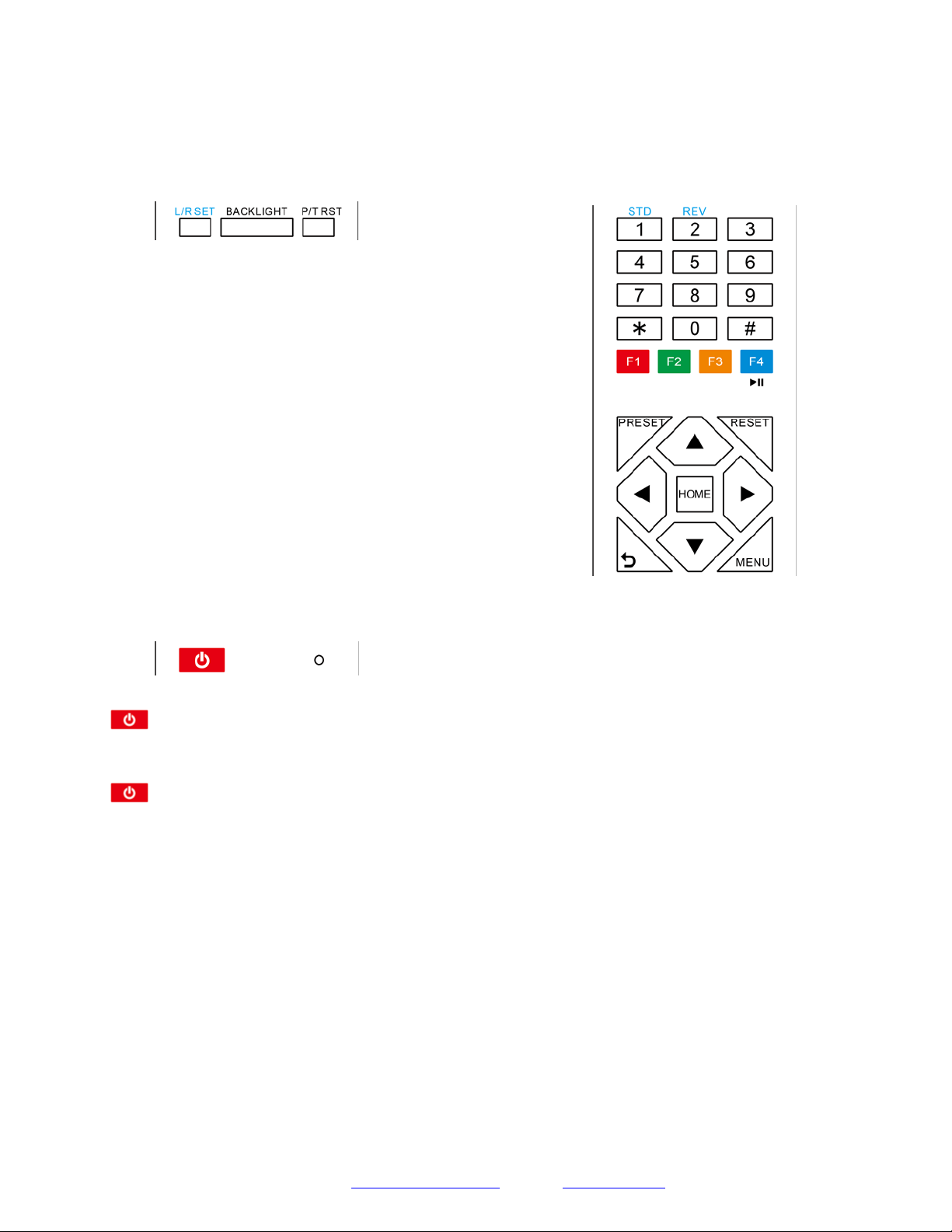
4. BACKLIGHT. L/R SET and P/T RST Controls
Reverse Pan controls direction: Press and hold [L/R SET]
button while pressing [1] aka [STD] button for normal
pan controls. Press and hold [L/R SET] button while
pressing [2] aka [REV] button for reversed pan controls.
Backlight Compensation Control: Press [BACKLIGHT]
button to enable backlight compensation. Press it again to
disable backlight compensation. (Note: Backlight is only
effective in full auto exposure mode)
Pan Tilt Control Self Calibration: Press [P/T RST] button
to recalibrate the Pan and Tilt limits.
5. Standby Control
Press [ ]] button to put camera in ‘standby’ mode. In
standby mode the camera will provide no image, respond
to no commands and use less than half its normal power.
Press [ ]] button again to put camera in normal mode.
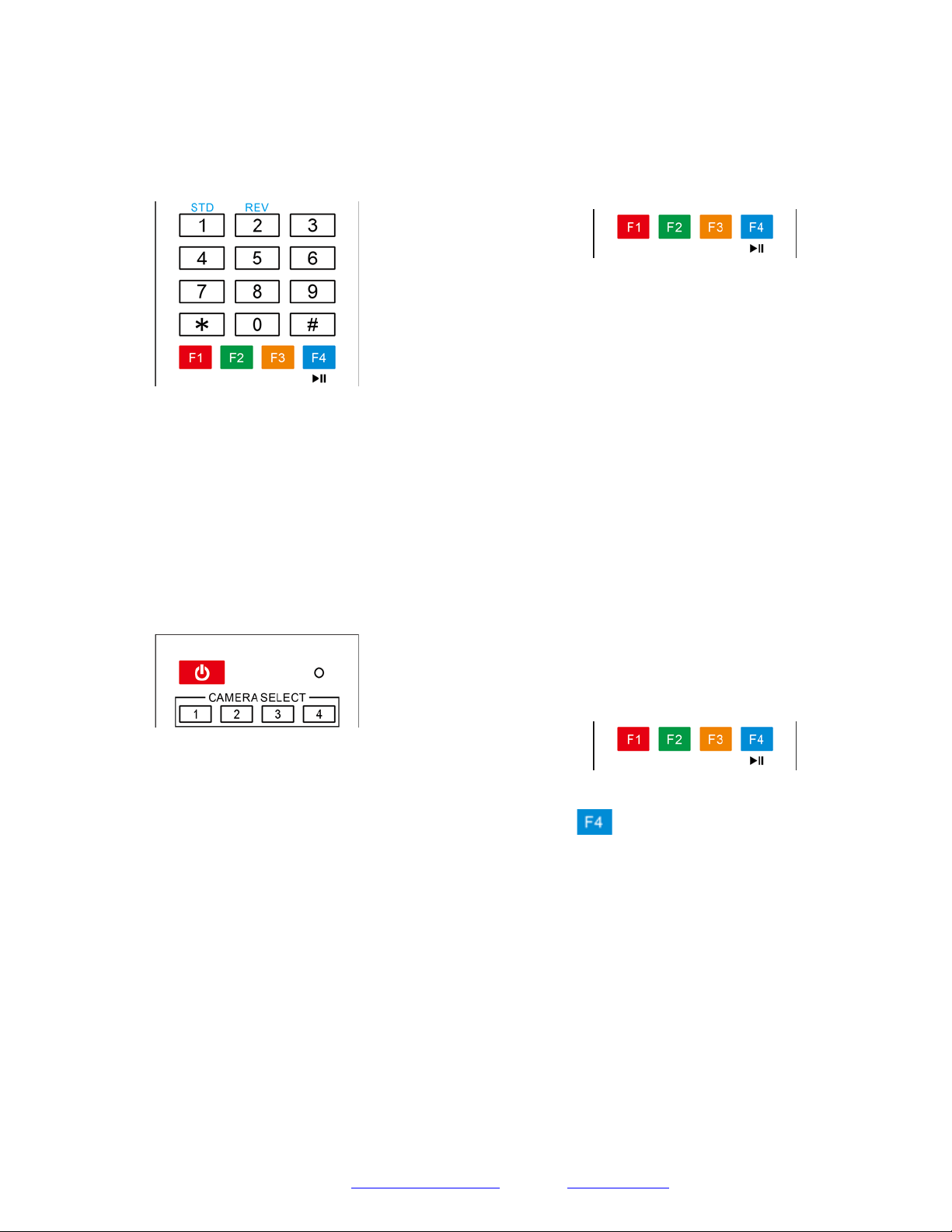
6. Presets - Setting and Clearing
1. To store a preset position: The user should manually
setup the desired shot using the Pan Tilt and Zoom
controls. Press the [PRESET] button first and then press
the numeric button [0-9] to which you want to assign the
shot. Ten total preset positions (0-9) are available from
the IR remote control (255 available via RS232/RS485/IP
Interfaces).
2. To erase the memory content of a preset position: The
user should press the [RESET] button first and then press
the numeric button 0-9 associated with that preset.
Note:
Pressing [*] + [#] + [RESET] in sequence will erase
all presets in the memory.
Page 12
Prisual
7. Recalling Presets
Pressing any of the numeric buttons [0-9] directly will
recall a stored preset position and settings.
Note:
No action will be executed if a specific numeric preset
position has not yet been saved.
8. Camera Selection
Press the [1-4] button corresponding to the camera with
the IR address that you want to operate. This allows for
up to 4 cameras to be operated via the same IR remote in
the same room.
9. Camera IR Address Set
Press 3 buttons in the sequence shown below to
set/change the camera’s IR address. This allows up to 4
cameras to be controlled from the same IR remote control.
Be sure that only one camera is picking up the IR signal
when you perform this function. If multiple cameras
receive the command, they will all change to the new
address.
Address 1: [*] + [#] + [F1]
Address 2: [*] + [#] + [F2]
Address 3: [*] + [#] + [F3]
Address 4: [*] + [#] + [F4]
10. Image Freeze
Press the [ ] button to freeze or unfreeze the video
image. This can be useful while recalling presets to hide
camera motion from your viewers.
Page 13
Prisual
Support: [email protected]
www.prisual.us
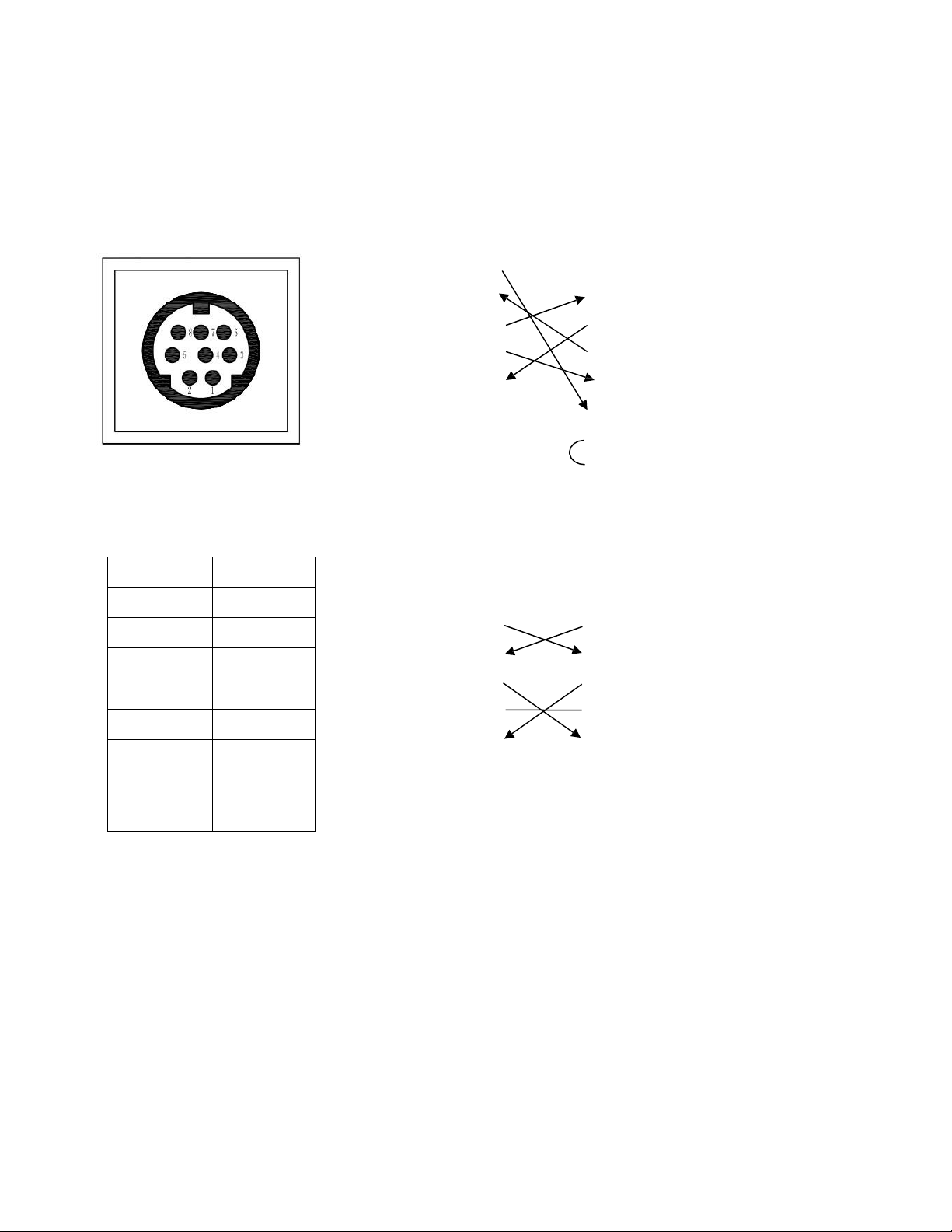
RS-232 Interface
Camera PC/Controller DB-9
1.DTR 1.CD
2.DSR 2.RXD
3.TXD 3.TXD
4.GND 4.DTR
5.RXD 5.GND
6.GND 6.DSR
7.IR OUT 7.RTS
8.NC 8.CTS
9.RI
For Control Daisy Chain
1
st
Camera 2
nd
Camera Mini DIN
1.DTR 1.DTR
2.DSR 2.DSR
3.TXD 3.TXD
4.GND 4.GND
5.RXD 5.RXD
6.GND 6.GND
7.IR OUT 7.NC
8.NC 8.NC
No.
Function
1
DTR
2
DSR
3
TXD
4
GND
5
RXD
6
GND
7
IR OUT
8
NC
Page 14
Prisual
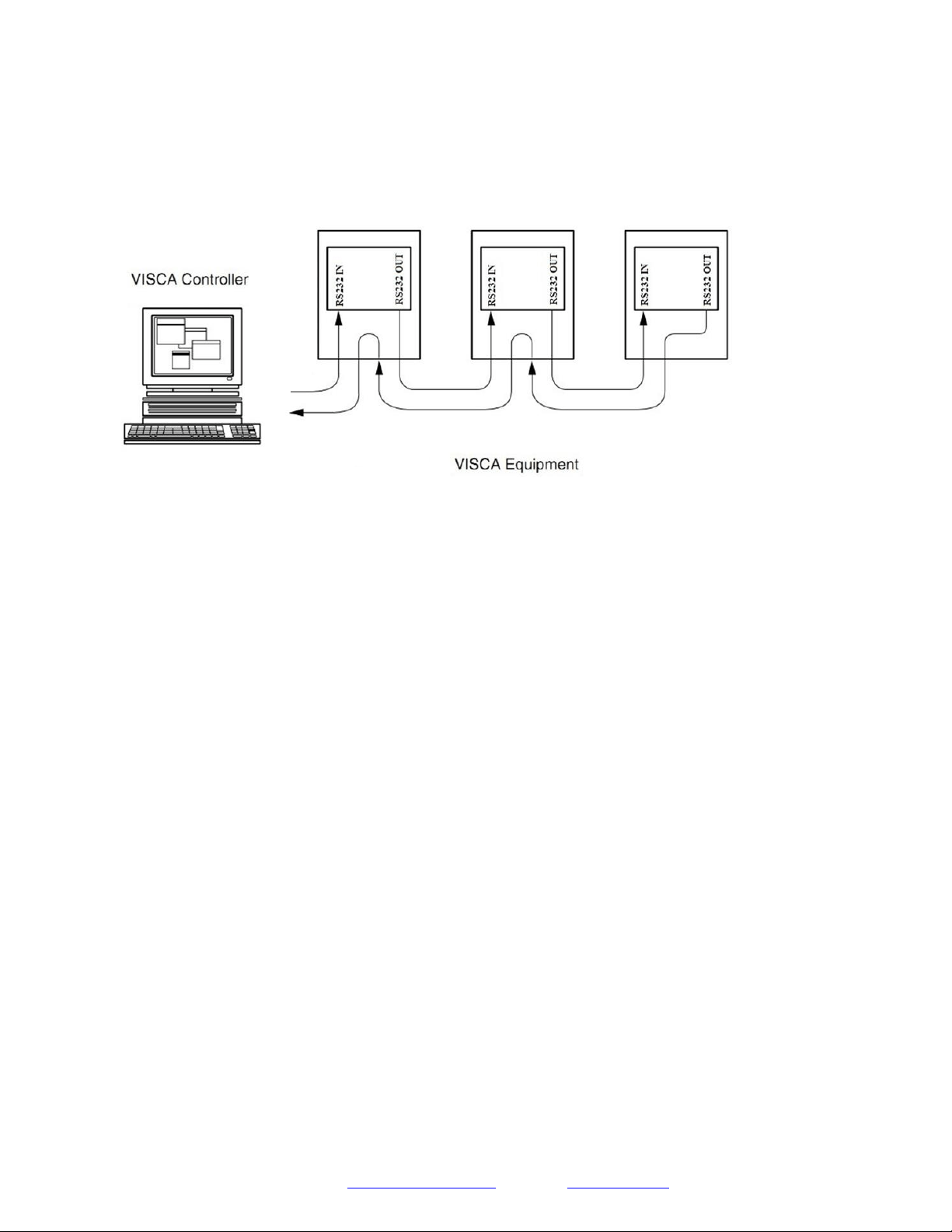
VISCA Network Configuration
Serial Communication Control
In default working mode, the camera is able to connect to a VISCA controller with an RS232C serial interface.
➢
RS232 Communication Control
The camera can be controlled via RS232. The parameters of RS232C are as follows:
Baud rate: 2400, 4800, 9600 or 38400 bps.
Start bit: 1 bit.
Data bit: 8 bits.
Stop bit: 1bit.
Parity bit: none.
➢
RS485 Communication Control
The camera can be controlled via RS485, Half-duplex mode, with support for VISCA, Pelco-D or Pelco-P protocol.
The parameters of RS485 are as follows:
Baud rate: 2400, 4800, 9600 or 38400 bps.
Start bit: 1 bit.
Data bit: 8 bits.
Stop bit: 1 bit.
Parity bit: none.
Page 15
Prisual
Command List
Part 1: Camera-Issued Messages
ACK/Completion Message
Command
Function
Command Packet
Comments
ACK/Completion
Messages
ACK
z0 4y FF
(y: Socket No.)
Returned when the command is accepted.
Completion
z0 5y FF
(y: Socket No.)
Returned when the command has been executed.
Error Messages
Command
Function
Command Packet
Comments
Error Messages
Syntax Error
z0 60 02 FF
Returned when the command format is different
or when a command with illegal command
parameters is accepted.
Command Buffer Full
z0 60 03 FF
Indicates that two sockets are already being used
(executing two commands) and the command
could not be accepted when received.
Command Canceled
z0 6y 04 FF
(y: Socket No.)
Returned when a command which is being
executed in a socket specified by the cancel
command is canceled. The completion message
for the command is not returned.
No Socket
z0 6y 05 FF
(y: Socket No.)
Returned when no command is executed in a
socket specified by the cancel command, or when
an invalid socket number is specified.
Command Not Executable
z0 6y 41 FF
(y: Execution command Socket
No. Inquiry command: 0)
Returned when a command cannot be executed
due to current conditions. For example, when
commands controlling the focus manually are
received during auto focus.
z = Camera Address + 8
Page 16
Prisual
Part 2: VISCA Command List
Command
Function
Command Packet
Comments
CAM_Power
On
8x 01 04 00 02 FF
Power ON/OFF
Off
8x 01 04 00 03 FF
CAM_Zoom
Stop
8x 01 04 07 00 FF
Tele (Standard)
8x 01 04 07 02 FF
Wide (Standard)
8x 01 04 07 03 FF
Tele (Variable)
8x 01 04 07 2p FF
p = 0(low) - 7(high)
Wide (Variable)
8x 01 04 07 3p FF
Direct
8x 01 04 47 0p 0q 0r 0s FF
pqrs: Zoom Position
CAM_Focus
Stop
8x 01 04 08 00 FF
Far (Standard)
8x 01 04 08 02 FF
Near (Standard)
8x 01 04 08 03 FF
Far (Variable)
8x 01 04 08 2p FF
p = 0(low) - 7(high)
Near (Variable)
8x 01 04 08 3p FF
Direct
8x 01 04 48 0p 0q 0r 0s FF
pqrs: Focus Position
Auto Focus
8x 01 04 38 02 FF
AF On/Off
Manual Focus
8x 01 04 38 03 FF
Auto/Manual
8x 01 04 38 10 FF
Focus Lock
8x 0a 04 68 02 FF
Prevents any other operation or command from
adjusting the current focus state
Focus Unlock
8x 0a 04 68 03 FF
CAM_WB
Auto
8x 01 04 35 00 FF
Normal Auto
Indoor mode
8x 01 04 35 01 FF
Indoor mode
Outdoor mode
8x 01 04 35 02 FF
Outdoor mode
OnePush mode
8x 01 04 35 03 FF
One Push WB mode
Manual
8x 01 04 35 05 FF
Manual Control mode
Color Temperature
8x 01 04 35 20 FF
Color Temperature mode
OnePush trigger
8x 01 04 10 05 FF
One Push WB Trigger
CAM_RGain
Reset
8x 01 04 03 00 FF
Manual Control of R Gain
Up
8x 01 04 03 02 FF
Down
8x 01 04 03 03 FF
Direct
8x 01 04 43 00 00 0p 0q FF
pq: R Gain
CAM_Bgain
Reset
8x 01 04 04 00 FF
Manual Control of B Gain
Up
8x 01 04 04 02 FF
Down
8x 01 04 04 03 FF
Direct
8x 01 04 44 00 00 0p 0q FF
pq: B Gain
CAM_ColorTemp
Reset
8x 01 04 20 00 FF
Default ColorTemperature setting
Up
8x 01 04 20 02 FF
Page 17
Prisual
Down
8x 01 04 20 03 FF
Direct
8x 01 04 20 0p 0q FF
pq: Color Temperature position 0x00: 2500K ~
0x37: 8000K
CAM_AE
Full Auto
8x 01 04 39 00 FF
Automatic Exposure mode
Manual
8x 01 04 39 03 FF
Manual Control mode
Shutter priority
8x 01 04 39 0A FF
Shutter Priority Automatic Exposure mode
Iris priority
8x 01 04 39 0B FF
Iris Priority Automatic Exposure mode
Bright
8x 01 04 39 0D FF
Bright Mode(Manual control)
CAM_Iris
Reset
8x 01 04 0B 00 FF
Iris Setting
Up
8x 01 04 0B 02 FF
Down
8x 01 04 0B 03 FF
Direct
8x 01 04 4B 00 00 0p 0q FF
pq: Iris Position
CAM_Shutter
Reset
8x 01 04 0A 00 FF
Default Shutter setting
Up
8x 01 04 0A 02 FF
Down
8x 01 04 0A 03 FF
Direct
8x 01 04 4A 00 00 0p 0q FF
pq: Shutter Position
CAM_Bright
Reset
8x 01 04 0D 00 FF
Bright Setting
Up
8x 01 04 0D 02 FF
Down
8x 01 04 0D 03 FF
Direct
8x 01 04 0D 00 00 0p 0q FF
pq: Bright Position
CAM_ExpComp
On
8x 01 04 3E 02 FF
Exposure Compensation On/Off
Off
8x 01 04 3E 03 FF
Reset
8x 01 04 0E 00 FF
Exposure Compensation Amount Setting
Up
8x 01 04 0E 02 FF
Down
8x 01 04 0E 03 FF
Direct
8x 01 04 4E 00 00 0p 0q FF
pq: ExpComp Position
CAM_BackLight
On
8x 01 04 33 02 FF
Back Light Compensation On/Off
Off
8x 01 04 33 03 FF
CAM_Flicker
-
8x 01 04 23 0p FF
p: Flicker Settings (0: Off, 1: 50Hz, 2: 60Hz)
CAM_PictureEffect
Off
8x 01 04 63 00 FF
Picture Effect Setting
B&W
8x 01 04 63 04 FF
CAM_Memory
Reset
8x 01 04 3F 00 pp FF
pp: Memory Number (=0 to 127)
Set
8x 01 04 3F 01 pp FF
Recall
8x 01 04 3F 02 pp FF
Preset Recall Speed
Preset Speed
8x 01 06 01 p FF
p: speed grade, the values are (0x01~0x18)
CAM_LR_Reverse
On
8x 01 04 61 02 FF
Image Flip Horizontal On/Off
Off
8x 01 04 61 03 FF
CAM_PictureFlip
On
8x 01 04 66 02 FF
Image Flip Vertical On/Off
Off
8x 01 04 66 03 FF
Page 18
Prisual
CAM_ColorGain
Diret
8x 01 04 49 00 00 00 0p FF
p: Color Gain setting 0h (60%) to Eh (200%)
Pan_tiltDrive
Up
8x 01 06 01 VV WW 03 01 FF
VV: Pan speed 0x01 (low speed) to 0x18 (high
speed)
WW: Tilt speed 0x01 (low speed) to 0x14 (high
speed)
YYYY: Pan Position
ZZZZ: Tilt Position
Down
8x 01 06 01 VV WW 03 02 FF
Left
8x 01 06 01 VV WW 01 03 FF
Right
8x 01 06 01 VV WW 02 03 FF
Upleft
8x 01 06 01 VV WW 01 01 FF
Upright
8x 01 06 01 VV WW 02 01 FF
DownLeft
8x 01 06 01 VV WW 01 02 FF
DownRight
8x 01 06 01 VV WW 02 02 FF
Stop
8x 01 06 01 VV WW 03 03 FF
AbsolutePosition
8x 01 06 02 VV WW
0Y 0Y 0Y 0Y 0Z 0Z 0Z 0Z FF
RelativePosition
8x 01 06 03 VV WW
0Y 0Y 0Y 0Y 0Z 0Z 0Z 0Z FF
Home
8x 01 06 04 FF
Reset
8x 01 06 05 FF
Pan_tiltLimitSet
LimitSet
8x 01 06 07 00 0W
0Y 0Y 0Y 0Y 0Z 0Z 0Z 0Z FF
W: 1 UpRight 0: DownLeft
YYYY: Pan Limit Position
ZZZZ: Tilt Position
LimitClear
8x 01 06 07 01 0W
07 0F 0F 0F 07 0F 0F 0F FF
CAM_Brightness
Direct
8x 01 04 A1 00 00 0p 0q FF
pq: Brightness Position
CAM_Contrast
Direct
8x 01 04 A2 00 00 0p 0q FF
pq: Contrast Position
CAM_Flip
Off
8x 01 04 A4 00 FF
Single Command For Video Flip
Flip-H
8x 01 04 A4 01 FF
Flip-V
8x 01 04 A4 02 FF
Flip-HV
8x 01 04 A4 03 FF
CAM_SettingSave
Save
8x 01 04 A5 10 FF
Save Current Setting
CAM_AWBSensitivity
High
8x 01 04 A9 00 FF
High
Normal
8x 01 04 A9 01 FF
Normal
Low
8x 01 04 A9 02 FF
Low
CAM_AFZone
Top
8x 01 04 AA 00 FF
AF Zone weight select
Center
8x 01 04 AA 01 FF
Bottom
8x 01 04 AA 02 FF
CAM_ColorHue
Direct
8x 01 04 4F 00 00 00 0p FF
p: Color Hue 0h (−14 degrees) to Eh (+14 degrees)
OSD_Control
Open / Close
8x 01 04 3F 02 5F FF
Navigate Up
8x 01 06 01 0E 0E 03 01 FF
Navigate Down
8x 01 06 01 0E 0E 03 02 FF
Navigate Left
8x 01 06 01 0E 0E 01 03 FF
Navigate Right
8x 01 06 01 0E 0E 02 03 FF
Page 19
Prisual
Enter
8x 01 06 06 05 FF
Return
8x 01 06 06 04 FF
CAM_NDIMode
High
8x 0B 01 01 FF
Medium
8x 0B 01 02 FF
Low
8x 0B 01 03 FF
Off
8x 0B 01 04 FF
CAM_MulticastMode
Multicast Mode
8x 0B 01 23 0p FF
p=1: On, p=2: Off
CAM_PTZMotionSync
PTZ Motion Sync On
8x 0A 11 13 02 FF
PTZ Motion Sync Off
8x 0A 11 13 03 FF
MS Lower Speed Limit
8x 0A 11 14 pq FF
pq: speed stage
CAM_UACStatus
Toggle USB Audio
8x 2A 02 A0 04 0p FF
p=2: On, p=3: Off
Part 3: VISCA Query Command List
Inquiry Command List
Command
Command packed
Inquiry Packet
Comments
CAM_PowerInq
8x 09 04 00 FF
y0 50 02 FF
On
y0 50 03 FF
Off (Standby)
y0 50 04 FF
Internal power circuit error
CAM_ZoomPosInq
8x 09 04 47 FF
y0 50 0p 0q 0r 0s FF
pqrs: Zoom Position
CAM_FocusAFMode
Inq
8x 09 04 38 FF
y0 50 02 FF
Auto Focus
y0 50 03 FF
Manual Focus
CAM_FocusPosInq
8x 09 04 48 FF
y0 50 0p 0q 0r 0s FF
pqrs: Focus Position
CAM_WBModeInq
8x 09 04 35 FF
y0 50 00 FF
Auto
y0 50 01 FF
Indoor mode
y0 50 02 FF
Outdoor mode
y0 50 03 FF
OnePush mode
y0 50 05 FF
Manual
y0 50 20 FF
ColorTemperature Mode
CAM_RGainInq
8x 09 04 43 FF
y0 50 00 00 0p 0q FF
pq: R Gain
CAM_BGainInq
8x 09 04 44 FF
y0 50 00 00 0p 0q FF
pq: B Gain
CAM_AEModeInq
8x 09 04 39 FF
y0 50 00 FF
Full Auto
y0 50 03 FF
Manual
y0 50 0A FF
Shutter priority
y0 50 0B FF
Iris priority
y0 50 0D FF
Bright
CAM_ShutterPosInq
8x 09 04 4A FF
y0 50 00 00 0p 0q FF
pq: Shutter Position
CAM_IrisPosInq
8x 09 04 4B FF
y0 50 00 00 0p 0q FF
pq: Iris Position
CAM_BrightPosInq
8x 09 04 4D FF
y0 50 00 00 0p 0q FF
pq: Bright Position
Page 21
Prisual
CAM_ExpCompMod
eInq
8x 09 04 3E FF
y0 50 02 FF
On
y0 50 03 FF
Off
CAM_ExpCompPosI
nq
8x 09 04 4E FF
y0 50 00 00 0p 0q FF
pq: ExpComp Position
CAM_BacklightMode
Inq
8x 09 04 33 FF
y0 50 02 FF
On
y0 50 03 FF
Off
CAM_Nosise2DMode
Ing
8x 09 04 50 FF
y0 50 02 FF
Auto Noise 2D
y0 50 03 FF
Manual Noise 3D
CAM_Nosise2DLevel
8x 09 04 53 FF
y0 50 0p FF
Noise Reduction (2D) p: 0 to 5
CAM_Noise3DLevel
8x 09 04 54 FF
y0 50 0p FF
Noise Reduction (3D) p: 0 to 8
CAM_FlickerModeIn
q
8x 09 04 55 FF
y0 50 0p FF
p: Flicker Settings(0: OFF, 1: 50Hz, 2: 60Hz)
CAM_ApertureModeI
nq (Sharpness)
8x 09 04 05 FF
y0 50 02 FF
Auto Sharpness
y0 50 03 FF
Manual Sharpness
CAM_ApertureInq
(Sharpness)
8x 09 04 42 FF
y0 50 00 00 0p 0q FF
pq: Aperture Gain
SYS_MenuModeInq
8x 09 06 06 FF
y0 50 02 FF
On
y0 50 03 FF
Off
CAM_PictureEffectM
odeInq
8x 09 04 63 FF
y0 50 02 FF
Off
y0 50 04 FF
B&W
CAM_LR_ReverseInq
8x 09 04 61 FF
y0 50 02 FF
On
y0 50 03 FF
Off
CAM_PictureFlipInq
8x 09 04 66 FF
y0 50 02 FF
On
y0 50 03 FF
Off
CAM_ColorGainInq
8x 09 04 49 FF
y0 50 00 00 00 0p FF
p: Color Gain setting 0h (60%) to Eh (200%)
Pan-tiltPosInq
8x 09 06 12 FF
y0 50 0w 0w 0w 0w
0z 0z 0z 0z FF
wwww: Pan Position
zzzz: Tilt Position
CAM_GainLimitInq
8x 09 04 2C FF
y0 50 0q FF
p: Gain Limit
CAM_AFSensitivityI
nq
8x 09 04 58 FF
y0 50 01 FF
High
y0 50 02 FF
Normal
y0 50 03 FF
Low
CAM_BrightnessInq
8x 09 04 A1 FF
y0 50 00 00 0p 0q FF
pq: Brightness Position
CAM_ContrastInq
8x 09 04 A2 FF
y0 50 00 00 0p 0q FF
pq: Contrast Position
CAM_FlipInq
8x 09 04 A4 FF
y0 50 00 FF
Off
y0 50 01 FF
Flip-H
y0 50 02 FF
Flip-V
y0 50 03 FF
Flip-HV
CAM_AFZone
8x 09 04 AA FF
y0 50 00 FF
Top
Page 22
Prisual
y0 50 01 FF
Center
y0 50 02 FF
Bottom
CAM_ColorHueInq
8x 09 04 4F FF
y0 50 00 00 00 0p FF
p: Color Hue setting 0h (− 14 degrees) to Eh ( +14
degrees
CAM_AWBSensitivit
yInq
8x 09 04 A9 FF
y0 50 00 FF
High
y0 50 01 FF
Normal
y0 50 02 FF
Low
CAM_UACInq
8x 2A 02 A0 04 FF
y0 50 02 FF
On
y0 50 03 FF
Off
Block Inquiry Command List
Command
Command packed
Inquiry Packet
Comments
CAM_LensBlockInq
8x 09 7E 7E 00 FF
y0 50 0u 0u 0u 0u 00 00 0v 0v
0v 0v 00 0w 00 FF
uuuu: Zoom Position
vvvv: Focus Position
w.bit0: Focus Mode 1: Auto 0: Manual
CAM_CameraBlockIn
q
8x 09 7E 7E 01 FF
y0 50 0p 0p 0q 0q 0r 0s tt 0u vv
ww 00 xx 0z FF
pp: R_Gain
qq: B_Gain
r: WB Mode
s: Aperture
tt: AE Mode
u.bit2: Back Light
u.bit1: Exposure Comp.
vv: Shutter Position
ww: Iris Position
xx: Bright Position
z: Exposure Comp. Position
CAM_OtherBlockInq
8x 09 7E 7E 02 FF
y0 50 0p 0q 00 0r 00 00 00 00
00 00 00 00 00 FF
p.bit0: Power 1:On, 0:Off
q.bit2: LR Reverse 1:On, 0:Off
r.bit3~0: Picture Effect Mode
CAM_EnlargementBl
ockInq
8x 09 7E 7E 03 FF
y0 50 00 00 00 00 00 00 00 0p
0q rr 0s 0t 0u FF
p: AF sensitivity
q.bit0: Picture flip(1:On, 0:Off)
rr.bit6~3: Color Gain(0h(60%) to Eh(200%))
s: Flip(0: Off, 1:Flip-H, 2:Flip-V, 3:Flip-HV)
t.bit2~0: NR2D Level
u: Gain Limit
Note: The [x] in the above table is the camera address, [y] = [x + 8].
Page 23
Prisual
Part 4: VISCA over IP Command List
Command
Function
Command Packet
Comments
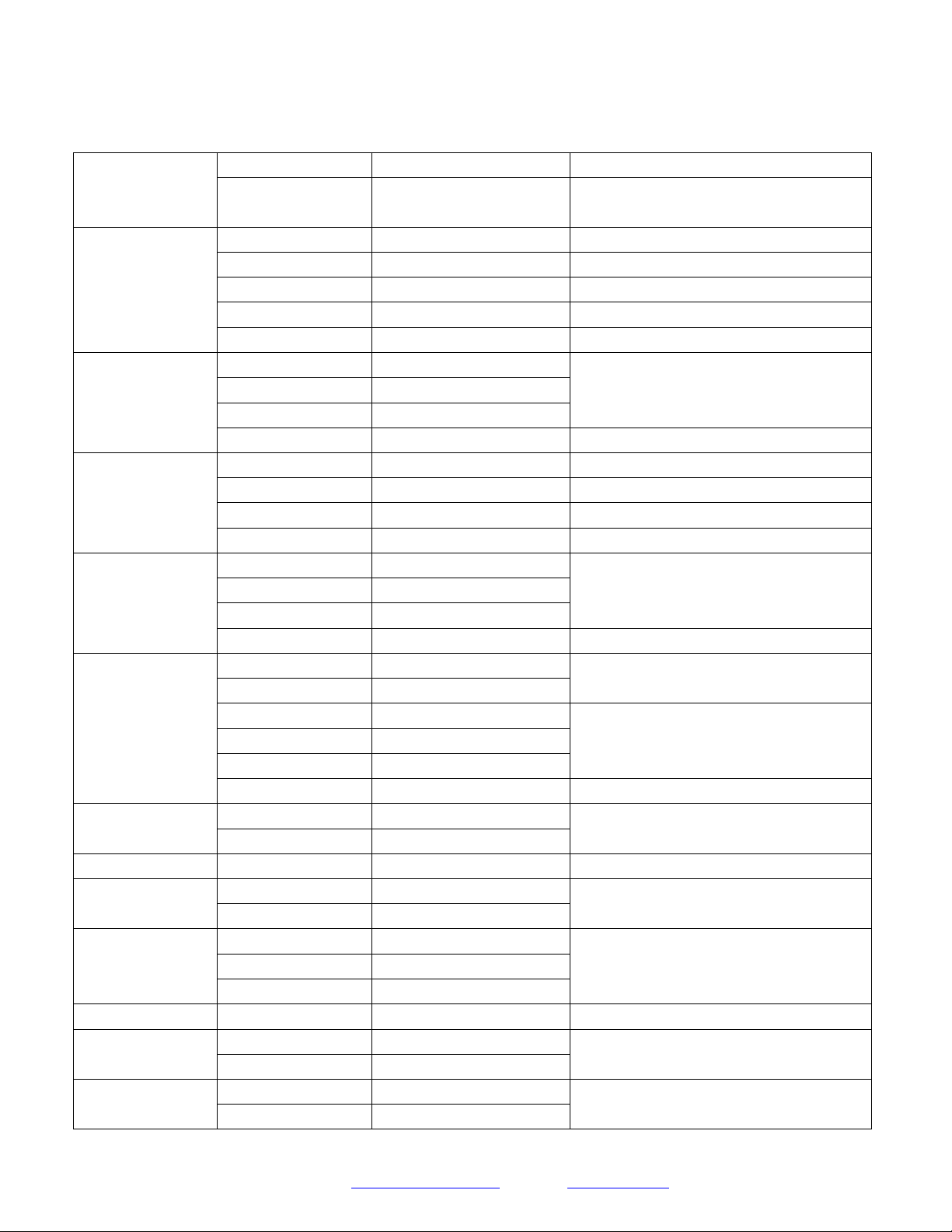
CAM_Power
On
81 01 04 00 02 FF
Power ON/OFF
Off
81 01 04 00 03 FF
CAM_Zoom
Stop
81 01 04 07 00 FF
Tele (Standard)
81 01 04 07 02 FF
Wide (Standard)
81 01 04 07 03 FF
Tele (Variable)
81 01 04 07 2p FF
p = 0(low) - 7(high)
Wide (Variable)
81 01 04 07 3p FF
Direct
81 01 04 47 0p 0q 0r 0s FF
pqrs: Zoom Position
CAM_Focus
Stop
81 01 04 08 00 FF
Far (Standard)
81 01 04 08 02 FF
Near (Standard)
81 01 04 08 03 FF
Far (Variable)
81 01 04 08 2p FF
p = 0(low) - 7(high)
Near (Variable)
81 01 04 08 3p FF
Direct
81 01 04 48 0p 0q 0r 0s FF
pqrs: Focus Position
Auto Focus
81 01 04 38 02 FF
AF On/Off
Manual Focus
81 01 04 38 03 FF
Auto/Manual
81 01 04 38 10 FF
Focus Lock
81 0a 04 68 02 FF
Prevents any other operation or command from
adjusting the current focus state
Focus Unlock
81 0a 04 68 03 FF
CAM_WB
Auto
81 01 04 35 00 FF
Normal Auto
Indoor mode
81 01 04 35 01 FF
Indoor mode
Outdoor mode
81 01 04 35 02 FF
Outdoor mode
OnePush mode
81 01 04 35 03 FF
One Push WB mode
Manual
81 01 04 35 05 FF
Manual Control mode
Color Temperature
81 01 04 35 20 FF
Color Temperature mode
OnePush trigger
81 01 04 10 05 FF
One Push WB Trigger
CAM_RGain
Reset
81 01 04 03 00 FF
Manual Control of R Gain
Up
81 01 04 03 02 FF
Down
81 01 04 03 03 FF
Direct
81 01 04 43 00 00 0p 0q FF
pq: R Gain
CAM_Bgain
Reset
81 01 04 04 00 FF
Manual Control of B Gain
Up
81 01 04 04 02 FF
Down
81 01 04 04 03 FF
Direct
81 01 04 44 00 00 0p 0q FF
pq: B Gain
CAM_ColorTemp
Reset
81 01 04 20 00 FF
Default ColorTemperature setting
Up
81 01 04 20 02 FF
Page 24
Prisual
Support: [email protected] www.prisual.us
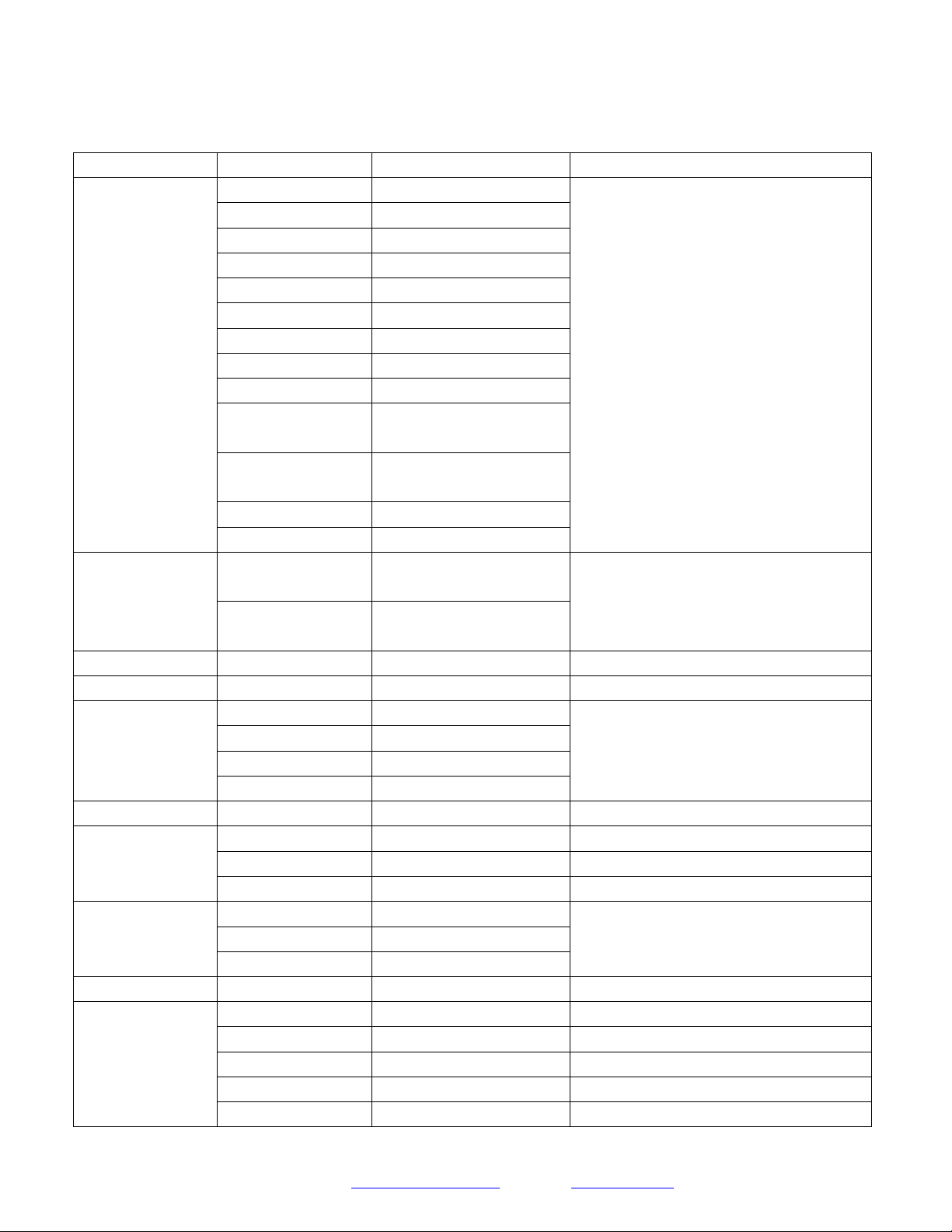
Down
81 01 04 20 03 FF
Direct
81 01 04 20 0p 0q FF
pq: Color Temperature position 0x00: 2500K ~
0x37: 8000K
CAM_AE
Full Auto
81 01 04 39 00 FF
Automatic Exposure mode
Manual
81 01 04 39 03 FF
Manual Control mode
Shutter priority
81 01 04 39 0A FF
Shutter Priority Automatic Exposure mode
Iris priority
81 01 04 39 0B FF
Iris Priority Automatic Exposure mode
Bright
81 01 04 39 0D FF
Bright Mode(Manual control)
CAM_Iris
Reset
81 01 04 0B 00 FF
Iris Setting
Up
81 01 04 0B 02 FF
Down
81 01 04 0B 03 FF
Direct
81 01 04 4B 00 00 0p 0q FF
pq: Iris Position
CAM_Shutter
Reset
81 01 04 0A 00 FF
Default Shutter setting
Up
81 01 04 0A 02 FF
Down
81 01 04 0A 03 FF
Direct
81 01 04 4A 00 00 0p 0q FF
pq: Shutter Position
CAM_Bright
Reset
81 01 04 0D 00 FF
Bright Setting
Up
81 01 04 0D 02 FF
Down
81 01 04 0D 03 FF
Direct
81 01 04 0D 00 00 0p 0q FF
pq: Bright Position
CAM_ExpComp
On
81 01 04 3E 02 FF
Exposure Compensation On/Off
Off
81 01 04 3E 03 FF
Reset
81 01 04 0E 00 FF
Exposure Compensation Amount Setting
Up
81 01 04 0E 02 FF
Down
81 01 04 0E 03 FF
Direct
81 01 04 4E 00 00 0p 0q FF
pq: ExpComp Position
CAM_BackLight
On
81 01 04 33 02 FF
Back Light Compensation On/Off
Off
81 01 04 33 03 FF
CAM_Flicker
-
81 01 04 23 0p FF
p: Flicker Settings (0: Off, 1: 50Hz, 2: 60Hz)
CAM_PictureEffect
Off
81 01 04 63 00 FF
Picture Effect Setting
B&W
81 01 04 63 04 FF
CAM_Memory
Reset
81 01 04 3F 00 pp FF
pp: Memory Number (=0 to 127)
Set
81 01 04 3F 01 pp FF
Recall
81 01 04 3F 02 pp FF
Preset Recall Speed
Preset Speed
81 01 06 01 p FF
p: speed grade, the values are (0x01~0x18)
CAM_LR_Reverse
On
81 01 04 61 02 FF
Image Flip Horizontal On/Off
Off
81 01 04 61 03 FF
CAM_PictureFlip
On
81 01 04 66 02 FF
Image Flip Vertical On/Off
Off
81 01 04 66 03 FF
Page 25
Prisual
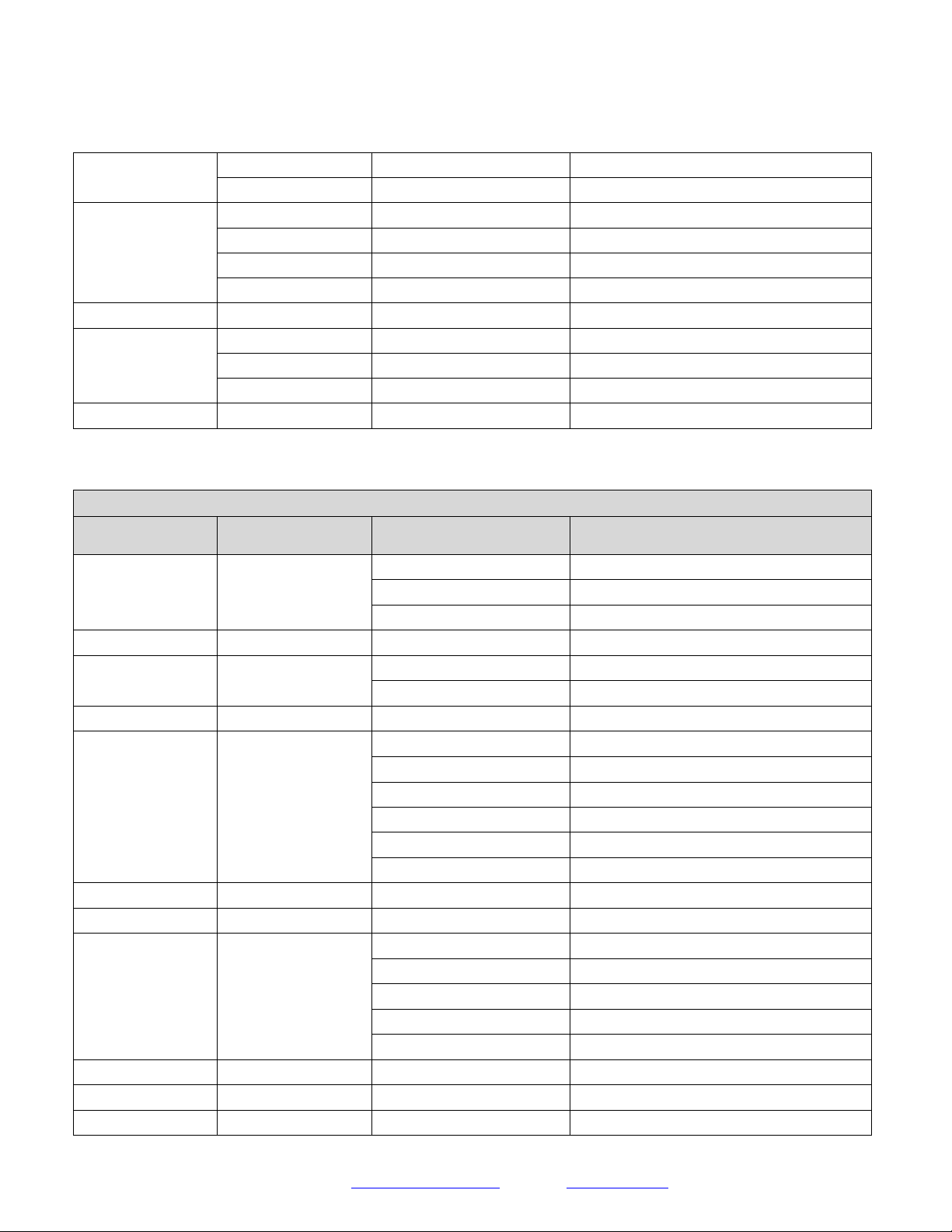
CAM_ColorGain
Direct
81 01 04 49 00 00 00 0p FF
p: Color Gain setting 0h (60%) to Eh (200%)
Pan_tiltDrive
Up
81 01 06 01 VV WW 03 01 FF
VV: Pan speed 0x01 (low speed) to 0x18 (high
speed)
WW: Tilt speed 0x01 (low speed) to 0x14 (high
speed)
YYYY: Pan Position
ZZZZ: Tilt Position
Down
81 01 06 01 VV WW 03 02 FF
Left
81 01 06 01 VV WW 01 03 FF
Right
81 01 06 01 VV WW 02 03 FF
Upleft
81 01 06 01 VV WW 01 01 FF
Upright
81 01 06 01 VV WW 02 01 FF
DownLeft
81 01 06 01 VV WW 01 02 FF
DownRight
81 01 06 01 VV WW 02 02 FF
Stop
81 01 06 01 VV WW 03 03 FF
AbsolutePosition
81 01 06 02 VV WW
0Y 0Y 0Y 0Y 0Z 0Z 0Z 0Z FF
RelativePosition
81 01 06 03 VV WW
0Y 0Y 0Y 0Y 0Z 0Z 0Z 0Z FF
Home
81 01 06 04 FF
Reset
81 01 06 05 FF
Pan_tiltLimitSet
LimitSet
81 01 06 07 00 0W
0Y 0Y 0Y 0Y 0Z 0Z 0Z 0Z FF
W: 1 UpRight 0: DownLeft
YYYY: Pan Limit Position
ZZZZ: Tilt Position
LimitClear
81 01 06 07 01 0W
07 0F 0F 0F 07 0F 0F 0F FF
CAM_Brightness
Direct
81 01 04 A1 00 00 0p 0q FF
pq: Brightness Position
CAM_Contrast
Direct
81 01 04 A2 00 00 0p 0q FF
pq: Contrast Position
CAM_Flip
Off
81 01 04 A4 00 FF
Single Command For Video Flip
Flip-H
81 01 04 A4 01 FF
Flip-V
81 01 04 A4 02 FF
Flip-HV
81 01 04 A4 03 FF
CAM_SettingSave
Save
81 01 04 A5 10 FF
Save Current Setting
CAM_AWBSensitivity
High
81 01 04 A9 00 FF
High
Normal
81 01 04 A9 01 FF
Normal
Low
81 01 04 A9 02 FF
Low
CAM_AFZone
Top
81 01 04 AA 00 FF
AF Zone weight select
Center
81 01 04 AA 01 FF
Bottom
81 01 04 AA 02 FF
CAM_ColorHue
Direct
81 01 04 4F 00 00 00 0p FF
p: Color Hue 0h (−14 degrees) to Eh (+14 degrees)
OSD_Control
Open / Close
81 01 04 3F 02 5F FF
Navigate Up
81 01 06 01 0E 0E 03 01 FF
Navigate Down
81 01 06 01 0E 0E 03 02 FF
Navigate Left
81 01 06 01 0E 0E 01 03 FF
Navigate Right
81 01 06 01 0E 0E 02 03 FF
Page 26
Prisual
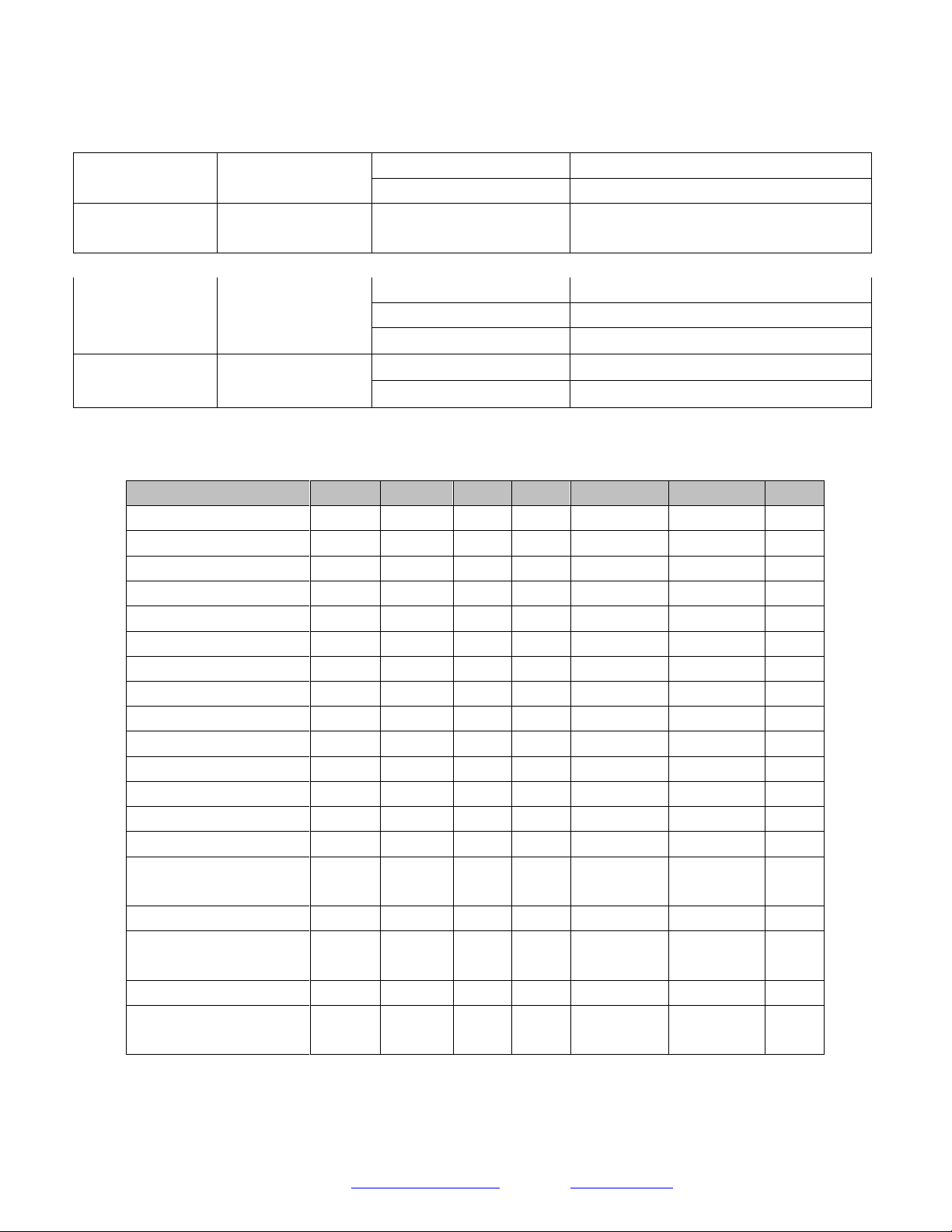
Enter
81 01 06 06 05 FF
Return
81 01 06 06 04 FF
CAM_NDIMode
High
81 0B 01 01 FF
Medium
81 0B 01 02 FF
Low
81 0B 01 03 FF
Off
81 0B 01 04 FF
CAM_MulticastMode
Multicast Mode
81 0B 01 23 0p FF
p=1: On, p=2: Off
CAM_PTZMotionSync
PTZ Motion Sync On
81 0A 11 13 02 FF
PTZ Motion Sync Off
81 0A 11 13 03 FF
MS Lower Speed Limit
81 0A 11 14 pq FF
pq: speed stage
CAM_UACStatus
Toggle USB Audio
81 2A 02 A0 04 0p FF
p=2: On, p=3: Off
Part 5: VISCA over IP Query Command List
Inquiry Command List
Command
Command packed
Inquiry Packet
Comments
CAM_PowerInq
81 09 04 00 FF
90 50 02 FF
On
90 50 03 FF
Off (Standby)
90 50 04 FF
Internal power circuit error
CAM_ZoomPosInq
81 09 04 47 FF
90 50 0p 0q 0r 0s FF
pqrs: Zoom Position
CAM_FocusAFMode
Inq
81 09 04 38 FF
90 50 02 FF
Auto Focus
90 50 03 FF
Manual Focus
CAM_FocusPosInq
81 09 04 48 FF
90 50 0p 0q 0r 0s FF
pqrs: Focus Position
CAM_WBModeInq
81 09 04 35 FF
90 50 00 FF
Auto
90 50 01 FF
Indoor mode
90 50 02 FF
Outdoor mode
90 50 03 FF
OnePush mode
90 50 05 FF
Manual
90 50 20 FF
ColorTemperature Mode
CAM_RGainInq
81 09 04 43 FF
90 50 00 00 0p 0q FF
pq: R Gain
CAM_BGainInq
81 09 04 44 FF
90 50 00 00 0p 0q FF
pq: B Gain
CAM_AEModeInq
81 09 04 39 FF
90 50 00 FF
Full Auto
90 50 03 FF
Manual
90 50 0A FF
Shutter priority
90 50 0B FF
Iris priority
90 50 0D FF
Bright
CAM_ShutterPosInq
81 09 04 4A FF
90 50 00 00 0p 0q FF
pq: Shutter Position
CAM_IrisPosInq
81 09 04 4B FF
90 50 00 00 0p 0q FF
pq: Iris Position
CAM_BrightPosInq
81 09 04 4D FF
90 50 00 00 0p 0q FF
pq: Bright Position

Page 27
Prisual
Support: [email protected] www.prisual.us
CAM_ExpCompMod
eInq
81 09 04 3E FF
90 50 02 FF
On
90 50 03 FF
Off
CAM_ExpCompPosI
nq
81 09 04 4E FF
90 50 00 00 0p 0q FF
pq: ExpComp Position
CAM_BacklightMode
Inq
81 09 04 33 FF
90 50 02 FF
On
90 50 03 FF
Off
CAM_Nosise2DMode
Ing
81 09 04 50 FF
90 50 02 FF
Auto Noise 2D
90 50 03 FF
Manual Noise 3D
CAM_Nosise2DLevel
81 09 04 53 FF
90 50 0p FF
Noise Reduction (2D) p: 0 to 5
CAM_Noise3DLevel
81 09 04 54 FF
90 50 0p FF
Noise Reduction (3D) p: 0 to 8
CAM_FlickerModeIn
q
81 09 04 55 FF
90 50 0p FF
p: Flicker Settings(0: OFF, 1: 50Hz, 2: 60Hz)
CAM_ApertureModeI
nq (Sharpness)
81 09 04 05 FF
90 50 02 FF
Auto Sharpness
90 50 03 FF
Manual Sharpness
CAM_ApertureInq
(Sharpness)
81 09 04 42 FF
90 50 00 00 0p 0q FF
pq: Aperture Gain
SYS_MenuModeInq
81 09 06 06 FF
90 50 02 FF
On
90 50 03 FF
Off
CAM_PictureEffectM
odeInq
81 09 04 63 FF
90 50 02 FF
Off
90 50 04 FF
B&W
CAM_LR_ReverseInq
81 09 04 61 FF
90 50 02 FF
On
90 50 03 FF
Off
CAM_PictureFlipInq
81 09 04 66 FF
90 50 02 FF
On
90 50 03 FF
Off
CAM_ColorGainInq
81 09 04 49 FF
90 50 00 00 00 0p FF
p: Color Gain setting 0h (60%) to Eh (200%)
Pan-tiltPosInq
81 09 06 12 FF
90 50 0w 0w 0w 0w
0z 0z 0z 0z FF
wwww: Pan Position
zzzz: Tilt Position
CAM_GainLimitInq
81 09 04 2C FF
90 50 0q FF
p: Gain Limit
CAM_AFSensitivityI
nq
81 09 04 58 FF
90 50 01 FF
High
90 50 02 FF
Normal
90 50 03 FF
Low
CAM_BrightnessInq
81 09 04 A1 FF
90 50 00 00 0p 0q FF
pq: Brightness Position
CAM_ContrastInq
81 09 04 A2 FF
90 50 00 00 0p 0q FF
pq: Contrast Position
CAM_FlipInq
81 09 04 A4 FF
90 50 00 FF
Off
90 50 01 FF
Flip-H
90 50 02 FF
Flip-V
90 50 03 FF
Flip-HV
CAM_AFZone
81 09 04 AA FF
90 50 00 FF
Top
Page 28
Prisual
90 50 01 FF
Center
90 50 02 FF
Bottom
CAM_ColorHueInq
81 09 04 4F FF
90 50 00 00 00 0p FF
p: Color Hue setting 0h (− 14 degrees) to Eh ( +14
degrees
CAM_AWBSensitivit
yInq
81 09 04 A9 FF
90 50 00 FF
High
90 50 01 FF
Normal
90 50 02 FF
Low
CAM_UACInq
81 2A 02 A0 04 FF
90 50 02 FF
On
90 50 03 FF
Off
Part 6: Pelco-D Protocol Command List
Function
Byte1
Byte2
Byte3
Byte4
Byte5
Byte6
Byte7
Up
0xFF
Address
0x00
0x08
Pan Speed
Tilt Speed
SUM
Down
0xFF
Address
0x00
0x10
Pan Speed
Tilt Speed
SUM
Left
0xFF
Address
0x00
0x04
Pan Speed
Tilt Speed
SUM
Right
0xFF
Address
0x00
0x02
Pan Speed
Tilt Speed
SUM
Zoom In
0xFF
Address
0x00
0x20
0x00
0x00
SUM
Zoom Out
0xFF
Address
0x00
0x40
0x00
0x00
SUM
Focus Far
0xFF
Address
0x00
0x80
0x00
0x00
SUM
Focus Near
0xFF
Address
0x01
0x00
0x00
0x00
SUM
Set Preset
0xFF
Address
0x00
0x03
0x00
Preset ID
SUM
Clear Preset
0xFF
Address
0x00
0x05
0x00
Preset ID
SUM
Call Preset
0xFF
Address
0x00
0x07
0x00
Preset ID
SUM
Auto Focus
0xFF
Address
0x00
0x2B
0x00
0x01
SUM
Manual Focus
0xFF
Address
0x00
0x2B
0x00
0x02
SUM
Query Pan Position
0xFF
Address
0x00
0x51
0x00
0x00
SUM
Query Pan Position Response
0xFF
Address
0x00
0x59
Value High
Byte
Value Low
Byte
SUM
Query Tilt Position
0xFF
Address
0x00
0x53
0x00
0x00
SUM
Query Tilt Position Response
0xFF
Address
0x00
0x5B
Value High
Byte
Value Low
Byte
SUM
Query Zoom Position
0xFF
Address
0x00
0x55
0x00
0x00
SUM
Query Zoom Position
Response
0xFF
Address
0x00
0x5D
Value High
Byte
Value Low
Byte
SUM
Page 29
Prisual
Part 7: Pelco-P Protocol Command List
Function
Byte1
Byte2
Byte3
Byte4
Byte5
Byte6
Byte7
Byte8
Up
0xA0
Address
0x00
0x08
Pan Speed
Tilt Speed
0xAF
XOR
Down
0xA0
Address
0x00
0x10
Pan Speed
Tilt Speed
0xAF
XOR
Left
0xA0
Address
0x00
0x04
Pan Speed
Tilt Speed
0xAF
XOR
Right
0xA0
Address
0x00
0x02
Pan Speed
Tilt Speed
0xAF
XOR
Zoom In
0xA0
Address
0x00
0x20
0x00
0x00
0xAF
XOR
Zoom Out
0xA0
Address
0x00
0x40
0x00
0x00
0xAF
XOR
Focus Far
0xA0
Address
0x00
0x80
0x00
0x00
0xAF
XOR
Focus Near
0xA0
Address
0x01
0x00
0x00
0x00
0xAF
XOR
Set Preset
0xA0
Address
0x00
0x03
0x00
Preset ID
0xAF
XOR
Clear Preset
0xA0
Address
0x00
0x05
0x00
Preset ID
0xAF
XOR
Call Preset
0xA0
Address
0x00
0x07
0x00
Preset ID
0xAF
XOR
Auto Focus
0xA0
Address
0x00
0x2B
0x00
0x01
0xAF
XOR
Manual Focus
0xA0
Address
0x00
0x2B
0x00
0x02
0xAF
XOR
Query Pan Position
0xA0
Address
0x00
0x51
0x00
0x00
0xAF
XOR
Query Pan Position
Response
0xA0
Address
0x00
0x59
Value High
Byte
Value Low
Byte
0xAF
XOR
Query Tilt Position
0xA0
Address
0x00
0x53
0x00
0x00
0xAF
XOR
Query Tilt Position
Response
0xA0
Address
0x00
0x5B
Value High
Byte
Value Low
Byte
0xAF
XOR
Query Zoom Position
0xA0
Address
0x00
0x55
0x00
0x00
0xAF
XOR
Query Zoom Position
Response
0xA0
Address
0x00
0x5D
Value High
Byte
Value Low
Byte
0xAF
XOR

Page 30
Prisual
Menu Settings
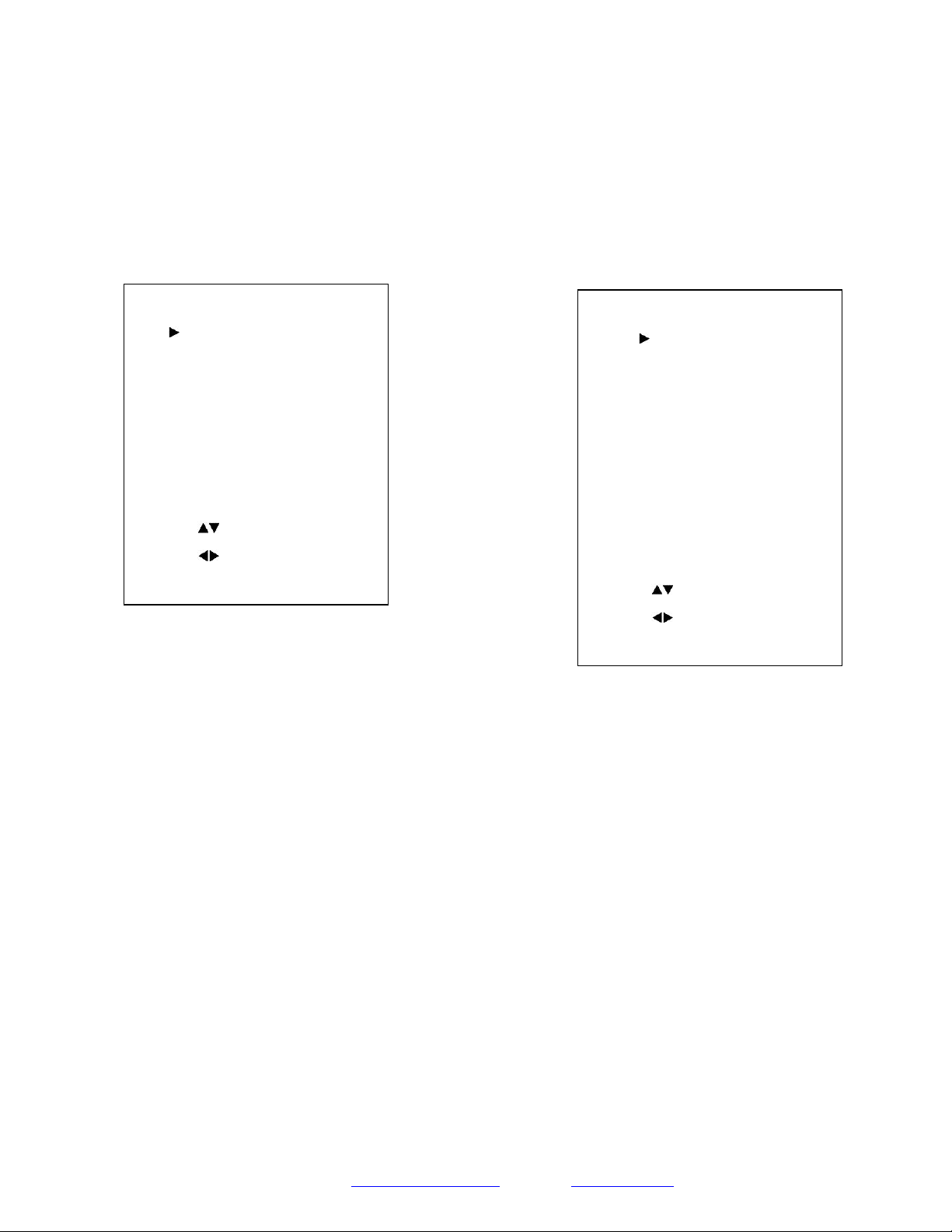
1. MENU
Press the [MENU] button to display the On Screen Display
menu on the normal screen, using the arrow button to move
the cursor to the item to be set. Press the [HOME] button to
enter the corresponding sub-menu.
2. EXPOSURE
Move the main menu cursor to [EXPOSURE], and press the
[HOME] key to enter the exposure page, as shown in the
following figure.
Exposure Mode: Modes include: Auto, Manual, SAE, AAE,
Bright
ExpCompMode: Exposure compensation mode, optional
items: On, Off (Effective only in Auto mode).
ExpComp: Exposure compensation value, optional items: -
7~7 (Effective only when ExpCompMode is On).
Backlight: Set the backlight compensation, optional items:
On, Off (Effective only in Auto mode).
Bright: Intensity control, optional items: 00 ~ 17
(Effective only in Bright mode).
Gain Limit: Maximum gain limit, optional items: 0 ~ 15
(Effective only in SAE, AAE, & Bright mode).
Anti-Flicker: Anti-flicker, optional items: Off, 50Hz, 60Hz
(Effective only in Auto, AAE, & Bright mode).
Shutter: Shutter value, optional items: 1/30, 1/60, 1/90,
1/100, 1/125, 1/180, 1/250, 1/350, 1/500, 1/725, 1/1000,
1/1500, 1/2000, 1/3000, 1/4000, 1/6000, 1/10000
(Effective only in SAE & Manual mode).
DRC: Dynamic Range Control strength, optional items: 0 ~
8.
EXPOSURE
Mode
Auto
ExpCompMode
Off
Backlight
Off
Gain
Limit
3
Anti-Flicker
60Hz
Meter
Average
DRC
3
Select
Item
Change
Value
[Menu]
Back
MENU
Exposure
Color
Image
P/T/Z
Noise
Reduction
Setup
Communication
Setup
Restore
Default
[Home]
Enter
[Menu]
Exit
Page 31
Prisual
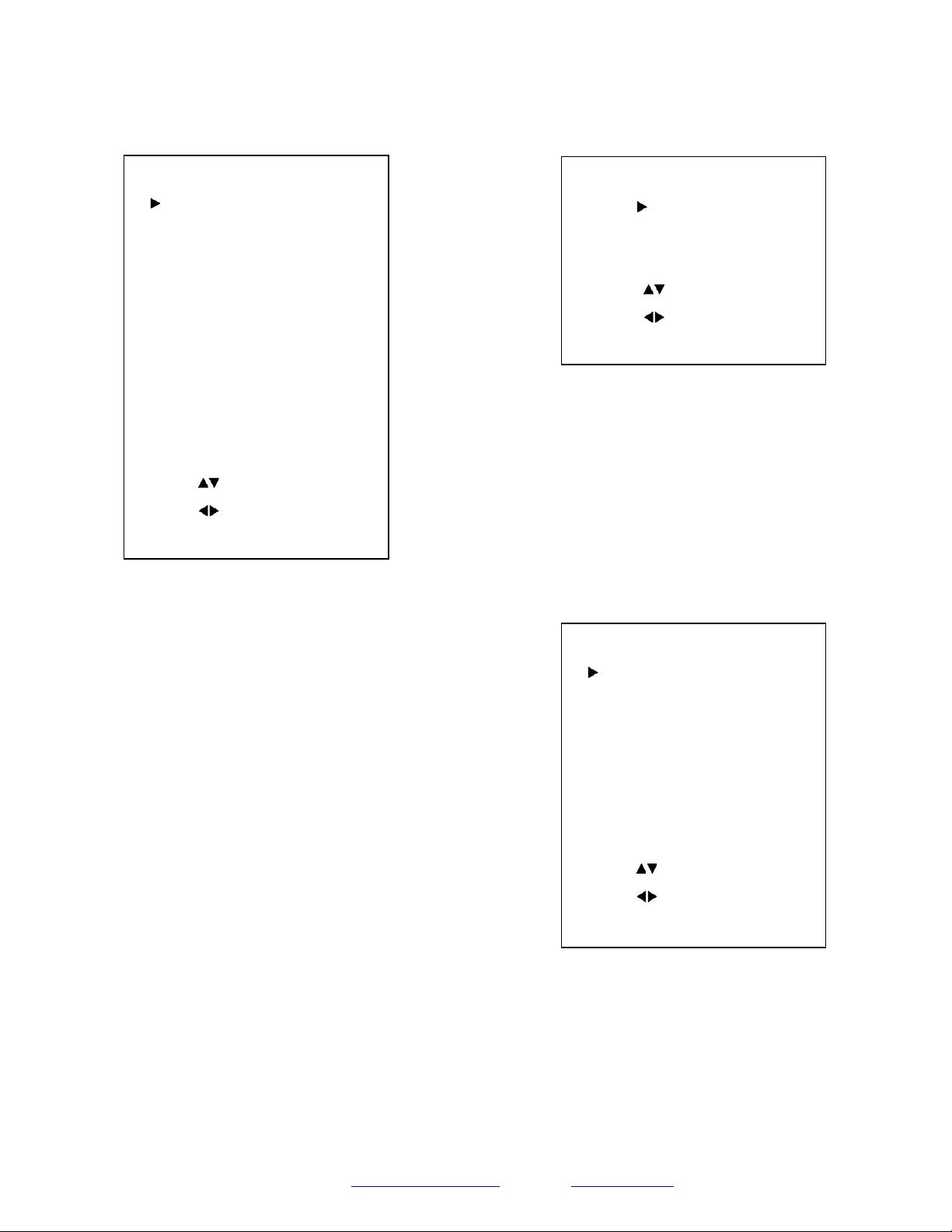
3. COLOR
Move the main menu cursor to [COLOR], and press the
[HOME] key to enter the color page, as shown in the
following figure.
WB-Mode: Modes include: Auto, Indoor, Outdoor, One
Push, Manual, VAR.
R Gain: Red gain, optional items: 0~255
(Effective only in Manual mode).
B Gain: Blue gain, optional items: 0~255
(Effective only in Manual mode).
colortemp: Optional items: 2500K ~ 8000K
(Effective only in VAR mode).
RG Tuning: Red gain tuning, optional items: -10 ~ +10.
BG Tuning: Blue gain tuning, optional items: -10 ~ +10.
Saturation: optional items: 60% ~ 200%.
Hue: Chroma adjustment, optional items: 0 ~ 14.
AWB Sens: The white balance sensitivity, optional items:
Low, Normal, High.
(Effective only in Auto & One Push mode)
4. IMAGE
Move the main menu cursor to [IMAGE], and press the
[HOME] key to enter the image page, as shown in the
following figure.
Luminance: Brightness adjustment, optional items: 0 ~ 14.
Contrast: Contrast adjustment, optional items: 0 ~ 14.
Sharpness: Sharpness adjustment, optional items: 0 ~ 14
Flip-H: Image flipped horizontally, optional items: On, Off.
Flip-V: Image Flip Vertical, optional items: On, Off.
Gamma: Optional items: Default, 0.45, 0.5, 0.56, 0.63.
Style: Optional items: Clarity, Norm, 5S, Soft, & Bright
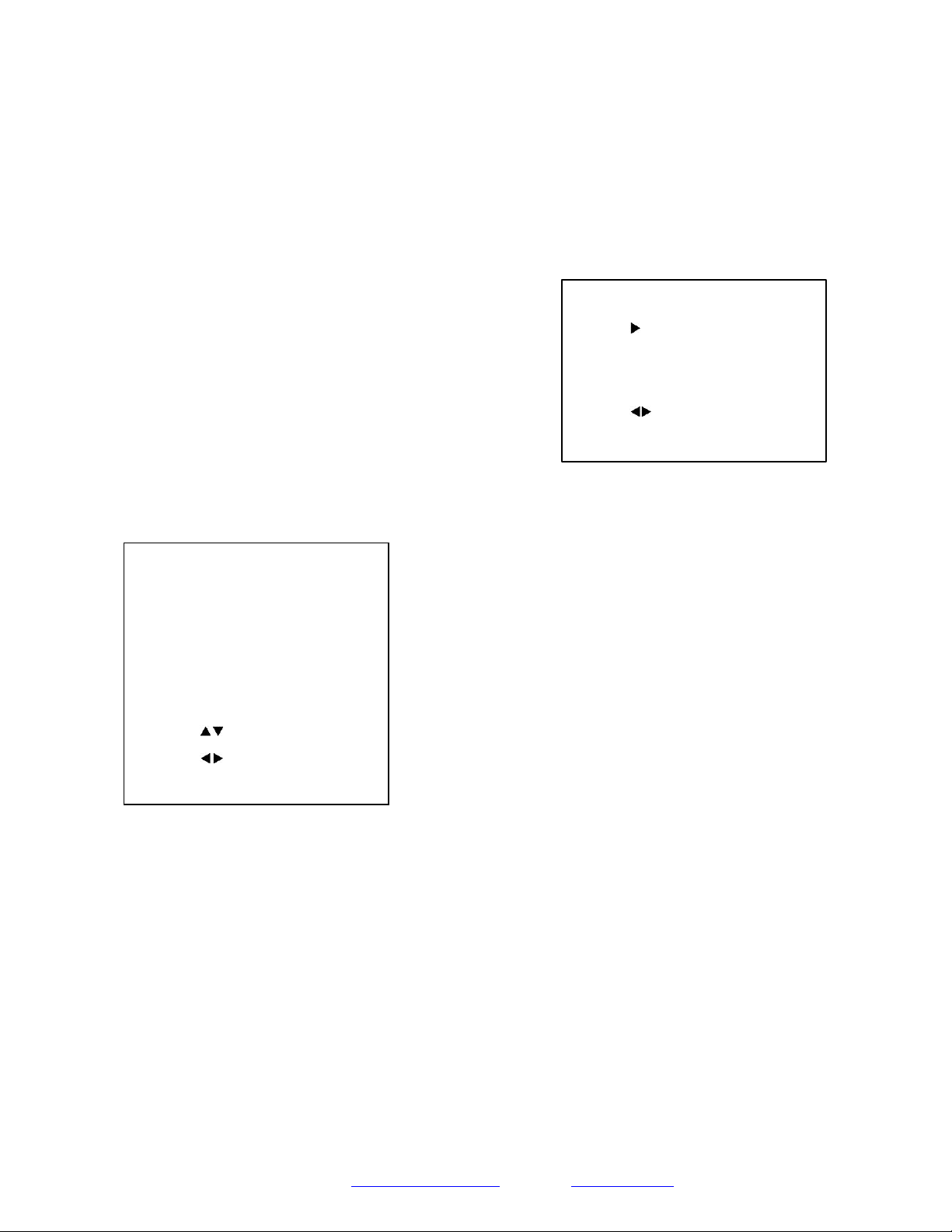
5. P/T/Z
Move the main menu cursor to [P/T/Z], and press the
[HOME] key to enter the P/T/Z page, as shown in the
following figure.
IMAGE
Luminance
7
Contrast 10
Sharpness 3
Flip-H
Off
Flip-V
Off
B&W-Mode
Off
Gamma
Default
Style
Clarity
Select
Item
Change
Value
[Menu]
Back
COLOR
WB
Mode
Auto
RG
Tuning 0
BG
Tuning 0
Saturation
100%
Hue
7
AWB
Sens
High
Select
Item
Change
Value
[Menu]
Back
Page 32
Prisual
SpeedByZoom: The depth of field scale switch, optional
items: On, Off
AF-Zone: Interested in focusing area, optional items: Top,
Center, Bottom
AF-Sense: Automatic focusing sensitivity options, optional
items: Low, Normal, High
L/R Set: Optional items: STD, REV
Display Info: Displays camera information upon startup,
optional items: On, Off
Image Freeze: Temporarily freeze image during preset call,
optional items: On, Off
Digital Zoom: Increase zoom level with electronic zoom,
optional items: Off, 2x, 4x, 8x, 16x
Call Preset Speed: Preset call speed, optional items: 1 ~ 24
Pre Zoom Speed: Preset Zoom Speed, optional items: 0 ~ 7
6. NOISE REDUCTION
Move the main menu cursor to [NOISE REDUCTION], and
press the [HOME] key to enter the noise reduction page, as
shown in the following figure.
NR2D Level: 2D noise reduction, optional items: Close,
Auto, 1 ~ 5.
NR3D Level: 3D noise reduction, optional items: Off,
1 ~ 8.
7. SETUP
Move the main menu cursor to [SETUP], and press the
[HOME] key to enter the setup page, as shown in the
following figure.
Language: Optional items: EN, Chinese, Russian, French,
Spanish, Italian, German
DVIMode: HDMI Data Transfer type, options include:
HDMI, DVI
Lens: Optional items: Type1, Type2
Auto Scan Shoot: optional items: Off, On
SETUP
Language
EN
DVIMode
HDMI
Lens
Type2
Auto
Scan
Shoot
Off
Auto
Focus
L
Off
MotionSync
Off
Select
Item
Change
Value
[Menu]
Back
NOISE
REDUCTION
NR2D-Level
1
NR3D-Level
3
Select
Item
Change
Value
[Menu]
Back
P/T/Z
SpeedByZoom
On
AF-Zone
Center
AF-Sense
High
L/R
Set
STD
Display
Info
On
Image
Freeze
Off
Digital
Zoom
Off
Call
Preset
Speed
24
Pre
Zoom
Speed
5
Select
Item
Change
Value
[Menu]
Back
Page 33
Prisual
Support: [email protected]
www.prisual.us
COMMUNICATION
SETUP
V_Address 1
V-AddrFix Off
Net
Mode
Serial
Baudrate
9600
Select
Item
Change
Value
[Menu]
Back
Auto Focus L: Lock focus in current position, optional
items: Off, On
OSD TimeOut: Auto close OSD, optional items: 2.5min,
Off
MotionSync: Trisynchronous preset call, optional items:
Off, On
Max Speed: Maximum MotionSync Speed, optional items:
185 – 230 (Effective only when MotionSync is “On”)
8. COMMUNICATION SETUP
Move the main menu cursor to
[INFORMATION], and press the [HOME] key to enter the
communication setup page, as shown in the following figure.
V_Address: Camera VISCA address: optional items: 1 ~
7
V-AddrFix: Fixed VISCA address: optional items: Off,
On
Net Mode: Optional items: Serial, Paral
Baudrate: Optional items: 2400, 4800, 9600, 38400
P_D_Address: Pelco-D Address, optional items: 0 - 254
P_P_Address: Pelco-P Address, optional items: 0 - 31
9. RESTORE DEFAULT
Move the main menu cursor to [RESTORE DEFAULT], and
press the [HOME] key to enter the restore default page, as
shown in the following figure.
Restore?: Confirm restore factory settings, optional items:
Yes, No.
P/T Limit Reset: Confirm P/T Limit Reset, optional items:
Yes, No.
Note: Press [HOME] button to confirm, all parameter restore
default, include IR Remote address and VISCA address.
RESTORE DEFAULT
Restore?
No
P/T Limit Reset No
Change Value
[Home] OK
Page 34
Prisual
Network Connection
1. Operating Environment
Operating System: Windows 2000/2003/XP/Vista/7/8.1/10
Network Protocol: TCP/IP
Client PC: P4 / 128M RAM / 40GHD / support for scaled graphics card, support for DirectX8.0 or more advanced version.
2. Equipment Installation
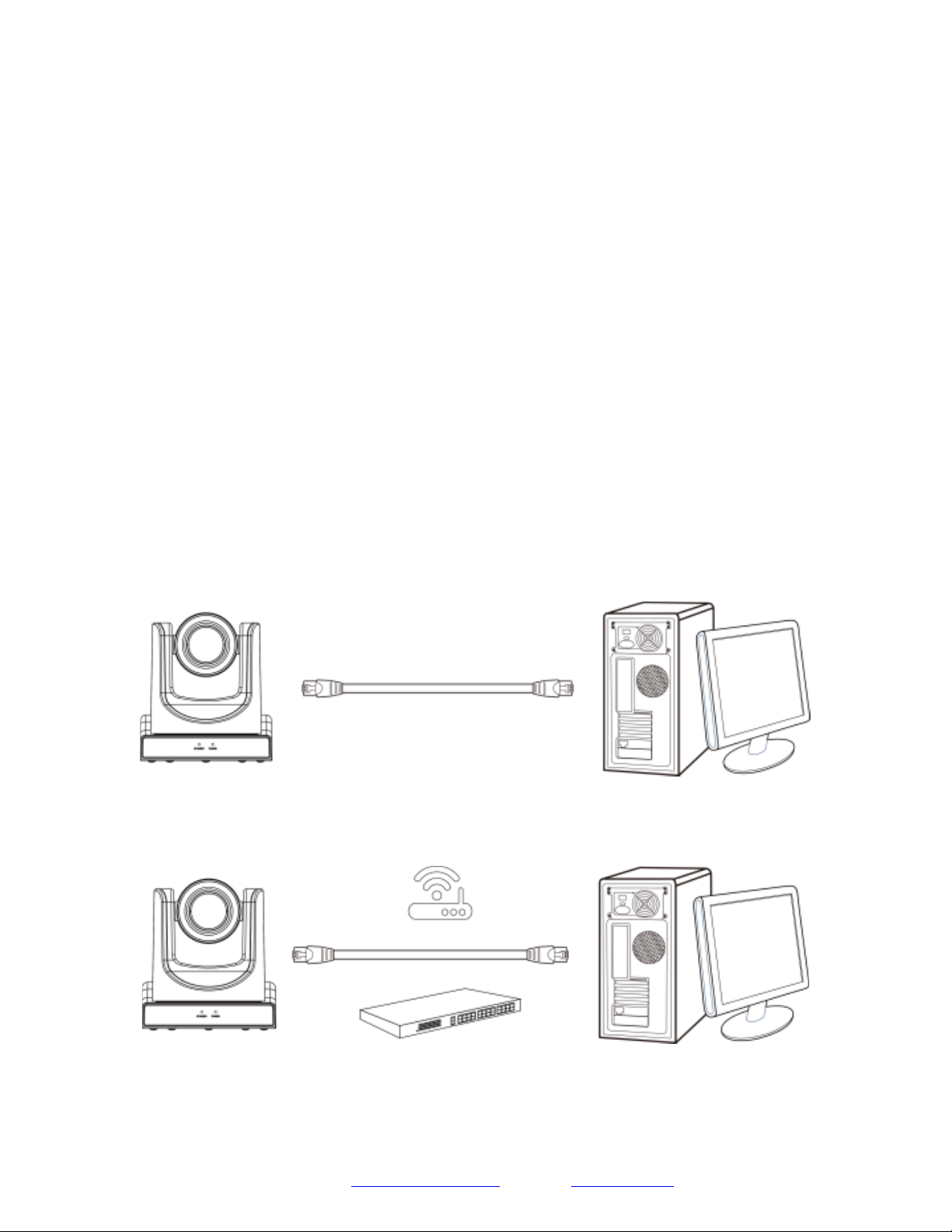
1) Connect camera to your network via a CAT5 or CAT6 patch cable or directly to your PC via a CAT5 or CAT6 cross over
cable.
2) Turn on camera power.
3) If successful, the orange network light will illuminate and the green light will start flashing. If unsuccessful, the cable is
bad, you are using the wrong cable, or you have connected to an inactive network jack.
3. Network Connection
Connection method between network camera and computer, as in pictures 1.1 and 1.2, below:
Picture 1.1 Direct connections via “cross-over” network cable
Picture 1.2 Connections to LAN via patch cable to LAN wall jack or LAN switch
Page 35
Prisual
Support: [email protected] www.prisual.us
Setting up a Network Video Stream
1. The first thing you are going to want to do to get your camera up and streaming on your network is to connect your
camera to power, an active network port on your network, and finally, power on the camera.
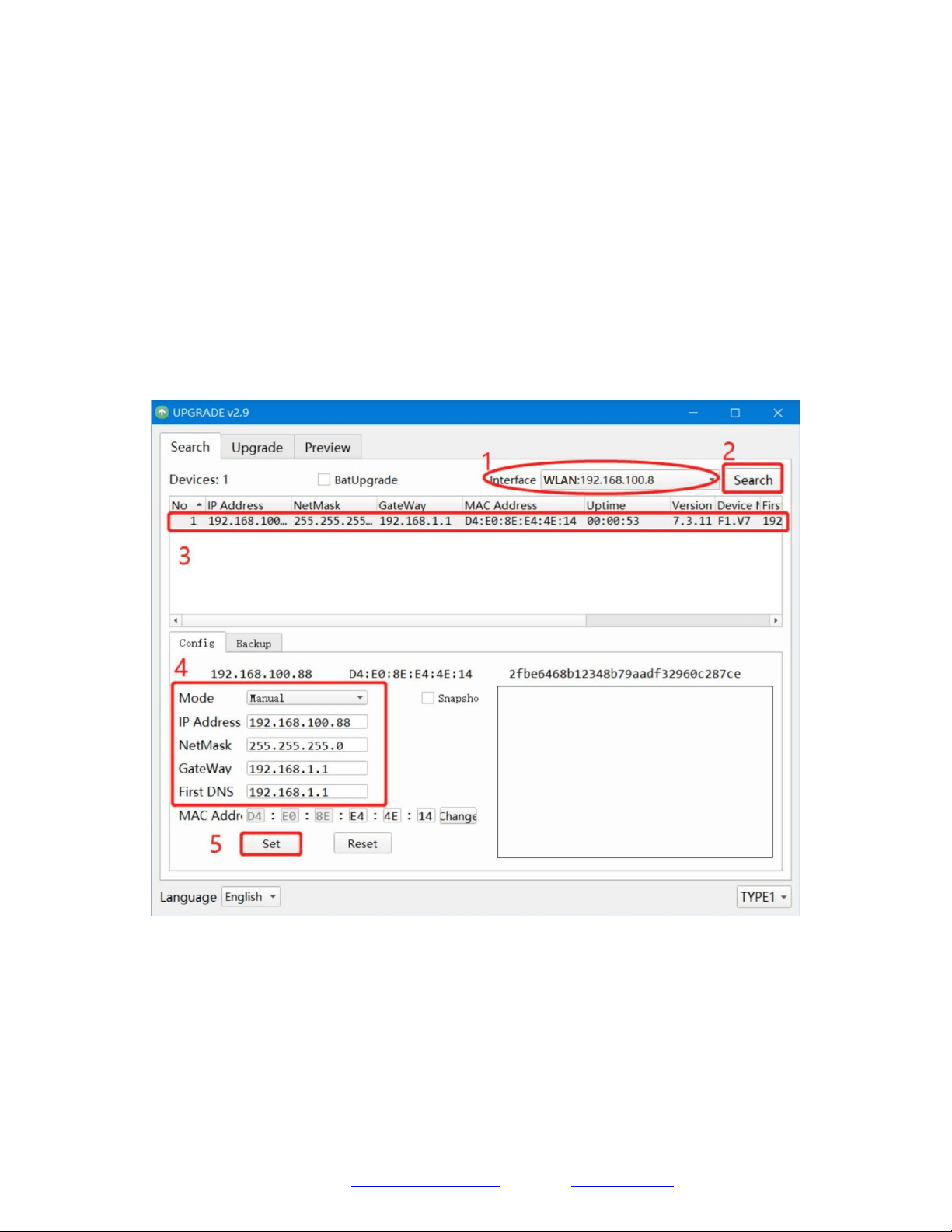
Next, go online and download the IP Address Settings Tool. It’s available for Windows & Mac OS at
https://prisual.us/pages/downloads
2. Once you complete the download, launch the “Upgrade Tool v2.9” tool. Select your network connection type
from the “Interface” dropdown menu and click “Search”.
4. The next thing you would want to do is change your cameras IP address to be in the same range as your network.
The camera comes with a default IP address of 192.168.100.88.
a. See the “Additional Network Info” section to identify your network scheme.
5. Click and select the camera item you wish to change the IP address of and select “Config”.
a. You have two (2) options for assigning the IP address of your camera. You can manually assign the IP
address by assigning a static IP address, or you can have a DHCP server automatically assign a dynamic IP
address to your camera.
b. Note: In more complex network environments, you may need to request a static IP address, Network Mask,
Default Gateway, & First DNS from your IT department.
Page 36
Prisual
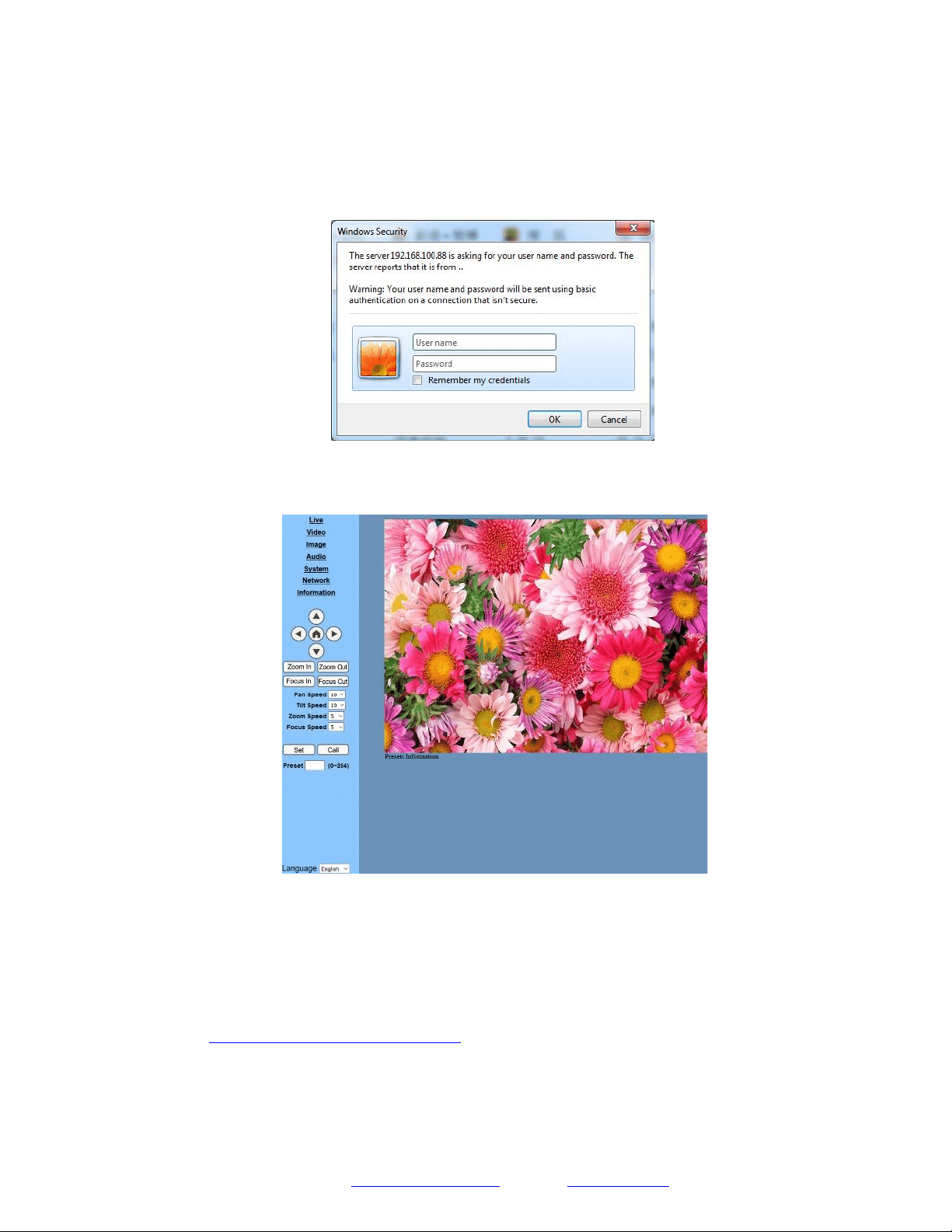
6. After assigning an IP address to the camera, you can reach the Web Interface by typing in the camera’s IP address
into a web browser. To log in, type in “admin” into the username and password fields.
7. From the Web Interface, you can control the camera using the arrows on the left side. You can also adjust many of
your camera’s settings via this IP interface.
8. You can now receive an RTSP stream from your camera. To view the RTSP stream, type in “rtsp://[Camera IP
address]:554/1” for the first (HD) stream, and “rtsp://[Camera IP address]:554/2” for the second (SD) stream.
9. You can test the RTSP streaming in VLC Media Player. Once VLC is installed and launched, click the “Media” drop
down menu and select “Open Network Stream”
NOTE
!
If the camera is used for the first time with Internet connection, user must install a video player (VLC). Please go to
VLC website http://www.videolan.org/vlc,download and install as instructed. After installation, login again, the home
page will show.
Page 37
Prisual
Additional Network Info
Discovering your Network IP range
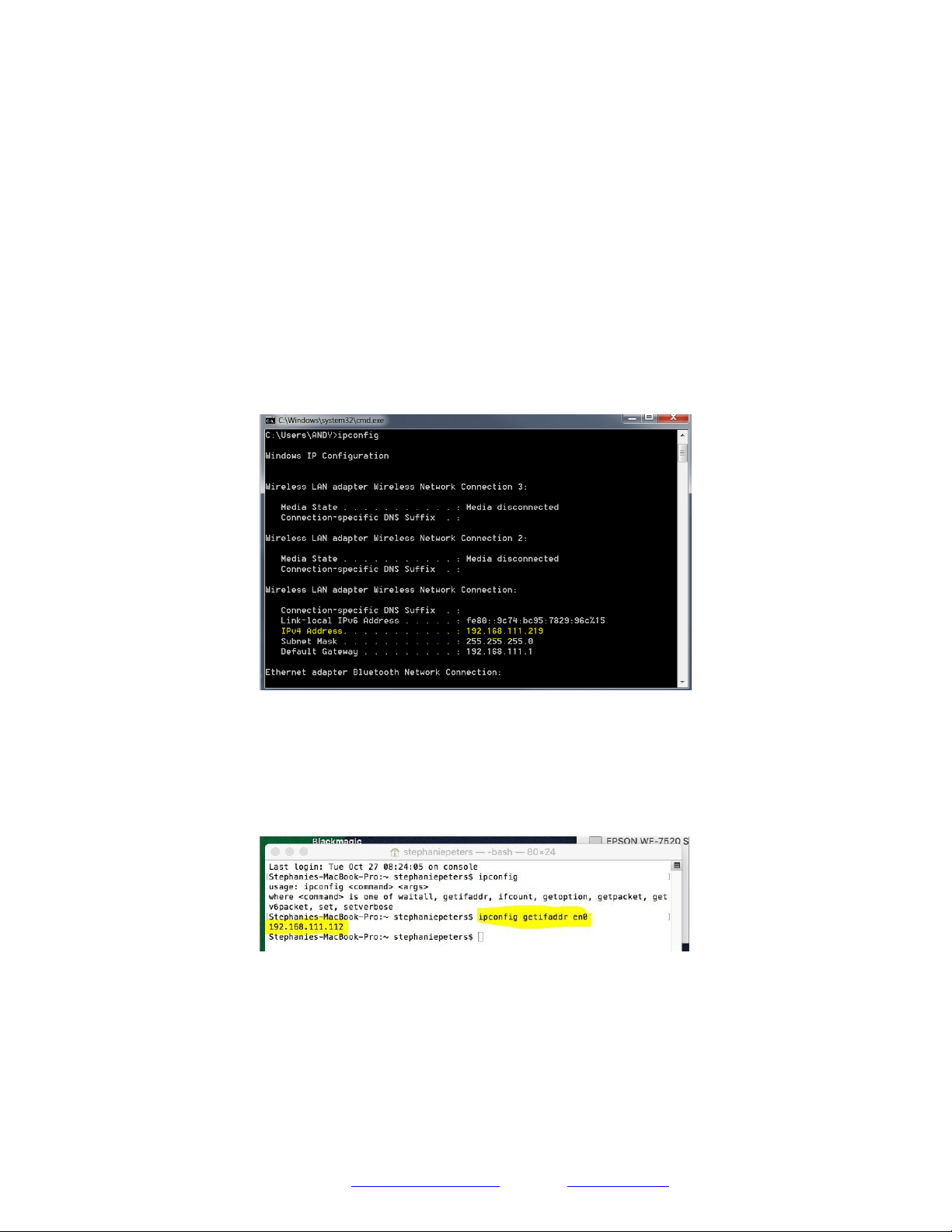
You can discover the IP range of your network by using the Command Prompt for Windows, or the Terminal app for Macs
and following the steps below.
Windows
1. Type “CMD” into the search bar in the start menu.
2. Type in “ipconfig” and press “Enter” on your keyboard.
3. Scroll down to “IPv4 Address”. This is your computer’s local IP address.
4. In the example above, the PC’s local address is IPv4 Address “192.168.111.219”, making the IP range “192.168.111”.
Mac
1. Open a new finder window and go to Applications, then Utilities, and select the Terminal program.
2. Type in “IP config get if addr en0” and press “Enter” on your keyboard.
3. In the example above, the Mac’s local address is “192.168.111.112”, making the IP range “192.168.111”
Page 38
Prisual
Camera Web Interface
The Web Interface allows you to control the camera, view the video feed, and adjust many of the camera’s settings.
Menu
The Menu allows you to traverse the Web Interface. By default, the “Live” option is selected.
Live
This tab allows you to view the video feed of the camera.
The status bar below the video feed can be used to pause / play the video feed, adjust the audio level, and switch between full
screen and windowed view.
Directional Arrows
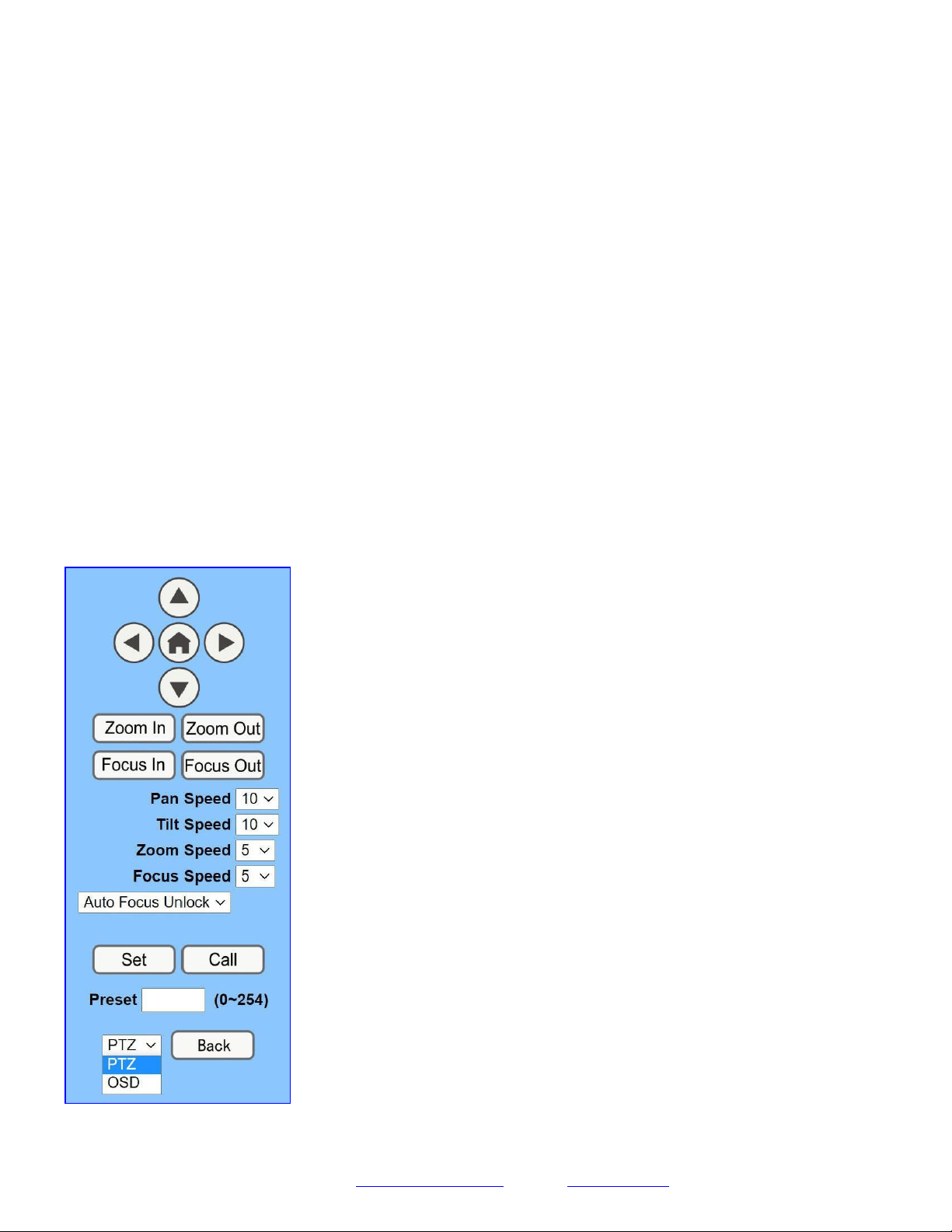
Use the PTZ / OSD dropdown to select how the Directional Arrows behave. While “PTZ” is selected, you will have control
over Pan, Tilt, and calling the Home position. When “OSD” is selected, the On Screen Display Menu will open, allowing
you to use the Directional Arrows to traverse the OSD Menu.
Directional Arrows: Use the Up / Down / Left / Right buttons to Pan / Tilt the camera or
traverse the OSD Menu.
Home Button: Use the Home Button to send the camera to the Home position, or to
make a selection within the OSD Menu.
Zoom In: Use the Zoom In button to for narrow (tele) views of the scene.
Zoom Out: Use the Zoom Out button for wide views of the scene.
Focus In/Out: Use the Focus In and Focus Out buttons to make manual focus
adjustments of the scene.
Speed Control: Use the Pan, Tilt, Zoom, and Focus Speed dropdowns to adjust the
speed at which you control the camera.
Auto Focus Unlock: Use the Auto Focus Unlock / Lock dropdown to manually lock the
focus in the current position.
PTZ Presets: After manually positioning the camera in a position you wish to return to,
you can save the position as a PTZ Preset. Type a number between 0~254 into the Preset
box and press the “Set” button to save that position. Click the “Call” button to send the
camera back to that PTZ Preset position.
PTZ / OSD Dropdown: Use the PTZ / OSD Dropdown to select Pan / Tilt / Zoom
control, or On Screen Display Menu control.
Page 39
Prisual
Video
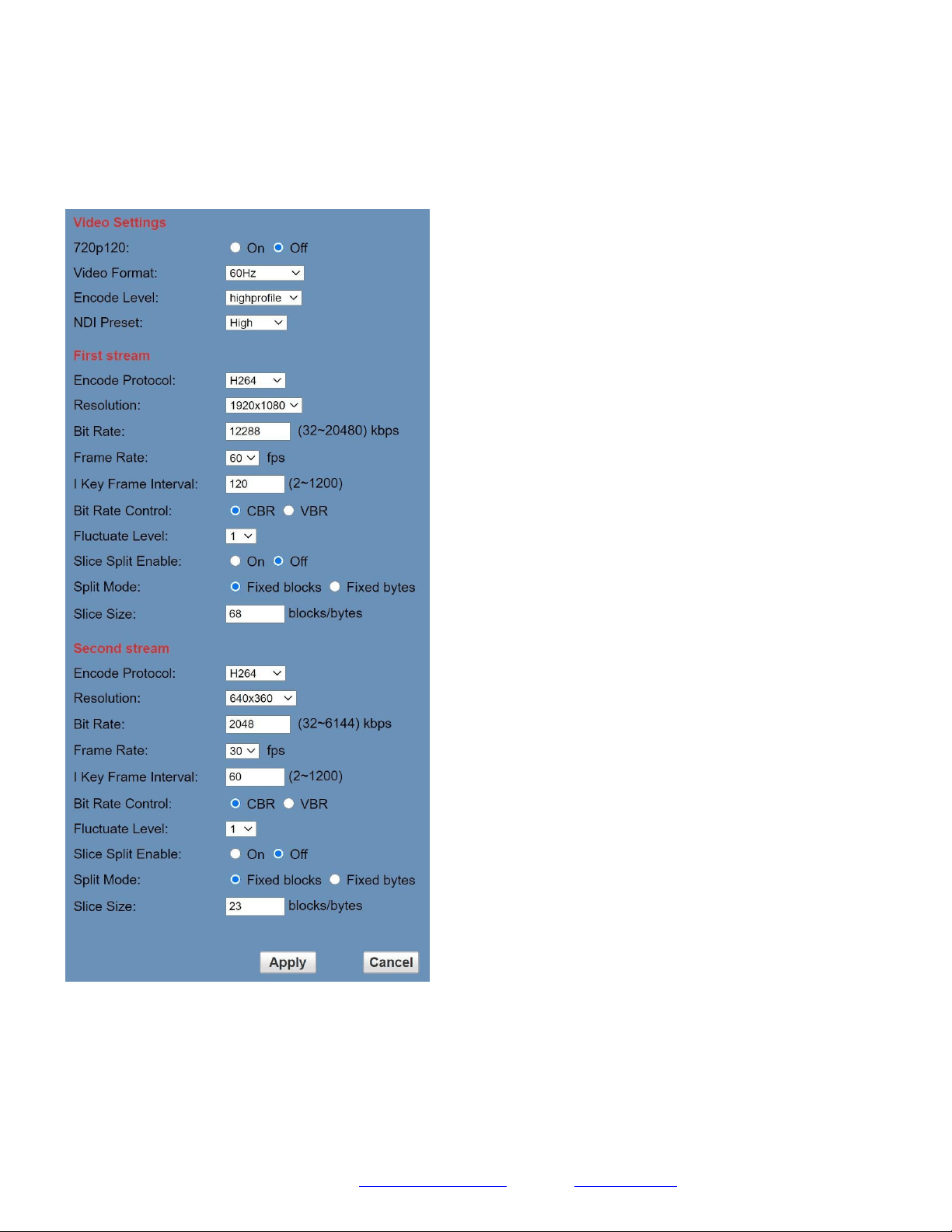
720p120: Allows camera to output 720p at 120 FPS via the IP
Network Stream. Set to ‘On’ or ‘Off’. (Note: Setting to ‘On’ will
override and lockout other video settings).
Video Format: Supports 50Hz (PAL), 60Hz (NTSC), & Dial
Priority formats.
Encode Level: Supports baseline, mainprofile, highprofile, & svc-t.
NDI Preset: Supports Off, High, Medium, & Low.
Encode Protocol: Supports H.264, H.265, and MJPEG protocols.
Resolution: The first stream supports: 1920x1080, 1280x720,
1024x576, 960x540, 640x480, 640x360.
The second stream supports: 1280x720, 1024x576, 720x480,
720x408, 640x360, 480x270, 320x240, 320x180
Bit Rate: Adjust the maximum bit rate of the network video. The
higher the bit rate, the clearer the image will be. Bit rates set too high
can congest the network and cause the video to not transmit properly,
causing the video to appear worse. Range: 32 – 20480 kbps
Frame Rate: Adjust the frame rate of the network video. The
higher the frame rate the smoother the video will appear.
I-Key Frame Interval: Adjust how frequently a keyframe is
produced.
Bit Rate Control: Supports Constant bit rate (CBR) & Variable bit
rate (VBR)
Fluctuate Level: Limit the fluctuation magnitude of variable rate.
Supports 1 ~ 6.
Split Mode Enable: Enable / Disable splice split function.
Split Mode: Supports Fixed blocks and Fixed bytes.
Slice Size: Set the slice size.
Page 40
Prisual
Image
Audio
System
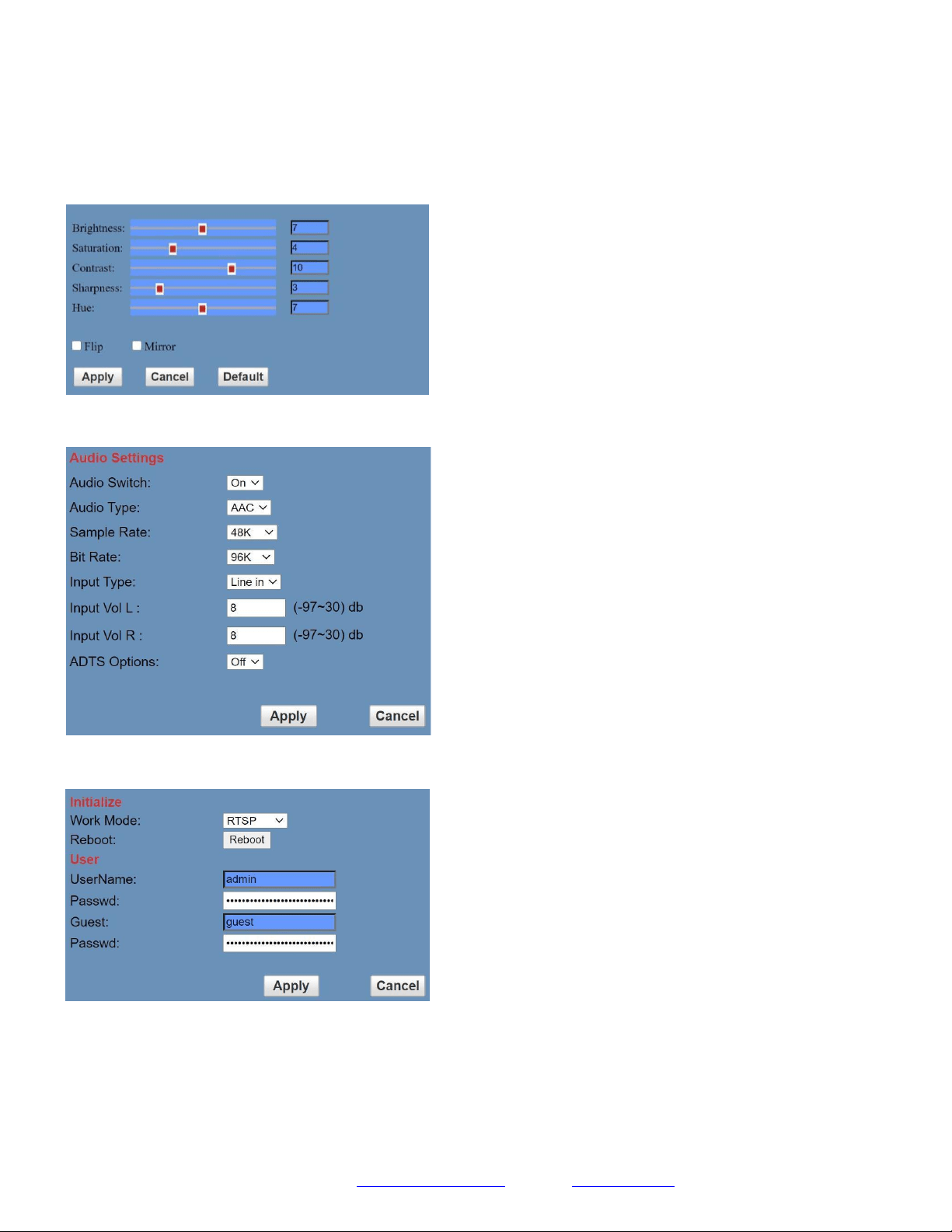
Brightness: Brightness slider. Default: 7
Saturation: Saturation slider. Default: 4
Contrast: Contrast slider. Default 10
Sharpness: Sharpness slider. Default: 3
Hue: Hue slider. Default: 7
Flip & Mirror: Check the Flip and/or Mirror buttons to rotate the
image accordingly.
Audio Switch: Enable / Disable audio embedding
Audio Type: AAC
Sample Rate: Options include: 44.1K & 48K
Bit Rate: Options include: 96K, 128K, & 256K
Input Type: Line in.
Input Vol L: Volume of left channel. -97 ~ 30 db
Input Vol R: Volume of right channel. -97 ~ 30 db
ADTS Options: Enable / Disable ADTS
Work Mode: Options include: RTSP, SDK, & Multicast.
Reboot: Used to power cycle the camera
Username: Username to login to device. Username: “admin”.
Password: Password to login to device. Default password: “admin”.
Guest (Username): Guest username to login to device. Username:
“guest”.
Guest (Password): Guest password to login to device. Default
password: “guest”.
Page 41
Prisual
Network
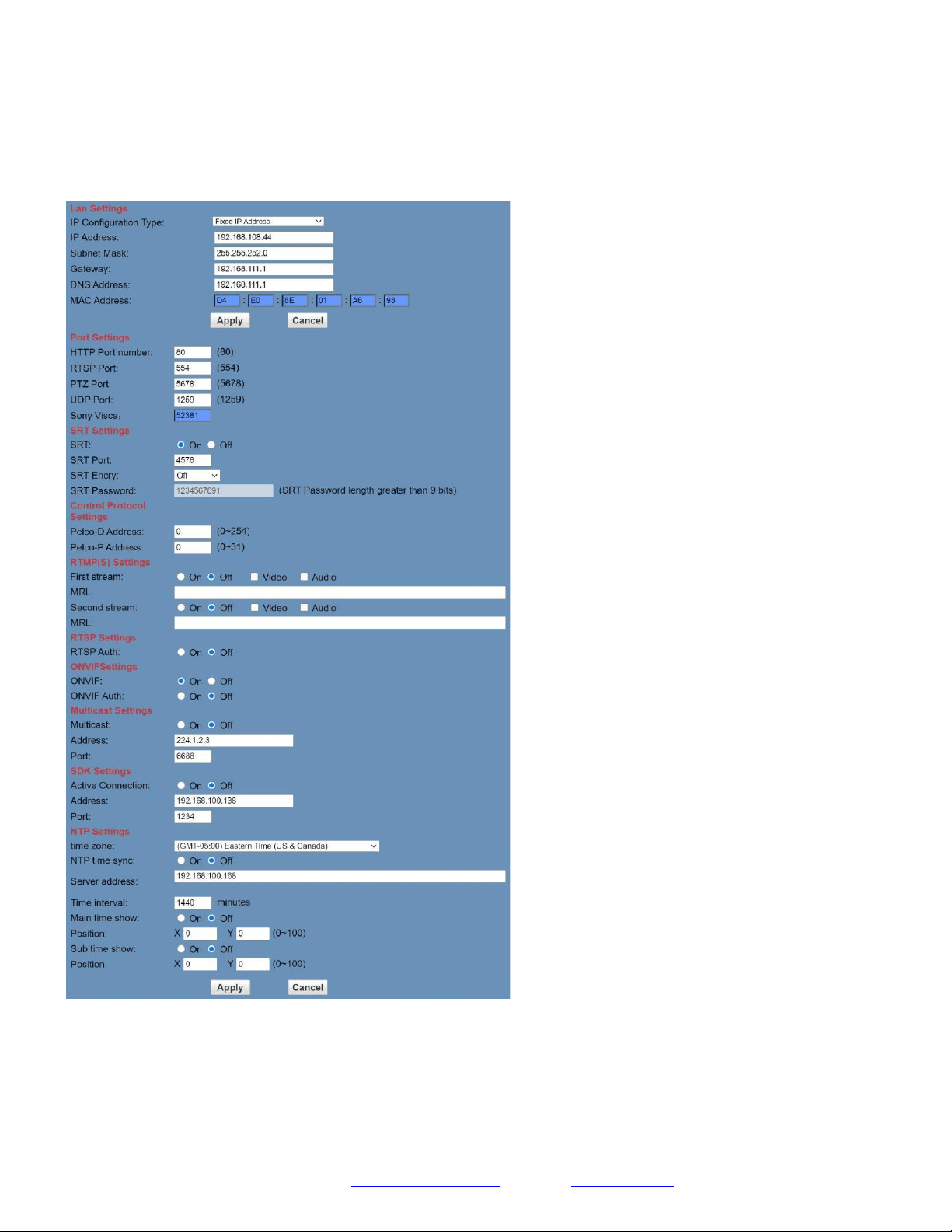
LAN Settings: The Lan Settings section allows you to adjust the IP parameters of the camera. The default IP address of the
camera is 192.168.100.99. You cannot change the MAC address.
IP Configuration Type: Fixed IP Address (Static) & Dynamic IP Address (DHCP).
IP Address: Camera’s IP address.
Subnet Mask: Network Subnet Mask.
Gateway: Network Gateway.

Page 42
Prisual
DNS Address: Network Domain Name Server address.
MAC Address: The camera’s MAC address.
Apply & Cancel Buttons: Apply or cancel the changes made to the LAN Settings section.
Port Settings: The Port Settings section allows you to adjust the network ports of the camera.
HTTP Port: This port is used for HTTP-CGI control, and for the web application. Default: 80.
RTSP Port: This port is used for the RTSP streaming protocol. Default 554.
PTZ Port: This port is used for the TCP/IP control protocol. Default: 5678.
UDP Port: This port is used for the UDP control protocol. Default: 1259
Sony VISCA: This port is used for the Sony VISCA protocol. You cannot change this port number.
SRT Settings: The Secure Reliable Transport protocol settings section allows you to adjust the SRT settings of the camera.
SRT: Enable / Disable SRT
SRT Port: This is the port used for the SRT protocol. Default: 4578.
SRT Encry: Enable / Disable SRT Encryption. Options include: Off, AES-128, AES-192, AES-256
SRT Password: Change the SRT Password when SRT Encryption is enabled. Default: 1234567891
Control Protocol Settings: The Control Protocol Settings section allows you to adjust the Pelco-D & Pelco-P control address.
Pelco-D Address: 0 ~ 254
Pelco-P Address: 0 ~ 31
RTMP Settings: The RTMP(S) Settings section allows you to enable or disable the two (2) RTMPS stream’s video and
audio sources.
First Stream: Enable / Disable Stream 1 Video & Audio
(First Stream) MRL: Text field for RTMPS Stream 1’s Media Resource Locator (MRL)
Second Stream: Enable / Disable Stream 2 Video & Audio
(Second Stream) MRL: Text field for RTMPS Stream 2’s Media Resource Locator (MRL)
RTSP Settings: The RTSP Settings section allows you to enable or disable RTSP Authorization.
RTSP Auth.: Enable / Disable RTSP authorization.
ONVIF Settings: The ONVIF Settings section allows you to adjust the ONVIF settings of the camera.
ONVIF: Enable / Disable ONVIF protocol control.
ONVIF Auth.: Enable / Disable ONVIF authorization.
Multicast Settings: The Multicast Settings section allows you to adjust the Multicast settings of the camera.
Multicast: Enable / Disable the Multicast protocol.
Address: Adjust the Multicast address.
Port: This port is used for the Multicast protocol. Default: 6688.
SDK Settings: The SDK Settings section allows you to adjust the Software Development Kit settings of the camera.
Active Connection: Enable / Disable the SDK active connection.
Address: This is the IP address field of the SDK. Default: 192.168.100.138
Port: This is the port used for the SDK. Default: 1234
NTP Settings: The NTP Settings section allows you to enable / disable the Network Time Protocol of the camera.
Time Zone: Adjust the time zone you wish to use with NTP.
NTP Time Sync: Enable / Disable NTP Time Sync
Server Address: Text field for NTP server.
Time Interval: Adjust the Time Interval in minutes. Default: 1440

Page 43
Prisual
Main Time Show: Enable / Disable Main Time
Position: Main Time position
Sub Time Show: Enable / Disable Sub Time
Position: Sub Time position
Apply & Cancel Buttons: Apply or cancel the changes made to the Network Settings section.
Information
The Information section displays the device information, firmware version, & device friendly name. You can adjust the
device friendly name as needed to designate the camera.
Language
The Language selection dropdown allows you to change the language of the Web Interface.
Select either “English”, “Chinese”, or “Russian”.
Network Camera Control Protocol
Control Notes:
PTZ over TCP/UDP
The camera currently supports various PTZ control methods, including RS232, RS485, IR remote control, web
interface, HTTP-CGI and TCP/UDP protocol.
The camera includes an internal TCP server. The default port number is 5678. When client and server set up a TCP
connection, the client sends PTZ command to the internal server and the server will then parse and execute the PTZ
commands.
The camera includes an internal UDP server. The default port number is 1259. When client and server set up a UDP
connection, the client sends PTZ commands to the internal server and the server will then parse and execute the PTZ
commands.
The command format based on VISCA is shown above in the Serial Communication Control Section
HTTP-CGI – Control
Pan and Tilt Control
http://[Camera IP]/cgi-bin/ptzctrl.cgi?ptzcmd&[Action]&[Pan Speed]&[Tilt Speed]
[Action]: UP, DOWN, LEFT, RIGHT, LEFTUP, RIGHTUP, LEFTDOWN, RIGHTDOWN, PTZSTOP
[Pan Speed]: 1 (Slowest) – 24 (Fastest)
[Tilt Speed]: 1 (Slowest) – 20 (Fastest)
Zoom Control
http://[Camera IP]/cgi-bin/ptzctrl.cgi?ptzcmd&[Action]&[Zoom Speed]
[Action]: ZOOMIN, ZOOMOUT, ZOOMSTOP
[Zoom Speed]: 1 (Slowest) – 7 (Fastest)

Page 44
Prisual
Support: [email protected] www.prisual.us
Focus Control
http://[Camera IP]/cgi-bin/ptzctrl.cgi?ptzcmd&[Action]&[Focus Speed]
[Action]: FOCUSIN, FOCUSOUT, FOCUSSTOP
[Focus Speed]: 1 (Slowest) – 7 (Fastest)
Focus Lock Control
http://[Camera IP]/cgi-bin/param.cgi?ptzcmd&[Action]_mfocus
[Action]: LOCK, UNLOCK
Preset Control
http://[Camera IP]/cgi-bin/ptzctrl.cgi?ptzcmd&[Action]&[Position Number]
[Action]: POSSET, POSCALL
[Position Number]: 0 – 89 (Range 1), 100 – 254 (Range 2)
Home Position Recall
http://[Camera IP]/cgi-bin/ptzctrl.cgi?ptzcmd&home
PT Reset
http://[Camera IP]/cgi-bin/param.cgi?pan_tiltdrive_reset
Direct Position Recall Control
http://[Camera IP]/cgi-bin/ptzctrl.cgi?ptzcmd&[Mode]&[Pan Speed]&[Tilt Speed]&[Pan Position]&[Tilt Position]
[Mode]: ABS, REL
[Pan Speed]: 1 (Slowest) – 24 (Fastest)
[Tilt Speed]: 1 (Slowest) – 20 (Fastest)
[Pan Position]: 0001 (First step pan right), 0990 (Last step pan right), FFFE (First step pan left), F670 (Last step
pan left)
down)
[Tilt Position]: 0001 (First step tilt up), 0510 (Last step tilt up), FFFE (First step tilt down), FE51 (Last step tilt

Page 45
Prisual
Support: [email protected] www.prisual.us
Direct Zoom Recall Control
http://[Camera IP]/cgi-bin/ptzctrl.cgi?ptzcmd&zoomto&[Zoom Speed]&[Zoom Position]
[Zoom Speed]: 1 (Slowest) – 7 (Fastest)
[Zoom Position]: 0000 (Full wide), 4000 (Full tele)
HTTP-CGI – Navigation
OSD Menu Control
http://[Camera IP]/cgi-bin/param.cgi?navigate_mode&[Mode]
[Mode]: OSD (OSD Open), PTZ (OSD Close)
OSD Menu Navigation Control
http://[Camera IP]/cgi-bin/ptzctrl.cgi?ptzcmd&[Action]
[Action]: UP, DOWN, LEFT, RIGHT
OSD Menu Selection Control
http://[Camera IP]/cgi-bin/param.cgi?navigate_mode&[Mode]
[Mode]: CONFIRM, OSD_BACK
HTTP-CGI – Image Adjustment
Image Settings Control
http://[Camera IP]/cgi-bin/param.cgi?post_image_value&[Mode]&[Level]
[Mode]: BRIGHT, SATURATION, CONTRAST, SHARPNESS, HUE
[Level]: 0 - 14
Image Orientation Control
http://[Camera IP]/cgi-bin/param.cgi?post_image_value&[Mode]&[State] [Mode]:
FLIP, MIRROR
[State]: 1 (Flip / Mirror), 0 (Default)
Default Image Settings
http://[Camera IP]/cgi-bin/param.cgi?get_image_default_conf
HTTP-CGI – Inquiries
Video
http://[Camera IP]/cgi-bin/param.cgi?get_media_video
Network Video Configuration
Audio

Page 46
Prisual
Support: [email protected] www.prisual.us
http://[Camera IP]/cgi-bin/param.cgi?get_media_audio
Network Audio Configuration
Network
http://[Camera IP]/cgi-bin/param.cgi?get_network_conf
Network Configuration
Information
http://[Camera IP]/cgi-bin/param.cgi?get_device_conf
Camera Information
Serial Number
http://[Camera IP]/cgi-bin/param.cgi?get_serial_number
Serial Number
*Not always accurate

Page 47
Prisual
Photobooth Functionality
Your Prisual camera can quickly and easily take a series of four (4) still image or video files that are stored on the camera
and made accessible with a standard web browser on the same network.
Photos
You have two (2) options to initiate a series of four (4) still images being captured…
You can enter the following HTTP string into any web browser on the same network as the camera to initiate a series of four
(4) still images.
http://[Camera IP]/cgi-bin/booth.cgi?0&4&[Delay]&photo&0
In this example, [Delay] is utilized to add additional delay, in seconds, between still images being taken. [Delay] can have
any value from 1 – 9 seconds.
You can also press the “[F1]” button on your IR remote to initiate a “quick capture” that has, approximately, a four (4)
second delay between four (4) still images being captured.
To retrieve your series of four (4) still images, you will need to open a standard web browser with network access to the
camera and use the following HTTP strings to retrieve the still image files as desired.
Image 1: http://[Camera IP]/photo1.jpg
Image 2: http://[Camera IP]/photo2.jpg
Image 3: http://[Camera IP]/photo3.jpg
Image 4: http://[Camera IP]/photo4.jpg
Videos
You have two (2) options to initiate a series of four (4) videos being captured…
You can enter the following HTTP string into any web browser on the same network as the camera to initiate a series of four
(4) video recordings.
http://[Camera IP]/cgi-bin/booth.cgi?0&4&[Delay]&video&[Length]
In this example, [Delay] is utilized to add additional delay, in seconds, between videos being taken. [Delay] can have any
value from 1 – 9 seconds.
In this example, [Length] is utilized to adjust the overall length, in seconds, of each video file. [Length] can have any value
from 1 – 10 seconds.

Page 48
Prisual
You can also press the “[F2]” button on your IR remote to initiate a “quick capture” that has, approximately, a four (4)
second delay between four (4) ten (10) second videos being captured.
To retrieve your series of four (4) videos, you will need to open a standard web browser with network access to the camera
and use the following HTTP strings to retrieve the still image files as desired.
Video 1: http://[Camera IP]/video1.mp4
Video 2: http://[Camera IP]/video2.mp4
Video 3: http://[Camera IP]/video3.mp4
Video 4: http://[Camera IP]/video4.mp4
Video note: It can take the camera time for the video files to be fully captured and processed. If they are not retrievable,
please wait an additional 30 – 60 seconds for the process to complete.

Page 49
Prisual
Maintenance and Troubleshooting
Camera Maintenance
• If the camera will not be used for a long time, please turn off the power switch.
• Use a soft cloth or lotion-free tissue to clean the camera body.
• Use a soft dry lint-free cloth to clean the lens. If the camera is very dirty, clean it with a diluted neutral detergent.
Do not use any type of solvent or harsh detergent, which may damage the surface.
Unqualified Applications
• Do not shoot extremely bright objects for a long period of time, such as sunlight, ultra-bright light sources, etc...
• Do not operate in unstable lighting conditions, otherwise the image may flicker.
• Do not operate close to powerful electromagnetic radiation, such as TV or radio transmitters, etc…
Troubleshooting
• No image
1. Check whether the power cord is connected, voltage is OK, POWER lamp is lit.
2. Check whether the camera can “self-test” after startup (camera will do a brief pan-tilt tour and return to the
home position, or if preset 0 is set, the camera will return to the preset 0 position).
3. Check that the HDMI cable is connected correctly.
1. If HDMI, make sure that the destination device is accessing the HDMI port that you plugged into.
2. If SDI, make sure that the destination device is accessing the SDI port that you plugged into.
• Abnormal display of image
1. Check setting of rotary dial on rear of camera. Be sure to use a resolution and refresh rate that is supported by
your software.
• Image is shaky or vibrating.
1. Check whether camera is mounted solidly or sitting on a steady horizontal and level surface.
2. Check the building and any supporting furniture for vibration. Ceiling mounts are often affected by building
vibration more than wall mounts.
3. Any external vibration that is affecting the camera will be more apparent when in tele zoom (zoomed in)
settings.

Page 50
Prisual
Support: [email protected] www.prisual.us
Control
• IR remote controller does not control the camera
1. Does one of the 4 “Camera Select” buttons (top row of remote) light up when you press any button on the
remote?
If not, change the batteries in the remote.
2. Are the camera and remote set to the same IR address? You can use press [*] + [#] + [F1] (3 buttons in
sequence) on the remote to set the camera to address 1. Press “Camera Select” 1 on the remote to control the
camera.
3. Try removing other sources of IR interference (e.g. sunlight, fluorescent lighting).
• Serial communication does not control the camera
1. Make sure the camera is on and functioning with the IR remote control.
2. Verify that the RS232 cable is connected correctly and using the proper pinout.
3. Verify the communication settings of the control software or device (e.g. joystick).
4. Verify that the communication port on the controlling device is activated (e.g. Com port on PC).
5. Verify that all communication settings in the OSD Setup Menu correlate to the commands being used (e.g.
VISCA address).