1
Voltson Smart WiFi Outlet
User Manual
Model: ESW15-USA
Questions or Concerns?
Mon–Fri, 9:00 am–5:00 pm PST/PDT
[email protected] • (855) 686-3835

2
Your smart outlet allows you to control electrical
appliances, such as lights, fans, and kitchen
appliances, with your Android™ or iOS™ devices. With
the free VeSync app, turn your appliances on and off
from anywhere, at any time.
If you have any questions or concerns, please
reach out to our helpful Customer Support Team at
[email protected]. We hope you enjoy your new
smart outlet!
Exclusive deals, giveaways, and product registration.
Better products for better living. Find us here: www.etekcity.com
Thank you for purchasing the
Voltson Smart WiFi Outlet by Etekcity.
Become an Etekcitizen

3
21
Functions
Settings
VeSync App Setup 8
16
11
26
Safety Information
Product Requirements
Features
5
6
6
10
23
• Timer
• Schedules
• Abnormal Power Protection
Specications 4
22
• Turning Devices On/Off
• Turning Night Light On/Off
Conguration 9
18
• Energy Saving Mode
LED Indicator Light Chart 7
10
10
24
• Away Mode
• Share Your Smart Outlet
• Delete a Smart Outlet
Table of Contents
27
32
30
27
28
38
Maintaining Your Smart Outlet
Troubleshooting
Warranty Information
Customer Support
27
36
31
30
More Features
• Connecting with Amazon Alexa
• Connecting with Google Home
• Contact Customer Support
• Firmware Updates
• Resetting

4
Specications
Maximum Switch Current 15A
Power Supply Range AC 120V, 60Hz
Power Consumption 0.7–1.2W
Wireless Distance
(Outlet to Router)
98–164 ft / 30–50 m
(max visible range)
Communication Mode IEEE802.11b/g/n (WiFi)
Communication Frequency 2400–2483.5 MHz
Compatible Systems
Android™ 4.3 or higher /
iOS™ 8.0 or higher
Operating Environment 14°–104°F / -10°–40°C
Storage & Transportation
Environment
-4°–104°F / -20°–60°C
Dimensions
1.38 x 1.57 x 2.95 in /
35 x 40 x 75 mm
Note: The outlet’s WiFi signal range can be weakened or disrupted if:
• Your WiFi bandwidth is not 2.4GHz
• Your WiFi network and/or your smart outlet is blocked by objects
(such as walls, floors, and furniture) that are too thick
• Other electrical appliances are interfering with your WiFi signal (such
as microwave ovens, wireless speakers, and LCD displays)

5
To reduce the risk of injury and/or damage to this
outlet, please read and follow all instructions and
safety guidelines in this manual.
• Do not exceed the outlet’s maximum load current of 15A
(approximately 1800W) by plugging in appliances that
require a higher load current. Always check appliance
labels to nd out their electrical power rating before
using.
Safety Information
SAVE THESE INSTRUCTIONS
Back to Table of Contents
• Keep out of reach of children.
• Only use indoors and in a dry location.
• Always keep away from water and other liquids.
• Household use only.
Note: For inductive loads (such as appliances with motors), the maximum
current is 7.5A (900W).
6
• A smartphone running on iOS 8.0 / Android 4.3 or
higher.
• A secure 2.4GHz WiFi connection (supports 802.11b/g/n
standard).
The smart outlet is compatible with electrical appliances that use
15A current. Connecting an appliance that uses more than 15A
current may cause the outlet fuse to blow.
Product Requirements
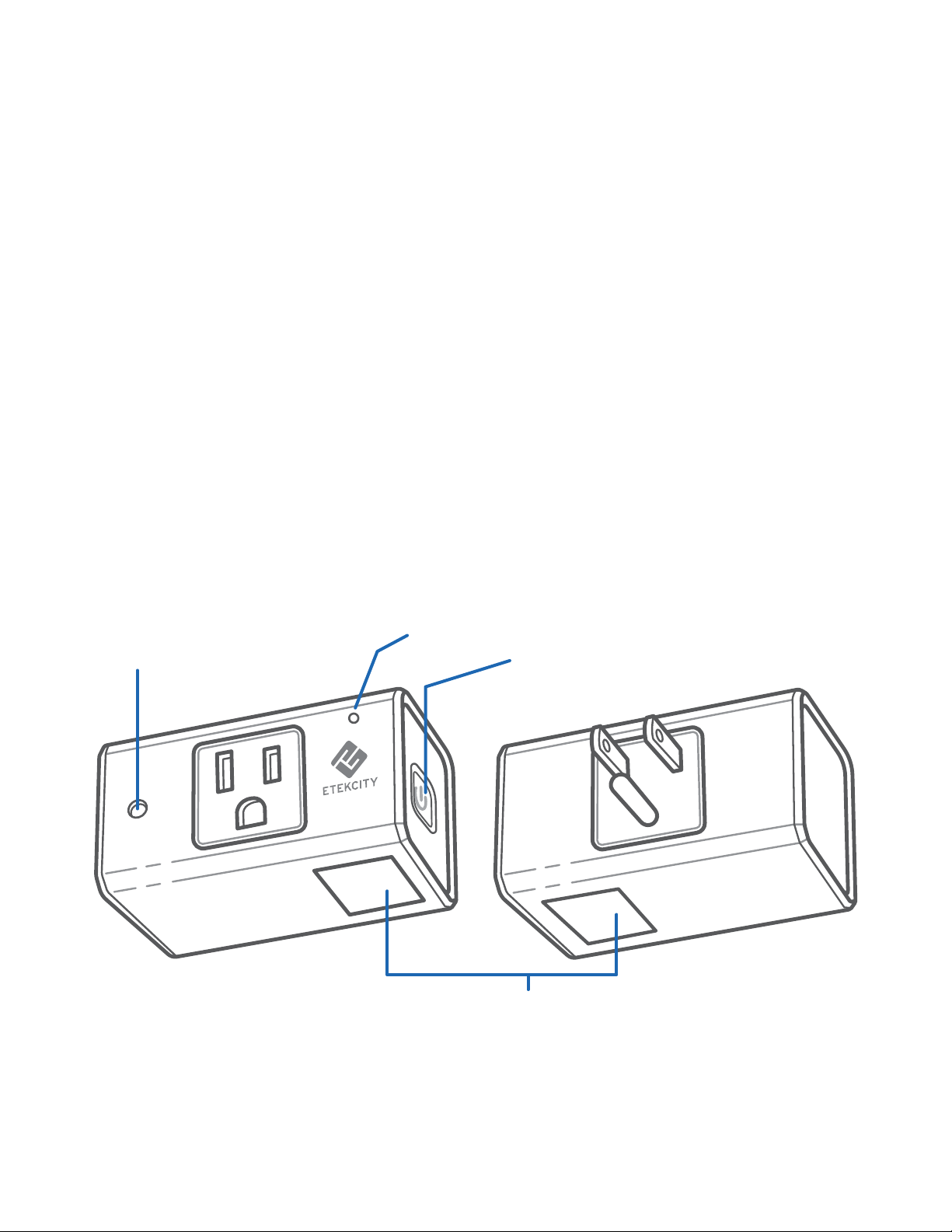
Features:
Front
Back
1. Power Button
2. Light Sensor
3. Night Light
1
2
3
4
4. LED Indicator
Light
7
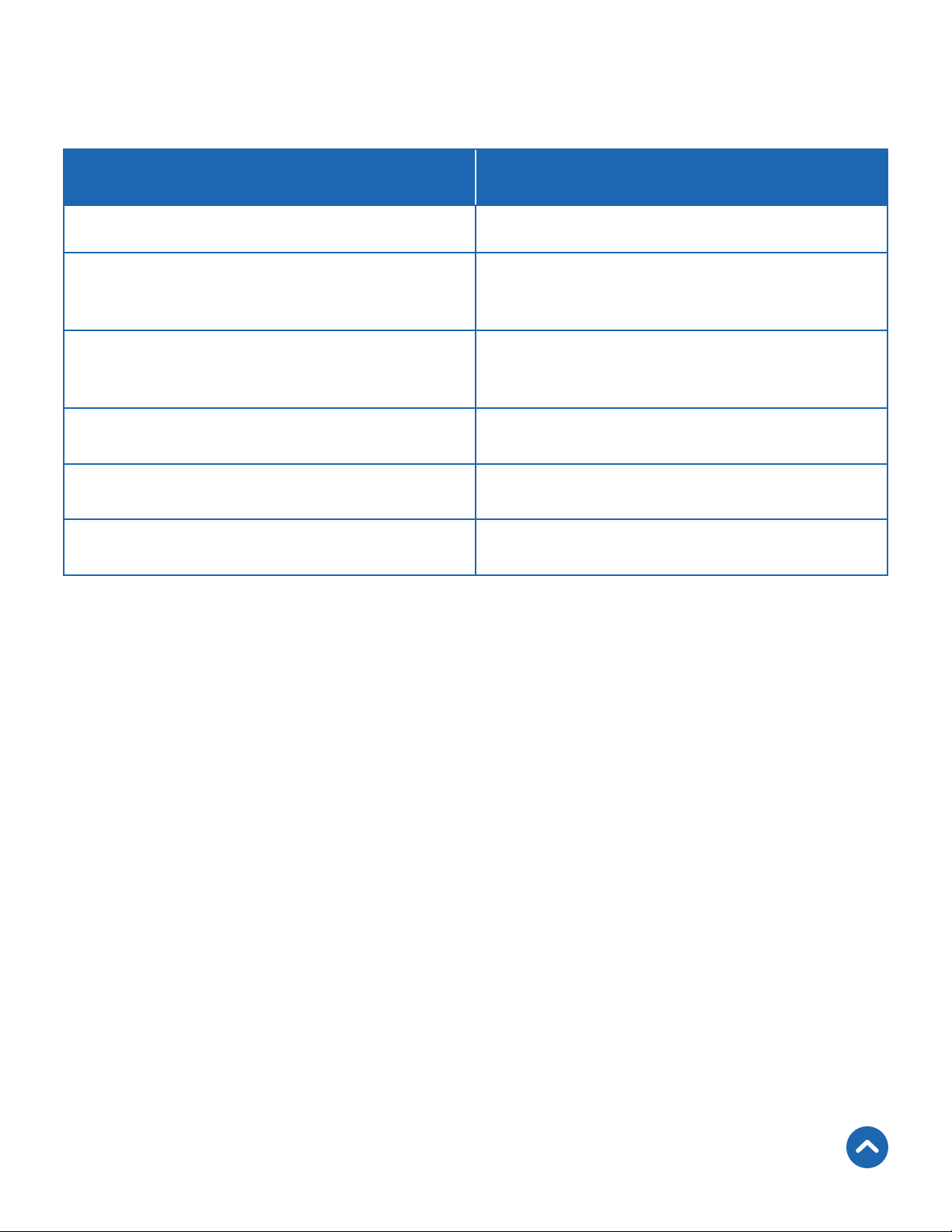
LED Indicator Light Chart
Back to Table of Contents
LED Indicator Light Description
Yellow (solid) Outlet is on
Blue (blinks twice every 5
seconds)
Outlet is trying to connect to WiFi
Blue (blinks once every 5
seconds)
Outlet is connected to WiFi, but is
trying to connect to server
Blue (1 blink per second) Outlet is in Conguration Mode
Blue (4 blinks per second) Outlet is resetting
None (no light) Outlet is off
8
VeSync App Setup
1. To download the VeSync app, scan the QR code or
search “VeSync” in the Apple App Store® or Google
Play™ Store.
Note: For Android users, you must select Allow to use VeSync.
Note: You must create your own VeSync account to use third-
party services and products, such as Amazon® Echo™ and
Google Home™. These will not work with the guest account.
With a VeSync account, you can also allow your family or
friends to control your smart outlet.
Note: Due to continuing updates and improvements, the VeSync
app may appear slightly different. In case of any differences,
follow the in-app instructions.
2. Open the VeSync app. If you already have an account,
tap Log In. To create a new account, tap Sign Up.
Back to Table of Contents
9
Conguration
1. After plugging in your
smart outlet, open the
VeSync app.
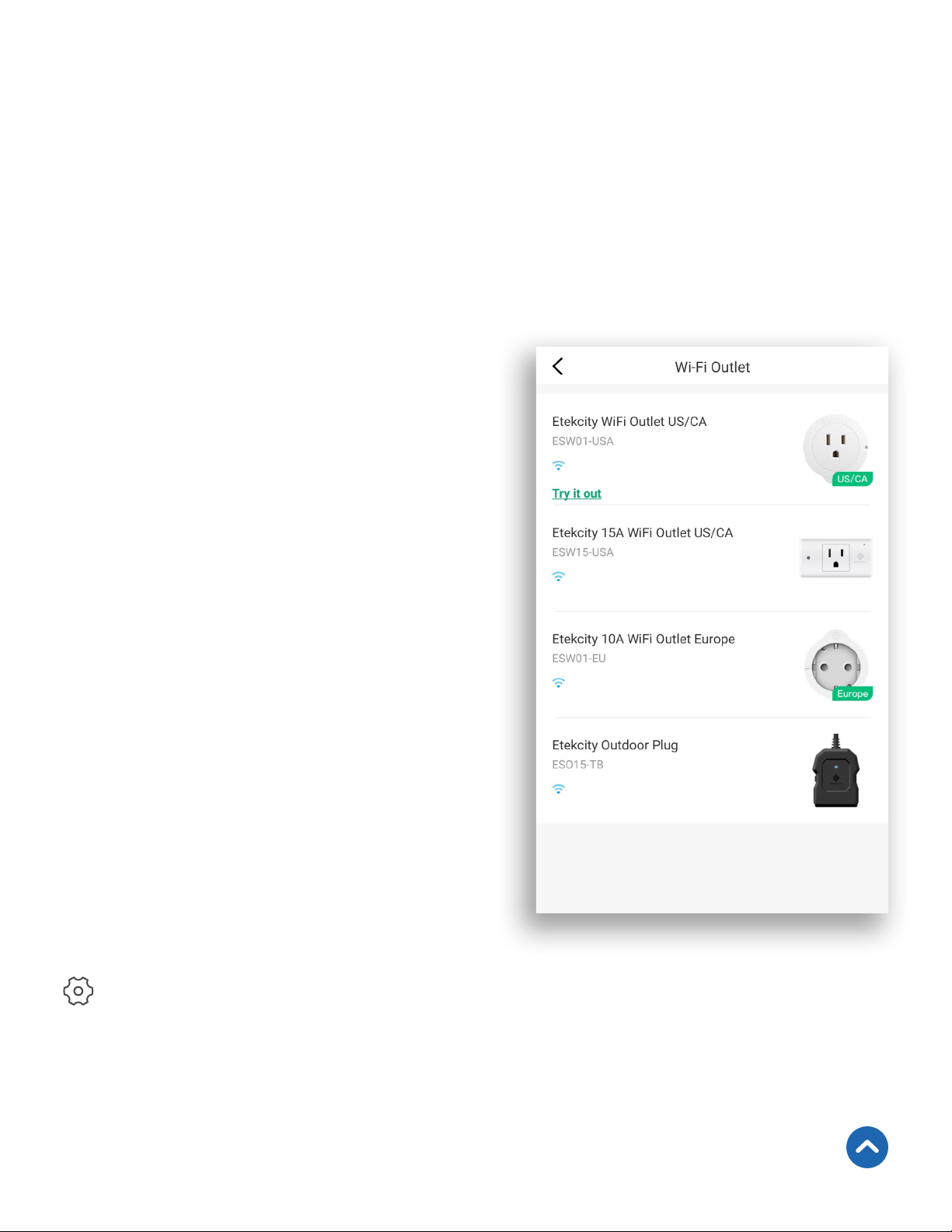
2. Tap + to add your smart
outlet.
3. Tap Wi-Fi Outlet, then
tap Etekcity 15A WiFi
Outlet US/CA.
4. Follow the in-app
instructions to add your
smart outlet.
Set up your smart outlet with the VeSync app.
Note: Make sure your phone is connected to a secure 2.4GHz WiFi
network. The smart outlet can only be set up on a secure 2.4GHz
network.
Note: After setup is complete,
you can change the name and
icon at any time by going to the
smart outlet screen and tapping
.
Back to Table of Contents
10
Functions
Turning the Smart Outlet On/Off
Turning Night Light On/Off
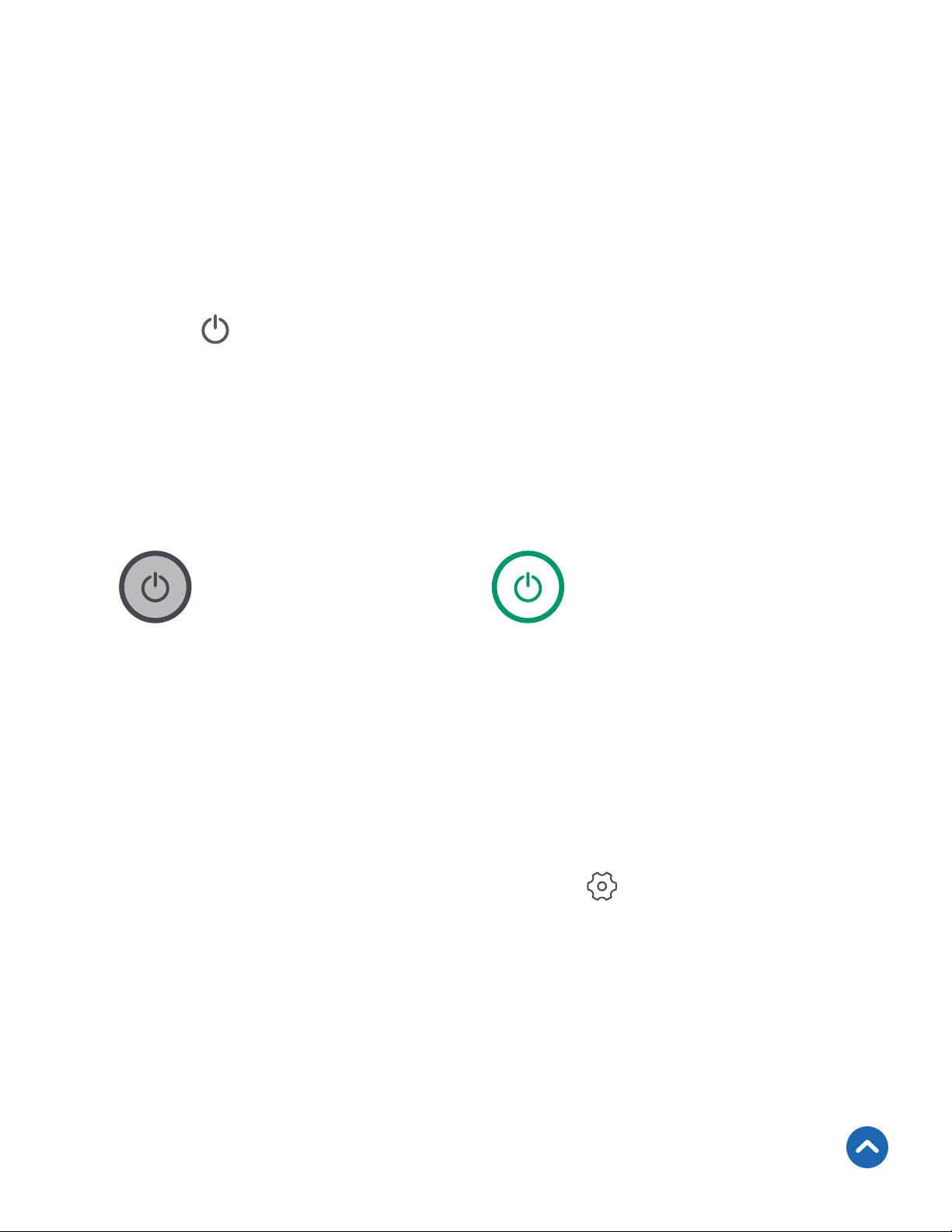
To turn the outlet on/off:
• Press the outlet’s power button.
• Tap on the My Home screen or the smart outlet
screen in the VeSync app.
Device is Off
Device is On
Note: The outlet will remain connected to the internet even when
the outlet is turned off.
Note: When the night light function is on Auto, the night light will
automatically turn on when it detects darkness and turn off when
it detects light.
Back to Table of Contents
1. From the My Home screen, tap on the name of the
smart outlet to open the smart outlet screen.
2. On the smart outlet screen, tap and toggle
between Auto, On, or Off.
11
Schedules
Create a schedule to set a scheduled time for the smart
outlet to turn on/off.
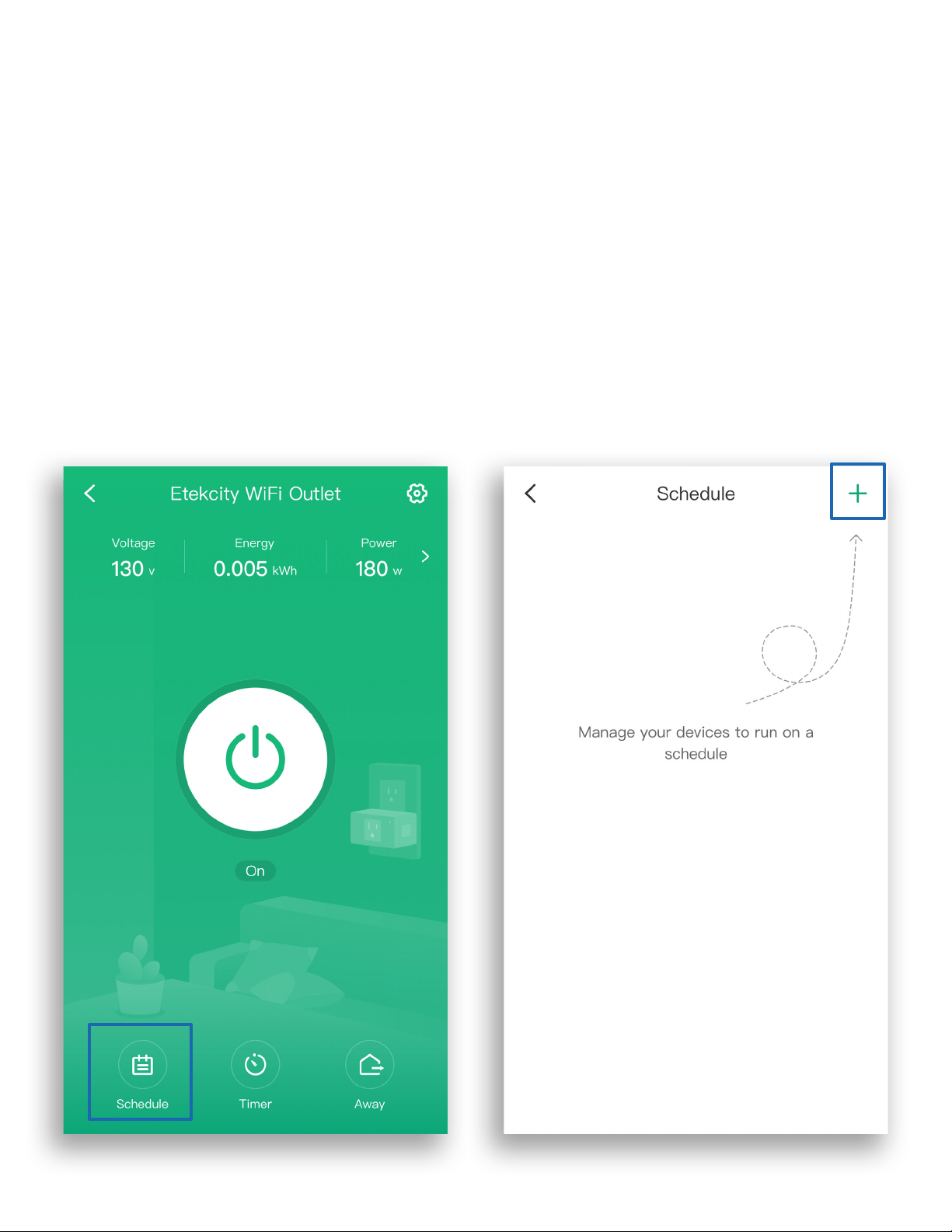
1. From the My Home screen, tap on the name of the
smart outlet to open the smart outlet screen.
2. Tap Schedule, then tap + .
12
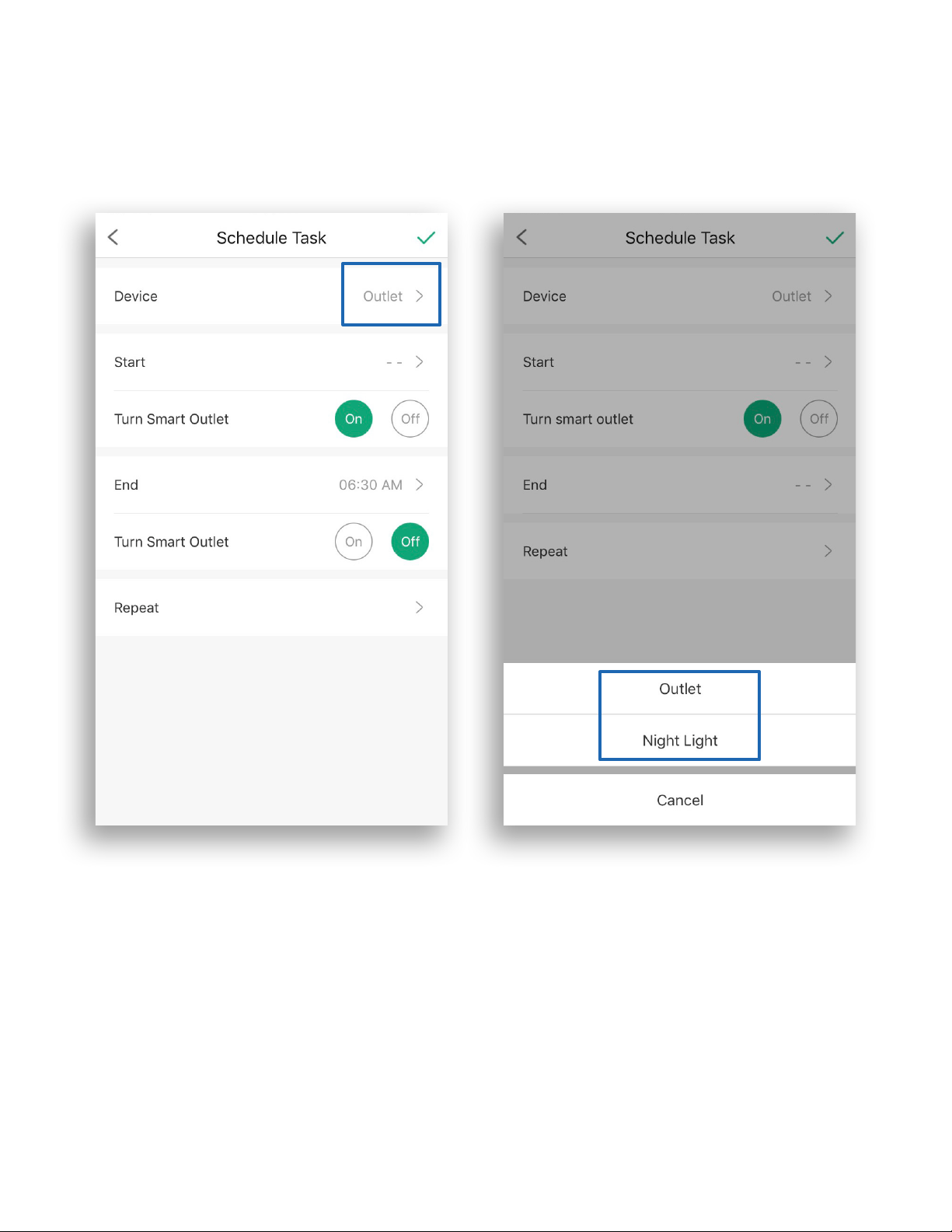
3. Tap > next to Device and select either Outlet or Night
Light.
13
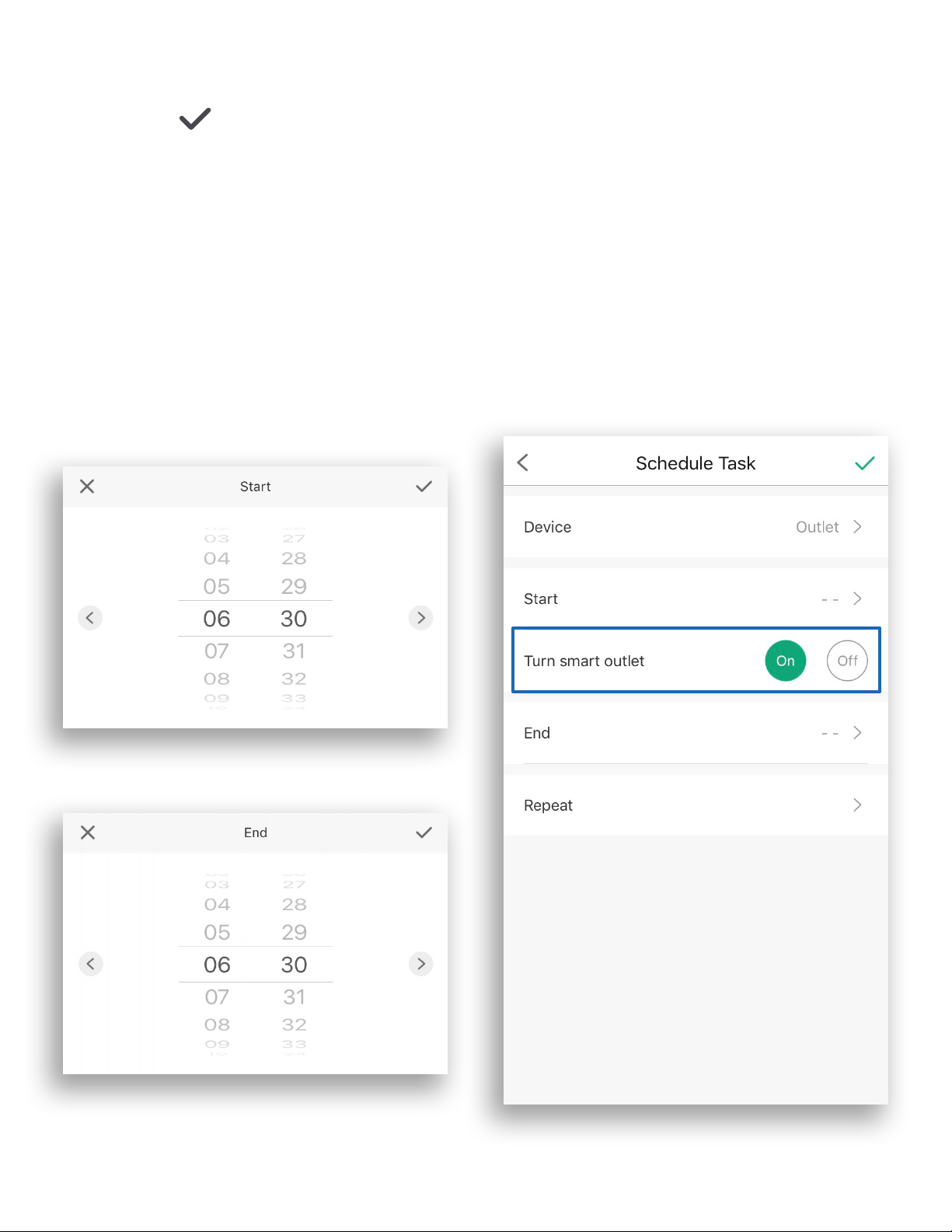
Note: When selecting a time, tap < for Sunrise or > for Sunset.
Allow the VeSync app to access your location to determine when
sunrise and sunset are for your area.
4. Tap Start and End to set the start and end times.
Tap to conrm.
5. Choose whether to turn the smart outlet or night light
On or Off at the start time and end time.
14
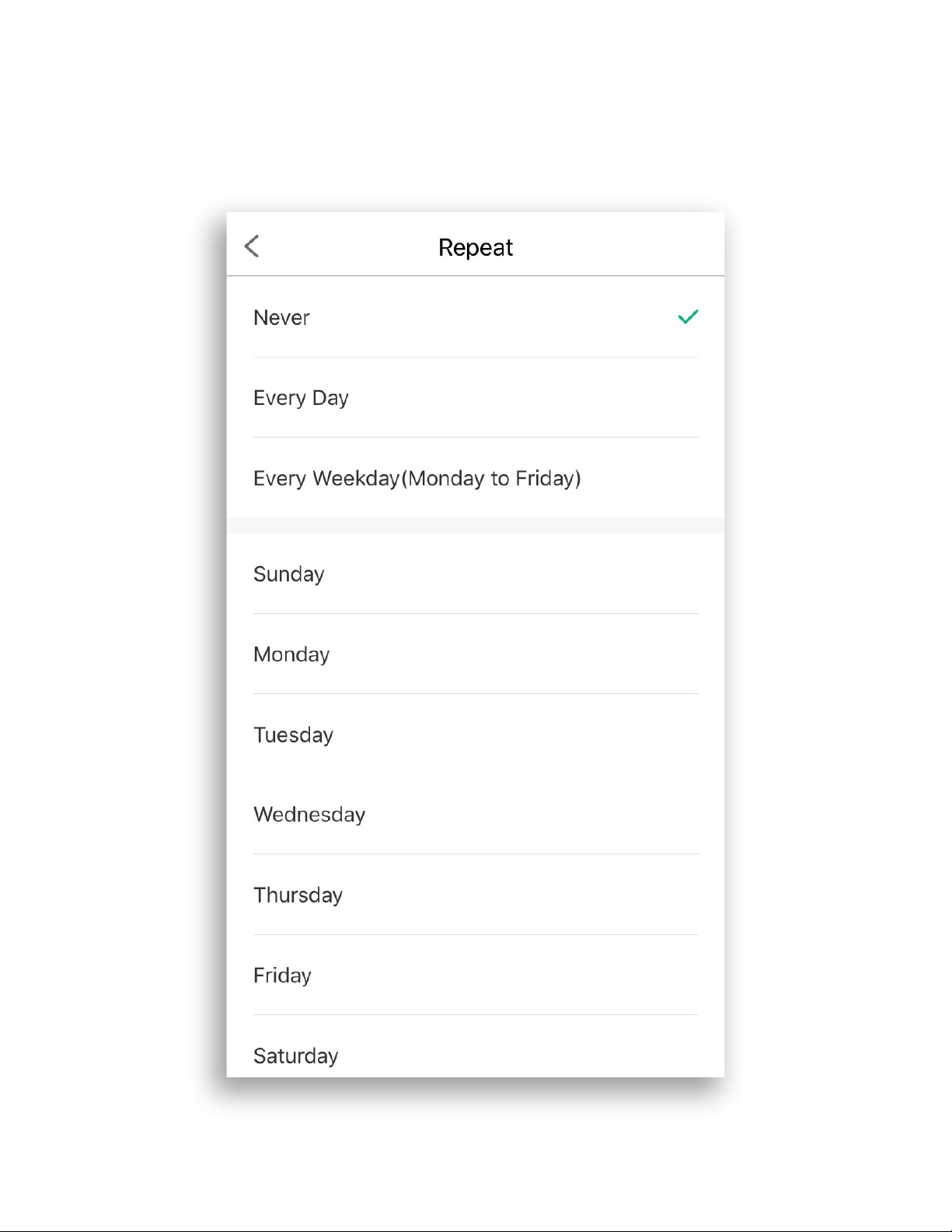
6. To repeat the schedule, tap Repeat, then tap the
desired days.
15
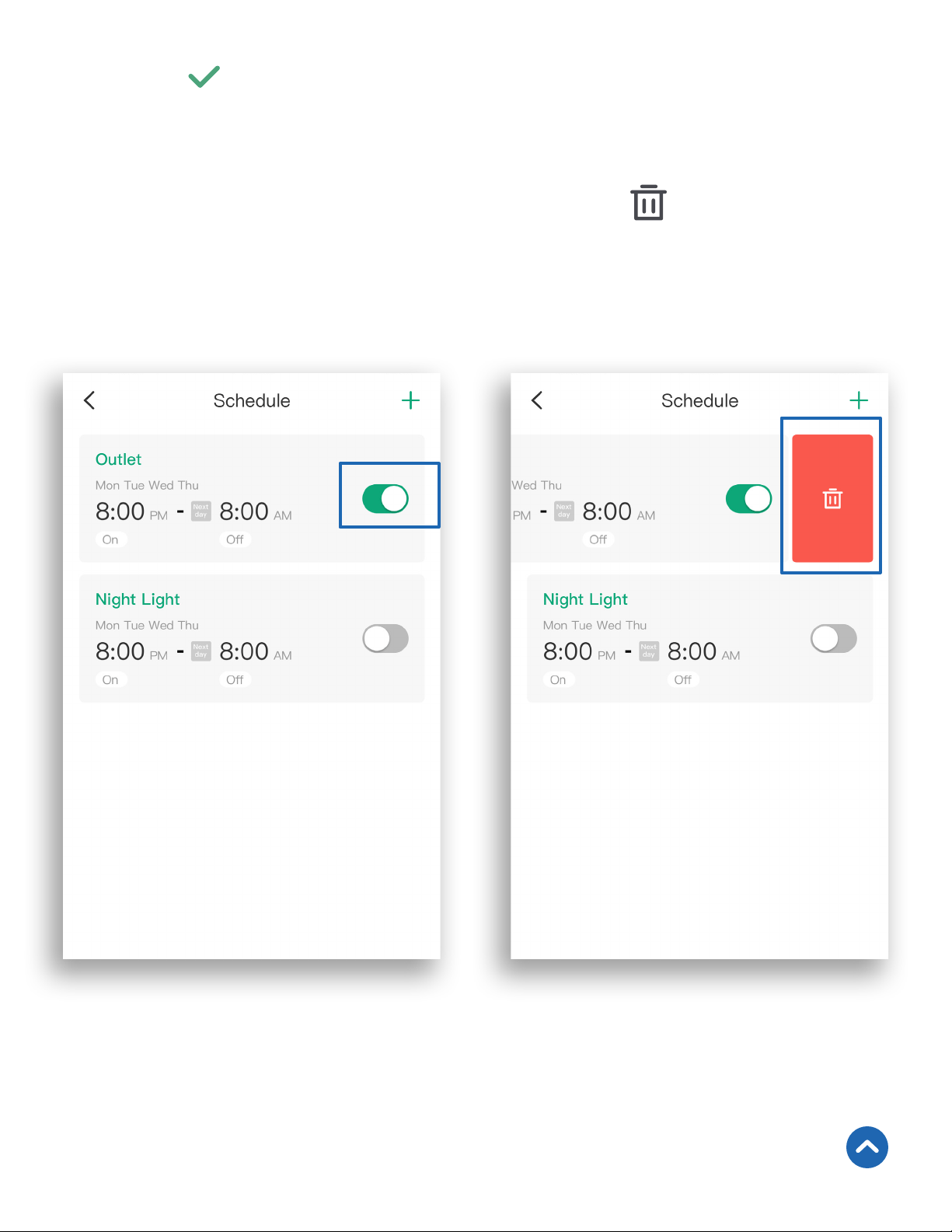
7. Tap to save the schedule.
8. Tap the toggle to turn the schedule on or off.
Back to Table of Contents
Note: To remove an entry, swipe left and tap , or tap on the
entry and then tap Delete.
16
Timer
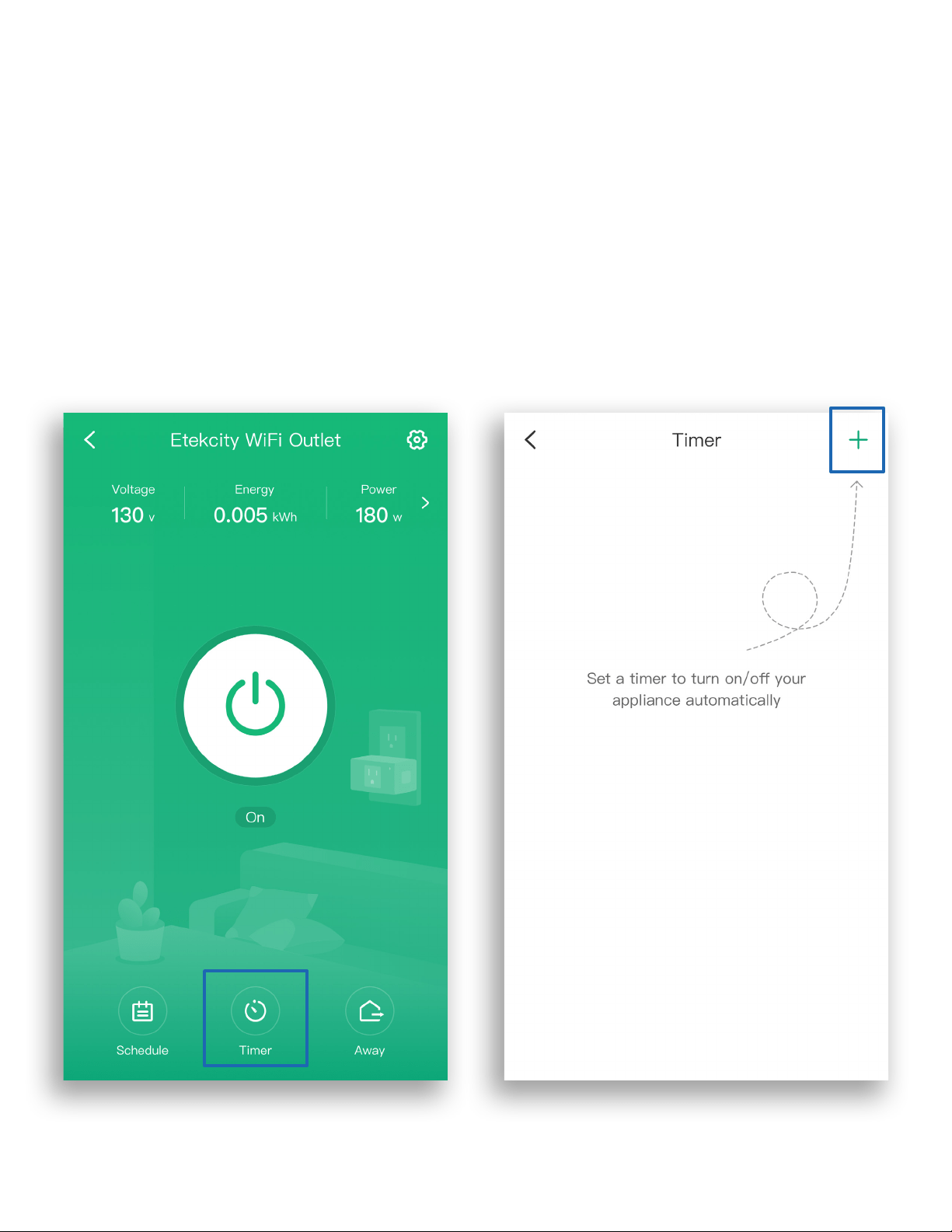
You can create a timer to turn your smart outlet on and off.
1. From the My Home screen, tap on the name of the
smart outlet to open the smart outlet screen.
2. Tap Timer, then + .
17
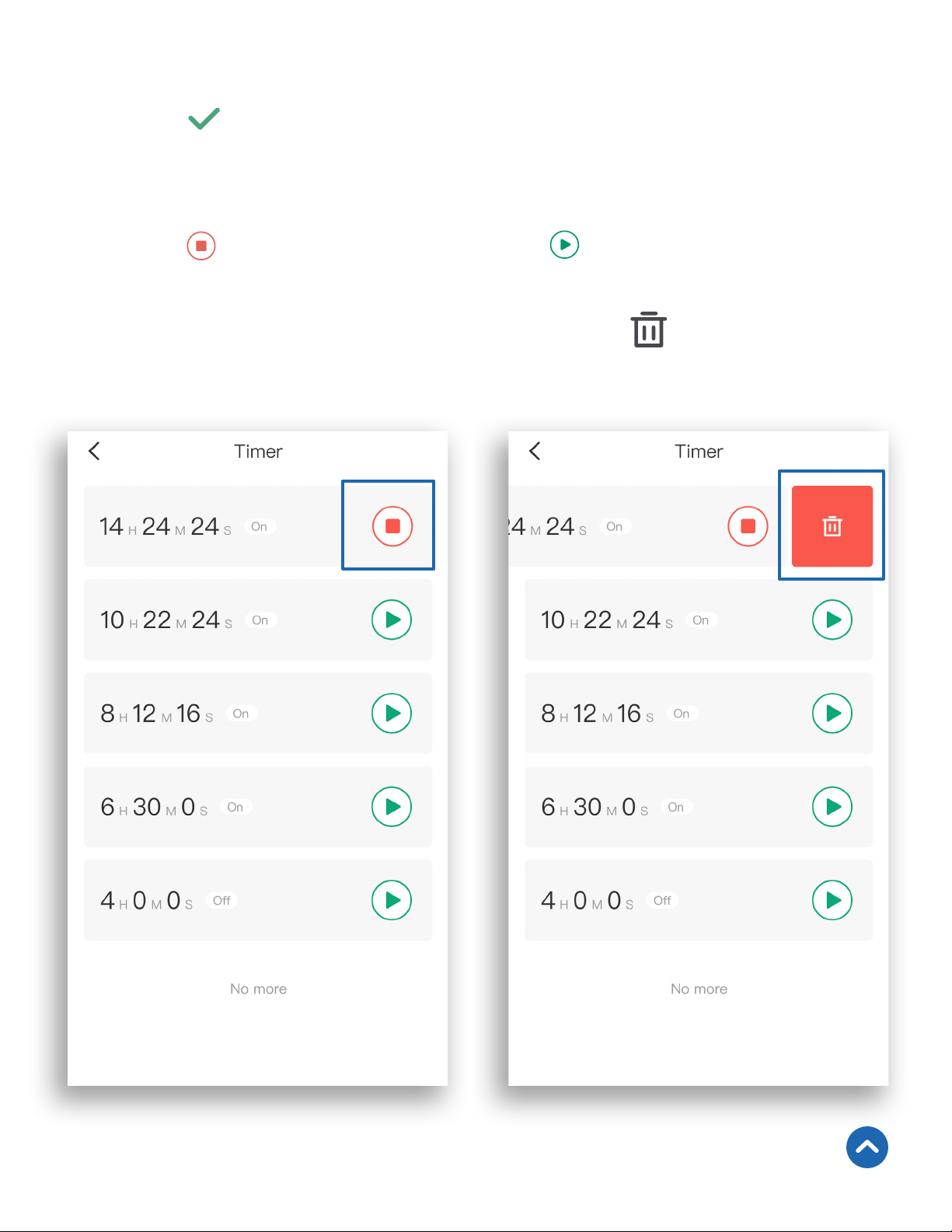
3. Scroll up and down to set the time and tap On or Off.
4. Tap to conrm and start the timer. When the timer
nishes, the smart outlet will turn on or off based on
your selection.
5. Tap to stop the timer. Tap to restart the timer.
Back to Table of Contents
Note: To remove an entry, swipe left and tap , or tap on the
entry and then tap Delete.
18
Away Mode
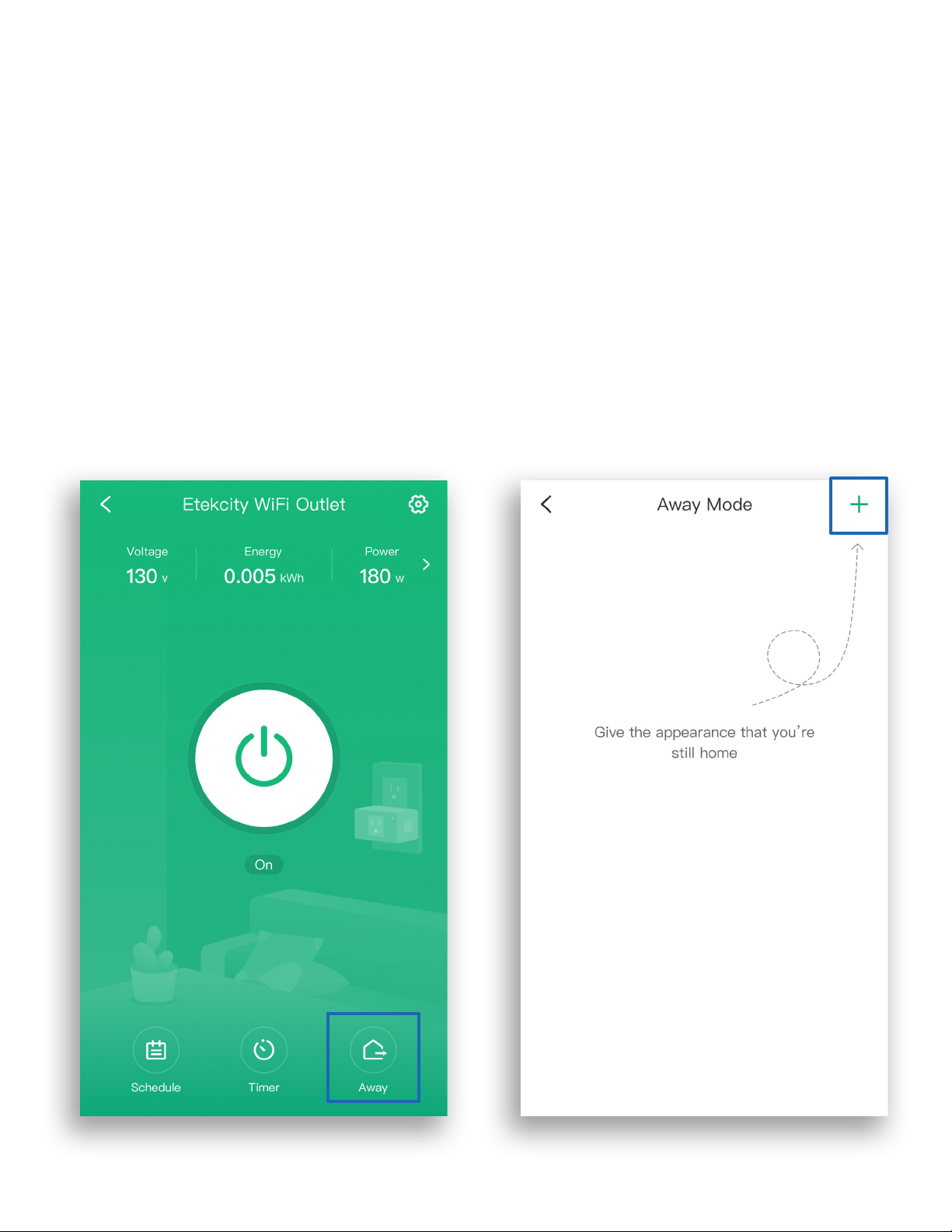
Use Away Mode to have your smart outlet turn on and off
periodically to give the appearance that someone is home
while you’re away.
1. From the My Home screen, tap on the name of the
smart outlet to open the smart outlet screen.
2. Tap Away, then tap + .
19
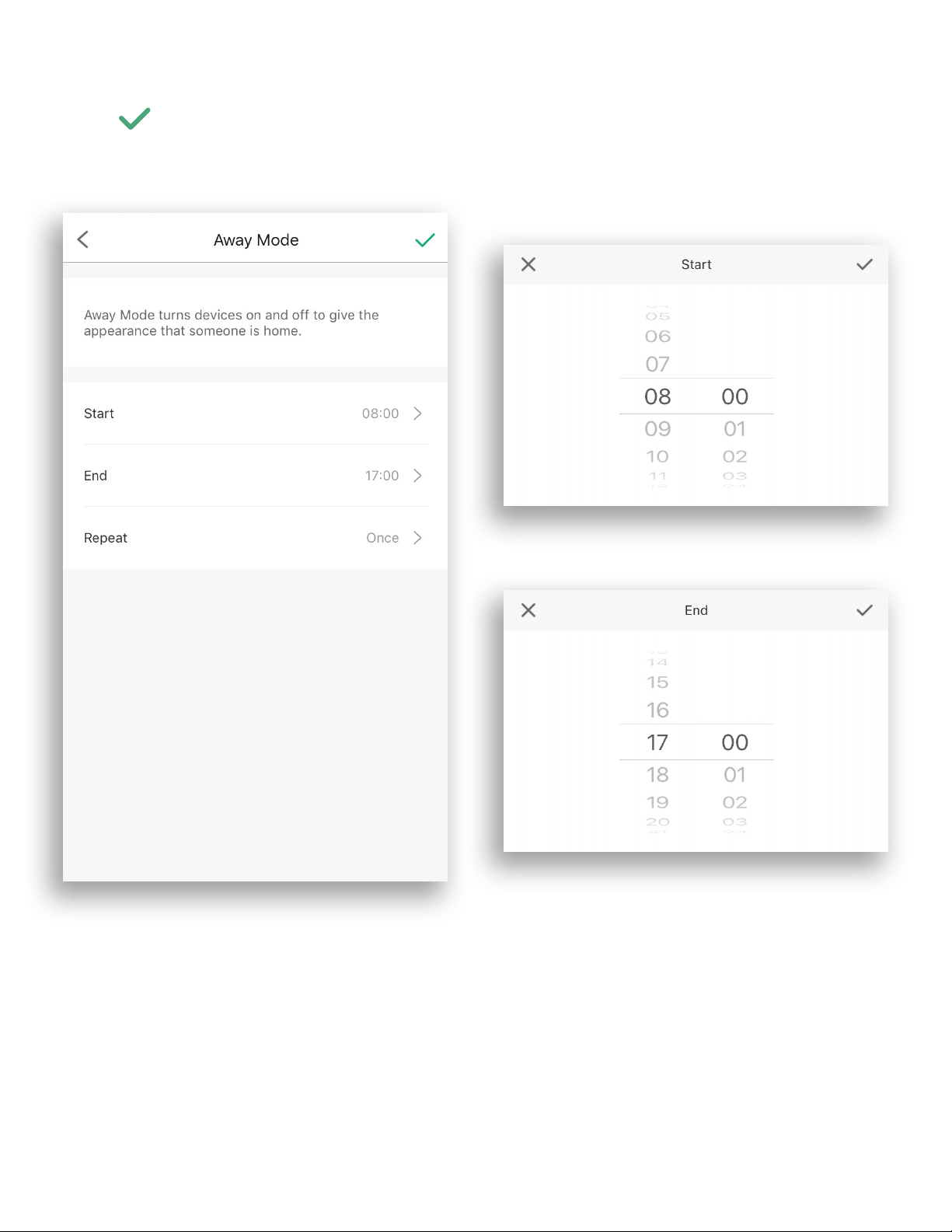
3. Tap Start and End to set the start and end times. Tap
to conrm.
20
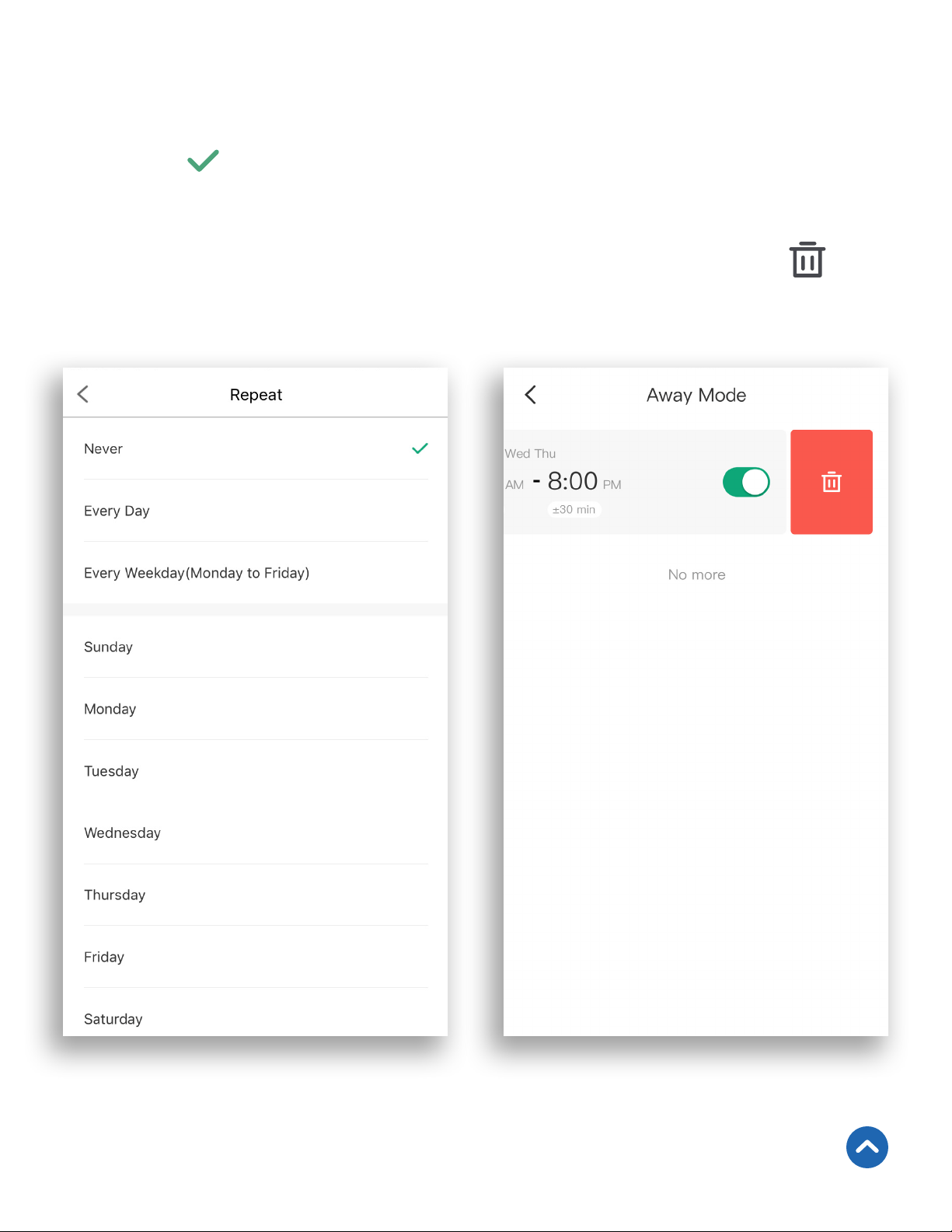
4. To repeat the Away Mode, tap Repeat and select the
desired days.
5. Tap to save the Away Mode.
6. Tap the toggle to turn Away Mode on or off.
Back to Table of Contents
Note: To remove the Away Mode entry, swipe left and tap , or
tap on the entry and then tap Delete.

21
Settings
• From the My Home screen, tap on the name of the smart
outlet to open the smart outlet screen.
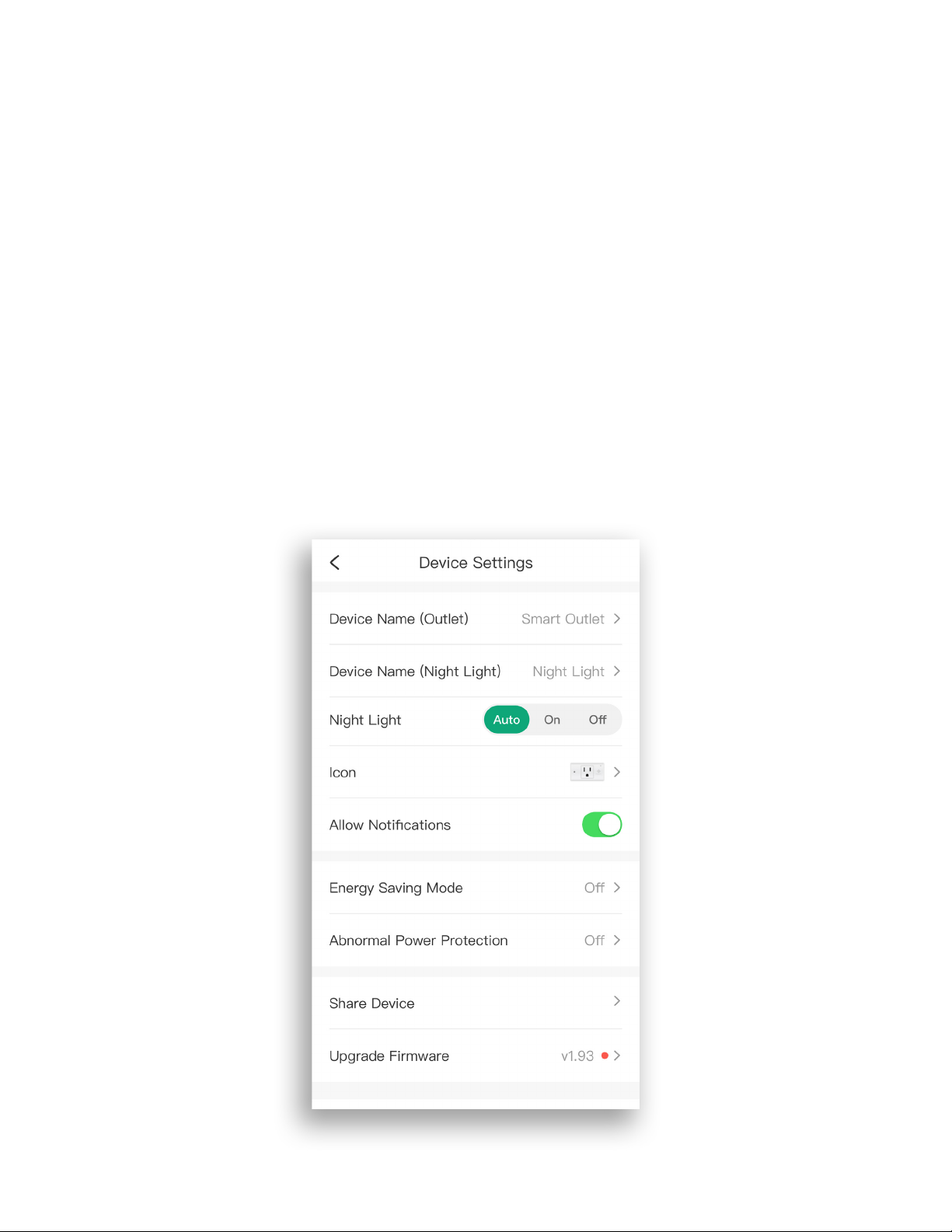
• Tap to see Device Settings.
• To change any setting, tap on any of the text, icons, or >
symbols on the right side of the screen. For example, tap
the smart outlet name to change the name.
22
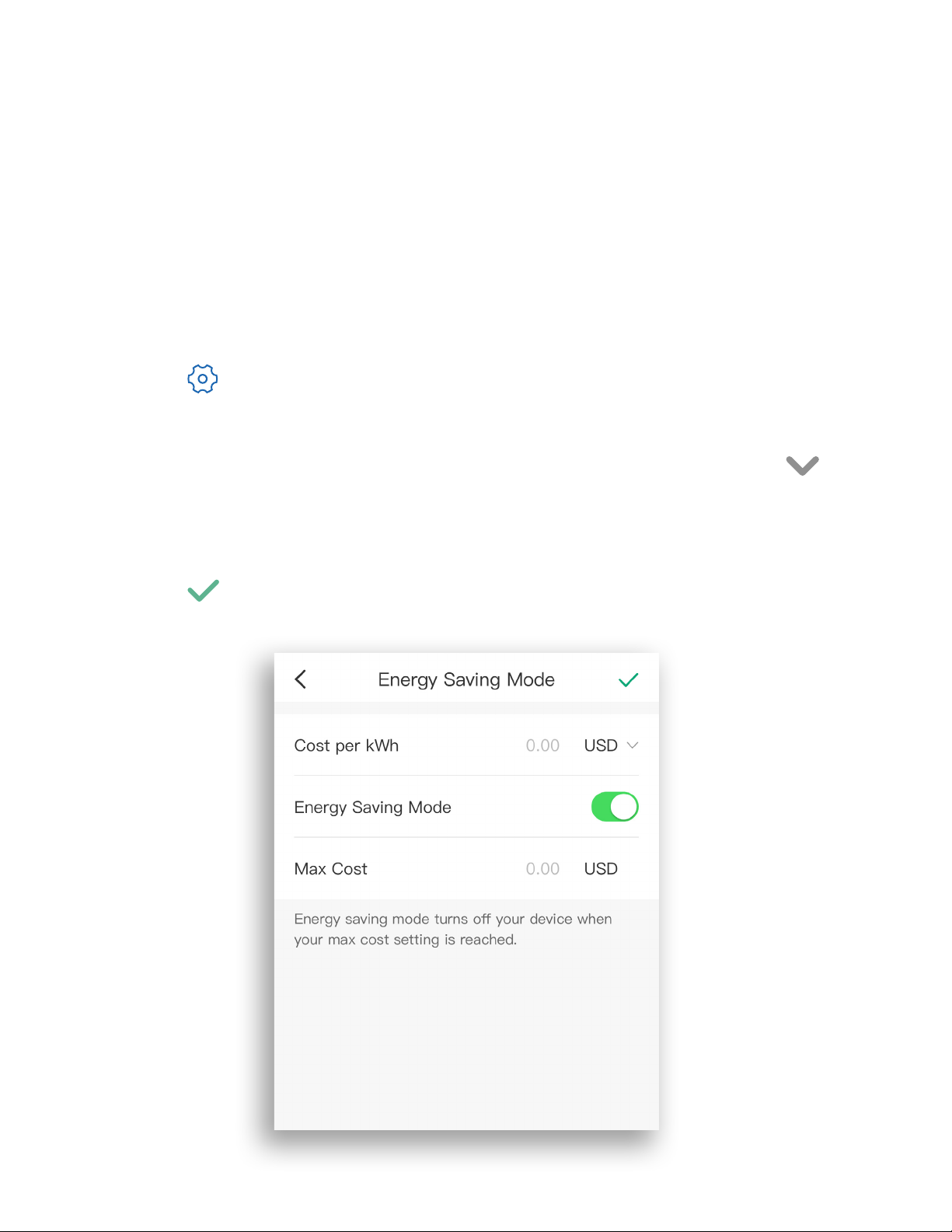
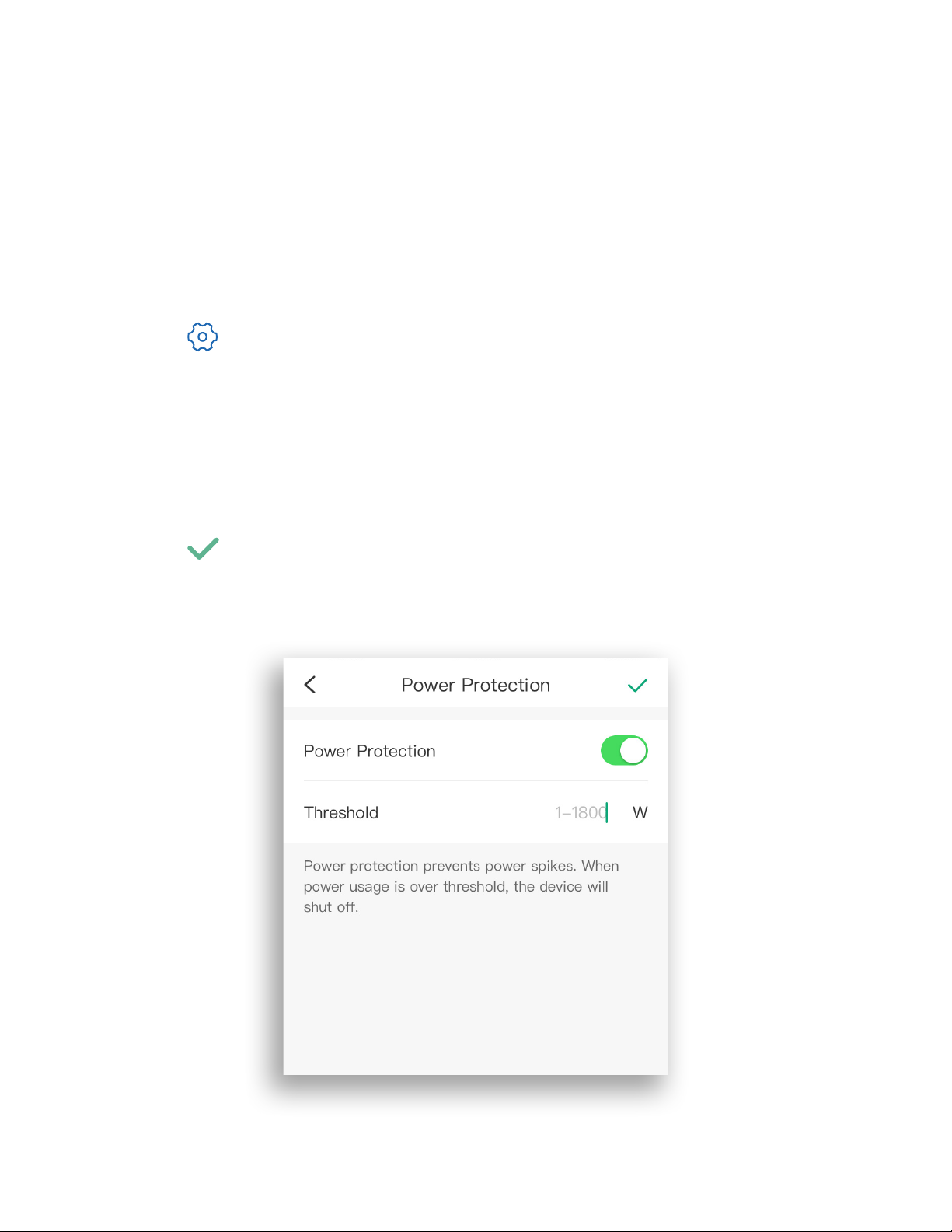
Energy Saving Mode
You can program your smart outlet to save on energy costs
by turning off your appliance when the maximum cost
setting is reached.
1. From the My Home screen, tap on the name of the
smart outlet to open the smart outlet screen.
2. Tap to see Device Settings, then tap Energy
Saving Mode.
3. Enter the Cost per KWh and Max Cost then tap to
change the monetary unit to EUR or USD.
4. Tap the toggle to turn Energy Saving Mode on or off.
5. Tap to conrm.
23
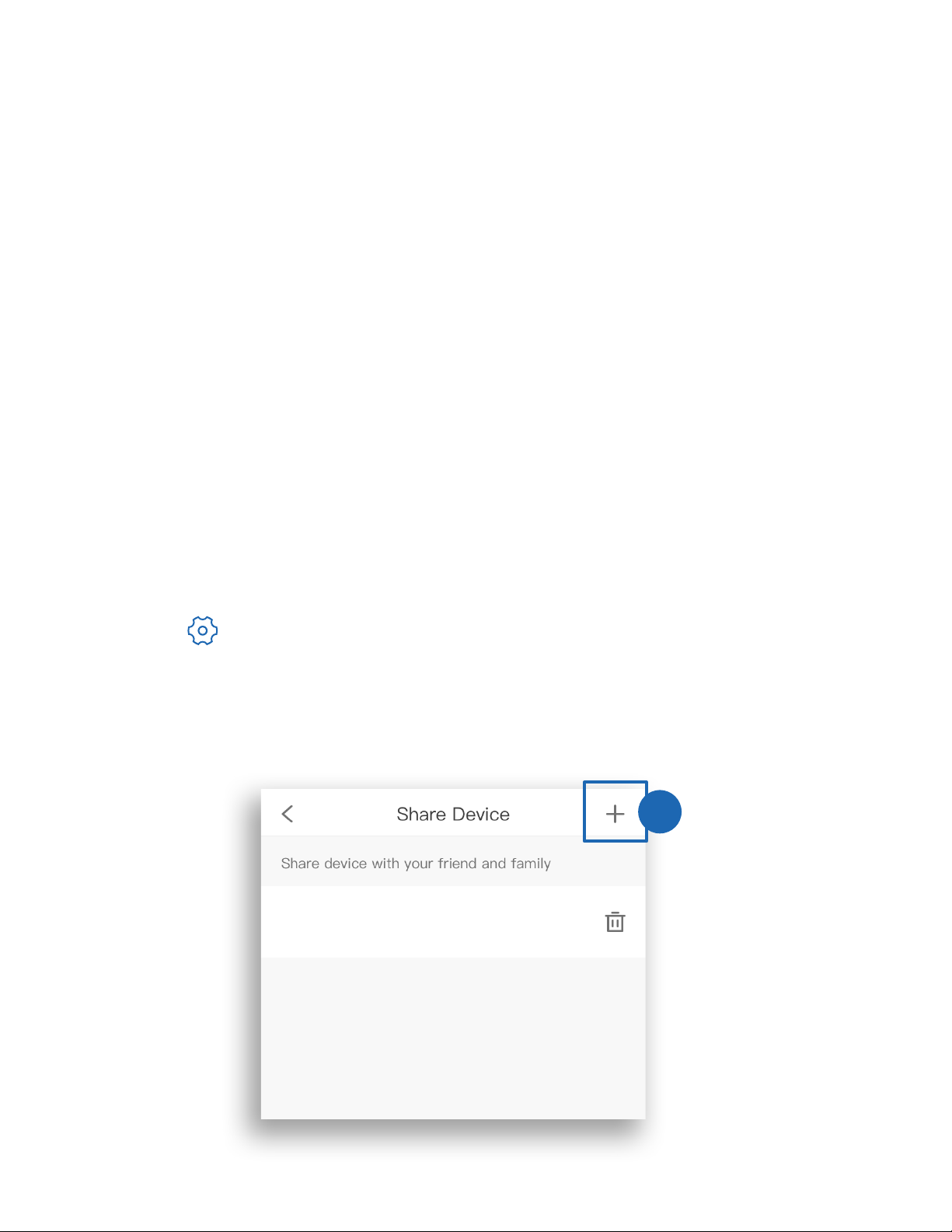
Abnormal Power Protection
Turn on Power Protection to protect your connected
appliances from power spike damage.
1. From the My Home screen, tap on the name of the
smart outlet to open the smart outlet screen.
2. Tap to see Device Settings, then tap Abnormal
Power Protection.
3. Tap the toggle switch to turn Power Protection on
and off.
4. Enter power usage threshold.
5. Tap to conrm.
24
Share Your Smart Outlet
Use Share Device to allow someone else to control your
smart outlet (such as family, friends, roommates, or anyone
you choose).
1. From the My Home screen, tap on the name of the
smart outlet to open the smart outlet screen.
2. Tap to see Device Settings, then tap Share Device.
3. Tap Invite Users , or tap the + icon in the upper right
corner.
3
Note:
• You must have a VeSync account to share your smart outlet.
• People who you share your smart outlet with must have a
VeSync account.
• Shared users can edit your device settings. If they delete your
device, it will only be deleted from their account. You can
unshare at any time.
Example
25
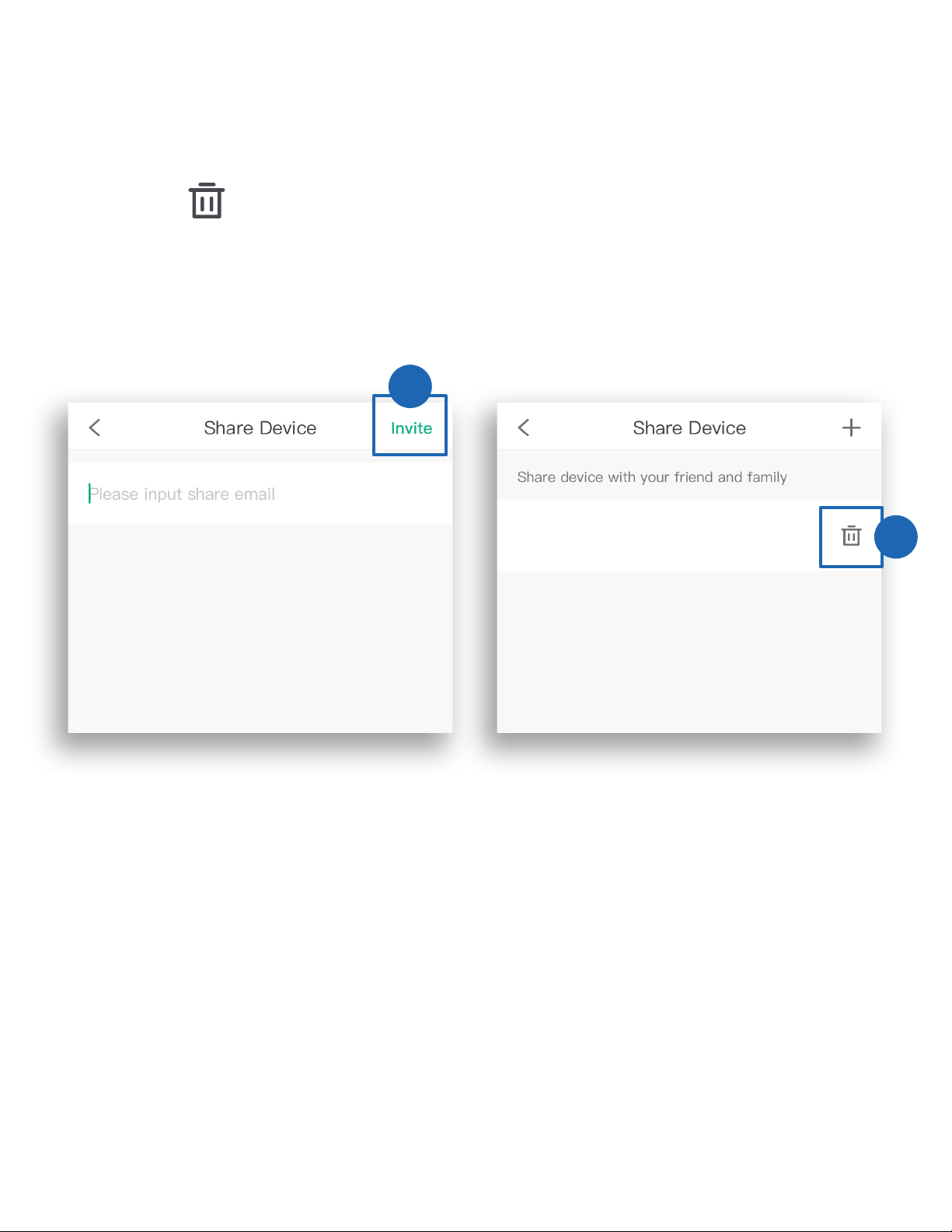
4. Type in the email of the user you want to share control
of your smart outlet with. Tap Invite in the upper right
corner.
5. Tap to remove people you have shared your
device with. They will no longer be able to control your
smart outlet.
4
5
Example
26
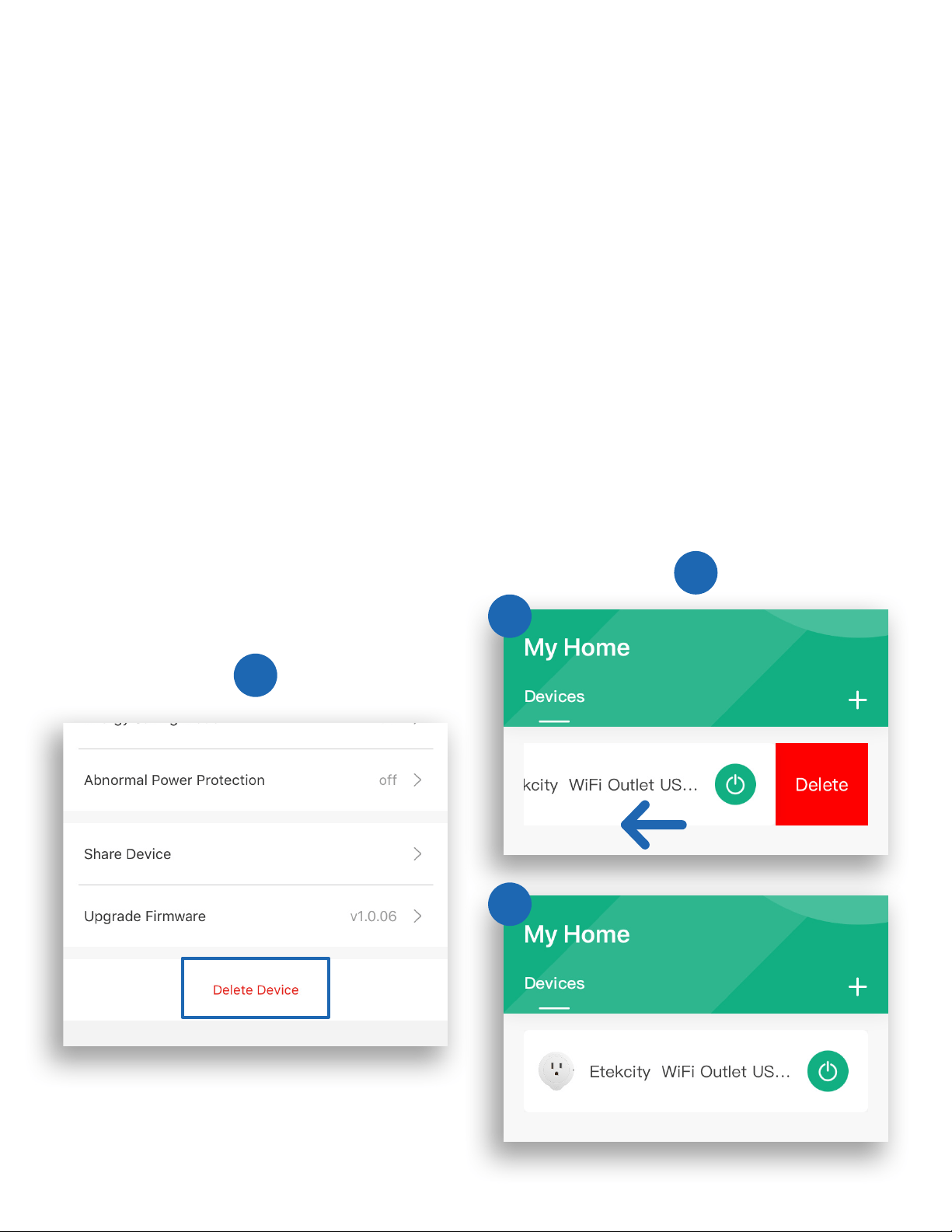
Delete a Smart Outlet
A. You can delete your smart outlet from the VeSync app from
the Device Settings screen. Tap Delete Device.
B. You can also delete your smart outlet from the My Home
screen in the VeSync app.
a. iOS™: Swipe left on the smart outlet’s name to
delete.
b. Android™: Press and hold for 2 seconds on the
smart outlet’s name to delete.
A
B
a
b

27
To view instructions on the VeSync app, tap More at the
bottom of the screen, then tap Link to Alexa.
To view instructions on the VeSync app, tap More at the
bottom of the screen, then tap Link to Google Assistant.
More Features
Connecting with Amazon® Alexa™
Connecting with Google Assistant™
Note: You must create your own VeSync account to connect with
Alexa.
Note: You must create your own VeSync account to connect with
Google Assistant.
Back to Table of Contents
28
Contact Customer Support
You can contact our friendly Customer Support Team
through the VeSync app, in addition to the helpline.
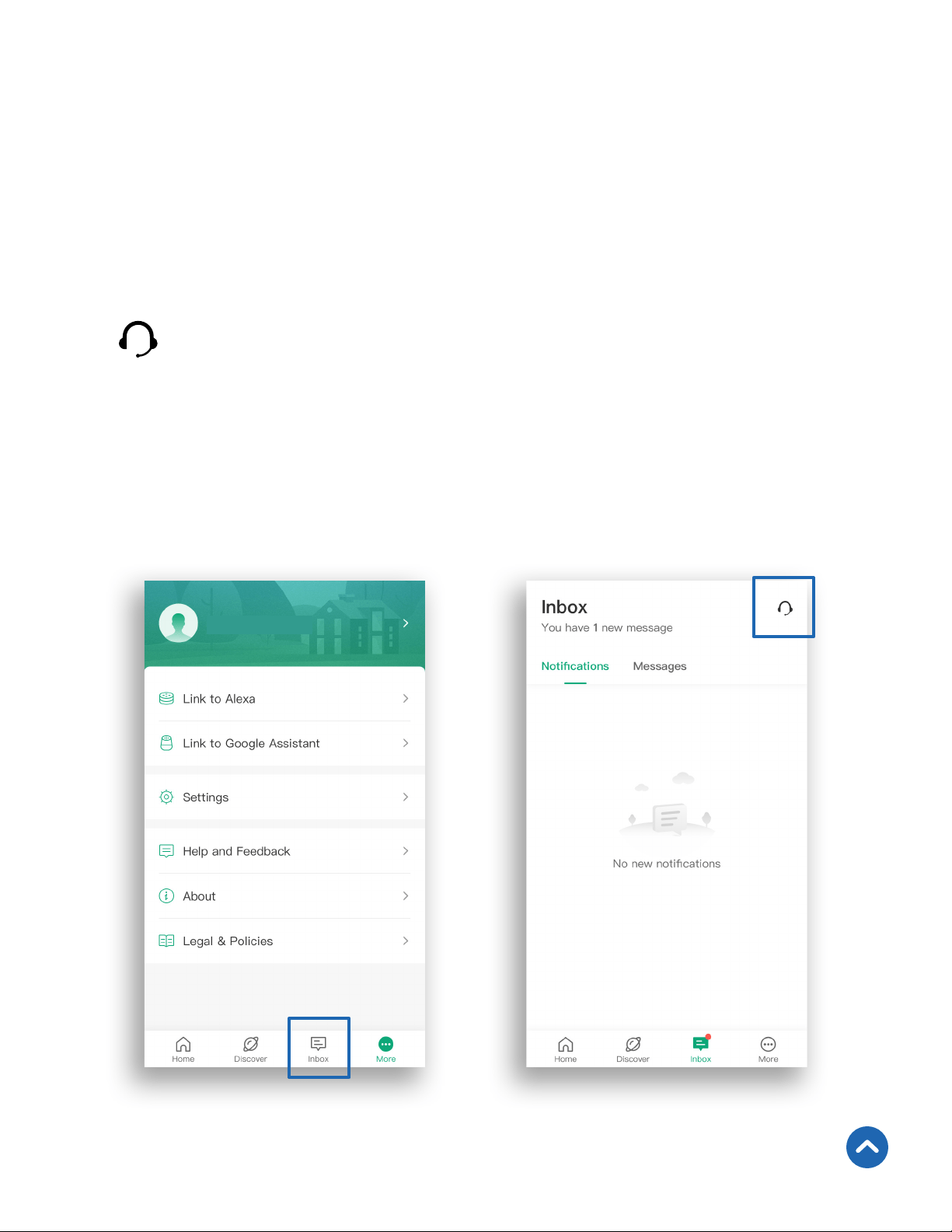
• To chat directly with our US ofce Customer Support
Team, tap Inbox at the bottom of the screen. Then, tap
to send a chat message.
Note: Chat hours are Mon–Fri, 9:00 am–5:00 pm PST/PDT.
Messages sent outside chat hours will receive an email
response.
Back to Table of Contents
Vesync User

29
Help and Feedback
1. To get in-app help or send feedback on your smart
outlet, tap More at the bottom of the screen, then tap
Help and Feedback.
2. Tap on the name of your smart outlet.
Note: If your smart outlet is not installed, tap More, then tap
WiFi Outlet and choose your outlet.
Note: Entering your router model or including a picture
of your label is especially helpful if you’re having issues
connecting to your smart outlet in the app.
3. Tap on any issue to see more information. If you can’t
nd the solution to your problem, tap
Report an Issue.
4. Type in your feedback and tap Submit. A member
of our support team will reach out to you within 24
hours.
30
Maintaining Your Smart Outlet
Firmware Updates
To keep the smart outlet up to date with the latest
improvements and xes, always update the rmware when
available.
On the Device Settings screen (see page 21), tap
Upgrade Firmware. The red dot (shown) lets you know
that there is a new rmware version available.

31
Resetting
Resetting the smart outlet can help troubleshoot many
issues you may have, including if your smart outlet has
gone ofine. Please keep in mind that resetting the outlet
will erase all of your custom settings and restore the
default settings.
You can use either of these methods to reset your smart
outlet:
After resetting, recongure your outlet with the VeSync
app (see page 9).
• Delete the smart outlet from the VeSync app. Swipe
left (iOS) or tap and hold (Android) on the outlet name,
then tap Delete.
• Press and hold the power button for about 15 seconds
until the indicator light blinks blue rapidly (4 times a
second). The indicator light will blink rapidly 10 times,
and the outlet will turn off.
Back to Table of Contents

32
Troubleshooting
Why isn’t my smart outlet connecting to the VeSync app?
• During the setup process, you must be connected to a secure
2.4GHz WiFi network.
• Make sure the WiFi password you entered is correct.
• Make sure your outlet is in Conguration Mode (see page 9). The
indicator light should be blinking. If not, press and hold the power
button for 10 seconds until the indicator light blinks.
• Your router should be within a 98–164 ft / 30–50 m visible range of
the air purier.
• Your router may need to be at a higher location and away from
appliances (such as microwave ovens, refrigerators, electronic
devices, etc.) to avoid signal interference.
• Make sure you don’t have too many devices connected to your
router (10 or fewer is best).
• Close and reopen the VeSync app.
• Clear your VeSync app cache.
• Reset your smart outlet (see Resetting, page 31).
Why do I need to turn on my phone’s location or GPS when I’m
setting up my outlet?
• Android™ phones may require GPS or location services to be
turned on to search for nearby WiFi networks. This is necessary for
connecting your outlet to WiFi.

33
I can’t nd the “VeSync” access point during conguration.
• Press and hold the power button on the outlet for 5 seconds,
until the indicator light blinks, to trigger Conguration Mode. The
“VeSync” access point will appear in your list of available WiFi
connections.
• During Conguration Mode, the indicator light on the outlet will
blink. You will have 5 minutes to pair the outlet with your phone.
My outlet is ofine.
• Make sure the smart outlet is on, then refresh the VeSync menu by
swiping down on the screen.
• Make sure your router is connected to the internet, and your
phone’s network connection is working.
• Delete the ofine outlet from the VeSync app. Swipe left (iOS) or
tap and hold (Android) on the outlet name, then tap Delete.
• Reset the outlet (see page 31). When the smart outlet is
recongured and online again, go to Device Settings, and tap
Upgrade Firmware.
Note: Power outages, internet outages, or changing WiFi routers may
cause your outlets to go offline.
After adding my smart outlet to VeSync, why won’t the smart outlet
icon appear on the My Home screen of the VeSync app?
• Refresh the VeSync menu by swiping down on the screen.
• Close and reopen the app.
34
Amazon Alexa or Google Assistant can’t nd my app or can’t
discover my smart outlet.
• Make sure your smart outlet is within 164 ft / 50 m of your wireless
network router.
• Check that your Amazon Alexa or Google Assistant is working
properly.
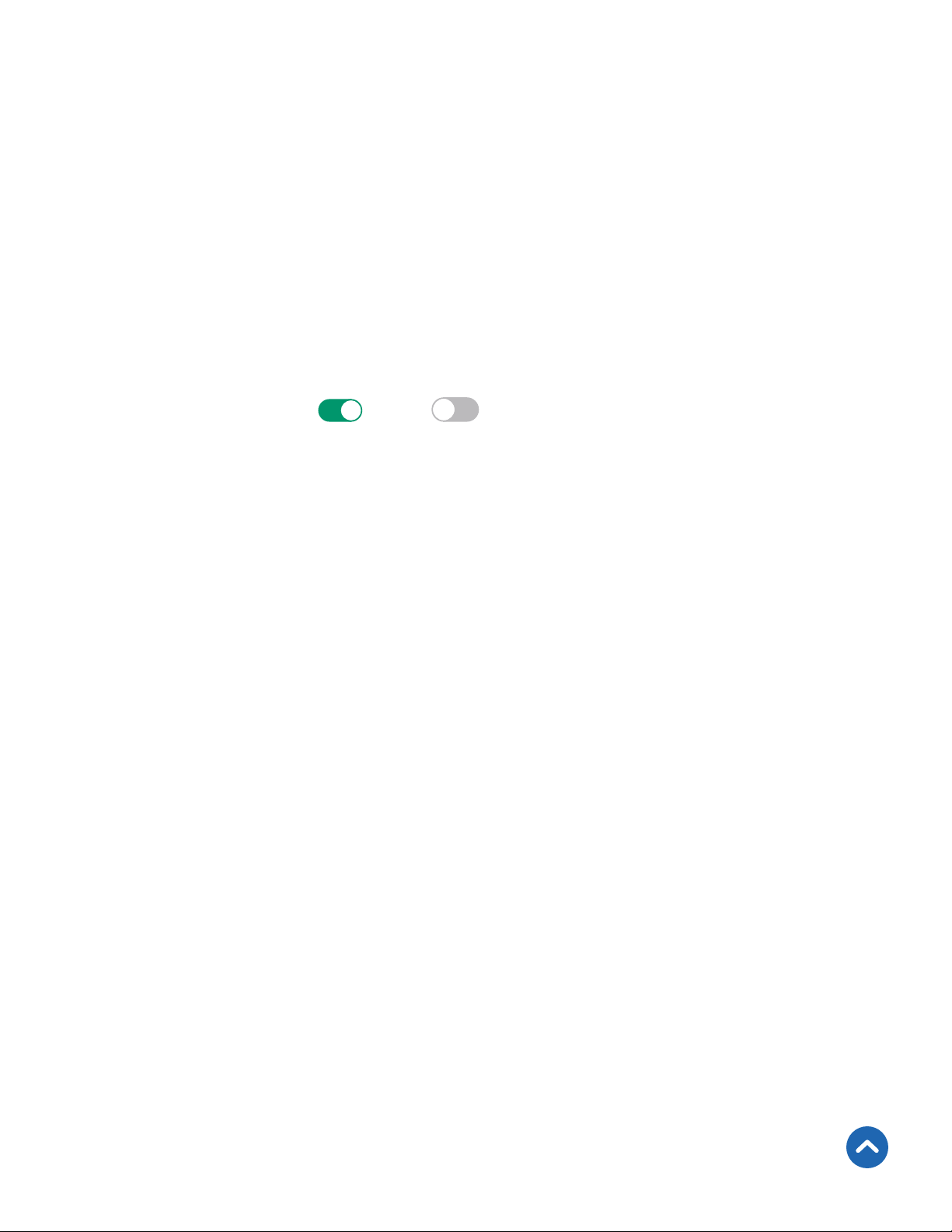
Why isn’t my smart outlet turning on/off as scheduled?
• Make sure that the schedule is still turned on. The toggle switch
should look like , not .
• Make sure that your phone’s Location Services are turned on.
• Make sure the smart outlet is connected to a working WiFi network
and is not ofine.
If your problem is not listed, please contact
Customer Support (see page 38).
Back to Table of Contents

35
FCC Statement
FCC Radiation Exposure Statement
This device complies with Part 15 of the FCC Rules. Operation is subject to the
following two conditions:
(1) This device may not cause harmful interference, and
(2) This device must accept any interference received, including interference that
may cause undesired operation.
Any changes or modications not expressly approved by the party responsible for
compliance could void the user’s authority to operate this equipment.
This equipment has been tested and found to comply with the limits for a Class
B digital device, pursuant to Part 15 of the FCC Rules. These limits are designed
to provide reasonable protection against harmful interference in a residential
installation. This equipment generates, uses and can radiate radio frequency
energy and, if not installed and used in accordance with the instructions, may cause
harmful interference to radio communications. However, there is no guarantee that
interference will not occur in a particular installation. If this equipment does cause
harmful interference to radio or television reception, which can be determined
by turning the equipment off and on, the user is encouraged to try to correct the
interference by one of the following measures:
• Reorient or relocate the receiving antenna.
• Connect the equipment into an outlet on a circuit different from that to which
the receiver is connected.
• Increase the separation between the equipment and receiver.
• Consult the dealer or an experienced radio/TV technician for help.
This equipment complies with FCC radiation exposure limits set forth for
an uncontrolled environment. End users must follow the specic operating
instructions for satisfying RF exposure compliance. To maintain compliance with
FCC RF exposure compliance requirements, please follow operation instructions as
documented in this manual. This transmitter must not be co-located or operating
in conjunction with any other antenna or transmitter. This equipment should be
installed and operated with a minimum distance of 20 cm between the radiator
and your body. The availability of some specic channels and/or operational
frequency bands are country dependent and are rmware programmed at the
factory to match the intended destination. The rmware setting is not accessible
by the end user.
Back to Table of Contents

36
Warranty Information
Terms & Policy
Etekcity Corporation warrants all products to be of the highest quality in material,
craftsmanship, and service, effective from the date of purchase to the end of the
warranty period.
Etekcity Corporation will replace any product found to be defective due to
manufacturer aws based on eligibility. Refunds are available within the rst
30 days of purchase. Refunds are only available to the original purchaser of the
product. This warranty extends only to personal use and does not extend to any
product that has been used for commercial, rental, or any other use in which the
product is not intended for. There are no warranties other than the warranties
expressly set forth with each product.
This warranty is non-transferrable. Etekcity Corporation is not responsible in any
way for any damages, losses, or inconveniences caused by equipment failure or by
user negligence, abuse, or use noncompliant with the user manual or any additional
safety or use warnings included in the product packaging and manual.
This warranty does not apply to the following:
• Damage due to abuse, accident, alteration, misuse, tampering, or vandalism.
• Improper or inadequate maintenance.
• Damage in return transit.
• Unsupervised use by children under 18 years of age.
Etekcity Corporation and its subsidiaries assume no liability for damage caused
by the use of the product other than for its intended use or as instructed in the
user manual. Some states do not allow this exclusion or limitation of incidental
or consequential losses so the foregoing disclaimer may not apply to you. This
warranty gives you specic legal rights and you may also have other rights which
may vary from state to state.
ALL EXPRESSED AND IMPLIED WARRANTIES, INCLUDING THE WARRANTY
OF MERCHANTABILITY, ARE LIMITED TO THE PERIOD OF THE LIMITED
WARRANTY.
Product
Voltson Smart WiFi Outlet (15A)
Model
ESW15-USA
Defaul Warranty Period
1 year

37
Additional 1-Year Warranty
You can extend your 1-year warranty by an additional year. Log onto
www.etekcity.com/warranty to register your new product for the extended
warranty.
Please ll out all required elds and include your order ID, place of purchase, and
purchase date, if applicable
Defective Products & Returns
If you discover your product is defective within the specied warranty period,
please contact Customer Support via [email protected] with a copy of your
invoice and order ID. DO NOT dispose of your product before contacting us. Once
our Customer Support Team has approved your request, please return the product
with a copy of the invoice and order ID.
Back to Table of Contents

38
Customer Support
If you have any questions or concerns about your new
product, please contact our helpful Customer Support
Team.
Etekcity Corporation
1202 N. Miller St., Suite A
Anaheim, CA 92806
Email: [email protected]
Toll-Free: (855) 686-3835
Support Hours
Mon–Fri, 9:00 am–5:00 pm PST/PDT
*Please have your invoice and order ID ready before
contacting Customer Support.
Back to Table of Contents

Connect with us @Etekcity
AU0919AL-M1.2_0419ESW15-USA
