
2
Thank you for purchasing the
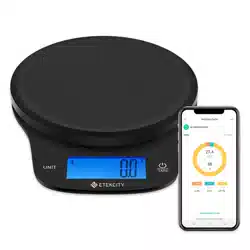
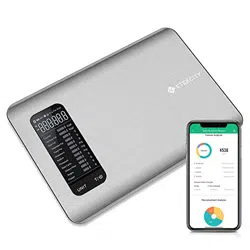
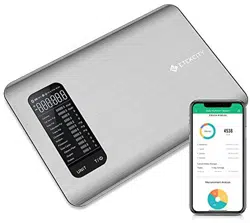
Smart Nutrition Scale by Etekcity.
If you have any questions or concerns, please
reach out to our helpful Customer Support Team
at [email protected]. We hope you enjoy
your new smart nutrition scale!
BECOME AN ETEKCITIZEN
Get exclusive deals, giveaways, and product
registration. Better products for better living.
Find us at etekcity.com
3
1 x ESN00 Smart Nutrition Scale
2 x 1.5V AAA Batteries (Pre-installed)
1 x User Manual
Specifications
Package Contents
Weight Capacity 176.4 oz / 11 lb / 5000 g / 5000 mL
Units oz / lb:oz / g / mL
Division Value 0.1 oz / 1 g / 1 mL
Backlight Auto-Off 30-120 seconds (adjustable in app)
Scale Auto-Off 120 seconds
Dimensions 9.2 in x 6.3 in x 0.6 in
(235 mm x 160 mm x 16.5 mm)
Battery 2 x 1.5V AAA Batteries
Table of Contents
Safety Information
Function Diagram
Digital Display
Set-Up
App Installation & Registration
Configuration
App Operation
• Weight Measurement
• Search Food
• Dairy
• Device Settings
Scale Operation
• Tips
• Tare Function
• Measurement
Maintenance
Troubleshooting
Warranty Information
Customer Support
4
5
5
6
6
7
11
11
12
14
15
16
16
16
18
19
20
21
22

4
Safety Information
Scale Batteries
• Do not exceed the 11 lb (5 kg) weight capacity,
as doing so may damage the scale. An overload
indicator will appear on the LCD display if the
limit is exceeded.
• Avoid exposing the scale to damp environments
or extreme temperatures.
• Do not immerse the scale in water or any
liquid. If liquid is spilled on the digital display or
buttons, immediately wipe the scale clean with a
soft cloth to avoid internal damage.
• This scale is not intended for commercial or
heavy-duty use.
• Handle the scale with care. Keep the scale in a
cool, dry environment.
• Do not mix new and used batteries.
• If the low battery indicator (“Lo”) appears on
the display, replace the batteries.
• If the scale is not in use for an extended period
of time, remove the batteries to conserve
battery life and extend the lifetime of the scale.
To avoid damage to this device, please read and follow all instructions and safety guidelines in this manual.
Note: This smart scale complies with Part 15 of the FCC
Rules. Operation is subject to the following two conditions:
(1) this device may not cause harmful interference, and (2)
this device must accept any interference received, including
interference that may cause undesired operation.
5
Calories
Kcal
Kcal
g
gml
M
M
fl’oz lb:oz
g
g
g
g
g
g
mg
mg
mg
Cal from Fat
Total Fat
Saturated Fat
Trans Fat
Cholesterol
Sodium
Potassium
Total Carbs
Dietary Fiber
Sugars
Protein
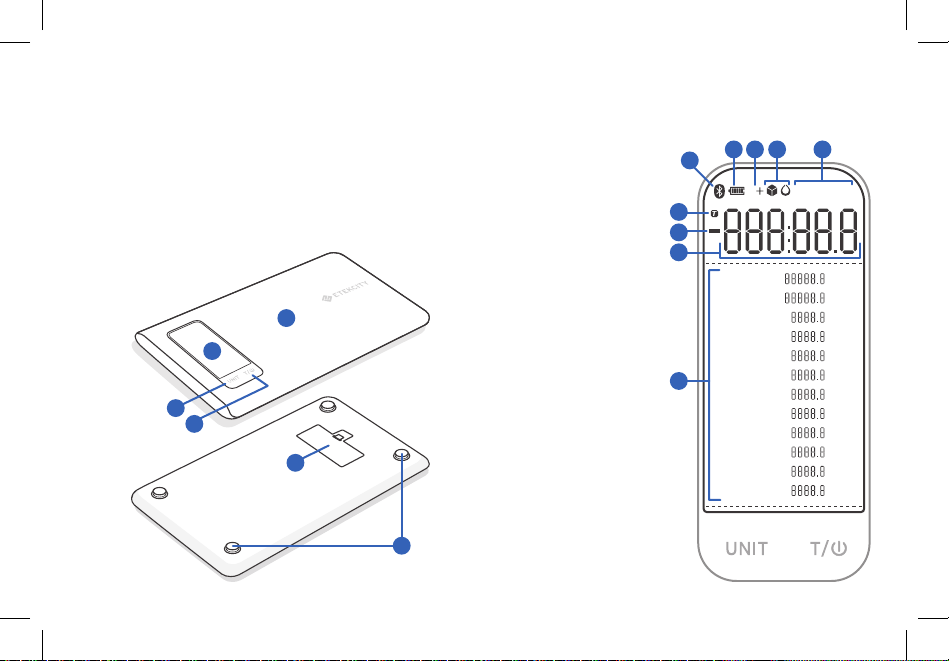
Function Diagram Digital Display
1. Weighing Platform
2. Digital Display
3. Unit Button
4. Power/Zero Button
5. Battery Compartment
6. Anti-Skid Padding
1. Bluetooth Mode
2. Battery Life Indicator
3. Accumulative Mode
4. Weighing Mode
5. Measurement Unit
6. Tare Mode
7. Negative Weight
Value
8. Weight Value
9. Nutritional Ingredient
1
1
2 3
4 5
6
7
8
9
2
3
4
5
6
6
Set-Up App Installation
& Registration
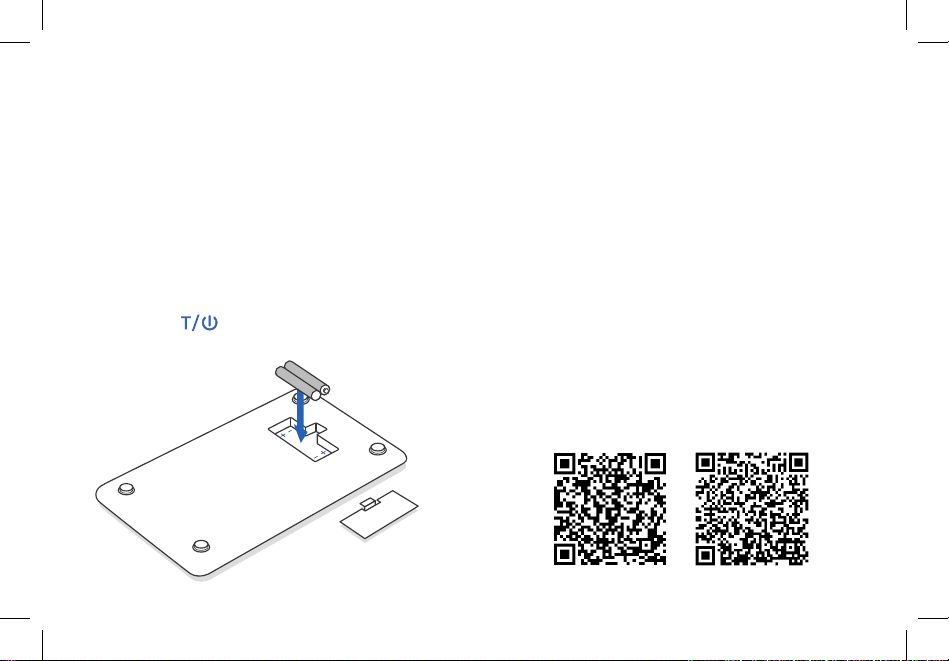
1. Open the battery compartment on the underside
of the scale.
2. If necessary, insert the included AAA batteries,
making sure they are under the correct polarity
as marked on the battery compartment.
[Figure 1.1]
3. Replace the battery cover.
4. Press the button to turn on the scale.
1. Scan the QR code, or download the VeSync app
from the App Store or Google Play Store.
Figure 1.1
AAA batteries
iOS Android
Note: For Android users, choose “Allow” (when
prompted) to use VeSync.
Note: You must create your own VeSync account to
use third-party services and products, such as the
Amazon Echo and Google Home. These will not work
with the Guest account. With a VeSync account, you
can also allow your family or friends to use your smart
scale. Even if you change your phone number, your
nutrition records will still be available on your account.
2. After you’ve signed up, enter your email and
password, then tap Log In.
7
Configuration –
Configuration
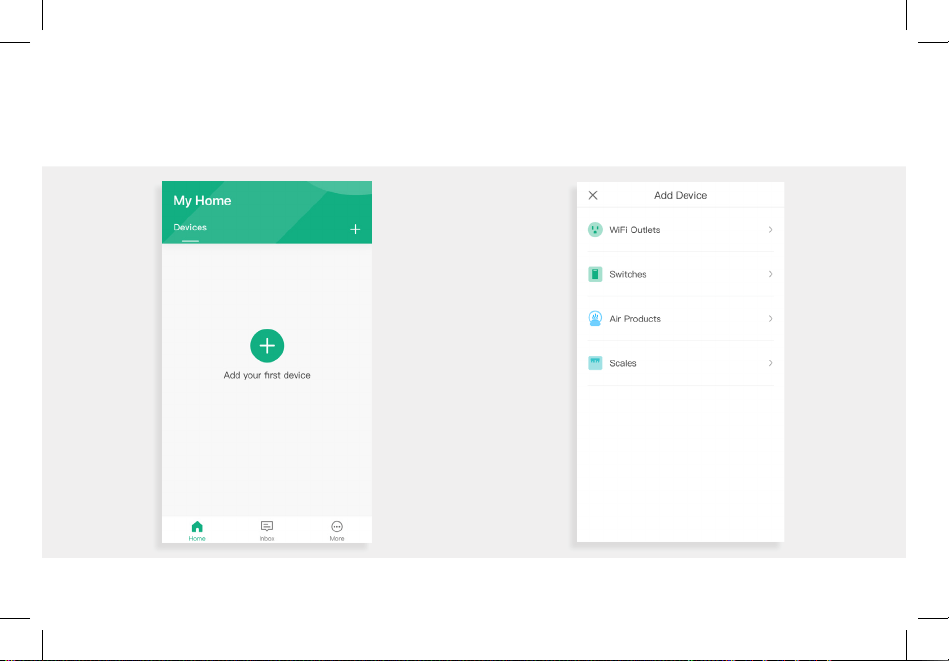
1. Tap the + button to add your device. 2. Tap Scales.
8
– Configuration
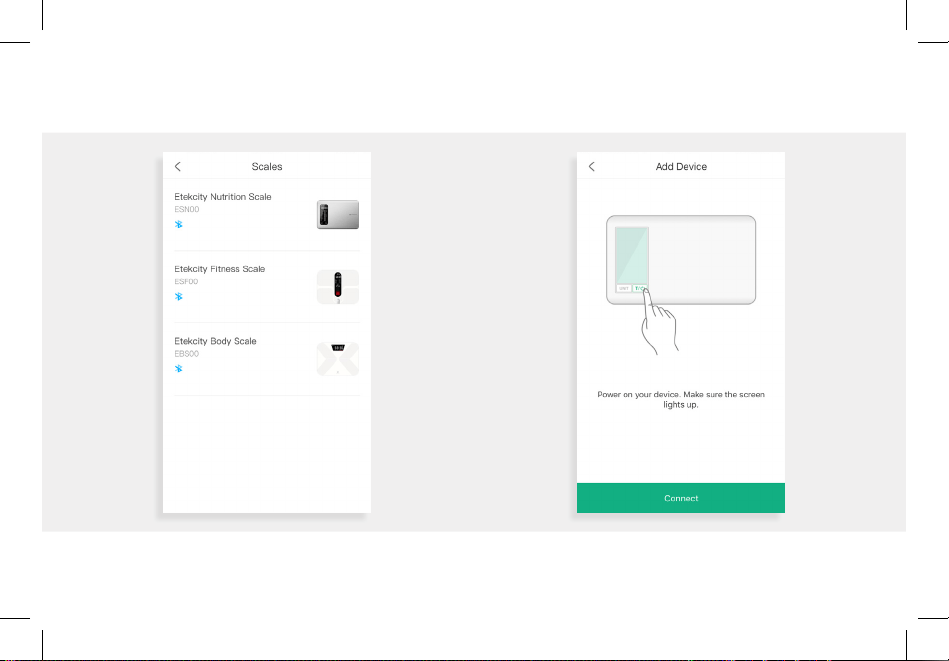
3. Select the Etekcity Nutrition Scale (ESN00). 4. Power on your scale. Make sure the screen
lights up. Tap Connect.
Note: Your phone’s Bluetooth needs to be turned on to
allow VeSync to connect to the new scale.
9
Configuration –
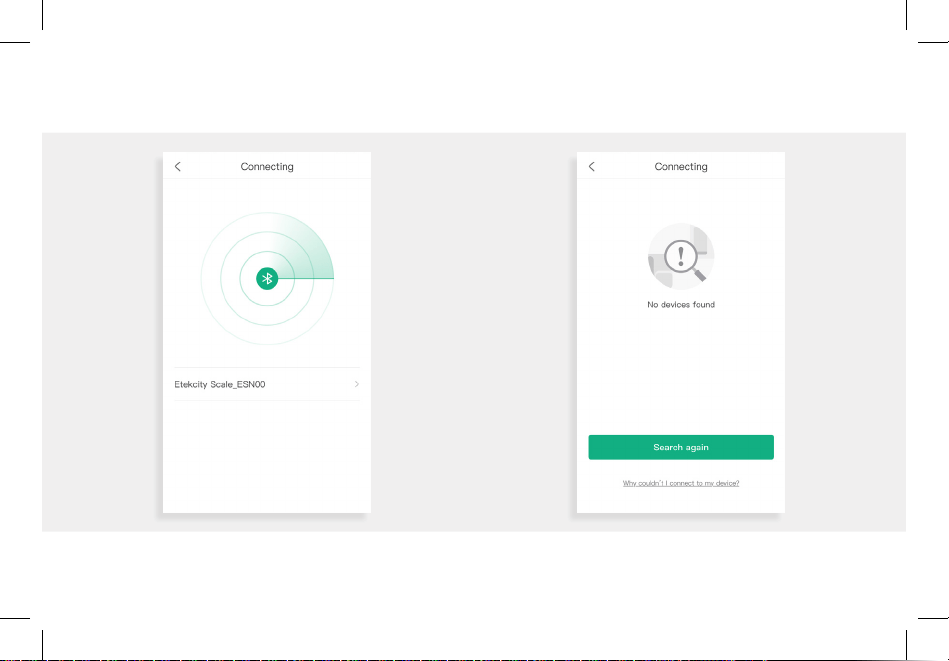
5. Tap Etekcity Scale_ESN00 to connect. The
system will take a moment to scan for devices.
6. If you can’t connect, tap Why couldn’t I connect
to my device? at the bottom of the screen.
10
– Configuration
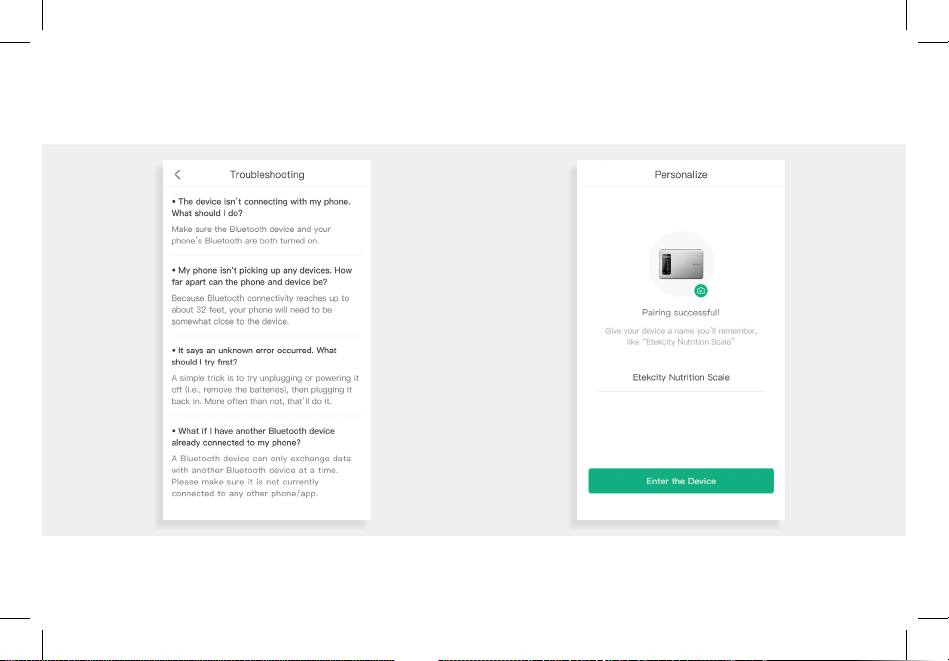
7. After following the “Troubleshooting” steps,
tap Search Again to return to setup.
8. You’ve completed setup. Give your nutrition
scale a unique name, or simply use the default
name.
Note: You can change the name and picture at any time in
“Device Settings”.
11
App Operation –
App Operation
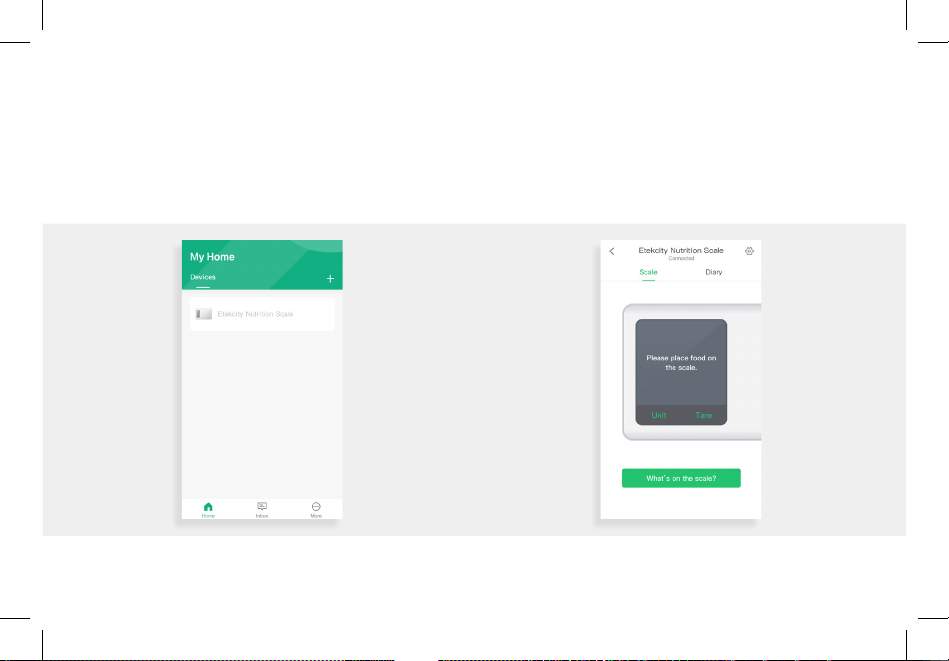
1. On the “My Home” screen, tap on the name of
your nutrition scale.
Weight Measurement
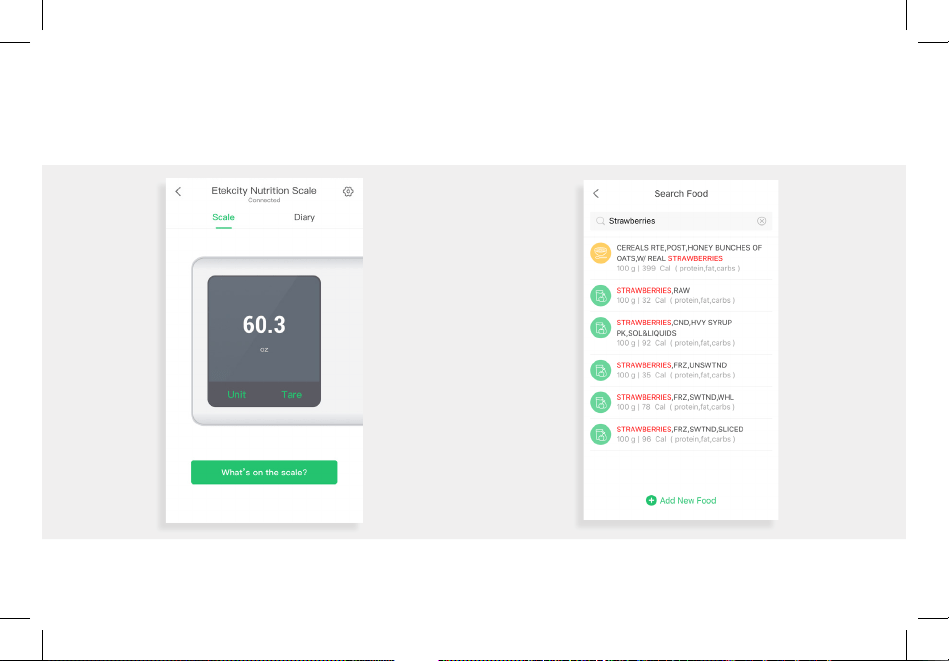
2. Put the food you want to weigh on the scale.
The scale will display the weight, which will be
synchronized with the VeSync app.
Note: You can tap Unit to set the measurement units, and
tap Tare to use the “Tare Function” (page 16).
12
– App Operation
Search Food
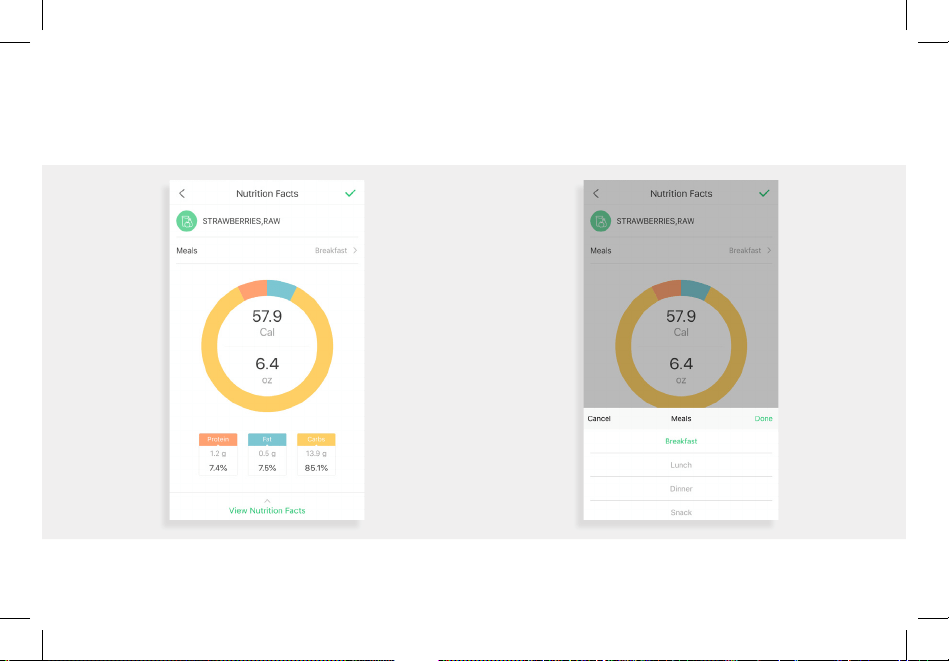
1. Tap What’s on the scale? for food information,
or to add new food.
2. Enter the name of the food in the search
(for example: “Strawberries”).
Note: You can add food by tapping + at the bottom of the
screen.
13
App Operation –
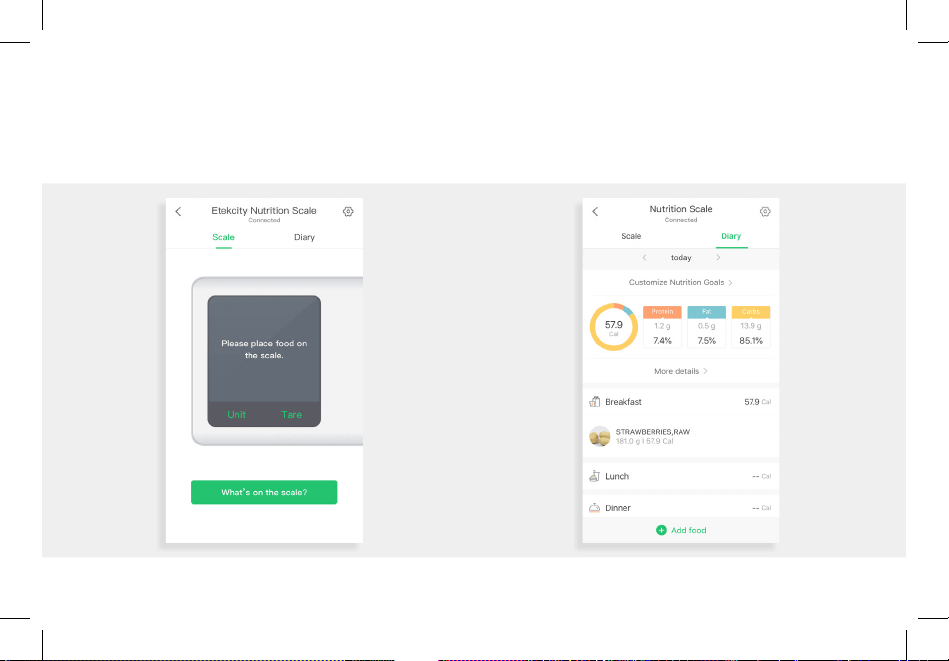
Note: You can tap the √ symbol in the upper right corner to
save nutrition information.
3. View the nutrition facts of the food selected.
4. Tap Meals. You can choose which meal to
record the selected food under.
14
– App Operation
Dairy
1. Tap Diary.
2. View your nutrition records and customize your
nutrition goals.
15
App Operation –
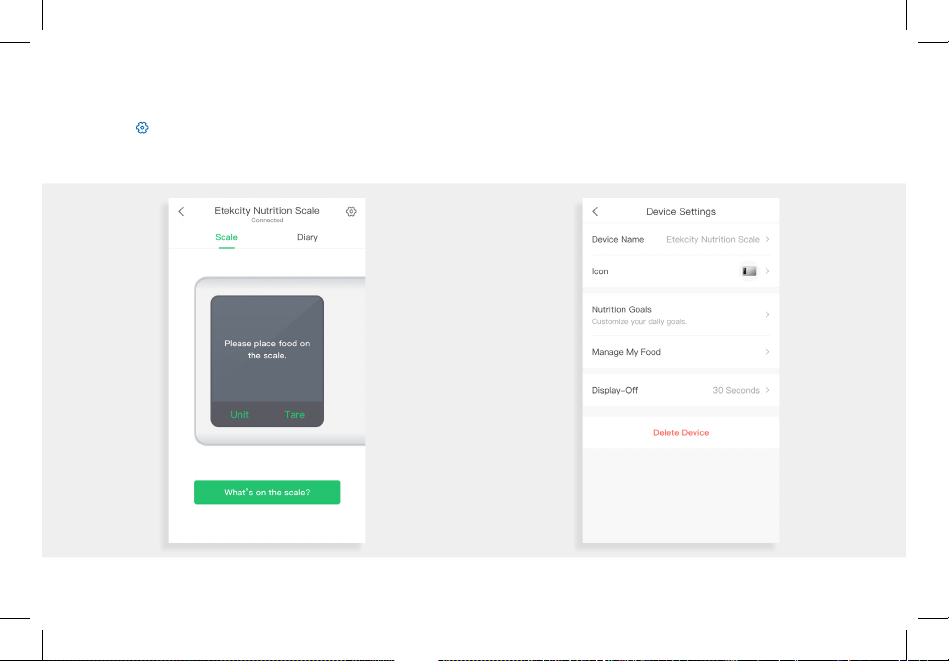
Device Settings
1. Tap in the upper right corner.
2. Customize your device settings. You can change
the scale’s name and icon, edit your goals and
food records, and change the Display Auto-Off.
16
– Scale Operation
Scale Operation
Tips
Tare Function
• For accurate results, always place the scale on a
hard, dry, flat surface, and keep the scale away
from dirt, dust, vibration, wind, air currents, and
electromagnetic interference.
• When you turn on the scale, choose units, or use
the tare function, always wait for the scale to
read “0” again before attempting measurement.
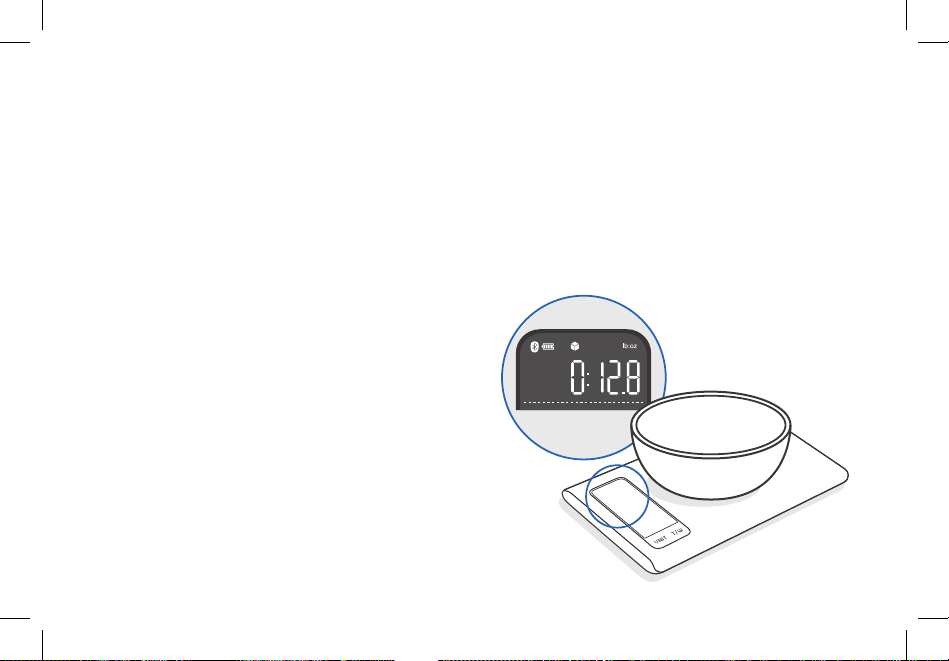
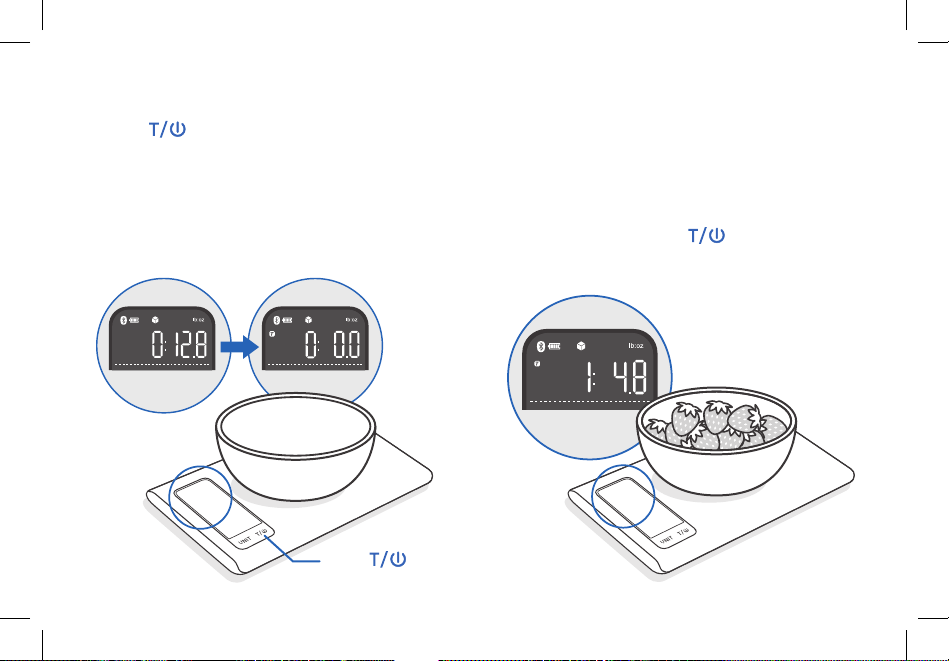
1. Place an empty container on the scale. The
screen will display the container weight.
[Figure 2.1]
Whenever you measure liquid or items inside a
container, you can use the tare function to remove
the container’s weight from the final measurement.
Figure 2.1
17
Scale Operation –
Figure 2.2 Figure 2.3
2. Press . The screen will now display “0”
again. [Figure 2.2]
3. Place liquid or items in the container. The scale
will now measure the liquid or items, without
including the weight of the container.
[Figure 2.3].
4. When you’re done, reset the scale by removing
all weight and pressing .
press
18
– Scale Operation
Measurement
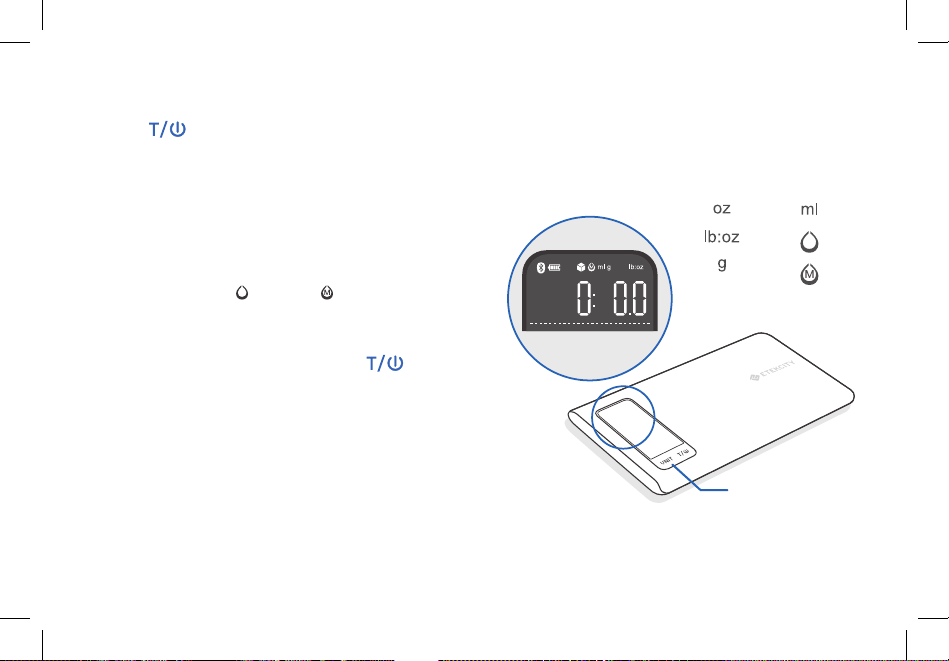
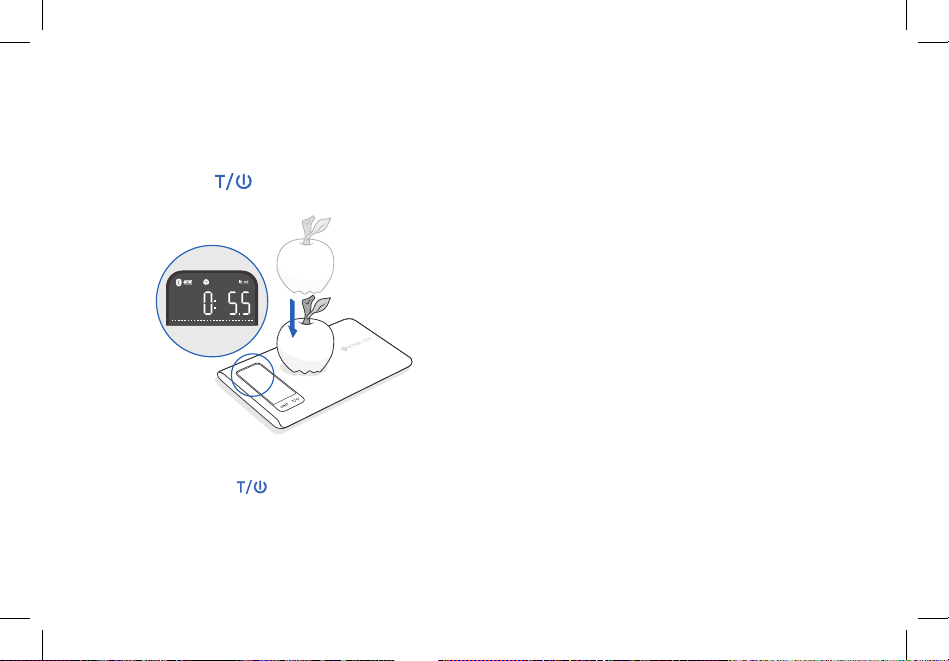
1. Press to turn on the scale. Press UNIT to
select your desired measuring unit, which will
display at the top of the screen. [Figure 3.1]
a. Weight: Choose between ounces (“oz”),
both pounds and ounces (“lb:oz”), or grams
(“g”).
b. Volume: Scale measures in milliliters (“ml”).
Select water ( ) or milk ( ) options.
2. Optional: If you’re using a container to hold the
items or liquid you’re measuring, first place the
empty container on the scale. Press to
zero out (tare) the container’s weight.
Figure 3.1
Weight: Volume:
press UNIT
1919
3. Gently place your item on the scale. The screen
will display the weight or volume. [Figure 3.2]
4. Press and hold for 3 seconds to turn off
the scale.
Figure 3.2
Maintenance
• Use a slightly damp cloth to clean the surface of
the scale, followed by a dry, soft cloth to wipe
away the remaining moisture.
• You can use a dry, soft cloth to wipe dust off the
scale.
• Do not wash the scale or immerse it in water or
any other liquid.
Note:
• To reset the scale, remove all weight from the
platform and press .
• To conserve battery power, the scale will
automatically turn off after 2 minutes of inactivity.
The display backlight will automatically turn off after
30 seconds of inactivity. You can change this in
Device Settings (see page 15).
2020
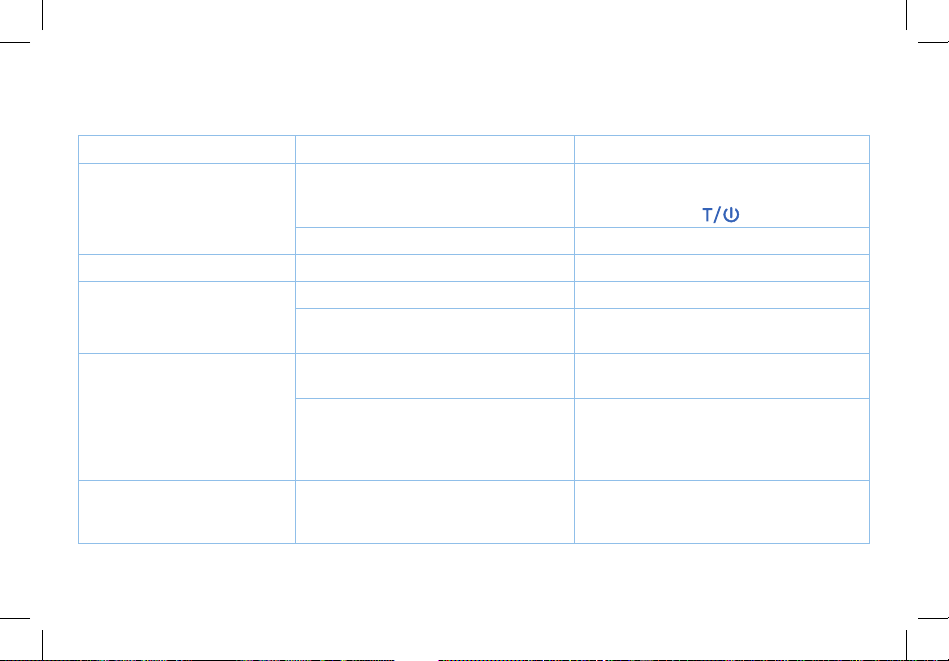
Troubleshooting
Problem Possible Cause Solution
LCD display is dim. Scale is on standby. Place an item on the scale for
measurement, or turn off the scale by
pressing & holding
for 3 seconds.
Batteries are running low. Replace the batteries.
LCD display shows “Lo”. Batteries are running low. Replace the batteries.
Scale does not turn on. Batteries are out of power. Replace the batteries.
Batteries are not properly installed. Insert batteries under the correct polarity
as marked on battery compartment.
Scale cannot connect to
VeSync app.
Your mobile device is too far away from
the scale.
Make sure your mobile device is within 30 ft
(10 m) of the scale.
The scale is connected to another mobile
device.
A Bluetooth device can only exchange
data with 1 other Bluetooth device at a
time. Make sure the scale is not currently
connected to any other phone or app.
Display shows “Err”. Weight exceeds 5.2kg. Promptly remove item from scale to protect
its weight sensors. Use a different scale
with a higher weight range.
If you still need help, please contact “Customer Support” (page 22).
2121
Warranty Information
Terms & Policy
Etekcity warrants all products to be of the highest quality in material,
craftsmanship, and service, effective from the date of purchase to the
end of the warranty period.
Etekcity will replace any product found to be defective due to
manufacturer flaws based on eligibility. Refunds are available within
the first 30 days of purchase. Refunds are only available to the original
purchaser of the product. This warranty extends only to personal use
and does not extend to any product that has been used for commercial,
rental, or any other use in which the product is not intended for. There
are no warranties other than the warranties expressly set forth with
each product.
This warranty is non-transferrable. Etekcity is not responsible in any
way for any damages, losses, or inconveniences caused by equipment
failure by user negligence, abuse, or use noncompliant with the user
manual or any additional safety, use, or warnings included in the
product packaging and manual.
This warranty does not apply to the following:
• Damage due to abuse, accident, alteration, misuse, tampering,
or vandalism.
• Improper or inadequate maintenance.
• Damage in return transit.
• Unsupervised use by children under 18 years of age.
Etekcity and its subsidiaries assume no liability for damage caused
by the use of the product other than for its intended use or as
instructed in the user manual. Some states do not allow this exclusion
or limitation of incidental or consequential losses so the foregoing
disclaimer may not apply to you. This warranty gives you specific
legal rights and you may also have other rights which may vary from
state to state.
ALL EXPRESSED AND IMPLIED WARRANTIES, INCLUDING THE
WARRANTY OF MERCHANTABILITY, ARE LIMITED TO THE
PERIOD OF THE LIMITED WARRANTY.
Additional 1-Year Warranty
You can extend your 1-year warranty by an additional year. Log onto
www.etekcity.com/warranty and enter your order number (for
example, from Amazon or Houzz) to register your new product for
the extended warranty.
If you are unable to provide the order number for your product,
please type a short note in the order number field along with the date
you received your product.
Defective Products & Returns
If your product proves defective within the specified warranty
period, please contact Customer Support via [email protected]
with your order number. DO NOT dispose of your product before
contacting us. Once Customer Support has approved your request,
please return the unit with a copy of the invoice or your order
number.
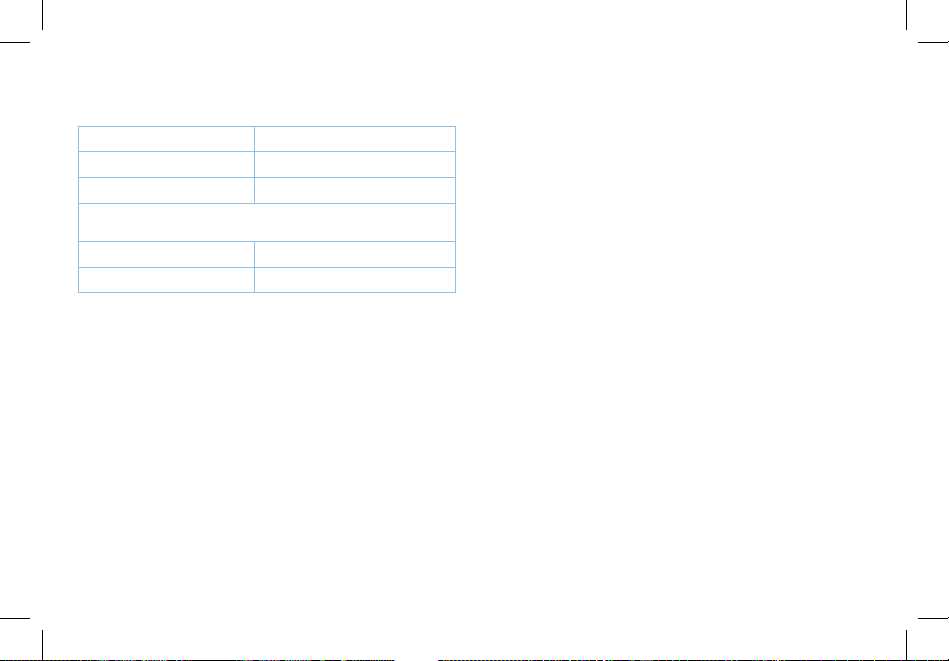
Product Name Smart Nutrition Scale
Model Number ESN00
Default Warranty Period 1 year
For your own reference, we strongly recommend that you record
your order number and date of purchase.
Order Number
Date of Purchase

2222
Customer Support
If you encounter any issues or have any questions regarding your new product, please contact our helpful
Customer Support Team. Your satisfaction is our goal!
Customer Support
Etekcity Corporation
1202 N. Miller St., Suite A
Anaheim, CA 92806
Email: [email protected]
Toll-Free: (855) 686-3835
Support Hours
Monday - Friday
9:00 am - 5:00 pm PT
*Please have your order confirmation number ready
before contacting customer support.

23
Connect with us @Etekcity.

Building on better living.