
2
Thank you for purchasing the
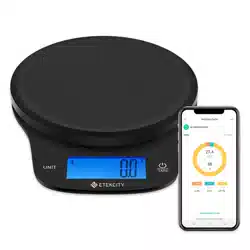
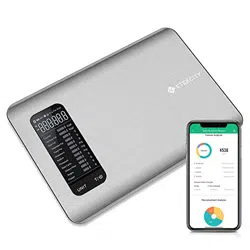
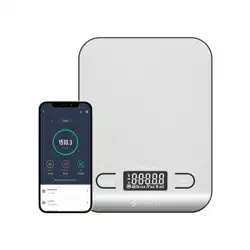
Choice Smart Nutrition Scale
by Etekcity.
If you have any questions or concerns, please reach out to our
helpful Customer Support Team at support@etekcity.com.
We hope you enjoy your new nutrition scale!

4
Specications
Increments
Package Contents
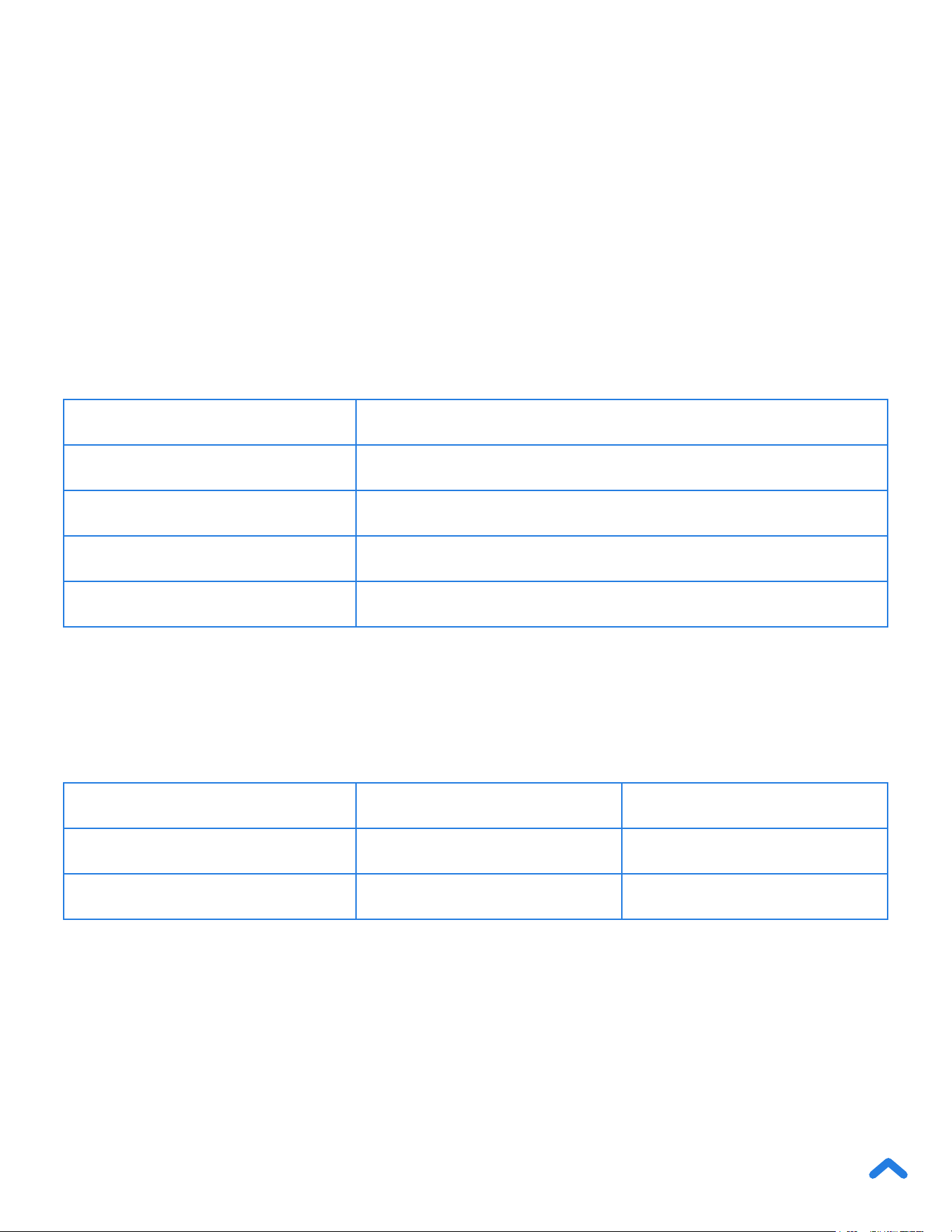
Weight Capacity 176.4 oz / 11 lb / 5000 g / 5000 mL
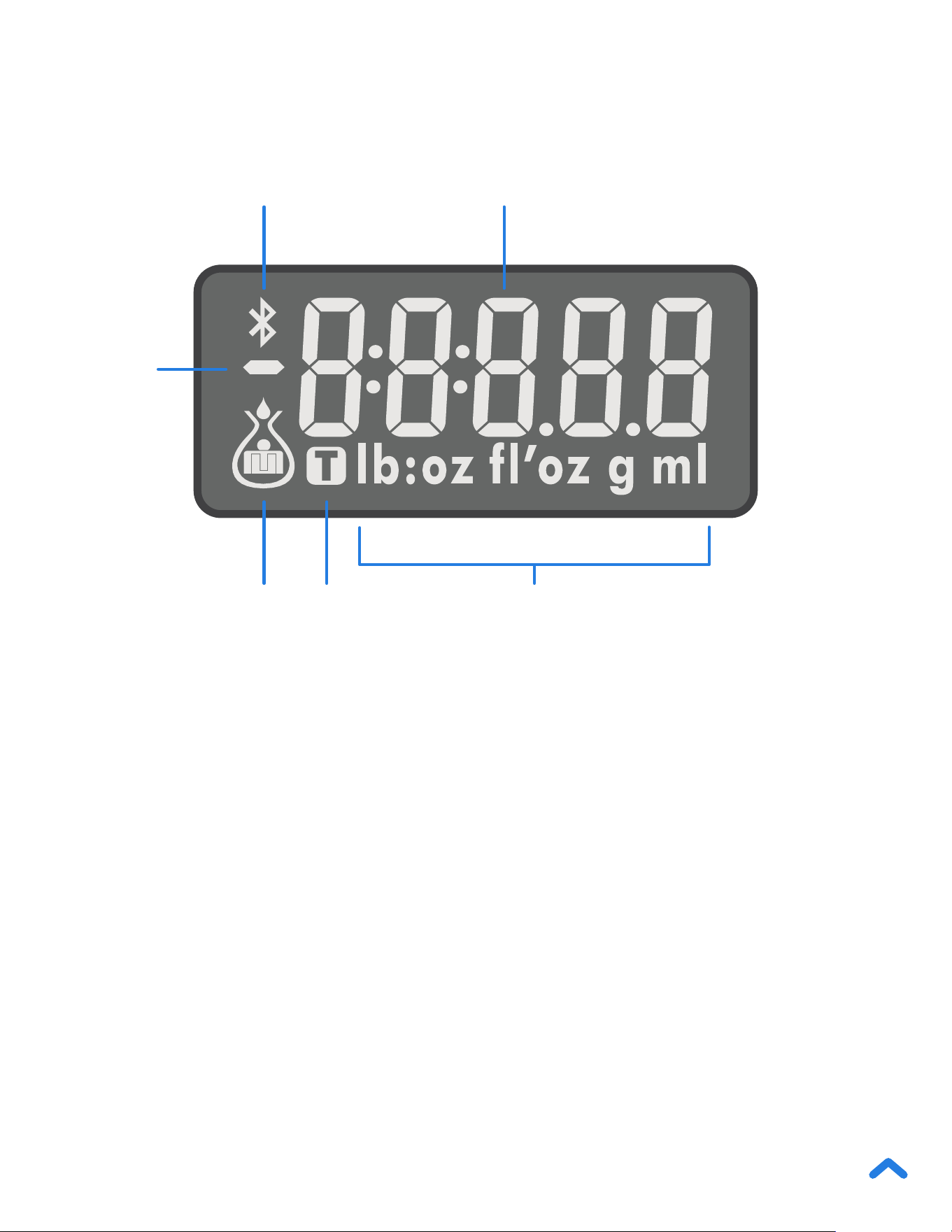
Units oz / lb:oz / fl’oz (water/milk) / g / mL (water/milk)
Auto-Off 30–300 seconds (adjustable in app)
Dimensions 8.0 x 6.1 x 0.7 in / 204 x 156 x 17 mm
Battery 3 x 1.5V AAA Batteries (Pre-Installed)
Measurement Unit Item Weight Increment
g 5–5000 g 1 g
oz 0–176 oz 0.05 oz
1 x Choice Smart Nutrition Scale
3 x 1.5V AAA Batteries (Pre-Installed)
1 x Quick Start Guide
Note: To access additional smart nutrition scale functions, download the
free VeSync app (see page 10).

5
Important Safety Information
To avoid damage to this scale, please read and follow all
instructions and safety guidelines in this manual.
READ AND SAVE THESE INSTRUCTIONS
• Do not exceed the 11 lb / 5000 g weight capacity, as it will
damage the scale. An error indicator will appear on the LCD
display if the limit is exceeded.
• Do not immerse the scale in water or any liquid. Smart scales are
not waterproof.
• If liquid is spilled on the digital display or buttons, immediately
wipe the scale dry with a soft cloth to avoid internal damage.
• Handle with care. This scale is not intended for commercial or
heavy-duty use.
• Keep the scale in a cool, dry place. Avoid exposure to damp
environments or extreme temperatures.
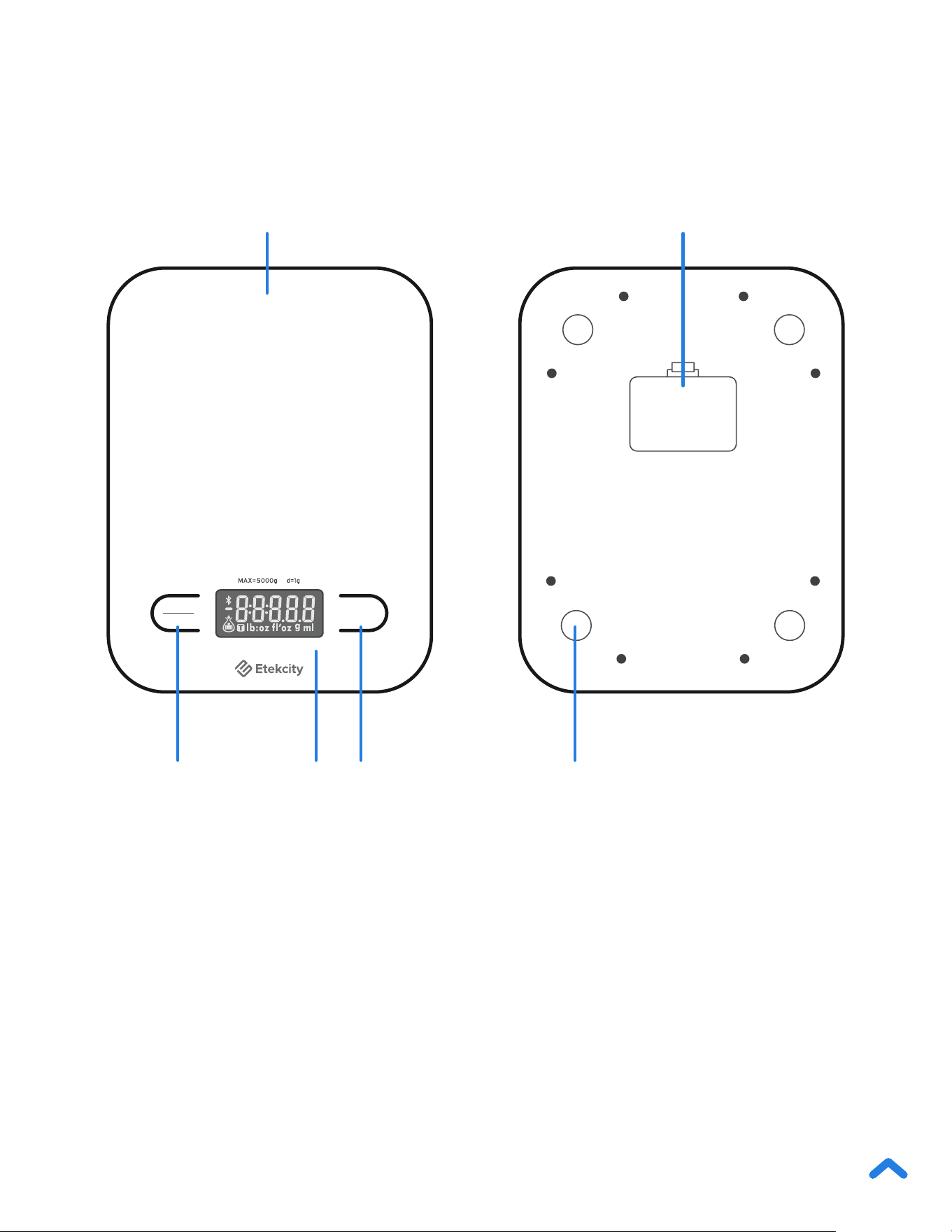
Scale

6
• Do not mix new and old batteries.
• If the low battery indicator (“Lo”) appears on the display, replace
the batteries.
• If the scale is not in use for an extended period of time, remove
the batteries to conserve battery life and extend the lifetime of the
scale.
Batteries
• This scale is not intended for use by persons (including children)
with reduced physical, sensory, or mental capabilities, or lack
of experience and knowledge, unless they have been given
supervision or instruction concerning use of the scale by a person
responsible for their safety.
• Handle with care. Not for commercial use. Household use only.
SAVE THESE INSTRUCTIONS
9
Before First Use
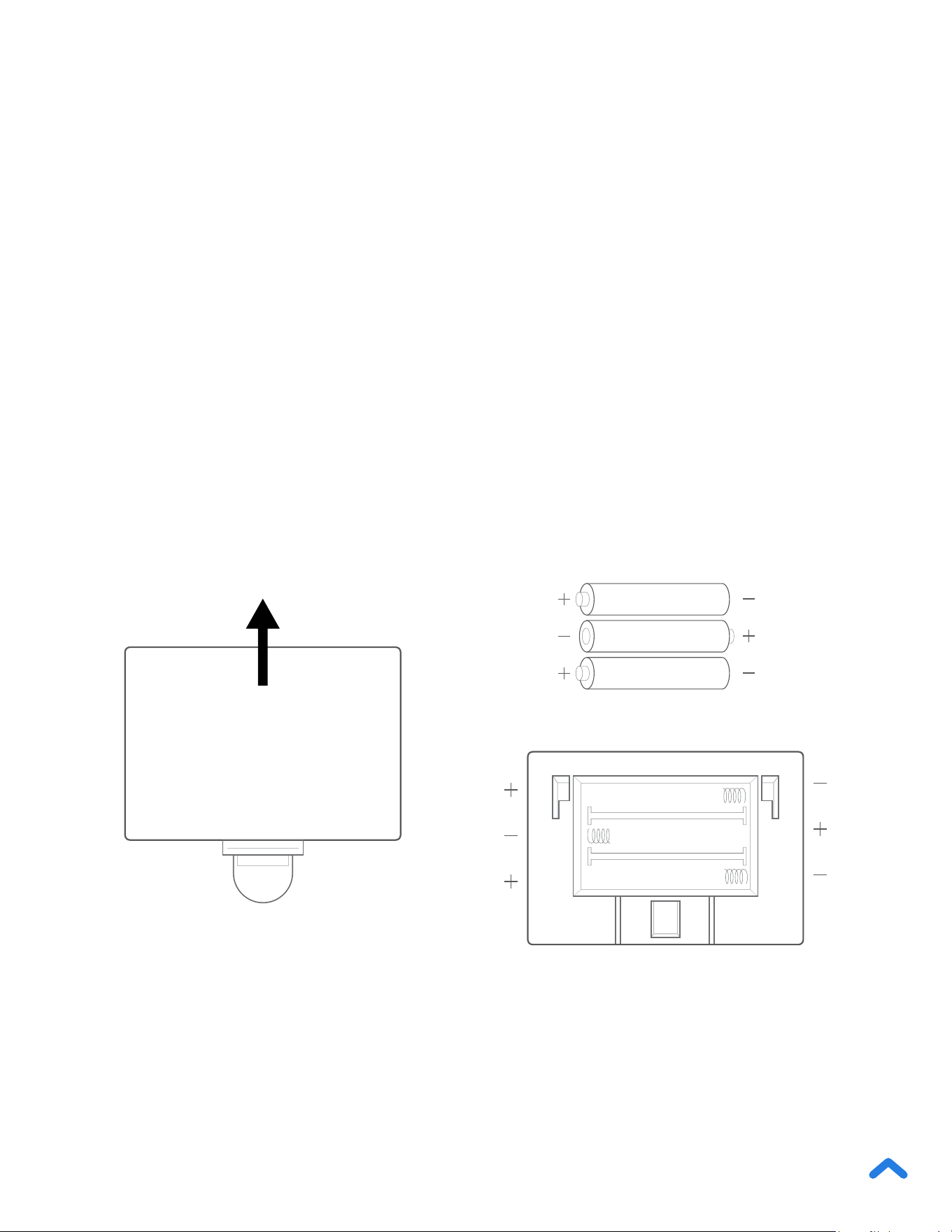
Remove the plastic strip from the battery compartment.
1. Open the battery compartment on the underside of the scale.
Remove the included AAA batteries. [Figure 1.1]
2. Remove the plastic insulator strip from the battery
compartment.
3. Replace the batteries. Follow the guidelines in the battery
compartment to match the + and – terminals. [Figure 1.2]
1.5v - AAA
1.5v - AAA
1.5v - AAA
1.5V - AAA
1.5V - AAA
1.5V - AAA
Push and Lift
[Figure 1.2][Figure 1.1]
10
VeSync App Setup
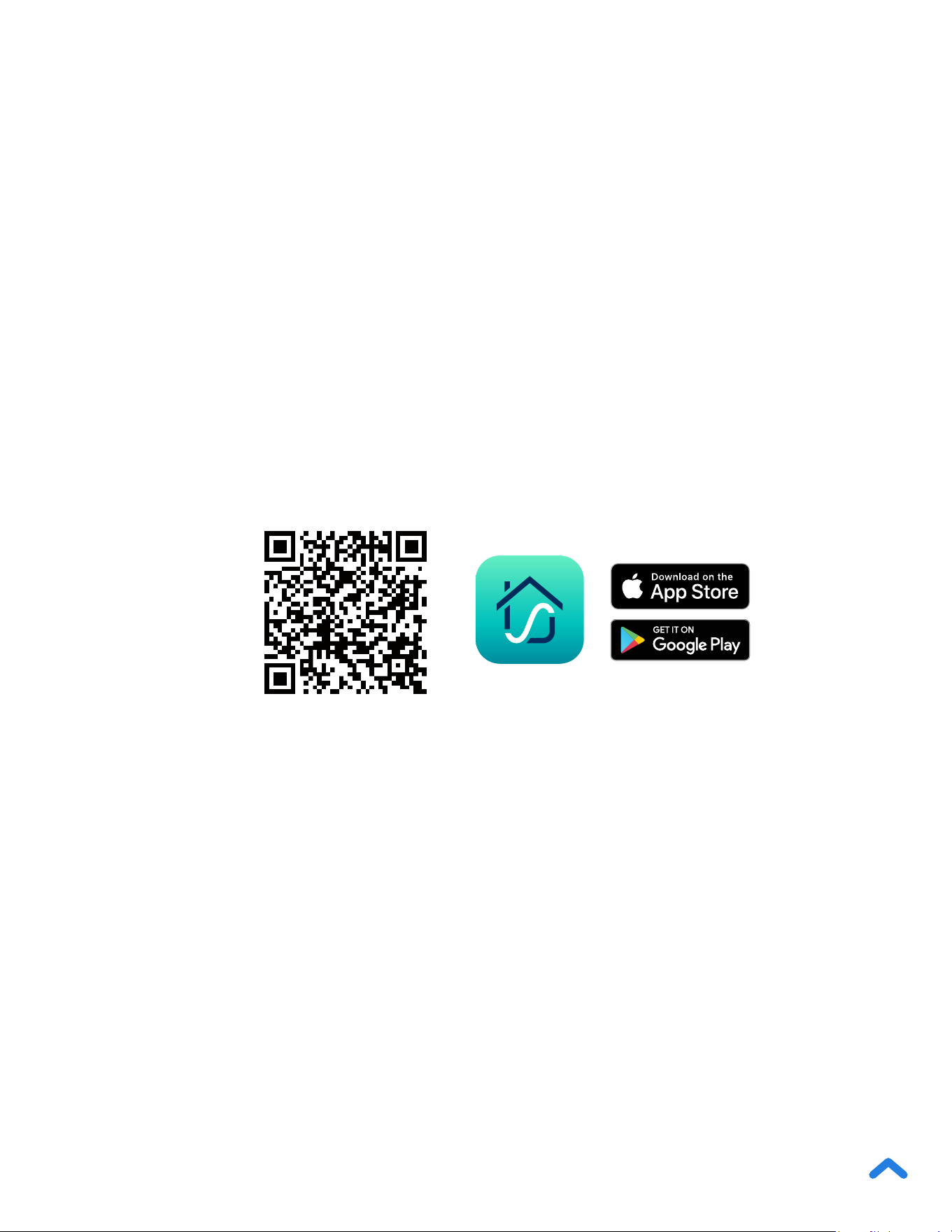
1. To download the VeSync app, scan the QR code or search
“VeSync” in the Apple App Store
®
or Google Play Store.
Note: The VeSync app is continually being improved and may change over time.
If there are any differences, follow the in-app instructions.
Note:
• This scale uses the VeSync app, not the VeSyncFit app.
• For Android™ users, you may need to select Allow to use VeSync.
Note: You must create your own VeSync account to use third-party
services and products. These will not work with a guest account. With a
VeSync account, you can also allow your family and friends to use your
smart nutrition scale. Even if you switch to a new device, your nutrition
records will still be available on your VeSync account.
2. Open the VeSync app. If you already have an account, tap
Log In. To create a new account, tap Sign Up.


12
Using Your Smart Scale
Note:
• You can use the VeSync app to control your scale, and access additional
features such as extra settings, food records, nutrition tracking, and
more.
• For accurate results, always place the scale on a hard, dry, at surface.
• Keep the scale away from dirt, dust, vibrations, wind, air currents, and
electromagnetic interference.
• When you turn on the scale, choose units, or use the Tare function, wait
for the display to read “0.00” before measuring.
13
Measurement
1. Place the scale on a hard, dry, at surface.
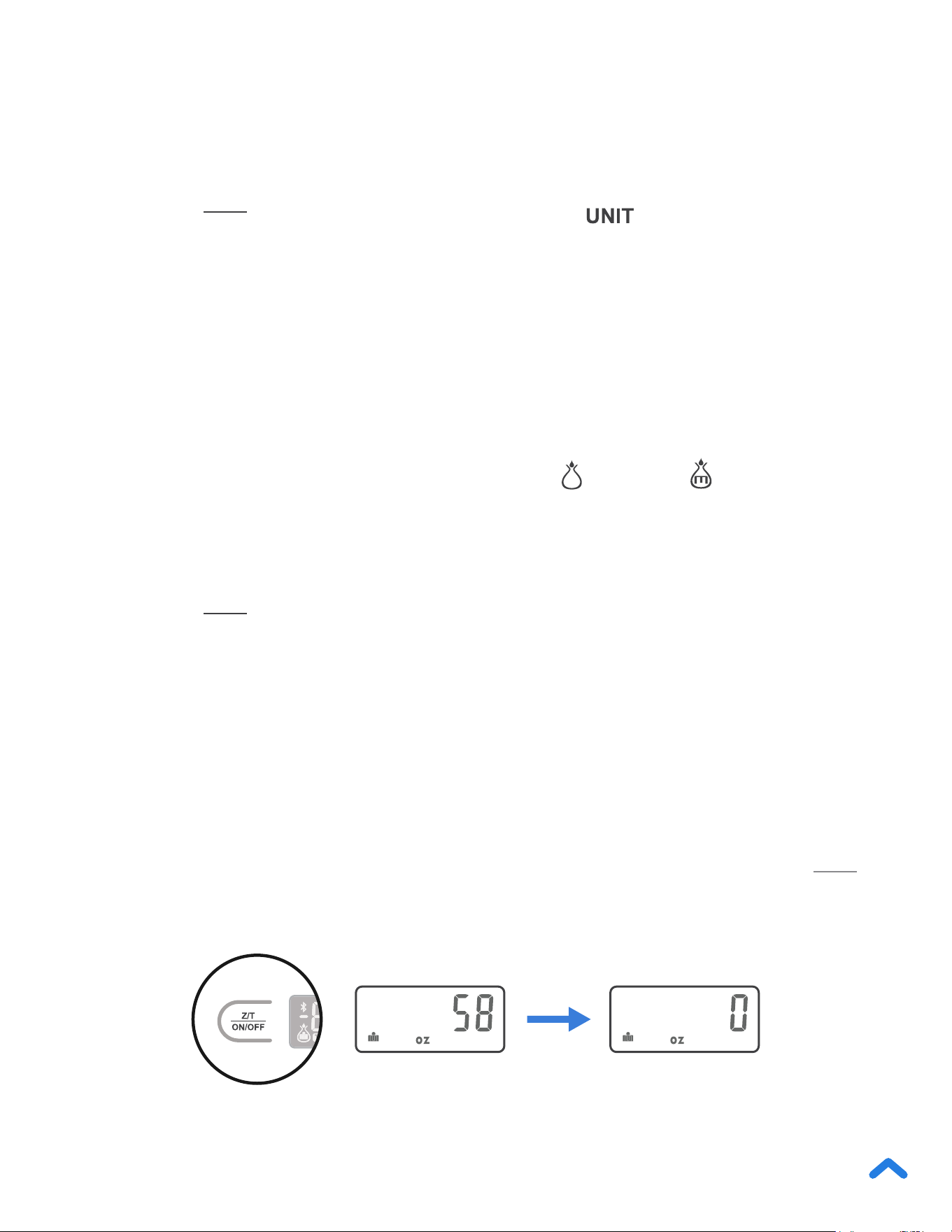
2. Press
ON/OFF
Z/T
to turn on the scale. Press to select your
desired measuring unit, which will show at the bottom of the
display.
a. Weight: Choose between ounces (oz), pounds and ounces
(lb:oz), or grams (g).
b. Volume: Choose between uid ounces (’oz) and milliliters
(mL). You can also select water
or milk .
3. Optional: If you’re using a container to hold the items or liquid
you’re measuring, rst place the empty container on the scale.
Press
ON/OFF
Z/T
to remove the container’s weight (see Tare Function,
page 14).
4. Place your item on the scale.
5. Wait for the reading on the display to stabilize.
Note:
• To reset the scale, remove all weight from the platform and press
ON/OFF
Z/T
.
[Figure 2.1]
[Figure 2.1]

14
Tare Function
1. Tap
ON/OFF
Z/T
to turn on the scale. Make sure the display reads “0”. If
the screen does not display “0” automatically, tap
ON/OFF
Z/T
to adjust
to zero.
2. Place the empty container on the center of the scale.
3. Wait for the reading on the display to stabilize. The display will
show the container’s weight.
4. Tap
ON/OFF
Z/T
to tare the weight of the container. The screen will
now display “0”.
5. Place the liquid or items into the container. The scale will
measure the contents without including the weight of the
container.
6. When you’re done, reset the scale by removing all weight and
tapping
ON/OFF
Z/T
again.
Whenever you measure items inside a container, you can use
the Tare function to remove the container’s weight from the nal
measurement.
15
Unit Conversion
Automatic Power Off
Manual Power Off
To change the unit of measurement, tap until the display shows
your desired unit of measurement. Infrequently used units can be
disabled in the VeSync app.
To save battery power, the scale will automatically power off after
180 seconds of inactivity. Auto-off time can be adjusted from 30–
300 seconds in the VeSync app.
Tap and hold
ON/OFF
Z/T
for 2 seconds to turn off the scale.
a. Weight: Choose between ounces (oz), pounds and ounces
(lb:oz), or grams (g).
b. Volume: Choose between uid ounces (’oz) and milliliters
(mL). You can also select water
or milk .

16
Maintenance
• Use a slightly damp cloth to clean the surface of the scale,
followed by a dry, soft cloth to wipe away the remaining
moisture.
• You can use a dry, soft cloth to wipe dust off the scale.
• Do not wash the scale or immerse it in water or any other liquid.
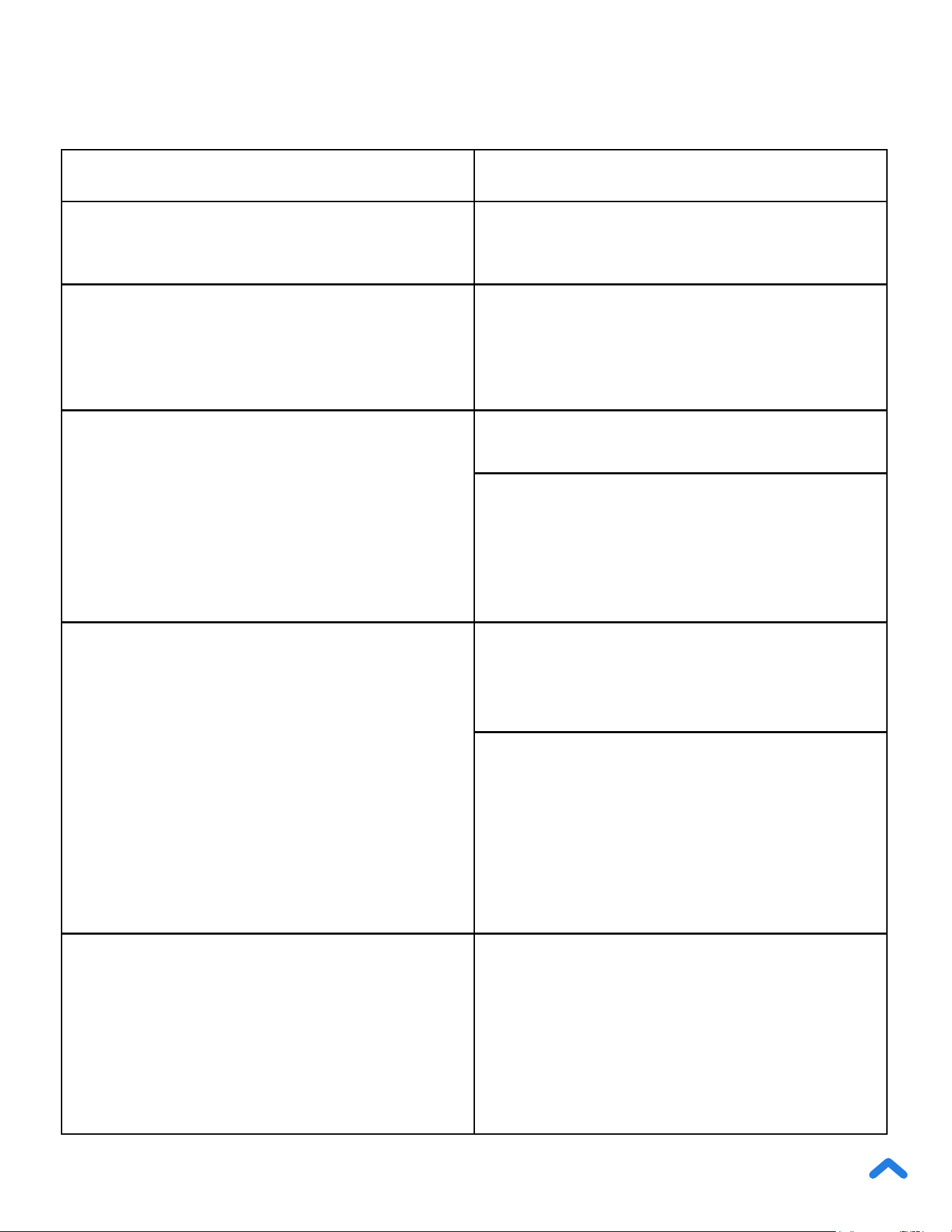
Problem Possible Solution
LCD display is dim. Replace the batteries.
LCD display shows “Lo”.
Battery is low. Replace the
batteries.
Scale does not turn on.
Replace the batteries.
Insert batteries under the correct
polarity as marked in the battery
compartment.
Scale cannot connect to VeSync
app.
Make sure your mobile device is
within 30 ft / 10 m of the scale.
A Bluetooth device can only
exchange data with 1 other
Bluetooth device at a time. Make
sure the scale is not connected to
any other phone or app.
Display shows “Err”
Weight exceeds 176.4 oz / 11 lb /
5000 g / 5000 mL. Remove item
from scale to protect its weight
sensors. Use a different scale with
a higher weight range.
17
Troubleshooting
Problem Possible Solution
LCD display is dim. Replace the batteries.
LCD display shows “Lo”.
Battery is low. Replace the
batteries.
Scale does not turn on.
Replace the batteries.
Insert batteries under the correct
polarity as marked in the battery
compartment.
Scale cannot connect to VeSync
app.
Make sure your mobile device is
within 30 ft / 10 m of the scale.
A Bluetooth device can only
exchange data with 1 other
Bluetooth device at a time. Make
sure the scale is not connected to
any other phone or app.
Display shows “Err”
Weight exceeds 176.4 oz / 11 lb /
5000 g / 5000 mL. Remove item
from scale to protect its weight
sensors. Use a different scale with
a higher weight range.
If your problem is not listed, please contact Customer Support (see page 23).

18
Attributions
The Bluetooth
®
word mark and logos are registered trademarks
owned by Bluetooth SIG, Inc. and any use of such marks by Etekcity
Corporation is under license. Other trademarks and trade names are
those of their respective owners.
Google, Android, and Google Play are trademarks of Google LLC.
App Store
®
is a trademark of Apple Inc.

19
This device complies with Part 15 of the FCC Rules. Operation is subject to the following two
conditions:
1. This device may not cause harmful interference, and
2. This device must accept any interference received, including interference that may
cause undesired operation.
NOTE: This equipment has been tested and found to comply with the limits for a Class B digital
device, pursuant to Part 15 of the FCC Rules. These limits are designed to provide reasonable
protection against harmful interference in a residential installation. This equipment generates,
uses and can radiate radio frequency energy and, if not installed and used in accordance with
the instructions, may cause harmful interference to radio communications. However, there is
no guarantee that interference will not occur in a particular installation. If this equipment does
cause harmful interference to radio or television reception, which can be determined by turning
the equipment off and on, the user is encouraged to try to correct the interference by one or
more of the following measures:
• Reorient or relocate the receiving antenna;
• Increase the separation between the equipment and receiver;
• Connect the equipment into an outlet on a circuit different from that to which the
receiver is connected;
• Consult the dealer or an experienced radio/TV technician for help.
FCC Caution: Any changes or modications not expressly approved by the party responsible
for compliance could void the user’s authority to operate this equipment.
Federal Communication Commission
Interference Statement - Part 15

20
This equipment complies with FCC radiation exposure limits set forth for an uncontrolled envi-
ronment. End users must follow the specic operating instructions for satisfying RF exposure
compliance. To maintain compliance with FCC RF exposure compliance requirements, please
follow operation instructions as documented in this manual. This transmitter must not be
co-located or operating in conjunction with any other antenna or transmitter. The availability of
some specic channels and/ or operational frequency bands are country dependent and are
rmware programmed at the factory to match the intended destination. The rmware setting is
not accessible by the end user.
FCC Radiation Exposure Statement
Etekcity Corporation hereby declares that this equipment is in compliance with the FCC Part
15 Subpart B. The declaration of conformity may be consulted in the support section of our
website, accessible from www.etekcity.com
FCC SDOC SUPPLIER’S DECLARATION OF
CONFORMITY

21
Warranty Information
Product Choice Smart Nutrition Scale
Model ENS-C551S-SUS
For your own reference, we strongly recommend that you record your order ID and
date of purchase.
Order ID
Date of Purchase
TERMS & POLICY
Etekcity Corporation (“Etekcity”) warrants this product to the original purchaser to be free from
defects in material and workmanship, under normal use and conditions, for a period of 2 years
from the date of original purchase.
Etekcity agrees, at our option during the warranty period, to repair any defect in material or
workmanship or furnish an equal product in exchange without charge, subject to verication of
the defect or malfunction and proof of the date of purchase.
There is no other express warranty. This warranty does not apply:
• If the product has been modied from its original condition;
• If the product has not been used in accordance with directions and instructions in the
user manual;
• To damages or defects caused by accident, abuse, misuse or improper or inadequate
maintenance;
• To damages or defects caused by service or repair of the product performed by an
unauthorized service provider or by anyone other than Etekcity;
• To damages or defects occurring during commercial use, rental use, or any use for
which the product is not intended;
• To damages or defects exceeding the cost of the product.
Etekcity will not be liable for indirect, incidental, or consequential damages in connection with
the use of the product covered by this warranty.

22
This warranty extends only to the original consumer purchaser of the product and is not
transferable to any subsequent owner of the product regardless of whether the product is
transferred during the specied term of the warranty.
This warranty does not extend to products purchased from unauthorized sellers. Etekcity’s
warranty extends only to products purchased from authorized sellers that are subject to
Etekcity’s quality controls and have agreed to follow its quality controls.
All implied warranties are limited to the period of this limited warranty.
This warranty gives you specic legal rights and you may also have other rights which vary
from state to state. Some states do not allow the exclusion or limitation of incidental or
consequential damages, so the above limitation or exclusion may not apply to you.
If you discover that your product is defective within the specied warranty period, please
contact Customer Support via support@etekcity.com. DO NOT dispose of your product
before contacting us. Once our Customer Support Team has approved your request, please
return the product with a copy of the invoice and order ID.
Every Etekcity product automatically includes a 2-year warranty. To make the customer support
process quick and easy, register your product online at www.etekcity.com/warranty.
This warranty is made by:
Etekcity Corporation
1202 N. Miller St., Suite A
Anaheim, CA 92806

23
Customer Support
If you have any questions or concerns about your new product,
please contact our helpful Customer Support Team.
Etekcity Corporation
1202 N. Miller St., Suite A
Anaheim, CA 92806
Email: support@etekcity.com
Toll-Free: (855) 686-3835
Support Hours
Mon–Fri, 9:00 am–5:00 pm PST/PDT
*Please have your invoice and order ID ready before contacting
Customer Support.