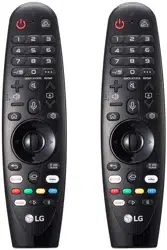
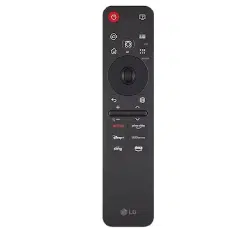
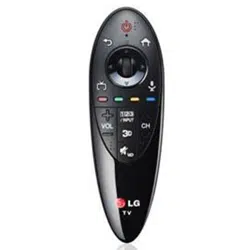
Owner's Manual Magic Remote
ACCESSORIES
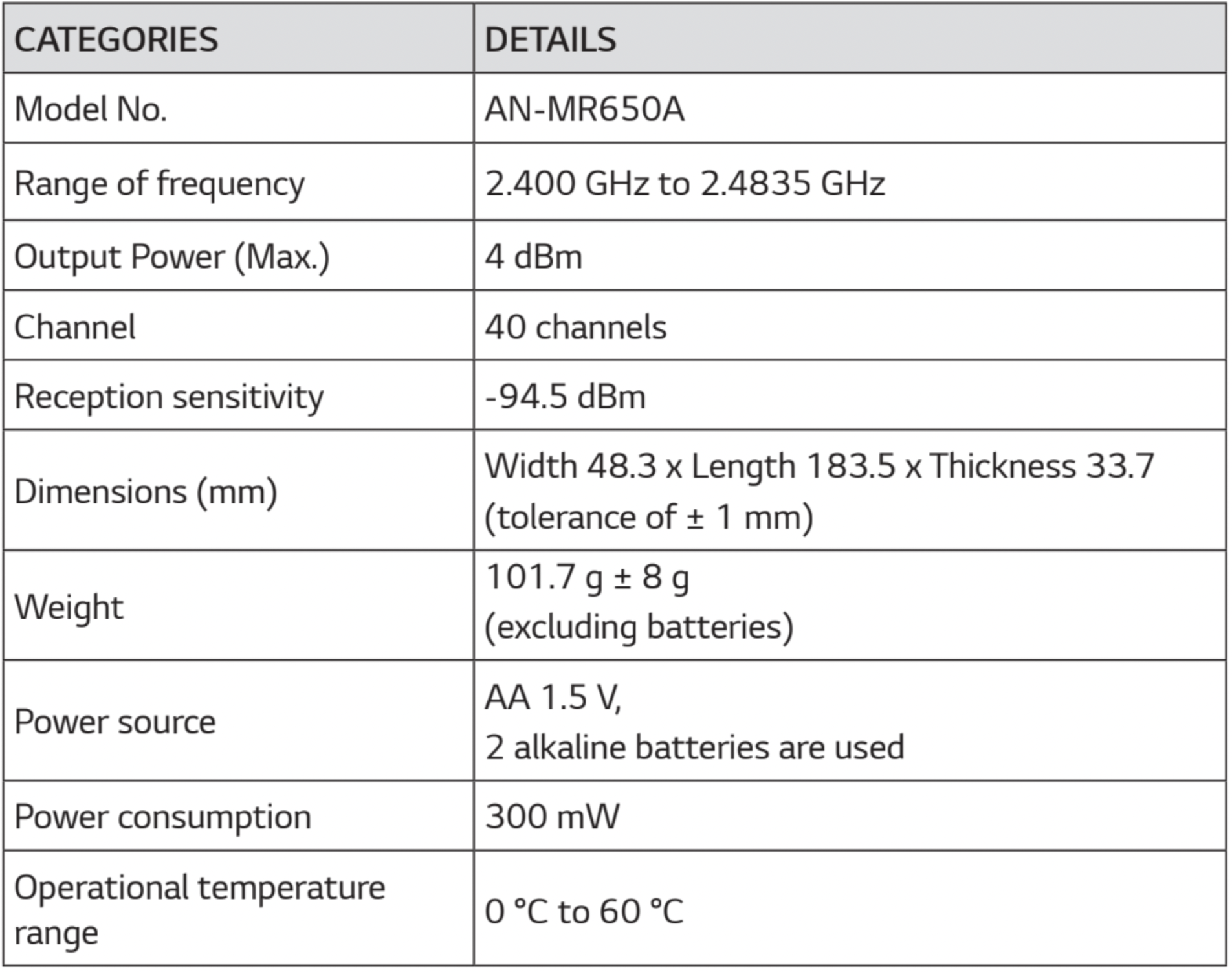
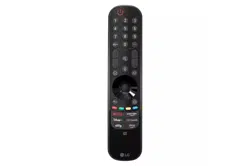
The remote control image shown may differ from the actual product. (Depending upon country)
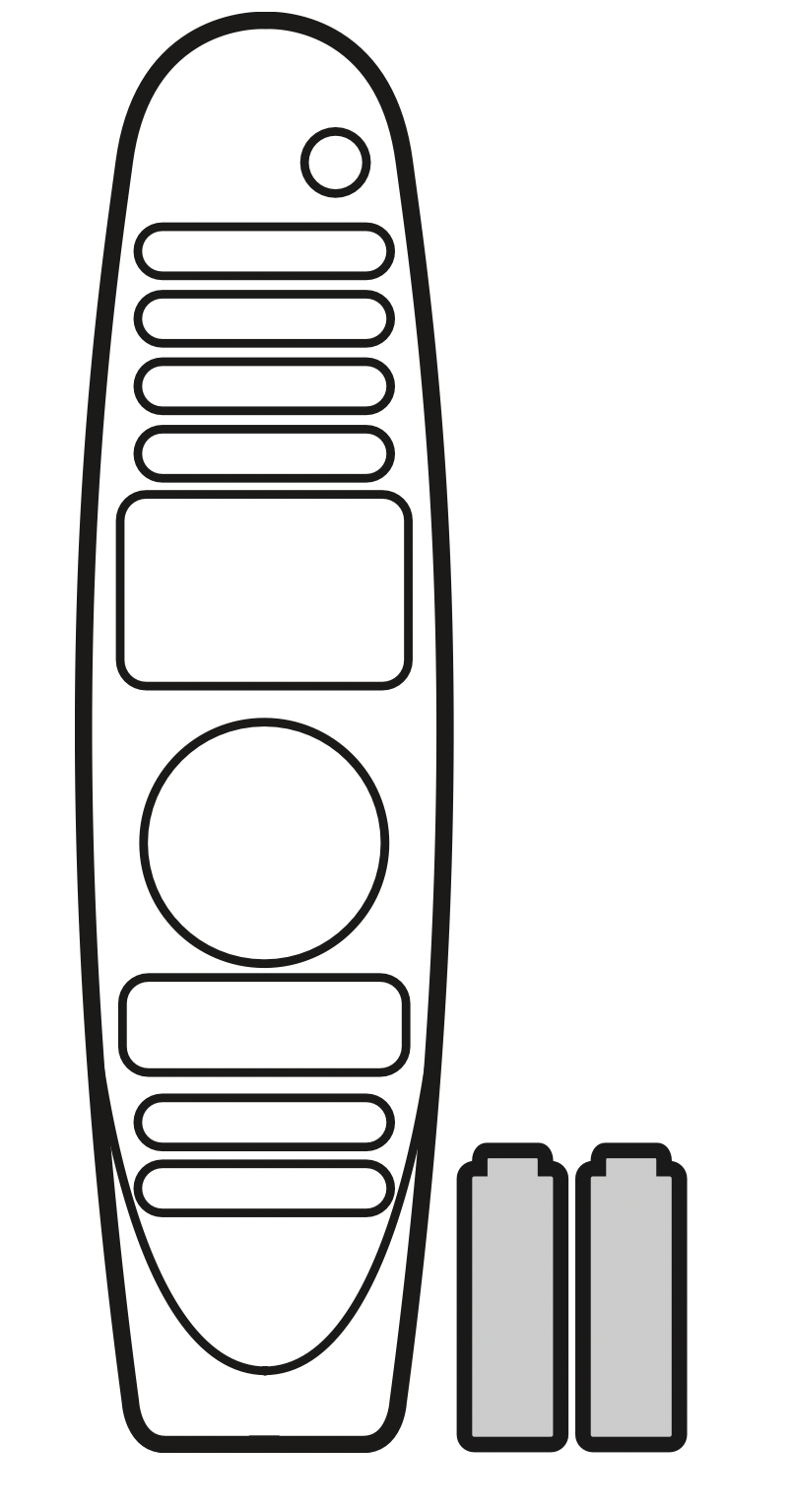
Magic Remote and Alkaline Batteries (AA)

Owner’s manual
- Contents in this manual may be changed without prior notice due to upgrade of product functions.
BATTERY
Installing Batteries
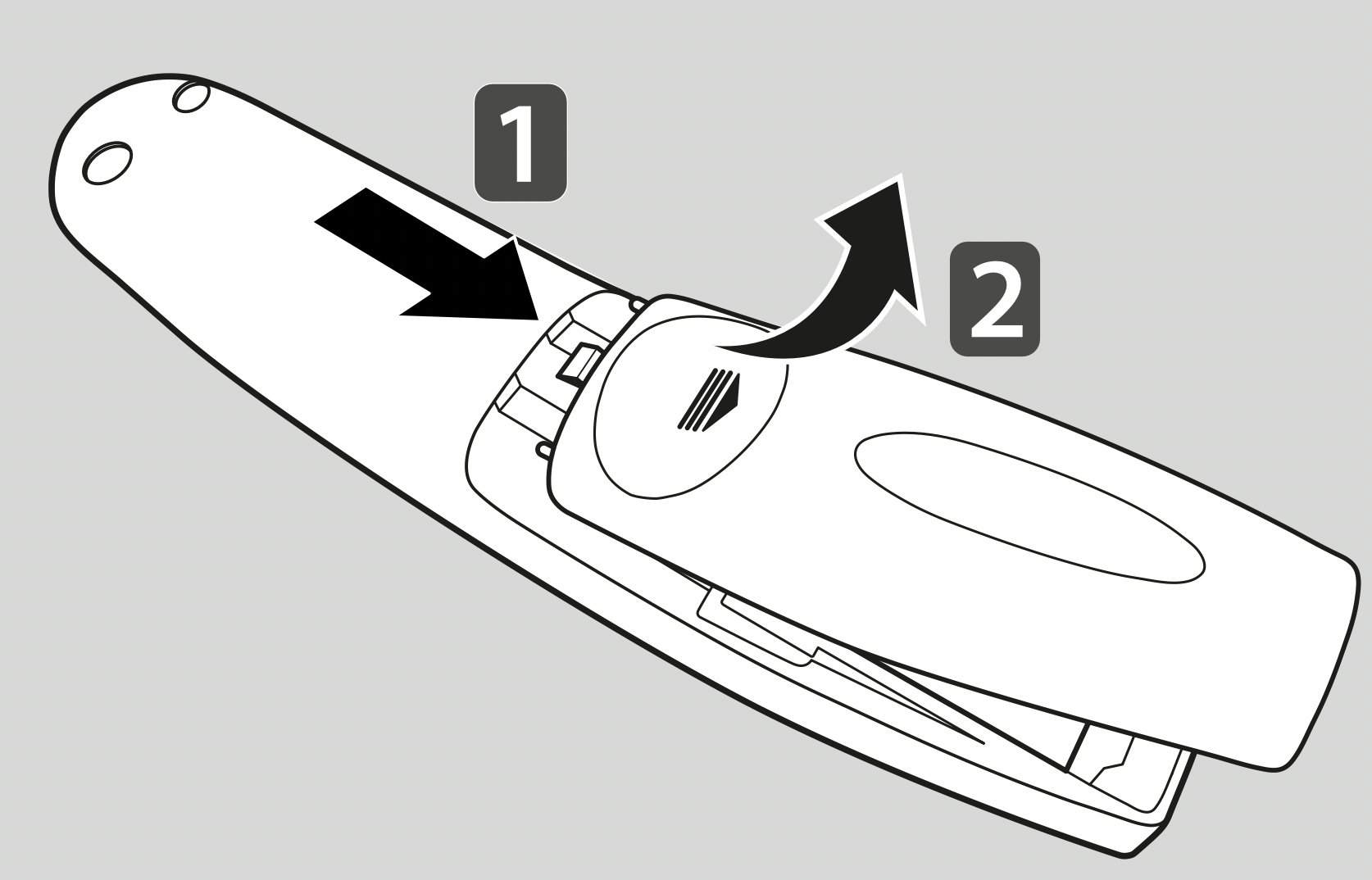
- Please read this manual carefully.
- Press the top of the battery cover, slide it back, and lift the cover as shown below.
- To replace batteries, open the battery cover, replace alkaline batteries (1.5 V, AA) matching
 and
and  ends to the label inside the compartment, and close the battery cover. Be sure to point the remote control at the remote control sensor on the TV.
- To remove the batteries, perform the installation actions in reverse.
Don’t mix old or used batteries with new ones. Close the cover securely.
- Open the battery cover to find the label.
Precautions
- After replacement of the batteries, pair the remote control and use it in accordance with user manual.
- If the unit does not operate after replacement of batteries, reattempt pairing in accordance with the user manual.
- If the remote controller is not being used for prolonged period of time, remove the batteries from the unit.
- Do not dismantle or expose the batteries to heat.
- Do not drop or exert extreme impact on the batteries. This may cause the case to be damaged.
- Do not immerse the batteries in water.
- There is danger of explosion if batteries are inserted incorrectly.
- Properly dispose of used batteries.
REMOTE DESCRIPTION
- The remote control image shown may differ from the actual product.
- The order of description may differ from the actual product.
- Some buttons and services may not be provided depending on models or regions.
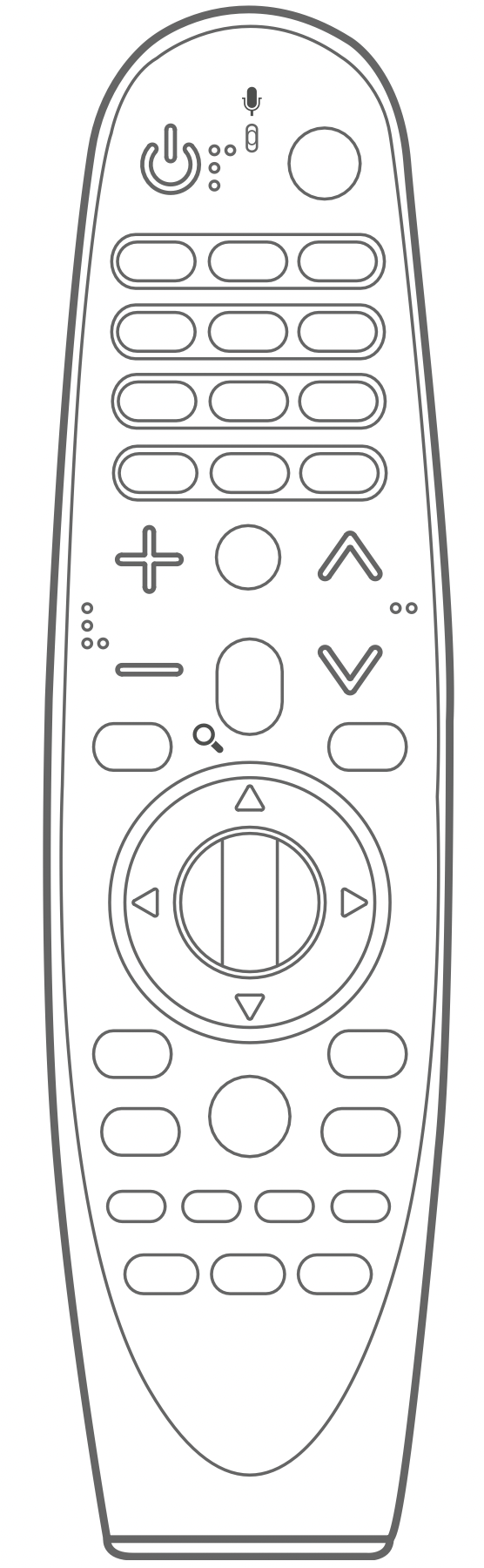
 (POWER)
Turns the TV on or off.
STB PWR
You can turn your set-top box on or off by adding the set-top box to the universal remote control for your TV.
Number buttons
Enters numbers.
Alphabet buttons
Enters letters.
 (Space)
Opens an empty space on the screen keyboard.
 (DASH)
Inserts a  (DASH) between numbers such as 2-1 and 2-2.
LIST
Accesses the saved channels or programmes list.
DATA*
Press this button to bring up BML data broadcasting.
QUICK ACCESS
You can access apps or Live TV using the number buttons corresponding to the features.
 (Screen remote)
Displays the Screen Remote.
Accesses the Universal Control Menu in some regions.
AD* / SAP*
Video/audio descriptions function will be enabled.
SAP (Secondary Audio Program) feature can also be enabled by pressing the
SAP* button. (Applicable to North America)
 /
/  /
/ 
Adjusts the volume level.
 (MUTE)
Mutes all sounds.
 * (MUTE)
Accesses the Accessibility menu.
 / P /
/ P / 
Scrolls through the saved channels or programmes.
 (Voice recognition)
Network connection is required to use the voice recognition function.
- Press the voice recognition button.
- Speak when the voice display window appears on the TV screen.
 (SEARCH)*
Search for content such as TV programmes, movies and other videos, or perform a web search by entering text in the search bar.
 (HOME)
Accesses the Home menu.
RECENTS*
Shows the previous history.
STB MENU
Displays the set-top box Home menu. (When you are not watching via a settop box: the display changes to the set-top box screen.)
 Wheel (OK)
Press the center of the  Wheel (OK) button to select a menu.
You can change channels or programmes by using the  Wheel (OK) button.
 (up/down/left/right)
Press the up, down, left, or right button to scroll the menu.
If you press  buttons while the pointer is in use, the pointer will disappear from the screen and the Magic Remote will operate like a general remote control.
To display the pointer on the screen again, shake the Magic Remote to the left and right.
BACK
Returns to the previous screen.
EXIT*
Clears on-screen displays and returns to last input viewing.
GUIDE
Shows channels or programmes guide.
CAPTION
Activates or deactivates the subtitles.
 (INPUT)
Changes the input source.
Pressing and holding the  (INPUT) button displays all the lists of external inputs.
Streaming Service buttons
Connects to the Video Streaming Service.
 (Q. Settings)
Accesses the Quick Settings.
Pressing and holding the  (Q. Settings) button displays the All Settings menu.
Coloured buttons
These access special functions in some menus.
Control buttons (  )
)
Controls media contents.
TEXT / T.OPT (TELETEXT buttons)
These buttons are used for teletext.
MAGIC LINK*
Provides content related to the programme you are currently watching.
LIVE ZOOM
By zooming in on the selected area, you can view it in full screen.
FOCUS*
You can zoom in on the area where the remote control is pointed.
* To use the button, press and hold for more than 3 seconds.
USING
How to register (pair) or deregister (unpair)
How to register (pair) the Magic Remote
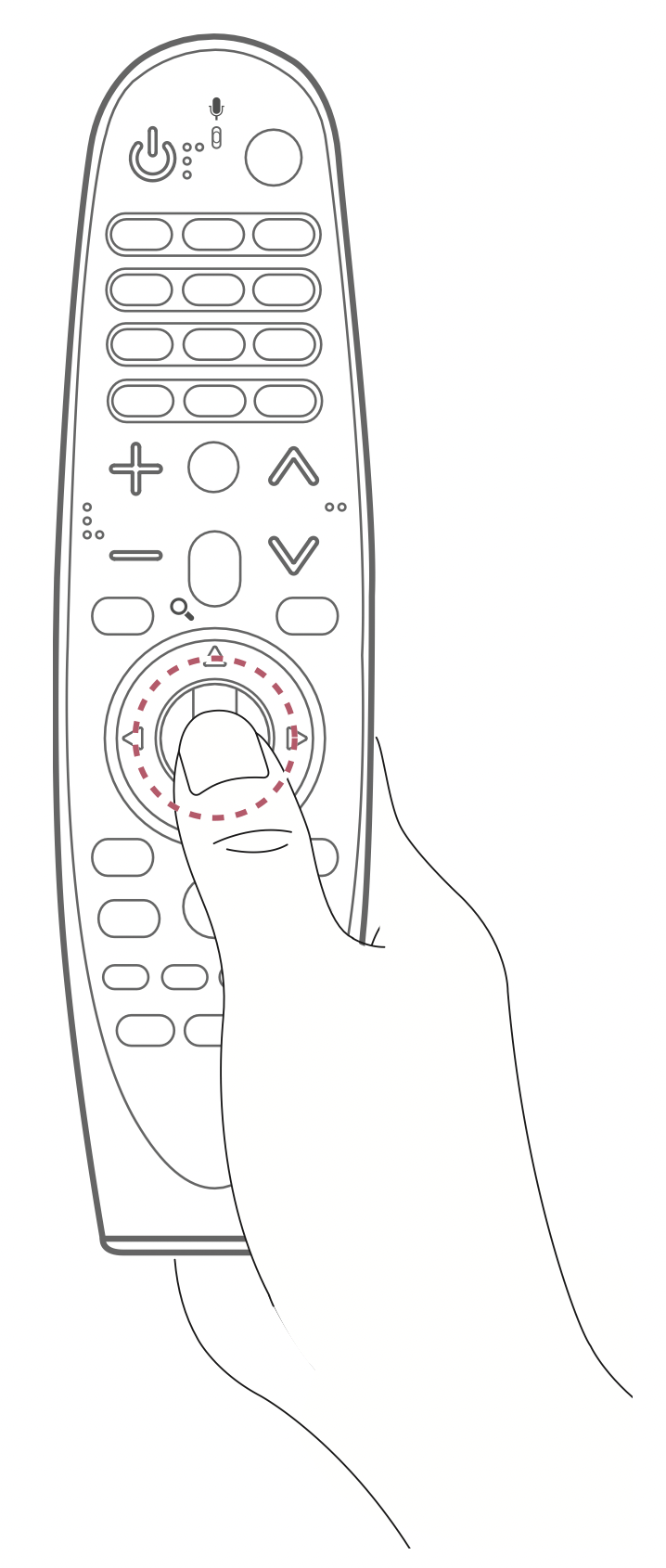
To use the Magic Remote, first pair it with your TV.
- Put batteries into the Magic Remote and turn the TV on.
- Point the Magic Remote at your TV and press the Wheel (OK) on the remote control.
If the TV fails to register the Magic Remote, try again after turning the TV off and back on.
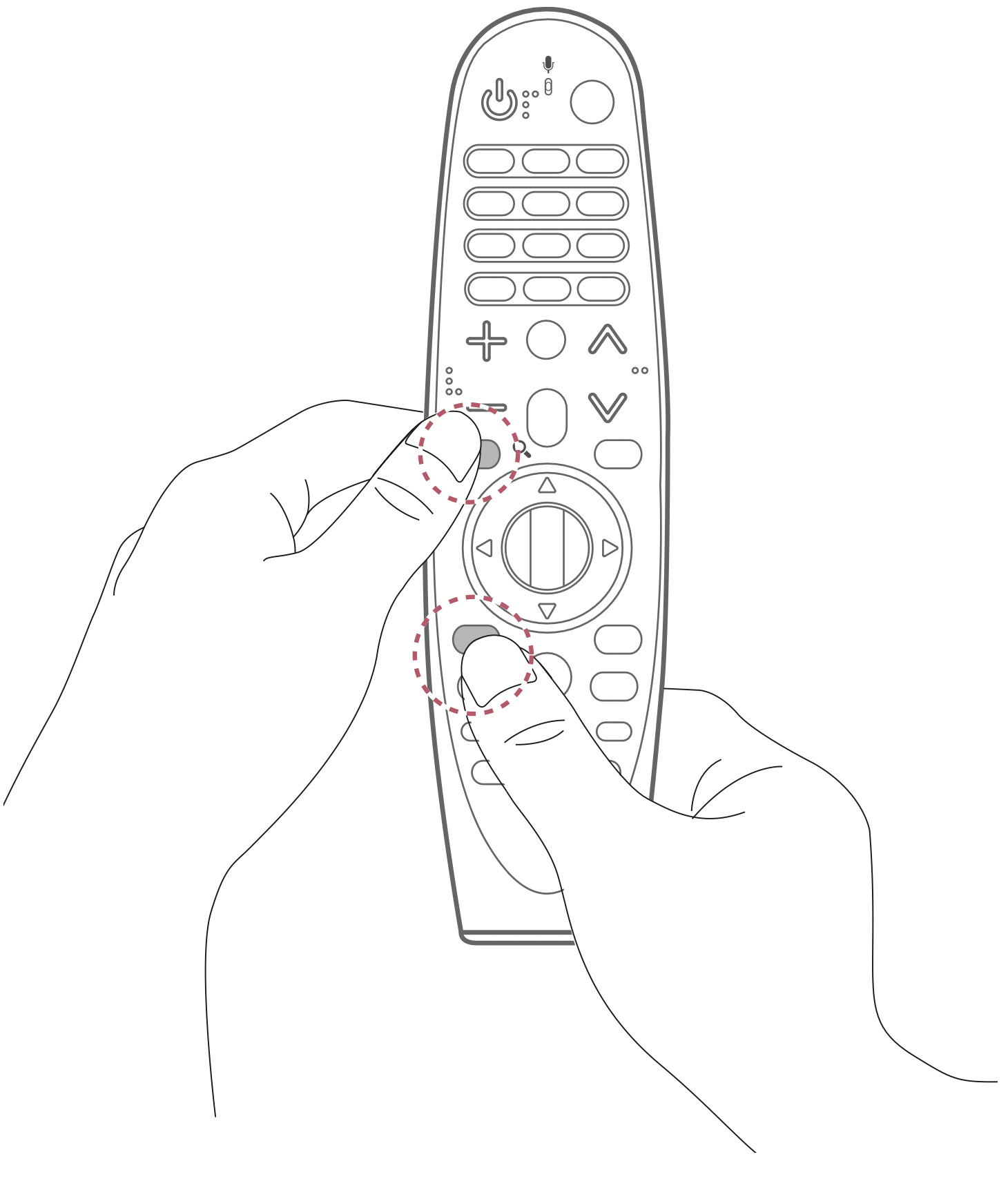
How to deregister (unpair) the Magic Remote
Press and hold the (HOME) and BACK buttons at the same time for five seconds, to unpair the Magic Remote with your TV.
- Pressing and holding the GUIDE button will let you cancel and re-register Magic Remote at once. (In some TV models, use CAPTION button.)
How to use
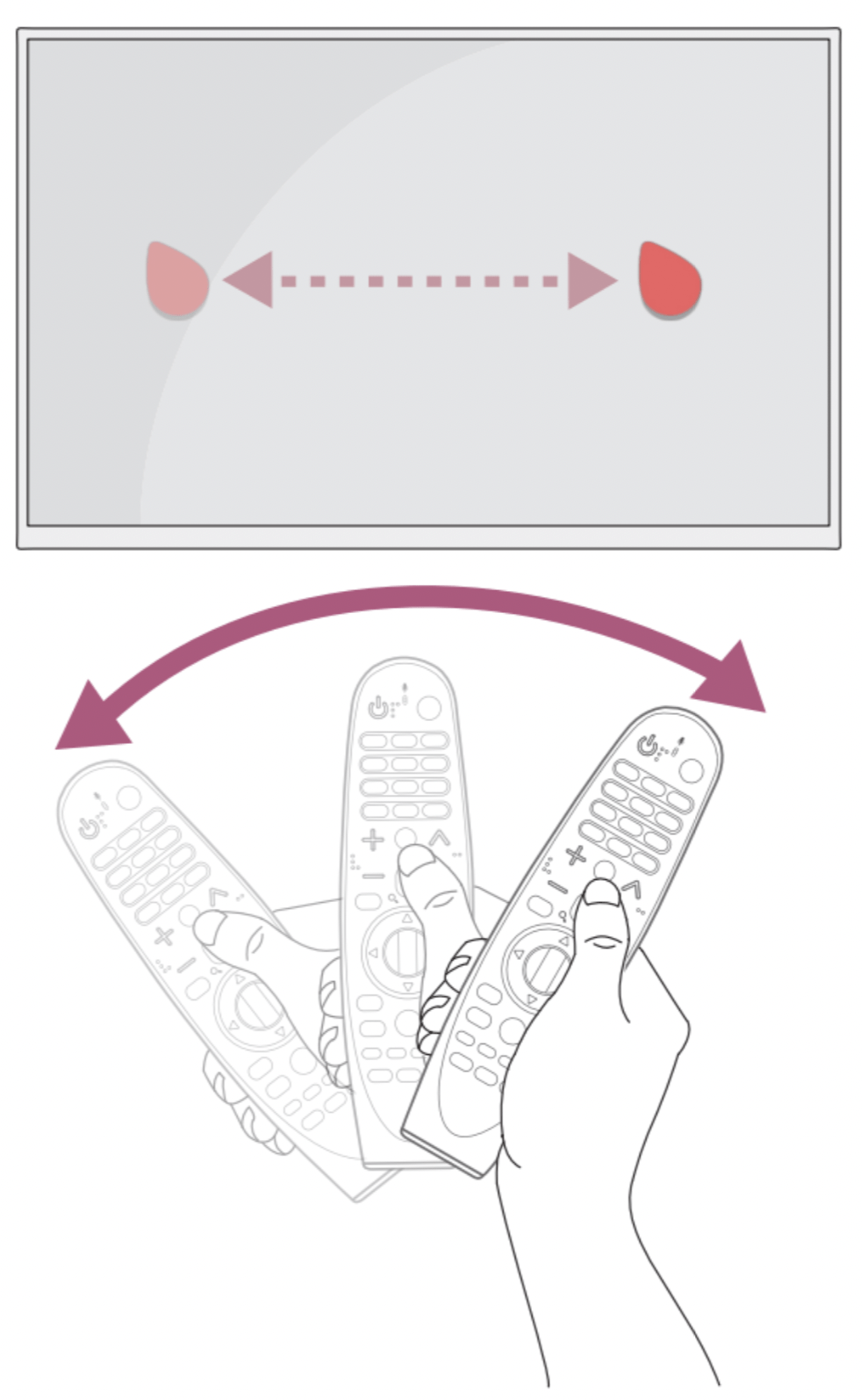
- Shake the Magic Remote slightly to the right and left or press (HOME), (INPUT), or (Q. Settings) buttons to make the pointer appear on the screen.
(In some TV models, the pointer will appear when you turn the Wheel (OK) button.)
- If the pointer has not been used for a certain period of time or Magic Remote is placed on a flat surface, then the pointer will disappear.
- If the pointer is not responding smoothly, you can reset the pointer by moving it to the edge of the screen.
- The Magic Remote depletes batteries faster than a normal remote due to the additional features.
PRECAUTIONS TO TAKE
- Use the remote control within the specified range (within 10 m).
You may experience communication failures when using the device outside the coverage area or if there are obstacles within the coverage area.
- You may experience communication failures depending on the accessories.
Devices such as a microwave oven and wireless LAN operate in the same frequency band (2.4 GHz) as the Magic Remote. This may cause communication failures.
- The Magic Remote may not work properly if a wireless router (AP) is within 1 m of the TV. Your wireless router should be more than 1 m away from the TV.
- Do not disassemble or heat the batteries.
- Do not drop the battery. Avoid extreme shocks to the battery.
- Inserting a battery in the wrong way may result in explosion.
SPECIFICATIONS