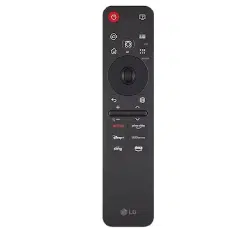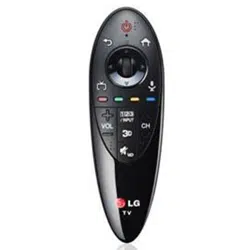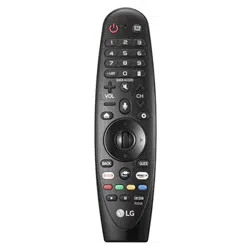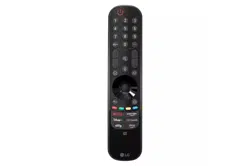

Magic Remote
OWNER’S MANUAL
Please read this manual carefully
before using your remote and retain
it for future reference.
Contents in this manual may be
changed without prior notice due to
upgrade of product functions.
MR23GN
www.lg.com
Copyright © 2023 LG Electronics Inc.
All Rights Reserved.
ENGLISH_index
*MFL719708022302REV00*

2
Before reading this manual
• MagicRemoteandAlkalineBatteries(AA)
• Owner’smanual
Installing Batteries
• Pressthetopofthebatterycover,slideitback,andliftthecoveras
shownbelow.
• Toreplacebatteries,openthebatterycover,replacealkalinebatteries(1.5
V,AA)matching and endstothelabelinsidethecompartment,
andclosethebatterycover.Besuretopointtheremotecontrolatthe
remotecontrolsensorontheTV.
• Toremovethebatteries,performtheinstallationactionsinreverse.Don’t
mixoldorusedbatterieswithnewones.Closethecoversecurely.
• Failuretomatchthecorrectpolaritiesofthebatterymaycausethe
batterytoburstorleak,resultinginfire,personalinjury,orambient
pollution.
Register/Unregister the Magic Remote
• TurnontheTVandpressthe Wheel (OK)ontheMagicremoteforregistration.
• Pressandholdthe (Home)buttonand (Back)buttontogetherformorethan5secondstodisconnectthe
MagicRemote.
• Pressandholdthe (Home)buttonand (Q. Settings)buttontogetherformorethan5secondsto
disconnectandre-registertheMagicRemoteatthesametime.

3
Remote Description
PowerTurnstheTVonoro.
Number buttons Entersnumbers.
Accessesthe[QuickHelp].
/
Accessesthe[Guide].
DashInsertsa betweennumberssuchas2-1and2-2.
Accessesthesavedchannelsorprogrammeslist.
Accessesthe[EditQuickAccess].
- [EditQuickAccess]isafeaturethatallowsyoutoenteraspeciedapp
orLiveTVdirectlybypressingandholdingthenumberbuttons.
More actions Displaysmoreremotecontrolfunctions.
Audiodescriptionsfunctionwillbeenabled.(Dependingoncountry)
SAP(SecondaryAudioProgram)featurecanalsobeenabledbypressing
the button.(Dependingoncountry)
Volume buttonsAdjuststhevolumelevel.
MuteMutesallsounds.
MuteAccessesthe[Accessibility]menu.
Channel buttons / Programme buttons Scrollsthroughthesaved
channelsorprogrammes.
HomeAccessestheHomemenu.
HomeLaunchesthelastusedapps.
4
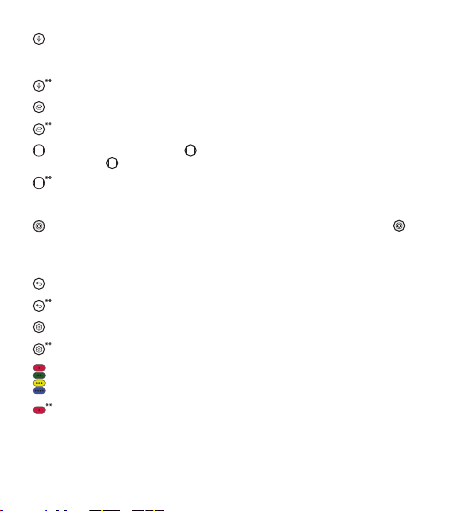
Voice recognition Networkconnectionisrequiredtousethevoicerecognitionfunction.
Checkforrecommendedcontent.(Somerecommendedservicesmaynotbeavailableinsome
countries.)
Voice recognition Speakwhilepressingandholdingthebuttontousethevoicerecognitionfeature.
InputChangestheinputsource.
InputAccessesthe[HomeHub].
Wheel (OK)Pressthecenterof buttontoselectamenu.Youcanchangechannelsorprogrammes
byusing button.
Wheel (OK)Accessesthe[MagicExplorer].Youcanrunthe[MagicExplorer]featurewhenthepointer
colorischangedtopurple.Ifwatchingaprogrammes,pressandholddownthepointerontothevideo.
Whenusing[TVGuide],[Settings],[SportsAlert],or[ArtGallery],pressandholddownonthetext.
Up/Down/Left/RightPresstheup,down,leftorrightbuttontoscrollthemenu.Ifyoupress
buttonswhilethepointerisinuse,thepointerwilldisappearfromthescreenandMagicRemotewill
operatelikeageneralremotecontrol.Todisplaythepointeronthescreenagain,shakeMagicRemote
totheleftandright.
Back Returnstothepreviouslevel.
BackAccessestheHomemenu.
Q. SettingsAccessestheQuickSettings.
Q. SettingsDisplaystheAllSettingsmenu.
Theseaccessspecialfunctionsinsomemenus.
Red buttonRunstherecordfunction.(Dependingoncountry)
Streaming Service buttonsConnectstotheVideoStreamingService.
5
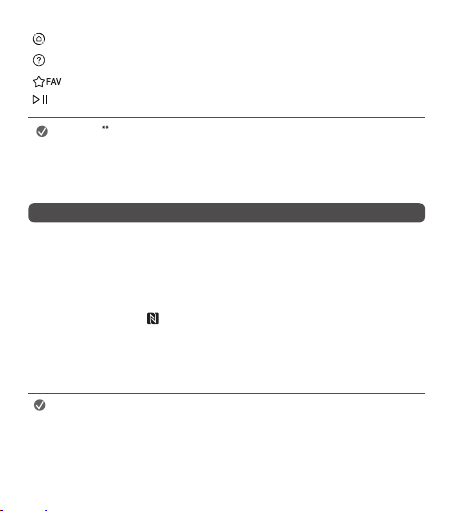
Home Hub Accessesthe[HomeHub].(DependingOnCountry)
User Guide Accessesthe[UserGuide].(DependingOnCountry)
Accessesyourfavoriteprogrammeslist.(DependingOnCountry)
, Control buttons Controlsmediacontents.(DependingOnCountry)
Note
• Tousethebutton,pressandholdformorethan1second.
• Theremotecontrolimageshownmaydifferfromtheactualproduct.
• Theorderofdescriptionmaydifferfromtheactualproduct.
• Somebuttonsandservicesmaynotbeprovideddependingonmodelsorregions.
Connecting Smart Devices using NFC Tagging
NFCistechnologythatusesNearFieldCommunication(13.56MHz),allowingyoutoconvenientlysendandreceive
informationwithoutseparatesettings.BybringingasmartdeviceneartheNFC-enabledremotecontrol,youcan
installtheLGThinQappandconnectthedevicetotheTV.
1. TurnonNFCinthesmartdevice’ssettings.TouseNFCwithAndroiddevices,settheNFCoptiontoenable‘read/
writetags’inthesmartdevice'ssettings.TheNFCsettingsmayvarydependingonthedevice.
2. Bringthesmartdevicenearthe (NFC)ontheremotecontrol.TherequireddistanceforNFCtaggingisabout1
cm.
3. FollowtheinstructionstoinstalltheLGThinQapponyoursmartdevice.
4. Retaggingthesmartdevicetotheremotecontrolallowsyoutoconvenientlyaccessvariousfeaturesonthe
connectedTVthroughtheLGThinQapp.
Note
• ThisfeatureisavailableforNFC-enabledsmartdevicesonly.
• ThisfeatureisonlyavailableiftheremotecontrolhasanNFClogo.

6
Precautions To Take
• Usetheremotecontrolwithinthespecifiedrange(within10m).
Youmayexperiencecommunicationfailureswhenusingthedeviceoutsidethecoverageareaorifthereare
obstacleswithinthecoveragearea.
• Youmayexperiencecommunicationfailuresdependingontheaccessories.
DevicessuchasamicrowaveovenandwirelessLANoperateinthesamefrequencyband(2.4GHz)astheMagic
Remote.Thismaycausecommunicationfailures.
• TheMagicRemotemaynotworkproperlyifawirelessrouter(AP)iswithin0.2moftheTV.Yourwirelessrouter
shouldbemorethan0.2mawayfromtheTV.
• Donotdisassembleorheatthebatteries.
• Donotdropthebattery.Avoidextremeshockstothebattery.
• Donotimmersethebatteriesinwater.
• Caution:Riskoffireorexplosionifthebatteryisreplacedbyanincorrecttype.
• Properlydisposeofusedbatteries.
7
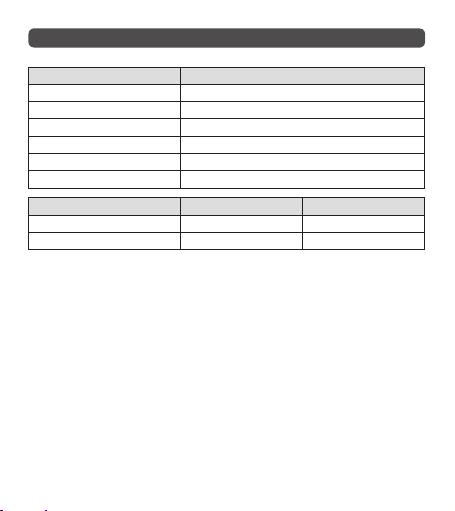
Specications
CATEGORIES DETAILS
ModelNo. MR23GN
Rangeoffrequency 2,400to2,483.5MHz
OutputPower(Max.) 8dBm
Channel 40channels
Powersource AA1.5V,2alkalinebatteriesareused
Operationaltemperaturerange 0°Cto40°C
NFC EU Except for EU
Rangeoffrequency 13.553to13.567MHz 13.56MHz
OutputPower(Max.) -11.22dBuA/m@10m -