Download a free electronic copy of the Owner’s Manual
or Warranty Booklet by visiting the Owners tab at
www.ramtrucks.com (U.S.) or www.ramtruck.ca (Canada).
Download a free Vehicle Information App by visiting your
application store, Keyword (RAM Toolbox), or scanning the
Microsoft Tag. To put Microsoft Tags to work for you, use your
mobile phone’s browser or App store to download a Microsoft
Tag reader, like the free one at www.gettag.mobi. Then follow
the directions to scan the code.
13MZZ-926-AA
RAM CV Cargo Van
Fifth Edition
User Guide
Canada Only
iPhone
Canada Only
Android
Getthe free mobile appfor your phone
http://gettag.mobi
U.S. Only
Getthe free mobile appfor your phone
http://gettag.mobi

The driver’s primary responsibility is the safe operation of the vehicle. Driving while
distracted can result in loss of vehicle control, resulting in a collision and personal
injury. FCA US LLC strongly recommends that the driver use extreme caution when using
any device or feature that may take their attention off the road. Use of any electrical
devices such as cell phones, computers, portable radios, vehicle navigation or other
devices by the driver while the vehicle is moving is dangerous and could lead to a
serious collision. Texting while driving is also dangerous and should never be done
while the vehicle is moving. If you find yourself unable to devote your full attention to
vehicle operation, pull off the road to a safe location and stop your vehicle. Some
States or Provinces prohibit the use of cellular telephones or texting while driving.
It is always the driver’s responsibility to comply with all local laws.
If you are the first registered retail owner of your vehicle, you
may obtain a complimentary printed copy of the Owner’s Manual,
Navigation/Uconnect® Manuals or Warranty Booklet by calling
1-866-726-4636 (U.S.) or 1-800-387-1143 (Canada) or by
contacting your dealer.
IMPORTANT
This User Guide is intended to familiarize you with the important features
of your vehicle. The DVD enclosed contains your Owner’s Manual, Navigation/
Uconnect® Manuals, Warranty Booklets, Tire Warranty and Roadside
Assistance (new vehicles purchased in the U.S.) or Roadside Assistance
(new vehicles purchased in Canada) in electronic format. We hope you
nd it useful. Replacement DVD kits may be purchased by visiting
www.techauthority.com. Copyright 2016 FCA US LLC.
DRIVING AND ALCOHOL
Drunken driving is one of the most frequent causes of collisions. Your driving ability
can be seriously impaired with blood alcohol levels far below the legal minimum. If
you are drinking, don’t drive. Ride with a designated non-drinking driver, call a cab,
a friend, or use public transportation.
WARNING
Driving after drinking can lead to a collision. Your perceptions are less sharp,
your reflexes are slower, and your judgment is impaired when you have been drinking.
Never drink and then drive.
This guide has been prepared to help you get quickly acquainted with
your new RAM and to provide a convenient reference source for common
questions. However, it is not a substitute for your Owner’s Manual.
For complete operational instructions, maintenance procedures and
important safety messages, please consult your Owner’s Manual,
Navigation/Uconnect® Manuals and other Warning Labels in your vehicle.
Not all features shown in this guide may apply to your vehicle. For
additional information on accessories to help personalize your vehicle, visit
www.mopar.com (U.S.), www.mopar.ca (Canada) or your local RAM dealer.

INTRODUCTION/WELCOME
WELCOME FROM FCA US LLC ......2
CONTROLS AT A GLANCE
DRIVER COCKPIT ...............4
INSTRUMENT CLUSTER ..........6
GETTING STARTED
KEYFOB ....................8
REMOTE START ...............9
THEFT ALARM ................9
SEATBELT ..................10
SUPPLEMENTAL RESTRAINT SYSTEM
(SRS) — AIR BAGS .............10
CHILD RESTRAINTS ............12
FRONT SEATS ................14
REAR SEATS .................16
HEATEDSEATS ...............21
HEATED STEERING WHEEL .......22
TILT/TELESCOPING STEERING
COLUMN ................... 22
ADJUSTABLE PEDALS ...........23
OPERATING YOUR VEHICLE
ENGINE BREAK-IN
RECOMMENDATIONS ...........24
TURN SIGNAL/WIPER/WASHER/HIGH
BEAM LEVER ................25
HEADLIGHT SWITCH AND HALO LIGHT
SWITCH ....................26
SPEED CONTROL ..............27
ELECTRONIC RANGE SELECTION (ERS) . . 29
FUEL ECONOMY (ECON) MODE .....30
MANUAL CLIMATE CONTROLS ......31
THREE ZONE MANUAL CLIMATE
CONTROLS ..................32
THREE ZONE AUTOMATIC TEMPERATURE
CONTROLS (ATC) ..............33
PARKSENSE
®
REAR PARK ASSIST . . . 35
PARKVIEW
®
REAR BACK-UP CAMERA . 35
BLIND SPOT MONITORING WITH REAR
CROSS PATH .................35
POWER SLIDING SIDE DOORS ......36
POWER LIFTGATE ..............36
POWER SUNROOF .............37
WIND BUFFETING .............39
ELECTRONICS
YOUR VEHICLE'S SOUND SYSTEM . . . 40
Uconnect
®
130 ...............42
Uconnect
®
130 WITH SiriusXM SATELLITE
RADIO .....................44
Uconnect
®
430/430N ...........47
Uconnect
®
730N ..............57
SiriusXM SATELLITE RADIO/TRAVEL LINK . . 68
STEERING WHEEL AUDIO CONTROLS . 71
iPod
®
/USB/MP3 CONTROL ........ 72
Uconnect
®
Phone .............. 73
Uconnect
®
VOICE COMMAND .......76
Bluetooth
®
STREAMING AUDIO .....78
VIDEO ENTERTAINMENT
SYSTEM (VES™) ..............79
ELECTRONIC VEHICLE INFORMATION
CENTER (EVIC) ...............80
PROGRAMMABLE FEATURES .......81
UNIVERSAL GARAGE DOOR OPENER
(HomeLink
®
) .................82
POWER INVERTER .............85
POWER OUTLETS .............86
UTILITY
RAM CARGO VAN FEATURES ......88
IN-FLOOR STORAGE – STOW'N GO
®
..91
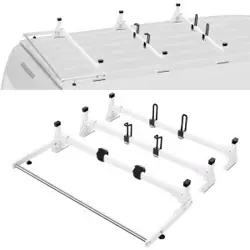
ROOF LUGGAGE RACK ..........91
TRAILER TOWING WEIGHTS (MAXIMUM
TRAILER WEIGHT RATINGS) .......92
RECREATIONAL TOWING (BEHIND
MOTORHOME, ETC.) ............92
WHAT TO DO IN EMERGENCIES
ROADSIDE ASSISTANCE ..........93
INSTRUMENT CLUSTER WARNING
LIGHTS ....................93
IF YOUR ENGINE OVERHEATS ......97
JACKING AND TIRE CHANGING .....98
JUMP-STARTING .............108
SHIFT LEVER OVERRIDE ........110
TOWING A DISABLED VEHICLE ....111
FREEING A STUCK VEHICLE ...... 112
EVENT DATA RECORDER (EDR) ....113
MAINTAINING YOUR VEHICLE
OPENING THE HOOD ..........114
ADDING FUEL ...............115
ENGINE COMPARTMENT ........116
FLUIDS AND CAPACITIES ........117
MAINTENANCE SCHEDULE ...... 118
MAINTENANCE RECORD ........122
FUSES ....................123
TIRE PRESSURES .............127
WHEEL AND WHEEL TRIM CARE . . . 128
EXTERIOR BULBS ............129
CUSTOMER ASSISTANCE
FCA US LLC CUSTOMER CENTER . . . 130
FCA CANADA INC. CUSTOMER CENTER
. 130
ASSISTANCE FOR THE HEARING
IMPAIRED .................130
PUBLICATIONS ORDERING .......130
REPORTING SAFETY DEFECTS IN THE
UNITEDSTATES ..............131
MOPAR ACCESSORIES
AUTHENTIC ACCESSORIES BY MOPAR
®
. . 132
FAQ (How To?)
FREQUENTLY ASKED QUESTIONS . . . 133
INDEX
....................135
TABLE OF CONTENTS

WELCOME FROM FCA US LLC
Congratulations on selecting your new FCA US LLC vehicle. Be assured that it
represents precision workmanship, distinctive styling, and high quality - all essen-
tials that are traditional to our vehicles.
Your new FCA US LLC vehicle has characteristics to enhance the driver's control
under some driving conditions. These are to assist the driver and are never a
substitute for attentive driving. They can never take the driver's place. Always drive
carefully.
Your new vehicle has many features for the comfort and convenience of you and your
passengers. Some of these should not be used when driving because they take your
eyes from the road or your attention from driving. Never text while driving or take your
eyes more than momentarily off the road.
This guide illustrates and describes the operation of features and equipment that are
either standard or optional on this vehicle. This guide may also include a description
of features and equipment that are no longer available or were not ordered on this
vehicle. Please disregard any features and equipment described in this guide that are
not available on this vehicle. FCA US LLC reserves the right to make changes in
design and specifications and/or make additions to or improvements to its products
without imposing any obligation upon itself to install them on products previously
manufactured.
This User Guide has been prepared to help you quickly become acquainted with the
important features of your vehicle. It contains most things you will need to operate
and maintain the vehicle, including emergency information.
The DVD includes a computer application containing detailed owner's information
which can be viewed on a personal computer or MAC computer. The multimedia DVD
also includes videos which can be played on any standard DVD player (including the
Uconnect
®
Touchscreen Radios if equipped with DVD player capabilities). Additional
DVD operational information is located on the back of the DVD sleeve.
For complete owner information, refer to your Owner's Manual on the DVD in the owner’s
kit provided at the time of new vehicle purchase. For your convenience, the information
contained on the DVD may also be printed and saved for future reference.
FCA US LLC is committed to protecting our environment and natural resources. By
converting from paper to electronic delivery for the majority of the user information
for your vehicle, together we greatly reduce the demand for tree-based products and
lessen the stress on our environment.
INTRODUCTION/WELCOME
2

VEHICLES SOLD IN CANADA
With respect to any vehicles sold in Canada, the name FCA US LLC shall be deemed
to be deleted and the name FCA Canada Inc. used in substitution.
WARNING!
• Pedals that cannot move freely can cause loss of vehicle control and increase
the risk of serious personal injury.
• Always make sure that objects cannot fall into the driver foot well while the
vehicle is moving. Objects can become trapped under the brake pedal and
accelerator pedal causing a loss of vehicle control.
• Failure to properly follow floor mat installation or mounting can cause interfer-
ence with the brake pedal and accelerator pedal operation causing loss of
control of the vehicle.
• Never use the ‘PARK’ position as a substitute for the parking brake. Always
apply the parking brake fully when parked to guard against vehicle movement
and possible injury or damage.
• Refer to your Owner's Manual on the DVD for further details.
USE OF AFTERMARKET PRODUCTS (ELECTRONICS)
The use of aftermarket devices including cell phones, MP3 players, GPS systems, or
chargers may affect the performance of on-board wireless features including Keyless
Enter-N-Go™ and Remote Start range. If you are experiencing difficulties with any of
your wireless features, try disconnecting your aftermarket devices to see if the
situation improves. If your symptoms persist, please see an authorized dealer.
CHRYSLER, DODGE, JEEP, RAM TRUCK, SRT, ATF+4, MOPAR and Uconnect are
registered trademarks of FCA US LLC.
COPYRIGHT ©2016 FCA US LLC
INTRODUCTION/WELCOME
3

DRIVER COCKPIT
CONTROLS AT A GLANCE
4

A. Headlight Switch pg. 26
B. Turn Signal/Wiper/Washer/High
Beams Lever (behind steering wheel)
pg. 25
C. Electronic Vehicle Information Center
(EVIC) Controls pg. 80
D. Electronic Vehicle Information Center
(EVIC) Display
E. Instrument Cluster pg. 6
F. Transmission Gear Selector
G. Audio System (touch-screen-radio
shown) pg. 40
H. Climate Controls pg. 31
I. SWITCH PANEL
• Fuel Economy (ECON) mode pg. 30
• Hazard Switch
• Power Inverter pg. 85
• Electronic Stability Control (ESC)
OFF pg. 95
J. Power Outlets (inside console storage)
pg. 86
K. Speed Control pg. 27
L. Hood Release pg. 114
M. Parking Brake Release
N. Power Mirrors
O. Power Windows
P. Power Door Locks
Q. Power Vent Windows
R. Instrument Panel Dimmer pg. 27
CONTROLS AT A GLANCE
5
INSTRUMENT CLUSTER
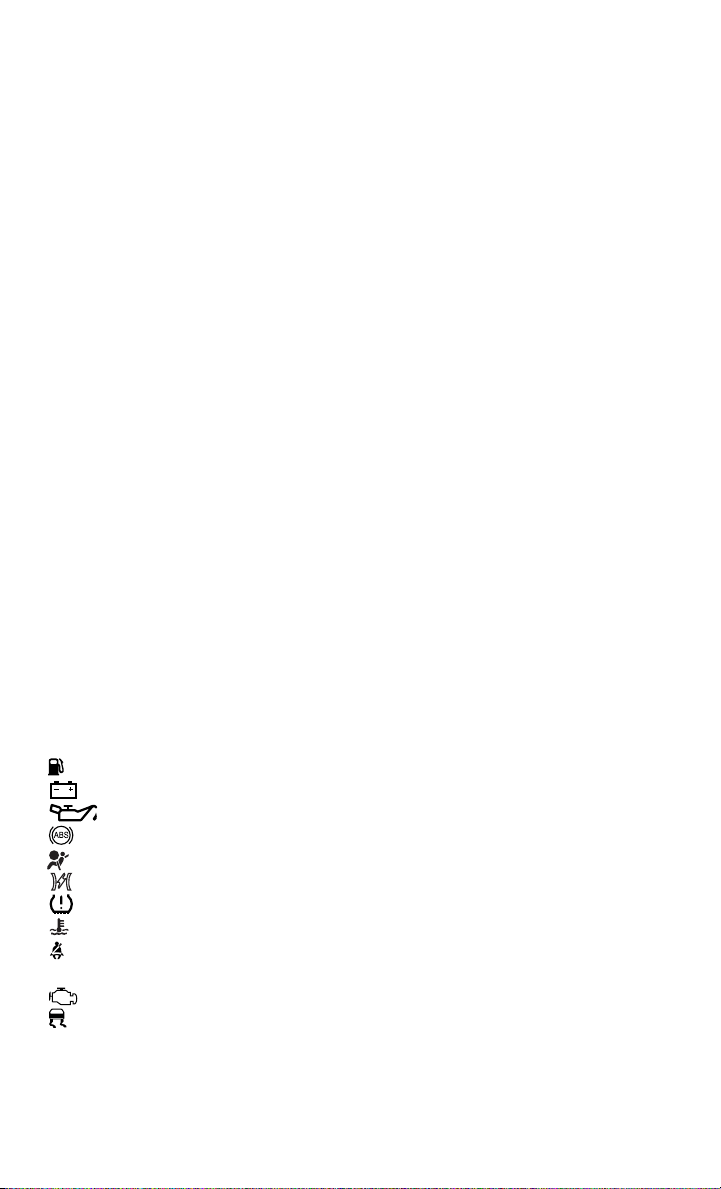
Warning Lights
- Low Fuel Warning Light
- Charging System Light
- Oil Pressure Warning Light**
- Anti-Lock Brake (ABS) Light**
- Air Bag Warning Light**
- Electronic Throttle Control (ETC) Light
- Tire Pressure Monitoring System (TPMS) Light
- Engine Temperature Warning Light
- Seat Belt Reminder Light
BRAKE
- Brake Warning Light**
- Malfunction Indicator Light (MIL)**
- Electronic Stability Control (ESC) Activation/Malfunction Indicator Light*
(See page 93 for more information.)
CONTROLS AT A GLANCE
6
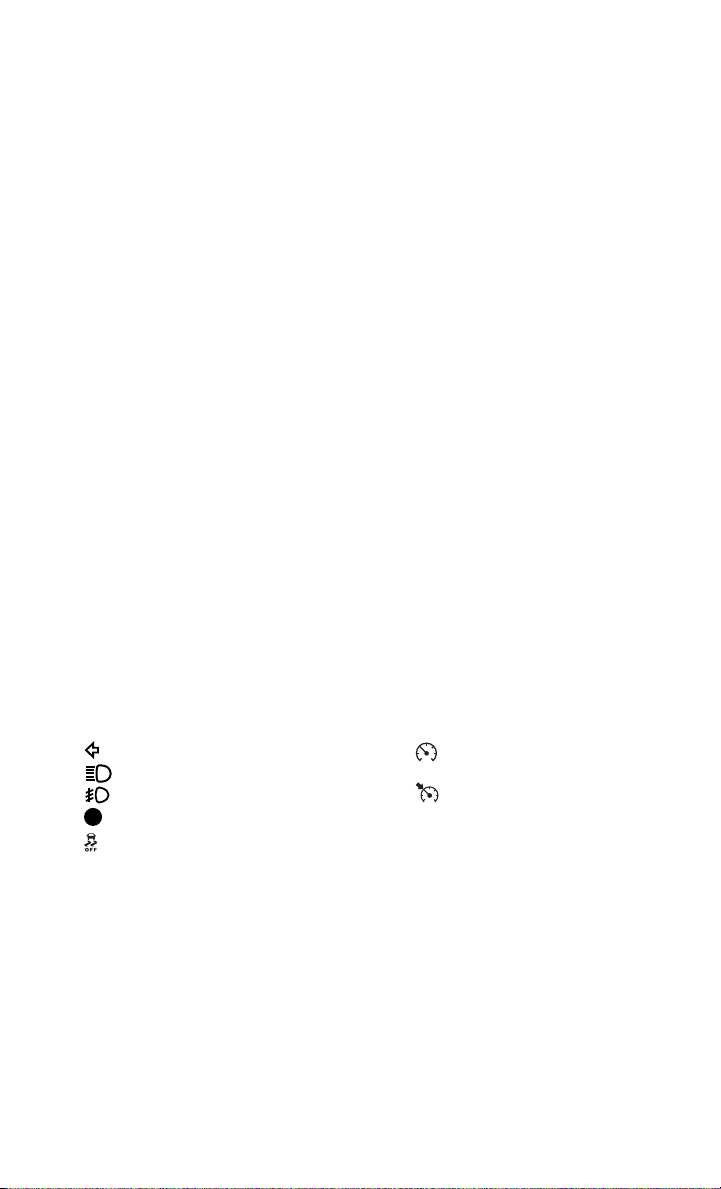
Indicators
- Turn Signal Indicators
- High Beam Indicator
- Front Fog Light Indicator
- Vehicle Security Indicator*
- Electronic Stability Control
(ESC) Off Indicator*
- Electronic Speed Control
ON Indicator
- Electronic Speed Control
Set Indicator
Odometer Messages
door - Door Ajar noFUSE* - Fuse Fault
gATE* - Liftgate Ajar CHAngE OIL* - Change Engine Oil
gASCAP - Fuel Cap Fault LoCOOL - Low Coolant
LoW tirE* - Low Tire Pressure
* If equipped
** Bulb Check with Key On
CONTROLS AT A GLANCE
7

KEY FOB
Locking And Unlocking The Doors/Liftgate
• Press the LOCK button once to lock all
the doors and the liftgate. Press the
UNLOCK button once to unlock the
driver’s door only and twice within five
seconds to unlock all the doors and
liftgate.
• All doors can be programmed to un-
lock on the first press of the UNLOCK
button. Refer to Programmable Fea-
tures in the Electronics section of this
guide.
Panic Alarm
• Press the PANIC button once to turn the panic alarm on.
• Wait approximately three seconds and press the button a second time to turn the
panic alarm off.
Power Liftgate
• Press the LIFTGATE button twice within five seconds to power open/close the
Power Liftgate. If the button is pressed twice again while the liftgate is being
power closed, the liftgate will reverse to the full open position.
Power Sliding Doors
• Press the LEFT or RIGHT Power Sliding Door button twice within five seconds to
power open/close the Power Sliding Door. If the button is pressed twice again
while the door is being power closed, the door will reverse to the full open position.
Emergency Key
• Should the battery in the vehicle or the Key Fob transmitter go dead, there is an
emergency key located in the Key Fob that can be used for locking and unlocking
the doors. To remove the emergency key, slide the button at the top of the Key Fob
sideways with your thumb and then pull the key out with your other hand.
GETTING STARTED
8
WARNING!
• Never leave children alone in a vehicle, or with access to an unlocked vehicle.
Allowing children to be in a vehicle unattended is dangerous for a number of
reasons. A child or others could be severely injured or killed. Children should be
warned not to touch the parking brake, brake pedal, or the shift lever. Do not
leave the Key Fob inside the vehicle, or in a location accessible to children. A
child could start the vehicle, operate power windows, other controls, or move the
vehicle.
• Do not leave children or animals inside parked vehicles in hot weather. Interior
heat build-up may cause them to be severely injured or killed.
• Keep Key Fob transmitters away from children. Operation of the Remote Start
System, windows, door locks or other controls could cause serious injury or
death.
REMOTE START
• Press the REMOTE START button on the Key Fob twice within five seconds.
Pressing the REMOTE START button a third time shuts the engine off.
• To drive the vehicle, press the UNLOCK button, insert the Key Fob in the ignition
and turn to the ON/RUN position.
• With remote start, the engine will only run for 15 minutes (timeout) unless the
ignition Key Fob is placed in the ON/RUN position.
• The vehicle must be started with the Key Fob after two consecutive timeouts.
WARNING!
• Do not start or run an engine in a closed garage or confined area. Exhaust gas
contains Carbon Monoxide (CO) which is odorless and colorless. Carbon Mon-
oxide is poisonous and can cause you or others to be severely injured or killed
when inhaled.
• Keep Key Fob transmitters away from children. Operation of the Remote Start
System, windows, door locks or other controls could cause you and others to be
severely injured or killed.
THEFT ALARM
To Arm:
• Press the Key Fob LOCK button or the power door lock switch while the door is
open.
To Disarm:
• Press the Key Fob UNLOCK button or turn the ignition to the ON/RUN position.
GETTING STARTED
9
SEAT BELT
• Be sure everyone in your vehicle is in a seat and using a seat belt properly.
• Position the lap belt across your thighs, below your abdomen. To remove slack in
the lap portion, pull up a bit on the shoulder belt. To loosen the lap belt if it is too
tight, tilt the latch plate and pull on the lap belt. A snug belt reduces the risk of
sliding under the belt in a collision.
• Position the shoulder belt on your chest so that it is comfortable and not resting
on your neck. The retractor will withdraw any slack in the belt.
• A shoulder belt placed behind you will not protect you from injury during a
collision. You are more likely to hit your head in a collision if you do not wear your
shoulder belt. The lap and shoulder belt are meant to be used together.
• A belt that is too loose will not protect you properly. In a sudden stop you could
move too far forward, increasing the possibility of injury. Wear your seat belt
snugly.
• A frayed or torn belt could rip apart in a collision and leave you with no protection.
Inspect the belt system periodically, checking for cuts, frays, or loose parts.
Damaged parts must be replaced immediately. Do not disassemble or modify the
system. Seat belt assemblies must be replaced after a collision if they have been
damaged (bent retractor, torn webbing, etc.).
• The seat belts for both front seating positions are equipped with pretensioning
devices that are designed to remove slack from the seat belt in the event of a
collision.
• A deployed pretensioner or a deployed air bag must be replaced immediately.
WARNING!
In a collision, you and your passengers can suffer much greater injuries if you are
not buckled up properly. You can strike the interior of your vehicle or other
passengers, or you can be thrown out of the vehicle. Always be sure you and others
in your vehicle are buckled up properly.
SUPPLEMENTAL RESTRAINT SYSTEM (SRS) — AIR BAGS
• This vehicle has Advanced Front Air Bags for both the driver and right front
passenger as a supplement to the seat belt restraint system. The Advanced Front
Air Bags will not deploy in every type of collision.
• Advanced Front Air Bags are designed to provide additional protection by
supplementing the seat belts in certain frontal collisions depending on several
factors, including the severity and type of collision. Advanced Front Air Bags are
not expected to reduce the risk of injury in rear, side, or rollover collisions.
• This vehicle is equipped with Supplemental Side Air Bag Inflatable Curtains to
protect the driver, front and rear passengers sitting next to a window.
GETTING STARTED
10

• This vehicle is equipped with Supplemental Seat-Mounted Side Air Bags to
provide enhanced protection to help protect an occupant during a side impact.
• This vehicle is equipped with a Supplemental Driver Side Knee Air Bag to provide
enhanced protection and work together with the Driver Advanced Front Air Bag
during a frontal impact.
• If the Air Bag Warning Light
is not on during starting, stays on, or turns on
while driving, have the vehicle serviced by an authorized service center immedi-
ately.
• Refer to the Owner's Manual on the DVD for further details regarding the
Supplemental Restraint System (SRS).
WARNING!
• Relying on the air bags alone could lead to more severe injuries in a collision.
The air bags work with your seat belt to restrain you properly. In some collisions,
the air bags won't deploy at all. Always wear your seat belts even though you have
air bags.
• Being too close to the steering wheel or instrument panel during Advanced Front
Air Bag deployment could cause serious injury, including death. Air bags need
room to inflate. Sit back, comfortably extending your arms to reach the steering
wheel or instrument panel.
• Supplemental Side Air Bag Inflatable Curtains and Supplemental Seat-
Mounted Side Air Bags need room to inflate. Do not lean against the door or
window. Sit upright in the center of the seat.
• Being too close to the Supplemental Side Air Bag Inflatable Curtain and/or
Seat-Mounted Side Air Bag during deployment could cause you to be severely
injured or killed.
• Do not drive your vehicle after the air bags have deployed. If you are involved in
another collision, the air bags will not be in place to protect you.
• After any collision, the vehicle should be taken to an authorized dealer
immediately.
GETTING STARTED
11

CHILD RESTRAINTS
• Children 12 years and under should ride properly buckled up in a rear seat, if
available. According to crash statistics, children are safer when properly re-
strained in the rear seats rather than in the front.
• Every state in the United States and all Canadian provinces require that small
children ride in proper restraint systems. This is the law, and you can be
prosecuted for ignoring it.
NOTE:
• For additional information, refer to www.seatcheck.org or call 1–866–SEAT-
CHECK (1–866–732–8243).
• Canadian residents, should refer to Transport Canada’s website for additional
informationhttp://www.tc.gc.ca/eng/roadsafety/safedrivers-childsafety-index-53.htm.
Installing The LATCH - Compatible Child Restraint System
• Each vehicle, except commercial cargo vehicles, is equipped with the child
restraint anchorage system called LATCH, which stands for Lower Anchors and
Tether for CHildren.
• Two LATCH child restraint anchorage systems are installed on all second-row seats
and in the center position on all third row fold-in-floor seats.
• Second-row seats also feature tether strap anchorages, located in the rear surface
of the seatback.
• In addition, all third row fold-in-floor seats are equipped with a child restraint
tether anchor at the center seating position.
Installing The Lower Attachments:
• The vehicle lower anchorages are round bars located at the rear of the seat cushion
where it meets the seatback.
• Loosen the child seat adjusters on the
lower child restraint attachment
straps to ease the installation.
NOTE:
It is recommended to loosen the top
tether strap and route it loosely prior to
securing the lower anchors so the top
tether strap is not trapped between the
vehicle seat and child restraint.
• Attach the lower child restraint attach-
ment straps to the vehicle’s lower an-
chor bars. Ensure that the lower attachment strap is firmly engaged and that the
hook is secure.
GETTING STARTED
12

• Tighten the lower attachment strap while firmly pushing the child restraint
rearward and downward into the vehicle seat. Remove all slack in the lower
attachment straps.
Installing The Top Tether Strap (With Either Lower Anchors Or Vehicle Seat Belt):
• Route the top tether strap under the adjustable head restraint between the steel
posts.
• Provide enough slack for the tether
strap to reach the tether anchor lo-
cated near the bottom of the seat
back.
• Clip tether hook to tether anchor. En-
sure that the hook is firmly engaged
and secure.
• Remove all slack and tighten tether
strap according to child restraint
manufacturer’s instructions.
NOTE:
The top tether strap is always to be secured, regardless of if the child restraint is
installed with the lower anchors or the vehicle seat belt.
Installing The Child Restraint Using The Vehicle Seat Belts
• To install a child restraint, first, pull enough of the seat belt webbing from the
retractor to route it through the belt path of the child restraint and slide the latch
plate into the buckle.
• Next, extract all the seat belt webbing out of the retractor and then allow the belt
to retract into the retractor. Finally, pull on any excess webbing to tighten the lap
portion around the child restraint. Any seat belt system will loosen with time, so
check the belt occasionally, and pull it tight if necessary.
• Once you have completed securing the child restraint with the seat belt, secure
the top tether strap.
GETTING STARTED
13

WARNING!
• In a collision, an unrestrained child, even a tiny baby, can become a projectile
inside the vehicle. The force required to hold even an infant on your lap could
become so great that you could not hold the child, no matter how strong you are.
The child and others could be severely injured or killed. Any child riding in your
vehicle should be in a proper restraint for the child's size.
• Failure to comply with the following conditions could result in you and others
being severely injured or killed:
• Be certain that the seat cushion is locked securely into position before
using the seat. An improperly latched seat cushion could cause passen-
gers to be severely injured or killed.
• An incorrectly anchored tether strap could lead to increased head motion and
possible injury to the child. Use only the anchor positions directly behind the
child seat to secure a child restraint top tether strap.
• Rearward-facing child seats must never be used in the front seat of a vehicle
with a front passenger air bag. An air bag deployment could cause severe injury
or death to infants in this position.
FRONT SEATS
Power Seat
• The power seat switch controls
forward/back, up/down, and tilt ad-
justment.
• The recline switch, located on the out-
board side of the seat, controls seat-
back adjustment.
Power Lumbar
• Push the switch forward to increase
the lumbar support. Push the switch
rearward to decrease the lumbar
support.
GETTING STARTED
14

Manual Seat Adjustment
Forward/Rearward
• Lift up on the adjusting bar located at
the front of the seat near the floor and
release it when the seat is at the de-
sired position. Then, using body pres-
sure, move forward and backward on
the seat to be sure that the seat ad-
justers have latched.
Recliner
• Lift the recliner lever located on the
outboard side of the seat, lean back
and release at the desired position.
Memory Seat
• The memory seat feature allows you to
save two different driver seating posi-
tions, driver's outside mirror, adjust-
able brake and accelerator pedals, and
radio station preset settings. The
memory seat buttons are located on
the driver's door panel.
• Adjust all memory profile settings,
press the SET button then press 1 or
2 within five seconds.
• To program a Key Fob to the memory
position, press and release the LOCK
button within 10 seconds on the Key Fob to be programmed.
• Place the ignition switch in the ON position, select Remote Linked to Memory in
the Electronic Vehicle Information Center (EVIC) and enter Yes.
• Press 1 or 2 to recall the saved positions, or press UNLOCK on the programmed
Key Fob.
CAUTION!
Do not place any article under a power seat or impede its ability to move as it may
cause damage to the seat controls. Seat travel may become limited if movement
is stopped by an obstruction in the seat’s path.
GETTING STARTED
15

WARNING!
• Adjusting a seat while the vehicle is moving is dangerous. The sudden move-
ment of the seat could cause you to lose control. The seat belt might not be
properly adjusted, and you could be severely injured or killed. Only adjust a seat
while the vehicle is parked.
• Do not ride with the seatback reclined so that the seat belt is no longer resting
against your chest. In a collision, you could slide under the seat belt and be
severely injured or killed. Use the recliner only when the vehicle is parked.
REAR SEATS
Second Row Seats – Stow 'n Go®
• On vehicles equipped with Stow 'n
Go
®
seats, the seats will fold and
tumble in one motion.
• Move the front seat fully forward.
• Recline the front seatback fully for-
ward.
• Raise the armrests on the second row
seat.
NOTE:
Seat will not stow in the storage bin
unless the armrests are raised.
GETTING STARTED
16

• Slide the storage bin locking mechanism to the “LOCK” position and then pull up
on the storage bin latch to open the cover.
• Pull upward on the seatback recliner
lever located on the outboard side of
the seat.
• The non-adjustable head restraint and seatback will fold automatically during the
seat tumble.
• The seat will automatically tumble into position for easy storage.
• Push the seat into the storage bin and
close the storage bin cover.
GETTING STARTED
17

To Unstow Second Row Seats
• Pull up on the storage bin latch to open the cover.
• Pull up on the strap to lift the seat out of the storage bin and push the seat
rearward to latch the seat anchors.
• Lift the seatback to the full upright position.
• Return the head restraint to its upright position, close the storage bin cover and
slide the storage bin locking mechanism to the “Unlocked” position.
Third Row Seats
Third Row Power Recliner
• The power recline feature, located on the side of the seat cushion, adjusts the
seatback angle forward/rearward for occupant comfort.
Third Row Power Seat Switch
NOTE:
• Disconnect the center shoulder belt
from the small buckle and lower the
head restraints before attempting to
fold/stow the power third row seats.
• A one-touch power folding seat switch
is located in the left rear trim panel as
part of a switch bank.
• Left and right third row seats can be
folded individually or together. The
third row power folding seats adjust to
multiple positions.
• The switch is only functional when the
liftgate is open and the vehicle is in
PARK.
• To abort seat operation while the seat is in motion, press a different seat position
selector switch to stop the seat. Once the seat stops moving, then the desired
position can be selected.
• The third row power seat system includes obstacle detection for safe operation.
When the system detects an obstacle, the motors will stop and reverse the motion
a short distance to move the seat away from the obstacle. Should this occur,
remove the obstacle and press the button again for the desired position.
• Refer to your Owner's Manual on the DVD for manual third row seat folding
instructions.
GETTING STARTED
18

Manually Folding Third Row Seats
• Lower the center head restraint down to the seatback by pushing the button on the
guide and pushing the head restraint down.
• Lower the outboard head restraints by pulling on the release strap marked “1”
located on the outboard side of the head restraint.
• Pull release strap marked “2” located on the rear of the seat to lower the seatback.
• Pull release strap marked “3” to re-
lease the anchors.
GETTING STARTED
19
• Pull release strap marked “4” and tumble the seat rearward into the storage bin.
To Unfold Third Row Seats
• Pull up on the assist strap to lift the seat out of the storage bin and push the seat
forward until the anchors latch.
• Pull release strap marked “2” to unlock the recliner.
• Pulling strap “4” releases the seatback to return to its full upright position.
• Raise the head restraint to its upright position.
CAUTION!
The storage bin cover must be locked and flat to avoid damage from contact with
the front seat tracks, which have minimal clearance to the cover.
WARNING!
• In a collision, serious injury could result if the seat storage bin covers are not
properly latched.
• Do not drive the vehicle with the storage bin covers open.
• Keep the storage bin covers closed and latched while the vehicle is in
motion.
• Do not use a storage bin latch as a tie down.
• In a collision, you or others in the vehicle could be injured if the seats are not
properly latched to their floor attachments. Always be sure the seats are fully
latched.
GETTING STARTED
20

HEATED SEATS
Front Heated Seats
• The controls for front heated seats are
located on the center instrument
panel area.
• Press the switch once to select High-
level heating. Press the switch a sec-
ond time to select Low-level heating.
Press the switch a third time to shut
the heating elements Off.
• If the High-level setting is selected,
the system will automatically switch to
Low-level after approximately 30 min-
utes. The Low-level setting will turn
Off automatically after approximately 45 minutes.
Second Row Heated Seats
• Second row heated seat switches are
located in the sliding door handle trim
panels.
• Press the switch once to select High-
level heating. Press the switch a sec-
ond time to select Low-level heating.
Press the switch a third time to shut
the heating elements Off.
• If the High-level setting is selected,
the system will automatically switch to
Low-level after approximately 30 min-
utes. The Low-level setting will turn
Off automatically after approximately 45 minutes.
WARNING!
• Persons who are unable to feel pain to the skin because of advanced age,
chronic illness, diabetes, spinal cord injury, medication, alcohol use, exhaustion
or other physical conditions must exercise care when using the seat heater. It
may cause burns even at low temperatures, especially if used for long periods of
time.
• Do not place anything on the seat that insulates against heat, such as a blanket
or cushion. This may cause the seat heater to overheat. Sitting in a seat that has
been overheated could cause serious burns due to the increased surface
temperature of the seat.
GETTING STARTED
21

HEATED STEERING WHEEL
• The steering wheel contains a heating
element that heats the steering wheel
to one temperature setting.
• The heated steering wheel switch is
located on the center instrument
panel.
• Press the switch once to turn the heat-
ing element On. Press the switch a
second time to turn the heating ele-
ment Off.
• Once the heated steering wheel has
been turned on, it will operate for approximately 58 to 70 minutes before
automatically shutting off. The heated steering wheel can shut off early or may not
turn on when the steering wheel is already warm.
TILT/TELESCOPING STEERING COLUMN
• The tilt steering column tilt lever is
located below the steering wheel.
• Push down on the tilt lever to unlock
the steering column.
• With one hand firmly on the steering
wheel, move the steering column up-
ward or downward as desired. To
lengthen or shorten the steering col-
umn, pull the steering wheel outward
or push it inward as desired.
• Pull upward on the tilt lever to lock the
column firmly in place.
WARNING!
Do not adjust the steering wheel while driving. The tilt adjustment must be locked
while driving. Adjusting the steering wheel while driving or driving without the tilt
adjustment locked could cause the driver to lose control of the vehicle. Failure to
follow this warning may result in you and others being severely injured or killed.
GETTING STARTED
22
ADJUSTABLE PEDALS
• Press the switch located on the left
side of the steering column forward to
move the brake and accelerator pedals
away from the driver and press the
switch rearward to move the pedals
closer to the driver.
NOTE:
The pedals cannot be adjusted when the
vehicle is in REVERSE or when the Elec-
tronic Speed Control is set.
CAUTION!
Do not place any article under the adjustable pedals or impede its ability to move,
as it may cause damage to the pedal controls. Pedal travel may become limited if
movement is stopped by an obstruction in the adjustable pedal's path.
WARNING!
Do not adjust the pedals while the vehicle is moving. You could lose control and
have a collision. Always adjust the pedals while the vehicle is parked.
GETTING STARTED
23
ENGINE BREAK-IN RECOMMENDATIONS
• A long break-in period is not required for the engine and drivetrain (transmission
and axle) in your vehicle.
• Drive moderately during the first 300 miles (500 km). After the initial 60 miles
(100 km), speeds up to 50 or 55 mph (80 or 90 km/h) are desirable.
• While cruising, brief full-throttle acceleration within the limits of local traffic laws
contributes to a good break-in. Wide-open throttle acceleration in low gear can be
detrimental and should be avoided.
• The engine oil installed in the engine at the factory is a high-quality energy
conserving type lubricant. Oil changes should be consistent with anticipated
climate conditions under which vehicle operations will occur. For the recom-
mended viscosity and quality grades, refer to “Maintaining Your Vehicle”.
NOTE:
A new engine may consume some oil during its first few thousand miles (kilometers)
of operation. This should be considered a normal part of the break-in and not
interpreted as an indication to an engine problem or malfunction.
CAUTION!
Never use Non-Detergent Oil or Straight Mineral Oil in the engine or damage may
result.
OPERATING YOUR VEHICLE
24

TURN SIGNAL/WIPER/WASHER/HIGH BEAM LEVER
Turn Signal/Lane Change Assist
• Tap the lever up or down once and the turn signal (right or left) will flash three
times and automatically turn off.
• Vehicles equipped with Blind Spot Monitoring will produce a visual alert and may
be programmed to produce an audible alert when signaling a lane change; refer to
your Owner’s Manual on the DVD for operation.
Front Wipers
Intermittent, Low And High Operation
• Rotate the end of the lever to the first detent position for one of five intermittent
settings, the second detent for low wiper operation and the third detent for high
wiper operation.
Rain Sensing Wipers
• This feature senses moisture on the vehicle’s windshield and automatically
activates the wipers for the driver when the switch is in the intermittent positions.
Refer to Programmable Features in Electronics for further details.
Mist
• Push the end of the lever inward to the first detent when a single wipe is desired.
NOTE:
The mist feature does not activate the washer pump; therefore, no washer fluid will
be sprayed on the windshield. The wash function must be activated in order to spray
the windshield with washer fluid.
Washer Operation
• Push the end of the lever inward to the second detent and hold for as long as spray
is desired.
OPERATING YOUR VEHICLE
25

Rear Wiper
• Rotate the center portion of the lever forward to the first detent for rear wiper
operation.
Rear Washer
• Rotate the center portion of the lever past the first detent to activate the rear
washer.
High Beams
• Push the lever away from you to activate the high beams.
• A high beam symbol will illuminate in the cluster to indicate the high beams are
on.
NOTE:
For safe driving, turn off the high beams when oncoming traffic is present to prevent
headlight glare and as a courtesy to other motorists.
Flash To Pass
• Pull the lever toward you to activate the high beams. The high beams will remain
on until the lever is released.
HEADLIGHT SWITCH AND HALO LIGHT SWITCH
Automatic Headlights/Parking
Lights/Headlights
• Rotate the headlight switch, located
on the instrument panel to the left of
the steering wheel, to the first detent
for parking lights
and to the sec-
ond detent for headlights
.
• With the parking lights or low beam
headlights on, push the headlight
switch once for fog lights.
• Rotate the headlight switch to
“AUTO” for AUTO headlights.
• When set to AUTO, the system auto-
matically turns the headlights on or off
based on ambient light levels.
OPERATING YOUR VEHICLE
26

SmartBeams™
• The SmartBeam™ system provides increased forward lighting at night by auto-
mating high beam control through the use of a digital camera mounted on the
inside rearview mirror. This camera detects vehicle specific light and automati-
cally switches from high beams to low beams until the approaching vehicle is out
of view.
Instrument Panel Dimmer
• Rotate the dimmer control to the extreme bottom position to fully dim the
instrument panel lights and prevent the interior lights from illuminating when a
door is opened.
• Rotate the dimmer control up to increase the brightness of the instrument panel
when the parking lights or headlights are on.
• Rotate the dimmer control up to the next detent position to fully brighten the
odometer and radio when the parking lights or headlights are on. Refer to your
Uconnect
®
/Radio User Manual on the DVD for display dimming.
• Rotate the dimmer control up to the last detent position to turn on the interior
lighting.
Overhead (Halo) Light
• To activate the Halo lights, rotate the Halo switch control upward or downward to
increase or decrease the lighting.
SPEED CONTROL
• The Speed Control switches are lo-
cated on the steering wheel.
Cruise ON/OFF
• Push the ON/OFF button to activate
the Speed Control.
• CRUISE
will appear on the instru-
ment cluster to indicate the Speed
Control is on.
• Push the ON/OFF button a second
time to turn the system off.
SET
• With the Speed Control on, push and
release the SET – button to set a
desired speed.
OPERATING YOUR VEHICLE
27

Accel/Decel
• Once a speed is set, pushing the RES + button once or the SET – button once will
increase or decrease the set speed approximately 1 mph (2 km/h).
• Push and hold the RES + button to accelerate in 5 mph (8 km/h) increments or
push and hold the SET – button to decelerate in 5 mph (8 km/h) increments;
release the button to save the new set speed.
Resume
• To resume a previously selected set speed in memory, push the RES + button and
release.
Cancel
• Push the CANCEL button, or apply the brakes to cancel the set speed and
maintain the set speed memory.
• Push the ON/OFF button to turn the system off and erase the set speed memory.
WARNING!
• Leaving the Electronic Speed Control system on when not in use is dangerous.
You could accidentally set the system or cause it to go faster than you want. You
could lose control and have a collision. Always leave the Electronic Speed
Control system off when you are not using it.
• Electronic Speed Control can be dangerous where the system cannot maintain
a constant speed. Your vehicle could go too fast for the conditions, and you
could lose control. A collision could be the result. Do not use Electronic Speed
Control in heavy traffic or on roads that are winding, icy, snow-covered or
slippery.
OPERATING YOUR VEHICLE
28

ELECTRONIC RANGE SELECTION (ERS)
• Electronic Range Select (ERS) allows
you to limit the highest available
transmission gear, and can be acti-
vated during any driving condition.
When towing a trailer or operating the
vehicle in off-road conditions, using
ERS shift control will help you maxi-
mize both performance and engine
braking.
• To shift from DRIVE mode to ERS
mode, move the shift lever to the left
(-) once. The current gear will be
maintained as the top gear. To disable
ERS, simply press and hold the shift
lever to the right (+) until “D” is dis-
played in the instrument cluster
odometer.
• Switching between ERS and DRIVE
mode can be done at any vehicle
speed.
• Refer to your Owner's Manual on the
DVD for further details.
OPERATING YOUR VEHICLE
29

FUEL ECONOMY (ECON) MODE
• The Fuel Economy (ECON) mode can improve the vehicle’s overall fuel economy
during normal driving conditions.
• Press the “econ” switch in the center stack of the instrument panel and a green
light will indicate the ECON mode is engaged.
• When the Fuel Economy (ECON) Mode is engaged, the vehicle control systems will
be able to change the following:
• The transmission will upshift sooner and downshift later.
• The transmission will skip select gears during shifts to allow the engine to
operate at lower speeds.
• The torque converter clutch will engage sooner (lower engine rpm’s) and
remain on longer.
• The engine idle speed will be lower.
• The overall driving performance will be more conservative.
OPERATING YOUR VEHICLE
30
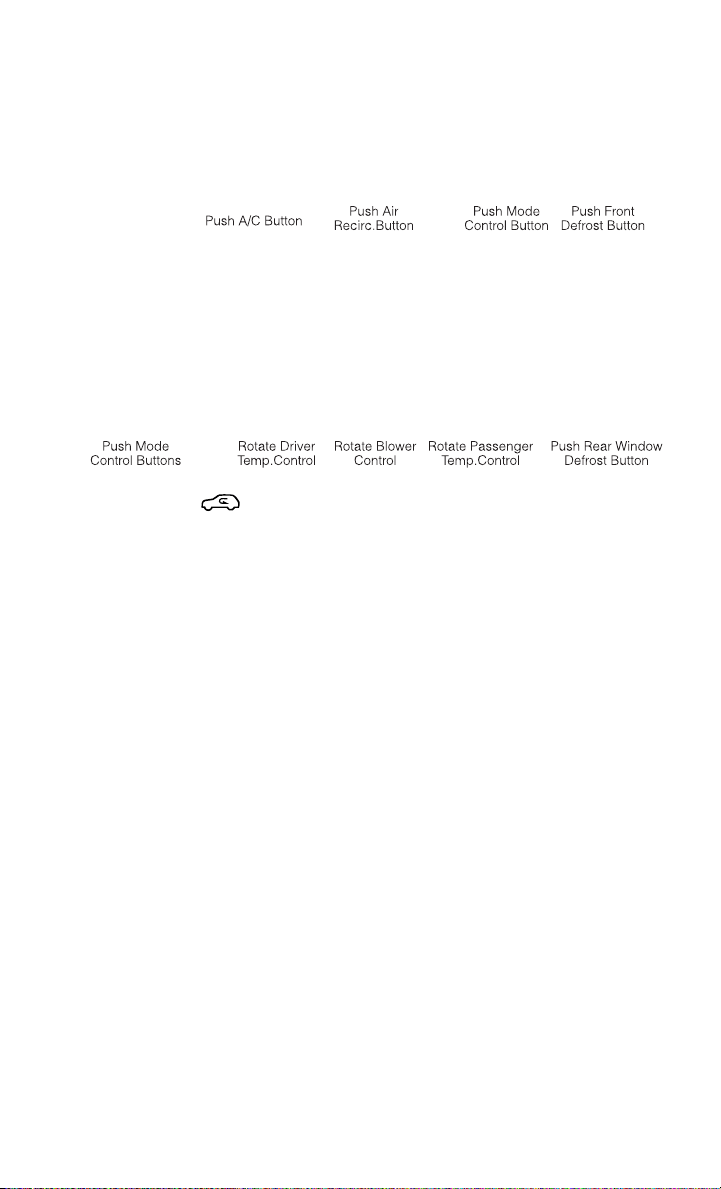
MANUAL CLIMATE CONTROLS
Air Recirculation
• Use Recirculation for maximum A/C operation.
• For window defogging, turn the recirculation button off.
• Recirculation is allowed in floor and defrost/floor (mix modes) for approximately
five minutes.
Heated Mirrors
• The mirrors are heated to melt frost or ice. This feature is activated whenever you
turn on the rear window defroster.
Rear Window Defroster
• Pressing the rear window defroster button will turn on the defroster for approxi-
mately 10 minutes. An indicator in the button will illuminate when the rear
window defroster is on. For an additional 10 minutes of operation, press the
button a second time.
OPERATING YOUR VEHICLE
31

THREE ZONE MANUAL CLIMATE CONTROLS
Air Recirculation
• Use Recirculation for maximum A/C operation.
• For window defogging, turn the recirculation button off.
• Recirculation is allowed in floor mode.
• Recirculation is allowed in defrost/floor (mix modes) for approximately five
minutes.
Heated Mirrors
• The mirrors are heated to melt frost or ice. This feature is activated whenever you
turn on the rear window defroster.
Rear Window Defroster
• Pressing the rear window defroster button will turn on the defroster for approxi-
mately 10 minutes. An indicator in the button will illuminate when the rear
window defroster is on. For an additional 10 minutes of operation, press the
button a second time.
OPERATING YOUR VEHICLE
32
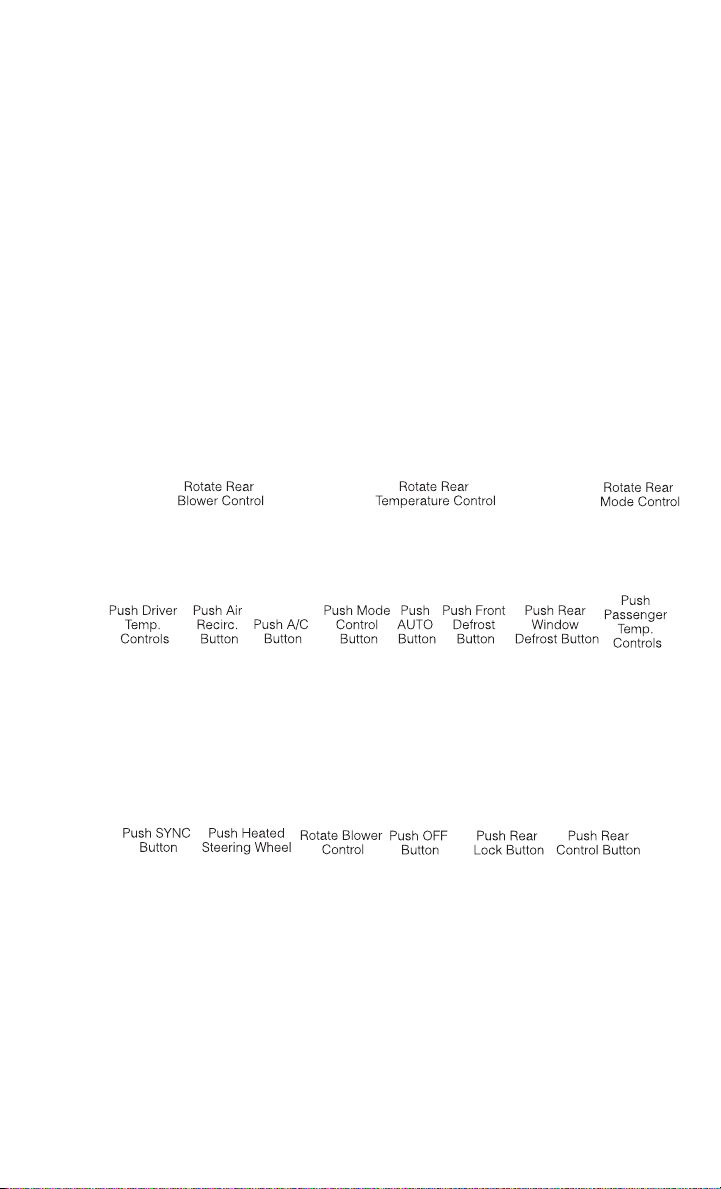
Activating Rear Passenger Climate Controls
• Rotate the rear blower control, located on the main climate control in the
instrument panel to the “REAR” position. This enables the rear passenger climate
controls located in the headliner above the second row seats.
THREE ZONE AUTOMATIC TEMPERATURE CONTROLS (ATC)
Automatic Operation
• Push the AUTO mode button to activate the ATC system.
• Select the desired temperature by pressing the temperature control buttons for
the driver or passenger.
• The system will maintain the set temperature automatically.
Air Conditioning (A/C)
• If the air conditioning button is pressed while in AUTO mode, the system will exit
AUTO mode and stay in A/C. The mode and blower will go to the previous user
setting.
OPERATING YOUR VEHICLE
33

SYNC Temperature Button
• Push the SYNC button once to control driver and passenger temperatures
simultaneously. Push the SYNC button a second time to control the temperatures
individually.
Air Recirculation
• Use Recirculation for maximum A/C operation.
• For window defogging, turn the recirculation button off.
• If the Recirculation button is pressed when the system is in Defrost mode the
Recirculation LED indicator will flash three times to indicate Recirculation mode
is not allowed.
Heated Mirrors
• The mirrors are heated to melt frost or ice. This feature is activated whenever you
turn on the rear window defroster.
Rear Window Defroster
• Pressing the rear window defroster button will turn on the defroster for approxi-
mately 10 minutes. An indicator in the button will illuminate when the rear
window defroster is on. For an additional 10 minutes of operation, press the
button a second time.
Activating Rear Automatic Temperature Control
• Pressing the REAR LOCK button for the Rear Automatic Temperature Control
(ATC) System from the front lower ATC panel, illuminates a LOCK symbol in the
rear display. The rear temperature and air source are controlled from the front
lower ATC panel.
• Rear second row occupants can only adjust the rear ATC control when the REAR
LOCK button is turned off.
• The Rear ATC system is located in the headliner, near the center of the vehicle.
OPERATING YOUR VEHICLE
34

PARKSENSE® REAR PARK ASSIST
• If an object is detected behind the rear bumper while the vehicle is in REVERSE,
a warning will display in the instrument cluster and a tone will sound, (closer the
object the faster the tone) that changes speed depending on the distance of the
object from the bumper, will sound.
• When the Instrument Cluster reads either “Clean Sensor” or “Blinded”, clean off
the bumper sensors to see if the condition is corrected.
PARKVIEW® REAR BACK-UP CAMERA
• You can see an on-screen image of the rear of your vehicle whenever the shift lever
is put into REVERSE. The ParkView
®
Rear Back-Up Camera image will be
displayed on the radio display screen, located on the center stack of the
instrument panel.
• If the radio display screen appears foggy, clean the camera lens located on the
liftgate.
WARNING!
Drivers must be careful when backing up; even when using the ParkView
®
Rear
Back-Up Camera. Always check carefully behind your vehicle, and be sure to
check for pedestrians, animals, other vehicles, obstructions, or blind spots before
backing up. You must continue to pay attention while backing up. Failure to do so
can result in serious injury or death.
BLIND SPOT MONITORING WITH REAR CROSS PATH
• The Blind Spot Monitoring (BSM) system uses two radar-based sensors, located
inside the rear bumper fascia, to detect Highway licensable vehicles (automo-
biles, trucks, motorcycles etc.) that enter the blind spot zones from the rear/front/
side of the vehicle.
• The Blind Spot Monitoring (BSM) system warning light, located in the outside
mirrors, will illuminate if a vehicle moves into a blind spot zone.
• The BSM system can also be configured to sound an audible (chime) alert and
mute the radio to notify you of objects that have entered the detection zones.
• Refer to your Owner's Manual on the DVD for further details.
OPERATING YOUR VEHICLE
35
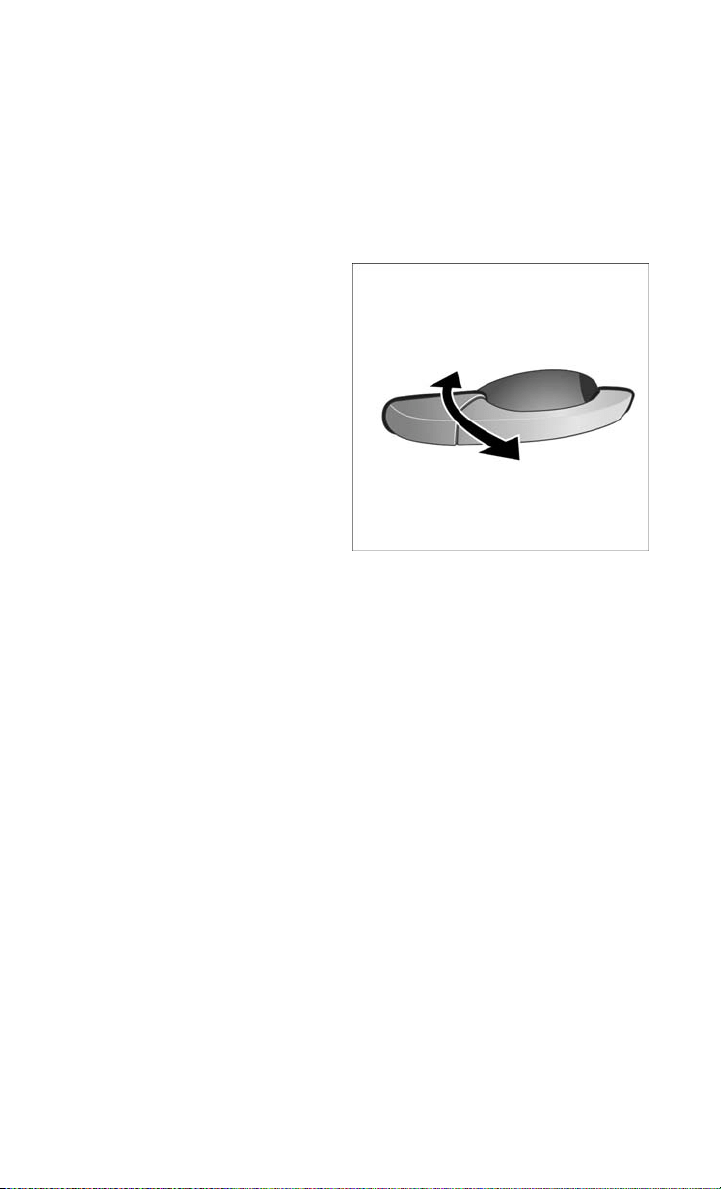
POWER SLIDING SIDE DOORS
Automatic/Manual Operation
• The power sliding door may be opened or closed manually or by using the buttons
on the Key Fob, overhead console switch, or rear door switch.
• Pulling the inside or outside power
sliding door handle will also power
open the power sliding doors.
NOTE:
When the power sliding door master lock
switch is in the OFF position, the power
sliding side door may not be opened or
closed by pressing the switch located on
the b-pillar trim panel, just in the front of
the sliding door or activating the inside
power sliding door handle.
Sliding Side Door Child Protection Lock
• When this system is engaged, the in-
side manual door handle will not open
the sliding door even though the inside door lock is in the unlocked position.
• To engage the Child Protection Door Lock, open the sliding side door. Slide the
child protection door lock control, located on the rear of the sliding door, inward
(toward the vehicle) to engage.
• Repeat these steps on the opposite sliding door.
POWER LIFTGATE
• The power liftgate may be opened and closed by pressing the button located on
the overhead console. Press the button once to open, and a second time to close
the power liftgate.
• The power liftgate may also be opened and closed by pressing the button on the
Key Fob. Press the button twice to open, and twice to close the power liftgate.
• The power liftgate may be closed by the button, located in the upper left trim in
the liftgate opening. Pressing once will only close the liftgate. This button cannot
be used to open the liftgate.
OPERATING YOUR VEHICLE
36

POWER SUNROOF
Manual Open/Close
• Press and hold the switch rearward to open or forward to close the sunroof. Any
release of the switch will stop the movement, and the sunroof will remain in a
partially open or closed position until the switch is pressed again.
Pinch Protection Feature
• This feature will detect an obstruction in the opening of the sunroof during
Express Close operation. If an obstruction in the path of the sunroof is detected,
the sunroof will automatically retract. Remove the obstruction if this occurs. Next,
press the switch forward and release to Express Close.
NOTE:
If three consecutive sunroof close attempts result in Pinch Protect reversals, the
fourth close attempt will be a Manual Close movement with Pinch Protect disabled.
OPERATING YOUR VEHICLE
37

WARNING!
• Never leave children unattended in a vehicle, and do not leave the key in the
ignition switch (or leave the ignition of a vehicle equipped with Keyless
Enter-N-Go™ in the ACC or ON/Run position). Occupants, particularly unat-
tended children, can become entrapped by the power sunroof while operating
the power sunroof switch. Such entrapment may result in serious injury or death.
• In a collision, there is a greater risk of being thrown from a vehicle with an open
sunroof. You could also be severely injured or killed. Always fasten your seat belt
properly and make sure all passengers are properly secured.
• Do not allow small children to operate the sunroof. Never allow your fingers,
other body parts, or any object to project through the sunroof opening. Injury
may result.
OPERATING YOUR VEHICLE
38

WIND BUFFETING
• Wind buffeting can be described as a helicopter-type percussion sound. If
buffeting occurs with the rear windows open, adjust the front and rear windows
together.
• If buffeting occurs with the sunroof open, adjust the sunroof opening, or adjust
any window. This will minimize buffeting.
OPERATING YOUR VEHICLE
39

YOUR VEHICLE'S SOUND SYSTEM
ELECTRONICS
40

ELECTRONICS
41
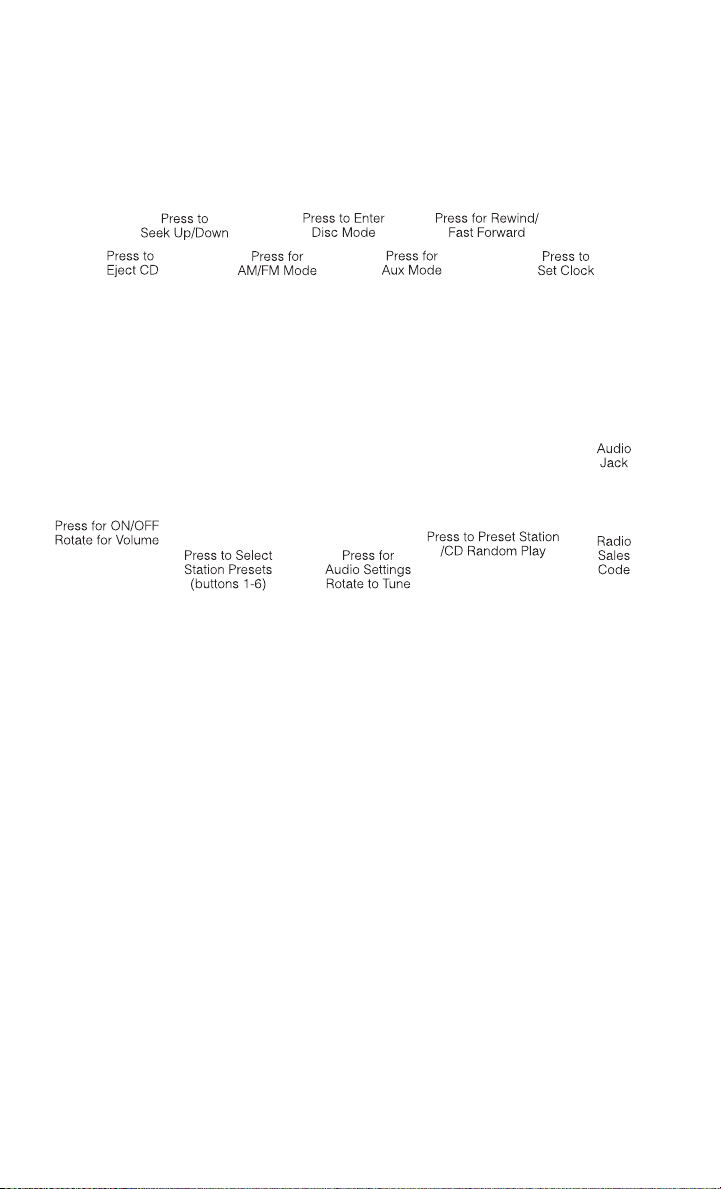
Uconnect® 130
NOTE:
Your radio has many features that add to the comfort and convenience of you and your
passengers. Some of these radio features should not be used when driving because
they take your eyes from the road or your attention from driving.
Clock Setting
• Press and hold the “TIME” button until the hours blink; turn the “TUNE/
SCROLL” control knob to set the hours.
• Press the “TUNE/SCROLL” control knob until the minutes begin to blink; turn the
“TUNE/SCROLL” control knob to set the minutes.
• Press the “TUNE/SCROLL” control knob to save the time change.
• To exit, press any button/knob or wait five seconds.
Equalizer, Balance And Fade
• Press the “TUNE/SCROLL” control knob and BASS, MID, TREBLE, BALANCE
and FADE will display. Rotate the “TUNE/SCROLL” control knob to select the
desired setting.
ELECTRONICS
42

Radio Operation
Seek Up/Down Buttons
• Press to seek through radio stations in AM or FM bands.
• Hold either button to bypass stations without stopping.
Store Radio Presets
• Press the “SET/RND” button once and SET 1 will show in the display. Then select
button (1–6).
• A second station may be added to each push button. Press the “SET/RND” button
twice and SET 2 will show in the display. Then select button (1–6).
CD/DISC Operation
Seek Up/Down Buttons
• Press to seek through CD tracks.
• Hold either button to bypass tracks without stopping.
SET/RND Button (Random Play)
• Press this button while the CD is playing to activate Random Play.
• This feature plays the selections on the CD in random order to provide an
interesting change of pace.
Audio Jack Operation
• The AUX/Audio Jack provides a means to connect a portable audio device, such as
an MP3 player or an iPod
®
, to the vehicles sound system. This requires the use of
a 3.5 mm stereo audio patch cable.
• Pressing the AUX button will change the mode to auxiliary device if the Audio Jack
is connected, allowing the music from your portable device to play through the
vehicle's speakers.
• The functions of the portable device are controlled using the device buttons, not
the buttons on the radio. However, the volume may be controlled using the radio
or portable device.
ELECTRONICS
43
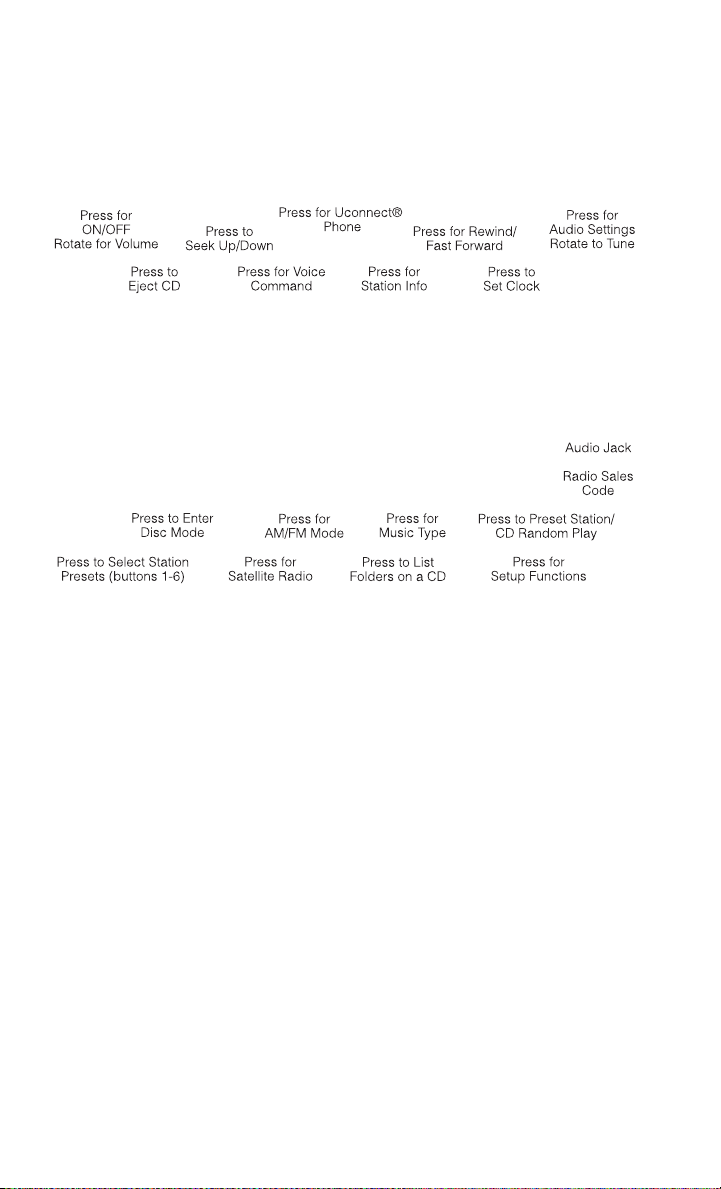
Uconnect® 130 WITH SiriusXM SATELLITE RADIO
NOTE:
• Your radio may not be equipped with the Uconnect
®
Voice Command and
Uconnect
®
Phone features. To determine if your radio has these features, press
the Voice Command button on the radio. You will hear a voice prompt if you have
the feature, or see a message on the radio stating “Uconnect Phone not available”
if you do not.
• Your radio has many features that add to the comfort and convenience of you and
your passengers. Some of these radio features should not be used when driving
because they take your eyes from the road or your attention from driving.
Clock Setting
• Press and hold the “TIME” button until the hours blink; turn the “TUNE/
SCROLL” control knob to set the hours.
• Press the “TUNE/SCROLL” control knob until the minutes begin to blink; turn the
“TUNE/SCROLL” control knob to set the minutes.
• Press the “TUNE/SCROLL” control knob to save the time change.
• To exit, press any button/knob or wait five seconds.
Equalizer, Balance And Fade
• Press the “TUNE/SCROLL” control knob and BASS, MID, TREBLE, BALANCE
and FADE will display. Rotate the “TUNE/SCROLL” control knob to select the
desired setting.
ELECTRONICS
44

Radio Operation
Seek Up/Down Buttons
• Press to seek through radio stations in AM, FM, or SAT bands.
• Hold either button to bypass stations without stopping.
Store Radio Presets
• Press the “SET/RND” button once and SET 1 will show in the display. Then select
button (1–6).
• A second station may be added to each push button. Press the “SET/RND” button
twice and SET 2 will show in the display. Then select button (1–6).
Music Type
• Press the “MUSIC TYPE” button to activate this mode. Press the “MUSIC TYPE”
button again or turn the “TUNE/SCROLL” control knob to select the desired music
type (Adult Hits, Country, Jazz, Oldies, Rock, etc.).
• Once a music type is chosen and the icon is displayed, press either “SEEK” button
and the radio will only search for stations with the selected music type.
NOTE:
The Music Type function only operates when in FM mode.
SETUP Button
• Pressing the “SETUP” button allows you to select between items that are
available in that particular mode.
• Turn the “TUNE/SCROLL” control knob to scroll through the entries. Push the
“AUDIO/SELECT” button to select an entry and make changes.
SiriusXM Satellite Radio
• SiriusXM Satellite Radio gives you over 130 channels, including 100%
commercial-free music from nearly every genre, plus all your favorite sports, news,
talk and entertainment channels–all with crystal clear, coast-to-coast coverage, all
in one place and all at your fingertips.
• To access SiriusXM Satellite Radio, press the “SAT” hard-key.
ELECTRONICS
45

CD/DISC Operation
Seek Up/Down Buttons
• Press to seek through CD tracks.
• Hold either button to bypass tracks without stopping.
SET/RND Button (Random Play)
• Press this button while the CD is playing to activate Random Play.
• This feature plays the selections on the CD in random order to provide an
interesting change of pace.
LIST Button
• Press the “LIST” button to bring up a list of all folders on the CD. Scroll up or down
the list by turning the “TUNE/SCROLL” control knob.
• To select a folder from the list, press the “TUNE/SCROLL” control knob and the
radio will begin playing the files contained in that folder.
Audio Jack Operation
• The AUX/Audio Jack provides a means to connect a portable audio device, such as
an MP3 player or an iPod
®
, to the vehicles sound system. This requires the use of
a 3.5 mm stereo audio patch cable.
• Pressing the AUX button will change the mode to auxiliary device if the Audio Jack
is connected, allowing the music from your portable device to play through the
vehicle's speakers.
• The functions of the portable device are controlled using the device buttons, not
the buttons on the radio. However, the volume may be controlled using the radio
or portable device.
ELECTRONICS
46
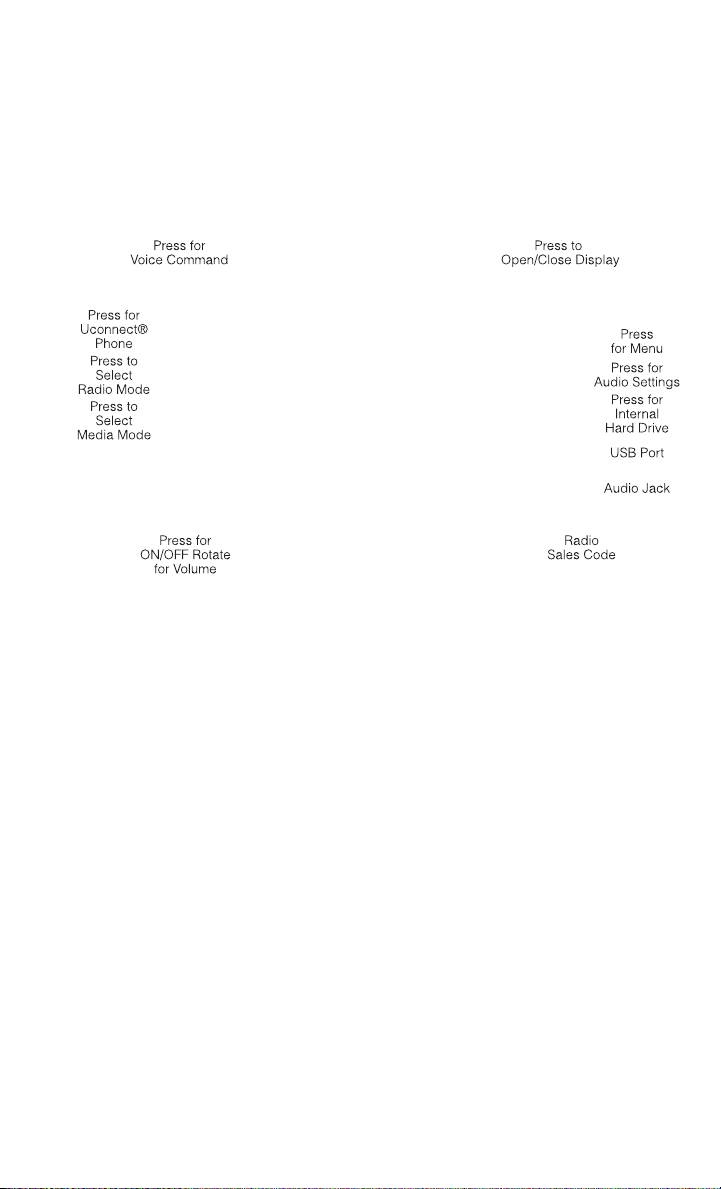
Uconnect® 430/430N
NOTE:
• Your radio may not be equipped with the Uconnect
®
Voice Command and
Uconnect
®
Phone features. To determine if your radio has these features, press
the Voice Command button on the radio. You will hear a voice prompt if you have
the feature, or see a message on the radio stating “Uconnect Phone not available”
if you do not.
• Your radio has many features that add to the comfort and convenience of you and
your passengers. Some of these radio features should not be used when driving
because they take your eyes from the road or your attention from driving.
Clock Setting
• Turn the radio on, then touch the screen where the time is displayed.
• Touch the “USER CLOCK” soft-key (Navigation radio only).
• To adjust the hours, touch either the “HOUR FORWARD” or “HOUR BACKWARD”
soft-key.
• To adjust the minutes, touch either the “MINUTE FORWARD” or “MINUTE
BACKWARD” soft-key.
• To save the new time setting, touch the screen where the word “Save” is displayed.
ELECTRONICS
47

Menu
• Press the “MENU” hard-key to access the System Setup menu and the My Files
menu.
• Press the “MENU” hard-key in an active mode (SAT, CD, AUX, etc.) to change
mode specific settings.
Equalizer, Balance And Fade
Audio Control Menu
• Press the “AUDIO” hard-key on the
right side of the radio.
• Use either the arrow soft-keys or the
cross-hair on the screen to change
Balance and Fade. The “CENTER”
soft-key resets the settings.
• Touch the “Equalizer” soft-key and
use either the arrow soft-keys or the
sliders on the screen to adjust BASS, MID, and/or TREBLE.
Display Settings
• Press the “MENU” hard-key and
touch the “Display Settings” soft-key
to access the Display Settings menu.
• Select the “Daytime Colors” soft-key
to switch to manual daytime mode and
to adjust the brightness of the display
using daytime colors.
• Select the “Nighttime Colors” soft-key
to switch to manual nighttime mode and to adjust the brightness of the display
using nighttime colors.
• Select the “Auto Color Mode” soft-key to switch to automatic daytime/nighttime
mode and to control the brightness of the display using the dimmer switch of the
vehicle.
• Touch the “EXIT” soft-key to save your settings.
ELECTRONICS
48
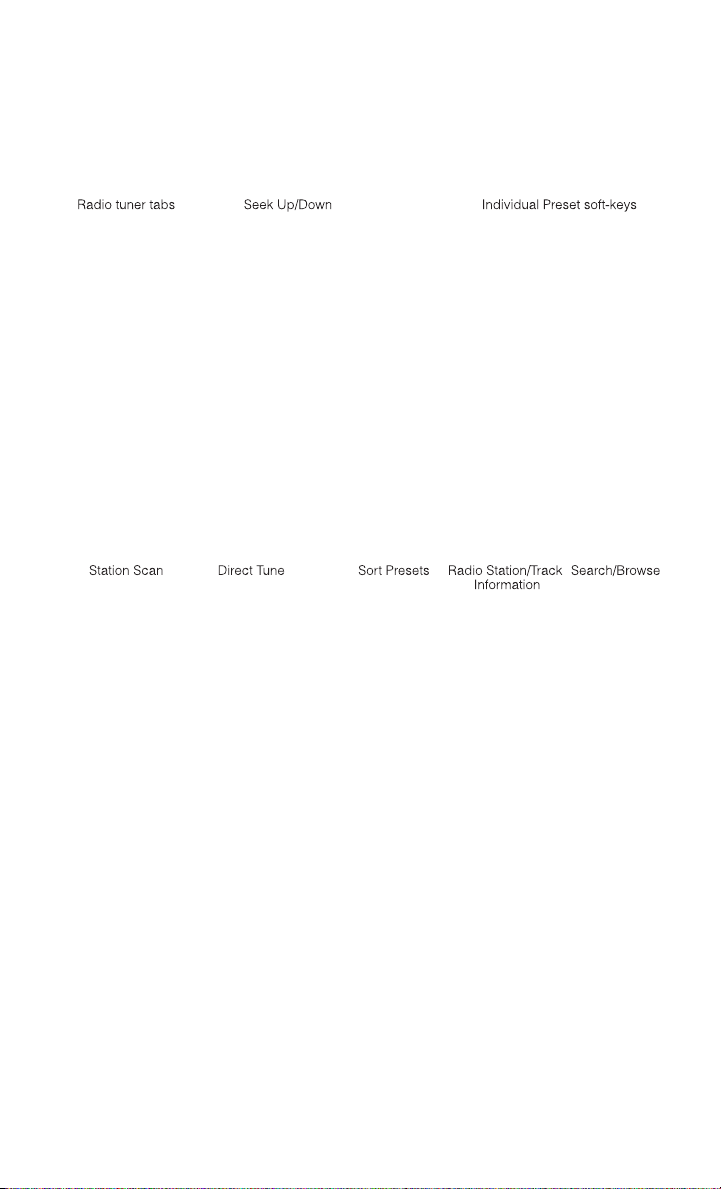
Radio Operation
• To access Radio Mode, touch the “RADIO” hard-key on the left side of the
faceplate, then touch the “AM,” “FM” or “SAT” soft-key at the top of the screen
to select the band.
Seek Up/Seek Down
• Press the “Seek Up” or “Seek Down” soft-keys to seek through radio stations in
AM, FM, or SAT bands. Hold either Seek to bypass stations without stopping.
Store Radio Presets
• Select the radio band by touching either the “AM,” “FM,” or “SAT” soft-key.
• Find the station to store by either pressing the “Seek Up” or “Seek Down”
soft-keys, touching the “SCAN” soft-key, or by using the “DIRECT TUNE”
soft-key.
• Once the station is found, touch and hold one of the “PRESET” soft-keys in the
list to the right, until you hear a confirmation beep.
NOTE:
If the Presets are not visible on the right side of the screen, press the “Presets”
soft-key.
ELECTRONICS
49
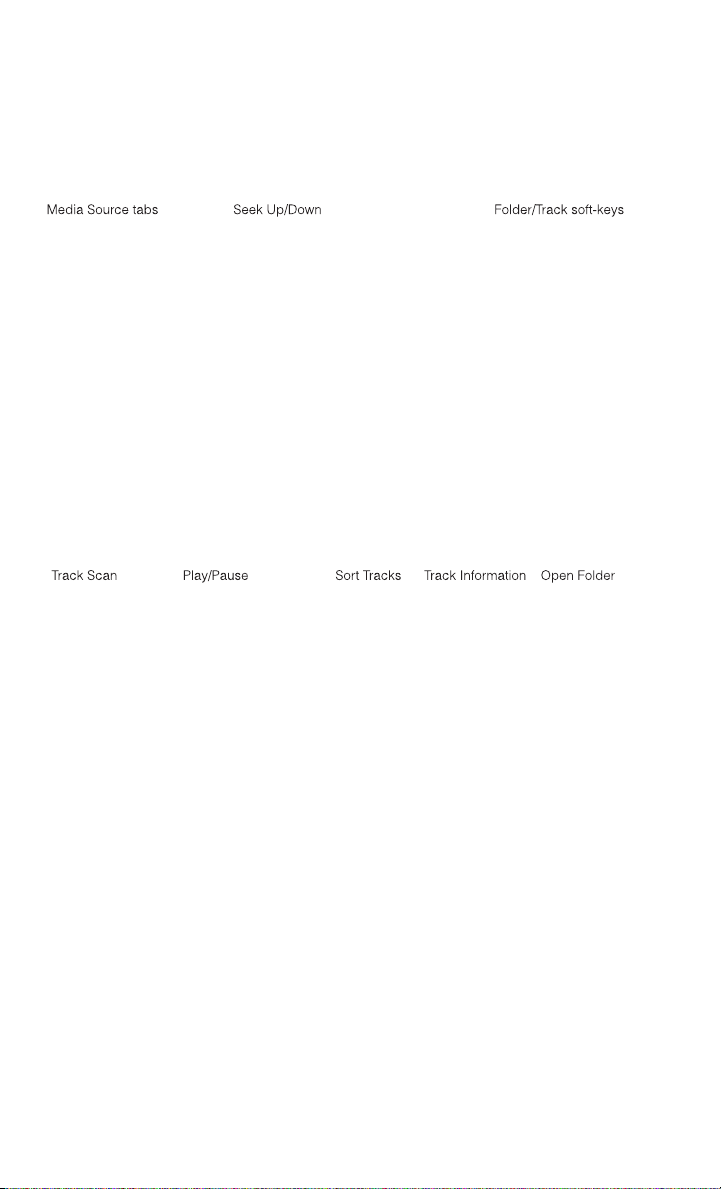
CD/DVD Disc Operation
• Press the “MEDIA” hard key to display the media source tabs at the top of the
screen. Select the source by touching the “HDD,” “DISC,” or “AUX” media source
soft-key tab.
NOTE:
Your Touch-Screen Radio will usually automatically switch to the appropriate mode
when something is first connected or inserted into the system.
Insert a CD/DVD Disc
• To insert a disc, press the “LOAD” hard-key.
• With the printed side upwards, insert the disc into the disc slot of the radio. The
radio pulls the disc in automatically and closes the flip screen. The radio selects
the appropriate mode after the disc is recognized, and starts playing the first
track. The display shows “Reading...” during this process.
Seek Up/Seek Down
• Press the “Seek Up” or “Seek Down” soft-keys to seek through tracks in Disc
Mode. Hold either Seek to bypass tracks without stopping.
ELECTRONICS
50

Audio Jack Operation
• The AUX/Audio Jack provides a means to connect a portable audio device, such as
an MP3 player or an iPod
®
, to the vehicles sound system. This requires the use of
a 3.5 mm stereo audio patch cable.
• Press the “MEDIA” hard-key then the “AUX” soft-key to change the mode to
auxiliary device if the Audio Jack is connected, allowing the music from your
portable device to play through the vehicle's speakers.
• The functions of the portable device are controlled using the device itself, not the
buttons on the radio. However, the volume may be controlled using the radio or
portable device.
Hard Disk Drive (HDD) Operation
• The Hard Disk Drive (HDD) mode gives you access to the audio files on the internal
hard disk drive. It functions similar to a CD player, with the exception that the
internal HDD can hold more tracks.
• It is also possible to import display pictures to the internal hard disk drive. The
pictures can be displayed on the right half of the radio screen.
• Before using the HDD mode, you will need to copy songs and pictures to the
internal hard drive. Songs and pictures can be added to the hard drive by using a
CD or USB device (e.g. thumb drive or memory stick).
NOTE:
• HDD supports only .jpg/JPEG formats for photos.
• WMA/MP3 Files and Selective Songs from a CD can also be added to the HDD. See
the Uconnect
®
430/430N User's Manual for more information.
Copying Music From CD
• Press the “LOAD” hard-key.
• Insert a disc, then press the “MY FILES” hard-key and then select the “MY
MUSIC” soft-key.
• Touch the “Add Music Files to HDD” soft-key, then touch the “Disc” soft-key in
the next screen to start the process.
NOTE:
• You might need to select the folder or
title depending on the CD, then press
“DONE” to start the copy process.
• The copy progress is shown in the
lower left corner of the screen.
ELECTRONICS
51

Copying Music From USB
• The USB port on the radio face plate allows you to copy files to your hard drive. To
access, lift up on the cover.
• Insert a USB device (e.g. thumb drive or memory stick), then select “MY MUSIC
soft-key.”
• Touch the “Add Music Files to HDD” soft-key, then touch the “Front USB”
soft-key in the next screen.
• Select the folders or titles you would
like to copy, then touch the “DONE”
soft-key to start the copy process.
NOTE:
The copy progress is shown in the lower
left corner of the screen.
Copying Pictures To The HDD
• Insert either a CD or a USB device
containing your pictures in JPEG format.
• Press the “MY FILES” hard-key.
• Touch the “My Pictures” soft-key to get an overview of the currently stored images,
then touch the “Add” soft-key.
• Touch the “Disc” or “USB” soft-key, then select the folders or pictures you wish
to copy to the HDD. Use the “PAGE” soft-keys to page through the list of pictures.
• Touch the desired pictures or press the “All” soft-key for all pictures. Confirm your
selections by touching the “SAVE” soft-key.
NOTE:
The copy progress is shown in the lower
left corner of the screen.
Display A Picture On The Radio Screen
• Once the import is complete, the pictures will then be available in the “MY
PICTURES” screen.
• Press the “MY FILES” hard-key, then touch the “My Pictures” soft-key. Touch the
desired picture, then touch the “Set as Picture View” soft-key and then touch the
“Exit” soft-key. Lastly press the “MENU” hard-key and then touch the “Picture
View” soft-key to display the chosen picture on the radio screen.
NOTE:
• A check mark in the My Pictures screen indicates the currently used picture.
• You can also delete pictures by touching the “Delete” soft-key.
ELECTRONICS
52

Playing Music From The HDD
• Press the “MEDIA” hard-key to display the media source tabs at the top of the
screen. Touch the “HDD” soft-key tab. Touch the desired track soft-key to play or
touch the “SEARCH/BROWSE” soft-key to search by artist, by album, by song, by
genre, from a folder, or from Favorites.
Cleaning Your Touch-Screen Radio
• Do not spray any liquid or caustic chemicals directly on the screen. Use a clean
and dry micro fiber lens cleaning cloth to clean the touch-screen.
• If necessary, use a lint-free cloth dampened with a cleaning solution such as
isopropyl alcohol or an isopropyl alcohol and water solution ratio of 50:50. Always
follow the solvent manufacturer's precautions and directions.
Garmin® Navigation
• Uconnect
®
430N integrates Garmin’s consumer-friendly navigation into your
vehicle. Garmin
®
Navigation includes a database with over six million points of
interest.
• Touch the “NAV” soft-key in the upper right corner of the screen to access the
Navigation system.
ELECTRONICS
53

Changing the Navigation Voice Prompt Volume
1. Program a destination.
2. While traveling on your route, touch the upper left area of the map screen where
your next turn is displayed.
3. The Navigation system will then repeat the distance to your next turn.
4. While the Navigation system is speaking, use the ON/OFF VOLUME rotary knob to
adjust the volume to a comfortable level. Please note the volume setting for
Navigation Voice Prompt is different than the audio system.
NOTE:
For your own safety and the safety of others, it is not possible to use certain features
while the vehicle is in motion.
Main Navigation Menu
Finding Points Of Interest
• From the main Navigation menu, touch the “Where To?” soft-key, then touch the
“Points of Interest” soft-key.
• Select a Category, then a subcategory,
if necessary.
• Select your destination and touch the
“Go” soft-key.
Finding A Place By Spelling The Name
• From the Main Navigation Menu touch
the “Where To?” soft-key. Next, touch
the “Points of Interest” soft-key then
touch the “Spell Name” soft-key.
• Enter the name of your destination.
• Touch the “Done” soft-key.
• Select your destination and touch the “Go” soft-key.
Entering A Destination Address
• From the main Navigation menu touch the “Where To?” soft-key, then touch the
“Address” soft-key.
• Follow the on-screen prompts to enter the address then touch the “Go” soft-key.
Searching Near Another Location
• From the main Navigation menu touch the “Where To?” soft-key. Next, touch a
destination then touch the “Near” soft-key.
• Select an option from the available choices.
ELECTRONICS
54

Setting Your Home Location
• From the main Navigation menu touch the “Where To?” soft-key, then touch the
“Go Home” soft-key.
• You may enter your address directly, use your current location as your home
address, or choose from recently found locations.
Edit Home Location
• From the main Navigation menu touch the “Where To?” soft-key, then touch the
“Favorites” soft-key.
• Next touch the location you would like to edit, touch the “Press for More” soft-key,
then the “Edit” soft-key.
Go Home
• A Home location must be saved in the system. From the Main Navigation menu,
touch the “Where To?” soft-key, then touch the “Go Home” soft-key.
Following Your Route
• Your route is marked with a magenta line on the map. If you depart from the
original route, your route is recalculated. A speed limit icon could appear as you
travel on major roadways.
ELECTRONICS
55

Adding A Via Point
• To add a stop between the current location and the end destination (Via Point) you
must be navigating a route.
• Touch the “back arrow” icon multiple times to return to the Main Navigation
menu.
• Touch the “Where To?” soft-key, then search for the additional stop. Select the Via
Point you wish to add from the given search results.
• Touch the “Go” soft-key, then touch the “Add to Current Route” soft-key.
Taking A Detour
• To take a detour you must be navigating a route.
• Touch the “back arrow” icon soft-key multiple times to return to the Main
Navigation menu.
• Touch the “Detour” soft-key.
NOTE:
If the route you are currently taking is the only reasonable option, the device might
not calculate a detour.
Acquiring Satellites
• The GPS Satellite strength bars indicate the strength of your satellite reception.
• Acquiring satellite signals can take a few minutes. When at least one of the bars
is green, your device has acquired satellite signals.
• You may experience delays receiving satellite signals when in areas with an
obstructed view to the sky, such as garages, tunnels, or large cities with tall
buildings.
ELECTRONICS
56
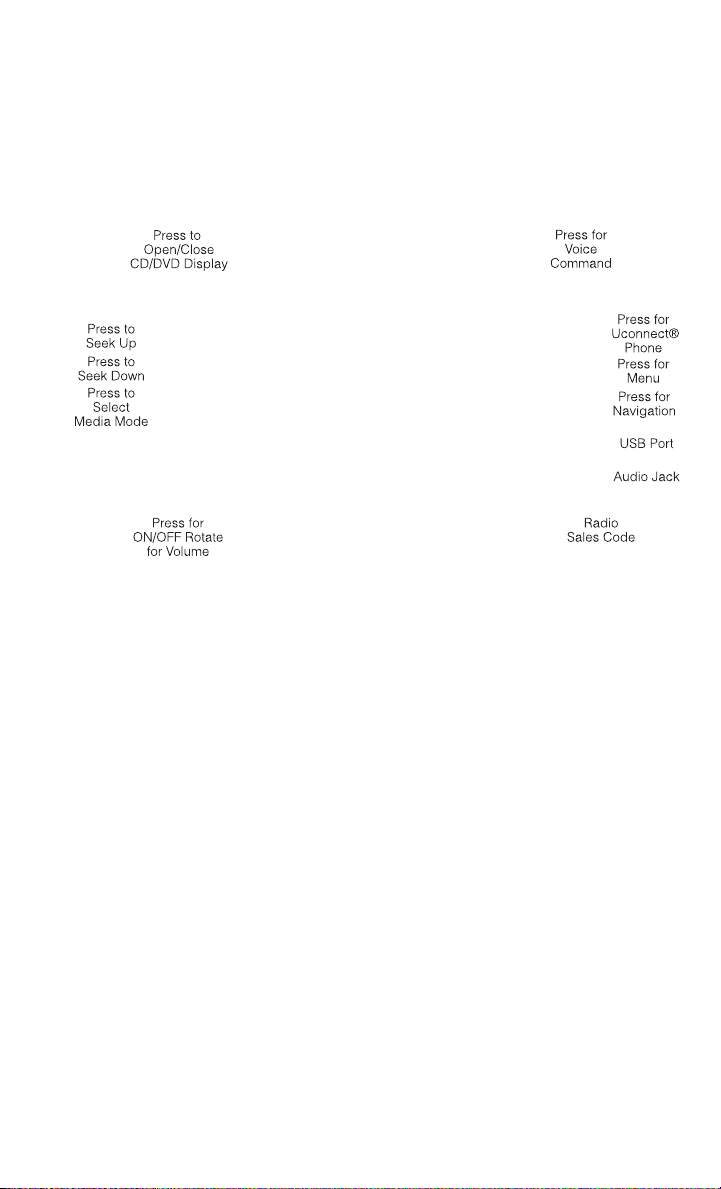
Uconnect® 730N
NOTE:
Your radio has many features that add to the comfort and convenience of you and your
passengers. Some of these radio features should not be used when driving because
they take your eyes from the road or your attention from driving.
Clock Setting
• Turn the radio on, then touch the screen where the time is displayed.
• Touch the “USER CLOCK” soft-key.
• To adjust the hours, touch either the “HOUR FORWARD” or “HOUR BACKWARD”
soft-key.
• To adjust the minutes, touch either the “MINUTE FORWARD” or “MINUTE
BACKWARD” soft-key.
• To save the new time setting, touch the screen where the word “Save” is displayed.
Menu
• Press the “MENU” hard-key to access the System Setup menu and the My Files
menu.
• Press the “MENU” hard-key in an active mode (SAT, CD, AUX, etc.) to change
mode specific settings.
ELECTRONICS
57

Equalizer, Balance And Fade
Audio Control Menu
• Press the “MENU” hard-key on the
right side of the radio. Then press the
“Audio Control” soft-key to get to the
audio control menu.
• Use either the arrow soft-keys or the
cross-hair on the screen to change
Balance and Fade. The “CENTER”
soft-key resets the settings.
• Touch the “Equalizer” soft-key and use either the arrow soft-keys or the sliders on
the screen to adjust BASS, MID, and/or TREBLE.
Display Settings
• Press the “MENU” hard-key and
touch the Display Settings soft-key to
access the Display Settings menu.
• Select the “Daytime Colors” soft-key
to switch to manual daytime mode and
to adjust the brightness of the display
using daytime colors.
• Select the “Nighttime Colors” soft-key
to switch to manual nighttime mode and to adjust the brightness of the display
using nighttime colors.
• Select the “Auto Color Mode” soft-key to switch to automatic daytime/ nighttime
mode and to control the brightness of the display using the dimmer switch of the
vehicle.
• Touch the “EXIT” soft-key to save your settings.
ELECTRONICS
58
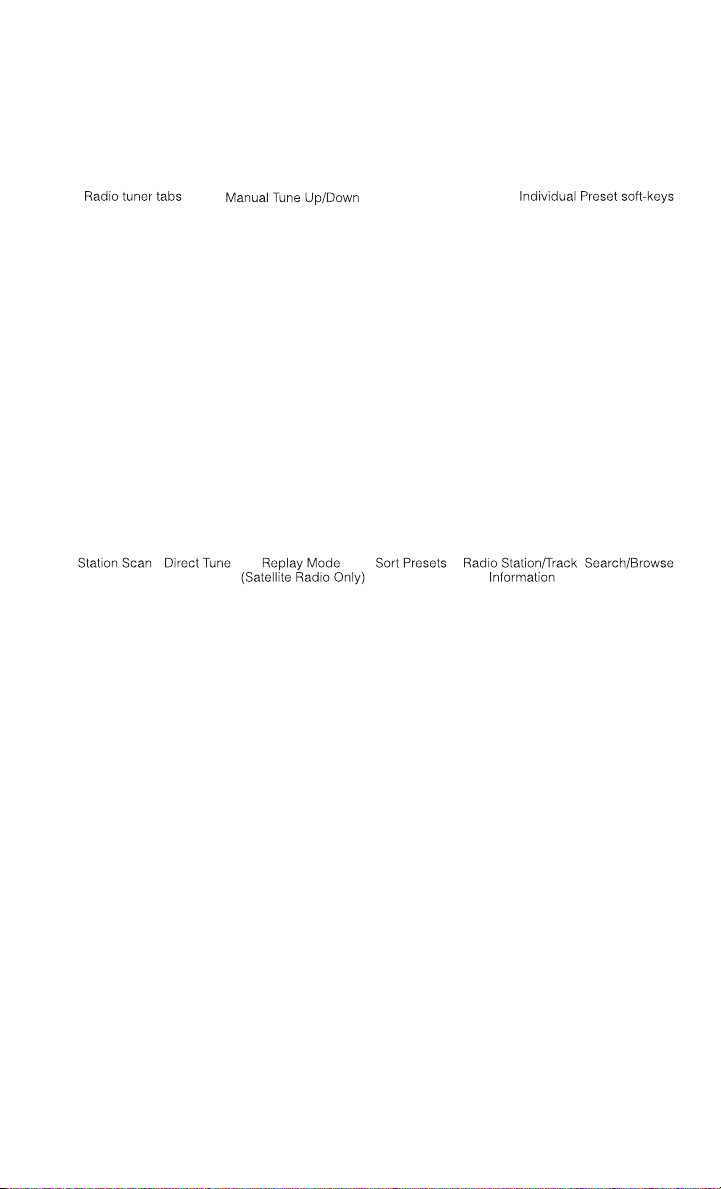
Radio Operation
• To access Radio Mode, touch the “RADIO/MEDIA” hard-key on the left side of the
faceplate repeatedly until AM/FM/SAT appears at the top of the screen, then touch
the “AM,” “FM” or “SAT” soft-key to select the band.
Seek Up/Seek Down
• Press the “Seek Up” or “Seek Down” hard-keys to seek through radio stations in
AM, FM, or SAT bands. Hold either Seek to bypass stations without stopping.
Store Radio Presets
• Select the radio band by touching either the “AM,” “FM,” or “SAT” soft-key.
• Find the station to store by either pressing the “Seek Up” or “Seek Down”
hard-keys, touching the “SCAN” soft-key, or by using the “DIRECT TUNE”
soft-key.
• Once the station is found, touch and hold one of the PRESET soft-keys in the list
to the right, until you hear a confirmation beep.
NOTE:
If the Presets are not visible on the right side of the screen, press the “Presets”
soft-key.
ELECTRONICS
59
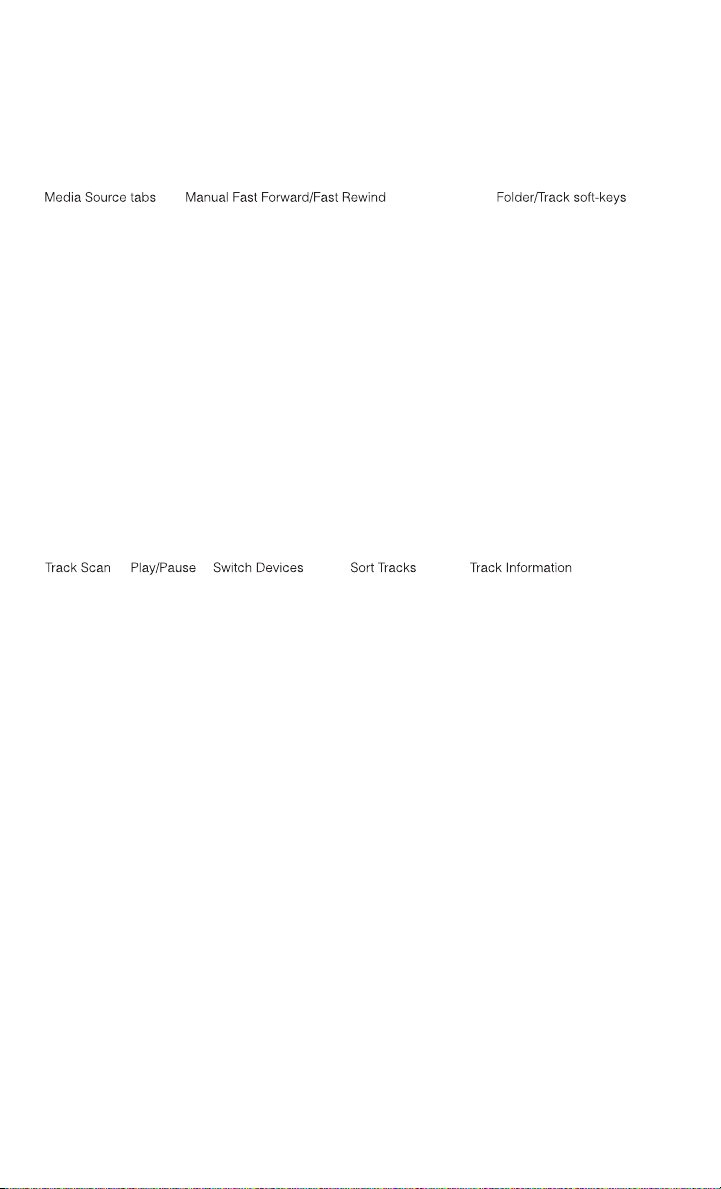
CD/DVD Disc Operation
• Press the “RADIO/MEDIA” hard-key until the media source tabs are displayed at
the top of the screen. Select the source by touching the “HDD,” “DISC,” or “AUX”
media source soft-key tab.
NOTE:
Your Touch-Screen Radio will usually automatically switch to the appropriate mode
when something is first connected or inserted into the system.
Insert a CD/DVD Disc
• To insert a disc, press the “OPEN/CLOSE” hard-key.
• With the printed side upwards, insert the disc into the disc slot of the radio. The
radio pulls the disc in automatically and closes the flip screen. The radio selects
the appropriate mode after the disc is recognized, and starts playing the first
track. The display shows “Reading...” during this process.
Seek Up/Seek Down
• Press the “Seek Up” or “Seek Down” hard-keys to seek through tracks in Disc
Mode. Hold either Seek to bypass tracks without stopping.
Audio Jack Operation
• The AUX/Audio Jack provides a means to connect a portable audio device, such as
an MP3 player or an iPod
®
, to the vehicles sound system. This requires the use of
a 3.5 mm stereo audio patch cable.
ELECTRONICS
60

• Press the “RADIO/MEDIA” hard-key, then the “AUX” soft-key to change the mode
to auxiliary device if the Audio Jack is connected, allowing the music from your
portable device to play through the vehicle's speakers.
• The functions of the portable device are controlled using the device itself, not the
buttons on the radio. The volume may be controlled using the radio or portable
device.
Hard Disk Drive (HDD) Operation
• The Hard Disk Drive (HDD) mode gives you access to the audio files on the internal
hard disk drive. It functions similar to a CD player, with the exception that the
internal HDD can hold more tracks.
• It is also possible to import display pictures to the internal hard disk drive. The
pictures can be displayed on the right half of the radio screen.
• Before using the HDD mode, you will need to copy songs and pictures to the
internal hard drive. Songs and pictures can be added to the hard drive by using a
CD or USB device (e.g. thumb drive or memory stick).
NOTE:
• HDD supports only .jpg/JPEG formats for photos.
• WMA/MP3 Files and Selective Songs from a CD can also be added to the HDD. See
the Uconnect
®
730N User's Manual for more information.
Copying Music From CD
• Press the “OPEN/CLOSE” hard-key.
• Insert a disc, then press the “MENU” hard-key.
• Touch the “MY FILES” soft-key, then select “MY MUSIC.”
• Touch the “Add Music Files to HDD” soft-key, then touch the “From Disc” soft-key
in the next screen to start the process.
NOTE:
• You might need to select the folder or
title depending on the CD, then press
“Done” to start the copy process.
• The copy progress is shown in the
lower left corner of the screen.
ELECTRONICS
61

Copying Music From USB
• The USB port on the radio face plate allows you to copy files to your hard drive. To
access, lift up on the cover.
• Insert a USB device (e.g. thumb drive or memory stick), then select “MY FILES”.
• Touch the “MY MUSIC” soft-key, then touch the “Add Music Files” to HDD
soft-key.
• Touch the “From USB” soft-key, then select the folders or titles you would like to
copy, and then touch the “SAVE” soft-key to start the copy process.
NOTE:
The copy progress is shown in the lower
left corner of the screen.
Copying Pictures To The HDD
• Insert either a CD or a USB device
containing your pictures in JPEG for-
mat.
• Press the “MENU” hard-key to access
the Settings Menu, then touch the “My Files” soft-key.
• Touch the “My Pictures” soft-key to get an overview of the currently stored images,
then touch the “Add” soft-key.
• Touch the “From Disc” or “From USB”
soft-key, then select the folders or pic-
tures you wish to copy to the HDD. Use
the “PAGE” soft-keys to page through
the list of pictures.
• Touch the desired pictures or press the
“All” soft-key for all pictures. Confirm
your selections by touching the
“SAVE” soft key.
NOTE:
The copy progress is shown in the lower left corner of the screen.
ELECTRONICS
62

Display A Picture On The Radio Screen
• Once the import is complete, the pictures will then be available in the “MY
PICTURES” screen.
• Press the “MENU” hard-key to access the Settings Menu, then touch the “My
Files” soft-key and then touch the “My Pictures” soft-key. Touch the desired
picture, then touch the “Set as Picture View” soft-key and then touch the “Exit”
soft-key. Lastly press the “MENU” hard-key and then touch the “Picture View”
soft-key to display the chosen picture on the radio screen.
NOTE:
• A check mark in the My Pictures screen indicates the currently used picture.
• You can also delete pictures by touching the “Delete” soft-key.
Playing Music From The HDD
• Press the “RADIO/MEDIA” hard-key until the media source tabs are displayed at
the top of the screen. Touch the “HDD” soft-key tab. Touch the desired track
soft-key to play or touch the “SEARCH/BROWSE” soft-key to search by artist, by
album, by song, by genre, from a folder, or from Favorites.
Cleaning Your Touch-Screen Radio
• Do not spray any liquid or caustic chemicals directly on the screen. Use a clean
and dry micro fiber lens cleaning cloth to clean the touch-screen.
• If necessary, use a lint-free cloth dampened with a cleaning solution such as
isopropyl alcohol or an isopropyl alcohol and water solution ratio of 50:50. Always
follow the solvent manufacturer's precautions and directions.
ELECTRONICS
63

NAVIGATION
• Your navigation system receives GPS
signals from up to 16 satellites to
display the position of your vehicle.
Map and database information is sup-
plied through a hard disk drive.
• Touch the “NAV” hard-key on the radio
face plate to access the Navigation
system and the NAV – Main Menu.
Changing the Navigation Guidance Prompt Volume
1. From the Navigation Map screen, touch the Menu hard-key and then touch the
Guidance Prompts soft-key.
2. Select and adjust the navigation guidance prompt volume using the left and right
arrows.
3. Touch the SAMPLE VOL soft-key to
listen to the current volume setting.
4. Once satisfied with the volume, touch
the SAVE soft-key to save the settings.
Touch the CANCEL soft-key to exit the
menu without saving the settings.
NOTE:
For your own safety and the safety of
others, it is not possible to use the certain features while the vehicle is in motion.
ELECTRONICS
64
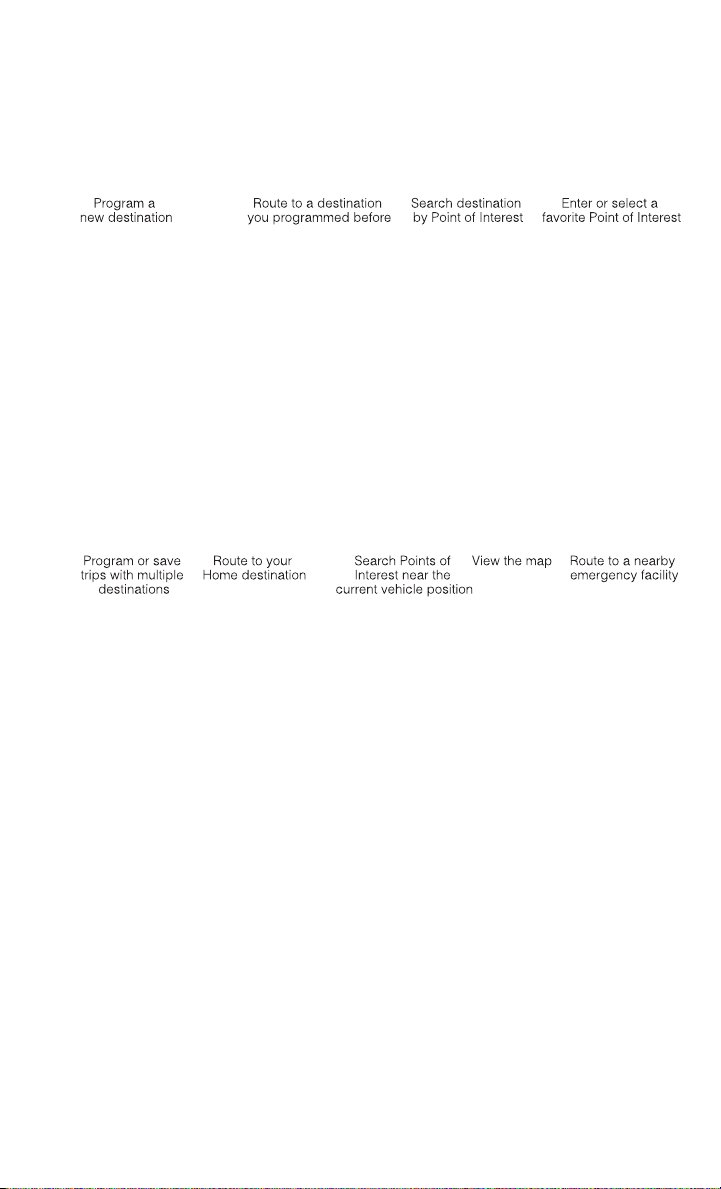
Main Navigation Menu
Finding Points Of Interest
• From the NAV main menu, touch the “Points of Interest” soft-key.
• Select a Category and then a subcategory, if necessary.
• Select your destination and touch “GO.”
Finding A Place By Entering The Street Address
• From the NAV main menu, touch “New Destination,” then touch “Street Ad-
dress.”
NOTE:
If the State and/or Country displayed are incorrect, touch the corresponding soft-key
to make the correction.
• Once the Country and State are set and the Street Address screen is displayed,
begin spelling the street name in the speller. In the upper right corner the number
of possible roads decreases.
• Touch the “LIST” soft-key to display a list of possible street names. Select the
correct street name.
• Next input the number.
• In the Confirm Route screen the navigation radio displays the complete address,
a map of the destination area, and the current routing method for you to verify.
• Touch the “GO” soft-key to activate the route guidance.
ELECTRONICS
65

Entering Your Home Location
• Press the “NAV” hard-key on the right side of the radio.
• From the Nav – Main Menu, touch “Guide Me Home” to enter your home address.
If no home address has been set, touch “YES” to access the Enter Home Address
menu.
• Touch “Street Address” to enter your address. Touch the soft-key with your state’s
name and enter your street name into the speller.
• Once the street name has been input, touch “CONTINUE” to confirm. Enter the
house number into the next screen. If more than one city has this address, you will
then need to select your city from a list.
• Once the address is entered completely, the system shows a map of your home
address area. Touch “SAVE” to confirm the address. The system will then ask if
you want to go there. Touch the “Yes” or “No” soft-key.
Change Home Address
• This procedure will allow you to change your Home Address if one has already
been entered.
• Press the “MENU” hard-key, touch “My Files” and then touch “My Address
Book.”
• Touch “Home,” then touch “Edit Contacts” and then “Change Address.”
• Touch the soft-key with your state’s name and enter your street name into the
speller.
• Once the street name has been input, touch “CONTINUE” to confirm.
• Enter the house number into the next screen. If more than one city has this
address, you will then need to select your city from a list.
• Touch the “SAVE” soft-key to confirm the address.
Go Home
• From the NAV main menu, touch “Guide Me Home” when you want to route to your
home destination.
Where Am I Now?
• From the NAV main menu, touch “Where Am I Now?”. The Where Am I Now? menu
displays location information for the current vehicle position.
• Touch the “NEARBY POI” soft-key to search for a local Point of Interest.
• Touch the “SAVE LOCATION” soft-key to save the current location in the Saved
Locations memory.
ELECTRONICS
66
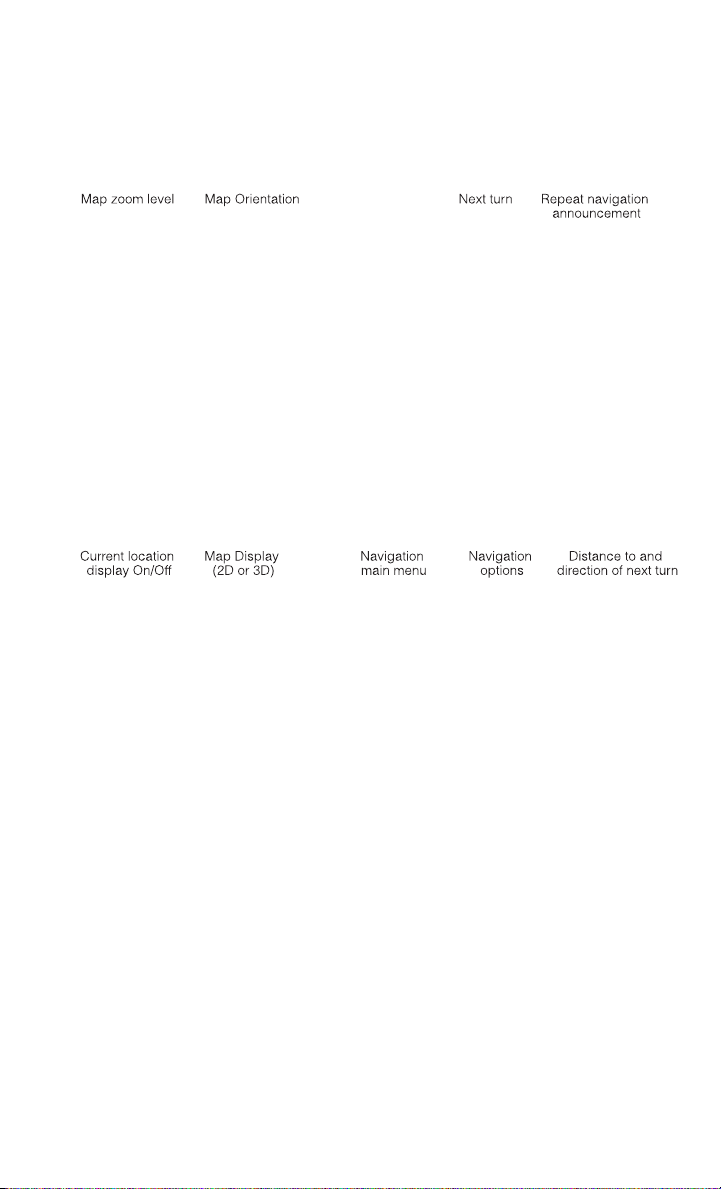
Route Guidance
• After starting route guidance, the system calculates the route and announces:
“Follow the arrows on the display.” You will receive navigation recommendations
by voice messages and screen displays.
Route Options
• After pressing the “OPTIONS” soft-key in the Route Guidance Menu, the following
information is displayed:
• In the left half of the screen, the current position and the current routing method
are displayed.
• “Take Detour” will allow you to calculate a different route.
• “Find Nearby POI” to search for a local POI.
• “Destination Info” displays destination information.
• “View Turn List” lists streets utilized for the current route.
• “Save Destination” to save the destination address.
• “Change Method” will allow you to change the routing method.
ELECTRONICS
67

SiriusXM SATELLITE RADIO/TRAVEL LINK
• SiriusXM Travel Link requires a subscription, sold separately after the 1 year trial
subscription included with your vehicle purchase.
• SiriusXM Travel Link is only available in the United States.
• The following describes features that are available when in SiriusXM Satellite
Radio mode.
• To access SiriusXM Satellite Radio, press the “RADIO/MEDIA” or “RADIO” and
then touch the “SAT” soft-key tab.
Info
• Touch the “i” soft-key to view detailed information about the current Sirius XM
Satellite channel.
SiriusXM Parental Controls
• SiriusXM offers the option to permanently block selected channels. Call
1-888-539-7474 and request the Family Package.
• Uconnect
®
430/430N and 730N: Press the “MENU” hard-key while in SiriusXM
Satellite Radio Mode, then touch the “Channel Lock” to enable and/or disable
desired channels. The SEEK and SCAN function will then only display channels
without Channel lock.
Search/Browse
• Touch the “magnifying glass” soft-key to search/browse the SiriusXM channel
listing by Favorites and Categories such as Song, Artist and Channel Name. The
Search/Browse also allows you manage your Favorites.
SiriusXM Satellite Radio Favorites (SAT Favorites)
• You can save 50 favorite songs and 50 favorite artists.
• Touch the “add favorite” soft-key to
add either the song or the artist of the
currently playing program to the SAT
Favorites list. The favorite star will
appear in the upper right corner, below
the SAT soft-key.
ELECTRONICS
68

• You will see a favorite star indicator in the upper right side of the screen below the
SAT soft-key and a pop up will alert you that a favorite song or artist is currently
playing on one of the SiriusXM satellite radio channels.
NOTE:
Refer to your Uconnect
®
730N or 430/
430N User's Manual for more informa-
tion.
Display SAT Favorites List
• Touch the “Search/Browse” soft-key and select “Favorites” from the SAT Browse
screen.
• Touch the desired favorites soft-key to
switch the SAT tuner to the corre-
sponding channel.
• You may use the “LIST” soft-key to
toggle between:
• Favorite Songs
• Favorite Artists
• Currently playing favorites
Replay
• While you are in SAT mode, you can replay 44 minutes of the current SiriusXM
channel (when the channel is changed, this audio buffer is erased). Press the
REPLAY button to listen to the stored audio.
• You can touch the on-screen controls
to pause and rewind audio playback,
touch the SCAN button to preview
each of the tracks stored in the buffer,
or select a track from the list.
ELECTRONICS
69

• The time displayed below the bar indicates how much time is present between the
current buffer play position and the live broadcast.
Replay Option Option Description
Play/Pause Touch to pause content playback. Touch Pause/Play again to resume
playback.
Rewind/RW Rewinds the channel content in steps of five seconds. Touch and hold
to rewind continuously, then release to begin playing content at that
point.
Fast Forward/FW Forwards the content, and works similarly to Rewind/RW. However,
Fast Forward/FW can only be used when content has been previously
rewound.
Replay Time Displays the amount of time in the upper center of the screen by
which your content lags the live channel.
Live Resumes playback of live content at any time while replaying re-
wound content.
SiriusXM Travel Link (Uconnect® 730N & Uconnect® 430N Only)
NOTE:
• SiriusXM Travel Link requires a subscription, sold separately after the 1 year trial
subscription included with your vehicle purchase.
• SiriusXM Travel Link is only available in the United States.
• SiriusXM Travel Link brings a wealth of useful information into your vehicle and
right to your fingertips.
ELECTRONICS
70
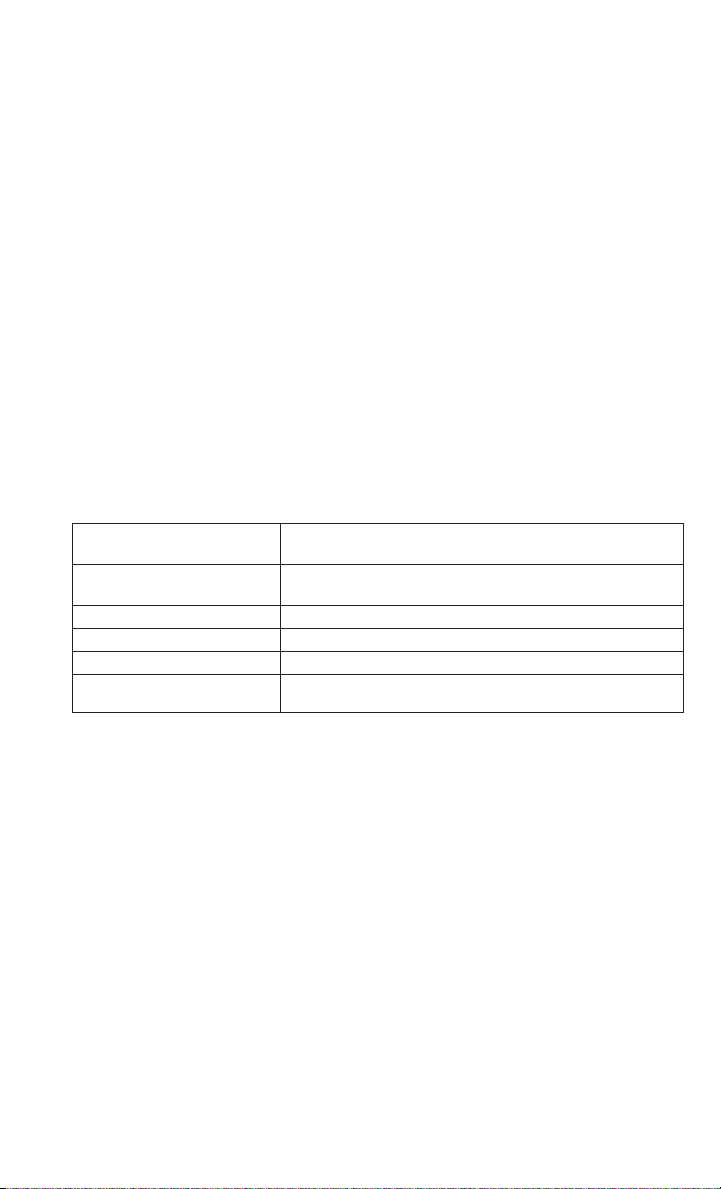
• To access Travel Link, press the MENU hard-key, then the Travel Link soft-key.
1 – Favorites
View and store your favorite location, theater and sport
teams for quick access.
2 – Forecast
View detailed weather conditions, forecasts and ski/
snowboarding conditions at resorts.
3 – Ski Info
View ski and snowboarding conditions at ski resorts.
4 – Fuel Prices
View detailed price information for fuel stations.
5 – Movies
View information on movies that are playing at theaters.
6 – Sports
View sports scores and upcoming events for all major sports.
STEERING WHEEL AUDIO CONTROLS
• The steering wheel audio controls are
located on the rear surface of the
steering wheel.
Right Switch
• Press the switch up or down to in-
crease or decrease the volume.
• Press the button in the center to
change modes AM/FM/CD/SAT.
Left Switch
• Press the switch up or down to search
for the next listenable station or select the next or previous CD track.
• Press the button in the center to select the next preset station (radio) or to change
CDs if equipped with a CD Changer.
ELECTRONICS
71

iPod®/USB/MP3 CONTROL
• There are many ways to play music
from iPod
®
/MP3 players or USB de-
vices through your vehicle's sound
system.
• The remote USB port, located within
the upper glove box, allows you to plug
an iPod
®
into the vehicle's sound sys-
tem.
NOTE:
If equipped with the Uconnect
®
730N,
the USB port on the faceplate allows the
same functions as the remote USB port.
• Non-Touch-Screen Radios: To hear audio from devices connected to the USB port,
press the “AUX” button on the radio faceplate.
• Touch-Screen Radios: To hear audio from devices connected to the USB port,
press the “MEDIA” hard-key, then touch the “AUX” or “iPod
®
” soft-key.
• When connected to this feature:
• The iPod
®
can be controlled using
the radio buttons to Play, Browse,
and List the iPod
®
or external de-
vices contents.
• The iPod
®
battery charges when
plugged into the USB port (if sup-
ported by the specific audio de-
vice).
• Compatible iPod
®
devices may also be controllable using voice commands.
Refer to the Owner's Manual on the DVD for details.
NOTE:
The USB port supports certain Mini, Classic, Nano, Touch, and iPhone
®
devices. The
USB port also supports playing music from compatible external USB Mass Storage
Class memory devices. For supported audio file formats, refer to the USB Port section
in the Owner's Manual on the DVD. Refer to www.UconnectPhone.com for a list of
tested iPod
®
s. Some iPod
®
software versions may not fully support the USB port
features. Please visit Apple’s website for iPod
®
software updates.
WARNING!
Do not plug in or remove the iPod
®
or external device while driving. Failure to
follow this warning could result in a collision.
ELECTRONICS
72

Uconnect® Phone
• To determine if your vehicle is equipped with Uconnect
®
Phone, press the
“Uconnect
®
Phone” button located on the radio faceplate. If your vehicle has
this feature, you will hear a voice prompt. If not, you will see a message on the
radio “Uconnect phone not available”.
• The Uconnect
®
Phone is a voice-activated, hands-free, in-vehicle communica-
tions system with Voice Command Capability (see Voice Command section).
NOTE:
To access the tutorial, press the “Uconnect
®
Phone” button . After the BEEP,
say “tutorial.” Press any hard-key/button or touch the display (Touch-Screen radio) to
cancel the “tutorial”.
• The Uconnect
®
Phone allows you to dial a phone number with your mobile phone
using simple voice commands.
• Refer to your vehicle Owner's Manual on the DVD for further details.
NOTE:
The Uconnect
®
Phone requires a mobile phone equipped with the Bluetooth
®
Hands-Free Profile, Version 1.0 or higher. For Uconnect
®
Customer Support: U.S.
residents - visit www.UconnectPhone.com or call 1–877–855–8400. Canadian
Residents - call, 1-800-465–2001 (English) or 1-800-387-9983 (French). This site
will provide specific instructions based on the type of mobile phone being paired.
Phone Pairing
NOTE:
• Pairing is a one - time initial setup before using the phone.
• Prior to starting the pairing procedure ensure all additional phones within the
vehicle have their Bluetooth
®
disabled.
• Press the “Phone”
button to begin.
• Wait for the “ready” prompt and BEEP.
• After the BEEP, say ”setup” or “Uconnect device setup”.
• After the BEEP, say “device pairing”.
• After the BEEP, say “pair a device”.
• Follow the audible prompts.
• You will be asked to say a four-digit
Personal Identification Number (PIN),
which you will later need to enter into
your mobile phone. You can say any
four-digit PIN. You will not need to
remember this PIN after the initial
pairing process.
ELECTRONICS
73

• You will then be prompted to give the phone pairing a name (each phone paired
should have a unique name).
• Next you will be asked to give this new pairing a priority of 1 through 7 (up to seven
phones may be paired); 1 is the highest and 7 is the lowest priority. The system
will only connect to the highest priority phone that exists within the proximity of
the vehicle.
• You will then need to start the pairing procedure on your cell phone. Follow the
Bluetooth
®
instructions in your cell phone Owner's Manual to complete the phone
pairing setup.
Phonebook
Phonebook Download – Automatic Phonebook Transfer From Mobile Phone
• If equipped and specifically supported by your phone, Uconnect
®
Phone auto-
matically downloads names (text names) and number entries from your mobile
phone’s phonebook. Specific Bluetooth
®
Phones with Phone Book Access Profile
may support this feature. Automatic Transfer is indicated by a green arrow at the
bottom of the screen. See www.UconnectPhone.com for supported phones.
• Automatic download and update, if
supported, begins as soon as the
Bluetooth
®
wireless phone connection
is made to the Uconnect
®
Phone. For
example, after you start the vehicle.
NOTE:
The mobile phone may require authoriza-
tion prior to download.
• A maximum of 1000 entries per phone
will be downloaded and updated every time a phone is connected to the
Uconnect
®
Phone.
• Depending on the maximum number of entries downloaded, there may be a short
delay before the latest downloaded names can be used. Until then, if available,
the previously downloaded phonebook is available for use.
• Only the phonebook of the currently connected mobile phone is accessible.
• Only the mobile phone’s phonebook is downloaded. The SIM card phonebook is
not part of the Mobile phonebook.
• This downloaded phonebook cannot be edited or deleted on the Uconnect
®
Phone. These can only be edited on the mobile phone. The changes are
transferred and updated to Uconnect
®
Phone on the next phone connection.
Making A Phone Call
• Press the “Phone” button
.
• After the BEEP, say “dial” (or “call” a name).
• After the BEEP, say number (or name).
ELECTRONICS
74
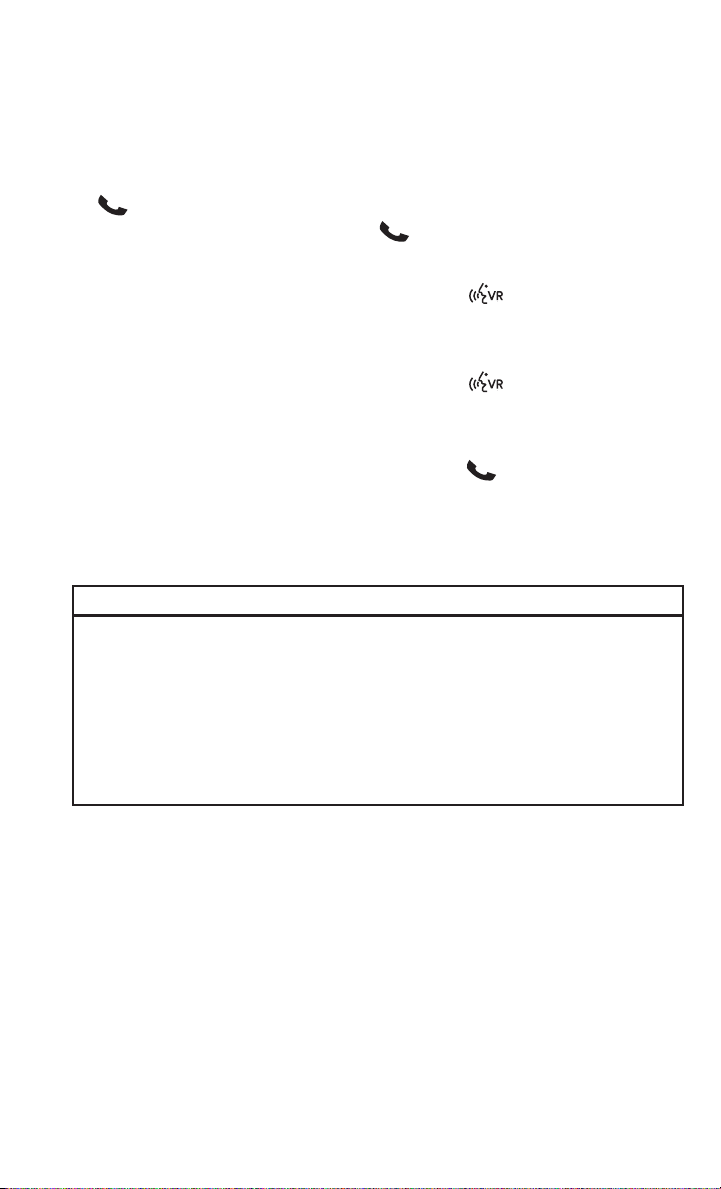
Receiving A Call – Accept (And End)
• When an incoming call rings/is announced on Uconnect
®
, press the Phone button
.
• To end a call, press the Phone button
.
Mute (Or Unmute) Microphone During Call
• During a call, press the “Voice Command” button
.
• After the BEEP, say “mute” (or “mute off”).
Transfer Ongoing Call Between Handset And Vehicle
• During a call, press the “Voice Command” button
.
• After the BEEP, say “transfer call”.
Changing The Volume
• Start a dialogue by pressing the “Phone” button
, then adjust the volume
during a normal call.
• Use the radio ON/OFF VOLUME rotary knob to adjust the volume to a comfortable
level while the Uconnect
®
system is speaking. Please note the volume setting for
Uconnect
®
is different than the audio system.
WARNING!
• Any voice commanded system should be used only in safe driving conditions
following applicable laws regarding phone use. Your attention should be focused
on safely operating the vehicle. Failure to do so may result in a collision causing
you and others to be severely injured or killed.
• In an emergency, to use Uconnect
®
Phone, your mobile phone must be:
• turned on,
• paired to Uconnect
®
Phone,
• and have network coverage.
ELECTRONICS
75

Uconnect® VOICE COMMAND
Voice Command Operation
• The Uconnect
®
Voice Command system allows you to control your AM, FM radio,
satellite radio, disc player, HDD, Uconnect
®
Phone, a memo recorder, and
supported portable media devices.
• When you press the “Voice Command” button
located on the radio faceplate
or steering wheel, you will hear a beep. The beep is your signal to give a command.
If you do not say a command within a few seconds, the system will present you
with a list of options. If you ever wish to interrupt the system while it lists options,
press the “Voice Command” button
, listen for the BEEP, and say your
command.
NOTE:
Visit http://www.driveuconnect.com/features/voiceCommand/ for more info on which
voice command features apply to your vehicle.
• Start a dialogue by pressing the “Voice Command” button
, you will hear a
beep. The beep is your signal to give a command. Below are a list of voice
commands for each of the different modes.
Common Voice Commands (Examples)
While In: Voice Command Example:
Main Menu
“Radio AM” (to switch to the AM radio mode)
“Radio FM” (to switch to the FM radio mode)
“Satellite Radio” (to switch to the Satellite radio mode)
“Disc” (to switch to the disc mode)
“USB” (to switch to the USB mode)
“Bluetooth Streaming” (to switch to the Bluetooth Stream-
ing mode)
“Memo” (to switch to the memo recorder)
“System Setup” (to switch to system setup)
ELECTRONICS
76
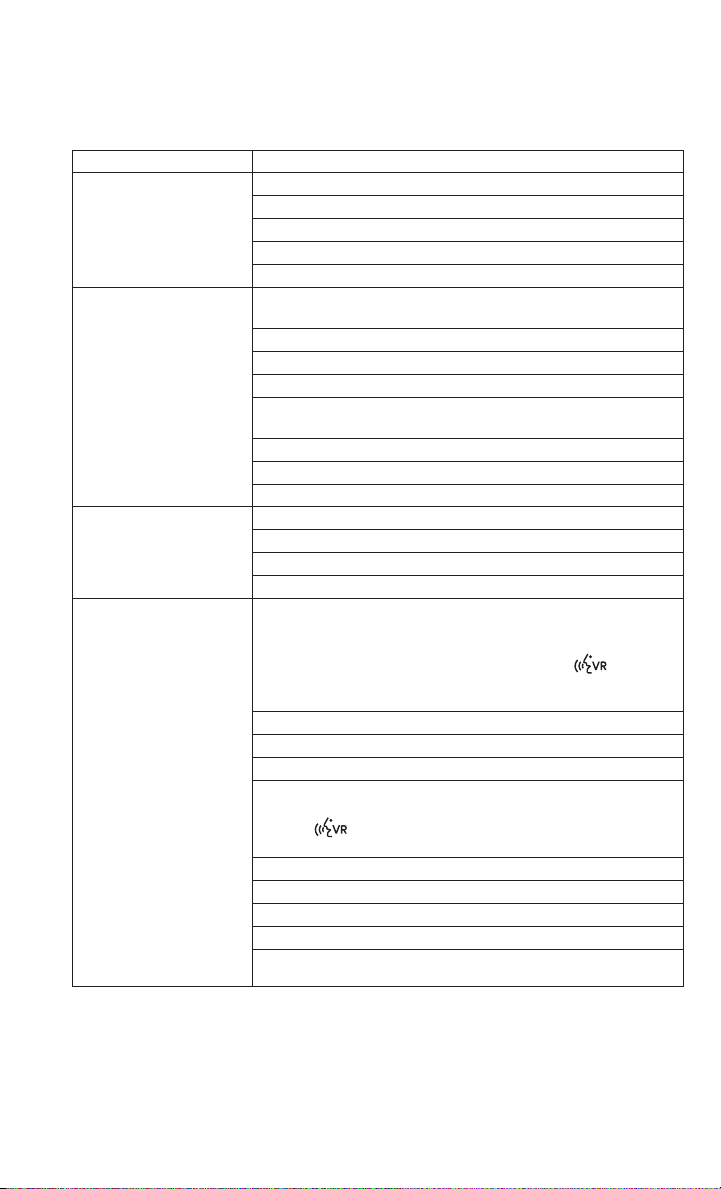
While In: Voice Command Example:
Radio Mode
“Frequency” (to change the frequency)
“Next Station” (to select the next station)
“Previous Station” (to select the previous station)
“Radio Menu” (to switch to the radio menu)
“Main Menu” (to switch to the main menu)
SiriusXM Satellite Ra-
dio Mode
“Channel Number” (to change the channel by its spoken
number)
“Next Channel” (to select the next channel)
“Previous Channel” (to select the previous channel)
“List Channel” (to hear a list of available channels)
"Channel Name" (to change the channel by its spoken
name)
“Select Name” (to say the name of a channel)
“Radio Menu” (to switch to the radio menu)
“Main Menu” (to switch to the main menu)
Disc Mode
“Track” (#) (to change the track)
“Next Track” (to play the next track)
“Previous Track” (to play the previous track)
“Main Menu” (to switch to the main menu)
Memo Mode
To switch to the voice recorder mode, say “Memo”. The fol-
lowing are common voice commands for this mode: “New
Memo” (to record a new memo) — During the recording,
you may press the Voice Command button
to stop
recording. You proceed by saying one of the following com-
mands:
— “Save” (to save the memo)
— “Continue” (to continue recording)
— “Delete” (to delete the recording)
— “Play Memos” (to play previously recorded memos) —
During the playback you may press the Voice Command
button
to stop playing memos. You proceed by saying
one of the following commands:
— “Repeat” (to repeat a memo)
— “Next” (to play the next memo)
— “Previous” (to play the previous memo)
— “Delete” (to delete a memo)
— “Delete All” (to delete all memos)
ELECTRONICS
77
Voice Text Reply
• If equipped with Uconnect
®
Voice Command, your Uconnect
®
430N, 730N &
731N radios may be able to play incoming Short Message Service (SMS)
messages (text messages) through the vehicle's sound system.
• It also allows you to respond by selecting from various pre - defined phrases.
• Not all phones are compatible with this feature. Refer to the phone compatibility
list at www.UconnectPhone.com. Connected mobile phones must be bluetooth-
compatible and paired with your radio.
• Press the “Voice Command” button
and after the BEEP, say “SMS” to get
started.
NOTE:
To access the tutorial, press the “Voice Command” button
. After the BEEP, say
“tutorial”. Press any hard-key/button or touch the display (Touch-Screen radio) to
cancel the tutorial.
WARNING!
Any voice commanded system should be used only in safe driving conditions
following applicable laws regarding phone use. Your attention should be focused
on safely operating the vehicle. Failure to do so may result in a collision causing
you and others to be severely injured or killed.
Bluetooth® STREAMING AUDIO
• If equipped with Uconnect
®
Voice
Command, your Bluetooth-equipped
iPod
®
devices, cell phones or other
media players, may also be able to
stream music to your vehicle's speak-
ers. Your connected device must be
Bluetooth-compatible, and paired
with your radio (see Uconnect
®
Phone
for pairing instructions).
• Non-Touch-Screen Radios: Press the “AUX” button on the radio faceplate until
"BT" or “Audio Streaming” is displayed on the radio screen.
• Touch-Screen-Radios: Press the “RADIO/MEDIA” or “MEDIA” hard-key and then
touch the “AUX” soft-key tab.
ELECTRONICS
78

VIDEO ENTERTAINMENT SYSTEM (VES™)
System Operation
• The screen is located in the overhead
compartment console. To lower the
screen, press the release button lo-
cated in the center of the console rear
of the screen.
• The system may be controlled by the
front seat occupants using either the
radio or DVD player controls, or by the
rear seat occupants using the remote
control.
• The video screen displays information in a split screen format. The left side of the
screen is referred to as Channel 1 and the right side of the screen is referred to as
Channel 2. All modes except video modes are displayed in a split screen format.
• To use the headphones, press the power button located on the right ear cup. Select
the channel on the headphones (1 or 2) which corresponds to the channel
selected on the desired video screen.
• To receive VES™ audio through the vehicle's sound system, press the VES™
soft-key on the radio's touch-screen.
Operation Of The Touch-Screen Radio/DVD Player/Blu-Ray Player
• To view a DVD press the OPEN/CLOSE or LOAD hard-key on the touch-screen radio
and insert the disc or insert the disc into the optional DVD player. Playback will
begin automatically after the DVD is recognized by the disc drive. If playback does
not begin automatically when the disc is inserted into the DVD player press the
PLAY button. If playback does not begin automatically after the disc is inserted
into the touch-screen radio follow these steps:
• Press the MENU hard-key, then touch the Rear VES™ soft-key. If a chapter list
appears on the right side of the screen, touch the HIDE LIST soft-key to display
the Rear VES™ control screen.
• Touch the 1 soft key to select an audio channel, then touch the DISC soft-key
in the MEDIA column.
Operation Of The Remote Control
• The remote control operates similarly to any DVD remote you may have used before
and allows the rear seat passengers to change stations, tracks, discs and
audio/video modes.
• The remote control is designed to control either channel by using the selector
switch located on the right side of the remote.
• Connect the video game or other external media devices to the AUX jacks following
the color coding for the VES™ jacks.
ELECTRONICS
79

• Pressing the power button will turn the VES™ system ON/OFF.
• Pressing the mode button causes the MODE SELECTION menu to appear on the
VES™ screen. Use the remote control arrow buttons to scroll through the available
modes, and then press ENTER to select the desired mode.
Auxiliary Audio/Video Input Jacks
• The AUX jacks are located on the drivers side rear trim panel behind the sliding
door.
• Connect the video game or other external media devices to the AUX jacks following
the color coding for the VES™ jacks.
• Using either the touch-screen radio or remote control, select AUX from the REAR
VES™ CONTROL or the MODE SELECTION screen.
• Refer to the Uconnect
®
Multimedia – Video Entertainment System (VES™)
section in the vehicle Owner's Manual on the DVD for further details.
ELECTRONIC VEHICLE INFORMATION CENTER (EVIC)
• The EVIC features a driver interactive
display that is located in the instru-
ment cluster. Pressing the controls on
the left side of the steering wheel
allows the driver to select vehicle in-
formation and Personal Settings. For
additional information, refer to “Pro-
grammable Features” located in this
guide.
• Press and release the UP
button
to scroll upward through the main
menus (Fuel Economy, Vehicle Info,
Tire PSI, Cruise, Messages, Units, System Setup) and sub menus.
• Press and release the DOWN
button to scroll downward through the main
menus and sub menus.
• Press and release the SELECT
button for access to main menus, sub menus or
to select a personal setting in the setup menu.
• Press the BACK button to scroll back to a previous menu or sub menu.
Compass Calibration
• This compass is self-calibrating, which eliminates the need to set the compass
manually. When the vehicle is new, the compass may appear erratic and the EVIC
will display “CAL” until the compass is calibrated.
• You may also calibrate the compass by completing one or more 360 degree turns
(in an area free from large metal or metallic objects) until the “CAL” message
displayed in the EVIC turns off. The compass will now function normally.
ELECTRONICS
80

PROGRAMMABLE FEATURES
Electronic Vehicle Information Center (EVIC) – If Equipped
• The EVIC can be used to program the following Personal Settings. Press and
release the MENU button until Personal Settings displays, then press the DOWN
button
to scroll through the settings. Press the SELECT button to change
the setting.
• Language • Intermittent Wiper Option
• Nav-Turn By Turn • Rain Sensing Wipers
• Enable/Disable the Rear Park Assist
System
• Key-Off Power Delay
• Auto Unlock Doors • Illuminated Approach
• Remote Unlock Sequence • Flashers with Sliding Door
• RKE Linked To Memory • Hill Start Assist (HSA)
• Remote Start Comfort Sys. • Keyless Enter-N-Go™ (Passive Entry)
• Horn With Remote Lock • Easy Exit Seat
• Horn With Remote Start • Tilt Mirror In Reverse
• Flash Lamps With Lock • Blind Spot Alert
• Automatic High Beams • Calibrate Compass
• Headlamp Off Delay • Compass Variance
• Headlamps with Wipers (Available with
Auto Headlights Only)
•TurnMenuOff
Key Fob Programmable Features
• The following features may also be programmed by using the Key Fob transmitter
or the ignition switch and driver's door lock switch.
NOTE:
Pressing the LOCK button while you are inside the vehicle will activate the Vehicle
Security Alarm. Opening a door with the Vehicle Security Alarm activated will cause
the alarm to sound. Press the UNLOCK button to deactivate the Vehicle Security
Alarm.
Unlock On First Press
• To unlock either the driver's side, or all doors, on the first press of the UNLOCK
button:
• Press and hold the LOCK button for at least 4 seconds, but no longer than
10 seconds. Then, press and hold the UNLOCK button while still holding the
LOCK button.
• Release both buttons at the same time.
ELECTRONICS
81

Auto Unlock Doors On Exit
• To have all of the vehicle doors unlock when any door is opened:
• Enter your vehicle and close all the doors, and fasten your seat belt.
• Cycle the ignition switch between the LOCK and ON position four times,
ending in the LOCK position (do not start the engine).
• Press the power door UNLOCK switch to unlock the doors. A single chime will
indicate that programming is complete.
Sound Horn With Lock
• To turn the horn chirp on or off when the doors are locked:
• Press the LOCK button for at least 4 seconds, but no longer than 10 seconds.
Then, press the PANIC button while still holding the LOCK button.
• Release both buttons at the same time.
Flashing Lights With Lock
• The turn signal lights flashing, when the doors are locked or unlocked, feature can
be turned on or off. To turn this feature on or off:
• Press and hold the UNLOCK button for at least 4 seconds, but no longer than
10 seconds. Then, press and hold the LOCK button while still holding the
UNLOCK button.
• Release both buttons at the same time.
UNIVERSAL GARAGE DOOR OPENER (HomeLink®)
• HomeLink
®
replaces up to three hand-held transmitters that operate devices such
as garage door openers, motorized gates, lighting or home security systems. The
HomeLink
®
unit is powered by your vehicles 12 Volt battery.
• The HomeLink
®
buttons that are located in the overhead console or sunvisor
designate the three different HomeLink
®
channels.
• The HomeLink
®
indicator is located above the center button.
Before You Begin Programming
HomeLink®
• Ensure that your vehicle is parked out-
side of the garage before you begin
programming.
• For efficient programming and accu-
rate transmission of the radio-
frequency signal, it is recommended
that a new battery be placed in the
hand-held transmitter of the device
that is being programmed to the
HomeLink
®
system.
ELECTRONICS
82

• Erase all channels before you begin programming. To erase the channels, place
the ignition switch into the ON/RUN position, then press and hold the two outside
HomeLink
®
buttons (I and III) for up to 20 seconds or until the red indicator
flashes.
NOTE:
Erasing all channels should only be performed when programming HomeLink
®
for
the first time. Do not erase channels when programming additional buttons.
• If you have any problems, or require assistance, please call toll-free 1–800–355–
3515 or, on the Internet at www.HomeLink.com for information or assistance.
Programming A Rolling Code
• For programming Garage Door Openers that were manufactured after 1995. These
Garage Door Openers can be identified by the “LEARN” or “TRAIN” button
located where the hanging antenna is attached to the Garage Door Opener. It is
NOT the button that is normally used to open and close the door. The name and
color of the button may vary by manufacturer.
• Place the ignition switch into the ON/RUN position.
• Place the hand-held transmitter 1 to 3 in (3 to 8 cm) away from the HomeLink
®
button you wish to program while keeping the HomeLink
®
indicator light in view.
• Simultaneously press and hold both the HomeLink
®
button you want to program
and the hand-held transmitter button.
• Continue to hold both buttons and observe the indicator light. The HomeLink
®
indicator will flash slowly and then rapidly after HomeLink
®
has received the
frequency signal from the hand-held transmitter. Release both buttons after the
indicator light changes from slow to rapid.
• At the garage door opener motor (in the garage), locate the “LEARN” or “TRAIN-
ING” button. This can usually be found where the hanging antenna wire is
attached to the garage door opener motor. Firmly press and release the “LEARN”
or “TRAINING” button.
NOTE:
You have 30 seconds in which to initiate the next step after the LEARN button has
been pressed.
• Return to the vehicle and press the programmed HomeLink
®
button twice
(holding the button for two seconds each time). If the device is plugged in and
activates, programming is complete.
NOTE:
If the device does not activate, press the button a third time (for two seconds) to
complete the training.
• To program the remaining two HomeLink
®
buttons, repeat each step for each
remaining button. DO NOT erase the channels.
ELECTRONICS
83

Programming A Non-Rolling Code
• For programming Garage Door Openers manufactured before 1995.
• Turn the ignition switch to the ON/RUN position.
• Place the hand-held transmitter 1 to 3 in (3 to 8 cm) away from the HomeLink
®
button you wish to program while keeping the HomeLink
®
indicator light in view.
• Simultaneously press and hold both the HomeLink
®
button you want to program
and the hand-held transmitter button.
• Continue to hold both buttons and observe the indicator light. The HomeLink
®
indicator will flash slowly and then rapidly after HomeLink
®
has received the
frequency signal from the hand-held transmitter. Release both buttons after the
indicator light changes from slow to rapid.
• Press and hold the programmed HomeLink
®
button and observe the indicator
light.
NOTE:
• If the indicator light stays on constantly, programming is complete and the
garage door (or device) should activate when the HomeLink
®
button is pressed.
• To program the two remaining HomeLink
®
buttons, repeat each step for each
remaining button. DO NOT erase the channels.
Using HomeLink®
• To operate, press and release the programmed HomeLink
®
button. Activation will
now occur for the programmed device (i.e., garage door opener, gate operator,
security system, entry door lock, home/office lighting, etc.,). The hand-held
transmitter of the device may also be used at any time.
WARNING!
• Your motorized door or gate will open and close while you are programming the
universal transceiver. Do not program the transceiver if people or pets are in the
path of the door or gate.
• Do not run your vehicle in a closed garage or confined area while programming
the transceiver. Exhaust gas from your vehicle contains Carbon Monoxide (CO)
which is odorless and colorless. Carbon Monoxide is poisonous when inhaled
and can cause you and others to be severely injured or killed.
ELECTRONICS
84
POWER INVERTER
• There is a 115 Volt, 150 Watt power
inverter outlet located on the left rear
trim panel immediately behind the
second row left passenger seat. This
outlet can power cellular phones, elec-
tronics and other low power devices
requiring power up to 150 Watts.
• Press the switch located in the center
of the instrument panel to turn the
power to the outlet on.
• Press the switch again to turn the
power off.
• The status indicator of the AC power inverter indicates whether the inverter is
producing AC power.
NOTE:
The power inverter is designed with built-in overload protection. If the power rating
of 150 Watts is exceeded, the power inverter will automatically shut down. Once the
electrical device has been removed from the outlet, the inverter should automatically
reset. If the power rating exceeds approximately 170 Watts, the power inverter may
have to be reset manually. To reset the inverter manually, unplug the device and plug
it in again. To avoid overloading the circuit, check the power ratings on electrical
devices prior to using the inverter.
WARNING!
• To Avoid Serious Injury or Death DO NOT:
• insert any objects into the receptacles
• touch with wet hands
Close the lid when not in use. If this outlet is mishandled, it may cause an electric
shock and failure.
ELECTRONICS
85

POWER OUTLETS
• Two 12 Volt (13 Amp) power outlets
are located on the lower instrument
panel, below the open storage bin. The
driver-side power outlet is controlled
by the ignition switch and the
passenger-side power outlet is con-
nected directly to the battery. The
driver-side power outlet will also oper-
ate a conventional cigar lighter unit (if
equipped with an optional Smoker's
Package).
• One outlet in the removable floor con-
sole (if equipped) shares a fuse with the lower outlet in the instrument panel and
is also connected to the battery. Do not exceed a maximum power of 160 Watts
(13 Amps) shared between the lower panel outlet and the removable floor console
outlet.
• On vehicles equipped with the Super Console the power outlets are located under
the retractable cover. To access the power outlets push down on the cover and
slide it toward the instrument panel.
• The outlet in the rear quarter panel near the liftgate and the upper outlet in the
instrument panel are both controlled by the ignition switch. Each of these outlets
can support 160 Watts (13 Amps). Do not exceed 160 Watts (13 Amps) for each
of these outlets.
ELECTRONICS
86

NOTE:
• Do not exceed the maximum power of 160 Watts (13 Amps) at 12 Volts. If the
160 Watt (13 Amp) power rating is exceeded, the fuse protecting the system will
need to be replaced.
• Power outlets are designed for accessory plugs only. Do not insert any other object
in the power outlet as this will damage the outlet and blow the fuse. Improper use
of the power outlet can cause damage not covered by your new vehicle warranty.
ELECTRONICS
87

RAM CARGO VAN FEATURES
Ram Cargo Van Load Floor
The Ram Cargo Van receives a structural aluminum rear load floor. Two load floor
options are available, the standard floor with a flat aluminum surface and non skid
strips or an optional deluxe floor with a flat aluminum surface and non skid strips,
through-the-floor access to three storage bins and four load floor tie downs.
WARNING!
Do not operate the vehicle with loose items stored on the load floor. While driving
or in an accident you may experience abrupt stopping, rapid acceleration, or sharp
turns. Loose objects stored on the load floor may move around with force and strike
occupants, resulting in serious or fatal injury.
UTILITY
88

UTILITY
89

UTILITY
90
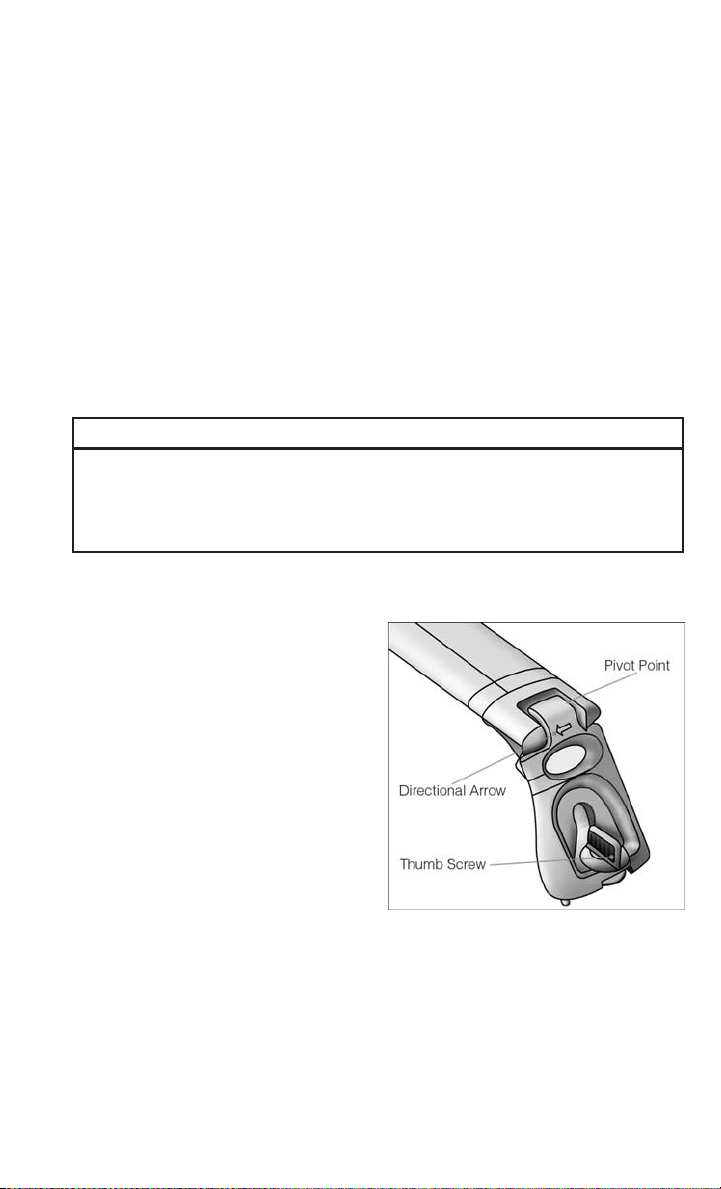
IN-FLOOR STORAGE – STOW'N GO®
Second Row Seat Storage Bins
• Storage bins are located in the floor in front of the second row seats that can be
used when the second row seat is in the upright position. Pull up on the storage
bin latch to open the cover. Slide the storage bin locking mechanism to the "Lock"
position to allow greater access to the storage bin.
Cargo Area Storage
• The liftgate sill plate has a raised line with the statement “Load To This Line”. This
line indicates how far rearward cargo can be placed without interfering with
liftgate closing.
WARNING!
In a collision, serious injury could result if the seat storage bin covers are not
properly latched. Do not drive the vehicle with the storage bin covers open. Keep
the storage bin covers closed and latched while the vehicle is in motion. Do not use
a storage bin latch as a tie down.
ROOF LUGGAGE RACK
• The crossbars on your vehicle are de-
livered stowed within the roof rack
side rails. When installed, the roof
rack can hold a maximum of 150 lbs
(68 kg) of evenly distributed weight.
Installing The Crossbars
• To install the crossbars, completely
loosen the thumb screws at both ends
and lift the crossbar from its stowed
position.
• Bend the pivot points at each end of
the crossbar and slide the thumb
screw down.
• Set the crossbars into position and
tighten the thumb screws.
NOTE:
Make sure the directional arrow on the crossbar aligns with the directional arrow on
the side rail.
• Refer to the Owner's Manual on the DVD for further details.
UTILITY
91

TRAILER TOWING WEIGHTS (MAXIMUM TRAILER WEIGHT RATINGS)
Engine/Transmission
GCWR (Gross Combined
Wt. Rating)
Frontal Area
Max. GTW
(Gross Trailer Wt.)
Max. Tongue Wt.
3.6L/Automatic
8,750 lbs (3,969 kg) 40 sq ft (3.72 sq m)
Up to 2 persons & Lug-
gage 3,600 lbs
(1,633 kg) *
360 lbs (163 kg)
8,750 lbs (3,969 kg) 40 sq ft (3.72 sq m)
3 to 5 persons & Luggage
3,350 lbs (1,519 kg) *
335 lbs (152 kg)
8,750 lbs (3,969 kg) 40 sq ft (3.72 sq m)
6 to 7 persons & Luggage
3,000 lbs (1,360 kg) *
300 lbs (136 kg)
* For vehicles equipped with Fold-in-Floor seating, the Gross Trailer Weight must be reduced by 100 lbs (45 kg). Refer to local laws for
maximum trailer towing speeds.
NOTE: The trailer tongue weight must be considered as part of the combined weight of occupants and cargo, and should never exceed the
weight referenced on the Tire and Loading Information placard.
RECREATIONAL TOWING (BEHIND MOTORHOME, ETC.)
Towing Condition Wheels OFF the Ground All Models
Flat Tow NONE
NOT ALLOWED
Dolly Tow
Front OK
Rear
NOT ALLOWED
On Trailer ALL OK
UTILITY
92

ROADSIDE ASSISTANCE
• Dial toll-free 1-800-521-2779 for U.S. Residents or 1-800-363-4869 for Cana-
dian Residents.
• Provide your name, vehicle identification number, license plate number, and your
location, including the telephone number from which you are calling.
• Briefly describe the nature of the problem and answer a few simple questions.
• You will be given the name of the service provider and an estimated time of arrival.
If you feel you are in an “unsafe situation”, please let us know. With your consent,
we will contact local police or safety authorities.
INSTRUMENT CLUSTER WARNING LIGHTS
- Electronic Stability Control (ESC) Indicator Light
• If this indicator light flashes during acceleration, apply as little throttle as
possible. While driving, ease up on the accelerator. Adapt your speed and driving
to the prevailing road conditions. To improve the vehicle's traction when starting
off in deep snow, sand or gravel, it may be desirable to switch the ESC system off.
- Tire Pressure Monitoring System (TPMS) Light
• Each tire, including the spare (if provided), should be checked monthly, when cold
and inflated to the inflation pressure recommended by the vehicle manufacturer
on the vehicle placard or tire inflation pressure label. (If your vehicle has tires of
a different size than the size indicated on the vehicle placard or tire inflation
pressure label, you should determine the proper tire inflation pressure for those
tires.)
• As an added safety feature, your vehicle has been equipped with a Tire Pressure
Monitoring System (TPMS) that illuminates a low tire pressure telltale when one
or more of your tires is significantly under-inflated. Accordingly, when the low tire
pressure telltale illuminates, you should stop and check your tires as soon as
possible, and inflate them to the proper pressure. Driving on a significantly
under-inflated tire causes the tire to overheat and can lead to tire failure.
Under-inflation also reduces fuel efficiency and tire tread life, and may affect the
vehicle’s handling and stopping ability.
• IF THE LIGHT STARTS FLASHING INDICATING A LOW TIRE PRESSURE, ADJUST THE AIR
PRESSURE IN THE LOW TIRE TO THE AIR PRESSURE SHOWN ON THE VEHICLE PLACARD
OR TIRE INFLATION PRESSURE LABEL LOCATED ON THE DRIVER'S DOOR.
NOTE:
AFTER INFLATION, THE VEHICLE MAY NEED TO BE DRIVEN FOR 20 MINUTES
BEFORE THE FLASHING LIGHT WILL TURN OFF.
• Please note that the TPMS is not a substitute for proper tire maintenance, and it
is the driver’s responsibility to maintain correct tire pressure, even if under-
inflation has not reached the level to trigger illumination of the TPMS low tire
pressure telltale.
WHAT TO DO IN EMERGENCIES
93
• Your vehicle has also been equipped with a TPMS malfunction indicator to
indicate when the system is not operating properly. The TPMS malfunction
indicator is combined with the low tire pressure telltale. When the system detects
a malfunction, the telltale will flash for approximately one minute and then remain
continuously illuminated. This sequence will continue each time the vehicle is
restarted as long as the malfunction exists.
• When the malfunction indicator is illuminated, the system may not be able to
detect or signal low tire pressure as intended. TPMS malfunctions may occur for
a variety of reasons, including the installation of replacement or alternate tires or
wheels on the vehicle that prevent the TPMS from functioning properly. Always
check the TPMS malfunction telltale after replacing one or more tires or wheels on
your vehicle, to ensure that the replacement or alternate tires and wheels allow the
TPMS to continue to function properly.
NOTE:
Tire pressures change by approximately 1 psi (7 kPa) per 12° F (7° C) of air
temperature change. Keep this in mind when checking tire pressure inside a garage,
especially in the Winter. Example: If garage temperature is 68°F (20°C) and the
outside temperature is 32°F (0°C), then the cold tire inflation pressure should be
increased by 3 psi (21 kPa), which equals 1 psi (7 kPa) for every 12°F (7°C) for this
outside temperature condition.
CAUTION!
The TPMS has been optimized for the original equipment tires and wheels. TPMS
pressures and warning have been established for the tire size equipped on your
vehicle. Undesirable system operation or sensor damage may result when using
replacement equipment that is not of the same size, type, and/or style. Aftermar-
ket wheels can cause sensor damage. Do not use tire sealant from a can, or
balance beads if your vehicle is equipped with a TPMS, as damage to the sensors
may result.
- Engine Temperature Warning Light
• This light warns of an overheated engine condition.
• If the light turns on or flashes continuously while driving, safely pull over and stop
the vehicle. If the A/C system is on, turn it off. Also, shift the transmission into
NEUTRAL and idle the vehicle. If the temperature reading does not return to
normal, turn the engine off immediately and call for service.
• We recommend that you do not operate the vehicle or engine damage will occur.
Have the vehicle serviced immediately.
WHAT TO DO IN EMERGENCIES
94
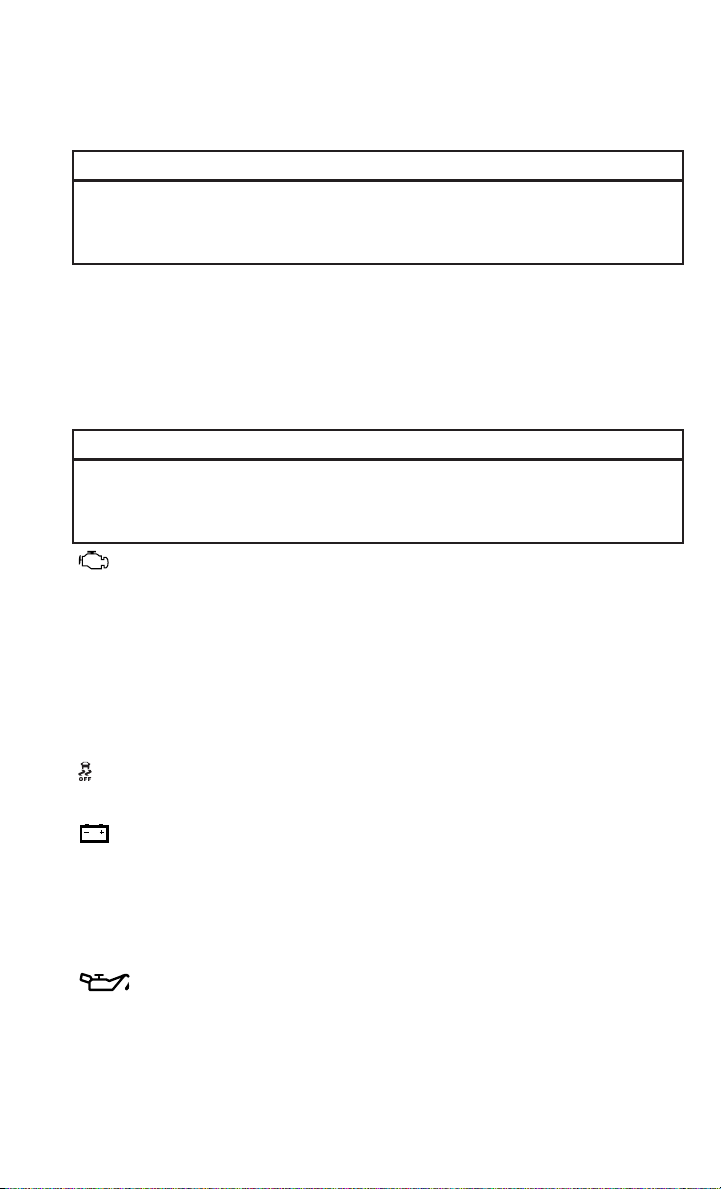
WARNING!
A hot engine cooling system is dangerous. You or others could be badly burned by
steam or boiling coolant. You may want to call an authorized dealer for service if
your vehicle overheats.
BRAKE
- Brake Warning Light
• The Brake Warning light illuminates when there is either a system malfunction or
the parking brake is applied. If the light is on and the parking brake is not applied,
it indicates a possible brake hydraulic malfunction, brake booster problem or an
Anti-Lock Brake System problem.
• Please have your vehicle serviced immediately.
WARNING!
Driving a vehicle with the red brake light on is dangerous. Part of the brake system
may have failed. It will take longer to stop the vehicle. You could have a collision.
Have the vehicle checked immediately.
- Malfunction Indicator Light (MIL)
• Certain conditions, such as a loose or missing gas cap, poor fuel quality, etc., may
illuminate the MIL after engine start. The vehicle should be serviced if the light
stays on through several typical driving cycles. In most situations, the vehicle will
drive normally and not require towing.
• If the MIL flashes when the engine is running, serious conditions may exist that
could lead to immediate loss of power or severe catalytic converter damage. We
recommend you do not operate the vehicle. Have the vehicle serviced
immediately.
- Electronic Stability Control (ESC) OFF Indicator Light
• This light indicates the Electronic Stability Control (ESC) is off.
- Charging System Light
• This light shows the status of the electrical charging system. If the charging
system light remains on, it means that the vehicle is experiencing a problem with
the charging system.
• We recommend you do not continue driving if the charging system light is on. Have
the vehicle serviced immediately.
- Oil Pressure Warning Light
• This light indicates low engine oil pressure. If the light turns on while driving, stop
the vehicle and shut off the engine as soon as possible. A chime will sound when
this light turns on.
• We recommend you do not operate the vehicle or engine damage will occur. Have
the vehicle serviced immediately.
WHAT TO DO IN EMERGENCIES
95

- Anti-Lock Brake (ABS) Light
• This light monitors the Anti-Lock Brake System (ABS).
• If the light is not on during starting, stays on, or turns on while driving, we
recommend you drive to the nearest authorized dealer immediately and have the
vehicle serviced immediately.
- Electronic Throttle Control (ETC) Indicator Light
• This light informs you of a problem with the system.
• If a problem is detected, the light will come on while the engine is running. Cycle
the ignition when the vehicle has completely stopped and the shift lever is placed
in the PARK position; the light should turn off.
•
If the light remains lit with the engine running, your vehicle will usually be drivable;
however, see an authorized dealer immediately. If the light is flashing when the engine
is running, immediate service is required and you may experience reduced perfor-
mance, an elevated/rough idle or engine stall and your vehicle may require towing.
- Air Bag Warning Light
• If the light is not on during starting, stays on, or turns on while driving, have the
vehicle serviced by an authorized dealer immediately.
Fuel Cap/Loose Gas Cap Message
• If a “gas cap” message (shown as gASCAP) appears, tighten the gas cap until a
“clicking” sound is heard.
• Press the odometer reset button, located below the tachometer, to turn the
message off.
• If the message continues to appear for more than three days after tightening the
gas cap, see your authorized service center.
“CHANGE OIL” MESSAGE
• If a “Change Oil” message appears and a single chime sounds, it is time for your
next required oil change.
Resetting The Light After Servicing
Vehicles Equipped With Keyless Enter-N-Go™
• Without pressing the brake pedal, push the ENGINE START/STOP button and
cycle the ignition to the ON/RUN position (Do not start the engine.)
• Fully depress the accelerator pedal, slowly, three times within 10 seconds.
• Without pressing the brake pedal, push the ENGINE START/STOP button once to
return the ignition to the OFF/LOCK position.
WHAT TO DO IN EMERGENCIES
96
Vehicles Not Equipped With Keyless Enter-N-Go™
• Turn the ignition switch to the ON/RUN position (Do not start the engine.)
• Fully depress the accelerator pedal, slowly, three times within 10 seconds.
• Turn the ignition switch to the OFF/LOCK position.
NOTE:
If the indicator message illuminates when you start the vehicle, the oil change
indicator system did not reset. If necessary, repeat this procedure.
IF YOUR ENGINE OVERHEATS
• In any of the following situations, you can reduce the potential for overheating by
taking the appropriate action.
• On the highways — slow down.
• In city traffic — while stopped, place the transmission in NEUTRAL, but do not
increase engine idle speed.
NOTE:
There are steps that you can take to slow down an impending overheat condition:
• If your air conditioner (A/C) is on, turn it off. The A/C system adds heat to the
engine cooling system and turning the A/C off can help remove this heat.
•
You can also turn the temperature control to maximum heat, the mode control to floor
and the blower control to high. This allows the heater core to act as a supplement to the
radiator and aids in removing heat from the engine cooling system.
CAUTION!
Driving with a hot cooling system could damage your vehicle. If the temperature
gauge reads HOT (H), pull over and stop the vehicle. Idle the vehicle with the air
conditioner turned off until the pointer drops back into the normal range. If the
pointer remains on HOT (H), and you hear continuous chimes, turn the engine off
immediately, and call for service.
WARNING!
You or others can be badly burned by hot engine coolant (antifreeze) or steam from
your radiator. If you see or hear steam coming from under the hood, do not open
the hood until the radiator has had time to cool. Never try to open a cooling system
pressure cap when the radiator or coolant bottle is hot.
WHAT TO DO IN EMERGENCIES
97

JACKING AND TIRE CHANGING
Jack Location
• The jack, jack handle and winch
handle tools are stowed behind the
rear left side trim panel in the rear
cargo area. Turn the two cover latches
to release the cover.
• Remove the pouch containing the
scissors jack, jack handle, and tools.
Spare Tire Removal
• The spare tire is stowed inside a pro-
tective cover located under the center
of the vehicle between the front doors
by means of a cable winch mecha-
nism. The “spare tire drive” nut is
located on the floor, under a plastic
cap at the front of the floor console or under front super console forward bin liner.
To Access Spare Tire Winch Drive Nut
• To access the spare tire winch drive nut and lower the spare tire, you will need to
refer to one of the following center console configurations.
Super Console
• For vehicles equipped with the Super Console, the spare tire winch assembly drive
nut is located beneath the console.
1. Pull the lower drawer out from the rear of the floor console.
WHAT TO DO IN EMERGENCIES
98

2. Open the front drawer to expose the storage compartment.
3. Remove the liner from the console's storage compartment to access the spare tire
winch drive nut.
Premium/Base/Cargo Center Console
• Pull the Winch Cover assembly plug (if equipped) to access the winch drive nut.
WHAT TO DO IN EMERGENCIES
99

Spare Tire Tools
• The tool pouch contains three pieces and can be assembled into a spare tire hook;
to remove the compact spare tire/cover assembly from under the vehicle, or a
Winch T-handle; to raise/lower the compact spare tire/cover assembly.
Assembled T-handle
A - Spare Tire Hook/T-handle
B - Extension 1
C - Extension 2
Assembling The Spare Tire Hook
A - Spare Tire Hook/T-handle
B - Extension 1
C - Extension 2
WHAT TO DO IN EMERGENCIES
100
Spare Tire Removal Instructions
• The spare tire is located under the
vehicle beneath the center console
area.
1. Assemble the spare tire tools into a
T-handle and place the square end
over the spare tire winch drive nut.
2. Rotate the nut to the left until the
winch mechanism stops turning
freely. This will allow enough slack in
the cable to allow you to pull the spare
tire out from underneath the vehicle.
3. Assemble the winch handle exten-
sions to form the spare tire hook, and
pull the spare tire from under the
vehicle.
NOTE:
If either front tire is flat it may be neces-
sary to jack up the vehicle to remove the
compact spare tire/cover assembly from
under the vehicle.
4. Stand the tire/cover assembly upright
and remove the wheel spacer by
squeezing the winch retaining tabs
together. Push the retainer through
the spare tire to release it from the
wheel.
WHAT TO DO IN EMERGENCIES
101

Preparations For Jacking
1. Park the vehicle on a firm, level surface. Avoid ice or slippery areas.
2. Turn on the Hazard Warning flasher.
3. Set the parking brake.
4. Place the shift lever into PARK.
5. Turn OFF the ignition.
NOTE:
Passengers should not remain in the ve-
hicle when the vehicle is being jacked.
• Block both the front and rear of the
wheel diagonally opposite the jacking
position. For example, if changing the
right front tire, block the left rear
wheel.
Jacking Instructions
1. Loosen (but do not remove) the wheel
lug nuts by turning them to the left
one turn while the wheel is still on the
ground.
2. There are two jack engagement loca-
tions on each side of the vehicle body.
These locations are on the sill flange
of the vehicle body.
WHAT TO DO IN EMERGENCIES
102
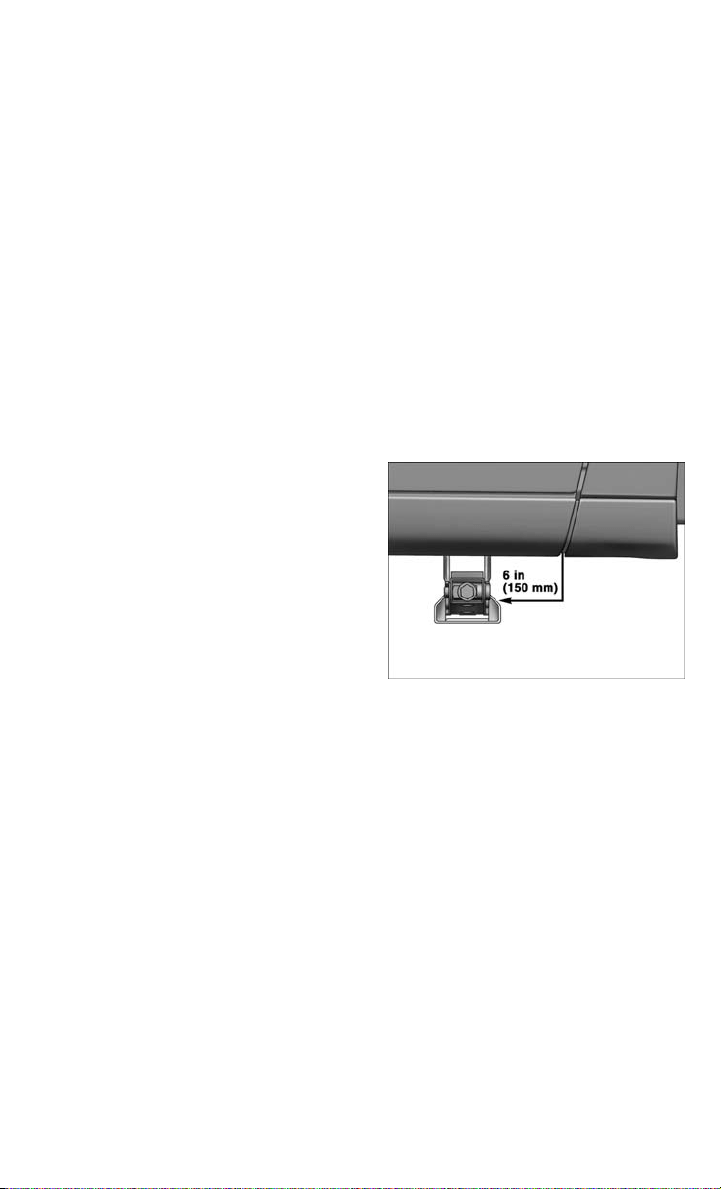
Rear jack locations are between a pair of down-facing tabs on the sill flange of the
vehicle side body.
Front jack location is on the sill flange of the vehicle body and is located 6 in
(150 mm) from door edge.
NOTE:
In some situations the jack may need to
be placed on its side in order to be
pushed under the vehicle. Return the
jack to its correct orientation once it is
under the vehicle.
3. Place the wrench on the jack screw
and turn to the right until the jack
head is properly engaged in the de-
scribed location. Do not raise the ve-
hicle until you are sure the jack is se-
curely engaged.
4. Raise the vehicle by turning the jack screw to the right, using the swivel wrench.
Raise the vehicle only until the tire just clears the surface and enough clearance
is obtained to install the spare tire. Minimum tire lift provides maximum stability.
5. Remove the wheel lug nuts, for vehicles with wheel covers, remove the cover from
the wheel by hand. Do not pry the wheel cover off. Then pull the wheel off the hub.
6. Install the compact spare tire. Lightly tighten the lug nuts.
NOTE:
• Do not install the wheel cover on the
compact spare.
• Do not use a hammer or force to
install the wheel covers.
7. Lower the vehicle by turning the jack
screw to the left.
WHAT TO DO IN EMERGENCIES
103

8. Finish tightening the lug nuts. Push down on the wrench while at the end of the
handle for increased leverage. Tighten the lug nuts in a star pattern until each nut
has been tightened twice. The correct wheel nut tightness is 102 ft lbs
(138 N·m). If in doubt about the correct tightness, have them checked with a
torque wrench by your authorized dealer or at a service station.
9. Lower the jack to its fully-closed position.
10. Place the deflated (flat) tire and compact spare tire cover assembly in the rear
cargo area. Do not stow the deflated tire in the spare tire location. Have the
full-sized tire repaired or replaced, as soon as possible.
11. Stow the cable and wheel spacer before driving the vehicle. Reassemble the
winch handle extensions to form a “T” and fit the winch T-handle over the drive
nut. Rotate the nut to the right until the winch mechanism clicks at least three
times.
NOTE:
Refer to the “Spare Tire Tools” section for instructions on assembling the T-handle.
12. Stow the jack, jack handle and winch handle tools back in the stowage
compartment.
13. Check the compact spare tire pressure as soon as possible. Correct the tire
pressure, as required.
Securing The Spare Tire
1. Assemble the winch handle extensions to form a T-handle and fit the winch
T-handle over the drive nut. Rotate the nut to the left until the winch mechanism
stops turning freely. This will allow enough slack in the cable to allow you to pull
the wheel spacer out from under the vehicle.
2. Assemble the winch handle extensions to form the spare tire hook, and pull the
wheel spacer from under the vehicle.
3. Turn the compact spare tire so that the valve stem is down, and place the tire into
the spare tire/cover assembly. Slide the wheel spacer through the center of the
wheel and spare tire/cover assembly, so that the two retainer tabs snap out and
engage the spare tire cover on the opposite side.
4. Using the winch T-handle, rotate the drive nut to the right until the compact spare
tire/cover assembly is drawn into place against the underside of the vehicle.
5. Continue to rotate the nut to the right until you hear the winch mechanism click
three times. It cannot be overtightened. Check under the vehicle to ensure the
compact spare tire/cover assembly is positioned correctly against the underside of
the vehicle.
WHAT TO DO IN EMERGENCIES
104

Road Tire Installation
Vehicles Equipped With Wheel Covers
1. Mount the road tire on the axle.
2. To ease the installation process for steel wheels with wheel covers, install two lug
nuts on the mounting studs which are on each side of the valve stem. Install the
lug nuts with the cone shaped end of the nut toward the wheel. Lightly tighten the
lug nuts.
3. Align the valve notch in the wheel
cover with the valve stem on the
wheel. Install the cover by hand,
snapping the cover over the two lug
nuts. Do not use a hammer or exces-
sive force to install the cover.
4. Install the remaining lug nuts with the
cone shaped end of the nut toward the
wheel. Lightly tighten the lug nuts.
5. Lower the vehicle to the ground by
turning the jack handle counterclock-
wise.
6. Finish tightening the lug nuts. Push
down on the wrench while at the end
of the handle for increased leverage.
Tighten the lug nuts in a star pattern
until each nut has been tightened
twice. The correct tightness of each lug nut is 102 ft/lbs (138 N·m). If in doubt
about the correct tightness, have them checked with a torque wrench by your
authorized dealer or service station.
7. After 25 miles (40 km) check the lug nut torque with a torque wrench to ensure
that all lug nuts are properly seated against the wheel.
1 — Valve Stem 4 — Wheel Cover
2 — Valve Notch 5 — Mounting
Stud
3 — Wheel Lug
Nut
WHAT TO DO IN EMERGENCIES
105

Vehicles Without Wheel Covers
1. Mount the road tire on the axle.
2. Install the remaining lug nuts with the cone shaped end of the nut toward the
wheel. Lightly tighten the lug nuts.
3. Lower the vehicle to the ground by turning the jack handle counterclockwise.
4. Finish tightening the lug nuts. Push down on the wrench while at the end of the
handle for increased leverage. Tighten the lug nuts in a star pattern until each nut
has been tightened twice. The correct tightness of each lug nut is 102 ft/lbs
(138 N·m). If in doubt about the correct tightness, have them checked with a
torque wrench by your authorized dealer or service station.
5. After 25 miles (40 km) check the lug nut torque with a torque wrench to ensure
that all lug nuts are properly seated against the wheel.
CAUTION!
• The winch mechanism is designed for use with the winch T-handle only. Use of
air wrench or other power tools is not recommended and can damage the winch.
• Do not attempt to raise the vehicle by jacking on locations other than those
indicated in the Jacking Instructions for this vehicle.
• Be sure to mount the spare tire with the valve stem facing outward. The vehicle
could be damaged if the spare tire is mounted incorrectly.
• The compact spare tire/cover assembly must be used when the compact spare
tire is stored. Failure to use this cover could drastically reduce the life of the
compact spare tire.
• The winch mechanism is designed specifically to stow a compact spare tire only.
Do not attempt to use the winch to stow the full size flat tire, or any other
full-size tire. Vehicle damage may result.
WHAT TO DO IN EMERGENCIES
106

WARNING!
• Do not attempt to change a tire on the side of the vehicle close to moving traffic.
Pull far enough off the road to avoid the danger of being hit when operating the
jack or changing the wheel.
• Being under a jacked-up vehicle is dangerous. The vehicle could slip off the jack
and fall on you. You could be crushed. Never put any part of your body under a
vehicle that is on a jack. If you need to get under a raised vehicle, take it to a
service center where it can be raised on a lift.
• Never start or run the engine while the vehicle is on a jack.
• The jack is designed to be used as a tool for changing tires only. The jack should
not be used to lift the vehicle for service purposes. The vehicle should be jacked
on a firm level surface only. Avoid ice or slippery areas.
• Carefully follow these tire changing warnings to help prevent personal injury or
damage to your vehicle:
• Always park on a firm, level surface as far from the edge of the roadway as
possible before raising the vehicle.
• Turn on the Hazard Warning flasher.
• Block the wheel diagonally opposite the wheel to be raised.
• Set the parking brake firmly and set an automatic transmission in PARK; a
manual transmission in REVERSE.
• Do not let anyone sit in the vehicle when it is on a jack.
• Do not get under the vehicle when it is on a jack.
• Only use the jack in the positions indicated and for lifting this vehicle during a
tire change.
• If working on or near a roadway, be extremely careful of motor traffic.
• To assure that spare tires, flat or inflated, are securely stowed, spares must be
stowed with the valve stem facing the ground.
• Raising the vehicle higher than necessary can make the vehicle less stable. It
could slip off the jack and hurt someone near it. Raise the vehicle only enough
to remove the tire.
• To avoid the risk of forcing the vehicle off the jack, do not tighten the wheel nuts
fully until the vehicle has been lowered. Failure to follow this warning may result
in personal injury.
• A loose tire or jack thrown forward in a collision or hard stop could endanger the
occupants of the vehicle. Always stow the jack parts and the spare tire in the
places provided. Have the deflated (flat) tire repaired or replaced immediately.
• Verify that both retainer tabs of the wheel spacer have been properly extended
through the center of the wheel and spare tire/cover assembly. Failure to
properly engage both retainer tabs could result in loss of the spare tire and cover
assembly, which will cause vehicle damage and may cause loss of vehicle
control.
WHAT TO DO IN EMERGENCIES
107

JUMP-STARTING
• If your vehicle has a discharged bat-
tery it can be jump-started using a set
of jumper cables and a battery in an-
other vehicle or by using a portable
battery booster pack.
• Jump-starting can be dangerous if
done improperly so please follow the
procedures in this section carefully.
NOTE:
When using a portable battery booster
pack follow the manufacturer’s operating
instructions and precautions.
Preparations for Jump-Start
• The battery in your vehicle is located
on the left side of the engine compartment.
• Set the parking brake, shift the automatic transmission into PARK and turn the
ignition to LOCK.
• Turn off the heater, radio, and all unnecessary electrical accessories.
• If using another vehicle to jump-start the battery, park the vehicle within the
jumper cables reach, set the parking brake and make sure the ignition is OFF.
Jump-Starting Procedure
• Connect the positive (+) end of the jumper cable to the positive (+) post of the
discharged vehicle.
• Connect the opposite end of the positive (+) jumper cable to the positive (+) post
of the booster battery.
• Connect the negative end (-) of the jumper cable to the negative (-) post of the
booster battery.
• Connect the opposite end of the negative (-) jumper cable to a good engine ground
(exposed metal part of the discharged vehicle's engine) away from the battery and
fuel injection system.
• Start the engine in the vehicle that has the booster battery, let the engine idle a few
minutes, and then start the engine in the vehicle with the discharged battery.
Once the engine is started, remove the jumper cables in the reverse sequence:
• Disconnect the negative (-) jumper cable from the negative (-) post of the vehicle
with the discharged battery.
• Disconnect the negative end (-) of the jumper cable from the negative (-) post of
the booster battery.
WHAT TO DO IN EMERGENCIES
108
• Disconnect the opposite end of the positive (+) jumper cable from the positive (+)
post of the booster battery.
• Disconnect the positive (+) end of the jumper cable from the positive (+) post of
the discharged vehicle.
• If frequent jump-starting is required to start your vehicle you should have the
battery and charging system inspected at your authorized dealer.
CAUTION!
• Do not use a portable battery booster pack or any other booster source with a
system voltage greater than 12 Volts or damage to the battery, starter motor,
alternator or electrical system may occur.
• Failure to follow these procedures could result in damage to the charging system
of the booster vehicle or the discharged vehicle.
• Accessories that can be plugged into the vehicle power outlets draw power from
the vehicle’s battery, even when not in use (i.e., cellular phones, etc.). Eventu-
ally, if plugged in long enough, the vehicle’s battery will discharge sufficiently to
degrade battery life and/or prevent the engine from starting.
WARNING!
• When temperatures are below the freezing point, electrolyte in a discharged
battery may freeze. Do not attempt jump-starting because the battery could
rupture or explode and cause personal injury. Battery temperature must be
brought above freezing point before attempting a jump-start.
• Take care to avoid the radiator cooling fan whenever the hood is raised. It can
start anytime the ignition switch is on. You can be injured by moving fan blades.
• Remove any metal jewelry, such as watch bands or bracelets, that might make
an inadvertent electrical contact. You could be severely injured.
• Batteries contain sulfuric acid that can burn your skin or eyes and generate
hydrogen gas which is flammable and explosive. Keep open flames or sparks
away from the battery.
• Do not allow vehicles to touch each other as this could establish a ground
connection and personal injury could result.
• Failure to follow this procedure could result in personal injury or property
damage due to battery explosion.
• Do not connect the cable to the negative post (-) of the discharged battery. The
resulting electrical spark could cause the battery to explode and could result in
personal injury.
WHAT TO DO IN EMERGENCIES
109

SHIFT LEVER OVERRIDE
• If a malfunction occurs and the shift
lever cannot be moved out of the
PARK position, you can use the follow-
ing procedure to temporarily move the
shift lever:
• To access the shift lever override,
remove the cover located to the top
right of the shift lever in the instru-
ment panel.
• Firmly set the parking brake.
• Turn the ignition switch to the ACC
or ON position without starting the
engine.
• Press and maintain firm pressure
on the brake pedal.
• The override can be activated by
pressing the white-colored tab,
which can be accessed through the
hole in the instrument panel.
• Move the shift lever into the NEU-
TRAL position.
• The vehicle may then be started in
NEUTRAL.
• Reinstall the override cover.
WHAT TO DO IN EMERGENCIES
110

TOWING A DISABLED VEHICLE
Towing Condition Wheels OFF the Ground ALL MODELS
Flat Tow NONE
If transmission is operable:
•
Transmission in NEUTRAL
• 25 mph (40 km/h) max speed
• 15 miles (24 km) max distance
Wheel lift
Rear
Front OK
Flatbed
ALL BEST METHOD
WHAT TO DO IN EMERGENCIES
111
FREEING A STUCK VEHICLE
• If your vehicle becomes stuck in mud, sand or snow, it can often be moved using
a rocking motion. Turn your steering wheel right and left to clear the area around
the front wheels. Then shift back and forth between DRIVE and REVERSE while
gently pressing the accelerator. Use the least amount of accelerator pedal
pressure that will maintain the rocking motion, without spinning the wheels or
racing the engine.
NOTE:
Press the "ESC Off" switch, to place the Electronic Stability Control (ESC) system in
"Partial Off" mode before rocking the vehicle. Once the vehicle has been freed, press
the "ESC Off" switch again to restore "ESC On" mode.
CAUTION!
• When “rocking” a stuck vehicle by moving between REVERSE and DRIVE, do
not spin the wheels faster than 15 mph (24 km/h), or drivetrain damage may
result.
• Revving the engine or spinning the wheels too fast may lead to transmission
overheating and failure. It can also damage the tires. Do not spin the wheels
above 30 mph (48 km/h) while in gear (no transmission shifting occurring).
WARNING!
Fast spinning tires can be dangerous. Forces generated by excessive wheel speeds
may cause tire damage or failure. A tire could explode and injure someone. Do not
spin your vehicle's wheels faster than 30 mph (48 km/h) when you are stuck. Do
not let anyone near a spinning wheel, no matter what the speed.
WHAT TO DO IN EMERGENCIES
112

EVENT DATA RECORDER (EDR)
• This vehicle is equipped with an Event Data Recorder (EDR). The main purpose of
an EDR is to record, in certain crash or near crash-like situations, such as an air
bag deployment or hitting a road obstacle, data that will assist in understanding
how a vehicle’s systems performed. The EDR is designed to record data related to
vehicle dynamics and safety systems for a short period of time, typically 30 sec-
onds or less. The EDR in this vehicle is designed to record such data as:
• How various systems in your vehicle were operating.
• Whether or not the driver and passenger safety belts were buckled/fastened.
• How far (if at all) the driver was depressing the accelerator and/or brake pedal.
• How fast the vehicle was traveling.
• These data can help provide a better understanding of the circumstances in which
crashes and injuries occur.
NOTE:
EDR data are recorded by your vehicle only if a non-trivial crash situation occurs; no
data are recorded by the EDR under normal driving conditions and no personal data
(e.g. name, gender, age, and crash location) are recorded. However, other parties,
such as law enforcement, could combine the EDR data with the type of personally
identifying data routinely acquired during a crash investigation.
• To read data recorded by an EDR, special equipment is required, and access to the
vehicle or the EDR is needed. In addition to the vehicle manufacturer, other
parties such as law enforcement, that have the special equipment, can read the
information if they have access to the vehicle or the EDR.
WHAT TO DO IN EMERGENCIES
113
OPENING THE HOOD
• Pull the hood release lever located on
the instrument panel, below the steer-
ing column.
• Raise the hood and locate the safety
catch lever, in the middle of the hood
opening.
• Move the safety latch while lifting the
hood at the same time.
• Insert the support rod into the slot on
the hood.
• To close the hood, remove the support
rod and place it in the retaining clip,
then lower the hood slowly.
WARNING!
Be sure the hood is fully latched before driving your vehicle. If the hood is not fully
latched, it could open when the vehicle is in motion and block your vision. Failure
to follow this warning could result in serious injury or death.
MAINTAINING YOUR VEHICLE
114
ADDING FUEL
Fuel Filler Cap (Gas Cap)
• The gas cap is located behind the fuel
filler door on the left side of the ve-
hicle. If the gas cap is lost or dam-
aged, be sure the replacement cap is
for use with this vehicle.
• When the fuel nozzle “clicks” or shuts
off, the fuel tank is full.
• Tighten the gas cap until you hear a
“clicking” sound. This is an indication
that the gas cap is properly tightened.
If not properly tightened, the MIL
(Malfunction Indicator Light) may
come on.
NOTE:
The driver’s side sliding door cannot be
opened while the fuel door is open.
CAUTION!
• Damage to the fuel system or emissions control system could result from using
an improper gas cap. A poorly fitting cap could let impurities into the fuel
system and may cause the MIL to turn on, due to fuel vapors escaping from the
system.
•
To avoid fuel spillage and overfilling, do not “top off” the fuel tank after filling.
WARNING!
• Never have any smoking materials lit in or near the vehicle when the gas cap is
removed or the tank filled.
• Never add fuel when the engine is running. This is in violation of most state and
federal fire regulations and/or local bylaws, and will cause the MIL to turn on.
• A fire may result if gasoline is pumped into a portable container that is inside of
a vehicle. You could be burned. Always place gas containers on the ground while
filling.
MAINTAINING YOUR VEHICLE
115

ENGINE COMPARTMENT
3.6L Engine
MAINTAINING YOUR VEHICLE
116

FLUIDS AND CAPACITIES
Component Fluid, Lubricant, or Genuine
Part
Capacities
Engine Coolant– 3.6L En-
gine
We recommend you use
MOPAR
®
Antifreeze/
Coolant 10–Year/150,000
Mile Formula OAT (Organic
Additive Technology).
13.4 Quarts (12.6 Liters)
Includes heater and cool-
ant recovery bottle filled to
MAX level. Add 2.9 Quarts
(2.8 Liters) if equipped
with rear heater.
Engine Oil with Filter–
3.6L Engine
We recommend you use
API certified 5W-20 engine
oil, meeting the require-
ments of Chrysler Material
Standard MS-6395. Refer
to your oil filler cap for cor-
rect SAE grade.
6 Quarts (5.6 Liters)
Engine Oil Filter– 3.6L
Engine
We recommend you use
MOPAR
®
Engine Oil Fil-
ters.
—
Spark Plug– 3.6L Engine
We recommend you use
MOPAR
®
Spark Plugs (Gap
0.043 in [1.1 mm]).
—
Automatic Transmission
We recommend you only
use MOPAR
®
ATF+4
®
Au-
tomatic Transmission
Fluid. Failure to use
ATF+4 fluid may affect the
function or performance of
your transmission.
—
Brake Master Cylinder
We recommend you use
MOPAR
®
DOT 3 and SAE
J1703. If DOT 3 is not
available, then DOT 4 is
acceptable.
—
Power Steering Reservoir
We recommend you use
MOPAR
®
Power Steering
Fluid +4 or MOPAR
®
ATF+4
®
Automatic Trans-
mission Fluid.
—
Fuel Selection– 3.6L En-
gine
87 Octane
20 Gallons (76 Liters) (Ap-
proximate)
MAINTAINING YOUR VEHICLE
117
CAUTION!
• Mixing of engine coolant (antifreeze) other than specified Organic Additive
Technology (OAT) engine coolant (antifreeze), may result in engine damage and
may decrease corrosion protection. Organic Additive Technology (OAT) engine
coolant is different and should not be mixed with Hybrid Organic Additive
Technology (HOAT) engine coolant (antifreeze) or any “globally compatible”
coolant (antifreeze). If a non-OAT engine coolant (antifreeze) is introduced into
the cooling system in an emergency, it should be flushed with OAT coolant and
replaced with the specified OAT engine coolant (antifreeze) as soon as possible.
• Do not use water alone or alcohol-based engine coolant (antifreeze) products. Do
not use additional rust inhibitors or antirust products, as they may not be
compatible with the radiator engine coolant and may plug the radiator.
• This vehicle has not been designed for use with propylene glycol-based engine
coolant (antifreeze). Use of propylene glycol-based engine coolant (antifreeze)
is not recommended.
E-85 FLEXIBLE FUEL – (3.6L ENGINE ONLY)
• Refer to your Owner's Manual on the DVD for further details.
CAUTION!
Only vehicles with the E-85 fuel filler door label or a yellow gas cap can operate on
E-85.
MAINTENANCE SCHEDULE
Your vehicle is equipped with an automatic oil change indicator system. The oil
change indicator system will remind you that it is time to take your vehicle in for
scheduled maintenance.
Based on engine operation conditions, the oil change indicator message will
illuminate. This means that service is required for your vehicle. Operating conditions
such as frequent short-trips, trailer tow, extremely hot or cold ambient temperatures,
and E85 fuel usage will influence when the “Oil Change Required” message is
displayed. Severe Operating Conditions can cause the change oil message to
illuminate as early as 3,500 miles (5,600 km) since last reset. Have your vehicle
serviced as soon as possible, within the next 500 miles (805 km).
Your authorized dealer will reset the oil change indicator message after completing
the scheduled oil change. If a scheduled oil change is performed by someone other
than your authorized dealer, the message can be reset by referring to the steps
described under “Electronic Vehicle Information Center (EVIC)/Oil Change Re-
quired” in “Understanding Your Instrument Panel” for further information.
MAINTAINING YOUR VEHICLE
118

NOTE:
Under no circumstances should oil change intervals exceed 10,000 miles
(16,000 km) or twelve months, whichever comes first.
Once A Month Or Before A Long Trip:
• Check engine oil level
• Check windshield washer fluid level
• Check the tire inflation pressures and look for unusual wear or damage
• Check the fluid levels of the coolant reservoir, brake master cylinder, power
steering and transmission as needed
• Check function of all interior and exterior lights
Maintenance Chart
Required Maintenance Intervals.
Refer to the maintenance schedules on the following page for the required mainte-
nance intervals.
At Every Oil Change Interval As Indicated By Oil Change Indicator System:
•
Change oil and filter.
• Rotate the tires. Rotate at the first sign of irregular wear, even if it occurs before the oil
indicator system turns on.
•
Inspect battery and clean and tighten terminals as required.
•
Inspect automatic transmission fluid if equipped with dipstick.
•
Inspect brake pads, shoes, rotors, drums, hoses and park brake.
•
Inspect engine cooling system protection and hoses.
•
Inspect exhaust system.
•
Inspect engine air cleaner if using in dusty or off-road conditions.
MAINTAINING YOUR VEHICLE
119

Refer to the Maintenance Schedules on the following pages for the required maintenance intervals.
Mileage or time passed
(whichever comes first)
20,000
30,000
40,000
50,000
60,000
70,000
80,000
90,000
100,000
110,000
120,000
130,000
140,000
150,000
Or Years: 2 3 4 5 6 7 8 9 10 11 12 13 14 15
Or Kilometers:
32,000
48,000
64,000
80,000
96,000
112,000
128,000
144,000
160,000
176,000
192,000
208,000
224,000
240,000
Additional Inspections
Inspect the CV joints. X X X X X
Inspect front suspension, tie rod ends,
boot seals, and replace if necessary.
XXX X X X X
Inspect the brake linings, replace as nec-
essary.
XXX X X X X
Additional Maintenance
Replace engine air filter. X X X X X
Replace cabin/air conditioning filter. X X X X X X X
Replace spark plugs (3.6L engine). ** X
Flush and replace the engine coolant at
10 years or 150,000 miles
(240,000 km) whichever comes first.
XX
Change automatic transmission fluid and
filter if using your vehicle for any of the
following: police, taxi, fleet, or frequent
trailer towing.
X
Change automatic transmission fluid and
filter.
X
Inspect and replace PCV valve if necessary.
X
** The spark plug change interval is mileage based only, yearly intervals do not apply.
MAINTAINING YOUR VEHICLE
120

WARNING!
• You can be badly injured working on or around a motor vehicle. Do only service work for which you have the knowledge and the
right equipment. If you have any doubt about your ability to perform a service job, take your vehicle to a competent mechanic.
• Failure to properly inspect and maintain your vehicle could result in a component malfunction and effect vehicle handling and
performance. This could cause an accident.
MAINTAINING YOUR VEHICLE
121

MAINTENANCE RECORD
Odometer Date Signature, Autho-
rized Service Center
20,000 Miles
(32,000 km) or
2 Years
30,000 Miles
(48,000 km) or
3 Years
40,000 Miles
(64,000 km) or
4 Years
50,000 Miles
(80,000 km) or
5 Years
60,000 Miles
(96,000 km) or
6 Years
70,000 Miles
(112,000 km) or
7 Years
80,000 Miles
(128,000 km) or
8 Years
Odometer Date Signature, Autho-
rized Service Center
90,000 Miles
(144,000 km) or
9 Years
100,000 Miles
(160,000 km) or
10 Years
110,000 Miles
(176,000 km) or
11 Years
120,000 Miles
(192,000 km) or
12 Years
130,000 Miles
(208,000 km) or
13 Years
140,000 Miles
(224,000 km) or
14 Years
150,000 Miles
(240,000 km) or
15 Years
MAINTAINING YOUR VEHICLE
122
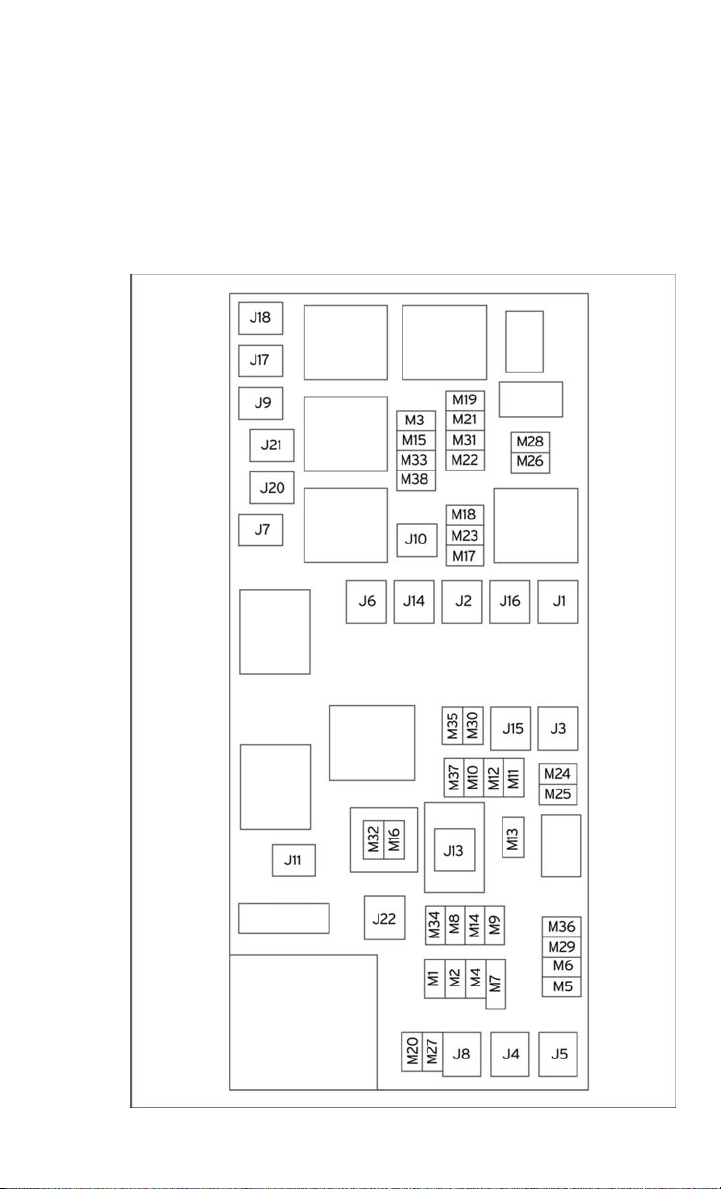
FUSES
MAINTAINING YOUR VEHICLE
123
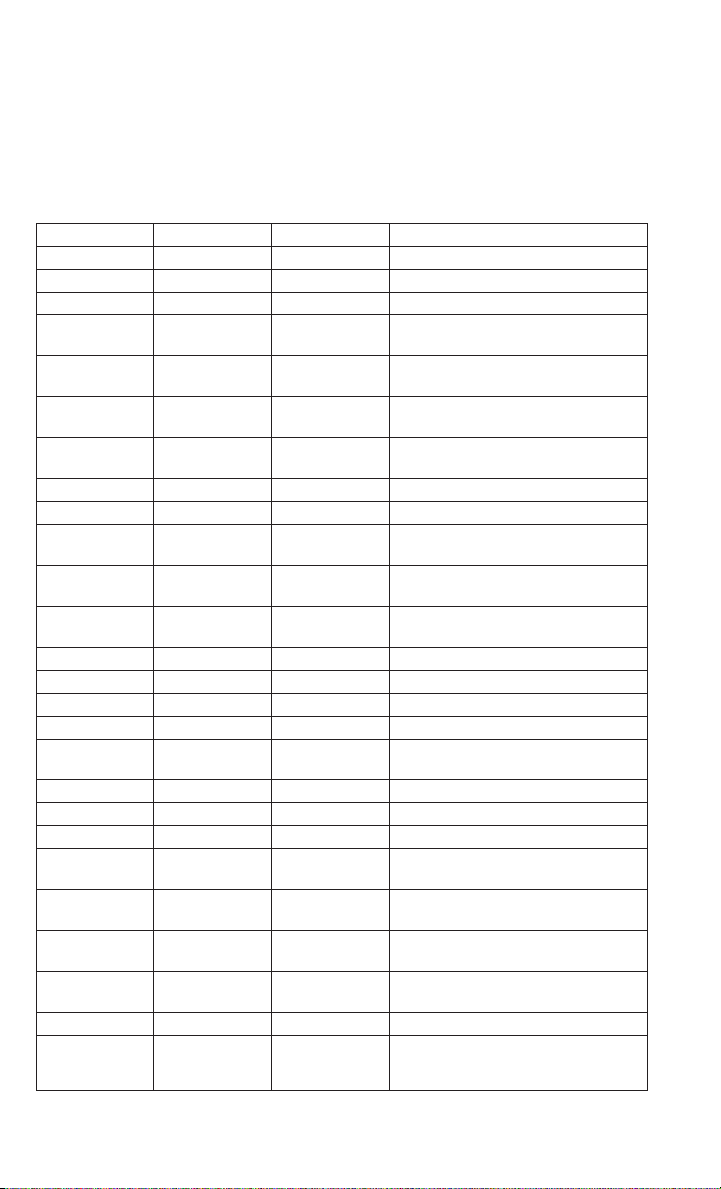
Integrated Power Module (fuses)
• The Integrated Power Module (fuses) is located in the engine compartment near
the battery. This center contains cartridge fuses, mini-fuses and relays.
Cavity Cartridge Fuse Mini-Fuse Description
J1 40 Amp Green Power Folding Seat
J2 30 Amp Pink Power Liftgate Module
J3 30 Amp Pink Rear Door Module (RR Door Node)
J4 25 Amp Natu-
ral
Driver Door Node
J5 25 Amp Natu-
ral
Passenger Door Node
J6 40 Amp Green Anti-Lock Brake System (ABS)
Pump/ESP
J7 30 Amp Pink Anti-Lock Brake System (ABS)
Valve/ESP
J8 40 Amp Green Power Memory Seat (If Equipped)
J9 40 Amp Green PZEV Motor/Flex Fuel
J10 30 Amp Pink Headlamp Wash Relay/Manifold
Tuning Valve
J11 30 Amp Pink Power Sliding Door Module/
Thatchum Relay Lock Feed
J12 30 Amp Pink HVAC Rear Blower, Radiator Fan
Motor
J13 60 Amp Yellow Ignition Off Draw (IOD) — Main
J14 40 Amp Green Rear Window Defogger
J15 40 Amp Green Front Blower
J17 40 Amp Green Starter Solenoid
J18 20 Amp Blue Powertrain Control Module (PCM)
Trans Range
J19 60 Amp Yellow Radiator Fan
J20 30 Amp Pink Front Wiper LO/HI
J21 20 Amp Blue Front/Rear Washer
J22 25 Amp Natu-
ral
Sunroof Module
M1 15 Amp Blue Center High Mounted Stop Light
(CHMSL)/Brake Switch
M2 20 Amp Yellow Trailer Lighting, Front Fog Lamps,
Intelligent Battery Sensor (IBS)
M3 20 Amp Yellow Front/Rear Axle Locker, Vacuum
Pump Motor
M4 10 Amp Red Trailer Tow
M5 25 Amp
natural
Inverter
MAINTAINING YOUR VEHICLE
124

Cavity Cartridge Fuse Mini-Fuse Description
M6 20 Amp Yellow Power Outlet #1 (ACC), Rain Sensor
M7 20 Amp Yellow Power Outlet #2 (BATT/ACC SE-
LECT)
M8 20 Amp Yellow Front Heated Seat (If Equipped)
M9 20 Amp Yellow Rear Heated Seat (If Equipped)
M10 15 Amp Blue Ignition Off Draw — Vehicle Enter-
tainment System (IOD-VES), Satel-
lite Digital Audio Receiver (SDARS),
DVD, Hands-Free Module (HFM),
Universal Garage Door Opener
(UGDO), Vanity Lamp (VANITY LP),
Streaming Video Module
M11 10 Amp Red (Ignition Off Draw) IOD-HVAC/ATC
M12 30 Amp Green Amplifier (AMP)/Radio
M13 20 Amp Yellow Ignition Off Draw— Cabin Compart-
ment Node (IOD-CCN), SIREN,
Clock Module (CLK MOD), Multi-
Function Control Switch (MULTI-
FCTN SW)/ITM
M14 20 Amp Yellow Trailer Tow — If Equipped
M15 20 Amp Yellow Rear View Mirror (RR VW MIR),
Cabin Compartment Node (CCN),
Multi-Function Control Switch
(MULTIFTCN SW), Tire Pressure
Monitor (TPM), Glow Plug Module
(GLW PLG MOD) — Export Diesel
Only, Assy-Shifter (Hall Effect),
Acoustic Noise Cancellation (ANC)
M16 10 Amp Red Occupant Restraint Controller/
Occupant Classification Module
(ORC/OCM)
M17 15 Amp Blue Left Tail/License/Park Lamp (LT-
TAIL/LIC/PRK LMP), Running
Lamps
M18 15 Amp Blue Right Tail/Park/Run Lamp (RT-TAIL/
PRK/RUN LMP)
M19 25 Amp Natu-
ral
Auto Shut Down (ASD #1 and #2)
M20 15 Amp Blue Cabin Compartment Node Interior
Light (CCN INT LIGHT), Switch
Bank (SW BANK), Steering Control
Module (SCM), Switch Steering
Wheel
M21 20 Amp Yellow Auto Shut Down (ASD #3)
M22 10 Amp Red Right Horn (RT HORN (HI/LOW)
MAINTAINING YOUR VEHICLE
125

Cavity Cartridge Fuse Mini-Fuse Description
M23 10 Amp Red Left Horn (LT HORN (LT HORN (HI/
LOW)
M24 25 Amp Natu-
ral
Rear Wiper (REAR WIPER)
M25 20 Amp Yellow Fuel Pump (FUEL PUMP), Diesel
Lift Pump (DSL LIFT PUMP) — Ex-
port Only
M26 10 Amp Red Power Mirror Switch (PWR MIRR
SW), Driver Window Switch (DRVR
WIND SW)
M27 10 Amp Red Wireless Ignition Module, Keyless
Entry Module
M28 10 Amp Red Next Generation Controller (NGC),
PCM, Transmission Feed (TRANS
FEED), TCM
M29 10 Amp Red Occupant Classification Module
(OCM)
M30 15 Amp Blue Rear Wiper Module (RR WIPER
MOD), Power Folding Mirror (PWR
FOLD MIR), J1962 Diagnostic Feed
M31 20 Amp Yellow Back-Up Lamps (B/U LAMPS)
M32 10 Amp Red Occupant Restraint Controller
(ORC), TT EUROPE
M33 10 Amp Red Next Generation Controller (NGC),
Global Powertrain Engine Controller
(GPEC), TCM
M34 10 Amp Red Park Assist (PRK ASST), Heater
Ventilation, Air Conditioning Mod-
ule (HVAC MOD), Headlamp Wash
(HDLP WASH), Compass (COM-
PAS), IR Sensor, Rear Camera,
Lamp Door FT Drv/Pass, Lamp
Flashlight, AHLM, Relay Diesel
Cabin Heater, Rad Fan Diesel
M35 10 Amp Red Heated Mirrors
M36 20 Amp Yellow Power Outlet #3 (BATT)
M37 10 Amp Red Anti-Lock Brake System (ABS),
Electronic Stability Program (ESP),
Stop Lamp Switch (STP LP SW),
Fuel Pump Rly Hi Control
M38 25 Amp Natu-
ral
Door Lock/Unlock Motors (LOCK/
UNLOCK MTRS), Liftgate Lock/
Unlock Motors
MAINTAINING YOUR VEHICLE
126

TIRE PRESSURES
• Check the inflation pressure of each tire, including the spare tire, at least monthly
and inflate to the recommended pressure for your vehicle.
• The tire pressures recommended for your vehicle are found on the “Tire and
Loading Information” label located on the driver’s side door opening.
NOTE:
Refer to the Owner's Manual on the DVD
for more information regarding tire warn-
ings and instructions.
WARNING!
• Overloading of your tires is dangerous. Overloading can cause tire failure, affect
vehicle handling, and increase your stopping distance. Use tires of the recom-
mended load capacity for your vehicle. Never overload them.
• Improperly inflated tires are dangerous and can cause collisions. Under-
inflation is the leading cause of tire failure and may result in severe cracking,
component separation, or “blow out”. Over-inflation reduces a tire’s ability to
cushion shock. Objects on the road and chuck holes can cause damage that
results in tire failure. Unequal tire pressures can cause steering problems. You
could lose control of your vehicle. Over-inflated or under-inflated tires can affect
vehicle handling and can fail suddenly, resulting in loss of vehicle control.
MAINTAINING YOUR VEHICLE
127

WHEEL AND WHEEL TRIM CARE
All wheels and wheel trim, especially aluminum and chrome plated wheels, should
be cleaned regularly using mild (neutral Ph) soap and water to maintain their luster
and to prevent corrosion. Wash wheels with the same soap solution recommended for
the body of the vehicle.
Your wheels are susceptible to deterioration caused by salt, sodium chloride,
magnesium chloride, calcium chloride, etc., and other road chemicals used to melt
ice or control dust on dirt roads. Use a soft cloth or sponge and mild soap to wipe
away promptly. Do not use harsh chemicals or a stiff brush. They can damage the
wheel’s protective coating that helps keep them from corroding and tarnishing.
NOTE:
Many aftermarket wheel cleaners contain strong acids or strong alkaline additives
that can harm the wheel surface.
CAUTION!
Avoid products or automatic car washes that use acidic solutions or strong alkaline
additives or harsh brushes. These products and automatic car washes may damage
the wheel's protective finish. Such damage is not covered by the New Vehicle
Limited Warranty. Only car wash soap, MOPAR Wheel Cleaner or equivalent is
recommended.
When cleaning extremely dirty wheels including excessive brake dust, care must be
taken in the selection of tire and wheel cleaning chemicals and equipment to prevent
damage to the wheels. Mopar Wheel Treatment or Mopar Chrome Cleaner or their
equivalent is recommended or select a non-abrasive, non-acidic cleaner for alumi-
num or chrome wheels. Do not use any products on Dark Vapor or Black Satin Chrome
Wheels. They will permanently damage this finish and such damage is not covered by
the New Vehicle Limited Warranty.
CAUTION!
Do not use scouring pads, steel wool, a bristle brush, metal polishes or oven
cleaner. These products may damage the wheel's protective finish. Such damage
is not covered by the New Vehicle Limited Warranty. Only car wash soap, MOPAR
Wheel Cleaner or equivalent is recommended.
NOTE:
If you intend parking or storing your vehicle for an extended period after cleaning the
wheels with wheel cleaner, drive your vehicle for a few minutes before doing so.
Driving the vehicle and applying the brakes when stopping will reduce the risk of
brake rotor corrosion.
MAINTAINING YOUR VEHICLE
128
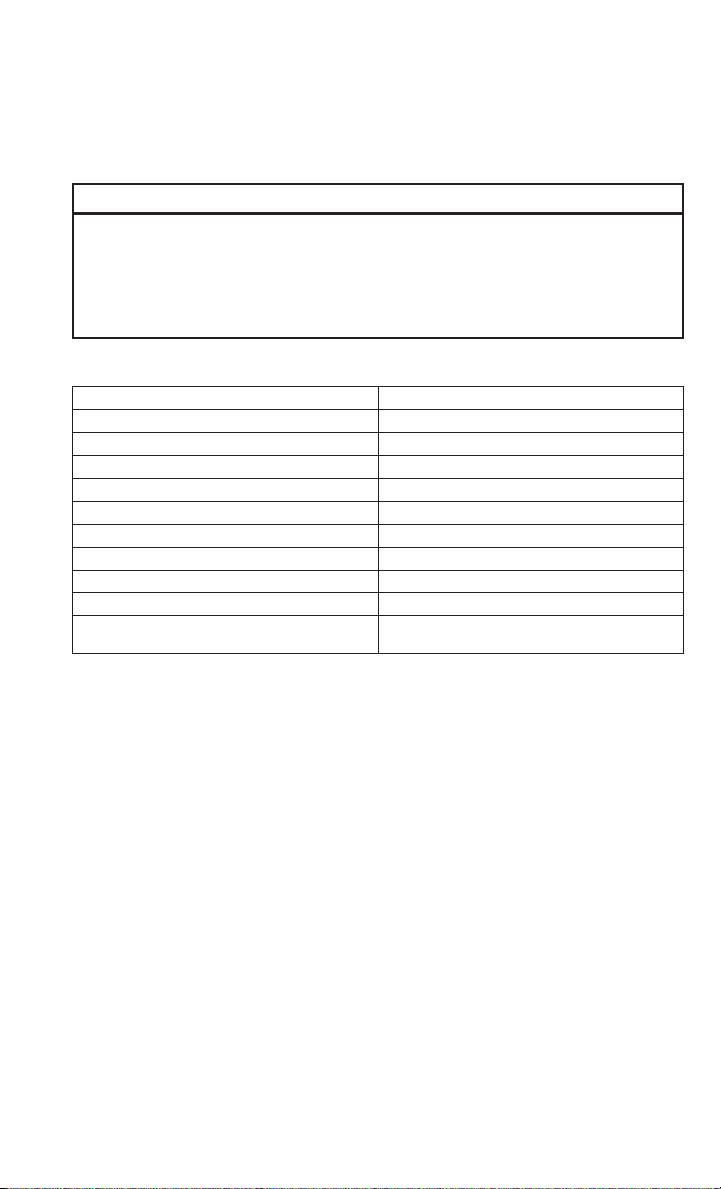
Dark Vapor Or Black Satin Chrome Wheels
CAUTION!
If your vehicle is equipped with Dark Vapor or Black Satin Chrome wheels DO NOT
USE wheel cleaners, abrasives or polishing compounds. They will permanently
damage this finish and such damage is not covered by the New Vehicle Limited
Warranty. USE ONLY MILD SOAP AND WATER WITH A SOFT CLOTH. Used on a
regular basis; this is all that is required to maintain this finish.
EXTERIOR BULBS
LIGHT BULBS – Exterior Bulb Number
Backup Lamp 3157
Rear Tail/Stop/Side Marker Lamp LED (Serviced at Authorized Dealer)
Center High-Mounted Stop Lamp LED (*)
Fog Lamp – If Equipped H11
Front Side Marker W5W
Front Park/Turn Signal Lamp PY27/7W or 3757A
Rear Turn Signal Lamp 3757A
Headlamp – (Low and High Beam Halogen) H11
Headlamp – (HID-If Equipped) Low Beam) D1S
License Lamp 168
* CHMSL is not serviceable. It is a LED lamp. To replace the LED, the entire CHMSL
assembly must be replaced.
MAINTAINING YOUR VEHICLE
129

FCA US LLC CUSTOMER CENTER
P.O. Box 21–8004 Auburn Hills, MI 48321–8004 Phone: 1-866-726-4636
FCA CANADA INC. CUSTOMER CENTER
P.O. Box 1621 Windsor, Ontario N9A 4H6 Phone: 1-800-465-2001 (English)
Phone: 1-800-387-9983 (French)
ASSISTANCE FOR THE HEARING IMPAIRED
• To assist customers who have hearing difficulties, the manufacturer has installed
special TDD (Telecommunication Devices for the Deaf) equipment at its customer
center. Any hearing or speech impaired customer, who has access to a TDD or a
conventional teletypewriter (TTY) in the United States, can communicate with the
manufacturer by dialing 1–800–380–CHRY. Canadian residents with hearing
difficulties that require assistance can use the special needs relay service offered
by Bell Canada. For TTY teletypewriter users, dial 711 and for Voice callers, dial
1–800–855–0511 to connect with a Bell Relay Service operator.
WARNING!
Engine exhaust, some of its constituents, and certain vehicle components con-
tain, or emit, chemicals known to the State of California to cause cancer and birth
defects, or other reproductive harm. In addition, certain fluids contained in
vehicles and certain products of component wear contain, or emit, chemicals
known to the State of California to cause cancer and birth defects, or other
reproductive harm.
PUBLICATIONS ORDERING
• If you are the first registered retail owner of your vehicle, you may obtain one free
printed copy of the Owner's Manual, Warranty Booklet or Radio Manuals on your
DVD by calling 1–866–726–4636 (U.S.) or 1–800–387–1143 (Canada) or by
contacting your dealer.
• Replacement User Guide kits or DVDs or, if you prefer, additional printed copies
of the Owner's Manual, Warranty Booklet or Radio Manuals may be purchased by
visiting www.techauthority.com or by calling 1–800–890–4038 (U.S.) or 1–800–
387–1143 (Canada). Visa, Master Card, American Express and Discover orders
are accepted. If you prefer mailing your order, please call the above numbers for
an order form.
NOTE:
• A street address is required when ordering manuals (no P.O. Boxes).
• The Owner's Manual and User Guide electronic files are also available on the
Chrysler, Jeep, Ram Truck and Dodge websites.
CUSTOMER ASSISTANCE
130

• Click on the “For Owners” tab, select “Owner/Service Manuals”, then select your
desired model year and vehicle from the drop down lists.
REPORTING SAFETY DEFECTS IN THE UNITED STATES
• If you believe that your vehicle has a defect that could cause a collision or cause
injury or death, you should immediately inform the National Highway Traffic
Safety Administration (NHTSA) in addition to notifying the manufacturer.
• If NHTSA receives similar complaints, it may open an investigation, and if it finds
that a safety defect exists in a group of vehicles, it may order a recall and remedy
campaign. However, NHTSA cannot become involved in individual problems
between you, your authorized dealer and the manufacturer.
• To contact NHTSA, you may either call the Auto Safety Hotline toll free at
1–888–327–4236 (TTY: 1–800–424–9153), or go to http://www.safercar.gov; or
write to: Administrator, NHTSA, 1200 New Jersey Avenue, SE., West Building,
Washington, D.C. 20590. You can also obtain other information about motor
vehicle safety from http://www.safercar.gov.
In Canada
• If you believe that your vehicle has a safety defect, you should contact the
Customer Service Department immediately. Canadian customers who wish to
report a safety defect to the Canadian government should contact Transport
Canada, Motor Vehicle Defect Investigations and Recalls at 1-800-333-0510 or
go to http://www.tc.gc.ca/eng/roadsafety/safedrivers-childsafety-index-53.htm
• French Canadian customers who wish to report a safety defect to the Canadian
government should contact Transport Canada, Motor Vehicle Defect Investigations
and Recalls at 1-800-333-0510 or go to http://www.tc.gc.ca/securiteroutiere/
CUSTOMER ASSISTANCE
131

AUTHENTIC ACCESSORIES BY MOPAR®
• The following highlights just some of the many Authentic Dodge Accessories by
Mopar
®
featuring a fit, finish, and functionality specifically for your Ram Cargo
Van.
• In choosing Authentic Accessories you gain far more than expressive style,
premium protection, or extreme entertainment, you also benefit from enhancing
your vehicle with accessories that have been thoroughly tested and factory-
approved.
• For the full line of Authentic Ram Accessories by Mopar
®
, visit your local Ram
dealership or online at mopar.com.
EXTERIOR:
• Front Air Deflector • Front End Cover • Molded Splash Guards
• Hitch Receiver • Fog Lights
• Molded Running Boards • Full Vehicle Cover
INTERIOR:
• Premium Carpet Floor
Mats
• Door Sill Guards • Rear Seat Floor Liner
• Slush Mats • Ambient Light Kit • Katzkin Leather Seats
• Cargo Management
ELECTRONICS:
• Portable Navigation Sys-
tems
• Uconnect
®
Web (WiFi) • Rearview Camera
• iPod
®
Adapter • Ecometer • DVD Rear Seat Video™
• Electronic Vehicle Track-
ing System
• Radio Upgrades • Remote Start
CARRIERS:
• Hitch-mount Bike Carrier • Roof Mount Bike Carrier • Roof Box Cargo Carrier
• Roof Mount Ski and
Snowboard Carrier
• Tent Kit • Roof Mount Canoe Carrier
iPod
®
is a registered trademark of Apple, Inc.
MOPAR ACCESSORIES
132

FREQUENTLY ASKED QUESTIONS
GETTING STARTED
• How do I install my LATCH Equipped Child Seat? pg. 12
• How do I program my Front Seat Memory? pg. 15
OPERATING YOUR VEHICLE
• How does the Electronic Range Select (ERS) operate? pg. 29
• How does the Fuel Economy (ECON) mode operate? pg. 30
ELECTRONICS
• Which radio is in my vehicle?
• Uconnect
®
130 pg. 42
• Uconnect
®
130 WITH SiriusXM™ pg. 44
• Uconnect
®
430/430N pg. 47
• Uconnect
®
730N pg. 57
• How do I activate the Audio Jack?
• Uconnect
®
130 pg. 46
• Uconnect
®
130 WITH SiriusXM™ pg. 46
• Uconnect
®
430/430N pg. 51
• Uconnect
®
730N pg. 60
• How do I set the clock on my radio?
• Uconnect
®
130 pg. 44
• Uconnect
®
130 WITH SiriusXM™ pg. 44
• Uconnect
®
430/430N pg. 47
• Uconnect
®
730N pg. 57
• How do I use the Navigation feature?
• Uconnect
®
430/430N pg. 53
• Uconnect
®
730N pg. 64
• How do I pair my cell phone via Bluetooth
®
with the Uconnect
®
Hands-Free Voice
Activation System? pg. 73
• How do I use my USB port to listen to audio through my touch-screen radio?
pg. 72
• What does the ECON message mean on the EVIC display? pg. 80
• How do I configure my Universal Garage Door Opener (HomeLink)? pg. 82
FAQ (How To?)
133

UTILITY
• How do I know how much I can tow with my Ram Cargo Van? pg. 92
WHAT TO DO IN EMERGENCIES
• What do I do if my TPMS warning light is blinking? pg. 93
• How do I change a flat tire? pg. 98
• How do I Jump-Start my vehicle? pg. 108
MAINTAINING YOUR VEHICLE
• Where is my Fuse Block located? pg. 124
• What type of oil do I use? pg. 117
• How often should I change my engine’s oil? pg. 118
• What should my tire pressure be set at? pg. 127
FAQ (How To?)
134

AdjustablePedals ...........23
Airbag..................10
Alarm (Security Alarm) .........9
Arming Theft System (Security
Alarm).................9
Automatic Headlights .........26
Automatic Temperature Control
(ATC).................33
Automatic Transmission
FluidType ............117
Auxiliary Audio/Video Input Jacks . .80
AxleFluid...............117
Back-Up Camera ............35
Belts, Seat ...............10
Blind Spot Monitoring .........35
Brake Fluid ..............117
Break-In Recommendations, New
Vehicle ................24
BulbReplacement..........129
Calibration,Compass .........80
Cargo Area Features ..........88
Cargo Compartment ..........88
Luggage Carrier ..........91
ChangeOilIndicator..........96
ChangingAFlatTire..........98
Child Restraint .............12
Child Restraint Tether Anchors ....12
Compass Calibration ..........80
Cooling System
Coolant Capacity .........117
Cruise Control (Speed Control) ....27
CruiseLight...............27
Customer Assistance .........130
Defects, Reporting ..........131
Dimmer Control.............27
Dimmer Switch, Headlight ......27
Disarming, Theft System ........9
Economy(Fuel)Mode.........30
Electronics
Your Vehicle's Sound System . . .40
Electronic Speed Control (Cruise
Control)................27
Electronic Vehicle Information Center
(EVIC)..............80,81
Emergency, In Case of
Brake Warning Light .......95
Freeing Vehicle When Stuck . .112
Jacking ............98,102
Overheating ............97
Engine
Break-In Recommendations . . .24
Compartment ...........116
Oil Selection ...........117
Overheating ............97
Event Data Recorder .........113
Exterior Lights.............129
Flash-To-Pass ..............26
Fluid Capacities............117
Fluids .................117
FogLights................26
Fold in Floor (Stow `n Go) Seating . .16
Freeing A Stuck Vehicle .......112
Front Heated Seats...........21
Fuel
Economy Mode ..........30
Filler Cap (Gas Cap) ........96
Specifications ..........117
Garage Door Opener (HomeLink
®
) . .82
Gas Cap (Fuel Filler Cap) .......96
Headlights
Automatic .............26
Dimmer Switch ..........27
HighBeam .............26
Heated Mirrors ........31,32,34
Heated Seats ..............21
Heated Steering Wheel ........22
High Beam/Low Beam Select (Dimmer)
Switch ................26
HomeLink
®
(Garage Door Opener) . .82
Hood Release .............114
Instrument Cluster
Indicators ..............7
Instrument Cluster Warning Lights . . .6
Intermittent Wipers (Delay Wipers) . .25
Introduction ...............2
Inverter Outlet (115V) .........85
Inverter, Power .............85
iPod
®
/USB/MP3 Control ........72
Bluetooth Streaming Audio ....78
INDEX
135

Jack Location ..............98
Jack Operation .............98
Jump Starting .............108
KeyFob..................8
Key Fob Programmable Features . . .81
Lane Change Assist ..........25
Lap/Shoulder Belts ...........10
LATCH (Lower Anchors and Tether for
CHildren)...............12
Liftgate, Power ..............8
Lights
Tire Pressure Monitoring (TPMS)
..93
TurnSignal .............25
Warning (Instrument Cluster
Description) .............6
Locks
Liftgate, Tailgate ..........8
Luggage Rack (Roof Rack) ......91
Maintenance Record .........122
MaintenanceSchedule........118
Malfunction Indicator Light (Check
Engine)................95
MemorySeat..............15
Mirrors
Heated ..........31,32,34
Navigation Voice Prompt
Volume .............54,64
New Vehicle Break-In Period .....24
Oil Change Indicator ..........96
Oil, Engine
Capacity ..............117
Outlet
Power ................86
Overheating, Engine ..........97
Park Sense System, Rear .......35
Pedals, Adjustable ...........23
Placard, Tire and Loading
Information.............127
Power
Glass Sunroof ...........37
Inverter ...............85
LiftGate ...............8
Outlet (Auxiliary Electrical
Outlet) ...............86
Seats ................14
Steering ..............117
Preparation for Jacking........102
Programmable Electronic Features . .81
Rain Sensitive Wiper System .....25
RearCamera ..............35
Rear Cross Path.............35
Rear Heated Seats ...........21
Rear Park Sense System........35
Recreational Towing ..........92
Remote Starting System.........9
Replacement Bulbs..........129
Reporting Safety Defects.......131
Rocking Vehicle When Stuck ....112
Roof Rack (Luggage Rack) ......91
Schedule,Maintenance .......118
Seat Belts ................10
Seats ................14,15
Adjustment .............15
Fold in Floor (Stow `n Go) ....16
Heated ...............21
Lumbar Support ..........14
Memory ...............15
Power ................14
Stow `n Go (Fold in Floor) ....16
Security Against Theft ..........9
Shift Lever Override .........110
Signals, Turn ..............25
SmartBeams ..............27
SpareTire................98
SparkPlugs..............117
Speed Control
Accel/Decel ............27
Cancel ...............28
Distance Setting (ACC Only) . . .28
Starting
Remote ................9
Steering
TiltColumn .............22
Wheel, Heated ...........22
Steering Wheel Audio Controls ....71
Stow
`n Go (Fold in Floor) Seats . . .16
Stuck, Freeing .............112
SunRoof ................37
INDEX
136

Supplemental Restraint System -
Airbag ................10
Theft System Arming ..........9
Theft System Disarming.........9
Tilt Steering Column ..........22
Tires
Air Pressure ...........127
Changing ..............98
Jacking ............98,102
SpareTire .............98
Towing..................92
Disabled Vehicle .........111
Recreational ............92
Trailer Towing
Trailer and Tongue Weight ....92
Trailer Weight ..............92
Transmission
Fluid ................117
TurnSignals...............25
Uconnect
®
VoiceCommand......76
Video Entertainment System™ (Rear
Seat Video System) .........79
Voice Command ............76
Voice Prompt Volume
Navigation ...........54,64
Volume
Navigation Voice Prompt . . .54, 64
Washer
Rear .................26
Washers, Windshield ..........25
WheelandWheelTrimCare.....128
Wind Buffeting .............39
Windshield Washers ..........25
Windshield Wipers ...........25
Wiper,Rear...............26
INDEX
137

NOTES
138

NOTES
139

NOTES
140

NOTES
141

NOTES
142

NOTES
143

NOTES
144

The driver’s primary responsibility is the safe operation of the vehicle. Driving while
distracted can result in loss of vehicle control, resulting in a collision and personal
injury. FCA US LLC strongly recommends that the driver use extreme caution when using
any device or feature that may take their attention off the road. Use of any electrical
devices such as cell phones, computers, portable radios, vehicle navigation or other
devices by the driver while the vehicle is moving is dangerous and could lead to a
serious collision. Texting while driving is also dangerous and should never be done
while the vehicle is moving. If you find yourself unable to devote your full attention to
vehicle operation, pull off the road to a safe location and stop your vehicle. Some
States or Provinces prohibit the use of cellular telephones or texting while driving.
It is always the driver’s responsibility to comply with all local laws.
If you are the first registered retail owner of your vehicle, you
may obtain a complimentary printed copy of the Owner’s Manual,
Navigation/Uconnect® Manuals or Warranty Booklet by calling
1-866-726-4636 (U.S.) or 1-800-387-1143 (Canada) or by
contacting your dealer.
IMPORTANT
This User Guide is intended to familiarize you with the important features
of your vehicle. The DVD enclosed contains your Owner’s Manual, Navigation/
Uconnect® Manuals, Warranty Booklets, Tire Warranty and Roadside
Assistance (new vehicles purchased in the U.S.) or Roadside Assistance
(new vehicles purchased in Canada) in electronic format. We hope you
nd it useful. Replacement DVD kits may be purchased by visiting
www.techauthority.com. Copyright 2016 FCA US LLC.
DRIVING AND ALCOHOL
Drunken driving is one of the most frequent causes of collisions. Your driving ability
can be seriously impaired with blood alcohol levels far below the legal minimum. If
you are drinking, don’t drive. Ride with a designated non-drinking driver, call a cab,
a friend, or use public transportation.
WARNING
Driving after drinking can lead to a collision. Your perceptions are less sharp,
your reflexes are slower, and your judgment is impaired when you have been drinking.
Never drink and then drive.
This guide has been prepared to help you get quickly acquainted with
your new RAM and to provide a convenient reference source for common
questions. However, it is not a substitute for your Owner’s Manual.
For complete operational instructions, maintenance procedures and
important safety messages, please consult your Owner’s Manual,
Navigation/Uconnect® Manuals and other Warning Labels in your vehicle.
Not all features shown in this guide may apply to your vehicle. For
additional information on accessories to help personalize your vehicle, visit
www.mopar.com (U.S.), www.mopar.ca (Canada) or your local RAM dealer.

Download a free electronic copy of the Owner’s Manual
or Warranty Booklet by visiting the Owners tab at
www.ramtrucks.com (U.S.) or www.ramtruck.ca (Canada).
Download a free Vehicle Information App by visiting your
application store, Keyword (RAM Toolbox), or scanning the
Microsoft Tag. To put Microsoft Tags to work for you, use your
mobile phone’s browser or App store to download a Microsoft
Tag reader, like the free one at www.gettag.mobi. Then follow
the directions to scan the code.
13MZZ-926-AA
RAM CV Cargo Van
Fifth Edition
User Guide
Canada Only
iPhone
Canada Only
Android
Getthe free mobile appfor your phone
http://gettag.mobi
U.S. Only
Getthe free mobile appfor your phone
http://gettag.mobi