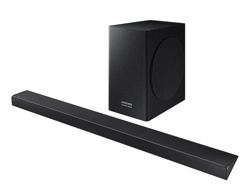
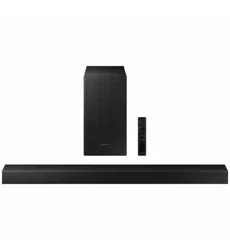
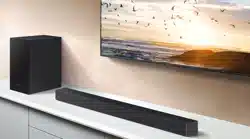
FULL MANUAL
Imagine the possibilities
Thank you for purchasing this Samsung product.
To receive more complete service, please register
your product at www.samsung.com/register
HW-NW700
ENG - 2
SAFETY INFORMATION
SAFETY WARNINGS
TO REDUCE THE RISK OF ELECTRIC SHOCK, DO
NOT REMOVE THE COVER (OR BACK).
NO USER-SERVICEABLE PARTS ARE INSIDE.
REFER SERVICING TO QUALIFIED SERVICE
PERSONNEL.
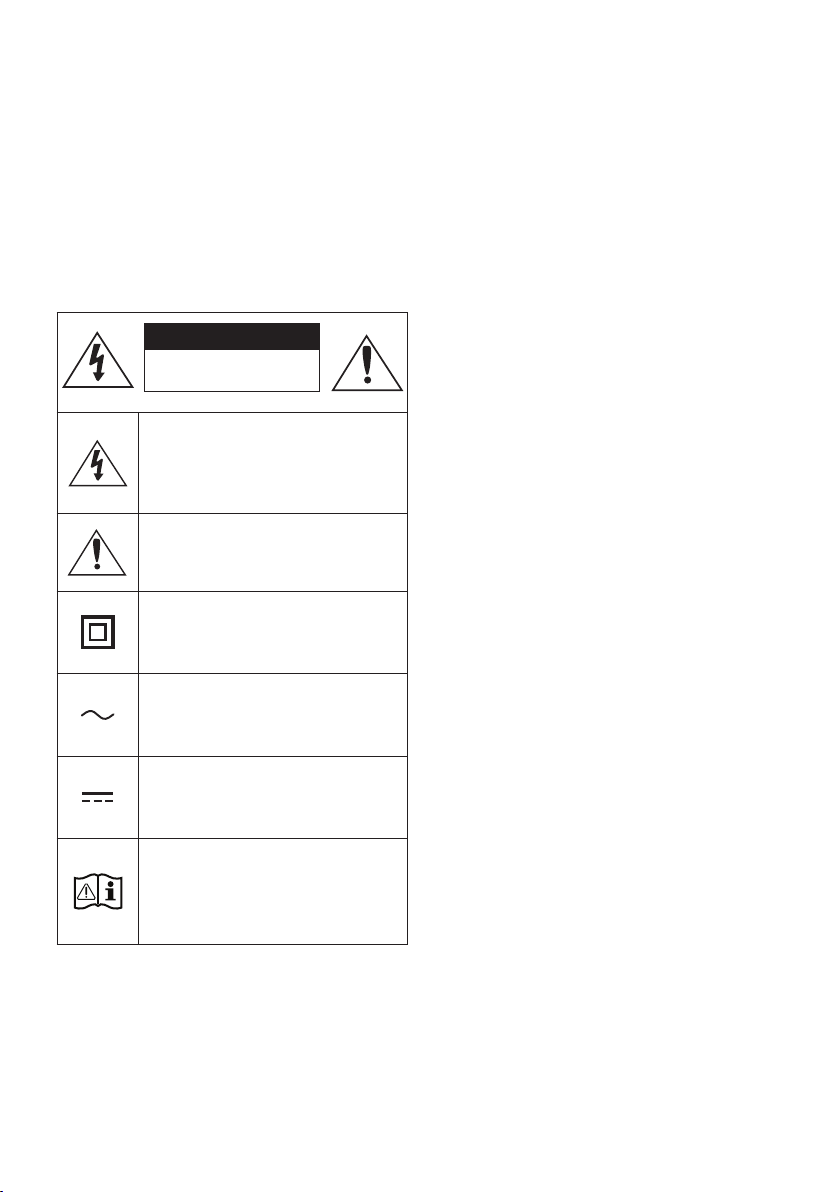
CAUTION
RISK OF ELECTRIC SHOCK.
DO NOT OPEN.
This symbol indicates that high voltage
is present inside. It is dangerous to
make any kind of contact with any
internal part of this product.
This symbol indicates that this product
has included important literature
concerning operation and maintenance.
Class II product : This symbol indicates
that it does not require a safety
connection to electrical earth (ground).
AC voltage : This symbol indicates that
the rated voltage marked with the
symbol is AC voltage.
DC voltage : This symbol indicates that
the rated voltage marked with the
symbol is DC voltage.
Caution, Consult instructions for use :
This symbol instructs the user to
consult the user manual for further
safety related information.
WARNING
• To reduce the risk of re or electric shock, do
not expose this appliance to rain or moisture.
CAUTION
• TO PREVENT ELECTRIC SHOCK, MATCH WIDE
BLADE OF PLUG TO WIDE SLOT, FULLY
INSERT.
• This apparatus shall always be connected to a
AC outlet with a protective grounding
connection.
• To disconnect the apparatus from the mains,
the plug must be pulled out from the mains
socket, therefore the mains plug shall be
readily operable.
• Do not expose this apparatus to dripping or
splashing. Do not put objects lled with
liquids, such as vases on the apparatus.
• To turn this apparatus off completely, you
must pull the power plug out of the wall
socket. Consequently, the power plug must
be easily and readily accessible at all times.
ENG - 3
PRECAUTIONS
1. Ensure that the AC power supply in your
house complies with the power
requirements listed on the identication
sticker located on the bottom of your
product. Install your product horizontally, on
a suitable base (furniture), with enough
space around it for ventilation (7~10 cm).
Make sure the ventilation slots are not
covered. Do not place the unit on ampliers
or other equipment which may become hot.
This unit is designed for continuous use. To
fully turn off the unit, disconnect the AC plug
from the wall outlet. Unplug the unit if you
intend to leave it unused for a long period of
time.
2. During thunderstorms, disconnect the AC
plug from the wall outlet. Voltage peaks due
to lightning could damage the unit.
3. Do not expose the unit to direct sunlight or
other heat sources. This could lead to
overheating and cause the unit to
malfunction.
4. Protect the product from moisture (i.e.
vases), and excess heat (e.g. a replace) or
equipment creating strong magnetic or
electric elds. Unplug the power cable from
the AC wall socket if the unit malfunctions.
Your product is not intended for industrial
use. It is for personal use only. Condensation
may occur if your product has been stored in
cold temperatures. If transporting the unit
during the winter, wait approximately
2 hours until the unit has reached room
temperature before using.
5. The battery used with this product contains
chemicals that are harmful to the
environment. Do not dispose of the battery
in the general household trash. Do not
expose the battery to excess heat, direct
sunlight, or re. Do not short circuit,
disassemble, or overheat the battery.
Danger of explosion if the battery is replaced
incorrectly. Replace only with the same or
equivalent type.
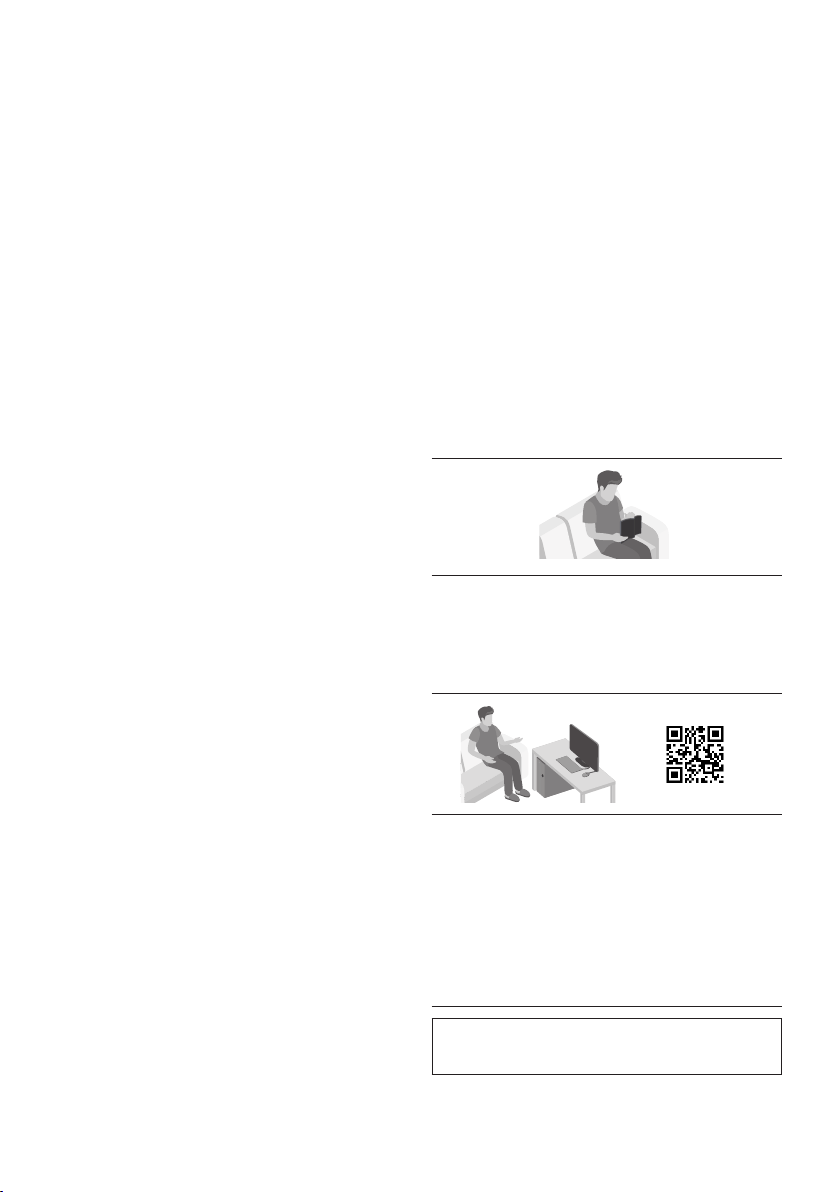
ABOUT THIS MANUAL
The user manual has two parts: this simple paper
USER MANUAL and a detailed FULL MANUAL you
can download.
USER MANUAL
See this manual for safety instructions,
product installation, components,
connections, and product specications.
FULL MANUAL
You can access the FULL MANUAL on
Samsung’s on-line customer support centre by
scanning the QR code. To see the manual on
your PC or mobile device, download the
manual in document format from Samsung’s
website. (http://www.samsung.com/support)
Design, specications, and App screen are subject to
change without prior notice.

ENG - 4
CONTENTS
01 Checking the Components 6
Inserting Batteries before using the Remote Control (AA batteries X 2) ------------------------- 6
02 Product Overview 7
Front Panel / Bottom Panel of the Soundbar ------------------------- 7
Rear Panel of the Soundbar ------------------------- 8
03 Connecting the Soundbar 9
Connecting Electrical Power
-------------------------
9
04 Connecting to a TV 10
Connecting using an Optical Cable
-------------------------
10
Connecting Wirelessly
-------------------------
11
– Connecting a TV via Bluetooth
-------------------------
11
– Connecting via Wi-Fi
-------------------------
13
05 Connecting an External Device 15
Connecting using an Optical Cable
-------------------------
15
06 Connecting a Mobile Device 16
Connecting via Bluetooth
-------------------------
16
Connecting via Wi-Fi (Wireless Network)
-------------------------
19
07 Connecting the Soundbar to an SWA-9000S
(Sold separately) 21
08 Connecting the Soundbar to an SWA-W700
(Sold separately) 24

ENG - 5
09 Connecting an Amazon product 27
Connect and use with an Amazon product (Amazon Echo) ------------------------- 27
Use voice commands to control the Soundbar
-------------------------
29
10 Using the Remote Control 30
How to Use the Remote Control
-------------------------
30
Adjusting the Soundbar volume with a TV remote control
-------------------------
33
Using the Hidden Buttons (Buttons with more than one function)
-------------------------
34
Output specications for the different sound effect modes
-------------------------
34
11 Installing the Wall Mount 35
Installation Precautions
-------------------------
35
Wallmount Components
-------------------------
35
12 Software Update 39
13 Troubleshooting 40
14 Licence 41
15 Open Source Licence Notice 41
16 Important Notes About Service 41
17 SpecicationsandGuide 42
Specications
-------------------------
42
ENG - 6
01 CHECKING THE COMPONENTS
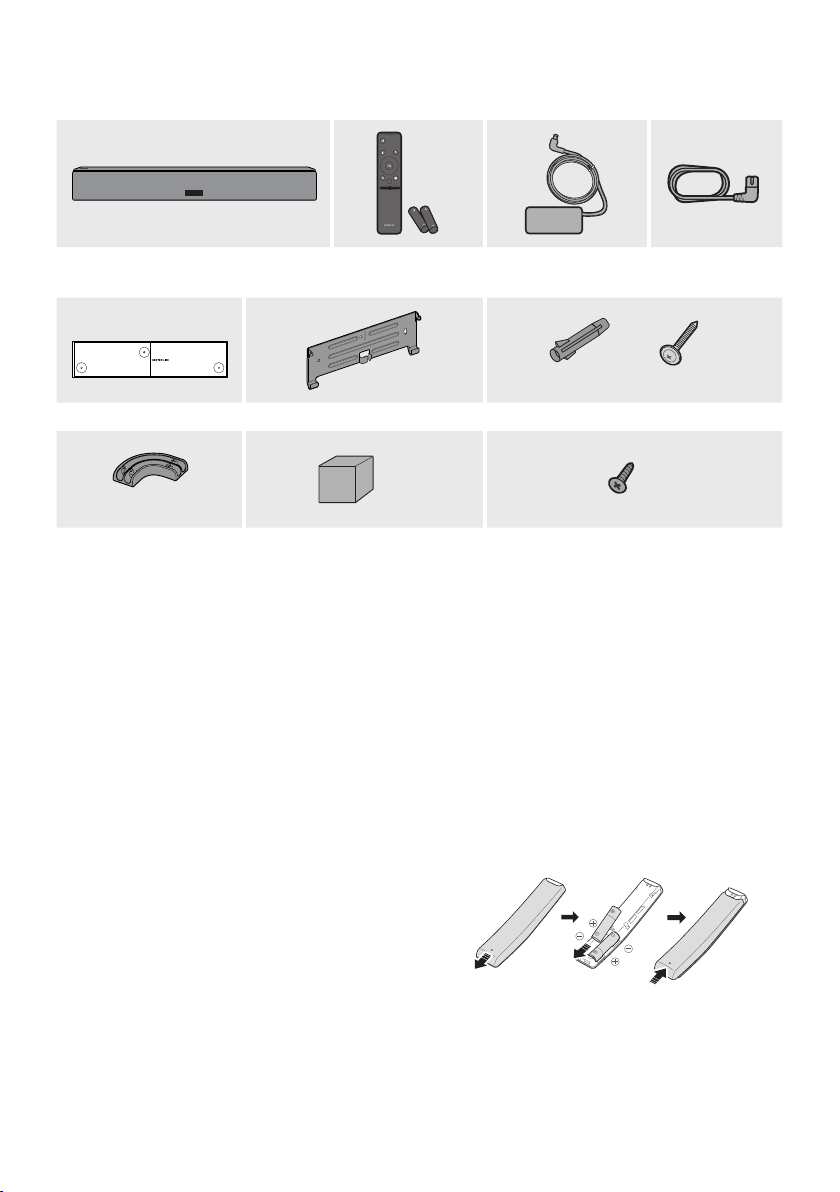
VOL BASS
SOUNDBAR
SOUND
MODE
PAIR
Soundbar Main Unit Remote Control /
Batteries
AC/DC Adapter Power Cord
x 3 x 3
(M5 x L50)
Wall Mount Guide Bracket-Wall Mount Anchor / Screw
x 2
x 2
(M3 x L10)
(Optionally)
x 1
Holder-Cable Cushion Pad Holder-Dongle Screw
• For more information about the power supply and power consumption, refer to the label attached
to the product. (Label : Bottom of the Soundbar Main Unit)
• For Soundbar wall mounting components, see page 35.
• To purchase additional components or optional cables, contact a Samsung Service Centre or
Samsung Customer Care.
• This Soundbar is for wall mounting only.
• Use the Holder-Dongle Screw to secure the Holder-Dongle when connecting the Soundbar to the
Wireless Rear Speaker Kit (SWA-9000S) or Wireless Subwoofer (SWA-W700) (Sold separately).
• The appearance of the accessories may differ slightly from the illustrations above.
Inserting Batteries before using the Remote Control (AA batteries X 2)
Slide the battery cover in the direction of the arrow
until it is completely removed. Insert 2 AA batteries
(1.5V) oriented so that their polarity is correct. Slide
the battery cover back into position.
ENG - 7
02 PRODUCT OVERVIEW
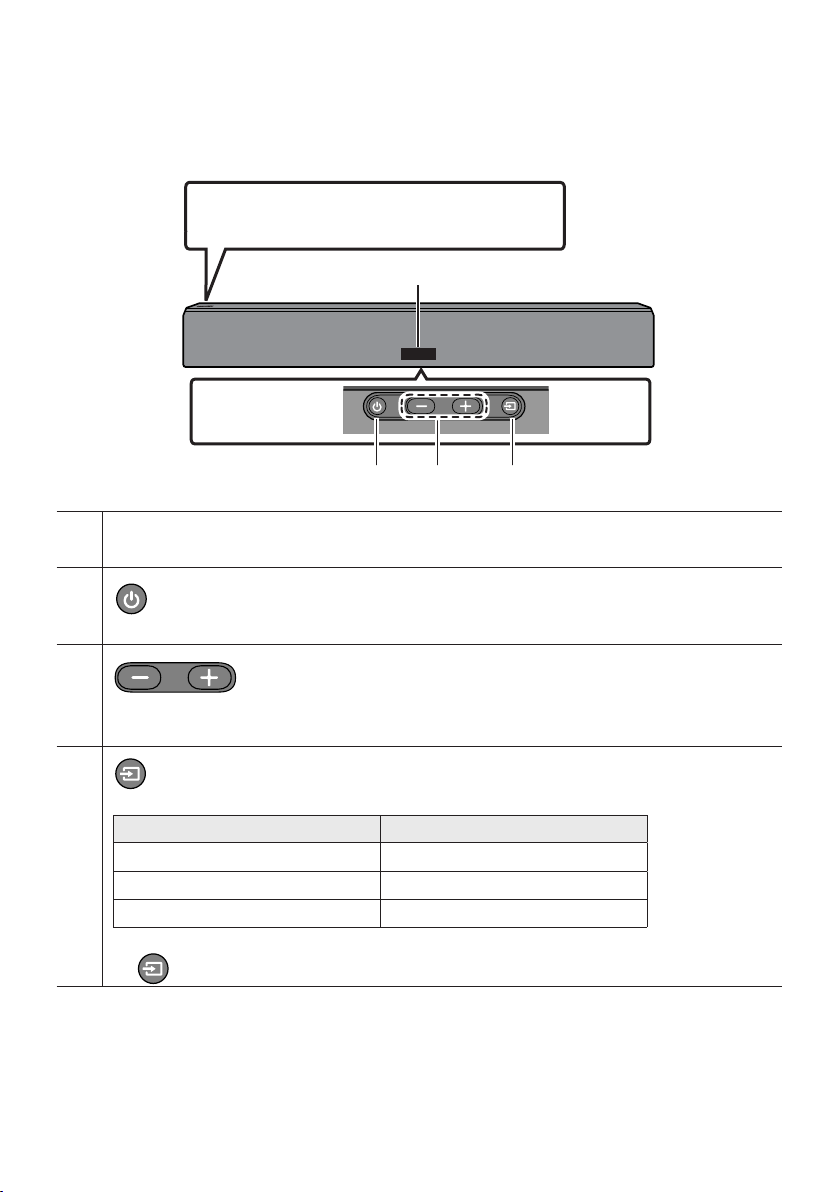
Front Panel / Bottom Panel of the Soundbar
Bottom Panel
Position the product so that the SAMSUNG logo
is located on the top.
Display
Displays the product’s status and current mode.
(Power) Button
Turns the power on and off.
(Volume) Button
Adjusts the volume.
• When adjusted, the volume level appears on the Soundbar’s front display.
(Source) Button
Selects the source input mode.
Input mode Display
Optical Digital input D.IN
Wi-Fi mode WIFI
BLUETOOTH mode BT
• To turn on “BT PAIRING” mode, change the source to “BT” mode, and then press and hold the
button on the bottom panel for more than 5 seconds.
• When you plug in the AC cord, the power button will begin working in 4 to 6 seconds.
• When you turn on this unit, there will be a 4 to 5 second delay before it produces sound.
• If you want to enjoy sound only from the Soundbar, you must turn off the TV’s speakers in the Audio
Setup menu of your TV. Refer to the owner’s manual supplied with your TV.
ENG - 8
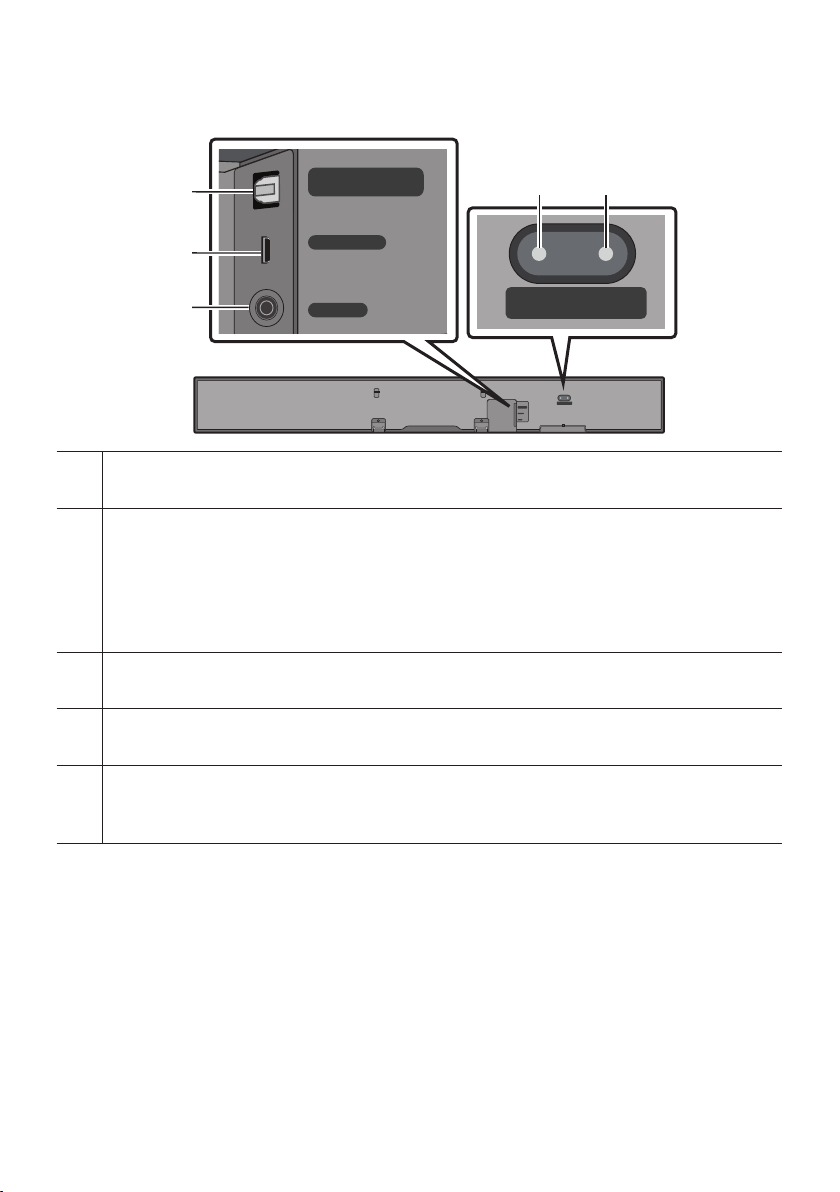
Rear Panel of the Soundbar
DIGITAL AUDIO IN
(OPTICAL)
DC 23V
WIRELESS
ID SET
(WOOFER/REAR)
NETWORK
DIGITAL AUDIO IN
(OPTICAL)
DC 23V
WIRELESS
ID SET
(WOOFER/REAR)
NETWORK
DIGITAL AUDIO IN (OPTICAL)
Connect to the digital (optical) output of an external device.
WIRELESS
Attach the wireless dongle that connects the Soundbar to surround speakers and a subwoofer wirelessly.
(The surround speaker, subwoofer, and wireless dongle are sold separately.)
• The WIRELESS jack is not USB-compatible.
• The availability of subwoofers differs by area. Check the availability at
http://www.samsung.com/support.
DC 23V (Power Supply In)
Connect the AC/DC power adapter.
NETWORK
Press to connect to a wireless network (Wi-Fi) via the SmartThings app.
ID SET (WOOFER/REAR)
Press to connect the Soundbar to surround speakers and a subwoofer wirelessly.
• Press and hold the Up button on the remote for 5 seconds to complete ID SET.
• When disconnecting the power cable of the AC/DC power adaptor from a wall outlet, pull the plug.
Do not pull the cable.
• Do not connect this unit or other components to an AC outlet until all connections between
components are complete.
ENG - 9
03 CONNECTING THE SOUNDBAR
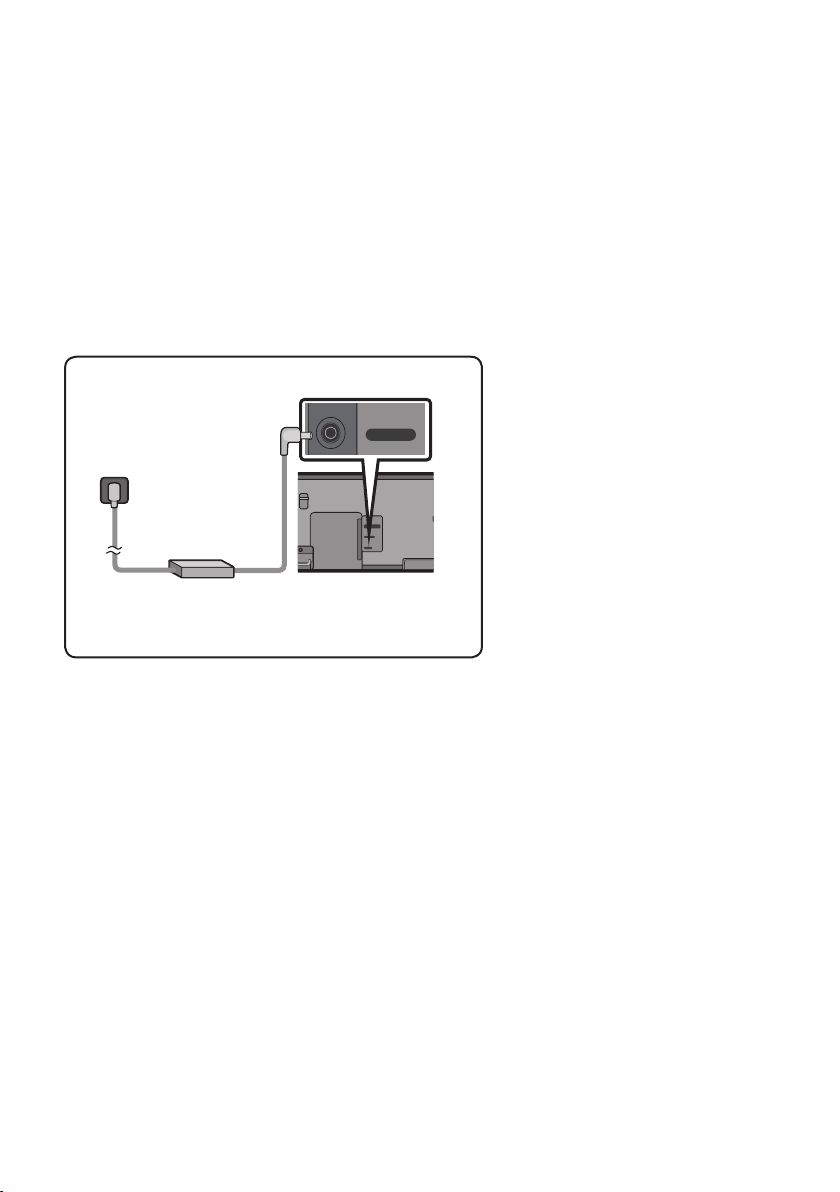
Connecting Electrical Power
Use the power components (1, 2) in the following order to connect the Soundbar to an electrical outlet:
1
Connect the power output cable to the power adapter, and then to the Soundbar.
2
Connect the power cord to a wall socket.
See the illustrations below.
• For more information about the required electrical power and power consumption, refer to the
label attached to the product. (Label : Bottom of the Soundbar Main Unit)
DIGITAL AUDIO IN
(OPTICAL)
DC 23V
WIRELESS
NETWORK
DC 23V
Rear of the Soundbar
Main Unit
1
AC/DC Adapter
2
Power Cord
Connecting
Electrical Power
• Make sure to rest the AC/DC
Adapter at on a table or the oor.
If you place the AC/DC Adapter so
that it is hanging with the AC cord
input facing upwards, water or
other foreign substances could
enter the Adapter and cause the
Adapter to malfunction.
ENG - 10
04 CONNECTING TO A TV
Hear TV sound from your Soundbar through wired or wireless connections.
• When the Soundbar is connected to selected Samsung TVs, the Soundbar can be controlled using
the TV’s remote control.
– This feature is supported by 2017 and later Samsung Smart TVs that support Bluetooth when
you connect the Soundbar to the TV using an optical cable.
– This function also allows you to use the TV menu to adjust the sound eld and various settings
as well as the volume and mute.
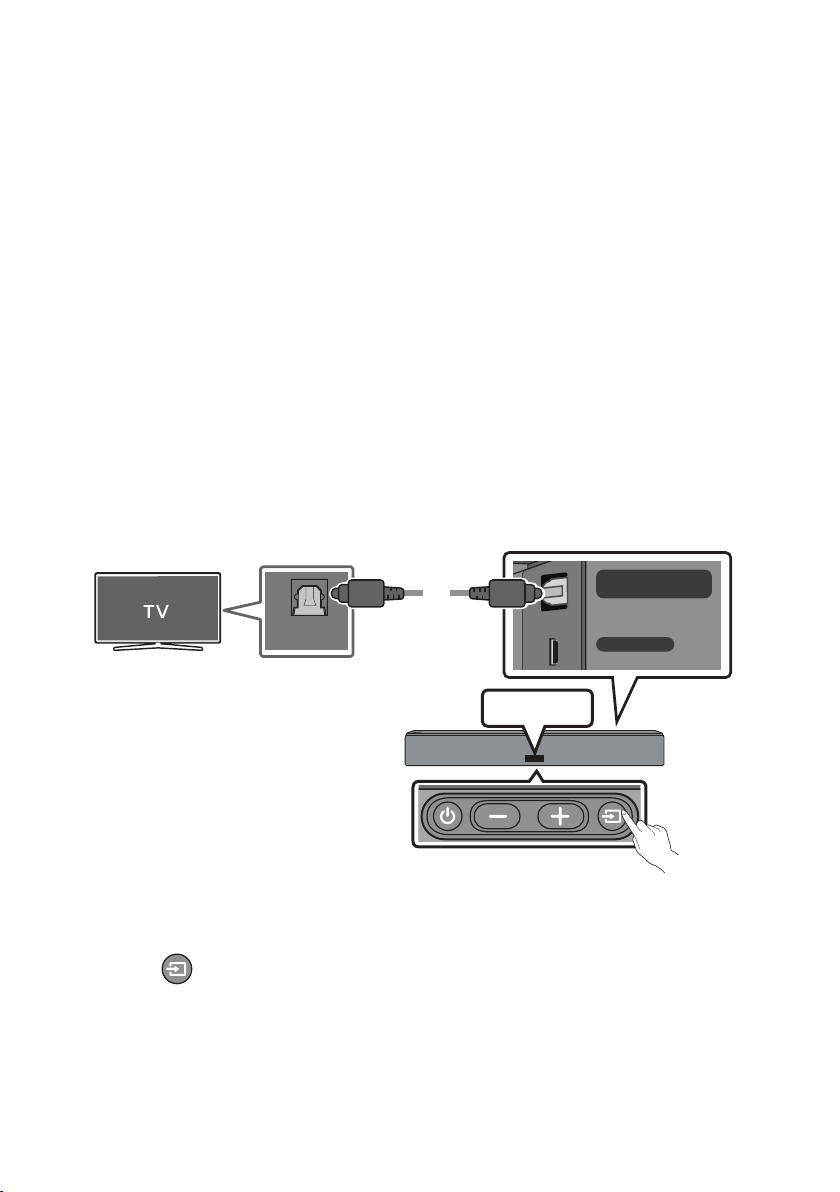
Connecting using an Optical Cable
When the audio in a broadcast is encoded in Dolby Digital and the “Digital Output Audio Format” on
your TV is set to PCM, we recommend that you change the setting to Dolby Digital. When the setting on
the TV is changed, you will experience better sound quality. (The TV menu may use different words for
Dolby Digital and PCM depending on the TV manufacturer.)
DIGITAL AUDIO IN
(OPTICAL)
DC 23V
WIRELESS
OPTICAL OUT
Optical Cable
(not supplied)
Rear of the Soundbar
D.IN
Bottom of the Soundbar
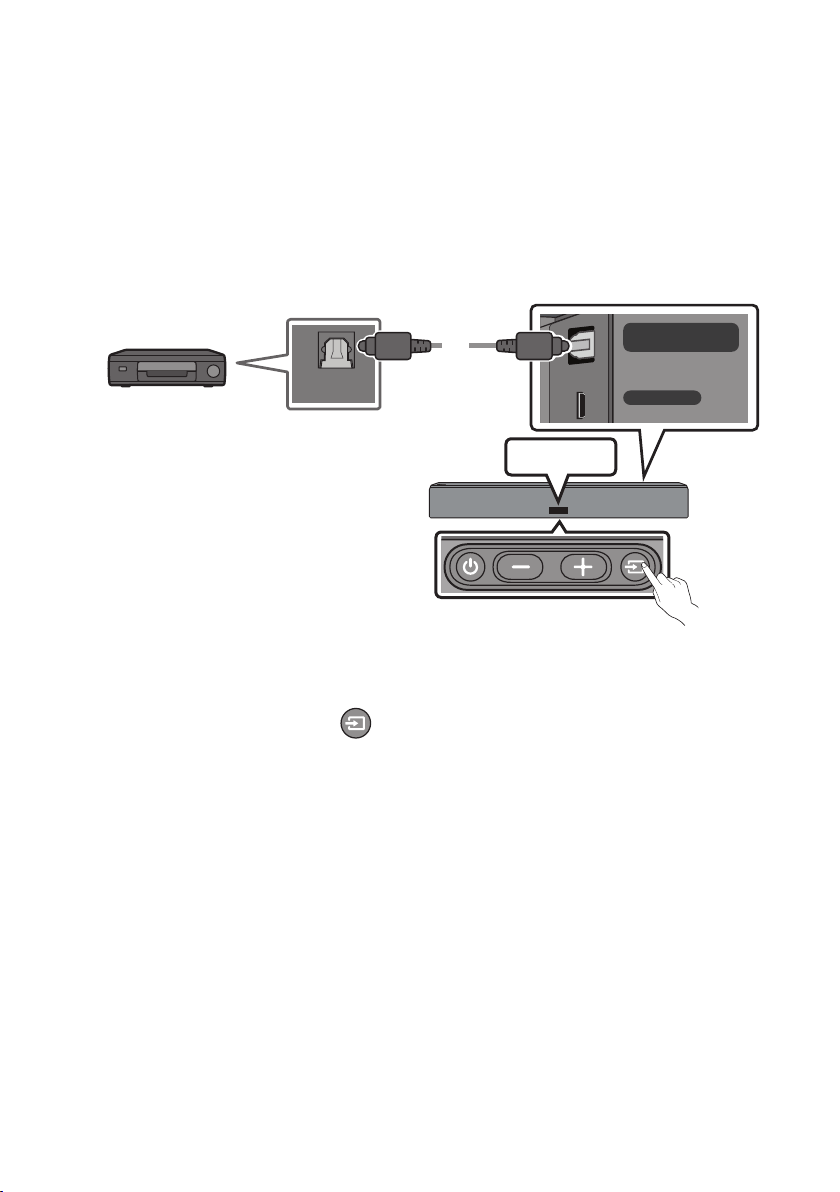
1. Connect the DIGITAL AUDIO IN (OPTICAL) jack on the Soundbar to the OPTICAL OUT jack of the TV
with a digital optical cable (not supplied).
2. Press the button on the bottom panel or on the remote control, and then select the “D.IN”
mode.
ENG - 11
Auto Power Link
Auto Power Link automatically turns on the Soundbar when the TV is turned on.
1. Connect the Soundbar and a TV with a digital optical cable (not supplied).
2. Press the Left button on the remote control (the blue spot in the illustration
to the right) for 5 seconds to turn Auto Power Link on or off.
• Auto Power Link is set to ON by default.
(To turn off this function, press the Left button on the remote for 5 seconds.)
• Depending on the connected device, Auto Power Link may not function.
• This function is only available in the “D.IN” mode.
Connecting Wirelessly
Connecting a TV via Bluetooth
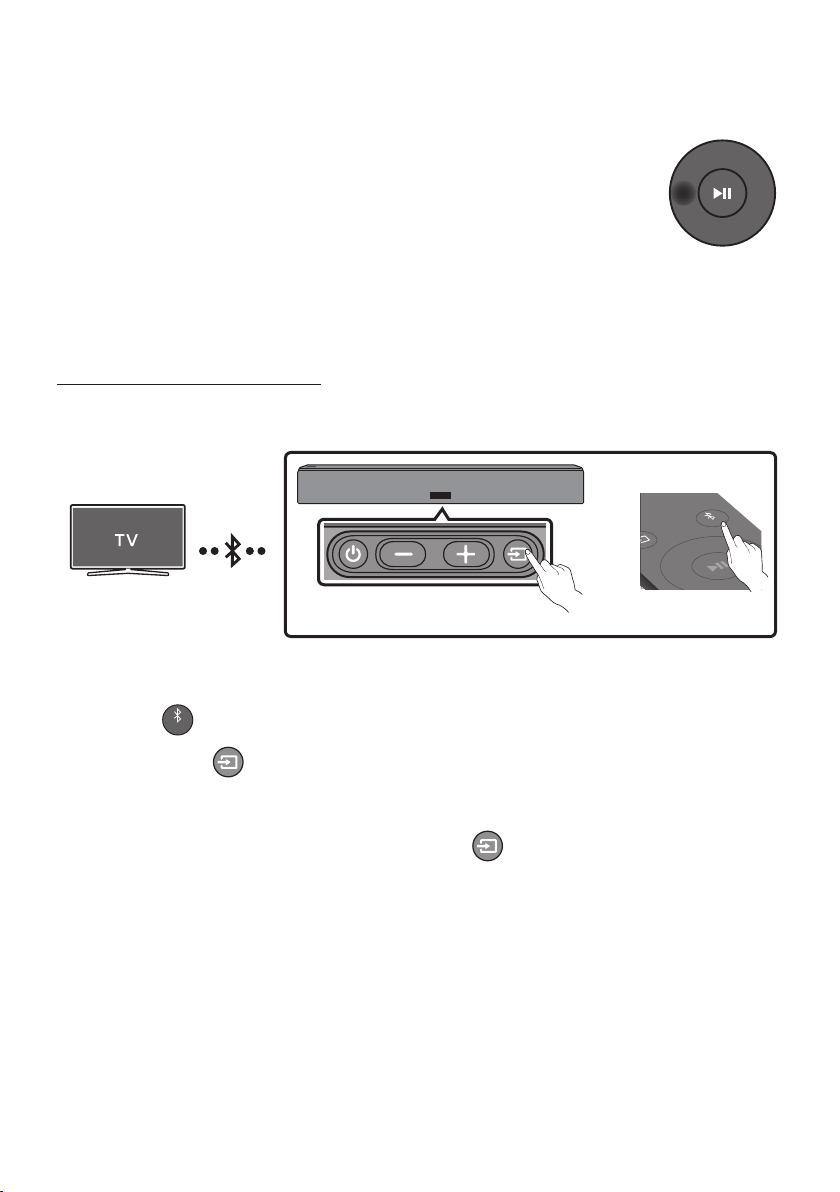
When a TV is connected using Bluetooth, you can hear stereo sound without the hassle of cabling.
• Only one TV can be connected at a time.
SOUND
MODE
PAIR
OR
Bottom of the Soundbar
The initial connection
1. Press the
VOL WOOFER
SOUND
MODE
PAIR
button on the remote control to enter the “BT PAIRING” mode.
(OR)
a. Press the button on the bottom panel and then select “BT”.
“BT” changes to “BT READY” in a few seconds automatically if there is no Bluetooth device
connected to the Soundbar.
b. When “BT READY” appears, press and hold the button on the bottom panel of the
Soundbar for more than 5 seconds to display “BT PAIRING”.
2. Select Bluetooth mode on the TV. (For more information, see the TV’s manual.)
3. Select “[AV] Samsung Soundbar NWxxx” from the list on the TV’s screen.
An available Soundbar is indicated with “Need Pairing” or “Paired” in the TV Bluetooth device list.
To connect the TV to the Soundbar, select the message, and then establish a connection.
• When the TV is connected, [TV Name] → “BT” appears on the Soundbar’s front display.
4. You can now hear TV sound from the Soundbar.

ENG - 12
If the device fails to connect
• If a previously connected Soundbar listing (e.g. “[AV] Samsung Soundbar NWxxx”) appears in the
list, delete it.
• Then repeat steps 1 through 3.
NOTE
– After you have connected the Soundbar to your TV the rst time, use the “BT READY” mode to
reconnect.
Disconnecting the Soundbar from the TV
Press the button on the bottom panel or on the remote control and switch to any mode but “BT”.
• Disconnecting takes time because the TV must receive a response from the Soundbar.
(The time required may differ, depending on the TV model.)
• To cancel the automatic Bluetooth connection between the Soundbar and TV, press the
button
on the remote control for 5 seconds with the Soundbar in “BT READY” status. (Toggle On → Off)
What is the difference between BT READY and BT PAIRING?
• BT READY : In this mode, you can search for previously connected TVs or connect a previously
connected mobile device to the Soundbar.
• BT PAIRING : In this mode, you can connect a new device to the Soundbar. (Press the
VOL WOOFER
SOUND
MODE
PAIR
button on
the remote control or press and hold the button on the bottom of the Soundbar for more than
5 seconds while the Soundbar is in
“BT”
mode.)
NOTES
– If asked for a PIN code when connecting a Bluetooth device, enter <0000>.
– In Bluetooth connection mode, the Bluetooth connection will be lost if the distance between the
Soundbar and the Bluetooth device exceeds 10 meters.
– The Soundbar automatically turns off after 5 minutes in the Ready state.
– The Soundbar may not perform Bluetooth search or connection correctly under the following
circumstances:
– If there is a strong electrical eld around the Soundbar.
– If several Bluetooth devices are simultaneously paired with the Soundbar.
– If the Bluetooth device is turned off, not in place, or malfunctions.
– Electronic devices may cause radio interference. Devices that generate electromagnetic waves
must be kept away from the Soundbar main unit - e.g., microwaves, wireless LAN devices, etc.
ENG - 13
Connecting via Wi-Fi
Pre-connection Checklist
1. Conrm that your Samsung Smart TV was released after 2014. This function is compatible only
with Samsung Smart TVs released after 2014.
2. Make sure your Wireless router (Wi-Fi) is ready and working.
3. Make sure that the TV is connected to the Wireless router (your Wi-Fi network).
Bottom of the Soundbar
Step 1 : Connecting the Soundbar to Wi-Fi
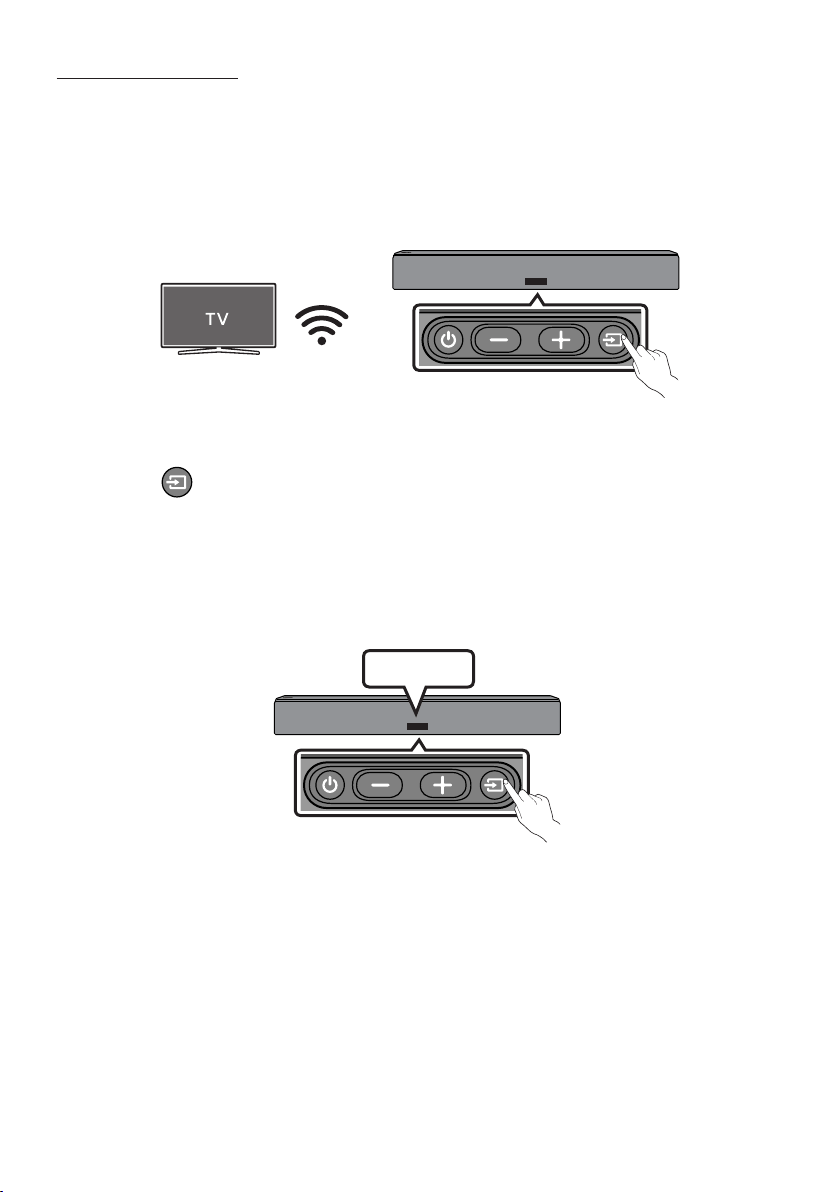
1. Press the button on the bottom of the Soundbar or on the remote control to select “WIFI”
mode.
• When using selected Samsung TVs (2016 ~ 2018 Samsung Smart TVs that support Bluetooth.)
– If you select “WIFI” mode when the TV is turned on, the TV screen displays a pop-up
window providing instructions on how to automatically connect the Soundbar to a wireless
router (Wi-Fi). Refer to instructions in the pop-up window of the TV.
Bottom of the Soundbar
WIFI
2. Connect your mobile device (smartphone, tablet, etc.) to the Wi-Fi network the TV is connected to.

ENG - 14
3. Install and launch the SmartThings app on your mobile device (smartphone, tablet, etc.).
SmartThings app
iOSAndroid
4. Follow the instructions in the app screen on the mobile device to connect the Soundbar to your
Wi-Fi network.
Step2:ConguringSettingsontheTV
• If the TV disconnects from your wireless network after you change the input source to the
Soundbar, use the TV menu to connect the TV to the network again.
For TVs released in 2018
Home ( ) Settings ( ) Sound Sound Output [AV] Samsung Soundbar NWxxx (Wi-Fi)
For TVs released in 2017
Home ( ) Settings ( ) Sound Sound Output [AV] Samsung Soundbar NWxxx (Wi-Fi)
For TVs released in 2016
Home ( ) Settings ( ) Sound Select Speaker [AV] Samsung Soundbar NWxxx (Wi-Fi)
For TVs released in 2015
Menu Sound Speaker List
For TVs released in 2014
Menu Sound Speaker Settings Multiroom Link - Settings
NOTES
– The TV and Soundbar must be connected to the same wireless network (Wi-Fi).
– If your wireless router (Wi-Fi) uses a DFS channel, you will not be able to establish a Wi-Fi
connection between the TV and Soundbar. Contact your Internet service provider for details.
– If the 5GHz Wi-Fi connection is not smooth, use the 2.4GHz bandwidth.
– Because the menus may differ depending on the year of manufacture, refer to your TV manual.
ENG - 15
05 CONNECTING AN EXTERNAL DEVICE
Connect to an external device via a wired or wireless network to play the external device’s sound
through the Soundbar.
Connecting using an Optical Cable
Bottom of the Soundbar
DIGITAL AUDIO IN
(OPTICAL)
DC 23V
WIRELESS
OPTICAL OUT
Optical Cable
(not supplied)
Rear of the Soundbar
D.IN
BD / DVD player / Set-top box /
Game console
1. Connect DIGITAL AUDIO IN (OPTICAL) on the main unit to the OPTICAL OUT jack of the Source
Device using a digital optical cable (not supplied).
2. Select “D.IN” mode by pressing the button on the bottom panel or on the remote control.
ENG - 16
06 CONNECTING A MOBILE DEVICE
Connecting via Bluetooth
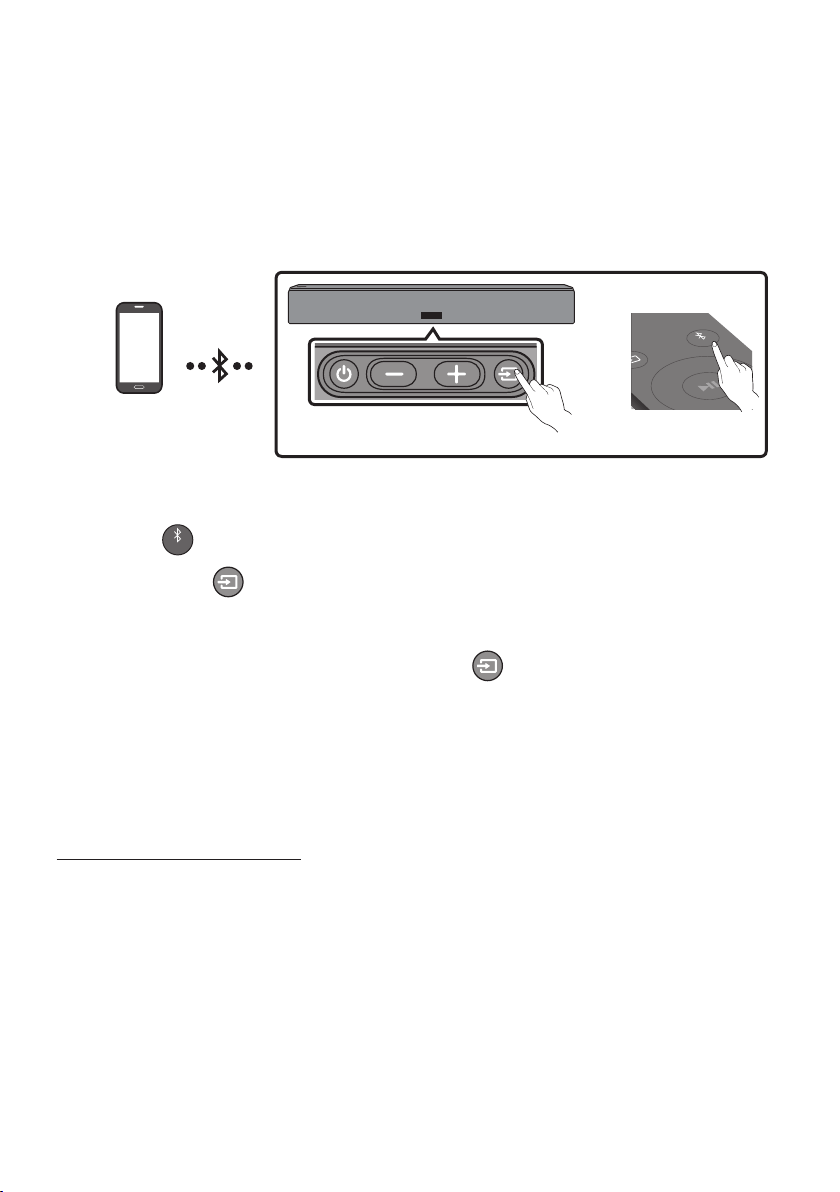
When a mobile device is connected using Bluetooth, you can hear stereo sound without the hassle of
cabling.
• You cannot connect more than one Bluetooth device at a time.
SOUND
MODE
PAIR
OR
Bottom of the Soundbar
Bluetooth device
The initial connection
1. Press the
VOL WOOFER
SOUND
MODE
PAIR
button on the remote control to enter the “BT PAIRING” mode.
(OR)
a. Press the button on the bottom panel and then select “BT”.
“BT” changes to “BT READY” in a few seconds automatically if there is no Bluetooth device
connected to the Soundbar.
b. When “BT READY” appears, press and hold the button on the bottom panel of the
Soundbar for more than 5 seconds to display “BT PAIRING”.
2. On your device, select “[AV] Samsung Soundbar NWxxx” from the list that appears.
• When the Soundbar is connected to the Bluetooth device, [Bluetooth Device Name] → “BT”
appears in the front display.
3. Play music les from the device, connected via Bluetooth, through the Soundbar.
If the device fails to connect
• If a previously connected Soundbar listing (e.g. “[AV] Samsung Soundbar NWxxx”) appears in the
list, delete it.
• Then repeat steps 1 and 2.
NOTE
– After you have connected the Soundbar to your mobile device the rst time, use the “BT READY”
mode to reconnect.

ENG - 17
What is the difference between BT READY and BT PAIRING?
• BT READY : In this mode, you can search for previously connected TVs or connect a previously
connected mobile device to the Soundbar.
• BT PAIRING : In this mode, you can connect a new device to the Soundbar. (Press the
VOL WOOFER
SOUND
MODE
PAIR
button on
the remote control or press and hold the button on the bottom of the Soundbar for more than
5 seconds while the Soundbar is in
“BT”
mode.)
NOTES
– If asked for a PIN code when connecting a Bluetooth device, enter <0000>.
– In Bluetooth connection mode, the Bluetooth connection will be lost if the distance between the
Soundbar and the Bluetooth device exceeds 10 meters.
– The Soundbar automatically turns off after 5 minutes in the Ready state.
– The Soundbar may not perform Bluetooth search or connection correctly under the following
circumstances:
– If there is a strong electrical eld around the Soundbar.
– If several Bluetooth devices are simultaneously paired with the Soundbar.
– If the Bluetooth device is turned off, not in place, or malfunctions.
– Electronic devices may cause radio interference. Devices that generate electromagnetic waves
must be kept away from the Soundbar main unit - e.g., microwaves, wireless LAN devices, etc.
– The Soundbar supports SBC data (44.1kHz, 48kHz).
– Connect only to a Bluetooth device that supports the A2DP (AV) function.
– You cannot connect the Soundbar to a Bluetooth device that supports only the HF (Hands Free)
function.
– Once you have paired the Soundbar to a Bluetooth device, selecting “[AV] Samsung Soundbar
NWxxx” from the device’s scanned devices list will automatically change the Soundbar to “BT”
mode.
– Available only if the Soundbar is listed among the Bluetooth device’s paired devices.
(The Bluetooth device and the Soundbar must have been previously paired at least once.)
– The Soundbar will appear in the Bluetooth device’s searched devices list only when the Soundbar is
displaying “BT READY”.
– The Soundbar cannot be paired to another Bluetooth device if already in Bluetooth mode and
paired to a Bluetooth device.

ENG - 18
Disconnecting the Bluetooth device from a Soundbar
You can disconnect a Bluetooth device from the Soundbar. For instructions, see the Bluetooth device’s
user manual.
• The Soundbar will be disconnected.
• When the Soundbar is disconnected from the Bluetooth device, the Soundbar will display
“BT DISCONNECTED” on the front display.
Disconnecting the Soundbar from the Bluetooth device
Press the button on the bottom panel or on the remote control, and then change to any mode
except “BT”.
• Disconnecting takes time because the Bluetooth device must receive a response from the
Soundbar. (Disconnection time may differ, depending on the Bluetooth device)
• When the Soundbar is disconnected from the Bluetooth device, the Soundbar will display
“BT DISCONNECTED” on the front display.
NOTES
– In Bluetooth connection mode, the Bluetooth connection will be lost if the distance between the
Soundbar and the Bluetooth device exceeds 10 meters.
– The Soundbar automatically turns off after 5 minutes in the Ready state.
More About Bluetooth
Bluetooth is a technology that enables Bluetooth-compliant devices to interconnect easily with each
other using a short wireless connection.
• A Bluetooth device may cause noise or malfunction, depending on usage, if:
– A part of your body is in contact with the receiving/transmitting system of the Bluetooth device
or the Soundbar.
– It is subject to electrical variation from obstructions caused by a wall, corner, or ofce partition.
– It is exposed to electrical interference from same frequency-band devices including medical
equipment, microwave ovens, and wireless LANs.
• Pair the Soundbar with the Bluetooth device while they are close together.
• The further the distance between the Soundbar and Bluetooth device, the worse the quality is.
If the distance exceeds the Bluetooth operational range, the connection is lost.
• In poor reception areas, the Bluetooth connection may not work properly.
• The Bluetooth connection only works when it is close to the unit. The connection will be
automatically cut off if the Bluetooth device is out of range. Even within range, the sound quality
may be degraded by obstacles such as walls or doors.
• This wireless device may cause electric interference during its operation.
ENG - 19
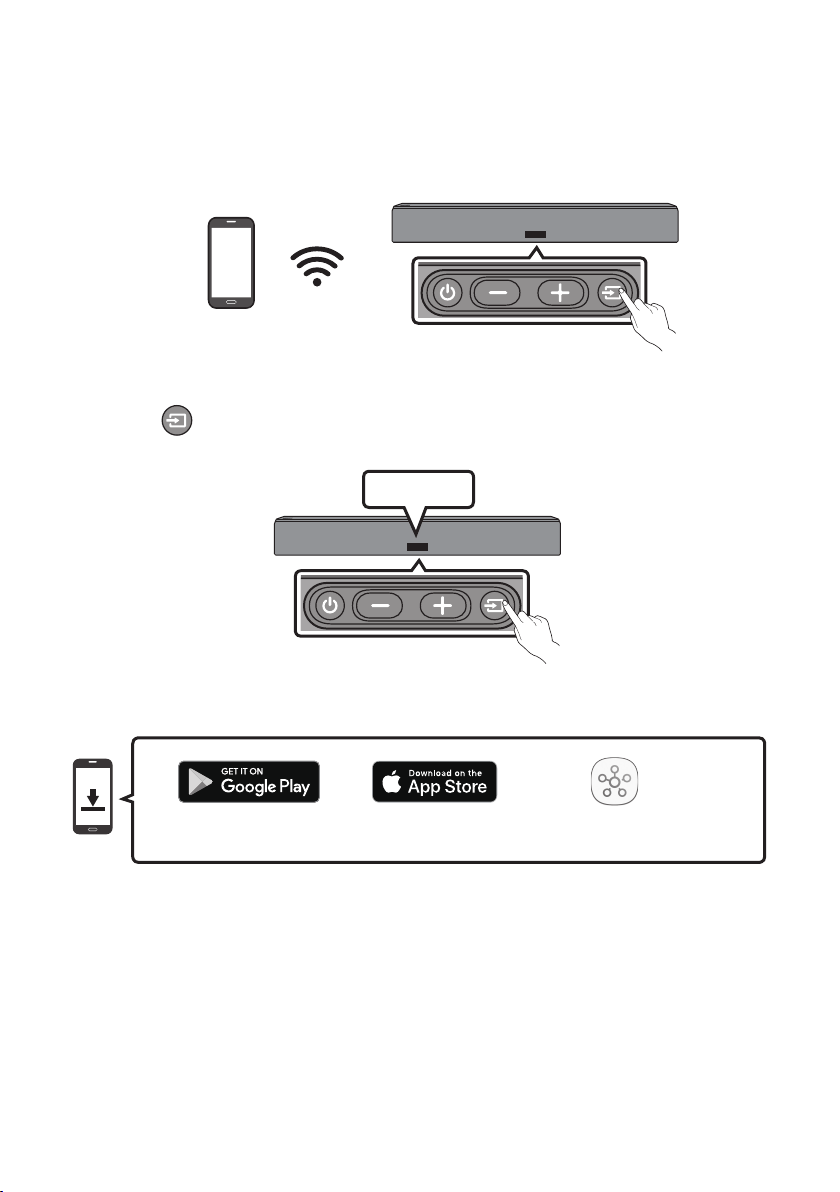
Connecting via Wi-Fi (Wireless Network)
• Connect a single Soundbar to Wi-Fi to access a variety of music streaming services and Internet
radio. Connect multiple Soundbars to Wi-Fi to use grouped playback or the stereo sound mode.
• To connect a Soundbar to a mobile device via a wireless network (Wi-Fi), the SmartThings app is
required.
Bottom of the Soundbar
Mobile device
The initial connection
1. Press the button on the bottom of the Soundbar or on the remote control to select “WIFI”
mode.
Bottom of the Soundbar
WIFI
2. Install and launch the SmartThings app on your mobile device (e.g. smartphone or tablet).
SmartThings app
iOSAndroid
ENG - 20
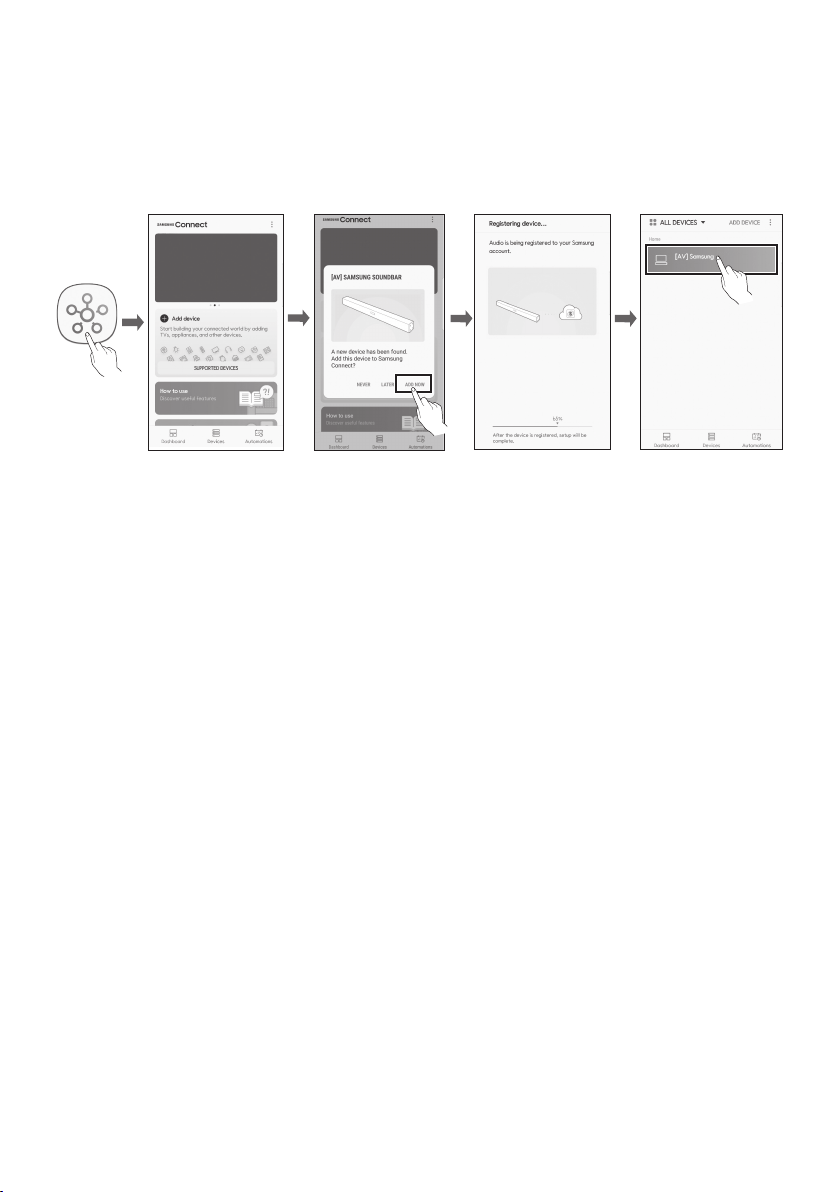
3. Launch the app, and then follow the instructions on the screen to register (add) your Soundbar in
the app.
• The automatic pop-up (the third illustration below) may not be available on some mobile
devices.
If this is the case, select and complete “Add device” from the app menu . Your Soundbar is now
added to the app.
Launch App Add speakersAuto pop-up
NOTE
– To connect an additional SWA-9000S wireless rear speaker kit (not supplied), disconnect the
Samsung wireless speakers from the Soundbar to disable the surround sound system. (If you
connect the surround speakers without disconnecting the SWA-9000S speakers, sound is played
via both the Samsung wireless speaker and the Surround speaker.)
ENG - 21
07 CONNECTING THE SOUNDBAR TO AN
SWA-9000S (SOLD SEPARATELY)
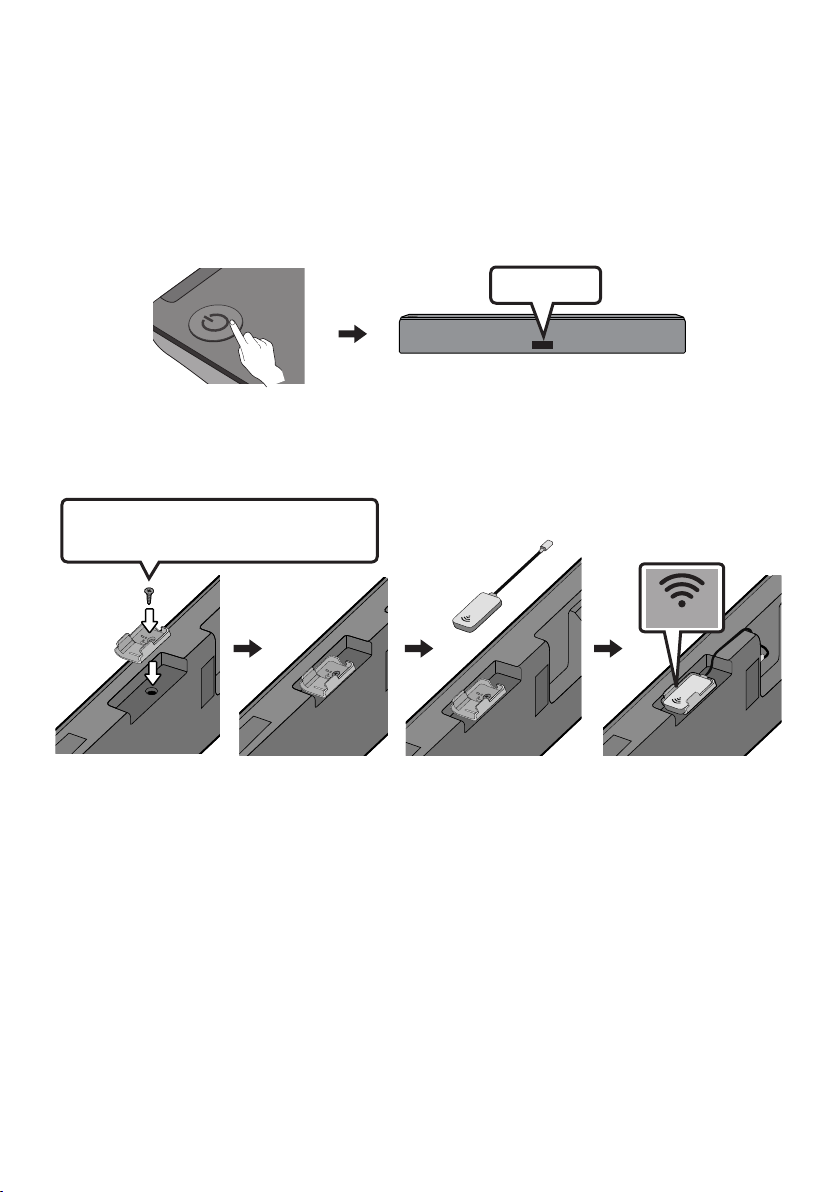
Expand to true wireless surround sound by connecting the Samsung Wireless Rear Speaker Kit
(SWA-9000S - Sold separately) to your Soundbar.
1. Turn off the Soundbar.
BYE
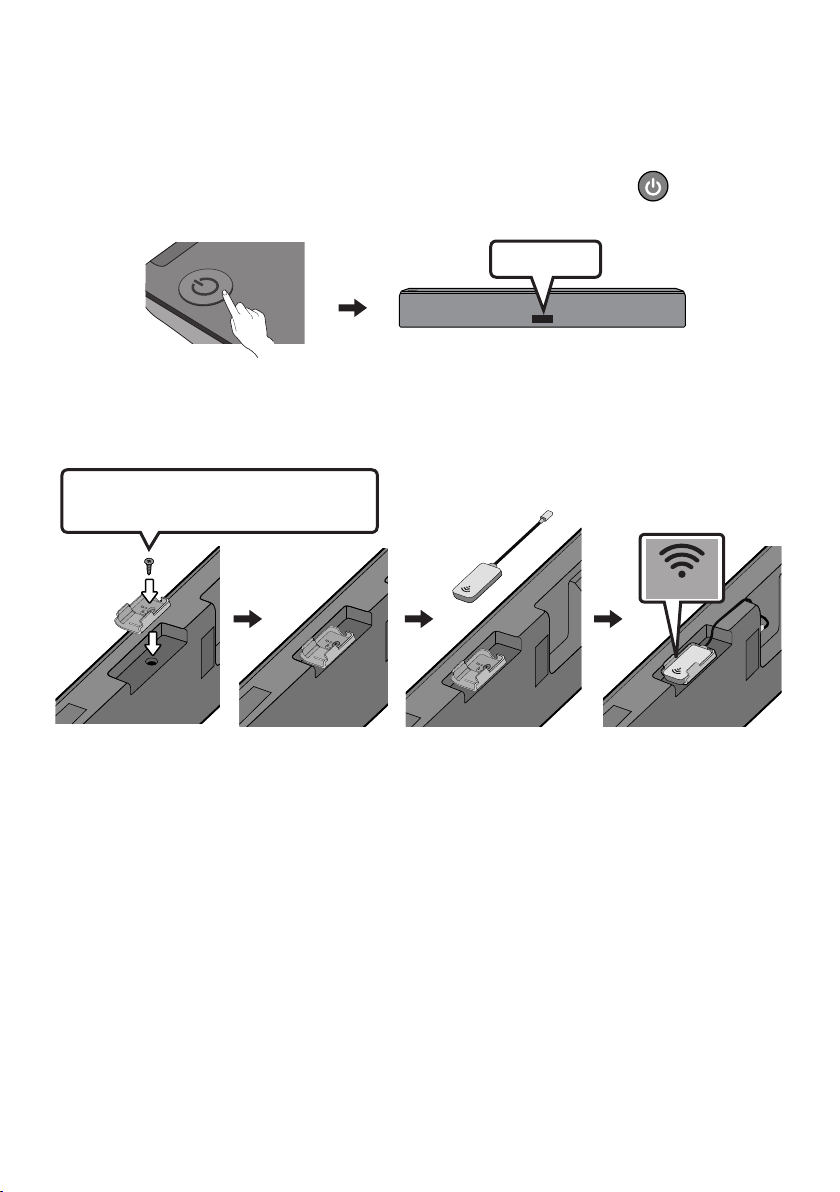
2. Connect the wireless dongle to the “WIRELESS” port on the Soundbar main unit.
• When inserting the Wireless Dongle into the Wireless port, make sure that the “WIRELESS”
logo is facing up, as shown in the illustration below.
Use the Holder-Dongle Screw (M3 x L10)
supplied with the HW-NW700.
WIRELESS
WIRELESS
WIRELESS
WIRELESS
WIRELESS
NOTE
– If you have purchased and want to add an SWA-W700 (optional Subwoofer) to your speaker setup
after adding an SWA-9000S:
– Do not remove the Wireless dongle you have already attached to the Soundbar’s “WIRELESS”
port. The Wireless dongle that came with the SWA-9000S can be used with the SWA-W700
(optional Subwoofer).
ENG - 22
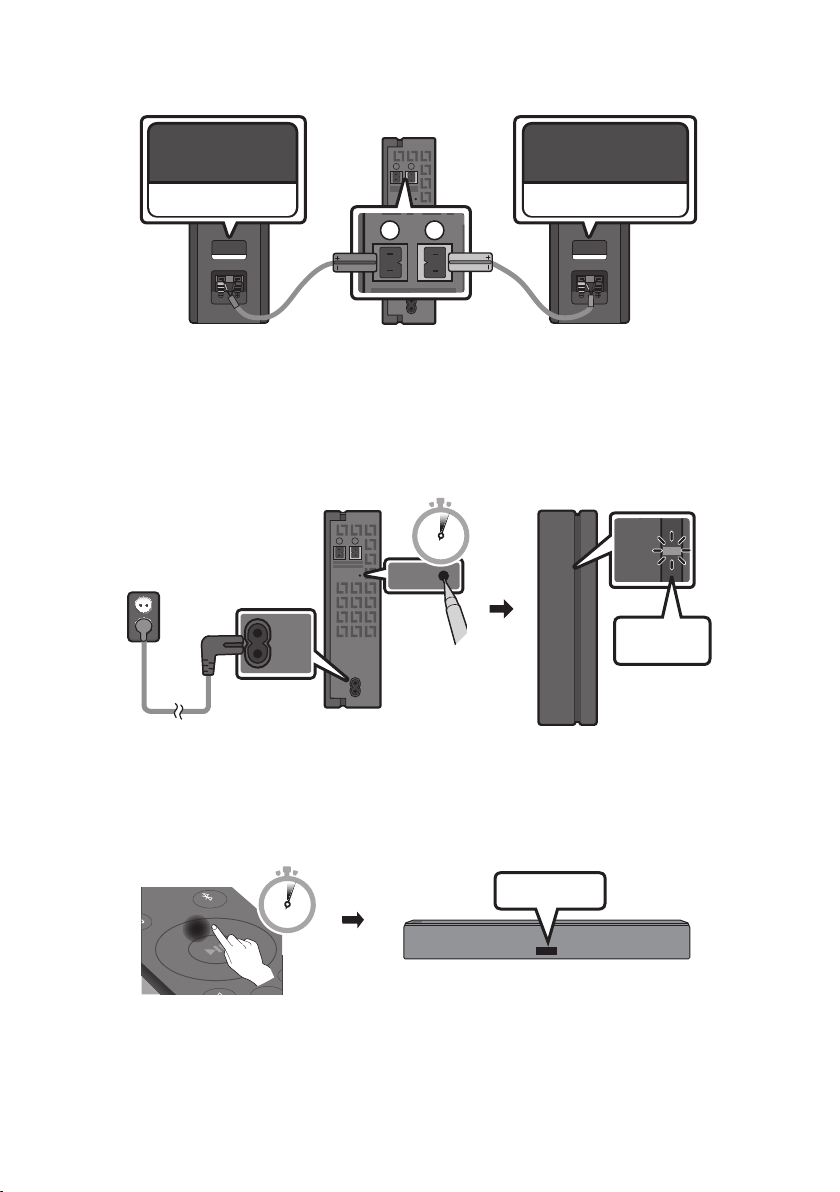
3. Connect the Wireless Receiver Module to the two Surround Speakers.
• The speaker cables are colour coded.
SURROUND-LEFT
ID SET
L
R
SURROUND SPEAKERS OUT
SPEAKER IMPEDANCE : 3Ω
POWER
ID SET
L
R
SURROUND SPEAKERS OUT
SPEAKER IMPEDANCE : 3Ω
SURROUND-RIGHT
SURROUND-LEFT SURROUND-RIGHT
4. Plug in the Wireless Receiver Module, and then check its standby status.
• The LINK LED indicator (blue LED) on the Wireless Receiver Module should blink. If the LED
does not blink, press the ID SET button on the back of the Wireless Receiver Module with a pen
tip for 5~6 seconds until the LINK LED indicator blinks (in Blue). For more about the LED, please
refer to the SWA-9000S user manual.
ID SET
L
R
SURROUND SPEAKERS OUT
SPEAKER IMPEDANCE : 3Ω
POWER
POWER
ID SET
SURROUND SPEAKERS OUT
SPEAKER IMPEDANCE : 3Ω
STANDBY
LINK
STANDBY
LINK
5 Sec
Blue
blinking
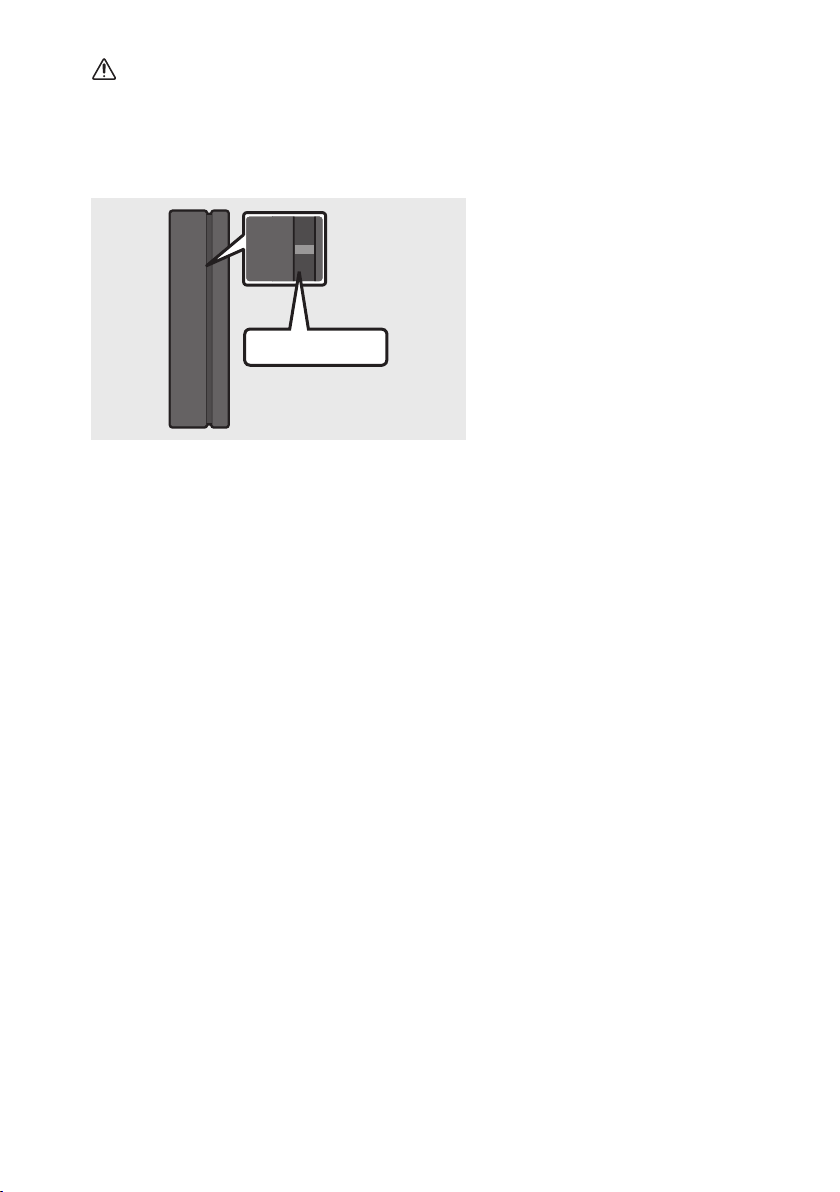
5. Press and hold the Up button on the remote control or press the ID SET button on the bottom
panel for at least 5 seconds.
• The ID SET message appears on the display of the Soundbar for a moment, and then disappears.
• The Soundbar will automatically power on when ID SET is complete.
ID SET
SOUND
MODE
PAIR
5 Sec
ENG - 23
CAUTION
– If your Soundbar is playing music when it connects to the SWA-9000S, you may hear some
stuttering from the woofer as the connection nalises.
6. Check if the LINK LED is solid blue (connection complete).
STANDBY
LINK
STANDBY
LINK
Blue is On
The LINK LED indicator stops blinking
and glows a solid blue when a
connection is established between the
Soundbar and the Wireless Receiver
Module.
7. If the SWA-9000S is not connected, repeat the procedure from Step 4.
NOTES
– Do not connect the power cord of this product or your TV to a wall outlet until all connections
between components are complete.
– Before moving or installing this product, be sure to turn off the power and disconnect the power cord.
– The maximum transmission distance of the wireless signal of the main unit is about 10 meters, but
may vary depending on your operating environment. If a steel-concrete or metallic wall is between
the main unit and the wireless subwoofer, the system may not operate at all, because the wireless
signal cannot penetrate metal.
PRECAUTIONS
– Wireless receiving antennas are built into the wireless subwoofer. Keep the units away from water
and moisture.
– For optimal listening performance, make sure that the area around the wireless subwoofer and
Wireless Receiver Module (Sold separately) is clear of any obstructions.
ENG - 24
08 CONNECTING THE SOUNDBAR TO AN
SWA-W700 (SOLD SEPARATELY)
1. Turn off the Soundbar using the Soundbar’s remote control or by pressing the button on the
main Soundbar.
BYE
2. Connect the wireless dongle to the “WIRELESS” port on the Soundbar main unit.
• When inserting the Wireless Dongle into the holder, make sure that the “WIRELESS” logo is
facing up, as shown in the pictures below.
Use the Holder-Dongle Screw (M3 x L10)
supplied with the HW-NW700.
WIRELESS
WIRELESS
WIRELESS
WIRELESS
WIRELESS
• If you purchase and want to add an SWA-9000S (optional Wireless Rear Speaker Kit) to your
speaker setup after adding an SWA-W700, do not remove the Wireless dongle you have already
attached to the Soundbar’s “WIRELESS” port.
• The wireless dongle that came with the SWA-W700 can be used with the optional Wireless Rear
Speaker Kit.
ENG - 25
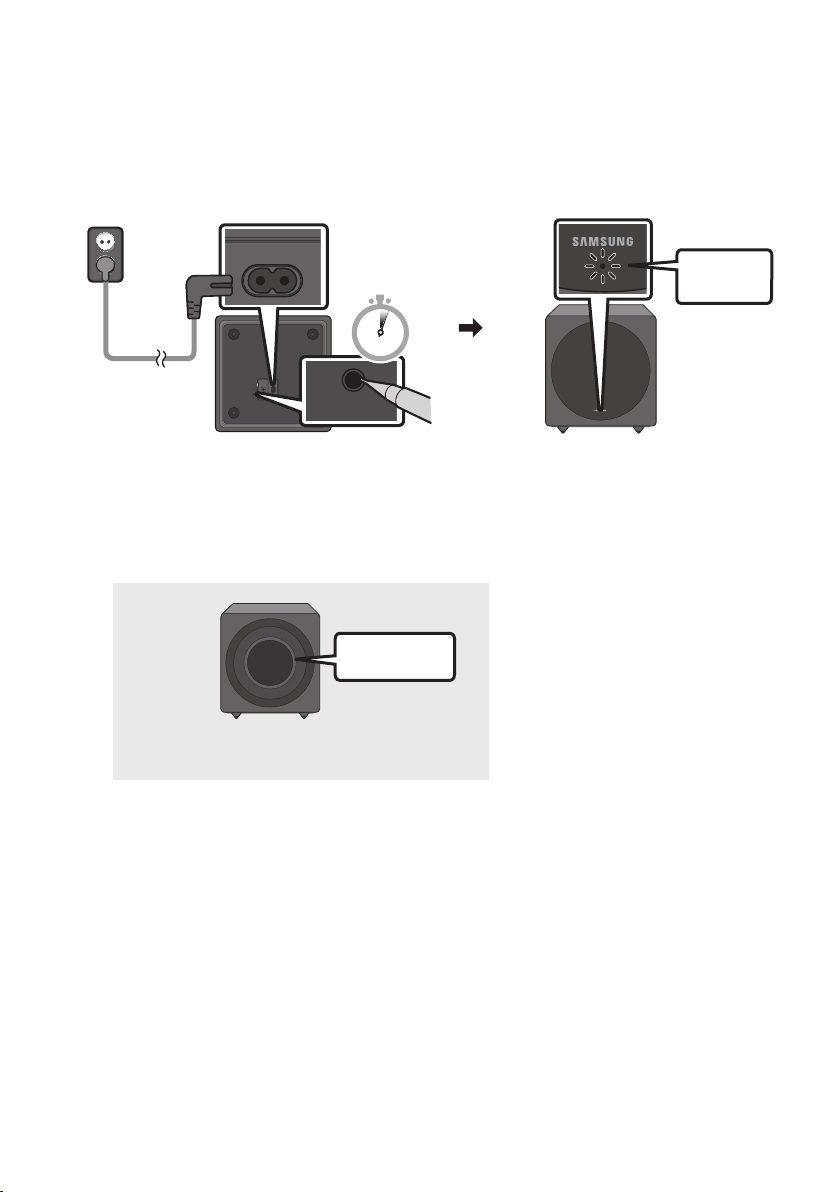
3. Plug in the Wireless Subwoofer, and then check its standby status.
• Plug the Wireless Subwoofer power cord into an electrical outlet and into the Wireless
Subwoofer to turn on the Wireless Subwoofer. The LINK LED indicator (blue LED) on the
Wireless Subwoofer blinks. If the LED does not blink, press the ID SET button on the bottom of
the Wireless Subwoofer with a pen tip for 5~6 seconds until the LINK LED indicator blinks (in
Blue). For more about the LED, please refer to the SWA-W700 user manual.
Bottom of the Wireless Subwoofer
Front of the Wireless Subwoofer
ID SET
POWER
LINK
SERVICE
POWER
ID SET LINK
SERVICE
Blue
blinking
ID SET
POWER
LINK
SERVICE
POWER
ID SET LINK
SERVICE
5 Sec
• The main unit is heavy. Be careful not to pinch your ngers when pressing the ID SET button or
connecting the power cord to the bottom of the unit.
• The upper part of the subwoofer is prone to scratches. Handle it carefully.
Speaker Unit
Rear of the Wireless Subwoofer
Do not press on or strike the Speaker
Unit on the rear of the body. You can
deform or damage the speaker.
ENG - 26
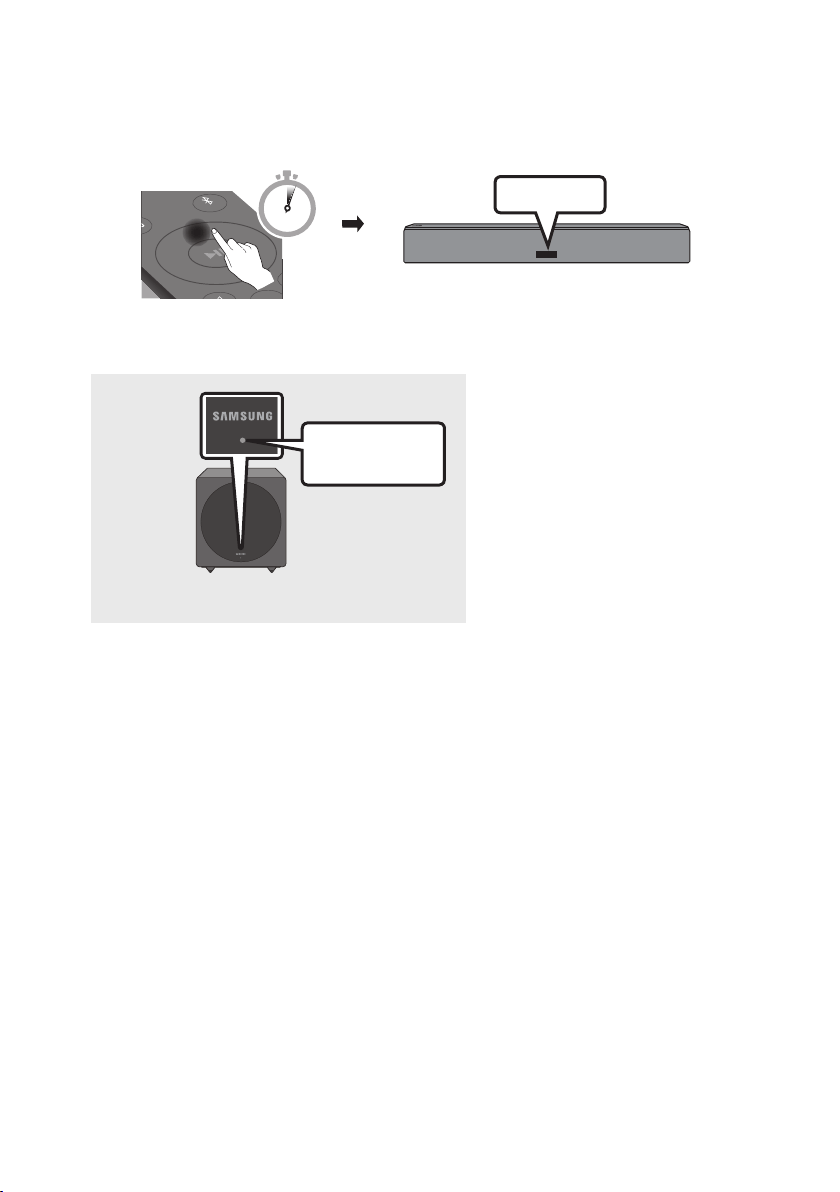
4. Press and hold the Up button on the remote control or press the ID SET button on the bottom
panel for at least 5 seconds.
• The ID SET message appears on the display of the Soundbar for a moment, and then disappears.
• The Soundbar will automatically power on when ID SET is complete.
ID SET
SOUND
MODE
PAIR
5 Sec
5. Check if the LINK LED is solid blue (connection complete).
Front of the Wireless Subwoofer
Stops blinking.
Glows blue.
The LINK LED indicator stops blinking
and glows a solid blue when a
connection is established between the
Soundbar and the Wireless Subwoofer.
NOTES
– Do not connect the power cord of this product or your TV to a wall outlet until all connections
between components are complete.
– Before moving or installing this product, be sure to turn off the power and disconnect the power cord.
– The maximum transmission distance of the wireless signal of the main unit is about 10 meters, but
may vary depending on your operating environment. If a steel-concrete or metallic wall is between
the main unit and the wireless subwoofer, the system may not operate at all, because the wireless
signal cannot penetrate metal.
PRECAUTIONS
– Wireless receiving antennas are built into the wireless subwoofer. Keep the units away from water
and moisture.
– For optimal listening performance, make sure that the area around the wireless subwoofer and
Wireless Receiver Module (Sold separately) is clear of any obstructions.
ENG - 27
09 CONNECTING AN AMAZON PRODUCT
• This feature may not be available in some countries.
• This service is provided by Amazon and can be terminated at any time. Samsung does not assume
responsibility for service availability.
Connect and use with an Amazon product (Amazon Echo)
Use an Amazon Echo product to control your Soundbar and enjoy music services provided by Amazon Echo.
NOTE
– Check if the Soundbar is connected to Wi-Fi. (Refer to “Connecting via Wi-Fi (Wireless Network)”)
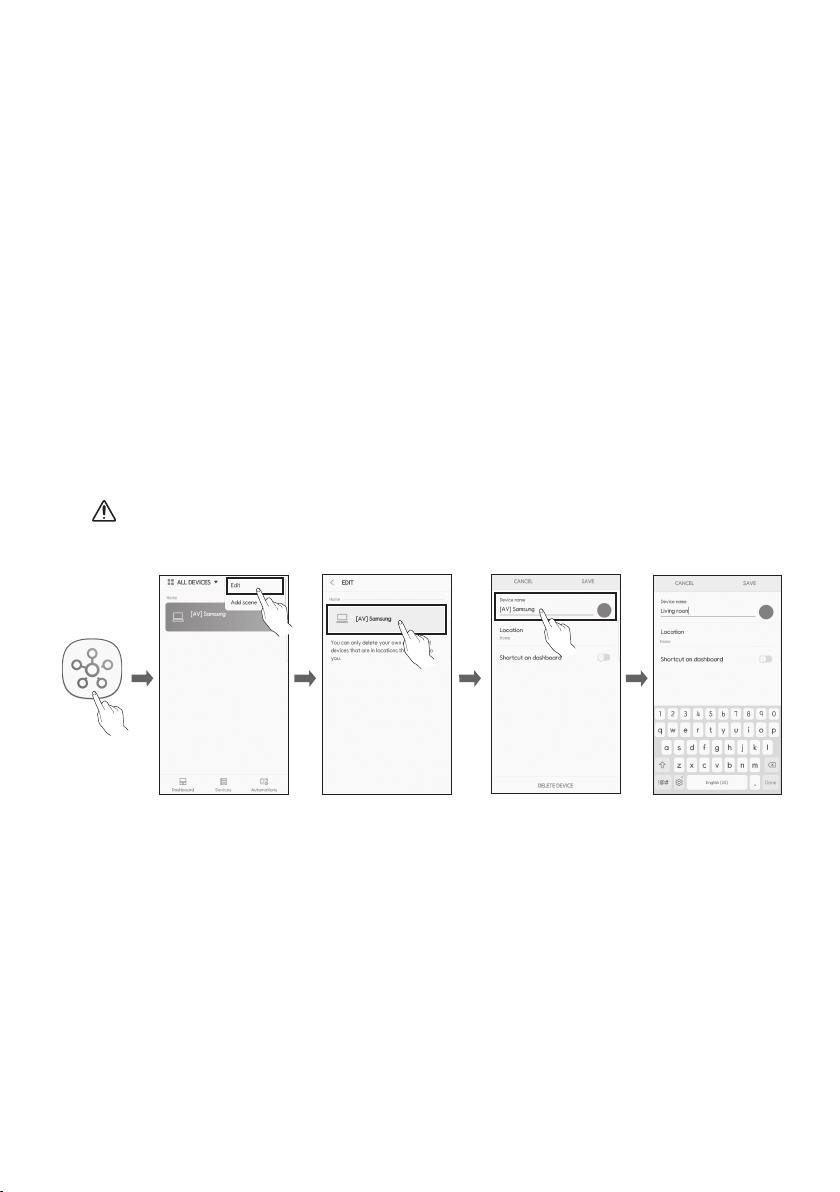
1. In the SmartThings app, change your Soundbar’s name to one that can be recognized by your
Amazon device.
(Example: Samsung, Soundbar, Living Room, Family Room, Bedroom, Ofce, etc.)
CAUTION
– Amazon devices may not recognize names that contain elements such as special characters.
SaveSelect Edit
Select speakers
Change name
ENG - 28
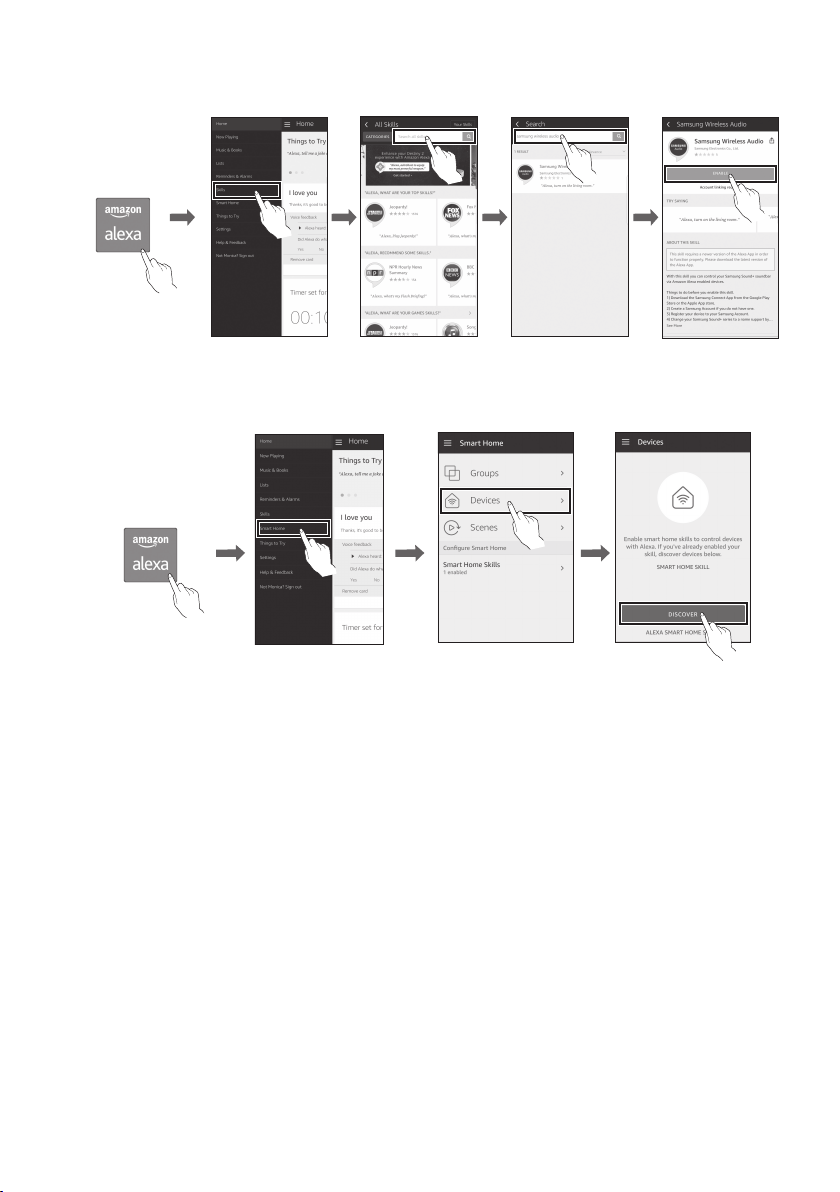
2. In the Alexa app, search “Samsung Wireless Audio” in Skills, and then select “ENABLE”.
• Skip this step if you have Skills set up already.
Select Skills Search Enable
Amazon Alexa app
3. In the Alexa app, tap “Smart Home → Devices → Discover” to complete the connection.
Select Smart Home
Amazon Alexa app
Select Devices Discover device
ENG - 29
Use voice commands to control the Soundbar
• The Amazon Echo service you can use with your Soundbar is limited to music. Other services
provided by Amazon Echo, such as news and weather, can only be accessed through your
Amazon Echo product.
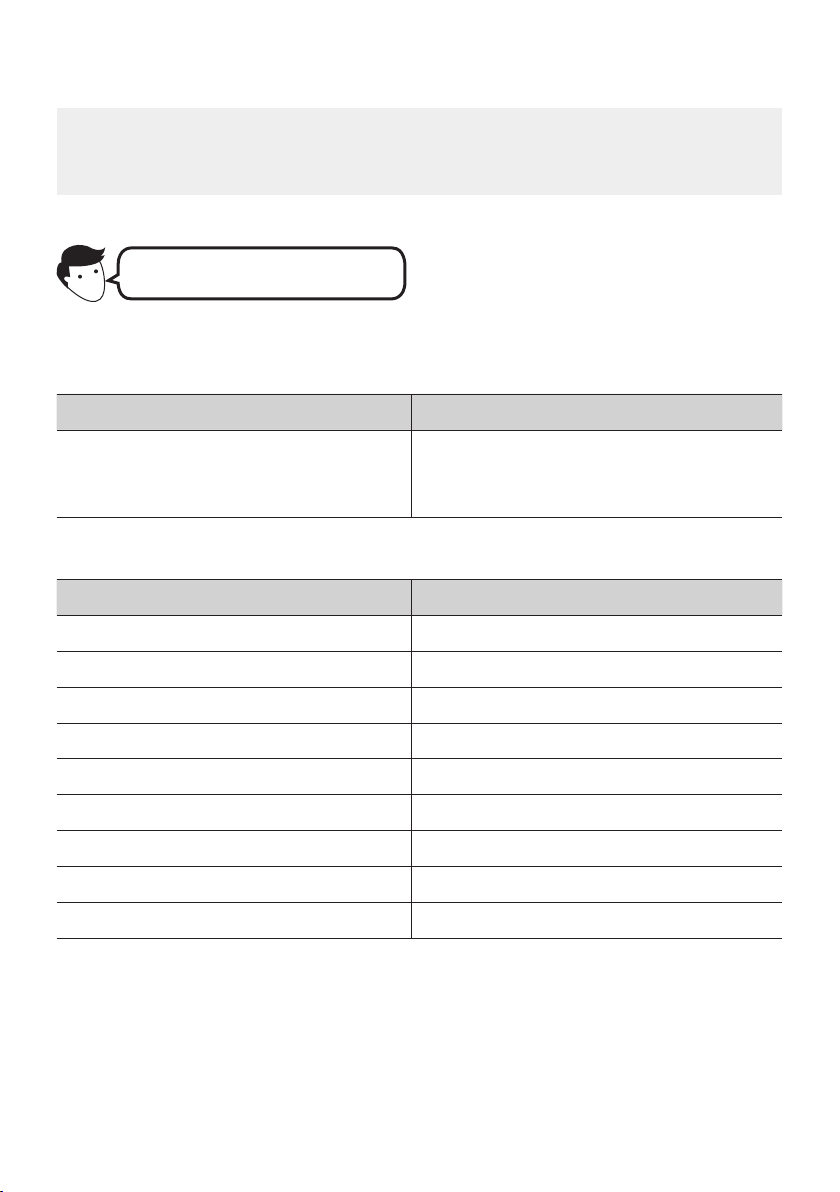
Trigger + Command + Speaker name
Use the Speaker name you changed in the SmartThings app. (Refer to “Connect and use
with an Amazon product (Amazon Echo)”)
Action Voice Command
To search an audio device added to the
SmartThings account connected to the
Amazon Alexa account
"Alexa Discover devices"
* To use voice commands for the Soundbar named “Living room”
Action Voice Command
To set the volume level to 5 "Alexa Set the volume to 5 on Living room"
To increase the volume level "Alexa Volume up on Living room"
To mute the sound "Alexa Mute on Living room"
To listen to a radio station named KISS FM "Alexa Play Kiss FM on Living room"
To play the next song "Alexa Next song on Living room"
To stop the audio "Alexa Stop on Living room"
To turn the audio on "Alexa Turn on Living room"
To turn the audio off "Alexa Turn off Living room"
To change the input source "Alexa Switch to Bluetooth on Living room"
ENG - 30
10 USING THE REMOTE CONTROL
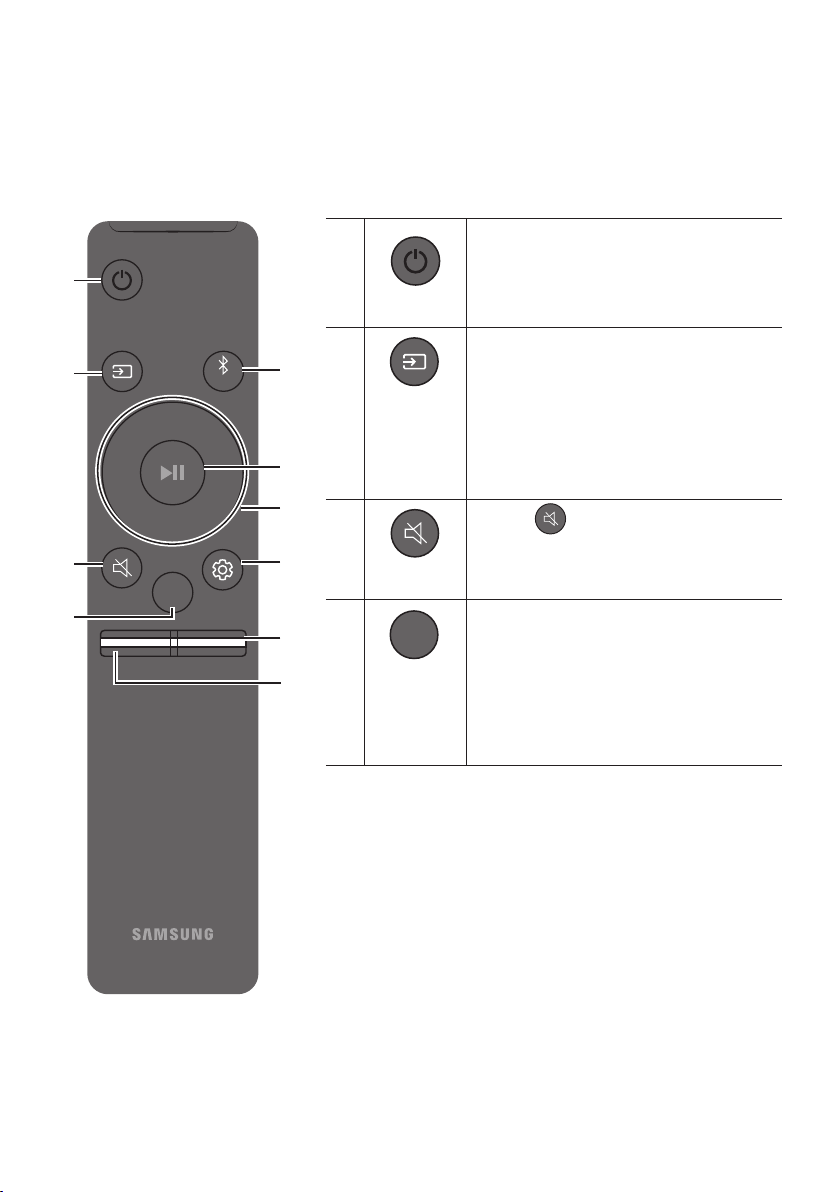
How to Use the Remote Control
VOL BASS
SOUNDBAR
SOUND
MODE
PAIR
Power
VOL WOOFER
SOUND
MODE
PAIR
Turns the Soundbar on and off.
VOL WOOFER
SOUND
MODE
PAIR
Source
Press to select a source connected to the
Soundbar.
• Auto Power Down Function
The unit turns off automatically in the
following situations.
– D.IN / WIFI / BT Mode : If there is no
audio signal for 5 minutes.
Mute
VOL WOOFER
SOUND
MODE
PAIR
Press the
VOL WOOFER
SOUND
MODE
PAIR
button to mute the sound.
Press it again to unmute the sound.
SOUND MODE
VOL WOOFER
SOUND
MODE
PAIR
You can select the desired sound effect by
choosing STANDARD, SURROUND, or SMART.
Select the “STANDARD” mode if you want to
enjoy the original sound.
• SMART mode
Automatically optimizes sound effects to suit
the scene currently playing.
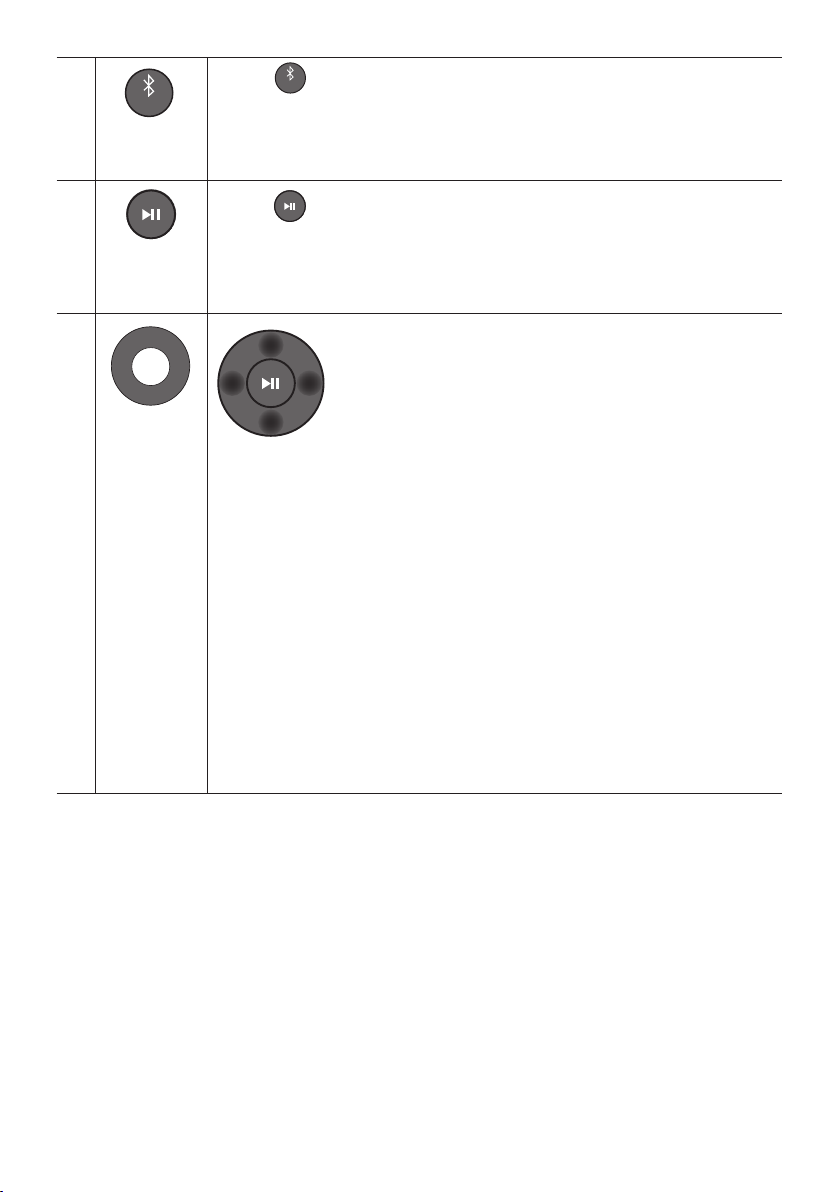
ENG - 31
VOL WOOFER
SOUND
MODE
PAIR
Bluetooth
PAIR
Press the
VOL WOOFER
SOUND
MODE
PAIR
button. “BT PAIRING” appears in the Soundbar’s display.
You can connect the Soundbar to a new Bluetooth device in this mode by selecting the
Soundbar in the Bluetooth device's search list.
Play / Pause
(BT/Wi-Fi)
Press the button to pause a music le temporarily.
When you press the button again, the music le plays.
VOL WOOFER
SOUND
MODE
PAIR
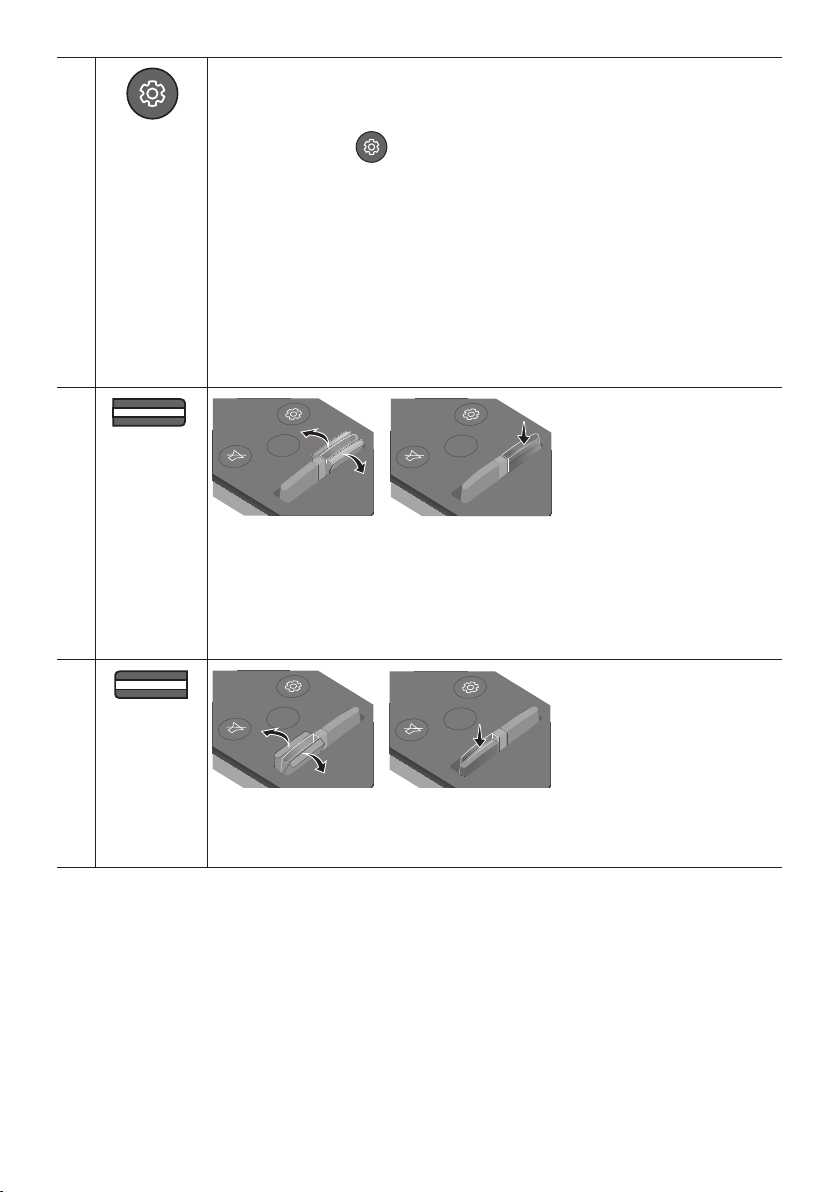
Up/Down/
Left/Right
Press the indicated areas to select Up/Down/Left/Right.
Press Up/Down/Left/Right on the button to select or set functions.
• Repeat
To use the Repeat function, press the Up button.
• Music Skip
Press the Right button to select the next music le. Press the Left button to select the
previous music le.
• Auto Power Link
You can turn Auto Power Link on or off.
– Auto Power Link : If the Soundbar is connected to your TV through a digital optical
cable, the Soundbar can automatically turn on when you turn on your TV. Press
and hold the Left button for 5 seconds to toggle Auto Power Link ON and OFF.
– Auto Power Link is set to ON by default.
• ID SET
Press and hold the Up button for 5 seconds to complete ID SET (when connecting to an
accessary item).
ENG - 32
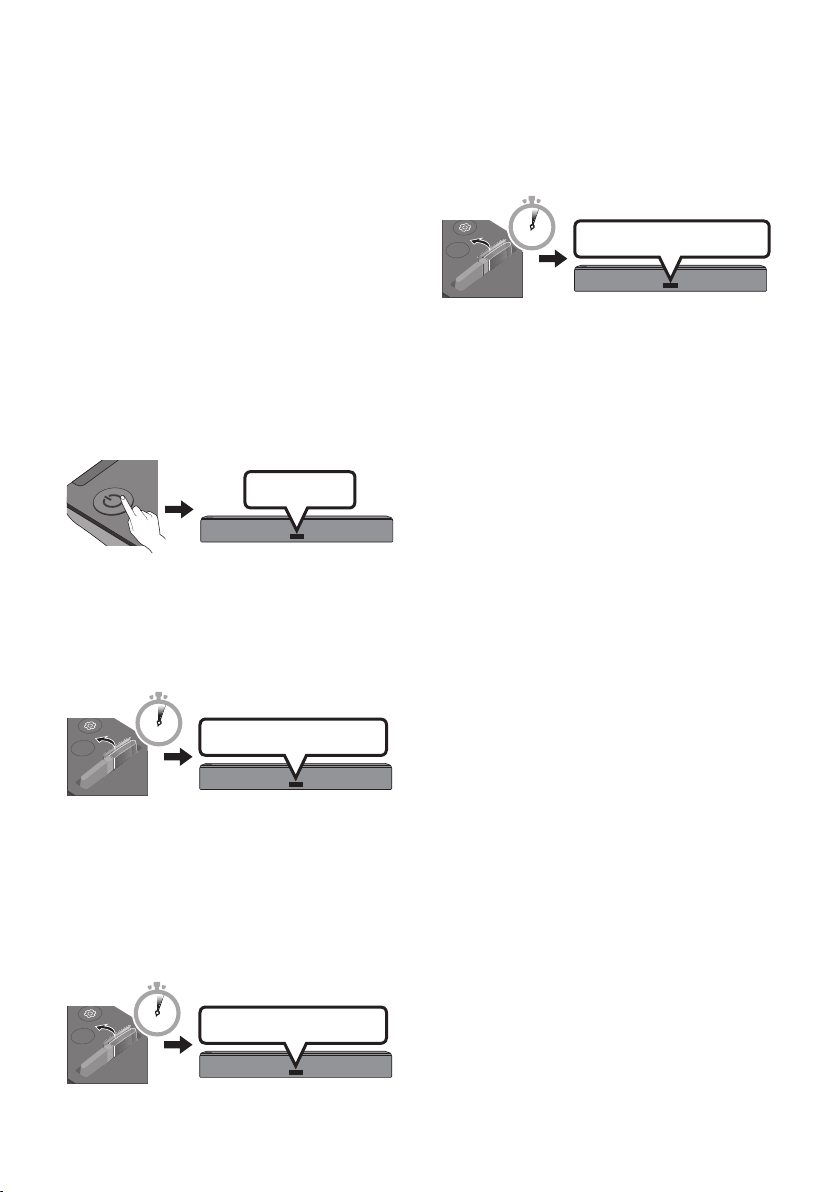
Sound Control
VOL WOOFER
SOUND
MODE
PAIR
You can select from TREBLE, SYNC, REAR LEVEL, or REAR SPEAKER ON/OFF.
• To adjust the TREBLE volume, select Sound Control → TREBLE, and then use the
Up/Down buttons to adjust the volume within a -6 to +6 range.
• Press and hold the
VOL WOOFER
SOUND
MODE
PAIR
button for about 5 seconds to adjust the sound for each
frequency band. 150Hz, 300Hz, 600Hz, 1.2KHz, 2.5KHz, 5KHz, and 10KHz are selectable
using the Left/Right buttons and each can be adjusted to a setting between -6 to +6
using the Up/Down buttons.
• If the video on the TV and audio from the Soundbar are not synchronised, select SYNC
in Sound Control, and then set the audio delay between 0~300 milliseconds by using
the Up/Down buttons.
• If surround speakers (not supplied) are connected, select REAR LEVEL, and then use
the Up/Down buttons to adjust the volume within a -6 to +6 range.
The REAR SPEAKER function can be turned ON/OFF by using the Up/Down buttons.
• SYNC is only supported for some functions.
VOL WOOFER
SOUND
MODE
PAIR
BASS
SOUND
MODE
VOL
BASS
SOUNDBAR
SOUND
MODE
VOL
BASS
SOUNDBAR
SOUND
MODE
VOL
BASS
SOUNDBAR
SOUND
MODE
VOL
BASS
SOUNDBAR
Push the button up or down to adjust the BASS volume within a -6 to +6 range.
To set the BASS volume level to 0, press the button.
• When a Subwoofer (not supplied) is connected, the BASS button becomes the
Subwoofer button. Push the button up or down to adjust the subwoofer volume either
to -12 or within a -6 to +6 range. To set the subwoofer volume level to 0, press the
button.
VOL WOOFER
SOUND
MODE
PAIR
VOL
SOUND
MODE
VOL
BASS
SOUNDBAR
SOUND
MODE
VOL
BASS
SOUNDBAR
SOUND
MODE
VOL
BASS
SOUNDBAR
SOUND
MODE
VOL
BASS
SOUNDBAR
Push the button up or down to adjust the volume.
• Mute
Press the VOL button to mute the sound. Press it again to unmute the sound.
ENG - 33
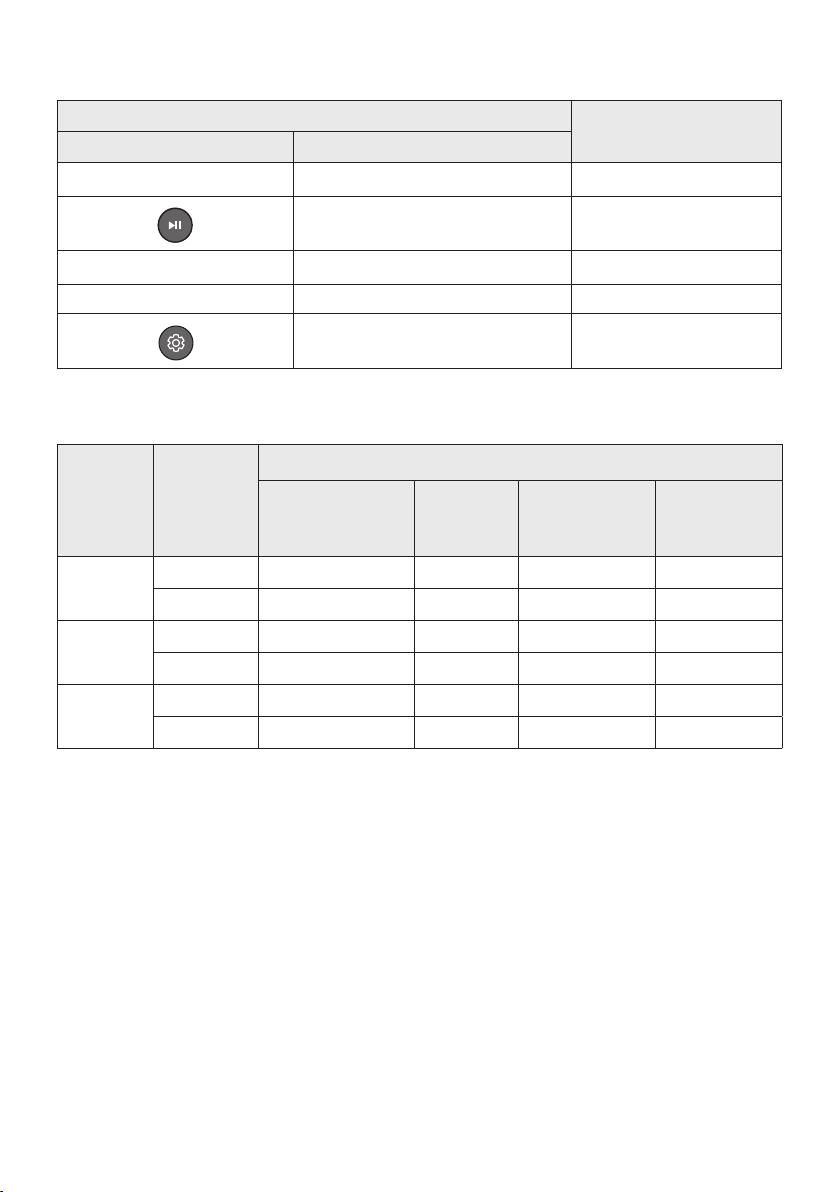
Adjusting the Soundbar volume
with a TV remote control
If you have a Samsung TV, you can adjust
the Soundbar’s volume using the IR remote
control that came with your Samsung TV.
First use the TV menu to set the TV audio on your
Samsung TV to external speakers, then use your
Samsung remote to control the Soundbar’s
volume. For more information, see the TV’s user
manual. The default mode for this function is
control by a Samsung TV remote. If your TV is not
a Samsung TV, follow the directions below to
change the settings of this function.
1. Turn Off the Soundbar.
BYE
2. If you do not want to use this function, push
up and hold the BASS button on the remote
repeatedly for 5 seconds until “OFF-TV
REMOTE” appears in the display.
SOUND
MODE
VOL
BASS
SOUNDBAR
OFF-TV REMOTE
5 Sec
3. If you want to control the Soundbar with
your TV’s remote, push up and hold the BASS
button for 5 seconds repeatedly until
“ALL-TV REMOTE” appears in the display.
Then, use your TV’s menu to select external
speakers.
SOUND
MODE
VOL
BASS
SOUNDBAR
ALL-TV REMOTE
5 Sec
4. If you want to return the Soundbar to the
default mode (control by a Samsung TV
remote), push up and hold the BASS button
for 5 seconds repeatedly until “SAMSUNG-
TV REMOTE” appears in the display.
SOUND
MODE
VOL
BASS
SOUNDBAR
SAMSUNG-TV REMOTE
5 Sec
(Default mode)
– Each time you push the BASS button up
and hold it for 5 seconds, the mode
switches in the following order:
“SAMSUNG-TV REMOTE” (Default mode)
→ “OFF-TV REMOTE” → “ALL-TV REMOTE”.
– This function may not be available,
depending on the remote control.
– Manufacturers supporting this function:
VIZIO, LG, Sony, Sharp, PHILIPS,
PANASONIC, TOSHIBA, GRUNDIG,
Hisense, RCA
ENG - 34
Using the Hidden Buttons (Buttons with more than one function)
Hidden Button
Reference page
Remote Control Button Function
BASS TV remote control On/Off (Standby) page 33
Automatic Bluetooth connection ON/OFF page 12
Left Auto Power Link ON/OFF page 31
Up ID SET page 31
VOL WOOFER
SOUND
MODE
PAIR
7 Band EQ page 32
Outputspecicationsforthedifferentsoundeffectmodes
Effect Input
Output
Without Wireless
Rear Speaker Kit &
Subwoofer
With
Subwoofer
Only
With Wireless
Rear Speaker Kit
Only
With Wireless
Rear Speaker Kit
& Subwoofer
STANDARD
2.0 ch
2.0 ch 2.1 ch 2.0 ch 2.1 ch
5.1 ch 3.0 ch 3.1 ch 5.0 ch 5.1 ch
SURROUND
2.0 ch
3.0 ch 3.1 ch 5.0 ch 5.1 ch
5.1 ch 3.0 ch 3.1 ch 5.0 ch 5.1 ch
SMART
2.0 ch
2.0 ch 2.1 ch 2.0 ch 2.1 ch
5.1 ch 3.0 ch 3.1 ch 5.0 ch 5.1 ch
• The Samsung Wireless Rear Speaker Kit and the Samsung Wireless Subwoofer can be purchased
separately. To purchase a Kit or the Subwoofer, contact the vendor you purchased the Soundbar
from.
ENG - 35
11 INSTALLING THE WALL MOUNT
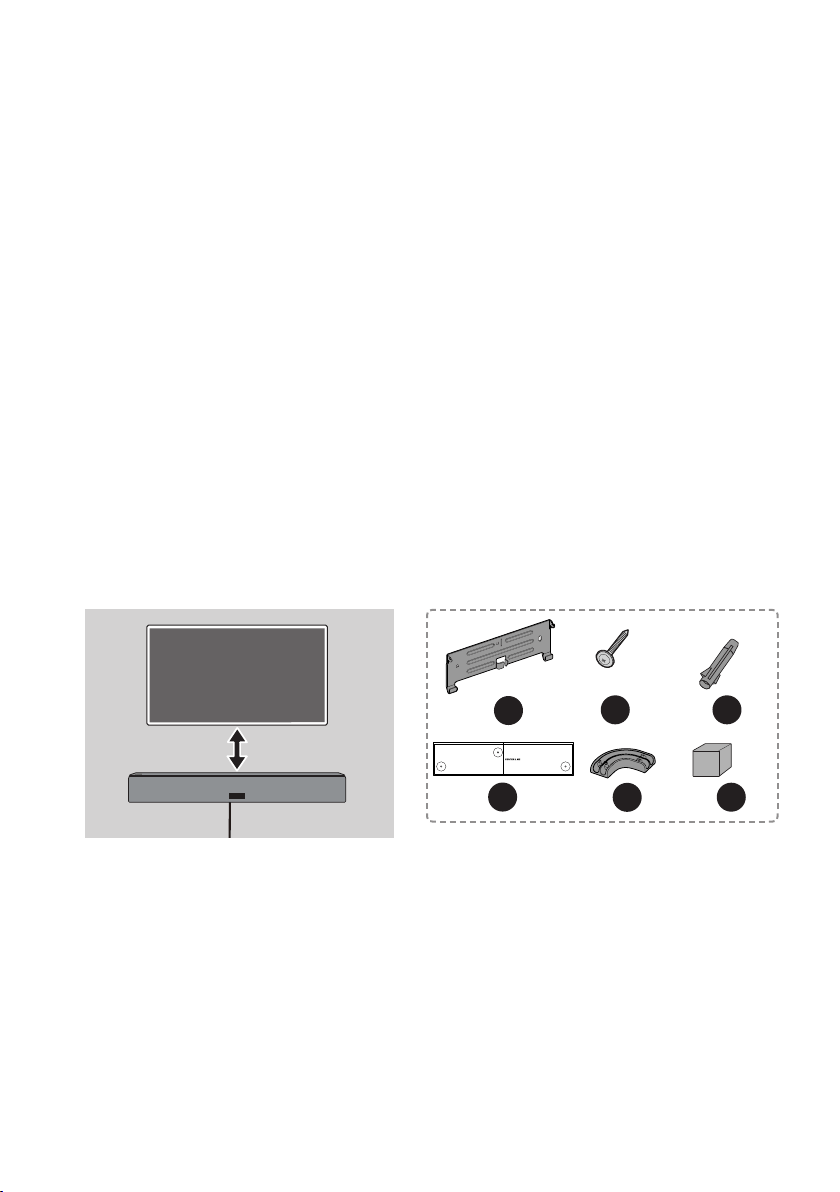
Installation Precautions
• Install on a vertical wall only.
• Do not install in a place with high temperature or humidity.
• Verify whether the wall is strong enough to support the product’s weight. If not, reinforce the wall
or choose another installation point.
• Purchase and use the xing screws or anchors appropriate for the kind of wall you have (plaster
board, iron board, wood, etc.).
If possible, x the support screws into wall studs.
• Purchase wall mounting screws according to the type and thickness of the wall you want to mount
the Soundbar on.
– Diameter: M5
– Length: 35 mm or longer recommended.
• Connect cables from the unit to external devices before you install the Soundbar on the wall.
• Make sure the unit is turned off and unplugged before you install it. Otherwise, it may cause an
electric shock.
Wallmount Components
5cm or more
A
B C D
A B C
D
A B
C
D
x 2
E
F
G H
E
F G H
x 2
A
B
C D
x 3
(M5 x L50)
x 3
ENG - 36
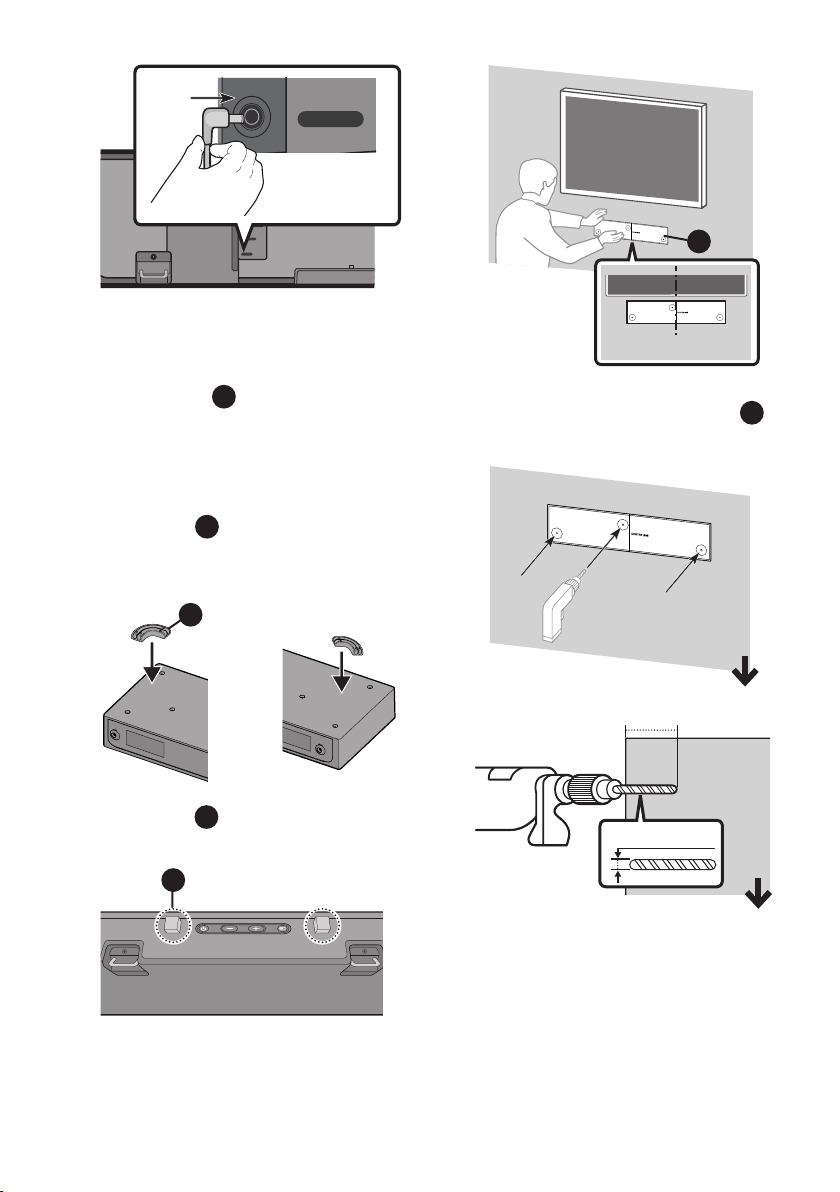
1.
DIGITAL AUDIO IN
(OPTICAL)
DC 23V
WIRELESS
ID SET
(WOOFER/REAR)
NETWORK
DC 23V
DIGITAL AUDIO IN
(OPTICAL)
DC 23V
WIRELESS
ID SET
(WOOFER/REAR)
NETWORK
DC 23V
NOTES
– Install the Soundbar 5cm or more
below your TV.
– Install part
E
F G H
before mounting your
Soundbar on the wall.
– Insert the Power Plug from the
Adapter into the Soundbar before
mounting the Soundbar on the wall.
– Use part
E
F G H
to secure the power
cable on the left or right side of the
Soundbar.
OR
E
F G H
– Use part
E
F
G H
to attach to the centre of
the bottom of the Soundbar.
E
F
G H
2.
A B C
D
CENTRE LINE
NOTE
– Make sure the Wall Mount Guide
A B C
D
is level.
3.
6 mm
50 mm
NOTE
– The installation method shown here is
for Concrete walls. Installation methods
will vary depending on the wall type.
For installation on dry wall, we strongly
recommend you drill screw support
holes into the underlying wood studs.
ENG - 37
A B
C
D
A
B
C D
A
B C D
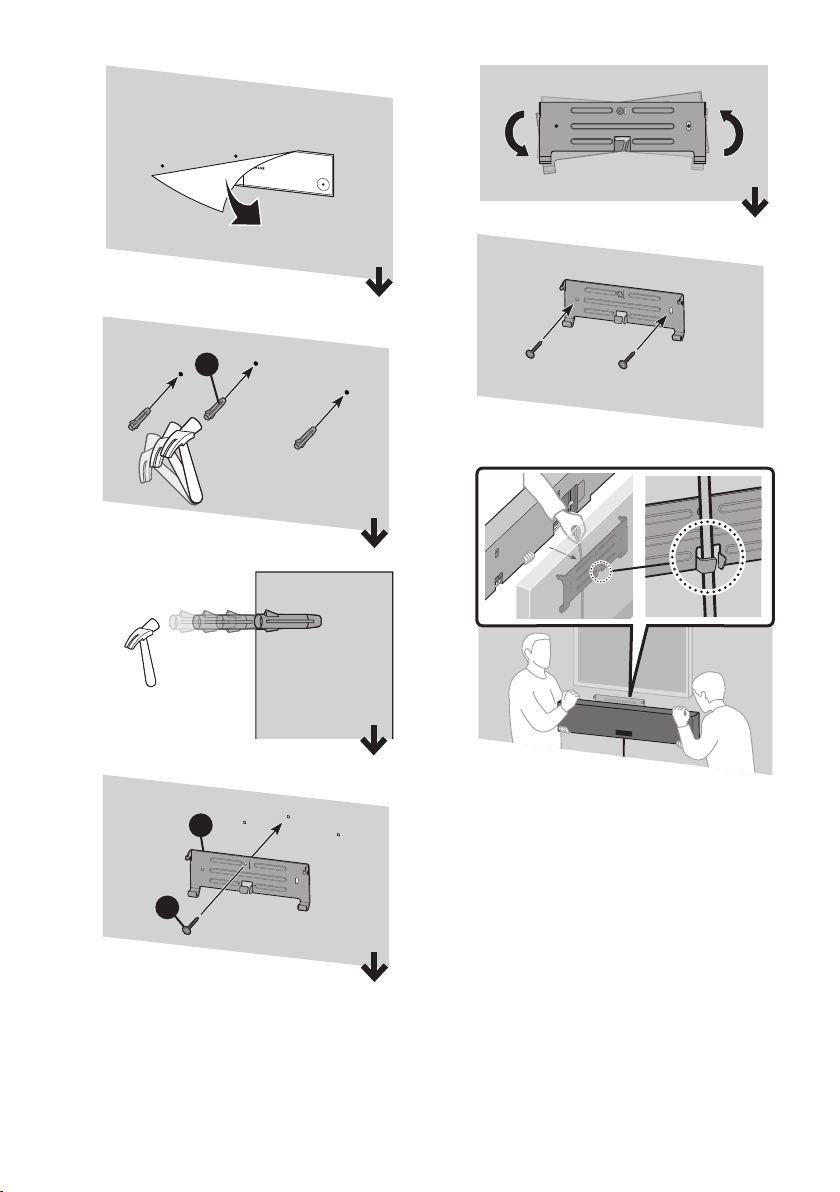
4.
ENG - 38
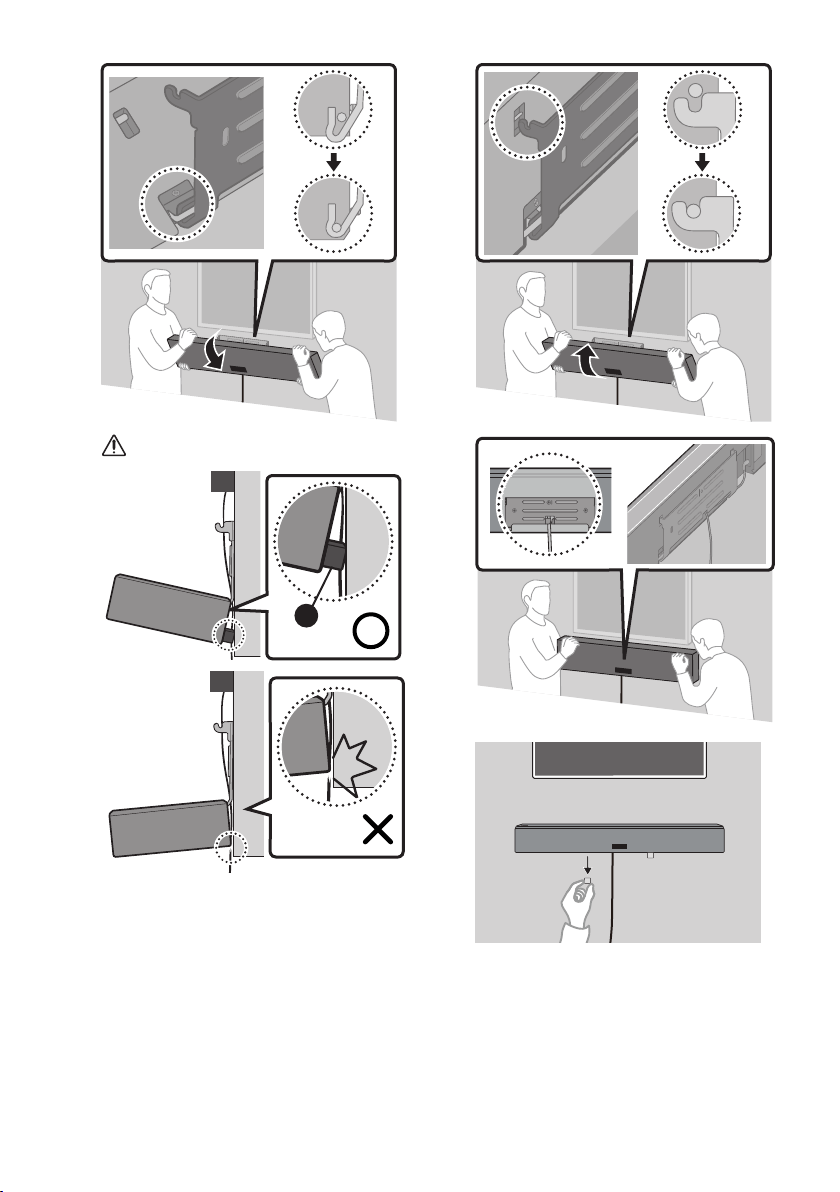
5.
CAUTION
E
F
G H
6.
7.
8.

ENG - 39
12 SOFTWARE
UPDATE
When the Soundbar is connected to the Internet,
software updates automatically occur even when
the Soundbar is turned off.
• To use the Auto Update function, the
Soundbar must be connected to the Internet.
The Wi-Fi connection to the Soundbar will be
terminated if its power cord is disconnected
or the power is cut off. If the power is cut off,
when the power comes back on or you
reconnect the power cord, turn on the
Soundbar, and then reconnect it to the
Internet.

ENG - 40
13 TROUBLESHOOTING
Before seeking assistance, check the following.
The unit will not turn on.
Is the power cord plugged into the outlet?
; Connect the power plug to the outlet.
A function does not work when the button
is pressed.
Is there static electricity in the air?
; Disconnect the power plug and connect it
again.
Sound dropouts occur in BT mode.
; See the Bluetooth connection sections on
pages 11 and 16.
Sound is not produced.
Is the Mute function on?
; Press the
VOL WOOFER
SOUND
MODE
PAIR
button to cancel the
function.
Is the volume set to minimum?
; Adjust the Volume.
The remote control does not work.
Are the batteries drained?
; Replace with new batteries.
Is the distance between the remote control and
Soundbar main unit too far?
; Move the remote control closer to the
Soundbar main unit.
Cannot connect to the TV.
If connected via a wired network
; Check if the cable is connected correctly.
(Check the port name to make sure that
the cable is connected to the correct port.)
(See the corresponding page regarding
each connection method.)
; Press the button on the bottom panel
of the Soundbar or on the remote control
to check if the mode is correct.
If connected via a wireless network
; Connected via Bluetooth
1. Switch the Soundbar to “BT PAIRING”
mode, and then use the TV to search
again. (See page 11 for details.)
; Connected via Wi-Fi
1. Check if the TV is a compatible model.
• Only Samsung Smart TVs released
after 2014 are supported.
2. Check if the TV is connected to Wi-Fi.
• If the TV is not connected to Wi-Fi, use
the network menu on the TV to
establish a connection. (See the TV
user manual.)
3. Check if the Soundbar is connected to
Wi-Fi.
• When the Soundbar is connected, you
can nd it in the list of speakers on
your mobile device when you run the
SmartThings app. See page 19 for
details.
ENG - 41
4. Check for a DFS channel.
• If your wireless router (Wi-Fi) is using a
DFS channel, you cannot establish a
Wi-Fi connection between the TV and
Soundbar. Contact your Internet
service provider for details.
14 LICENCE
Manufactured under license from Dolby
Laboratories. Dolby, Dolby Audio, Pro Logic, and
the double-D symbol are trademarks of Dolby
Laboratories.
For DTS patents, see http://patents.dts.com.
Manufactured under license from DTS
Licensing Limited. DTS, the Symbol, DTS in
combination with the Symbol, and DTS Digital
Surround are registered trademarks or
trademarks of DTS, Inc. in the United States
and/or other countries. © DTS, Inc. All Rights
Reserved.
• The Spotify Software is subject to third
party licences found here :
www.spotify.com/connect/third-party-
licenses.
• For more information about Spotify
Connect, please visit
www.spotify.com/connect
15 OPEN SOURCE
LICENCE NOTICE
For further information on Open Sources used in
this product, please visit the website:
http://opensource.samsung.com
16 IMPORTANT
NOTES ABOUT
SERVICE
Figures and illustrations in this User Manual are
provided for reference only and may differ from
actual product appearance.

ENG - 42
17 SPECIFICATIONS AND GUIDE
Specications
Model Name HW-NW700
Weight 6.7 kg
Dimensions (W x H x D) 1220.0 x 140.0 x 53.5 mm
Operating Temperature Range +5°C to +35°C
Operating Humidity Range 10 % ~ 75 %
AMPLIFIER
Rated Output power Woofer x4, Tweeter x 3, 4ohm
Supported play formats
LPCM 2ch, Dolby Audio™
(supporting Dolby® Digital), DTS
NOTES
– Samsung Electronics Co., Ltd reserves the right to change the specications without notice.
– Weight and dimensions are approximate.
– For India Only
“This product is RoHS compliant”
Precaution : The Soundbar will restart automatically if you turn on/off Wi-Fi.
Wi-Fi
Port deactivation method
Press the ID SET button on the rear panel of the Soundbar
for 30 seconds to turn Wi-Fi On / Off.
Bluetooth
Port deactivation method
Press the NETWORK button on the rear panel of the
Soundbar for 30 seconds to turn Bluetooth On / Off.
© 2018 Samsung Electronics Co., Ltd. All rights reserved.
Contact SAMSUNG WORLD WIDE
If you have any questions or comments relating to Samsung products, please contact the SAMSUNG customer
care Centre.
Area Contact Centre
Web Site
`
Asia Pacifi c
CHINA 400-810-5858 www.samsung.com/cn/support
HONG KONG 3698 4698
www.samsung.com/hk/support (Chinese)
www.samsung.com/hk_en/support (English)
MACAU 0800 333 www.samsung.com/support
SINGAPORE 1800 7267864 | 1800-SAMSUNG www.samsung.com/sg/support
AUSTRALIA 1300 362 603 www.samsung.com/au/support
NEW ZEALAND
0800 726 786 (All Product)
0800 6 726 786
www.samsung.com/nz/support
VIETNAM 1800 588 889 www.samsung.com/vn/support
THAILAND
0-2689-3232
1800-29-3232 (Toll free)
www.samsung.com/th/support
MYANMAR +95-1-2399-888 www.samsung.com/mm/support
CAMBODIA
+855-23-993232
1800-20-3232 (Toll free)
www.samsung.com/th/support
LAOS +856-214-17333
MALAYSIA
1800-88-9999
+603-7713 7420 (Overseas contact)
www.samsung.com/my/support
INDONESIA
021-5699-7777
0800-112-8888 (All Product, Toll Free)
www.samsung.com/id/support
PHILIPPINES
1-800-10-726-7864 [ PLDT Toll Free ]
1-800-8-726-7864 [ Globe Landline and Mobile ]
02-422-2111 [ Standard Landline ]
www.samsung.com/ph/support
TAIWAN 0800-329-999 www.samsung.com/tw/support
INDIA 1800 40 SAMSUNG (1800 40 7267864) (Toll-Free)
www.samsung.com/in/support
NEPAL
16600172667 (Toll Free for NTC Only)
9801572667
BANGLADESH
09612300300
08000300300 (Toll free)
SRI LANKA
+9411SAMSUNG (+94117267864)
+94117540540
+94115900000