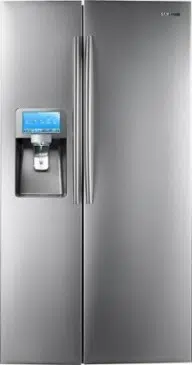
Refrigerator
user manual
imagine the possibilities
Thank you for purchasing a Samsung product.
To receive more complete service or accessory parts,
please register your product at or contact
www.samsung.com/register
1-800-SAMSUNG (726-7864)
Free Standing Appliance
This manual is made with 100% recycled paper.
RSG309**
DA68-02500B-13.indb 1 13. 12. 4. �� 7:12
English - 02
SAFETY INFORMATION
Before using your new Samsung Side-by-side door
Refrigerator, please read this manual thoroughly to
ensure that you know how to operate the features
and functions that your new appliance offers safely
and efficiently.
This appliance is not intended for use by persons
(including children) with reduced physical,
sensory, or mental capabilities, or those who lack
experience and knowledge, unless they have been
given supervision or instruction concerning the use
of the appliance by a person responsible for their
safety.
Because the following instructions cover various
models, the characteristics of your refrigerator may
differ slightly from the refrigerator described in this
manual.
If you have any question, contact us at
1-800-SAMSUNG or find help and information
online at www.samsung.com.
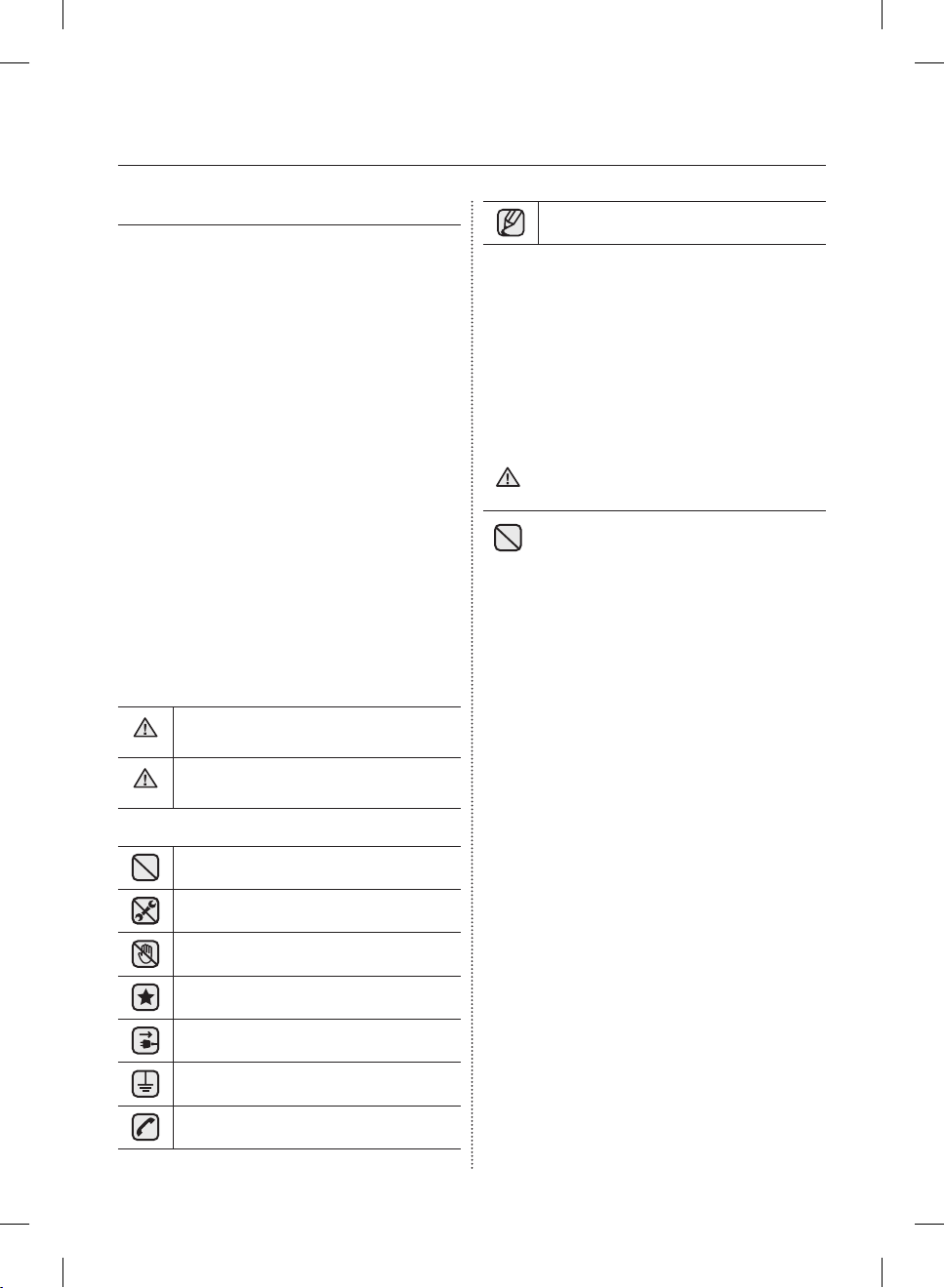
Important safety symbols and
precautions:
WARNING
Hazards or unsafe practices that may result in
severe personal injury or death.
CAUTION
Hazards or unsafe practices that may result in
minor personal injury or property damage.
Do NOT attempt.
Do NOT disassemble.
Do NOT touch.
Follow directions carefully.
Unplug the power plug from the wall socket.
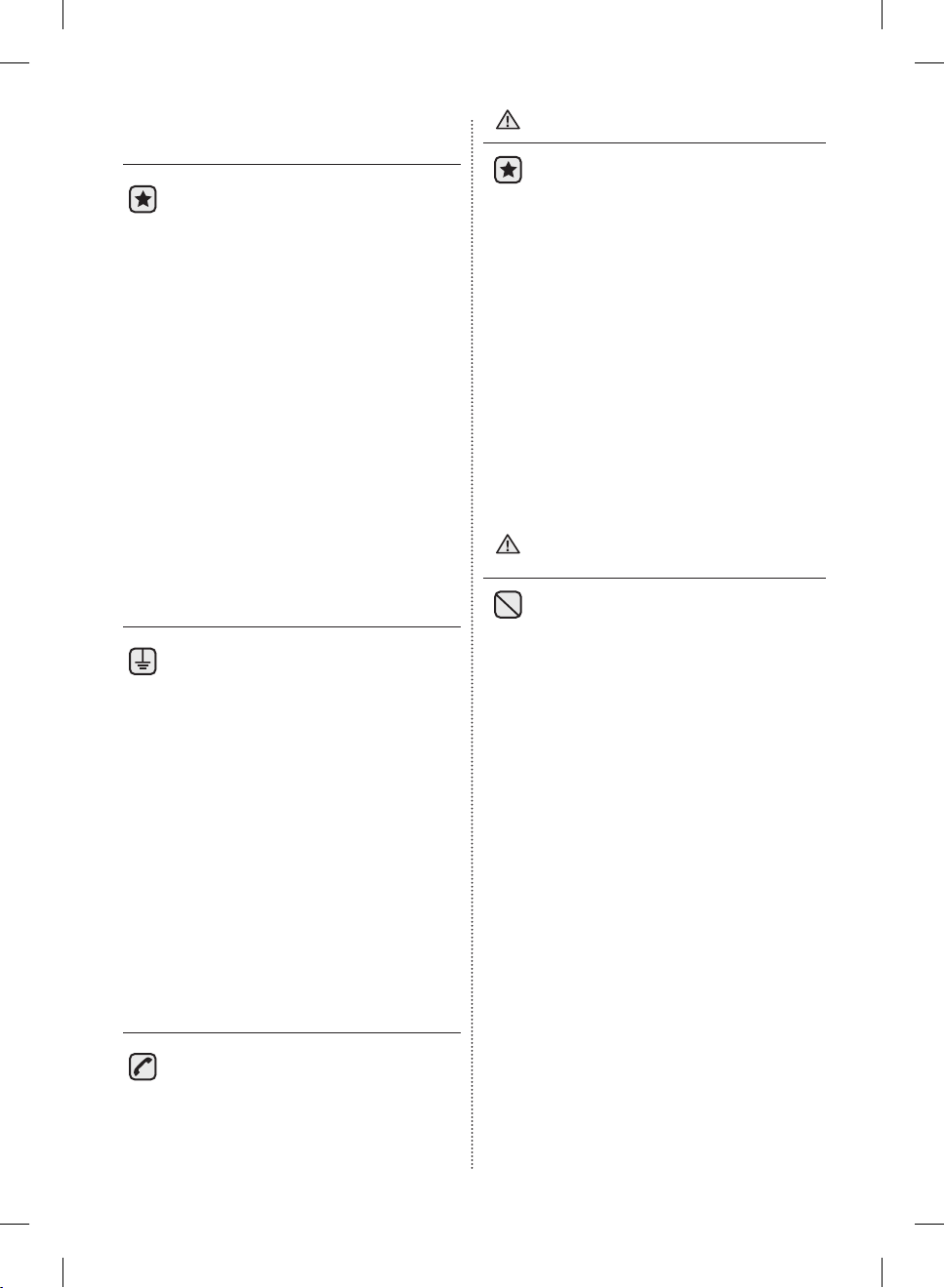
Make sure the refrigerator is grounded to
prevent electric shock.
Call the contact center for help.
Note.
These warning signs are here to prevent
injury to you and others.
Please follow them carefully.
After reading this section, keep it in a safe
place for future reference.
CRITICAL INSTALLATION
WARNINGS
• Do not install the refrigerator in a damp
place or place where it may come in
contact with water.
- Deteriorated insulation of electrical parts may
cause an electric shock or fire.
• Do not place this refrigerator in direct sunlight
or expose to the heat from stoves, room
heaters or other appliance.
• Do not plug several appliances into the same
multiple power strip.
The refrigerator should always be plugged into
its own individual electrical outlet which has a
voltage rating that matches the voltage listed
on the refrigerator’s rating plate.
- This provides the best performance and
also prevents overloading house wiring
circuits, which could cause a fire hazard from
overheated wires.
• If the wall socket is loose, do not insert the
power plug.
- There is a risk of electric shock of fire.
• Do not use a cord that shows cracks or
abrasion damage along its length or at either
end.
• Do not bend the power cord excessively or
place heavy articles on it.
• Never unplug your refrigerator by pulling on the
power cord.
Always grip plug firmly and pull straight out
from the outlet.
- Damage to the cord may cause a short-circuit,
fire and/or electric shock.
• Do not use aerosols near the refrigerator.
WARNING
Safety information
DA68-02500B-13.indb 2 13. 12. 4. �� 7:12
English - 03
- Aerosols used near the refrigerator may cause
an explosion or fire.
• This refrigerator must be properly
installed and located in accordance with
the manual before you use it.
• Connect the power plug in the proper position
with the cord hanging down.
- If you connect the power plug upside down, the
wire can get cut off and cause a fire or electric
shock.
• When moving the refrigerator, be careful not to
roll over or damage the power cord.
- This constitutes a fire hazard.
• Make sure that the power plug is not squashed
or damaged by the back of the refrigerator.
• Keep the packing materials out of reach of
children.
- There is a risk of death from suffocation if a
child puts the packing materials on his or her
head.
• The appliance must be positioned so that the
plug is accessible after installation.
• You need to remove all the protective plastic
film before you initially plug the product in.
• The refrigerator must be grounded.
- Always make sure that you have
grounded the refrigerator before
attempting to investigate or repair any
part of the appliance.
Power leakages can cause severe
electric shock.
• Never use gas pipes, telephone lines or other
potential lightning attractors as an electrical
ground.
- Improper use of the grounding plug can result
in a risk of electric shock.
If it is necessary to use an extension cord, use
only a 3-wire extension cord that has a 3-blade
grounding plug and a 3-slot receptacle that will
accept the plug on the appliance.
The marked rating of the extension cord should
be AC 115-120V, 10A, or more.
If a grounding adapter is used, make sure the
receptacle box is fully grounded.
• If the power cord is damaged,
have it replaced immediately by the
manufacturer or its service agent.
INSTALLATION CAUTIONS
• Allow sufficient space to install the
refrigerator on a flat surface.
- If your refrigerator is not level, the internal
cooling system may not work correctly.
• Keep the ventilation space in the appliance
enclosure or mounting structure clear of
obstruction.
• Allow the appliance to stand for 2 hours after
installation.
• We recommend you have this refrigerator
installed by a qualified technician or service
company.
- Failing to do so may result in an electric shock,
fire, explosion, problems with the product, or
injury.
SEVERE WARNING SIGNS FOR
USING
• Do not insert the power plug with wet
hands.
• Do not store articles on the top of the
appliance.
- When you open or close the door, the articles
may fall and cause personal injury and/or
material damage.
• Do not put a container filled with water on the
refrigerator.
- If spilled, there is a risk of fire or electric shock.
• Children should be supervised to ensure that
they do not play with the appliance.
• Do not let children hang on the door.
A serious injury may occur.
• Do not let children go inside the refrigerator.
Children could become trapped.
• Do not insert your hands into the bottom area
under the appliance.
- Any sharp edges may cause personal injury.
• Do not let children step on a drawer’s cover.
- The drawer may break and cause them to slip.
• Do not overfill the refrigerator with food.
- When you open the door, an item may fall out
and cause personal injury or material damage.
• Do not touch the inside walls of the freezer or
products stored in the freezer with wet hands.
- This may cause frostbite.
• Never put fingers or other objects into the water
dispenser hole, ice chute, or ice maker bucket.
CAUTION
WARNING
DA68-02500B-13.indb 3 13. 12. 4. �� 7:12
English - 04
- It may cause personal injury or material
damage.
• Do not spray flammable gas near the
refrigerator.
- There is a risk of explosion or fire.
• Do not store volatile or flammable substances
in the refrigerator.
- The storage of benzene, thinner, alcohol, ether,
LP gas and other such products may cause
explosions.
• Do not store pharmaceuticals products,
scientific materials, or temperature sensitive
products in the refrigerator.
- Products that require strict temperature
controls must not be stored in the refrigerator.
• Do not place or use an electrical appliance
inside the refrigerator, unless it is of a type
recommended by the manufacturer.
• Do not use mechanical devices or any other
means to accelerate the defrosting process,
other than those recommended by the
manufacturer.
• Do not damage the refrigerant circuit.
• Do not disassemble or repair the
refrigerator by yourself.
- You run risk of causing a fire, malfunction and/
or personal injury.
- When the interior or exterior LED lamp has
gone out, please contact your service agents.
• Children should be supervised to ensure
that they do not play with the appliance.
• Bottles should be stored tightly together so that
they do not fall out.
• This product is intended only for the storage of
food in a domestic environment.
• If a gas leak is detected, avoid any naked
flames or potential sources of ignition and air
the room in which the appliance is standing for
several minutes.
• Use only the LED Lamps provided by
manufacturer or service agents.
• If there are burning smells or smoke, pull
out power plug immediately and contact
your Samsung Electronics service center.
• If you experience difficulty when changing the
light, contact a service agent.
• If the product is equipped with LED Lamps,
do not disassemble the Lamp Cover and LED
Lamp by yourself.
- Please contact your service agents.
• If any dust or water is in refrigerator, pull out
the power plug and contact your Samsung
Electronics service center.
- Otherwise there is a risk of fire.
USAGE CAUTIONS
• Do not re-freeze frozen foods that have
thawed completely.
Do not place carbonated or fizzy drinks
in the freezer compartment.
Do not put bottles or glass containers in
the freezer.
- When the contents freeze, the glass may break
and cause personal injury.
• Service warranty and Modification.
- Any changes or modifications performed
by a 3rd party on this finished appliance
are not covered under Samsung
warranty service, nor can Samsung be
responsible for safety issues that result
from 3rd party modifications.
• Do not block air holes.
- If the air holes are blocked, especially with a
plastic bag, the refrigerator can be over cooled.
If this cooling period lasts too long, the water
filter may break and cause water leakage.
• If the refrigerator is disconnected from the
power supply, you should wait for at least five
minutes before plugging it back in.
• If you have a long vacation planned or the
refrigerator is not to be used for a long period of
time, you must empty the refrigerator and pull
out the power plug.
- Letting the refrigerator run for a long time
without using it can cause the insulation to
deriorate and may cause a fire.
- Wipe excess moisture from the inside and leave
the doors open.
- Otherwise, odor and mold may develop.
• To get the best performance from the product:
- Do not place foods too close to the vents at the
rear of the appliance as it can obstruct free air
circulation in the refrigerator compartment.
- Wrap food up properly or place it in airtight
containers before putting it into the refrigerator.
• Fill the water tank, ice tray, and water cubes
only with potable water.
CAUTION
DA68-02500B-13.indb 4 13. 12. 4. �� 7:12
English - 05
• If the product is flooded, make sure to
contact your nearest service center.
- There is a risk of electric shock or fire.
CLEANING CAUTIONS
• Do not directly spray water on the inside
or outside the refrigerator.
- There is a risk of fire or electric shock.
• Remove any foreign matter or dust from
the power plug pins.
Do not use a wet or damp cloth when
cleaning the plug.
- Otherwise, there is a risk of fire or electric
shock.
• Unplug the refrigerator before cleaning or
making repairs.
• This product contains chemicals known
to the State of California to cause cancer
and reproductive toxicity.
CAUTION
WARNING
CRITICAL DISPOSAL
WARNINGS
• Risk of child entrapment. Before you
throw away your old refrigerator or
freezer:
- Take off the doors.
- Leave the shelves in place so that children can
not easily climb inside.
• Please dispose of the packaging material from
this product in an environmentally friendly
manner.
• Leave the shelves in place so that children can
not easily climb inside.
Ensure that none of the pipes on the back of
the appliance are damaged prior to disposal.
• When disposing of this refrigerator, remove the
door/door seals and door latch so that small
children or animals cannot become trapped
inside.
Children should be supervised to ensure that
they do not play with the appliance.
• Cyclopentane is used in the insulation.
The gases in the insulation material require a
special disposal procedure.
Please contact your local authorities in regard
to the environmentally safe disposal of this
product.
Ensure that none of the pipes on the back of
the refrigerator are damaged prior to disposal.
ADDITIONAL TIPS FOR PROPER
USAGE
• In the event of a power failure, call the local
office of your Electricity Company and ask how
long it is going to last.
• Most power failures that are corrected within
an hour or two will not affect your refrigerator
temperatures.
However, you should minimize the number of
door openings while the power is off.
- Should the power failure last more than 2
hours, remove all ice in the Ice Bucket.
- Should the power failure last more than 24
hours, remove all frozen food.
WARNING
DA68-02500B-13.indb 5 13. 12. 4. �� 7:12
English - 06
Saving Energy Tips
- Install the appliance in a cool, dry room with
adequate ventilation.
Ensure that it is not exposed to direct sunlight
and never put it near a direct source of heat
(radiator, for example).
- Never block any vents or grilles on the
appliance.
- Allow warm food to cool down before placing it
in the appliance.
- Put frozen food in the refrigerator to thaw.
You can then use the low temperatures of the
frozen products to cool food in the refrigerator.
- Do not keep the door of the appliance open for
too long when putting food in or taking food
out. The shorter time for which the door is
open, the less ice will form in the freezer.
- Clean the rear of the refrigerator regularly.
Dust increases energy consumption.
- Do not set temperature colder than necessary.
- Ensure sufficient air exhaust at the refrigerator
base and at the back wall of the refrigerator.
Do not cover air vent openings.
- Allow clearance to the right, left, back and top
when installing.
This will help reduce power consumption and
keep your energy bills lower.
- To get the best energy efficiency of this
product, please leave all selves, drawers and
baskets on their original position like as above
illustration.
DA68-02500B-13.indb 6 13. 12. 4. �� 7:12
English - 07
1. Regulatory Notice
1.1 FCC Notice
FCC CAUTION:
Any changes or modifications not expressly approved by the party responsible for compliance could void
the user’s authority to operate the equipment.
Contains Transmitter Module FCC ID: A3LDNURS11
This device complies with Part 15 of FCC Rules. Operation is Subject to following two conditions:
(1) This device may not cause harmful interference, and
(2) This device must accept any interference received including interference that cause undesired
operation.
For product available in the USA/Canada market, only channel 1~11 can be operated.
Selection of other channels is not possible.
FCC STATEMENT:
This equipment has been tested and found to comply within the limits for a Class B digital device,
pursuant to part 15 of the FCC Rules. These limits are designed to provide reasonable protection against
harmful interference in a residential installation.
This equipment generates, uses, and can radiate radio frequency energy and, if not installed and used
in accordance with the instructions, may cause harmful interference to radio communications. However,
there is no guarantee that interference will not occur in a particular installation. If this equipment does
cause harmful interference to radio or television reception, which can be determined by turning the
equipment off and on, the user is encouraged to try to correct the interference by one or more of the
following measures:
• Reorient or relocate the receiving antenna
• Increase the separation between the equipment and receiver
• Connect the equipment into an outlet on a different circuit from that to which the receiver is connected
• Consult the dealer or an experienced radio/TV technician for help.
FCC RADIATION EXPOSURE STATEMENT:
This equipment complies with FCC radiation exposure limits set forth for an uncontrolled environment.
This equipment should be installed and operated with a minimum distance of 20cm between the radiator
and your body. This device and its antenna(s) must not be co-located or operation in conjunction with any
other antenna or transmitter.
SAVE THESE INSTRUCTIONS
CAUTION
DA68-02500B-13.indb 7 13. 12. 4. �� 7:12
English - 08
Contents
SETTING UP YOUR SIDE-BY-SIDE REFRIGERATOR …………………………… 08
OPERATING YOUR SIDE-BY-SIDE REFRIGERATOR …………………………… 16
TROUBLESHOOTING ………………………………………………………………… 88
GETTING READY TO INSTALL
THE REFRIGERATOR
Congratulations on the purchase of your Samsung
Side-By-Side Refrigerator.
We hope you will enjoy the many state-of-the-art
features and efficiencies that this new appliance
has to offer.
Selecting the best location for the
refrigerator
• Select a location with easy access to a water
supply.
• Select a location without direct exposure to
sunlight.
• Select a location with level (or nearly level)
flooring.
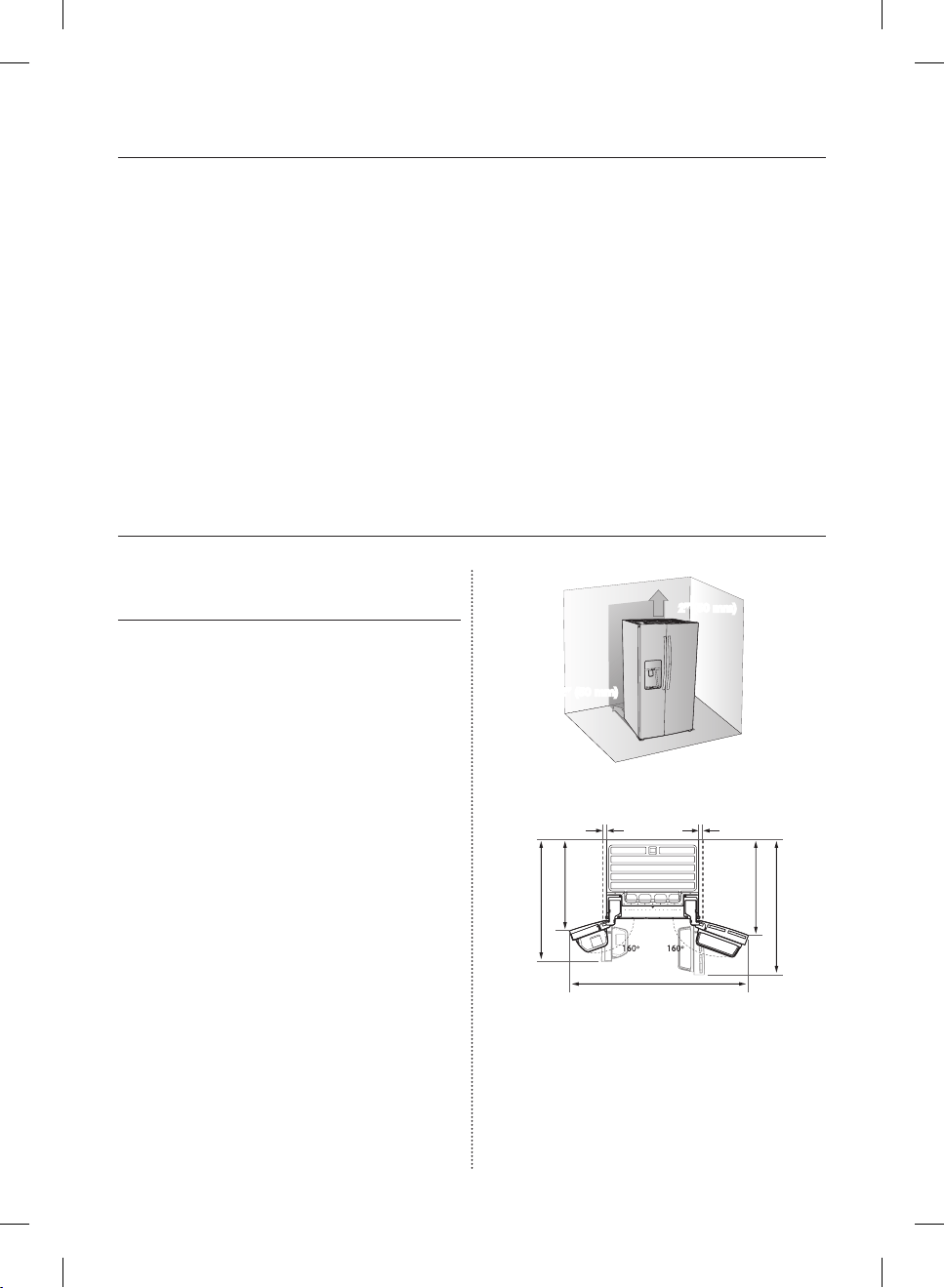
• Select a location with enough space for the
refrigerator doors to open easily.
See the diagram below.
• Select a location that allows sufficient space to
the right,left, back, and top for air circulation.
See the diagram below.
• Select a location that allows you to move the
refrigerator easily if it needs maintenance or
service.
2” (50mm)
2” (50mm)
at least ¼”
(6mm)
51 1/2” (1308mm)
at least ¼”
(6mm)
40” (1016mm)
68” (1727mm)
38 3/8” (974mm)
46 1/2” (1181mm)
Setting up your side-by-side
refrigerator
DA68-02500B-13.indb 8 13. 12. 4. �� 7:12
English - 09
01 SETTING UP
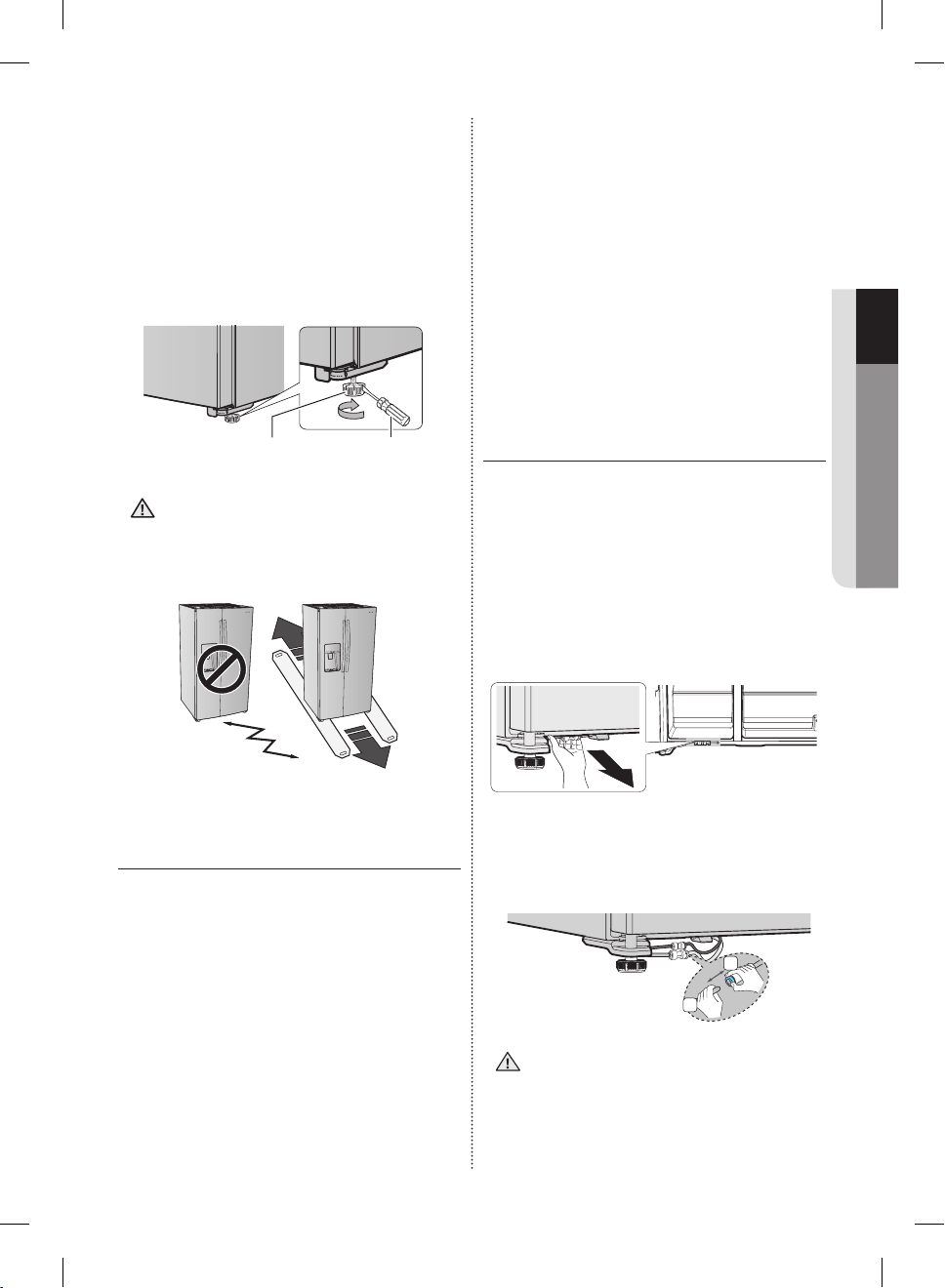
When moving your refrigerator
To prevent floor damage, be sure the front levelling
legs are in the up position (above the floor).
Refer to ‘Levelling the refrigerator’ in this manual
(page 11).
To protect the finish of your flooring while you are
installing the refrigerator, place a large section of
the cardboard carton under the refrigerator where
you are working.
Leg Screw Driver
When installing, servicing or cleaning
behind the refrigerator, be sure to pull the
unit straight out and push back straight in
after finishing.
SETTING UP THE REFRIGERATOR
Now that you have your new Refrigerator installed
in place, you are ready to set up and enjoy the
features and functions of the appliance.
By completing the following steps, your
Refrigerator should be fully operational.
If not, first check the power supply and electricity
source or try the troubleshooting section at the
back of this user’s guide.
If you have any further questions, contact your
Samsung Electronics service center.
1. Place the Refrigerator in an appropriate location
with reasonable clearance between the wall
and the Refrigerator.
Refer to installation instructions in this manual.
CAUTION
2. Once the Refrigerator is plugged in, make sure
the interior light comes on when you open the
doors.
3. Set the Temperature control to the coldest
temperature and wait for an hour.
The Freezer will get slightly chilled and the
motor will run smoothly.
4. After powering the Refrigerator, it will take a few
hours to reach the appropriate temperature.
You can store food and drinks in the
Refrigerator after the temperature is sufficiently
cool.
SETTING UP THE REFRIGERATOR
DOORS
If your entrance won’t allow the refrigerator to pass
easily through it, you can remove the doors.
Separating the Water Supply Line from
the Refrigerator
1. Pull the two water lines (which are in the Fixer)
out to the front.
2. Remove two water lines (White one is for water
and the other one is for ice) by pressing the
coupler (1) and pulling the water line (2)
away.
1
2
Make sure the color of the water lines
match.
DA68-02500B-13.indb 9 13. 12. 4. �� 7:12
English - 10
Removing the freezer door
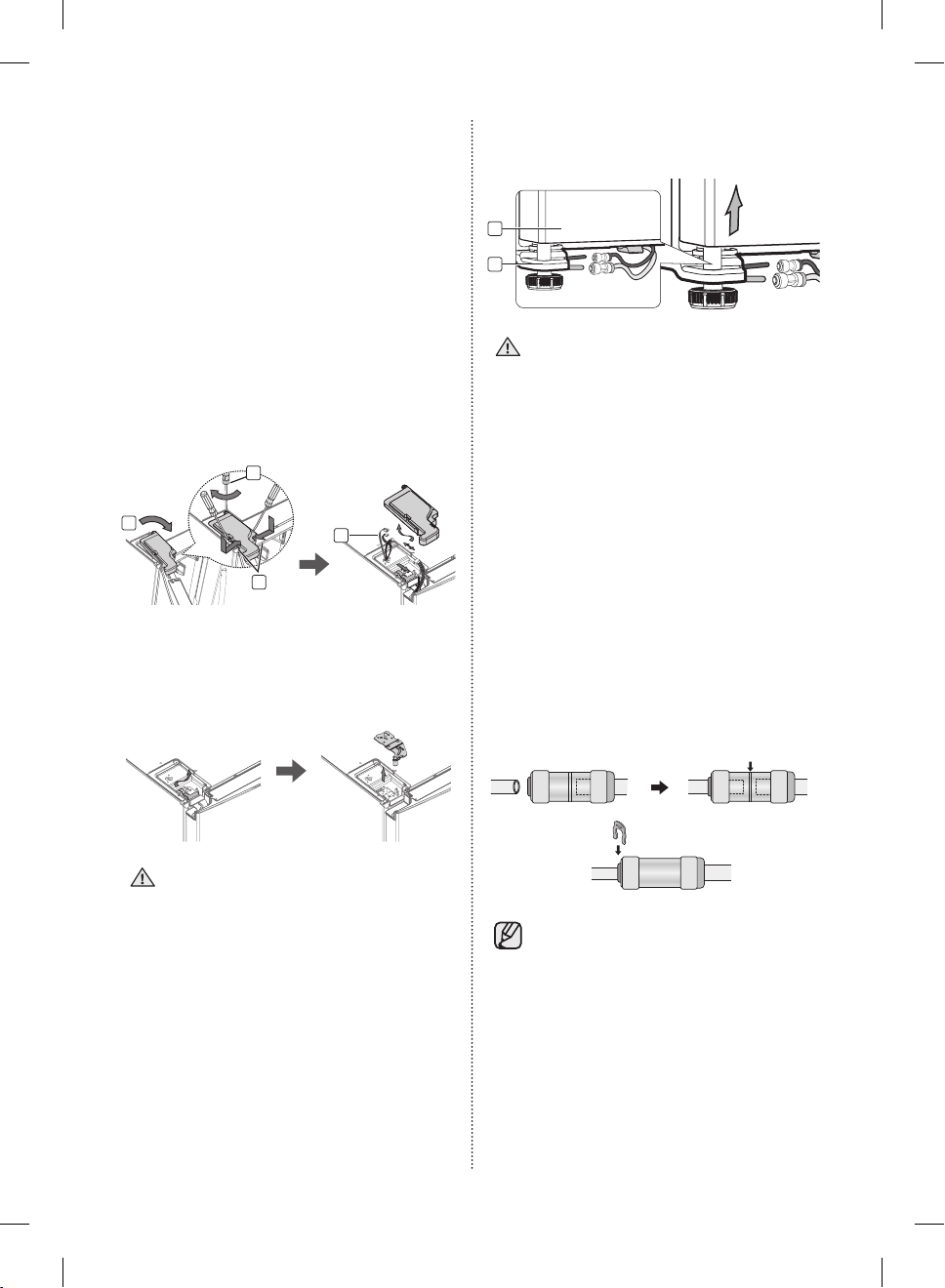
A few things to mention first.
• Make sure that you lift the door straight up so
the hinges are not bent or broken.
• Be careful not to pinch the water tubing and
wire harness on the door.
• Place doors on a protected surface to prevent
scratching or damage.
1. Remove a screw on the upper hinge cover
(1). With the door open, disengage the two
locking tabs with a flat-head screw driver (2)
and remove it while the lifting up the rear of the
cover (3), and then disconnect the wires by
gently pulling them apart (4).
4
3
2
1
2. Removing the FIXER HINGE ,and next take off
the upper hinge.
Be careful that the door does not fall on you as
you are removing it.
Be sure to keep track of all parts you are
removing.
3. Next, remove the door from the lower hinge
(5) by carefully lifting the door straight up (6).
6
5
Be careful not to pinch the water tubing
and wire harness on the door.
Reattaching the freezer doors
To reattach the freezer doors, replace parts in
reverse order.
Reattaching the Water Supply Line
1. The Water Line must be fully Inserted to the
center of transparent coupler to prevent water
leakage from the dispenser.
2. Insert the 2 clips in the install pack and check
that each clip holds the line firmly.
Center of transparent coupler
Clip A (¼”) (6.35mm)
Do not cut the water line.
Gently separate it from the coupler.
DA68-02500B-13.indb 10 13. 12. 4. �� 7:12
English - 11
01 SETTING UP
Removing the Fridge Door
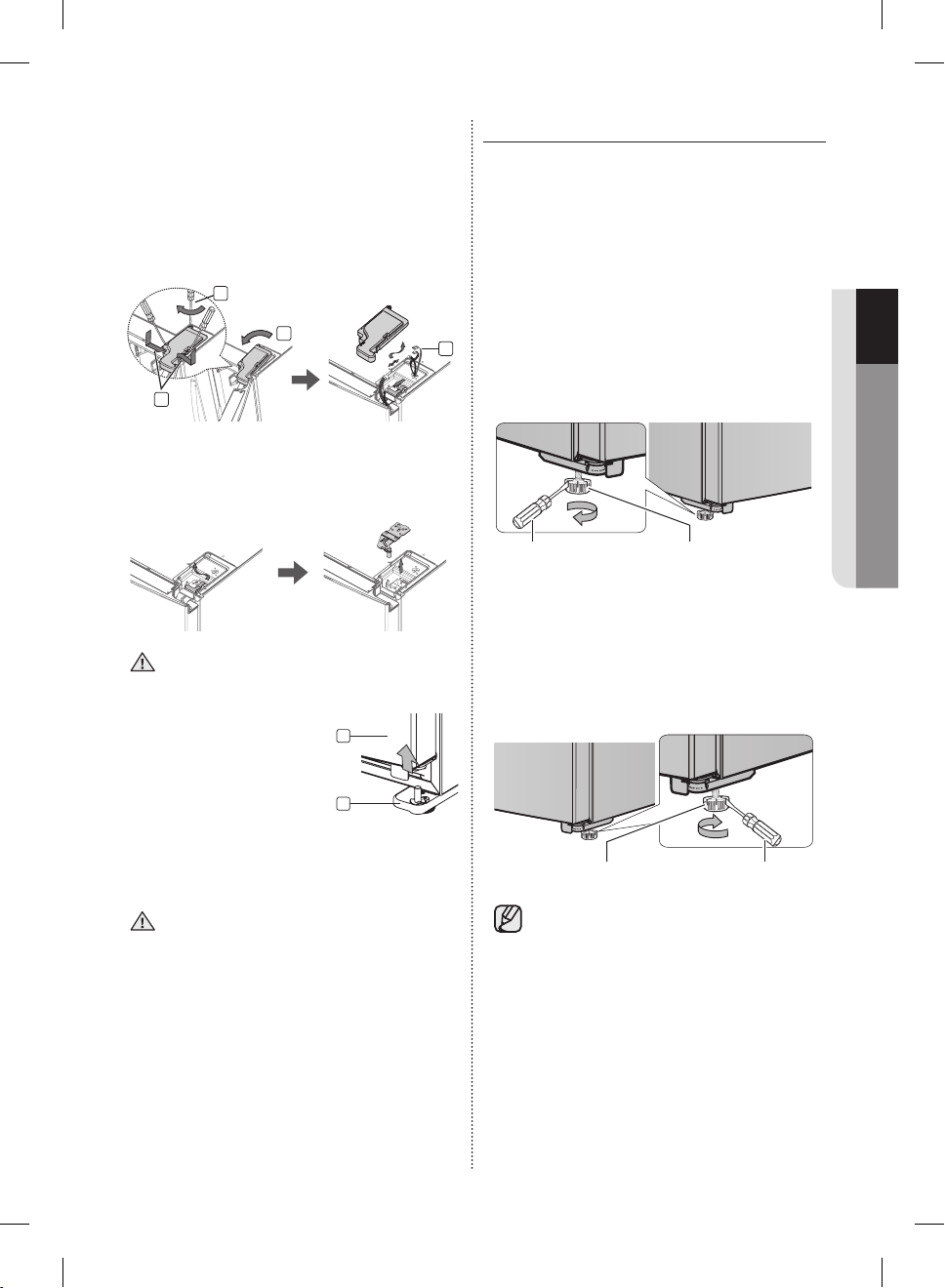
1. Remove a screw on the upper hinge cover
(1). With the door open, disengage the two
locking tabs with a flat-head screw driver (2)
and remove it while the lifting up the rear of the
cover (3), and then disconnect the wires by
gently pulling them apart (4).
3
2
4
1
2. Removing the FIXER HINGE ,and next take off
the upper hinge. Be careful that the door does
not fall on you as you are removing it.
Be sure to keep track of all parts you are
removing.
3. Remove the door from the
lower hinge (5) by lifting
the door straight up (6).
6
5
Reattaching the Fridge door
To reattach the fridge doors, replace parts
in reverse order.
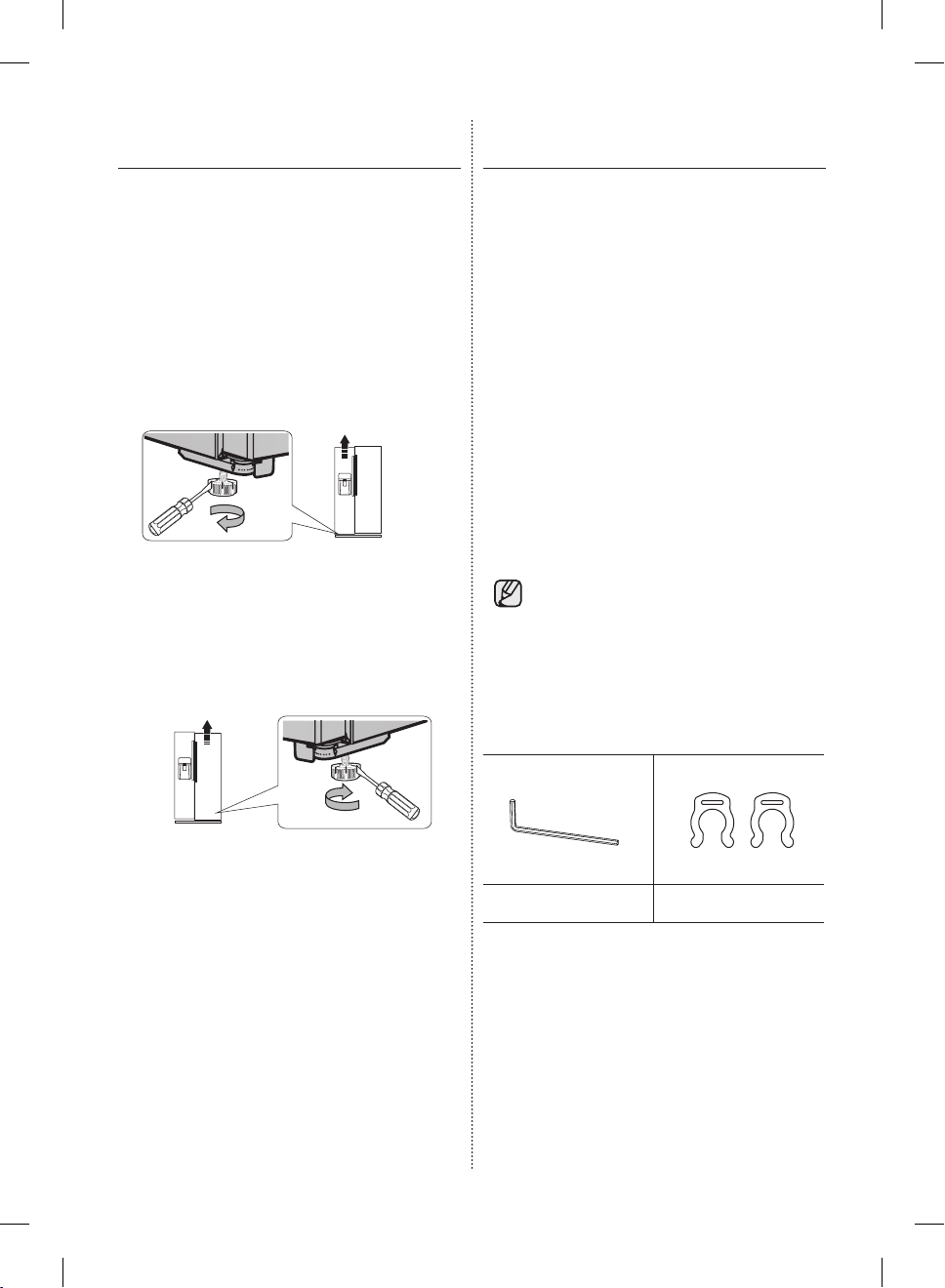
LEVELLING THE REFRIGERATOR
Now that the doors are back on the refrigerator,
you want to make sure the refrigerator is level
so that you can make final adjustments. If the
refrigerator is not level, it will not be possible to get
the doors perfectly even.
When the Freezer part is lower than the
Fridge part.
Insert a flat-blade screwdriver into a slot on the
Freezer Leg, then turn it clockwise.
Freezer LegScrew Driver
When the Fridge part is lower than the
Freezer part.
Insert a flat-blade screwdriver into a slot on the
Fridge Leg, then turn it clockwise.
Fridge Leg Screw Driver
Refer to the next section for the best way
to make very minor adjustments to the
doors.
DA68-02500B-13.indb 11 13. 12. 4. �� 7:12
English - 12
MAKING MINOR ADJUSTMENTS
TO THE DOORS
Remember, a level refrigerator is necessary for
getting the doors perfectly even.
If you need help, review the previous section on
levelling the refrigerator.
When the door of the fridge is higher
than the freezer
Insert a flat-blade screwdriver into a slot on the
freezer leg, then turn it clockwise.
When the door of the freezer is higher
than the fridge
Insert a flat-blade screwdriver into a slot on the
fridge leg, then turn it clockwise.
CHECKING THE WATER
DISPENSER LINE
A water dispenser is one of the helpful features on
your new Samsung Refrigerator.
To help promote better health, the Samsung water
filter removes unwanted particles from your water.
However, it does not sterilize or destroy
microorganisms.
You may need to purchase a water purifying
system to do that.
In order for the ice maker to operate properly, a
water pressure of 20~125psi (pound per square
inch) is required. Under normal conditions, a
170cc (5.75oz.) paper cup can be filled in 10
seconds.
If the Refrigerator is installed in an area with low
water pressure (below 20psi), you can install a
booster pump to compensate for the low pressure.
Make sure the water storage tank inside the
Refrigerator is properly filled.
To do this, press the water dispenser lever until the
water runs from the water outlet.
Water line installation kits are available at
extra cost from your dealer.
We recommend using a water supply kit
that contains copper tubing.
Check the accessory list below.
Hex wrench Clip
DA68-02500B-13.indb 12 13. 12. 4. �� 7:12
English - 13
01 SETTING UP
Connecting to the water supply line
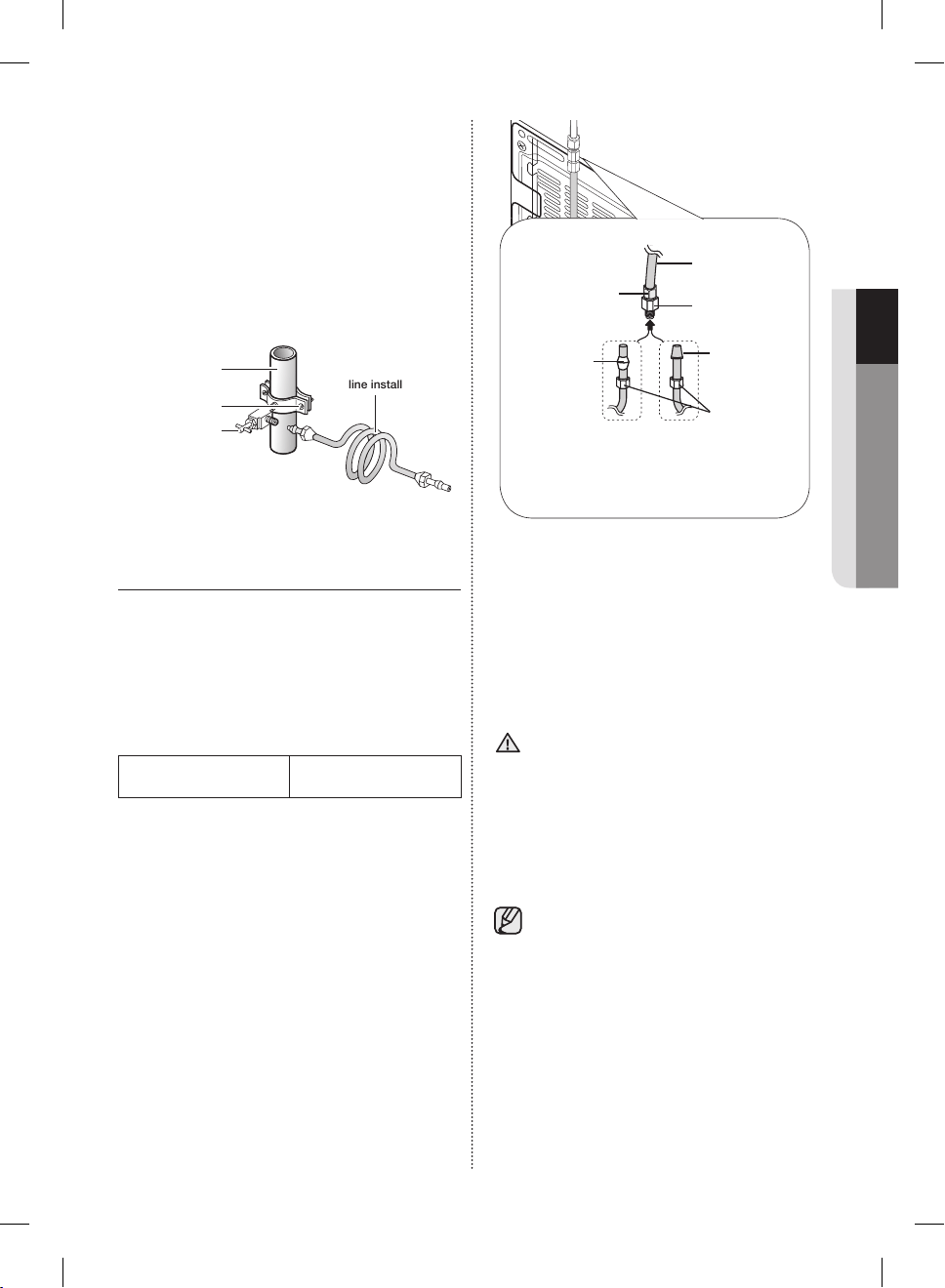
1. First, shut off the main water supply line and
turn the ice-maker off.
2. Locate the nearest cold, drinking water line.
3. After connecting the water supply with water
filter, turn on water supply and Flush 3 gallons
through filter before use (flush approximately 6
minutes).
Water line installation kit
Cold water line
Pipe clamp
Shut off valve
INSTALLING THE WATER LINE
Connecting the water line to the
Refrigerator.
There are several items that you need to purchase
to complete this connection.
You may find these items sold as a kit at your local
hardware store.
• ¼” compression nut
• copper tubing
• plastic tubing
• ferrule
Compression Nut
(1/4”) (Assembled)
Ferrule
(Not supplied)
Plastic Tubing
(Assembled)
Compression
Fitting (Assembled)
Bulb
Compression
nut (B) (1/4”)
(Not supplied)
or
Copper tubing
(Not supplied)
Plastic tubing (B)
(Not supplied)
Household water supply line
Refrigerator
1. Connect the household water line to the
assembled compression fitting.
- If you are using copper tubing, slip the
compression nut (B) (not included) and ferrule
(not included) on copper tubing (not included)
as shown.
- If you are using plastic tubing (B), insert the
molded end (Bulb) of the plastic tubing (B) into
the compression fitting.
Do not use without the molded end (Bulb)
of the plastic tubing (B).
2. Tighten the compression nut (B) onto the
compression fitting.
Do not over-tighten the compression nut (B).
3. Turn water on and check for any leakage.
Only connect the water line to a drinkable
water source.
If you have to repair or disassemble the
water line, cut off 1/4“ of the plastic tubing
to make sure you get a snug, leak-free
connection.
CAUTION
DA68-02500B-13.indb 13 13. 12. 4. �� 7:12
English - 14
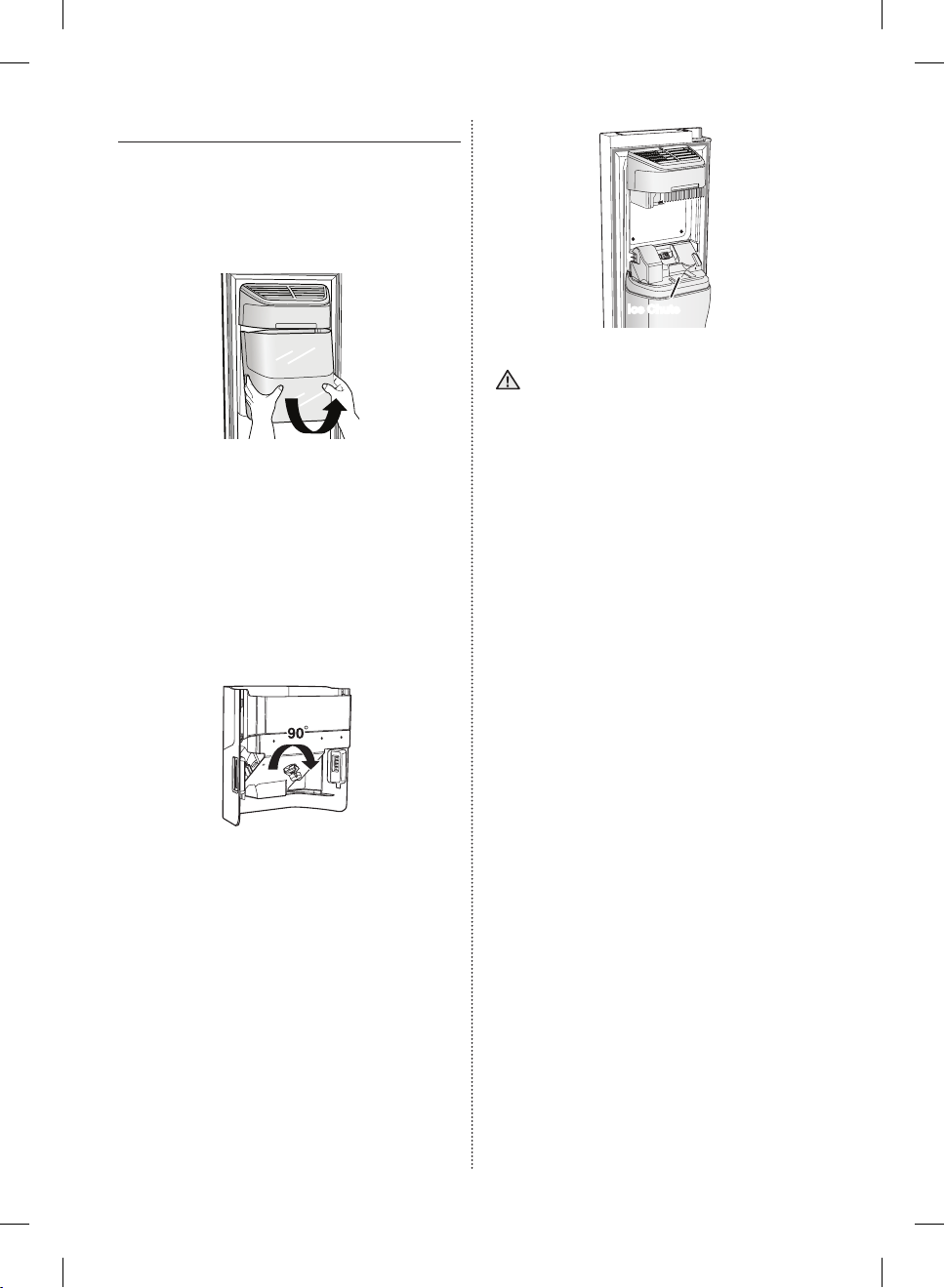
BEFORE USING ICEMAKER
• Remove
- Hold the handle as shown in Figure1.
- Slightly pull up the bottom part.
- Take out the ice bucket slowly.
Figure 1
• Install
- Assemble the icemaker in the reverse order of
disassembly.
- Push the bucket in firmly until you hear a
clicking sound.
- If the bucket does not fit into its place, turn the
gear handle on its back by 90 degrees and
reinstall it again as shown in Figure 2.
Figure 2
• Before calling service
- Any sounds you hear when the ice maker
dumps ice into the bucket are part of normal
operation.
- If you don’t dispense ice for a long period
of time, the ice may form clumps in the
ice bucket. If ice clumps form, remove the
remaining ice and empty the bucket.
- When ice does not come out, check for ice
stuck in the chute and remove it.
Ice Chute
• When Ice Off blinks on the display
panel, reinsert the bucket and/or make
sure it’s installed properly.
• When the door is open, the Ice and water
dispenser do not work.
• If you close the door hard, it may cause water
spilling over the ice maker.
• To prevent dropping the ice bucket, use both
hands when removing it.
• To prevent injury, be sure to clean up any ice or
water that may have dropped on the floor.
• Do not let the children hang on the ice
dispenser or on the bucket.
They may get hurt.
• Be sure not to put your hand or any object into
the ice chute.
It may cause personal injury or damage
mechanical parts.
CAUTION
DA68-02500B-13.indb 14 13. 12. 4. �� 7:12
English - 15
01 SETTING UP
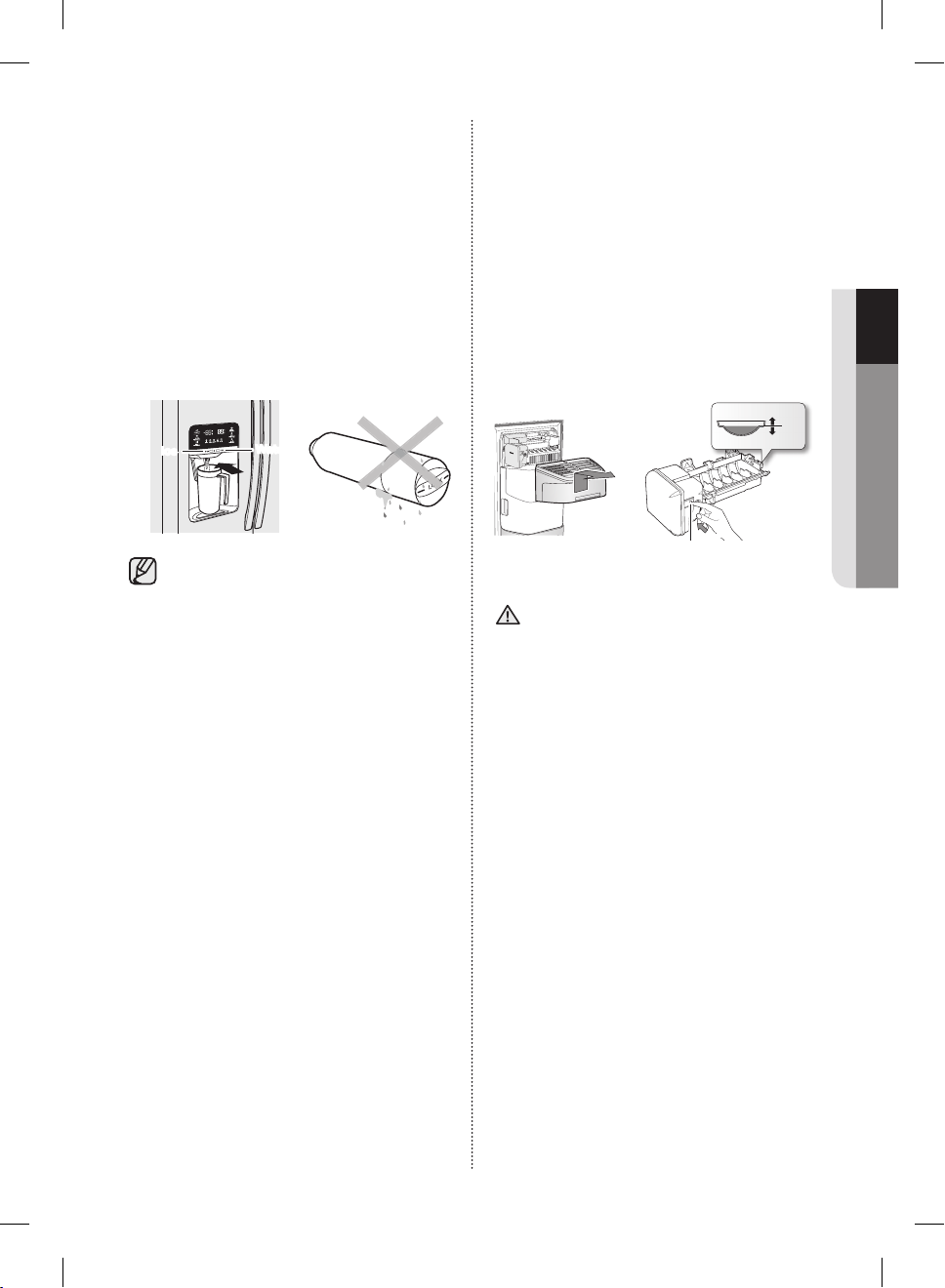
Removing residual matter inside the
water supply line after installing filter.
1. Turn ON the main water supply.
2. Press the Water button and push the Dispenser
Lever.
3. Flush 1 gallons of water through the filter before
use. (Flush approximately 6 minutes.) This will
clean the water supply system and remove air
from the lines.
4. Additional flushing may be required in some
households.
5. Open the refrigerator door and make sure there
are no water leaks coming from the water filter.
Ice
Water
A newly installed water filter cartridge may
cause water to briefly spurt from the water
dispenser.
This is due to air getting into the line. It
should pose no problem to operation.
Check the amount of water supplied to
the ice tray.
1. Lift up the icemaker cover and gently pull it out.
2. When you press the Test button for 3 seconds,
the ice cube container is filled with water from
the water supply tap.
Check to make sure the amount of water is
correct (see the illustration below).
If the water level is too low, the ice cubes will
be small.
This is a water pressure problem from within
the main water pipes, not the refrigerator.
1
2
Ice maker
Check the water
level
Test button
• It will take a few minutes to reach the
amount of water you want.
• Do not press the test button continuously when
the tray is filled with ice or water.
Water may overflow or ice jamming may occur.
• When the bucket is not installed, the ice maker
does not work.
• When “Ice maker will not work when the ice
bucket is not installed” message appears on
the display panel, reinsert the bucket and/or
make sure it’s installed properly.
CAUTION
DA68-02500B-13.indb 15 13. 12. 4. �� 7:12
English - 16
Operating your side-by-side
refrigerator
DISPLAY PANEL RESTRICTIONS AND ALERTS
1. English is a default language for the Display.
Languages not supported are not displayed on the screen.
2. Periodic updates of Weather or News will cause network traffic even when you are not using the
Display.
3. When software updates become available, Samsung automatically updates the refrigerator software
and then issues an alert which appears on your Display.
4. Please note that the relevant licensor(contents provider) retains sole discretion as to what content is
made available through the various refrigerator applications.
Furthermore, each licensor retains the sole right to remove any such content that the licensor may
cease to offer through the refrigerator application.
In such case, the licensor may send a written notice to the user with regards to the removal of
content.
DIGITAL PANEL
CPU NEXELL CPU OS Linux 2.6.28
RAM 256 MB LCD 8" TFT-LCD (800*480)
ROM 512 MB NETWORKS IEEE802.11b/g/n
DA68-02500B-13.indb 16 13. 12. 4. �� 7:12
English - 17
02 OPERATING
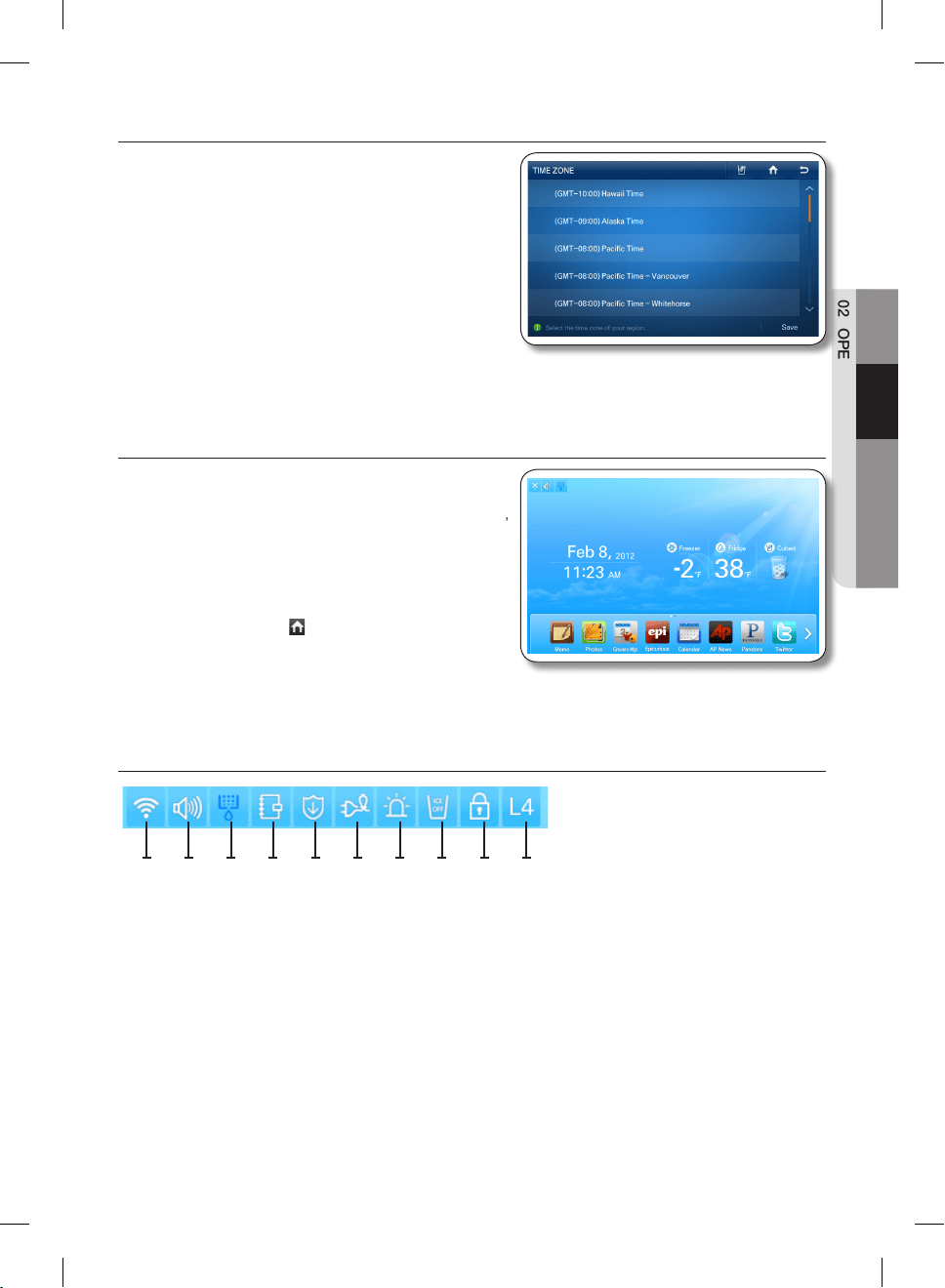
USING FOR THE FIRST TIME
• When you use the product for the first time after
installation, the Time Zone Setting screen appears on
the Display Panel.
You need to select your time zone to use Google
Calendar and the Twitter service correctly.
• After you select the time zone and press the [Save]
button, the Home Screen appears on the Display
Panel.
The Time Zone Setting screen may appear again after
a software update.
HOME SCREEN
• The Home screen is the starting point for all functions.
In the center of the Home screen, basic refrigerator
information such as Time, Date, Weather, Temperature,
and Dispenser Selection appears.
The indicator icons at the top left of the screen display
information about the refrigerator’s status.
The Menu icons on the bottom of the screen start
various applications or functions.
When you select the ( ) on any menu, the screen
returns to the Home screen immediately.
Indicator Icons (At the left-top of the Screen)
1 2 3 4 5 6 7 8 9 10
1. Network Signal Strength
: 5 Level (off - 1 - 2 - 3 - 4)
2. Volume Level : 5 Level (off - 1 - 2 - 3 - 4)
3. Filter Status : 3 Level (blue - pink - red)
4. Schedule Alarm
5. S/W Update Notice
6. Energy Saver
7. Door Alarm
8. Ice Off
9. Dispenser Lock
10. Smart Grid Level (Off - 1 - 2 - 3 - 4)
DA68-02500B-13.indb 17 13. 12. 4. �� 7:12
English - 18
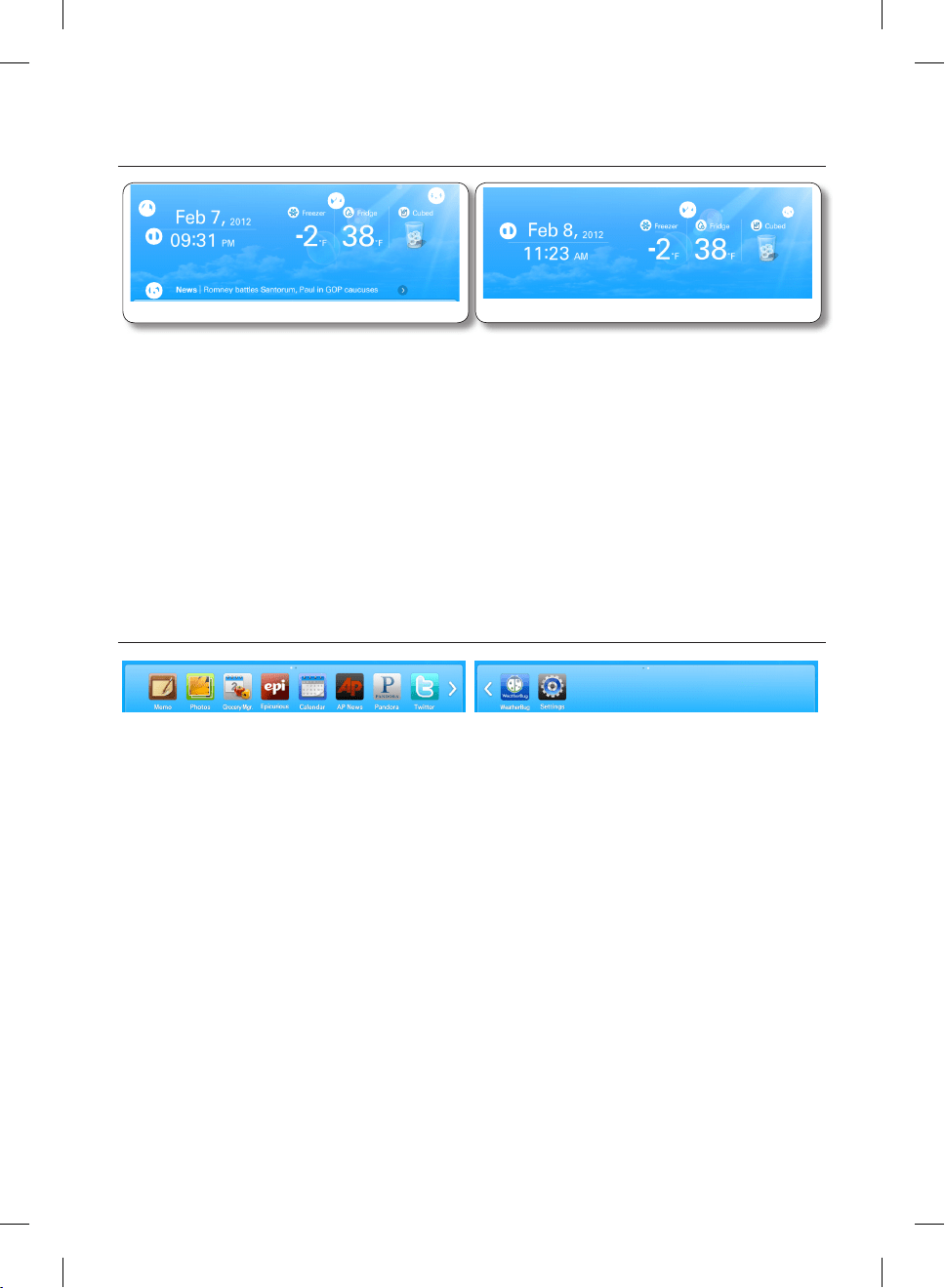
Date/Time, Freezer/Fridge temperature, Dispenser selection, Current weather
(At the center of the Screen), News (At the bottom of the Screen)
<Wireless network connected>
①
④
⑤
②
③
<Wireless network disconnected>
①
②
③
1. Date/Time : Indicates the current date and time.
2. Freezer/Fridge temperature : Displays the current freezer/fridge temperature.
When you select the freezer/fridge temperature, the temperature setting screen appears.
3. Dispenser : Displays the current status of the dispenser. When you select the current status of the
dispenser, the ice type selection screen appears.
4. Weather: Displays the current local weather, if the refrigerator is connected to a WIFI.
The Home Screen displays the current weather (and time of day), using one of eight images (Clear,
Cloudy, Snow, Rain) X (Day or Night).
5. News: Displays via the Internet, as long as the unit is connected to WIFI.
News titles change at certain intervals. When you select a title, the article will appear on the screen.
At the bottom of the Screen : Menu Icons
1. Memo : Lets you create, save, or check memos.
2. Photos : Lets you manage stored photos and import photos from external devices such as memory
cards or mobile phones and from the Internet.
3. Grocery Manager : Lets you manage food items by location, storage date, and expiration date.
4. Epicurious : Lets you view recipes and create shopping lists for the recipes you select.
5. Calendar : Lets you view the schedule you stored in Google Calendar.
6. AP News : Displays the news from one of 11 categories you select.
7. Pandora : Plays music provided by the Pandora Internet radio service.
8. Twitter : Displays Twitter messages.
9. WeatherBug : Displays the current weather and weather forecast.
10. Settings : Lets you set the refrigerator’s basic functions such as Energy Saver, Door Alarm, Time, etc.
DA68-02500B-13.indb 18 13. 12. 4. �� 7:12
English - 19
02 OPERATING
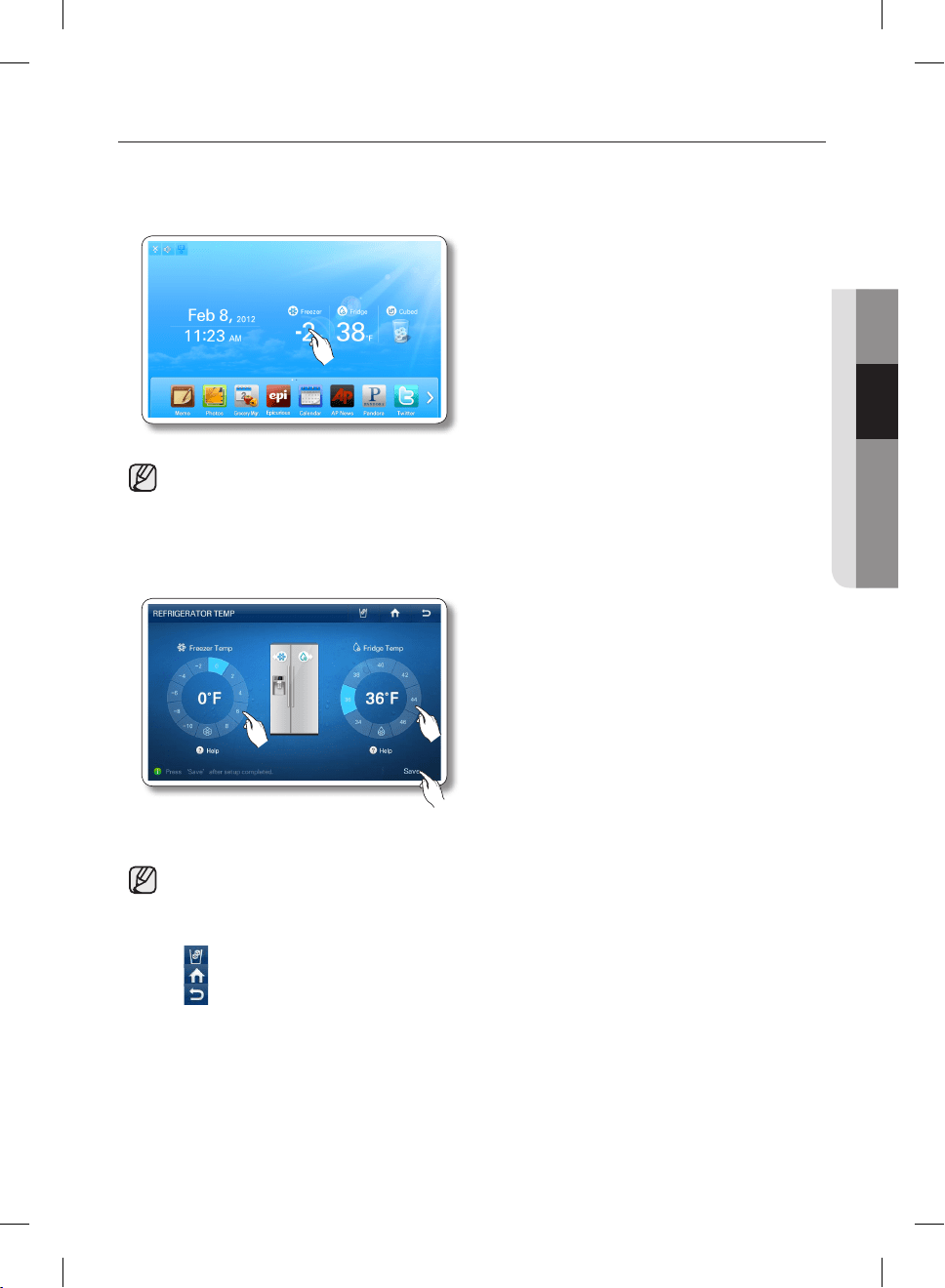
SETTING THE FREEZER / FRIDGE TEMPERATURE
The temperature control allows you to set the freezer and the fridge temperatures.
Use the following instructions to change and set these temperatures.
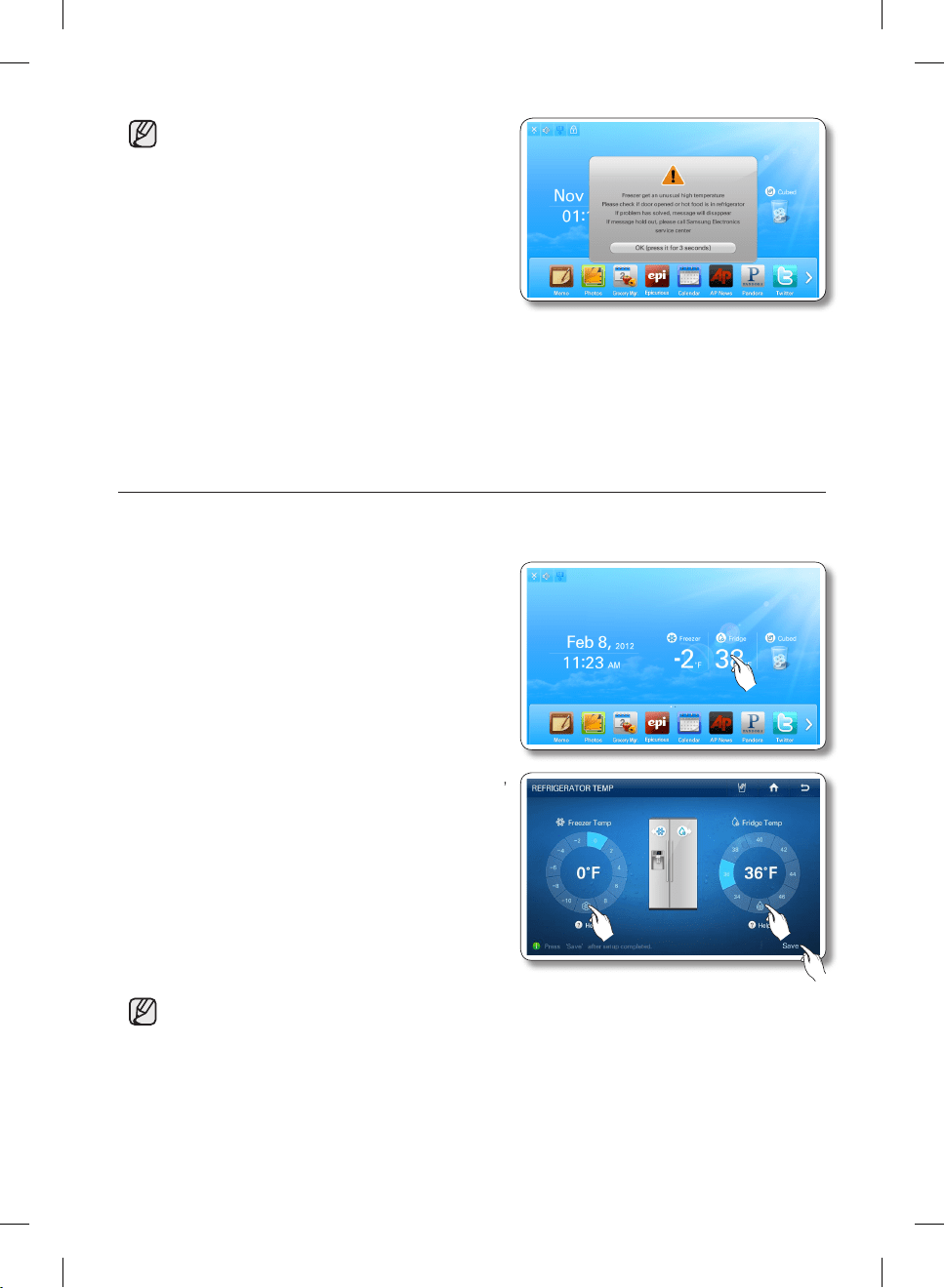
1. Select the Freezer/Fridge temperature on the Home screen.
• When you store ice cream at a temperature above 4°F (-16°C) in the freezer, it may melt.
2. Choose a freezer and/or fridge temperature using the temperature buttons, and then select the [Save]
button.
• The freezer/fridge temperature can be set as follows based on models.
Freezer : Fahrenheit : -10°F ~ 8°F(Default: -4°F), Celsius : -23°C ~ -14°C(Default: -20°C)
Fridge : Fahrenheit : 34°F ~ 46°F(Default: 38°F), Celsius : 1°C ~ 7°C(Default: 3°C)
• Function Icons on the upper right of the Display function screen:
• : Press to set the dispenser type. (Cubed/Crushed/Water)
• : Press to go to the Home screen.
• : Press to display the preview screen.
DA68-02500B-13.indb 19 13. 12. 4. �� 7:12
English - 20
• The freezer or fridge temperature may change
depending on how often you open and close
the door, the food quantity, the ambient
temperature, etc.
• Temperatures vary in each food storage section
in the freezer and fridge compartments.
• If the room temperature becomes unusually
warm, it can cause temperatures in the Fridge
and Freezer to rise abnormally.
If this occurs, the screen will display the
“Abnormally High Temperature” pop-up.
When the temperatures return to normal, the pop-up will close automatically.
If the room temperature returns to normal and the pop-up does not close automatically within a
few hours, please contact your nearest repair center.
SETTING THE POWER FREEZE / POWER COOL
You can use the Power Freeze and Power Cool functions to lower the temperature of the freezer and
fridge compartments quickly. To use the Power Freeze or Power Cool function, follow these steps:
1. Touch the Freezer/Fridge temperature on the Home
screen.
2. Select the Power Freezer and/or Power Cool button(s),
and then Press the [Save] button.
• To cancel the Power Freeze and the Power Cool, select a Temperature Setting button.
• Energy consumption increases during Power Freeze and/or Power Cool usage.
• If you select the question icon (?), the function description screen pops up. Press the [OK]
button on the popup screen to re-display the Temperature Display Screen.
• When you turn on Power Freeze/Power Cool, the refrigerator’s compressor speeds up and is
louder than during normal operation.
DA68-02500B-13.indb 20 13. 12. 4. �� 7:12
English - 21
02 OPERATING
SETTING THE DISPENSER
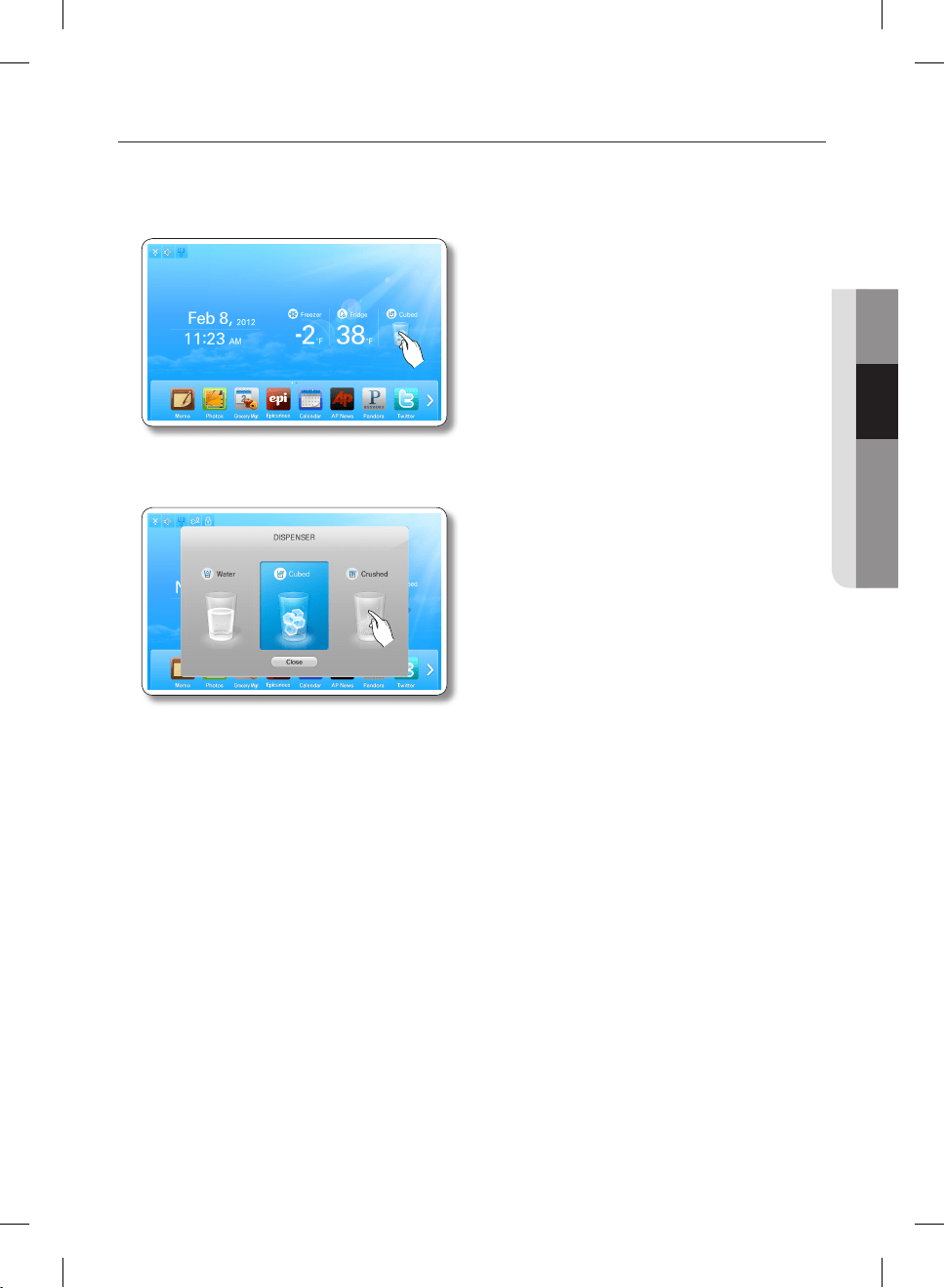
You can select the ice type and water.
1. Touch Dispenser Status on the Home screen. The Dispenser pop-up appears.
2. Touch the desired dispenser type, and then press the [Close] button.
DA68-02500B-13.indb 21 13. 12. 4. �� 7:12
English - 22
DOOR OPEN ALARM
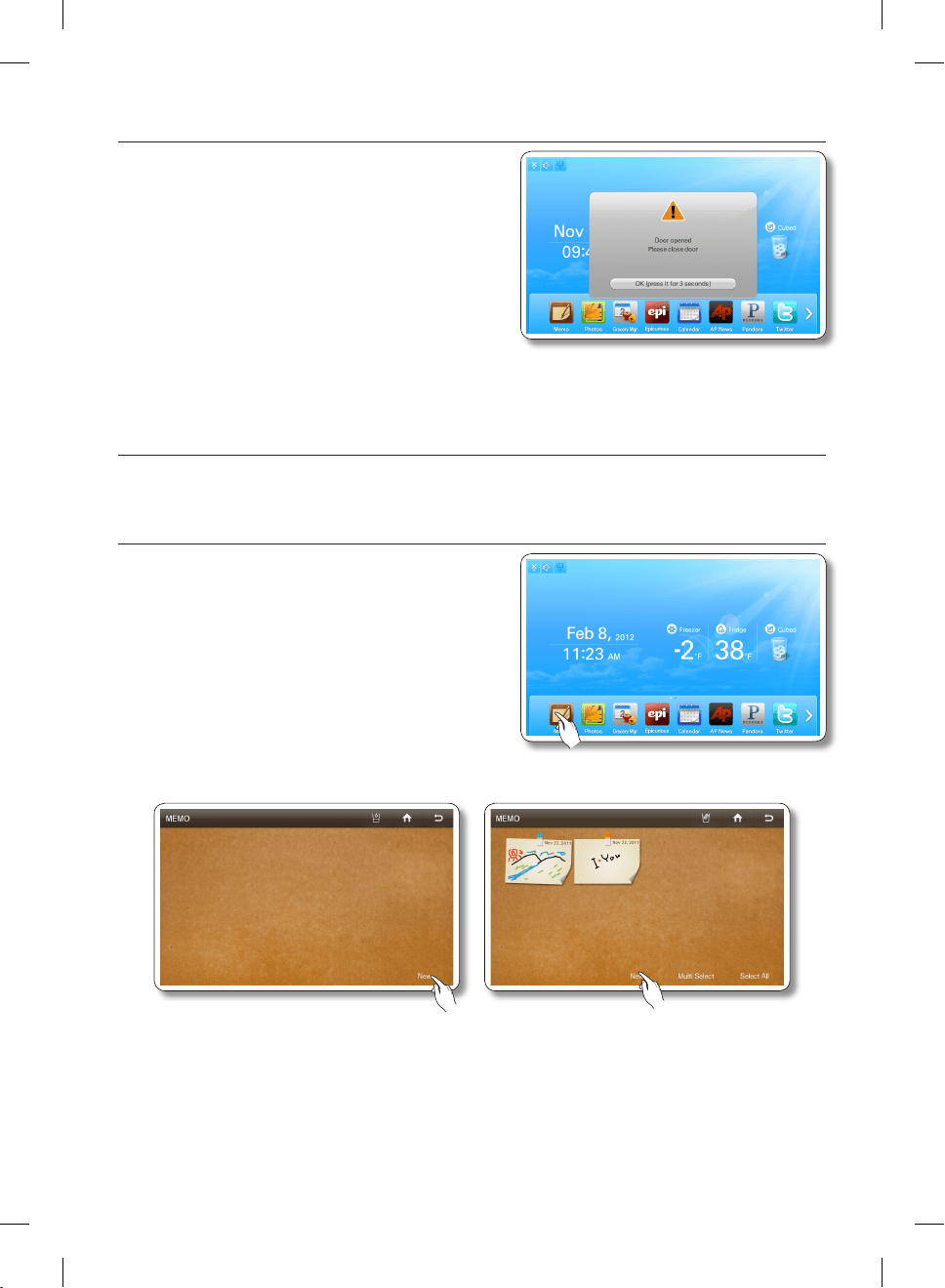
If the fridge / freezer door remains open more than 2
minutes, a warning window pops up accompanied by
alarm sounds.
The alarm repeats every minute and only stops when you
close both doors.
If you set Door Alarm to OFF in the Settings menu, the
alarm does not operate.
MEMO
You can use the Memo function to leave a memo for yourself or someone else.
How to leave a new memo.
1. Select the [Memo] button on the Home screen.
2. Select the [New] button.
DA68-02500B-13.indb 22 13. 12. 4. �� 7:12
English - 23
02 OPERATING
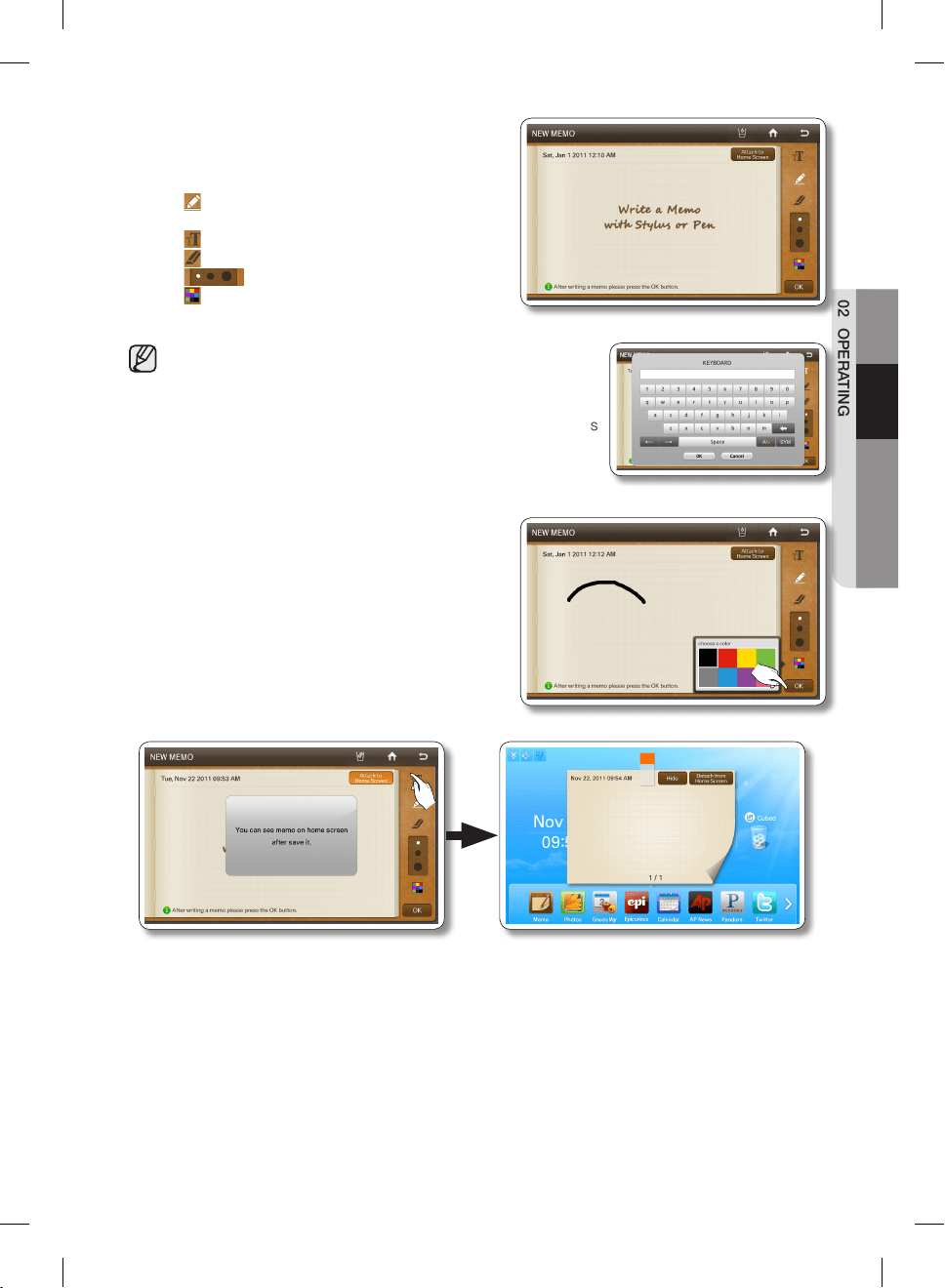
3. Select the memo tools you want by touching the tool
buttons above the memo entry area.
The tools are described below.
• : Select to input a memo in pen mode.
Use your finger or a smooth-tipped stylus.
• : Select to input a memo in keyboard mode.
• : Select to erase a memo.
• : Select pen or erase thickness.
• : Select pen color.
• You can save up to 80 memos.
• To use the Keyboard, press the Keyboard icon, and then
touch where you want the memo to begin. The keyboard
pops up on the Display. The number of characters you can
input with the Keyboard is limited to the number of characters
that will fit in the memo entry area.
4. Press the [Save] button after you have completed your
memo.
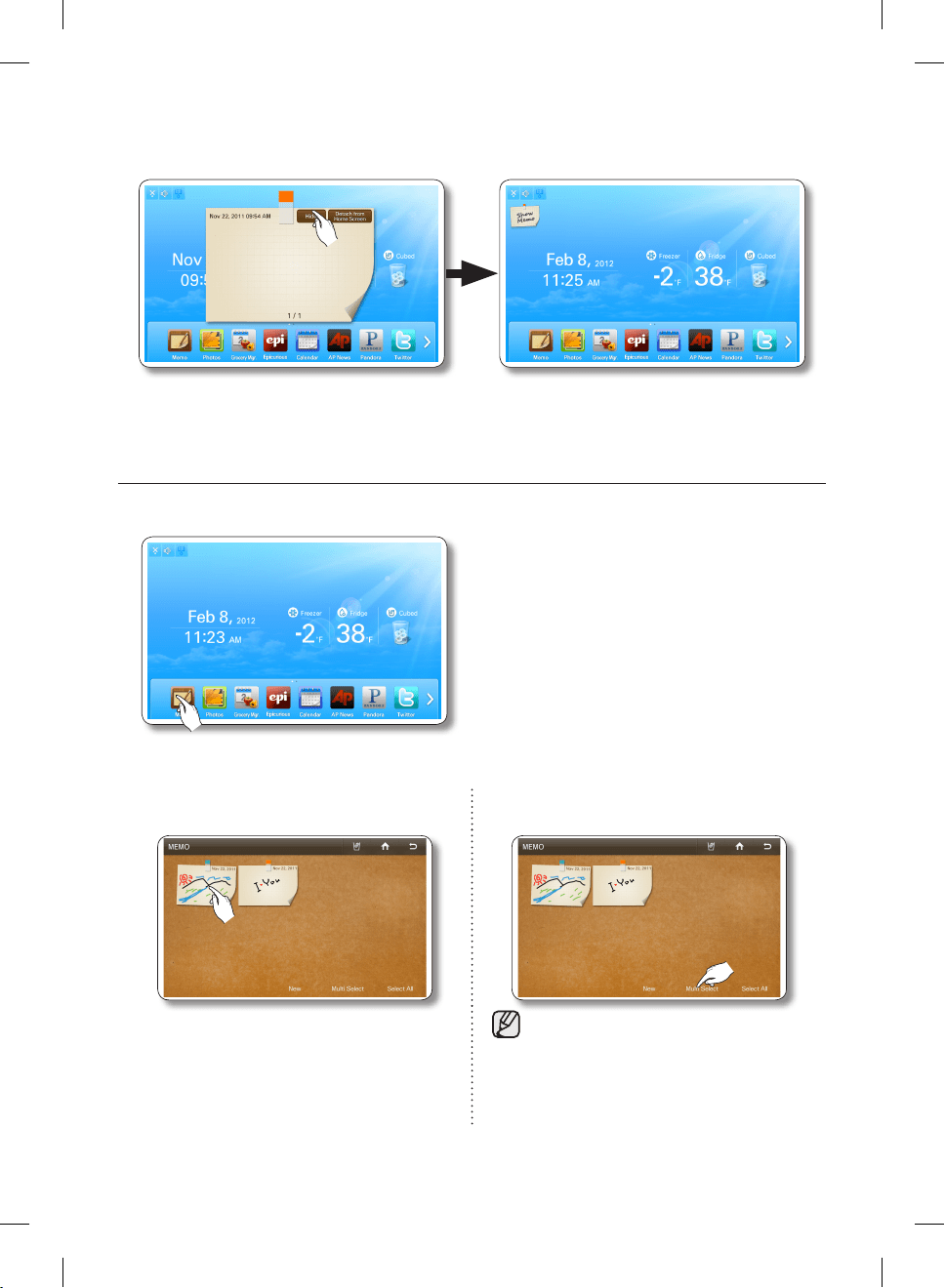
• If you want to display the memo on the Home
screen, select the [Attach to Home Screen]
button, and then select the [Save] button. See
below.
DA68-02500B-13.indb 23 13. 12. 4. �� 7:12
English - 24
• You can “put away” the memo being displayed on the Home screen by pressing the [Detach
from Home Screen] button or hide it temporarily by pressting the [Hide] button.
How to display memos.
1. Select the Memo button on the Home screen.
To view multiple memos, continue here.
2. Select the memo you want to display. 2. To view multiple memos, press the [Multi
Select] button.
• When you select the [Select All] button, the
Multi Selection screen shows.
• When there are multiple pages with many
memos, there will be page number on the
bottom of the screen. If you select a page
number, the screen shifts to that page.
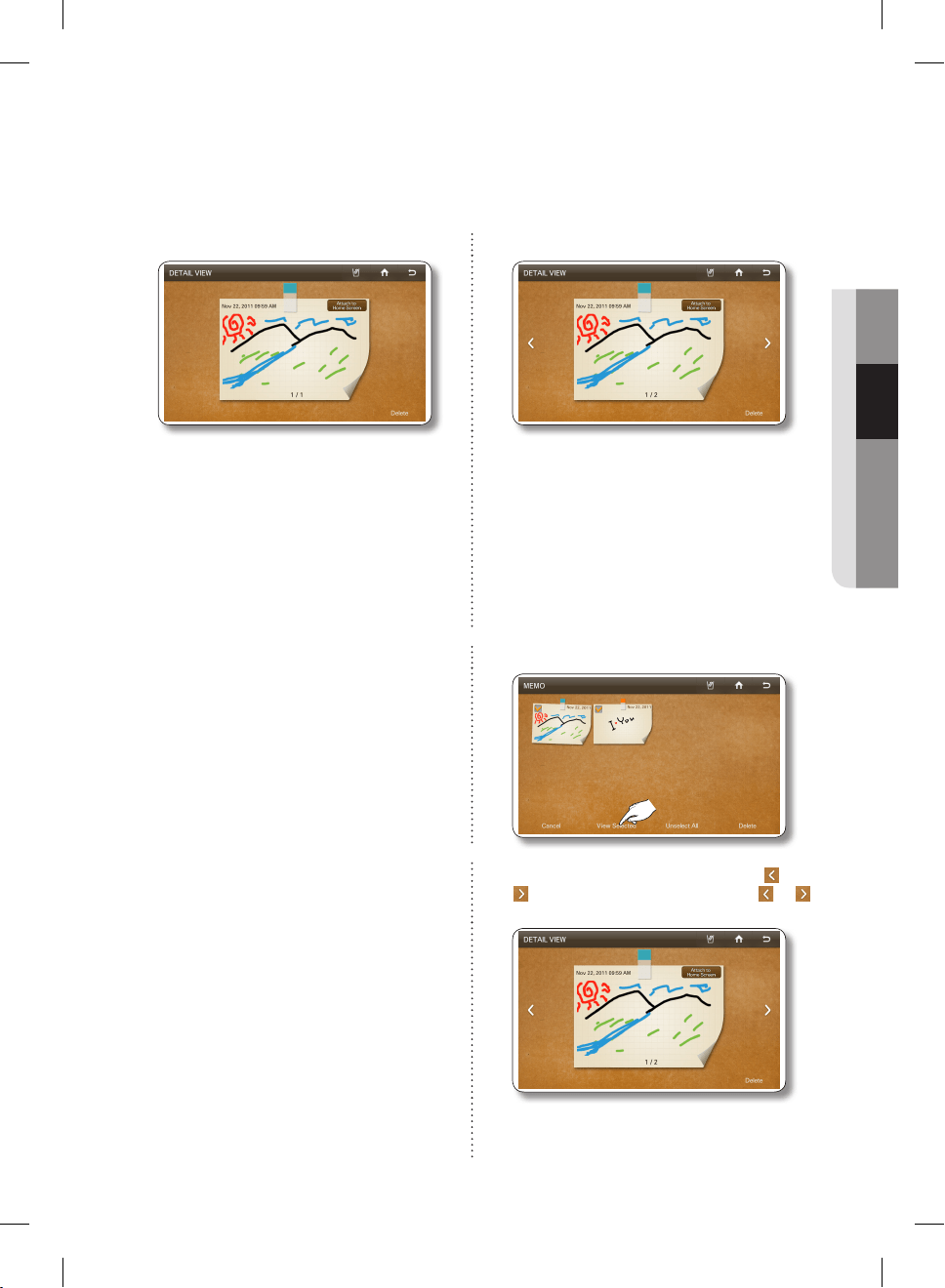
Multi-Select mode lets you select a
number of memos and then view them
one after another by pressing the [<] or [>]
buttons.
DA68-02500B-13.indb 24 13. 12. 4. �� 7:12
English - 25
02 OPERATING
• The memo(s) being displayed on the Home screen is indicated with the red tack.
• The written memos appear as thumbnails.
You can change the order of the written memos by dragging and dropping.
3. View the saved memo. 3. Select the memos you want to view.
• In the Detail View screen, you can delete the
memo or attach it to or detach it from the
Home screen.
• When you select the [Select All] button, all the
memos on the current page will be selected
and the [Select All] button will shift to the
[Unselect All] button.
• To exit the Multi Select screen, press the
[Cancel] button.
• When there are multiple pages with many
memos, there will be page numbers on the
bottom of the screen. If you press a page
number, the screen shifts to that page.
4. Select the [View Selected] button.
5. Check the saved memo by using the and
buttons. Each time you press the or
button, the next menu in sequence appears.
• In the Detail View screen, you can delete a
memo or attach it to or detach it from the
Home screen.
DA68-02500B-13.indb 25 13. 12. 4. �� 7:12
English - 26
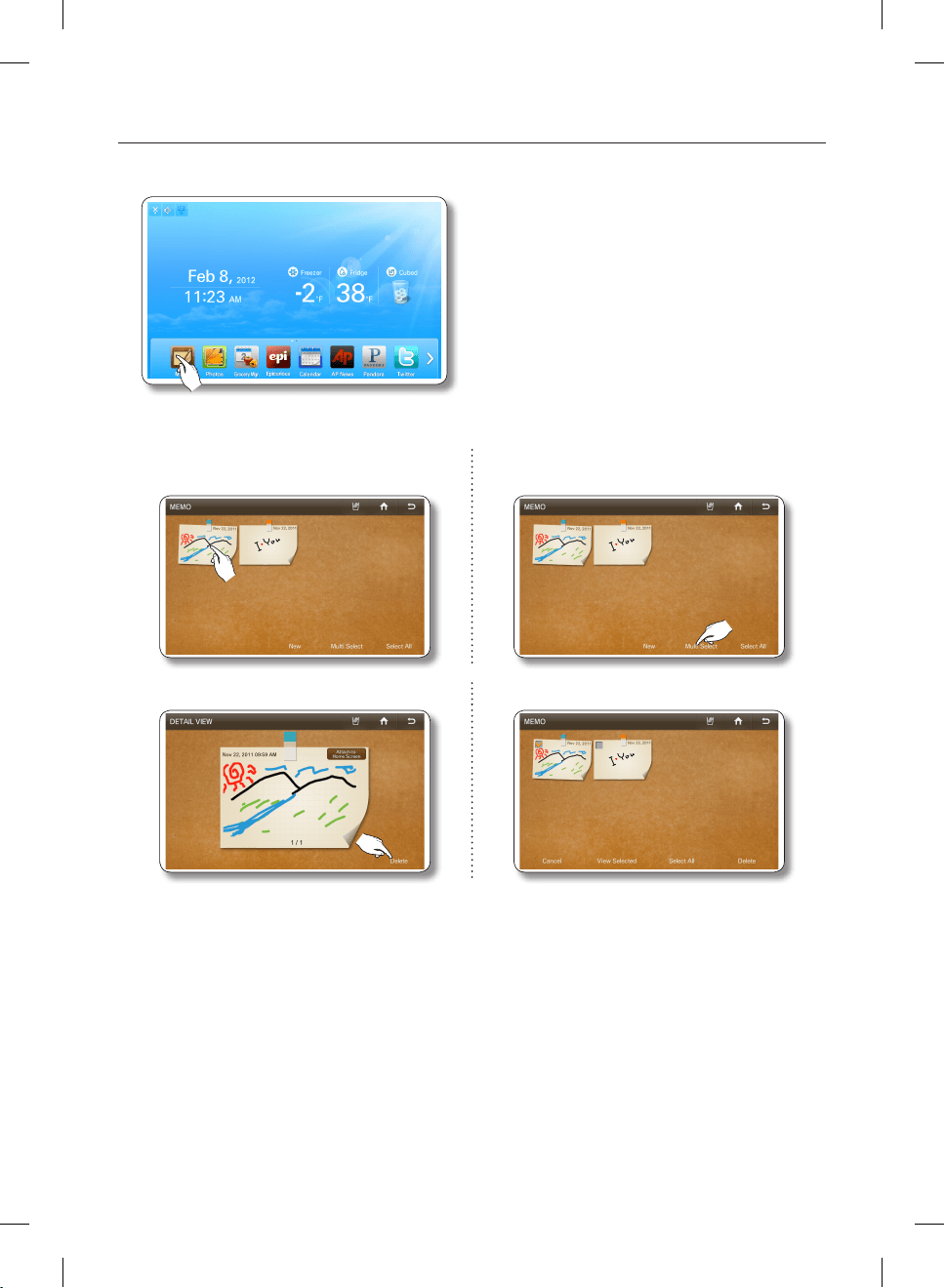
How to delete memos.
1. Select the [Memo] button on the Home screen.
To delete multiple memos, continue here.
2. Select the memo you want to delete. 2. To delete multiple memos, select the [Multi
Select] button.
3. Press the [Delete] button. 3. Select the memos you want to delete.
DA68-02500B-13.indb 26 13. 12. 4. �� 7:12
English - 27
02 OPERATING
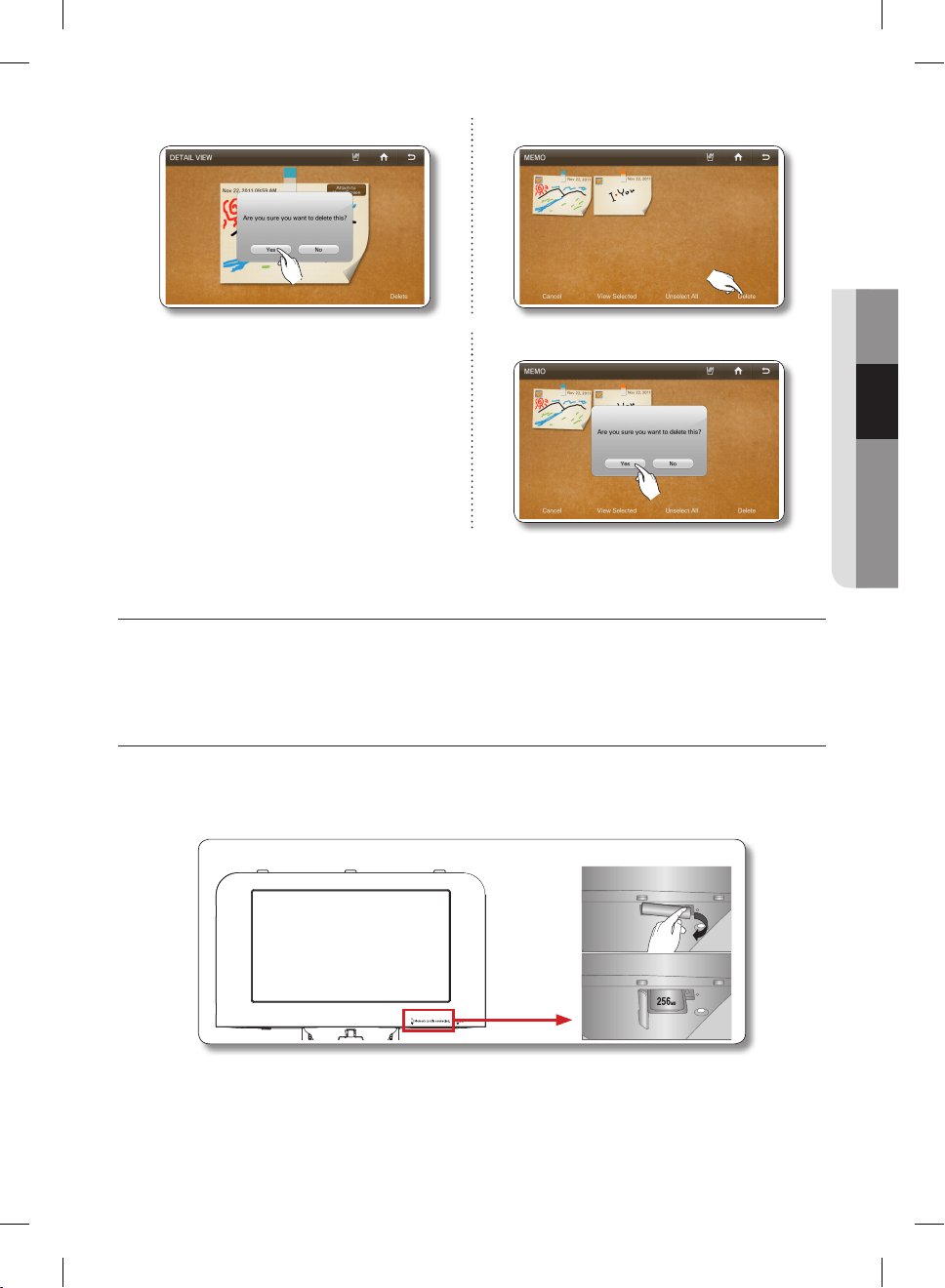
4. Press the [Yes] button. 4. Press the [Delete] button.
5. Press the [Yes] button.
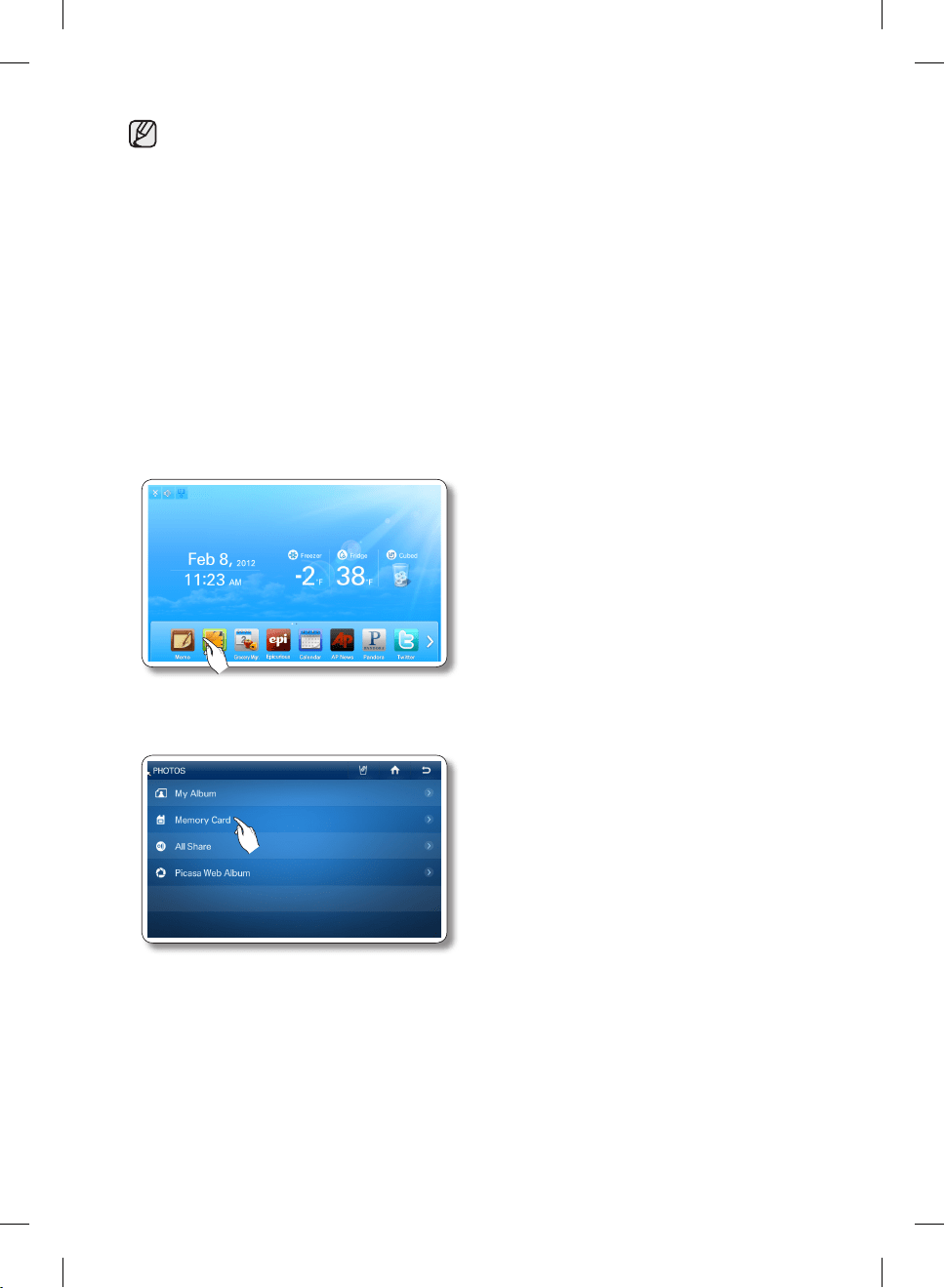
PHOTOS
You can upload photos from a Memory card/DLNA device/Picasa Web Album into My Album on your
refrigerator.
How to Copy Photos from a Memory Card to My Album
1. Pull out the cover over the card slot and move it to the side.
2. Insert the memory card (SD/SDHC/MMC/HS MMC) with saved images into the card slot.
The “A SD/MMC card is connected” message appears on the screen.
DA68-02500B-13.indb 27 13. 12. 4. �� 7:12
English - 28
• The Memory slot is only for SD/SDHC/MMC/HS MMC type memory cards.
• The slot can read only JPEG(JPG) images.
• The Panel has a capacity of about 300 photos.
• When saving photos from a memory card to the panel, the refrigerator automatically changes
the photo size to 800 x 480 pixels, regardless of the original size.
• If there are many photos saved on the Memory card, it will take awhile for the preview function
to load.
• If the Memory Card is removed while transferring images, My Album only shows the images that
have transferred completely. If no images have completely transferred, the Display returns to
the Photos screen.
• The saved images are fit to the screen size. Depending on the size of an image, there may be
black bars on the top or sides.
• A Memory Card is not supplied with the refrigerator.
• The refrigerator may not be able to read your SD/SDHC/MMC/HS MMC memory card,
depending on the type of card it is.
3. Select the [Photos] button on the Home screen.
4. Select [Memory Card] on the Photos list.
DA68-02500B-13.indb 28 13. 12. 4. �� 7:12
English - 29
02 OPERATING
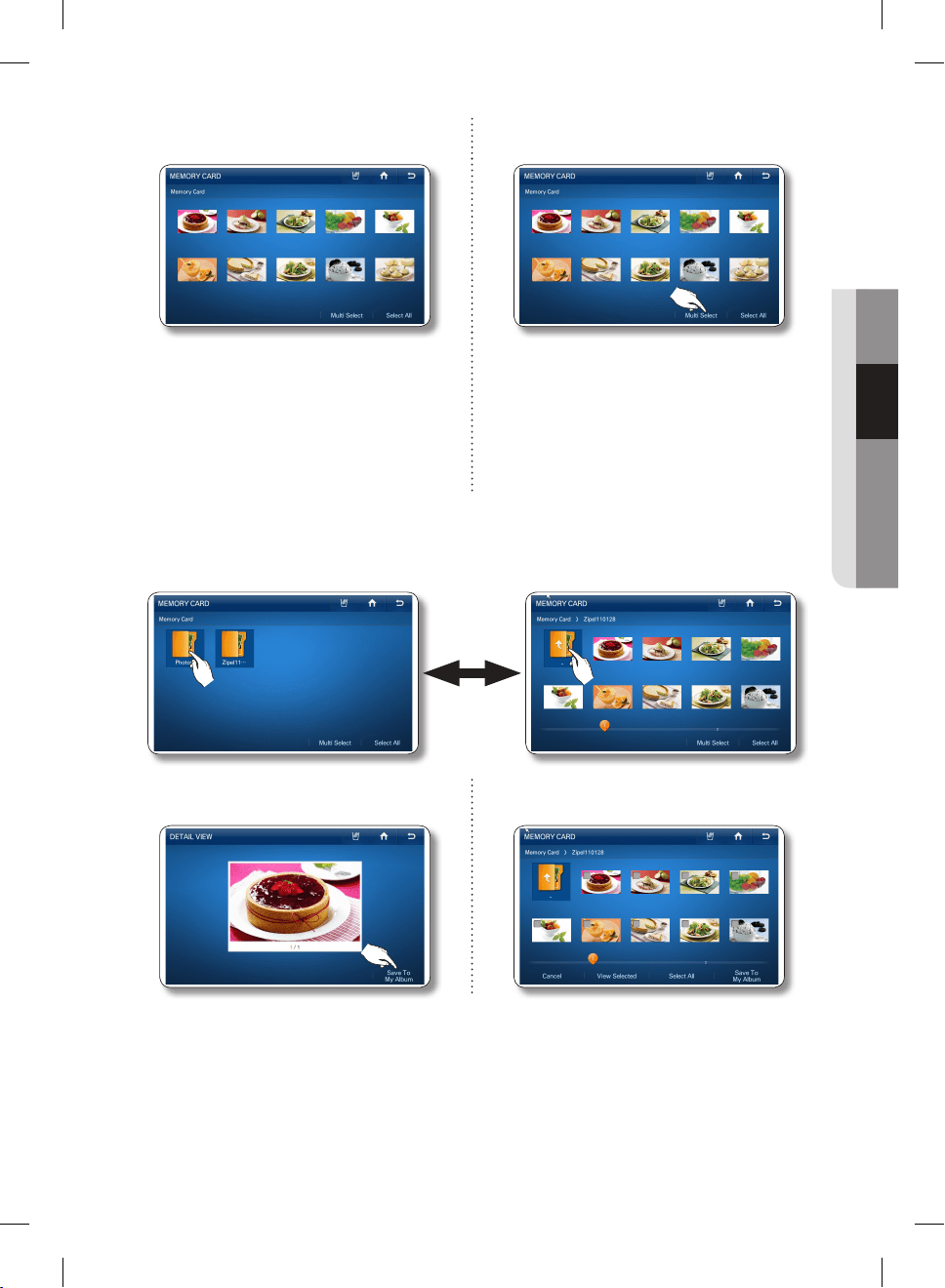
5. Select the photo you want to save to My
Album.
5. To store multiple photos, press the [Multi
Select] button.
• When you select the [Select All] button, the
Multi Selection screen appears.
• When there are multiple pages with many
photos, there will be page numbers on the
bottom of the screen. If you select the page
number, the screen shifts to that page.
• This function also applies to the <All Share>
and <Picasa Web Album> functions.
• When there are folders in the Memory Card, the folder icons will appear on the screen.
• When you select a folder, you will see the photos stored in it.
• When you are in a sub-folder, you can move up to the folder that contains sub-folder by selecting
the “..” icon on the sub-folder.
6. Press the [Save To My Album] button. 6. Select all the photos you want to save to My
Album.
DA68-02500B-13.indb 29 13. 12. 4. �� 7:12
English - 30
• When you select a photo, its detail information
will appear.
• When you select the [Select All] button, all the
photos on the current page are selected and
the [Select All] button shifts to the [Unselect All]
button.
• When you press the [View Selected] button,
you will see its larger version.
• To exit the Multi Select screen, press the
[Cancel] button.
• To delete the check mark on a selected photo,
touch the photo again.
• When there are multiple pages with many
photos, there will be page numbers on the
bottom of the screen.
• If you have photos selected and move to
another folder, the selected photos will be
automatically unselected.
• When you touch the folder name above the
thumb-nails (Preview Photos), the screen
displays that folder.
• This function also applies to the <All Share>
and <Picasa Web Album> functions.
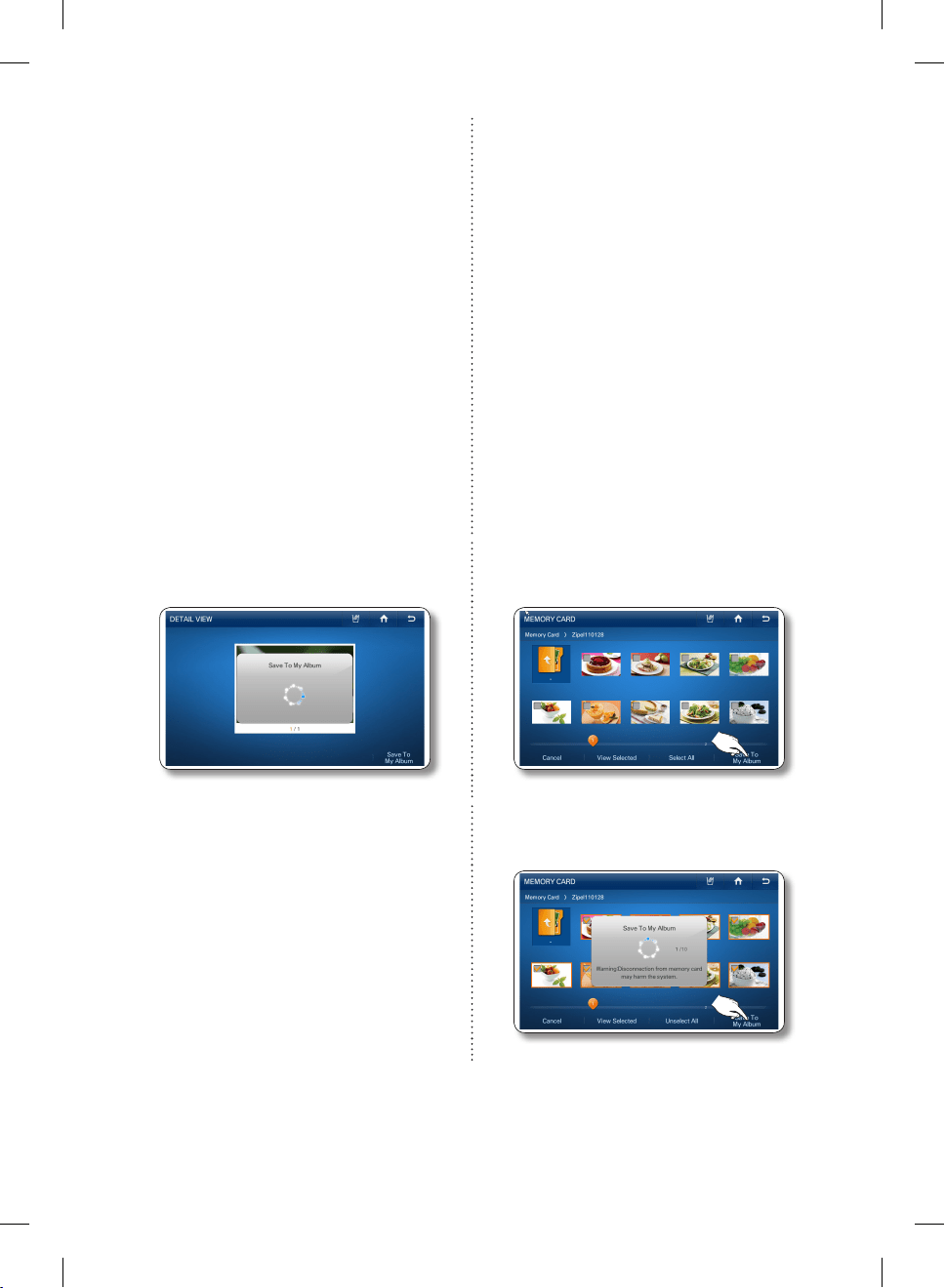
7. While the photo uploads from the Memory
Card, the “Save To My Album” popup
appears on the screen.
7. Press the [Save To My Album] button.
• Larger photo sizes will take longer to upload.
8. While the photos upload from the Memory
Card, the “Save To My Album” popup
appears on the screen.
• Larger photo sizes will take longer to upload.
9. When the upload is complete, take the Memory Card out of the slot.
DA68-02500B-13.indb 30 13. 12. 4. �� 7:12
English - 31
02 OPERATING
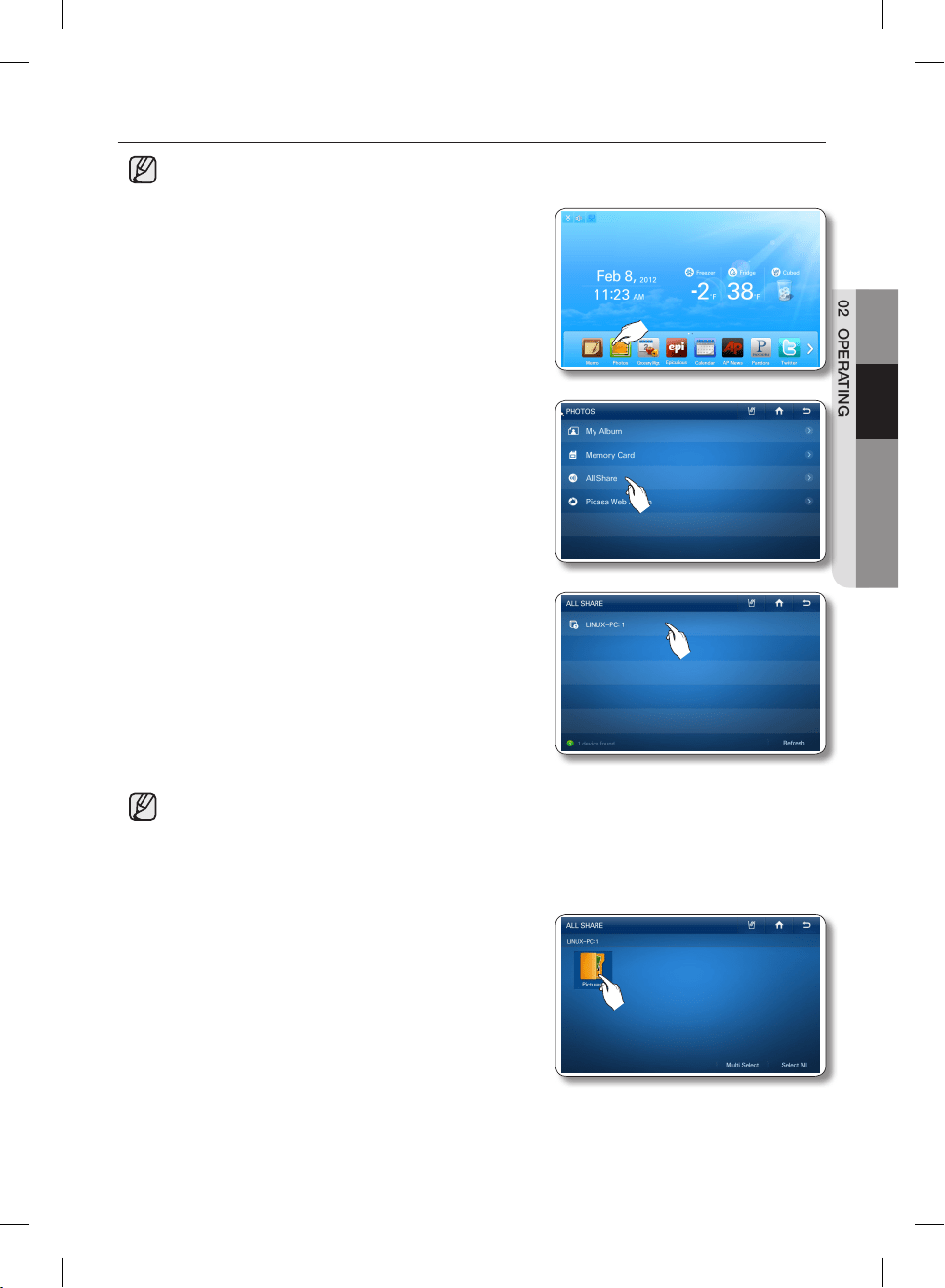
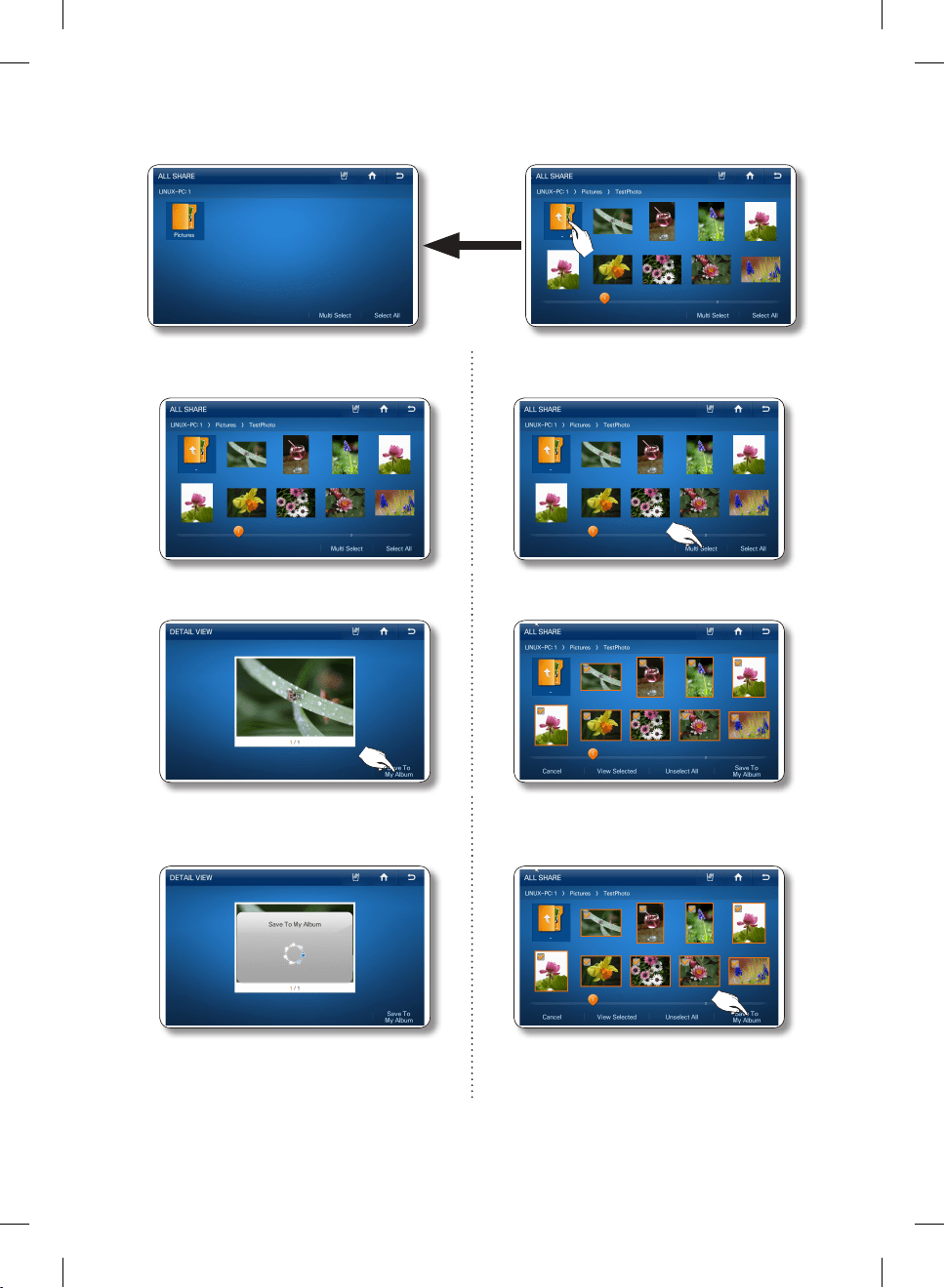
How to upload photos from DLNA device to My Album (All Share)
• This function is only available when the refrigerator is connected to your wireless network
(Wi-Fi).
1. Select the [Photos] button on the Home screen.
2. Select [All Share] on the Photos list, and then connect the
DLNA device to the same wireless AP as the refrigerator.
3. In the All Share list, select the DLNA device you want to
connect.
• If the DLNA device you want to connect does not
appear, press the [Refresh] button several times to
detect it.
• The device you want to connect must have the related function installed with the DLNA (Digital
Living Network Alliance) certificate.
• The display supports up to 4096 x 4096 (16 mega) resolutions.
When the number of pixels at either vertical or horizontal axis of a photo is more than 4,096 or
its resolution is changed, the display may not support it.
4. Select the desired folder.
DA68-02500B-13.indb 31 13. 12. 4. �� 7:12
English - 32
• When you are in a sub-folder, you can move up to the folder that contains sub-folder by selecting
the “..” icon on the sub-folder.
5. Select the photo you want to save to My
Album.
5. To store multiple photos, press the [Multi
Select] button.
6. Press the [Save To My Album] button. 6. Select the photos you want to save to My
Album.
7. While the photo uploads from the DLNA
device, the “Save To My Album” popup
appears on the screen.
7. Press the [Save To My Album] button.
8. While the photos upload from the DLNA
device, the “Save To My Album” popup
appears on the screen.
DA68-02500B-13.indb 32 13. 12. 4. �� 7:12
English - 33
02 OPERATING
• Larger photo sizes will take longer to upload.
• The wireless network is used to transmit photos from the DLNA device. The transmission may
not always work properly depending on the network conditions.
• When you select a photo, its detail information will appear.
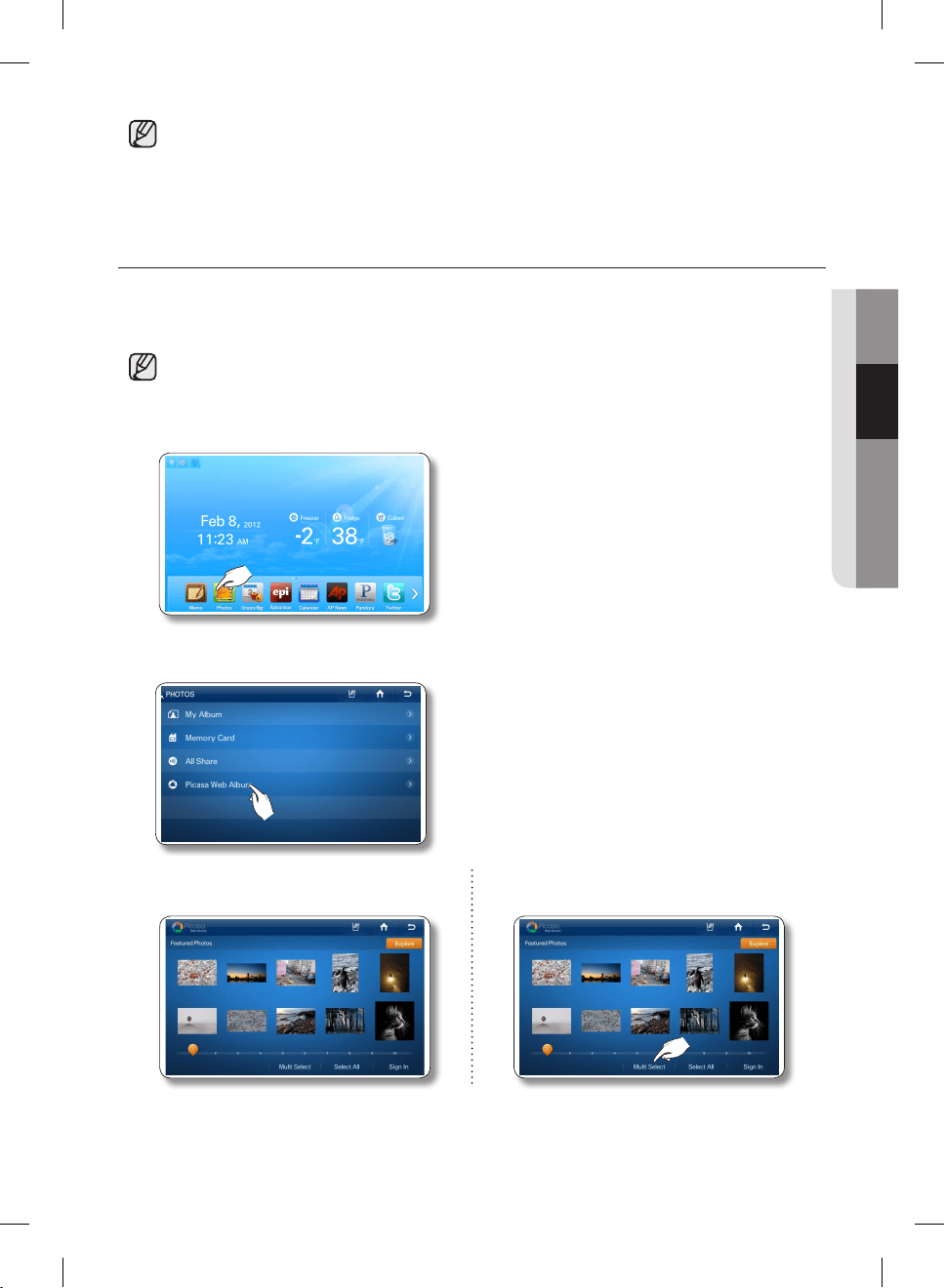
How to save photos in the Picasa Web Album to My Album.
[Public Photos]
You can download and store public photos from Google Picasa Web Album.
• This function is only available when the refrigerator is connected to your wireless network
(Wi-Fi).
1. Select the [Photos] button on the Home screen.
2. Select [Picasa Web Album] in the Photos list.
v
3. Select the photo you want to save to My
Album.
3. To store multiple photos, select the [Multi
Select] button.
DA68-02500B-13.indb 33 13. 12. 4. �� 7:12
English - 34
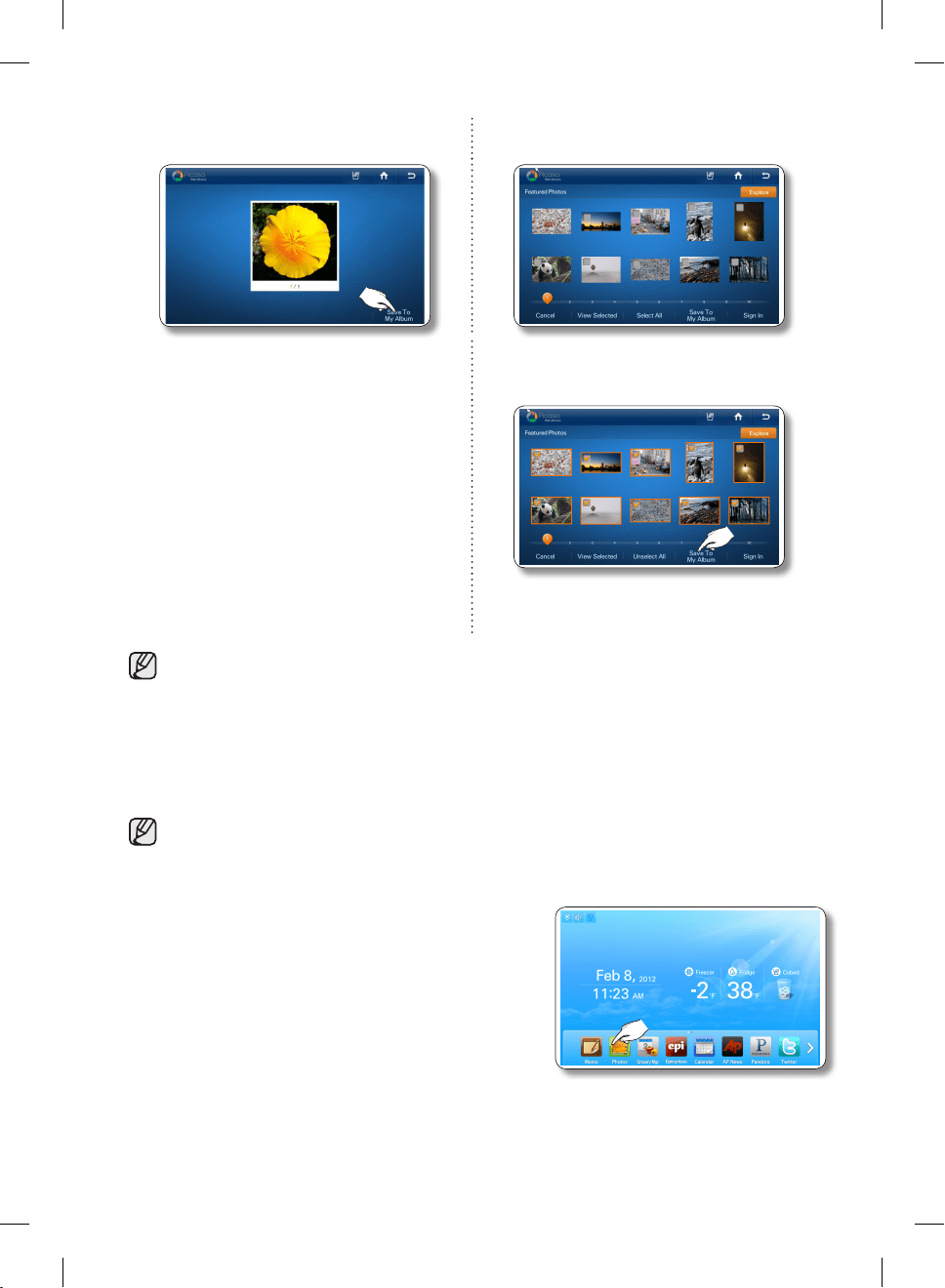
4. Press the [Save To My Album] button. 4. Select the photos you want to save to My
Album.
5. While the photo downloads from Picasa
Web Album, the “Save To My Album” popup
appears on the screen.
5. Press the [Save To My Album] button.
6. While the photos download from Picasa
Web Album, the “Save To My Album” popup
appears on the screen.
• When you select a photo, its detail information will appear.
• Larger photo sizes will take longer to upload.
• Depending on the status of the wireless network, the download may not always work.
[Personal Photos]
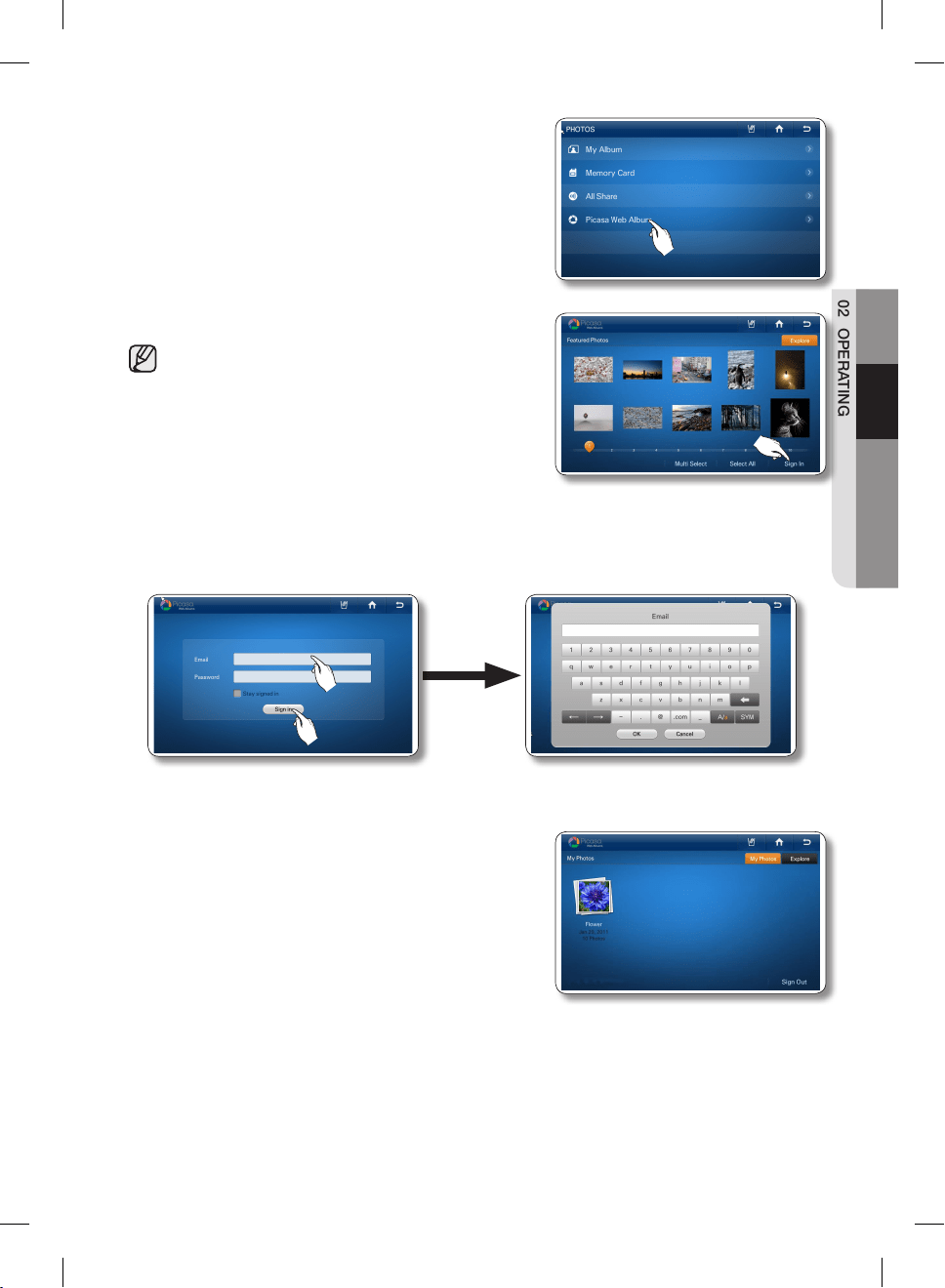
You can download and store personal photos from Google Picasa Web Album.
• This function is available only when the refrigerator is connected to your wireless network
(Wi-Fi).
• To use this function, you must have a Google account.
1. Select the [Photos] button on the Home screen.
DA68-02500B-13.indb 34 13. 12. 4. �� 7:12
English - 35
02 OPERATING
2. Select [Picasa Web Album] in the Photos list.
3. Press the [Sign In] button.
• When you have an account with Google Picasa
(http://picasaweb.google.com), you can see the
photos you uploaded to Picasa by logging into your
account.
4. Select the Email input box, and then enter your Google account ID using the on-screen keyboard.
Select Password input box, and then enter your Google password using the on screen keyboard.
5. Press the [Sign In] button.
• If you check the ‘Stay signed in’ box, the refrigerator will store the account for faster future log-ins.
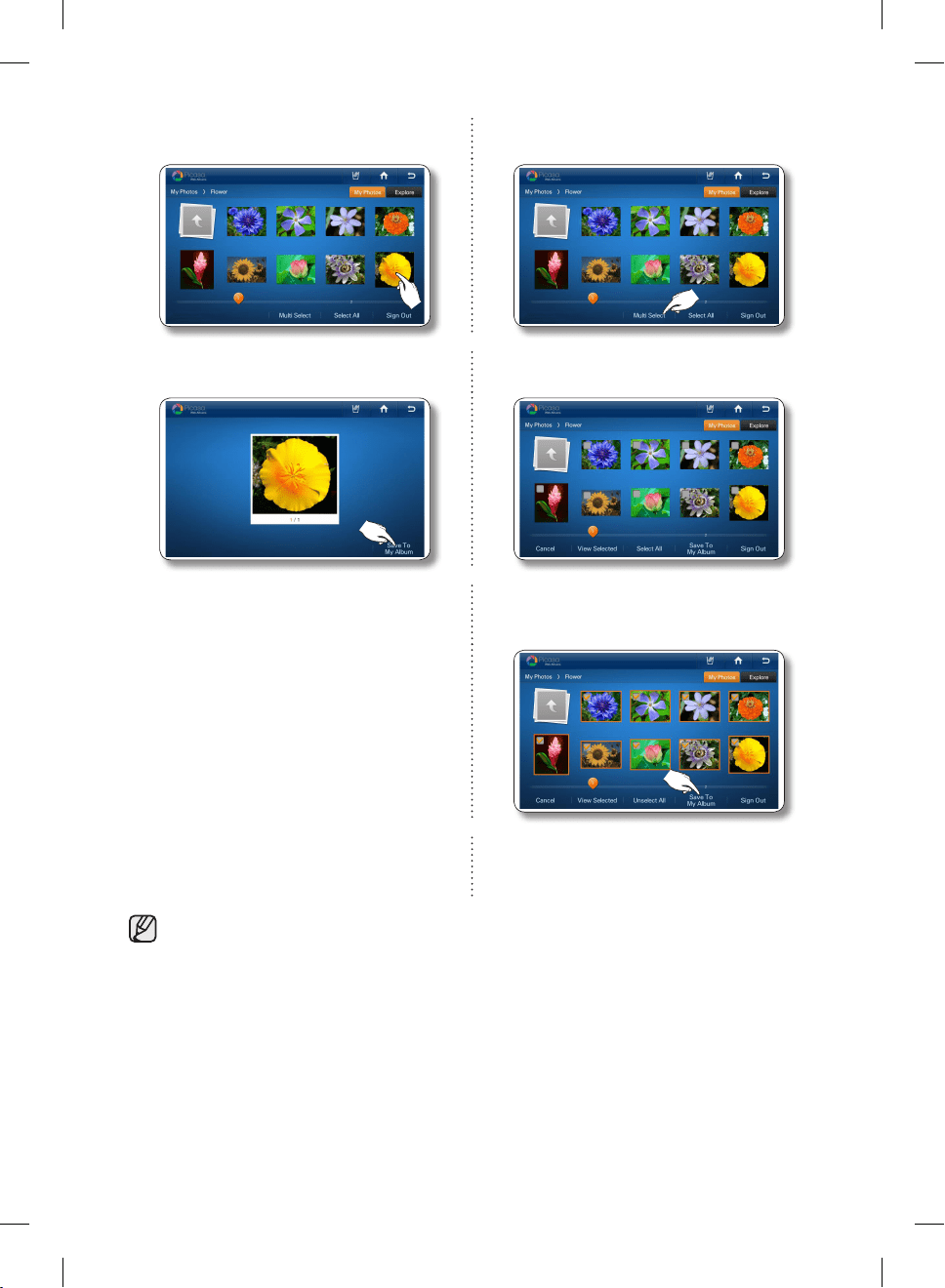
6. Select a web album which has photos you want to store
in My Album.
• If you press the [Sign Out] button, the Display returns
to the Picasa public photos screen.
• If you choose the Explore tab in the right upper
corner, the screen displays the public photos screen.
DA68-02500B-13.indb 35 13. 12. 4. �� 7:12
English - 36
7. Select the photo you want to save to My
Album.
7. To store multiple photos, select the [Multi
Select] button.
8. Press the [Save To My Album] button. 8. Select the photos you want to save to My
Album.
9. While the photo downloads from Picasa
Web Album, the “Save To My Album” popup
appears on the screen.
9. Press the [Save To My Album] button.
10. While the photo downloads from Picasa
Web Album, the “Save To My Album” popup
appears on the screen.
• When you select a photo, its detail information will appear.
• Larger photo sizes will take longer to upload.
DA68-02500B-13.indb 36 13. 12. 4. �� 7:12
English - 37
02 OPERATING
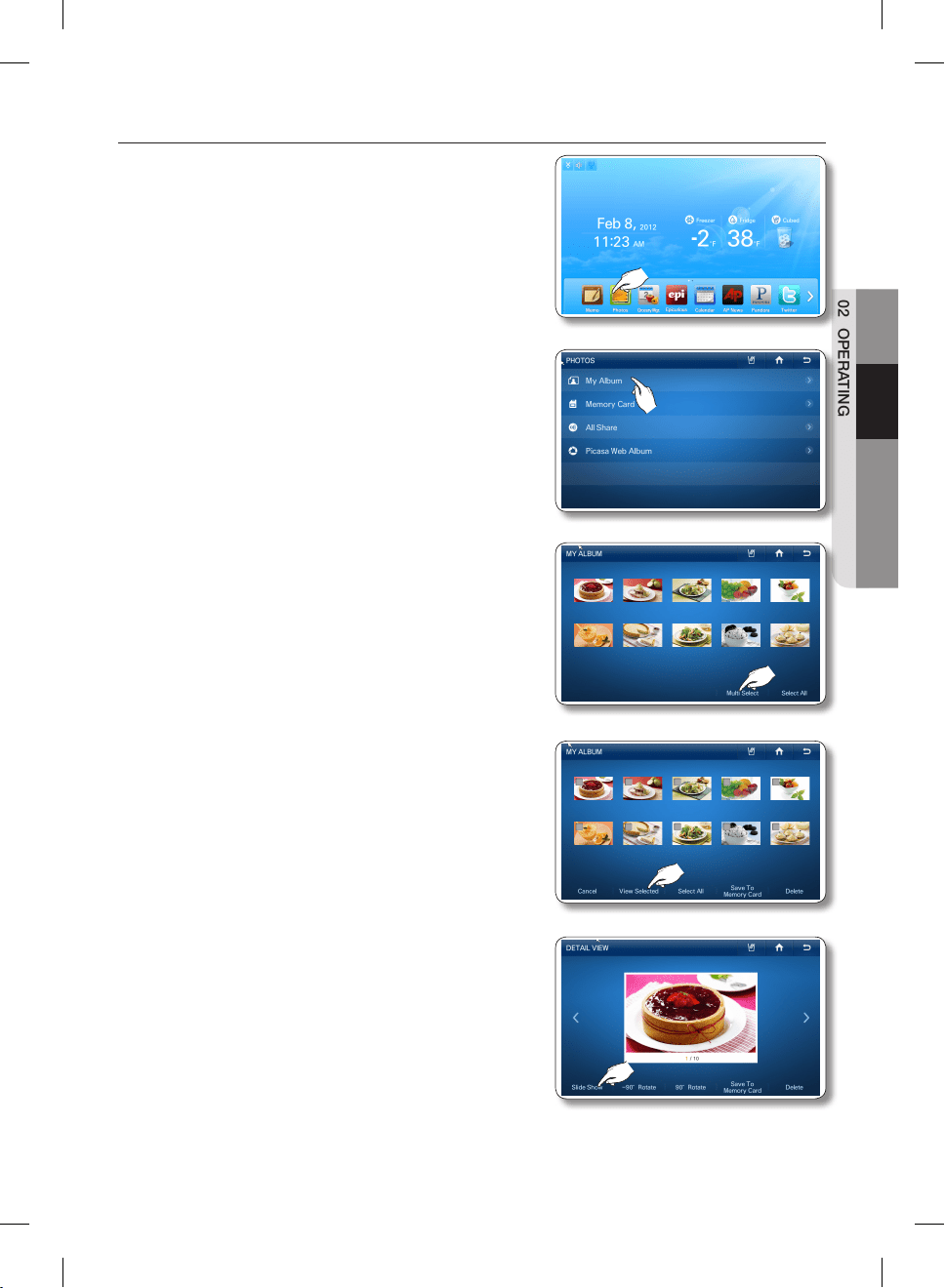
How to run a slide show.
1. Select the [Photos] button on the Home screen.
2. Select [My Album] in the Photos list.
3. Select the [Multi Select] button.
4. Select the photos you want for the slide show, and then
press the [View Selected] button. (Select more than two
photos.
• When you select a photo, its detail information will
appear.
5. Select the [Slide Show] button.
• Depending on a photo’s size (Width x Height), the
screen may display blank bars on the top or sides of
the image.
DA68-02500B-13.indb 37 13. 12. 4. �� 7:12
English - 38
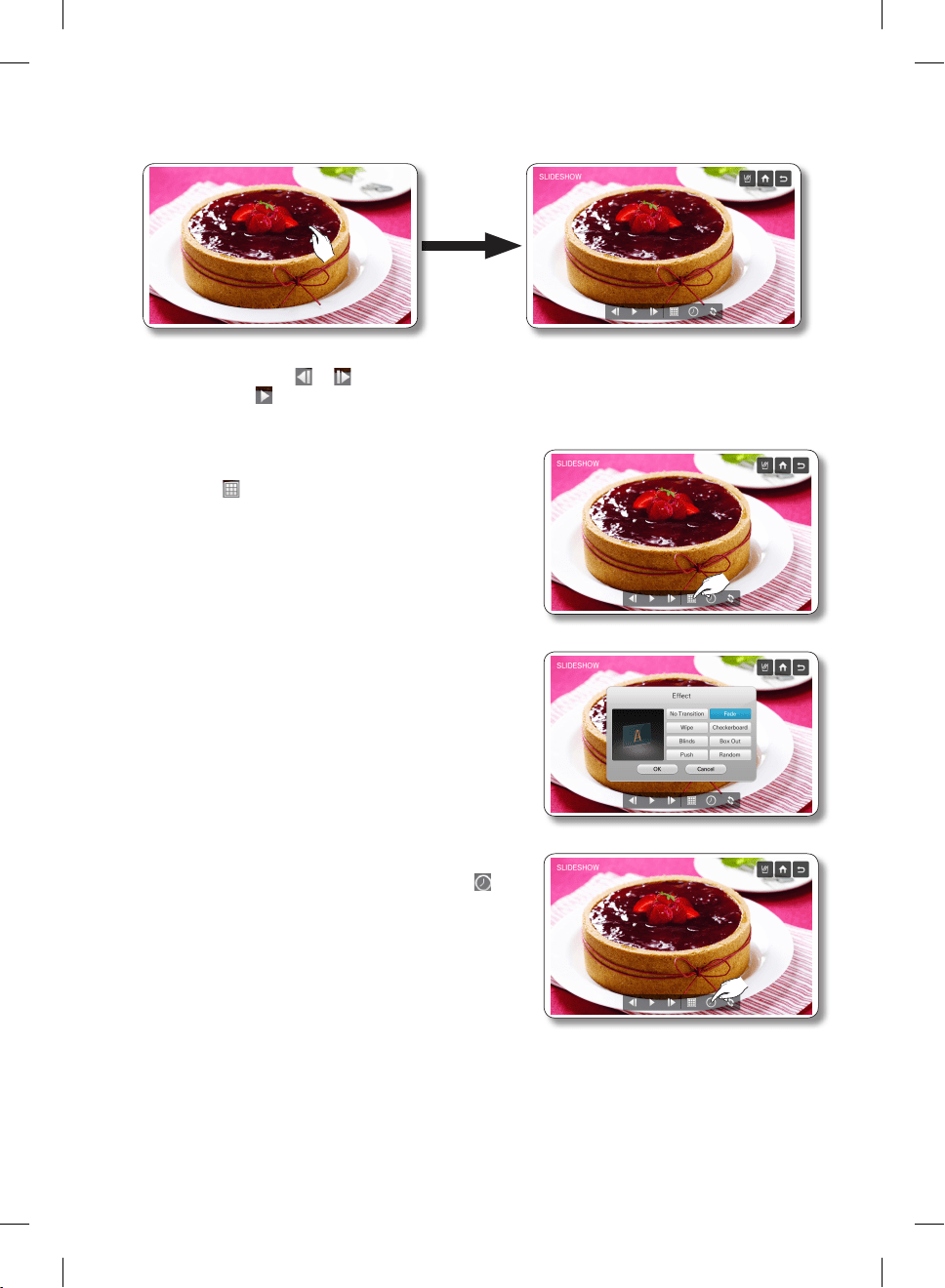
6. The slide show starts. Select the screen to change the view option.
• The slide show runs once. When it finishes, the view options appear on the screen.
• By selecting the or button, you can move to the previous or next photo.
• Select the button to run the slide show again.
7. To change the screen transition effect of the slide show,
select the button.
8. Select the desired slide show transition effects, and then
press the [OK] button.
• You can preview the selected effect on the left side
of the screen.
• The Random effect runs the photos in a random
order.
9. To change the screen transition time, select the
button.
DA68-02500B-13.indb 38 13. 12. 4. �� 7:12
English - 39
02 OPERATING
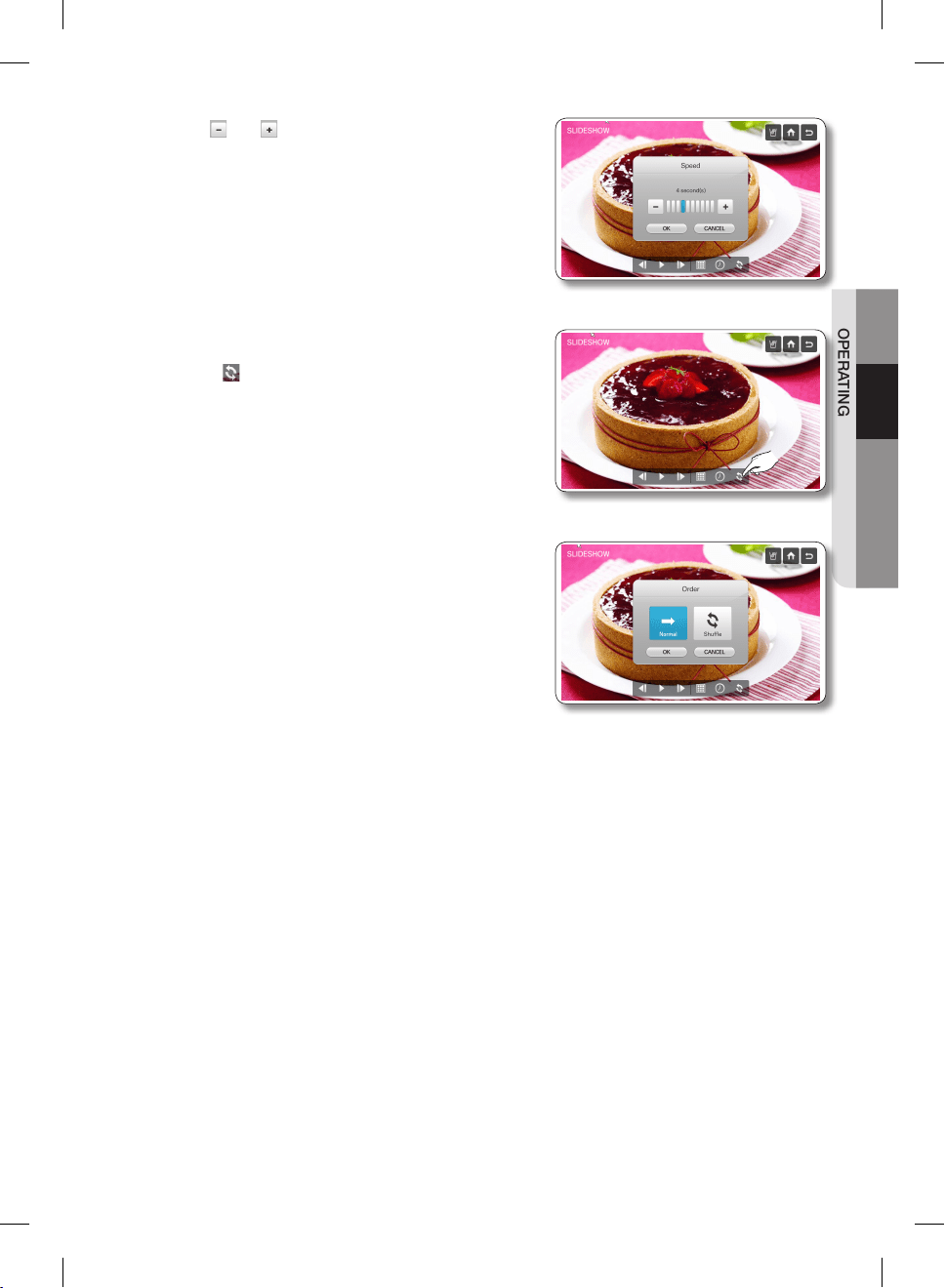
10. Use the and buttons to change the slide show
transition time, and then press the [OK] button.
11. To change the order of the photos in the slide show,
select the button.
12. Select [Normal] or [Shuffle], and then press the [OK]
button.
DA68-02500B-13.indb 39 13. 12. 4. �� 7:12
English - 40
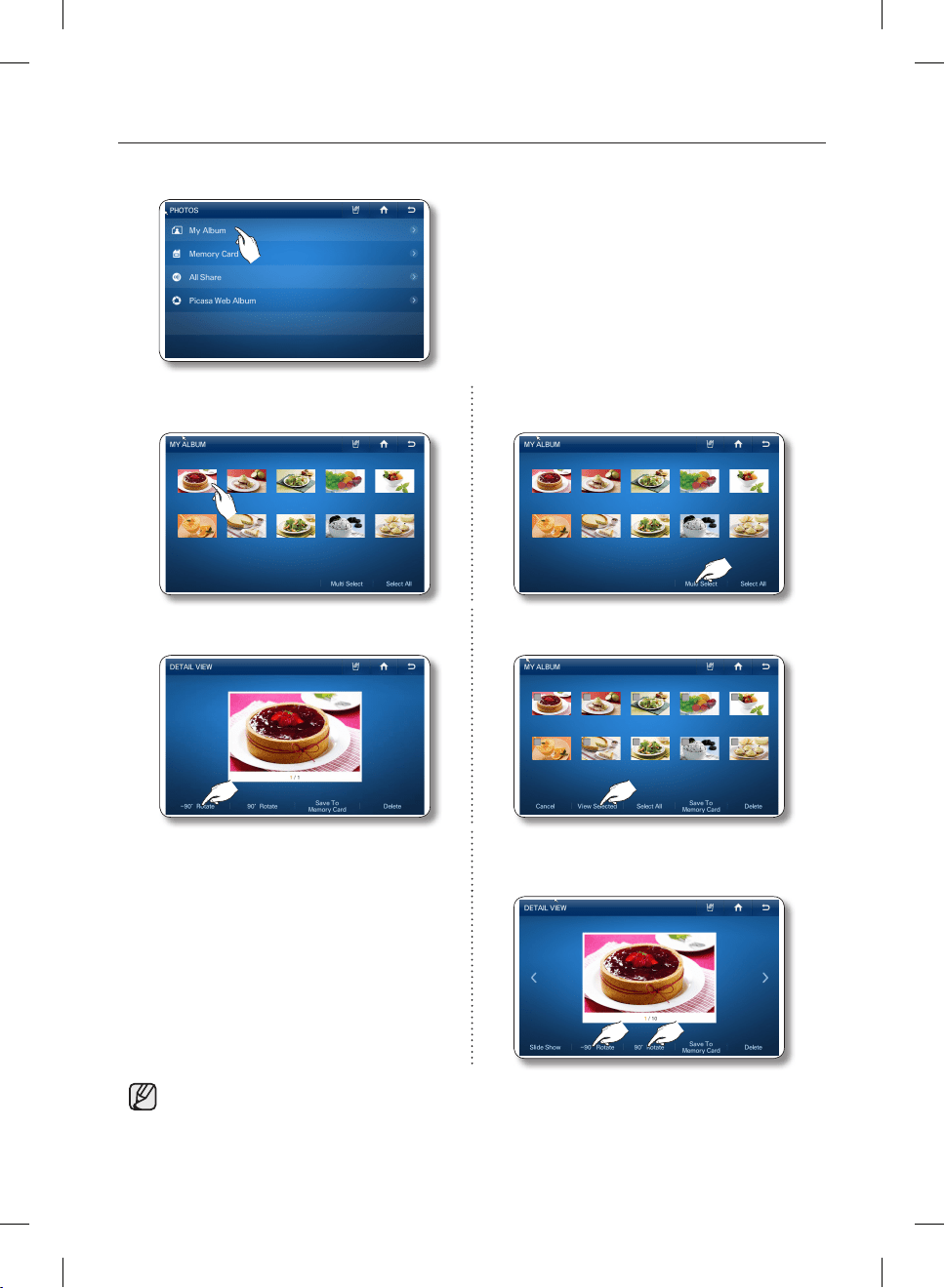
How to rotate photos.
1. Select [My Album] in the Photos list.
2. Select the photo you want to rotate. 2. Select the [Multi Select] button to rotate
multiple photos.
3. Select the [-90° Rotate] or [90° Rotate]
button.
3. Select the photos you want to rotate, and
then press the [View Selected] button.
4. After selecting the photos you want to rotate,
select the [-90° Rotate] or [90° Rotate]
button.
• The system automatically stores the rotated photos, replacing the original photos.
DA68-02500B-13.indb 40 13. 12. 4. �� 7:12
English - 41
02 OPERATING
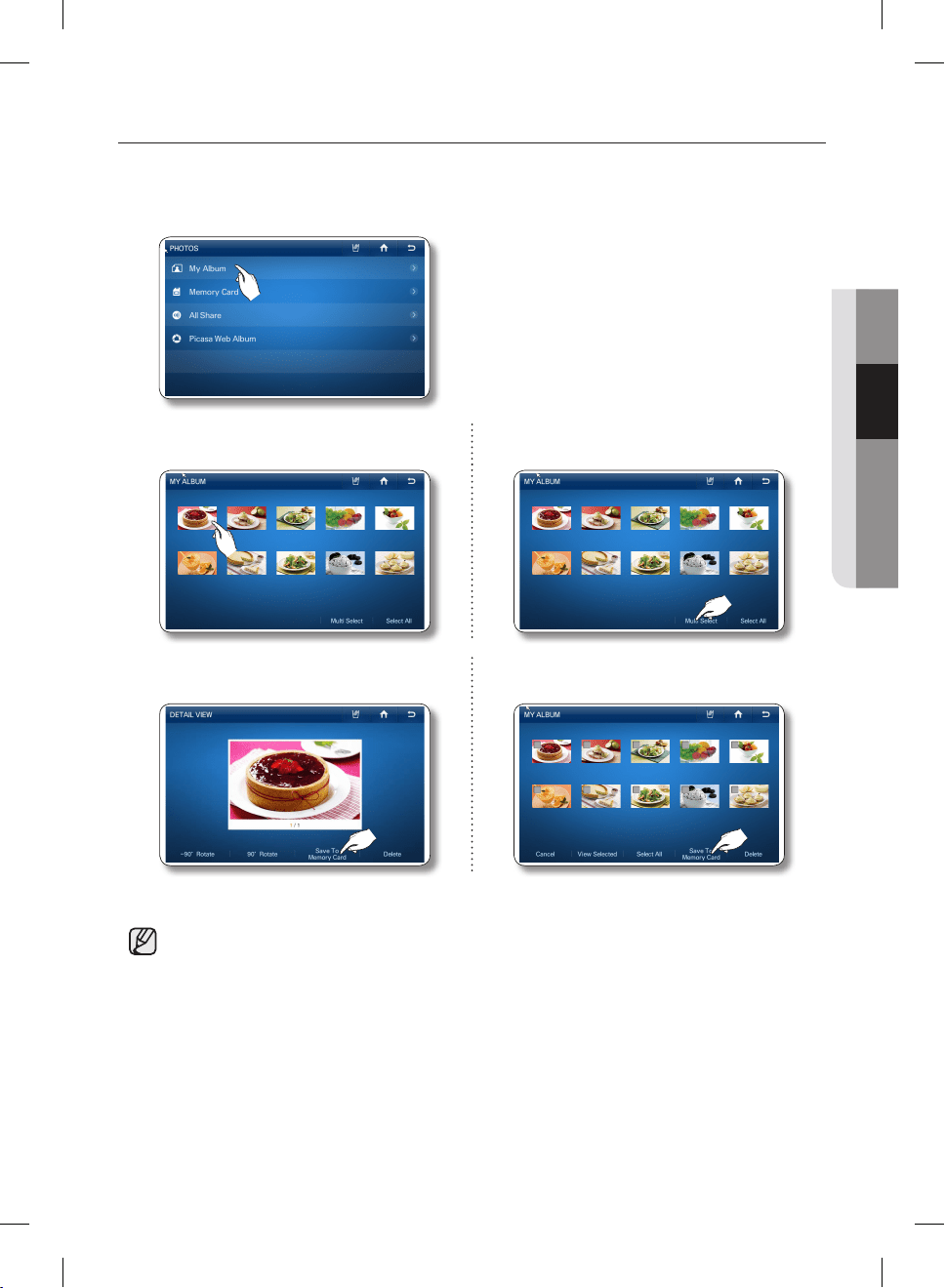
Saving photos to a memory card.
1. Insert a memory card into the refrigerator’s memory card slot.
2. Select [My Album] in the Photos list.
3. Select the photo you want to save. 3. To save multiple photos, select the [Multi
Select] button.
4. Press the [Save To Memory Card] button. 4. Select the photos you want to save, and then
press the [Save To Memory Card] button.
5. While the photos are being save, “Save To Memory Card” appears on the screen.
• You must insert a memory card into the memory card slot to use this function.
DA68-02500B-13.indb 41 13. 12. 4. �� 7:12
English - 42
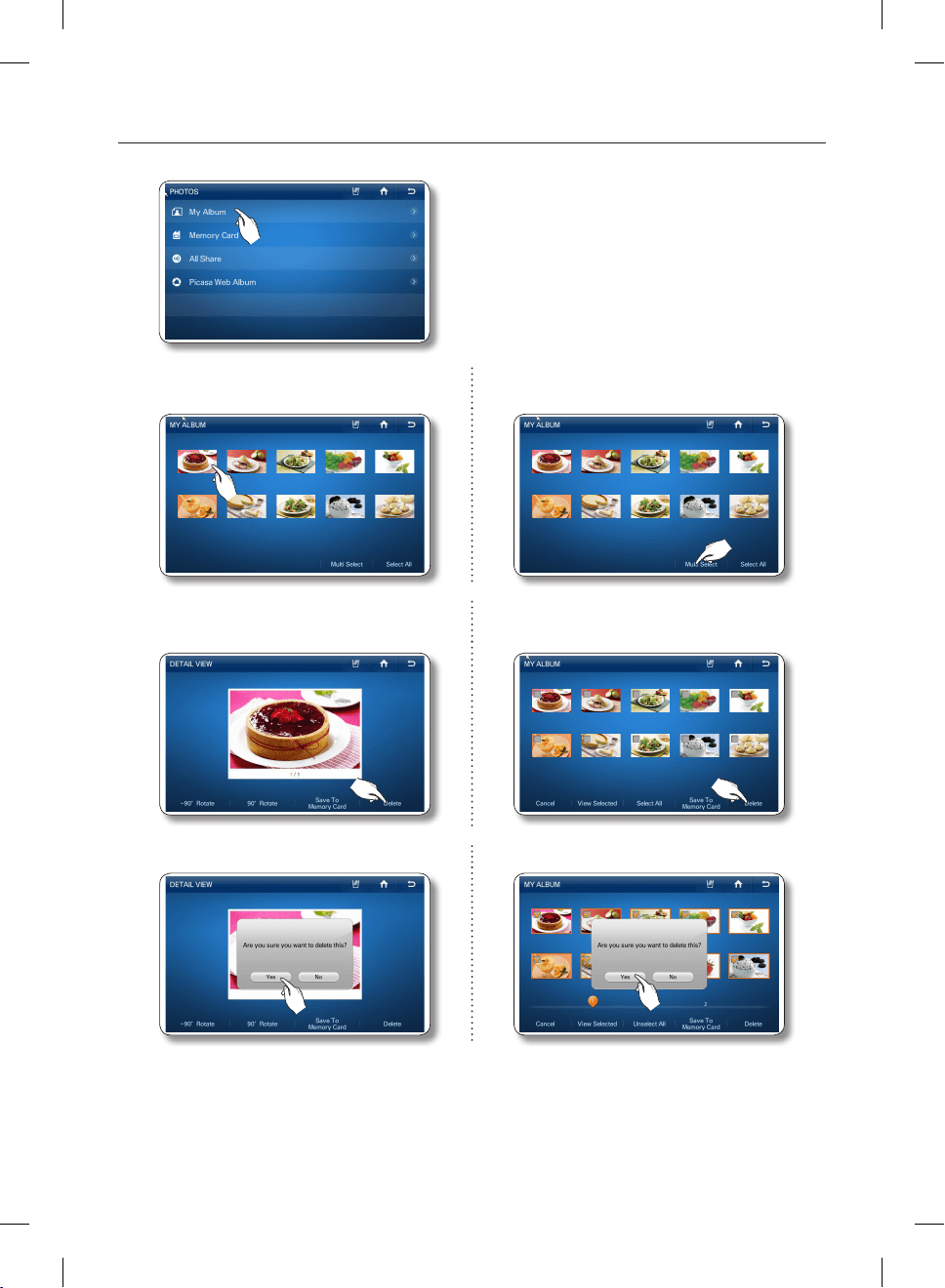
How to delete photos.
1. Select [My Album] in the Photos list.
2. Select the photo you want to delete. 2. To delete multiple photos, press the [Multi
Select] button.
3. Press the [Delete] button. 3. Select the photos you want to delete, and
then press the [Delete] button.
4. Press the [Yes] button. 4. Press the [Yes] button.
• There are 10 photos that have been pre-loaded by Samsung.
These photos explain product features and cannot be deleted.
DA68-02500B-13.indb 42 13. 12. 4. �� 7:12
English - 43
02 OPERATING
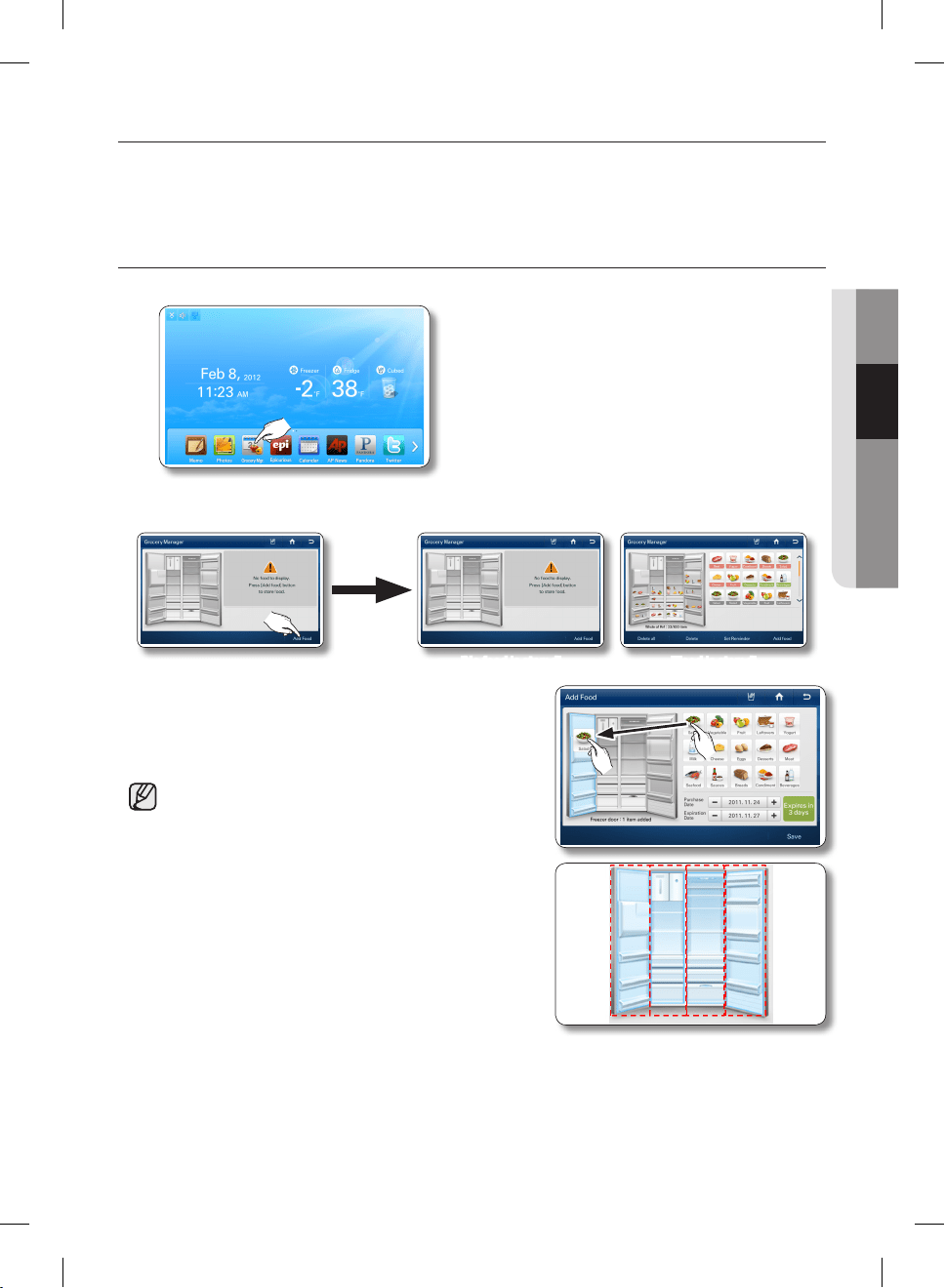
GROCERY MANAGER
You can save the purchase date and expiration date of your food before storing it in the fridge and then
easily check how long food has been stored at a later time.
Additionally, you can easily see what food items are stored and where they are located in the refrigerator.
How to add food
1. Select the [Grocery Manager] button on the Home screen.
2. Select the [Add Food] button at the bottom right.
[No food is stored] [Food is stored]
3. Select and hold one of the food images displayed on
the right. Then, drag & drop it into the location on the
refrigerator image where it will be stored. Be sure to keep
your finger on the food image until it is in place.
• The storage area for the refrigerator is divided into 4
sections. The added food is displayed as an icon in
the refrigerator image.
• To change the location of a stored item, press and
hold the food image, and then drag & drop it to
another location within the refrigerator image.
• If you select a food icon added to the refrigerator and
drag & drop it outside of the refrigerator, the food
item is deleted.
• The refrigerator section and the quantity of added
food items are displayed at the bottom of the
refrigerator image.
• You can store up to 15 kinds of food and ‘freshness’
durations. See examples below: All food : 3 days.
DA68-02500B-13.indb 43 13. 12. 4. �� 7:12
English - 44
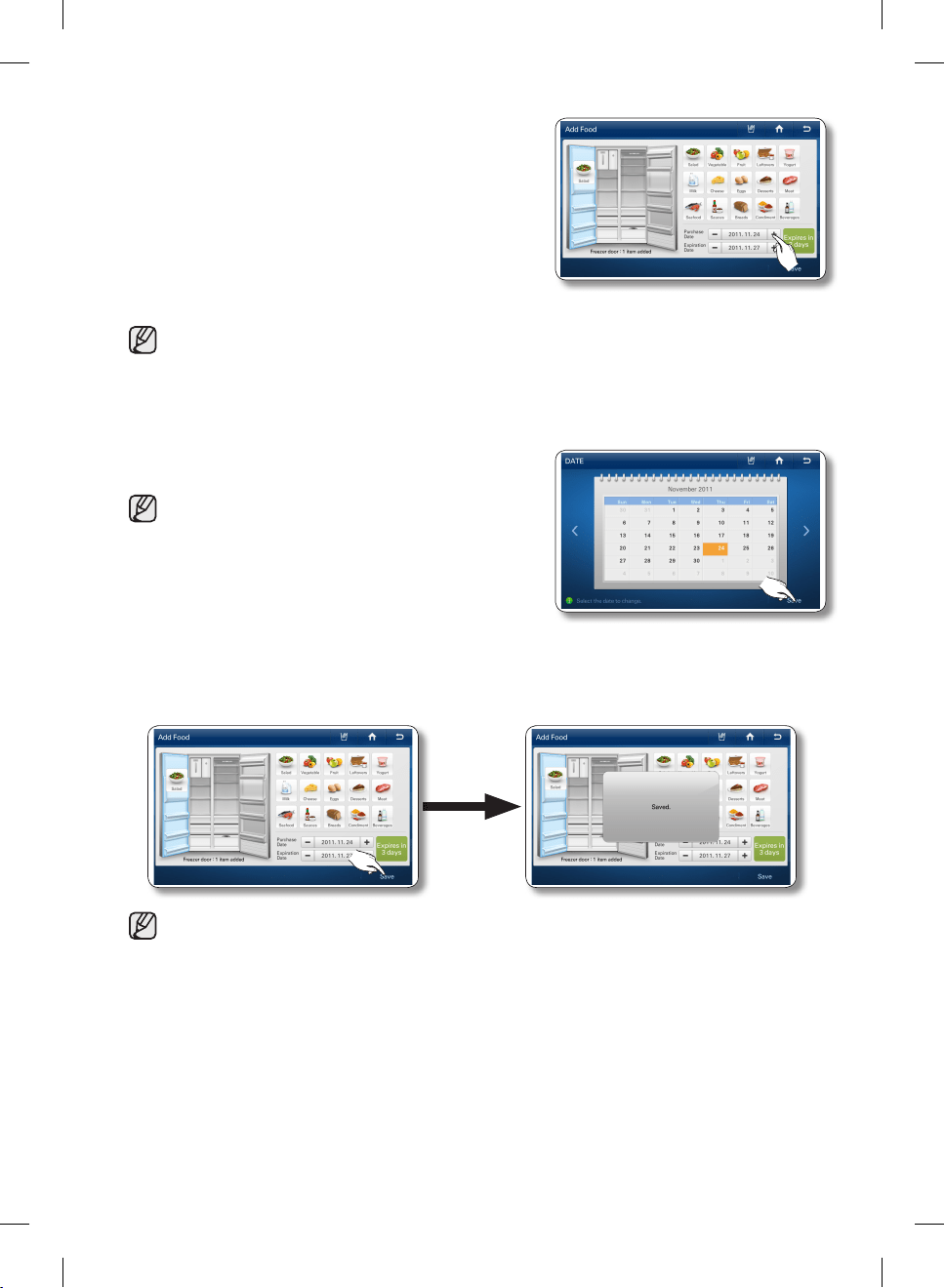
4. The ‘Purchase Date’ and ‘Expiration Date’ are displayed
at the bottom of the screen.
The Purchase Date is automatically set to today, the
Expiration Date is automatically set to the last day of the
freshness duration.
To change the Purchase Date, touch the appropriate
section on the screen, and then enter the new date.
• You can also select a date by using the [+] and [-] buttons.
However, the Purchase Date must always be earlier than the Expiration Date.
5. Select the date, and then press [Save] button.
• To select additional food items, repeat steps 2 to 5.
6. Press the [OK] button after you have completed the date settings.
Press the [Save] button to save your settings.
• You can save up to 50 grocery items.
DA68-02500B-13.indb 44 13. 12. 4. �� 7:12
English - 45
02 OPERATING
How to use the Grocery Manager
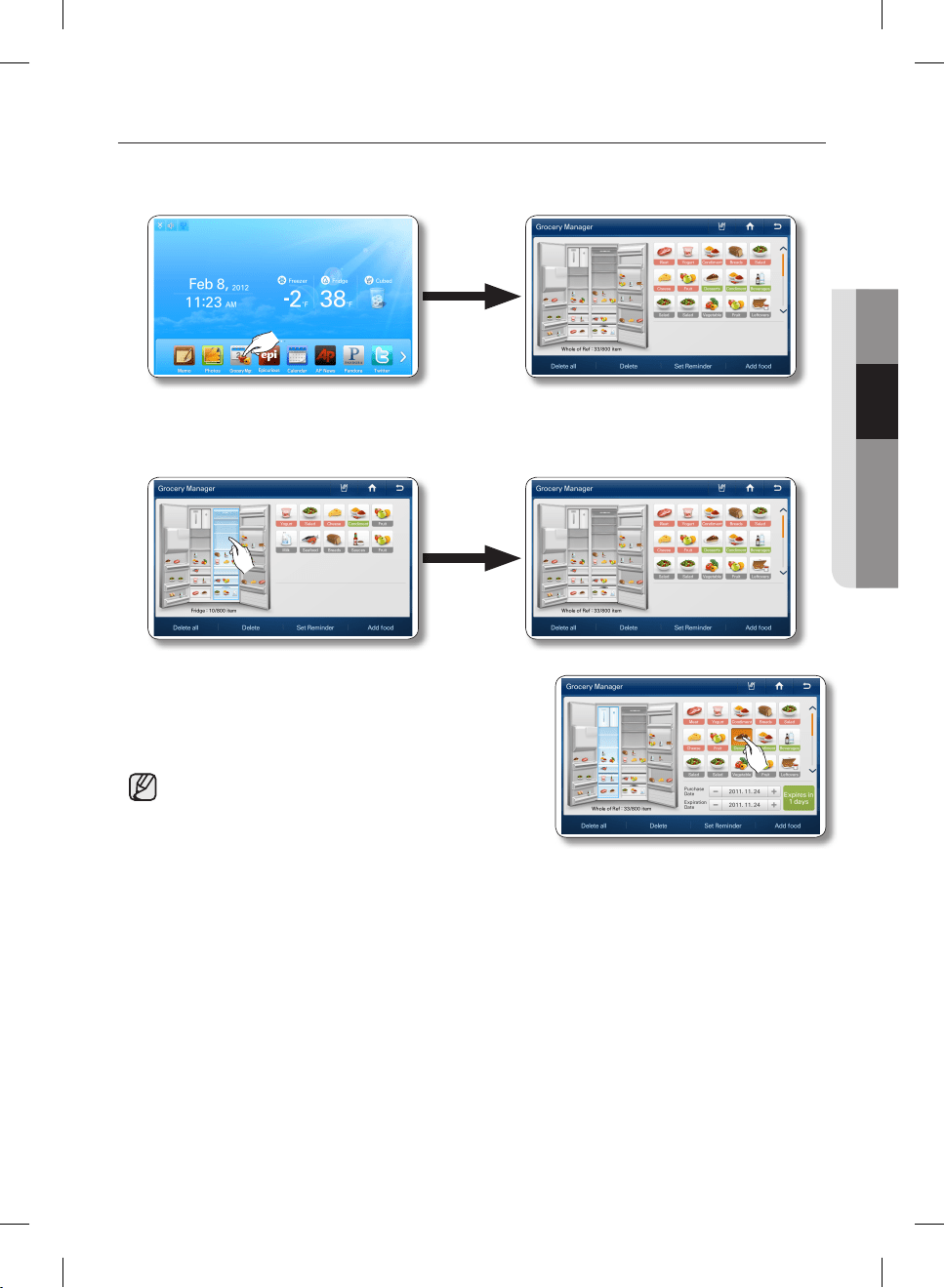
1. Select the [Grocery Manager] button on the Home screen.
All food items are displayed as icons in their stored locations within the refrigerator image on the left.
They are also listed on the right side of the screen.
2. Select a storage section in the refrigerator image to display the food stored in that section on the
right side of screen. Select the storage section again (deselect it) to list all the food items stored in
the refrigerator on the right side of the screen.
3. Select one of the stored food icons on the right side of
the screen to identify where it is located in the refrigerator.
The purchase and expiration dates of the item will also be
displayed.
• An expiration date can be set up to 999 days.
• You cannot modify the purchase date and expiration
date of the food in the Grocery Manager screen.
DA68-02500B-13.indb 45 13. 12. 4. �� 7:12
English - 46
How to delete food
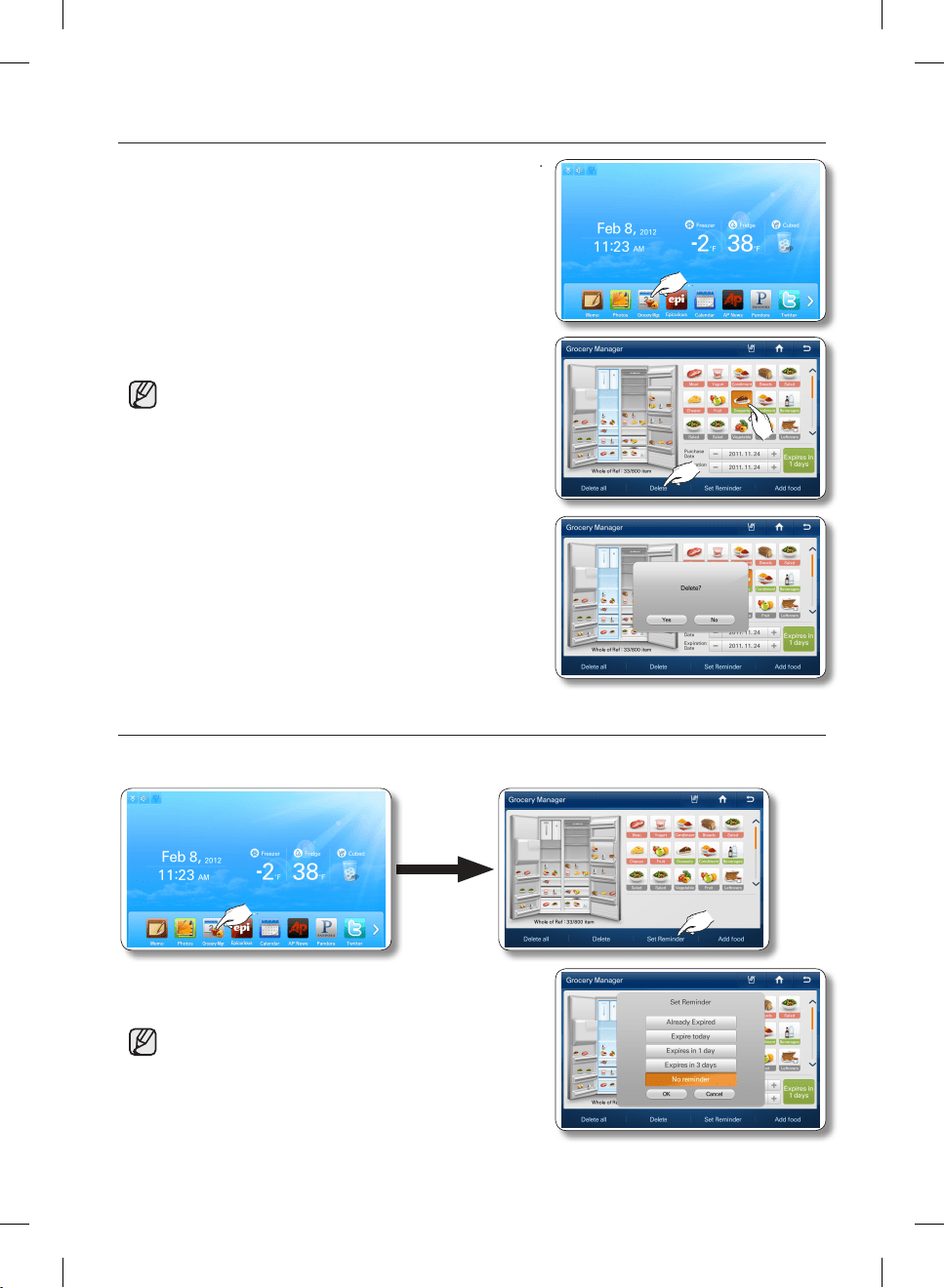
1. Select the [Grocery Manager] button on the Home screen.
2. Select the food, and then select the [Delete] button.
• To select all the stored food items, select the [Delete
all] button.
3. Select the [Yes] button to complete.
How to set a Reminder
1. Select the [Grocery Manager] button on the Home screen, and then select the [Set Reminder]
button.
2. Select the Reminder options you want, and then select
the [OK] button.
• A reminder is set based on the Expiration Date of the
stored food. A reminder window appears when the
scheduled duration has passed.
• If more than one item is set to the same Reminder
value (except [None]), the reminder window appears
at 6:00 AM, 11:00 AM, and 5:00 PM.
DA68-02500B-13.indb 46 13. 12. 4. �� 7:12
English - 47
02 OPERATING
EPICURIOUS
With the Epicurious service, you can easily to find various recipes by ingredient, season, occasion, or
category.
• This function is only available when the refrigerator is connected to your wireless network
(Wi-Fi).
How to use the Featured Recipes function
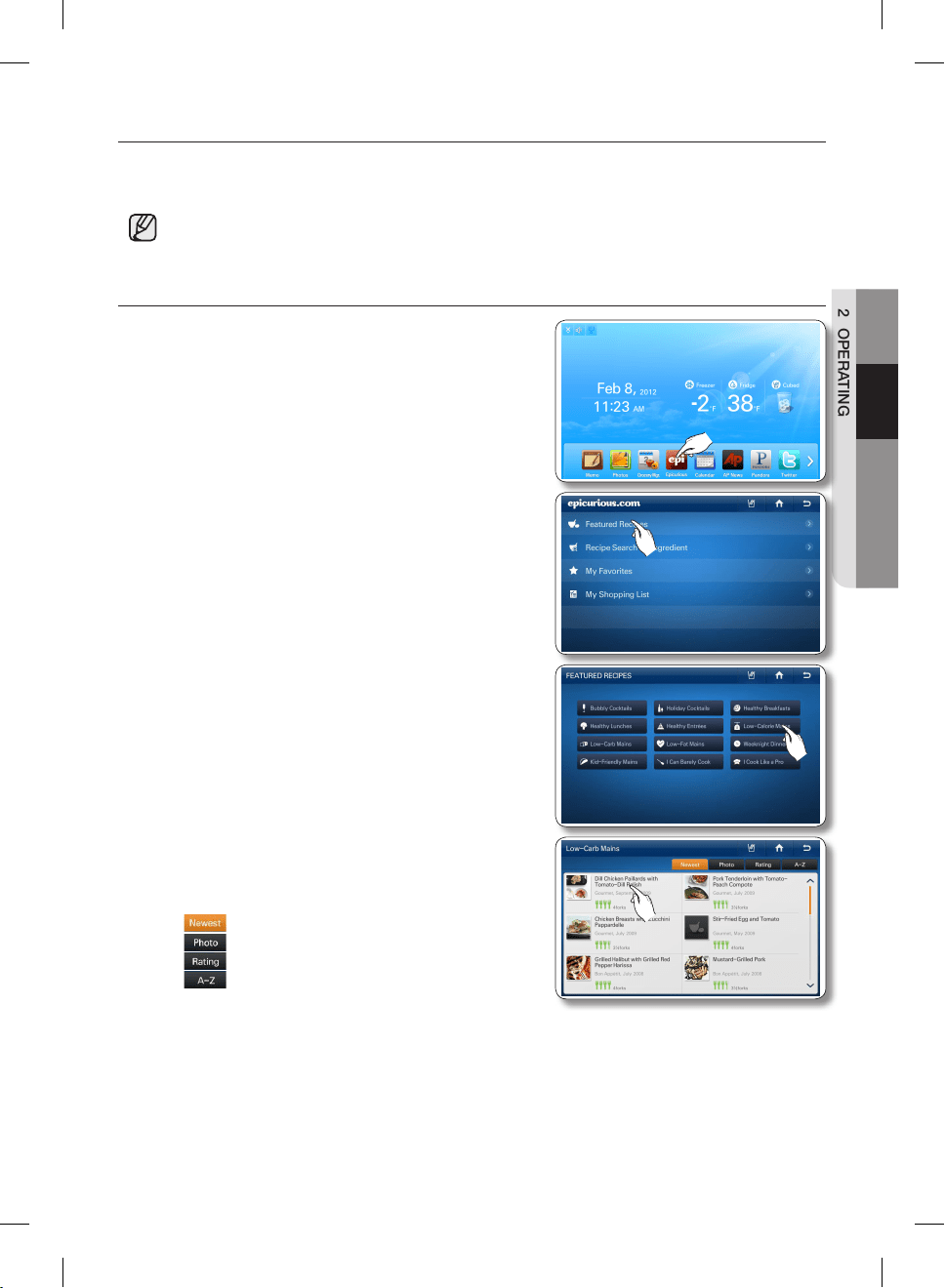
1. Select the [Epicurious] button on the Home screen.
• There will be a 4-second commercial ad when you
start Epicurious.
2. Select [Featured Recipes] on the Epicurious list.
3. Select a Featured Recipes category.
The screen displays a list of recipes.
4. Select a recipe. The screen displays the recipe ingredients
and other details.
• The popularity of a recipe is indicated by the number
of forks. Four forks is the highest.
• : Select to show recipes in the last used order.
• : Select to show in order of photo information.
• : Select to show recipes in order of popularity.
• : Select to show recipes in alphabetical order.
DA68-02500B-13.indb 47 13. 12. 4. �� 7:12
English - 48
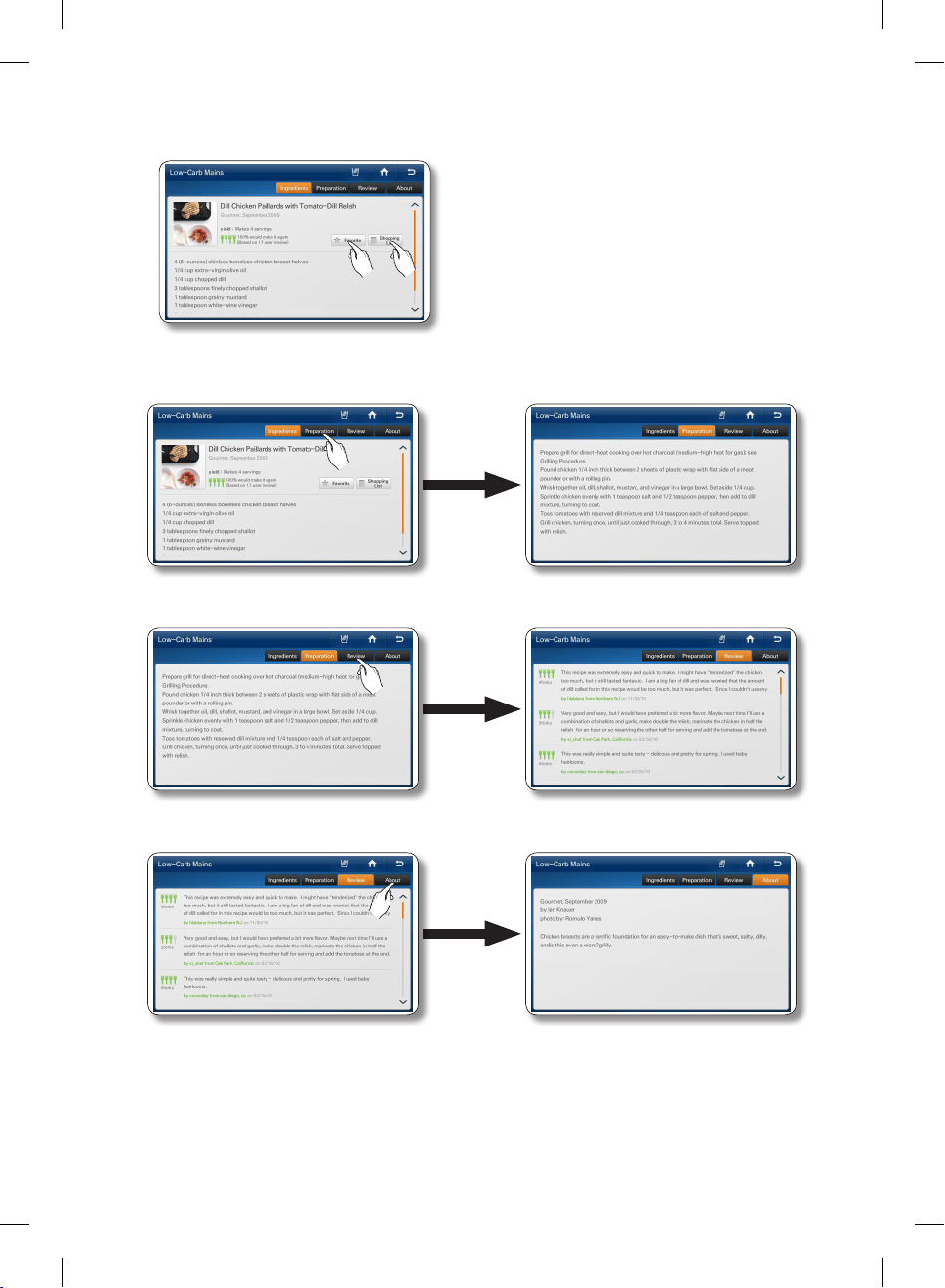
5. Press the [Favorite] button to add a recipe to your favorite list.
Press the [Shopping List] button to make a shopping list for a recipe.
6. Select the [Preparation] tab on the top of the page to view the recipe’s step by step preparation
instructions.
7. Select the [Review] tab on the top of the page to see reviews of the recipe by other users.
8. Select the [About] tab on the top of the page to view information about the author of the recipe.
DA68-02500B-13.indb 48 13. 12. 4. �� 7:12
English - 49
02 OPERATING
How to use Recipe Search by Ingredient.
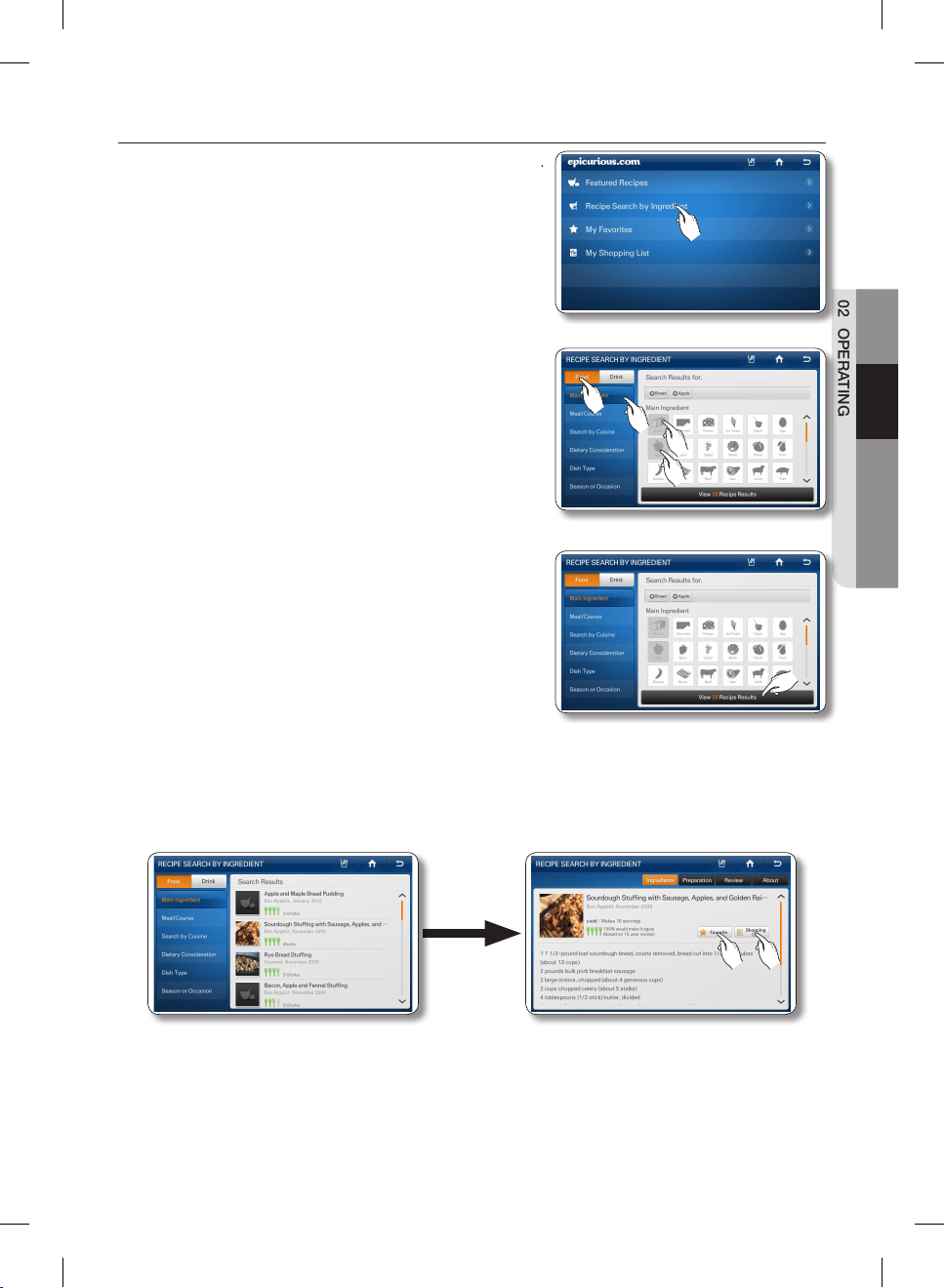
1. Select [Recipe Search by Ingredient] on the Epicurious list.
2. Select the [Food] or [Drink] button, and then select the
[Food]/[Drink] type on the left of screen.
Next, select an ingredient icon on the right.
• When you select an ingredient icon, the number of
recipes using that ingredient appears on the bottom
of the page.
• You can select multiple ingredient icons.
3. Select the [View Recipe Results] button.
4. Select the recipe you want. The screen displays the ingredients and other detail information.
5. Select the [Favorite] button to add the recipe to your Favorites list.
Select the [Shopping] List button to view a shopping list for the recipe.
DA68-02500B-13.indb 49 13. 12. 4. �� 7:12
English - 50
How to use My Favorites.
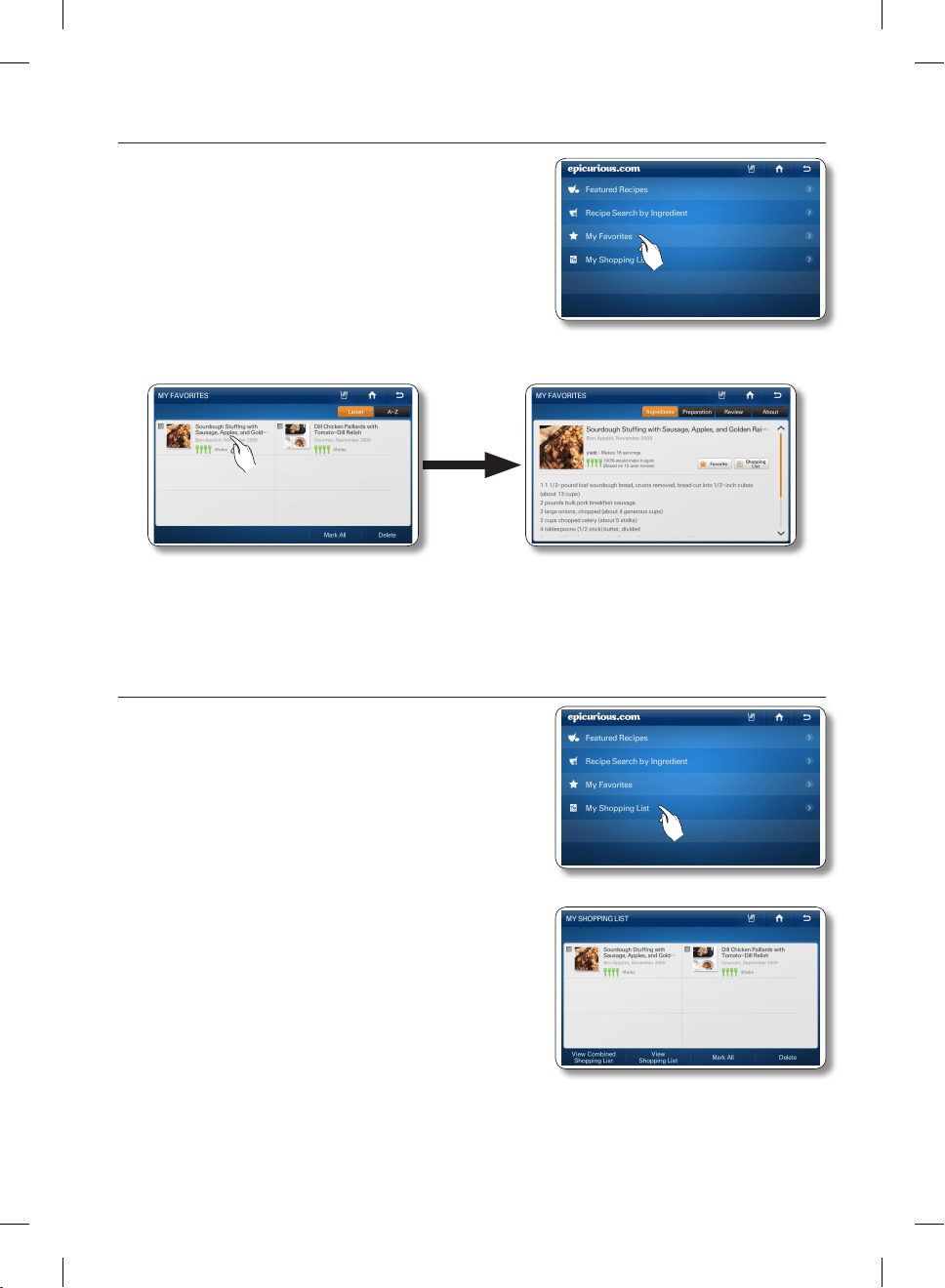
1. Select [My Favorites] on the Epicurious list.
• You can store up to 100 favorite recipes.
2. Select the recipe you want.
• Select the A-Z button on the right to arrange the favorites in the alphabetical order.
• Select a recipe, and then select the [Delete] button to delete the recipe from your Favorites List.
How to use My Shopping List.
1. Select [My Shopping List] on the Epicurious list.
• Displays the ingredients for recipes you select so you
can create shopping lists.
• You can store up to 100 shopping lists.
2. Select the recipe or recipes you want.
DA68-02500B-13.indb 50 13. 12. 4. �� 7:12
English - 51
02 OPERATING
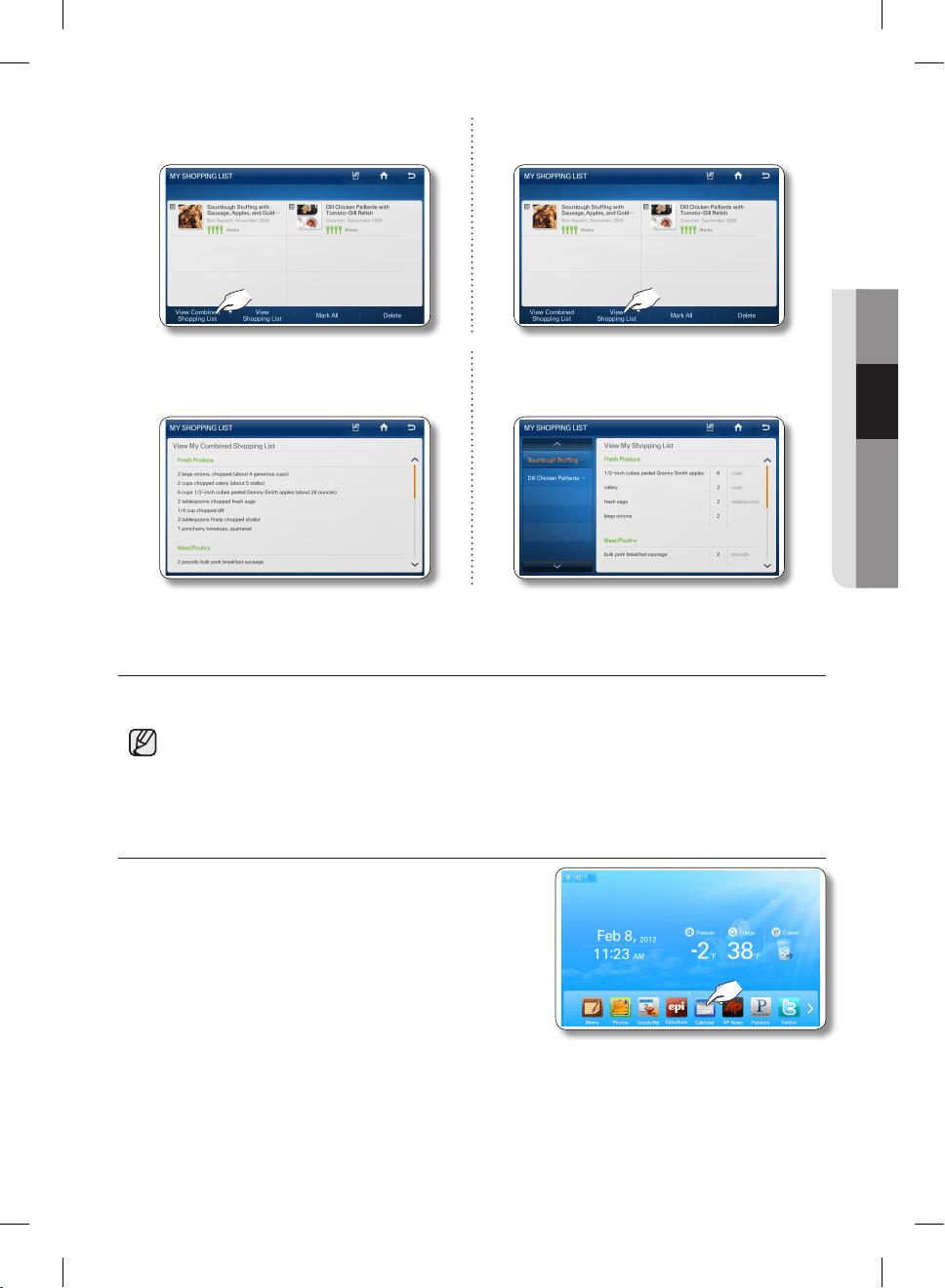
3. Select the [View Combined Shopping List]
button.
3. Select the [View Shopping List] button.
4. The screen displays the combined ingredient
list for all the recipes you selected.
4. Select a recipe on the left of screen. The
screen displays the ingredient list for the
recipe you selected.
CALENDAR
Displays the calendar from Google Calendar.
• This function is only available when the refrigerator is connected to your wireless network
(Wi-Fi).
• To use the Calendar function, you need a Google account.
• The Calendar schedule supports dates from Jan 1970 to Dec 2037.
How to view the Google Calendar.
1. Select the [Calendar] button on the Home screen.
DA68-02500B-13.indb 51 13. 12. 4. �� 7:12
English - 52
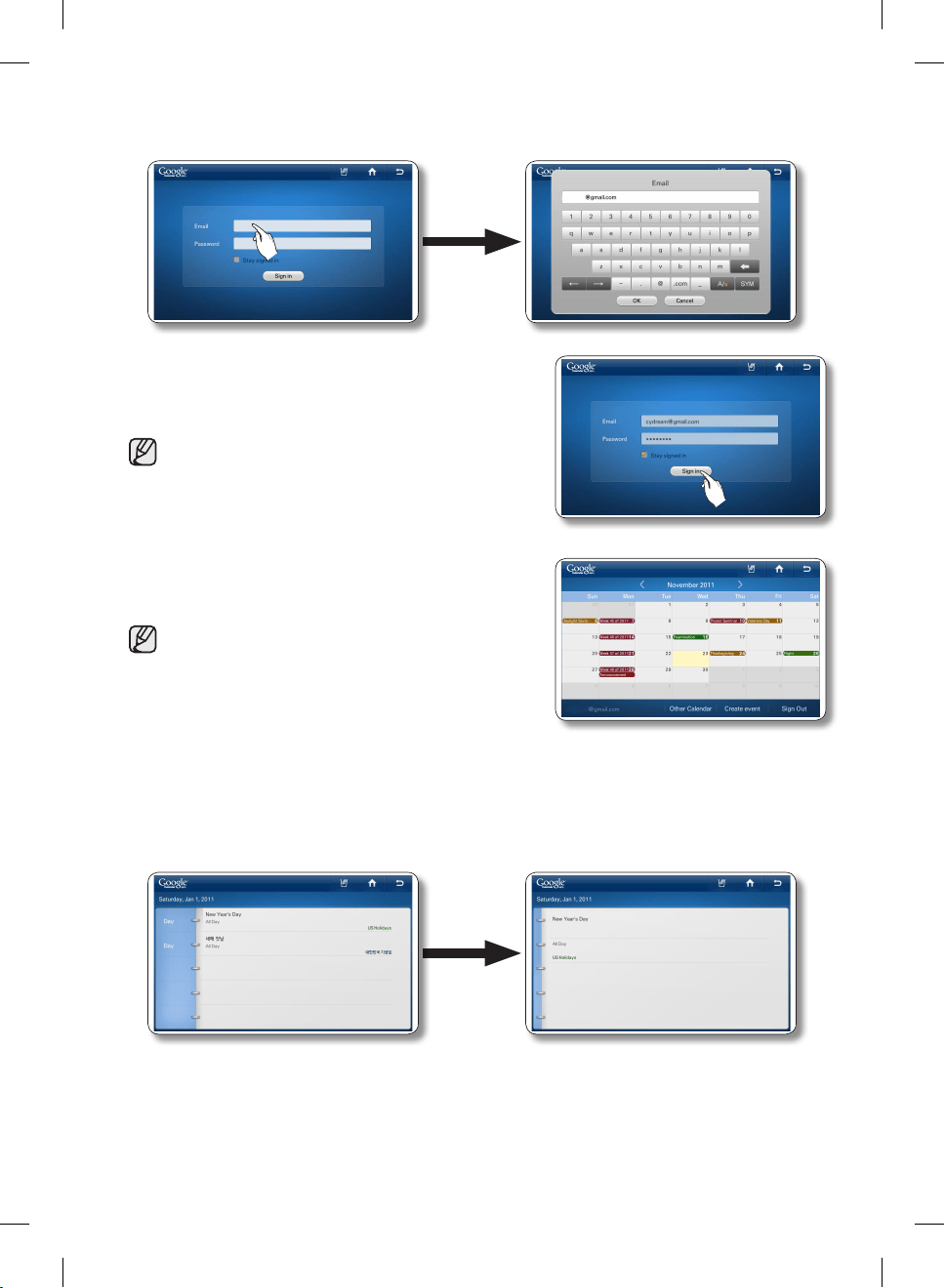
2. Select the Email input box, and then enter your Google account ID using the on-screen keyboard.
Select the Password input box, and then enter your password using the on-screen keyboard.
3. Press the [Sign in] button.
• If you check the ‘Stay signed in’ box, the refrigerator
will store the account for faster future log-ins.
• If you do not have a Google account, you can get
one at http://calendar.google.com.
• In the Email section, enter your Google account ID in
this format: [email protected].
4. To view your schedule, select a date. The screen displays
the daily schedule for the date you selected.
• You cannot modify or erase the Google Calender
schedule through the refrigerator Display screen.
• The display color of each scheduled event is the
same as that in the Google Calender application.
• Press the left / right direction arrows to check the
Monthly Schedule.
• When there are more than 4 events within a day, the calendar indicates the excess with “+1
more”.
• The schedule updates every 30 minutes.
5. Press the event you want to view. The event you selected appears on the screen.
DA68-02500B-13.indb 52 13. 12. 4. �� 7:12
English - 53
02 OPERATING
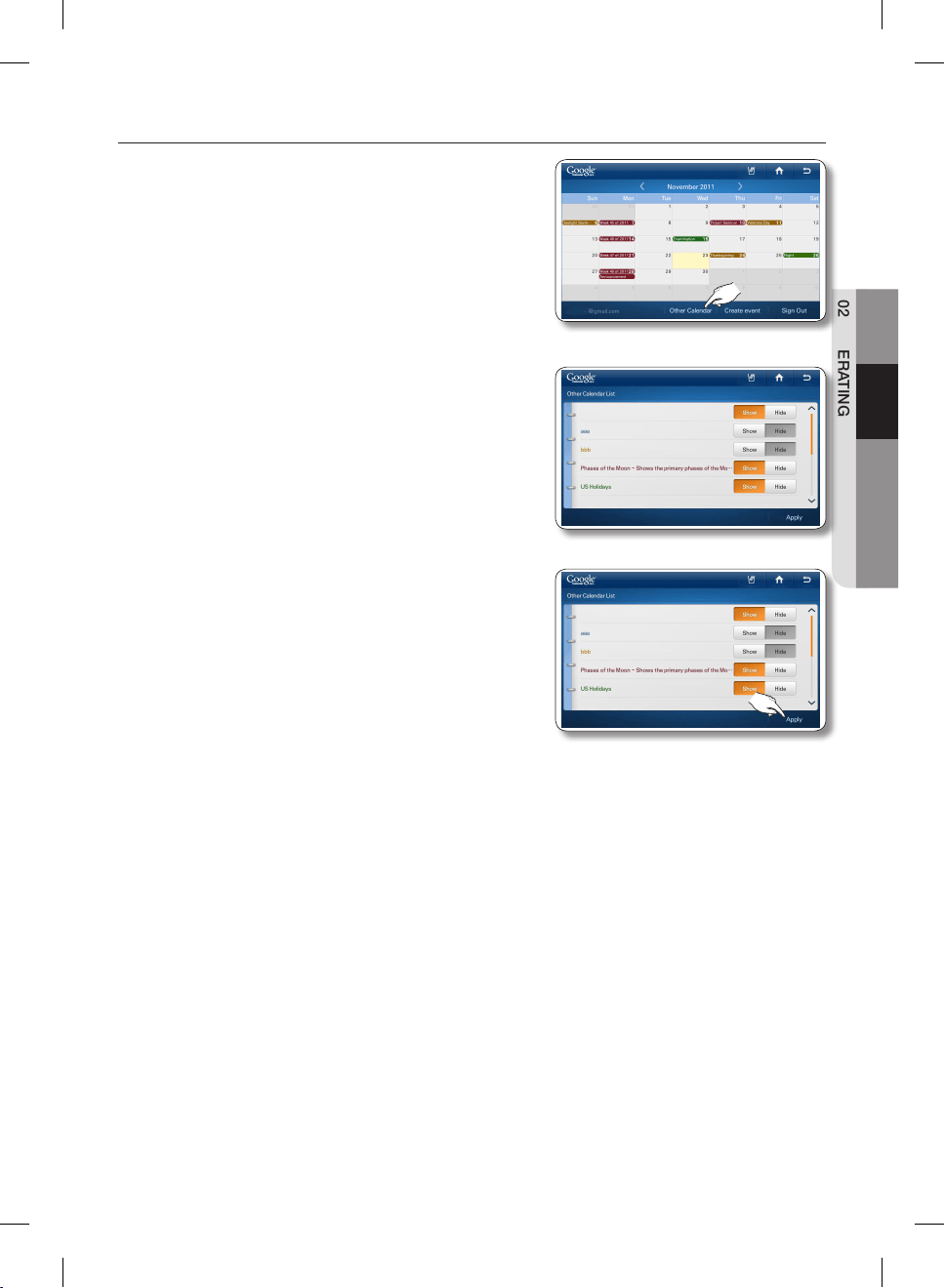
How to manage Shared Calendar
1. Select [Other Calendar].
2. Select a [Show] or [Hide] button.
• You can show or hide schedules from your Google
Web Calendar subscription list using the Other
Calendar List screen.
• If you change the Show / Hide setting here, it does
not change in the subscription list and the Show /
Hide setting on the Google Web Calendar.
3. Select the [Apply] button.
The Google Calendar re-appears with the displayed
schedule changed according to your selections.
DA68-02500B-13.indb 53 13. 12. 4. �� 7:12
English - 54
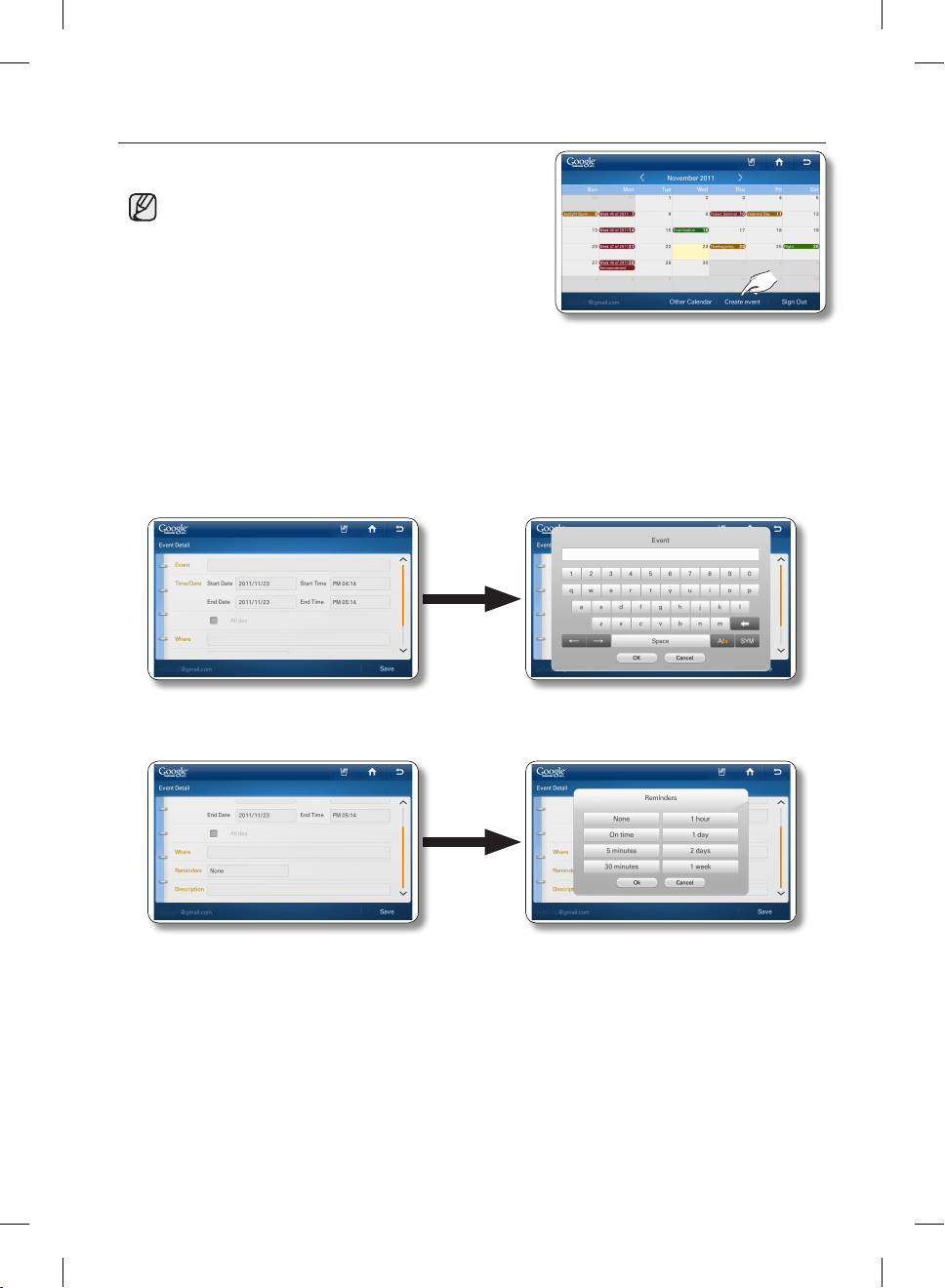
How to create an event
1. Select the [Create event] button on the Calendar screen.
• You must be logged in onyour primary Gmail email
address (***@gmail.com) to use the Create an event
feature.
To view the primary email address:
1. Log in to www.google.com.
2. Access Gmail.
3. Click the e-mail address on the upper right side of the screen ( ***@gmail.com).
A drop down window appears.
4. Click Account.
5. Look under [Email addresses and usernames] for the email address identified as the Primary
email.
2. Enter the Event Title, Date and Time, Location (Where), and Description in the corresponding entry
fields using the screen keyboard.
3. To set a reminder for a scheduled event, select the Reminders input box, and then select one of the
Reminder options.
4. When all settings are complete, select [Save].
DA68-02500B-13.indb 54 13. 12. 4. �� 7:12
English - 55
02 OPERATING
WEATHERBUG
The internet weather service provides current and weekly weather information by region.
• This function is only available when the refrigerator is connected to your wireless network
(Wi-Fi).
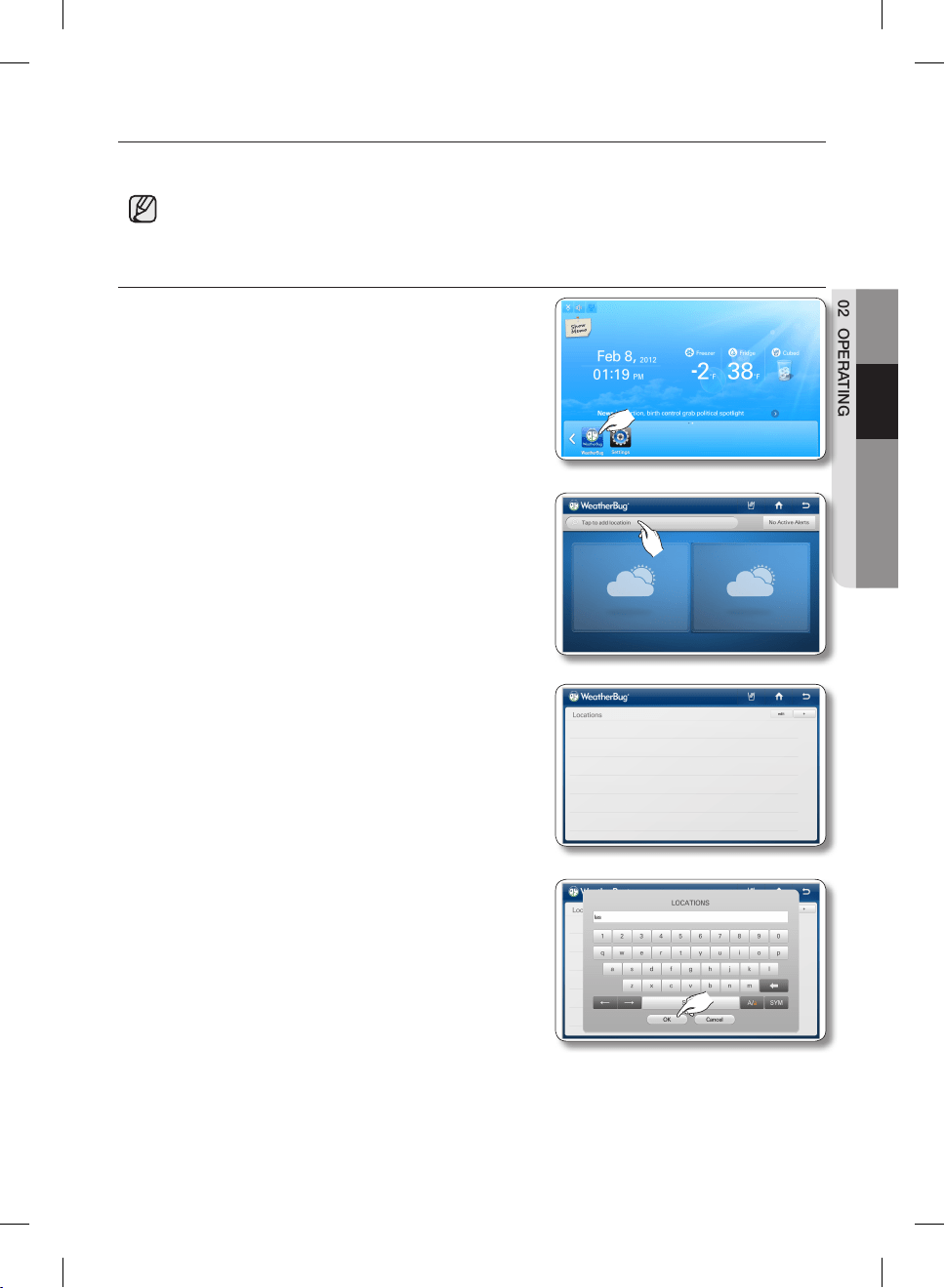
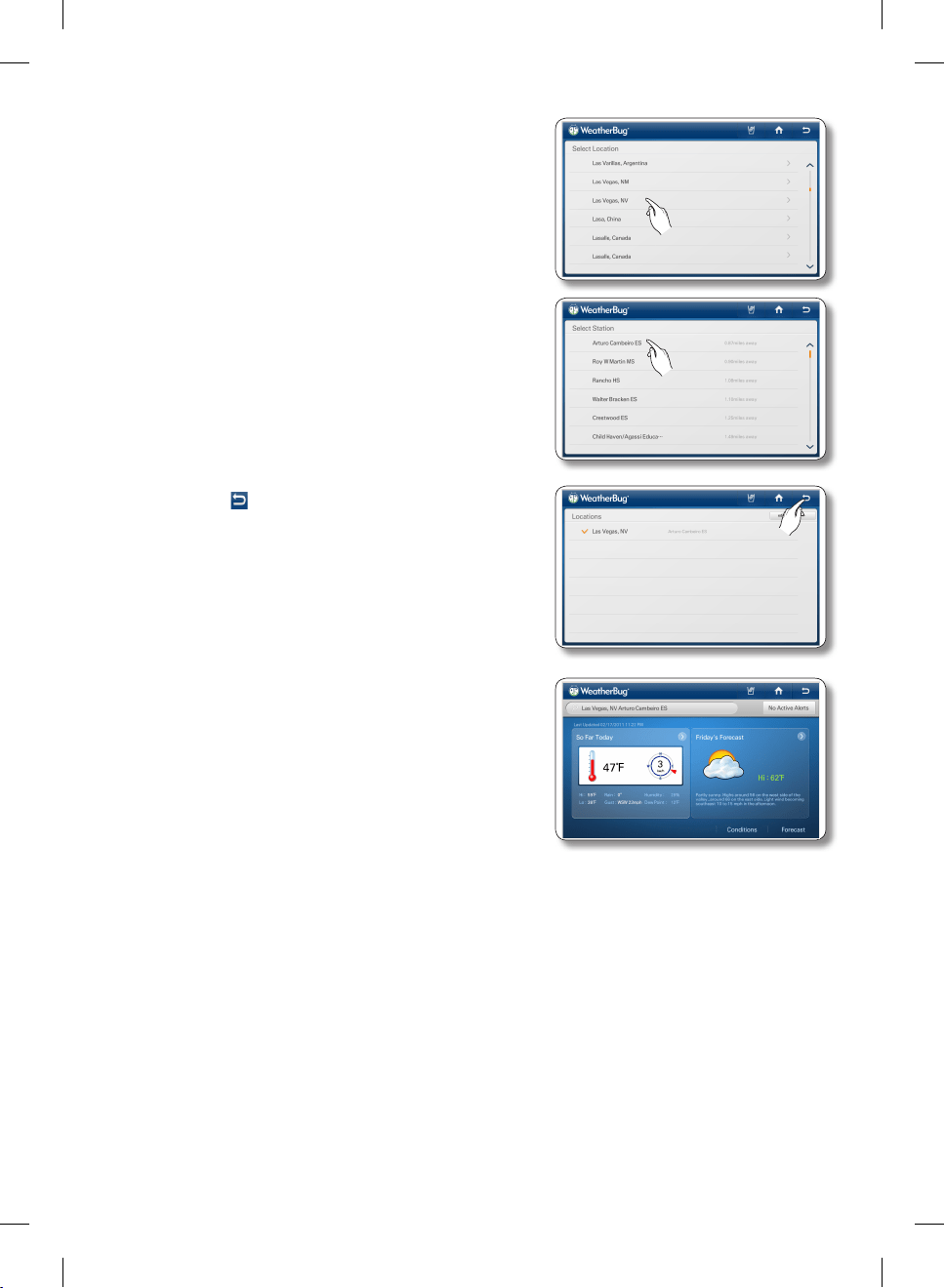
How to add your Region to Weatherbug
1. Select the [WeatherBug] button on the Home screen.
• There will be a 4-second commercial ad when you
start the WeatherBug.
2. Select the region search bar on the top left of the screen.
3. Select the [+] button in the upper right corner of screen.
4. Enter your location or zipcode (US Only) using the
onscreen keyboard, and then press the [OK] button.
DA68-02500B-13.indb 55 13. 12. 4. �� 7:12
English - 56
5. Select your location.
6. Select a local weather station.
7. Select the “ ” button on the top right of the screen.
8. The display screen shows your local weather.
DA68-02500B-13.indb 56 13. 12. 4. �� 7:12
English - 57
02 OPERATING
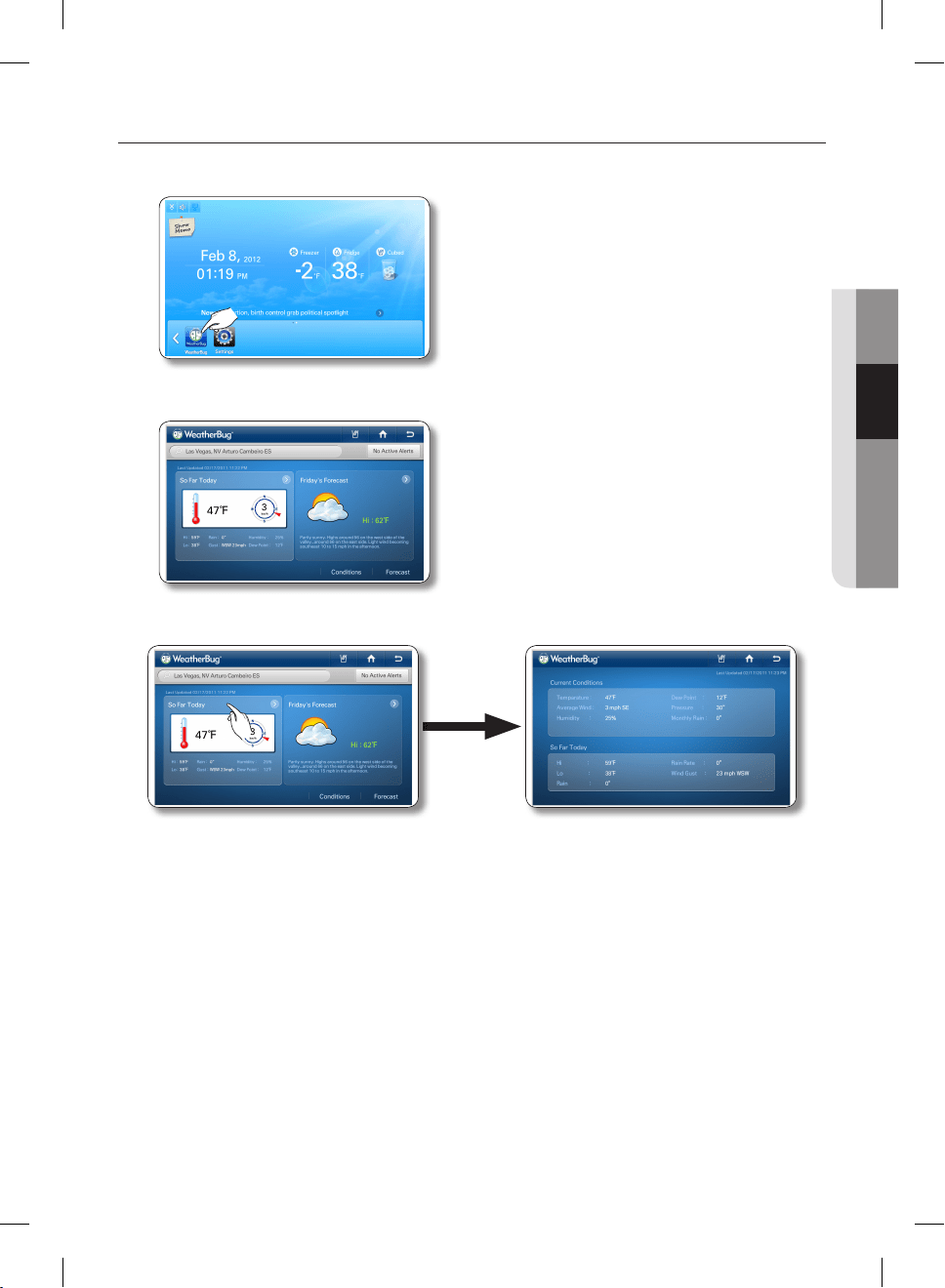
How to view today’s weather.
1. Select the [WeatherBug] button on the Home screen.
• There will be a 4-second commercial ad when you start the WeatherBug.
2. The Weatherbug screen at right appears displaying your local weather.
• If you select Active Alerts, the screen displays weather alerts.
3. Select [So Far Today]. The screen displays the current weather detail information.
DA68-02500B-13.indb 57 13. 12. 4. �� 7:12
English - 58
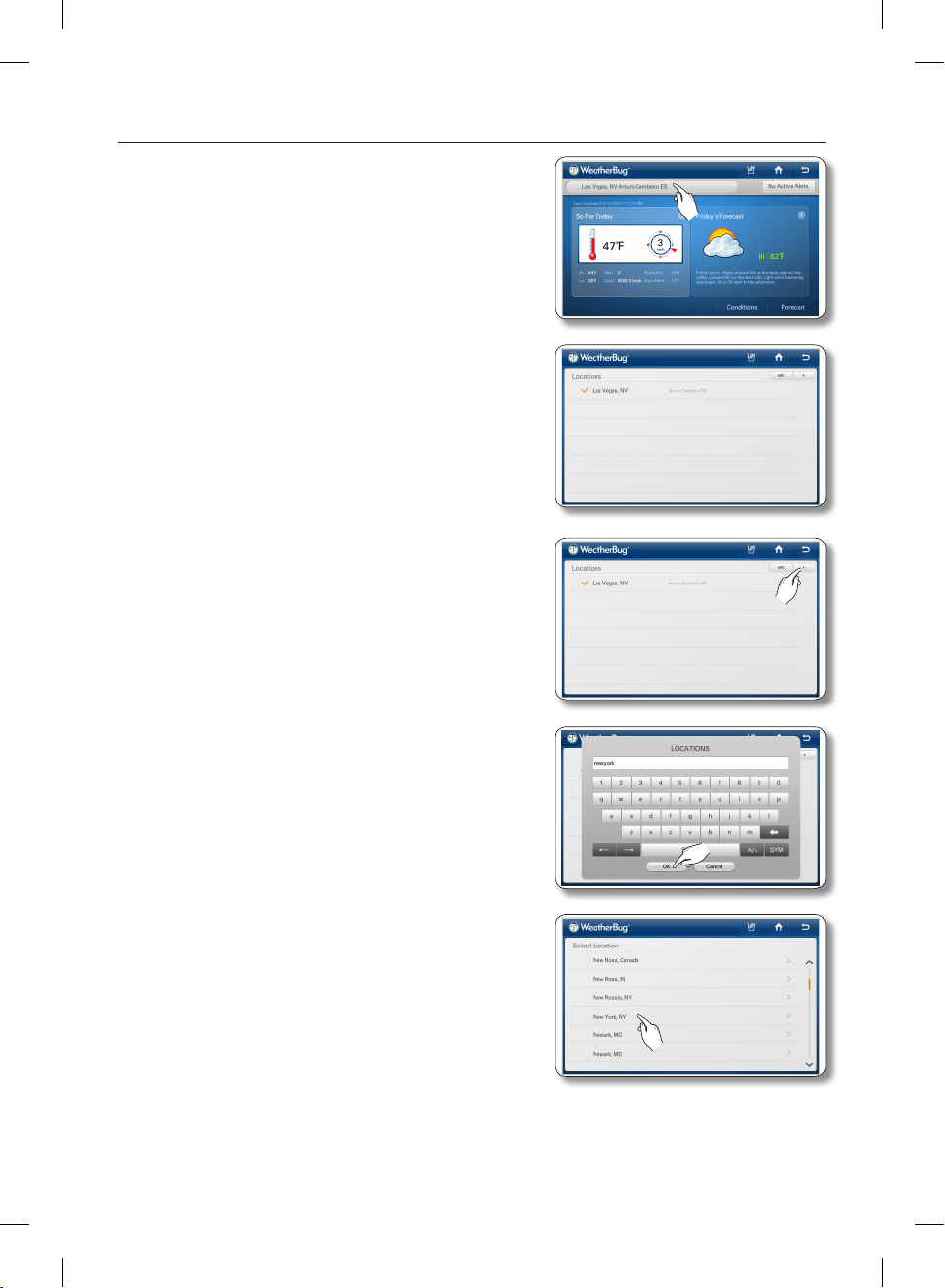
How to add other Regions to Weatherbug
1. Select the region search bar on the top left of the screen.
2. The current region information appears on the screen.
3. Select the [+] button in the upper right corner of the
screen.
4. Enter the location name or zipcode (US Only) using the
on-screen keyboard, and then press the [OK] button.
5. Select the desired location.
DA68-02500B-13.indb 58 13. 12. 4. �� 7:12
English - 59
02 OPERATING
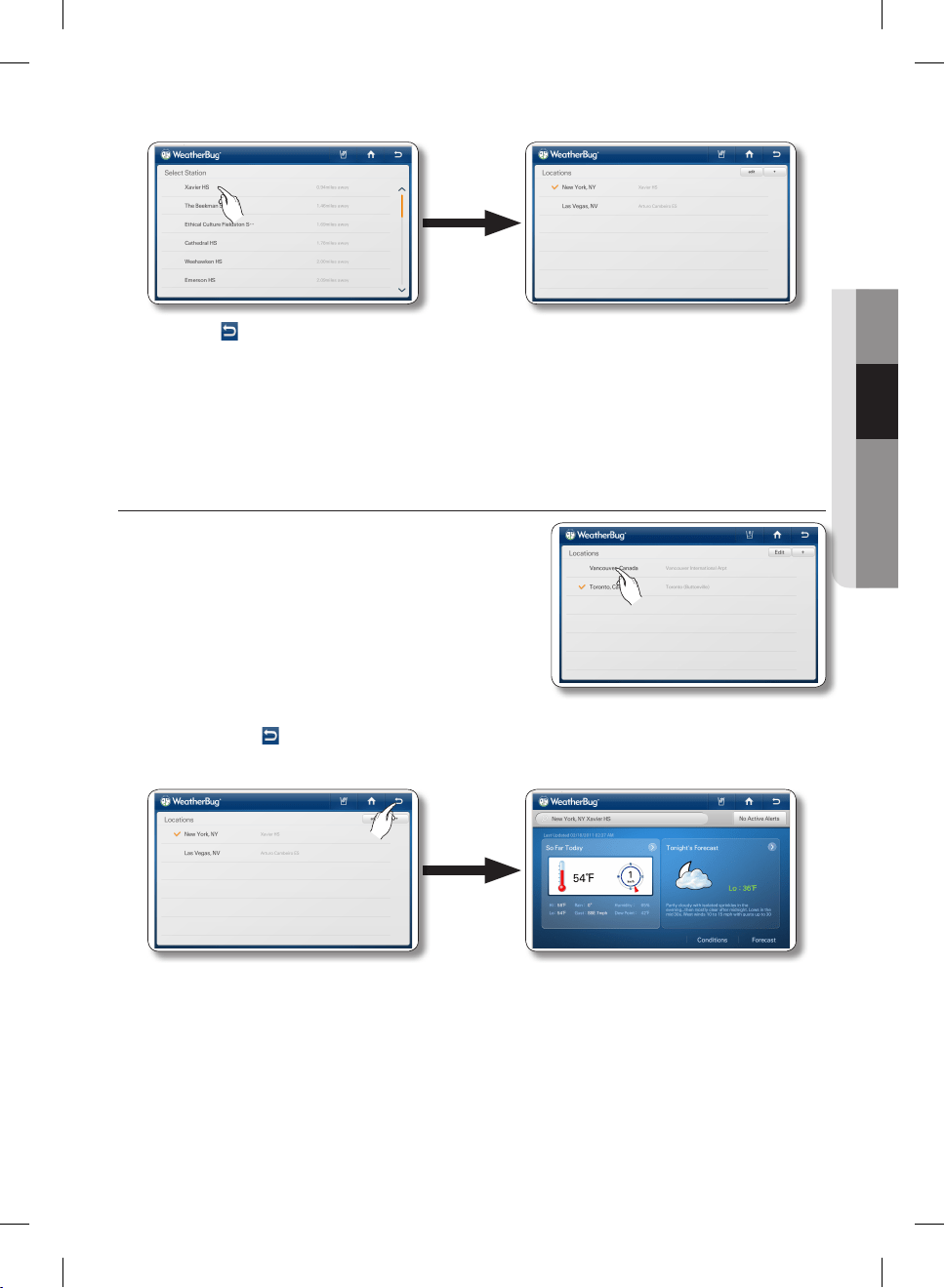
6. Select the desired local weather station.
7. Press the button on the top right of the screen.
8. The screen displays the weather for the location you selected.
How to view Weather Information for a Region
1. Select the desired location on the location list.
2. Press the back( ) button in the upper right corner.
The screen displays the weather for the location you selected.
DA68-02500B-13.indb 59 13. 12. 4. �� 7:12
English - 60
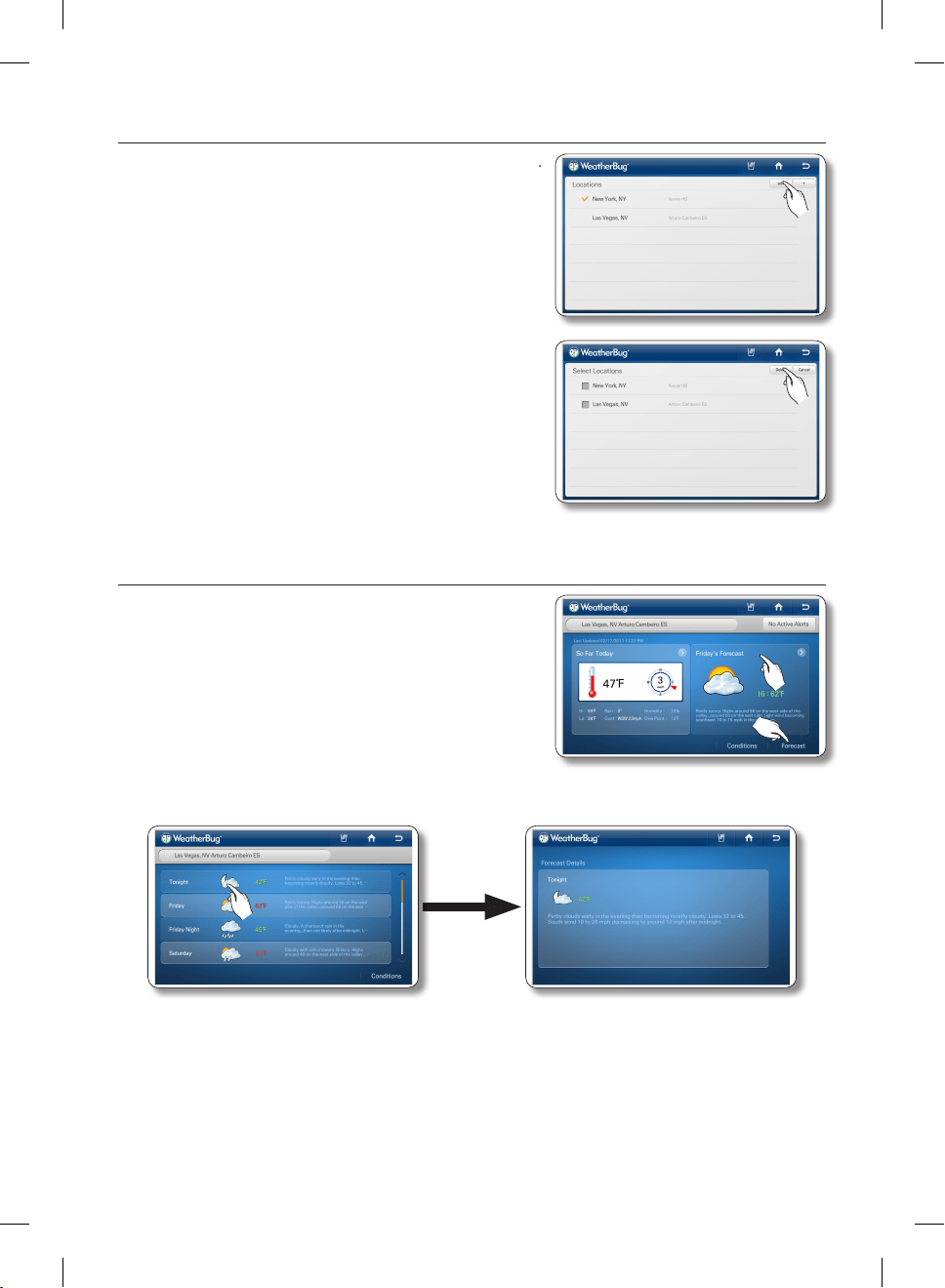
How to delete Regions from Weatherbug
1. Select the [edit] button in the upper right corner of screen.
2. Select the check box on the left of the location you want
to delete, and then then select the Delete button.
How to view weather forecasts.
1. Select the [Forecast] button or Tonight’s Forecast.
2. Select the desired forecast on the forecast list. The screen displays detailed forecast information.
• The forecast screen lists weather forecasts for 7 days.
• It shows the day, the Day / Night (US weather only), the weather condition icon, the
temperature and the weather description.
• If you select the [Conditions] button on the lower right, the screen displays the current weather
information.
DA68-02500B-13.indb 60 13. 12. 4. �� 7:12
English - 61
02 OPERATING
AP NEWS
The internet news service provides current news in up to 11 categories.
• This function is only available when the refrigerator is connected to your wireless network
(Wi-Fi).
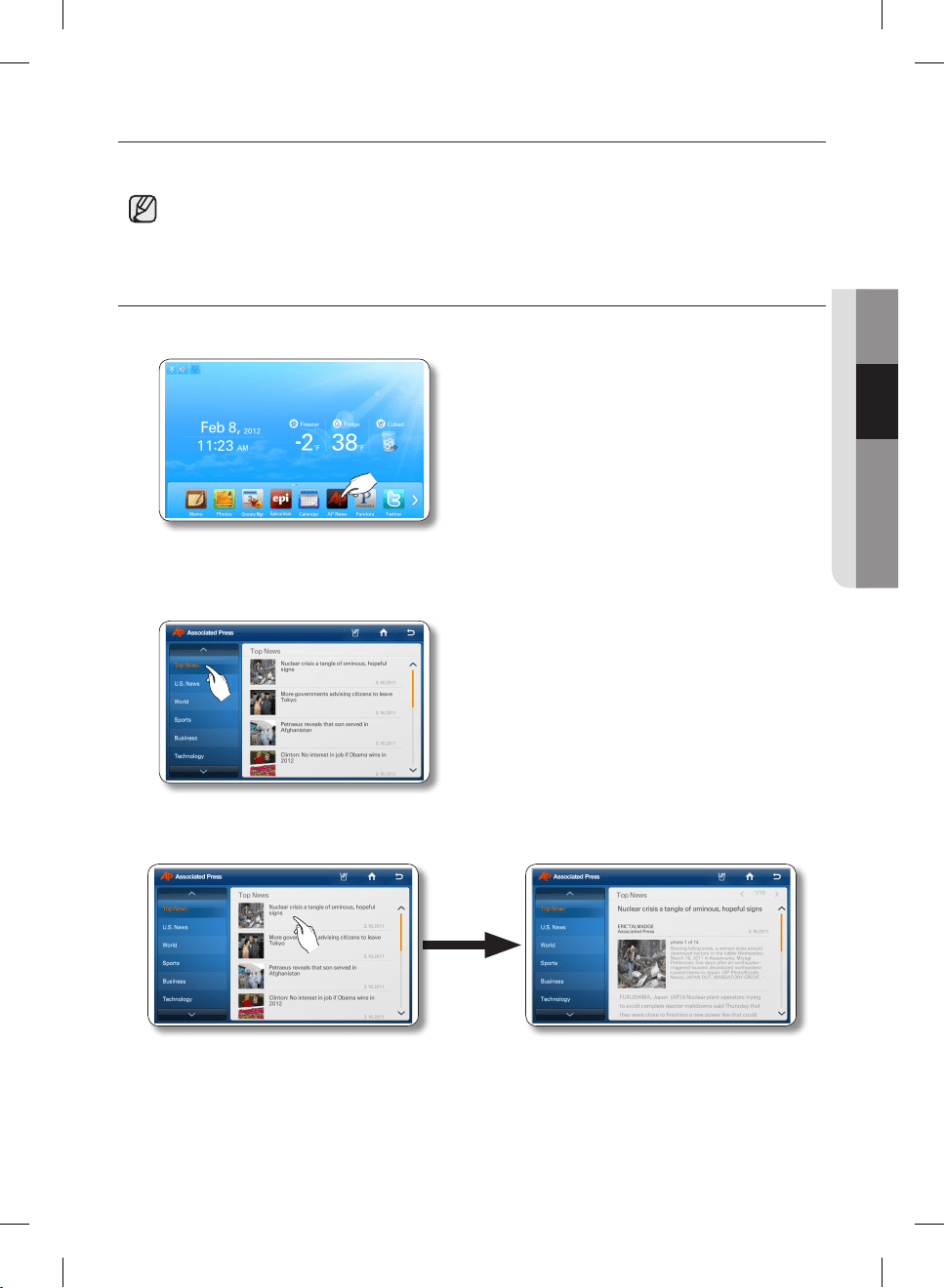
How to view news from AP News.
1. Select the [Ap News] button on the Home screen.
2. Select a news category.
• When you select a category on the left, the screen displays the major news for that category.
3. Select the desired article.
DA68-02500B-13.indb 61 13. 12. 4. �� 7:12
English - 62
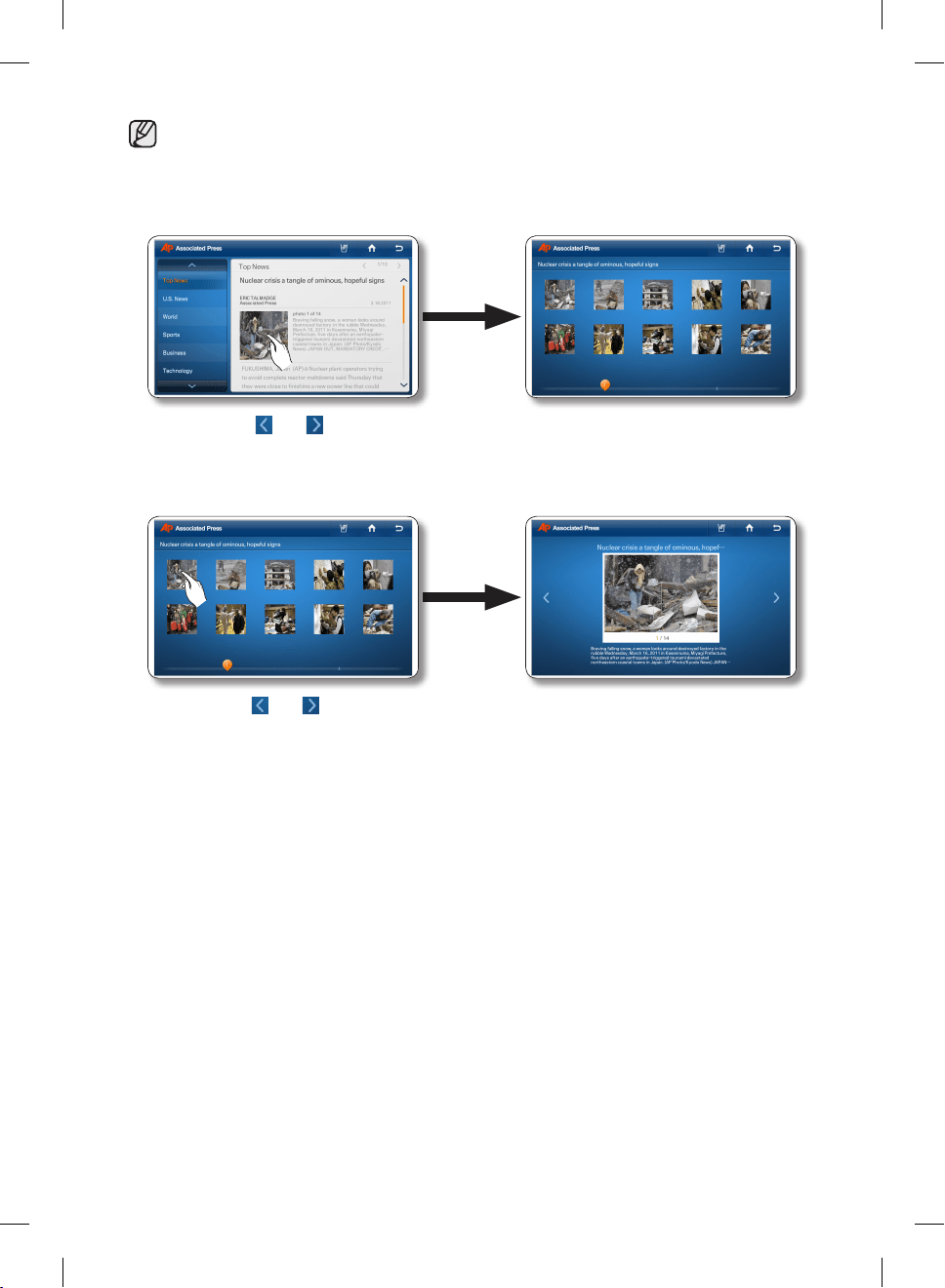
• To see all the photos related to the article, select the main photo in the detail news article.
To view the article in detail, visit http://www.ap.org on your mobile phone or PC.
4. To see all the photos related to the article, select the main photo in the detail news article.
• Select the and buttons on the top right of the article to view other articles.
5. Select a photo to enlarge it.
• Press the and buttons to see other photos in enlarged view.
DA68-02500B-13.indb 62 13. 12. 4. �� 7:12
English - 63
02 OPERATING
PANDORA
• This function is only available when the refrigerator is connected to your wireless network
(Wi-Fi).
• Through the Pandora service, you can enjoy your favorite songs free of charge.
• The song selections are based on the analysis data collected by Pandora’s Music Genome
Project. Your individual song selections - used as feedback - can affect Pandora’s next song
selection.
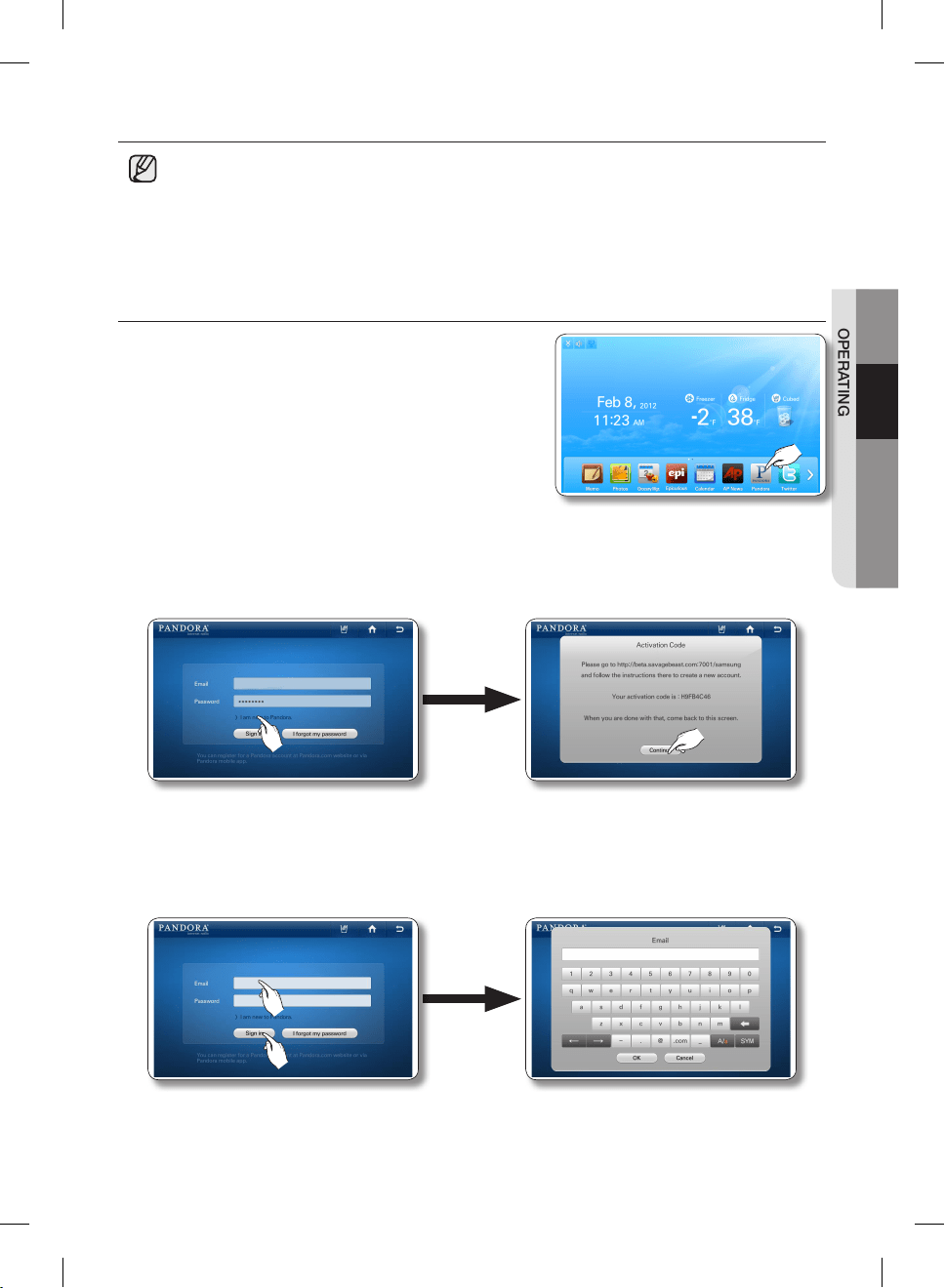
How to Activate and Use Pandora Internet radio.
1. Select the [Pandora] button on the Home screen.
2. Select the ‘ I’m new to Pandora’ text. An Activation Code screen pops up. On your PC, go to the
web site on the pop-up and use the Code to set up and activate your Pandora account.
When done, Select the [Continue] button.
3. Select the Email input box. Enter your Pandora account ID using the on-screen keyboard.
Select the Password input box. Enter your Pandora password using the on-screen keyboard.
• If you do not have a Pandora account, you can create one at http://www.pandora.com.
• In the Email input box, enter your Pandora account ID, for example, [email protected].
DA68-02500B-13.indb 63 13. 12. 4. �� 7:12
English - 64
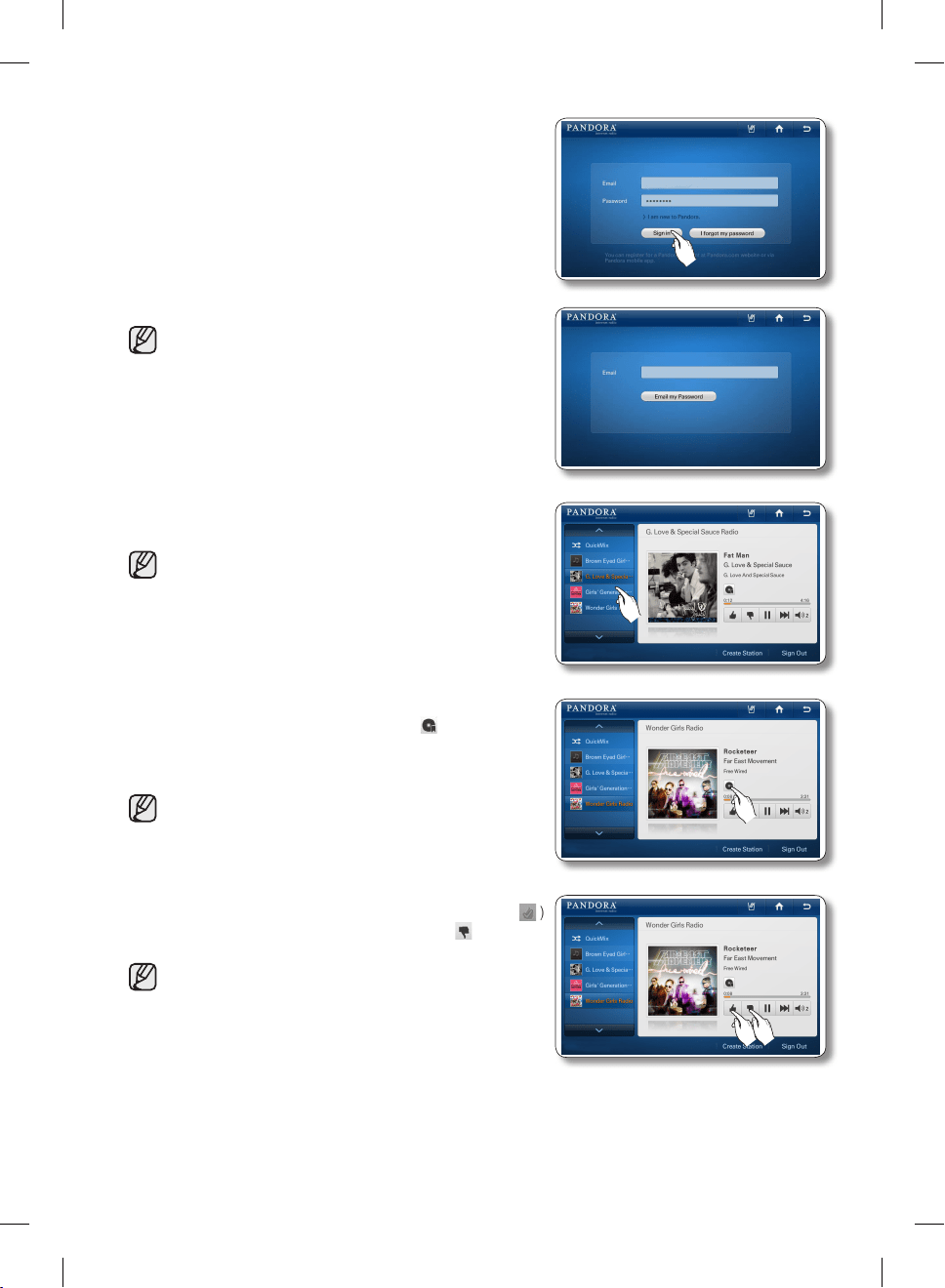
4. Press the [Sign in] button.
• If you forget your password, press the “I forgot my
password” button to get an email with your password
sent to the email address you registered with
Pandora.
5. Select a station from the list on the left.
• Pandora supports up to 100 stations
• You can create stations at www.pandora.com or
through mobile devices that support Pandora.
• If you select other stations, you can to play the
selected songs in those stations.
6. When you select the Bookmark button( ) while playing
a song, the song is to be added to the Song Bookmark
List. You can view this list at the Pandora site.
• By bookmarking favorite songs, you can view the
song list and purchase albums with those songs on
the [Your Profile] page at www.pandora.com.
7. If you like a song that’s playing, select the Thumb Up ( )
button. Otherwise, select the Thumb Down ( )button.
• When you select the Thumb Up button, Pandora
creates a station with songs similar to the song you
approved.
DA68-02500B-13.indb 64 13. 12. 4. �� 7:12
English - 65
02 OPERATING
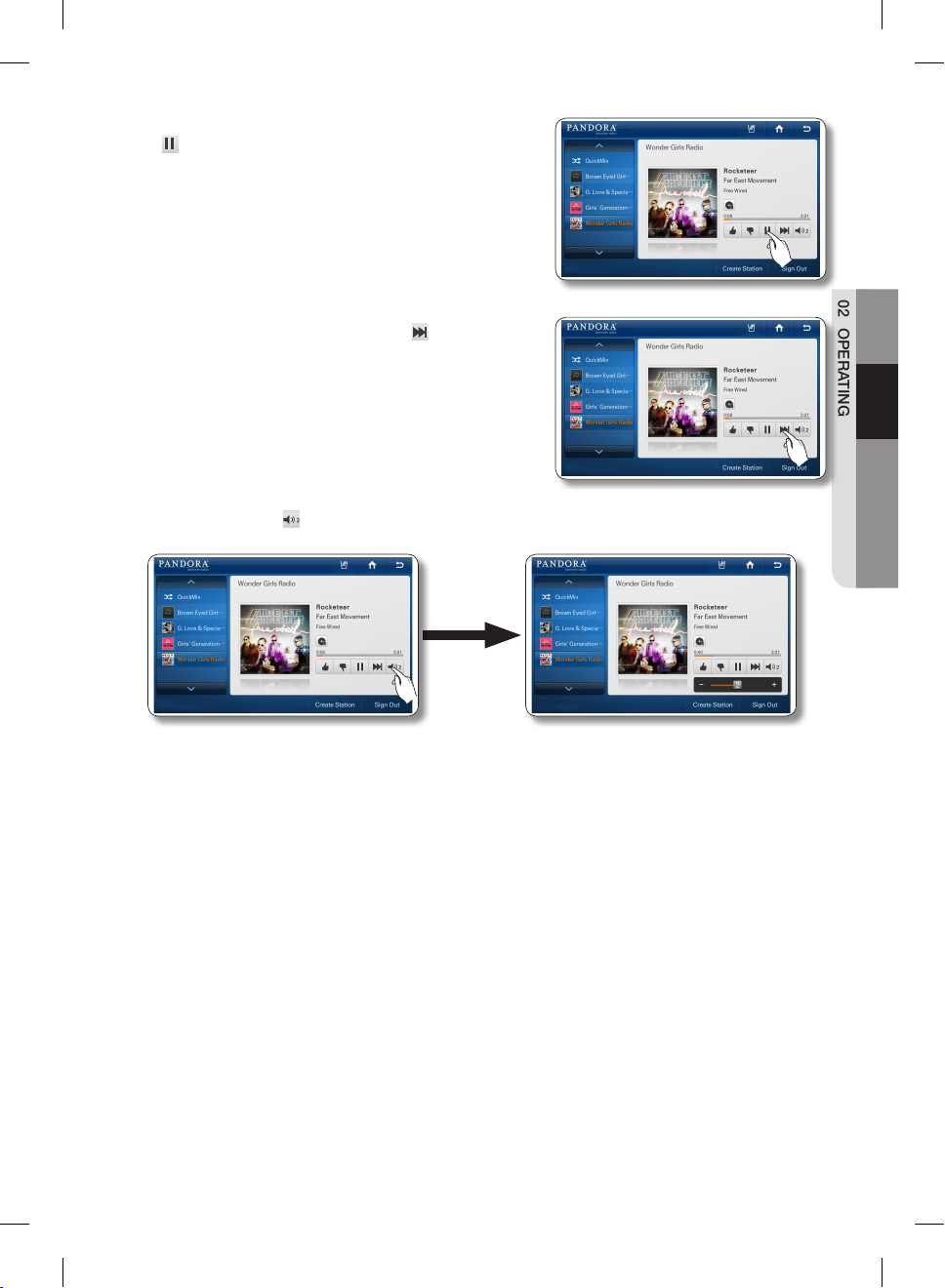
8. To put the currently playing song on hold, press the hold
( ) button.
9. To play the next song, press the Next ( ) button.
• Unfortunately, our music licenses force us to limit the
number of songs you can skip in an hour.
10. Press the speaker ( ) button to adjust the volume.
DA68-02500B-13.indb 65 13. 12. 4. �� 7:12
English - 66
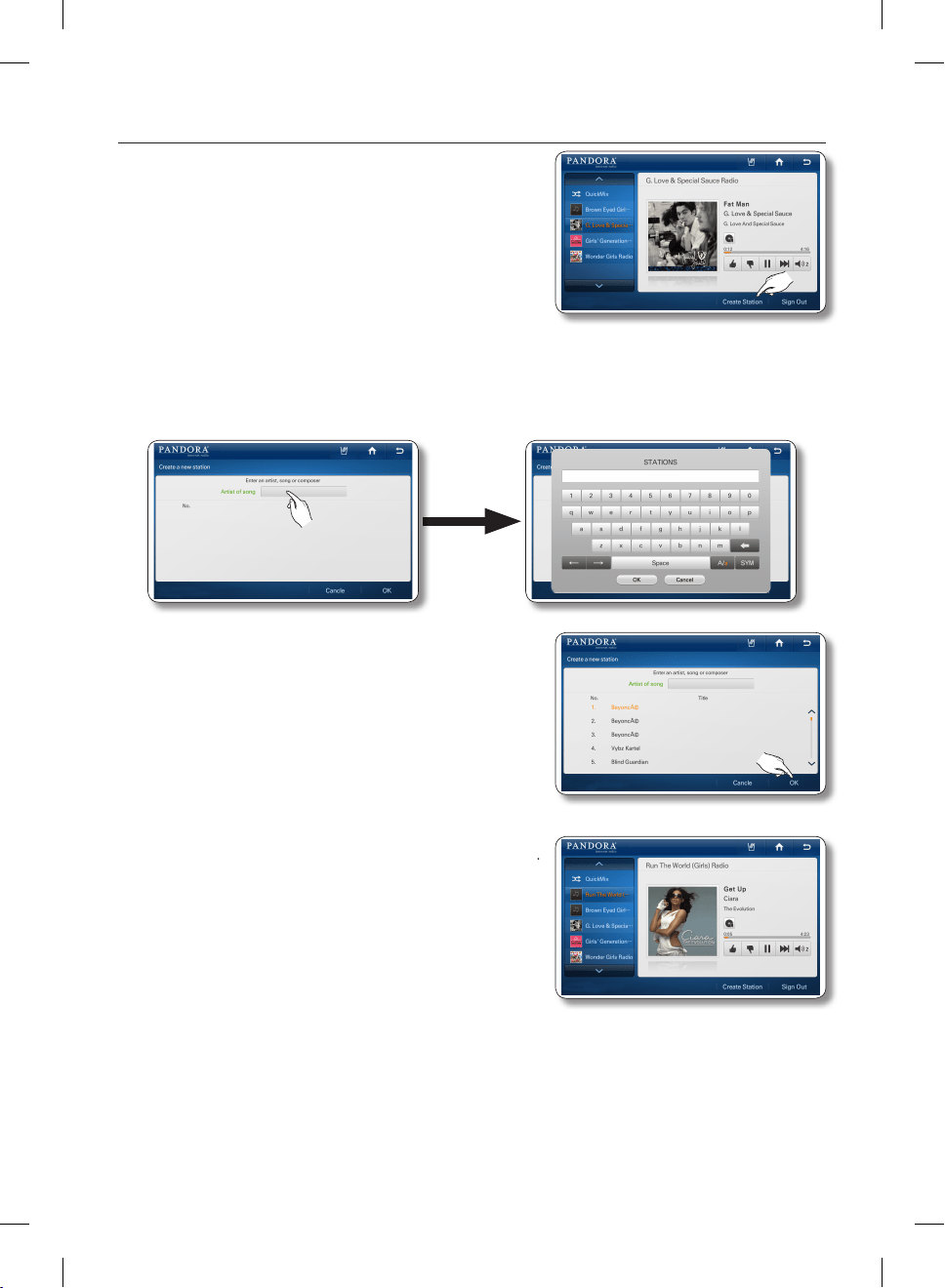
How to Create a Station in Pandora
1. Select the [Create Station] button at the bottom of the
Pandora screen.
2. Select the blank space next to “Artist of Song” to bring up the Keyboard window. Enter the artist’s
name to add a station.
3. After selecting the station you want among the searched
stations, press the [OK] button.
4. Confirm the newly added station on the left of the Screen.
DA68-02500B-13.indb 66 13. 12. 4. �� 7:12
English - 67
02 OPERATING
TWITTER
• This function is only available when the refrigerator is connected to your wireless network
(Wi-Fi).
• You can’t write a tweet while using this function.
How to view Twitter.
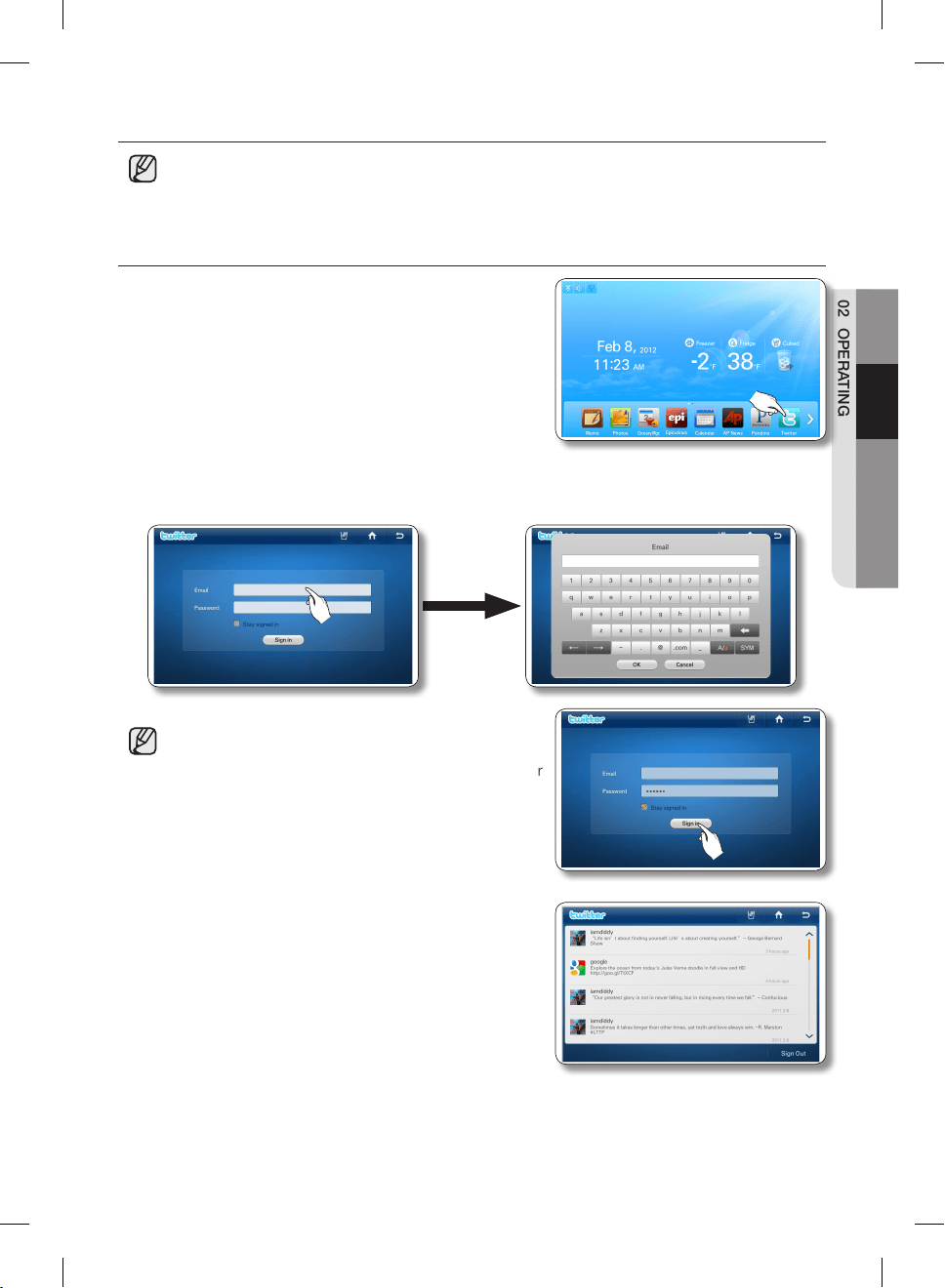
1. Select the [Twitter] button on the Home screen.
2. Select the Email input box. Enter your twitter account ID using the on-screen keyboard. Select the
Password input box. Enter your twitter password using the on-screen keyboard.
3. Press the [Sign in] button.
• If you do not have a twitter account, you can create
one at http://twitter.com.
• In the Email section, enter your Twitter account ID, for
example, [email protected].
• If you select the ‘Stay signed in’ check box, you
do not need to log in each time to enter the Twitter
menu.
• If the system time is not set exactly, login may fail. If
login fails, set the current time correctly at Settings →
Time/Date, and then retry.
4. The Tweet list screen appears. This page displays your
following tweetters up-to-date information including their
photos, comment previews and listed dates.
DA68-02500B-13.indb 67 13. 12. 4. �� 7:12
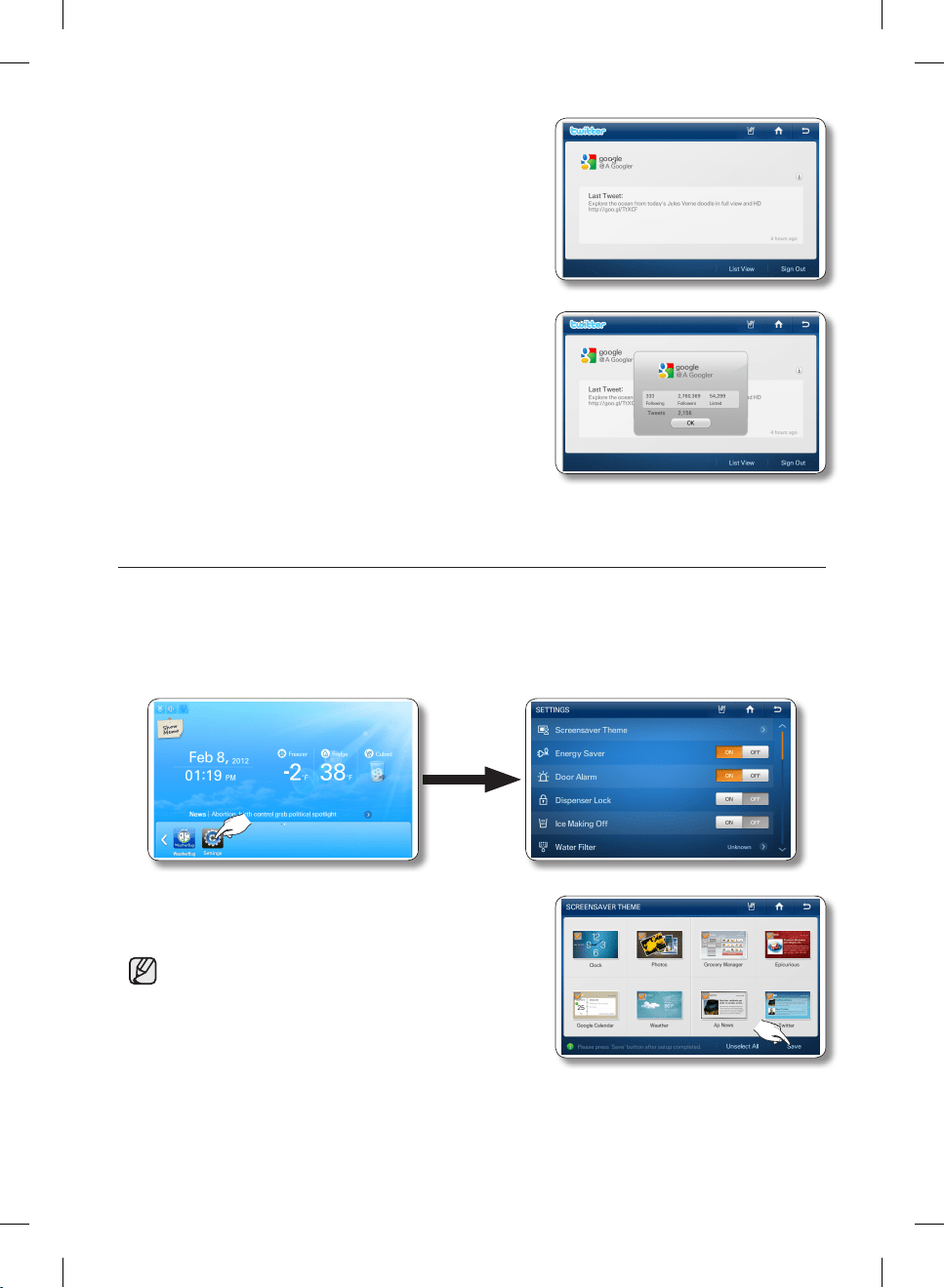
English - 68
5. Press a tweet on the tweet list and you can see the detail
information.
• When selecting the List View on the Detail View
screen, the screen changes to the Twit List.
6. Select the i button on the right of the screen to see detail
information about the follower/followee.
SCREENSAVER THEME
Select the themes for the Display screen screensaver.
1. Select the [Settings] button.
2. Select the [Screensaver Theme] on the Settings list.
3. Select the theme(s) you want to use in the screensaver,
and then press the [Save] button.
• The Clock and Photo themes are the default themes.
You cannot deselect them.
• The themes you select may not display if the data
underlying them is not ready or unavailable.
DA68-02500B-13.indb 68 13. 12. 4. �� 7:12
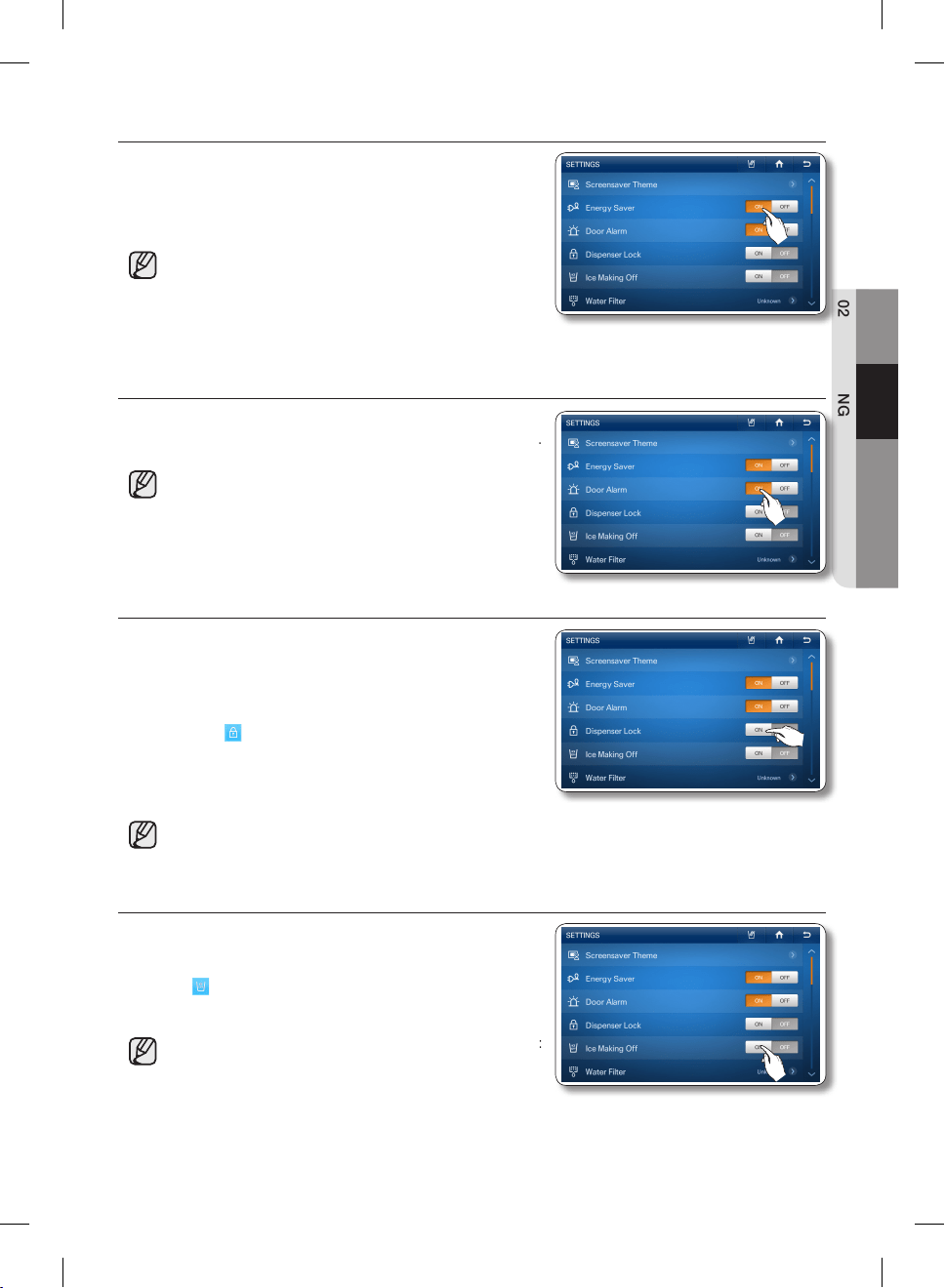
English - 69
02 OPERATING
ENERGY SAVER
Turns the Energy Saver function on and off. When the Energy
Saver is on, the power consumption decreases.
1. Select the Energy Saver ON or OFF buttons on the
Settings list.
• The Energy Saver function is pre-set to ON in the
factory.
• If condensation or water drops appear on the doors,
turn the Energy Saver mode off.
DOOR ALARM
Turns the Door Alarm on and off.
1.
Select the Door Alarm ON or OFF buttons on the Settings list.
• If the door alarm is set to ON, an alarm beeps if any
door is left open for more than two minutes.
• The beeping stops when you close the door. The
door alarm function is pre-set to ON in the factory.
DISPENSER LOCK
When you activate the Dispenser Lock function, the dispenser
will not work.
1. Select the Dispenser Lock ON or OFF buttons on the
Settings list.
• If you select the Dispenser Lock ON button, the Lock
icon ( ) appears in the upper left corner of the
Home screen.
• When the Dispenser Lock is ON, only the dispenser
does not work.
• If you suddenly can not use the dispenser, check whether the Dispenser Lock function is on.
ICE MAKING OFF
1. Select the [Ice Making Off] ON or OFF button on the
Settings list.
• When the Ice Off is set, the Ice Off indicator icon
( ) appears on the top left of the Home screen.
• Pressing the [ON] button turns Ice Making Off.
• We recommend you stop ice making if the following occur:
- There is enough ice in the ice bucket.
- You want to save water and energy.
- Water is not being supplied to the refrigerator.
• If the ice maker function is ON, and the water line is not connected, there will be a water valve
noise from back of the unit. Touch the Ice making Off ON button in the settings list to turn the
ice maker off.
DA68-02500B-13.indb 69 13. 12. 4. �� 7:12
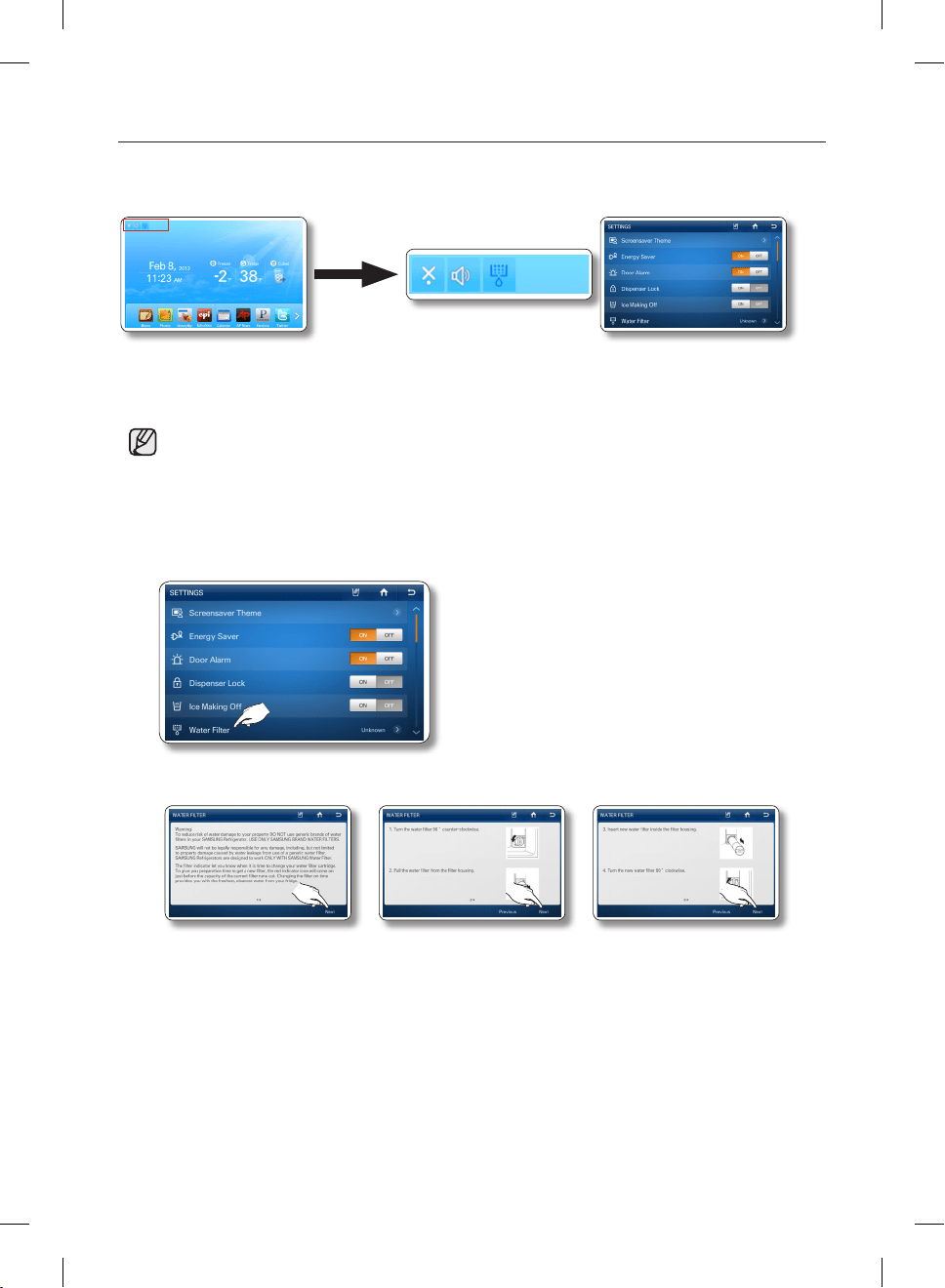
English - 70
WATER FILTER
The Water Filter status icon on the Home screen enables you to check the current status of the water
filter. Follow the instructions below to check and/or replace the water filter.
1. Check the water filter status in the Settings list or indicator icons on the upper left of Home screen.
• Good (Blue) : The filter does not need replacement. It is normal.
• Order (Pink) : The filter needs replacement. Order a new filter.
• Replace (Red) : The filter needs replacement immediately.
2. If the status reads “Order” or “Replace,” select the Water Filter on the Settings list to access the
replacement instructions.
3. Follow instructions in the Water Filter replacement guide to replace the Water Filter.
• Press the [Next] button to move to the next page of the instructions.
DA68-02500B-13.indb 70 13. 12. 4. �� 7:12
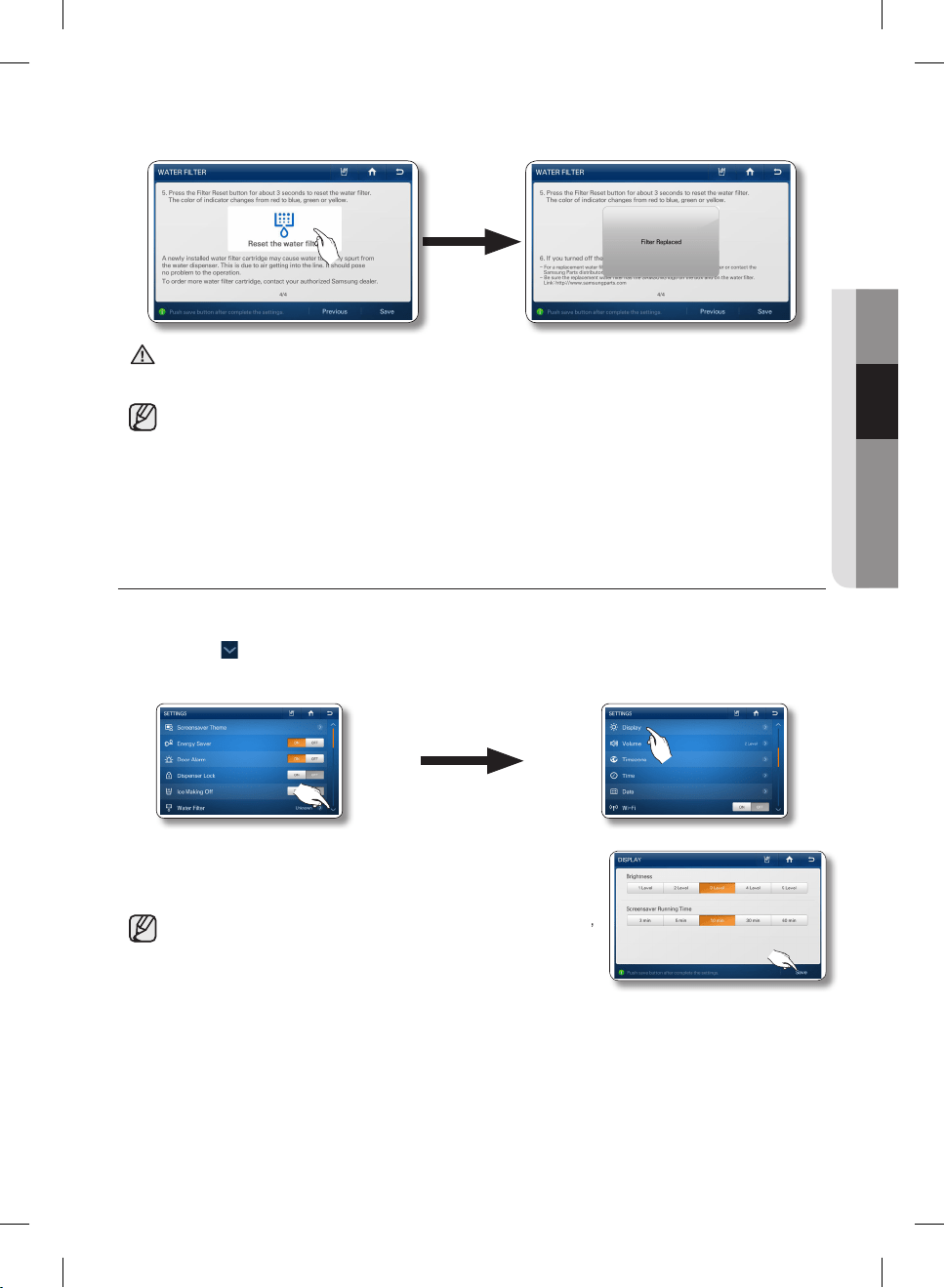
English - 71
02 OPERATING
4. When the replacement is done, press and hold ‘Reset the water filter’ at the center of the screen for
3 or more seconds to reset the water filter indicator.
DO NOT use the water or ice dispenser without a water filter cartridge. You can block the water
line or damage the dispenser.
• Be sure to flush the dispenser thoroughly to prevent the dispenser from dripping.
If water drips from the dispenser, it means that there is still air in the line.
• For a replacement water filter, visit your local home improvement center or Samsung’s official
on-line parts distributor at http://www.samsungparts.com.
Be sure the replacement water filter has the SAMSUNG logo on the box and on the water filter.
DISPLAY
Lets you set the brightness of the LCD and the running time of the Screensaver.
1. Press the button in the right bottom corner of the Settings list.
2. Select [Display] in the Setting list.
3. Select the Brightness level and/or Screensaver Running Time you
want, and then press the [Save] button.
• After 60 seconds, the Screen Saver runs for the time you set,
then the LCD panel turns off.
CAUTION
DA68-02500B-13.indb 71 13. 12. 4. �� 7:12
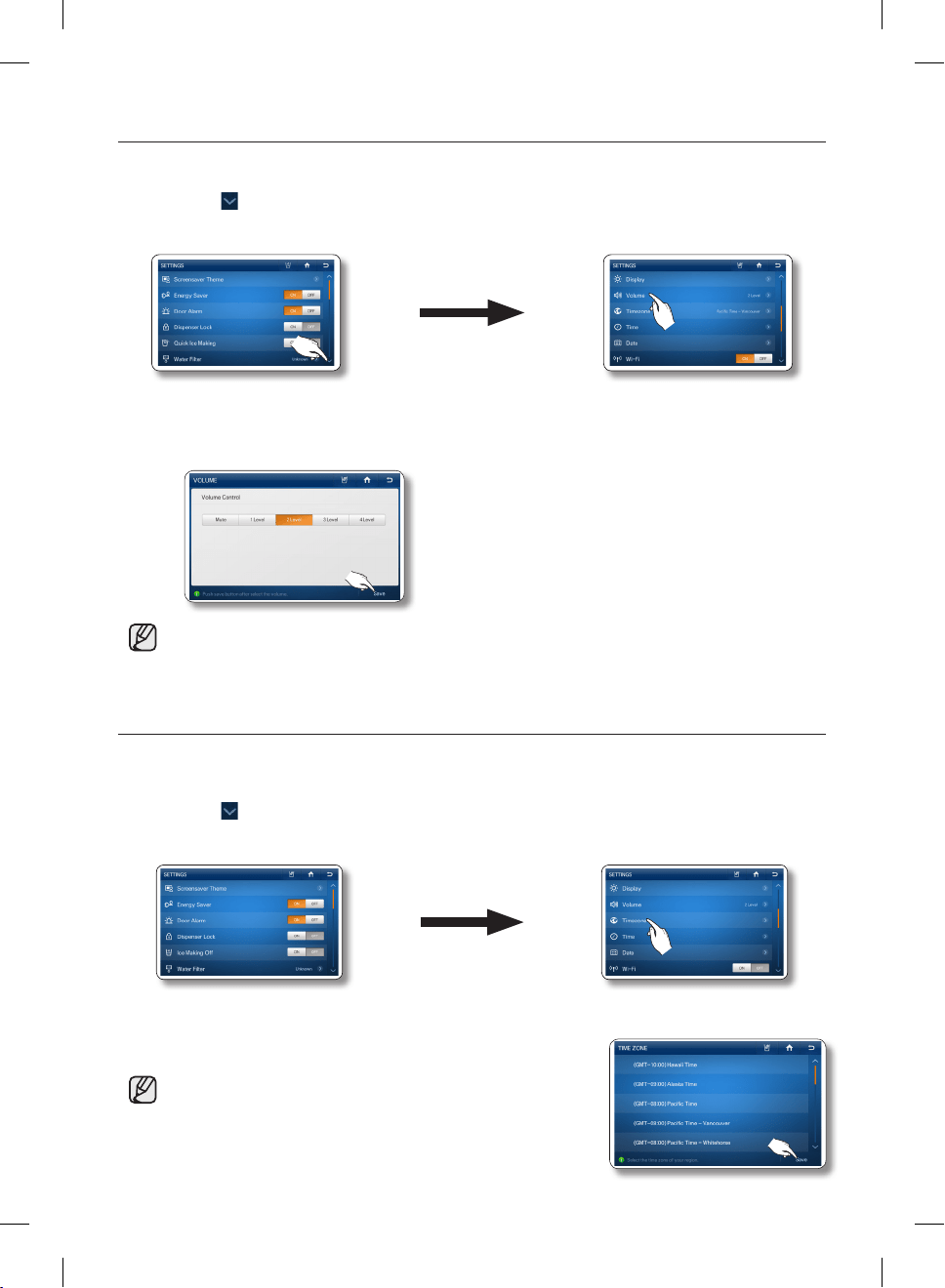
English - 72
VOLUME
Lets you control the volume of the alert sounds.
1. Press the button in the bottom right corner of the Settings list.
2. Select [Volume] in the Settings list.
3. Select a volume level button to change the alert sound level.
4. Press the [Save] button to set the new volume level.
• An alert sounds whenever a button is touched or a message window or menu list appears.
TIMEZONE
You must select your time zone to use Google Calendar and the Twitter service correctly.
To select your time zone, follow these steps:
1. Press the button in the bottom right corner of the Settings list.
The Time Zone Setting screen appears.
2. Select [Timezone] in the Setting list.
3. To save the new time zone, press the [Save] button.
• The Time Zone Setting screen may appear again
automatically after a software update.
DA68-02500B-13.indb 72 13. 12. 4. �� 7:12
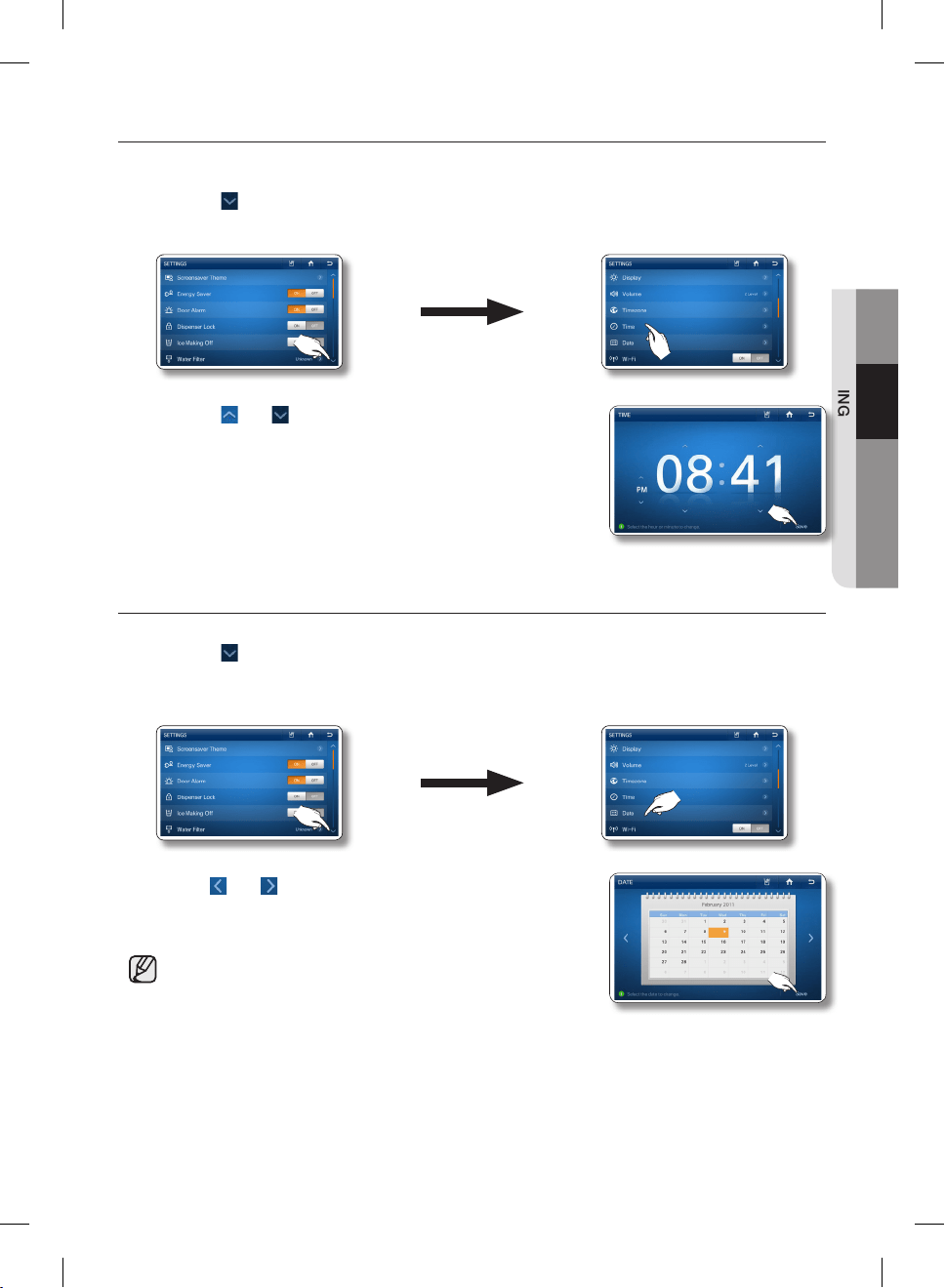
English - 73
02 OPERATING
TIME SETTING
Lets you set the current time.
1. Press the button in the bottom right corner of the Settings list.
2. Select [Time] in the Settings list.
3. Press the and buttons to revise the time settings, and then
press the [Save] button.
• If the current time is incorrect, you may not be able to use
twitter.
DATE SETTING
Lets you can set the current date.
1. Press the button in the bottom right corner of the Settings list.
2. Select [Date] in the Settings list.
3. Use the and buttons to revise the month.
4. Select the desired day, and then press the [Save] button.
• If the current date is incorrect, you may not be able to use
twitter.
DA68-02500B-13.indb 73 13. 12. 4. �� 7:12
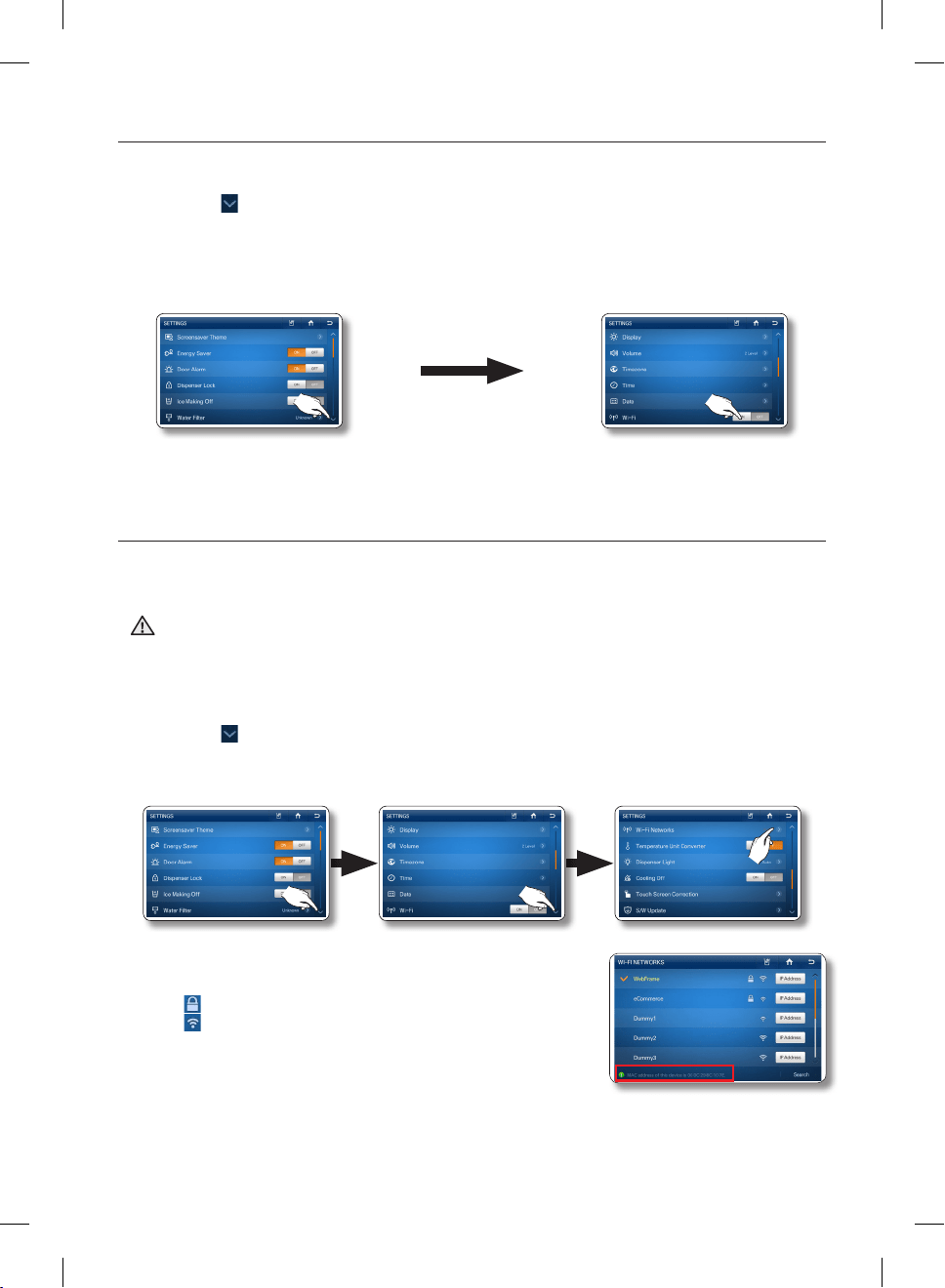
English - 74
WI-FI
Lets you turn the refrigerator’s connection to your wireless network on and off.
1. Press the button in the right bottom corner of the Settings list.
2. Select [Wi-Fi] in the Settings list.
3. Select ON or OFF.
WI-FI NETWORKS
When you set Wi-Fi ON, (see above) the refrigerator’s wireless network function searches for a wireless
AP to connect to.
• In addion to the router installed in your home, your refrigerator can detect other wireless routers
installed in nearby houses or offices while connecting to your wireless network. It is illegal to use
another’s router without permission and can be subject to severe penalties. Consequently, you
should connect the refrigerator only to your own wireless router or to routers for which you have
permission.
1. Press the button in the bottom right corner of the Settings list.
2. Select [Wi-Fi Networks] in the Settings list.
3. Select the wireless AP you want to connect to.
• : Locked with Security Code
• : Signal Strength
• You can check the MAC address of the Fridge on the bottom
of the Screen.
CAUTION
DA68-02500B-13.indb 74 13. 12. 4. �� 7:12
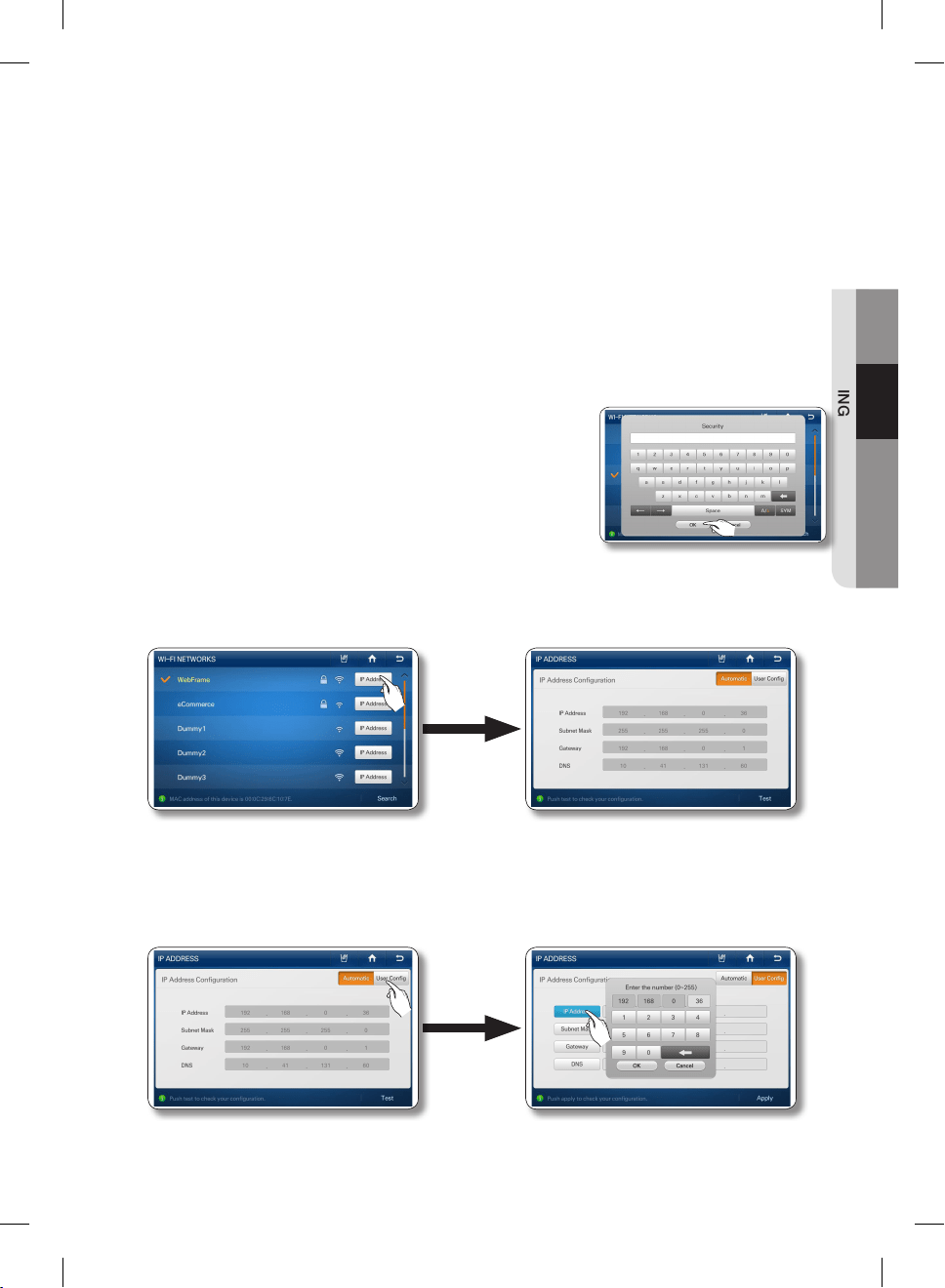
English - 75
02 OPERATING
• If there are no APs showing on the screen, press the [Search] menu at the bottom.
• Depending on the wireless AP type, the refrigerator may not make a connection. We
recommended you use a wireless AP that supports IEEE802.11b/g/n.
• If you don’t have a wireless router, please contact your internet provider or purchase and install
one yourself.
• If you can’t remember the name of your wireless network system (SSID) or its security code,
please see the user manual of your router.
• Radio frequency signals can interfere with any the wireless network system and they may affect
the network performance of your refrigerator.
• Obstacles such as concrete walls and metallic doors and radio and microwave interference
from devices such as microwave ovens can affect the operation of your wireless network
system.
• Depending on the type and location of your wireless network system and the surrounding
environment, the range and quality of your wireless network may vary.
4. If your wireless network has a security code enter the security
code, and then press the [OK] button. In most cases, after
you have entered the security code, the refrigerator acquires
the Network addresses it needs (IP Address, Subnet Mask,
Gateway, and DNS) to connect to the network. If it does not or
you need to enter these values manually, go to Step 6.
5. After the refrigerator has connected to your network, you can select the [IP Address] button on the
Wi-Fi Networks screen to view the current IP address and Gateway values.
6. If you need to enter the IP Address, Subnet Mask, Gateway, and DNS manually, press the [User
Config] button on the IP Address screen. Then, select the [IP Address], [Subnet Mask], [Gateway],
and [DNS] buttons in turn and, using the keypad, enter the appropriate values. When you are done
with each entry, press the [OK] button on the keypad.
DA68-02500B-13.indb 75 13. 12. 4. �� 7:12
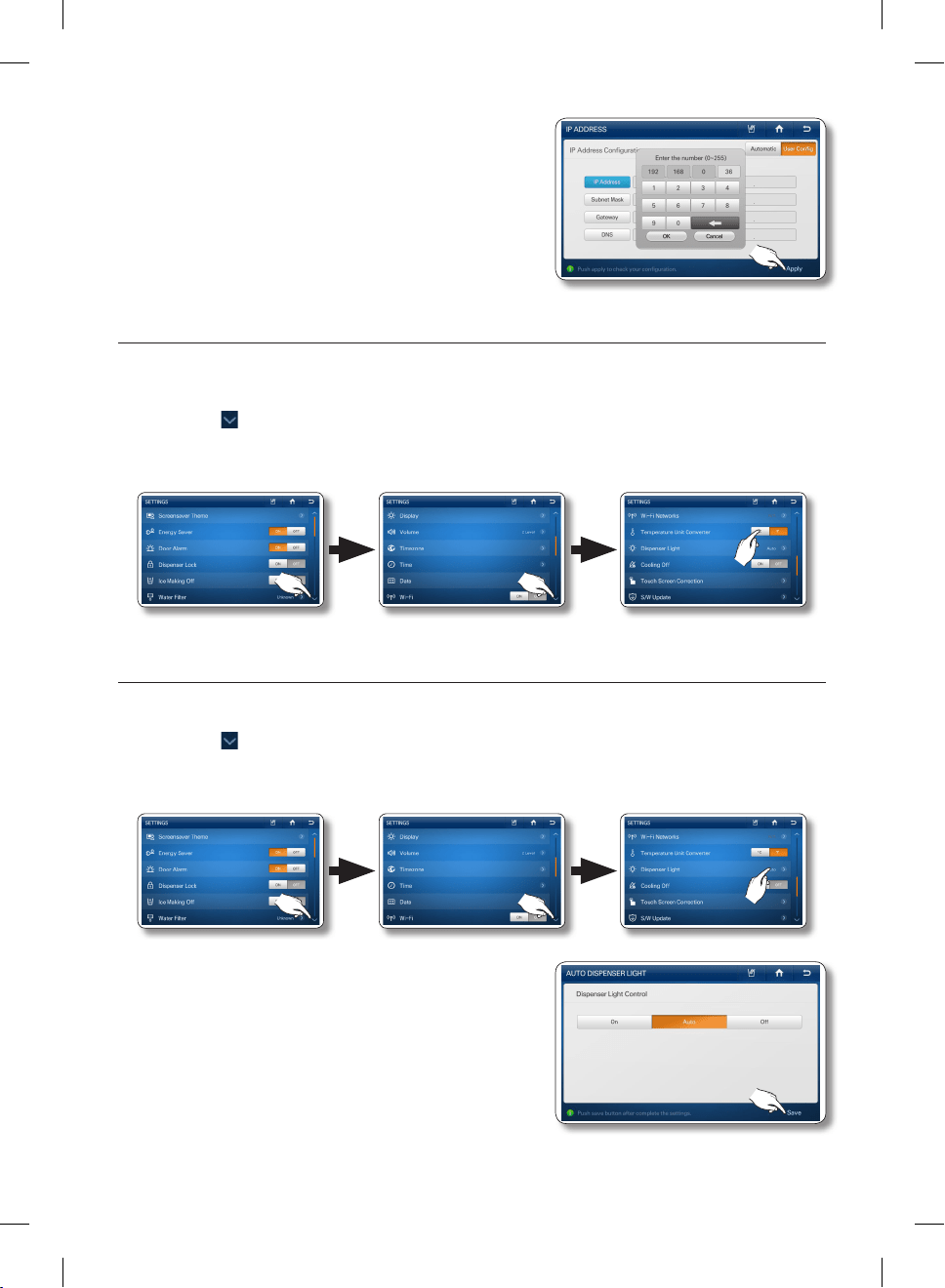
English - 76
7. After entering the values for all four parameters, press the
[Apply] button.
TEMPERATURE UNIT CONVERTER
Lets you set the temperature display to Fahrenheit or Centigrade. The unit you select applies to the
Freezer / Fridge set temperature and the temperature displayed by the Weather function.
1. Press the button in the bottom right corner of the Settings list.
2. Select the Temperature Unit Converter °C or °F button in the Settings list.
DISPENSER LIGHT
Lets you set the operation of the dispenser lamp light.
1. Press the button in the bottom right corner of the Settings list.
2. Select [Dispenser Light] in the Settings list.
3. Select the desired dispenser light status, and then press
the [Save] button.
• On : The Dispenser lamp is always on.
• Auto : The Dispenser lamp lights up when you use
the Dispenser. When you release the Dispenser lever,
the light goes off in 5 seconds.
• Off : The Dispenser lamp does not light up when you
use the Dispenser.
DA68-02500B-13.indb 76 13. 12. 4. �� 7:12
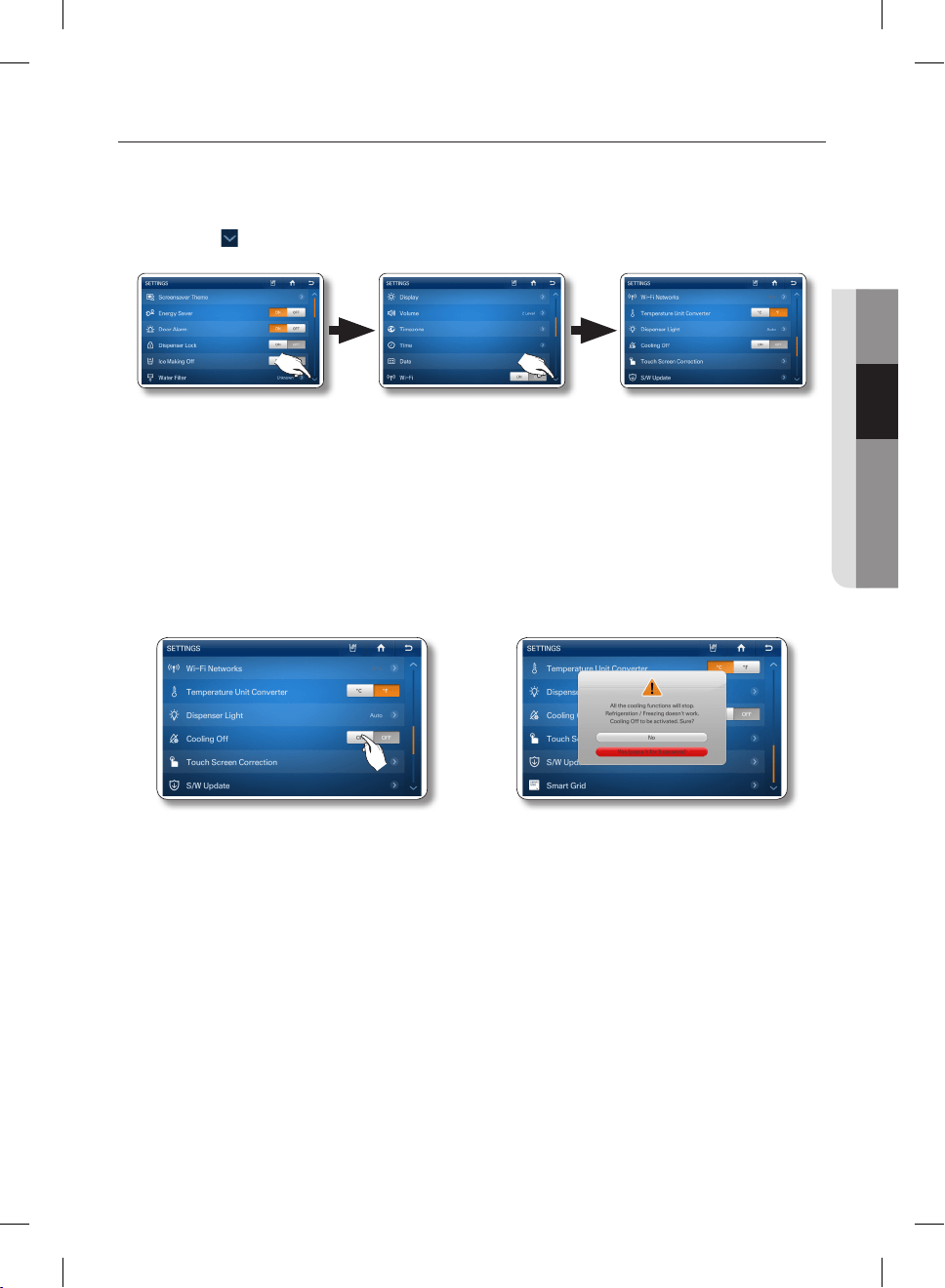
English - 77
02 OPERATING
COOLING OFF
The cooling off function shuts off the cooling mechanism in freezer and fridge compartments, but does
not shut off the electrical power to the refrigerator.
This function is only used to demo refrigerator models on showroom floors.
1. Press the button in the bottom right corner of the Settings list.
2. Select the Cooling Off ON or OFF button in the settings list.
• If you select the Cooling Off ON button, the Home screen will displays “OFF” on the freezer/
fridge temperatures and the refrigerator comselector functions will be deactivated.
(The refrigerator and freezer do not get cold.)
3. If you select the [ON] button, the message window below appears.
4. Press the [Yes] button for more than 3 seconds to confirm.
DA68-02500B-13.indb 77 13. 12. 4. �� 7:12
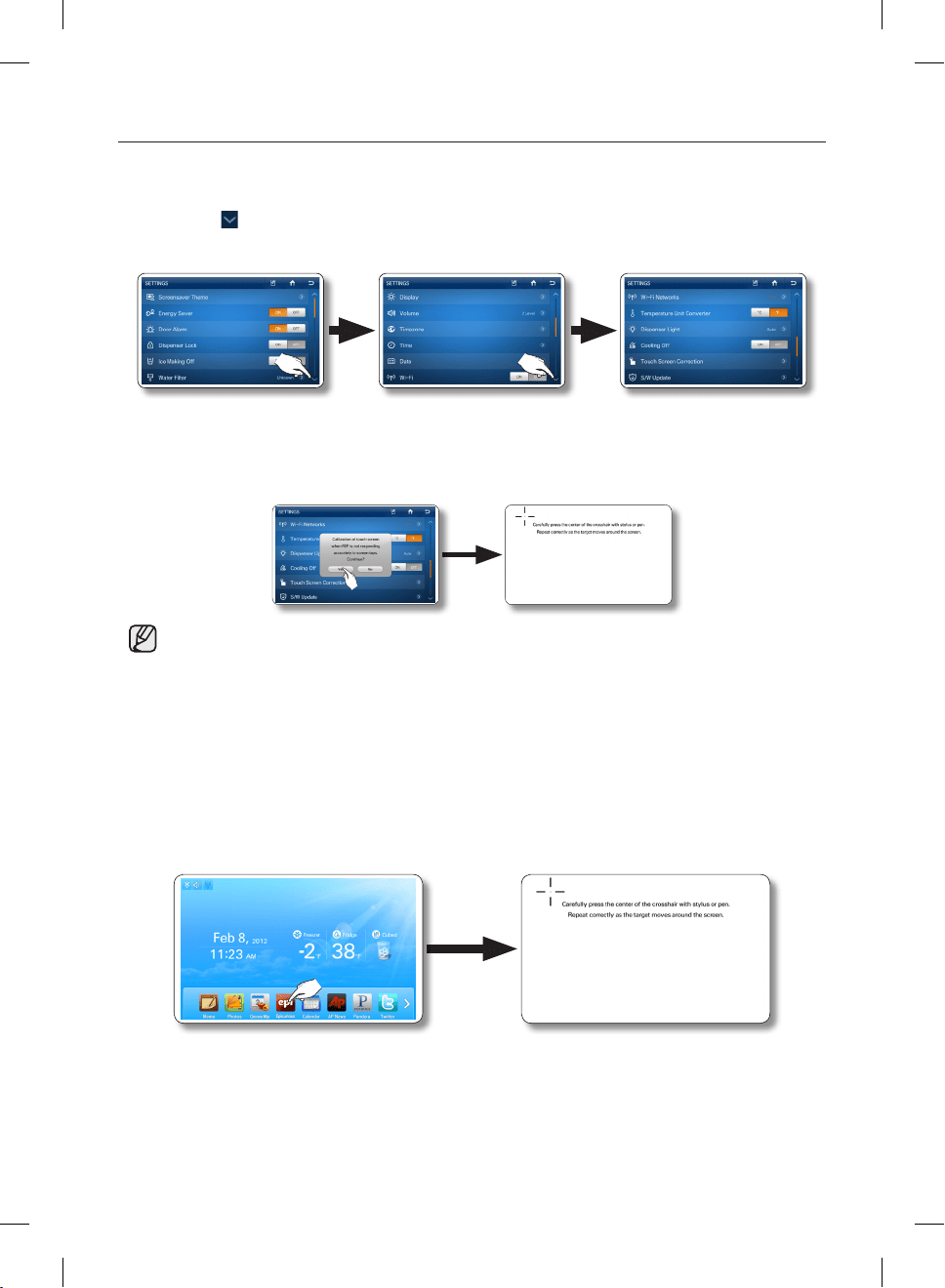
English - 78
TOUCH SCREEN CORRECTION
You can calibrate the stylus touch point to best meet your needs.
To adjust the stylus touch point on the touch screen:
1. Press the button in the right bottom corner of the Settings list.
2. Select [Touch Screen Correction] in the Settings list.
3. Select the [Yes] button. A screen appears with pointer instructions on the top.
4. Press down lightly on the center of the “+” mark. Repeat as the “+” mark moves across the screen.
• If you do not press the center of the [+] properly, the cross mark appears repeatedly.
If you cannot run the Touch Screen Correction function in Settings because the touch screen input point
is incorrect:
1. Press and hold the Epicurious icon on the home screen for 5 seconds.
This will launch the select screen calibration function.
2. The screen will display a series of cross icons.
Press the exact center of each cross icon as it appears on the screen.
DA68-02500B-13.indb 78 13. 12. 4. �� 7:12
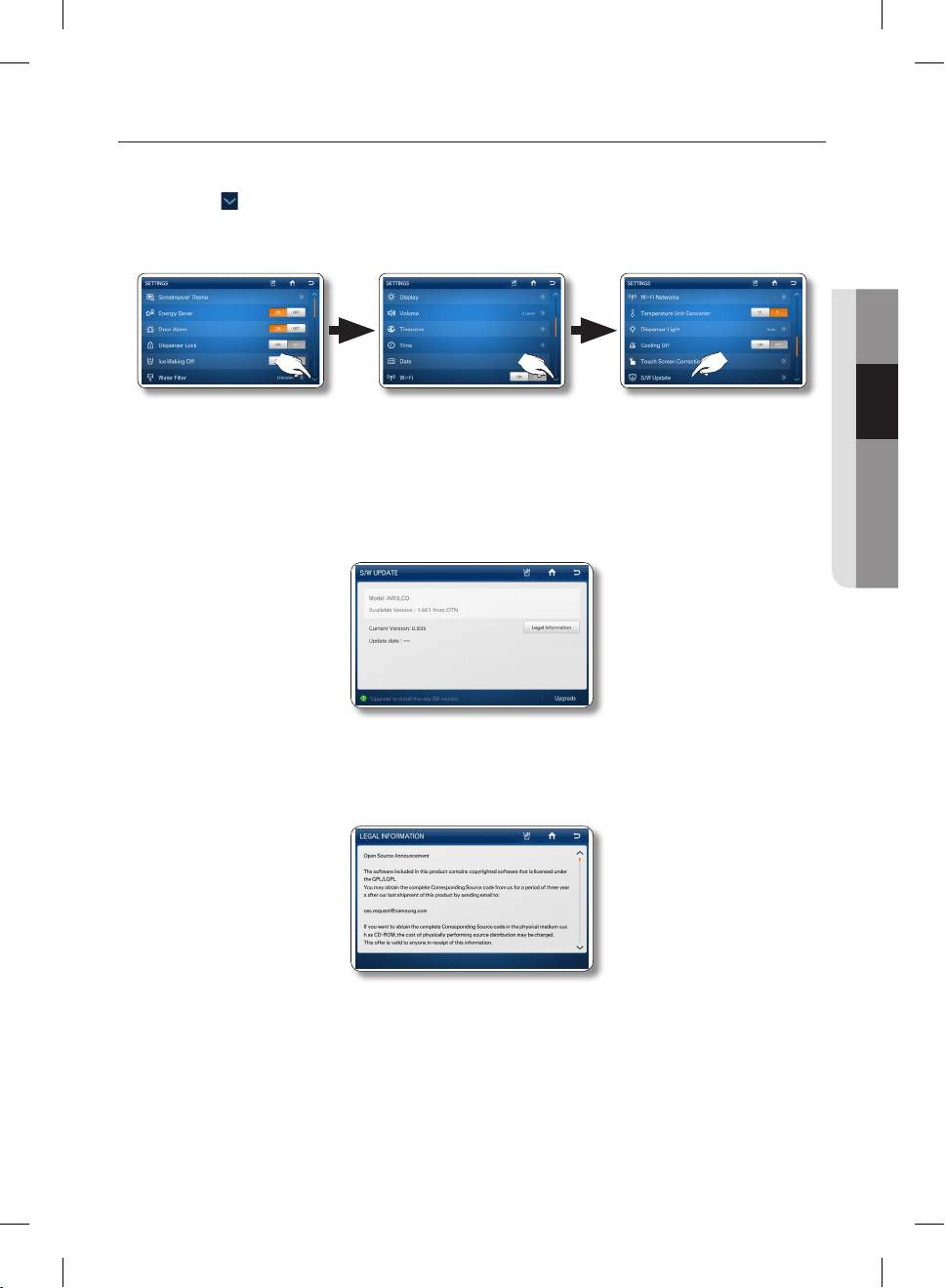
English - 79
02 OPERATING
S/W UPDATE
Lets you check the current software version and update it to new software when available.
1. Press the button in the bottom right corner of the Settings list.
2. Select [S/W Update] in the Settings list.
• The software update is provided through the wireless network.
When updated software is available, the [Upgarde] button on the bottom right corner of the
screen is activated.
When you press the [Upgrade] button, the upgraded starts almost immediately (in about 10
seconds). When the update is complete, “Upgrade completed.” message appear on the screen
and then press the [Reboot] button in the “Upgrade completed.” message.
• Open Source License Notice - This product uses open source software.
The Open Source Licenses are available on the product menu.
Press [Legal Information] button to see the detail information.
DA68-02500B-13.indb 79 13. 12. 4. �� 7:12
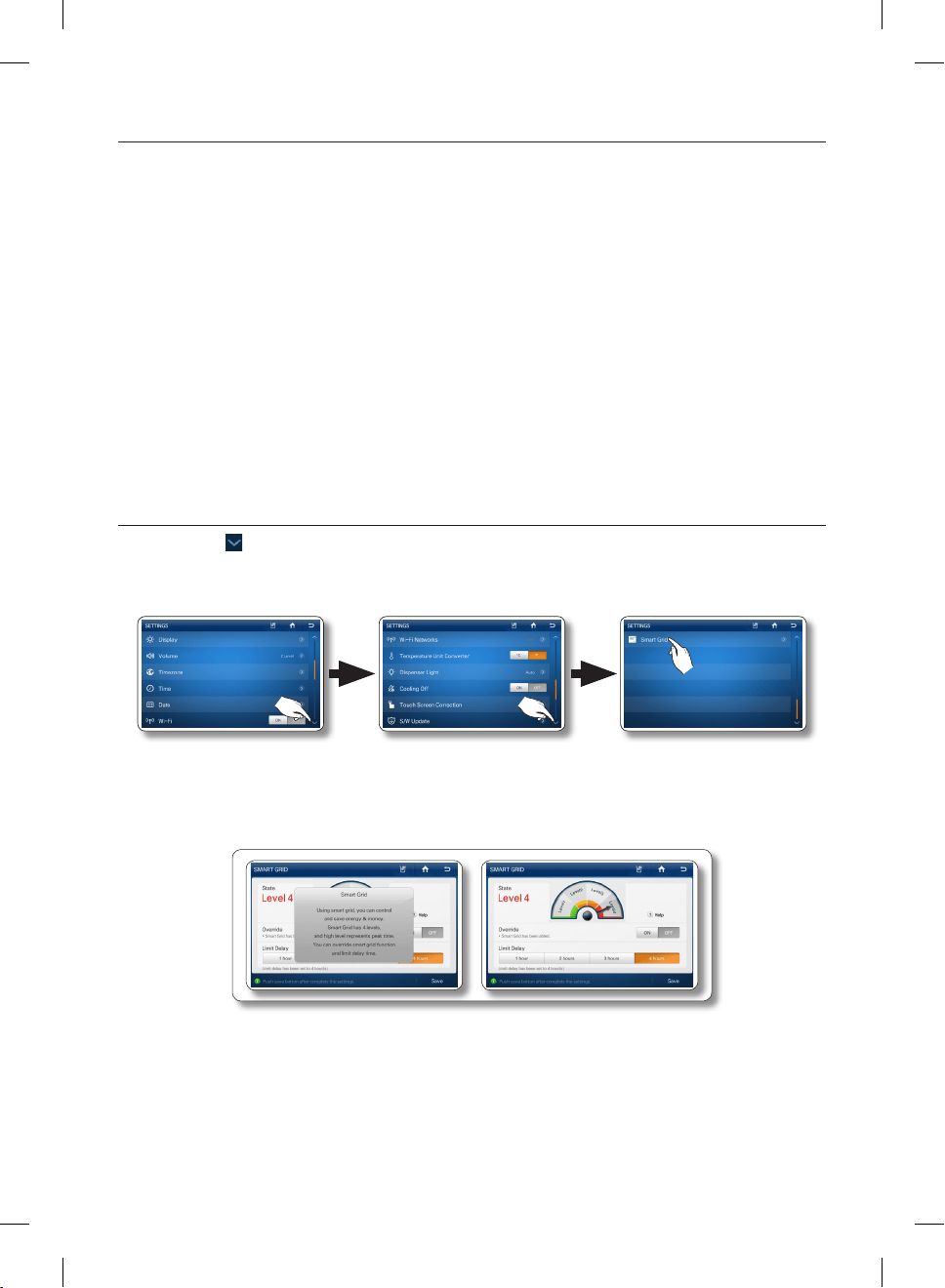
English - 80
SMART GRID
Although Smart Grid is not currently available in the U.S., we have built the Smart Grid function into your
refrigerator in the expectation that it will be available in the near future.
The Smart Grid function gives you access to Smart Grid settings and to information about Smart Grid
features.
If your electric company provides the Smart Grid service some time after you install your refrigerator, you
can implement the Smart Grid function by following the steps below:
• Ask your electric company if they have installed the Gateway, Smart Meter, and the other equipment
needed for Smart Grid.
• Obtain and install a Smart Grid modem to access the service. (Sold or provided separately.)
• If your electric company has installed the necessary equipment and you have installed the Smart Grid
modem, see if the Smart Grid Service screen appears when you select Smart Grid on the Settings
screen.
• If the Smart Grid Service screen does not appear, contact the Samsung Electronics Service Center for
help.
How to see the Smart Grid Level
1. Press the button in the bottom right corner of the Settings list.
2. Select [Smart Grid] in the Settings list.
3. When a Smart Grid Modem is connected, you can check the DR-Level received from your electric
utility company. DR (Demand Response)-Level means the degree to which the company is
managing your consumption of electricity.
DA68-02500B-13.indb 80 13. 12. 4. �� 7:12
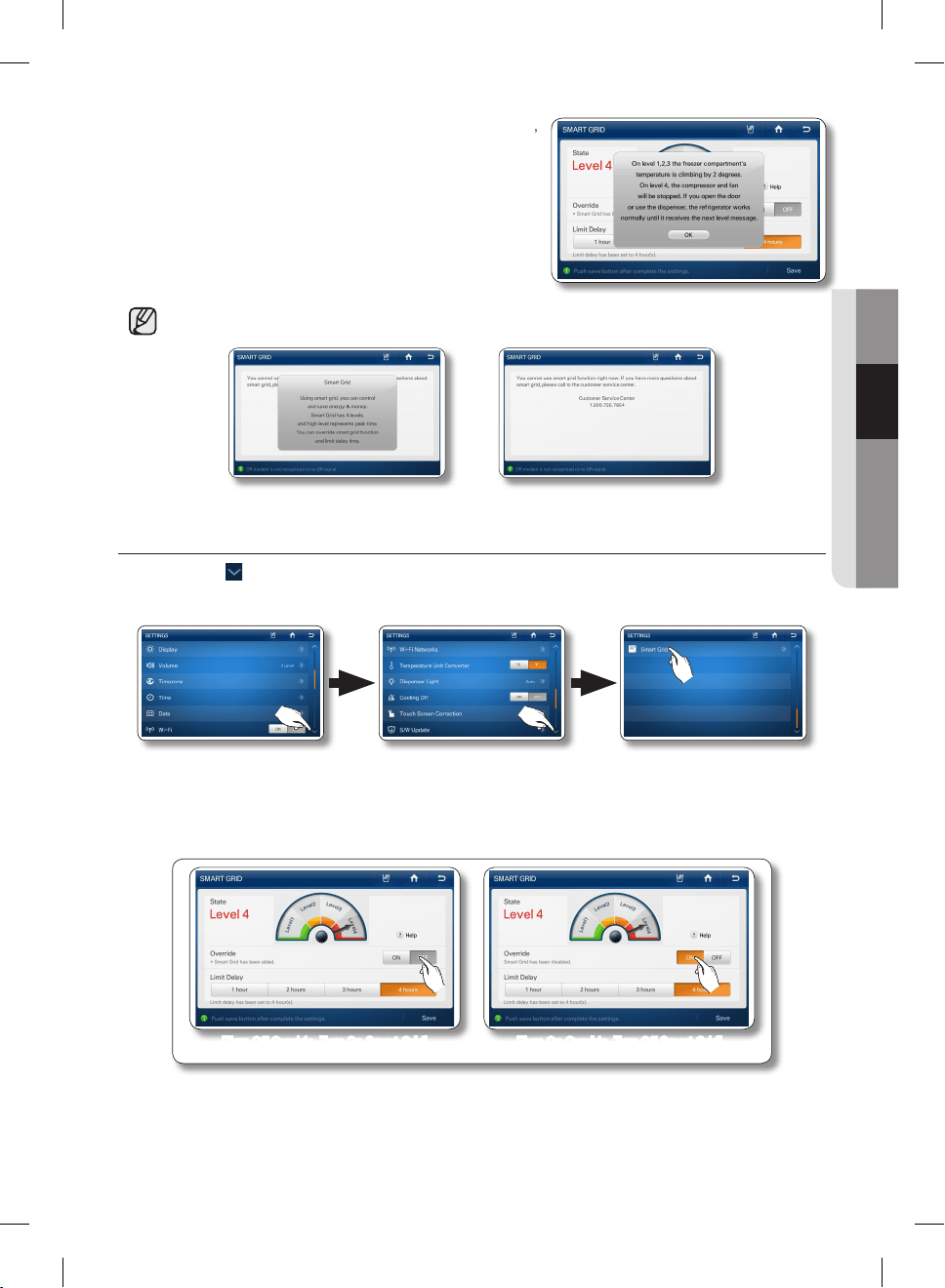
English - 81
02 OPERATING
4. If you select the button for each level or the [Help] button,
you can see information about the Smart Grid Function.
Higher Level means higher peak time than lower levels.
• If the Modem is not connected, the following messages appear:
How to override the Smart Grid Control
1. Press the button in the bottom right corner of the Settings list.
2. Select [Smart Grid] in the Settings list.
3. If you want your Fridge to operate according to the DR-Level (or Smart Grid), select the Override
“Off” button. If you want your Fridge to operate irrespective of the DR-Level (or Smart Grid), select
the Override “On” button.
[Turn Off Overide, Turn On Smart Grid] [Turn On Overide, Turn Off Smart Grid]
DA68-02500B-13.indb 81 13. 12. 4. �� 7:12
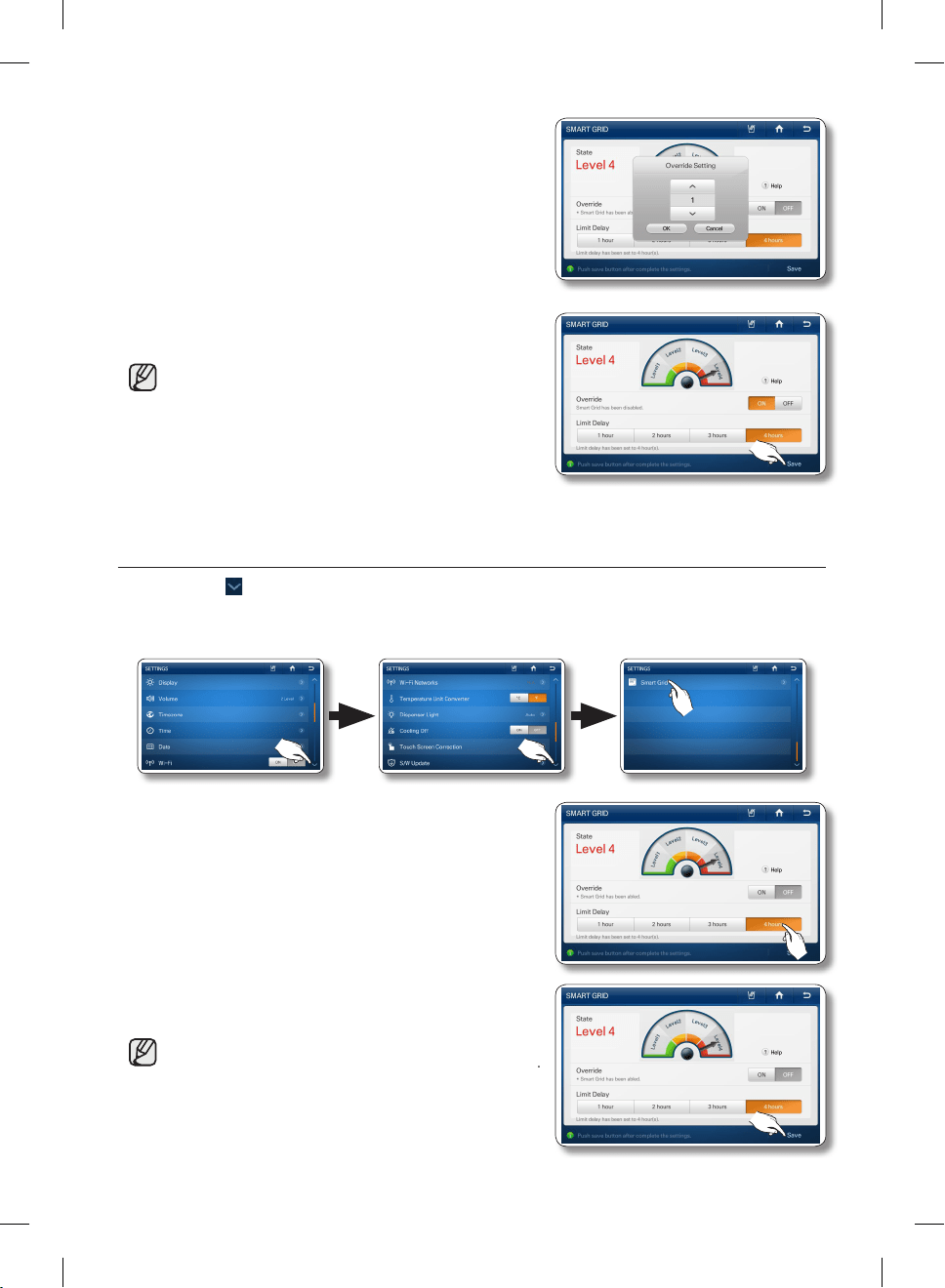
English - 82
4. You can set the Override time from 1 hour to 24 hours.
After the set time, the Override function turns off and
Smart Grid control starts. If you select “Permanently”, the
Override function operates continuously until you turn the
Override function off or set a time.
5. Press the [Save] button.
• If “Permanently” does not turn off, the Override
function will operate continuously.
• If you think refrigerator temperature is too high, you
need to use “Override” function.
• If you think there is not enough ice, you need to use
“Override” function.
How to select the Limit Delay Time on Smart Grid
1. Press the button in the bottom right corner of the Settings list.
2. Select [Smart Grid] in the Settings list.
3. Select “Limit Delay Time” from 1 hour to 4 hours. “Limit
Delay Time” lets you set the maximum time during which
Smart Grid control operates.
4. Press the [Save] button.
• If you don’t choose the a “Limit Delay Time” Option,
Smart Grid works with the “4-hour” option by default.
DA68-02500B-13.indb 82 13. 12. 4. �� 7:12
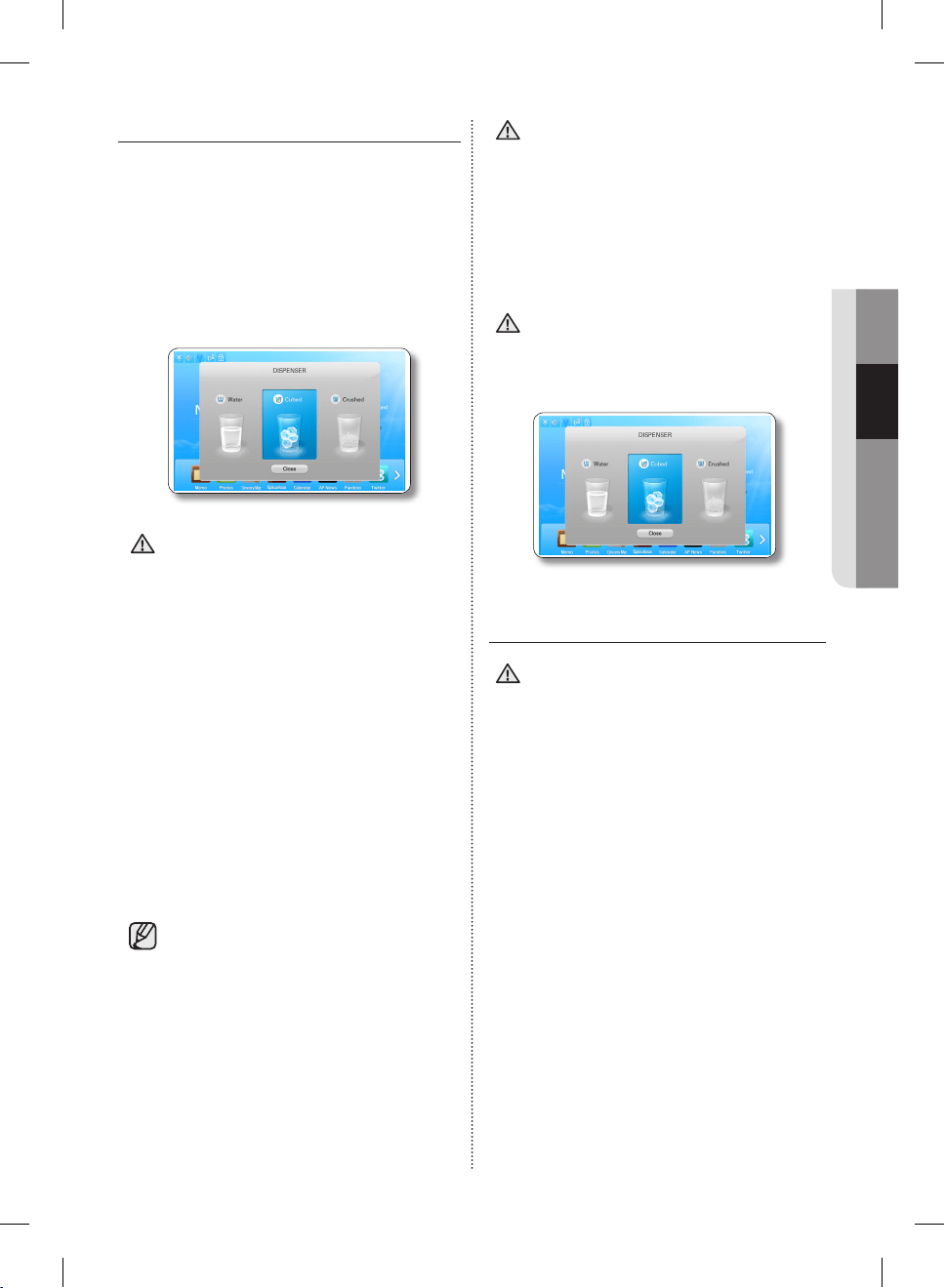
English - 83
02 OPERATING
HOW TO USE THE DISPENSER
Touch the dispenser status on the Home screen to
select the type of dispenser you want.
Place your cup under the ice outlet and push
gently against the dispenser lever.
Make sure the glass is in line with the dispenser to
prevent the ice from bouncing out.
When Cubed Ice is selected after using the
Crushed Ice feature, a small amount of residual
crushed ice might be produced.
Please wait 2 seconds before removing
the glass under the dispenser to prevent
spills.
If the Freezer door opens, the Dispenser
does not work.
• Do not pull the lever out.
You could damage or break the lever’s spring.
• To clean the ice bin/bucket, wash with a mild
detergent, rinse well, and dry thoroughly it.
Do not use harsh or abrasive cleaners or
solvents.
• In case ice doesn’t come out, pull out the ice
bucket and press the test button located on the
right side of ice maker.
• Do not press the test button continuously when
the tray is filled with ice or water.
Water may overflow or ice may jam the bucket.
• When you select the Test button, you will
hear the refrigerator chime (ding-dong).
When the chime sounds, release the
[Test] button.
• The chime sounds automatically again to let
you know the ice maker is working well.
CAUTION
If a power failure occurs, ice cubes
may melt then freeze together when
the power comes back on, causing the
dispenser to be out of order.
To prevent this problem, after a power failure, pull
out the ice bucket and discard the residual ice or
water.
After you dump the ice from the ice
bucket, you should press the dispenser
lever once with the ‘CUBED’ or
‘CRUSHED’ function ON.
The ice maker will make new ice faster after you
return the ice bucket in the refrigerator.
• Do not put your fingers, hands or any
other unsuitable objects in the chute or
ice-maker bucket.
- It may result in personal injury or material
damage.
• Use only the ice maker provided with the
refrigerator.
• The water supply to this refrigerator must only
be installed/connected by a suitably qualified
person and connect to a potable water supply
only.
• In order to operate the ice maker properly,
water pressure of 20~125 psi is required.
CAUTION
CAUTION
CAUTION
DA68-02500B-13.indb 83 13. 12. 4. �� 7:12
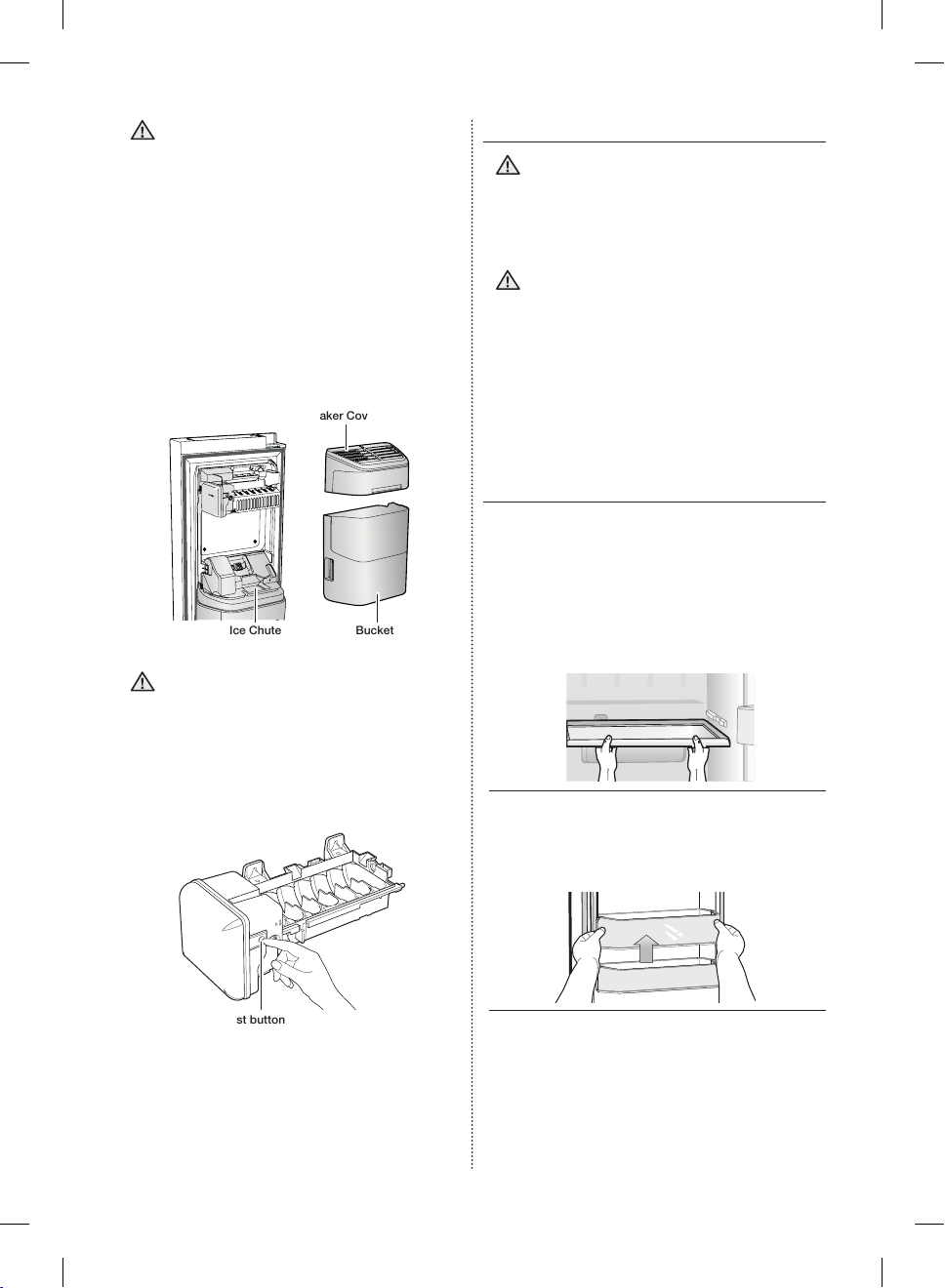
English - 84
• If you have a long vacation or business
trip and won’t use the water or ice
dispensers, close the water valve.
- Otherwise, water leakage may occur.
• When you have not used the Ice maker for a
while, or you have opened the Freezer door
frequently, the Ice may stick together.
If this has occurred, empty the ice bucket or
break up the ice with a wood kitchen tool.
Do not use sharp items such as knives or forks.
• When the bucket is removed, there may still be
some residual ice in the ice maker that will be
produced.
Ice-Maker Cover
Ice BucketIce Chute
• In case ice doesn’t come out, pull out
the icemaker cover and press test button
located on the ic e maker.
• Do not press the test button continuously when
the tray is filled with ice or water as illustration
below. Water may overflow or ice jamming may
occur.
Test button
CAUTION
CAUTION
CLEANING THE REFRIGERATOR
Do not use Benzene, Thinner or Clorox™
for cleaning.
They may damage the surface of the
appliance and can create a risk of fire.
Do not spray the refrigerator with water
while it is plugged in, as it may cause an
electric shock.
Do not clean the refrigerator with benzene,
thinner or car detergent as there is a risk
of fire.
REMOVING THE FREEZER/
FRIDGE ACCESSORIES
Cleaning and rearranging the interior of the freezer
is a snap.
1. Shelves (Freezer/Fridge)
• Pull the shelf out as far as it goes.
Then lift up and remove it.
2. DOOR BIN
• Remove the Door Bin by holding it with both
hands and then gently lift it up.
WARNING
CAUTION
DA68-02500B-13.indb 84 13. 12. 4. �� 7:12
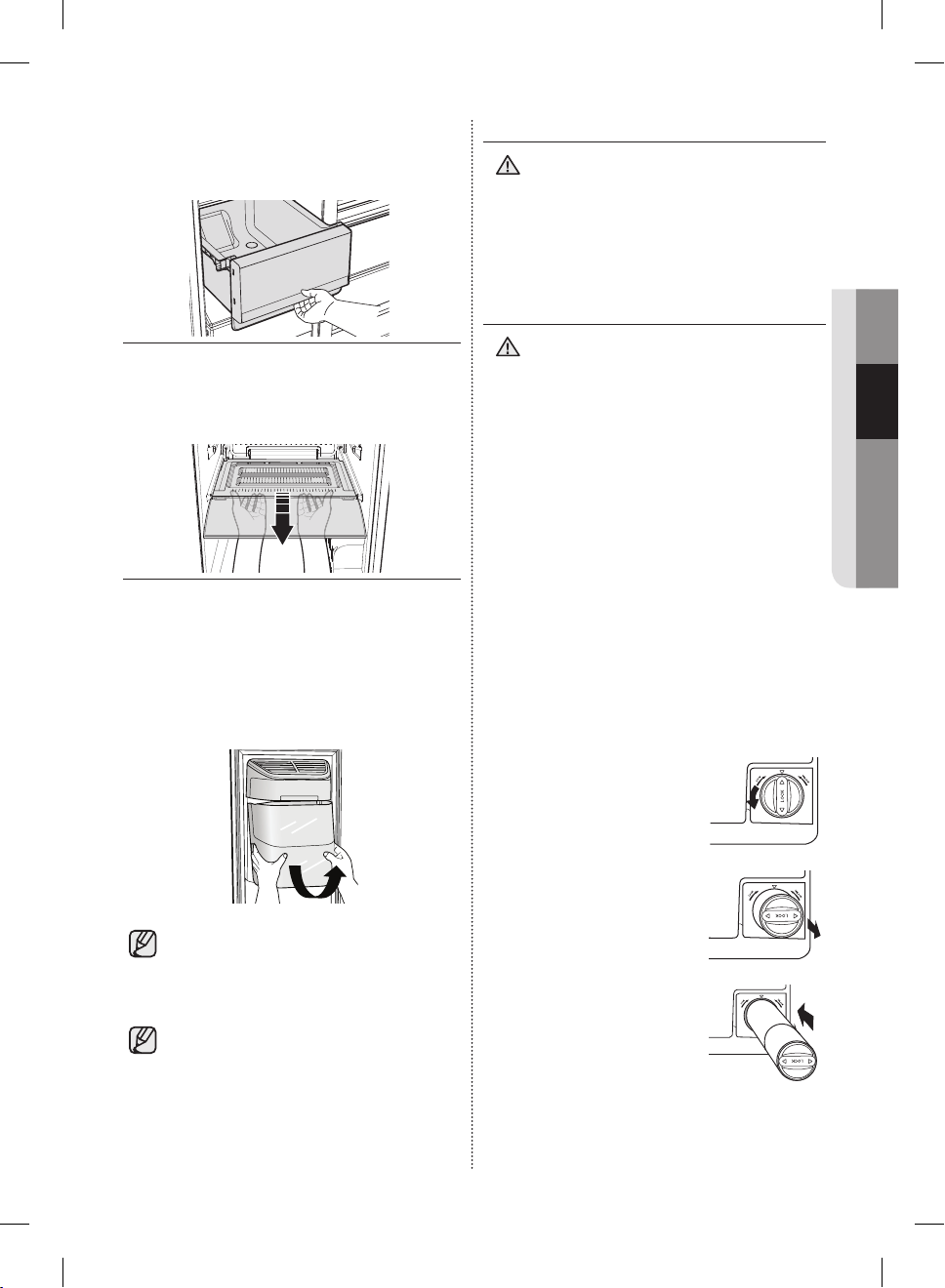
English - 85
02 OPERATING
3. DRAWER
• Remove the Drawer by pulling it out and slightly
lifting it up.
4. Drawer Cover
• Pull the cover out as far as it goes.
Then lift up and remove it.
5. Ice Bucket (Freezer)
• Remove the Icemaker Bucket by lifting up and
pulling it out slowly.
- Grip the handle as shown in the figure.
- Lift the low part slightly.
- Take the ice bucket out slowly.
Do not use excessive force when removing
the drawer cover.
Otherwise, the cover may break and cause
injury.
Before removing any accessories, make
sure that no food is in the way.
When possible, remove the food
altogether to reduce the risk of accidents.
CLEANING THE REFRIGERATOR
Do not disassemble or replace the led type
lighting.
To change the led type lighting, contact a
samsung service center.
CHANGING THE WATER FILTER
To reduce risk of water damage to your
property DO NOT use generic brands of
water filers in your SAMSUNG Refrigerator.
USE ONLY SAMSUNG BRAND WATER
FILTERS.
SAMSUNG will not be legally responsible for any
damage, including, but not limited to property
damage caused by water leakage from use of a
generic water filter.
SAMSUNG Refrigerators are designed to work
ONLY WITH SAMSUNG Water Filter.
The “Filter Indicator” icon lets you know when it is
time to change your water filter cartridge.
To give you preparation time to get a new filter, the
red light will come on just before the capacity of
the current filter runs out.
Changing the filter on time provides you with the
freshest, cleanest water from your fridge.
1. Turn the water filter 90˚
counter-clockwise.
2. Turn the water filter 90˚
counter-clockwise.
3. Insert new water filter inside
the filter housing.
CAUTION
WARNING
DA68-02500B-13.indb 85 13. 12. 4. �� 7:12
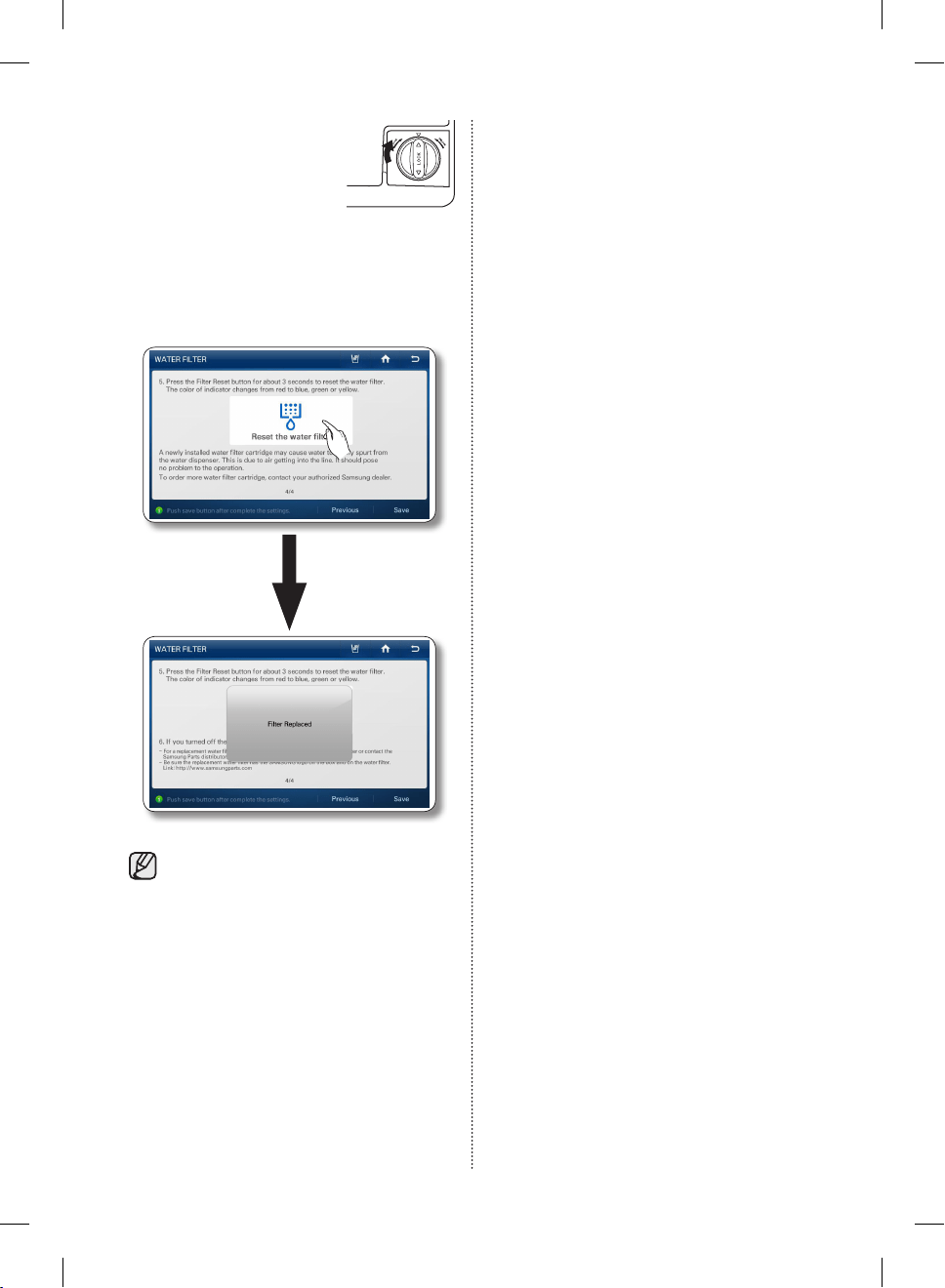
English - 86
4. Insert new water filter inside
the filter housing.
5. When the replacement is done, press and hold
the ‘Reset the water filter’ simultaneously for 3
or more seconds at the center of the screen.
(Refer to the “WATER FILTER” part on this
manual.)
A newly installed water filter cartridge may
cause water to briefly spurt from the water
dispenser.
This is due to air getting into the line.
It should pose no problem to operation.
Removing residual matter inside the
water supply line after installing a new
filter
1. Press the Water button, and then push the
Dispenser Lever with a cup or glass.
2. Flush 1 gallon of water through the filter, one
cup or glass at a time.
(Flush approximately 6 minutes.)
This will clean the water supply system and
remove air from the lines.
3. Additional flushing may be required in some
households.
4. Open the refrigerator door and make sure there
are no water leaks coming from the water filter.
Reverse Osmosis Water Supply
IMPORTANT : The pressure of the water supply
coming out of a reverse osmosis system going to
the water inlet valve of the refrigerator needs to be
between 35 and 120 psi (241 and 827 kPa).
If a reverse osmosis water filtration system is
connected to your cold water supply, the water
pressure to the reverse osmosis system needs to
be a minimum of 40 to 60 psi (276 to 414 kPa.)
If the water pressure to the reverse osmosis
system is less than 40 to 60 psi (276 to 414 kPa):
• Check to see whether the sediment filter in the
reverse osmosis system is blocked.
Replace the filter if necessary.
• Allow the storage tank on the reverse osmosis
system to refill after heavy usage.
• If your refrigerator has a water filter, it may
further reduce the water pressure when used
in conjunction with a reverse osmosis system.
Remove the water filter.
If you have questions about your water pressure,
call a licensed, qualified plumber.
Ordering replacement filters
To order more water filter cartridges, contact your
authorized Samsung dealer.
DA68-02500B-13.indb 86 13. 12. 4. �� 7:12
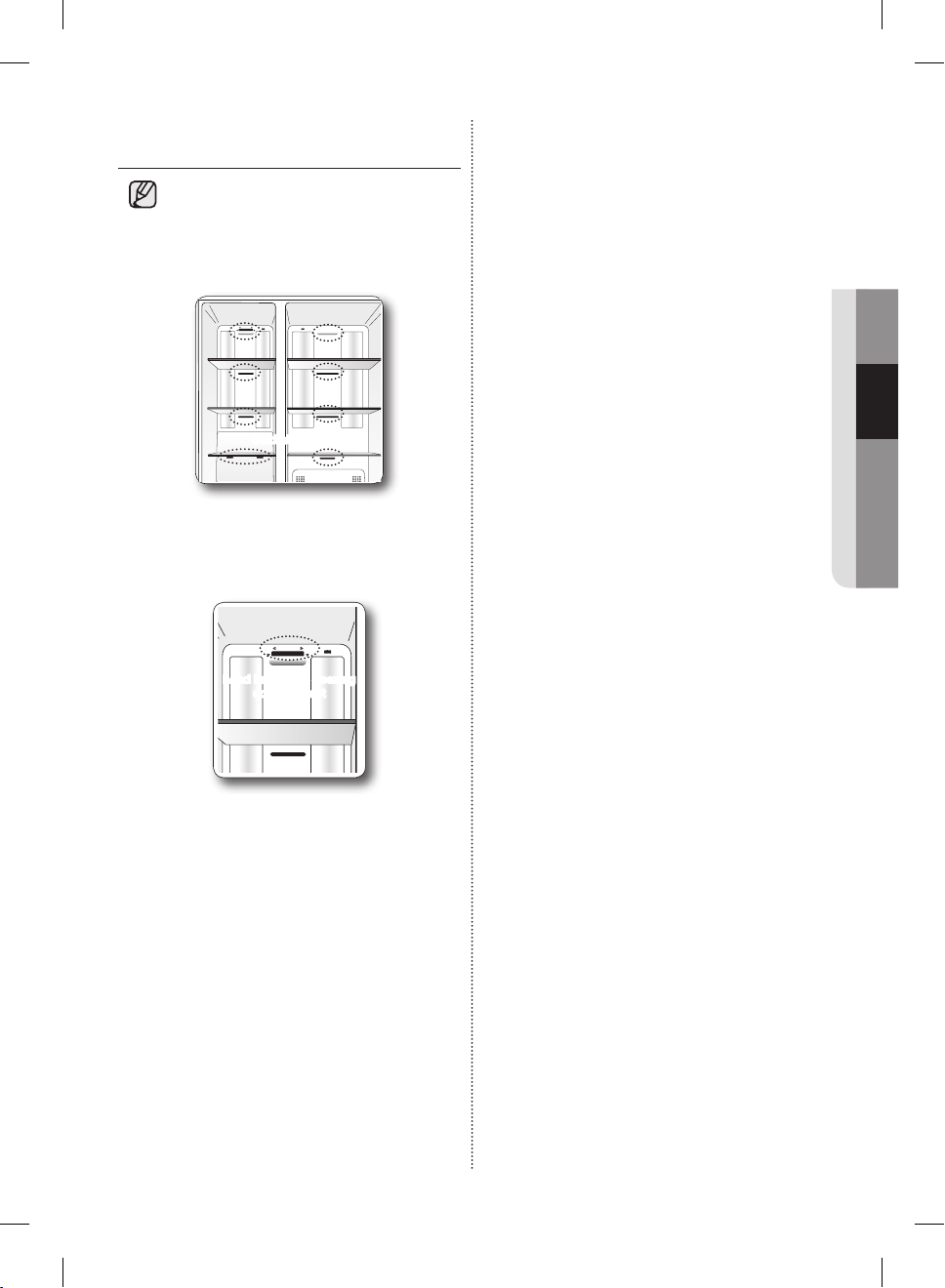
English - 87
02 OPERATING
TO IMPROVE THE COOLING
PERFORMANCE
• If the cold air outlet is blocked by food
items, the cold air cannot penetrate the
entire compartment and will be unable to
freeze the food efficiently which results in
a degraded cooling performance.
Cold air outlet
• In particular, there is load limit at the top
of the freezing compartment.
Please do not put food items above this
limit.
Load limit in the freezing
compartment
DA68-02500B-13.indb 87 13. 12. 4. �� 7:12
English - 88
troubleshooting
PROBLEM SOLUTION
The refrigerator
does not work at
all or it does not
chill sufficiently.
• Check that the power plug is properly connected.
• Is the temperature control on the display panel set to the correct temperature?
Try setting it to a lower temperature.
• Is the refrigerator in direct sunlight or located too near a heat source?
• Is the back of the refrigerator too close to the wall and therefore keeping air from
circulating?
Food in the fridge
is frozen.
• Is the temperature control on the display panel set to the correct temperature?
Try setting it to a warmer temperature.
• Is the temperature in the room very low?
• Did you store food with a high water content in the coldest part of the fridge?
You hear unusual
noises or sounds.
• Check that the refrigerator is level and stable.
• Is the back of the refrigerator too close to the wall and therefore keeping air from
circulating?
• Was anything dropped behind or under the refrigerator?
• If you hear a “ticking” sound from inside the refrigerator, this is normal. It occurs
because various parts contract or expand in response to temperature changes in the
refrigerator interior.
The front corners
of the appliance
are hot and
condensation is
occurring.
• Some heat is normal as anti-condensators are installed in the front corners of the
refrigerator to prevent condensation.
• Is the refrigerator door ajar?
Condensation can occur when you leave the door open for a long time.
Ice is not
dispensing.
• Did you wait at least 12 hours after installation of the water supply line before making
ice?
• Is the water line connected and the shut-off valve open?
• Did you manually stop the ice making function?
Make sure Ice Type is set to Cubed or Crushed.
• Are there ice cubes frozen together in the ice maker bucket?
• Is the freezer temperature too warm? Try setting the freezer temperature lower.
You can hear water
bubbling in the
refrigerator.
• This is normal. The bubbling comes from the refrigerant liquid circulating through the
refrigerator.
There is a bad
smell in the
refrigerator.
• Has a food item spoiled?
• Make sure that strong smelling food (for example, fish) is wrapped so that it is airtight.
• Clean out your freezer periodically and throw away any spoiled or suspect food.
Frost forms on
the walls of the
freezer.
• Is the air vent blocked? Remove any obstructions so air can circulate freely.
• Allow sufficient space between the foods stored for efficient air circulation.
• Is the freezer door closed properly?
Water dispenser is
not functioning.
• Is the water line connected and the shut-off valve open?
• Has the water supply line tubing been crushed or kinked?
Make sure the tubing is free and clear of any obstruction.
• Is the water tank frozen because the refrigerator temperature is too low?
Try selecting a warmer setting on the main display panel.
Display does not
work!
• Press the Reset button over one second to reset the memory.
With this, the user information is not to be reset.
DA68-02500B-13.indb 88 13. 12. 4. �� 7:12
English - 89
03 TROUBLESHOOTING
PROBLEM SOLUTION
Photos not
showing with a
memory card
connected.
• If the “A SD/MMC card is connected” messages do not appear on the screen, check
if the memory type is SD / SDHC / MMC / HS MMC.
• Check if there are photos or images stored in the memory card.
• Check if the images in the memory card are JPEG (JPG) types.
The LCD
screen turns off
frequently.
• This is a power-saving function and it is normal.
• At the Settings-Display, the Screensaver Running Time can be set.
There is an after
image or an edge
line left on the
screen.
• Still images can cause permanent damage to the LCD screen. When you select
Screensavers, select a number of themes so the image changes frequently.
NOTE : Defects caused by this are not be covered by the factory warranty.
The input point of
the touch screen is
not correct.
• Run the Touch Screen Calibration function at the Settings.
There is no
wireless AP
detected.
• Check if the power for the wireless AP is on.
• Check if the wireless AP supports IEEE802.11b/g/n.
• If the wireless AP is located away from the Fridge, move the wireless AP closer to the
Fridge and check if it is detected.
• Turn the power of both the Wireless AP and the Fridge off and on.
It is not able to
connect to the
wireless AP.
• Check if the wireless AP supports IEEE802.11b/g/n.
• Check the status of the internet connection of the wireless AP.
• Check if the current cost rate plan for the internet covers the wireless network
connection. If it does, check how many connections are allowed.
• Your Refrigerator may not be able to connect to the Internet because your ISP has
permanently registered the MAC address (a unique identifying number) of your PC or
modem, which it then authenticates each time you connect to the Internet as a way
of preventing unauthorized access.
As your Refrigerator has a different MAC address, your ISP can not authenticate its
MAC address, and your Refrigerator can not connect.
To resolve this problem, ask your ISP about the procedures required to connect
devices other than a PC (such as your Refrigerator) to the Internet.
(To find the MAC address of your Fridge, touch Settings ---> WiFi Networks, and then
look on the bottom of the screen that lists the available network connections.)
• Turn the power of both the Wireless AP and the Fridge off and on.
Can’t remember
the password for
the wireless AP
connection.
• Refer to the wireless AP manual and reset the password.
Functions using
the wireless
network (Wi-FI) do
not work.
• Functions using the wireless network (Wi-Fi) such as Epicurious, Calendar,
WeatherBug, AP News, Pandora and Twitter can be used only if the refrigerator is
connected to your wireless network (Wi-Fi).
• If there are any other devices connected to the wireless network, please check the
connection status of the devices.
• Because these services depend on data downloaded from the internet, the
information updates can be delayed or cut depending on the status of the internet
connection.
• Turn the power of both the Wireless AP and the Fridge off and on.
DA68-02500B-13.indb 89 13. 12. 4. �� 7:12
English - 90
PROBLEM SOLUTION
Can’t connect
to the external
devices being
detected.
• If the network connection of an external device the Fridge detects was shut down
abnormally (by a power failure or by moving out of range, etc), the device’s network
information will remain on the network list (as stipulated by DLNA specifications), but
its connection will not be available.
• Select the Photos function - All Share, and then search for the external devices again.
After turn on the
power, is possible
to operate only
the dispenser
selection button.
• Click the “Dispenser OK” button which is at the bottom of display. If the “”Dispenser
OK” button is changed to “Complete”, turn the power off and on again.
It is correct to show the “Time Zone Setting screen”.
DA68-02500B-13.indb 90 13. 12. 4. �� 7:12
Warranty
WARRANTY ON SAMSUNG REFRIGERATOR
LIMITED WARRANTY TO ORIGINAL PURCHASER
This Samsung brand product, as supplied and distributed by Samsung Electronics America, Inc. (Samsung) and
delivered new, in the original carton to the original consumer purchaser, is warranted by Samsung against manufacturing
defects in materials and workmanship for a limited warranty period of:
One (1) year Parts and Labor on Refrigerator
Five (5) years Parts and Labor on sealed Refrigeration System, which includes ONLY those components that
contain refrigerant
(Compressor, evaporator, condenser, drier, connecting tubing)
This limited warranty begins on the original date of purchase, and is valid only on products purchased and used in the
United States. To receive warranty service, the purchaser must contact Samsung for problem determination and service
procedures. Warranty service can only be performed by a Samsung authorized service center. The original dated bill of
sale must be presented upon request as proof of purchase to Samsung or Samsung authorized service center.
Samsung will repair or replace any part found to be defective, at our option and at no charge as stipulated herein, with
new or reconditioned parts during the limited warranty period specified above. All replaced parts and products become
the property of Samsung and must be returned to Samsung. Replacement parts and products assume the remaining
original warranty, or ninety (90) days, whichever is longer.
In-home service will be provided during the warranty labor period subject to availability within the contiguous United
States. In-home service is not available in all areas. To receive in-home service, the product must be unobstructed
and accessible from floor level to service personnel. If during in-home service repair cannot be completed, it may be
necessary to remove, repair and return the product. If in-home service is unavailable, Samsung may elect, at our option,
to provide for transportation of our choice to and from a Samsung authorized service center. Otherwise, transportation to
and from the Samsung authorized service center is the responsibility of the purchaser.
This limited warranty covers manufacturing defects in materials and workmanship encountered in normal,
noncommercial use of this product, and shall not apply to the following, including, but not limited to: damage which
occurs in shipment; delivery and installation; applications and uses for which this product was not intended; altered
product or serial numbers; cosmetic damage or exterior finish; accidents, abuse, neglect, fire, water, lightning or other
acts of nature; use of products, equipment, systems, utilities, services, parts, supplies, accessories, applications,
installations, repairs, external plumbing and leaks, external wiring, circuit breakers, fuses or connectors not supplied and
authorized by Samsung, or which damage this product or result in service problems; incorrect electrical line voltage,
fluctuations and surges; customer adjustments and failure to follow operating instructions, cleaning, maintenance
and environmental instructions that are covered and prescribed in the instruction book; loss of food due to spoilage;
consumable items including filters and light.
THERE ARE NO EXPRESS WARRANTIES OTHER THAN THOSE LISTED AND DESCRIBED ABOVE, AND NO
WARRANTIES WHETHER EXPRESS OR IMPLIED, INCLUDING, BUT NOT LIMITED TO, ANY IMPLIED WARRANTIES
OF MERCHANTABILITY OR FITNESS FOR A PARTICULAR PURPOSE, SHALL APPLY AFTER THE EXPRESS
WARRANTY PERIODS STATED ABOVE, AND NO OTHER EXPRESS WARRANTY OR GUARANTY GIVEN BY ANY
PERSON, FIRM OR CORPORATION WITH RESPECT TO THIS PRODUCT SHALL BE BINDING ON SAMSUNG.
SAMSUNG SHALL NOT BE LIABLE FOR LOSS OF REVENUE OR PROFITS, FAILURE TO REALIZE SAVINGS OR
OTHER BENEFITS, OR ANY OTHER SPECIAL, INCIDENTAL OR CONSEQUENTIAL DAMAGES CAUSED BY THE
USE, MISUSE OR INABILITY TO USE THIS PRODUCT, REGARDLESS OF THE LEGAL THEORY ON WHICH THE
CLAIM IS BASED, AND EVEN IF SAMSUNG HAS BEEN ADVISED OF THE POSSIBILITY OF SUCH DAMAGES.
NOR SHALL RECOVERY OF ANY KIND AGAINST SAMSUNG BE GREATER IN AMOUNT THAN THE PURCHASE
PRICE OF THE PRODUCT SOLD BY SAMSUNG AND CAUSING THE ALLEGED DAMAGE. WITHOUT LIMITING THE
FOREGOING, PURCHASER ASSUMES ALL RISK AND LIABILITY FOR LOSS, DAMAGE OR INJURY TO PURCHASER
AND PURCHASER’S PROPERTY AND TO OTHERS AND THEIR PROPERTY ARISING OUT OF THE USE, MISUSE
OR INABILITY TO USE THIS PRODUCT SOLD BY SAMSUNG NOT CAUSED DIRECTLY BY THE NEGLIGENCE
OF SAMSUNG. THIS LIMITED WARRANTY SHALL NOT EXTEND TO ANYONE OTHER THAN THE ORIGINAL
PURCHASER OF THIS PRODUCT, IS NONTRANSFERABLE AND STATES YOUR EXCLUSIVE REMEDY.
Some states do not allow limitations on how long an implied warranty lasts, or the exclusion or limitation of incidental or
consequential damages, so the above limitations or exclusions may not apply to you. This warranty gives you specific
legal rights, and you may also have other rights, which vary from state to state.
To obtain warranty service, please contact Samsung at:
SAMSUNG CUSTOMER CARE CENTER
Samsung Electronics America, Inc. 85 Challenger Road Ridgefield Park, NJ 07660
1-800-SAMSUNG (1-800-726-7864) and www.samsung.com
DA68-02500B-13.indb 91 13. 12. 4. �� 7:12
QUESTIONS OR COMMENTS?
COUNTRY CALL OR VISIT US ONLINE AT WRITE
U.S.A
1-800-SAMSUNG
(726-7864)
www.samsung.com
Samsung Electronics America, Inc.
85 Challenger Road Ridgefield Park, NJ 07660
CANADA
1-800-SAMSUNG
(726-7864)
www.samsung.com/ca (English)
www.samsung.com/ca_fr (French)
Samsung Electronics Canada Inc.
Customer Service, 55 Standish Court
Mississauga, Ontario L5R 4B2 Canada
Scan the QR code* or visit
www.samsung.com/spsn
to view our helpful
How-to Videos and Live Shows
* Requires reader to be installed on your
smartphone
DA68-02500B-13.indb 92 13. 12. 4. �� 7:12
Refrigerador
manual del usuario
Imagine las posibilidades
Gracias por adquirir este producto Samsung.
Para recibir un servicio más completo o accesorios,
registre su producto o comuníquese con
www.samsung.com/register
1-800-SAMSUNG (726-7864)
Electrodoméstico independiente
Este manual está impreso en papel 100 % reciclado.
RSG309**
DA68-02500B-13.indb 1 13. 12. 4. �� 7:12
Español - 02
INFORMACIÓN SOBRE SEGURIDAD
Antes de utilizar su nuevo refrigerador de puerta
francesa Samsung, lea detenidamente este
manual a fin de aprender a usar las funciones que
ofrece de manera segura y eficiente.
Este refrigerador no debe ser utilizado por
personas (incluidos niños) con capacidades
mentales, sensoriales o físicas reducidas o
por personas que carezcan de experiencia y
conocimientos, a menos que se encuentren bajo
la supervisión o hayan recibido instrucciones por
parte un responsable de su seguridad sobre el uso
del refrigerador.
Debido a que las siguientes instrucciones
corresponden a diversos modelos, es posible
que las características de su refrigerador difieran
ligeramente de las que se describen en este
manual. Si tiene alguna duda, comuníquese
al 1-800-SAMSUNG o encuentre ayuda e
información en línea en www.samsung.com.
Símbolos y advertencias de seguridad
importantes:
ADVERTENCIA
Riesgos o prácticas inseguras que pueden causar
graves lesiones personales o incluso la muerte.
PRECAUCIÓN
Riesgos o prácticas inseguras que pueden causar
leves lesiones personales o daños materiales.
NO lo intente.
NO lo desarme.
NO lo toque.
Siga atentamente las instrucciones.
Desconecte el enchufe de la pared.
Asegúrese de que el refrigerador esté conectado
a tierra para evitar una descarga eléctrica.
Comuníquese con el centro de contacto para
obtener ayuda.
Nota.
Estas señales de advertencia se incluyen aquí
para evitar que se produzcan lesiones.
Sígalas atentamente.
Después de leer esta sección, consérvela en
un lugar seguro para referencia futura.
ADVERTENCIAS DE INSTALACIÓN
MUY IMPORTANTES
• No instale el refrigerador en un lugar
húmedo o que se encuentre en contacto
con agua.
- Un aislamiento deteriorado de piezas eléctricas
puede provocar una descarga eléctrica o un
incendio.
• No exponga este refrigerador a la luz solar
directa ni al calor de cocinas, calefactores u
otros artefactos.
• No enchufe varios artefactos en el mismo
toma múltiple. El refrigerador debe conectarse
siempre a una toma de corriente individual
cuyo voltaje nominal coincida con el que se
especifica en la placa de voltaje del refrigerador.
- Este procedimiento brinda el mejor rendimiento
y también impide que se sobrecarguen los
circuitos de cables del hogar, lo que podría
provocar un riesgo de incendio a causa de
cables recalentados.
• Si el enchufe de pared está flojo, no conecte
el cable.
- Existe el riesgo de que se produzca una
descarga eléctrica y causar un incendio.
• No utilice un cable que esté dañando o
gastado a lo largo o en sus extremos.
• No doble excesivamente el cable de
alimentación ni coloque elementos pesados
sobre él.
• Nunca desenchufe el refrigerador tirando del
cable de alimentación. Siempre sostenga el
enchufe con firmeza y tire para extraerlo del
toma de corriente.
- Los daños al cable pueden provocar un corto
ADVERTENCIA
Información sobre seguridad
DA68-02500B-13.indb 2 13. 12. 4. �� 7:12
Español - 03
circuito, incendio o una descarga eléctrica.
• No utilice aerosoles cerca del refrigerador.
- Si se utilizan aerosoles cerca del refrigerador
puede provocarse una explosión o un incendio.
• Este refrigerador debe instalarse de
manera apropiada y ubicarse de acuerdo
con las instrucciones del manual antes
de usarse.
• Conecte el enchufe en la posición correcta con
el cable colgando hacia abajo.
- Si conecta el enchufe al revés, el cable puede
cortarse y provocar un incendio o una descarga
eléctrica.
• Al mover el refrigerador, tenga cuidado de no
rodar sobre el cable de alimentación o dañarlo.
- Esto representa un riesgo de incendio.
• Asegúrese de que el enchufe no esté aplastado
o dañado en la parte posterior del refrigerador.
• Mantenga los materiales de embalaje fuera del
alcance de los niños.
- Existe el riesgo de muerte por asfixia si un niño
se coloca los materiales de embalaje en la
cabeza.
• El refrigerador debe colocarse de manera tal
que se pueda acceder al enchufe después de
la instalación.
• Es necesario quitar toda la película plástica
protectora antes de enchufar el producto por
primera vez.
• El refrigerador debe estar conectado a
tierra de manera segura.
- Siempre asegúrese de haber conectado el
refrigerador a tierra antes de intentar examinar
o reparar alguna pieza. Las fugas de energía
pueden provocar una descarga eléctrica grave.
• Nunca utilice tubos de gas, líneas telefónicas
o potenciales fuentes de atracción de rayos
como conexión a tierra.
- El uso inapropiado de la conexión a tierra
puede traer como consecuencia un riesgo de
descarga eléctrica. Si necesita usar un cable
de extensión, use sólo uno de tres hilos con
un enchufe que tenga una tercera punta para
el polo a tierra; el toma de corriente deberá
tener 3 ranuras para adaptarse al enchufe
del refrigerador. La potencia indicada en el
cable de extensión debe ser CA115-120 V,
10 A o superior. Si se utiliza un adaptador de
tierra, asegúrese de que el receptáculo esté
conectado correctamente a tierra.
• Si el cable de alimentación está dañado,
solicite su reemplazo inmediato al
fabricante o al agente de servicios.
PRECAUCIONES DE
INSTALACIÓN
• Deje espacio suficiente para instalar el
refrigerador sobre una superficie plana.
- Si su refrigerador no está nivelado, es posible
que el sistema de enfriamiento interno no
funcione correctamente.
• Mantenga el espacio de ventilación en
el gabinete o estructura de montaje del
refrigerador libre de obstáculos.
• El refrigerador debe permanecer en posición
vertical durante dos horas después de la
instalación.
• Le recomendamos que encargue la instalación
de este frigorífico a un técnico cualificado o una
empresa de servicios.
- No seguir esta recomendación puede causar
descargas eléctricas, incendio, explosión,
problemas con el producto o lesiones.
SEÑALES DE ADVERTENCIA
IMPORTANTES PARA EL USO
• No conecte el enchufe con las manos
mojadas.
• No coloque elementos en la parte superior del
refrigerador.
- Cada vez que abra o cierre la puerta, éstos
pueden caerse y provocar lesiones personales
o daños materiales.
• No coloque un recipiente con agua sobre el
refrigerador.
- Si se derrama, existe el riesgo de que se
produzca un incendio o una descarga eléctrica.
• Se deberá vigilar a los niños para asegurarse
de que nojueguen con el refrigerador.
• No permita que se cuelguen de la puerta.
Es posible que se produzca una lesión grave.
• No permita que los niños ingresen al
refrigerador. Un niño podría quedar atrapado.
• No coloque las manos debajo del refrigerador.
- Es posible que algunas puntas filosas le
PRECAUCIÓN
ADVERTENCIA
DA68-02500B-13.indb 3 13. 12. 4. �� 7:12
Español - 04
provoquen lesiones.
• No permita que los niños se paren sobre la
cubierta de un cajón.
- El cajón se puede romper y los niños pueden
caerse.
• No sobrecargue el refrigerador con comida.
- Cuando abra la puerta, algún elemento puede
caerse y provocar lesiones personales o daños
materiales.
• No toque las paredes internas del congelador
ni los productos almacenados en éste con las
manos mojadas.
- Puede provocar congelación.
• Nunca coloque los dedos u otros objetos
en el hueco del dispensador de agua, en el
recipiente de hielo o en la cubeta de la fábrica
de hielo.
- Es posible que provoque lesiones personales o
daños materiales.
• No pulverice con gas inflamable cerca del
refrigerador.
- Existe el riesgo de que se produzca una
explosión o un incendio.
• No almacene sustancias volátiles o inflamables
dentro del refrigerador.
- Si se almacena benzina, solvente, alcohol, éter,
gas licuado y otros productos similares, se
pueden provocar explosiones.
• No almacene en el refrigerador productos
farmacéuticos, materiales científicos ni
productos sensibles a la temperatura.
- No se deben almacenar productos que
requieran controles de temperatura rigurosos.
• No coloque ni utilice aparatos eléctricos dentro
del refrigerador, a menos que sean del tipo
recomendado por el fabricante.
• No utilice dispositivos mecánicos ni cualquier
otro medio para acelerar el proceso de
descongelamiento, que no sean aquellos
recomendados por el fabricante.
• No dañe el circuito refrigerante.
• No desarme ni repare el refrigerador
usted mismo.
- Corre el riesgo de provocar un incendio,
el funcionamiento incorrecto o lesiones
personales.
- Si el LED interior o exterior se ha apagado,
comuníquese con los agentes de servicio
técnico.
• Se deberá vigilar a los niños para
asegurarse de que no jueguen con el
refrigerador.
• Las botellas se debe almacenar una junto a
otra de manera tal que no se caigan.
• Este producto se debe utilizar sólo para
almacenar alimentos en un entorno doméstico.
• Si se detecta una fuga de gas, evite llamas
o posibles fuentes de inflamación y ventile el
ambiente en el que se encuentra el refrigerador
durante varios minutos.
• Utilice solamente lámparas de LED
proporcionadas por el fabricante o agentes de
servicios.
• En caso de sentir olor a quemado o a
humo, desenchufe el refrigerador de
inmediato y comuníquese con el Centro
de Servicio de Samsung Electronics.
• Si le resulta difícil cambiar la luz, comuníquese
con un agente de servicio.
• Si el producto cuenta con lámparas de LED, no
desarme la cubierta de la lámpara y la lámpara
de LED usted mismo.
- Comuníquese con su agente de servicio.
• Si el refrigerador tiene polvo o agua,
desenchúfelo y comuníquese con el Centro de
Servicio de Samsung Electronics.
- Si no lo hace, existe el riesgo de que se
produzca un incendio.
PRECAUCIONES DE USO
• No vuelva a congelar alimentos que se
hayan descongelado completamente.
No coloque bebidas carbonatadas o con
gas en el compartimento del congelador.
No coloque botellas ni recipientes de
vidrio en el congelador.
- Cuando el contenido se congela, el vidrio
puede romperse y provocar lesiones
personales.
• Garantía de servicio y modificación.
- El servicio de garantía de Samsung no
cubre los cambios o modificaciones
realizados por un tercero a este
refrigerador; Samsung tampoco
es responsable de los problemas
relacionados con la seguridad que
puedan surgir a causa de modificaciones
PRECAUCIÓN
DA68-02500B-13.indb 4 13. 12. 4. �� 7:12
Español - 05
hechas por terceros.
• No obstruya las tomas de aire.
- Si las tomas de aire están bloqueadas,
en particular con una bolsa de plástico, el
refrigerador se puede sobrecongelar. Si el
período de enfriamiento es muy prolongado, el
filtro del agua puede romperse y provocar fugas
de agua.
• Si se desconecta el refrigerador del suministro
de energía, espere al menos cinco minutos
antes de volver a enchufarlo.
• Si tiene planificado tomarse unas largas
vacaciones o siel refrigerador no se utilizará
durante mucho tiempo, debe vaciarlo y
desenchufarlo.
- Si se deja el refrigerador encendido por mucho
tiempo sin utilizarlo, se puede deteriorar el
aislamiento y provocar un incendio.
- Retire el exceso de humedad del interior del
refrigerador y deje las puertas abiertas. Si no lo
hace, pueden aparecer olores y moho.
• Para obtener el mejor rendimiento del producto:
- No coloque alimentos muy cerca de las
rejillas de ventilación de la parte posterior del
refrigerador ya que pueden obstruir la libre
circulación del aire en el refrigerador.
- Envuelva los alimentos adecuadamente o
colóquelos en recipientes herméticos antes de
almacenarlos en el refrigerador.
• Llene el tanque de agua, la charola para el
hielo y los cubos de agua solamente con agua
potable.
• Si el producto está lleno de agua,
comuníquese con el Centro de Servicio
más cercano.
- Existe el riesgo de que se produzca una
descarga eléctrica o un incendio.
PRECAUCIONES DE LIMPIEZA
• No pulverice con agua directamente
dentro o fuera del refrigerador.
- Existe el riesgo de que se produzca un incendio
o una descarga eléctrica.
• Retire cualquier sustancia extraña o
polvo de las clavijas del enchufe. No
utilice un paño mojado ni húmedo para
limpiar el enchufe.
PRECAUCIÓN
- De lo contrario, existe el riesgo de que se
produzca un incendio o una descarga eléctrica.
• Desenchufe el refrigerador antes de
limpiarlo o repararlo.
• Este producto contiene sustancias
químicas que, según el Estado de
California, provocan cáncer y toxicidad
reproductiva.
ADVERTENCIAS DE
ELIMINACIÓN MUY
IMPORTANTES
• Riesgo de que los niños se queden
encerrados. Antes de eliminar su antiguo
refrigerador o congelador:
- Retire las puertas.
- Deje los estantes en su lugar de manera tal
que los niños no puedan trepar dentro del
refrigerador fácilmente.
• Deseche el material de embalaje de este
producto de forma que no resulte nociva para
el medio ambiente.
• Deje los estantes en su lugar de manera tal
que los niños no puedan trepar dentro del
refrigerador fácilmente. Asegúrese de que
ninguno de los tubos que se encuentran
detrás del refrigerador estén dañados antes de
desecharlo.
• Cuando deseche este refrigerador, retire
los burletes y los pestillos de las puertas de
manera tal que los niños pequeños o los
animales no puedan quedarse atrapados
en el interior. Se deberá vigilar a los niños
para asegurarse de que no jueguen con el
refrigerador.
• Se utiliza ciclopentano como aislante. Los
gases del material de aislamiento requieren
un procedimiento especial de eliminación.
Comuníquese con las autoridades locales
para desechar este producto de manera que
no resulte nocivo para el medio ambiente.
Asegúrese de que ninguno de los tubos que se
encuentran en la parte trasera del refrigerador
estén dañados antes de desecharlos.
ADVERTENCIA
ADVERTENCIA
DA68-02500B-13.indb 5 13. 12. 4. �� 7:12
Español - 06
CONSEJOS ADICIONALES PARA
UN USO CORRECTO
• En el caso de un fallo de corriente, llame a la
oficina local de su compañía eléctrica y solicite
información sobre la duración de la interrupción
del suministro.
• La mayoría de los cortes de electricidad que
se solucionan en una o dos horas no afectan
a la temperatura del refrigerador. Sin embargo,
mientras el aparato esté sin corriente abra la
puerta lo menos posible.
- Si el fallo de corriente supera las 2 horas, quite
todo el hielo del depósito del hielo.
- Si el fallo de corriente supera las 24 horas,
saque todos los alimentos congelados.
Recomendaciones para el ahorro de
energía
- Instale el refrigerador en un ambiente fresco y
seco con la ventilación adecuada.
Asegúrese de que no esté expuesto a la luz
solar directa y nunca lo coloque cerca de una
fuente de calor directa (como por ejemplo un
radiador).
- Nunca obstruya las ventilaciones ni las rejillas
del refrigerador.
- Deje enfriar los alimentos calientes antes de
colocarlos en el electrodoméstico.
- Coloque los alimentos congelados en el
refrigerador para descongelarlos.
Puede utilizar las temperaturas bajas de
los productos congelados para enfriar los
alimentos en el refrigerador.
- No mantenga la puerta del refrigerador abierta
durante mucho tiempo cuando coloque o retire
alimentos. Cuanto menor sea el tiempo en que
esté abierta la puerta, menos hielo se formará
en el congelador.
- Cuando realice la instalación, deje un espacio
libre a la derecha, izquierda, atrás y arriba del
refrigerador.
Esto ayudará a reducir tanto el consumo como
el gasto de energía.
DA68-02500B-13.indb 6 13. 12. 4. �� 7:12
Español - 07
1. Aviso regulatorio
1.1 Aviso para FCC
PRECAUCIÓN FCC:
Todos los cambios y modificaciones que no cuenten con la aprobación expresa de la parte responsable
del cumplimiento pueden invalidar la autoridad del usuario para operar el equipo.
Contiene módulo transmisor FCC ID: A3LDNURS11
Este aparato cumple con la sección 15 de las Normas de la FCC. El funcionamiento se encuentra sujeto
a las siguientes dos condiciones:
(1) Este aparato no puede causar interferencia dañina, y
(2) Este aparato debe aceptar la recepción de cualquier interferencia, incluidas aquellas que causen un
funcionamiento indeseado.
Producto disponible en el mercado de Estados Unidos/Canadá, sólo puede operarse el canal 1~11. No
es posible seleccionar otros canales.
DECLARACIÓN DE LA FCC:
Este equipo ha sido sometido a pruebas y se ha determinado que se encuentra dentro de los límites para
los dispositivos digitales clase B, de acuerdo con la parte 15 de las Normas de la FCC. Dichos límites
han sido diseñados para proporcionar una protección razonable contra la interferencia dañina en una
instalación residencial.
Este equipo genera, utiliza y puede irradiar energía de frecuencias de radio y, si no se lo instala y utiliza
de acuerdo con las instrucciones, puede provocar interferencia dañina a las comunicaciones de radio.
Sin embargo, no existe garantía alguna de que no habrá interferencia en una instalación determinada.
Si el equipo provoca interferencia dañina a la recepción de radio o televisión, que puede determinarse al
encender y apagar el equipo, se sugiere que el usuario trate de corregir la interferencia mediante una o
más de las siguientes medidas:
• Reoriente o reubique la antena receptora
• Aumente la distancia entre el equipo y el receptor
• Conecte el equipo en una toma de un circuito diferente de aquel donde está conectado el receptor
• Consulte a su distribuidor o a un técnico experimentado en radio/TV para obtener ayuda.
DECLARACIÓN DE LA FCC SOBRE LA EXPOSICIÓN A LA RADIACIÓN:
Este equipo cumple con los límites de exposición a la radiación establecidos por la FCC para un entorno
no controlado. Este equipo debe instalarse y utilizarse con una distancia mínima de 20 cm entre el
radiador y su cuerpo. Este aparato y su/s antena/s no deben ubicarse ni utilizarse junto con cualquier
otra antena o transmisor.
GUARDE ESTAS INSTRUCCIONES
PRECAUCIÓN
DA68-02500B-13.indb 7 13. 12. 4. �� 7:12
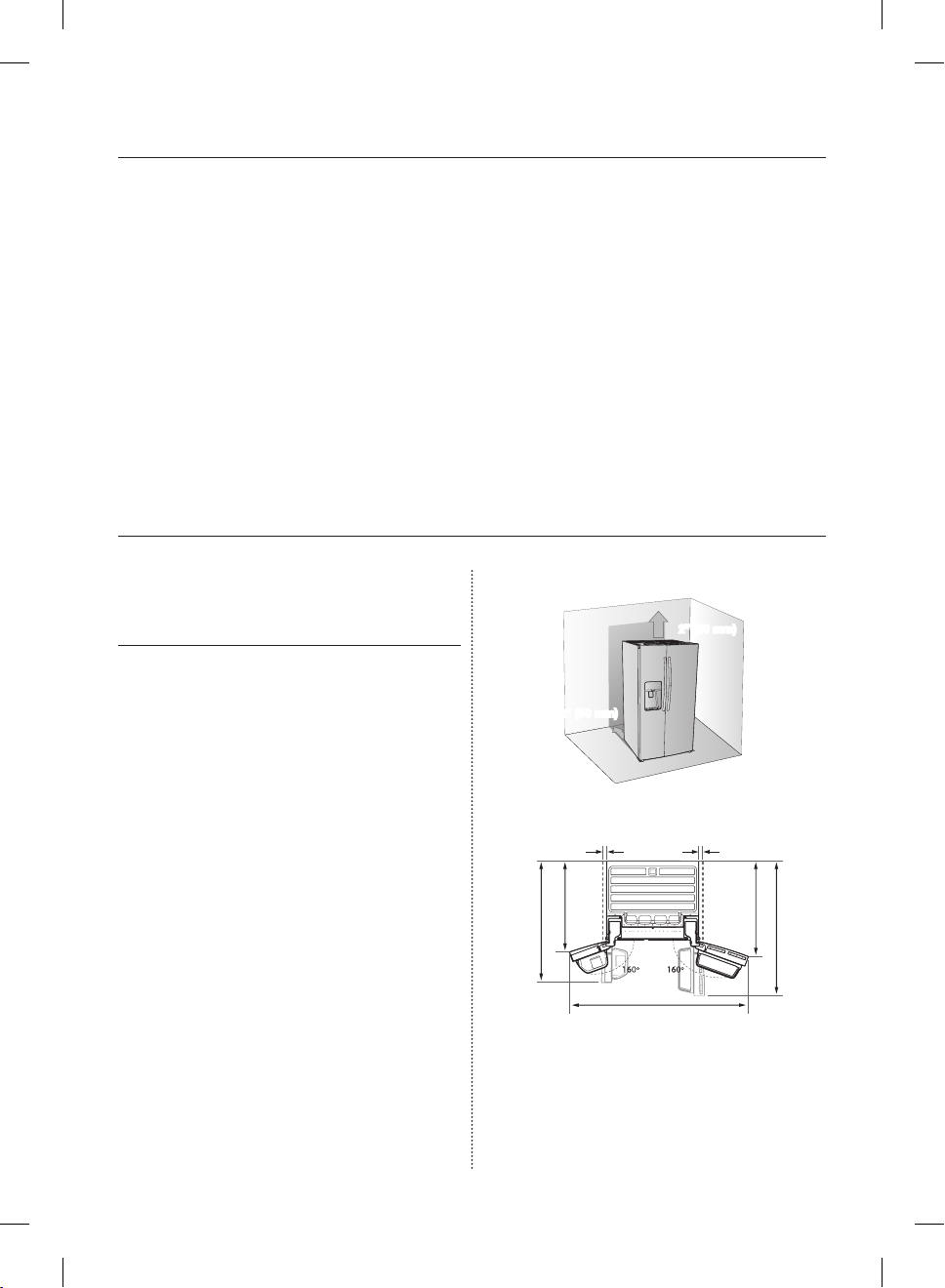
Español - 08
contenido
PUESTA A PUNTO DEL REFRIGERADOR DE DOBLE PUERTA ……………… 08
FUNCIONAMIENTO DEL REFRIGERADOR DE DOBLE PUERTA ……………… 16
SOLUCIÓN DE PROBLEMAS ……………………………………………………… 88
PREPARACIÓN PARA
LA INSTALACIÓN DEL
REFRIGERADOR
Felicitaciones por haber adquirido el refrigerador
de doble puerta Samsung. Esperamos que disfrute
todas las funciones y ventajas de vanguardia que
tiene para ofrecer este nuevo refrigerador.
Selección de la mejor ubicación para el
refrigerador
• Seleccione una ubicación con fácil acceso a un
suministro de agua.
• Seleccione una ubicación sin exposición directa
a la luz solar.
• Seleccione una ubicación en la que el piso esté
nivelado.
• Seleccione una ubicación con suficiente
espacio para que las puertas del refrigerador se
abran fácilmente. Vea el diagrama que aparece
a continuación.
• Seleccione una ubicación que deje el espacio
libre suficiente a la derecha, izquierda, atrás
y arriba del refrigerador para la circulación
del aire. Vea el diagrama que aparece a
continuación.
• Seleccione una ubicación que permita
mover fácilmente el refrigerador si necesita
mantenimiento o reparación.
2” (50mm)
2” (50mm)
al menos ¼”
(6 mm)
51 1/2” (1308mm)
al menos ¼”
(6 mm)
40” (1016mm)
68” (1727mm)
38 3/8” (974mm)
46 1/2” (1181mm)
puesta a punto del refrigerador
de doble puerta
DA68-02500B-13.indb 8 13. 12. 4. �� 7:12
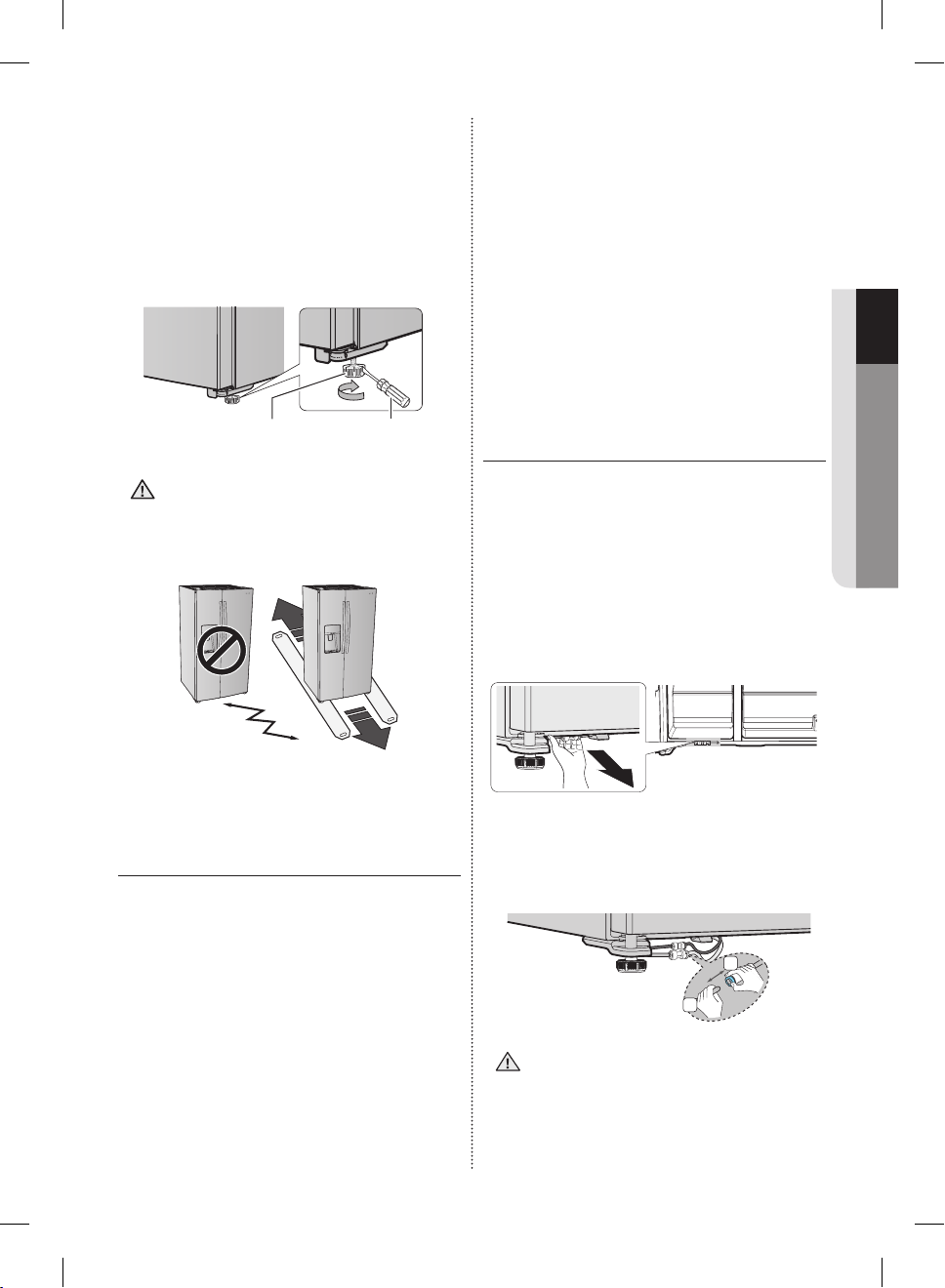
Español - 09
01 INSTALACIÓN
Cuando mueva el refrigerador
Para evitar que se dañe el piso, asegúrese de
que las patas de ajuste delanteras estén en
posición vertical (sobre el piso). Consulte ‘Nivelar el
refrigerador’ en este manual (página 11).
Para proteger el acabado del piso, al instalar el
refrigerador, coloque una hoja grande del cartón
debajo del refrigerador mientras trabaja.
Pata Desarmador
Cuando instale el refrigerador o haga
trabajos de mantenimiento o limpieza,
jale la unidad en línea recta y empújela
también en línea recta al finalizar.
PUESTA A PUNTO DEL
REFRIGERADOR
Ahora que ya tiene el nuevo refrigerador instalado
en su lugar, puede configurarlo y disfrutar de
sus funciones y características. Complete los
siguientes pasos para poner el refrigerador en
funcionamiento. Si no funciona, primero verifique
el suministro de energía y la fuente de electricidad
o intente con la sección de solución de problemas
en la parte posterior de esta guía de usuario.
Si tiene otras preguntas, comuníquese con el
Centro de Servicio de Samsung Electronics.
1. Coloque el refrigerador en una ubicación
apropiada a una distancia razonable de la
pared. Consulte las instrucciones de instalación
de este manual.
PRECAUCIÓN
2. Una vez enchufado, asegúrese de que la
luz interior se encienda cuando se abran las
puertas.
3. Coloque el control de temperatura en la marca
más fría y espere una hora. El congelador
comenzará a enfriarse y el motor funcionará
adecuadamente.
4. Después de conectar el refrigerador, tardará
algunas horas en alcanzar la temperatura
adecuada. Podrá almacenar alimentos y
bebidas en el refrigerador una vez que la
temperatura sea lo suficientemente baja.
AJUSTE DE LAS PUERTAS DEL
REFRIGERADOR
Si la entrada no permite hacer pasar fácilmente el
refrigerador, se pueden retirar las puertas.
Separación de la tubería de suministro
del agua del refrigerador
1. Extraiga las dos tuberías de agua (que están en
el fijador) de la parte frontal.
2. Retire las dos tuberías de agua (la blanca
es para el agua y la otra es para el hielo)
presionando el acoplador (1) y jalando la
tubería de agua (2).
1
2
Asegúrese de que el color de las tuberías
de agua coinciden.
DA68-02500B-13.indb 9 13. 12. 4. �� 7:12
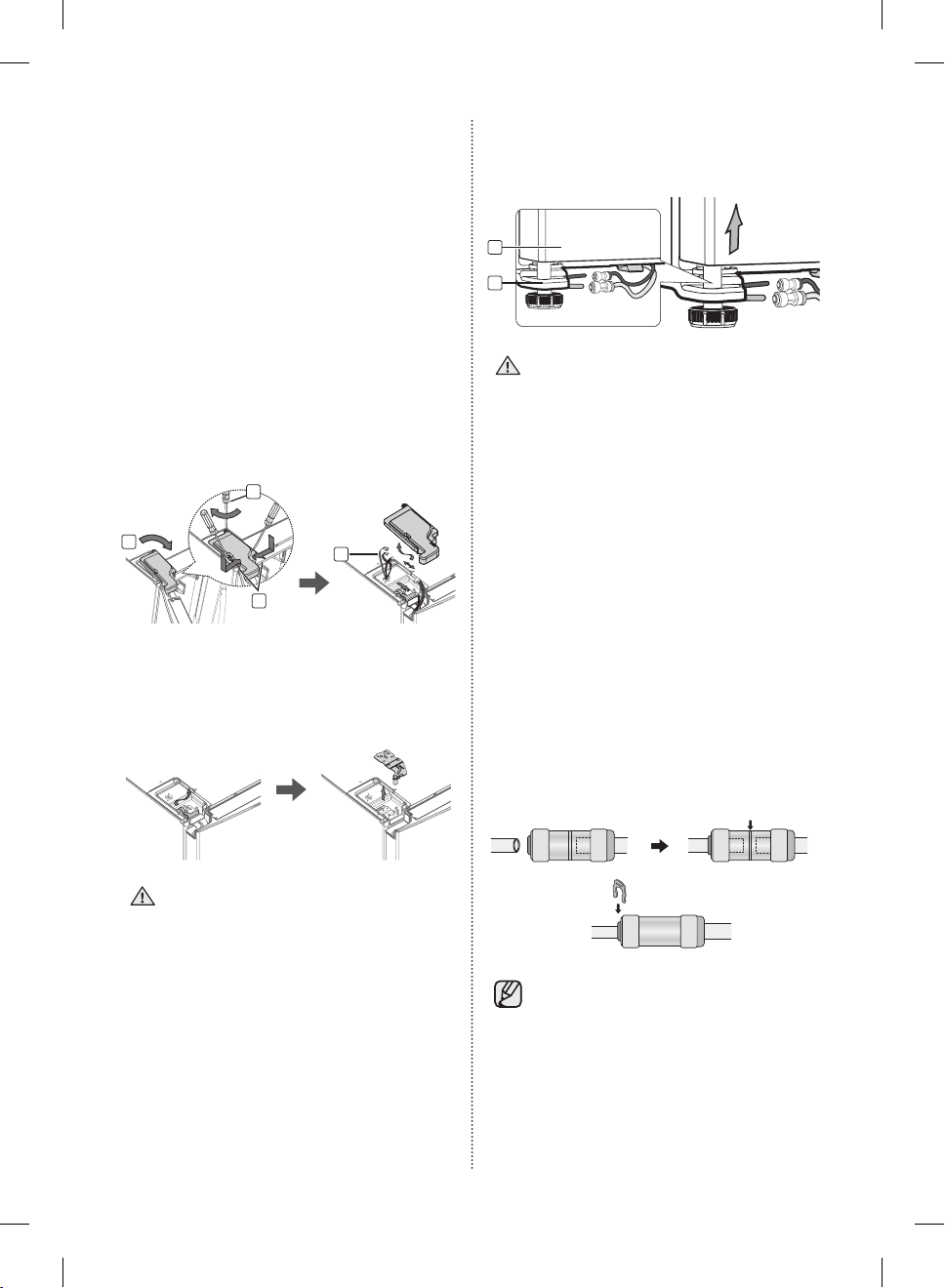
Español - 10
Cómo retirar la puerta del congelador
Notas a tener en cuenta.
• Debe levantar la puerta en línea recta para
evitar que las bisagras se doblen o se rompan.
• Tenga cuidado de no pellizcar el tubo del agua
o el haz de cables con la puerta.
• Coloque las puertas sobre una superficie
protegida para evitar rayaduras o daños.
1. Retire un tornillo de la tapa de la bisagra
superior (1). Con la puerta abierta, desmonte
las dos pestañas de bloqueo con un
destornillador de cabeza plana (2), retire la
tapa sujetándola por su parte superior (3)
y desconecte los cables tirando de ellos
suavemente (4).
4
3
2
1
2. Cómo retirar la BISAGRA DE SUJECIÓN y
luego quitar la bisagra superior.
Tenga cuidado que la puerta no se caiga al
retirarla.
Asegúrese de llevar un registro de todas
las piezas que retira.
3. A continuación, retire la puerta de la bisagra
inferior (5) levantándola con cuidado en línea
recta (6).
6
5
Tenga cuidado de no pellizcar el tubo del
agua o el haz de cables con la puerta.
Rearmado de las puertas del congelador
Para rearmar las puertas del congelador, coloque
de nuevo las piezas en orden inverso.
Rearmado de la tubería de suministro
del agua
1. La tubería de agua se debe insertar
completamente hasta el centro del acoplador
transparente para impedir que haya fugas de
agua del dispensador.
2. Inserte las 2 grapas del paquete de instalación
y compruebe que queden bien fijas.
Centro del acoplador transparente
Grapa A (¼”)
(6.35mm)
No corte la tubería de agua.
Sepárela con suavidad del acoplador.
DA68-02500B-13.indb 10 13. 12. 4. �� 7:12
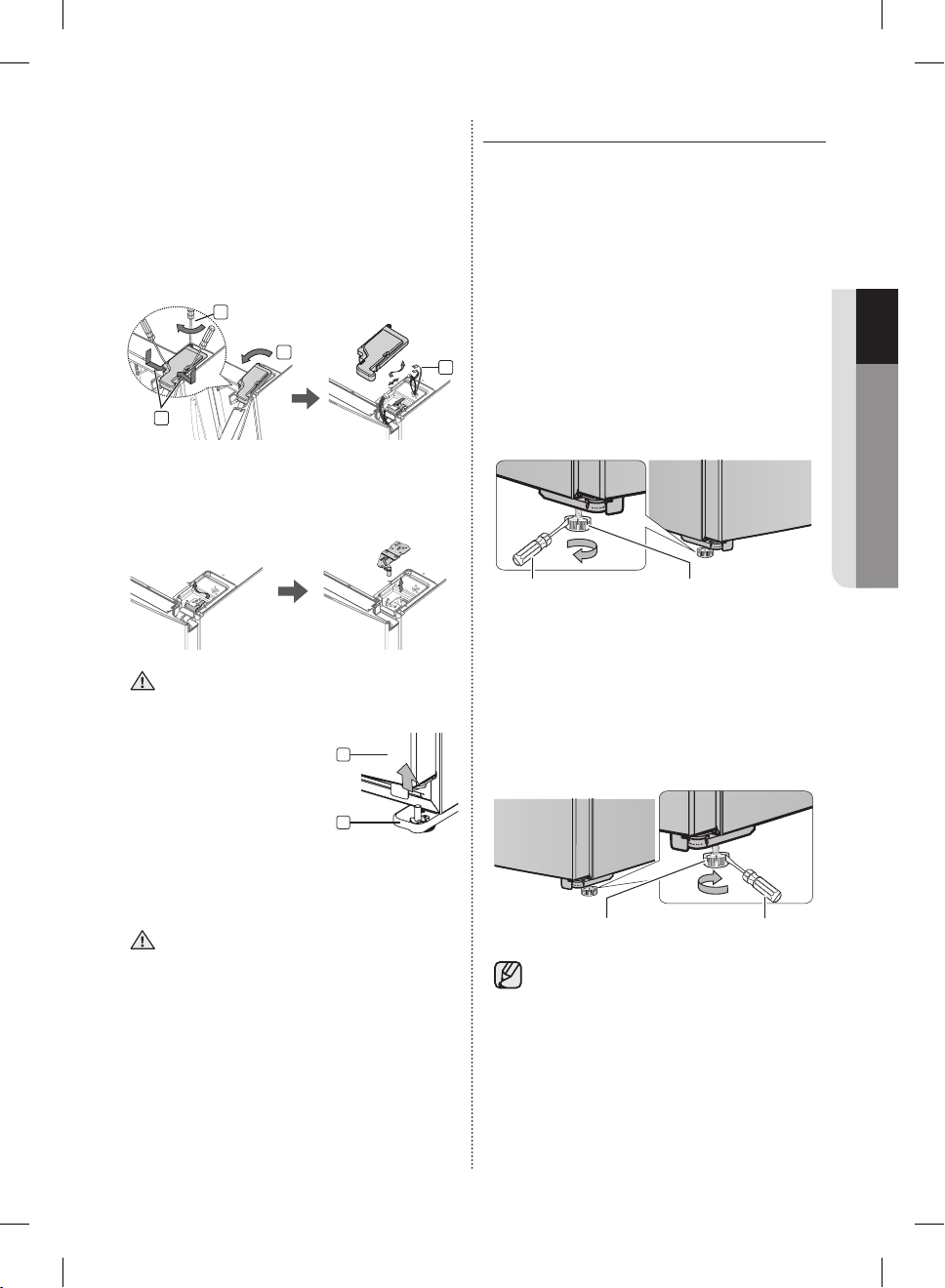
Español - 11
01 INSTALACIÓN
Cómo retirar la puerta del refrigerador
1. Retire un tornillo de la tapa de la bisagra
superior (1). Con la puerta abierta, desmonte
las dos pestañas de bloqueo con un
destornillador de cabeza plana (2), retire la
tapa sujetándola por su parte superior (3)
y desconecte los cables tirando de ellos
suavemente (4).
3
2
4
1
2. Cómo retirar la BISAGRA DE SUJECIÓN y
luego quitar la bisagra superior. Tenga cuidado
que la puerta no se caiga al retirarla.
Asegúrese de llevar un registro de todas
las piezas que retira.
3. Retire la puerta de la
bisagra inferior (5)
levantándola en línea recta
(6).
6
5
Rearmado de la puerta del refrigerador
Para rearmar las puertas del refrigerador,
coloque de nuevo las piezas en orden
inverso.
NIVELAR EL REFRIGERADOR
Ahora que las puertas están colocadas
nuevamente en el refrigerador, asegúrese de que el
refrigerador esté nivelado de manera tal que pueda
llevar a cabo los ajustes finales.
Si el refrigerador no está nivelado, las puertas no
estarán perfectamente alineadas.
Cuando la parte del Congelador es más
baja que la parte del Refrigerador.
Inserte un destornillador de punta chata en una
ranura en la pata del congelador y gírelo en el
sentido de las agujas del reloj.
Pata del congeladorDesarmador
Cuando la parte del Refrigerador es más
baja que la parte del Congelador.
Inserte un destornillador de punta chata en una
ranura en la pata del refrigerador y gírelo en el
sentido de las agujas del reloj.
Pata del refrigerador Desarmador
Consulte la siguiente sección para
conocer la mejor manera de realizar
pequeños ajustes en las puertas.
DA68-02500B-13.indb 11 13. 12. 4. �� 7:12
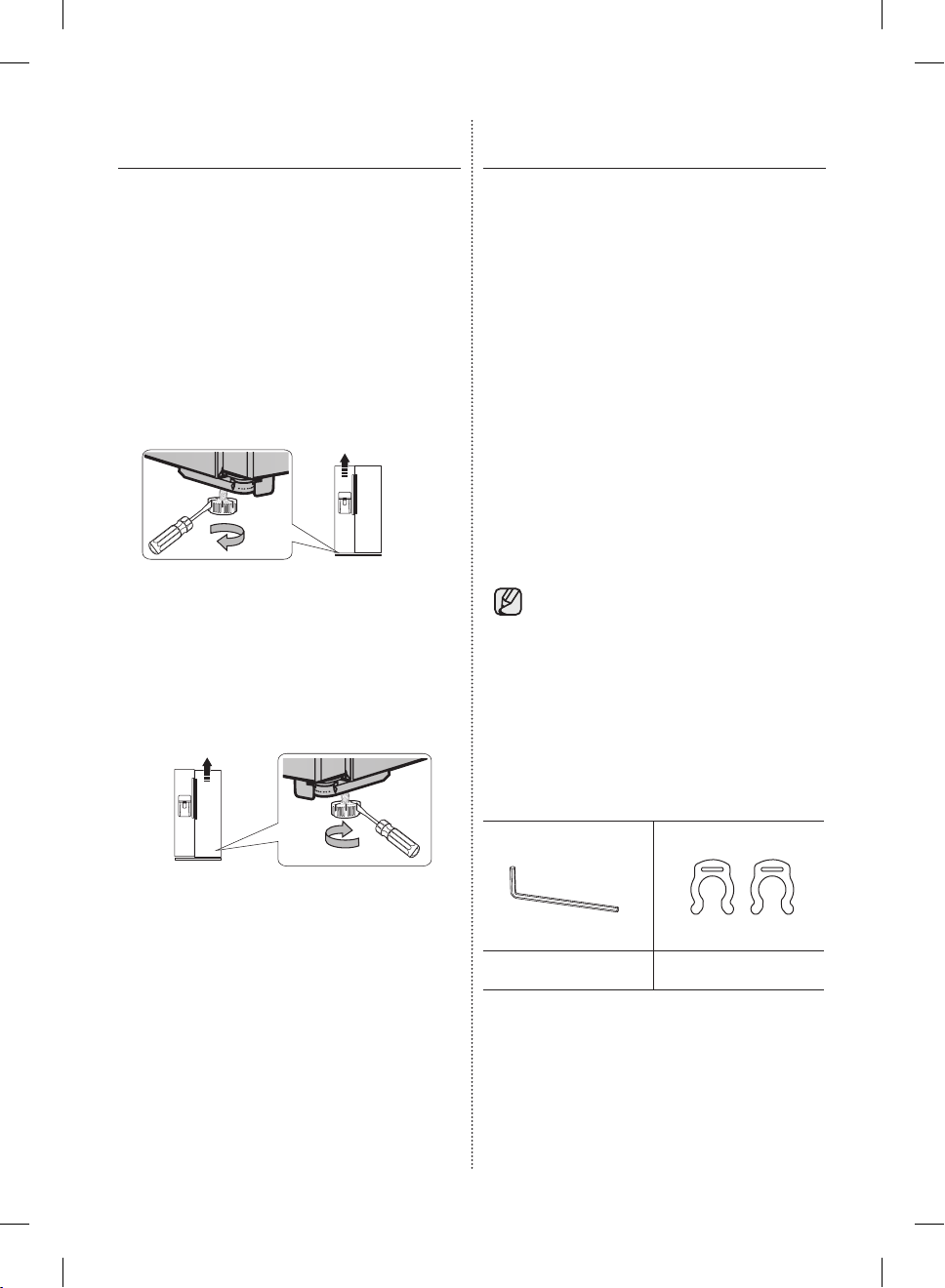
Español - 12
REALIZACIÓN DE PEQUEÑOS
AJUSTES EN LAS PUERTAS
Recuerde que se necesita que el refrigerador esté
nivelado para que las puertas estén perfectamente
alineadas. Si necesita ayuda, revise la sección
anterior sobre la nivelación del refrigerador.
Cuando la puerta del refrigerador es
más alta que el congelador
Inserte un desarmador de punta chata en una
ranura en la pata del congelador y gírelo en el
sentido de las agujas del reloj.
Cuando la puerta del congelador es más
alta que el refrigerador
Inserte un desarmador de punta chata en una
ranura en la pata del refrigerador y gírelo en el
sentido de las agujas del reloj.
VERIFICACIÓN DE LA TUBERÍA
DE AGUA DEL DISPENSADOR
El dispensador de agua es una de las funciones
útiles de su nuevo Refrigerador Samsung.
Con el fin de promover la buena salud, el filtro de
agua Samsung elimina las partículas no deseadas
del agua. No obstante, no la esteriliza ni destruye
los microorganismos. Para eso, necesita adquirir
un sistema de purificación de agua.
A fin de que la fábrica de hielo funcione
correctamente, se necesita una presión de agua
de 20~125 psi (libra por pulgada cuadrada).
En condiciones normales, un vaso de papel de
170 cc (5,75 oz.) puede llenarse en 10 segundos.
Si el refrigerador se instala en una zona de baja
presión de agua (debajo de los 20 psi), puede
instalar una bomba cebadora para compensar la
baja presión.
Asegúrese de que el tanque de almacenamiento
de agua dentro del Refrigerador esté
correctamente lleno. Para hacerlo, presione la
palanca del dispensador hasta que salga el agua.
Su distribuidor le podrá ofrecer los
kits de instalación de tuberías de
agua disponibles a un costo adicional.
Recomendamos el uso de un kit de
suministro de agua que contenga tubería
de cobre.
Verifique la lista de accesorios a
continuación.
Llave hexagonal Grapa
DA68-02500B-13.indb 12 13. 12. 4. �� 7:12
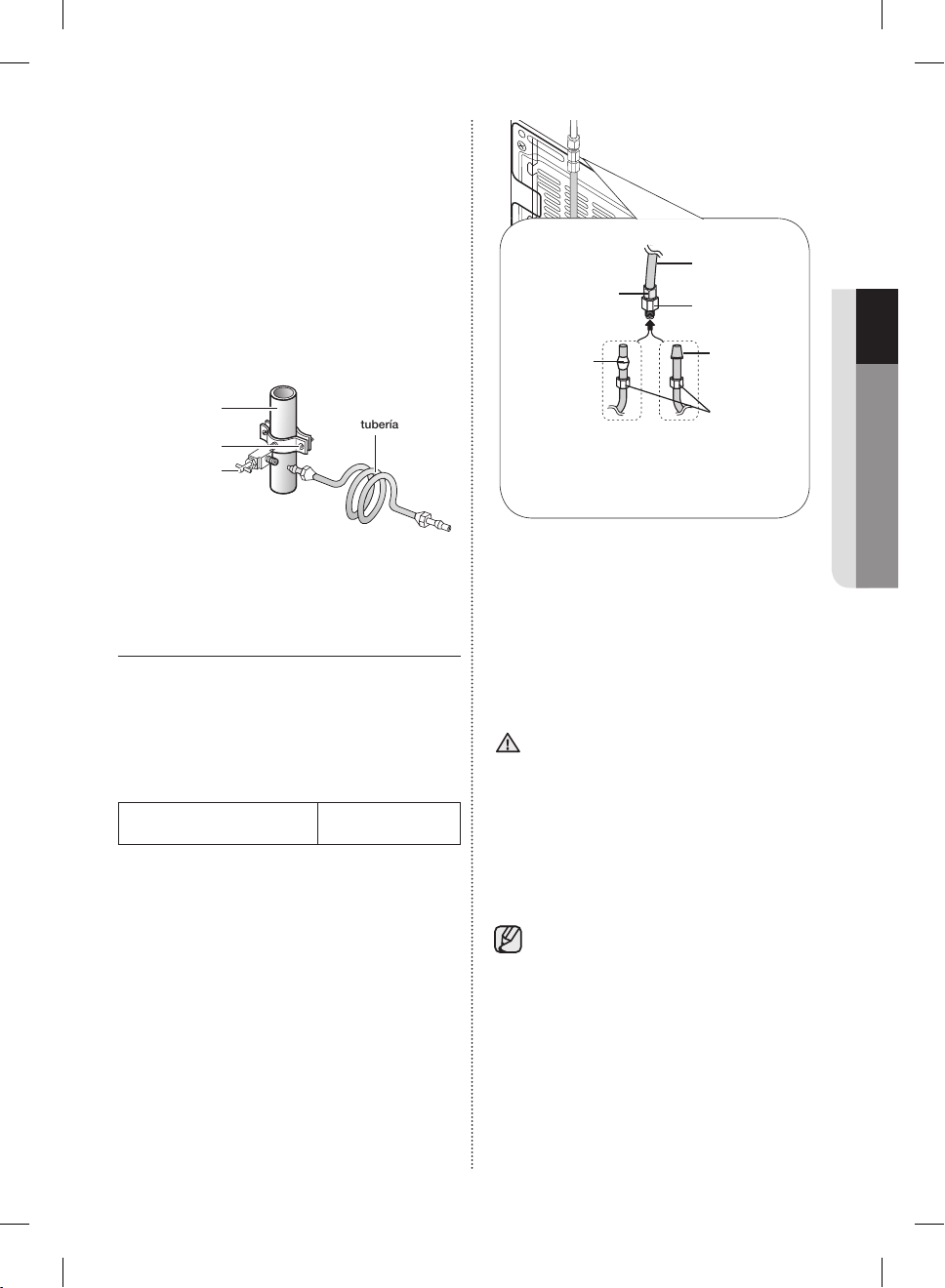
Español - 13
01 INSTALACIÓN
Conexión a la tubería del suministro de
agua
1. Primero, corte la tubería principal de suministro
de agua y apague la fábrica de hielo.
2. Localice la tubería de agua potable fría más
cercana.
3. Tras conectar el suministro de agua al filtro del
agua, abra el suministro de agua y haga correr
3 galones a través del filtro antes de utilizarlo
(durante aproximadamente 6 minutos).
Kit de instalación de
tubería
Tubería de
agua fría
Abrazadera
Válvula de
cierre
INSTALACIÓN DE LA TUBERÍA DE
AGUA
Conexión de la tubería de suministro de
agua al refrigerador.
Para llevar a cabo la conexión, necesita adquirir
varios elementos. Posiblemente su ferretería local
los venda todos juntos en un kit.
• tuerca de compresión de ¼”
• tubería de cobre
• tubería de plástico
• férula
Tuerca de
compresión
(1/4”) (armada)
Férula
(No provista)
Tubería de plástico
(armada)
Acople de
compresión
(armado)
Extremo
moldeado
(lámpara)
Tuerca de
compresión (B)
(1/4”)
(No provista)
o
Tubería de cobre
(No provista)
Tubería de plástico (B)
(No provista)
Tubería de suministro del agua corriente
Refrigerador
1. Conecte la tubería del agua corriente al acople
de compresión ensamblado.
- Si utiliza una tubería de cobre, deslice la tuerca
de compresión (B) (no incluida) y la férula (no
incluida) por la tubería de cobre (no incluida)
como se muestra en el gráfico.
- Si utiliza una tubería de plástico (B), inserte el
extremo moldeado (lámpara) de la tubería de
plástico (B) en el acople de compresión.
No la utilice sin el extremo moldeado
(Lámpara) de la tubería de plástico (B).
2. Ajuste la tuerca de compresión (B) sobre el
acople de compresión.
No ajuste demasiado la tuerca de compresión
(B).
3. Abra el agua y verifique si hay alguna fuga.
Solamente conecte la tubería de agua a
una fuente de agua potable.
Si debe reparar o desarmar la tubería de
agua, recorte 1/4“ de la tubería de plástico
para asegurarse de que la conexión sea
perfecta y libre de pérdidas.
PRECAUCIÓN
DA68-02500B-13.indb 13 13. 12. 4. �� 7:12
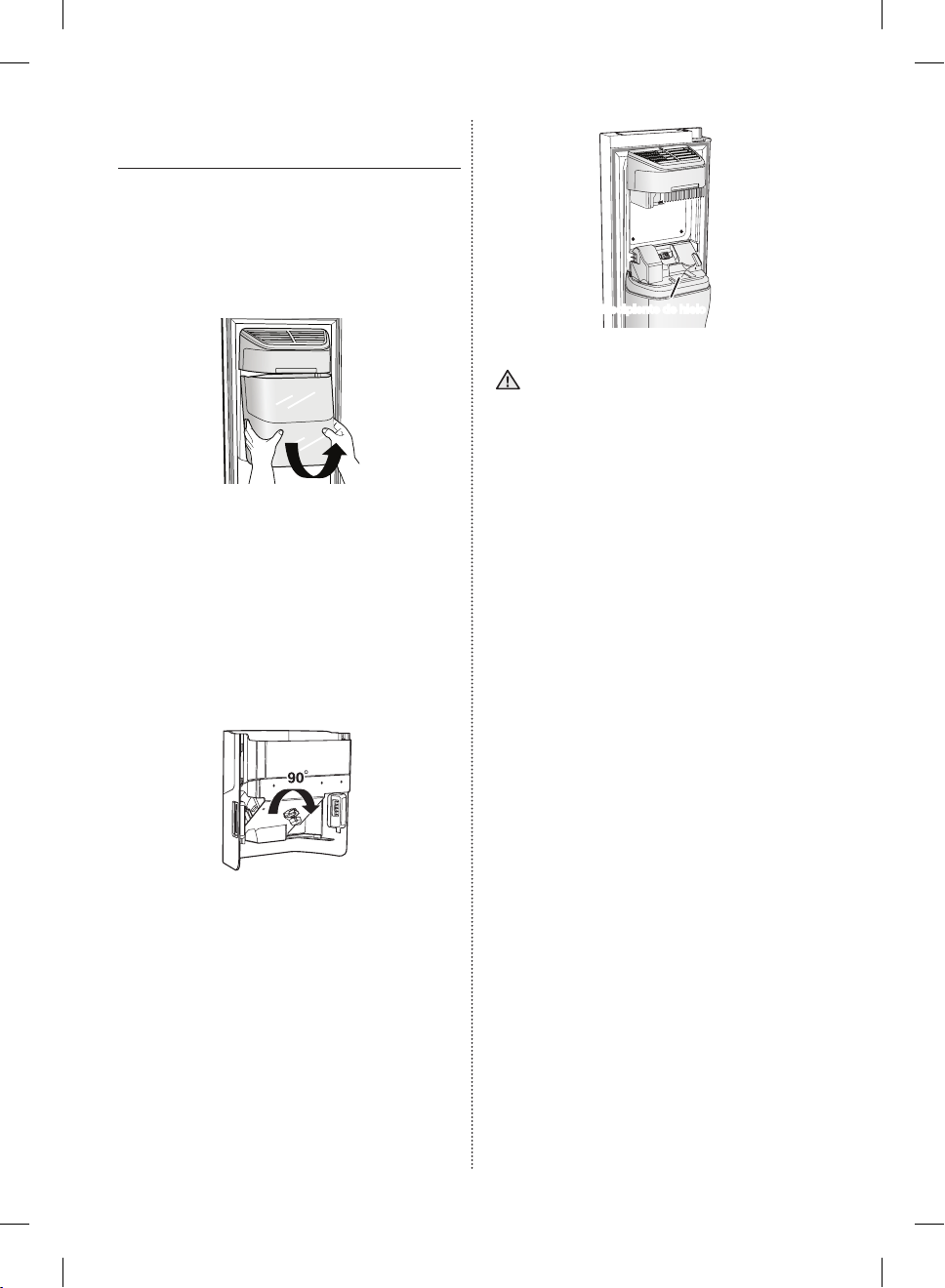
Español - 14
ANTES DE UTILIZAR LA FÁBRICA
DE HIELO
• Quitar
- Sostenga la manija como se muestra en la
figura 1.
- Levante ligeramente la parte inferior.
- Retire lentamente la cubeta de hielo.
Figura 1
• Instalar
- Móntelo en orden inverso a cómo se desarmó.
- Empuje la cubeta hacia adentro hasta que
escuche un clic.
- Cuando la cubeta no se ajusta en su lugar, gire
la manija de regulación hacia atrás 90 grados
y vuelva a instalarla como se muestra en la
figura 2.
Figura 2
• Antes de llamar al servicio técnico
- Cualquier sonido que oiga cuando la fábrica
de hielo arroja hielo en la cubeta es parte del
funcionamiento normal.
- No sacar hielo durante mucho tiempo puede
provocar que el hielo se amontone en la
cubeta. Retire el hielo restante y vacíe la
cubeta.
- Cuando el hielo no sale, verifique el hielo
trabado en el recipiente y retírelo.
Recipiente de hielo
• Cuando parpadea Ice Off (Hielo
desactivado) en el panel del visor,
vuelva a insertar la cubeta y asegúrese
de que está instalada correctamente.
• Cuando la puerta está abierta, no funciona el
dispensador de hielo ni el de agua.
• Si cierra la puerta con fuerza, el agua puede
derramarse sobre la fábrica de hielo.
• Para evitar que se caiga la cubeta de hielo, use
ambas manos al retirarla.
• Para evitar lesiones, debe limpiar el hielo o
agua que pueda haber caído en el suelo.
• No permita que los niños se cuelguen del
dispensador de hielo o de la cubeta.
Pueden lastimarse.
• No debe colocar la mano o cualquier otro
objeto dentro del recipiente de hielo.
Es posible que provoque lesiones personales o
daños a las piezas mecánicas.
PRECAUCIÓN
DA68-02500B-13.indb 14 13. 12. 4. �� 7:12
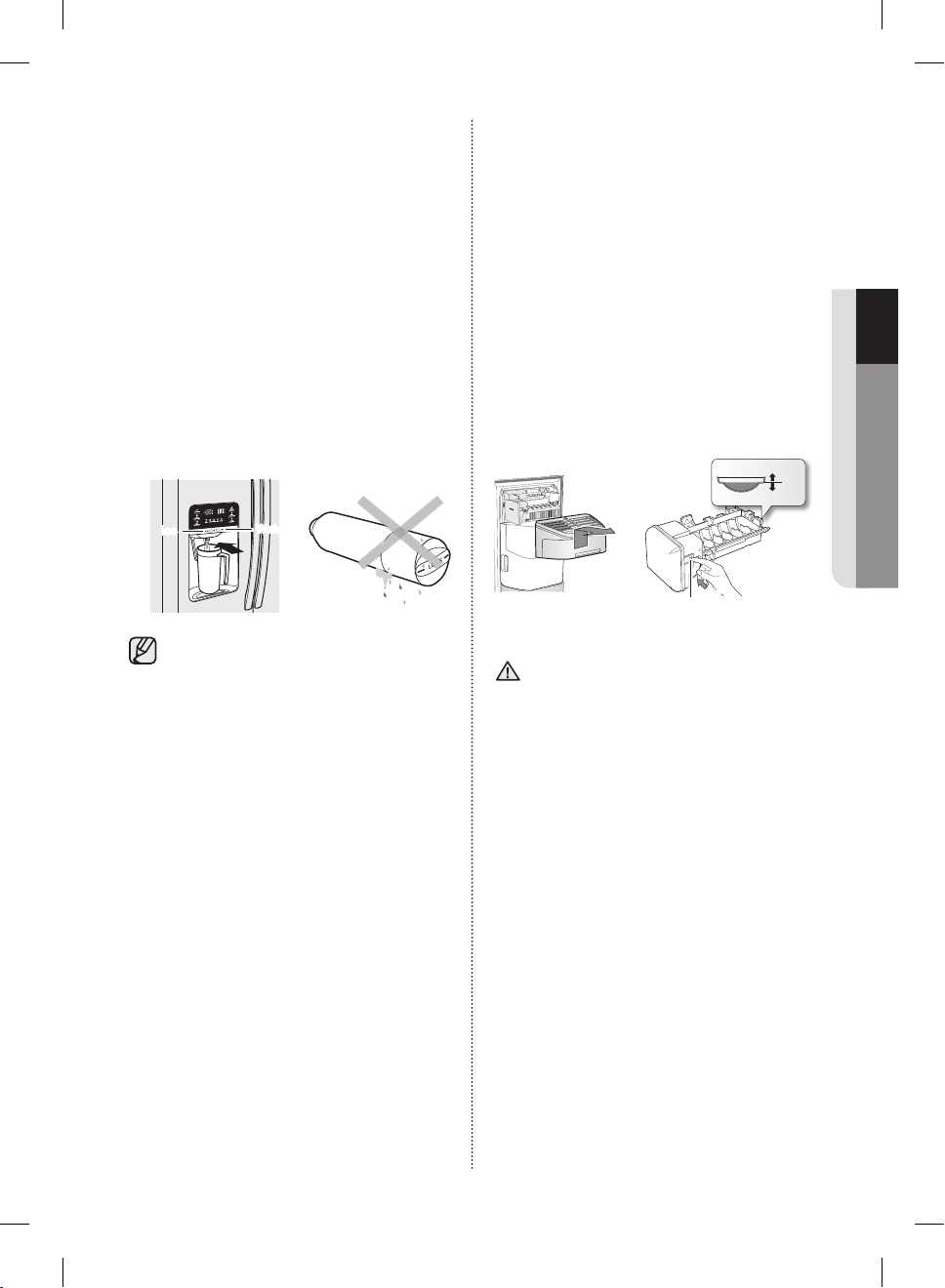
Español - 15
01 INSTALACIÓN
Remoción de los materiales residuales
que se encuentran dentro de la tubería
de suministro de agua después de
instalar el filtro.
1. Encienda el suministro de agua principal.
2. Pulse el botón Water (Agua) y empuje la
palanca del dispensador.
3. Haga correr un galón de agua a través del
filtro antes de utilizarlo. (El agua debe correr
unos 6 minutos.) Este procedimiento limpiará
el sistema de suministro de agua y eliminará el
aire de las tuberías.
4. Es posible que se necesite realizar una limpieza
adicional en algunos hogares.
5. Abra la puerta del refrigerador y asegúrese de
que no haya filtraciones de agua provenientes
del filtro de agua.
Ice
Water
Un cartucho del filtro de agua recién
instalado puede causar que el agua brote
del dispensador de agua.
Esto se debe al aire que entra en la
tubería.
No debería presentar ningún problema al
funcionamiento.
Verifique la cantidad de agua
suministrada a la charola para el hielo.
1. Levante la tapa de la fábrica de hielo y
extráigala con suavidad.
2. Cuando pulsa el botón Test (Probar) durante
3 segundos, el recipiente para cubos de hielo
se llena de agua proveniente del grifo de
suministro de agua.
Verifique para asegurarse de que la cantidad de
agua es correcta (vea la ilustración que aparece
a continuación).
Si el nivel de agua es demasiado bajo, los
cubos de hielo serán pequeños.
Este es un problema de presión de agua de los
tubos principales, no del refrigerador.
1
2
Fábrica de hielo
Verifique el nivel
de agua
Botón Test (Probar)
• Tardará unos minutos para alcanzar la
cantidad de agua deseada.
• No presione el botón Test (Probar)
continuamente cuando la charola está llena de
hielo o agua.
El agua se puede desbordar o el hielo puede
atascarse.
• Cuando la cubeta no está instalada, la fábrica
de hielo no funciona.
• Cuando aparece en la pantalla el mensaje
“La fábrica de hielo no funciona cuando la
cubeta de hielo no está instalada”, reinserte la
cubeta y/o asegúrese de que esté instalada
adecuadamente.
PRECAUCIÓN
DA68-02500B-13.indb 15 13. 12. 4. �� 7:12
Español - 16
funcionamiento del refrigerador
de doble puerta
RESTRICCIONES Y ALERTAS DEL PANEL DEL VISOR
1. El idioma predeterminado del Visor es el inglés.
Los idiomas no admitidos no aparecen en la pantalla.
2. Las actualizaciones periódicas del Clima o las Noticias causarán tráfico en la red incluso si el Visor no
está en uso.
3. Cuando hay actualizaciones de software disponibles, Samsung automáticamente actualiza el software
del refrigerador y luego emite una alerta que aparece en el Visor.
4. Observe que queda a absoluta discreción del licenciante relevante (proveedor de contenidos) qué
contenido está disponible a través de las diversas aplicaciones del refrigerador.
Además, cada licenciante se reserva el derecho exclusivo a eliminar cualquier contenido que pueda
dejar de ofrecer a través de la aplicación del refrigerador.
En tal caso, el licenciante puede enviar un aviso por escrito al usuario con respecto a la eliminación de
contenido.
PANEL DIGITAL
CPU NEXELL CPU OS Linux 2.6.28
RAM 256 MB LCD 8" TFT-LCD (800*480)
ROM 512 MB NETWORKS IEEE802.11b/g/n
DA68-02500B-13.indb 16 13. 12. 4. �� 7:13
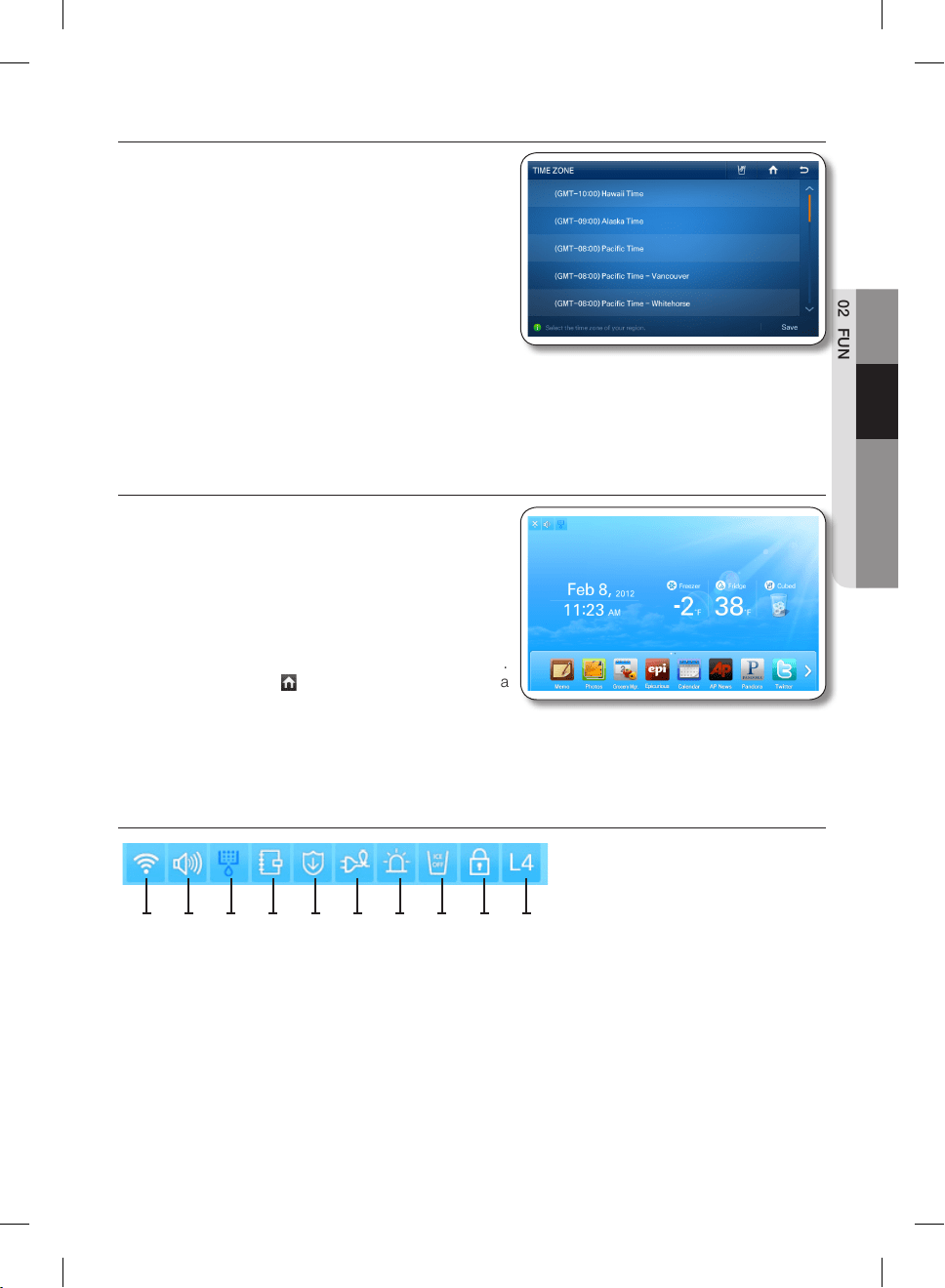
Español - 17
02 FUNCIONAMIENTO
USO POR PRIMERA VEZ
• Cuando usa el producto por primera vez después de
la instalación, aparece la pantalla de Ajuste del huso
horario en el panel del visor.
Debe seleccionar su huso horario para usar el
calendario de Google y el servicio de Twitter
correctamente.
• Después de seleccionar el huso horario y presionar el
botón [Save] (guardar), aparece la Pantalla de inicio en
el panel del visor.
La pantalla de ajuste del huso horario puede aparecer
nuevamente después de una actualización de
software.
PANTALLA DE INICIO
• La pantalla de inicio es el punto de partida para
configurar todas las funciones. En el centro de la
pantalla de inicio, aparece la información básica
del refrigerador como por ejemplo Hora, Clima,
Temperatura y Selección del dispensador. Los íconos
indicadores en el margen superior izquierdo de la
pantalla muestran información acerca del estado del
refrigerador. Los íconos del menú en la parte inferior
de la pantalla inician diversas aplicaciones o funciones.
Cuando selecciona ( ) en cualquier menú, la pantalla
vuelve a la pantalla de inicio inmediatamente.
Íconos indicadores (Margen superior izquierdo de la pantalla)
1 2 3 4 5 6 7 8 9 10
1. Intensidad de la señal de red
: 5 Niveles (apagado - 1 - 2 - 3 - 4)
2. Nivel del volumen
: 5 Niveles (apagado - 1 - 2 - 3 - 4)
3. Estado del filtro: 3 Niveles (azul - rosa - rojo)
4. Programar alarma
5. Aviso de actualización de software
6. Ahorro de energía
7. Alarma de la puerta
8. Hielo desactivado
9. Bloqueo del dispensador
10. Nivel Smart Grid (apagado - 1 - 2 - 3 - 4)
DA68-02500B-13.indb 17 13. 12. 4. �� 7:13
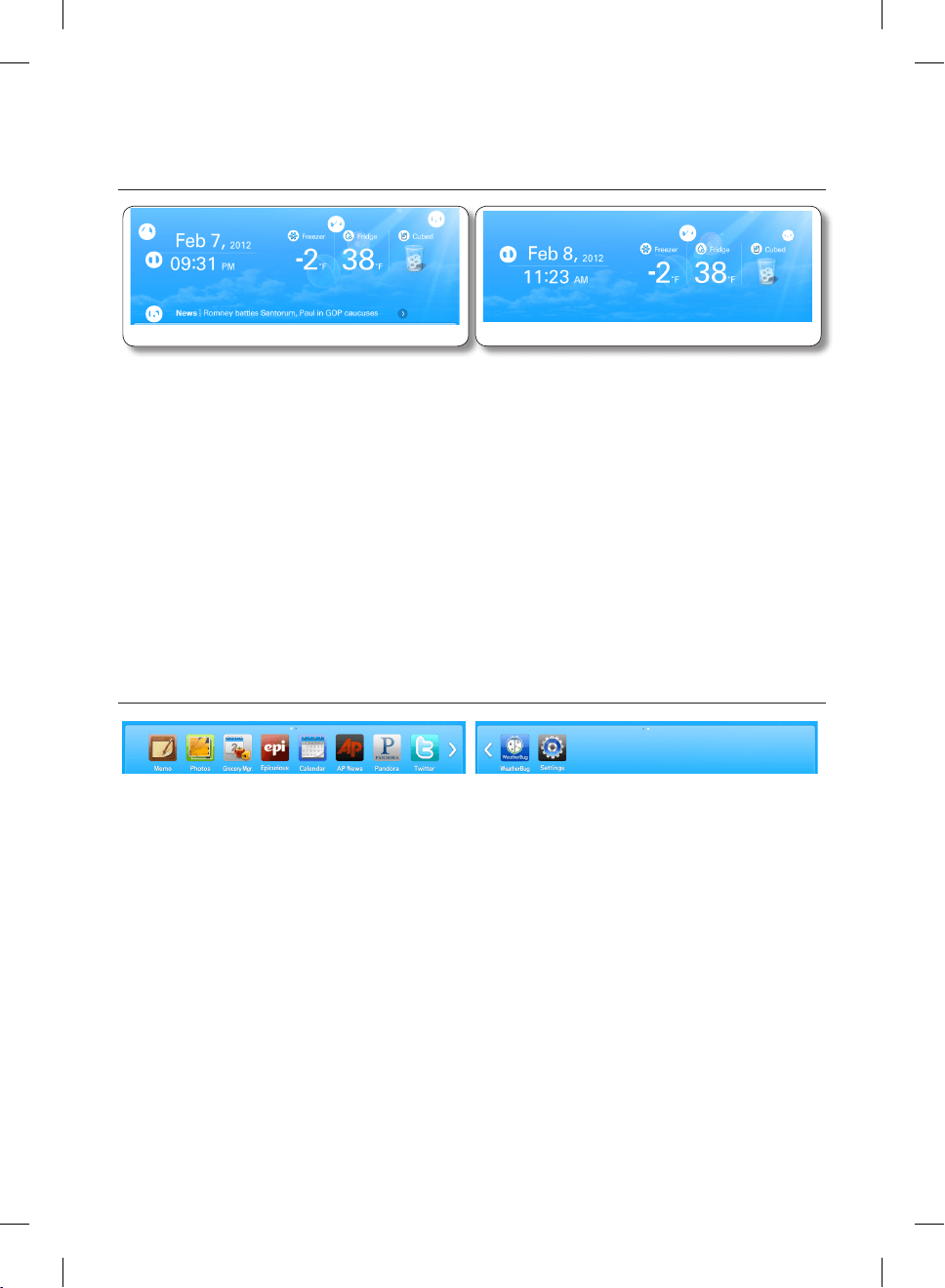
Español - 18
Fecha/Hora, temperatura del congelador/refrigerador, selección del
dispensador, clima actual (centro de la pantalla), noticias (en la parte inferior
de la pantalla)
<Wireless network connected>
①
④
⑤
②
③
<Wireless network disconnected>
①
②
③
1. Fecha/Hora: Indica la fecha y hora actual.
2. Temperatura del Congelador/Refrigerador: Muestra la temperatura actual del congelador/refrigerador.
Cuando selecciona la temperatura del congelador/refrigerador, aparece la pantalla de ajuste de
temperatura.
3. Dispensador: Muestra el estado actual del dispensador. Cuando selecciona el estado actual del
dispensador, aparece la pantalla de selección de tipo de hielo.
4. Clima: Muestra el clima local actual, si el refrigerador está conectado a una red WIFI.
La pantalla de inicio muestra el clima actual (y la hora) utilizando una de ocho imágenes (Despejado,
Nublado, Nieve, Lluvia) X (Día o Noche).
5. Noticias: Las muestra a través de Internet, siempre que la unidad esté conectada a una red WIFI.
Los títulos de las noticias cambian en determinados intervalos.
Cuando selecciona un título, el artículo aparecerá en la pantalla.
En la parte inferior de la pantalla: Íconos del menú
1. Memo (Nota): Le permite crear, guardar o controlar notas.
2. Photos (Fotografías): Le permiten administrar las fotografías almacenadas e importar fotografías desde
dispositivos externos tales como tarjetas de memoria o teléfonos móviles y desde Internet.
3. Administrador de comestibles: Le permite administrar los alimentos por ubicación, fecha de
almacenamiento y fecha de vencimiento.
4. Epicurious: Le permite ver recetas y crear listas de compras para las recetas que selecciona.
5. Calendar (Calendario): Le permite ver la programación que almacenó en Google Calendar.
6. AP News: Muestra las noticias de una de las 11 categorías que seleccionó.
7. Pandora: Reproduce música provista por el servicio de radio por Internet Pandora.
8. Twitter: Muestra los mensajes de Twitter.
9. WeatherBug: Muestra el clima actual y el pronóstico del tiempo.
10. Ajustes: Le permite ajustar las funciones básicas del refrigerador tales como Energy Saver (ahorro de
energía), Door Alarm (alarma de la puerta), Time (hora), etc.
DA68-02500B-13.indb 18 13. 12. 4. �� 7:13
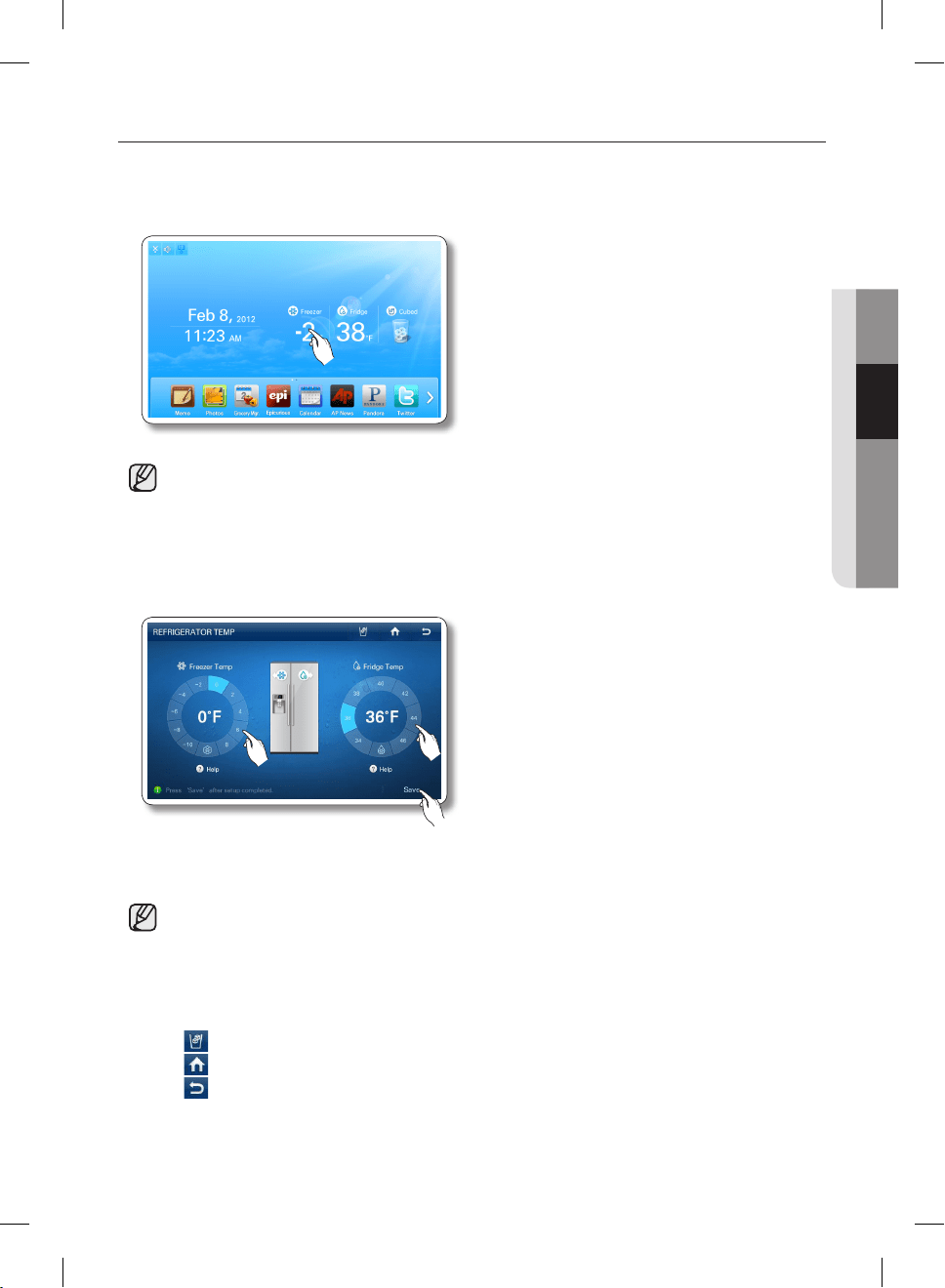
Español - 19
02 FUNCIONAMIENTO
AJUSTE DE LA TEMPERATURA DEL CONGELADOR/REFRIGERADOR
El control de temperatura le permite ajustar las temperaturas del congelador y del refrigerador. Utilice las
siguientes instrucciones para modificar y ajustar estas temperaturas.
1. Seleccione la temperatura del Congelador/Refrigerador en la pantalla de inicio.
• Cuando se almacena helado a una temperatura superior a los 4°F (-16°C) en el congelador,
puede derretirse.
2. Elija una temperatura del congelador y/o refrigerador usando los botones de temperatura y luego
seleccione el botón [Save] (Guardar).
• La temperatura del congelador/refrigerador se puede ajustar de la siguiente manera según el
modelo.
Congelador: Fahrenheit: -23.33°F ~ -13.33°F (Predeterminado: -20.00°F),
Celsius : -23°C ~ -14°C (Predeterminado: -20°C)
Refrigerador: Fahrenheit: 1.11°F ~ 7.78°F (Predeterminado: 3.33°F), Celsius : 1°C ~ 7°C
(Predeterminado: 3°C)
• Íconos de función en el ángulo superior derecho de la pantalla de funciones:
• : Presione para establecer el tipo de dispensador. (Cubos/triturado/Agua)
• : Presione para ir a la pantalla de inicio.
• : Presione para mostrar la pantalla de vista previa.
DA68-02500B-13.indb 19 13. 12. 4. �� 7:13
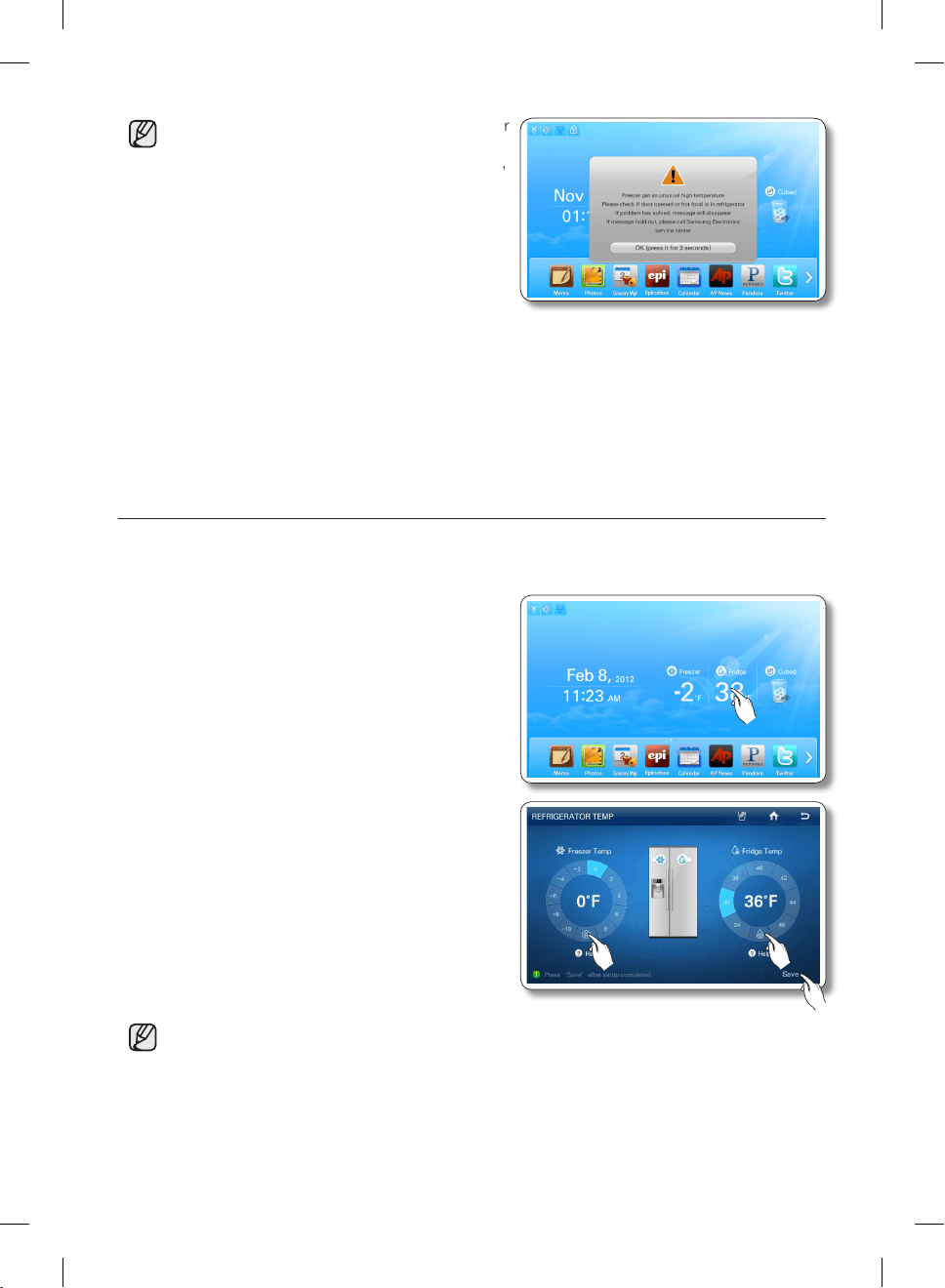
Español - 20
• La temperatura del congelador o del refrigerador
puede variar según la frecuencia con que se
abra y cierre la puerta, la cantidad de alimentos,
la temperatura ambiente, etc.
• Las temperaturas varían en cada sección donde
se almacenan alimentos en los compartimentos
del congelador y el refrigerador.
• Si la temperatura ambiente se torna
inusualmente cálida, puede causar un aumento
anormal el temperaturas del refrigerador y el
congelador.
Si esto ocurre, la pantalla mostrará el mensaje desplegable “Abnormally High Temperature”
(Temperatura anormalmente elevada). Cuando las temperaturas vuelve a lo normal, el mensaje
desplegable se cerrará automáticamente. Si la temperatura ambiente vuelve a lo normal
y el mensaje desplegable no se cierra automáticamente, comuníquese con su centro de
reparaciones más cercano.
AJUSTES DE POWER FREEZE/POWER COOL (PODER DE
CONGELACIÓN/PODER DE ENFRIAMIENTO)
Puede usar las funciones Power Freeze (Poder de congelación) y Power Cool (Poder de enfriamiento) para
bajar rápidamente la temperatura de los compartimentos del congelador y del refrigerador. Para usar la
función Power Freeze (Poder de congelación) o Power Cool (Poder de enfriamiento), siga estos pasos:
1. Presione la temperatura del Freezer (Congelador)/
Fridge (Refrigerador) en la pantalla de inicio.
2. Presione los botones Power Freeze (Poder de
congelación) y/o Power Cool (Poder de enfriamiento) y
luego presione el botón [Save] (Guardar).
• Para cancelar el Power Freeze (Poder de congelación) y el Power Cool (Poder de enfriamiento),
seleccione el botón de ajuste de temperatura.
• Energy consumption increases during Power Freeze and/or Power Cool usage.
• Si selecciona el ícono de interrogación (?), aparece la pantalla que describe la función. Presione
el botón [OK] (Aceptar) para volver a mostrar la pantalla de visualización de temperatura.
• Cuando se enciende Power Freeze/Power Cool (Poder de congelación/Poder de enfriamiento),
el compresor del refrigerador se acelera y se escucha un sonido más fuerte que durante el
funcionamiento normal.
DA68-02500B-13.indb 20 13. 12. 4. �� 7:13
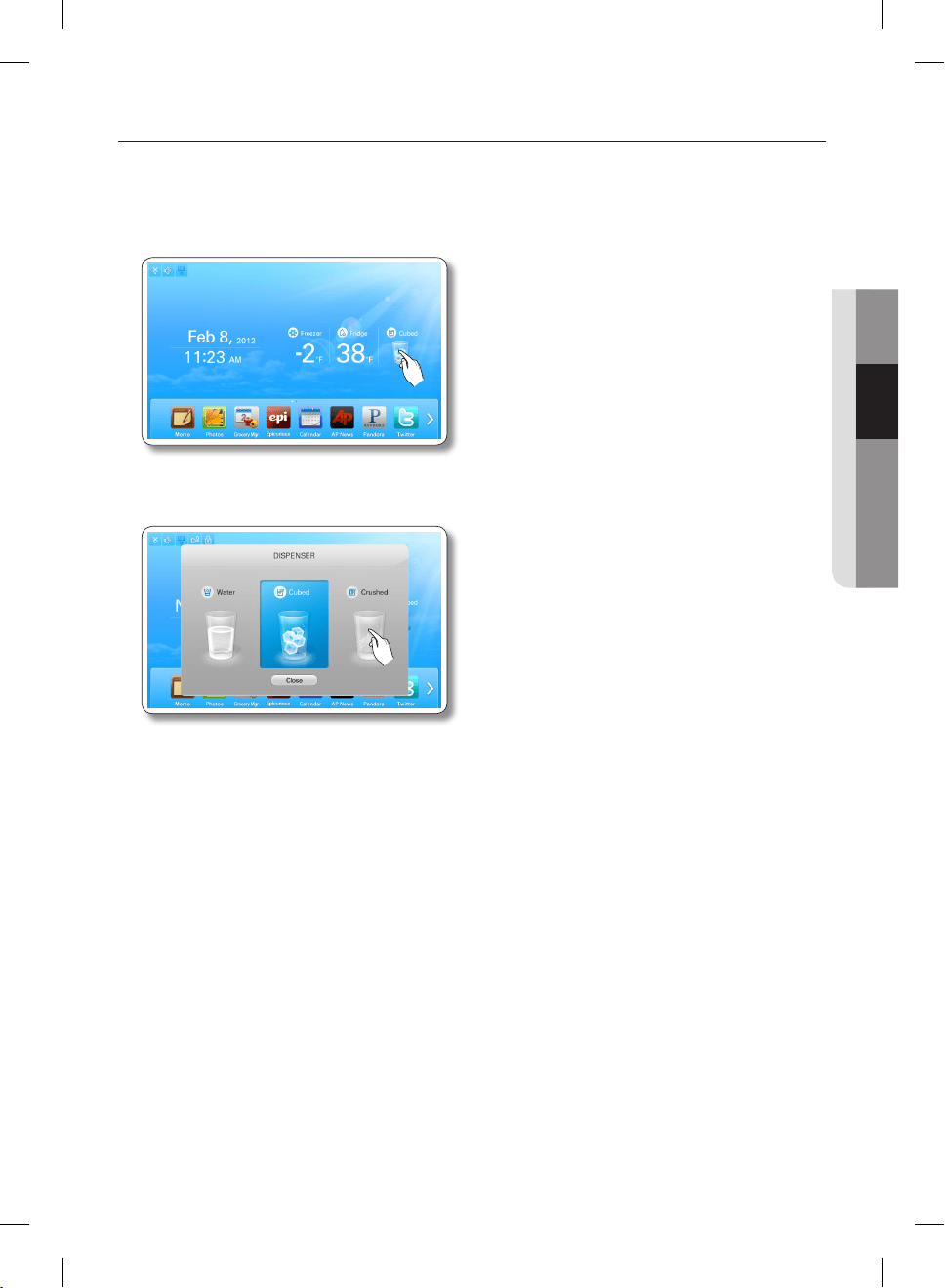
Español - 21
02 FUNCIONAMIENTO
AJUSTES DEL DISPENSADOR
Puede seleccionar el tipo de hielo y agua.
1. Presione sobre el estado del dispensador en la pantalla de inicio. Aparece la pantalla emergente del
dispensador.
2. Presione el tipo de dispensador deseado, luego presione el botón [Close] (Cerrar).
DA68-02500B-13.indb 21 13. 12. 4. �� 7:13
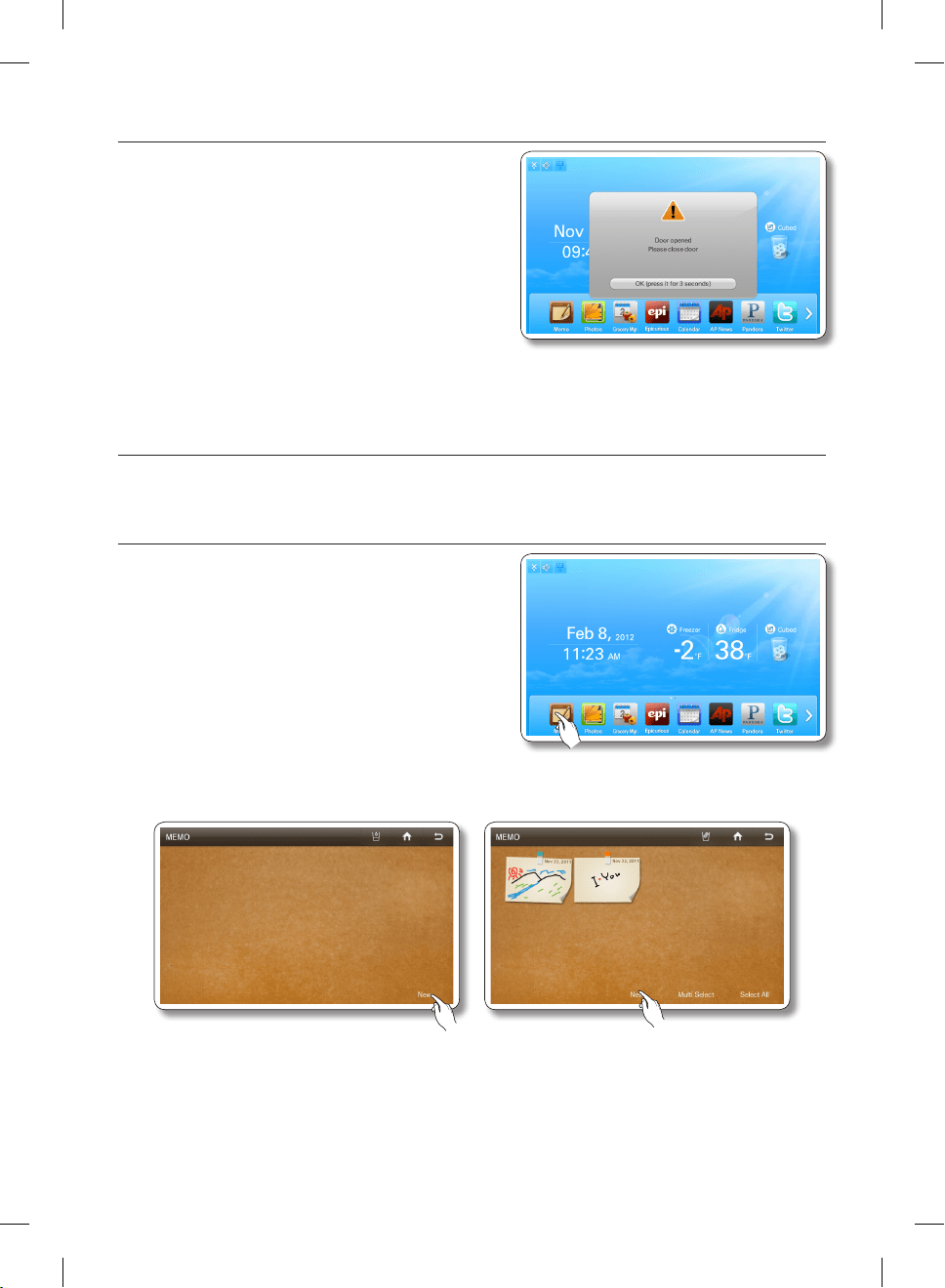
Español - 22
ALARMA DE PUERTA ABIERTA
Si la puerta del refrigerador o del congelador permanece
abierta por más de 2 minutos, aparece una ventana de
advertencia acompañada de una alarma.
La alarma se repite cada minuto y sólo se detiene cuando
se cierran ambas puertas.
Si ajusta la alarma de la puerta en OFF (Apagado) en el
menú de ajustes, la alarma no funciona.
NOTA
Puede utilizar esta función para dejar una nota para usted mismo o para otra persona.
Cómo dejar una nota.
1. Presione el botón [Memo] (Nota) en la pantalla de
inicio.
2. Seleccione el botón [New] (Nuevo).
DA68-02500B-13.indb 22 13. 12. 4. �� 7:13
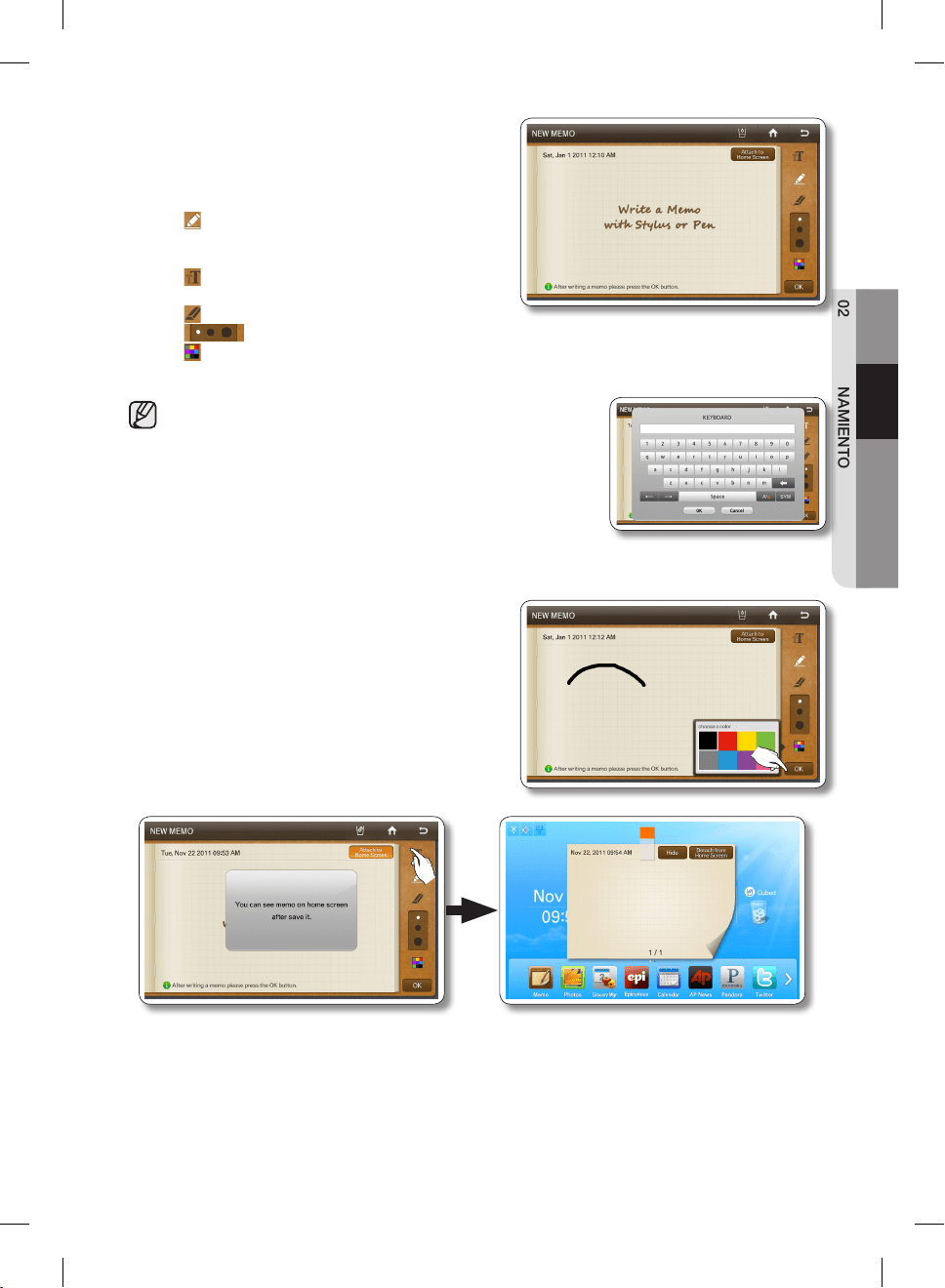
Español - 23
02 FUNCIONAMIENTO
3. Seleccione las herramientas de nota que desea
tocando los botones de herramientas arriba del área
de escritura de la nota.
Las herramientas se describen a continuación.
• : Seleccione para introducir una nota en
modo bolígrafo. Use un dedo o un lápiz de
punta suave.
• : Seleccione para introducir una nota en
modo teclado.
• : Seleccione para borrar una nota.
• : Seleccione el grosor del bolígrafo o de la goma de borrar.
• : Seleccione el color del bolígrafo.
• Se pueden guardar hasta 80 notas.
• Para utilizar el teclado, pulse el ícono del teclado y toque
donde desee empezar a escribir la nota.
El teclado aparece en el visor.
El número de caracteres que se puede ingresar con el
teclado está limitado a los que caben en el área de escritura
de la nota.
4. Presione el botón [Save] (Guardar) una vez que haya
escrito la nota.
• Si desea mostrar la nota en la pantalla de inicio,
presione el botón [Attach to Home Screen]
(Adjuntar a la pantalla de inicio) y presione el
botón [Save] (Guardar). Vea a continuación.
DA68-02500B-13.indb 23 13. 12. 4. �� 7:13
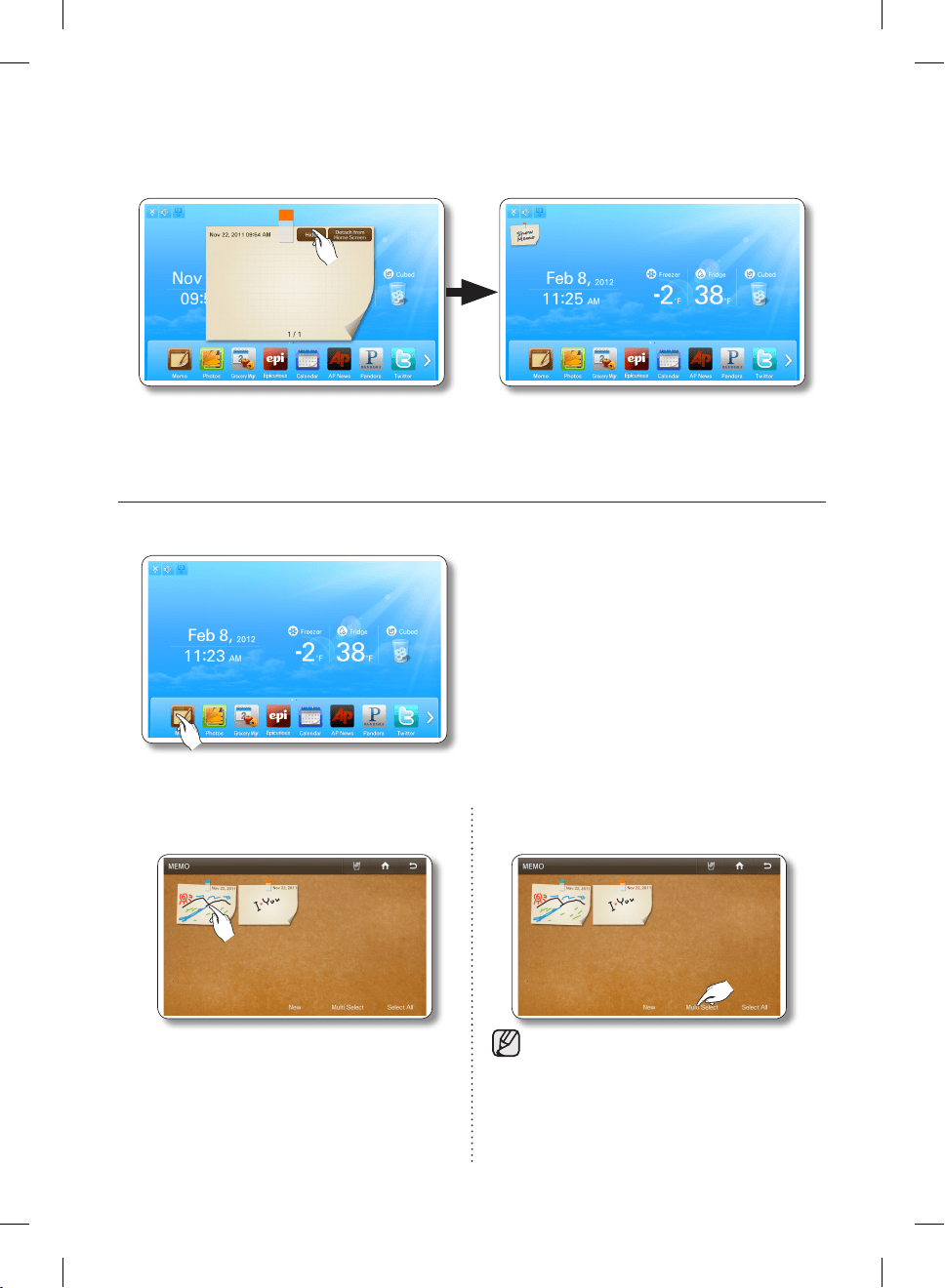
Español - 24
• La nota que se muestra en la pantalla de inicio se puede guardar presionando el botón
[Detach from Home Screen] (Quitar de la pantalla de inicio) o se puede ocultar temporalmente
presionando el botón [Hide] (Ocultar).
Cómo mostrar las notas.
1. Presione el botón Memo (Nota) en la pantalla de inicio.
Para ver varias notas, siga aquí.
2. Seleccione la nota que desea mostrar. 2. Para ver varias notas, presione el botón [Multi
Select] (Selección múltiple).
• Al presionar el botón [Select All] (Seleccionar
todas), aparece la pantalla Multi Selection
(Selección múltiple).
• Cuando hay varias páginas con muchas notas,
habrá números de página en la parte inferior de
la pantalla. Si selecciona un número de página,
la pantalla de desplaza a esa página.
El modo Multi-Select (Selección múltiple)
le permite seleccionar una serie de notas y
luego verlas una tras otra al presionar los
botones [<] o [>].
DA68-02500B-13.indb 24 13. 12. 4. �� 7:13
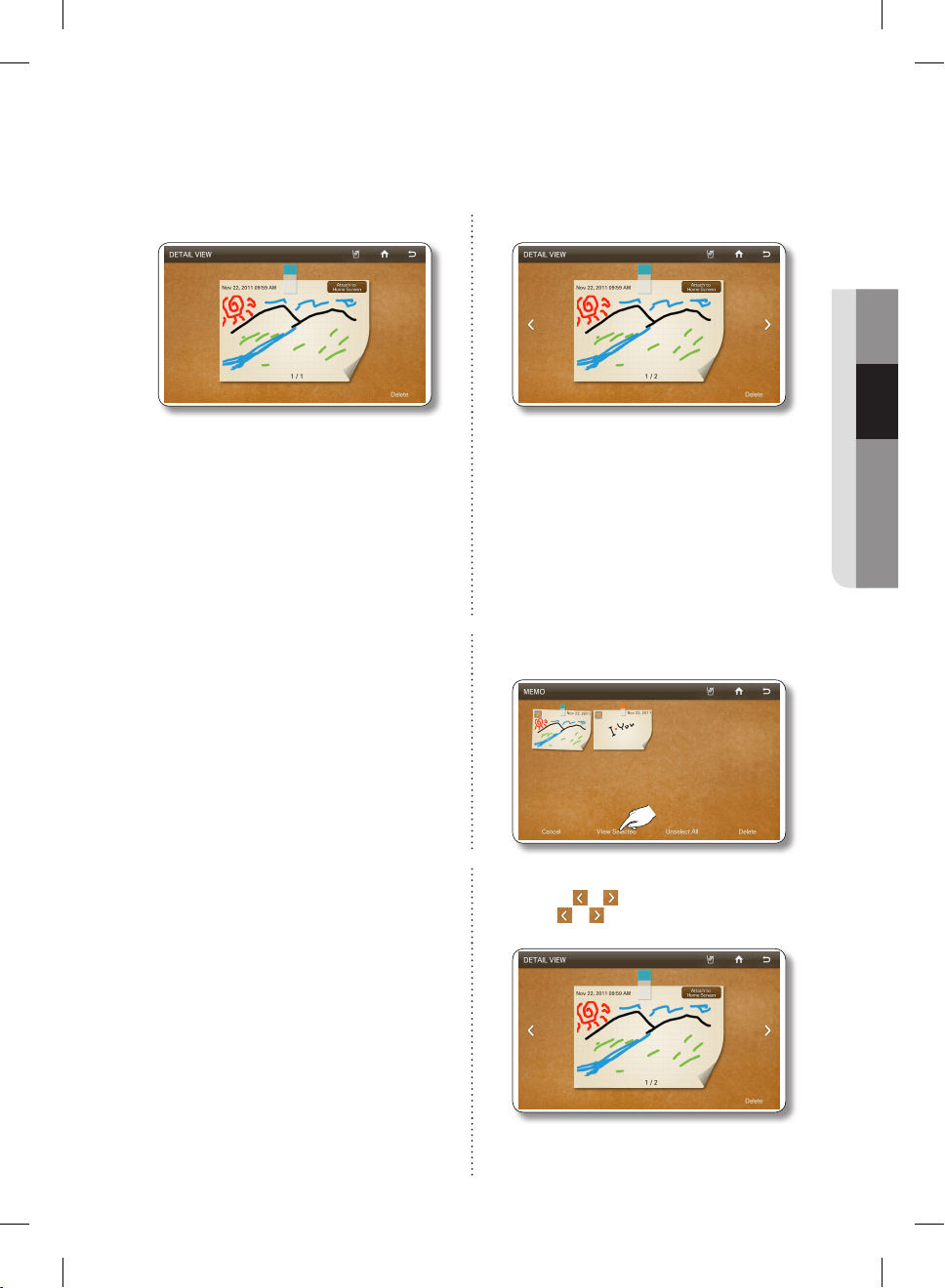
Español - 25
02 FUNCIONAMIENTO
• La(s) nota(s) que se mostrará(n) en la pantalla de inicio está(n) indicada(s) con una chinche roja.
• Las notas escritas aparecen como imágenes en miniatura. Puede cambiar el orden de las notas
escritas con la función de arrastrar y soltar.
3. Vea la nota guardada. 3. Seleccione la nota que desea ver.
• En la pantalla Detail View (Vista de detalles),
puede eliminar la nota o adjuntarla a la pantalla
de inicio o quitarla.
• Al seleccionar el botón [Select All] (Seleccionar
todas), quedan seleccionadas todas las notas
de la página actual y el botón [Select All]
(Seleccionar todas) cambia a [Unselect All]
(Deseleccionar todas).
• Para salir de la pantalla Multi Select (Selección
múltiple), presione el botón [Cancel] (Cancelar).
• Cuando hay varias páginas con muchas notas,
habrá números de página en la parte inferior de
la pantalla. Si presiona un número de página, la
pantalla de desplaza a esa página.
4. Presione el botón [View Selected]
(Ver seleccionadas).
5. Vea la nota guardada mediante el uso de los
botones y . Cada vez que presione el
botón o , aparece el siguiente menú de
la secuencia.
• En la pantalla Detail View (Vista de detalles),
puede eliminar una nota o adjuntarla a la
pantalla de inicio o quitarla.
DA68-02500B-13.indb 25 13. 12. 4. �� 7:13
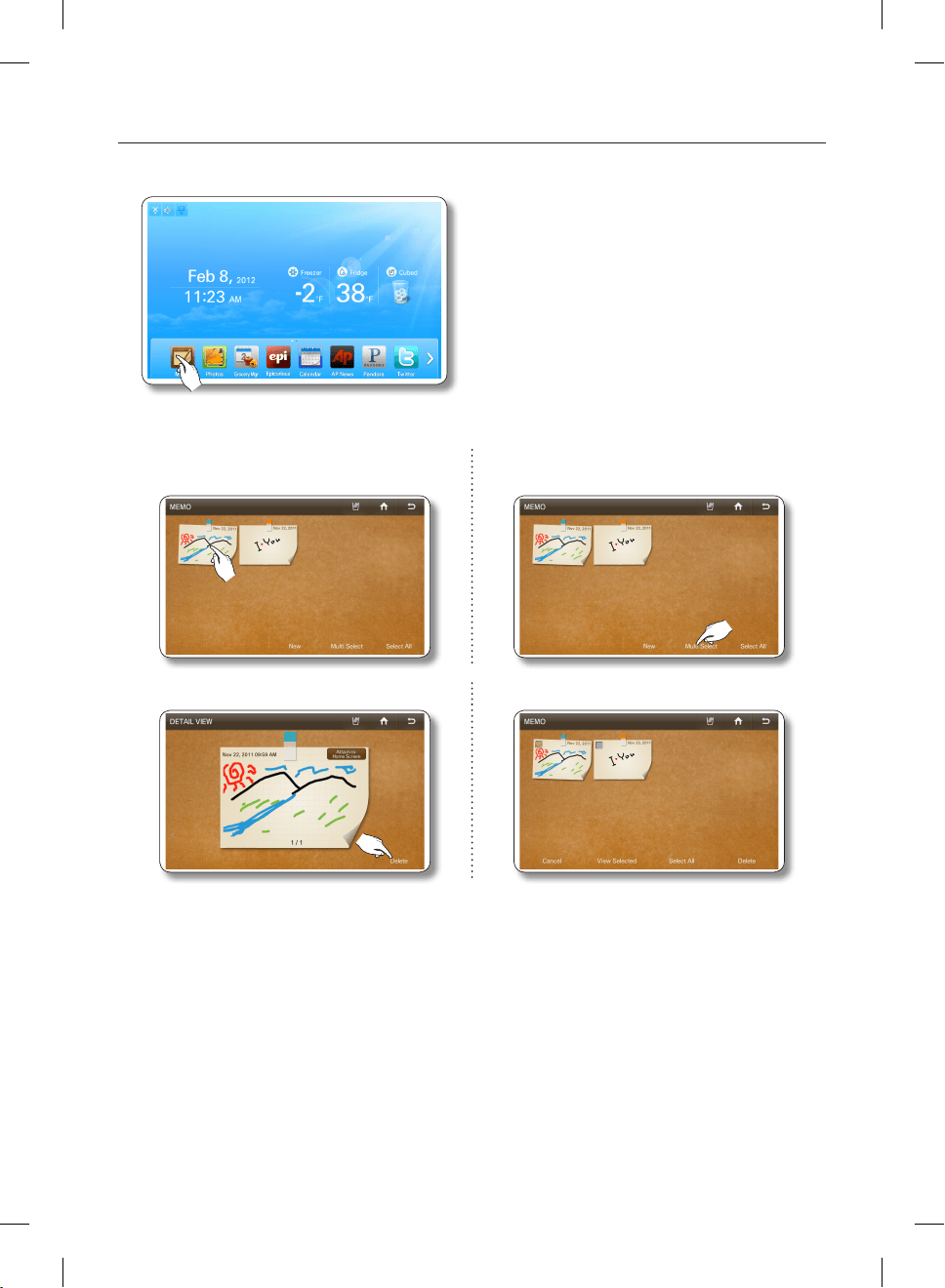
Español - 26
Cómo borrar las notas.
1. Presione el botón [Memo] (Nota) en la pantalla de inicio.
Para borrar varias notas, siga aquí.
2. Seleccione la nota que desea borrar. 2. Para eliminar varias notas, presione el botón
[Multi Select] (Selección múltiple).
3. Presione el botón [Delete] (Eliminar). 3. Seleccione las notas que desea borrar.
DA68-02500B-13.indb 26 13. 12. 4. �� 7:13
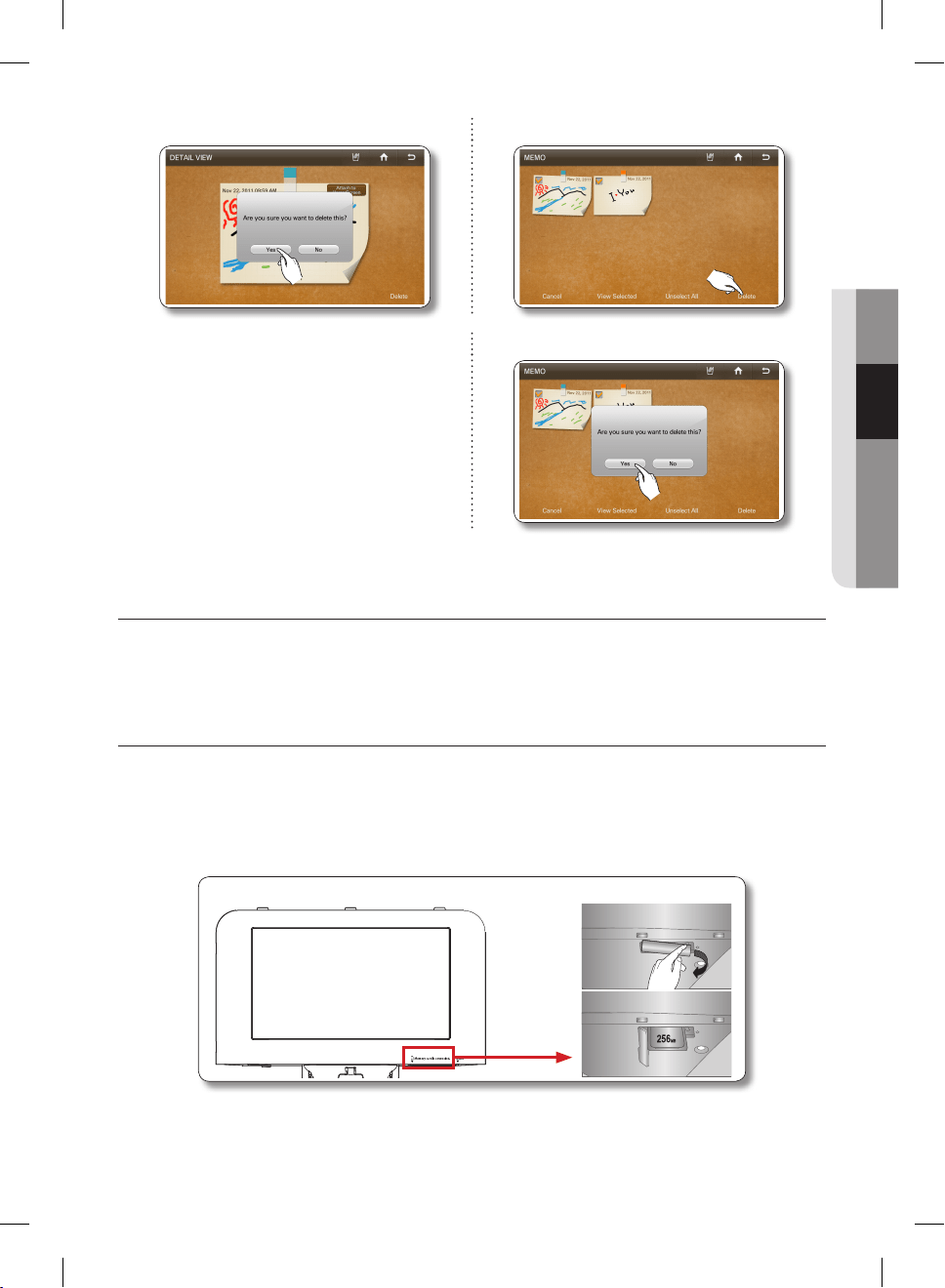
Español - 27
02 FUNCIONAMIENTO
4. Presione el botón [Yes] (Sí). 4. Presione el botón [Delete] (Eliminar).
5. Presione el botón [Yes] (Sí).
FOTOGRAFÍAS
Puede cargar fotografías desde una tarjeta de memoria/dispositivo DLNA/Picasa Web Album a My Album
(Mi álbum) en su refrigerador.
Cómo copiar fotografías desde una tarjeta de memoria a My Album (Mi álbum)
1. Jale de la cubierta de la ranura para tarjetas y desplácela hacia un costado.
2. Inserte la tarjeta de memoria (SD/SDHC/MMC/HS MMC) con imágenes guardadas dentro de la
ranura para tarjetas.
Aparece en la pantalla el mensaje “A SD/MMC card is connected” (“Se conectó una tarjeta SD/
MMC”).
DA68-02500B-13.indb 27 13. 12. 4. �� 7:13
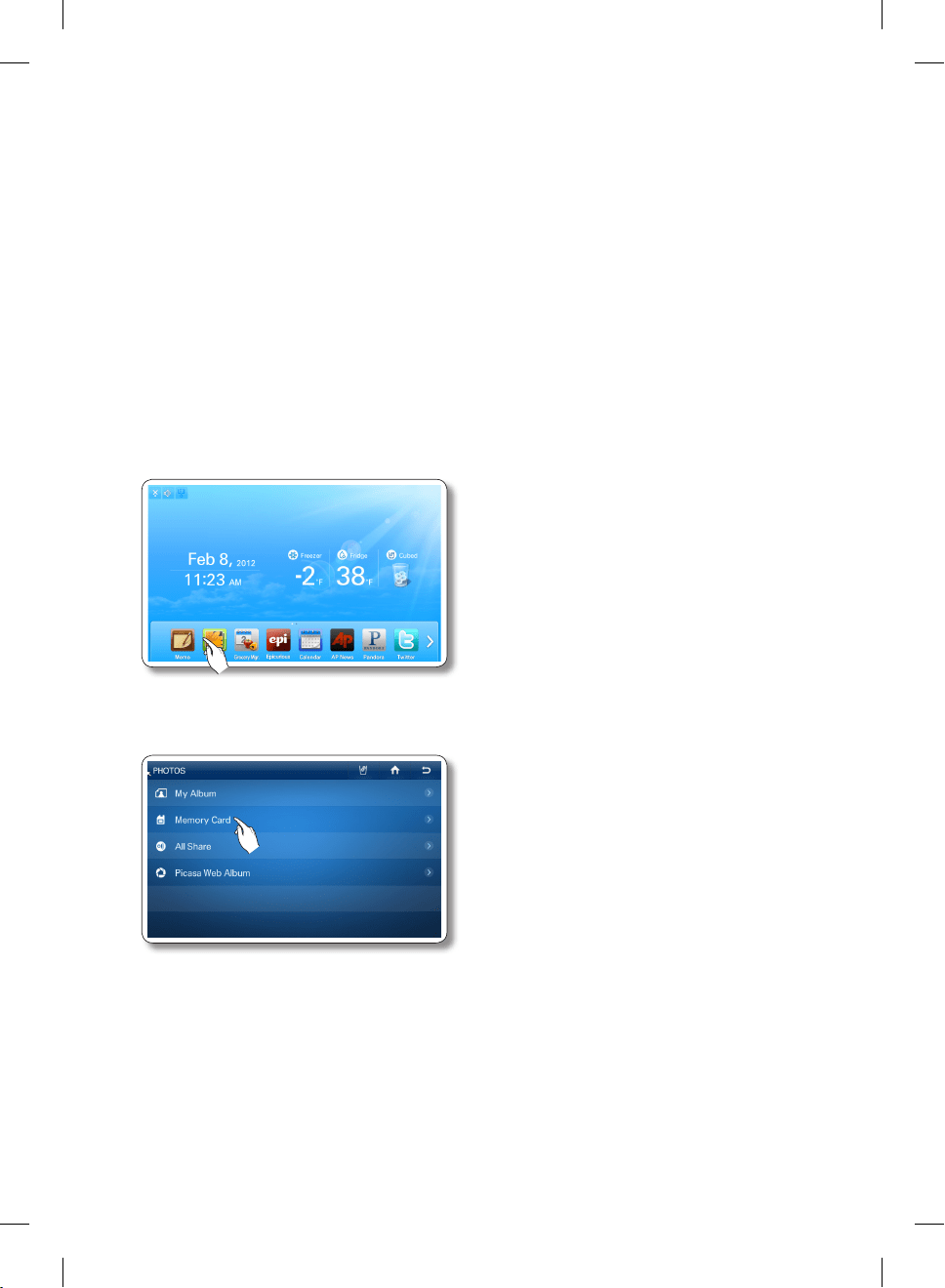
Español - 28
• La ranura para tarjetas de memoria sólo es compatible con tarjetas SD/SDHC/MMC/HS MMC.
• La ranura sólo lee imágenes en formato JPEG (JPG).
• La capacidad del panel es de aproximadamente 300 fotografías.
• Al guardar fotografías desde una tarjeta de memoria al panel, el refrigerador automáticamente
cambia el tamaño de la fotografía a 800 x 480 píxeles, independiente del tamaño original.
• Si existen varias fotografías guardadas en la tarjeta de memoria, tomará un tiempo para cargar
la función de vista previa.
• Si se retira la tarjeta de memoria durante la transferencia de imágenes, en My Album (Mi álbum)
solo se mostrarán las imágenes que completaron la transferencia.
Si no se completó la transferencia de ninguna imagen, el visor vuelve a la pantalla de fotos.
• Las imágenes guardadas se ajustan al tamaño de la pantalla. Según el tamaño de la imagen,
pueden aparecer barras negras en la parte superior o a los lados.
• La tarjeta de memoria no viene suministrada con el refrigerador.
• Es posible que el refrigerador no pueda leer su tarjeta de memoria SD/SDHC/MMC/HS MMC,
dependiendo del tipo de tarjeta que sea.
3. Presione el botón [Photos] (Fotos) en la pantalla de inicio.
4. Seleccione [Memory Card] (Tarjeta de memoria) en la lista de Photos (fotografías).
DA68-02500B-13.indb 28 13. 12. 4. �� 7:13
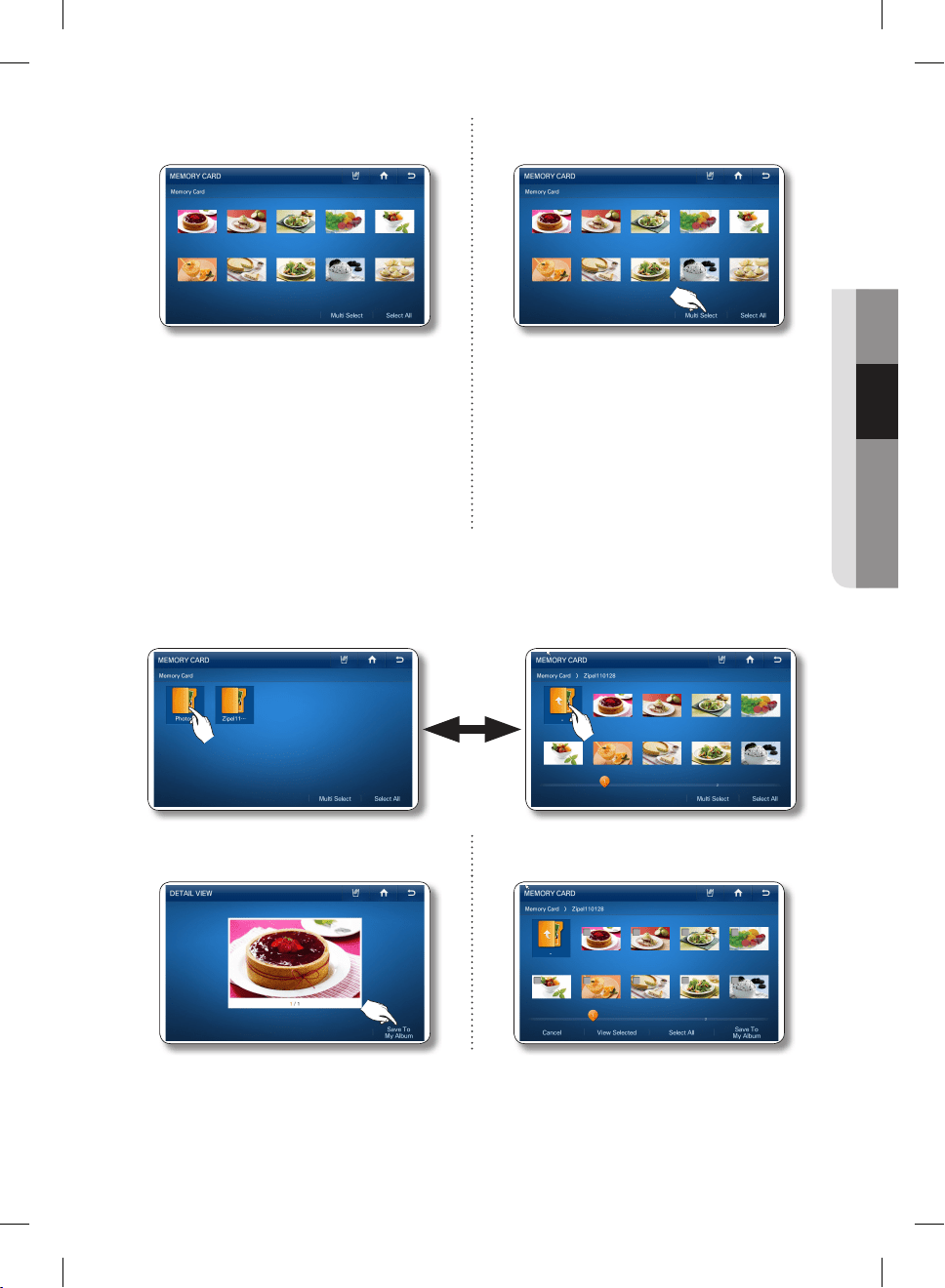
Español - 29
02 FUNCIONAMIENTO
5. Seleccione la foto que desea guardar en My
Album (Mi álbum).
5. Para almacenar varias fotografías, presione el
botón [Multi Select] (Selección múltiple).
• Al presionar el botón [Select All] (Seleccionar
todas), aparece la pantalla Multi Selection
(Selección múltiple).
• Cuando hay varias páginas con muchas
fotografías, habrá números de página en la
parte inferior de la pantalla. Si selecciona el
número de página, la pantalla se desplaza a
esa página.
• Esta función también se aplica a las funciones
<All Share> y <Picasa Web Album>.
• Cuando existen carpetas en la tarjeta de memoria, los íconos de las carpetas aparecen en la
pantalla.
• Al seleccionar una carpeta verá las fotografías almacenadas en ella.
• Si se encuentra en una subcarpeta, puede subir a la carpeta que contiene la subcarpeta
seleccionando el ícono “..” de la subcarpeta.
6. Presione el botón [Save To My Album]
(Guardar en Mi álbum).
6. Seleccione todas las fotos que desea guardar
en My Album (Mi álbum).
DA68-02500B-13.indb 29 13. 12. 4. �� 7:13
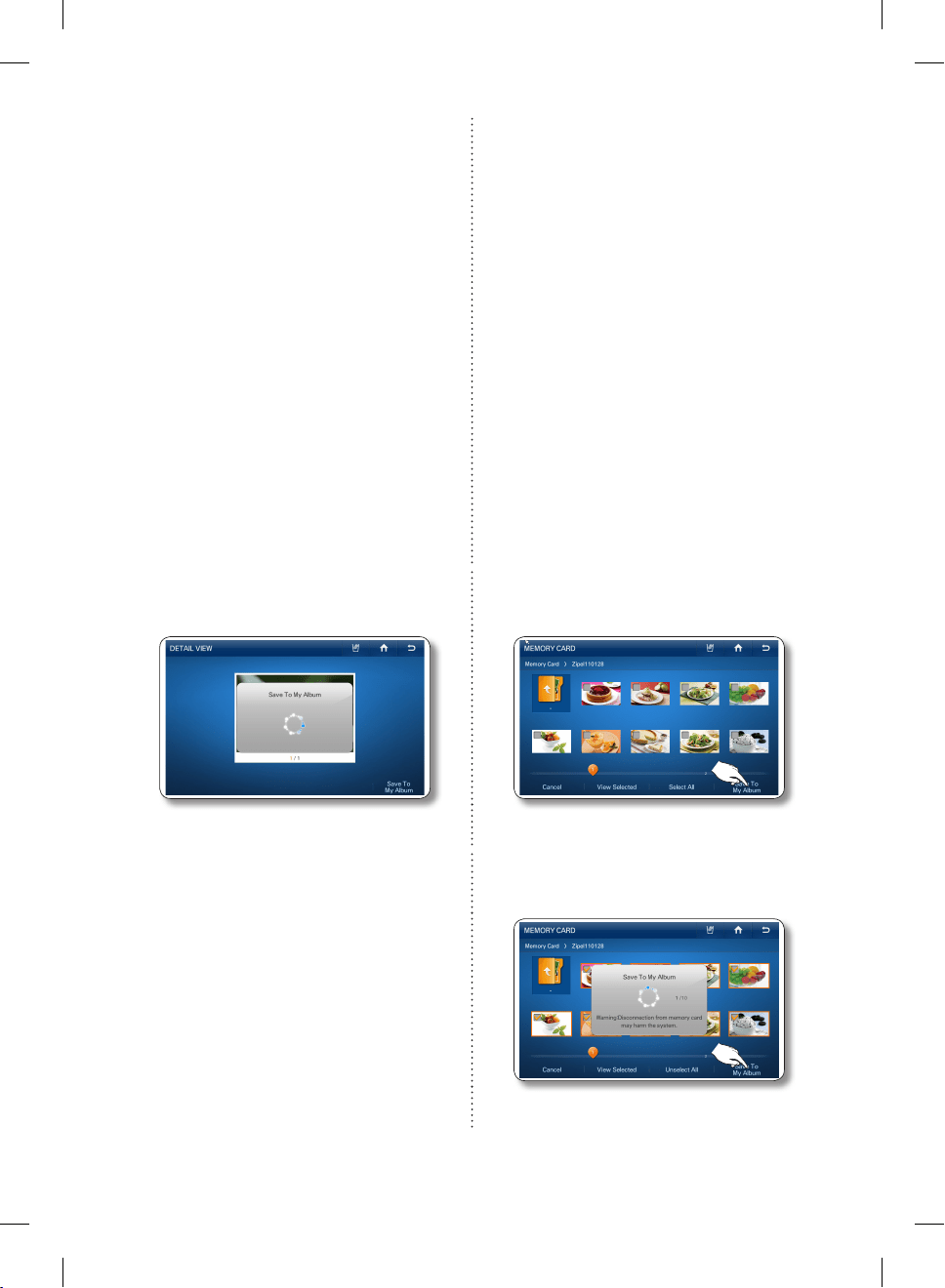
Español - 30
• Cuando selecciona una foto, aparecerá su
información detallada.
• Al seleccionar el botón [Select All] (Seleccionar
todas), quedan seleccionadas todas las fotos
de la página actual y el botón [Select All]
(Seleccionar todas) cambia a [Unselect All]
(Deseleccionar todas).
• Al presionar el botón [View Selected] (Ver
seleccionadas), se verá la versión de mayor
tamaño.
• Para salir de la pantalla Multi Select (Selección
múltiple), presione el botón [Cancel] (Cancelar).
• Para eliminar la marca de verificación en una foto
seleccionada, vuelva a presionar la fotografía.
• Cuando hay varias páginas con muchas
fotografías, habrá números de página en la
parte inferior de la pantalla.
• Si seleccionó fotos y las movió hacia
otra carpeta, las fotos seleccionadas se
deseleccionarán automáticamente.
• Cuando toque el nombre de la carpeta que
se encuentra arriba de las miniaturas (Preview
Photos) (Previsualizar fotos), la pantalla muestra
esa carpeta.
• Esta función también se aplica a las funciones
<All Share> y <Picasa Web Album>.
7. Mientras las fotos se cargan desde la tarjeta
de memoria, se muestra en la pantalla el mensaje
“Save To My Album” (Guardar en Mi álbum).
7. Presione el botón [Save To My Album]
(Guardar en Mi álbum).
• Las fotografías de tamaño mayor tardarán más
en cargarse.
8. Mientras las fotos se cargan desde la tarjeta
de memoria, se muestra en la pantalla el mensaje
“Save To My Album” (Guardar en Mi álbum).
• Las fotografías de tamaño mayor tardarán más
en cargarse.
9. Una vez completada la carga, saque la tarjeta de memoria de la ranura.
DA68-02500B-13.indb 30 13. 12. 4. �� 7:13
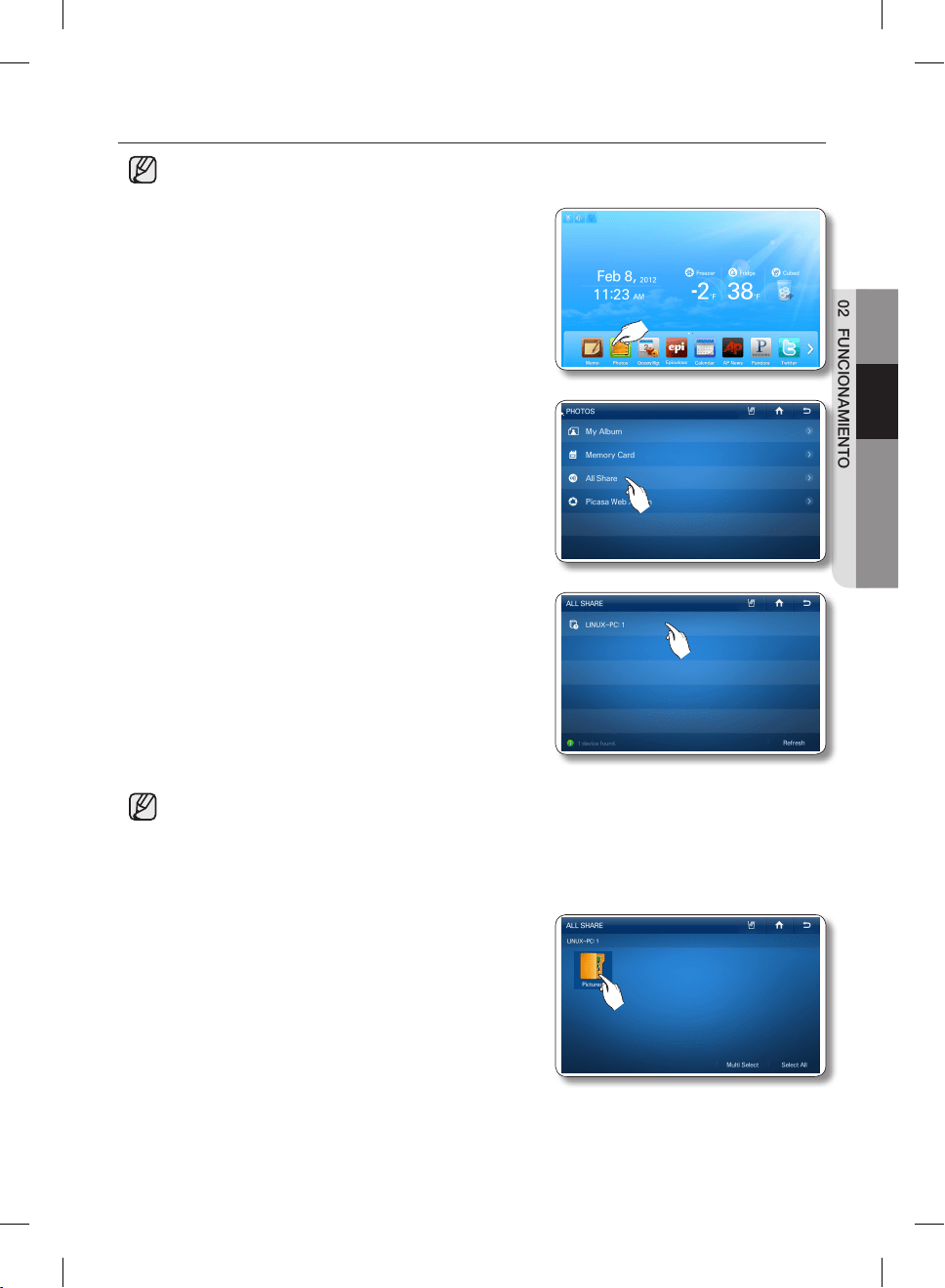
Español - 31
02 FUNCIONAMIENTO
Cómo cargar fotografías desde un dispositivo DLNA a My Album (Mi álbum)
• Esta función sólo se encuentra disponible cuando el refrigerador está conectado a su red
inalámbrica (Wi-Fi).
1. Presione el botón [Photos] (Fotos) en la pantalla de inicio.
2. Seleccione [All Share] en la lista de Fotos y luego conecte
el dispositivo de DLNA al mismo PA inalámbrico que el
refrigerador.
3. En la lista All Share, seleccione el dispositivo DLNA que
quiere conectar.
• Si no aparece el dispositivo DNLA que quiere
conectar, presione el botón Refresh (Actualizar) varias
veces para detectarlo.
• El dispositivo que desea conectar debe tener instalada la función relacionada con el certificado
DLNA (Digital Living Network Alliance).
• La pantalla admite resoluciones de hasta 4096 x 4096 (16 mega). Cuando la cantidad de
píxeles de una fotografía, ya sea en el eje vertical u horizontal, es superior a 4.096 o su
resolución está modificada, es posible que la pantalla no la admita.
4. Seleccione la carpeta deseada.
DA68-02500B-13.indb 31 13. 12. 4. �� 7:13
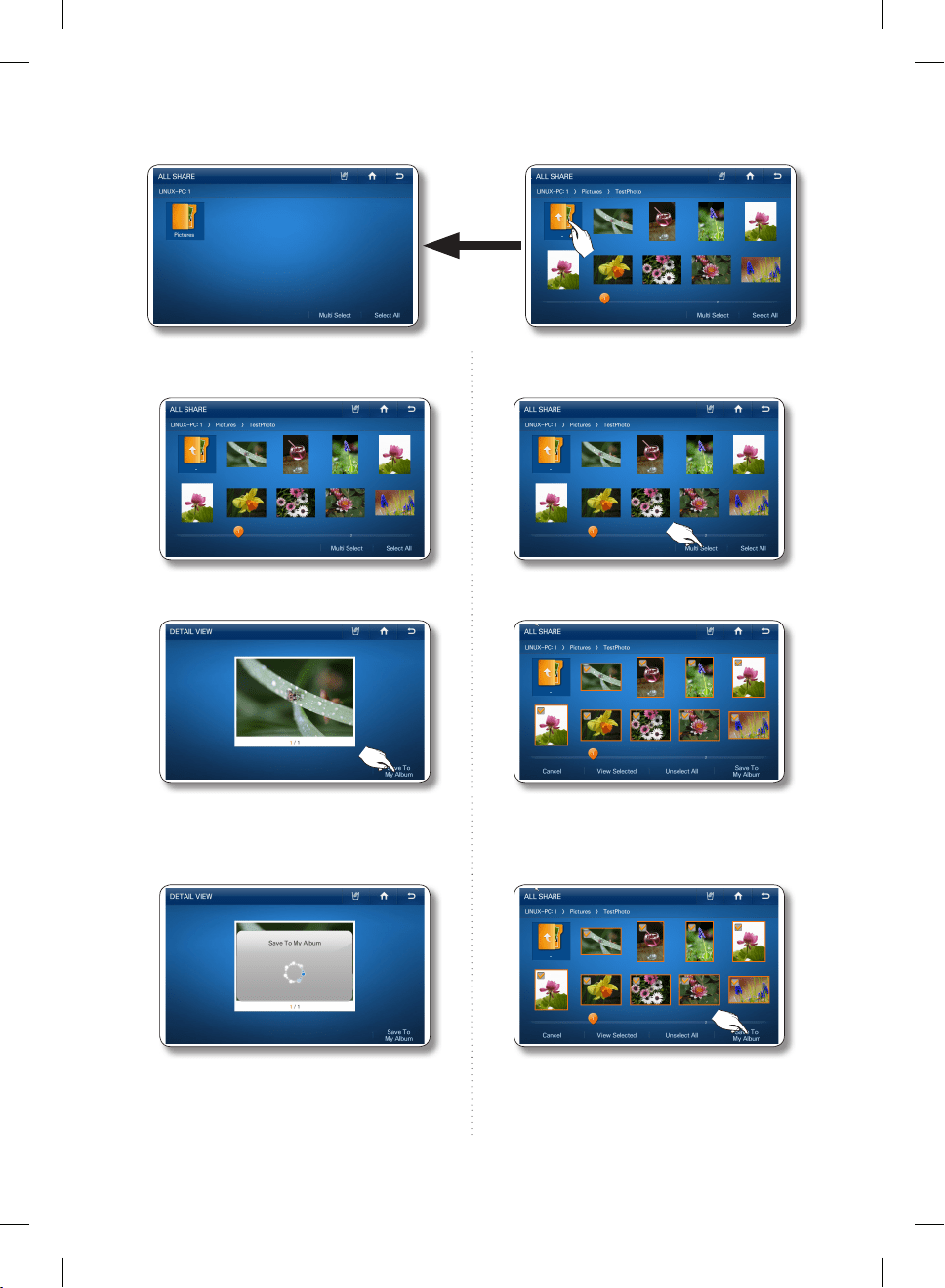
Español - 32
• Si se encuentra en una subcarpeta, puede subir a la carpeta que contiene la subcarpeta
seleccionando el ícono “..” de la subcarpeta.
5. Seleccione la foto que desea guardar en My
Album (Mi álbum).
5. Para almacenar varias fotografías, presione el
botón [Multi Select] (Selección múltiple).
6. Presione el botón [Save To My Album]
(Guardar en Mi álbum).
6. Seleccione las fotos que desea guardar en
My Album (Mi álbum).
7. Mientras las fotos se cargan desde el
dispositivo DLNA, se muestra en la pantalla el
mensaje “Save To My Album” (Guardar en Mi
álbum).
7. Presione el botón [Save To My Album]
(Guardar en Mi álbum).
8. Mientras las fotos se cargan desde el
dispositivo DLNA, se muestra en la pantalla el
mensaje “Save To My Album” (Guardar en Mi
álbum).
DA68-02500B-13.indb 32 13. 12. 4. �� 7:13
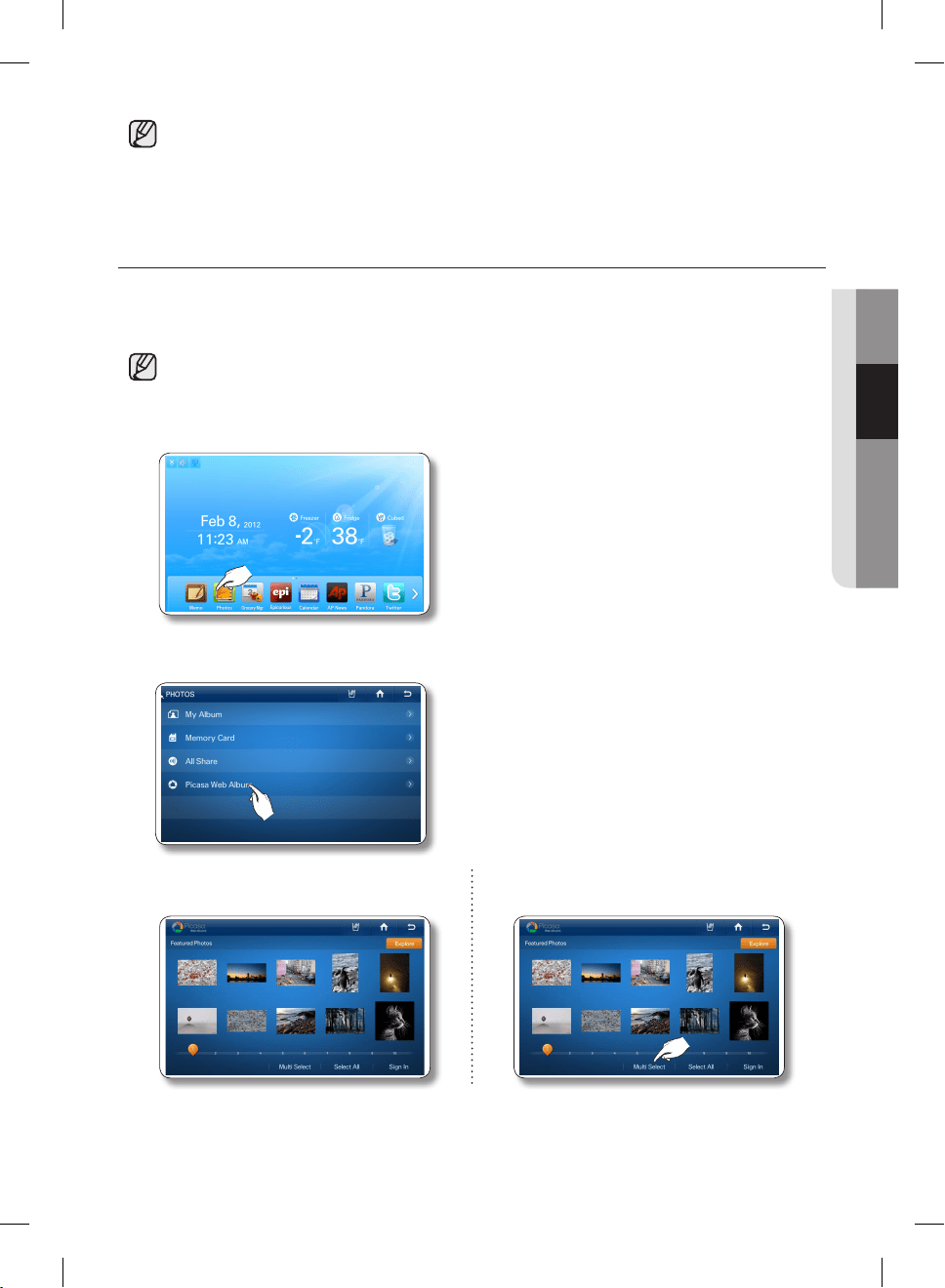
Español - 33
02 FUNCIONAMIENTO
• Las fotografías de tamaño mayor tardarán más en cargarse.
• La red inalámbrica se usa para transmitir fotografías desde el dispositivo DLNA.
La transmisión podría no funcionar correctamente según las condiciones de la red.
• Cuando selecciona una foto, aparecerá su información detallada.
Cómo guardar fotografías desde Picasa Web Album en My Album.
[Fotos públicas]
Puede descargar y guardar fotos públicas desde Google Picasa Web Album.
• Esta función sólo se encuentra disponible cuando el refrigerador está conectado a su red
inalámbrica (Wi-Fi).
1. Presione el botón [Photos] (Fotos) en la pantalla de inicio.
2. Seleccione [Picasa Web Album] en la lista de Photos (fotografías).
v
3. Seleccione la foto que desea guardar en My
Album (Mi álbum).
3. Para almacenar varias fotografías, presione el
botón [Multi Select] (Selección múltiple).
DA68-02500B-13.indb 33 13. 12. 4. �� 7:13
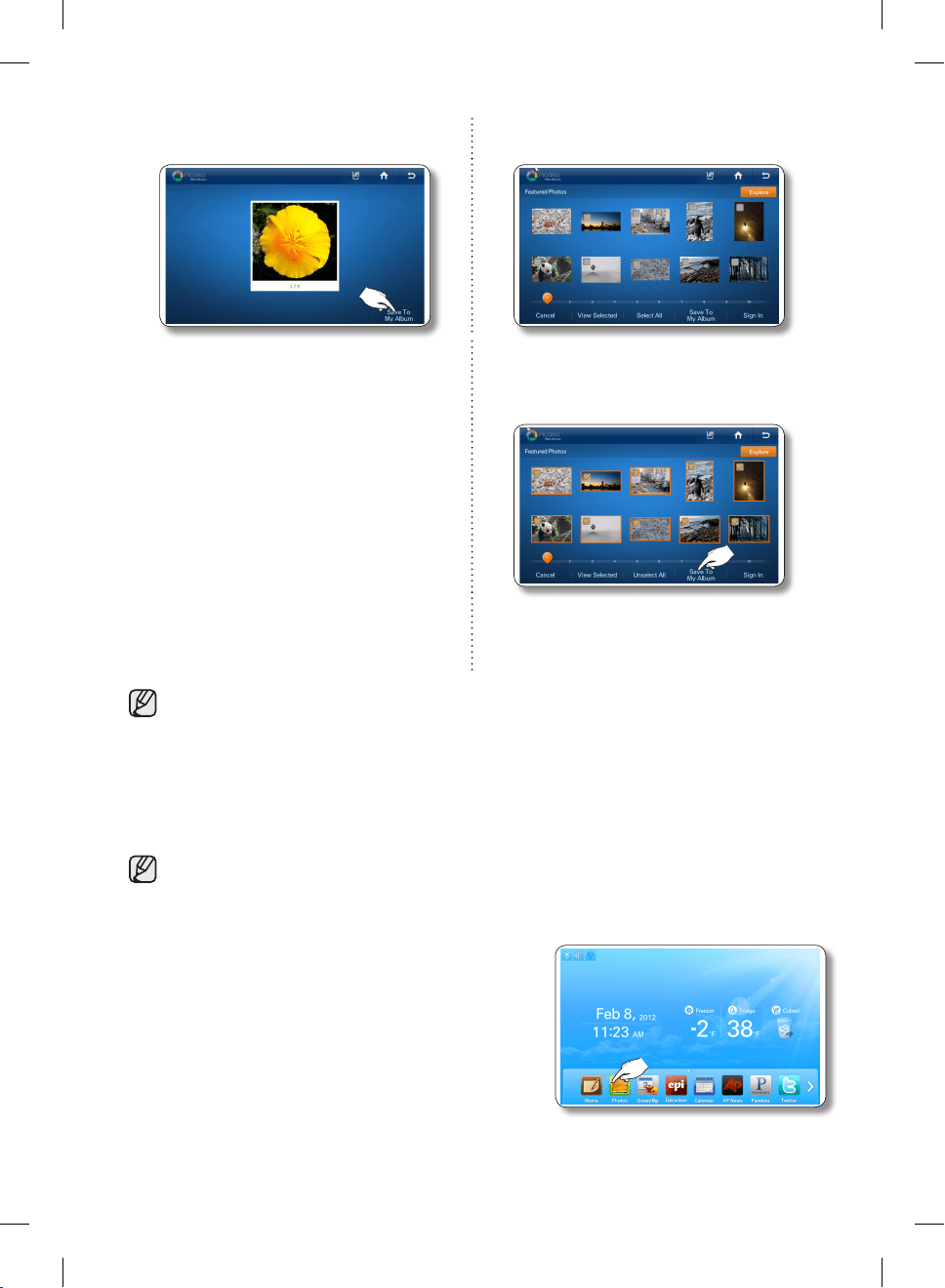
Español - 34
4. Presione el botón [Save To My Album]
(Guardar en Mi álbum).
4. Seleccione las fotos que desea guardar en
My Album (Mi álbum).
5. Mientras la foto se descarga desde el
Picasa Web Album, aparece en la pantalla el
mensaje “Save To My Album” (Guardar en Mi
álbum).
5. Presione el botón [Save To My Album]
(Guardar en Mi álbum).
6. Mientras la foto se descarga desde el
Picasa Web Album, aparece en la pantalla el
mensaje “Save To My Album” (Guardar en Mi
álbum).
• Cuando selecciona una foto, aparecerá su información detallada.
• Las fotografías de tamaño mayor tardarán más en cargarse.
• Dependiendo del estado de la red inalámbrica, es posible que no siempre funcione la descarga.
[Fotos personales]
Puede descargar y guardar fotos personales desde Google Picasa Web Album.
• Esta función sólo se encuentra disponible cuando el refrigerador está conectado a su red
inalámbrica (Wi-Fi).
• Para utilizar esta función debe tener una cuenta en Google.
1. Presione el botón [Photos] (Fotos) en la pantalla de inicio.
DA68-02500B-13.indb 34 13. 12. 4. �� 7:13
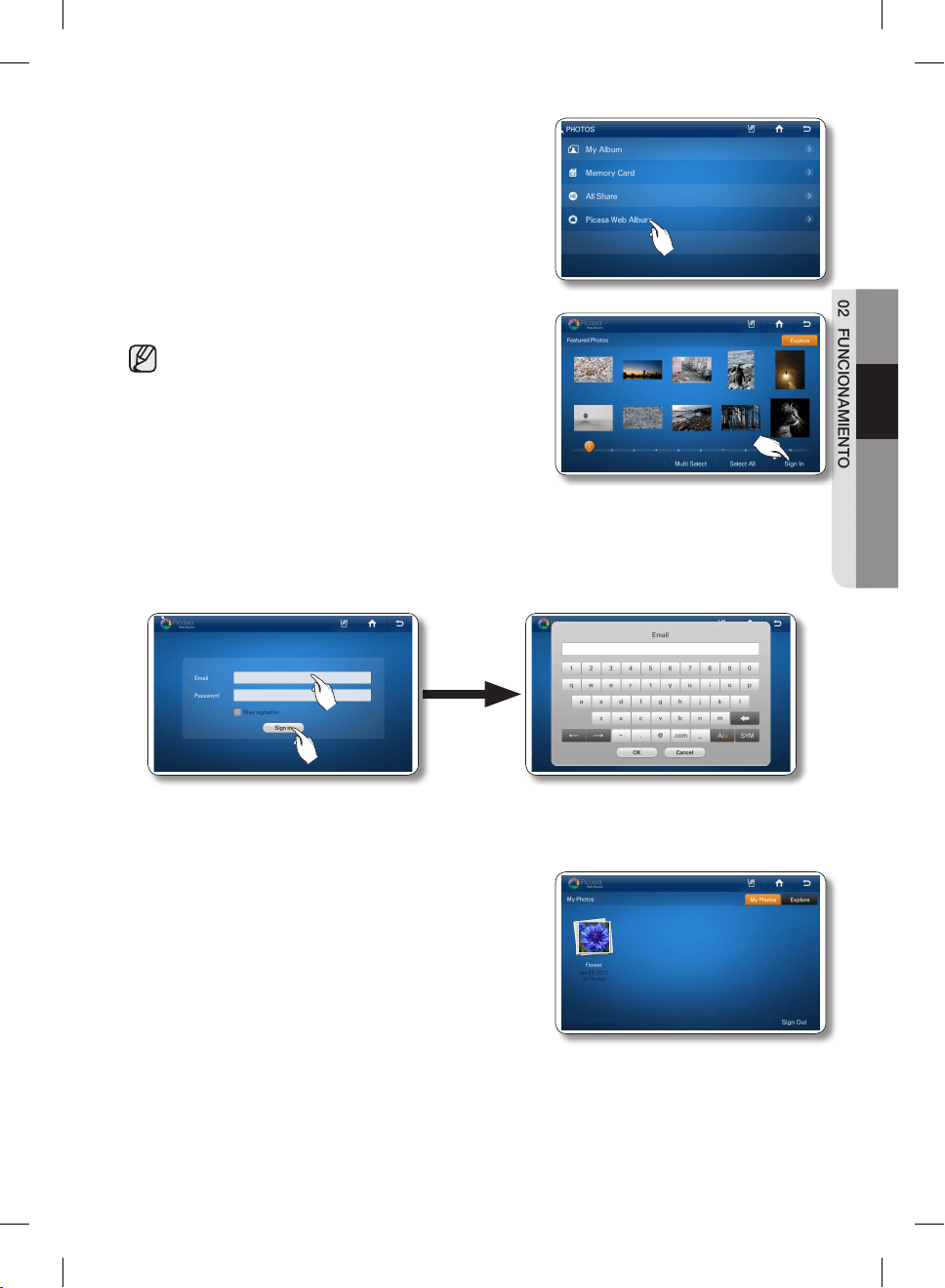
Español - 35
02 FUNCIONAMIENTO
2. Seleccione [Picasa Web Album] en la lista de Photos
(fotografías).
3. Presione el botón [Sign In] (Iniciar sesión).
• Si tiene una cuenta con Google Picasa (http://
picasaweb.google.com), puede ver las fotografías
cargadas en Picasa iniciando sesión en su cuenta.
4. Seleccione el casillero Email (correo electrónico) y luego ingrese la identificación de la cuenta de
Google utilizando el teclado de la pantalla. Seleccione el casillero Password (Contraseña) y luego
ingrese su contraseña de Google utilizando el teclado de la pantalla.
5. Presione el botón [Sign In] (Iniciar sesión).
• Si marca el casillero ‘Stay signed in’ (No cerrar sesión), el refrigerador almacenará la cuenta para
futuras sesiones más rápidas.
6. Seleccione un álbum web que tenga fotografías que
usted quiere almacenar en My Album (Mi álbum).
• Al presionar el botón [Sign Out] (Cerrar sesión), el
visor vuelve a la pantalla de fotografías públicas de
Picasa.
• Si selecciona la ficha Explore (Explorar) en el margen
superior derecho, aparecerá la pantalla de fotografías
públicas.
DA68-02500B-13.indb 35 13. 12. 4. �� 7:13
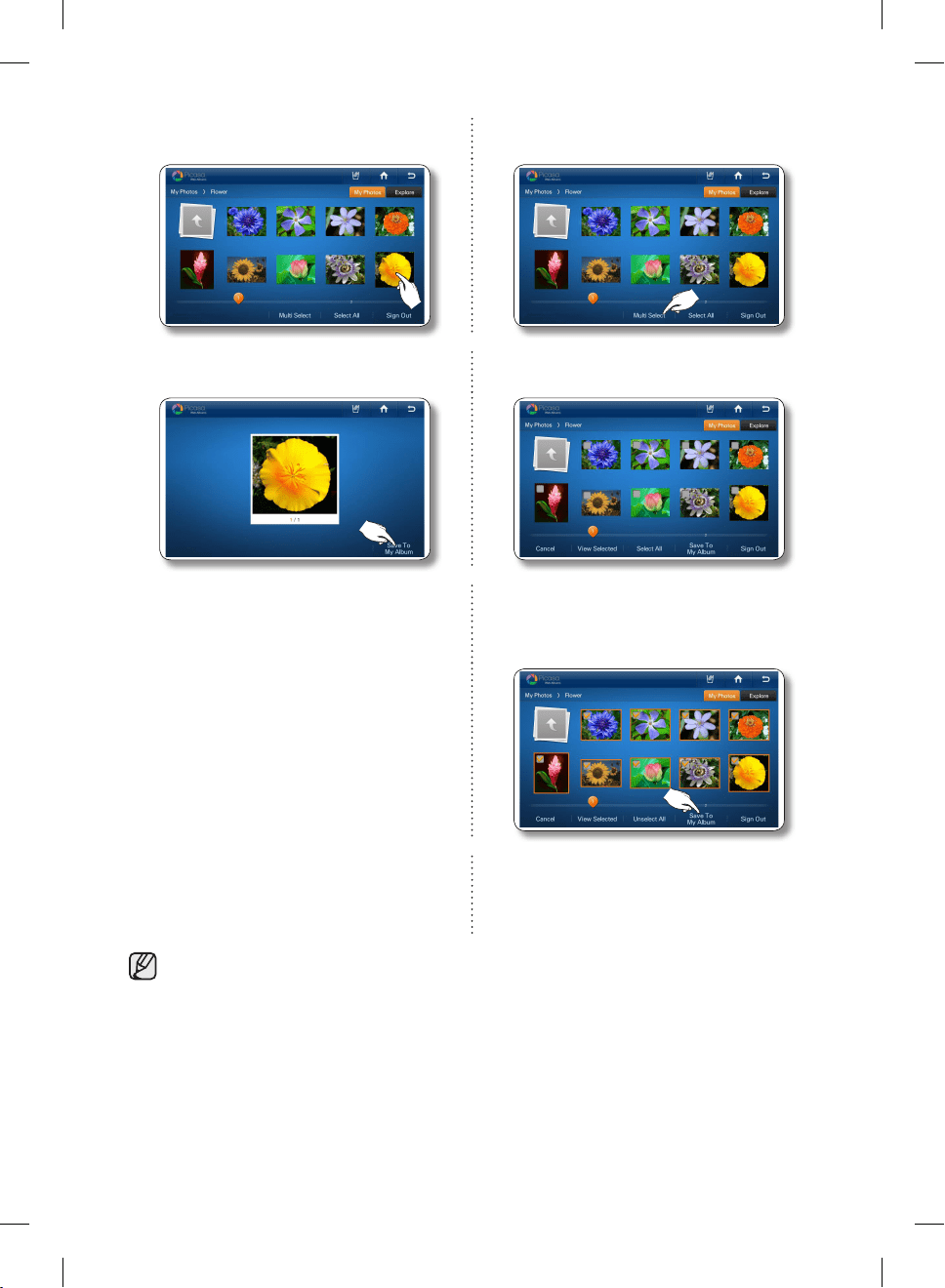
Español - 36
7. Seleccione la foto que desea guardar en My
Album (Mi álbum).
7. Para almacenar varias fotografías, presione el
botón [Multi Select] (Selección múltiple).
8. Presione el botón [Save To My Album]
(Guardar en Mi álbum).
8. Seleccione las fotos que desea guardar en
My Album (Mi álbum).
9. Mientras la foto se descarga desde el
Picasa Web Album, aparece en la pantalla el
mensaje “Save To My Album” (Guardar en Mi
álbum).
9. Presione el botón [Save To My Album]
(Guardar en Mi álbum).
10. Mientras la foto se descarga desde el
Picasa Web Album, aparece en la pantalla el
mensaje “Save To My Album” (Guardar en Mi
álbum).
• Cuando selecciona una foto, aparecerá su información detallada.
• Las fotografías de tamaño mayor tardarán más en cargarse.
DA68-02500B-13.indb 36 13. 12. 4. �� 7:13
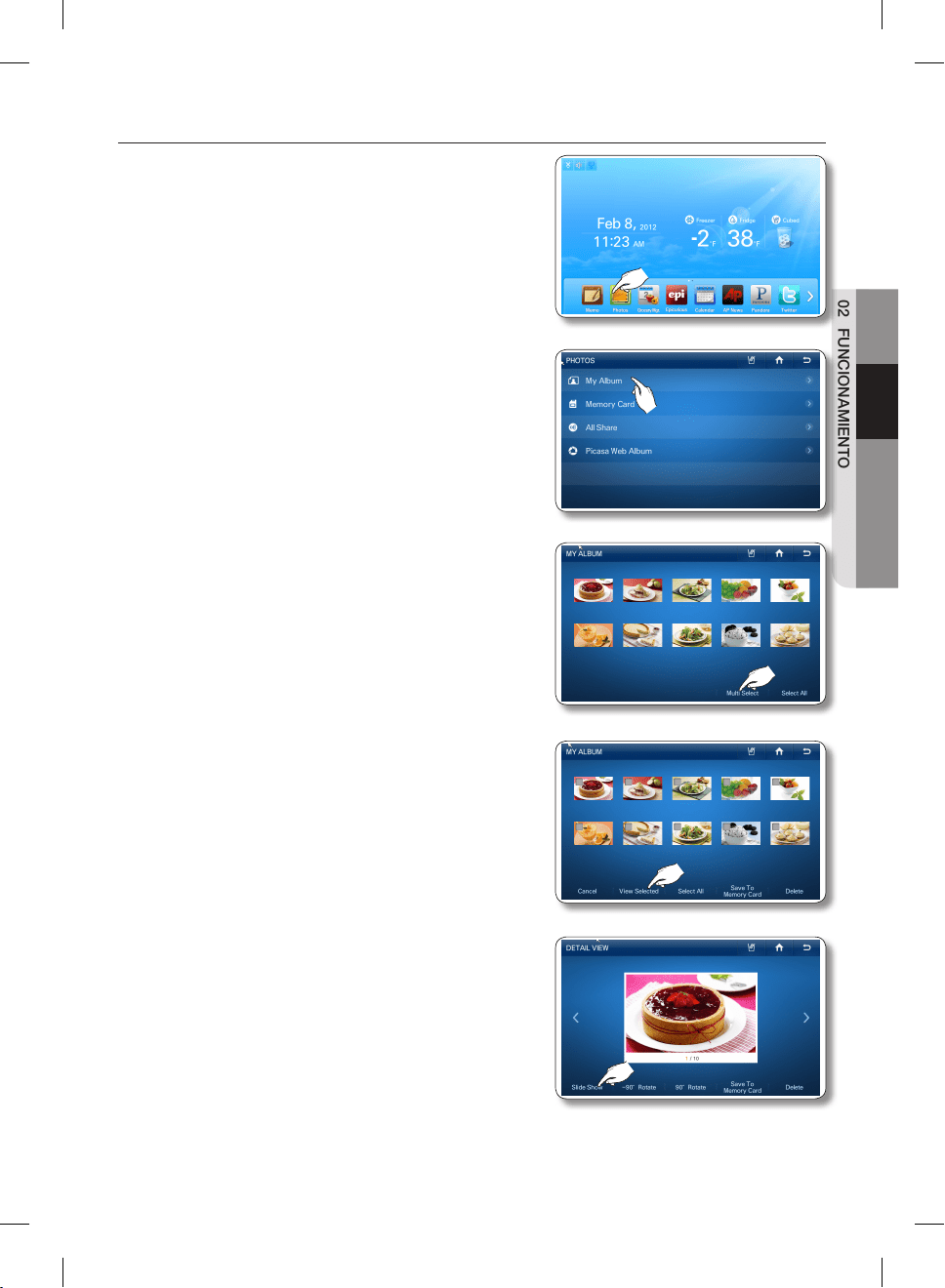
Español - 37
02 FUNCIONAMIENTO
Cómo ejecutar una presentación de diapositivas.
1. Presione el botón [Photos] (Fotos) en la pantalla de inicio.
2. Seleccione [My Album] (Mi álbum) en la lista de Photos
(fotografías).
3. Presione el botón [Multi Select] (Selección múltiple).
4. Seleccione las fotos que desea para la presentación,
y luego presione el botón View Selected (Ver
seleccionadas). (Seleccione más de dos fotografías.)
• Cuando selecciona una foto, aparecerá su
información detallada.
5. Seleccione el botón [Slide Show] (Presentación de
diapositivas).
• Dependiendo del tamaño de la foto (ancho x alto),
la pantalla puede mostrar barras vacías en la parte
superior o a ambos lados de la imagen.
DA68-02500B-13.indb 37 13. 12. 4. �� 7:13
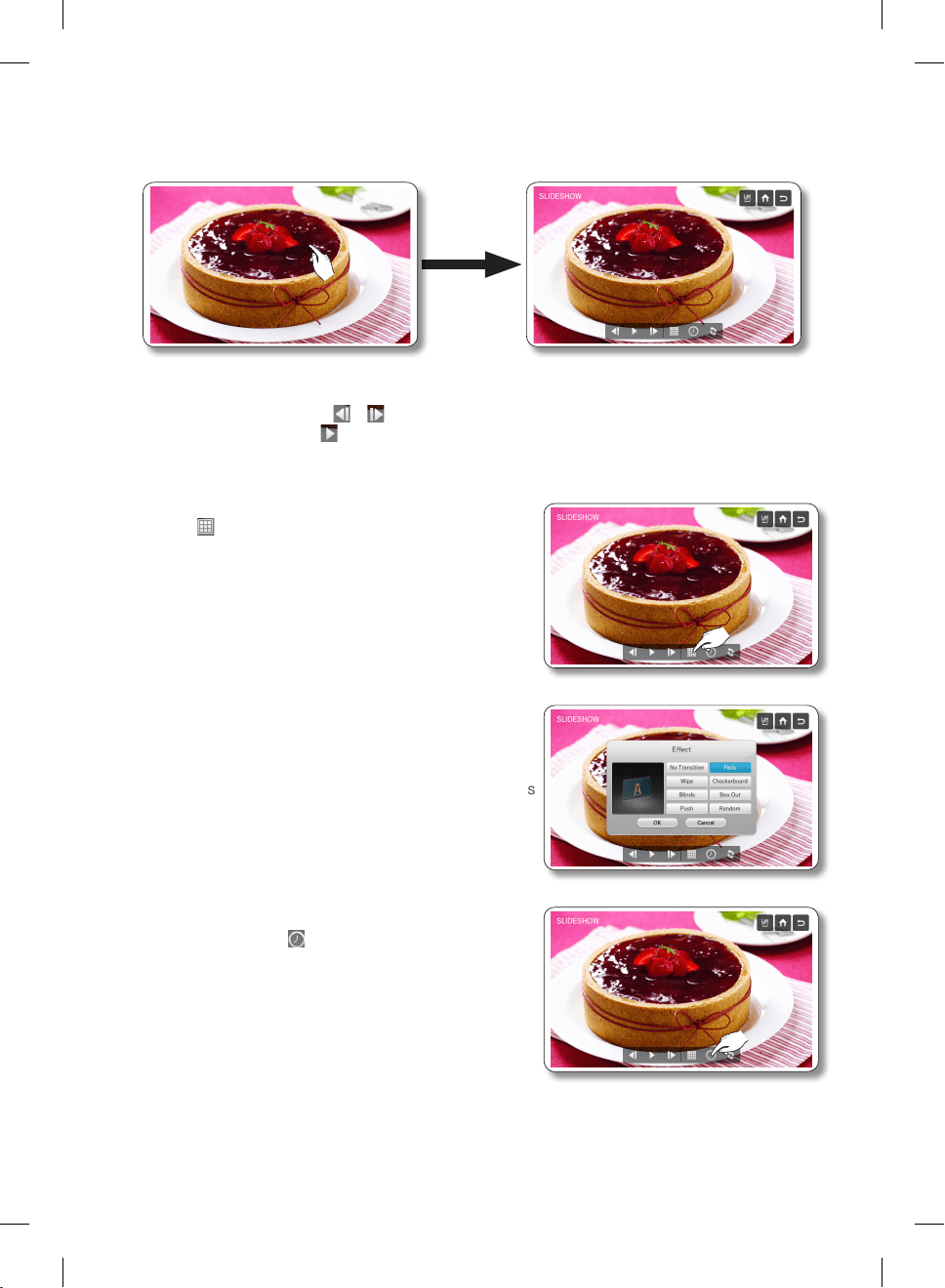
Español - 38
6. Comienza la presentación de diapositivas. Seleccione la pantalla para cambiar la opción de
visualización.
• La presentación se ejecuta una vez. Cuando termina, aparecen las opciones de visualización
en la pantalla.
• Mediante los botones o , puede ir a la fotografía anterior o a la siguiente.
• Seleccione el botón para ejecutar nuevamente la presentación de diapositivas.
7. Para cambiar los efectos de transición seleccione el
botón .
8. Seleccione los efectos de transición deseados, luego
presione el botón [OK] (Aceptar).
• Puede previsualizar los efectos seleccionados a la
izquierda de la pantalla.
• El efecto Random (Aleatorio) presenta las fotografías
sin un orden.
9. Para modificar el tiempo de transición de la pantalla,
seleccione el botón .
DA68-02500B-13.indb 38 13. 12. 4. �� 7:13
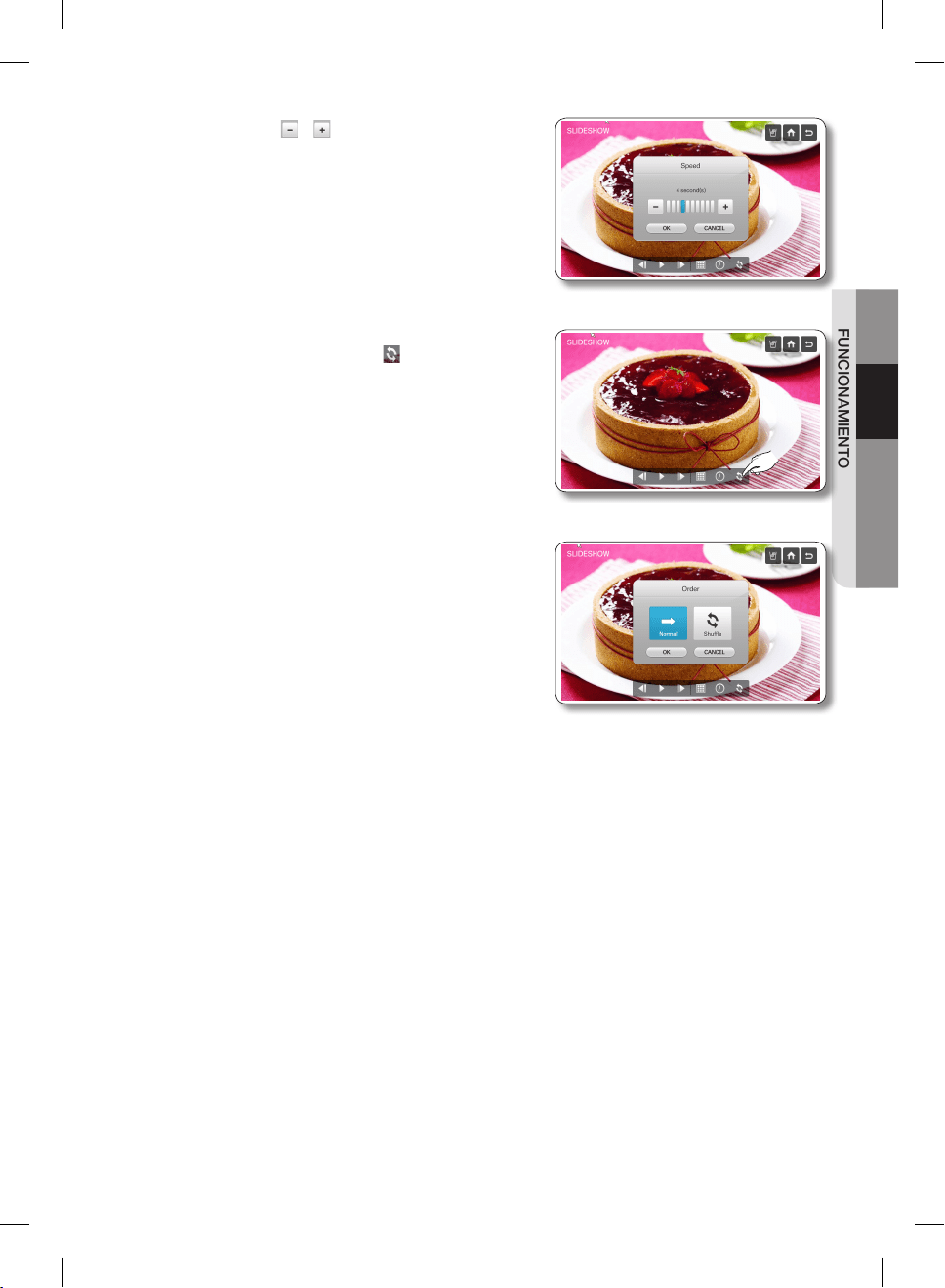
Español - 39
02 FUNCIONAMIENTO
10. Utilice los botones y para cambiar el tiempo de
transición de la presentación de diapositivas, luego
presione el botón [OK] (Aceptar).
11. Para cambiar el orden de las fotografías en la
presentación, seleccione el botón .
12. Seleccione [Normal] o [Shuffle] (Orden aleatorio), luego
presione el botón [OK] (Aceptar).
DA68-02500B-13.indb 39 13. 12. 4. �� 7:13
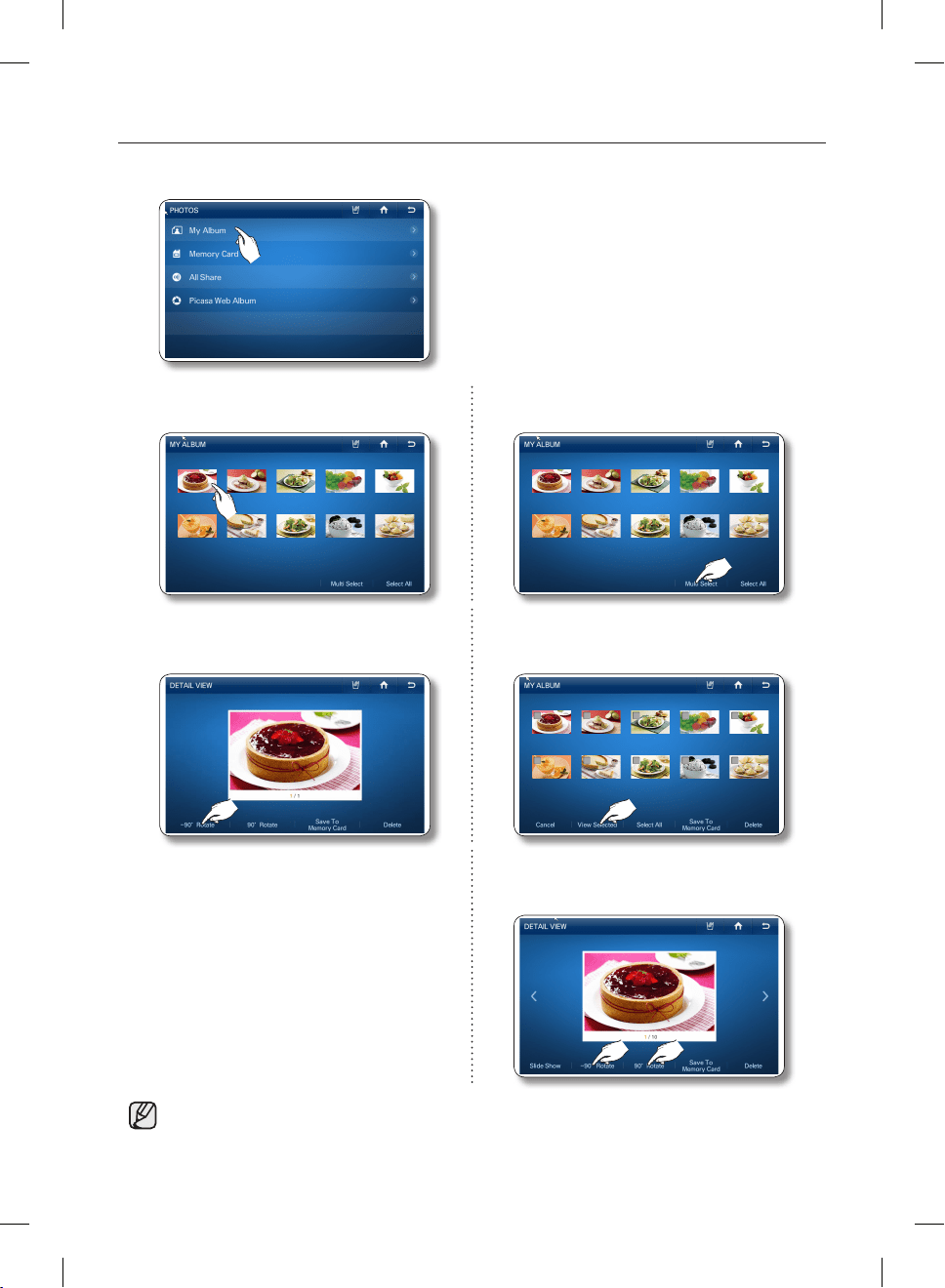
Español - 40
Cómo rotar las fotografías.
1. Seleccione [My Album] (Mi álbum) en la lista de Photos (fotografías).
2. Seleccione la foto que desea rotar. 2. Seleccione el botón [Multi Select] (Selección
múltiple) para rotar varias fotografías.
3. Seleccione el botón [-90° Rotate] (Rotar -90°)
o [90° Rotate] (Rotar 90°).
3. Seleccione las fotografías que desea rotar,
luego presione el botón [View Selected] (Ver
selección)
4. Después de seleccionar las fotografías que
quiere rotar, seleccione el botón [-90° Rotate]
(Rotar -90°) o [90° Rotate] (Rotar 90°).
• El sistema automáticamente almacena las fotos rotadas, reemplazando las fotos originales.
DA68-02500B-13.indb 40 13. 12. 4. �� 7:13
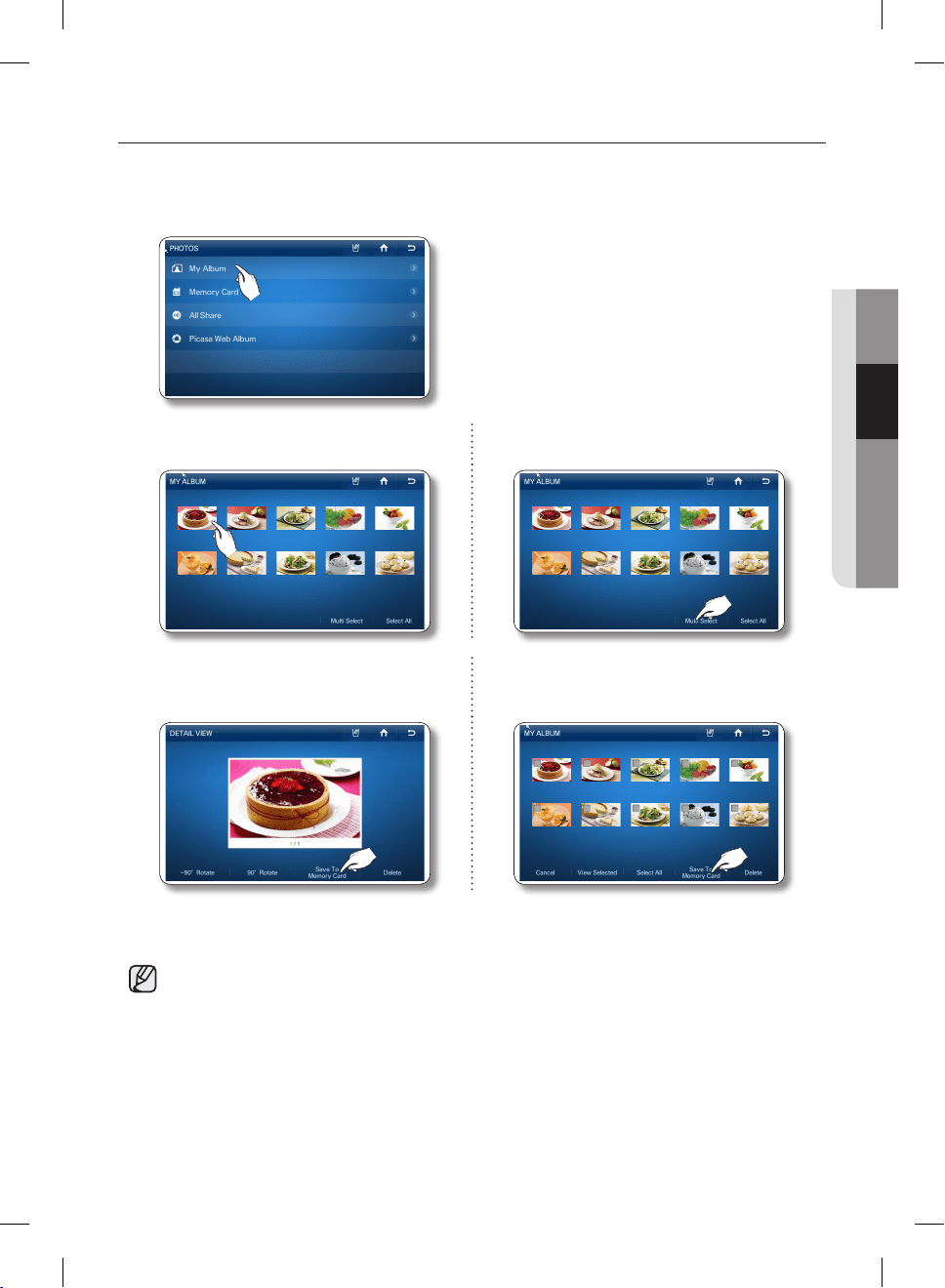
Español - 41
02 FUNCIONAMIENTO
Guardado de fotos en una tarjeta de memoria.
1. Inserte una tarjeta de memoria en la ranura correspondiente del refrigerador.
2. Seleccione [My Album] (Mi álbum) en la lista de Photos (fotografías).
3. Seleccione la foto que desea guardar. 3. Para guardar varias fotografías, presione el
botón [Multi Select] (Selección múltiple).
4. Presione el botón [Save To Memory Card]
(Guardar en tarjeta de memoria).
4. Seleccione las fotografías que desea guardar,
luego presione el botón [Save To Memory
Card] (Guardar en tarjeta de memoria).
5. Mientras las fotos se están guardando, la pantalla muestra “Save To Memory Card” (Guardar en
tarjeta de memoria).
• Debe insertar una tarjeta de memoria en la ranura correspondiente para usar esta función.
DA68-02500B-13.indb 41 13. 12. 4. �� 7:13
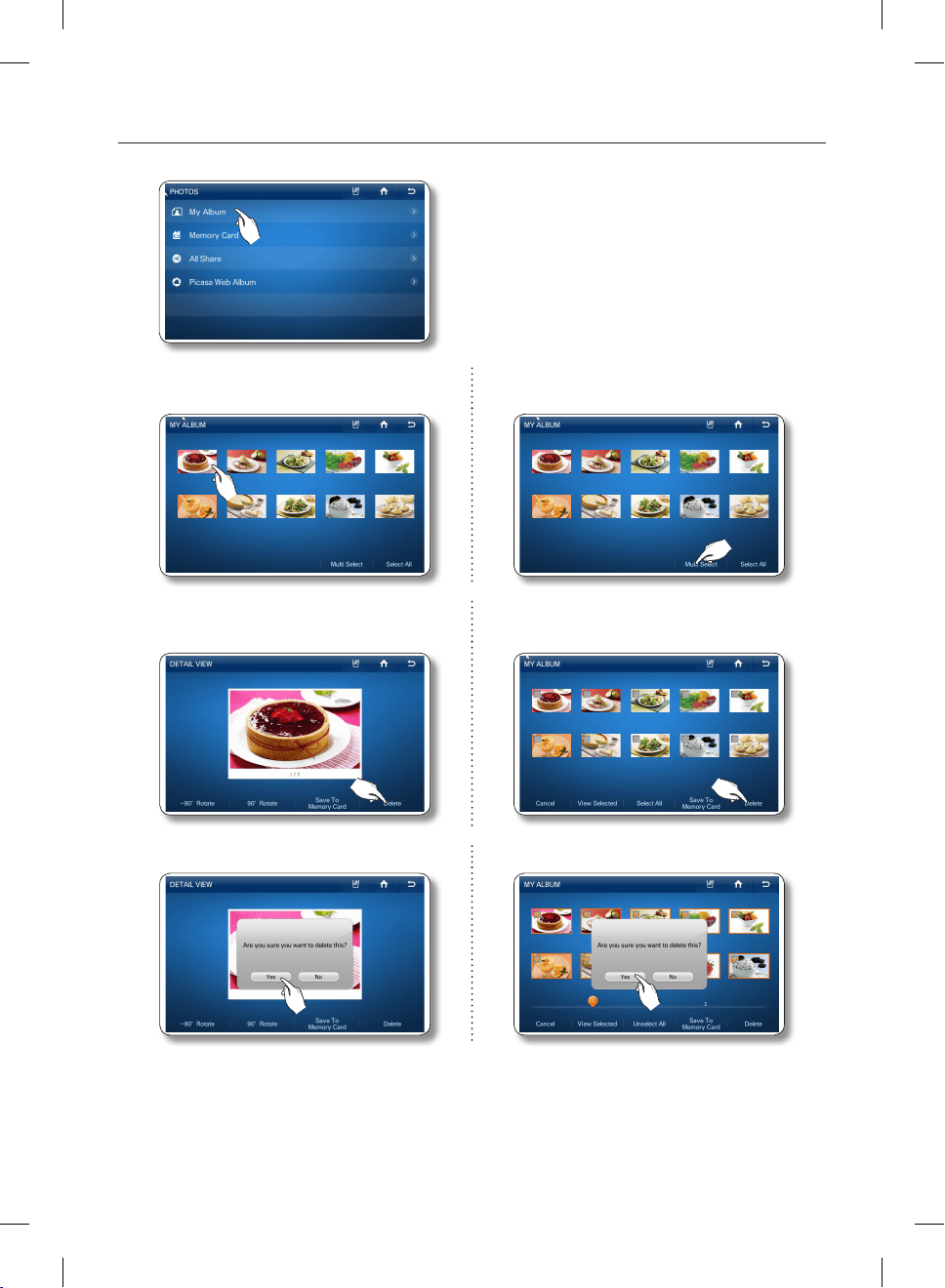
Español - 42
Cómo borrar las fotografías.
1. Seleccione [My Album] (Mi álbum) en la lista de Photos (fotografías).
2. Seleccione las fotografías que desea borrar. 2. Para eliminar varias fotografías, presione el
botón [Multi Select] (Selección múltiple).
3. Presione el botón [Delete] (Eliminar). 3. Seleccione las fotos que desea eliminar, y
luego presione el botón [Delete] (Eliminar).
4. Presione el botón [Yes] (Sí). 4. Presione el botón [Yes] (Sí).
• Existen 10 fotografías ya cargadas por Samsung. Estas fotografías explican características del
producto y no se pueden eliminar.
DA68-02500B-13.indb 42 13. 12. 4. �� 7:13
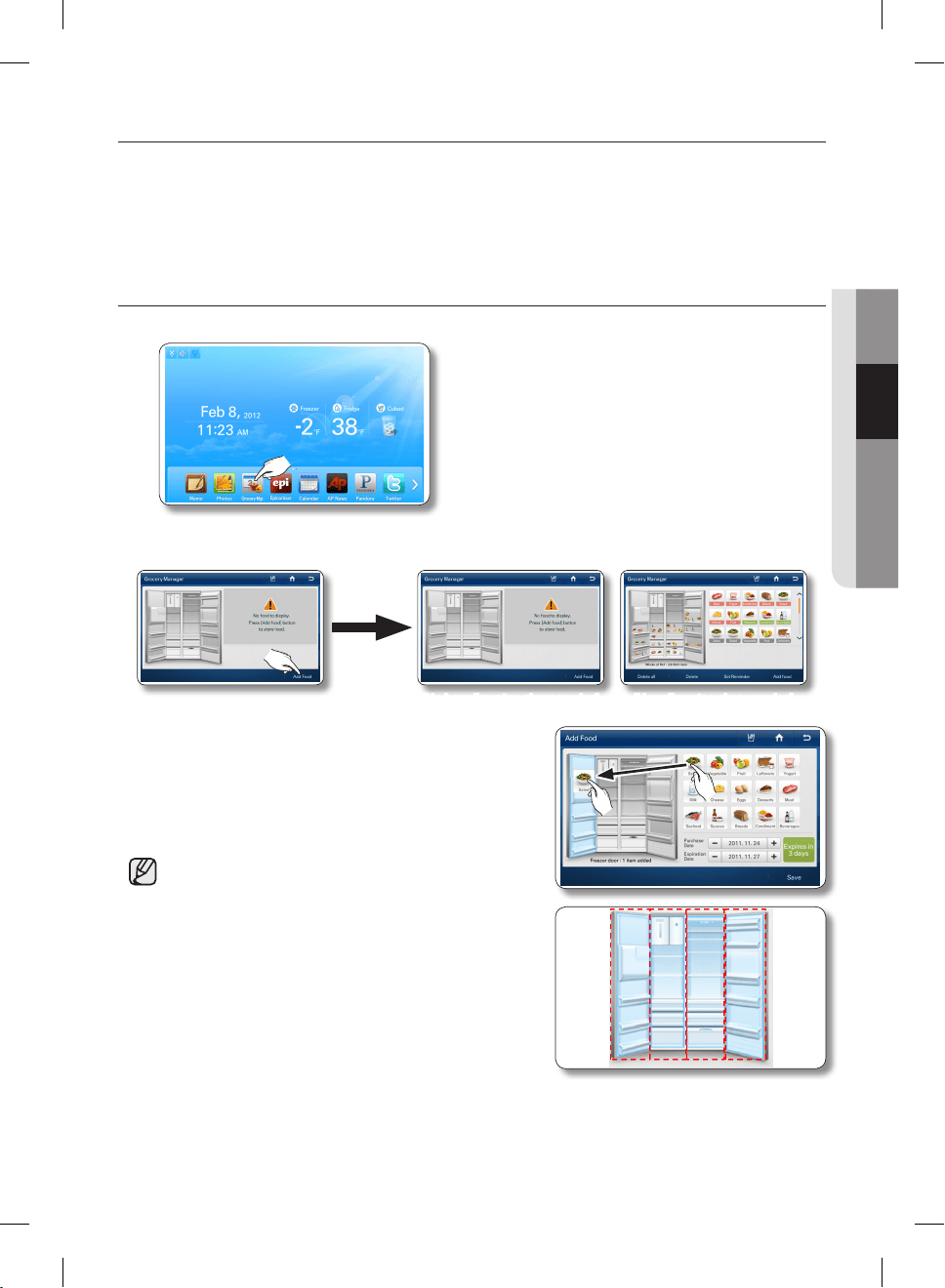
Español - 43
02 FUNCIONAMIENTO
ADMINISTRADOR DE COMESTIBLES
Puede guardar la fecha de compra y la fecha de vencimiento de sus alimentos antes de almacenarlos
en el refrigerador y luego fácilmente verificar cuánto tiempo estuvieron almacenados los alimentos más
adelante.
Adicionalmente, puede fácilmente ver qué alimentos tiene almacenados y dónde están ubicados en el
refrigerador.
Cómo agregar alimentos
1. Seleccione el botón [Grocery Manager] (Administrador de comestibles) en la pantalla de inicio.
2. Seleccione el botón [Add Food] (Agregar alimentos) en el ángulo inferior derecho.
[No hay alimentos almacenados] [Hay alimentos almacenados]
3. Seleccione y mantenga presionada una de las imágenes
de alimentos que se muestran a la derecha.
Luego arrástrela y suéltela en el lugar de la imagen del
refrigerador donde estará almacenada. Asegúrese de
mantener su dedo en la imagen del alimento hasta que
esté en su lugar.
• El área de almacenamiento del refrigerador está
dividida en 4 secciones. Los alimentos agregados se
muestran como ícono en la imagen del refrigerador.
• Para cambiar la ubicación de un elemento
almacenado, presione y mantenga presionada la
imagen del alimento y luego arrástrela y suéltela en
otra ubicación dentro de la imagen del refrigerador.
• Si selecciona un ícono de alimentos agregado
al refrigerador y lo arrastra y suelta fuera del
refrigerador, el elemento se borra.
• La sección del refrigerador y la cantidad de alimentos
agregados se muestran en la parte inferior de la
imagen del refrigerador.
• Puede almacenar hasta 15 clases de alimentos y duraciones de ‘frescura’. Vea los ejemplos a
continuación: Todos los alimentos: 3 días.
DA68-02500B-13.indb 43 13. 12. 4. �� 7:13
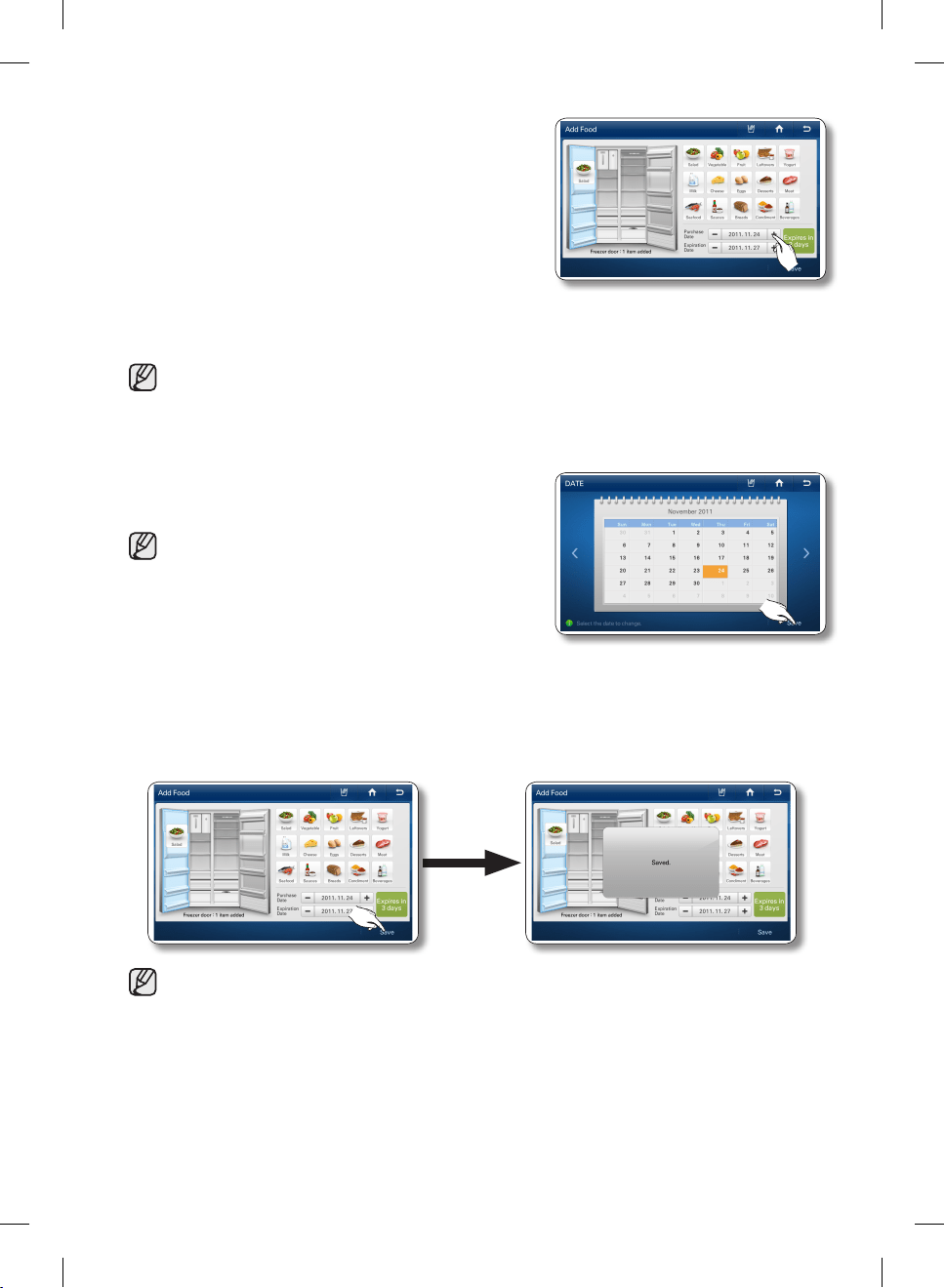
Español - 44
4. La ‘Purchase Date’ (Fecha de compra) y la ‘Expiration
Date’ (Fecha de vencimiento) se muestran en la parte
inferior de la pantalla.
La fecha de compra se fija automáticamente en el día de
hoy, la fecha de vencimiento se fija automáticamente el
último día de la duración de la frescura.
Para cambiar la fecha de compra, toque la sección
correspondiente en la pantalla, y luego ingrese la nueva
fecha.
• También puede seleccionar una fecha utilizando los botones [+] y [-].
Sin embargo, la fecha de compra siempre debe ser anterior a la fecha de vencimiento.
5. Seleccione la fecha y luego presione el botón [Save]
(Guardar).
• Para seleccionar alimentos adicionales, repita los
pasos 2 a 5.
6. Presione el botón [OK] (Aceptar) después de haber realizado los ajustes de fechas.
Presione el botón [Save] (Guardar) para guardar sus ajustes.
• Se pueden guardar hasta 50 alimentos.
DA68-02500B-13.indb 44 13. 12. 4. �� 7:13
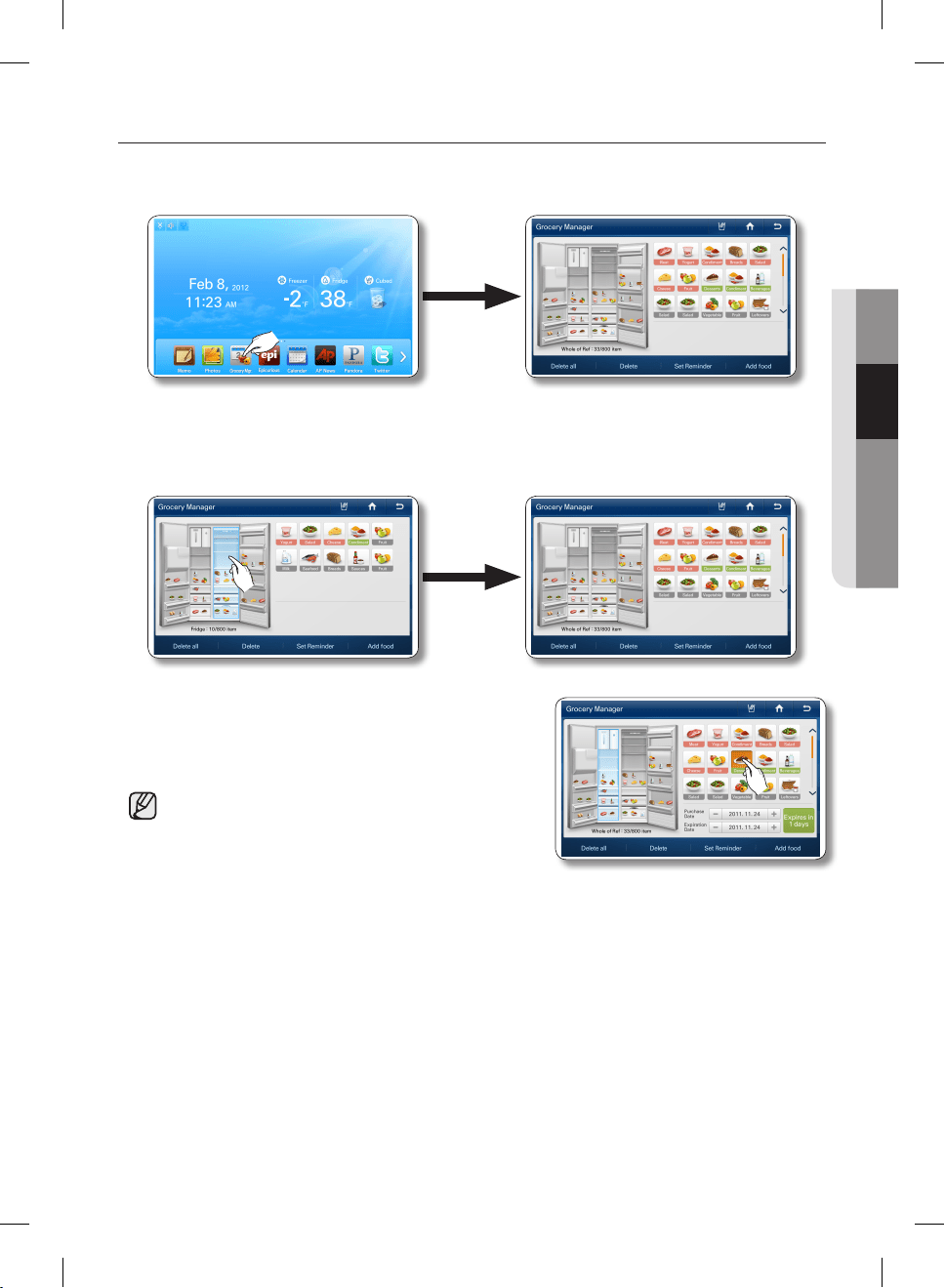
Español - 45
02 FUNCIONAMIENTO
Como usar el administrador de comestibles
1. Seleccione el botón [Grocery Manager] (Administrador de comestibles) en la pantalla de inicio.
Todos los alimentos se muestran como íconos en sus ubicaciones dentro de la imagen del
refrigerador sobre la izquierda. También aparecen en el lado derecho de la pantalla.
2. Seleccione una sección de almacenamiento en la imagen del refrigerador para mostrar los alimentos
que están almacenados en esa sección en el lado derecho de la pantalla. Seleccione la sección de
almacenamiento nuevamente (desmárquela) para mostrar todos los alimentos almacenados en el
refrigerador en el lado derecho de la pantalla.
3. Seleccione uno de los íconos de alimentos almacenados
en el lado derecho de la pantalla para identificar dónde
está ubicado en el refrigerador. También se mostrarán las
fechas de compra y de vencimiento del elemento.
• Se puede fijar una fecha de vencimiento de hasta
999 días.
• No se puede modificar la fecha de compra y la fecha
de vencimiento de los alimentos en la pantalla del
administrador de alimentos.
DA68-02500B-13.indb 45 13. 12. 4. �� 7:13
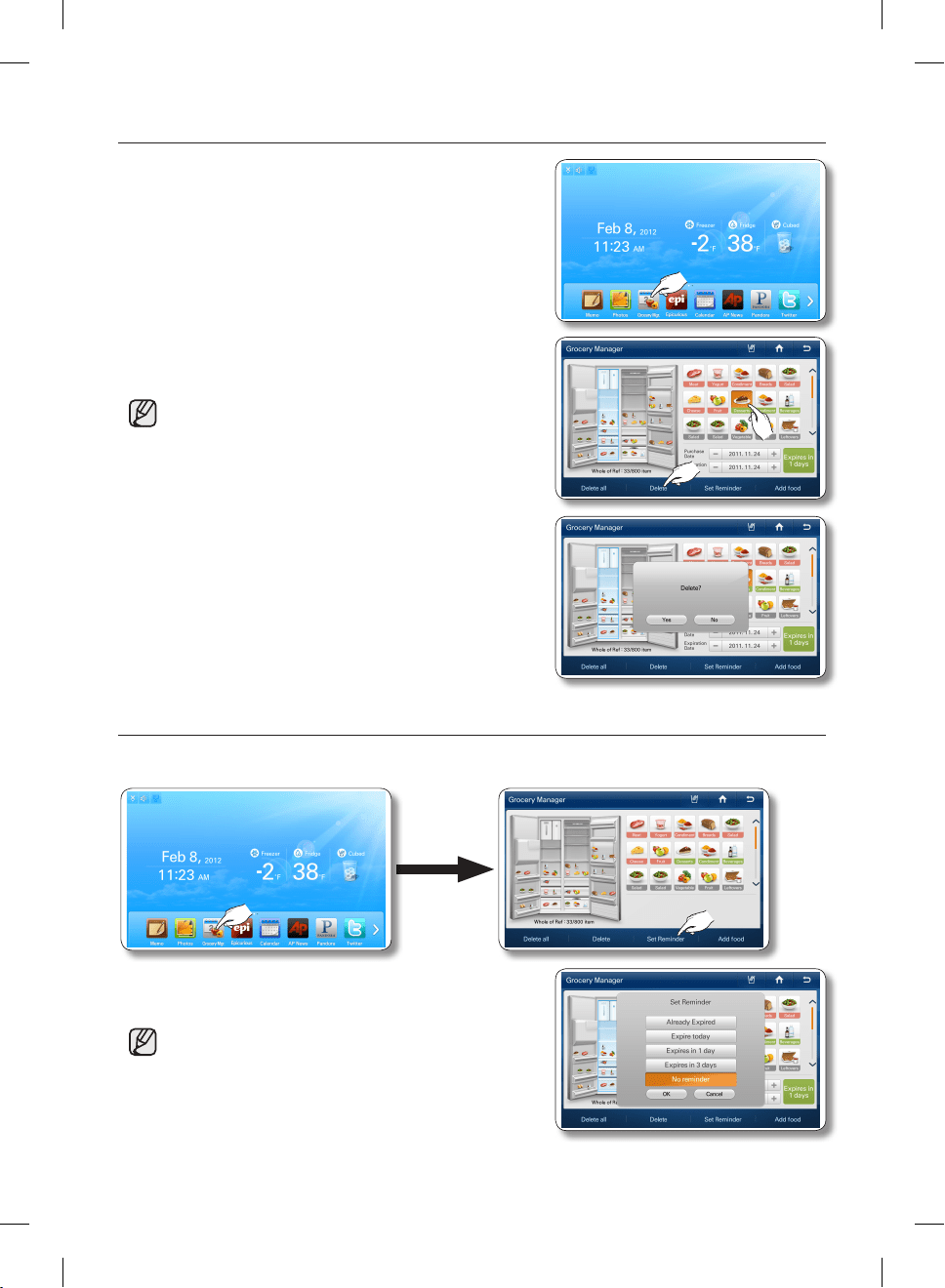
Español - 46
Cómo borrar los alimentos
1. Seleccione el botón [Grocery Manager] (Administrador de
comestibles) en la pantalla de inicio.
2. Seleccione los alimentos y luego seleccione el botón
[Delete] (Eliminar).
• Para seleccionar todos los alimentos almacenados,
seleccione el botón [Delete all] (Eliminar todo).
3. Seleccione el botón [Yes] (Sí) para terminar.
Como fijar un recordatorio
1. Seleccione el botón [Grocery Manager] (Administrador de comestibles) en la pantalla de inicio y
luego seleccione el botón [Set Reminder] (Fijar recordatorio).
2. Seleccione las opciones de recordatorio que opciones
que desee, y luego seleccione el botón [OK] (Aceptar).
• Se fija un recordatorio en base a la fecha de
vencimiento de los alimentos almacenados. Aparece
una ventana de recordatorio cuando la duración
programada haya pasado.
• Si se fija un elemento con el mismo valor del
recordatorio (excepto [None] (Ninguno)), la ventana
del recordatorio aparece a las 6:00 AM, 11:00 AM y 5:00 PM.
DA68-02500B-13.indb 46 13. 12. 4. �� 7:13
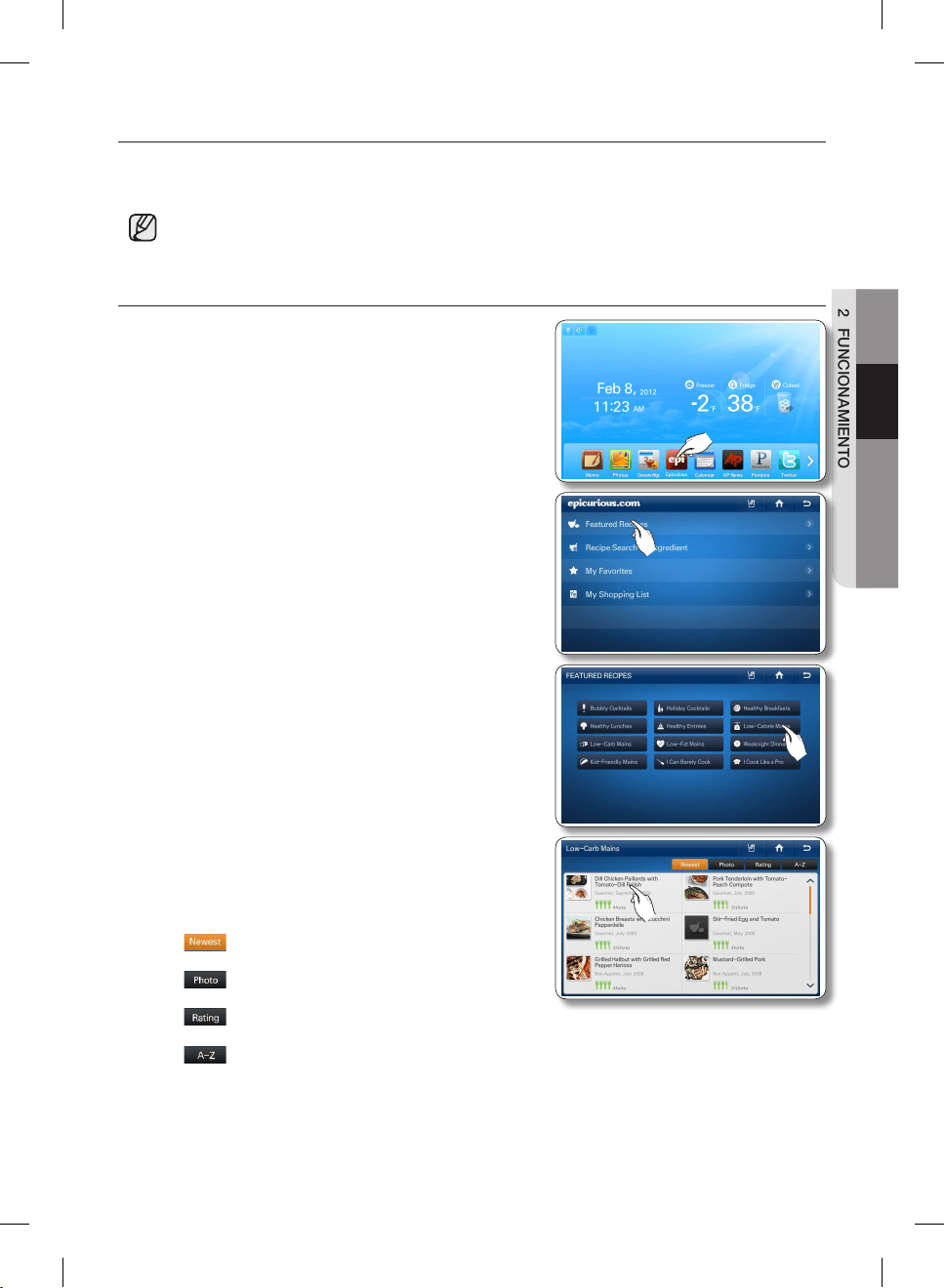
Español - 47
02 FUNCIONAMIENTO
EPICURIOUS
Con el servicio Epicurious, usted puede fácilmente encontrar varias recetas por ingrediente, estación,
ocasión o categoría.
• Esta función sólo se encuentra disponible cuando el refrigerador está conectado a su red
inalámbrica (Wi-Fi).
Cómo utilizar la función Featured Recipes (Recetas recomendadas)
1. Presione el botón Epicurious en la pantalla de inicio.
• Habrá un comercial de 4 segundos al iniciar
Epicurious.
2. Seleccione [Featured Recipes] (Recetas recomendadas)
en la lista de epicurious.
3. Seleccione la categoría Featured Recipes (Recetas
recomendadas). En la pantalla aparece una lista de
recetas.
4. Seleccione una receta. En la pantalla aparecen los
ingredientes de la receta y otros detalles.
• La popularidad de una receta se indica por la
cantidad de tenedores. La más alta son cuatro
tenedores.
• : Seleccione para mostrar las recetas a partir
de la última.
• : Seleccione para mostrar en el orden de la
información de la fotografía.
• : Seleccione para mostrar las recetas en orden
de popularidad.
• : Seleccione para mostrar recetas en orden alfabético.
DA68-02500B-13.indb 47 13. 12. 4. �� 7:13
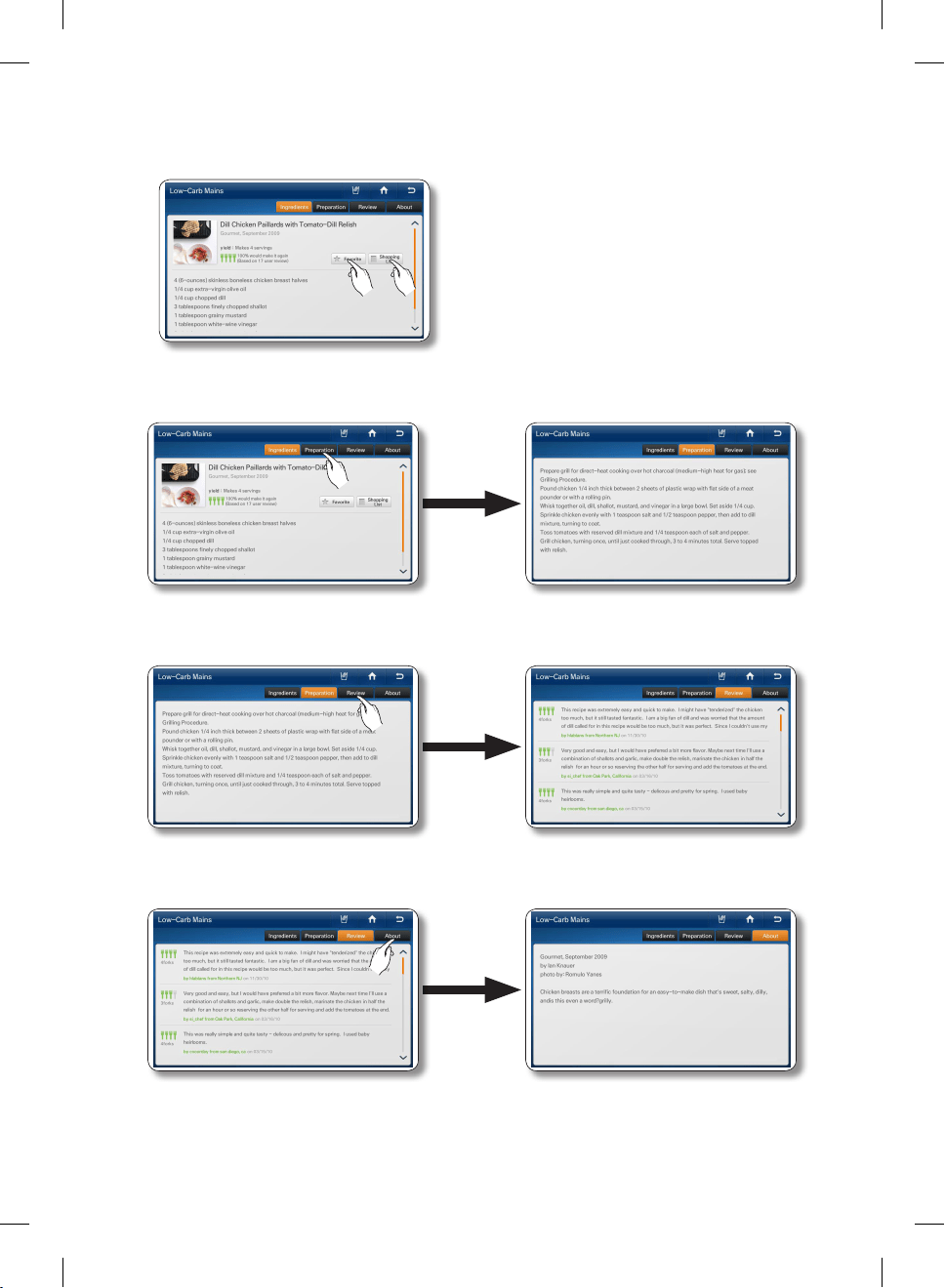
Español - 48
5. Presione el botón [Favorite] (Favoritos) para agregar una receta a su lista de favoritos.
Presione el botón [Shopping List] (Lista de compras) para hacer una lista de compras para una
receta.
6. Seleccione la ficha [Preparation] (Preparación) en la parte superior de la página para ver las
instrucciones de preparación de la receta paso por paso.
7. Seleccione la ficha [Review] (Comentario) en la parte superior de la página para ver los comentarios
realizados por otros usuarios.
8. Seleccione la ficha [About] (Acerca de) en la parte superior de la página para ver información sobre
el autor de la receta.
DA68-02500B-13.indb 48 13. 12. 4. �� 7:13
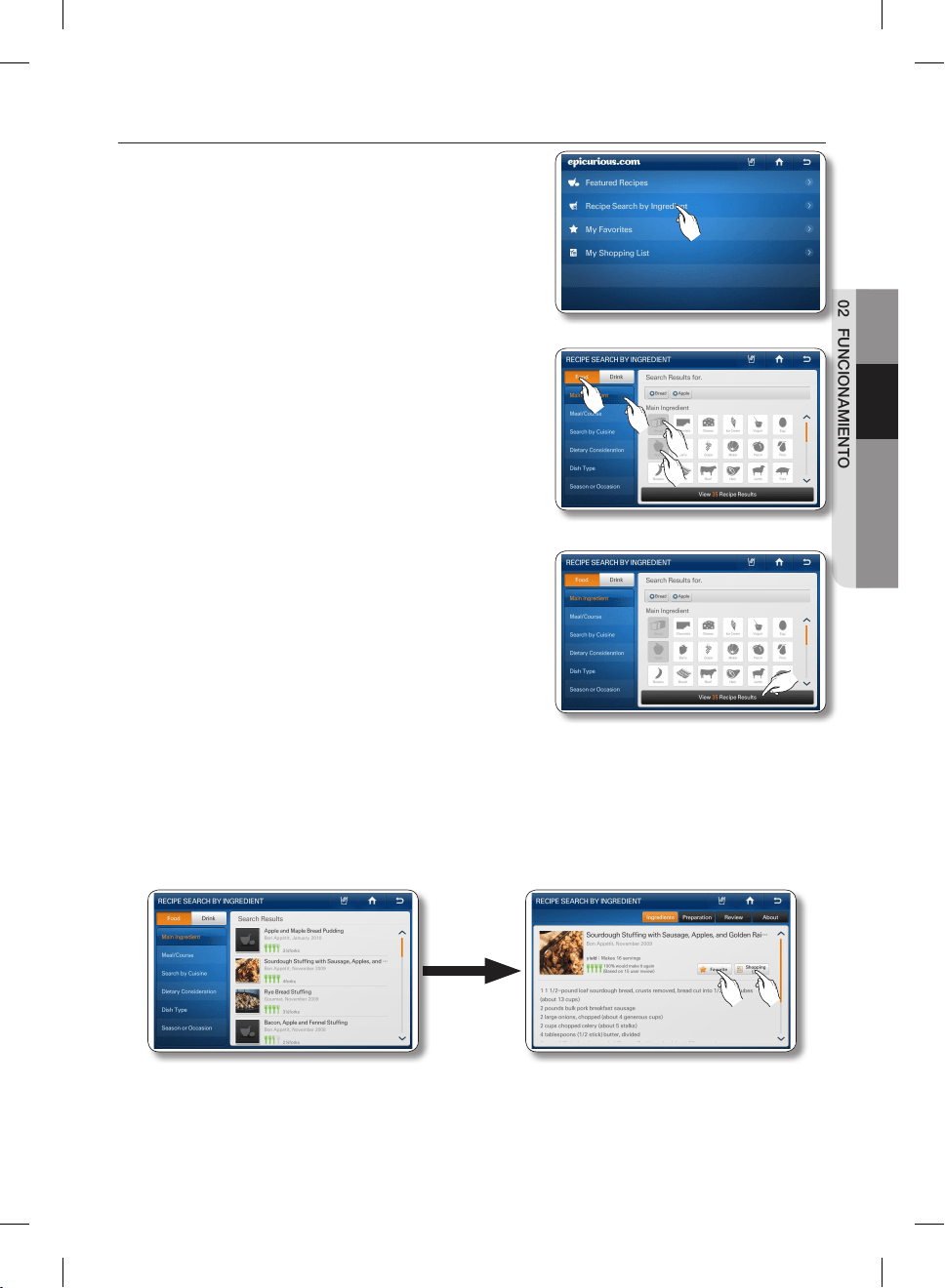
Español - 49
02 FUNCIONAMIENTO
Cómo utilizar Recipe Search by Ingredient (Búsqueda de recetas por ingrediente).
1. Seleccione [Recipe Search by Ingredient] (Búsqueda de
recetas por ingrediente) en la lista de Epicurious.
2. Presione el botón [Food] o [Drink] (Alimentos y bebidas), y
luego presione el tipo de alimento o bebida a la izquierda
de la pantalla. A continuación, seleccione un ícono de
ingrediente a la derecha.
• Cuando selecciona un ícono de ingrediente, el
número de recetas que usan ese ingrediente aparece
en la parte inferior de la pantalla.
• Puede seleccionar múltiples íconos de ingredientes.
3. Seleccione el botón [View Recipe Results] (Ver resultados
de recetas).
4. Seleccione la receta que desea. En la pantalla aparecen los ingredientes y otros detalles de
información.
5. Seleccione el botón [Favorite] (Favoritos) para agregar una receta a su lista de favoritos.
Seleccione el botón [Shopping List] (Lista de compras) para ver una lista de compras para una
receta.
DA68-02500B-13.indb 49 13. 12. 4. �� 7:13
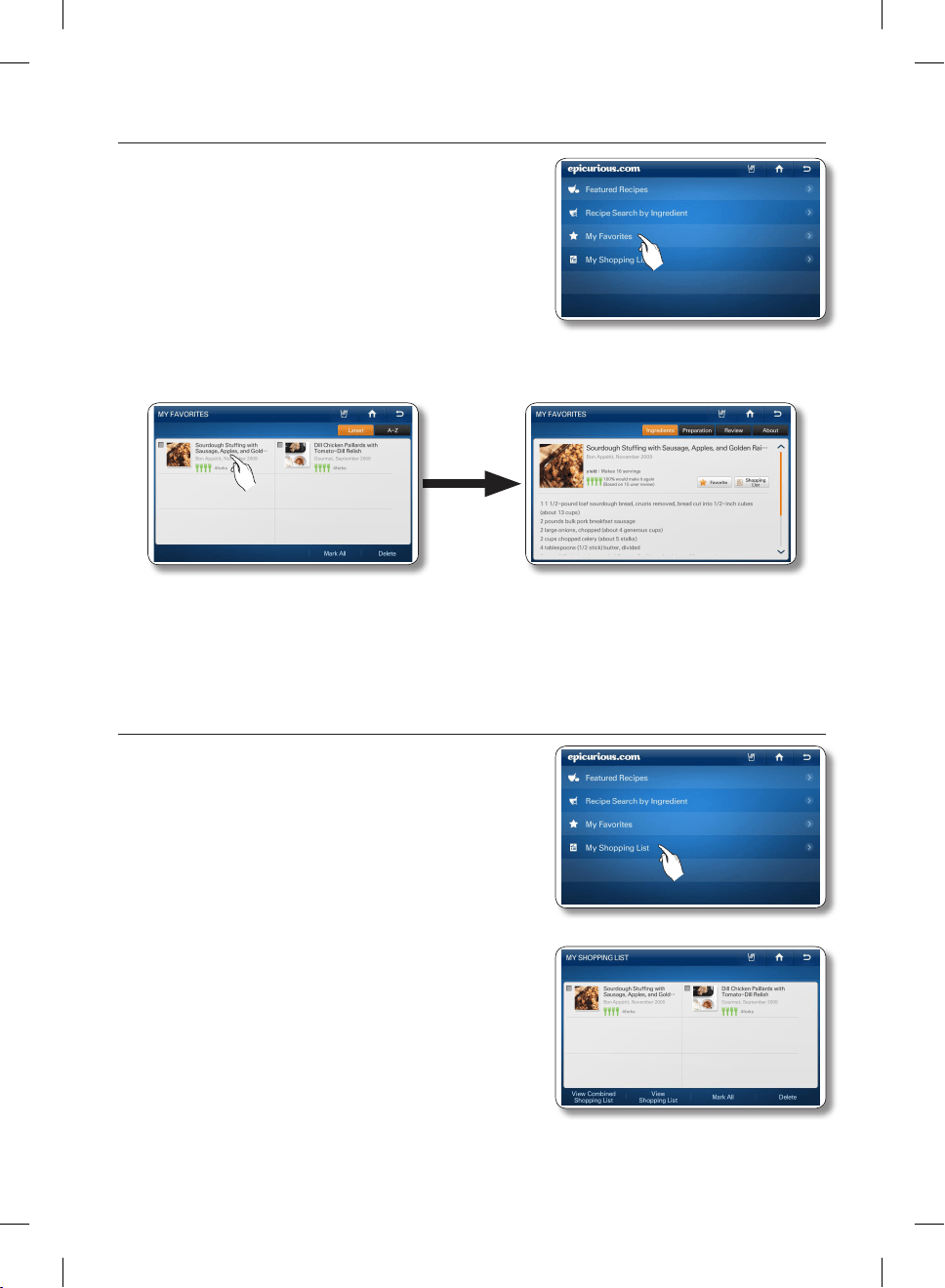
Español - 50
Cómo utilizar My Favorites (Mis favoritos).
1. Seleccione [My Favorites] (Mis favoritos) en la lista de
Epicurious.
• Puede almacenar hasta 100 recetas favoritas.
2. Seleccione la receta que desea.
• Seleccione el botón A-Z a la derecha para ordenar los favoritos en orden alfabético.
• Seleccione una receta, y luego seleccione el botón [Delete] (Eliminar) para eliminar la receta de
su lista de favoritos.
Cómo utilizar My Shopping List (Mi lista de compras).
1. Seleccione [My Shopping List] (Mi lista de compras) en la
lista de Epicurious.
• Muestra los ingredientes para las recetas que
selecciona de modo de poder crear listas de
compras.
• Puede almacenar hasta 100 listas de compras.
2. Seleccione la receta o recetas que desee.
DA68-02500B-13.indb 50 13. 12. 4. �� 7:13
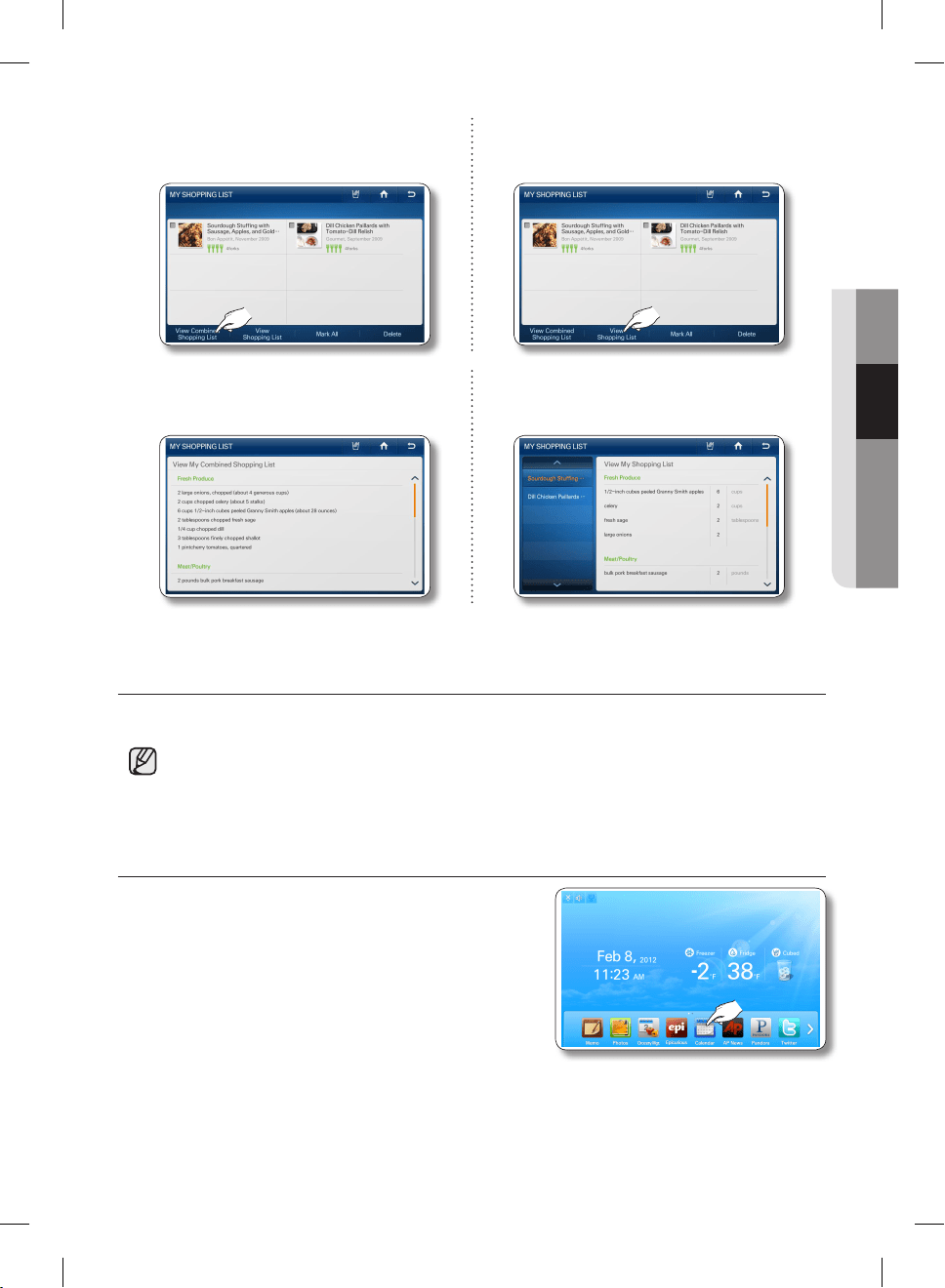
Español - 51
02 FUNCIONAMIENTO
3. Seleccione el botón [View Combined
Shopping List] (Ver lista de compras
combinada).
3. Seleccione el botón [View Shopping List] (Ver
lista de compras).
4. En la pantalla aparece la lista de ingredientes
combinados para todas las recetas
seleccionadas.
4. Seleccione una receta a la izquierda de la
pantalla. En la pantalla aparece la lista de
ingredientes para la receta seleccionada.
CALENDARIO
Muestra el calendario de Google Calendar.
• Esta función sólo se encuentra disponible cuando el refrigerador está conectado a su red
inalámbrica (Wi-Fi).
• Para utilizar la función de calendario debe tener una cuenta en Google.
• La agenda del calendario admite fechas desde enero de 1970 hasta diciembre de 2037.
Cómo visualizar el Google Calendar.
1. Seleccione el botón [Calendar] (Calendario) en la pantalla
de inicio.
DA68-02500B-13.indb 51 13. 12. 4. �� 7:13
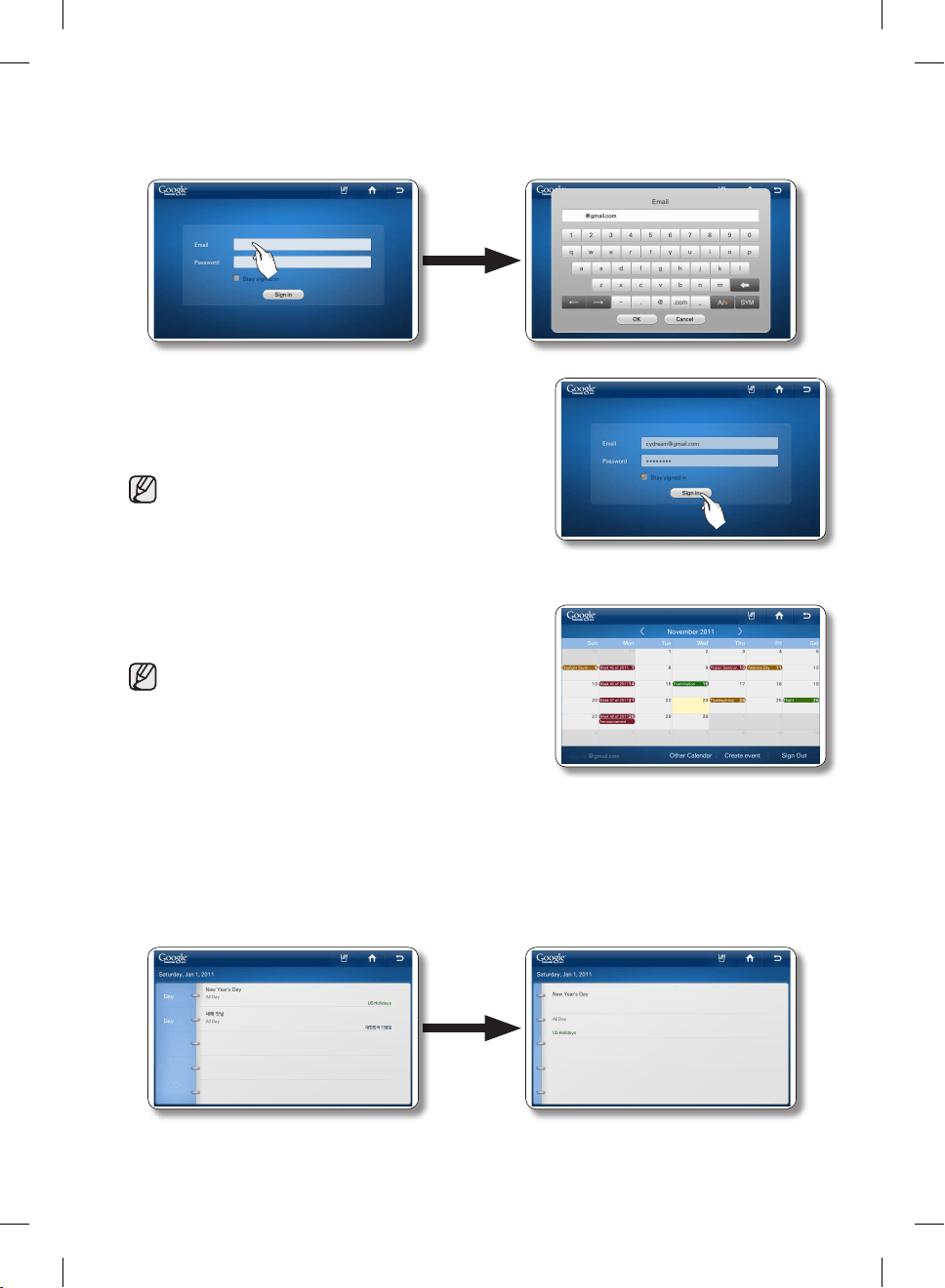
Español - 52
2. Seleccione el casillero Email (correo electrónico) y luego ingrese la identificación de la cuenta de
Google utilizando el teclado de la pantalla. Seleccione el casillero Password (Contraseña) y luego
ingrese su contraseña utilizando el teclado de la pantalla.
3. Presione el botón [Sign In] (Iniciar sesión).
• Si marca el casillero ‘Stay signed in’ (No cerrar
sesión), el refrigerador almacenará la cuenta para
futuras sesiones más rápidas.
• Si no tiene una cuenta de Google, puede obtener
una en http://calendar.google.com.
• En la sección de correo electrónico, ingrese su
identificación de la cuenta de Google en este
formato: [email protected].
4. Para ver su agenda, seleccione una fecha. En la pantalla
aparece el calendario diario para la fecha seleccionada.
• No se puede modificar ni borrar el programa del
Google Calendar mediante la pantalla del visor del
refrigerador.
• El color de cada evento agendado es el mismo que
en la aplicación Google Calendar.
• Pulse las flechas de dirección izquierda o derecha
para ver la Monthly Schedule (Programación
mensual).
• Cuando hay más de 4 eventos en un día, el calendario indica el exceso con “+1 more” (+1 de
más).
• La programación se actualiza cada 30 minutos.
5. Presione el evento que desea ver. El evento que seleccionó aparece en la pantalla.
DA68-02500B-13.indb 52 13. 12. 4. �� 7:13
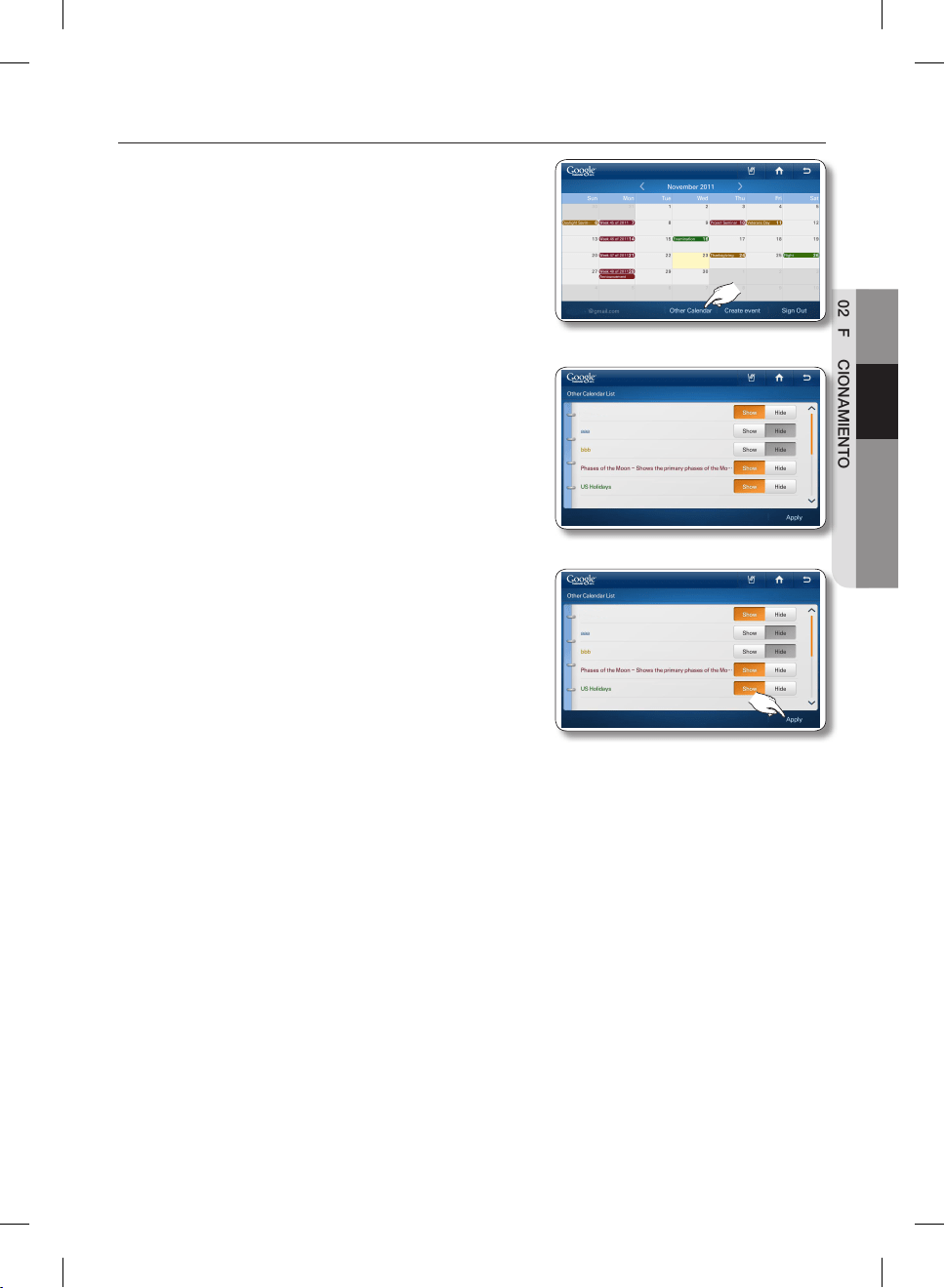
Español - 53
02 FUNCIONAMIENTO
Cómo administrar Shared Calendar (Calendario compartido)
1. Seleccione [Other Calendar] (Otro calendario).
2. Seleccione el botón [Show] (Mostrar) o [Hide] (Ocultar).
• Puede mostrar u ocultar programaciones de su lista
de suscripción de Google Web Calendar mediante
la pantalla Other Calendar List (Lista de otros
calendarios).
• Si cambia la opción de Show / Hide (Mostrar /
Ocultar), no se modifica la lista de suscripción ni la
opción Show / Hide (Mostrar / Ocultar) en el Google
Web Calendar.
3. Seleccione el botón [Apply] (Aplicar). Vuelve a aparecer
el Google Calendar con la programación mostrada
cambiada conforme a sus selecciones.
DA68-02500B-13.indb 53 13. 12. 4. �� 7:13
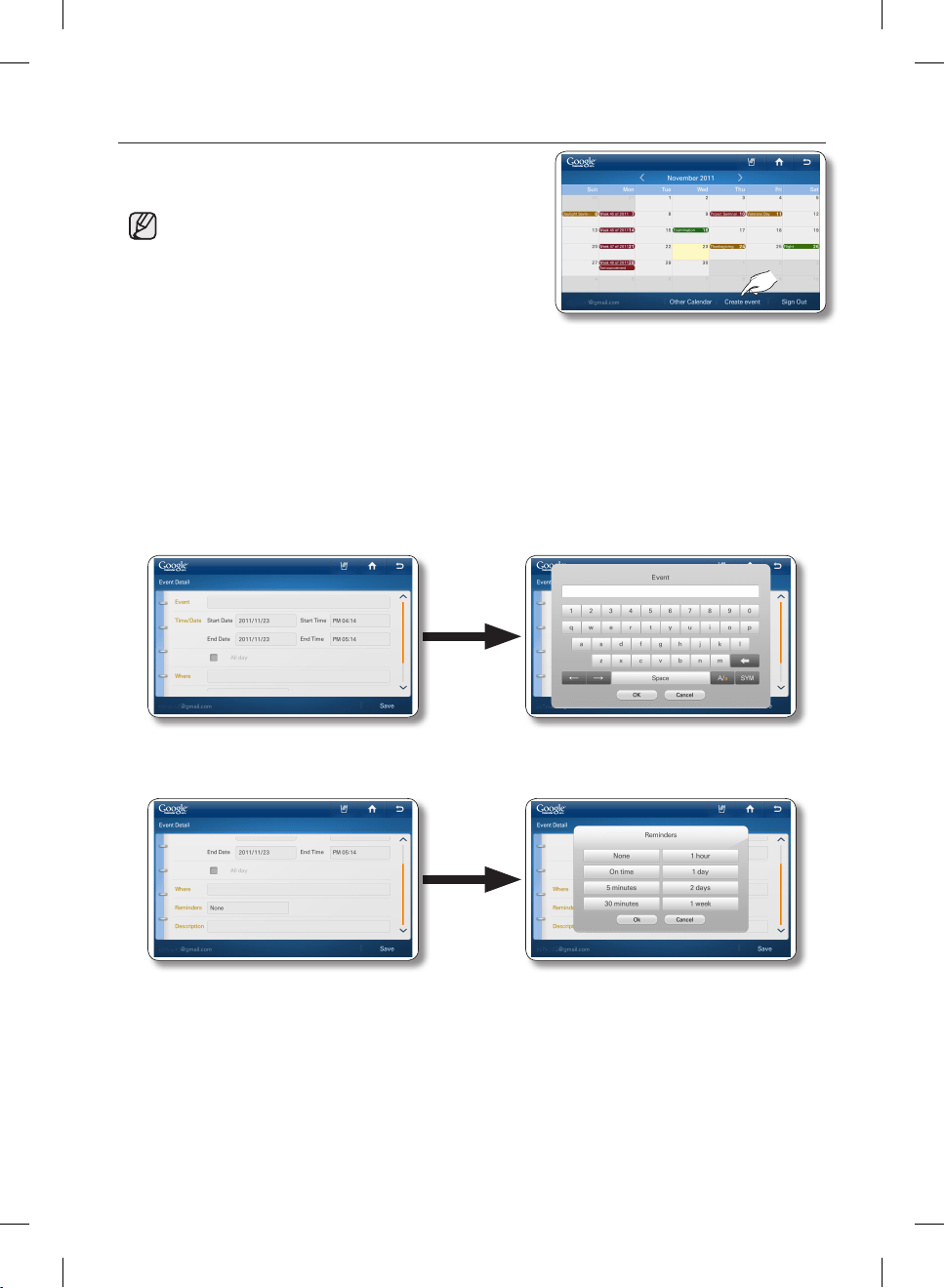
Español - 54
Cómo crear un evento
1. Seleccione el botón [Create Event] (Crear evento) en la
pantalla de inicio.
• Debe iniciar sesión en su dirección de correo
electrónico Gmail principal (***@gmail.com) para usar
la función Crear un evento.
Para ver la dirección de correo electrónico
principal:
1. Inicie sesión en www.google.com.
2. Acceda a Gmail.
3. Haga clic en la dirección de correo electrónico en la esquina superior derecha de la pantalla
( ***@gmail.com). Aparece una ventana.
4. Haga clic en Cuentas.
5. Busque en [Nombres de usuario y direcciones de correo electrónico] la dirección de correo
electrónico identificada como principal.
2. Ingrese el título del evento, la fecha y hora, la ubicación (donde) y la descripción en los campos de
ingreso correspondientes usando el teclado de la pantalla.
3. Para fijar un recordatorio para un evento agendado, seleccione el casillero de ingreso de
recordatorios y luego seleccione una de las opciones de recordatorio.
4. Cuando todos los ajustes están completos, seleccione [Save] (Guardar).
DA68-02500B-13.indb 54 13. 12. 4. �� 7:13
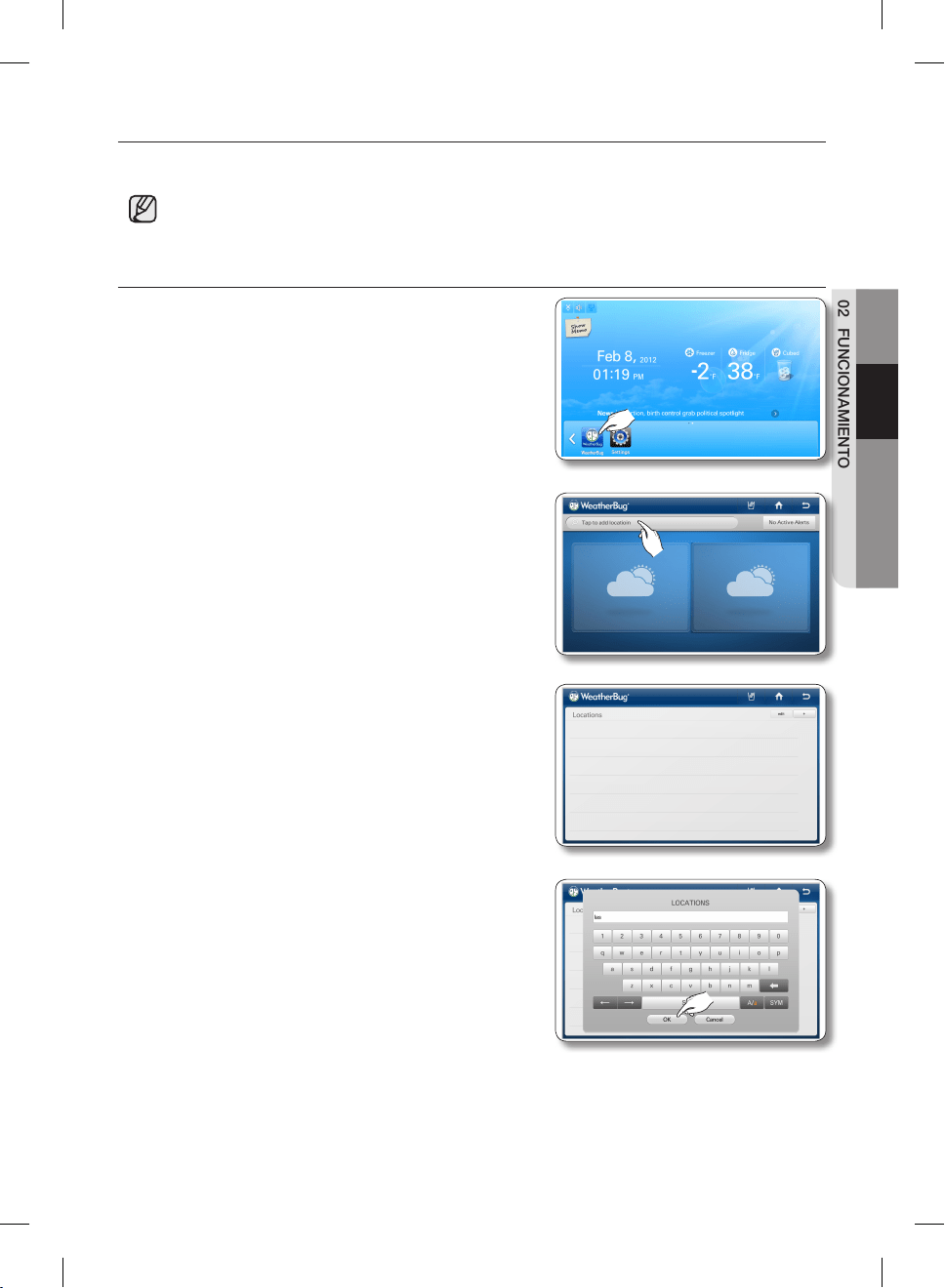
Español - 55
02 FUNCIONAMIENTO
WEATHERBUG
El servicio meteorológico de Internet proporciona información climática actual y semanal por regiones.
• Esta función sólo se encuentra disponible cuando el refrigerador está conectado a su red
inalámbrica (Wi-Fi).
Cómo agregar su Región a Weatherbug.
1. Seleccione el botón WeatherBug en la pantalla de inicio.
• Habrá un comercial de 4 segundos al ingresar a
WeatherBug.
2. Seleccione la barra de búsqueda de regiones en el
margen superior izquierdo de la pantalla.
3. Seleccione el botón [+] en el ángulo superior derecho de
la pantalla.
4. Ingrese su localidad o código postal (EE.UU. solamente)
mediante el teclado en la pantalla, y luego presione el
botón [OK] (Aceptar).
DA68-02500B-13.indb 55 13. 12. 4. �� 7:13
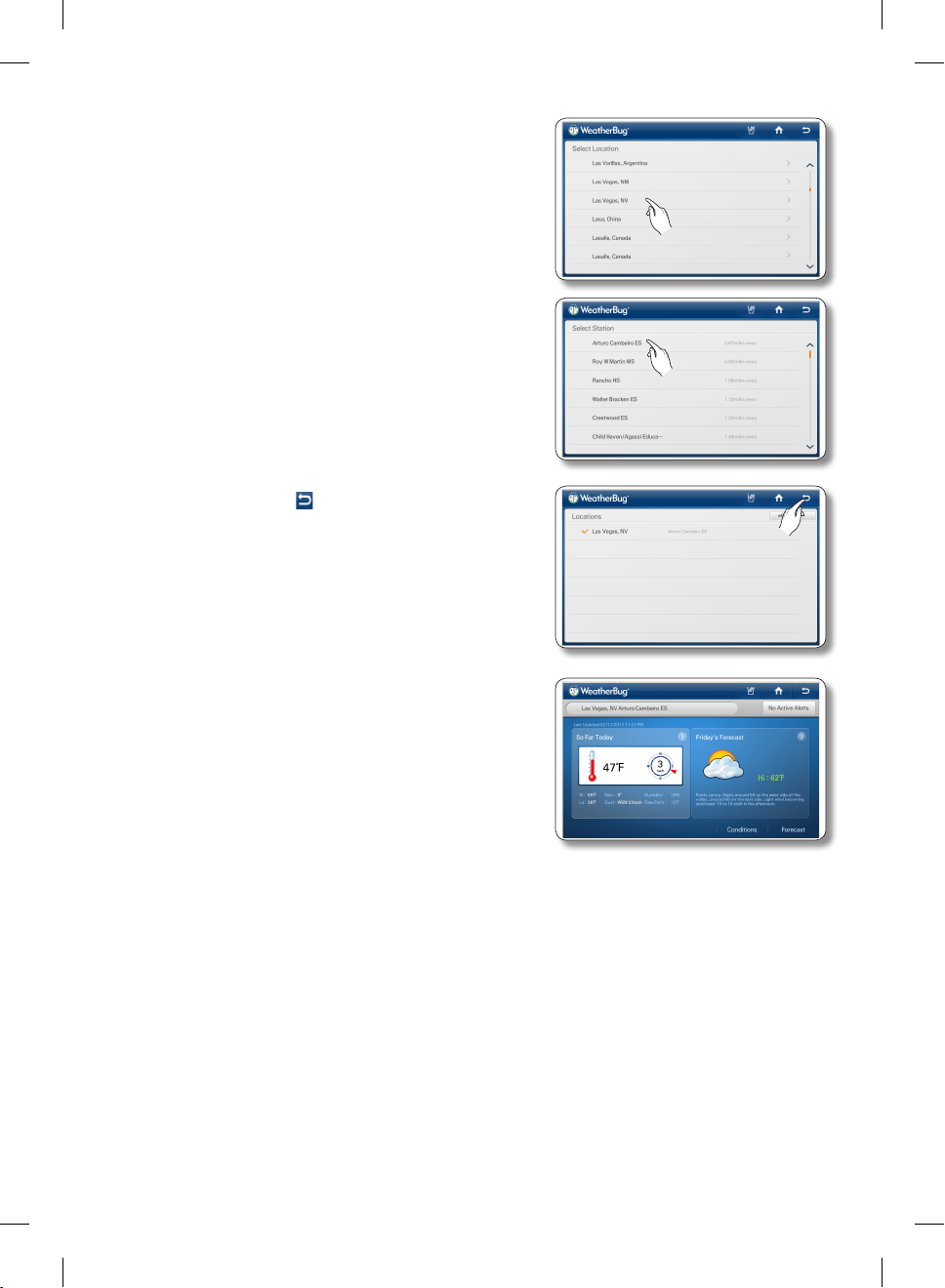
Español - 56
5. Seleccione su localidad.
6. Seleccione una estación meteorológica local.
7. Seleccione el botón “ ” en el margen superior derecho
de la pantalla.
8. La pantalla muestra su clima local.
DA68-02500B-13.indb 56 13. 12. 4. �� 7:13
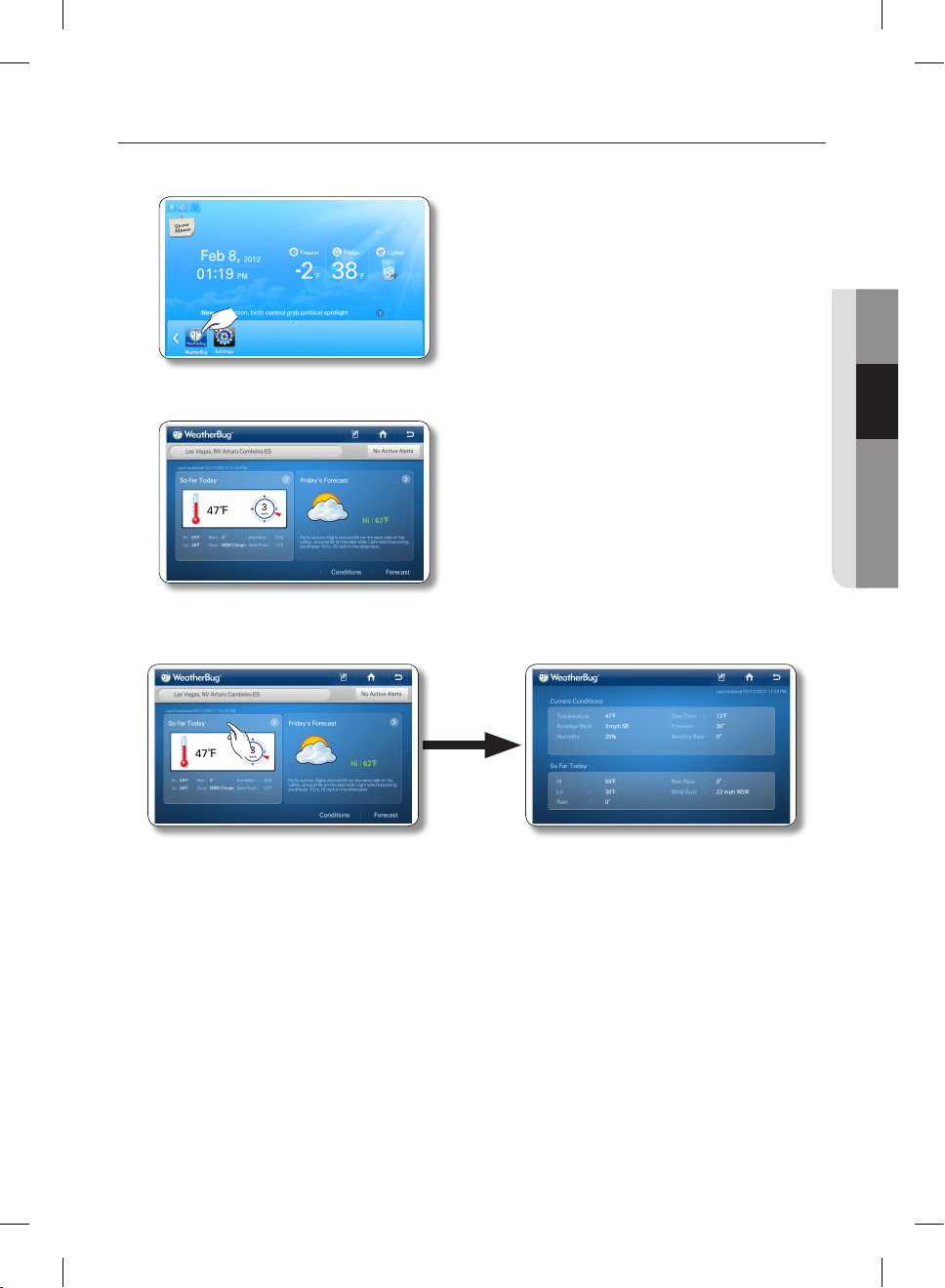
Español - 57
02 FUNCIONAMIENTO
Cómo ver el clima de hoy.
1. Seleccione el botón WeatherBug en la pantalla de inicio.
• Habrá un comercial de 4 segundos al ingresar a WeatherBug.
2. A la derecha aparece la pantalla Weatherbug mostrando su clima local.
• Si selecciona Active Alerts (Alertas activas), la pantalla muestra las alertas del clima.
3. Seleccione [So Far Today] (Hasta el momento). En la pantalla aparece la información detallada del
clima actual.
DA68-02500B-13.indb 57 13. 12. 4. �� 7:13
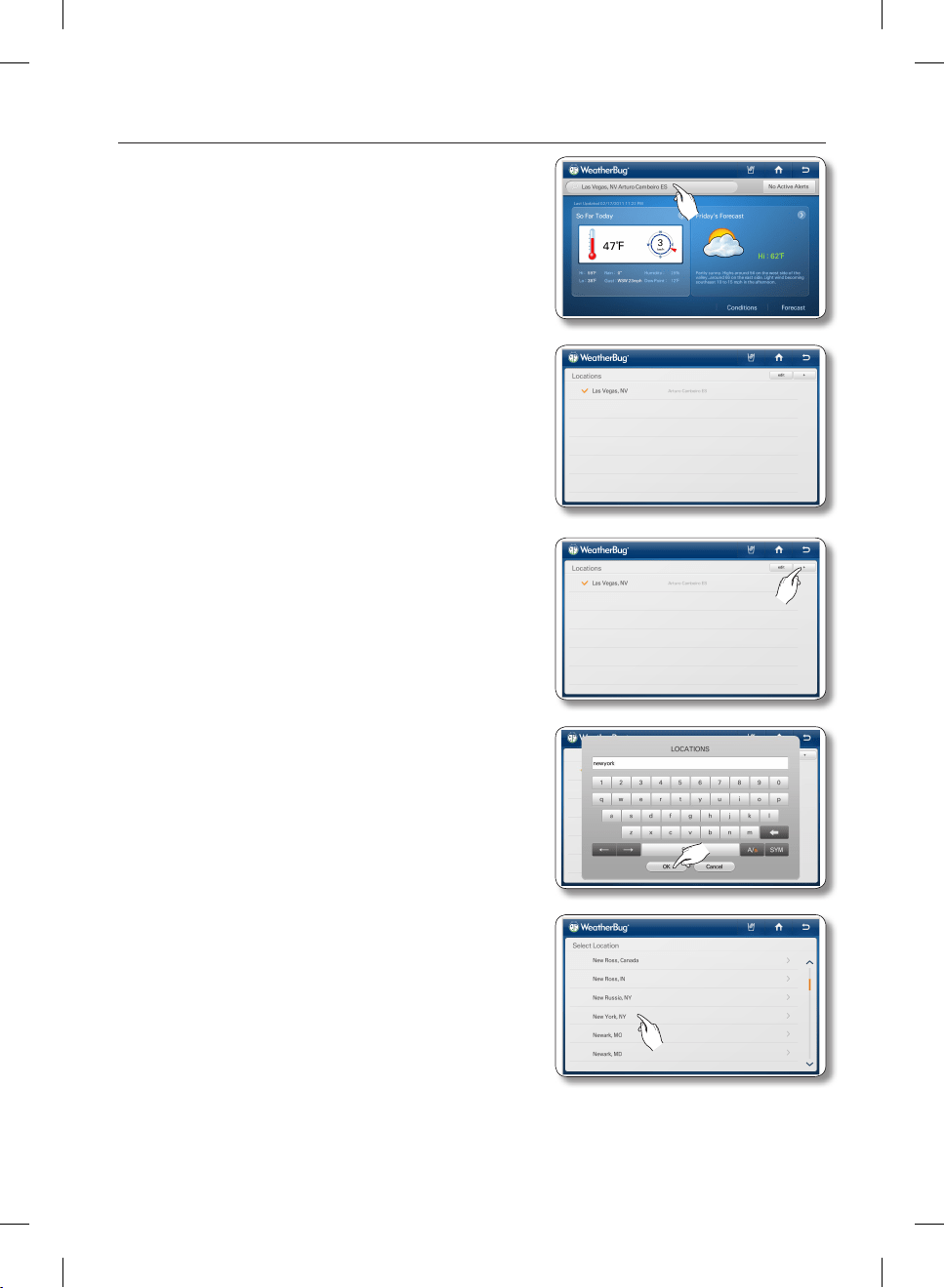
Español - 58
Cómo agregar otras regiones a Weatherbug
1. Seleccione la barra de búsqueda de regiones en el
margen superior izquierdo de la pantalla.
2. La información de la región actual aparece en la pantalla.
3. Seleccione el botón [+] en el margen superior derecho de
la pantalla.
4. Ingrese el nombre de la localidad o código postal (EE.
UU. solamente) mediante el teclado en la pantalla, y luego
presione el botón [OK] (Aceptar).
5. Seleccione la localidad deseada.
DA68-02500B-13.indb 58 13. 12. 4. �� 7:13
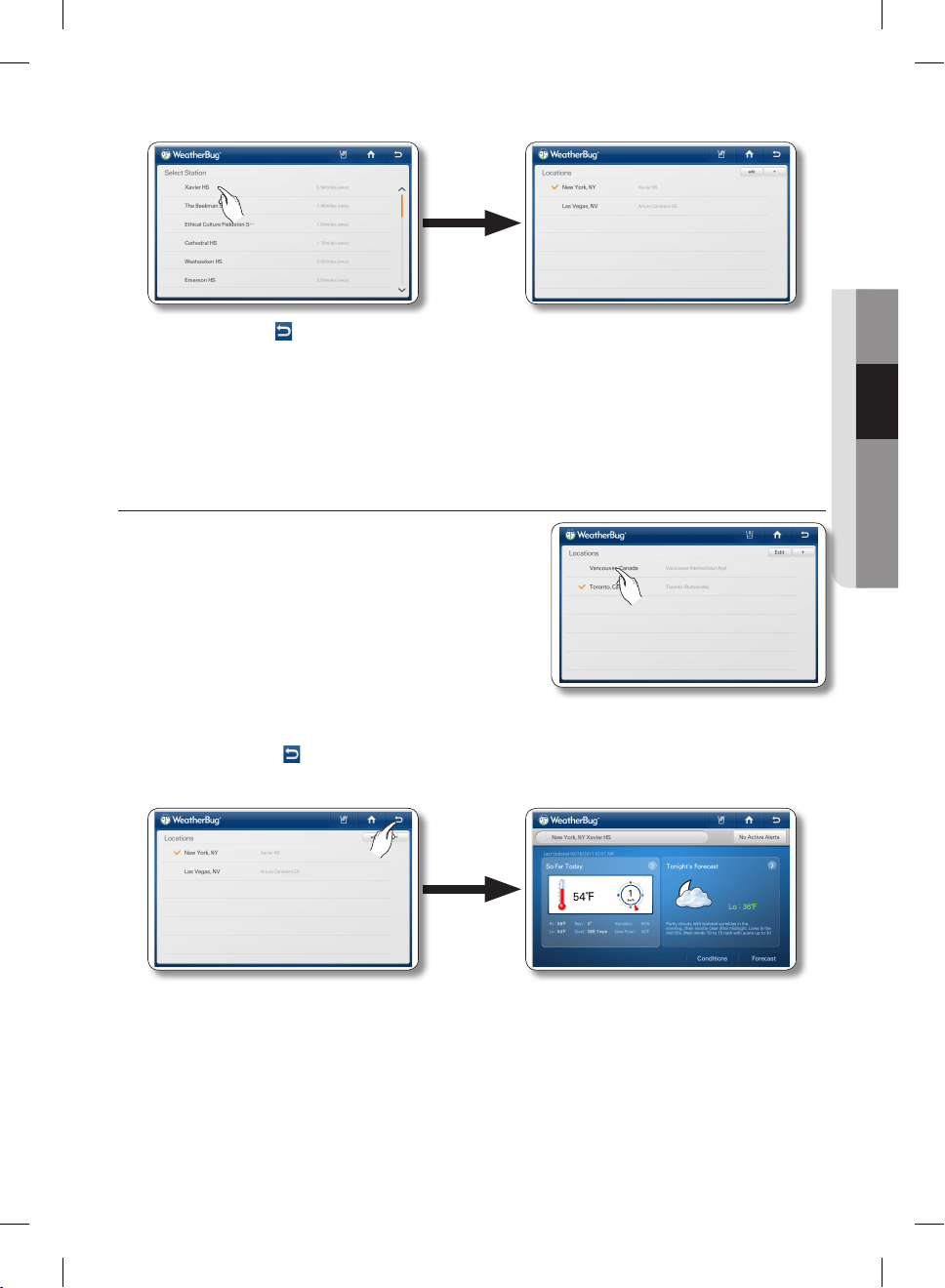
Español - 59
02 FUNCIONAMIENTO
6. Seleccione la estación meteorológica local deseada.
7. Presione el botón en el margen superior derecho de la pantalla.
8. En la pantalla aparece el clima de la localidad seleccionada.
Cómo ver Información del Clima de una Región
1. Seleccione el nombre de la localidad deseada en la lista
de localidades.
2. Presione el botón ( ) para volver atrás en el margen superior derecho.
En la pantalla aparece el clima de la localidad seleccionada.
DA68-02500B-13.indb 59 13. 12. 4. �� 7:13
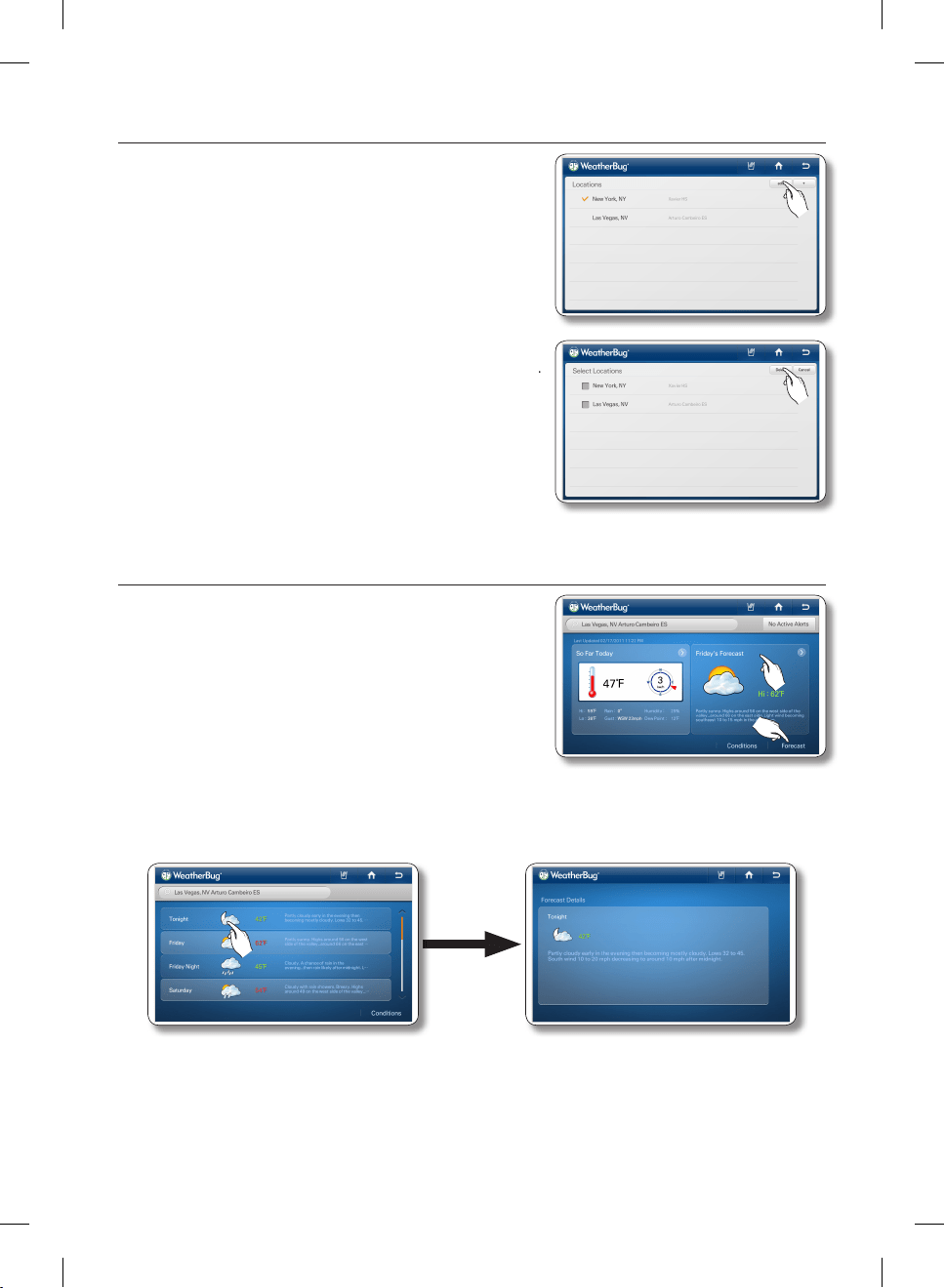
Español - 60
Cómo borrar regiones de Weatherbug
1. Seleccione el botón [edit] (Editar) en el ángulo superior
derecho de la pantalla.
2. Seleccione el casillero a la izquierda de la localidad que
desea borrar y luego seleccione el botón Delete (Eliminar).
Cómo ver el pronóstico del tiempo.
1. Seleccione el botón [Forecast] (Pronóstico) o Tonight’s
Forecast (Pronóstico de esta noche)
2. Seleccione el pronóstico deseado en la lista. En la pantalla aparece información detallada del
pronóstico.
• La pantalla muestra pronósticos meteorológicos para 7 días.
• También muestra el día, el Día/Noche (clima de EE.UU. solamente), el ícono de la condición
climática, la temperatura y la descripción del clima.
• Si selecciona el botón [Conditions] (Condiciones) en la parte inferior derecha, aparece la
pantalla que muestra la información del clima actual.
DA68-02500B-13.indb 60 13. 12. 4. �� 7:13
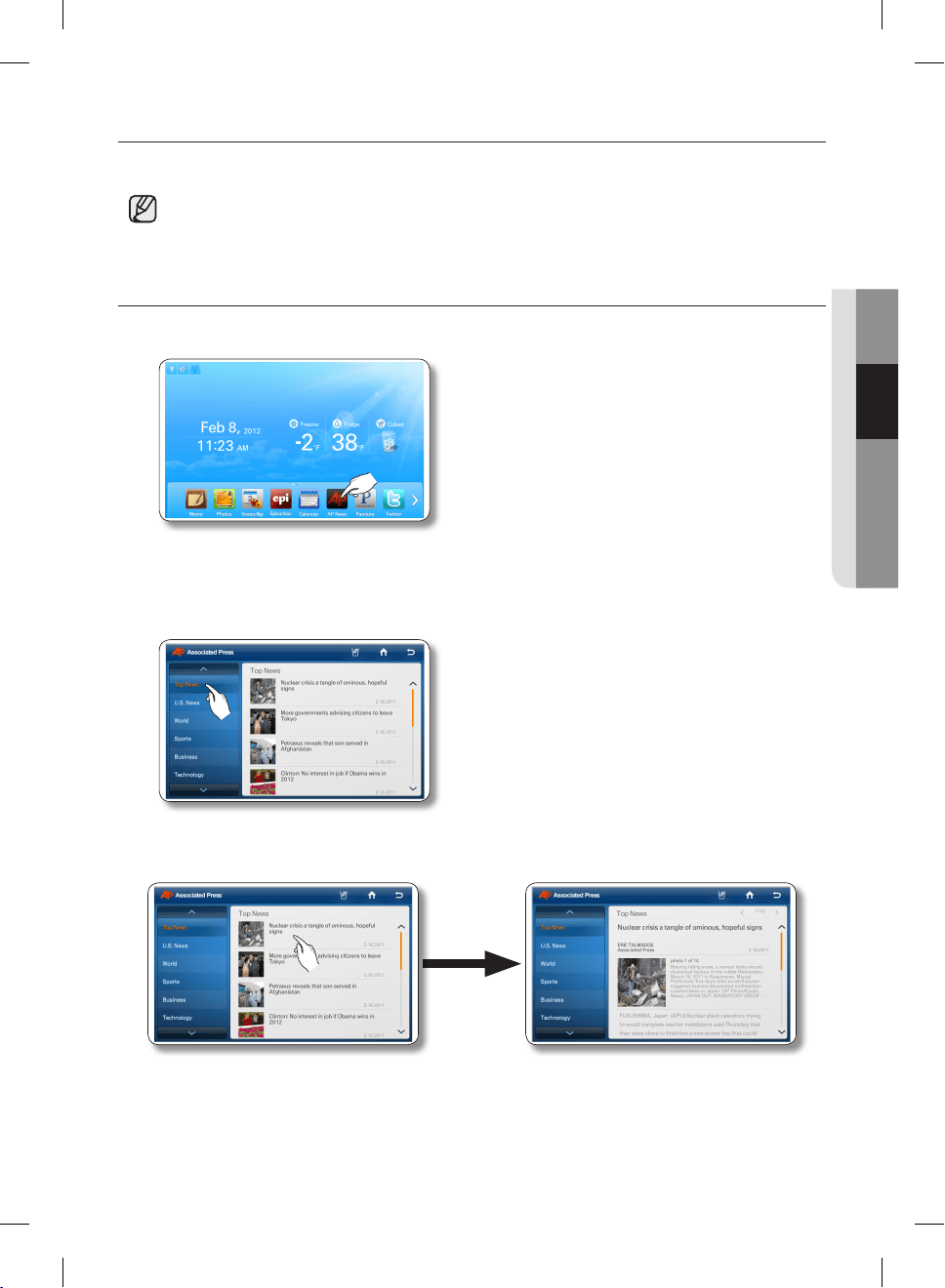
Español - 61
02 FUNCIONAMIENTO
AP NEWS
El servicio de noticias de Internet proporciona noticias de actualidad hasta en 11 categorías.
• Esta función sólo se encuentra disponible cuando el refrigerador está conectado a su red
inalámbrica (Wi-Fi).
Cómo ver las noticias de Internet.
1. Seleccione el botón Ap News en la pantalla de inicio.
2. Seleccione una categoría de noticias.
• Al seleccionar una categoría a la izquierda, la pantalla muestra las principales noticias de esa
categoría.
3. Seleccione el artículo deseado.
DA68-02500B-13.indb 61 13. 12. 4. �� 7:13
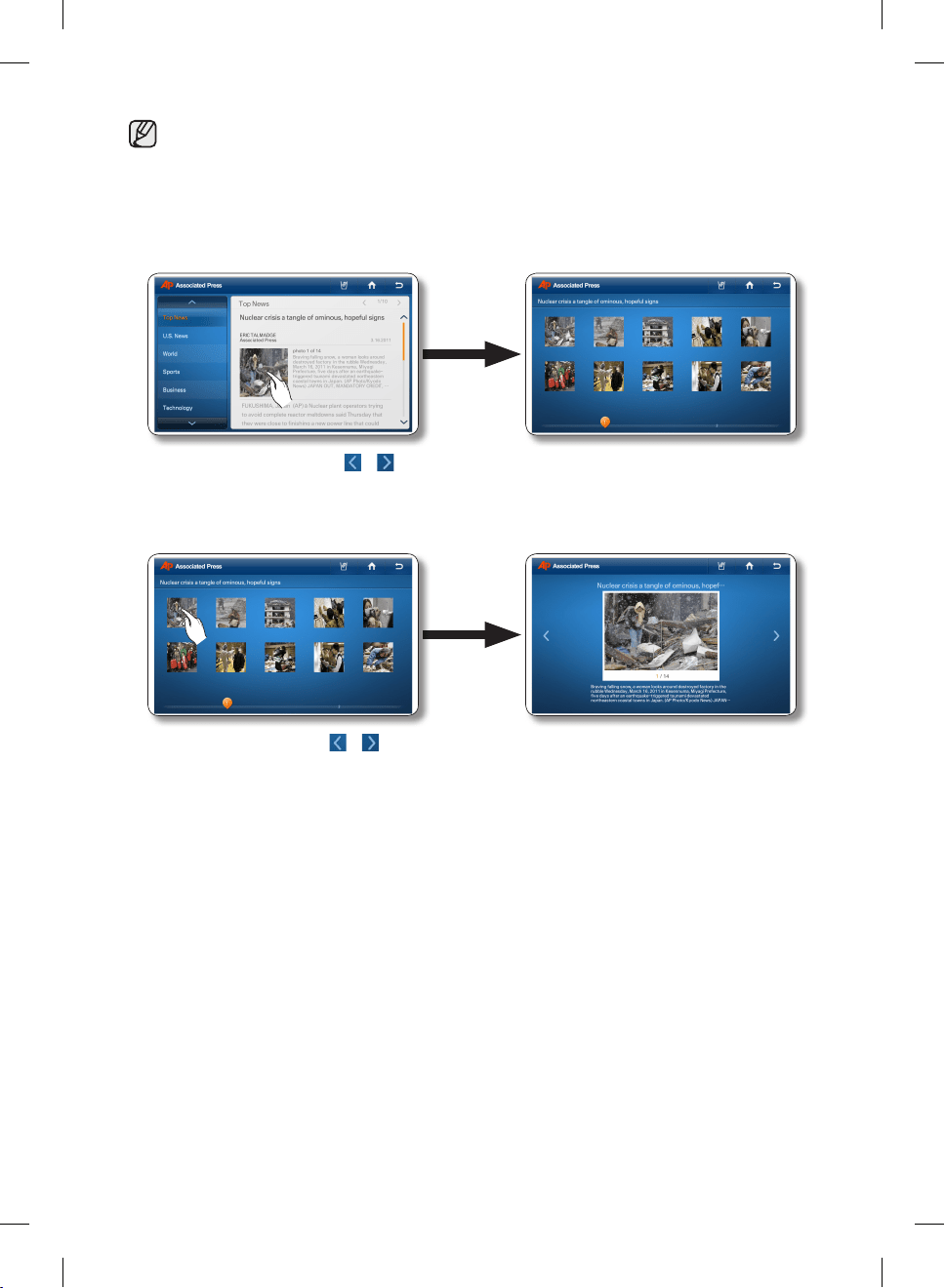
Español - 62
• Para ver todas las fotografías relacionadas con el artículo, seleccione la fotografía principal en
los detalles del artículo informativo. Para ver el artículo en detalle, visite http://www.ap.org en su
teléfono móvil o PC.
4. Para ver todas las fotografías relacionadas con el artículo, seleccione la fotografía principal en los
detalles del artículo informativo.
• Seleccione los botones y en la parte superior derecha del artículo para ver otros artículos.
5. Seleccione una fotografía para ampliarla.
• Presione los botones y para ver otras fotografías en vista ampliada.
DA68-02500B-13.indb 62 13. 12. 4. �� 7:13
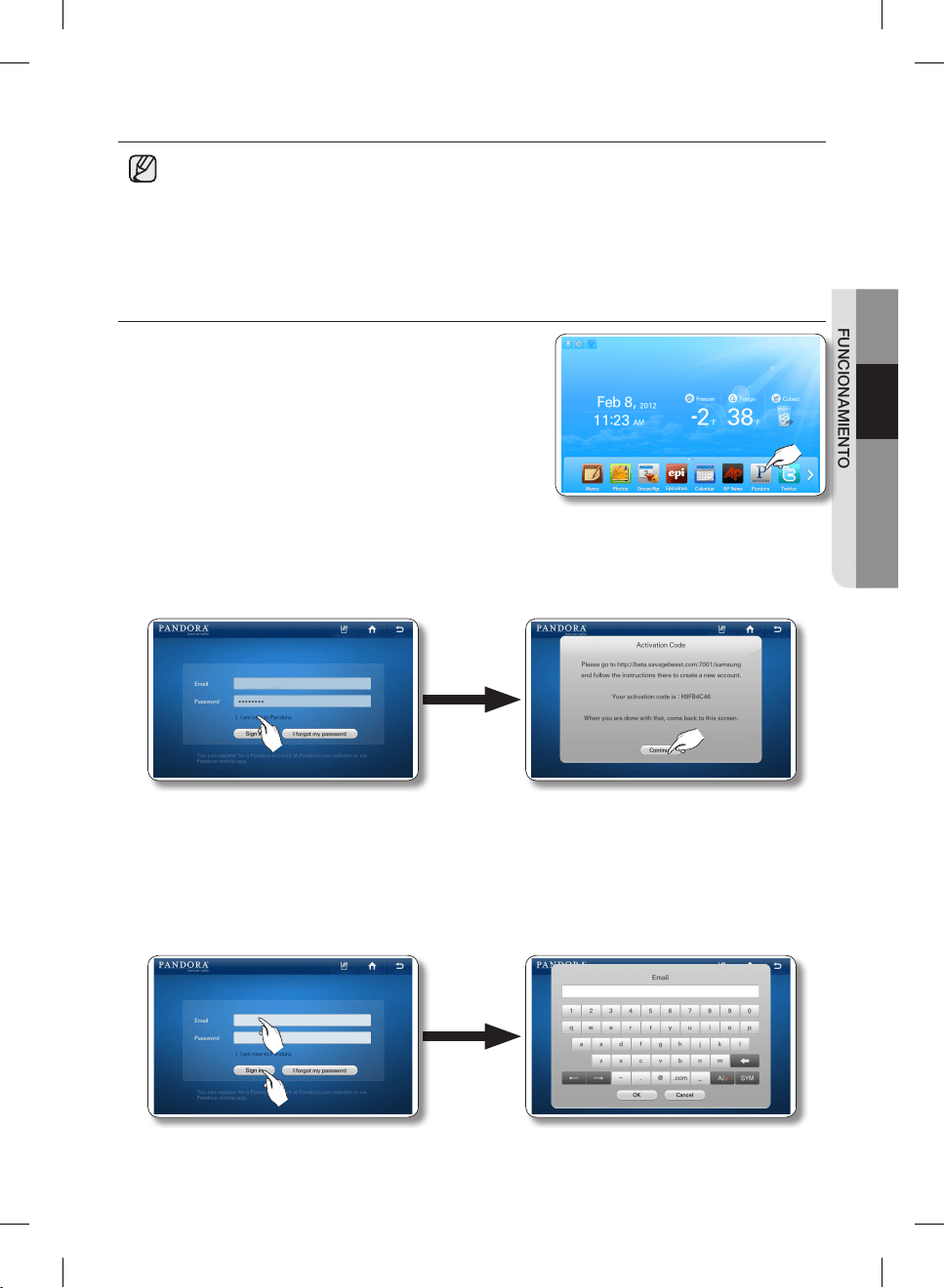
Español - 63
02 FUNCIONAMIENTO
PANDORA
• Esta función sólo se encuentra disponible cuando el refrigerador está conectado a su red
inalámbrica (Wi-Fi).
• Gracias al servicio Pandora, puede disfrutar de sus canciones favoritas sin cargo.
• La selección de canciones se basa en el análisis de datos recolectados por el Music Genome
Project de Pandora. Sus selecciones de canciones individuales, utilizadas como información,
pueden afectar a la siguiente selección de canciones de Pandora.
Cómo activar y utilizar radio Pandora de Internet.
1. Seleccione el botón Pandora en la pantalla de inicio.
2. Seleccione el texto ‘ I’m new to Pandora’ (Soy nuevo en Pandora). Aparece una pantalla de código
de activación. En su PC, vaya al sitio web de la ventana emergente y utilice el código para registrar
y activar su cuenta de Pandora. Cuando termine, seleccione el botón [Continue] (Continuar).
3. Seleccione el casillero Email (correo electrónico). Ingrese la ID de cuenta de Pandora mediante
el teclado en la pantalla. Seleccione el casillero Password (Contraseña). Ingrese la contraseña de
cuenta de Pandora mediante el teclado en la pantalla.
• Si no tiene una cuenta de Pandora, puede crear una en http://www.pandora.com.
• En el casillero Email (Correo electrónico), ingrese su ID de cuenta de Pandora, como por
ejemplo, [email protected].
DA68-02500B-13.indb 63 13. 12. 4. �� 7:13
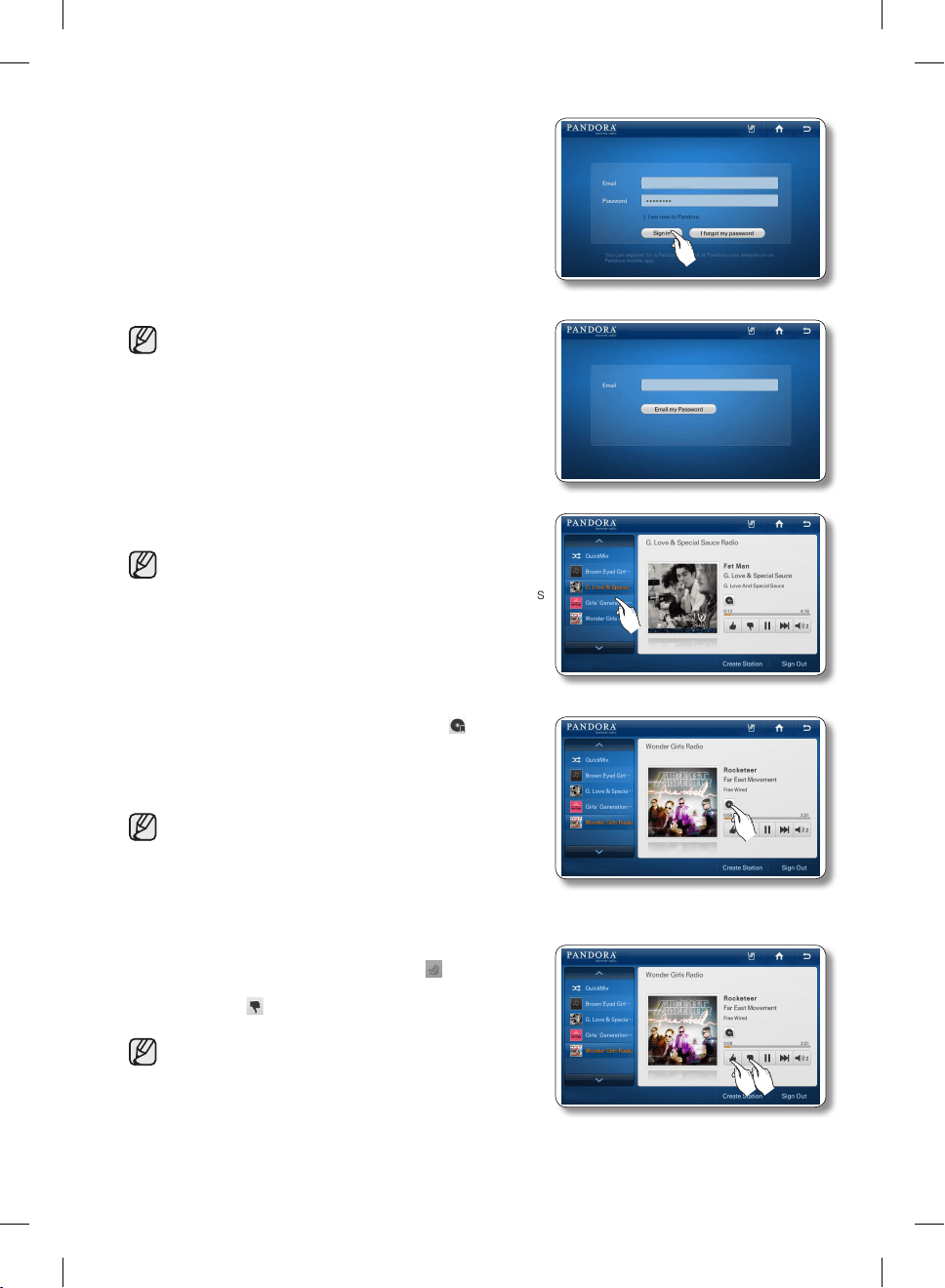
Español - 64
4. Presione el botón [Sign In] (Iniciar sesión).
• Si olvida la contraseña, presione el botón “I forgot
my password” (Olvidé mi contraseña) para obtener
su contraseña en un mensaje de correo electrónico
enviada a la dirección que tenga registrada en
Pandora.
5. Selecciona una estación de la lista a la izquierda.
• Pandora admite hasta 100 estaciones.
• Las estaciones se pueden crear en www.pandora.
com o por medio de dispositivos móviles compatibles
con Pandora.
• Si selecciona otras estaciones, puede reproducir las
canciones seleccionadas en otras estaciones.
6. Al seleccionar el botón Agregar a favoritos ( ) durante
la reproducción de una canción, se agrega a la lista Song
Bookmark List (Lista de canciones favoritas). Puede verla
en el sitio de Pandora.
• Al señalar sus canciones favoritas, es posible revisar
la lista de canciones y comprar diversos álbumes
con esas canciones en la página [Su perfil] en www.
pandora.com.
7. Si le gusta una canción que se está reproduciendo,
seleccione el botón Pulgar hacia arriba ( ).
De lo contrario, seleccione el botón Thumb Down (Pulgar
hacia abajo) ( ).
• Al seleccionar el botón Thumb Up (Pulgar hacia
arriba), Pandora crea una estación con canciones
similares a la canción aprobada.
DA68-02500B-13.indb 64 13. 12. 4. �� 7:13
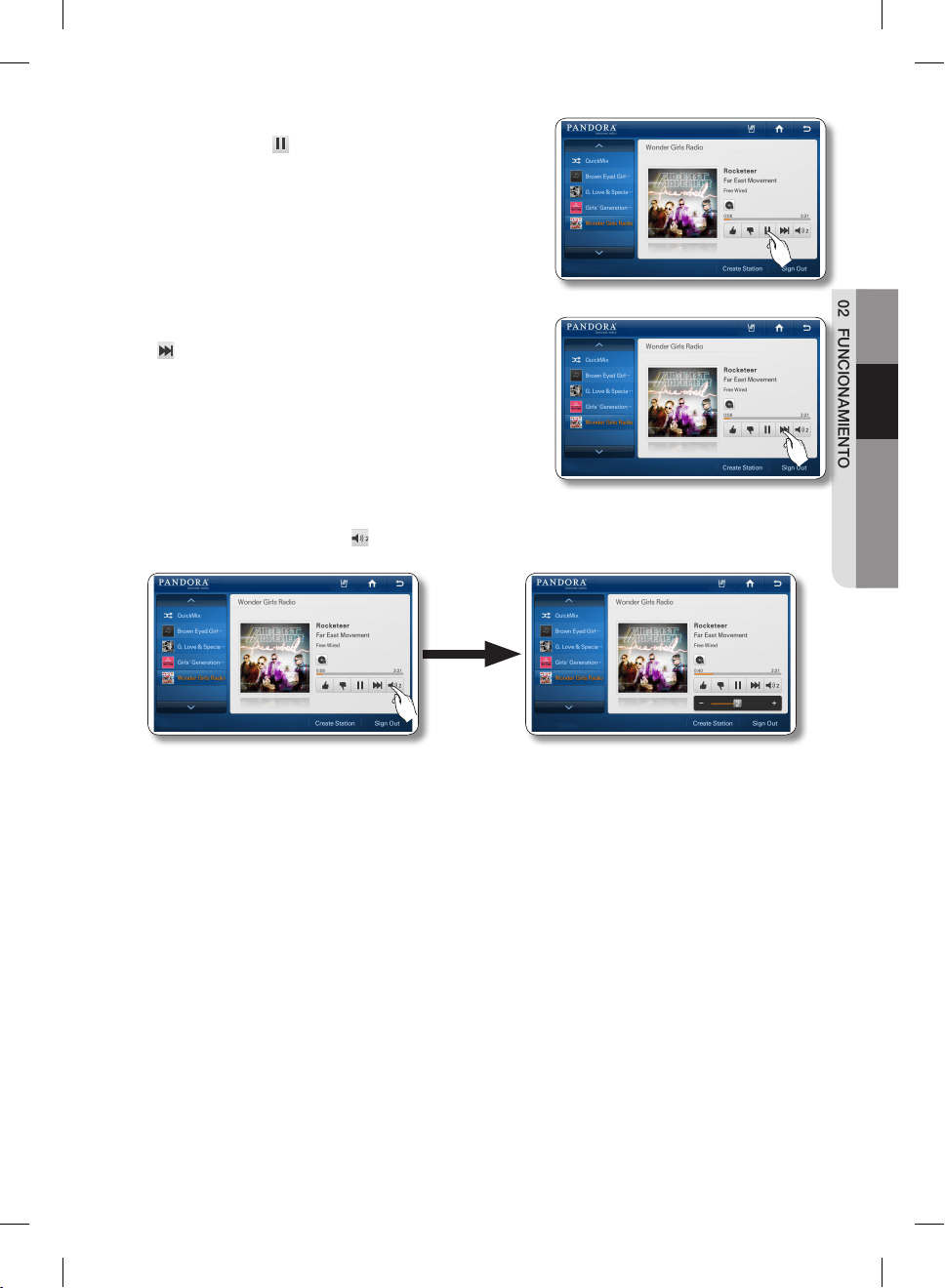
Español - 65
02 FUNCIONAMIENTO
8. Para pausar la canción que está escuchando, presione el
botón de pausa ( ).
9. Para reproducir la siguiente canción, presione el botón
( ).
• Lamentablemente, nuestras licencias de música nos
obligan a restringir la cantidad de canciones que se
pueden saltear en una hora.
10. Presione el botón de altavoz ( ) para ajustar el volumen.
DA68-02500B-13.indb 65 13. 12. 4. �� 7:13
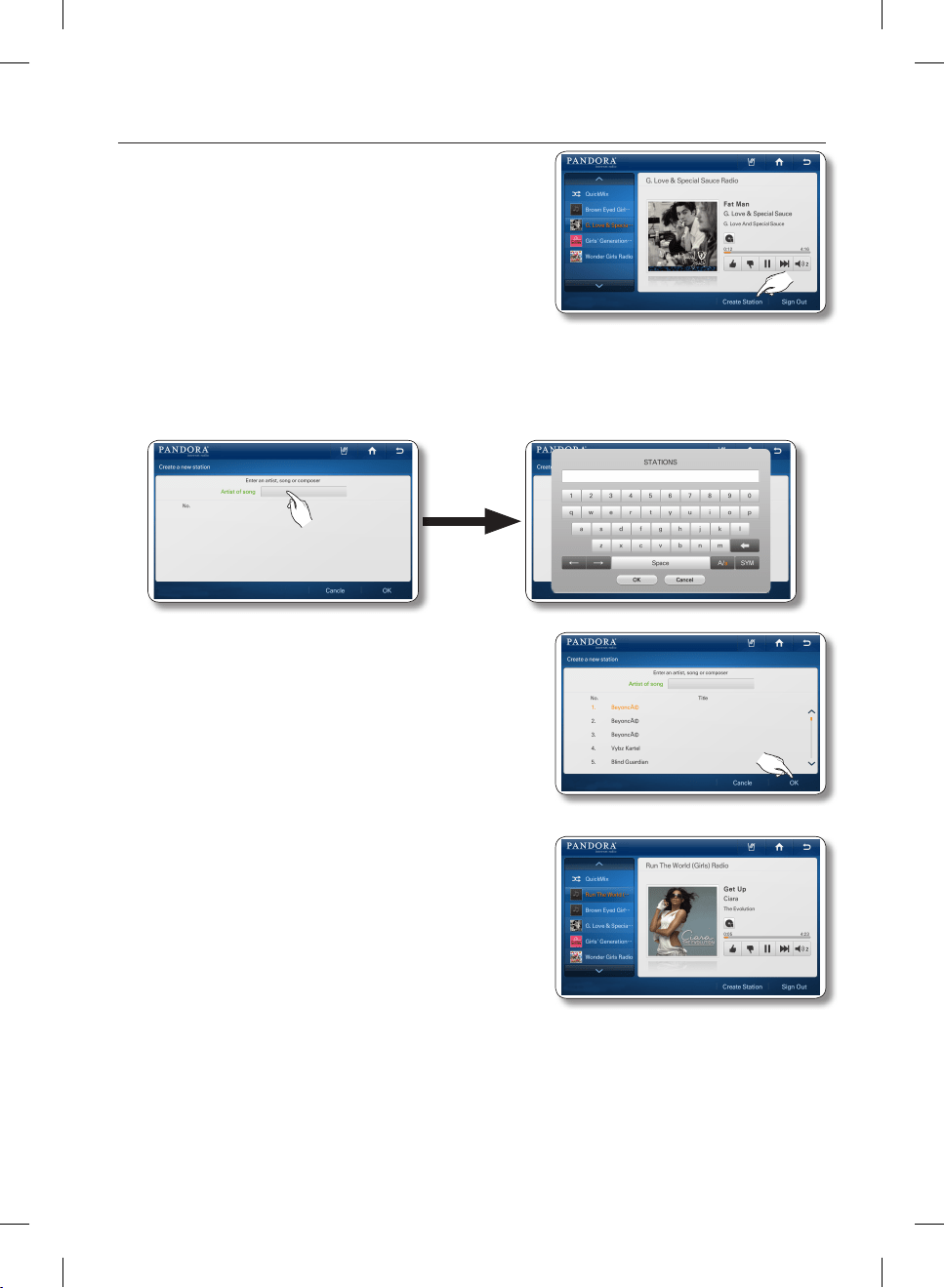
Español - 66
Cómo crear una estación en Pandora
1. Seleccione el botón [Create Station] (Crear estación) en la
parte inferior de la pantalla de Pandora.
2. Seleccione el espacio en blanco junto a “Artist of Song” (Artista de la canción) para que aparezca la
ventana del teclado. Ingrese el nombre del artista para agregar una estación.
3. Después de seleccionar la estación que desee entre las
estaciones buscadas, presione el botón [OK] (Aceptar),
4. Confirme la estación recién agregada a la izquierda de la
pantalla.
DA68-02500B-13.indb 66 13. 12. 4. �� 7:13
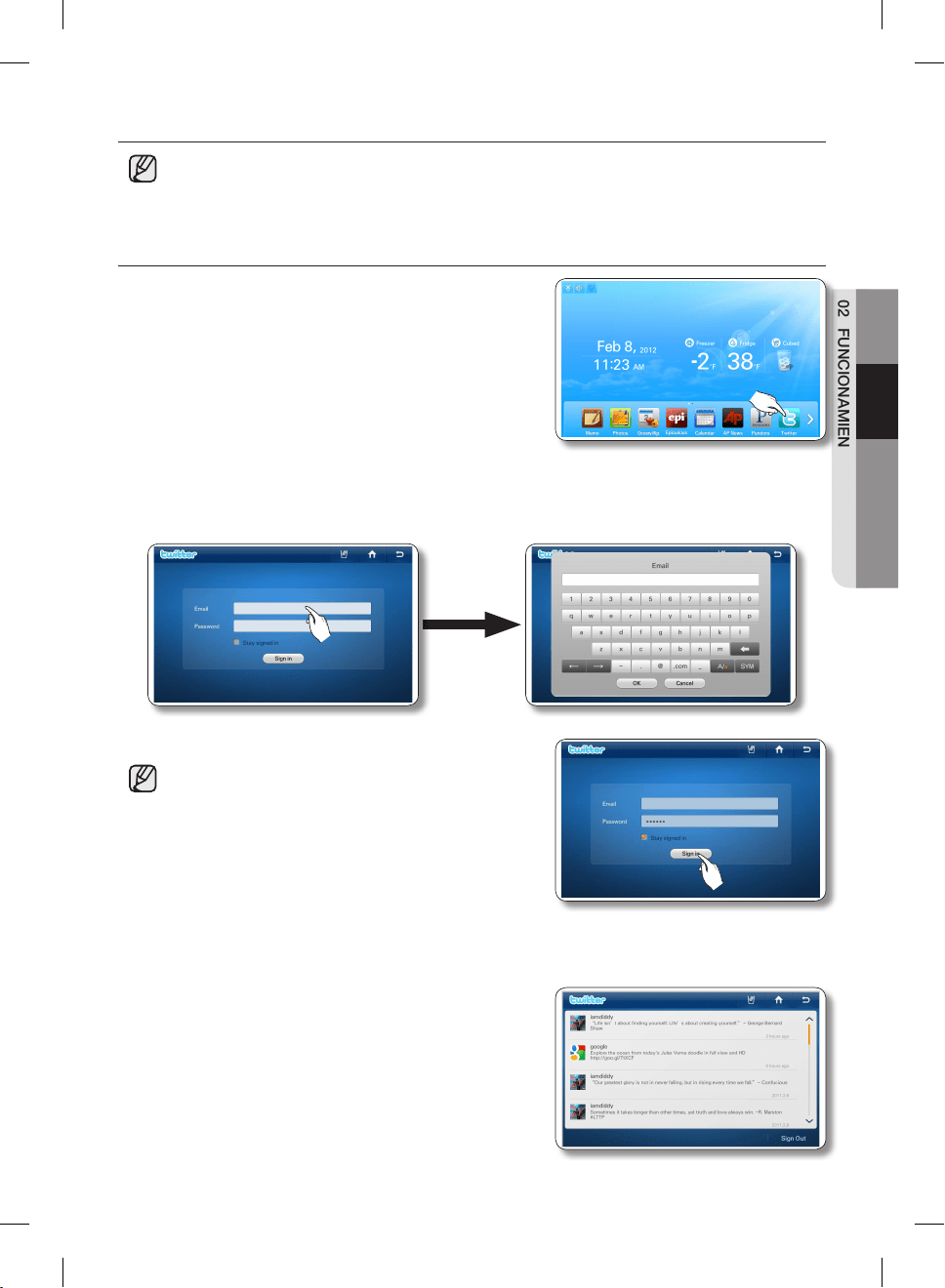
Español - 67
02 FUNCIONAMIENTO
TWITTER
• Esta función sólo se encuentra disponible cuando el refrigerador está conectado a su red
inalámbrica (Wi-Fi).
• No puede escribir un tweet mientras utiliza esta función.
Cómo mostrar el twitter.
1. Presione el botón Twitter en la pantalla de inicio.
2. Seleccione el casillero Email (correo electrónico). Ingrese la ID de cuenta de twitter mediante el
teclado en la pantalla. Seleccione el casillero Password (Contraseña). Ingrese la contraseña de
cuenta de twitter mediante el teclado en la pantalla.
3. Presione el botón [Sign In] (Iniciar sesión).
• Si no tiene una cuenta de Twitter, puede crear una en
http://twitter.com.
• En la sección Email (Correo electrónico), ingrese su
ID de cuenta de Twitter, como por ejemplo, UserID@
gmail.com.
• Si selecciona la casilla ‘Stay signed in’ (‘No cerrar
sesión’), ya no será necesario iniciar sesión cada vez
que ingrese al menú de Twitter.
• Si la hora del sistema no está bien configurada, es posible que no pueda iniciar sesión.
Si no puede iniciar sesión, ajuste correctamente la hora actual en Settings (Ajustes) → Time/
Date (Hora/Fecha), e inténtelo nuevamente.
4. Aparece la pantalla de lista de Tweets. En esta página,
los usuarios de twitter actualizan información como por
ejemplo sus fotografías, comentarios y fechas detalladas.
DA68-02500B-13.indb 67 13. 12. 4. �� 7:13
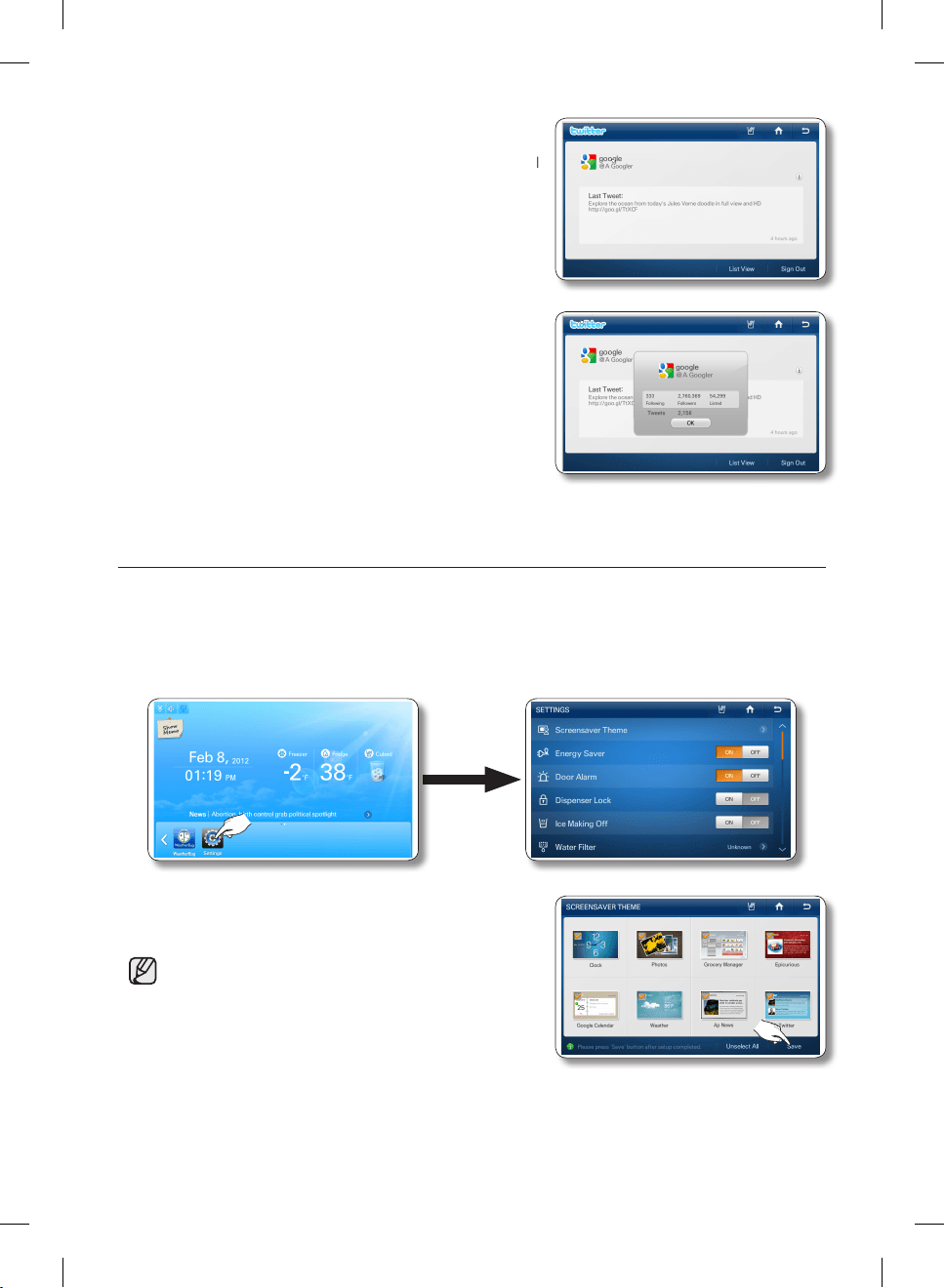
Español - 68
5. Presione un tweet en la lista y podrá ver información
detallada.
• Al seleccionar List View (Ver lista) en la pantalla Detail
View (Ver detalles), pasa a la pantalla Twit List.
6. Seleccione el botón i a la derecha de la pantalla para
obtener información detallada acerca del seguidor/
seguido.
TEMA DEL PROTECTOR DE PANTALLA
Seleccione los temas para el protector de pantalla.
1. Seleccione el botón [Settings] (Ajustes).
2. Seleccione el [Screensaver Theme] (Tema del protector de pantalla) en la lista de ajustes.
3. Seleccione el(los) temas(s) que desea usar en el protector
de pantalla y luego presione el botón [Save] (Guardar).
• Los temas Clock (Reloj) y Photo (Foto) son los
predeterminados. No se pueden desmarcar.
• Los temas que usted seleccione pueden no
mostrarse si los datos subyacentes no están listos o
disponibles.
DA68-02500B-13.indb 68 13. 12. 4. �� 7:13
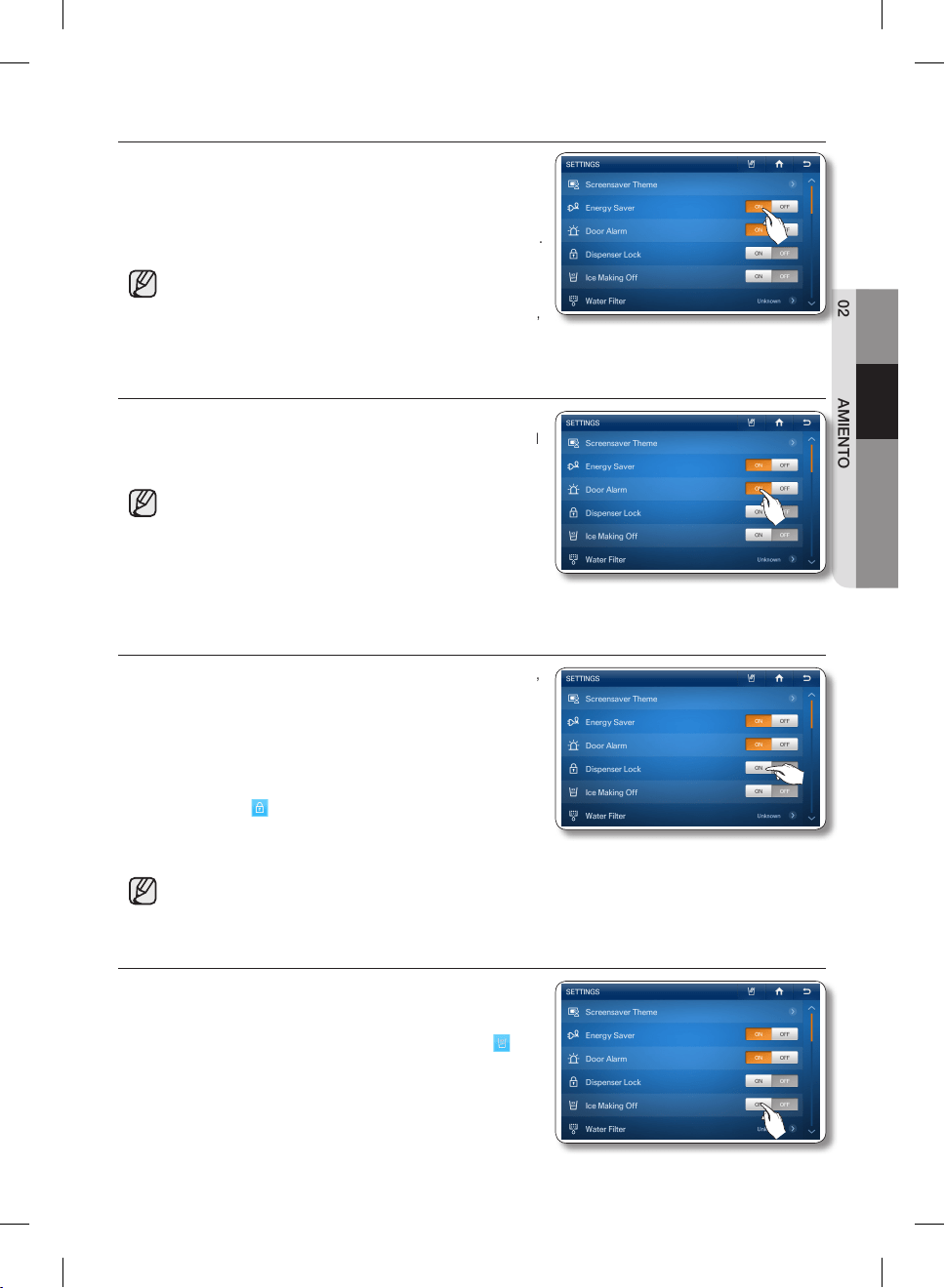
Español - 69
02 FUNCIONAMIENTO
AHORRO DE ENERGÍA
Activa y desactiva la función de ahorro de energía.
Cuando la función Energy Saver (Ahorro de energía) está
activada, el consumo de energía disminuye.
1. Seleccione los botones ON (Encendido) u OFF (Apagado)
del Energy Saver (Ahorro de energía) en la lista de ajustes.
• La función Energy Saver (Ahorro de energía) ya viene
activada de fábrica.
• Si hay condensación o gotas de agua en las puertas,
apague el modo Energy Saver (Ahorro de energía).
ALARMA DE LA PUERTA
Activa y desactiva la función de alarma de la puerta.
1.
Seleccione los botones ON (Encendido) u OFF (Apagado) del
Door Alarm (Alarma de la puerta) en la lista de ajustes.
• Si la alarma de la puerta está activada, cuando
cualquiera de las puertas quede abierta durante más
de dos minutos, sonará una alarma.
• El sonido se detiene cuando se cierra la puerta.
La función de alarma de la puerta ya viene activada
de fábrica.
BLOQUEO DEL DISPENSADOR
Al activar la función Dispenser Lock (Bloqueo del dispensador),
el dispensador no funciona.
1. Seleccione los botones ON (Encendido) u OFF (Apagado)
del Dispenser Lock (Bloqueo del dispensador) en la lista
de ajustes.
• Si selecciona el botón ON (Encendido) del Dispenser
Lock (Bloqueo del dispensador), aparece el ícono de
bloqueo ( ) en el ángulo superior izquierdo de la
pantalla de inicio.
• Cuando la función Dispenser Lock (Bloqueo del dispensador) está en ON (Encendido), sólo el
dispensador no funciona.
• Si no se puede usar el dispensador, verifique si la función Dispenser Lock (Bloqueo del
dispensador) está activada.
HIELO DESACTIVADO
1. Seleccione los botones ON (Encendido) u OFF (Apagado)
de Ice Making Off (Hielo desactivado) en la lista de ajustes.
• Cuando la función Ice Off (Hielo desactivado) está
activada, el ícono indicador correspondiente ( )
aparece en el margen superior izquierdo de la
pantalla de inicio.
• Si se presiona el botón [ON] (Encendido) se apaga la
máquina de hielo.
DA68-02500B-13.indb 69 13. 12. 4. �� 7:13
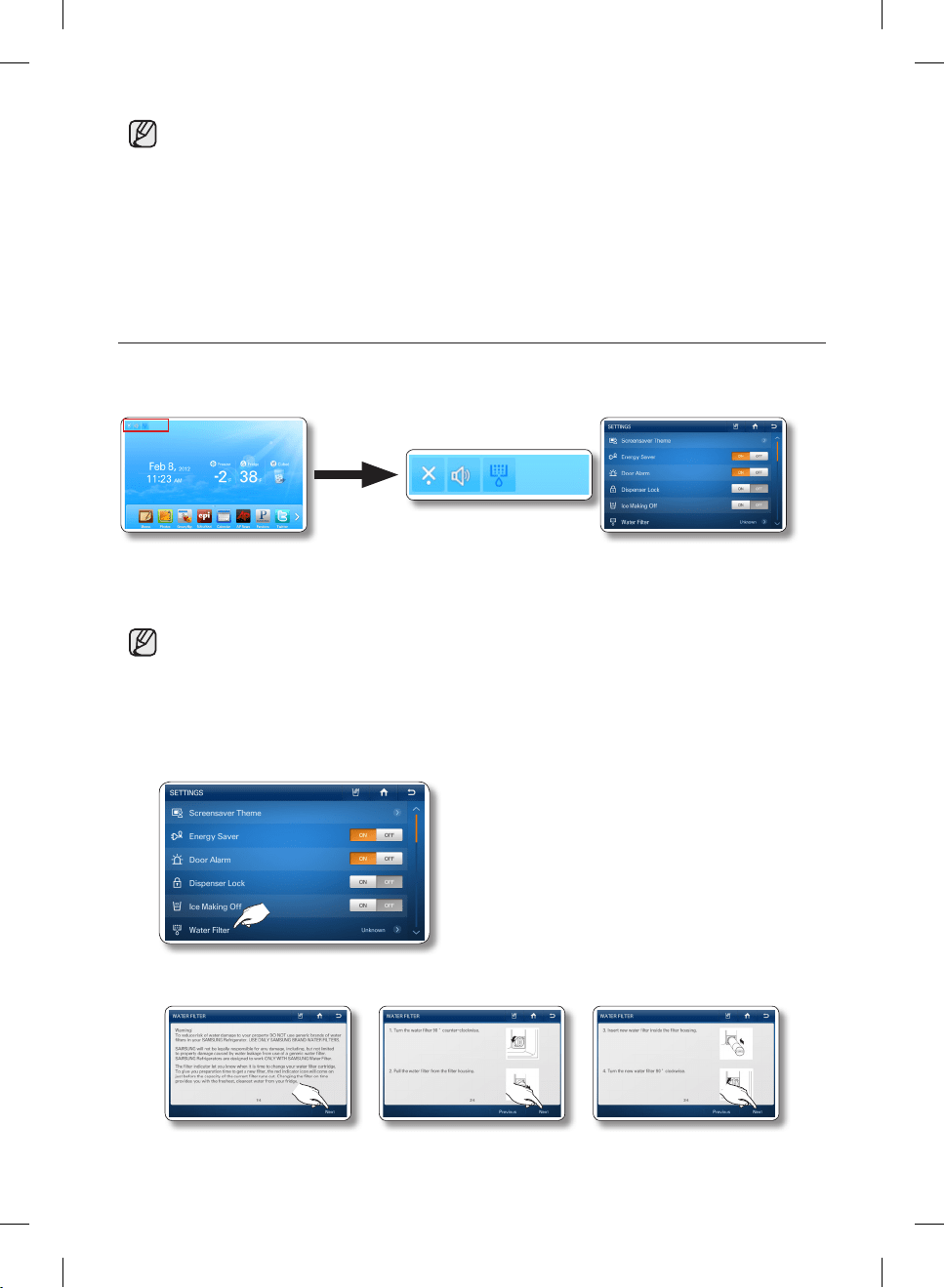
Español - 70
• Recomendamos que detenga la fábrica de hielo si sucede lo siguiente:
- Hay suficientes cubos de hielo en la cubeta.
- Desea ahorrar agua y energía.
- El refrigerador no está recibiendo agua.
• Si la función de fábrica de hielo está ENCENDIDA, y la tubería de agua no está conectada, se
escuchará un sonido de válvula de agua desde la parte posterior de la unidad.
Presione el botón ON (Encendido) de Ice making Off (Hielo desactivado) en la lista de ajustes
para apagar la fábrica de hielo.
FILTRO DEL AGUA
El ícono del filtro de agua en la pantalla de inicio le permite verificar el estado actual del filtro de agua.
Siga las instrucciones que figuran a continuación para verificar y/o reemplazar el filtro de agua.
1. Verifique el estado del filtro de agua en la lista de ajustes o en los íconos indicadores en el ángulo
superior izquierdo de la pantalla de inicio.
• Good (Bueno) [Azul]): No es necesario reemplazar el filtro. Es normal.
• Order (Pedir [Rosa]): Es necesario reemplazar el filtro. Pida un filtro nuevo.
• Replace (Reemplazar [Rojo]): Es necesario reemplazar el filtro de inmediato.
2. Si el estado es “Order” (Pedir) o “Replace” (Reemplazar), seleccione el filtro de agua en la lista de
ajustes para acceder a las instrucciones de reemplazo.
3. Siga las instrucciones de la guía de reemplazo del filtro de agua para reemplazar el filtro de agua.
• Presione el botón [Next] (Siguiente) para pasar a la siguiente página de las instrucciones.
DA68-02500B-13.indb 70 13. 12. 4. �� 7:13
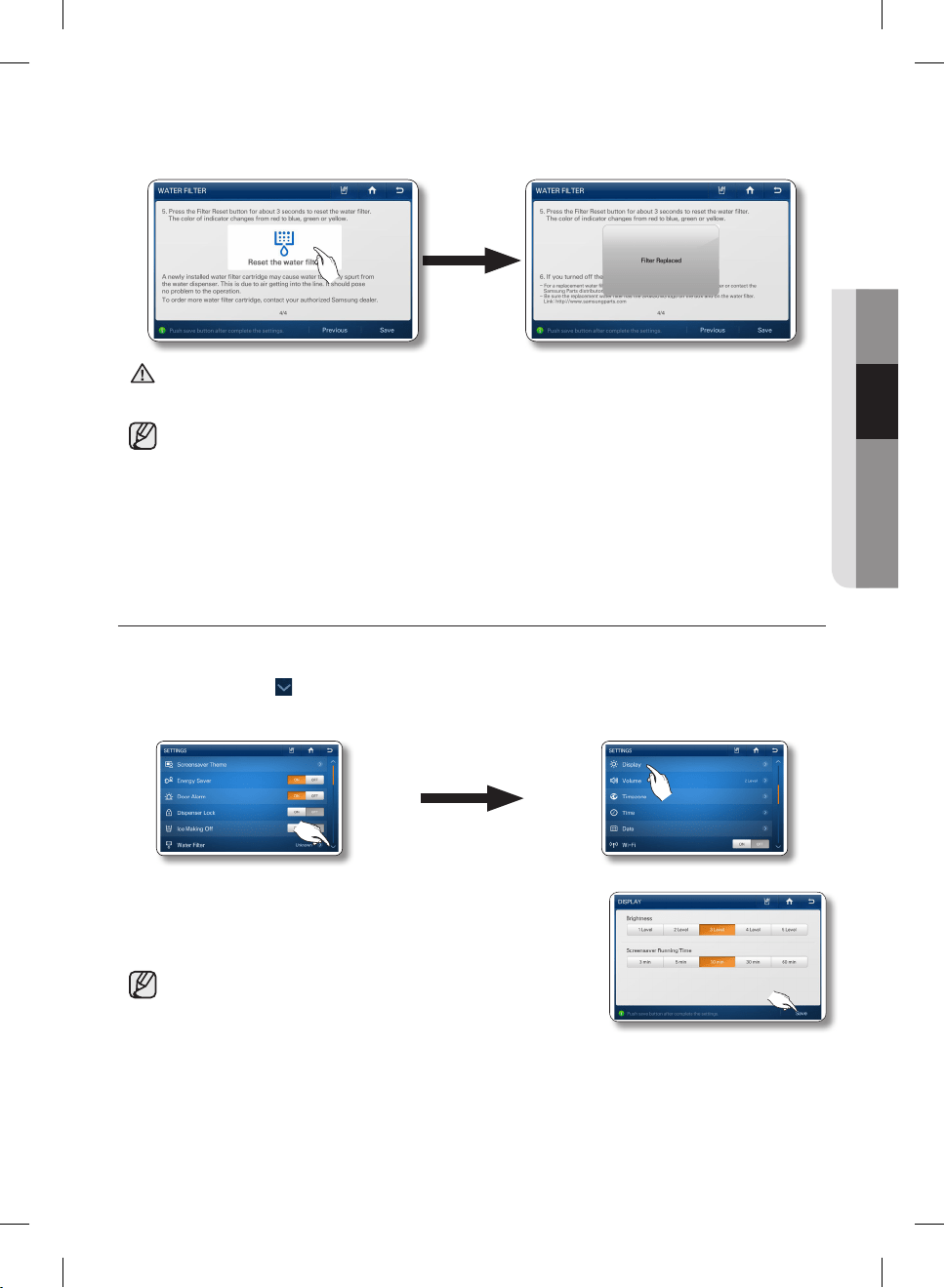
Español - 71
02 FUNCIONAMIENTO
4. Una vez reemplazado, presione y mantenga presionado “Reset the water filter” (Restablecer el filtro
de agua) en el centro de la pantalla durante 3 segundos o más para restablecer el indicador de filtro
de agua.
NO utilice el dispensador de agua o de hielo sin un cartucho del filtro de agua. Se puede
bloquear la tubería de agua o dañar el dispensador.
• Limpie muy bien el dispensador para evitar que se filtre agua. Si se filtra agua del dispensador
significa que todavía hay aire en la tubería.
• Para reemplazar el filtro del agua, puede visitar su centro de pruebas local o comunicarse con
el distribuidor oficial de piezas Samsung on-line en http://www.samsungparts.com.
Asegúrese de que el filtro de agua de reemplazo tenga el logotipo SAMSUNG en la caja sobre
el filtro de agua.
VISOR
Le permite ajustar el brillo de la pantalla LCD y el tiempo de ejecución del protector de pantalla.
1. Presione el botón en el ángulo inferior derecho de la lista de ajustes.
2. Seleccione [Display] (Visor) en la lista de ajustes.
3. Seleccione el nivel de Brillo y/o el Tiempo de Ejecución del
Protector de Pantalla que desee, y luego presione el botón [Save]
(Guardar).
• Después de 60 segundos, el protector de pantalla se ejecuta
de acuerdo con el tiempo establecido, luego el panel de LCD
se apaga.
PRECAUCIÓN
DA68-02500B-13.indb 71 13. 12. 4. �� 7:13
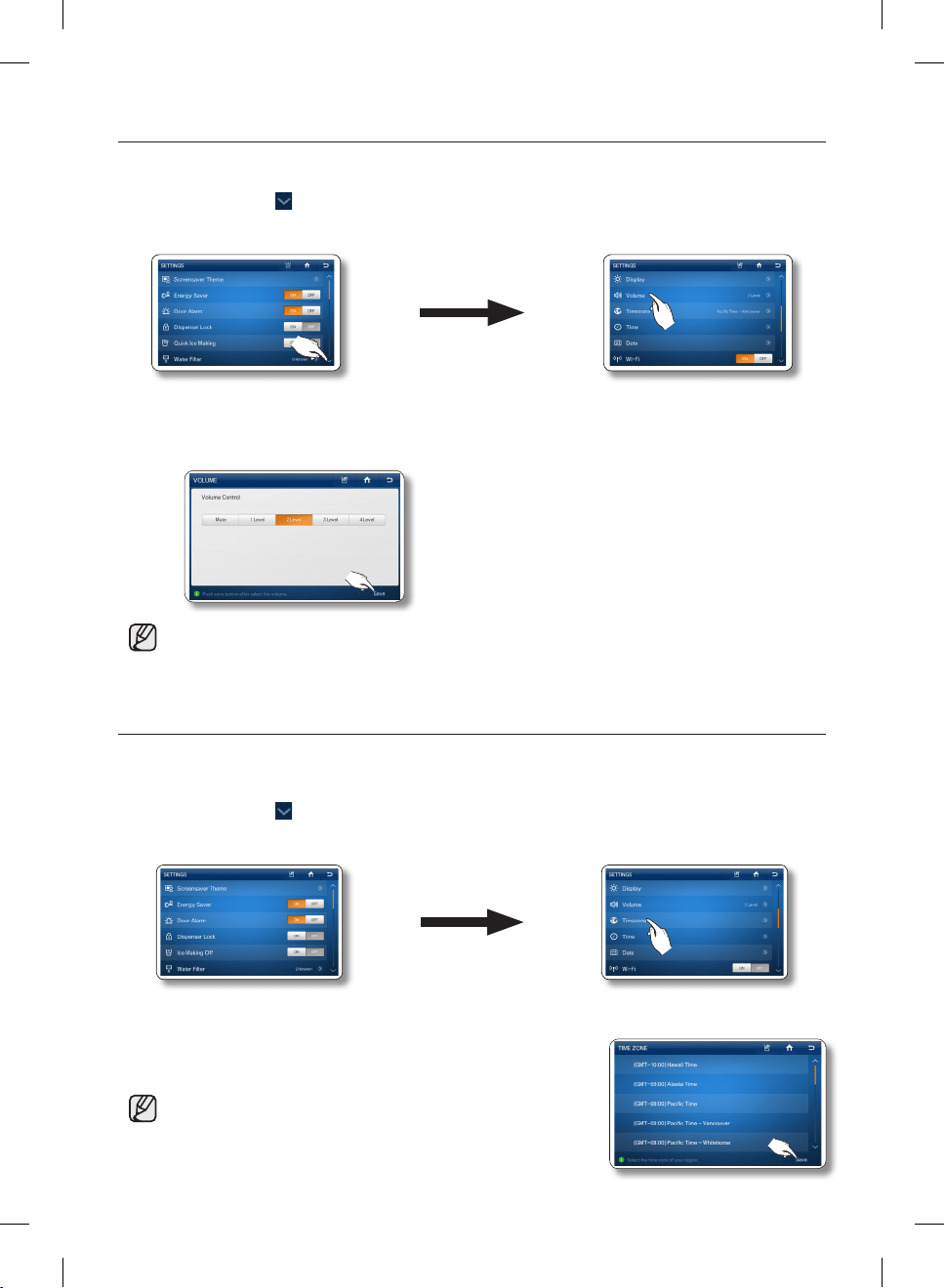
Español - 72
VOLUMEN
Le permite controlar el volumen de las alertas.
1. Presione el botón en el ángulo inferior derecho de la lista de ajustes.
2. Seleccione [Volume] (Volumen) en la lista de ajustes.
3. Seleccione el botón de nivel de volumen para cambiar el sonido de las alertas.
4. Presione el botón [Save] (Guardar) para establecer el nuevo nivel de volumen.
• Suena una alerta cada vez que se presiona un botón o aparece un mensaje o menú.
HUSO HORARIO
Debe seleccionar su huso horario para usar Google Calendar y el servicio de Twitter correctamente.
Para seleccionar su huso horario, siga estos pasos:
1. Presione el botón en el ángulo inferior derecho de la lista de ajustes.
Aparece la pantalla de Ajuste del huso horario.
2. Seleccione [Timezone] (Huso horario) en la lista de ajustes.
3. Para guardar el nuevo huso horario, presione el botón [Save]
(Guardar)
• La pantalla de ajuste de huso horario puede aparecer de
nuevo automáticamente después de una actualización de
software.
DA68-02500B-13.indb 72 13. 12. 4. �� 7:13
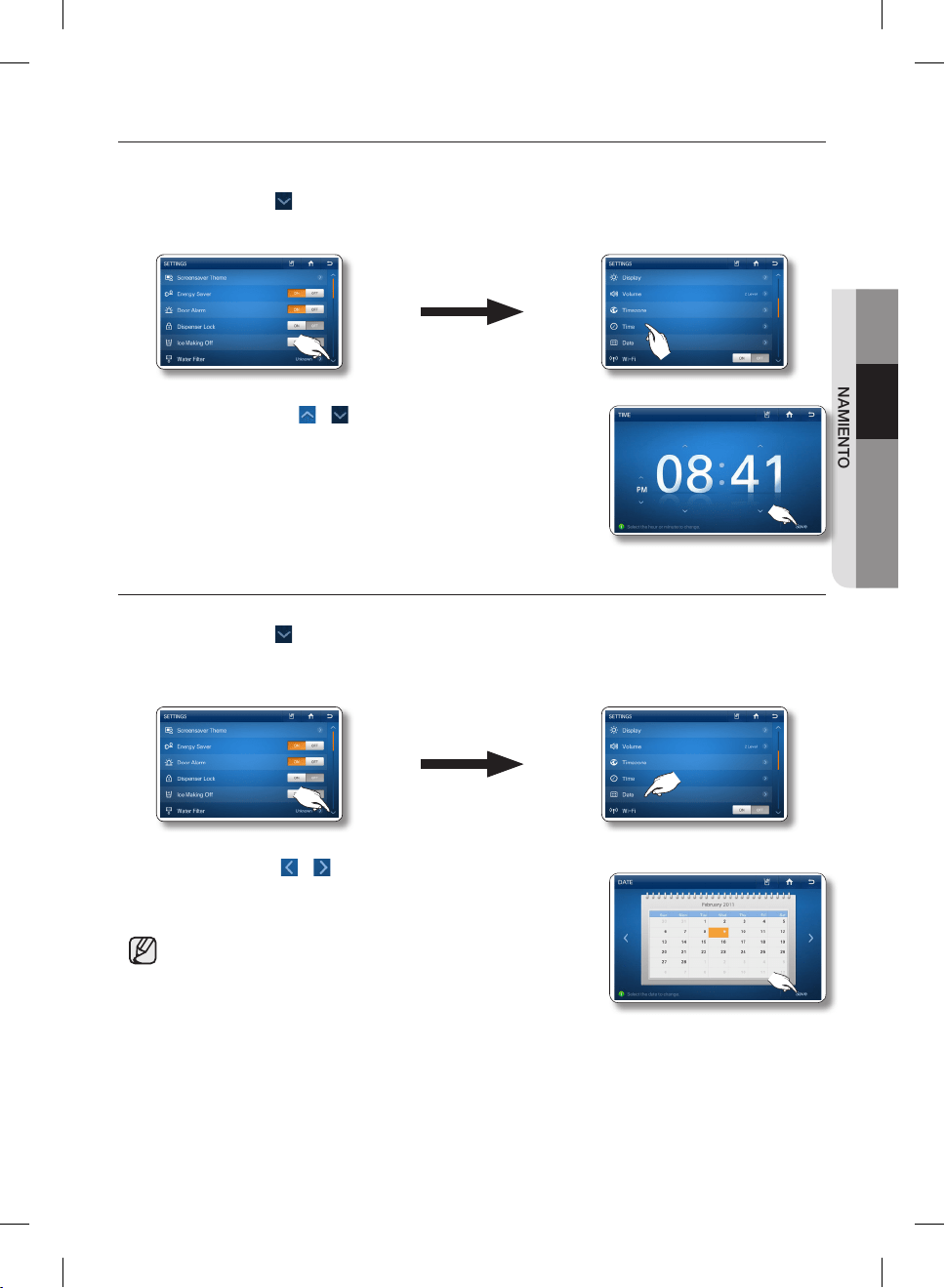
Español - 73
02 FUNCIONAMIENTO
AJUSTE DE LA HORA
Le permite establecer la hora actual.
1. Presione el botón en el ángulo inferior derecho de la lista de ajustes.
2. Seleccione [Time] (Hora) en la lista de ajustes.
3. Presione los botones y para revisar los ajustes de la hora, y
luego presione el botón [Save] (Guardar).
• Si la hora actual es incorrecta, no se puede utilizar el twitter.
AJUSTE DE LA FECHA
Puede establecer la fecha actual.
1. Presione el botón en el ángulo inferior derecho de la lista de ajustes.
2. Seleccione [Date] (Fecha) en la lista de ajustes.
3. Utilice los botones y para modificar el mes.
4. Seleccione la fecha y luego presione el botón [Save] (Guardar).
• Si la fecha actual es incorrecta, no se puede utilizar el twitter.
DA68-02500B-13.indb 73 13. 12. 4. �� 7:13
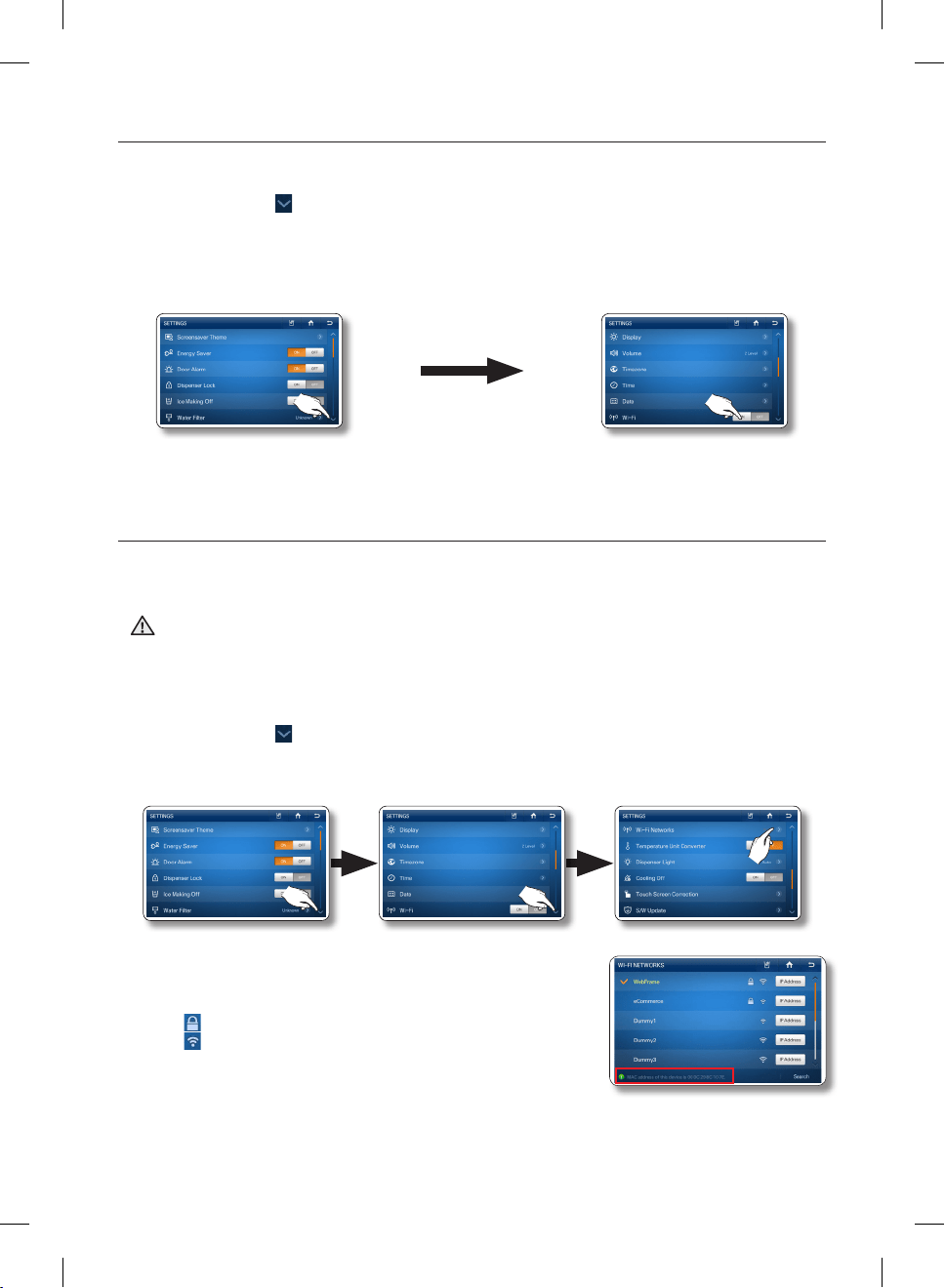
Español - 74
WI-FI
Le permite encender y apagar la conexión del refrigerador a su red inalámbrica.
1. Presione el botón en el ángulo inferior derecho de la lista de ajustes.
2. Seleccione [Wi-Fi] en la lista de ajustes.
3. Seleccione ON u OFF.
REDES WI-FI
Al establecer WI-FI ON (Encendido), (vea más adelante) la función de la red inalámbrica del refrigerador
busca un punto de acceso inalámbrico al cual conectarse.
• Además del enrutador instalado en su casa, su refrigerador puede detectar otros enrutadores
inalámbricos en casas u oficinas cercanas mientras se conecta a su red inalámbrica.
El uso de un enrutador ajeno sin permiso es considerado ilegal y estará sujeto a sanciones
severas. Por consiguiente, deberá conectar el refrigerador solo a su propio enrutador
inalámbrico o a enrutadores para los cuales tiene permiso.
1. Presione el botón en el ángulo inferior derecho de la lista de ajustes.
2. Seleccione [Wi-Fi Networks] (Redes de Wi-Fi) en la lista de ajustes.
3. Seleccione el punto de acceso inalámbrico al que desea
conectarse.
• : Bloqueado mediante Código de seguridad
• : Intensidad de la señal
• Puede verificar la dirección MAC del refrigerador en la parte
inferior de la pantalla.
PRECAUCIÓN
DA68-02500B-13.indb 74 13. 12. 4. �� 7:13
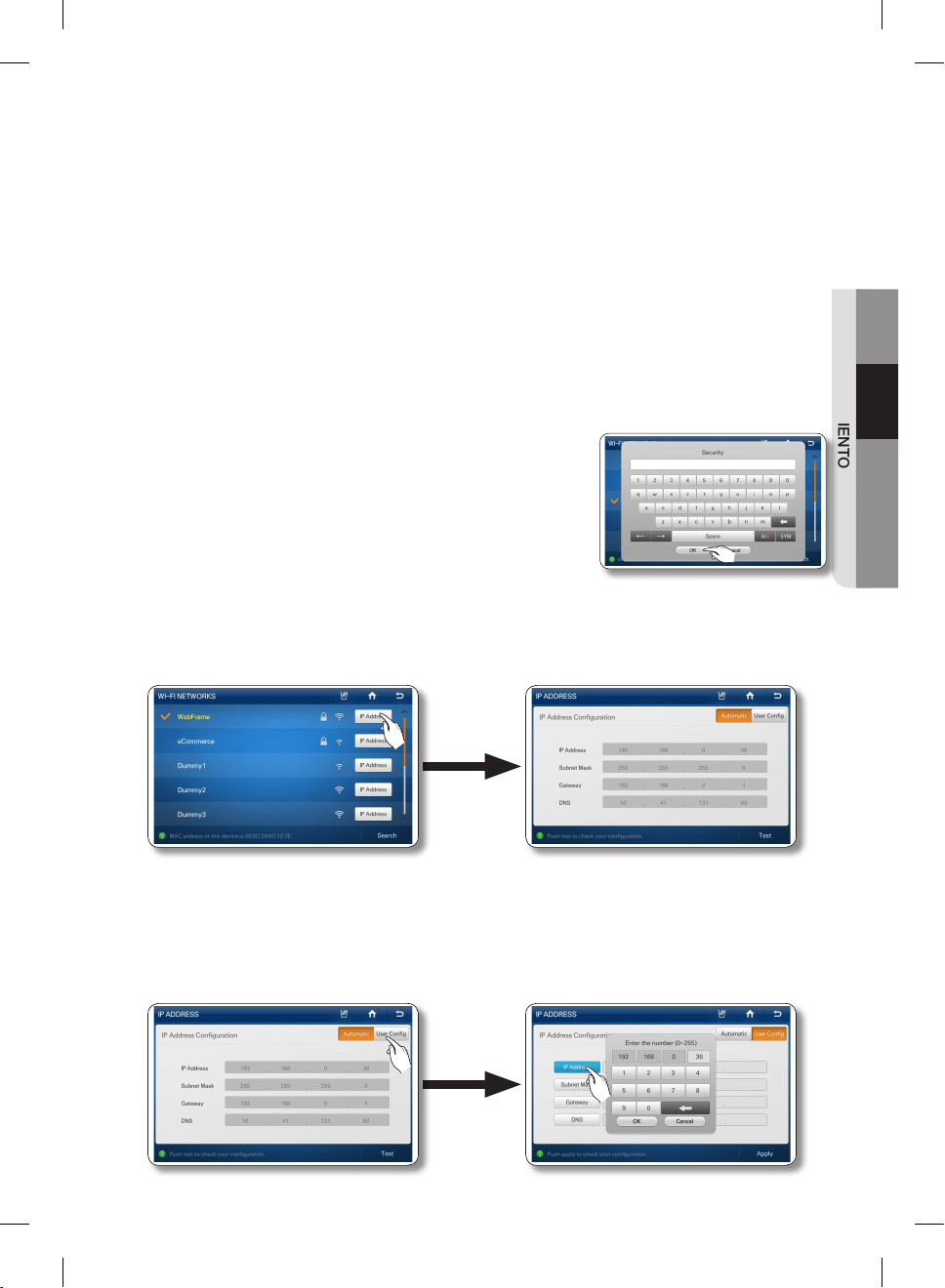
Español - 75
02 FUNCIONAMIENTO
• Si no hay un punto de acceso en la pantalla, presione el menú [Search] (Búsqueda) en la parte
inferior.
• Según el tipo de punto de acceso inalámbrico, es posible que no se logre la conexión.
Recomendamos que utilice un punto de acceso inalámbrico que admita IEEE802.11b/g/n.
• Si no tiene un enrutador inalámbrico, comuníquese con su proveedor de Internet o adquiéralo y
realice la instalación usted mismo.
• Si no recuerda el nombre del sistema de red inalámbrica (SSID) o el código de seguridad,
consulte el manual del usuario de su enrutador.
• Las señales de frecuencias de radio pueden interferir en el sistema de red inalámbrica y pueden
afectar el funcionamiento de la red en su refrigerador.
• Los obstáculos tales como paredes de cemento y puertas metálicas e interferencias de radio y
microondas emitidas por electrodomésticos tales como hornos a microondas pueden afectar el
funcionamiento de su sistema de red inalámbrica.
• Según el tipo y la ubicación de su sistema de red inalámbrica y el entorno, podrán variar el
alcance y la calidad de su red inalámbrica.
4. Si su red inalámbrica tiene un código de seguridad ingréselo y
luego presione el botón [OK] (Aceptar).
En la mayoría de los casos, después de ingresar el código de
seguridad, el refrigerador adquiere las direcciones de red que
necesita (Dirección IP, Máscara de subred, Gateway y DNS)
para conectarse a la red. Si no lo hace o si debe ingresar estos
valores manualmente, ir al paso 6.
5. Una vez conectado el refrigerador a su red, puede seleccionar el botón [IP Address] (Dirección de
ip) en la pantalla de las redes Wi-Fi para ver los valores actuales de la dirección IP y de la puerta de
enlace.
6. Si necesita ingresar la dirección IP, la máscara de subred, la puerta de enlace y DNS manualmente,
presione el botón [User Config] (Configuración del usuario) en la pantalla de Dirección IP. Luego
seleccione los botones [IP Address] (Dirección IP), [Subnet Mask] (Máscara de subred), [Gateway],
y [DNS] en ese orden y, utilizando el teclado numérico, ingrese los valores adecuados. Cuando
termine con cada ingreso, presione el botón [OK] en el teclado.
DA68-02500B-13.indb 75 13. 12. 4. �� 7:13
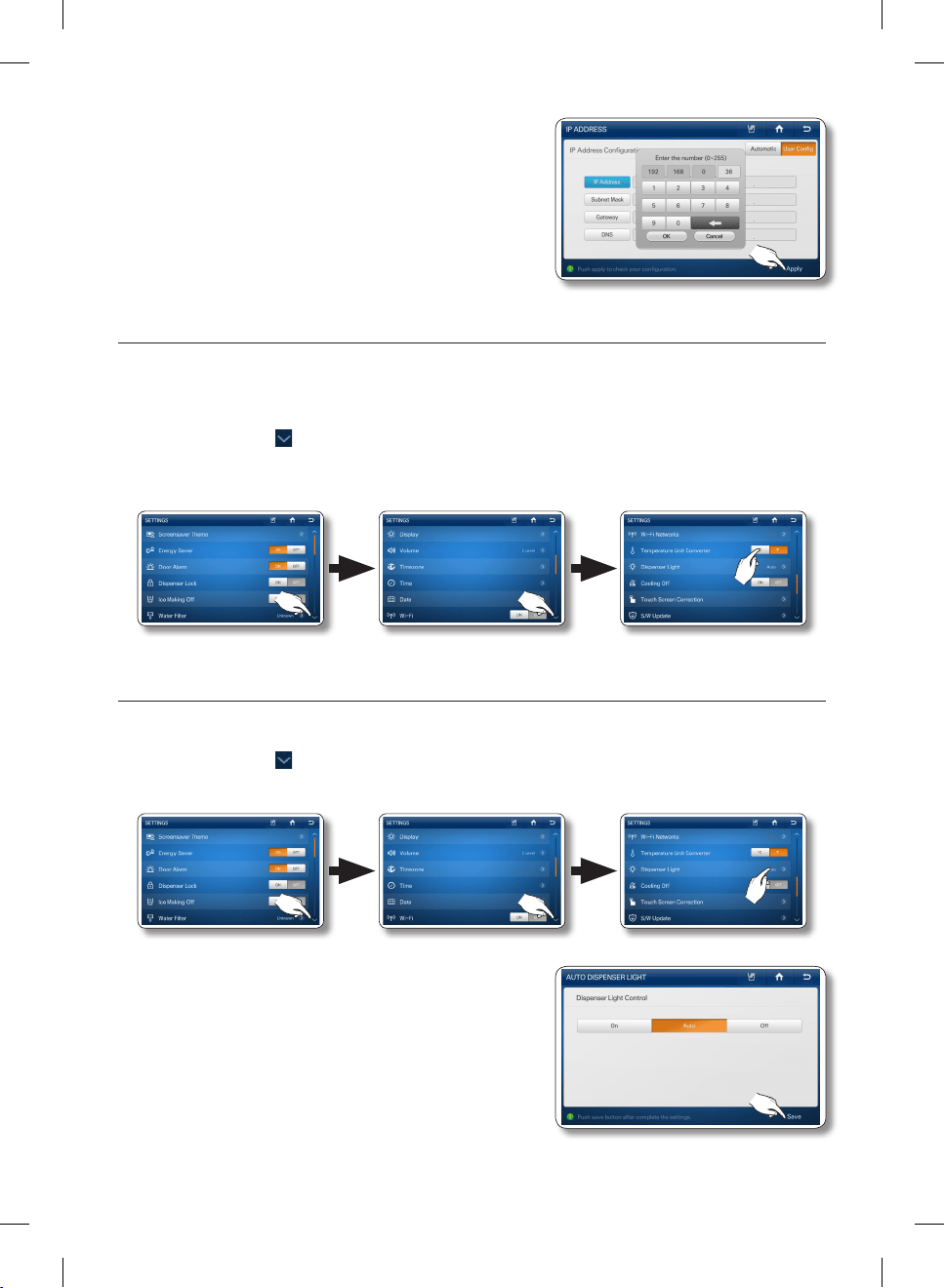
Español - 76
7. Una vez ingresados los valores para los cuatro
parámetros, presione el botón [Apply] (Aplicar).
CONVERTIDOR DE LA UNIDAD DE TEMPERATURA
Le permite ajustar el visor de temperatura a Fahrenheit o Centígrados. La unidad seleccionada se aplica
a la temperatura establecida en el Congelador/Refrigerador y a la temperatura que aparece en la función
Weather (Clima).
1. Presione el botón en el ángulo inferior derecho de la lista de ajustes.
2. Seleccione los botones ºC o ºF en el Temperature Unit Converter (Convertidor de temperaturas) en
la lista de ajustes.
LUZ DEL DISPENSADOR
Le permite ajustar el funcionamiento de la luz del dispensador.
1. Presione el botón en el ángulo inferior derecho de la lista de ajustes.
2. Seleccione [Dispenser Light] (Luz del dispensador) en la lista de ajustes.
3. Seleccione el estado deseado de la luz del dispensador, y
luego presione el botón [Save] (Guardar).
• On (Encendido): La luz del dispensador está siempre
encendida.
• Auto (Automático): La luz del dispensador se
enciende al utilizar el dispensador. Y al soltar la
palanca del dispensador, la luz se apaga en 5
segundos.
• Off (Apagado): La luz del dispensador no se enciende
al utilizar el dispensador.
DA68-02500B-13.indb 76 13. 12. 4. �� 7:13
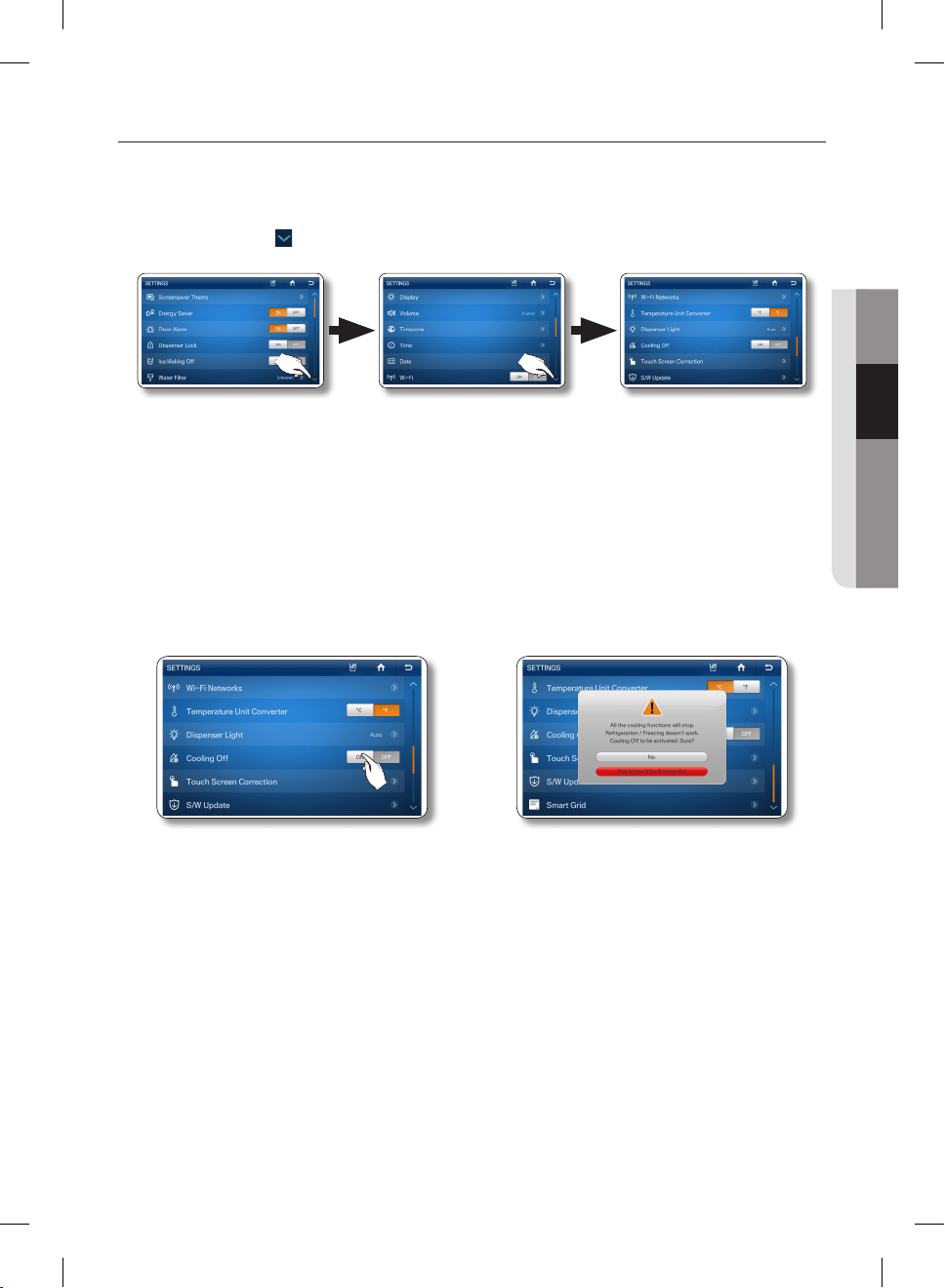
Español - 77
02 FUNCIONAMIENTO
ENFRIAMIENTO DESACTIVADO
La función Cooling Off (Enfriamiento desactivado) impide el enfriamiento de los compartimientos del
congelador y del refrigerador, pero no corta el suministro eléctrico al refrigerador. Esta función sólo se
utiliza para hacer demostraciones de modelos de refrigerador en salones de exposición.
1. Presione el botón en el ángulo inferior derecho de la lista de ajustes.
2. Seleccione los botones ON (Encendido) u OFF (Apagado) del Cooling Off (Enfriamiento desactivado)
en la lista de ajustes.
• Si selecciona el botón ON (Encendido) de Cooling Off (Enfriamiento desactivado), la pantalla
de inicio mostrará “OFF” en las temperaturas del congelador/refrigerador y las funciones del
compresor del refrigerador se desactivarán. (El refrigerador y el congelador no enfrían).
3. Si selecciona el botón [ON] (Encendido), aparece el siguiente mensaje.
4. Presione el botón [Yes] (Sí) durante más de 3 segundos para confirmar.
DA68-02500B-13.indb 77 13. 12. 4. �� 7:13
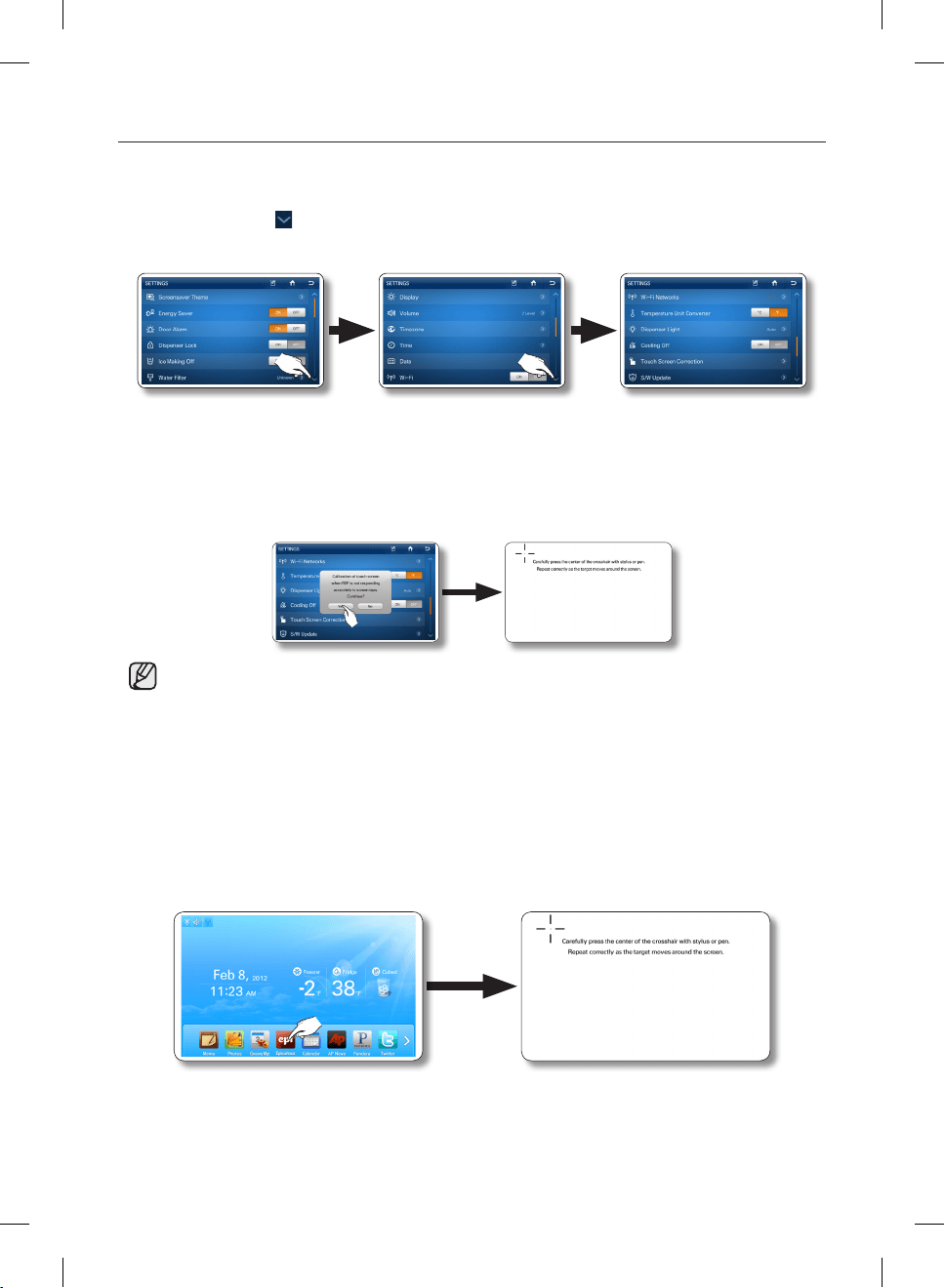
Español - 78
CORRECCIÓN DE LA PANTALLA TÁCTIL
Puede calibrar el punto de contacto para satisfacer mejor sus necesidades.
Para ajustar el punto de contacto en la pantalla táctil:
1. Presione el botón en el ángulo inferior derecho de la lista de ajustes.
2. Seleccione [Touch Screen Correction] (Corrección de la pantalla táctil) en la lista de ajustes.
3. Seleccione el botón [Yes] (Sí). Aparece una pantalla con instrucciones acerca del puntero en la parte
superior.
4. Presione ligeramente el centro del signo “+”. Repita este movimiento a medida que el signo “+” se
desplaza por la pantalla.
• Si no se presiona el centro del signo [+] correctamente, la cruz aparece varias veces.
Si no puede ejecutar la función de Touch Screen Correction (Corrección de la pantalla táctil) en los
ajustes porque el punto de ingreso de la pantalla táctil es incorrecto:
1. Presione y mantenga presionado el ícono de Epicurious en la pantalla de inicio durante 5 segundos.
Esto lanzará la función de calibración de pantalla seleccionada.
2. La pantalla mostrará una serie de íconos cruzados.
Presione el centro exacto de cada ícono cruzado a medida que aparece en la pantalla.
DA68-02500B-13.indb 78 13. 12. 4. �� 7:13
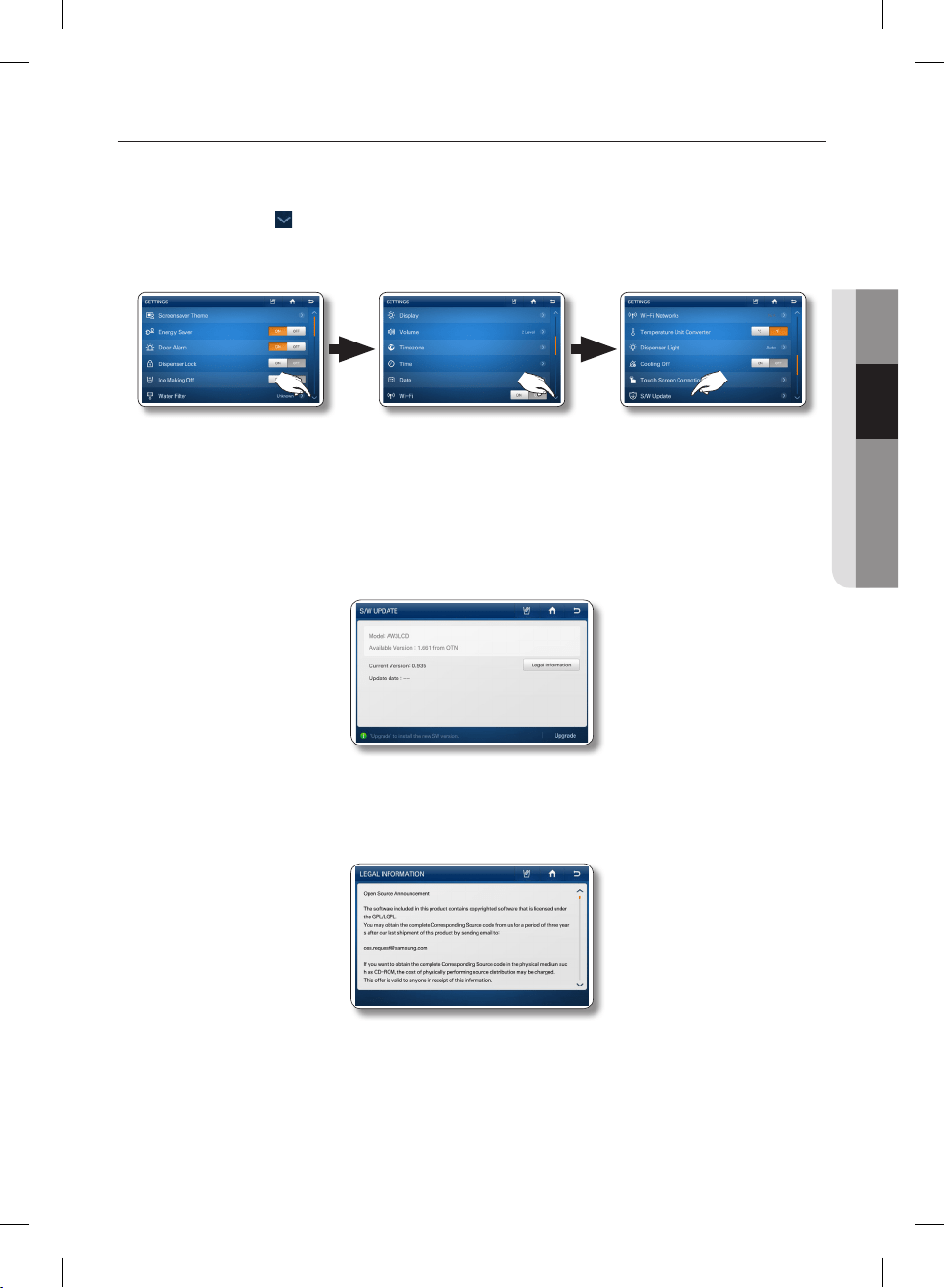
Español - 79
02 FUNCIONAMIENTO
ACTUALIZACIÓN DE SOFTWARE
Le permite controlar la versión actual del software y actualizarlo si hay una nueva versión cuando esté
disponible.
1. Presione el botón en el ángulo inferior derecho de la lista de ajustes.
2. Seleccione [S/W Update] (Actualización de software) en la lista de ajustes.
• La actualización del software se proporciona a través de la red inalámbrica.
Cuando hay software actualizado disponible, se activa el botón de [Upgrade] (Actualizar) en el
ángulo inferior derecho. Cuando presiona el botón [Upgrade] (Actualizar), la actualización se
inicia casi inmediatamente (en alrededor de 10 segundos).
Cuando finaliza la actualización, aparece el mensaje “Upgrade completed” (Actualización
completa) en la pantalla y luego presione el botón [Reboot] (Reiniciar) en el mensaje de
“Upgrade completed” (“Actualización completa”).
• Aviso de licencia de código abierto - Este producto utiliza software de código abierto.
Las licencias de código abierto están disponibles en el menú del producto.
Presione el botón [Legal Information] (Información legal) para ver la información detallada.
DA68-02500B-13.indb 79 13. 12. 4. �� 7:13
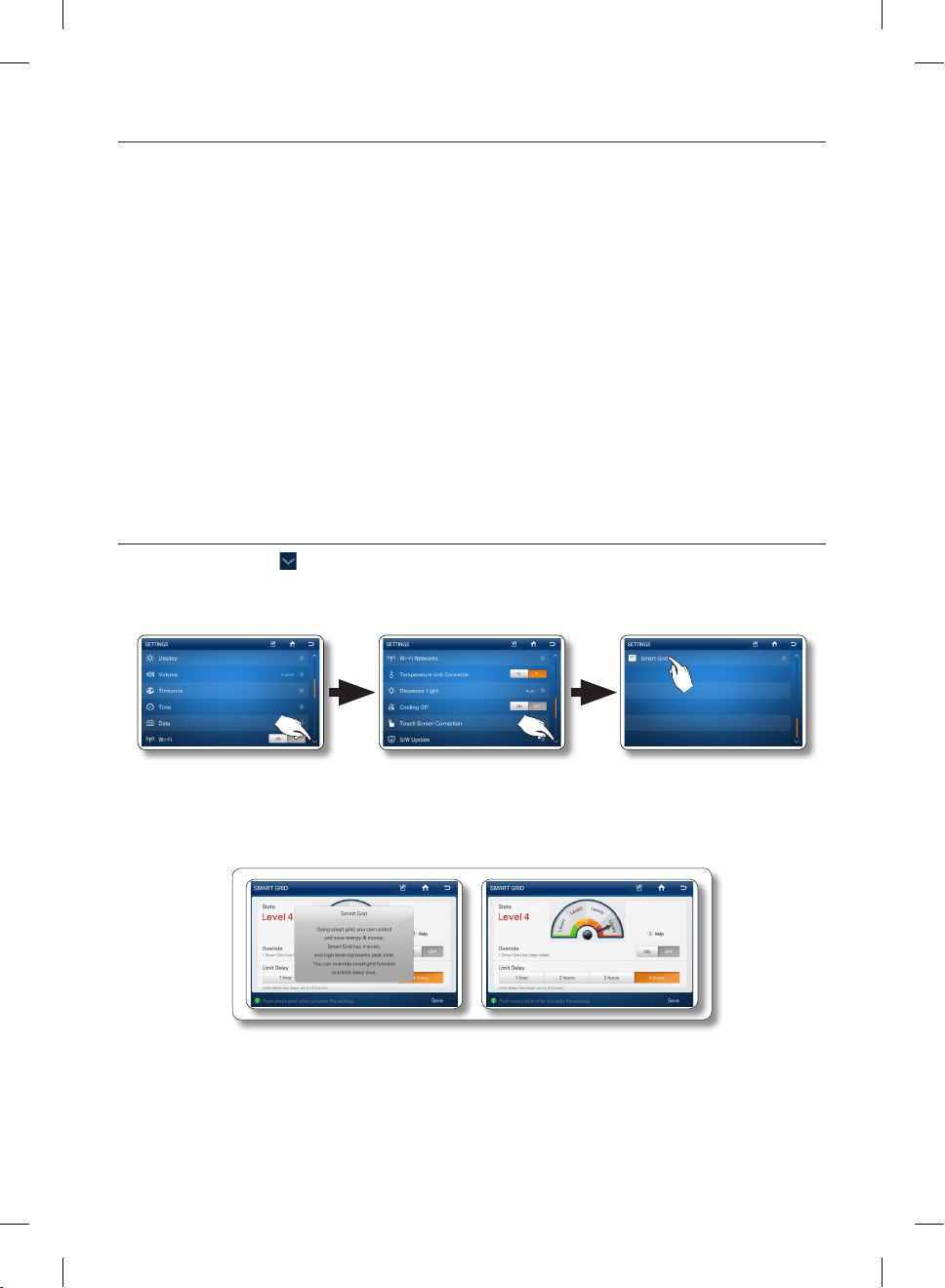
Español - 80
SMART GRID
Aunque Smart Grid actualmente no está disponible en Estados Unidos, hemos incorporado la función
Smart Grid al refrigerador con la esperanza de que esté disponible en un futuro próximo.
La función Smart Grid le permite acceder a la configuración de Smart Grid y obtener información sobre
las funciones de Smart Grid.
Si su compañía de servicio eléctrico proporciona el servicio Smart Grid después de haber instalado el
refrigerador, puede implementar la función Smart Grid siguiendo estos pasos:
• Solicite a su compañía de servicio eléctrico si instaló la puerta de enlace, el medidor inteligente y otro
equipamiento necesario para Smart Grid.
• Obtenga e instale el módem Smart Grid para acceder al servicio. (Se vende o se proporciona por
separado.)
• Si su compañía de servicio eléctrico ya instaló el equipamiento necesario y instaló el módem Smart
Gride, vea si la pantalla del Servicio Smart Grid aparece cuando selecciona Smart Grid en la pantalla
de configuración.
• Si no aparece la pantalla del Servicio Smart Grid, contacte con el Centro de Servicio de Samsung
Electronics para obtener ayuda.
Cómo ver el nivel Smart Grid
1. Presione el botón en el ángulo inferior derecho de la lista de ajustes.
2. Seleccione Smart Grid en la lista de ajustes.
3. Cuando el módem Smart Grid está conectado, puede verificar el nivel-DR recibido de la compañía
de servicio eléctrico. El nivel-DR (respuesta a la demanda) se refiere al grado al cual la compañía
esta administrando su consumo de electricidad.
DA68-02500B-13.indb 80 13. 12. 4. �� 7:13
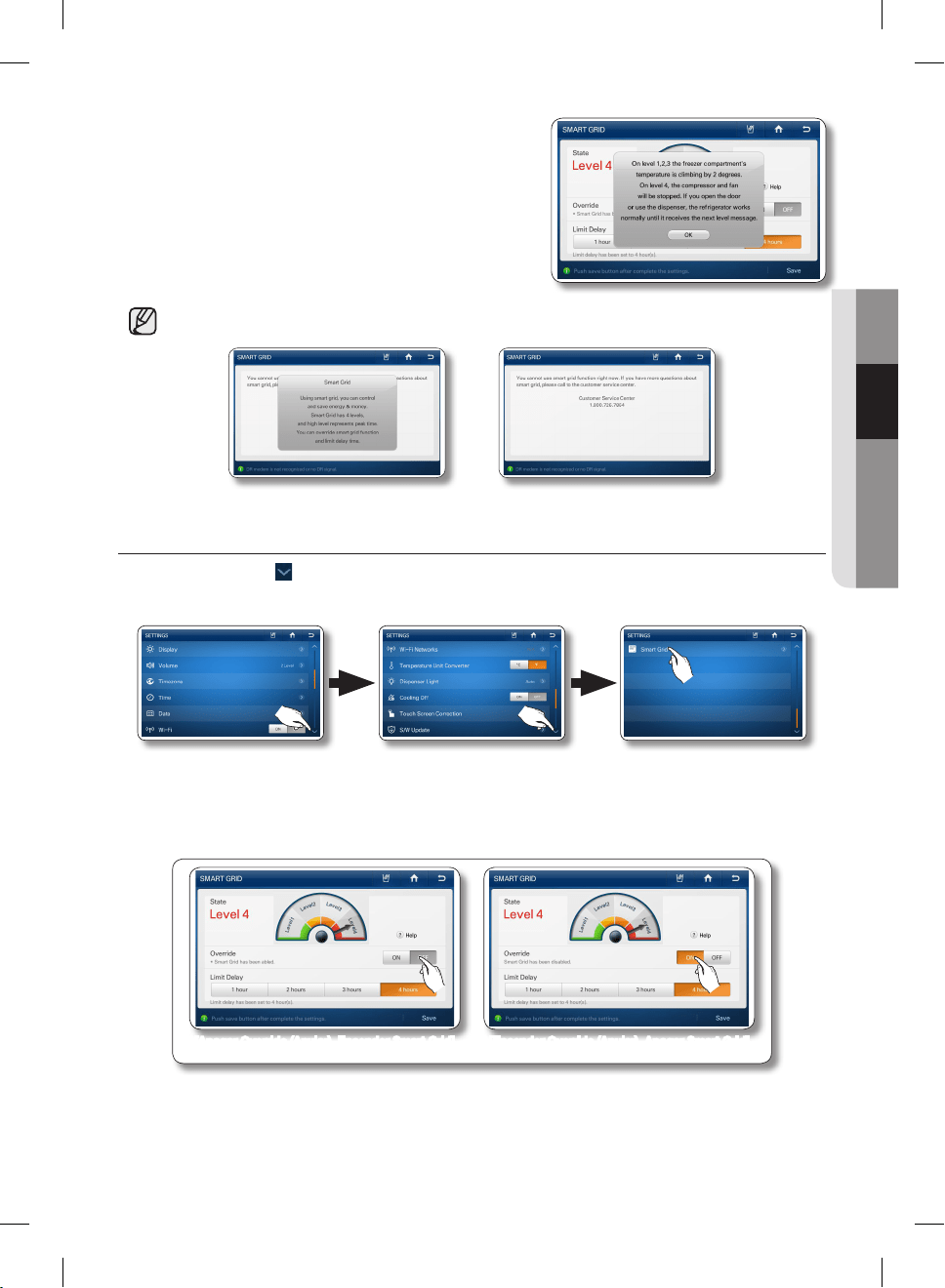
Español - 81
02 FUNCIONAMIENTO
4. Si selecciona el botón para cada nivel o el botón [Help]
(Ayuda), puede ver información acerca de la función
Smart Grid. El nivel superior significa hora pico más alta
que los niveles más bajos.
• Si el módem no está conectado, aparece el siguiente mensaje:
Cómo anular el control Smart Grid
1. Presione el botón en el ángulo inferior derecho de la lista de ajustes.
2. Seleccione Smart Grid en la lista de ajustes.
3. Si quiere que su refrigerador funcione de acuerdo con el nivel DR (o Smart Grid), seleccione el botón
“Off” (Apagado) de Override (Anular). Si quiere que su refrigerador funcione independientemente del
nivel DR (o Smart Grid), seleccione el botón “On” (Encendido) de Override (Anular).
[Apagar Override (Anular), Encender Smart Grid] [Encender Override (Anular), Apagar Smart Grid]
DA68-02500B-13.indb 81 13. 12. 4. �� 7:13
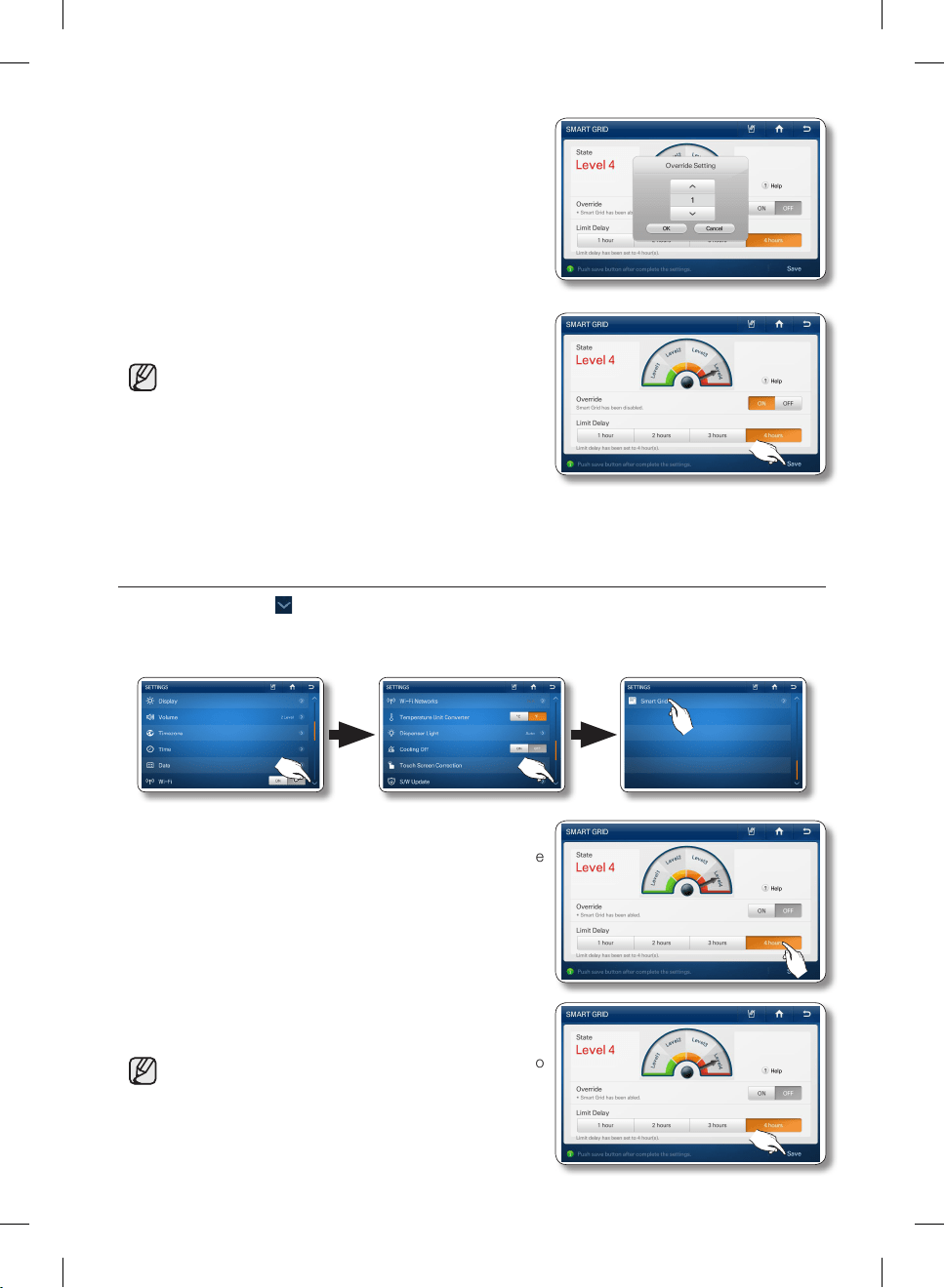
Español - 82
4. Puede establecer el tiempo de Override (Anular) de 1 a 24
horas. Una vez establecido el tiempo, la función Override
(Anular) se apaga y se inicia el control Smart Grid. Si
selecciona “Permanently” (Permanentemente), la función
Override (Anular) opera continuamente hasta que apaga
la función Override (Anular) o establece un tiempo.
5. Presione el botón [Save] (Guardar).
• Si no se desactiva “Permanently”
(Permanentemente), la función “Override” (Anular)
operará constantemente.
• Si cree que la temperatura del refrigerador es
demasiado alta, es necesario utilizar la función
“Override” (Anular).
• Si cree que no hay suficiente hielo, es necesario
utilizar la función “Override” (Anular).
Cómo seleccionar el tiempo de demora límite en Smart Grid
1. Presione el botón en el ángulo inferior derecho de la lista de ajustes.
2. Seleccione Smart Grid en la lista de ajustes.
3. Seleccione “Limit Delay Time” (Tiempo de demora límite)
de 1 hora a 4 horas. El tiempo de demora límite le permite
establecer el tiempo máximo durante el cual funciona el
control Smart Grid.
4. Presione el botón [Save] (Guardar).
• Si no selecciona la opción “Limit Delay Time” (Tiempo
de demora límite), Smart Grid funciona con la opción
de 4 horas por defecto.
DA68-02500B-13.indb 82 13. 12. 4. �� 7:13
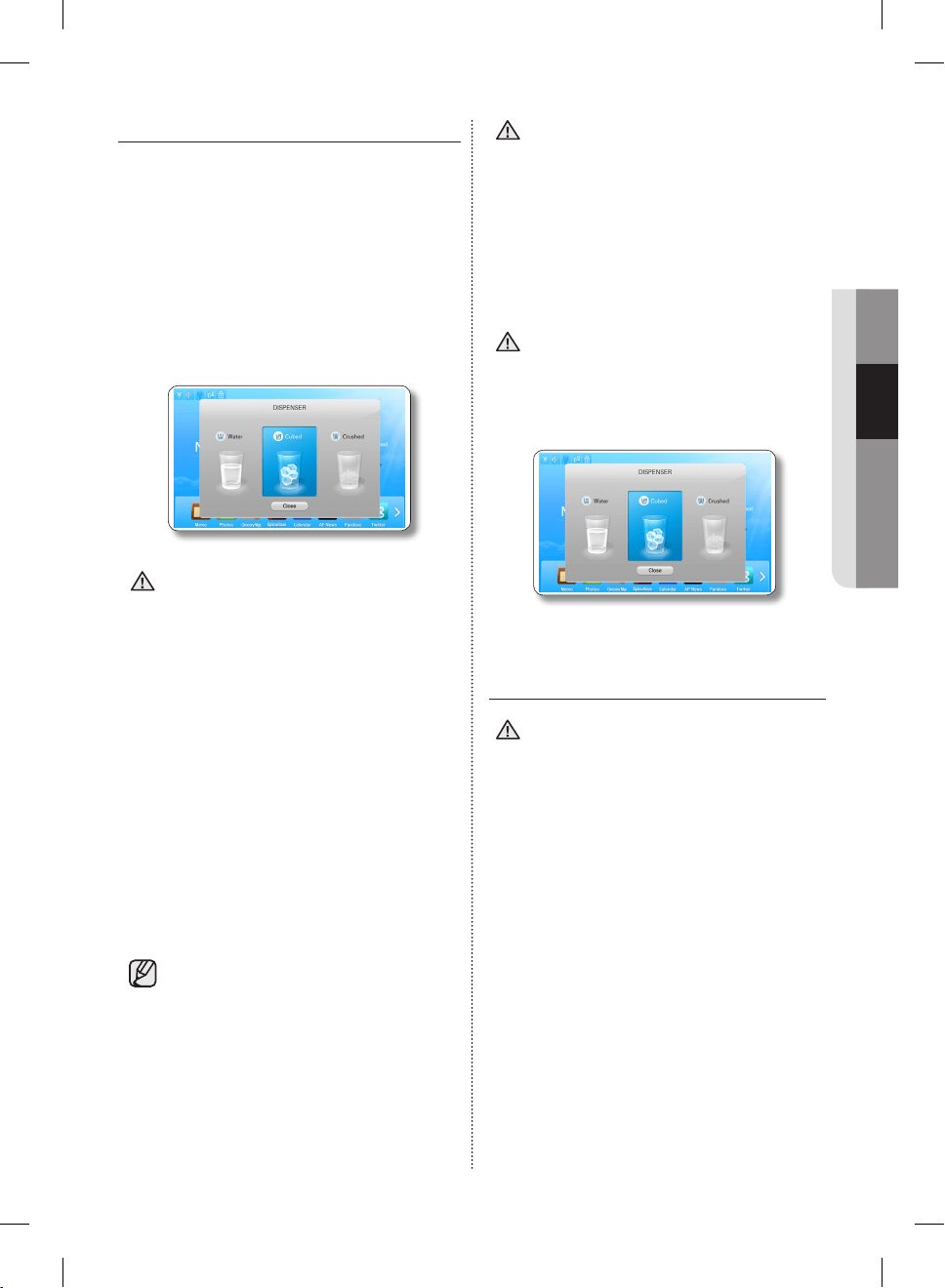
Español - 83
02 FUNCIONAMIENTO
CÓMO UTILIZAR EL DISPENSADOR
Presione sobre el estado del dispensador en
la pantalla de inicio para seleccionar el tipo de
dispensador que desea. Coloque el vaso debajo
del dispensador de hielo y empuje con suavidad
contra la palanca del dispensador. Asegúrese de
que el vaso esté alineado con el dispensador para
impedir que se caiga el hielo. Cuando selecciona
el modo de hielo Cubed (En cubos) después de
utilizar el modo de hielo Crushed (Triturado), puede
producirse una pequeña cantidad de hielo triturado
residual.
Espere 2 segundos antes de retirar
el vaso del dispensador para evitar
derrames.
Si se abre la puerta del Freezer
(congelador), el dispensador no funciona.
• No jale de la palanca. Se podría dañar o
romper el resorte de la palanca.
• Para limpiar el cajón/cubeta de hielo, utilice un
detergente suave, enjuague y seque bien.
No utilice limpiadores ni solventes abrasivos.
• Si no llegara a salir el hielo, extraiga la cubeta
y presione el botón Test (Probar) ubicado a la
derecha de la fábrica de hielo.
• No presione el botón Test (Probar)
continuamente cuando la charola está llena de
hielo o agua. El agua se puede desbordar o el
hielo puede atascar la cubeta.
• Cuando seleccione el botón Test
(Probar), escuchará el repique del
refrigerador (talán, talán).
Cuando escuche el sonido, suelte el
botón [Test] (Probar).
• Se escuchará automáticamente un sonido
que indica que la máquina de hielo está
funcionando correctamente.
PRECAUCIÓN
En caso de corte de energía, los cubos
de hielo pueden derretirse y luego
congelarse cuando vuelve la energía,
provocando que el dispensador deje de
funcionar.
Para impedir que esto suceda, después de un
corte de energía, extraiga la cubeta de hielo y tire
el hielo y el agua residual.
Después de haber eliminado el hielo de
la cubeta, deberá presionar la palanca
del dispensador una vez con la función
de hielo CUBED (En cubos) o CRUSHED
(Triturado) encendida.
La fábrica de hielo producirá nuevo hielo más
rápido cuando vuelva a colocar la cubeta en el
refrigerador.
• No coloque los dedos, las manos ni
cualquier otro objeto inapropiado en el
recipiente o en la cubeta de la fábrica
de hielo.
- Es posible que provoque lesiones personales o
daños materiales.
• Utilice solamente la fábrica de hielo del
refrigerador.
• Sólo una persona adecuadamente calificada
deberá instalar/conectar el suministro de agua
al refrigerador y solo deberá ser conectado al
suministro de agua potable.
• A fin de que la fábrica de hielo funcione
correctamente, se necesita una presión de
agua de 20~125 psi.
PRECAUCIÓN
PRECAUCIÓN
PRECAUCIÓN
DA68-02500B-13.indb 83 13. 12. 4. �� 7:13
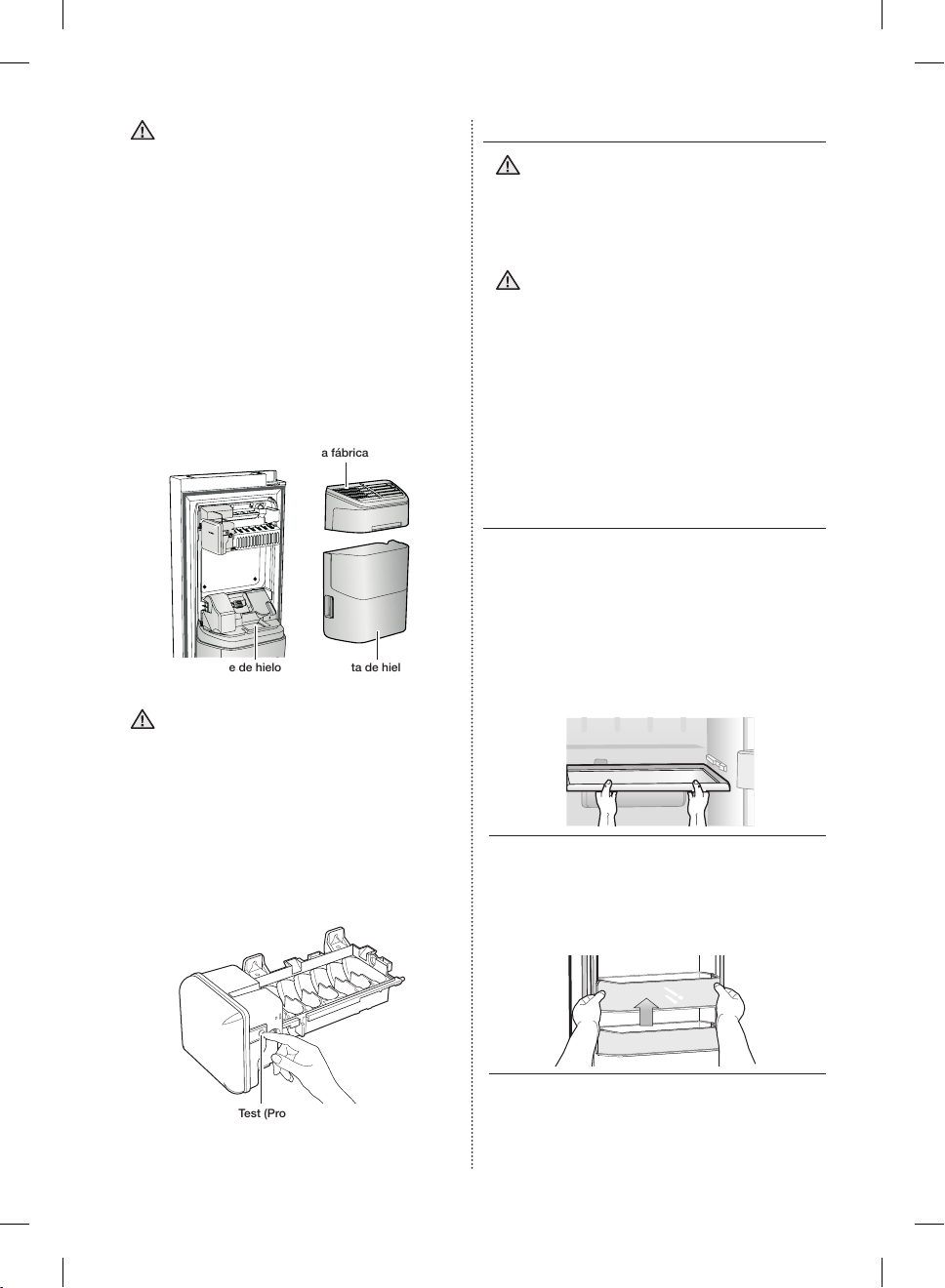
Español - 84
• Si viaja por vacaciones o negocios y no
utilizará los dispensadores de agua o
hielo, cierre la válvula de agua.
- Si no lo hace, pueden producirse fugas de
agua.
• Cuando no utiliza la fábrica de hielo por un
tiempo o si abre la puerta del congelador con
frecuencia, el hielo puede pegarse.
Si esto ocurre, vacíe la cubeta de hielo o rompa
el hielo con un utensilio de cocina de madera.
No utilice elementos filosos como cuchillos o
tenedores.
• Cuando se retira la cubeta, puede haber
todavía hielo residual que se producirá en la
fabrica de hielo.
Cubierta de la fábrica de hielo
Cubeta de hieloRecipiente de hielo
• Si no llegara a salir el hielo, extraiga la
cubierta de la fábrica de hielo y presione
el botón Test (Probar) ubicado en la
fábrica de hielo.
• No presione el botón Test (Probar)
continuamente cuando la charola está llena de
hielo o agua como se muestra en la ilustración
que aparece a continuación.
El agua se puede desbordar o el hielo puede
atascarse.
Botón Test (Probar)
PRECAUCIÓN
PRECAUCIÓN
LIMPIEZA DEL REFRIGERADOR
No utilice benceno, solvente o Clorox™
para limpiarlo.
Pueden dañar la superficie del refrigerador
y provocar un incendio.
No pulverice el refrigerador con agua
mientras está enchufado, ya que puede
provocar una descarga eléctrica.
No limpie el refrigerador con benceno,
solvente o detergente para automóviles ya
que puede provocar un incendio.
REMOCIÓN DE LOS
ACCESORIOS DEL
CONGELADOR/REFRIGERADOR
limpiar y reorganizar el interior del congelador es
sencillo.
1. Estantes (Congelador/Refrigerador)
• Hale del estante hacia afuera hasta donde
llegue.
Luego levántelo y retírelo.
2. COMPARTIMENTO DE PUERTA
• Retire el compartimiento de la puerta
sosteniéndolo con ambas manos y levántelo
con suavidad.
PRECAUCIÓN
PRECAUCIÓN
DA68-02500B-13.indb 84 13. 12. 4. �� 7:13
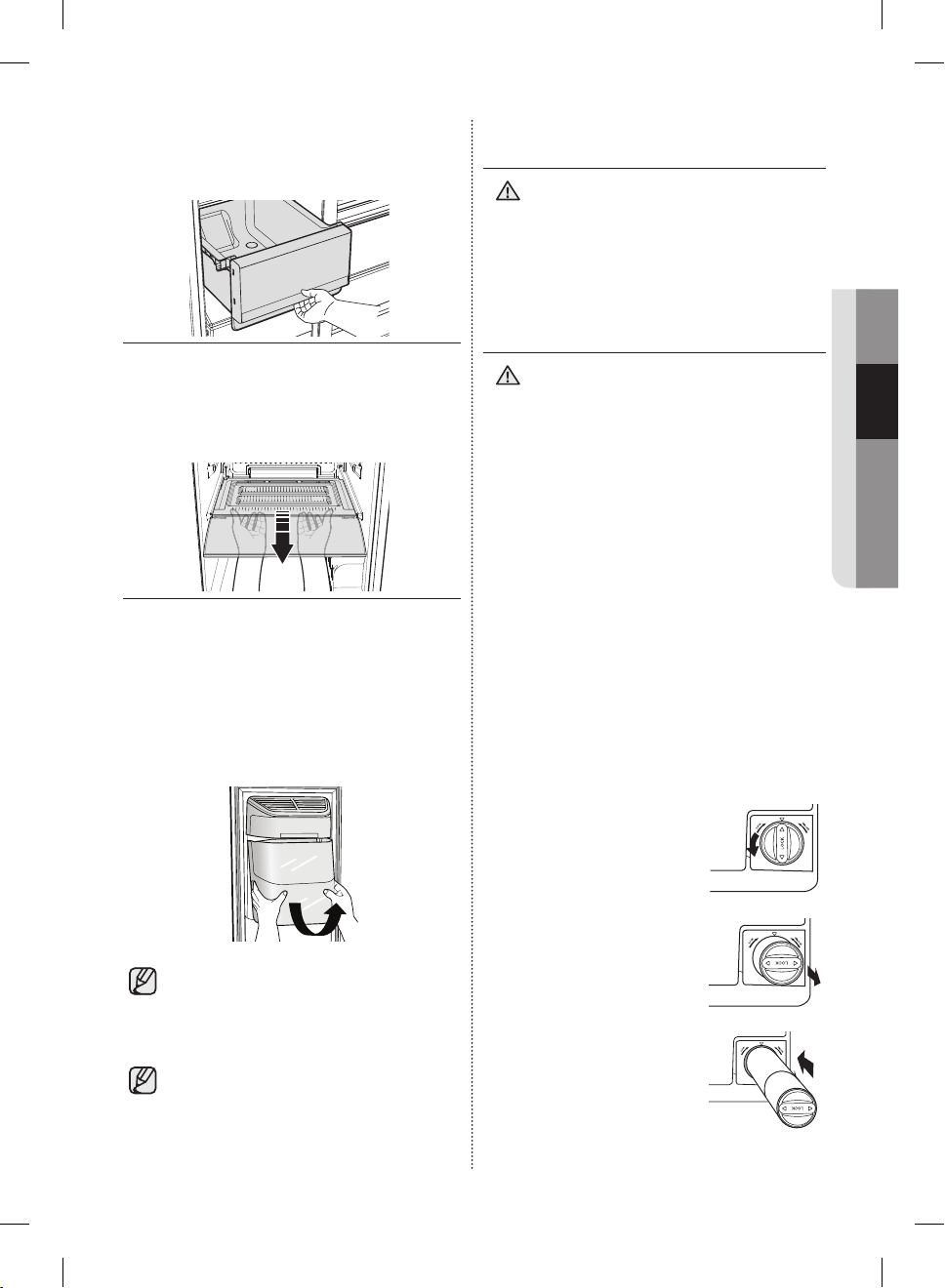
Español - 85
02 FUNCIONAMIENTO
3. CAJÓN
• Retire el cajón halándolo hacia afuera y
levantándolo ligeramente.
4. Cubierta del cajón
• Hale de la cubierta hacia afuera hasta donde
llegue.
Luego levántela y retírela.
5. Cubeta de hielo (Congelador)
• Retire la cubeta de la fábrica de hielo
levantándola y halando de ella lentamente.
- Sostenga la manija como se muestra en la
figura.
- Levante la parte inferior ligeramente.
- Retire lentamente la cubeta de hielo
No aplique demasiada fuerza al retirar la
cubierta del cajón.
De lo contrario, la cubierta puede
romperse y provocar lesiones.
Antes de retirar cualquier accesorio,
asegúrese de que no haya comida cerca.
Cuando sea posible, retire la comida al
mismo tiempo para reducir el riesgo de
accidentes.
CAMBIO DE LAS LÁMPARAS
INTERIORES
No desarme ni reemplace la luz tipo LED.
Para cambiar la luz tipo LED,
comuníquese con el Centro de Servicio de
Samsung.
CAMBIO DEL FILTRO DE AGUA
Para reducir el riesgo de daños
ocasionados por agua, NO use marcas
genéricas de filtros de agua en su
refrigerador SAMSUNG. SÓLO USE
FILTROS DE AGUA MARCA SAMSUNG.
SAMSUNG no será legalmente responsable por
cualquier daño incluso, pero no limitado a, daños
causados por pérdidas de agua por el uso de un
filtro de agua genérico.
Los Refrigeradores SAMSUNG están diseñados
para funcionar SOLO CON Filtros de agua
SAMSUNG.
El ícono del “Indicador del filtro” le indica el
momento en que hay que cambiar el cartucho del
filtro de agua. Para darle tiempo de preparación
hasta que consiga un nuevo filtro, la luz roja se
enciende justo antes de que la capacidad del
filtro actual se acabe. Cambiar el filtro a tiempo le
provee agua más fresca y limpia de su refrigerador.
1. Gire el filtro de agua 90° en
el sentido contrario de las
agujas del reloj.
2. Extraiga el filtro de agua del
alojamiento del filtro.
3. Inserte un nuevo filtro de
agua.
PRECAUCIÓN
ADVERTENCIA
DA68-02500B-13.indb 85 13. 12. 4. �� 7:13
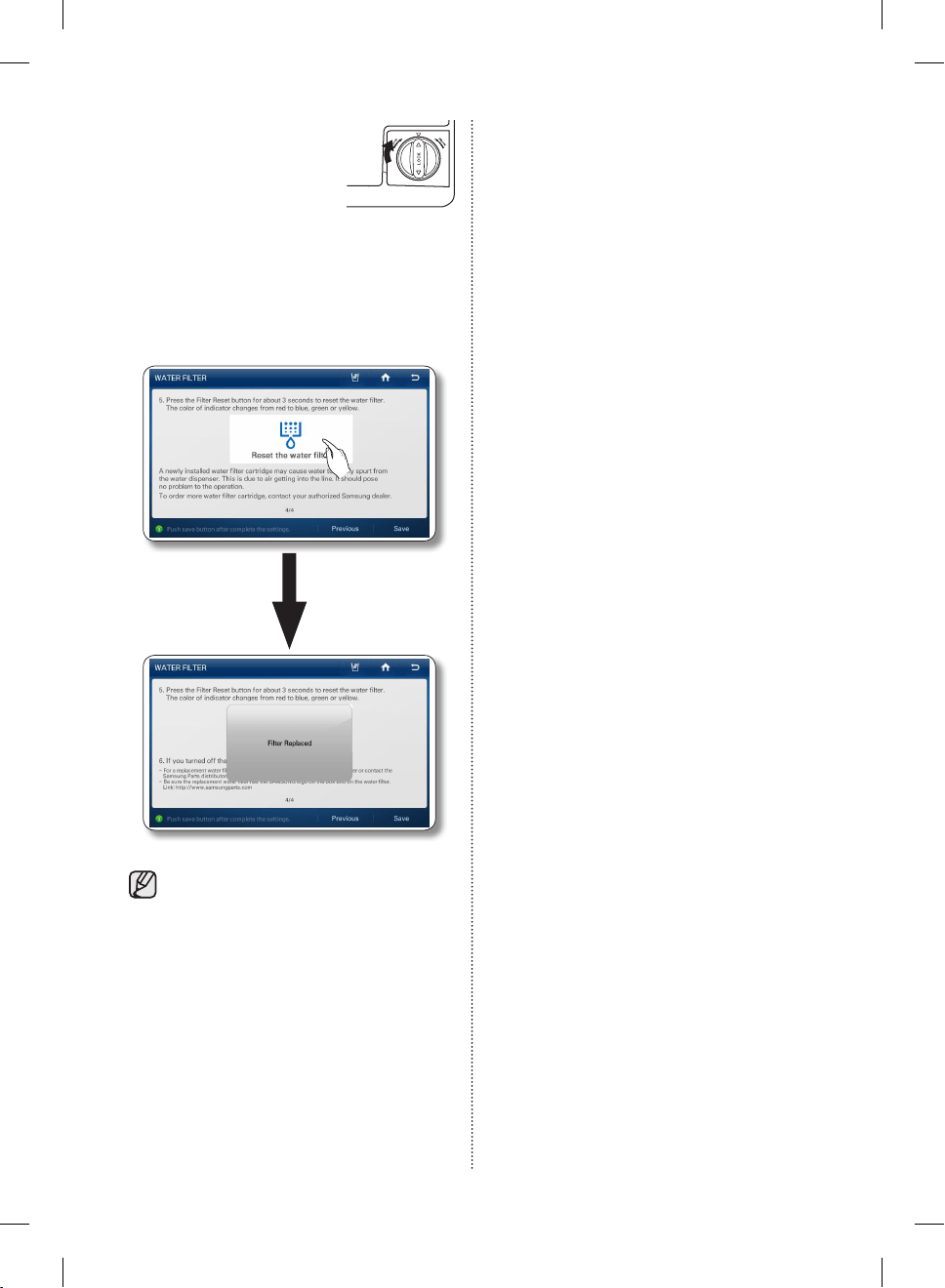
Español - 86
4. Gire el nuevo filtro de agua
90° en el sentido de las
agujas del reloj.
5. Una vez reemplazado, presione y mantenga
presionado “Reset the water filter” (Restablecer
el filtro de agua) simultáneamente durante 3
segundos o más en el centro de la pantalla.
(Consulte la sección de “FILTRO DE AGUA” de
este manual).
Un cartucho del filtro de agua recién
instalado puede causar que el agua brote
del dispensador de agua.
Esto se debe al aire que entra en la
tubería.
No debería presentar ningún problema al
funcionamiento.
Remoción de los materiales residuales
que se encuentran dentro de la tubería
de suministro de agua después de
instalar un filtro nuevo
1. Pulse el botón Water (Agua) y empuje la
palanca del dispensador con una taza o un
vaso.
2. Haga correr 1 galón de agua a través del filtro,
una taza o un vaso cada vez.
(El agua debe correr unos 6 minutos.) Este
procedimiento limpiará el sistema de suministro
de agua y eliminará el aire de las tuberías.
3. Es posible que se necesite realizar una limpieza
adicional en algunos hogares.
4. Abra la puerta del refrigerador y asegúrese de
que no haya filtraciones de agua provenientes
del filtro de agua.
Suministro de agua por ósmosis inversa
IMPORTANTE : La presión del suministro de agua
que sale del sistema por ósmosis inversa que va
a la válvula de entrada de agua del refrigerador
necesita estar entre 35 y 120 psi (241 y 827 kPa).
Si se conecta un sistema de filtración de agua por
ósmosis inversa al suministro de agua fría, la presión
de agua al sistema de ósmosis inversa debe tener
un mínimo de 40 a 60 psi (276 a 414 kPa).
Si la presión de agua al sistema de ósmosis inversa
es inferior a 40 hasta 60 psi (276 a 414 kPa):
• Verifique si el filtro de sedimentos en el
sistema de ósmosis inversa está bloqueado.
Reemplácelo si es necesario.
• Llene nuevamente el tanque de
almacenamiento del sistema de ósmosis
inversa luego de mucho uso.
• Si su refrigerador cuenta con un filtro de agua,
es posible que la presión de agua disminuya
aún más al usarlo con el sistema de ósmosis
inversa. Saque el filtro de agua.
Si tiene dudas sobre la presión del agua, llame a
un plomero calificado autorizado.
Solicitud de filtros de repuesto
Para solicitar más cartuchos del filtro de agua,
comuníquese con su distribuidor Samsung
autorizado.
DA68-02500B-13.indb 86 13. 12. 4. �� 7:13
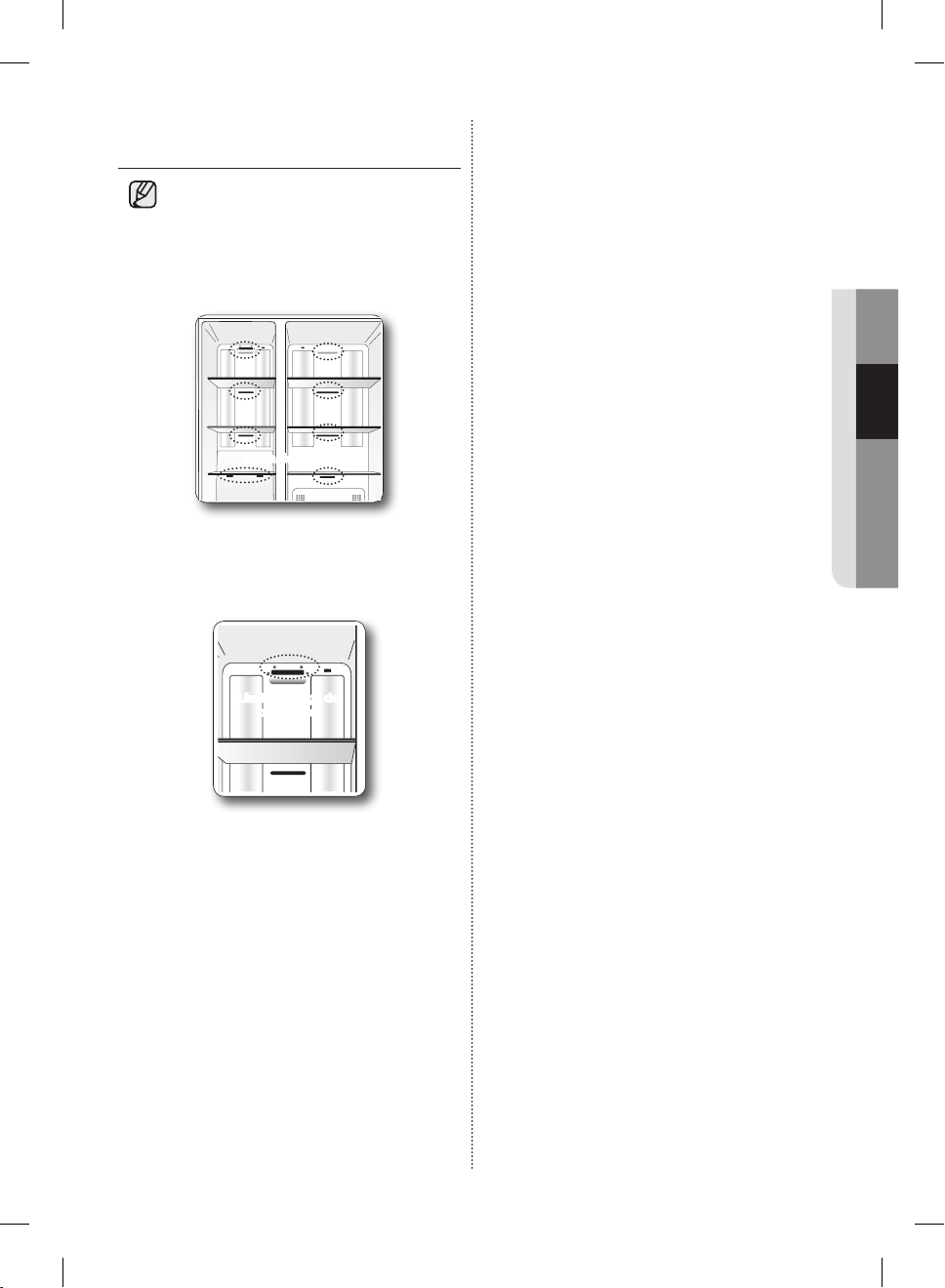
Español - 87
02 FUNCIONAMIENTO
PARA MEJORAR EL RENDIMIENTO
DE ENFRIADO
• Si la salida de aire frío está bloqueada
por alimentos, el aire frío no puede
penetrar todo el compartimiento
y no podrá congelar los alimentos
eficazmente, lo que genera un menor
rendimiento del enfriado.
Salida de aire frío
• En particular, existe un límite de carga
para la parte superior del congelador.
No coloque alimentos por encima de
dicho límite.
Límite de carga del
congelador
DA68-02500B-13.indb 87 13. 12. 4. �� 7:13
Español - 88
solución de problemas
PROBLEMA SOLUCIÓN
El refrigerador
no funciona para
nada o no enfría lo
suficiente.
• Verifique que el enchufe esté correctamente conectado.
• ¿El control de temperatura en el panel del visor está ajustado a la temperatura
correcta? Intente ajustarlo a una temperatura inferior.
• ¿El refrigerador está ubicado directamente al sol o demasiado cerca de una fuente
de calor?
• ¿La parte posterior del refrigerador está demasiado cerca de la pared y por lo tanto
no permite la circulación del aire?
La comida en el
refrigerador está
congelada.
• ¿El control de temperatura en el panel del visor está ajustado a la temperatura
correcta? Intente ajustarlo a una temperatura más alta.
• ¿La temperatura de la habitación es muy baja?
• ¿Colocó comida con elevado contenido de agua en la parte más fría del refrigerador?
Escucha ruidos o
sonidos fuera de lo
normal.
• Verifique que el refrigerador esté nivelado y estable.
• ¿La parte posterior del refrigerador está demasiado cerca de la pared y por lo tanto
no permite la circulación del aire?
• ¿Cayó algo detrás o debajo del refrigerador?
• Si escucha un “tic” proveniente del interior del refrigerador, es normal.
Esto ocurre porque varias piezas se contraen o expanden en respuesta a cambios en
la temperatura en el interior del refrigerador.
Las esquinas frontales
del refrigerador
están calientes y
se está generando
condensación.
• Es normal que se genere algo de calor ya que los anticondensadores están
instalados en las esquinas frontales del refrigerador para impedir la condensación.
• ¿Está la puerta del refrigerador entreabierta? Puede producirse condensación cuando
deja la puerta abierta por mucho tiempo.
El hielo no sale.
• ¿Esperó al menos 12 horas luego de haber instalado la tubería de suministro de agua
antes de hacer hielo?
• ¿Está conectado el suministro de agua y abierta la válvula de cierre?
• ¿Detuvo manualmente la función para hacer hielo? Asegúrese de que Ice Type (Tipo
de hielo) está ajustado en Cubed (En cubos) o Crushed (Triturado).
• ¿Hay cubos de hielo congelados unidos en la cubeta de la fábrica de hielo?
• ¿Está demasiado alta la temperatura del congelador? Baje la temperatura del congelador.
Puede que se
generen burbujas
de agua dentro del
refrigerador.
• Esto es normal. Las burbujas provienen del líquido refrigerante que circula a través
del refrigerador.
Hay mal olor en el
refrigerador.
• ¿Se ha descompuesto algún alimento?
• Asegúrese de que los alimentos con olor fuerte (como por ejemplo el pescado) estén
envueltos herméticamente.
• Limpie el refrigerador periódicamente y deseche los alimentos descompuestos o que
considera que pueden descomponerse.
Se forma escarcha
en las paredes del
congelador.
• ¿Está bloqueada la ventilación de aire? Quite cualquier obstrucción de modo que el
aire pueda circular libremente
• Deje espacio suficiente entre los alimentos guardados para la correcta circulación del aire.
• ¿La puerta del congelador está correctamente cerrada?
El dispensador de
agua no funciona.
• ¿Está conectado el suministro de agua y abierta la válvula de cierre?
• ¿Está la tubería de suministro de agua aplastada o enroscada? Asegúrese de que la
tubería esté libre y sin obstrucciones.
• ¿Está congelado el tanque de agua porque la temperatura del refrigerador está
demasiado baja? Seleccione una temperatura más alta en el panel principal del visor.
DA68-02500B-13.indb 88 13. 12. 4. �� 7:13
Español - 89
03 TROUBLESHOOTING
PROBLEMA SOLUCIÓN
El visor no funciona.
• Presione el botón Reset (Restablecer) durante un segundo para restablecer la memoria.
De esta manera, la información del usuario no se deberá configurar nuevamente.
No se ven las
fotografías
cuando la tarjeta
de memoria está
conectada.
• Si no aparecen los mensajes “A SD/MMC card is connected” (Una tarjeta SD/MMC
está conectada), verifique que el tipo de memoria sea SD/SDHC/MMC/HS MMC.
• Verifique que haya fotografías o imágenes almacenadas en la tarjeta de memoria.
• Verifique que el formato de las imágenes en la tarjeta de memoria sea JPEG (JPG).
La pantalla LCD
se apaga con
frecuencia.
• Esta es una función para ahorrar energía y es completamente normal.
• Puede establecer el tiempo de ejecución del protector de pantalla en Settings
(Ajustes), Display (Visor), Screensaver Running Time (Tiempo de ejecución del
protector de pantalla).
Hay una persistencia
de imagen o queda
una línea en el borde
en la pantalla.
• Las imágenes fijas pueden causar daño permanente a la pantalla LCD. Cuando
seleccione un protector de pantalla, seleccione una serie de temas de modo que la
imagen cambie con frecuencia.
NOTA: La garantía de fábrica no cubrirá los defectos ocasionados de esta manera.
El punto de entrada
de la pantalla táctil
no es correcto.
• Ejecute la función Touch Screen Calibration (Calibración de la pantalla táctil) en
Settings (Ajustes).
No se detecta
ningún punto
de acceso
inalámbrico.
• Verifique el encendido del punto de acceso inalámbrico.
• Verifique que el punto de acceso inalámbrico admita IEEE802.11b/g/n.
• Si el punto de acceso inalámbrico está ubicado lejos del refrigerador, acérquelo y
verifique entonces su detección.
• Apague y encienda nuevamente el punto de acceso inalámbrico y el refrigerador.
Imposible
conectarse con el
punto de acceso
inalámbrico.
• Verifique que el punto de acceso inalámbrico admita IEEE802.11b/g/n.
• Verifique el estado de la conexión a Internet del punto de acceso inalámbrico.
• Verifique si su plan de precios de Internet actual cubre la conexión a redes
inalámbricas. Si es así, verifique cuántas conexiones permite.
• Es posible que su refrigerador no pueda conectarse a Internet porque su proveedor
de servicios de Internet ha registrado permanentemente la dirección MAC (un número
de identificación único) de su computadora o módem que luego auténtica cada vez
que usted se conecta a Internet como forma de impedir el acceso no autorizado.
Debido a que su refrigerador tiene una dirección MAC diferente, su proveedor
no puede autenticar su dirección MAC y su refrigerador no puede conectarse.
Para resolver este problema, consulte con su proveedor de Internet acerca de los
procedimientos requeridos para conectar dispositivos que no sean una computadora
(como su refrigerador) a Internet. (Para averiguar la dirección MAC de su refrigerador,
pulse Settings (Ajustes) --->WiFi Networks (Redes WiFi) y luego mire la parte inferior
de la pantalla donde figuran las conexiones de red disponibles).
• Apague y encienda nuevamente el punto de acceso inalámbrico y el refrigerador.
No recuerdo la
contraseña para
la conexión con el
punto de acceso
inalámbrico.
• Consulte el manual del punto de acceso inalámbrico y vuelva a configurar la
contraseña.
DA68-02500B-13.indb 89 13. 12. 4. �� 7:13
Español - 90
PROBLEMA SOLUCIÓN
Las funciones
que utilizan la red
inalámbrica (Wi-FI)
no funcionan.
• Las funciones que utilizan la red inalámbrica (Wi-Fi), tales como Epicurious, Calendar,
WeatherBug, AP News, Pandora y Twitter, sólo pueden usarse si el refrigerador está
conectado a su red inalámbrica (Wi-Fi).
• Si hay otros dispositivos conectados a la red inalámbrica, verifique el estado de
conexión de los mismos.
• Debido a que estos servicios dependen de los datos descargados desde Internet,
las actualizaciones de información pueden demorarse o cortarse dependiendo del
estado de la conexión a Internet.
• Apague y encienda nuevamente el punto de acceso inalámbrico y el refrigerador.
Imposible
conectarse a los
dispositivos externos
detectados.
• Si la conexión de red de un dispositivo externo que el refrigerador detecta se
interrumpió de manera anormal (por un corte de energía o moviéndose fuera del
rango, etc.), la información de red del dispositivo quedará en la lista de red (según lo
indican las especificaciones de DLNA), pero su conexión no estará disponible.
• Seleccione la función de Photos (Fotografías), All Share (Compartir todo), y busque
los dispositivos externos nuevamente.
Después del
encendido, es
posible operar
sólo el botón de
selección del
dispensador.
• Haga clic en el botón “Dispenser OK” (Dispensador correcto) que se encuentra
en la parte inferior del visor. Si el botón “Dispenser OK” se cambia a “Complete”
(Completo), apague y encienda nuevamente.
Es correcto que se muestre la “Time Zone Setting screen” (Pantalla de ajuste de huso
horario).
DA68-02500B-13.indb 90 13. 12. 4. �� 7:13
garantía
GARANTÍA DEL REFRIGERADOR SAMSUNG
GARANTÍA LIMITADA PARA EL COMPRADOR ORIGINAL
Este producto de marca Samsung, suministrado y distribuido por Samsung Electronics America, Inc. (Samsung)
y entregado nuevo, en su caja de fábrica al comprador original, está garantizado por Samsung ante defectos de
fabricación relacionados con los materiales y la mano de obra durante un período de garantía limitado a:
Un (1) año para las piezas y la mano de obra del refrigerador
Cinco (5) años para las piezas y la mano de obra para el sistema hermético de refrigeración, que incluye
SÓLO los componentes que contienen refrigerante
(Compresor, evaporador, condensador, deshumidificador, tuberías de conexión)
Esta garantía limitada entra en vigencia en la fecha original de compra y sólo es válida para productos adquiridos y
utilizados en los Estados Unidos. Para recibir el servicio técnico bajo garantía, el comprador debe comunicarse con
Samsung para determinar la naturaleza del problema y proceder a repararlo. El servicio de garantía sólo puede realizarse
a través de un Centro de Servicio autorizado Samsung. Debe presentarse la factura original de venta bajo solicitud de
Samsung o del Centro de Servicio autorizado Samsung como prueba de compra.
Samsung reparará o reemplazará cualquier pieza considerada defectuosa, a nuestra entera discreción y sin cargo,
según lo estipulado en este documento, por piezas nuevas o reparadas durante el período de garantía limitada
especificado anteriormente. Todas las piezas y productos reemplazados son de propiedad de Samsung y deben
devolverse a Samsung. Las piezas y los productos de repuesto quedarán bajo el período restante de garantía original, o
noventa (90) días, el que sea más extenso.
La prestación de servicios en el hogar se realizará durante el período de garantía de la mano de obra, sujeto a
disponibilidad dentro de los Estados Unidos. La prestación de servicios en el hogar no está disponible en todas las
zonas. Para recibir la prestación de servicio en el hogar, el producto debe estar despejado y ser accesible al nivel del
piso para el personal de servicio técnico. Si durante la prestación de servicios en el hogar, no pudiera llevarse a cabo la
reparación, podría ser necesario realizar el traslado, reparación y posterior devolución del producto. Si la prestación de
servicios en el hogar no está disponible, Samsung podría escoger, a nuestra entera discreción, proporcionar transporte
a nuestra elección hasta y desde el Centro de Servicio autorizado Samsung. De lo contrario, el transporte hasta y desde
el Centro de Servicio autorizado Samsung estará a cargo del comprador.
Esta garantía limitada cubre defectos de fabricación en materiales y mano de obra bajo condiciones de uso normal, no
comercial, del producto y no se aplicará en los siguientes casos, incluidos, aunque no limitados a: daños ocasionados
durante el transporte; entrega e instalación; aplicaciones y usos para los que el producto no fue diseñado; producto o
números de serie alterados; daños externos o del acabado exterior; accidentes, mal uso, negligencia, incendio, agua,
rayos u otros fenómenos naturales; uso de productos, equipamiento, sistemas, servicios públicos, servicios generales,
piezas, suministros, accesorios, aplicaciones, instalaciones, reparaciones, tuberías externas y fugas, cableado externo,
disyuntores, fusibles o conectores no suministrados ni autorizados por Samsung o que dañen este producto u
ocasionen problemas de servicio; voltaje incorrecto, fluctuaciones y sobrevoltaje del suministro eléctrico; adaptaciones
y fallas por parte del cliente en el cumplimiento de las instrucciones de funcionamiento, limpieza, mantenimiento y
cuidado del medio ambiente que se incluyen y establecen en el manual de instrucciones; pérdida de alimentos por
descomposición; consumibles incluyendo filtros y focos de iluminación.
NO EXISTEN OTRAS GARANTÍAS EXPLÍCITAS APARTE DE LAS MENCIONADAS Y DESCRITAS ANTERIORMENTE,
ASÍ COMO TAMPOCO EXISTEN OTRAS GARANTÍAS EXPLÍCITAS O IMPLÍCITAS, INCLUYENDO SIN LIMITACIÓN A
TODAS LAS GARANTÍAS IMPLÍCITAS DE COMERCIABILIDAD O IDONEIDAD PARA UN FIN CONCRETO Y QUE SEAN
PERTINENTES TRAS LOS PERÍODOS DE GARANTÍA EXPLÍCITA INDICADOS CON ANTERIORIDAD, Y NINGUNA
GARANTÍA EXPLÍCITA U OFRECIDA POR PERSONAS, FIRMAS O EMPRESAS EN RELACIÓN A ESTE PRODUCTO
SERÁN LEGALMENTE VINCULANTES PARA SAMSUNG. SAMSUNG NO SERÁ LEGALMENTE RESPONSABLE
DE LA PÉRDIDA DE INGRESOS O BENEFICIOS, LA FALTA DE AHORROS U OTROS BENEFICIOS, O DE NINGÚN
OTRO DAÑO RESULTANTE ESPECIAL, ACCIDENTAL O INDIRECTO OCASIONADO POR EL USO, ABUSO O
INCAPACIDAD DE USO DE ESTE PRODUCTO, INDEPENDIENTEMENTE DE LA TEORÍA LEGAL SOBRE LA QUE
SE BASE EL RECLAMO, INCLUSO SI SAMSUNG HA SIDO ADVERTIDO DE LA POSIBILIDAD DE TALES DAÑOS.
ASIMISMO, CUALQUIER TIPO DE INDEMNIZACIÓN EXIGIDA A SAMSUNG NO SUPERARÁ EL PRECIO DE COMPRA
DEL PRODUCTO VENDIDO POR SAMSUNG Y QUE HAYA OCASIONADO EL SUPUESTO DAÑO. SIN LIMITAR LO
INDICADO ANTERIORMENTE, EL COMPRADOR ASUME TODO EL RIESGO Y RESPONSABILIDAD DE CUALQUIER
PÉRDIDA, DAÑO O LESIÓN AL SÍ MISMO O A SU PROPIEDAD, ASÍ COMO A TERCEROS Y A SU PROPIEDAD,
OCASIONADOS POR EL USO, ABUSO O INCAPACIDAD DE USO DE ESTE PRODUCTO VENDIDO POR SAMSUNG
QUE NO HAYAN SIDO CAUSADOS DIRECTAMENTE POR NEGLIGENCIA DE SAMSUNG. ESTA GARANTÍA LIMITADA
NO SERÁ VÁLIDA PARA PERSONAS AJENAS AL COMPRADOR ORIGINAL DE ESTE PRODCUTO, ADEMÁS ES
INTRANSFERIBLE Y CONSTITUYE SU RECURSO EXCLUSIVO.
Ciertos estados no permiten limitaciones en cuanto a la vigencia de una garantía implícita o la exclusión o limitación de
daños accidentales o indirectos, de tal forma que las limitaciones o excepciones mencionadas tal vez no se apliquen a
usted en particular. Esta garantía le otorga derechos legales específicos, e incluso puede otorgarle otros derechos que
varían de un estado a otro.
Para obtener el servicio de garantía, pónganse en contacto con Samsung en el:
CENTRO DE ASISTENCIA AL CLIENTE DE SAMSUNG
Samsung Electronics America, Inc. 85 Challenger Road Ridgefield Park, NJ 07660
1-800-SAMSUNG (1-800-726-7864) y www.samsung.com
DA68-02500B-13.indb 91 13. 12. 4. �� 7:13
¿PREGUNTAS O COMENTARIOS?
PAÍS LLÁMENOS O VISÍTENOS EN LÍNEA EN ESCRÍBANOS
EE.UU.
1-800-SAMSUNG
(726-7864)
www.samsung.com
Samsung Electronics America, Inc.
85 Challenger Road Ridgefield Park, NJ 07660
CANADÁ
1-800-SAMSUNG
(726-7864)
www.samsung.com/ca (English)
www.samsung.com/ca_fr (French)
Samsung Electronics Canada Inc.
Customer Service, 55 Standish Court
Mississauga, Ontario L5R 4B2 Canada
DA68-02500B-13
DA68-02500B-13.indb 92 13. 12. 4. �� 7:13
