OWNER’S MANUAL
30'' Free-Standing Range PB935, JB735
USING THE RANGE Surface Units
Surface Units
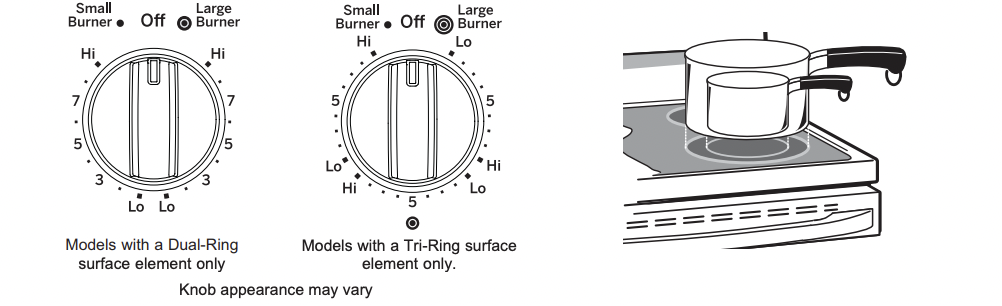
How to Set
Push the knob in and turn in either direction to the setting you want.
A surface ON indicator light will glow when any surface unit is on
For glass cooktop surfaces:
A HOT COOKTOP indicator light will:
- come on when the unit is hot to the touch.
- stay on even after the unit is turned off.
- stay on until the unit is cooled to approximately 150°F.
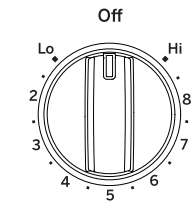
At both OFF and HI the control clicks into position. You may hear slight clicking sounds during cooking, indicating the control is maintaining your desired setting. Be sure you turn the control knob to OFF when you finish cooking.
Knob appearance may vary
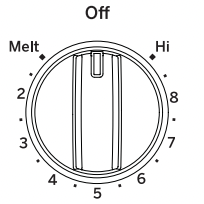
Melt setting (on some models) will melt chocolate or butter.
Dual and Triple Surface Units and Control Knobs (on some models)
The surface unit has 2 or 3 cooking sizes to select from so you can match the size of the unit to the size of the cookware you are using.
Using the Warming Zone (on some models)
WARNING FOOD POISON HAZARD: Bacteria may grow in food at temperatures below 140°F
- Always start with hot food. Do not use warm setting to heat cold food
- Do not use warm setting for more than 2 hours.
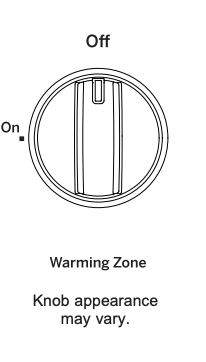
The WARMING ZONE. located in the back center of the glass surface. will keep hot. cooked food at serving temperature. Always start with hot food. Do not use to heat cold food. Placing uncooked or cold food on the
WARMING ZONE could result in foodborne illness.
Turn the control knob to the ON position.
For models using the touch pads for warming zone control. see section on "Using the Oven" for additional details.
For best results. all foods on the WARMING ZONE should be covered with a lid or aluminum foil. When warming pastries or breads. the cover should be vented to allow moisture to escape.
The initial temperature. type and amount of food. type of pan. and the time held will affect the quality of the food.
Always use pot holders or oven mitts when removing food from the WARMING ZONE. since cookware and plates will be hot.
NOTE: The surface warmer will not glow red like the cooking elements.
Home Canning Tips
Be sure the canner is centered over the surface unit.
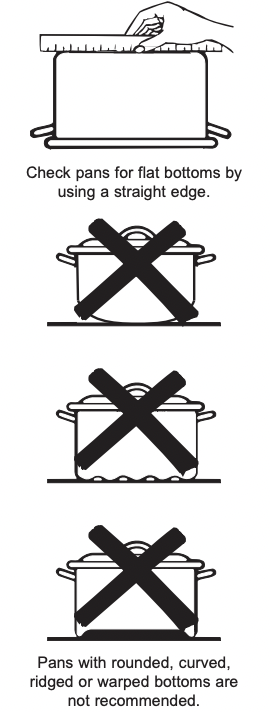
Make sure the canner is flat on the bottom.
To prevent burns from steam or heat, use caution when canning.
Use recipes and procedures from reputable sources. These are available from manufacturers such as Ball and Kerr and the Department of Agriculture Extension Service.
Flat-bottomed canners are recommended. Use of water bath canners with rippled bottoms may extend the time required to bring the water to a boil.
For Models With a Radiant Glass Cooktop
The radiant cooktop features heating units beneath a smooth glass surface.
NOTE: A slight odor is normal when a new cooktop is used for the first time. It is caused by the heating of new parts and insulating materials and will disappear in a short time.
NOTE: On models with light-colored glass cooktops. it is normal for the cooking zones to change color when hot or cooling down. This is temporary and will disappear as the glass cools to room temperature.
The surface unit will cycle on and off to maintain your selected control setting.
It is safe to place hot cookware on the glass surface even when the cooktop is cool.
Even after the surface units are turned off. the glass cooktop retains enough heat to continue cooking. To avoid overcooking. remove pans from the surface units when the food is cooked. Avoid placing anything on the surface unit until it has cooled completely.
- Water stains (mineral deposits) are removable using the cleaning cream or full-strength white vinegar.
- Use of window cleaner may leave an iridescent film on the cooktop. The cleaning cream will remove this film.
- Don't store heavy items above the cooktop. If they drop onto the cooktop. they can cause damage.
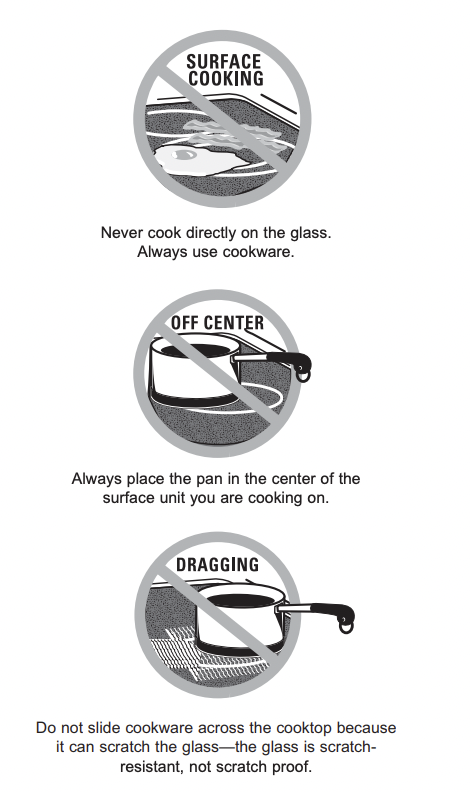
- Do not use the surface as a cutting board.
Temperature Limiter on Radiant Glass Cooktops
Every radiant surface unit has a temperature limiter.
The temperature limiter protects the glass cooktop from getting too hot.
The temperature limiter may cycle the surface units off for a time if:
- the pan boils dry.
- the pan bottom is not flat.
- the pan is off-center.
- there is no pan on the unit.
Cookware for Radiant Glass Cooktop
The following information will help you choose cookware which will give good performance on glass cooktops. NOTE: Follow all cookware manufacturer’s recommendations when using any type of cookware on the ceramic cooktop.
Recommended
Stainless Steel Aluminum:
heavy weight recommended
Good conductivity. Aluminum residues sometimes appear as scratches on the cooktop but can be removed if cleaned immediately. Because of its low melting point, thin weight aluminum should not be used.
Copper Bottom:
Copper may leave residues which can appear as scratches. The residues can be removed, as long as the cooktop is cleaned immediately. However, do not let these pots boil dry. Overheated metal can bond to glass cooktops. An overheated copper bottom pot will leave a residue that will permanently stain the cooktop if not removed immediately.
Enamel (painted) on Cast Iron: recommended if bottom of pan is coated
Avoid/Not Recommended
Enamel (painted) on Steel:
Heating empty pans can cause permanent damage to cooktop glass. The enamel can melt and bond to the ceramic cooktop.
Glass-ceramic:
Poor performance. Will scratch the surface.
Stoneware:
Poor performance. May scratch the surface.
Cast Iron:
Not Recommended - unless designed specifically for glass cooktops
Poor conductivity and slow to absorb heat. Will scratch the cooktop surface
For Best Results
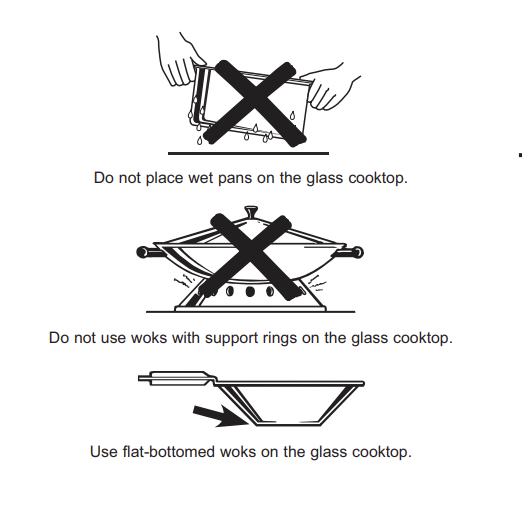
- Place only dry pans on the surface elements. Do not place lids on the surface elements. particularly wet lids.
- Wet pans and lids may stick to the surface when cool.
- Do not use woks that have support rings. This type of wok will not heat on glass surface elements.
- We recommend that you use only a flat-bottomed wok. They are available at your local retail store. The bottom of the wok should have the same diameter as the surface element to ensure proper contact.
- Some special cooking procedures require specific cookware such as pressure cookers or deep-fat fryers. All cookware must have flat bottoms and be the correct size.
USING THE RANGE: WiFi Connect
Your oven is designed to provide you with two-way communication between your appliance and smart device. By using the WiFi Connect features, you will be able to control essential oven operations such as temperature settings, timers and cooking modes using your smartphone or tablet.*
Select Settings then Wifi - follow the instructions on your oven display and phone app. It is necessary to turn on WiFi before using SmartHQ App on your oven.
Connecting your WiFi Connect Enabled Oven What you will need
Your GE Appliances oven uses your existing home WiFi network to communicate between the appliance and your smart device. In order to setup your GE Appliances oven, you will need to gather some information:
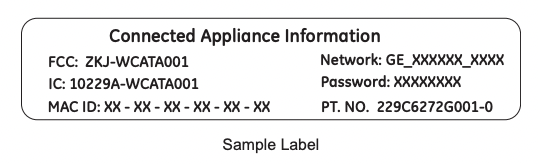
1. Each GE Appliances oven has a connected appliance information label that includes an Appliance Network Name and Password. These are the two important details that you will need to connect to the appliance. The label is typically located inside the door of the oven or drawer.
2. Have your smart phone or tablet ready with the ability to access the internet and download apps.
3. You will need to know the password of your home WiFi router. Have this password ready while you are setting up your GE Appliances oven.
Connect your GE Appliances oven
1. On your smart phone or tablet visit GEAppliances.com/connect to learn more about connected appliance features and to download the SmrtHQ App.
2. Follow the app onscreen instructions to connect your GE Appliances oven.
3. Once the process is complete, the connection light located on your GE Appliances oven display will stay on solid and the app will confirm you are connected.
4. If the connection light does not turn on or is blinking, follow the instructions on the app to reconnect. If issues continue, please call the Connected Call Center 1.866.626.2000 and ask for assistance regarding oven wireless connectivity.
To connect additional smart devices, repeat steps 1 and 2. Note that any changes or modifications to the remote enable device installed on this oven that are not expressly approved by the manufacturer could void the user’s authority to operate the equipment.
REMOTE STARTING YOUR OVEN
To be able to start the oven remotely once connected to WiFi, make sure the icon is visible in the display. The oven can now be remotely started with a connected device. Opening an oven door or turning off the oven will turn off the icon. The icon must be lit to start the oven remotely. The icon is not required to change the oven temperature while it is running, set a timer or to turn the oven off from the phone app while the icon shows it is Wifi Connected.
If you do not see the icon, refer to the Remote Enable instructions in the Special Features section of this manual.
NOTE: Foods that spoil easily—such as milk. eggs. fish. stuffings. poultry and pork—should not be allowed to sit for more than 1 hour before or after cooking. Room temperature promotes the growth of harmful bacteria. Be sure that the oven light is off because heat from the bulb will speed harmful bacteria growth.
USING THE RANGE: Oven Controls
Oven Controls
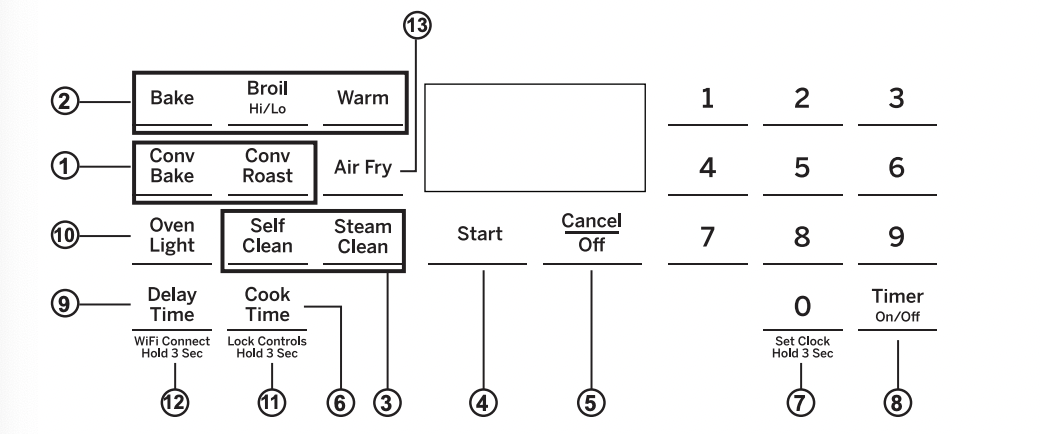
1. Convection Cooking Modes: Convection cooking modes use increased air circulation to improve performance. The type of benefit depends on the mode. Your oven has the following convection cooking modes: Convection Bake and Convection Roast. See the Cooking Modes section for more information.
2. Traditional Cooking Modes: Your oven has the following traditional cooking modes: Bake. Broil
Hi/Lo. and Warm. See the Cooking Modes section for more information.
3. Clean: Your oven has two cleaning modes: Self Clean and Steam Clean. See the Cleaning the Oven section for important information about using these modes.
4. Start: Must be pressed to start any cooking. cleaning. or timed function.
5. Cancel/Off: Cancels ALL oven operations except the clock. timer. Warming Drawer and Warming Zone.
6. Cook Time: Counts down cooking time and turns off the oven when the cooking time is complete. Press the Cook Time pad. use the number pads to program a cooking time in hours and minutes. then press Start. This can only be used with Bake. Convection Bake. Convection Roast. Warm. and Air Fry.
You may use Cook Time at any point during the oven cooking cycle
7. Clock: Press and hold the 0 pad for 3 seconds to set clock.
8. Timer On/Off: Works as a countdown timer. Press the Timer On/Off pad and the number pads to program the time in hours and minutes. Press the Start pad. The timer countdown is complete. To turn the timer off press the Timer On/Off pad.
9. Delay Time: Delays when the oven will turn on. Use this to set a time when you want the oven to start. Press the Delay Time pad and use the number pads to program the time of day for the oven to turn on then press Start. Press the desired cooking mode and temperature then press Start. A Cook Time may also be programmed if desired. Follow the directions under Cook Time for setting this feature. This can only be used with Bake. Convection
Bake. Convection Roast. and Self-Clean.
NOTE: When using the Delay Time feature. foods that spoil easily—such as milk. eggs. fish. stuffings. poultry and pork—should not be allowed to sit for more than
1 hour before or after cooking. Room temperature promotes the growth of harmful bacteria. Be sure that the oven light is off because heat from the bulb will speed harmful bacteria growth.
10. Oven Light: Tums the oven light on or off.
11. Lock Controls: Locks out the control so that pressing the pads does not activate the controls. Press the Lock Controls pad. for three seconds to lock or unlock the control. Cancel/Off is always active. even when the control is locked.
12. WiFi Connect (on some models): For instructions on how to connect your oven. see the WiFi
Connect section of this manual.
13. Air Fry: The Air Fry mode is designed to produce foods with a crispier exterior than traditional oven cooking. See the Oven Cooking Modes section for more information.
USING THE RANGE: Special Features
Special Features
There are several different special features on your range. To change the settings of these special features:
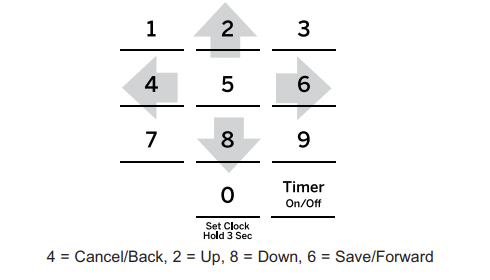
- Press the Bake and Broil pads at the same time and hold until the special features menu is displayed.
- Use the 2 or 8 number pads to scroll through the special features until the desired feature is displayed.
- Press the 6 number pad to enter into the feature’s menu and scroll through the options.
- Once the desired option is displayed. press the 6 pad to save the setting and the 4 pad to exit the menu.
Adjust the Oven Temperature (OFSt)
This feature allows the oven baking temperature to be adjusted up to 35°F hotter or down to 35°F cooler. Use this feature if you believe your oven temperature is too hot or too cold and wish to change it. This adjustment affects every cooking mode except broil.
Enter into the special features menu as outlined above. Scroll through the features until “OFSt” is displayed and press 6. Use the 2 pad to increase the adjusted temperature or use the 8 pad to decrease the adjusted temperature. Save and exit the special features menu.
End of Timer Signals (End tonE)
This is the tone that signals the end of a timer. The tone can be either continuous (Cont) or single (bEEp).
The continuous setting (Cont) will repeatedly sound a tone every few seconds until a button on the control is pressed. A single setting (bEEp) will sound just a single tone at the end of the timer. Enter into the specia features menu as outlined above. Scroll through the options until “End tonE” is displayed and press 6. Scroll through the options until the desired setting is displayed Press 6 to save the setting and then 4 to exit the menu.
Fahrenheit or Celsius Temperature Display (Unit dEg)
The oven control is set to use Fahrenheit temperatures (F). but you can change it to use Celsius temperatures (C). Enter into the special features menu as outlined above. Scroll through the options until “deg Unit” is displayed and press 6. Scroll through the options until the desired setting is displayed. Press 6 to save the setting and then 4 to exit the menu.
Clock Display (CLoc diSP)
This feature (On/Off) specifies if the time of day is displayed. Enter into the special features menu as outlined above. Scroll through the options until “Cloc diSP” is displayed and press 6. Scroll through the options until the desired setting is displayed. Press 6 to save the setting and then 4 to exit the menu.
Clock Configuration (Cloc cFg)
This feature specifies how the time of day will be displayed. You can select a standard 12-hour clock (12) or 24-hour military time display. Enter into the special features menu as outlined above. Scroll through the options until “Cloc cFg” is displayed and press 6. Scroll through the options until the desired setting is displayed.
Press 6 to save the setting and then 4 to exit the menu.
Sound Volume (Snd)
This feature allows the oven tone volume to be adjusted on and off (oFF). Enter into the special features menu as outlined above. Scroll through the options until “sound” is displayed and press 6. Scroll through the options until the desired setting is displayed. Press 6 to save the setting and then 4 to exit the menu. The selected sound option will play once 6 is pressed.
Auto Recipe Conversion
This feature (On/Off). automatically adjusts the programmed recipe temperature in Convection Multi
Bake mode. Enter into the special features menu as outlined above. Scroll through the options until “Auto rEciPE” is displayed. Scroll through the options until the desired setting is displayed. Press 6 to save the setting and then 4 to exit the menu.
NOTE: This option does not convert baking time. only temperatures. This option does not adjust temperatures for Convection Roast mode.
Remote Enable (App ENbIl) (on some models)
Allows you to control your oven remotely (On/Off). Enter the special features menu as outlined above. Scroll through the options until "App ENbI" is displayed. Use 6 to enter the menu and toggle the setting using the 2 or
8 key. Press the 6 key to save the setting and then 4 to exit the menu.
12-Hour Auto Shut Off (12H Shut)
This feature turns off the oven after 12 hours of continuous operation (On/Off). Enter the special features menu as outlined above. Scroll through the options until "12H Shut" is displayed. Use 6 to enter the menu and toggle the setting using the 2 or 8 key. Press the 6 key to save the setting and then 4 to exit the menu.
USING THE OVEN: Sabbath Mode
Sabbath Mode
The Sabbath mode feature complies with standards set forth by Star K. Some of these standards that will be noticed by the consumer include the disabling of tones, disabling of oven lights, and delays of about 30 seconds to one minute on display changes. Only continuous baking or timed baking is allowed in the Sabbath mode. Cooking in the Sabbath mode is a two-step process, first the Sabbath mode must be set and then the bake mode must be set.
Setting the Sabbath Mode
1. Press and hold Bake + Broil to enter special features menu.
2. Use number key 8 to navigate to “Sabb” menu. Enter the menu using number key 6.
3. Use number key 8 again to toggle the setting to ON. Use number key 6 to confirm the setting.
4. Use number key 4 to exit Special features menu.
Starting a Continuous Bake
1. Press the Bake pad.
2. If the desired temperature is 350F. press Start. If a different cooking temperature is desired. use the
1 through 5 number pads or Timer pad to select a preset cooking temperature. then press Start. Refer to the graphic below to determine which pad sets the desired cooking temperature.
After a delay. a second bracket “] [* will appear in the display indicating that the oven is baking.
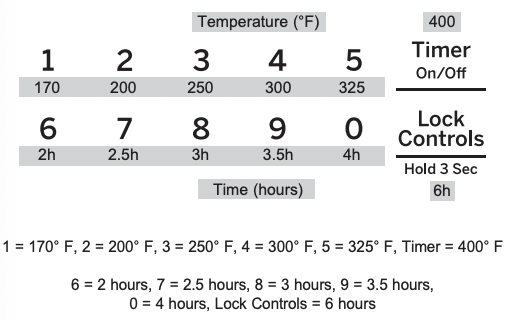
Adjusting the Temperature
1. Press Bake, use the 1 through 5 number pads and the Timer pad to select a different preset cooking temperature, and press Start.
2. Since no feedback is given during temperature change, an oven thermometer can be used to confirm temperature changes.
Starting a Timed Bake
1. Press the Bake pad.
2. If the desired temperature is 350F, use the 6 through 0 number pads or the Lock Control pad to select a cooking time. If a cooking temperature other than 350F is desired, use the 1 through 5 number pads or the Timer pad to select a preset cooking temperature, then select the cooking time. Refer to the graphic on this page to determine which pad sets the desired cooking temperature and cooking time.
3. Press Start.
After a delay, a second bracket “] [“ will appear in the display indicating that the oven is baking. When the cook time expires, the display will change back to a single bracket “]” indicating that the oven is no longer baking. No tone will sound when the cook time is complete.
Exit the Sabbath Mode
Exiting the Sabbath mode should be done after the Sabbath is over.
1. Press Cancel/Off to end any bake mode that may be running.
2. Press and hold Bake + Broil to enter special features menu.
3. Use number key 8 to navigate to “Sabb” menu. Enter the menu using num key 6.
4. Use number key 8 again to toggle the setting to OFF. Use number key 6 to confirm the setting.
5. Use number key 4 to exit Special features menu.
Sabbath Mode Power Outage Note
If a power outage occurs while the oven is in Sabbath
Mode. the unit will return to Sabbath Mode when power is restored. however the oven will return to the off state even if it was in the middle of a bake cycle when the power outage occurred.
USING THE OVEN: Cooking Modes
Cooking Modes
Your new oven has a variety of cooking modes to help you get the best results. These modes are described below. Refer to the Cooking Guide section for rack position and other recommendations for specific modes and foods. Remember, your new oven may perform differently than the oven it is replacing.
Baking and Roasting Modes
Select a mode for baking and roasting based on the type and quantity of food you are preparing. When preparing baked goods such as cakes. cookies. and pastries always preheat the oven first. Follow recipe recommendations for food placement. If no guidelines are provided. center food in the oven.
Traditional Bake
The Bake mode is for baking and roasting. When preparing baked goods such as cakes. cookies. and pastries. always preheat the oven first. To use this mode press the Bake pad. enter a temperature. and then press
Start.
Convection Bake
This mode uses air movement from the convection fan to enhance cooking evenness. Your oven is equipped with Auto Recipe Conversion. so it is not necessary to adjust the temperature when using this mode. Always preheat when using this mode. Baking time might be slightly longer for multiple racks than what would be expected for a single rack. To use this mode press the
Convection Bake pad. enter a temperature. and then press Start.
Convection Roast
The Convection Roast mode is intended for roasting whole cuts of meat on a single rack. This mode uses air movement from the convection fan to improve browning and reduce cooking time. Check food earlier than the recipe suggested time when using this mode. To use this mode press the Convection Roast pad. enter a temperature. and then press Start.
Air Fry
Air Fry is a special. no-preheat. cooking mode that is designed to produce foods with a crispier exterior than traditional oven cooking. The Air Fry mode is intended for single rack cooking only. Select Air Fry. then input the desired set temperature and press Start. The temperature can be set between 300°F and 500°F.
Preheating is not recommended for this mode. Follow traditional oven recipe or package guidelines for set temperatures and cook times; adjust cook time to achieve your desired crispness. Additional guidelines for using this mode can be found in the Cooking Guide.
Broiling Modes
Always broil with the oven door closed. Monitor food closely while broiling. Use caution when broiling; placing food closer to the broil element increases smoking. spattering. and the possibility of fats igniting. It is not necessary to preheat when using the Broil modes.
Broil Hi
The Broil Hi mode uses intense heat from the upper element to sear foods. Use Broil Hi for thinner cuts of meat and/or when you would like to have a seared surface and rare interior. To use this mode press the Broil pad once and then press Start.
Broil Lo
The Broil Lo mode uses less intense heat from the upper element to cook food thoroughly while also browning the surface. Use Broil Lo for thicker cuts of meat and/or foods that you would like cooked all the way through. To use this mode press the Broil pad twice and then press Start.
Warm
Warm modes are designed to keep hot. cooked foods hot. Cover foods that should remain moist and do not cover foods that should be crisp. Preheating is not required. Do not use warm to heat cold food. It is recommended that food not be kept warm for more than 2 hours. To use this mode. press the Warm pad then press Start. The control display will show the oven is set to Bake at 170F.
CARE AND CLEANING: Oven Cooking Guide
Oven Cooking Guide
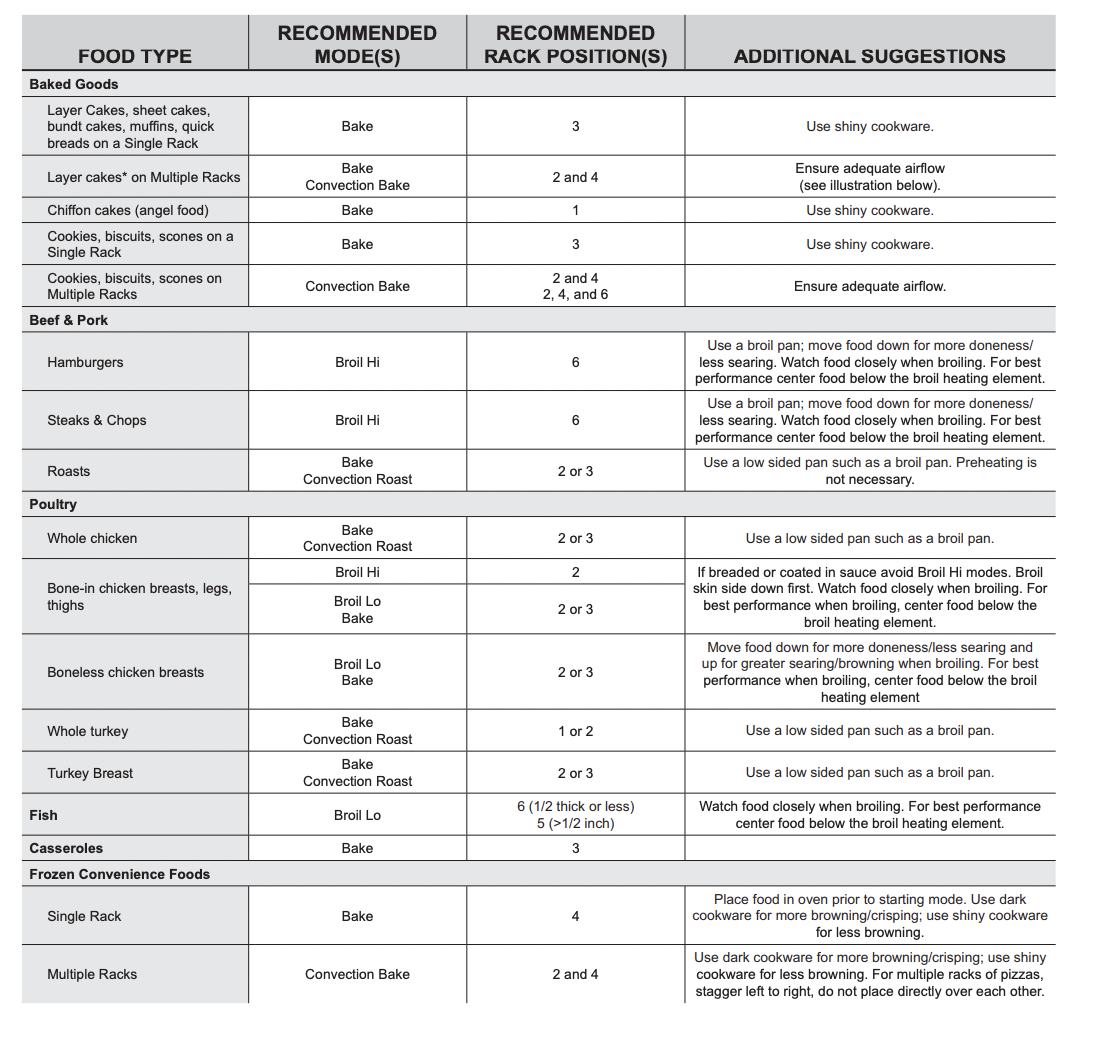
Air Fry Cooking Guide
Air Fry is a special, no-preheat, cooking mode that is designed to produce foods with a crispier exterior than traditional oven cooking. Select Air Fry, then input the desired set temperature and press Start. The temperature can be set between 300°F and 500°F.
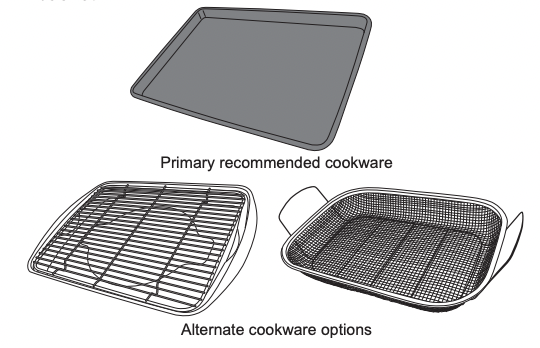
Air Fry Cookware Guidelines
• Only use broil safe cookware when using Air Fry mode.
• A dark sheet pan is recommended. A dark pan promotes better browning and crisping.
• Oven baking baskets and baking grids can also be used. A sheet pan should be placed on the rack below the foods to catch any drippings when using a baking basket.
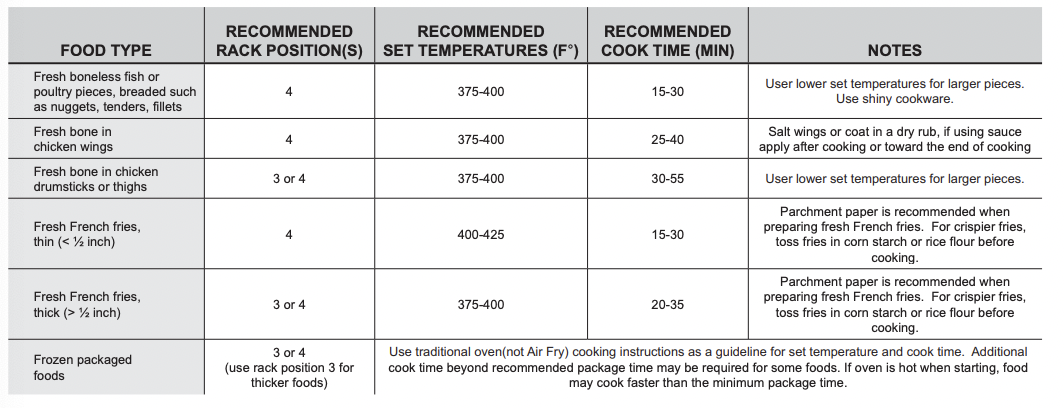
General Tips for Air Fry Mode
• The Air Fry mode is designed for cooking on a single rack.
• The Air Fry mode is designed to be used without preheating.
• Foods may cook faster than expected if the oven is already hot when food is placed in the oven.
• When air frying foods with sauce, it is recommended to apply the sauce at the end of cooking.
• If foods are browning too quickly, try a lower rack position or lower oven set temperature.
• For packaged foods, use traditional oven cooking instructions for set temperature and expected cook time.
• It is not necessary to flip or stir food during cooking
• Arrange food in a single layer on the pan, do not overload the pan.
• Always check internal food temperature to confirm minimum safe temperatures have been reached. Minimum safe food temperatures can be found on packages and at IsItDoneYet.gov.
TROUBLESHOOTING TIPS
Troubleshooting Tips ... Before you call for service
1. Surface units will not maintain a rolling boil or cooking is not fast enough
- Improper cookware being used.
Use pans which are flat and match the diameter of the surface unit selected.
- In some areas, the power (voltage) may be low.
Cover pan with a lid until desired heat is obtained.
2. Surface units do not work properly
- A fuse in your home may be blown or the circuit breaker tripped.
Replace the fuse or reset the circuit breaker.
- Cooktop controls improperly set.
Check to see the correct control is set for the surface unit you are using.
3. Surface unit stops glowing when turned to a lower setting
- The unit is still on and hot.
This is normal.
4. Scratches (may appear as cracks) on cooktop glass surface
- Incorrect cleaning methods being used.
Scratches are not removable. Tiny scratches will become less visible in time as a result of cleaning.
- Cookware with rough bottoms being used or coarse particles (salt or sand) were between the cookware and the surface of the cooktop. Cookware has been slid across the cooktop surface.
To avoid scratches, use the recommended cleaning procedures. Make sure bottoms of cookware are clean before use, and use cookware with smooth bottoms.
5. Areas of discoloration on the cooktop
- Food spillovers not cleaned before next use.
See the Cleaning the glass cooktop section
- Hot surface on a model with a lightcolored cooktop.
This is normal. The surface may appear discolored when it is hot. This is temporary and will disappear as the glass cools.
6. Plastic melted to the surface
- Hot cooktop came into contact with plastic placed on the hot cooktop.
See the Glass surface—potential for permanent damage section in the Cleaning the glass cooktop section.
7. Pitting (or indentation) of the cooktop
- Hot sugar mixture spilled on the cooktop
Call a qualified technician for replacement.
8. Frequent cycling off and on of surface units
- Improper cookware being used.
Use only flat cookware to minimize cycling.
9. My new oven doesn't cook like my old one. Is something wrong with the temperature settings?
- Your new oven has a different cooking system from your old oven and therefore may cook differently than your old oven.
For the first few uses, follow your recipe times and temperatures carefully. If you still think your new oven is too hot or too cold, you can adjust the temperature yourself to meet your specific cooking preference. See the Special Features section. NOTE: This adjustment affects Bake, and Convection Bake temperatures; it will not affect Convection Roast, Broil or Clean.
10. Food does not bake properly
- Oven controls improperly set
See the Cooking Modes section.
- Rack position is incorrect or rack is not level.
See the Cooking Modes section and Cooking Guide.
- Incorrect cookware or cookware of improper size being used.
See the Cookware section.
- Oven temperature needs adjustment.
See the Special Features section.
Substituting ingredients can change the recipe outcome.
11. Food does not broil properly
- Oven controls improperly set.
Make sure you select the appropriate broil mode.
- Improper rack position being used.
See Cooking Guide for rack location suggestions
- Food being cooked in a hot pan.
Make sure cookware is cool.
- Cookware not suited for broiling.
Use a pan specifically designed for broiling.
- Aluminum foil used on the broiling pan and grid has not been fitted properly and slit as recommended.
If using aluminum foil conform to pan slits.
- In some areas the power (voltage) may be low.
Preheat the broil element for 10 minutes.
12. Oven temperature too hot or too cold
- Oven temperature needs adjustment.
See the Special Features section.
13. Oven does not work or appears not to work
- A fuse in your home may be blown or the circuit breaker tripped.
Replace the fuse or reset the circuit breaker.
- Oven controls improperly set.
See the Using the Oven section.
Verify, that the oven is not in Sabbath Mode. See the Special Features section.
14. “Crackling” or “popping” sound
- This is the sound of the metal heating and cooling during both the cooking and cleaning functions.
This is normal.
15. Why is my range making a "clicking" noise when using my oven?
- Your range cycles the heating elements by turning relays on and off to maintain the oven temperature.
This is normal
15. Clock and timer do not work
- A fuse in your home may be blown or the circuit breaker tripped.
Replace the fuse or reset the circuit breaker.
- Plug on range is not completely inserted in the electrical outlet.
Make sure electrical plug is plugged into a live, properly grounded outlet.
- Oven controls improperly set.
See the Oven controls section.
16. Storage drawer won’t close
- Power cord may be obstructing drawer in the lower back of the range.
Reposition the drawer and power cord. See the Storage Drawer Removal instructions in the Care and cleaning of the range sectio
- The soft close mechanism may be uncoupled from the drawer.
Reset the mechanism - see Soft Close Drawer section.
17. Oven door is crooked
- The door is out of position.
Because the oven door is removable. it sometimes gets out of position during installation. To straighten the door. re-install the door. See the "Lift-Off Oven Door" instructions in the "Care and Cleaning" section.
18. Oven will not work remotely
- Router issues, no wireless signal, etc.
- Oven is not connected.
For assistance with oven wireless network connectivity, please call 1.800.220.6899.
19. Oven light does not work
- Light bulb is loose or defective.
Tighten or replace bulb.
- Pad operating light is broken.
Call for service.
20. Oven will not self-clean
- The temperature is too high to set a self-clean operation.
Allow the oven to cool and reset the controls.
- Oven controls improperly set.
See the Cleaning the Oven section.
21. Excessive smoking during clean cycle
- Excessive soil or grease.
Press the Cancel/Off pad. Open the windows to rid the room of smoke. Wait until the LOCKED light goes off. Wipe up the excess soil and reset the clean cycle.
22. Excessive smoking during broiling
- Food too close to burner element.
Lower the rack position of the food.
23. Oven door will not open after a clean cycle
Allow the oven to cool below locking temperature.
24. Oven not clean after a clean cycle
- Oven controls improperly set.
See the Cleaning the Oven section.
Clean up heavy spillovers before starting the clean cycle. Heavily soiled ovens may need to self-clean again or for a longer period of time.
25. DOOR LOCK flashes in the display
- The self-clean cycle has been selected but the door is not closed.
Close the oven door.
26. DOOR LOCK light is on when you want to cook
- The oven door is locked because the temperature inside the oven has not dropped below the locking temperature.
Press the Cancel/Off pad. Allow the oven to cool.
27. “F— and a number or letter” flash in the display
- You have a function error code.
Press the Cancel/Off pad. Allow the oven to cool for one hour. Put the oven back into operation.
- If the function code repeats.
Disconnect all power to the oven for at least 30 seconds and then reconnect power. If the function error code repeats. call for service.
28. Display goes blank
- A fuse in your home may be blown or the circuit breaker tripped.
Replace the fuse or reset the circuit breaker.
See the Special features section.
Verify that the oven is not in Sabbath Mode. See the Special Features section.
29. Power outage, clock flashes
Reset the clock. If the oven was in use, you must reset it by pressing the Cancel/Off pad, setting the clock and resetting any cooking function.
30. “Burning” or “oily” odor emitting from the vent
This is normal in a new oven and will disappear in time.
To speed the process, set a self-clean cycle for a minimum of 3 hours. See the Cleaning the Oven section.
31. Strong odor
- An odor from the insulation around the inside of the oven is normal for the first few times the oven is used.
This is temporary and will go away after several uses or a self-clean cycle.
32. Fan noise (on some models)
- A convection fan may automatically turn on and off.
This is normal. The fan is designed to operate intermittently to maximize cooking evenness. The convection fan will operate during preheat of the bake cycle. The fan will turn off after the oven is heated to the set temperature. This is normal.
- A cooling fan may automatically turn on and off.
This is normal on some models. The cooling fan will turn off and on to cool internal parts. It may run after the oven is turned off.
33. My oven door glass appears to be "tinted" or have a "rainbow" color. Is this defective?
- No. The inner oven glass is coated with a heat barrier to reflect the heat back into the oven to prevent heat loss and keep the outer door cool while baking.
This is normal. Under certain light or angles. you may see this tint or rainbow color.
34. Sometimes the oven takes longer to preheat to the same temperature
- Cookware or food in oven.
The cookware or food in the oven will cause the oven to take longer to preheat. Remove items to reduce preheat time.
Adding more racks to the oven will cause the oven to take longer to preheat. Remove some racks
The different cooking modes use different preheat methods to heat the oven for the specific cooking mode. Some modes will take longer than others (i.e. convection bake).
35. Display flashes
Reset the clock.
36. Unable to get the display to show “OFFSET”
- Oven control pads were not touched properly.
The BROIL HI/LO and BAKE pads must be touched at the same time and held for 3 seconds.
37. Control signals after entering cooking time or start time
- You forgot to enter a bake temperature or cleaning time.
Touch the BAKE pad and desired temperature or the SELF CLEAN pad and desired clean time.
38. Oven racks are difficult to slide
- The shiny, silver-colored racks were cleaned in a self-clean cycle.
Apply a small amount of vegetable oil to a paper towel and wipe the edges of the oven racks with the paper towel. Do not spray with Pam or other lubricant sprays.
39. Drawer does not slide smoothly or drags
- The drawer is out of alignment.
Fully extend the drawer and push it all the way in See the Care and cleaning of the range section.
- Drawer is over-loaded or load is unbalanced.
Reduce weight. Redistribute drawer contents.
39. Steam from the vent
- When using the ovens, it is normal to see steam coming out of the oven vents. As the number of racks or amount of food being cooked increases, the amount of visible steam will increase.
This is normal.
40. Water remaining on oven floor after Steam Clean cycle
Remove any remaining water with a dry cloth or sponge.
41. Oven will not steam clean
Allow the oven to cool to room temperature and reset the controls.
- Oven controls improperly set.
See the Using Steam Clean section.
Make sure you close the door to start steam clean cycle.
42. Oven will not work remotely (on some models)
- Router issues, no wireless signal, etc
- Oven is not connected.
For assistance with oven wireless network connectivity, please call 1-800-220-6899.
Turn remote enable on (see Special Features section of this manual)