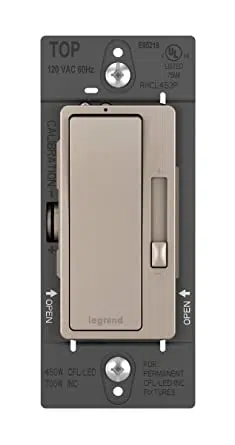
installation guide
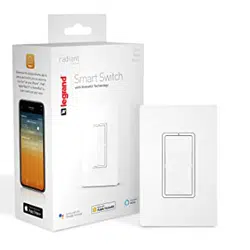
Smart Switch
Room
HKRL10
with HomeKit Technology

2
table of contents
before you start ..................................3
what you need ...................................4
getting to know your switch ..........6-7
installation and setup ................ 8–23
specifications ............................. 24-25
faqs ....................................... 25–29
regulatory information ......... 30–33
warranty .......................................34
support ........................................35

3
before you start
Review this guide in its entirety before beginning device installation Consult an
electrician with any questions or if you are unsure of your abilities
DWarning: Incorrect installation could
result in death, serious injury, and/or
damage to your home or devices
DCaution: To reduce the risk of injury
and/or overheating and damage to other
equipment:
• For dry, indoor use only
• Do not use to power medical equipment
• Not suitable as a disconnecting means
• Do not use with loads exceeding the
device load rating (see page 24)
• Connect the smart switch to a
120 VAC, 60 Hz power source ONLY
• Always use copper wire to install the
smart switch and follow all applicable
local and national electrical codes
• Install in a non-metallic electrical box
to protect wireless signal strength
Visit the Legrand website at www legrand us/radiant/homekit aspx to learn more about
your smart device

4
what you need
REQUIRED:
Phillips-head screwdriver
Flat blade screwdriver
YOU MAY ALSO NEED:
Non-contact voltage tester, pliers, wire cutter, wire stripper, electrical tape,
flashlight, radiant
®
screwless wallplate (included), wiring leads (included), and
wire nuts (included)
NOTE: Exercise caution when using power tools. Overtightening the screws can
damage the device.
5
6
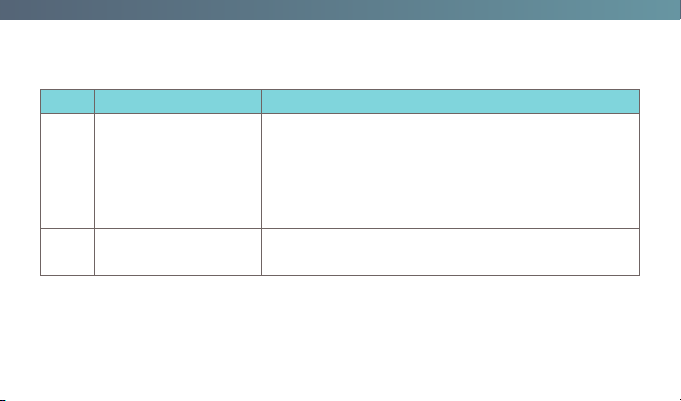
getting to know your switch
Item Name Description
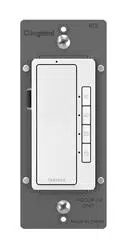
1 Paddle Switch
• Press the top of the paddle to turn the light on
and the bottom to turn the light off
• To return the switch to factory default, press and
hold the top of the paddle for 15 seconds Then,
remove the device from the Legrand Home app
(or Apple Home app)
2 LED Locator Light
Indicates the current state of the device Refer to
“LED Locator Light Explanations” for detail
NOTE: For in-wall control of this switch in a three-way application, refer to the installation
instructions for the HomeKit Remote Switch (HKRL20).
7
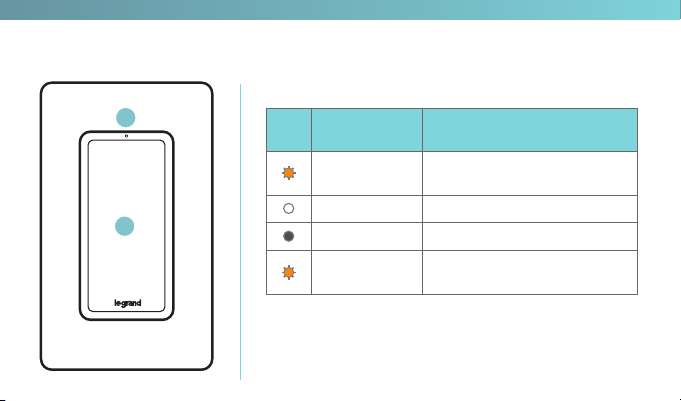
1
2
LED LOCATOR LIGHT EXPLANATIONS
LED
Color
State of Light Explanation
Slowly Flashing
Amber
Device is attempting to connect to
the network
Solid White Connected to Wi-Fi and turned off
No Light Device is on
Rapidly Flashing
Amber
N-Way Pairing mode: device is
ready to pair with the remote(s)

8
installation & setup
step one
|
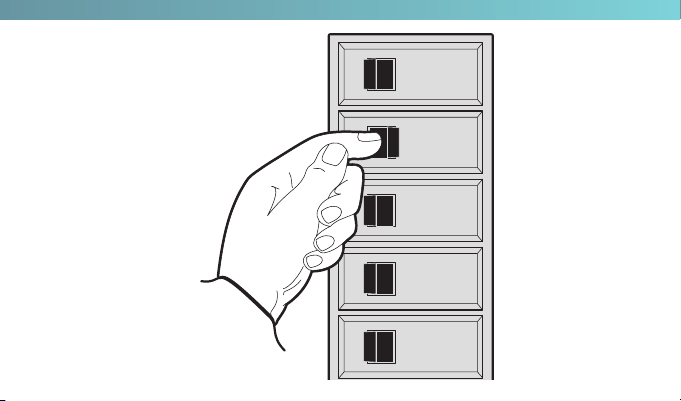
turn off the power for your device at the
circuit breaker
Flip the existing light switch multiple times to confirm the power is off
NOTES:
• If there are multiple devices next to your existing light switch, make sure power is
off at the circuit breaker for all of those devices.
• For multi-way installations using a remote switch, follow the instructions for the
remote device (HKRL20).
9
OFF
ON
OFF
ON
OFF
ON
OFF
ON
OFF
ON

10
installation & setup
step two
|
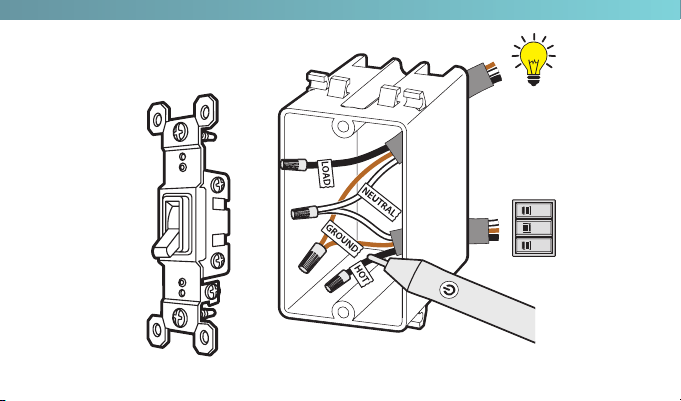
remove the existing device
Check for the following wires:
1
HOT or LINE: Receives power from the circuit box Referred to as “hot” for the
purposes of this guide Do not touch or let “hot” wires contact other wires
2
LOAD: Directs power to your light(s)
3
NEUTRAL: Creates a path to return current to the power source when the
device is off Required for your switch installation
4
GROUND: Provides a safe path for electricity in the event of a short circuit
NOTE: Refer to the “faqs” on page25 if you are unsure of your wiring.
11
OFF
ON
OFF
ON
OFF
ON
VOLTAGE
TESTER
Load
Supply
“Hot”

12
installation & setup
step three
|
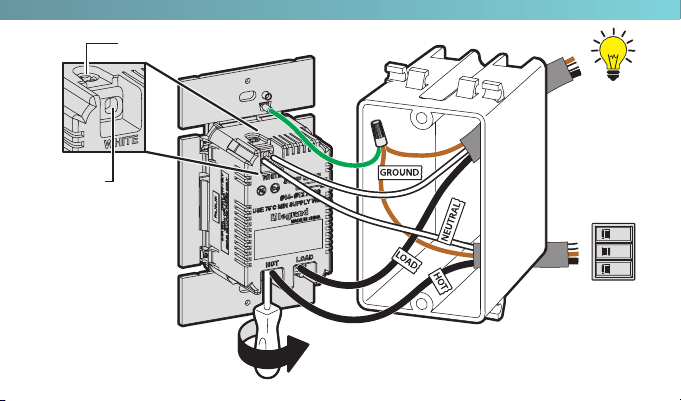
wire the smart switch
When connecting each wire, loosen the terminal screw, insert the wire into a
terminal slot, and tighten the terminal screw until the wire is secured
1
Connect the neutral wires to the WHITE terminal slots
2
Connect the load wire to any LOAD terminal slot
3
Connect the hot wire to any HOT terminal slot
4
Connect the ground wire to the green wiring lead on the device Use a wire nut
to secure the wires together
NOTE: If you need extra length on your wires, wire leads are included in your packaging. Cap
any unused wires from the wall using the included wire nuts.
13
OFF
ON
OFF
ON
OFF
ON
Load
Supply
“Hot”
Terminal screw
Terminal
slot
NOTE: For multi-gang installations, refer
to “specifications” on page24.

14
installation & setup
step four
|
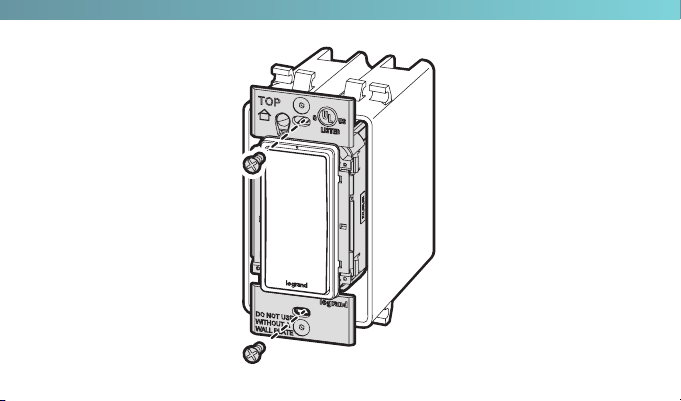
secure the smart switch
1
Gently fold the wires into the electrical box Be careful not to pinch a wire or
loosen anywire caps
2
Use the device screws to secure the smart switch to the electrical box Do not
fully tighten the screws
15

16
installation & setup
step five
|
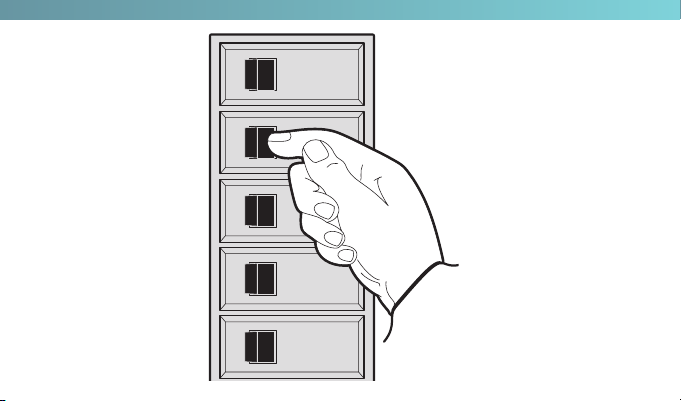
test the smart switch
NOTE: See page 6 for feature details.
1
Turn the power back on at the circuit breaker
2
Press the paddle switch to turn your light on and off
TROUBLESHOOTING TIP:
If the device is not powering, reference the “faqs” on page25 to determine if you have
reversed the “hot” and “load” wiring
17
OFF
ON
OFF
ON
OFF
ON
OFF
ON
OFF
ON
18
installation & setup
step six
|
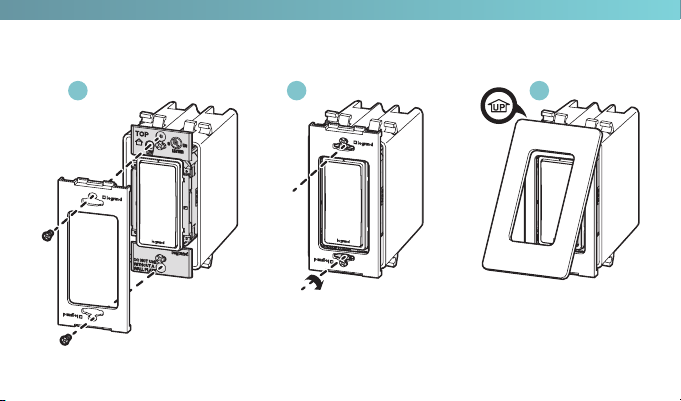
attach the screwless wall plate
1
Noting which side faces out, align the sub-plate over the device screws Use
the sub-plate screws (provided) to secure the sub-plate to the smart switch
2
Tighten the device screws to secure the smart switch to the electrical box
3
Angle the end of the screwless wall plate over the top edge of the
sub-plate Push the screwless wall plate down and in until it “snaps” into
place over the sub-plate
NOTE: To remove the wall plate, place the tip of a flat blade screwdriver into the slot under
the wall plate and twist gently.
19
THIS SIDE OUT
MOUNT OVER DEVICE
THIS SIDE OUT
MOUNT OVER DEVICE
THIS SIDE OUT
MOUNT OVER DEVICE
1 32
20

21
installation & setup
step seven
|
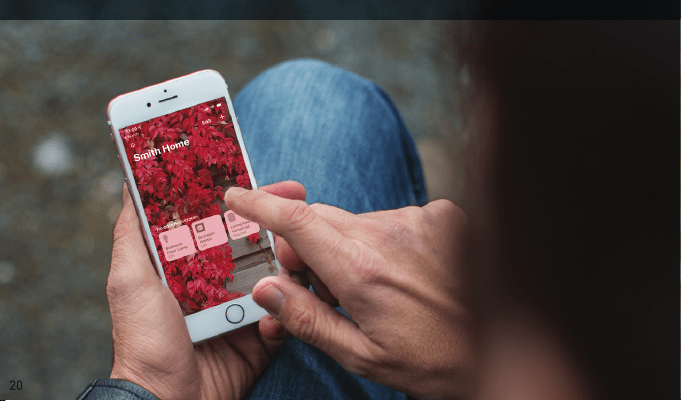
set up your system
1
Connect your iPhone or iPad (iOS 11 or later) to a 2 4 GHz Wi-Fi
®
network
using your router utility software
2
Download and open the free Apple Home app from the App Store
3
Tap the ”+” at the top right corner of the screen Follow the in-app directions
to complete your device setup When asked to scan your HomeKit Setup Code,
scan the QR code on your device A copy of the QR code is also located on the
front cover of the booklet provided with the device If you’re having trouble
scanning the code, you can manually enter the code found on the label
NOTE: If you’re having trouble adding the accessory to your Home,
refer to “faqs” on page 15.
22
installation & setup
4
Follow the in-app directions to assign a name to your device and add it to a
room You can set up customized scenes that control multiple devices with a
single command
5
To add more devices or repeat the setup process, tap ”+” on the Home Page
NOTE: Your product natively works with Siri after setup, but integration options are also
available for your Alexa or Google Assistant. Reference the appropriate user guide
for your voice assistant, by visiting one of the following sites:
http://legrand.us/radiant/homekit/siri
http://legrand.us/radiant/homekit/alexa
http://legrand.us/radiant/homekit/google

23
PERMISSION REQUIREMENTS
The use of a HomeKit-enabled accessory requires the following permissions:
• Settings> iCloud > iCloud Drive> Turn On
• Settings> iCloud > Keychain > Turn On
• Settings> Privacy > HomeKit > Legrand Home> Turn On
For troubleshooting visit https://www legrand us/support/onq aspx
Keep your individual HomeKit Setup Code in a secure area.
The code is unique to your device.
App Store is a service mark of Apple Inc., registered in the U.S. and other countries. Use of the Works with Apple HomeKit logo means that an electronic
accessory has been designed to connect specifically to iPod touch, iPhone, or iPad, respectively, and has been certified by the developer to meet Apple
performance standards. Apple is not responsible for the operation of this device or its compliance with safety and regulatory standards.
24
specifications
Load Rating
Resistive 120 VAC, 60 Hz,15 A
Incandescent/halogen 1800 W
Ballast 15 A standard/electronic
Motor ½ HP
Legrand reserves the right to change specifications without notice

25
faqs
Q: Which wire is the “hot” wire versus the “load” wire?
A: To determine this safely, begin by confirming that power is off to the device
location at the circuit breaker Cap all of the exposed wires in the electrical
box, then turn the power back on to the device location Find your non-
contact voltage tester Place your voltage tester next to each of the wires
The voltage tester should indicate which of the two wires is receiving power
from the circuit box (refer to the voltage tester’s user manual for details on
operation) The “hot” wire is the powered wire
To safely complete your wiring, turn off power at the circuit breaker until the
device is secured into the wall

26
faqs
Q: Something is going on with my device connection. Is it possible to reset
mydevice?
A: Yes To reset your device to factory settings, press and hold the top of the paddle
for 15seconds
If you are still experiencing connection issues, refer to the “faqs” on
page27 & the “faqs” on page28 for additional options

27
faqs
Q: My device works normally after restoring factory settings, but it occasionally
gets disconnected from my network and cannot be recognized. What do I do?
A: Perform the following actions to test your connectivity:
• Confirm the number of Wi-Fi connected devices is within the wireless network
capacity of your router Otherwise, identify another router to use
• Reconnect your iOS devices to Wi-Fi and make sure your Wi-Fi signal is strong
• Wait until the network frees up if your router performs poorly on congested
wireless networks
• Check the router settings to identify any limitations to the number of
simultaneous client connections
• Restart your HomeKit accessory or restore your HomeKit accessory to factory
settings, then add your HomeKit accessory to the Legrand Home app
• Update the firmware to the latest version

28
faqs
Q: My Legrand Home device failed to connect to the Apple Home app.
What can I do?
A: Perform the following actions to test your connectivity:
• Make sure your accessory is powered on
• If you have a dual band router, connect your phone to a 2 4 GHz Wi-Fi network
Your 2 4 GHz Wi-Fi network must have a different name from your 5 GHz
network
• Confirm the device’s amber LED is flashing slowly If not, press and hold the top
of the paddle for 15 seconds to restore factory settings

29
• Confirm the device is shown on screen, then scan the setup code located on the
device, instruction manual, or inner packaging If the app displays “Couldn’t add
accessory” after scanning the code:
a Exit the app Make sure it is not running in the background
b Restart the app
c Restore the accessory to factory settings
d Add the accessory again

30
regulatory information
FCC NOTICE
This device complies with Part 15 of the FCC Rules and Industry Canada license-
exempt RSS standard(s) Operation is subject to the following two conditions: (1)
this device may not cause harmful interference, and (2) this device must accept any
interference received, including interference that may cause undesirable operation
This equipment has been tested and found to comply with the limits for a Class B
digital device, pursuant to Part 15 of the FCC Rules These limits are designed to
provide reasonable protection against harmful interference in a residential installation
This equipment generates, uses, and can radiate radio frequency energy and, if not
installed and used in accordance with the instructions, may cause harmful interference
to radio communications However, there is no guarantee that interference will not
occur in a particular installation

31
If this equipment does cause harmful interference to radio or television reception,
which can be determined by turning the equipment off and on, the user is encouraged
to try to correct the interference by one or more of the following measures:
• Reorient or relocate the receiving antenna
• Increase the separation between the equipment and receiver
• Connect the equipment into an outlet on a circuit different from that to which the receiver
is connected
• Consult the dealer or an experienced radio/TV technician for help
32
regulatory information
This equipment complies with FCC radiation exposure limits set forth for an
uncontrolled environment This equipment should be installed and operated with a
minimum distance of 20 cm between the transmitter’s radiating structure(s) and the
body of the user or nearby persons
This transmitter must not be co-located or operating in conjunction with any other
antennae or transmitter The antennas used for this transmitter must be installed to
provide a separation distance of at least 0 5 cm from all persons and must not be co-
located or operating in conjunction with any other antennae or transmitter
NOTE: Any changes or modifications to this device that are not expressly approved by the
manufacturer will void the warranty and the user’s authority to operate the equipment.
FCC ID: YV8-SA7522
WiFi
®
is a registered
trademark of Wi-Fi
Alliance
®
.

33
IC NOTICE
This device complies with Industry Canada license-exempt RSS standards Operation
is subject to the following two conditions: (1) this device may not cause interference;
and (2) this device must accept any interference, including interference that may cause
undesired operation of the device
RF EXPOSURE STATEMENT
This equipment meets the SAR evaluation limits given in RSS-102 Issue 5 requirements
at the minimum separation distance of 15 mm to the human body Note: Any changes
or modifications to this device that are not expressly approved by the manufacturer, will
void the warranty and the user’s authority to operate the equipment
IC ID: 9922A-SA7522
Use of the Works with Apple HomeKit logo means that an electronic accessory has been
designed to connect specifically to iPod touch, iPhone, or iPad, respectively, and has been
certified by the developer to meet Apple performance standards Apple is not responsible
for the operation of this device or its compliance with safety and regulatory standards

34
warranty
This product is warranted under normal use against defects in workmanship and
materials for as long as you own it If the product fails due to a manufacturing
defect during normal use, return it for a replacement at the store where
purchased or contact Technical Support at 1-800-223-4162, option 3
All replacement requests must include a dated sales receipt (legible copies are
acceptable)
Refer to “support” on page35 for additional contact options
35
support
IF YOU NEED HELP INSTALLING YOUR DEVICE, TALK TO OUR TECHNICAL
SUPPORT TEAM:
PHONE: 1-800-223-4162, option 3
8:00 a m to 5:00 p m EST (M-F)
EMAIL: technical support-hs@legrand us
CHAT: https://www legrand us/support/onq aspx
(Click on the
icon to open a dialogue box)

©2019 Legrand All Rights Reserved 1507299 Rev D 02/19
Legrand, North America
301 Fulling Mill Rd, Ste. G
Middletown, PA 17057
1-877-833-3303
www.legrand.us