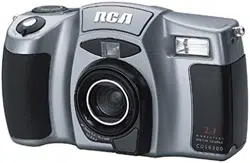

Digital Still
Camera
User’s Guide
Changing Entertainment. Again.
CDS6300
To reduce risk of injury, charge only rechargeable batteries recommended by the
manufacturer for this product. Other types of batteries may burst causing damage and
personal injury.
FCC Regulations state that unauthorized changes or modifications to this equipment
may void the user’s authority to operate it.
i
This symbol indicates
"dangerous voltage"
inside the product that
presents a risk of
electric shock or
personal injury.
WARNING
To reduce the
risk of fire or
electric shock, do
not expose this
product or AC
power supply to
rain or moisture.
To reduce the risk of electric
shock, do not remove cover (or
back). No user serviceable parts
inside. Refer servicing to
qualified service personnel.
This symbol
indicates
important
instructions
accompanying
the product.
WARNING
RISK OF ELECTRIC SHOCK
DO NOT OPEN
Product Registration
Please fill out the product registration card and return it immediately.
Returning this card allows us to contact you if needed.
Keep your sales receipt for proof of purchase to obtain warranty parts and
service and attach it here. Record the serial number and model numbers
located on the bottom of the product.
Model No. ______________________________________________________
Serial No. _______________________________________________________
Purchase Date. __________________________________________________
Purchased From. _________________________________________________
Important Information

1
Table of Contents
Table of Contents
(continued on the next page)
Chapter 1: Connections & Setup
Parts Checklist ......................................................................................... 4
System Requirements for PhotoStudio®2000 ...................................... 5
Windows® PC Requirements ........................................................... 5
Macintosh® Requirements .............................................................. 5
Buttons and Controls ............................................................................. 6
Getting Started ....................................................................................... 8
Unpack the camera and accessories ................................................ 8
Insert the batteries ........................................................................... 9
Battery level icon ............................................................................ 10
Insert the CompactFlash™ card ..................................................... 11
Take a picture ................................................................................. 12
View your picture ........................................................................... 12
Turn off the camera ....................................................................... 12
Powering the Camera........................................................................... 13
Using the Power Supply ................................................................. 13
Using the Neck Strap and Lens Cover Holder..................................... 15
Setting the Date and Time ................................................................... 16
Chapter 2: Using the Camera’s Features
Digital and Optical Zooming................................................................ 18
Using the Zoom Lever (W and T) ................................................... 18
Quick Review ........................................................................................ 19
Using the Navigation Button ............................................................... 19
Using the Status Screen ....................................................................... 20
Picture Quality Status ..................................................................... 20
Capture Modes ............................................................................... 20
Battery Level ................................................................................... 21
Flash Modes .................................................................................... 22
Self Timer Status ............................................................................. 23
Camera Busy ................................................................................... 23

2
Table of Contents
Using the Menus................................................................................... 24
Record Menu .................................................................................. 24
View Menu...................................................................................... 27
Setup Menu .................................................................................... 31
Chapter 3: Viewing and Downloading
Using Your Camera with a TV or PC .................................................... 36
Connecting to a TV (or VCR) to See Your Pictures ....................... 36
System Requirements for PhotoStudio®2000 .............................. 37
Connecting to a Computer ............................................................ 38
Chapter 4: Other Information
Troubleshooting.................................................................................... 40
Care and Cleaning ................................................................................ 42
Cleaning the Camera ..................................................................... 42
Proper Care and Storage ............................................................... 42
CD-ROM Care .................................................................................. 43
Things to Avoid .............................................................................. 43
Traveling Tips ........................................................................................ 44
Specifications ........................................................................................ 45
Limited Warranty .................................................................................. 46
FCC Declaration of Conformity and Industry Canada Information... 50
Optional Accessories ............................................................................ 51
Accessories Order Form .................................................................. 53
Index ...................................................................................................... 56

Chapter 1
Connections & Setup
Chapter Overview:
• Parts Checklist
• System Requirements for PhotoStudio
®
2000
• Buttons and Controls
• Getting Started
• Powering the Camera
• Using the Neck Strap and Lens Cover Holder
3
Changing Entertainment. Again.
4 Chapter 1
Connections & Setup
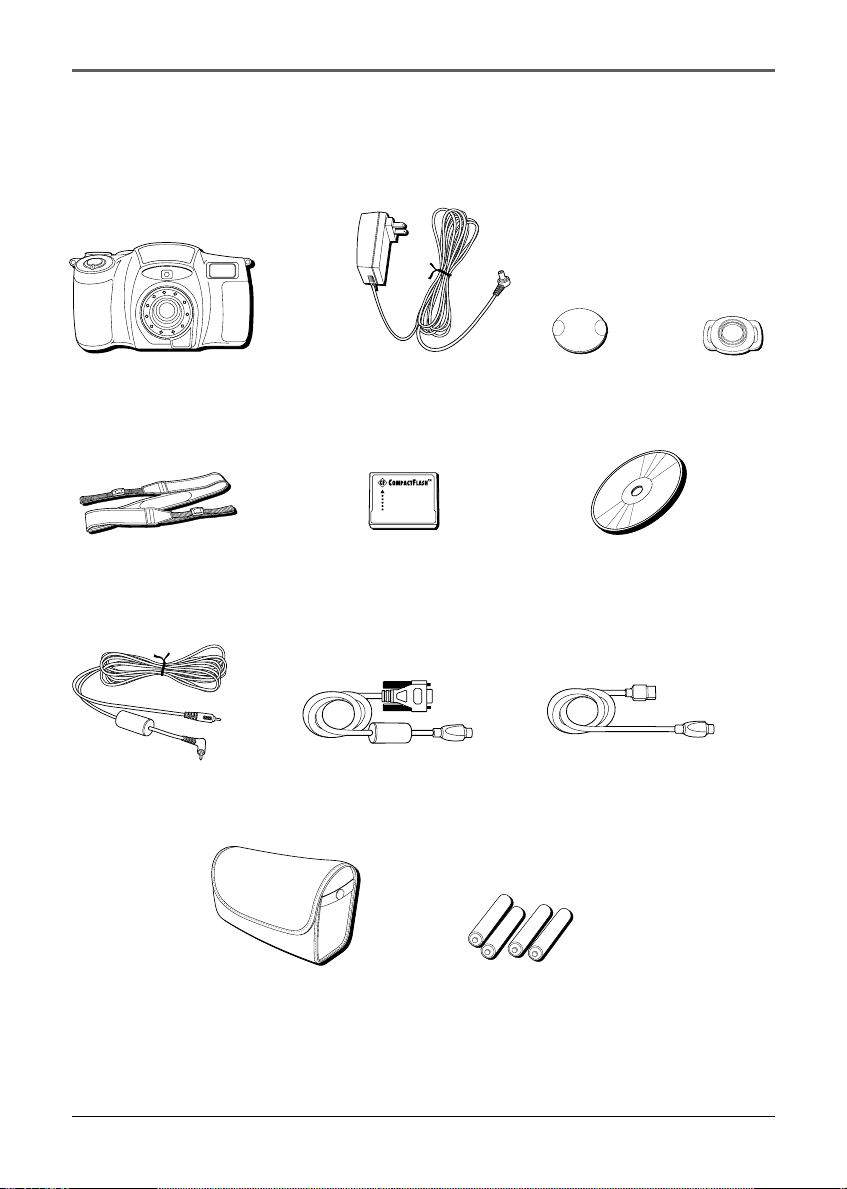
Neck strap
Part # 252327
Camera
Parts Checklist
Make sure the box includes the items shown here:
Caution
Never use the power supply for any purpose other than powering the camera.
AC power supply
Part # 252110
A
F
Z
o
o
m
5
.
4
-
1
6
.
2
m
m
1
:
2
.
8
-
4
.
4
Imaging and driver
software CD-ROM
Video output cable
Part # 252113
8MB CompactFlash™
card
Lens cap
Part # 252325
Serial cable
Part # 252111
USB cable
Part # 252112
4 “AA” batteries
Lens cap holder
Part # 252326
Soft camera case

Connections & Setup
Chapter 1 5
System Requirements for PhotoStudio
®
2000
Windows
®
PC Requirements
• Windows
95
®
PC with available serial port
• Windows 98
®
PC with available USB or serial port (USB port recommended)
• Windows 2000
®
PC with available USB or serial port (USB port recommended)
• Windows Me
®
PC with available USB or serial port (USB port recommended)
• Pentium-based or faster microprocessor
• 32 MB RAM
• 50 MB available hard disk space
• CD-ROM drive
• Color VGA display
Macintosh
®
Requirements
• Mac
®
OS 8.5 or later
• Power Mac
®
or iMac
®
(USB compatible)
• 32 MB RAM
• 50 MB available hard disk space
• Available USB port
• CD-ROM drive
• Color VGA display
PhotoStudio2000 is a registered trademark of ArcSoft, Inc.
Windows
is a trademark of Microsoft Corporation, registered in the U.S.A. and other
countries.
Macintosh, Mac OS, PowerMac, and iMac are registered trademarks of Apple Computer,
Inc.
6 Chapter 1
Connections & Setup
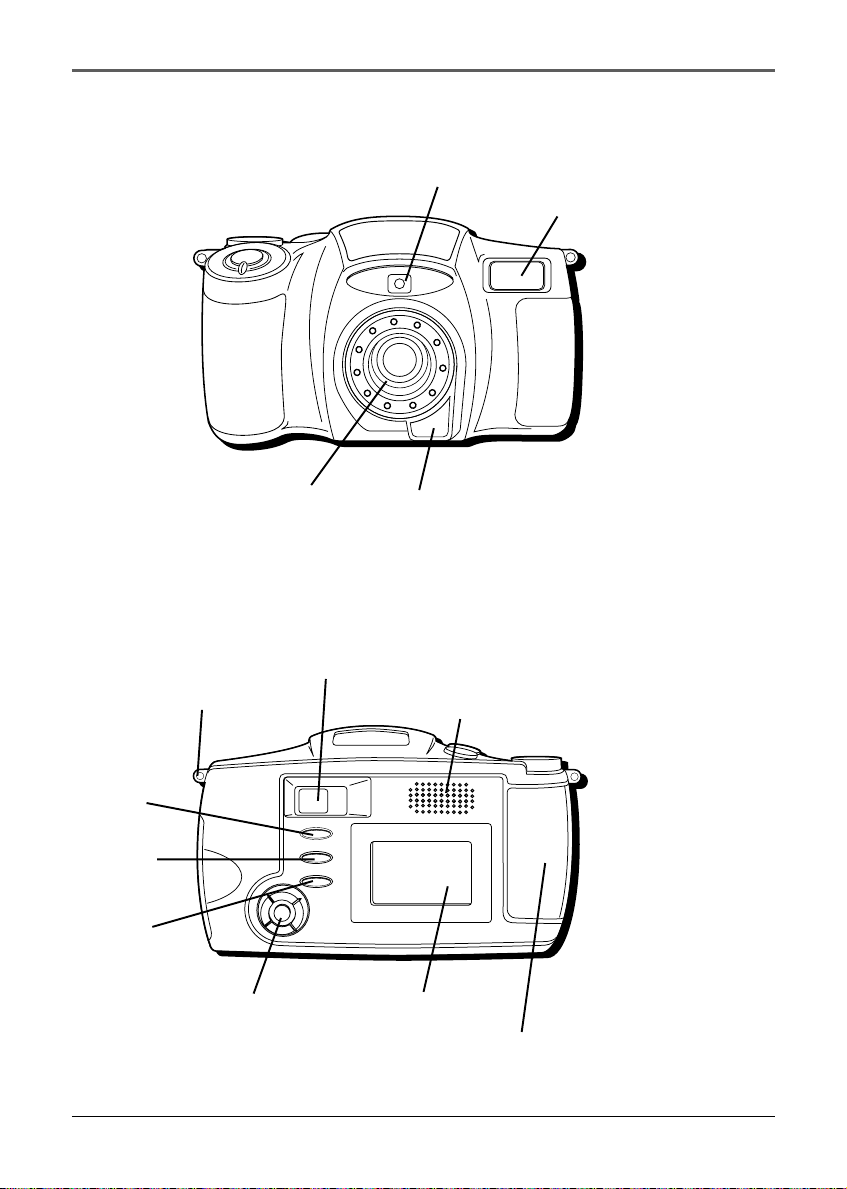
Buttons and Controls
A
F
Z
o
o
m
5
.
4
-
1
6
.
2
m
m
1
:
2
.
8
-
4
.
4
MENU
QUICK REVIEW
DISPLAY
Lens
Flash
bulb
Optical viewfinder
(front)
Self-timer indicator
Navigation
button
LCD monitor
CompactFlash™ card
compartment door
Speaker
Neck strap
eyelet
Optical viewfinder
(back)
DISPLAY
button
QUICK
REVIEW
button
MENU
button
Connections & Setup
Chapter 1 7
OPEN
LOCK
FLASH
TIMER
MODE
ON
S
E
T
U
P
V
I
E
W
O
F
F
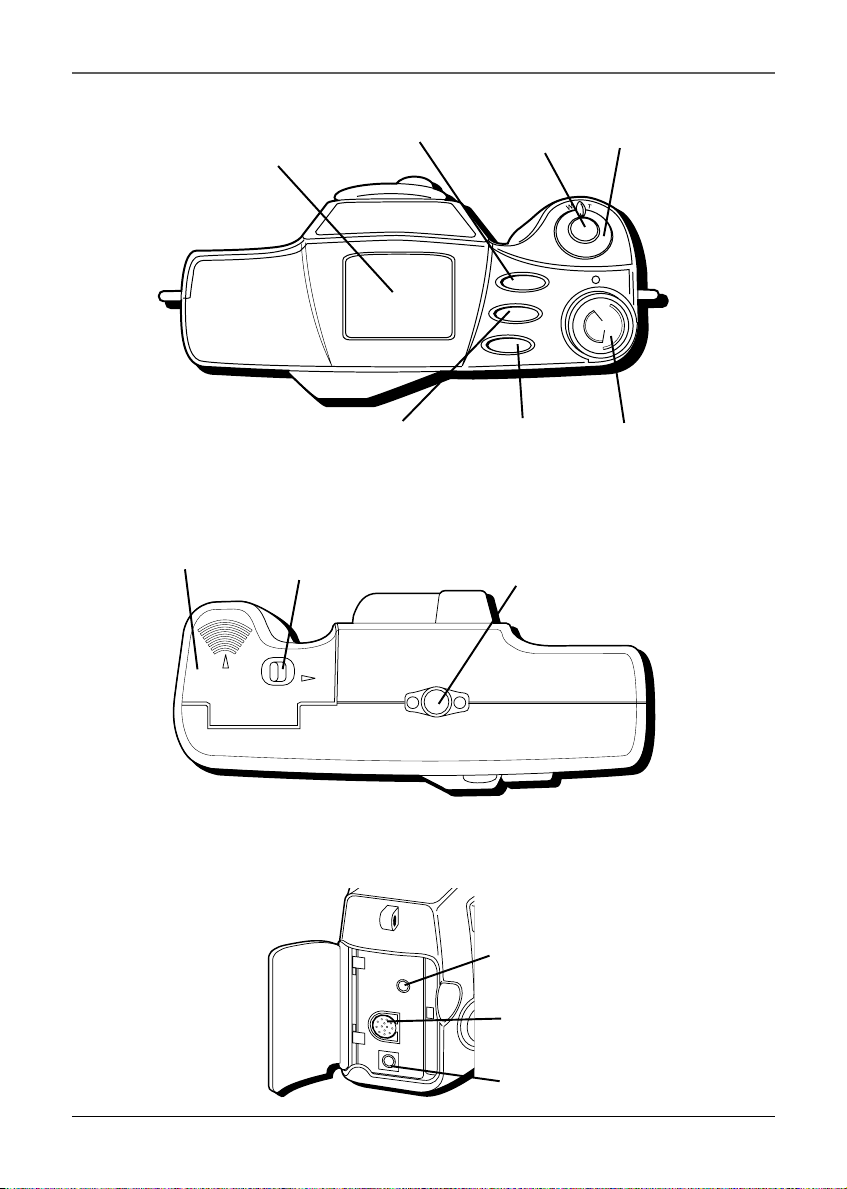
Battery
compartment
door lock
Battery
compartment
door
Status screen
Shutter
button
Power
Zoom dial
Power dial
MODE button
TIMER button
FLASH button
Tripod mounting
socket
TV
DIGITAL
POWER
TV jack
DIGITAL jack
POWER jack
Camera bottom view

8 Chapter 1
Connections & Setup
Getting Started
This section describes the basics on how to set up your camera to take pictures for the
first time. Refer to the other sections for detailed operation and feature options.
Unpack the camera and accessories
• The items shown in the parts checklist are packed with the camera. If any pieces
are missing or appear damaged, contact your dealer immediately.
• Remove the plastic film that covers the front, LCD monitor, and viewfinder, and
any logos on the camera. Use your fingernail, not anything sharp, to remove.
• Save all packing materials and box in case the camera ever needs to be shipped or
stored.
Connections & Setup
Chapter 1 9
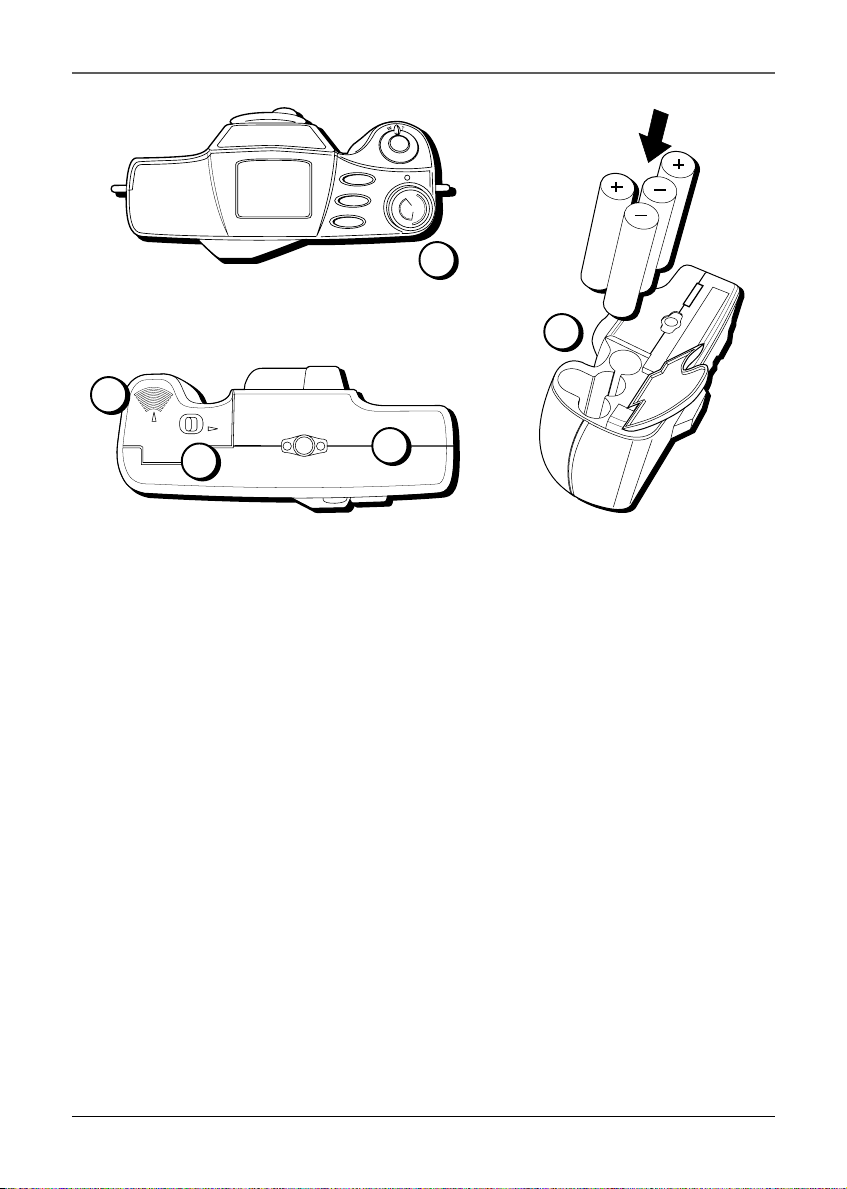
Insert the batteries
1. Make sure the Power dial is set to OFF.
2. Turn the camera over so that you are looking at the bottom.
3. If the LOCK switch for the battery compartment door is locked, unlock it.
4. Place your thumb on the thumbgrips above OPEN and push toward the front of the
camera. Then pull the door up.
5. Insert 4 “AA” batteries following the polarity directions in the battery compartment.
6. Close the battery compartment door by pushing down the door and pressing it
toward the back of the camera. Then slide the LOCK switch to secure it.
Note: You must also insert the CompactFlash card before you can turn the camera
power on (see page 11).
Important:
• Never use manganese batteries.
• Your camera will not work if the batteries are not inserted properly.
• If the camera will not be used for an extended period of time, remove the
batteries.
• Never mix old batteries with new ones or batteries of different types.
• Never destroy batteries or dispose of by fire. Doing so can cause an explosion
or leak caustic materials into the environment.
1
FLASH
TIMER
MODE
ON
S
E
T
U
P
V
I
E
W
O
F
F
OPEN
LOCK
3
4
2
5
10 Chapter 1
Connections & Setup
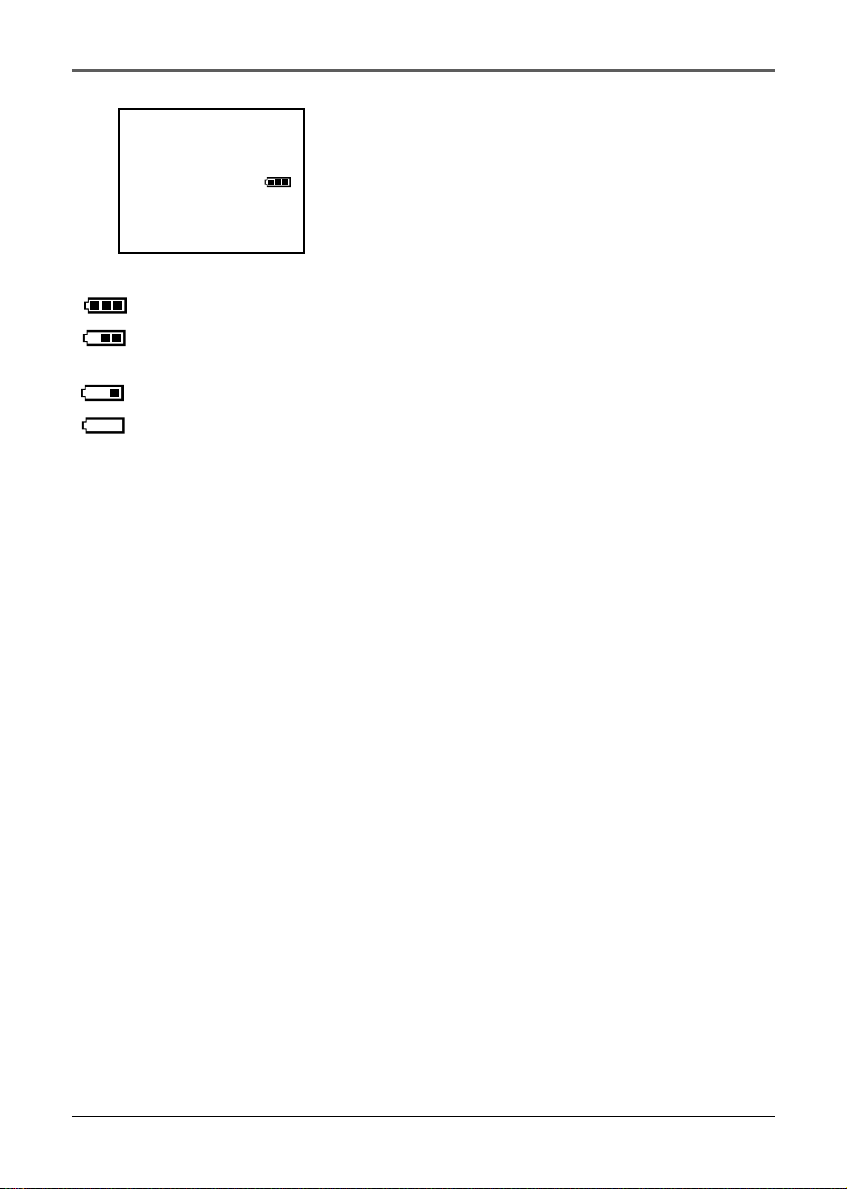
This icon appears when batteries are full.
The icon changes to show that you’ve used some battery power.
As you use more battery power, the icon changes again.
This icon flashes in the viewfinder when the battery power is almost gone. The
camera turns off automatically after a few seconds.
Battery Level Icon
The battery level icon appears in the Status screen
and reveals how much battery power is left.
Connections & Setup
Chapter 1 11
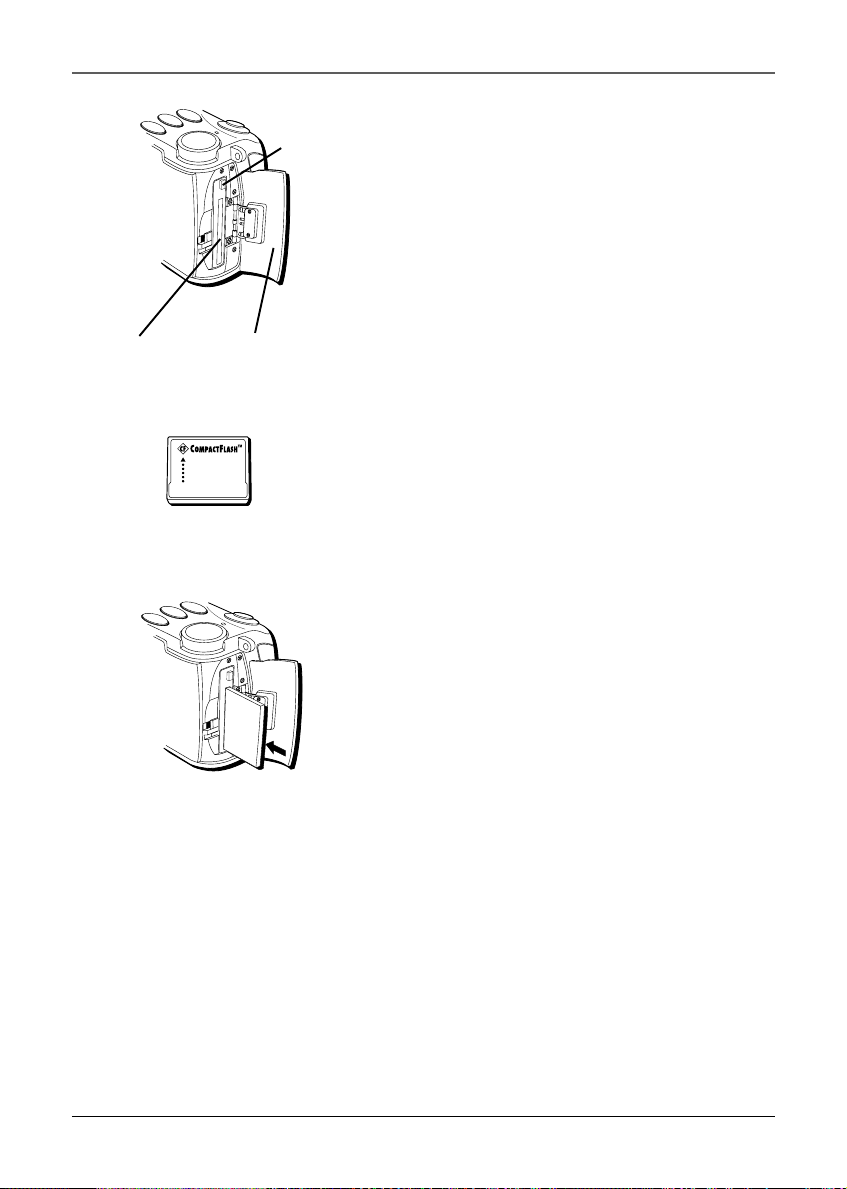
Insert the CompactFlash™ card
1. Make sure the Power dial is set to OFF.
2. Slide the CompactFlash card compartment door
to the rear of the camera. (The doors springs
open.)
3. Before inserting the card, make sure the Eject
button is pushed in so that the door can close.
With the label of the card facing the front of
the camera, fully insert the card into the slot in
the camera.
4. Close the card compartment door until it snaps
back into place.
Important: Never remove or insert the
CompactFlash card while the camera power is
on. You could corrupt the information stored
on the card.
Notes:
• If you try to turn on the camera without
the CompactFlash card installed, the
camera beeps and will not turn on.
• This camera accepts both Type 1 and
Type 2 CompactFlash cards. Type 2 cards
are thicker than Type 1 cards.
CompactFlash™ card
CompactFlash card
compartment door
Card slot
Inserting the
CompactFlash card
Eject
button
12 Chapter 1
Connections & Setup
MENU
QUICK REVIEW
DISPLAY
Navigation
button
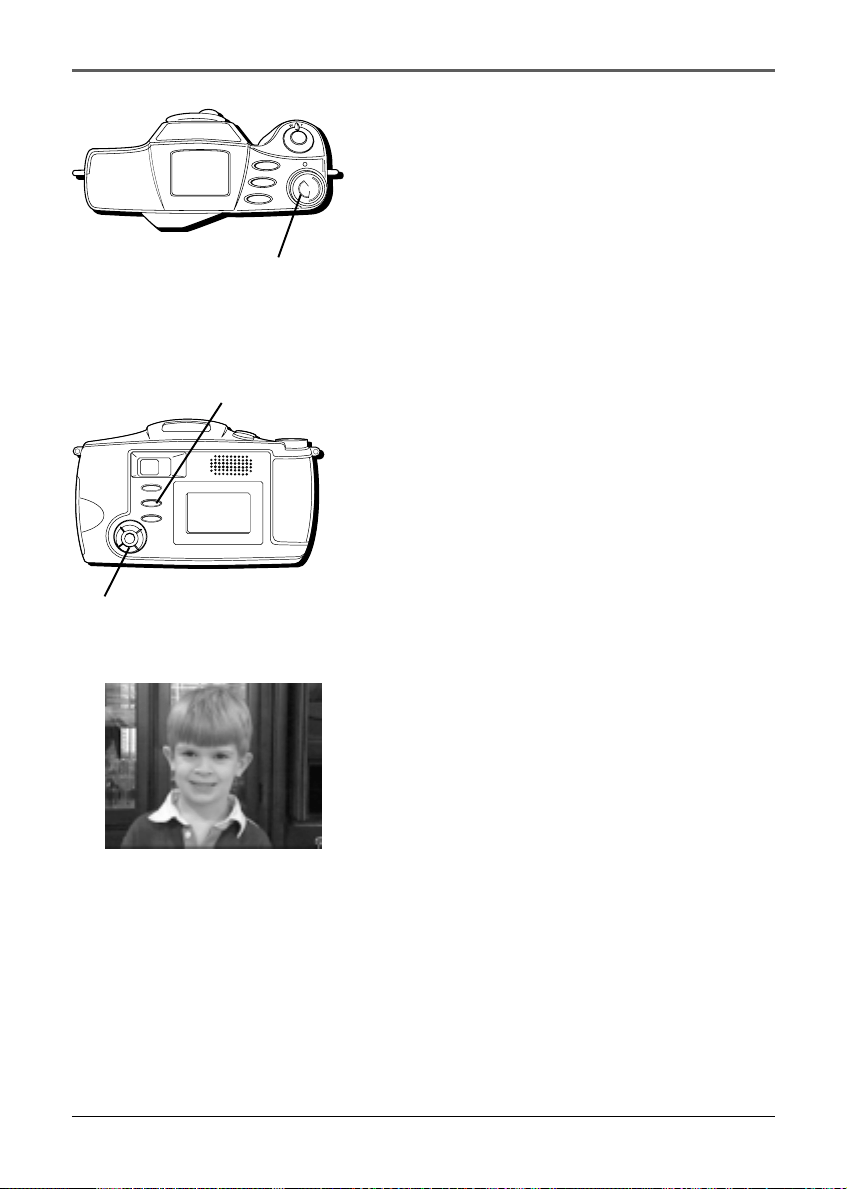
Take a picture
1. Set the Power dial to REC.
2. Use the optical viewfinder and zoom to frame
the picture you want to take. Be careful not to
block the lens or flash bulb with your fingers.
3. Hold the camera still and level. When ready to
take the picture, press and hold the shutter
button. (The picture is stored on the flash card
and the camera is ready to take another picture.)
Important: While the camera is taking a
picture, the indicators on the back of the
camera flash to indicate information is being
stored on the card. Do not remove the
batteries, remove power from the camera, or
turn the camera off while they are on. This
may corrupt information on the card.
Note: The camera automatically turns off to
save power if you don’t use the features for
more than a few minutes. To turn it back on,
set the Power dial to OFF, then back to VIEW,
REC, or SETUP.
View your picture
Press the QUICK REVIEW button to view the last
picture you took.
- OR -
1. Set the Power dial to VIEW. (The last picture
you took appears.)
2. To scroll through several pictures, use the
Navigation button.
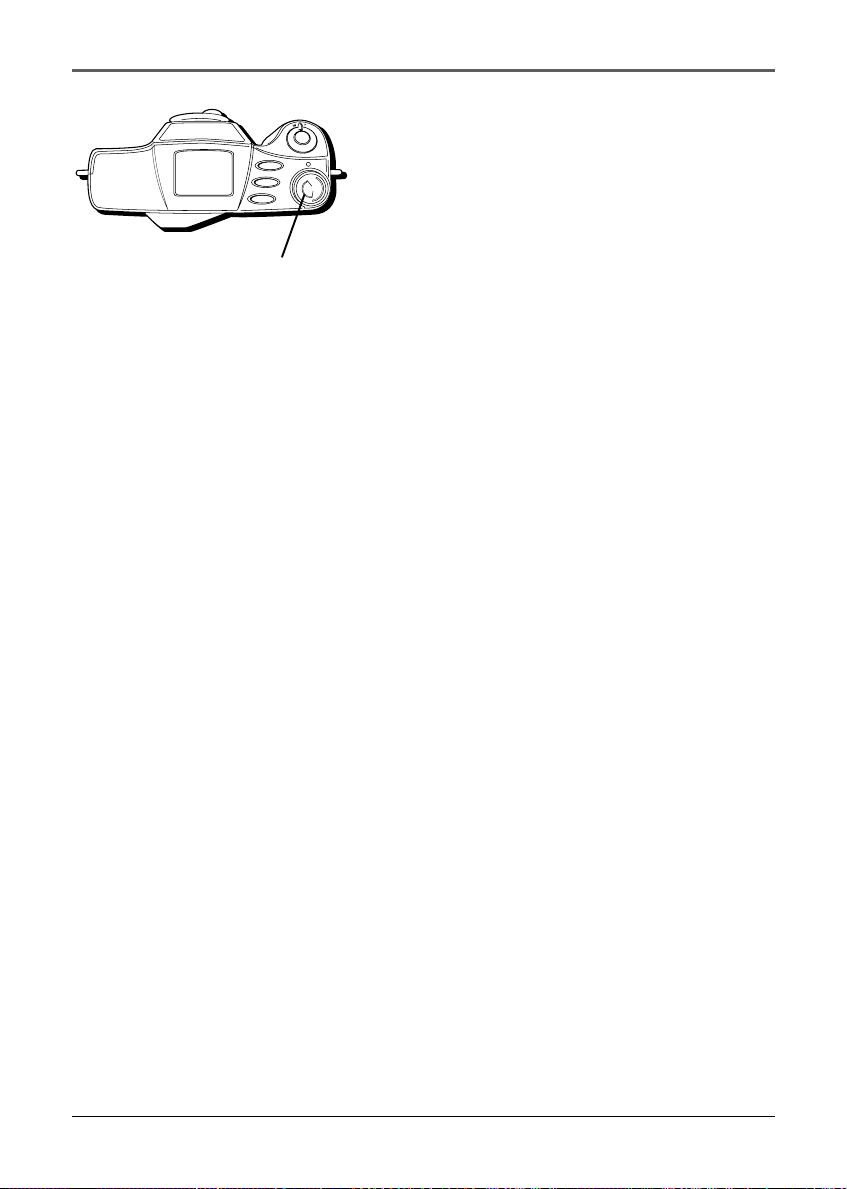
Turn off the camera
Set the Power dial to OFF.
FLASH
TIMER
MODE
ON
S
E
T
U
P
V
I
E
W
O
F
F
Power dial
QUICK REVIEW button
Connections & Setup
Chapter 1 13
Powering the Camera
You can power your camera with AC power or batteries. For details on using batteries,
see page 9.
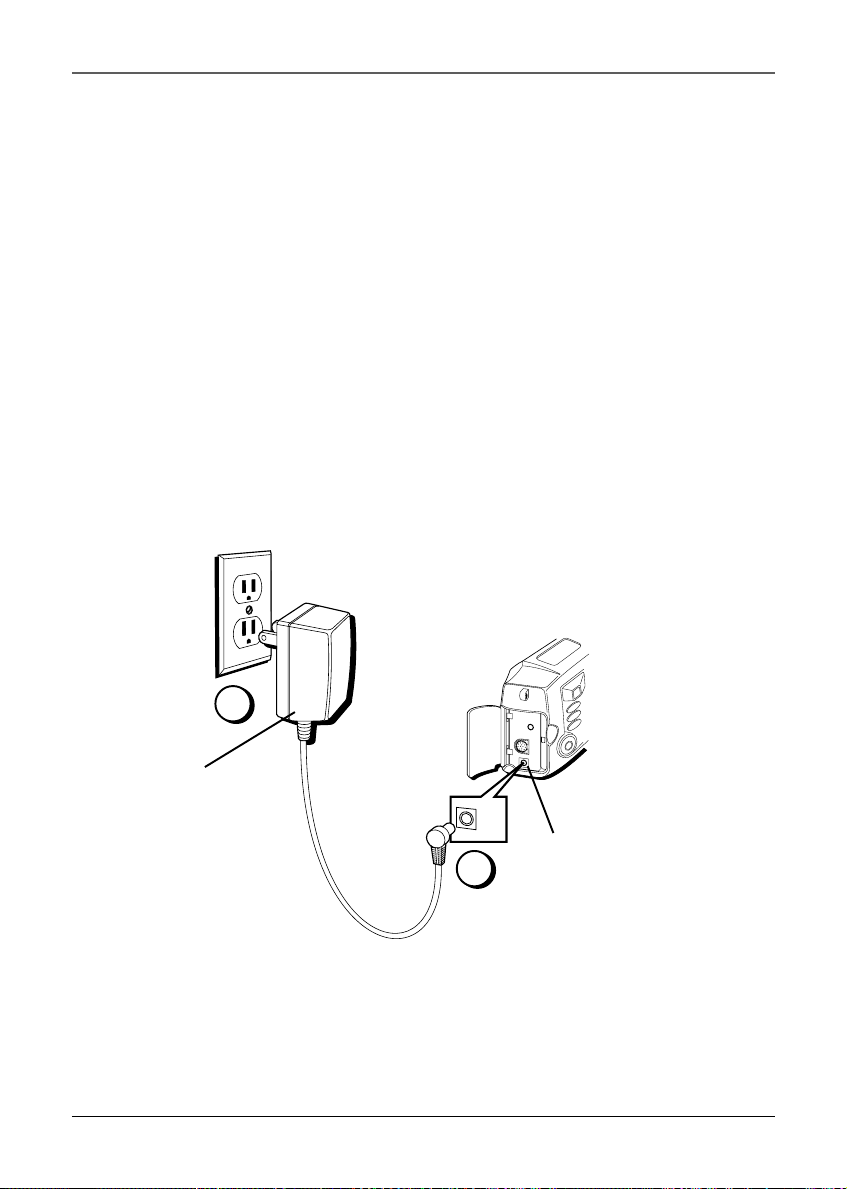
Using the Power Supply
The power supply attaches to the camera and lets you power it directly from standard
household power (110-240 volts, 50/60 Hz).
1. Plug the small end of the power supply into the POWER jack on the camera.
2. Plug the other end of the power supply into a working AC outlet (110-240V, 50/
60Hz).
Caution: Never use this power supply for any purpose other than supplying power
to the camera.
TV
D
I
G
I
T
A
L
P
O
W
E
R
POWER
1
2
POWER jack
AC power supply
14 Chapter 1
Connections & Setup
Removing the power supply
1. Make sure the Power dial is set to OFF.
2. Unplug the power supply from the AC outlet.
3. Unplug the small end of the power supply from
the POWER jack on the camera.
Important: Before detaching the power
source, make sure the camera’s power is
turned off. Failure to do so can result in a
malfunction.
Note: Removing the power supply and
batteries from the camera returns all settings
to the factory defaults but does not erase any
information on the CompactFlash card.
Using an Optional Plug Adapter in Foreign
Countries
Even though the power supply is 110/240 volts, an
optional plug adapter might be required in some
countries.
1. Plug the power supply’s plug into the AC plug
adapter.
2. Plug the AC plug adapter into the AC outlet.
FLASH
TIMER
MODE
ON
S
E
T
U
P
V
I
E
W
O
F
F
Power dial
Connections & Setup
Chapter 1 15
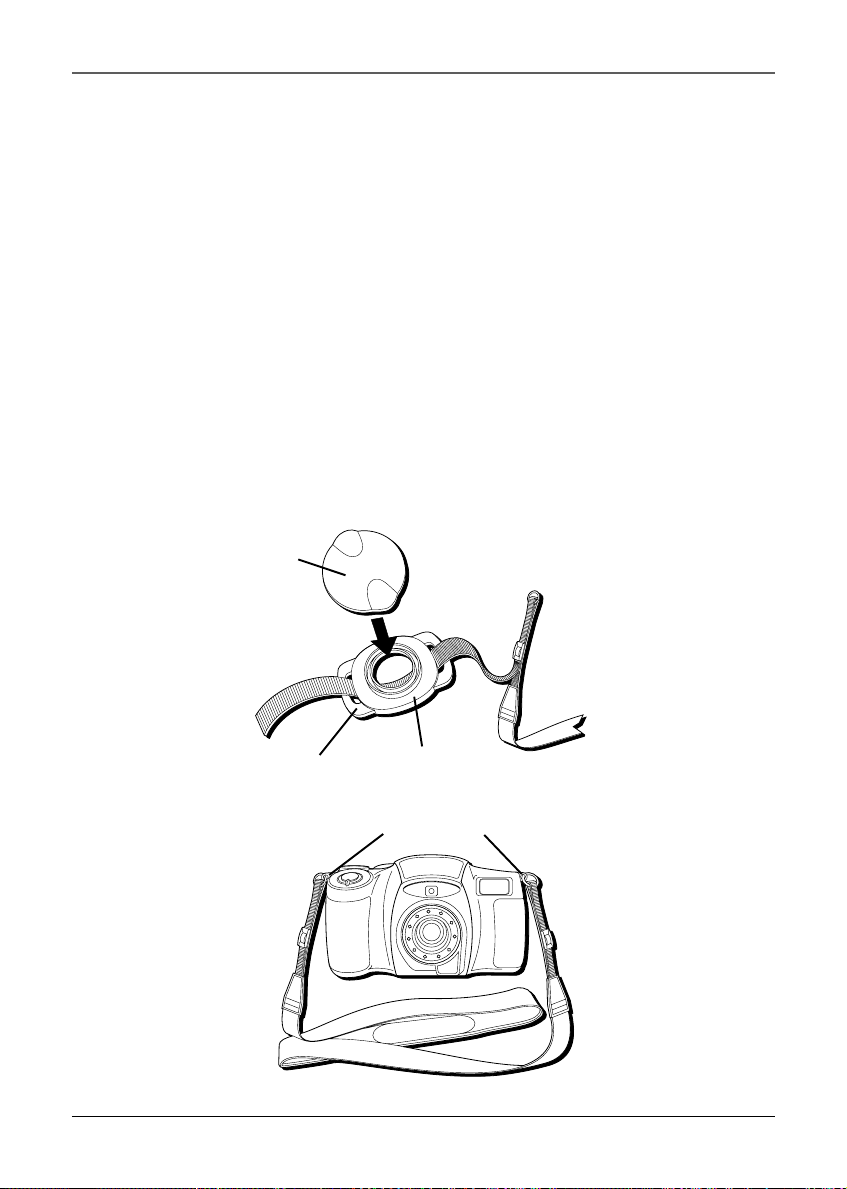
Using the Neck Strap and Lens Cover Holder
The camera’s neck strap is designed to let you carry the camera from your neck and –
when ready– bring the camera to shooting position in one quick movement.
1. Before attaching the neck strap, thread the lens cover holder eyelets through one of
the loose ends of the strap. You may want to thread the loose end of the strap
through twice on one of the eyelets of the cover holder to keep it from moving.
Once the lens cover holder is in place, you can snap the lens cover on it to avoid
losing it.
2. While holding one end of the neck strap by the metal clasp, pry open the clasp and
rotate it around the strap eyelet on the camera much like you would a key chain.
When finished, the clasp should be completely secure and moveable inside the
eyelet.
3. Repeat the procedure to attach the other end of the strap to the eyelet on the other
side of the camera. Make sure the strap is not twisted.
Caution: Make sure the neck strap is firmly attached before using it to carry the
camera.
Lens cover
Lens cover holder
Eyelet
A
F
Z
o
o
m
5
.
4
-
1
6
.
2
m
m
1
:
2
.
8
-
4
.
4
Strap eyelets
16 Chapter 1
Connections & Setup
Setting the Date and Time
You need to set the date and time for correct file
information and display, but it is not required to
operate the camera. The date/time information does
not appear on a printed photo.
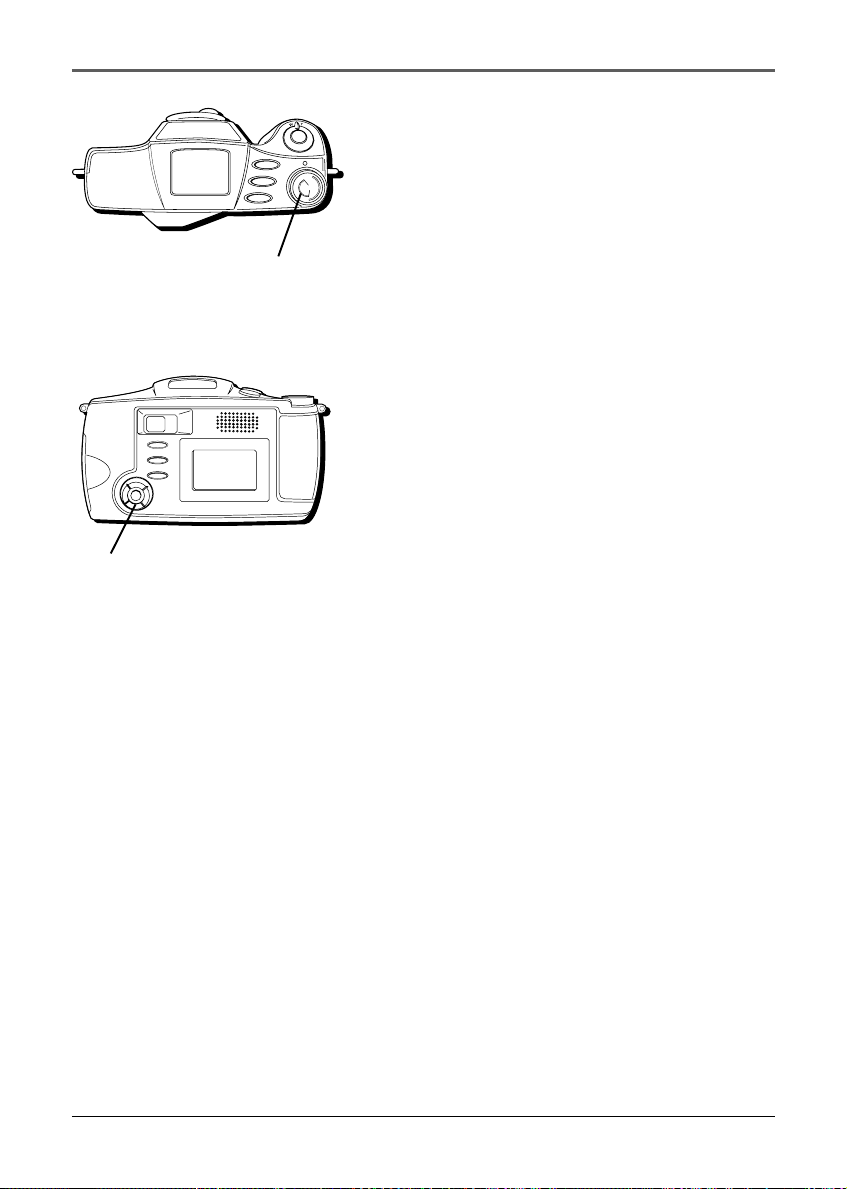
1. Set the Power dial to SETUP. (The Setup menu
appears.)
2. Use the Navigation button to scroll to DATE/
TIME . Press the right arrow on the Navigation
button to select it. (The Date/Time menu
appears.)
3. Use the Navigation button arrows to change the
items (month, day, year, hour, minute). The
on-screen arrows indicate which arrows you can
use on the Navigation button.
4. When finished, highlight ACCEPT. Press the
middle of the Navigation button to select it.
FLASH
TIMER
MODE
ON
S
E
T
U
P
V
I
E
W
O
F
F
Power dial
MENU
QUICK REVIEW
DISPLAY
Navigation
button

Chapter 2
Using the Camera’s
Features
Chapter Overview:
• Digital and Optical Zooming
• Quick Review
• Using the Navigation Button
• Using the Status Screen
• Using the Menus
17
Changing Entertainment. Again.
Using the Camera’s Features
18 Chapter 2
Digital and Optical Zooming
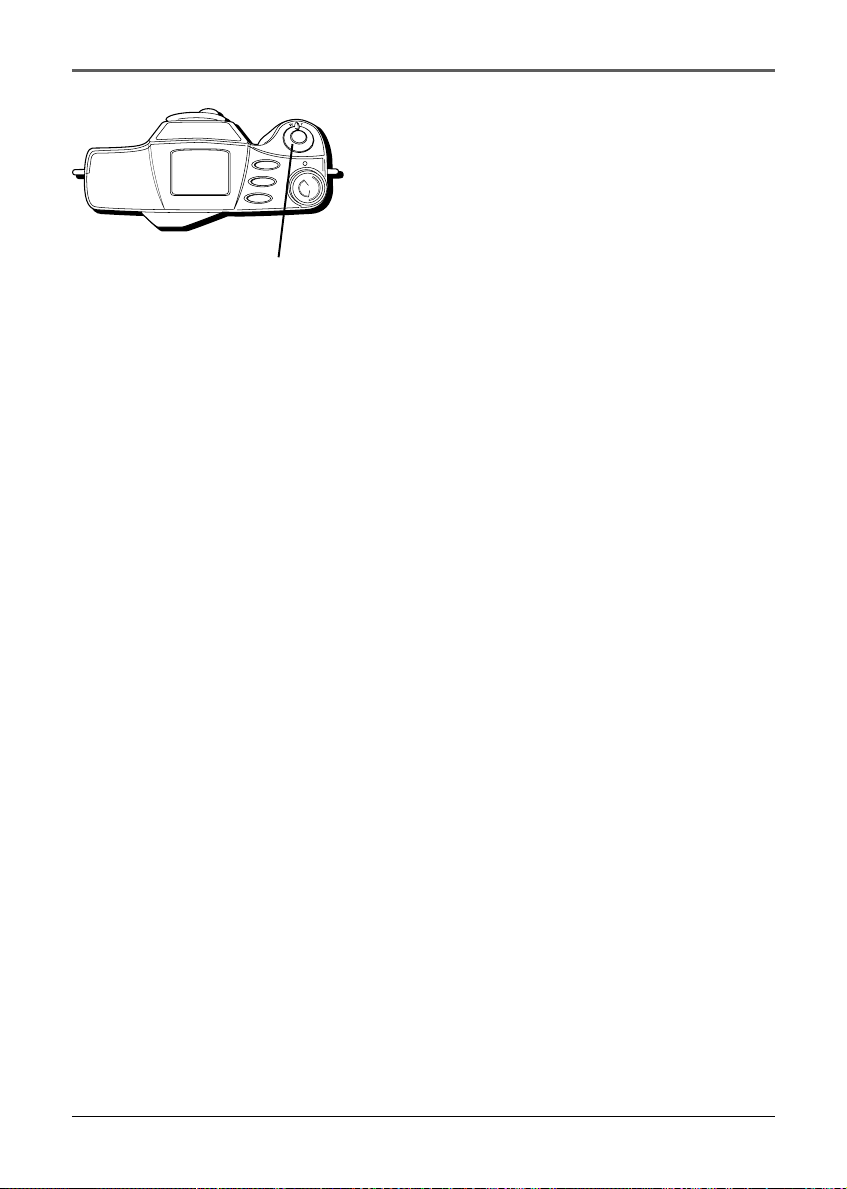
You can zoom in and out for close-up or wide-angle
shots by moving the zoom lever. Optical zooming is
possible up to 3 times, and digital zooming allows
up to 4 times normal magnification.
Using the Zoom Lever (W and T)
To zoom in tight (telephoto) or out wide (wide
angle), rotate the zoom lever to either T or W.
Optical zoom is the natural, non-enhanced
magnification the camera’s lens will support. This
camera has an optical zoom of 3 times (3X).
With digital zooming, it is possible to zoom beyond
the limits of the optical zoom to capture images at a
maximum of 4 times normal magnification. There are
two settings when using digital zoom: 2X and 4X.
When zooming past the 3X optical zoom and into
digital, you must view the image using the LCD
monitor on the back of the camera, not the optical
viewfinder. Keep in mind that the optical viewfinder
only shows images within the 3X zoom range.
Once the limits of the 3X optical viewfinder are
reached, the camera beeps once. If you continue to
zoom, the camera beeps twice to indicate the 2X
digital zoom setting. If the LCD monitor is off, it
automatically turns on, as this will be the only
indication of what you are capturing. The digital
zoom indication (2X or 4X) then appears on the
monitor. You can continue to zoom up to 4X.
When you zoom back to wide angle, the camera
beeps to remind you to return to viewing the image
using the optical viewfinder.
FLASH
TIMER
MODE
ON
S
E
T
U
P
V
I
E
W
O
F
F
Power zoom
lever
Using the Camera’s Features
Chapter 2 19
Quick Review
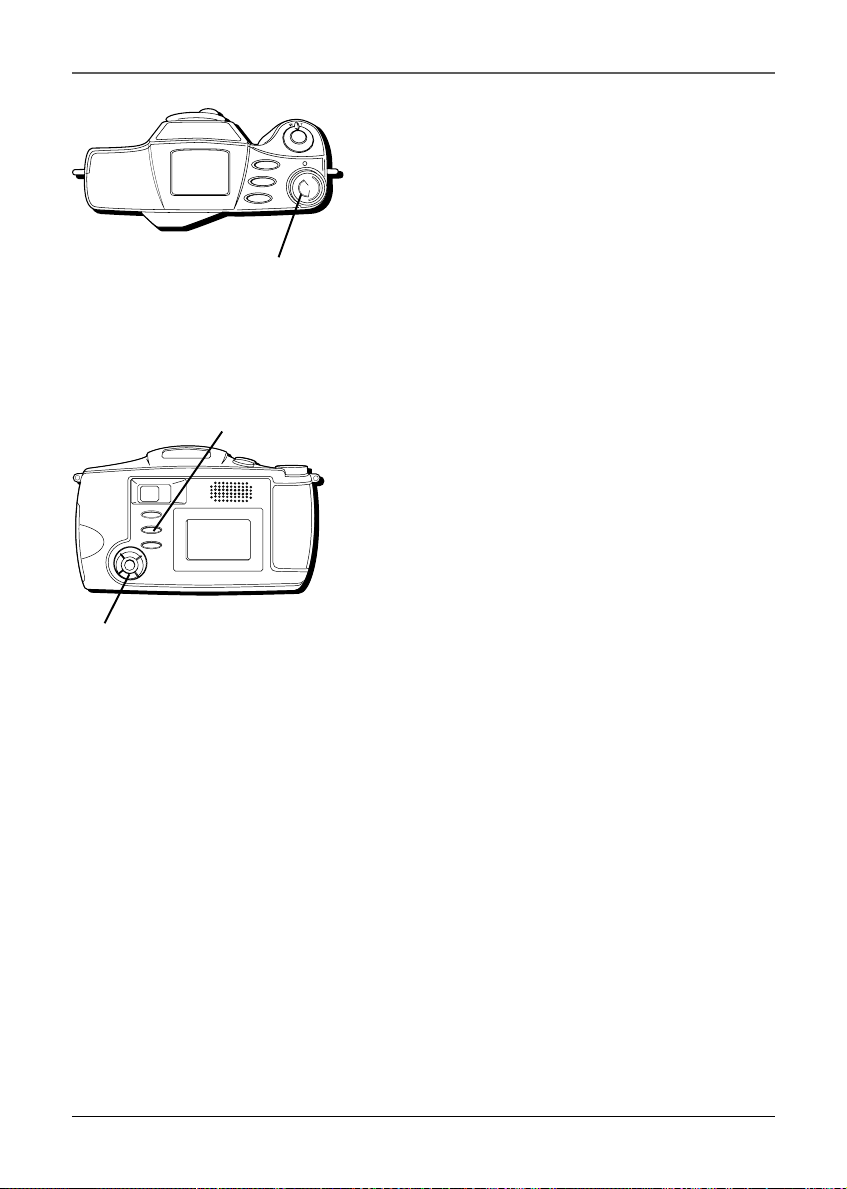
You can see the last picture you took with the
QUICK REVIEW button.
1. Set the Power dial to REC.
2. Press the QUICK REVIEW button down for as
long as you want to see the last picture you
took. (The picture appears).
Note: If no pictures have been taken, NO
PICTURES TO REVIEW appears.
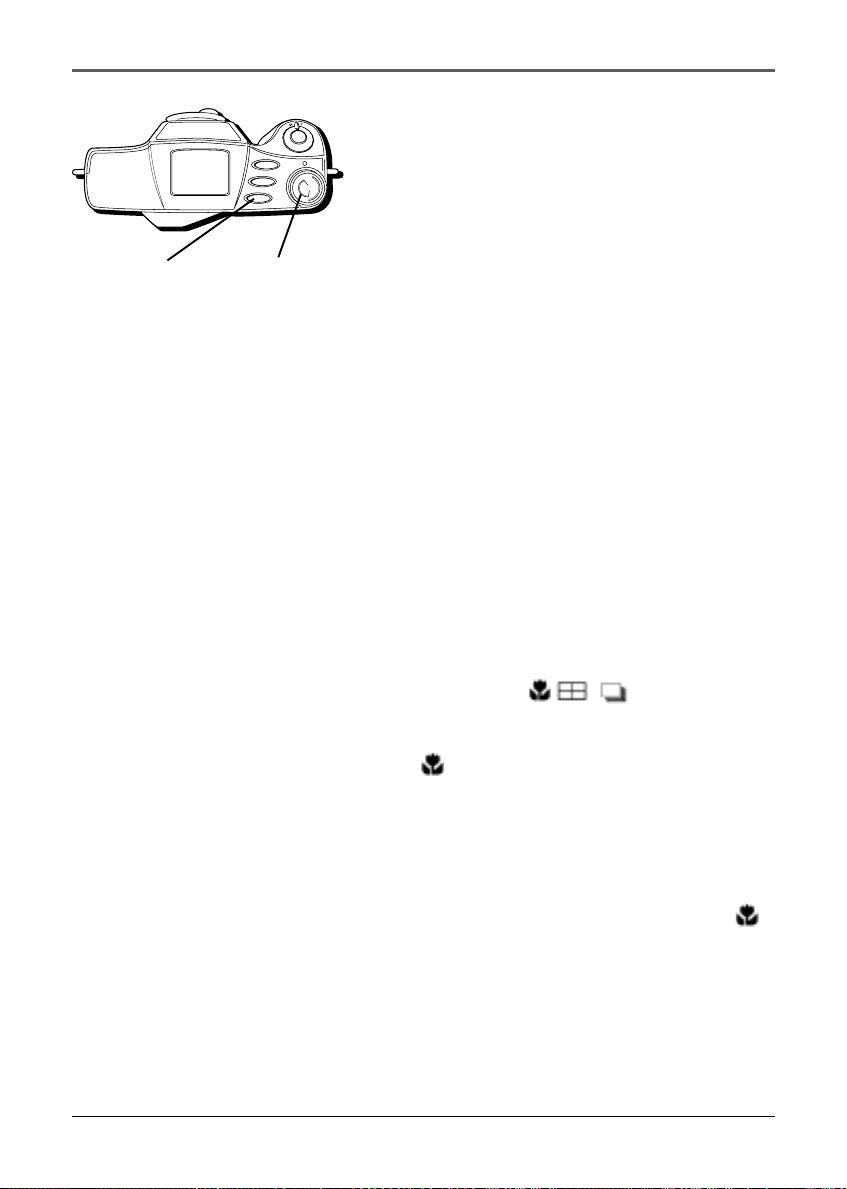
Using the Navigation Button
You can use the Navigation button to adjust the
camera’s various on-screen menus. The LCD monitor
usually shows you which direction you can scroll to
with the Navigation button.
Use the arrow buttons to navigate the menus or
adjust the settings and then press the middle of the
Navigation button to confirm your selection.
FLASH
TIMER
MODE
ON
S
E
T
U
P
V
I
E
W
O
F
F
Power dial
MENU
QUICK REVIEW
DISPLAY
Navigation
button
QUICK REVIEW button
Using the Camera’s Features
20 Chapter 2
FLASH
TIMER
MODE
ON
S
E
T
U
P
V
I
E
W
O
F
F
Power dial
MODE button
Using the Status Screen
The Status screen helps you see the settings of
specific modes for your picture taking, including
picture quality, flash, and battery life.
Picture Quality Status
Once you set the picture quality to your desired
setting, you can view it in the Status screen. The 3
settings are economy (E), normal (N), and fine (F).
To change this setting, see page 26.
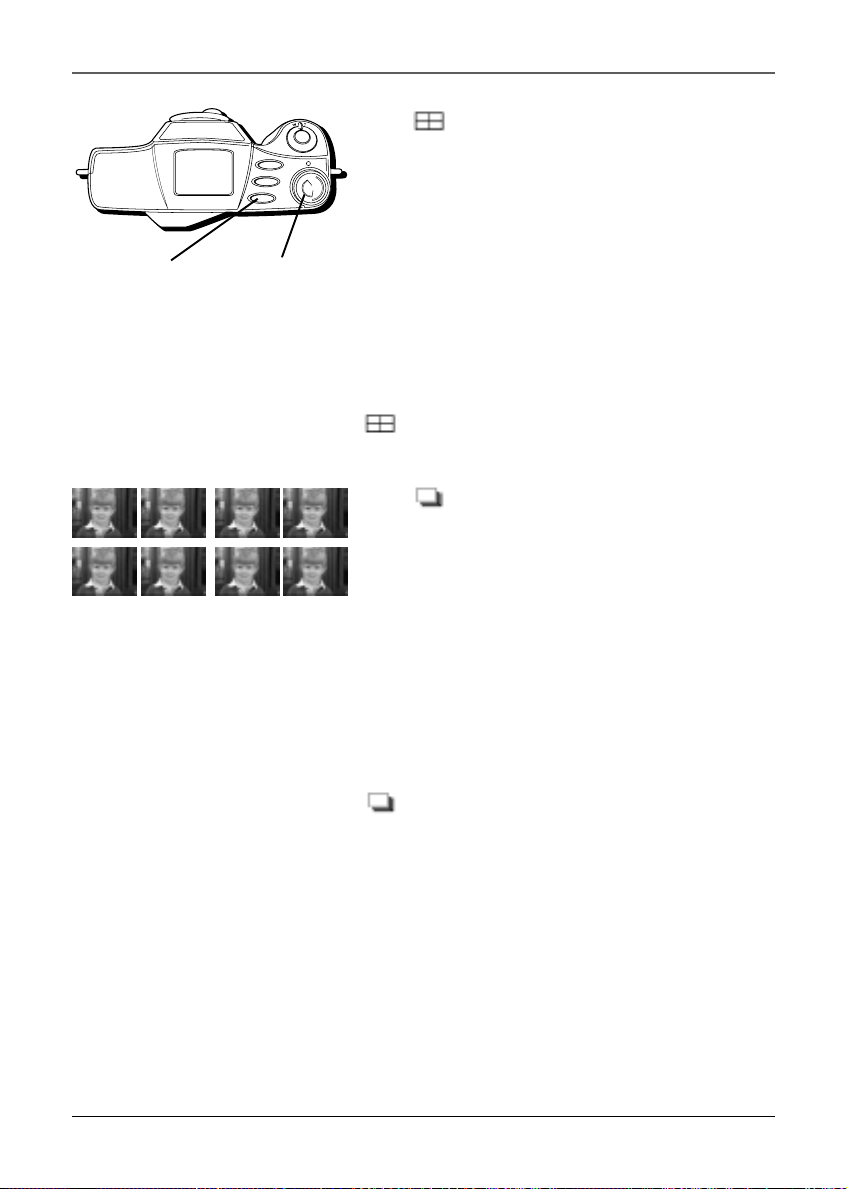
Capture Modes
You can choose from 4 types of modes for picture
taking, normal, macro, burst, and multi.
Normal (no icon)
This mode allows you to take a standard picture with
all flash modes available.
To set the picture mode to normal, press and release
the MODE button until you don’t see any of the
capture mode icons (
, , ).
Macro
This mode allows you to take a close-up picture (5-
50 cm), and automatically turns the LCD monitor on
so that you can see the magnification. No flash
modes are available with this setting.
To set the picture mode to Macro, press and release
the MODE button until you see the macro icon (
).
Using the Camera’s Features
Chapter 2 21
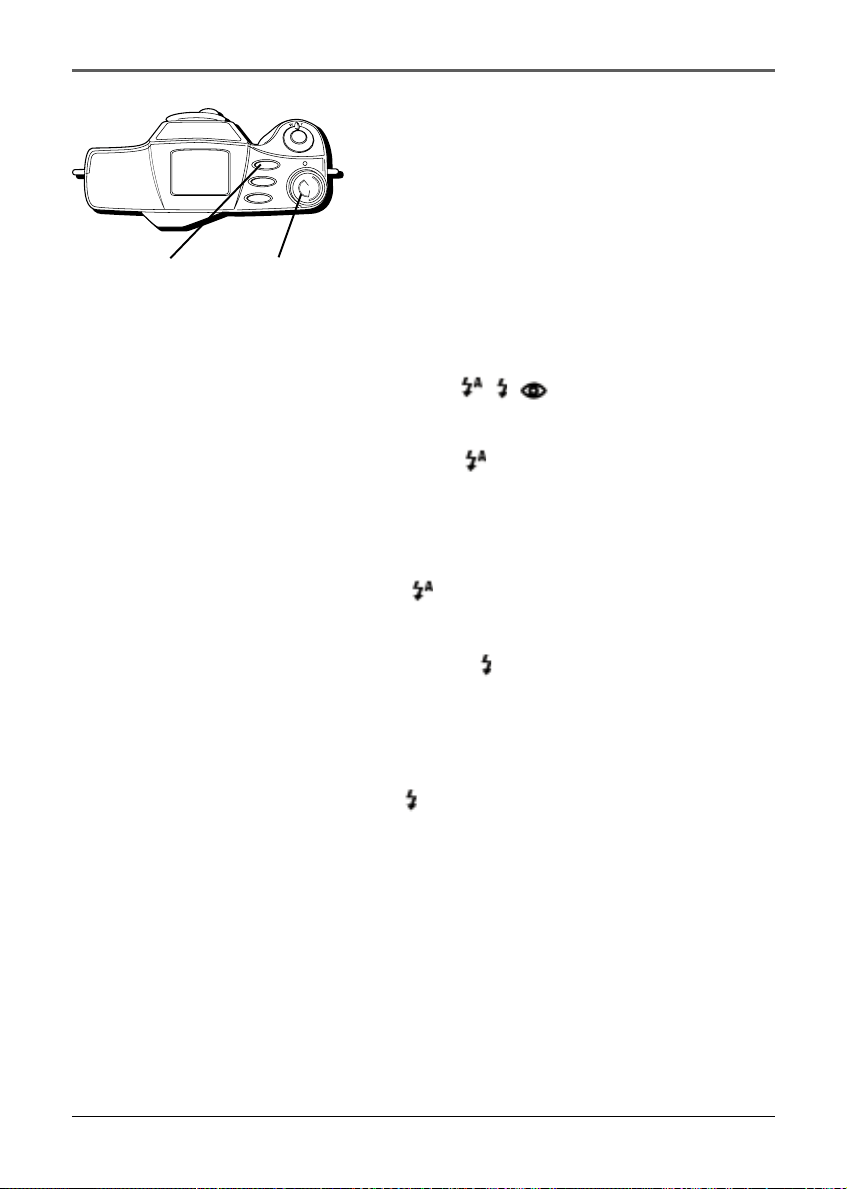
Multi
This mode allows you to take 16 images in 4
seconds, and is especially good for action shots.
All 16 images are stored as 1 file. No flash modes
are available with this setting.
To conserve file size, the picture resolution quality
is automatically adjusted to a lower setting. When
you return to normal picture taking mode, all
quality and flash settings you previously selected
will return.
To set the picture mode to Multi, press and release
the MODE button until you see the multi icon
(
).
Burst
This mode allows you to take 8 quick pictures for a
“slideshow” effect or for action shots.
The images are stored as 8 separate files. No flash
modes are available with this setting.
To conserve file size, the picture resolution quality
is automatically adjusted to a lower setting. When
you return to normal picture taking mode, all
quality and flash settings you previously selected
will return.
To set the picture mode to Burst, press and release
the MODE button until you see the burst icon
(
).
Battery Level
The battery level icon indicates how much power is
left in the batteries. For more details on the battery
icon, see page 10.
FLASH
TIMER
MODE
ON
S
E
T
U
P
V
I
E
W
O
F
F
Power dial
MODE button
You can take 8 pictures at the
same time using Burst mode.
Using the Camera’s Features
22 Chapter 2
FLASH
TIMER
MODE
ON
S
E
T
U
P
V
I
E
W
O
F
F
Power dial
FLASH button
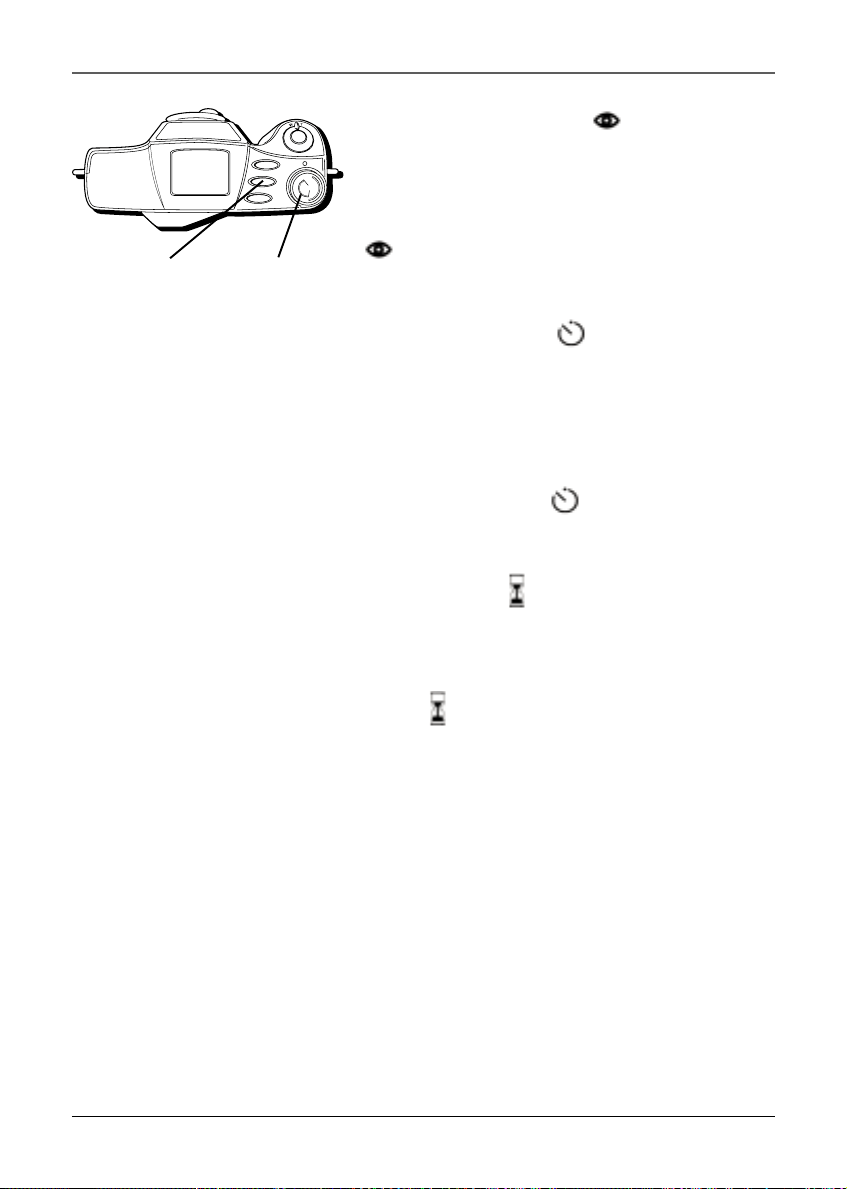
Flash Modes
You can choose from 4 flash modes for taking
pictures of single pictures (none, auto, forced, and
red-eye reduction). The default mode is Auto Flash.
No Flash (no icon)
This mode allows you to take a standard picture
without using a flash.
To set the flash mode to normal, press and release
the FLASH button until you don’t see any of the flash
mode icons ( , , ).
Auto Flash
This mode automatically senses when a flash is
needed.
To set the flash mode to Auto Flash, press and
release the FLASH button until you see the Auto
icons (
).
Forced Flash
This mode uses a forced flash with every picture you
take.
To set the flash mode to Forced Flash, press and
release the FLASH button until you see the Flash icon
only (
).
Using the Camera’s Features
Chapter 2 23
FLASH
TIMER
MODE
ON
S
E
T
U
P
V
I
E
W
O
F
F
Power dial
TIMER button
Red-eye Reduction Flash
This mode uses a quick flash to reduce the red-eye
effect in your pictures.
To set the flash mode to Red Eye, press and release
the FLASH button until you see the red-eye icon
(
).
Self Timer Status
Once you set the self timer to your desired setting,
you can view it in the Status screen. The available
settings are 3 seconds and 10 seconds. For details on
the self timer, see page 32.
To turn on the self timer, press the TIMER button.
The timer icon appears (
).
Camera Busy
When the camera is processing information,
such as deleting several pictures or formatting the
CompactFlash card, the camera busy icon
appears (
).
Using the Camera’s Features
24 Chapter 2
FLASH
TIMER
MODE
ON
S
E
T
U
P
V
I
E
W
O
F
F
Power dial
MENU
QUICK REVIEW
DISPLAY
Navigation
button
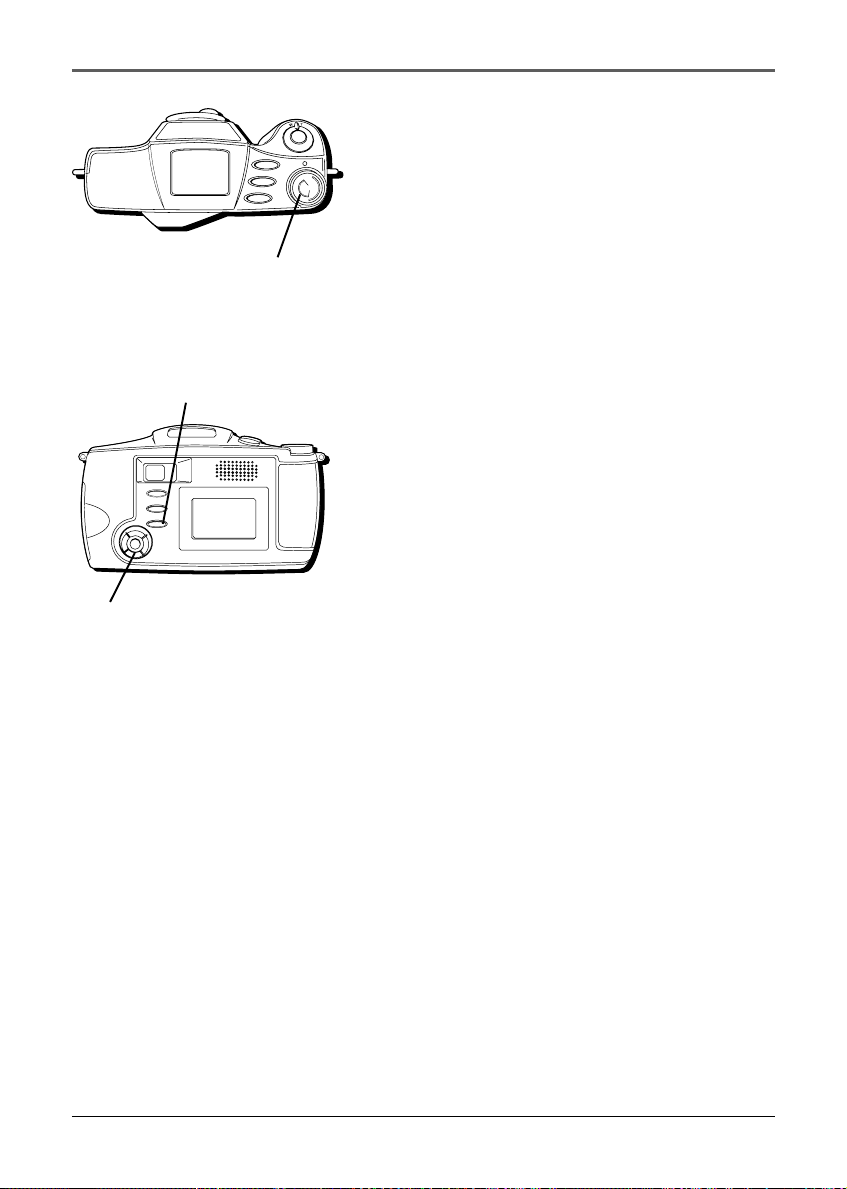
Using the Menus
This camera is equipped with an on-screen menu
system that simplifies many of the more detailed
settings. There is a menu for each of the Power dial
modes, including Setup, View, and Record.
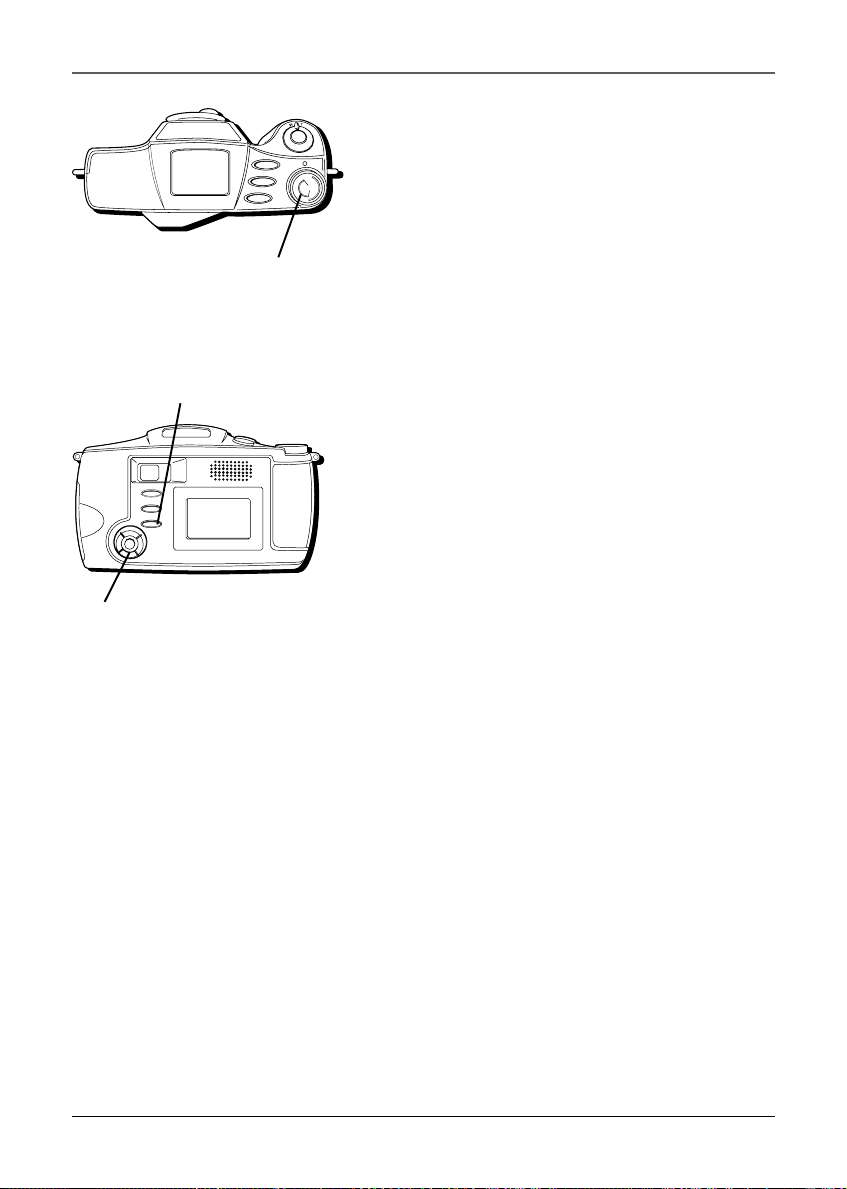
Record Menu
You can use the Record menu to adjust the white
balance, exposure, and quality of your pictures.
White Balance
White balance refers to the correctness of color
reproduction under various lighting. If the white
balance is correct, all other colors will be accurately
reproduced.
The white balance is usually adjusted automatically,
however, you may want to control this function
manually to achieve a more professional color/tint
reproduction.
1. Set the Power dial to REC. (The image in front
of the camera appears.)
2. Press the MENU button. (The Record menu
appears and WHITE BAL is highlighted.)
3. Use the Navigation button arrows to adjust the
white balance (AUTO/DAYLIGHT/INCAND
(incandescent)/ FLUOR (fluorescent).
4. When finished, use the Navigation button to
scroll to the next setting or press the MENU
button again to exit.
MENU button
Using the Camera’s Features
Chapter 2 25
FLASH
TIMER
MODE
ON
S
E
T
U
P
V
I
E
W
O
F
F
Power dial
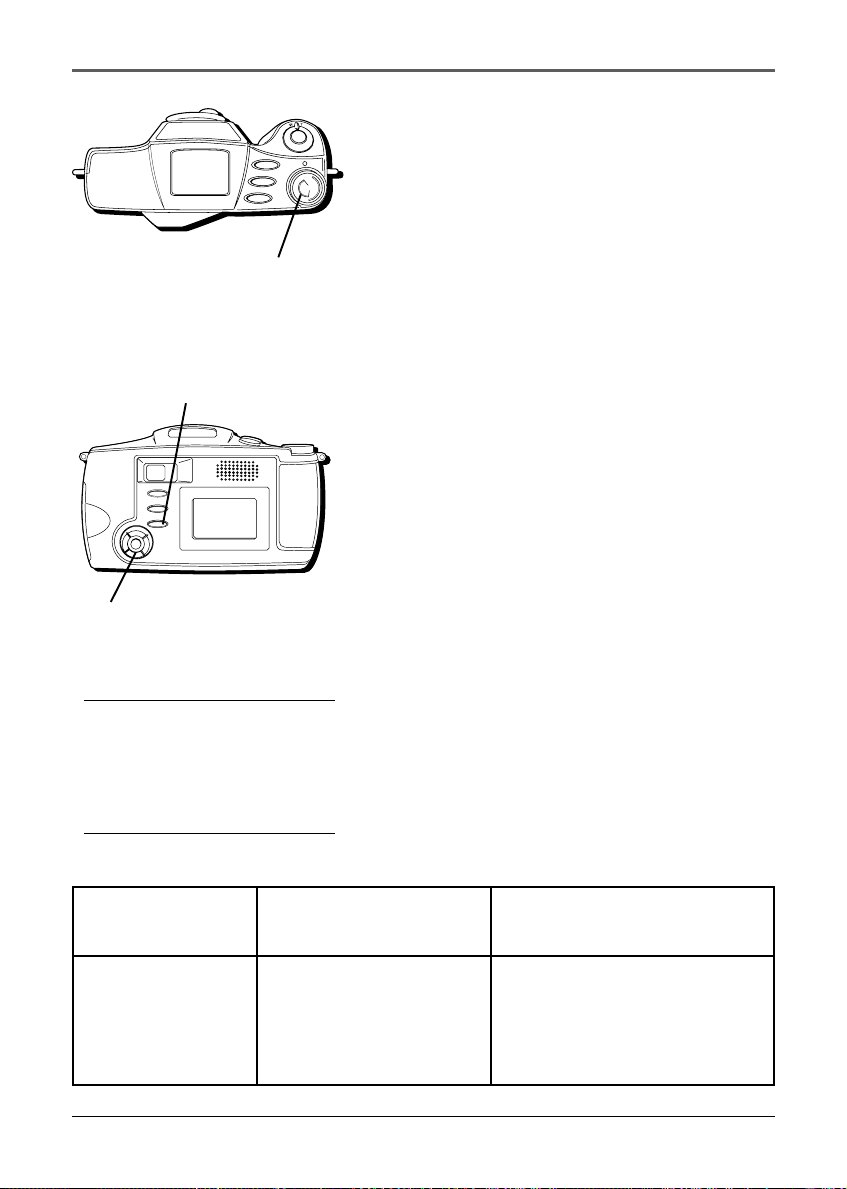
Exposure
This feature automatically adjusts the iris for the best
available picture quality, however, you may want to
adjust it manually. Manual exposure is
recommended in the following situations:
• When taking pictures in reverse lighting or
when the background is too bright.
• When taking pictures on a reflective
background, such as at the beach or when
skiing.
1. Set the Power dial to REC. (The image in front
of the camera appears.)
2. Press the MENU button. (The Record menu
appears and WHITE BAL is highlighted.)
3. Use the Navigation button to scroll to
EXPOSURE and adjust the setting (AUTO/ -1.5
to +1.5).
MENU
QUICK REVIEW
DISPLAY
Navigation
button
MENU button
Using the Camera’s Features
26 Chapter 2
FLASH
TIMER
MODE
ON
S
E
T
U
P
V
I
E
W
O
F
F
Power dial
MENU
QUICK REVIEW
DISPLAY
Navigation
button
Picture Quality Number of Pixels File Compression
(Resolution)
Economy 640 x 480 Medium
Normal Maximum Medium
Fine Maximum Low
Tip
Economy mode is best suited for
web postings and emailing, as the
file size is smaller. Fine mode is best
for detailed prints.
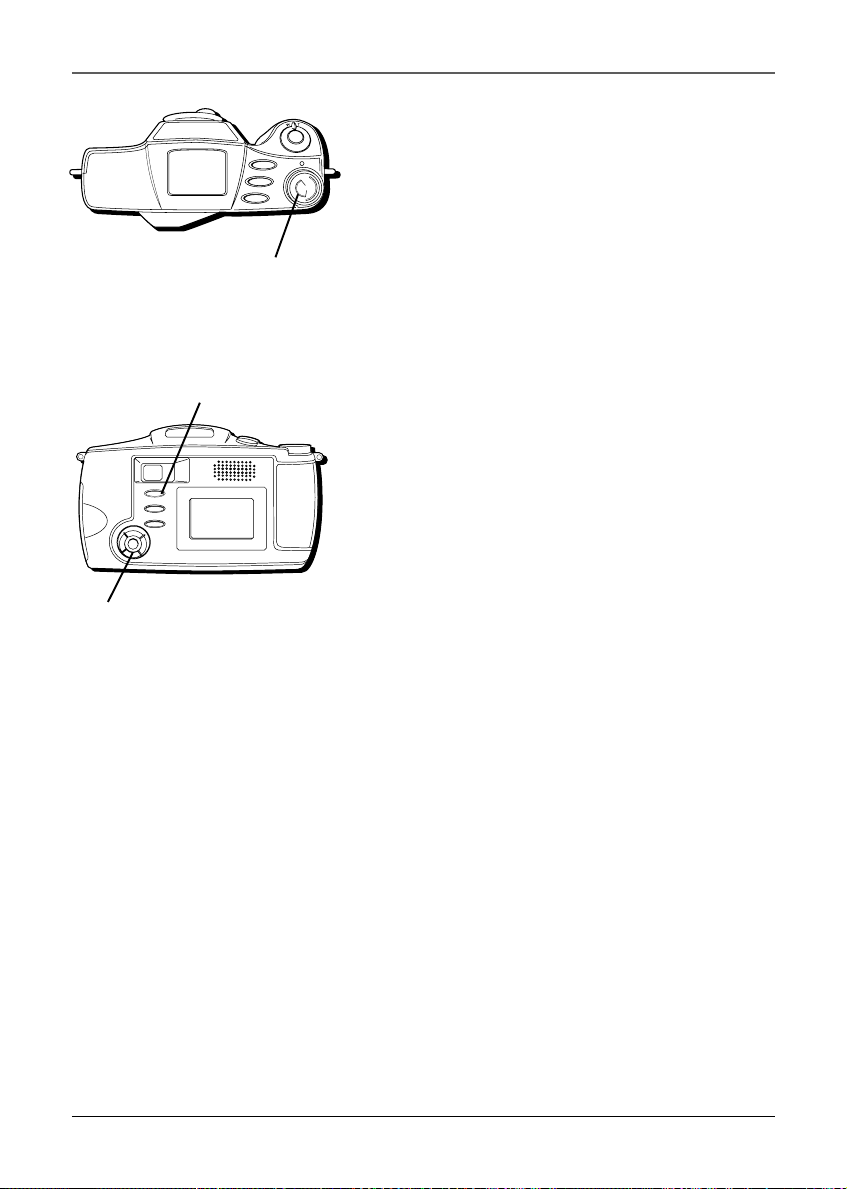
Picture Quality
You can adjust the picture resolution quality to
economy, normal, or fine, depending on what kind
of picture you want. Because “economy” quality
pictures take up less memory, the camera can store
more of them than in “fine” mode.
1. Set the Power dial to REC. (The image in front of
the camera appears.)
2. Press the MENU button. (The Record menu
appears and WHITE BAL is highlighted.)
3. Use the Navigation button to scroll to QUALITY
and adjust the setting (ECONOMY/NORMAL/
FINE.)
4. When finished, press the MENU button again to
exit.
Notes:
• The number of storable pictures depends
on the selected picture quality mode as
well as the composition of the subjects in
the images.
• The picture quality mode you select
remains the default even when you turn
off the camera.
MENU button
Using the Camera’s Features
Chapter 2 27
FLASH
TIMER
MODE
ON
S
E
T
U
P
V
I
E
W
O
F
F
Power dial
MENU
QUICK REVIEW
DISPLAY
Navigation
button
View Menu
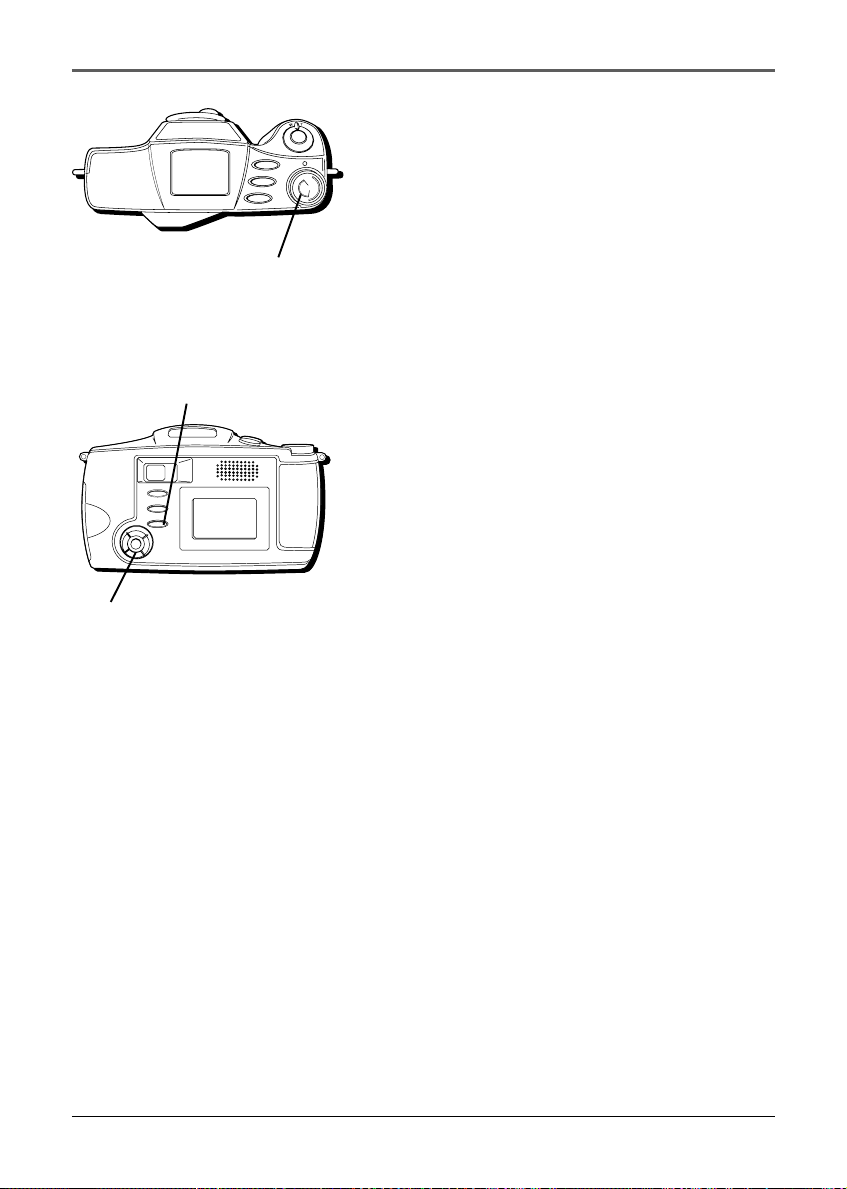
You can use the View menu to see your pictures,
delete them, or lock/unlock them.
Displaying Picture Information
This feature allows you to toggle the date/time and
picture number information on or off or to display all
the pictures you have taken in an index format.
1. Set the Power dial to VIEW. (The last picture
you took appears.)
2. Press and release the DISPLAY button to toggle
what information is displayed (date/time/picture
number, no information, or index).
Index Review
You can view all the pictures you have taken in a
“thumbnail” format (smaller pictures).
1. Set the Power dial to VIEW. (The last picture
you took appears.)
2. Press and release the DISPLAY button until you
see smaller images of the pictures you have
taken.
3. Use the Navigation button arrows to scroll
through the pictures.
4. When the desired picture is highlighted, press
the middle of the Navigation button to select it.
(The picture is displayed in normal size with all
its information.)
DISPLAY button
Using the Camera’s Features
28 Chapter 2
FLASH
TIMER
MODE
ON
S
E
T
U
P
V
I
E
W
O
F
F
Power dial
MENU
QUICK REVIEW
DISPLAY
Navigation
button
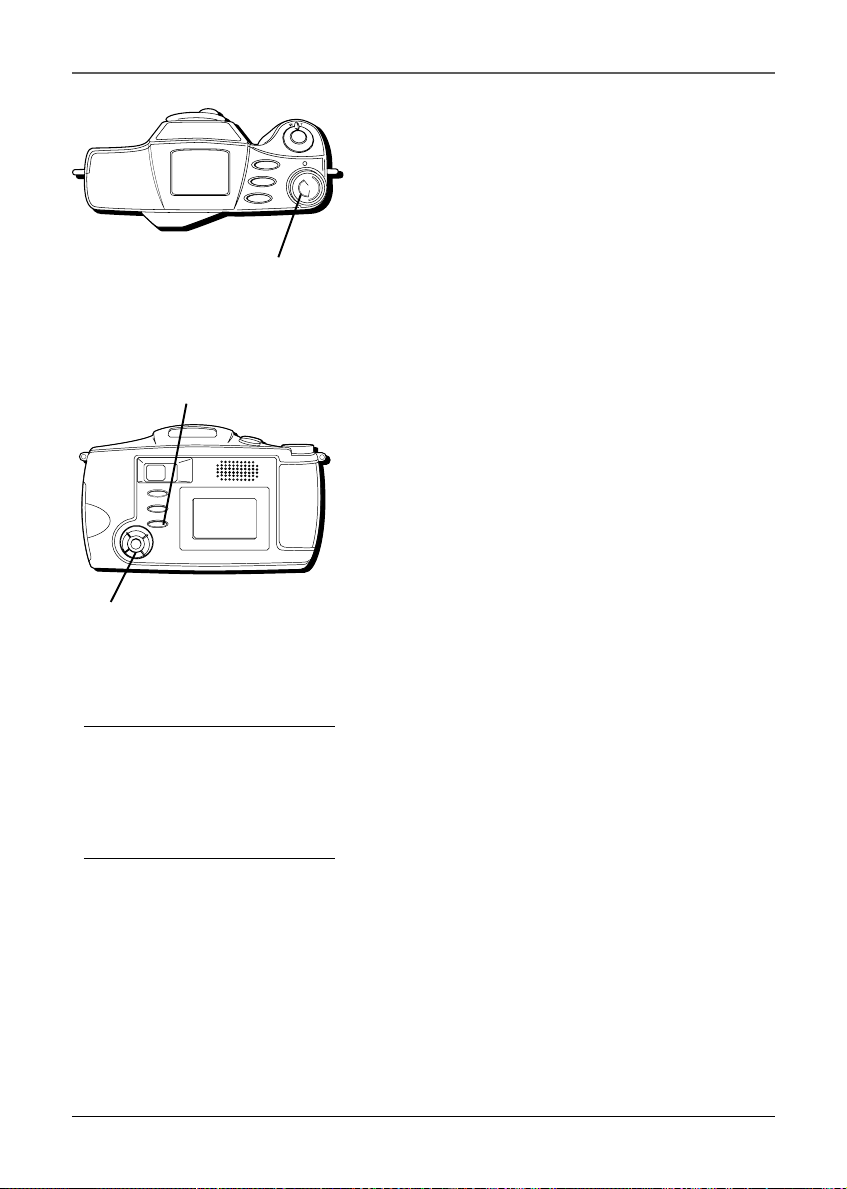
Delete a Picture
This feature lets you delete single pictures.
1. Set the Power dial to VIEW. (The last picture
you took appears.)
2. Press the MENU button. (The View menu
appears and DELETE PICTURE is highlighted.)
3. Press the middle of the Navigation button to
select it. (The Delete menu appears.)
4. Use the Navigation button to highlight DELETE.
Press the middle of the Navigation button to
select it. (The picture is deleted.)
5. When finished, you can delete another picture
or use the Navigation button to return to the
previous menu.
Lock/Unlock a Picture
You can lock special pictures so that you don’t delete
them inadvertently. Any locked pictures must first be
unlocked before you can delete them unless you
format the CompactFlash card completely (see page
34).
1. Set the Power dial to VIEW. (The last picture
you took appears.)
2. Press the MENU button. (The View menu
appears and DELETE PICTURE is highlighted.)
3. Use the Navigation button to scroll to LOCK/
UNLOCK.
4. Press the middle of the Navigation button to
select it. (The Lock menu appears.)
MENU button
Using the Camera’s Features
Chapter 2 29
FLASH
TIMER
MODE
ON
S
E
T
U
P
V
I
E
W
O
F
F
Power dial
MENU
QUICK REVIEW
DISPLAY
Navigation
button
Tip
If you don’t want the picture info
displayed in a slideshow, it can be
hidden by turning it off (see page
27).
5. Use the Navigation button to highlight LOCK.
Press the middle of the Navigation button to
select it. (A padlock icon appears to show that
the picture is locked.)
6. When finished, you can lock another picture or
use the Navigation button to return to the
previous menu.
• To unlock a picture, highlight UNLOCK and
select it with the Navigation button.
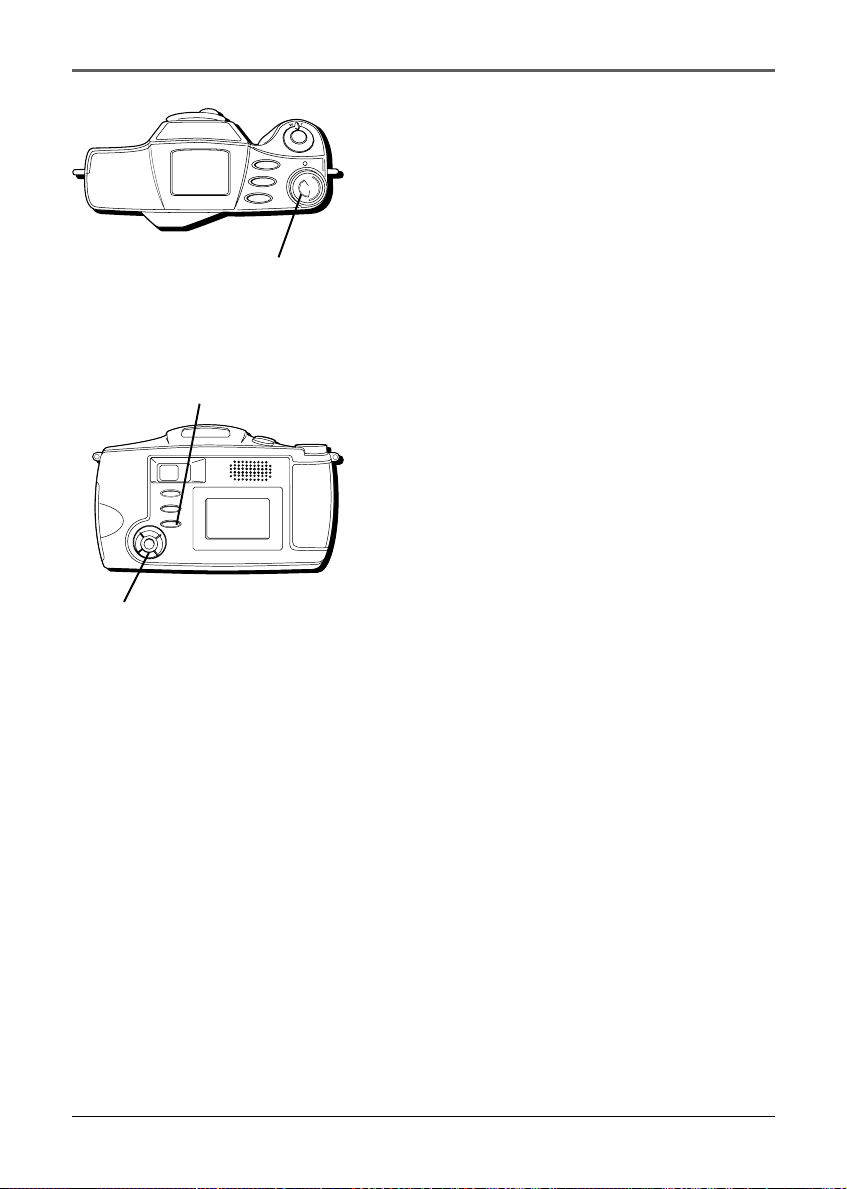
Delete All Pictures
This feature lets you delete all the pictures on the
CompactFlash card except for those that are locked.
1. Set the Power dial to VIEW. (The last picture
you took appears.)
2. Press the MENU button. (The View menu
appears and DELETE PICTURE is highlighted.)
3. Use the Navigation button to scroll to DELETE
ALL.
4. Press the middle of the Navigation button to
select it. (The Delete All menu appears.)
5. Use the Navigation button to highlight DELETE
ALL. Press the middle of the Navigation button
to select it. (All pictures are deleted and NO
PICTURES TO VIEW appears.)
Note: Locked pictures cannot be deleted with
this operation. To delete them, you need to
unlock them first (see page 28).
MENU button
Using the Camera’s Features
30 Chapter 2
Slideshow
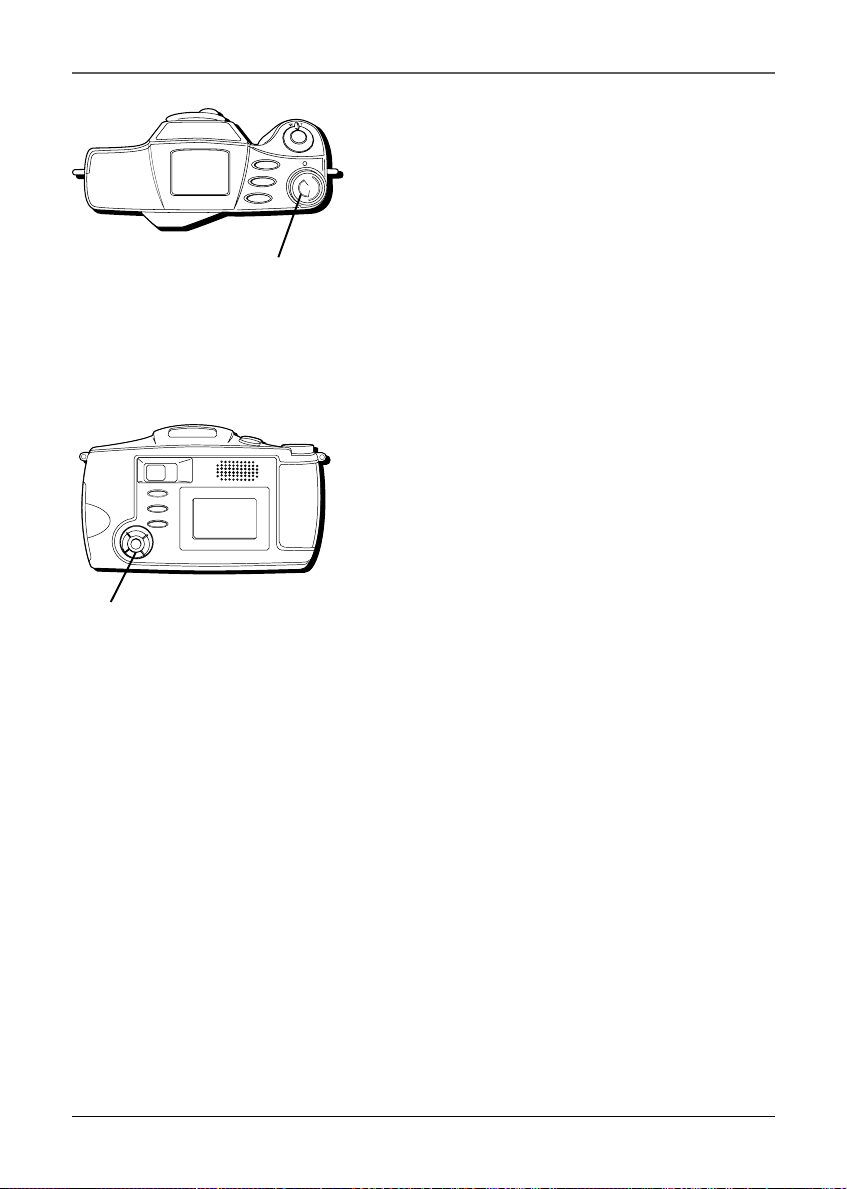
You can have the camera show all your pictures as a
slideshow. The slide speed can be adjusted to 4, 6,
or 8 seconds.
1. Set the Power dial to VIEW. (The last picture
you took appears.)
2. Press the MENU button. (The View menu
appears and DELETE PICTURE is highlighted.)
3. Use the Navigation button to scroll to
SLIDESHOW.
4. Press the middle of the Navigation button to
select it. (The Slideshow menu appears.)
5. Use the left and right arrows on the Navigation
button to select the slide speed.
6. Use the Navigation button to highlight START.
Press the middle of the Navigation button to
select it. (The slideshow of your pictures starts.)
7. To end the slideshow, press the middle of the
Navigation button again.
FLASH
TIMER
MODE
ON
S
E
T
U
P
V
I
E
W
O
F
F
Power dial
MENU
QUICK REVIEW
DISPLAY
Navigation
button
MENU button
Using the Camera’s Features
Chapter 2 31
FLASH
TIMER
MODE
ON
S
E
T
U
P
V
I
E
W
O
F
F
Power dial
MENU
QUICK REVIEW
DISPLAY
Navigation
button
Setup Menu
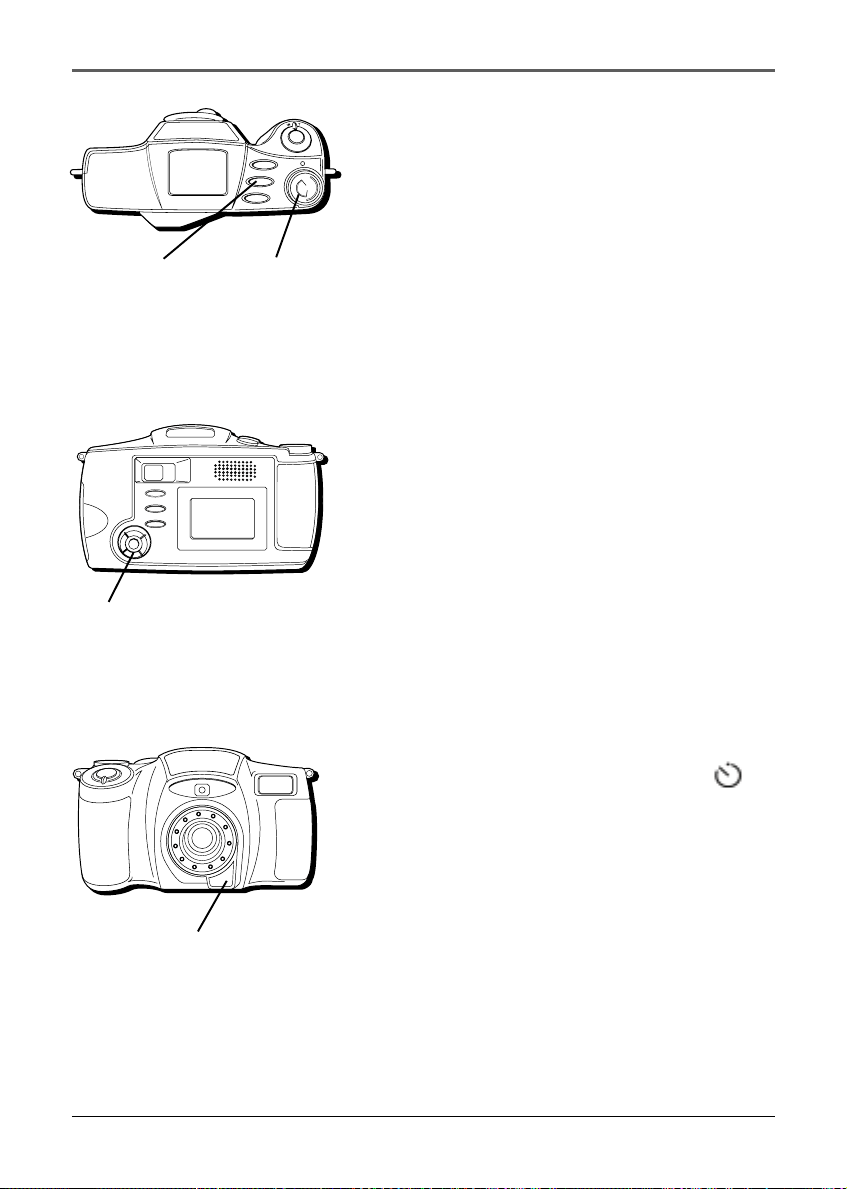
You can use the Setup menu to adjust the LCD
monitor brightness, turn the sound on or off, or even
format the CompactFlash card.
If you haven’t already set the date and time, you may
want to do that (see page 16).
LCD Monitor Brightness
The LCD monitor brightness can be adjusted
depending on your preference.
1. Set the Power dial to SETUP. (The Setup menu
appears and LCD BRIGHT is highlighted.)
2. Use the Navigation button arrows to change the
brightness. The on-screen arrows indicate which
arrows you can use on the Navigation button.
3. When finished, use the Navigation button to
scroll to the next setting or set the Power dial to
the desired mode.
Sound
You can adjust the beep and shutter sounds to be on
or off.
1. Set the Power dial to SETUP. (The Setup menu
appears and LCD BRIGHT is highlighted.)
2. Use the Navigation button to scroll to SOUND.
3. Use the Navigation button arrows to adjust the
sound. The on-screen arrows indicate which
arrows you can use on the Navigation button.
4. When finished, use the Navigation button to
scroll to the next setting or set the Power dial to
the desired mode.
Using the Camera’s Features
32 Chapter 2
FLASH
TIMER
MODE
ON
S
E
T
U
P
V
I
E
W
O
F
F
Power dial
MENU
QUICK REVIEW
DISPLAY
Navigation
button
A
F
Z
o
o
m
5
.
4
-
1
6
.
2
m
m
1
:
2
.
8
-
4
.
4
Self timer indicator
Self Timer
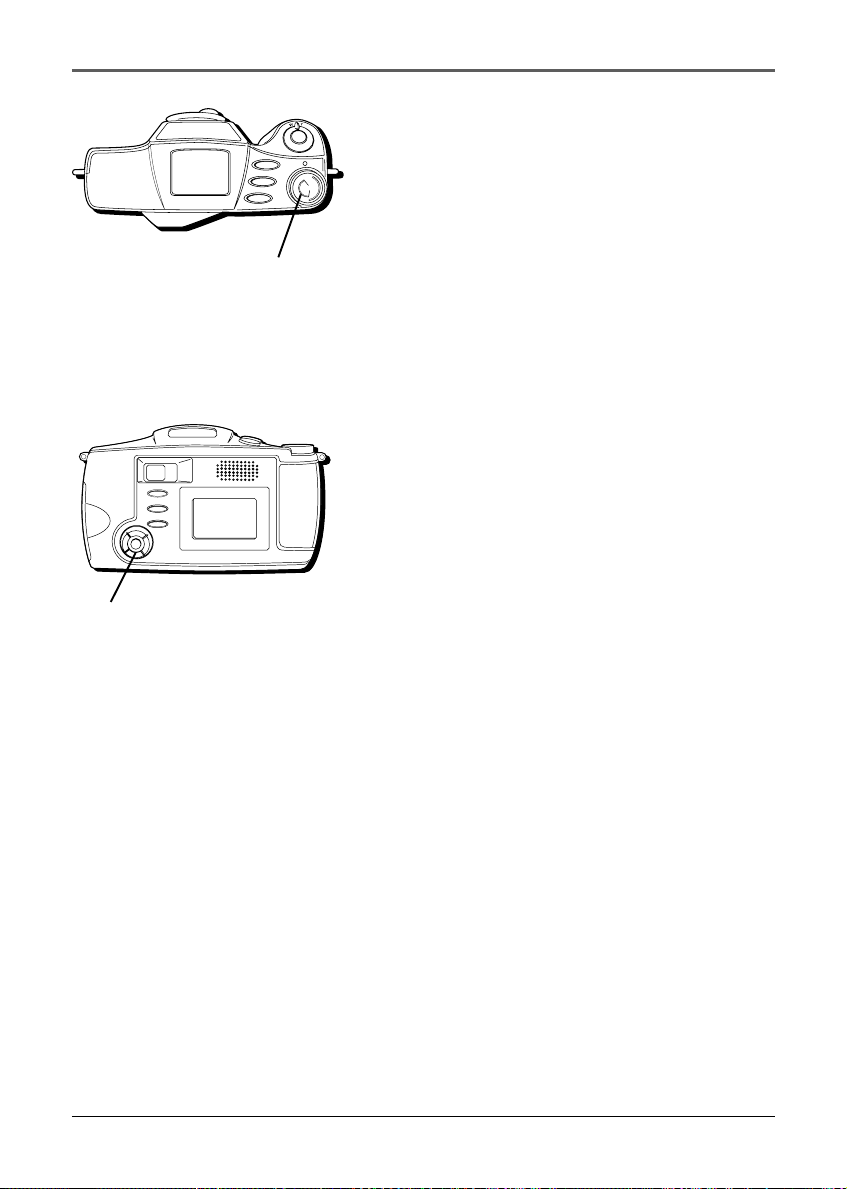
The camera has a self timer so that you can delay
when the picture is taken by a few seconds. It’s
especially useful when using a tripod.
Set it to 3 seconds to steady any vibration caused by
touching the camera right before you take a picture,
or to 10 seconds to allow you time to include
yourself in the picture.
You can use the self-timer indicator to gauge how
much time is left before the picture is taken. For the
3 second mode, it flashes once every half second.
For th 10 second mode, it flashes once a second for
7 seconds and then once every half second for the
remaining three seconds.
1. Set the Power dial to SETUP. (The Setup menu
appears and LCD BRIGHT is highlighted.)
2. Use the Navigation button to scroll to SELF
TIMER.
3. Use the Navigation button arrows to adjust the
delay. The on-screen arrows indicate which
arrows you can use on the Navigation button.
4. When finished, use the Navigation button to
scroll to the next setting or set the Power dial to
the desired mode.
Using the Self Timer
1. Press the TIMER button. (The timer icon
appears on the Status screen.)
2. When you are ready to use the self timer, press
the shutter button.
TIMER button

Using the Camera’s Features
Chapter 2 33
FLASH
TIMER
MODE
ON
S
E
T
U
P
V
I
E
W
O
F
F
Power dial
MENU
QUICK REVIEW
DISPLAY
Navigation
button
TV Signal
You can set the video output signal to NTSC or PAL,
depending on the type of signal you have in your
area. The default is NTSC, but PAL may be necessary
in some countries.
1. Set the Power dial to SETUP. (The Setup menu
appears and LCD BRIGHT is highlighted.)
2. Use the Navigation button to scroll to TV.
3. Use the Navigation button arrows to adjust the
type of signal. The on-screen arrows indicate
which arrows you can use on the Navigation
button.
4. When finished, use the Navigation button to
scroll to the next setting or set the Power dial to
the desired mode.
Language
The menu languages can be displayed in English,
French, German, Spanish, and Portuguese.
1. Set the Power dial to SETUP. (The Setup menu
appears and LCD BRIGHT is highlighted.)
2. Use the Navigation button to scroll to
LANGUAGE.
3. Use the Navigation button arrows to adjust the
display language. The on-screen arrows indicate
which arrows you can use on the Navigation
button.
4. When finished, use the Navigation button to
scroll to the next setting or set the Power dial to
the desired mode.
Using the Camera’s Features
34 Chapter 2
FLASH
TIMER
MODE
ON
S
E
T
U
P
V
I
E
W
O
F
F
Power dial
MENU
QUICK REVIEW
DISPLAY
Navigation
button
Formatting the CompactFlash Card
This feature allows you to format the CompactFlash
card and delete all pictures (including locked ones).
1. Set the Power dial to SETUP. (The Setup menu
appears and LCD BRIGHT is highlighted.)
2. Use the Navigation button to scroll to FORMAT.
Press the right arrow on the Navigation button
to select it. (The Format menu appears.)
3. Use the Navigation button arrows to highlight
FORMAT CARD. Press the middle of the
Navigation button to select it. (NOW
FORMATTING appears.)
• If you want to reset the picture numbers so that
they start at 0001 again, use the Navigation
button to highlight RESET PICTURE NUMBERS.
Then press the middle of the Navigation button
to select it.
• If you don’t want to reset the picture numbers,
press the up arrow on the Navigation button to
return to the previous menu.
4. When finished, use the Navigation button to
scroll to the next setting or set the Power dial to
the desired mode.

Chapter 3
Viewing and Downloading
Chapter Overview:
• Using Your Camera with a TV or PC
• System Requirements for PhotoStudio 2000
®
• Connecting to a Computer
35
Changing Entertainment. Again.
Viewing and Downloading
36 Chapter 3
Using Your Camera with a TV or PC
Your pictures can be viewed on your TV or transferred to a PC, saved, and edited using
the included cable and software.
Connecting to a TV (or VCR) to See Your Pictures
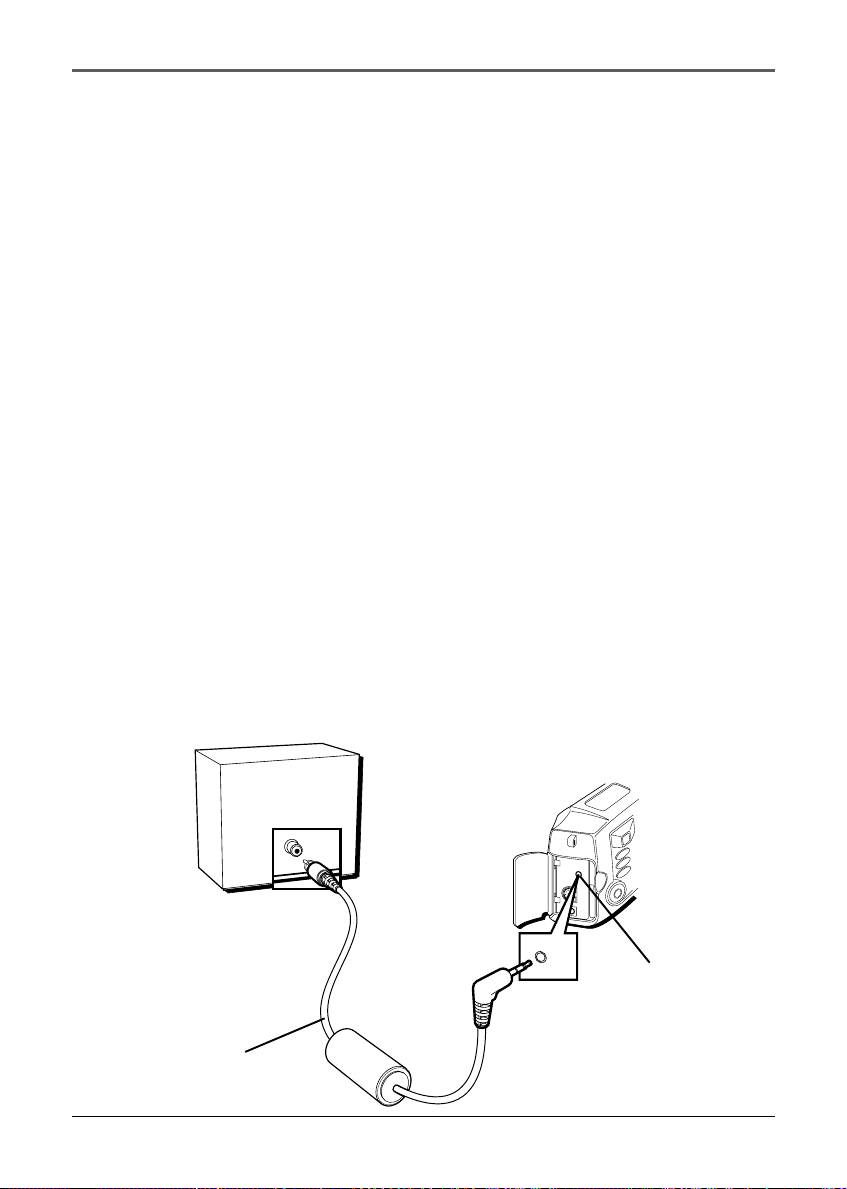
You can view your pictures on your TV (or VCR) using the supplied video output cable.
1. To assure safety, make sure all units are turned off before making any connections.
2. Plug the small end of the video cable (which looks like a headphone plug) into the
TV jack on the camera.
3. Plug the other end of the video cable into the VIDEO IN jack on the TV (or VCR).
4. Turn on the TV and tune it to the video input channel or turn on the VCR and place
it in the “line” or “camera” mode. (If you need further instructions for viewing
pictures on your TV or VCR, consult the owner’s manual for that product.)
5. Set the Power dial on the camera to VIEW. (The last picture you took appears on the
TV and the LCD monitor on the camera turns off.)
Notes:
• All operating modes and menus can be seen on the TV when it is connected.
• If DISPLAY is pressed on the camera while it is connected to a TV and the Power
dial is set to REC, the video signal to the TV will be turned off. (Just as the LCD
monitor would turn off if you pressed DISPLAY without the TV connected.)
TV or VCR
TV jack
Video output
cable
TV
DIGITAL
P
O
W
E
R
TV

Viewing and Downloading
Chapter 3 37
System Requirements for PhotoStudio
®
2000
Windows
®
PC Requirements
• Windows
95
®
PC with available serial port
• Windows 98
®
PC with available USB or serial port (USB port recommended)
• Windows 2000
®
PC with available USB or serial port (USB port recommended)
• Windows Me
®
PC with available USB or serial port (USB port recommended)
• Pentium-based or faster microprocessor
• 32 MB RAM
• 50 MB available hard disk space
• CD-ROM drive
• Color VGA display
Macintosh
®
Requirements
• Mac
®
OS 8.5 or later
• Power Mac
®
or iMac
®
(USB compatible)
• 32 MB RAM
• 50 MB available hard disk space
• Available USB port
• CD-ROM drive
• Color VGA display
PhotoStudio2000 is a registered trademark of ArcSoft, Inc.
Windows
is a trademark of Microsoft Corporation, registered in the U.S.A. and other
countries.
Macintosh, Mac OS, PowerMac, and iMac are registered trademarks of Apple Computer,
Inc.
Viewing and Downloading
38 Chapter 3
Connecting to a Computer
Your pictures can be transferred to your PC or Macintosh and saved using the image
transfer/editing software, PhotoStudio2000.
1. To assure safety, make sure the camera is turned off before making any connection.
2. Insert the PhotoStudio2000 CD-ROM into your drive.
3. Double click the installer icon and follow the on-screen instructions to install the
software.
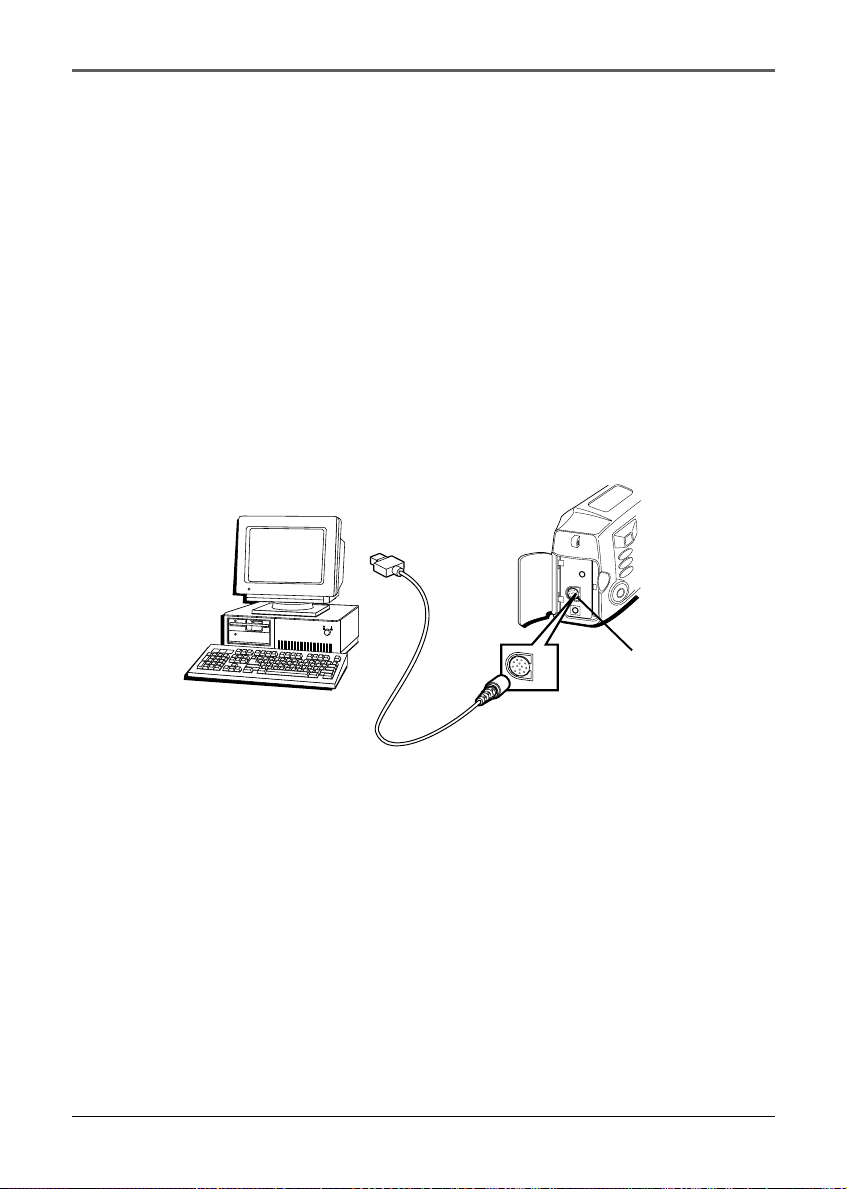
• If you have a serial connection on your computer, plug the small end of the serial
cable into the DIGITAL jack on the camera. Then plug the other end of the cable
into the serial jack on your computer.
• If you have a USB connection on your computer, plug the small end of the USB
cable into the DIGITAL jack on the camera. Then plug the other end of the cable
into the USB jack on your computer.
T
V
D
I
G
I
T
A
L
P
O
W
E
R
D
IG
IT
A
L
4. Set the Power dial to VIEW on the camera. (The last picture you took appears.)
5. Launch the software on your computer.
6. In PhotoStudio2000, click File on the Main Menu, then click Select Source.
7. In the Select Source dialog box, highlight the digital still camera driver, then click
Select.
8. Click File on the Main Menu screen, then click Acquire, or simply click the Acquire
button on the Quick Access Bar. (A window appears showing all your pictures.)
9. Select a picture and click OK, or simply double click the picture. To select all the
pictures, click Select All then click OK. (Your pictures open in PhotoStudio2000.)
10. When finished, close the software, then turn off the camera.
Serial or USB computer connection
DIGITAL jack

Chapter 4
Other Information
Chapter Overview:
• Troubleshooting
• Care and Cleaning
• Traveling Tips
• Specifications
• Limited Warranty
• FCC Declaration of Conformity and Industry Canada
Information
• Optional Accessories
• Index
39
Changing Entertainment. Again.

Other Information
40 Chapter 4
Troubleshooting
If you’re having problems with your camera, try the solutions in this section. If the
problem still exists, please consult the warranty in this user’s guide.
External noise and interference (from a TV, a radio, etc.) might prevent your camera from
functioning properly. In such cases, first disconnect its power supply (batteries, AC power
supply, etc.); and then reconnect it and proceed as usual from the beginning.
Power Problems
No power is supplied.
• The batteries are not installed correctly (see page 9).
• The power supply has not been correctly connected (see page 13).
The power suddenly goes off and does not come back on by itself.
• The camera automatically turns off to save power if you don’t use the features for
more than a few minutes. Turn the Power dial off and then on again.
• The batteries are completely discharged.
Feature and Function Problems
Vertical white lines appear when shooting a very bright object.
This sometimes occurs when there is a lot of contrast between the background and the
object. It is not a defect of the camera. Try shooting from a different angle or adjusting
the lighting conditions.
Bright, crystal-shaped spots appear in the LCD monitor and the
viewfinder.
Sunlight is directly entering the lens. This is not a defect of the camera.
The rear of the LCD monitor is hot.
The light used to illuminate the LCD monitor causes it to be hot. Turn off the monitor or
set the Power dial to OFF, and let the unit cool down.

Other Information
Chapter 4 41
Colored bright spots appear all over the LCD monitor.
The LCD monitor is made with high-precision technology. However, black spots or bright
spots of light (red, green, or blue) may appear constantly on the LCD monitor. This is not
due to any defect of the unit.
The icons and the picture color on the LCD monitor are not clear.
This may occur when the surface or the edge of the LCD monitor is pressed.
The LCD monitor, the viewfinder, and the lens are dirty.
Wipe them gently with soft a cloth. Gently wipe the LCD monitor in a semicircle because
wiping strongly spreads the stain and it won’t come out easily.
Although the shutter button is pressed, the picture isn’t stored on the
CompactFlash card.
When the remaining picture number icon blinks 0, you must delete some pictures before
you can store new ones (see page 28).
It isn’t possible to shoot in succession.
It takes approximately 2 seconds to store a picture in memory. You’ll have to wait until it
is stored before taking another picture. If you want to take more pictures in a short
amount of time, use Burst mode (see page 21).
All pictures can’t be deleted, even if Delete All is selected.
Some pictures may be locked. If they are not necessary, unlock them, then try deleting all
the pictures again (see pages 28-29).
If the pictures cannot be deleted, even after you have unlocked them, you may need to
format the CompactFlash card. This will erase all the pictures (including locked) (see page
34).
There seems to be a problem taking pictures.
Try to delete some of the pictures, then try to take a few more. If that doesn’t work, you
may need to save any remaining pictures to a computer and format the CompactFlash
card. This will clear the card and erase all the pictures (including locked) from memory
(see page 34).

Other Information
42 Chapter 4
Care and Cleaning
Care and Maintenance
Cleaning the Camera
1. Clean the exterior, wiping gently with a soft cloth. For heavy dirt, use diluted, mild
soap and wring the cloth well. Then wipe again with a dry cloth.
2. Wipe the LCD monitor gently with a soft, dry cloth.
3. To clean the lens and viewfinder, blow them with air using a blower brush. Wipe
gently with lens cleaning paper.
Notes:
• Avoid using strong cleaning agents such as alcohol.
• Cleaning should be done only after the power supply has been disconnected.
• Mold may form if the lens is left dirty.
• When using a cleaner or chemically treated cloth, refer to the cautions of each
product.
Proper Care and Storage
• Always cap the lens when the camera is not in use.
• Before handling the camera, make sure your hands and face are free from any
chemical products such as suntan lotion, as it might damage the finish.
• The camera might be damaged by improper storage or handling. Do not subject the
camera to swinging, shaking, or dropping.
• Do not store the camera in temperatures below -22˚F (-30˚C) or above 149˚F (65˚C).
• When the camera is not in use, always remove the AC power supply or batteries.
• Retain the original carton for future storage or shipping purposes.

Other Information
Chapter 4 43
CD-ROM Care
• Take care not to soil or scratch the mirror surface (opposite to the printed surface).
Do not write anything or put a sticker on either the front or back surface. If the CD-
ROM gets dirty, gently wipe it with a soft cloth outward from the center hole using a
circular motion.
• Do not use conventional disc cleaners or cleaning spray.
• Do not bend the CD-ROM or touch its mirror surface.
• Do not store your CD-ROM in a dusty, hot or humid environment. Keep it away from
direct sunlight.
Things to Avoid
• Do not attempt to disassemble the camera. There are no user-serviceable parts inside.
• Avoid operating the camera immediately after moving it from a cold location to a warm
location. Give the camera 1-1/2 to 2 hours to reach a stable temperature before using.
• Never aim the camera at the sun or other bright objects.
• Do not leave the camera in direct sunlight for extended periods of time. The resulting
heat buildup might permanently damage the camera’s internal parts.
• Do not operate the camera in extremely humid environments.
• Do not operate the camera near the ocean as salt water or spray might damage the
internal parts of the camera.
• Do not operate the camera for extended periods in temperatures below 40˚F (4˚C) or
above 95˚F (35˚C).
• Do not expose the camera or power supply to rain or moisture. If any component
becomes wet, turn off the power.
• Do not use any power supply or batteries other than the ones specified for the camera.
Using the wrong accessories might cause damage to the camera.

Other Information
44 Chapter 4
Traveling Tips
• Write down your camera’s serial number and keep it separate from the camera when
traveling. If your camera is lost or stolen, you will be able to identify it.
• Use extra care to avoid damage to your camera and accessories when operating
them at a beach or pool. Spray, sand, and dust should be avoided. If your lens has
been exposed to the elements, clean it only with proper lens cleaning supplies.
• Make sure you have any plug adapters that you might need before taking your
camera to other countries. Consult your dealer for advice.
• Carry your camera in a carrying case when traveling. An ordinary suitcase or carry
bag does not offer the protection your camera needs. Treat your camera as carry-on
luggage to protect it from rough handling.

Other Information
Chapter 4 45
Specifications
Camera
CCD sensor resolution: 1792x1200 pixels (2.3 megapixel output, interpolated)
Lens: 5.4-16.2mm (3x optical zoom)
Normal Range: 50cm - infinity
Macro range: 5-50cm
Digital zoom: 2x, 4x
Recording medium: CompactFlash, type 1 or type 2
Erase: Single or all
Video system: NTSC or PAL
Power source: 4 AA alkaline or NiCd or NiMH rechargeable batteries
AC Power Supply
110/240V, 60Hz AC input; 6V DC, 800mA output

Other Information
46 Chapter 4
Limited Warranty
Limited Warranty
What your warranty covers:
• Defects in materials or workmanship.
For how long after your purchase:
• One year from date of purchase - Unit exchange, which includes parts and labor.
• The warranty for rental units begins with the first rental or 45 days from date of
shipment to the rental firm, whichever comes first.
What we will do:
• Exchange a defective Digital Still Camera with a new or, at our option, refurbished
unit.
How you get service:
• Call 317-415-4945 and have your unit’s date of purchase and model/serial number
ready. The model/serial number information is on the back of your camera.
• A representative will troubleshoot your problem over the phone.
• If the representative determines that you should receive a replacement camera you
will be provided with a Service Request (SR) number and the location of a nearby
exchange point if one exists. No returns will be accepted without the SR number.
• Proof of purchase in the form of a bill of sale or receipted invoice which is evidence
that the product is within the warranty period must be presented to obtain warranty
service. For rental firms, proof of first rental is also required.
Option I:
1. Provide your Discover, MasterCard or Visa account number and expiration date to
your phone representative. This is for security purposes only and your account will
not be charged at this time.
2. We will send you a replacement unit.
3. If you return the unit to us within 14 days from the date you were provided a SR
number, only items not covered by warranty will be charged to your account. If your
unit is not received within 14 days, the suggested retail value of the camera will be
charged to your credit card. This amount will be credited, less a $10 handling fee, if
the unit is subsequently received.

Other Information
Chapter 4 47
4. Ship your defective unit back to us using the replacement unit’s carton. Shipping
instructions will be included on the carton along with your SR number which will
allow you to easily ship the unit back to us. Make sure you insure your shipment in
case of damage or loss. Include with the shipment:
• Evidence of purchase date such as a bill of sale.
• A brief note describing your camera’s problem.
• Your name, address and phone number.
Option II:
1. For a fee of $10.00, we will send a replacement unit to our exchange point.
2. The exchange location will notify you of its arrival.
3. Take your unit and evidence of purchase date, such as a bill of sale, to the exchange
location and you will be provided the new or refurbished unit. Please retain all
accessories.
4. If the repairs are covered by your warranty, you will not be billed.
Thomson assumes no responsibility for warranty shipments from the customer
to the factory if not shipped in the manner prescribed by Thomson.
To receive a replacement camera after we have received your unit:
• Write the SR number on the outside of the carton used to return the unit. Make sure
you insure your shipment in case of damage or loss.
• Carefully pack the unit using the original box and packing material if possible. Please
retain all accessories that were included with your unit.
• Include with the shipment:
1. Evidence of purchase date such as a bill of sale.
2. A brief note describing your camera’s problem.
3. Your name, address and phone number.
• The representative will advise the address to mail a cashier’s check or money order
for payment if there are any out of warranty labor or parts charges, and you elect not
to use your credit card.
• After we receive your product, a new or refurbished unit will be shipped to you.

Other Information
48 Chapter 4
What your warranty does not cover:
• Acts of nature, such as but not limited to lightning damage.
• Adjustment of customer controls.
• Damage from misuse or neglect.
• A unit that has been modified or incorporated into other products or is used for
institutional or other commercial purposes.
• Batteries.
• Units purchased, serviced or operated outside the U.S.A.
• Loss of images.
• Shipping damage if the unit was not packed and shipped in the manner prescribed
by Thomson.
• Storage fees may be charged by the exchange point if you fail to pick up the
replacement unit in a timely manner.
Product Registration:
• Please complete and mail the Product Registration Card packed with your camera. It
will make it easier to contact you should it ever be necessary. The return of the card
is not required for warranty coverage.
Limitation of Warranty:
• THE WARRANTY STATED ABOVE IS THE ONLY WARRANTY APPLICABLE TO THIS
PRODUCT. ALL OTHER WARRANTIES, EXPRESS OR IMPLED (INCLUDING ALL
IMPLIED WARRANTIES OF MERCHANTABILITY OR FITNESS FOR A PARTICULAR
PURPOSE) ARE HEREBY DISCLAIMED. NO VERBAL OR WRITTEN INFORMATION
GIVEN BY THOMSON MULTIMEDIA INC., ITS AGENTS OR EMPLOYEES SHALL
CREATE A GUARANTY OR IN ANY WAY INCREASE THE SCOPE OF THIS
WARRANTY.
• REPAIR OR REPLACEMENT AS PROVIDED UNDER THIS WARRANTY IS THE
EXCLUSIVE REMEDY OF THE CONSUMER. THOMSON MULTIMEDIA INC. SHALL
NOT BE LIABLE FOR INCIDENTAL OR CONSEQUENTIAL DAMAGES RESULTING
FROM THE USE OF THIS PRODUCT OR ARISING OUT OF ANY BREACH OF ANY
EXPRESS OR IMPLIED WARRANTY ON THIS PRODUCT. THIS DISCLAIMER OF
WARRANTIES AND LIMITED WARRANTY ARE GOVERNED BY THE LAWS OF THE
STATE OF INDIANA. EXCEPT TO THE EXTENT PROHIBITED BY APPLICABLE LAW,

Other Information
Chapter 4 49
ANY IMPLIED WARRANTY OF MERCHANTABILITY OR FITNESS FOR A
PARTICULAR PURPOSE ON THIS PRODUCT IS LIMITED TO THE APPLICABLE
WARRANTY PERIOD SET FORTH ABOVE.
How State Law relates to warranty:
• Some states do not allow the exclusion nor limitation of incidental or consequential
damages, or limitations on how long an implied warranty lasts, so the above
limitations or exclusions may not apply to you.
• This warranty gives you specific legal rights, and you also may have other rights that
vary from state to state.
If you purchased your camera outside the United States:
• This warranty does not apply. See your dealer for warranty information.

Other Information
50 Chapter 4
FCC Declaration of Conformity and Industry Canada
Information
FCC Regulations state that unauthorized changes or modifications to this equipment may
void the user’s authority to operate it.
This device complies with part 15 of FCC Rules. Operation is subject to the following
two conditions: (1) This device may not cause harmful interference, and (2) This device
must accept any interference received, including interference that may cause undesired
operation.
This Class B digital apparatus complies with the Canadian ICES-003.
Cet appareil numérique de la Classe B est conforme a la norme NMB-003 du Canada.
This equipment has been type tested and found to comply with the limits for a Class B
Digital Device in accordance with the specifications in Part 15 of the FCC rules. These
rules are designed to provide reasonable protections against radio and television
interference in a residential installation. This equipment generates, uses and can radiate
radio frequency energy and, if not installed and used in accordance with the instructions,
may cause harmful interference to radio communications. However, there is no
guarantee that interference will not occur in a particular installation.
If this equipment does cause interference to radio or television reception (which you can
determine by turning the equipment off and on), try to correct the interference by one
or more of the following measures:
Reorient or relocate the receiving antenna (that is, the antenna for the radio or television
that is “receiving” the interference).
Change the position of the Camera with respect to the radio or television equipment that
is receiving interference.
Move the Camera away from the equipment that is receiving interference.
Plug the Camera into a different wall outlet so that the Camera and the equipment
receiving interference are on different branch circuits.
If these measures do not eliminate the interference, please consult your dealer or an
experienced radio/television technician for additional suggestions. Also, the Federal
Communications Commission has prepared a helpful booklet, “How To Identify and
Resolve Radio/TV Interference Problems.” This booklet is available from the U.S.
Government Printing Office, Washington D.C. 20402. Please specify stock number 004-
000-00345-4 when ordering copies.
For more information on FCC conformity: Thomson multimedia Inc.,
10330 N. Meridian St., Indianapolis IN 46290; 1-800-587-5850.
Other Information
Chapter 4 51
Cautions:
• Before using a tripod, make sure it is
stable enough to hold the camera
without falling over. Do not transport
the camera attached to the tripod.
• When attaching your camera to a tripod,
be careful not to force the tripod screw
into the camera’s tripod mounting hole.
• The tripod screw should not protrude
into the camera more than
approximately three-eighths (3/8) of an
inch. Forcing the screw could damage
the mounting hole on the bottom of the
camera.
Optional Accessories
We invite you to take a look at some great ideas for sparking creativity and adding to the
fun of using your camera. The following pages have a selection of accessories to help
make your memorable moments look and sound even better.
These accessories are designed to make the process of taking pictures more enjoyable.
To order accessories, contact your local Dealer.
If a dealer is not nearby, all accessories are available through toll-free ordering or by
using the order form found on page 53.
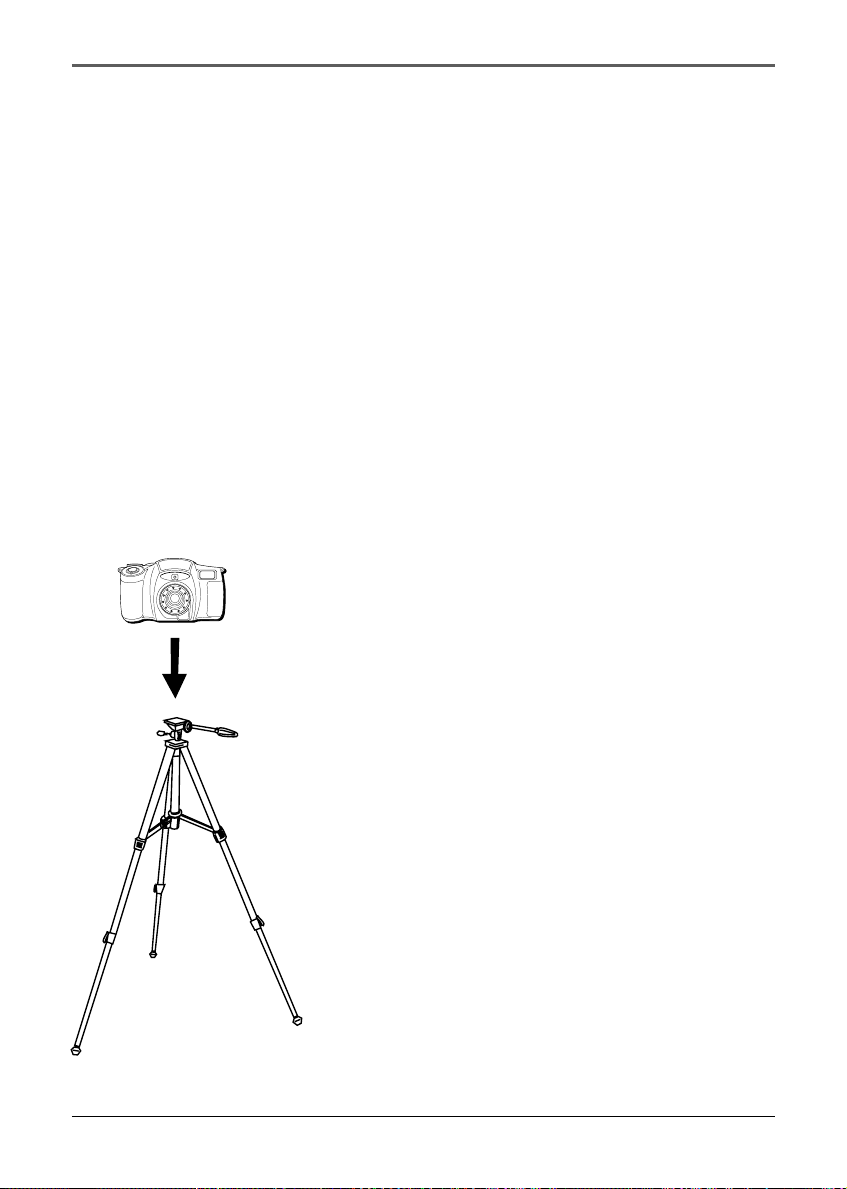
Using the Optional AC088 Tripod
Mounting the camera on a tripod, such as AC088, keeps the camera steady and produces
excellent results.
This tripod’s fluid-effect head provides smooth camera pan and tilt. The quick-release
mount makes it easy to attach or remove the camera. The grooved, tubular 3-section leg
design folds down to 26" when not in use. Rubber feet allow for sure footing.
All specifications and descriptions of accessories are subject to change without notice.
A
F
Z
o
o
m
5
.
4
-
1
6
.
2
m
m
1
:
2
.
8
-
4
.
4

Other Information
52 Chapter 4
To order accessories, contact your local Dealer.
If a dealer is not nearby, you can also follow the directions below to order by telephone
or direct-by-mail.
United States and Canada Orders
To place your order by phone, have your Visa, MasterCard, or Discover card ready and
call the toll-free number listed below.
Use this number only to place an order for accessory items listed on this
order form.
1-800-338-0376
To place your order by mail, detach and mail the completed order form with credit card
information, money order, or check in U.S. currency (made payable to Thomson
multimedia Inc.) to the following address:
Video Accessories
PO Box 8419
Ronks, PA 17573

Other Information
Chapter 4 53
Accessories Order Form
Description Part No. Price Qty. Total
Super lightweight tripod AC088 $ 49.95
Soft camera case 252114 $ 16.60
Neck strap 252327 $ 14.95
Lens cap 252325 $9.95
Lens cap holder 252326 $5.95
AC power supply 252110 $39.30
Video output cable 252113 $5.65
Serial cable 252111 $15.35
USB cable 252112 $14.10
16MB CompactFlash card PC16CF $99.95
All prices subject to change without notice.
Total Merchandise $_________
Sales Tax $_________
We are required by law to collect the
appropriate sales tax for each individual
state, county, and locality to which the
merchandise is being sent.
Shipping and Handling $_________
Total Amount Enclosed
$_________
Use VISA, MasterCard, or Discover.
Money order or check must be in U.S.
currency only. No COD or cash.
Detach Here
✂
Please complete other side also
5.00
Other Information
54 Chapter 4
¤
rr
s
TM
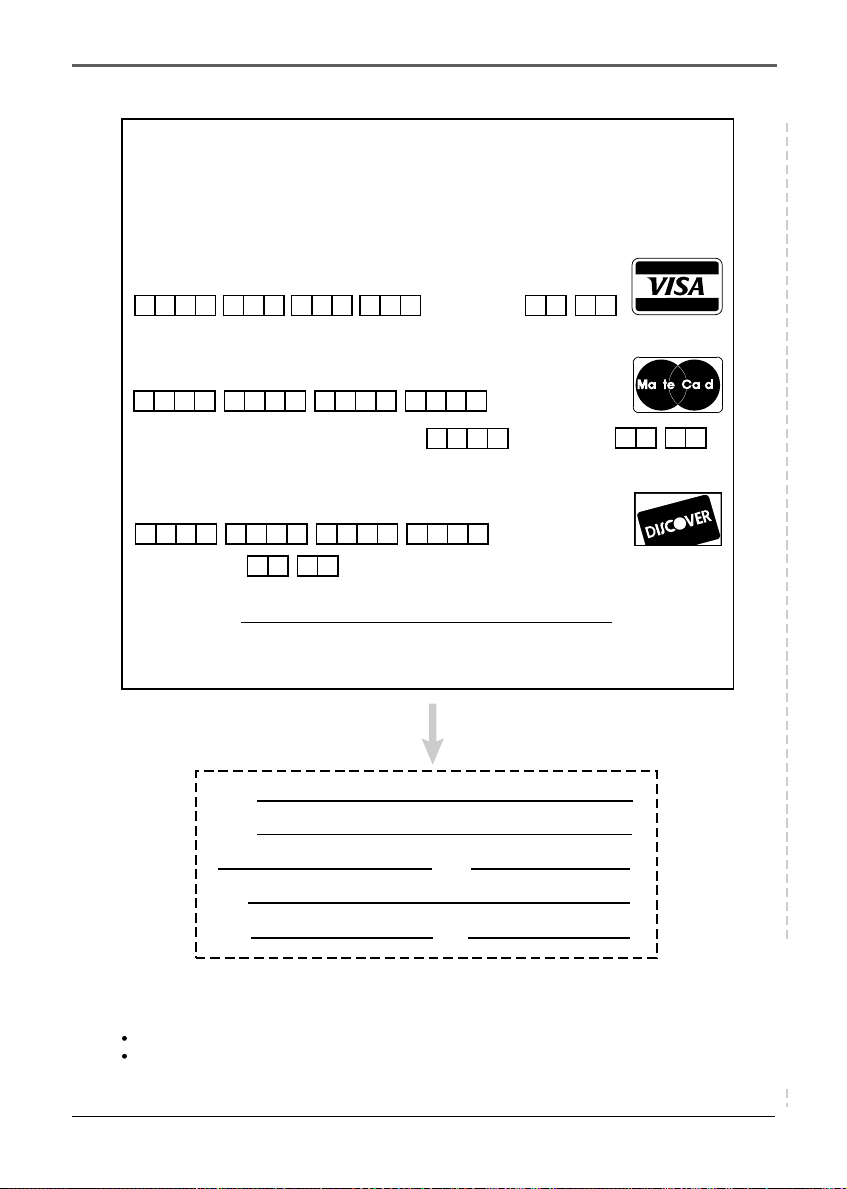
Charge your order on your VISA,MasterCard,
or Discover Card by filling in below
USE YOUR CREDIT CARD
IMPORTANT: Copy complete account number from your VISA card
IMPORTANT: Copy complete account number from your MasterCard
Expiration date:
Expiration date:
Copy Number above your name on MasterCard
AUTHORIZED SIGNATURE
Prices are subject to change without notice.
Please make sure that both sides of this form have been filled out completely.
Allow 4 weeks for delivery.
All accessories are subject to availability.
IMPORTANT:
Copy complete account number from your Discover Card
Expiration date:
Print or type your name and
address clearly.
A complete and correct order will
save you days of waiting.
Name:
Street:
Apt:
City:
State:
Zip:
Detach Here
✂

This Page Left Blank Intentionally

Index
56 Chapter 7
Index
A
Accessories 51
order form 53
B
Batteries
inserting 9
Battery level 21
Battery level icon 10
Buttons and controls 6
C
Camera busy 23
Capture modes 20
Burst 21
Macro 20
Multi 21
Normal 20
CD-ROM care 43
Cleaning 42
CompactFlash card
formatting 34
CompactFlash™ card
inserting 11
Connecting to a Computer 38
Connecting to a TV 36
D
Date and time
setting 16
Delete a picture 28
Delete all pictures 29
E
Exposure 25
F
FCC declaration of conformity 50
Flash modes 22
Auto flash 22
Forced flash 22
No flash 22
Red-eye reduction flash 23
G
Getting started 8
I
Important information i
Index review 27
Industry Canada information 50
Insert the batteries 9
Insert the CompactFlash™ card 11
L
Language 33
LCD monitor brightness 31
Lens cover holder 15
Limited warranty 46
Lock/unlock a picture 28
M
Menus
using 24
N
Navigation button 19
Neck strap 15
O
Order form 53

Index
Chapter 7 57
P
Parts checklist 4
Picture information
displaying 27
Picture quality 26
Picture quality status 20
Plug adapter 14
Power supply
using 13
Power supply
removing 14
Powering the camera 13
Product registration i, 48
Proper care and storage 42
Q
Quick review 19
R
Record menu 24
S
Self timer 32
Self timer status 23
Setup menu 31
Slideshow 30
Sound 31
Specifications 45
Status screen 20
System requirements for
PhotoStudio®2000 5, 37
T
Taking a picture 12
Things to avoid 43
Traveling tips 44
Troubleshooting 40
Turning off the camera 12
TV or PC
connecting 36
TV signal 33
V
View menu 27
Viewing your picture 12
W
W and T (zoom lever) 18
Warranty 46
White balance 24
Z
Zoom lever 18
Zooming
digital 18
optical 18

Thomson multimedia Inc.
10330 North Meridian Street
Indianapolis, IN 46290
Please do not send any products to the Indianapolis address listed in this manual or
on the carton. This will only add delays in service for your product.
©2001 Thomson multimedia Inc.
Trademark(s)® Registered
Marca(s) Registrada(s)
Printed in Malaysia
TOCOM 15747670