USER‘S
GUIDE
CC635/636/637
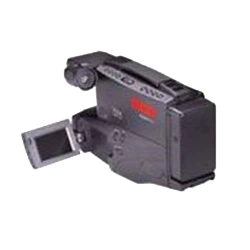
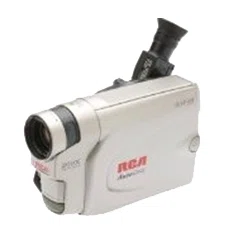
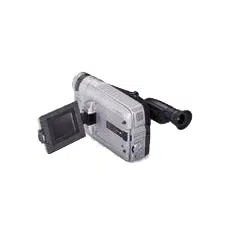
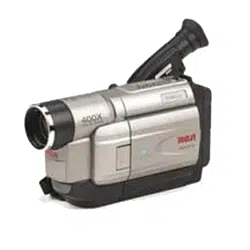
CAMCORDER
Important Safety Information
Be sure to read all the safety information before you begin to use this product.
Cautions
CAUTION: To prevent electric shock, match wide blade of plug to
wide slot, fully insert.
ATTENTION: Pour éviter les chocs électriques, introduire la lame
la plus large de la fiche dans la borne correspondante de la prise et
pousser jusqu au fond.
To reduce risk of injury, charge only rechargeable batteries
recommended by the manufacturer for this camcorder. Other types of
batteries may burst causing damage and personal injury.
FCC Regulations state that unauthorized changes or modifications to this
equipment may void the user’s authority to operate it.
Product Registration
Please fill out the product registration card and return it immediately.
Returning this card allows us to contact you if needed.
Keep your sales receipt for proof of purchase to obtain warranty parts
and service and attach it here. Record the serial and model numbers
located on the bottom of the camcorder.
Model No: _____________________________________
Serial No: _____________________________________
Purchase Date: _____________________________________
Purchased From: _____________________________________
i
WARNING: To reduce the risk of fire or shock hazard, do not expose
camcorder or AC adapter/charger to rain or moisture.
RISK OF ELECTRIC SHOCK
DO NOT OPEN
This symbol indicates “dangerous voltage”
inside the product that presents a risk of
electric shock or personal injury.
This symbol indicates important
instructions accompanying the product.
RISQUE DE CHOC
ELECTRIQUE NE PAS OUVRIR
CAUTION
ATTENTION
CC635/CC636/CC637
TO REDUCE THE RISK OF ELECTRIC SHOCK, DO NOT REMOVE THE COVER (OR
BACK). NO USER-SERVICEABLE PARTS ARE INSIDE. REFER SERVICING TO
QUALIFIED SERVICE PERSONNEL.

1
Assistance
Table of Contents
Safety Information ..............................i
Product Registration...........................i
Table of Contents............................1-2
First-Time Operation
• Assistance..........................................3
• Unpack Camcorder &
Accessories......................................3
• Attach the Adapter/Charger...............4
• Insert a Tape ......................................4
• Adjust Handstrap...............................5
• Open Lens Cover...............................5
• Turn on Camcorder............................5
• Select a Recording Speed..................6
• Set the Mode Select Dial...................7
• Adjust Viewfinder and
Eyepiece Focus Control...................7
• Start and Stop Recording...................8
• Play Back Your Recording................8
• Turn off the Camcorder.....................8
• Close Lens Cover ..............................8
• Review Camcorder’s
Operating Controls.....................9-11
Powering Your Camcorder
• Using Adapter/Charger....................12
• Using Rechargeable Battery.......13-15
• Using Optional Car Cord Adapter...16
Remote Controls
• Model CC637 Only
• Install Battery Cell .......................17
• Remote Sensor..............................17
• Buttons....................................18-19
• Models CC635 and CC636
• Buttons....................................20-21
• Install Battery Cell .......................22
• Remote Sensor..............................22
Recording and Traveling Tips ........23
Video Cassettes............................24-25
Recording
• Making a Recording...................26-27
• Viewfinder Displays...................28-31
• Viewfinder.......................................32
• Electronic Image Stabilizer (EIS)....33
• Electronic Indexing .........................33
• Flying Erase Head ...........................34
• Auto Head Cleaner ..........................34
• Tally Light.......................................34
• Microphone......................................34
• Quick Review..................................35
• QUICK REC Feature.......................35
• Camera Edit.....................................35
(continued on next page)
We want to make sure you enjoy your new camcorder. If you have any
questions, call:
Camcorder Exchange Warranty..........800-283-6503 (pages 100-101)
Customer Service.........................................800-336-1900 (page 99)
Accessories.............................................800-338-0376 (pages 84-89)

Table of Contents
2
Recording (continued)
Mode Select Dial
• Full AUTO Mode..........................36
• Exposure Control..........................37
• Focusing (Auto and Manual) ..38-39
• White Balance............................40-41
• Recording Menu
• To Display Recording Menu.........42
• Tape Remaining Display...............43
• Set Tape Length.........................43
• Zooming...................................44-45
• Gain Up (Slow Shutter).................46
• Color Filter....................................47
• Titler ........................................48-49
• Date and Time Display
• Set the Date and Time ...............50
• Install the Clock Lithium Cell ...51
• Select Date or Date and Time
You Want to Record ........52-53
• Sub Menu
• Change a Feature In the
Sub Menu...............................54
• Tally Light .................................55
• Set JLIP Identification
Number ..................................55
• Self Timer...................................56-57
• Animation Recording ................58-59
• Time-Lapse Recording ..............60-61
• Fading or Wiping In or Out........62-63
• Production Effects......................64-65
• Audio Dubbing (Remote Only)..66-67
• Edit Insert (Remote Only)..........68-69
Playback
• Using the Cassette Adapter........70-71
• Viewfinder Playback ......................72
• Playback Features
• Visual Searching ...........................73
• Tape Positioning ...........................73
• Stop-Action Pause.........................73
• Time Counter ................................74
• Tracking ........................................75
• Playback on TV (or VCR) With
AUDIO/VIDEO IN Jacks .......76-77
• Model CC637 Only
• Programming Remote to Operate
Compatible VCR ................78-79
• Copying Tapes Using Programmable
Synchro Edit ......................80-81
• Playback on TV Without
Audio/Video Inputs.................82-83
Optional Accessories...................84-89
• Accessory Order Form...............87-89
Built-in Color Enhancement
Light .......................................90-91
Attaching the Shoulder Strap..........92
Information to User..........................93
Care and Maintenance ...............94-95
Trouble Checks ...........................96-98
Customer Assistance and Service ...99
Limited Warranty...................100-101
Specifications ..................................102
Index (Alphabetical) ...............103-105
3
First-Time Operation
• Save the packing materials and box in case you ever need to ship or store your
camcorder.
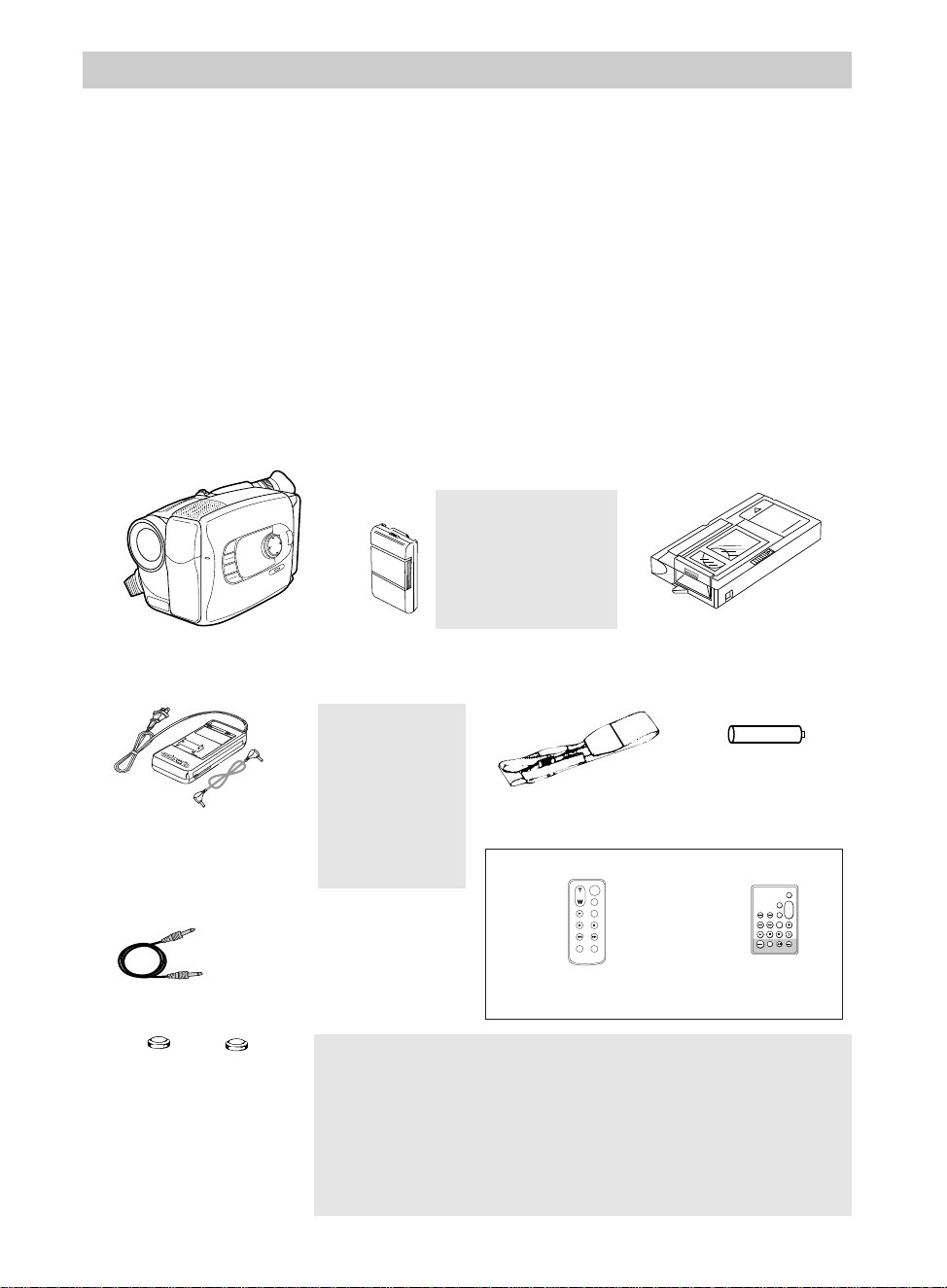
• The items shown below are packed with your camcorder. If any are missing or
appear damaged, contact your dealer immediately.
Model CC637 Only:
Edit Cable
Part No. 233088
Rechargeable 6-Volt Battery
Part No. FB1260
Cassette Adapter
Part No. 232845
Clock and Remote Cells
3-Volt Micro Lithium Cells
– such as CR2025 – available
from most local drug stores
and camera shops. Use of
other cells present a risk of
fire or explosion.
Model CC635, CC636 or CC637*
*Your camcorder may look slightly different
from the one shown in this manual.
WARNING:
NICKEL CADMIUM
BATTERY MUST BE
RECYCLED OR
DISPOSED OF
PROPERLY.
1. Unpack the camcorder and accessories.
+ -
Cassette Adapter
Battery
(Size "AA" 1.5 Volt)
Caution: Do not
use this adapter/
charger for any
purpose other than
charging the
FB1260 or FB120
battery pack or
supplying power to
the camcorder.
Cautions: Lithium cell batteries. Must be disposed of properly. Never
handle punctured or leaking cells. May cause burns or personal injury.
Keep out of the hands of children. Can cause death or injury if swallowed.
If swallowed, consult a physician immediately for emergency treatment.
The lithium cells used in these devices may explode resulting in a fire or
chemical burn if mistreated. Do not recharge, disassemble, heat above
212˚F (100˚C), or incinerate.
Never use metallic tweezers to hold the cell, and never short circuit the +
and – sides of the cell.
MENU
16X9
BACKLIGHT
AUTO
MANUAL
FRONTLIGHT
AE MODES
EIS
FADE
WIPE
DISPLAY
P
U
S
H
F
O
C
U
S
Assistance
The toll-free numbers are available to help you with any problem you may encounter.
Camcorder Exchange Warranty . . . . .800-283-6503
Customer Service . . . . . . . . . . . . . . . .800-336-1900
Accessories . . . . . . . . . . . . . . . . . . . .800-338-0376
This section describes only the basic steps necessary to set up your camcorder to
record. Refer to the other sections for detailed operation and feature options.
ZOOM
START/STOP
SELF
INT.
TIME
TIME LAPSE
REC
TIME
ANIM.
PAUSE
FF
A.DUB
INSERT
REW
STOP
PLAY
VISS
ANIM.
REW
CANCEL
RANDOM ASSEMBLY EDIT
REC/PAUSE
F FWD
REC
TIME
TIME LAPSE
SELF MBR
START
/STOP
T
W
ZOOM
INT.
ON
OFF
TIME
SET
VCR
PLAY PAUSE STOP INSERT
A.DUB
IN
OUT
Remote Control
Model CC635 or CC636
Part No. 221125
Model CC637
Part No. 221185
– OR –
Shoulder Strap
Part No. ACS091
POW
ER
CHG END REFRESH
AC Adapter/Charger
Part No. 221400
and DC Cable
Part No. 233087
4
First-Time Operation
CAMERA
VCR
POWER
OFF
AUDIO
RF
VIDEO
POWER
CHG END REFRESH
POWER
Indicator
DC OUT Jack
Adapter/Charger
To AC 100-
240V, 50/60 Hz
DC Cable
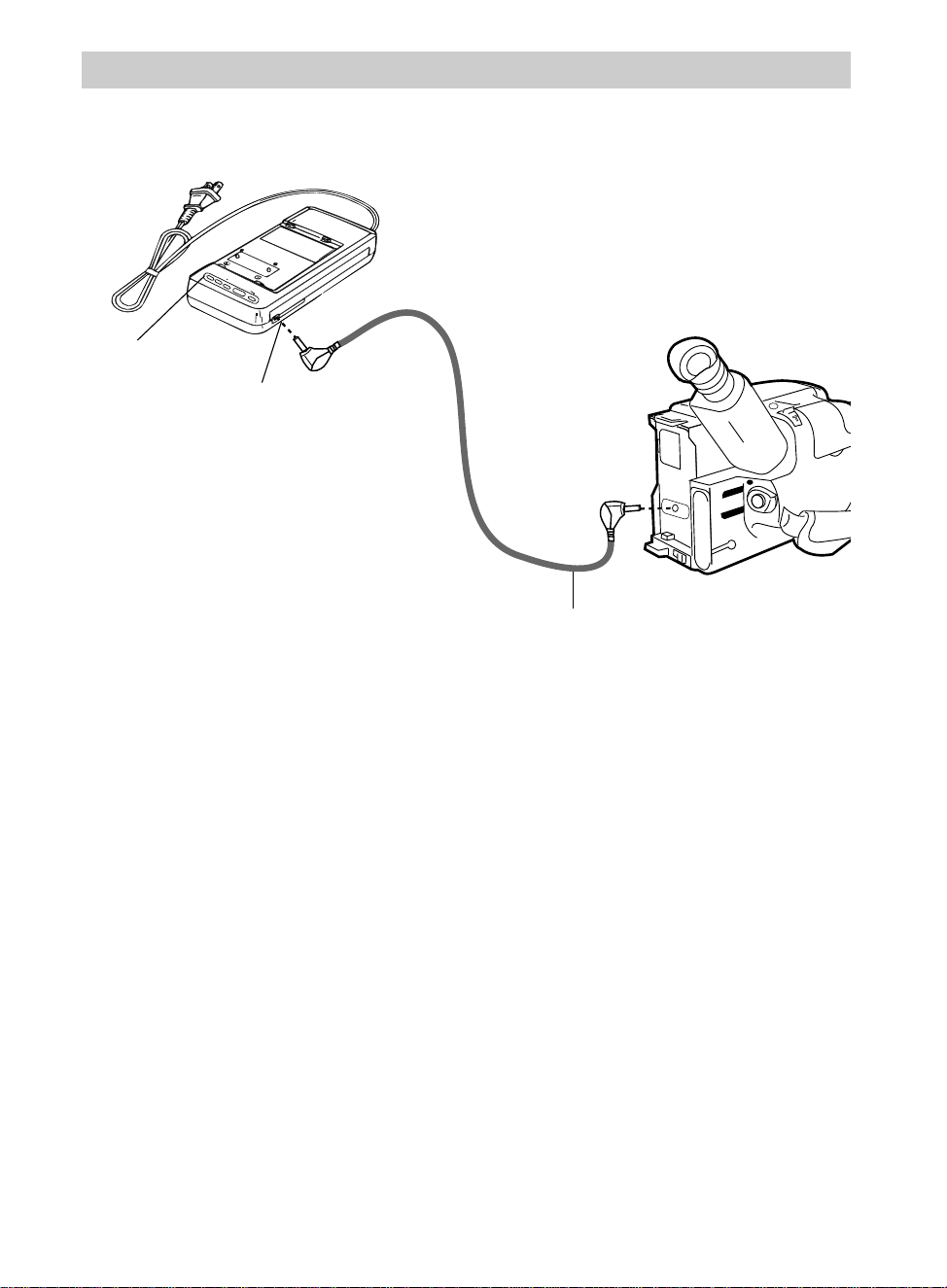
2. Attach the adapter/charger.
Since the battery must be charged
before it can be used the first time,
attach the adapter/charger to the
camcorder.
A. Connect one end of the DC cable to
the DC OUT jack on the
adapter/charger.
B. Connect the other end of the DC
cable to the DC in jack on the
camcorder as shown above.
C. Plug the adapter/charger’s plug into
an operating outlet. The adapter/
charger’s POWER indicator will
light
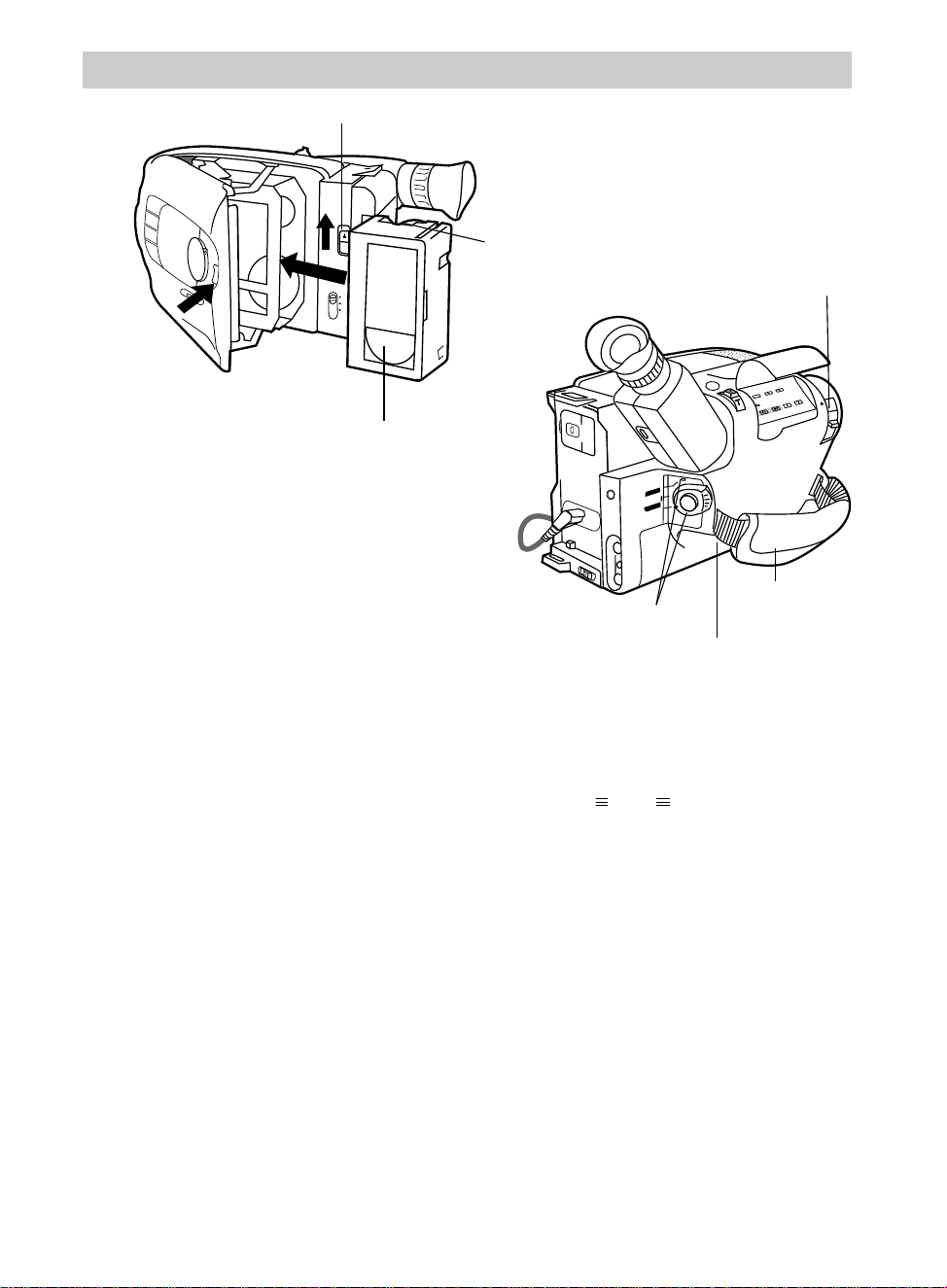
3. Insert a tape.
• Slide EJECT.
• Turn the tape wheel on the cassette
to remove any slack from the tape.
• Insert the cassette with the tape
wheel facing up and the tape window
facing out.
• Press on the area labeled PUSH until
the cassette door locks into place.
BATT. RELEASE
B
C
AUDIO
JLIP
RF
DC OUT
VIDEO
L
E
N
S
C
O
V
E
R
SP•SLP
QUICK
REC
TRACKING
ER R/M
W.BAL.
PLAY/PAUSE
STOP
FF
+
REW
+
–
VCR
CAMERA
POWER
OFF
5
EJECT
P
U
S
H
LIGHT
OFF
AUT
ON
Tape Wheel
Tape Window
PUSH
Here to
Close
First-Time Operation
4. Adjust the handstrap to fit
your hand.
• Lift the flap on the handstrap and
separate the velcro strip.
• Insert your hand, adjust the strap to
fit snugly, refasten the strap, and
close the flap.
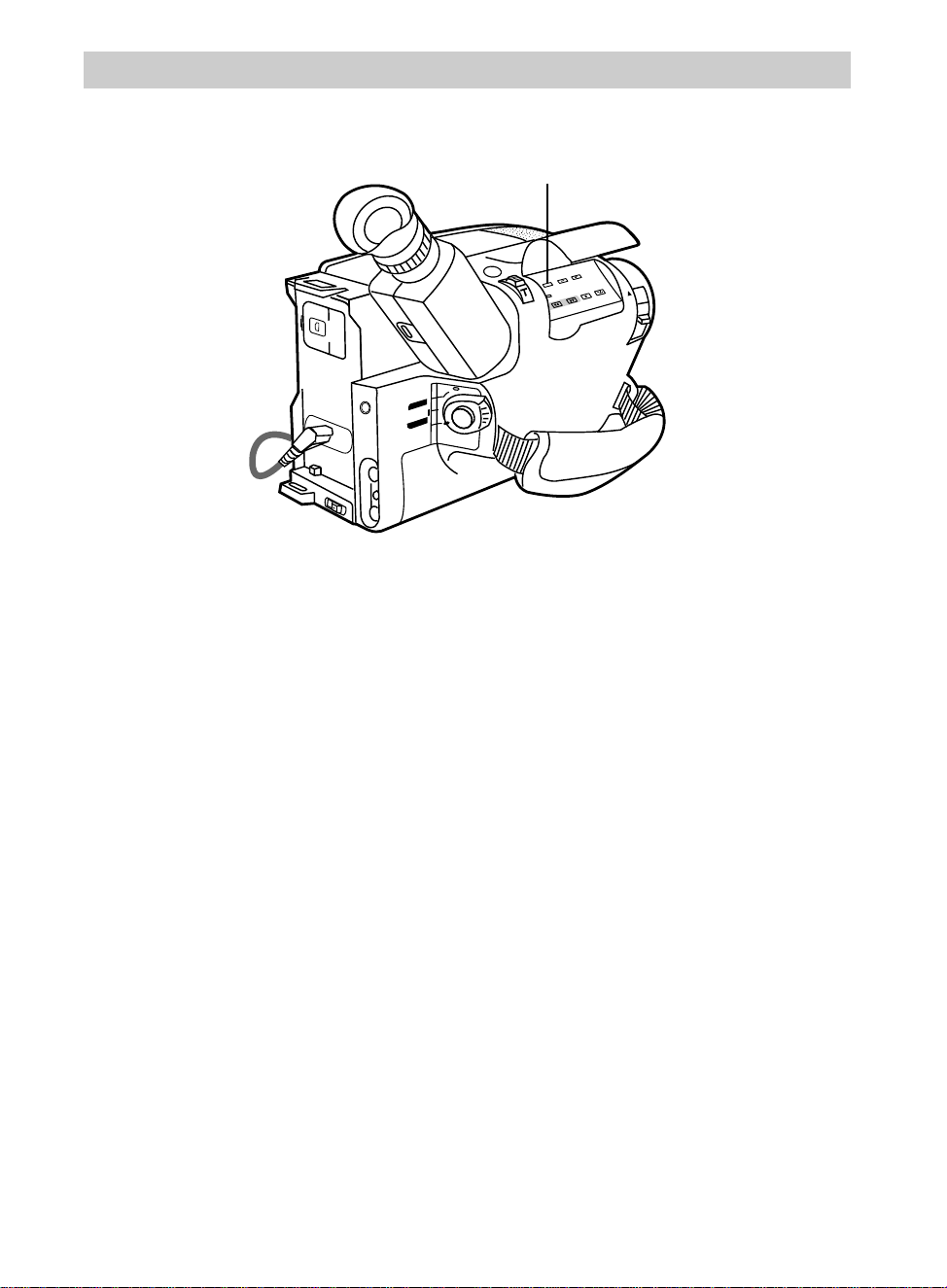
5. Slide LENS COVER control to
open lens cover.
6. Place POWER (CAMERA/
OFF/VCR) switch in
CAMERA.
EJECT Button
• The power indicator will light and
the camcorder will enter record
pause. appears in the
viewfinder when the camcorder is in
record pause.
• The position of this switch tells the
camcorder whether you want to
record (CAMERA), turn the power
off (OFF), or play back tapes (VCR).
• The camcorder will automatically
turn off if it remains in record pause
for five minutes without performing
zoom or other operations. Place
POWER in OFF and then back in
CAMERA.
PAUSE
(continued on next page)
Handstrap Flap
Handstrap Velcro Strip
(Under Flap)
POWER Switch and
Indicator
LENS
COVER
Control
BATT. RELEASE
B
C
AUDIO
JLIP
RF
DC OUT
VIDEO
L
E
N
S
C
O
V
E
R
SP•SLP
QUICK
REC
TRACKING
ER R/M
W.BAL.
PLAY/PAUSE
STOP
FF
+
REW
+
–
VCR
CAMERA
POWER
OFF
6
First-Time Operation
7. Select a recording speed.
Repeatedly press the SP•SLP switch to
select a recording speed. The
indicator for the speed selected
appears in the viewfinder.
Select SP or SLP recording speed.
• SP – Standard play provides the best
picture, but the shortest recording
time (20 minutes with a TC-20 tape).
• SLP – Extended play provides three
times the recording time as SP
(60 minutes with a TC-20 tape).
SLP has slightly more picture noise
in normal playback.
SP•SLP Switch
Note: The length of the tape you are using
must be selected in the recording menu for the
camcorder to correctly calculate the recording
time remaining on the tape. Details are on
page 43.
7
MENU
16X9
BACKLIGHT
AUTO
MANUAL
FRONTLIGHT
AE MODES
EIS
FADE
WIPE
DISPLAY
P
U
S
H
F
O
C
U
S
Electronic Viewfinder
Eyepiece Focus Control
Mode
Select
Dial
8. Set the mode select dial to
AUTO.
• This places the camcorder in the full
AUTO mode.
• In the AUTO mode, the focus,
exposure, and white balance are
automatically controlled by the
camcorder.
• Many of the special effects do not
operate in the AUTO mode. Details
on page 36.
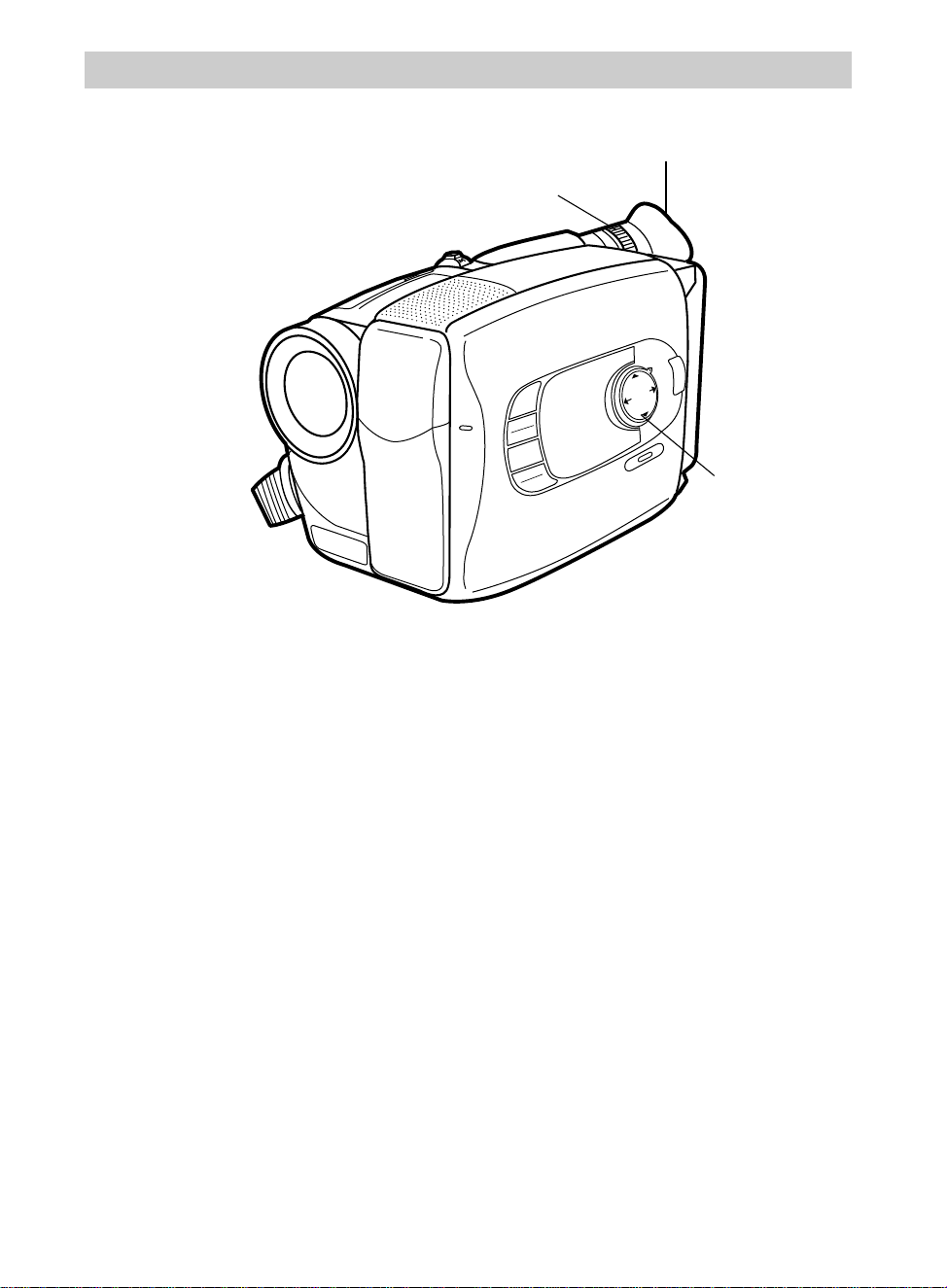
9. Adjust the viewfinder and
eyepiece focus control.
• Pull out and rotate the viewfinder
into a comfortable operating
position.
• Turn the eyepiece focus control to
adjust the focus of the viewfinder for
your vision.
First-Time Operation
(continued on next page)
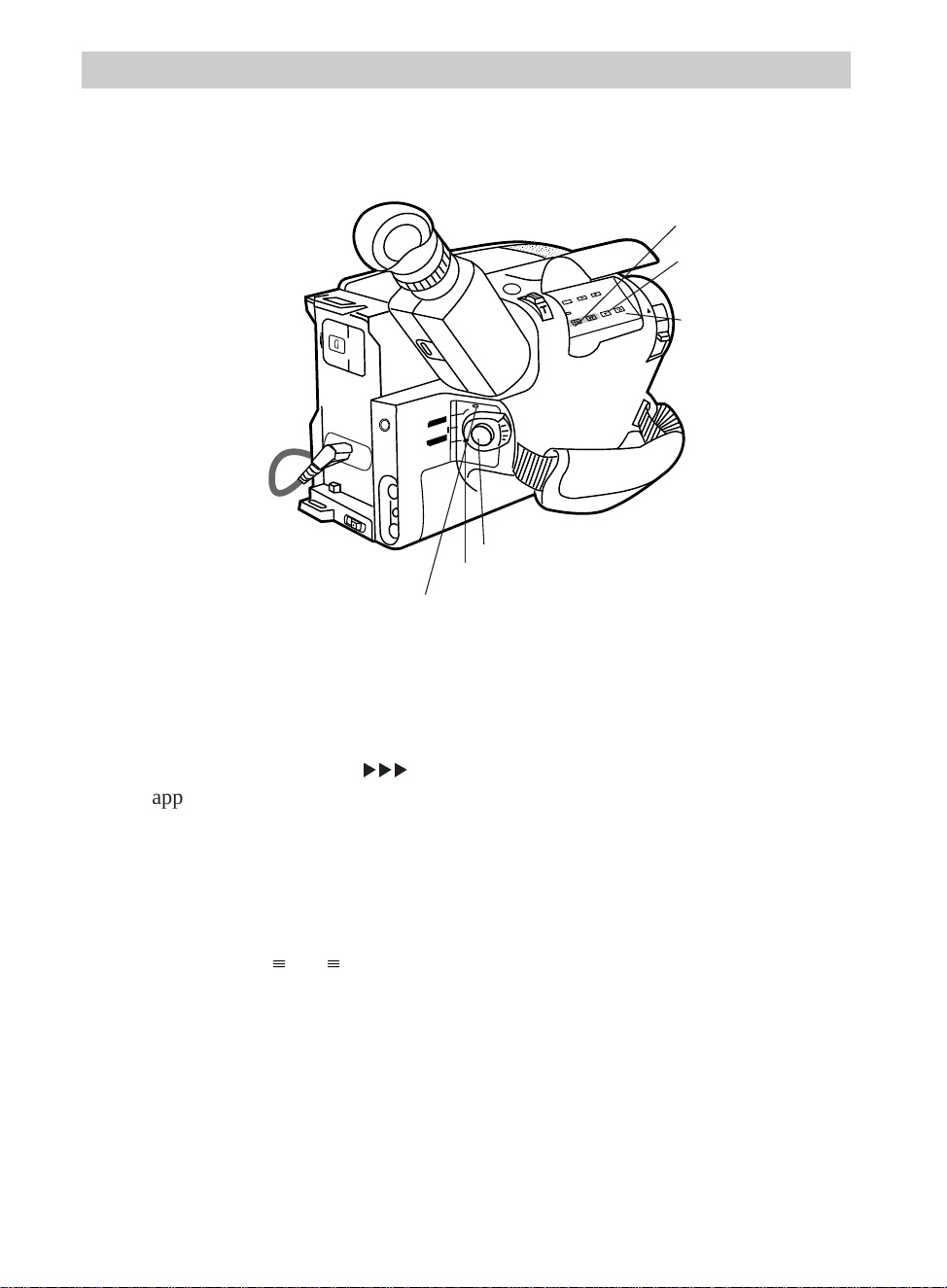
BATT. RELEASE
B
C
AUDIO
JLIP
RF
DC OUT
VIDEO
L
E
N
S
C
O
V
E
R
SP•SLP
QUICK
REC
TRACKING
ER R/M
W.BAL.
PLAY/PAUSE
STOP
FF
+
REW
+
–
VCR
CAMERA
POWER
OFF
8
First-Time Operation
10. Start and stop recording.
• Press and release the thumb trigger
to start recording. REC
666
appears in the viewfinder, and the
tally light will light when the
camcorder is recording.
• Press and release the thumb trigger
again to stop recording. The
camcorder is now in the record-
pause mode ( appears in
the viewfinder).
PAUSE
11. Play back what you have
recorded.
• Place the POWER switch in VCR.
• Press REW to rewind the tape.
• Press PLAY/PAUSE to play back
the tape in the viewfinder.
• Press STOP when you are finished
playing back the tape.
• Details on viewfinder playback are
on page 72.
12. Place the POWER switch in
OFF to turn off the camcorder.
The power indicator will turn off.
13. Close the lens cover.
Thumb Trigger
Power Indicator
PLAY/PAUSE
Button
REW Button
STOP Button
POWER (VCR/OFF/CAMERA) Switch
9
MENU
16X9
BACKLIGHT
AUTO
MANUAL
FRONTLIGHT
AE MODES
EIS
FADE
WIPE
DISPLAY
P
U
S
H
F
O
C
U
S
First-Time Operation
Lens
EIS Button
FADE/WIPE
Button
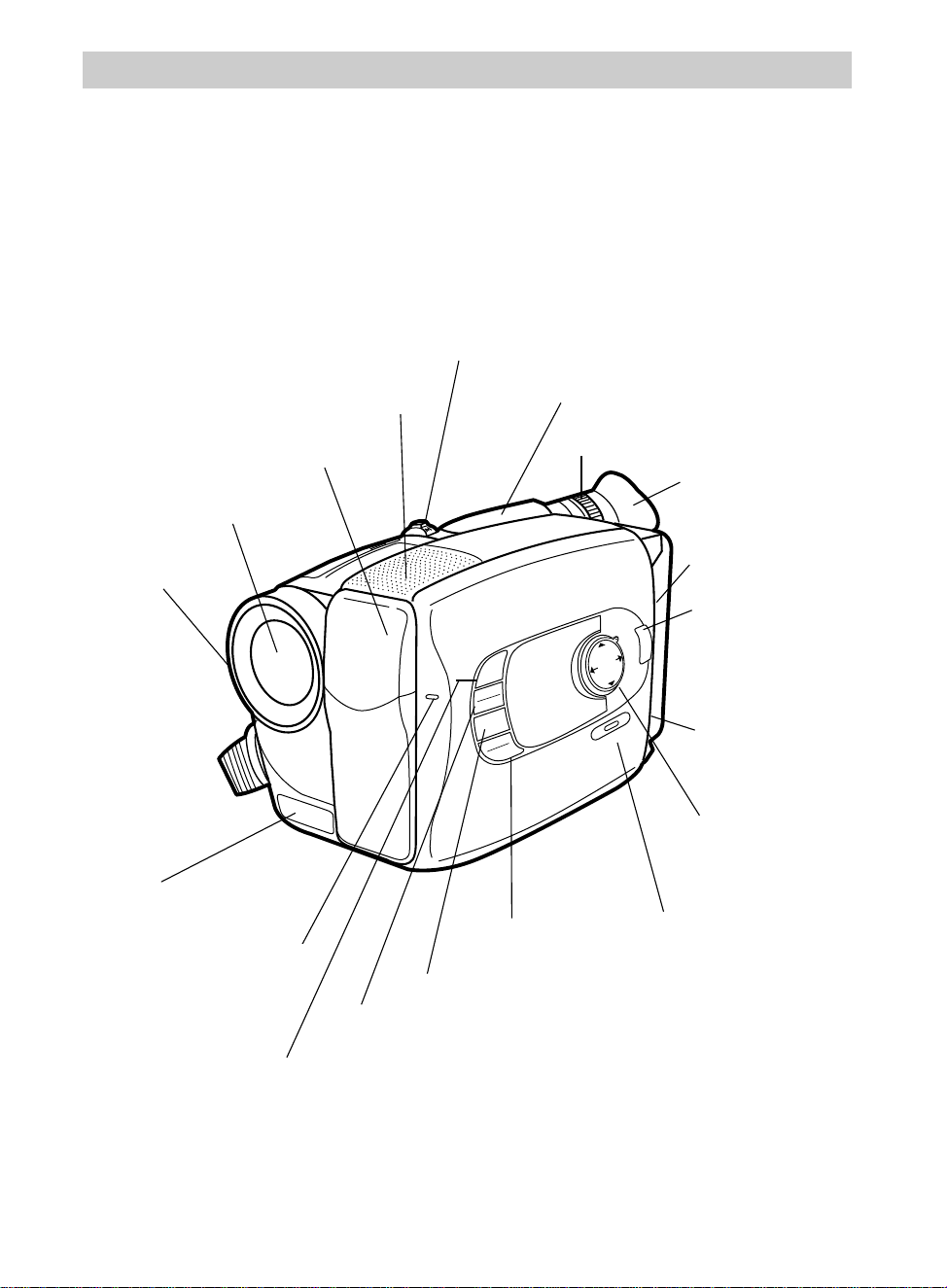
14. Review camcorder’s operating controls.
16X9/AE MODES Button
MENU Button
Built-in Color
Enhancement Light
Tally Light
Cassette Door
PUSH here to close.
LIGHT
OFF•AUTO•
ON Switch
EJECT Button
Mode Select Dial
DISPLAY Button
Remote
Control
Sensor
Viewfinder
Power Zoom Lever
“W” - Wide Angle
“T” - Telephoto
Eyepiece Focus Control
Eyepiece
Microphone
LENS COVER
Control
(continued on next page)
BATT. RELEASE
B
C
AUDIO
JLIP
RF
DC OUT
VIDEO
L
E
N
S
C
O
V
E
R
SP•SLP
TRACKING
TER R/M
W.BAL.
PLAY/PAUSE
STOP
FF
+
REW
+
–
CAMERA
VCR
POWER
OFF
QUICK
REC
10
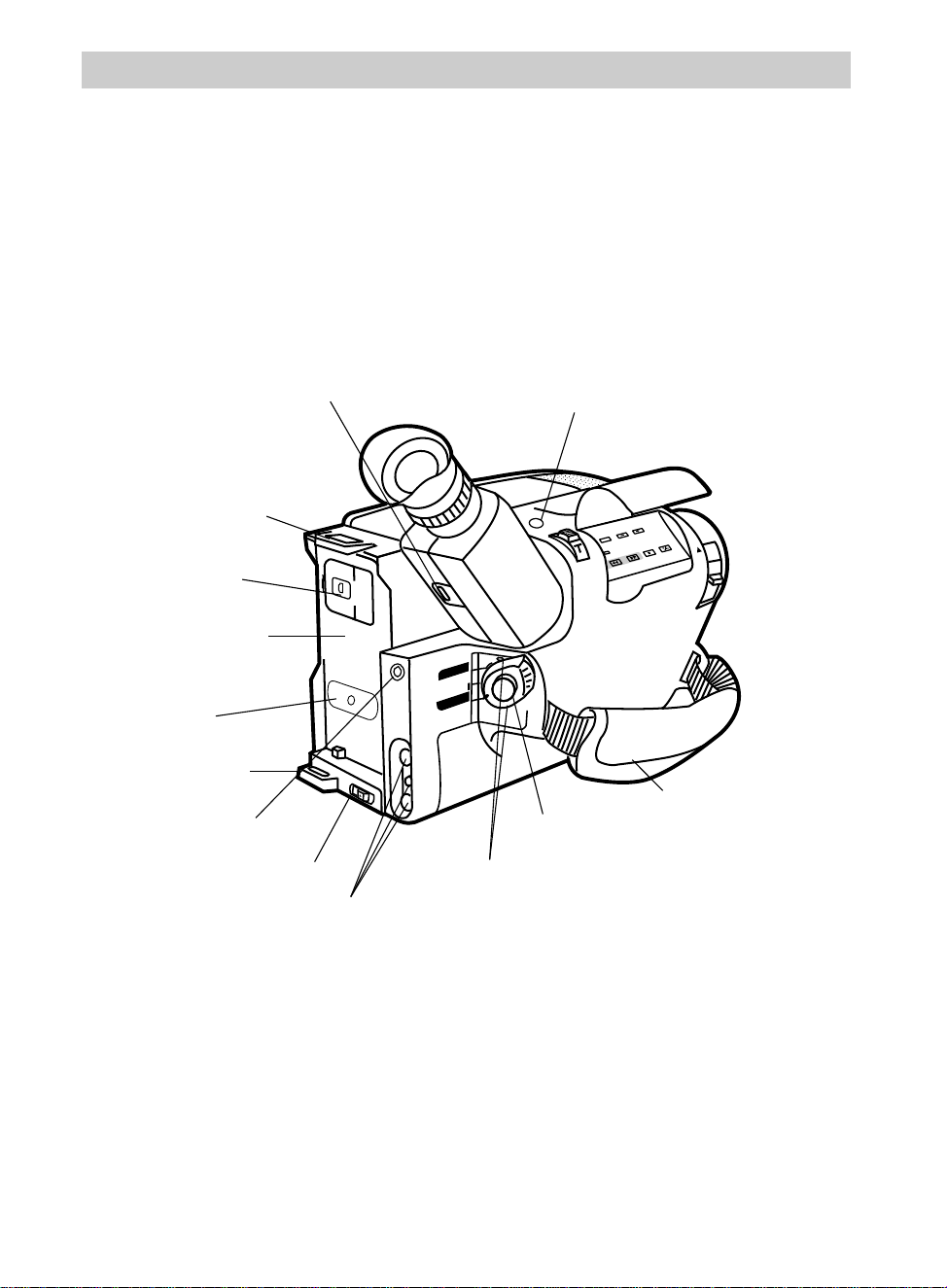
JLIP Jack
Handstrap
Thumb Trigger
AUDIO, RF DC OUT, and
VIDEO Jacks
BATT. RELEASE Button
Shoulder Strap
Attachment Ring
Clock Cell
Compartment
Shoulder Strap
Attachment Ring
Attach Battery Here
POWER (VCR/OFF/CAMERA) Switch
and Indicator
First-Time Operation
14. Review camcorder’s operating controls. (continued)
Model CC636 and CC637 Only:
B (Bright) and C (Color) Controls
on Bottom of Viewfinder
See Trouble Checks for details.
QUICK REC Button
DC In Jack (Attach
Adapter/Charger DC
Cable Here)
First-Time Operation
11
BATT. RELEASE
B
C
AUDIO
RF
DC OUT
VIDEO
L
E
N
S
C
O
V
E
R
SP•SLP
TRACKING
ER R/M
W.BAL.
PLAY/PAUSE
STOP
FF
+
REW
+
–
SP•SLP
EDIT CANCEL RANDOM EDIT
IN/OUT
COUNTER R/M TRACKING
MAN.W.BAL
EDIT –
SEARCH
REW FF STOP PLAY/PAUSE
+
VCR
CAMERA
POWER
OFF
JLIP
QUICK
REC
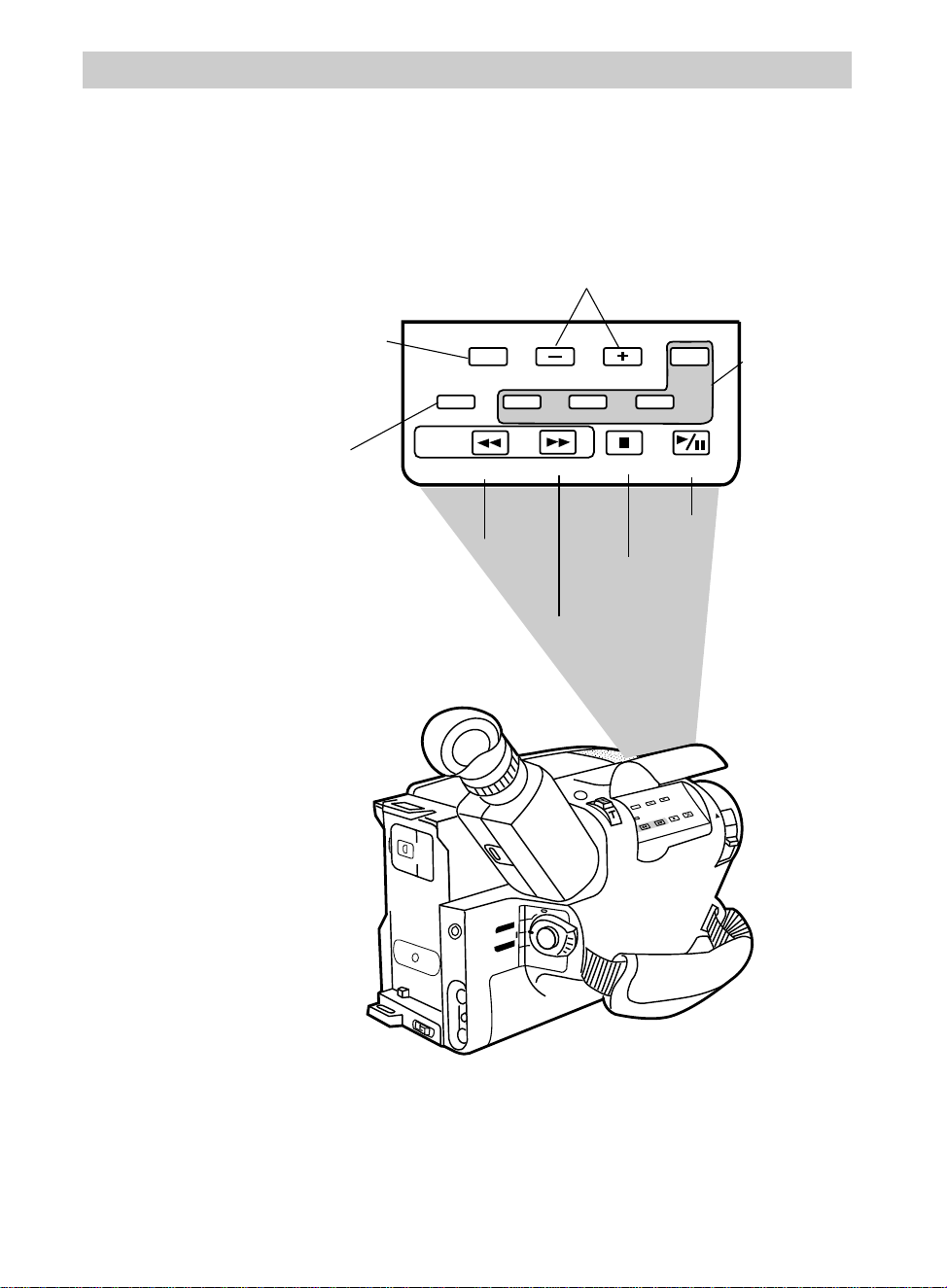
FF Button
(Also EDIT SEARCH + Button)
REW Button
(Also EDIT SEARCH – Button)
SP•SLP Button
(Also COUNTER R/M Button)
M.W.BAL (Manual
White Balance) Button
PLAY/PAUSE Button
STOP Button
TRACKING Buttons
14. Review camcorder’s operating controls.
(CC637 Only)
Programmable
Synchro Edit
Buttons
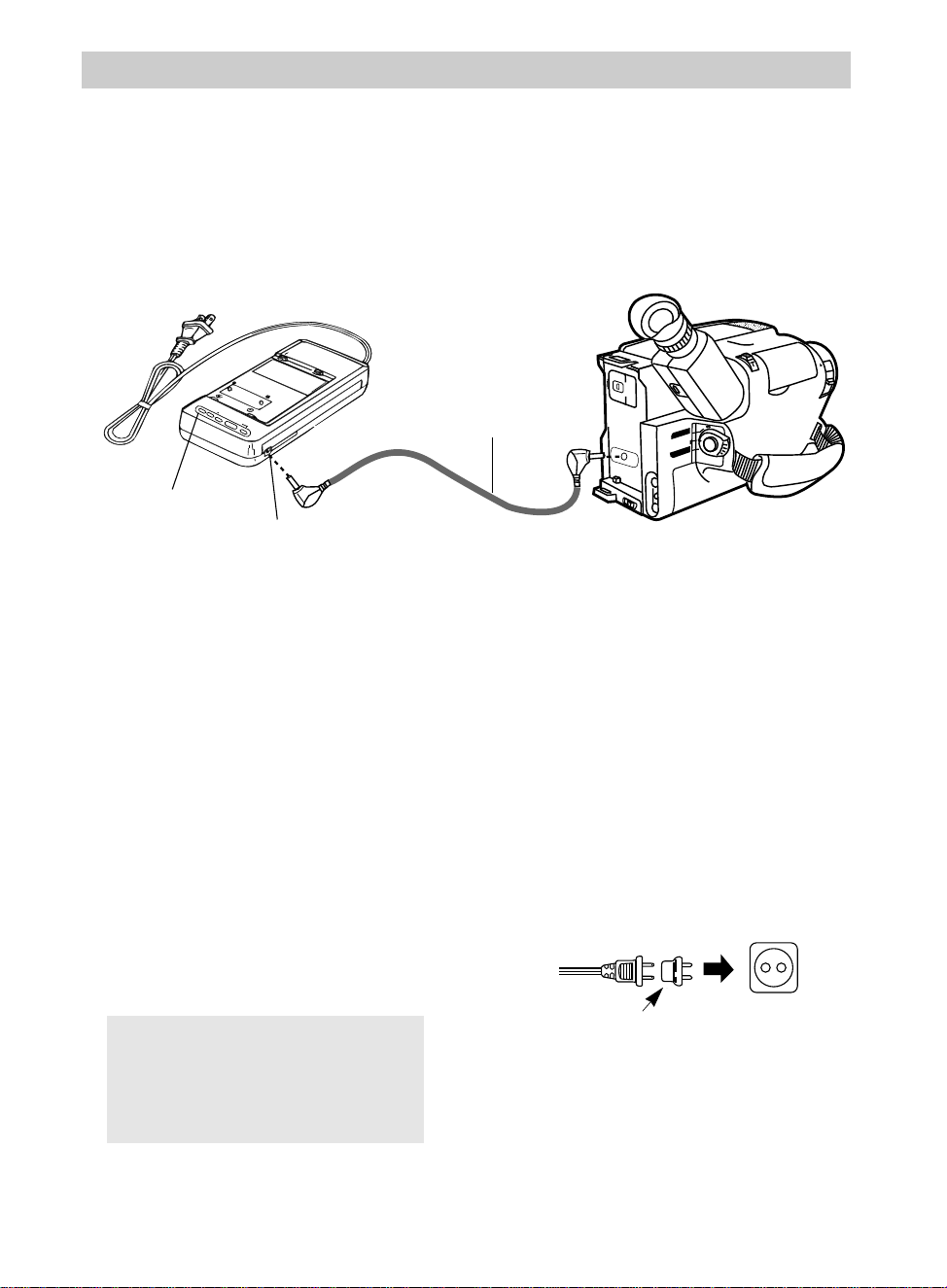
12
Powering Your Camcorder
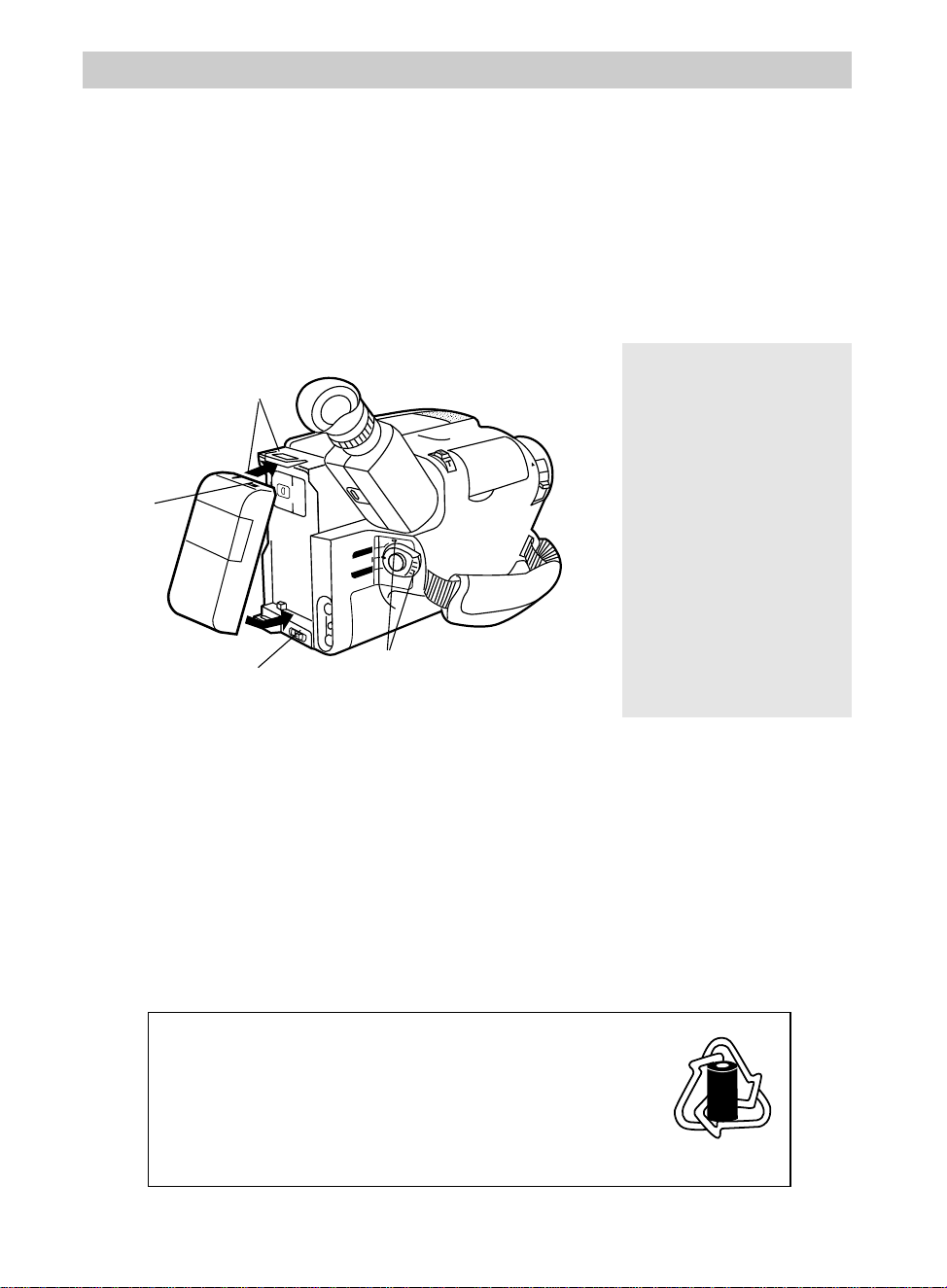
Attach Adapter/Charger
1. Connect one end of the DC cable to
the DC OUT jack on the
adapter/charger.
2. Connect the other end of the DC cable
to the DC in jack on the camcorder as
shown above.
3. Plug the adapter/charger’s plug into
the nearest AC outlet (100-240V,
50/60Hz).
4. If the adapter/charger is properly
connected, its POWER indicator will
light.
Remove Adapter/Charger
1. Unplug the adapter/charger from the
wall outlet.
2. Remove the DC cable from the
adapter/charger and camcorder.
Using an Optional Plug Adapter
An optional plug adapter may be required
in some countries.
1. Plug the adapter/charger’s plug into
the AC plug adapter.
2. Plug the AC plug adapter into the
AC outlet.
AC Plug
Optional AC
Plug Adapter
AC 100-240V
BATT. RELEASE
B
C
AUDIO
RF
DC OUT
VIDEO
L
E
N
S
C
O
V
E
R
+
–
POWER
CHG END REFRESH
CAMERA
VCR
POWER
OFF
DC OUT Jack
POWER
Indicator
To AC 100-240V,
50/60 Hz
Caution: Do not use this
adapter/charger for any other purpose
other than charging the FB1260 or
FB120 battery pack or supplying
power to the camcorder.
Using the Adapter/Charger to Power Your Camcorder
The adapter/charger attaches to the camcorder and lets you power your camcorder
directly from standard household power. The adapter/charger operates on 100-240
volts, 50/60 Hz, so it can be used virtually anywhere in the world to power the
camcorder or recharge the battery.
DC Cable
13
BATT. RELEASE
B
C
AUDIO
RF
DC OUT
VIDEO
L
E
N
S
C
O
V
E
R
+
–
VCR
CAMERA
POWER
OFF
Powering Your Camcorder
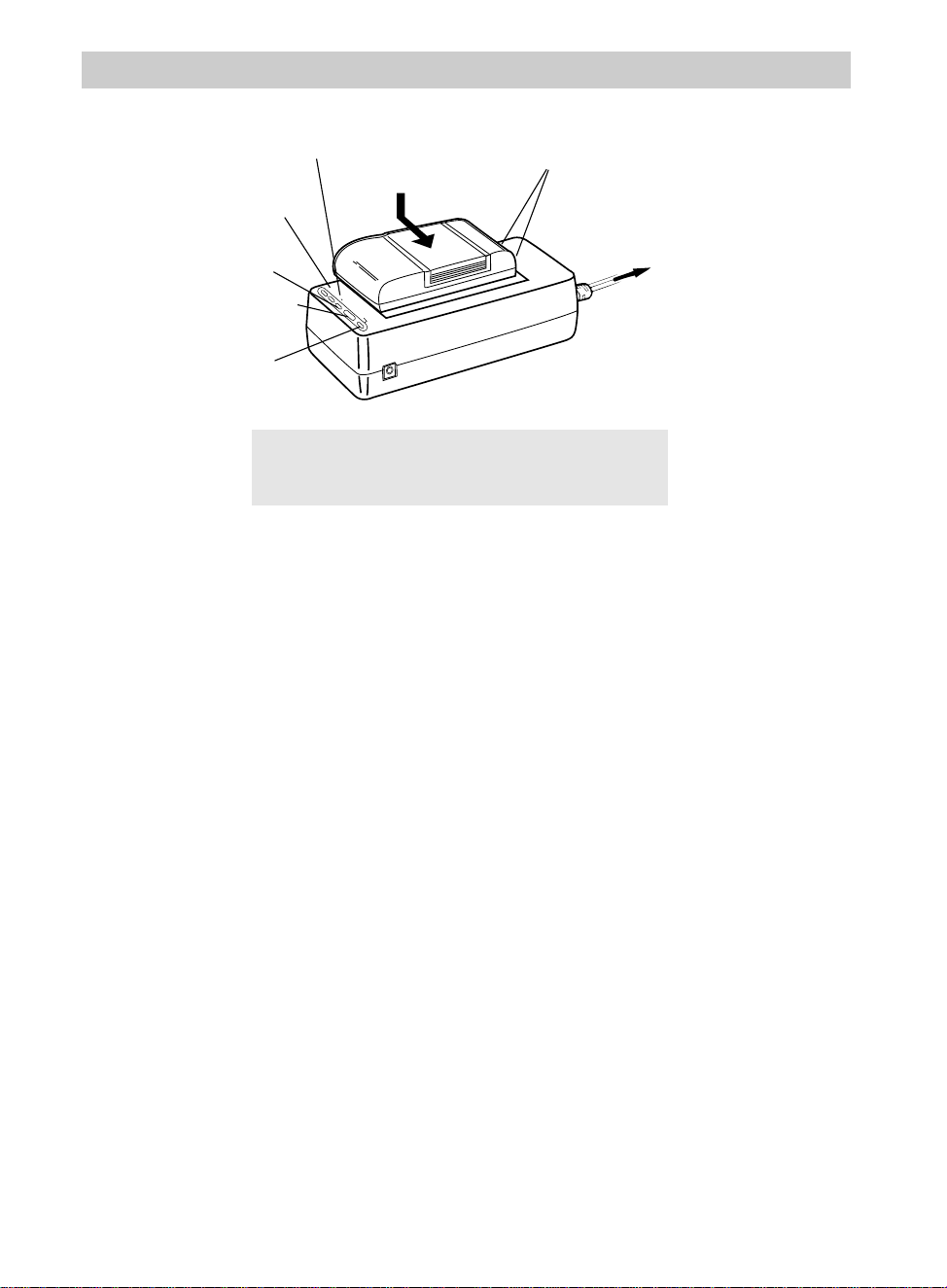
Attach the Charged Battery
If the DC cable is attached to the
camcorder, remove it before attaching the
battery. Also, install the lithium clock
cell before attaching the battery pack.
Details on page 51.
1. Align the reference mark on the battery
with mark on back of camcorder.
2. Hold the top of the battery flush against
the camcorder and press the bottom of
Using the Battery to Power Your Camcorder
the battery down until it locks into
place.
3. Place the POWER switch in CAMERA.
The power indicator will light.
Remove the Battery
Press and hold BATT. RELEASE on the
camcorder while removing the battery.
Battery Safety
Precautions
Do not short the battery’s
terminals.
Do not attempt to
disassemble or modify the
battery. There are no user-
serviceable parts inside.
Use the battery only with
specified adapter/chargers
and camcorders.
Throwing the battery into
a fire or exposing it to
excessive heat – over
149ºF (65ºC) could be
hazardous.
Marker
Switch
Reference Marks
The battery must be charged as described on the next page before it can be used the
first time. Initial charging will take approximately 70 minutes. When fully charged,
the battery should supply about 55 minutes of operating time (depending on how much
you use the light, zoom, and pause). Conserve battery power by turning the camcorder
off during recording breaks.
Note: The small marker switch on top of the battery is for use as a personal reminder to help
you remember to recharge the battery. It has no other function.
BATT. RELEASE Button
ATTENTION: The RBRC seal on the battery used in your
Thomson Consumer Electronics product indicates that we are
participating in a program to collect and recycle Nickel
Cadmium batteries throughout the United States. Please call
1-800-8-BATTERY for information or contact your local
recycling center.
RBRC
RBRC
Ni-Cd
POWER Switch
and Indicator
14
Powering Your Camcorder
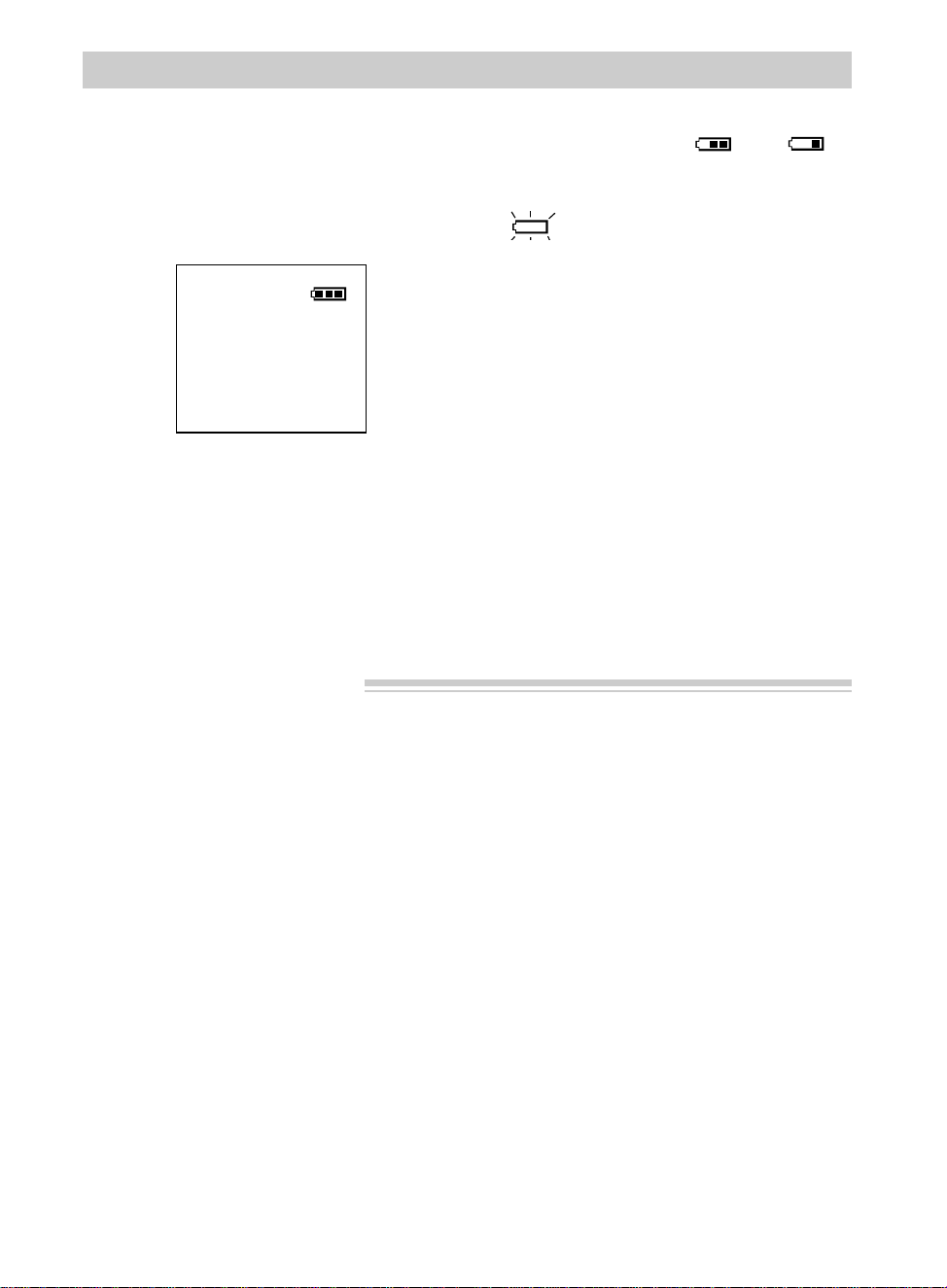
Charge the Battery
If the DC cable is attached to the DC
OUT jack on the adapter/charger, remove
its plug.
1. Align reference mark on battery with
mark on adapter/charger.
2. Hold the battery flush against the
adapter/charger and slide it in the
direction of the arrow.
3. Plug adapter/charger into nearest AC
outlet (100-240V, 50/60Hz).
4. If the battery is properly connected, the
adapter/charger’s CHG (charge)
indicator will light.
Note: If you try to charge a battery that
has not been charged for a long period of
time, it may take a few minutes for the
CHG indicator to light.
5. After the battery is charged, the END
indicator will light.
6. Remove the charged battery by sliding
it off the adapter/charger.
7. Attach the charged battery to the
camcorder.
POWER
CHG END REFRESH
Adapter/Charger
POWER
Indicator
Hold Battery
Flush and
Slide
Reference Marks
CHG
Indicator
END
Indicator
REFRESH
Indicator
REFRESH
Button
To AC Wall
Outlet 100-240
Volts, 50/60 Hz.
Caution: When a battery is attached to the
adapter/charger, do not turn them upside down. The
battery may fall off and be damaged or cause injury.
Use the REFRESH Button
The battery will provide increased
operation time if you “refresh” it after
five chargings. The refresh feature
“refreshes” the battery by completely
discharging it.
1. Attach battery to adapter/charger.
2. Press REFRESH. The REFRESH
indicator will light and the battery will
begin discharging.
3. When discharging is completed, the
REFRESH indicator will turn off, and
the CHG indicator will light. The
battery will then charge.
4. After the battery is charged, the END
indicator will light. Remove the
battery from the adapter/charger.
15
Battery Level Indicator
The battery level indicator appears in the
viewfinder and shows you the amount of
power in the rechargeable battery.
Powering Your Camcorder
Battery Care and Storage
• Recharging takes approximately 70
minutes depending on the battery’s
condition.
• Refreshing takes approximately 210
minutes depending on the battery’s
condition.
• After repeated charging and use,
operation time will gradually decrease.
When operation time becomes too short
to be useful, it is time to replace the
battery.
• If the battery discharging must be
stopped in the middle, remove the
battery from the adapter/charger before
unplugging it from the AC outlet.
• Let a hot battery cool down before
attaching it to the adapter/charger.
• The battery will also provide better
service if its power is completely
drained before storing it for long
periods of time (30 days or more).
• The battery should be charged in the
temperature range of 50-95°F (10-35°C)
to prevent damage.
• Do not operate the battery at
temperatures below 32°F (0°C) or
above 104°F (40°C). The battery may
be damaged if operated at temperatures
above 122°F (50°C). Operation time
will decrease at extremely low
temperatures.
• Store the battery at normal room
temperature.
Battery Level Indicator
in Viewfinder
• As the power is used and
appear.
• When the battery power is almost gone,
flashes in the viewfinder. The
camcorder will turn off automatically
after a few seconds. Place the POWER
switch in OFF to turn off the
camcorder before replacing the battery.
The battery level indicator will not be
recorded on the tape when it appears in
the viewfinder.
16
Powering Your Camcorder
1. Place the POWER switch in OFF to
turn off the camcorder. Power
indicator on the camcorder turns off.
2. If the battery or DC cable is attached
to the camcorder, remove it.
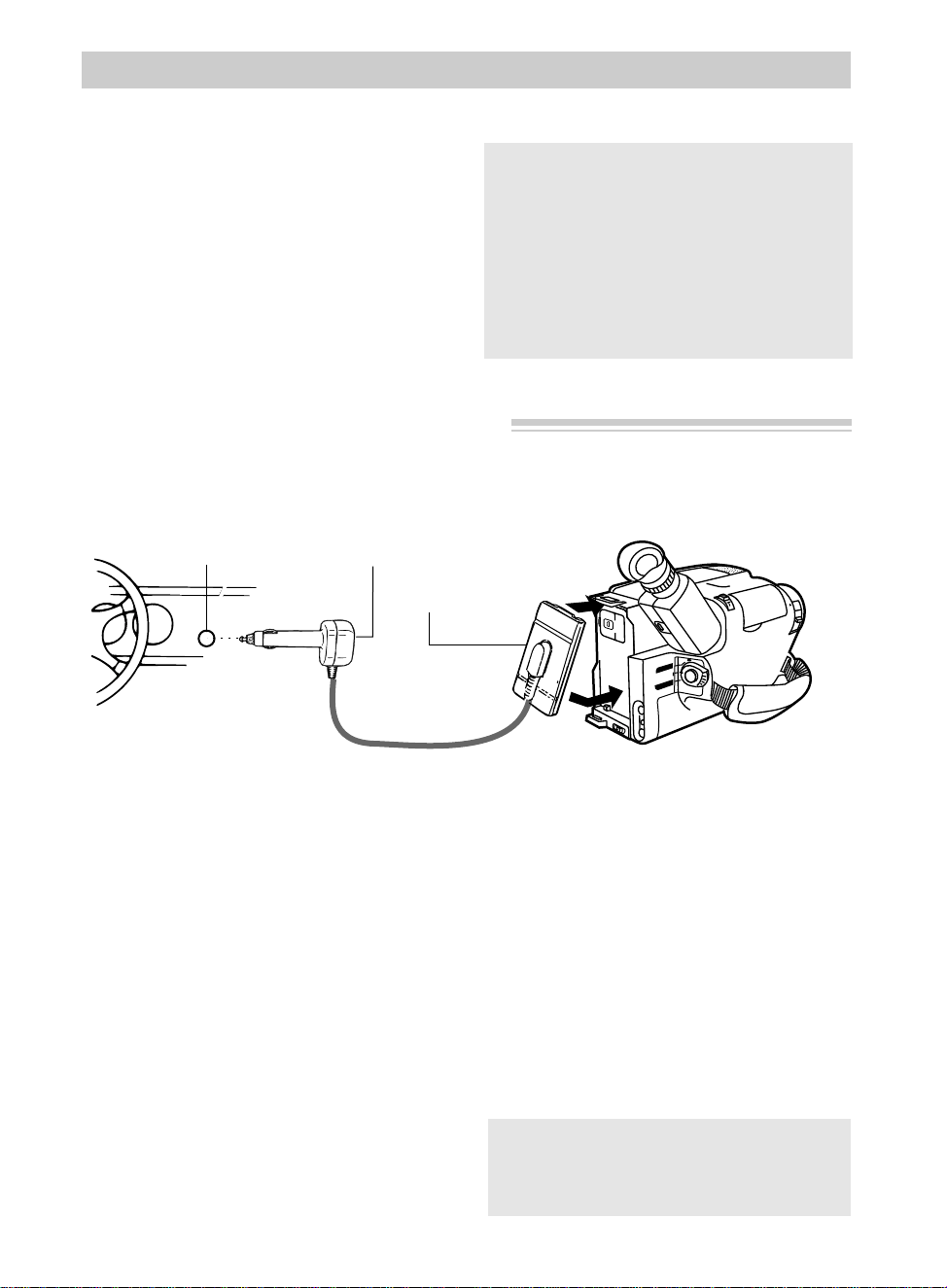
3. Hold the top of the power connector
flush against the camcorder and press
the bottom of the power connector
down until it locks into place.
4. Take the vehicle’s cigarette lighter out
of the socket.
5. Insert the car cord’s cigarette lighter
plug into the vehicle’s cigarette lighter
socket. The POWER indicator on the
car cord adapter will light.
6. Place the POWER switch in CAMERA
to turn on the camcorder. The power
indicator on the camcorder lights.
Cautions: The DCC08 is designed to be
used only with vehicles having negative
ground electrical systems.
Use only car cord adapter DCC08 with
this camcorder. Use of any other car
cord adapter may damage the camcorder
and void your warranty.
Optional Car Cord Adapter
The optional DCC08 car cord shown on
page 84 allows you to power your
camcorder from the cigarette lighter
socket of a car, truck, or RV. It converts
12-volts to a 6-volt output.
Note: Consult the installation and operating
instructions enclosed with the DCC08 for
complete operating instructions.
Using the DCC08 Car Cord Adapter
Caution: Make sure the camcorder’s
power is turned off before removing the
car cord’s plug from the cigarette lighter
socket.
BATT. RELEASE
B
C
AUDIO
RF
DC OUT
VIDEO
L
E
N
S
C
O
V
E
R
+
–
POWER Indicator
Power
Connector
Cigarette
Lighter Socket
Optional DCC08 Car Cord Adapter
VCR
CAMERA
POWER
OFF
17
Model CC637 Only: Remote Control
Model CC637 Only: Lithium Cell Installation
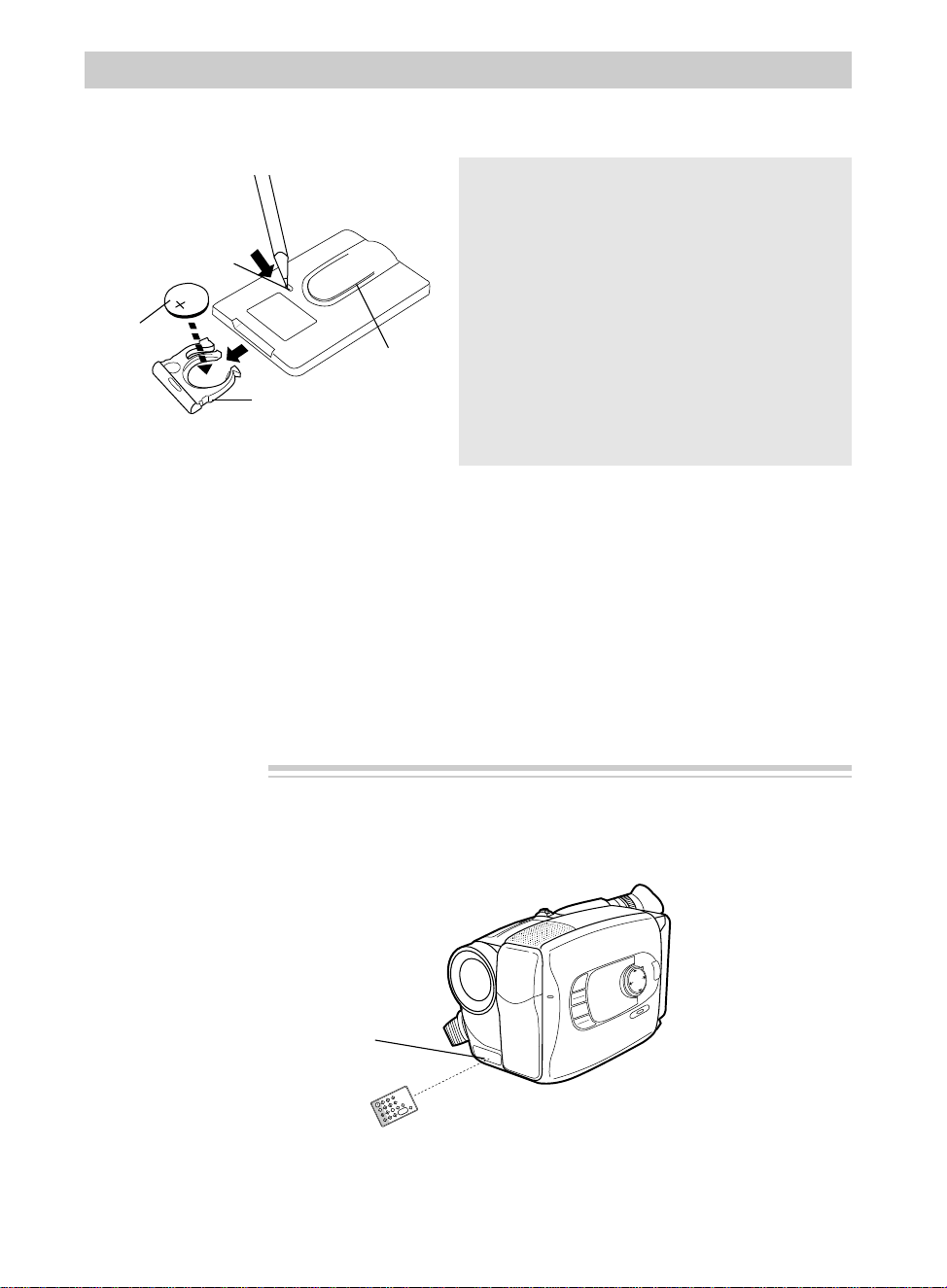
The remote’s lithium cell is packed separately. Install it as follows:
1. Turn remote over, insert a pencil or
paper clip in the small hole, and slide
it in the direction of the arrow while
removing the holder.
2. Insert the lithium cell into the holder
with its positive (+) terminal facing up.
3. Slide the cell in the holder back into
the remote until it clicks into place.
Back of
Remote Control
Holder
Insert Pencil Here
Lithium Cell
Belt Clip
The remote operates the camcorder by infrared light, so it is protected from electrical
and sound interference. However, the remote must be aimed directly at the
camcorder’s remote sensor. There cannot be any obstructions between them.
MENU
16X9
BACKLIGHT
AUTO
MANUAL
FRONTLIGHT
AE MODES
EIS
FADE
WIPE
P
U
S
H
F
O
C
U
S
DISPLAY
VISS
ANIM.
REW
CANCEL
RAND
O
M
ASSEM
BLY EDIT
REC/PAUSE
F FWD
REC
TIME
TIME LAPSE
SELF
MBR
START
/STOP
T
W
ZOOM
INT.
ON
OFF
TIME
SET
VCR
PLAY
PAUSE
STOP
INSERT
A.DUB
IN
OUT
Remote Control Sensor
Notes: Never place anything heavy on top of
the remote or lay it upside-down. This may
accidentally depress the buttons for a long
time and discharge the lithium cell.
Replace the cell when the camcorder fails to
respond to the remote.
Remove the cell from the remote if it will not
be used for a month or more. This will
prevent possible damage from cell leakage. If
leakage occurs, wipe up the liquid inside the
compartment and replace the cell.
Notes: The camcorder may not respond to
the remote if its sensor is exposed to direct
sunlight or strong artificial light.
Remote Sensor
You can program the remote to also operate a
compatible VCR while copying or editing
tapes. Details are on pages 78-79.
Cautions: Lithium cell battery. Replace
only with 3-volt lithium cell – such as CR2025.
Use of other cell presents a risk of fire or
explosion. Must be disposed of properly.
Never handle punctured or leaking cell. May
cause burns or personal injury.
Keep out of the hands of children. Can cause
death or injury if swallowed. If swallowed,
consult a physician immediately for emergency
treatment.
The lithium cell used in this device may explode
resulting in a fire or chemical burn if mistreated.
Do not recharge, disassemble, heat above 212˚F
(100˚C), or incinerate.
Never use metallic tweezers to hold the cell, and
never short circuit the + and – sides of the cell.
18
3
4
5
6
Model CC637 Only: Remote Control
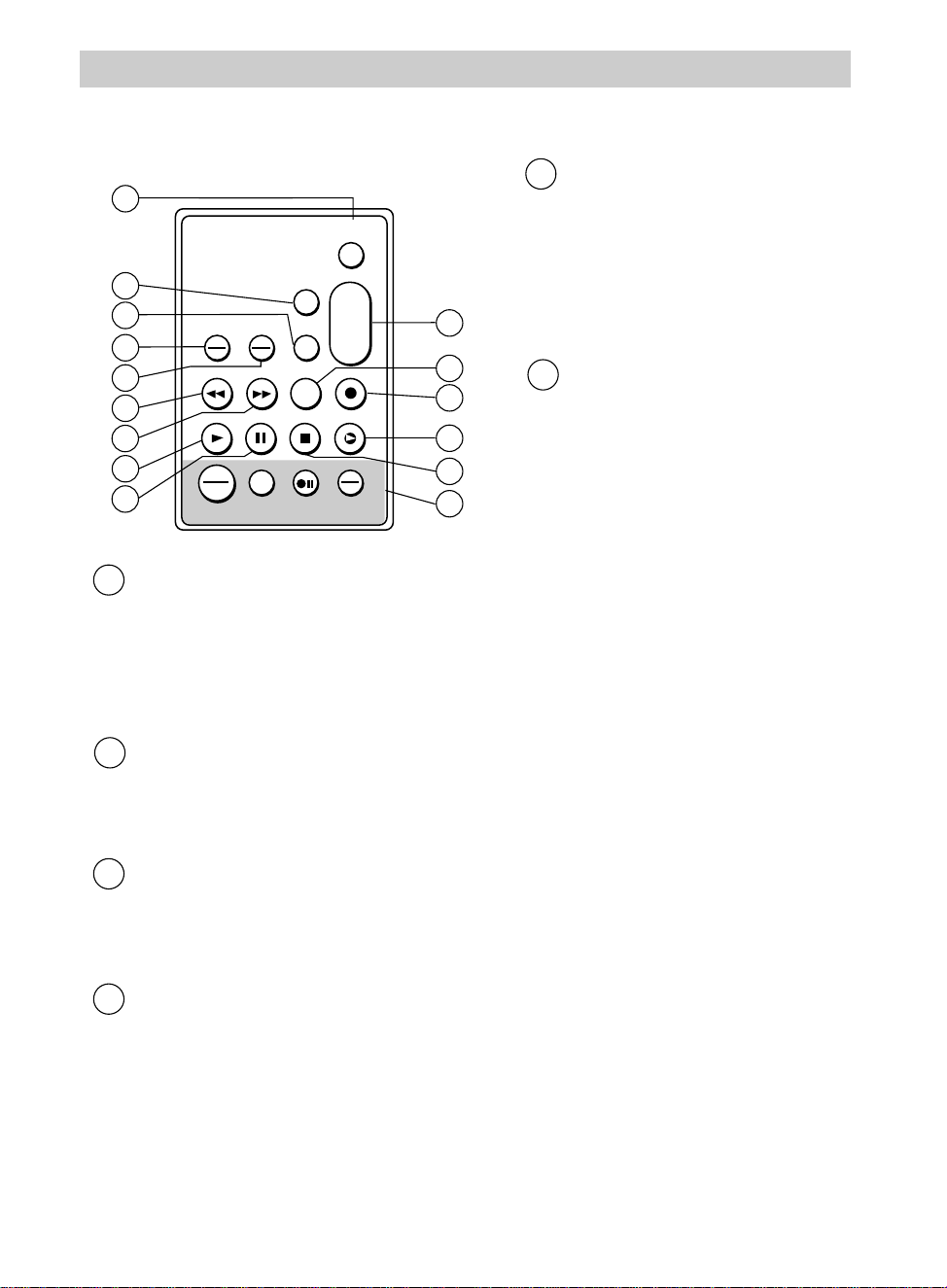
A brief description of Model CC637 remote button’s functions is given here. Many of
the buttons perform the same functions as the corresponding controls on the camcorder.
START/STOP Button
When the POWER switch is in
CAMERA, press START/STOP to
start and stop recording.
Note: If the camcorder is left in record
pause for more than five minutes,
power will turn off.
VISS Button
When the POWER switch is in
CAMERA, press VISS to insert an
index mark. See page 33.
MBR SET Button
This button is used to program the
remote to control a compatible
VCR. See pages 78-79.
TIME LAPSE ANIM.
(Animation)/ REC TIME Button
When the POWER switch is in
CAMERA, press to set amount of
recording time for interval and
animation recording.
TIME LAPSE SELF/INT.
(Interval) TIME Button
When the POWER switch is in
CAMERA, press to activate the
self-timer or select an amount
of interval time for interval
recording.
REW (Rewind) Button
Camcorder’s POWER switch in
CAMERA:
• When the camcorder is in
record pause, press and hold
REW to visually search the
tape in reverse. Release REW
to return to record pause.
Camcorder’s POWER switch in
VCR:
• When the camcorder is
stopped, press REW to rewind
the tape.
• When a tape is playing, press
and release REW to visually
search the tape in reverse.
Press PLAY to return to
normal playback. For brief
searching, press and hold
REW for at least two seconds
to visually search in reverse.
Release REW to return to
normal playback.
1
2
VISS
ANIM.
REW
CANCEL
RANDOM ASSEMBLY EDIT
REC/PAUSE
F FWD
REC
TIME
TIME LAPSE
SELF MBR
START
/STOP
T
W
ZOOM
INT.
ON
OFF
TIME
SET
VCR
PLAY PAUSE STOP INSERT
A.DUB
IN
OUT
2
4
5
6
8
9
10
7
3
1
13
14
15
12
11

19
Model CC637 Only: Remote Control
F FWD (Fast Forward) Button
Camcorder’s POWER switch in
CAMERA:
• With camcorder in record pause,
press and hold F FWD to visually
search forward on the tape.
Release F FWD to return to record
pause.
Camcorder’s POWER switch in
VCR:
• When the camcorder is stopped,
press F FWD to fast forward the
tape.
• When a tape is playing, press and
release F FWD to visually search
forward on the tape. Press PLAY
to return to normal playback. For
brief searching, press and hold
F FWD for at least two seconds to
visually search forward. Release
F FWD to return to normal
playback.
PLAY Button
Press PLAY when the Camcorder’s
POWER switch is in VCR to begin
playback.
PAUSE Button
During playback, press PAUSE to
produce a stop-action picture. Press
PLAY or PAUSE to return to normal
playback.
ZOOM (T and W) Buttons
Camcorder’s POWER switch in
CAMERA:
• Press T to move the lens in the
telephoto (close-up) direction.
• Press W to move the lens in the
wide-angle direction.
VCR Button
This button is used to control a
compatible VCR. See pages 78-79.
A. (Audio) DUB Button
Used for dubbing audio. See
pages 66-67.
INSERT Button
Used for dubbing video. See
pages 68-69.
STOP Button
When the camcorder’s POWER
switch is in VCR, press STOP to
stop playback, rewind, or fast-
forward operation.
RANDOM ASSEMBLY EDIT
Buttons (IN/OUT, CANCEL,
REC/PAUSE, and ON/OFF)
These buttons are used during
editing with a compatible VCR.
See pages 78-81.
7
8
9
10
11
12
13
14
15
Caution: Pause is designed for
momentary interruptions and
should not be used for an extended
period of time. If the camcorder
remains in pause for more than five
minutes, it will automatically enter
the stop mode and then turn off.
20
Model CC635 or CC636: Remote Control
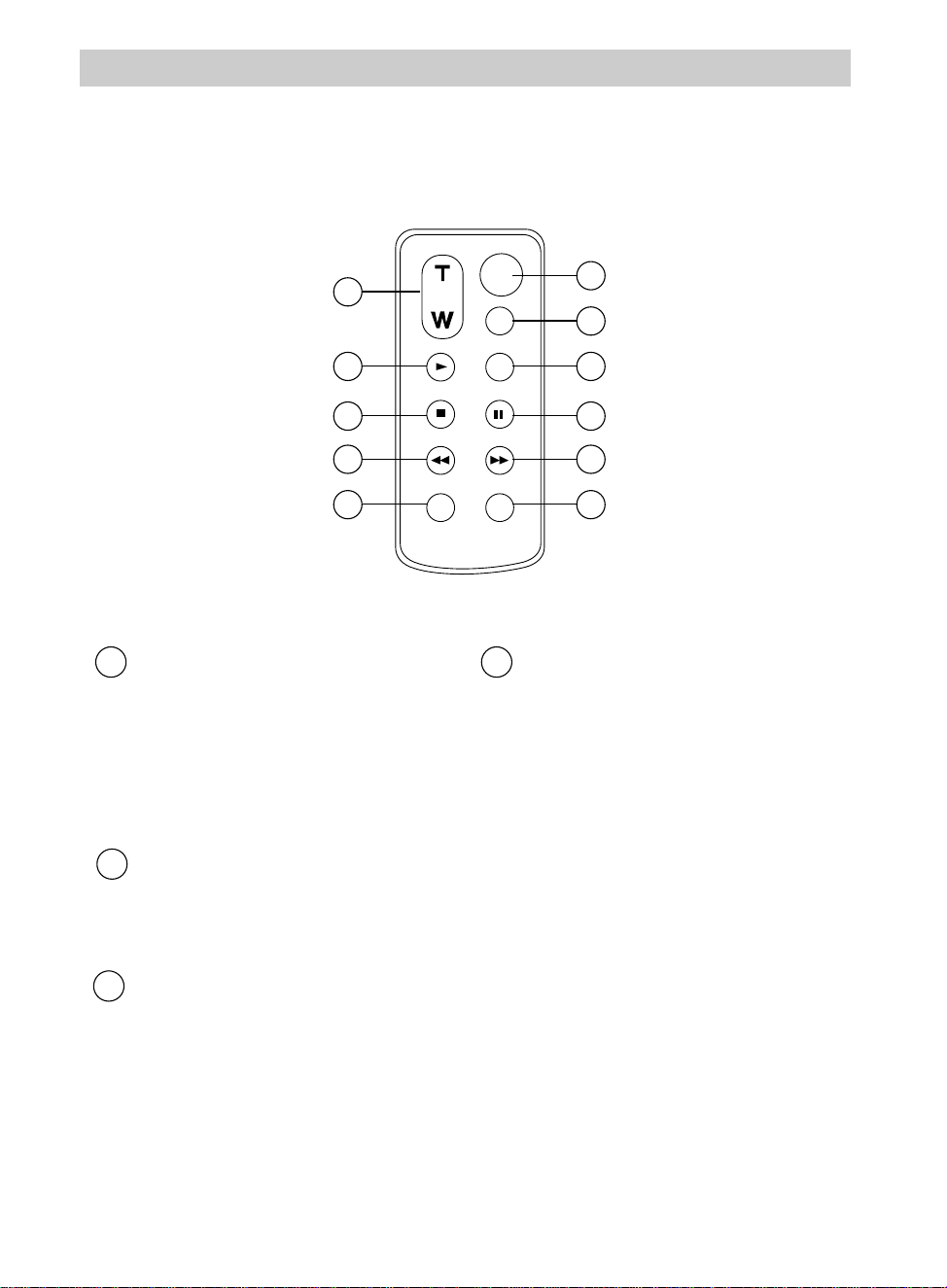
Model CC635 or CC636: A brief description of the remote button’s functions is
given here. Many of the buttons perform the same functions as the corresponding
controls on the camcorder. The battery must be installed as shown on page 22.
ZOOM
START/STOP
SELF
INT.
TIME
TIME LAPSE
REC
TIME
ANIM.
PAUSE
FF
A.DUB
INSERT
REW
STOP
PLAY
1
2
3
4
5
8
9
10
11
6
7
3
4
ZOOM (T and W) Buttons
Camcorder’s POWER switch in
CAMERA:
• Press T to move the lens in the
telephoto (close-up) direction.
• Press W to move the lens in the
wide-angle direction.
PLAY Button
Press PLAY when the camcorder’s
POWER switch is in VCR to begin
playback.
STOP Button
When the camcorder’s POWER
switch is in VCR, press STOP to stop
playback, rewind, or fast-forward
operation
REW (Rewind) Button
Camcorder’s POWER switch in
CAMERA:
• When the camcorder is in record
pause, press and hold REW to
visually search the tape in reverse.
Release REW to return to record-
pause.
Camcorder’s POWER switch in VCR:
• When the camcorder is stopped,
press REW to rewind the tape.
Press STOP to stop rewinding tape.
• When a tape is playing, press and
release REW to visually search the
tape in reverse. Press PLAY to
return to normal playback. For
brief searching, press and hold
REW for at least two seconds to
visually search in reverse. Release
REW to return to normal playback.
1
2

21
Model CC635 or CC636: Remote Control
INSERT Button
Used for dubbing video. See
pages 68-69.
START/STOP Button
When the POWER switch is in
CAMERA, press START/STOP to
start and stop recording.
Note: If the camcorder is left in record
pause for more than five minutes, power
will turn off.
TIME LAPSE SELF/INT.
(Interval) TIME Button
When the POWER switch is in
CAMERA, press to activate the self-
timer or select an amount of interval
time for interval recording.
TIME LAPSE ANIM.
(Animation)/REC TIME Button
When the POWER switch is in
CAMERA, press to set amount of
recording time for interval and
animation recording.
PAUSE Button
During playback, press PAUSE to
produce a stop-action picture. Press
PLAY or PAUSE to return to normal
playback.
FF (Fast Forward) Button
Camcorder’s POWER switch in
CAMERA:
• With camcorder in record pause,
press and hold FF to visually
search forward on the tape.
Release FF to return to record
pause.
Camcorder’s POWER switch in
VCR:
• When the camcorder is stopped,
press FF to fast forward the tape.
Press STOP to stop forwarding the
tape.
• When a tape is playing, press and
release FF to visually search
forward on the tape. Press PLAY
to return to normal playback. For
brief searching, press and hold FF
for at least two seconds to visually
search forward. Release FF to
return to normal playback.
A. (Audio) DUB Button
Used for dubbing audio. See
pages 66-67.
5
6
7
8
9
10
11
Caution: Pause is designed for
momentary interruptions and
should not be used for an extended
period of time. If the camcorder
remains in pause for more than five
minutes, it will automatically enter
the stop mode and then turn off.
22
Model CC635 or CC636: Remote Control
Model CC635 or CC636: Install Lithium Cell
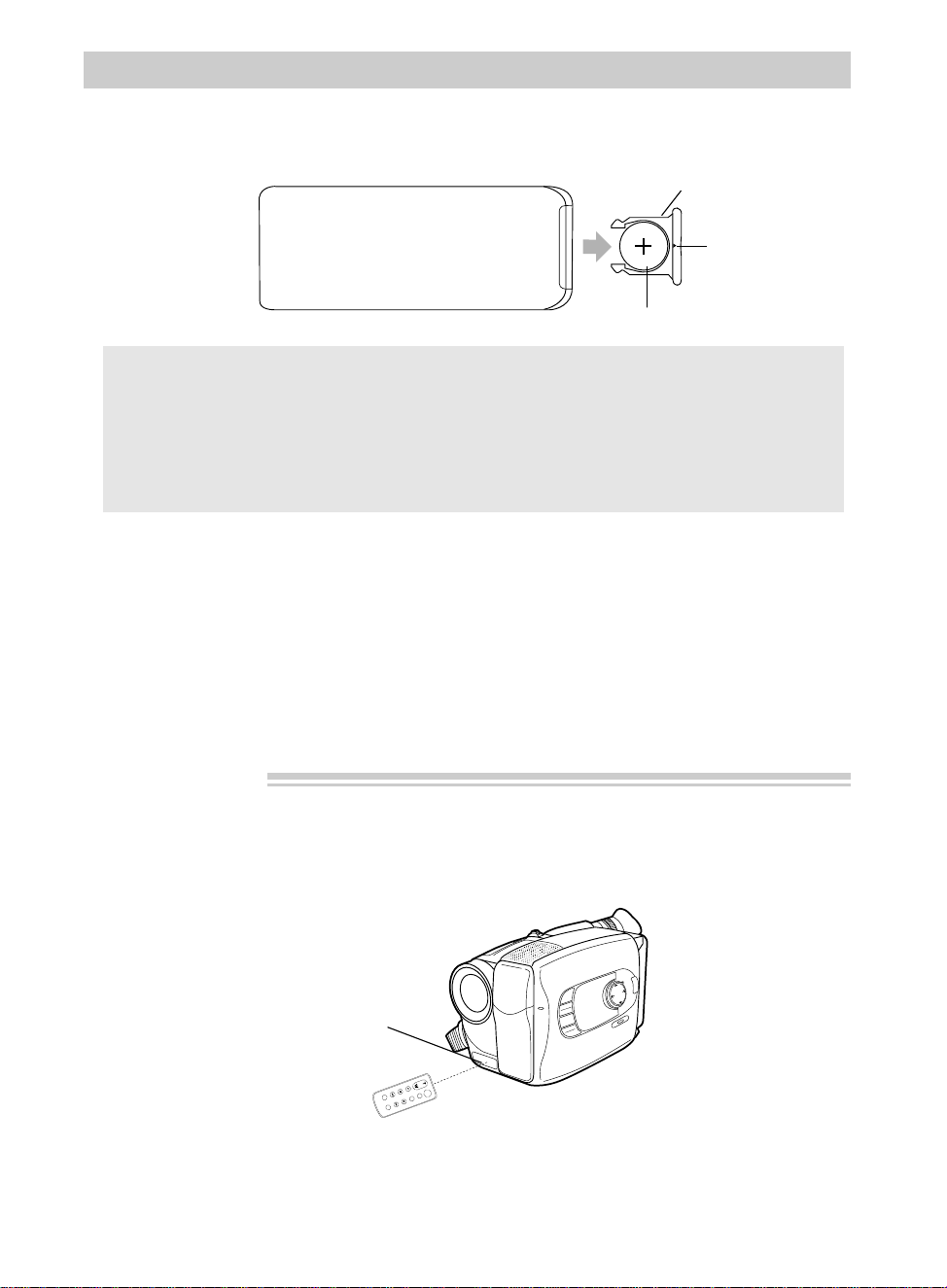
The remote’s lithium cell is packed separately. Install it as follows:
1. Turn remote over, insert a pencil or
paper clip in small hole and remove
battery holder.
2. Insert battery in battery holder so
positive (+) terminal faces up.
3. Replace battery holder in remote until
it clicks into place.
Back of
Remote Control
Holder
Insert Pencil Here
Lithium Cell
The remote operates the camcorder by infrared light, so it is protected from electrical
and sound interference. However, the remote must be aimed directly at the
camcorder’s remote sensor. There cannot be any obstructions between them.
MENU
16X9
BACKLIGHT
AUTO
MANUAL
FRONTLIGHT
AE MODES
EIS
FADE
WIPE
P
U
S
H
F
O
C
U
S
DISPLAY
ZOOM
START/STOP
SELF
INT.
TIME
TIME LAPSE
REC
TIME
ANIM.
PAUSE
FF
A.DUB
INSERT
REW
STOP
PLAY
Remote Control Sensor
Notes: Never place anything heavy on top of
the remote control or lay it upside-down.
Replace battery when camcorder fails to
respond to remote.
Remove battery from remote if it will not be
used for a month or more. This will prevent
possible damage from battery leakage.
If leakage occurs, wipe up liquid inside
compartment and replace battery.
Note: The camcorder may not respond to the remote if its sensor is exposed to direct
sunlight or strong artificial light.
Remote Sensor
Cautions: Lithium cell battery. Replace only with 3-volt lithium cell – such as CR2025. Use of other
cell presents a risk of fire or explosion. Must be disposed of properly. Never handle punctured or
leaking cell. May cause burns or personal injury.
Keep out of the hands of children. Can cause death or injury if swallowed. If swallowed, consult a
physician immediately for emergency treatment.
The lithium cell used in this device may explode resulting in a fire or chemical burn if mistreated. Do
not recharge, disassemble, heat above 212˚F (100˚C), or incinerate.
Never use metallic tweezers to hold the cell, and never short circuit the + and – sides of the cell.

23
Recording
Recording Tips
• In case of fire or theft, make a video
recording of your home and contents to
store in a safe place.
• Try to make sure indoor scenes are
well-lit. Use the built-in light. This
improves picture quality and color
reproduction.
• Do not move the camcorder rapidly
from side-to-side while recording.
A steady, gradual “pan” avoids
blurring and “jitter”.
• Use the viewfinder to make sure the
camcorder is level while recording or
your scenes will appear “tilted”.
• Do not bump or tap the camcorder’s
microphone while recording because
this sound will be recorded.
• Include close-ups of individuals when
taping family outings or group
functions.
• Fading or wiping in and out of scenes
will make your videos appear more
professional.
• Learn to use the special production
effects available with your camcorder
to add variety to your recordings.
• Be aware of video and audio
backgrounds. Background details
barely noticed while you are taping
may show up as visual “clutter” on
your recording. Background noises
(especially TV sets, radios, household
appliances, traffic sounds, etc.) can
detract from the sound you want to
record.
• Avoid long “still” shots of landmarks
and scenic attractions. Recordings are
more interesting if they include people
and details. “Local color” will give
travel videos lasting appeal. Consider
recording a familiar or landmark scene
from an unfamiliar vantage point.
Traveling Tips
• Write down your camcorder’s serial
number and keep it separate from the
camcorder when traveling. If your
camcorder is lost or stolen, you will be
able to identify it.
• Use extra care to avoid damage to your
camcorder and accessories when
operating them at a beach or pool.
Spray, sand, and dust should be
avoided. If your lens has been exposed
to the elements, clean it only with
proper lens cleaning supplies.
• Make sure you have any plug adapters
that you may need before taking your
camcorder to other countries. Consult
your dealer for advice.
• Carry your camcorder in a carrying
case when traveling. See page 84 for a
case designed especially for this
camcorder. An ordinary suitcase or
carry bag does not offer the protection
your camcorder needs. Treat your
camcorder as carry-on luggage to
protect it from rough handling.
24
Video Cassettes
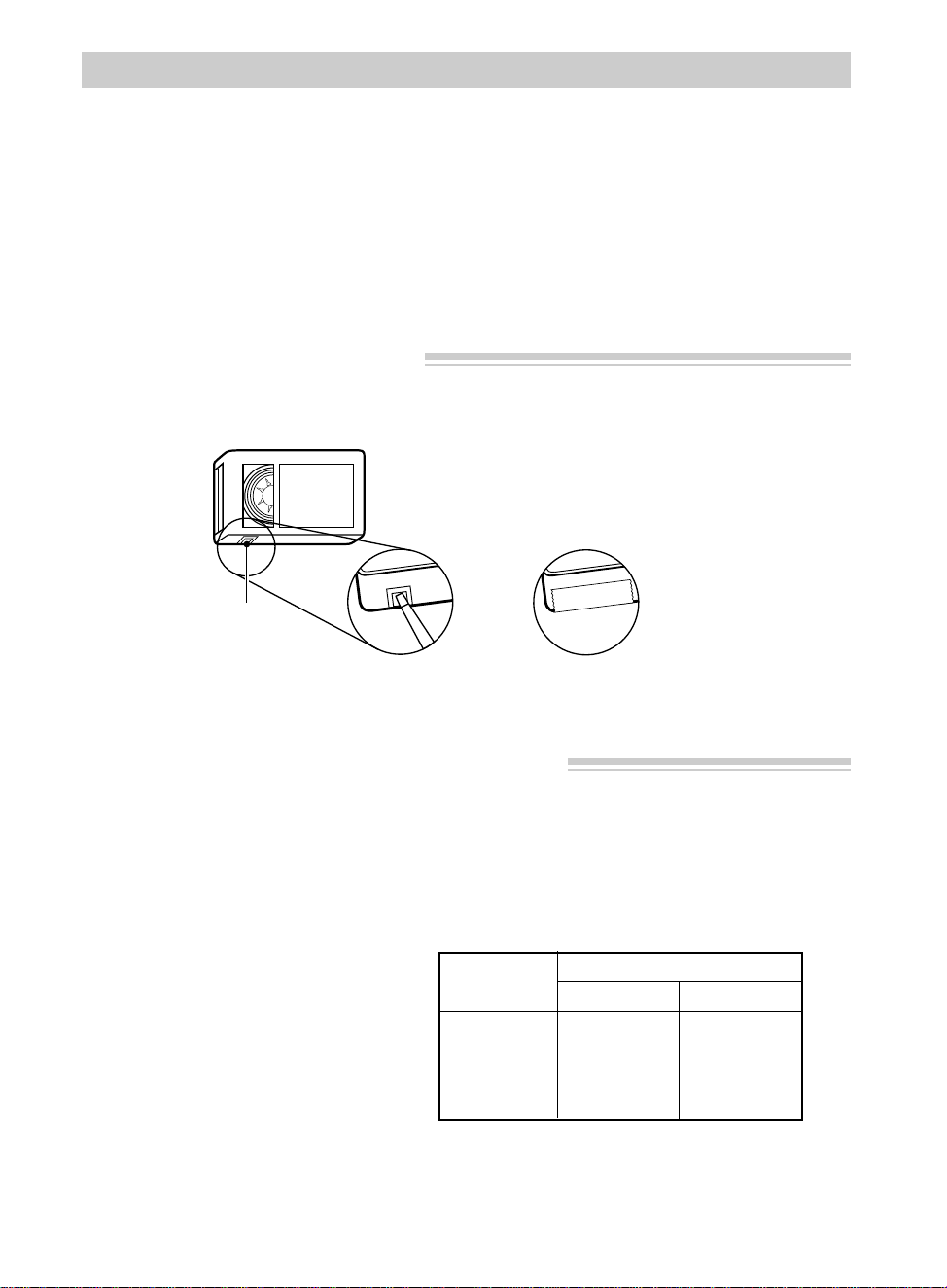
You can use your video cassettes over and over again. To erase a previous recording,
just record over it.
Safety
Tab
A. B. Cover hole
with vinyl tape or
slide tab to REC ON to
record over tape.
Remove safety tab
or slide tab to
REC OFF.
We recommend that our cassettes be used with your camcorder. Use of poor quality
tapes or tapes that have been damaged or mishandled can contaminate the video heads,
resulting in a snowy picture or no picture at all during playback. Because there is no
control over the type of tape purchased or rented by consumers, head cleaning is not
covered under warranty. It is considered normal maintenance.
The automatic head-cleaning system minimizes the need for accessory cleaners or
cleaning by a Servicenter. This system is activated whenever you insert or remove a
cassette.
Erase Protection – Safety Tab
Recording and Playback Speeds and Times
The camcorder records and plays back in standard speed (SP) or extended play (SLP).
Select the recording speed using the SP•SLP switch. The selected speed will be
displayed in the viewfinder and display panel. Listed below are the maximum SP and
SLP recording times for popular VHS-C cassettes.
Recording Time
Cassette SP SLP
TC-20 20 Min. 60 Min.
TC-30 30 Min. 90 Min.
TC-40 40 Min. 120 Min.
• SP – Standard play provides the
best picture (less picture noise),
but the shortest recording time
(20 minutes with a TC-20 tape).
• SLP – Extended play provides
three times the recording time as
SP (60 minutes with a TC-20
tape). SLP has slightly more
picture noise than SP in normal
playback. This may not be
noticeable.
25
EJECT
P
U
S
H
LIGHT
OFF
AUT
ON
Video Cassettes
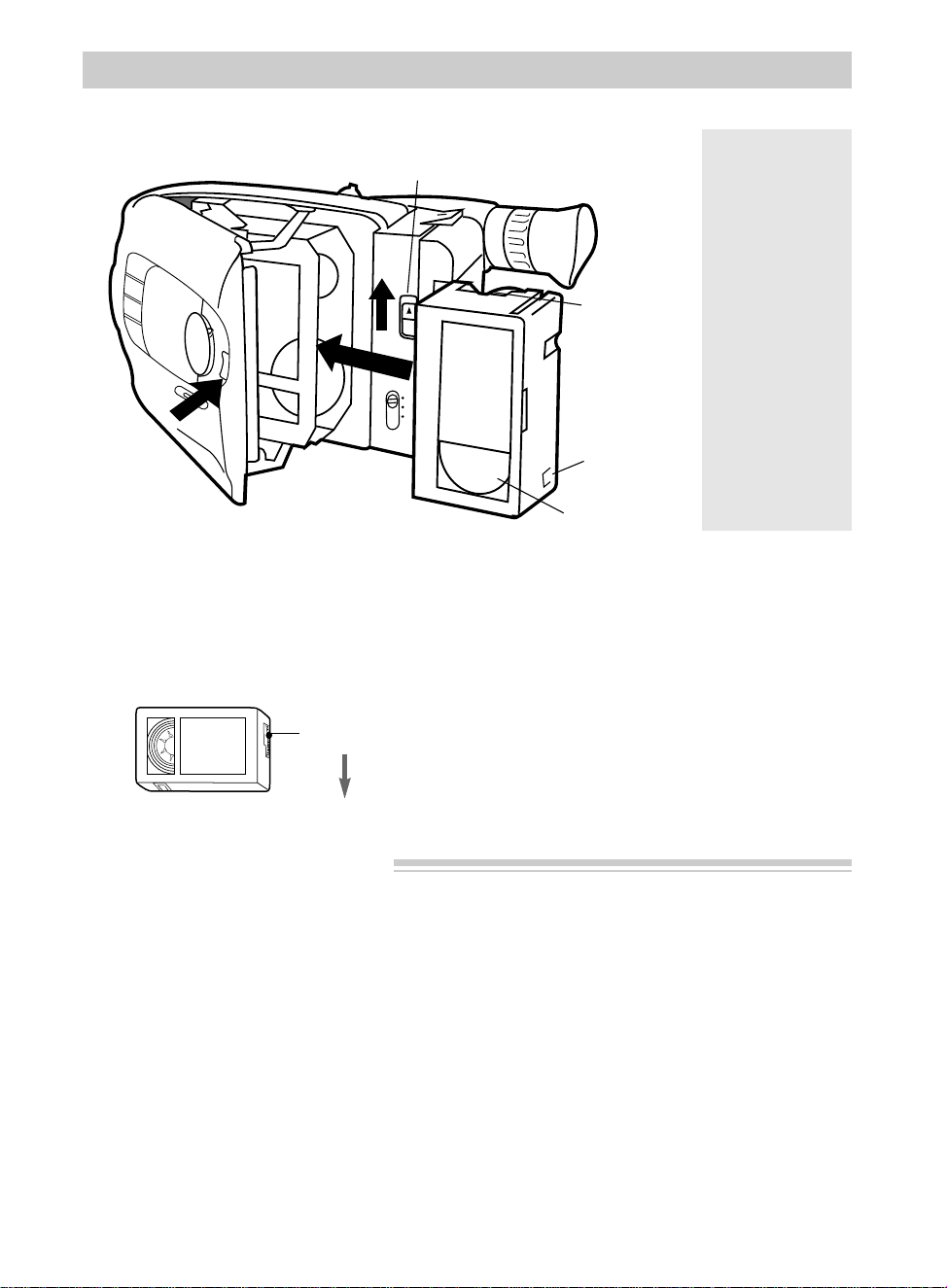
Before inserting a cassette, turn the tape
wheel on the side of the cassette in the
direction shown to remove any slack in
the tape.
Inserting and Removing Cassettes
Cassette Care and Storage
• When you are finished with a cassette,
rewind it, remove it from the
camcorder, and label it.
• Store cassettes vertically in their
protective cases at normal room
temperatures. Do not leave your
camcorder or cassettes in a car or
outdoors for an extended period.
Excessive heat or cold may damage
your cassettes.
• Keep the cassette away from strong
magnetic fields such as electric motors
and other devices.
• Keep dust from entering the cassette
compartment. All dust is abrasive and
will cause excessive wear on the tape
and the camcorder’s recording or
playback heads.
• Do not use cassettes with damaged or
spliced tape.
• Do not use a cassette if it has been
damaged or exposed to moisture. The
tape may jam and/or damage your
camcorder.
1. Attach a power supply. Then slide and
release EJECT to open the cassette
compartment.
2. Insert or remove the cassette.
3. Close the cassette compartment door
by pressing on the area labeled PUSH
until it locks into place.
Tape Wheel
EJECT Button
Tape Window
PUSH
Here to
Close
Cassette
Compart-
ment
Safety Tab
Caution:
Insert the
cassette only
one way with
the tape wheel
facing up and
the tape win-
dow facing
out. The
cassette should
slide easily
into the com-
partment. Do
not force the
cassette.
Tape Wheel
Recording
26
Making a Recording
The steps below tell you how to make a recording and suggest using some of the
recording features. Each feature is described in detail on the following pages.
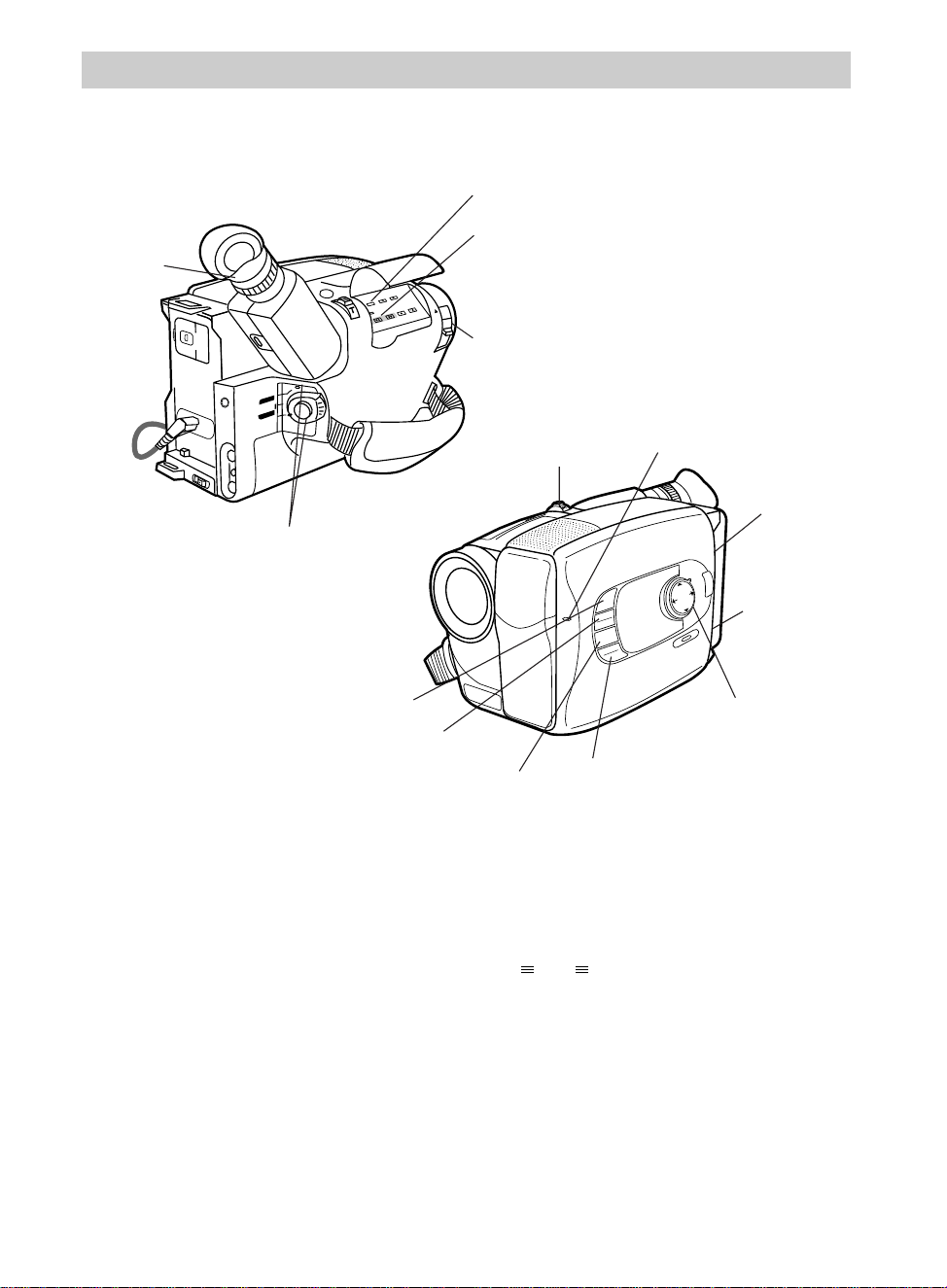
1. Attach a power supply.
Attach the adapter/charger, charged
battery, or optional DC car cable.
2. Insert a tape.
• Slide EJECT.
• Turn the tape wheel on the cassette
to remove any slack from the tape.
• Insert the cassette with the tape
wheel facing up and the tape window
facing out.
3. Slide the LENS COVER control to
open the lens cover.
4. Place the POWER (CAMERA/
OFF/VCR) switch in CAMERA.
The power indicator will light and the
camcorder will enter record pause.
appears in the viewfinder.
5. Adjust the viewfinder and eyepiece
focus control for your vision.
6. Select a recording speed and tape
length.
A. Place the SP•SLP switch in SP or
SLP to select a recording speed.
B. Make sure the mode select dial is in
MANUAL.
PAUSE
BATT. RELEASE
B
C
AUDIO
JLIP
RF
DC OUT
VIDEO
L
E
N
S
C
O
V
E
R
SP•SLP
QUICK
REC
TRACKING
ER R/M
W.BAL.
PLAY/PAUSE
STOP
FF
+
REW
+
–
VCR
CAMERA
POWER
OFF
MENU
16X9
BACKLIGHT
AUTO
MANUAL
FRONTLIGHT
AE MODES
EIS
FADE
WIPE
DISPLAY
P
U
S
H
F
O
C
U
S
Tally Light
Eyepiece
Focus
Control
EDIT SEARCH – Button
SP•SLP Button
LENS COVER Control
Zoom
Lever
LIGHT OFF
•AUTO•ON
Switch
EJECT
Button
POWER Switch
and Indicator
Mode Select
Dial
FADE/WIPE
Button
MENU Button
16X9/AE MODES
Button
EIS Button

Recording
27
C. Press the MENU button and use the
3
in the center of the mode select
dial to highlight TAPE LENGTH.
Use
5
and
6
to select the length of
the tape you are using (T20, T30, or
T40) so the camcorder can
correctly calculate the time
remaining. Press the MENU button
again to remove the menu.
7. Place the LIGHT OFF•AUTO•ON
switch in AUTO.
The light will turn on automatically
when you need more light.
8. Select a production special effect to
add variety to your recordings.
A. Make sure the mode select dial is in
MANUAL.
B. Press the 16X9/AE MODES button
to display the production effects
menu in the viewfinder.
C. Repeatedly press the 16X9/AE
MODES button to select one of the
production effects.
• Select Cinema (16X9 effect),
Sepia (brown-tone effect), Sports
(fast moving action), Back Lit
(subject in strong back light), or
Front Lit (subject in spotlight).
• The effect is automatically
activated, and its indicator
appears in the viewfinder.
• Details are on pages 64-65.
9. Add fades and wipes.
A. Make sure the mode select dial is in
MANUAL.
B. Press the FADE/WIPE button to
display the fade menu in the
viewfinder.
C. Repeatedly press the FADE/WIPE
button to select a fade or wipe.
• Select Black Fader, Blue Fader,
Mosaic Fader, Door Wipe, or
Scroll Wipe.
• The effect is automatically
activated, and its indicator
appears in the viewfinder.
• Details are on pages 62-63.
10.Start and stop recording.
• Press and release the thumb trigger
to start recording. REC
666
appears in the viewfinder and the
tally light will light when the
camcorder is recording.
• Press and release the the thumb
trigger again to stop recording. The
camcorder is now in record pause.
appears in the viewfinder.
• The camcorder will automatically
turn off if it remains in record pause
for five minutes. Place the POWER
switch in OFF and then back in
CAMERA.
11.Use the zoom feature.
• Zoom in and out using the zoom
T and W lever.
12.Review what you have recorded.
• Press and release EDIT SEARCH –
to review the last few seconds of the
recording.
13.When you are finished, place
POWER switch in OFF and close
the lens cover.
PAUSE
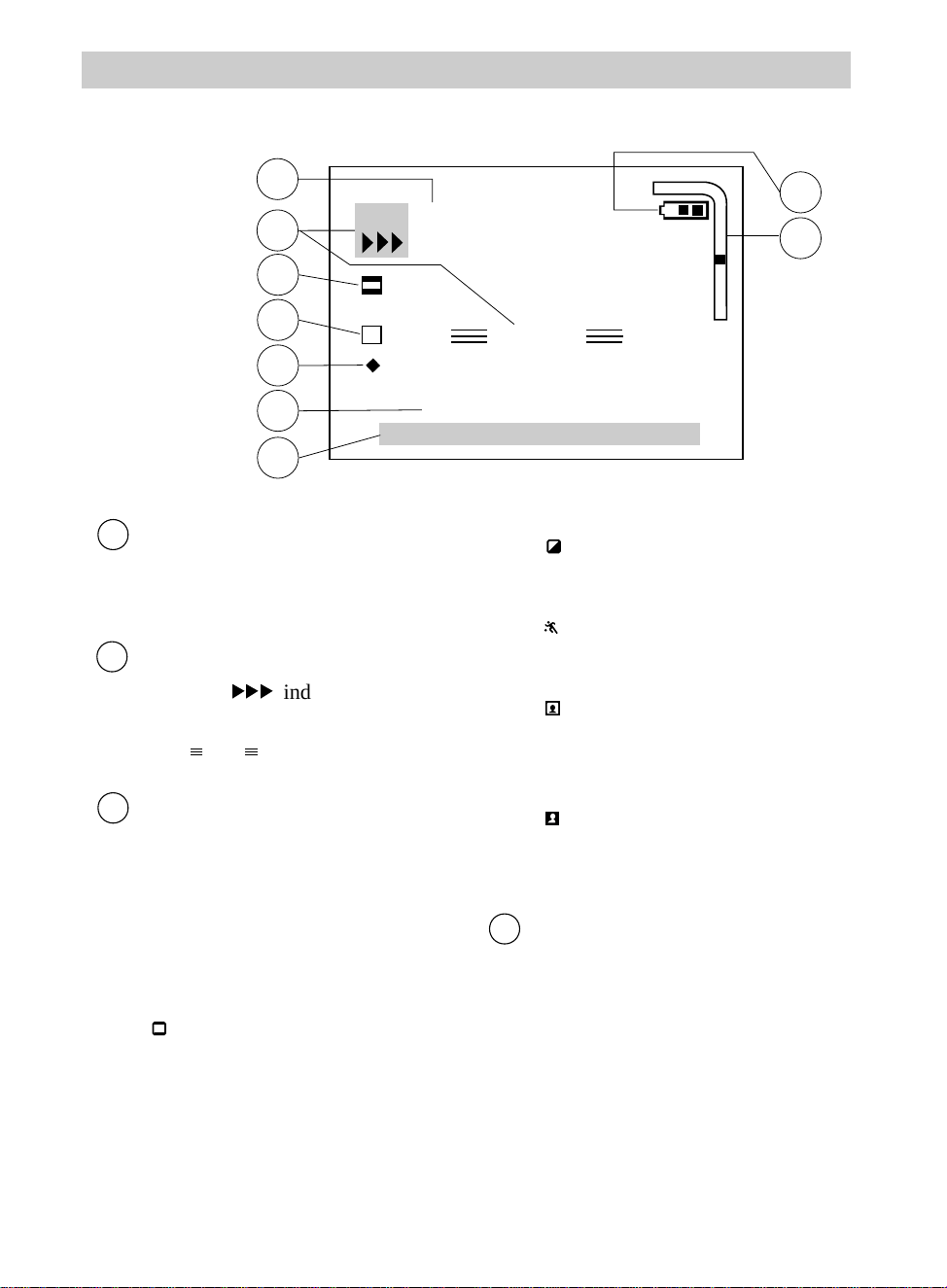
28
REC
Bk
PAUSE
SP
NOV 18.96 PM 8:30:00
Happy Birthday
T
W
3
4
5
6
7
8
9
1
2
Recording
Tape Speed Indicators (SP or SLP)
The tape speed selected with the
SP• SLP button appears here.
• Details on page 24.
Status Displays
•The REC
666
indicator appears
when the camcorder is recording.
• The indicator appears
during record pause.
Production Effects Indicators
The indicator for the production
effect selected with the 16X9/AE
MODES button appears here. When
the mode select dial is in AUTO,
Cinema is automatically selected.
Place the mode select dial in
MANUAL to select the other effects.
• appears when you select
Cinema to “letterbox” record with
black bars so you can play back
your recordings on a 16X9 TV.
3
PAUSE
2
1
Viewfinder Displays
• appears when you select Sepia
to give your recordings a brown-
tone like old photographs.
• appears when you select Sports
to record fast moving action, such
as sporting events.
• appears when you select Back-
Lit to make a subject appear
brighter that appears too dark
because of backlighting.
• appears when you select Front-
Lit to darken a subject that appears
too bright because of front lighting.
• See pages 64-65 for details.
Fade, and Wipe Indicators
The indicator for the fade or wipe
scene transition selected with the
FADE/WIPE button appears here.
When the mode select dial is in
AUTO, Black Fader is automatically
selected. Place the mode select dial
in MANUAL to select the other fades
or wipes.
4

29
Recording
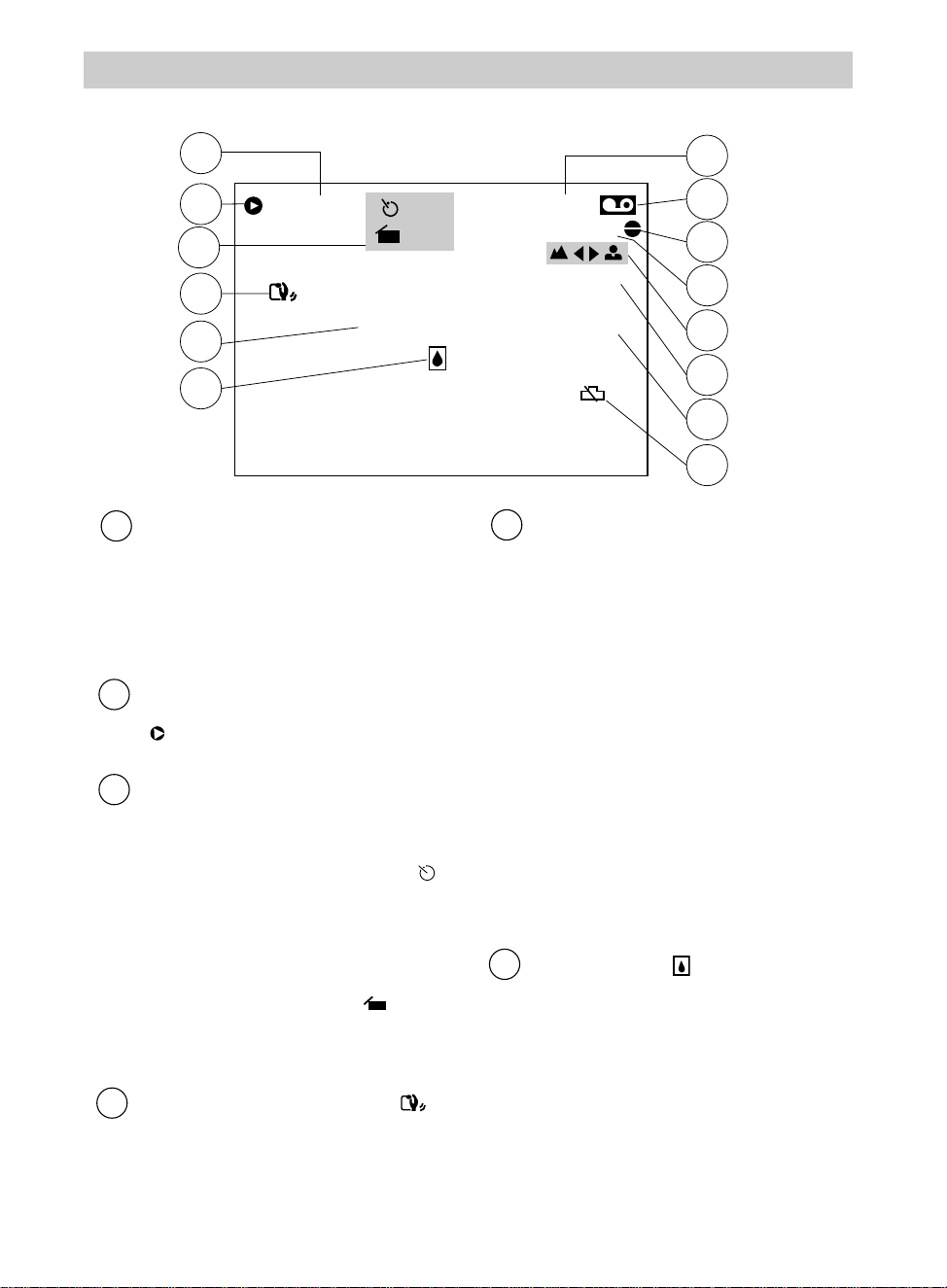
• appears when you select Black
Fade and fade in and out from a
black screen.
• appears when you select Blue
Fade and fade in and out from a
blue screen.
• appears when you select
Mosaic Fade and fade in and out
with a mosaic effect.
• appears when you select Door
Wipe and wipe in from a black
screen opening to the sides. Wipes
out from the center towards the
sides leaving a black screen.
• appears when you select Scroll
Wipe and wipe in from a black
screen from the bottom to the top.
Wipes out from the top to the
bottom leaving a black screen.
• Details are on pages 62-63.
Change Indicator (u)
This indicator will appear to let you
know that an item in the recording
menu has been changed from the
original factory setting.
Title
The preset title you select or the title
you create will appear in this area.
• The title will be recorded on your
tape when it appears.
• Details are on pages 48-49.
6
5
C
BK
Date or Date and Time
The date, time, or date and time
appears in this area of the
viewfinder when you press the
DISPLAY button.
• These displays will be recorded on
your tape when they appear.
• Details are on pages 52-53.
Battery Level Indicator
• This indicator shows how much
power is left in the rechargeable
battery.
• This indicator flashes when the
battery is almost empty.
• Details are on page 15.
Zoom Indicator
The zoom indicator appears here
when you use the zoom lever.
• Details on page 44.
9
8
7
(continued on next page)
30
11
13
10
0min
LENS COVER
MWB
+03
M 0:00:00
T
30
15 s
10s
15
12
16
17
14
18
19
20
21
22
23
Recording
Viewfinder Displays (continued)
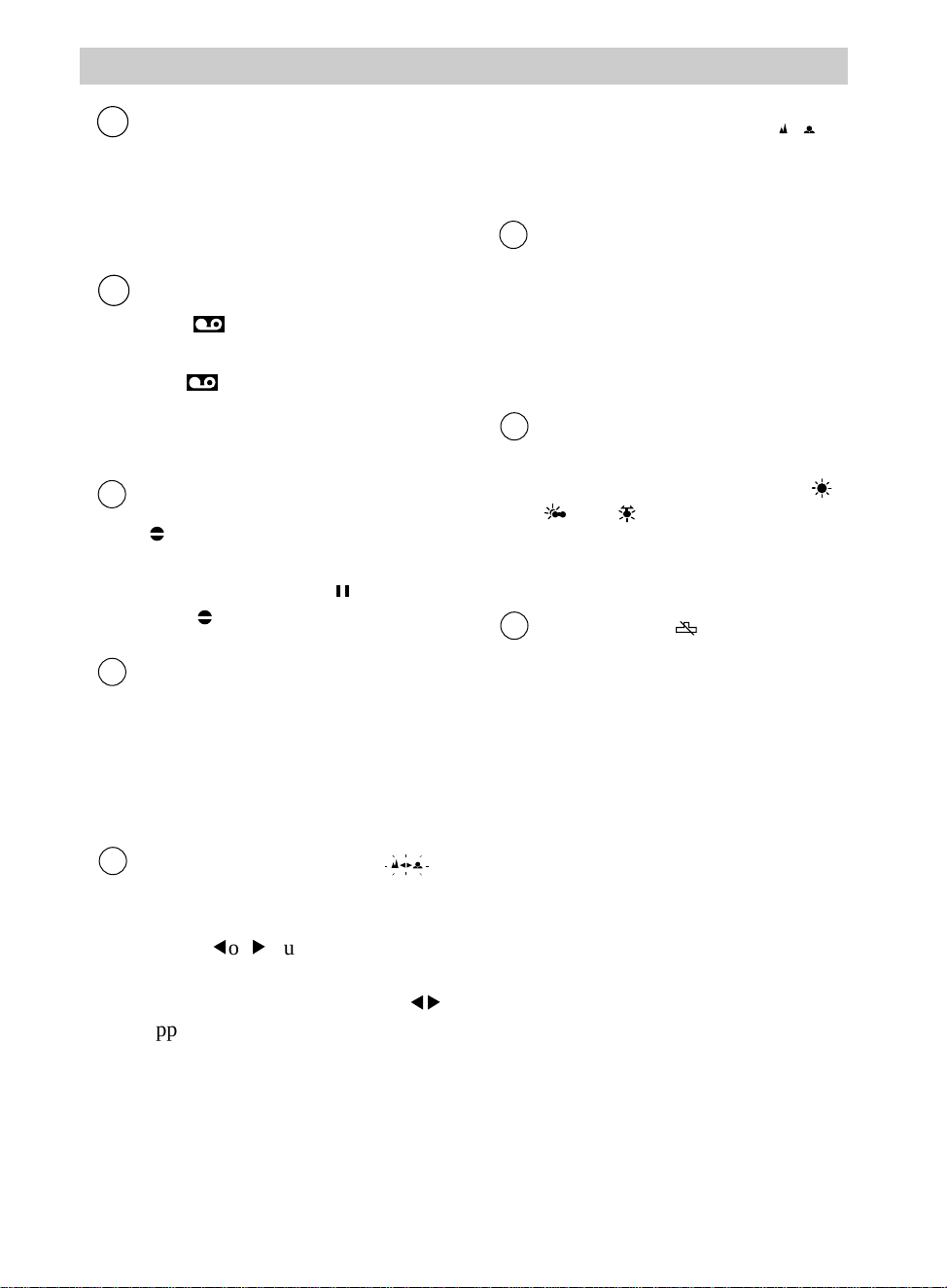
Time Remaining Display
The approximate time remaining on
the tape is automatically displayed
here. The correct Tape Length must
be set in the recording menu.
Details are on page 43.
Edit Insert
• appears during edit insert.
Details are on pages 68-69.
Self-Timer, Animation, and Time-
Lapse Indicators
• The interval time selected for self-
timer or time-lapse recording (
15S, 30S, 1min, 5min) appears here.
Details are on pages 56-57 and
60-61.
• The rec time selected for animation
or time-lapse recording ( 1/4S,
1/2S, 1S, or 5S) appears here.
Details are on pages 58-61.
Electronic Image Stabilizer ( )
This indicator appears when the
electronic image stabilizer is turned
on with the EIS button. See page 33
for details.
13
12
11
10
Warnings and Information
• LENS COVER: When you turn on
the camcorder, this indicator briefly
flashes to remind you to open the
lens cover.
• LENS COVER: This indicator may
flash when the camcorder is used in
dark areas – even if the lens cover
is open.
• INDEX appears when an index
mark is being made on the tape.
Details are on page 33.
• TAPE END appears when the end
of the tape is reached during
recording or a cassette is inserted
with its tape already at the end.
Dew Warning ( )
The dew indicator appears when
excessive moisture (condensation)
has entered the camcorder. The
camcorder will not operate when
this indicator appears. Place the
camcorder in a warm, dry area until
this indicator disappears.
15
14
31
Recording
Tape Length
The tape length (T20, T30, or T40)
selected with the Tape Length
feature on the recording menu
appears here. Details are on
page 43.
Cassette Warning
• The indicator appears when a
cassette is in the camcorder.
• The indicator flashes when the
POWER dial is set to CAMERA and
there is no cassette in the
camcorder.
Audio Dub
• appears during audio dubbing.
Details are on pages 66-67.
• The pause indicator ( ) appears
with when the camcorder is
paused during dubbing.
Elapsed Time-Counter
• The time counter appears during
playback. It is not recorded.
• An “M” appears in front of the time
counter when memory-stop is on.
• Details are on page 74.
Manual Focus Indicators ( )
These indicators appear when focus
is adjusted manually using the
FOCUS
5
or
6
button. The mode
select dial must be in MANUAL.
• Manual focus lock indicators (
56
)
appear when focus is moving
toward near or far.
20
19
18
17
16
• Low-contrast indicators ( )
flash when the auto-focus system
cannot focus properly.
• Details are on pages 38-39.
Exposure Indicator
This indicator appears when you are
adjusting brightness manually using
the FRONTLIGHT or BACKLIGHT
button. The mode select dial must
be in MANUAL. Details are on
page 37.
White Balance Indicators
If you adjust white balance
manually, the indicator (MWB,
,
,
or )
,
for the mode
you select appears here. The mode
select dial must be in MANUAL.
Details are on pages 40-41.
Lithium Cell ( )
• This indicator flashes for a few
seconds when you first turn on the
camcorder and the time and date
have not been set.
• This indicator also appears when
the clock cell is missing or it needs
to be replaced.
Details are on page 51.
23
22
21
32
Recording
Cautions
Do not force the
viewfinder to rotate
completely around.
This will damage the
viewfinder and/or the
camcorder.
When carrying the
camcorder with the
shoulder strap, put the
viewfinder down and
in. This helps prevent
possible damage to
the viewfinder from
bumping against your
body as you move.
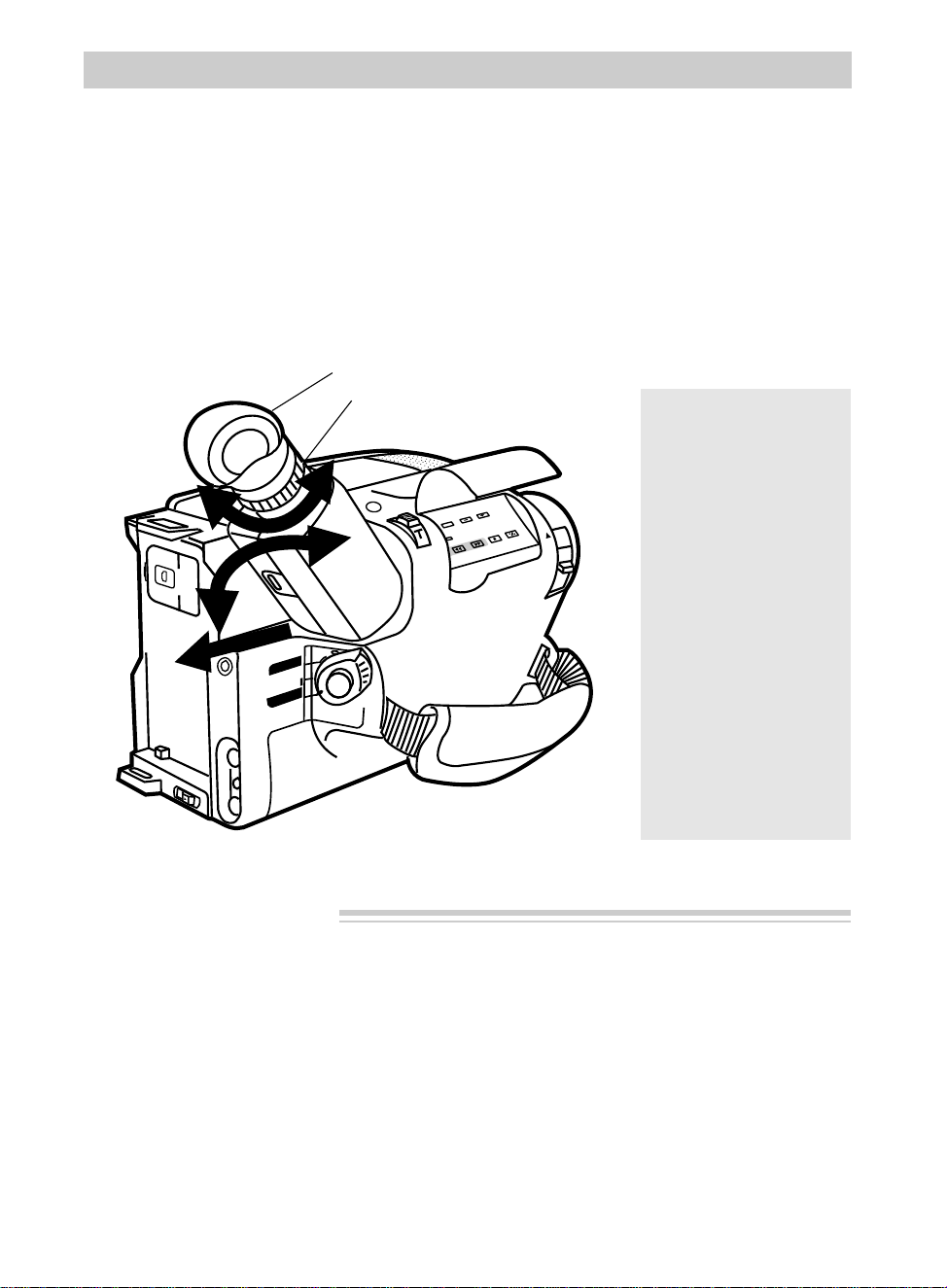
Viewfinder
The camcorder’s viewfinder is a miniature monitor that displays the picture
seen by the camcorder when recording.
Adjust Viewfinder for Convenient Viewing
For convenient viewing, you can slide the viewfinder out from the camcorder
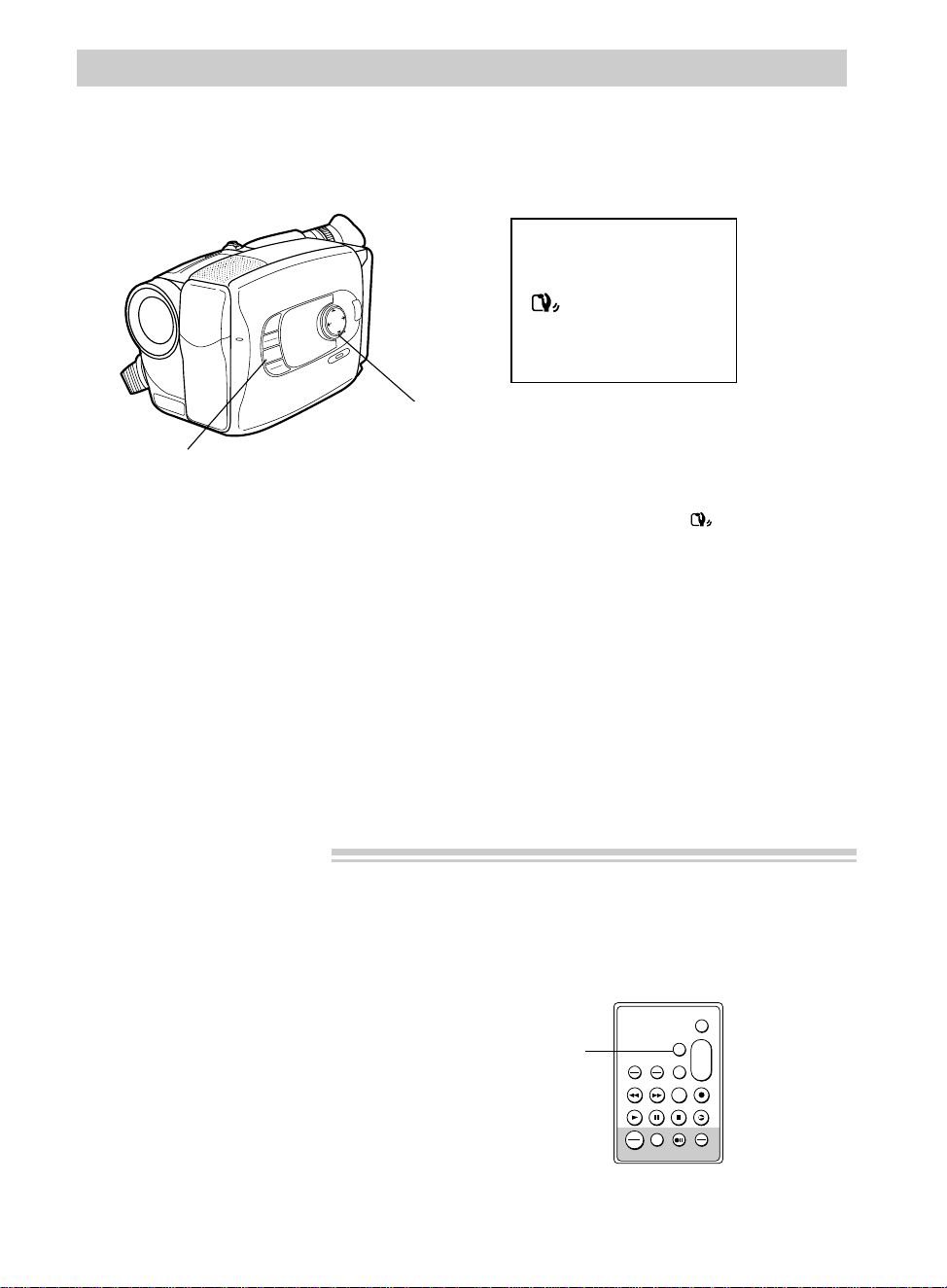
and rotate it up and down.
BATT. RELEASE
B
C
AUDIO
JLIP
RF
DC OUT
VIDEO
L
E
N
S
C
O
V
E
R
SP•SLP
TRACKING
TER R/M
W.BAL.
PLAY/PAUSE
STOP
FF
+
REW
+
–
CAMERA
VCR
POWER
OFF
QUICK
REC
Eyepiece Focus Control
The eyepiece focus control lets you set the focus of the viewfinder for your
personal vision. If you wear eyeglasses, you probably can operate the camcorder
without them.
Viewfinder
Eyepiece Focus Control
It is easiest to set the correct focus by
focusing on one of the viewfinder’s on-
screen displays.
Look through the viewfinder and adjust
the eyepiece focus control for your vision.
The eyepiece focus control does not affect
the focus of the picture actually recorded
by the camcorder.
33
Recording
MENU
16X9
BACKLIGHT
AUTO
MANUAL
FRONTLIGHT
AE MODES
EIS
FADE
WIPE
P
U
S
H
F
O
C
U
S
DISPLAY
EIS Button
Electronic Image Stabilizer (EIS)
The electronic image stabilizer helps compensate for unstable images caused by camera
shake that can be created by recording out of a moving vehicle or while walking.
EIS Indicator in
Viewfinder
Mode Select Dial
To Turn On EIS
1. Place the POWER switch in CAMERA.
2. Press the EIS button. The EIS
indicator appears in the viewfinder.
Notes: EIS does not operate when slow
shutter is activated. The flashes letting
you know EIS is not functioning.
Turn off EIS when using a tripod.
Stabilization may not be possible if hand
shake is excessive or when shooting the
following:
• Subjects with vertical or horizontal stripes.
• Low contrast subjects or backgrounds or
dark or dim subjects.
• Subject with excessive backlighting.
• Scenes with movements in various
directions.
To Turn Off EIS
Press the EIS button. The EIS indicator
disappears from the viewfinder.
Electronic Indexing
An index mark is automatically recorded at the beginning of a recording after a
cassette is inserted. When you play back the indexed tape in a VCR that has a
compatible indexing feature called “VHS Index Search System”, the invisible marks
can be located automatically. See VCR owner’s manual.
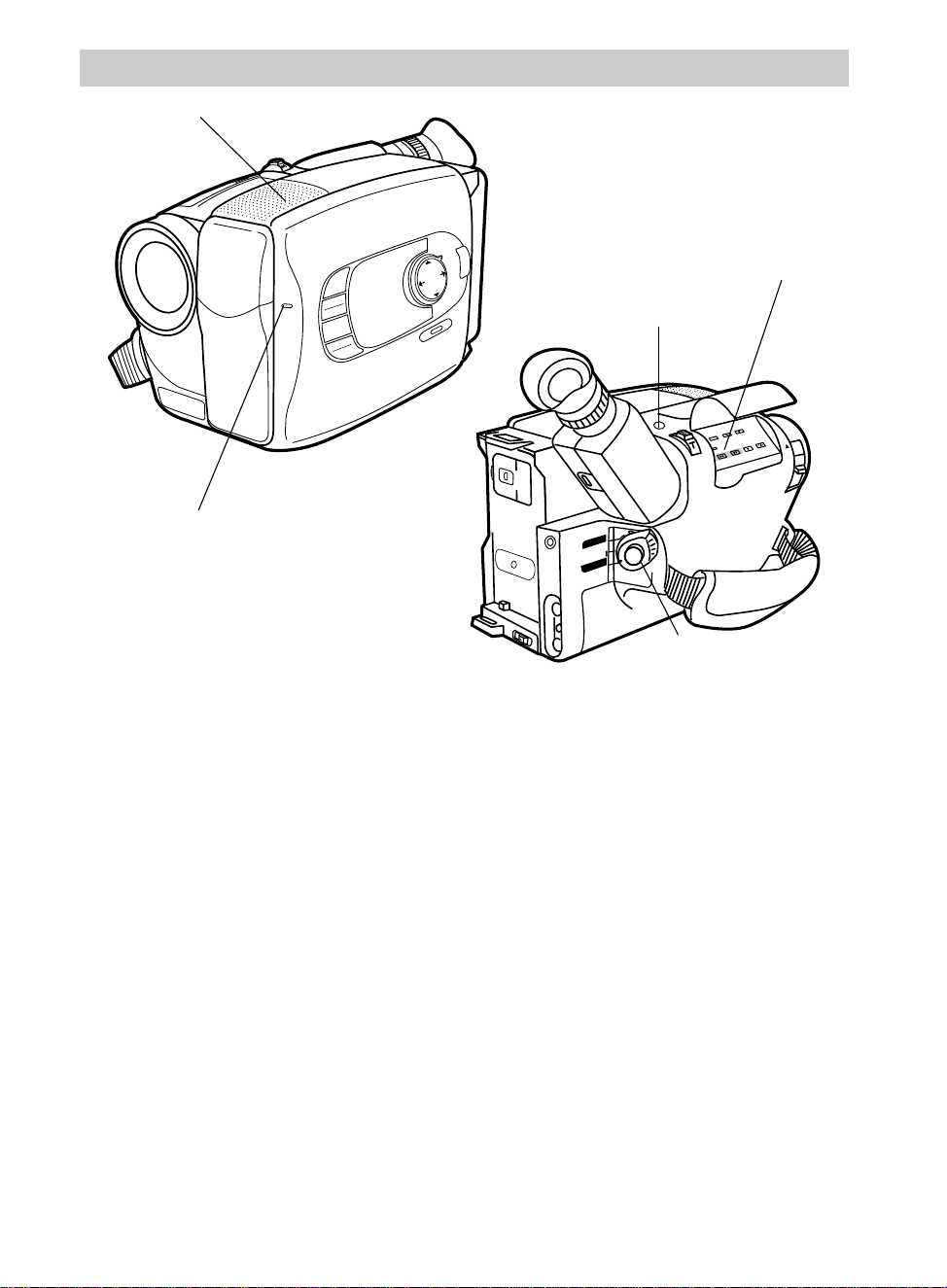
Record an Index Mark – CC637 Remote Only
• Press VISS on the remote during recording.
• Press VISS during record pause to make an
index mark on the tape when you start
recording.
INDEX flashes in the viewfinder when an
index mark is recorded.
Note: No other function can be performed during
index recording.
VISS
ANIM.
REW
CANCEL
RANDOM ASSEMBLY EDIT
REC/PAUSE
F FWD
REC
TIME
TIME LAPSE
SELF MBR
START
/STOP
T
W
ZOOM
INT.
ON
OFF
TIME
SET
VCR
PLAY PAUSE STOP INSERT
A.DUB
IN
OUT
VISS
Button
Model CC637’s Remote
34
Recording
Flying Erase Head
A separate erase head is mounted on
the spinning headwheel (hence the term
“flying”). This allows you to make clean
edits without the “glitches” or “rainbow
noise” that may occur at the beginning or
the end of recordings.
Auto Head Cleaner
The camcorder has an automatic head-
cleaning system. Whenever a cassette is
inserted or removed, this system is
activated.
The head-cleaning system minimizes the
need for accessory cleaners or cleaning
by a Servicenter.
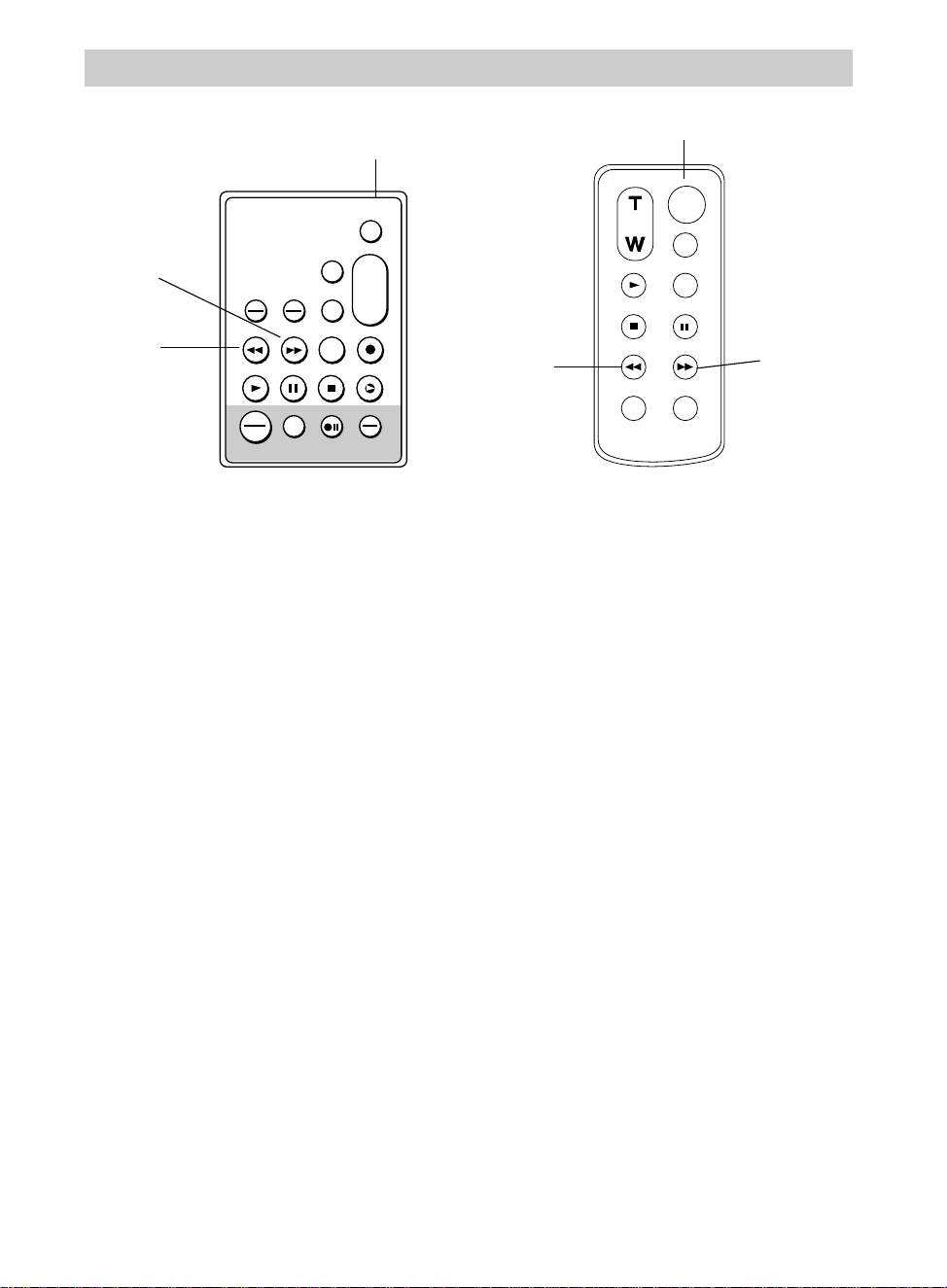
Tally Light
The tally light lights when the camcorder
is recording.
The tally light can be turned on or off
using the recording menu. See page 55
for details.
Microphone
The microphone picks up the sound
during a recording. It is more sensitive to
sounds coming from the direction the
lens is pointed.
MENU
16X9
BACKLIGHT
AUTO
MANUAL
FRONTLIGHT
AE MODES
EIS
FADE
WIPE
DISPLAY
P
U
S
H
F
O
C
U
S
Tally Light
Microphone
POWER Switch in
CAMERA
EDIT SEARCH – and + Buttons
BATT. RELEASE
B
C
AUDIO
JLIP
RF
DC OUT
VIDEO
L
E
N
S
C
O
V
E
R
SP•SLP
TRACKING
TER R/M
W.BAL.
PLAY/PAUSE
STOP
FF
+
REW
+
–
CAMERA
VCR
POWER
OFF
QUICK
REC
QUICK REC Button
35
Recording
Quick Review Feature
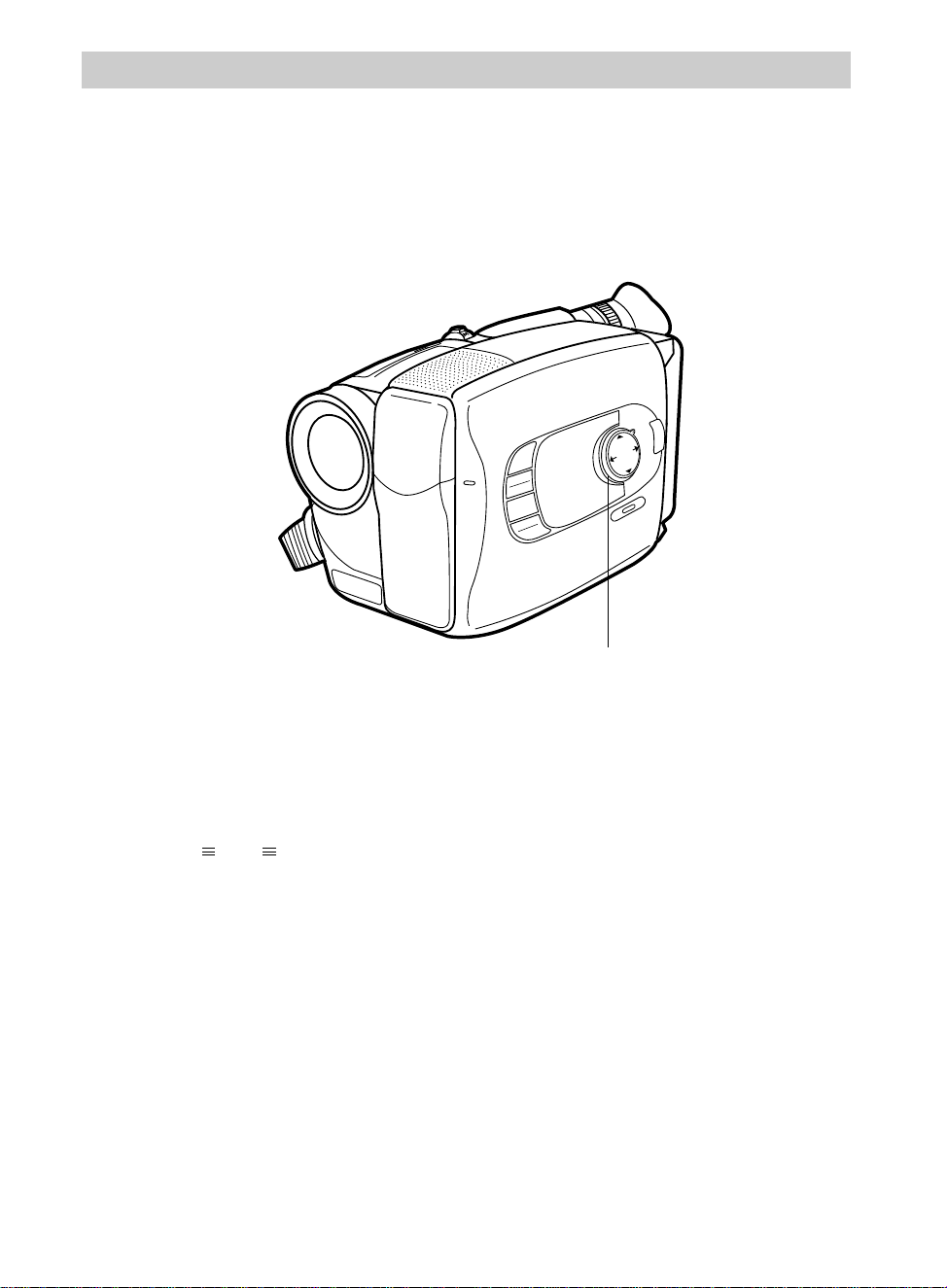
Press and quickly release EDIT
SEARCH – on the camcorder (REW on
remote) when the camcorder is in record
pause to review the last few seconds of a
recording. The POWER switch must be
in CAMERA.
The camcorder will play back the last
few seconds of the recording, return the
tape to its previous position, and return to
record pause.
Quick Record Feature
Records a scene for five seconds,
allowing for quick scene transitions.
• Press and release QUICK REC while
the camcorder is in record pause to
record for five seconds. After five
seconds, the camcorder will return to
record pause.
• Press and hold QUICK REC to record
for more than five seconds. The
camcorder will continue to record as
long as QUICK REC is pressed.
Release the button to return to record
pause.
Camera Edit Feature
The camera edit feature allows you to
position the tape when the camcorder is
in record pause. Place POWER switch in
CAMERA.
• Press and hold EDIT SEARCH – (REW
on remote) to visually search the
recorded tape in reverse.
• Press and hold EDIT SEARCH +
(F FWD or FF on remote) to visually
search forward on the recorded tape.
Release the button to return the
camcorder to record pause at that point
on the tape. Press the thumb trigger
(START/STOP on remote) to start
recording at this point.
VISS
ANIM.
REW
CANCEL
RANDOM ASSEMBLY EDIT
REC/PAUSE
F FWD
REC
TIME
TIME LAPSE
SELF MBR
START
/STOP
T
W
ZOOM
INT.
ON
OFF
TIME
SET
VCR
PLAY PAUSE STOP INSERT
A.DUB
IN
OUT
REW
Button
F FWD
Button
START/STOP
Button
ZOOM
START/STOP
SELF
INT.
TIME
TIME LAPSE
REC
TIME
ANIM.
PAUSE
FF
A.DUB
INSERT
REW
STOP
PLAY
REW
Button
FF
Button
START/STOP
Button
Model CC637’s Remote
Model CC635 or CC636’s
Remote
36
Recording
Full AUTO Mode
1. Place the POWER dial in CAMERA.
• The power indicator will light and
the camcorder will enter record
pause. appears in the
viewfinder.
2. Place the mode select dial in AUTO.
3. Press the thumb trigger to start
recording.
• The camcorder will control the
focus, exposure, and white balance
for you.
PAUSE
• The only scene transitions that you
can use is the black fader.
• The only production special effects
you can use is cinema.
• Menu changes cannot be made.
Mode Select Dial
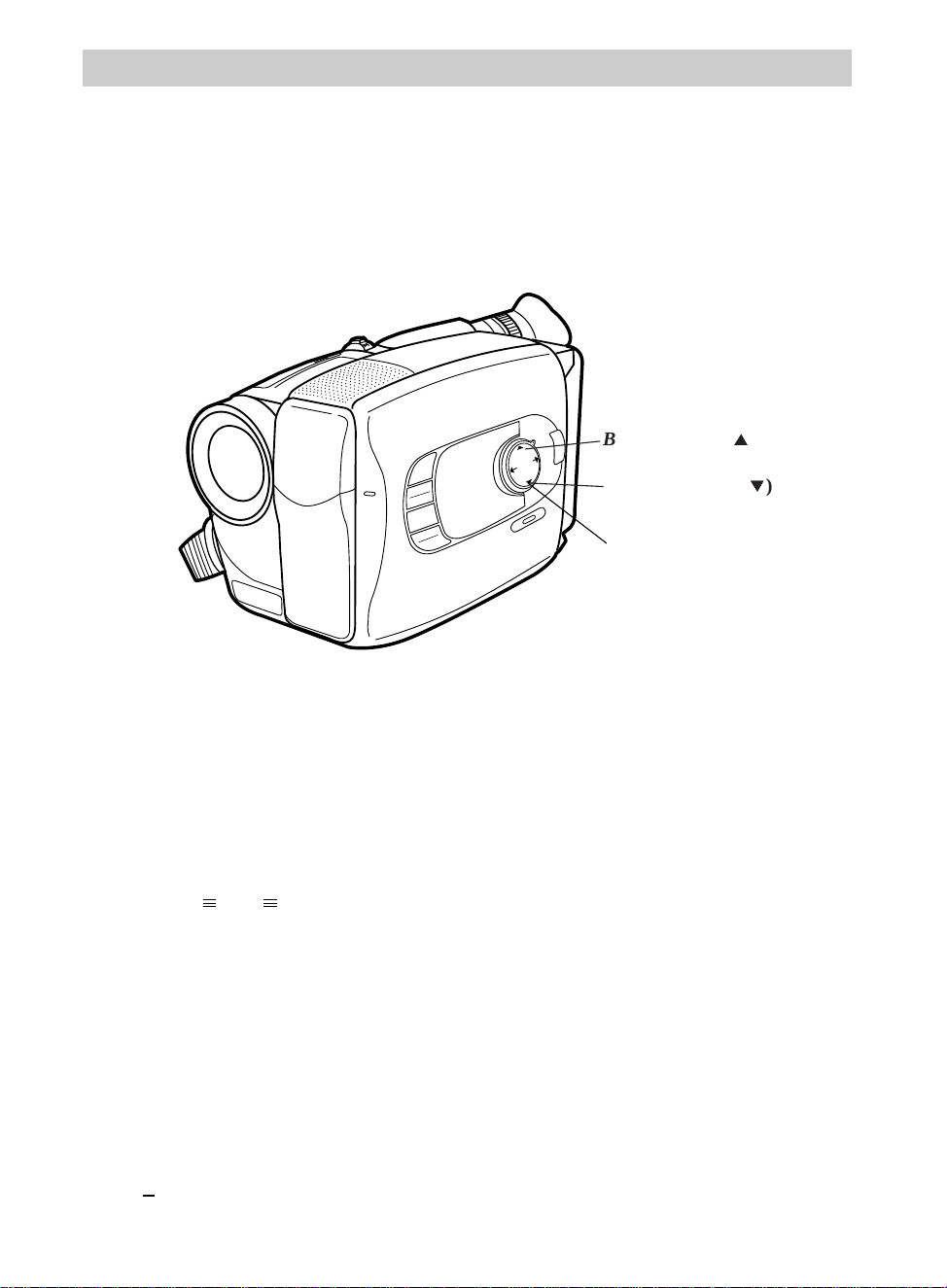
The mode select dial lets you select automatic or manual control of several features.
The center of the dial lets you focus manually and control the iris. The arrow buttons
are also used with the menus.
MENU
16X9
BACKLIGHT
AUTO
MANUAL
FRONTLIGHT
AE MODES
EIS
FADE
WIPE
DISPLAY
P
U
S
H
F
O
C
U
S
Mode Select Dial
37
Recording
Exposure Control
When the mode select dial is in AUTO, the camcorder controls the iris for you. Under
normal conditions, the camcorder will adjust brightness automatically. You may need
to adjust brightness manually when the background is too bright or too dark in
comparison with the subject.
MENU
16X9
BACKLIGHT
AUTO
MANUAL
FRONTLIGHT
AE MODES
EIS
FADE
WIPE
DISPLAY
P
U
S
H
F
O
C
U
S
Mode Select Dial
Manual Exposure
1. Place the POWER dial in CAMERA.
• The power indicator will light and
the camcorder will enter record
pause. appears in the
viewfinder.
2. Place the mode select dial in
MANUAL.
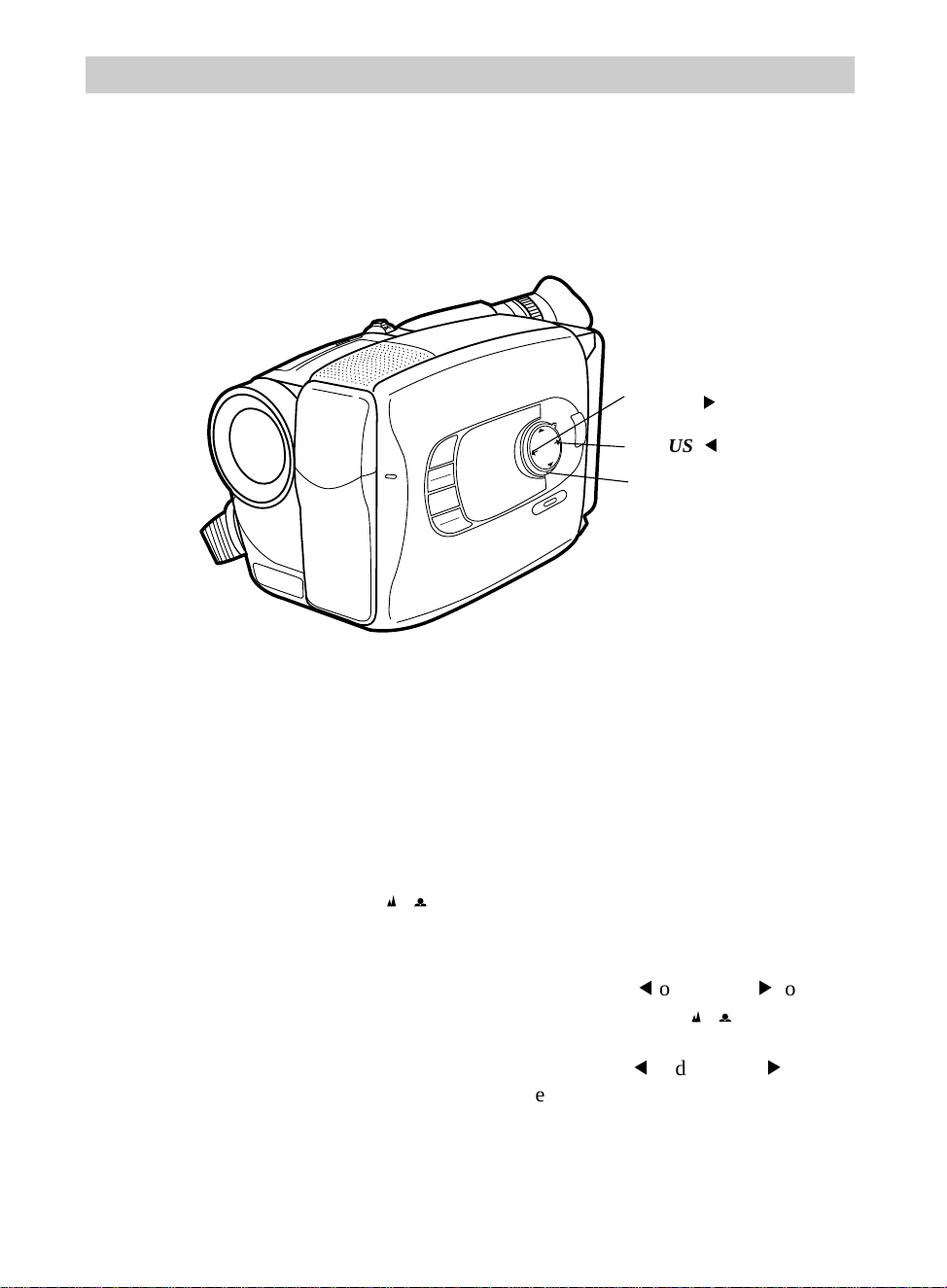
• Press BACKLIGHT to brighten the
image.
• Press FRONTLIGHT to darken the
image.
• The exposure level indicator
(
+
0 to 6) appears in the viewfinder.
PAUSE
To Turn Off Manual Exposure
Press both BACKLIGHT and
FRONTLIGHT at the same time or place
the mode select dial in AUTO.
Conditions Requiring Manual
Exposure
• When recording with a bright
background or reverse lighting.
• When recording with a very dark
background or very bright subject.
• When recording a reflective natural
background — such as a beach or when
skiing.
FRONTLIGHT (
33
)
BACKLIGHT (
44
)
38
Recording
Focusing
Under normal conditions, the camcorder can adjust focus automatically. Under
certain conditions, you may need to focus manually.
Focus Lock Feature
The focus lock feature is useful when
objects pass between your subject and the
camcorder or your main subject is not
located in the center of the viewfinder.
1. Place the mode select dial in
MANUAL.
2. Center the main object in the
viewfinder.
3. Press FOCUS
5
or FOCUS
6
to focus
on the main subject appears in
the viewfinder.
4. Press FOCUS
5
and FOCUS
6
together (or place mode select dial in
AUTO) to turn auto focus back on.
Auto Focus
During auto focus the camcorder will
focus automatically on the object located
in the center area of the viewfinder.
• Place the mode select dial in AUTO to
turn on the auto focus feature.
Note: The low-contrast indicator ( )
in the viewfinder indicates the
auto-focus system may not operate correctly
due to low illumination, low or no contrast,
repeated patterns, or two subjects at
different distances overlapping.
MENU
16X9
BACKLIGHT
AUTO
MANUAL
FRONTLIGHT
AE MODES
EIS
FADE
WIPE
DISPLAY
P
U
S
H
F
O
C
U
S
Mode Select Dial
FOCUS (
66
)
FOCUS (
55
)

39
Recording
Manual Focus
Under certain conditions, such as those listed, you may need to focus manually.
Conditions Requiring Manual Focus
• When recording a subject through a
window.
• When recording a subject having a close
foreground and a background that is far
away.
• When recording two subjects at different
distances that overlap in the same scene.
1. Set the mode select dial to MANUAL.
2. Slide the power zoom lever toward T
to zoom in on your subject. To
maintain proper focus throughout the
zoom range, you must zoom in on the
subject before adjusting the focus.
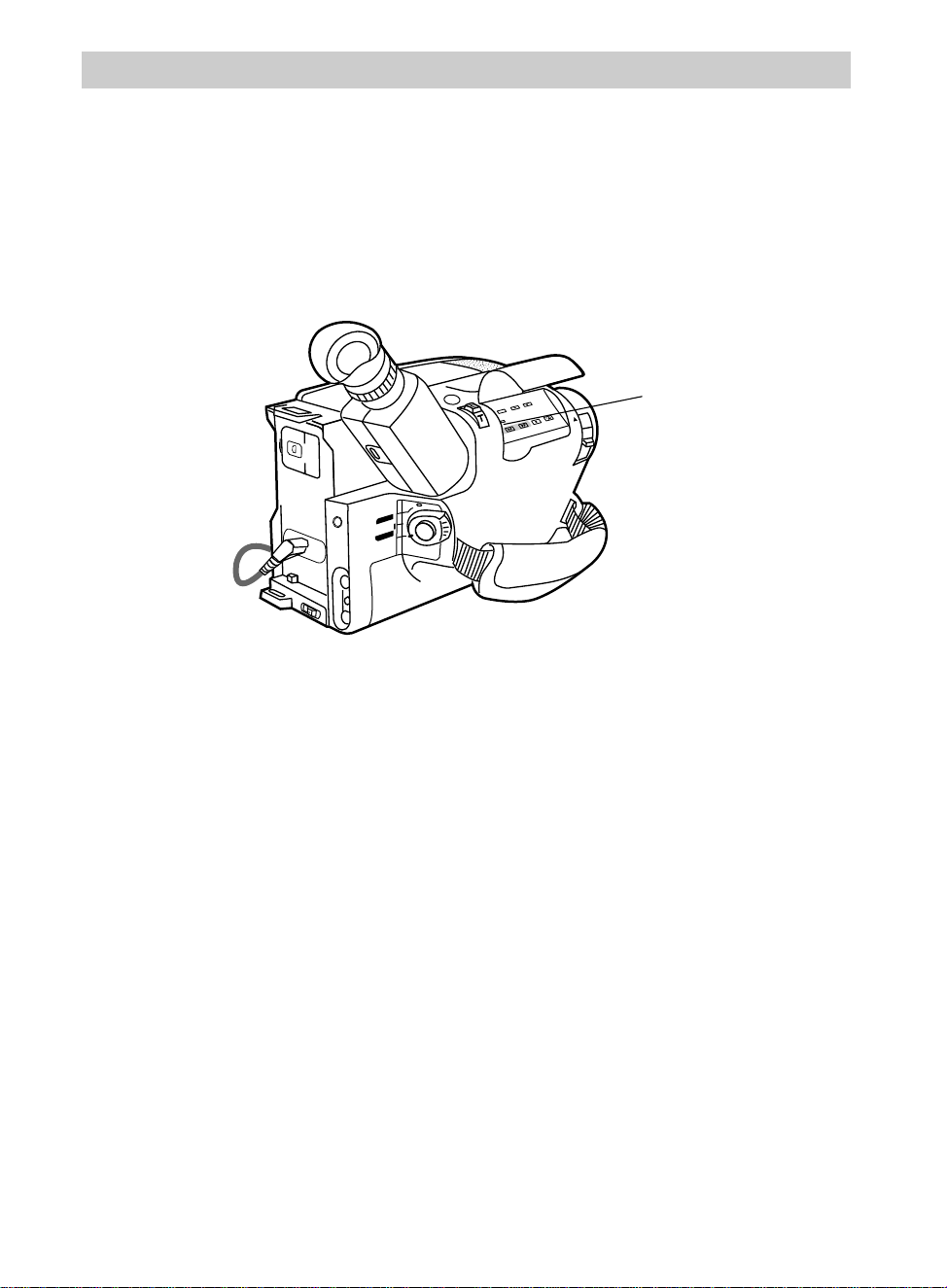
3. Press FOCUS
5
or FOCUS
6
to
display a clear picture in the center of
the viewfinder.
The indicators appear in the
viewfinder. The
5
or
6
indicator will
flash. When the focus cannot be
• When the subject is not in the center of
the viewfinder.
• When recording in low-light situations.
• When recording a scene with fast
motions, like a tennis swing.
adjusted any farther, the indicator
will flash. When the focus cannot be
adjusted any closer, the indicator
will flash.
4. Release the FOCUS
5
or FOCUS
6
to
lock in the manual focus.
5. Press FOCUS
5
and FOCUS
6
together (or place mode select dial in
AUTO) to turn auto focus back on.
BATT. RELEASE
B
C
AUDIO
JLIP
RF
DC OUT
VIDEO
L
E
N
S
C
O
V
E
R
SP•SLP
QUICK
REC
TRACKING
ER R/M
W.BAL.
PLAY/PAUSE
STOP
FF
+
REW
+
–
VCR
CAMERA
POWER
OFF
40
Recording
White Balance
Making colors look natural is what white balance is all about. This is achieved by
adjusting the way the camcorder “sees” and records the light source in the scene you
wish to record. Your camcorder is equipped with automatic white balance. However,
under certain conditions, such as recording an object with various shades of the same
color or when recording a predominant red or brown object outdoors, you may want to
adjust white balance manually.
Auto White Balance
During auto white balance, the
camcorder will automatically adjust the
white balance.
1. Place the POWER switch in CAMERA.
2. Place the mode select dial in AUTO
Manual White Balance
1. Place the POWER switch in CAMERA.
2. Place the mode select dial in
MANUAL.
MAN.W.BAL
Button
3. Press the MAN.W.BAL (manual
white balance) button until one of
the manual white balance indicators
appears in the viewfinder.
• Select MWB when shooting
subjects with different color
temperatures and adjust the white
balance as follows:
Note: Connecting your camcorder to
a color TV monitor may be helpful
when making white balance
adjustments.
A.Point camcorder at a white,
flat object such as a piece of
white paper.
B. Press and hold MAN.W.BAL
for at least three seconds.
(continued on next page)
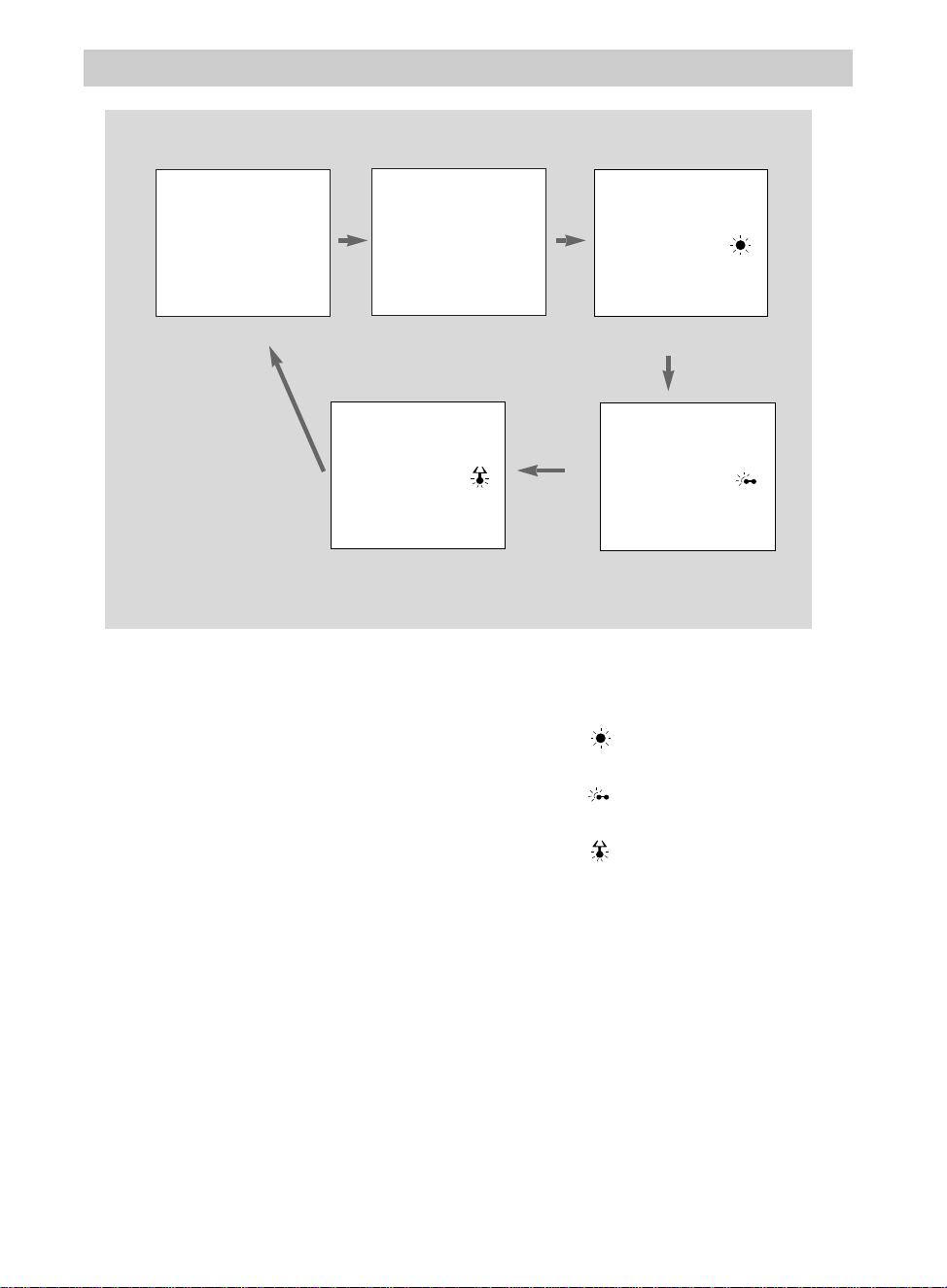
41
Recording
The MWB indicator will flash
while the camcorder is adjusting
white balance and stop flashing
when it is ready to record.
Note: To change the tint for special
recording, substitute colored paper
for white. The white balance is
adjusted based on the color.
Red paper – deeper green
Blue paper – orange
Yellow paper – deeper purple
• Select when recording
outdoors on a sunny day.
• Select when recording
outdoors on a cloudy day.
• Select when recording using
halogen or tungsten lighting.
4. To have camcorder automatically
control white balance, repeatedly
press MAN.W.BAL until no white
balance indicator appears in
viewfinder (or place mode select dial
in AUTO).
Press the MAN.W.BAL (Manual White Balance) Button to Display in Viewfinder
Auto White Balance Manual White Balance
Outdoors — Sunny
Outdoors — Cloudy
MWB
Halogen or Tungsten
Light
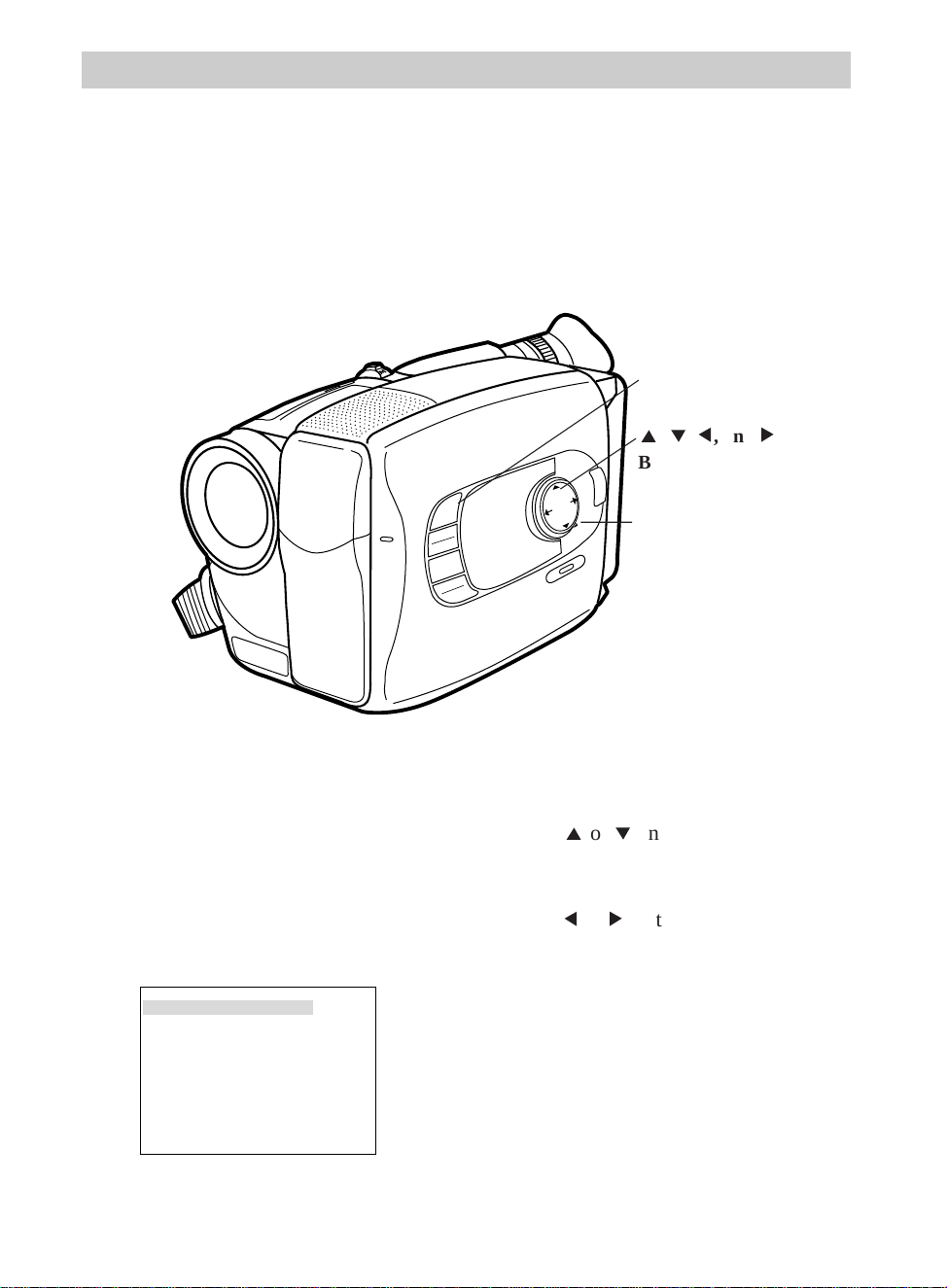
42
Recording
Recording Menu
The main recording menu lets you select and set several recording features: Tele
Macro (close-up), Gain Up (light adjustment), Color Filter, Tape Length, Title, and
Date/Time. The Sub Menu lets you turn the tally light on or off, set interval and
recording times for self-timer, animation, and time lapse recording, and set an ID
number.
Tele Macro
Gain Up
Color Filter
Tape Length
Title
Date/Time
Sub Menu
OFF
AGC
T40
NOR.
Recording Menu in Viewfinder
To Display the Recording Menu
1. Make sure the mode select dial is in
MANUAL.
2. Press the MENU button. The
recording menu will appear in the
viewfinder.
3. Press
4
or
3
on the mode select dial
to highlight the feature you want to
adjust.
4. Press
5
or
6
on the mode select dial
to select the option you want for that
feature.
5. Press MENU to exit the menu.
Note: If you want to change another feature,
repeat steps 3 and 4.
MENU
16X9
BACKLIGHT
AUTO
MANUAL
FRONTLIGHT
AE MODES
EIS
FADE
WIPE
P
U
S
H
F
O
C
U
S
DISPLAY
4
,
3
,
5
, and
6
Buttons (On
Mode Select Dial)
Mode Select
Dial In
MANUAL
MENU Button
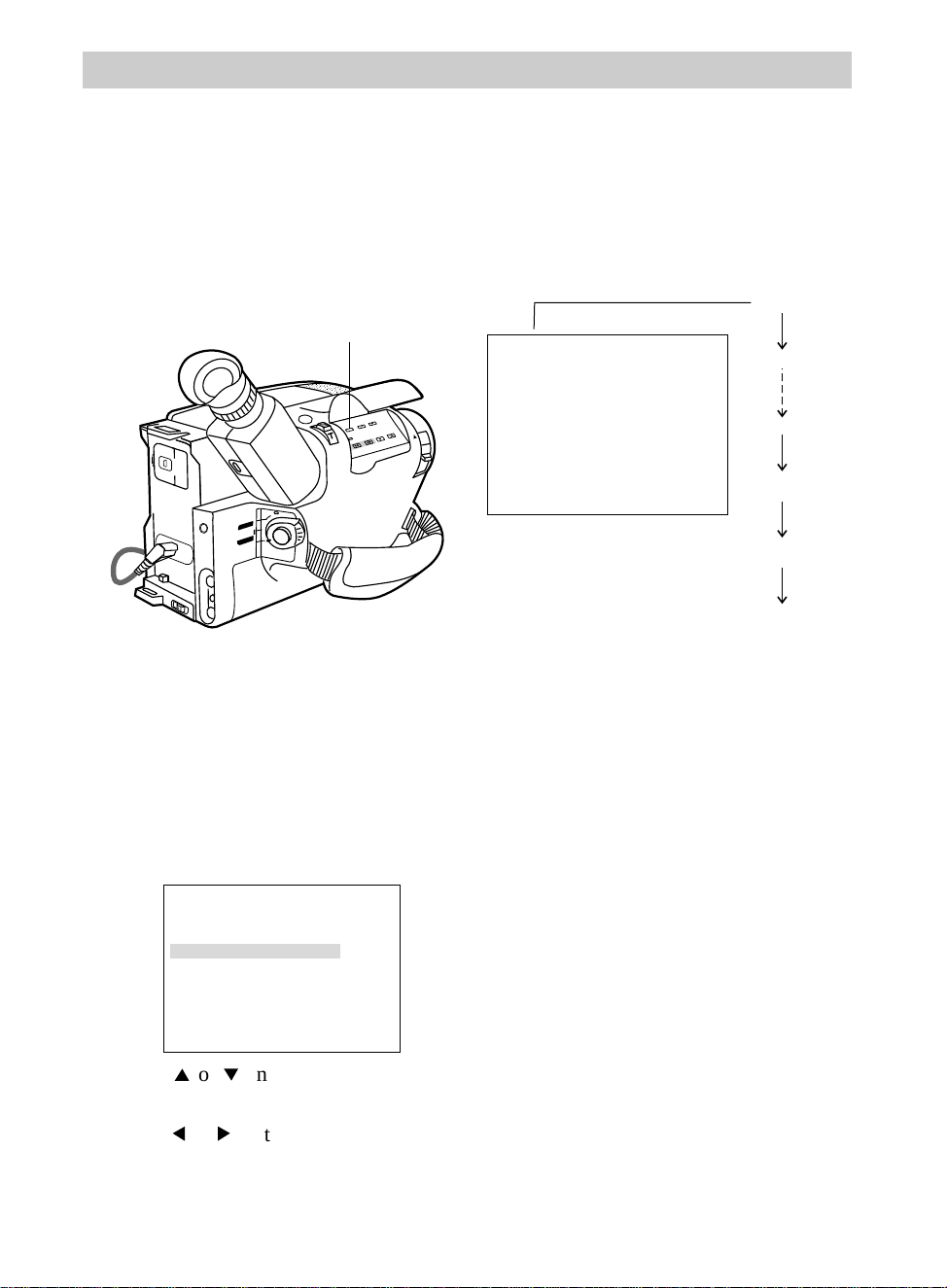
Recording
43
Tele Macro
Gain Up
Color Filter
Tape Length
Title
Date/Time
Sub Menu
OFF
AGC
T40
NOR.
Recording Menu — Tape Time-Remaining Display
The approximate time remaining on the tape in the camcorder is automatically
displayed in the viewfinder. The Tape Length feature in the recording menu must be
set correctly for the length tape you are using before the camcorder can correctly
calculate time remaining.
30min
30min
29min
3min
2min
(Flashing)
1min
(Flashing)
0min
(Flashing)
TAPE END
Set the Tape Length
1. Make sure the mode select dial is in
MANUAL.
2. Press the MENU button. The
recording menu will appear in the
viewfinder.
• Select T20 if you are using a tape
with 20 minutes recording time in
SP speed.
• Select T30 if you are using a tape
with 30 minutes recording time in
SP speed.
• Select T40 if you are using a tape
with 40 minutes recording time in
SP speed.
5. Press MENU to exit the menu.
Notes: The time-remaining indicator will
start flashing when the remaining tape time
reaches two minutes.
TAPE END appears when the tape reaches its
end during recording or a cassette is loaded
with its tape already at the end.
BATT. RELEASE
B
C
AUDIO
JLIP
RF
DC OUT
VIDEO
L
E
N
S
C
O
V
E
R
SP•SLP
QUICK
REC
TRACKING
ER R/M
W.BAL.
PLAY/PAUSE
STOP
FF
+
REW
+
–
VCR
CAMERA
POWER
OFF
SP•SLP
Switch
3. Press
4
or
3
on the mode select dial
to highlight Tape Length.
4. Press
5
or
6
on the mode select dial
to select the length of tape you are
using:
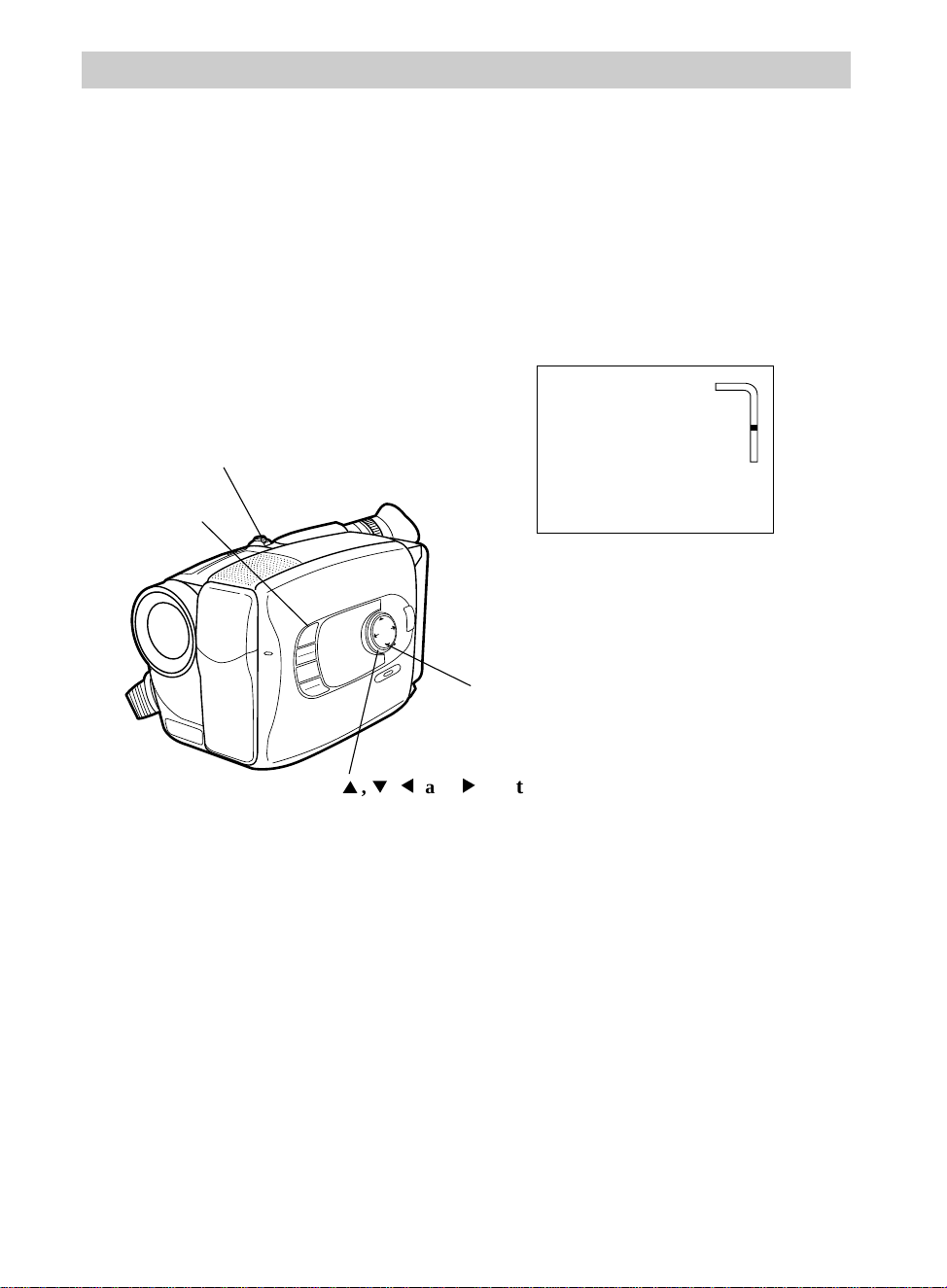
Recording
44
Zooming
You can zoom in and out for close ups or wide-angle shots just by sliding the zoom
lever on the camcorder or pressing the button on the remote. The camcorder can
automatically focus when you zoom at most distances.
If you want to record a close-up of a small subject closer than three feet, you can turn
on the Tele Macro feature in the recording menu. This feature allows you to record a
small subject at a distance of approximately 23 inches.
Using the Zoom Lever
1. To zoom in or our, slide the zoom
lever on the camcorder or press the
button on the remote.
• To move the lens in the telephoto
(close-up) direction, slide the zoom
lever toward T.
• To move the lens in the wide angle
direction, slide the lever toward W.
Zoom speed varies on the camcorder
according to how far you zoom in or out.
The zoom level indicator appears in the
viewfinder.
MENU
16X9
BACKLIGHT
AUTO
MANUAL
FRONTLIGHT
AE MODES
EIS
FADE
WIPE
P
U
S
H
F
O
C
U
S
DISPLAY
4
,
3
,
5
, and
6
Buttons
(On Mode Select Dial)
Mode Select Dial
In MANUAL
MENU
Button
Zoom Lever
T
W
Zoom Indicator
in Viewfinder
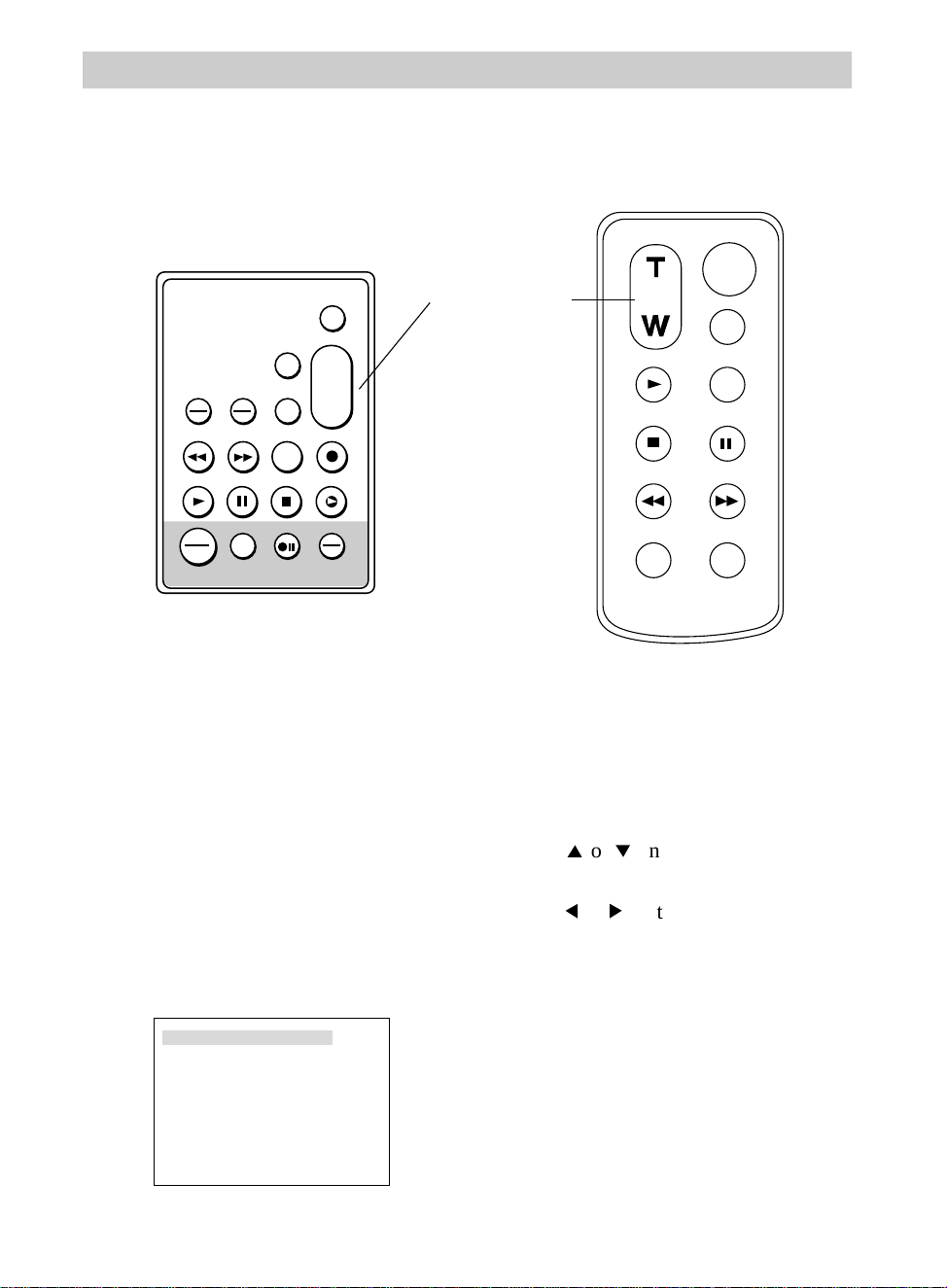
VISS
ANIM.
REW
CANCEL
RANDOM ASSEMBLY EDIT
REC/PAUSE
F FWD
REC
TIME
TIME LAPSE
SELF MBR
START
/STOP
T
W
ZOOM
INT.
ON
OFF
TIME
SET
VCR
PLAY PAUSE STOP INSERT
A.DUB
IN
OUT
45
Recording
Zoom Buttons
(T and W)
ZOOM
START/STOP
SELF
INT.
TIME
TIME LAPSE
REC
TIME
ANIM.
PAUSE
FF
A.DUB
INSERT
REW
STOP
PLAY
Model CC637’s Remote
Model CC635 or
CC636’s Remote
Recording Menu — Tele Macro Zooming Feature
Tele Macro
Gain Up
Color Filter
Tape Length
Title
Date/Time
Sub Menu
OFF
AGC
T40
NOR.
To Turn on Tele Macro
1. Make sure the mode select dial is in
MANUAL.
2. Press the MENU button. The
recording menu will appear in the
viewfinder.
3. Press
4
or
3
on the mode select dial
to highlight Tele Macro.
4. Press
5
or
6
on the mode select dial
to select OFF or
u
ON.
• Select
u
ON if you want to record a
small subject within approximately
23 inches.
• Select OFF for normal zooming.
5. Press MENU to exit the menu.
Note: Depending on the position of the
zoom, the lens may go out of focus.
Zooming (continued)
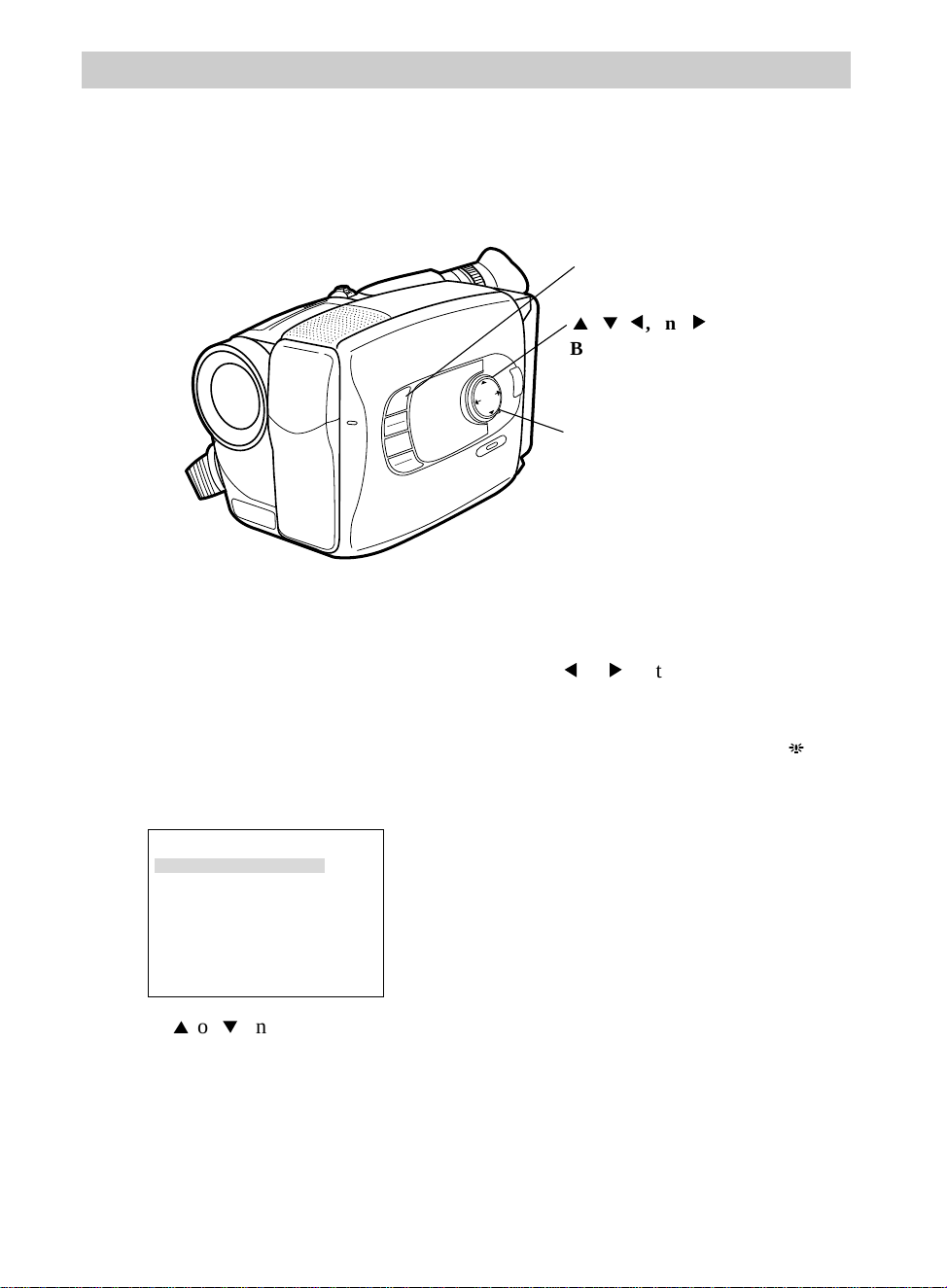
Recording
46
Tele Macro
Gain Up
Color Filter
Tape Length
Title
Date/Time
Sub Menu
OFF
AGC
T40
NOR.
3. Press
4
or
3
on the mode select dial
to highlight Gain Up.
To Set Gain Up
1. Make sure the mode select dial is in
MANUAL.
2. Press the MENU button. The
recording menu will appear in the
viewfinder.
4. Press
5
or
6
on the mode select dial
to select
u
OFF or AGC.
When the LIGHT OFF/AUTO/ON
switch is in ON or AUTO, the is
disabled.
• Select
u
OFF when lighting is not a
problem.
• Select AGC to have recording
appear brighter and movements
more natural and smooth52
. However, the overall appearance
may be “jagged”.
5. Press MENU to exit the menu.
A
MENU
16X9
BACKLIGHT
AUTO
MANUAL
FRONTLIGHT
AE MODES
EIS
FADE
WIPE
P
U
S
H
F
O
C
U
S
DISPLAY
4
,
3
,
5
, and
6
Buttons (On
Mode Select Dial)
Mode Select
Dial In
MANUAL
MENU Button
Recording Menu — Gain Up (Slow Shutter)
The gain up feature allows you to take bright and natural recordings even in areas
with low or poor lighting.
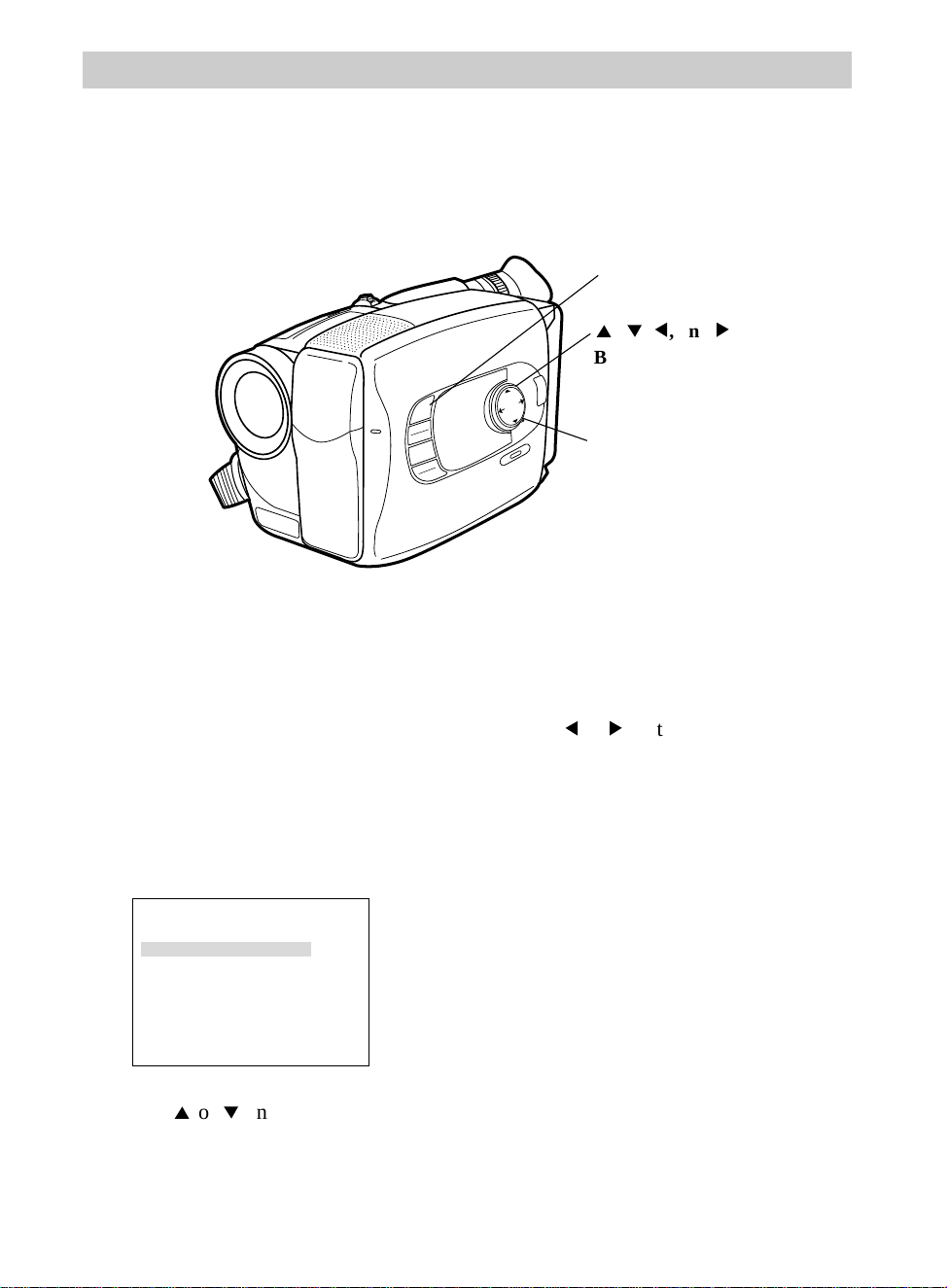
Recording
47
Tele Macro
Gain Up
Color Filter
Tape Length
Title
Date/Time
Sub Menu
OFF
AGC
T40
NOR.
To Set Color Filter
1. Make sure the mode select dial is in
MANUAL.
2. Press the MENU button. The
recording menu will appear in the
viewfinder.
3. Press
4
or
3
on the mode select dial
to highlight Color Filter.
Recording Menu — Color Filter
This feature allows you to record adding a red or blue tint to the recording.
4. Press
5
or
6
on the mode select dial
to select NOR.,
u
RED, or
u
BLUE.
• Select NOR. for normal recording
• Select
u
RED to add a reddish tint to
your recording.
• Select
u
BLUE to add a bluish tint to
your recording.
5. Press MENU to exit the menu.
MENU
16X9
BACKLIGHT
AUTO
MANUAL
FRONTLIGHT
AE MODES
EIS
FADE
WIPE
P
U
S
H
F
O
C
U
S
DISPLAY
4
,
3
,
5
, and
6
Buttons (On
Mode Select Dial)
Mode Select
Dial In
MANUAL
MENU Button
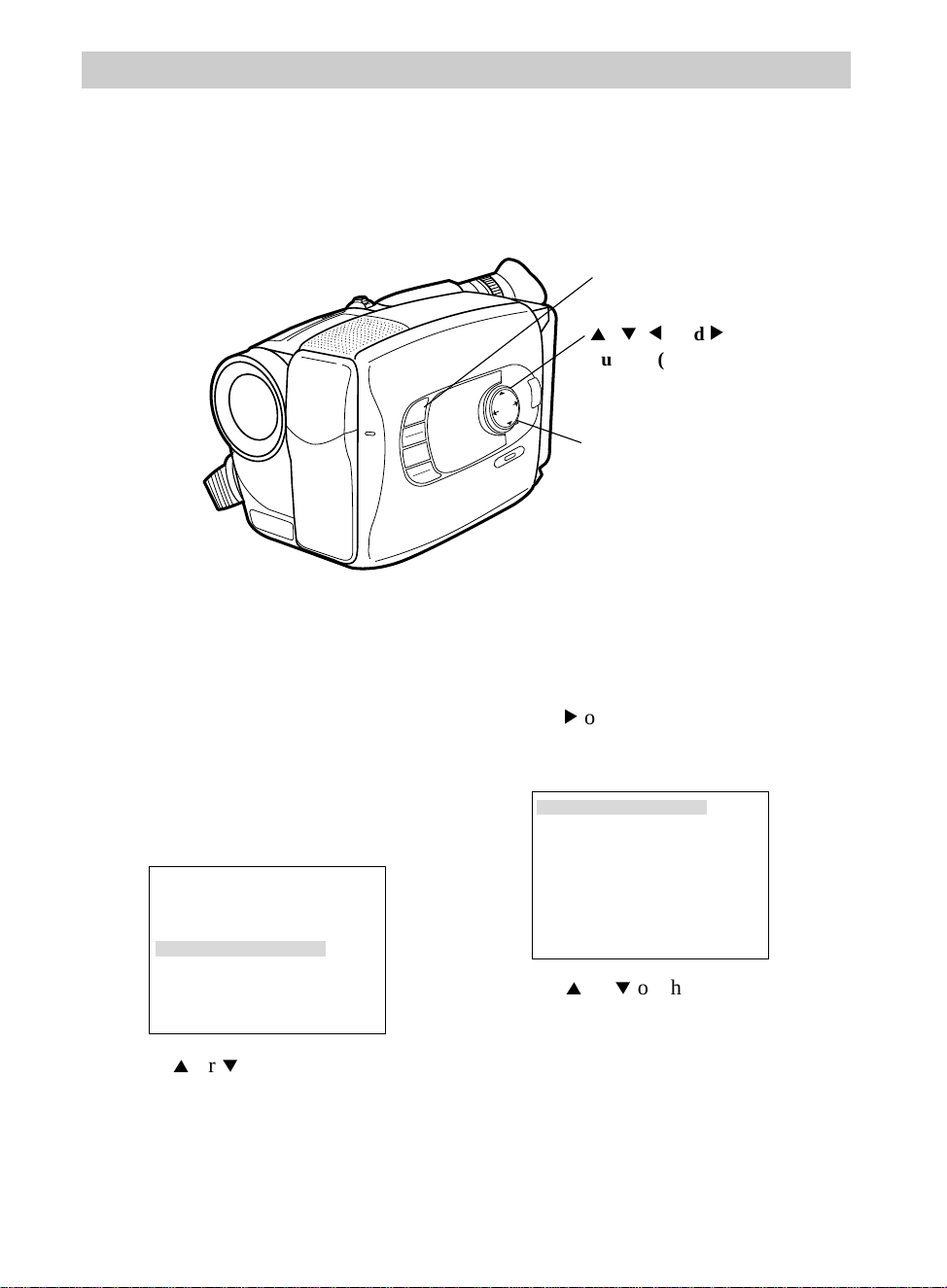
Recording
48
1. Make sure the mode select dial is in
MANUAL.
2. Press the MENU button. The
recording menu will appear in the
viewfinder.
To Add a Preset Title to Your Recordings
Recording Menu — Title
The title feature lets you choose one of eight preset titles or create your own title —
up to 18 characters. The clock cell battery must be installed as shown on page 53
before you can create or store your own title.
Tele Macro
Gain Up
Color Filter
Tape Length
Title
Date/Time
Sub Menu
OFF
AGC
T40
NOR.
OFF
Happy Birthday
Happy Holidays
Congratulations
Our Family
Someone Special
Vacation
Super Star
First
(Set Character)
4. Press
6
on the mode select dial to
display the title menu.
3. Press
4
or
3
on the mode select dial
to highlight Title.
5. Press
4
or
3
on the mode select
dial to highlight the preset title you
wish to use.
6. Press MENU to display the title in
the viewfinder. It will be
superimposed on your tape during
recording.
MENU
16X9
BACKLIGHT
AUTO
MANUAL
FRONTLIGHT
AE MODES
EIS
FADE
WIPE
P
U
S
H
F
O
C
U
S
DISPLAY
4
,
3
,
5
, and
6
Buttons (On
Mode Select Dial)
Mode Select
Dial In
MANUAL
MENU Button
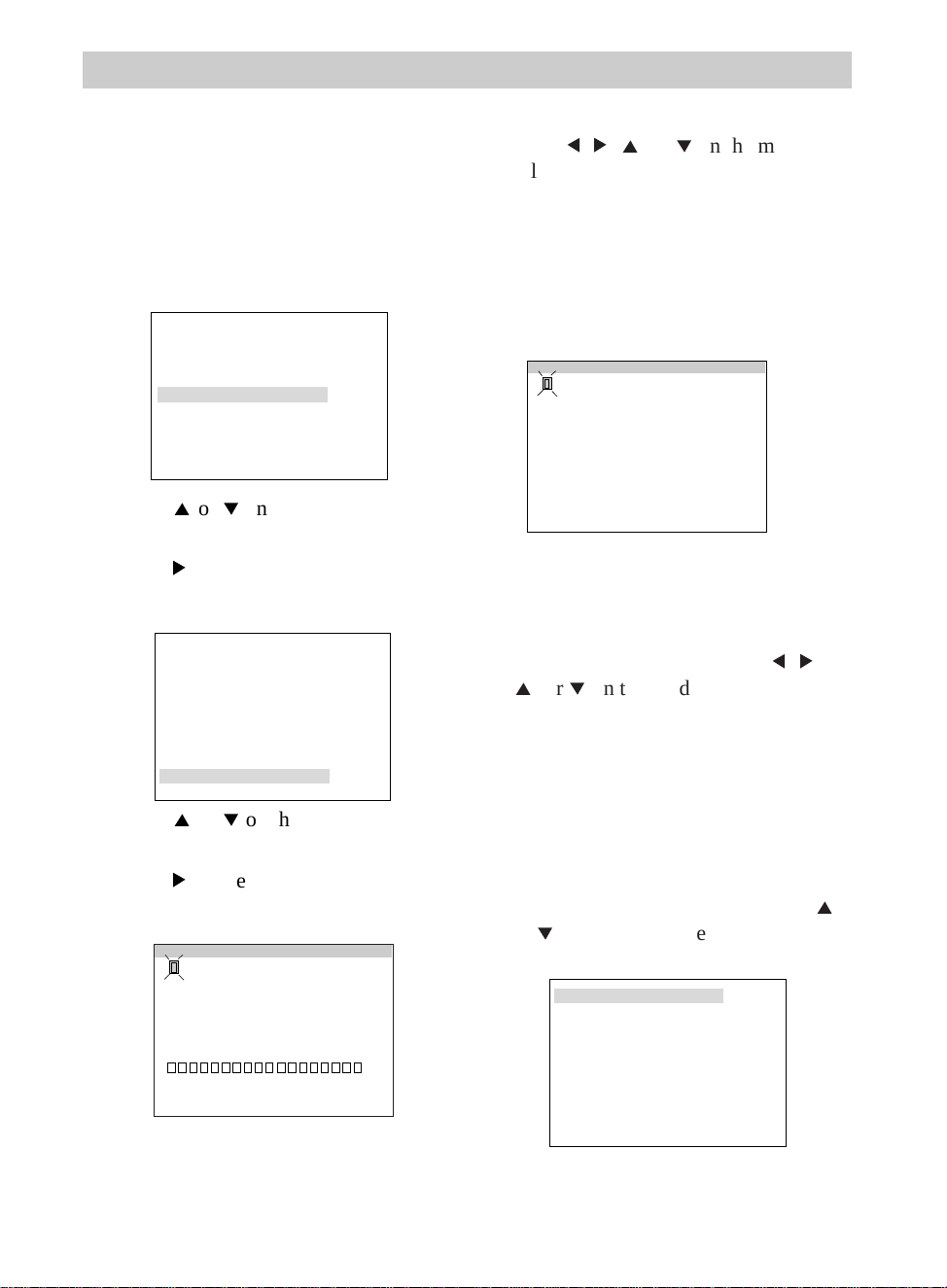
Recording
49
1. Make sure the mode select dial is in
MANUAL.
2. Press the MENU button. The
recording menu will appear in the
viewfinder.
To Create Your Own Title
Tele Macro
Gain Up
Color Filter
Tape Length
Title
Date/Time
Sub Menu
OFF
AGC
T40
NOR.
OFF
Happy Birthday
Happy Holidays
Congratulations
Our Family
Someone Special
Vacation
Super Star
First
(Set Character)
Note: If you wish to erase a previous title,
highlight Clear, and press MENU.
3. Press
4
or
3
on the mode select dial
to highlight Title.
4. Press
6
on the mode select dial to
display the title menu.
5. Press
4
or
3
on the mode select dial
to highlight (Set Character).
6. Press
6
on the mode select dial to
display the set character menu.
SET:MENU KEY
A B C D E F G H I
J K L M N O P Q R S
T U V W X Y Z Ä Ö Ü
A E I O U Ñ Æ ø Å &
: . ,
’
- / ! ? ¤
0 1 2 3 4 5 6 7 8 9
End Clear
` ` ` ` `
?
Note: To correct a character, highlight
the character you want to correct,
highlight the character you want to
replace it with, and press MENU.
10.When you are finished, press
5
,
6
,
4
, or
3
on the mode select dial to
highlight End.
11.Press MENU to return to the title
menu, or press MENU twice to
remove all menus from the screen and
display and record your title.
To Turn Off a Title
OFF
Happy Birthday
Happy Holidays
Congratulations
Our Family
Someone Special
Vacation
Super Star
First
(Set Character)
7.Press
5
,
6
,
4
, or
3
on the mode
select dial to highlight the character
you wish to use.
8.Press MENU to enter the character in
your title.
9.Repeat steps 7 and 8 until you have
completed your title (up to 18
characters).
1.Display the title menu and use the
4
or
3
on the mode select dial to
highlight OFF.
2.Press MENU to remove the title menu
from the screen.
SET:MENU KEY
A B C D E F G H I
J K L M N O P Q R S
T U V W X Y Z Ä Ö Ü
A E I O U Ñ Æ ø Å &
: . ,
’
- / ! ? ¤
0 1 2 3 4 5 6 7 8 9
End Clear
` ` ` ` `
?
TAYLOR IS ONE!
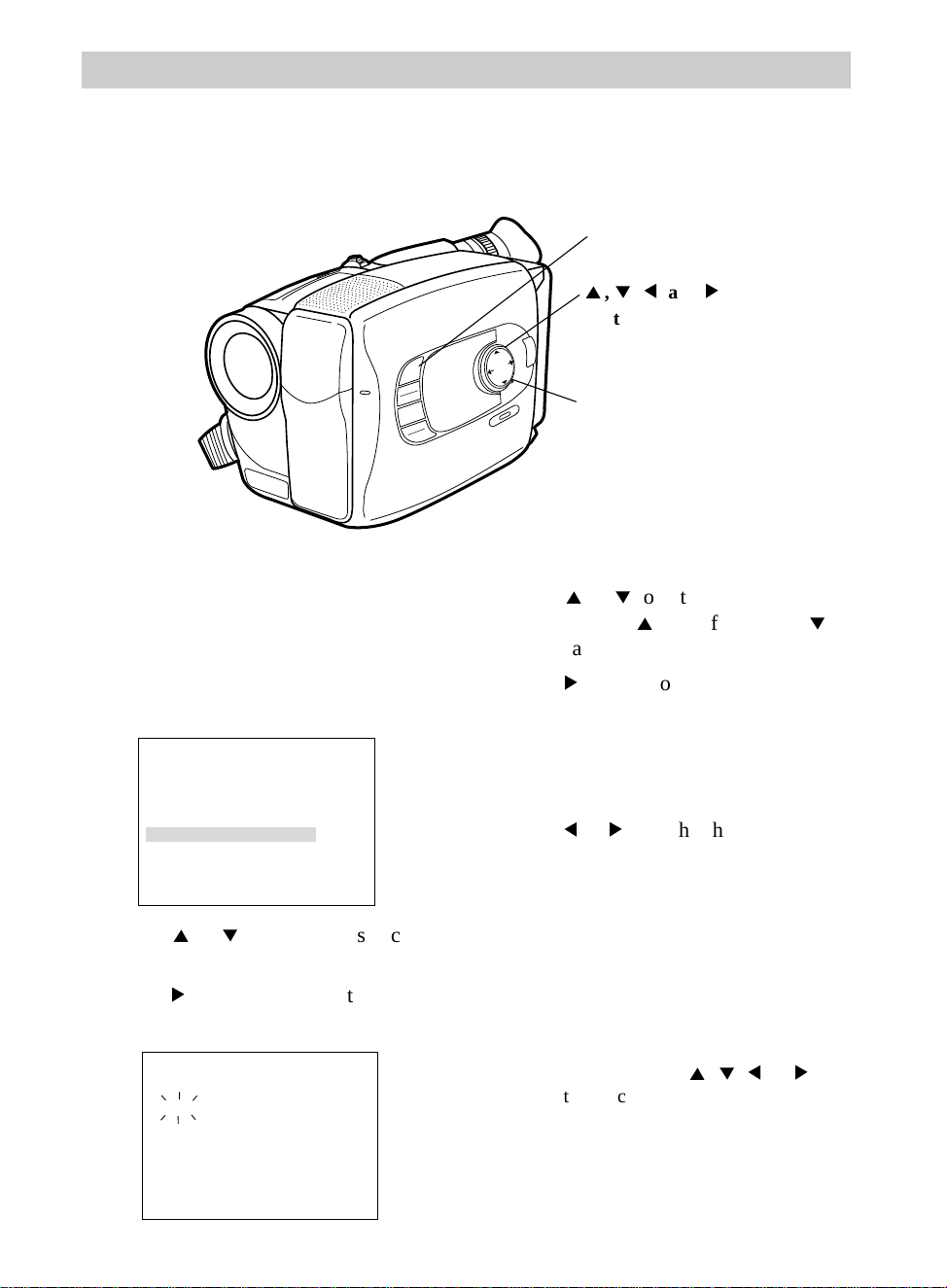
JAN 1.00 AM 12:01
Set
Cancel
MENU
16X9
BACKLIGHT
AUTO
MANUAL
FRONTLIGHT
AE MODES
EIS
FADE
WIPE
P
U
S
H
F
O
C
U
S
DISPLAY
4
,
3
,
5
, and
6
Buttons (On
Mode Select Dial)
Mode Select
Dial In
MANUAL
MENU Button
50
Recording
1. Make sure the mode select dial is in
MANUAL.
2. Press the MENU button. The
recording menu will appear in the
viewfinder.
To Set the Date and Time
Recording Menu — Date/Time Display
The date and time must be set before it can be displayed and recorded on your
tapes. The clock cell must be installed as shown on the next page before the date
can be set and recorded.
Tele Macro
Gain Up
Color Filter
Tape Length
Title
Date/Time
Sub Menu
OFF
AGC
T40
NOR.
5. Press
4
or
3
to enter the correct
month. Press
4
to go forward or
3
to go back.
6. Press
6
on the mode select dial to
start the day flashing.
7. Repeat steps 5 and 6 to set the year,
hour (including AM and PM), and
minutes.
8. Press
5
or
6
to highlight Set.
9. Press the MENU button. The
camcorder’s internal clock will start
and you will return to the recording
menu.
Notes: Press MENU twice to start the
clock and remove all the menus from
the viewfinder.
If Input Error appears, you have entered
an invalid date. Press
4
,
3
,
5
, or
6
and enter the correct day.
3. Press
4
or
3
on the mode select dial
to highlight Date/Time.
4. Press
6
on the mode select dial to
display the date and time screen.
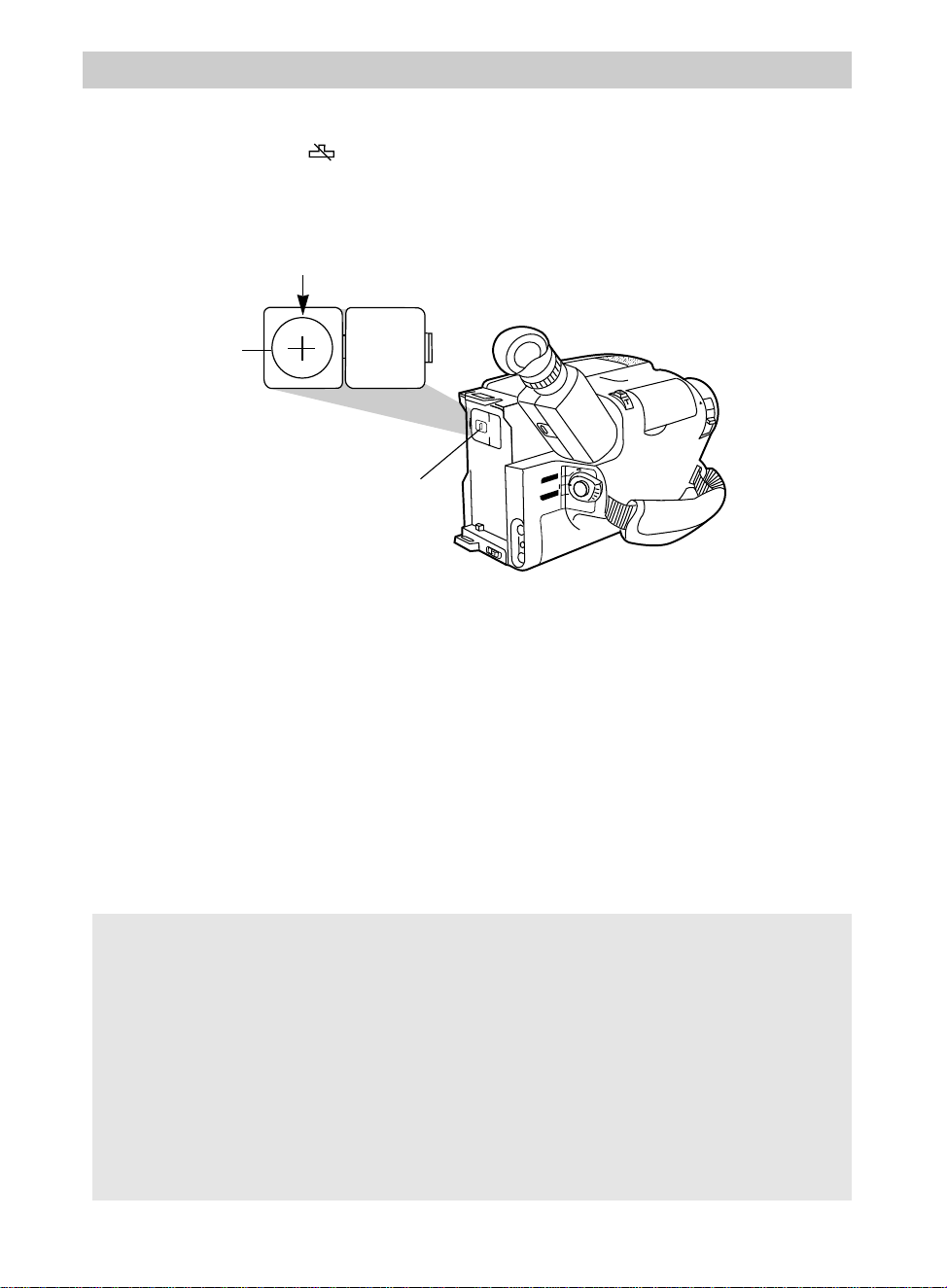
51
Recording
1. Make sure camcorder is turned off, and
remove any power supply attached to
the camcorder.
2. Press release tab of clock cell compart-
ment cover and open the compartment.
3. Insert the clock cell with the “+”
terminal facing out.
4. Close the compartment cover. It will
click into place.
Date/Time Display — Install the Clock Lithium Cell
To remove battery
To remove battery, insert a pointed non-
metallic object between battery and
compartment and lift.
The clock cell indicator will flash for a few seconds in the viewfinder when you
turn on the camcorder if the cell has not been installed or needs to be replaced.
Cautions: Lithium cell battery. Replace only with 3-volt lithium cell – such as
CR2025. Use of other cell presents a risk of fire or explosion. Must be disposed of
properly. Never handle punctured or leaking cell. May cause burns or personal
injury.
Keep out of the hands of children. Can cause death or injury if swallowed. If
swallowed, consult a physician immediately for emergency treatment.
The lithium cell used in this device may explode resulting in a fire or chemical burn if
mistreated. Do not recharge, disassemble, heat above 212˚F (100˚C), or incinerate.
Never use metallic tweezers to hold the cell, and never short circuit the + and – sides
of the cell.
BATT. RELEASE
B
C
AUDIO
RF
DC OUT
VIDEO
L
E
N
S
C
O
V
E
R
+
–
CAMERA
VCR
POWER
OFF
Clock Cell
Compartment
Clock Cell
(+ Side Facing Out)
Insert object here to remove cell.
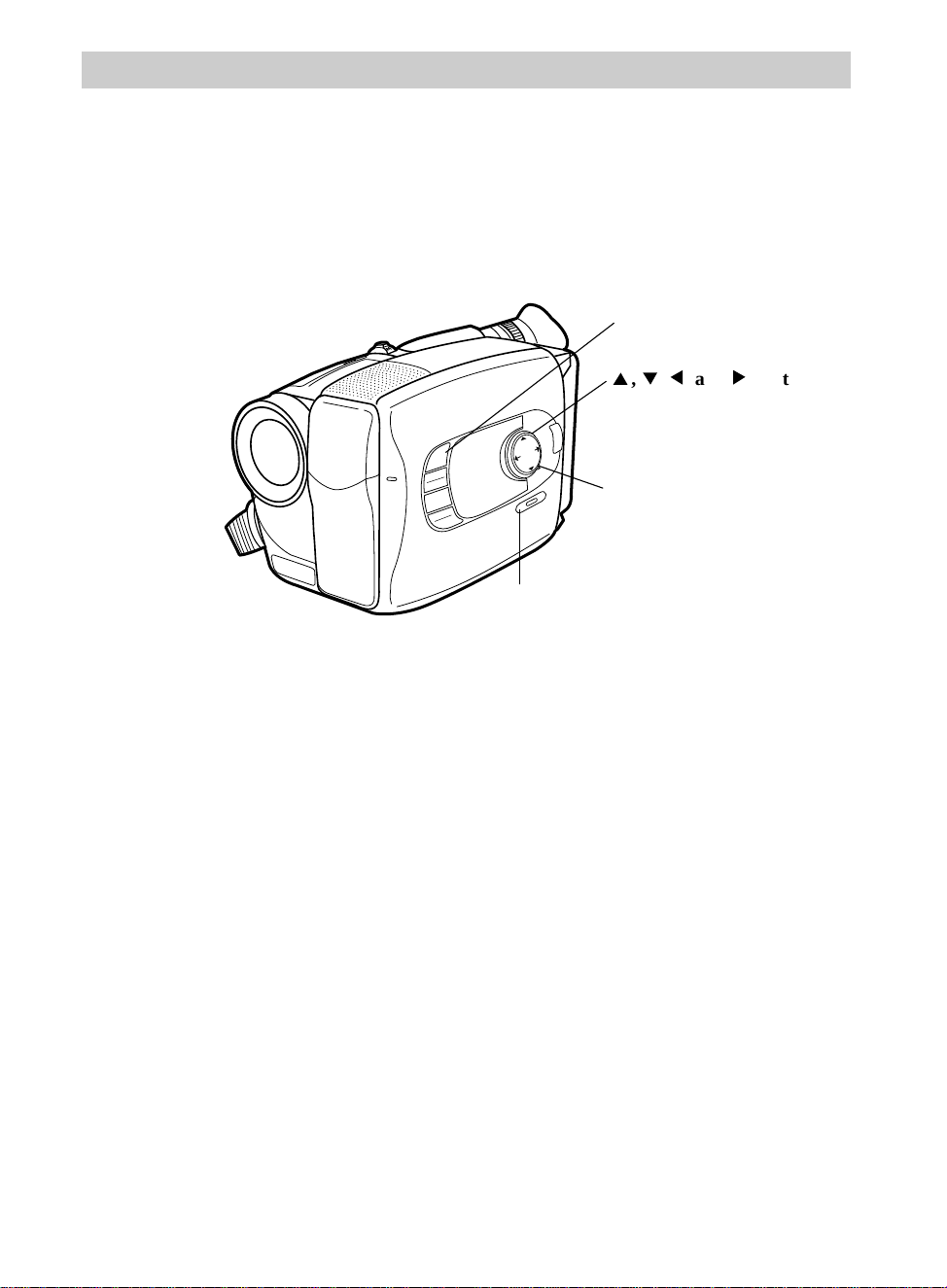
52
Recording
• Date Display: The date will be
displayed and recorded.
• Time: The time will be displayed
and recorded.
• Date and Time Display: The date
and time will be displayed and
recorded.
• Date and Time Off: No date or time
will be displayed or recorded.
1. Attach a power supply and place
POWER switch in CAMERA. The
power indicator will light.
2. Repeatedly press DISPLAY to select
the date, time, or date and time you
want to record.
Date/Time Display
The clock cell must be installed and the date and time set before they can be selected
and recorded.
To Select the Date or Date and Time You Want to Record On Your Tape
MENU
16X9
BACKLIGHT
AUTO
MANUAL
FRONTLIGHT
AE MODES
EIS
FADE
WIPE
P
U
S
H
F
O
C
U
S
DISPLAY
4
,
3
,
5
, and
6
Buttons
(On Mode Select Dial)
Mode Select Dial
In MANUAL
MENU Button
DISPLAY
Button
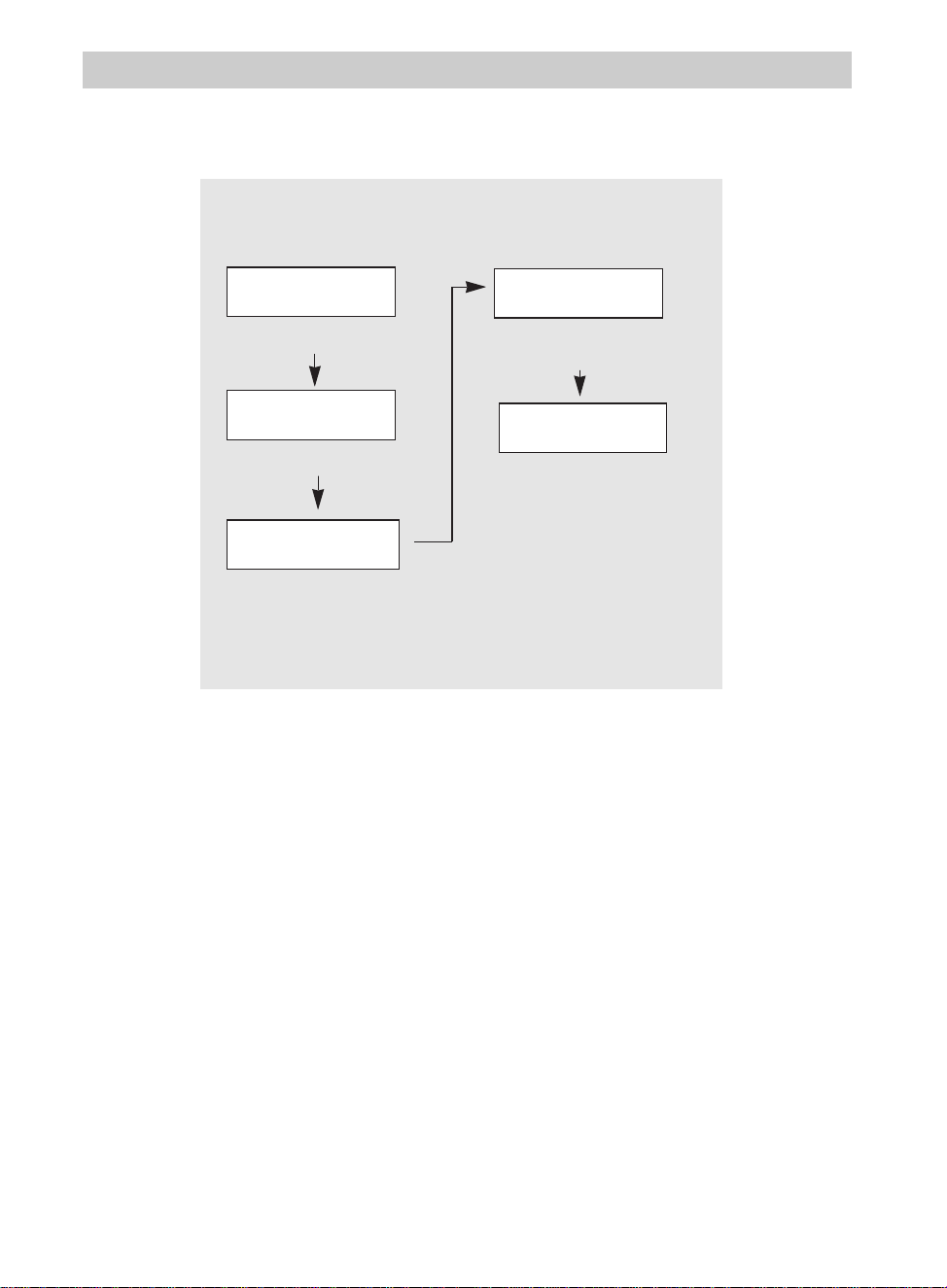
Recording
53
Date/Time Display
5. To record the display again, place
the camcorder in record pause and
press the DISPLAY button to select the
mode you want to record.
Note: If you do not want to record a date
or time, press DISPLAY to select the date
and time off mode.
1. Place the camcorder in record pause.
2. Repeatedly press the DISPLAY button
to display the date, time, or date and
time you have previously stored in the
viewfinder.
3. Begin recording.
4. Press the DISPLAY button to remove
the display from the viewfinder when
you are finished recording it.
To Record the Date or Date and Time on Your Tape
PM 1:59:43
NOV 18.96
NOV 18.96
NOV 18.96 PM 1:59:56
Time Display
Return to Date Display
Viewfinder Displays
Date and Time Display
Date Display
Date and Time Off
The mode selected will be recorded.
Press DISPLAY to select mode.
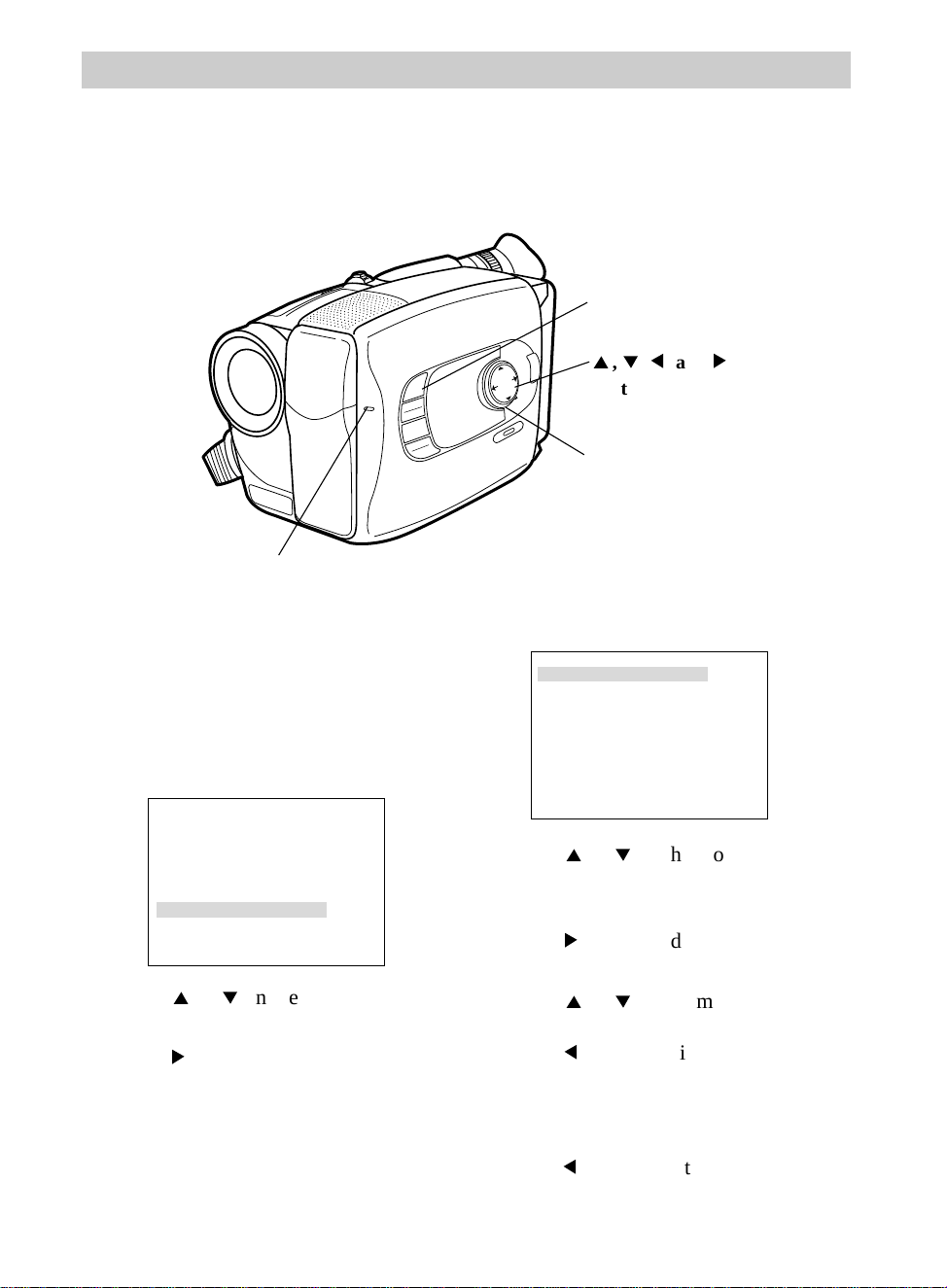
Recording
54
Recording Menu — Sub Menu
The sub menu lets you turn the tally light on or off, set an interval and recording times
for self-timer, animation and time lapse recording, and set a JLIP ID number for a
device (such as a personal computer).
Tele Macro
Gain Up
Color Filter
Tape Length
Title
Date/Time
Sub Menu
OFF
AGC
T40
NOR.
MENU
16X9
BACKLIGHT
AUTO
MANUAL
FRONTLIGHT
AE MODES
EIS
FADE
WIPE
P
U
S
H
F
O
C
U
S
DISPLAY
4
,
3
,
5
, and
6
Buttons (On
Mode Select Dial)
Mode Select
Dial In
MANUAL
MENU Button
Tally Light
1. Make sure the mode select dial is in
MANUAL.
2. Press the MENU button. The
recording menu will appear in the
viewfinder.
To Change a Feature in the Sub Menu
Tally
Interval Timer
Rec Time OFF
JLIP ID NO. 0 7
ON
OFF
3. Press
4
or
3
on the mode select dial
to highlight Sub Menu.
4. Press
6
on the mode select dial to
display the sub menu.
5. Press
4
or
3
on the mode select
dial to highlight the item you want to
adjust.
6. Press
6
on the mode select dial to
start the highlighted item flashing.
7. Press
4
or
3
on the mode select
dial to adjust the highlighted item.
Press
5
to stop the item flashing.
Note: If you want to change another
feature, repeat steps 5, 6, and 7.
8. Press MENU to exit the menu, or
press
5
to return to the main
recording menu.
Recording
55
Tally
Interval Timer
Rec Time OFF
JLIP ID NO. 0 7
ON
OFF
Tally Light
To Turn the Tally Light ON or OFF
1. Follow steps 1-4 on the previous page.
2. Press
4
or
3
on the mode select dial
to highlight Tally.
3. Press
6
on the mode select dial to start
Tally flashing.
4. Press
4
or
3
on the mode select dial
to turn the tally light ON or OFF.
• Select ON to have the tally light
turn on during recording.
• Select OFF if you do not want the
tally light to light.
5. Press
5
to stop Tally flashing.
6. Press MENU to exit the menu.
Set the JLIP ID NO.
The camcorder has a JLIP (Joint Level Interface Protocol) connector that may be
used in the future to connect a device, such as a home computer.
To Select a JLIP ID NO.
1. Follow steps 1-4 on the previous page.
2. Press
4
or
3
on the mode select dial
to highlight JLIP ID NO.
Tally
Interval Timer
Rec Time OFF
JLIP ID NO. 0 7
ON
OFF
3. Press
6
on the mode select dial to start
JLIP ID NO. flashing.
4. Press
4
or
3
on the mode select dial
to a number from 01 to 99.
5. Press
5
to stop JLIP ID NO. flashing.
6. Press MENU to exit the menu.
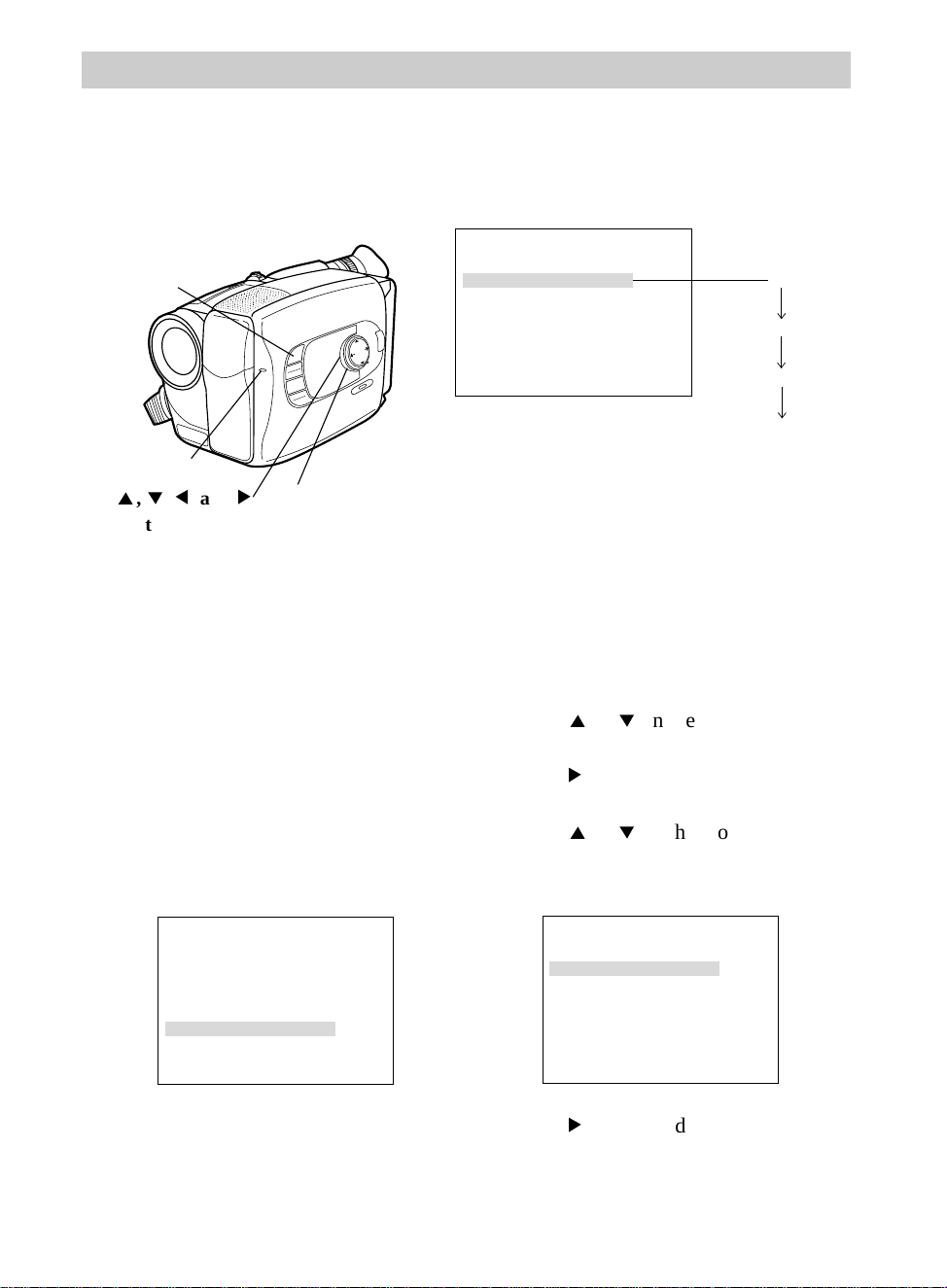
Recording
56
MENU
16X9
BACKLIGHT
AUTO
MANUAL
FRONTLIGHT
AE MODES
EIS
FADE
WIPE
P
U
S
H
F
O
C
U
S
DISPLAY
Self-Timer
The self-timer lets you set the camcorder to delay recording so you can be
in the scene when recording begins.
Tele Macro
Gain Up
Color Filter
Tape Length
Title
Date/Time
Sub Menu
OFF
AGC
T40
NOR.
Tally
Interval Timer
Rec Time OFF
JLIP ID NO. 0 7
ON
OFF
Tally
Interval Timer
Rec Time OFF
JLIP ID NO. 0 7
ON
OFF
15S
30S
1min
5min
Interval Timer Options
4
,
3
,
5
, and
6
Buttons (On
Mode Select Dial)
Mode Select
Dial In
MANUAL
MENU
Button
Tally Light
4. Press
4
or
3
on the mode select dial
to highlight Sub Menu.
5. Press
6
on the mode select dial to
display the sub menu.
6. Press
4
or
3
on the mode select dial
to highlight Interval Timer.
To Set the Self-Timer
1. Place the POWER dial in CAMERA.
The power indicator will light.
2. Place mode select dial in MANUAL.
3. Press the MENU button. The
recording menu will appear in the
viewfinder.
7. Press
6
on the mode select dial to
start Interval Timer flashing.
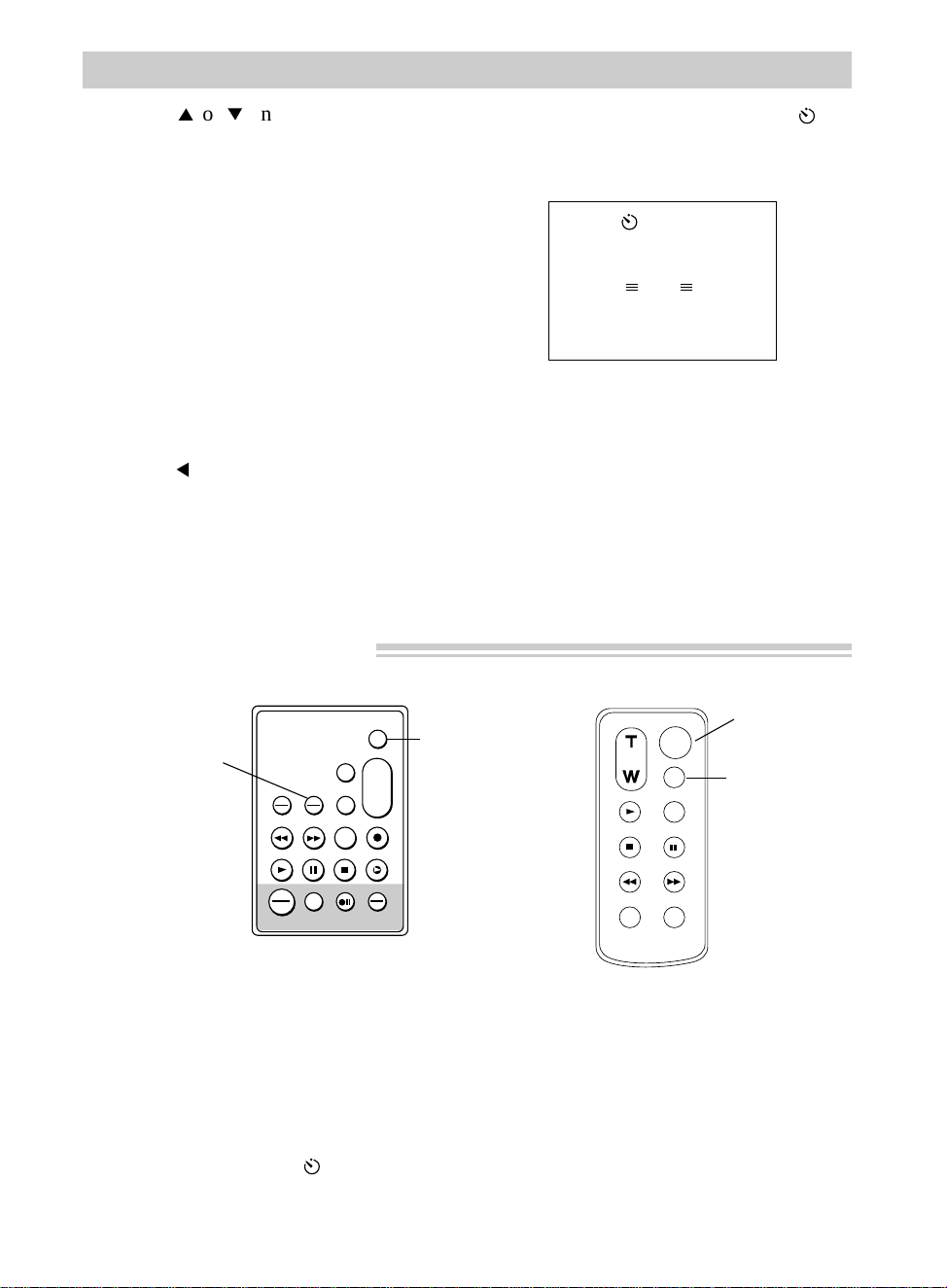
Recording
57
Self-Timer — Using Remote
VISS
ANIM.
REW
CANCEL
RANDOM ASSEMBLY EDIT
REC/PAUSE
F FWD
REC
TIME
TIME LAPSE
SELF MBR
START
/STOP
T
W
ZOOM
INT.
ON
OFF
TIME
SET
VCR
PLAY PAUSE STOP INSERT
A.DUB
IN
OUT
TIME LAPSE
SELF INT/TIME
Button
START/STOP
Button
Model CC637’s Remote
ZOOM
START/STOP
SELF
INT.
TIME
TIME LAPSE
REC
TIME
ANIM.
PAUSE
FF
A.DUB
INSERT
REW
STOP
PLAY
TIME
LAPSE
SELF
INT/TIME
Button
START/STOP
Button
Model CC635 or CC636’s Remote
Self-Timer Indicator
in Viewfinder
8. Press
4
or
3
on the mode select
dial to select the amount of time you
want the recording delayed.
• Select 15S to delay the recording
for 15 seconds.
• Select 30S to delay the recording
for 30 seconds.
• Select 1min to delay the recording
for one minute.
• Select 5min to delay the recording
for five minutes.
• Select OFF if you do not want the
camcorder to delay recording.
9. Press
5
to stop Interval Timer
flashing.
5min
PAUSE
10.Press MENU to exit the menu. and
the amount of delayed recording time
appear in the viewfinder.
11.Press the thumb trigger to start
recording.
Note: The tally light flashes. About five
seconds before recording begins, the tally
light will start flashing faster.
1. Place the POWER dial on the
camcorder in CAMERA. The power
indicator will light.
2. Press the TIME LAPSE SELF
INT./TIME button. and the
amount of delayed recording time
appear in the viewfinder.
3. Press the START/STOP button to start
recording.
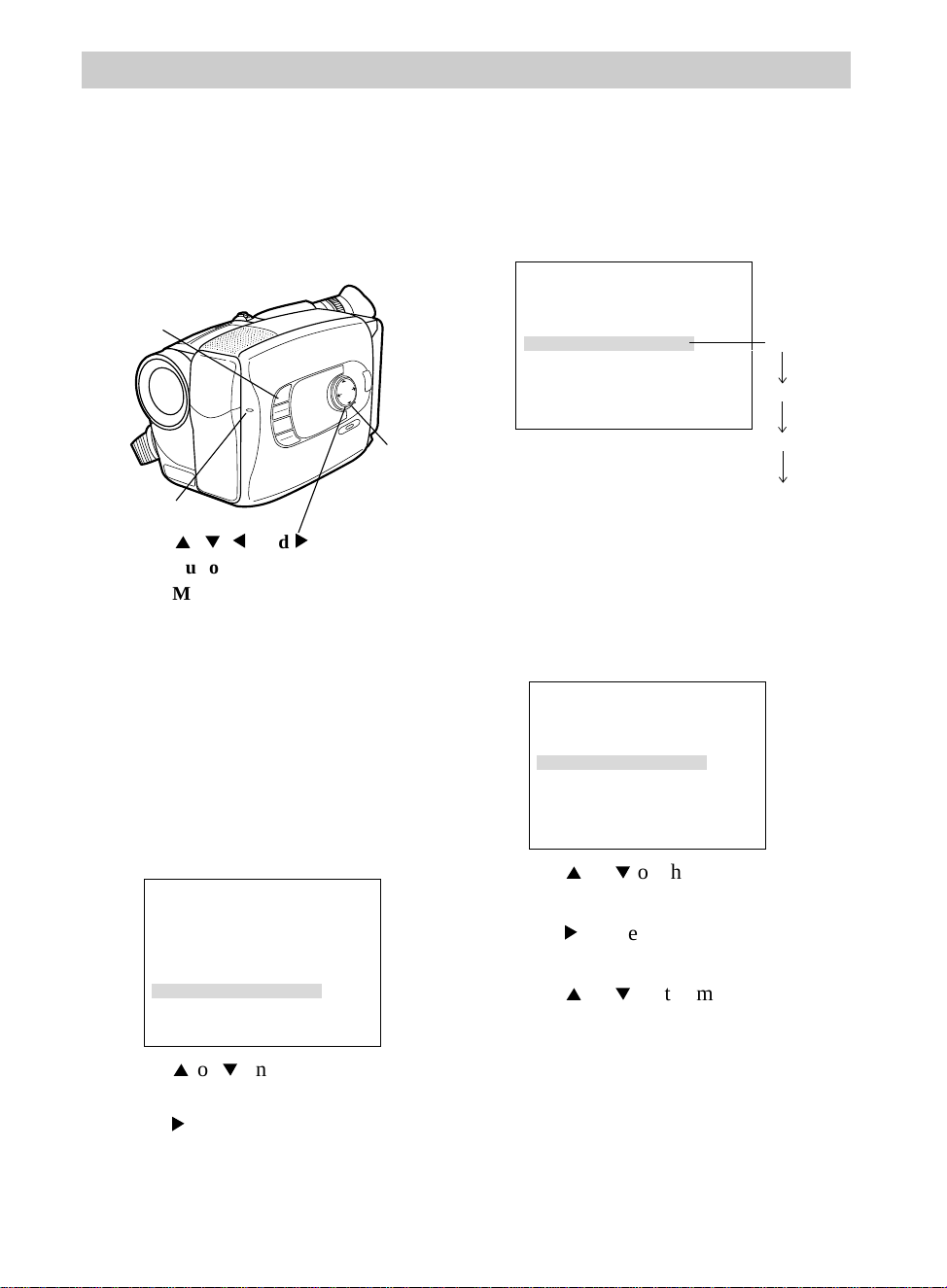
Recording
58
4. Press
4
or
3
on the mode select dial
to highlight Sub Menu.
5. Press
6
on the mode select dial to
display the sub menu.
Sub Menu — Animation Recording
Animation recording produces an illusion of movement for an otherwise stationary
scene or object by shooting a series of pictures of slightly different poses (such as
cartooning).
To Record Using Animation
1. Place the POWER dial in CAMERA.
The power indicator will light.
2. Place mode select dial in MANUAL.
3. Press the MENU button. The
recording menu will appear in the
viewfinder.
Tally
Interval Timer
Rec Time OFF
JLIP ID NO. 0 7
ON
OFF
1/4S
1/2S
1S
5S
Recording Time Options
Tally
Interval Timer
Rec Time OFF
JLIP ID NO. 0 7
ON
OFF
6. Press
4
or
3
on the mode select dial
to highlight Rec Time.
7. Press
6
on the mode select dial to start
Rec Time flashing.
8. Press
4
or
3
on the mode select dial
to select the amount of time you want
the camcorder to record.
• Select 1/4S, 1/2S, 1S, or 5S to have
the camcorder record for 1/4
second, 1/2 second, one second, or
five seconds.
• Select OFF to turn off the
recording time.
Tele Macro
Gain Up
Color Filter
Tape Length
Title
Date/Time
Sub Menu
OFF
AGC
T40
NOR.
MENU
16X9
BACKLIGHT
AUTO
MANUAL
FRONTLIGHT
AE MODES
EIS
FADE
WIPE
P
U
S
H
F
O
C
U
S
DISPLAY
4
,
3
,
5
, and
6
Buttons (On
Mode Select Dial)
Mode Select
Dial In
MANUAL
MENU
Button
Tally Light
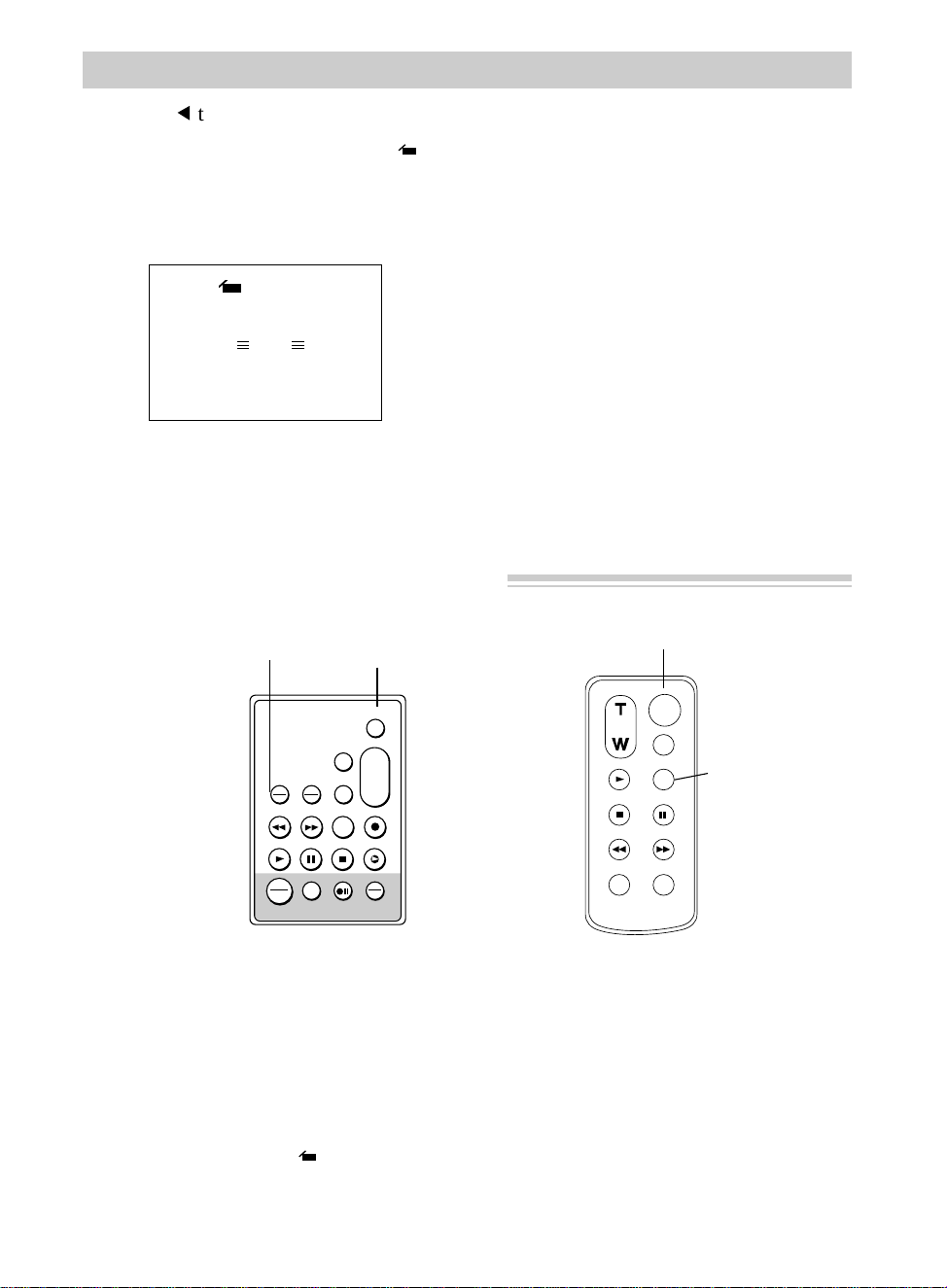
Recording
59
ZOOM
START/STOP
SELF
INT.
TIME
TIME LAPSE
REC
TIME
ANIM.
PAUSE
FF
A.DUB
INSERT
REW
STOP
PLAY
1/4S
PAUSE
11. Press the thumb trigger to start
recording.
Note: The recording stops
automatically after the selected period
of recording time. You may want to
take two to five shots of the subject in
the same position.
12. Move the subject and repeat step 11
for the desired number of shots.
Animation Recording — Using the Remote
VISS
ANIM.
REW
CANCEL
RANDOM ASSEMBLY EDIT
REC/PAUSE
F FWD
REC
TIME
TIME LAPSE
SELF MBR
START
/STOP
T
W
ZOOM
INT.
ON
OFF
TIME
SET
VCR
PLAY PAUSE STOP INSERT
A.DUB
IN
OUT
TIME LAPSE ANIM.
REC/TIME Button
START/STOP
Button
TIME
LAPSE
ANIM.
REC/TIME
Button
START/STOP
Button
1. Place the POWER dial on the
camcorder in CAMERA. The power
indicator will light.
2. Press the TIME LAPSE ANIM.
REC/TIME button. and the
Model CC637’s Remote
Model CC635 and
CC636’s Remote
amount of recording time appear in
the viewfinder.
3. Press the START/STOP button to start
recording.
9.Press
5
to stop Rec Time flashing.
10.Press MENU to exit the menu. and
the amount of recording time appear
in the viewfinder.
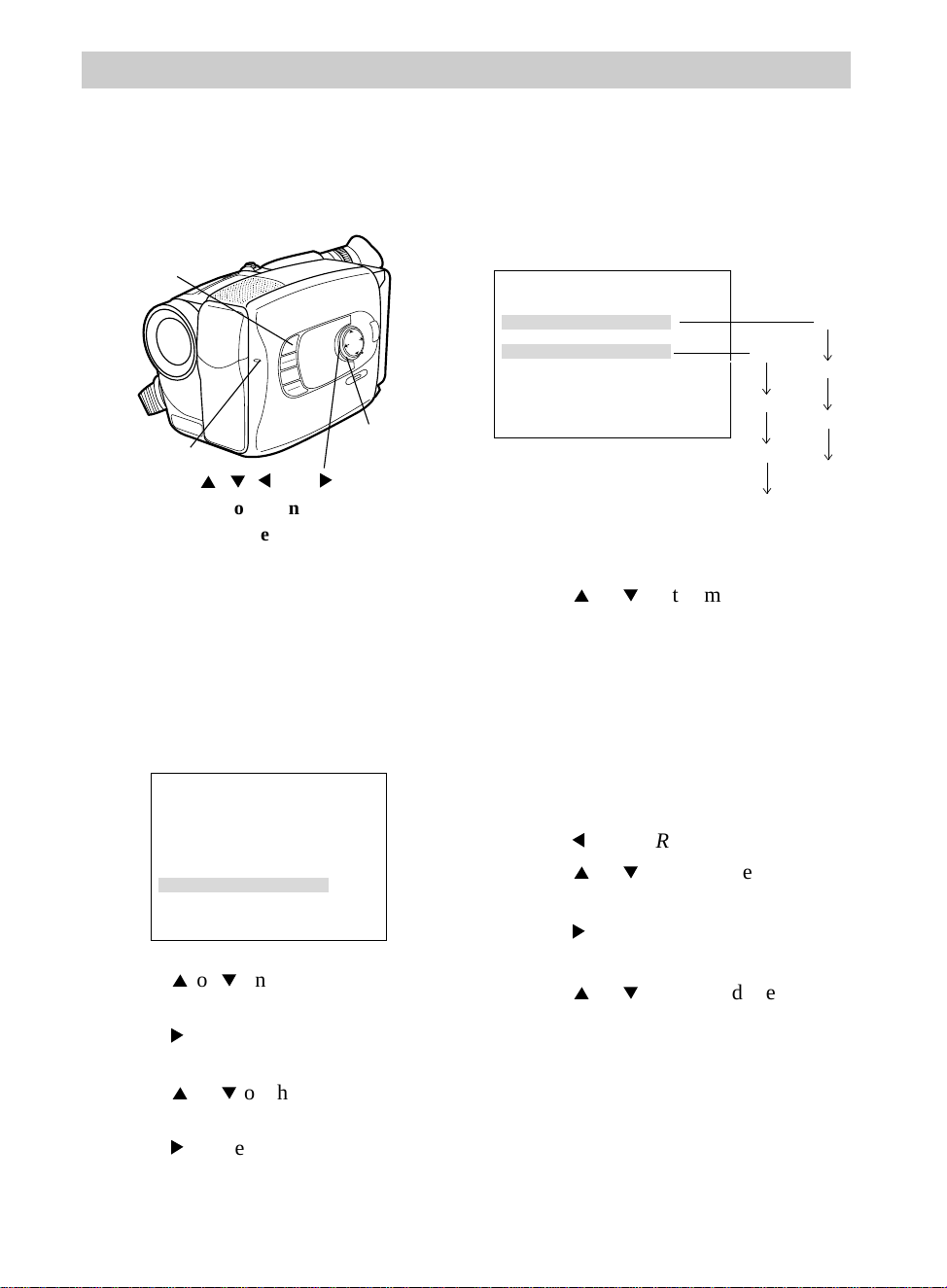
MENU
16X9
BACKLIGHT
AUTO
MANUAL
FRONTLIGHT
AE MODES
EIS
FADE
WIPE
P
U
S
H
F
O
C
U
S
DISPLAY
60
Recording
4. Press
4
or
3
on the mode select dial
to highlight Sub Menu.
5. Press
6
on the mode select dial to
display the sub menu.
6. Press
4
or
3
on the mode select dial
to highlight Rec Time.
7. Press
6
on the mode select dial to start
Rec Time flashing.
Sub Menu — Time-Lapse Recording
Time-lapse recording makes automatic recordings at preset time intervals. The
recording will show subtle changes (such as shifts in cloud formations or plant growth)
when it remains focused on an object.
To Record Using Time Lapse
1. Place the POWER dial in CAMERA.
The power indicator will light.
2. Place mode select dial in MANUAL.
3. Press the MENU button. The record-
ing menu will appear in the viewfinder.
Tally
Interval Timer
Rec Time OFF
JLIP ID NO. 0 7
ON
OFF
15S
30S
1min
5min
1/4S
1/2S
1S
5S
Sub Menu with
Interval Timer &
Rec Time Options
8. Press
4
or
3
on the mode select dial
to select the amount of time you want
the camcorder to record.
•Select 1/4S, 1/2S, 1S, or 5S to have
the camcorder record for 1/4 second,
1/2 second, one second, or five
seconds,
•Select OFF to turn off the recording
time.
9. Press
5
to stop Rec Time flashing.
10. Press
4
or
3
on the mode select dial
to highlight Interval Timer.
11. Press
6
on the mode select dial to
start Interval Timer flashing.
12. Press
4
or
3
on the mode select dial
to select the amount of time you want
between recordings.
•Select 15S, 30S, 1min, or 5min to set
the intervals between recording to
15 seconds, 30 seconds, one minute,
or five minutes.
•Select OFF to turn off the Interval
Timer.
4
,
3
,
5
, and
6
Buttons (On
Mode Select Dial)
Mode Select
Dial In
MANUAL
MENU
Button
Tally Light
Tele Macro
Gain Up
Color Filter
Tape Length
Title
Date/Time
Sub Menu
OFF
AGC
T40
NOR.
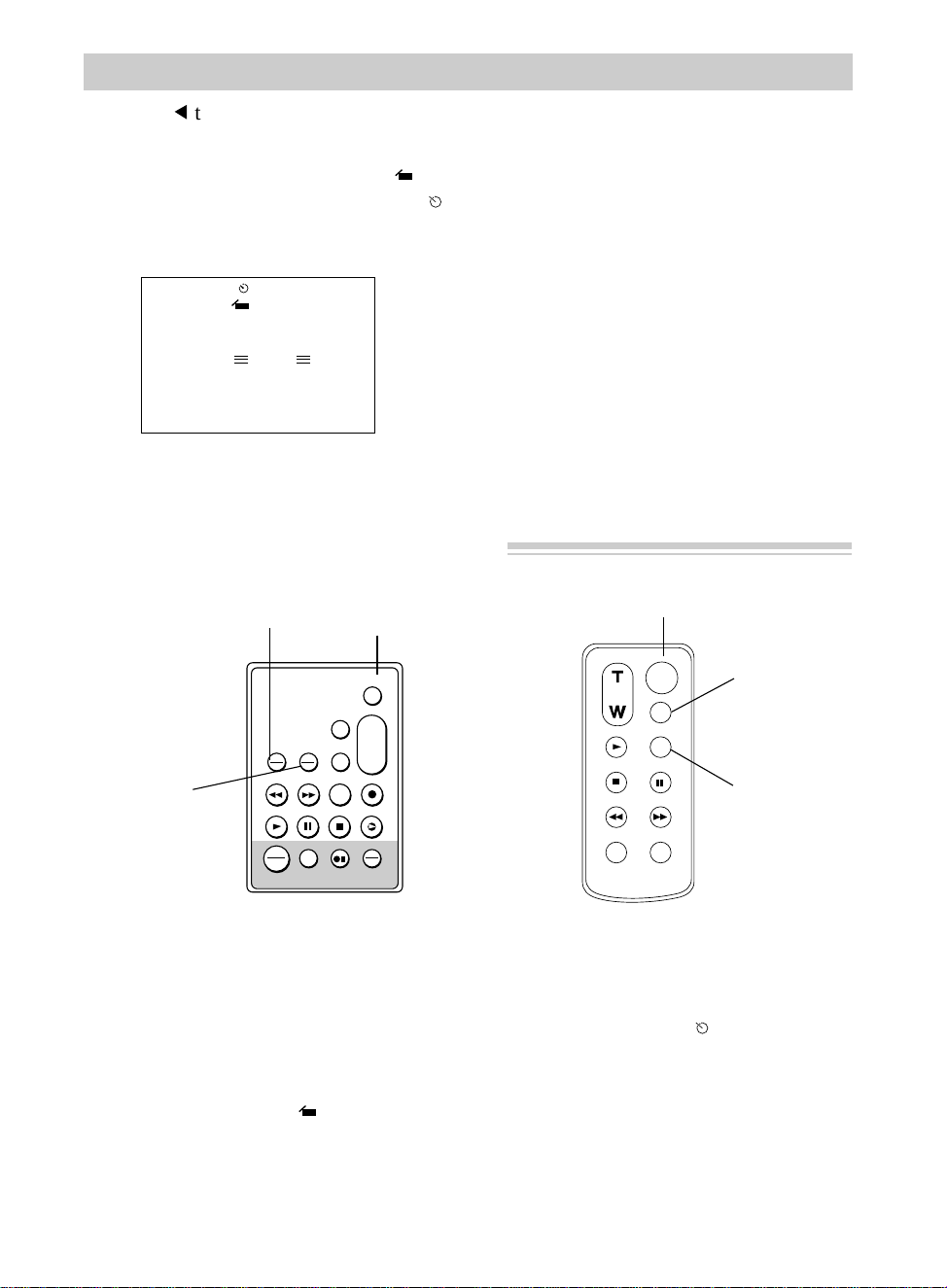
ZOOM
START/STOP
SELF
INT.
TIME
TIME LAPSE
REC
TIME
ANIM.
PAUSE
FF
A.DUB
INSERT
REW
STOP
PLAY
VISS
ANIM.
REW
CANCEL
RANDOM ASSEMBLY EDIT
REC/PAUSE
F FWD
REC
TIME
TIME LAPSE
SELF MBR
START
/STOP
T
W
ZOOM
INT.
ON
OFF
TIME
SET
VCR
PLAY PAUSE STOP INSERT
A.DUB
IN
OUT
Model CC637’s Remote Model CC635 and CC636’s Remote
61
Recording
Time-Lapse Recording — Using the Remote
TIME LAPSE ANIM.
REC/TIME Button
START/STOP
Button
TIME
LAPSE
SELF
INT./TIME
Button
TIME
LAPSE
SELF
INT./TIME
Button
TIME
LAPSE
ANIM.
REC/TIME
Button
START/STOP
Button
1. Place the POWER dial on the
camcorder in CAMERA. The power
indicator will light.
2. Press the TIME LAPSE ANIM.
REC/TIME button. and the
amount of recording time appear in
the viewfinder.
3. Press the TIME LAPSE SELF
INT./TIME button. and the interval
time appear in the viewfinder.
4. Press the START/STOP button to start
recording.
13.Press
5
to stop Interval Timer
flashing.
14.Press MENU to exit the menu. and
the amount of recording time, and
and the amount of interval time appear
in the viewfinder.
5min
1/4S
PAUSE
15.Press the thumb trigger to start
recording.
Notes: The camcorder will start and stop
recording the selected amount of time.
The tally light flashes with the flash speed
increasing five seconds before recording
begins.
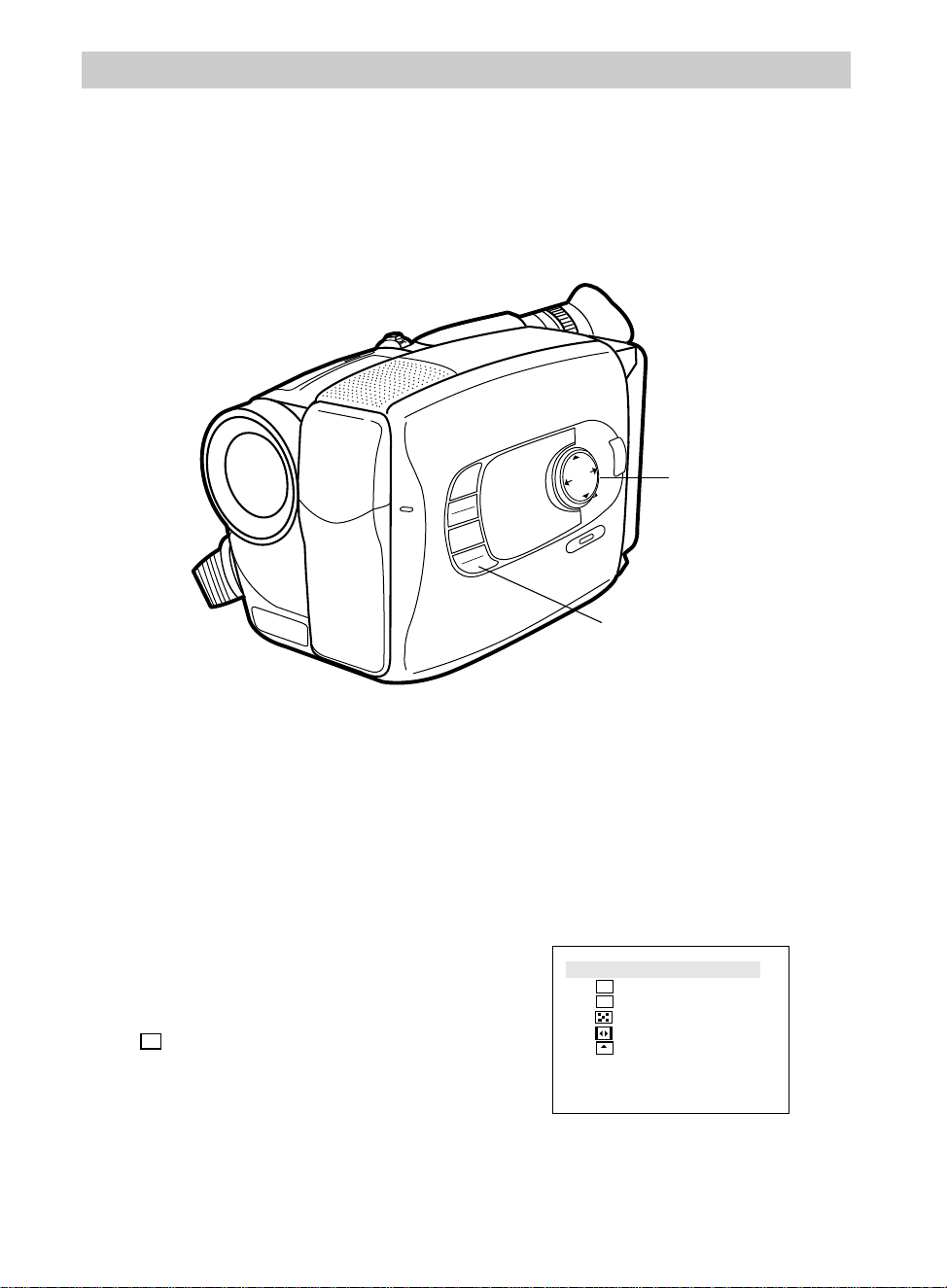
62
Recording
MENU
16X9
BACKLIGHT
AUTO
MANUAL
FRONTLIGHT
AE MODES
EIS
FADE
WIPE
P
U
S
H
F
O
C
U
S
DISPLAY
Fading or Wiping In and Out
You can add a professional touch to your recordings when you use the fade or wipe
features. The picture gradually appears on a black or white screen and disappears
leaving a black or white screen. The speed of the fade or wipe is automatically
controlled by the camcorder.
Mode Select Dial
FADE/WIPE Button
1. Place the POWER dial in CAMERA.
The power indicator will light.
2. Place mode select dial in AUTO or
MANUAL.
• Mode Select Dial in AUTO
Press the FADE/WIPE button to turn
the black fader on or off.
appears in the viewfinder.
Note: This is the only fade you can use
in AUTO.
BK
To Fade or Wipe
OFF
1
2
3
4
5
Black Fader
Blue Fader
Mosaic Fader
Door Wipe
Scroll Wipe
C
BK
Note: The fades and wipes are
described on the next page.
• Mode Select Dial in MANUAL
Press the FADE/WIPE button to
display the fade/wipe menu.
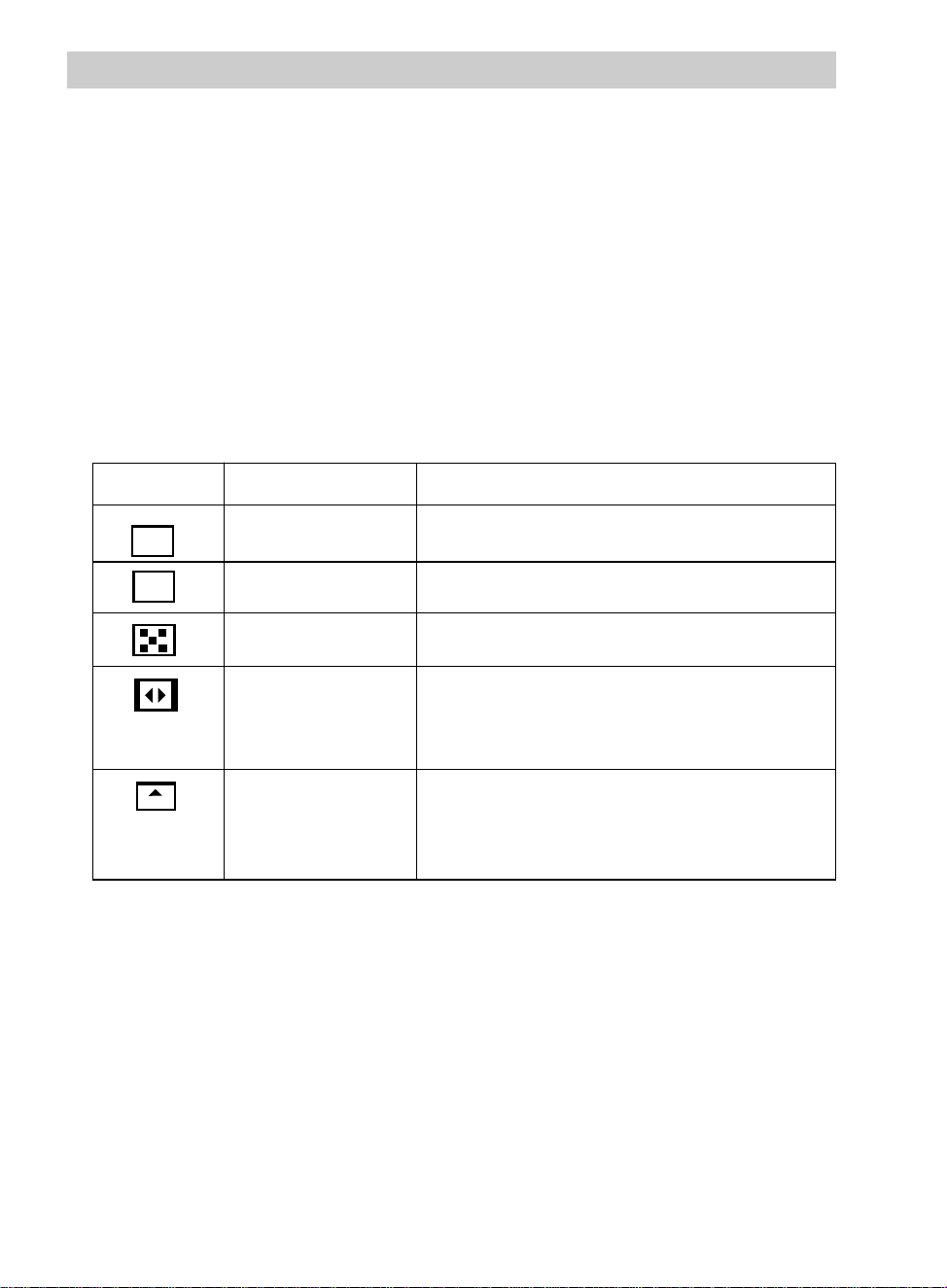
63
Recording
Black Fader
Blue Fader
Mosaic Fader
Door Wipe
Scroll
Fades in or out on a black screen.
Fades in or out on a blue screen.
Fades in or out with a full screen mosaic effect.
Wipes in from a black screen opening to the sides.
Wipes out from the center towards the sides
leaving a black screen.
Wipes in from a black screen from the bottom to
the top. Wipes out from the top to the bottom
leaving a black screen.
Indicator Menu Function
BK
C
3. Press FADE/WIPE to highlight the
fade or wipe you want to select.
Note: The fade or wipe you select is
automatically activated and the fade/wipe
menu is removed from the viewfinder in
approximately two seconds.
4. Press the thumb trigger to start
recording and fade or wipe in.
Note: If you select a fade or wipe during
recording, press the thumb trigger to fade
or wipe out.
To Turn Off Fade or Wipe
Press FADE/WIPE to highlight OFF.
Note: The fade or wipe will be turned off
and the menu will automatically be removed
from the viewfinder in approximately two
seconds.
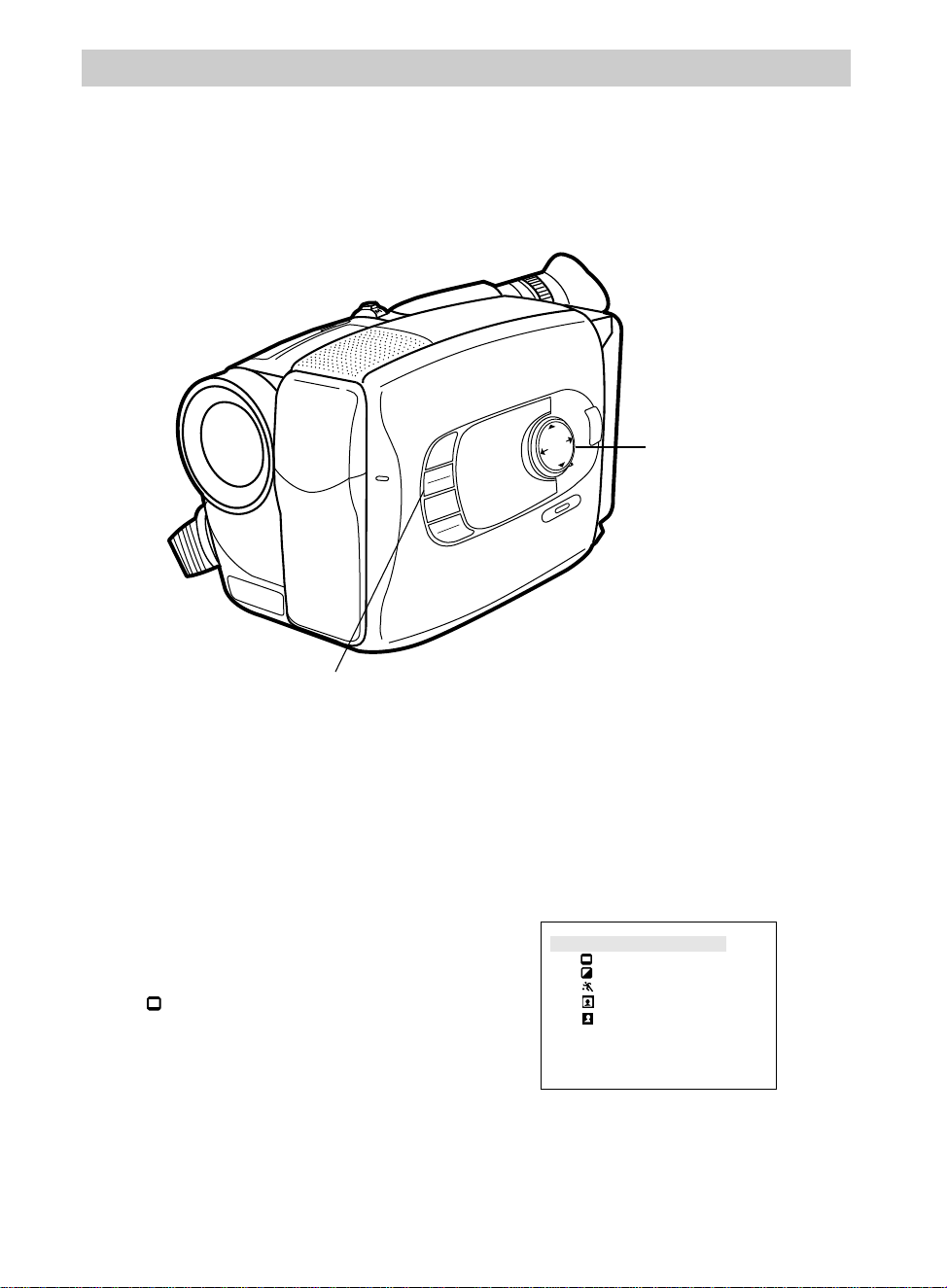
64
Recording
MENU
16X9
BACKLIGHT
AUTO
MANUAL
FRONTLIGHT
AE MODES
EIS
FADE
WIPE
P
U
S
H
F
O
C
U
S
DISPLAY
Mode Select Dial
Production Effects
You can add a professional touch to your recordings when you use some of the
production effects while recording.
16X9/AE MODES Button
1. Place the POWER dial in CAMERA.
The power indicator will light.
2. Place mode select dial in AUTO or
MANUAL.
• Mode Select Dial in AUTO
Press the 16X9/AE MODES button
to turn the Cinema mode on or off.
appears in the viewfinder.
Note: This is the only production effect
you can use in AUTO.
To Use a Production Effect
OFF
1
2
3
4
5
Cinema
Sepia
Sports
Back-Lit
Front-Lit
Note: The production effects are
described on the next page.
• Mode Select Dial in MANUAL
Press the 16X9/AE MODES button
to display the production effect
menu.
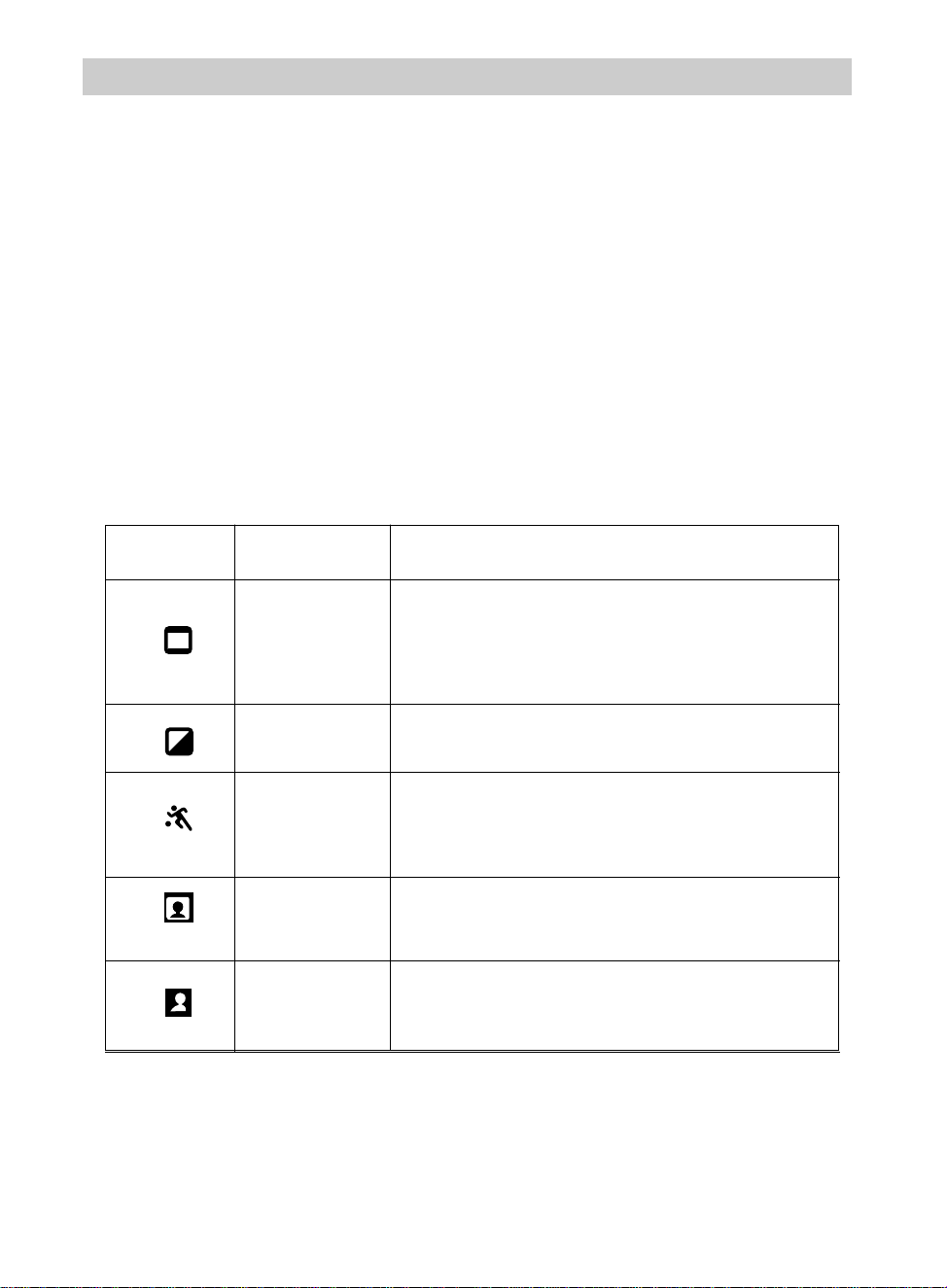
65
Recording
Cinema
Sepia
Sports
Back-Lit
Front-Lit
The camcorder records black bars at the top and
bottom of the picture to produce the wide-screen
effect. This is also known as “letter box” recording.
Use when you play back your recordings on a 16X9
TV.
Gives your recording a brownish tint like old photos.
Combine with cinema mode for a classic look.
Use to clearly capture fast-moving action with less
blurring. Use when playing back the recording on a
VCR featuring special effects, such as pause or slow
motion.
Use when the subjects are in front of a window or
with the sun to their back. Compensates for subjects
appearing too dark because of backlighting.
Use when there is a strong front light on the subject
such as spotlights. Compensates for subjects
appearing too light because of strong front lighting.
Indicator Menu Function
3. Press 16X9/AE MODES to highlight
the effect you want to select.
Note: The effect you select is
automatically activated and the menu is
removed from the viewfinder in
approximately two seconds.
4. Press the thumb trigger to start
recording with the effect you selected.
To Turn Off a Production Effect
Press 16X9/AE MODES to place the
cursor on OFF.
Note: The effect will be turned off and the
menu will automatically be removed from
the viewfinder in approximately two
seconds.
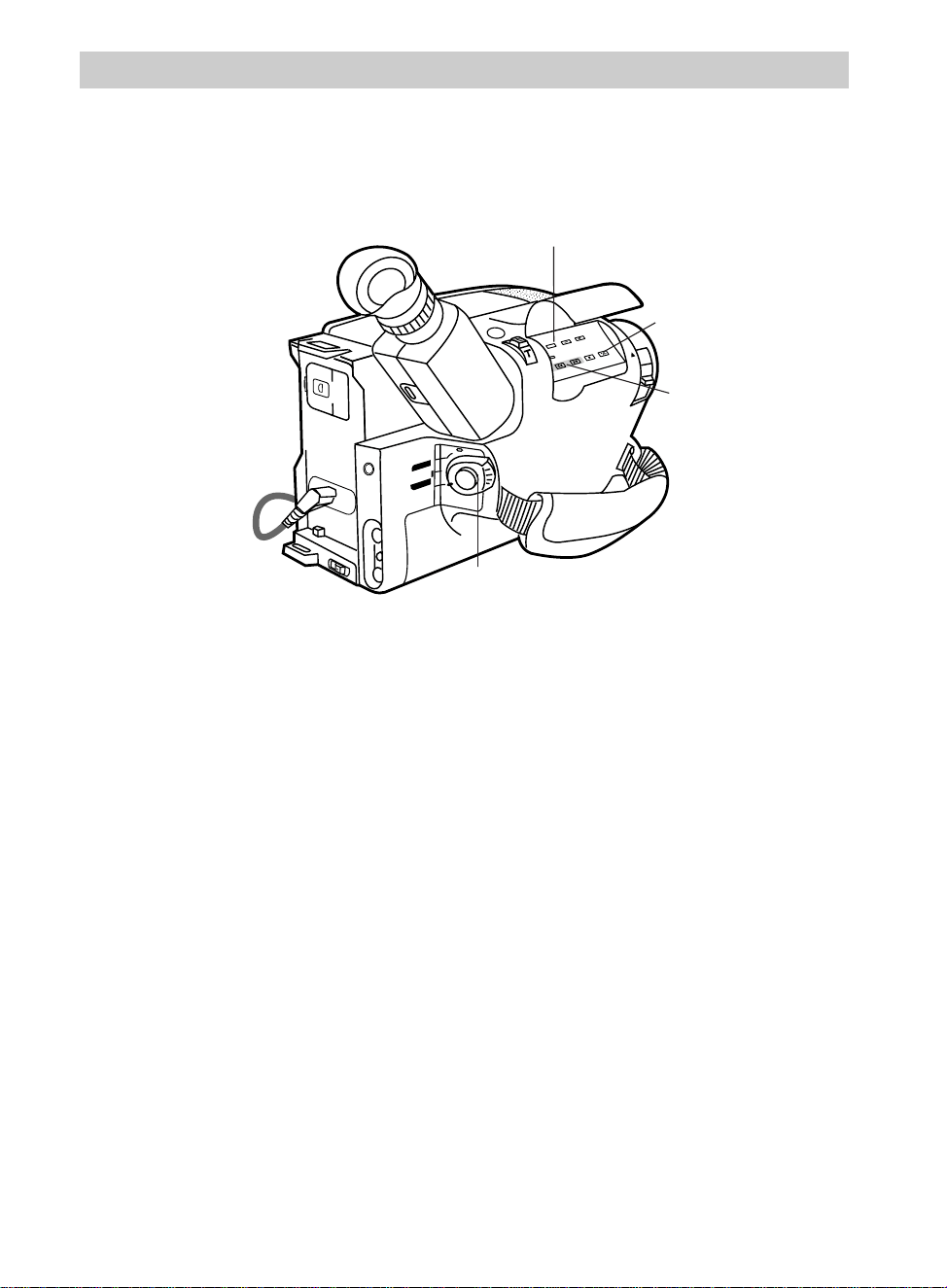
66
Recording
BATT. RELEASE
B
C
AUDIO
JLIP
RF
DC OUT
VIDEO
L
E
N
S
C
O
V
E
R
SP•SLP
QUICK
REC
TRACKING
ER R/M
W.BAL.
PLAY/PAUSE
STOP
FF
+
REW
+
–
VCR
CAMERA
POWER
OFF
POWER Switch in VCR
COUNTER R/M Button
PLAY/PAUSE
Button
REW Button
Audio Dubbing (Remote Only)
Audio dubbing lets you record new sound (audio) in place of previously
recorded audio.
(continued on next page)
To Audio Dub
1. Place the tape with safety tab intact
into the camcorder.
2. Place POWER switch in VCR.
3. Locate the place you want the audio
dubbing to stop and press
PLAY/PAUSE (PAUSE on remote).
4. Press COUNTER R/M for more than
two seconds on the camcorder to set
the time counter back to 0:00:00.
5. Press COUNTER R/M again for less
than one second to turn on memory
stop (M).
6. Press REW, locate the place you want
audio dubbing to begin, and press
PLAY/PAUSE (PAUSE on remote)
exactly at the beginning of the scene.
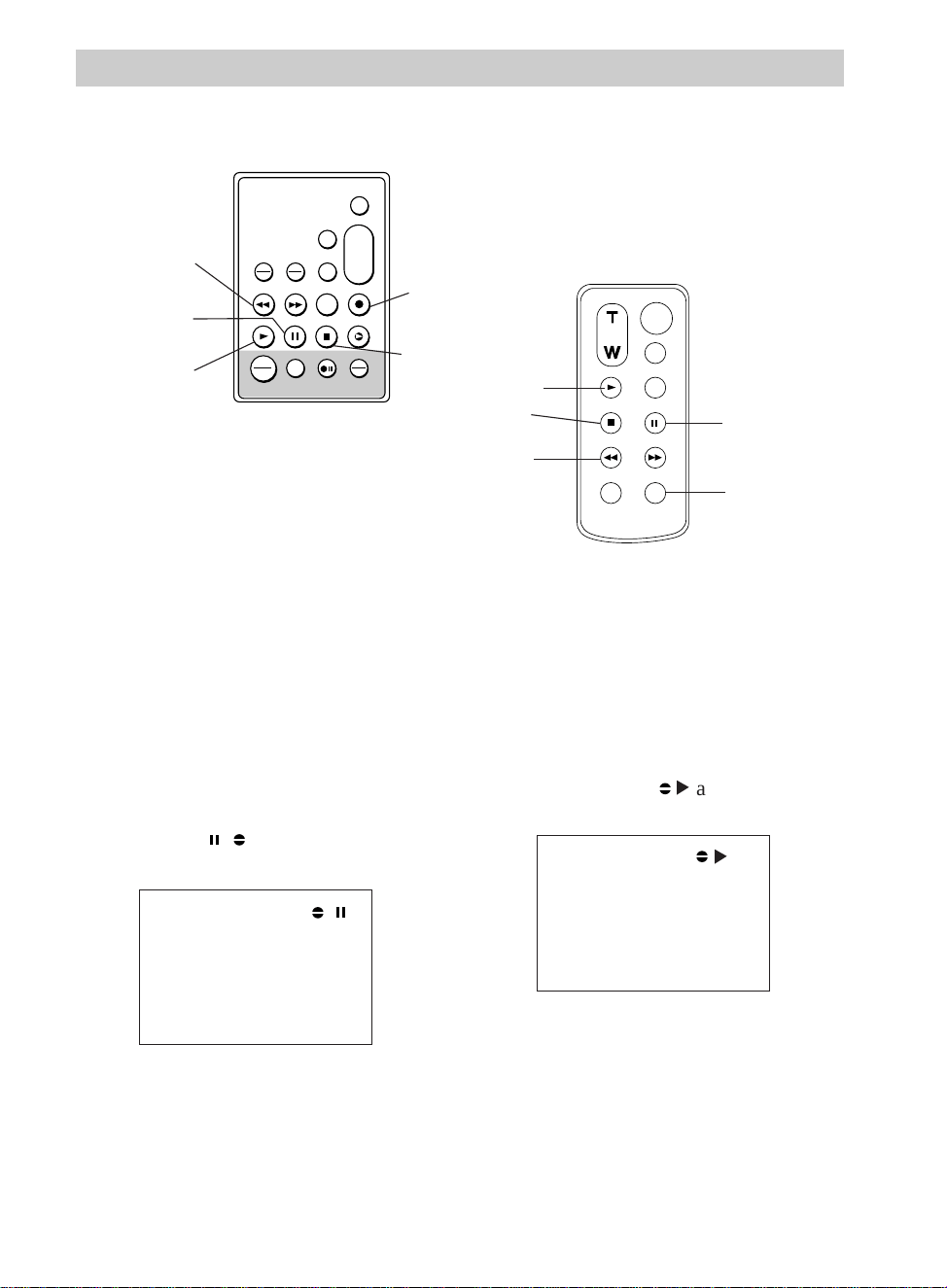
Recording
67
ZOOM
START/STOP
SELF
INT.
TIME
TIME LAPSE
REC
TIME
ANIM.
PAUSE
FF
A.DUB
INSERT
REW
STOP
PLAY
A. (Audio)
DUB Button
PAUSE
Button
PLAY
Button
REW
Button
STOP
Button
STOP
Button
VISS
ANIM.
REW
CANCEL
RANDOM ASSEMBLY EDIT
REC/PAUSE
F FWD
REC
TIME
TIME LAPSE
SELF MBR
START
/STOP
T
W
ZOOM
INT.
ON
OFF
TIME
SET
VCR
PLAY PAUSE STOP INSERT
A.DUB
IN
OUT
A. (Audio)
DUB
Button
PAUSE
Button
PLAY
Button
REW
Button
Model CC637’s Remote
Model CC635 or
CC636’s Remote
7. Press and hold A.DUB while pressing
and releasing PAUSE on the remote to
place the camcorder in audio dub
standby. appears in the
viewfinder.
8. Press PLAY on the remote to start
audio dubbing.
6
appears in the
viewfinder.
The new audio will be recorded in
place of the old audio.
When the counter reading of
M 0:00:00 is reached, audio dubbing
stops, and the camcorder enters audio
dub standby.
9. Press STOP to end audio dubbing.
6
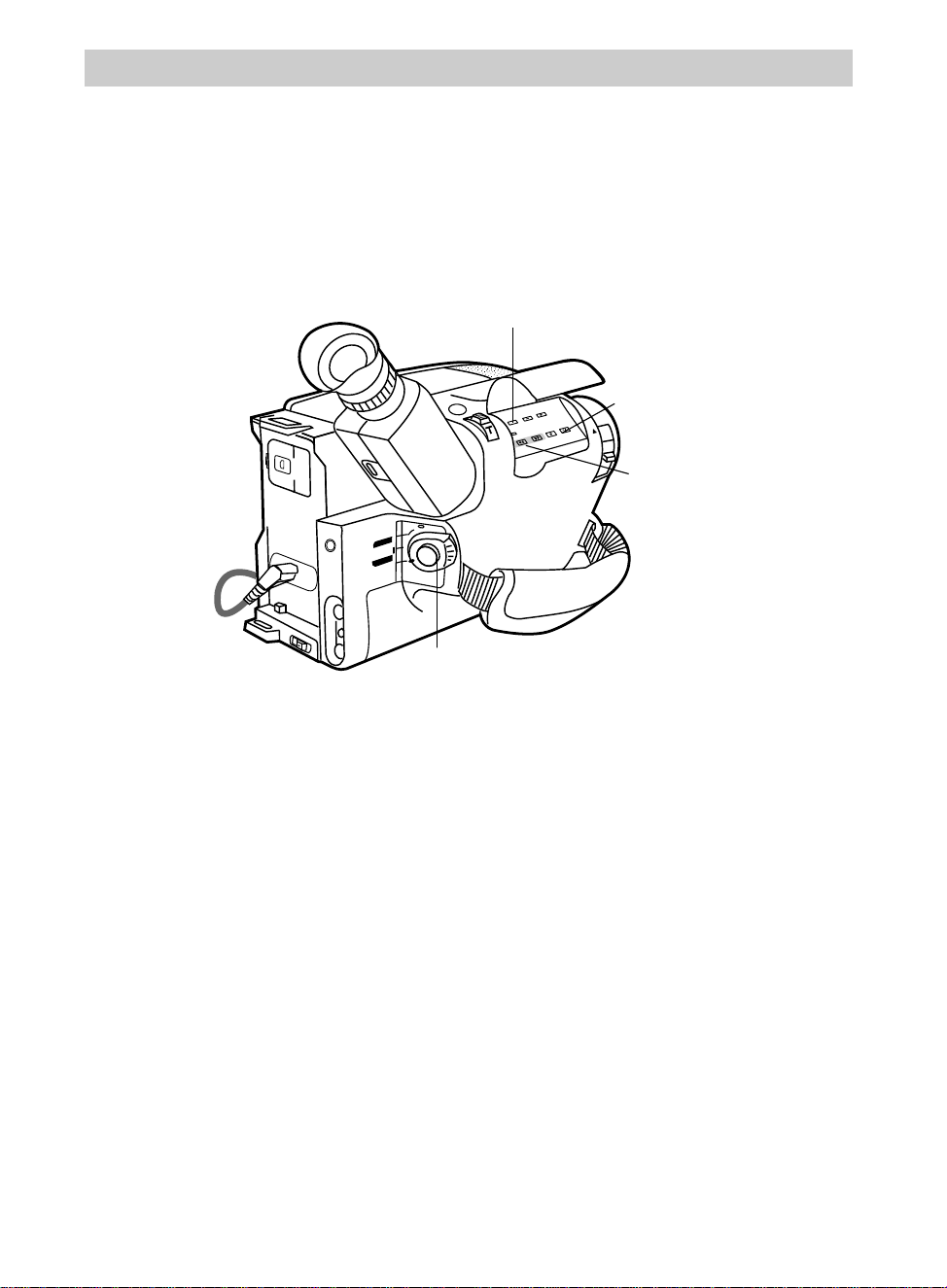
68
Recording
Edit Insert (Remote Only)
Edit insert lets you record new video in place of previously recorded video without
replacing the audio.
(continued on next page)
BATT. RELEASE
B
C
AUDIO
JLIP
RF
DC OUT
VIDEO
L
E
N
S
C
O
V
E
R
SP•SLP
QUICK
REC
TRACKING
ER R/M
W.BAL.
PLAY/PAUSE
STOP
FF
+
REW
+
–
VCR
CAMERA
POWER
OFF
POWER Switch in VCR
COUNTER R/M Button
PLAY/PAUSE
Button
REW Button
To Edit Insert
1. Place the tape with safety tab intact
into the camcorder.
2. Place POWER switch in VCR.
3. Locate the place you want the edit
insert to stop and press PLAY/PAUSE
(PAUSE on remote).
4. Press COUNTER R/M for more than
two seconds on the camcorder to set
the time counter back to 0:00:00.
5. Press COUNTER R/M again for less
than one second to turn on memory
stop (M).
6. Press REW, locate the place you want
edit insert to begin, and press
PLAY/PAUSE (PAUSE on remote)
exactly at the beginning of the scene.
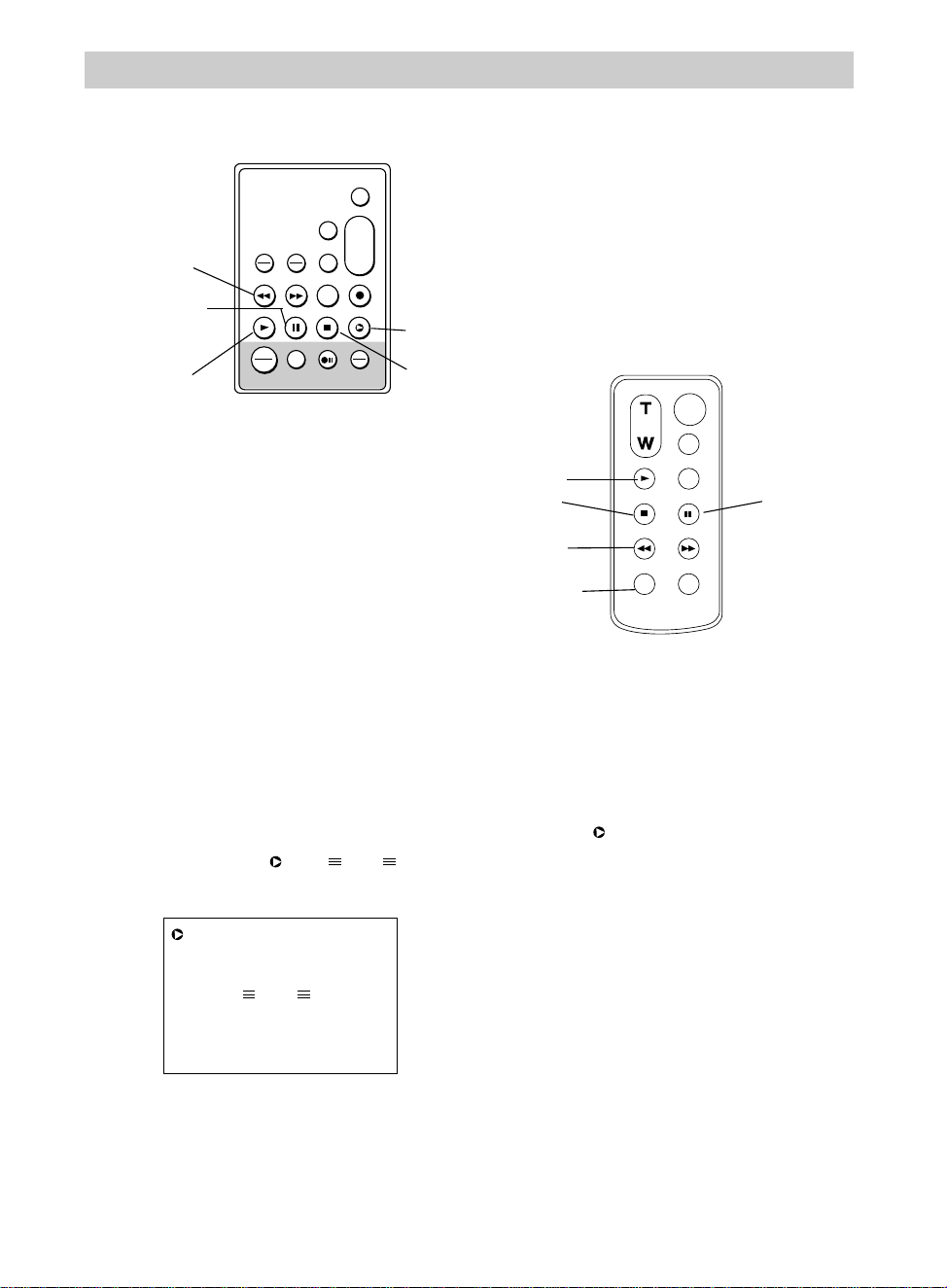
Recording
69
ZOOM
START/STOP
SELF
INT.
TIME
TIME LAPSE
REC
TIME
ANIM.
PAUSE
FF
A.DUB
INSERT
REW
STOP
PLAY
INSERT
Button
PAUSE
Button
PLAY
Button
REW
Button
VISS
ANIM.
REW
CANCEL
RANDOM ASSEMBLY EDIT
REC/PAUSE
F FWD
REC
TIME
TIME LAPSE
SELF MBR
START
/STOP
T
W
ZOOM
INT.
ON
OFF
TIME
SET
VCR
PLAY PAUSE STOP INSERT
A.DUB
IN
OUT
PAUSE
Button
PLAY
Button
REW
Button
STOP
Button
STOP
Button
INSERT
Button
Model CC637’s Remote
Model CC635 or
CC636’s Remote
7. Press and hold INSERT while
pressing and releasing PAUSE on the
remote to place the camcorder in edit
insert standby. and
appear in the viewfinder.
PAUSE
8. Press START/STOP on remote (thumb
trigger on camcorder) to start edit
insert. appears in the viewfinder.
New video is recorded over the
previous video. When the counter
reading of M 0:00:00 is reached, edit
insert stops and the camcorder enters
edit standby.
9. Press STOP to end edit insert.
Notes: The camcorder may stop slightly
before or after the edit out point and there
may be slight distortion at this point.
If a fade/wipe effect was used during edit
insert, wait ten seconds after pressing
STOP to perform other operations.
To check your tape positioning, you
can press EDIT SEARCH – or + on
the camcorder.
PAUSE
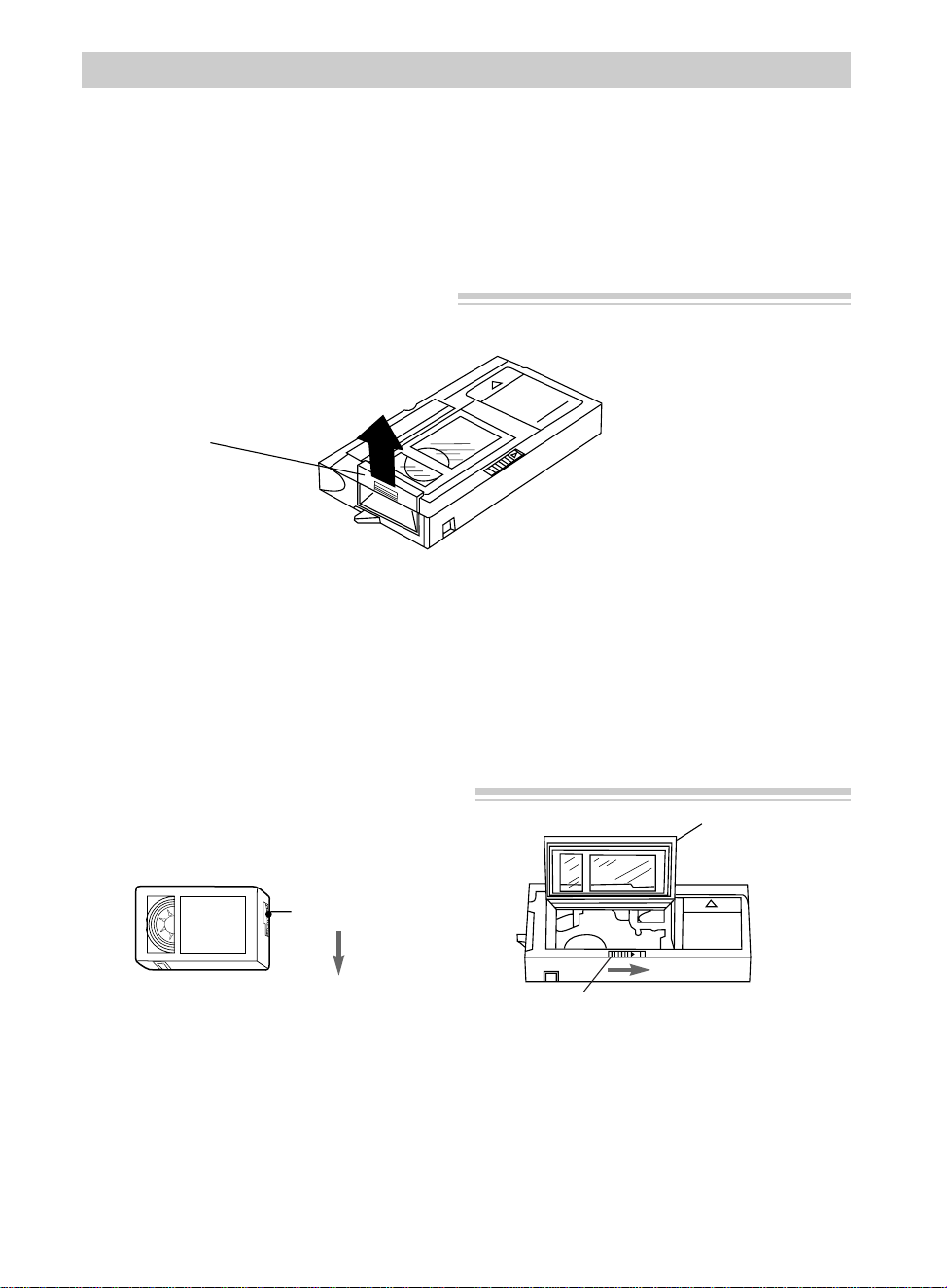
70
Playback
Install Cassette Adapter’s Battery
Insert Cassette into Cassette Adapter
Using the Cassette Adapter
The camcorder uses a smaller size cassette, but records in standard VHS format. The
cassette adapter allows you to play your VHS-C cassettes in a VCR just like other
standard VHS cassettes.
Insert the VHS-C cassette into the cassette adapter. Insert the cassette adapter into the
VHS VCR like a normal VHS cassette.
(continued on next page)
1. Remove battery compartment cover.
2. Install supplied “AA” battery so
positive (+) and negative (–) ends
align properly with (+) and (–)
terminals in battery compartment.
3. Replace battery compartment cover.
Notes: Replace the battery when the load
time becomes much longer than normal.
Remove the battery from the cassette adapter
if it will not be used for a month or more.
This will prevent possible damage from
battery leakage. If leakage occurs, wipe up
the liquid inside the compartment and replace
the battery with a new one.
1. Before inserting the cassette into the
adapter, remove any slack in the tape
by turning the tape wheel on the side
of the cassette.
2. Slide EJECT to the right to open the
cassette compartment lid.
3. Insert the cassette with the tape
window on the left and facing up.
Allow the cassette to drop into the
adapter. Do not force the cassette.
Battery
Compartment
Cover
Cassette
Compartment
Lid
EJECT Switch
Tape Wheel
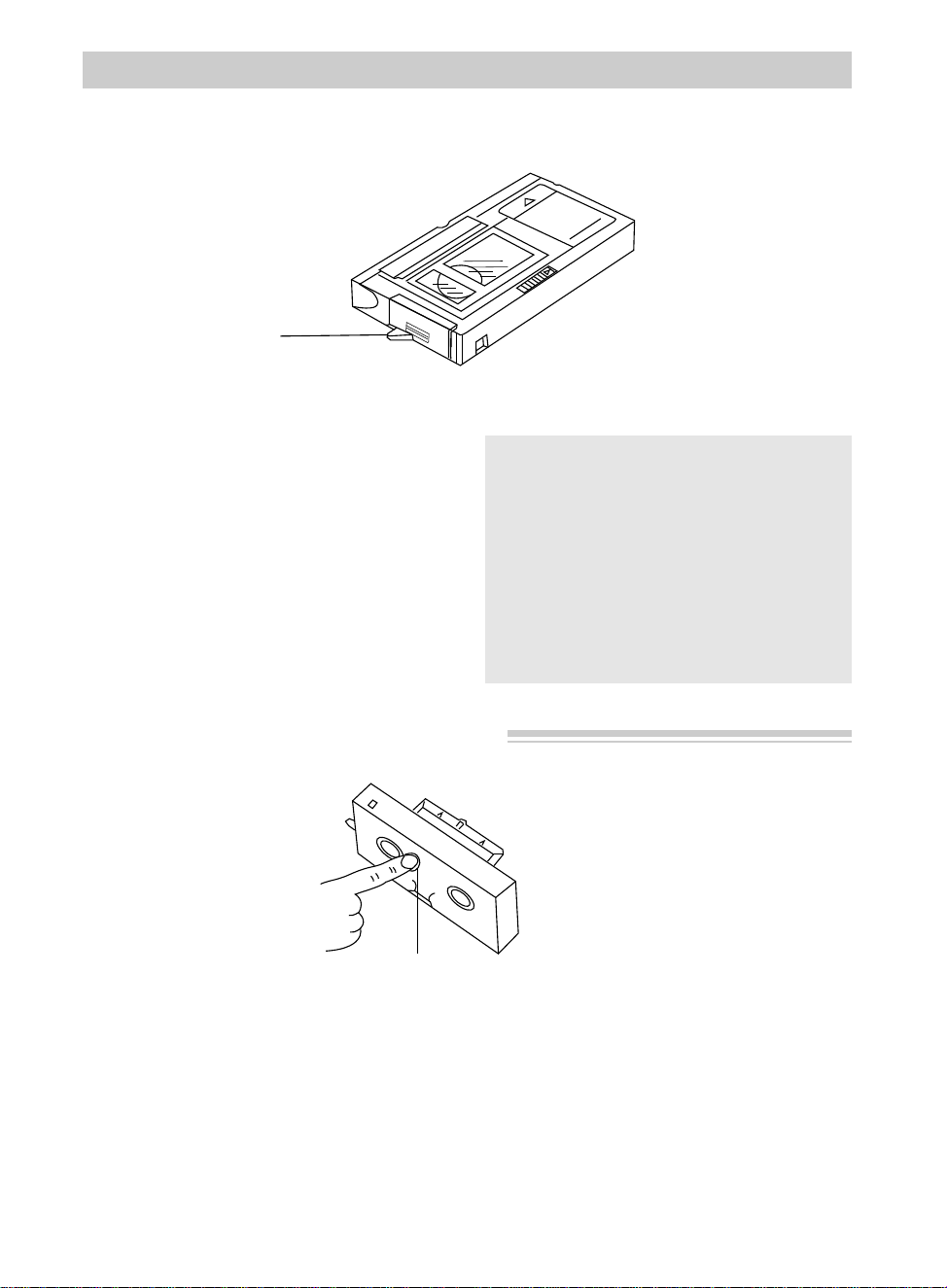
71
4. Gently close the cassette compartment
lid until it locks into place. Make sure
the cassette reel area under the adapter
is free to turn while the cassette is
loading.
Note: You should hear a whirring sound
while the tape loads. The adapter’s load
detector will automatically retract into the
adapter.
Playback
Caution: If the load detector is still
extending from the side of the cassette
adapter after you have attempted to load
the cassette, loading is not complete.
Try to load the cassette again.
Attempting to insert the cassette adapter
into a VCR with the load detector
extending may cause damage to the
adapter and/or VCR.
Remove Cassette from Cassette Adapter
1. Slide the adapter’s EJECT switch to
the right. The load detector will
extend from the side and the whirring
sound indicates the tape is being
released before the adapter’s cassette
compartment lid opens.
2. Use the access hole on the bottom of
the adapter to push the cassette up and
remove it from the adapter.
3. Gently close the adapter’s cassette
compartment lid.
Load Detector
Access Hole
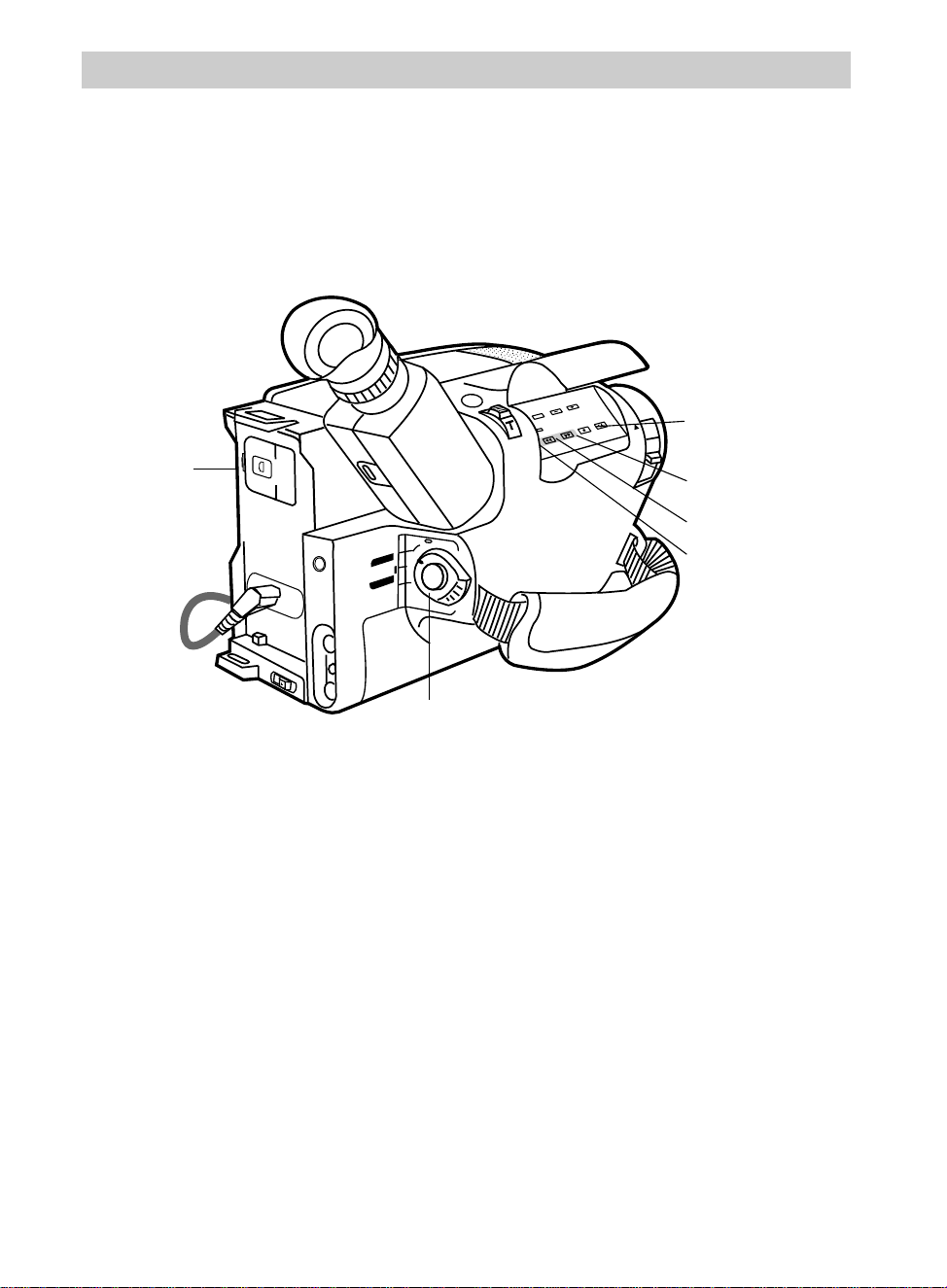
BATT. RELEASE
B
C
AUDIO
JLIP
RF
DC OUT
VIDEO
L
E
N
S
C
O
V
E
R
SP•SLP
QUICK
REC
TRACKING
ER R/M
W.BAL.
PLAY/PAUSE
STOP
FF
+
REW
+
–
VCR
CAMERA
POWER
OFF
72
Playback
FF Button
REW Button
PLAY/PAUSE
Button
STOP Button
EJECT
Button
To Play Back a Tape
1. Place POWER switch in VCR. The
power indicator will light.
2. Slide EJECT and insert the cassette
you want to play back. Close the
cassette compartment.
3. Press PLAY/PAUSE to begin playback.
If necessary, adjust tracking.
POWER Switch in VCR
Viewfinder Playback
Viewfinder playback is the simplest way to watch tapes using the
camcorder.
During playback, use the playback
features on the next pages.
4. Press STOP when you are finished.
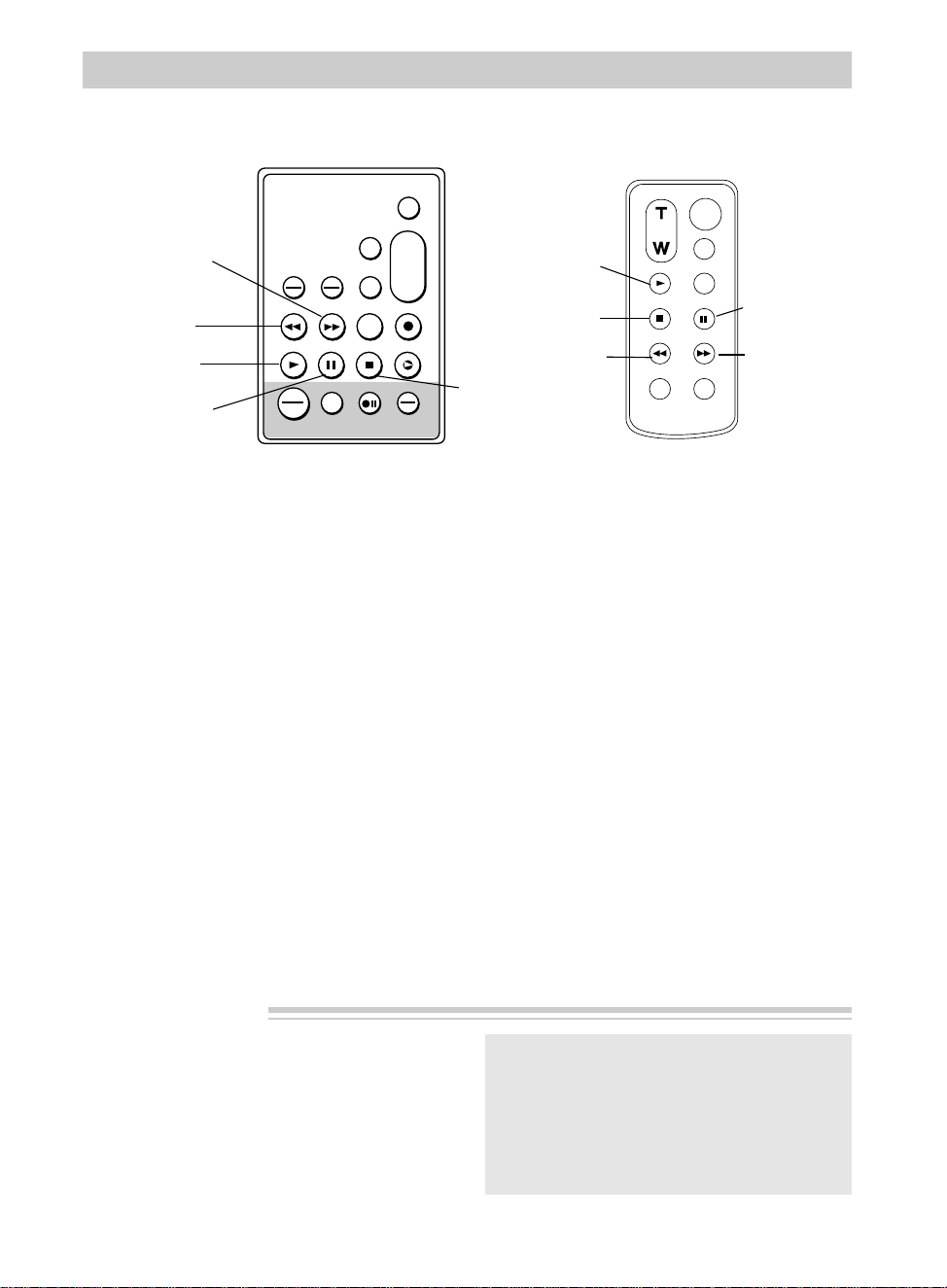
VISS
ANIM.
REW
CANCEL
RANDOM ASSEMBLY EDIT
REC/PAUSE
F FWD
REC
TIME
TIME LAPSE
SELF MBR
START
/STOP
T
W
ZOOM
INT.
ON
OFF
TIME
SET
VCR
PLAY PAUSE STOP INSERT
A.DUB
IN
OUT
Playback
73
Caution: Pause is designed for momentary
interruptions and should not be used for an
extended period of time. If the camcorder
remains in pause for more than five minutes,
it will automatically enter the stop mode and
then turn off to prevent excessive tape wear.
F FWD Button
REW Button
PLAY Button
PAUSE Button
STOP Button
Stop-Action Pause
• During playback, press PLAY/PAUSE
(or PAUSE on remote) to “stop the
action” and view one frame of the tape.
• Press PLAY/PAUSE on the camcorder
(or PLAY on the remote) to return to
normal playback.
Tape Positioning
Place POWER switch in VCR and press
STOP.
• Press and quickly release REW or FF
(F FWD on remote) to rewind or fast-
forward the tape.
• Press STOP to stop the tape.
Visual Searching
• During playback, press and release FF
(F FWD on remote) or REW if you
want to search the tape visually in
forward or reverse.
• Press PLAY/PAUSE on the camcorder
(or PLAY on the remote) to return to
normal playback.
• For brief searching, press and hold FF
(F FWD on remote) or REW for more
than two seconds.
• Release the button to return to normal
playback.
Playback Features
ZOOM
START/STOP
SELF
INT.
TIME
TIME LAPSE
REC
TIME
ANIM.
PAUSE
FF
A.DUB
INSERT
REW
STOP
PLAY
FF
Button
REW
Button
PLAY
Button
PAUSE
Button
STOP
Button
Model CC637’s Remote
Model CC635 or
CC636’s Remote
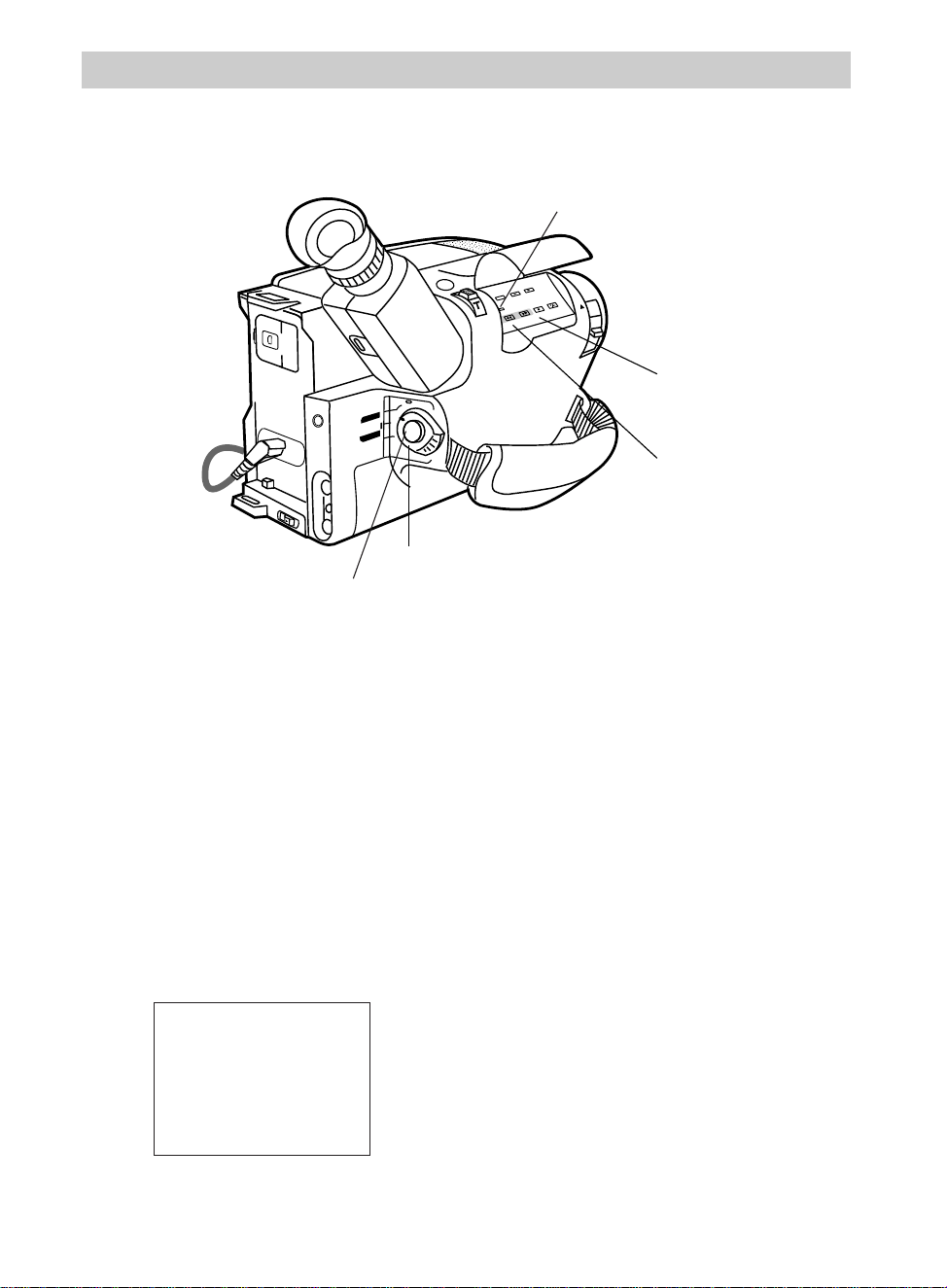
Playback
74
BATT. RELEASE
B
C
AUDIO
JLIP
RF
DC OUT
VIDEO
L
E
N
S
C
O
V
E
R
SP•SLP
QUICK
REC
TRACKING
ER R/M
W.BAL.
PLAY/PAUSE
STOP
FF
+
REW
+
–
VCR
CAMERA
POWER
OFF
REW Button
STOP Button
POWER Switch in VCR
Playback Features (Continued)
Time Counter
The time-counter display shows the actual time elapsed when playing back a segment
of tape. The memory-stop feature helps locate a certain point on the tape. When
memory stop is on, the tape will stop automatically during rewind or fast forward
when the time counter reaches M 0:00:00.
To Use the Memory-Stop Feature
1. Locate the place on the tape you want
to return to, place the POWER switch
in VCR, and press COUNTER R/M for
more than two seconds to reset the
counter to 0:00:00.
2. Continue to play the tape. When you
want to return to the place you marked,
press the STOP button.
3. Press REW. The tape will rewind to
the time counter reading of M 0:00:00.
M 0:00:00
COUNTER R/M Button
Thumb Trigger
Time Counter With
Memory Stop Turned On
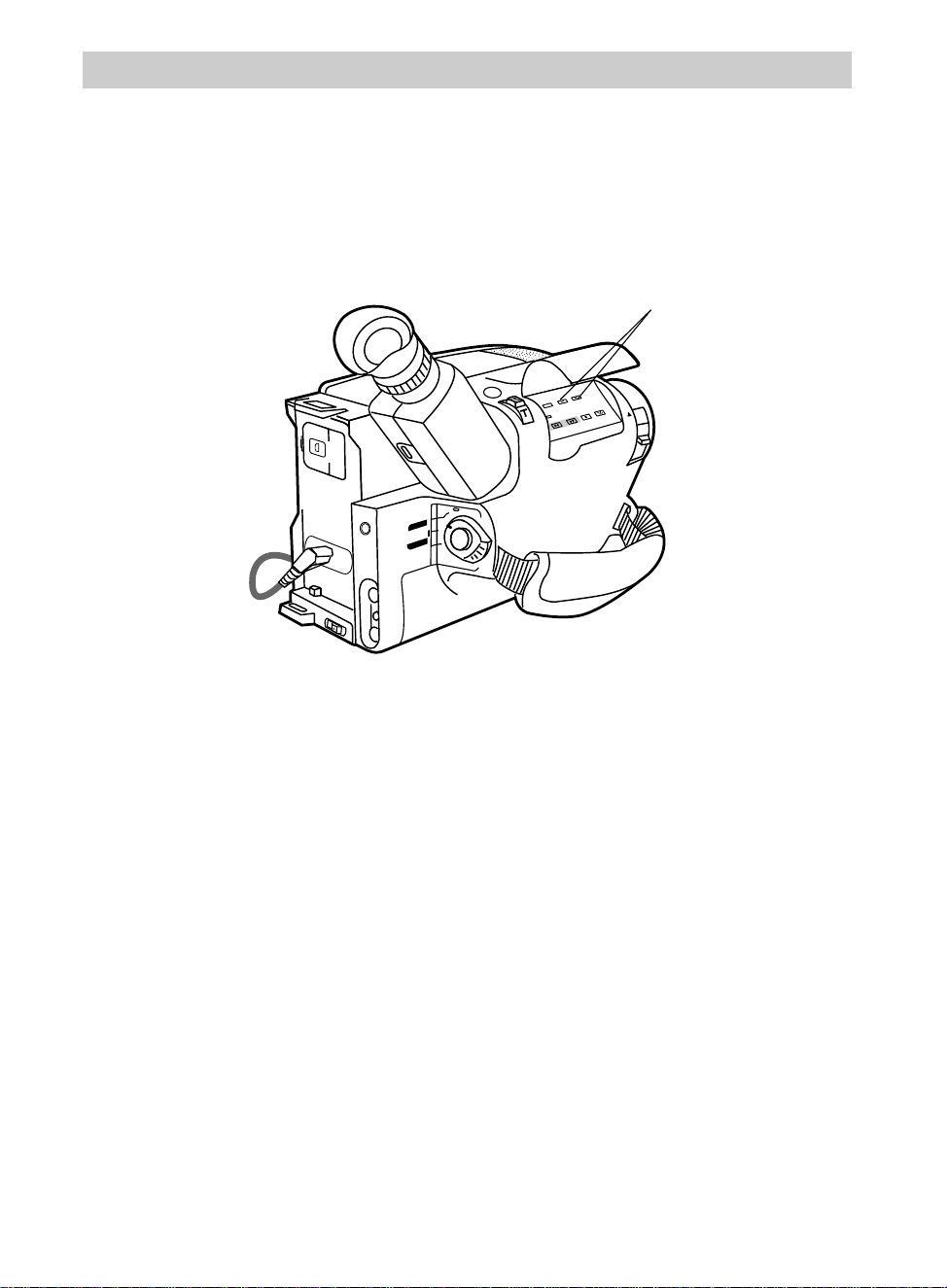
Playback
75
Playback Features (Continued)
Tracking
During playback, streaks may appear in the playback picture. Press either
TRACKING button to move the streaks up or down and out of the picture.
BATT. RELEASE
B
C
AUDIO
JLIP
RF
DC OUT
VIDEO
L
E
N
S
C
O
V
E
R
SP•SLP
QUICK
REC
TRACKING
ER R/M
W.BAL.
PLAY/PAUSE
STOP
FF
+
REW
+
–
VCR
CAMERA
POWER
OFF
TRACKING Buttons
• During stop-action playback, pressing
one TRACKING button may reduce
picture “jitter” (picture bouncing up
and down). Some “jitter” is normal.
Simultaneously press both TRACKING
buttons to return tracking to its preset
center.
Note: The TRACKING buttons may have no
effect on tapes recorded on other camcorders
or VCRs.
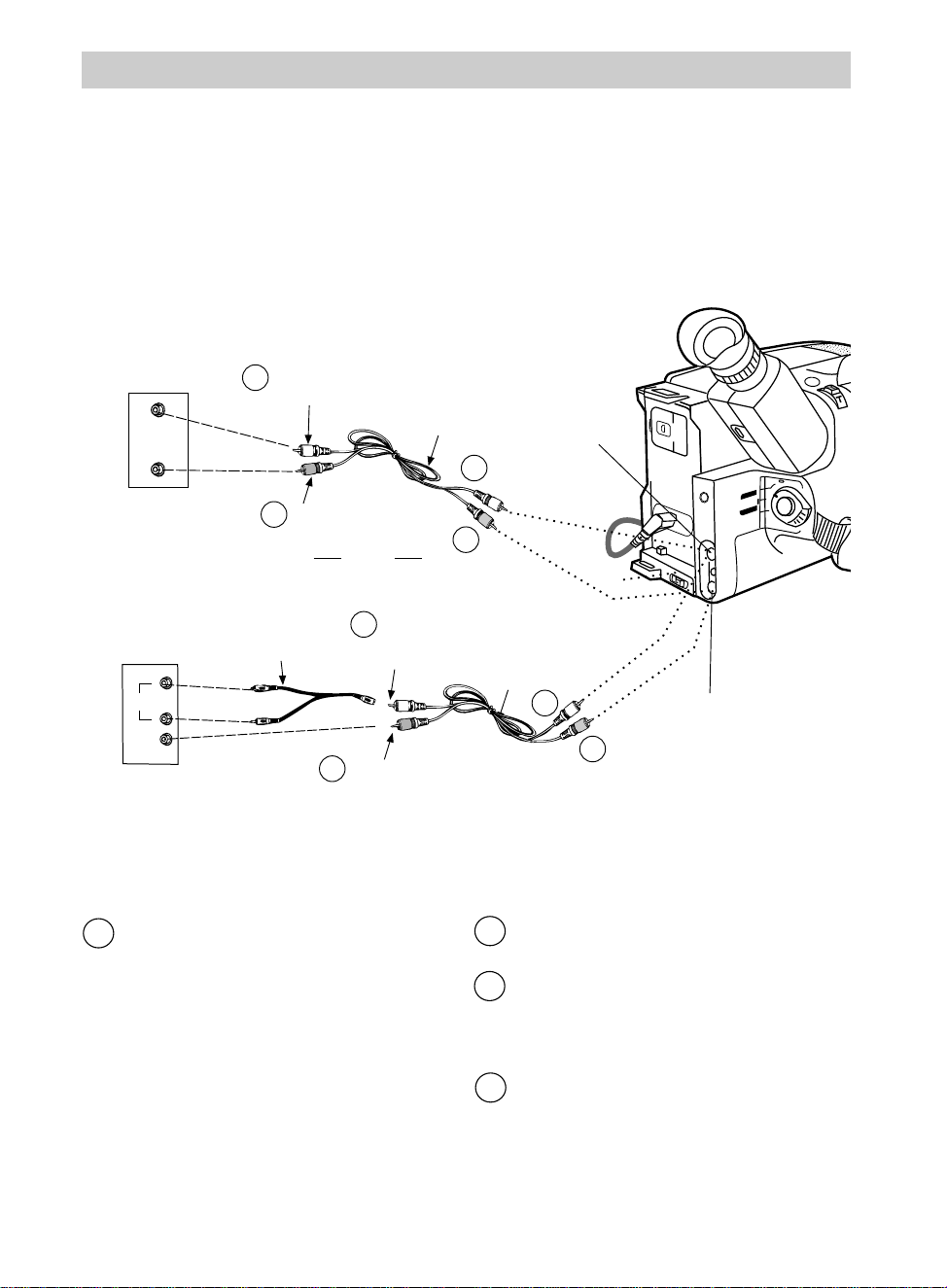
Playback
76
Installation
1 Attach the white plug on one end of
the audio/video cable to the AUDIO
IN jack on the TV (or VCR).
Notes: If your cable does not have white
and yellow plugs, just be sure to attach the
same color to the audio jacks.
If your TV (or VCR) has stereo AUDIO IN
jacks, attach the plug to the one labeled
MONO. If one is not labeled MONO, you
may need a Y-adapter, such as AH25,
shown on page 86 to hear both channels.
Playback on TV (or VCR) with AUDIO/VIDEO IN Jacks
To connect your camcorder to a TV monitor (or VCR) with AUDIO/VIDEO IN jacks,
you will need an optional audio/video cable such as VH83 shown on page 86.
If your TV is already connected to a VCR, you can attach the camcorder to the VCR
and watch what the camcorder is recording or playing on the TV.
2 Attach the yellow plug to the VIDEO
IN jack on the TV (or VCR).
3 Attach the white plug on the other end
of the audio/video cable to the AUDIO
jack (located under the small cover)
on the back of the camcorder.
4 Attach the yellow plug to the yellow
VIDEO jack on the camcorder.
(continued on next page)
BATT. RELEASE
B
C
AUDIO
JLIP
RF
DC OUT
VIDEO
QUICK
REC
+
–
VCR
CAMERA
POWER
OFF
AUDIO
IN
VIDEO
IN
Back of
Mono VCR or
TV Monitor
White
Audio Plug
Yellow Video Plug
Audio/Video
Output Cable
(Optional)
AUDIO
IN
VIDEO
IN
L
R
Y-Adapter
(Optional)
OR
VIDEO Jack
Back of
Stereo VCR or
TV Monitor
1
2
White
Audio
Plug
1
Yellow Video Plug
Audio/Video
Output Cable
(Optional)
3
2
AUDIO Jack
4
4
3

Playback
77
Playback Operation and How to Copy Tapes on the VCR
Viewing What the Camcorder is Seeing (or Recording)
Caution: The unauthorized recording
of copyrighted material may infringe
the rights of others.
1. A.Camcorder connected directly to
TV: Turn on the TV and tune it to
the video input channel.
B. Camcorder connected to VCR that
is already connected to TV: Turn
on VCR and place it in the “line” or
“camera mode”. (If your VCR does
not have a “line” or “camera
mode”, consult the VCR owner’s
manual.) Operate the TV as you
normally do to see the signal
coming from the VCR.
2. Place the POWER switch in VCR to
turn on the camcorder. The power
indicator will light.
3. Press PLAY/PAUSE.
•If noise bars appear on the screen,
press TRACKING – or +.
• During playback, use the playback
features on pages 73-75.
4. To copy what the camcorder is playing,
place a blank cassette in the VCR, and
press the VCR’s RECORD button.
Note: Press EDIT to start camcorder
playback when copying tapes to improve
picture reproduction. Make sure the
memory-stop feature is turned off (press
COUNTER R/M) or the camcorder will
enter play pause when the counter reaches
M 0:00:00.
5. Press STOP when you are finished.
1. A.Camcorder connected directly to
TV: Turn on the TV, and tune it to
the video input channel.
B. Camcorder connected to VCR that
is already connected to TV: Turn
on VCR and place it in the “line” or
“camera mode”. (If your VCR does
not have a “line” or “camera
mode”, consult the VCR owner’s
manual.) Operate the TV as you
normally do to see the signal
coming from the VCR.
2. Place the POWER switch
in CAMERA.
Note: When the camcorder is used as a
camera, turn the TV’s volume down to
prevent a high-pitched squeal caused by
feedback.
3. Press the thumb trigger to begin
recording. You can watch what the
camcorder is seeing (or recording) on
the TV screen.
Note: The remote control will operate the camcorder.
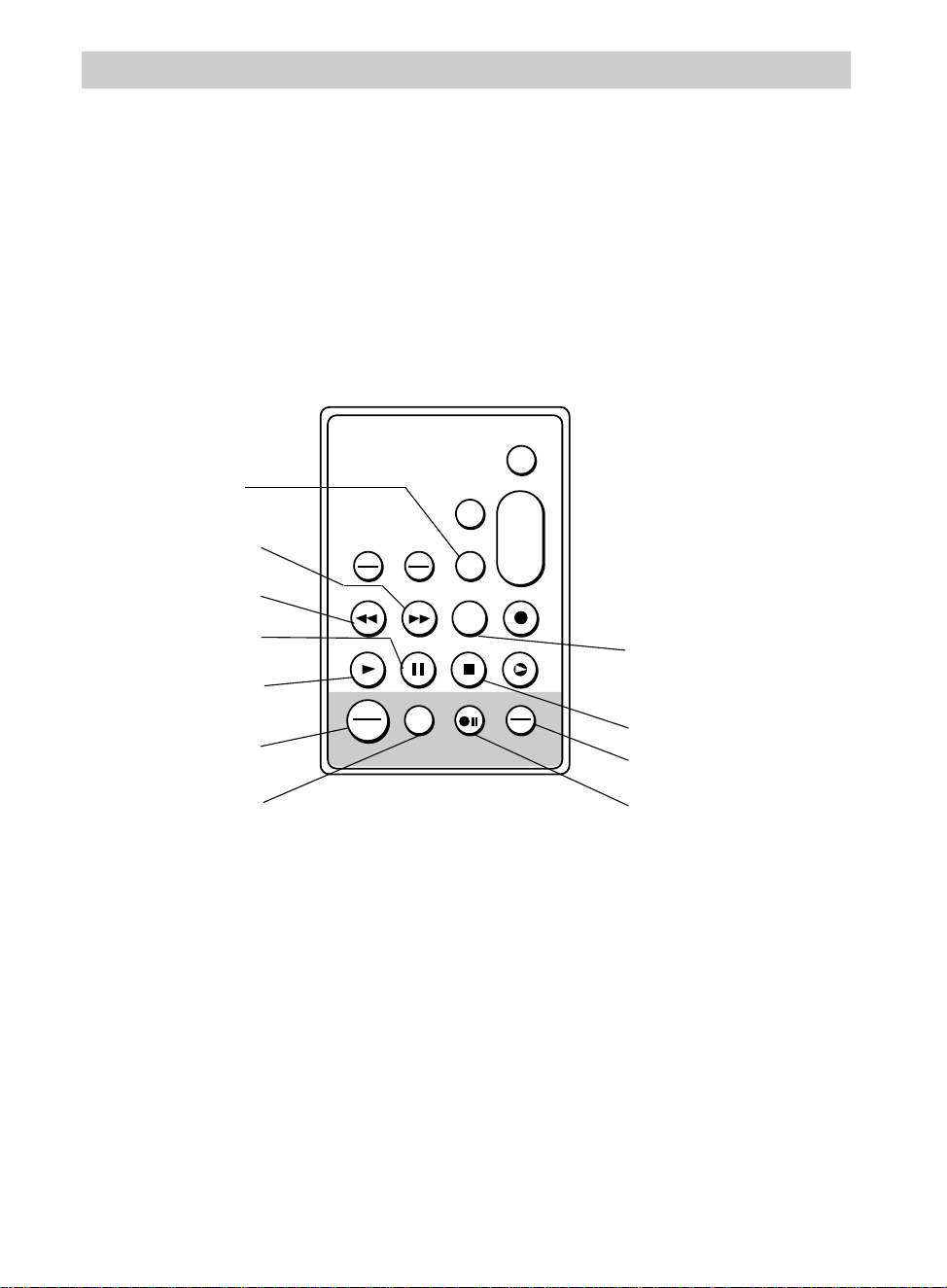
Playback
78
Remote Control
Model CC637 Only: Programming Remote to Operate
Compatible VCR
The CC637’s remote can be programmed to operate the camcorder and the basic
functions of a compatible VCR for easy tape editing. After the remote has been
programmed, you can control the VCR by pressing and holding VCR while
pressing one of the function buttons (REW, F FWD, STOP, PAUSE, or PLAY).
VISS
ANIM.
REW
CANCEL
RANDOM ASSEMBLY EDIT
REC/PAUSE
F FWD
REC
TIME
TIME LAPSE
SELF MBR
START
/STOP
T
W
ZOOM
INT.
ON
OFF
TIME
SET
VCR
PLAY PAUSE STOP INSERT
A.DUB
IN
OUT
Press for number 5.
Press for number 6.
VCR Button
(Press for number 7.)
MBR SET Button
Press for number 8.
Press for number 9.
Press for number 4.
Press for number 3.
Press for number 2.
Press for number 1.
Press for number 0.
Playback
79
Refer to the chart below to find the code numbers that correspond to your brand of
VCR. Try each two-digit code number separately until you find the correct one. Press
the buttons on the remote corresponding to the code numbers.
VCR Brand * Code(s)
RCA 02, 04, 09, 87, 88
GE 02, 04, 09, 22
JVC 01, 07, 08
Magnavox 03,22, 52, 58
Zenith 28
Panasonic 04, 22, 25, 28, 27
Sharp 23, 29
Toshiba 80, 82
Hitachi 87, 88
Mitsubishi 85, 86
Akai 81, 84
Sony 70, 72, 83, 89
Sanyo 50, 73, 78, 79
NEC 75, 76
1. Turn on the VCR.
2. Make sure the lithium cell is installed
in the remote. The remote will need
to be reprogrammed when you
change the lithium cell.
3. Press and hold MBR SET while
pressing two digits for the code.
Then release MBR SET.
* The remote may not be able to control
every model VCR of the brands listed.
4. Test the code number by pressing and
holding VCR while pressing one of the
function buttons (REW, F FWD, STOP,
PAUSE, or PLAY). If the VCR does
not perform the function, repeat step 3
with another code number.
Chart of VCR Code Numbers
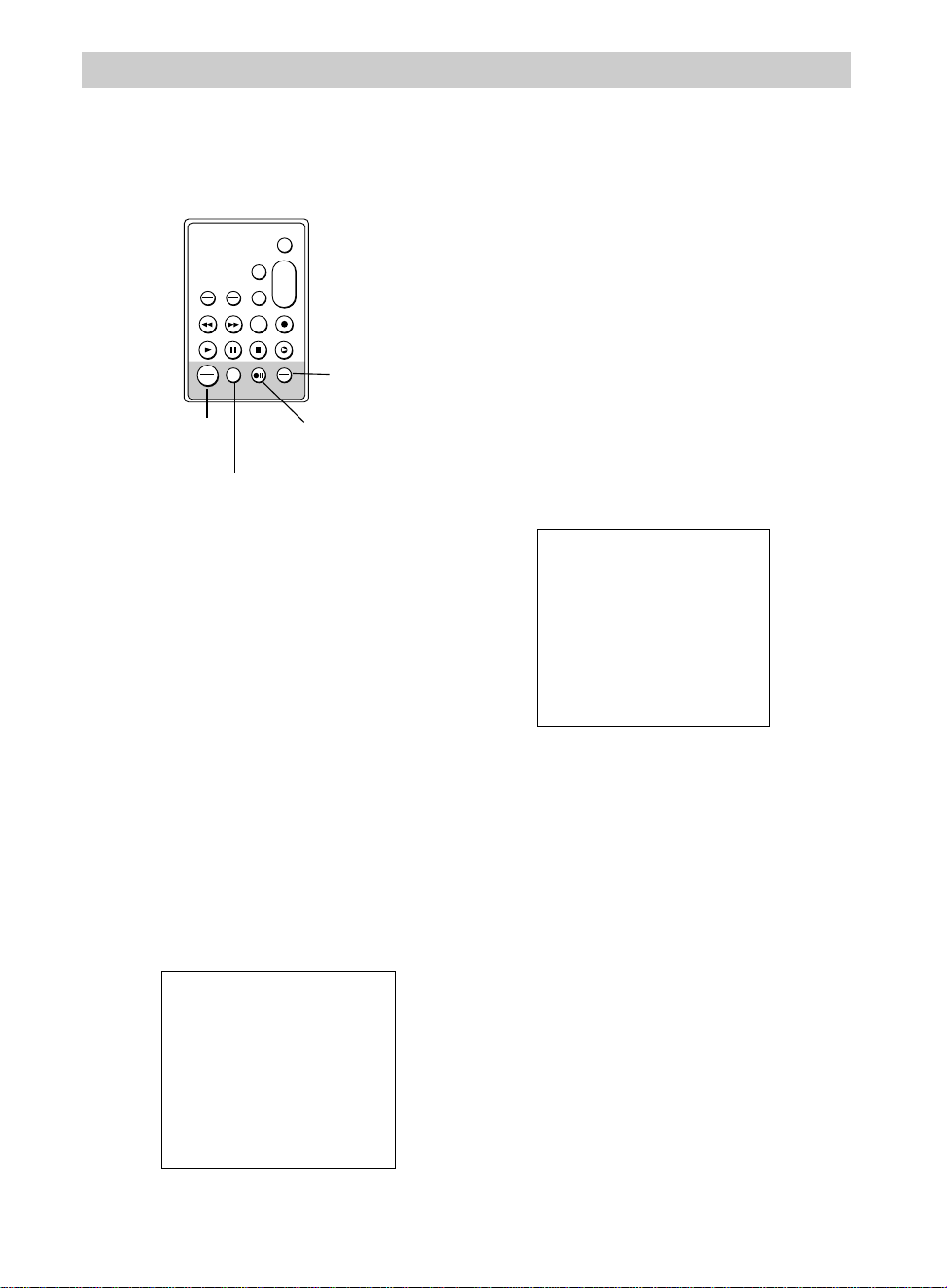
80
Playback
1. Connect the camcorder to a VCR as
shown on pages 76-77.
2. Insert the prerecorded tape in the
camcorder. Place the POWER switch
in VCR.
3. Turn on VCR and place it in the “line”
or “camera mode”. (If your VCR does
not have a “line” or “camera mode”,
consult the VCR owner’s manual.)
Operate the TV as you normally do to
see the signal coming from the VCR.
4. Playback the pre-recorded tape and
then, press RANDOM EDIT on the
camcorder or ON/OFF on remote.
The edit screen will appear in the
viewfinder.
5. Locate the beginning of the first
segment you want to program. The
edit screen appears on the TV.
6. Press IN/OUT to enter the time counter
reading in the display.
7. Locate the end of the segment, and
press IN/OUT to enter the time counter
reading in the display.
8. Repeat steps 5-7 to enter each segment
(up to eight). TOTAL shows recording
time for all the segments.
9. Press CANCEL to erase the last IN or
OUT point. Each press will erase the
last entry.
10. Connect one end of the edit cable
(supplied) to the JLIP jack on the
camcorder and the other end to the
VCR or remote.
• If the VCR has a 3.5 mm EDIT,
EDIT IN, EDIT IN/OUT, SYNC, or
PAUSE jack, attach the small plug to
the jack.
Note: If the VCR’s jack is not 3.5 mm,
you will need an adapter.
• If the VCR does not have a small
jack, attach the plug on the other end
Display in Viewfinder and
on TV Screen
Display in Viewfinder
VISS
ANIM.
REW
CANCEL
RANDOM ASSEMBLY EDIT
REC/PAUSE
F FWD
REC
TIME
TIME LAPSE
SELF MBR
START
/STOP
T
W
ZOOM
INT.
ON
OFF
TIME
SET
VCR
PLAY PAUSE STOP INSERT
A.DUB
IN
OUT
IN/OUT
Button
ON/OFF
Button
REC/PAUSE
Button
CANCEL Button
Model CC637 Only: Copying Tapes Using Programmable Synchro Edit
You can program the camcorder with up to eight segments of a prerecorded tape.
The camcorder will automatically copy these segments on a compatible VCR.
IN OUT
1 0:10:00 0:12:30
2 0:22:00 0:25:00
3 --:--:--
4
5
6
7
8
COUNTER 0:25:00
TOTAL 0:05:30
IN OUT
1 --:--:--
2
3
4
5
6
7
8
COUNTER 0:00:00
TOTAL 0:00:00
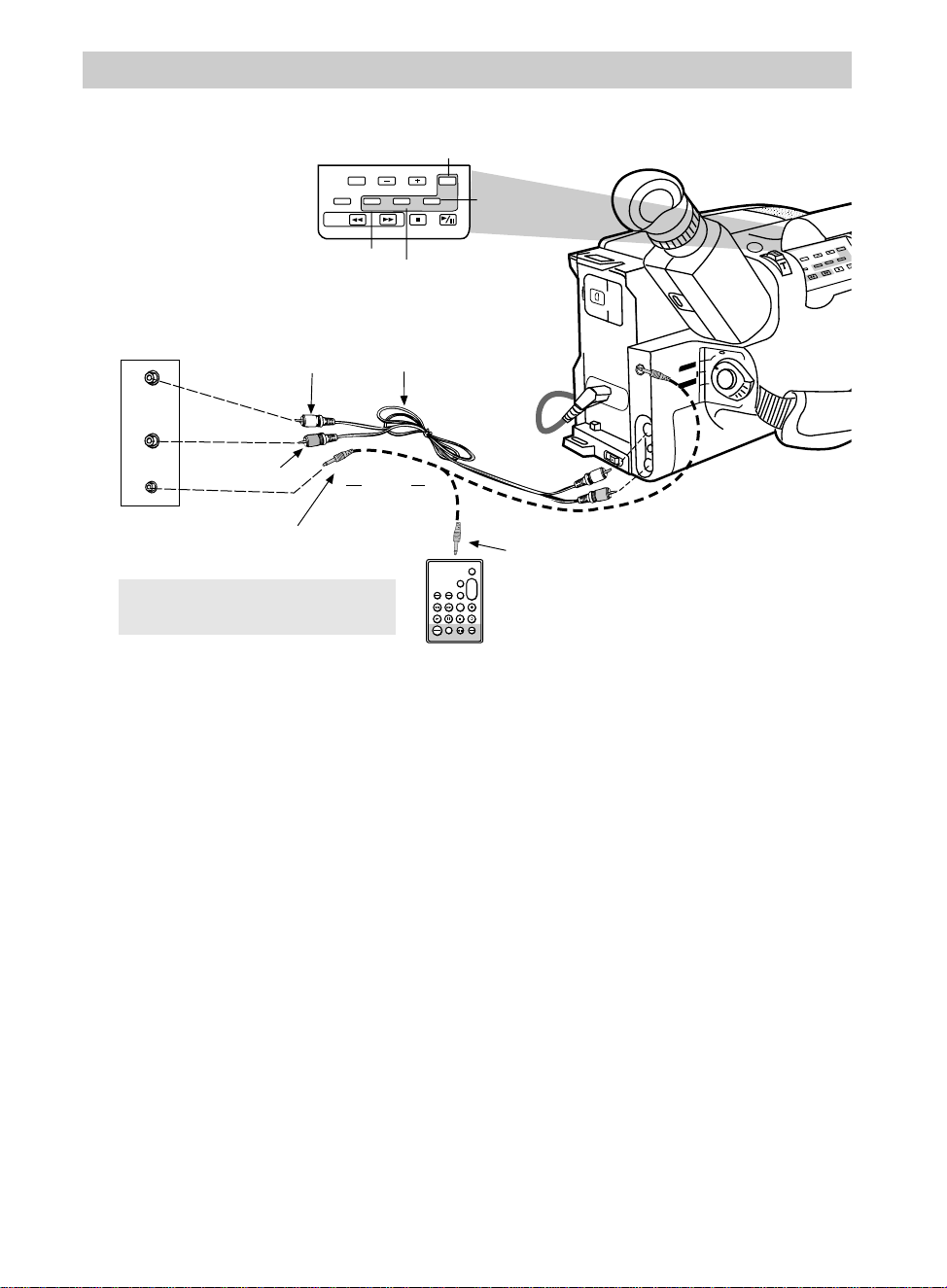
Playback
81
of the edit cable to the small jack on
the remote.
11.Point the remote at the VCR’s remote
sensor and press REC/PAUSE. The
VCR will enter record pause. If the
VCR does not enter record pause,
place it in record pause using the
VCR’s controls.
Note: The remote must be programmed
for your brand of VCR as shown on
pages 78-79.
12.Press EDIT on the camcorder. The
programmed scenes will be copied.
Notes: Keep the remote aimed at the
VCR’s remote sensor.
The display will be superimposed on the
TV screen while the camcorder searches
forward for the next scene.
SP•SLP
EDIT CANCEL RANDOM EDIT
IN/OUT
COUNTER R/M TRACKING
MAN.W.BAL
EDIT –
SEARCH
REW FF STOP PLAY/PAUSE
+
BATT. RELEASE
B
C
AUDIO
JLIP
RF
DC OUT
VIDEO
SP•SLP
QUICK
REC
TRACKING
ER R/M
W.BAL.
PLA
STOP
FF
+
REW
+
–
VCR
CAMERA
POWER
OFF
AUDIO
IN
VIDEO
IN
Back of
VCR
Connected
to TV
White
Audio Plug
Yellow
Video Plug
Optional
Audio/Video
Cable
EDIT Button
CANCEL Button
RANDOM
EDIT Button
IN/OUT Button
OR
Attach edit cable
to EDIT, EDIT IN, EDIT IN/OUT,
SYNC, or PAUSE jack on VCR.
EDIT
IN
Attach edit
cable to jack
on remote
control.
Edit
Cable (Supplied)
To
JLIP
Jack
VISS
ANIM.
REW
CANCEL
RANDOM ASSEMBLY EDIT
REC/PAUSE
F FWD
REC
TIME
TIME LAPSE
SELF MBR
START
/STOP
T
W
ZOOM
INT.
ON
OFF
TIME
SET
VCR
PLAY PAUSE STOP INSERT
A.DUB
IN
OUT
EDIT
CANCEL
IN/OUT
RANDOM ED
13.After all the programmed scenes have
been copied, the camcorder will enter
play pause, and the VCR will enter
record pause. Press STOP on the
camcorder and VCR to end
programmable synchro edit.
Notes: To copy the tape from a specified
location to the end, just enter one IN
point. The camcorder will copy
everything from that point to the end of
the tape.
A segment must be over one second in
length and have at least 15 seconds of
recording before it on the tape.
Search time between segments cannot be
over five minutes.
IN and OUT points cannot be blank
portions of tape.
To ensure correct operation, leave at least
15 seconds open between scenes.
Caution: Do not attach any other
cable to the remote jack.
Copying Tapes Using Programmable Synchro Edit (continued)
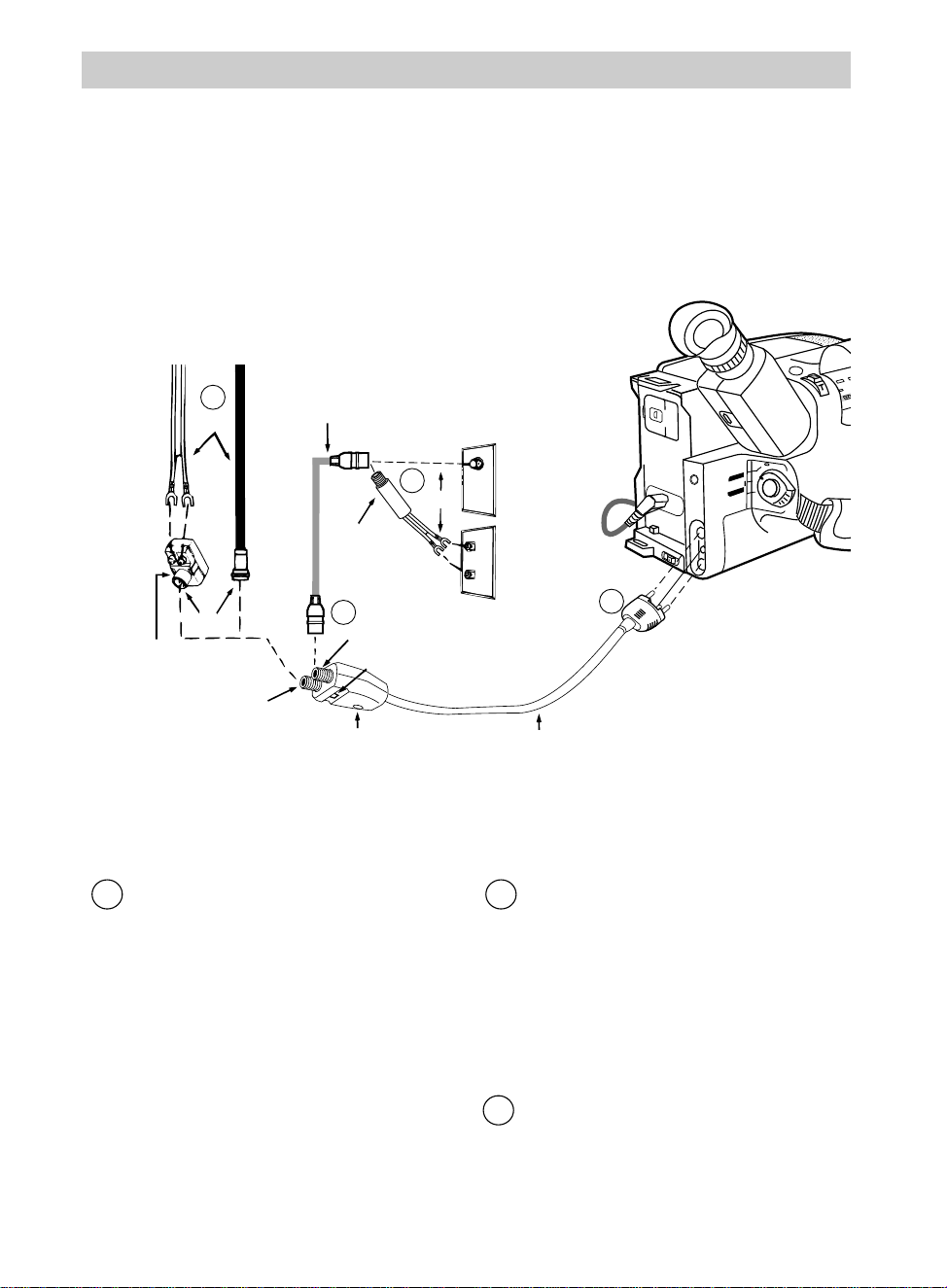
82
Playback
Playback on a TV Without Audio/Video Inputs
To connect your camcorder to a TV without audio/video inputs, you will need an
optional 1CVA147C RF output adapter and an optional coaxial RF cable, such as VH82
or VH90 shown on page 86. If your TV has AUDIO and VIDEO IN jacks (or is
connected to a VCR), refer to pages 76-77.
Installation
1 Disconnect the VHF antenna from
your TV. Connect the antenna to the
IN FROM ANT connector on the RF
output adapter if you are going to leave
the adapter connected to the TV.
Note: If your VHF antenna is the flat
twin-lead type attached by two screws,
you will also need an optional 300/75 ohm
transformer.
2 2 Attach one end of the optional
coaxial RF cable to the OUT TO TV
connector on the adapter, and attach
the other end to the VHF input on
your TV as shown.
Note: If your TV has 300 ohm screw
terminals, you will need a 75/300 ohm
transformer, such as VH54, shown on
page 86.
3 Attach the RF output adapter’s plug
to the AUDIO, RF DC OUT, and
VIDEO jacks located under the small
cover on the back of the camcorder.
BATT. RELEASE
B
C
AUDIO
JLIP
RF
DC OUT
VIDEO
SP•SLP
QUICK
REC
ER R/M
W.BAL.
RE
W
+
–
VCR
CAMERA
POWER
OFF
OR
1
VHF Antenna
OR
OR
2
3
2
VHF
VHF
Back of TV
Optional Coaxial
RF Cable
(such as VH82 or VH90)
Optional RF Output Adapter
(1CVA147C)
Optional
300-75 Ohm
Transformer
IN FROM ANT
Connector
RF Output
Adapter's Plug
CH3/CH4
Switch
Optional
Transformer
(Such as VH54)
VCR/TV Switch
AUDIO, RF DC
OUT, VIDEO
Jacks
OUT TO TV Connector

83
Viewing What the Camcorder Is Recording
Playback
Playback Operation
1. Set the CH3/CH4 switch on the RF
output adapter to channel 3 or 4.
2. Turn on the TV, and tune it to the
same channel you selected with the
RF output adapter’s CH3/CH4 switch.
3. Place adapter’s VCR/TV switch in
VCR.
4. Place POWER in VCR. Power
indicator will light.
5. Press PLAY/PAUSE on the camcorder.
• During playback, use the playback
features described on pages 73-74.
• If noise bars appear on the screen,
adjust tracking as described on
page 75.
6. Press STOP on the camcorder when
you are finished.
Note to Cable TV Installer
This reminder is provided to call your attention to Article 820-40 of the
National Electrical Code (Section 54 of Canadian Electrical Code, Part I),
that provides guidelines for proper grounding and, in particular, specifies
that the cable ground shall be connected to the grounding system of the
building as close to the point of cable entry as practical.
1. Turn on the TV and tune it to channel
3 or 4. When the camcorder is used as
a camera, turn the TV’s volume down
to prevent a high-pitched squeal
caused by feedback.
2. Set the CH3/CH4 switch on the RF
output adapter to the same channel
you selected on the TV.
3. Place adapter’s VCR/TV switch in
VCR.
4. Place POWER in CAMERA. Power
indicator will light.
5. Press the thumb trigger to begin
recording. You can watch what the
camcorder is seeing (or recording) on
the TV screen.
Note: The remote will also operate the camcorder.
Normal TV Viewing
For normal TV viewing, you may leave
the RF output adapter hooked up to the
TV. Disconnect the adapter’s plug from
the camcorder and place the adapter’s
VCR/TV switch in TV.
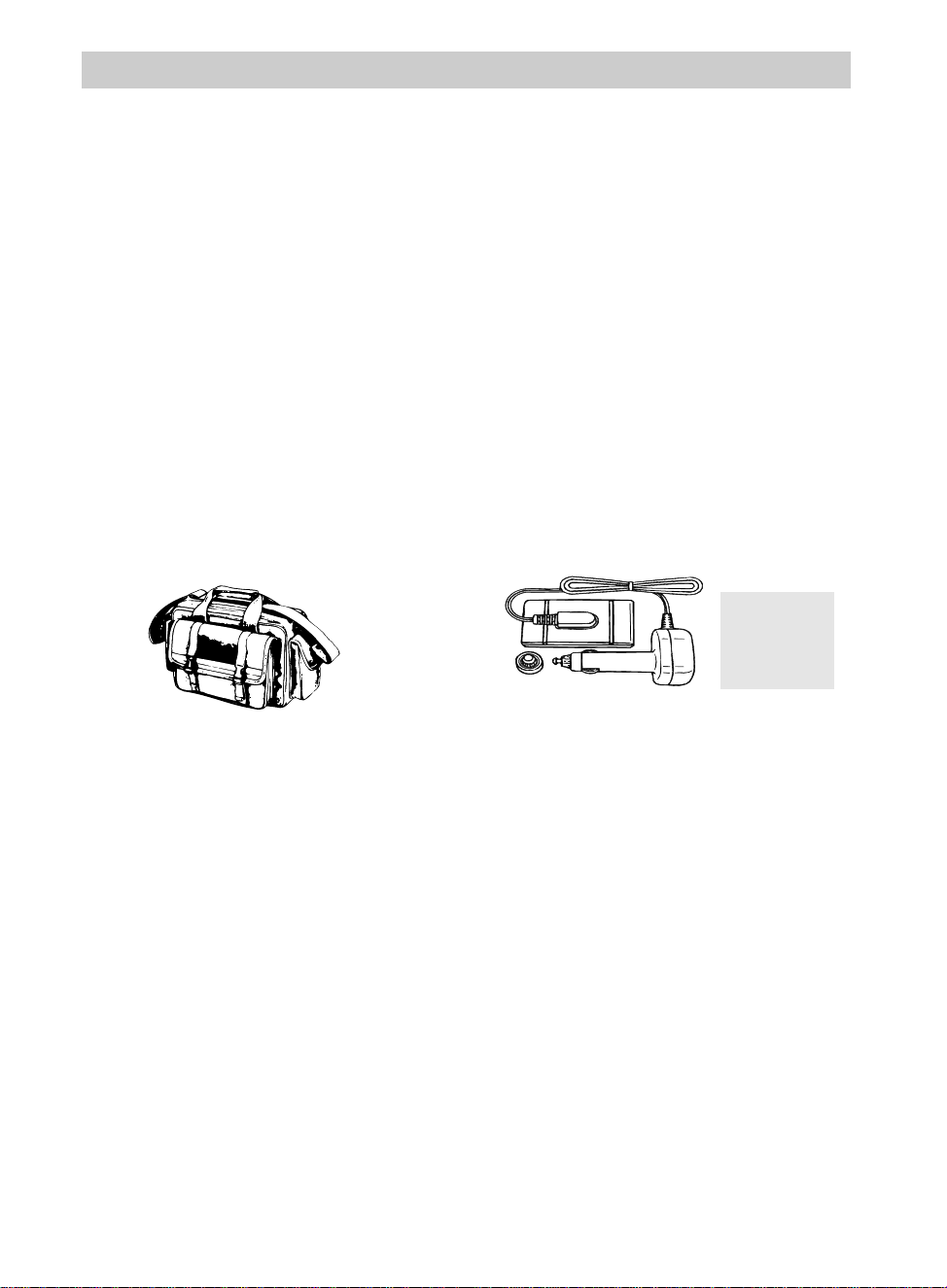
84
AC201A Soft Carrying Case
Custom compact soft case designed
especially to provide protection and utility
for your compact VHS camcorder and
most accessories. Rugged fabric lined
with soft non-abrasive material and
generous padding. Has three outside
pockets with storage for lens filters,
adapters, batteries, and tapes.
Optional Accessories
DCC08 Car Cord Adapter
This car cord adapter enables you to
operate your camcorder from your car,
truck, or RV by plugging the car cord
directly into the vehicle’s cigarette lighter
socket. The DCC08 is designed
specifically to convert power from a 12-
volt battery to a 6-volt output.
Do not use
any other car
cord with this
camcorder.
We invite you to take a look at some great ideas for sparking creativity
and adding to the fun of using your compact VHS camcorder. The
following pages have a selection of accessories to help make your
memorable moments look and sound even better.
These accessories are designed to make the process of recording and
watching your videos more enjoyable.
To order accessories, contact your local Dealer.
If a dealer is not nearby, all accessories are available through toll-free
ordering or by using the order form on page 87.
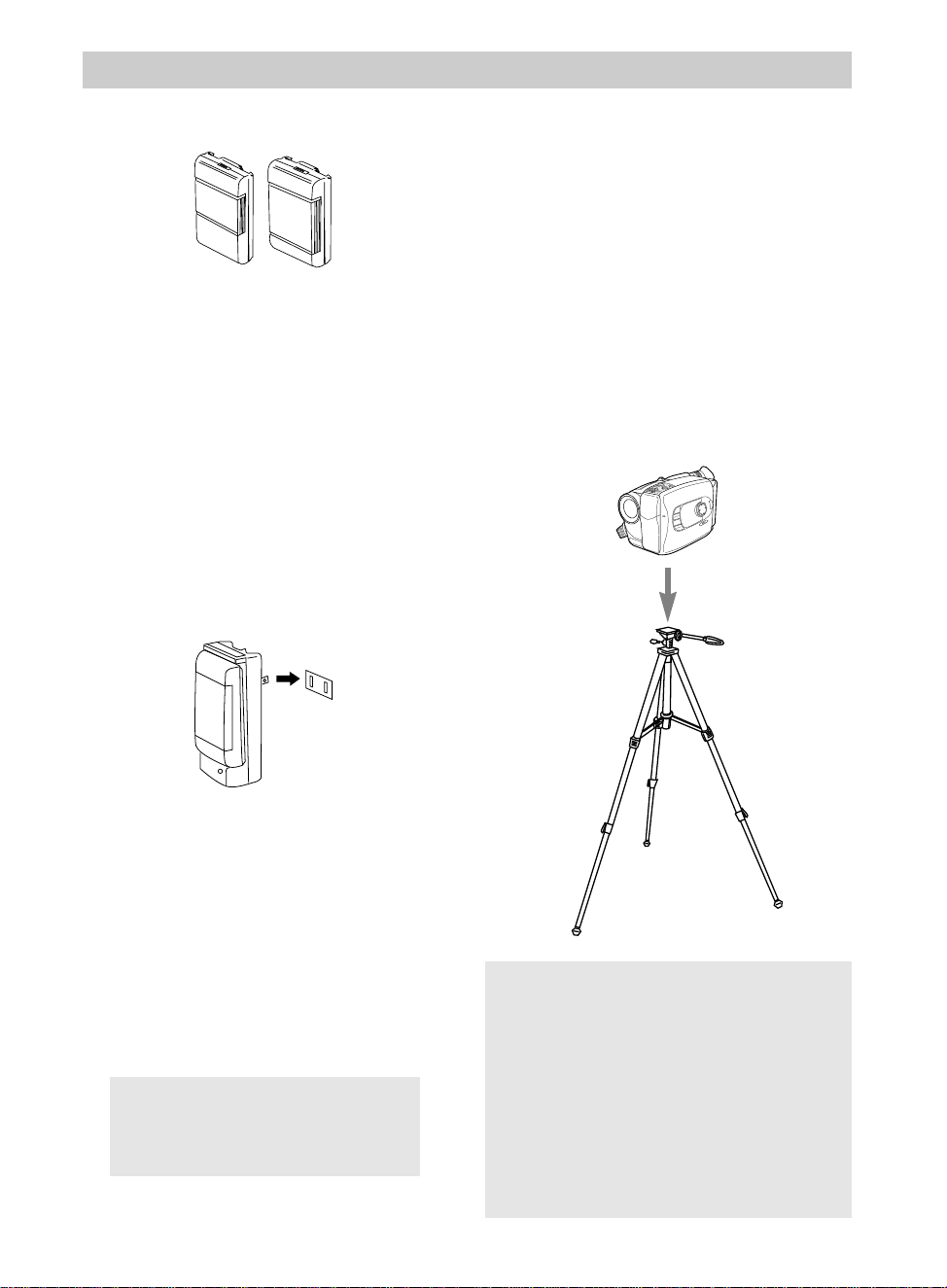
85
Optional Accessories
Mounting the camcorder on a tripod,
such as AC088, will keep the camcorder
steady and produce excellent video
results.
This tripod’s fluid-effect head provides
smooth camera pan and tilt. The quick-
release mount makes it easy to attach or
remove the camcorder. The grooved,
tubular 3-section leg design folds down to
26" when not in use. Rubber feet allow
for sure footing.
Cautions: Before using a tripod, make sure it is
stable enough to hold the camcorder without
falling over. Do not transport the camcorder
attached to the tripod.
When attaching your camcorder to a tripod, be
careful not to force the tripod screw into the
camcorder’s tripod mounting hole.
The tripod screw should not protrude into the
camcorder more than approximately three-eighth
(3/8) inch. Forcing the screw could damage the
mounting hole on the bottom of the camcorder.
Using the Optional AC088 TripodFB1260 and FB120 Rechargeable
Batteries
These rechargeable nickel-cadmium
batteries are designed specifically for long
life. The FB1260 is the same battery that
came packed with your camcorder. The
FB120 powers your camcorder twice as
long as the FB1260 (with video light off –
depending on how much you use zoom
and pause). Both can be recharged with
the AC adapter/charger that came with
your camcorder.
CPS91 AC Battery Charger
The CPS91 battery charger plugs directly
into an AC outlet and charges the FB1260
and FB120 camcorder batteries. Because
the CPS91 operates on 100-240 Volts,
50/60 Hz, it can be used virtually
anywhere in the world. A plug adapter
may be required in some countries.
Charging takes approximately seven hours
for the FB1260 (1-hour battery) and 13
hours for the FB120 (2-hour battery).
CHARGE
All specifications and
descriptions of accessories are
subject to change without notice.
MENU
16X9
BACKLIGHT
AUTO
MANUAL
FRONTLIGHT
AE MODES
EIS
FADE
WIPE
DISPLAY
P
U
S
H
F
O
C
U
S
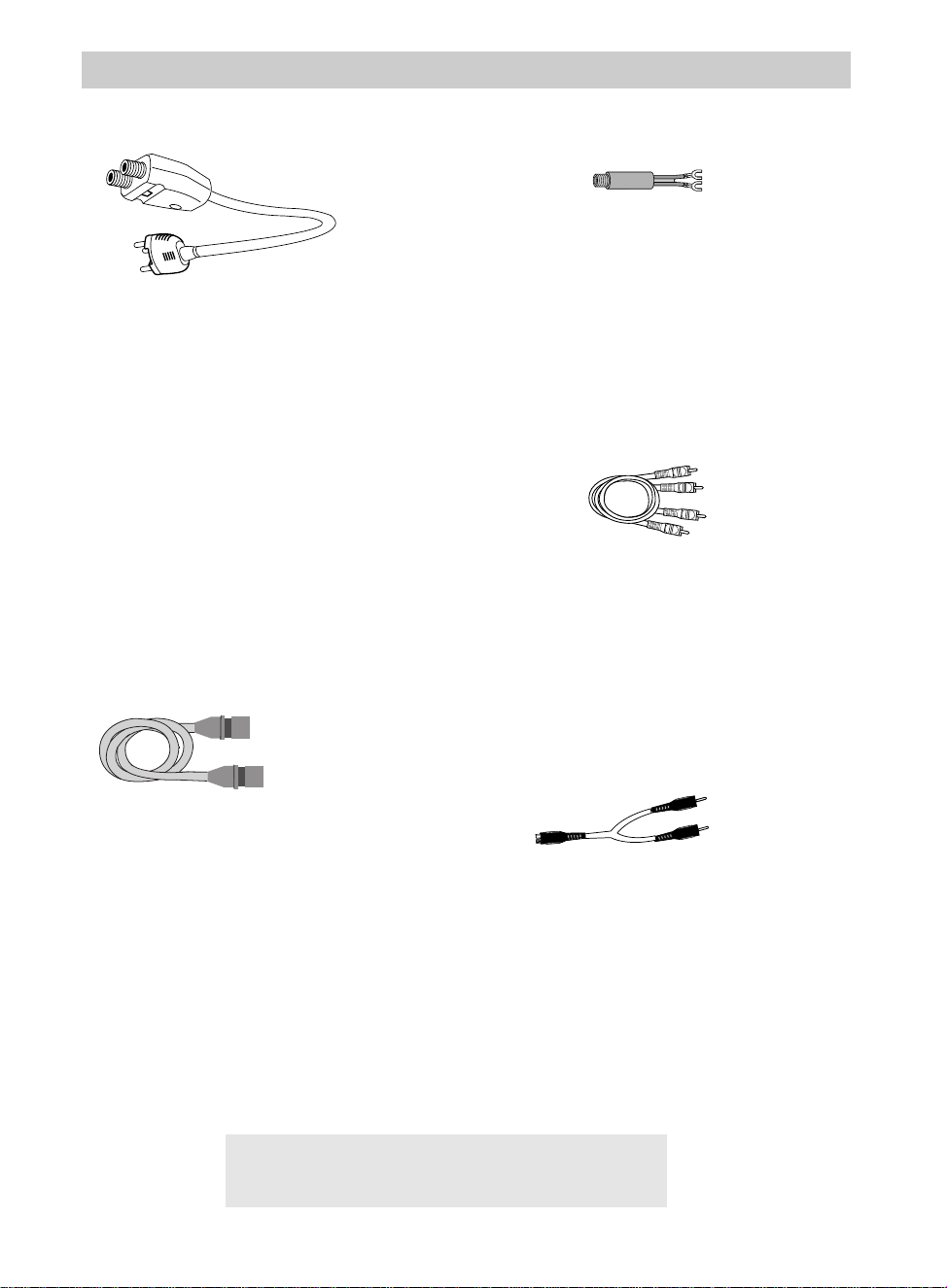
86
Optional Accessories
VH54 Cable Transformer
This 75-to-300 ohm transformer is used to
connect a standard 75-ohm antenna cable
(such as VH82 or VH90) to the 300 ohm
screw terminals on a TV.
VH83 Audio/Video Cable
This six foot audio/video dubbing cable
can be used for copying tapes from the
camcorder to another VCR or camcorder.
AH25 Y-Adapter
This Y-adapter allows you to connect
your camcorder’s mono audio cable to a
stereo TV or VCR.
1CVA147C RF Output Adapter
This RF output adapter is used with a
coaxial RF cable, such as VH82 or VH90,
to connect your camcorder to a standard
TV (one without audio/video inputs) for
playback. If your antenna cable is the flat
twin-lead type attached by two screws,
you will also need a 300-to-75 ohm
transformer. If your TV has 300 ohm
antenna screw terminals, you will need an
optional 75-to-300 ohm transformer such
as VH54.
Coaxial RF Cables
These RF cables are used with the RF
output adapter to connect your camcorder
to a standard TV (one without
audio/video input jacks) for playback.
If your TV has 300 ohm antenna screw
terminals, you will need an optional
75-to-300 ohm transformer such as
VH54. If your antenna cable is the flat
twin-lead type attached by two screws,
you will also need an optional 300-to-75
ohm transformer.
All specifications and descriptions of accessories
are subject to change without notice.
VH82 (6-ft)
VH90 (12-ft)
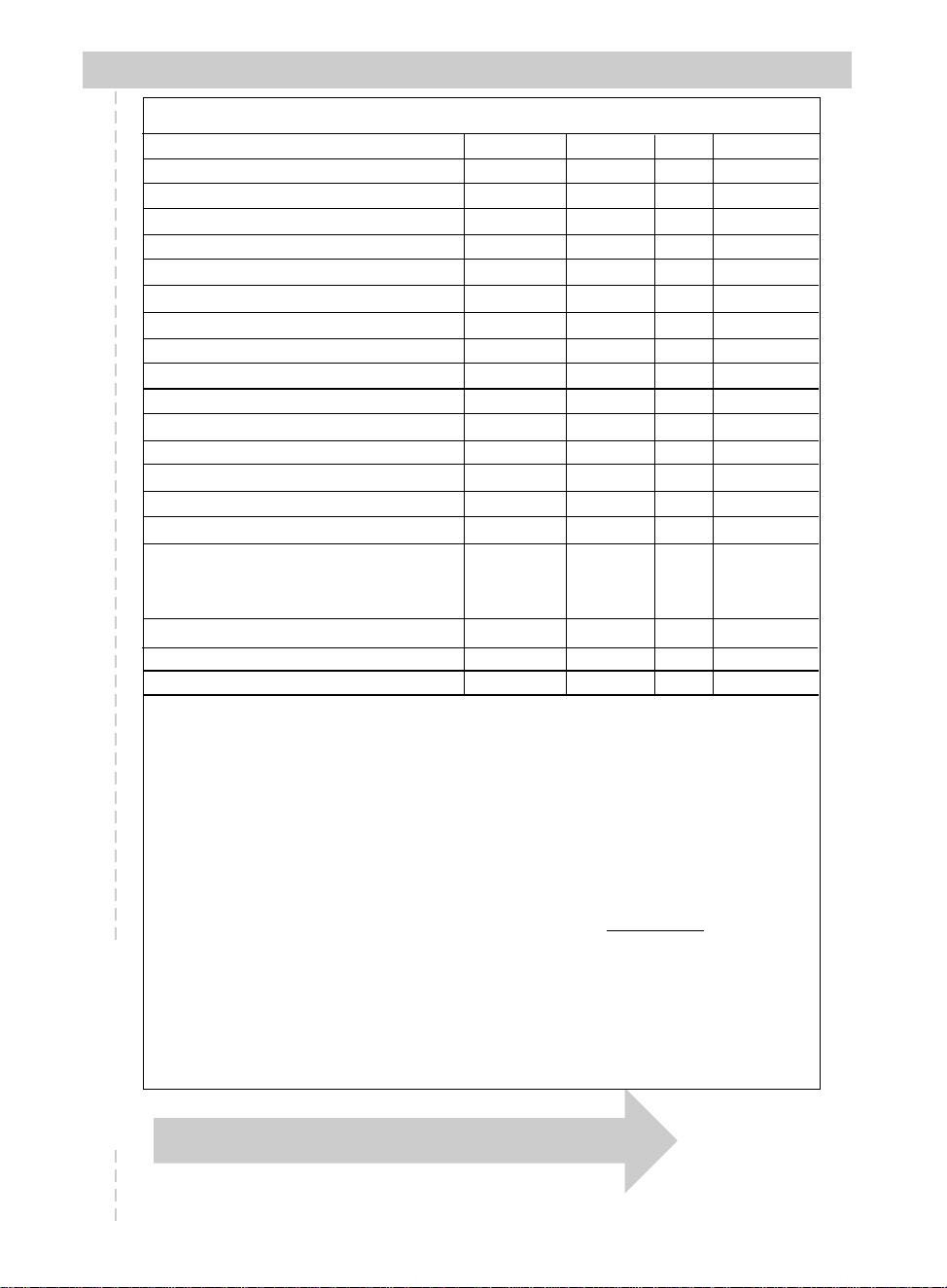
87
Detach Here
"
Please complete other side also
Accessory Order Form
Order Form for Camcorder Model CC635/CC636/CC637
Description Part No. Price Qty. Total
Super Lightweight Tripod AC088 $ 39.95
Soft Camcorder Case AC201A $ 39.95
Shoulder Strap ACS091 $ 12.95
Y-Adapter AH25 $ 2.95
AC Battery Charger CPS91 $ 59.95
Car Cord Adapter DCC08 $ 89.95
Rechargeable Battery (Extended) FB120 $ 89.95
Rechargeable Battery (Standard) FB1260 $ 49.95
75-300 Cable Transformer VH54 $ 2.95
Coaxial RF Cable VH82 $ 6.95
Audio/Video Cable VH83 $ 5.95
Coaxial RF Cable VH90 $ 7.95
RF Output Adapter 1CVA147C $ 59.95
Model CC635/CC636: Remote Control 221125 $ 39.95
Model CC637: Remote Control 221185 $ 49.95
AC Adapter/Charger 221400 $ 96.45
and
DC Cable 233087 $ 24.95
Cassette Adapter 232845 $ 49.95
Model CC637: Edit Cable 233088 $ 13.95
Bulb Assembly 233430 $ 44.95
Prices are subject to change without notice.
Total Merchandise...........................................................$__________
Sales Tax.........................................................................$__________
We are required by law to collect the appropriate
sales tax for each individual state, county, and
locality to which the merchandise is being sent.
Shipping and Handling....................................................$ 5.00
Total Amount Enclosed ................................................$__________
Use VISA, MasterCard, or Discover.
Money order or check must be in U.S.
currency only. No COD or cash.
88
Accessory Order Form
Detach Here
"
®
rr
s
TM
Charge your order on your VISA,
MasterCard, or Discover Card by
filling in below
USE YOUR CREDIT CARD
IMPORTANT: Copy complete account number
from your VISA card
IMPORTANT: Copy complete account number
from your MasterCard
My card expires:
My card
expires:
Copy Number
above your
name on
MasterCard
AUTHORIZED SIGNATURE
Prices are subject to change without notice.
Name:
Street:
Apt:
City:
State:
Zip:
Print or type your name and
address clearly. This will be
your mailing label.
Please make sure that both sides of this form
have been filled out completely.
• Allow 4 weeks for delivery.
• All accessories are subject to availability.
A complete and correct
order will save you days
of waiting.
IMPORTANT: Copy complete account number
from your Discover Card
My card expires:

89
Accessory Order Form
To order accessories, contact your local Dealer.
If a dealer is not nearby, you can also follow the directions below to order by
telephone or direct-by-mail.
United States and Canada Orders
To place your order by phone, have your Visa, MasterCard, or Discover card
ready and call the toll-free number listed below between 8AM and 8PM (EST)
Monday through Friday or between 9AM and 5PM (EST) Saturday.
Use this number only to place an order for accessory items listed on
this order form.
1 – 800 – 338 – 0376
To place your order by mail, detach and mail the completed order form with
credit card information, money order, or check in U.S. currency (made payable
to Thomson Consumer Electronics, Inc.) to the following address:
Video Accessories
PO Box 8419
Ronks, PA 17573
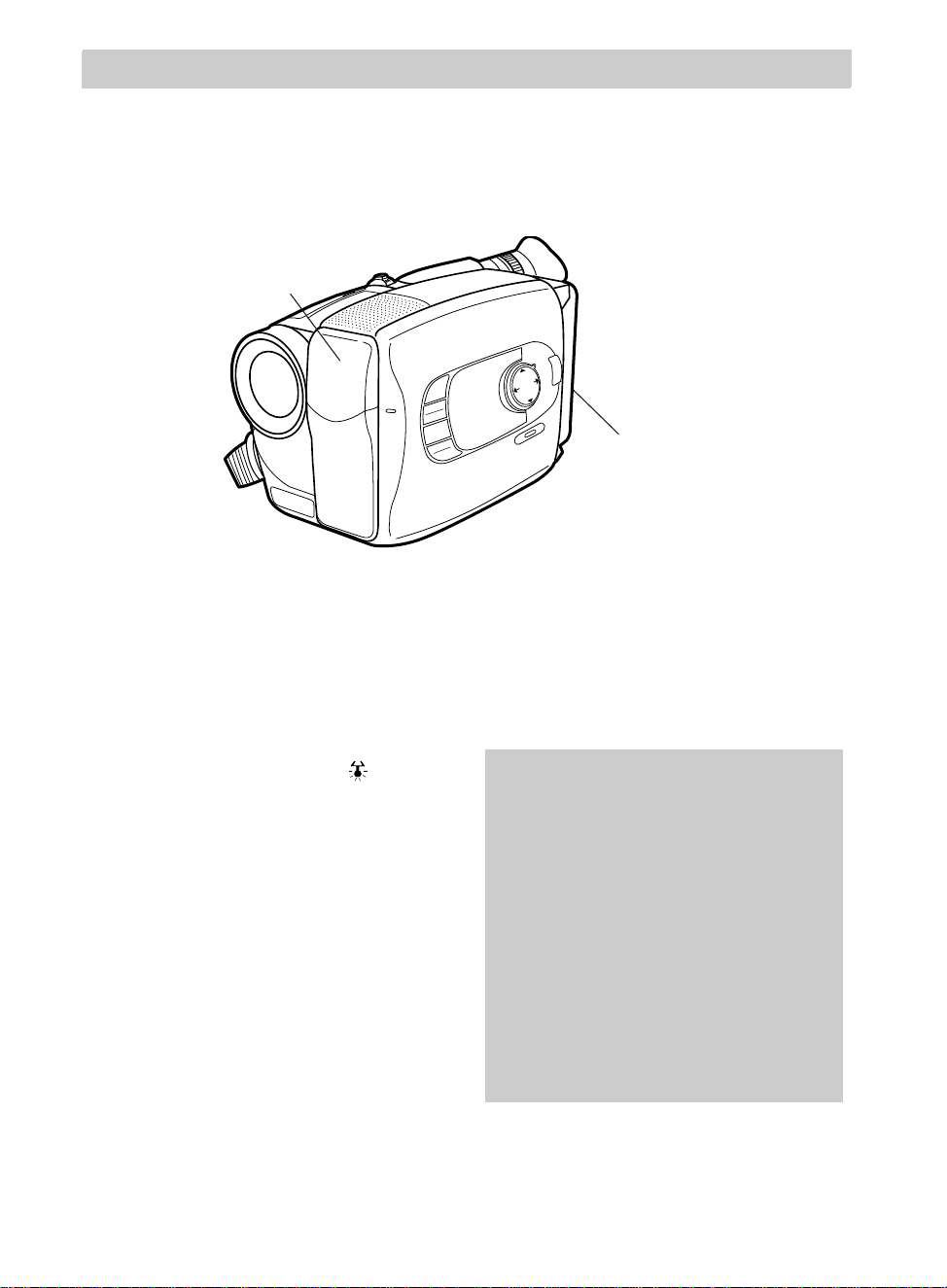
90
Recording
Built-In Color Enhancement Light
The built-in color enhancement light will automatically add more light when needed.
The POWER switch must be in CAMERA to operate the video light.
MENU
16X9
BACKLIGHT
AUTO
MANUAL
FRONTLIGHT
AE MODES
EIS
FADE
WIPE
DISPLAY
P
U
S
H
F
O
C
U
S
To Use the Light
Set the LIGHT OFF•AUTO•ON switch.
• Set to ON to turn the light on.
Note: We recommend you set white
balance to the indoor mode ( ) when
using the light.
• Set to AUTO to have the light come on
automatically when the camcorder
senses there is insufficient light for the
best recording.
Notes: If the lighting condition is unstable
the light may turn on and off. Set the light
to ON or OFF.
The light may stay on during high speed
shutter recording.
• Set to OFF to turn the light off. Turn
the light off when you are not
recording to save battery power.
Note: When the light is turned on, the
camcorder may turn off if the battery’s power
is low even though the battery level indicator
is not flashing.
Cautions:
Do not operate the video light closer
than one foot to people or other
objects.
The video light becomes very hot. Do
not touch it during operating or right
after using it. Serious injury may
result.
Do not place the camcorder in a
carrying case right after using the light.
Never operate the video light close to
flammable or explosive material.
Built-In Video Light
LIGHT OFF•AUTO•ON
Button
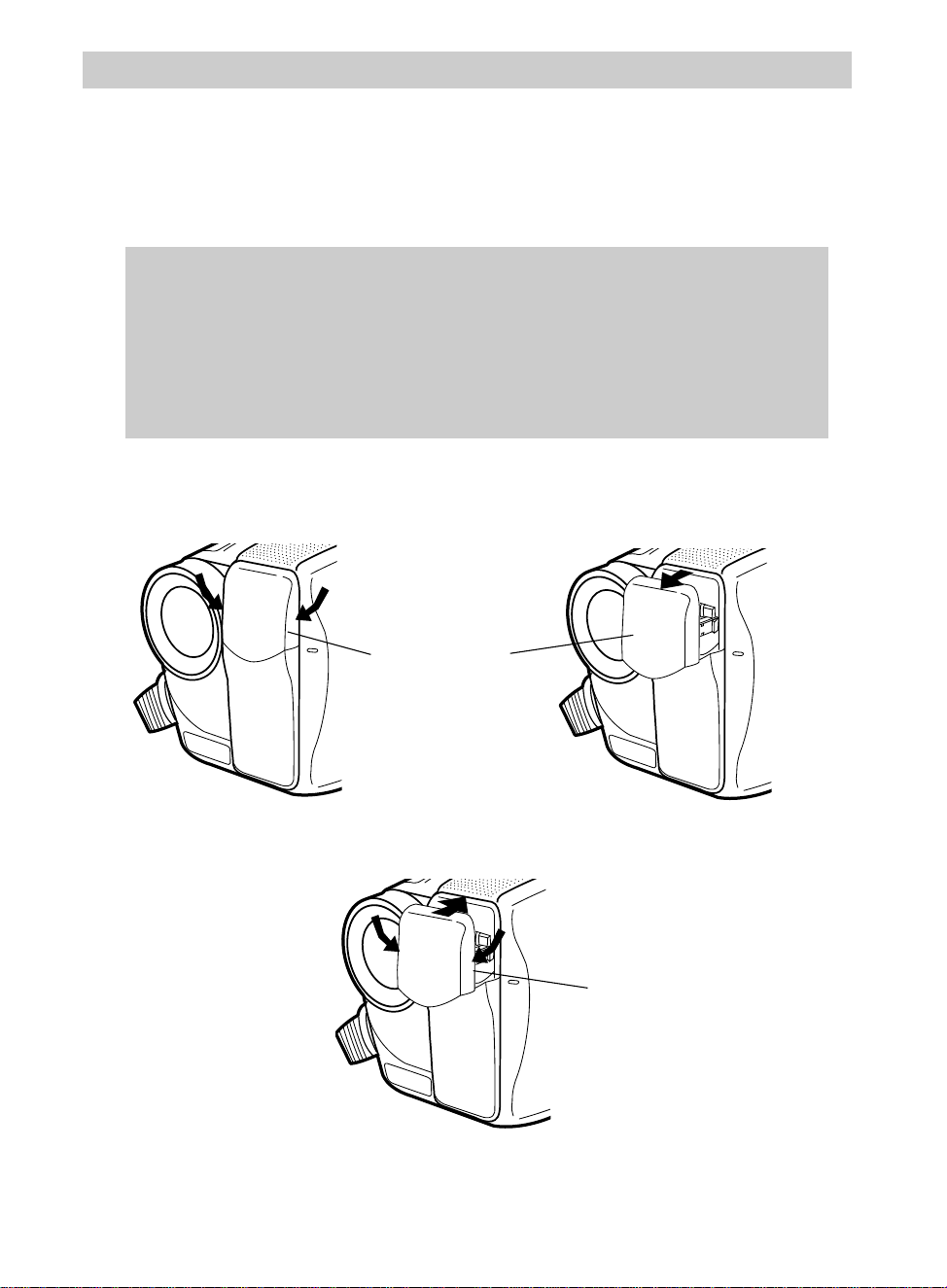
Header
91
Replacing the Bulb
We recommend you consult your dealer or Servicenter to replace the bulb. If you
replace the bulb, use only part #233430 to replace the entire bulb assembly. Carefully
follow the instructions below.
Cautions
The video light and bulb need to cool for approximately 30 minutes after the
camcorder has been used before the bulb assembly is replaced.
Do not touch the light bulb with your fingers. If the bulb is accidentally
touched, wipe it with a soft cloth. A dirty bulb may cause smoke and have a
reduced service life.
To Replace the Bulb Assembly
1. Pull on the sides of the bulb assembly and remove it from the camcorder as shown.
F
1
2
F
MODE
A
U
T
O
M
A
N
scene select
AE
Bulb Assembly
2. Place the the new bulb assembly into the camcorder as shown.
New Bulb
Assembly
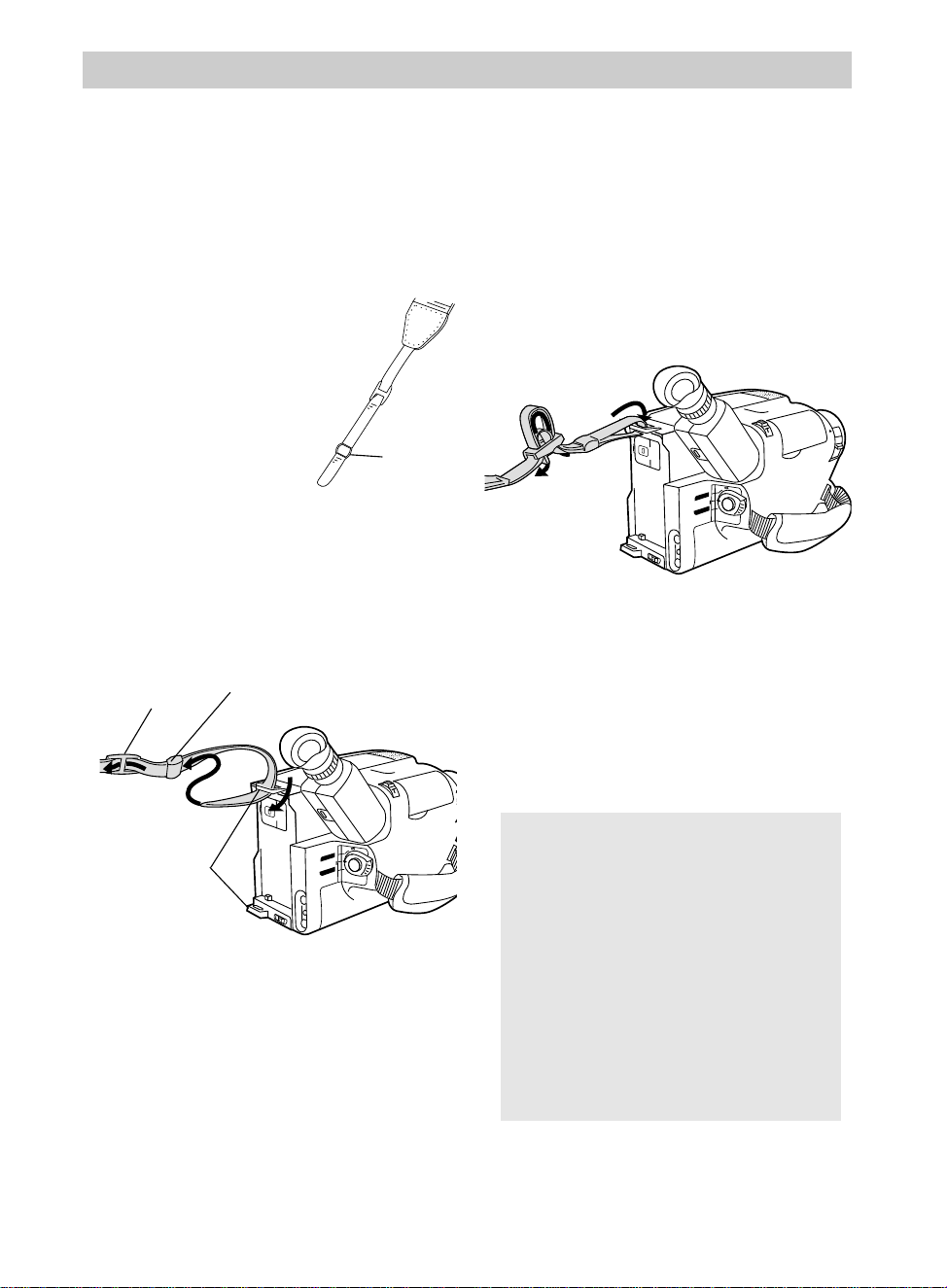
Recording
92
1. If the strap keeper is
over a double section
of the strap, slide the
strap keeper off the
end of the strap.
Replace the keeper
on the strap between
the buckle and the
end of the strap as
shown.
2. Loop the end of the strap over the top
of the shoulder strap attachment ring.
Attaching the Shoulder Strap
The camcorder’s shoulder strap is designed to let you carry the camcorder from your
shoulder and – when you are ready to shoot – bring the camcorder to shooting position
in one quick movement.
Cautions: When carrying the
camcorder with the shoulder strap,
you may find it convenient to rotate
the viewfinder down and slide it to
the front. This helps prevent
possible damage to the viewfinder
from bumping against your body as
you move.
Make sure the shoulder strap is
firmly attached before using it to
carry the camcorder.
To Attach the Shoulder Strap
4. Attach the other end of the strap to the
other shoulder strap attachment ring.
5. Adjust the shoulder strap to the desired
length.
6. Slide both keepers up snugly against
the shoulder strap attachment rings to
prevent the strap from slipping.
BATT. RELEASE
B
C
AUDIO
RF
DC OUT
VIDEO
L
E
N
S
C
O
V
E
R
+
–
CAMERA
VCR
POWER
OFF
Keeper
BATT. RELEASE
B
C
AUDIO
RF
DC OUT
VIDEO
L
E
N
S
C
O
V
E
R
+
–
CAMERA
VCR
POWER
OFF
Keeper
Buckle
Attachment
Rings
3. Thread the end of the strap back
through the keeper and buckle making
sure it is threaded under the outer
strap. Make sure the strap is not
twisted.

93
Information to User
This equipment has been tested and
found to comply with the limits for a
Class B digital device and RF lighting
device, pursuant to Part 15 and Part 18 of
the FCC Rules. These limits are
designed to provide reasonable protection
against harmful interference in a
residential installation. This equipment
generates, uses, and can radiate radio
frequency energy and, if not installed and
used in accordance with the instructions,
may cause harmful interference to radio
communications. However, there is no
guarantee that interference will not occur
in a particular installation. If this
equipment does cause harmful
interference to radio or television
reception, which can be determined by
turning the equipment off and on, the
user is encouraged to try to correct the
interference by one or more of the
following measures:
• Reorient or relocate the receiving
antenna.
• Increase the separation between the
equipment and receiver.
• Connect the equipment into an outlet on
a circuit different from that to which
the receiver is connected.
• Consult the dealer or an experienced
radio/TV technician for help.
Alterations or modifications carried out
without appropriate authorization may
invalidate the user’s FCC right to operate
the equipment.
This Class B digital apparatus meets all requirements of the
Canadian Interference — Causing Equipment Regulations.
Cet appareil numérique de la classe B respecte toutes les
exigences du Réglement sur le matériel brouilleur du Canada.
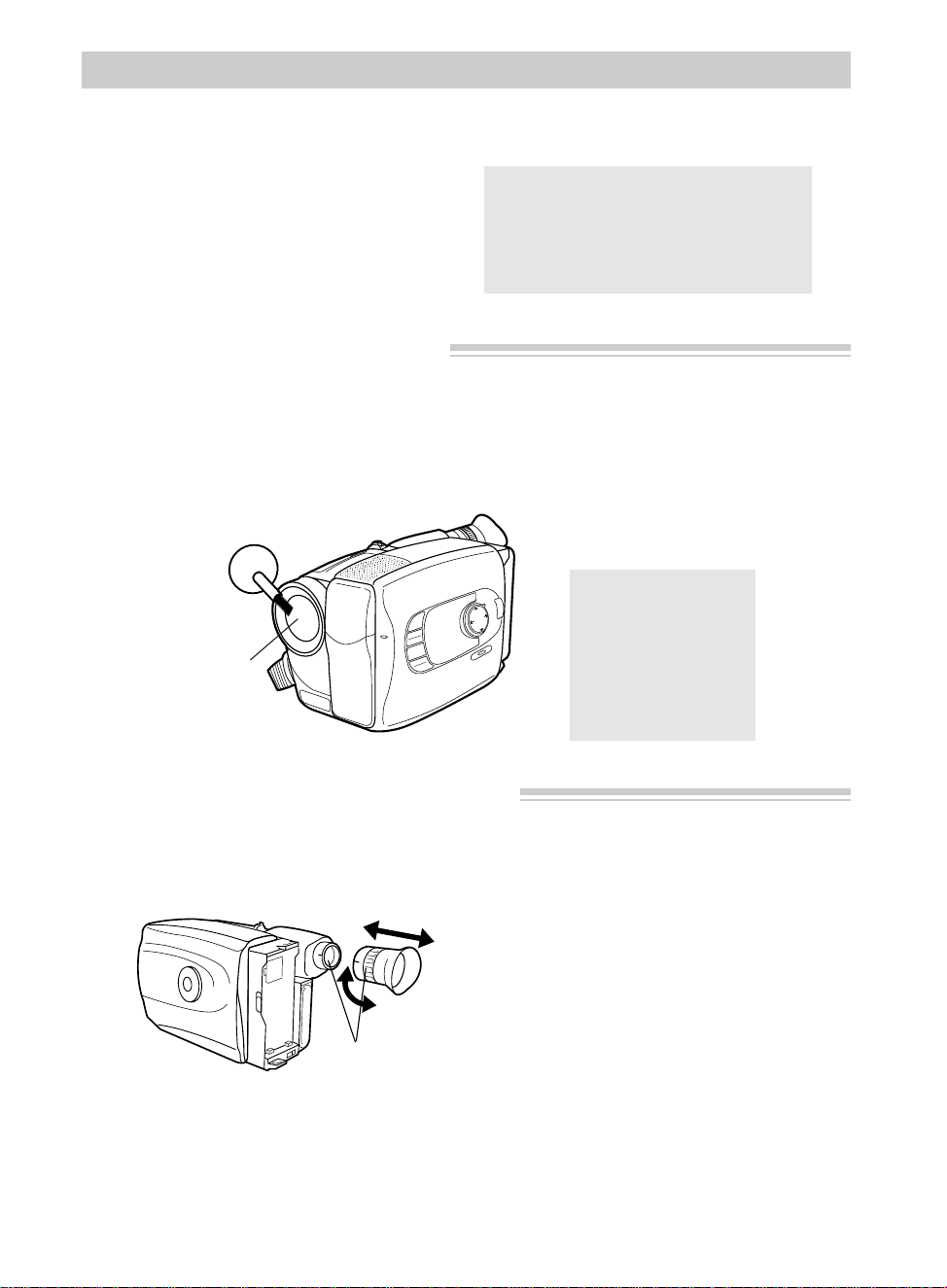
94
Care and Maintenance
Cleaning the Camcorder
Cleaning the Camcorder’s Lens
To clean the camcorder’s lens, blow it with a blower brush, and then
gently wipe the lens with cleaning tissue and commercially prepared
cleaning solution designed for use on camera lens. Improper cleaning
may scratch the lens.
Caution: Use of strong cleaning
products, such as those containing
alcohol or benzine, may damage
the camcorder.
Caution: Do not
touch the lens with
your fingers. The
oil from your skin
can damage the
lens.
MENU
16X9
BACKLIGHT
AUTO
MANUAL
FRONTLIGHT
AE MODES
EIS
FADE
WIPE
P
U
S
H
F
O
C
U
S
DISPLAY
Lens
Reference
Marks
Cleaning the Camcorder’s Viewfinder
The viewfinder eyepiece can be removed for cleaning.
1. Turn the eyepiece
counterclockwise and pull it out.
2. Remove dust using a blower brush.
3. Reattach the eyepiece by aligning
the reference marks, and then turn
the eyepiece clockwise until it
clicks.
To clean the camcorder’s exterior,
remove any power source connected to
the camcorder and gently wipe it with a
clean soft cloth.

95
Care and Maintenance
• Do not operate the camcorder near the
ocean as salt water or salt water spray
may damage the internal parts of the
camcorder.
• Do not operate the camcorder for
extended periods in temperatures below
40°F (4ºC) or above 95°F (35ºC).
• Do not expose the camcorder or
adapter/charger to rain or moisture. If
either component becomes wet, turn off
the power and take the unit to an
Authorized RCA Camcorder
Servicenter.
• Do not use an adapter/charger or
batteries other than the ones specified
for the camcorder. Use of the wrong
accessories may cause damage to the
camcorder.
• The camcorder can be damaged by
improper storage or handling. Do not
subject the camcorder to swinging,
shaking, or dropping.
• Do not store the camcorder in
temperatures below -22°F (-30ºC) or
above 149°F (65ºC).
• When the camcorder is not in use,
always remove the cassette and
AC adapter/charger or battery.
• Retain the original carton for future
storage or shipping purposes.
Proper Care and Storage
• Keep dust and grit from entering the
camcorder’s cassette door. Dust and
grit are abrasive and will cause
excessive wear to both the camcorder’s
recording/playback heads and cassettes.
• Always close the lens cover when the
camcorder is not in use.
• Before handling your camcorder, make
sure your hands and face are free from
any chemical products such as suntan
lotion, as it may damage the finish.
Things to Avoid
• Do not attempt to disassemble your
camcorder. There are no user-
serviceable parts inside.
• Avoid operating your camcorder
immediately after moving it from a cold
location to a warm location. Give the
camcorder 1-1/2 to 2 hours to reach a
stable temperature before inserting a
cassette. When the camcorder is
moved from cold to warm,
condensation may cause the tape to
stick to the headwheel and damage the
headwheel or tape.
• Do not aim your camcorder at the sun
or other bright objects.
• Do not leave your camcorder in direct
sunlight for extended periods of time.
The resulting heat buildup could
permanently damage the camcorder’s
internal parts.
• Do not operate the camcorder in
extremely humid environments.
96
No power
Won’t record or
playback
Won’t playback
Won’t record
No picture
Camcorder turns
itself off
Trouble Checks
Troubles sometimes are caused by simple “faults” that you can easily correct without
the help of a service technician by first checking a few basic remedies.
Before you call or take your camcorder to an Authorized RCA Camcorder Servicenter,
look below for the type of trouble you are experiencing. Then perform the simple
checks and adjustments listed for that trouble.
If service should be necessary, the warranty information lists what your warranty
covers and explains how to get service.
• Place the POWER switch in CAMERA or VCR to turn on
the camcorder. The power indicator will light.
• If using battery, it may need to be recharged.
• If using AC adapter/charger, make sure it is plugged into a
working outlet.
• If using AC adapter/charger, make sure it is plugged into a
working outlet.
• If the dew indicator ( ) flashes in the viewfinder, there is
moisture in the camcorder. Wait until the dew indicator no
longer appears before operating the camcorder.
• Make sure POWER switch is in correct position for desired
operation.
• There may not be a cassette in the camcorder.
• Try ejecting and reinserting the cassette.
• The cassette tape may be broken, try another cassette.
• You may have reached the end of the cassette, try
rewinding it.
• POWER switch must be in VCR position.
• Safety tab has been removed or closed. (See page 24.)
• POWER switch must be in CAMERA.
• Open lens cover.
• Place POWER switch to OFF and then CAMERA or VCR
to turn back on. If camcorder is left in record pause or play
pause for several minutes, it will turn itself off to prevent
tape wear.
Trouble Checks and Adjustments

97
Camcorder does not
respond to remote
control
Tape stops during
rewind or fast
forward
Camcorder remains
in pause mode
Sound is too low or
distorted
Poor auto-focus
operation
Viewfinder displays
are out of focus
Trouble Checks
• Aim remote at camcorder’s remote control sensor.
• Remote’s lithium cell battery may be installed incorrectly.
See pages 17 and 22.
• Remote control’s lithium cell battery may need replacing.
• Remote control sensor on camcorder exposed to direct
sunlight or strong artificial light.
• Time-counter memory may be on. Whenever an “M”
appears with the time-counter display, the camcorder will
stop rewinding (or fast forwarding) when counter reads
M 0:00:00. Press REW or FF again to continue
rewinding or fast forwarding, or press COUNTER R/M to
turn off the memory-stop feature.
• Press PLAY/PAUSE to return to normal playback.
• Subject was too far from camcorder.
• Subject is dark or behind glass. Auto-focus may not
work under these conditions. Place mode select dial in
MANUAL and focus manually. See pages 38-39.
• Subject is not in center of viewfinder or two subjects are
at different distances. Place mode select dial in
MANUAL and focus manually. See pages 38-39.
• Auto focus is automatically turned off when some effects
are selected with the production special effects menu.
See pages 64-65.
• Lens is smudged, and image appears unfocused.
• Eyepiece focus control is misadjusted.
• Model CC636 or CC637: The small controls on the
bottom of the viewfinder control the brightness (B) and
color (C) of the viewfinder. These controls have been set
at the factory and should require no adjustment. If the
brightness or color of the viewfinder ever does require
adjustment, carefully use a plastic screwdriver. Make the
adjustments with caution to prevent damaging the
miniature controls.
Trouble Checks and Adjustments
(continued on next page)
98
Trouble Checks
Picture is too dark
or subject too dark
Picture recorded
with special effect
(black bars at top
and bottom)
Picture recorded in
brown tone
Colors do not look
natural on recording
Title recorded on
tape
Date and/or time
were recorded on
tape
Date and/or time are
incorrect
Vertical white lines
appear when shoot-
ing bright object
Error number
(E01, E02, E03,
etc.) appears in
viewfinder
• Place mode select dial in MANUAL and press
FRONTLIGHT or BACKLIGHT. See page 37.
• Turn on the built-in color enhancement light.
• Special effect selected. Press the 16X9/AE MODES button
to display the production effects menu and select OFF.
• If the mode select dial is in AUTO, press the 16X9/AE
MODES button to turn off the Cinema mode.
See pages 64-65.
• SEPIA ( ) selected on production effects menu. Press the
16X9/AE MODES button to display the production effects
menu and select OFF.
• Try adjusting white balance. See pages 40-41.
• Turn off Color Filter in main recording menu.
See page 47.
• Title is recorded whenever it appears in viewfinder.
Remove the title from viewfinder. See pages 48-49.
• Displays will be recorded on tape whenever they appear in
the viewfinder. Remove them from viewfinder when
recording. See pages 52-53.
• Clock lithium cell battery may need replacing. See page 51.
• Date or time may need to be set. See page 50.
• This may occur when background extremely contrasts with
the subject.
• Try disconnecting power source. Wait ten seconds and then
connect power source again. If error number does not
disappear from viewfinder, consult your Authorized RCA
Camcorder Servicenter.
Trouble Checks and Adjustments

99
Customer Assistance and Service
You can reach Thomson at the
following number:
800-283-6503
(Toll free inside U.S.A.)
Our toll-free Camcorder number
operates from 8 a.m. to 5 p.m., CST
Monday – Friday
for U.S. customers only
Thomson provides a toll-free telephone
number to help you with any problems
you may encounter with your camcorder.
Many can be diagnosed over the phone,
and if necessary, a replacement unit can
be shipped to you. Please have your
camcorder model/serial number and date
of purchase ready when you call. If your
unit is out of warranty, we will quote the
cost of an exchange unit to you.
If we are unable to resolve your problem
over the phone, we will gladly service
your unit or exchange it for a new or
refurbished camcorder. Refer to the
limited warranty on the reverse side to
learn about your specific rights and
responsibilities.
Always consult Thomson and get a
Return Authorization number before
returning anything! Obtain a Return
Authorization (RA) number from the
telephone representative before returning
your equipment to avoid delays,
accounting errors, or even loss of your
unit.
Returning equipment to Thomson for repair or exchange
Important information to customers who ship defective equipment to
Thomson Consumer Electronics
The Thomson representative who
authorized the return of your equipment
will give you an RA number over the
phone. They will also provide you with
instructions on where and how to return
your camcorder. Write the number in
large, clear characters on the outside of
the box. To avoid confusion and
misunderstandings, shipments without an
RA number clearly visible on the outside
of the box will be returned to you at your
expense.
Include a brief note describing the
problem and any conversations about the
problem you have had with Thomson
personnel. Include your name, address
and model/serial number of your
camcorder. These numbers are located
on the bottom of your unit. If your
camcorder is within the warranty period,
please provide a copy of the bill of sale
to verify purchase date. Use the original
box and packing material to protect the
equipment from damage in shipment.
For your protection, insure all shipments
for full replacement value and use a
reliable shipper. Thomson assumes no
responsibility for warranty shipments
from the customer to the factory if not
shipped in the manner prescribed by
Thomson.

100
What your warranty covers:
• Any defect in materials or
workmanship.
For how long after your purchase:
• 90 days for labor charges.
• One year for parts.
What we will do:
During the initial 90 days
• Exchange your camcorder with a new
or, at our option, a refurbished unit or
at your option, repair your camcorder
at no cost to you.
After the 90 days and within one year
• Exchange your camcorder with a new
or, at our option, a refurbished unit or
at your option, repair your camcorder.
Parts will be provided at no charge,
but you will be responsible for the cost
of labor required for the repair.
How you get service:
• Call 1-800-283-6503 and have your
unit’s date of purchase and
model/serial number ready. The
model/serial number information is on
the bottom of your camcorder.
• A representative will troubleshoot
your problem over the phone. If the
representative determines that you
should receive a replacement unit, you
will be provided with a Return
Authorization (RA) number and the
location of a nearby exchange point if
one exists. No returns will be
accepted without the RA number.
To receive a replacement camcorder
before you return yours:
If you are located near an
exchange point:
1. We will send a replacement unit to the
exchange point next business day
delivery.
2. The exchange location will notify you
of its arrival.
3. Take your unit, including all
accessories, and your bill of sale
which validates date of purchase to
the exchange location and you will be
provided the new or refurbished unit.
4. If the repairs were covered by your
warranty, you will not be billed.
If you are not located near an exchange
point:
1. Provide your Discover, MasterCard or
Visa account number and expiration
date to our phone representative. This
is for security purposes. If we receive
your unit including all accessories
within 14 days from the date you were
provided a Return Authorization
number, only items not covered by
warranty will be charged to your
account. IF YOUR UNIT
INCLUDING ALL ACCESSORIES
IS NOT RECEIVED WITHIN 14
DAYS, THE SUGGESTED
RETAIL VALUE OF THE
CAMCORDER AND/OR
ACCESSORIES WILL BE
CHARGED TO YOUR CREDIT
CARD. This amount will be credited
if the unit is subsequently received.
2. We will send you a replacement unit
next business day delivery.
3. You will receive an invoice packed
with the replacement product, but will
not be charged for the unit portion of
the invoice amount if we receive your
unit including all accessories within
14 days from the date you were
provided the RA number. Any labor
and parts charges not covered by our
warranty will be included and charged
against your account.
4. Ship the unit back to us along with all
accessories included with your
camcorder using the replacement
unit’s carton. Shipping instructions
will be included in the carton along
with your RA number, which will
allow you to easily ship the unit back
to us. Make sure you insure your
Limited Warranty

101
Limited Warranty
shipment in case of damage or loss.
Include with the shipment:
• A copy of your dated bill of sale to
verify your unit’s warranty
eligibility.
• A brief note describing your
camcorder problem.
• Your name, address and phone
number.
Return transportation, storage, and
handling costs and insurance are your
sole responsibility. We accept no
liability in case of damage or loss.
To receive a replacement unit after we
have received your unit:
1. Write the RA number on the outside of
the carton used to return the unit.
Make sure you insure your
shipment in case of damage or loss.
2. Carefully pack the unit along with all
accessories included with your
camcorder, using the original box and
packing material if possible.
3. Include with the shipment:
• A copy of your dated bill of sale to
verify your unit’s warranty
eligibility.
• A brief note describing your
camcorder problem.
• Your name, address and phone
number.
Return transportation, storage, and
handling costs, and insurance are your
responsibility. We accept no liability in
case of damage or loss.
4. Include a cashier’s check or money
order for payment if there are any out
of warranty labor or parts charges
which were indicated by the
representative, and you elected not to
use your credit card.
5. Upon receipt of your product, a new or
refurbished unit will be shipped to you
next day delivery.
To have your Camcorder repaired by
an Authorized RCA Camcorder
Servicenter:
• Check with your dealer or call 1-800-
336-1900 for the Authorized RCA
Camcorder Servicenter nearest you.
• Take your unit to the Authorized RCA
Camcorder Servicenter of your choice.
• Show the Authorized RCA Camcorder
Servicenter representative your sales
receipt or other, evidence of purchase.
• Pick up your camcorder when repairs
are complete.
What your warranty does not cover:
• Adjustment of customer controls.
• Damage from misuse or neglect.
• A unit that has been modified or
incorporated into other products or is
used for institutional or other
commercial purposes.
• Battery for clock and other features.
• Cleaning of video/audio heads.
• Camcorders purchased or serviced
outside the U.S.A.
• Return transportation, storage and
handling costs of your unit,
including insurance for loss or
damage.
• Acts of God, such as but not limited to
lightning damage.
Product Registration:
• Please complete and mail the Product
Registration Card packed with your
camcorder. It will make it easier to
contact you should it ever be
necessary. The return of the card is
not required for warranty coverage.
How State Law relates to warranty:
• This warranty gives you specific legal
rights and you may have other rights
that vary from state to state.
If you purchased your Camcorder
outside the United States:
• Contact your dealer for warranty
information.

102
Specifications
General
Power requirement: 6VDC
Power consumption:
Model CC635: 5.7 watts (normal)
Model CC636: 5.9 watts (normal)
Model CC637: 5.9 watts (normal)
Weight: Model CC635: 1.74 lbs. (780g)
Model CC636: 1.7 lbs. (760g)
Model CC637: 1.7 lbs. (760g)
Dimensions – Including Viewfinder
Model CC635:
4-3/8" (W) 4-1/2" (H) x 9" (D)
111 (W) x 113 (H) x 226 (D) mm
Model CC636:
4-3/8" (W) x 4-/2" (H) x 8-1/2" (D)
111 (W) x 113 (H) x 206 (D) mm
Model CC637:
4-3/8"(W) x 4-1/2" (H) x 8-1/2"(D)
111 (W) x 113(H) x 206 (D) mm
Video Recorder Section
Format: VHS-C
Record/Playback System:
Four video record/playback heads
One flying erase head
Video Signal: EIA Standard NTSC
color
Viewfinder
Model CC635: .5" Black & White
Model CC636: .55" Color – 113K
Pixel
Model CC637: .55" Color – 113K
Pixel
Camera Section
Image Sensor: 1/4" CCD Imager
Tripod Mount: One 1/4" x 20 threaded
hole
Lens: f1/1.2
12:1 (4.1-57.4 mm)
Filter Diameter: 46 mm
AC Adapter/Charger
Power requirement: 100-240 V,
50/60 Hz.
Power consumption: 23 watts
Weight: .7 lbs. (320g)
Dimensions: 6"(W) x 1.7"(H) x 2.7"(D)
150 (W) x 42(H) x 68(D) mm

103
Index
16X9/AE MODES . . . .9,26-27,28,64-65
A. (Audio) DUB Button .18-19,20-21,67
Accessories, Included . . . . . . . . . . . . . .3
Accessories, Optional . . . . . . . . . .84-89
Accessory, Order Form . . . . . . . . .87-89
Adapter/Charger, Using . . . . . . . . . .4,12
AE Modes Indicators . . . . . . . .28,64-65
Animation Indicators . . . . . . . .30,58-59
Animation Recording . . . . . . . . . .58-59
Assistance . . . . . . . . .1,3,99,Back Cover
Audio Dubbing . . . . . . . . . . . . . . .66-67
Audio Dubbing Indicators . . . .30-31,67
AUDIO, RF DC OUT, and VIDEO
Jacks . . . . . . . . . . . . . . . . . . .10,76,81,82
Auto Head Cleaner . . . . . . . . . . . . . . .34
AUTO Mode . . . . . . . . . . . . . . . . . . .7,36
B (Bright) Control . . . . . . . . . . . . .10,97
Back-Lit Feature . . . . . . . . . . . . . . . . .65
BACKLIGHT Button . . . . . . .9,31,37,50
BATT. RELEASE . . . . . . . . . . . .10,12,13
Battery Level Indicator . . . .15,28-29,54
Battery Marker Switch . . . . . . . . . . . .13
Battery Safety Precautions . . . . . . . . .13
Battery, Care and Storage . . . . . . . . . .15
Battery, Using Rechargeable . . . . .13-15
Black Fader . . . . . . . . . . . . . . . . . . . . .63
Blue Fader . . . . . . . . . . . . . . . . . . . . . .63
Bulb Assembly, Replace for Light . . .91
C (Color) Control . . . . . . . . . . . . . .10,97
Camcorder Lens, Cleaning . . . . . . . . .94
Camcorder, Cleaning . . . . . . . . . . . . .94
Camcorder, Powering . . . . . . . . . .12-16
Camcorder, Turning On . . . . . . . . . . . .5
Camcorder, Unpacking . . . . . . . . . . . . .3
Camera Edit Feature . . . . . . . . . . . . . .35
CANCEL Button . . . . . . .11,18-19,80-81
Car Cord Adapter, Optional . . . . . . . .16
Care and Maintenance . . . . . . . . . .94-95
Care and Storage of Battery . . . . . . . .15
Cassette Adapter . . . . . . . . . . . . . .70-71
Cassette Adapter, Install Battery . . . .70
Cassette Door . . . . . . . . . . . . . . . . . . .4,9
Cassette Warning . . . . . . . . . . . . . .30-31
Cassette, Inserting . . . . . . . . . . . . . . . . .4
Cassettes, Care and Storage . . . . . . . .25
Cassettes, Inserting and Removing . . .25
Cautions . . . . . . . . . .Inside Front Cover
Charging the Battery . . . . . . . . . . . . . .14
Checking Problems . . . . . . . . . . . .96-98
Cinema Feature . . . . . . . . . . . . . . . . . .65
Cleaning Camcorder . . . . . . . . . . . . . .94
Clock Cell Compartment . . . . . . . . . .10
Clock Cell Warning . . . . . . . . . . . .30-31
Clock Cell, Installing . . . . . . . . . . . . .51
Color Enhancement Light . . . . .9,90-91
Color Filter . . . . . . . . . . . . . . . . . . . . .47
Color Filter Indicators . . . . . . . . . . . . .47
Contents . . . . . . . . . . . . . . . . . . . . . . .1-2
Controls, Camcorder . . . . . . . . . . . .9-11
Copying Tapes . . . . . . . . . .76-77,80-81
COUNTER R/M
Button . . . . . . . . .11,66-67,68-69,74
Customer Assistance .1,3,99,Back Cover
Date, Recording . . . . . . . . . . . . . . .52-53
Date/Time Display . . . . . . . . . .29,50-53
DC OUT Jack . . . . . . . . . . . . . . . . . .4,12
Design Specifications . . . . . . . . . . . .102
Dew Warning . . . . . . . . . . . . . . . .30-31
DISPLAY Button . . . . . . . . . .9,29,52-53
Displays, Viewfinder . . . . . . . . . . .28-31
EDIT Button . . . . . . . . . . . .11,77,80-81
Edit Insert Feature . . . . . . . . . . . . .68-69
Edit Insert Indicators . . . . . . . .30-31,69
EDIT SEARCH Feature . . . . . . . . . . . .35
EDIT SEARCH + and – Buttons . .11,35
EIS (Electronic Image Stabilizer)
Button . . . . . . . . . . . . . . . . . .9,30,33
EIS Indicator . . . . . . . . . . . . . . . . .30,33
EJECT Button . . . . . . . . . . .4,9,25,26,72
Electronic Image Stabilizer . . . . . . . . .33
Erase Protection . . . . . . . . . . . . . . . . .24
Exposure Control . . . . . . . . . . . . . . . .37
Exposure Indicator . . . . . . . . . .30-31,37
Eyepiece Focus Control . . . . . .7,9,26,32
Fade Indicators . . . . . . . . . . . . . . .28-29
FADE/WIPE
Button . . . . . . .9,26-27,28-29,62-63
Fading Feature . . . . . . . . . . . . . . . .62-63

104
FF and FFWD (Fast Forward) Buttons
. . . .11,18-19,20-21,35,72,73,78-79
First-Time Operation . . . . . . . . . . . .3-11
Flying Erase Head . . . . . . . . . . . . . . . .34
FOCUS Buttons
. . . . . . .31,38-39,42,46,47,48,50,54
Focus Lock Feature . . . . . . . . . . . . . . .38
Focusing . . . . . . . . . . . . . . . . . . . . . . .38
Front-Lit Feature . . . . . . . . . . . . . . . . .65
FRONTLIGHT Button . . .9,31,37,50,54
Full AUTO Mode . . . . . . . . . . . . . . . .36
Gain Up Feature . . . . . . . . . . . . . . . . .46
Gain Up Indicators . . . . . . . . . .30-31,46
Hand Strap, Adjusting . . . . . . . . . . . . .5
Handstrap . . . . . . . . . . . . . . . . . . . . . .10
IN/OUT Button . . . . . . . . . . . . . . .80-81
Included Accessories . . . . . . . . . . . . . .3
INDEX Indicator . . . . . . . . . . . . . .30,33
Indexing, Electronic . . . . . . . . . . . . . .33
Information to User . . . . . . . . . . . . . . .93
INSERT Button . . . . . . . .18-19,20-21,69
Inserting and Removing Cassettes . . .25
Installing Clock Cell . . . . . . . . . . . . . .51
JLIP ID No. on Menu . . . . . . . . . . . . .55
JLIP Jack . . . . . . . . . . . . . . . . .10,80-81
Lens . . . . . . . . . . . . . . . . . . . . . . . . . . . .9
LENS COVER Control . . . . . . . .5,8,9,26
LENS COVER Display . . . . . . . . . . . .30
Lens, Cleaning . . . . . . . . . . . . . . . . . .94
LIGHT OFF•AUTO•ON
Switch . . . . . . . . . . . . .9,26-27,90-91
Limited Warranty . . . . . . . . . . .100-101
Main Recording Menu . . . . . . . . . . . .42
Maintenance and Care . . . . . . . . . .94-95
Making a Recording . . . . . . . . . . .26-27
MAN.W.BAL (Manual White
Balance) Button . . . . . . . . .11,40-41
Manual Focus Indicators . . .30-31,38-39
Manual Focusing . . . . . . . . . . . . . .38-39
Manual White Balance Indicators .40-41
MBR SET Button . . . . . . . . . . . . . .78-79
Memory-Stop Feature . . . . . . . .67,69,74
MENU Button
. . . . . . . . . . . . . . . . . . . . .9,26,42-61
Microphone . . . . . . . . . . . . . . . . . . .9,34
Mode Select Dial . .7,26-27,28-29,36,37,
. . . . . . . . .38-39,42,44,46,47,48,50,
. . . . . . . . . . . .52,54,56,58,60,62,64
Mosaic Fader . . . . . . . . . . . . . . . . . . .63
ON/OFF Button . . . . . . .11,18-19,80-81
Operation, First-Time . . . . . . . . . . .3-11
Optional Accessories . . . . . . . . . . .84-89
Order Form, Accessory . . . . . . . . .87-89
Indicator . . . . . . . . . . .5,8,28,69
PAUSE Button..18-19,20-21,67,73,78-79
Pause, Stop-Action . . . . . . . . . . . . . . .73
PLAY Button . . . .18-19,20,67,73,78-79
PLAY/PAUSE
Button . . .8,11,66,68,72,73,80-81,83
Playback . . . . . . . . . . . . . . . . . . . .70-83
Playback Features . . . . . . . . . . . . .73-75
Playback on a TV With
AUDIO/VIDEO IN Jacks . . . . .76-77
Playback on a TV Without
Audio/Video Inputs . . . . . . . . .82-83
Playback Speeds . . . . . . . . . . . . . . . . .24
Playback, First . . . . . . . . . . . . . . . . . . .8
Playback, Viewfinder . . . . . . . . . . . . .72
Plug Adapter (Optional) . . . . . . . . . . .12
POWER (CAMERA/OFF/VCR)
Switch . . . . . . . . . . .5,8,10,13,15,16
Powering the Camcorder . . . . . . . .12-16
Preset Titles . . . . . . . . . . . . . . . . . . . .48
Problem Solving . . . . . . . . . . . . . .96-98
Product Registration .Inside Front Cover
Production Effects . . . . . . . . . . . . .64-65
Production Effects Indicators . . . .28,65
Programmable Synchro Edit . . . . .80-81
Proper Care and Storage . . . . . . . . . . .95
QUICK REC Button . . . . . . . . . . .10,35
Quick Record Feature . . . . . . . . . . . . .35
Quick Review Feature . . . . . . . . . . . .35
RANDOM ASSEMBLY EDIT
Buttons . . . . . . . . . . .11,18-19,80-81
REC
666
Indicator . . . . . . . . . .8,27,28
REC/PAUSE Button . . . . . .18-19,80-81
Recording Menu – Sub Menu . . . .54-61
Recording Menus . . . . . . . . . . . . .42-61
PAUSE
Index

105
Recording Speeds . . . . . . . . . . . . . .6,24
Recording the Time and Date . . . .52-53
Recording Tips . . . . . . . . . . . . . . . . . .23
Recording, First . . . . . . . . . . . . . . . . . .8
Recording, Making a . . . . . . . . . . .26-27
Refreshing the Battery . . . . . . . . . . . .14
Registration Card . . .Inside Front Cover
Remote Battery, Replacing . . . . . .17,22
Remote Control
(Model CC635/CC636) . . . . . .20-22
Remote Control (Model CC637) . .17-19
Remote Sensor . . . . . . . . . . . . . .9,17,22
Remote, Program to Operate
VCR . . . . . . . . . . . . . . . . . . . . .78-79
REW (Rewind) Button . . . . . .8,11,18,20
. . . . . . . . . .35,66-67,72,73,74,78-79
RF Output Adapter, Optional . .82-83,86
Safety Tab . . . . . . . . . . . . . . . . . . . . . .24
Searching, Visual . . . . . . . . . . . . . . . .73
Self-Timer Feature . . . . . . . . . . . .56-57
Self-Timer Indicators . . . . . . . .30,56-57
Sepia Feature . . . . . . . . . . . . . . . . . . .65
Shoulder Strap Attachment Rings .10,92
Solving Problems . . . . . . . . . . . . .96-98
Specifications . . . . . . . . . . . . . . . . . .102
Speeds, Recording and Playback . . .6,24
Sports Mode . . . . . . . . . . . . . . . . . . . .65
SP•SLP Button
. . . . . . . . . . . . . . . . . . . . . . .6,11,24
Status Displays . . . . . . . . . . . . . . . . . .28
STOP Button
. . . . . .8,11,18-19,20,72,73,74,80-81
Stop-Action Pause . . . . . . . . . . . . . . .73
Sub Menu - Recording Menu . . . . .54-61
Table of Contents . . . . . . . . . . . . . . .1-2
Tally Light . . . . . . . . . . . . . . . . .9,34,55
Tally Light Feature on Menu . . . . . . .55
Tape Copying . . . . . . . . . . .76-77,80-81
TAPE END Indicator . . . . . . . . . . .30,43
Tape Length Indicator . . . . . . .30-31,43
Tape Speed Indicators . . . . . . . . . .24,28
Tele Macro Feature . . . . . . . . . . . . . . .45
Things to Avoid . . . . . . . . . . . . . . . . .95
Thumb Trigger . . . . . . . . . . . . . . . . .8,10
Tilt, Viewfinder . . . . . . . . . . . . . . . . .32
Time Counter . . . . . . . . .30-31,67,69,74
TIME LAPSE ANIM. REC/TIME
Button . . . . . . . . . . . .18,20-21,59,61
TIME LAPSE SELF INT. (Interval)/
TIME Button . . . . . . .18,20-21,57,61
Time, Recording . . . . . . . . . . . . . .52-53
Time-Lapse Indicators . . . . . . .30,60-61
Time-Lapse Recording . . . . . . . . .60-61
Time-Remaining Display . . . . . . . .30,43
Tips, Recording . . . . . . . . . . . . . . . . . .23
Tips, Traveling . . . . . . . . . . . . . . . . . .23
Title Display . . . . . . . . . . . .28-29,48-49
Title Feature . . . . . . . . . . . . . . . . .48-49
Tracking . . . . . . . . . . . . . . . . . . . . . . .75
TRACKING Buttons . . . . . . . . . . . .11,75
Traveling Tips . . . . . . . . . . . . . . . . . . .23
Tripod, Using . . . . . . . . . . . . . . . . . . .85
Trouble Checks . . . . . . . . . . . . . . .96-98
Turning On the Camcorder . . . . . . . . . .5
Unpacking the Camcorder . . . . . . . . . .3
User Information . . . . . . . . . . . . . . . . .93
Using Cassette Adapter . . . . . . . . .70-71
VCR Button . . . . . . . . . . . . .18-19,78-79
VCR Code Numbers . . . . . . . . . . .78-79
Video Cassettes . . . . . . . . . . . . . . .24-25
Viewfinder . . . . . .7,9,26,28-31,32,72,94
Viewfinder Displays . . . . . . . . . . .28-31
Viewfinder Playback . . . . . . . . . . . . .72
Viewfinder, Cleaning . . . . . . . . . . . . .94
VISS Button . . . . . . . . . . . . . . . . . .18,33
Visual Searching . . . . . . . . . . . . . . . . .73
Warranty, Limited . . . . . . . . . . .100-101
White Balance Feature . . . . . . . . .40-41
White Balance Indicators . .30-31,40-41
Wipe Indicators . . . . . . . . . .28-29,62-63
Wiping Feature . . . . . . . . . . . . . . .62-63
ZOOM Buttons . . . . . . . . . .18-19,20,45
Zoom Indicator . . . . . . . . . . . . .28-29,44
Zoom Lever . . . . . . . . . . . . . . . .9,44-45
Zooming . . . . . . . . . . . . . . . . . . . .44-45
Index
©
1996 Thomson Consumer Electronics, Inc.
Trademark(s)
®
Registered
Marca(s) Registrada(s)
Printed in Japan
Part Number 96-CC635/CC636/CC637-1
If your camcorder needs service, please
contact your dealer or the nearest Servicenter
from the yellow pages. Please do not send
any products to the Indianapolis address listed
in this manual or on the carton. This will only
add delays in service for your product.
10330 N Meridian Street
Indianapolis, IN 46290
Need Assistance? We want to help!
U.S. Consumers:
Camcorder Exchange Warranty . . . . . .800-283-6503
Customer Service . . . . . . . . . . . . . . . . .800-336-1900
Accessories . . . . . . . . . . . . . . . . . . . . .800-338-0376
Canadian Consumers:
English . . . . . . . . . . . . . . . . . . . . . . . . .800-522-0338
French . . . . . . . . . . . . . . . . . . . . . . . . .800-522-0445