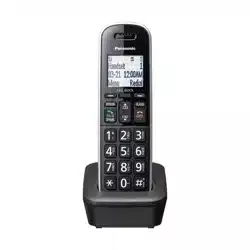
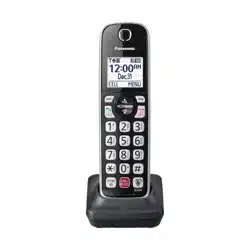
*5 See page 5 for replacement battery information.
*6 The handset cover comes attached to the handset.
Additional/replacement accessories
Please contact your nearest Panasonic dealer for sales information (page 99).
*1 Replacement batteries may have a different capacity from that of the supplied batteries.
*2 By installing this unit, you can extend the range of your phone system to include areas where reception was previously not available. This product can be purchased online. Please visit our Web site: http://shop.panasonic.com/support
*3 By registering the key detector (4 max.) to a Panasonic Digital Cordless Phone and attaching it to an easy- to-lose item in advance, you can locate and find the mislaid item to which the key detector is attached. Please visit our Web site: http://www.panasonic.com/tga20
Specifications
Standard:
DECT 6.0 (Digital Enhanced Cordless
Telecommunications 6.0)
Bluetooth wireless technology 2.1
Frequency range:
1.92 GHz to 1.93 GHz (DECT)
2.402 GHz to 2.48 GHz (Bluetooth)
RF transmission power:
115 mW (max.)
Power source:
120 V AC, 60 Hz
Power consumption:
Base unit:
Standby: Approx. 1.2 W
Maximum: Approx. 4.5 W
Charger:
Standby: Approx. 0.1 W
Maximum: Approx. 1.8 W
Operating conditions:
0 °C – 40 °C (32 °F – 104 °F), 20 % – 80 %
relative air humidity (dry)
Getting Started
Setting up
Connections
If you do not connect the telephone line cod and use only cellular lines, set the cellular line only mode to use this unit more conveniently (page 21).
► Base unit
Connect the AC adaptor to the unit by pressing the plug firmly.
Fasten the cod by hooking it.
Connect the AC adaptor to the power outlet.
Connect the telephone line cod to the unit, then to the single-line telephone jack (J11C) until you hear a click.
A DSL/ADSL filter (not supplied) is required if you have a DSL/ADSL service.
Note: Use only the supplied Panasonic AC adaptor PNLV226.
► Charger
1. Connect the AC adaptor to the power outlet.
Battery installation
USE ONLY rechargeable Ni-MH batteries AAA (03) size ( )
Do NOT use alkaline/manganese/Ni-Cd batteries.
Confirm correct polarities ().
Follow the directions on the display to set up the unit.
Removing the battery
Battery charging
Charge for about 7 hours.
Confirm “Charging” is displayed ().
When the batteries ae fully charged, “Fully charged” is displayed.
Note when setting up
Note for connections
The AC adaptor must remain connected at all times. (It is normal for the adaptor to feel warm during use.)
The AC adaptor should be connected to a vertically oriented or floor-mounted AC outlet. Do not connect the AC adaptor to a horizontally oriented AC outlet that faces the floor, such as an AC outlet installed on a ceiling or under a table, as the weight of the adaptor may cause it to become disconnected.
Note for battery installation
Use the supplied rechargeable batteries. For replacement, we recommend using the Panasonic rechargeable batteries noted on page 5, 9.
Note for battery charging
It is normal for the handset to feel warm during charging.
Clean the charge contacts of the handset, base unit, and charge with a soft and dry cloth once a month. Before cleaning the unit, disconnect from power outlets and any telephone line cods. Clean more often if the unit is exposed to grease, dust, or high humidity.
Battery level
Note:
At the end of each call, the unit displays a large icon for a few moments to indicate the battery level.
You can set the unit to play a voice announcement when the battery is low o needs charging. (page 18)
Note: Actual battery performance depends on usage and ambient environment.
Intelligent eco mode
This feature automatically educes handset power consumption by suppressing handset transmission power when the handset is close to the base unit.
When this feature is activated, is displayed. However, during a cellular call, is not displayed even though this feature is activated.
Eco mode is tuned off when the clarity booster is activated (page 25).
Controls
Handset
1. Belt clip holes
2. Speake
3. (TALK)
4. Headset jack
5. Dial keypad
: Temporary tone dialing
: Ringer off
6. (SP-PHONE: Speakerphone)
7. [CALL BLOCK]
8. Microphone
9. receive
10. Display
11. [OFF]
12. (Assist) [FLASH]
You can use the handset to operate the voice recognition feature of you cellular phone by pressing page 62)
13. Charge contacts
► Control type
Soft keys
By pressing a soft key, you can select the feature shown directly above it on the display. After a cellular phone is paired, [CELL] is displayed.
Navigator key
- , o : Scroll though various lists and items.
- VOL. (Volume: or ): Adjust the receive or speaker volume while talking.
- : View the phonebook entry.
- EDIAL: View the redial list.
- CID (Calle ID): View the caller list.
Base unit
1. Charge contacts
2. Speaker
3. Display
4. [EASE]
5. [EXIT]
6. (PLAY/STOP)
Message indicator
7. [ANSWER ON/OFF]
ANSWE ON/OFF indicator
8. [CALL BLOCK]
9. Bracket
The base unit has an unremovable bracket for desk or wall mounting. To mount on a wall, see page 73.
10. [HOLD]
11. [EDIAL] [PAUSE]
12. [FLASH] [CALL WAIT]
13. (SP-PHONE: Speakerphone)
SP-PHONE indicator
14. Microphone
15. Dial keypad
: Temporary tone dialing
16. (Assist)
You can use the base unit to operate the voice recognition feature of you cellular phone by pressing page 62)
17. [LOCATO] [INTECOM]
You can locate a misplaced handset by pressing MLOCATON.
18. [CELL 2]
CELL 2 indicator
19. [CELL 1]
CELL 1 indicator
► Control type
Soft keys
By pressing a soft key, you can select the feature shown directly above it on the display.
Navigator key
- , o : Scroll though various lists and items.
- VOLUME ( o ): Adjust the speaker volume while talking.
- : repeat/skip messages during playback.
Display icons/Indicators
Handset display items
*1 Corresponding lines (1, 2: cellular line) ae indicated next to the item.
*2 During a cellular call, the item is not displayed even though the feature is activated.
*3 Corresponding lines (1, 2: cellular line, L: landline) ae indicated next to the item. If all lines ae tuned off, no line is indicated.
Base unit display items
*1 Corresponding lines (C1, C2: cellular line, L: landline) are indicated next to the item. If all lines are turned off, no line is indicated.
CELL indicators on the base unit
The CELL indicators show each cellular line status.
Status
Meaning
On
A cellular phone is connected. Ready to make/receive cellular calls
Flashing
– The cellular line is in use.
- Phonebook entries are being copied from a cellular phone (page 59).
– The base unit is searching for the paired cellular phone.
– The base unit is pairing a cellular phone.
– A cellular call is on hold.
– The remote voice assist feature is in use (page 62).
Flashing rapidly
A cellular call is being received.
Light off
– A cellular phone is not paired to the base unit.
– A cellular phone is not connected to the base unit (page 21).
Language settings
Display language
Handset / Base unit
1. [MENU]
2. : Select the desired setting → [SAVE]
3. Proceed with the operation fo you unit.
Handset: [OFF]
Base unit: [EXIT]
Note:
The language selected will also be used for the low battery alert announcement page 18).
Voice announcement language
You can select the language used for the following features.
- Answering system guidance
- Talking Calle ID
- Application (App) alert announcement
- Text message (SMS) alert announcement
Handset
1. [MENU]
2. : Select the desired setting → [SAVE] → [OFF]
Date and time
Handset
1. [MENU]
2. Enter the current month, date, and yea by selecting 2 digits fo each.
Example: July 12, 2017
3. [OK]
4. Enter the current hour and minute (12-hour format) by selecting 2 digits for each.
Example: 9:30
5. Select “AM” or “PM”.
6. [SAVE] → [OFF]
Note:
When English is selected as the display language, 12-hou clock format is used. When Spanish is selected, 24-hou clock format is used.
Recording you greeting message
You can record you own greeting message instead of using a pre-recorded greeting message. See page 65 for details.
Handset
1. [MENU]
2. : “Yes” → [SELECT]
3. Record a greeting message → [STOP] → [OFF]
Other settings
Dialing mode
If you cannot make calls, change this setting according to you telephone line service. The default setting is “Tone”.
"Tone”: For tone dial service.
"Pulse”: For rotary/pulse dial service.
Handset
1. [MENU]
2. : Select the desired setting → [SAVE] → [OFF]
Low battery alert
This feature plays a voice announcement when the battery is low or needs charging. When this feature is turned on, the unit notifies you as follows.
When you end a call:
– The unit plays a voice announcement when the battery is low or needs charging.
When the handset is in standby mode:
- The unit plays a voice announcement when the battery is low or needs charging.
When this feature is tuned on, the unit notifies you as follows. n When you end a call:
- If the battery is low or needs charging, the unit plays a voice announcement at the selected interval up to 3 times.
Note for handset
At the end of each call, the unit displays a large icon for a few moments to indicate the battery level.
Setting low battery alert
To turn this feature on, select the desired announcement interval, or select “Off” to turn this feature off. The default setting is “Every hour”.
Handset
1. [MENU]
2. :Select the desired setting → [SAVE] → [OFF]
Link to cell feature
You can connect you base unit and cellular phone using Bluetooth wireless technology, so that you can make or answer cellular calls using you phone system. This allows you to:
- use the unit to talk on cellular calls even if some areas of you home have poor cellular reception, simply by placing you cellular phone in an area with good reception.
- talk on cellular calls even if you cellular phone is in you pocket o bag.
- enjoy cordless cellular calls even if you cellular phone plugged in and charging.
Important:
You cellular phone must support the Hands Fee Profile (HFP) specification.
You may pair 2 cellular phones and 1 Bluetooth headset.
The unit can be used to talk on 2 lines at the same time (for example, 2 cellular lines, o the landline and 1 cellular line).
Only 2 Bluetooth devices can be used with the unit at the same time (for example, 2 cellular lines, o the Bluetooth headset and cellular line*1).
Locate you cellular phone near the base unit. If the cellular phone is too close to the base unit during a cellular call, you may hear noise. For best performance, we recommend placing the cellular phone between 0.6 m to 3 m (2 feet to 10 feet) away form the base unit.
*1 You cannot use a Bluetooth headset to talk on a cellular line.
Pairing a cellular phone
Important: Before pairing a Bluetooth enabled cellular phone to the base unit, make sue that no other Bluetooth device such as a Bluetooth headset is connected to you cellular phone.
1. Base unit:
Press and hold [CELL 1] or [CELL 2] for about 5 seconds.
After the corresponding CELL indicator on the base unit stats flashing, the rest of the procedure must be completed within 5 minutes.
2. You cellular phone:
While the corresponding CELL indicator is flashing, follow the instructions of you cellular phone to enter the pairing mode.
Depending on you cellular phone, it may ask you to enter the Bluetooth PIN (default: “0000”). If you cellular phone shows PassKey confirmation on its display, follow the directions to proceed.
3. Base unit:
Wait until a long beep sounds.
It may take more than 10 seconds to complete pairing.
When the corresponding CELL indicator lights up, the cellular phone is connected to the base unit. You ae ready to make cellular calls.
Note:
If the cellular phone has already paired to the base unit, it is overwritten.
Make sue that you cellular phone is set to connect to this product automatically. Refer to you cellular phone’s operating instructions.
Make sure you cancel you cellular phone’s current pairing if you want to pair it to the other line (page 19).
The default setting for the alert feature is "On”, so when you pair you cellular phone to the base unit, this feature may be activated (page 61). (This depends on the version and type of cellular phone you ae using.)
Unpairing a cellular phone
You can cancel the pairing of a cellular phone that is stored in the base unit.
Link to Cell
Handset
1. For CELL 1: [MENU]
For CELL 2: [MENU]
2.: “Yes”→ [SELECT]
When the cellular phone is unpaired, the CELL indicator is tuned off.
3. [OFF]
Link to cell settings
Selecting which unit receives cellular calls
You can select which unit rings and receives calls for a cellular line. When “All” is selected, all handsets and the base unit ring.
Handset
1. For CELL 1: [MENU]
For CELL 2: [MENU]
2. : Select the desired handset o “All” → [SAVE] → [OFF]
Note:
When you select a specific handset to receive calls for a cellular line:
- other handsets cannot answer the calls.
- the base unit can answer the calls even though it does not ring. However, you can make the base unit ring by adjusting the base unit ringer volume (page 49).
When you change to “All” form another setting, the base unit ringer volume also returns to the lowest level even if the ringer volume was changed.
The units selected with this setting have the alert feature (page 61) applied to them.
Ring as cell mode
Once this feature is tuned on, the handset and base unit ring using the same ringer tone as you cellular phone.
The following settings ae available:
- "Off”: Turn this feature off to use the ringer tones of the handset and base unit. Calle information is announced depending on the Talking Calle ID setting (page 46).
- "On (with Talking CID)” (default): The handset and base unit use you cellular phone’s ringer tone. Calle information is announced even if the Talking Calle ID is tuned off.
- "On (without Talking CID)”: The handset and base unit use you cellular phone’s ringer tone. Calle information is not announced even if the Talking Calle ID is tuned on.
Important: To use this feature, you cellular phone must support Bluetooth in-band ringtone. Refer to you cellular phone’s operating instructions.
Handset
1. For CELL 1: [MENU]
For CELL 2: [MENU]
2. Select the desired setting. → [SAVE] → [OFF]
Note:
The units use the preset ringer tones instead of you cellular phone’s ringer tone when a cellular call is being received if:
- you cellular phone is in silent mode depending on you cellular phone).
- the base unit is in use. handsets ae sharing a landline call.
If your cellular phone is in silent mode with "On (with Talking CID)” set, the unit announces caller information even when Talking Calle ID is tuned off (page 46).
To use the handset ringer tone instead of you cellular phone’s ringer tone
Select “Off” in step 2, “Ring as cell mode”, page 20.
To change the handset ringer tone for a cellular line, see page 44.
Auto connection to the Bluetooth devices (cellular phones)
After pairing, you Bluetooth devices ae connected to the base unit. If you move the Bluetooth devices out of base unit range, the Bluetooth devices ae disconnected form the base unit. This feature allows the base unit to ty to reconnect the Bluetooth devices at regular intervals when it returns within base unit range. You can set the interval. The default setting is “1 min”.
Important:
When 3 Bluetooth devices (2 cellular phones and 1 headset) ae paired to the base unit, only 2 Bluetooth devices can be used with the unit at the same time, and the base unit loses its connection form other Bluetooth devices. To automatically resume the connection to Bluetooth devices, leave the auto connection on.
Some cellular phones lose connection after usage, please check the specifications of you cellular phone for more details.
Handset
[MENU]
: Select the desired setting. → [SAVE] → [OFF]
Note:
Some cellular phones may ask you if you accept the connection equiement fom the base unit. In that case, select “Off” in step
2. Check the specifications of you cellular phone.
Connecting/disconnecting the cellular phone manually
If you will not be using the paired cellular phone’s link to cell feature temporarily (for example, you do not want the unit to ring when you cellular line receives a call), you can disconnect you cellular phone form the base unit. If you want to use it again, reconnect the cellular phone to the base unit.
Note:
After you disconnect a paired cellular phone form the base unit manually, it will automatically be connected to the base unit in 30 minutes. If you do not use the link to cell feature anymore, unpair the cellular phone (page 19).
A disconnected cellular phone is not unpaired form the base unit, so pairing it to the base unit again is unnecessary.
Handset
1. To connect/disconnect:
For CELL 1: [MENU]
For CELL 2: [MENU]
A long beep sounds.
2. [OFF]
Cellular line only mode (If you do not use the landline)
If you do not use the landline, we recommend setting the unit to the cellular line only mode. The default setting is “Off”.
Important: If you turn on the “Cell line only mode”, disconnect the telephone line cord form the base unit. Otherwise the “Cell line only mode” cannot be activated.
Handset
1. [MENU]
2. To turn on:
“On” → [SELECT] →: “Yes” → [SELECT]
To turn off:
: “Off” → [SELECT]
Note:
Once you set this mode, you can use the following buttons to make cellular calls
- for the handset, press M N or MZN instead of MCELLN (page 23).
- for the base unit, press MZN without pressing MCELL 1N or MCELL 2N set for the cellular line selection (page 22, 29).
Once you set this mode, the following features cannot be used:
- Landline features (page 50)
- Answering system (page 65) Messages cannot be received.
Link to Cell
- Voicemail features (page 72)
After this mode is tuned on o off, the base unit reboots.
- Bluetooth connections form cellular phones or Bluetooth headset ae disconnected. If the auto connection is tuned on (page 21), the cellular phones ae reconnected.
will be displayed on the handset momentarily. The handset can be used once is displayed.
When you use the landline again
Before connecting the telephone line to the base unit, select “Off” in step 2, “Cellular line only mode (If you do not use the landline)”, page 21.
Cellular line selection
This feature determines which cellular line is selected to make cellular calls when:
you press (CELL) on the handset.
you press or on the handset while the cellular line only mode is tuned on.
you press on the base unit while the cellular line only mode is tuned on.
The following settings ae available:
"Manual” (handset only: default): You can select the desired cellular line when making a call.
Cellphone 1”*1 (base unit default):
CELL 1 is selected.
Cellphone 2”*1: CELL 2 is selected.
Handset / Base unit
1. [MENU]
2. : Select the desired setting. [SAVE]
3. Proceed with the operation for you unit.
Handset: [OFF]
Base unit:[EXIT]
*1 After the Bluetooth device is paired, the device name is displayed.
Storing you area code (for dialing only a 7-digit phone number to make a local call)
You need to add you area code when making cellular calls to a phone number in you area. Once you store you area code, it is automatically added to the beginning of the digit phone number when making cellular calls.
Handset
1. [MENU]
2. Enter the 3-digit area code.
To correct a digit, press [CLEAR].
3. [SAVE] → [OFF]
Changing the Bluetooth PIN (Personal Identification Number)
The PIN is used to pair cellular phones to the base unit. The default PIN is “0000”. To prevent unauthorized access to this product, we recommend that you change the PIN, and keep it confidential.
Important:
Please make note of you new PIN. The unit does not reveal the PIN to you. If you forget you PIN, see page 83.
Handset
1. [MENU]
If the unit prompts you to enter the old PIN (when the default has been changed), enter the current 4-digit PIN.
2. Enter the new 4-digit PIN. [OK]
3. Enter the new 4-digit PIN again. → [SAVE] → [OFF]
Making/Answering Calls Using the Handset
Making cellular calls
Important:
The unit can be used to talk on 2 lines at the same time (for example, 2 cellular lines, or the landline and 1 cellular line).
Only 2 Bluetooth devices can be used with the unit at the same time (for example, 2 cellular lines, or the headset and 1 cellular line*1).
Before making calls, confirm that the corresponding on the handset is displayed (page 16).
*1 You cannot use a Bluetooth headset to talk on a cellular line.
1. Lift the handset and then dial the phone number.
To correct a digit, press [CLEAR]
2. [CELL]
The unit stats dialing immediately in the following situations.
- Only 1 cellular phone is paired.
- A specific line is set to make cellular calls (page 22).
Go to step 4.
3.: Select the desired cellular phone .[SELECT]
4. When you finish talking, press [OFF] or place the handset on the base unit or charger.
Note:
To switch to the speaker, press
To switch back to the receive, press / .
In step 1, you can store the dialed phone number to the phonebook by pressing and holding for a few seconds.
Adjusting the receive or speaker volume
Press or repeatedly while talking.
Note:
The receive or speaker volume you set is kept for each line (landline and cellular lines)
Making a cellular call using the redial list
The last 5 phone numbers dialed ae stored in the redial list (48 digits max. each).
1. REDIAL
2.: Select the desired entry.
3. [CELL]
The unit starts dialing immediately in the following situations.
- Only 1 cellular phone is paired.
- A specific line is set to make cellular calls (page 22).
4.: Select the desired cellular phone. [SELECT]
Easing a number in the redial list
When a cellular phone is paired:
1. REDIAL
2.: Select the desired entry. [MENU]
3.: “Erase” [SELECT]
4. : “Yes” [SELECT][OFF]
When a cellular phone is not paired:
1. REDIAL
2..: Select the desired entry. [ERASE]
3.: “Yes” [SELECT][OFF]
Making landline calls
1. Lift the handset and then dial the phone number.
To correct a digit, press [CLEAR].
2. Press to make the call.
To make the call using the speakerphone, press .
3. When you finish talking, press [OFF] or place the handset on the base unit or charge.
Note:
To switch to the speaker, press .
To switch back to the receive, press /
In step 1, you can store the dialed phone number to the phonebook by pressing and holding for a few seconds.
Making a call using the redial list
The last 5 phone numbers dialed are stored in the redial list (48 digits max. each).
1. REDIAL
2.: Select the desired entry.
3.
Pause (for PBX/long distance service uses)
A pause is sometimes required when making calls using a PBX or long distance service. When storing a calling cad access number and/or PIN in the phonebook, a pause is also needed (page 40).
Example: If you need to dial the line access number “9” when making outside calls with a PBX:
1. (Pause)
2. Dial the phone number.
Note:
A 3.5 second pause is inserted each time
(Pause) is pressed.
Answering calls
1. Lift the handset and then press or when the unit rings.
To answer a cellular call, you can also press [CELL].
2. When you finish talking, press [OFF] or place the handset on the base unit or charger.
Any key answer: You can answer the call by pressing any dial key.
Auto talk: You can answer calls simply by lifting the handset (page 48).
Temporary handset ringer off: You can turn the ringer off temporarily by pressing (left soft key).
Adjusting the handset ringer volume
Press or repeatedly to select the desired volume while ringing.
To turn the ringer off, press repeatedly.
Note:
You can adjust the ringer volume for cellular call and landline call by programming (page 44, 46).
The ringer volume you set is kept for each line (landline and cellular lines).
One-touch ringer off for the handset
Press and hold until the unit beeps to turn the ringer off. While the ringer is turned off, the handset will not ring for calls.
You can turn the ringer on again by pressing and holding until the unit beeps.
Useful features during a call
Hold
1. Press [MENU] during an outside call.
2.: “Hold”[SELECT]
3. To release hold on the cellular line:
Press [CELL].
Another handset use can take the call by pressing [CELL].
*1 If you press [CELL] and the selection list is displayed, select the desired cellular line and press [SELECT].
The base unit use can take the call by pressing [CELL 1] or [CELL 2].
To release hold on the landline:
Press .
Another handset use can take the call by pressing
The base unit use can take the call by pressing .
Note:
After holding for 10 minutes, the call is disconnected.
Mute
1. Press [MUTE] during a call.
2. To return to the call, press [MUTE].
Note:
[MUTE] is a soft key visible on the display during a call.
Flash for landline calls
[FLASH] allows you to use the special features of you host PBX such as transferring an extension call, or accessing optional telephone services.
Note:
To change the flash time, see page 48.
For call waiting or Call Waiting Caller ID service uses
To use call waiting o Call Waiting Calle ID, you just fist subscribe with you phone service provide.
This feature allows you to receive calls while you ae already talking on the phone. If you receive a call while on the phone, you will hear a call waiting tone.
If you subscribe to both Calle ID and Call Waiting with Calle ID services, the 2nd caller’s information is displayed on the unit that is in use after you hear the call waiting tone.
1. Press [FLASH] to answer the 2nd call.
2. To switch between calls, press [FLASH]
Note:
Please contact you phone service provide for details and availability of this service in you area.
Temporary tone dialing for landline calls (for rotary/pulse service uses)
Press before entering access numbers which require tone dialing.
Handset clarity booster
This feature can improve sound clarity when the handset is used in an area where there may be interference. During an outside call, this feature is tuned on automatically when necessary.
When this feature is turned on, is displayed. However, during a cellular call, is not displayed even though the feature is activated.
Handset noise reduction
This feature allows you to hear the voice of the person you are talking to more clearly, by reducing the surrounding noise coming form the other party’s telephone.
1. Press [MENU] while talking.
2. : “Noise reduction on” or "Noise reduction off” [SELECT]
Note:
The setting you made is kept for each line landline and cellular lines).
The default settings ae as follows:
- for landline: “Noise reduction off”
- for cellular lines: “Noise reduction on”
Depending on environment where this handset is being used, this feature may not be effective.
This feature is not available while using the speakerphone.
Handset equalize
This feature clarifies the voice of the person you are talking to, producing a more natural-sounding voice that is easier to hear and understand.
1. Press [MENU] while talking.
2.: “Equalizer”[SELECT]
3.: Select the desired setting.
4. Press [OK] to exit.
Note:
The setting you made is kept for each line landline and cellular lines).
Depending on the condition and quality of you telephone line, this feature may emphasize existing line noise. If it becomes difficult to hear, turn this feature off.
This feature is not available while using the speakerphone.
When both the “Equalizer” setting and noise reduction are activated, is shown on the display.
Call share
You can join an existing outside call.
While another unit is on a cellular call:
1. To join the conversation, press [CELL]
You can join the conversation in the following situations.
- Only 1 cellular phone is paired.
- A specific line is set to make cellular calls (page 22).
2.: Select the corresponding cellular phone.[SELECT]
While another unit is on a landline call:
To join the conversation, press
Note:
A maximum of 3 parties (including 1 outside party) can join a conversation using 2 extensions. (3-way conference)
To prevent other uses from joining you conversations with outside callers, turn call sharing mode off (page 48).
Transferring calls, conference calls
Outside calls can be transferred or a conference call with an outside party can be made: between handsets
- between handset
– between a handset and the base unit
1. During an outside call, press [MENU].
2.: “Intercom” [SELECT]
3.: Select the desired unit . [SELECT]
If you select “Voice paging”, the call will be switched from the ear-receiver mode to the speakerphone mode.
4. Wait for the paged party to answer.
If the paged party does not answer, press [BACK] to return to the outside call.
5. To complete the transfer:
Press [OFF]
To establish a conference call:
[MENU] : “Conference” [SELECT]
To leave the conference, press [OFF]. The other 2 parties can continue the conversation.
To put the outside call on hold: [MENU] : “Hold” [SELECT]
To resume the conference: [MENU]: “Conference”[SELECT]
To cancel the conference: [MENU] : “Stop conference” [SELECT]
You can continue the conversation with the outside caller.
Transferring a cellular call between the handset and a cellular phone
Transferring a cellular call from the handset to a cellular phone
1. Press [MENU] during a cellular call.
2.: “Transfer to cell”[SELECT]
The cellular call is transferred to the cellular phone.
Note:
Depending on you cellular phone type, you may need to set the cellular phone to be ready to talk before transferring. For example, if you cellular phone has a top cove, open it beforehand.
Transferring a cellular call from a cellular phone to the handset
During a conversation using a cellular phone, the call cannot be transferred to the handset by the cellular phone. Perform the following with the handset.
1. During a conversation using a cellular phone, press [CELL].
The call is transferred to the handset in the following situations.
– Only 1 cellular phone is paired.
– A specific line is set to make cellular calls (page 22).
2.: Select the corresponding cellular phone. [SELECT]
The call is transferred to the handset
Answering a 2nd call
If you receive a call while talking on the phone, the interrupt tone sounds (page 46) and the 2nd caller’s information is displayed if you subscribe to Caller ID service (page 56).
Answering a 2nd call during a landline call
1. Press [MENU] during a landline call.
2.: “Hold”[SELECT]
3. To answer the 2nd call:
Press [CELL] while the 2nd call is being received
4. To hang up the 2nd call and return to the 1st call (landline call), press [OFF] then press
Answering a 2nd call during a cellular call
1. Press [MENU] during a cellular call.
2.: “Hold”[SELECT]
3. To answer the 2nd call:
Press or [CELL] while the 2nd call is being received.
4. To hang up the 2nd call and return to the 1st call (cellular call), press [OFF] then press [CELL]
*1 If you press [CELL] and the selection list is displayed, select the desired cellular line and press [SELECT]
Power backup operation for landline
When a power failure occurs, the charged handset temporarily supplies power to the base unit (power backup mode). This allows you to make and receive landline calls using a handset during a power failure. The base unit will not perform any other functions. However, some functions such as Caller ID and phonebook are available only when using a handset other than the handset supplying power to the base unit. You can program “Power failure” and the default setting is “Auto” (page 48).
Important:
If a handset is not placed on the base unit when a power failure occurs, “Power outage Press OFF” is displayed. After pressing [OFF] on the handset, place it on the base unit to start power backup mode.
Power backup mode will not work if the battery level of the power supplying handset is
Do not lift the power supplying handset from the base unit during power backup mode
Panasonic Ni-MH battery performance (supplied batteries) during power backup mode
When the batteries are fully charged, operating time of the handset in power backup mode varies depending on usage.
– Continuous use of the handset in power backup mode: 1.5 hours max.
– Continuous use of the handset other than a handset in power backup mode: 2 hours max.
– Not in use in power backup mode: 2 hours max.
Making calls during a power failure
When only 1 handset is registered:
1. Lift the handset and dial the phone number.
2. Within 1 minute, place the handset on the base unit
Wait until speakerphone is turned on automatically and the call is made.
3. When the other party answers the call, keep the handset on the base unit and talk using the speakerphone.
4. When you finish talking, press [OFF]
When 2 or more handsets are registered:
You should leave one handset on the base unit for supplying the power, and use another handset for making calls.
Note:
The range of the base unit is limited during a power failure. Please use the handset close to the base unit.
Making a call using the redial list
When only 1 handset is registered:
1. Lift the handset.
2. REDIAREDIAL
3.: Select the desired entry
4. Within 1 minute, place the handset on the base unit
Wait until speakerphone is turned on automatically and the call is made.
When 2 or more handsets are registered:
You should leave one handset on the base unit for supplying the power, and use another handset for making calls.
Making a call using the phonebook
There must be at least 2 handsets registered to the base unit in order for the phonebook feature to be used during a power failure.
Answering calls during a power failure
When only 1 handset is registered:
1. When the unit rings, keep the handset on the base unit and press or
Speakerphone is turned on
2. When you finish talking, press [OFF]
When 2 or more handsets are registered:
When the unit rings, use a handset which is not supplying power to the base unit.
Do not use or lift the handset which is placed on the base unit during power backup mode
Note:
The range of the base unit is limited during a power failure. Please use the handset close to the base unit.
Making/Answering Calls Using the Base Unit
Important:
The unit can be used to talk on 2 lines at the same time (for example, 2 cellular lines, or the landline and 1 cellular line).
Only 2 Bluetooth devices can be used with the unit at the same time (for example, 2 cellular lines, or the headset and 1 cellular line).
Before making calls, confirm that the corresponding CELL indicator on the base unit lights up (page 17).
1. Dial the phone number.
To correct a digit, press [CLEAR]
2. Press [CELL 1] or [CELL 2]
3. When the other party answers, speak into the microphone
4. When you finish talking, press
.Note:
While on a call, you can switch from the base unit to the handset:
– With the call sharing mode on (page 48), press [CELL] *1 on the handset : Select the desired cellular phone [SELECT] Press on the base unit.
– If the handset is on the base unit, simply lift it.
*1 The call is taken when:
– Only 1 cellular phone is paired.
– A specific line is set to make cellular calls (page 22).
Adjusting the speaker volume
Press or repeatedly while talking.
Note:
The speaker volume you set is kept for each line (landline and cellular lines).
Making a cellular call using the redial list
The last 10 phone numbers dialed are stored in the redial list (48 digits max. each).
1. [REDIAL]
2. Select the desired entry
3. Press [CELL 1] or [CELL 2]
Erasing a number in the redial list
1. [REDIAL]
2. Select the desired entry [ERASE]
3. “Yes” [SELECT][EXIT]
Making landline calls
1. Dial the phone number
To correct a digit, press [CLEAR]
2.
3. When the other party answers, speak into the microphone.
4. When you finish talking, press
Note:
While on a call, you can switch from the base unit to the handset:
– Press on the handset, then press on the base unit with the call sharing mode on (page 48).
– If the handset is on the base unit, simply lift it.
Making a call using the redial list
The last 10 phone numbers dialed are stored in the redial list (48 digits max. each).
1. [REDIAL]
2. Select the desired entry
3.
Pause (for PBX/long distance service users)
A pause is sometimes required when making calls using a PBX or long distance service. When storing a calling card access number and/or PIN in the phonebook, a pause is also needed (page 40).
Example: If you need to dial the line access number “9” when making outside calls with a PBX:
1.
2. Dial the phone number
Note:
A 3.5 second pause is inserted each time [PAUSE] is pressed
Answering calls
When a landline call is being received, the SP-PHONE indicator flashes rapidly.
When a cellular call is being received, the CELL indicator and SP-PHONE indicator flash rapidly.
1. Press when the unit rings
You can also answer the cellular call by pressing [CELL 1] or [CELL 2]
2. Speak into the microphone.
3. When you finish talking, press
Adjusting the base unit ringer volume
Press or repeatedly to select the desired volume while ringing.
To turn the ringer off, press and hold until the unit beeps.
Note:
You can adjust the ringer volume for cellular call and landline call by programming (page 49, 50)
The ringer volume you set is kept for each line (landline and cellular lines).
Useful features during a call
Hold
1. Press [HOLD] during an outside call
2. To release hold on the cellular line:
Press [CELL 1] or [CELL 2]
A handset user can take the call: [CELL] *1 Select the corresponding cellular phone [SELECT]
*1 The call is taken in the following situations.
– Only 1 cellular phone is paired.
– A specific line is set to make cellular calls (page 22).
To release hold on the landline:
Press
A handset user can take the call by pressing
Note:
While a landline call is on hold, the SP-PHONE indicator flashes
After holding for 10 minutes, the call is disconnected.
Mute
1. Press [MUTE] during a call
The SP-PHONE indicator flashes.
2. To return to the call, press [MUTE]
Note:
[MUTE] is a soft key visible on the display during a call.
Flash for landline calls
[FLASH] allows you to use the special features of your host PBX such as transferring an extension call, or accessing optional telephone services.
Note:
To change the flash time, see page 48.
For call waiting or Call Waiting Caller ID service users
To use call waiting or Call Waiting Caller ID, you must first subscribe with your phone service provider.
This feature allows you to receive calls while you are already talking on the phone. If you receive a call while on the phone, you will hear a call waiting tone.
If you subscribe to both Caller ID and Call Waiting with Caller ID services, the 2nd caller’s information is displayed on the unit that is in use after you hear the call waiting tone.
1. Press [CALL WAIT] to answer the 2nd call.
2. To switch between calls, press [CALL WAIT]
Note:
Please contact your phone service provider for details and availability of this service in your area.
Temporary tone dialing for landline calls (for rotary/pulse service users)
Press before entering access numbers which require tone dialing.
Call share
You can join an existing outside call. To select the line that is being used for the call:
– for a cellular line press [CELL 1] or [CELL 2]
– for the landline press
Note:
A maximum of 3 parties (including 1 outside party) can join a conversation using 2 extensions. (3-way conference)
To prevent other users from joining your conversations with outside callers, turn call sharing mode off (page 48).
Transferring calls, conference calls
Outside calls can be transferred or a conference call with an outside party can be made between a handset and the base unit.
1. During an outside call, press [INTERCOM]
When 2 or more handsets are registered:
– To page a specific handset, enter the handset number.
– To page all handsets, press or wait for a few seconds.
2 Wait for the paged party to answer.
If paged party does not answer, press [INTERCOM] to return to the outside call.
3 To complete the transfer:
Press
The outside call is being routed to the handset.
To establish a conference call:
Press
The outside call is being routed to the handset.
To establish a conference call:
Press [CONF]
To leave the conference, press
The other 2 parties can continue the conversation.
To put the outside call on hold, press [HOLD]. To resume the conference, press [CONF]
Transferring a cellular call between the base unit and a cellular phone
Transferring a cellular call from the base unit to a cellular phone
During a cellular call, press and hold [CELL 1] or until the SP-PHONE indicator goes out.
The cellular call is transferred to the cellular phone.
Transferring a cellular call from a cellular phone to the base unit
During a conversation using a cellular phone, press [CELL 1] or [CELL 2]:
The cellular call is transferred to the base unit.
Answering a 2nd call
If you receive a call while talking on the phone, the interrupt tone sounds (page 50) and the 2nd caller’s information is displayed if you subscribe to Caller ID service (page 56).
Answering a 2nd call during a landline call
1. Press [HOLD] during a landline call.
2. To answer the 2nd call:
Press [CELL 1] or [CELL 2]
3. To hang up the 2nd call and return to the 1st call (landline call), press 2 times.
Answering a 2nd call during a cellular call
1. Press [HOLD] during a landline call.
2. To answer the 2nd call:
[CELL 1] or [CELL 2]
3. To hang up the 2nd call and return to the 1st call (cellular call), press then press [CELL 1] or [CELL 2]
Intercom
Intercom calls can be made:
– between handsets
– between a handset and the base unit
Note:
When paging unit(s), the paged unit(s) beeps for 1 minute.
If you receive an outside call while talking on the intercom, the interrupt tone sounds (page 46, 50).
– Handset: To finish intercom, press [OFF] To answer the call, press or [CELL]
– Base unit: To finish intercom, press To answer the call, press again or the corresponding cellular line key [CELL 1] or [CELL 2]
To change the handset ringer volume and ringer tone for intercom, see page 46.
Making an intercom call
Handset
1. [MENU]“Intercom” [SELECT]
2. Select the desired unit or “Voice paging”. [SELECT]
If you select “Voice paging”, speak into the microphone after the beep. Your voice will be heard using the speakers of the base unit and all handsets, until a paged party answers your page or until you press [OFF] After the other party answers, the speakerphone mode is turned on.
3. When you finish talking, press [OFF]
Note:
You can also use the [INTERCOM] soft key, if displayed, to make intercom calls.
You cannot use voice paging if other units are in use.
Voice paging is not available when a range extender (KX-TGA405) is registered to the base unit.
Base unit
1. Press [INTERCOM]
When 2 or more handsets are registered:
– To page a specific handset, enter the handset number.
– To page all handsets, press or wait for a few seconds.
2. When you finish talking, press
Answering an intercom call
Handset
1. Press to answer the page.
2. When you finish talking, press [OFF]
Base unit
1. Press to answer the page.
2. When you finish talking, press
Turning auto intercom on/off
This feature allows the handset or base unit to answer intercom calls automatically when it is called. You do not need to press or . When this feature is set to “On”, the monitoring handset or base unit for the baby monitor feature (page 54) will also answer baby monitor calls automatically. The default setting is “Off”.
Handset / Base unit
1. [MENU]
2. Select the desired setting [SAVE]
3. Proceed with the operation for your unit
Handset [OFF]
Base unit [EXIT]
Note:
This feature is not available for all handsets paging and voice paging even if it is turned on.
Call Block
Call block
You can press the [CALL BLOCK] button in the following situations to disconnect the current call and add a phone number to the call block list:
– when an incoming call is being received
– when an incoming call is being recorded by the answering system
– when talking on an outside call
Once a phone number has been added to the call block list, the unit will block calls from that phone number in the future.
Handset / Base unit
1. Press [CALL BLOCK] under the situations shown above.
2. Confirm the call block number and press [YES]
The call block number is stored in the call block list, “Caller blocked” is displayed, and then the call is disconnected.
Note:
If the call has no phone number, the call is blocked but it is not stored in the call block list.
The call block feature is not available:
– for intercom calls or calls received by call waiting.
– when a landline call (or cellular call) is being received during a cellular call (or landline call).
Blocked calls are logged in the caller list.
Storing unwanted callers
The unit can block calls by storing the desired items in the call block list beforehand (Caller ID subscribers only).
– “Block a single number”*1/“Block a single #”*2: The unit blocks calls from specific phone numbers stored in the call block list.
- “Block range of numbers”*1/“Block range of #”*2: The unit blocks calls that begin with a number stored in the call block list, such as a toll-free phone number prefix or certain area codes.
– “Block unknown CID”*1/“Block unknown”*2: The unit blocks calls that have no phone number.
*1 Handset
*2 Base unit
Single phone numbers and ranges of numbers can be stored in the call block list up to 250 items in total.
Blocking unwanted callers:
When a call is received, the unit rings once*1 while caller information is being received.
If the caller’s phone number matches an entry in the call block list, the unit emits no sound to the caller, and disconnects the call.
*1 If you do not want this one ring to sound, select “No” in “Turning the first ring on/ off” (page 36).
Storing a single phone number
Important:
We recommend storing 10 digits (including the area code). If only 7 digits are stored, all numbers that have the same last 7 digits will be blocked.
Adding call blocked numbers from the caller list
Handset
When a cellular phone is paired:
1. CID
2. Select the desired entry to be blocked.
To edit the number:
[SELECT] Press (Edit) repeatedly until the phone number is shown in the 10-digit format. [SAVE] “Call block” [SELECT] Go to step 4.
3. [CALL BLOCK]
4. “Yes” [SELECT]
5. Edit the phone number if necessary (24 digits max.).[SAVE] [OFF]
When a cellular phone is not paired:
1. CID
2. Select the desired entry to be blocked.
To edit the number: [MENU] : “Edit” [SELECT]
Press [EDIT] repeatedly until the phone number is shown in the 10-digit format. [SAVE] “Call block” [SELECT] Go to step 4.
3. [CALL BLOCK]
4. “Yes” [SELECT]
5. Edit the phone number if necessary (24 digits max.).[SAVE] [OFF]
Base unit
1. [CID]
2. Select the entry to be blocked.
To edit the number: Press [EDIT] repeatedly until the phone number is shown in the 10-digit format.
3. [CALL BLOCK]
4. “Yes” [SELECT]
5. Edit the phone number if necessary (24 digits max.) [SAVE] [EXIT]
Adding call blocked numbers manually
Handset
1. [CALL BLOCK]
2. “Block a single number” [SELECT]
3. [MENU] “Add” [SELECT]
4. Edit the phone number (24 digits max.) [SAVE] [OFF]
Base unit
1. [CALL BLOCK]
2. “Block a single #” [SELECT]
3. [ADD]
4. Edit the phone number (24 digits max.) [SAVE] [EXIT]
Storing a range of number
Handset
1. [CALL BLOCK]
2. “Block range of #” [SELECT]
3. [ADD]
4. Edit the desired number (2-8 digits) [SAVE] [EXIT]
Blocking incoming calls that have no phone number
You can block calls when no phone number is provided, such as private callers or out of area calls.
Handset
1. [CALL BLOCK]
2. “Block unknown CID” [SELECT]
3. : Select the desired setting [SAVE] [OFF]
Base unit
1. [CALL BLOCK]
2. “Block unknown” [SELECT]
3. : Select the desired setting [SAVE] [EXIT]
Turning the first ring on/off
You can choose whether the first ring sounds when a call is received.
“Yes” (default): The first ring for all calls will be heard, including calls from blocked phone numbers.
“No”: The first ring is muted for all calls. If this setting is selected, the unit will never ring for calls from blocked phone numbers.
Handset
1. [CALL BLOCK]
2. “One ring for blocked call” [SELECT]
3. : Select the desired setting [SAVE] [OFF]
Base unit
1. [CALL BLOCK]
2. “Ring once” [SELECT]
3. : Select the desired setting [SAVE] [EXIT]
Viewing/editing/erasing call block numbers
Handset
1. [CALL BLOCK]
2. “Block a single number” or “Block range of numbers” [SELECT]
3. : Select the desired entry
After viewing, press [OFF] to exit
4. To edit a number:
[EDIT] Edit the number [SAVE] [OFF]
To erase a number:
[ERASE] “Yes”[SELECT] [OFF]
Base unit
1. [CALL BLOCK]
2. “Block a single #” or “Block range of #” [SELECT]
3. : Select the desired entry
After viewing, press [EXIT] to exit
4. To edit a number:
[EDIT] Edit the number [SAVE] [EXIT]
To erase a number:
[ERASE] “Yes” [SELECT] [EXIT]
Note:
When editing, press the desired dial key to add digits and press [CLEAR] to erase digits.
Erasing all call block numbers
Handset
1. [CALL BLOCK]
2. “Block a single number” or “Block range of numbers” [SELECT]
3. [MENU] : “Erase all” [SELECT]
After viewing, press [EXIT] to exit
4. : “Yes” [SELECT]
5. : “Yes” [SELECT] [OFF]
Base unit
1. [CALL BLOCK]
2. “Block a single #” or “Block range of #” [SELECT]
3. [ERASE]
4. : “Yes” [SELECT]
5. : “Yes” [SELECT] [EXIT]
Phonebook
Phonebook
You can add 3,000 names (16 characters max.) and phone numbers (24 digits max.) to the phonebook, and assign each phonebook entry to the desired group (page 38). The following groups are available:
– Group 1: “Home”*1 (default)
– Group 2: “Cell 1”*1
– Group 3: “Cell 2”*1
– Group 4-9: You can change the group name for each group.
*1 For groups 1-3, the group names cannot be changed.
Important:
All entries can be shared by the base unit and any registered handset.
You can copy phonebook entries from a Bluetooth cellular phone to the unit’s phonebook (page 59).
Adding phonebook entries
Handset
1. [MENU]
2. “Add new entry” [SELECT]
3. Enter the party’s name [OK]
4. Enter the party’s phone number[OK]
5. : Select the desired group [SELECT] 2 times [OFF]
Note:
In step 3, you can switch the language for entering characters.
: Select the desired language [OK]
Entering characters
Press the dial key that corresponds to the desired character. Press repeatedly to scroll through the available characters.
The following operations are also available
To enter another character that is located on the same dial key, first press to move the cursor to the next space.
If you do not press any dial key within 2 seconds after entering a character, the character is fixed and the cursor moves to the next space.
Storing a redial list number to the phonebook
Phone numbers of up to 24 digits can be stored in the phonebook.
Handset
When a cellular phone is paired:
1. REDIAL
2. Select the desired entry [MENU]
3. : “Save” [SELECT]
4. To store the name, continue from step 3, “Editing entries”, page 39
When a cellular phone is not paired:
1. REDIAL
2. Select the desired entry [SAVE]
3. To store the name, continue from step 3, “Editing entries”, page 39
Base unit
1. REDIAL
2. Select the desired entry [SAVE] [EXIT]
Note for handset and base unit:
The name stored in the phonebook will be reflected in the redial list after you make a call using that phonebook entry.
Note for base unit:
If you stored redial list number to the phonebook using the base unit, the entry is automatically assigned to “Home”.
If you want to edit the caller name or the group, you can do so using the handset (page 39).
Storing caller information to the phonebook
Handset
When a cellular phone is paired:
1. CID
2. Select the desired entry [SELECT]
To edit the number, press (Edit) repeatedly until the phone number is shown in the desired format.
3. [SAVE]
4. : “Phonebook” [SELECT]
5. Continue from step 3, “Editing entries”, page 39.
When a cellular phone is not paired:
1. CID
2. Select the desired entry [MENU]
To edit the number:
: “Edit” [SELECT]
Press [EDIT] repeatedly until the phone number is shown in the desired format.[SAVE] “Phonebook” [SELECT] Go to step 4
3. : “Save phonebook” [SELECT]
4. Continue from step 3, “Editing entries”, page 39.
Base unit
1. CID
2. Select the desired entry
To edit the number, press [EDIT] repeatedly until the phone number is shown in the desired format.
3. [SAVE]
4. : “Phonebook” [SELECT]
5. [EXIT]
Note for base unit:
If you stored caller information to the phonebook using the base unit, the entry is automatically assigned to “Home”.
If you want to edit the caller name or the group, you can do so using the handset (page 39).
Groups
Groups can help you find entries in the phonebook quickly and easily. You can change the group name for groups 4-9 (“Friends”, “Family”, etc.). By assigning different ringer tones for different groups of callers, you can identify who is calling (ringer ID), if you have subscribed to Caller ID service.
Changing group names/setting ringer ID
Handset
1. [MENU]
2. “Group” [SELECT]
3. Select the desired group.[SELECT]
If you selected “Home”, “Cell 1”, or “Cell 2”, go to step 5.
4.To change group names
: “Group name” [SELECT] Edit the name (10 characters max.) [SAVE]
5. To set group ringer tone
Select the current setting of the group ringer tone. [SELECT] Select the desired ringer tone [SAVE]
6. [OFF]
Finding and calling from a phonebook entry
Once you have found the desired entry using one of the following 4 methods, make a call with your unit.
Using a cellular line:
Handset
1. [CELL]
The unit starts dialing when:
– Only 1 cellular phone is paired.
– A specific line is set to make cellular calls (page 22).
2. : Select the desired cellular phone [SELECT]
Base unit
Press [CELL 1] or [CELL2]
Using a landline:
Handset
Base unit
Scrolling through all entries
Handset / Base unit
1. Proceed with the operation for your unit.
Handset:
Base unit:
2. : Select the desired entry
Searching by first character
Handset / Base unit
1. Proceed with the operation for your unit.
Handset:
Base unit:
2. Press the dial key which contains the character you are searching for.
3.: Scroll through the phonebook if necessary.
Searching by query
You can narrow down the search to enter the first characters of a name.
Handset / Base unit
1. Proceed with the operation for your unit.
Handset:
Base unit:
2. To search for the name, enter the first characters (up to 4) in uppercase.
3. [OK]
4. Scroll through the phonebook if necessary.
Note:
In step 2, you can switch the language for entering characters.
: Select the desired language [OK]
Searching by group
Handset / Base unit
1. Proceed with the operation for your unit.
Handset:
Base unit:
2. [GROUP]
3. Select the group you want to search [SELECT]
If you select “All groups”, the unit ends the group search.
4. Select the desired entry
Editing entries
Handset
1. Find the desired entry (page 38)
2. [MENU]: “Edit” [SELECT]
3. Edit the name if necessary [OK]
4. Edit the phone number if necessary. [OK]
5. : Select the desired group (page 38).[SELECT] 2 times [OFF]
Erasing entries
Erasing an entry
Handset
1. Find the desired entry (page 38).
2. [MENU] : “Erase” [SELECT]
3. : “Yes” [SELECT] [OFF]
Base unit
1. Find the desired entry (page 38).
2. [ERASE] : “Yes” [SELECT] [EXIT]
Erasing all entries
Handset
1. [MENU]
2. : “Erase alall” [SELECT]
3. Select the desired group [SELECT]
4. : “Yes” [SELECT]
5. : “Yes” [SELECT] [OFF]
Base unit
1. [ERASE]
2. Select the desired group [SELECT]
3. : “Yes” [SELECT]
4. : “Yes” [SELECT]
Chain dial
This feature allows you to dial phone numbers in the phonebook while you are on a call. This feature can be used, for example, to dial a calling card access number or bank account PIN that you have stored in the phonebook, without having to dial manually.
Handset / Base unit
1. Proceed with the operation for your unit.
Handset: During an outside call, press
Base unit: During an outside call, press
2. Select the desired group
3. Press [CALL] to dial the number.
Note:
When storing a calling card access number and your PIN in the phonebook as one phonebook entry, press (Pause) to add pauses after the number and PIN as necessary (page 24).
If you have rotary/pulse service, you need to press before pressing on the handset or on the base unit in step 1 to change the dialing mode temporarily to tone. When adding entries to the phonebook, we recommend adding * to the beginning of phone numbers you wish to chain dial (page 37).
Speed dial
You can assign 1 phone number to each of the dial keys on the handset.
Adding phone numbers to speed dial keys
Handset
By entering phone numbers:
1. Press and hold the desired speed dial key [ADD]
2. “Manual” [SELECT]
3. Enter the party’s name (16 characters max.). [OK]
4. Enter the party’s phone number (24 digits max.).[OK] [SELECT] [OFF]
From the phonebook:
1. Press and hold the desired speed dial key [ADD]
2. “Phonebook” [SELECT]
3. Select the desired entry.[SAVE] [OFF]
Note:
If you edit a phonebook entry which is assigned to a speed dial key, the edited entry does not transfer to the speed dial key.
Editing an entry
Handset
1. Press and hold the desired speed dial key [MENU]
2. "Edit” [SELECT]
3. Edit the name if necessary.[OK]
4. Edit the phone number if necessary. [OK] [SELECT] [OFF]
Erasing an entry
Handset
1. Press and hold the desired speed dial key [MENU]
2. “Erase” [SELECT]
3. “Yes” [SAVE] [OFF]
Viewing an entry/Making a call
Handset
Using a cellular line:
1. Press and hold the desired speed dial key
2. [CELL]
The unit starts dialing immediately in the following situations.
– Only 1 cellular phone is paired.
– A specific line is set to make cellular calls (page 22).
3. Select the desired cellular phone [SELECT]
Using a landline:
1. Press and hold the desired speed dial key
2. To make a call, press
Programming
Menu list
To access the features, there are 2 methods.
Handset / Base unit
Scrolling through the display menus
1. [MENU]
2. Press or to select the desired main menu [SELECT]
3. Press or to select the desired item from the next sub-menus [SELECT]
4. Press or to select the desired setting [SAVE]
Using the direct command code
1. [MENU] Enter the desired code.
Example: Press [MENU]
For available code:
– Handset: see page 42.
– Base unit: see page 49.
2. Select the desired setting. [SAVE]
Note:
To exit the operation, press [OFF] on the handset or [EXIT] on the base unit
In the following table, < > indicates the default settings.
In the following table indicates the reference page number
Display menu order and sub-menu may vary depending on your model.
Display menu tree and direct command code table
Handset
Main menu: “Phonebook”
Operation
Code
Viewing the phonebook entry.
#280
38
Main menu: “Caller list”
Operation
Code
Viewing the caller list
#213
56
Main menu: “Answering device”
Sub-menu 1
Sub-menu 2
Settings
Code
Play new message
-
-
#323
66
Play all message
-
-
#324
66
Erase all message*1
-
-
#325
67
Main menu: “Voicemail access”*3
Operation
Code
Listening to voicemail messages
#330
73
Main menu: “Intercom”
Operation
Code
Paging the desired unit.
#274
33
Main menu: “Bluetooth”
Main menu: “Set date & time”
Sub-menu 1
Sub-menu 2
Settings
Code
Date and time*1
-
-
#101
18
Memo alarm
Alarm1–3
<Off>
Once
Daily
Weekly
#720
51
Time adjustment*1, *9
-
<Caller ID auto>
Manual
#226
-
Main menu: “Speed dial”
Operation
Code
Viewing the speed dial entry.
#261
40
Main menu: “Settings”
Main menu: “Customer support”
Operation
Code
Displaying customer support Web address.
#680
-
Main menu: “Baby monitor”
Sub-menu 1
Sub-menu 2
Settings
Code
On/Off
-
On
<Off>
#268
53
Sensitivity level
-
Low
<Middle>
High
#269
54
Main menu: “Key detector”*12
Base unit
Main menu: “Phonebook”
Operation
Code
Viewing the phonebook entry.
#280
38
Main menu: “Caller list”
Operation
Code
Viewing the caller list
#213
556
Main menu: “Answer device”
Sub-menu 1
Sub-menu 2
Settings
Code
Screen call
-
<On>
Off
#310
70
Main menu: “Bluetooth”
Main menu: “Settings”
Main menu: “Cust. Support”
Operation
Code
Displaying customer support Web address
#680
-
*1 If you program these settings using one of the units, you do not need to program the same item using another unit.
*2 This menu is not displayed when scrolling through the display menus. It is only available in direct command code.
*3 When the cellular line only mode is turned on, these menus are not displayed (page 21).
*4 After the Bluetooth device is paired, the device name is displayed.
*9 This feature allows the unit to automatically adjust the date and time each time caller information including date and time is received.
To turn this feature on, select “Caller ID auto”. To turn this feature off, select “Manual”. (Caller ID subscribers only)
To use this feature, set the date and time first (page 18).
*10 If you subscribe to a distinctive ring service (such as IDENTA-RING), select a tone (tone 1 or 2). If you select a melody, you cannot distinguish lines by their ringers.
*11 This tone lets you know when you receive an outside call while you are on another line or an intercom call. If you select “On”, the tone sounds 2 times.
*12 This setting is available when you have the key detector (KX-TGA20). Read the installation manual for more information on the key detector.
*13 For models with supplied key detectors, the display shows “1: Detector1”.
*14 If you register 2 or more key detectors.
*15 If you subscribe to a Caller ID service and want to view the caller’s information after lifting up the handset to answer a call, turn off this feature.
*16 The flash time depends on your telephone exchange or host PBX. Contact your PBX supplier if necessary. The setting should stay at “700 ms” unless pressing [FLASH] fails to pick up the waiting call.
*17 Generally, the line mode setting should not be changed. This setting automatically maintains receiver volume at the proper level depending on the current telephone line condition. Set the line mode to “A” if telephone line condition is not good.
*18 This setting is available when a cellular phone is paired.
*19 This setting is available when a headset is paired.
Alarm
An alarm sounds at the set time for 1 minute and is repeated 5 times at 5 minute intervals (snooze function). A text memo can also be displayed for the alarm. A total of 3 separate alarm times can be programmed for each handset. You can set one of 3 different alarm options (once, daily, or weekly) for each alarm time.
Important:
Make sure the unit’s date and time setting is correct (page 18).
Handset
1. [MENU]
2. Select the desired alarm [SELECT]
3. Select the desired alarm option [SELECT]
“Off”
Turns alarm off. Go to step 10
“Once”
An alarm sounds once at the set time.
“Daily”
An alarm sounds daily at the set time.
Go to step 5.
“Weekly”
Alarm sounds weekly at the set time(s).
4. Proceed with the operation according to your selection in step 3.
Once:
Enter the desired month and date.[OK]
Weekly:
Select the desired day of the week and press [SELECT] . [OK]
5. Set the desired time.
6. : Select “AM” or “PM" .[OK]
7. Enter a text memo (10 characters max.) [OK]
8. Select the desired alarm tone [SELECT]
We recommend selecting a different ringer tone from the one used for outside calls.
9. Select the desired snooze setting [SAVE]
10. [SELECT] . [OFF]
Note:
Press [STOP] to stop the alarm completely. R When the handset is in use, the alarm will not sound until the handset is in standby mode
Press any dial key or [SNOOZE] to stop the sound but keep the snooze function activated.
If you want to make an outside call when the snooze function is activated, please stop the snooze function before making the call.
Silent mode
Silent mode allows you to select a period of time during which the handset and/or base unit will not ring for outside calls. This feature is useful for time periods when you do not want to be disturbed, for example, while sleeping. Silent mode can be set for each unit. Using the phonebook’s group feature (page 38), you can also select groups of callers whose calls override silent mode and ring the unit (Caller ID subscribers only).
Important:
Make sure the unit’s date and time setting is correct (page 18).
If you have set the alarm, the alarm sounds even if the silent mode is turned on.
Turning silent mode on/off
Handset
1. [MENU]
2. Select the desired setting [SAVE]
If you select “Off”, press [OFF] to exit.
3. Enter the desired hour and minute you wish to start this feature.
4. : Select “AM” or “PM” [OK]
5. Enter the desired hour and minute you wish to end this feature.
6. : Select “AM” or “PM”
7. [SAVE] . [OFF]
Base unit
1. [MENU]
2. Select the desired setting [SAVE]
If you select “Off”, press [EXIT] to exit.
3. Enter the desired hour and minute you wish to start this feature.
4. [AM/PM] Select “AM” or “PM” [OK]
5. Enter the desired hour and minute you wish to end this feature.
6. [AM/PM] : Select “AM” or “PM”
7. [SAVE] . [EXIT]
Changing the start and end time
Handset / Base unit
1. [MENU]
2. Continue from step 3 for handset or step 3 for base unit, “Turning silent mode on/ off”, page 52.
Selecting groups to bypass silent mode
Handset / Base unit
1. [MENU]
2. Select the desired groups [SELECT]
is displayed next to the selected group numbers.
To cancel the selected group: Select the group Press [SELECT] again disappears.
3. {SAVE]
4. Proceed with the operation for your unit.
Handset: [OFF]
Base unit: [EXIT]
Baby monitor
This feature allows you to listen in on a room where another handset is located, allowing you to easily monitor from different areas of the house or even while away from home. The monitored handset (placed in a baby’s room, for example) will automatically call the monitoring handset, base unit, or the phone number stored when it detects sound.
Important:
Before using this feature, we recommend that you test this feature and adjust the baby monitor sensitivity as needed, especially if you plan to monitor from outside.
This feature should not be used as a substitute for a medical or caregiver’s supervision. It is the caregiver’s responsibility to stay close enough to handle any eventuality.
Note:
If the unit is connected to a PBX system, you cannot set the baby monitor.
During the monitoring mode, battery consumption is faster than usual. We recommend leaving the monitored handset on the base unit or charger.
The monitored handset never rings while it is being monitored. If the base unit is placed near the monitored handset, we recommend turning off the base unit ringer volume (page 49, 50)
Setting the baby monitor
Perform the setting operation with the handset to be monitored (for example, the handset placed in a baby’s room).
To monitor with a unit
The internal baby monitor feature is available:
– between handsets
– between a handset and the base unit
Handset
1. [MENU]
2. “On”[SELECT]
3. Select the desired unit’s number to monitor with [SAVE]
“Baby monitor” will be displayed.
The registered unit’s name/number is displayed
Note:
When this feature is on, another handset or the base unit can hear the monitored handset by making an intercom call.
To monitor from outside
If you enable this feature, the unit will call a pre-programmed phone number when the handset detects sound. After you answer the call, you can listen in on the room where the handset is located.
This feature is only available for landline.
Handset
From the phonebook:
1. [MENU]
2. “On”[SELECT]
3. Select “Outgoing call” to monitor from outside [ADD]
4. “Phonebook” [SELECT]
5. Select the phonebook entry. [SAVE]
“Baby monitor” will be displayed
Note:
If you edit a phonebook entry which is assigned for monitoring, the edited entry does not transfer to the monitor.
By entering phone numbers:
1. [MENU]
2. “On”[SELECT]
3. Select “Outgoing call” to monitor from outside [ADD]
4. “Manual” [SELECT]
5. Enter the desired name [OK]
6. Enter the desired name [OK] [SELECT]
“Baby monitor” will be displayed
Note:
The registered name/number is displayed
Turning off the baby monitor
The monitored handset cannot be used while baby monitor is set to “On”.
Handset
1. Press [MENU] on the handset being monitored
2. : “On/Off” [SELECT]
3. “Off” [SELECT] [OFF]
Editing an outside monitoring number
Handset
1. Press [MENU] on the handset being monitored
2. : “On/Off” [SELECT]
3. “On” [SELECT]
4. : Select the outside line.
5. [MENU] “Edit” [SELECT]
6. Edit the name if necessary[OK]
7. Edit the phone number if necessary. [OK] [SELECT]
Erasing an outside monitoring number
Handset
1. Press [MENU] on the handset being monitored.
2. “On/Off” [SELECT]
3. “On” [SELECT]
4. Select the outside line
5. [MENU] “Erase” [SELECT]
6. : “Yes” [SELECT] [OFF]
Baby monitor sensitivity
You can adjust the sensitivity of the baby monitor. Increase or decrease the sensitivity to adjust the sound level needed to trigger the baby monitor feature.
This feature cannot be set during a monitoring call.
Handset
1. Press [MENU] on the handset being monitored.
2. “Sensitivity level” [SELECT]
3. Select the desired setting [SAVE][OFF]
Answering the baby monitor
When monitoring with a unit:
Handset: Press to answer a call.
Base unit: Press to answer a call. If you want to respond from the monitoring unit, press [MUTE]
The monitoring unit will answer calls automatically when the auto intercom feature is set to “On” (page 33).
Note:
If you receive an outside call when communicating with the monitored handset, the interrupt tone sounds.
– To answer the call with the handset, press [OFF], then press
– To answer the call with the base unit, press 3 times.*1
*1 If [MUTE] is pressed, press 2 times.
When monitoring from outside:
Answer the call.
If you want to respond from your monitoring phone, press using tone dialing.
You can turn off the baby monitor feature by pressing
Note:
The unit disconnects the call automatically after 2 minutes.
Other programming
Changing the handset name
The default handset name is “Handset 1” to “Handset 6”. You can customize the name of each handset (“Bob”, “Kitchen”, etc.). This is useful when you make intercom calls between handsets. To display the handset name in standby mode, turn on the handset name display feature (page 55).
Handset
1. [MENU]
2. Enter the desired name (10 characters max.) [SAVE][OFF]
Displaying the handset name
You can select whether or not the handset name is displayed in standby mode. The default setting is “Off”.
Handset
1. [MENU]
2. Select the desired setting [SAVE][OFF]
Registering a unit
Operating additional units
Additional handsets
Up to 6 handsets can be registered to the base unit.
Important:
See page 5 for information on the available model.
Registering a handset to the base unit
The supplied handset and base unit are pre-registered. If for some reason the handset is not registered to the base unit, re-register the handset.
1. Handset:
[MENU]
2. Base unit:
Press and hold [LOCATOR] for about 5 seconds
If all registered handsets start ringing, press [LOCATOR] again to stop, then repeat this step.
3. Handset:
Press [OK] then wait until a long beep sounds.
Deregistering a handset
A handset can cancel its own registration to the base unit, or other handsets registered to the same base unit. This allows the handset to end its wireless connection with the system.
Handset
1. [MENU]
All handsets registered to the base unit are displayed.
2. Select the handset you want to cancel.[SELECT]
3. : “Yes” [SELECT] [OFF]
Caller ID Service
Using Caller ID service
Important:
This unit is Caller ID compatible. To use Caller ID features, you must subscribe to a Caller ID service. Contact your phone service provider for details.
Caller ID features
Handset / Base unit
When an outside call is being received, the caller information is displayed.
Caller information for the last 50 callers is logged in the caller list from the most recent call to the oldest.
If the unit cannot receive caller information, the following is displayed:
– “Out of area”: The caller dials from an area which does not provide a Caller ID service.
– “Private caller”*1/“Private”*2: The caller requests not to send caller information.
– “Long distance”*1/“Long dist.”*2: The caller makes a long distance call.
If the unit is connected to a PBX system, caller information may not be properly received. Contact your PBX supplier.
*1 Handset
*2 Base unit
Missed calls
Handset / Base unit
If a call is not answered, the unit treats it as a missed call. The display shows “Missed call”.
Note:
Even when there are unviewed missed calls, “Missed call” disappears from the standby display if the following operation is performed by one of the units:
– A handset is replaced on the base unit or charger.
– Pressing [OFF] on a handset.
– Pressing [EXIT] on the base unit.
Phonebook name display
When caller information is received and it matches a phone number stored in the phonebook, the stored name in the phonebook is displayed and logged in the caller list.
Talking Caller ID
Handset / Base unit
This feature lets you know who is calling without looking at the display.
To use this feature, you must:
– subscribe to a Caller ID service of your phone service provider.
– turn this feature on (page 46, 50).
When caller information is received, the handsets and/or base unit announce the caller’s name or phone number received from your phone service provider following every ring.
Name pronunciation may vary. This feature may not pronounce all names correctly.
Caller ID service has a limit of how many characters can be displayed. If the caller’s name is too long, the unit may not be able to display or announce the entire name.
Phonebook name announcement
When caller information is received and it matches a phone number stored in the phonebook, the stored name in the phonebook is announced.
Caller list
Important:
Make sure the unit’s date and time setting is correct (page 18).
Viewing the caller list and calling back
Using a cellular line
Handset
1. CID
2. Press to search from the most recent call, or to search from the oldest call.
3. To call back, press [SELECT]
To exit, press [OFF]
4. [CELL]
The unit starts dialing immediately in the following situations.
– Only 1 cellular phone is paired.
– A specific line is set to make cellular calls (page 22).
5. : Select the desired cellular phone [SELECT]
Base unit
1. [CID]
2. Press to search from the most recent call, or to search from the oldest call.
3. To call back, press [CELL 1] or [CELL 2]
To exit, press [EXIT]
Using a landline
Handset / Base unit
1. Proceed with the operation for your unit.
Handset: CID
Base unit: [CID]
2. Press to search from the most recent call, or to search from the oldest call.
3. Proceed with the operation for your unit.
Handset:
– To call back, press
– To exit, press [OFF]
Base unit:
– To call back, press
– To exit, press [EXIT]
Note for handset and base unit:
If the entry has already been viewed or answered is displayed.
or indicates the caller information was received from the cellular line.
Editing a caller’s phone number
You can edit a phone number in the caller list by removing its area code and/or the long distance code “1”.
Handset
When a cellular phone is paired:
1. CID
2. Select the desired entry [SELECT]
3. Press (Edit) repeatedly until the phone number is shown in the desired format.
4. Using a cellular line:
To make a cellular call, continue from step 4, “Viewing the caller list and calling back”, page 56.
Using a landline:
When a cellular phone is not paired:
1. CID
2. Select the desired entry [MENU]
3. : “Edit” [SELECT]
4. Press [EDIT] repeatedly until the phone number is shown in the desired format.
5.
Base unit
1. [CID]
2. Select the desired entry
3. Press [EDIT] repeatedly until the phone number is shown in the desired format.
4. Using a cellular line:
Press [CELL 1] or [CELL 2]
Using a cellular line:
Caller ID number auto edit feature
Handset / Base unit
Once you call back an edited number, the unit which was used to call back remembers the area code and format of the edited number. The next time someone calls from the same area code, caller information is customized by the unit as follows:
– When the call is being received, the Caller ID number is displayed in the same format as the edited number.
– After the call has ended, the caller’s phone number is displayed in the same format as the edited number, when reviewed from the caller list.
For example, you can use this feature to set the unit to ignore the area code of callers in your area, so that you can call these local numbers using caller information without dialing the area code.
To activate this feature, you must edit an entry in the caller list, then call that number. After that, phone numbers from that caller’s area code are edited automatically.
This feature can be set for each unit (page 47, 50). The default setting is “On”.
Note:
Phone numbers from the 4 most recently edited area codes are automatically edited.
Erasing selected caller information
Handset / Base unit
1. Proceed with the operation for your unit.
Handset: CID
Base unit: [CID]
2. Select the desired entry
3. [ERASE] : “Yes” [SELECT]
4. Proceed with the operation for your unit.
Handset: [OFF]
Base unit: [EXIT]
Erasing all caller information
Handset / Base unit
1. Proceed with the operation for your unit.
Handset: CID
Base unit: [CID]
2. [ERASE] : “Yes” [SELECT]
3. Proceed with the operation for your unit.
Handset: [OFF]
Base unit: [EXIT]
Using Bluetooth® Devices
Copying phonebook from a cellular phone (phonebook transfer)
You can copy phonebook entries from the paired cellular phones or other cellular phones (not paired) to the unit’s phonebook. A cellular phone must be compatible with Bluetooth wireless technology.
Important:
Your cellular phone must support Phone Book Access Profile (PBAP) or Object Push Profile (OPP) specification.
If a copied entry has 2 or more phone numbers, each phone number (6 max.) is stored as a separate entry with the same name.
If a phonebook entry includes additional data such as a picture, that entry may fail to copy to the base unit.
If your cellular phone includes international call entries, set the conversion codes before copying (page 59).
1 Handset:
[MENU]
2. Handset:
To copy from paired cellular phones:
: Select the desired cellular phone. [SELECT]
Copied items are stored to the group (“Cell 1” or “Cell 2”) which the cellular phone is paired to.
To copy from other cellular phones (not paired):
: “Other cell” [SELECT]
: Select the group you want to copy to [SELECT]
3. Handset:
When “Use the cell to transfer phone book” is displayed:
Go to step 4.
When “Select mode” menu is displayed:
: Select “Auto” or “Manual” [SELECT]
“Auto”: Download all entries from the cellular phone automatically. Go to step 5.
“Manual”: Copy entries you selected.
“Select mode” menu is displayed only when the cellular phone supports Phone Book Access Profile (PBAP) for Bluetooth connection.
Some cellular phones may require you to perform an operation on the cellular phone even if you select “Auto”.
4.Cellular phone:
Follow the instructions of your cellular phone to copy phonebook entries.
For other cellular phones (not paired), you need to search for and select the base unit. The Bluetooth PIN (default: “0000”) may be required. If your cellular phone shows PassKey confirmation on its display, follow the directions to proceed.
The entries being copied are displayed on the handset.
5. Handset:
Wait until “Completed” is displayed.
You can continue copying other entries if necessary.
6. Handset: [OFF]
Note:
Some copied entries may have characters which are not available. These characters can be displayed but cannot be entered when editing an entry.
The unit does not support some characters. If a copied entry includes those characters, they are replaced with other available characters or
If you receive a call while copying phonebook entries, the copying procedure stops. Try again after finishing the call.
Setting conversion codes
You must first set the following 3 dialing codes before transferring the phonebook from your cellular phone (4 digits max. each).
– “International code”: An international prefix used when you make an international call.
– “Country code”: Your country code for international calls.
– “Trunk prefix”: A trunk prefix; the initial digit(s) to be dialed in a domestic call, prior to the area code.
Handset
1. [MENU]
2. To store “International code”:
To store “Country code”:
To store “Trunk prefix”:
3. Enter the desired number. [SAVE][OFF]
Note:
After you copy the entries, confirm that the numbers were transferred correctly.
Link to Cell app
For Android™ users
The free Link to Cell app helps you integrate your Android phone with your DECT phone for convenient use.
Important:
Your cellular phone must support Serial Port Profile (SPP) specification.
Application (App) Alerts On/Off
This feature alerts your DECT phone when your paired Android phone receives the following alert information:
– [Google Calendar]™
– [Email]
– [Gmail]™
– [Text messages]
– [Facebook]
– [Twitter]
– [Instagram]
– [Low Battery] information
You can turn each type of alert on or off using the Link to Cell app. If you turn the alerting app on, your DECT phone alerts you with the corresponding information.
Phone Settings
Using your paired Android phone, you can program your Phone Settings for the following features:
– [Time adjustment]*1
– [Cell line only mode] (page 21)
– [International code], [Country code], and [Trunk prefix] (page 59)
*1 When your paired Android phone is within the base unit’s range, the date and time information is updated on the handset and base unit’s display, if time adjustment feature is activated on your Android phone.
Installing the Link to Cell app
Download links are also available at the web page below.
1. Make sure that your Android device’s Bluetooth feature is turned on and that your Android device is paired to the base unit.
2. Start the Link to Cell app by tapping its icon.
3. Follow the on-screen instructions.
Important:
For further information, refer to the instructions on web page listed above.
To use this feature, the following settings are required.
– Android phone: Bluetooth must be turned on.
– Android phone: [Application Alerts manager]*1 must be turned on.
– Handset or base unit: “Alert On/ Off” must be turned on (page 61).
If this feature does not work, turn on your device’s Bluetooth feature, unplug the base unit’s AC adaptor, and then reconnect it.
*1 Turning on [Application Alerts manager]
Use the following procedure after installing the Link to Cell app. Android 2.x: Open your device’s [Settings] app. Tap [Accessibility]. Turn on the [Accessibility] and [Application Alerts manager] checkboxes.
Android 4.x: Open your device’s [Settings] app. Tap [Accessibility]. Turn on [Application Alerts manager].
Requirements
An Android device (Android 2.1 or later)
Text message (SMS) alert
For iPhone® and BlackBerry® users
This feature alerts you on your DECT phone when your paired cellular phone receives SMS messages. The Link to Cell app is not required for iPhone and BlackBerry users.
Important:
Your cellular phone must support Message Access Profile (MAP) specification.
For further information, refer to the instructions on web page listed below: www.panasonic.net/pcc/support/tel/sms/
To use this feature, the following settings are required:
– iPhone and BlackBerry Phone: Bluetooth must be turned on.
– Handset or base unit:“Alert On/ Off” must be turned on (page 61).
If this feature does not work, turn on your device’s Bluetooth feature, unplug the base unit’s AC adaptor, and then reconnect it.
Alert settings for your DECT phone
If your cellular phone is paired to the base unit and receives notifications, the handset and/or base unit can alert you:
– by briefly displaying a message
– by announcement
– by sounding alert tones
Important:
For Android users: Use the Link to Cell app to enable the desired alerts (page 60).
Turning alert on/off
Once this feature is turned on, it will alert you on the handset and base unit when your cellular phone receives notifications.
– “On” (default): The handset and/or base unit alert you.
– “Off”: The handset and/or base unit do not alert you.
You can configure this setting using either the base unit or one of the handsets.
Handset / Base unit
1. For CELL 1: [MENU]
For CELL 2: [MENU]
2.: Select the desired setting.[SAVE]
3. Proceed with the operation for your unit.
Handset: [OFF]
Base unit: [EXIT]
Setting the voice alert
You can turn on/off the voice alert.
– “On” (default): The handset and/or base unit notify you by voice announcement.
– “Off”: Voice announcement is not available as alert.
You can configure this setting using either the base unit or one of the handsets.
Handset / Base unit
1. For CELL 1: [MENU]
For CELL 2: [MENU]
2.: Select the desired setting.[SAVE]
3. Proceed with the operation for your unit.
Handset: [OFF]
Base unit: [EXIT]
Selecting the alert tone
Handset
1. For CELL 1: [MENU]
For CELL 2: [MENU]
2.: Select the desired setting.[SAVE] [OFF]
Remote voice assist
For iPhone® and Android™ smartphone users
You can use the handset or base unit to operate the voice recognition feature of the paired cellular phone (Siri®, Google Now™, or S Voice). For example, you can speak into the handset or base unit and command your cellular phone to make a call.
Compatible voice recognition features
Google Now, S Voice (Android 4.0 or later)
Siri (iOS 8.0 or later)
Important:
Your cellular phone must support the Hands Free Profile (HFP) specification.
In order to use this feature, your cellular phone's voice recognition feature must be ready to use.
– iPhone: Make sure Siri is turned on.
– Android: In order to use Google Now, make sure your cellular phone is registered to your Google account.
If you have multiple voice recognition features available for your cellular phone, you may need to set the desired voice recognition feature as the default.
For Android users: Depending on your cellular phone, you may need to set Google Now or S voice as your cellular phone's default voice recognition feature. For more information, refer to the operating instructions of your cellular phone.
Activating remote voice assist
Handset
1.
Go to step 3 in the following situations.
– Only 1 cellular phone is paired.
– A specific line is set to make cellular calls (page 22).
2. : Select the desired cellular phone [SELECT]
3. Wait until “Voice assist” is displayed.
A confirmation tone sounds.
Speakerphone is turned on automatically.
To switch to the receiver, press
4. Speak your commands to your handset.
When you have finished using remote voice assist, press [OFF]
Base unit
1. Press [CELL 1] or [CELL 2]
Skip this step in the following situations.
– Only 1 cellular phone is paired.
– A specific line is set to make cellular calls (page 22).
2.
3. Wait until “Voice assist” is displayed.
A confirmation tone sounds.
4. Speak your commands to your base unit.
When you have finished using remote voice assist, press or
Note:
While using this feature, you cannot use another unit to make a cellular call using the same cellular line.
If you receive a call on the landline or on another cellular line while using this feature, the interrupt tone sounds.
If you receive a call on the same cellular line while using this feature, voice recognition ends and the unit receives the incoming call.
If your cellular phone is connected to the base unit, you may not be able to use your cellular phone’s microphone to operate its voice recognition feature. In this case, disconnect your cellular phone from the base unit.
The compatible voice commands depends on the cellular phone voice recognition feature.
Using a Bluetooth headset (optional)
By pairing a Bluetooth headset to the base unit, you can enjoy hands-free conversations when talking on landline calls.
Important:
Your Bluetooth headset must support the HeadSet Profile (HSP) specification.
Only 1 Bluetooth headset can be paired to the base unit.
Only 2 Bluetooth devices can be used with the unit at the same time (for example, 2 cellular lines, or the headset and 1 cellular line*1).
For best performance, we recommend using your Bluetooth headset within 1 m (3.3 feet) of the base unit. The base unit can communicate with Bluetooth headsets within an approximately 10 m (33 feet).
*1 You cannot use a Bluetooth headset to talk on a cellular line.
Pairing a Bluetooth headset to the base unit
Important:
Make sure that the Bluetooth headset is not connected to any other Bluetooth device.
1. Bluetooth headset:
Set your headset to pairing mode.
Refer to the headset’s operating instructions.
2. Handset:
[MENU]
3.If your headset PIN is“0000”, go to step 4.
If your headset PIN is not “0000”, press [CLEAR], then enter your headset’s PIN.
Typically, default PIN is “0000”. Refer to the headset’s operating instructions.
4. Press [OK], then wait until a long beep sounds.
5. [OFF]
When is displayed on the base unit, the headset is available for use.
Connecting/disconnecting a Bluetooth headset
If you cannot connect the headset and base unit using the headset, you can connect using the unit.
To use your headset with another Bluetooth device such as a cellular phone, you may need to disconnect it from the base unit.
Important:
Make sure that the headset is turned on.
Handset / Base unit
1. To connect/disconnect:
[MENU]
A long beep sounds.
2. Proceed with the operation for your unit.
Handset: [OFF]
Base unit: [EXIT]
Unpairing a Bluetooth headset
You can cancel a pairing of the headset that is stored to the base unit.
Handset
1. [MENU]
2. : “Yes” [SELECT]
When the headset is unpaired, the disappears from the base unit display.
3. [OFF]
Operating a Bluetooth headset using a landline
Important:
Refer to your headset’s operating instructions for details.
Some features described here may not be available depending on Bluetooth headset.
Making landline calls with your headset
Base unit
1. Press your headset’s button referring to your headset’s operating instructions.
2. Dial the phone number using the base unit after hearing the dial tone on your headset.
3. When you finish talking, press your headset’s button referring to your headset’s operating instructions.
Answering landline calls with your headset
To answer a landline call, press your headset’s button.
When you finish talking, press your headset’s button.
Note:
If you cannot hang up the call using your headset, press on the base unit 2 times.
Call sharing between your headset and the handset
Important:
To activate this feature, you should set call sharing mode to on beforehand (page 48)
While the handset is on a landline call: To join the conversation with your headset, press your headset’s button.
While your headset is on a landline call: To join the conversation with the handset, press
Switching between the base unit and your headset
You can switch between the base unit and your headset:
– during a landline call with the base unit speakerphone.
– during an intercom call between the base unit and handset.
– while listening to messages recorded on the base unit answering system.
To switch to your headset:
Press on the base unit.
To switch to the base unit:
Press on the base unit.
Adjusting your headset receiver volume
Base unit
Press or repeatedly while using your headset.
Note:
Depending on your headset, the receiver volume may not be adjustable.
Answering System for Landline
Answering system for landline
The answering system can answer and record calls for you when you are unavailable to answer the phone.
You can also set the unit to play a greeting message but not to record caller messages by selecting “Greeting only” as the recording time setting (page 71).
Important:
Make sure the unit’s date and time setting is correct (page 18).
Memory capacity (including your greeting message)
The total recording capacity is about 18 minutes. A maximum of 64 messages can be recorded.
Note:
When message memory becomes full:
– “Messages full” is shown on the handset and base unit display.
– The ANSWER ON/OFF indicator on the base unit flashes rapidly if the answering system is turned on.
– If you use the pre-recorded greeting message, the unit automatically switches to another pre-recorded greeting message asking callers to call again later.
– If you recorded your own greeting message, the same message is still announced to callers even though their messages are not recorded.
Turning the answering system on/off
Base unit
Press [ANSWER ON/OFF] to turn on/off the answering system.
Handset
1. To turn on:
[MENU]
To turn off:
[MENU]
2. [OFF]
Note for base unit and handset:
When the answering system is turned on, the ANSWER ON/OFF indicator on the base unit lights up.
Greeting message
When the unit answers a call, a greeting message is played to callers.
You can use either:
– your own greeting message
– a pre-recorded greeting message
Recording your greeting message
Handset
1. [MENU]
2. : “Yes” [SELECT]
3. After a beep sounds, hold the handset about 20 cm (8 inches) away and speak clearly into the microphone (2 minutes max.).
4. Press [STOP] to stop recording [OFF]
Using a pre-recorded greeting message
The unit provides 2 pre-recorded greeting messages:
– If you reset to pre-recorded greeting or do not record your own greeting message, the unit plays a pre- recorded greeting asking callers to leave a message.
– If the message recording time (page 71) is set to “Greeting only”, callers’ messages are not recorded and the unit plays a different pre-recorded greeting message asking callers to call again.
Resetting to a pre-recorded greeting message
Use this procedure to erase your greeting message and use a pre-recorded one.
Handset
1. [MENU]
2. [YES][OFF]
Playing back the greeting message
Handset
1. [MENU]
2. To exit, press [OFF]
Listening to messages
Important:
When using the base unit or handset to listen to messages, the noise reduction feature (page 25) is activated automatically in spite of the setting is not displayed).
Using the base unit
When new messages have been recorded:
– the message indicator on the base unit flashes.
– “New message” is displayed
Press (PLAY)
During playback, the message indicator on the base unit lights
If new messages have been recorded, the base unit plays back new messages.
If there are no new messages, the base unit plays back all messages.
Operating the answering system during playback
Key
Operation
or
Adjust the speaker volume
Repeat message*1
Skip message
(STOP)
Stop playback
[ERASE]
Erase currently playing message
*1 If pressed within the first 5 seconds of a message, the previous message is played.
Calling back (Caller ID subscribers only)
Using a landline:
Press during playback
To edit the number before calling back, press [EDIT] repeatedly until the phone number is shown in the desired format (page 57).
Using a cellular line:
Press [CELL 1] or [CELL 2] during playback. To edit the number before calling back, press [EDIT] repeatedly until the phone number is shown in the desired format (page 57).
Erasing all messages
Press [ERASE] 2 times while the unit is not in use.
Using the handset
When new messages have been recorded, “New message” is displayed.
1. To listen to new messages:
[MENU]
To listen to all messages:
[MENU]
2. When finished, press [OFF]
Note:
To switch to the receiver, press
You can also use the [PLAY] soft key, if displayed, to play new messages.
Operating the answering system
[MENU] : “Answering device” [SELECT]
*1 If pressed within the first 5 seconds of a message, the previous message is played.
*2 To resume playback:
: “Playback” [SELECT]
*3 You can also erase as follows:
[PAUSE]: “Erase” [SELECT] : “Yes” [SELECT]
Calling back (Caller ID subscribers only)
Using a landline:
1. Press [PAUSE] during playback.
2. : “Call back” [SELECT]
Using a cellular line:
1. Press [PAUSE] during playback.
2. : “Call back (Cell)” [SELECT]
The unit starts dialing immediately in the following situations.
– Only 1 cellular phone is paired.
– A specific line is set to make cellular calls (page 22).
3. : Select the desired cellular phone. [SELECT]
Editing the number before calling back
Using a landline:
1. Press [PAUSE] during playback.
2. : “Edit & Call”[SELECT]
3. Press [EDIT] repeatedly until the phone number is shown in the desired format (page 57).
4.
Using a cellular line:
1. Press [PAUSE] during playback.
2. : “Edit & Call”[SELECT]
3. Press [EDIT] repeatedly until the phone number is shown in the desired format (page 57).
4. [CELL]
The unit starts dialing immediately in the following situations.
– Only 1 cellular phone is paired.
– A specific line is set to make cellular calls (page 22).
5.: Select the desired cellular phone.[SELECT]
Erasing all messages
1. [MENU]
2. : “Yes” [SELECT] [OFF]
Advanced new message alerting features
Audible message alert
This feature allows the base unit to beep to inform you of a new message arrival when new messages are recorded. The base unit beeps 2 times every minute until you listen to the messages, if the “Base unit beep” setting is turned on. The default setting is “Off”.
Handset
1. [MENU]
2. : Select the desired setting [SAVE][OFF]
New message alert by a call
This feature allows you to receive a notification by phone when new messages are recorded. The base unit calls a phone number you specify. You can then operate the answering system remotely to listen to the new message.
To use this feature, you must:
– store a phone number to which the unit makes the call to.
– turn on the new message alert setting.
After you answer the new message alert call, you can listen to messages from that call (page 69).
This feature is only available for landline.
Important:
A new message alert is stopped 1 minute after the unit starts to call. The unit will not retry the call even if the call is not answered.
Storing a phone number to which the unit makes an alert call
Handset
From the phonebook:
1. [MENU]
2. : “Notification to” [SELECT] [ADD]
3. “Phonebook” [SELECT]
4. Select the desired phonebook entry. [SAVE][OFF]
By entering a phone number:
1. [MENU]
2. : “Notification to” [SELECT] [ADD]
3. “Manual” [SELECT]
4. Enter the desired name (16 characters max.).[OK]
5. Enter the desired number (24 digits max.) [OK] [SELECT] [OFF]
Turning on/off the new message alert setting
Handset
1. [MENU]
2. “On/Off” [SELECT]
3. : Select the desired setting [SAVE][OFF]
Editing the set phone number
Handset
1. [MENU]
2. : “Notification to” [SELECT]
3. [MENU] : “Edit” [SELECT]
4. Edit the name if necessary (16 characters max.) [OK]
5. Edit the phone number if necessary (24 digits max.) [OK] [SELECT] [OFF]
Erasing the set phone number
Handset
1. [MENU]
2. : “Notification to” [SELECT]
3. [MENU] : “Erase” [SELECT]
4. “Yes” [SELECT] [OFF]
The new message alert setting is turned off.
Activating/inactivating the remote access code to play messages
If you activate this feature, you must enter the remote access code (page 69) to play the new message from the new message alert call. This is so that unauthorized parties cannot listen to your messages. The default setting is “Inactivate”.
– “Inactivate”: You can listen to the message by pressing to play new messages (without entering the remote access code).
– “Activate”: You must enter your remote access code and then press to play new message.
Handset
1. [MENU]
2. : “Remote code” [SELECT]
3. : Select the desired setting [SAVE][OFF]
Listening to messages
After you answer the new message alert, you can listen to the messages as follows
When the remote access code is set to “Inactivate”:
Press to play the new message during the announcement.
When the remote access code is set to “Activate”:
1. Enter the remote access code (page 69) during the announcement.
2. Press to play the new message.
Note:
Within 10 seconds after listening to new messages, you can press during the call to turn off the new message alert by a call feature
Even if the unit makes a new message alert call, the handset redial list does not show the record. However, on the base unit redial list it is shown as “Message alert”.
Remote operation
Using a touch-tone phone, you can call your phone number from outside and access the unit to listen to messages or change answering system settings. The unit’s voice guidance prompts you to press certain dial keys to perform different operations.
Remote access code
A 3-digit remote access code must be entered when operating the answering system remotely. This code prevents unauthorized parties from listening to your messages remotely. The default setting is “111”.
Important:
To prevent unauthorized access to this product, we recommend that you regularly change the remote code.
Handset
1. [MENU]
2. Enter the desired 3-digit remote access code. [SAVE][OFF]
Deactivating remote operation
Press in step 2 on “Remote access code”, page 69
The entered remote access code is deleted
Using the answering system remotely
1. Dial your landline phone number from a touch-tone phone.
2. After the greeting message starts, enter your remote access code.
3. Follow the voice guidance prompts as necessary or control the unit using remote commands (page 70).
4. When finished, hang up.
Voice guidance
When the English voice guidance is selected
During remote operation, the unit’s voice guidance starts and prompts you to press to perform a specific operation, or press to listen to more available operations.
When the Spanish voice guidance is selected
To start the voice guidance, press The voice guidance announces the available remote commands (page 70).
Note:
If you do not press any dial keys within 10 seconds after a voice guidance prompt, the unit disconnects your call.
Remote commands
You can press dial keys to access certain answering system functions without waiting for the voice guidance to prompt you.
*1 If pressed within the first 5 seconds of a message, the previous message is played.
*2 For English voice guidance only
*3 For Spanish voice guidance only
Turning on the answering system remotely
1. Dial your phone number from a touch-tone phone.
2. Let the phone ring 15 times.
A long beep is heard.
3. Enter your remote access code within 10 seconds after the long beep.
The greeting message is played back.
You can either hang up, or enter your remote access code again and begin remote operation (page 69).
Answering system settings
Call screening
Handset / Base unit
While a caller is leaving a message, you can listen to the call through the unit’s speaker. To adjust the speaker volume, press or repeatedly.
You can answer the call by pressing on the handset or on the base unit.
Call screening can be set for each unit. The default setting is “On”.
1. [MENU]
2. : Select the desired setting [SAVE]
3. Proceed with the operation for your unit.
Handset: [OFF]
Base unit: [EXIT]
Number of rings before the unit answers a call
You can change the number of times the phone rings “Ring count” before the unit answers calls. You can select 2 to 7 rings, or “Toll saver”.
The default setting is “4 rings”.
“Toll saver”: The unit’s answering system answers at the end of the 2nd ring when new messages have been recorded, or at the end of the 5th ring when there are no new messages. If you call your phone from outside to listen to new messages (page 69), you know that there are no new messages when the phone rings for the 3rd time. You can then hang up without being charged for the call.
Handset
1. [MENU]
2. : Select the desired setting [SAVE] [OFF]
Caller’s recording time
You can change the maximum message recording time allowed for each caller. The default setting is “3 min”
Handset
1. [MENU]
2. : Select the desired setting [SAVE] [OFF]
Selecting “Greeting only”
You can select “Greeting only” which sets the unit to announce a greeting message to callers but not record messages.
Select “Greeting only” in step 2 on “Caller’s recording time”, page 71.
Note:
When you select “Greeting only”:
– If you do not record your own message, the unit will play the pre-recorded greeting-only message asking callers to call again later.
– If you use your own message, record the greeting-only message asking callers to call again later (page 65)
Useful Information
Voicemail service for landline
In addition to your unit’s answering system you may also have voicemail service from your phone service provider. Voicemail is an answering service that may be offered by your phone service provider. This service can also record calls when you are unavailable to answer the phone or when your line is busy. Messages are recorded on the phone company system and not on the unit’s answering system.
To use the voicemail service rather than the unit’s answering system, turn off the answering system (page 65).
If you have unit’s answering system set to on and also the voicemail enabled, the system with least amount of rings will record the message first.
Example: If the unit’s answering system is set to 4 rings (page 70) and the voicemail answering system provided by your phone company is set to 6 rings (call your service provider), the unit’s answering system will record the incoming call first.
Storing the voicemail (VM) access number
In order to listen to your voicemail messages, you must dial your phone service provider’s voicemail access number. Once you have stored your voicemail access number, you can dial it automatically (page 73).
Handset
1. [MENU]
2. Enter your access number (24 digits max.).[SAVE] [OFF]
Note:
When storing your voicemail access number and your mailbox password, press (Pause) to add pauses (page 24) between the access number and the password as necessary. Contact your phone service provider for the required pause time.
Example:
To erase the voicemail access number
Handset
1. [MENU]
2. Press and hold [CLEAR] until all digits are erased..[SAVE] [OFF]
Voicemail (VM) tone detection
Handset / Base unit
Your phone service provider sends special signals (sometimes called “voicemail tones” or “stutter tones”) to the unit to let you know you have new voicemail messages. If you hear a series of dial tones followed by a continuous dial tone after you press on the handset or press on the base unit, you have new voicemail messages. Soon after you hang up a call or after the phone stops ringing, your unit checks the phone line to see if new voicemail messages have been recorded.
Turn this feature off when:
– You do not subscribe to voicemail service.
– Your phone service provider does not send voicemail tones.
– Your phone is connected to a PBX. If you are not sure which setting is required, contact your phone service provider.
Turning VM tone detection on/off
The default setting is “On”.
Handset
1. [MENU]
2. : Select the desired setting [SAVE] [OFF]
Listening to voicemail messages
When new messages have been recorded, “Voicemail msg. via phone co.”*1/ “Voicemail msg.”*2 are displayed if message indication service is available.
*1 Handset
*2 Base unit
Handset
1. [MENU]
The speakerphone turns on.
2. Follow the pre-recorded instructions
3. When finished, hang up.
Note:
You can also use the [ACCESS] soft key, if displayed, to play new voicemail messages.
Base unit
To listen to voicemail messages, you have to dial your voicemail access number manually.
Note for handset and base unit:
If the handset and base unit still indicate there are new messages even after you have listened to all new messages, turn it off by pressing and holding until the handset or base unit beeps.
Wall mounting
The base unit can be mounted on a wall by revolving the bracket to “WALL” position (default: “DESK” stand position).
Note:
Make sure that the wall and the fixing method are strong enough to support the weight of the unit.
Base unit
1. Turn the bracket 180 degrees counterclockwise in the “WALL” direction until a click is heard.
The bracket cannot be removed. Do not turn the bracket more than 180 degrees. If you remove or turn the bracket excessively, the unit could become damaged.
2. Tuck in the telephone line cord Connect the AC adaptor cord and telephone line cord
Hook
3. Mount the unit on a wall then slide down to secure in place.
This product is compliant with the following wall phone plate sizes (2 types).
83 mm (3 1/4 inches)
102 mm (4 inches)
Fit the slots of the unit onto the corresponding wall phone plate tabs for and respectively.
To stand on a desk
Turn the bracket 180 degrees clockwise from the “WALL” position to the “DESK” direction until a click is heard.
Charger
Drive the screws (not supplied) into the wall.
27.2 mm (1 1/16 inches)
Error messages
Troubleshooting
If you still have difficulties after following the instructions in this section, disconnect the base unit’s AC adaptor, then reconnect the base unit’s AC adaptor. Remove the batteries from the handset, and then insert them into the handset again.
General use
Menu list
Problem
Cause/solution
The display is in a language I cannot read.
Change the display language (page 17)
I cannot register a handset to a base unit.
The maximum number of handsets (6) is already registered to the base unit. Cancel unused handset registrations from the base unit (page 55).
Battery recharge
Problem
Cause/solution
The handset beeps and/or flashes.
Battery charge is low. Fully charge the batteries (page 13).
I fully charged the batteries, but
still flashes,
is displayed, or
– the operating time seems to be shorter.
Clean the battery ends and the charge contacts with a dry cloth and charge again.
It is time to replace the batteries (page 12).
Making/answering calls, intercom
Caller ID/Talking Caller ID
Using Bluetooth devices
Answering system
Bluetooth PIN
Voicemail
Problem
Cause/solution
“Voicemail msg. via phone co.” is shown on the handset display. or
“Voicemail msg.” is shown on the base unit display. How do I remove this message from the display?
This notification is displayed when your phone service provider’s voicemail service (not the unit’s answering system) has recorded a message for you. Typically you can remove this notification from the display by listening to the message. To listen to the message, dial the voicemail number provided by your phone service provider (for most cases, this will be your own phone number), and follow the voice instructions. Depending on your phone service provider, you may need to remove all messages from your voice mailbox to remove the notification. You can also remove this notification by pressing and holding until the unit beeps.
Liquid damage
Problem
Cause/solution
Liquid or other form of moisture has entered the handset/base unit
Disconnect the AC adaptor and telephone line cord from the base unit. Remove the batteries from the handset and leave to dry for at least 3 days. After the handset/base unit are completely dry, reconnect the AC adaptor and telephone line cord. Insert the batteries and charge fully before use. If the unit does not work properly, contact an authorized service center.
Caution:
To avoid permanent damage, do not use a microwave oven to speed up the drying process.
Q: Can I change the volume on the base of my phone. I can hardly hear the messages that are left for me. Reply
Q: Does this have call sharing which i can disable to ensure privacy between handsets.
I am not able to locate a phone which is available to purchase and has the above feature for single line, link to cell and easy call blocking and also good sized phone book.
KX-TGE275S & KX-TGE475S are not available to buy.
Please help to requested feature good quality phone which is also in stock with some seller (and not at a highly increased price). Reply
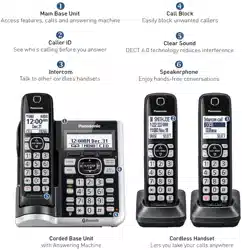


 )
) ).
).

 ).
).


 is displayed. However, during a cellular call,
  is not displayed even though this feature is activated.
-457757.png)
 (TALK)
 : Temporary tone dialing
 : Ringer off
 (SP-PHONE: Speakerphone)
 (Assist) [FLASH]
 page 62)
 Soft keys
 Navigator key
 , o
, o  : Scroll though various lists and items.
 or
or  ): Adjust the receive or speaker volume while talking.
 : View the phonebook entry.
 EDIAL: View the redial list.
 CID (Calle ID): View the caller list.
 (PLAY/STOP)
 (SP-PHONE: Speakerphone)
 : Temporary tone dialing
 (Assist)
 page 62)
 Soft keys
 Navigator key
 , o
, o  : Scroll though various lists and items.
 o
o  ): Adjust the speaker volume while talking.
 : repeat/skip messages during playback.


 : Select the desired setting → [SAVE]
 : Select the desired setting → [SAVE] → [OFF]


 Select “AM” or “PM”.
 : “Yes” → [SELECT]
 : Select the desired setting → [SAVE] → [OFF]


 : “Yes”→ [SELECT]

 : Select the desired handset o “All” → [SAVE] → [OFF]


 : Select the desired setting. → [SAVE] → [OFF]


 “On” → [SELECT] →
 will be displayed on the handset momentarily. The handset can be used once
  is displayed.
 or
or  on the handset while the cellular line only mode is tuned on.
 : Select the desired setting.
  [SAVE]

 [OK]
[OK] [SELECT]
 .
. for a few seconds.
 or
or  repeatedly while talking.
 REDIAL
 [SELECT]
 REDIAL
 [MENU]
 : “Yes”
  [SELECT]
  REDIAL
 [ERASE]
 to make the call.
 .
.
 for a few seconds.
 REDIAL
 (Pause)
 (Pause) is pressed.
 or
or  when the unit rings.
 (left soft key).
 or
or  repeatedly to select the desired volume while ringing.
 until the unit beeps to turn the ringer off. While the ringer is turned off, the handset will not ring for calls.
 [SELECT]
 .
. .
. before entering access numbers which require tone dialing.
 is displayed. However, during a cellular call,
  : “Noise reduction on” or "Noise reduction off”
  [SELECT]
 [SELECT]
 is shown on the display.
 [SELECT]
 [SELECT]
 “Stop conference”
  [SELECT]
 [SELECT]
 [SELECT]
 [SELECT]
 or [CELL] while the 2nd call is being received.
 REDIAREDIAL
 or
or 

 : Select the desired cellular phone
  [SELECT]
  on the base unit.
 or
or  repeatedly while talking.
 Select the desired entry
 [ERASE]
 [SELECT]

 on the handset, then press
  on the base unit with the call sharing mode on (page 48).


 when the unit rings
 or
or  repeatedly to select the desired volume while ringing.
 until the unit beeps.
 Select the corresponding cellular phone
  [SELECT]

 before entering access numbers which require tone dialing.
 or wait for a few seconds.


 2 times.
 [CELL 1] or [CELL 2]
 or [CELL]
 To answer the call, press
  “Intercom”
  [SELECT]
 Select the desired unit or “Voice paging”.
  or wait for a few seconds.
 to answer the page.
 to answer the page.
 or
or 
 Select the desired setting
  [SAVE]
 CID
CID Select the desired entry to be blocked.
 Press
Press  (Edit) repeatedly until the phone number is shown in the 10-digit format.
 [SAVE]


 to move the cursor to the next space.
 REDIAL
 CID
CID (Edit) repeatedly until the phone number is shown in the desired format.


 which contains the character you are searching for.
 : Select the desired language
  [MENU]
 [ERASE]

 (Pause) to add pauses after the number and PIN as necessary (page 24).
 before pressing
  on the handset or
  on the base unit in step 1 to change the dialing mode temporarily to tone. When adding entries to the phonebook, we recommend adding * to the beginning of phone numbers you wish to chain dial (page 37).
 on the handset.
 [ADD]
[ADD] “Manual”

 or
or  to select the desired main menu
 indicates the reference page number
 “Phonebook”
 “Caller list”
 “Answering device”
 “Voicemail access”*3
 “Intercom”
 “Bluetooth”

 “Set date & time”
 “Speed dial”
 “Settings”


 “Customer support”
 “Baby monitor”
 “Key detector”*12
 “Phonebook”
 “Caller list”
 “Answer device”
 “Bluetooth”
 “Settings”
 “Cust. Support”
 Select the desired alarm
  [SELECT]
 : Select “AM” or “PM" .
 [SAVE]
 : Select “AM” or “PM”

 is displayed next to the selected group numbers.
 to answer a call.
 to answer a call. If you want to respond from the monitoring unit, press [MUTE]
 3 times.*1
 2 times.
 using tone dialing.


 CID
CID to search from the oldest call.
 : Select the desired cellular phone
  [SELECT]
 CID
CID

 is displayed.
 or
or  indicates the caller information was received from the cellular line.
 Select the desired entry
  [SELECT]
 (Edit) repeatedly until the phone number is shown in the desired format.


 Tap [Accessibility].

 : Select the desired setting.
 [SAVE]


 is displayed on the base unit, the headset is available for use.

 : “Yes”
  [SELECT]
 disappears from the base unit display.
 on the base unit 2 times.
 on the base unit.
 on the base unit.
 or
or  repeatedly while using your headset.


 : “Yes”
  [SELECT]

 is not displayed).
 on the base unit flashes.
 (PLAY)
 or
or 


 (STOP)
 during playback


 : “Answering device”
  [SELECT]
 : “Playback”
 [SELECT]


 to play new messages (without entering the remote access code).
 during the call to turn off the new message alert by a call feature
 in step 2 on “Remote access code”, page 69
 to perform a specific operation, or press
  to listen to more available operations.
 The voice guidance announces the available remote commands (page 70).
 or
or  repeatedly.
 on the handset or
  on the base unit.


 (Pause) to add pauses (page 24) between the access number and the password as necessary. Contact your phone service provider for the required pause time.
 on the handset or press
  on the base unit, you have new voicemail messages. Soon after you hang up a call or after the phone stops ringing, your unit checks the phone line to see if new voicemail messages have been recorded.

 until the handset or base unit beeps.
 Connect the AC adaptor cord and telephone line cord
 Hook
Hook
 102 mm (4 inches)
 and
and  respectively.


 flashes.
 is displayed, or
 and the charge contacts with a dry cloth and charge again.


 until the unit beeps.