
www.lg.com
OWNER'S MANUAL
LG CLOUD V SERIES BOX
CBV42
Please read the safety information carefully before using the product.
LG Cloud V Series Box Model List
ENG

2
ENG
English
Table of Contents
3 ASSEMBLING AND
PREPARING
3 Unpacking
4 PartsandButtons
5 ProductInstallation
5 - UsinginHorizontalPosition
5 - UsinginVerticalPosition
5 - MountingontheBackoftheMonitor
6 CONNECTING LAN/
PERIPHERALS
6 - LANConnection
6 - DVIConnection
7 - ExtendedMonitorConnection
7 - Peripheraldeviceconnection
9 TROUBLESHOOTING
10 SPECIFICATIONS
10 PowerIndicator
11 USING CLOUD SOLUTION
3
ENG
English
ASSEMBLING AND PREPARING
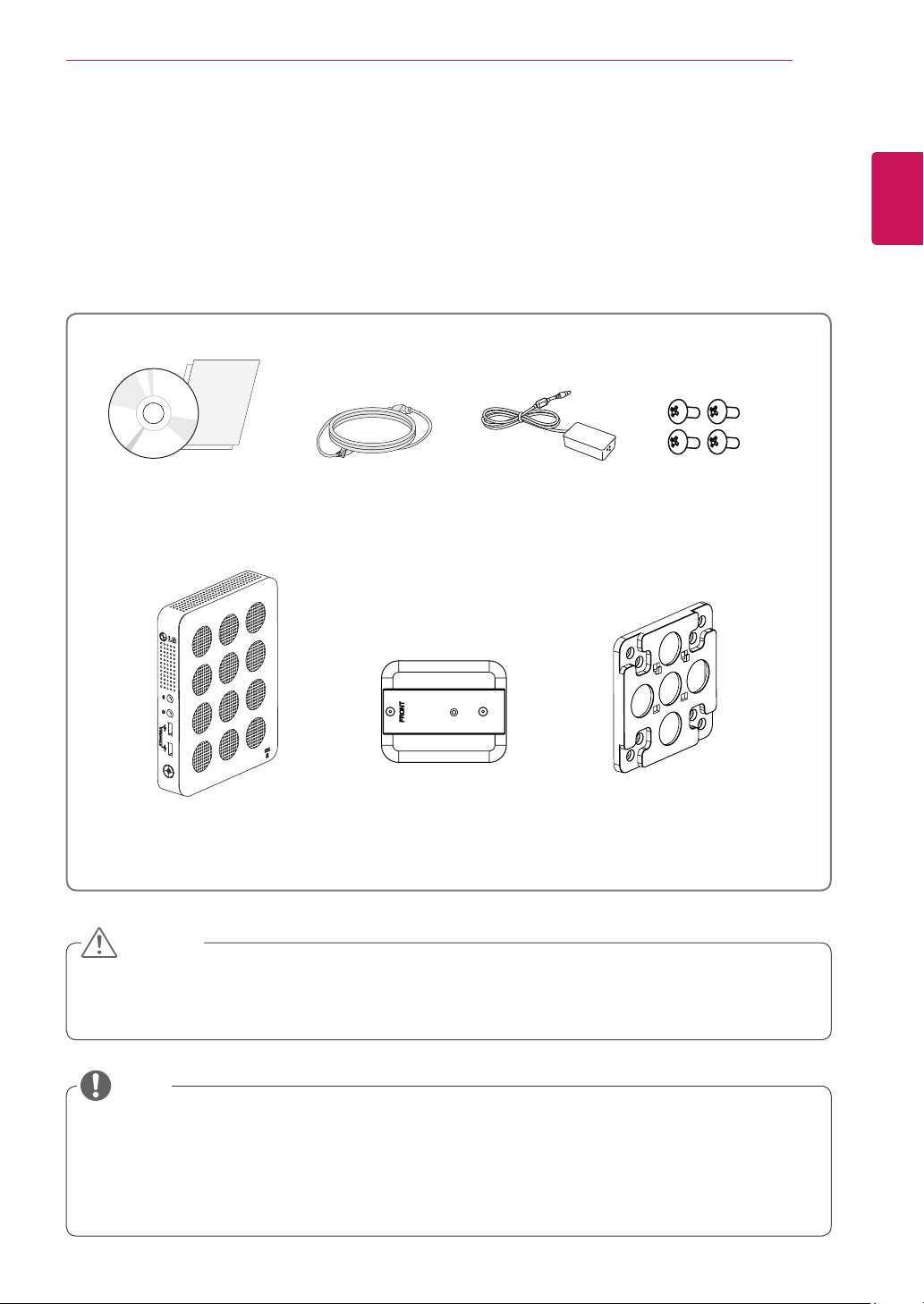
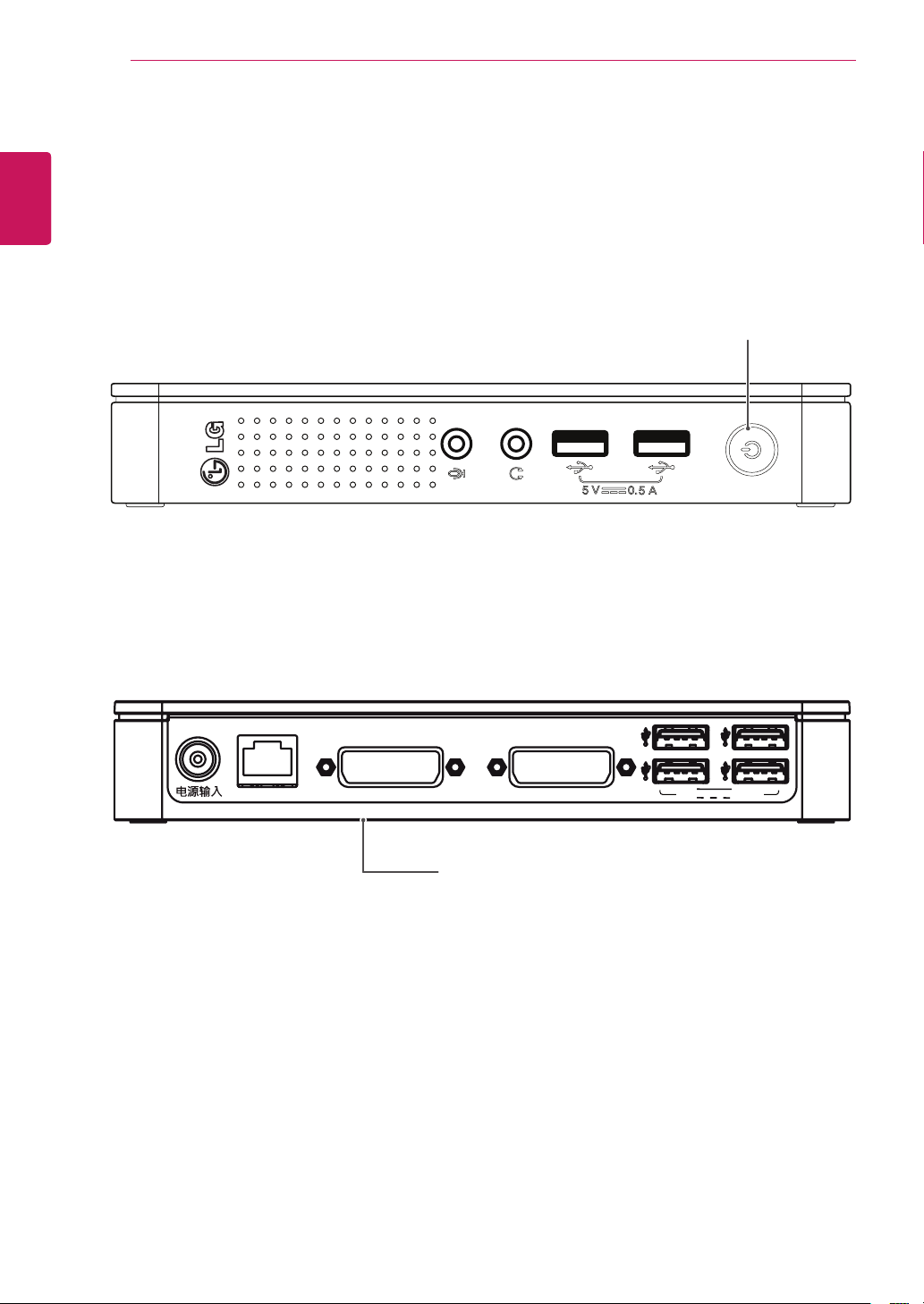
MainUnit StandBase MountBracket
PowerCordOwner'sManual/Card
FourScrews
AC/DCAdapter
ASSEMBLING AND PREPARING
Unpacking
Pleasecheckwhetherallthecomponentsareincludedintheboxbeforeusingtheproduct.Ifthereare
missingcomponents,contacttheretailstorewhereyoupurchasedtheproduct.Notethattheproductand
componentsmaylookdifferentfromthoseshownhere.
OnlyuseanapprovedLGpoweradapter.
Damagecausedbyotherpoweradaptersisnotcoveredbywarranty.
Notethatthecomponentsmaylookdifferentfromthoseshownhere.
Withoutpriornotice,allinformationandspecificationsinthismanualaresubjecttochangetoimprove
theperformanceoftheproduct.
Topurchaseoptionalaccessories,visitanelectronicsstoreoronlineshoppingsiteorcontacttheretail
storewhereyoupurchasedtheproduct.
CAUTION
NOTE
4
ENG
English
ASSEMBLING AND PREPARING
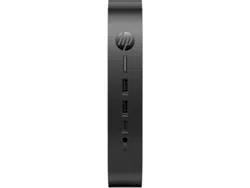
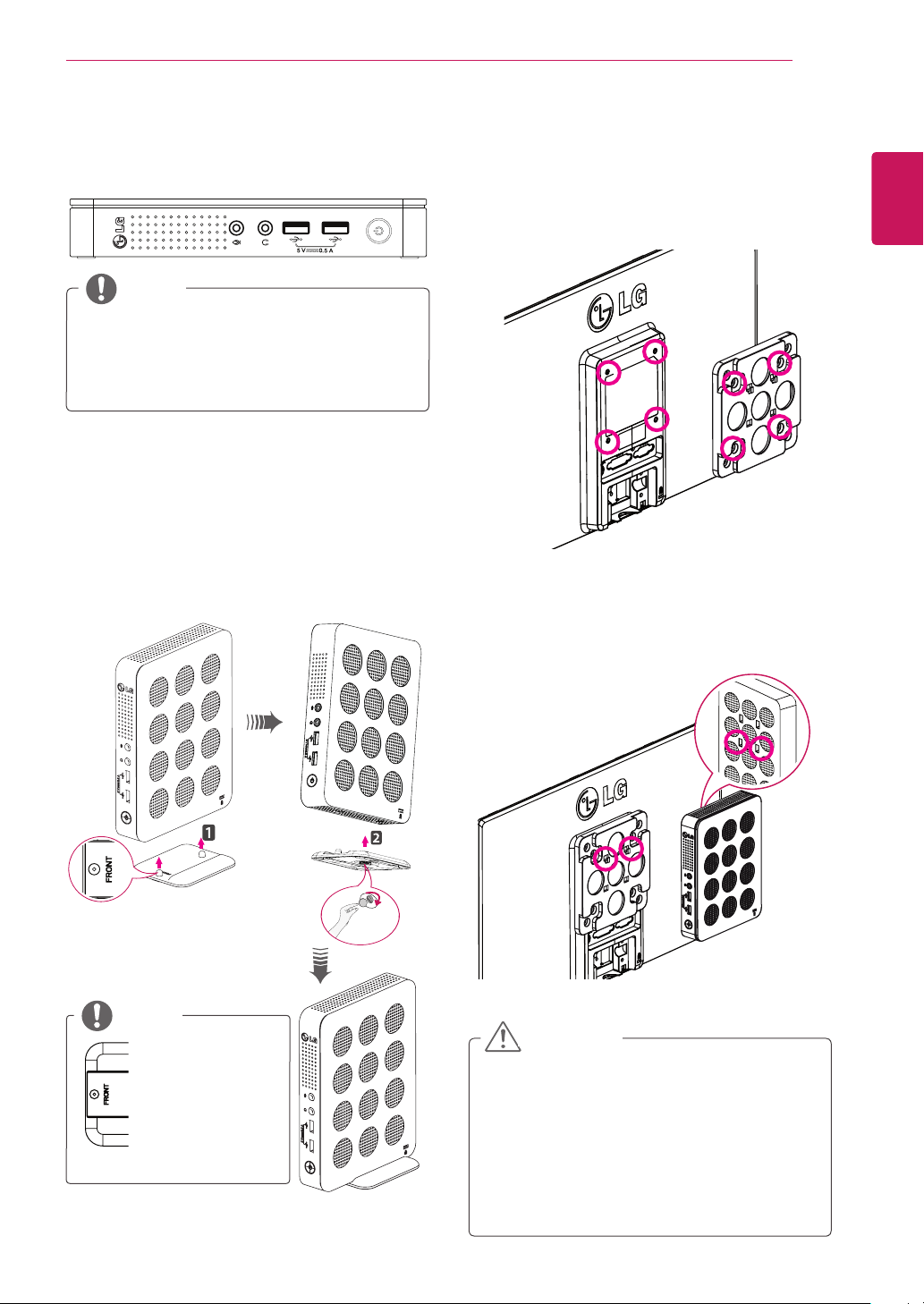
Parts and Buttons
DC-IN
LAN
DVI-D OUT DVI-I OUT
5V 0.1A
DC-IN
LAN
DVI-D OUT DVI-I OUT
5V 0.1A
Power Indicator &
Power Button
On:PowerOn
Off:PowerOff
InputConnectors
Front Side
Rear Side
5
ENG
English
ASSEMBLING AND PREPARING
Product Installation
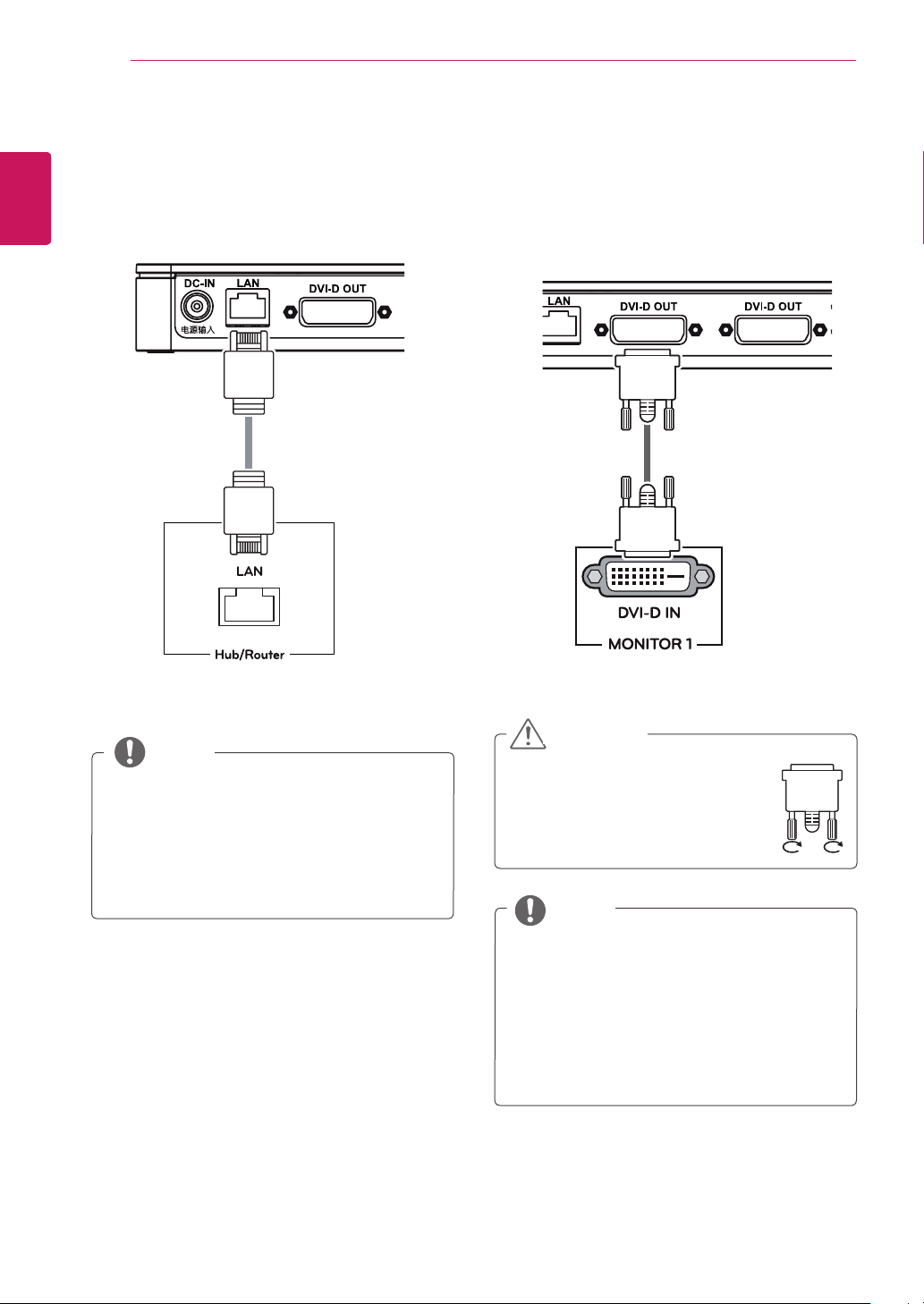
Using in Horizontal Position
Using in Vertical Position
1
Firmlyattachthestandonthebottomofthe
productasillustratedbelow.
2
Usingacoin,turnthescrewclockwiseto
securethestandbase.
Mounting on the Back of the
Monitor
1
Fixthemountbracketonthebackofthe
monitorwith4screwsasillustratedbelow.
2
Puttheproductonthetwolatchesasillustrated
below.
Assembletheproductbyaligningthebelow
twoholesoutof4holesontheproduct.
DC-IN
LAN
DVI-D OUT DVI-I OUT
5V 0.1A
Attachthestand
basetothe
standhingewith
itsfrontpartfac-
ingforward.
Ifthisproductisusedwithupsidedown,it
maynotworkproperly.
UsetheproductwiththeKensingtonlock
facingupward.
NOTE
Theproductmaynotbemountedonsome
monitorswithmountbracket.
-Inthiscase,usetheproductinhorizontal
orverticalposition.
Whenconnectingtheperipheralsafter
mountingtheproductonthemonitor,be
suretoholdtheproduct.
CAUTION
NOTE
6
ENG
English
Connecting LAN/Peripherals
CONNECTING LAN/PERIPHERALS
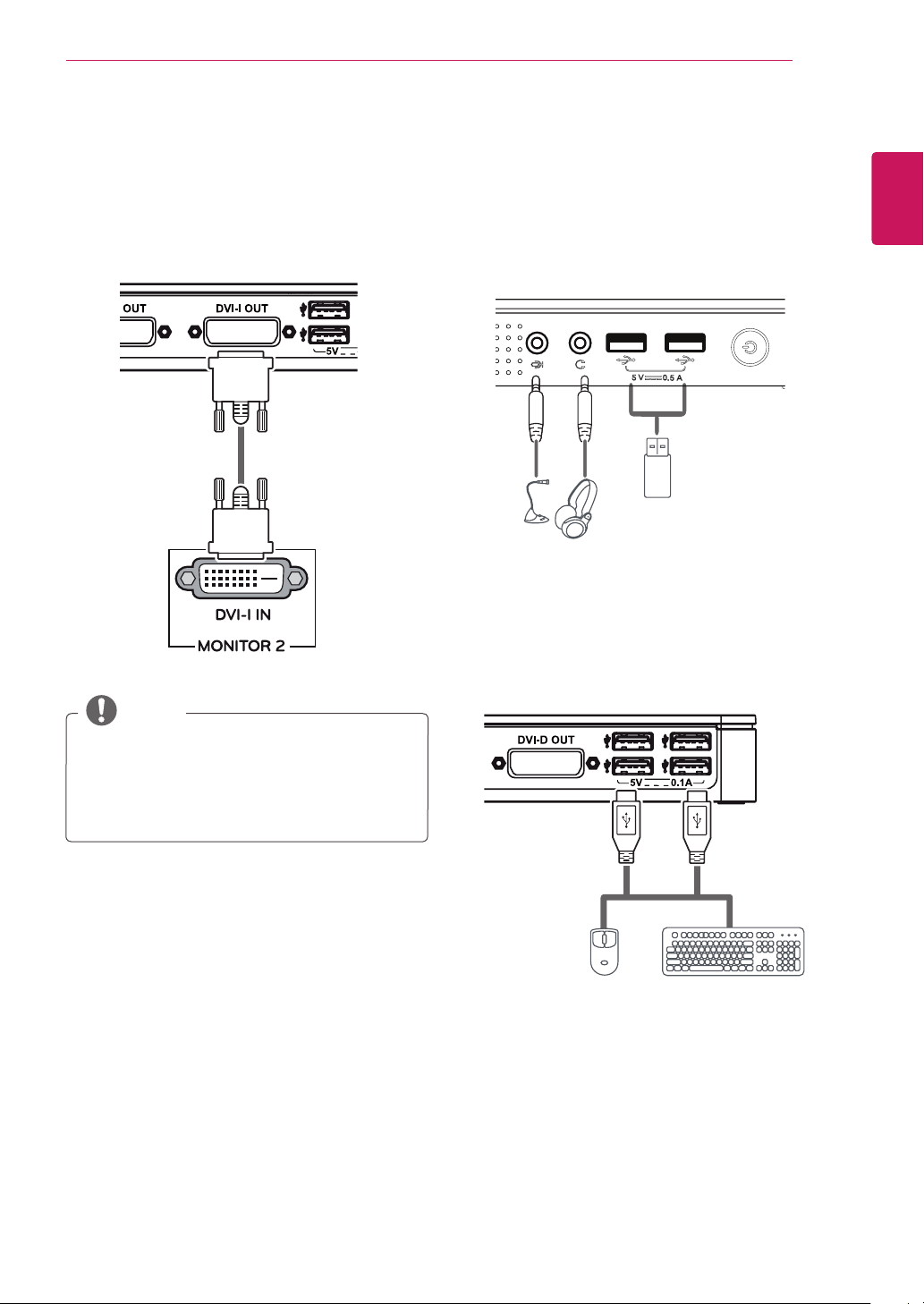
DVI Connection
Transmitsdigitalvideosignalstothemonitor.Con-
necttheproductusingtheDVIcableasillustrated
below.
Connecttheinputsignalcable
andturninthedirectionofthe
arrow.Topreventdisconnection
securethecabletightly.
TheLANcableissoldseparately.
ThefollowingLANcabletypecanbeused:
Standard:IEEE802.3ETHERNET
ConnecttheLANcableandtheperipheralde-
vicestousetheCITRIXcloudmonitor.
Whenconnectingthepowercordtothe
outlet,useagrounded(3-hole)multi-socket
oragroundedpoweroutlet.
DVIcableisnotincludedinthebasiccom-
ponents.UsetheDVIcableprovidedwith
themonitororthestandardDVIcable.
CAUTION
NOTE
NOTE
LAN Connection
Connecttherouterorswitchtothemonitorusinga
LANcableasillustratedbelow.
7
ENG
English
Connecting LAN/Peripherals
Ifthemain/subscreenwaschangedafter
extendedmonitorwasconnected,themain/
subcanbechangedinSetup.
Extended Monitor Connection
Transmitsdigitalvideosignalstothemonitor.Con-
necttheproductusingtheDVIcableasillustrated
below.
Peripheral device connection
Connectperipheraldevicestothemonitorusing
USB,microphoneandheadphoneports.
Front Side
Rear Side
NOTE
8
ENG
English
Connecting LAN/Peripherals
Thecloudserversettingsmayaffecttheperfor-
manceoftheheadphones,earphonesorspeak-
ersdependingontheconnectedcloudserver.
Thecloudserversettingsmayaffectthe
functionsorspeedofthespecificUSBstor-
agedevicedependingontheconnected
cloudserver.
Peripheraldevicesaresoldseparately.
TheUSBportscanbeusedtoconnectthe
keyboard,mouse,andotherUSBdevices.
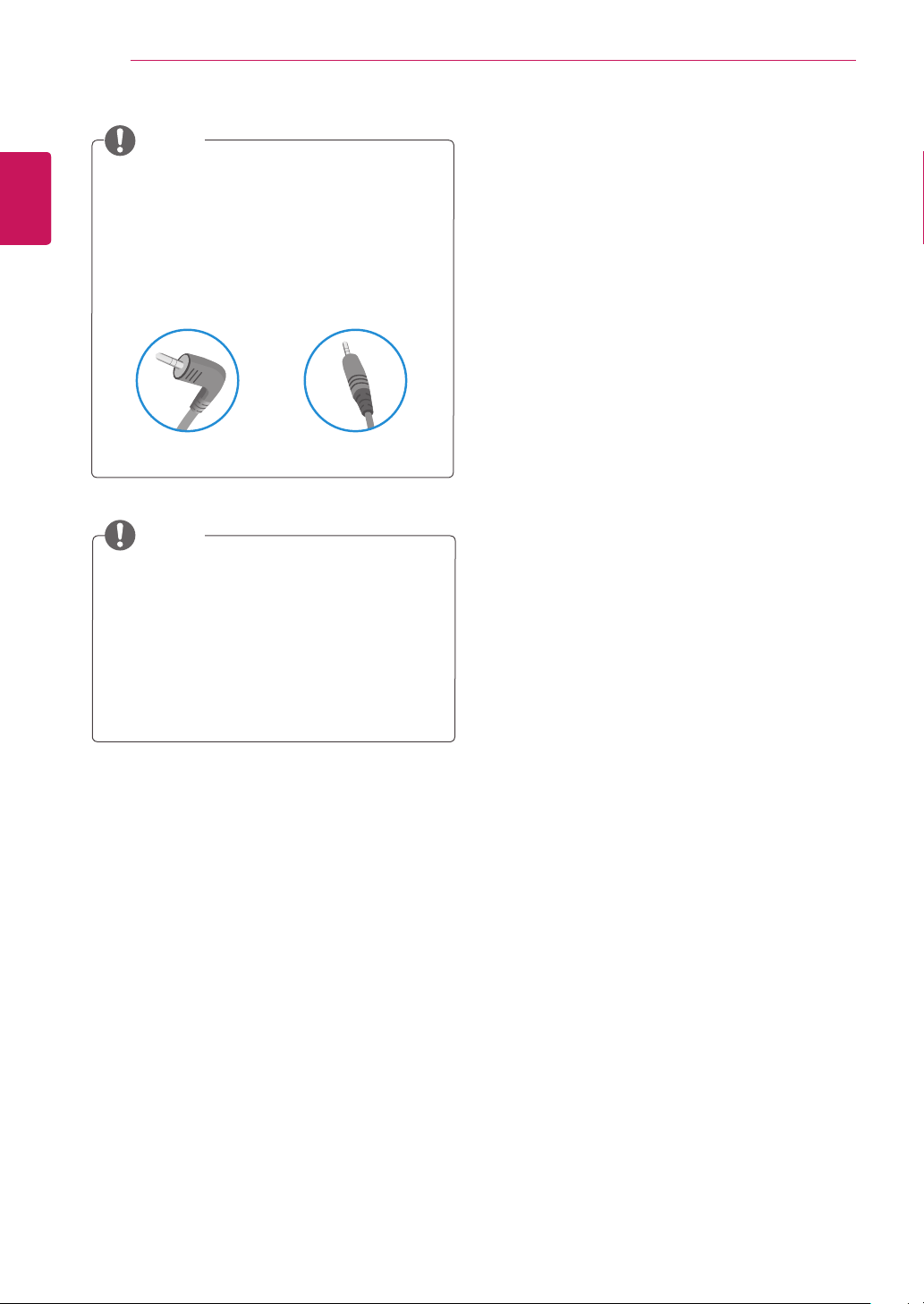
Foranangleplugearphone/microphone,itis
difficultconnectitwithaperipheraldevice,so
useastraighttype.
AngleType StraightType
NOTE
NOTE
9
ENG
English
TROUBLESHOOTING
TROUBLESHOOTING
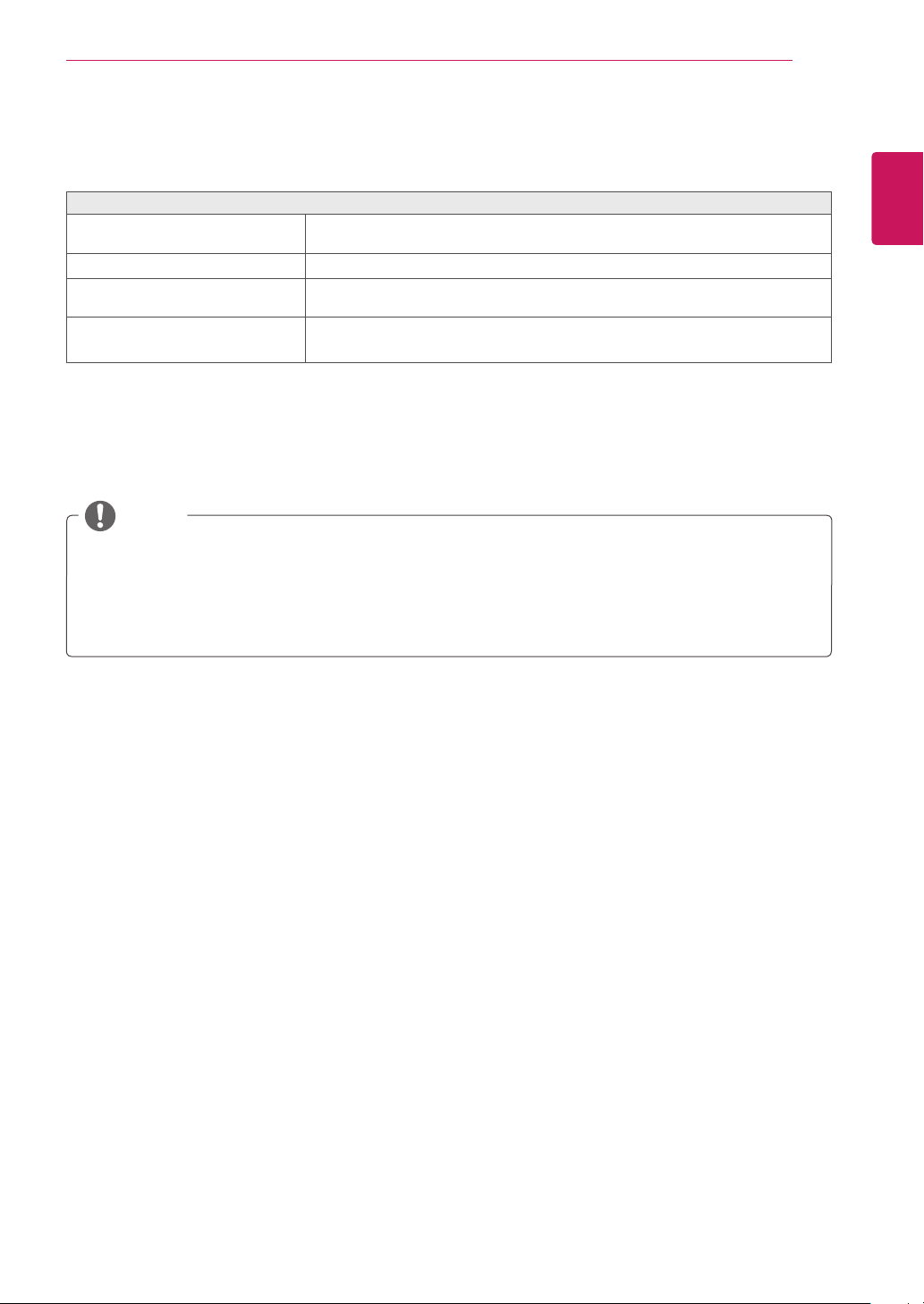
Nothing is displayed on the screen
IsthepoweradapteroftheBox
pluggedin?
Checkifthepowercordiscorrectlypluggedintothepoweroutlet.
Isthepowerindicatoron?
Checkthepowerindicator.
Isthepowerindicatordisplayingas
red?
Adjustthebrightnessandthecontrastoftheconnectedmonitor.
AretheBOXandthemonitorcon-
nectedwiththesignalcable?
CheckwhetherthemonitorandtheBoxareproperlyconnectedtoDVI
cableorD-SUBcable(usingDVItoD-Subgender).
Thisboxtypeproductisusedbyconnectingthemonitor.
Ifthemonitordoesnotworknormally,thescreenmaynotbedisplayedcorrectly.
NOTE
10
ENG
English
SPECIFICATIONS
SPECIFICATIONS
SupportedDis-
playResolution
(DVI-I,DVI-D)
MaximumResolution 1920x1200@60Hz
RecommendedResolution 1920x1200@60Hz
Power Voltage 19V 1.2A
Powerconsumption(Typ.)
(Cloud)
CloudMode6W
OffMode≤0.5W
Dimension Dimensions(WidthxHeightxDepth)
Withstand 70.3mmx189.3mmx143.6mm
WithoutStand 185mmx30.5mmx143.6mm
Weight(Without
Packaging)
0.65kg
AC/DCadapter TypeADS-40SG-19-319025G,manufacturedbySHENZHENHONORELECTRONIC
OrTypeLCAP21,manufacturedbyLIENCHANGELECTRONICENTERPRISE
OrTypePSAB-L203A,manufacturedbyLGInnotekCo.,Ltd
Output:19V 1.3A
Environmental
Conditions
OperatingCondition Temperature:10°Cto35°C;Humidity:10%to80%
StoringCondition Temperature:-20°Cto60°C;Humidity:5%to90%
Thespecificationsaresubjecttochangewithoutnotice.
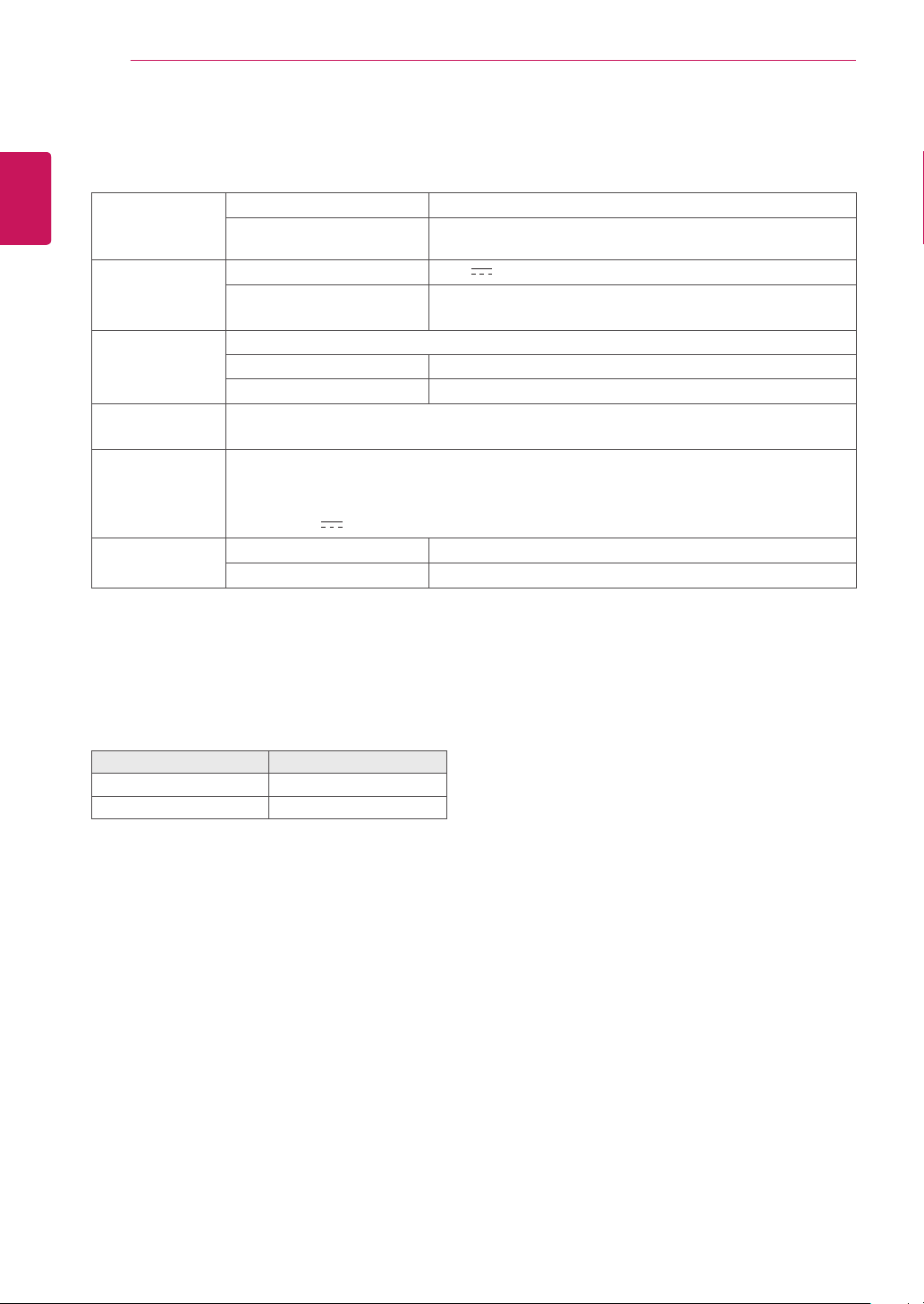
Power Indicator
Mode LED Color
OnMode Red
OffMode Off
11
ENG
English
Using CLOUD Solution
USING CLOUD SOLUTION
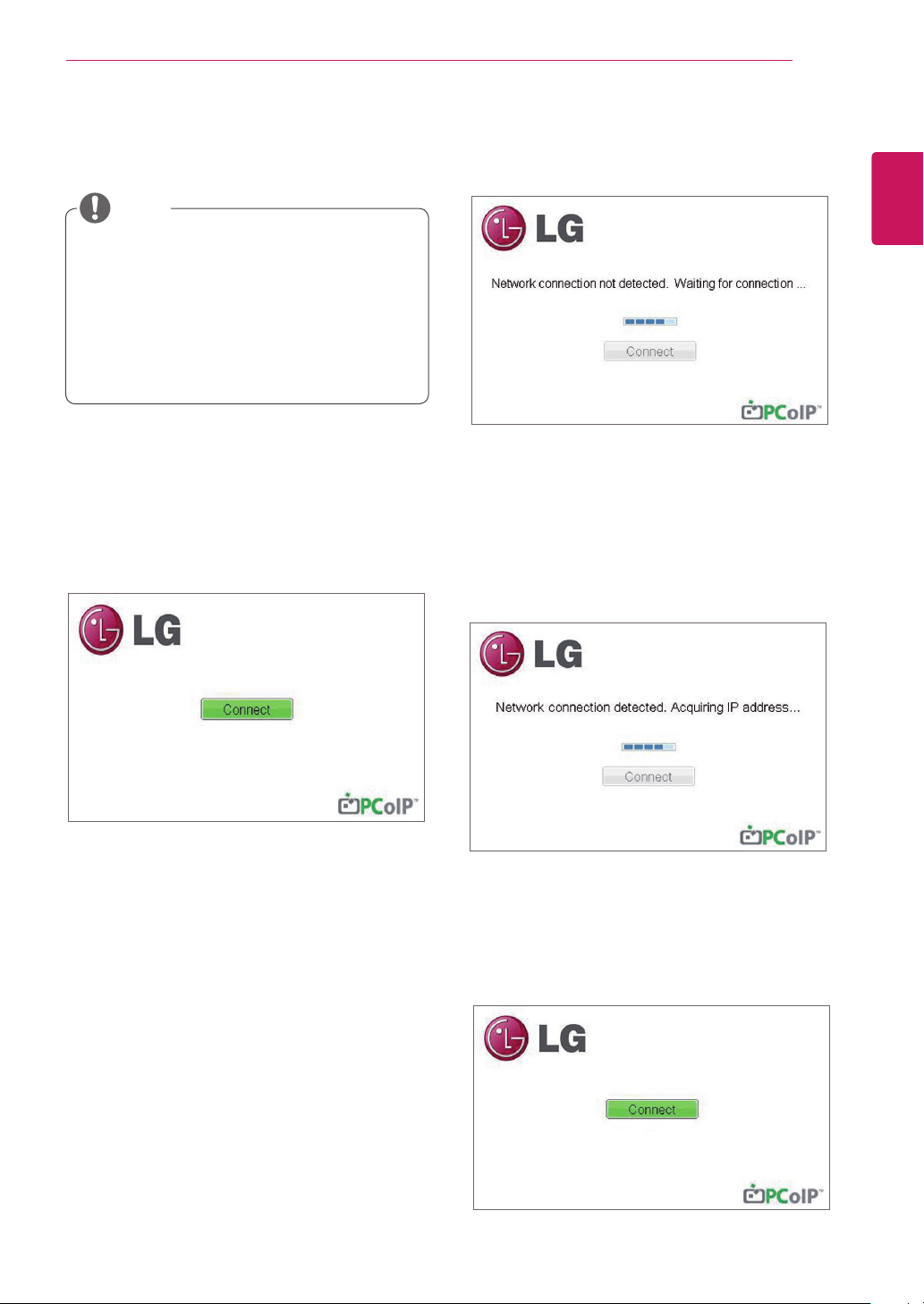
IfthenetworkisconnectedandIPisbeingac-
quired,themessage"Networkconnectiondetect-
ed.AcquiringIPaddress…"isdisplayedonthe
Connectionscreen.Figure2-3showsthemessage
displayedwhenthenetworkisreadyandtheIPis
beingacquired.
ThebelowistheConnectionscreendisplayed
whennetworkiscompletelyready.
Ifthenetworkisnotproperlyconnected(e.g.,dur-
ingportalbootup),orconnectionisbeingcreated,
the"Networkconnectionlost.Waitingforconnec-
tion…"messageisdisplayedontheConnection
screen.
Figure2-2showsthemessagedisplayedwhenthe
networkisnotready.
<Figure2-1:OSDConnectScreen>
<Figure2-3AcquiringtheIPafterNetworkCon-
nected>
Connect Screen
TheConnectscreenisshownduringstart-up,
exceptwhentheportalhasbeenconfiguredfora
managedstart-uporauto-reconnect.Thelogodis-
playedabovetheConnectbuttoncanbechanged
byuploadingareplacementimageviatheadmin
interface.
<Figure2-2:NetworkNotReady>
NOTE
MenusandfunctionsinCLOUDmodemay
beslightlydifferentdependingonthefirm-
wareversion.Youcandownloadtheuser
manualforeachversionfromtheTeradici
homepage:http://www.teradici.com
Tocheckthefirmwareversion,seepage
<47>.
<Figure2-4:NetworkReady>
12
ENG
English
Using CLOUD Solution
<Figure2-5:OSDConnectScreen(Connecting)>
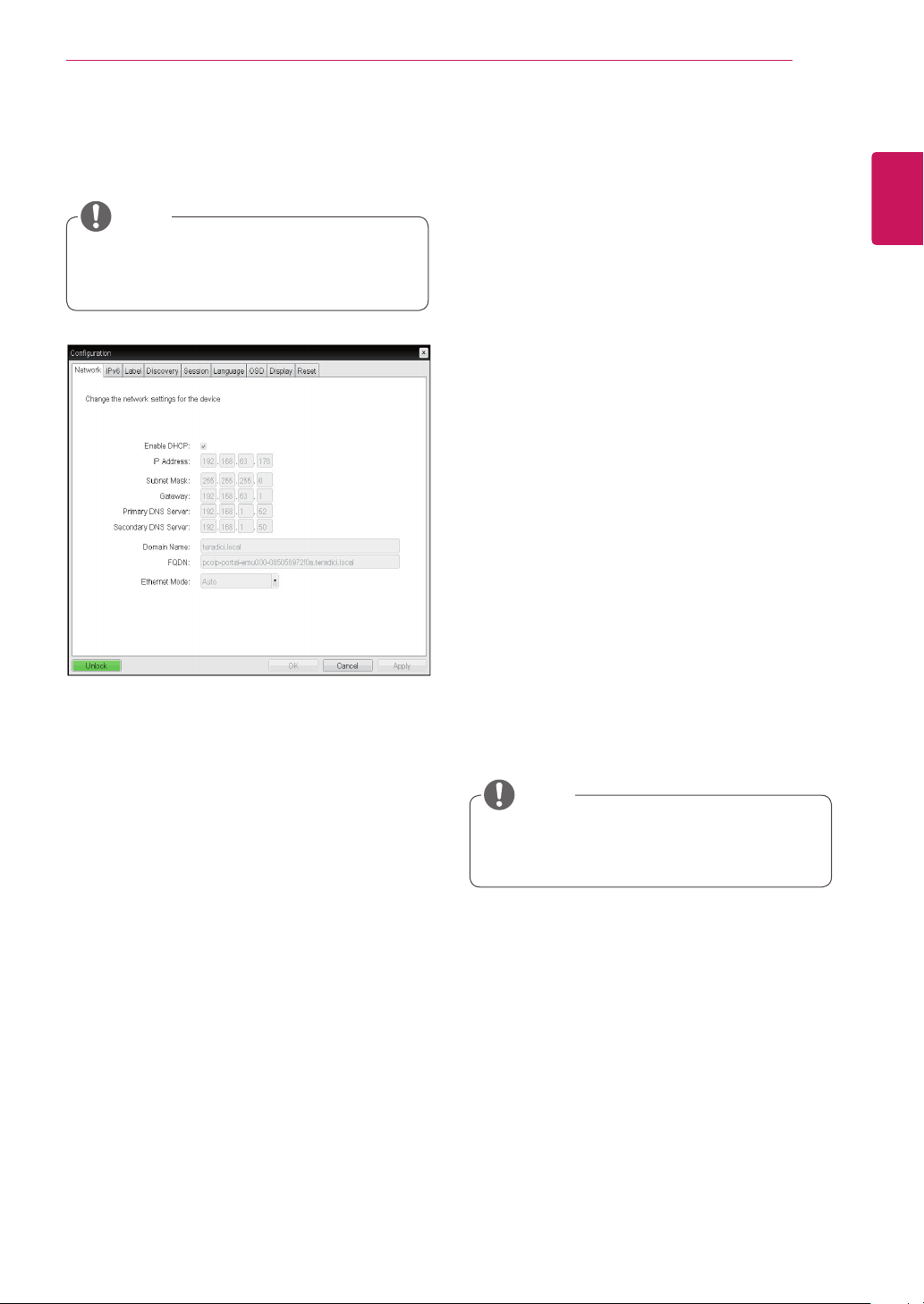
OSDOptionsMenu
SelectingtheOptionsmenuwillproducealistof
selections.TheOSDOptionsmenucontains:
Configuration
Diagnostics
Information
UserSettings
Selectingoneoftheoptionswillproduceasettings
window.
SomePCoIPdeviceshavetheirpassword
protectiondisabledandcanbeloggedinto
themanagementwebpageoraccessthe
OSDparameterswithoutapassword.The
loginpageandtheOSD'spasswordprotec-
tioncanbeenabledinthePCoIPmanage-
mentconsole.
NOTE
IfyouselecttheConnectbutton,theconnection
sessionisstarted.Whentheconnectionispend-
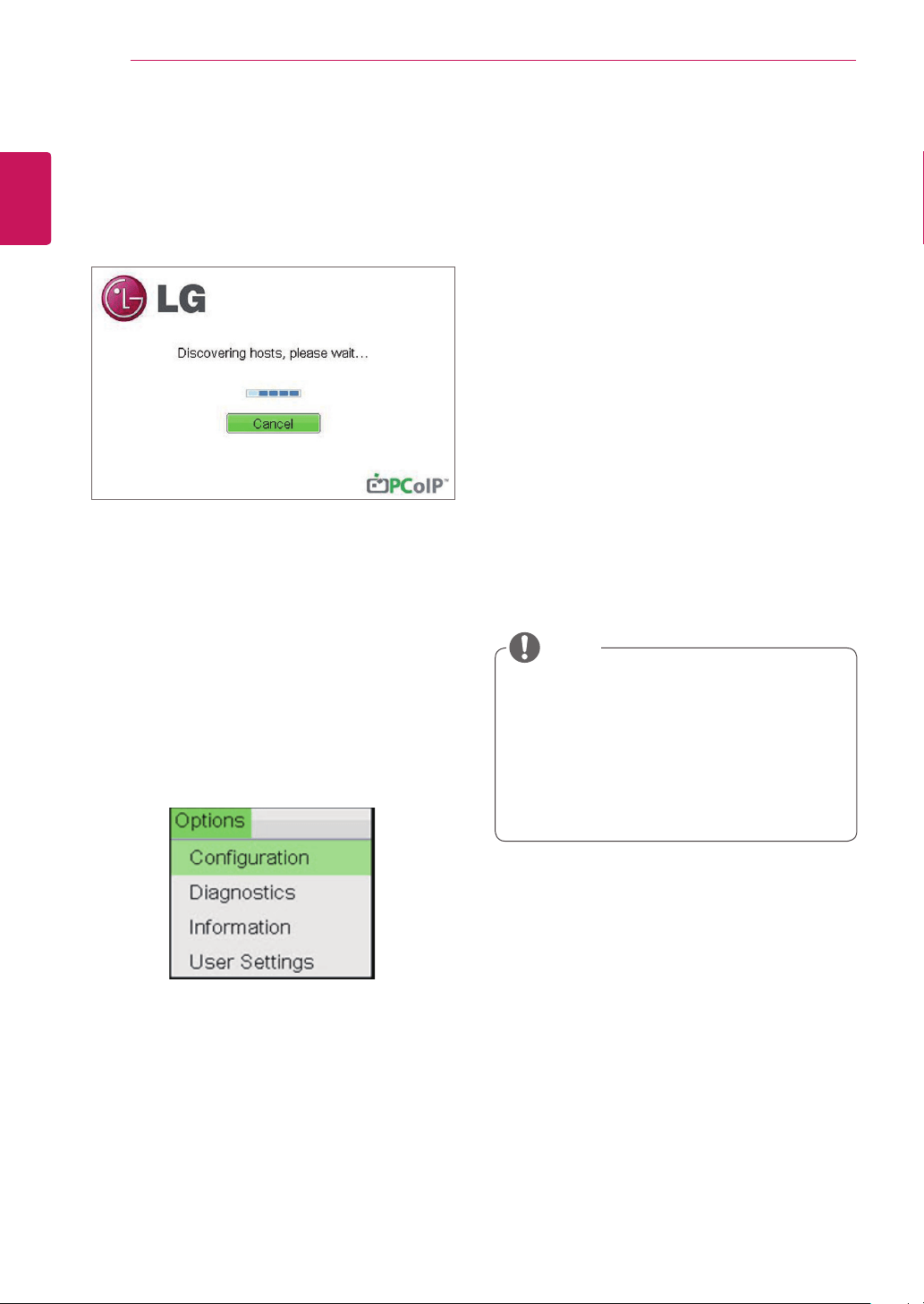
ing,the"Discoveringhosts,pleasewait…"mes-
sageisdisplayedontheOSDlocalGUI.Whenthe
connectionisestablished,theOSDlocalGUIwill
disappearandbereplacedbythesessionimage.
<Figure2-6:OSDOptionsMenu>
Configuration Window
IntheConfigurationwindow,theadministratorcan
accessthewindowtabsthatcontainthesettingsto
configureandmanagetheportalenvironment.
TheConfigurationwindowhasthefollowingtabs:
Network
Label
Connection Management
Discovery
Session
RDP
Language
OSD
Reset
Display
VMware View
EachtabcontainsOK,CancelandApplybuttons
toallowtheadministratortoapplyorcancelthe
modifiedsettingsaswellastheAdvancedbutton
foradvancedsettings.
13
ENG
English
Using CLOUD Solution
InordertoutilizetheFQDNfeature,aDNS
server,configuredproperlywithDHCPoption
81,mustbeused.
Gateway
TheGatewayfieldcontainsthegatewayIPad-
dressofthedevice.IfDHCPisdisabled,thisfield
isrequired.IfDHCPisenabled,thisfieldcannotbe
edited.
Primary DNS Server
ThePrimaryDNSServerfieldcontainstheprimary
DNSIPaddressofthedevice.Thisfieldisoption-
al.IfDHCPisenabled,thisfieldcannotbeedited.
Secondary DNS Server
TheSecondaryDNSServerfieldcontainsthesec-
ondaryDNSIPaddressofthedevice.Thisfieldis
optional.IftheDHCPisenabled,thisfieldcannot
beedited.
Domain Name
TheDomainNamefieldcontainsthedomainname
used,e.g."domainlocal".Thisfieldisoptional.Itspeci-
fiesonwhichdomainthehostorportaloperates.
FQDN
TheFQDNfieldrepresentstheFullyQualifiedDo-
mainNameofthehostorportal.Thedefaultvalueis
PCoIP-host-MACorPCoIP-portal-MAC,whereMAC
istheMACaddressofthehostorportal.Ifthereis
adomainname,itwillbeaddedtotheFQDNinthe
formatofPCoIP-host-MAC.domain.local
Ethernet Mode
TheEthernetModefieldspecifiestheportal'sEth-
ernetmode.
Theavailableoptionsareasfollows.
Auto
100MbpsFull-Duplex
10MbpsFull-Duplex
Ifanothernetworkdevice(forexample,aswitch)is
configuredtooperateunder10MbpsFull-Duplex,
100MbpsFull-Duplexor1GbpsFull-Duplex,the
administratorshouldalwayssettheEthernetMode
fieldtoAuto;andifthedeviceistooperateunder
onlyonespeedoutofmultiplesettings,selectei-
ther10MbpsFull-Duplexor100MbpsFull-Duplex.
NOTE
Thenetworkparameterscanalsobecon-
figuredusingtheWebpageAdministration
Interface.
NOTE
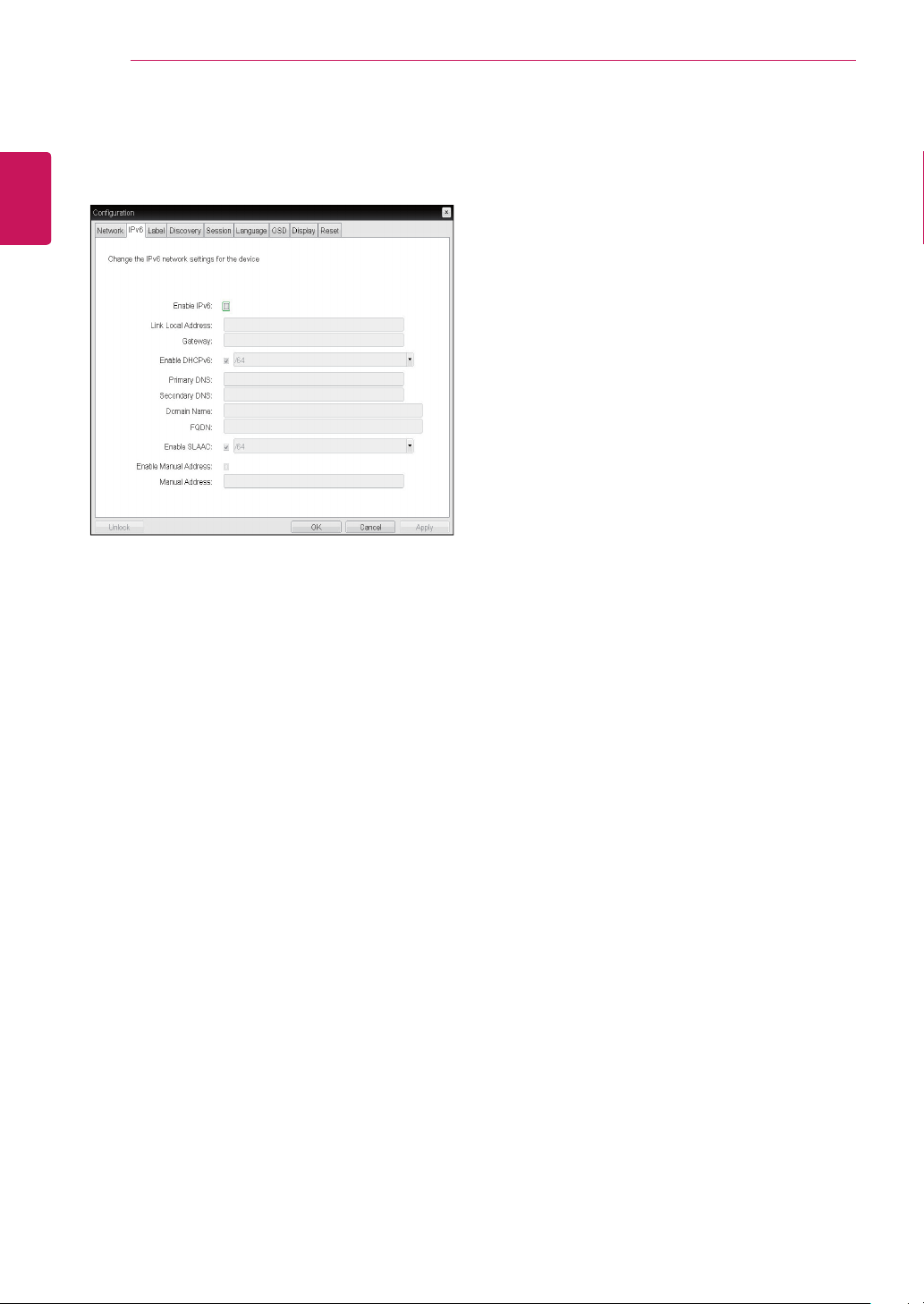
Network Tab
TheNetworktaballowstheadministratortoconfig-
uretheportalnetworkparameters.
Figure2-7.NetworkConfiguration
Enable DHCP
IftheEnableDHCPoptionisselected,adevicewill
beconnectedtotheDHCPserver.thatallocates
theIPaddress,subnetmask,gatewayIPaddress,
andDNSserver.Ifthisoptionisdisabled,the
aboveparametersmustbeconfiguredmanually.
IP Address
TheIPAddressfieldcontainstheIPaddressofthe
device.IfDHCPisdisabled,thisfieldisrequired.
IfDHCPisenabled,thisfieldcannotbeedited.
ThisfieldmustcontainthecorrectIPaddress.Ifan
incorrectIPaddressisprovided,anOSDmessage
isdisplayedpromptingtheadministratortoprovide
thecorrecttheIPaddress.
Subnet Mask
TheSubnetMaskfieldcontainsthesubnetmask
ofthedevice.IfDHCPisdisabled,thisfieldis
required.IfDHCPisenabled,thisfieldcannotbe
edited.Thisfieldmusthavethecorrectsubnet
mask.Ifanincorrectsubnetmaskisprovided,an
OSDmessageisdisplayedpromptingtheadminis-
tratortoprovidethecorrectthesubnetmask.
14
ENG
English
Using CLOUD Solution
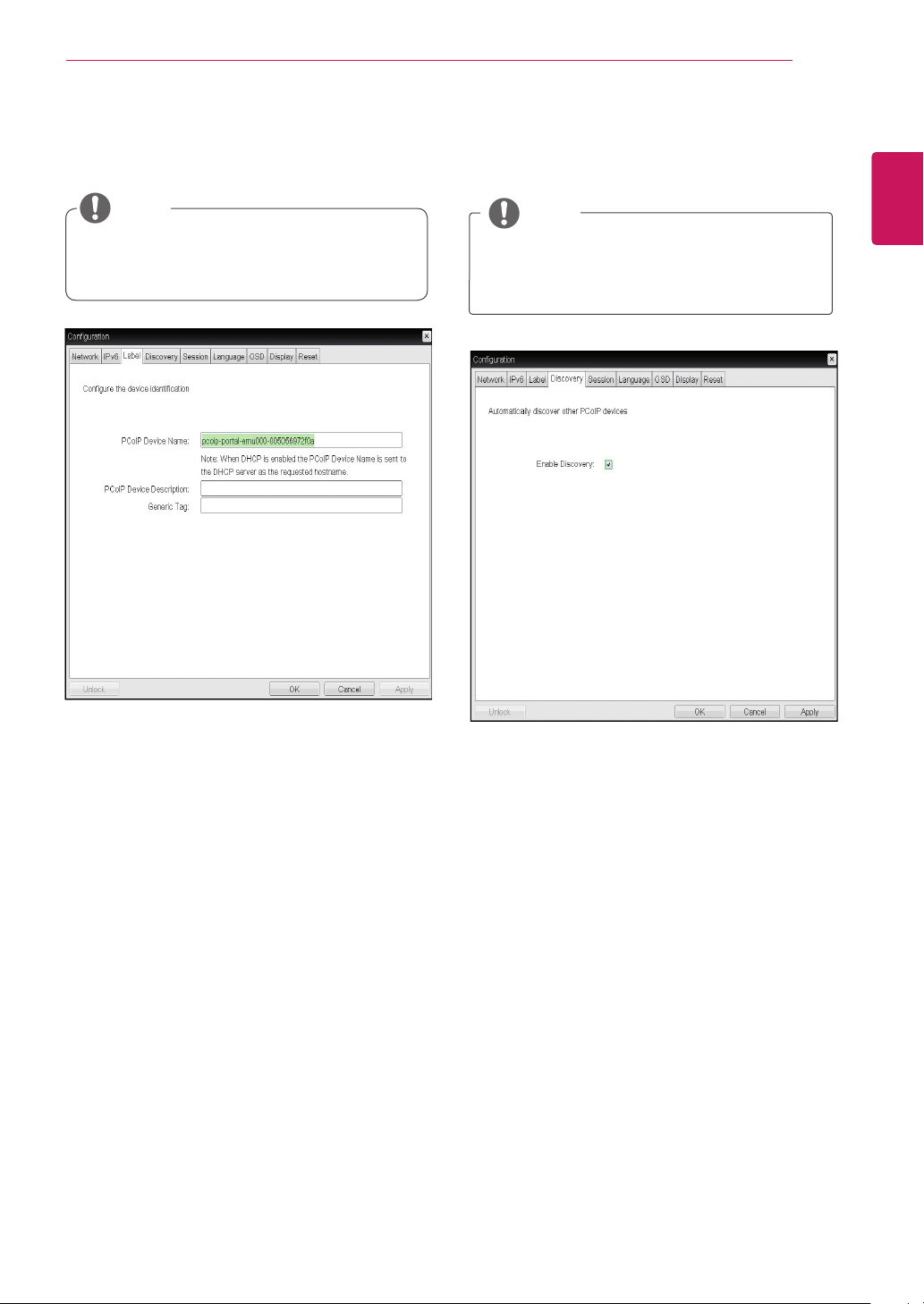
<Figure2-8:IPv6Configuration>
<IPv6>Tab
TheIPv6tabisusedwhentheportalisconnected
tothenetworkconfiguredwiththeIPv6.
Enable IPv6
IfyouselectEnableIPv6,theportalinusecanbe
connectedtothenetworkconfiguredwiththeIPv6.
Link Local Address
TheLinkLocalAddressfieldisautomaticallyfilled
withtheIPaddressofadevice.
Gateway
TheGatewayfieldcontainsthegatewayIPad-
dressofthedevice.Enterthegatewayaddressto
beusedbyadevice.
Enable DHCPv6
ToassigntheDynamicHostConfigurationProtocol
version6(DHCPv6)ofadeviceselecttheEnable
DHCPv6field.
DHCPv6 Addresses
WhenDHCPv6isenabledandthedevicerestarts,
theserverentersthedeviceaddressesautomati-
cally.
Primary DNS Server
ThePrimaryDNSServerfieldcontainsthepri-
maryDNSIPaddressofthedevice.Thisfieldis
optional.IfDHCPv6isenabled,thisfieldcannotbe
edited.
Secondary DNS Server
TheSecondaryDNSServerfieldcontainsthesec-
ondaryDNSIPaddressofthedevice.Thisfieldis
optional.IfDHCPv6isenabled,thisfieldcannot
beedited.
Domain Name
TheDomainNamefieldcontainsthedomainname
used,e.g."domainlocal".Thisfieldisoptional.It
specifiesonwhichdomainthehostorportaloper-
ates.
FQDN
TheFQDNfieldrepresentstheFullyQualifiedDo-
mainNameofthehostorportal.Thedefaultvalue
isPCoIP-host-MACorPCoIP-portal-MAC,where
MACistheMACaddressofthehostorportal.If
thereisadomainname,itwillbeaddedtothe
FQDNintheformatofPCoIP-host-MAC.domain.
local.
Enable SLAAC
SelecttheEnableSLAACfieldtousethestateless
auto-configurationofthedevice.
Enable Manual Address
SelecttheEnableManualAddressfieldtoenter
thedeviceaddressmanually.
Manual Address
IntheManualAddressfield,entertheIPaddress
manually.
15
ENG
English
Using CLOUD Solution
<Figure2-9:LabelConfiguration>
Label Tab
TheLabeltaballowstheadministratororhostto
addcustomizedinformationtotheportal.
Theportallabelparameterscanalsobecon-
figuredusingtheWebpageAdministration
Interface.
PCoIP Device Name
InthePCoIPDeviceNamefield,theadministrator
canspecifyalogicalnametothehostorportal.
ThedefaultvalueisPCoIP-host-MACorPCoIP-
portal-MAC,whereMACistheMACaddressofthe
hostorportal.
PCoIP Device Description
InthePCoIPDeviceDescriptionfield,theadministra-
torcanaddspecificinformation,suchastheendpoint
location,oraddadescriptiontothehostorportal.
ThisfieldcannotbeusedinthePCoIPfirmwareand
accessibilityisstrictlylimitedtotheadministrator.
Generic Tag
IntheGenericTagfield,theadministratorcanadda
generictagtothehostorportal.
ThisfieldcannotbeusedinthePCoIPfirmwareand
accessibilityisstrictlylimitedtotheadministrator.
NOTE
Enable Discovery
IftheEnableDiscoveryoptionisselected,adevice
willuseSLPDiscoverytodynamicallylocatethe
peerdevicewithoutrequiringanyinformationabout
thelocationofthedeviceinthenetwork.This
meansthattheconfigurationandmaintenance
workinacomplicatedsystemcanbesignificantly
reduced.
AsSLPDiscoveryrequiresamulticast-enabled
router,therecommendedsearchstructureisDNS-
SRVDiscovery.
<Figure2-10:DiscoveryConfiguration>
Discovery Tab
TheDiscoverytaballowstheadministratortoeas-
ilyfindaportalinthePCoIPsystem.
TheDiscoveryparameterscanalsobecon-
figuredusingtheWebpageAdministration
Interface.
NOTE
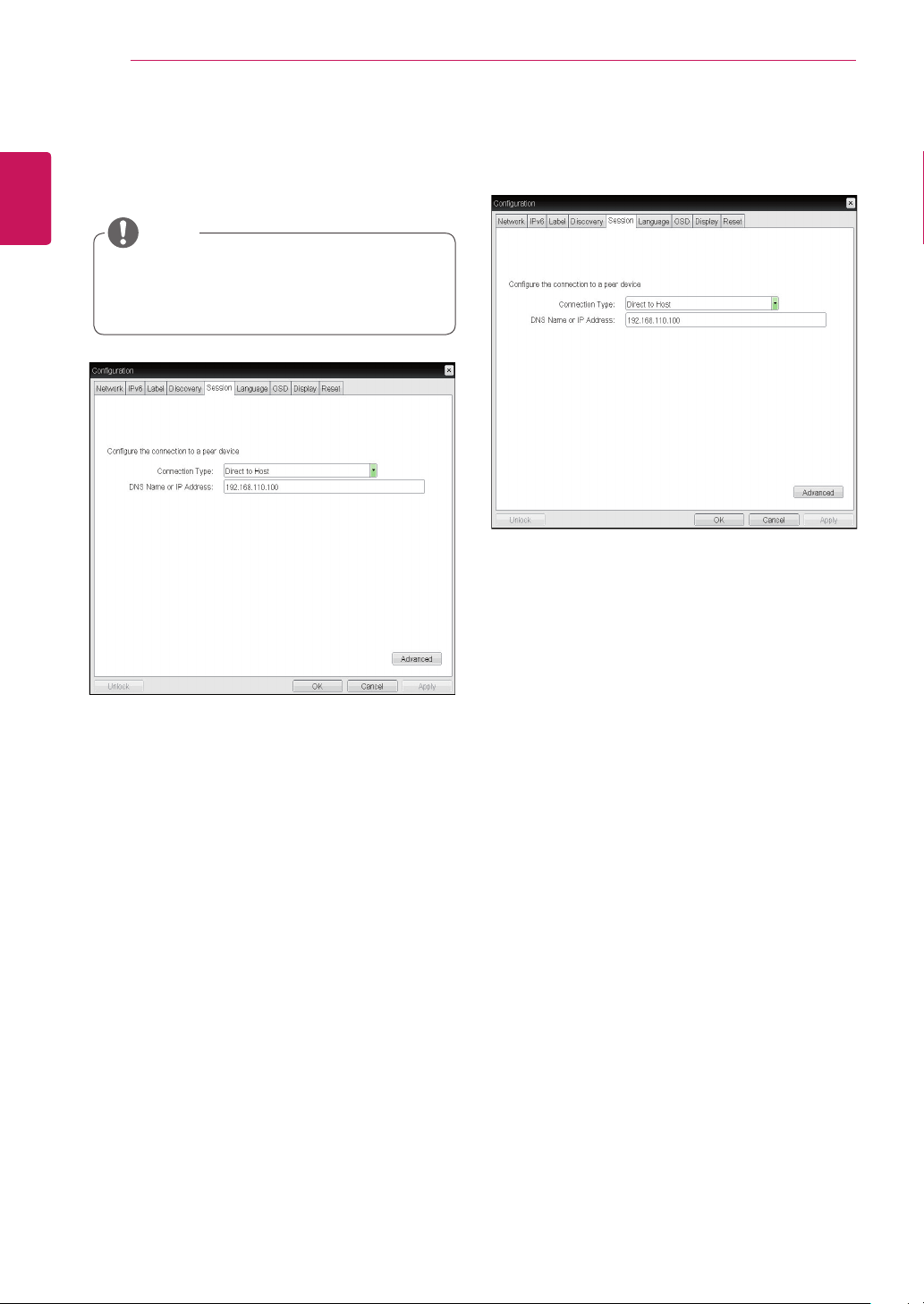
<Figure2-9:LabelConfiguration>
16
ENG
English
Using CLOUD Solution
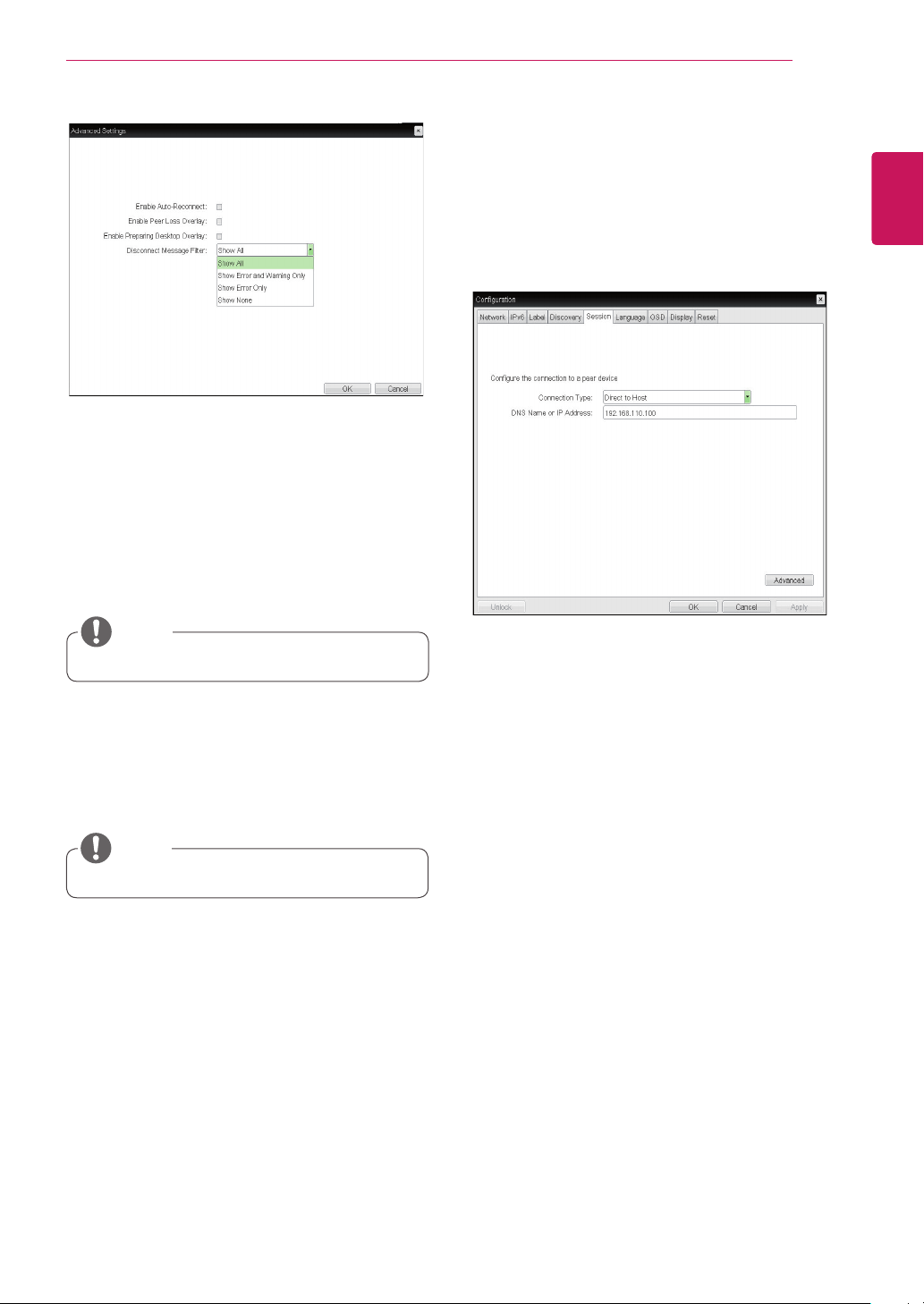
Direct to Host
YoucanviewthescreenofthehostPCbyestab-
lishing1:1connectionbetweenthePCIhostcard
connectedtothehostPCthroughtheenteredIP
addressofthehostPCandtheportal.
DNS Name or IP Address
EntertheDNSnameorIPaddressofthehostPC.
<Figure2-12:DirecttoHostSetting>
<Figure2-11:SessionConfiguration>
Session Tab
TheSessiontaballowstheadministratortosetthe
methodtoconnectthedevicetoapeerdevice.
TheSessionparameterscanalsobecon-
figuredusingtheWebpageAdministration
Interface.
NOTE
Connection Type
TheConnectionTypefieldallowstheusertoselect
thedevicetobeconnectedwiththeportal.
TheConnectionTypefieldhasfollowingoptions:
DirecttoHost
DirecttoHost+SLPHostDiscovery
ViewConnectionServer
ViewConnectionServer+Auto-Logon
ViewConnectionServer+Kiosk
ViewConnectionServer+ImprivataOneSign
ConnectionManagementInterface
Seebelowforinformationhowtosetforeachop-
tion.
17
ENG
English
Using CLOUD Solution
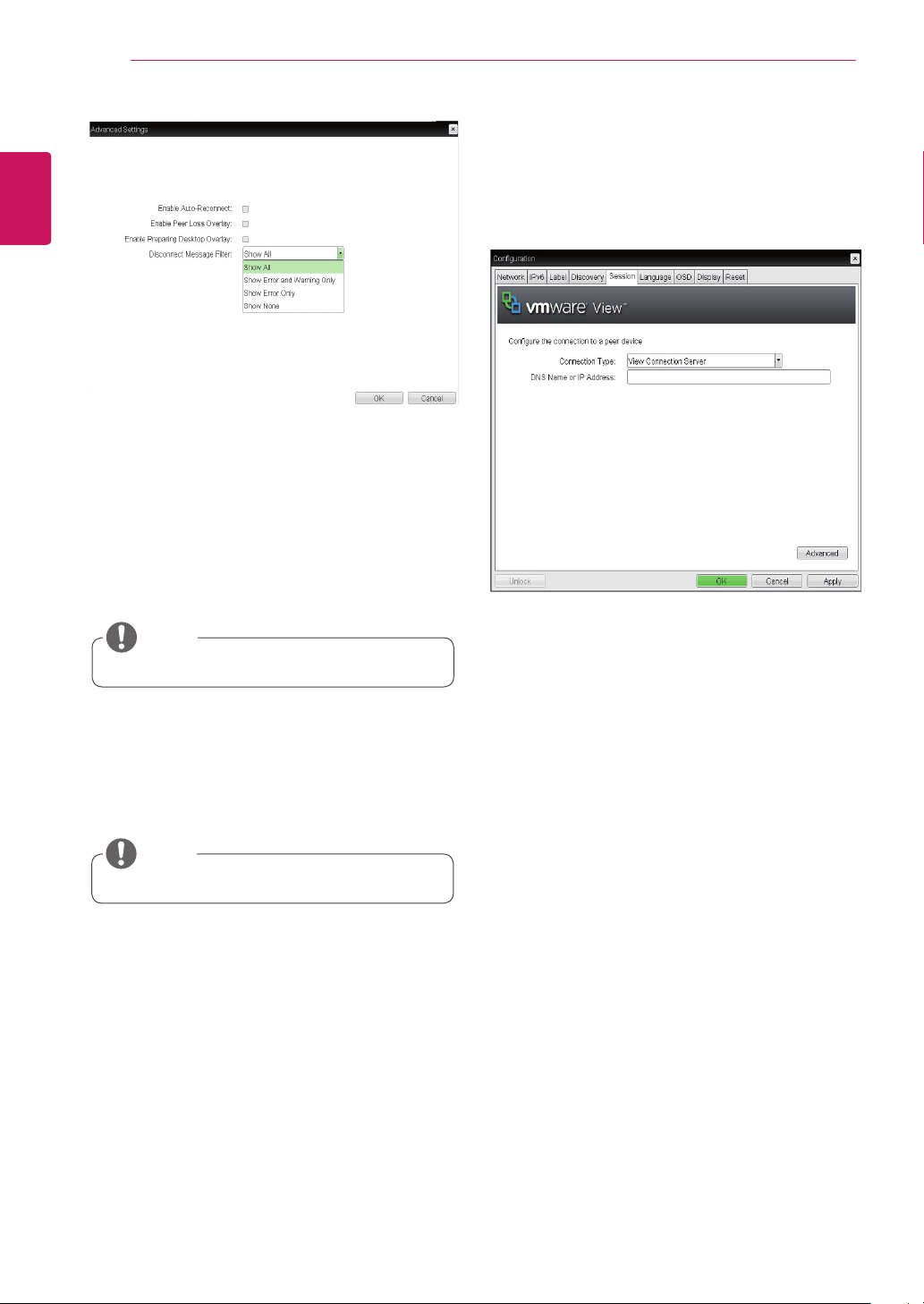
Enable Auto-Reconnect
Ifthisoptionisselected,reconnectionisattempted
automaticallywhenasessionisdisconnectedor
theuserisloggedoff.
<Figure2-13:AdvancedSettingsforDirectto
Host>
<Figure2-14:DirecttoHost+SLPHostDiscoverySet-
tings>
Thissettingisprovidedonlyfortheclient.
NOTE
Enable Peer Loss Overlay
The"ConnectionLost"messageisdisplayed.The
displayisthesameasintheVDIenviron-ment.
ThedefaultisDisable.
Thissettingisprovidedonlyfortheclient.
NOTE
Enable Preparing Desktop Overlay
Ifthisoptionisselected,the"PreparingDesk-top"
messageisdisplayedonthescreenwhentheuser
isloggedin.
Disconnect Message Filter
Thisoptiondeterminesthetypeofmessageto
displaywhenasessionisdisconnected.
-ShowAll:Showsalltheerrormessages.
-ShowErrorandWarningOnly:Showsthe
errorandwarningmessagesonly.
-ShowErrorOnly:Showstheerrormessages
only.
-ShowNone:Showsnothing.
Direct to Host + SLP Host Discovery
YoucanviewthescreenofthehostPCbydiscov-
eringthehostPCwithinthenetworkandestab-
lishing1:1connectionbetweenthePCIhostcard
connectedtothehostPCandtheportal.
18
ENG
English
Using CLOUD Solution
<Figure2-15:AdvancedSettingsforDirecttoHost
+SLPHostDiscovery>
Enable Auto-Reconnect
Ifthisoptionisselected,reconnectionisattempted
automaticallywhenasessionisdisconnectedor
theuserisloggedoff.
Thissettingisprovidedonlyfortheclient.
NOTE
Enable Peer Loss Overlay
The"ConnectionLost"messageisdisplayed.The
displayisthesameasintheVDIenviron-ment.
ThedefaultisDisable.
Thissettingisprovidedonlyfortheclient.
NOTE
Enable Preparing Desktop Overlay
Ifthisoptionisselected,the"PreparingDesk-top"
messageisdisplayedonthescreenwhentheuser
isloggedin.
Disconnect Message Filter
Thisoptiondeterminesthetypeofmessageto
displaywhenasessionisdisconnected.
-ShowAll:Showsalltheerrormessages.
-ShowErrorandWarningOnly:Showsthe
errorandwarningmessagesonly.
-ShowErrorOnly:Showstheerrormessages
only.
-ShowNone:Showsnothing.
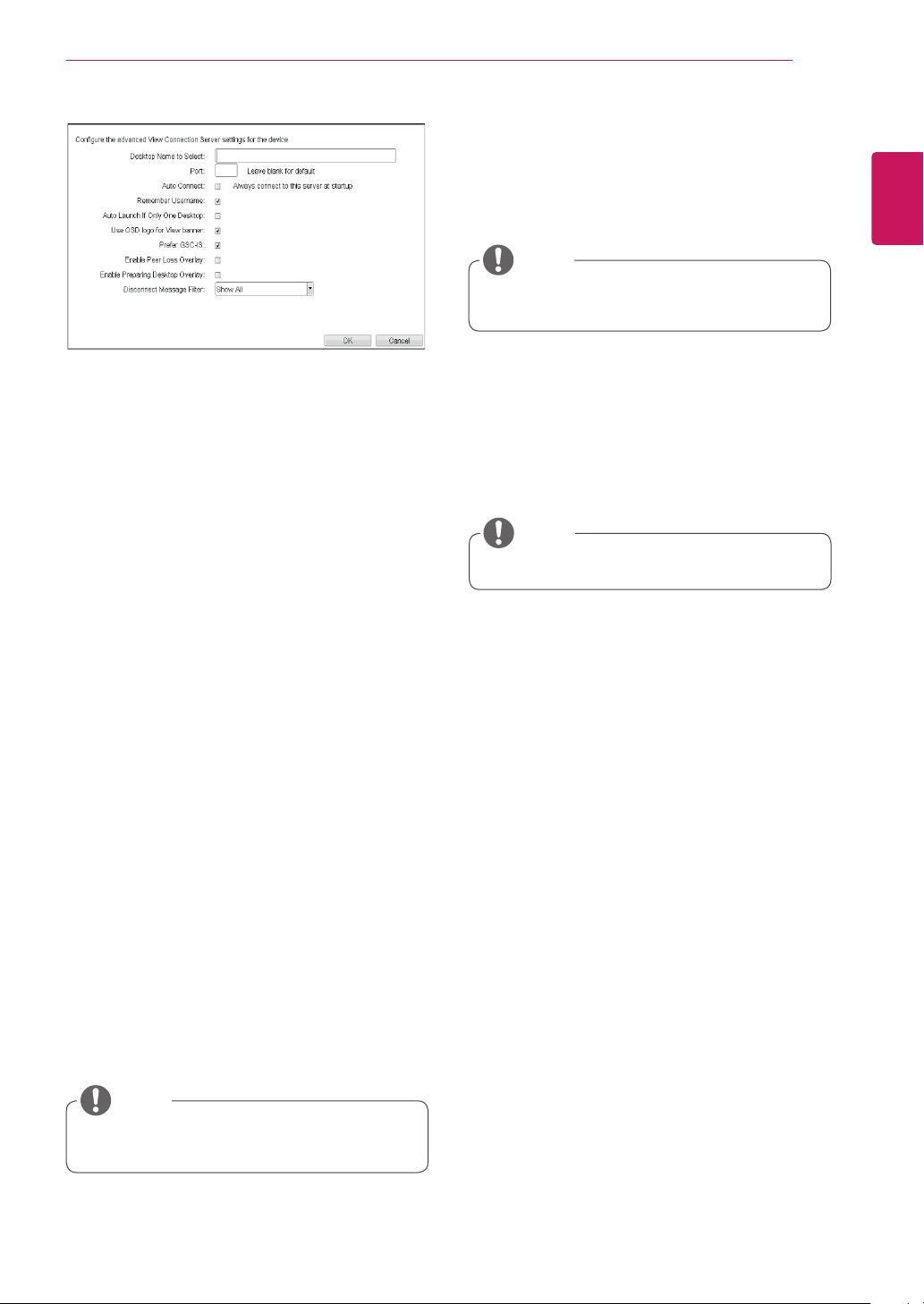
<Figure2-16:ViewConnectionServerSetting>
View Connection Server
IntheSessiontab,youcanselecttoenablethe
userclienttoaccesstheVMwareViewConnec-
tionServer.Todothis,selectViewConnection
ServerforConnectionType.
DNS Name or IP Address
EntertheDNSnameorIPaddressoftheVM-
wareViewConnectionServer.
19
ENG
English
Using CLOUD Solution
Desktop Name to Select
Enterthenameofthepool/desktopwhichthe
userclientusesuponstartingasession.
Port
Forthedefaultsetting,leavetheportfieldempty.
WhentheVMwareViewConnectionServeruses
theSSLauthentication,enter443inthePortfield.If
theserverwhereausertriestoaccessusesaport
otherthanageneralport,entertheport.
Auto Connect
Ifthisoptionisenabled,theselectedVMwareView
ConnectionServerisautomaticallyconnected
whentheuserclientispoweredon.
IftheAutoConnectoptionisenabled,youshould
turntheuserclientoffandturnitonagainatleast
once.
Remember Username
Ifthisoptionisselected,theusernamewhichis
previouslyusedtoaccesstheVMwareView
ConnectionServerisautomaticallyenteredinthe
usernamefield.
Auto Launch if Only One Desktop
Ifthisoptionisselected,connectionisestablished
tothedesktopwhenthereisonlyonevirtualdesk-
topthatauserwantstoaccess.
Use OSD logo for View banner
Ifthisoptionisenabled,youcanchangetheOSD
logoofPCoIPduringthelogin.
<Figure2-17:AdvancedSettingsforViewConnec-
tionServer>
Prefer GSC-IS
Ifthisoptionisselected,theGCS-ISinterface
isusedwhenasmartcardsupportsmorethan
oneinterface.Ifthesmartcardsupportsonlyone
interface,itisnotused.
TheOSDlogocanbeuploadedusingthe
WebpageAdministrationInterface.
NOTE
Thissettingisprovidedonlywhenasmart
cardisused.
NOTE
Enable Peer Loss Overlay
Ifthisoptionisselected,the"NetworkConnection
Lost"messageisdisplayedonthescreenwhenit
isconfirmedthatthenetworkisdisconnected.
ThedisplayisthesameasintheVDIenviron-
ment.ThedefaultisDisable.
Enable Preparing Desktop Overlay
Ifthisoptionisselected,the"PreparingDesk-
top"messageisdisplayedonthescreenwhenthe
userisloggedin.
Disconnect Message Filter
Thisoptiondeterminesthetypeofmessageto
displaywhenasessionisdisconnected.
-ShowAll:Showsalltheerrormessages.
-ShowErrorandWarningOnly:Showsthe
errorandwarningmessagesonly.
-ShowErrorOnly:Showstheerrormessages
only.
-ShowNone:Showsnothing.
Thissettingisprovidedonlyfortheclient.
NOTE

20
ENG
English
Using CLOUD Solution
Desktop Name to Select
Enterthenameofthepool/desktopwhichthe
userclientusesuponstartingasession.
Port
Forthedefaultsetting,leavetheportfieldempty.
WhentheVMwareViewConnectionServeruses
theSSLauthentication,enter443inthePortfield.If
theserverwhereausertriestoaccessusesaport
otherthanageneralport,entertheport.
Auto Connect
Ifthisoptionisenabled,theselectedVMwareView
ConnectionServerisautomaticallyconnected
whentheuserclientispoweredon.
IftheAutoConnectoptionisenabled,youshould
turntheuserclientoffandturnitonagainatleast
once.
Remember Username
Ifthisoptionisselected,theusernamewhichis
previouslyusedtoaccesstheVMwareView
ConnectionServerisautomaticallyenteredinthe
usernamefield.
Auto Launch if Only One Desktop
Ifthisoptionisselected,connectionisestablished
tothedesktopwhenthereisonlyonevirtualdesk-
topthatauserwantstoaccess.
Use OSD logo for View banner
Ifthisoptionisenabled,youcanchangetheOSD
logoofPCoIPduringthelogin.
<Figure2-19:AdvancedSettingsforViewConnec-
tionServerwithAuto-Logon>
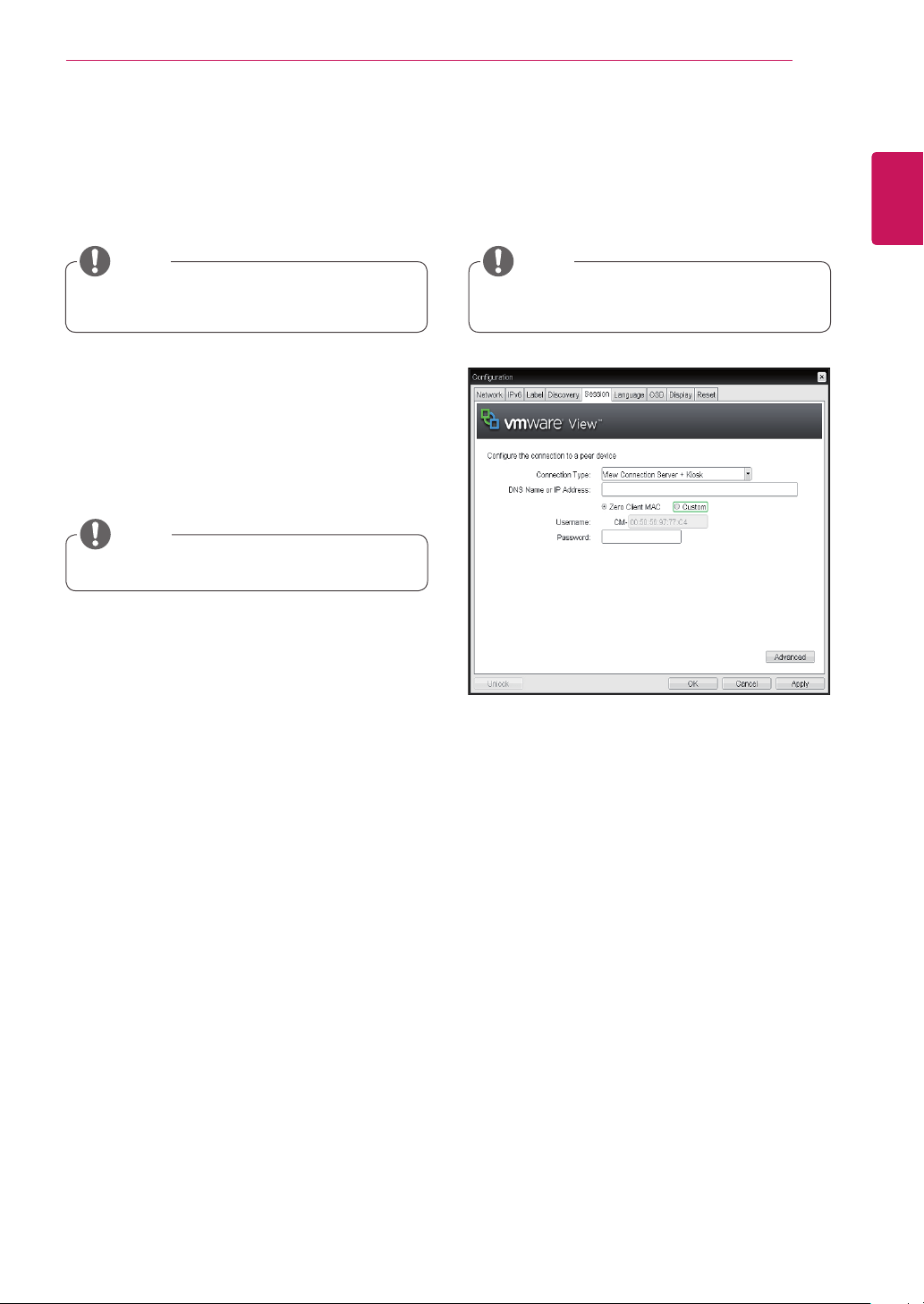
View Connection Server with Auto-Logon
IntheSessiontab,youcanselecttoenablethe
userclienttoautomaticallyaccesstheVMware
ViewConnectionServer.Todothis,selectView
ConnectionServerwithAuto-LogonforConnection
Type.
<Figure2-18:ViewConnectionServerwithAuto-
LogonSetting>
DNS Name or IP Address
EntertheDNSnameorIPaddressoftheVM-
wareViewConnectionServer.
Username
Entertheusernamefortheuserclient.
Password
Enterthepasswordfortheuserclient.
Domain
Enterthedomainname.
TheOSDlogocanbeuploadedusingthe
WebpageAdministrationInterface.
NOTE
21
ENG
English
Using CLOUD Solution
Prefer GSC-IS
Ifthisoptionisselected,theGSC-ISinterface
isusedwhenasmartcardsupportsmorethan
oneinterface.Ifthesmartcardsupportsonlyone
interface,itisnotused.
Thissettingisprovidedonlywhenasmart
cardisused.
NOTE
Enable Peer Loss Overlay
Ifthisoptionisselected,the"NetworkConnection
Lost"messageisdisplayedonthescreenwhenit
isconfirmedthatthenetworkisdisconnected.
ThedisplayisthesameasintheVDIenviron-
ment.ThedefaultisDisable.
Enable Preparing Desktop Overlay
Ifthisoptionisselected,the"PreparingDesk-
top"messageisdisplayedonthescreenwhenthe
userisloggedin.
Disconnect Message Filter
Thisoptiondeterminesthetypeofmessageto
displaywhenasessionisdisconnected.
-ShowAll:Showsalltheerrormessages.
-ShowErrorandWarningOnly:Showsthe
errorandwarningmessagesonly.
-ShowErrorOnly:Showstheerrormessages
only.
-ShowNone:Showsnothing.
Thissettingisprovidedonlyfortheclient.
NOTE
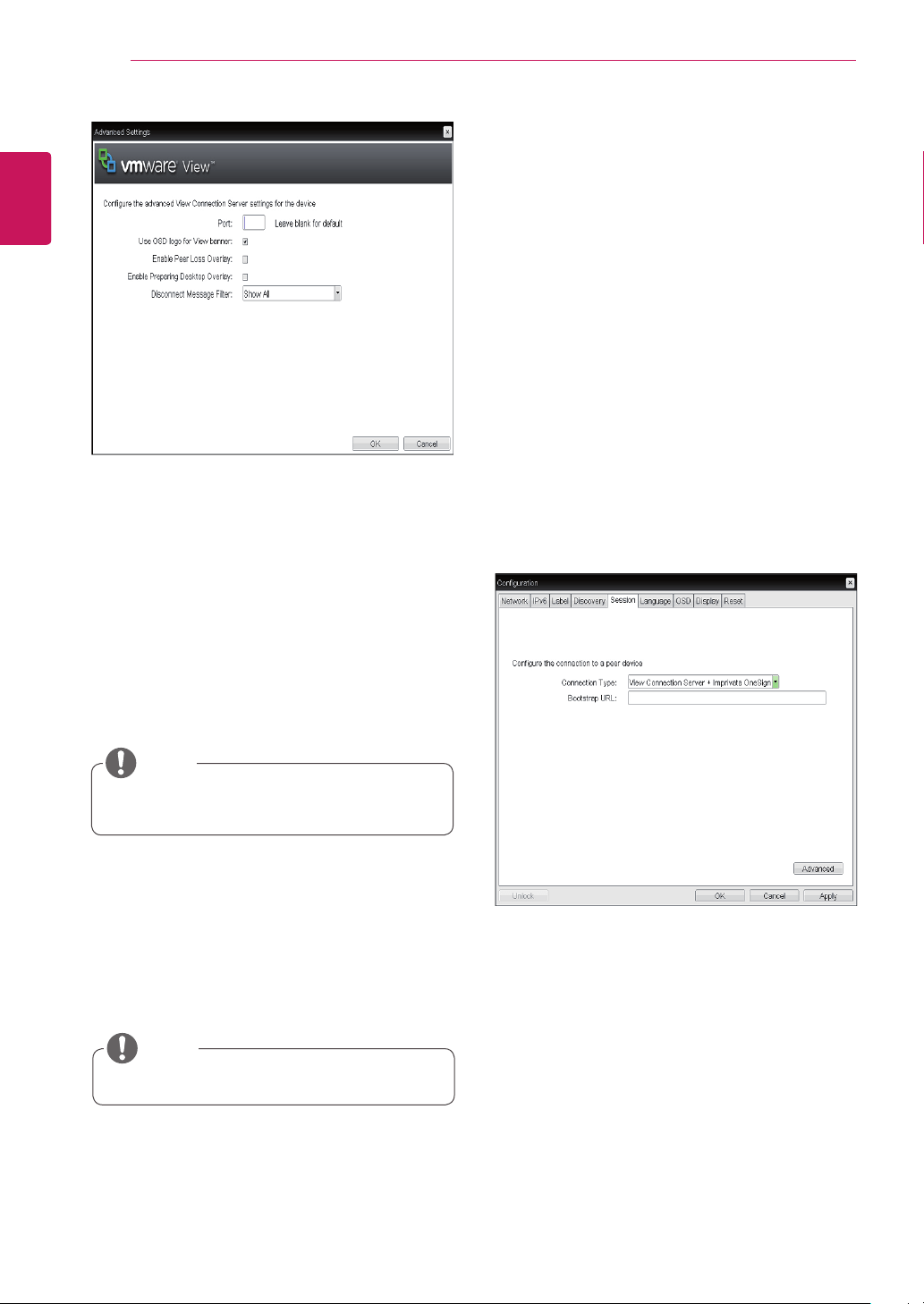
<Figure2-20:ViewConnectionServer+Kiosk
Setting>
View Connection Server + Kiosk
SelectViewConnectionServer+Kiosktouse
thekioskmode.YoucanconfiguretheViewCon-
nectionServer+KioskmodeusingtheWebpage
AdministrationInterface.
Youcannotusethekioskmodebyconnect-
ingtothehostPC.
NOTE
DNS Name or IP Address
EntertheDNSnameorIPaddressoftheVM-
wareViewConnectionServer.
Username
Selectthetypeofusernamethatmatchesthede-
vicenameusedintheVMwareViewCon-
nectionServer.
Password
Enterthepasswordfortheuserclient.
22
ENG
English
Using CLOUD Solution
<Figure2-21:AdvancedSettingforViewConnec-
tionServer+Kiosk>
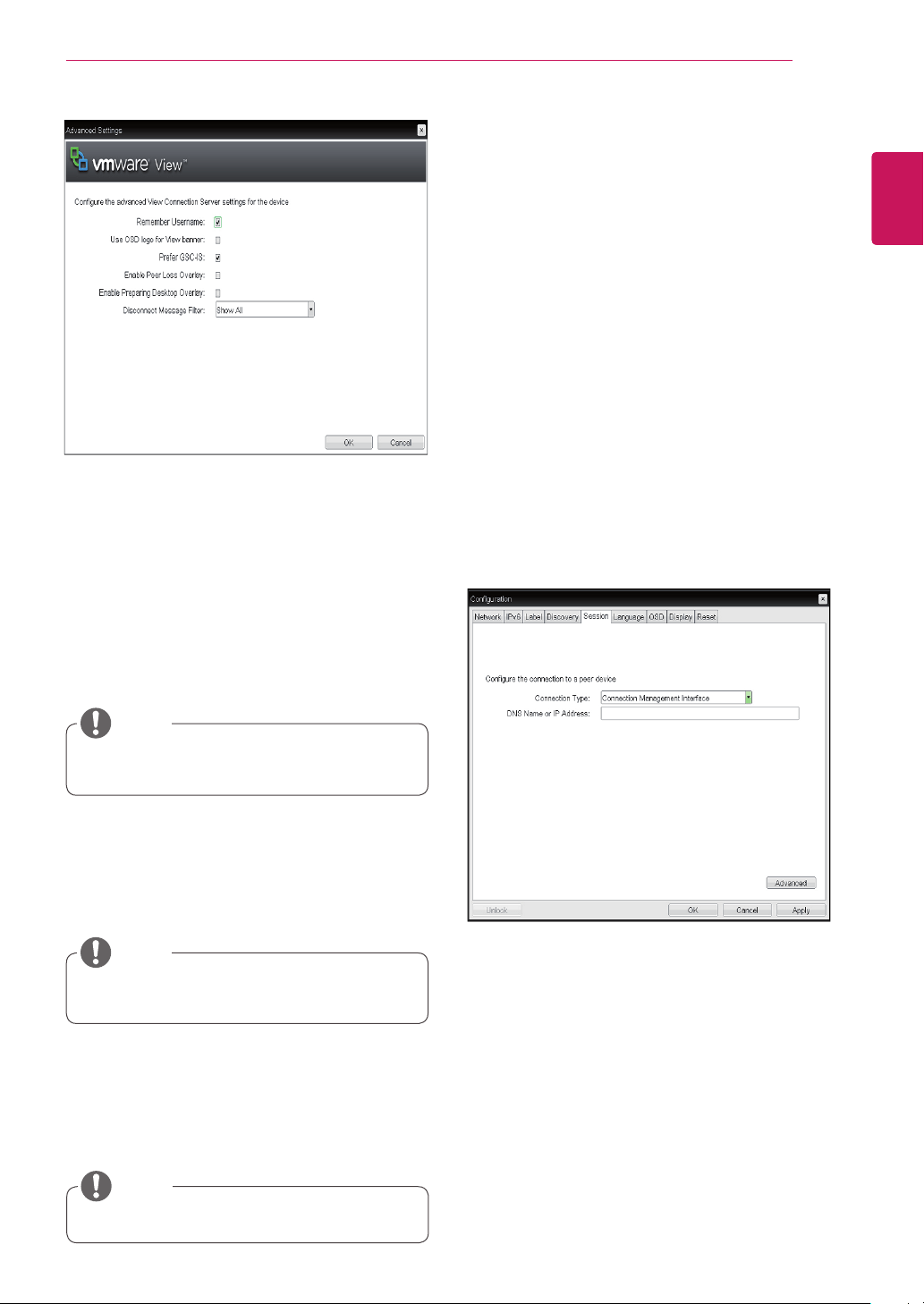
<Figure2-22:ViewConnectionServer+ImprivataOne-
SignConnectionSetting>
Port
Forthedefaultsetting,leavetheportfieldempty.
WhentheVMwareViewConnectionServeruses
theSSLauthentication,enter443inthePortfield.
Iftheserverwhereausertriestoaccessusesa
portotherthanageneralport,entertheport.
Use OSD logo for View banner
Ifthisoptionisenabled,youcanchangetheOSD
logoofPCoIPduringthelogin.
TheOSDlogocanbeuploadedusingthe
WebpageAdministrationInterface.
NOTE
Enable Peer Loss Overlay
Ifthisoptionisselected,the"NetworkConnection
Lost"messageisdisplayedonthescreenwhenit
isconfirmedthatthenetworkisdisconnected.
ThedisplayisthesameasintheVDIenviron-
ment.ThedefaultisDisable.
Thissettingisprovidedonlyfortheclient.
NOTE
Enable Preparing Desktop Overlay
Ifthisoptionisselected,the"PreparingDesk-
top"messageisdisplayedonthescreenwhenthe
userisloggedin.
Disconnect Message Filter
Thisoptiondeterminesthetypeofmessageto
displaywhenasessionisdisconnected.
-ShowAll:Showsalltheerrormessages.
-ShowErrorandWarningOnly:Showsthe
errorandwarningmessagesonly.
-ShowErrorOnly:Showstheerrormessages
only.
-ShowNone:Showsnothing.
View Connection Server + Imprivata OneSign
Connection
SelectViewConnectionServer+ImprivataOne-
signConnectiontousetheImprivataOne-
signConnectionfortheclientauthentication.
Bootstrap URL
EntertheIPaddressorFQDNinformationofthe
serverwhichperformstheOneSignau-
thentication.
23
ENG
English
Using CLOUD Solution
<Figure2-23:AdvancedSettingsforViewConnec-
tionServer+ImprivataOneSignConnection>
Remember Username
Ifthisoptionisselected,theusernamewhichis
previouslyusedtoaccesstheVMwareView
ConnectionServerisautomaticallyenteredinthe
usernamefield.
Use OSD logo for View banner
Ifthisoptionisenabled,youcanchangetheOSD
logoofPCoIPduringthelogin.
TheOSDlogocanbeuploadedusingthe
WebpageAdministrationInterface.
NOTE
Prefer GSC-IS
Ifthisoptionisselected,theGCS-ISinterface
isusedwhenasmartcardsupportsmorethan
oneinterface.Ifthesmartcardsupportsonlyone
interface,itisnotused.
Thissettingisprovidedonlywhenasmart
cardisused.
NOTE
Enable Peer Loss Overlay
Ifthisoptionisselected,the"NetworkConnection
Lost"messageisdisplayedonthescreenwhenit
isconfirmedthatthenetworkisdisconnected.
ThedisplayisthesameasintheVDIenviron-
ment.ThedefaultisDisable.
Thissettingisprovidedonlyfortheclient.
NOTE
Enable Preparing Desktop Overlay
Ifthisoptionisselected,the"PreparingDesk-
top"messageisdisplayedonthescreenwhenthe
userisloggedin.
Disconnect Message Filter
Thisoptiondeterminesthetypeofmessageto
displaywhenasessionisdisconnected.
-ShowAll:Showsalltheerrormessages.
-ShowErrorandWarningOnly:Showsthe
errorandwarningmessagesonly.
-ShowErrorOnly:Showstheerrormessages
only.
-ShowNone:Showsnothing.
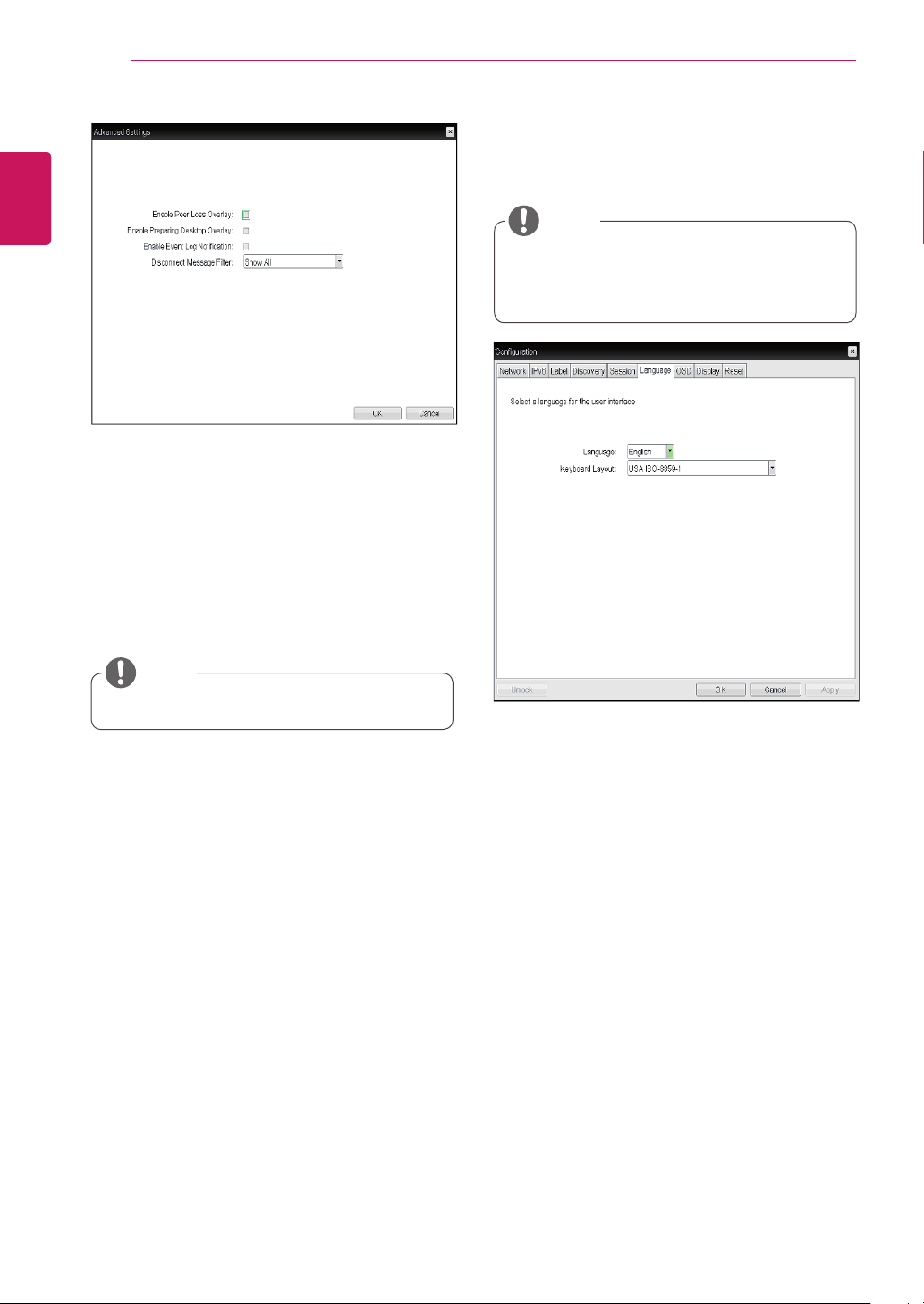
Connection Management Interface
IntheConnectionManagementInterfacesetting,
youcanmanagetheconnectionbyenteringtheIP
addressforconnectionmanagementinsteadofus-
ingtheIPaddressoftheVMwareViewConnection
Serverandcanselecttoenableordisabledthe
managementinterface.
<Figure2-24:ConnectionManagementInterface
Setting>
DNS Name or IP Address
EntertheDNSnameorIPaddressoftheVMware
ViewConnectionServer.
24
ENG
English
Using CLOUD Solution
Language
TheLanguagefieldisusedtosetthedisplay
languageoftheOSDandtheuserleveleventlog
messages.
Keyboard Layout
TheKeyboardLayoutfieldallowstheadministrator
tomodifythekeyboardlayout.
<Figure2-26:LanguageConfiguration>
Language Tab
TheLanguagetaballowstheadministratortoset
theOSDlanguage.
TheLanguageparameterscanalsobecon-
figuredusingtheWebpageAdministration
Interface.
NOTE
<Figure2-25:AdvancedSettingsforConnection
ManagementInterface>
Enable Peer Loss Overlay
Ifthisoptionisselected,the"NetworkConnection
Lost"messageisdisplayedonthescreenwhenit
isconfirmedthatthenetworkisdisconnected.
ThedisplayisthesameasintheVDIenviron-
ment.ThedefaultisDisable.
Thissettingisprovidedonlyfortheclient.
NOTE
Enable Preparing Desktop Overlay
Ifthisoptionisselected,the"PreparingDesk-
top"messageisdisplayedonthescreenwhenthe
userisloggedin.
Enable Event Log Notification
Withthisoption,youcanselectwhethertoallow
thehostandclientdevicetosendtheireventlog
informationtotheConnectionManagementServer.
Disconnect Message Filter
Thisoptiondeterminesthetypeofmessageto
displaywhenasessionisdisconnected.
-ShowAll:Showsalltheerrormessages.
-ShowErrorandWarningOnly:Showsthe
errorandwarningmessagesonly.
-ShowErrorOnly:Showstheerrormessages
only.
-ShowNone:Showsnothing.
25
ENG
English
Using CLOUD Solution
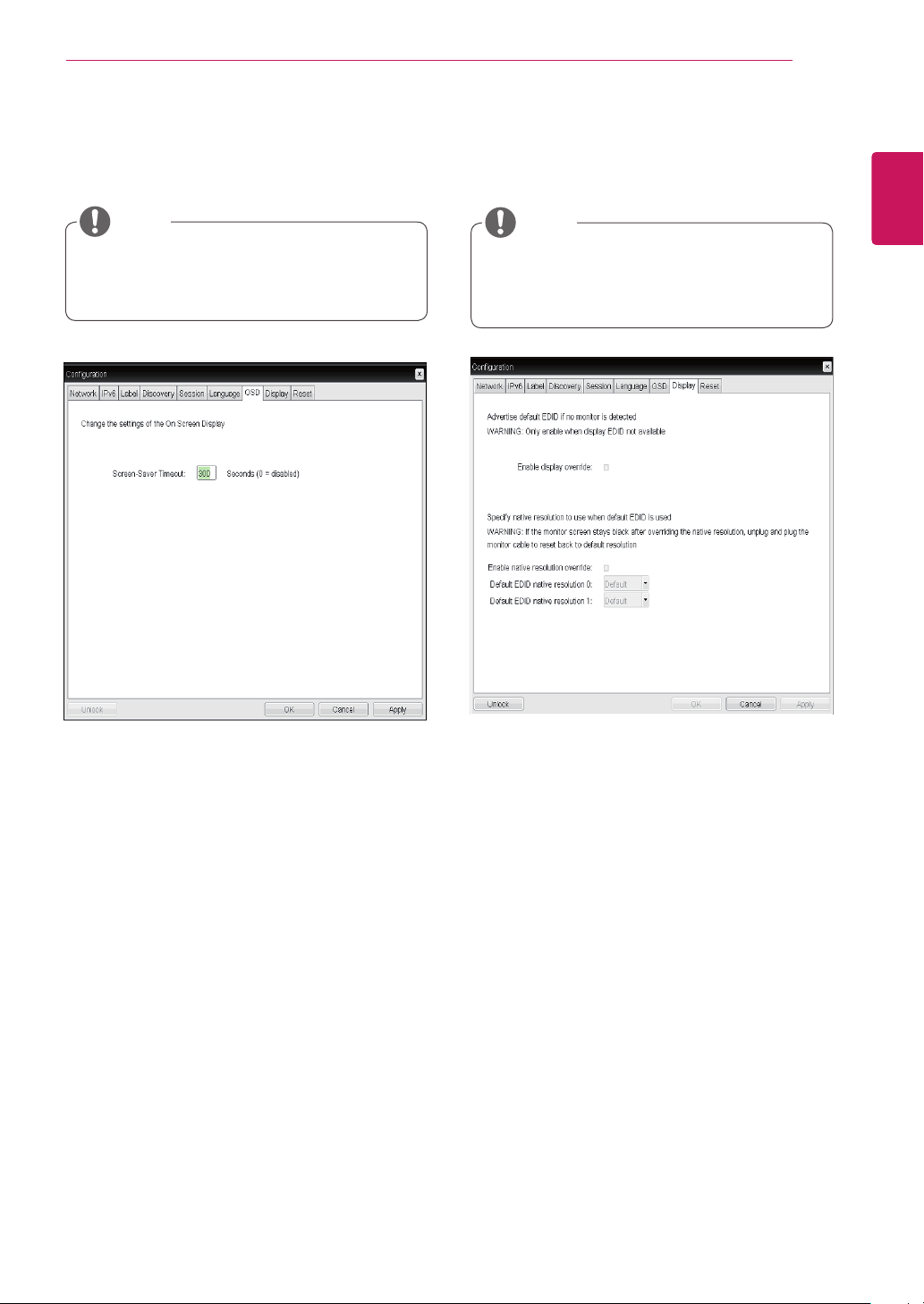
Screen-Saver Timeout
TheScreen-SaverTimeoutfieldallowsthead-
ministratortosetatimelimitforthescreensaver.
Thetimelimitisdefinedinseconds.Themaximum
timeis9999seconds.Ifitissetto0seconds,the
screensaverwillbeturnedoff.
<Figure2-27:OSDConfiguration>
OSD Tab
TheOSDtaballowstheadministratortomodifythe
OnScreenDisplay(OSD)parameters.
TheOSDparameterscanalsobeconfigured
usingtheWebpageAdministrationInterface.
NOTE
<Figure2-28:DisplayConfiguration>
Display Tab
TheDisplaytaballowstheusertoconfigurethe
EDIDfunctionofthemonitor.
TheEnabledisplayoverridefunctioncanbe
usedwhentheEDIDfunctionofthemonitor
isnotrunning.
NOTE
26
ENG
English
Using CLOUD Solution
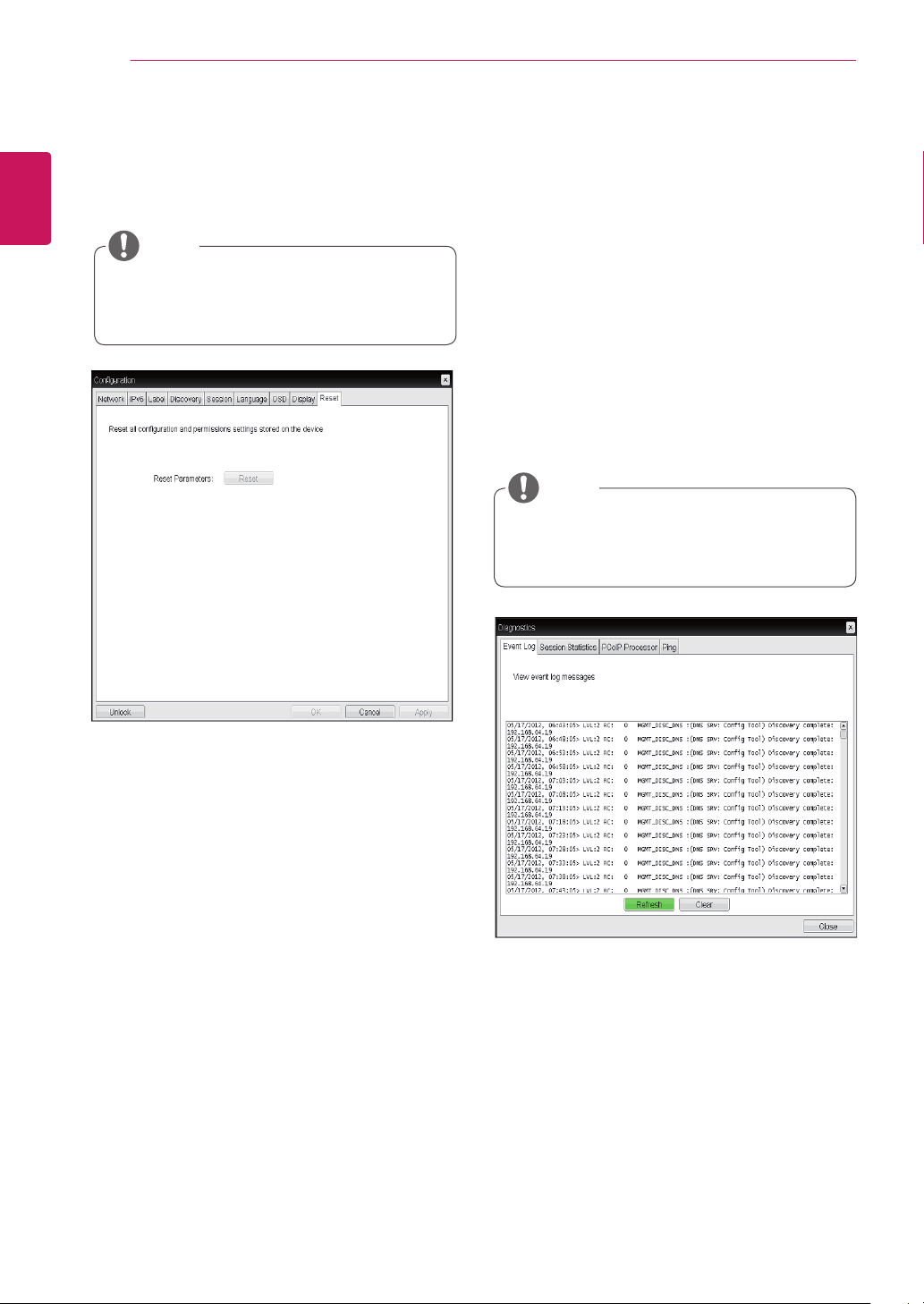
Reset Parameters
PressingtheResetParametersbuttonwillresetall
settingsandoptionstothefactorydefaultsettings.
Whenthisbuttonispressed,anOSDmessageis
displayed.Thisistoprompttheadministratorand
preventaccidentalreset.
<Figure2-29:Reset>
Reset Tab
TheResettaballowstheadministratortoresetall
configurableparametersstoredinFlash.
TheResetfunctioncanalsobeaccessed
throughtheWebpageAdministrationInter-
face.
NOTE
Event Log
Session Statistics
PCoIP Processor
Ping
EachtabhastheClosebuttontoclosethewindow.
Diagnostics Window
IntheDiagnosticswindow,theadministratorcan
accessthewindowtabtodiagnosetheportal.The
Diagnosticswindowhasthefollowingtabs:
View Event Log Message
TheViewEventLogMessagefielddisplaysthelog
messagesaccompaniedbythetimestampinforma-
tion.Thefollowingtwobuttonsareavailable:
Refresh
TheRefreshbuttonrefreshesthedisplayedevent
logmessages.
Clear
TheClearbuttonclearsalleventlogmessages.
<Figure2-30:EventLog>
Event Log Tab
TheEventLogtaballowstheadministratortoview
anddeletetheeventlogmessagesfromtheportal.
Theeventlog(regardlessofthequantity)
canalsoberesetusingtheWebpageAdmin-
istrationInterface.
NOTE
27
ENG
English
Using CLOUD Solution
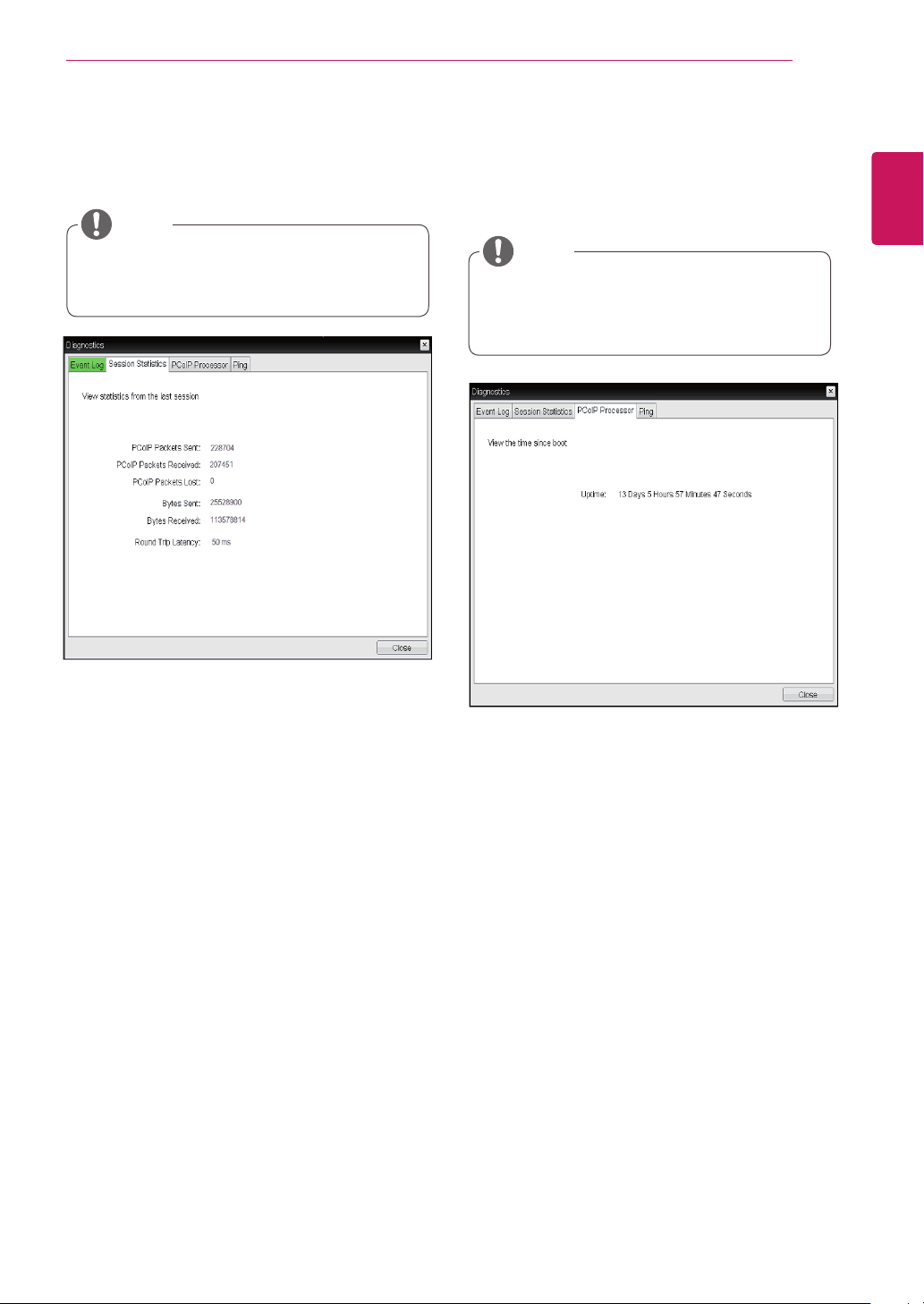
PCoIP Packets Statistics
PCoIPPacketsSent
ThePCoIPPacketsSentfieldshowsthetotal
numberofPCoIPpacketssentfromtheportal
tothehostinthelastactivesession.
PCoIPPacketsReceived
ThePCoIPPacketsReceivedfieldshowsthe
totalnumberofPCoIPpacketsreceivedfrom
thehosttotheportalinthelastactivesession.
PCoIPPacketsLost
ThePCoIPPacketsLostfieldshowsthetotal
numberofPCoIPpacketslostinthelastac-
tivesession.
<Figure2-31:SessionStatistics>
Session Statistics Tab
TheSessionStatisticstaballowstheadministrator
toviewthePCoIPspecificstatisticsofthelastac-
tivePCoIPsessionfromtheportal.
Bytes Statistics
BytesSent
TheBytesSentfieldshowsthetotalnumber
ofbytessentinthelastactivesession.
BytesReceived
TheBytesReceivedfieldshowsthetotal
numberofbytesreceivedinthelastactive
session.
Round Trip Latency
TheRoundTripLatencyfieldshowsthetotal
round-tripPCoIPsystem(e.g.fromtheportalto
thehost,thenbacktotheportal)andthenetwork
latencyinmilliseconds(+/-1ms).
Thesessionstatistics(regardlessofthe
quantity)canalsobeviewedusingtheWeb-
pageAdministrationInterface.
NOTE
<Figure2-32:PCoIPProcessor>
PCoIP Processor Tab
ThePCoIPProcessortaballowstheadministrator
toviewtheportalPCoIPprocessor'suptimesince
itslastbooting.
ThePCoIPProcessorUptimecanalsobe
viewedusingtheWebpageAdministration
Interface.
NOTE
28
ENG
English
Using CLOUD Solution
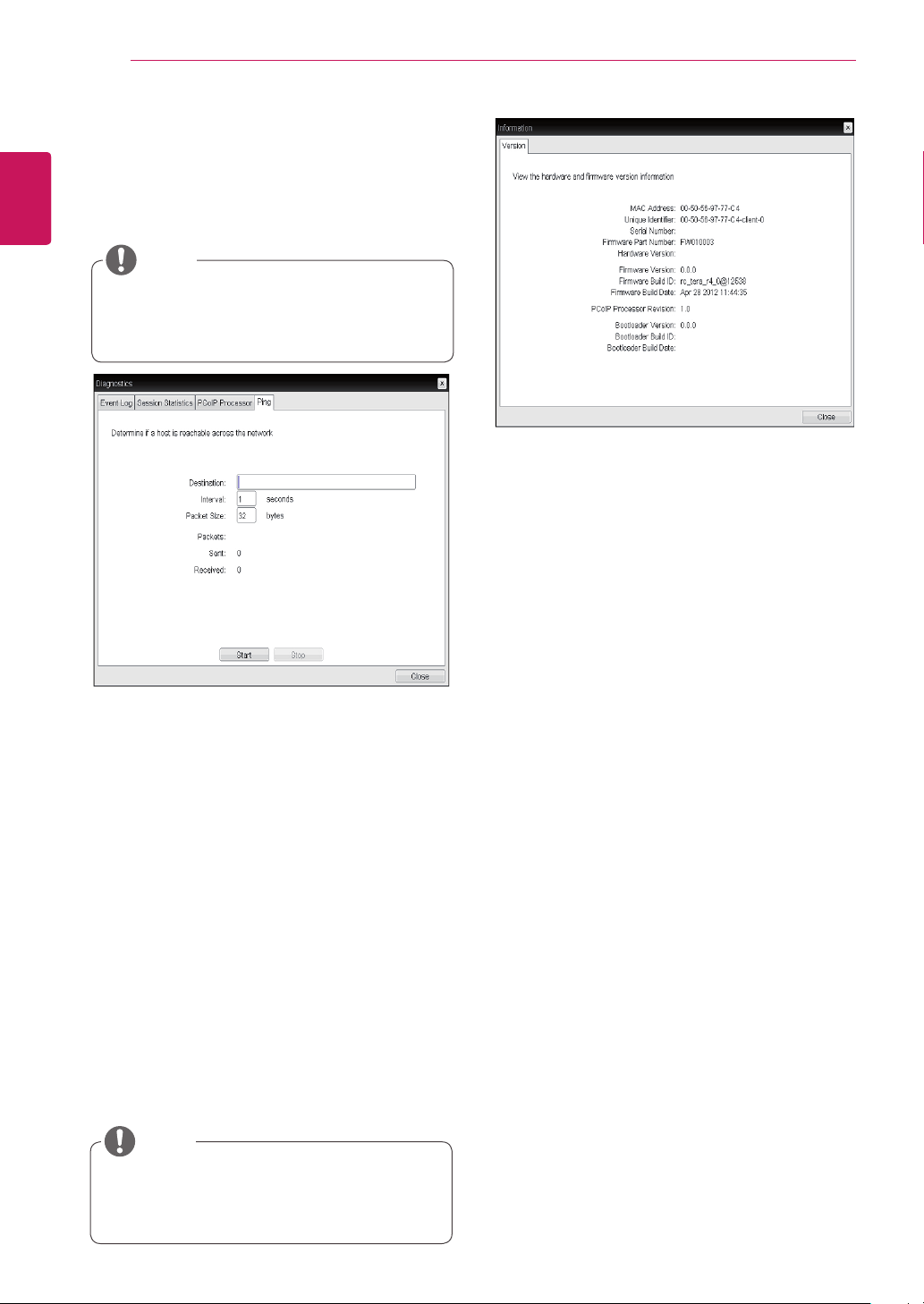
Ping Settings
Destination
TheIPaddressorFQDNtoperformtheping
test.
Interval
Theintervalbetweenthepingpackets.
PacketSize
Thesizeofthepingpacket.
Packets
Sent
Thenumberofpingpacketssent.
Received
Thenumberofpingpacketsreceived.
<Figure2-33:Ping>
Ping Tab
ThePingtaballowstheadministratortoperforma
pingtesttothedeviceandcheckifitcanreachthe
overallIPnetwork.Thisisusefultocheckwhether
thedevicecanreachthehost.
ThePingtabhasnocorrespondingmenuin
totheWebpageAdministrationInterfaceof
Section1.
NOTE
VPD Information
TheVitalProductData(VPD)isinformationthat
uniquelyidentifieseachportalorhost.
MACAddress
TheportalMACaddress
UniqueIdentifier
TheportalID
SerialNumber
Theportalserialnumber
FirmwarePartNumber
ThepartnumberofthePCoIPfirmware
HardwareVersion
Theportalhardwareversion
Firmware Information
TheFirmwareInformationshowsthedetailsofthe
currentPCoIPfirmware.
FirmwareVersion
ThecurrentPCoIPfirmwareversion
FirmwareBuildID
ThecurrentPCoIPfirmwarerevisioncode
FirmwareBuildDate
ThecurrentPCoIPfirmwarebuilddate
<Figure2-34:Version>
Information Window
IntheInformationwindow,theadministratorcan
accesstheVersiontabthatcontainsthedevice
relatedinformation.
Theversioninformationcanalsobeviewed
usingtheWebpageAdministrationInterface.
NOTE
Boot Loader Information
TheBootLoaderInformationshowsthedetailsof
thecurrentPCoIPbootloader.
BootLoaderVersion
ThecurrentPCoIPbootloaderversion
BootLoaderBuildID
ThecurrentPCoIPbootloaderrevisioncode
BootLoaderBuildDate
ThecurrentPCoIPbootloaderbuilddate
PCoIP Processor Revision
ThisshowsthePCoIPprocessor'srevisioncode.
TERA1x00RevisionAsiliconeisdenotedby0.0
andTERA1x00RevisionBsiliconeisdenotedby
1.0.
29
ENG
English
Using CLOUD Solution
User Settings Window
IntheUserSettingswindow,theadministratorcan
accessthetabtoselectthemouseandkeyboard
anddefinethePCoIPimagequality.
TheUserSettingswindowhasthefollowingtabs:
VMwareView
Mouse
Keyboard
Image
DisplayTopology
TouchScreen
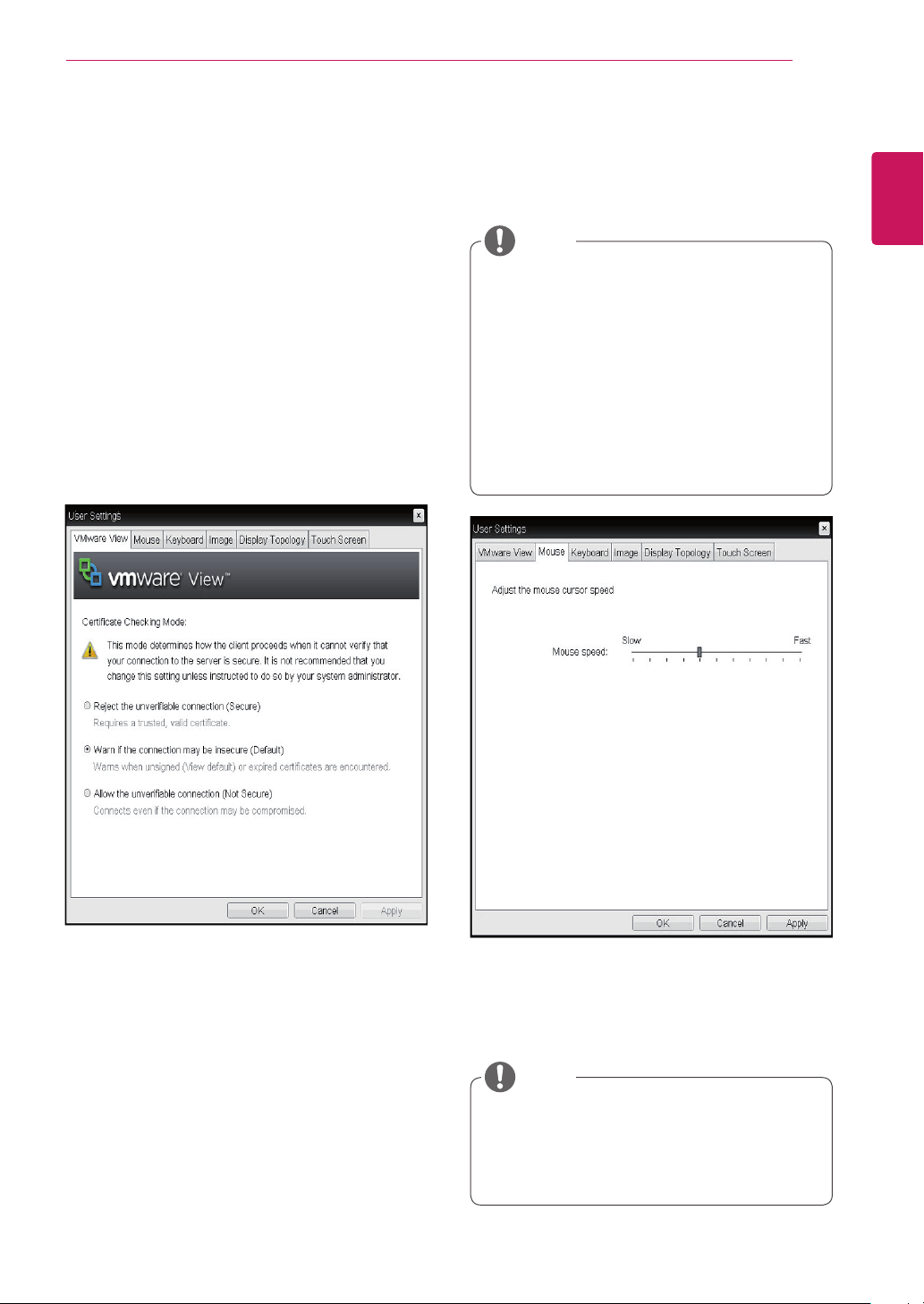
Mouse Speed
TheMouseSpeedfieldallowstheusertosetthe
portal'smousecursorspeed.
<Figure2-36:Mouse>
Mouse Tab
TheMousetaballowstheusertomodifytheOSD
andRDPsession'smousecursorspeedsetting.
TheOSDmousecursorspeedsettingdoes
notaffectthemousecursorsettingswhen
aPColPsessionisactiveunlesstheLocal
KeyboardHostDriverfunctionisbeingused
(seePColPHostSoftwareUserGuidefor
moreinformation).
TheMousetabhasnocorrespondingmenu
intheWebpageAdministrationInterfaceof
Section1.
TheMouseSpeedcanalsobeconfiguredvia
thePCoIPHostSoftware.Formoreinforma-
tiononusingthePCoIPHostSoftware,refer
tothePCoIPHostSoftwareUserGuide.
NOTE
NOTE
<Figure2-35:VMwareView>
VMware View Tab
TheVMwareViewtaballowsusertospecifythe
clientbehaviorforwhenausercannotcheckthe
secureconnectiontoaserver.
Reject the unverifiable connection (Secure)
Connectioncanbeestablishedonlywhenthecer-
tificateisverifiedandotherwiseitcannot.
Warn if the connection may be insecure (De-
fault)
Theauthenticationstatusischeckedandawarn-
ingmessageisdisplayed,ifrequired.However,
thereisnoconnectionlimit.
Allow the unverifiable connection (Not Se-
cure)
Noauthenticationisrequiredandnoconnec-tion
limitexists.
30
ENG
English
Using CLOUD Solution
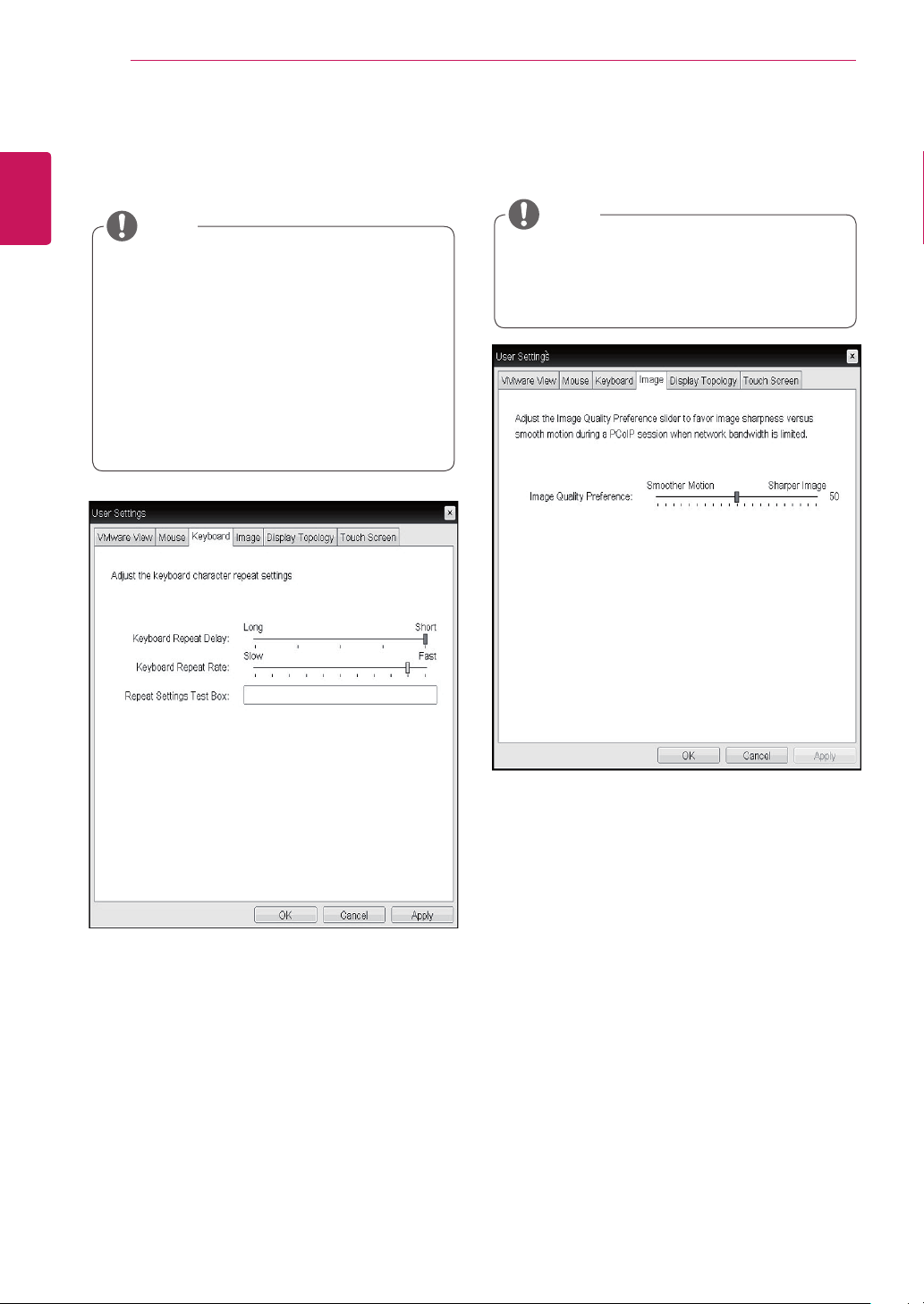
Keyboard Repeat Delay
TheKeyboardRepeatDelayfieldallowstheuser
tosettheportal'skeyboardrepeatdelay.
Keyboard Repeat Rate
TheKeyboardRepeatRatefieldallowstheuserto
settheportal'skeyboardrepeatrate.
Repeat Settings Test Box
TheRepeatSettingsTestBoxallowstheuserto
testtheselectedkeyboardsettings.
<Figure2-37:Keyboard>
Keyboard Tab
TheKeyboardtaballowstheusertomodifythe
OSDandRDPsession'skeyboardrepeatsetting.
TheOSDkeyboardsettingdoesnotaffect
thekeyboardsettingswhenaPColPsession
isactiveunlesstheLocalKeyboardHost
Driverfunctionisbeingused(seePColP
HostSoftwareUserGuideformoreinforma-
tion).
TheKeyboardtabhasnocorresponding
menuintheWebpageAdministrationInter-
faceofSection1.
NOTE
Minimum Image Quality
TheMinimumImageQualitysliderallowsthead-
ministratortomakecompromisesbetweenimage
qualityandframeratewhennetworkbandwidth
islimited.Sometimes,lower-qualityimagesata
higherframeratemayberequired,whileatother
times,higher-qualityimagesatalowerframerate
maybepreferred.
Inenvironmentswherethenetworkbandwidthis
limited,movingtheslidertowardsReduceden-
sureshigherframerates;
movingtheslidertowardsPerception-Freeensures
higherimagequality.Whennetworkbandwidthis
notlimited,thePCoIPsystemwillmaintainpercep-
tion-freequalityregardlessoftheMinimumImage
Qualitysetting.
<Figure2-38:Image>
Image
TheImagetaballowsausertochangetheimage
settingsonthePCoIPsystem.
TheImageparameterscanalsobecon-
figuredusingtheWebpageAdministration
Interface.
NOTE
31
ENG
English
Using CLOUD Solution
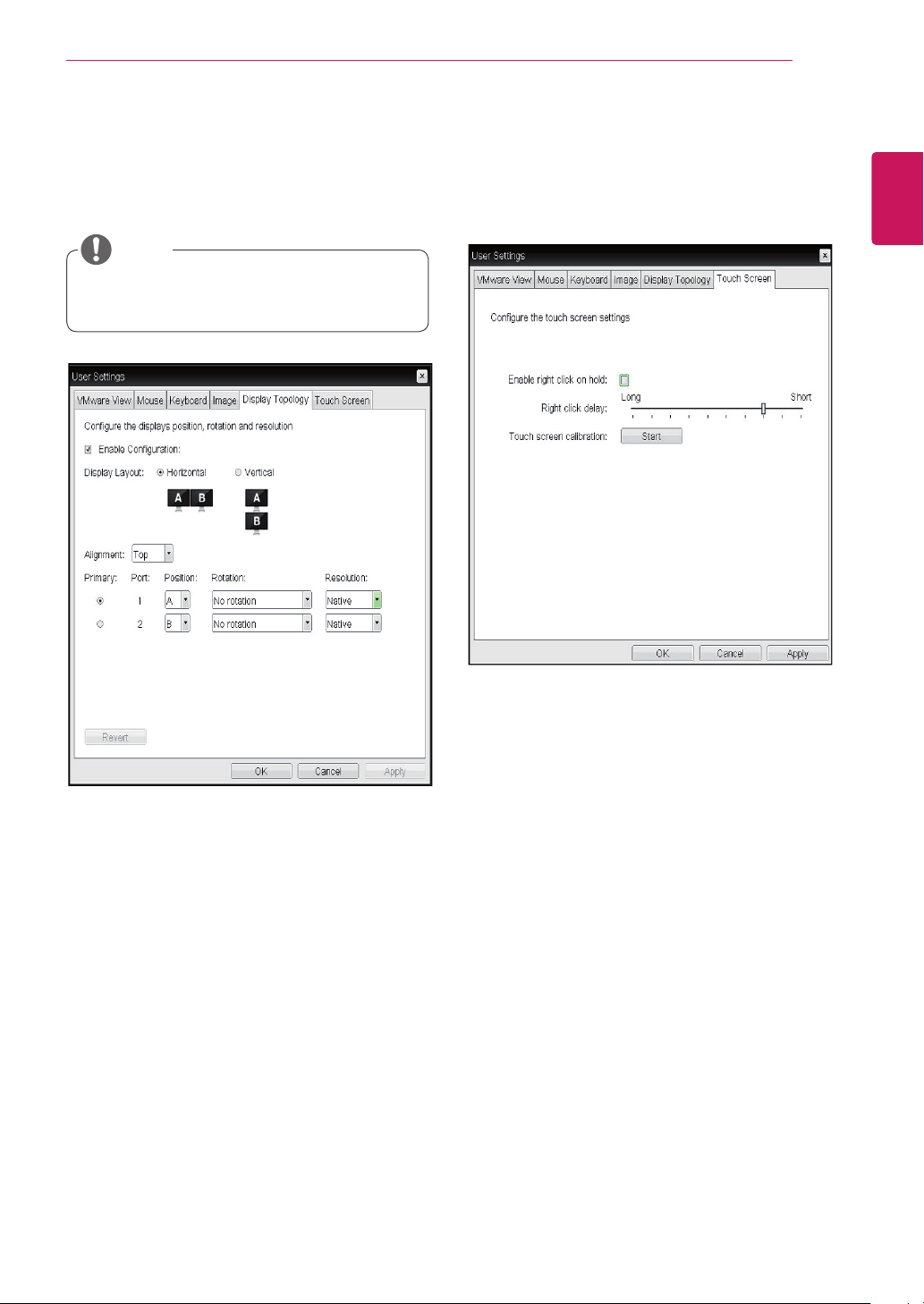
Display Topology Tab
TheDisplayTopologytaballowstheusertospecify
thepositionandalignmentofaconnectedsecond-
arymonitor.
ItisapplicablewhentheVMwareViewCon-
nectionServerversionis4.5orlater.
NOTE
<Figure2-39:DisplayTopology>
Enable Configuration
Whenthisoptionisselected,youcansetthe
displaypositionandalignment.Youcansavethe
settingsbyclickingtheApplyorOKbutton,and
thesettingswillberesetifyouinitializethemonitor
set.
Display Layout
Thisoptionallowstheusertospecifythedirection
ofmonitorconnection:verticalorhorizontal.
Alignment
Thisoptionallowstheusertospecifythealign-
mentpositionofthemonitortobeconnectedwhen
thereisaresolutiondifferencebetweenthetwo
monitors.
Primary
Thisoptionallowstheusertochangetheprimary/
secondarysettingsoftheconnectedmonitor.
Touch Screen Tab
TheTouchScreentaballowstheusertospecify
thetouchsensitivityandalignmentwhenthemoni-
torsupportsthetouchscreenfunction.
<Figure2-40:TouchScreen>
Enable right click on hold
Ifthisoptionisselected,clickingandholdingthe
touchscreenforseveralsecondsworksthesame
asthemouserightclick.
Right Click Delay
Thisoptionallowstheusertomakemovingthe
pointerpositionworkthesameasthemouseright
click.Youcanalsospecifythedistancetomove
(fromLongtoShort).
Touch screen calibration
Thealignmentofatouchscreenisstartedwhen
clickingtheStartbutton.

This device meets the EMC require-
mentsforhomeappliances(ClassB)
andisintendedforhomeuse.
Thisdevicecanbeusedinallregions.
Readtheowner'smanual(CD)carefully
andkeepitathand.
The product label contains necessary
informationforafter-service.
Model
SerialNo.
Declaration of Conformity
Trade Name: LG
Model : CBV42L
Responsible Party: LG Electronics Inc.
Address : 1000 Sylvan Ave. Englewood Cliffs
NJ 07632 U.S.A
TEL: 201-266-2534
*above information is only for USA FCC Regulatory