
User Guide
SUMMARY
This guide provides information about components, network connection, power management, security, backing
up, and more.

Legal information
© Copyright 2024 HP Development
Company, L.P.
AMD is a trademark of Advanced Micro
Devices, Inc. Microsoft and Windows are
either registered trademarks or trademarks
of Microsoft Corporation in the United States
and/or other countries. USB Type-C and
USB-C are registered trademarks of USB
Implementers Forum. DisplayPort™ and the
DisplayPort™ logo are trademarks owned by
the Video Electronics Standards Association
(VESA) in the United States and other
countries.
The information contained herein is subject
to change without notice. The only
warranties for HP products and services are
set forth in the express warranty statements
accompanying such products and services.
Nothing herein should be construed as
constituting an additional warranty. HP shall
not be liable for technical or editorial errors
or omissions contained herein.
First Edition: June 2024
Document Part Number: P11641-001
Product Notice
This guide describes features that are
common to most products. Some features
may not be available on your computer.
Not all features are available in all
editions or versions of Windows. Systems
may require upgraded and/or separately
purchased hardware, drivers, software or
BIOS update to take full advantage of
Windows functionality.
To access the latest user guides, go to
http://www.hp.com/support, and follow the
instructions to find your product. Then select
Manuals.
Software terms
By installing, copying, downloading, or
otherwise using any software product
preinstalled on this computer, you agree
to be bound by the terms of the HP End
User License Agreement (EULA). If you
do not accept these license terms, your
sole remedy is to return the entire unused
product (hardware and software) within 14
days for a full refund subject to the refund
policy of your seller.
For any further information or to request
a full refund of the price of the computer,
please contact your seller.

About this guide
This guide provides basic information for using and upgrading this product.
WARNING! Indicates a hazardous situation that, if not avoided, could result in serious injury or death.
CAUTION: Indicates a hazardous situation that, if not avoided, could result in minor or moderate
injury.
IMPORTANT: Indicates information considered important but not hazard-related (for example,
messages related to property damage). Warns the user that failure to follow a procedure exactly as
described could result in loss of data or in damage to hardware or software. Also contains essential
information to explain a concept or to complete a task.
NOTE: Contains additional information to emphasize or supplement important points of the main text.
TIP: Provides helpful hints for completing a task.
iii

Table of contents
1 Computer features.............................................................................................................................................................................................................................. 1
Product features............................................................................................................................................................................................................................. 1
Components...................................................................................................................................................................................................................................... 1
Labels .................................................................................................................................................................................................................................................... 2
Setup...................................................................................................................................................................................................................................................... 3
Warnings and cautions .................................................................................................................................................................................................3
Mounting and orienting the HP Trusted Zero Client.................................................................................................................................4
HP Quick Release...................................................................................................................................................................................................4
Supported mounting options..........................................................................................................................................................................7
Supported orientation and placement.................................................................................................................................................10
Unsupported placement................................................................................................................................................................................. 12
Routine HP Trusted Zero Client care ...................................................................................................................................................... 13
Installing the stand..........................................................................................................................................................................................................13
Securing the HP Trusted Zero Client .................................................................................................................................................................15
Connecting the power cord .....................................................................................................................................................................................16
Hardware changes ....................................................................................................................................................................................................................16
Removing and replacing the access panel ..................................................................................................................................................16
Removing the access panel ......................................................................................................................................................................... 16
Replacing the access panel .........................................................................................................................................................................18
Locating internal components...............................................................................................................................................................................19
Removing and replacing the battery................................................................................................................................................................ 20
Upgrading system memory................................................................................................................................................................................................. 21
Single vs. dual DIMM modules .............................................................................................................................................................................. 21
Installing a memory module..................................................................................................................................................................................... 21
2 Troubleshooting ................................................................................................................................................................................................................................ 23
Interpreting POST diagnostic front panel lights and audible codes..................................................................................................... 23
Basic troubleshooting............................................................................................................................................................................................................ 25
Statement of Volatility............................................................................................................................................................................................................ 26
3 Power cord set requirements..................................................................................................................................................................................................28
General requirements ............................................................................................................................................................................................................ 28
Japanese power cord requirements........................................................................................................................................................................... 28
Country-specific requirements....................................................................................................................................................................................... 28
4 Computer operating guidelines, routine care, and shipping preparation..............................................................................................30
Operating guidelines and routine care......................................................................................................................................................................30
Cleaning your computer.......................................................................................................................................................................................................30
Removing dirt and debris from your computer..........................................................................................................................................31
Cleaning your computer with a disinfectant................................................................................................................................................ 31
iv

Shipping preparation .............................................................................................................................................................................................................. 32
5 Specifications....................................................................................................................................................................................................................................33
6 Electrostatic discharge...............................................................................................................................................................................................................34
7 Accessibility.........................................................................................................................................................................................................................................35
HP and accessibility.................................................................................................................................................................................................................35
Finding the technology tools you need........................................................................................................................................................... 35
The HP commitment.....................................................................................................................................................................................................35
International Association of Accessibility Professionals (IAAP)..................................................................................................36
Finding the best assistive technology.............................................................................................................................................................36
Assessing your needs .....................................................................................................................................................................................36
Accessibility for HP products.....................................................................................................................................................................36
Standards and legislation ....................................................................................................................................................................................................37
Standards..............................................................................................................................................................................................................................37
Mandate 376 – EN 301 549 .............................................................................................................................................................................37
Web Content Accessibility Guidelines (WCAG)..............................................................................................................................37
Legislation and regulations.....................................................................................................................................................................................38
Useful accessibility resources and links ..................................................................................................................................................................38
Organizations....................................................................................................................................................................................................................38
Educational institutions .............................................................................................................................................................................................38
Other disability resources .......................................................................................................................................................................................39
HP links................................................................................................................................................................................................................................... 39
Contacting support.................................................................................................................................................................................................................. 39
Index................................................................................................................................................................................................................................................................40
v
Computer features1
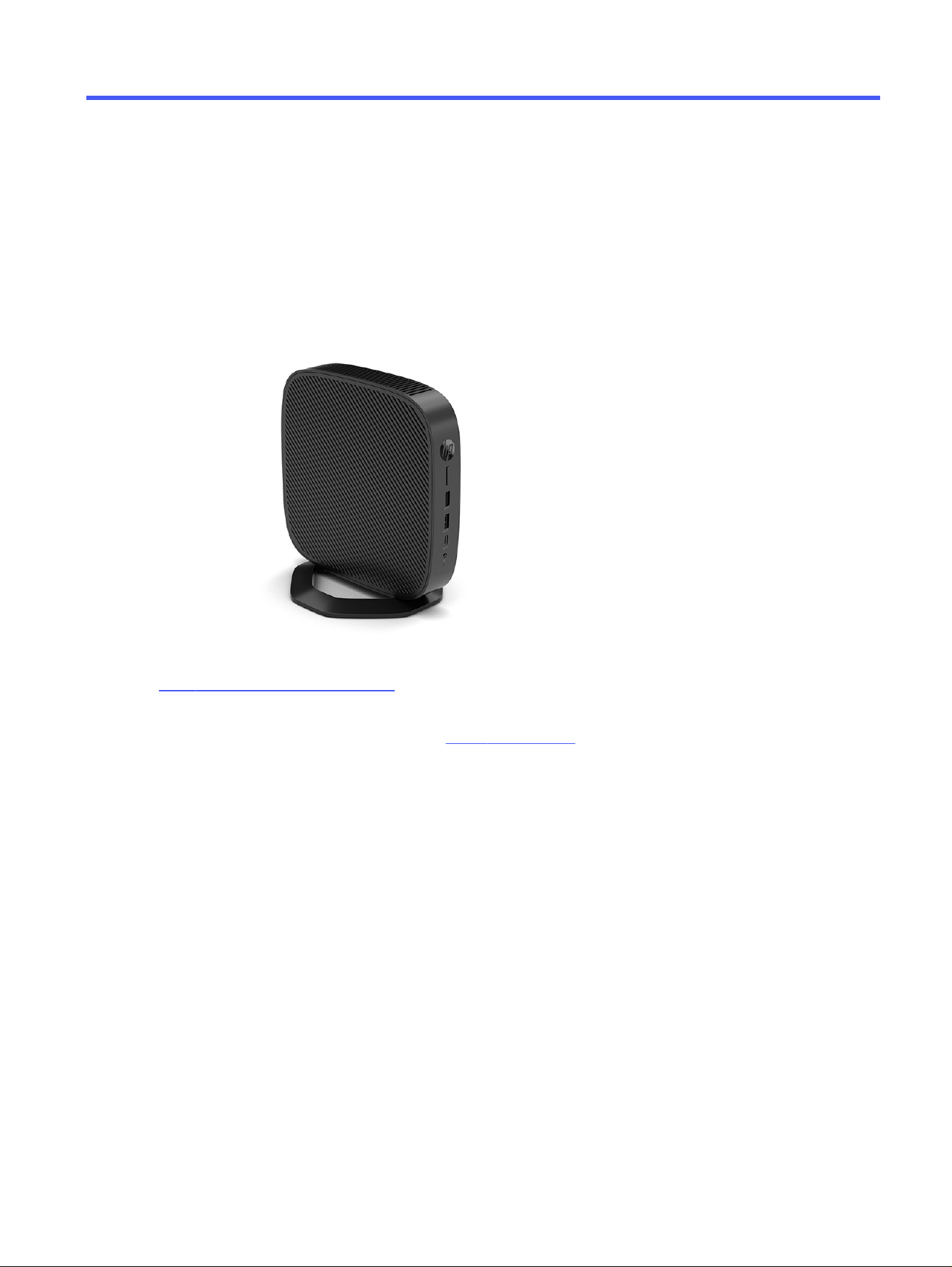
This chapter provides you with an overview of your HP Trusted Zero Client features.
Product features
To identify a typical computer configuration, read this section. Features vary depending on the model.
For more information about the hardware and software installed on this HP Trusted Zero Client, go to
http://www.hp.com/go/quickspecs and search for the HP Trusted Zero Client.
Various options are available for your HP Trusted Zero Client. For more information about some of the
available options, go to the HP website at http://www.hp.com and search for your specific HP Trusted
Zero Client.
Components
To identify the HP Trusted Zero Client components, use this illustration and table.
Computer features
1
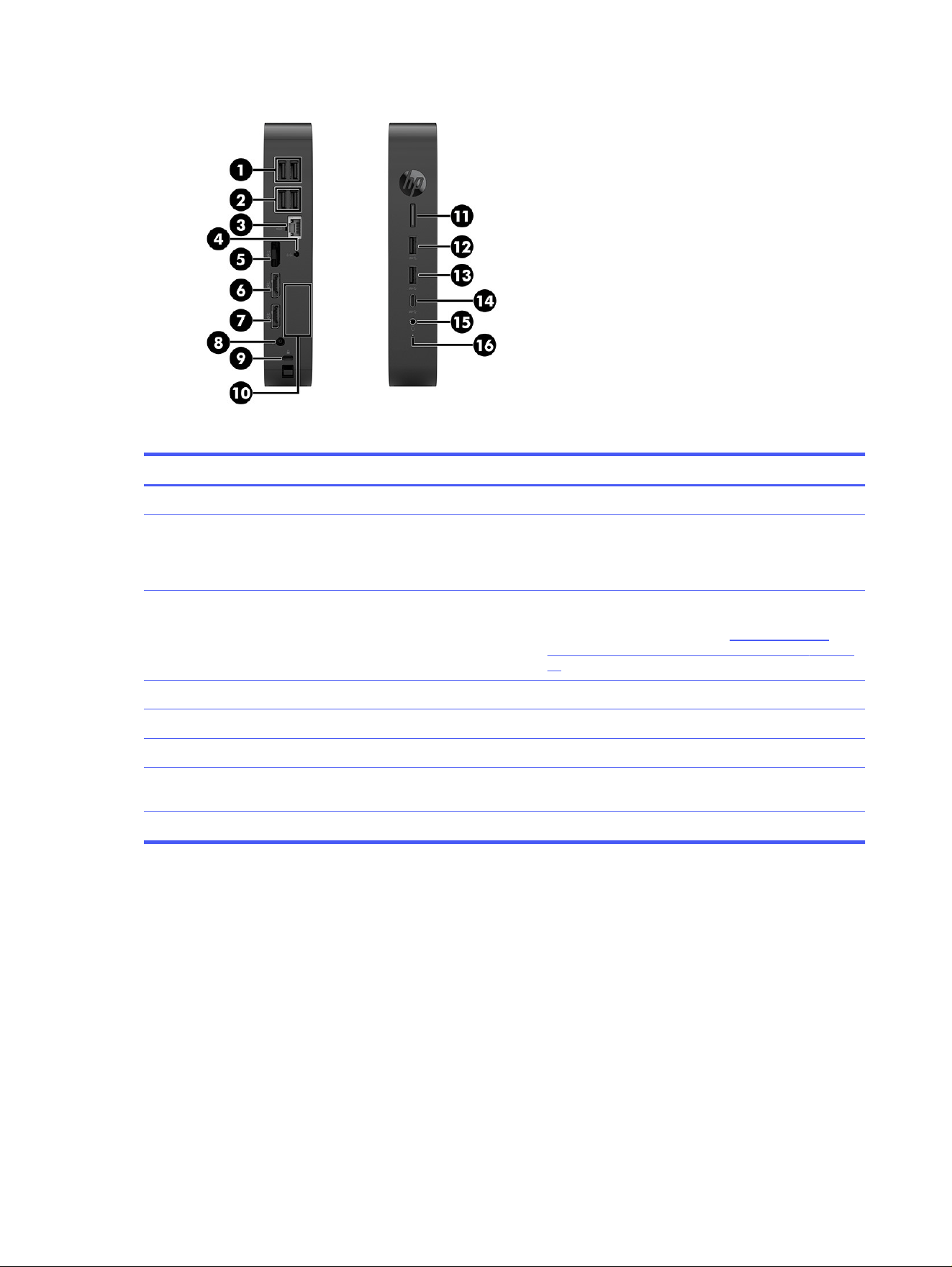
Table 1-1 Identifying the front and rear panel components
Components
1 USB ports (2) 9 Security cable slot
2 USB ports (2) 10 Optional port. If used, supports the following: VGA,
Power Serial, HDMI, 2 x USB 3.0, USB Type-C® dual role/
display port alternate mode, Dual Serial, Ext Antenna,
fiber NIC SC 100FX, fiber NIC LC, SC 1000SX.
3 RJ-45 (network) jack - NIC option 11 Power button/Power light - This button also includes
a power-on LED to indicate the system is ON (solidly
lit) or is in standby (flashing). See Interpreting POST
diagnostic front panel lights and audible codes on page
23.
4 Audio-out (headphone) 12 USB port
5 DisplayPort™ connector 13 USB port
6 DisplayPort connector 14 USB Type-C port
7 DisplayPort connector 15 Audio-out (headphone)/Audio-in (microphone) combo
jack
8 Power connector 16 Activity light
Labels
The labels affixed to the computer provide information you might need when you troubleshoot system
problems or travel internationally with the computer. Labels might be in paper form or imprinted on
bottom of the product.
● Service label—Provides important information to identify your computer. When contacting support,
you might be asked for the serial number, the product number, or the model number. Locate this
information before you contact support.
2
Chapter 1 Computer features
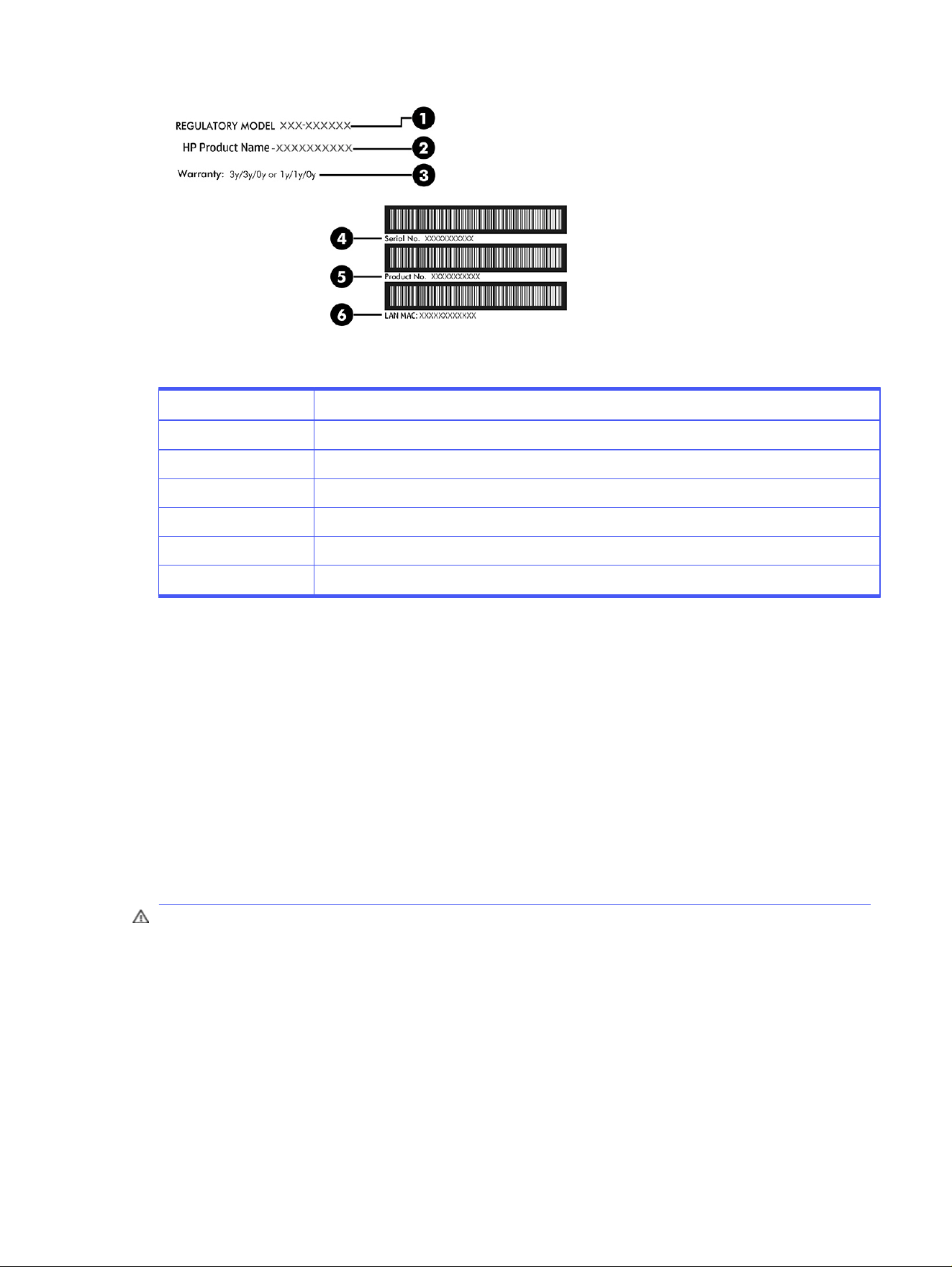
Table 1-2 Service label components
Component Description
1 Regulatory model number
2 HP product name
3 Warranty period
4 Serial number
5 Product number
6 LAN MAC
● Regulatory labels—Provide regulatory information about the computer.
● Wireless certification labels—Provide information about optional wireless devices and the approval
markings for the countries or regions in which the devices have been approved for use.
Setup
Follow the instructions carefully to set up your HP Trusted Zero Client.
Warnings and cautions
Before performing upgrades be sure to carefully read all of the applicable instructions, cautions, and
warnings in this guide.
WARNING! To reduce the risk of personal injury or equipment damage from electric shock, hot
surfaces, or fire:
● Install the HP Trusted Zero Client in a location where children are unlikely to be present.
● Disconnect power from the HP Trusted Zero Client and allow the internal system components to
cool before you touch them.
● Do not plug telecommunications or telephone connectors into the network interface controller
(NIC) receptacles.
● Do not disable the power cord grounding plug. The grounding plug is an important safety feature.
Setup
3

● Plug the power cord into a grounded (earthed) AC outlet that is easily accessible at all times.
To reduce the risk of serious injury, read the Safety & Comfort Guide. It describes proper workstation
setup, posture, and health and work habits for HP Trusted Zero Client users, and provides important
electrical and mechanical safety information. The Safety & Comfort Guide is located on the HP website
at http://www.hp.com/ergo.
WARNING! Energized parts are inside.
● Disconnect power to the equipment before removing the enclosure.
● Replace and secure the enclosure before re-energizing the equipment.
IMPORTANT: Static electricity can damage the electrical components of the HP Trusted Zero Client
or optional equipment. Before beginning the following procedures, be sure that you are discharged of
static electricity by briefly touching a grounded metal object. See Electrostatic discharge on page 34
for more information.
When the HP Trusted Zero Client is plugged into an AC power source, voltage is always applied to the
system board. To prevent damage to internal components, you must disconnect the power cord from
the power source before opening the HP Trusted Zero Client.
NOTE: An optional Quick Release mounting bracket is available from HP for mounting the HP Trusted
Zero Client to a wall, desk, or swing arm. When the mounting bracket is used, do not install the HP
Trusted Zero Client with the I/O ports oriented towards the ground.
Mounting and orienting the HP Trusted Zero Client
You can mount and orient the HP Trusted Zero Client in several different ways.
IMPORTANT: Use an HP-approved mounting bracket to avoid cracking the HP Trusted Zero Client.
HP Quick Release
An optional Quick Release mounting bracket is available from HP for mounting the HP Trusted Zero
Client to a wall, desk, or swing arm. When the mounting bracket is used, do not install the HP Trusted Zero
Client with the I/O ports oriented towards the ground.
This HP Trusted Zero Client incorporates four mounting points on the right side of the unit. These
mounting points follow the VESA (Video Electronics Standards Association) standard, which provides
industry-standard mounting interfaces for Flat Displays (FDs), such as flat panel monitors, flat displays,
and flat TVs. The HP Quick Release connects to the VESA-standard mounting points, allowing you to
mount the HP Trusted Zero Client in a variety of orientations.
NOTE: When mounting to a HP Trusted Zero Client, use the 10 mm screws supplied with the HP Quick
Release.
4
Chapter 1 Computer features
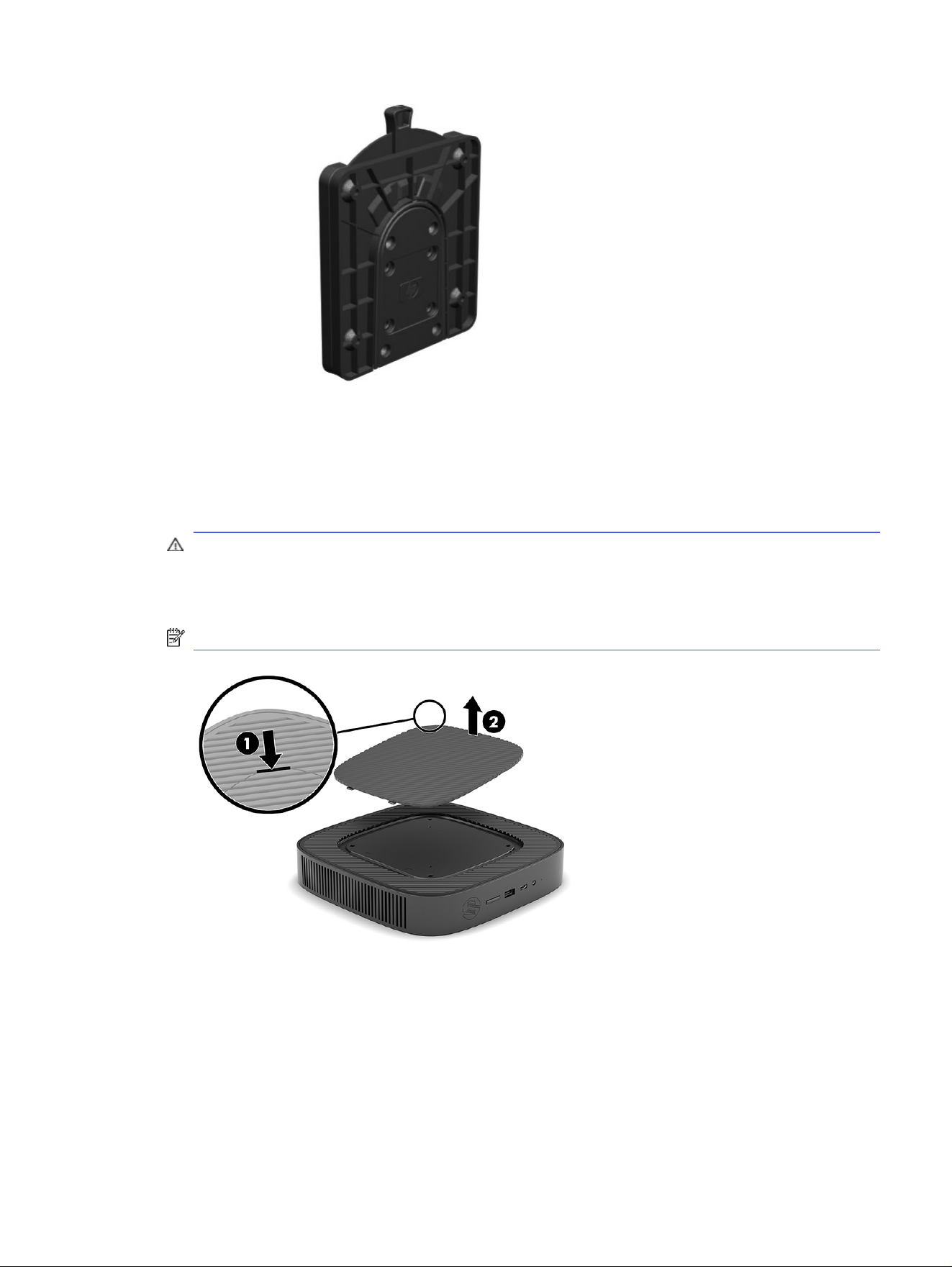
To use the HP Quick Release:
1. Lay the HP Trusted Zero Client down with the right side up and the front side with the HP logo facing
you.
2. Lift the side cover at the recess (1), and then remove the cover (2) from the HP Trusted Zero Client.
You can use a thin coin or a flat-bladed screwdriver to remove the cover.
CAUTION: If the HP Trusted Zero Client has been in operation prior to removing the side cover, the
metal plate underneath the side cover can reach temperatures that may cause discomfort if
directly touched. Turn the HP Trusted Zero Client off and allow 20 minutes for it to cool down to
room temperature before you remove the side cover.
NOTE: Retain the side cover for possible future use.
HP Quick Release
5
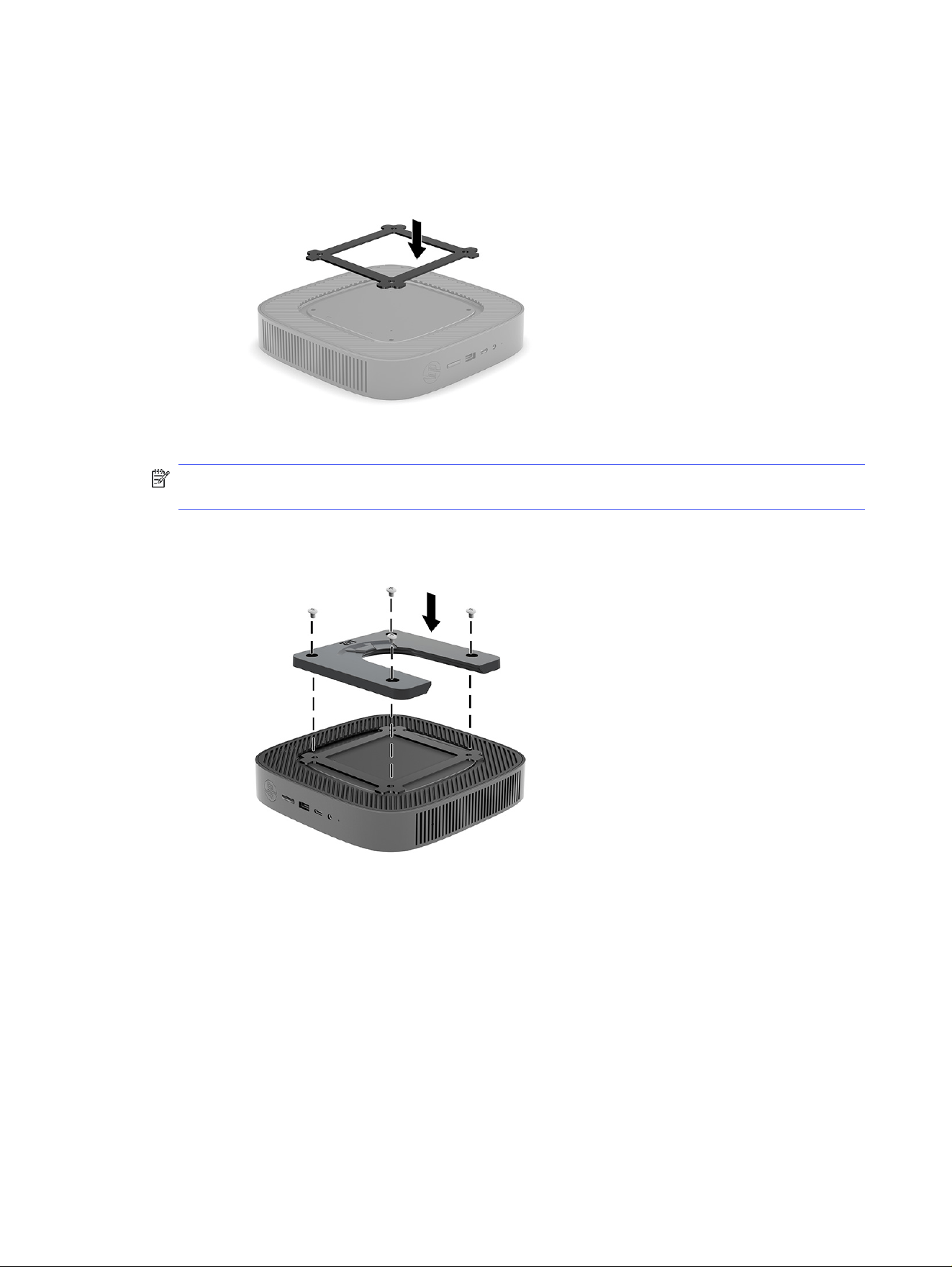
3. Set the thin spacer into the depression on the right side of the HP Trusted Zero Client.
NOTE: Two spacers are included with the HP Trusted Zero Client. Use the thinner spacer when
mounting the HP Trusted Zero Client.
4. Using four 10 mm screws included in the mounting device kit, attach one side of the HP Quick
Release to the HP Trusted Zero Client as shown in the following illustration.
6
Chapter 1 Computer features
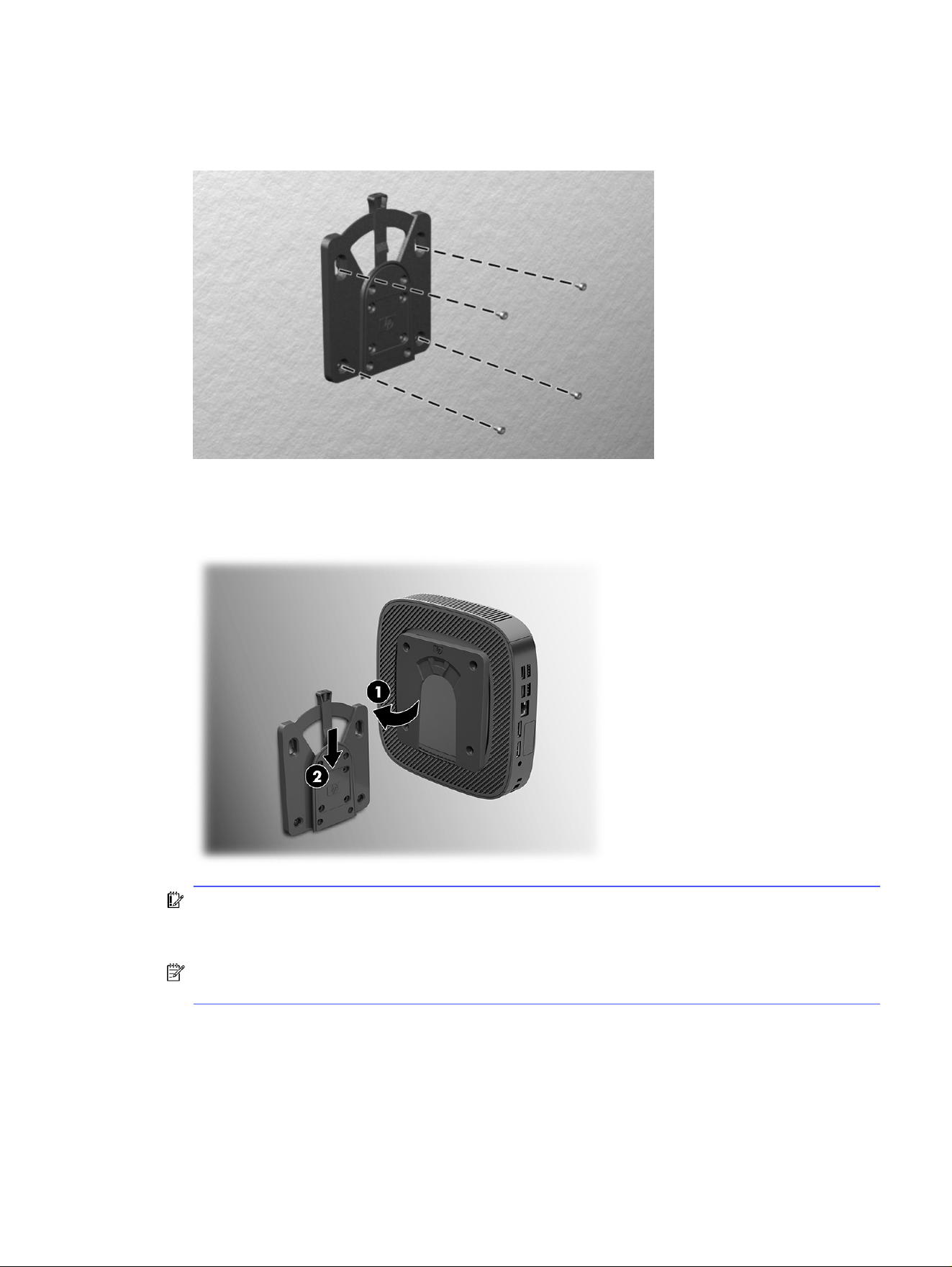
5. Using four screws included in the mounting device kit, attach the other side of the HP Quick
Release to the device you will mount the HP Trusted Zero Client to. Be sure that the release lever
points upward.
6. Slide the side of the mounting device attached to the HP Trusted Zero Client (1) over the other side
of the mounting device (2) on the device where you want to mount the HP Trusted Zero Client. An
audible click indicates a secure connection.
IMPORTANT: To ensure proper function of the HP Quick Release and a secure connection of all
components, be sure that both the release lever on one side of the mounting device and the
rounded opening on the other side face upward.
NOTE: When attached, the HP Quick Release automatically locks in position. You need to slide the
lever only to one side to remove the HP Trusted Zero Client.
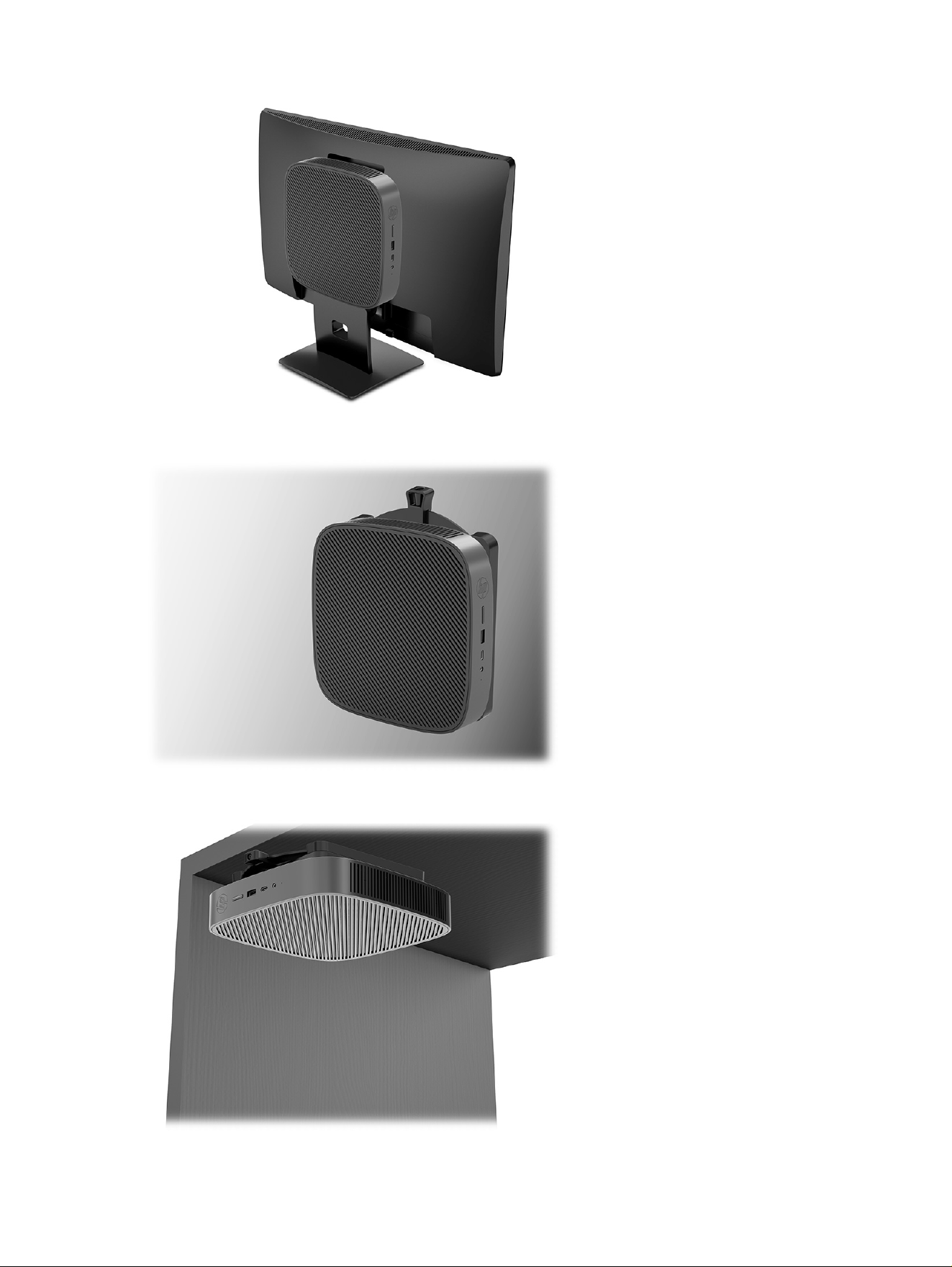
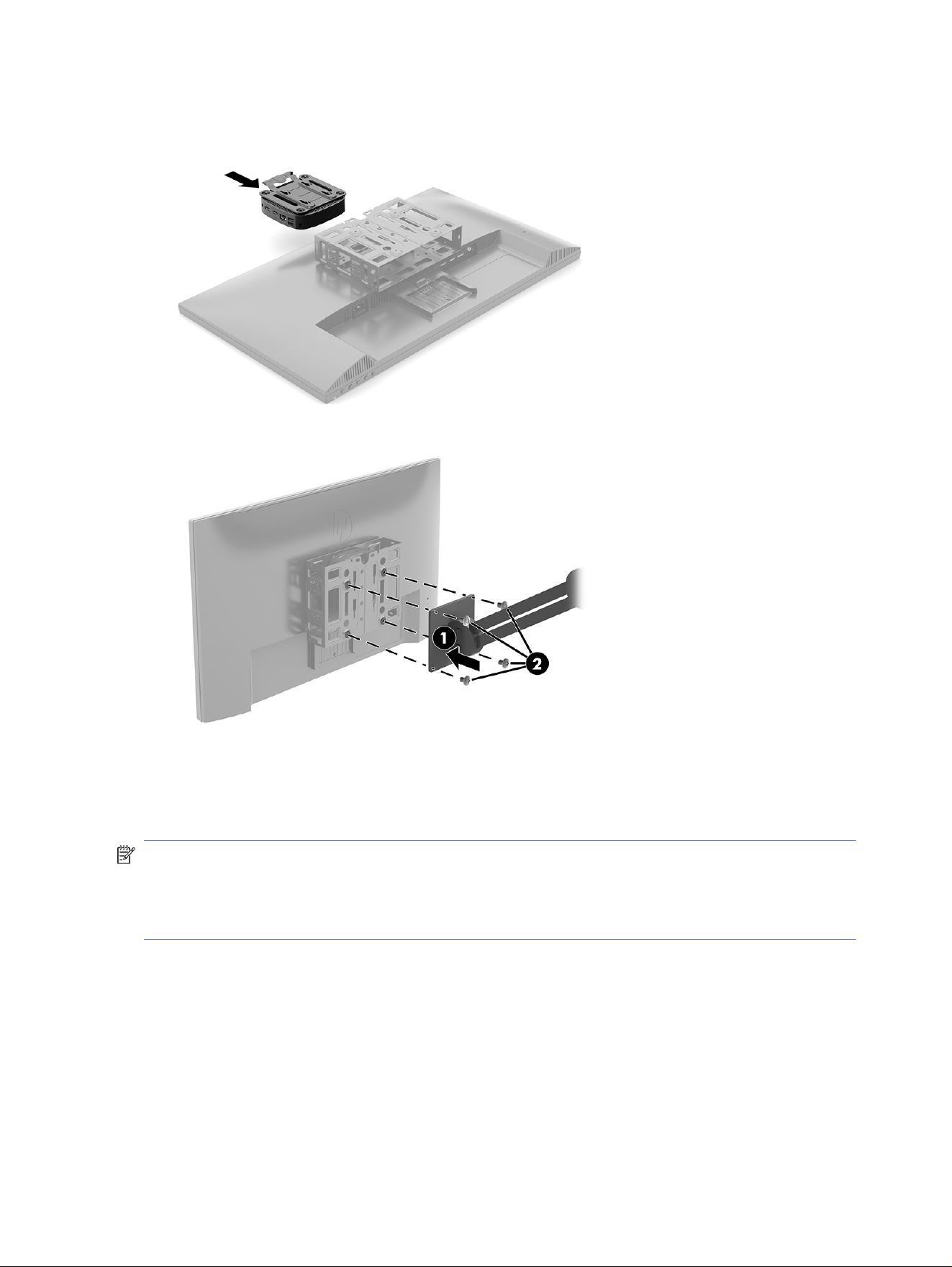
Supported mounting options
The following illustrations demonstrate some of the supported mounting options for the mounting
bracket.
On the back of a monitor:
Supported mounting options
7
On a wall:
Under a desk:
8
Chapter 1 Computer features
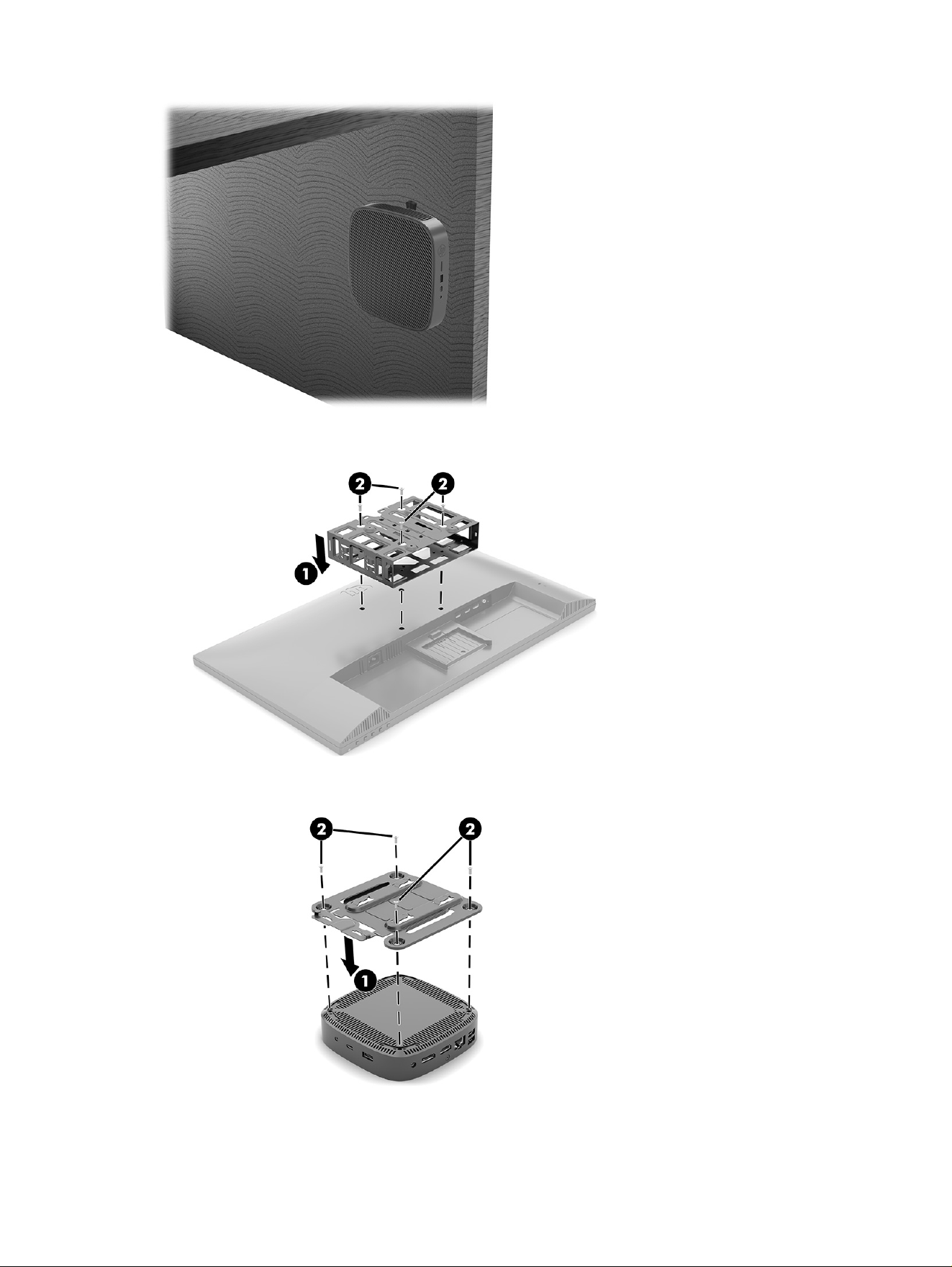
Into a dual VESA® mount:
1.
2.
3.
Supported mounting options
9
4.
Supported orientation and placement
The following illustrations demonstrate some of the supported orientation and placement options for
the HP Trusted Zero Client.
NOTE: You must adhere to the HP-supported orientation to ensure your HP Trusted Zero Clients
function properly.
Unless the HP Trusted Zero Client is mounted with the HP Quick Release, you must operate it with the
stand attached to ensure proper airflow around the HP Trusted Zero Client.
● HP supports the horizontal orientation for the HP Trusted Zero Client:
10
Chapter 1 Computer features
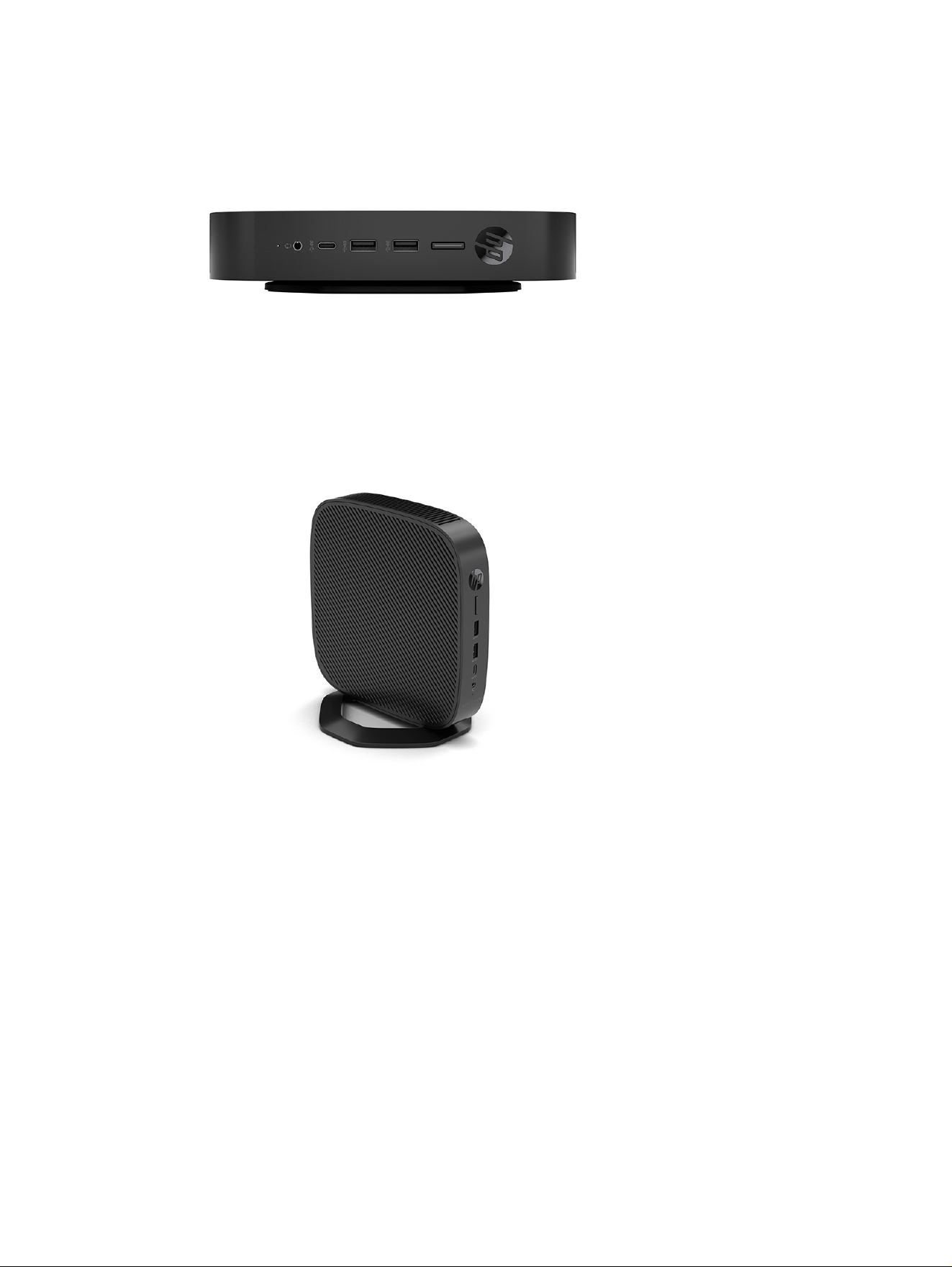
● HP supports the vertical orientation for the HP Trusted Zero Client:
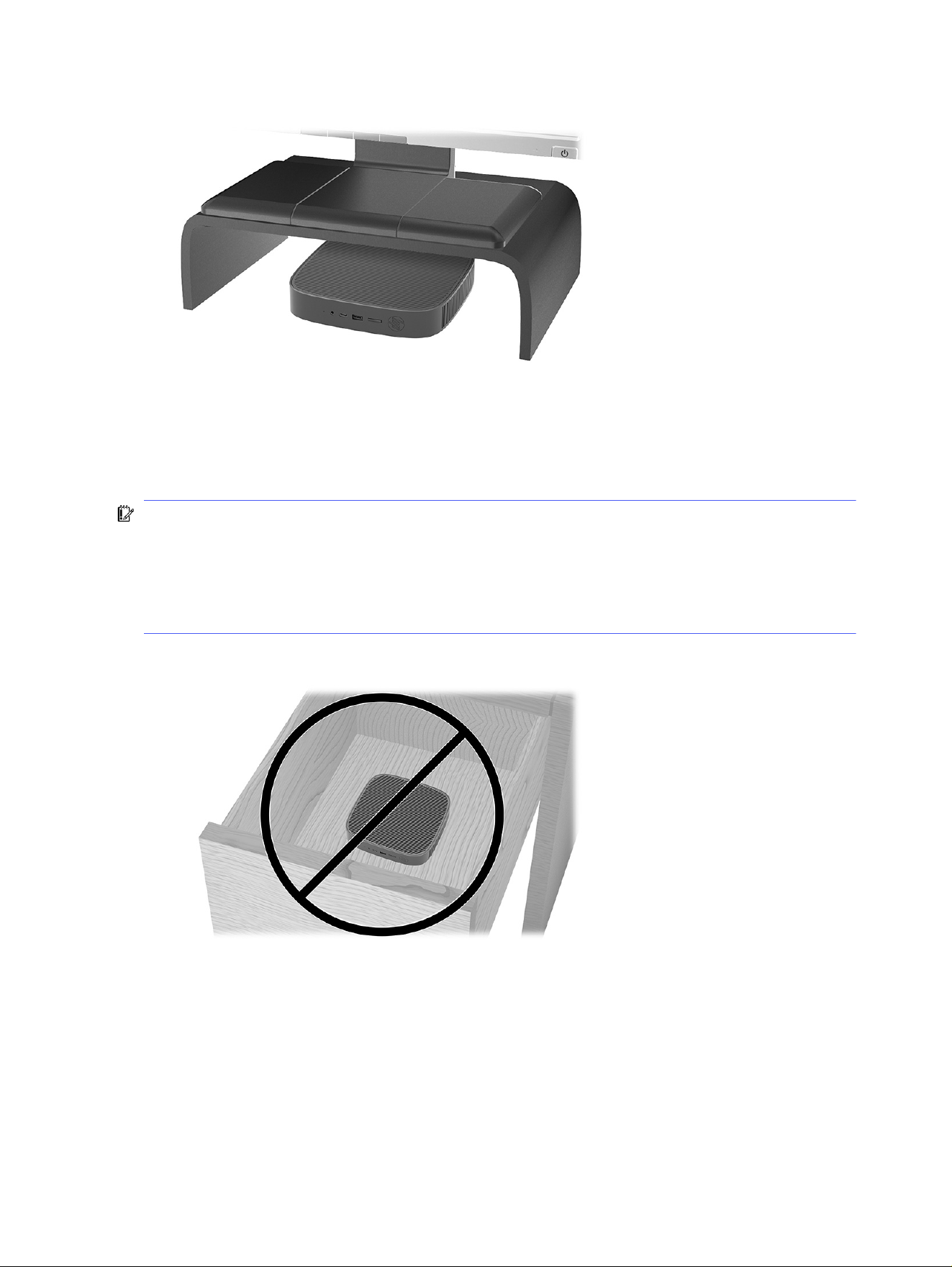
● You can place the HP Trusted Zero Client under a monitor stand with at least 2.54 cm (1 in) clearance:
Supported orientation and placement
11
Unsupported placement
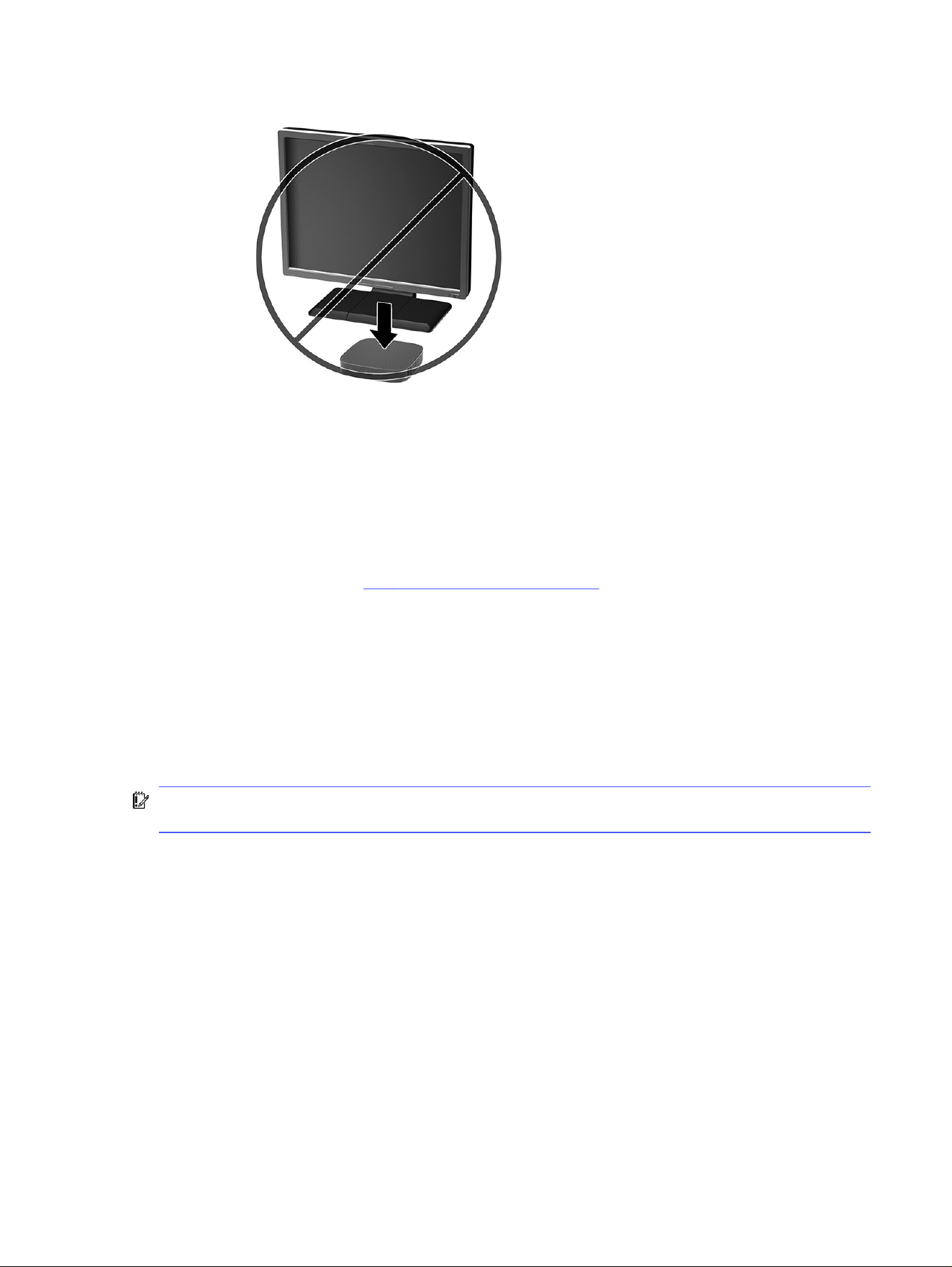
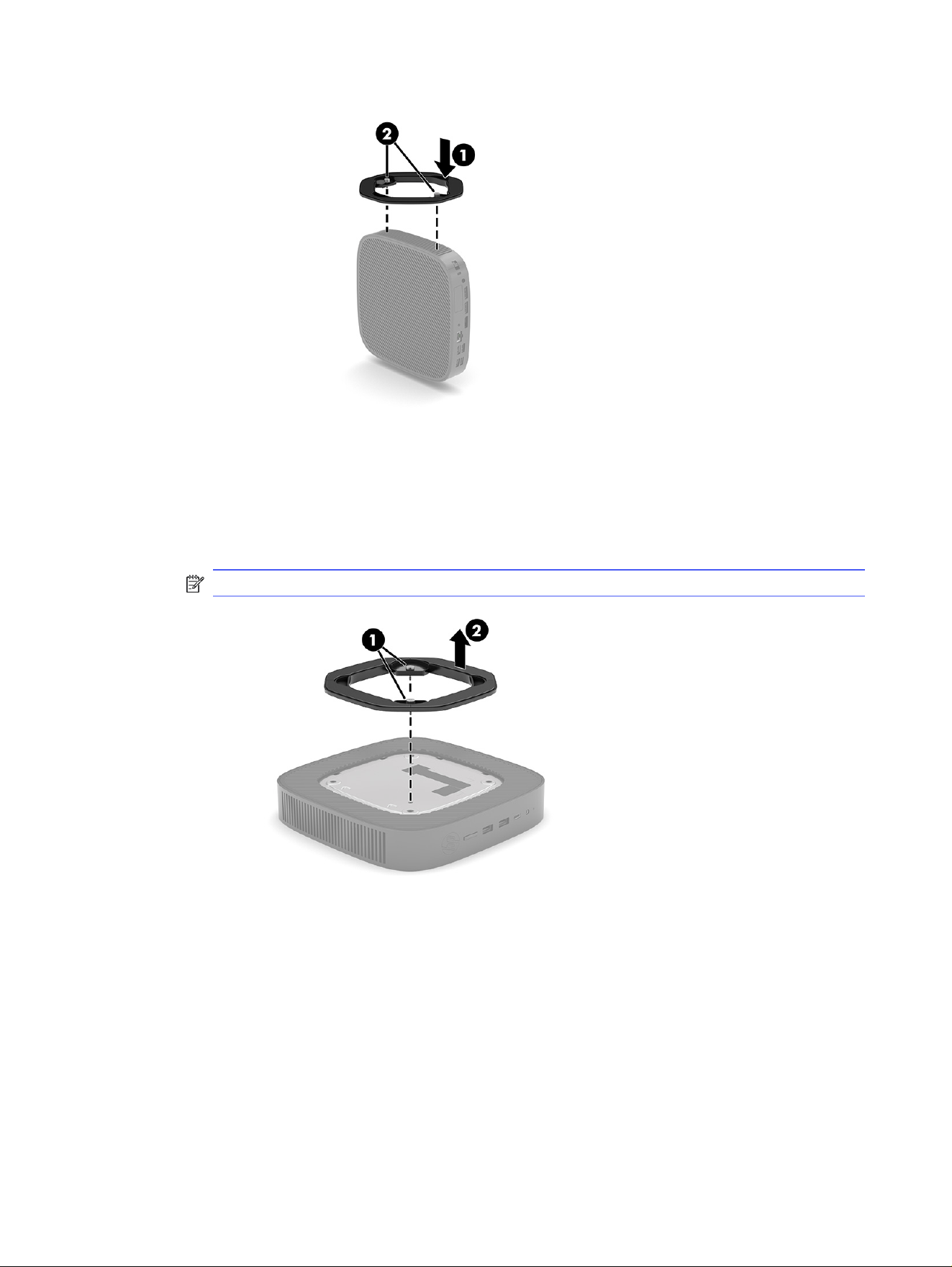
HP does not support the following placements for the HP Trusted Zero Client:
IMPORTANT: Unsupported placement of HP Trusted Zero Clients could result in operation failure,
damage to the devices, or both.
● HP Trusted Zero Clients require proper ventilation to maintain operating temperature. Do not block
the vents.
● Do not install the HP Trusted Zero Client with the I/O ports oriented towards the ground.
● In a desk drawer:
● With a monitor on the HP Trusted Zero Client:
12
Chapter 1 Computer features
Routine HP Trusted Zero Client care
Use the following information to properly care for your HP Trusted Zero Client:
● Never operate the HP Trusted Zero Client with the outside panel removed.
● Keep the HP Trusted Zero Client away from excessive moisture, direct sunlight, and extreme heat
and cold. For information about the recommended temperature and humidity ranges for the HP
Trusted Zero Client, go to http://www.hp.com/go/quickspecs.
● Keep liquids away from the HP Trusted Zero Client and keyboard.
● Turn off the HP Trusted Zero Client and wipe the exterior with a soft, damp cloth as needed. Using
cleaning products can discolor or damage the finish.
Installing the stand
You can use the HP Trusted Zero Client in either a tower or horizontal orientation with the stand included
with the HP Trusted Zero Client.
IMPORTANT: Unless the HP Trusted Zero Client is mounted with the HP Quick Release, it must be
operated with the stand attached to ensure proper airflow around the HP Trusted Zero Client.
1. Turn off the HP Trusted Zero Client properly, and then turn off any external devices.
2. Disconnect the power cord from the AC outlet and disconnect any other cables or devices such as
USB flash drives from the HP Trusted Zero Client.
3. Remove or disengage any security devices that prohibit opening the HP Trusted Zero Client.
4. Tower orientation: Attach the stand to the bottom of the HP Trusted Zero Client.
a. Turn the HP Trusted Zero Client upside down and locate the two screw holes in the grid on the
bottom of the HP Trusted Zero Client.
b. Position the stand over the bottom of the HP Trusted Zero Client (1) and line up the captive
screws in the stand with the screw holes in the HP Trusted Zero Client.
c. Tighten the captive screws securely (2).
Routine HP Trusted Zero Client care
13
5. Horizontal orientation: Attach the stand to the right side of the HP Trusted Zero Client.
a. Lay the HP Trusted Zero Client down with the right side up and the front side with the HP logo
facing you.
b. Lift the side cover at the recess (1), and then remove the cover (2) from the HP Trusted Zero
Client.
NOTE: Retain the side cover for possible future use.
c. Lay the HP Trusted Zero Client down with the right side up and locate the two screw holes in
the grid on the right side of the HP Trusted Zero Client.
d. Position the stand over the side of the HP Trusted Zero Client and then lower it onto the HP
Trusted Zero Client (1).
14
Chapter 1 Computer features
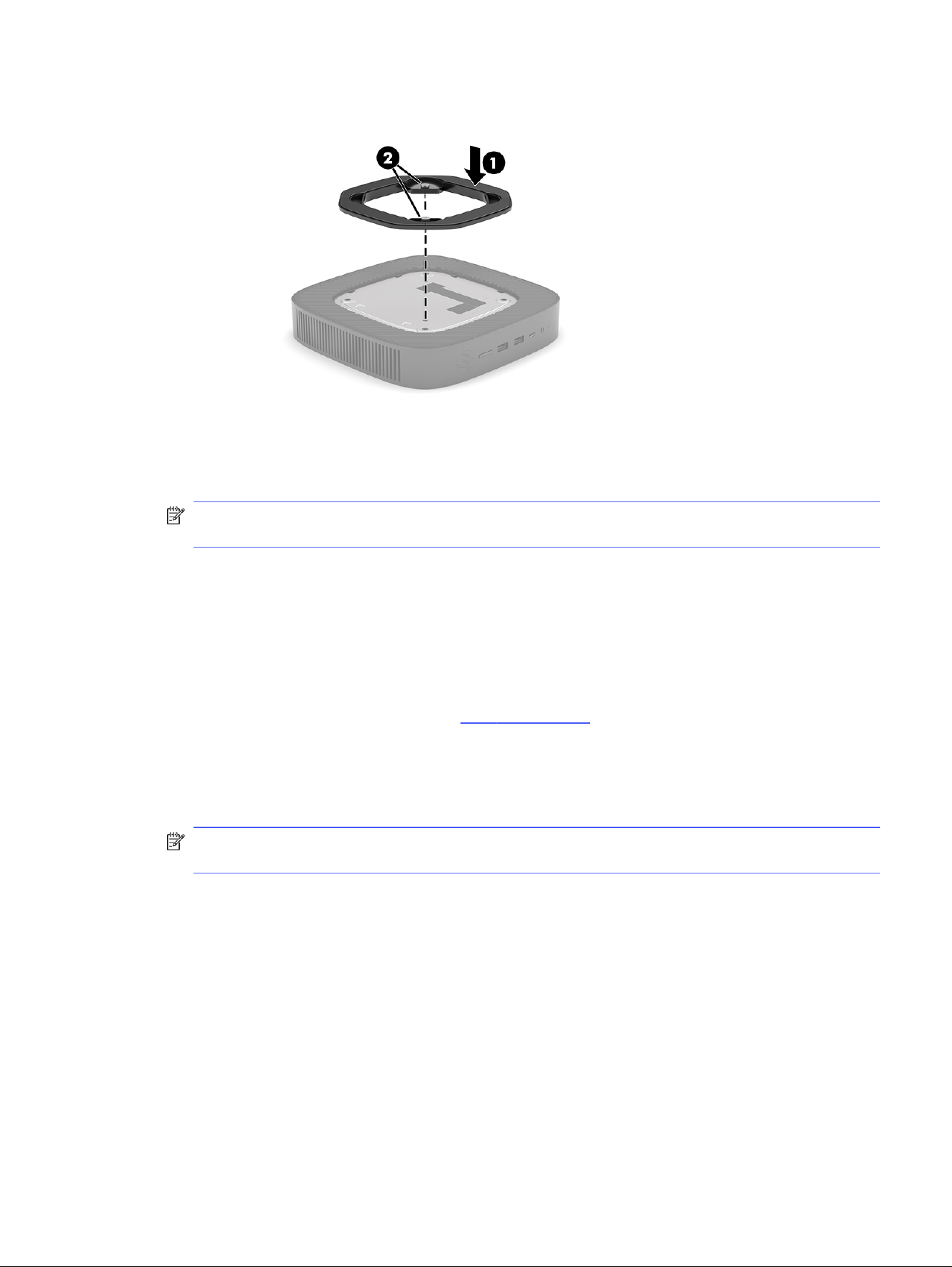
e. Line up the captive screws in the stand with the screw holes in the HP Trusted Zero Client (2).
f. Tighten the captive screws securely.
6. Reconnect the power cord and any other cables or USB flash devices.
NOTE: Be sure that at least 10.2 centimeters (4 inches) of space on all sides of the HP Trusted Zero
Client remain clear and free of obstructions.
7. Lock any security devices that were disengaged when the HP Trusted Zero Client cover or access
panel was removed.
Securing the HP Trusted Zero Client
Your HP Trusted Zero Client is designed to accept a security cable. The security cable prevents
unauthorized removal of the HP Trusted Zero Client and access to the secure compartment.
To order this option, go to the HP website at http://www.hp.com and search for your specific HP Trusted
Zero Client.
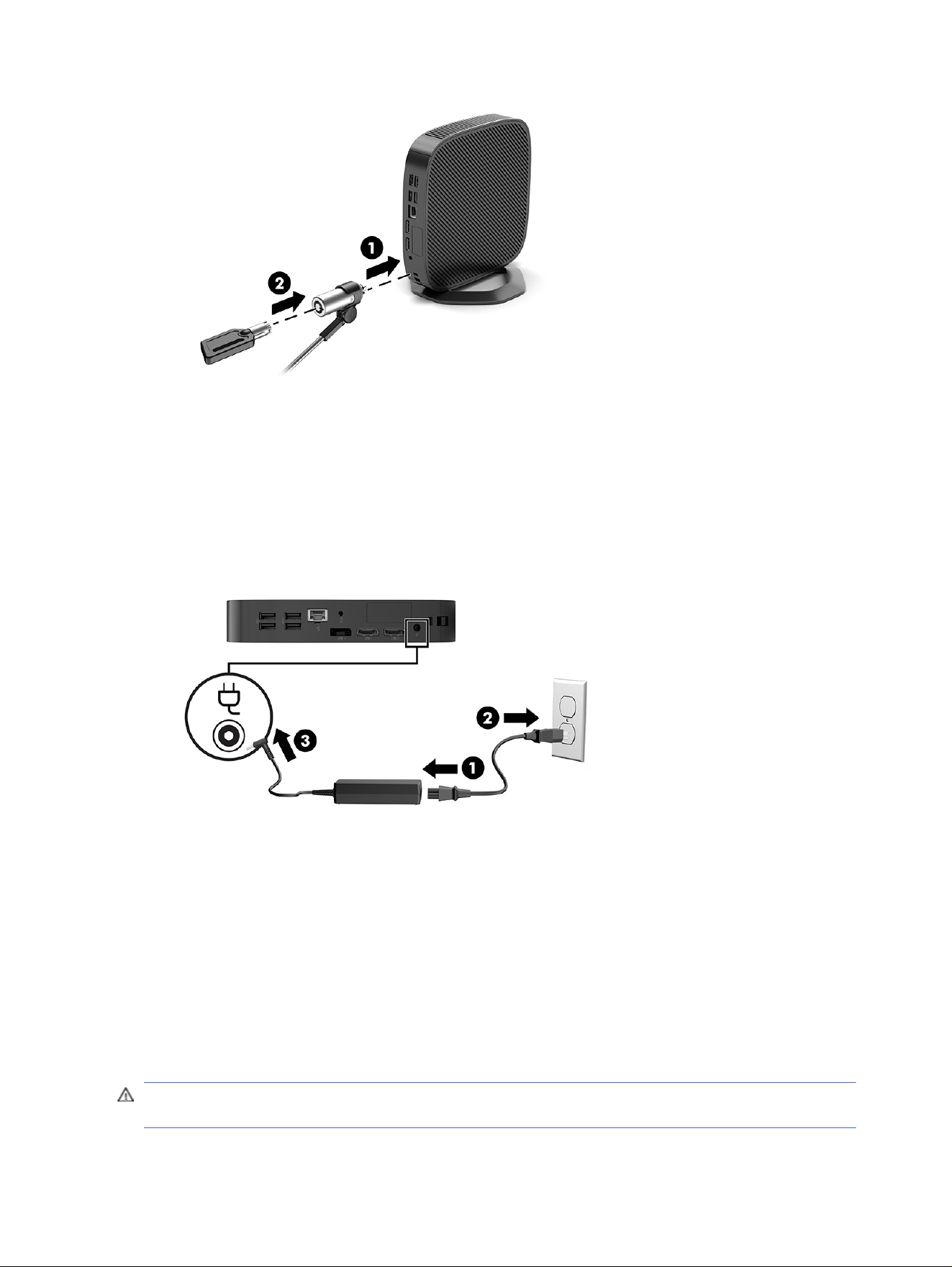
1. Locate the security cable slot on the back panel.
2. Insert the security cable lock into the slot (1), and then use the key to lock it (2).
NOTE: The security cable is designed to act as a deterrent, but it might not prevent the computer
from being mishandled or stolen.
Securing the HP Trusted Zero Client
15
Connecting the power cord
Connect a power cord to your computer by following these steps.
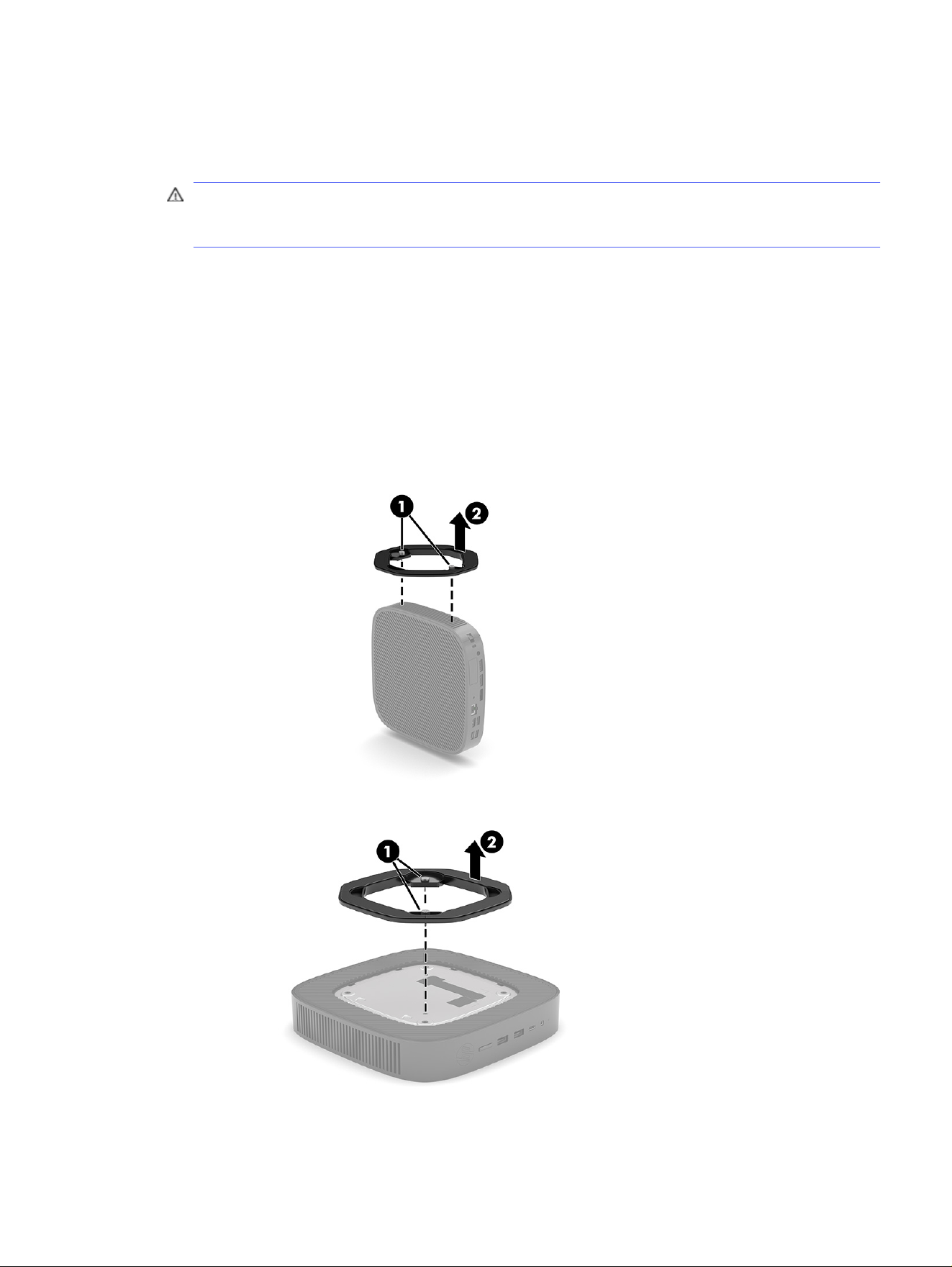
1. Connect the power cord to the power adapter (1).
2. Connect the power cord to an AC outlet (2).
3. Connect the power cord to the HP Trusted Zero Client (3).
Hardware changes
You can change or replace certain HP Trusted Zero Client hardware.
Removing and replacing the access panel
Remove the access panel to replace or upgrade internal components.
Removing the access panel
To remove the access panel, use these procedures.
WARNING! Before removing the access panel, be sure that the HP Trusted Zero Client is turned off
and the power cord is disconnected from the AC outlet.
16
Chapter 1 Computer features
1. Turn off the HP Trusted Zero Client properly, and then turn off any external devices.
2. Disconnect the power cord from the AC outlet and disconnect any other cables or devices such as
USB flash drives from the HP Trusted Zero Client.
CAUTION: Regardless of the power-on state, voltage is always present on the system board as
long as the system is plugged into an active AC outlet. You must disconnect the power cord to avoid
damage to the internal components of the HP Trusted Zero Client.
3. Remove or disengage any security devices that prohibit opening the HP Trusted Zero Client.
4. Remove the stand from the HP Trusted Zero Client.
a. Turn the HP Trusted Zero Client upside down and locate the two screw holes in the grid on the
bottom of the HP Trusted Zero Client.
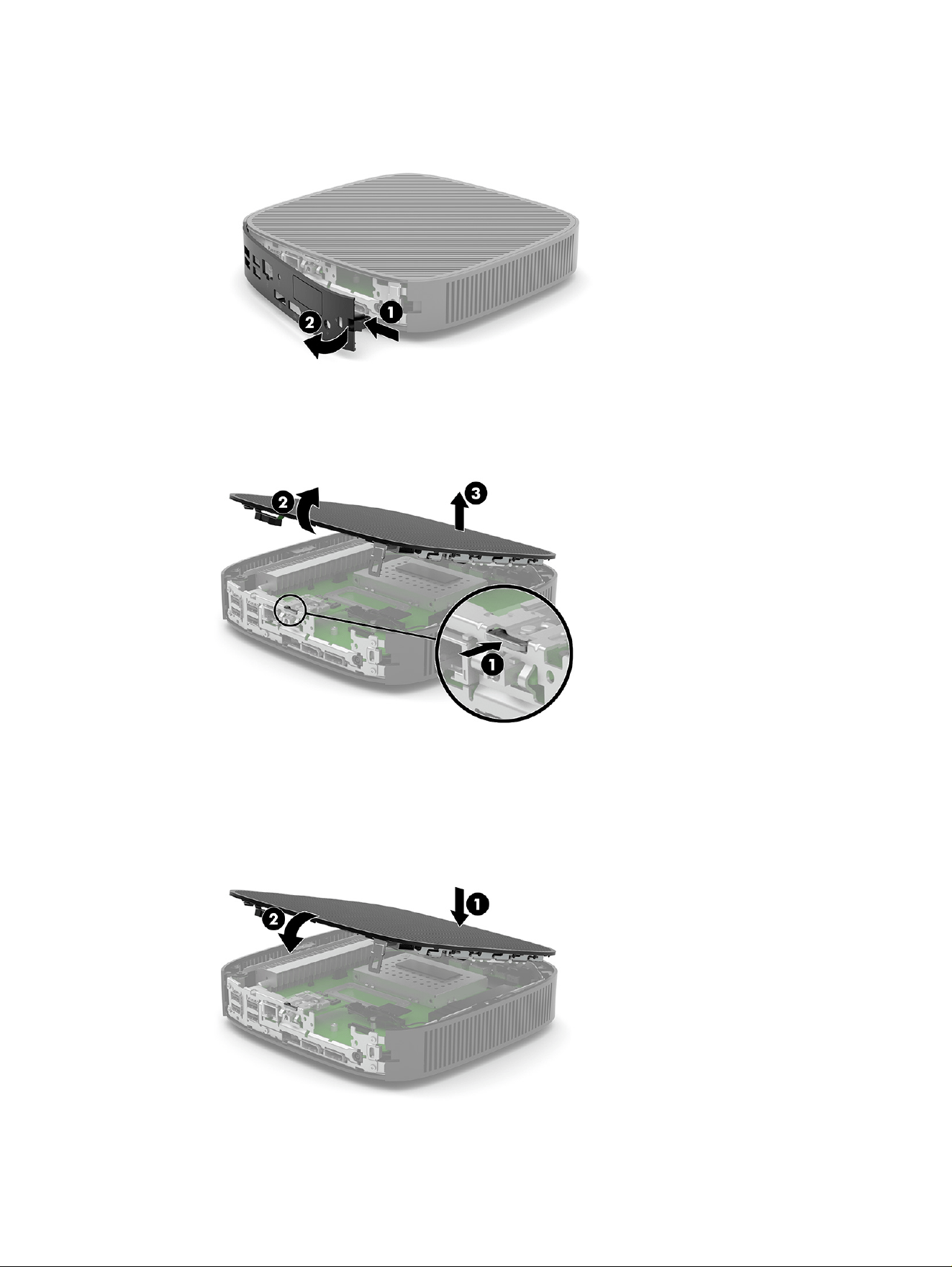
b. Loosen the captive screws to release the stand (1) and pull the stand off the HP Trusted Zero
Client (2).
Tower orientation
Horizontal orientation
5. Lay the unit flat on a stable surface with the left side up.
Removing the access panel
17
6. Release the latch (1) on the right side of the rear I/O panel, rotate the I/O panel (2) to the left, and
then lift it off the HP Trusted Zero Client.
7. Press the latch (1) that secures the access panel to the chassis.
8. Rotate the access panel upward (2) and lift it off the HP Trusted Zero Client (3).
Replacing the access panel
To replace the access panel, use these procedures.
1. Insert the access panel (1), and then rotate the access panel down into place to secure the latch (2).
18
Chapter 1 Computer features
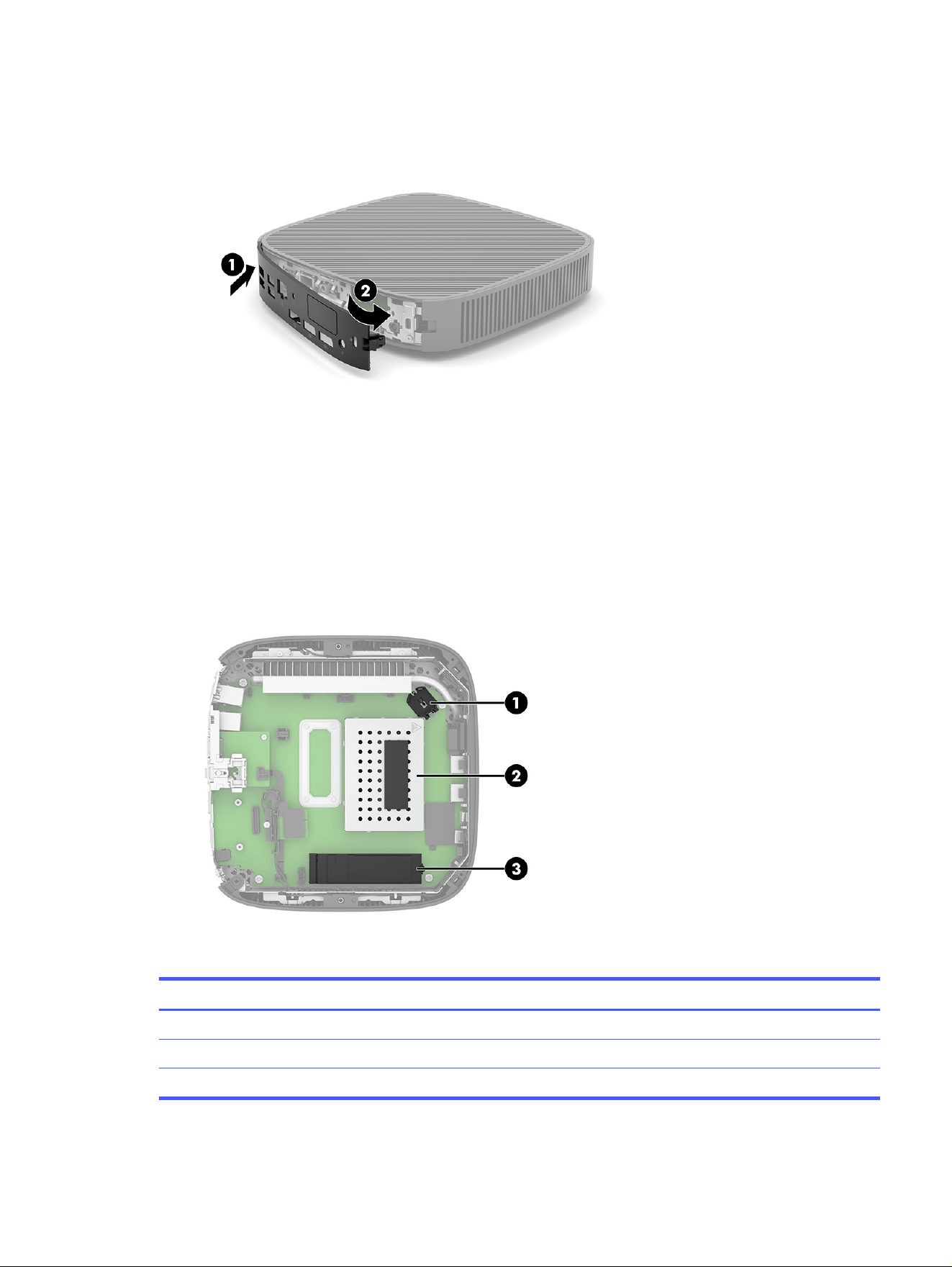
2. Insert the hooks on the left side of the rear I/O panel (1) into the left side of the back of the chassis,
rotate the right side (2) to the chassis, and then press the right side into the chassis until it locks in
place.
3. Replace the HP Trusted Zero Client stand.
4. Reconnect the power cord and turn on the HP Trusted Zero Client.
5. Lock any security devices that were disengaged when the HP Trusted Zero Client access panel was
removed.
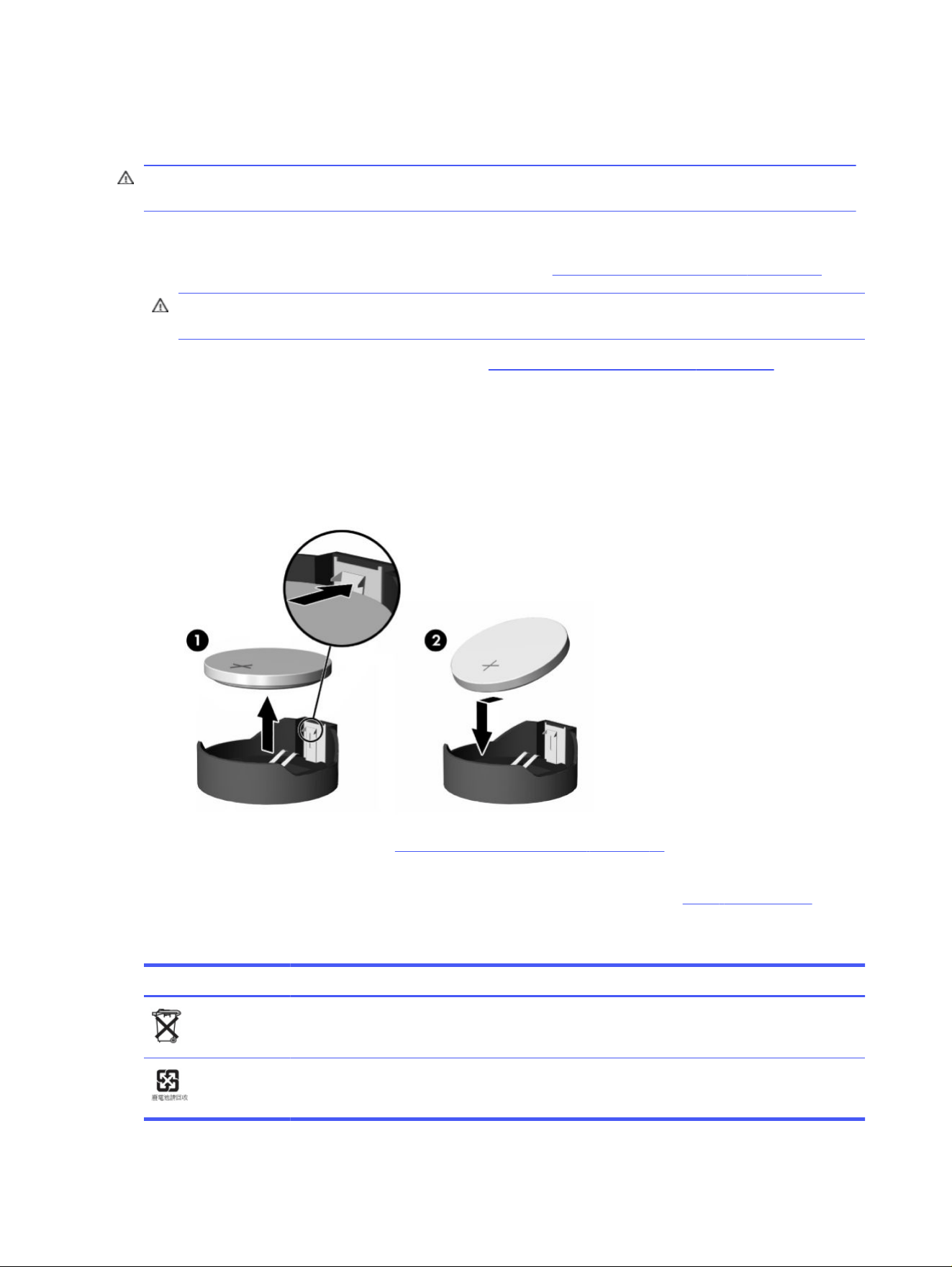
Locating internal components
Use this illustration and table to identify HP Trusted Zero Client internal components.
Table 1-3
Identifying the internal components
Item Component
1 Battery
2 System memory module
3 M.2 socket for storage module
Locating internal components 19
Removing and replacing the battery
To remove and replace the battery, use these procedures.
WARNING! Before removing the access panel, be sure that the HP Trusted Zero Client is turned off
and the power cord is disconnected from the AC outlet.
To remove and replace the battery:
1. Remove the HP Trusted Zero Client access panel. See Removing the access panel on page 16.
WARNING! To reduce risk of personal injury from hot surfaces, allow the internal system
components to cool before you touch them.
2. Locate the battery on the system board. See Locating internal components on page 19.
3. To release the battery from its holder, squeeze the metal clamp that extends above one edge of the
battery. When the battery pops up, lift it out (1).
4. To insert the new battery, slide one edge of the replacement battery under the holder’s lip with the
positive side up. Push the other edge down until the clamp snaps over the other edge of the battery
(2).
5. Replace the access panel. See Replacing the access panel on page 18.
HP encourages customers to recycle used electronic hardware, HP original print cartridges, and
rechargeable batteries. For more information about recycling programs, go to http://www.hp.com and
search for “recycle.”
Table 1-4
Battery icon definitions
Icon Definition
Do not dispose of batteries, battery packs, and accumulators with the general household waste. In
order to forward them to recycling or proper disposal, use the public collection system or return them
to HP, an authorized HP partner, or their agents.
The Taiwan EPA requires dry battery manufacturing or importing firms, in accordance with Article 15
or the Waste Disposal Act, to indicate the recovery marks on the batteries used in sales, giveaways,
or promotions. Contact a qualified Taiwanese recycler for proper battery disposal.
20 Chapter 1 Computer features

Upgrading system memory
The memory socket on the system board is populated with two memory modules. To achieve the
maximum memory support, you can populate the memory sockets with up to 16 GB of memory.
For proper system operation, the memory module must adhere to the following specifications:
● Industry-standard 260-pin small outline DIMM (SODIMM)
● Unbuffered non-ECC PC4-19200 DDR4-2666 MT/s
● 1.2 volt DDR4-SDRAM memory module
The HP Trusted Zero Client supports the following:
● Single-rank and dual-rank modules
● Single-sided and double-sided memory modules
A higher-speed DDR4 SODIMM module operates at a maximum system memory speed of 2666 MT/s.
NOTE: The system does not operate properly when an unsupported memory module is installed.
Single vs. dual DIMM modules
Your HP Trusted Zero Client may come with one or two DIMM modules installed. Using two
modules provides the highest possible system performance, because both modules can be accessed
simultaneously, potentially doubling memory throughput.
For example, the system performs better with two 4 GB DIMM modules than with one 8 GB module, even
though the total memory capacity is the same. Both modules must be exactly the same type and have
the same performance, so if you add a second DIMM, be sure that the specifications are identical to the
original module. For reliable operation, HP recommends that you use matching modules from the same
manufacturer and part number.
If you choose to install a single DIMM module, be sure that you install it in the lower slot (closest to the
main system board).
Installing a memory module
To install a memory module, use these procedures.
IMPORTANT: You must unplug the power cord and wait approximately 30 seconds for the power to
drain before adding or removing the memory module. Regardless of the power-on state, voltage is
always supplied to the memory module as long as the HP Trusted Zero Client is plugged into an active
AC outlet. Adding or removing the memory module while voltage is present can cause irreparable
damage to the memory module or system board.
The memory module socket has gold-plated metal contacts. When upgrading the memory, it is
important to use a memory module with gold-plated metal contacts to prevent corrosion or oxidation
resulting from having incompatible metals in contact with each other.
Static electricity can damage the electronic components of the HP Trusted Zero Client. Before
beginning the following procedures, be sure that you are discharged of static electricity by briefly
touching a grounded metal object. For more information, see Electrostatic discharge on page 34.
Upgrading system memory
21
When handling a memory module, be careful not to touch any of the contacts. Doing so can damage
the module.
To install a memory module:
1. Remove the HP Trusted Zero Client access panel. See Removing the access panel on page 16.
WARNING! To reduce risk of personal injury from hot surfaces, allow the internal system
components to cool before you touch them.
2. Locate the memory module on the system board. See Locating internal components on page 19.
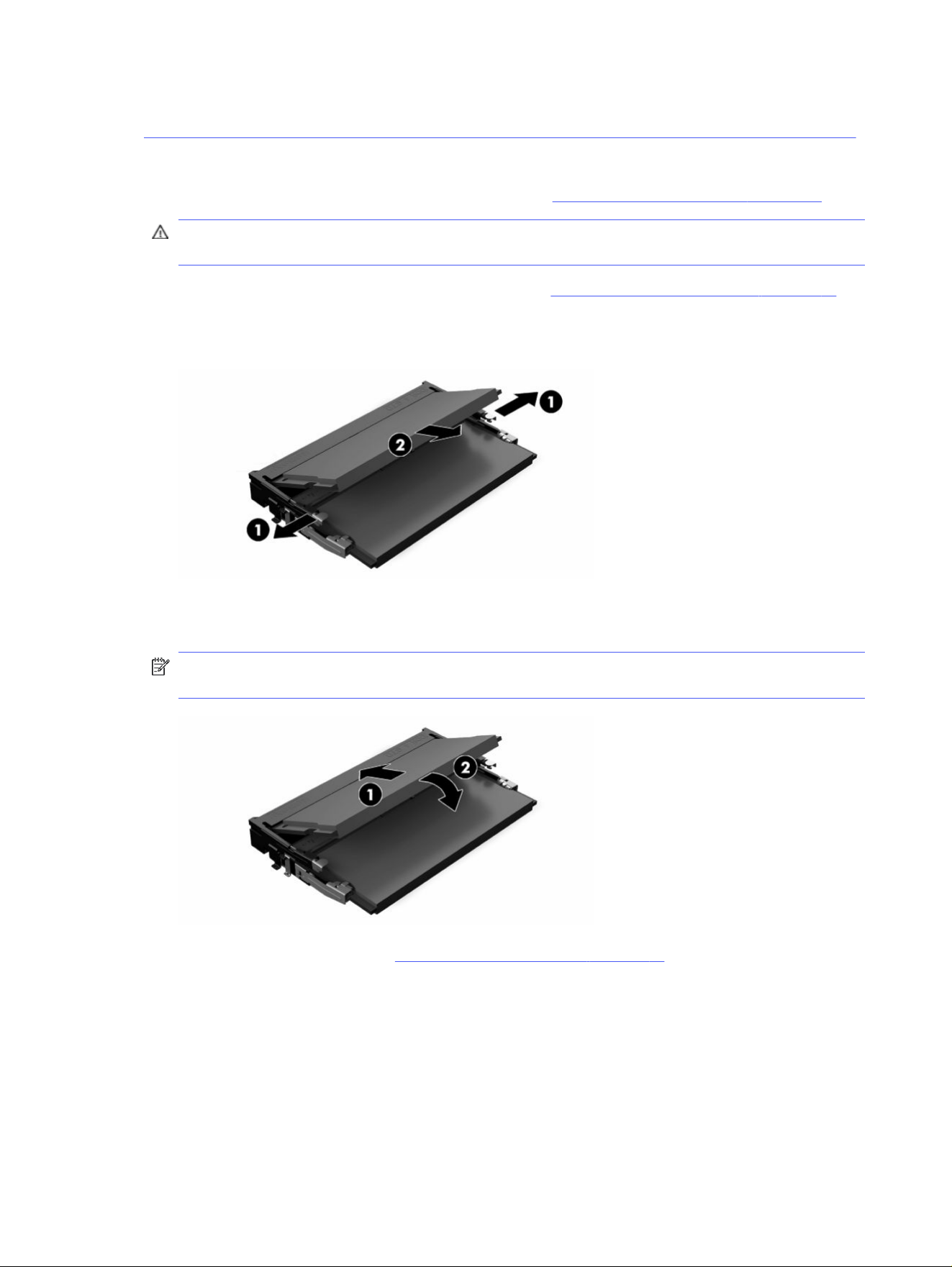
3. To remove the memory module, press outward on the latches on each side of the memory module
(1), rotate the memory module up, and then pull the memory module out of the socket (2).
4. Slide the new memory module (1) into the socket at approximately a 30° angle, and then press the
memory module down (2) so that the latches lock it in place.
NOTE: A memory module can be installed in only one way. Match the notch on the module with the
tab on the memory socket.
5. Replace the access panel. See Replacing the access panel on page 18.
The HP Trusted Zero Client automatically recognizes the new memory when you turn on the HP Trusted
Zero Client.
22
Chapter 1 Computer features

Troubleshooting2
This chapter provides you with information to help with troubleshooting your HP Trusted Zero Client.
Interpreting POST diagnostic front panel lights and
audible codes
This section identifies the front panel light codes as well as the audible codes that can occur before or
during POST that might not have an error code or text message associated with them.
CAUTION: When the computer is plugged into an AC power source, voltage is always applied to the
system board. To reduce the risk of personal injury from electrical shock or hot surfaces, be sure to
disconnect the power cord from the AC outlet and allow the internal system components to cool before
touching.
NOTE: Recommended actions in the following table are listed in the order in which they should be
performed.
Not all diagnostic lights and audible codes are available on all models.
Table 2-1
Interpreting POST diagnostic front panel lights and audible codes
Activity Possible cause Recommended action
Power light on (white). Computer on. None
Power light blinks every 2 seconds
(white).
Computer in Suspend to RAM
mode (select products only) or
normal Suspend mode.
None required. Press any key or move the mouse to wake
the computer.
Power light flashes red four times,
and then the power light flashes
white two times, once every
second, followed by a 2-second
pause. Beeps stop after fifth
iteration but light continues until
problem is solved.
Processor thermal protection
activated.
OR
The heat sink assembly is
not properly attached to the
processor.
OR
The unit has vents blocked
or is in a location where the
ambient temperature is too
high.
1. Be sure that the computer air vents are not
blocked.
2. Contact an authorized reseller or service provider.
Troubleshooting 23

Table 2-1 Interpreting POST diagnostic front panel lights and audible codes (continued)
Activity Possible cause Recommended action
Power light flashes red three
times, and then the power light
flashes white four times, once
every second, followed by a 2-
second pause. Beeps stop after
fifth iteration but light continues
until problem is solved.
Power failure (power supply is
overloaded).
OR
The incorrect external power
supply adapter is being used
on the unit.
1. Check whether a device is causing the problem
by removing all attached devices. Turn on the
computer. If the computer enters the POST, then
shut down and replace one device at a time. Repeat
this procedure until failure occurs. Replace the
device that is causing the failure. Continue adding
devices one at a time to ensure all devices are
functioning properly.
2. Replace the power supply.
3. Replace the system board.
Power light flashes red three
times, and then the power light
flashes white two times, once
every second, followed by a 2-
second pause. Beeps stop after
fifth iteration but light continues
until problem is solved.
Prevideo memory error. IMPORTANT: To avoid damage to the DIMMs or the
system board, you must unplug the computer power cord
before attempting to reseat, install, or remove a DIMM
module.
1. Reseat memory modules.
2. Replace memory modules one at a time to isolate
the faulty module.
3. Replace third-party memory with HP memory.
4. Replace the system board.
Power light flashes red three
times, and then the power light
flashes white three times, once
every second, followed by a 2-
second pause. Beeps stop after
fifth iteration, but light continues
until problem is solved.
Prevideo graphics error. Replace the system board.
Power light flashes red two times,
and then the power light flashes
white three times, once every
second, followed by a 2-second
pause. Beeps stop after fifth
iteration, but light continues until
problem is solved.
Invalid ROM based on bad
checksum.
1. Reflash the system ROM with the latest BIOS
image.
2. Replace the system board.
System does not turn on, and lights
are not blinking.
System cannot start. Press and hold the power button for less than 4 seconds.
If the hard drive light turns white, the power button is
working correctly.
1. Remove the power cord from the computer.
2. Open the computer and press the yellow CMOS
button on the system board for 4 seconds (located
near the front USB ports).
3. Verify that the power cord is plugged into the power
supply.
4. Close the unit and reattach the power cord.
5. Try to start the computer.
6. Replace the unit.
24
Chapter 2 Troubleshooting

Basic troubleshooting
If the HP Trusted Zero Client is experiencing operating problems or will not turn on, review the following
items.
Table 2-2 Basic troubleshooting
Issue Procedures
The HP Trusted Zero Client is experiencing
operating problems.
Verify that the following connectors are securely plugged into the HP Trusted Zero
Client unit:
Power connector, keyboard, mouse, network jack, display
The HP Trusted Zero Client does not turn
on.
1. Verify that the power supply is good by installing it on a known working unit
and testing it. If the power supply does not work on the test unit, replace the
power supply.
2. If the unit does not work properly with the replaced power supply, have the
unit serviced.
The HP Trusted Zero Client turns on and
displays a splash screen, but does not
connect to the server.
1. Verify that the network is operating and the network cable is working
properly.
2. Verify that the unit is communicating with the server by having the system
administrator ping the unit from the server:
● If the HP Trusted Zero Client pings back, then the signal was accepted
and the unit is working. This indicates a configuration issue.
● If the HP Trusted Zero Client does not ping back and the HP Trusted
Zero Client does not connect to the server, reimage the unit.
No link or activity on the network LEDs or
the LEDs do not illuminate blinking green
after turning on the HP Trusted Zero Client.
(The network LEDs are located inside the
network connector on the top, rear panel of
the HP Trusted Zero Client. Indicator lights
are visible when the connector is installed.)
1. Verify that the network is operating.
2. Verify that the network cable is good by installing the cable on a known
working device. If a network signal is detected, then the cable is good.
3. Verify that the power supply is good by replacing the power cord to the
computer with a known working power cord and testing it.
4. If network LEDs still do not light and you know the power supply is good, then
reimage the computer.
5. If network LEDs still do not light, run the IP configuration procedure.
6. If network LEDs still do not light, have the computer serviced.
A newly connected unknown USB
peripheral does not respond, or USB
peripherals connected before the newly
connected USB peripheral do not complete
their device actions.
You can connect and disconnect a USB peripheral to a running platform as
long as you do not reboot the system. If problems occur, disconnect the USB
peripheral and reboot the platform.
Video does not show. 1. Verify that the monitor brightness is set to a readable level.
2. Verify that the monitor is good by connecting it to a known working computer
and checking whether its front LED turns green (if the monitor is Energy Star
compliant). If the monitor is defective, replace it with a working monitor, and
repeat testing.
3. Reimage the HP Trusted Zero Client and turn on the monitor again.
4. Test the HP Trusted Zero Client on a known working monitor. If the monitor
does not display video, replace the HP Trusted Zero Client.
Basic troubleshooting 25

Table 2-2 Basic troubleshooting (continued)
Issue Procedures
Video does not display after power loss
when the monitor is connected the rear
USB Type-C port.
1. Turn off the HP Trusted Zero Client.
2. Disconnect the power cord from the AC outlet and disconnect any external
devices.
3. Disconnect the USB Type-C cable from the back of the HP Trusted Zero
Client.
4. Reconnect the USB Type-C cable, connect the power cord, and turn on the
HP Trusted Zero Client.
5. If video does not display, and your computer system is under warranty, call
your service provider for help
Statement of Volatility
HP Trusted Zero Client products typically have three types of memory devices: RAM, ROM, and flash
memory devices.
Data stored in the RAM memory device is lost after the power is removed from the device. RAM devices
are powered only when the system is connected to main power (AC outlet) and in a power-on state.
Data stored in the ROM or flash memory devices retains its data even if the power is removed from the
device. Manufacturers of flash devices usually specify a period of time (approximately 10 years) for data
retention.
Definition of power states:
● Main power—Power available when the computer is turned on.
● Aux or Standby power—Power available when the unit is in the off state and the power supply is
connected to an active AC outlet.
● Battery power—Power from a coin battery present in HP Trusted Zero Client systems. Battery power
maintains the Real Time Clock (RTC).
NOTE: HP Trusted Zero Client systems do not use rotating hard drives with moving parts. Instead, a
solid-state drive (SSD) contains the image of the HP Anyware Trusted Zero Client Firmware. Only an
administrator can write to the flash device. A special software tool is required to format the flash
devices and clear the data stored in them.
Although the SSD retains its data when power is removed from the system, desktop HP Trusted Zero
Clients are supplied with a Secure Erase feature that permits the SSD to be erased, permanently
preventing data access.
The table below lists the available memory devices and their types per the models.
Table 2-3
Available memory devices
Memory devices Types
RTC (CMOS) RAM RTC – Battery retains function when power is removed.
RAM memory Dynamic RAM – Data is retained only when operating with
main power.
26 Chapter 2 Troubleshooting

Table 2-3 Available memory devices (continued)
Memory devices Types
SSD Solid state drive – Data is retained regardless of supplied
power.
Statement of Volatility 27

Power cord set requirements3
The power supplies on some computers have external power switches.
The voltage select switch feature on the computer permits it to operate from any line voltage of 100 V
ac–120 V ac or 220 V ac–240 V ac. Power supplies on those computers that do not have external power
switches are equipped with internal switches that sense the incoming voltage and automatically switch
to the proper voltage.
The power cord set received with the computer meets the requirements for use in the country where
you purchased the equipment.
Power cord sets for use in other countries must meet the requirements of the country where you use the
computer.
General requirements
These requirements are applicable to all countries.
1. The power cord must be approved by an acceptable accredited agency responsible for evaluation in
the country where the power cord set will be installed.
2. The power cord set must have a minimum current capacity of 10 A (7 A Japan only) and a nominal
voltage rating of 125 V AC or 250 V AC, as required by each country’s power system.
3. The diameter of the wire must be a minimum of 0.75 mm
2
or 18 AWG, and the length of the cord must
be between 1.8 m (6 ft) and 3.6 m (12 ft).
The power cord should be routed so that it is not likely to be walked on or pinched by items placed upon
it or against it. Particular attention should be paid to the plug, electrical outlet, and the point where the
cord exits from the product.
WARNING! Do not operate this product with a damaged power cord set. If the power cord set is
damaged in any manner, replace it immediately.
Japanese power cord requirements
For use in Japan, use only the power cord received with this product.
IMPORTANT: Do not use the power cord received with this product on any other products.
Country-specific requirements
This information provides additional requirements specific to a country.
28
Chapter 3 Power cord set requirements

Table 3-1 Power cord country-specific requirements
Country Accrediting Agency Country Accrediting Agency
Australia (1)
Austria (1)
Belgium (1)
Canada (2)
EANSW
OVE
CEBC
CSA
Italy (1)
Japan (3)
Norway (1)
Sweden (1)
IMQ
METI
NEMKO
SEMKO
Denmark (1)
Finland (1)
France (1)
Germany (1)
DEMKO
SETI
UTE
VDE
Switzerland (1)
United Kingdom (1)
United States (2)
SEV
BSI
UL
1. The flexible cord must be Type HO5VV-F, 3-conductor, 0.75 mm
2
conductor size. Power cord set
fittings (appliance coupler and plug) must bear the certification mark of the agency responsible for
evaluation in the country where it will be used.
2. The flexible cord must be Type SVT or equivalent, No. 18 AWG, 3 conductor. The plug must be a 2-pole
grounding type with a NEMA 5-15P (15 A, 125 V) or NEMA 6-15P (15 A, 250 V) configuration.
3. Appliance coupler, flexible cord, and plug must bear a T mark and registration number in accordance
with the Japanese Dentori Law. Flexible cord must be Type VCT or VCTF, 3-conductor, 0.75 mm
2
conductor size. Plug must be a 2-pole grounding type with a Japanese Industrial Standard C8303 (7
A, 125 V) configuration.
Country-specific requirements
29

Computer operating guidelines, routine
care, and shipping preparation
4
Follow these guidelines to ensure the best performance and useful life of your computer.
Operating guidelines and routine care
HP has developed guidelines to help you properly set up and care for the computer and monitor.
● Keep the computer away from excessive moisture, direct sunlight, and extreme heat and cold.
● Operate the computer on a sturdy, level surface. Leave a 10.2 cm (4 inch) clearance on all vented
sides of the computer and above the monitor to permit the required airflow.
● Never restrict the airflow into the computer by blocking any vents or air intakes. Do not place the
keyboard, with the keyboard feet down, directly against the front of the desktop unit because this
also restricts airflow.
● Never operate the computer with the access panel or any of the expansion card slot covers
removed.
● Do not stack computers on top of each other or place computers so near each other that they are
subject to each other’s recirculated or preheated air.
● To operate a computer within a separate enclosure, intake and exhaust ventilation must be provided
on the enclosure, and the previous operating guidelines still apply.
● Keep liquids away from the computer and keyboard.
● Never cover the ventilation slots on the monitor with any type of material.
● Install or enable power management functions of the HP Anyware Trusted Zero Client Firmware or
other software, including sleep states.
● Turn off the computer before you do either of the following tasks:
– Wipe the exterior of the computer with a soft, damp cloth as needed. Cleaning products might
discolor or damage the finish. See Removing dirt and debris from your computer on page
31 for the recommended steps to clean the high-touch, external surfaces on your computer.
After you remove the dirt and debris, you can also clean the surfaces with a disinfectant. See
Cleaning your computer with a disinfectant on page 31 for guidelines to help prevent the
spread of harmful bacteria and viruses.
– Occasionally clean the air vents on all vented sides of the computer. Lint, dust, and other foreign
matter can block the vents and limit the airflow.
Cleaning your computer
Cleaning your computer regularly removes dirt and debris so that your device continues to operate at its
best. Use the following information to safely clean the external surfaces of your computer.
30
Chapter 4 Computer operating guidelines, routine care, and shipping preparation

Removing dirt and debris from your computer
Here are the recommended steps to clean dirt and debris from your computer.
1. Wear disposable gloves made of latex (or nitrile gloves, if you are latex-sensitive) when cleaning the
surfaces.
2. Turn off your device and unplug the power cord and other connected external devices. Remove any
installed batteries from items such as wireless keyboards.
CAUTION: To prevent electric shock or damage to components, never clean a product while it is
turned on or plugged in.
3. Moisten a microfiber cloth with water. The cloth should be moist, but not dripping wet.
IMPORTANT: To avoid damaging the surface, avoid abrasive cloths, towels, and paper towels.
4. Wipe the exterior of the product gently with the moistened cloth.
IMPORTANT: Keep liquids away from the product. Avoid getting moisture in any openings. If liquid
makes its way inside your HP product, it can cause damage to the product. Do not spray liquids
directly on the product. Do not use aerosol sprays, solvents, abrasives, or cleaners containing
hydrogen peroxide or bleach that might damage the finish.
5. Start with the display (if applicable). Wipe carefully in one direction, and move from the top of the
display to the bottom. Finish with any flexible cables, like power cord, keyboard cable, and USB
cables.
6. Be sure that surfaces have completely air-dried before turning the device on after cleaning.
7. Discard the gloves after each cleaning. Clean your hands immediately after you remove the gloves.
See Cleaning your computer with a disinfectant on page 31 for recommended steps to clean the
high-touch, external surfaces on your computer to help prevent the spread of harmful bacteria and
viruses.
Cleaning your computer with a disinfectant
The World Health Organization (WHO) recommends cleaning surfaces, followed by disinfection, as a
best practice for preventing the spread of viral respiratory illnesses and harmful bacteria.
After cleaning the external surfaces of your computer using the steps in Removing dirt and debris
from your computer on page 31, you might also choose to clean the surfaces with a disinfectant. A
disinfectant that is within HP’s cleaning guidelines is an alcohol solution consisting of 70% isopropyl
alcohol and 30% water. This solution is also known as rubbing alcohol and is sold in most stores.
Follow these steps when disinfecting high-touch, external surfaces on your computer:
1. Wear disposable gloves made of latex (or nitrile gloves, if you are latex-sensitive) when cleaning the
surfaces.
2. Turn off your device and unplug the power cord and other connected external devices. Remove any
installed batteries from items such as wireless keyboards.
CAUTION: To prevent electric shock or damage to components, never clean a product while it is
turned on or plugged in.
Removing dirt and debris from your computer
31

3. Moisten a microfiber cloth with a mixture of 70% isopropyl alcohol and 30% water. The cloth should
be moist, but not dripping wet.
CAUTION: Do not use any of the following chemicals or any solutions that contain them, including
spray-based surface cleaners: bleach, peroxides (including hydrogen peroxide), acetone, ammonia,
ethyl alcohol, methylene chloride, or any petroleum-based materials, such as gasoline, paint thinner,
benzene, or toluene.
IMPORTANT: To avoid damaging the surface, avoid abrasive cloths, towels, and paper towels.
4. Wipe the exterior of the product gently with the moistened cloth.
IMPORTANT: Keep liquids away from the product. Avoid getting moisture in any openings. If liquid
makes its way inside your HP product, it can cause damage to the product. Do not spray liquids
directly on the product. Do not use aerosol sprays, solvents, abrasives, or cleaners containing
hydrogen peroxide or bleach that might damage the finish.
5. Start with the display (if applicable). Wipe carefully in one direction, and move from the top of the
display to the bottom. Finish with any flexible cables, like power cord, keyboard cable, and USB
cables.
6. Be sure that surfaces have completely air-dried before turning the device on after cleaning.
7. Discard the gloves after each cleaning. Clean your hands immediately after you remove the gloves.
Shipping preparation
If you have to ship your computer, follow these tips to keep your equipment safe.
1. Remove and store all removable media.
2. Turn off the computer and external devices.
3. Disconnect the power cord from the AC outlet, and then from the computer.
4. Disconnect the system components and external devices from their power sources and then from
the computer.
NOTE: Be sure that all boards are seated properly and secured in the board slots before shipping
the computer.
5. Pack the system components and external devices in their original packing boxes or similar
packaging with sufficient packing material to protect them.
32
Chapter 4 Computer operating guidelines, routine care, and shipping preparation

Specifications5
This section provides specifications for your HP Trusted Zero Client.
For the latest specifications or additional specifications on the HP Trusted Zero Client, go to
http://www.hp.com/go/quickspecs/ and search for your specific HP Trusted Zero Client to find the
QuickSpecs.
Table 5-1 Specifications
Metric U.S.
Dimensions (without stand)
Height 35 mm 1.38 in
Width 200 mm 7.87 in
Depth 200 mm 7.87 in
Dimensions (with stand)
Height 152 mm 5.98 in
Width 200 mm 7.87 in
Depth 208 mm 8.18 in
Weight (without stand) 1124 g 2.5 lb
Weight (with stand) 1174 g 2.6
Temperature range
Operating 10°C to 40°C 50°F to 104°F
Nonoperating –30°C to 60°C –22°F to 140°F
NOTE: Operating temperature is derated 1.0°C per 300 m (1000 ft) to 3000 m (10,000 ft) above sea level; no direct sustained
sunlight. Maximum rate of change is 10° C/hr. The upper limit might be limited by the type and number of options installed.
Maximum altitude (unpressurized)
Operating 3,048 m 10,000 ft
Nonoperating 9,144 m 30,000 ft
Relative humidity (noncondensing)
Operating 10% to 90%
Nonoperating (38.7°C max wet bulb) 5% to 95%
Power supply
Operating voltage range 90 V ac to 264 V ac
Rated voltage range 100 V ac to 240 V ac
Rated line frequency 50 Hz to 60 Hz
Operating line frequency 47 Hz to 63 Hz
Standard efficiency 45 W, 87% efficient
Specifications 33

Electrostatic discharge6
Electrostatic discharge is the release of static electricity when two objects come into contact—for
example, the shock you receive when you walk across the carpet and touch a metal door knob.
A discharge of static electricity from fingers or other electrostatic conductors can damage electronic
components.
IMPORTANT: To prevent damage to the computer, damage to a drive, or loss of information, observe
these precautions:
● If removal or installation instructions direct you to unplug the computer, first be sure that it is
properly grounded.
● Keep components in their electrostatic-safe containers until you are ready to install them.
● Avoid touching pins, leads, and circuitry. Handle electronic components as little as possible.
● Use nonmagnetic tools.
● Before handling components, discharge static electricity by touching an unpainted metal surface.
● If you remove a component, place it in an electrostatic-safe container.
34
Chapter 6 Electrostatic discharge

Accessibility7
HP's goal is to design, produce, and market products, services, and information that everyone
everywhere can use, either on a standalone basis or with appropriate third-party assistive technology
(AT) devices or applications.
HP and accessibility
Because HP works to weave diversity, inclusion, and work/life into the fabric of the company, it is
reflected in everything HP does. HP strives to create an inclusive environment focused on connecting
people to the power of technology throughout the world.
Finding the technology tools you need
Technology can unleash your human potential. Assistive technology removes barriers and helps you
create independence at home, at work, and in the community. Assistive technology helps increase,
maintain, and improve the functional capabilities of electronic and information technology.
For more information, see Finding the best assistive technology on page 36.
The HP commitment
HP is committed to providing products and services that are accessible for people with disabilities.
This commitment supports the company's diversity objectives and helps ensure that the benefits of
technology are available to all.
The HP accessibility goal is to design, produce, and market products and services that can be effectively
used by everyone, including people with disabilities, either on a standalone basis or with appropriate
assistive devices.
To achieve that goal, this Accessibility Policy establishes seven key objectives to guide HP actions. All
HP managers and employees are expected to support these objectives and their implementation in
accordance with their roles and responsibilities:
● Raise the level of awareness of accessibility issues within HP, and provide employees with the
training they need to design, produce, market, and deliver accessible products and services.
● Develop accessibility guidelines for products and services, and hold product development groups
accountable for implementing these guidelines where competitively, technically, and economically
feasible.
● Involve people with disabilities in the development of accessibility guidelines and in the design and
testing of products and services.
● Document accessibility features, and make information about HP products and services publicly
available in an accessible form.
● Establish relationships with leading assistive technology and solution providers.
● Support internal and external research and development that improves assistive technology
relevant to HP products and services.
Accessibility
35

● Support and contribute to industry standards and guidelines for accessibility.
International Association of Accessibility Professionals (IAAP)
IAAP is a not-for-profit association focused on advancing the accessibility profession through
networking, education, and certification. The objective is to help accessibility professionals develop and
advance their careers and to better enable organizations to integrate accessibility into their products
and infrastructure.
As a founding member, HP joined to participate with other organizations to advance the field of
accessibility. This commitment supports HP’s accessibility goal of designing, producing, and marketing
products and services that people with disabilities can effectively use.
IAAP will make the profession strong by globally connecting individuals, students, and
organizations to learn from one another. If you are interested in learning more, go to
http://www.accessibilityassociation.org to join the online community, sign up for newsletters, and learn
about membership options.
Finding the best assistive technology
Everyone, including people with disabilities or age-related limitations, should be able to communicate,
express themselves, and connect with the world using technology. HP is committed to increasing
accessibility awareness within HP and with our customers and partners.
Whether it’s large fonts that are easy on the eyes, voice recognition that lets you give your hands a rest,
or any other assistive technology to help with your specific situation—a variety of assistive technologies
make HP products easier to use. How do you choose?
Assessing your needs
Technology can unleash your potential. Assistive technology removes barriers and helps you create
independence at home, at work, and in the community. Assistive technology (AT) helps increase,
maintain, and improve the functional capabilities of electronic and information technology.
You can choose from many AT products. Your AT assessment should allow you to evaluate several
products, answer your questions, and facilitate your selection of the best solution for your situation.
You will find that professionals qualified to do AT assessments come from many fields, including those
licensed or certified in physical therapy, occupational therapy, speech/language pathology, and other
areas of expertise. Others, while not certified or licensed, can also provide evaluation information.
You will want to ask about the individual's experience, expertise, and fees to determine if they are
appropriate for your needs.
Accessibility for HP products
These links provide information about accessibility features and assistive technology, if applicable and
available in your country or region, that are included in various HP products. These resources will help
you select the specific assistive technology features and products most appropriate for your situation.
● HP Aging & Accessibility: Go to http://www.hp.com, type Accessibility in the search box. Select
Office of Aging and Accessibility.
● HP computers: For Windows products, go to http://www.hp.com/support, type Windows
Accessibility Options in the Search our knowledge library search box. Select the appropriate
operating system in the results.
● HP Shopping, peripherals for HP products: Go to http://store.hp.com, select Shop, and then select
Monitors or Accessories.
36
Chapter 7 Accessibility

If you need additional support with the accessibility features on your HP product, see Contacting
support on page 39.
Additional links to external partners and suppliers that may provide additional assistance:
● Microsoft Accessibility information (Windows and Microsoft Office)
● Google Products accessibility information (Android, Chrome, Google Apps)
Standards and legislation
Countries worldwide are enacting regulations to improve access to products and services for persons
with disabilities. These regulations are historically applicable to telecommunications products and
services, PCs and printers with certain communications and video playback features, their associated
user documentation, and their customer support.
Standards
The US Access Board created Section 508 of the Federal Acquisition Regulation (FAR) standards to
address access to information and communication technology (ICT) for people with physical, sensory, or
cognitive disabilities.
The standards contain technical criteria specific to various types of technologies, as well as
performance-based requirements which focus on functional capabilities of covered products. Specific
criteria cover software applications and operating systems, web-based information and applications,
computers, telecommunications products, video and multimedia, and self-contained closed products.
Mandate 376 – EN 301 549
The European Union created the EN 301 549 standard within Mandate 376 as an online toolkit for public
procurement of ICT products. The standard specifies the accessibility requirements applicable to ICT
products and services, with a description of the test procedures and evaluation methodology for each
requirement.
Web Content Accessibility Guidelines (WCAG)
Web Content Accessibility Guidelines (WCAG) from the W3C's Web Accessibility Initiative (WAI) helps
web designers and developers create sites that better meet the needs of people with disabilities or
age-related limitations.
WCAG advances accessibility across the full range of web content (text, images, audio, and video)
and web applications. WCAG can be precisely tested, is easy to understand and use, and allows web
developers flexibility for innovation. WCAG 2.0 has also been approved as ISO/IEC 40500:2012.
WCAG specifically addresses barriers to accessing the web experienced by people with visual, auditory,
physical, cognitive, and neurological disabilities, and by older web users with accessibility needs. WCAG
2.0 provides characteristics of accessible content:
● Perceivable (for instance, by addressing text alternatives for images, captions for audio, adaptability
of presentation, and color contrast)
● Operable (by addressing keyboard access, color contrast, timing of input, seizure avoidance, and
navigability)
● Understandable (by addressing readability, predictability, and input assistance)
● Robust (for instance, by addressing compatibility with assistive technologies)
Standards and legislation
37

Legislation and regulations
Accessibility of IT and information has become an area of increasing legislative importance.
The HP policy landscape website provides information about key legislation, regulations, and standards
in the following locations:
● United States
● Canada
● Europe
● Australia
Useful accessibility resources and links
These organizations, institutions, and resources might be good sources of information about disabilities
and age-related limitations.
NOTE: This is not an exhaustive list. These organizations are provided for informational purposes
only. HP assumes no responsibility for information or contacts you encounter on the internet. Listing on
this page does not imply endorsement by HP.
Organizations
These organizations are a few of the many that provide information about disabilities and age-related
limitations.
● American Association of People with Disabilities (AAPD)
● The Association of Assistive Technology Act Programs (ATAP)
● Hearing Loss Association of America (HLAA)
● Information Technology Technical Assistance and Training Center (ITTATC)
● Lighthouse International
● National Association of the Deaf
● National Federation of the Blind
● Rehabilitation Engineering & Assistive Technology Society of North America (RESNA)
● Telecommunications for the Deaf and Hard of Hearing, Inc. (TDI)
● W3C Web Accessibility Initiative (WAI)
Educational institutions
Many educational institutions, including these examples, provide information about disabilities and
age-related limitations.
● California State University, Northridge, Center on Disabilities (CSUN)
● University of Wisconsin - Madison, Trace Center
38
Chapter 7 Accessibility

● University of Minnesota computer accommodations program
Other disability resources
Many resources, including these examples, provide information about disabilities and age-related
limitations.
● ADA (Americans with Disabilities Act) Technical Assistance Program
● ILO Global Business and Disability network
● EnableMart
● European Disability Forum
● Job Accommodation Network
● Microsoft Enable
HP links
These HP-specific links provide information that relates to disabilities and age-related limitations.
HP comfort and safety guide
HP public sector sales
Contacting support
HP offers technical support and assistance with accessibility options for customers with disabilities.
NOTE: Support is in English only.
● Customers who are deaf or hard of hearing who have questions about technical support or
accessibility of HP products:
– Use TRS/VRS/WebCapTel to call (877) 656-7058 Monday through Friday, 6 a.m. to 9 p.m. Mountain
Time.
● Customers with other disabilities or age-related limitations who have questions about technical
support or accessibility of HP products:
– Call (888) 259-5707 Monday through Friday, 6 a.m. to 9 p.m. Mountain Time.
Other disability resources
39

Index
A
accessibility 35, 36, 38, 39
accessibility needs
assessment 36
assistive technology (AT)
finding 36
purpose 35
AT (assistive technology)
finding 36
purpose 35
audible codes 23
B
beep codes 23
blinking lights 23
C
caring for your computer 30
cleaning your computer 30
disinfecting 31
removing dirt and debris 31
components 1
computer operating
guidelines 30
country power cord set
requirements 28
customer support,
accessibility 39
E
electrostatic discharge 34
error
codes 23
H
hardware changes 16
HP Assistive Policy 35
HP Quick Release 4
I
installing a memory module 21
installing the stand 13
International Association of
Accessibility Professionals 36
L
lights
blinking PS/2 keyboard 23
M
mounting the HP Trusted Zero
Client 4
O
orienting the HP Trusted Zero
Client 4
P
power
connecting 16
power cord set requirements
country specific 28
power supply
operating voltage range 33
product ID location 2
R
removing the access panel 16
replacing the access panel 18
replacing the battery 20
resources, accessibility 38
S
Section 508 accessibility
standards 37
securing the HP Trusted Zero
Client 15
serial number location 2
setup 3
shipping preparation 32
single vs. dual DIMM modules 21
specifications
computer 33
standards and legislation,
accessibility 37
Statement of Volatility 26
T
troubleshooting 25
U
upgrading system memory 21
V
ventilation guidelines 30
40 Index