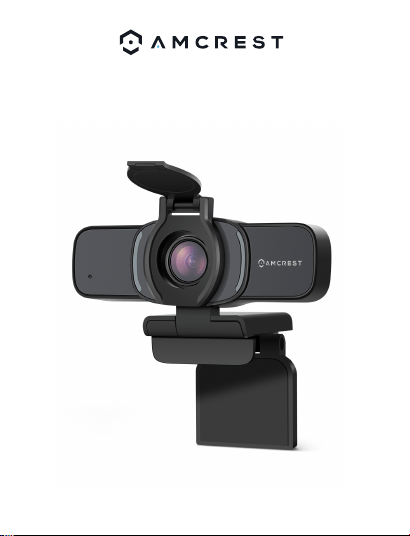
1080P HD Webcam
User Manual
Model: AWC201-B

Thank you for purchasing an Amcrest
Webcam!
We wanted to personally reach out and thank you
for purchasing from our Amazon store. Selling on
Amazon is what we do to support our family, and
product reviews are the lifeblood of our business. It
would mean the world to us if you could take one
minute of your time to help share the love by
leaving us an honest review using the link below:
www.amazon.com/ryp
Thank you again for being one of our amazing
customers!
Sincerely,
Amcrest Team
Product Overview
Getting Started
3.
Thank you for purchasing an Amcrest Webcam!
This guide is designed to help you setup and better use
your Amcrest webcam. If you have questions before you
start or just want to learn more about Amcrest, please
visit us at: amcrest.com
-1-
2.
1.
4.
5.
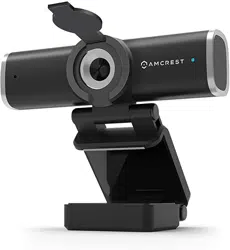
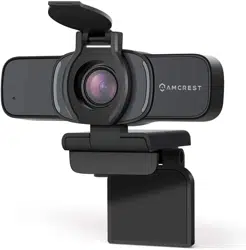
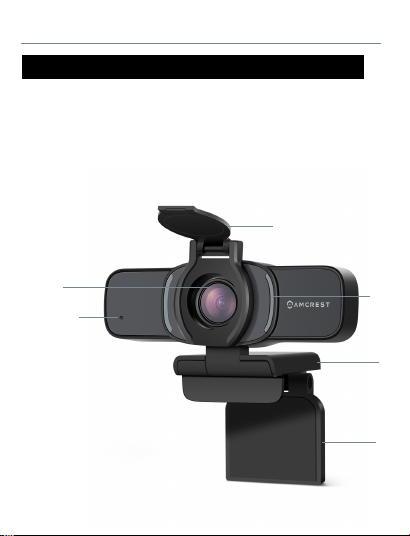
1. 1080P HD Lens
2. Microphone
3. Activity LEDs
4. Adjustable Clip/Base
5. Privacy Cover
Product Overview
1. Placing Your Webcam
The webcam has an adjustable clip base which allows
the device to be secured to a monitor, or desktop, or
tripod.
Placement on a Monitor
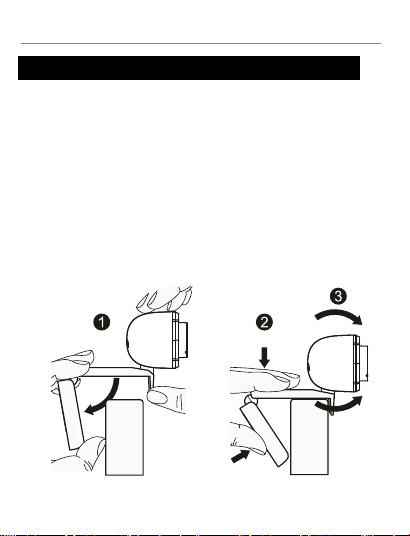
- Grasp the webcam, as displayed in the image below,
and open the clip base.
- Place the opened clip base onto the monitor making
sure the foot of the clip base is flush with the back of
the monitor.
Getting Started
-2-
Thank you for purchasing an Amcrest Webcam!
This guide is designed to help you setup and better use
your Amcrest webcam. If you have questions before you
start or just want to learn more about Amcrest, please
visit us at: amcrest.com
4.
Setting Up Your Webcam
1. Placing Your Webcam
The webcam has an adjustable clip base which allows
the device to be secured to a monitor, or desktop, or
tripod.
Placement on a Monitor
- Grasp the webcam, as displayed in the image below,
and open the clip base.
- Place the opened clip base onto the monitor making
sure the foot of the clip base is flush with the back of
the monitor.
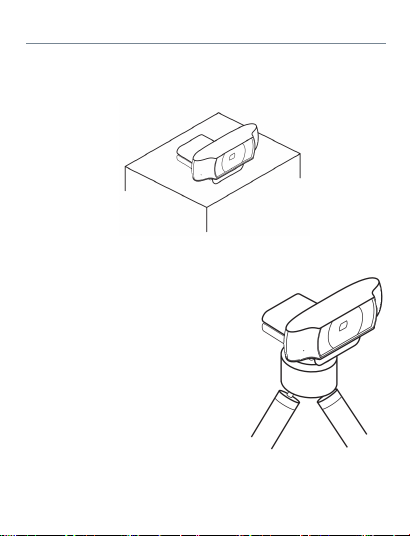
Placement on a Desktop
- Close the base of the clip and place it on your
desktop.
Getting Started
-3-
Placement on a Tripod
Place the 1/4”20 tripod screw
on the bottom of the adjustable
clip base to the male end of a
tripod and twist the base
allowing it to be secured to the
tripod (sold separately).
2. Connecting the Webcam
Getting Started
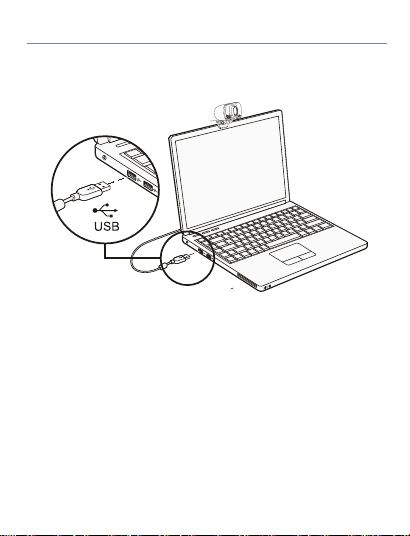
The webcam is compatible with both Windows and
Mac computers. To setup your webcam, plug the USB
cord of the webcam into a USB plug on your device.
The webcam will begin to install automatically on
your device. Allow the webcam about 1 minute to
finish installing before attempting to access.
-4-

The webcam is compatible with both Windows and
Mac computers. To setup your webcam, plug the USB
cord of the webcam into a USB plug on your device.
The webcam will begin to install automatically on
your device. Allow the webcam about 1 minute to
finish installing before attempting to access.
Your Amcrest HD Webcam provides full HD
1080P video calling.
To take advantage of video calling both you
and the person you are calling must install
Skype™ or other similar video-calling
applications such as Microsoft Teams, Gmail,
or any other platforms that support video
calling.
Amcrest Pro HD Webcam
Note: All feature adjustments such as sound and
video quality or other settings will be performed via a
third party or local camera software on the computer.
As well as needing a webcam and video calling
application, both callers need:
• A computer with speakers (or headset) and a
microphone; your Amcrest HD webcam
has a built-in microphone.
• An internet connection/computer capable of
handing 1080P video streaming and audio.
-5-
Video Calling
-6-
Amcrest Pro HD Webcam
1. How do I know if the webcam is recognized or
installed on my computer?
Once the webcam has been connected to your
device, it will take approximately 1 minute for the
webcam to be automatically recognized or installed.
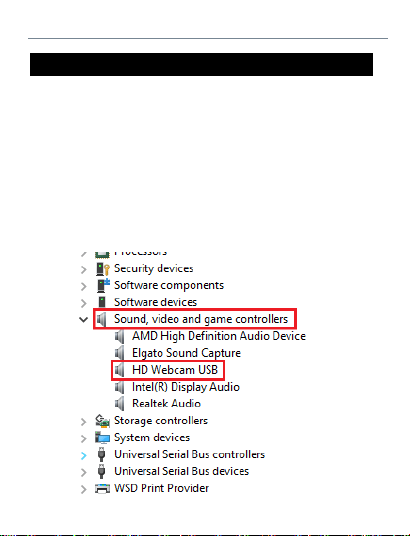
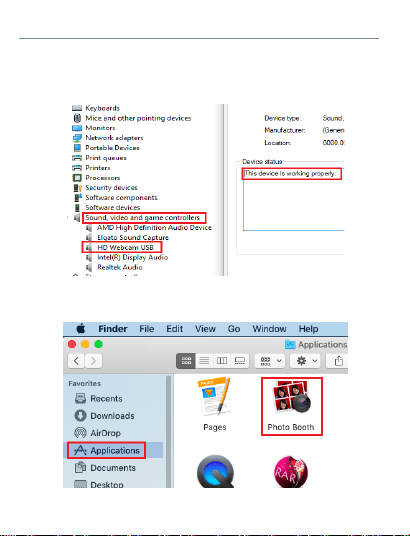
To verify connectivity on Windows, go to Control
Panel> System and Security>System>Device
Manager>Sound, video controllers>HD Webcam USB.
FAQ
FAQ
To verify connectivity on Mac, go to
Finder>Applications>Photo Booth.
You can also verify connectivity by going to Computer
Management>Device Manager>Sound, Video
Controllers>HD Webcam USB. Double click to verify.
-7-
1. How do I know if the webcam is recognized or
installed on my computer?
Once the webcam has been connected to your
device, it will take approximately 1 minute for the
webcam to be automatically recognized or installed.
To verify connectivity on Windows, go to Control
Panel> System and Security>System>Device
Manager>Sound, video controllers>HD Webcam USB.

-8-
FAQ
2. How do I Improve Audio Quality?
If you are experiencing issues with audio on your
webcam, the audio quality can be optimized using
third party software such as Equalizer APO. The
Equalizer APO software can be optimized as well
using the Peace GUI equalizer extension.
For more information on how to improve microphone
quality, visit: https://amcrest.com/audio
3. Why is my camera having issues when I try to
use it in Skype, Facebook, and other applications?
Most software will automatically display the
webcam by default if it is properly connected to your
computer. If your camera is not showing, verify your
camera is properly connected or go to the video
settings of the software you are using and make sure
the proper camera is selected.
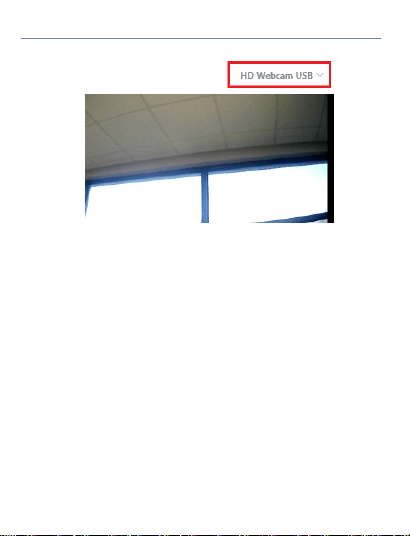
For instance, if you are using Skype, you can go to
Settings>Audio&Video to enable the HD Webcam
USB via the available drop down box located on
the screen. The same concept can apply to most
other third party software if similar issues are
occuring.
-9-
4. Why does the microphone still not work even
though it is being recognized by my computer?
This could mean there is communication issue
happening between the camera and your computer.
This can be resolved by uninstalling and then
reinstalling the webcam.
On your computer, navigate to Computer Manage-
ment>Device Manager>Sound, video and game
controllers and click to expand the menu. Locate the
HD Webcam USB option, right click and select
“Uninstall device”.
FAQ

FAQ
Once the webcam has been uninstalled, unplug the
USB cord from your computer and then plug it back
into the USB port. The webcam will automatically
install the new driver. Wait about 1 minute and verify
if the microphone is working properly.
The audio settings can also be adjusted in the
settings menu using any third party software.
-10-
5. Why does the feed from the webcam keep
flickering and cutting out on the bottom?
This could be an indication that there is inadequate
power being supplied to the webcam. Please try
other USB port, such as one on the back of the
computer, which gets power from the mainboard of
your computer.
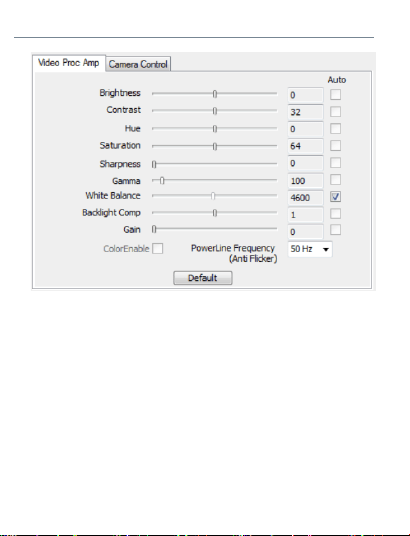
6. How do I adjust video settings for the webcam?
All video settings and parameters will be controlled
by the settings of the third party viewing software or
from the local camera software on your computer.
Access the webcam settings located in your
particular viewing software and configure it
according to your specifications. For more
information on adjusting video settings, please visit:
https://www.amcrest.com/video
-11-
FAQ
Contact Us
Give us a call toll free: 888-212-7538
Email us at: www.amcrest.com/othersupport
For other contact information please visit
www.amcrest.com/contacts
Have any questions regarding your webcam?
www.amcrest.com
© 2020 Amcrest. All rights reserved. Amcrest, the Amcrest logo, and other
Amcrest marks are owned by Amcrest and may be registered. Microsoft,
Windows, and the Windows logo are trademarks of the Microsoft group of
companies. All other trademarks are the property of their respective owners.
Amcrest assumes no responsibility for any errors that may appear in this
manual. Information contained herein is subject to change without notice.