Video Projector
Operating Instructions
Before operating the unit, please read this manual, supplied Quick Reference Manual
and Safety Regulations thoroughly, and retain them for future reference.
VPL-VW890ES
VPL-VW1025ES
5-031-131-11 (1)
© 2021 Sony Corporation

2
Table of Contents
Location of Controls
Front/Right Side .......................................................... 3
Rear/Left Side/Bottom ................................................ 4
Remote Control ........................................................... 5
Connections and Preparations
Installing the Unit ....................................................... 6
Adjusting the Picture Position .................................... 6
Connecting to Video Equipment or a Computer ....... 10
Projecting
Projecting the Picture ................................................ 11
Turning Off the Power ......................................... 11
Watching 3D Video Images ...................................... 11
Using the 3D Glasses ........................................... 12
Using the Picture Position ......................................... 12
Selecting the Aspect Ratio According to the Video
Signal ..................................................................... 13
Selecting the Picture Viewing Mode ......................... 15
Using the Menus
Operation through the Menus ................................... 16
Picture Menu ............................................................. 18
Advanced Picture Menu ............................................ 23
Screen Menu ............................................................. 24
Setup Menu ............................................................... 26
Function Menu .......................................................... 27
Items Locked by Settings Lock ........................... 29
Installation Menu ...................................................... 30
Information Menu ..................................................... 32
About the Preset Memory .................................... 32
Using Network Features
Displaying the Control Window of the Unit with a Web
Browser .................................................................. 33
Operating the Control Window ................................. 34
Switching the Page ............................................... 34
Setting the Access Limitation .............................. 34
Confirming the Information Regarding the
Unit ................................................................... 34
Error Handling
Troubleshooting ........................................................ 35
About Indicators ........................................................ 37
Message Lists ............................................................ 38
Others
Updating the Software .............................................. 39
About HDR (high dynamic range) ............................ 39
About the Simulated 3D Feature ............................... 39
Specifications ............................................................ 40
Preset Signals ....................................................... 41
Input Signals and Adjustment/Setting Items ....... 42
Compatible 3D Signals ........................................ 43
3D Signals and Adjustable/Setting Items ............ 43
Aspect Mode ........................................................ 44
Motionflow .......................................................... 45
Storage Conditions of Adjustment/Setting
Items ................................................................. 46
Projection Distance and Lens Shift Range ................ 48
Dimensions ............................................................... 52
NOTICES AND LICENCES FOR SOFTWARE USED
IN THIS PRODUCT .............................................. 56
3
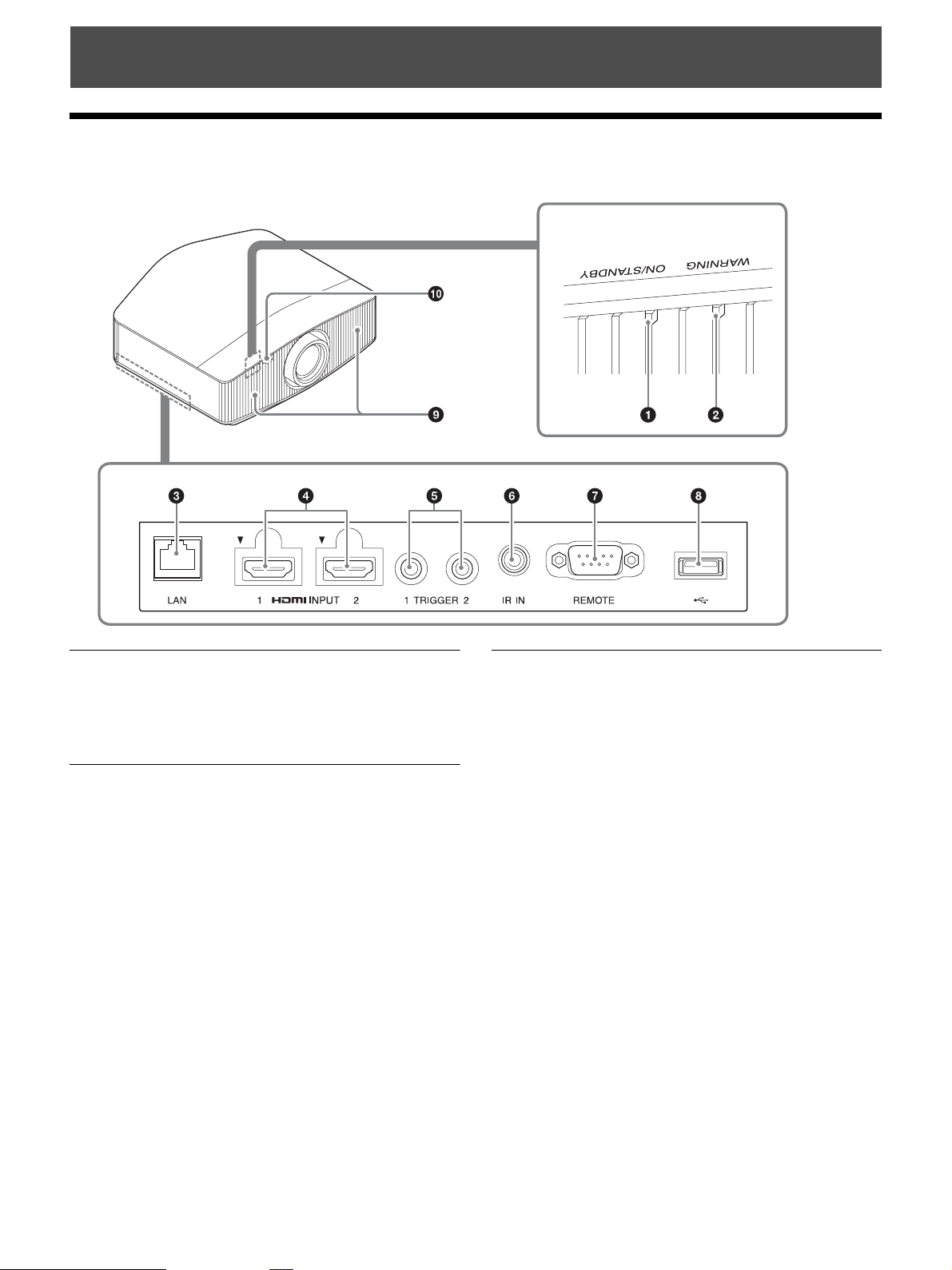
Front/Right Side
Indicators
a ON/STANDBY indicator (page 37)
b WARNING indicator (page 37)
Connectors
c LAN connector (page 33)
d HDMI 1/HDMI 2 connector (page 10)
e TRIGGER 1/TRIGGER 2 connector (page 30)
f IR IN connector
Inputs the signals to control the projector.
g REMOTE connector
Connects to a computer, etc. for remote control.
h USB connector (page 39)
Others
i Ventilation holes (intake)
j Remote control detector (page 6)
Location of Controls
Connectors
4
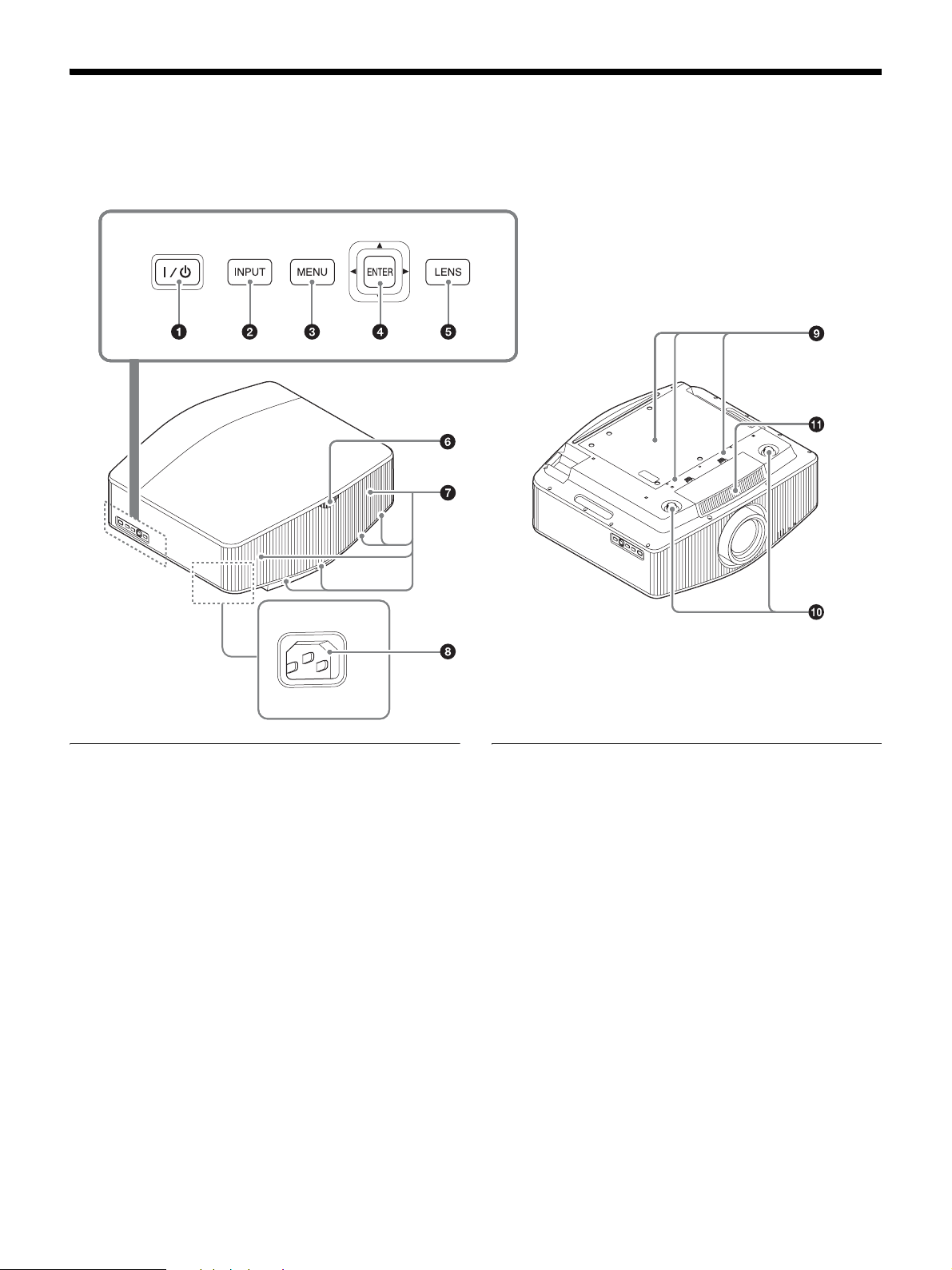
Rear/Left Side/Bottom
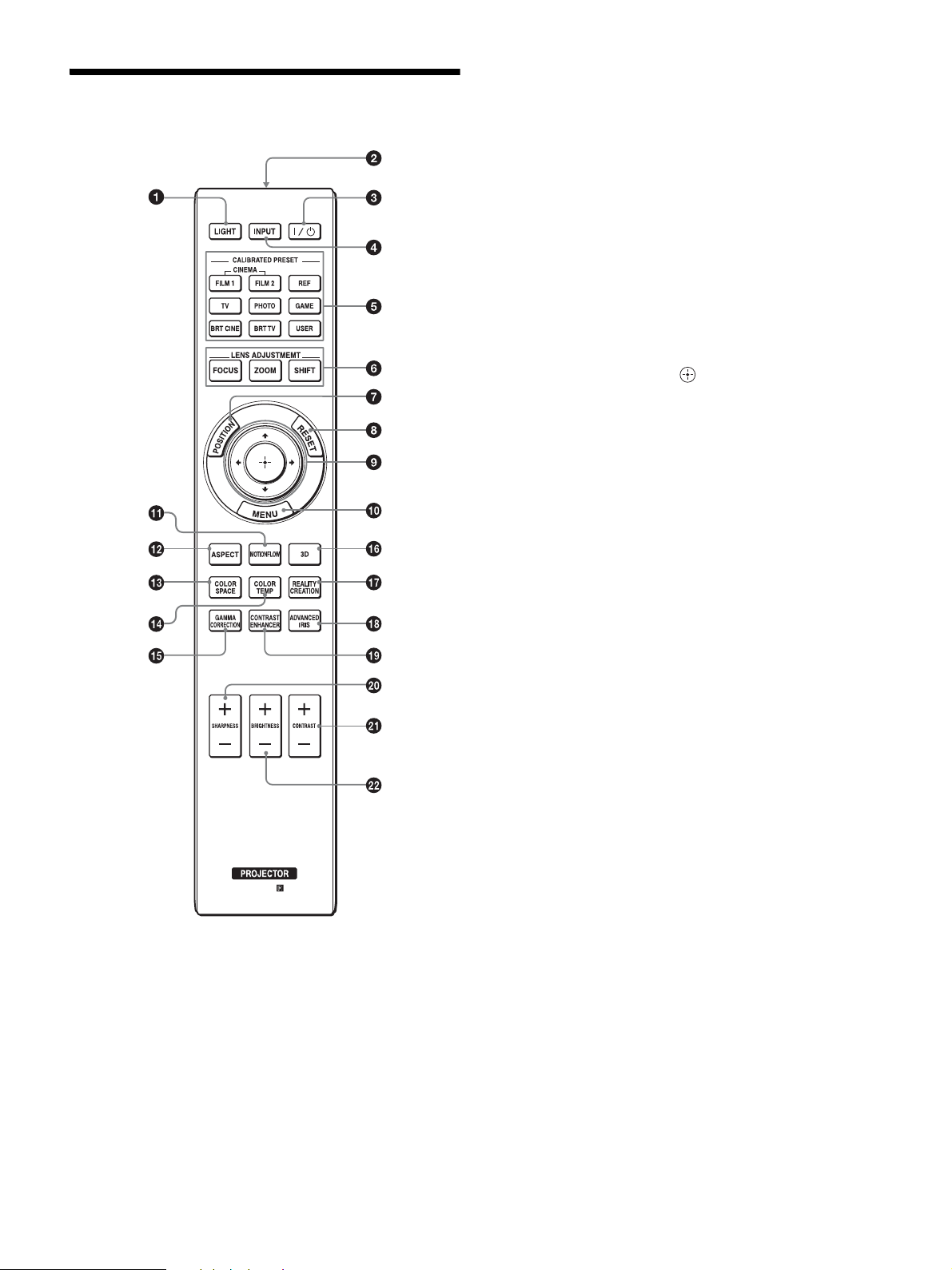
The buttons on the control panel function the same as those on the remote control.
Control panel
a [/1 (On/Standby) button (page 7)
b INPUT button (page 11)
c MENU button (page 16)
d M/m/</, (arrow)/ENTER button (page 16)
e LENS button (page 6)
Others
f Remote control detector (page 6)
g Ventilation holes (exhaust)
h AC IN socket (page 7)
i Projector suspension support attaching hole
(page 54)
j Front feet (adjustable) (page 8)
k Ventilation holes (intake)
Control panel
5
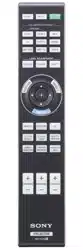
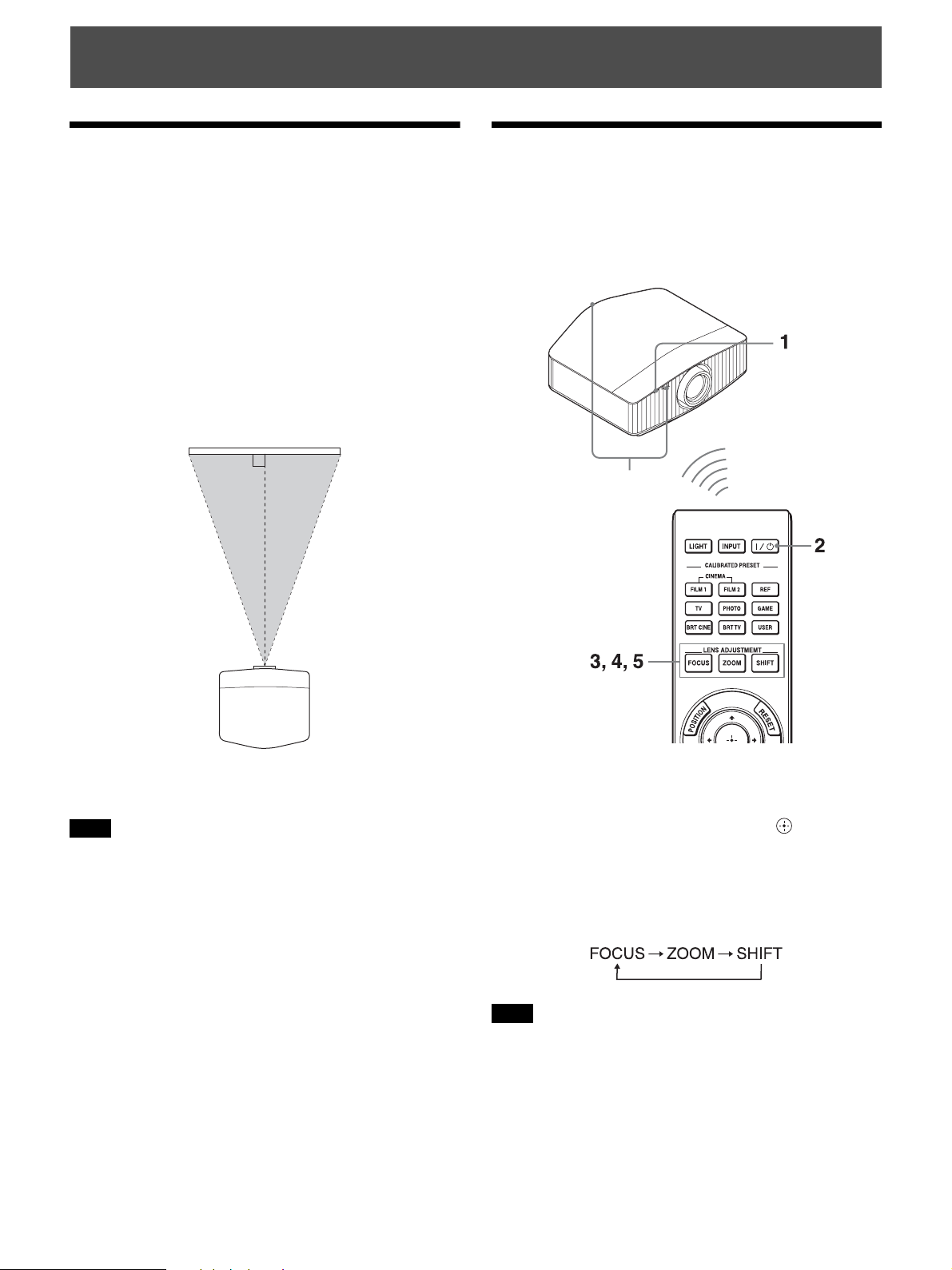
Remote Control
a LIGHT button
Illuminates the buttons on the remote control.
b Infrared transmitter
c ?/1 (On/Standby) button (page 7)
d INPUT button (page 11)
e CALIBRATED PRESET buttons (page 15)
f LENS ADJUSTMENT buttons (page 7)
g POSITION button (page 12)
h RESET button (page 17)
i M/m/</, (arrow)/ (enter) button
(page 16)
j MENU button (page 16)
k MOTIONFLOW button (page 19)
l ASPECT button (page 13)
m COLOR SPACE button (page 22)
n COLOR TEMP button (page 20)
o GAMMA CORRECTION button (page 21)
p 3D button (page 11)
q REALITY CREATION button (page 18)
r ADVANCED IRIS button (page 19)
s CONTRAST ENHANCER button (page 19)
t SHARPNESS +/– button (page 20)
u CONTRAST +/– button (page 19)
v BRIGHTNESS +/– button (page 19)
6
Installing the Unit
The installation distance between the unit and a screen
varies depending on the size of the screen or whether or not
you use the lens shift features. Install this unit so that it fits
the size of your screen. For details on the distance between
the unit and the screen (the projection distance) and the
size of projected video, see “Projection Distance and Lens
Shift Range” (page 48).
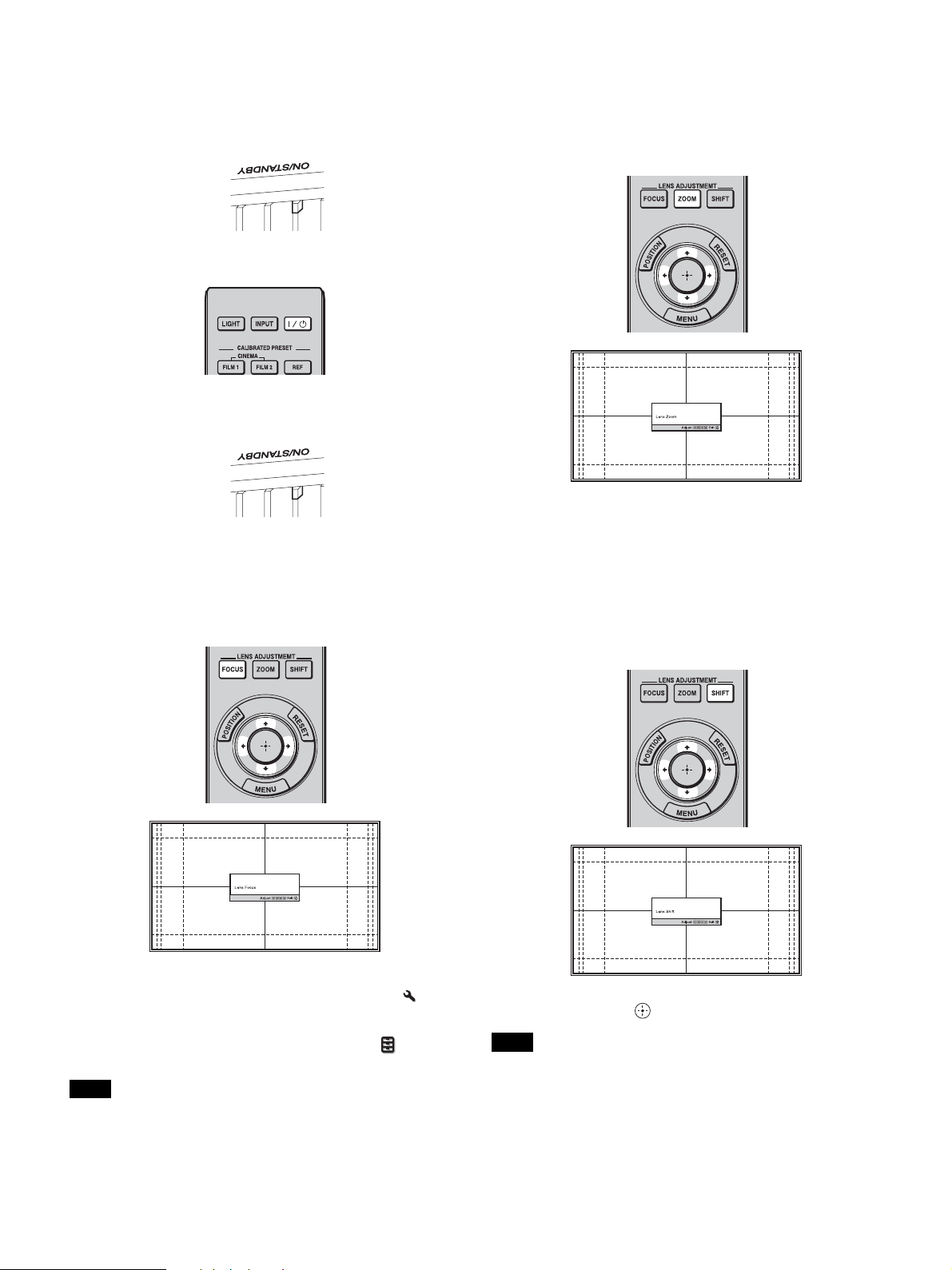
1 Position the unit so that the lens is parallel to the
screen.
Top view
2 Project an image on the screen and adjust the picture
so that it fits the screen (page 6).
When using a screen with an uneven surface, stripes pattern may
rarely appear on the screen depending on the distance between the
screen and the unit or the zooming magnifications. This is not a
malfunction of the unit.
Adjusting the Picture
Position
Project an image on the screen and then adjust the picture
position.
Tips
•The ?/1 (On/Standby), INPUT, and MENU buttons on the side
panel of the unit have the same functions as those on the remote
control. The M/m/</, (arrow)/ENTER button of the unit has
the same function as the M/m/</, (arrow)/ (enter) button
on the remote control. The LENS button functions the same way
as the LENS ADJUSTMENT (FOCUS, ZOOM, SHIFT) buttons
on the remote control.
• When adjusting the lens, each time you press the LENS button on
the unit, the lens adjustment function switches between “Lens
Focus,” “Lens Zoom” and “Lens Shift.”
Depending on the installation location of the unit, you may not be
able to control it with the remote control. In this case, point the
remote control at the remote control detector of the unit or the screen.
Connections and Preparations
Note
Screen
Note
Remote control detector
7
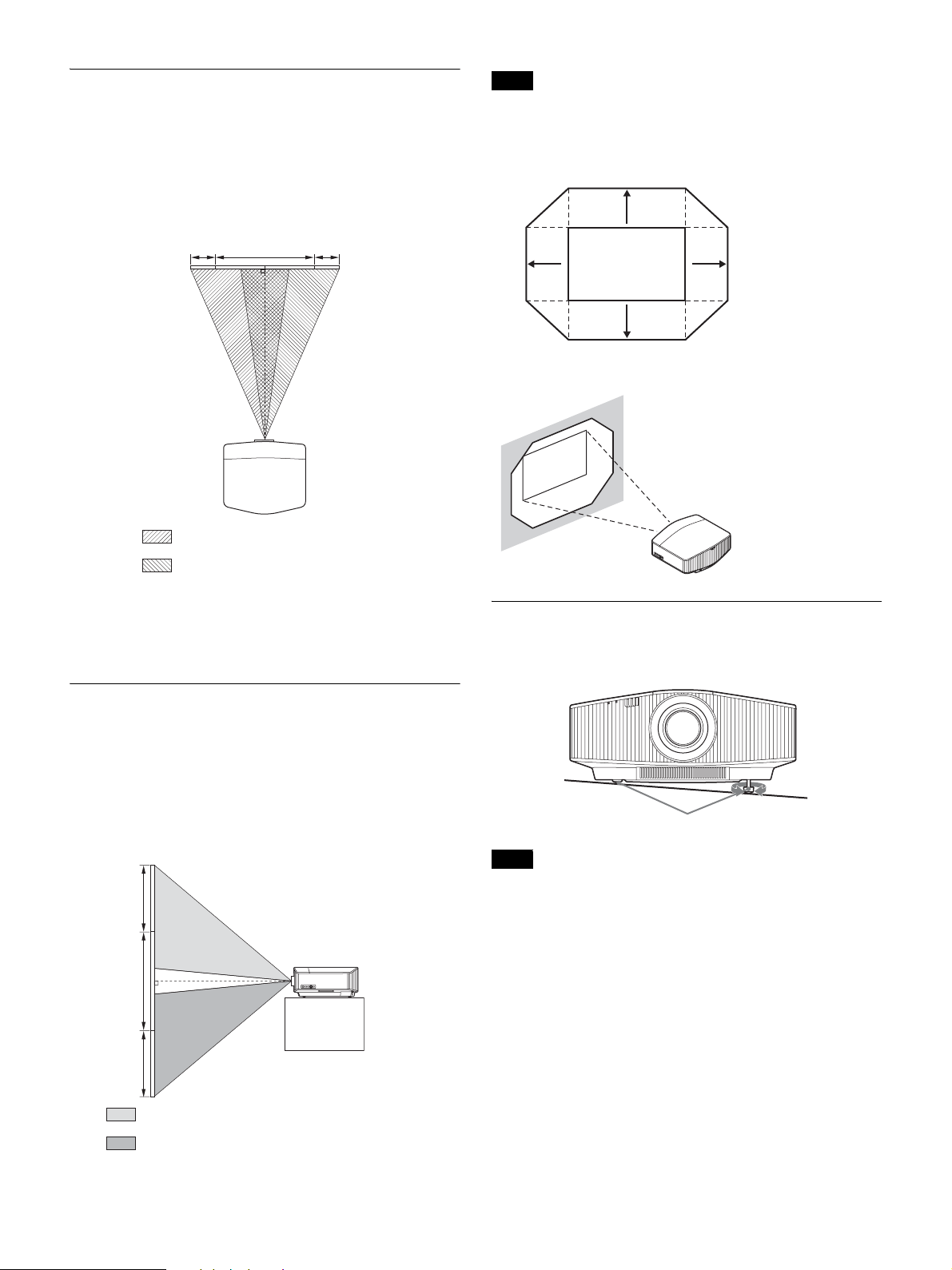
1 After connecting the AC power cord to the unit, plug
the AC power cord into a wall outlet.
The ON/STANDBY indicator lights in red and the
unit goes into standby mode.
2 Press the ?/1 (On/Standby) button to turn on the unit.
The ON/STANDBY indicator flashes in green, and
then lights in green.
3 Adjust the focus.
Press the LENS ADJUSTMENT (FOCUS) button to
display the Lens Focus adjustment window (test
pattern). Then adjust the focus of the picture by
pressing the M/m/</, button.
Tips
• When “Lens Control” is set to “Off” on the Installation menu,
you cannot adjust the focus, the picture size or the proper position
by pressing the FOCUS, ZOOM or SHIFT button (page 30).
• When “Test Pattern” is set to “Off” on the Function menu, the
test pattern is not displayed (page 28).
Adjust the lens by using buttons on the remote control or the control
panel of the unit. Never make adjustments by directly turning the
lens with your hands, which may cause damage or malfunction to the
unit.
4 Adjust the picture size.
Press the LENS ADJUSTMENT (ZOOM) button to
display the Lens Zoom adjustment window (test
pattern). Then adjust the size of the picture by
pressing the M/m/</, button.
To make the picture larger, press M/,.
To make the picture smaller, press m/<.
5 Adjust the picture position.
Press the LENS ADJUSTMENT (SHIFT) button to
display the Lens Shift adjustment window (test
pattern). Then adjust to the proper position of the
picture by pressing the M/m/</, button.
Tip
Whenever you press the button, the test pattern disappears.
When adjusting the picture position, do not touch the lens unit,
otherwise your fingers may be pinched by the moving parts.
Note
Lights in red.
Flashes in green for
tens of seconds and
then lights in green.
Note
8
To adjust the horizontal position
Press </,.
The picture projected on the screen moves right or left by
a maximum of 31% of the screen width from the center of
the lens.
Top view
Press the RESET button on the remote control while the Lens Shift
adjustment window is displayed, the horizontal position returns to
the center of the lens (factory default position). The zoom and focus
are not changed.
To adjust the vertical position
Press M/m.
The picture projected on the screen moves up by a
maximum of 80% or moves down by a maximum of 80%
of the screen height from the center of the lens.
Side view
The range to move the picture projected on the screen can be
adjusted only within the octagon area illustrated below. For details,
see “Projection Distance and Lens Shift Range” (page 48).
Range of movement of the projected picture
To adjust the tilt of the installation surface
If the unit is installed on an uneven surface, use the front
feet (adjustable) to keep the unit level.
• If the unit is tilted up or down, the projected image may be
trapezoidal.
• Be careful not to catch your finger when turning the front feet
(adjustable).
31% 31%1 screen width
: Picture position when moving the
picture to the left at maximum
: Picture position when moving the
picture to the right at maximum
80%
80%
1 screen
height
: Picture position when moving the
picture upward at maximum
: Picture position when moving the
picture downward at maximum
Note
Notes
0.8V
0.31H
H: Width of the projected picture
V: Height of the projected picture
0.31H
0.8V
Projected Picture
Front feet (adjustable)
Turn to adjust.
9
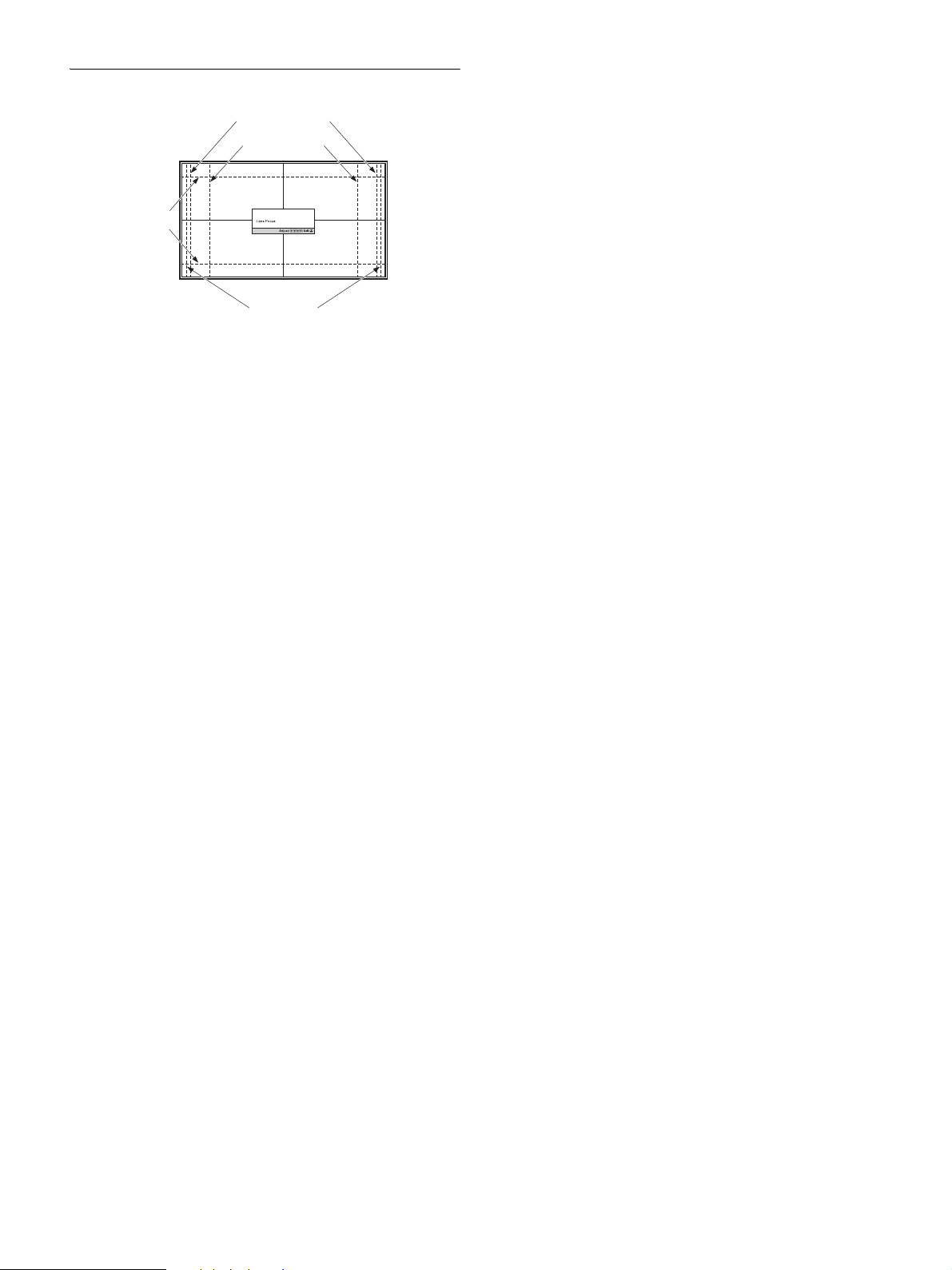
Lens adjustment window (test pattern)
1.78:1 (16:9)
2.35:1
1.85:1
1.33:1 (4:3)
The dashed lines show the screen sizes of each
aspect ratio.
10
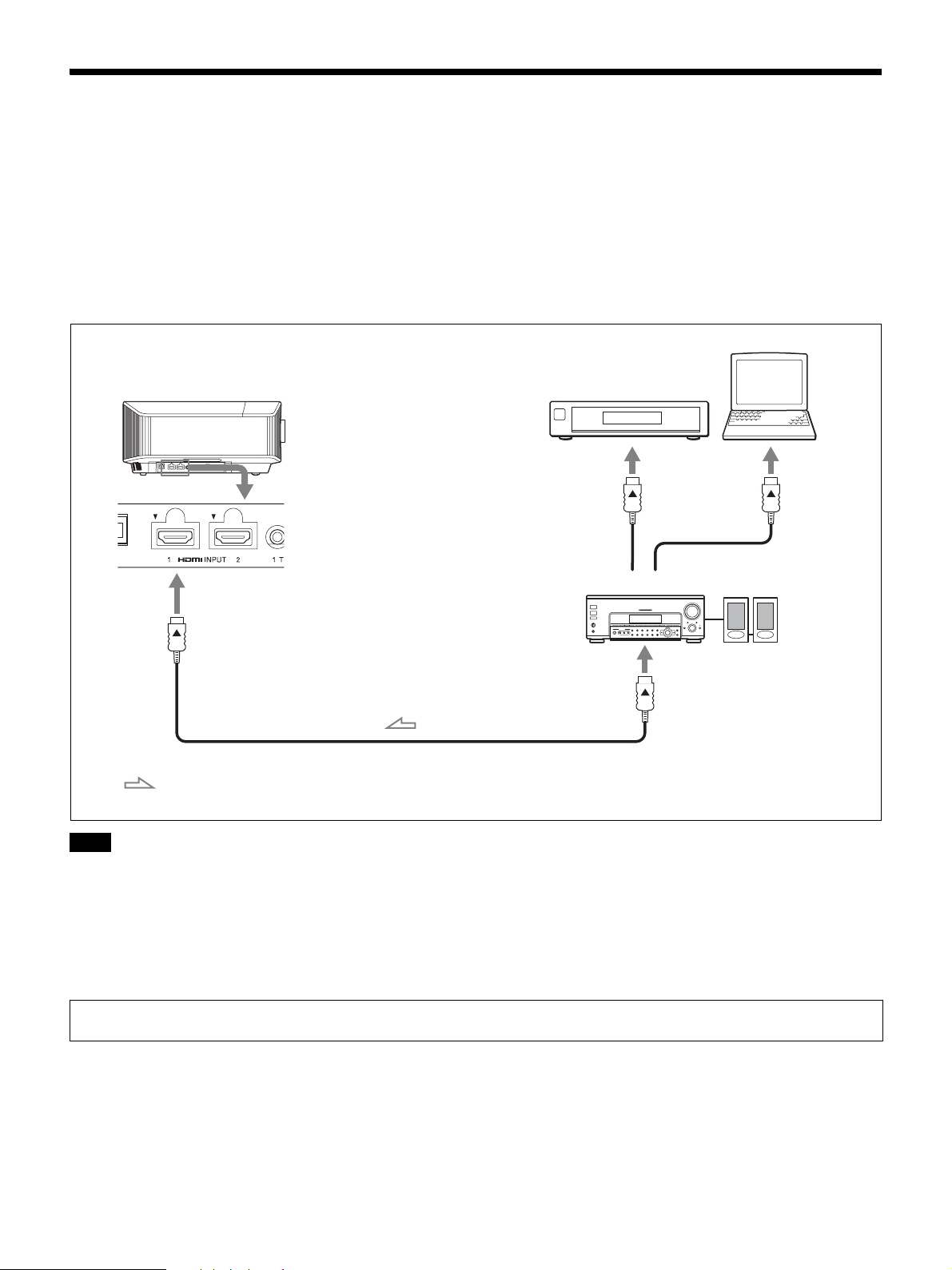
Connecting to Video Equipment or a Computer
You can enjoy high picture quality by connecting a DVD player/recorder, Blu-ray Disc player/recorder, or PlayStation
®
equipped with HDMI output to the HDMI input of the unit.
When making connections, be sure to do the following:
• Turn off all equipment before making any connections.
• Use the proper cables for each connection.
• Insert the cable plugs properly; poor connection at the plugs may cause a malfunction or poor picture quality. When
pulling out a cable, be sure to pull it out from the plug, not the cable itself.
• Refer to the operating instructions of the connected equipment.
• Use a Premium High Speed HDMI cable. If using a cable other than a Premium High Speed cable, 4K video images may not be properly
displayed.
• When connecting an HDMI cable to the unit, make sure the V mark on the upper part of the HDMI input of the unit and the v mark on the
connector of the cable are faced at each other.
• If the picture from equipment connected to the unit with an HDMI cable is not correct, check the settings of the connected equipment.
• If you set your computer, such as a notebook type, to output the signal to both computer’s display and this equipment, the picture of the
equipment may not appear properly. Set your computer to output the signal to only the external monitor. For details, refer to the computer’s
operating instructions supplied with your computer. For settings of the computer, consult with the manufacturer of the computer.
Notes
When you monitor and control the projector via the network, access the Setup page of the projector (page 33) via a Web browser and enable
the desired control protocol.
Right side of the unit Equipment with HDMI output connectors
Speakers
to HDMI output
HDMI cable (not supplied)
: Video signal flow
Use a Premium High Speed HDMI cable on which
the cable type logo is specified.
AV amplifier
Computer
to HDMI input

11
.
Projecting the Picture
1 Turn on both the unit and the equipment connected to
the unit.
2 Press INPUT to display the input palette on the
screen.
3 Select the equipment from which you want to display
images.
Press INPUT repeatedly or press M/m/ (enter) to
select the equipment from which to project.
Tips
• When “Status” is set to “Off” on the Setup menu, the input
palette does not appear. Press the INPUT button to switch between
input terminals sequentially.
• You can change the language for the menu and on-screen displays
in “Language” on the Setup menu (page 26).
1 Press the ?/1 (On/Standby) button.
The message “POWER OFF?” appears.
2 Press the ?/1 (On/Standby) button again before the
message disappears.
The ON/STANDBY indicator flashes in green and the
fan continues to run to reduce the internal heat.
The fan stops and the ON/STANDBY indicator
changes from flashing green to remaining red.
The power is turned off completely, and you can
disconnect the AC power cord.
Never disconnect the AC power cord while the indicator is flashing.
Tip
You can turn off the unit by holding the ?/1 (On/Standby) button for
about 1 second, instead of performing the above steps.
Watching 3D Video
Images
You can enjoy powerful 3D video images, such as from 3D
games and 3D Blu-ray Discs, using the Active 3D Glasses.
1 Turn on the HDMI equipment for 3D compatibility
connected to the unit, then play the 3D content.
For details on how to play 3D content, refer to the
operating instructions for the connected equipment.
2 Turn on the unit and project the 3D video image.
For details on how to project the image, see
“Projecting the Picture” (page 11).
3 Turn on the 3D glasses, and then put them on so that
they fit comfortably.
For details on how to use the 3D glasses, see “Using
the 3D Glasses” (page 12).
Tip
The factory default setting for “2D-3D Display Sel.” is “Auto” to
allow projecting 3D video images automatically when the unit
detects 3D signals.
• It may not be possible to display 3D video image, depending on
the type of signal. Set the “2D-3D Display Sel.” to “3D,” and “3D
Format” to “Side-by-Side” or “Over-Under” to suit the format of
the 3D content you want to watch (page 27).
• Use the 3D glasses within the communication range (page 12).
• There are differences in perception of 3D video images among
individuals.
• When the temperature of the usage environment is low, the 3D
effect may be diminished.
Adjusting/Setting the 3D functions
You can adjust/set the 3D functions by pressing the 3D
button on the remote control or with the “3D Settings” of
the Function menu. For details, see “3D Settings”
(page 27).
Projecting
Turning Off the Power
Note
Notes
12
1 Turn on the 3D glasses, and register them on the unit.
For details on how to register the 3D glasses, refer to
the operating instructions supplied with the 3D
glasses.
2 Put on the 3D glasses.
3 Turn toward the screen.
Precautions for use
Misoperation may occur if:
• The viewing position is too far from the projector
• There are other communication devices, such as a
wireless LAN (IEEE802.11 b/g/n) or a microwave with
a bandwidth of 2.4 GHz, near the unit
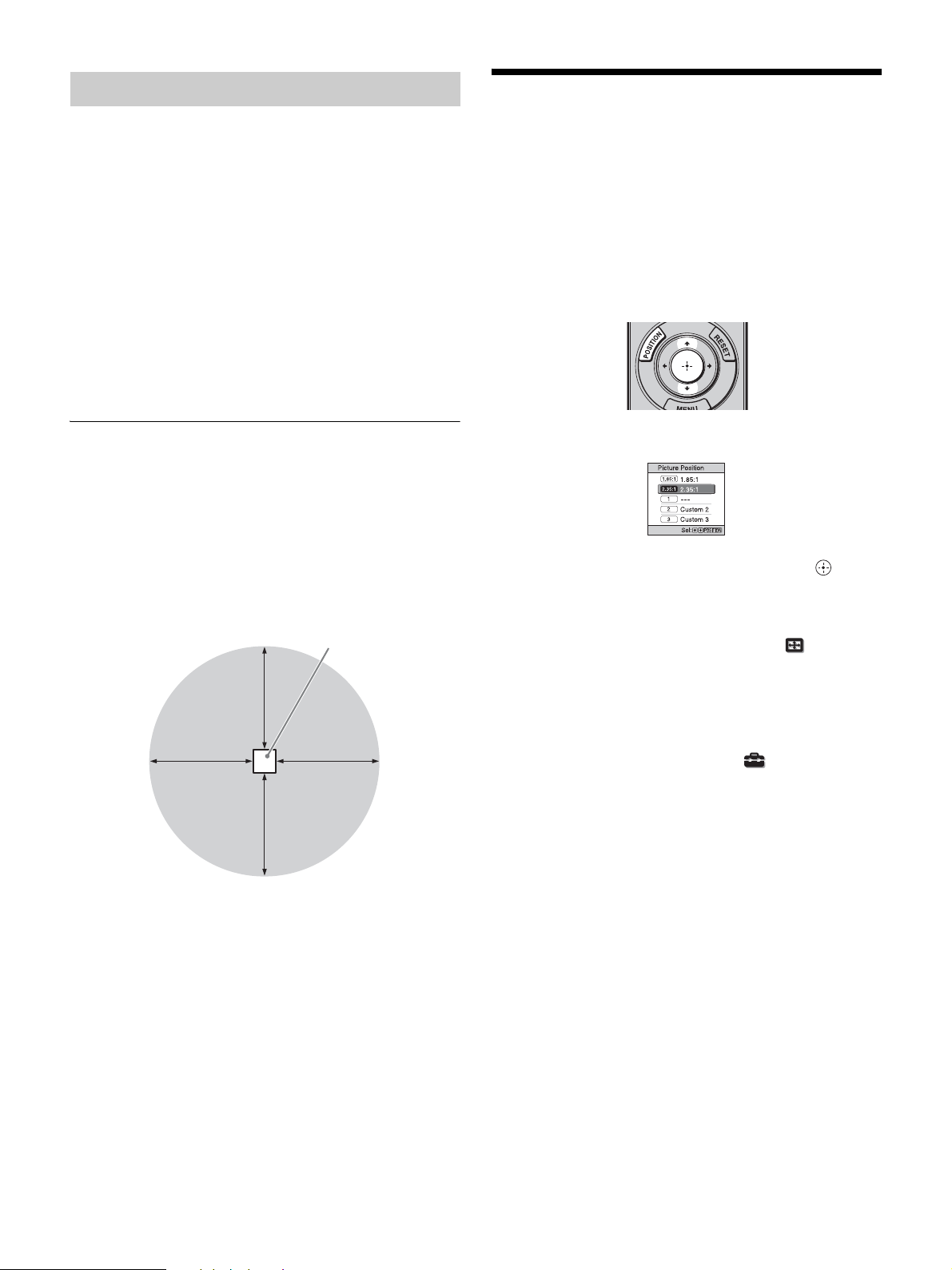
3D glasses communication range
The following figure indicates the communication range of
the 3D glasses. If you try to watch 3D video images from
a distance greater than the communication range or install
the unit outside the communication range, the 3D glasses
may not be able to display the images properly. Also, the
distance varies depending on the environment of the room
and installation environment of the unit.
Top or side view
Using the Picture
Position
You can store up to five combinations of lens settings
(focus, picture size, picture position), aspect ratio, and
blanking. These settings can be recalled.
In the factory preset setting, the Picture Position is not
stored.
1 Press POSITION.
The Picture Position selecting palette is displayed.
2 Press POSITION repeatedly, or press M/m/ to
select the position.
The settings of the position selected is recalled.
Store or delete lens settings, aspect ratio, and blanking
in the “Picture Position” of the Screen menu
(page 24).
The position where the lens settings, aspect ratio, and
blanking are not stored is displayed as “---.”
Tip
To hide the reminder displayed on the screen when the position is
read out, set “Status” to “Off” on the Setup menu.
Using the 3D Glasses
Projector
10 m 10 m
10 m
10 m
13
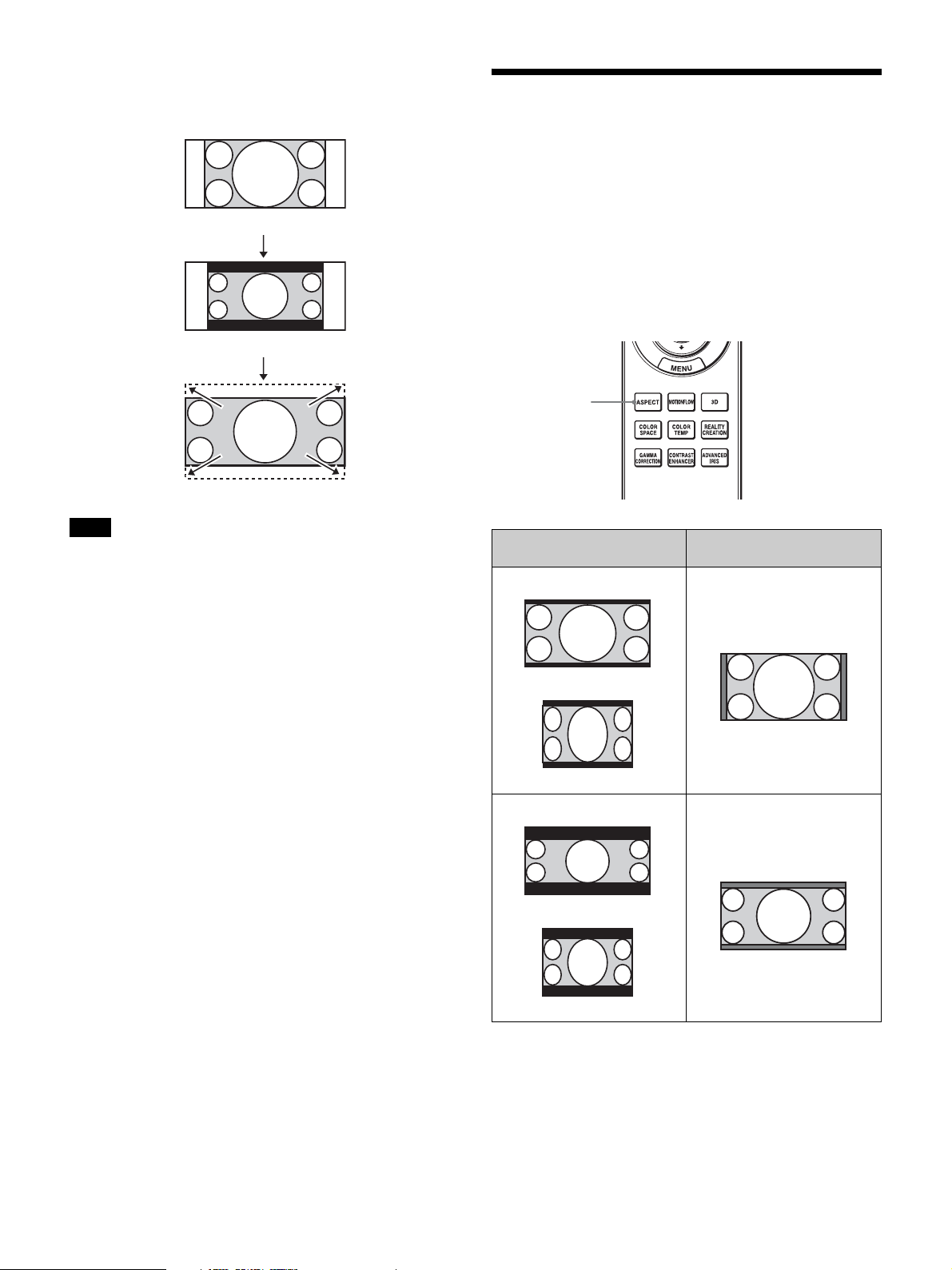
Image of the lens moving
In the example below, the images with aspect ratio of
1.78:1 (16:9) and 2.35:1 are projected on a 2.35:1 screen.
• After you have selected and confirmed the lens position, the lens
starts to move. Do not touch, or place anything near, the lens,
otherwise it may cause injury or a malfunction.
• If you press any button on the remote control or the unit while the
lens is moving, the lens stops. In this case, select the lens position
again or adjust the lens manually.
• The Picture Position function is not guaranteed to reproduce the
lens settings precisely.
• When you use the subtended screen angle of two or more aspects
using lens zoom, install the unit within the specified parameters
referring to “Projection distance” (page 49). With some setting
positions, the range of lens shift may be restricted, even though the
unit is installed within the specified parameters.
Selecting the Aspect
Ratio According to the
Video Signal
You can select an aspect ratio best suited for the video
signal received.
Press ASPECT.
Each time you press the button, you can select the “Aspect”
setting.You can also select it using the menu (page 24).
Notes
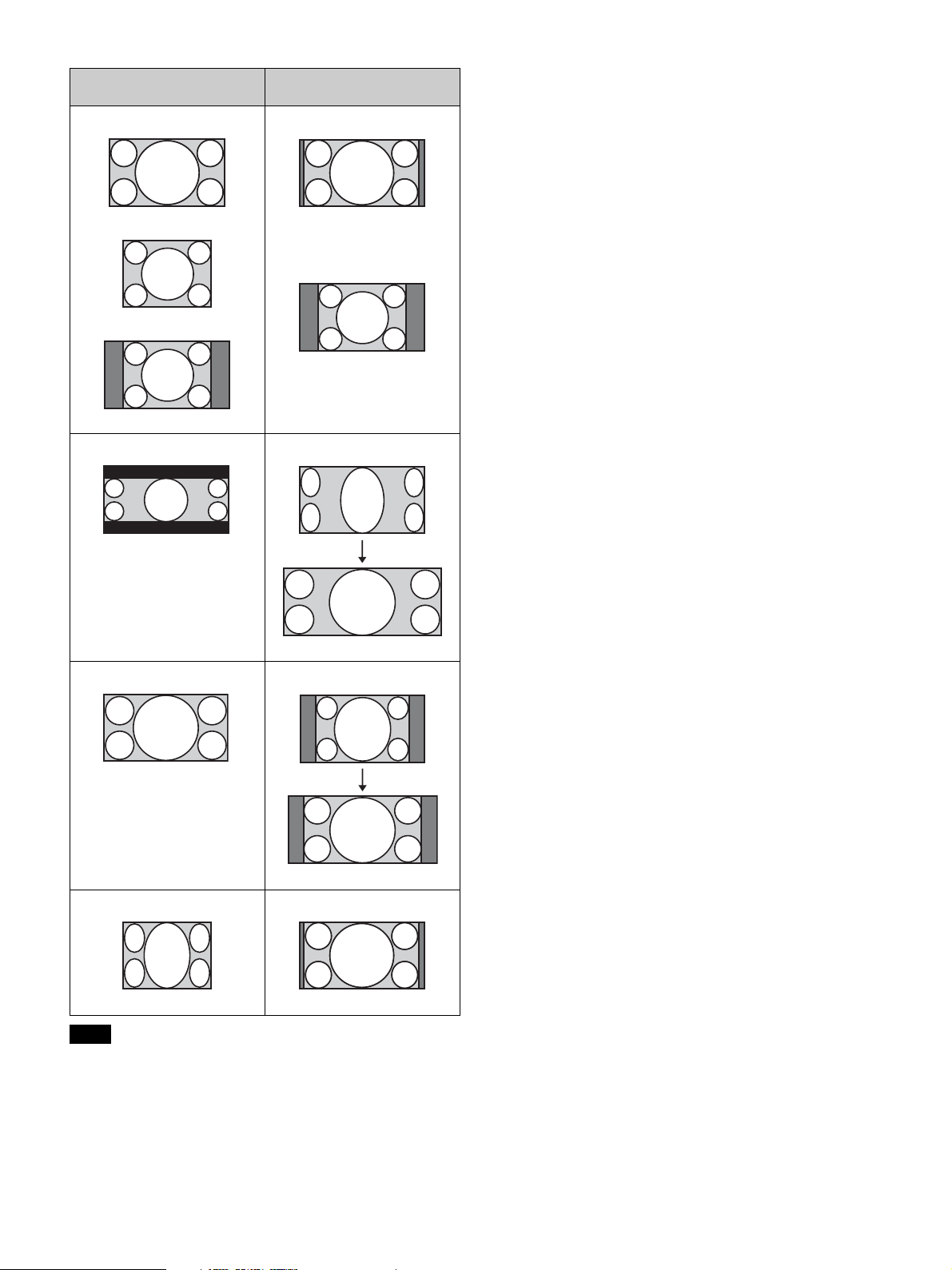
When a 1.78:1 (16:9) image is input
When a 2.35:1 image is input
Press the POSITION button.
The 2.35:1 image expands to fill the screen.
Original image
Recommended setting and
resultant images
ASPECT
button
1.85:1
Squeezed 1.85:1
1.85:1 Zoom
2.35:1
Squeezed 2.35:1
2.35:1 Zoom
14
Selectable aspect modes vary depending on the input signal
(page 44).
Notes on switching the “Aspect” setting
• Select the aspect mode taking into account that changing
the aspect ratio of the original picture will provide a
different look from that of the original image.
• Note that if the unit is used for profit or for public
viewing, modifying the original picture by switching the
aspect may constitute an infringement of the rights of
authors or producers, which are legally protected.
Note
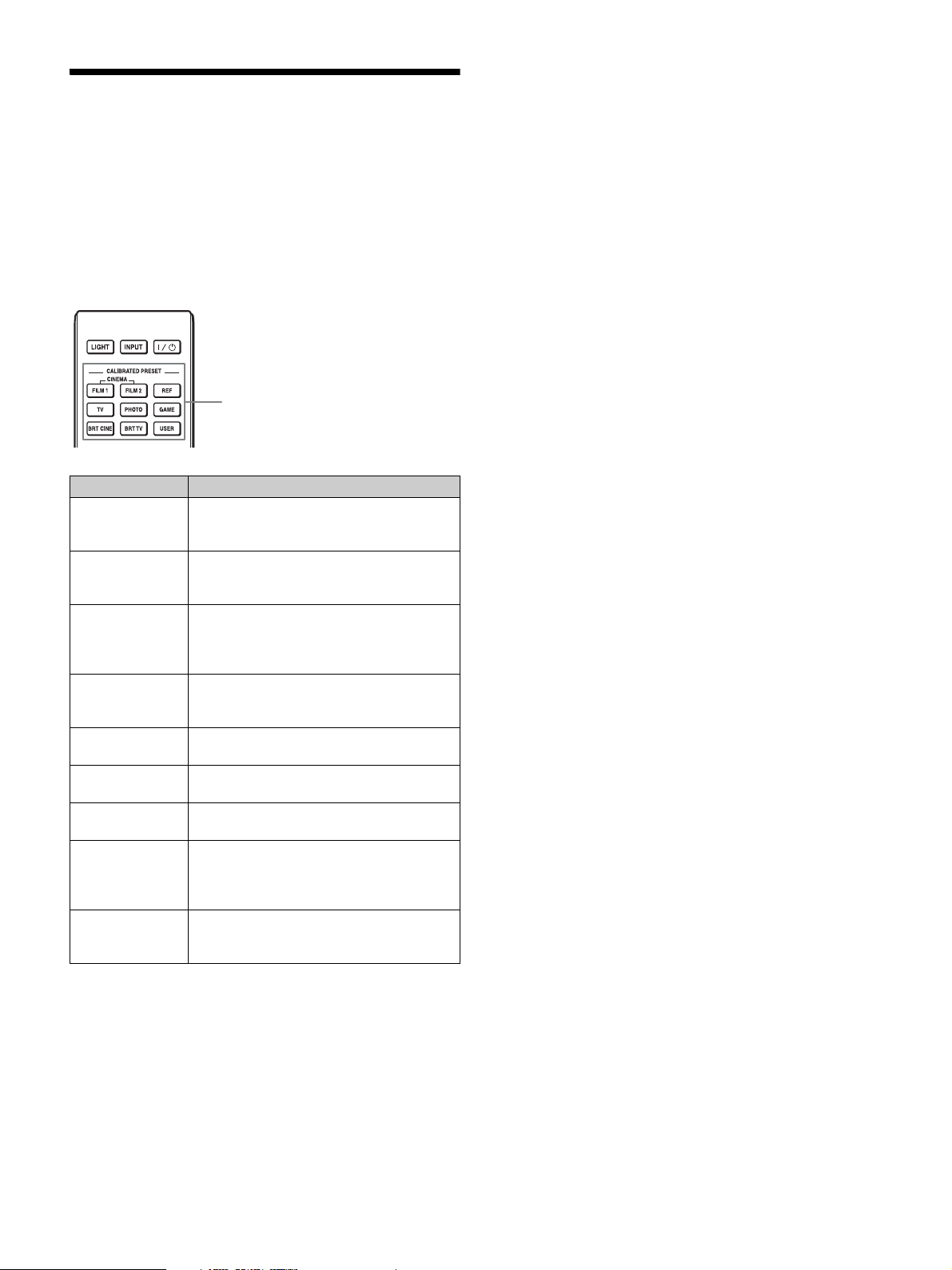
Original image
Recommended setting and
resultant images
1.78:1 (16:9)
1.33:1 (4:3)
1.33:1 (4:3) with side panels
Normal
2.35:1
V Stretch
When using an anamorphic lens
16:9
Squeeze
When using an anamorphic lens
Squeezed
Stretch
15
Selecting the Picture
Viewing Mode
You can select the picture viewing mode that best suits the
type of video source or room conditions.
You can save and use different preset modes for 2D/3D/
HDR respectively.
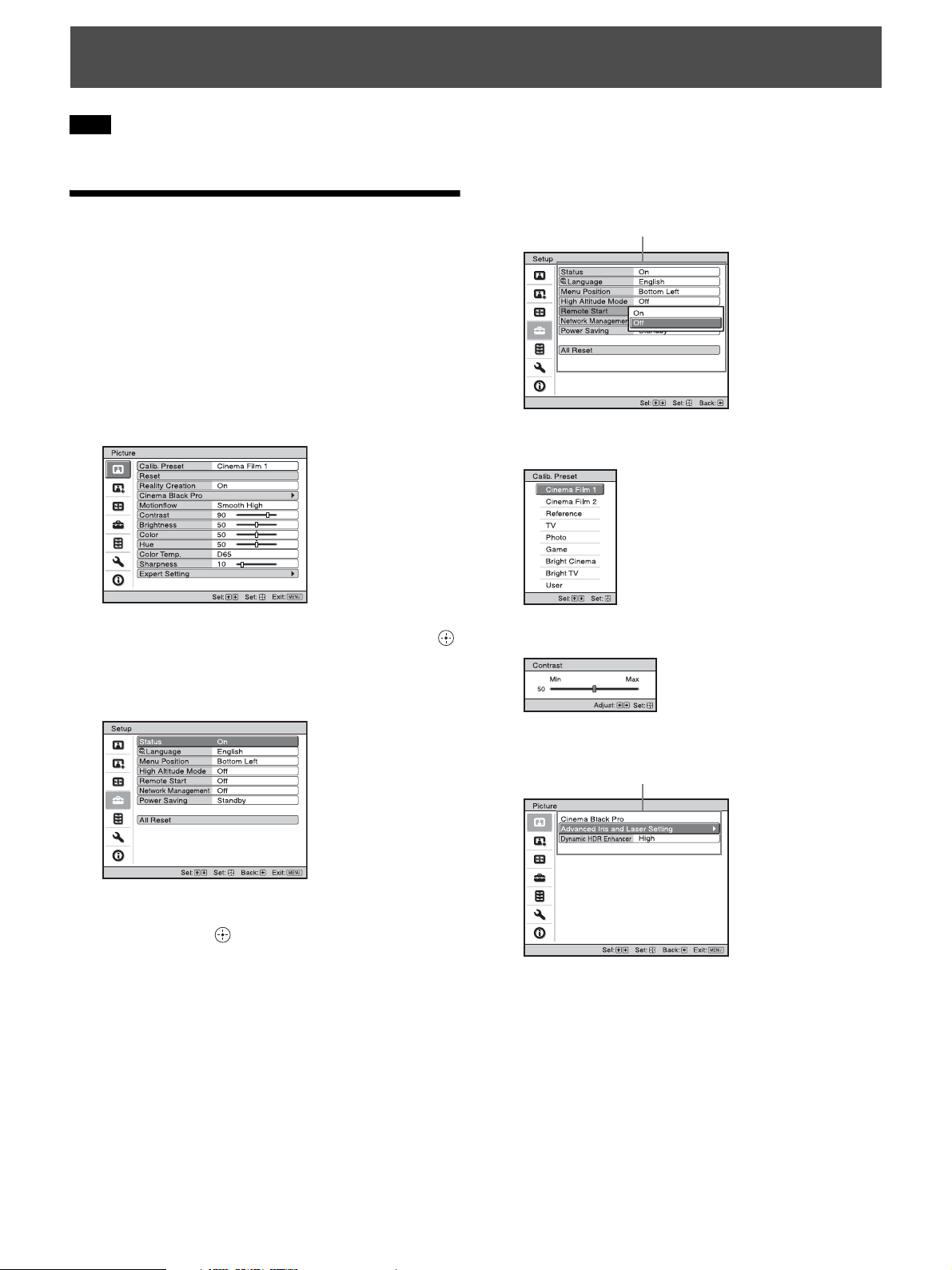
Press one of the CALIBRATED PRESET buttons.
Setting items Description
CINEMA FILM 1 Picture quality suited to reproducing the
highly dynamic and clear images typical of
master positive film.
CINEMA FILM 2 Picture quality suited to reproducing the rich
tone and color typical of a movie theater,
based on the “CINEMA FILM 1.”
REF A picture quality setup suitable for when you
want to reproduce faithfully the original
image quality, or for enjoying image quality,
without any adjustment.
TV Picture quality suited for watching TV
programs, sports, concerts, and other video
images.
PHOTO Ideal for projecting still images taken with a
digital camera.
GAME Picture quality suited to gaming, with well-
modulated colors and fast response.
BRT CINE Picture quality suited for watching movies in
a bright environment, such as a living room.
BRT TV Picture quality suited for watching TV
programs, sports, concerts, and other video
images in a bright environment, such as a
living room.
USER Adjusts the picture quality to suit your taste
then saves the setting. The factory default
setting is the same as “REF.”
CALIBRATED PRESET buttons
16
The menu displays used for the explanation may be different from the actual menu display.
Operation through the
Menus
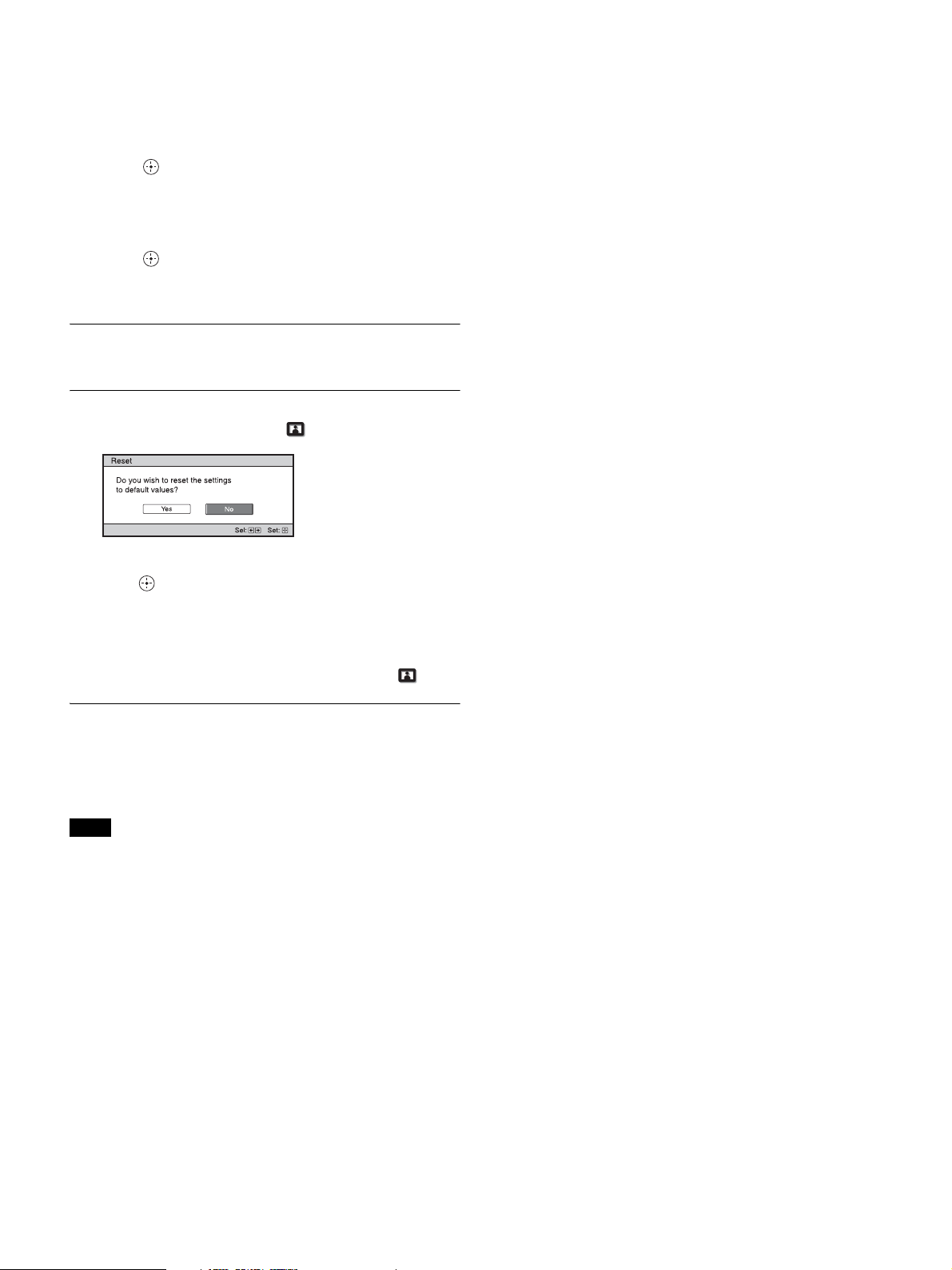
The unit is equipped with an on-screen menu for making
various adjustments and settings. If you select an item
name followed by an arrow (B), the next menu window
with setting items appears.
1 Press MENU.
The menu window appears.
2 Press M/m to select a menu item, and press , or .
The items that can be set or adjusted with the selected
menu appear. The item presently selected is shown in
white.
3 Press M/m to select an item you want to set or adjust
and press , or .
The setting items are displayed in a pop-up menu, in
a setting menu, in an adjustment menu or in the next
menu window.
Pop-up menu
Setting menu
Adjustment menu
Next menu window
Using the Menus
Note
Setting items
Setting items
17
4 Make the setting or adjustment of an item.
When changing the adjustment level
Press M/, to increase the value, and press m/< to
decrease the value.
Press to store the setting and restore the original
menu screen.
When changing the setting
Press M/m to change the setting.
Press to restore the original screen.
You can restore the original screen using <
depending on the selected item.
To clear the menu
Press MENU.
To reset the picture that has been adjusted
Select “Reset” from the Picture menu.
When the screen display appears, select “Yes” using <
and press .
All of the following settings are reset to its factory preset
value:
“Reality Creation,” “Cinema Black Pro,” “Motionflow,”
“Contrast,” “Brightness,” “Color,” “Hue,” “Color Temp.,”
“Sharpness,” and “Expert Setting” on the Picture menu
To reset the items that have been adjusted
Select an item in the menu screen, and display the pop-up
menu, the setting menu, or the adjustment menu.
Press RESET on the remote control to reset only the
selected settings to its factory preset value.
The RESET button on the remote control is available only when the
adjustment menu or the setting menu is selected.
Note

18
Picture Menu
The Picture menu is used for adjusting the picture.
These items may not be adjustable or configurable, depending on the type of input signal. For details, see “Input Signals
and Adjustment/Setting Items” (page 42).
Item names in brackets represent those printed on the remote control.
Note
Setting items Description
Calib. Preset [CALIBRATED
PRESET]
You can select the picture viewing mode that best suits the type of video source or the environment.
You can save and use different preset modes for 2D/3D/HDR respectively.
Cinema Film 1: Picture quality suited to reproducing the highly dynamic and clear images typical of
master positive film.
Cinema Film 2: Picture quality suited to reproducing the rich tone and color typical of a movie theater,
based on the Cinema Film 1.
Reference: A picture quality setup suitable for when you want to reproduce faithfully the original image
quality, or for enjoying image quality, without any adjustment.
TV: Picture quality suited for watching TV programs, sports, concerts, and other video images.
Photo: Ideal for projecting still images taken with a digital camera.
Game: Picture quality suited to gaming, with well-modulated colors and fast response.
Bright Cinema: Picture quality suited for watching movies in a bright environment, such as a living
room.
Bright TV: Picture quality suited for watching TV programs, sports, concerts, and other video images in
a bright environment, such as a living room.
User: You can adjust the picture quality to suit your taste, and save the setting. The factory default
setting is the same as “Reference.”
Tip
Any adjustments to picture quality settings are saved for each input.
Reset Resets all currently selected Calib. Preset mode settings to their default values (page 17).
Tip
Reset does not affect settings saved for items of “Color Temp.”
Reality Creation [REALITY
CREATION]
Adjusts the detail and noise processing of images. (Super-resolution function)
On: Adjusts the settings of “Reality Creation.”
Database: Select “Normal” or “Mastered in 4K.”
“Mastered in 4K” provides image quality suitable for Blu-ray Disc™ “Mastered in 4K” releasing
from Sony Pictures Home Entertainment.
Resolution: When you increase the setting value, the texture and detail of the picture become sharper.
Noise Filtering: When you increase the setting value, the noise (picture roughness) becomes less
prominent.
D.Focus Optimizer: When you set to “On,” it optimizes the projected image. It achieves enhanced
texture and picture details and sharpens the picture.
Test: On/Off: Changes “On” and “Off” at a certain frequency to check the effect of “Reality
Creation.”
Tip
The display position of status during the test works together with the “Menu Position” setting
(page 26).
Off: The “Reality Creation” function is not applied.

19
Cinema Black Pro
Advanced Iris and Laser
Setting
[ADVANCED IRIS]
Dynamic Control: Adjusts the range of the laser light and iris (diaphragm).
Full: Automatically adjusts the laser light, iris (diaphragm), and signal processing according to the
brightness level of the input source and optimizes the amount of light. This results in a bright and high
contrast image.
Limited: Compared to “Full,” it suppresses the movement and brightness of the laser light and iris
(diaphragm). This is suitable for viewing a picture in a dark room.
Off: The “Dynamic Control” function is not applied.
Laser Light Output: The higher the setting, the brighter the picture. The lower the setting, the darker
the picture.
Tip
Adjust “Laser Light Output” according to the brightness of the picture.
Dynamic HDR Enhancer
[CONTRAST ENHANCER]
For HDR content, automatically adjusts the range of movement of the laser light and iris (diaphragm),
and the signal level of bright and dark parts to optimize contrast according to a scene.
Increases image sharpness and makes the image dynamic.
“Contrast Enhancer” appears instead of “Dynamic HDR Enhancer” and performs the image processing
suitable for the SDR signal in the following cases:
- When the SDR signal is input with “Auto” set for “HDR”
- When “HDR” is set to “Off”
High/Middle/Low: You can adjust the Dynamic HDR Enhancer/Contrast Enhancer.
Off: The Dynamic HDR Enhancer function is not applied.
Motionflow [MOTIONFLOW] Impulse: Reproduces original picture quality. Provides cinema-like picture, which may flicker.
Combination: Reduces motion blur while maintaining brightness for high-speed picture content.
Smooth High: Provides smoother picture movement; especially effective for film-based content.
Smooth Low: Provides smoother picture movement for standard use.
True Cinema: Images, such as a movie created in 24 frames per second, are reproduced at the original
framerate.
Off: The “Motionflow” function is not applied.
Tips
• Select “Off” if the selected “Smooth High,” “Smooth Low,” “Impulse,” “Combination,” or “True
Cinema” results in a distorted picture.
• Depending on the picture content, you may not see the effect visually even if you have changed the
settings.
• Only “Off” or “Impulse” is available when a signal with a resolution of 4096 × 2160 is input.
• Selecting “Impulse” darkens the picture. Also, it may cause flicker.
Contrast
[CONTRAST]
Adjusts the contrast.
Higher values increase the sharpness in images, while lower values decrease the sharpness.
You can make adjustments by pressing the CONTRAST +/- button on the remote control.
“Contrast(HDR)” appears instead of “Contrast” for the following cases:
- When the HDR signal is input with “Auto” set for HDR
- When “HDR” is set to “HDR10,” “HDR Reference,” or “HLG”
Brightness
[BRIGHTNESS]
Adjusts the brightness of the picture.
The higher the setting, the brighter the picture. The lower the setting, the darker the picture.
You can make adjustments by pressing the BRIGHTNESS +/- button on the remote control.
Color Adjusts the color density.
The higher the setting, the greater the intensity. The lower the setting, the lower the intensity.
Hue Adjusts the color tone.
The higher the setting, the more greenish the picture becomes. The lower the setting, the more reddish
the picture becomes.
Setting items Description

20
Color Temp.
[COLOR TEMP]
Adjusts the color temperature.
D93: Equivalent to 9,300 K color temperature normally used in TVs. Gives white colors a blue tint.
D75: Equivalent to 7,500 K color temperature used as an ancillary standard illuminant. Gives a neutral
tint between “D93” and “D65.”
D65: Equivalent to 6,500 K color temperature used as a standard illuminant. Gives white colors a red
tint.
D55: Equivalent to 5,500 K color temperature used as an ancillary standard illuminant. Gives white
colors an even redder tint.
Custom 1 to 5: Enables you to adjust, set, and store your favorite color temperature.
The factory default settings are as follows.
Custom 1: Same as the “D93” color temperature setting.
Custom 2: Same as the “D75” color temperature setting.
Custom 3: Same as the “D65” color temperature setting.
Custom 4: Same as the “D55” color temperature setting.
Custom 5: Setting that prioritizes brightness.
Tip
You can adjust each item to a color temperature according to your preference.
Sharpness
[SHARPNESS]
Sharpens the outline of the picture, or reduces the noise.
The higher the setting, the sharper the picture. The lower the setting, the softer the picture, thus reducing
the noise.
You can make adjustments by pressing the SHARPNESS +/- button on the remote control.
Expert Setting
NR (Noise Reduction) Reduces the roughness or noise of the picture.
Auto: Detects the noise level to reduce the roughness or noise of the picture automatically.
High/Middle/Low: Select a setting according to the roughness or noise of the input signal source.
Off: The NR (noise reduction) function is not applied.
Tip
The noise level may not be detected accurately with “Auto” depending on the input signal source. If the
picture is unacceptable with “Auto,” select a setting from among “High,” “Middle,” “Low” or “Off.”
MPEG NR (MPEG Noise
Reduction)
Reduces block noise and mosquito noise, particularly in digital signals.
Auto: Detects the noise level to reduce the block noise and mosquito noise of the picture automatically.
High/Middle/Low: Select a setting according to the block noise and mosquito noise of the input signal
source.
Off: The MPEG NR (MPEG noise reduction) function is not applied.
Tip
The noise level may not be detected accurately with “Auto” depending on the input signal source. If the
picture is unacceptable with “Auto,” select a setting from among “High,” “Middle,” “Low” or “Off.”
Smooth Gradation Smooths the gradation of the flat parts of images.
High/Middle/Low: You can adjust the smooth gradation effect.
Off: The smooth gradation function is not applied.
Tip
This item is not available for 3D signals.
Film Mode According to the film source you have selected, make a setting for playback.
Auto: Suitable for reproducing the original picture movement. Normally, set this to “Auto.”
Off: Plays back the picture in progressive format without detecting video signals automatically.
Tip
This item is compatible with a 1080i signal only.
Setting items Description
21
Gamma Correction
[GAMMA CORRECTION]
Adjusts the response characteristics of the tone of the picture.
Select a favorite tone from 10 options.
1.8: Bright Produces a brighter picture overall.
2.0
2.1
2.2
2.4
2.6: Dark Produces a darker picture overall.
Gamma 7: Enhances the dark parts and sharpens the images.
Gamma 8: Produces a brighter picture than Gamma 7. Select this when you watch in a bright
environment, such as a living room.
Gamma 9: Produces a brighter picture than Gamma 8.
Gamma 10: Increases the sharpness in images. Select this when you watch TV programs, etc., in a
bright environment, such as a living room.
Off: The “Gamma Correction” function is not applied.
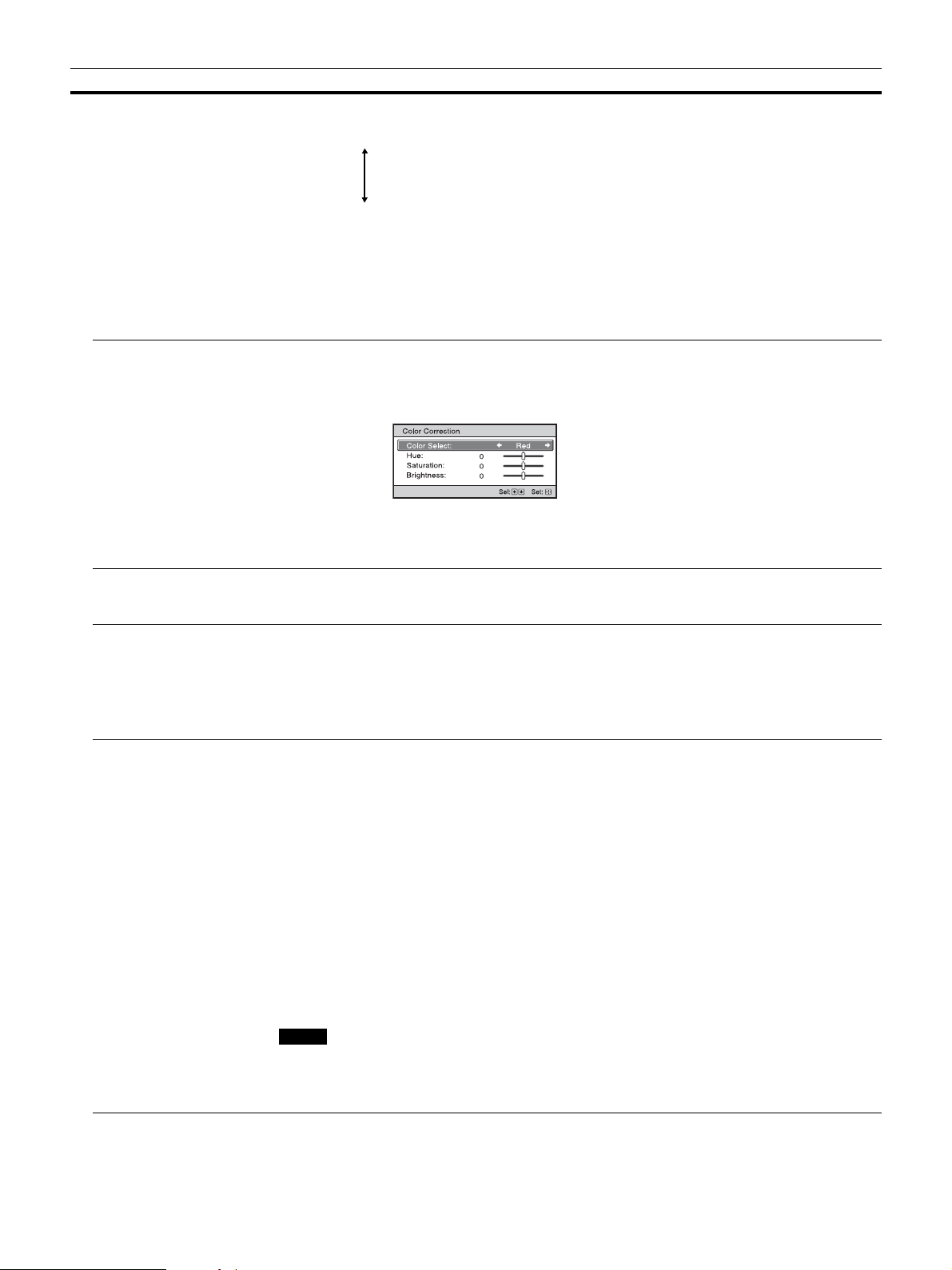
Color Correction On: Adjusts Hue, Saturation and Brightness of the selected colors.
Repeat steps 1 and 2 described below to specify the target color.
1 Press M/m to select “Color Select,” then press </, to select the color you want to adjust among
“Red,” “Yellow,” “Green,” “Cyan,” “Blue,” and “Magenta.”
2 Press M/m to select “Hue,” “Saturation” or “Brightness,” then adjust them to suit your taste using </
, while watching the projected picture.
Off: The “Color Correction” effect is not applied.
Clear White Emphasizes vivid whites.
High/Low: You can adjust the “Clear White” effect.
Off: The “Clear White” effect is not applied.
x.v.Color Set this item when connecting the unit with equipment that supports x.v.Color and playing back an
x.v.Color video signal.
On: You can play back an x.v.Color video signal.
Off: The “x.v.Color” function is not applied.
Tip
Setting x.v.Color to “On” disables gamma adjustment.
HDR Sets how to play back HDR content.
Auto: Distinguishes HDR content automatically and applies the optimal picture quality. You can change
the HDR setting that is automatically selected when HDR10-compatible content is distinguished.
HDR10/HLG: When an input signal supports HDR10, the “HDR10” setting is applied, and when it
supports HLG, the “HLG” setting is applied.
HDR Reference/HLG: When an input signal supports HDR10, the “HDR Reference” setting is
applied, and when it supports HLG, the “HLG” setting is applied.
When an input signal supports BT.2020, the “Color Space” is set to “BT.2020” automatically. When a
signal other than BT.2020 is input, the mode set in “Color Space” is applied. (“BT.2020” is not available
in this case.)
HDR10: Set when playing back HDR10-compatible content.
HDR Reference: This mode is suitable for playing back HDR10-compatible content with a maximum
brightness of 1,000 nit.
HLG: Set when playing back HLG-compatible content.
Off: Set when playing back content other than HDR content.
All of the modes of “Color Space” are selectable when “HDR10,” “HDR Reference,” “HLG,” or “Off” is
selected.
• If the setting is not correct for the input content, the bright and dark areas of the video may appear too
bright or too dark.
• When setting “HDR10” or “HDR Reference,” compare the picture quality in both modes, and select
the one that optimally displays the average brightness and tone of the bright parts.
Setting items Description
Notes
22
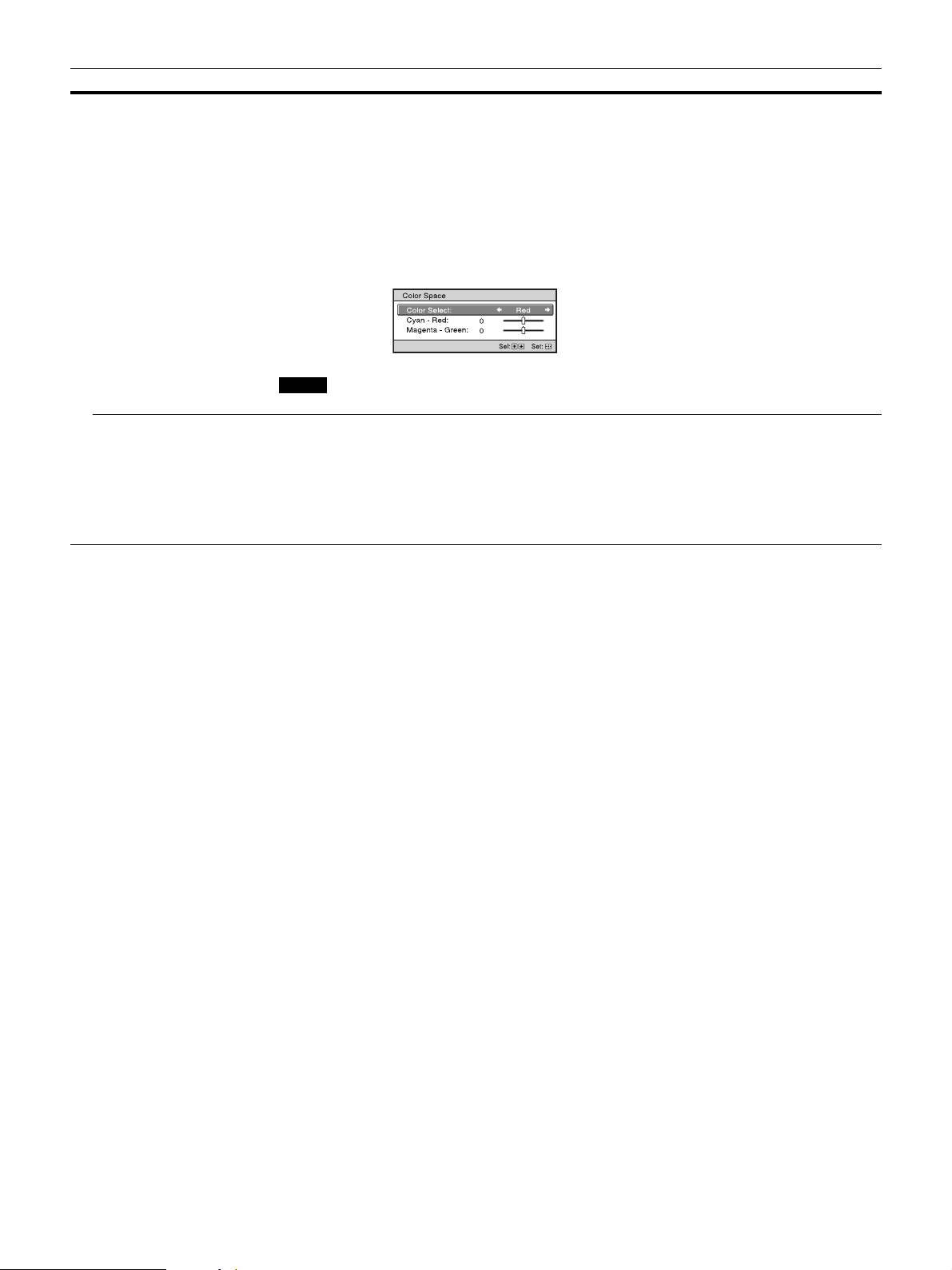
Color Space
[COLOR SPACE]
Converts the color space.
BT.709: An ITU-R BT.709 color space, which is used for high-definition television broadcast or Blu-ray
Disc. The color space is equivalent to sRGB.
BT.2020: The color space is wider than BT.709. Use this setting when playing back HDR content.
Color Space 1: The color space suited for watching TV programs and video images, such as sports,
concerts, etc.
Color Space 2: The color space suited for watching TV programs, sports, concerts, and other video
images in a bright environment, such as a living room.
Color Space 3: The color space suited for watching movies in a bright environment, such as a living
room.
Custom: You can adjust the color space setting.
When “HDR” is set to “Auto,” the selectable mode changes according to the signal type (page 21).
Input Lag Reduction Reduces the delay of the display for a video.
On: Shortens the time to display the input video image; effective for increasing the performance of the
display reaction speed when using an external controller, etc.
Off: Turns the Input Lag Reduction function off.
Tip
When “Input Lag Reduction” is set to “On,” “Motionflow” (settings other than “Impulse”), “NR,” and
“MPEG NR” cannot be set.
Setting items Description
Note

23
Advanced Picture Menu
You can adjust the gaps in color that have occurred after a long period of use.
• Auto Calibration results in relatively coarse calibration. The color settings are not guaranteed to be the same as the factory default values.
• The colors are projected automatically while performing “Pre Check” or “Adjust.” This is not a malfunction.
• Do not turn off the power or operate the remote control or control panel during “Pre Check” or “Adjust,” as the process may be canceled.
Tips
• dE is an indicator of changing color. The smaller the value of dE, the fewer the changes caused by the color.
• Perform the calibration after the power has been on for more than 30 minutes.
• It takes a few minutes for “Pre Check” or “Adjust” to complete.
• When “Pre Check” or “Adjust” starts, the screen position may shift as the lens returns to its factory default position. After completion, the
screen returns to its previous position automatically.
• If the environment, such as the brightness of the room, changes while performing “Pre Check” or “Adjust”, measurement may be affected.
• If the “Pre Check” or “Adjust” function fails, try it again.
Notes
Setting items Description
Auto Calibration Pre Check: Checks the color difference against the factory default settings, before calibration starts.
Adjust: Performs Auto Calibration.
Before/After: Toggles the factory default settings and the setting after the calibration at a certain
frequency. You can check the effect of the calibration by monitoring the actual image.
Reset: Resets the calibration results, and returns to the factory default settings.

24
Screen Menu
You can set the picture size, aspect mode, etc.
These items may not be available, depending on the type of input signal. For details, see “Input Signals and Adjustment/Setting Items”
(page 42).
Item names in brackets represent those printed on the remote control.
Note
Setting items Description
Picture Position
[POSITION]
You can store up to five combinations of lens settings, aspect ratio, and blanking.
After setting the lens (focus, picture size, picture position), select from “1.85:1,” “2.35:1,” “Custom 1,”
“Custom 2,” or “Custom 3” depending on the subtended screen angle, and after confirming, continue by
selecting “Save,” “Delete,” or “Select.”
Save: Stores the current lens settings (focus, picture size, picture position) in the selected position. If a
setting is already stored in that position, it is overwritten.
Delete: Deletes the stored setting. After the setting is deleted, “1.85:1,” “2.35:1,” “Custom 1,” “Custom
2,” or “Custom 3” in the display change to “---.”
Select: Recalls the settings of the selected position.
Tips
• The optimal aspect ratio is preset for each picture position. The aspect ratio can be changed and saved
for each picture position.
• When saving the Picture Position, temporarily move the picture from the saving point down 5 cm or
more. Move the picture up again and save. This improves the precision of the Picture Position when
calling it.
• After you have selected and confirmed the lens position, the lens starts to move. Do not touch the lens
and the area around the lens, otherwise it may cause injury or a malfunction.
• If you press any button on the remote control or the unit while the lens is moving, the lens stops. In
this case, select the lens position again or adjust the lens manually.
• When you use a 2.35:1 or a 16:9 subtended screen angle with the Picture Position function, make sure
that the installation position is suitable (page 12).
• The Picture Position function is not guaranteed to reproduce the lens settings precisely.
Aspect
[ASPECT]
You can set the aspect ratio of the picture to be displayed for the current input signal (page 13).
1.85:1 Zoom: A 1.85:1 aspect ratio picture is displayed in its original aspect ratio, enlarged so that black
bands do not appear at the top and bottom of the projection surface.
2.35:1 Zoom: A 2.35:1 aspect ratio picture is displayed in its original aspect ratio, enlarged so that black
bands at the top and bottom of the projection surface are as small as possible. When you select “2.35:1
Zoom” from “Trigger Select 1/2” on the Installation menu, a 12 V signal is output from the
TRIGGER 1 or TRIGGER 2 connector (page 30).
Normal: Input video is displayed in its original aspect ratio, enlarged to fill the projection surface. This
mode is suitable for viewing 1.78:1 (16:9) and 1.33:1 (4:3) video.
V Stretch: This is the most suitable mode for using a 2.35:1 screen to view 2.35:1 video with a
commercially available anamorphic lens.
When you select “V Stretch” from “Trigger Select 1/2” on the Installation menu, a 12 V signal is
output from the TRIGGER 1 or TRIGGER 2 connector (page 30).
Squeeze: With this setting, 1.78:1 (16:9) and 1.33:1 (4:3) video will be displayed in their correct aspect
ratios when you use a commercially available anamorphic lens.
Stretch: Displays video that has been squeezed to 1.33:1 (4:3) as 1.78:1 (16:9) aspect ratio.
Tips
• When you select “V Stretch” or “Squeeze,” select the anamorphic lens type from “Anamorphic Lens”
in the Installation menu.
• Selectable aspect modes vary depending on the input signal (page 44).
• Aspect setting is stored for each of the five Picture Positions. Adjust the aspect after selecting the
Picture Position. Final adjusted values are stored automatically.
Notes
25
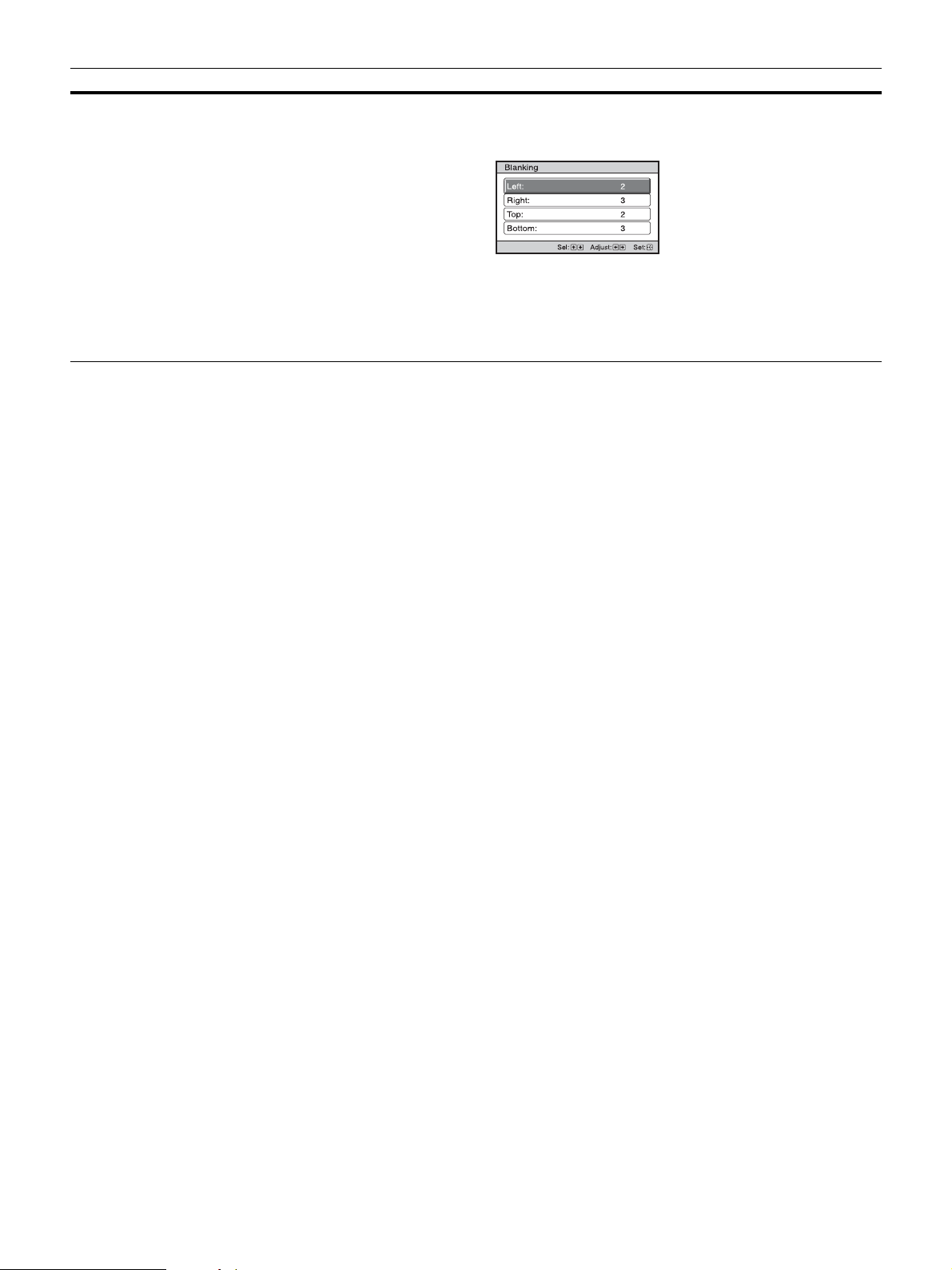
Blanking This feature allows you to adjust the displayable region within the four directions of the screen.
On: Select the edge to adjust by highlighting Left, Right, Top, or Bottom using the M/m button.
Adjust the amount of blanking using the </, button.
Off: Turns off the Blanking function.
Tips
• Depending on the aspect ratio setting, right/left blanking may not be available.
• Blanking setting is stored for each of the five Picture Positions. Adjust the blanking after selecting the
Picture Position. Final adjusted values are stored automatically.
Setting items Description

26
Setup Menu
The Setup menu is used to change the factory preset settings, etc.
Setting items Description
Status Sets whether or not the on-screen display is displayed.
On: Displays on-screen messages and menus.
Off: Turns off the on-screen displays, other than certain menus, a message when turning off the power,
and warning messages.
Language Selects the language used in the menu and on-screen displays.
Menu Position You can change the position to display the menu on the projection surface.
Bottom Left: Displays the menu on the bottom left area of the projection surface.
Center: Displays the menu on the center of the projection surface.
High Altitude Mode Sets the unit to operate at the prevailing atmospheric pressure.
On: Use this setting when using the unit at an altitude of 1,500 m (approx. 4,900 ft) or higher.
Off: Use this setting when using the unit at normal altitudes.
Tip
When this item is set to “On,” the fan noise becomes slightly louder since the fan speed increases.
Remote Start Sets the Remote Start settings.
On: You can turn on the power from a PC or a terminal which is connected to a network.
Off: Turns off the Remote Start function.
Tips
• To use the function, the unit should be connected to the network in advance (page 31).
• To turn on the power with the Remote Start function, a special command should be sent from a PC or
a terminal. For details, consult with qualified Sony personnel.
When the Remote Start is set to “On,” the standby power requirement will increase. When Network
Management is set to “On,” Remote Start is automatically fixed at “Off” and is not displayed in the
menu.
Network Management On: Set when connected to the network and continuously communicating with the projector control
equipment.
Off: Turns off the Network Management function.
When Network Management is set to “On,” the network function is continuously enabled. Set Network
Management to “Off” for normal use. If you set to “On,” the power consumption increases.
Power Saving Sets the Power Saving mode.
Standby: If no signal is input for 10 minutes, power is turned off automatically and the projector goes
into standby mode.
Off: Disables the Power Saving function.
All Reset All settings are initialized to their factory preset values.
Note
Note

27
Function Menu
The Function menu is used for changing the settings of the various functions of the unit.
Setting items Description
3D Settings You can change the settings of the 3D function.
2D-3D Display Sel. For Switching the video images to “2D” or “3D.”
Auto: Displays 3D video images when HDMI signals with 3D information* are input. Displays 2D
video images when other signals are input.
3D: Displays 3D video images according to the 3D system selected in “3D Format.” However, when
HDMI signals with 3D information are input to the unit, displays 3D video images according to the 3D
system of those HDMI signals.
* The 3D information is additional information to discriminate 3D. Some HDMI signals have additional
information to discriminate 3D and some HDMI signals have none.
3D Format: Set the 3D system when the input HDMI signals do not include 3D information.
Simulated 3D: Converts 2D video images to 3D video images. The setting can be made only for input
the HD signals.
The simulated 3D feature may have limited effect, depending on the video source.
There are differences in perception of 3D video images among individuals.
Side-by-Side: Select this to display 3D images as two similar images, side-by-side.
Over-Under: Select this to display 3D images as two similar images, one above the other.
Tips
• “2D-3D Display Sel.” cannot be set to “3D” for some video sources. For available 3D signals, see
“Compatible 3D Signals” (page 43).
• The simulated 3D feature may have limited effect, depending on the screen size (100 to 120 inches
recommended) and the video source.
• The menu display has a ghost while a 3D video image is displayed and is best viewed with the 3D
glasses.
3D Depth Adjust For adjusting the depth of the 3D video images on the projection surface. The setting can be made only
when a 3D Format other than “Simulated 3D” is selected.
We recommend that “3D Depth Adjust” be set to “0.” The 3D video images may be difficult to perceive,
depending on the setting of “3D Depth Adjust.”
Simulated 3D Effect For adjusting the 3D effect when 2D content is converted to 3D video images. You can select the effect
from among “High,” “Middle,” and “Low.”
Tip
There are differences in perception of 3D video images converted by the simulated 3D function among
individuals.
Dynamic Range Sets the video input level for HDMI 1 and HDMI 2 connectors.
Auto: Sets the video input level automatically.
Limited: The video input level is set for signals that are equivalent to 16-235.
Full: The video input level is set for signals that are equivalent to 0-255.
If the video output setting of the connected HDMI device is not set correctly, light and dark parts of the
video may appear too light or too dark.
HDMI Signal Format Switches the video signal formats for 4K.
Standard Format: Displays a picture in the standard HDMI format.
Enhanced Format: Displays a picture in a more detailed HDMI format.
Tips
• A picture or sound may not be output normally when “Enhanced Format” is selected. In this case, set
to “Standard Format.”
• It may take time to display a picture after switching the video signal formats.
Depth
NormalFront Depth
Note

28
Test Pattern Displays a test pattern according to the setting.
On: A test pattern appears on the screen to be used when adjusting the lens with “Lens Focus,” “Lens Zoom,”
and “Lens Shift.”
Off: A test pattern does not appear.
Tip
While the test pattern is displayed, it is only displayed in green to allow you to adjust the focus easily.
Settings Lock Locks menu item settings to prevent operational error (page 29).
Off: Cancels the Settings Lock.
Level A: Group 1 items (below) are not displayed on the menu, and are not available.
Level B: Group 1 and Group 2 items (below) are not displayed on the menus, and are not available.
Setting items Description

29
Group 1 Group 2
Items Locked by Settings Lock
Picture menu
Reset
Reality Creation
Advanced Iris and Laser Setting
Dynamic HDR Enhancer
Motionflow
Contrast
Brightness
Color
Hue
Color Temp.
Sharpness
NR
MPEG NR
Smooth Gradation
Film Mode
Gamma Correction
Color Correction
Clear White
x.v.Color
HDR
Color Space
Input Lag Reduction
Advanced Picture menu
Auto Calibration
Setup menu
Status
Language
Menu Position
High Altitude Mode
Remote Start
Network Management
Power Saving
Function menu
Dynamic Range
Test Pattern
Installation menu
Image Flip
Lens Control
Anamorphic Lens
Trigger Select
IR Receiver
Panel Alignment
Network Setting
30
Installation Menu
The Installation menu is used for changing the installation settings.
Setting items Description
Image Flip Flips the picture on the screen horizontally and/or vertically.
HV: Flips the picture horizontally and vertically.
H: Flips the picture horizontally.
V: Flips the picture vertically.
Off: The picture does not flip.
Use this item for installation for the rear projection or ceiling installation.
Lens Control Avoids any operation of the lens such as “Lens Focus,” “Lens Zoom,” and “Lens Shift,” by mistake.
On: Enables adjustment of the lens.
Off: Prevents any adjustment of the lens.
Anamorphic Lens Select a setting to match the anamorphic lens conversion ratio.
1.24x: Select this when you use an anamorphic lens with a horizontal rate of 1.24×.
1.32x: Select this when you use an anamorphic lens with a horizontal rate of 1.32×.
Trigger Select Switches the output function of the TRIGGER 1/TRIGGER 2 connector.
Off: Turns off the TRIGGER connector function.
Power: Outputs 12 V signals from the TRIGGER 1/TRIGGER 2 connectors when the unit is on. The
TRIGGER 1/TRIGGER 2 connectors do not output any signals when the unit is in standby.
V Stretch: Works with the “Aspect” setting’s “V Stretch” (page 24) and outputs a 12 V signal from the
TRIGGER 1 or TRIGGER 2 connector.
2.35:1 Zoom: Works with the “Aspect” setting’s “2.35:1 Zoom” (page 24) and outputs a 12 V signal
from the TRIGGER 1 or TRIGGER 2 connector.
IR Receiver Selects the remote control detectors (IR Receiver) on the front and rear of the unit.
Front & Rear: Activates both the front and rear detectors.
Front: Activates the front detector only.
Rear: Activates the rear detector only.
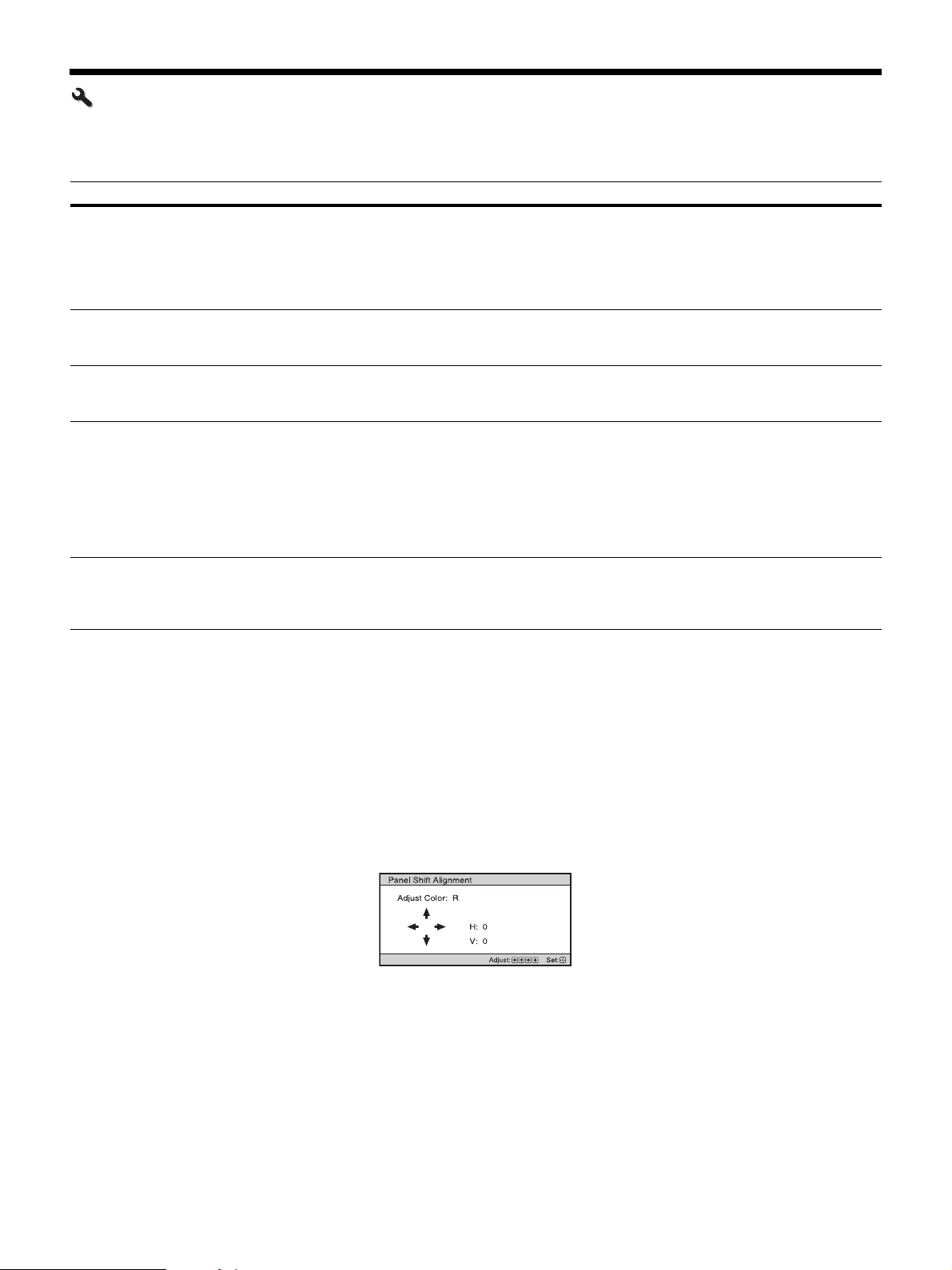
Panel Alignment This feature allows you to adjust the gaps in the color of characters or the picture on the screen.
Adjust: Adjusts the gaps in the colors selecting “Adjust Item” or “Adjust Color.”
Adjust Item: Selects how to make adjustments from below.
Shift: Shifts the whole picture and makes adjustments.
Zone: Selects the desired range and makes adjustments.
Adjust Color: Assigns the desired color to adjust the gaps in color. Select “R” (Red) or “B” (Blue) to
make adjustments based on “G” (Green).
Pattern Color: Select “R/G” (Red and Green) or “R/G/B” (White, all colors) when “Adjust Color” is
“R” (Red). Select “B/G” (Blue and Green) or “R/G/B” (White, all colors) when the “Adjust Color” is
“B” (Blue).
Adjust: The shift adjustment and zone adjustment of the color selected in “Adjust Color” can be made
with the </,/M/m button.
When “Shift” is selected: Assign the settings of the horizontal direction (H) with the </, button
and the vertical direction (V) with the M/m button on the shift adjustment screen.
31
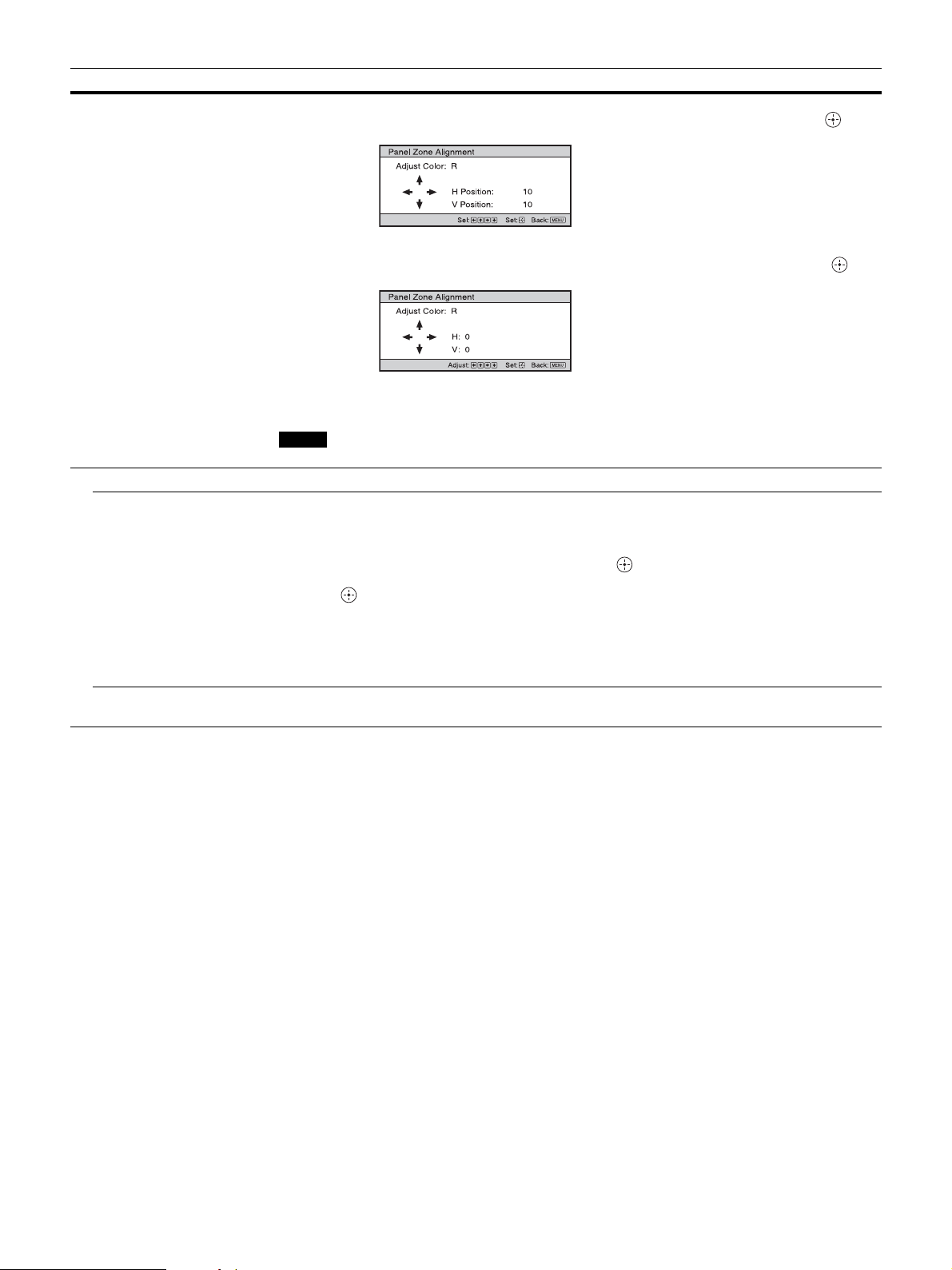
When “Zone” is selected: Select the position to adjust with the </, button for the horizontal
position (H Position) and the M/m button for the vertical position (V Position), then press .
Set the amount to adjust with the </, button for the horizontal direction (H) and with the M/m
button for the vertical direction (V). You can select the position to adjust again by pressing .
Reset: Returns to the factory settings.
Preset: The optimized data has been preset.
Depending on the adjustments made above, colors may become uneven or the resolution may change.
Network Setting Perform internet protocol settings.
IPv4 Setting IP Address Setup: Selects the IP address setting method.
Auto(DHCP): The IP address is assigned automatically from the DHCP server such as a router.
Manual: Specifies the IP address manually.
When “Manual” is selected for “IP Address Setup,” input “IP Address,” “Subnet Mask,” and “Default
Gateway.” Select each item with the M/m button, then press button. Select the frame to input with the
</, button and input the value with the M/m button. When all items are entered, select “Apply,” and then
press the button. The entered settings will be registered.
IP Address: Sets the unit’s IP address.
Subnet Mask: Sets the unit’s subnet mask.
Default Gateway: Sets the unit’s default gateway.
MAC Address: Displays the unit’s MAC address. This cannot be changed.
Apply: Enables the IP address that is set manually.
IPv6 Information Displays the IPv6 information.
When you set the IPv6 IP address, set it on a Web browser (page 33).
Setting items Description
Note
32
Information Menu
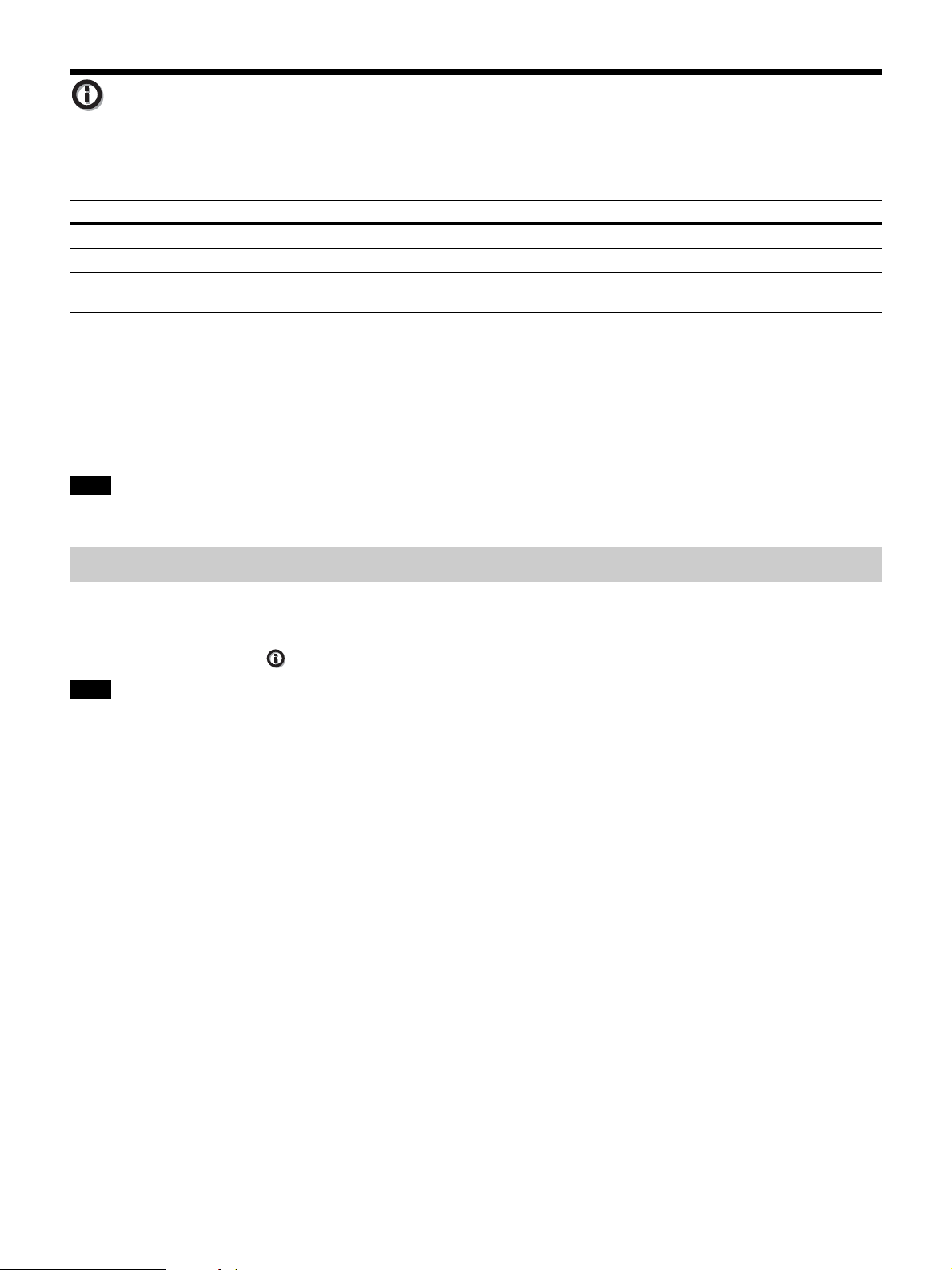
The Information menu displays the model name, serial number, input signal type/format, software version and the
cumulated hours of usage of the light.
You cannot adjust or change the displays listed above.
This unit has default image data to adjust preset data for input signals appropriately according to the signals shown in
“Preset Signals” (page 41) (the preset memory). When the preset signal is input, the unit automatically detects the signal
type and recalls the data for the signal from the preset memory to adjust it to an optimum picture. The signal type is
displayed in the Information menu.
Depending on the computer input signal, parts of projection image may be hidden or displayed incorrectly.
Items Description
Model Name Displays the model name
Serial No. Displays the serial number.
Signal type Displays the resolution of the input signal which you are selecting. When input signals with 3D
information are input, the type of input signals and the 3D format are displayed.
Color Format Displays the color format of the input signal which you are selecting.
Color Space Displays the color space of the input signal which you are selecting (“BT.601,” “BT.709,” or
“BT.2020”).
HDR Format When the input signal is compatible with HDR, “HDR10” or “HLG” is displayed according to the input
signal.
Software Version Displays the software version.
Light Timer Displays how long the light has been turned on (total usage).
Note
About the Preset Memory
Note
33
Connection to the network allows you to operate the
following features.
Use the projector with only necessary functions enabled.
• Checking the current status of the unit via a Web
browser.
• Making the network settings for the unit.
• Network monitoring and controlling with control
protocol (Advertisement, ADCP, AMX DDDP
(Dynamic Device Discovery Protocol), Crestron
RoomView, Control4).
• When connecting this projector with the network, consult with the
person who sets up the network. The network must be secured.
• When using this projector connected with the network, access the
Control window via a Web browser and change the access
limitation of the factory preset values (page 34). It is
recommended to change the password regularly.
• When the setting on the Web browser is completed, close the Web
browser to log out.
• The menu displays used for the explanation below may be
different depending on the model you are using.
• Supported Web browsers are Internet Explorer (version 11 or
later), Safari, and Chrome.
• The menu displays only English.
• If the browser of your computer is set to [Use a proxy server] when
you have access to the unit from your computer, click the check
mark to set accessing without using a proxy server.
• AMX DDDP is not compatible with IPv6.
• These network functions are available when the unit is turned on.
Displaying the Control
Window of the Unit with a
Web Browser
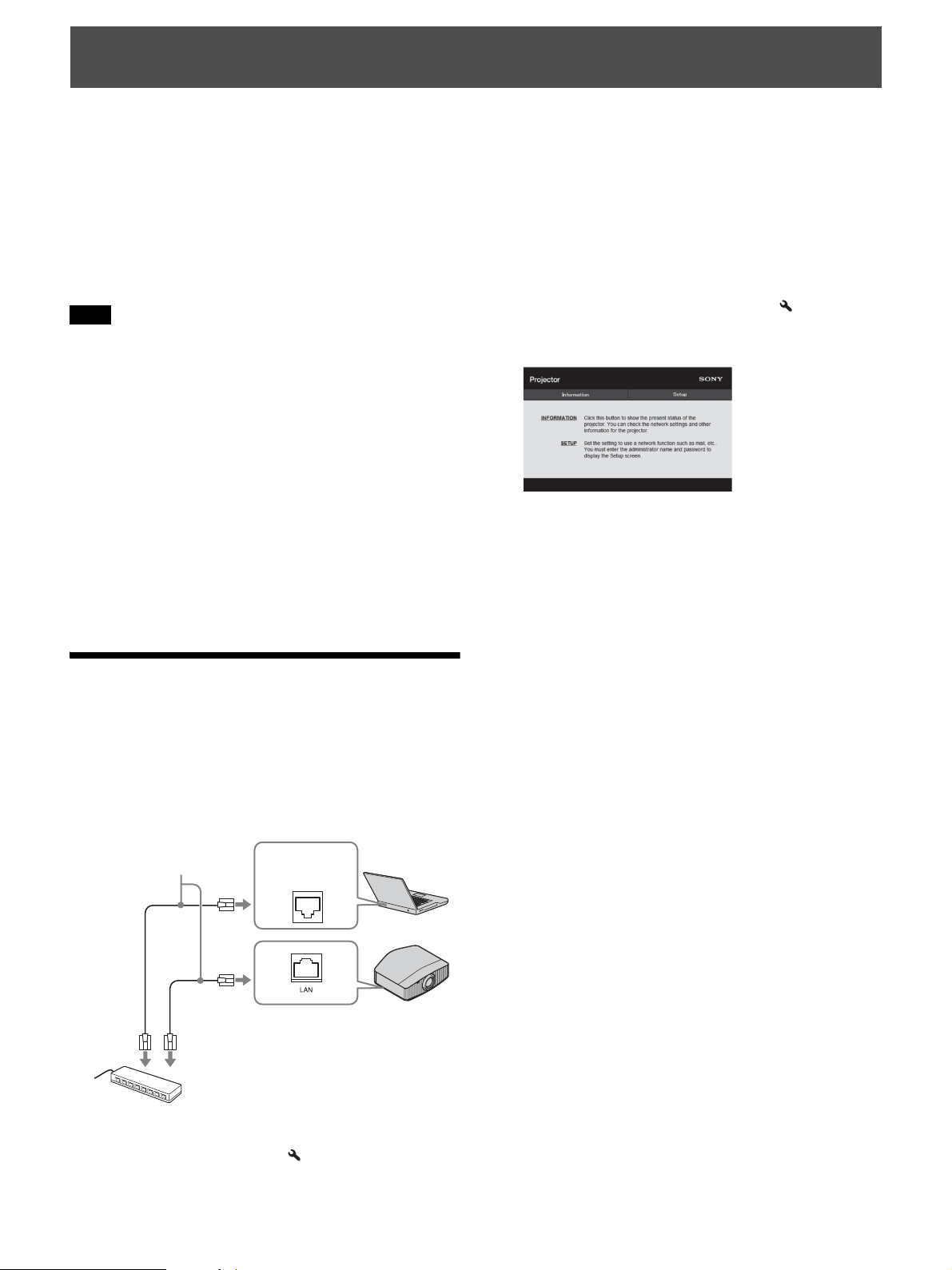
1 Connect the LAN cable.
2 Set the network settings for the unit using “Network
Setting” on the Installation menu (page 31).
3 Start a Web browser on the computer, enter the
following in the address field, then press the Enter key
on your computer.
http://xxx.xxx.xxx.xxx
(xxx.xxx.xxx.xxx: IP address for the unit)
When connecting by the IPv6 address
http://[xxxx:xxxx:- xxxx]
You can confirm the IP address of the unit under
“Network Setting” on the Installation menu.
The following window appears in the Web browser:
Once you make the network settings, you can open the
Control window only by performing step 3 of this
procedure.
Using Network Features
Notes
LAN
Connector
LAN cable
(straight type)
(not supplied)
Hub, router, etc.
34
Operating the Control
Window
Click one of the Page Switching buttons to display the
desired setting page.
You can limit a user for accessing any particular page.
Administrator: Allowed access to all pages
User: Allowed access to all pages except the Setup
page
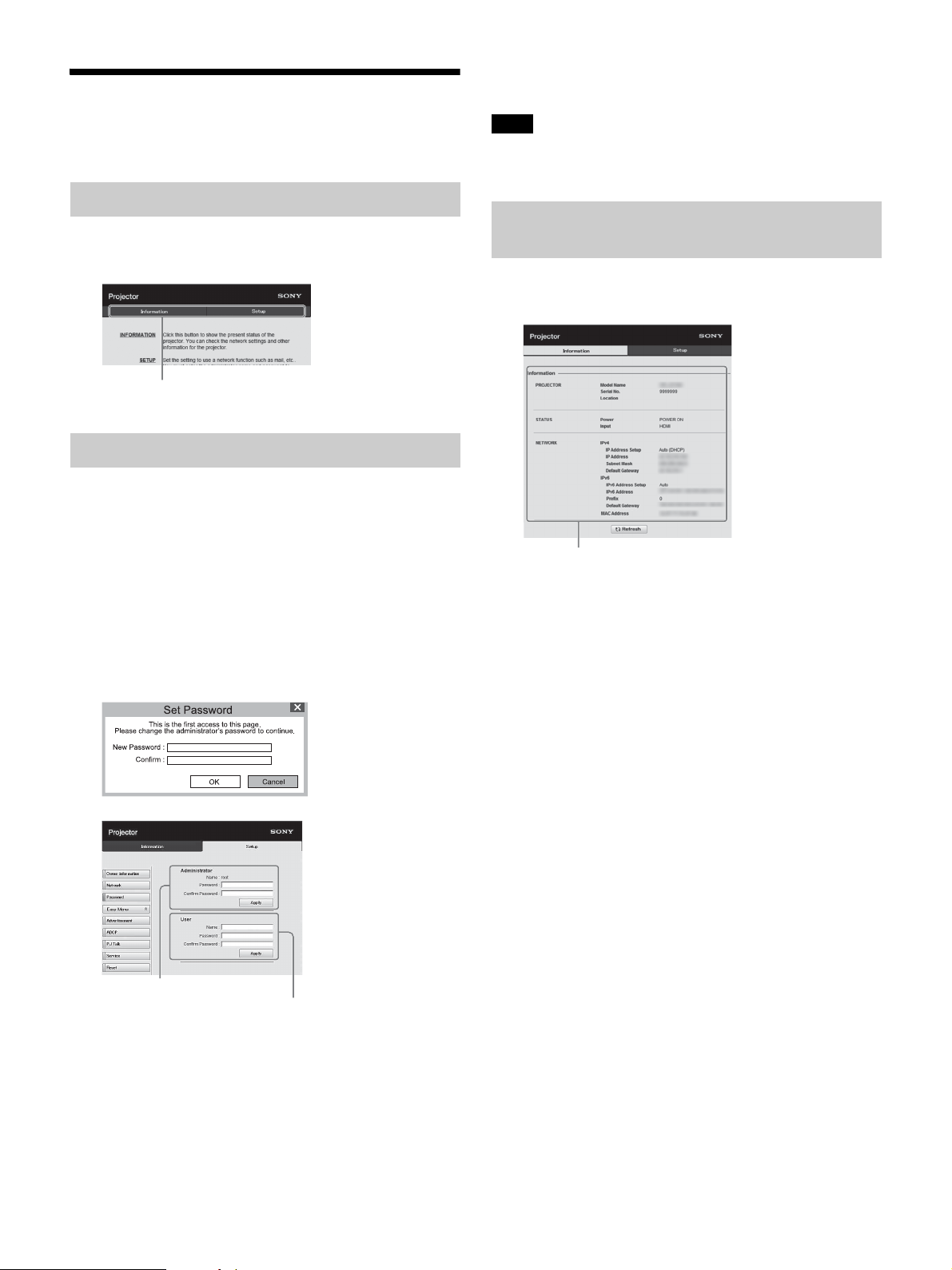
When you access the Setup page for the first time, input
“root” as the user name and “Projector” as the password in
the authentication dialog.
When you log in for the first time, the window that prompts
you to change the password is displayed. Follow the
instructions on the screen to change the password.
The name of the administrator is preset to “root.”
The password can be changed in the Password page in the
Setup page.
When you change the password, enter a new password.
The password of the administrator and user should be 8 to
16 characters that includes both alphabet and numeric
characters. Alphabet is case-sensitive.
The default password “Projector” cannot be set as a new
password.
If you forget your password, consult with qualified Sony personnel.
The password will be reset with your permission.
You can confirm the current settings for the unit on the
Information page.
Switching the Page
Setting the Access Limitation
Page Switching buttons
Entry area for [Administrator]
Entry area for [User]
Note
Confirming the Information
Regarding the Unit
Information area
35
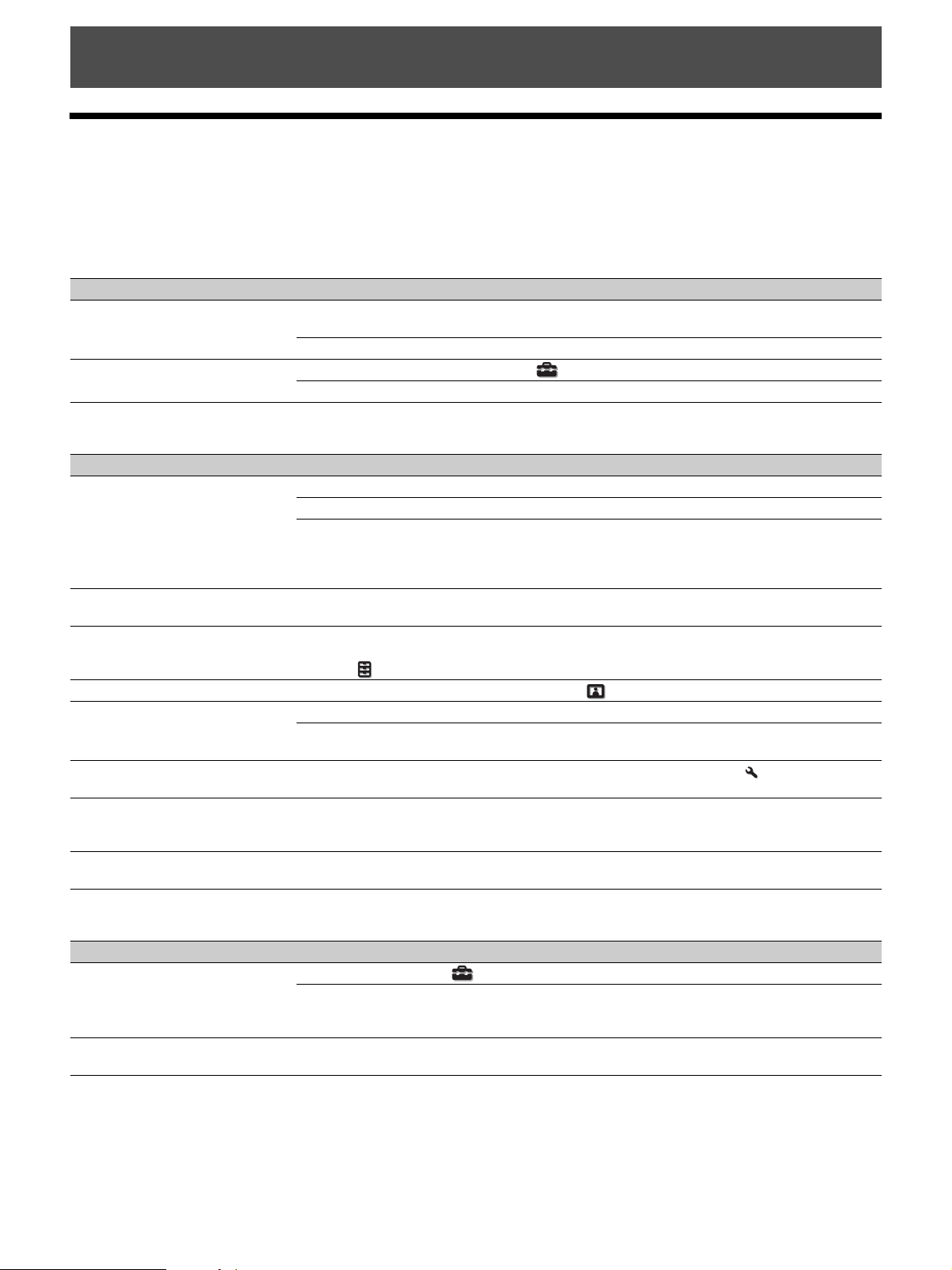
Troubleshooting
If the unit appears to be operating erratically, try to diagnose and correct the problem using the following instructions. If
the problem persists, consult with qualified Sony personnel.
Power
Picture
On-screen display
Error Handling
Symptom Cause and Remedy Page
The power is not turned on. The power may not turn on if you turn the power off with ?/
1 (On/Standby) button and turn
it on again in a short time. After about 1 minute, turn the power on.
–
Check the indicators. 37
The power is suddenly turned off. Check that “Power Saving” in the Setup menu is set to “Standby.” 26
Set “Power Saving” to “Off.” 26
Symptom Cause and Remedy Page
No picture. Check that the connecting cable is connected to the external equipment properly. 10
Select the input source correctly using the INPUT button. 11
Check that the computer signal is set for output to an external monitor.
If a notebook computer and the signal is output to its display and an external monitor, the
external monitor’s image may not be displayed correctly. Set your computer to output the
signal to only an external monitor.
–
The picture has ghosts. Video images are displayed in 3D. Watch the 3D video images using the 3D glasses, and
set “2D-3D Display Sel.” to “3D.”
12, 27
Bright or dark area of the video
appears too bright or too dark.
This symptom may occur when a signal level other than those of HDMI standard is input.
Switch the output level of the connected equipment, or switch the Dynamic Range on the
Function menu of the unit.
27
The picture is too dark. Adjust “Contrast” or “Brightness” on the Picture menu properly. 19
The picture is not clear. Adjust the focus. 7
If the lens is clouded with dew condensation, leave the unit for about 2 hours with the
power on.
–
The color of characters or the picture
is not appropriate.
Select the desired color registration in “Panel Alignment” on the Installation menu. 30
Image is left on the projection image.
(Image retention)
When high contrast non-moving images are displayed for a long period of time, there may
be some image retention on the projection image. This is only a temporary condition.
Turning off the power for a while will eliminate the retained image.
–
Some color appears around the
picture.
It may appear due to condensation.
Wait for about 5 minutes with the power on.
–
Symptom Cause and Remedy Page
On-screen display does not appear. Set “Status” on the Setup menu to “On.” 26
Check if the ON/STANDBY indicator should light in green. When the ON/STANDBY
indicator blinks in green, the unit is starting up. Wait until it stops blinking and remains lit
in green.
7
The model name does not disappear
from the screen.
The display mode of the unit may be set at the time of purchase. Consult with your local
dealer or qualified Sony personnel.
–
36
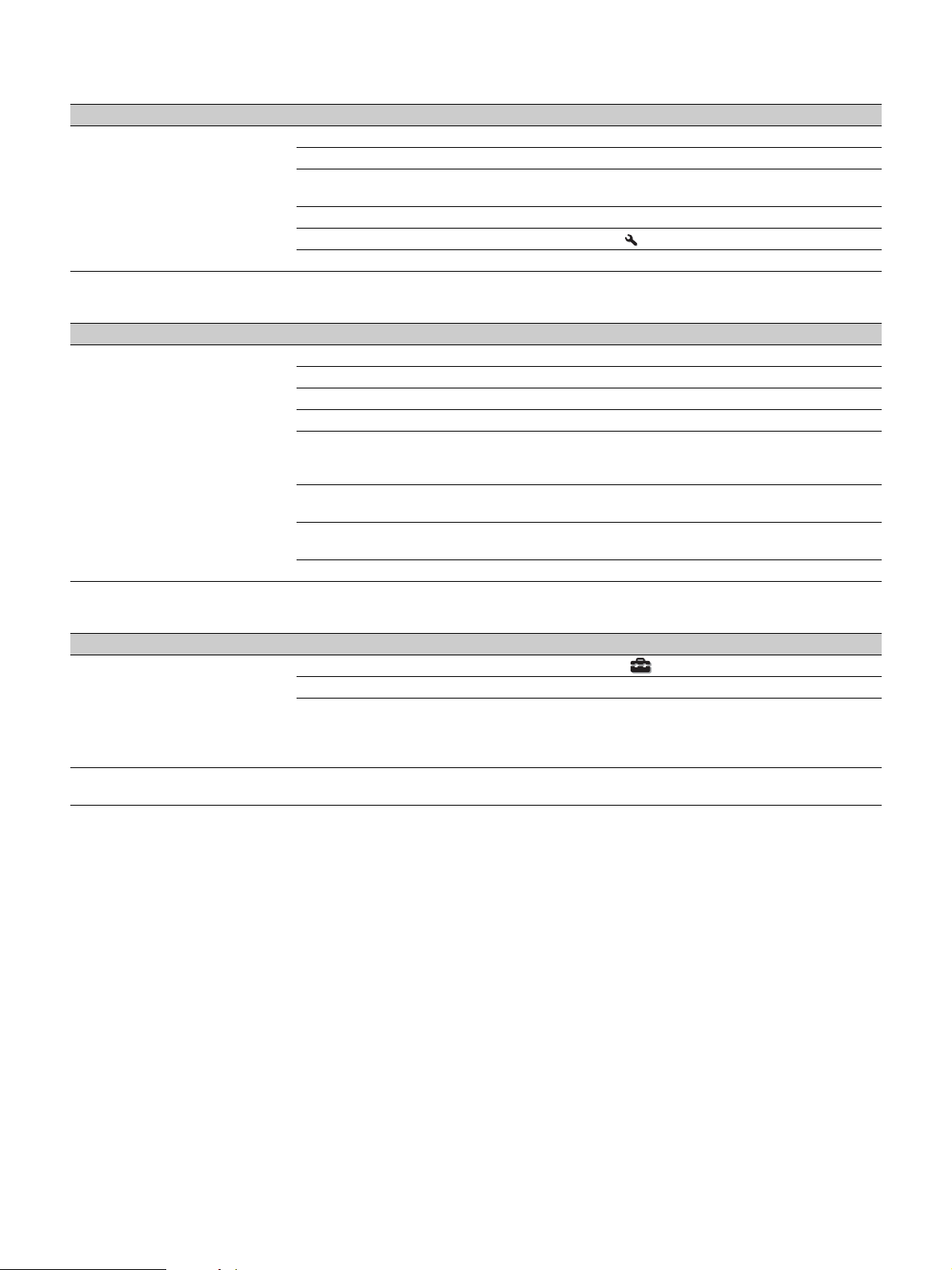
Remote control
3D video images
Others
Symptom Cause and Remedy Page
The remote control does not work. Batteries could be weak. Replace them with new batteries. –
Insert the batteries with the correct polarities. –
If there is a fluorescent lamp near the remote control detector, the unit may work
improperly or inadvertently.
–
Confirm the position of the remote control detector on the unit. 3, 4
Set “IR Receiver” to “Front & Rear” on the Installation menu.
30
Make sure that the cable is not connected to the IR IN connector.
3
Symptom Cause and Remedy Page
The video image does not seem like
3D video images.
Check if the 3D glasses are turned on. 12
Make sure that the battery in the 3D glasses is sufficiently charged. –
Set “2D-3D Display Sel.” to “Auto” or “3D.” 27
Check if the input signals are compatible 3D signals. 43
The 3D signals may not be input depending on the specifications of the connected AV
selector/AV amplifier/external equipment. If the 3D signal is not input, confirm the
specifications and/or settings of the AV selector/AV amplifier/external equipment.
–
When the viewing position is too far from the unit, the 3D glasses may not be able to
display the images properly.
12
The screen size is not appropriate. Set the zooming magnification to low or watch the
image from farther away from the screen.
48
For details, see “Precautions for use” of “Using the 3D Glasses.” 12
Symptom Cause and Remedy Page
The fan is noisy. Check the setting of “High Altitude Mode” on the Setup menu. 26
Make sure that the room temperature is not too high. –
Check the installation requirements of the unit.
Fan speed increases to maintain the product reliability of the projector’s components in a
room where the temperature is higher than normal. The fan noise becomes slightly louder
in these rooms. The approximate normal temperature for the unit is 25°C (77°F).
–
The lens shift cannot be adjusted. The lens shift cannot be adjusted over the range of movement. Adjust the lens shift within
the range of movement.
8, 48
37
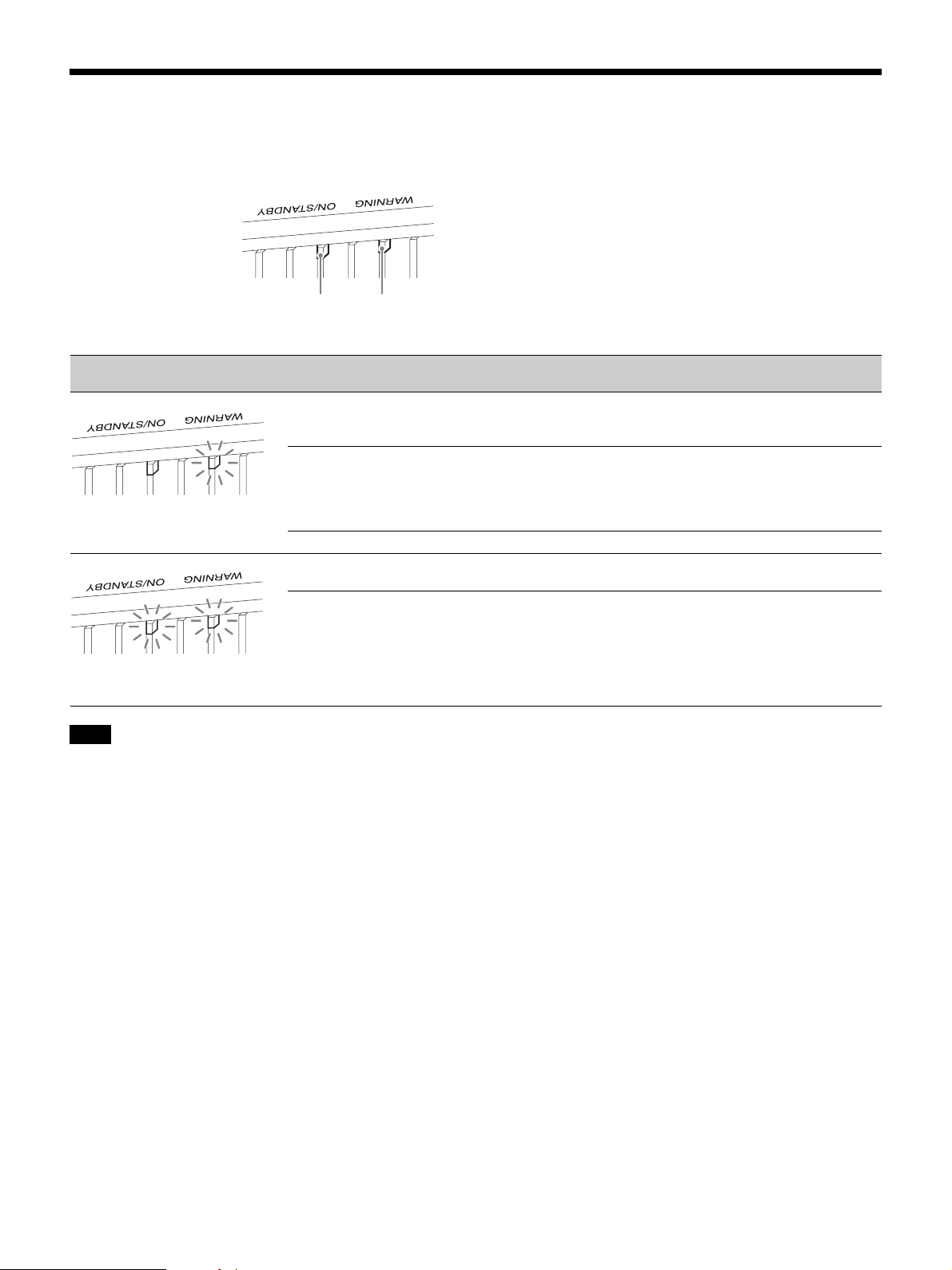
About Indicators
The ON/STANDBY or WARNING indicator lights up or flashes if there is any trouble with your projector.
If the symptom persists even after carrying out the above methods, consult with qualified Sony personnel.
If the indicator starts flashing in a way of other than the above, turn off, and then turn on the power with the [/1 (On/Standby) button on the
remote control or control panel of the unit.
If the symptom is shown again, consult with qualified Sony personnel.
Flashing/Lighting indicators The number of
flashes
Cause and Remedy
Three times The unit does not light properly due to an abnormality of the light source and light
source power. Turn off, then turn on the power after a while.
If the symptom persists, consult qualified Sony personnel.
Six times The unit detects a drop impact.
If there is abnormality on the unit, consult with qualified Sony personnel.
If there are no abnormalities on the unit, disconnect the AC power cord and check
that the ON/STANDBY indicator turns off, then connect the AC power cord and
turn the unit on.
Eight times The lens is not securely attached. Consult with qualified Sony personnel.
Twice The internal temperature is unusually high. Check to ensure that nothing is blocking
the ventilation holes and the unit is not being used at high altitudes.
Three times The fan is broken. Consult with qualified Sony personnel.
Note
ON/STANDBY
indicator
WARNING
indicator
(Flashes in red)(Lights in red)
(Flashes in red) (Flashes in red)
Both indicators flash
38
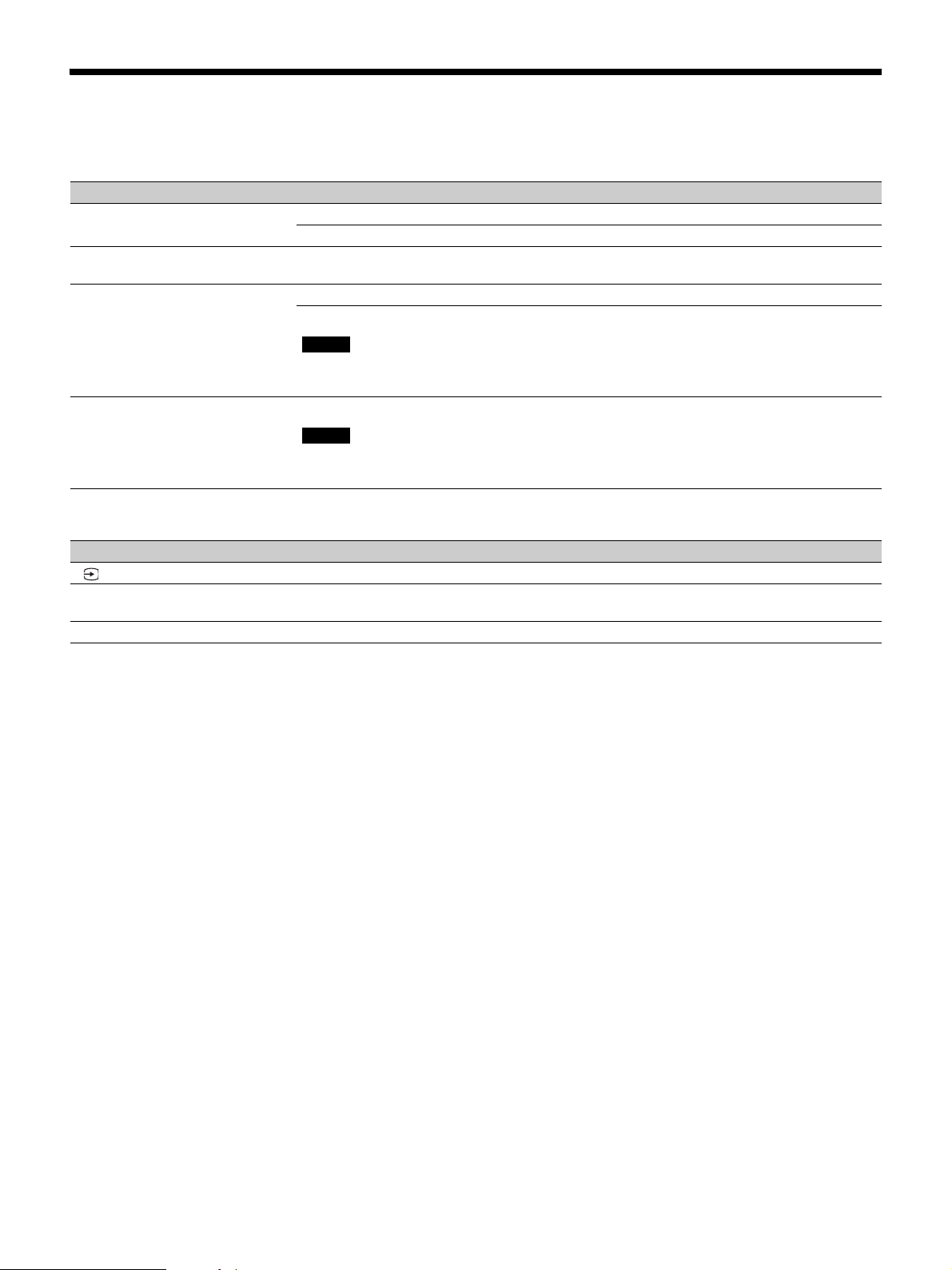
Message Lists
Warning messages
Caution messages
Symptom Cause and Remedy Page
High temp.! Light off in 1 min. Turn off the power. –
Check to ensure that nothing is blocking the ventilation holes. 3, 4
Frequency is out of range! Frequency is out of range. Input a signal that is within the acceptable frequency range of
the unit.
41
Projector temperature is high. High
Altitude Mode should be “On” if
Projector is being used at high
altitude.
Check to ensure that nothing is blocking the ventilation holes. 3, 4
When using the unit at high altitude, set “High Altitude Mode” to “On.”
When temperature inside the unit remains high, “High Altitude Mode” is switched to “On”
in 1 minute, then the fan speed increases.
26
Power Saving Mode is set. Projector
will automatically enter Standby
Mode in 1 minute.
“Power Saving” is set to “Standby.”
If no signal is input, the power turns off after 1 minute, and the projector goes into standby
mode.
26
Symptom Cause and Remedy Page
No signal is input in the selected input. Check connections. 10
Not applicable! Press the appropriate button.
The operation to be activated by the button is currently prohibited.
–
Settings Lock enabled. “Settings Lock” is set to “Level A” or “Level B.” 28
Note
Note
x

39
Updating the Software
You can download files to update the software of the unit.
Copy the downloaded files to your USB memory, insert the
USB memory to the USB terminal of the unit, then
perform the update.
To use the features updated, insert a USB memory device
into a PC connected to the internet.
Download the update files from the following Sony
website:
https://www.pro.sony.eu/
The website also explains how to install the update.
Some USB memories may not be supported for use. For
details, refer to the website above.
About HDR (high dynamic
range)
HDR is a video expression which improves the ability to
express dark places and bright places compared to
previous video expressions.
About the Simulated 3D
Feature
• Use the simulated 3D function taking into account that
the picture will provide a different look from the original
images, because this function converts the video images.
• Note that if the unit is used for profit or for public
viewing, displaying 2D video images as 3D video
images by converting to the simulated 3D may constitute
an infringement of the rights of authors or producers,
which are legally protected.
Others
Note
Trademark Information
• “PlayStation” is a registered trademark of Sony
Interactive Entertainment Inc.
• The terms HDMI and HDMI High-Definition
Multimedia Interface, and the HDMI Logo are
trademarks or registered trademarks of HDMI
Licensing Administrator, Inc. in the United States
and other countries.
• “Blu-ray” and “Blu-ray Disc” are trademarks of
Blu-ray Disc Association.
• “x.v.Color (x.v.Colour),” “Motionflow,” and their
logos are trademarks of Sony Corporation.
.....................................................................................
This projector supports DeepColor, x.v.Color,
LipSync, computer input signal, 3D signal, 4K signal
of HDMI standards. It also supports HDCP.

40
Specifications
• The values for mass and dimensions are approximate.
• Not all optional accessories are available in all countries and area. Please check with your local Sony Authorized Dealer.
• Information on optional accessories in this manual is current as of April 2021.
Design and specifications of this unit and its optional accessories are subject to change without notice.
Item Description
Display System SXRD panel, projection system
Display device Size of effective
display area
0.74-inch (18.8 mm) SXRD
Number of pixels 26,542,080 pixels (8,847,360 pixels × 3)
Projection lens Motorized Lens (VPLL-Z7013)
Throw Ratio 1.27:1 to 2.73:1
F2.9 to F3.9
Shift: ±80% (V), ±31% (H)
Light source Laser diode
Projection image size 60-inch to 300-inch (1,524 mm to 7,620 mm) (measured diagonally)
Accepted digital signals See “Preset Signals” (page 41).
Inputs/Outputs HDMI connectors
(HDCP 2.2)
× 2
TRIGGER
connectors
× 2, mini jack, DC 12 V, Max. 100 mA
REMOTE connector RS-232C: D-sub 9-pin (male)
LAN connector RJ45, 10BASE-T/100BASE-TX
IR IN connectors Minijack
USB connector Type A, DC 5 V, Max. 500 mA
Outside dimensions (w/h/d) 560 mm × 223 mm × 496 mm (22
1
/
16
inches × 8
25
/
32
inches × 19
17
/
32
inches) (without
protrusions)
Mass Approx. 22 kg (49 lb)
Power requirements AC 100 V to 240 V, 4.9 A to 2.2 A, 50/60 Hz
Power consumption 490 W
Standby mode power
consumption
Standby 0.4 W (when “Remote Start” is set to “Off”)
Networked Standby 1.0 W (LAN) (when “Remote Start” is set to “On”)When a LAN terminal is not connected,
it becomes a low power consumption mode (0.5 W).
Operating temperature 5°C to 35°C (41°F to 95°F)
Operating humidity 20% to 80% (no condensation)
Storage temperature –10°C to +60°C (14°F to 140°F)
Storage humidity 20% to 80% (no condensation)
Supplied accessories See “Checking the Supplied Accessories” on the Quick Reference Manual.
Optional accessories Projector Suspension Support: PSS-H10
Projection Lens VPLL-Z7008: Motorized, Throw ratio: 0.80:1 to 1.02:1, Shift: ±50% (V),
±18% (H), F2.9, Projected image size: 60“ to 1000” (1,524 mm to 25,400 mm), Maximum
external dimensions: 134 mm × 134 mm × 309 mm (5
9
/
32
inches × 5
9
/
32
inches × 12
5
/
32
inches) (W × H × D), Mass: 3.7 kg (8.2 lb)
Notes
41
The following table shows the signals and video formats which you can project using this unit.
When a signal other than the preset signals shown below is input, the picture may not be displayed properly.
Preset Signals
Preset
memory
no.
Preset signal (resolution) fH (kHz) fV (Hz) Sync
5 480/60p 480/60p (Progressive NTSC) (720 × 480p) 31.470 60.000 –
6 576/50p 576/50p (Progressive PAL) (720 × 576p) 31.250 50.000 –
7 1080/60i 1080/60i (1920 × 1080i) 33.750 60.000 –
8 1080/50i 1080/50i (1920 × 1080i) 28.130 50.000 –
10 720/60p 720/60p (1280 × 720p) 45.000 60.000 –
11 720/50p 720/50p (1280 × 720p) 37.500 50.000 –
12 1080/60p 1080/60p (1920 × 1080p) 67.500 60.000 –
13 1080/50p 1080/50p (1920 × 1080p) 56.260 50.000 –
14 1080/24p 1080/24p (1920 × 1080p) 26.973 23.976 –
18 720/60p (Frame packing) 720/60p (1280 × 720p) 90.000 60.000 –
19 720/50p (Frame packing) 720/50p (1280 × 720p) 75.000 50.000 –
20 1080/24p (Frame packing) 1080/24p (1920 × 1080p) 53.946 23.976 –
26 640 × 480 VESA 60 31.469 59.940 H-Neg, V-Neg
32 800 × 600 VESA 60 37.879 60.317 H-Pos, V-Pos
37 1024 × 768 VESA 60 48.363 60.004 H-Neg, V-Neg
45 1280 × 960 VESA 60 60.000 60.000 H-Pos, V-Pos
47 1280 × 1024 VESA 60 63.974 60.013 H-Pos, V-Pos
50 1400 × 1050 SXGA+ 65.317 59.978 H-Neg, V-Pos
55 1280 × 768 1280 × 768/60 47.776 59.870 H-Neg, V-Pos
71 1920 × 1080/60i (Frame
packing)
1080/60i (1920 × 1080i) 67.500 60.000 –
72 1920 × 1080/50i (Frame
packing)
1080/50i (1920 × 1080i) 56.250 50.000 –
74 3840 × 2160/60p 3840 × 2160/60p (3840 × 2160) 135.000 60.000 –
75 3840 × 2160/50p 3840 × 2160/50p (3840 × 2160) 112.500 50.000 –
76 4096 × 2160/60p 4096 × 2160/60p (4096 × 2160) 135.000 60.000 –
77 4096 × 2160/50p 4096 × 2160/50p (4096 × 2160) 112.500 50.000 –
78 4096 × 2160/30p 4096 × 2160/30p (4096 × 2160) 67.500 30.000 –
79 4096 × 2160/25p 4096 × 2160/25p (4096 × 2160) 56.250 25.000 –
93 3840 × 2160/24p 3840 × 2160/24p (3840 × 2160) 53.946 23.976 –
94 3840 × 2160/25p 3840 × 2160/25p (3840 × 2160) 56.250 25.000 –
42
Preset memory numbers for each input signal
Digital signal
* Some digital signals input from computers may be displayed as preset memory number of Component or Video GBR signal.
The items in the menus available to adjust differ depending on the input signal. The following tables indicate them. The
items that cannot be adjusted/set are not displayed in the menu.
Picture menu
z: Adjustable/can be set
–: Not adjustable/cannot be set
*1: For further details, refer to the tables in “Motionflow” (page 45).
95 3840 × 2160/30p 3840 × 2160/30p (3840 × 2160) 67.433 29.970 –
96 4096 × 2160/24p 4096 × 2160/24p (4096 × 2160) 54.000 24.000 –
Signal Preset memory number
Component signal (HDMI 1, 2 connectors) 5 to 8, 10 to 14, 18 to 20, 71, 72, 74 to 79, 93 to 96
Video GBR signal (HDMI 1, 2 connectors) 5 to 8, 10 to 14, 18 to 20, 71, 72, 74 to 79, 93 to 96
Computer signal (HDMI 1, 2 connectors) 10*, 12*, 26, 32, 37, 45, 47, 50, 55
Input Signals and Adjustment/Setting Items
Item
Input signal
Component signal Video GBR signal Computer signal
Reality Creation
zz –
Advanced Iris and Laser Setting
zz z
Dynamic HDR Enhancer zz –
Motionflow*
1
zz –
Contrast
zz z
Brightness zz z
Color zz –
Hue
zz –
Color Temp.
zz z
Sharpness zz –
NR
z (excluding preset memory
numbers 18 to 20, 71, and 72)
z (excluding preset memory
numbers 18 to 20, 71, and 72)
–
MPEG NR
z (excluding preset memory
numbers 18 to 20, 71, and 72)
z (excluding preset memory
numbers 18 to 20, 71, and 72)
–
Smooth Gradation
z (excluding preset memory
numbers 18 to 20, 71 and 72)
z (excluding preset memory
numbers 18 to 20, 71 and 72)
–
Film Mode
z (excluding preset memory
numbers 5, 6, 10 to 14, 18 to 20,
74 to 79, and 93 to 96)
z (excluding preset memory
numbers 5, 6, 10 to 14, 18 to 20,
74 to 79, and 93 to 96)
–
Gamma Correction
zz z
Color Correction zz z
Clear White zz z
x.v.Color z ––
HDR
z (preset memory numbers 74 to
79 and 93 to 96 only)
z (preset memory numbers 74 to
79 and 93 to 96 only)
–
Color Space
zz z
Preset
memory
no.
Preset signal (resolution) fH (kHz) fV (Hz) Sync
43
Screen menu
z: Adjustable/can be set
–: Not adjustable/cannot be set
*1: For further details, refer to the tables in “Aspect Mode” (page 44).
When connecting a cable such as an HDMI cable, etc., check the type of the signal in the Information menu (page 32) and “Digital signal”
(page 42), and check items that are adjustable/can be set.
This unit accepts the following types of 3D signals.
*: Mandatory 3D format of the HDMI standards.
Some items on the menus may not be available to adjust/set, depending on the 3D signals.
The items that cannot be adjusted are not displayed on the menu. The following tables indicate those items.
z: Adjustable/can be set
–: Not adjustable/cannot be set
*1: “Dynamic Control” cannot be selected.
*2: For further details, refer to the tables in “Aspect Mode” (page 44).
Item
Input signal
Component signal Video GBR signal Computer signal
Aspect*
1
zz–
Note
Compatible 3D Signals
Resolution 3D signal format
720/60p, 720/50p Side-by-Side format
Over-Under format*
Frame packing*
1080/60i, 1080/50i Side-by-Side format*
Frame packing
1080/24P Side-by-Side format
Over-Under format*
Frame packing*
1080/60p, 1080/50p Side-by-Side format
Over-Under format
3D Signals and Adjustable/Setting Items
Item
3D signals
720/60p, 720/50p 1080/60i, 1080/50i 1080/24p 1080/60p, 1080/50p
Reality Creation
zzzz
Advanced Iris and Laser Setting*
1
zzzz
Motionflow zzzz
NR – – – –
MPEG NR – – – –
Smooth Gradation – – – –
Film Mode –
z ––
x.v.Color
zzzz
HDR – – – –
Aspect*
2
zzzz
44
When the unit is set to convert 2D video images to 3D video images, some items on the menus may be not available to
adjust/set, depending on the “3D Format” settings on the Function menu. The items that cannot be adjusted are not
displayed on the menu. The following tables indicate these items.
z: Adjustable/can be set
–: Not adjustable/cannot be set
*1: “Dynamic Control” cannot be selected.
*2: This item is not available when the 3D signal is 720/60p Frame packing/Over-Under format or 1080/60p Over-Under format.
*3: This item is available only when the 1080/60i or 1080/50i signal is input.
*4: For further details, refer to the tables in “Aspect Mode” (page 44).
Selectable items vary depending on the type of input signal or 3D format.
For details, see the tables below. Items that cannot be selected are not displayed in the menu.
2D
*1: Not displayed in the menu as fixed at Normal.
Item
3D signals
Over-Under Side-by-Side Simulated 3D
Reality Creation
zzz
Advanced Iris and Laser Setting*
1
zzz
Motionflow*
2
zzz
NR – – z
MPEG NR – – z
Smooth Gradation zzz
Film Mode*
3
– zz
x.v.Color zzz
HDR – – –
Aspect*
4
zzz
Aspect Mode
Acceptable signals 4096 × 2160 3840 × 2160
1920 × 1080
1280 × 720
720 × 480
720 × 576
Others
Preset memory number
(page 41)
76 to 79, 96 74, 75, 93 to 95 7, 8, 10 to 14 5, 6
26, 32, 37, 45, 47,
50,55
1.85:1 Zoom –
zzz
–
2.35:1 Zoom –
zzz
–
Normal
z
zzz
z*
1
V Stretch
zzzz
–
Squeeze
zzzz
–
Stretch – – –
z
–
45
3D
Selectable items vary depending on the type of input signal or 3D format.
For details, see the tables below. Items that cannot be selected are not displayed in the menu.
2D
3D
Acceptable signals 1920 × 1080, 1280 × 720
3D format Side-by-Side Over-Under Frame packing Simulated 3D
Preset memory number
(page 41)
7, 8, 10 to 14 10 to 14 18 to 20, 71, 72 7, 8, 10 to 14
1.85:1 Zoom
zzzz
2.35:1 Zoom
zzzz
Normal
zzzz
V Stretch
zzzz
Squeeze z
zzz
Stretch
––––
Motionflow
Acceptable signals
1920 × 1080
1280 × 720
720 × 480
720 × 576
3840 × 2160 4096 × 2160 Others
Preset memory number (page 41) 5 to 8, 10 to 14 74, 75, 93 to 95 76 to 79, 96
26, 32, 37, 45, 47, 50,
55
Impulse
zzz
–
Combination
zz–
–
Smooth High
zz–
–
Smooth Low
zz–
–
True Cinema
zz–
–
Acceptable signals 1920 × 1080, 1280 × 720
3D format Frame packing Over-Under Side-by-Side Simulated 3D
Preset memory number
(page 41)
18 19
20, 71,
72
10,12 11,13 14 7, 8, 10 to 14 7, 8, 10 to 14
Impulse
–––––– – –
Combination
–––––– – –
Smooth High
––
z ––zz z
Smooth Low
– zz– zz z z
True Cinema
–––––– – –
46
Each adjustable/setting item is individually stored for each input connector. For further details, see the tables below.
Preset memory numbers for each input signal
Picture menu
Storage Conditions of Adjustment/Setting Items
Input Preset memory numbers
HDMI 1 (2D) 5 to 8, 10 to 14, 26, 32, 37, 45, 47, 50, 55, 74 to 79, 93 to 96
HDMI 2 (2D)
HDMI 1 (3D) 7, 8, 10 to 14, 18 to 20, 71, 72
HDMI 2 (3D)
Item Storage conditions
Calib. Preset For each input connector and 2D/3D/HDR
Reset For each input connector, 2D/3D, HDR/SDR
*1
, and Calib. Preset
Reality Creation
Advanced Iris and Laser
Setting
Dynamic HDR Enhancer
Motionflow
Contrast
Brightness
Color
Hue
Color Temp.
D93 - D55
Custom 1-5
Gain R For each Color Temp., D93-D55 and Custom 1-5
Gain G
Gain B
Bias R
Bias G
Bias B
Sharpness For each input connector, 2D/3D, HDR/SDR
*1
, and Calib. Preset
NR
MPEG NR
Smooth Gradation
Film Mode
Gamma Correction
Color Correction
Clear White
x.v.Color
HDR For each input connector and Calib. Preset
Color Space For each input connector, 2D/3D, HDR/SDR
*1
, and Calib. Preset
Cyan - Red For each Color Space
Magenta - Green
Input Lag Reduction For each input connector, 2D/3D, HDR/SDR
*1
, and Calib. Preset
47
*1: HDR/SDR
HDR: When the HDR signal is input with “Auto” set for HDR
When “HDR” is set to “HDR10,” “HDR Reference,” or “HLG”
SDR : Settings other than the above
Screen menu
Item Storage conditions
Aspect For Picture Position 1.85:1, 2.35:1, or Custom 1-3
Blanking
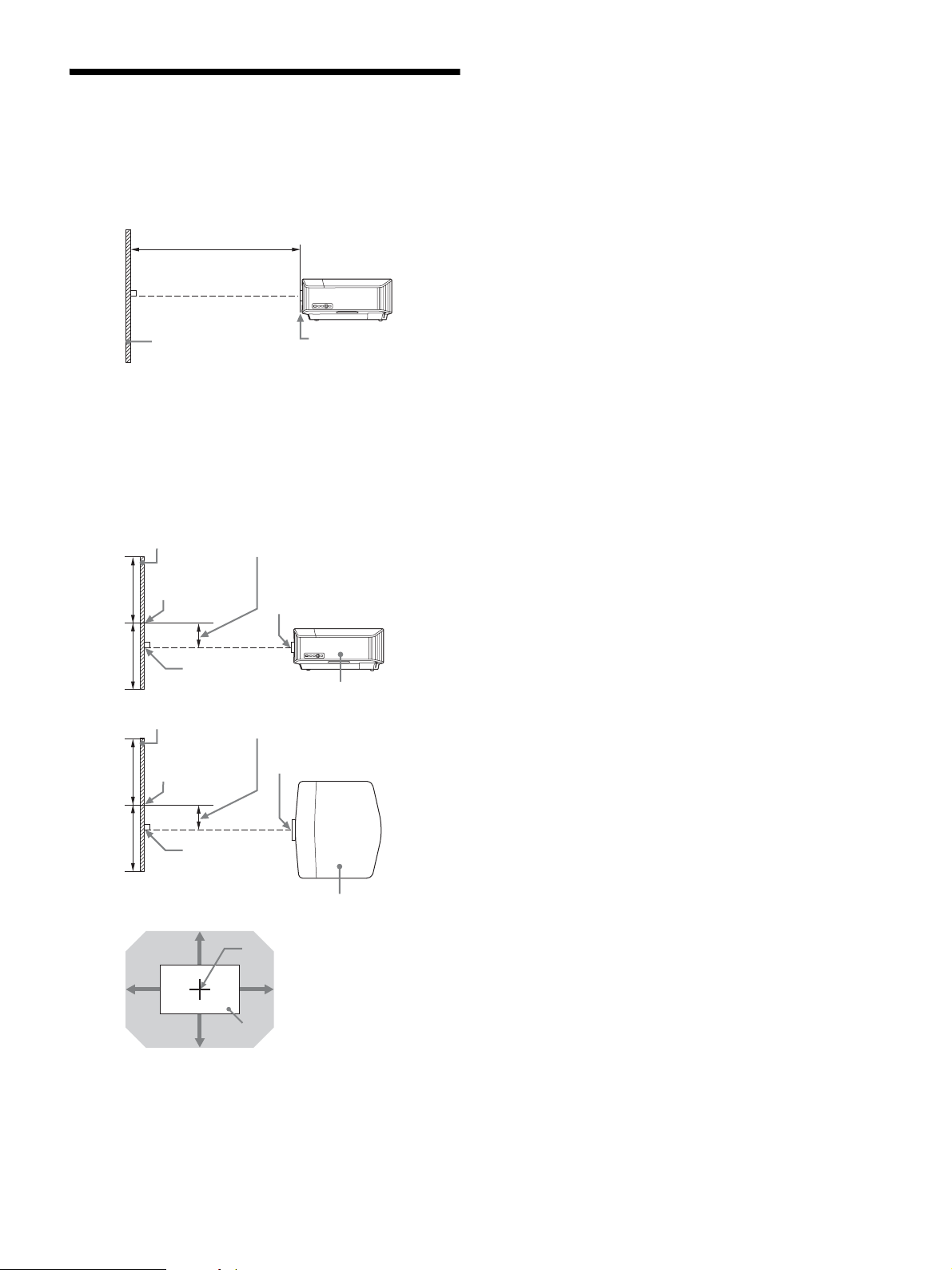
48
Projection Distance and
Lens Shift Range
The projection distance refers to the distance between the
front of the lens and the projected surface.
The lens shift range represents the distance in percent (%)
by which the lens can be shifted from the center of the
projected image. The lens shift range is regarded as 0%
when the point A in the illustration (point where a line
drawn from the center of the lens and the projected image
cross at right angles) is aligned with the center of the
projected image and full width or full height of the
projected image is regarded as 100%.
VS +:Vertical lens shift range (up) [%]
VS –:Vertical lens shift range (down) [%]
HS +:Horizontal lens shift range (right) [%]
HS –:Horizontal lens shift range (left) [%]
Projection distance L
Projected image
Front of the lens
Lens shift range
Projected image
Center of the lens
50%
50%
Center of the
projected image
Side of the unit
A
Lens shift range
Projected image
Center of the lens
50%
50%
Center of the
projected image
Top of the unit
A
Center of the lens
Projected image
VS +
VS –
HS – HS +
Shaded region: Lens shift range
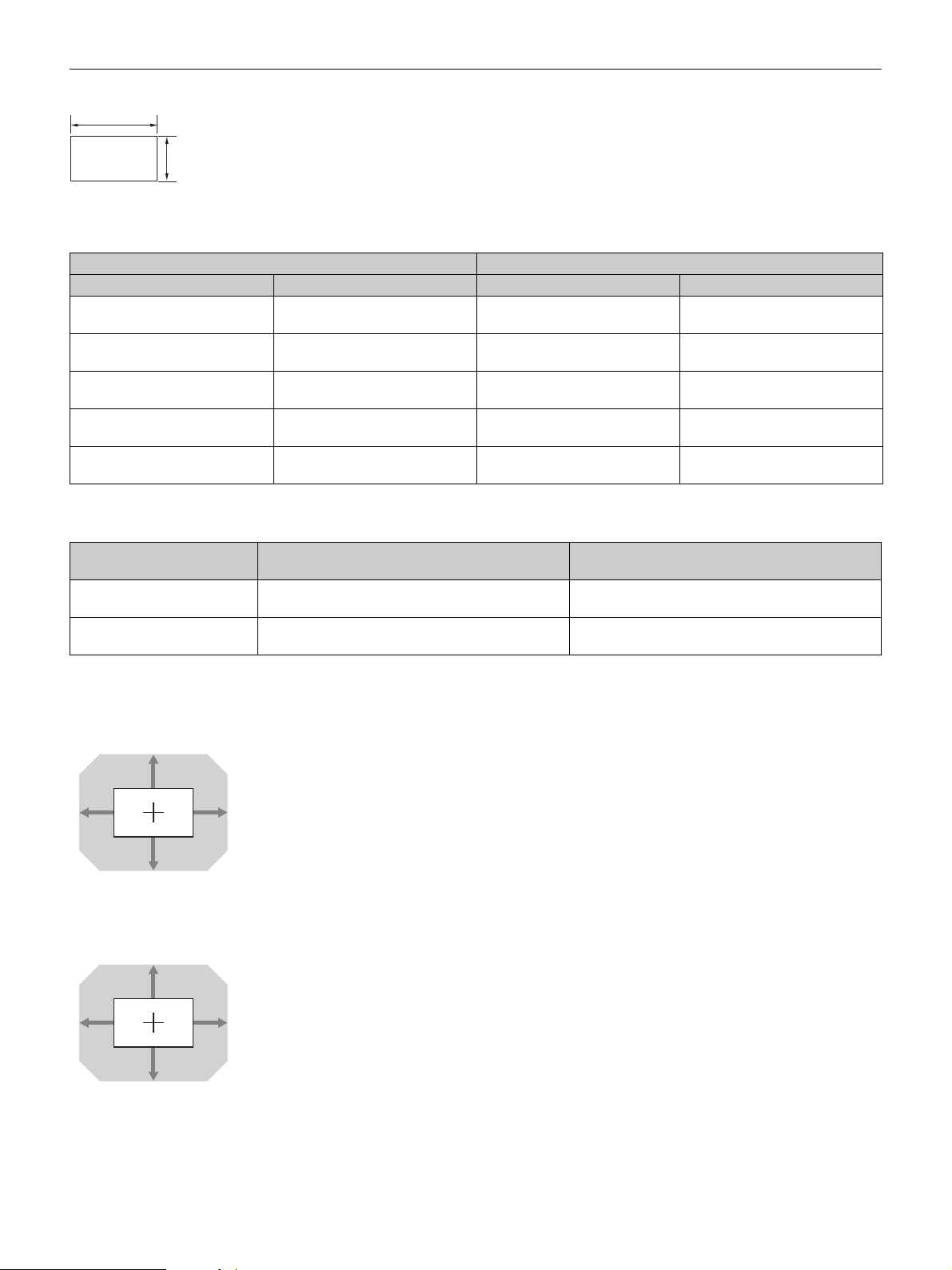
49
When projecting in 1.90:1 (Native Full Display 17:9) format
Projection distance
Unit: m (inches)
Projection distance formula
D: Projected image size (Diagonal) Unit: m (inches)
Lens shift range
VPLL-Z7008 (optional lens)
VPLL-Z7013 (standard lens)
Projection image size Projection distance L
Diagonal Width × Height VPLL-Z7008 VPLL-Z7013
80" (2.03 m) 1.80 × 0.95 (71 × 37) 1.43 – 1.82
(56 – 71)
2.23 – 4.90
(88 – 192)
100" (2.54 m) 2.25 × 1.18 (88 × 47) 1.80 – 2.29
(71 – 90)
2.81 – 6.14
(111 – 241)
120" (3.05 m) 2.70 × 1.42 (106 × 56) 2.17 – 2.76
(86 – 108)
3.39 – 7.38
(134 – 290)
150" (3.81 m) 3.37 × 1.78 (133 × 70) 2.74 – 3.47
(108 – 136)
4.25 – 9.25
(168 – 364)
200" (5.08 m) 4.49 × 2.37 (177 × 93) 3.67 – 4.65
(145 – 183)
5.70 – 12.36
(225 – 486)
Lens
Projection distance L
(minimal length)
Projection distance L
(maximal length)
VPLL-Z7008 (optional lens) L = 0.018689 × D – 0.0733
(L = 0.735786 × D – 2.8875)
L = 0.023617 × D – 0.0664
(L = 0.929788 × D – 2.6152)
VPLL-Z7013 (standard lens) L = 0.028860 × D – 0.0800
(L = 1.136218 × D – 3.1491)
L = 0.062212 × D – 0.0756
(L = 2.449310 × D – 2.9775)
1.90
1
50%
50%
18% 18%
VS + = VS – = 50 – 2.778 × (HS + or HS –) [%]
HS + = HS – = 18 – 0.360 × (VS + or VS –) [%]
80%
80%
31% 31%
VS + = VS – = 80 – 2.581 × (HS + or HS –) [%]
HS + = HS – = 31 – 0.388 × (VS + or VS –) [%]
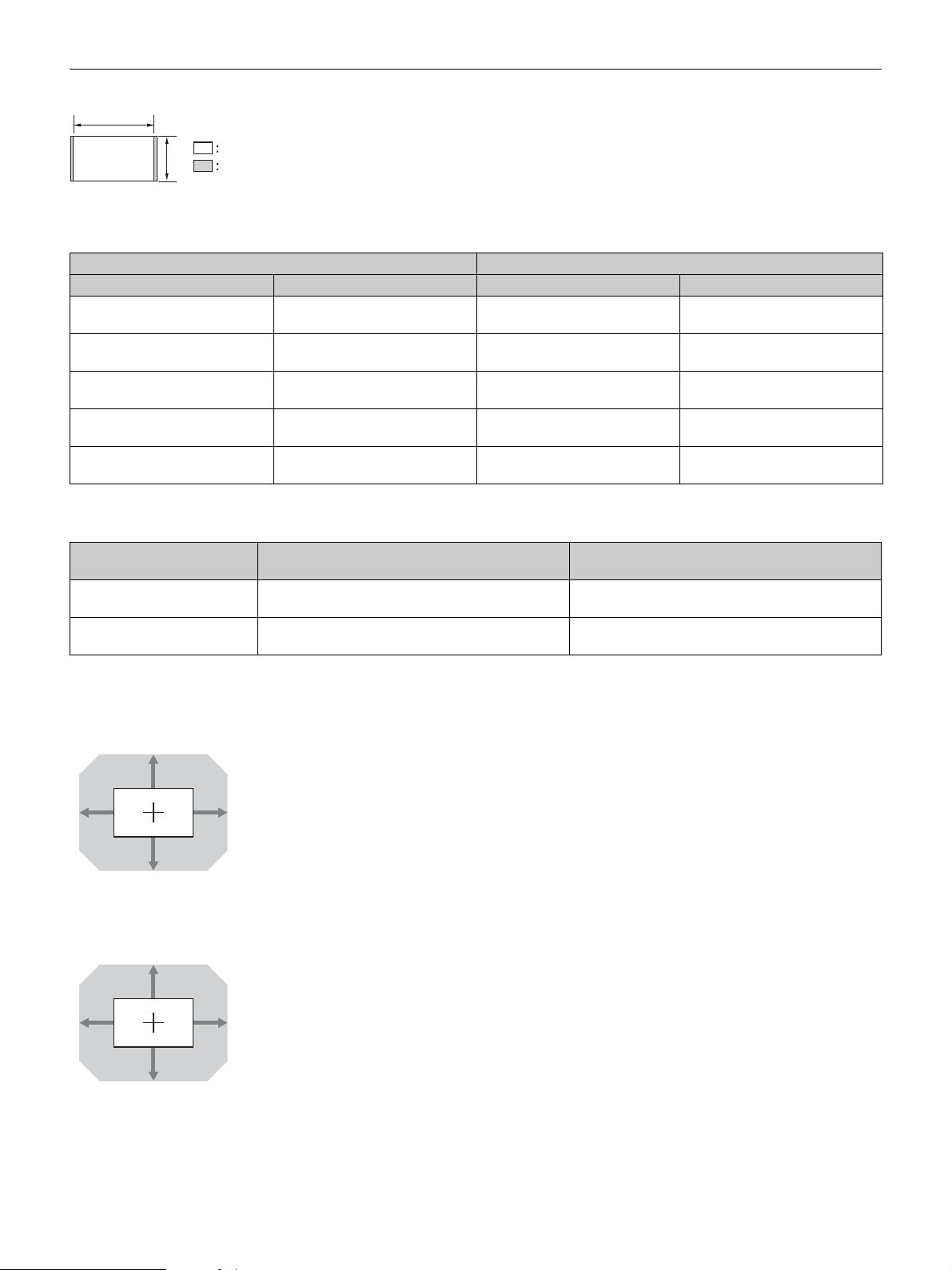
50
When projecting in 1.78:1 (16:9) format
Projection distance
Unit: m (inches)
Projection distance formula
D: Projected image size (Diagonal) Unit: m (inches)
Lens shift range
VPLL-Z7008 (optional lens)
VPLL-Z7013 (standard lens)
1.78
1
Video display area
Projection area
Projection image size Projection distance L
Diagonal Width × Height VPLL-Z7008 VPLL-Z7013
80" (2.03 m) 1.77 × 1.00 (70 × 39) 1.50 – 1.91
(59 – 75)
2.35 – 5.15
(93 – 202)
100" (2.54 m) 2.21 × 1.25 (87 × 49) 1.90 – 2.41
(75 – 95)
2.96 – 6.46
(117 – 254)
120" (3.05 m) 2.66 × 1.49 (105 × 59) 2.29 – 2.91
(90 – 114)
3.56 – 7.77
(141 – 305)
150" (3.81 m) 3.32 × 1.87 (131 × 74) 2.88 – 3.65
(114 – 143)
4.47 – 9.73
(176 – 383)
200" (5.08 m) 4.43 × 2.49 (174 × 98) 3.86 – 4.89
(152 – 192)
5.99 – 13.00
(236 – 511)
Lens
Projection distance L
(minimal length)
Projection distance L
(maximal length)
VPLL-Z7008 (optional lens) L = 0.019643 × D – 0.0733
(L = 0.773332 × D – 2.8875)
L = 0.024822 × D – 0.0664
(L = 0.977234 × D – 2.6152)
VPLL-Z7013 (standard lens) L = 0.030333 × D – 0.0800
(L = 1.194198 × D – 3.1491)
L = 0.065387 × D – 0.0756
(L = 2.574296 × D – 2.9775)
50%
50%
19% 19%
VS + = VS – = 50 – 2.632 × (HS + or HS –) [%]
HS + = HS – = 19 – 0.380 × (VS + or VS –) [%]
80%
80%
33% 33%
VS + = VS – = 80 – 2.424 × (HS + or HS –) [%]
HS + = HS – = 33 – 0.413 × (VS + or VS –) [%]
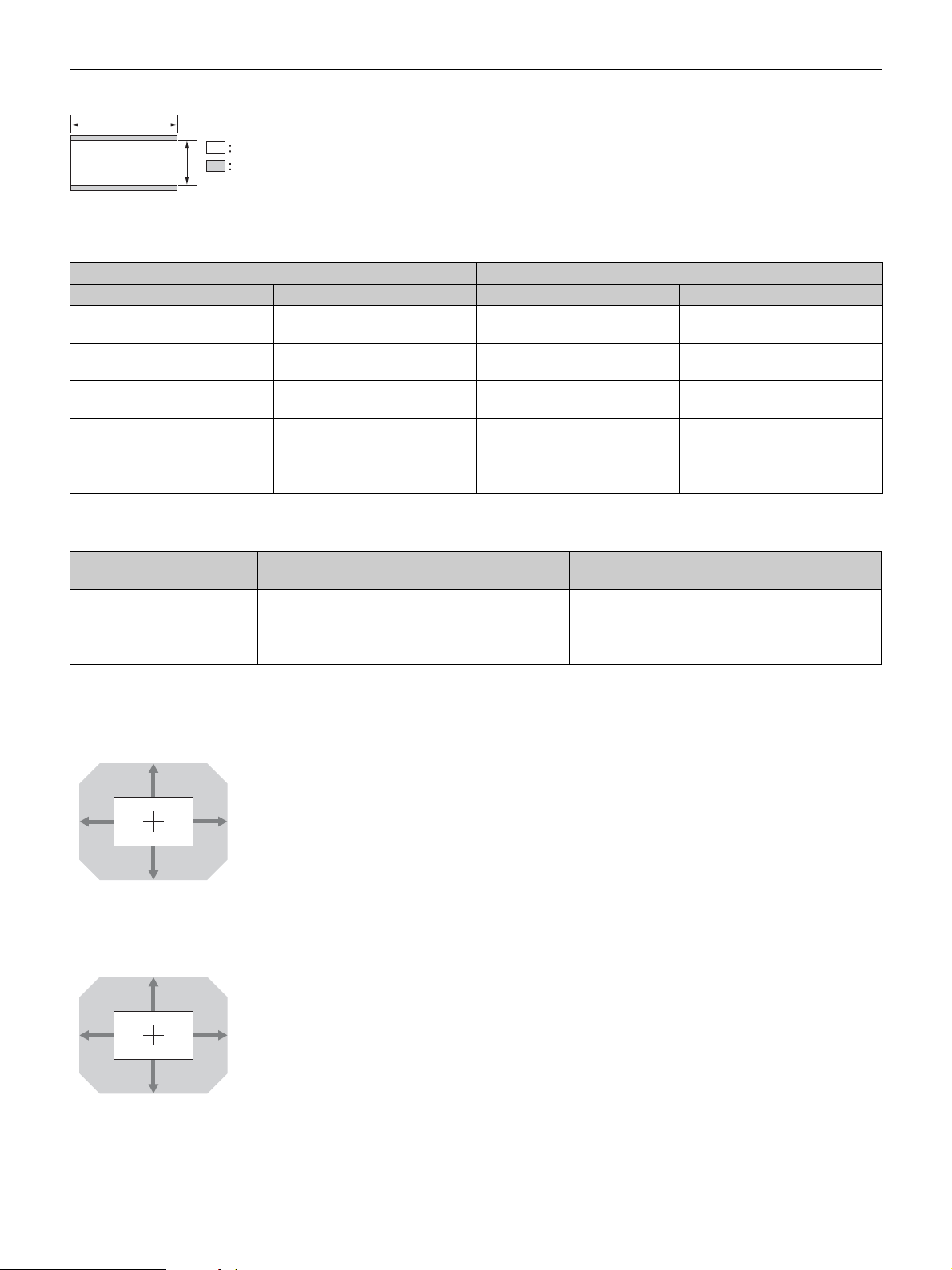
51
When projecting in 2.35:1 format
Projection distance
Unit: m (inches)
Projection distance formula
D: Projected image size (Diagonal) Unit: m (inches)
Lens shift range
VPLL-Z7008 (optional lens)
VPLL-Z7013 (standard lens)
Projection image size Projection distance L
Diagonal Width × Height VPLL-Z7008 VPLL-Z7013
80" (2.03 m) 1.87 × 0.80 (74 × 31) 1.49 – 1.89
(59 – 74)
2.33 – 5.10
(92 – 200)
100" (2.54 m) 2.34 × 0.99 (92 × 39) 1.88 – 2.39
(74 – 94)
2.93 – 6.39
(116 – 251)
120" (3.05 m) 2.80 × 1.19 (110 × 47) 2.26 – 2.88
(89 – 113)
3.53 – 7.69
(139 – 302)
150" (3.81 m) 3.51 × 1.49 (138 × 59) 2.85 – 3.61
(112 – 142)
4.43 – 9.63
(175 – 379)
200" (5.08 m) 4.67 × 1.99 (184 × 78) 3.82 – 4.84
(151 – 190)
5.93 – 12.86
(234 – 506)
Lens
Projection distance L
(minimal length)
Projection distance L
(maximal length)
VPLL-Z7008 (optional lens) L = 0.019441 × D – 0.0733
(L = 0.765407 × D – 2.8875)
L = 0.024567 × D – 0.0664
(L = 0.967219 × D – 2.6152)
VPLL-Z7013 (standard lens) L = 0.030024 × D – 0.0800
(L = 1.182064 × D – 3.1491)
L = 0.064723 × D – 0.0756
(L = 2.548138 × D – 2.9775)
2.35
1
Video display area
Projection area
62%
62%
18%
18%
VS + = VS – = 62 – 3.444 × (HS + or HS –) [%]
HS + = HS – = 18 – 0.290 × (VS + or VS –) [%]
100%
100%
31%
31%
VS + = VS – = 100 – 3.226 × (HS + or HS –) [%]
HS + = HS – = 31 – 0.310 × (VS + or VS –) [%]
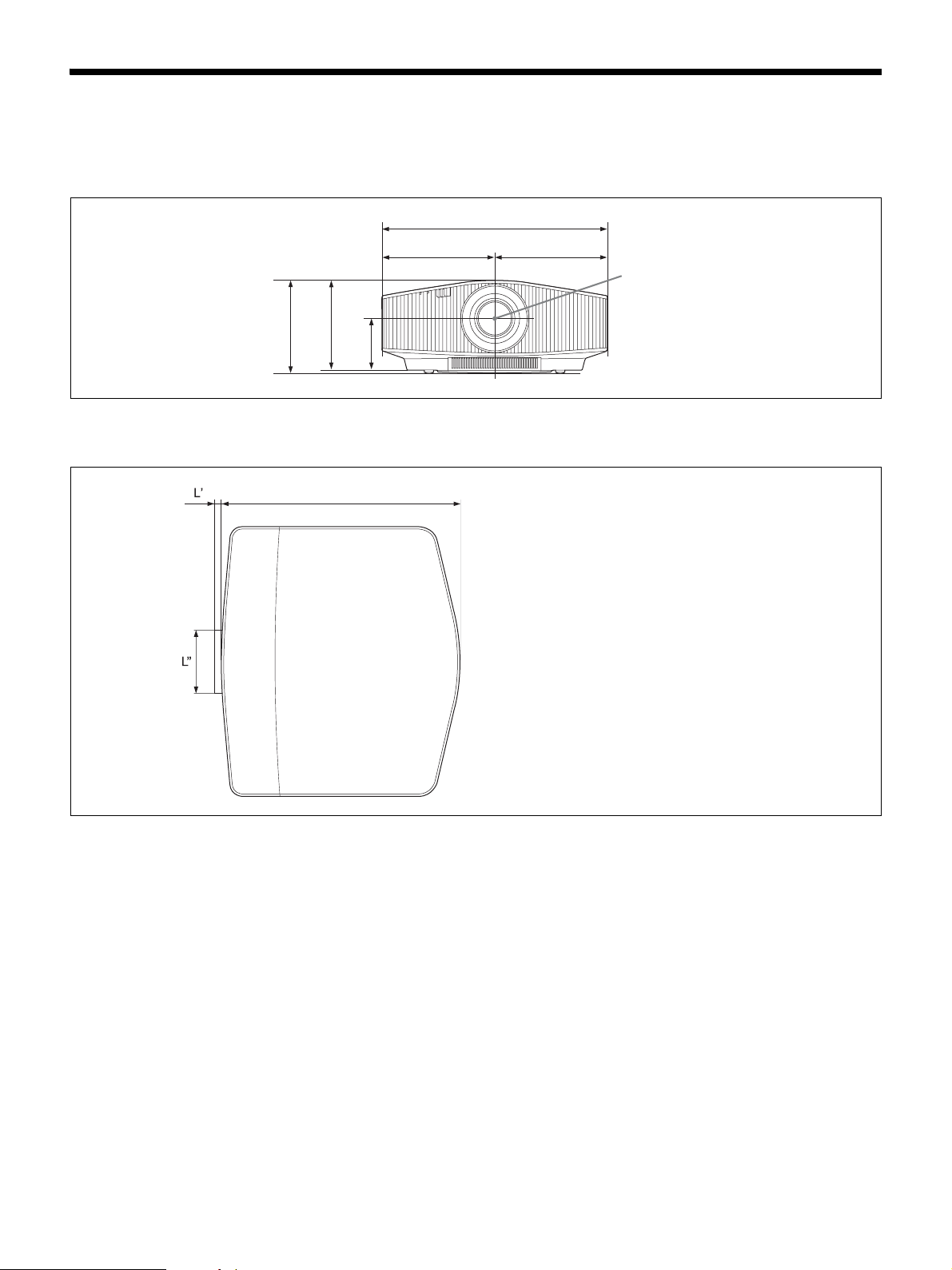
52
Dimensions
Front
Unit: mm (inches)
Top
Unit: mm (inches)
223 (8
25
/
32
)
230 (9
1
/
16
)
128 (5
1
/
32
)
560 (22
1
/
16
)
280 (11
1
/
32
) 280 (11
1
/
32
)
Center of the lens
496 (19
17
/
32
)
L’: The distance between the front of the lens (center) and
the front of the cabinet
VPLL-Z7008 (optional lens): 43.4 mm (1
23
/
32
inches)
(Tele) to 69.5 mm (2
3
/
4
inches) (Wide)
VPLL-Z7013 (standard lens): 9.2 mm (
3
/
8
inches)
L’’: 131 (5
5
/
32
) (VPLL-Z7013 (standard lens))
134 (5
9
/
32
) (VPLL-Z7008 (optional lens))
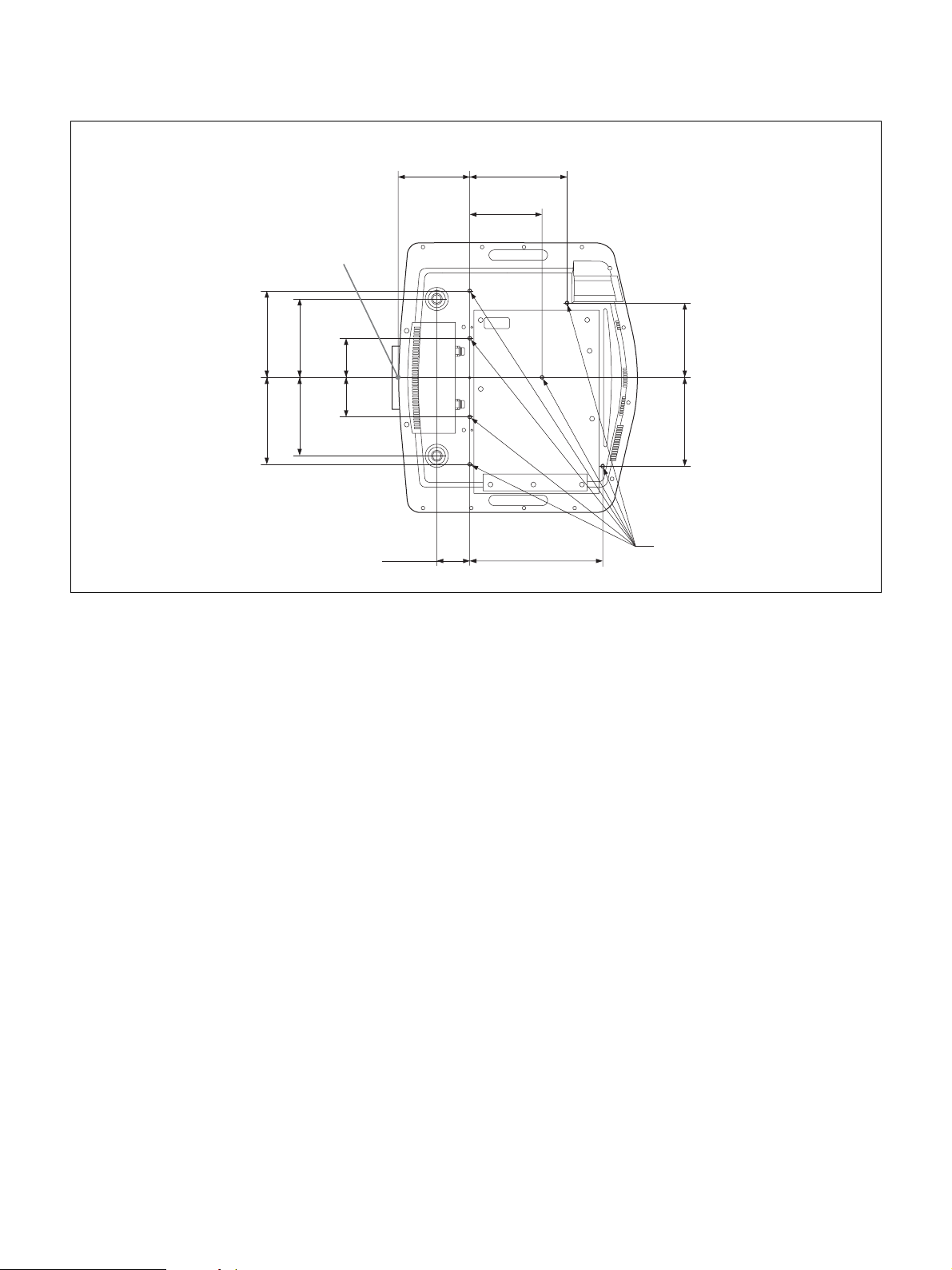
53
Bottom
Unit: mm (inches)
180 (7
3
/
32
)
Front of the cabinet
147.7
(5
13
/
16
)
202.2
(7
31
/
32
)
150.6
(5
15
/
16
)
180 (7
3
/
32
)
163 (6
13
/
32
)163 (6
13
/
32
)
81.5
(3
7
/
32
)
81.5
(3
7
/
32
)
155
(6
3
/
32
)
184
(7
1
/
4
)
68
(2
11
/
16
)
276.5 (10
7
/
8
)
Holes for the ceiling mount
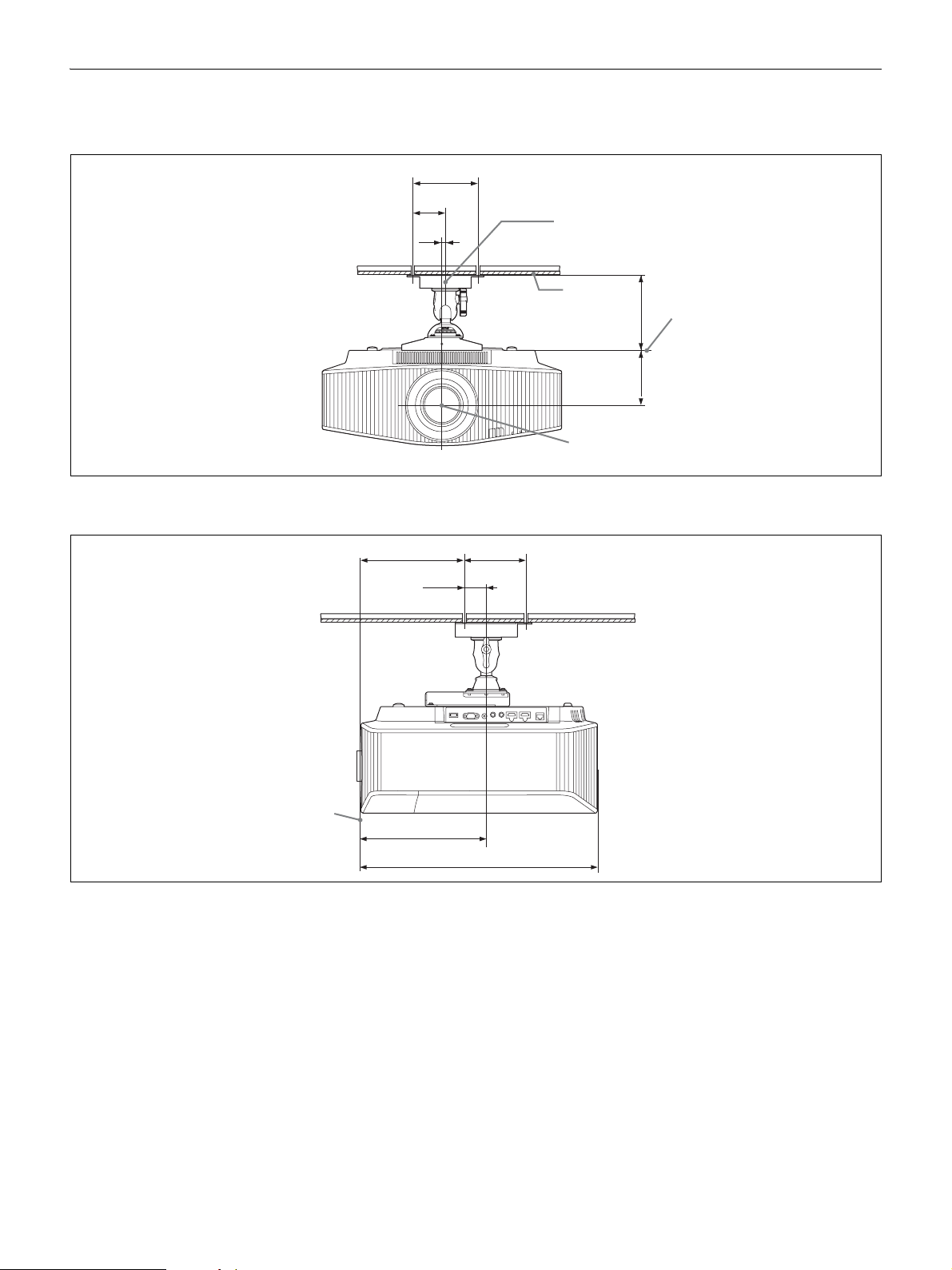
54
Attaching the PSS-H10 projector suspension support
Front view
Unit: mm (inches)
Side view
Unit: mm (inches)
150 (5
29
/
32
)
75
(2
15
/
16
)
8
(
5
/
16
)
Ceiling
The bottom
surface of the
mount bracket
Center of the lens
175 (6
7
/
8
)128 (5
1
/
32
)
Center of the supporting pole
Front of the cabinet
496 (19
17
/
32
)
263.3 (10
3
/
8
)
218.3 (8
19
/
32
) 130 (5
1
/
8
)
45 (1
25
/
32
)
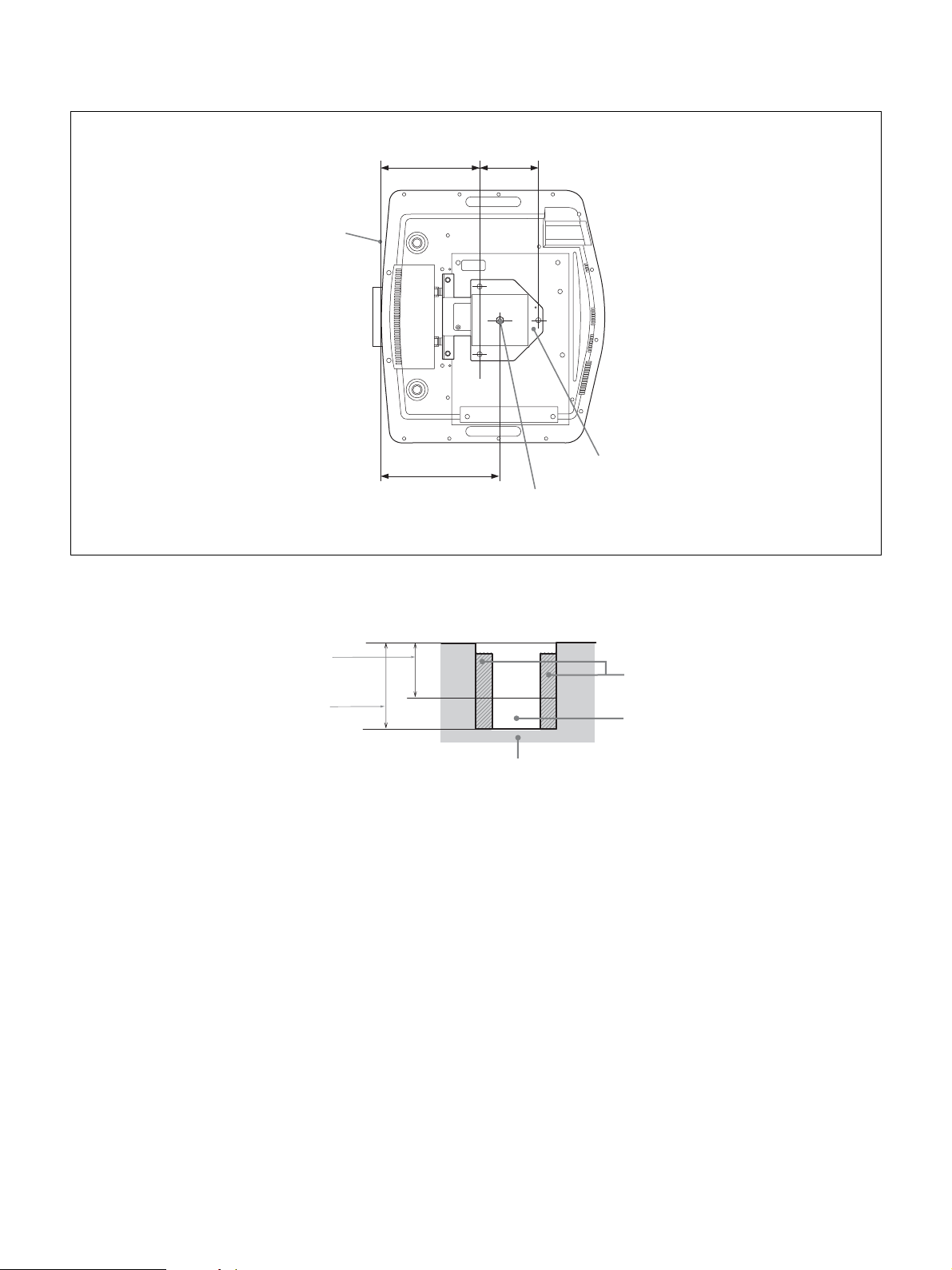
55
Top view
Unit: mm (inches)
Holes for the ceiling mount
Use the screws with a length of 5.3 mm (
7
/
32
inches, minimum) to 7.0 mm (
9
/
32
inches, maximum) for the ceiling mount.
Recommended tightening torque (tension when turning a screw towards the direction of rotation): 1.4 ± 0.2 N-m
218.3
(8
19
/
32
)
263.3 (10
3
/
8
)
Upper ceiling mount bracket
Front of the cabinet
130
(5
1
/
8
)
Center of the supporting pole (The
center of the supporting pole is
different from that of the unit.)
Unit
Insert nut (M5)
Screw hole
The maximum
length of screw
The minimum
length of screw

56
NOTICES AND LICENCES FOR SOFTWARE USED IN
THIS PRODUCT
GPL/LGPL LICENSED SOFTWARE
The following GPL executables and LGPL libraries
are used in this product and are subject to the GPL/
LGPL License Agreements included as part of this
documentation:
Package list:
linux-kernel
alsa-lib
busybox
crypto
directfb
dosfstools
e2fsprogs
exceptionmonitor
fuse
gdisk
glib
glibc
iptables
libmicrohttpd
libnuma (in numactl)
procps
pump-autoip
XZ utils
Source code for these executables and libraries, as
well as other executables and libraries, can be
obtained using the following link:
http://oss.sony.net/Products/Linux/
===============================
GNU GENERAL PUBLIC LICENSE
Version 2, June 1991
Copyright (C) 1989, 1991 Free Software
Foundation, Inc., 51 Franklin Street, Fifth Floor,
Boston, MA 02110-1301, USA. Everyone is
permitted to copy and distribute verbatim copies of
this license document, but changing it is not allowed.
Preamble
The licenses for most software are designed to take
away your freedom to share and change it. By
contrast, the GNU General Public License is
intended to guarantee your freedom to share and
change free software--to make sure the software is
free for all its users. This General Public License
applies to most of the Free Software Foundation’s
software and to any other program whose authors
commit to using it. (Some other Free Software
Foundation software is covered by the GNU Library
General Public License instead.) You can apply it to
your programs, too.
When we speak of free software, we are referring to
freedom, not price. Our General Public Licenses are
designed to make sure that you have the freedom to
distribute copies of free software (and charge for this
service if you wish), that you receive source code or
can get it if you want it, that you can change the
software or use pieces of it in new free programs;
and that you know you can do these things.
To protect your rights, we need to make restrictions
that forbid anyone to deny you these rights or to ask
you to surrender the rights. These restrictions
translate to certain responsibilities for you if you
distribute copies of the software, or if you modify it.
For example, if you distribute copies of such a
program, whether gratis or for a fee, you must give
the recipients all the rights that you have. You must
make sure that they, too, receive or can get the source
code. And you must show them these terms so they
know their rights.
We protect your rights with two steps: (1) copyright
the software, and (2) offer you this license which
gives you legal permission to copy, distribute and/or
modify the software.
Also, for each author’s protection and ours, we want
to make certain that everyone understands that there
is no warranty for this free software. If the software
is modified by someone else and passed on, we want
its recipients to know that what they have is not the
original, so that any problems introduced by others
will not reflect on the original authors’ reputations.
Finally, any free program is threatened constantly by
software patents. We wish to avoid the danger that
redistributors of a free program will individually
obtain patent licenses, in effect making the program
proprietary. To prevent this, we have made it clear
that any patent must be licensed for everyone’s free
use or not licensed at all.
The precise terms and conditions for copying,
distribution and modification follow.
GNU GENERAL PUBLIC LICENSE
TERMS AND CONDITIONS FOR
COPYING, DISTRIBUTION AND
MODIFICATION
0. This License applies to any program or other work
which contains a notice placed by the copyright
holder saying it may be distributed under the terms
of this General Public License. The “Program”,
below, refers to any such program or work, and a
“work based on the Program” means either the
Program or any derivative work under copyright law:
that is to say, a work containing the Program or a
portion of it, either verbatim or with modifications
and/or translated into another language.
(Hereinafter, translation is included without
limitation in the term “modification”.) Each licensee
is addressed as “you”.
Activities other than copying, distribution and
modification are not covered by this License; they
are outside its scope. The act of running the Program
is not restricted, and the output from the Program is
covered only if its contents constitute a work based
on the Program (independent of having been made
by running the Program). Whether that is true
depends on what the Program does.
1. You may copy and distribute verbatim copies of
the Program’s source code as you receive it, in any
medium, provided that you conspicuously and
appropriately publish on each copy an appropriate
copyright notice and disclaimer of warranty; keep
intact all the notices that refer to this License and to
the absence of any warranty; and give any other
recipients of the Program a copy of this License
along with the Program.
You may charge a fee for the physical act of
transferring a copy, and you may at your option offer
warranty protection in exchange for a fee.
2. You may modify your copy or copies of the
Program or any portion of it, thus forming a work
based on the Program, and copy and distribute such
modifications or work under the terms of Section 1
above, provided that you also meet all of these
conditions:
a) You must cause the modified files to carry
prominent notices stating that you changed the files
and the date of any change.
b) You must cause any work that you distribute or
publish, that in whole or in part contains or is derived
from the Program or any part thereof, to be licensed
as a whole at no charge to all third parties under the
terms of this License.
c) If the modified program normally reads
commands interactively when run, you must cause
it, when started running for such interactive use in
the most ordinary way, to print or display an
announcement including an appropriate copyright
notice and a notice that there is no warranty (or else,
saying that you provide a warranty) and that users
may redistribute the program under these conditions,
and telling the user how to view a copy of this
License. (Exception: if the Program itself is
interactive but does not normally print such an
announcement, your work based on the Program is
not required to print an announcement.)
These requirements apply to the modified work as a
whole. If identifiable sections of that work are not
derived from the Program, and can be reasonably
considered independent and separate works in
themselves, then this License, and its terms, do not
apply to those sections when you distribute them as
separate works. But when you distribute the same
sections as part of a whole which is a work based on
the Program, the distribution of the whole must be on
the terms of this License, whose permissions for
other licensees extend to the entire whole, and thus
to each and every part regardless of who wrote it.
Thus, it is not the intent of this section to claim rights
or contest your rights to work written entirely by
you; rather, the intent is to exercise the right to
control the distribution of derivative or collective
works based on the Program.
In addition, mere aggregation of another work not
based on the Program with the Program (or with a
work based on the Program) on a volume of a storage
or distribution medium does not bring the other work
under the scope of this License.
3. You may copy and distribute the Program (or a
work based on it, under Section 2) in object code or
executable form under the terms of Sections 1 and 2
above provided that you also do one of the
following:
a) Accompany it with the complete corresponding
machine-readable source code, which must be
distributed under the terms of Sections 1 and 2 above
on a medium customarily used for software
interchange; or,
b) Accompany it with a written offer, valid for at
least three years, to give any third party, for a charge
no more than your cost of physically performing
source distribution, a complete machine-readable
copy of the corresponding source code, to be
distributed under the terms of Sections 1 and 2 above
on a medium customarily used for software
interchange; or,
c) Accompany it with the information you received
as to the offer to distribute corresponding source
code. (This alternative is allowed only for
noncommercial distribution and only if you received
the program in object code or executable form with
such an offer, in accord with Subsection b above.)
The source code for a work means the preferred form
of the work for making modifications to it. For an
executable work, complete source code means all the
source code for all modules it contains, plus any

57
associated interface definition files, plus the scripts
used to control compilation and installation of the
executable. However, as a special exception, the
source code distributed need not include anything
that is normally distributed (in either source or
binary form) with the major components (compiler,
kernel, and so on) of the operating system on which
the executable
runs, unless that component itself accompanies the
executable.
If distribution of executable or object code is made
by offering access to copy from a designated place,
then offering equivalent access to copy the source
code from the same place counts as distribution of
the source code, even though third parties are not
compelled to copy the source along with the object
code.
4. You may not copy, modify, sublicense, or
distribute the Program except as expressly provided
under this License. Any attempt otherwise to copy,
modify, sublicense or distribute the Program is void,
and will automatically terminate your rights under
this License.
However, parties who have received copies, or
rights, from you under this License will not have
their licenses terminated so long as such parties
remain in full compliance.
5. You are not required to accept this License, since
you have not signed it. However, nothing else grants
you permission to modify or distribute the Program
or its derivative works. These actions are prohibited
by law if you do not accept this License. Therefore,
by modifying or distributing the Program (or any
work based on the Program), you indicate your
acceptance of this License to do so, and all its terms
and conditions for copying, distributing or
modifying the Program or works based on it.
6. Each time you redistribute the Program (or any
work based on the Program), the recipient
automatically receives a license from the original
licensor to copy, distribute or modify the Program
subject to these terms and conditions. You may not
impose any further restrictions on the recipients’
exercise of the rights granted herein. You are not
responsible for enforcing compliance by third
parties to this License.
7. If, as a consequence of a court judgment or
allegation of patent infringement or for any other
reason (not limited to patent issues), conditions are
imposed on you (whether by court order, agreement
or otherwise) that contradict the conditions of this
License, they do not excuse you from the conditions
of this License. If you cannot distribute so as to
satisfy simultaneously your obligations under this
License and any other pertinent obligations, then as
a consequence you may not distribute the Program at
all. For example, if a patent license would not permit
royalty-free redistribution of the Program by all
those who receive copies directly or indirectly
through you, then the only way you could satisfy
both it and this License would be to refrain entirely
from distribution of the Program.
If any portion of this section is held invalid or
unenforceable under any particular circumstance,
the balance of the section is intended to apply and
the section as a whole is intended to apply in other
circumstances. It is not the purpose of this section to
induce you to infringe any patents or other property
right claims or to contest validity of any such claims;
this section has the sole purpose of protecting the
integrity of the free software distribution system,
which is implemented by public license practices.
Many people have made generous contributions to
the wide range of software distributed through that
system in reliance on consistent application of that
system; it is up to the author/donor to decide if he or
she is willing to distribute software through any
other system and a licensee cannot impose that
choice.
This section is intended to make thoroughly clear
what is believed to be a consequence of the rest of
this License.
8. If the distribution and/or use of the Program is
restricted in certain countries either by patents or by
copyrighted interfaces, the original copyright holder
who places the Program under this License may add
an explicit geographical distribution limitation
excluding those countries, so that distribution is
permitted only in or among countries not thus
excluded. In such case, this License incorporates the
limitation as if written in the body of this License.
9. The Free Software Foundation may publish
revised and/or new versions of the General Public
License from time to time. Such new versions will be
similar in spirit to the present version, but may differ
in detail to address new problems or concerns.
Each version is given a distinguishing version
number.
If the Program specifies a version number of this
License which applies to it and “any later version”,
you have the option of following the terms and
conditions either of that version or of any later
version published by the Free Software Foundation.
If the Program does not specify a version number of
this License, you may choose any version ever
published by the Free Software Foundation.
10. If you wish to incorporate parts of the Program
into other free programs whose distribution
conditions are different, write to the author to ask for
permission. For software which is copyrighted by
the Free Software Foundation, write to the Free
Software Foundation; we sometimes make
exceptions for this. Our decision will be guided by
the two goals of preserving the free status of all
derivatives of our free software and of promoting the
sharing and reuse of software generally.
NO WARRANTY
BECAUSE THE PROGRAM IS LICENSED FREE
OF CHARGE, THERE IS NO WARRANTY FOR
THE PROGRAM, TO THE EXTENT PERMITTED
BY APPLICABLE LAW. EXCEPT WHEN
OTHERWISE STATED IN WRITING THE
COPYRIGHT HOLDERS AND/OR OTHER
PARTIES PROVIDE THE PROGRAM “AS IS”
WITHOUT WARRANTY OF ANY KIND,
EITHER EXPRESSED OR IMPLIED,
INCLUDING, BUT NOT LIMITED TO, THE
IMPLIED WARRANTIES OF
MERCHANTABILITY AND FITNESS FOR A
PARTICULAR PURPOSE. THE ENTIRE RISK AS
TO THE QUALITY AND PERFORMANCE OF
THE PROGRAM IS WITH YOU.
SHOULD THE PROGRAM PROVE DEFECTIVE,
YOU ASSUME THE COST OF ALL NECESSARY
SERVICING, REPAIR OR CORRECTION.
IN NO EVENT UNLESS REQUIRED BY
APPLICABLE LAW OR AGREED TO IN
WRITING WILL ANY COPYRIGHT HOLDER,
OR ANY OTHER PARTY WHO MAY MODIFY
AND/OR REDISTRIBUTE THE PROGRAM AS
PERMITTED ABOVE, BE LIABLE TO YOU FOR
DAMAGES, INCLUDING ANY GENERAL,
SPECIAL, INCIDENTAL OR CONSEQUENTIAL
DAMAGES ARISING OUT OF THE USE OR
INABILITY TO USE THE PROGRAM
(INCLUDING BUT NOT LIMITED TO LOSS OF
DATA OR DATA BEING RENDERED
INACCURATE OR LOSSES SUSTAINED BY
YOU OR THIRD PARTIES OR A FAILURE OF
THE PROGRAM TO OPERATE WITH ANY
OTHER PROGRAMS), EVEN IF SUCH HOLDER
OR OTHER PARTY HAS BEEN ADVISED OF
THE POSSIBILITY OF SUCH DAMAGES.
END OF TERMS AND CONDITIONS
How to Apply These Terms to Your New
Programs
If you develop a new program, and you want it to be
of the greatest possible use to the public, the best
way to achieve this is to make it free software which
everyone can redistribute and change under these
terms.
To do so, attach the following notices to the program.
It is safest to attach them to the start of each source
file to most effectively convey the exclusion of
warranty; and each file should have at least the
“copyright” line and a pointer to where the full
notice is found.
<one line to give the program’s name and a brief idea
of what it does.> Copyright (C) <year> <name of
author>
This program is free software; you can redistribute it
and/or modify it under the terms of the GNU General
Public License as published by the Free Software
Foundation; either version 2 of the License, or (at
your option) any later version.
This program is distributed in the hope that it will be
useful, but WITHOUT ANY WARRANTY; without
even the implied warranty of
MERCHANTABILITY or FITNESS FOR A
PARTICULAR PURPOSE. See the GNU General
Public License for more details.
You should have received a copy of the GNU
General Public License along with this program; if
not, write to the Free Software Foundation, Inc., 51
Franklin Street, Fifth Floor, Boston, MA 02110-
1301, USA.
Also add information on how to contact you by
electronic and paper mail.
If the program is interactive, make it output a short
notice like this when it starts in an interactive mode:
Gnomovision version 69, Copyright (C) year name
of author Gnomovision comes with ABSOLUTELY
NO WARRANTY; for details type ‘show w’.
This is free software, and you are welcome to
redistribute it under certain conditions; type ‘show c’
for details.
The hypothetical commands ‘show w’ and ‘show c’
should show the appropriate parts of the General
Public License. Of course, the commands you use
may be called something other than ‘show w’ and
‘show c’; they could even be mouse-clicks or menu
items--whatever suits your program.
You should also get your employer (if you work as a
programmer) or your school, if any, to sign a
“copyright disclaimer” for the program, if necessary.
Here is a sample; alter the names:
Yoyodyne, Inc., hereby disclaims all copyright
interest in the program ‘Gnomovision’ (which
makes passes at compilers) written by James Hacker.
<signature of Ty Coon>, 1 April 1989
Ty Coon, President of Vice
This General Public License does not permit
incorporating your program into proprietary
programs.
If your program is a subroutine library, you may
consider it more useful to permit linking proprietary
applications with the library. If this is what you want
to do, use the GNU Library General Public License
instead of this License.
===============================
GNU LESSER GENERAL PUBLIC
LICENSE
Version 2.1, February 1999
Copyright (C) 1991, 1999 Free Software
Foundation, Inc. 51 Franklin Street, Fifth Floor,
Boston, MA 02110-1301, USA. Everyone is
permitted to copy and distribute verbatim copies of
this license document, but changing it is not allowed.

58
[This is the first released version of the Lesser GPL.
It also counts as the successor of the GNU Library
Public License, version 2, hence the version number
2.1.]
Preamble
The licenses for most software are designed to take
away your freedom to share and change it. By
contrast, the GNU General Public Licenses are
intended to guarantee your freedom to share and
change free software-to make sure the software is
free for all its users.
This license, the Lesser General Public License,
applies to some specially designated software
packagestypically libraries--of the Free Software
Foundation and other authors who decide to use it.
You can use it too, but we suggest you first think
carefully about whether this license or the ordinary
General Public License is the better strategy to use in
any particular case, based on the explanations below.
When we speak of free software, we are referring to
freedom of use, not price. Our General Public
Licenses are designed to make sure that you have the
freedom to distribute copies of free software (and
charge for this service if you wish); that you receive
source code or can get it if you want it; that you can
change the software and use pieces of it in new free
programs; and that you are informed that you can do
these things.
To protect your rights, we need to make restrictions
that forbid distributors to deny you these rights or to
ask you to surrender these rights. These restrictions
translate to certain responsibilities for you if you
distribute copies of the library or if you modify it.
For example, if you distribute copies of the library,
whether gratis or for a fee, you must give the
recipients all the rights that we gave you. You must
make sure that they, too, receive or can get the source
code. If you link other code with the library, you
must provide complete object files to the recipients,
so that they can relink them with the library after
making changes to the library and recompiling it.
And you must show them these terms so they know
their rights.
We protect your rights with a two-step method: (1)
we copyright the library, and (2) we offer you this
license, which gives you legal permission to copy,
distribute and/or modify the library.
To protect each distributor, we want to make it very
clear that there is no warranty for the free library.
Also, if the library is modified by someone else and
passed on, the recipients should know that what they
have is not the original version, so that the original
author’s reputation will not be affected by problems
that might be introduced by others.
Finally, software patents pose a constant threat to the
existence of any free program. We wish to make sure
that a company cannot effectively restrict the users
of a free program by obtaining a restrictive license
from a patent holder. Therefore, we insist that any
patent license obtained for a version of the library
must be consistent with the full freedom of use
specified in this license.
Most GNU software, including some libraries, is
covered by the ordinary GNU General Public
License. This license, the GNU Lesser General
Public License, applies to certain designated
libraries, and is quite different from the ordinary
General Public License. We use this license for
certain libraries in order to permit linking those
libraries into non-free programs.
When a program is linked with a library, whether
statically or using a shared library, the combination
of the two is legally speaking a combined work, a
derivative of the original library. The ordinary
General Public License therefore permits such
linking only if the entire combination fits its criteria
of freedom. The Lesser General Public License
permits more lax criteria for linking other code with
the library.
We call this license the “Lesser” General Public
License because it does Less to protect the user’s
freedom than the ordinary General Public License. It
also provides other free software developers Less of
an advantage over competing non-free programs.
These disadvantages are the reason we use the
ordinary General Public License for many libraries.
However, the Lesser license provides advantages in
certain special circumstances.
For example, on rare occasions, there may be a
special need to encourage the widest possible use of
a certain library, so that it becomes a de-facto
standard. To achieve this, non-free programs must be
allowed to use the library. A more frequent case is
that a free library does the same job as widely used
non-free libraries. In this case, there is little to gain
by limiting the free library to free software only, so
we use the Lesser General Public License.
In other cases, permission to use a particular library
in non-free programs enables a greater number of
people to use a large body of free software. For
example, permission to use the GNU C Library in
non-free programs enables many more people to use
the whole GNU operating system, as well as its
variant, the GNU/Linux operating system.
Although the Lesser General Public License is Less
protective of the users’ freedom, it does ensure that
the user of a program that is linked with the Library
has the freedom and the wherewithal to run that
program using a modified version of the Library.
The precise terms and conditions for copying,
distribution and modification follow. Pay close
attention to the difference between a “work based on
the library” and a “work that uses the library”. The
former contains code derived from the library,
whereas the latter must be combined with the library
in order to run.
GNU LESSER GENERAL PUBLIC
LICENSE TERMS AND CONDITIONS FOR
COPYING, DISTRIBUTION AND
MODIFICATION
0. This License Agreement applies to any software
library or other program which contains a notice
placed by the copyright holder or other authorized
party saying it may be distributed under the terms of
this Lesser General Public License (also called “this
License”). Each licensee is addressed as “you”.
A “library” means a collection of software functions
and/or data prepared so as to be conveniently linked
with application programs (which use some of those
functions and data) to form executables.
The “Library”, below, refers to any such software
library or work which has been distributed under
these terms.
A “work based on the Library” means either the
Library or any derivative work under copyright law:
that is to say, a work containing the Library or a
portion of it, either verbatim or with modifications
and/or translated straightforwardly into another
language. (Hereinafter, translation is included
without limitation in the term “modification”.)
“Source code” for a work means the preferred form
of the work for making modifications to it. For a
library, complete source code means all the source
code for all modules it contains, plus any associated
interface definition files, plus the scripts used to
control compilation and installation of the library.
Activities other than copying, distribution and
modification are not covered by this License; they
are outside its scope. The act of running a program
using the Library is not restricted, and output from
such a program is covered only if its contents
constitute a work based on the Library (independent
of the use of the Library in a tool for writing it).
Whether that is true depends on what the Library
does and what the program that uses the Library
does.
1. You may copy and distribute verbatim copies of
the Library’s complete source code as you receive it,
in any medium, provided that you conspicuously and
appropriately publish on each copy an appropriate
copyright notice and disclaimer of warranty; keep
intact all the notices that refer to this License and to
the absence of any warranty; and distribute a copy of
this License along with the Library.
You may charge a fee for the physical act of
transferring a copy, and you may at your option offer
warranty protection in exchange for a fee.
2. You may modify your copy or copies of the
Library or any portion of it, thus forming a work
based on the Library, and copy and distribute such
modifications or work under the terms of Section 1
above, provided that you also meet all of these
conditions:
a) The modified work must itself be a software
library.
b) You must cause the files modified to carry
prominent notices stating that you changed the files
and the date of any change.
c) You must cause the whole of the work to be
licensed at no charge to all third parties under the
terms of this License.
d) If a facility in the modified Library refers to a
function or a table of data to be supplied by an
application program that uses the facility, other than
as an argument passed when the facility is invoked,
then you must make a good faith effort to ensure that,
in the event an application does not supply such
function or table, the facility still operates, and
performs whatever part of its purpose remains
meaningful.
(For example, a function in a library to compute
square roots has a purpose that is entirely well-
defined independent of the application. Therefore,
Subsection 2d requires that any application-supplied
function or table used by this function must be
optional: if the application does not supply it, the
square root function must still compute square
roots.)
These requirements apply to the modified work as a
whole. If identifiable sections of that work are not
derived from the Library, and can be reasonably
considered independent and separate works in
themselves, then this License, and its terms, do not
apply to those sections when you distribute them as
separate works. But when you distribute the same
sections as part of a whole which is a work based on
the Library, the distribution of the whole must be on
the terms of this License, whose permissions for
other licensees extend to the entire whole, and thus
to each and every part regardless of who wrote it.
Thus, it is not the intent of this section to claim rights
or contest your rights to work written entirely by
you; rather, the intent is to exercise the right to
control the distribution of derivative or collective
works based on the Library.
In addition, mere aggregation of another work not
based on the Library with the Library (or with a work
based on the Library) on a volume of a storage or
distribution medium does not bring the other work
under the scope of this License.
3. You may opt to apply the terms of the ordinary
GNU General Public License instead of this License
to a given copy of the Library. To do this, you must
alter all the notices that refer to this License, so that
they refer to the ordinary GNU General Public
License, version 2, instead of to this License. (If a
newer version than version 2 of the ordinary GNU
General Public License has appeared, then you can
specify that version instead if you wish.) Do not

59
make any other change in these notices.
Once this change is made in a given copy, it is
irreversible for that copy, so the ordinary GNU
General Public License applies to all subsequent
copies and derivative works made from that copy.
This option is useful when you wish to copy part of
the code of the Library into a program that is not a
library.
4. You may copy and distribute the Library (or a
portion or derivative of it, under Section 2) in object
code or executable form under the terms of Sections
1 and 2 above provided that you accompany it with
the complete corresponding machine-readable
source code, which must be distributed under the
terms of Sections 1 and 2 above on a medium
customarily used for software interchange.
If distribution of object code is made by offering
access to copy from a designated place, then offering
equivalent access to copy the source code from the
same place satisfies the requirement to distribute the
source code, even though third parties are not
compelled to copy the source along with the object
code.
5. A program that contains no derivative of any
portion of the Library, but is designed to work with
the Library by being compiled or linked with it, is
called a “work that uses the Library”. Such a work,
in isolation, is not a derivative work of the Library,
and therefore falls outside the scope of this License.
However, linking a “work that uses the Library” with
the Library creates an executable that is a derivative
of the Library (because it contains portions of the
Library), rather than a “work that uses the library”.
The executable is therefore covered by this License.
Section 6 states terms for distribution of such
executables.
When a “work that uses the Library” uses material
from a header file that is part of the Library, the
object code for the work may be a derivative work of
the Library even though the source code is not.
Whether this is true is especially significant if the
work can be linked without the Library, or if the
work is itself a library. The threshold for this to be
true is not precisely defined by law.
If such an object file uses only numerical
parameters, data structure layouts and accessors, and
small macros and small inline functions (ten lines or
less in length), then the use of the object file is
unrestricted, regardless of whether it is legally a
derivative work. (Executables containing this object
code plus portions of the Library will still fall under
Section 6.)
Otherwise, if the work is a derivative of the Library,
you may distribute the object code for the work
under the terms of Section 6. Any executables
containing that work also fall under Section 6,
whether or not they are linked directly with the
Library itself.
6. As an exception to the Sections above, you may
also combine or link a “work that uses the Library”
with the Library to produce a work containing
portions of the Library, and distribute that work
under terms of your choice, provided that the terms
permit modification of the work for the customer’s
own use and reverse engineering for debugging such
modifications.
You must give prominent notice with each copy of
the work that the Library is used in it and that the
Library and its use are covered by this License. You
must supply a copy of this License. If the work
during execution displays copyright notices, you
must include the copyright notice for the Library
among them, as well as a reference directing the user
to the copy of this License. Also, you must do one of
these things:
a) Accompany the work with the complete
corresponding machine-readable source code for the
Library including whatever changes were used in the
work (which must be distributed under Sections 1
and 2 above); and, if the work is an executable linked
with the Library, with the complete machine-
readable “work that uses the Library”, as object code
and/or source code, so that the user can modify the
Library and then relink to produce a modified
executable containing the modified Library. (It is
understood that the user who changes the contents of
definitions files in the Library will not necessarily be
able to recompile the application to use the modified
definitions.)
b) Use a suitable shared library mechanism for
linking with the Library. A suitable mechanism is
one that (1) uses at run time a copy of the library
already present on the user’s computer system,
rather than copying library functions into the
executable, and (2) will operate properly with a
modified version of the library, if the user installs
one, as long as the modified version is interface-
compatible with the version that the work was made
with.
c) Accompany the work with a written offer, valid
for at least three years, to give the same user the
materials specified in Subsection 6a, above, for a
charge no more than the cost of performing this
distribution.
d) If distribution of the work is made by offering
access to copy from a designated place, offer
equivalent access to copy the above specified
materials from the same place.
e) Verify that the user has already received a copy of
these materials or that you have already sent this user
a copy.
For an executable, the required form of the “work
that uses the Library” must include any data and
utility programs needed for reproducing the
executable from it. However, as a special exception,
the materials to be distributed need not include
anything that is normally distributed (in either
source or binary form) with the major components
(compiler, kernel, and so on) of the operating system
on which the executable runs, unless that component
itself accompanies the executable.
It may happen that this requirement contradicts the
license restrictions of other proprietary libraries that
do not normally accompany the operating system.
Such a contradiction means you cannot use both
them and the Library together in an executable that
you distribute.
7. You may place library facilities that are a work
based on the Library side-by-side in a single library
together with other library facilities not covered by
this License, and distribute such a combined library,
provided that the separate distribution of the work
based on the Library and of the other library
facilities is otherwise permitted, and provided that
you do these two things:
a) Accompany the combined library with a copy of
the same work based on the Library, uncombined
with any other library facilities. This must be
distributed under the terms of the Sections above.
b) Give prominent notice with the combined library
of the fact that part of it is a work based on the
Library, and explaining where to find the
accompanying uncombined form of the same work.
8. You may not copy, modify, sublicense, link with,
or distribute the Library except as expressly
provided under this License. Any attempt otherwise
to copy, modify, sublicense, link with, or distribute
the Library is void, and will automatically terminate
your rights under this License. However, parties who
have received copies, or rights, from you under this
License will not have their licenses terminated so
long as such parties remain in full compliance.
9. You are not required to accept this License, since
you have not signed it. However, nothing else grants
you permission to modify or distribute the Library or
its derivative works. These actions are prohibited by
law if you do not accept this License. Therefore, by
modifying or distributing the Library (or any work
based on the Library), you indicate your acceptance
of this License to do so, and all its terms and
conditions for copying, distributing or modifying the
Library or works based on it.
10. Each time you redistribute the Library (or any
work based on the Library), the recipient
automatically receives a license from the original
licensor to copy, distribute, link with or modify the
Library subject to these terms and conditions. You
may not impose any further restrictions on the
recipients’ exercise of the rights granted herein. You
are not responsible for enforcing compliance by
third parties with this License.
11. If, as a consequence of a court judgment or
allegation of patent infringement or for any other
reason (not limited to patent issues), conditions are
imposed on you (whether by court order, agreement
or otherwise) that contradict the conditions of this
License, they do not excuse you from the conditions
of this License. If you cannot distribute so as to
satisfy simultaneously your obligations under this
License and any other pertinent obligations, then as
a consequence you may not distribute the Library at
all. For example, if a patent license would not permit
royalty-free redistribution of the Library by all those
who receive copies directly or indirectly through
you, then the only way you could satisfy both it and
this License would be to refrain entirely from
distribution of the Library.
If any portion of this section is held invalid or
unenforceable under any particular circumstance,
the balance of the section is intended to apply, and
the section as a whole is intended to apply in other
circumstances.
It is not the purpose of this section to induce you to
infringe any patents or other property right claims or
to contest validity of any such claims; this section
has the sole purpose of protecting the integrity of the
free software distribution system which is
implemented by public license practices. Many
people have made generous contributions to the
wide range of software distributed through that
system in reliance on consistent application of that
system; it is up to the author/donor to decide if he or
she is willing to distribute software through any
other system and a licensee cannot impose that
choice.
This section is intended to make thoroughly clear
what is believed to be a consequence of the rest of
this License.
12. If the distribution and/or use of the Library is
restricted in certain countries either by patents or by
copyrighted interfaces, the original copyright holder
who places the Library under this License may add
an explicit geographical distribution limitation
excluding those countries, so that distribution is
permitted only in or among countries not thus
excluded. In such case, this License incorporates the
limitation as if written in the body of this License.
13. The Free Software Foundation may publish
revised and/or new versions of the Lesser General
Public License from time to time. Such new versions
will be similar in spirit to the present version, but
may differ in detail to address new problems or
concerns.
Each version is given a distinguishing version
number.
If the Library specifies a version number of this
License which applies to it and “any later version”,
you have the option of following the terms and
conditions either of that version or of any later
version published by the Free Software Foundation.
If the Library does not specify a license version

60
number, you may choose any version ever published
by the Free Software Foundation.
14. If you wish to incorporate parts of the Library
into other free programs whose distribution
conditions are incompatible with these, write to the
author to ask for permission. For software which is
copyrighted by the Free Software Foundation, write
to the Free Software Foundation; we sometimes
make exceptions for this. Our decision will be
guided by the two goals of preserving the free status
of all derivatives of our free software and of
promoting the sharing and reuse of software
generally.
NO WARRANTY
15. BECAUSE THE LIBRARY IS LICENSED
FREE OF CHARGE, THERE IS NO WARRANTY
FOR THE LIBRARY, TO THE EXTENT
PERMITTED BY APPLICABLE LAW.
EXCEPT WHEN OTHERWISE STATED IN
WRITING THE COPYRIGHT HOLDERS AND/
OR OTHER PARTIES PROVIDE THE LIBRARY
“AS IS” WITHOUT WARRANTY OF ANY KIND,
EITHER EXPRESSED OR IMPLIED,
INCLUDING, BUT NOT LIMITED TO, THE
IMPLIED WARRANTIES OF
MERCHANTABILITY AND FITNESS FOR A
PARTICULAR PURPOSE. THE ENTIRE RISK AS
TO THE QUALITY AND PERFORMANCE OF
THE LIBRARY IS WITH YOU. SHOULD THE
LIBRARY PROVE DEFECTIVE, YOU ASSUME
THE COST OF ALL NECESSARY SERVICING,
REPAIR OR CORRECTION.
16. IN NO EVENT UNLESS REQUIRED BY
APPLICABLE LAW OR AGREED TO IN
WRITING WILL ANY COPYRIGHT HOLDER,
OR ANY OTHER PARTY WHO MAY MODIFY
AND/OR REDISTRIBUTE THE LIBRARY AS
PERMITTED ABOVE, BE LIABLE TO YOU FOR
DAMAGES, INCLUDING ANY GENERAL,
SPECIAL, INCIDENTAL OR CONSEQUENTIAL
DAMAGES ARISING OUT OF THE USE OR
INABILITY TO USE THE LIBRARY
(INCLUDING BUT NOT LIMITED TO LOSS OF
DATA OR DATA BEING RENDERED
INACCURATE OR LOSSES SUSTAINED BY
YOU OR THIRD PARTIES OR A FAILURE OF
THE LIBRARY TO OPERATE WITH ANY
OTHER SOFTWARE), EVEN IF SUCH HOLDER
OR OTHER PARTY HAS BEEN ADVISED OF
THE POSSIBILITY OF SUCH DAMAGES.
END OF TERMS AND CONDITIONS
How to Apply These Terms to Your New
Libraries
If you develop a new library, and you want it to be of
the greatest possible use to the public, we
recommend making it free software that everyone
can redistribute and change. You can do so by
permitting redistribution under these terms (or,
alternatively, under the terms of the ordinary General
Public License).
To apply these terms, attach the following notices to
the library. It is safest to attach them to the start of
each source file to most effectively convey the
exclusion of warranty; and each file should have at
least the “copyright” line and a pointer to where the
full notice is found.
<one line to give the library’s name and a brief idea
of what it does.>
Copyright (C) <year> <name of author>
This library is free software; you can redistribute it
and/or modify it under the terms of the GNU Lesser
General Public license as published by the Free
Software Foundation; either version 2.1 of the
License, or (at your option) any later version.
This library is distributed in the hope that it will be
useful, but WITHOUT ANY WARRANTY; without
even the implied warranty of
MERCHANTABILITY or FITNESS FOR A
PARTICULAR PURPOSE. See the GNU Lesser
General Public License for more details.
You should have received a copy of the GNU Lesser
General Public License along with this library; if
not, write to the Free Software Foundation, Inc., 51
Franklin Street, Fifth Floor, Boston, MA 02110-
1301, USA.
Also add information on how to contact you by
electronic and paper mail.
You should also get your employer (if you work as a
programmer) or your school, if any, to sign a
“copyright disclaimer” for the library, if necessary.
Here is a sample; alter the names:
Yoyodyne, Inc., hereby disclaims all copyright
interest in the library ‘Frob’ (a library for tweaking
knobs) written by James Random Hacker.
<signature of Ty Coon>, 1 April 1990
Ty Coon, President of Vice
===============================
Notification of BSD
Redistribution and use in source and binary forms,
with or without modification, are permitted provided
that the following conditions are met:
1. Redistributions of source code must retain the
above copyright notice, this list of conditions and the
following disclaimer.
2. Redistributions in binary form must reproduce the
above copyright notice, this list of conditions and the
following disclaimer in the documentation and/or
other materials provided with the distribution.
3. All advertising materials mentioning features or
use of this software must display the following
acknowledgement:
4. Neither the name of the following developers nor
the names of its contributors may be used to endorse
or promote products derived from this software
without specific prior written permission.
THIS SOFTWARE IS PROVIDED BY THE
REGENTS AND CONTRIBUTORS “AS IS” AND
ANY EXPRESS OR IMPLIED WARRANTIES,
INCLUDING, BUT NOT LIMITED TO, THE
IMPLIED WARRANTIES OF
MERCHANTABILITY AND FITNESS FOR A
PARTICULAR PURPOSE ARE DISCLAIMED. IN
NO EVENT SHALL THE REGENTS OR
CONTRIBUTORS BE LIABLE FOR ANY
DIRECT, INDIRECT, INCIDENTAL, SPECIAL,
EXEMPLARY, OR CONSEQUENTIAL
DAMAGES (INCLUDING, BUT NOT LIMITED
TO, PROCUREMENT OF SUBSTITUTE GOODS
OR SERVICES; LOSS OF USE, DATA, OR
PROFITS; OR BUSINESS INTERRUPTION)
HOWEVER CAUSED AND ON ANY THEORY
OF LIABILITY, WHETHER IN CONTRACT,
STRICT LIABILITY, OR TORT (INCLUDING
NEGLIGENCE OR OTHERWISE) ARISING IN
ANY WAY OUT OF THE USE OF THIS
SOFTWARE, EVEN IF ADVISED OF THE
POSSIBILITY OF SUCH DAMAGE.
The following notices are required to satisfy the
license terms of the software that we have mentioned
in this document:
This product includes software developed by the
NetBSD Foundation, Inc. and its contributors.
This product includes software developed by the
University of California, Berkeley and its
contributors.
This product includes software developed for the
NetBSD Project. See http://www.NetBSD.org/ for
information about NetBSD.
This product includes software developed by
Christos Zoulas.
This product includes software developed by Niels
Provos.
This product includes software developed by the
University of California, Lawrence Berkeley
Laboratory.
This product includes software developed by WIDE
Project and its contributors.
This product includes software developed by Brian
Aker.
This product includes software developed by Danga
Interactive, Inc.
===============================
INDEPENDENT JPEG GROUP
SOFTWARE
This software is based in part on the work of the
Independent JPEG Group.
===============================
SOFTWARE DEVELOPED BY THE
OPENSSL PROJECT FOR USE IN THE
SSL TOOLKIT
LICENSE ISSUES
===============================
The OpenSSL toolkit stays under a dual license, i.e.
both the conditions of the OpenSSL License and the
original SSLeay license apply to the toolkit. See
below for the actual license texts. Actually both
licenses are BSD-style Open Source licenses. In case
of any license issues related to OpenSSL please
contact openssl-core@openssl.org.
OpenSSL License
----------------------
===============================
Copyright (c) 1998-2011 The OpenSSL Project. All
rights reserved.
Redistribution and use in source and binary forms,
with or without modification, are permitted provided
that the following conditions are met:
1. Redistributions of source code must retain the
above copyright notice, this list of conditions and the
following disclaimer.
2. Redistributions in binary form must reproduce the
above copyright notice, this list of conditions and the
following disclaimer in the documentation and/or
other materials provided with the distribution.
3. All advertising materials mentioning features or
use of this software must display the following
acknowledgment: “This product includes software
developed by the OpenSSL Project for use in the
OpenSSL Toolkit. (http://www.openssl.org/)”
4. The names “OpenSSL Toolkit” and “OpenSSL
Project” must not be used to endorse or promote
products derived from this software without prior
written permission. For written permission, please
contact openssl-core@openssl.org.
5. Products derived from this software may not be
called “OpenSSL” nor may “OpenSSL” appear in
their names without prior written permission of the
OpenSSL Project.
6. Redistributions of any form whatsoever must
retain the following acknowledgment: “This product
includes software developed by the OpenSSL
Project for use in the OpenSSL Toolkit (http://
www.openssl.org/)”
THIS SOFTWARE IS PROVIDED BY THE
OpenSSL PROJECT “AS IS” AND ANY
EXPRESSED OR IMPLIED WARRANTIES,
INCLUDING, BUT NOT LIMITED TO, THE
IMPLIED WARRANTIES OF
MERCHANTABILITY AND FITNESS FOR A
PARTICULAR PURPOSE ARE DISCLAIMED. IN
NO EVENT SHALL THE OpenSSL PROJECT OR
ITS CONTRIBUTORS BE LIABLE FOR ANY

61
DIRECT, INDIRECT, INCIDENTAL, SPECIAL,
EXEMPLARY, OR CONSEQUENTIAL
DAMAGES (INCLUDING, BUT NOT LIMITED
TO, PROCUREMENT OF SUBSTITUTE GOODS
OR SERVICES; LOSS OF USE, DATA, OR
PROFITS; OR BUSINESS INTERRUPTION)
HOWEVER CAUSED AND ON ANY THEORY
OF LIABILITY, WHETHER IN CONTRACT,
STRICT LIABILITY, OR TORT (INCLUDING
NEGLIGENCE OR OTHERWISE) ARISING IN
ANY WAY OUT OF THE USE OF THIS
SOFTWARE, EVEN IF ADVISED OF THE
POSSIBILITY OF SUCH DAMAGE.
===============================
This product includes cryptographic software
written by Eric Young (eay@cryptsoft.com). This
product includes software written by Tim Hudson
(tjh@cryptsoft.com).
Original SSLeay License
----------------------
Copyright (C) 1995-1998 Eric Young
(eay@cryptsoft.com)
All rights reserved.
This package is an SSL implementation written by
Eric Young (eay@cryptsoft.com).
The implementation was written so as to conform
with Netscapes SSL.
This library is free for commercial and non-
commercial use as long as the following conditions
are aheared to. The following conditions apply to all
code found in this distribution, be it the RC4, RSA,
lhash, DES, etc., code; not just the SSL code. The
SSL documentation included with this distribution is
covered by the same copyright terms except that the
holder is Tim Hudson (tjh@cryptsoft.com).
Copyright remains Eric Young’s, and as such any
Copyright notices in the code are not to be removed.
If this package is used in a product, Eric Young
should be given attribution as the author of the parts
of the library used.
This can be in the form of a textual message at
program startup or in documentation (online or
textual) provided with the package.
Redistribution and use in source and binary forms,
with or without modification, are permitted provided
that the following conditions are met:
1. Redistributions of source code must retain the
copyright notice, this list of conditions and the
following disclaimer.
2. Redistributions in binary form must reproduce the
above copyright notice, this list of conditions and the
following disclaimer in the documentation and/or
other materials provided with the distribution.
3. All advertising materials mentioning features or
use of this software must display the following
acknowledgement: “This product includes
cryptographic software written by Eric Young
(eay@cryptsoft.com)” The word ‘cryptographic’
can be left out if the rouines from the library being
used are not cryptographic related :-).
4. If you include any Windows specific code (or a
derivative thereof) from the apps directory
(application code) you must include an
acknowledgement: “This product includes software
written by Tim Hudson (tjh@cryptsoft.com)”
THIS SOFTWARE IS PROVIDED BY ERIC
YOUNG “AS IS” AND ANY EXPRESS OR
IMPLIED WARRANTIES, INCLUDING, BUT
NOT LIMITED TO, THE IMPLIED
WARRANTIES OF MERCHANTABILITY AND
FITNESS FOR A PARTICULAR PURPOSE ARE
DISCLAIMED. IN NO EVENT SHALL THE
AUTHOR OR CONTRIBUTORS BE LIABLE
FOR ANY DIRECT, INDIRECT, INCIDENTAL,
SPECIAL, EXEMPLARY, OR CONSEQUENTIAL
DAMAGES (INCLUDING, BUT NOT LIMITED
TO, PROCUREMENT OF SUBSTITUTE GOODS
OR SERVICES; LOSS OF USE, DATA, OR
PROFITS; OR BUSINESS INTERRUPTION)
HOWEVER CAUSED AND ON ANY THEORY
OF LIABILITY, WHETHER IN CONTRACT,
STRICT LIABILITY, OR TORT (INCLUDING
NEGLIGENCE OR OTHERWISE) ARISING IN
ANY WAY OUT OF THE USE OF THIS
SOFTWARE, EVEN IF ADVISED OF THE
POSSIBILITY OF SUCH DAMAGE.
The licence and distribution terms for any publically
available version or derivative of this code cannot be
changed. i.e. this code cannot simply be copied and
put under another distribution licence [including the
GNU Public Licence.]
===============================
FREETYPE/FREETYPE2 SOFTWARE
The software is based in part of the work of the
FreeType Team.
===============================
Notification of MIT
EXPAT
Copyright (c) 1998, 1999, 2000 Thai Open Source
Software Center Ltd and Clark Cooper
Copyright (c) 2001, 2002, 2003, 2004, 2005, 2006
Expat maintainers.
JSONcpp Copyright (c) 2007-2010 Baptiste
Lepilleur
yaml-cpp Copyright (c) 2008 Jesse Beder.
cJSON Copyright (c) 2009 Dave Gamble
GIFLIB Copyright (c) 1997 Eric S. Raymond
PyYAML Copyright (c) 2006 Kirill Simonov
Parson Copyright (c) 2012 - 2014 Krzysztof Gabis
Permission is hereby granted, free of charge, to any
person obtaining a copy of this software and
associated documentation files (the “Software”), to
deal in the Software without restriction, including
without limitation the rights to use, copy, modify,
merge, publish, distribute, sublicense, and/or sell
copies of the Software, and to permit persons to
whom the Software is furnished to do so, subject to
the following conditions:
The above copyright notice and this permission
notice shall be included in all copies or substantial
portions of the Software.
THE SOFTWARE IS PROVIDED “AS IS”,
WITHOUT WARRANTY OF ANY KIND,
EXPRESS OR IMPLIED, INCLUDING BUT NOT
LIMITED TO THE WARRANTIES OF
MERCHANTABILITY, FITNESS FOR A
PARTICULAR PURPOSE AND
NONINFRINGEMENT. IN NO EVENT SHALL
THE AUTHORS OR COPYRIGHT HOLDERS BE
LIABLE FOR ANY CLAIM, DAMAGES OR
OTHER LIABILITY, WHETHER IN AN ACTION
OF CONTRACT, TORT OR OTHERWISE,
ARISING FROM, OUT OF OR IN CONNECTION
WITH THE SOFTWARE OR THE USE OR
OTHER DEALINGS IN THE SOFTWARE.
===============================
CURL SOFTWARE
COPYRIGHT AND PERMISSION NOTICE.
Copyright (c)
1996 - 2012, Daniel Stenberg, <daniel@haxx.se>.
All rights reserved.
Permission to use, copy, modify, and distribute this
software for any purpose with or without fee is
hereby granted, provided that the above copyright
notice and this permission notice appear in all
copies.
THE SOFTWARE IS PROVIDED “AS IS”,
WITHOUT WARRANTY OF ANY KIND,
EXPRESS OR IMPLIED, INCLUDING BUT NOT
LIMITED TO THE WARRANTIES OF
MERCHANTABILITY, FITNESS FOR A
PARTICULAR PURPOSE AND
NONINFRINGEMENT OF THIRD PARTY
RIGHTS. IN NO EVENT SHALL THE AUTHORS
OR COPYRIGHT HOLDERS BE LIABLE FOR
ANY CLAIM, DAMAGES OR OTHER
LIABILITY, WHETHER IN AN ACTION OF
CONTRACT, TORT OR OTHERWISE, ARISING
FROM, OUT OF OR IN CONNECTION WITH
THE SOFTWARE OR THE USE OR OTHER
DEALINGS IN THE SOFTWARE. Except as
contained in this notice, the name of a copyright
holder shall not be used in advertising or otherwise
to promote the sale, use or other dealings in this
Software without prior written authorization of the
copyright holder.
===============================
klibc and jemalloc
All of the documentation and software included in
the 4.4BSD and 4.4BSD-Lite Releases is
copyrighted by The Regents of the University of
California.
Copyright 1979, 1980, 1983, 1986, 1988, 1989,
1991, 1992, 1993, 1994 The Regents of the
University of California.
All rights reserved.
Redistribution and use in source and binary forms,
with or without modification, are permitted provided
that the following conditions are met:
Redistributions of source code must retain the above
copyright notice, this list of conditions and the
following disclaimer.
Redistributions in binary form must reproduce the
above copyright notice, this list of conditions and the
following disclaimer in the documentation and/or
other materials provided with the distribution.
All advertising materials mentioning features or use
of this software must display the following
acknowledgement:
This product includes software developed by the
University of California, Berkeley and its
contributors.
Neither the name of the University nor the names of
its contributors may be used to endorse or promote
products derived from this software without specific
prior written permission.
THIS SOFTWARE IS PROVIDED BY THE
REGENTS AND CONTRIBUTORS “AS IS’’ AND
ANY EXPRESS OR IMPLIED WARRANTIES,
INCLUDING, BUT NOT LIMITED TO, THE
IMPLIED WARRANTIES OF
MERCHANTABILITY AND FITNESS FOR A
PARTICULAR PURPOSE ARE DISCLAIMED. IN
NO EVENT SHALL THE REGENTS OR
CONTRIBUTORS BE LIABLE FOR ANY
DIRECT, INDIRECT, INCIDENTAL, SPECIAL,
EXEMPLARY, OR CONSEQUENTIAL
DAMAGES (INCLUDING, BUT NOT LIMITED
TO, PROCUREMENT OF SUBSTITUTE GOODS
OR SERVICES; LOSS OF USE, DATA, OR
PROFITS; OR BUSINESS INTERRUPTION)
HOWEVER CAUSED AND ON ANY THEORY
OF LIABILITY, WHETHER IN CONTRACT,
STRICT LIABILITY, OR TORT (INCLUDING
NEGLIGENCE OR OTHERWISE) ARISING IN
ANY WAY OUT OF THE USE OF THIS
SOFTWARE, EVEN IF ADVISED OF THE
POSSIBILITY OF SUCH DAMAGE.
The Institute of Electrical and Electronics Engineers
and the American National Standards Committee
X3, on Information Processing Systems have given
us permission to reprint portions of their
documentation.
In the following statement, the phrase “this text’’

62
refers
to portions of the system documentation.
Portions of this text are reprinted and reproduced in
electronic form in the second BSD Networking
Software Release, from IEEE Std 1003.1-1988,
IEEE Standard Portable Operating System Interface
for Computer Environments (POSIX), copyright C
1988 by the Institute of Electrical and Electronics
Engineers, Inc. In the event of any discrepancy
between these versions and the original IEEE
Standard, the original IEEE Standard is the referee
document.
In the following statement, the phrase “This
material’’ refers to portions of the system
documentation.
This material is reproduced with permission from
American National Standards Committee X3, on
Information Processing Systems. Computer and
Business Equipment Manufacturers Association
(CBEMA), 311 First St., NW, Suite 500,
Washington, DC
20001-2178. The developmental work of
Programming Language C was completed by the
X3J11 Technical Committee.
The views and conclusions contained in the software
and documentation are those of the authors and
should not be interpreted as representing official
policies, either expressed or implied, of the Regents
of the University of California.
===============================
Big5 Font(DynaComware)
The DynaFont used on the screen display are solely
develop by DynaComware.
===============================
icu(libic)
ICU License - ICU 1.8.1 and later
COPYRIGHT AND PERMISSION NOTICE
Copyright (c) 1995-2012 International Business
Machines Corporation and others
All rights reserved.
Permission is hereby granted, free of charge, to any
person obtaining a copy of this software and
associated documentation files (the “Software”), to
deal in the Software without restriction, including
without limitation the rights to use, copy, modify,
merge, publish, distribute, and/or sell copies of the
Software, and to permit persons to whom the
Software is furnished to do so, provided that the
above copyright notice(s) and this permission notice
appear in all copies of the Software and that both the
above copyright notice(s) and this permission notice
appear in supporting documentation.
THE SOFTWARE IS PROVIDED “AS IS”,
WITHOUT WARRANTY OF ANY KIND,
EXPRESS OR IMPLIED, INCLUDING BUT NOT
LIMITED TO THE WARRANTIES OF
MERCHANTABILITY, FITNESS FOR A
PARTICULAR PURPOSE AND
NONINFRINGEMENT OF THIRD PARTY
RIGHTS. IN NO EVENT SHALL THE
COPYRIGHT HOLDER OR HOLDERS
INCLUDED IN THIS NOTICE BE LIABLE FOR
ANY CLAIM, OR ANY SPECIAL INDIRECT OR
CONSEQUENTIAL DAMAGES, OR ANY
DAMAGES WHATSOEVER RESULTING FROM
LOSS OF USE, DATA OR PROFITS, WHETHER
IN AN ACTION OF CONTRACT, NEGLIGENCE
OR OTHER TORTIOUS ACTION, ARISING OUT
OF OR IN CONNECTION WITH THE USE OR
PERFORMANCE OF THIS SOFTWARE.
Except as contained in this notice, the name of a
copyright holder shall not be used in advertising or
otherwise to promote the sale, use or other dealings
in this Software without prior written authorization
of the copyright holder.
--------------------------------------------
All trademarks and registered trademarks mentioned
herein are the property of their respective owners.
===============================
dhcpd
Copyright (c) 2004-2011 by Internet Systems
Consortium, Inc. (“ISC”)
Copyright (c) 1995-2003 by Internet Software
Consortium
Permission to use, copy, modify, and distribute this
software for any purpose with or without fee is
hereby granted, provided that the above copyright
notice and this permission notice appear in all
copies.
THE SOFTWARE IS PROVIDED “AS IS” AND
ISC DISCLAIMS ALL WARRANTIES WITH
REGARD TO THIS SOFTWARE INCLUDING
ALL IMPLIED WARRANTIES OF
MERCHANTABILITY AND FITNESS. IN NO
EVENT SHALL ISC BE LIABLE FOR ANY
SPECIAL, DIRECT, INDIRECT, OR
CONSEQUENTIAL DAMAGES OR ANY
DAMAGES WHATSOEVER RESULTING FROM
LOSS OF USE, DATA OR PROFITS, WHETHER
IN AN ACTION OF CONTRACT, NEGLIGENCE
OR OTHER TORTIOUS ACTION, ARISING OUT
OF OR IN CONNECTION WITH THE USE OR
PERFORMANCE OF THIS SOFTWARE.
Internet Systems Consortium, Inc.
950 Charter Street
Redwood City, CA 94063
info@isc.org
https://www.isc.org/
===============================
libevent
Libevent is available for use under the following
license, commonly known as the 3-clause (or
“modified”) BSD license:
==============
Copyright (c) 2000-2007 Niels Provos
<provos@citi.umich.edu>
Copyright (c) 2007-2010 Niels Provos and Nick
Mathewson
Redistribution and use in source and binary forms,
with or without modification, are permitted provided
that the following conditions are met:
1. Redistributions of source code must retain the
above copyright notice, this list of conditions and the
following disclaimer.
2. Redistributions in binary form must reproduce the
above copyright notice, this list of conditions and the
following disclaimer in the documentation and/or
other materials provided with the distribution.
3. The name of the author may not be used to
endorse or promote products derived from this
software without specific prior written permission.
THIS SOFTWARE IS PROVIDED BY THE
AUTHOR “AS IS” AND ANY EXPRESS OR
IMPLIED WARRANTIES, INCLUDING, BUT
NOT LIMITED TO, THE IMPLIED
WARRANTIES OF MERCHANTABILITY AND
FITNESS FOR A PARTICULAR PURPOSE ARE
DISCLAIMED.
IN NO EVENT SHALL THE AUTHOR BE
LIABLE FOR ANY DIRECT, INDIRECT,
INCIDENTAL, SPECIAL, EXEMPLARY, OR
CONSEQUENTIAL DAMAGES (INCLUDING,
BUT NOT LIMITED TO, PROCUREMENT OF
SUBSTITUTE GOODS OR SERVICES; LOSS OF
USE, DATA, OR PROFITS; OR BUSINESS
INTERRUPTION) HOWEVER CAUSED AND
ON ANY THEORY OF LIABILITY, WHETHER
IN CONTRACT, STRICT LIABILITY, OR TORT
(INCLUDING NEGLIGENCE OR OTHERWISE)
ARISING IN ANY WAY OUT OF THE USE OF
THIS SOFTWARE, EVEN IF ADVISED OF THE
POSSIBILITY OF SUCH DAMAGE.
==============
Portions of Libevent are based on works by others,
also made available by them under the three-clause
BSD license above. The copyright notices are
available in the corresponding source files; the
license is as above.
Here’s a list:
log.c:
Copyright (c) 2000 Dug Song
<dugsong@monkey.org>
Copyright (c) 1993 The Regents of the University of
California.
strlcpy.c:
Copyright (c) 1998 Todd C. Miller
<Todd.Miller@courtesan.com>
win32select.c:
Copyright (c) 2003 Michael A. Davis
<mike@datanerds.net>
evport.c:
Copyright (c) 2007 Sun Microsystems
ht-internal.h:
Copyright (c) 2002 Christopher Clark
minheap-internal.h:
Copyright (c) 2006 Maxim Yegorushkin
<maxim.yegorushkin@gmail.com>
==============
The arc4module is available under the following,
sometimes called the “OpenBSD” license:
Copyright (c) 1996, David Mazieres
<dm@uun.org>
Copyright (c) 2008, Damien Miller
<djm@openbsd.org>
Permission to use, copy, modify, and distribute this
software for any purpose with or without fee is
hereby granted, provided that the above copyright
notice and this permission notice appear in all
copies.
THE SOFTWARE IS PROVIDED “AS IS” AND
THE AUTHOR DISCLAIMS ALL WARRANTIES
WITH REGARD TO THIS SOFTWARE
INCLUDING ALL IMPLIED WARRANTIES OF
MERCHANTABILITY AND FITNESS. IN NO
EVENT SHALL THE AUTHOR BE LIABLE FOR
ANY SPECIAL, DIRECT, INDIRECT, OR
CONSEQUENTIAL DAMAGES OR ANY
DAMAGES WHATSOEVER RESULTING FROM
LOSS OF USE, DATA OR PROFITS, WHETHER
IN AN ACTION OF CONTRACT, NEGLIGENCE
OR OTHER TORTIOUS ACTION, ARISING OUT
OF OR IN CONNECTION WITH THE USE OR
PERFORMANCE OF THIS SOFTWARE.
===============================
boost
Boost Software License - Version 1.0 - August 17th,
2003
Permission is hereby granted, free of charge, to any
person or organization obtaining a copy of the
software and accompanying documentation covered
by this license (the “Software”) to use, reproduce,
display, distribute, execute, and transmit the
Software, and to prepare derivative works of the
Software, and to permit third-parties to whom the
Software is furnished to do so, all subject to the
following:
The copyright notices in the Software and this entire
statement, including the above license grant, this
restriction and the following disclaimer, must be
included in all copies of the Software, in whole or in
part, and all derivative works of the Software, unless
such copies or derivative works are solely in the form
of machine-executable object code generated by a

63
source language processor.
THE SOFTWARE IS PROVIDED “AS IS”,
WITHOUT WARRANTY OF ANY KIND,
EXPRESS OR IMPLIED, INCLUDING BUT NOT
LIMITED TO THE WARRANTIES OF
MERCHANTABILITY, FITNESS FOR A
PARTICULAR PURPOSE, TITLE AND NON-
INFRINGEMENT. IN NO EVENT SHALL THE
COPYRIGHT HOLDERS OR ANYONE
DISTRIBUTING THE SOFTWARE BE LIABLE
FOR ANY DAMAGES OR OTHER LIABILITY,
WHETHER IN CONTRACT, TORT OR
OTHERWISE, ARISING FROM, OUT OF OR IN
CONNECTION WITH THE SOFTWARE OR THE
USE OR OTHER DEALINGS IN THE
SOFTWARE.
===============================
ppp
Copyrights:
***********
All of the code can be freely used and redistributed.
The individual source files each have their own
copyright and permission notice.
Pppd, pppstats and pppdump are under BSD-style
notices. Some of the pppd plugins are GPL’d. Chat is
public domain.
===============================
ntp
Copyright (c) University of Delaware 1992-2012.
Permission to use, copy, modify, and distribute this
software and its documentation for any purpose with
or without fee is hereby granted, provided that the
above copyright notice appears in all copies and that
both the copyright notice and this permission notice
appear in supporting documentation, and that the
name University of Delaware not be used in
advertising or publicity pertaining to distribution of
the software without specific, written prior
permission. The University of Delaware makes no
representations about the suitability this software for
any purpose. It is provided “as is” without express or
implied warranty.
===============================
libcap
Unless otherwise *explicitly* stated, the following
text describes the licensed conditions under which
the contents of this libcap release may be used and
distributed:
Redistribution and use in source and binary forms of
libcap, with or without modification, are permitted
provided that the following conditions are met:
1. Redistributions of source code must retain any
existing copyright notice, and this entire permission
notice in its entirety, including the disclaimer of
warranties.
2. Redistributions in binary form must reproduce all
prior and current copyright notices, this list of
conditions, and the following disclaimer in the
documentation and/or other materials provided with
the distribution.
3. The name of any author may not be used to
endorse or promote products derived from this
software without their specific prior written
permission.
ALTERNATIVELY, this product may be distributed
under the terms of the GNU General Public License,
in which case the provisions of the GNU GPL are
required INSTEAD OF the above restrictions. (This
clause is necessary due to a potential conflict
between the GNU GPL and the restrictions
contained in a BSD-style copyright.)
THIS SOFTWARE IS PROVIDED “AS IS’’ AND
ANY EXPRESS OR IMPLIED WARRANTIES,
INCLUDING, BUT NOT LIMITED TO, THE
IMPLIED WARRANTIES OF
MERCHANTABILITY AND FITNESS FOR A
PARTICULAR PURPOSE ARE DISCLAIMED. IN
NO EVENT SHALL THE AUTHOR(S) BE
LIABLE FOR ANY DIRECT, INDIRECT,
INCIDENTAL, SPECIAL, EXEMPLARY, OR
CONSEQUENTIAL DAMAGES (INCLUDING,
BUT NOT LIMITED TO, PROCUREMENT OF
SUBSTITUTE GOODS OR SERVICES; LOSS OF
USE, DATA, OR PROFITS; OR BUSINESS
INTERRUPTION) HOWEVER CAUSED AND
ON ANY THEORY OF LIABILITY, WHETHER
IN CONTRACT, STRICT LIABILITY, OR TORT
(INCLUDING NEGLIGENCE OR OTHERWISE)
ARISING IN ANY WAY OUT OF THE USE OF
THIS SOFTWARE, EVEN IF ADVISED OF THE
POSSIBILITY OF SUCH DAMAGE.
===============================
Python®
Python® is a registered trademark of the Python
Software Foundation.
===============================
lighttpd
Copyright (c) 2004, Jan Kneschke, incremental All
rights reserved.
Redistribution and use in source and binary forms,
with or without modification, are permitted provided
that the following conditions are met:
– Redistributions of source code must retain the
above copyright notice, this list of conditions and
the following disclaimer.
– Redistributions in binary form must reproduce the
above copyright notice, this list of conditions and
the following disclaimer in the documentation
and/or other materials provided with the
distribution.
– Neither the name of the ‘incremental’ nor the
names of its contributors may be used to endorse
or promote products derived from this software
without specific prior written permission.
THIS SOFTWARE IS PROVIDED BY THE
COPYRIGHT HOLDERS AND CONTRIBUTORS
“AS IS” AND ANY EXPRESS OR IMPLIED
WARRANTIES, INCLUDING, BUT NOT
LIMITED TO, THE IMPLIED WARRANTIES OF
MERCHANTABILITY AND FITNESS FOR A
PARTICULAR PURPOSE ARE DISCLAIMED. IN
NO EVENT SHALL THE COPYRIGHT OWNER
OR CONTRIBUTORS BE LIABLE FOR ANY
DIRECT, INDIRECT, INCIDENTAL, SPECIAL,
EXEMPLARY, OR CONSEQUENTIAL
DAMAGES (INCLUDING, BUT NOT LIMITED
TO, PROCUREMENT OF SUBSTITUTE GOODS
OR SERVICES; LOSS OF USE, DATA, OR
PROFITS; OR BUSINESS INTERRUPTION)
HOWEVER CAUSED AND ON ANY THEORY
OF LIABILITY, WHETHER IN CONTRACT,
STRICT LIABILITY, OR TORT (INCLUDING
NEGLIGENCE OR OTHERWISE) ARISING IN
ANY WAY OUT OF THE USE OF THIS
SOFTWARE, EVEN IF ADVISED OF THE
POSSIBILITY OF SUCH DAMAGE.
===============================
pcre
PCRE LICENCE
------------
PCRE is a library of functions to support regular
expressions whose syntax and semantics are as close
as possible to those of the Perl 5 language.
Release 8 of PCRE is distributed under the terms of
the “BSD” licence, as specified below. The
documentation for PCRE, supplied in the “doc”
directory, is distributed under the same terms as the
software itself.
The basic library functions are written in C and are
freestanding. Also included in the distribution is a
set of C++ wrapper functions.
THE BASIC LIBRARY FUNCTIONS
---------------------------
Written by: Philip Hazel
Email local part: ph10
Email domain: cam.ac.uk
University of Cambridge Computing Service,
Cambridge, England.
Copyright (c) 1997-2010 University of Cambridge
All rights reserved.
THE C++ WRAPPER FUNCTIONS
-------------------------
Contributed by: Google Inc.
Copyright (c) 2007-2010, Google Inc. All rights
reserved.
THE “BSD” LICENCE
-----------------
Redistribution and use in source and binary forms,
with or without modification, are permitted provided
that the following conditions are met:
* Redistributions of source code must retain the
above copyright notice, this list of conditions and
the following disclaimer.
* Redistributions in binary form must reproduce the
above copyright notice, this list of conditions and
the following disclaimer in the documentation
and/or other materials provided with the
distribution.
* Neither the name of the University of Cambridge
nor the name of Google Inc. nor the names of
their contributors may be used to endorse or
promote products derived from this software
without specific prior written permission.
THIS SOFTWARE IS PROVIDED BY THE
COPYRIGHT HOLDERS AND CONTRIBUTORS
“AS IS” AND ANY EXPRESS OR IMPLIED
WARRANTIES, INCLUDING, BUT NOT
LIMITED TO, THE IMPLIED WARRANTIES OF
MERCHANTABILITY AND FITNESS FOR A
PARTICULAR PURPOSE ARE DISCLAIMED. IN
NO EVENT SHALL THE COPYRIGHT OWNER
OR CONTRIBUTORS BE LIABLE FOR ANY
DIRECT, INDIRECT, INCIDENTAL, SPECIAL,
EXEMPLARY, OR CONSEQUENTIAL
DAMAGES (INCLUDING, BUT NOT LIMITED
TO, PROCUREMENT OF SUBSTITUTE GOODS
OR SERVICES; LOSS OF USE, DATA, OR
PROFITS; OR BUSINESS INTERRUPTION)
HOWEVER CAUSED AND ON ANY THEORY
OF LIABILITY, WHETHER IN CONTRACT,
STRICT LIABILITY, OR TORT (INCLUDING
NEGLIGENCE OR OTHERWISE) ARISING IN
ANY WAY OUT OF THE USE OF THIS
SOFTWARE, EVEN IF ADVISED OF THE
POSSIBILITY OF SUCH DAMAGE.
End
===============================
RSA Data Security’s MD5 License
Copyright (C) 1991-2, RSA Data Security, Inc.
Created 1991. All rights reserved.
License to copy and use this software is granted
provided that it is identified as the “RSA Data
Security, Inc. MD5 Message-Digest Algorithm” in
all material mentioning or referencing this software
or this function.
License is also granted to make and use derivative

64
works provided that such works are identified as
“derived from the RSA Data Security, Inc. MD5
Message-Digest Algorithm” in all material
mentioning or referencing the derived work.
RSA Data Security, Inc. makes no representations
concerning either the merchantability of this
software or the suitability of this software for any
particular purpose. It is provided “as is” without
express or implied warranty of any kind.
These notices must be retained in any copies of any
part of this documentation and/or software.

Sony Corporation
