ID115Plus HR
Fitness Tracker
User Manual
Thank you for purchasing our products. This manual addresses
the safety guidelines, warranty, and operating instructions.
Please review this manual thoroughly before operating your
device.

English Version
Getting Started ...............................................................1
Setting up Your Tracker..................................................2
Wearing Your Tracker.....................................................4
Using Your Tracker.........................................................5
Getting to Know Your Tracker.........................................8
Function Introduction...................................................... 9
Basic Specifications ......................................................18
FAQs .............................................................................19
Warranty........................................................................22
1
What’s in this Document
What’s in the box
This manual gets you started quickly with setting up your
tracker. Setup ensures that your tracker can synchronize its
data with the VeryFitPro app, where you can get detailed
information on your stats, view historical trends, log sleep, and
more. As soon as setup is complete, you’re ready to start
moving. The remainder of the manual walks you through every
function on your ID115Plus HR.
Fitness tracker
(ID115Plus HR with
bands)
User manual
Note:
This tracker is designed with a built-in USB plug. No charging
cable is required for charging, and no charging cable or wall
charger is included in the package.
Getting Started
ID115Plus HR
Fitness Tracker
User Manual
Thank you for purchasing our products. This manual addresses
the safety guidelines, warranty, and operating instructions.
Please review this manual thoroughly before operating your
device.
2
Setting up Your Watch
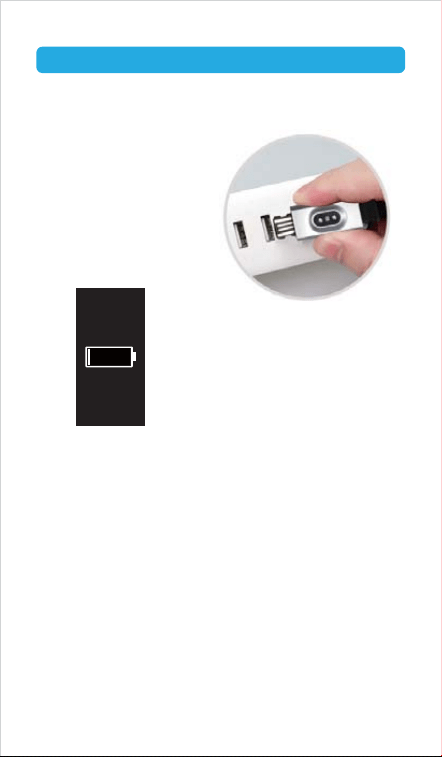
If you do not hear the audio tone and vibration, remove the
tracker, flip it upside-down and reinsert it into the charging port.
Remove the tracker from the power supply once fully charged.
USB charger requirement: DC USB port (5V-500mA)
Charging time: 1-2hr(s)
When the tracker shows that
the battery is low, connect the
tracker to a USB charging
adaptor or a port with
5V-500mA. If the tracker is
installed correctly, the tracker
will vibrate, and you will hear
an audio tone.
Insert the built-in USB plug
of the tracker into the USB
port for charging. Please
ensure that the metal strips
align with the USB strips.
1. Charging your tracker
Please charge your tracker for at least 10 minutes to have
it activated before initial use.
3
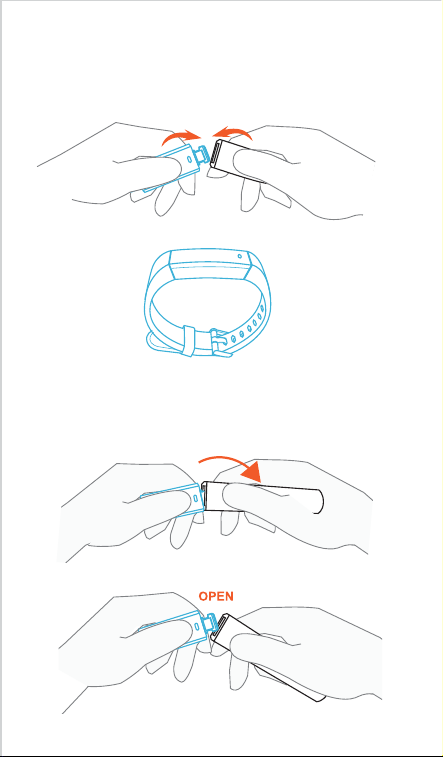
2. Assembling / Disassembling your tracker
Assembly
Insert the bands in the direction of the arrow.
Disassembly
Gently pull the bands off the tracker body in the direction of
the arrow.
OK
4
Wearing Your Tracker
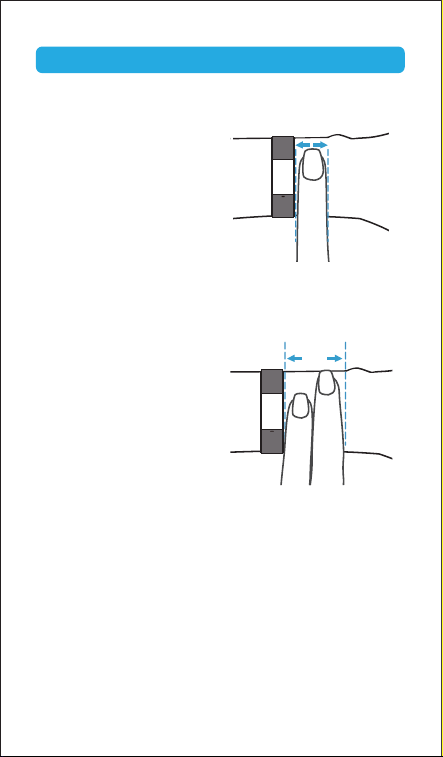
All-day wear and exercise
For all-day wear when you’re
not exercising, wear the device
on your wrist horizontally, a
finger’s width below your wrist
bone and lying flat, the same
way you would put on a watch.
For optimized heart rate tracking, keep these tips in mind:
2. Do not wear your tracker too tight. A tight band restricts blood
flow, potentially affecting the heart rate signal. This being
said, the tracker should also be slightly tighter (snug but not
constricting) during exercise than during all-day wear.
1. Experiment with wearing the
tracker higher on your wrist
during exercise. Because the
blood flow in your arm
increases the farther up you
go, moving the tracker up a
couple of inches can improve
the heart rate signal. Also,
many exercises such as bike
riding or weight lifting require
you to bend your wrist
frequently, which is more
likely to interfere with the heart rate signal if the tracker is
lower on your wrist.
( (
) )
5
Using Your Tracker
App Installation
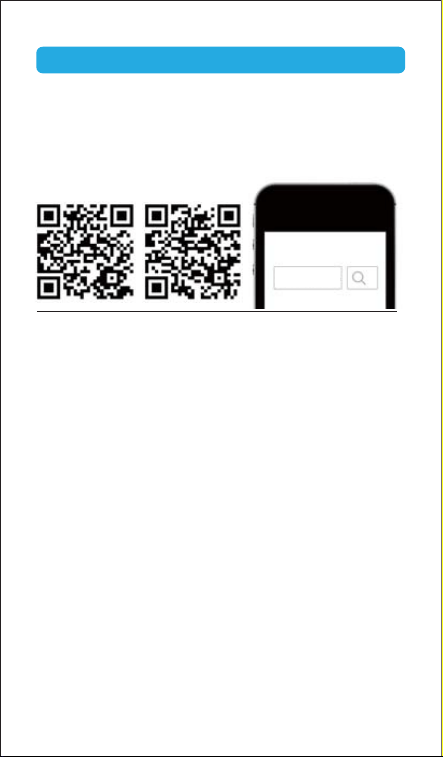
Use the tracker with our customized VeryFitPro app. You can
download VeryFitPro from Apple Store / Google Play or scan
the QR codes below to download.
VeryFitPro
iOS Android
Notes:
not tablets or PCs.
!"#$
4.4 or higher; Bluetooth version should be 4.0 or higher.
Smart Phone System Requirements
!"
Android 4.4 or higher
Bluetooth 4.0 or higher
6
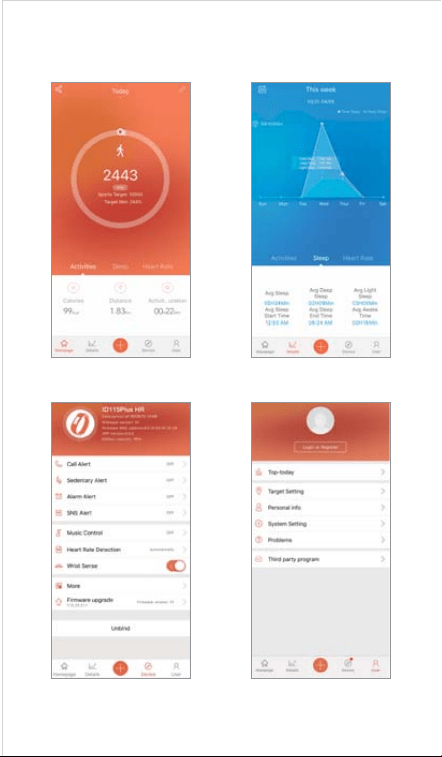
App Interfaces
Mainpage
Device User
Details
Pairing the Tracker with Your Phone
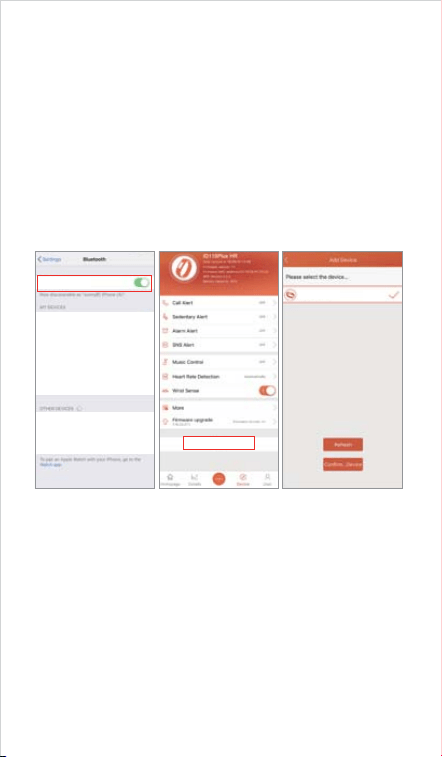
1)
Please ensure your phone’s Bluetooth is enabled before
beginning the pairing process.
2)
Open the VeryFitPro app on your smartphone and go to the
"Device" page, tap "Bind Device", then your smartphone
starts searching devices.
3)
In the list of found devices that appear on your phone, tap
"ID115Plus HR" to connect the tracker to your smartphone.
(If your phone failed to find ID115Plus HR, please tap the
touch key to wake the tracker and search the tracker on your
phone again.)
Notes:
Once the tracker is connected to your app, the tracker will
automatically search and reconnect itself if the connection
is lost or when Bluetooth is restarted after manual
disconnection.
If the tracker is unbound from the app, the information on
the tracker will be reset, and the information on the app will
be cleared. Please do not unbind the connection unless
there is an issue that will require a reset.
The tracker can only pair with one Bluetooth device at a
time. When pairing, please ensure there are no other
Bluetooth devices nearby.
Bind Device
Bluetooth
ID 115 Plus HR
-39
8
Getting to Know Your Tracker
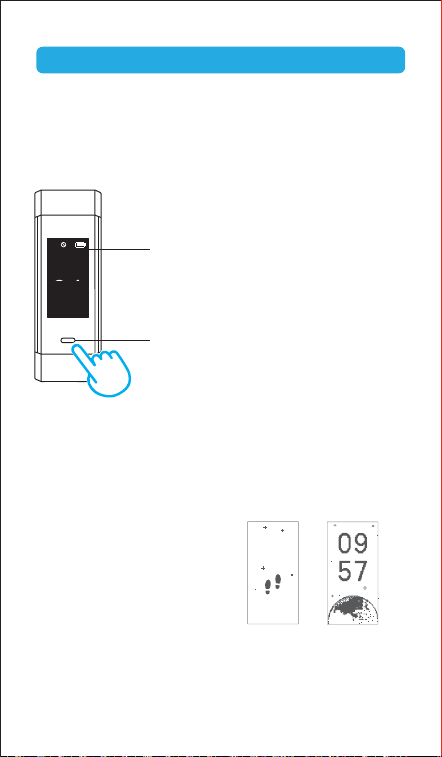
1. Touch Key
After the tracker is bound to the app, the main screen will
display the time and date as shown in fig. 1. You can customize
the main screen. See Function Introduction.
Display
Note:
This is non-touch screen, please use
the touch key choose different
functions.
Touch Key
Note:
Tap the touch key to switch to different
interfaces. Hold the touch key to enter
the function.
02
34
Mon 23
( (
) )
fig. 1
2. Waking a Dimmed Screen
To conserve power, the tracker has a standby mode in which
the screen turns off. To wake the screen, please follow the
steps below:
12:45
205
Screensaver Main Screen
Turn your wrist towards you,
and the screen will display
time and steps (Screensaver).
Tap the touch key, and the
tracker will display the main
screen.
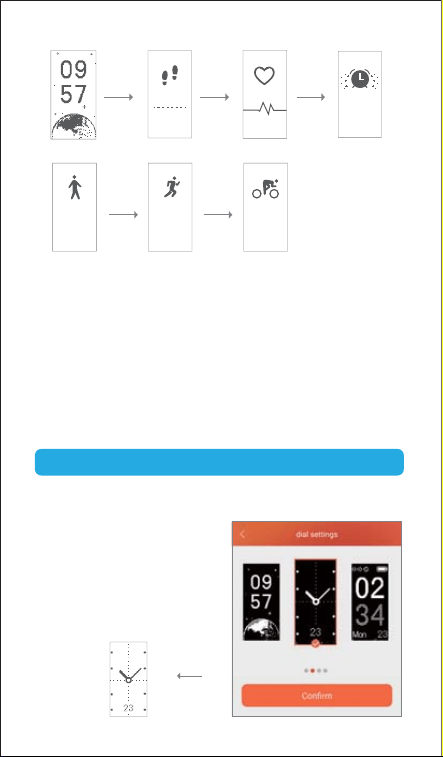
3. Tracker Interfaces
Tap the touch key to look through different interfaces / go to
different functions:
9
Main Screen
Run Mode
Heart Rate ModeStep Mode
Run
Long press
to start
Bike
measure
-ment
Long press
to enter
0
Walk ModeȤ
Bike Mode
Alarm Mode
Ȥ
&'*&
FRI
Walk
Long press
to start
Long press
to start
Notes:
+$7+<
alarm alert(s) is / are added and enabled in the app
=+>?+@+$$+J!
"Walk Mode", "Run Mode" and "Bike Mode" are displayed on
the tracker screen by default. You can set up to 3 different
sports modes from among 14 sports modes in the app to
<=+>?+@+7+@
"Activity display").
Function Introduction
1. Changing the Clock Face
The tracker comes with a variety
of clock faces so you can
customize the look of your
tracker.
You can customize the main
screen in the app ("Device" page
@+7+@+>+J!
10
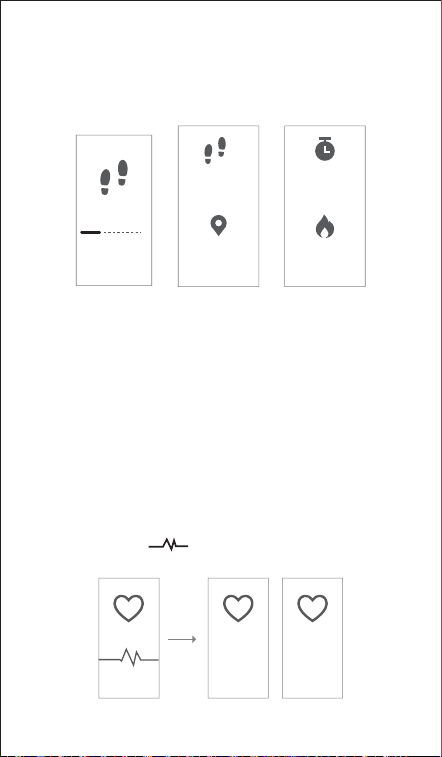
2. Tracking Daily Activity Data
The tracker tracks your all-day activity data such as steps,
distance, calories burned and active minutes.
Hold the touch key for 2s to view detailed step data, and tap to
flip through the data.
Note:
X=+Z+@
"Target Setting"). When you reach your sports target, the
tracker vibrates to remind you.
3. Monitoring Heart Rate
The tracker tracks your real-time heart rate automatically and
continuously. You can also view your detailed heart rate data in
the app.
After entering the heart rate interface for 1s, the tracker starts
monitoring automatically. Before the correct data is detected,
the tracker shows " "; after the correct data is detected, it
shows specific data.
Monitoring Heart rate displayed
89
BPM
measure
-ment
89
BPM
23
234
Kcal
Min
4456
Steps
3
MI
Long press
to enter
0
11
Notes:
<
the upper position of your wrist and a bit tighter than usual
when you exercise. In addition, complete your profile in the
app.
$[\
heart rate all day automatically. You can disable/enable
=+>?+@
"Heart Rate Detection").
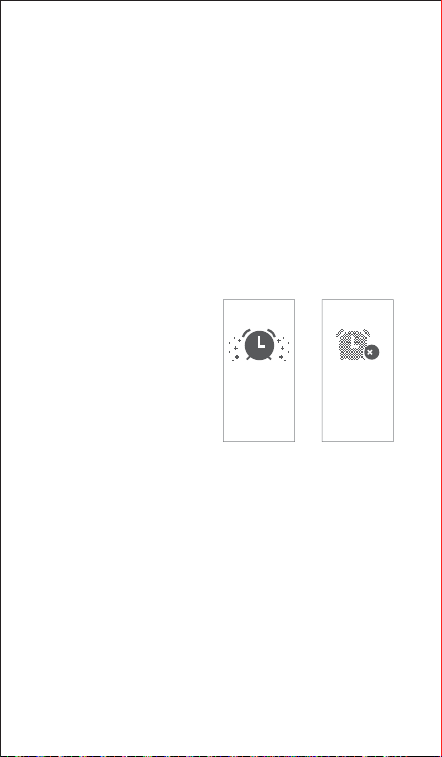
4. Setting Alarms
You can set alarms in the app and have the tracker vibrate to
wake you up or remind you of important dates, meetings,
interviews, etc.
Alarm on
Alarm off
12:45AM
MON
Alarm
OFF
×
1) Go to the "Device" page in
the app and tap "Alarm
Alert".
2) Tap "+" to add an alarm.
3) Tap the alarm, then set
the alarm type, repeat
type and time.
^J+_+?
settings.
You can hold the touch key of the tracker for 2s to enable /
disable the alarm.
12
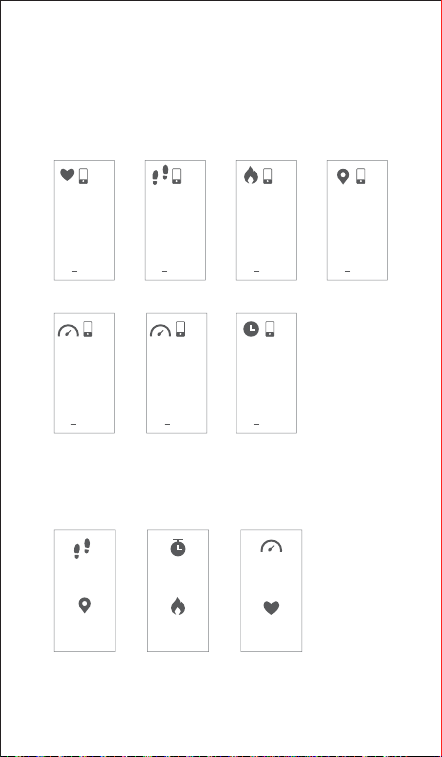
5. Tracking Sports: Walk
The tracker tracks your exercise data while you walk.
1) Hold the touch key for 2s to enter walk mode.
2) While exercising, tap the touch key to flip through exercise
data.
BPM Steps Kcal
Pace AVG Pace Time
Miles
23:34:56
BPM
89
23:34:56
MI
3
23:34:56
Step
4
,
456
23:34:56
Kcal
234
23:34:56
Pace
’5”
AVG Pace
’5”
23:34:56 23:34:56
23:34
3
) Hold the touch key for 2s to exit walk mode.
The following data is displayed after the exercise has
ended. Tap the touch key to flip through exercise data:
Min/Kcal
23
234
Kcal
Min
Steps/MI
4456
Steps
3
MI
AVG Pace/BPM
90
BPM
!`
AVG Pace
Note:
Data for exercises lasting less than 1 minute will not be saved.
13
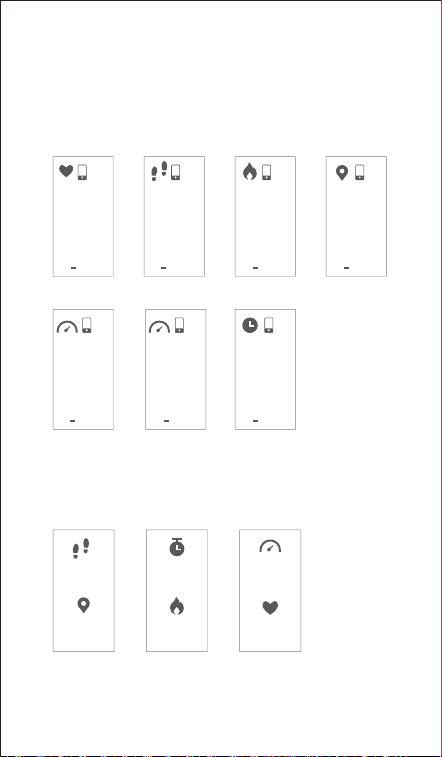
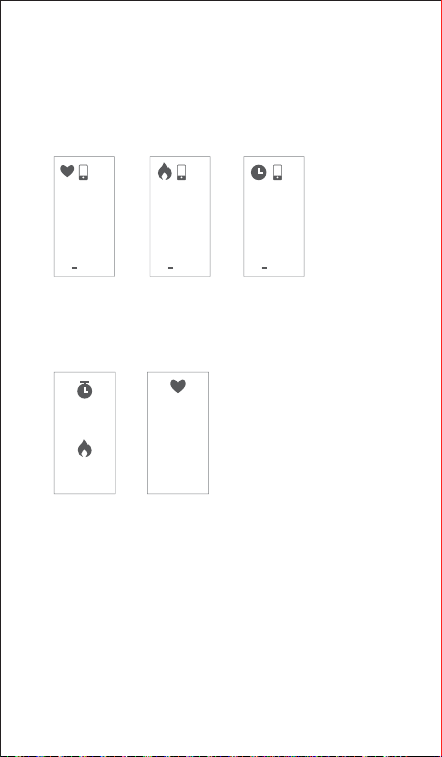
6. Tracking Sports: Run
The tracker tracks your exercise data while you run.
1) Hold the touch key for 2s to enter run mode.
2) While exercising, tap the touch key to flip through exercise
data.
BPM Steps Kcal
Pace AVG Pace Time
Miles
23:34:56
BPM
89
23:34:56
MI
3
23:34:56
Step
4
,
456
23:34:56
Kcal
234
23:34:56
Pace
’5”
AVG Pace
’5”
23:34:56 23:34:56
23:34
3
) Hold the touch key for 2s to exit run mode.
The following data is displayed after the exercise has
ended. Tap the touch key to flip through exercise data:
Min/Kcal
23
234
Kcal
Min
Steps/MI
4456
Steps
3
MI
AVG Pace/BPM
90
BPM
!`
AVG Pace
14
7. Tracking Sports: Bike
The tracker tracks your exercise data while you cycle.
1) Hold the touch key for 2s to enter bike mode.
2) While exercising, tap the touch key to flip through exercise
data.
BPM
23:34:56
BPM
89
Kcal
23:34:56
Kcal
234
Time
23:34:56
23:34
3
) Hold the touch key for 2s to exit bike mode.
The following data is displayed after the exercise has
ended. Tap the touch key to flip through exercise data:
Min/Kcal
23
234
Kcal
Min
BPM
90
BPM
1) Inactive Exit Prompt
No actions!
Quit 15s
Memory
Full !
!
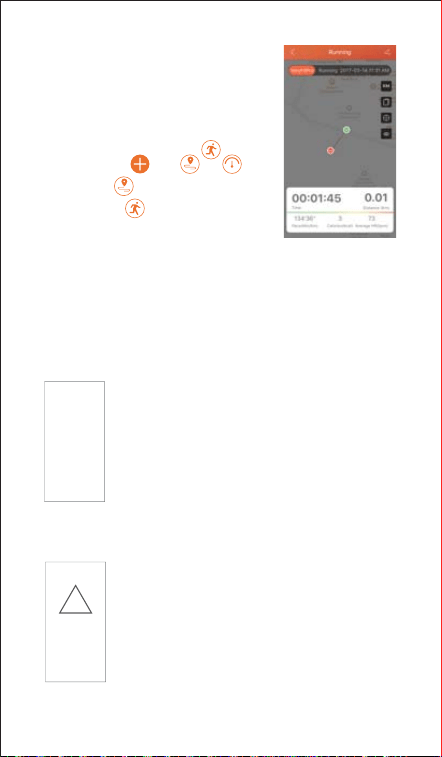
After entering running mode, the app will track and map your
run distance (using your phone’s GPS). After the exercise, you
can effortlessly check your exercise data in both the app and
the tracker.
15
Note:
You can also use your phone’s GPS to
track your pace and distance during
walks, hikes, runs or rides while
mapping out your run or walk on your
phone.
In the app, tap and will
pop up. Tap to enter running mode
directly or tap to choose another
sport mode.
7.1 Abnormal Situations during Exercise
a) The tracker will automatically exit the sport
mode if no action is taken within 10 minutes.
b) The tracker will be forced to exit the sport
mode if you do not tap the waiting prompt
within 15 seconds.
Tap the touch key to cancel automatic exit
and return to sport mode.
Tap the touch key to confirm the prompt if the
tracker is forced to exit the sport mode when
memory is full, then exit the sport mode and the
exercise data is displayed.
2) The prompt of being forced to exit the sport mode when
memory is full
Notes:
\{!
|\<
prompt that it is forced to exit the sport mode.
Low
Battery
!
9. More Functions
9.1 Call Notification
Stranger number
16
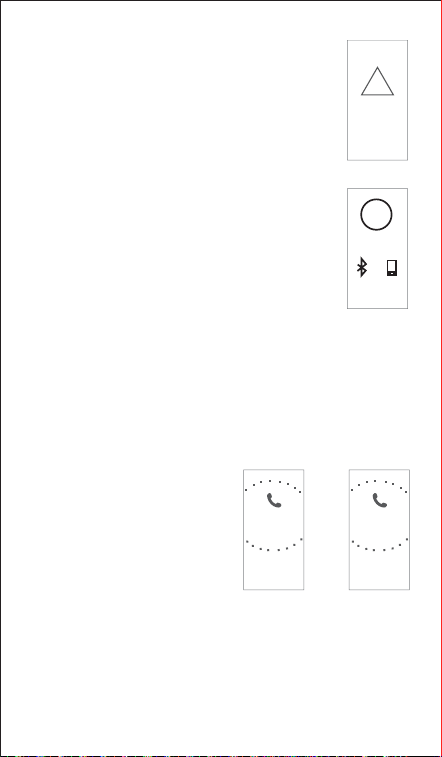
3) Prompt forced to exit sport mode when
battery is low
Tap the touch key to confirm the prompt if the
tracker is forced to exit sport mode when the
battery is low, then exit the sport mode and
exercise data is displayed.
7.2 Abnormal Operation during Exercise
When the app and the tracker are disconnected,
the screen will show a waiting prompt:
Tap the touch key to exit the waiting prompt
interface.
8. Tracking Sleep
When there is an incoming
call, the tracker vibrates to
alert you, and the screen
displays the caller ID.
Hold the touch key for 2s to
reject the call. Tap the touch
key to return to the main
screen.
Contact name in
contact list
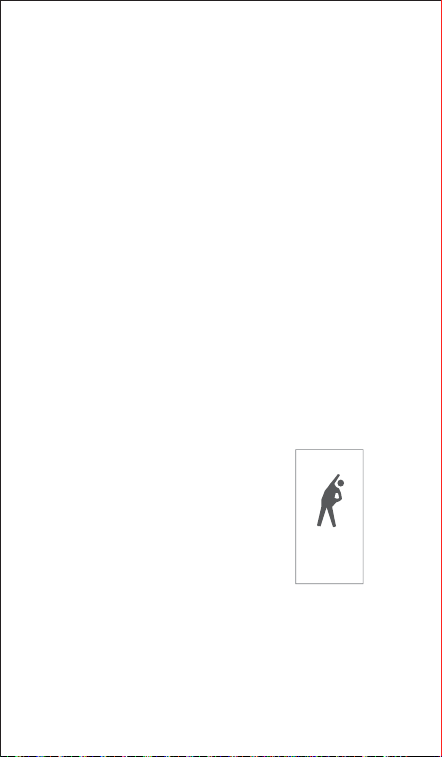
The tracker automatically tracks your sleep duration (Deep
Sleep, Light Sleep, and Wake-sleep) and consistency with a
comprehensive analysis of sleep quality data so you can see
your sleep trends and improve your routine.
You can check your detailed sleep data in the app.
Father
Long press
025-45
Long press
15
Waiting...
...
"
Notes:
+~+=+>?+
@+~$+J\!=$\#
~$\+_+?!J
|+>+=+>?+
@+7+@+>+J\
tracker during the set do-not-disturb period.
9.2 Message Notification
When messages (including SMS, Facebook, WhatsApp,
Twitter, Instagram, Facebook Messenger, LinkedIn, Email,
Mail, and Calendar) come in, the tracker vibrates to remind
you, and the screen displays the message content.
Notes:
+[$+=+>?+
@+[$+@+$\+J
notified. (After enabling/disabling the SNS Alert function, tap
+_+?!J
|+>+\
=+>?+@+7+@+>+J
not be notified on the tracker during the do-not-disturb period.
9.3 Sedentary Reminder
The tracker vibrates to remind
you to get up and move around
when you have been sitting too
=+>?+@+
Sedentary Alert", enable the
Sedentary Alert function and set
the remind interval.)
9.4 Remote Camera Control
If you want to position your phone for a photo and then take
the photo from a distance, you can use the tracker to take
the photo.
Move yo
01
18
1) Make sure you have allowed
the VeryFitPro app to access
your phone camera and
photos in your phone
settings.
2) Go to the "Device" page in
the app and tap "Camera",
then a camera icon appears
on your tracker screen.
3) Tap the touch key on the tracker to have your smartphone
shoot photos.
Photos are saved in your phone’s photo album.
9.5 Device Error Notification
When the tracker has an exception, an error
message appears.
Status code:
-01 indicates acceleration sensor abnormality;
-02 indicates the heart rate sensor is abnormal;
-03 indicates touch IC is abnormal;
-04 indicates the flash is abnormal;
Basic Specifications
Model No.: ID115Plus HR
Sync: Bluetooth 4.0
Battery Capacity: 65mAh
|<'*!
Working Temperature: -10℃ to 45℃
Weight: 0.84oz (23.8g)
|\'{
|<'`
Electronic Information Products
Toxic and Hazardous Substances Statement
This product meets the EU ROHS
standards
Refer to IEC 62321 and EU RoHS
Directive 2011 / 65 / EU and its
revision instructions
FAQs
Failure to find the tracker when pairing
1)
Make sure your smartphone’s Bluetooth is enabled and your
smartphone’s system meets the requirements of Android 4.4
!"^!&!
2)
Make sure the distance between your smartphone and the
tracker does not exceed 0.5 meters and that Bluetooth
communication is also within range (10 meters max).
3)
Make sure your tracker has enough battery life. If there is
still a problem after being fully charged, please contact us.
19
Occasional failure to connect with Bluetooth
Reboot your smartphone or restart your smartphone’s
Bluetooth.
Failure to charge the tracker
Make sure the direction of the tracker's USB plug is correct
when plugging into a USB port for charging (Ensure the metal
strips of the tracker's USB plug align with the USB strips). If it
is charged correctly, the tracker's red indicator turns on and
will be off when it has been fully charged.
As the built-in battery capacity is small, please remove the
tracker from the power supply once fully charged. Prolonged
charging may shorten battery life.

Failure to receive SMS / calls notifications
Calls / SMS notification function works when the tracker
connects to your smartphone via the app. Please kindly refer to
the following tips:
1) Go to your smartphone Settings, find VeryFitPro app and
enable the Location and all Notifications.
2) Enable your phone’s Bluetooth and go to the VeryFitPro app
to bind the tracker.
*J~#[$\+_+?
your settings.
20
Failure to count steps accurately
The fitness tracker has a built-in 3D sensor. It records your
steps when you swing your arms. Sometimes the data
displayed on the tracker will be slightly delayed, and the data
will automatically reset if you walk less than 40 steps
continuously. To test the accuracy of the pedometer, please
walk casually and continuously at least 100 steps.
Failure to measure heart rate
Make sure the tracker sits neatly on your wrist before use. Tap
the touch key to enter heart rate mode and wait 10-20s to
obtain your heart rate.
Failure to connect to smartphone
The tracker will disconnect from your smartphone in the
following cases:
1) Smartphone Bluetooth is off or exceeds the Bluetooth
connection range (the maximum Bluetooth connection range
is 10 meters and can easily be reduced by walls, furniture,
etc.)
2) The VeryFitPro app is closed on the phone. (This can occur
automatically under certain circumstances.)

To reconnect the tracker to your smartphone, please kindly take
the following steps:
1) Go to your smartphone system Settings, find the VeryFitPro
app and enable the Location and all Notifications.
2) Clear all running / background processes on your
smartphone. Go to the VeryFitPro app and swipe down
"Mainpage", then the tracker will reconnect to your
smartphone and update data. You can also restart your
smartphone and Bluetooth, then rebind the tracker in the
app.
21

22
Warranty
The device contains electrical equipment that may cause injury
if not used properly. For example, prolonged contact may
contribute to skin allergies for some users. To reduce irritation,
please read the safety guidelines on the following pages to
ensure proper use and care.
>?
rain while charging; do not charge your device when it is wet,
as this may result in electrical shock and injury.
?!>?
cleaners to clean your device.
~\\?
conditions that might be affected by using this device.
>!\?\\
it causes any skin irritation or other discomfort, please
discontinue using your device and consult your doctor.
>\<
temperatures.
>?\<\
cooking stoves, candles, or fireplaces.
[?
play with this product. Always store the product out of the
reach of children. The devices themselves or the many small
parts they contain may cause choking if ingested.
[?
device. Doing so will void the warranty and can result in a
safety hazard.
Important Safety Instructions
We strive to build our products with the highest attention to
detail and craftsmanship. However, sometimes there are
occurrences of a defect, so we are happy to offer a ONE-year
hassle-free warranty on all our devices as we continue to
make amazing products. Please contact us if you have any
questions about our devices.

23
\\\
reason, including normal wear and tear or breakage, please
contact us.
>?!
>\??<
in accordance with local regulations.
><\\
your device’s display while driving or in other situations
where distractions could cause injury or hazard. Always be
aware of your surroundings while exercising.
A lithium-ion battery is used in this device. If these guidelines
are not followed, batteries may experience a shortened life
span or may cause fire, chemical burn, electrolyte leakage,
and / or injury.
>[\\
damage the device or batteries.
>[??-
able battery.
>[?\
other hazards.
\?<?
consult your physician before using a heart rate monitor.
flashes occasionally. Consult your physician if you have
epilepsy or are sensitive to flashing lights.
$\\
any exercise program.
?
are intended to be used only for recreational purposes and
not for medical purposes and are not intended to diagnose,
monitor, treat, cure, or prevent any disease or condition.
Battery Warnings
Health Warnings

24
\\
responsibility is accepted for the consequences of any
erroneous readings.
|
provides the best estimate of a user's heart rate, there are
inherent limitations with the technology that may cause some
of the heart rate readings to be inaccurate under certain
circumstances, including the user's physical characteristics,
fit of the device, and type and intensity of activity.
?<<
movements and other metrics. The data and information
provided by these devices are intended to be a close
estimation of your activity and metrics tracked, but may not
be completely accurate, including step, sleep, distance, heart
rate, and calorie data.
\?
likely to experience skin irritation or allergies from a wearable
device.
|??\
experience any discomfort or skin irritation on your wrist,
remove your device. If symptoms persist longer than 2-3
days of not using your device, contact your doctor.
\\
fitness tracker, be sure to clean and dry your band and your
wrist to avoid skin irritation.
<?
your wrist a break by removing the band for an hour after
extended wear.
\<
after sweating during exercise or being exposed to
substances such as soap or detergent which may adhere to
the internal side of the tracker.
>[\<!
Please use soapless detergent, rinse thoroughly and wipe
with a soft towel or napkin.
|\<
band is not good for your skin.
Maintenance

\\\
\
them back on your wrist.
<\<!
>?
as this could cause scratches and other damage.
dark-colored clothing, as color transfer can occur.