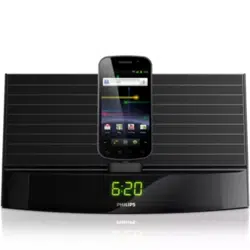
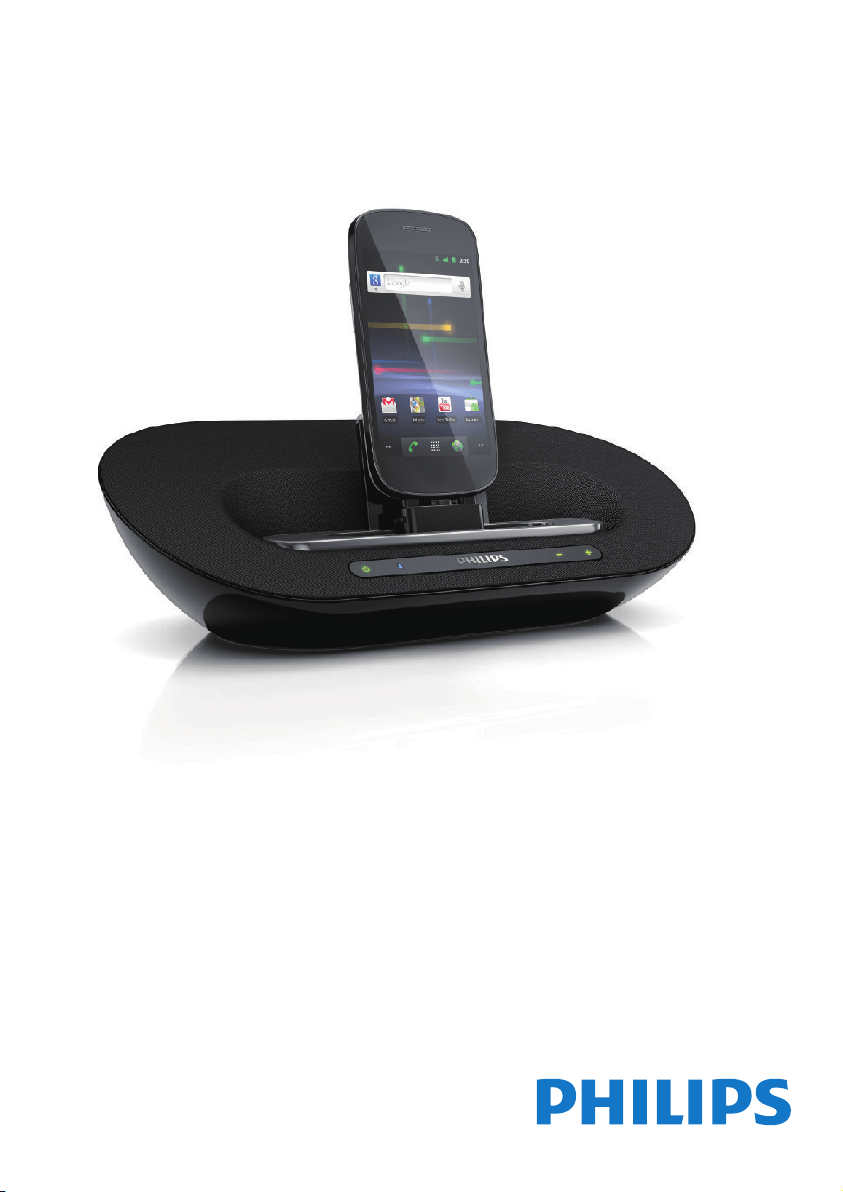
AS351
User manual
Register your product and get support at
www.philips.com/welcome

1EN
Contents
1 Important 2
Safety 2
2 Your Docking Speaker for
Android™ 3
Introduction 3
What's in the box 3
Overview of the main unit 4
3 Get started 5
Power supply 5
Option 1: AC power 5
Option 2: Battery power 5
Turn on 5
Switch to standby mode 5
4 Play and charge 6
Compatible with Android™ 6
Play audio through manual Bluetooth
connection 6
Play audio through auto Bluetooth
connection with Philips DockStudio 7
Install DockStudio app onto
Android-powered device 8
Activate Bluetooth with
DockStudio app 10
Dock and charge Android-powered
phone 13
Dock Android-powered device 13
Use dock extension 13
Charge Android-powered phone 14
Play audio with Philips Songbird 14
Install Songbird on Android-
powered device 14
Install Songbird on PC 16
Sync with PC through Philips
Songbird 16
5 Other features 17
Use more features with DockStudio 17
Listen to Internet radio 17
Set sleep timer 17
Set alarm timer 18
Charge your phone through the USB
socket 19
Play audio from an external device 19
6 Product information 21
Specications 21
7 Troubleshooting 22
8 Notice 23
Recycling 23

2 EN
1 Important
Safety
• Onlyuseattachments/accessoriesspecied
by the manufacturer.
• Apparatus shall not be exposed to
dripping or splashing.
• Do not place any sources of danger on the
apparatus(e.g.liquidlledobjects,lighted
candles).
• Where the MAINS plug or an appliance
couplerisusedasthedisconnectdevice,
the disconnect device shall remain readily
operable.
• Use only power supplies listed in the user
manual.
Warning
• Never remove the casing of this apparatus.
• Never lubricate any part of this apparatus.
• Never place this apparatus on other electrical
equipment.
• Keepthisapparatusawayfromdirectsunlight,naked
amesorheat.
• Ensure that you always have easy access to the power
cord,plugoradaptortodisconnecttheapparatusfrom
the power.
Caution
•
Batteries (battery pack or batteries installed) shall not
beexposedtoexcessiveheatsuchassunshine,reor
the like.
• Danger of explosion if battery is incorrectly replaced.
Replace only with the same or equivalent type.

3EN
2 Your Docking
Speaker for
Android™
Congratulationsonyourpurchase,and
welcometoPhilips!Tofullybenetfromthe
supportthatPhilipsoffers,registeryourproduct
at www.philips.com/welcome.
Introduction
Withthisdockingspeaker,youcan:
• enjoyaudiofromyourBluetooth-enabled
portable device or an external device;
• charge your phone; and
• experience various features brought by
Philips Philips DockStudio and Philips
Songbird app.
What's in the box
Check and identify the contents of your
package:
• Main unit
• Power adapter
• Dock extension
• Quick start guide
• Safety sheet
4 EN
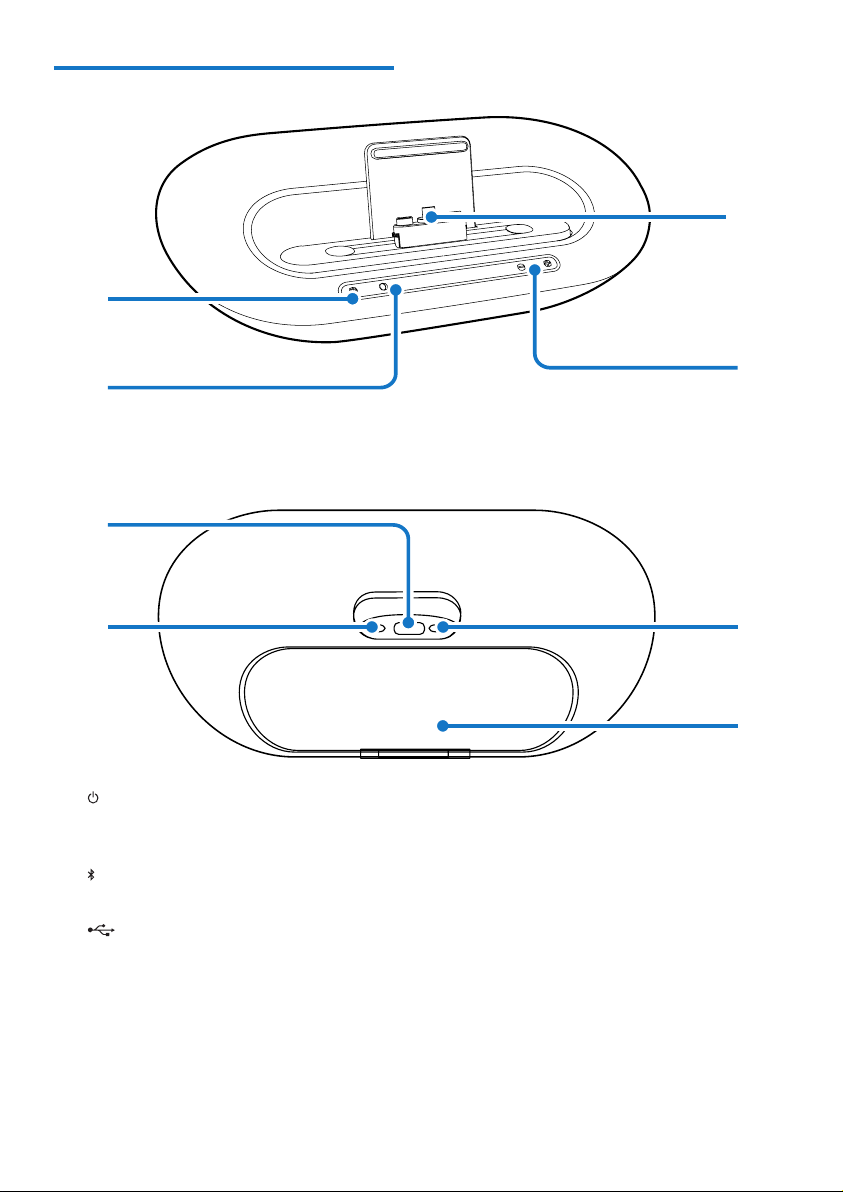
Overview of the main unit
a
• Activate or deactivate Bluetooth
function.
b
• Bluetooth indicator.
c
• Charge your phone through USB cable.
d AUX IN
• Connect an external audio device.
e Dock for Android-powered device
e
f
g
h
d
a
b
c
f +/-
• Adjustvolume.
g Power supply socket
h Battery compartment
5EN
3 Get started
Always follow the instructions in this chapter in
sequence.
Power supply
Either AC power or batteries can be used as
power supply of this speaker.
Option 1: AC power
Caution
• Risk of product damage! Ensure that the power voltage
corresponds to the voltage printed on the back or
underside of the unit.
• Risk of electric shock! When you unplug the AC
adapter,alwayspulltheplugfromthesocket.Never
pull the cord.
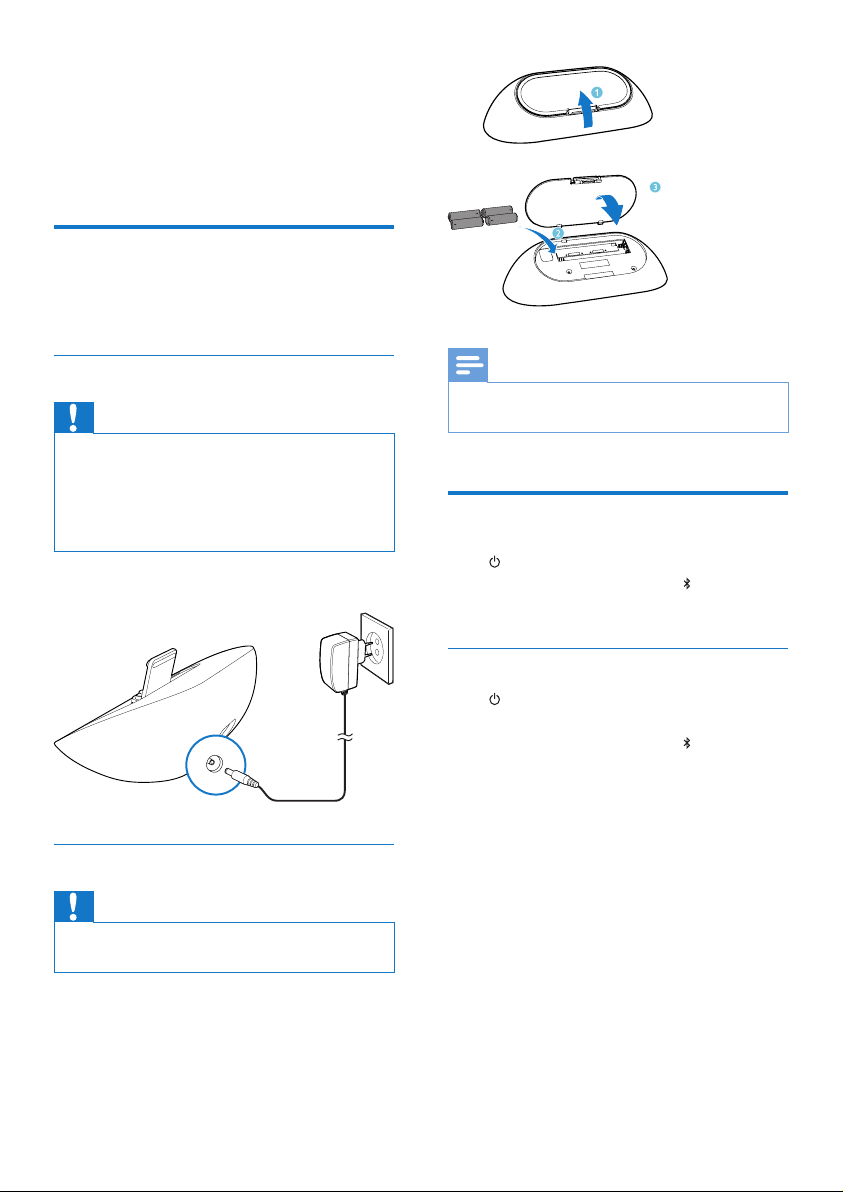
Connect the power adapter to the wall outlet.
Option 2: Battery power
Caution
• Riskofexplosion!Keepbatteriesawayfromheat,
sunshine,orre.Neverdiscardbatteriesinre.
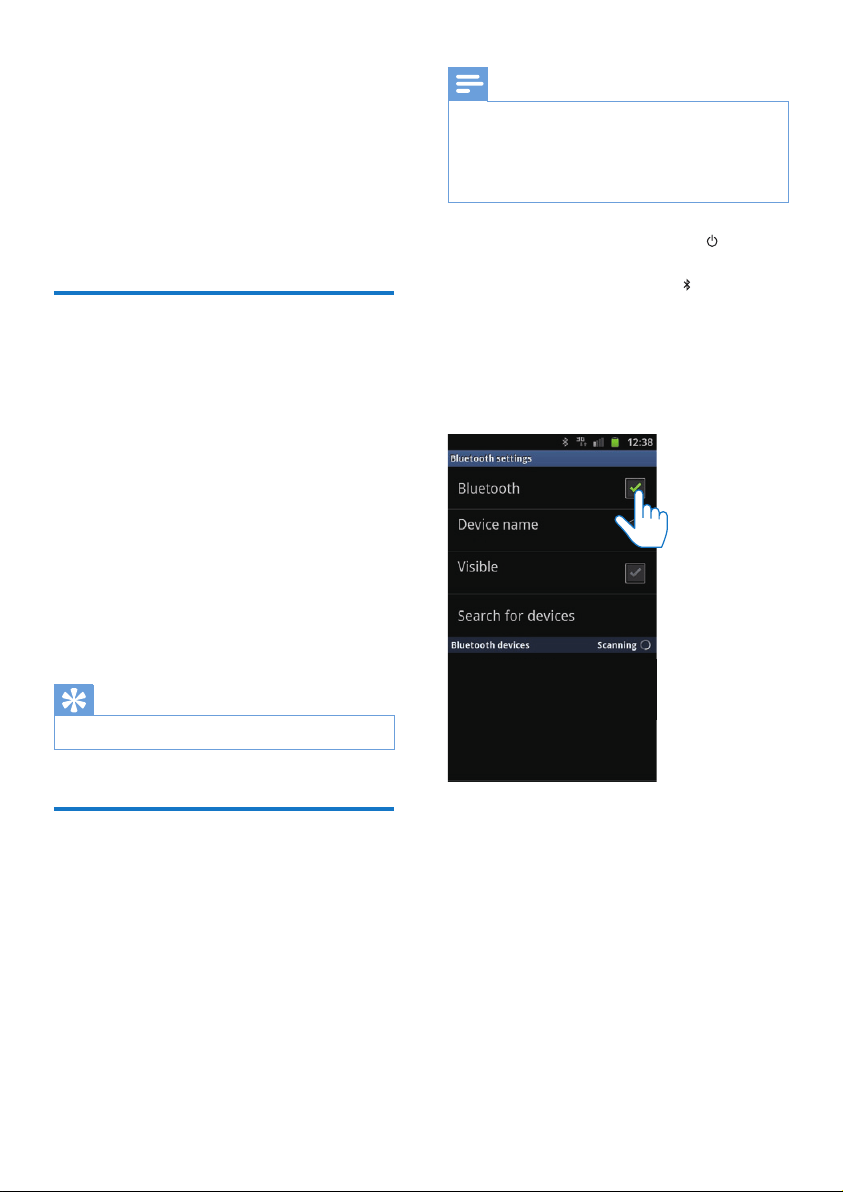
1 Open the battery compartment.
2 Insert 4 AA batteries with correct polarity
(+/-) as indicated.
3 Close the battery compartment.
Note
• Batteriescontainchemicalsubstances,sotheyshould
be disposed of properly.
Turn on
Press .
» The Bluetooth indicator begins to
blink.
Switch to standby mode
Press again to switch the docking speaker to
standby mode.
» The Bluetooth indicator turns off.
+
+
+
+
AA
AA
AA
AA
6 EN
4 Play and charge
Withthisdockingspeaker,youcanenjoyaudio
in two ways:
• through manual Bluetooth connection;
• through automatic Bluetooth connection
with Philips DockStudio app.
Compatible with Android™
Tomakefulluseofyourdockingspeaker,your
Android-powered device should satisfy the
following requirements:
• With Android operation system (Version
2.1 or above);
• With Bluetooth software (Version 2.1 or
above); and
• With a micro USB connector.
For other devices with micro USB connector
andBluetoothfunction,youcanstillusethe
docking speaker to do the following:
• Charge your device through the USB
connector or USB socket;
• EnjoyaudiothroughBluetooth.
Tip
• Formoredetails,gotowww.philips.com/exidock.
Play audio through manual
Bluetooth connection
The docking speaker uses Bluetooth wireless
technology to stream music from your portable
device to the system.
Note
• Before you connect a Bluetooth device to this docking
speaker,familiarizeyourselfwiththeBluetooth
capabilities of the device.
• Keep this docking speaker away from other electronic
devices that may cause interference.
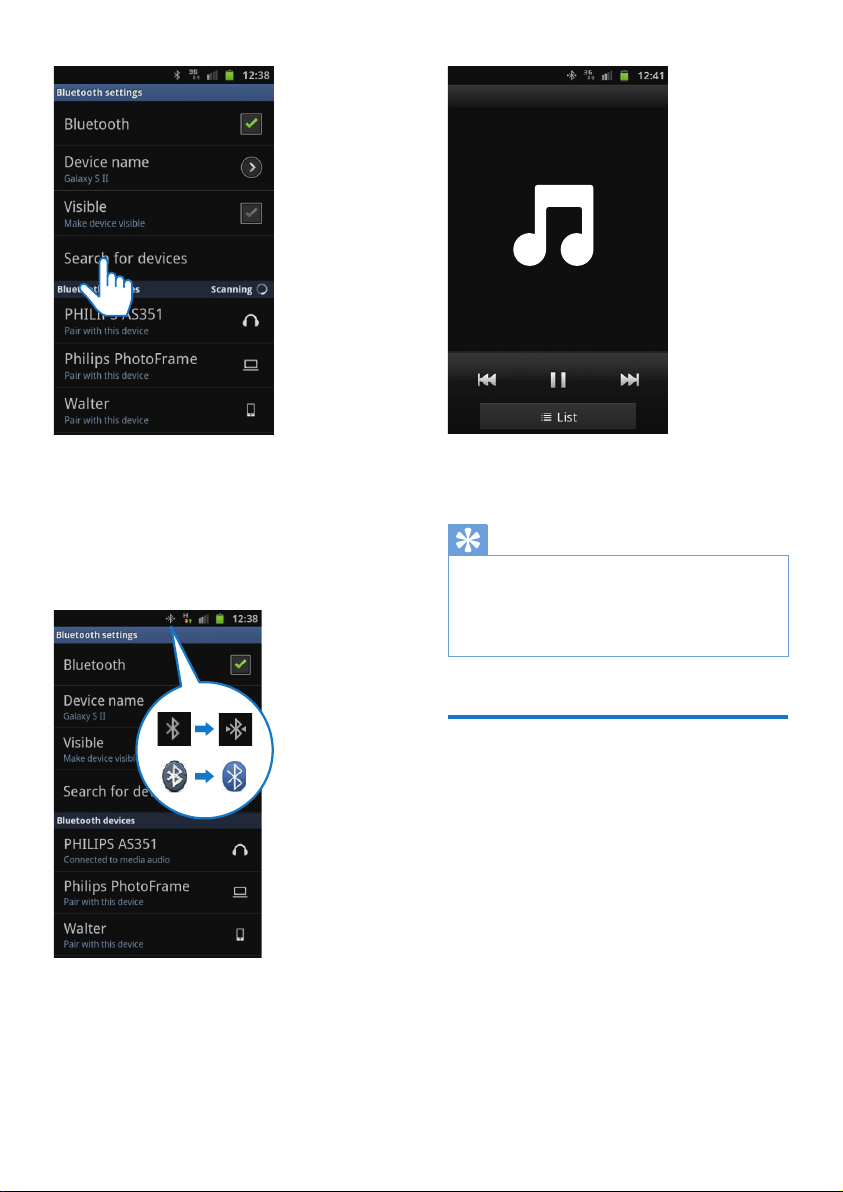
1 Onyourdockingspeaker,press to
activate Bluetooth.
» The Bluetooth indicator blinks on the
display panel.
2 Turn on Bluetooth function of your
portable device.
• Different devices may have different
way to activate Bluetooth.
3 Scan Bluetooth devices that can pair with
your portable device.
7EN
4 When [PHILIPS AS351] is displayed on
yourdevice,selectittostartconnection.
» Ifconnectionissuccessful,youwillhear
doublebeepconrmationandnda
different Bluetooth icon on the top of
the screen.
5 Play audio with the media player of your
portable device.
» The audio comes out through the
docking speaker.
Tip
• The effective operation range between the docking
speaker and the paired device is approximately 10
meters (30 feet).
• Any obstacle between the speaker and the device can
reduce the operational range.
Play audio through auto
Bluetooth connection with
Philips DockStudio
Philips DockStudio app brings a suite of new
featurestoyourdockingspeaker,including
automaticBluetoothconnection,Songbird
musicplayer,Internetradioandamulti-function
alarmclock.Toenjoymorefeatures,youare
recommended to download and install the free
app.
8 EN
Install DockStudio app onto Android-
powered device
You have two ways to install Philips
DockStudio on your Android-powered device.
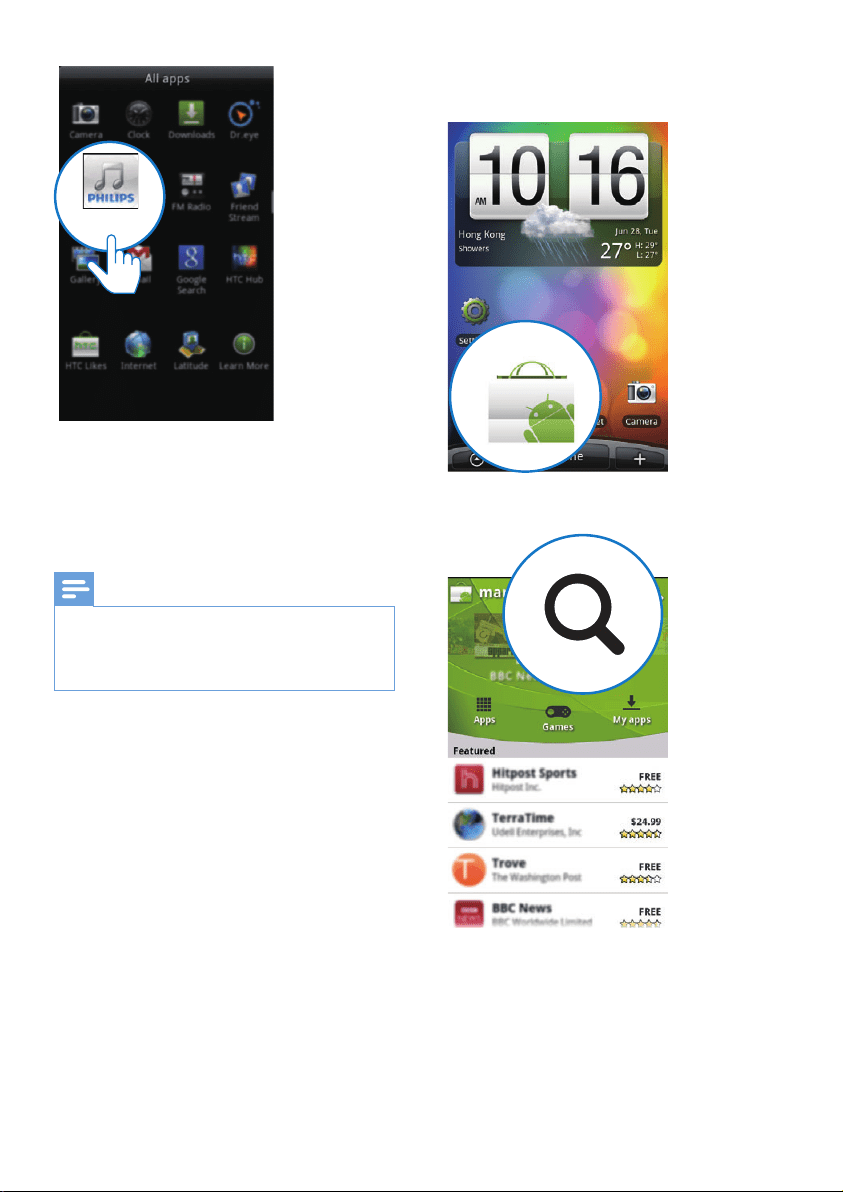
Install DockStudio app through QR code
Note
• Make sure that your Android-powered device is
connected to the Internet.
• Make sure that your device has a barcode scanner such
as"QRDroid".Ifnot,downloadonefromtheAndroid
market.
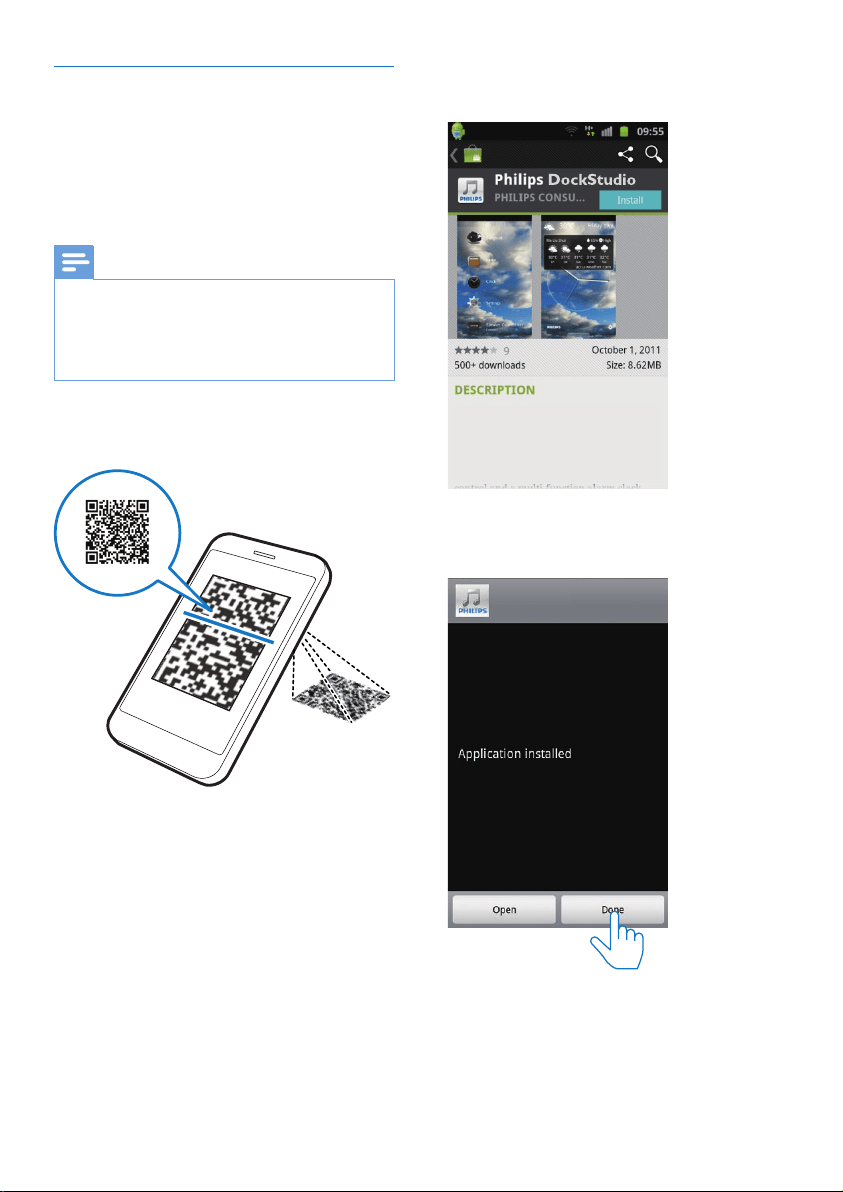
1 Use the barcode scanner to scan the QR
code on the package or Quick Start Guide.
2 Follow the on-screen instructions to install
Philips DockStudio app.
3 Wheninstallationiscomplete,tap[Done]
(done).
» The DockStudio icon appears on your
portable device.
The Philips DockStudio app brings a suite of
cool, new features to your Philips DockStudio
docking speaker, including automatic Bluetooth
connection, Songbird music player,
worldwide Internet radio, sound settings
DockStudio
9EN
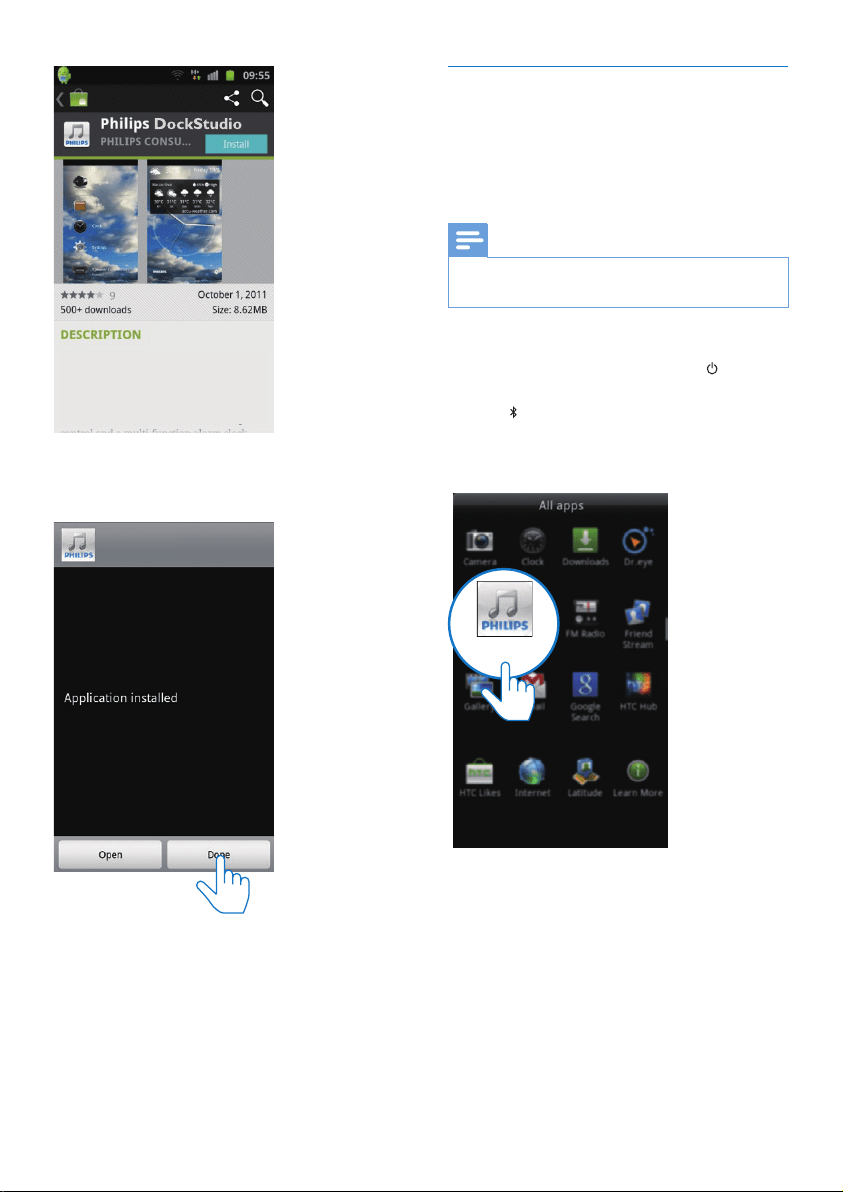
Install DockStudio app through Android
Market
You can also search Philips DockStudio from
AndroidMarketdirectly,andtheninstalltheapp.
Note
• Make sure that your Android-powered device is
connected to the internet.
• Make sure that Android Market is available on your
Android-powered device.
DockStudio
1 Tap the "Android Market" icon on your
device.
2 Tap the search icon on the screen.
3 Inthesearchbar,typein"Philips
DockStudio" to search the app.
4 Fromthesearchresultlist,ndandtap
Philips DockStudio to start downloading.
5 Follow the on-screen instructions to install
the DockStudio app.
10 EN
6 Wheninstallationiscomplete,tap[Done]
(done).
The Philips DockStudio app brings a suite of
cool, new features to your Philips DockStudio
docking speaker, including automatic Bluetooth
connection, Songbird music player,
worldwide Internet radio, sound settings
DockStudio
Activate Bluetooth with DockStudio
app
Philips DockStudio app helps to connect your
Android-powered device and docking speaker
through Bluetooth automatically.
Note
• Make sure that your Android-powered device is
connected to the Internet.
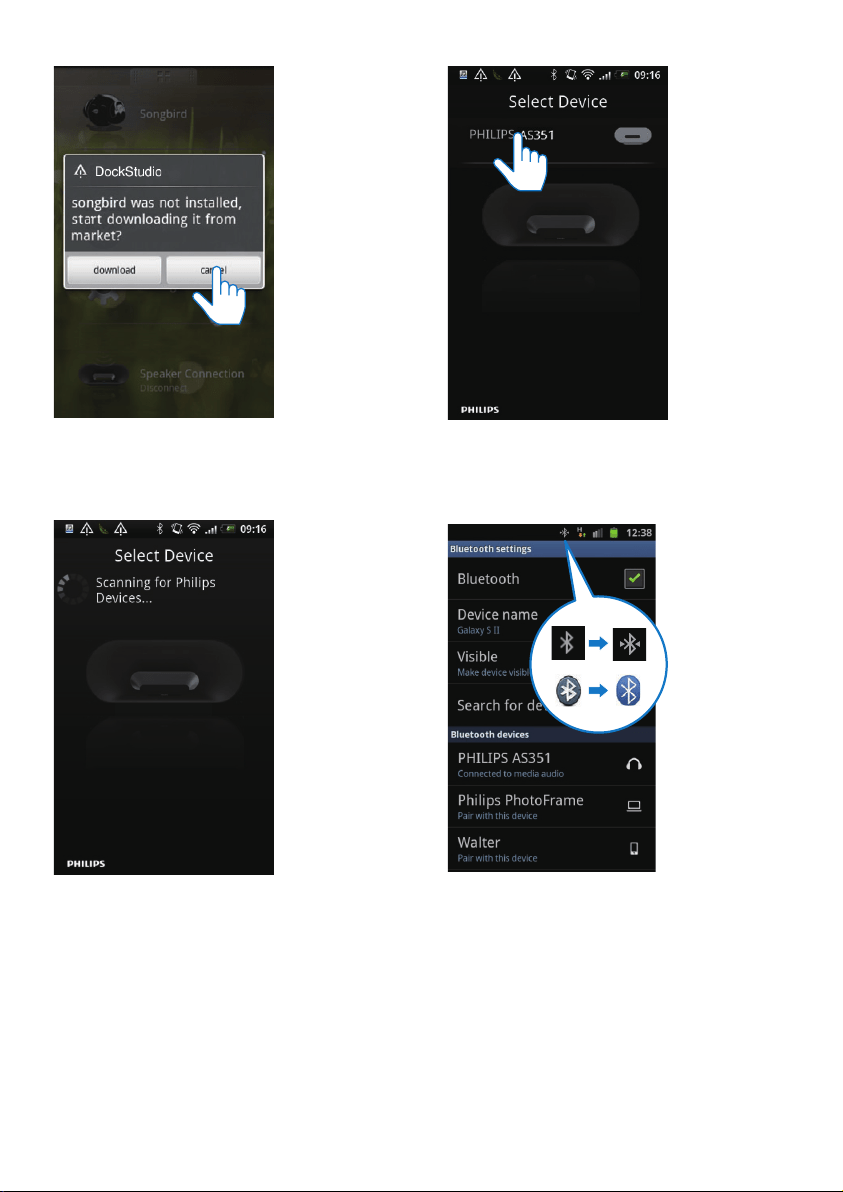
First-time launch
1 Onyourdockingspeaker,press to
activate Bluetooth.
» blinks on the display panel.
2 Onthehomescreenofyourdevice,tap
the DockStudio icon to launch the app.
» A prompt message asking you to
download Songbird appears.
3 Tap [Cancel] (cancel).
DockStudio
11EN
» The device starts to scan Philips
devices that can be paired
automatically.
4 When [PHILIPS AS351] is displayed on
yourdevice,selectittostartconnection.
» It may take a few seconds to complete
the connection.
» AfterBluetoothconnection,adifferent
Bluetooth icon can be found on the
top of the screen.
5 Play audio with the media player of your
portable device.
12 EN
» The audio comes out through the
docking speaker.
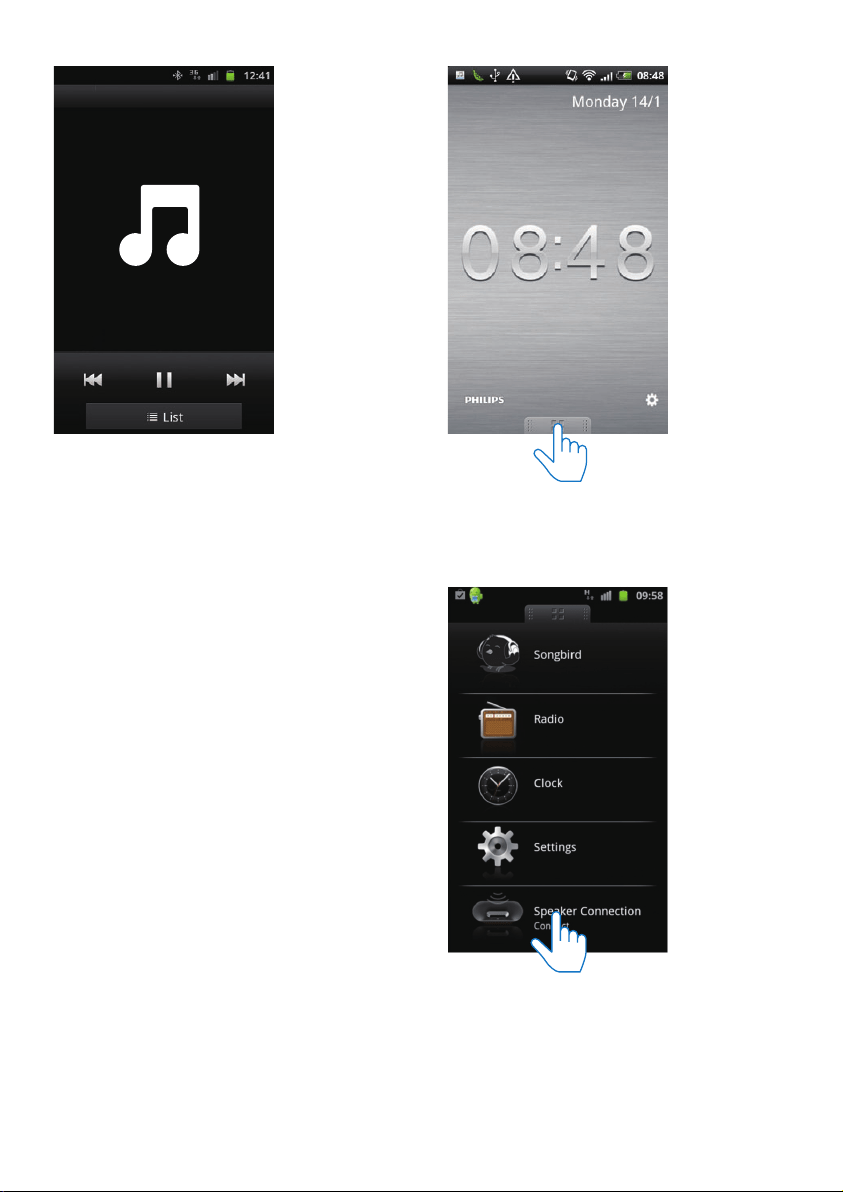
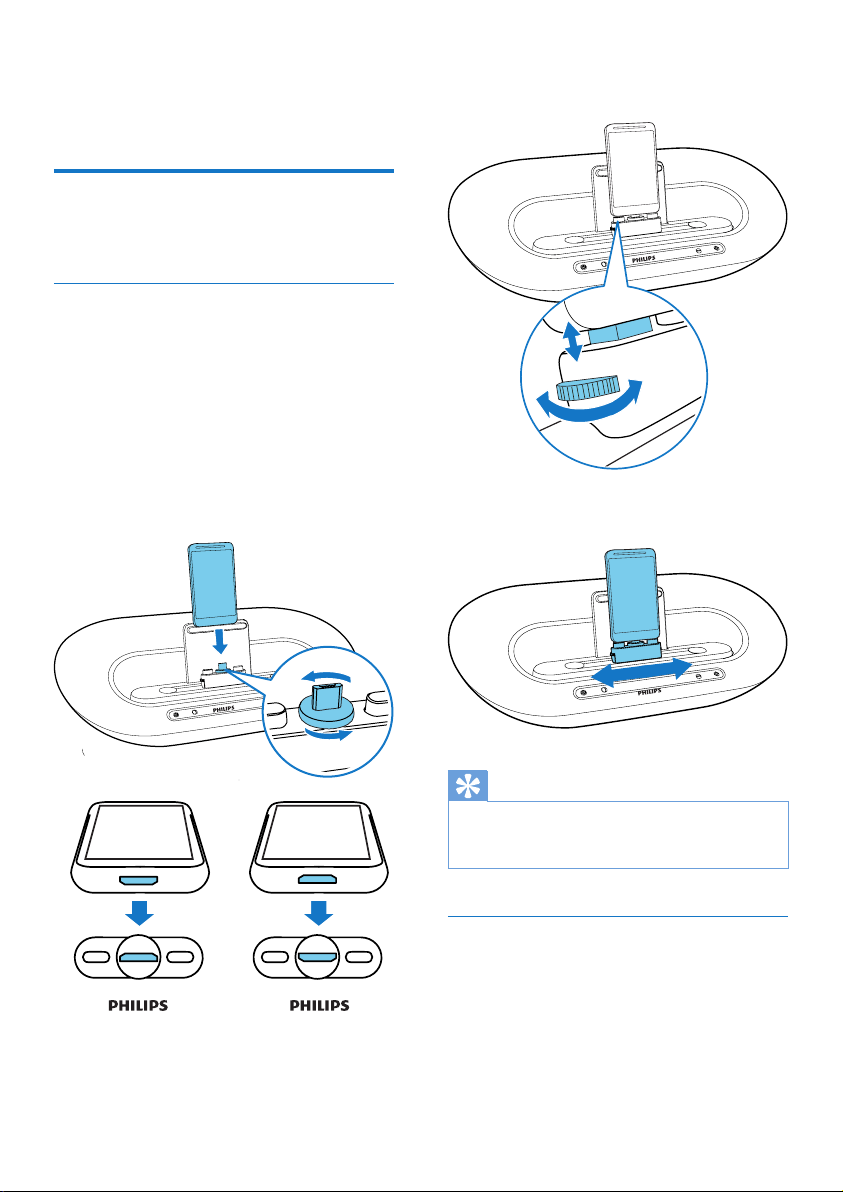
Next-time launch
Next time you launch the DockStudio
app,
connect to the docking speaker through
Bluetooth as below.
1 Activate the Bluetooth function of your
docking speaker.
2 Launch Philips DockStudio to access its
menu.
3 Tap [Speaker Connection] (Speaker
Connection) to activate automatic
Bluetooth connection.
» It may take a few seconds to complete
the connection.
13EN
4 Play audio on your portable device.
» The audio comes out through the
docking speaker.
Dock and charge Android-
powered phone
Dock Android-powered device
TochargeyourAndroid-poweredphone,you
needtodockitinthedockingspeakerrst.
1 Check the orientation of the micro USB
connector on your Android-powered
phone.IfyourUSBconnectorhasacover,
ipitoutwards.
2 Ifnecessary,rotatetheUSBconnectoron
thedockingspeaker,andthenplaceyour
Android-powered phone onto the dock.
3 Adjustthebumpersonbothsidesofthe
connectortostabilizethephone.
4 Slide the connector to place your phone in
the middle of the docking speaker.
Tip
• IfthemicroUSBconnectorislocatedatthetop,and
yourareusingAndroidsystemofversion2.3orabove,
screen auto-rotation is available.
Use dock extension
If the USB connector on your phone is close
totheedge,thesupplieddockextensioncan
balancethedockedphone,asillustrated.
1 Adjusttheslideknobstomakeboth
bumpers at the lowest position.
2 Place the dock extension onto the dock.
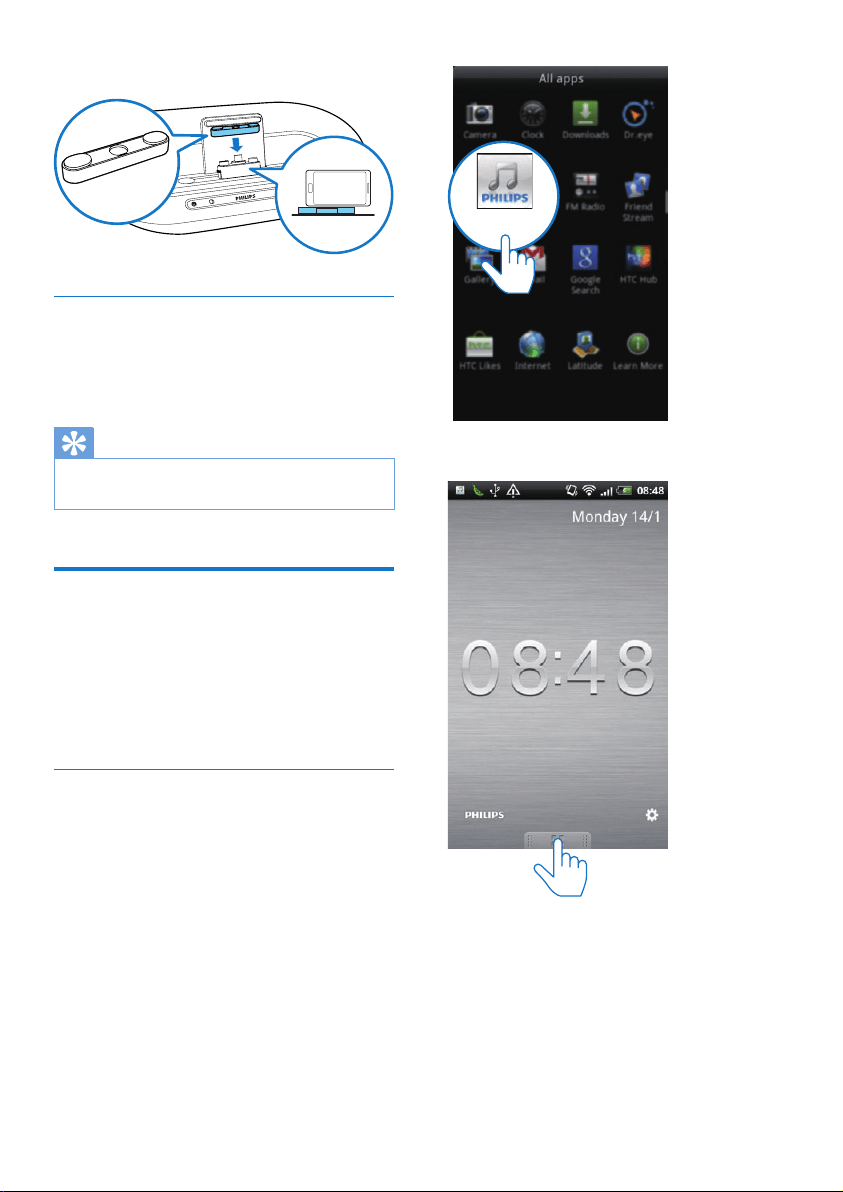
14 EN
3 Dock your phone.
Charge Android-powered phone
When the docking speaker is connected to
power,thedockedphonestartscharging
automatically.
Tip
• This function is also available for non Android-powered
device that has a micro USB connector.
Play audio with Philips
Songbird
Philips Songbirdisasimple,easy-to-usePC
programandAndroidapp.Itletsyoudiscover,
play and sync your media from PC to your
Android-powered devices seamlessly.
Install Songbird on Android-powered
device
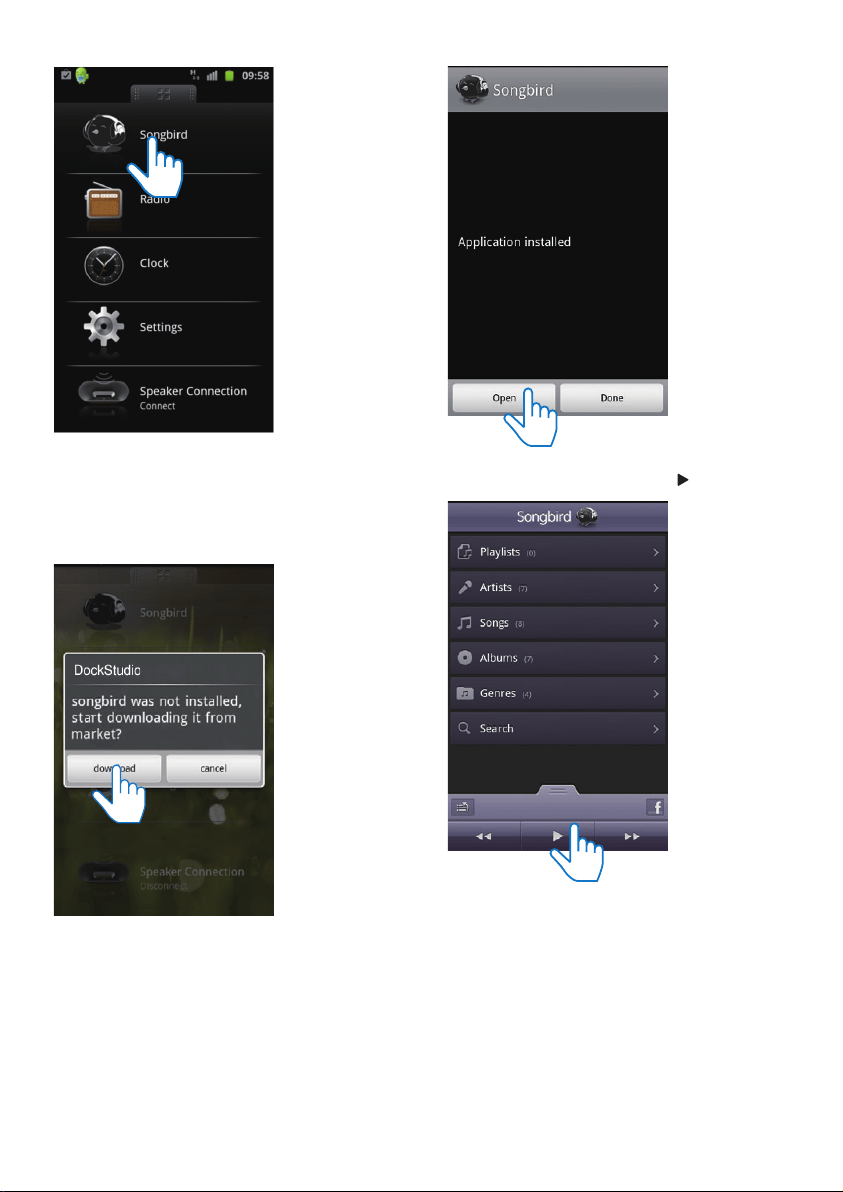
1 Tap the DockStudio icon on your Android-
powered device.
Dock extension
» The DockStudio menu is displayed.
2 Tap [Songbird].
DockStudio
15EN
» You are requested to download
Songbird.
3 Follow the on-screen instructions to
download the app.
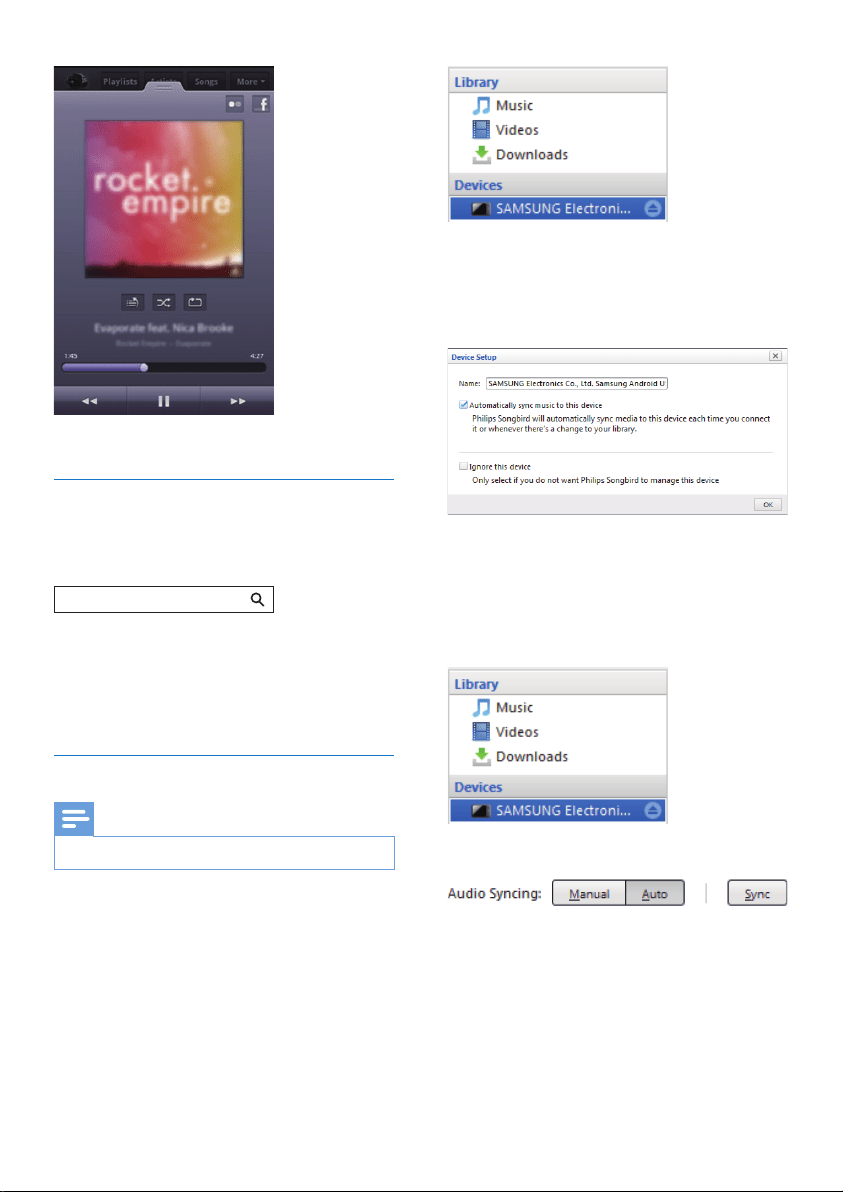
4 Afterinstallation,tap[Open] (Open) to
access Songbird menu.
5 Selectatrack,andthentap to play music.
16 EN
Install Songbird on PC
1 Go to www.philips.com/songbird.
2 Search Songbird.
3 Download the latest Songbird application.
4 Follow on-screen instructions to install
Philips Songbird on your PC.
Sync with PC through Philips Songbird
Note
• Make sure that you have turned on the USB storage.
1 OnyourPC,launchPhilips Songbird.
2 Connect your Android-powered device to
PC with a USB cable. Wait until the device
isrecognizedbytheSongbird.
» On Philips Songbird,thedeviceis
displayedwhenitisrecognizedbythe
PC .
songbird
» Ifitisthersttimeyouconnectthe
device to Philips Songbird,apop-up
screen appears. Select auto sync as
prompted.
» ThedevicesynchronizeswithPhilips
Songbird automatically.
Ifyoudidn'tselectautosync,youcansyncwith
Songbird manually.
1 Select the device under Devices.
2 Select Manual or Auto.
3 Click Sync.
» Ifyouhaveselectedautosync,auto
sync starts automatically when you
connect the device to the PC.
17EN
5 Other features
Use more features with
DockStudio
With Philips DockStudio,youcanalsolistento
Internetradio,setalarmtimerandsleeptimer.
Note
• Make sure that your portable device is connected to
the Internet.
Listen to Internet radio
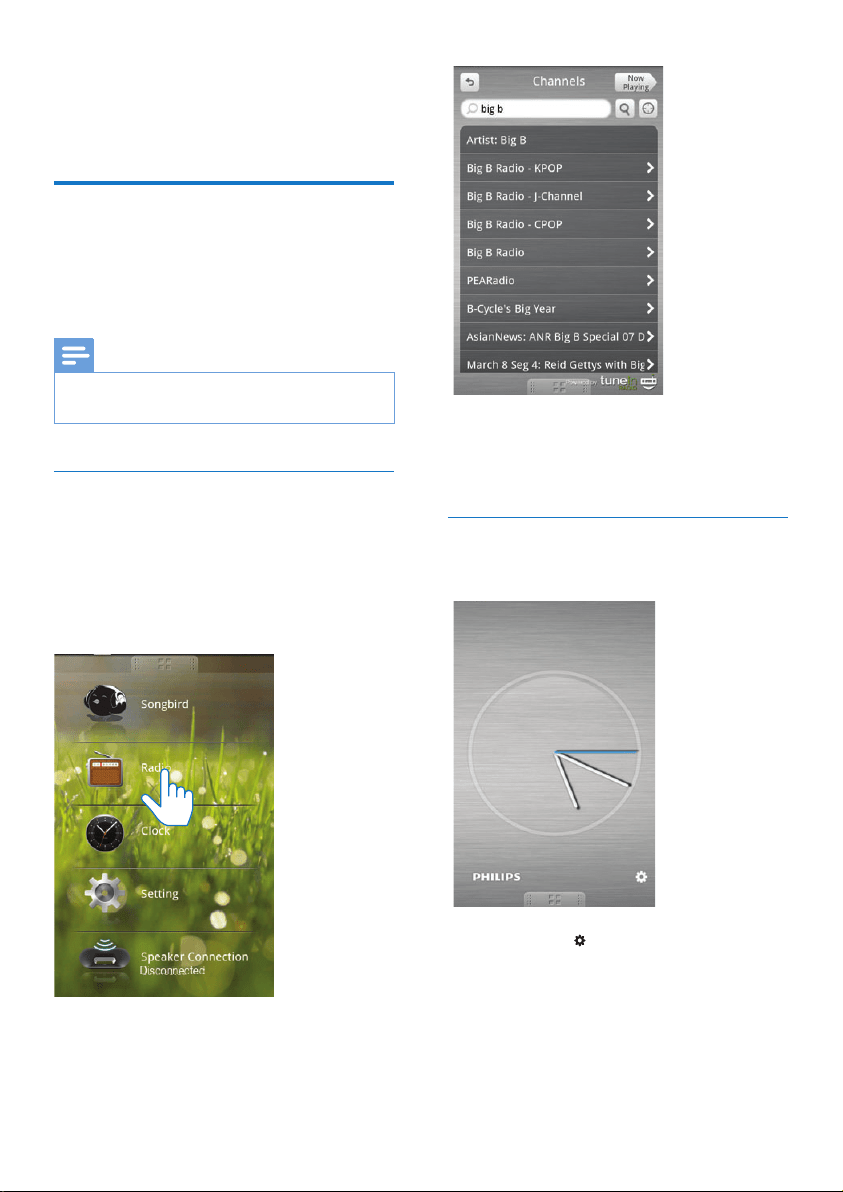
1 Connect your Android-powered device
and the docking system through Bluetooth.
2 Open Philips DockStudio to go to the
main menu.
3 Tap [Radio] (Radio) on the screen.
4 Search a radio station in the search bar.
5 Select a radio station from the search
result list.
» The radio station begins to broadcast.
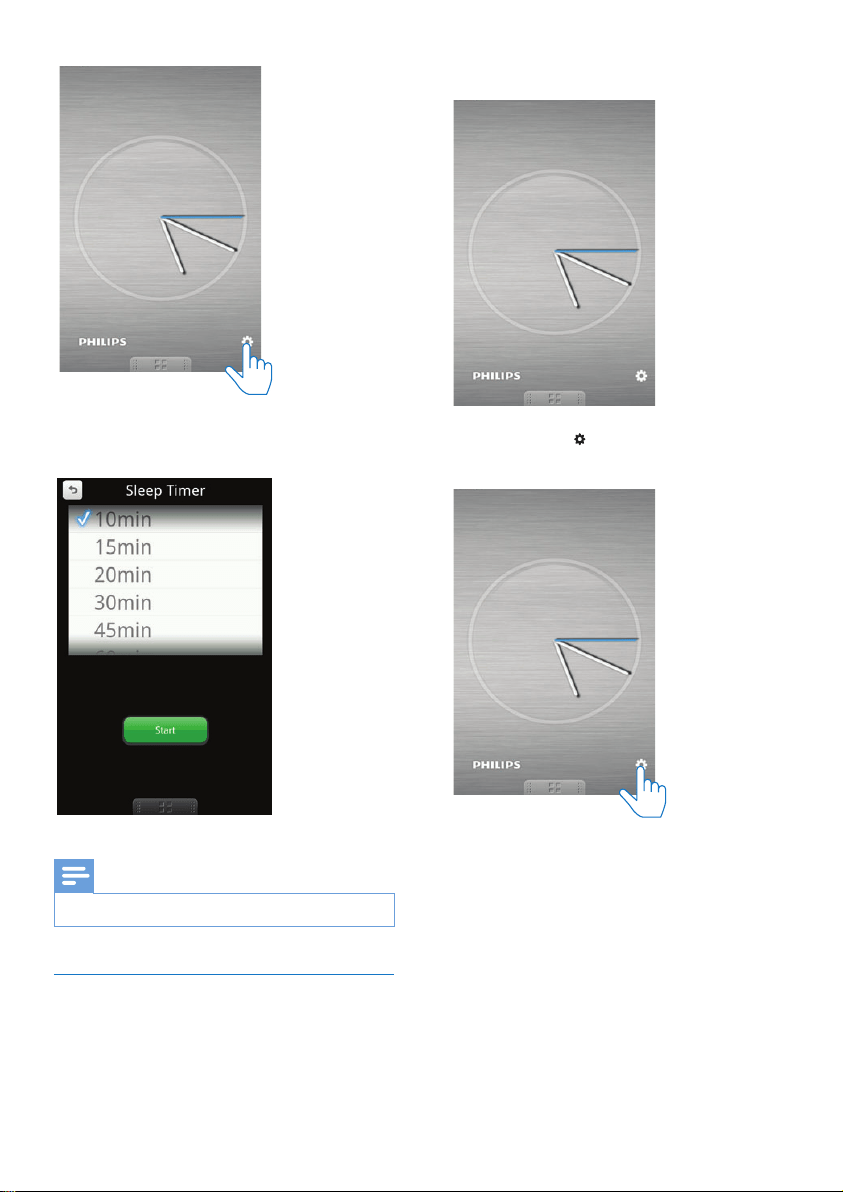
Set sleep timer
1 Launch Philips DockStudio.
2 Tap the icon to access the sleep timer
menu.
18 EN
3 Selectatimeperiodforthesleeptimer,
and then tap [Start] (Start).
Note
• This function only works with Philips Songbird.
Set alarm timer
With Philips DockStudio,youcansetmultiple
alarms and know the latest weather. It even
alerts you when weather conditions are suitable
for your favorite outdoors activity.
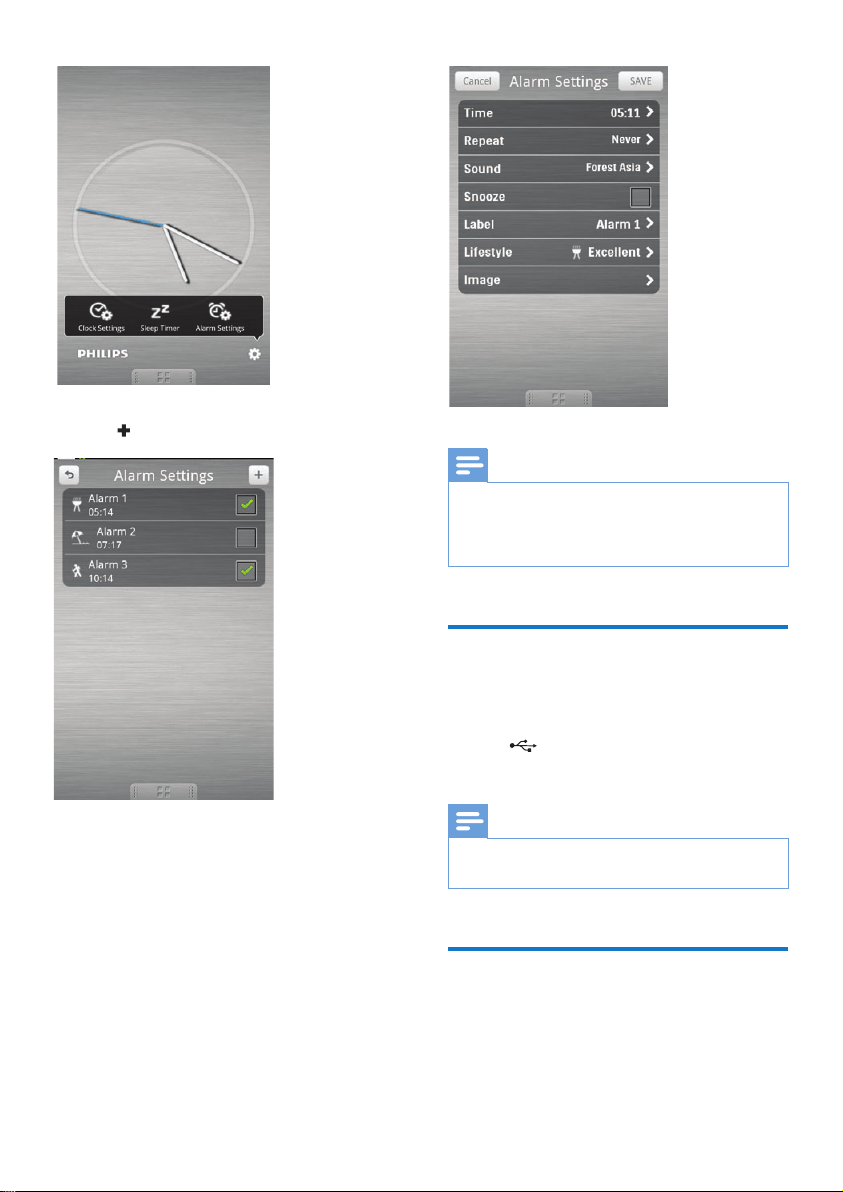
1 Launch the app.
2 Tap the icon to access clock setting
menu.
3 Tap [Alarm settings] (Alarm settings).
19EN
4 Tap to access alarm setting menu.
5 Setthealarm,andtap[Save] (Save) on the
top right of the screen.
» The new alarm is saved and displayed
on the screen.
Note
• From the [Lifestyle](Lifestyle)tab,youcanselectyour
preferredsportandweather(excellent,good,orfair).
The alarm will not ring if the weather is not good
enough.
Charge your phone through
the USB socket
Connect a USB cable (not supplied) to:
• the socket at the back of the speaker.
• the USB socket on your phone.
Note
• It is not guaranteed that all USB cables work with this
speaker.
Play audio from an external
device
You can listen to audio from an external device
through this speaker.

20 EN
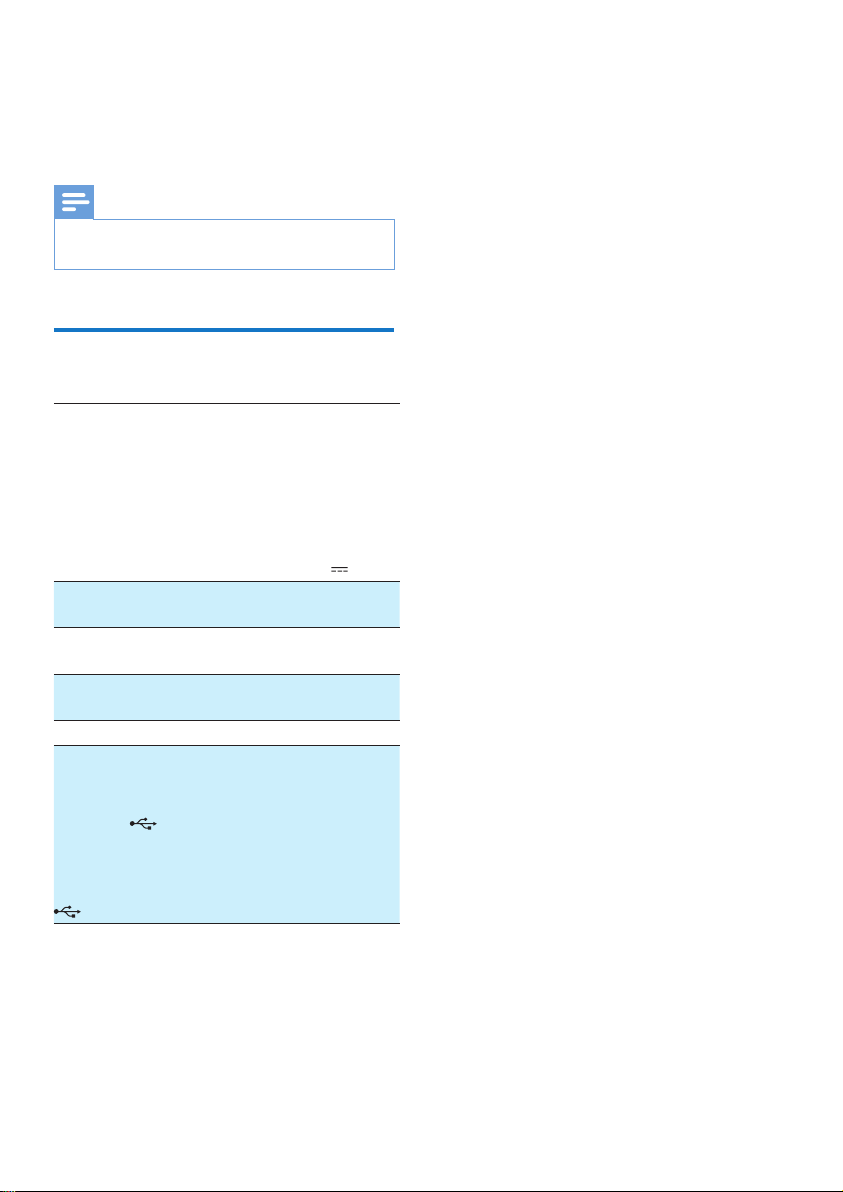
1 Connect an MP3 link cable (not supplied)
to:
• the AUX IN socket.
• the headphone socket of an external
device.
2 Play audio on the external device (see the
device's user manual).
21EN
6 Product
information
Note
• Productinformationissubjecttochangewithoutprior
notice.
Specications
AC Power OH-1028A0903000U-
VDE/-UK/-SAA/-CCC/-IR/-
UL (Philips);
OH-1028A0903000U
(Philips).
Input:100-240V~,50/60Hz,
800mA;
MAX Output: 9V
3A
Operation Power
Consumption
< 35W
Eco Standby Power
Consumption
< 1W
Dimensions - Main
Unit (W x H x D)
270.5 X 88.5 X 141.5 mm
Weight - Main Unit 0.885 kg
Charging:
- through micro
USB connector
- through
socket
- through micro
USB connector and
socket
2A
2A
1A for each

22 EN
7 Troubleshooting
Warning
• Never remove the casing of this device.
Tokeepthewarrantyvalid,nevertrytorepair
the system yourself.
If you encounter problems when using this
device,checkthefollowingpointsbefore
requesting service. If the problem remains
unsolved,gotothePhilipsWebpage(www.
philips.com/support).WhenyoucontactPhilips,
make sure that the device is nearby and the
model number and serial number are available.
No power
• Make sure that the AC power adaptor of
the device is connected properly.
• Make sure that there is power at the AC
outlet.
• Make sure that the batteries are inserted
correctly.
• Ifthespeakerispoweredbythebatteries,
make sure that the adapter is not
connected to the device.
No sound or poor sound
• Adjustthevolumeofthedockingsystem.
• Adjustthevolumeofyourphone.
No response from the unit
• Disconnect and reconnect the AC power
plug,thenturnontheunitagain.
23EN
8 Notice
Anychangesormodicationsmadetothis
device that are not expressly approved by
Philips Consumer Lifestyle may void the user’s
authority to operate the equipment.
This product complies with the radio
interference requirements of the European
Community.
A copy of the EC declaration of Conformity
is available in the Portable Document Format
(PDF) version of the user manual at www.
philips.com/support.
Recycling
Your product is designed and manufactured
withhighqualitymaterialsandcomponents,
which can be recycled and reused.
When you see the crossed-out wheel bin
symbolattachedtoaproduct,itmeansthe
product is covered by the European Directive
2002/96/EC:
Never dispose of your product with other
household waste. Please inform yourself about
the local rules on the separate collection of
electrical and electronic products. The correct
disposal of your old product helps prevent
potentially negative consequences on the
environment and human health.
Environmental information
All unnecessary packaging has been omitted.
We have tried to make the packaging easy to
separateintothreematerials:cardboard(box),
polystyrene foam (buffer) and polyethylene
(bags,protectivefoamsheet.)
Your system consists of materials which can
be recycled and reused if disassembled by
aspecializedcompany.Pleaseobservethe
local regulations regarding the disposal of
packagingmaterials,exhaustedbatteriesandold
equipment.
Note
• The type plate is located on the bottom of the
apparatus.

Specifications are subject to change without notice
© 2013 Koninklijke Philips Electronics N.V.
All rights reserved.
AS351_12_CCR_V3.0