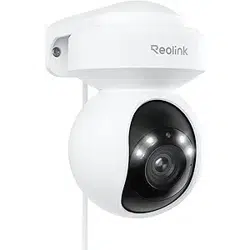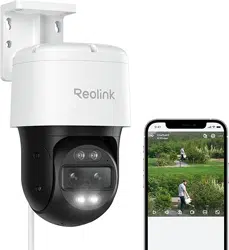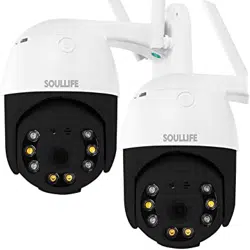

CamHi IP Camera
Quick Start Guide
V 2.4
This manual applies to the following CamHi IP cameras:
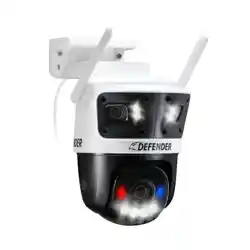
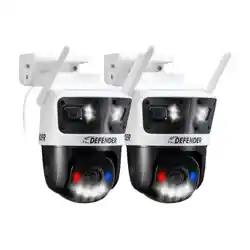
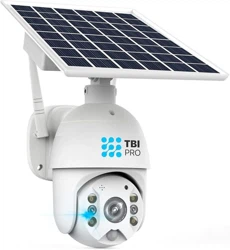
CamHi PTZ Cameras
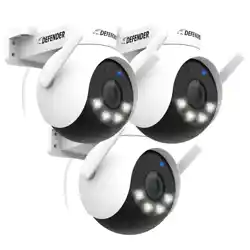
CamHi Bullet/Dome IP Cameras
Please download the correct product information at www.ipcam.xin.
※Please read this quick start guide carefully before using the product and keep it
for future reference.


LIST
Product Introduction............................................................................01
Product List...........................................................................................01
Product Precautions
.............................................................................01
Connect the Camera and Watch on the Phone...........................02
Turn on the Camera.
............................................................................02
Reboot or Restore Factory Settings....................................................02
Method 1: Connect with WiFi...............................................................03
Method 2: Connect with network cable
..............................................06
Watch on Computer.............................................................................07
Search tool
............................................................................................07
Web access
...........................................................................................07
“HiP2P Client” multi-channel management client.............................08
Install Micro SD Card and Record Settings...................................1 0
Set SD card plan recording.................................................................1 0
Set SD card alarm recording...............................................................1 0
Record playback
...................................................................................1 1
Q&A.........................................................................................................1 2
Customer Service.................................................................................1 3

1
Product Introduction
This is a network camera for security surveillance. It is connected to the Internet
through network cable or WiFi for data transmission and reception, you can use it to
remotely watch real-time images on mobile phone and computer anytime
anywhere, it can save video in the Micro SD card or computer, you can set motion
detection and humanoid detection alarm on the camera, when the alarm is
triggered, the camera can send email, push phone message, and make alarm sound,
and other more functions.
Product List
NO.
Name
QTY
1
IP Camera
1PC
2
Power Adapter
(100-240V 50/60Hz)
1PC
3
Quick Start Guide
1PC
4
Installation Accessories
1PC
5
Network cable
1PC
Product Precautions
The proper environment temperature for this camera range from 10°F to 125°F.
Please avoid exposing it to too much hotter or colder environment.
Please do not use this camera in somewhere moist or high risk of getting water
inside of it, thus to ensure this camera of precise electronics a long service life.

2
For better user experience, please keep the front and both sides of the camera
lens away from objects reflective as glass, white wall etc. So that the picture function
well without overexposure.
Make sure the camera has been placed in areas of good reception of the Wi-Fi
signal or at lease within the signal zone. Set it up away from somewhere might
jamming signal as metal or microwave oven.
If this is a PTZ rotation type camera, do not twist the camera to force it to rotate,
if you need to adjust the monitoring orientation, you can adjust it through the PT
function of the mobile APP.
Connect the Camera and Watch on the Phone
Download “CamHiPro” or “CamHi” from Google Play Store / Apple App Store
or scan the QR code below to get APP information.
Turn on the Camera
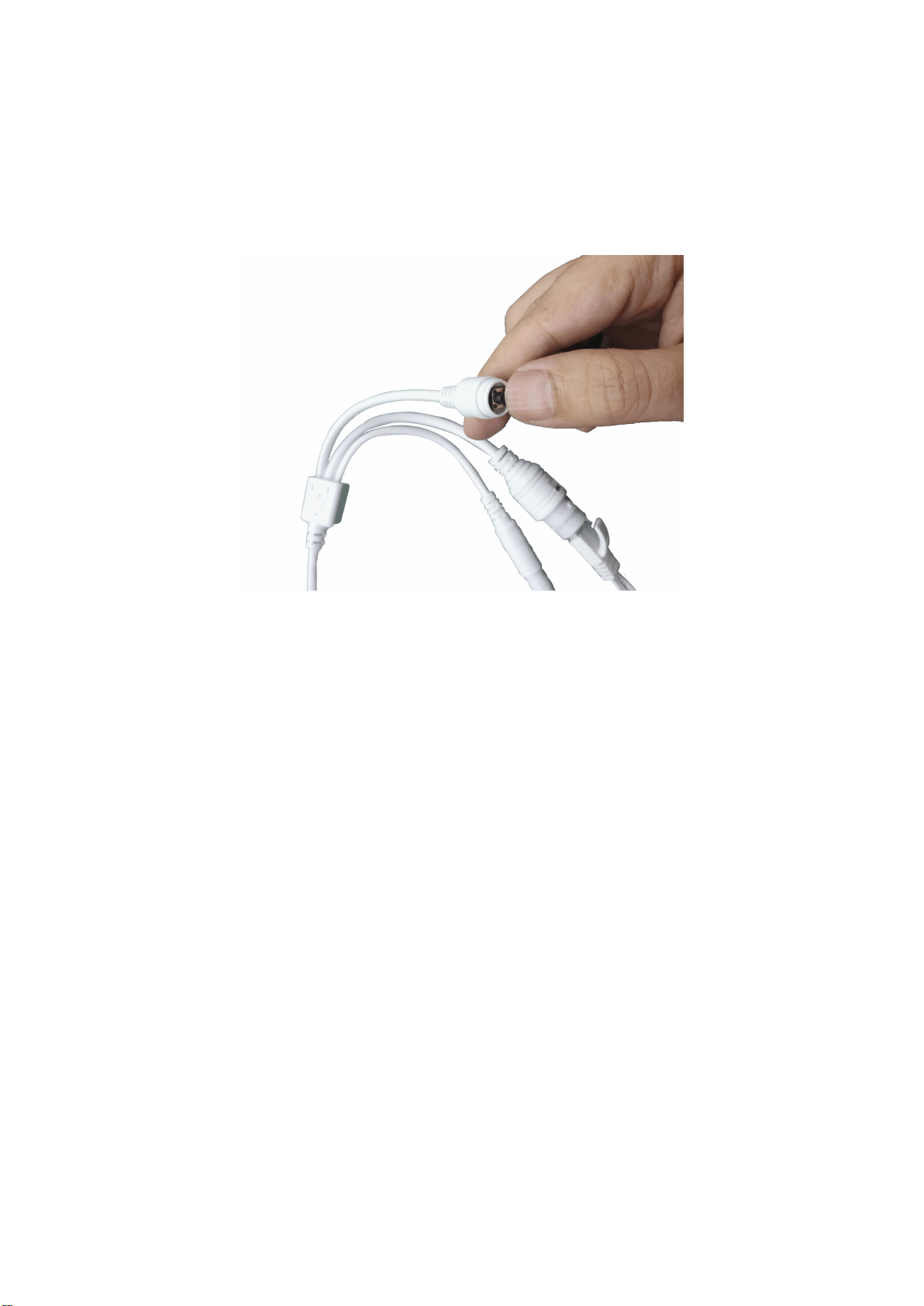
Plug the power into the power interface of the camera and wait a few seconds
for the camera to automatically turn on.
Android
IOS
3
Reboot or Restore Factory Settings
Reconnect the power to reboot the camera:
Press and hold the reset button for 5 seconds, you will hear the "dong..." restart
tone, then the camera will restore to factory settings.
Method 1: Connect with WiFi
Some things you need to check first:
Please make sure that the wireless signal strength of the camera installation
location is higher than 70%.
Connect the power to the camera (Do not connect the network cable), install or
check the antenna of camera.
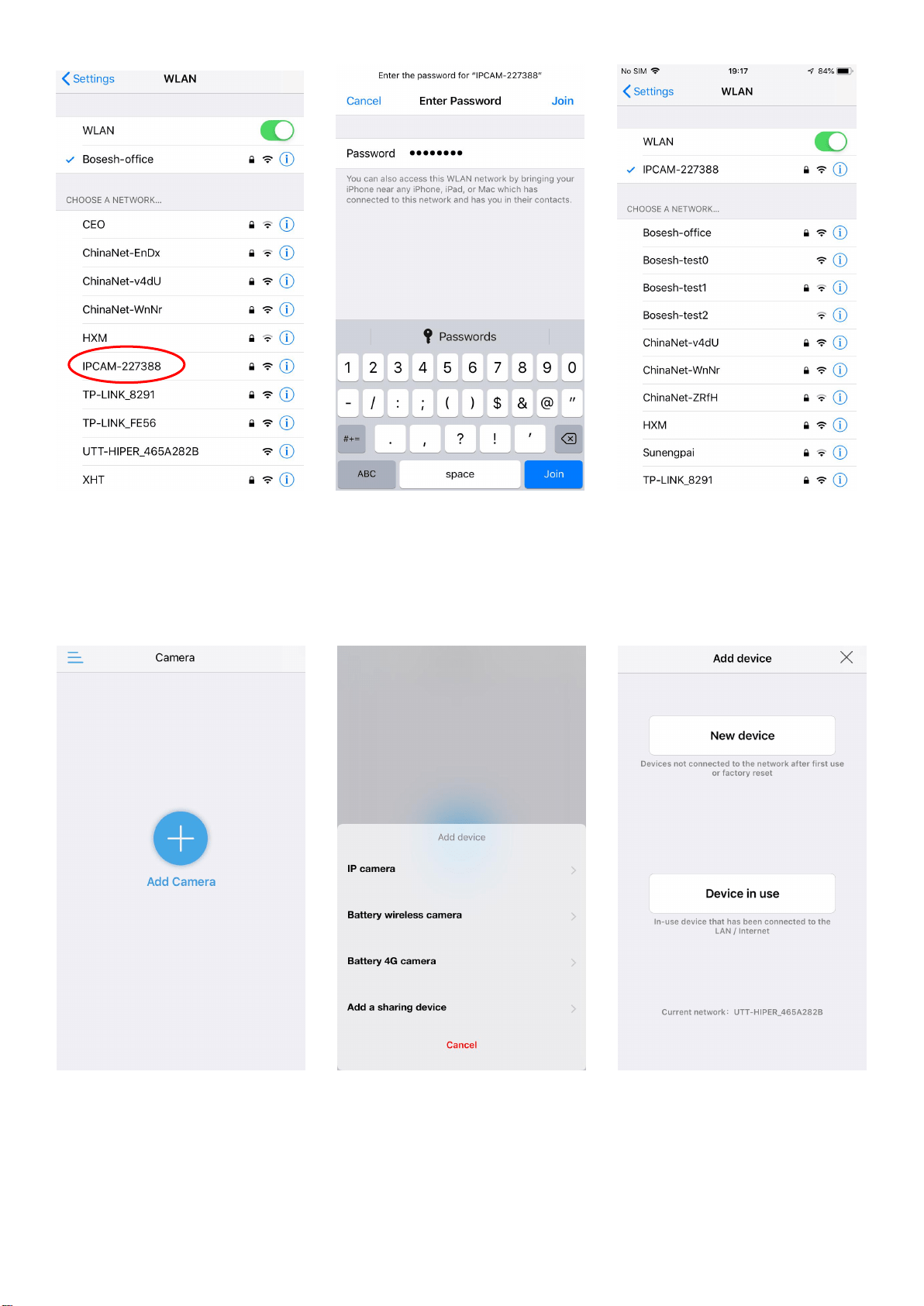
Enter your phone "Settings"-"WLAN" page, you can find the camera's hotspot
in the wireless list, if you do not find this hotspot, please reset the camera, it will take
1 minute to find the hotspot if you reset, the hotspot name is "IPCAM-******", the
hotspot password is "01234567", connect it as shown below Shown:
4
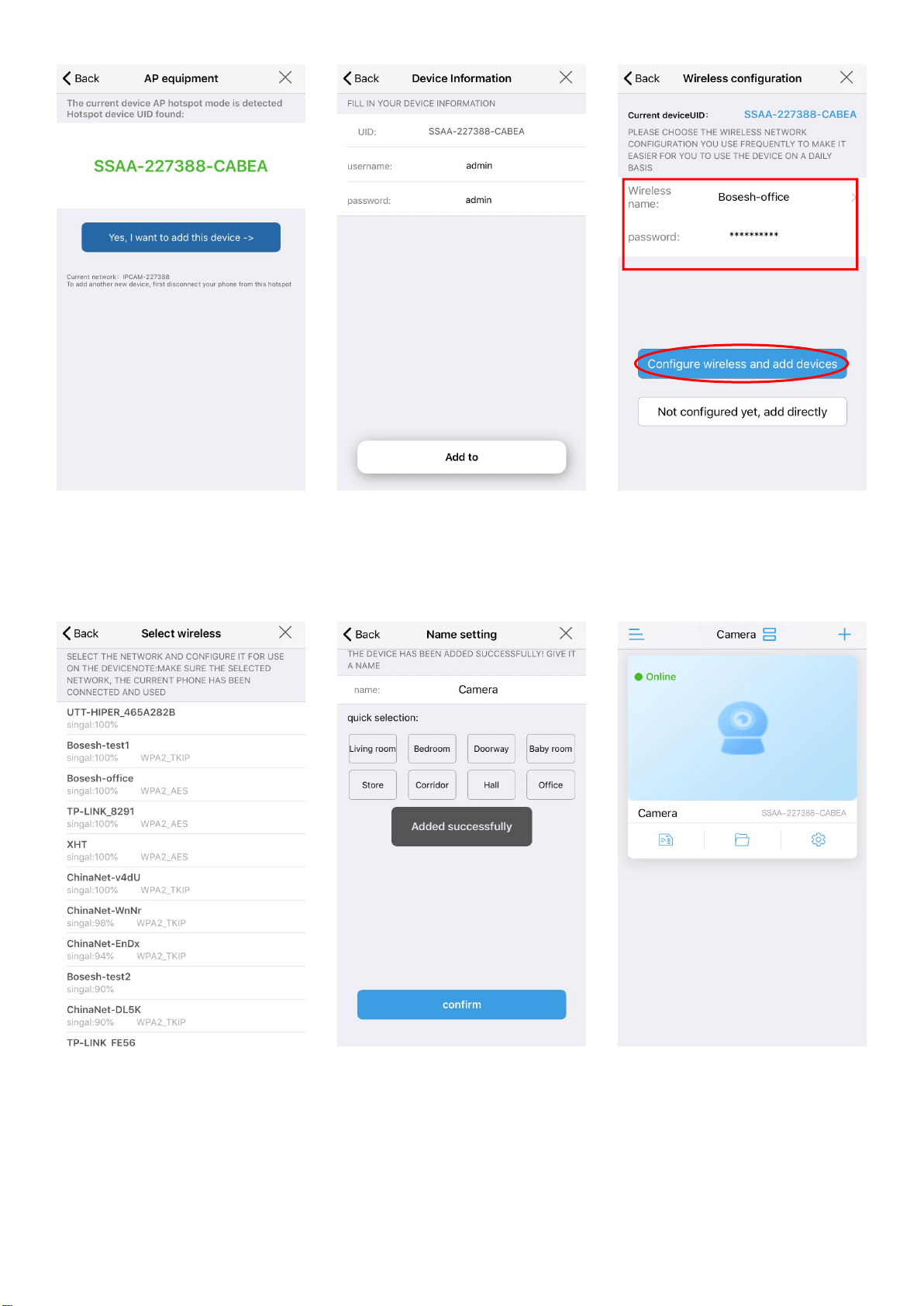
Then run APP "CamHiPro" and follow the steps below:
Click “Add Camera”
Click “IP camera”
Click “New device”
Find hotspot of the
camera "IPCAM-******"
The hotspot password of
the camera is "01234567"
Connected hotspot
5
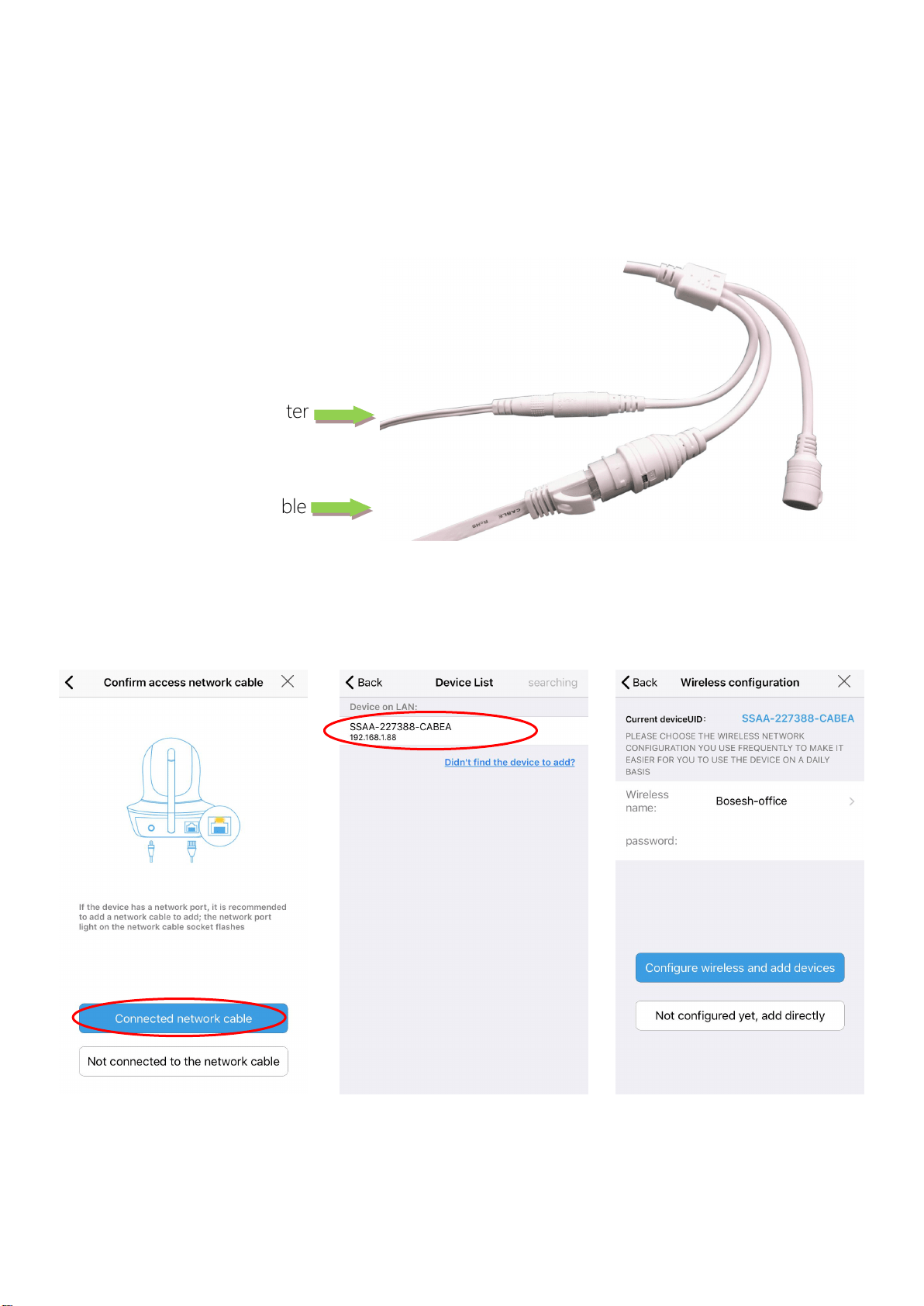
When the wireless connection is successful, you will hear the sound "ding..."
from camera, if not, please check your wireless password.
Click “ Yes, I want to add
this device”
Click “Add to”
Choose your wireless and
enter the password, then
click “Configure wireless and
add devices”
Find your wireless and make
sure its signal is higher than
70%
Hear the sound "ding...”
from the camera,
click”confirm“
Camera is added, click the
online camera to watch
6
Method 2: Connect with network cable
Connect the power and network cable to the camera, make sure that the
camera and mobile phone are in the same local area network, and both can be
connected to the Internet.
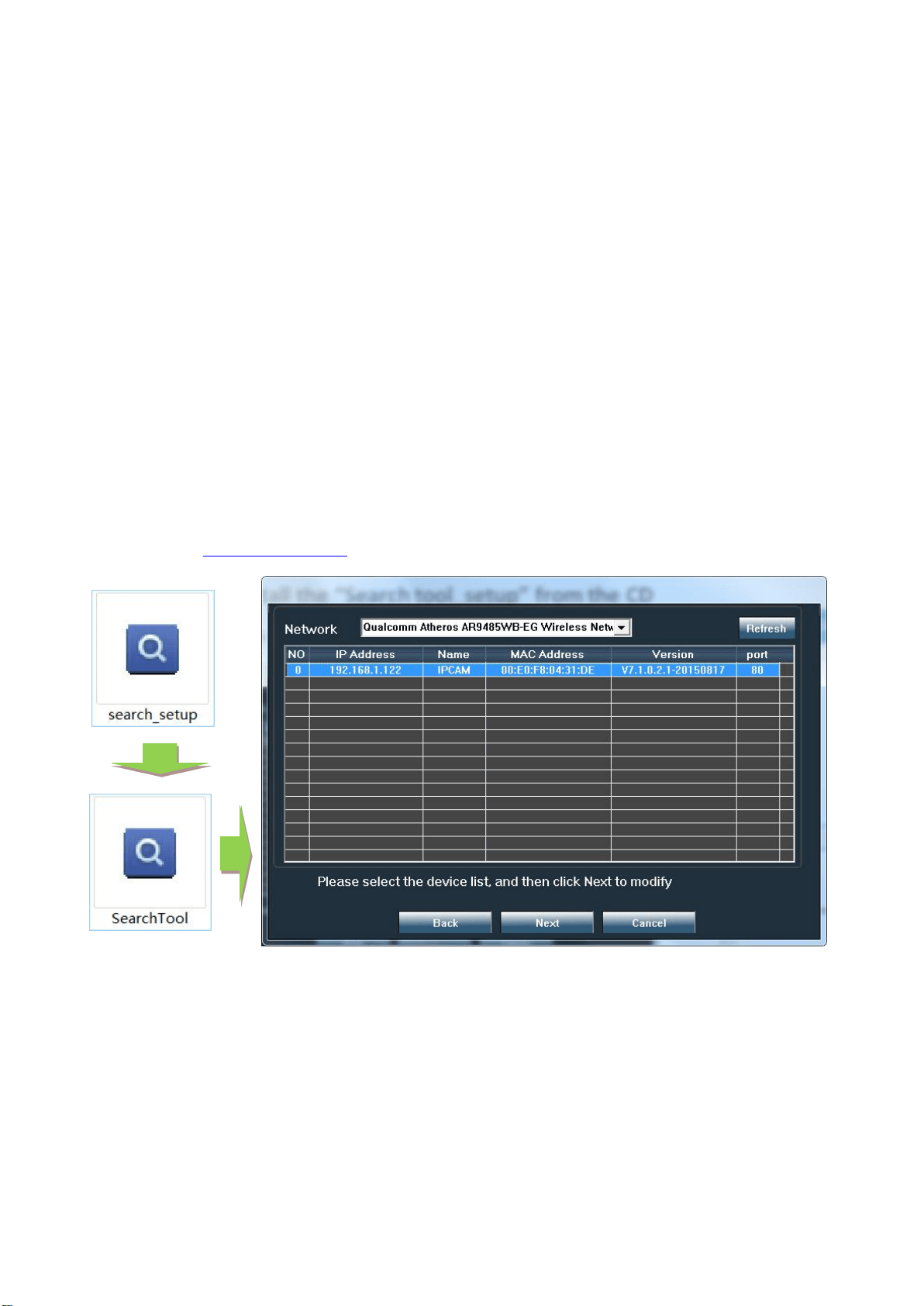
Run APP and click "Add Camera"-"IP camera"-"New device"-"Power is on, next
step" until "Confirm access network" page, and then follow the steps below:
Power adapter
Network cable
Click “Connected
network cable”
Find the camera and click
on it
Choose whether to
configure wireless and
finish it
7
If you want to use a network cable to connect, please click "Not configured yet,
add directly" and continue.
If you want to change to WiFi connect, please click "Configure wireless and add
devices" and continue, when the configure is finished, you need to unplug the
network cable to activate WIFI.
Watch on Computer
Search tool
Install the “Search tool” from CamHi IP camera product information, you can
download it at www.ipcam.xin.
The search tool can help you find cameras in the LAN and modify the IP
address of the camera if it does not match your network.
Web access
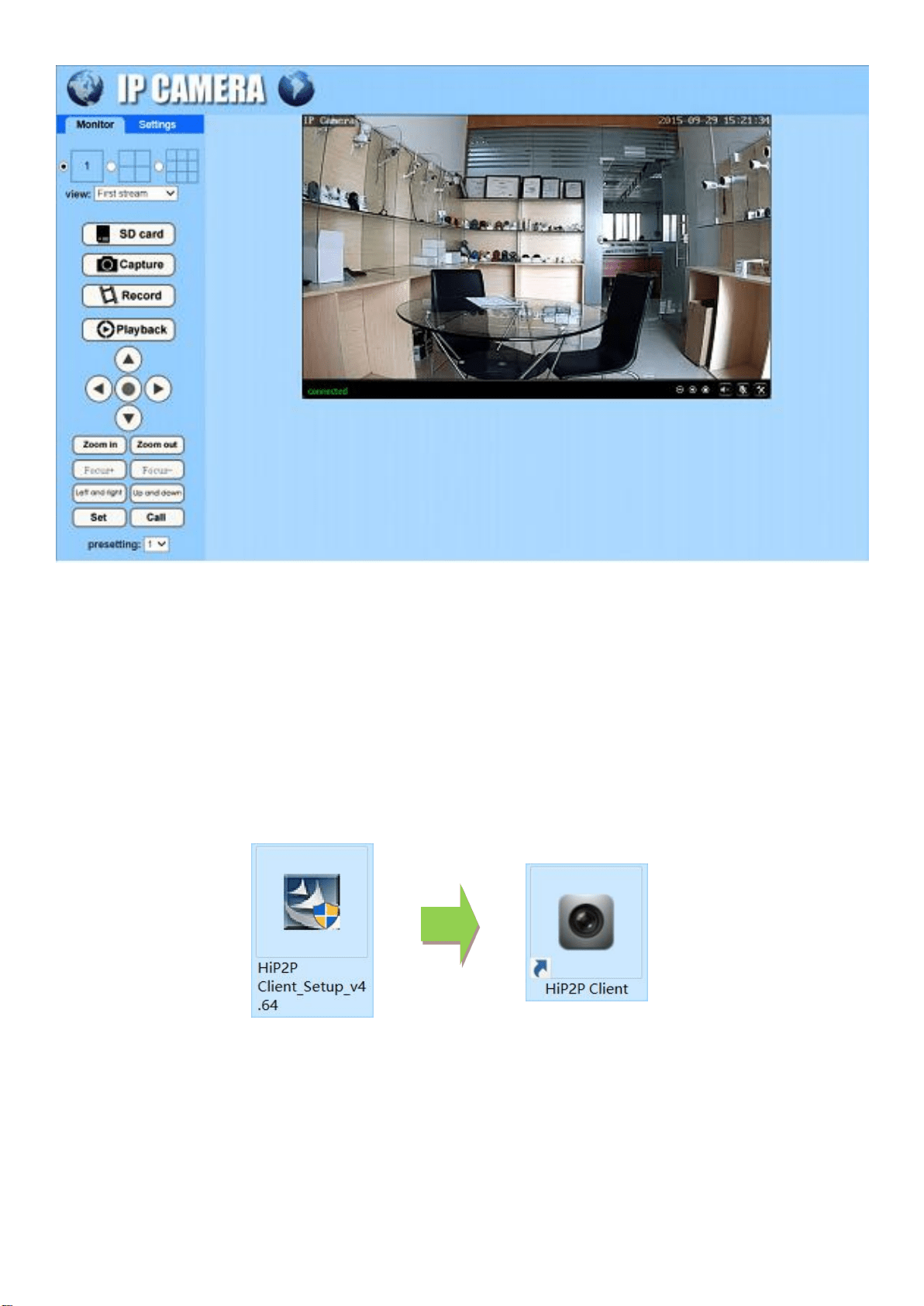
Double-click the camera in the search tool to open the camera web page.
8
In web you can configure all parameters of camera, if you are not using IE
browser some settings will be missing.
“HiP2P Client” multi-channel management client
Install the “HiP2P Client” client, you can find installation file and instructions in
CamHi IP camera product information.
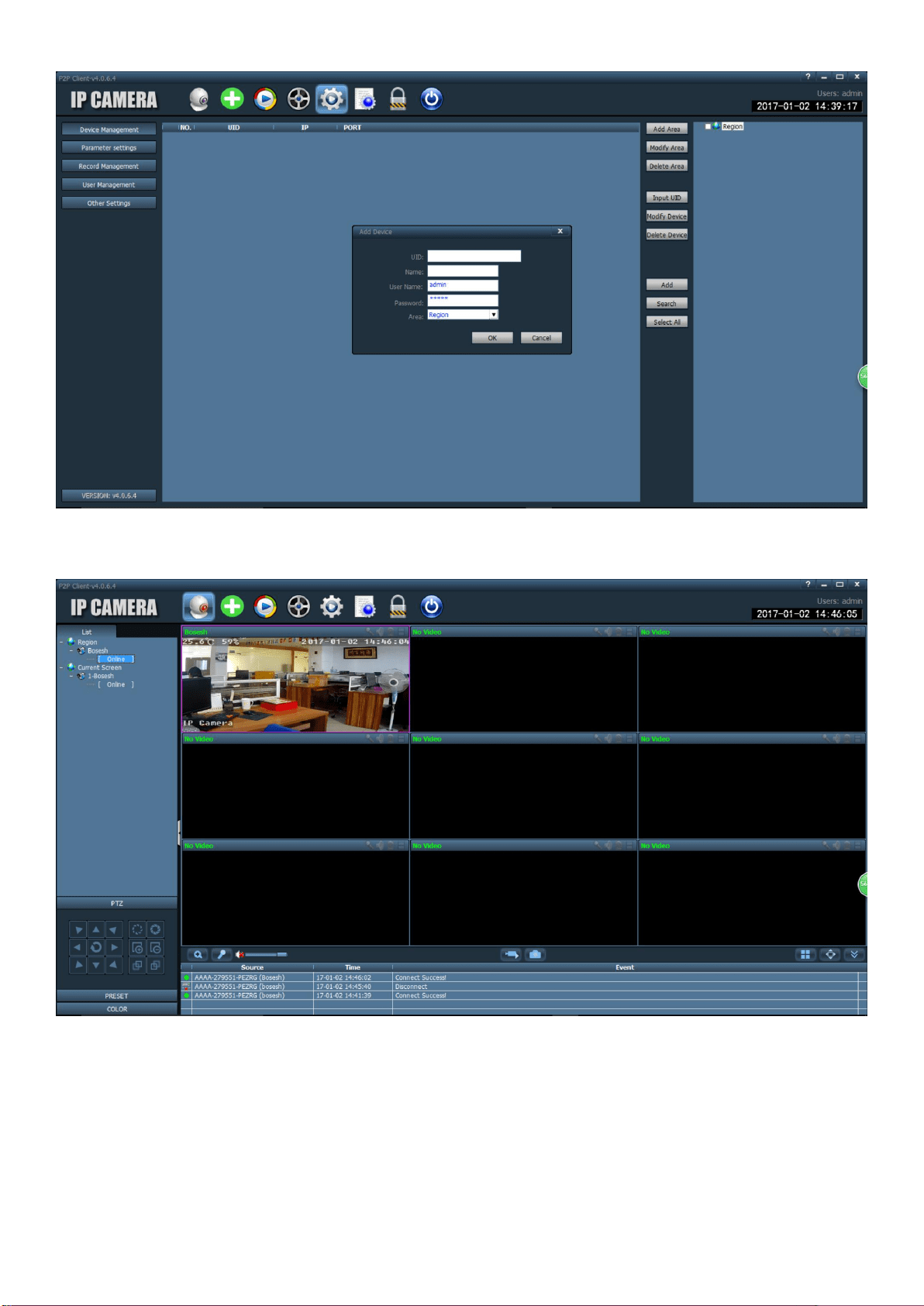
Run the client and enter the “Config” interface, click “Input UID” to add the
camera , you can find the UID serial number on the label of the camera.
9
After adding the camera, double-click the camera to watch the live video.
In the client, you can manage multiple cameras and watch up to 32 channel live
videos at the same time, you can save the video on the computer, you can playback
the local video (computer) and remote video (SD card), you can configure
parameters of camera etc., please read instructions for more information.
10
Install Micro SD Card and Record Settings
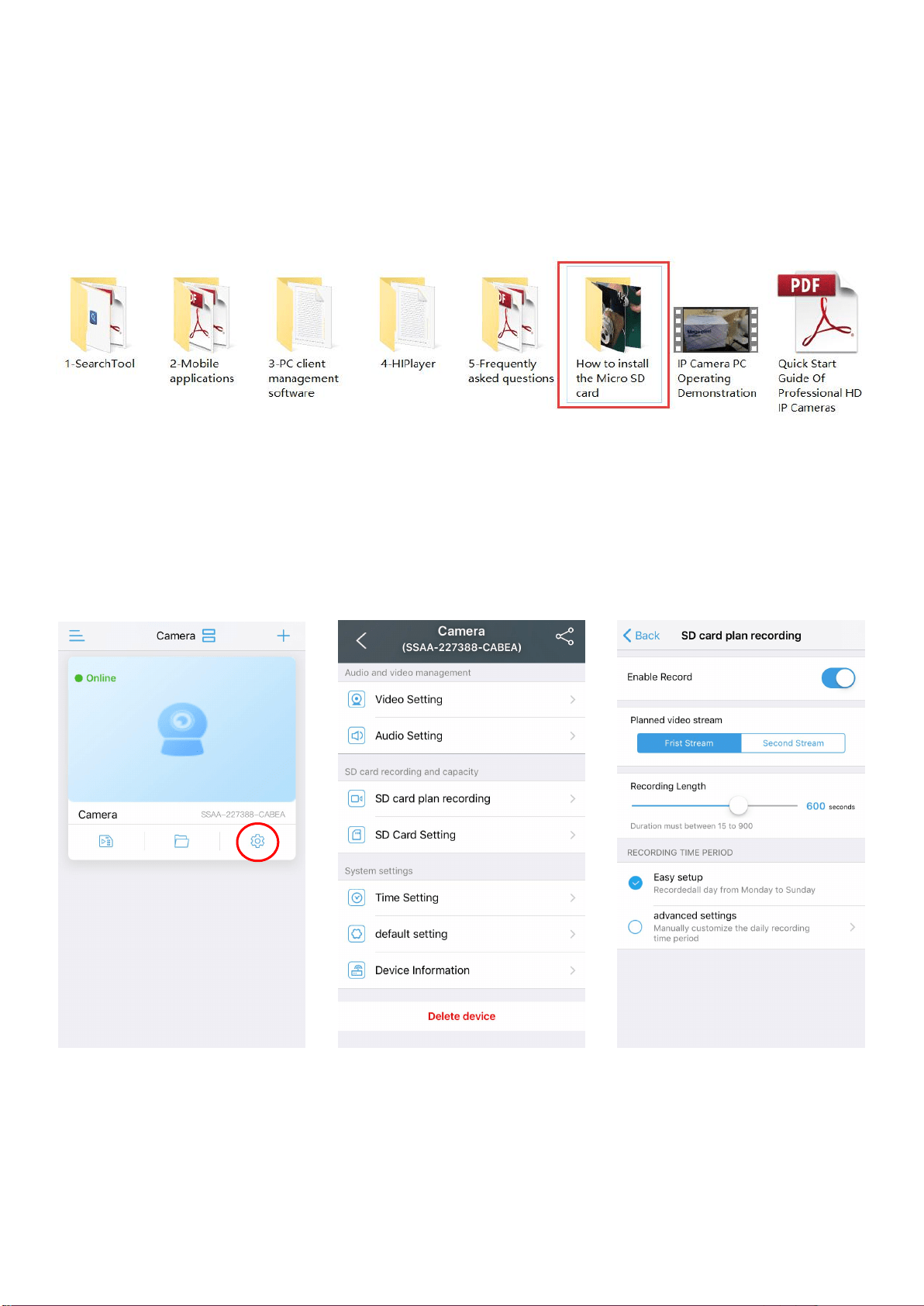
Refer to the installation tutorial to install the SD card to the camera, you can
find the installation tutorial in CamHi IP camera product information.
Please make sure your SD card have good quality, otherwise it will fail to record
and even cause the camera to crash.
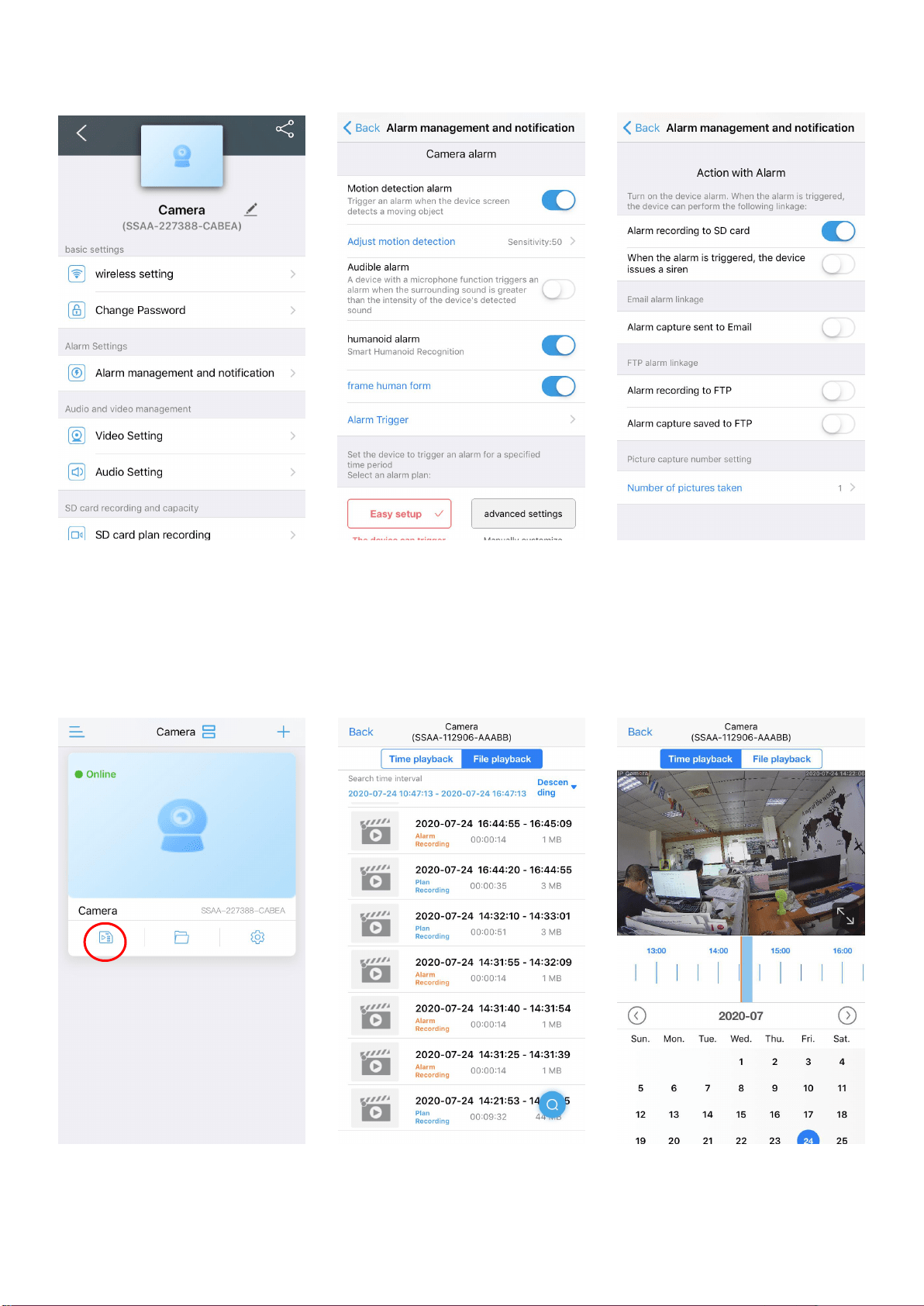
Set SD card plan recording:
Click “Setting” icon button
Click “SD card plan
recording”
The default is always
record,please check
11
Set SD card alarm recording:
Record playback:
Click “Alarm
management and
notification”
Select alarm conditions
Open “Alarm recording to
SD card”
Click “Playback” icon
button
Click the video file to play
or download
You can choose the time
playback mode

12
Q&A
Q: Forget password?
A: Reset camera and reconfigure.
Q: Wireless configuration failed?
A: Check whether the wireless signal is sufficient, the wireless name and password
are correct; the wireless name must be in English words, the wireless password
cannot contain special characters and the length cannot exceed 20 characters.
Q: The device list is prompted the camera is offline?
A: Please make sure your phone can be connected to the Internet, the camera’s
wired/WiFi connection is correct and can be connected to the Internet, If the camera
is connected wireless, whether the wireless signal of the camera installation location
is sufficient, check whether the wireless name or password has been changed.
Q: Live video is very stuck, even the camera shows offline?
A: Please make sure that the internet connection of the phone and the camera is
good, stable and at least 2Mbps, if the camera is connected wireless, make sure that
the signal at the installation location is sufficient.
Q: What should I do if the mobile APP does not receive the push?
A: Please check if the alarm push is turned on and the alarm settings are
correct(Setting - Alarm management and notification), whether the APP allows push
permission on the mobile phone.
Q: When playback video can not find video files?
A: Please check if the SD card is damaged, whether there is an SD card installed,
check the camera time, check whether the playback time is correct.