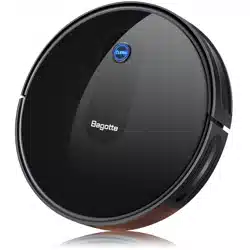
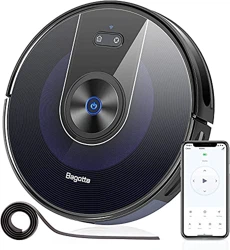
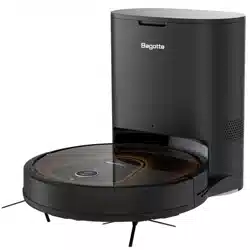
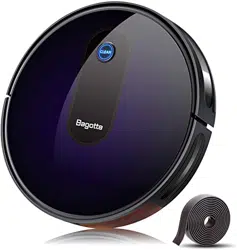
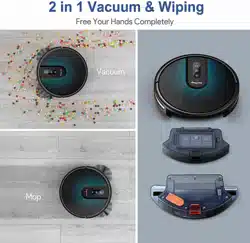
About Your Robot
Main Body
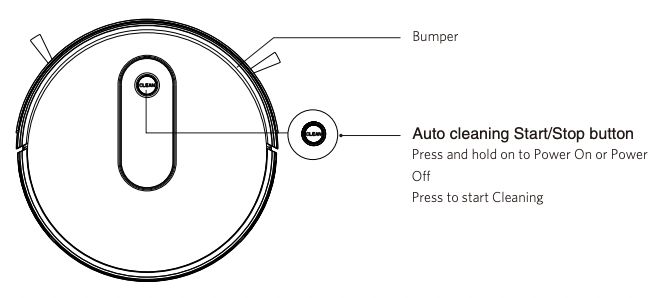
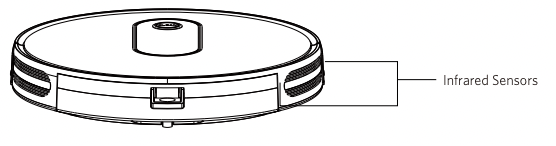
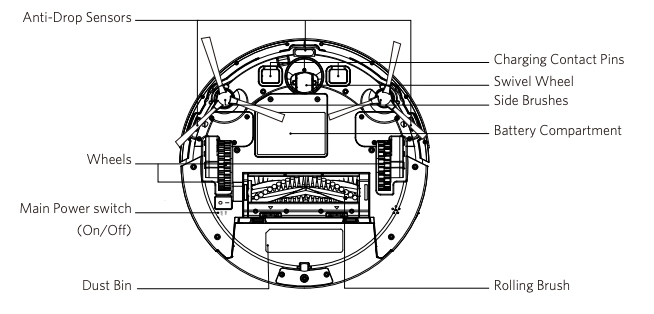
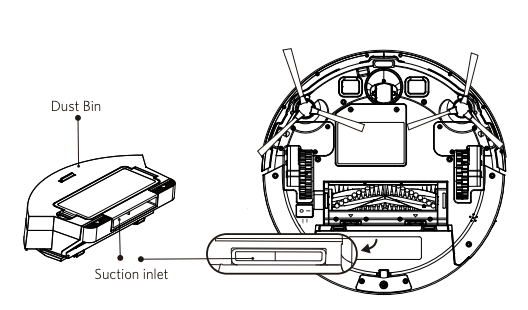
Dust Bin and Suction Inlet
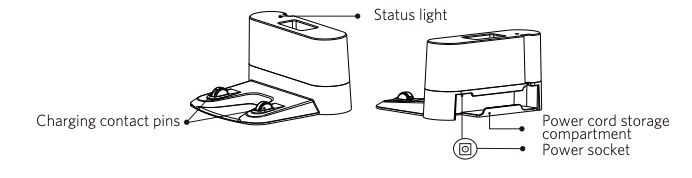
Charging Base
Remote Control
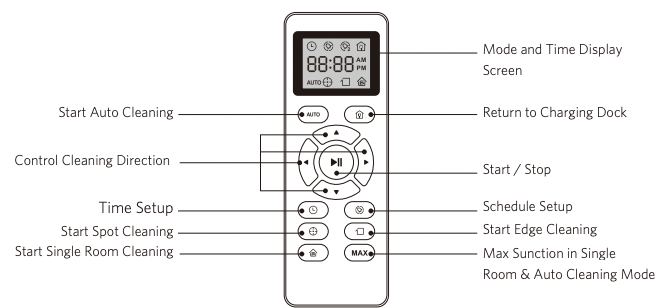
 Install 2 AAA batteries before using the remote control for the first time. Make sure the positive and negative ends are facing the correct polarity direction as marked in the battery compartment.
LED Indication
You can see the status of Robot from the LED indicator.
Breathing purple Charging
Solid blue Standby / Cleaning / Fully charged
Solid purple Low power and returning to Charging Base
Off
• Robo is off.
• To conserve power, the light automatically turns off when robot is not docked to the Charging Base and has been inactive for 1 minute.
Flashing / Solid red + Beeping. Robot has an error. Refer to the “ Troubleshooting>Error Tone” section in this manual for solutions.
Using Your Robot
Important Tips Before Use
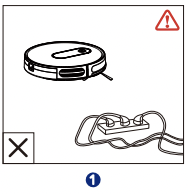
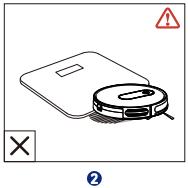
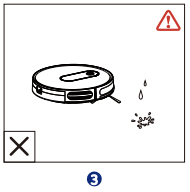
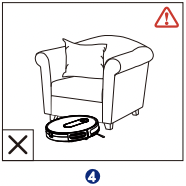
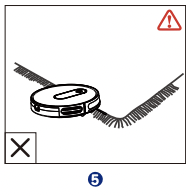
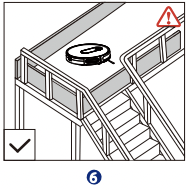
- Remove power cords and small objects from the floor that may entangle robot.
- Robot may climb on top of objects less than 0.63 in/16 mm in height. Remove these objects if possible.
- Keep robot away from wet areas.
- Keep robot away from spaces lower than 2.87 in/73 mm to prevent robot from getting stuck. If necessary, place a physical barrier to block off the problem areas.
- Fold tasseled edges of area rugs underneath to prevent tangling robot. Avoid cleaning very dark-colored high-pile rugs or rugs thicker than 1.02 in/26 mm as they may cause robot to malfunction.
- Anti-drop sensors prevent robot from tumbling down stairs and steep drops.They may work less effectively if dirty or used on reflective/very dark-colored floors. It is recommended to place physical barriers to block off areas where Robot may fall.
Place physical barriers in front of fireplaces and areas that may cause damage to robot if entered.
Preparation
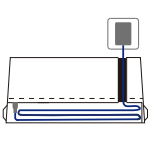
- 1. Plug in the Charging Base, and take the rest wire into the trunking at the bottom of Charging Base. Note: If you don't put the rest wire into the trunking, which may stuck the robot while charging or cleaning
- 2. Charging Base Position Place the Charging Base on a hard, level surface and against a wall
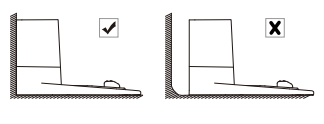
- 3. Remove objects within 3 ft/1 m of the left and right side and within 6 ft/2 m of the front of the charging base.
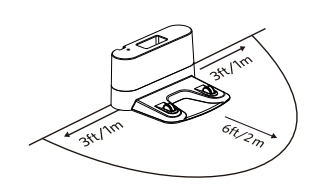
- 4. Connect the round connector of the adapter into the power socket on the Charging Base and the other end into a wall outlet.
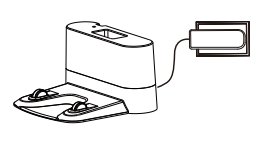
Install the Charging Base in a location that Robot can easily access. It is recommended to place the Charging Base against a wall, and on a hard-level surface rather than on rugs or carpets. - Always keep the Charging Base plugged in, otherwise Robot will not automatically return to it.
- 5. Install Side Brushes Attach side brushes to the bottom of robot by pressing a brush into each slot .
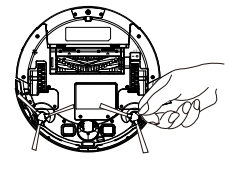
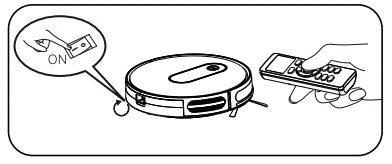
Turn on the main power switch on the bottom of robot
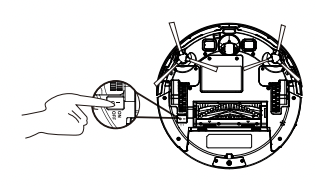
Charge Your Robot
• Robot has a pre-installed rechargeable battery that has to be fully charged before use.
• Robot returns to the Charging Base at the end of a cleaning cycle or when its battery is running low.
Method 1:
Attach Robot to the Charging Base by aligning its charging pins with the charging pins on the base.
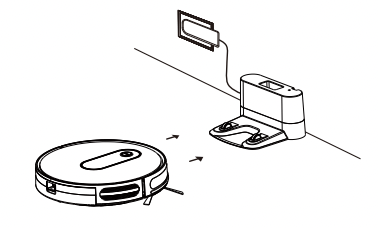
Method 2: Press on the remote control to return robot to the Charging Base.
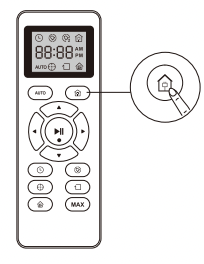
Turn off the main power switch if Robot will not be used for a long period of time. To preserve the battery’s lifespan, recharge at least once every 6 months.
Start/Stop Cleaning
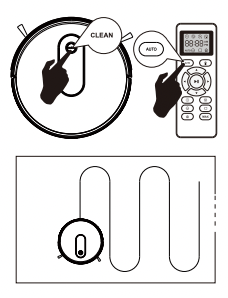
1 Start Cleaning Cycle
• Press the power button once to wake up the Robot. Note: Please refer to section 3.5 for more Cleaning Mode.
• Press the power button again to start a cleaning cycle (or press the button on Remote Control).
If its battery gets low before finishing a cleaning cycle, robot will return to the Charging Base to recharge.
lf the Charging Dock is inaccessible, robot will not be able to recharge.it will return to its starting location and the cleaning cycle will end, please place the robot manually on Charging Base for charging. (Refer Activate the Robo
Note: Please refer to section 3.5 for more Cleaning Mode.
2 Pause
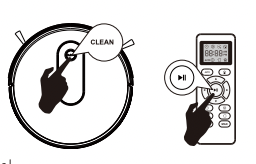
• To pause the robot during a cleaning cycle press the button or press the
  button on Remote Control.
• To resume the cleaning cycle, press button again.
• To send robot back to The Charging Base, press button.
Note: The actions listed above can also be managed from the Remote Control.
3 Power OFF
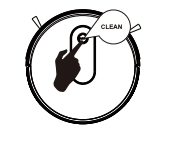
• To end the cleaning cycle and put robot in standby mode, press and hold button until robot indicators turn off.
Cleaning Mode
1 Auto Cleaning
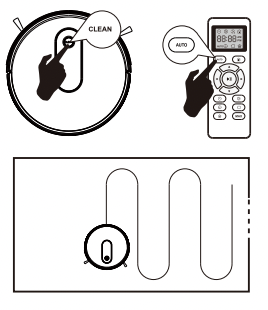
• At the start of a cleaning cycle, robot will map out your home and cleaning them efficiently.
• At various times throughout the cleaning cycle, robot touches up around the edges of the room, as well as chair legs and other furniture.
• Robot continues this process until it has cleaned entire level of your home If its battery gets low before finishing a cleaning cycle, robot will auto returns to the Charging Base to recharge.
• Once robot finishes its cleaning cycle, it returns to the Charging Base to recharge.
2 Spot Cleaning
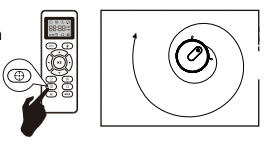
When you select Spot Cleaning, robot intensely cleans a localized area by spiraling outward about 3 feet(1 meter) in diameter and then spiraling inward to where it started. When Spot Cleaning, robot boosts is vacuum power to provide the best cleaning possible where you need it. To use Spot Cleaning, place robot on top of the localized debris and press  (Spot) on the Remote Control.
3 Max Vacuuming Cleaning
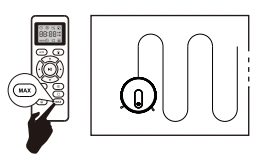
Robot increases its vacuum power to provide a deeper clean when press the  button on Remote control, Max Vacuuming Cleaning if Off by default.
4 Edge Cleaning
Max Vacuuming Cleaning Robot increases its vacuum power to provide a deeper clean when press the button on Remote control, Max Vacuuming Cleaning if Off by default. After robot finishes cleaning the open areas of your floor, it uses Edge Clean to ensure that it has cleaned along walls and around furniture Legs, If you prefer a quicker edge cleaning, press the  button on Remote Control.
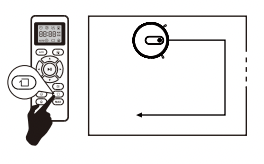
5 Single room cleaning
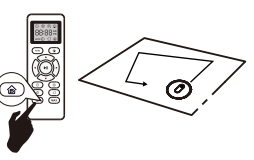
When one specific room needs to be cleaned, press the button on Remote control.
Note: Robot will clean and then stop after 30 minutes in this mode. Make sure confine robot to a room by closing the door.
Set Time and Scheduled Cleaning
Set Time
Make sure the time is set correctly to your local time before setting a scheduled cleaning.
- 1 Make sure the main power switch on the bottom of robot is turned on.
- 2 Press
 on the remote control. The time will blink on the display.
- 3 Press
 to set the “hour” and “minute”.
Note: Make sure AM/PM is set correctly.
- 4 Press or to save the setting. Robot will BEEP ONCE to indicate the time has been set.
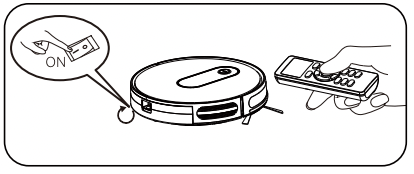
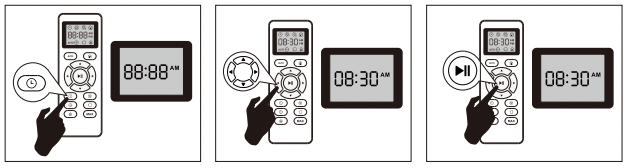
To ensure the time is set successfully, make sure robot is turned on. You will hear a beep when the time has been set.
Set a Scheduled Cleaning
You can schedule robot to start cleaning at a specified time.
To cancel a previously scheduled cleaning, press and hold for 3 seconds until robot beeps twice and disappears.
Note: Before setting a scheduled cleaning, make sure the time has been set correctly to your local time; refer to the previous section “Set Time” for how to set the time.
- Make sure the main power switch on the bottom of robot is turned on.
- Press on the remote control. will blink on the display.
- Press to set the “hour” and “minute”. Make sure the main power switch on the bottom of robot is turned on. Note: Make sure AM/PM is set correctly.
- Press or to save the setting. Robot will BEEP ONCE to indicate the schedule has been set
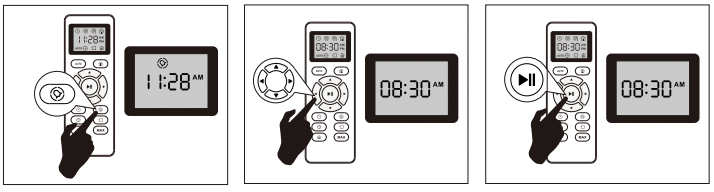 To ensure the time is set successfully, make sure robot is turned on. You will hear a beep when the time has been set.
Regular Robot Care
To keep robot running at peak performance, perform the following care procedures.If you notice robot picking up less debris from your floor, then empty the bin, clean the filter and rolling brush.
Recommended cleaning / replacement frequency :
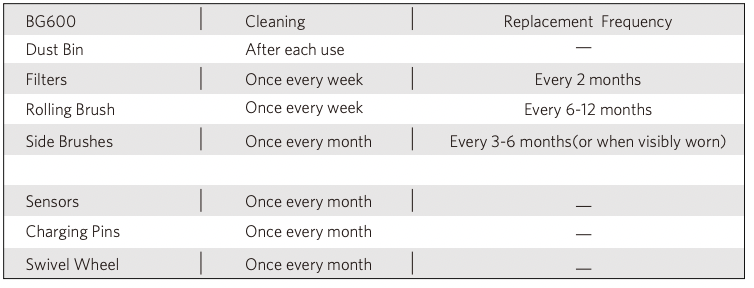
Emptying Robot 's Bin
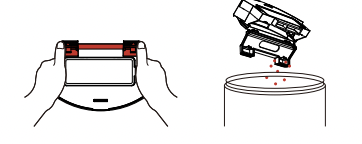
- 1 Press bin release button to remove the bin.
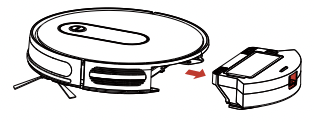
- 2 Open bin’s door to empty it.
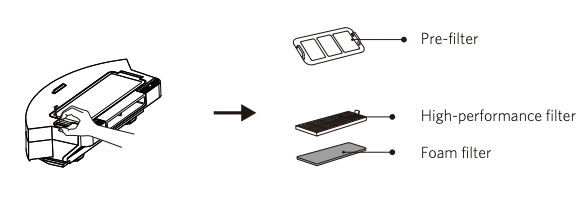
Cleaning Robot 's Filter
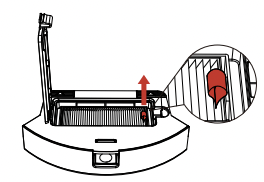
- 1 Remove filter by grasping the white tab.
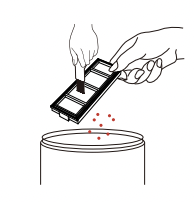
- 2 Shake off debris by tapping the filter against your trash container.
Cleaning Robot 's Rolling Brush,Side Brush, Swivel Wheel
1 Take out the rolling brush,clean the vacuuming aisle by a cloth.
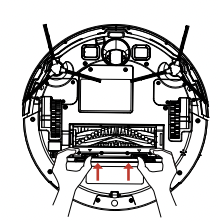
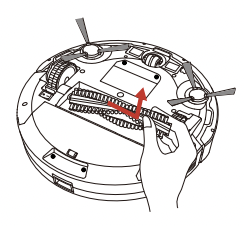
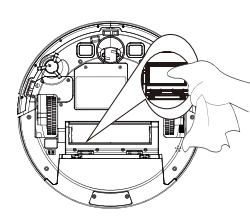
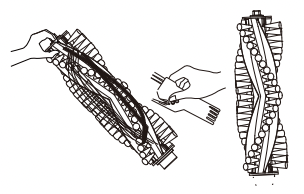
- 2 Clean the rolling brush. Cut down the hair winded in the rolling brush with the provided cleaning tool's knife.
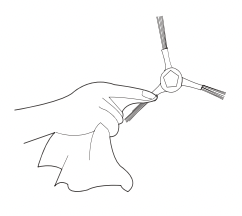
- 3 Remove the side brush,use a cloth to remove the dust from the brush.
- 4 Pull out the swivel wheel, then clean the Swivel Wheel with the cleaning tool.
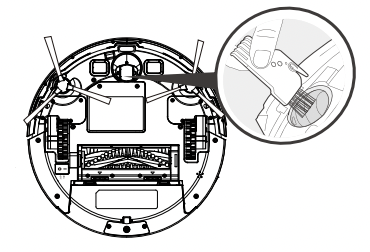
Clean the Sensors and Charging Pins
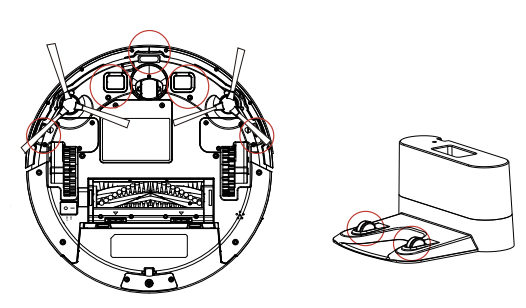
To maintain the best performance, clean the drop sensors and charging pins regularly.
• Dust off the drop sensors and charging contact pins using a cloth or cleaning brush.
Troubleshooting
Error Tones
When robot is in trouble, it will emit a series of short or long beeps and the red indicator on robot will be solid or flashing.
Flashing red indicator light
Two beeps
Robot’s bumper is stuck.
- Tap robot’s bumper several times to dislodge any debris that may be trapped underneath.
Three beeps
Robot’s drop sensors are dity
• Robot is stuck on the ledge of a staircase and cannot reverse.
Clean the drop sensors gently with a dry cloth.
- Place robot in a new location.
- Use a ohysical barrier to block off the problem area.
Four beeps
Robot’s power level is too low.
- Manually charge robot for at least 5 hours.
Solid red indicator light
One beep
Robot’s left/right wheel is stuck.
- Turn off robot and remove any hair or debris from the left/right wheel.
Two beeps
Robot’s side brush is stuck.
- Turn off robot and remove any hair or debris debris from the side brush.
Three beeps
Robot’s suction fan is stuck.
• Turn off robot and remove any hair or debris empty the dust collector.
• Make sure the suction inlet is not blocked by any hair or debris.
Four beeps
Robot’s rolling brush is stuck.
- Turn off robot and remove any hair or debris from the rolling brush.
Frequently asked questions
Robot cannot be activated.
- Make sure the main power switch is in the ON position.
- Make sure the battery is fully charged.
- Replace the batteries (2 AAA) in the remote control.
- Make sure the remote control is within range (16 ft/5 m) of robot.
- If you still have trouble,turn off the main power switch,wait then turn it back on.
The remote control does not work
- Replace the batteries in the remote control.
- Make sure Robot is turned on and fully charged.
Robot stops working suddenly.
- Check if robot is trapped or stuck on an obstacle.
- Check if the battery level is too low.
- If you still have trouble,turn off the main power switch,wait for 2 seconds and then turn it back on.
You cannot schedule cleanings.
- Make sure the main power switch on the bottom of robot is turned on.
- Make sure the time, time of day (AM/PM), and the scheduled time have been set correctly.
- Check if robot’s power is too low to start cleaning.
Suction power is weak
- Check if any obstructions are blocking the suction inlet.
- Empty the dust collector.
- Clean the filters with a vacuum cleaner or a cleaning brush.
- Check if the filters are wet due to water or other liquid on the floor.
- Air-dry the filters completely before use.
Robot cannot be charged.
- Check if the indicator on the Charging Base lights up. If not, contact the bagotte service center to repair or replace the Charging Base.
- Dust off the charging contact pin with a dry cloth.
- Check if you can hear a beep when robot is docked onto the Charging Base. If not, contact the bagotte service center to repair or replace the Charging Base.
Robot cannot return to the Charging Base.
- Remove objects within 3 ft/1 m to the left and right side and within ft/2 m of the front of the Charging Base. Robot cannot return to the Charging Base.
- When robot is in the vicinity of the Charging Base, it will return more quickly. However, if the Charging Base is located far away, robot will need more time to return. Please be patient as it works its way back.
- Clean the charging contact pins.
The rolling brush does not rotate.
• Clean the rolling brush.
• Check if the rolling brush and brush guard have been installed properly.
Robot’s movements or travel path are abnormal.
• Clean the sensors carefully with a dry cloth.
• Restat robot by turning the power switch off and on.