- 1 -
Basic
Photography
Playing Back/
Erasing Images
Other
Applications
Additional
Information
Getting Ready
For customers in the U.S.A.
DIGITAL STILL CAMERA
Tested To Comply
With FCC Standards
FOR HOME OR OFFICE USE
PDR-M25
FCC Statement
This device complies with Part 15 of the FCC Rules. Operation is subject to the following two conditions:
(1) This device may not cause harmful interference, and
(2) this device must accept any interference received, including interference that may cause undesired operation.
NOTE
This equipment has been tested and found to comply with the limits for a Class B digital device, pursuant to Part 15
of the FCC Rules. These limits are designed to provide reasonable protection against harmful interference in a
residential installation.
This equipment generates, uses and can radiate radio frequency energy and, if not installed and used in accordance
with the instructions, may cause harmful interference to radio communications. However, there is no guarantee that
interference will not occur in a particular installation. If this equipment does cause harmful interference to radio or
television reception, which can be determined by turning the equipment off and on, the user is encouraged to try to
correct the interference by one or more of the following measures:
• Change the direction of the radio or TV antenna.
Move the equipment or the radio or TV. For example, if the equipment is to the right of the TV, move it
to the left of the TV.
Or, move the equipment farther away from the radio or TV.
• Plug the equipment into a different outlet. Don’t plug your radio or TV into the same circuit as your equipment.
• Ensure that all expansion slots (on the back or side of the equipment) are covered.
Also, ensure that all metal retaining brackets are tightly attached to the equipment.
• If these suggestions don’t help, consult your equipment dealer or experienced radio/TV technician for help.
Attention
- 2 -
Basic
Photography
Playing Back/
Erasing Images
Other
Applications
Additional
Information
Getting Ready
CAUTION
If you modify the camera in any way, without getting approval from Toshiba Corporation, your camera may violate
FCC regulations. Violation of FCC regulations may cause the FCC to void your right to use the modified camera.
TOSHIBA AMERICA INFORMATION SYSTEMS, INC.
Imaging Systems Division
9740 Irvine Boulevard,
Irvine, California 92618-1697
Phone Number: (800)288-1354
For customers in Canada
CAUTION
Cet appareil numérique de la classe B est conforme á la norme NMB-003 du Canada.
Attention (continued)
- 3 -
Basic
Photography
Playing Back/
Erasing Images
Other
Applications
Additional
Information
Getting Ready
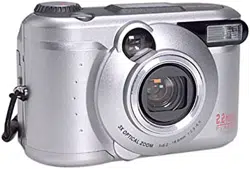
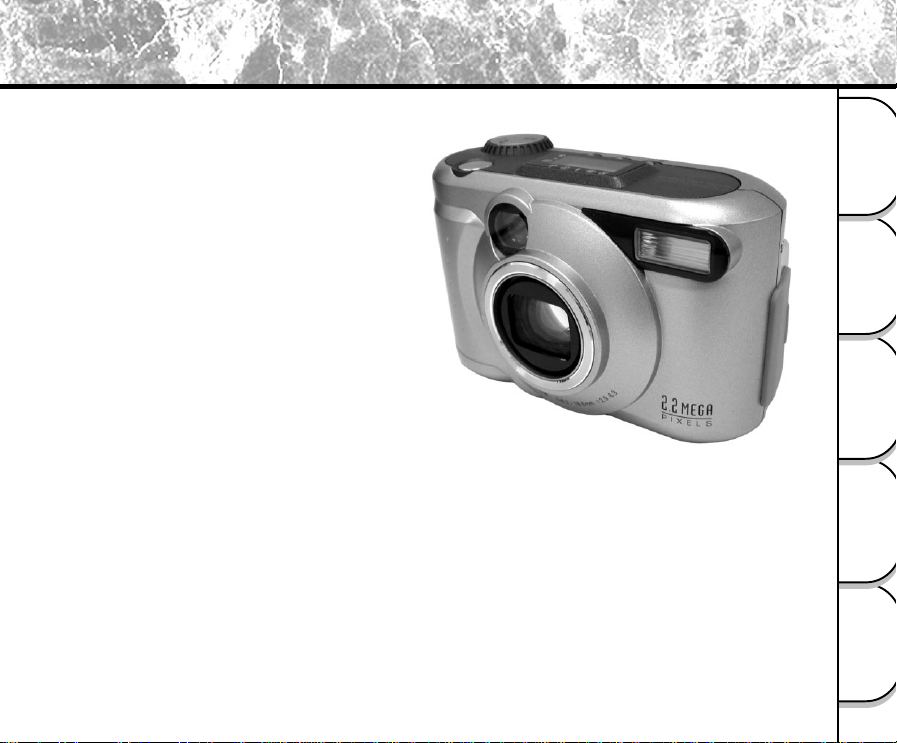
Thank you for purchasing the Toshiba PDR-M25 Digital Still Camera.
To ensure that you use this camera safely and correctly, read this Instruction Manual carefully before you start using
the camera. Once you have finished reading this Instruction Manual, keep it handy at all times.
Trademark Information
• MS-DOS, Windows, Windows 98, Windows 2000,
Windows ME are registered trademarks of the
Microsoft Corporation of the U.S. registered in the
USA and other countries.
Windows is an abbreviated term referring to the
Microsoft Windows Operating System.
• Macintosh is a trademark of Apple Computer, Inc.
• Image Expert is a registered trademark of Sierra
Imaging, Inc.
• SmartMedia is a trademark of Toshiba Corporation.
• Other companies or product names are trademarks
or registered trademarks of the respective
companies.
IMPORTANT
• Indicates items or details that you should observe to
prevent loss of data, malfunction and impaired
performance. Also indicates information relating to
specifications and functions.
Memo
• Indicates extra useful information.
☞
Indicates another page to refer to for extra
information.
About OS Abbreviations
• Windows 98
This abbreviation stands for the Microsoft
®
Windows
®
98 operating system.
• Windows 2000
This abbreviation stands for the Microsoft
®
Windows
®
2000 operating system.
• Windows ME
This abbreviation stands for the Microsoft
®
Windows
®
ME operating system.
Conventions Used In This Manual
Before Reading This Manual
- 4 -
Basic
Photography
Playing Back/
Erasing Images
Other
Applications
Additional
Information
Getting Ready
Preface
■ Attention ................................................................1
■ Before Reading This Manual .................................3
■ Contents ................................................................ 4
■ Safety Precautions ................................................6
■ Using Your Camera Correctly ..............................12
■ Features ..............................................................15
■ The Function Map................................................16
Getting Ready
■ Accessories ......................................................... 17
■ Names of Parts....................................................18
■ Attaching the Strap ..............................................22
■ Installing the Batteries .........................................23
Loading the Batteries ...........................................23
Removing the Batteries ........................................24
■ Using the Power Outlet........................................26
■ About SmartMedia™ ...........................................27
Notes on SmartMedia™ .......................................27
Loading SmartMedia™.........................................28
Removing SmartMedia™ .....................................29
Write Protection ....................................................31
■ Turning the Power ON/OFF.................................32
Turning the Power ON ..........................................32
Turning the Power OFF ........................................32
■ LCD Monitor Display............................................33
In Photography Mode ...........................................33
In Playback Mode .................................................35
Basic Photography
■ How to Hold Your Camera ...................................36
■ How to Press the Shutter Button ......................... 37
■ About the Viewfinder Lamp .................................39
■ Photography (Auto Photography) ........................40
Using the Viewfinder.............................................40
Using the LCD Monitor .........................................41
■ Setting the Image Size and Quality ..................... 43
■ Zoom Photography ..............................................45
■ Digital Zoom Photography ...................................46
■ Close-up Photography
(Macro Photography)...........................................47
■ Photography Using the Self-timer
(Self-timer Photography) .....................................48
■ Photography Using the Flash
(Flash Photography) ............................................49
■ Multi Image Photography
(Multi Photography) ............................................. 52
■ Long Exposure Photography
(Bulb Photography)..............................................53
■ Taking Photographs Manually
(Manual Photography) .........................................54
W.B. (White Balance) ...........................................55
E.V. (Exposure Compensation) ............................56
■ Changing the Preset Conditions
(REC MENU) .......................................................57
REC. MODE .........................................................58
PREVIEW .............................................................59
The name in parentheses ( ) is the function name on the PDR-M25.
Contents
- 5 -
Basic
Photography
Playing Back/
Erasing Images
Other
Applications
Additional
Information
Getting Ready
Contents (continued)
ISO .......................................................................59
BULB ....................................................................59
SELF TIMER ........................................................59
DISPLAY...............................................................60
LCD ......................................................................60
Playing Back/Erasing Images
■ Playing Back Photographed Images
(Single-Frame Playback) .....................................61
■ Enlarging Photographed Images
(Zoom Playback) ................................................. 62
■ Displaying a List of Images
(Thumbnail Display).............................................63
■ Auto Playback (Slideshow).................................. 64
■ Reducing the Image Size (Resize) ......................65
■ Compressing Images (Quality) ............................67
■ Selecting the Folder to Play Back........................ 69
■ Erasing Images (Erase Frame) ...........................71
■ Erasing All Images in a Folder (Erase All) ........... 73
■ Formatting the SmartMedia™ .............................74
■ Protecting Images................................................ 75
Protecting an Image .............................................75
Removing the Protection ......................................77
■ Changing the Display Setting in Playback Mode. 78
■ Changing the LCD Setting in Playback Mode .....79
Other Applications
■ Basic Photographic Settings
(SET-UP mode) ...................................................80
LANGUAGE ..........................................................81
SOUND ................................................................81
TIME .....................................................................82
AUTO-OFF ...........................................................82
TV .........................................................................83
IMAGE No. ...........................................................83
DEFAULT ..............................................................84
■ Adjusting the LCD Monitor Brightness.................85
■ Taking and Playing Back
Photographs on a TV...........................................86
■ Transferring Images to a PC................................ 88
■ Installing the USB driver ......................................89
■ Separately Sold Accessories ...............................91
■ Connecting to Other Devices...............................92
Additional Information
■ Specifications ......................................................93
■ Warnings and Messages Displayed on
LCD Monitor ........................................................97
■ Troubleshooting ...................................................98
■ Glossary ............................................................101
■ Global Contacts .................................................102
The name in parentheses ( ) is the function name on the PDR-M25.
- 6 -
Basic
Photography
Playing Back/
Erasing Images
Other
Applications
Additional
Information
Getting Ready
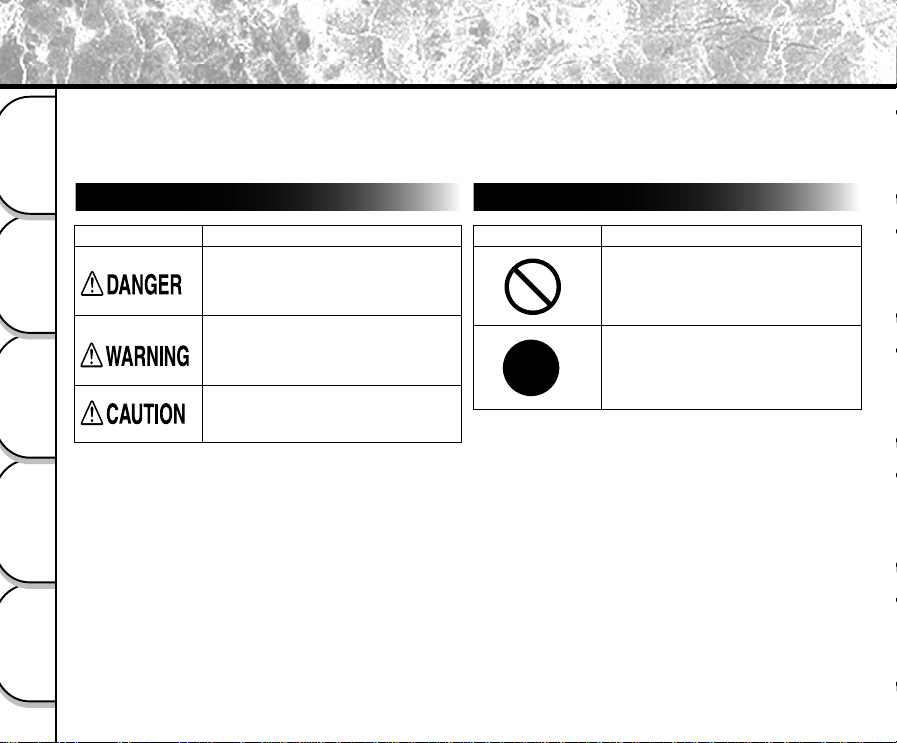
Indication definitions
Read these safety precautions carefully before using the PDR-M25. These instructions contain valuable information
on safe and proper use that will prevent harm and damage to the operator and other persons.
Make sure that you fully understand the following details (indications) before proceeding to the main descriptions in
this manual.
*1: “Bodily injury” means injuries, burns, and shock which
does not require hospitalization or prolonged
treatment.
*2: “Physical damage” means extended harm to home,
household effects, domesticated animals, and pets.
Graphic symbol definitions
Indication Meaning
This indicates the existence of a
hazard that could result in death or
serious bodily injury, if the safety
instruction is not observed.
This indicates the existence of a
hazard that could result in bodily
injury, if the safety instruction is not
observed.
This indicates the existence of a
hazard that could result in bodily injury
*1
or property damage
*2
.
Graphic symbol Meaning
Indicates a prohibited action that must
not be carried out.
The actual prohibited action is indicated
in the symbol or nearby graphically or
described in text.
Indicates a necessary action that must
be carried out.
The actual necessary action is
indicated in the symbol or nearby
graphically or described in text.
Safety Precautions
- 7 -
Basic
Photography
Playing Back/
Erasing Images
Other
Applications
Additional
Information
Getting Ready
Exemption Clauses
•Toshiba Corporation bears no responsibility in the case of
damages arising from earthquakes, fire not liable to
Toshiba Corporation, operating by third parties, other
accidents, or use under abnormal conditions including
erroneous or improper operation and other problems.
•Toshiba Corporation bears no responsibility for incidental
damages (lost profit, work interruption, corruption or loss
of the memory contents, etc.) arising from the use of or
the inability to use this unit.
•Toshiba Corporation accepts no liability whatsoever for
any damages arising from not having followed the
descriptions in this Instruction Manual.
•Toshiba Corporation accepts no liability whatsoever for
any damages arising from malfunctions arising from
combination with equipment or software that is not related
to Toshiba Corporation.
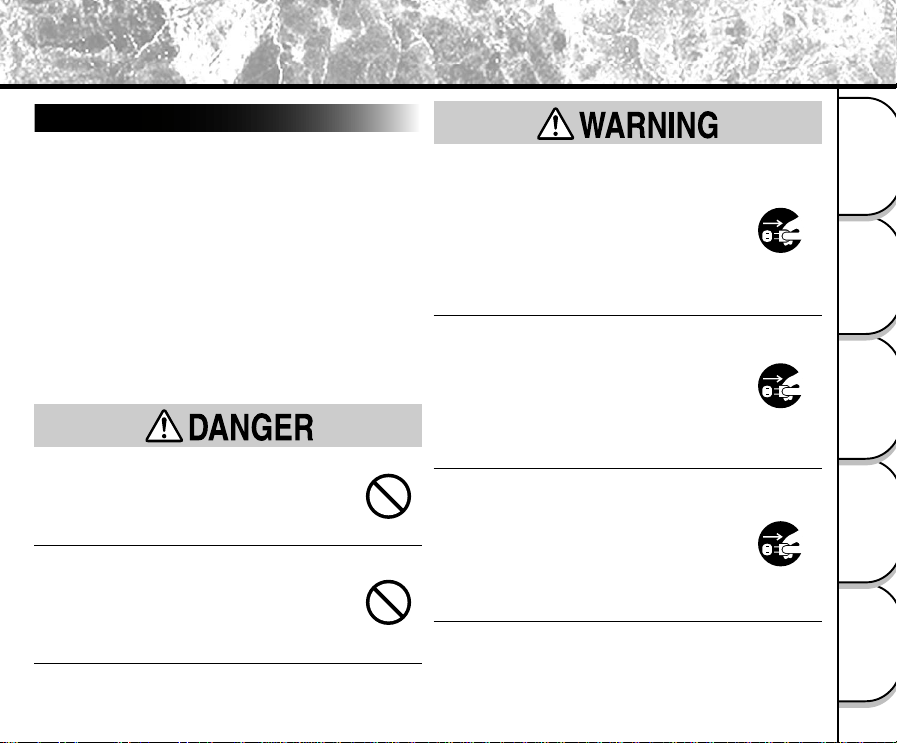
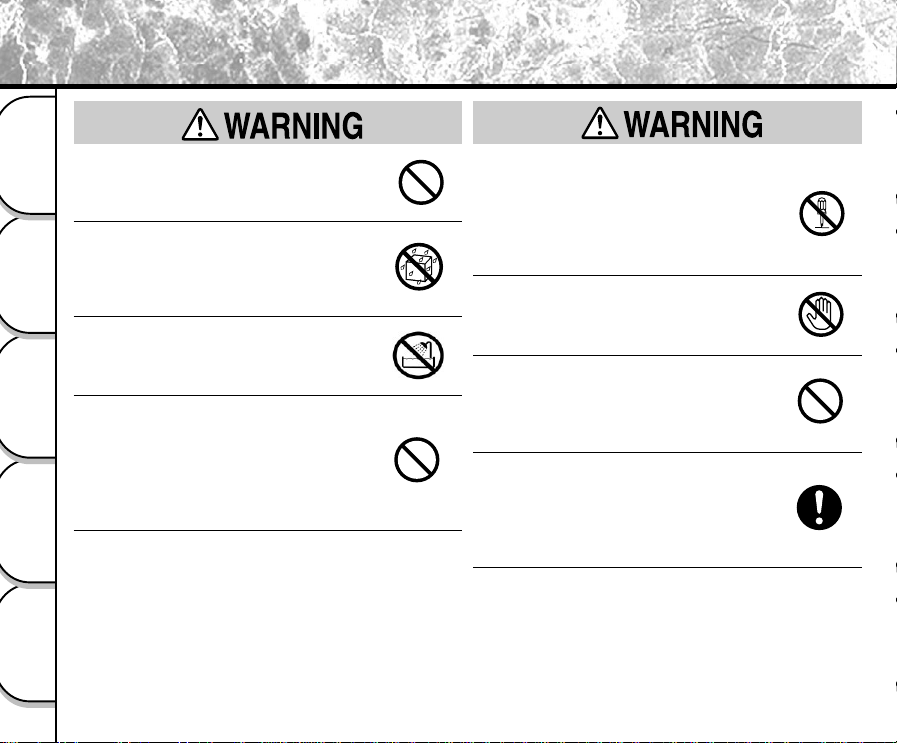
Do not heat, disassemble or throw the
batteries into fire or water.
Doing this might cause it to rupture, ignite or heat
up, resulting in fire or major injury.
Do not strike the batteries with a hammer,
or step on, drop, or subject the battery to
strong impact.
Doing so might cause it to rupture, ignite or heat
up, resulting in fire or major injury.
Should you ever notice smoke, a strange
odor or excessive heat coming from the
camera, immediately turn OFF the power
and remove the batteries and AC adapter.
Continued use in this state might cause fire,
electric shock or burns. For details on repair,
consult the store of purchase, or please contact
the technical support number.
If foreign objects or water have entered the
camera, immediately turn the power OFF
and remove the batteries and AC adapter.
Continued use in this state might cause fire or
electric shock. For details on repair, consult the
store of purchase, or please contact the technical
support number.
If the camera has fallen or its case is
damaged, immediately turn the power OFF
and remove the batteries and AC adapter.
Continued use in this state might cause fire or
electric shock. For details on repair, consult the
store of purchase, or please contact the technical
support number.
Safety Precautions (continued)
- 8 -
Basic
Photography
Playing Back/
Erasing Images
Other
Applications
Additional
Information
Getting Ready
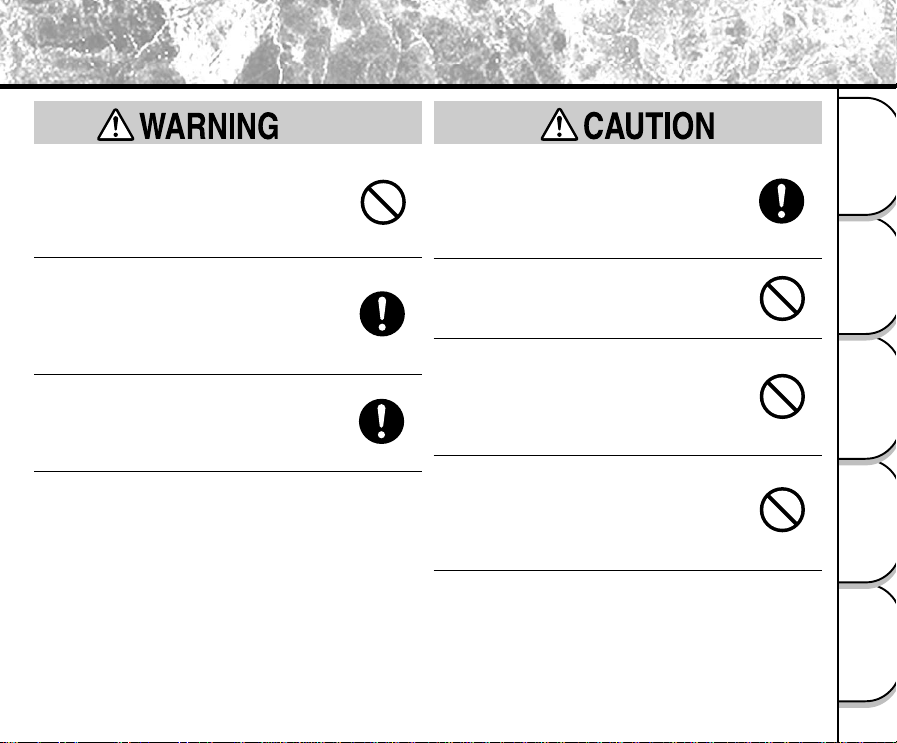
Do not place the camera on wobbly,
inclined or unstable surfaces.
This might cause the camera to fall or tilt over.
Do not use in areas near water.
This might cause fire or electric shock. Take
special care during rain, snow, on the beach or
near the shore.
Do not use the camera in the bath or
shower.
This might cause a fire or electric shock.
Do not allow metallic objects or other
flammable foreign matter inside the
camera.
This might cause a fire or electric shock. Do not
open the SmartMedia™ cover, and insert or allow
such objects to fall inside.
Do not disassemble, change or repair the
camera.
This might cause fire or electric shock. For details
on repair and internal inspection, consult the
store of purchase, or please contact the technical
support number.
Do not touch power or TV antenna cords
during a thunderstorm.
This might cause electric shock.
Do not use the camera while you are
walking, driving or riding a motorcycle.
This might cause you to fall over or result in a
traffic accident.
Use only the specified batteries or the
specified AC adapter.
Use of a battery or AC adapter other than
specified, might cause fire, defects or
malfunctions.
(continued)
(continued)
Safety Precautions (continued)
- 9 -
Basic
Photography
Playing Back/
Erasing Images
Other
Applications
Additional
Information
Getting Ready
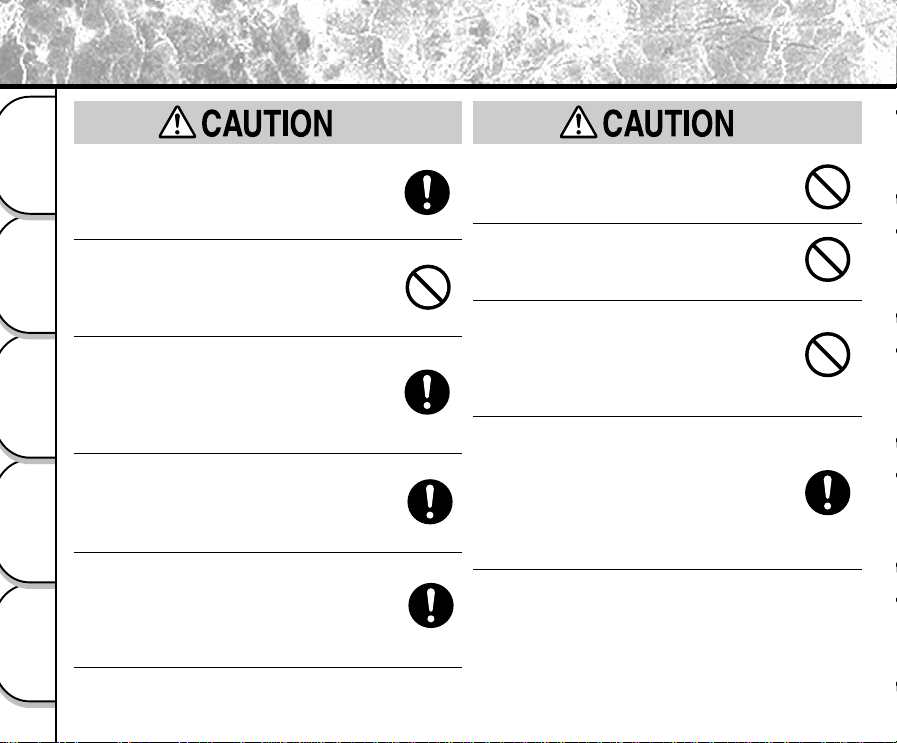
Keep the batteries out of the reach of
children.
If a child swallows a battery, this might result in
poisoning. If a child swallows a battery,
immediately consult a physician.
If battery fluid enters the eyes, immediately
rinse with fresh water and consult with a
physician to receive treatment.
If left untreated, damage to the eye could be
permanent.
Use the AC adapter only with the indicated
power supply voltage
(120V, 230V AC).
Use with any other power supply voltage might
cause fire or electric shock.
If you want to use the camera on an
airplane, consult with the airline and follow
their instructions.
Use of this camera is sometimes restricted due to
potential radio interference.
Do not use the camera in humid, steamy,
smoky or dusty places.
This might cause fire or electric shock.
Do not leave the camera in places where
the temperature may rise significantly, such
as inside a car.
This might adversely affect the case or the parts
inside, resulting in fire.
Do not place or wrap the camera in cloth or
blankets.
This might cause heat to build up and deform the
case, resulting in fire. Use the camera in a well-
ventilated place.
Safety Precautions (continued)
(continued)
- 10 -
Basic
Photography
Playing Back/
Erasing Images
Other
Applications
Additional
Information
Getting Ready
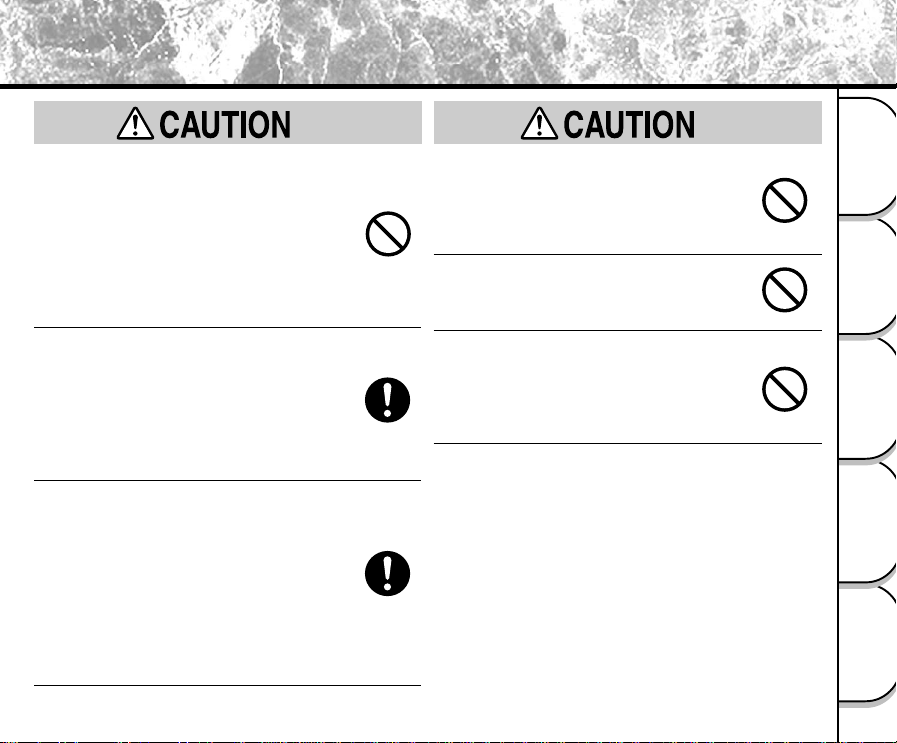
Before you move the camera, disconnect
cords and cables.
Failure to do this might damage cords and
cables, resulting in fire or electric shock.
Do not drop or subject the camera to strong
impact.
This might cause fire, electric shock or
malfunctions.
Before you carry out maintenance on the
camera, remove the batteries and AC
adapter.
Leaving these attached might cause electric
shock.
Remove the batteries and AC adapter if
you plan not to use the camera for a long
time.
This might cause fire.
Insert the batteries paying careful attention
to the polarity (+ or –) of the terminals.
Inserting the batteries with polarities inverted
might cause fire and injury, or damage the
surrounding areas.
Do not look at the sun through the camera
viewfinder.
This may cause injury of the eyes.
Do not use the flash close to eyes.
This might cause temporary damage to the
eyesight.
Do not walk around with the camera
swinging from the strap.
This might subject the camera to shock as it
bumps into a person or an object, damaging the
camera or causing an injury.
Before you store or dispose of used
batteries tape the plus (+) and (–) terminals
with insulating tape.
If stored or disposed of without doing this, the
batteries may make contact with metal objects,
resulting in fire or injury due to leaking of battery
fluid, overheating or bursting of the battery.
(continued)
(continued)
Safety Precautions (continued)
- 11 -
Basic
Photography
Playing Back/
Erasing Images
Other
Applications
Additional
Information
Getting Ready
Do not subject the status display to impact.
If the status display is impacted, the glass on the
screen may be broken and internal fluid may
leak.
If the internal fluid enters your eyes or sticks to
your body or clothes, immediately rinse with fresh
water. If the internal fluid enters your eyes,
immediately consult a physician to receive
treatment.
Consult your dealer regarding the internal
cleaning of the camera once every two
years.
If dust is allowed to accumulate inside the
camera for a long time, this might result in fire or
defects. Consult your dealer regarding the
cleaning costs.
When replacing the batteries, replace all
four batteries with new ones.
Doing so might cause them to rupture, ignite or
heat up, resulting in fire or major injury or
damaging the camera.
The new batteries mean “unused batteries
recently purchased” for alkaline batteries or
lithium batteries, and “batteries recently
recharged at the same time” for nickel metal
hydride batteries or nickel-cadmium batteries.
(continued)
(continued)
Do not use different types of batteries
together, or mix old and new batteries.
Doing so might cause them to rupture, ignite or
heat up, resulting in fire or major injury or
damaging the camera.
Do not remove the batteries immediately
after a prolonged use of the camera.
This might cause burns.
Do not leave dead or exhausted batteries
in the camera.
Doing so might cause them to rupture, ignite or
heat up, resulting in fire, major injury or damaging
the camera.
Safety Precautions (continued)
- 12 -
Basic
Photography
Playing Back/
Erasing Images
Other
Applications
Additional
Information
Getting Ready
Notes On Handling Your Camera
When you use your camera, carefully read and strictly observe the Safety Precautions from page 6 onwards and the
notes described below.
● Avoid using or storing the camera in the following places:
• Places subject to humidity, dust and dirt
• Places subject to direct sunlight
• Places subject to high or low temperature
• Places filled with highly flammable gas
• Places near gasoline, benzene or paint thinner
• Places subject to strong vibrations
• Places subject to smoke or steam
• Places subject to strong magnetic fields (such as near motors, transformers or magnets)
• Places contacting chemicals such as pesticides or next to rubber or vinyl products for long periods
● Do not expose the camera to sand.
The PDR-M25 is particularly sensitive to sand. If the camera comes into contact with sand, not only will
the camera become damaged, it will also no longer be repairable.
Pay special attention when using the camera at the beach or where sand or sand dust is likely to be
present.
● Notes On Condensation
Due to a sudden change in temperature, such as when you move the camera from a cold location to a
warm one, water droplets (condensation) may form on the inside of the camera or on the lens. When this
occurs, switch the camera OFF, and wait an hour before using the camera. Condensation may also form
on the SmartMedia™ card. If this happens, remove the SmartMedia™, wipe off any water droplets and
wait a short time before using it again.
Using Your Camera Correctly
- 13 -
Basic
Photography
Playing Back/
Erasing Images
Other
Applications
Additional
Information
Getting Ready
● Carrying Out Maintenance on Your Camera
•To prevent the lens, surface of the status display or viewfinder from being scratched, blow off any dust
on these parts with a blower brush and lightly wipe with a soft dry cloth.
• Clean the body of the camera with a soft dry cloth. Do not use volatile liquids such as paint thinner,
benzene or insecticide, as these may react with the camera body and cause deformation or remove the
coating.
Recommended Battery Options for Maximum Performance and Enjoyment
To extend the use of the camera, we strongly recommend that you only use the following types of batteries:
- Nickel Metal Hydride [NiMh](Extended Life, Rechargeable)
- Lithium (Extended Life, Not Rechargeable)
- Alkaline (Not Rechargeable)
Battery performance in general (especially Alkaine) may vary depending on individual brand, length of
storage since manufacture, temperature, and operating mode of the digital camera, such as play back
using LCD and strobe. The use of mangnese type batteries is nut suitable for this product due to the low
number of pictures that can be taken with this type of battery. Low temperatures (50 degrees Fahrenheit/
10 degrees Celsius or below) can also affect the performance of the battery and decrease the number of
pictures taken when compared to picture taking in warmer conditions. When the camera is not in use for
an extended period, please remove the batteries from the camera to extend battery life, and to prevent
damage from battery leakage. (Once the batteries have been removed from the camera, you will need to
re-set the date and time within the SET-UP menu.)
Using Your Camera Correctly (continued)
- 14 -
Basic
Photography
Playing Back/
Erasing Images
Other
Applications
Additional
Information
Getting Ready
Notes On Handling the AC Adapter
Be sure to use only the specified AC adapter (sold separately). Using a different AC adapter might cause the camera
to malfunction.
When you use the AC adapter, carefully read and strictly observe the Safety Precautions from page 6 onwards and
the notes described below.
• Use the AC adapter with the rating of the country/region where the camera is used.
• Be sure that you do not allow the AC adapter to contact any other metal object as this might cause a
short circuit.
•To connect the AC adapter, firmly insert the plug on the end of the cable into the DC IN 5V terminal. Do
not insert the plug into other terminals. This might cause the camera to malfunction.
• Before you disconnect the connector cable, turn the camera OFF and then disconnect the cable holding
it by its plug. Do not disconnect the connector cable by pulling the actual cable.
• Do not drop the AC adapter or subject it to strong impacts.
• Do not use the AC adapter in very hot and humid locations.
• Do not plug in the AC adapter while you are using the battery. Switch the camera OFF first.
• The AC adapter is for indoor use only.
• Use only the specified AC adapter. Do not use other AC adapters.
• The AC adapter may sometimes become warm during use. This is normal and not a malfunction.
• Buzzing or whirring noises may come from inside the camera. This is normal and not a malfunction.
• Do not use the AC adapter near a radio as it could interfere with radio signal reception.
• If you remove the battery or AC adapter while the camera is in operation, the date may be lost from
memory. If this happens, reset the date.
Using Your Camera Correctly (continued)
- 15 -
Basic
Photography
Playing Back/
Erasing Images
Other
Applications
Additional
Information
Getting Ready
● 3X zoom lens
● USB interface compatible
● High definition 2.2 million pixels
● Extensive photographic functions
• Auto/Flash/Macro/Self-timer
• Multi mode (16 continuous images in one frame)
• Bulb mode for night and creative photography
• Color/Black-and-white photography etc.
● Image size and quality easily selectable
• Size (1792 x 1200 or 896 x 600 pixels)
• Quality (FINE/NORMAL/BASIC)
● Status display
• Settings can be verified even when LCD monitor is OFF.
● SmartMedia™
• Expandable up to 128MB
● Compatibility
• Image recording method compliant with DCF.
Features
- 16 -
Basic
Photography
Playing Back/
Erasing Images
Other
Applications
Additional
Information
Getting Ready
Read these pages first.
Let's get ready to use the PDR-M25
(P.17 – 35)
Let's learn about basic operation.
First, let's learn about the basic way of using the
PDR-M25.
Photography (P.40)
Playing Back Photographed Images (P.61)
Erasing Images (P.71)
Zoom Photography (P.45)
Digital Zoom Photography (P.46)
Close-up Photography (P.47)
Photography Using the Self-timer (P.48)
Photography Using the Flash (P.49)
Multi Image Photography (Multi Photography) (P.52)
Long Exposure Photography (Bulb Photography) (P.53)
Utilizing the various photography modes.
You can choose various photography modes on the
PDR-M25.
Enlarging Photographed Images
(P.62)
Auto Playback
(P.64)
Playing back your photographed images
You can choose various ways of playing back images
on the LCD monitor.
Setting the Image Size and Quality
(P.43)
Manually setting the PDR-M25
(P.54)
Changing the Preset Conditions
(P.57)
Changing the photography settings.
You can change the settings for the image that you are
going to take according to your particular requirements,
location and other conditions.
You can also do this.
The PDR-M25 also has lots of other features.
Displaying a List of Images
(P.63)
Changing the size of Images
(P.65)
Compressing Images
(P.67)
Erasing All Images at once
(P.73)
Protecting Images
(P.75)
Changing PDR-M25 camera Settings
(P.80)
Taking and Playing Back Photographs on a TV
(P.86)
Transferring Images to a PC
(P.88)
It is suggested that you look at the function map, below before using the PDR-M25.
The Function Map
- 17 -
Basic
Photography
Playing Back/
Erasing Images
Other
Applications
Additional
Information
Getting Ready
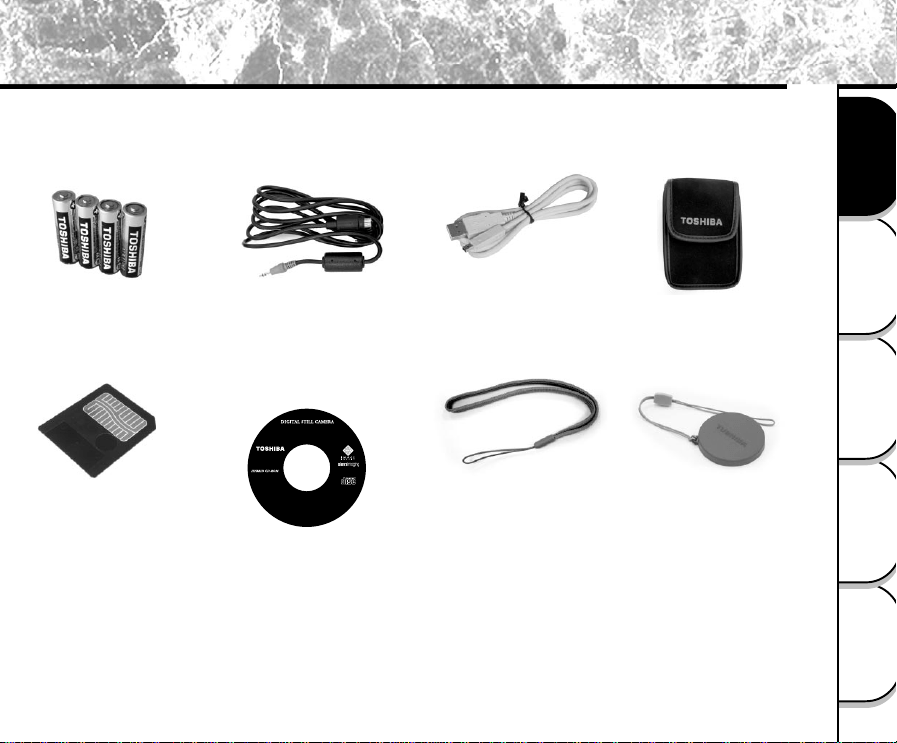
Make sure that you have all of the items below before you start using your camera.
Batteries (4 size AA)
Alkaline
SmartMedia™
(8MB, 3.3V) (1)
• Anti-static case (1)
• Index labels (2)
• Write-protect stickers (4)
USB cable
Wrist strap
Video cable
CD-ROM
• USB driver
(for Windows 98)
• Software application
PDR-M25
•ImageExpert
•USB driver
M25-0001
Image Expert and Camio are trademarks of Sierra Imaging, Inc.
Windows is a registered trademark of Microsoft Corporation.
Macintosh is a trademark of Apple Computer, Inc.
Other Product and company names mentioned herein
may be the trademarks of their
respective owners.
Sold separately
• AC adapter
Lens cap
(with Lens strap)
Soft case
Accessories
- 18 -
Basic
Photography
Playing Back/
Erasing Images
Other
Applications
Additional
Information
Getting Ready
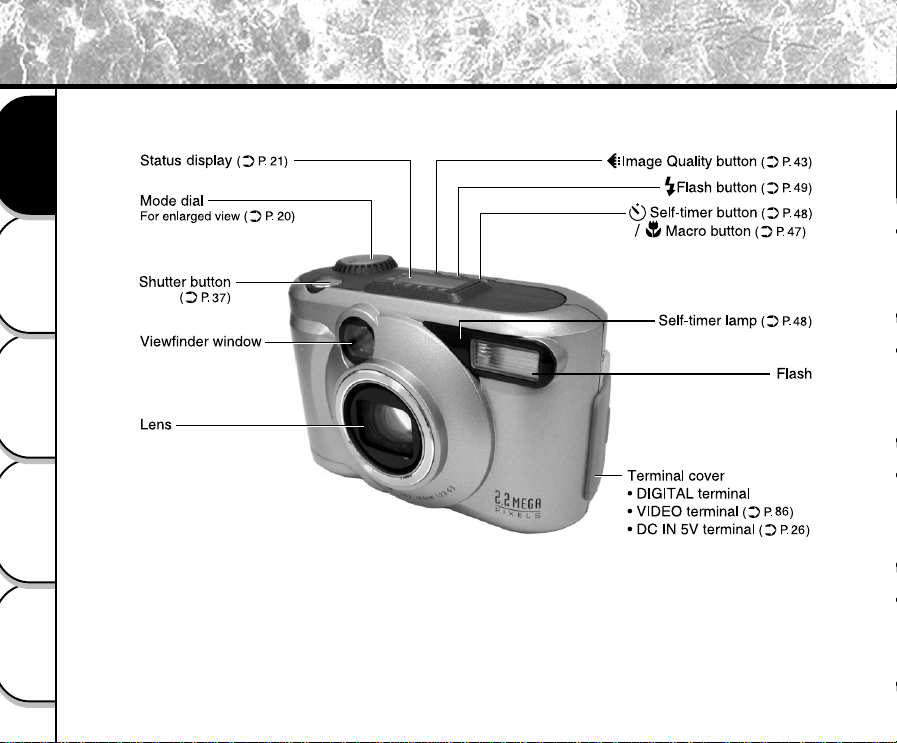
Names of Parts
- 19 -
Basic
Photography
Playing Back/
Erasing Images
Other
Applications
Additional
Information
Getting Ready
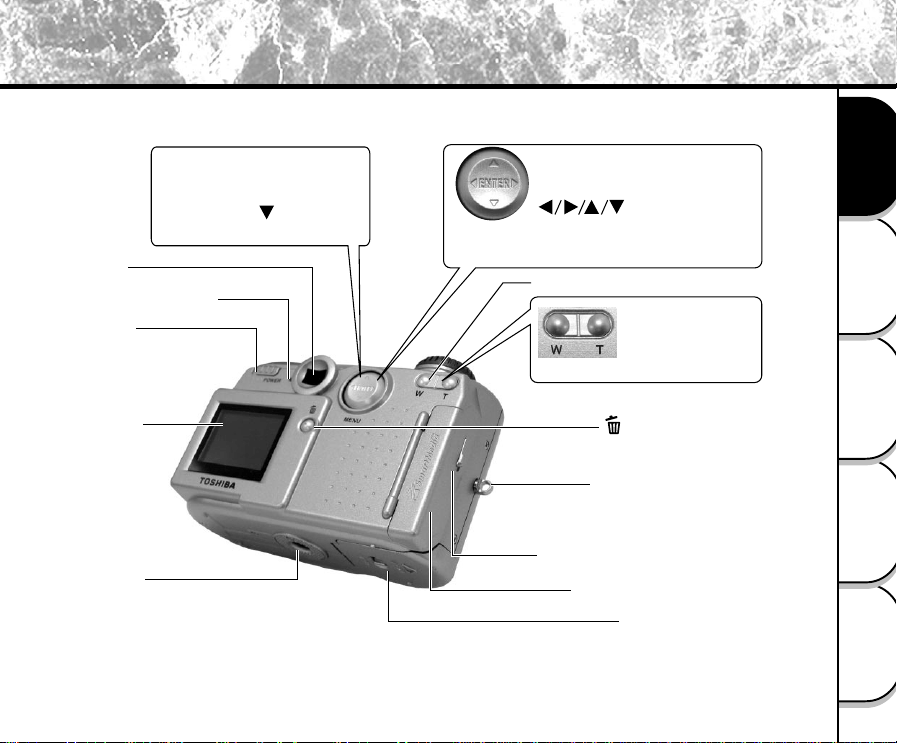
Names of Parts (continued)
Zoom key (
➲
P. 45)
SmartMedia™ door (
➲
P. 28)
SmartMedia™ door release knob
Battery cover
(
➲
P. 23)
Tr ipod mount
Erase button (
➲
P. 71)
Power knob
LCD monitor
(
➲
P. 33)
Strap attachment (
➲
P. 22)
Telephoto (zoom)
Press "T".
Wide
Press "W".
Viewfinder lamp (
➲
P. 39)
Viewfinder
ENTER button
Press the center of the button.
(Use this button to fix a selection.)
(cross pad) button
Press the button on the required side.
(Use these buttons to select an item
or an image.)
MENU button
In Manual Photography mode, Auto
Photography mode or Playback
mode, press the
(MENU)
button to display MENU.
- 20 -
Basic
Photography
Playing Back/
Erasing Images
Other
Applications
Additional
Information
Getting Ready
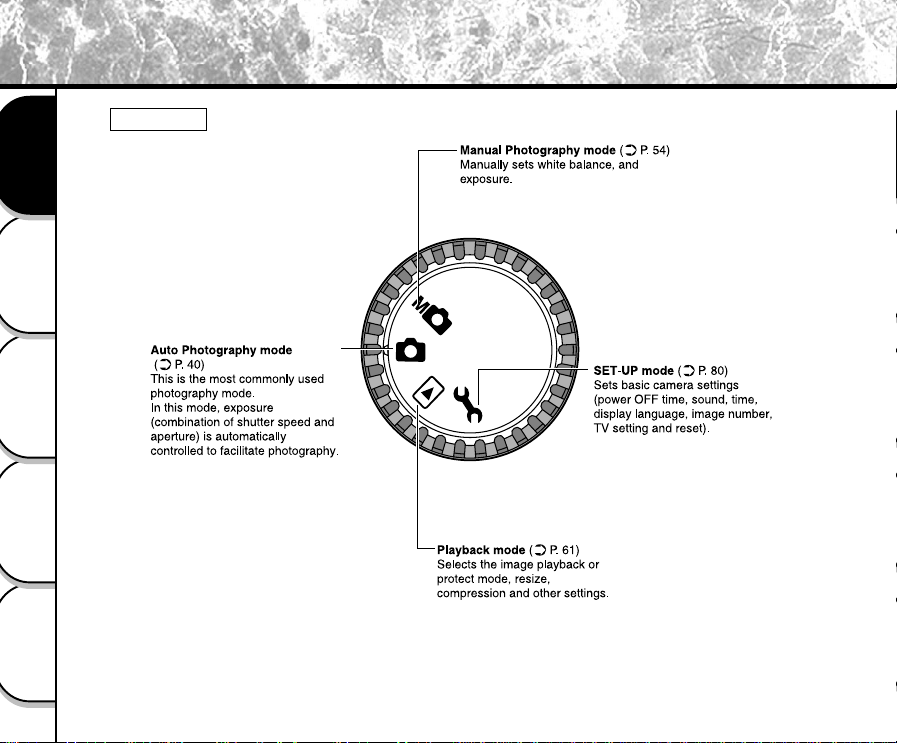
Mode dial
Names of Parts (continued)
- 21 -
Basic
Photography
Playing Back/
Erasing Images
Other
Applications
Additional
Information
Getting Ready
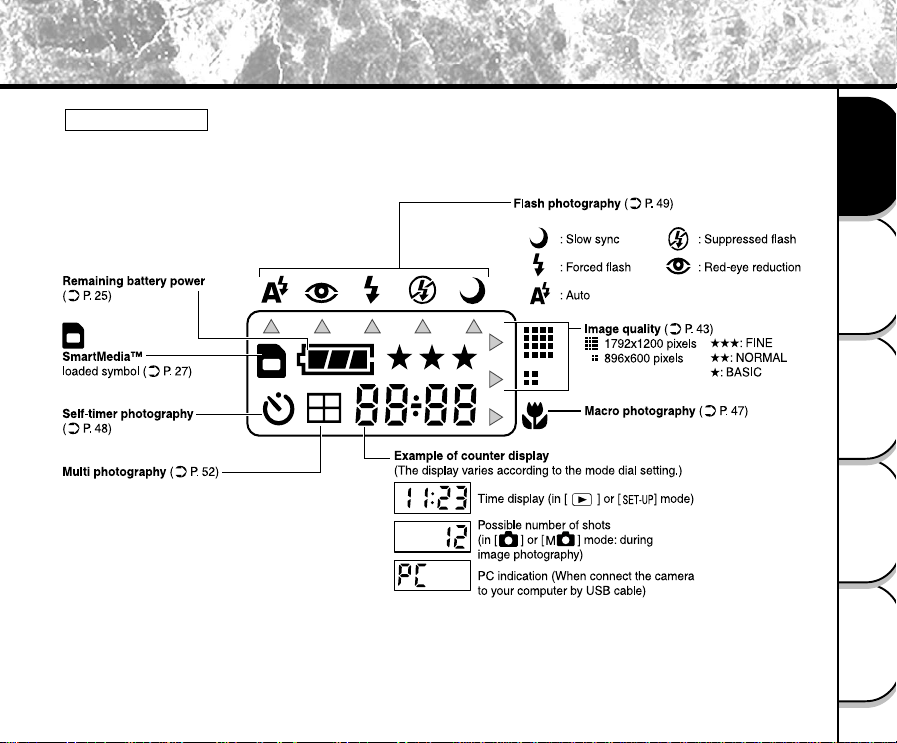
Status display
This display indicates the camera’s status. You can verify the camera’s status even if the LCD monitor is
not on.
The text, numbers and icons that are displayed in the status display vary according to the setting.
Names of Parts (continued)
- 22 -
Basic
Photography
Playing Back/
Erasing Images
Other
Applications
Additional
Information
Getting Ready
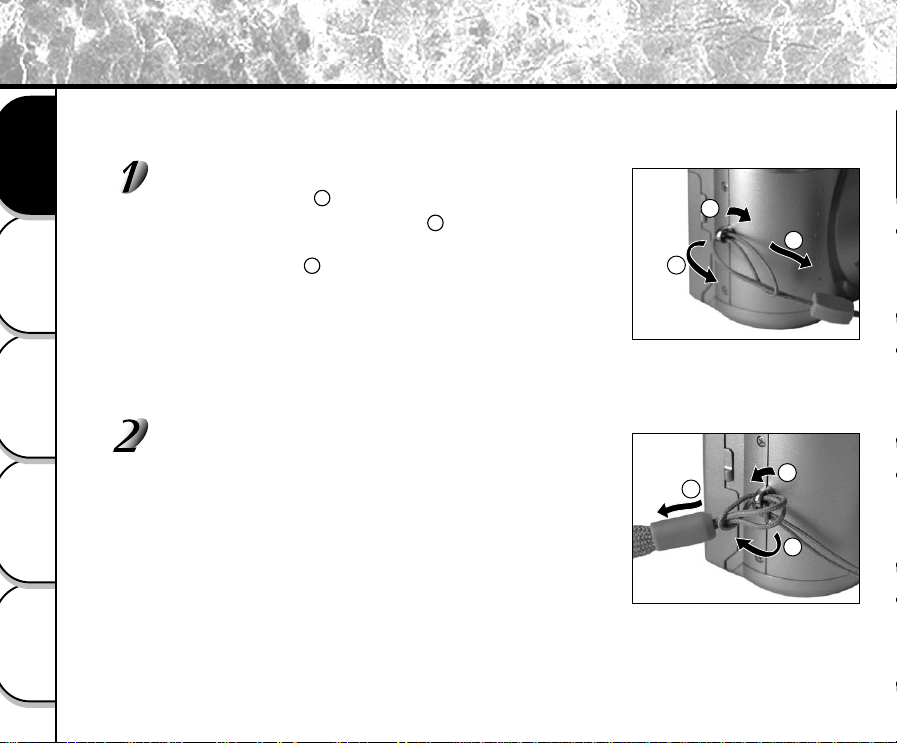
This strap is handy for carrying your camera around.
To prevent your camera from dropping during photography, hang the strap around your wrist.
Pass the leading end of the lens strap through the
strap attachment , and then pass through both
ends of the lens strap adjuster . Pull the lens strap
through the loop until the loop slips over the plastic
part of the strap .
Attach the strap in the same way on the wrist strap
attachment on the opposite side of the camera.
1
2
3
1
2
3
1
2
Attaching the Strap
3
- 23 -
Basic
Photography
Playing Back/
Erasing Images
Other
Applications
Additional
Information
Getting Ready
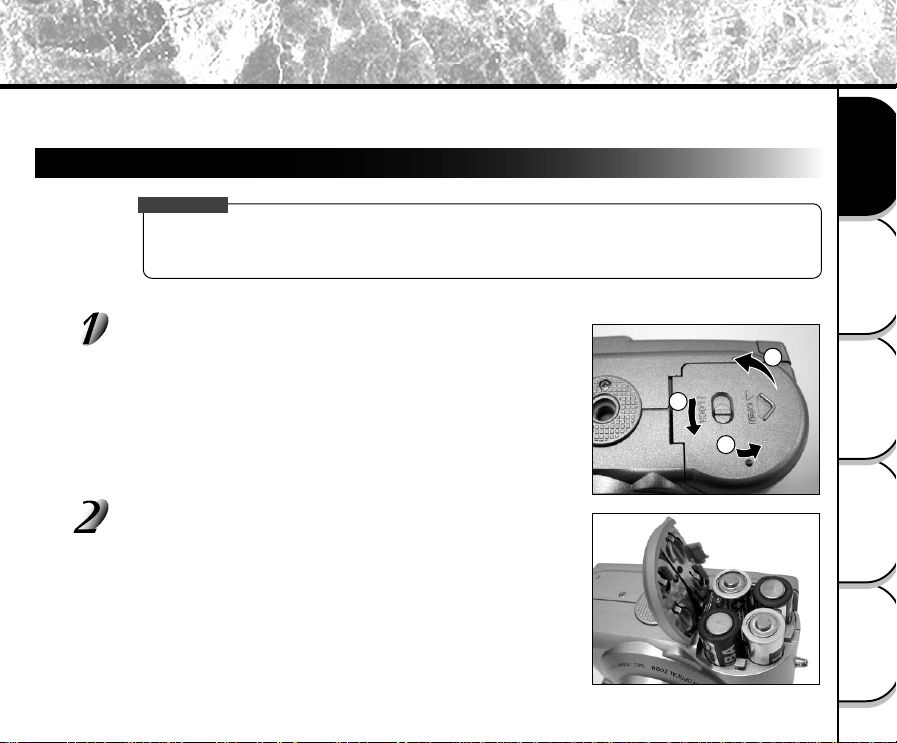
This camera uses four (4) size AA batteries.
Loading the Batteries
IMPORTANT
• Before you load or remove the batteries, be sure to turn the camera off.
• The camera may not start normally if you load batteries not on the power off status. In this case, turn off,
then turn on again.
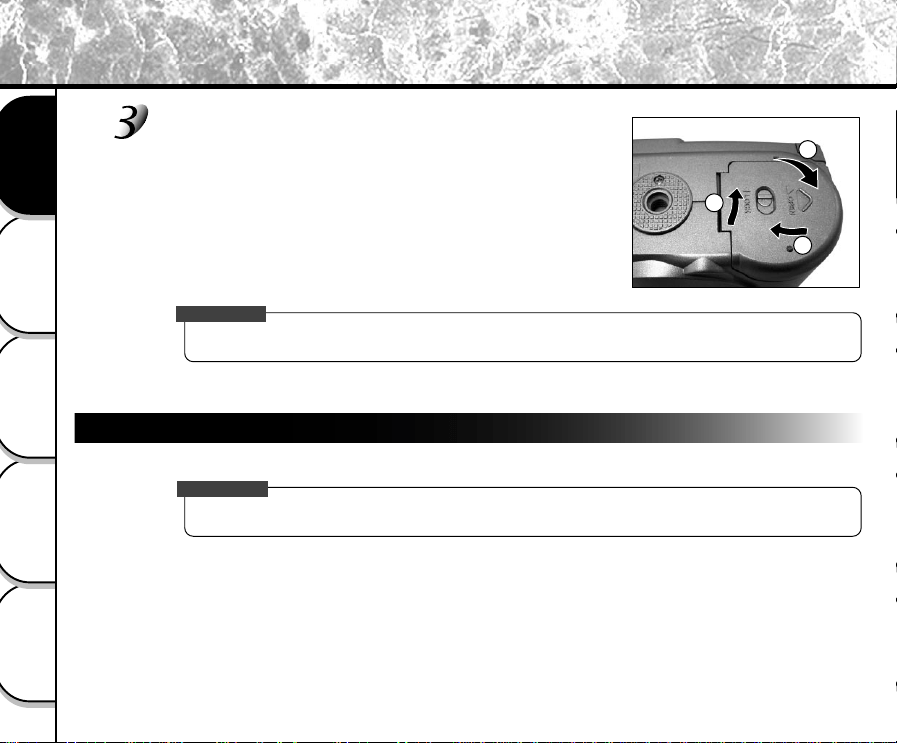
Pull open the battery door in the direction of the open
arrow.
Load the batteries in the battery compartment making
sure they are loaded in their correct polarityctor of the
terminals.
3
2
1
Installing the Batteries
- 24 -
Basic
Photography
Playing Back/
Erasing Images
Other
Applications
Additional
Information
Getting Ready
Removing the Batteries
Reverse the procedure for “Loading the Batteries” and remove the batteries.
IMPORTANT
• When removing the batteries, take care not to drop the camera or the batteries by mistake.
Close the battery door and move the lock switch in the
direction of the Lock arrow.
• Make sure that the battery cover is firmly closed.
3
2
1
Installing the Batteries (continued)
IMPORTANT
- 25 -
Basic
Photography
Playing Back/
Erasing Images
Other
Applications
Additional
Information
Getting Ready
Battery Wear
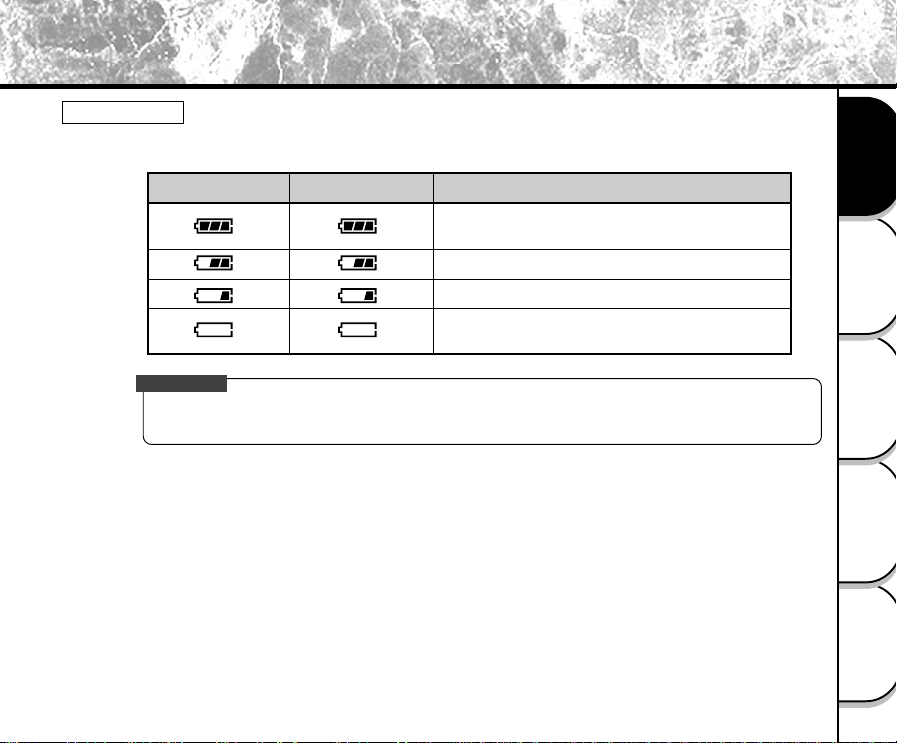
When the power is ON, the remaining battery power is displayed on the LCD monitor and the status
display.
Remaining Battery Power
[FULL] Sufficient battery power, or the AC
adapter is connected.
[HALF] Half battery power or less
[LITTLE] Little battery power left
[EMPTY] No battery power left. Replace with
new batteries.
LCD Monitor
Status Display
IMPORTANT
• When you remove the batteries, the date and time may return to the default setting. If this happens, set
them again when using the camera. (
➲
Page 82)
Installing the Batteries (continued)
- 26 -
Basic
Photography
Playing Back/
Erasing Images
Other
Applications
Additional
Information
Getting Ready
If you use the AC adapter in a room with a power outlet, you can take photographs for an extended period of time.
This also prevents failed photographs due to battery wear or failed transfer of data to a PC. For details on handling
the AC adapter, be sure to read page 14.
IMPORTANT
• Before you connect or disconnect the AC adapter, be sure to turn the camera off. If the AC adapter is
connected or disconnected with the power ON, the camera may malfunction or the recorded data may be
erased (destroyed) even if the batteries are loaded.
• The camera may not start normally if you load batteries not on the power off status. In this case, side the
Power Knob to turn off the power, the turn on again.
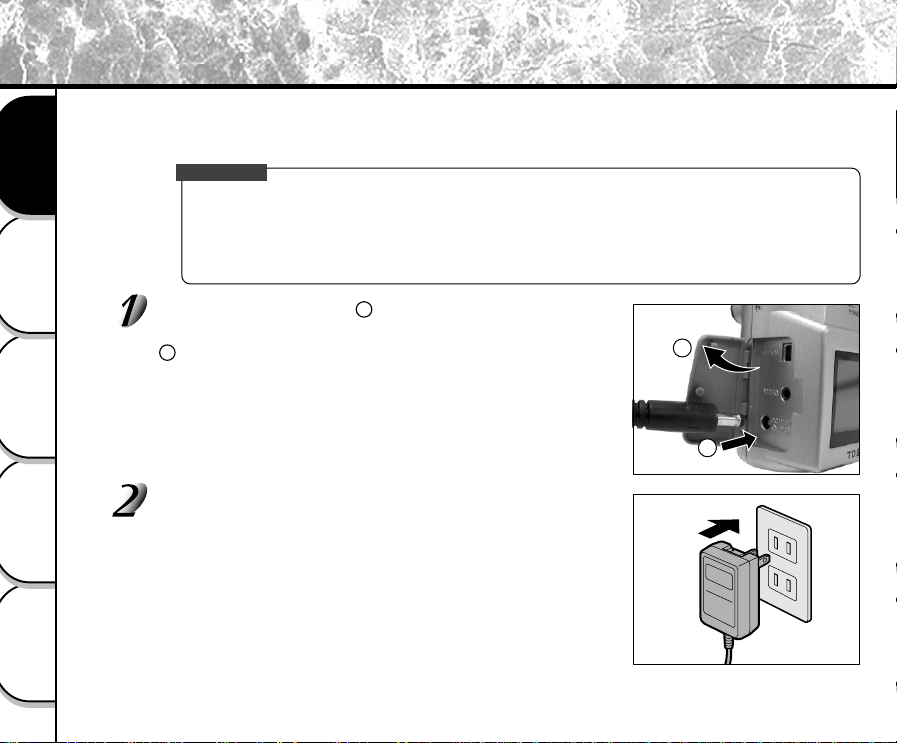
Open the terminal cover , and insert the AC adapter
connector plug into the DC IN 5V terminal on the camera
.
Insert the AC adapter power plug into the power outlet.
1
2
2
1
Using the Power Outlet
- 27 -
Basic
Photography
Playing Back/
Erasing Images
Other
Applications
Additional
Information
Getting Ready
About SmartMedia™
“SmartMedia™” is a storage medium for saving images that you have photographed. Even if the camera’s power is
turned OFF, the images saved on the SmartMedia™ are not erased. SmartMedia™ can be repeatedly read and
written.
SmartMedia™ having the following storage capacity can be used on your camera.
2MB/4MB/8MB (standard accessory)/16MB/32MB/64MB/128MB (all 3.3 V types)
You can also connect the PC card adapter (sold separately) or floppy disk adapter (sold separately) (
➲
Page 92) to
transfer images to a PC.
Notes on SmartMedia™
• Recorded data may be erased (destroyed) in the situations listed below. Note that Toshiba Corporation
accepts no responsibility whatsoever for the loss (destruction) of recorded data in these situations:
- When the SmartMedia™ is used incorrectly by the user or a third party
- When the SmartMedia™ is exposed to static electricity or electrical noise
- When the SmartMedia™ is removed or the camera is then switched OFF during data recording,
data erasing, frame advance when images are being played back or during formatting of the
SmartMedia™.
•We recommend copying and saving important data onto another storage medium (floppy disk, hard
disk, MO disk, etc.).
• Never remove the SmartMedia™ or switch the camera OFF during data recording or during data
erasing (SmartMedia™ formatting). These actions might damage the SmartMedia™.
• Use only the SmartMedia™ specified for use with the PDR-M25. The use of other SmartMedia™ could
damage the camera.
• SmartMedia™ are precision electronic devices. Do not bend, drop, or subject SmartMedia™ to
excessive shocks. Also, do not carry SmartMedia™ in locations such as a trouser pocket. This might
subject the SmartMedia™ to excessive force when you sit down, damaging the SmartMedia™.
• Do not use or store SmartMedia™ in environments likely to be affected by strong static electricity or
electrical noise.
• Do not use or store SmartMedia™ in very hot, humid or corrosive environments.
- 28 -
Basic
Photography
Playing Back/
Erasing Images
Other
Applications
Additional
Information
Getting Ready
•Take care not to touch the SmartMedia™’s electrodes (metal contacts) or allow the electrodes to
become soiled. Use a dry lint-free cloth to wipe away any dirt.
•To avoid damage caused by static electricity during transportation or storage, always use the special
static-free case provided.
• If you are not using the camera for a long period of time, remove the SmartMedia™ and store it in a
safe place.
• Inserting a SmartMedia™ that is charged with static electricity into your camera may cause it to
malfunction. If this occurs, switch the camera OFF and then ON again.
• The SmartMedia™ may feel warm when it is removed from the camera after the camera is used for a
long time. This is normal and not a malfunction.
• The SmartMedia™ has a limited service life. If images can no longer be written or erased, buy a new
SmartMedia™.
• Use the index labels provided with the camera. If you attach a commercially available label, it may
cause a malfunction when the SmartMedia™ is loaded or removed.
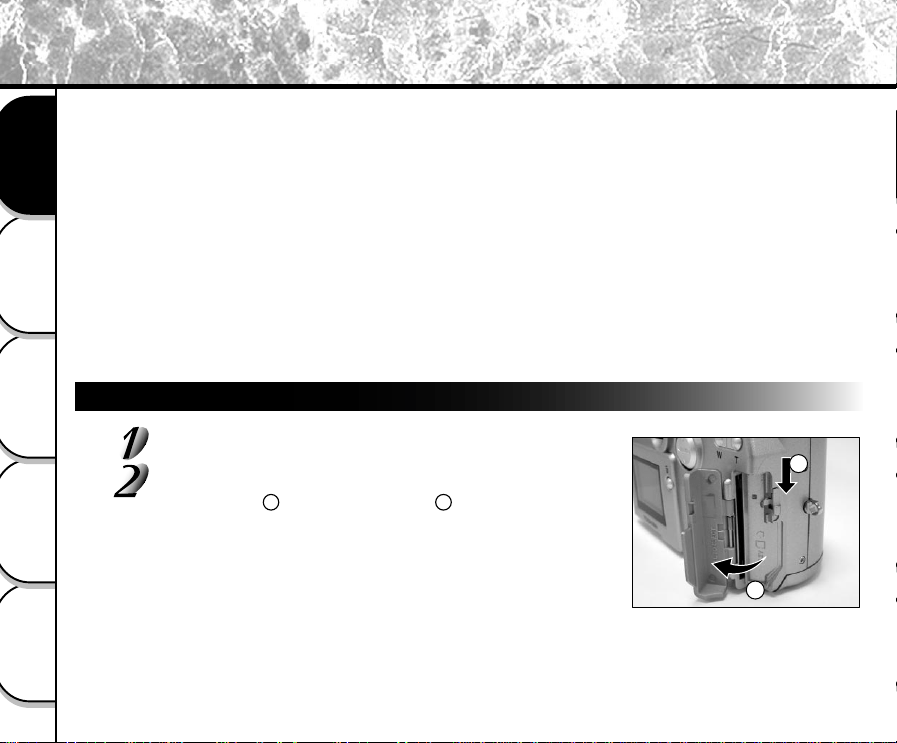
Loading SmartMedia™
Slide the POWER knob to turn off the power.
Slide the SmartMedia™ door release knob in the direction
of the arrow to open the cover .
1
2
2
1
About SmartMedia™
- 29 -
Basic
Photography
Playing Back/
Erasing Images
Other
Applications
Additional
Information
Getting Ready
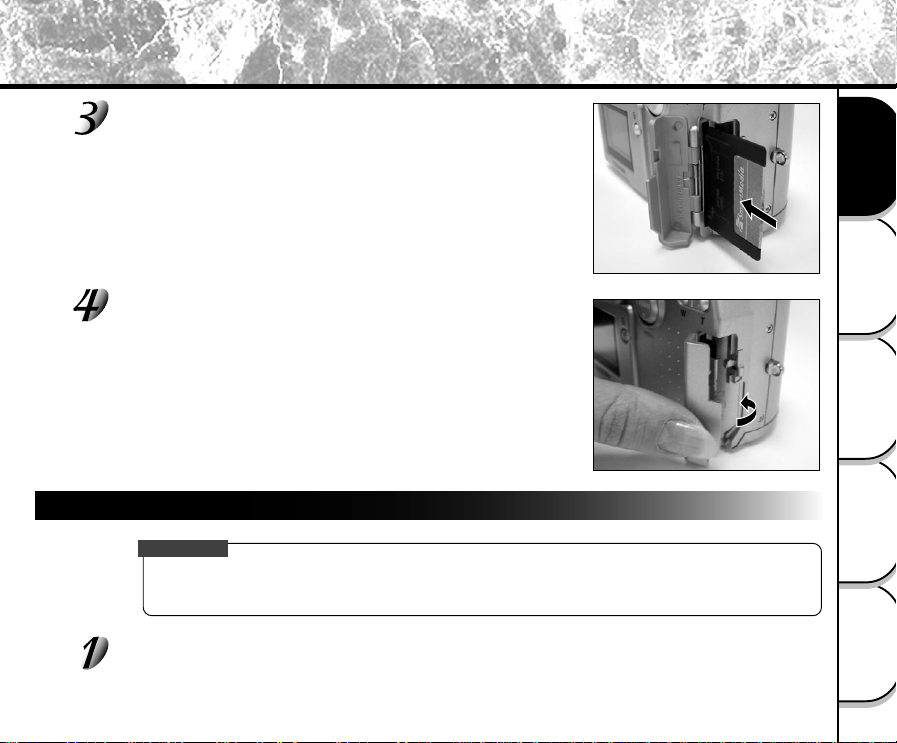
Gently insert the SmartMedia™ as far as it can go with
the SmartMedia™ electrodes (metal contacts) facing
down.
Close the SmartMedia™ door.
Before you use a new SmartMedia™, be sure to format the
SmartMedia™ (
➲
Page 74).
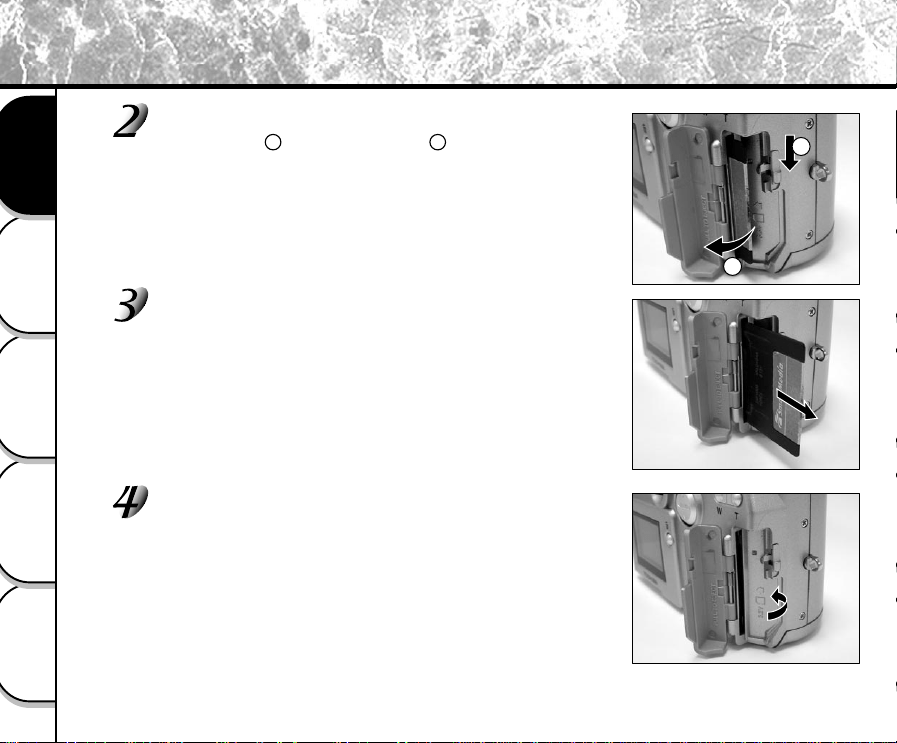
Removing SmartMedia™
IMPORTANT
• Never open the SmartMedia™ door or remove the SmartMedia™ while data is being recorded to the
SmartMedia™ (viewfinder lamp flashes). This might damage the SmartMedia™ or corrupt the data on
the SmartMedia™.
Slide the POWER knob to turn off the power.
About SmartMedia™ (continued)
- 30 -
Basic
Photography
Playing Back/
Erasing Images
Other
Applications
Additional
Information
Getting Ready
Slide the SmartMedia™ door release knob in the direction
of the arrow to open the door .
Pull the SmartMedia™ out with your fingers.
Close the SmartMedia™ door.
1
2
2
1
About SmartMedia™ (continued)
- 31 -
Basic
Photography
Playing Back/
Erasing Images
Other
Applications
Additional
Information
Getting Ready
Write Protection
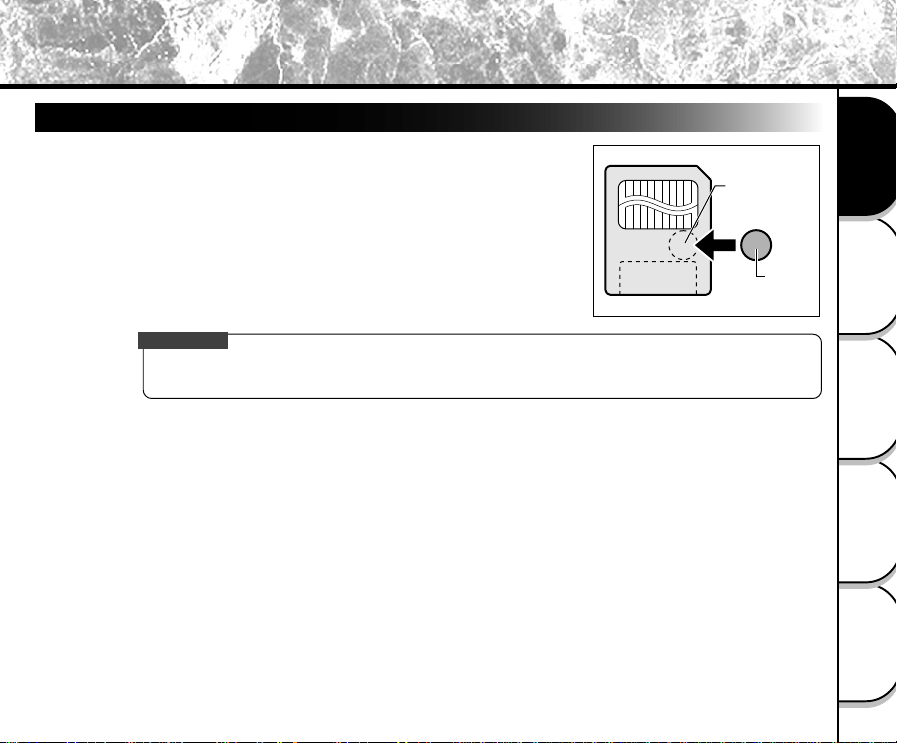
To prevent valuable data from being erased inadvertently, attach the
write-protect sticker at the write-protect area. Data can no longer be
recorded or erased from SmartMedia™. To write or erase data from
SmartMedia™, peel off the sticker.
IMPORTANT
• The write protection may not function if the write-protect sticker becomes dirty. Use a soft dry cloth to
wipe away any dirt. Once a sticker is peeled off it cannot be used again.
Write-protect
area
Sticker
About SmartMedia™ (continued)
- 32 -
Basic
Photography
Playing Back/
Erasing Images
Other
Applications
Additional
Information
Getting Ready
Turning the Power ON
Make sure that the SmartMedia™ is correctly loaded. (
➲
Page 28)
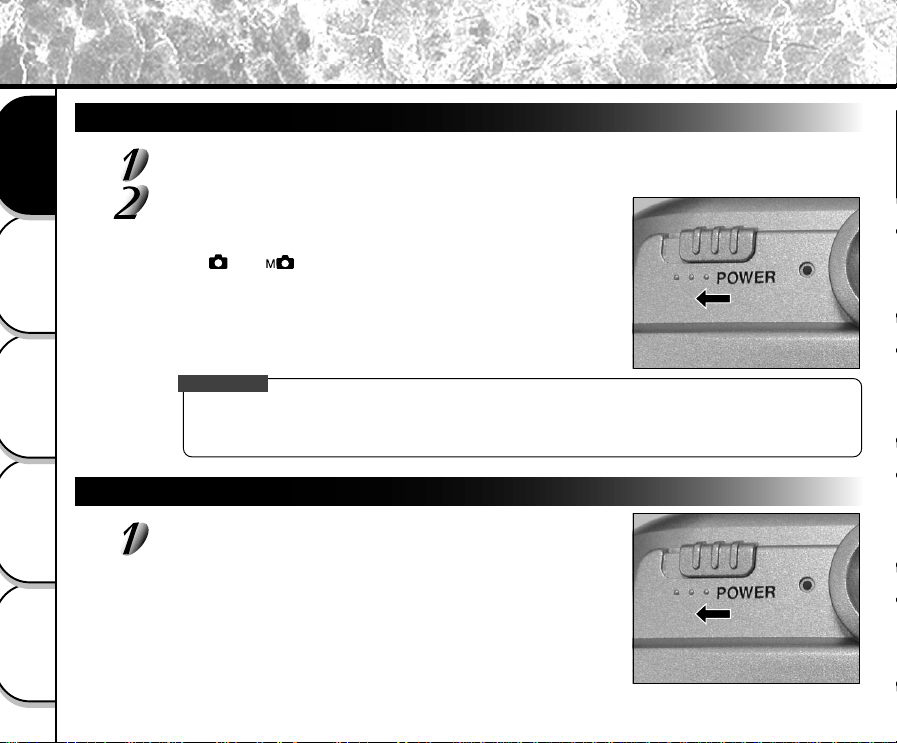
Slide the POWER knob to turn on the power and set the
mode dial to the desired mode.
Remove the lens cap during photography.
In the [ ] or [ ] modes, the lens extends from the camera
body.
When the camera is turned ON, the Auto Power OFF function starts
to work.
IMPORTANT
• If no operation is carried out for a fixed amount of time (default: about 1 minute), the power is turned off
to prevent battery wear. This is called “Auto Power OFF”.
☞
About the Auto Power OFF Function
➲
AUTO-OFF (page 82)
Turning the Power OFF
Slide the POWER knob to turn off the power.
The power is turned off, and the lens returns to its original position in
the body.
Turning the Power ON/OFF
- 33 -
Basic
Photography
Playing Back/
Erasing Images
Other
Applications
Additional
Information
Getting Ready
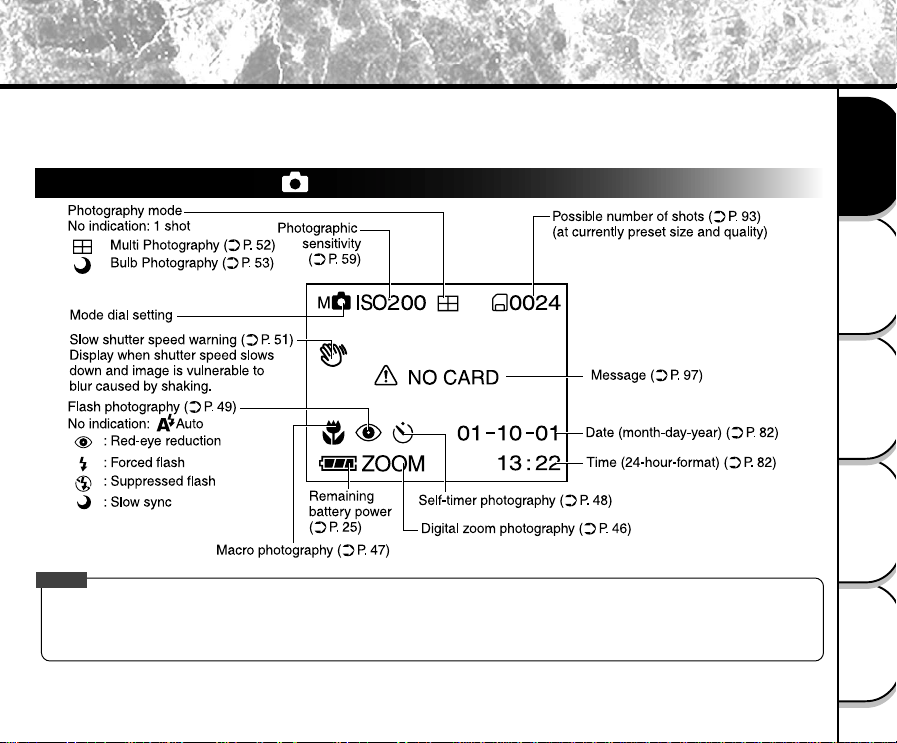
The text, numbers and icons that are displayed on the LCD monitor vary according to the current settings.
To erase text currently displayed on the LCD monitor, use the DISPLAY function in the MENU (
➲
Page 60 or 78).
The LCD monitor automatically turns ON if necessary even if it is set to OFF.
In Photography Mode ( [ ] )
Memo
• The size of the data to be recorded varies according to the amount of detail in the subject image. So, the number of images that
can be photographed after an image is recorded decreases. Sometimes this amount decreases by two images.
• The display is momentarily disrupted after recording an image or the mode is switched. This does not affect photography.
LCD Monitor Display
- 34 -
Basic
Photography
Playing Back/
Erasing Images
Other
Applications
Additional
Information
Getting Ready
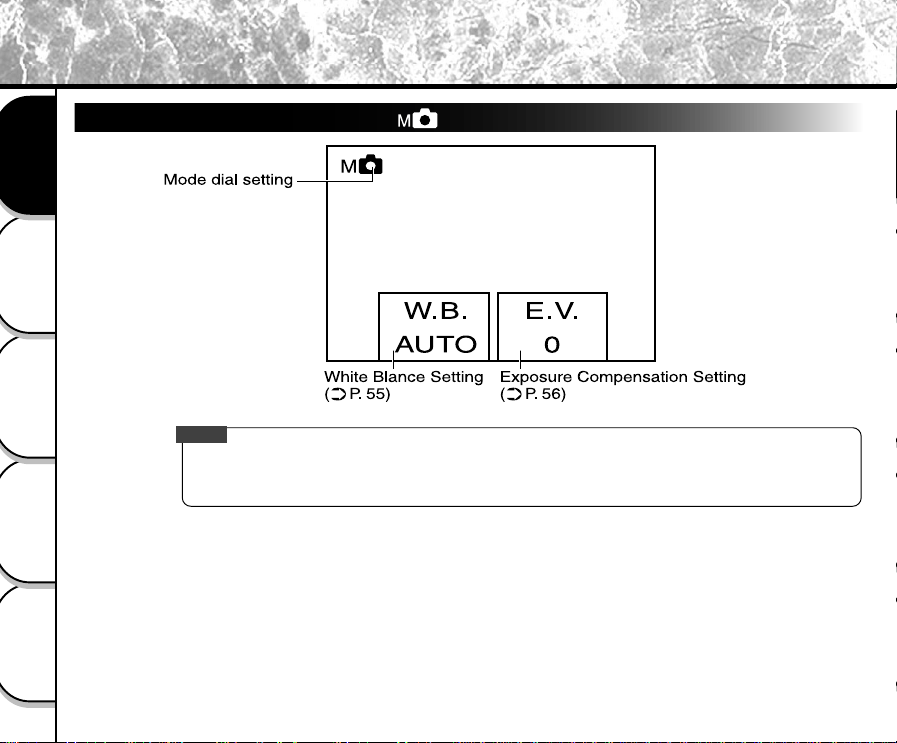
In Manual Photography Mode ( [ ] )
Memo
• The display is momentarily disrupted after recording an image or the mode is switched. This does not
affect photography.
LCD Monitor Display (continued)
- 35 -
Basic
Photography
Playing Back/
Erasing Images
Other
Applications
Additional
Information
Getting Ready
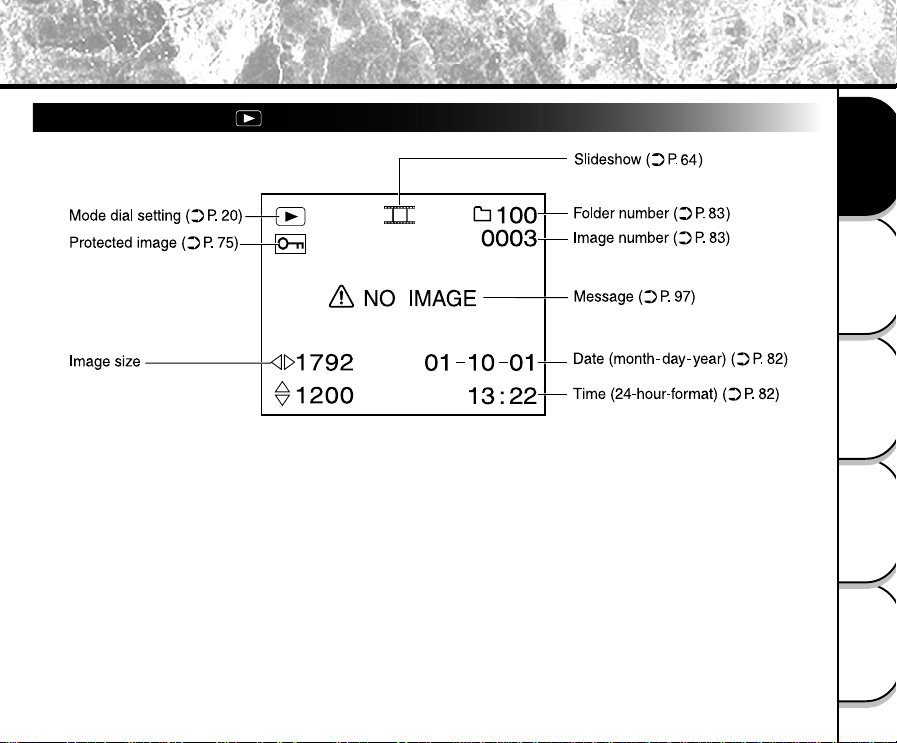
In Playback Mode ([ ])
LCD Monitor Display (continued)
- 36 -
Basic
Photography
Playing Back/
Erasing Images
Other
Applications
Additional
Information
Getting Ready
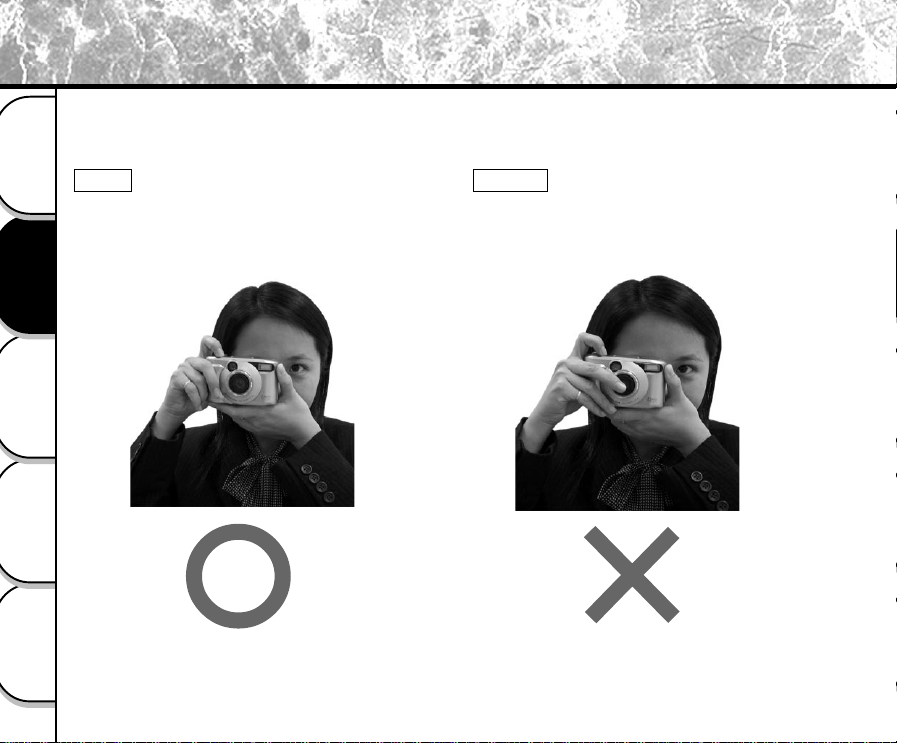
How to Hold Your Camera
When taking a photograph, hold the camera firmly and prevent your finger or straps from covering the lens or flash.
Right
Camera held with both hands with your arms
firmly held against the sides of your chest
Wrong
Fingers held over the lens
- 37 -
Basic
Photography
Playing Back/
Erasing Images
Other
Applications
Additional
Information
Getting Ready
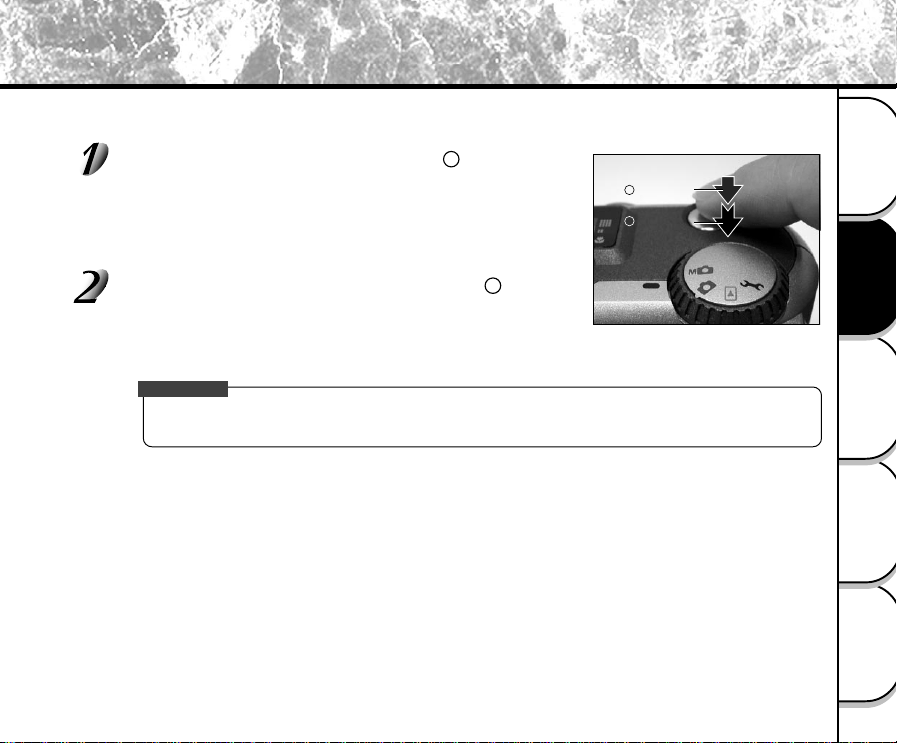
How to Press the Shutter Button
The shutter button can be pressed down in two stages: half way down and fully down. When pressed half way down,
AF (auto-focus) and AE (auto exposure) are carried out. When pressed fully down, the camera takes a picture.
Press the shutter button down half way .
AF (auto-focus) and AE (auto exposure) (➲ Additional Information,
Glossary (Page 101) start to function.
When AF or AE are locked, the beep tone (➲ Page 80) sounds and
the viewfinder lamp lights. (➲ Page 39)
Press and hold the shutter button down fully .
The camera takes a picture.
The viewfinder lamp flashes while image data is being recorded onto
the SmartMedia™.
IMPORTANT
• Never open the SmartMedia™ door or remove the SmartMedia™ while an image is being recorded. This
may corrupt the data on the SmartMedia™ or damage the SmartMedia™ itself.
Press down
half way.
Press down
fully.
1
2
1
2
- 38 -
Basic
Photography
Playing Back/
Erasing Images
Other
Applications
Additional
Information
Getting Ready
Memo
• If the shutter button is pressed all the way down, photographs cannot be taken until AF and AE are
locked.
• The image in the LCD monitor sometimes darkens from the time that the shutter button is pressed down
half way until the image becomes focused.
•To focus or expose a position outside the center of the screen frame, move the subject you are taking to
the center of the screen frame, and press down the shutter button half way and hold it until the camera
beeps. Now, with the shutter button held down, return to the original picture that you composed and
press the shutter button down fully. Moving the camera as you press the shutter button will result in a
blurred image.
• The PDR-M25 uses an accurate auto focus mechanism. However, the PDR-M25 may have difficulty
focusing or not be able to focus at all for subjects and situations such as the following:
• If the image cannot be focused, the focus is automatically fixed to infinity. When the flash is necessary at
this time, it is simultaneously fixed to illuminate objects five feet (1.5 meters) away.
- Subjects moving at high speed
- Very shiny subjects such as a mirror or car
body
- Extremely low contrast subjects
- Subjects that have low contrast and merge into
the background (such as white walls or
subjects dressed in the same color as the
background)
- When the subject is distant and dark
- When there are objects in front of or behind the
subject (such as an animal in a cage or a person
in front of a tree)
- Subjects with little reflection, such as a hair or fur
- Subjects with no solidity, such as smoke or flames
- Subjects viewed through glass
How to Press the Shutter Button (continued)
- 39 -
Basic
Photography
Playing Back/
Erasing Images
Other
Applications
Additional
Information
Getting Ready
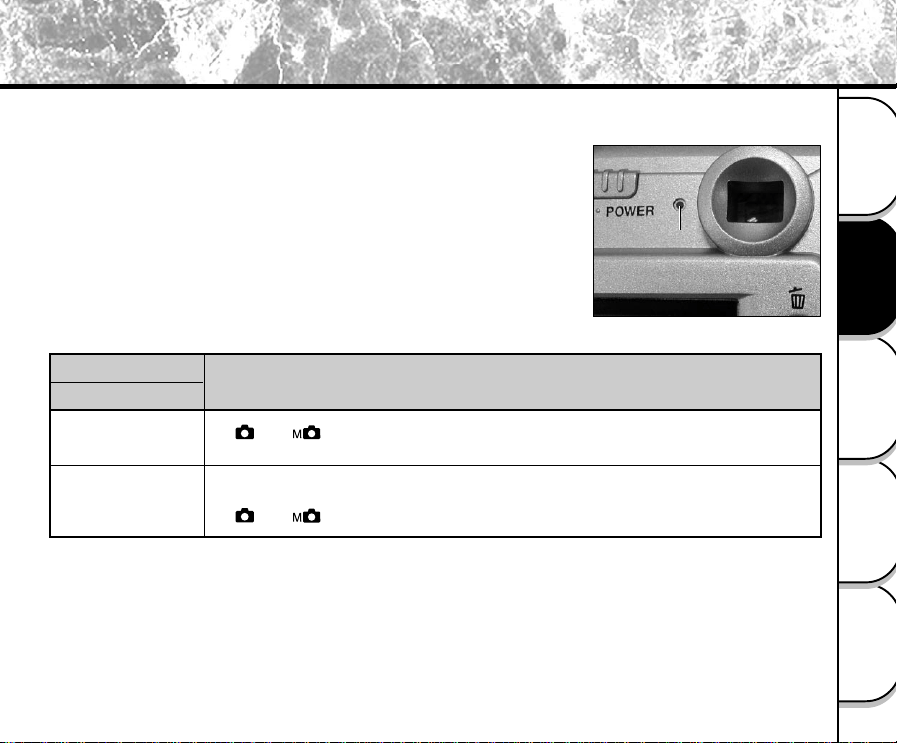
About the Viewfinder Lamp
The viewfinder lamp indicates the state of the camera. The meaning of the lamp may differ according to the mode
dial setting.
Viewfinder Lamp
State
Meaning
ON
[ ] or [ ] AE or AF are locked with the shutter button held half down
[Power ON] Writing to SmartMedia in progress
Do not turn off the power
[ ] or [ ] Lens cannot work because of obstacle.
Flashing
Viewfinder Lamp
- 40 -
Basic
Photography
Playing Back/
Erasing Images
Other
Applications
Additional
Information
Getting Ready
Photography (Auto Photography)
This is the most commonly used photography mode.
In this mode, exposure (combination of shutter speed and aperture) is automatically controlled to facilitate
photography. There are two ways of taking photographs in this mode: using the viewfinder and using the LCD
monitor.
Using the Viewfinder
Get ready to take the photograph.
Load the batteries (➲ Page 23) and the SmartMedia™ (➲ Page 28) into the camera.
Slide the POWER knob to turn on the power.
Set the mode dial to [ ].
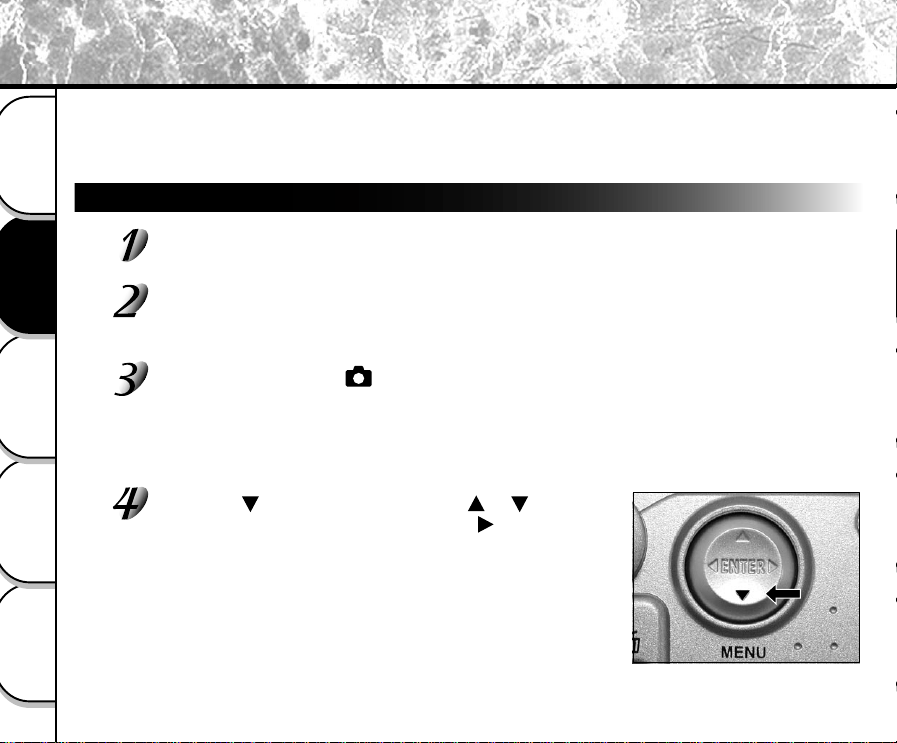
Press the (MENU) button. Use the or buttons to
select the DISPLAY item and press the
button. Select
OFF to turn the LCD monitor display off.
To reduce the amount of battery wear, we recommend turning the LCD
monitor display OFF, and using the viewfinder to take photographs.
- 41 -
Basic
Photography
Playing Back/
Erasing Images
Other
Applications
Additional
Information
Getting Ready
Photography (Auto Photography) (continued)
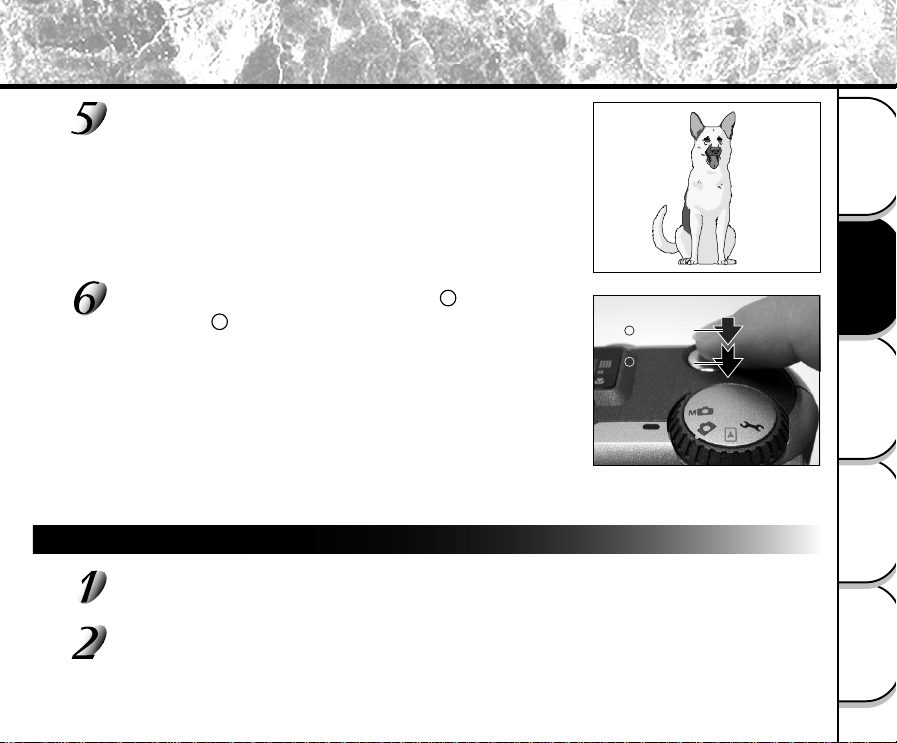
Look through the viewfinder to compose the picture.
Press the shutter button down half way , and press it
down fully .
• Pressing the shutter button down half way adjusts the exposure,
and pressing the shutter button down fully takes the shot.
• When the focus and exposure are adjusted, the viewfinder lamp
lights. (➲ Page 39)
• If you shoot a picture, when preview is set to ON (➲ Page 59), a
preview image is displayed on screen for about two seconds.
• The viewfinder lamp flashes while image data is being recorded
onto the SmartMedia™.
Using the LCD Monitor
Get ready to take the photograph.
Load the batteries (➲ Page 23) and the SmartMedia™ (➲ Page 28) into the camera.
Slide the POWER knob to turn on the power.
1
2
Press down
half way.
Press down
fully.
1
2
- 42 -
Basic
Photography
Playing Back/
Erasing Images
Other
Applications
Additional
Information
Getting Ready
Photography (Auto Photography) (continued)
Press down
half way.
Press down
fully.
1
2
Set the mode dial to [ ].
Look at the image on the LCD monitor to compose the picture.
☞ To adjust the brightness of the LCD monitor ➲ Page 79
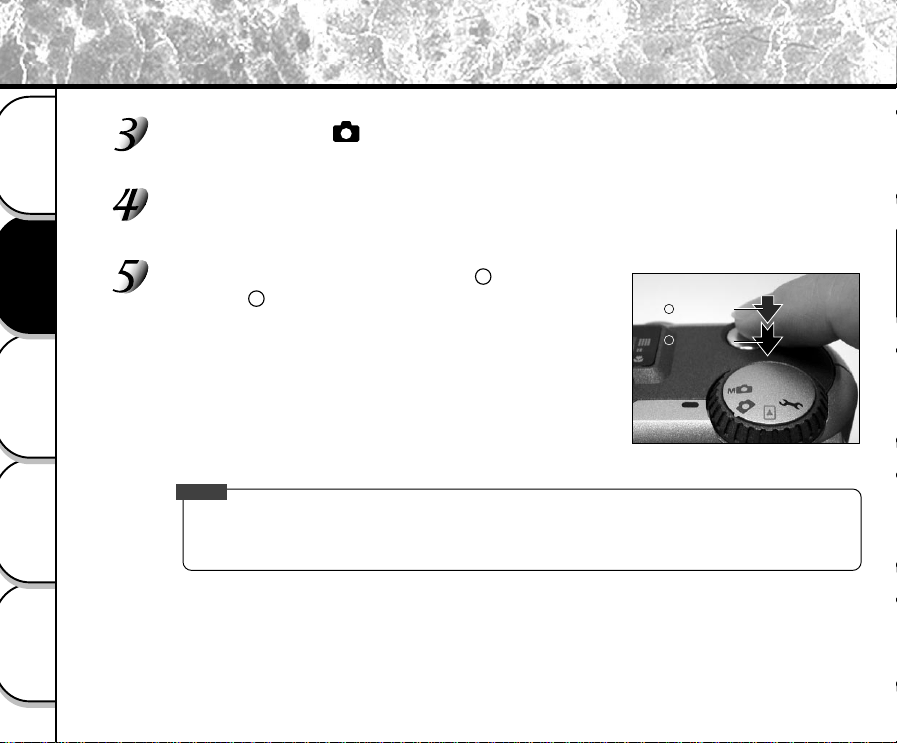
Press the shutter button down half way , and press it
down fully .
• Pressing the shutter button down half way adjusts the exposure,
and pressing the shutter button down fully takes the shot.
• When the focus and exposure are adjusted, the viewfinder lamp
lights. (➲ Page 39)
• If you shoot a picture, when preview is set to ON (➲ Page 59), a
preview image is displayed on screen for about two seconds.
• The viewfinder lamp flashes while image data is being recorded
onto the SmartMedia™.
Memo
• The LCD monitor sometimes displays bright, dark or colored spots at all times. This is not a malfunction.
These spots do not appear in the photographed image.
• The image is not displayed on the LCD monitor while the shutter button is pressed down fully.
1
2
- 43 -
Basic
Photography
Playing Back/
Erasing Images
Other
Applications
Additional
Information
Getting Ready
Setting the Image Size and Quality
Set the size (number of pixels) and quality (compression ratio) of the image to be photographed.
Change the setting according to how the image is to be used and the remaining amount of space in the
SmartMedia™.
Slide the POWER knob to turn on the power.
Set the mode dial to [ ] or [ ].
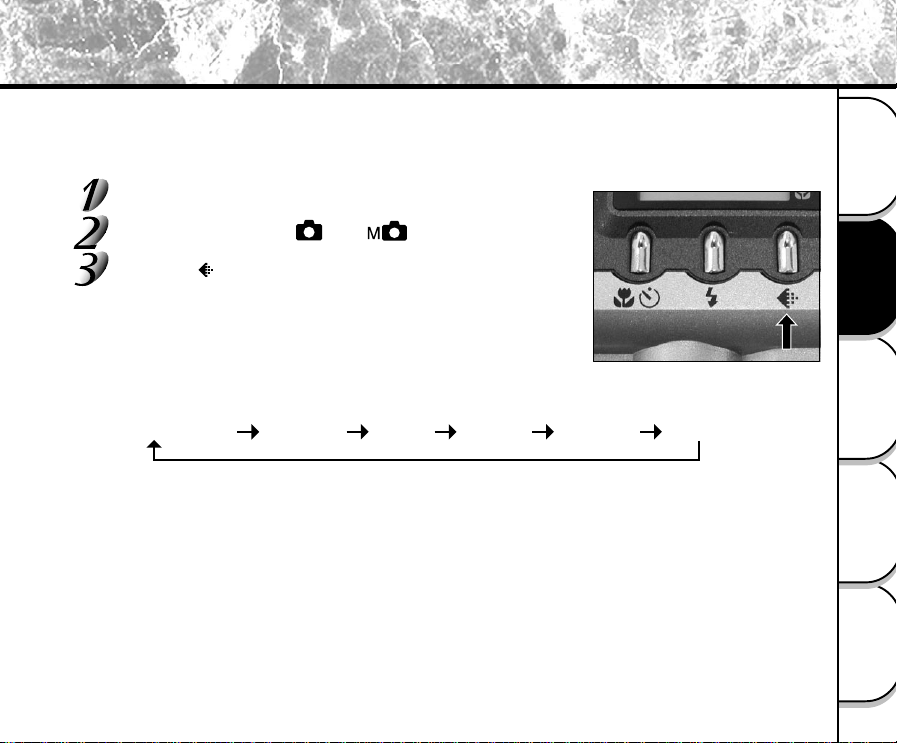
Press the image quality button to set the required
quality and size while viewing the image on the status
display.
Pressing the image quality button displays the available qualities and
sizes in order. Select from the available combinations of quality and
size.
<Quality> [★★★] FINE : Low compression
[H★★] NORMAL : Middle compression
[HH★] BASIC : High compression
The more stars there are, the better image quality becomes. Higher quality images, however,
take up more memory space, reducing the number of images that can be taken.
<Size> [FULL] 1792 x 1200 pixels, [HALF] 896 x 600 pixels
The FULL setting improves the quality of the image. Higher quality images, however, take up
more space, reducing the number of images that can be taken.
★★FULL (default) ★★★FULL ★FULL★★★HALF★★HALF★HALF
- 44 -
Basic
Photography
Playing Back/
Erasing Images
Other
Applications
Additional
Information
Getting Ready
Setting the Image Size and Quality (continued)
Take the photograph.
☞
For details on how to take photographs
➲
Page 40
Memo
•To make the image smaller, it is more effective to reduce the size and then reduce image quality.
• After you have taken a photograph, you can change its size (
➲
Page 65) and quality (
➲
Page 67).
• The memory size of the image varies according to the subject.
• The settings are not canceled even if the camera is turned off or the Auto Power OFF function is
activated.
• The settings are canceled when you remove or insert the batteries or disconnect or connect the AC
adapter.
- 45 -
Basic
Photography
Playing Back/
Erasing Images
Other
Applications
Additional
Information
Getting Ready
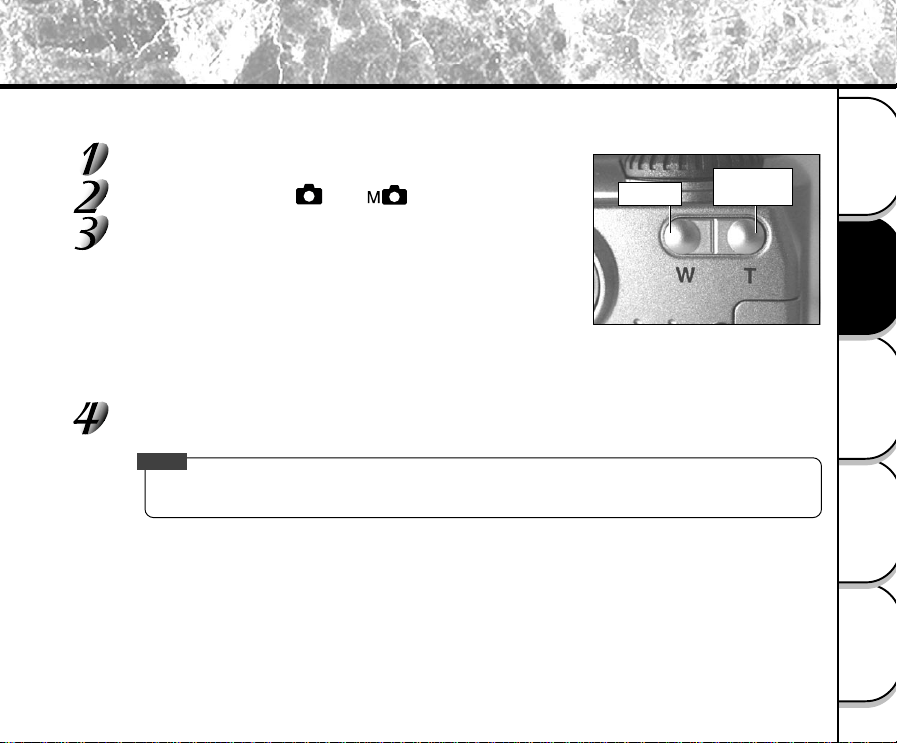
Zoom photography allows you to take zoom shots and wide angle shots.
Slide the POWER knob to turn on the power.
Set the mode dial to [ ] or [ ].
Compose the picture using the Zoom key.
• Pressing the Telephoto (zoom) key zooms in on the subject, and
enlarges the subject on the LCD monitor.
• Pressing the Wide key provides a wider angle picture.
• The lens position moves according to the Zoom key setting.
Press the shutter button down half way, and press it down fully.
➲
Page 37
Memo
• The Zoom key setting is automatically canceled by either turning the camera off or by activation of the
Auto Power OFF function.
Zoom Photography
Telephoto
(zoom) key
Wide key
- 46 -
Basic
Photography
Playing Back/
Erasing Images
Other
Applications
Additional
Information
Getting Ready
Digital Zoom Photography
This function enlarges the center of the image displayed on the screen so that it appears that the photographed
image is enlarged twice its size.
The LCD monitor automatically turns ON in this mode. Take pictures while viewing the image in the LCD monitor.
Set the mode dial to [ ] or [ ].
In the Manual Photography mode, press the ENTER button to set the manual setup screen to non-
display.
➲
Page 54
Press the Telephoto(zoom) key as far as it can go.
[ZOOM] is displayed in the LCD monitor and the center of the screen is enlarged at twice the original size.
Look at the image on the LCD monitor to compose the picture.
☞ Using the LCD Monitor
➲
Page 33
Press the shutter button down half way, and press it down fully.
➲
Page 37
To cancel digital zoom photography, press the Wide key.
Memo
• The image size is fixed to HALF (896 x 600 pixels) in the Digital Zoom Photography mode. However, in
the MULTI mode, you can take pictures even at FULL (1792 x 1200 pixels). (➲ Page 52)
• Digital zoom photography is automatically canceled by either turning the camera off or by activation of
the Auto Power OFF function.
- 47 -
Basic
Photography
Playing Back/
Erasing Images
Other
Applications
Additional
Information
Getting Ready
Close-up Photography (Macro Photography)
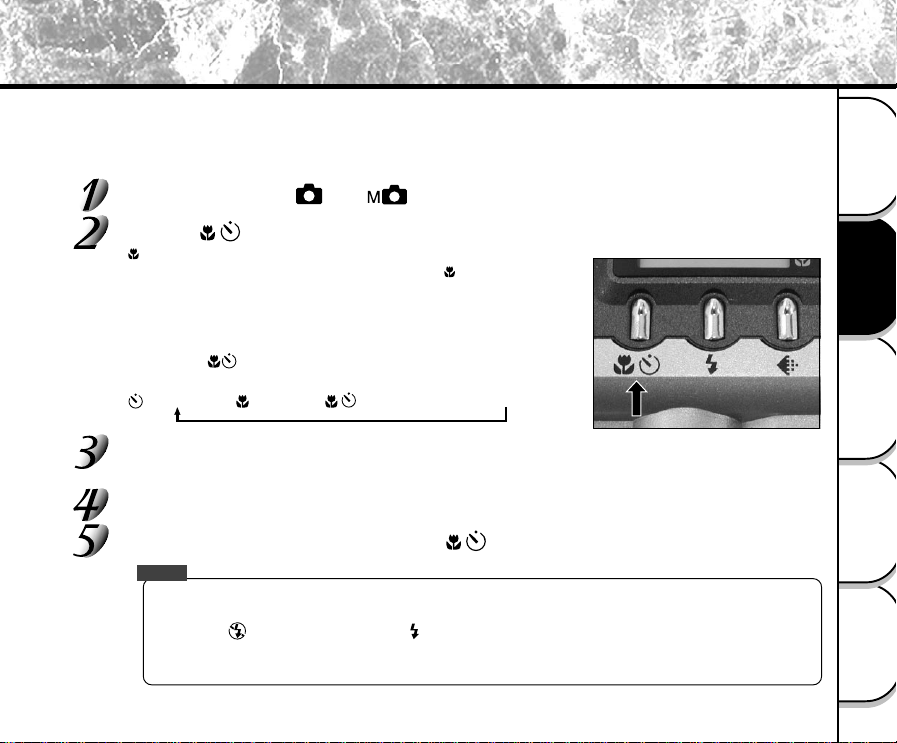
The macro photography mode is used when the distance to the subject is between 8 cm at wide to 40 cm.
In the macro photography mode, the LCD monitor automatically turns ON. Take the photograph while viewing the
LCD monitor.
Set the mode dial to [ ] or [ ].
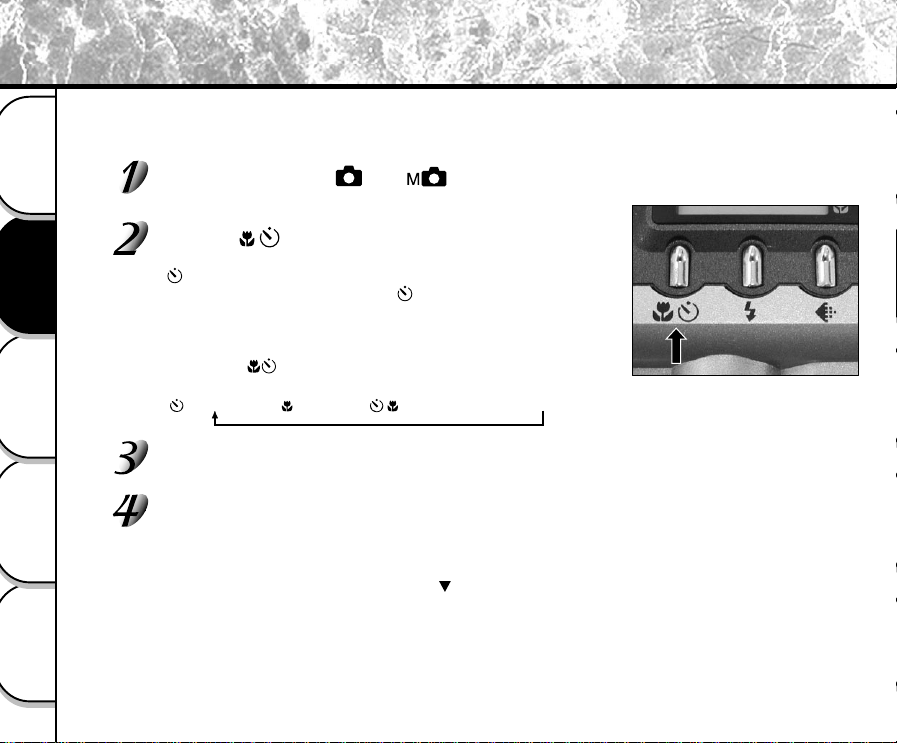
Press the button to set to the macro mode.
[ ] is displayed on the LCD monitor and the arrow directs to the
Macro icon. In the Manual Photography mode, [ ] is not displayed
on the LCD monitor when the manual setup screen is displayed.
Press the ENTER button to set the manual setup screen to
non-display. ➲ Page 54
Pressing the button displays the available Self-timer and Macro
modes in order.
[ ] Self-timer ➔ [ ] Macro ➔ [ ] Self-timer & Macro ➔ Off
Look at the image on the LCD monitor to compose the picture.
☞
Using the LCD Monitor
➲
Page 33
Press the shutter button down half way, and press it down fully.
➲
Page 37
To cancel macro photography, press the button until off.
Memo
• Macro photography is not canceled even if the camera is turned off or the Auto Power OFF function is
activated.
• Only the [ ] Suppressed Flash and [ ] Forced Flash modes can be set for flash photography.
• The settings are canceled when you remove or insert the batteries or disconnect or connect the AC
adapter.
- 48 -
Basic
Photography
Playing Back/
Erasing Images
Other
Applications
Additional
Information
Getting Ready
When the self-timer is used, the shutter automatically closes after the preset time (two or ten seconds).
☞ Changing the set time until photography ➲ Page 59
Set the mode dial to [ ] or [ ].
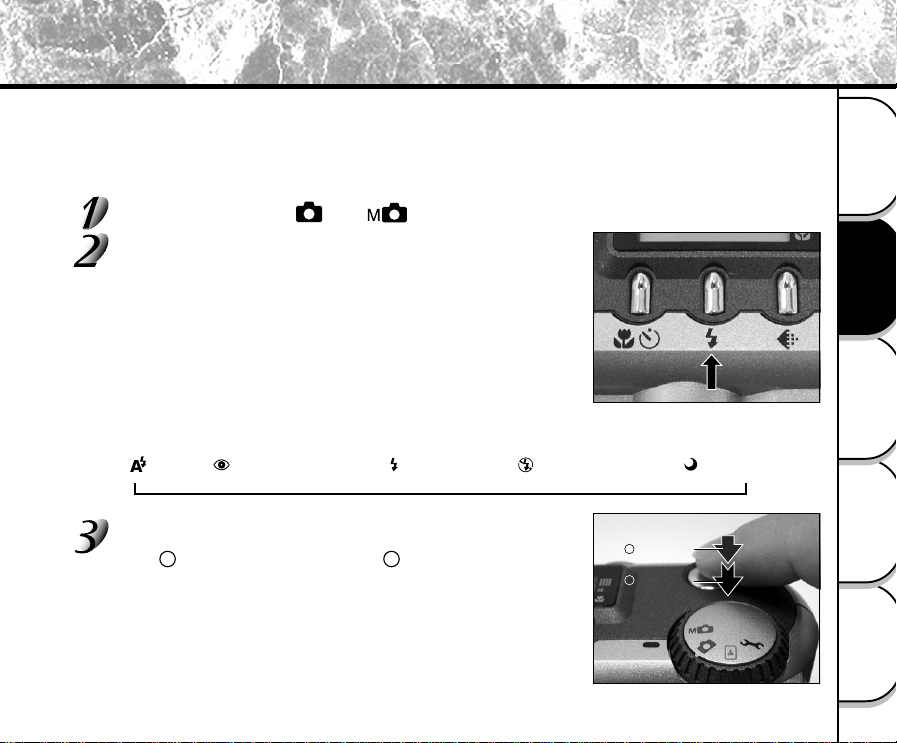
Press the button to set to the self-timer mode.
[ ] is displayed on the LCD monitor and the status display.
In the Manual Photography mode, [ ] is not displayed on the LCD
monitor when the manual setup screen is displayed.
Press the ENTER button to set the manual setup screen to
non-display.
➲
Page 54
Pressing the button displays the available Self-timer and
Macro modes in order.
[ ] Self-timer ➔ [ ] Macro ➔ [ ] Self-timer & Macro ➔ Off
Compose the picture.
Press the shutter button down half way, and press it down fully.
➲
Page 37
The self-timer lamp flashes after lighting in red. The photograph is then taken after the preset time (two or
ten seconds).
When photographs are taken using the LCD monitor, the count down is displayed.
To cancel photography midway, press the button.
After you have set the self-timer, the setting is not canceled even if the camera is turned off or the Auto
Power OFF function is activated.
The setting is canceled when you execute the self-timer photography, remove or insert the batteries or
disconnect or connect the AC adapter.
Photography Using the Self-timer (Self-timer Photography)
- 49 -
Basic
Photography
Playing Back/
Erasing Images
Other
Applications
Additional
Information
Getting Ready
➔
In the default setting, the flash will be automatically set to function in dark places. No special setting is needed to set
off the flash. The flash firing mode can be set to suit the conditions where the flash is to be fired.
The effective firing distance of the flash is approximately 1.3 ft (0.4 m) to 8.2 ft (2.5 m).
Set the mode dial to [ ] or [ ].
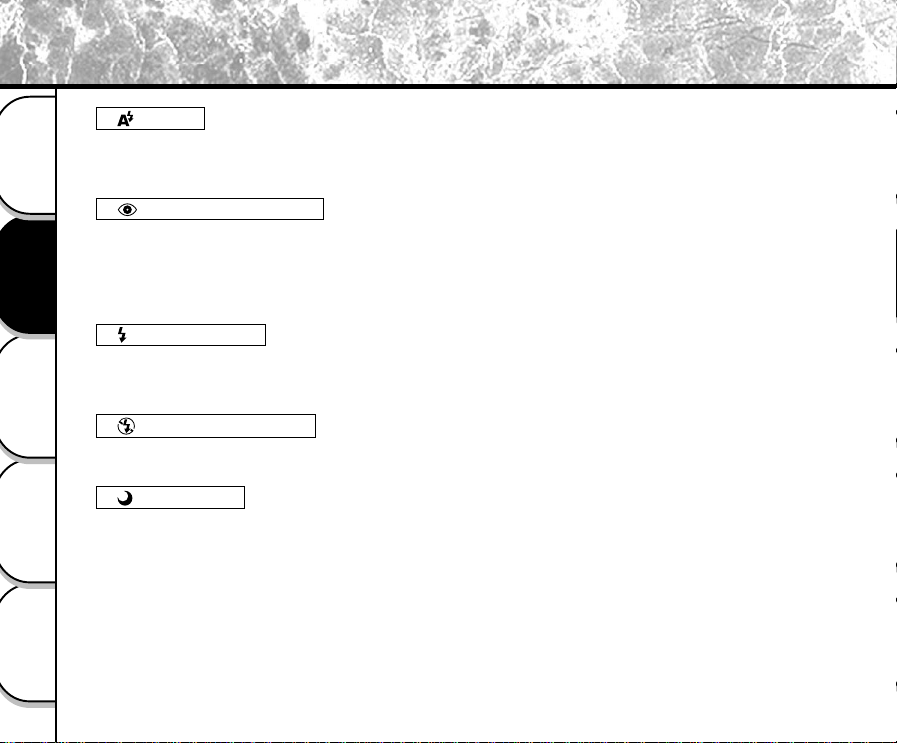
Press the flash button to set to the desired mode while
viewing the image on the LCD monitor or the status
display.
The icon for the mode that you selected is displayed in the LCD
monitor or the status display.
In the Manual Photography mode, the icon for the mode that you
selected is not displayed on the LCD monitor when the manual setup
screen is displayed.
Press the ENTER button to set the manual setup screen to non-
display. ➲ Page 54
Pressing the flash button displays the available flash modes in order.
[ ] Auto ➔ [ ] Red-Eye Reduction ➔ [ ] Forced Flash ➔ [ ] Suppressed Flash ➔ [ ]Slow Sync
Compose the picture. Press the shutter button down half
way , and press it down fully .
1
2
Press down
half way.
Press down
fully.
1
2
Photography Using the Flash (Flash Photography)
- 50 -
Basic
Photography
Playing Back/
Erasing Images
Other
Applications
Additional
Information
Getting Ready
[ ] Auto
In this mode, the flash fires automatically according to the photography conditions. This mode is ideal for
general photography where you are not trying to achieve any particular effect (when using macro photography,
the flash does not fire).
[ ] Red-Eye Reduction
Use this mode to avoid the red-eye effect (
➲
Additional Information, Glossary (Page 101) when photographing
people in low-light conditions.
The flash emits a pre-flash just before the picture is taken and then flashes again to take the actual picture.
Red-eye is reduced more effectively if the camera is pointed at the line of sight of the subject at as close a
distance as possible.
[ ] Forced Flash
In this mode, the flash always fires. Use the Forced Flash mode to shoot pictures in artificial light (backlighting,
fluorescent lighting, etc.).
The flash also fires during macro photography.
[ ] Suppressed Flash
Use the Suppressed Flash mode when you are taking pictures in indoor lighting at distances too great for the
flash to have any effect, such as theater performances or indoor sporting events.
[ ] Slow Sync
The flash is fired at a slower shutter speed.
Photography Using the Flash (Flash photography) (continued)
- 51 -
Basic
Photography
Playing Back/
Erasing Images
Other
Applications
Additional
Information
Getting Ready
Memo
• If you take a photograph in the [ ] Slow Sync mode at a place with a dark background or in the [ ]
Suppressed Flash mode at a dark place, the shutter speed slows down, and the slow shutter speed warning is
displayed. (When the shutter is pressed half way down, the viewfinder lamp lights and the slow shutter speed
mark [
] is displayed in the LCD monitor.) We recommend using a tripod to prevent blurred image caused by
shaking.
• Using the flash during multi photography and bulb photography is not possible.
• The flash setting is not canceled even if the camera is turned off or the Auto Power OFF function is activated.
• The settings are canceled when you remove or insert the batteries or disconnect or connect the AC adapter.
• It may take a few seconds to charge the flash. Photography by using the flash is not possible while the charging
is in progress. So wait until the charging is completed.
Photography Using the Flash (Flash photography) (continued)
- 52 -
Basic
Photography
Playing Back/
Erasing Images
Other
Applications
Additional
Information
Getting Ready
Multi Image Photography (Multi Photography)
This mode takes 16 shots continuously at 0.25 second intervals. The 16 photographed images are saved as one
image.
This mode is effective for continuously photographing moving subjects.
Set the mode dial to [ ] or [ ].
Set the REC. mode to [MULTI].
1. Press the (MENU) button.
2. Use the or buttons to select [REC.MODE] and press the button.
3. Use the or buttons to select [MULTI] and press the ENTER button.
4. Press the ENTER button.
☞ For details on the REC. mode,
➲
Page 58.
[ ] is displayed in the LCD monitor or the status display.
In the Manual Photography mode, [ ] is not displayed on the LCD monitor when the manual setup
screen is displayed.
Press the ENTER button to set the manual setup screen to non-display.
➲
Page 54
Compose the picture, press the shutter button down half way, and press it down fully.
➲
Page 37
The shutter is opened and closed 16 times.
Memo
• The photography interval changes according to the photographic conditions.
• Flash photography is not possible.
• The settings are not canceled even if the camera is turned off or the Auto Power OFF function is
activated.
• The settings are canceled when you remove or insert the batteries or disconnect or connect the AC
adapter.
- 53 -
Basic
Photography
Playing Back/
Erasing Images
Other
Applications
Additional
Information
Getting Ready
This mode is used for taking subjects that require several seconds to photograph such as firework displays at night.
When using this mode, be sure to use a tripod to keep the camera stable and prevent distorted images.
Set the mode dial to [ ] or [ ].
Set the REC. mode to [BULB].
1. Press the (MENU) button.
2. Use the or buttons to select [REC.MODE] and press the button.
3. Use the or buttons to select [BULB] and press the ENTER button.
4. Press the ENTER button.
☞
For details on the REC. mode
➲
Page 58
[ ] and [ ] are displayed in the LCD monitor and the arrow directs to their icons.
In the Manual Photography mode, [ ] and [ ] are not displayed on the LCD monitor when the manual
setup screen is displayed.
Press the ENTER button to set the manual setup screen to non-display.
➲
Page 54
Compose the picture, press the shutter button down half way, and press it down fully.
➲
Page 37
The camera takes the picture at the set exposure time.
During the exposure, the viewfinder lamp flashes.
It takes about twice the set time to complete taking the photograph due to processing of the captured
image.
☞ Changing the exposure time ➲ Page 59
Memo
• Flash photography is not possible.
• The settings are not canceled even if the camera is turned off or the Auto Power OFF function is
activated.
• The settings are canceled when you remove or insert the batteries or disconnect or connect the AC
adapter.
Long Exposure Photography (Bulb Photography)
- 54 -
Basic
Photography
Playing Back/
Erasing Images
Other
Applications
Additional
Information
Getting Ready
Setting items
Set values
W.B.
E.V.
+0.3
0.3
AUTO
0
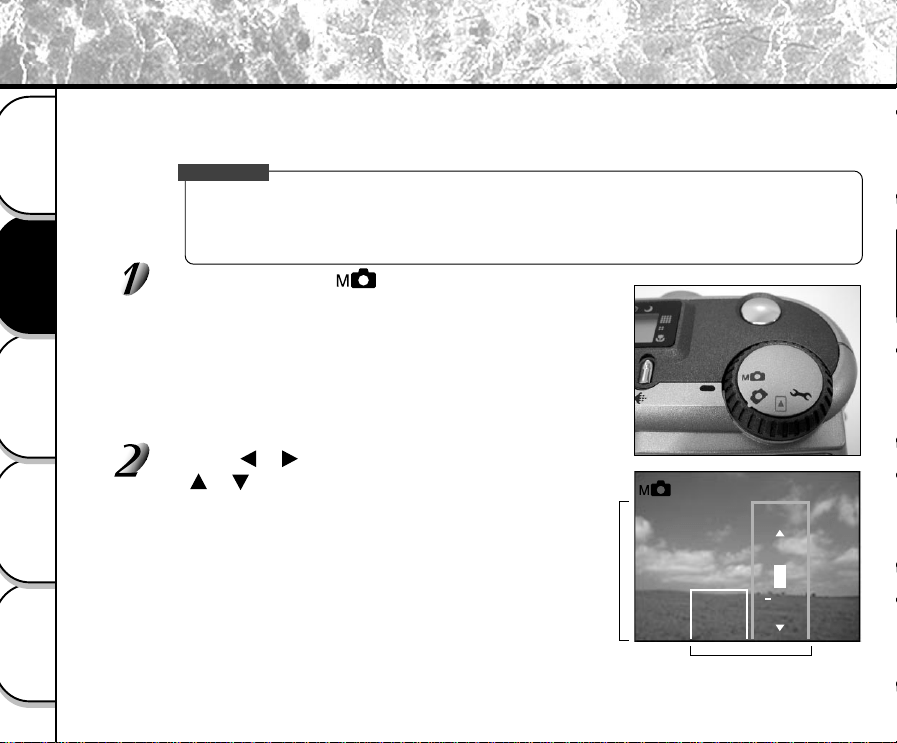
You can manually adjust conditions such as white balance and exposure compensation, and take photographs at
these conditions. This is called “manual photography.” Settings made in this mode are saved even if the camera is
turned off.
IMPORTANT
• If you remove or insert the batteries or disconnect or connect the AC adapter, the manual photography
settings will return to their defaults. If this happens, manually set the conditions again.
• The settings are not canceled even if the camera is turned off or the Auto Power off function is activated.
Set the mode dial to [ ].
The manual setup screen is displayed.
Display or non-display of the manual setup screen is toggled at each
press of the ENTER button.
☞ If the LCD monitor is difficult to view ➲ Page 85
Press the or buttons to select the setting item and
the
or buttons to select the set value.
☞ [W.B.] White balance ➲ Page 55
[E.V.] Exposure compensation ➲ Page 56
Taking Photographs Manually (Manual Photography)
- 55 -
Basic
Photography
Playing Back/
Erasing Images
Other
Applications
Additional
Information
Getting Ready
Taking Photographs Manually (Manual Photography) (continued)
Press the ENTER button.
This fixes the setting.
The camera is ready to take photographs.
Compose the picture, press the shutter button down half way, and press it down fully.
➲
Page 37
The camera takes the picture.
Memo
• Photography is also possible with the manual setup screen displayed.
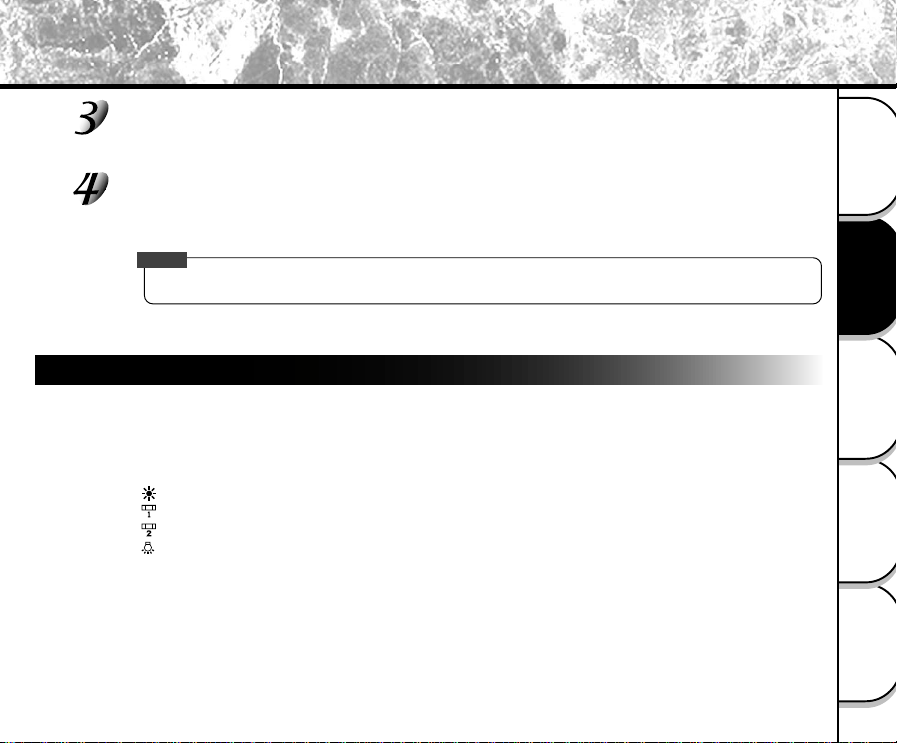
W.B. (White Balance)
☞ White Balance ➲ Additional Information, Glossary (Page 101)
The camera determines the white balance by averaging the various kinds of light that enters the lens. This
setting allows you to set the white balance when taking photographs under specific lighting conditions.
This setting does not function when the flash is used to take photographs.
[AUTO] : Automatic adjustment (default)
[ ] : Photography outdoors
[ ] : Photography in cool white fluorescent light
[ ] : Photography in standard fluorescent light
[ ] : Photography in incandescent light
- 56 -
Basic
Photography
Playing Back/
Erasing Images
Other
Applications
Additional
Information
Getting Ready
E.V. (Exposure Compensation)
☞ E.V. (Exposure Compensation) ➲ Additional Information, Glossary (Page 101)
This setting allows you to lighten or darken the entire screen. Use this setting when the optimum
brightness (exposure) cannot be obtained, for example, when there is a lot of contrast between the
subject and the background or when the subject to photograph occupies only an extremely small part of
the screen. Increasing E.V. lightens the screen, while decreasing E.V. darkens the screen.
[+1.5/+1.2/+0.9/+0.6/+0.3/0 (default)/–0.3/–0.6/–0.9/–1.2/–1.5]
The ideal brightness sometimes cannot be obtained even if a large E.V. value is set in dark photographic
conditions.
Also, the brightness of moving images before they are photographed sometimes does not change if the
subject itself is dark. In this case, press the shutter button, and check the brightness in the preview image
(photographed image).
(preview photography ➲ Page 59)
Effective Subjects and Set Values
● Positive (+) Compensation
• Copying of printed text (black characters on white paper) (+1.5)
• Backlit portraits (+0.6 to +1.5)
•Very bright scenes (such as snowfields) and highly reflective subjects (+0.9)
• Shots made up predominantly of sky (+0.9)
● Negative (–) Compensation
• Spotlit subjects, particularly against dark backgrounds (–0.6)
• Copying of printed text (white characters on black paper) (–0.6)
• Scenes with low reflectivity, such as shots of green or dark foliage (–0.6)
Taking Photographs Manually (Manual Photography) (continued)
- 57 -
Basic
Photography
Playing Back/
Erasing Images
Other
Applications
Additional
Information
Getting Ready
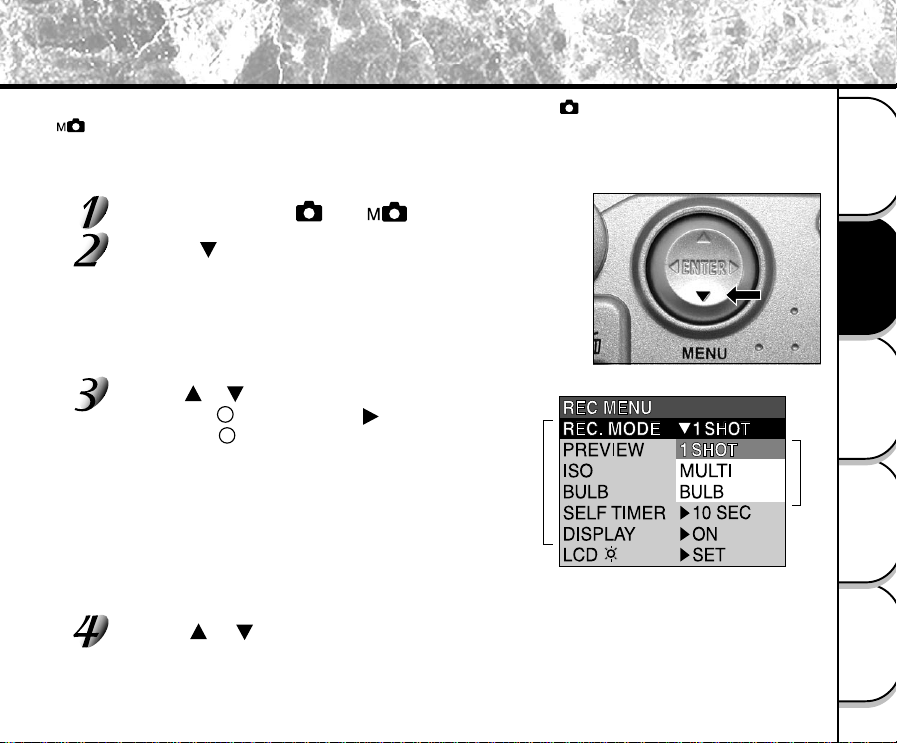
This menu is for setting the basic settings to be used for photography in the [ ] automatic photography and
[ ] manual photography mode.
The settings are not canceled even if the camera is turned OFF or the Auto Power OFF function is activated. The
settings (except the LCD monitor brightness) are canceled when you remove or insert the batteries or disconnect or
connect the AC adapter.
Set the mode dial to [ ] or [ ].
Press the (MENU) button.
The REC MENU is displayed.
Use the or buttons to select the desired
setting item and press the [
] button.
The tab menu is displayed.
The image before the photograph is taken is displayed
on the LCD monitor when selecting [LCD].
☞ REC. MODE ➲ Page 58
PREVIEW ➲ Page 59
ISO ➲ Page 59
BULB ➲ Page 59
SELF TIMER ➲ Page 59
DISPLAY ➲ Page 60
LCD ➲ Page 60
Use the or buttons to select the desired setting from the tab menu, and
press the ENTER button.
This saves the settings, and returns the display to the REC MENU.
2 Tab menu
1 Setting item
1
2
Changing the Preset Conditions (REC MENU)
- 58 -
Basic
Photography
Playing Back/
Erasing Images
Other
Applications
Additional
Information
Getting Ready
To quit the REC MENU, press the ENTER button.
The camera is now ready to take photographs.
REC. MODE
Select from the following photography modes:
[1SHOT] : Regular photography, one shot at a time (default)
➲ “Taking Photographs (page 40)”
[MULTI] : Continuously taking 16 photographs as a single image
➲ “Multi Image Photography (page 52)”
[BULB] : Taking photographs at a longer exposure time
➲ “Long Exposure Photography (page 53)”
Photography Mode and Functions
You can combine photography modes and the various functions for extra flexibility.
The following table shows the possible combinations of photography mode functions:
Changing the Preset Conditions (REC MENU) (continued)
1SHOT
MULTI
BULB
O: Possible
X: Not possible
Macro
O
O
O
Self-timer
O
O
O
Digital zoom
O
O
O
Flash
O
X
X
Photography
Mode
- 59 -
Basic
Photography
Playing Back/
Erasing Images
Other
Applications
Additional
Information
Getting Ready
PREVIEW
This setting allows you to display a photographed image on the LCD monitor for two seconds immediately
after you have taken the shot.
This allows you check the composition and brightness of the photographed image.
[ON] : Display preview (default)
[OFF] : Do not display preview
ISO
Sets the color mode and photographic sensitivity at which the image is to be recorded.
Warning: Noise increases when the ISO is changed to a higher setting.
[ISO100] : Equivalent to color ISO100 (default)
[ISO200] : High-sensitive photography equivalent to color ISO200
[ISO400] : High-sensitive photography equivalent to color ISO400
[B&W] : Black and white
BULB
Sets the exposure time when taking pictures in the bulb photography mode (➲ Page 53).
[1SEC]: Opens shutter for about 1 second (default)
[2SEC]: Opens shutter for about 2 seconds
SELF TIMER
Sets the delay time for when the photograph is taken after the shutter button is pressed during self-timer
photography (➲ Page 48).
[10SEC]: Picture taken after a 10-second delay (default)
[2SEC]: Picture taken after a 2-second delay
Changing the Preset Conditions (REC MENU) (continued)
- 60 -
Basic
Photography
Playing Back/
Erasing Images
Other
Applications
Additional
Information
Getting Ready
DISPLAY
Sets the on-screen display status in REC. MODE and PLAY MODE.
[OFF] : Both the LCD monitor and the on-screen display are turned off.
[ON] : Only the LCD monitor is turned on.
[ALL] : Both the LCD monitor and the on-screen display.
LCD
Adjusts the brightness of the LCD monitor. This adjustment does not adjust the brightness of the image to
be recorded.
[-5] to [+5]
☞ To adjust the brightness of the LCD monitor ➲ Page 85
Changing the Preset Conditions (REC MENU) (continued)
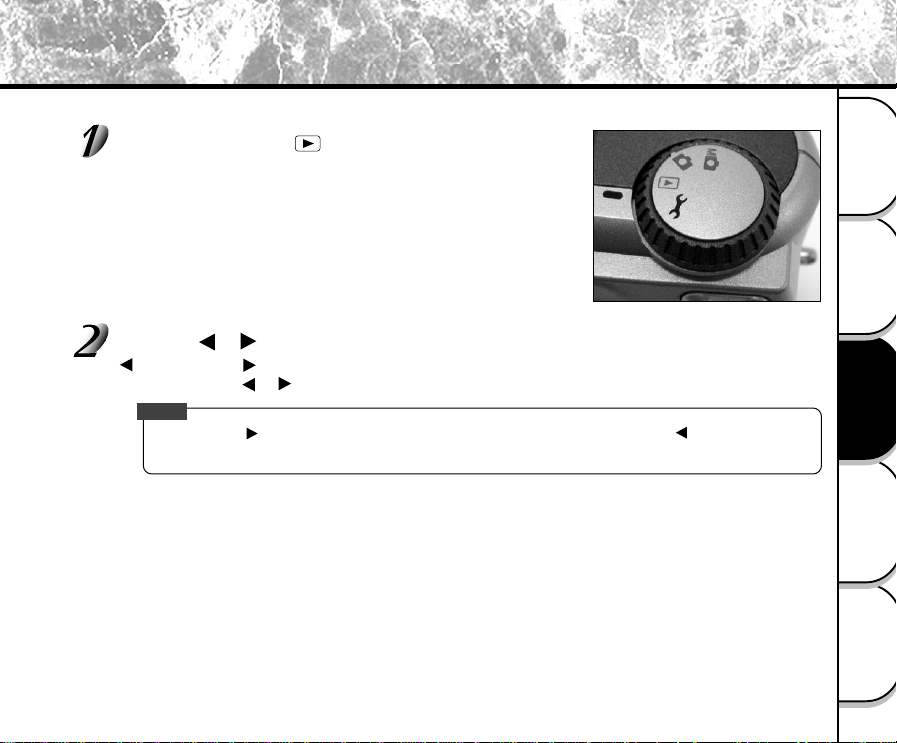
- 61 -
Basic
Photography
Playing Back/
Erasing Images
Other
Applications
Additional
Information
Getting Ready
Playing Back Photographed Images (Single-Frame Playback)
Play back photographed images one image at a time.
Set the mode dial to [ ].
The last image frame appears on the LCD monitor.
☞
To adjust the brightness of the LCD monitor
➲
Page 85
Changing the LCD monitor display
➲
Page 78
Press the or buttons to move forward and reverse.
Frame reverse/ Frame forward
Holding down the or buttons moves forward or reverse continuously one frame at a time.
Memo
•Pressing the button at the last image displays the first image, and pressing the button at the first
image displays the last image.
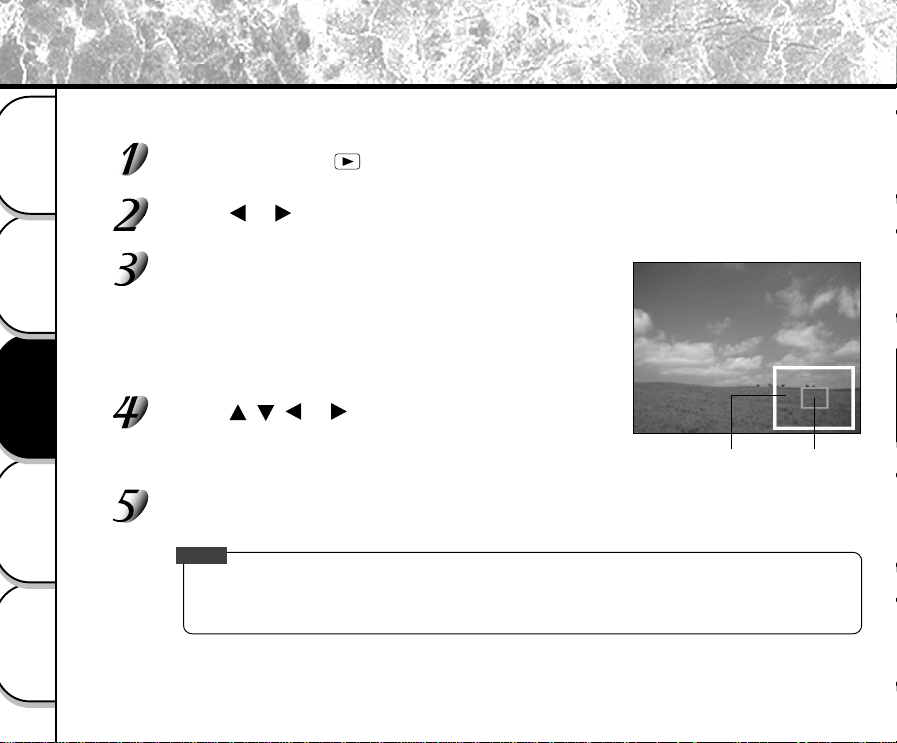
- 62 -
Basic
Photography
Playing Back/
Erasing Images
Other
Applications
Additional
Information
Getting Ready
Enlarging Photographed Images (Zoom Playback)
Enlarges selected portions of images being played back 3 times actual size. Images can be displayed enlarged
when being played back one image at a time.
Set the mode dial to [ ].
The last image frame appears on the LCD monitor.
Use the or buttons to select the frame you want to enlarge.
You can also select the image by the same operation as for thumbnail playback (
➲
Page 63).
Enlarge the image by using the Zoom key.
Pressing the Telephoto (zoom) key zooms to 3X.
The image is displayed enlarged, and a white frame and green frame
are displayed on the LCD monitor.
The white frame indicates the entire image, while the green frame
shows the location of the currently enlarged area.
Use the , , or buttons to select the area to
enlarge.
Adjust the display area to enlarge while viewing the white and green
frames.
To return to the regular display, press the ENTER button.
Memo
• Not support Zoom Playback function on TV.
• The Zoom Playback function is automatically canceled by either turning the camera off or by activation
of the Auto Power OFF function.
Entire image
Current
position of
enlargement
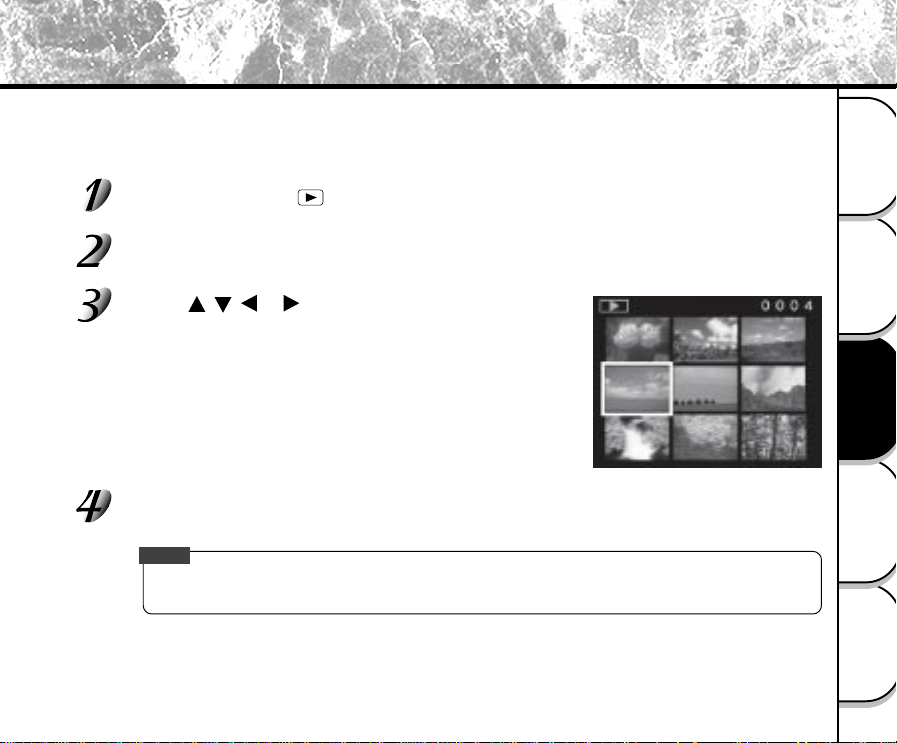
- 63 -
Basic
Photography
Playing Back/
Erasing Images
Other
Applications
Additional
Information
Getting Ready
Displaying a List of Images (Thumbnail Display)
Nine reduced images are simultaneously displayed on the LCD monitor. This manual calls this display “thumbnail
display.”
This feature is useful, for example, when there are many images. After you have displayed the thumbnail display,
you can select the desired image and display it in the regular display.
Set the mode dial to [ ].
The last image frame appears on the LCD monitor.
Press the ENTER button.
Nine images are displayed simultaneously.
Use the , , or buttons to move the cursor to
select the image to be displayed at regular size.
The cursor lies on top of the image surrounded by a frame.
Pressing the buttons continuously moves the cursor continuously.
Press the ENTER button.
The selected image is displayed at its regular size.
Memo
•
The Thumbnail Display
function is automatically canceled by either turning the camera o or by activation
of the Auto Power OFF function.
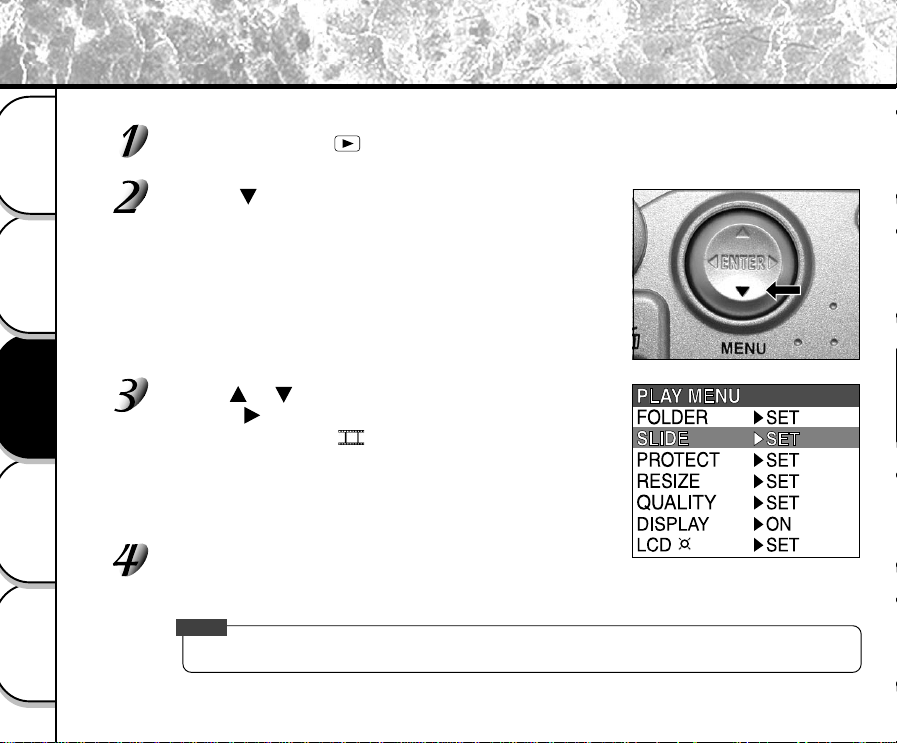
- 64 -
Basic
Photography
Playing Back/
Erasing Images
Other
Applications
Additional
Information
Getting Ready
Auto Playback (Slideshow)
Automatically play back one image at a time in order.
Set the mode dial to [ ].
The last image frame appears on the LCD monitor.
Press the (MENU) button.
The PLAY MENU is displayed.
Use the or buttons to select [SLIDE] and
press the
button.
The slideshow begins and [ ] is displayed on the LCD monitor.
The next image is displayed every three seconds.
To quit the slideshow, press the ENTER button.
The slideshow is repeated until the ENTER button is pressed.
The LCD monitor displays the image when the ENTER button is pressed.
Memo
• The Auto Power OFF function does not operate during automatic playback.
➡
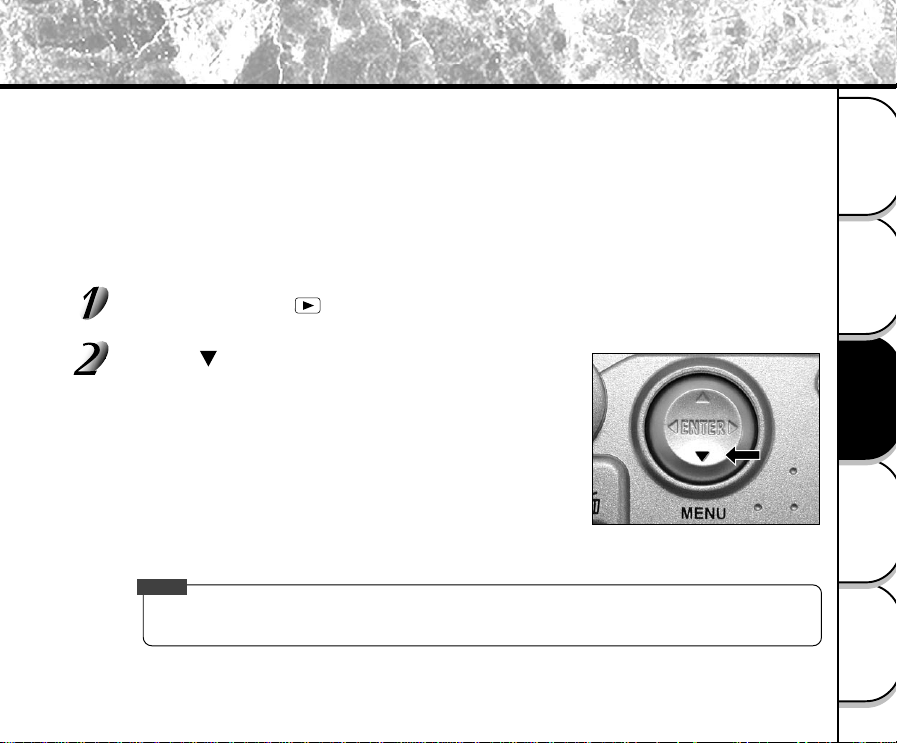
- 65 -
Basic
Photography
Playing Back/
Erasing Images
Other
Applications
Additional
Information
Getting Ready
Reducing the Image Size (Resize)
Changes the size of FULL size (1792 x 1200 pixels) images to half the size
(896 x 600 pixels) in the horizontal and vertical directions, and overwrites the old FULL size image with the new size
image. This is called “resizing” in this manual.
Resizing a previously saved image when the SmartMedia™ has run out of storage space during photography
increases space on SmartMedia™ so that you can continue taking photographs.
The following images cannot be resized:
• HALF size images
• Images taken with another camera
•Protected images (
➲
Page 75)
• Images cannot also be resized when the SmartMedia™ is write-protected.
Set the mode dial to [ ].
The last image frame appears on the LCD monitor.
Press the (MENU) button.
The PLAY MENU is displayed.
Memo
• Only FULL size (1792 x 1200 pixels) images can be reduced. Further reduction of HALF size (896 x 600
pixels) images is not possible.
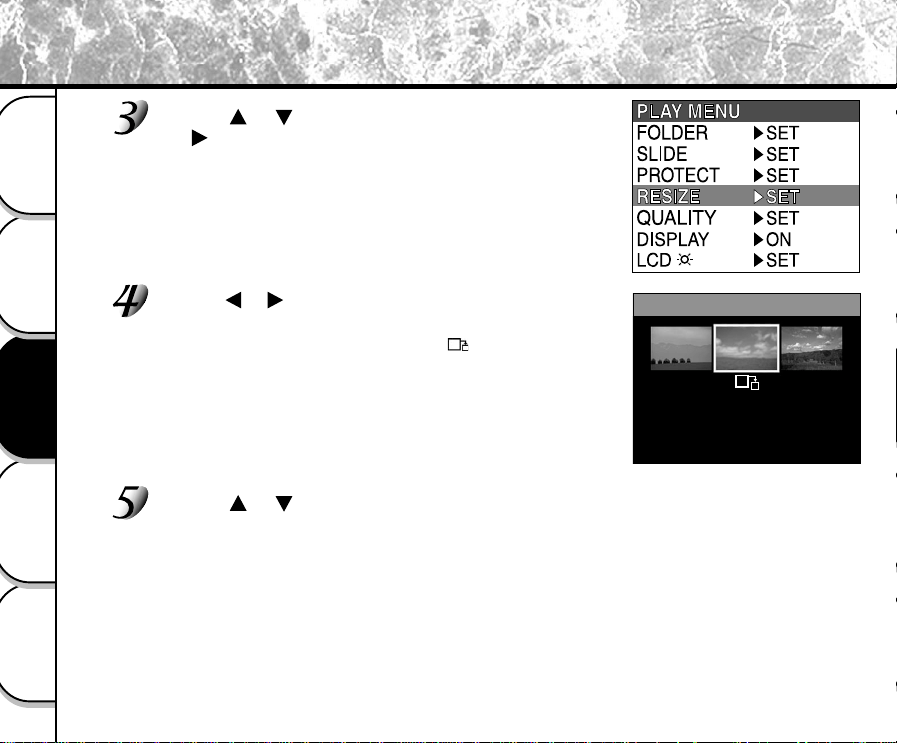
- 66 -
Basic
Photography
Playing Back/
Erasing Images
Other
Applications
Additional
Information
Getting Ready
Reducing the Image Size (Resize) (continued)
Use the or buttons to select [RESIZE] and press
the
button.
The RESIZE menu is displayed.
If there are no images that can be resized, a message
appears on screen and the screen returns to the PLAY MENU.
Use the or buttons to select the image and press the
ENTER button.
This fixes the image to be displayed, and [ ] is displayed under
the image.
To cancel the selection, press the ENTER button again.
If you want to resize two or more images, repeat the procedure for
each image.
Use the or buttons to select [EXEC], and press the ENTER button.
The screen indicating that the image is being resized appears.
To quit resizing, select [CANCEL].
When resizing ends, the screen returns to the PLAY MENU.
To quit the PLAY MENU, press the ENTER button.
➡
RESIZE
CANCEL
EXEC
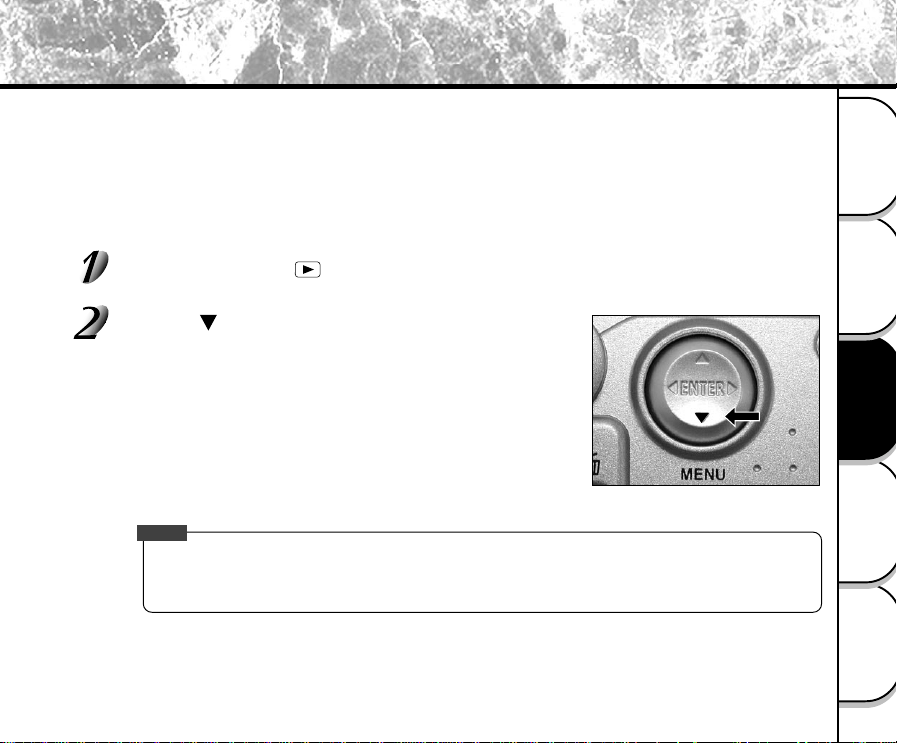
- 67 -
Basic
Photography
Playing Back/
Erasing Images
Other
Applications
Additional
Information
Getting Ready
Compressing Images (Quality)
Compresses images to half their size, and overwrites the old size image with the new compressed image.
Compressing a previously saved image when the SmartMedia™ has run out of storage space during photography
increases space on SmartMedia™ so that you can continue taking photographs.
The following images cannot be compressed:
•[★] (BASIC) image quality images
• Images taken with another camera
•Protected images (
➲
Page 75)
• Images cannot also be compressed when the SmartMedia™ is write-protected.
Set the mode dial to [ ].
The last image frame appears on the LCD monitor.
Press the (MENU) button.
The PLAY MENU is displayed.
Memo
• Compression of images can be accomplished only in the following order:
★★★(FINE) ➔ ★★(NORMAL) ➔ ★(BASIC).
The reverse is not possible.
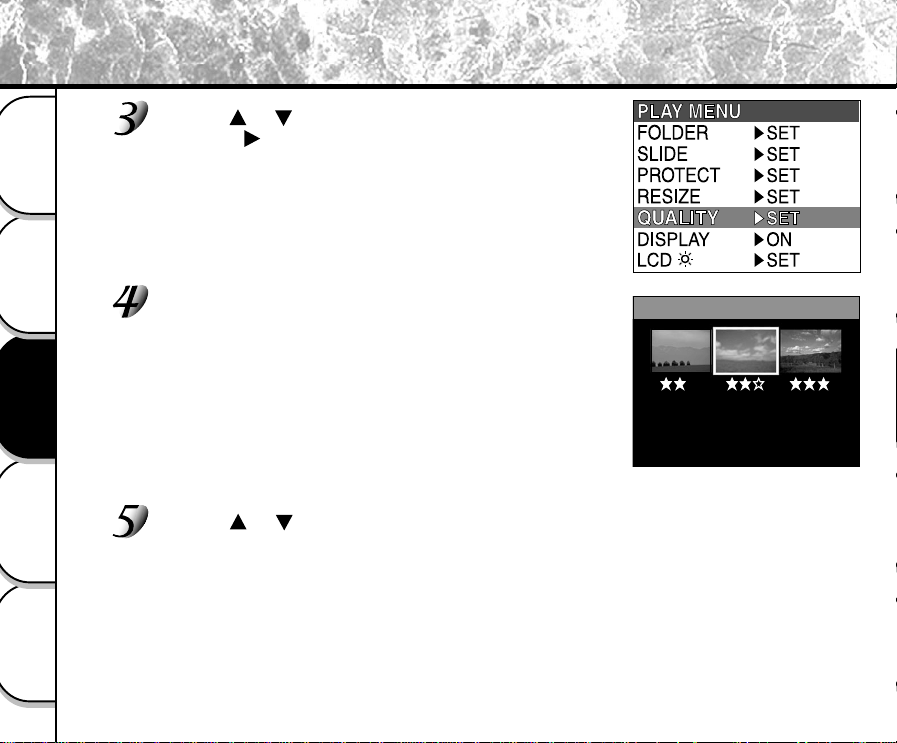
- 68 -
Basic
Photography
Playing Back/
Erasing Images
Other
Applications
Additional
Information
Getting Ready
Compressing Images (Quality) (continued)
Use the or buttons to select [QUALITY], and
press the
button.
The QUALITY menu is displayed.
If there are no images that can be compressed, a message
appears on screen and the screen returns to the PLAY MENU.
The current compression ratio (quality) is displayed under
the image.
Each press of the ENTER button changes the number of stars as
follows:
[★★★]: FINE
[★★]: NORMAL
[★]: BASIC
☞ Details of quality setting ➲ Page 43
If you want to compress two or more images, repeat the procedure for
each image.
Use the or buttons to select [EXEC], and press
the ENTER button.
The screen indicating that the image is being compressed appears.
To quit compression, select [CANCEL].
When compression ends, the screen returns to the PLAY MENU.
To quit the PLAY MENU, press the ENTER button.
➡
QUALITY
CANCEL
EXEC
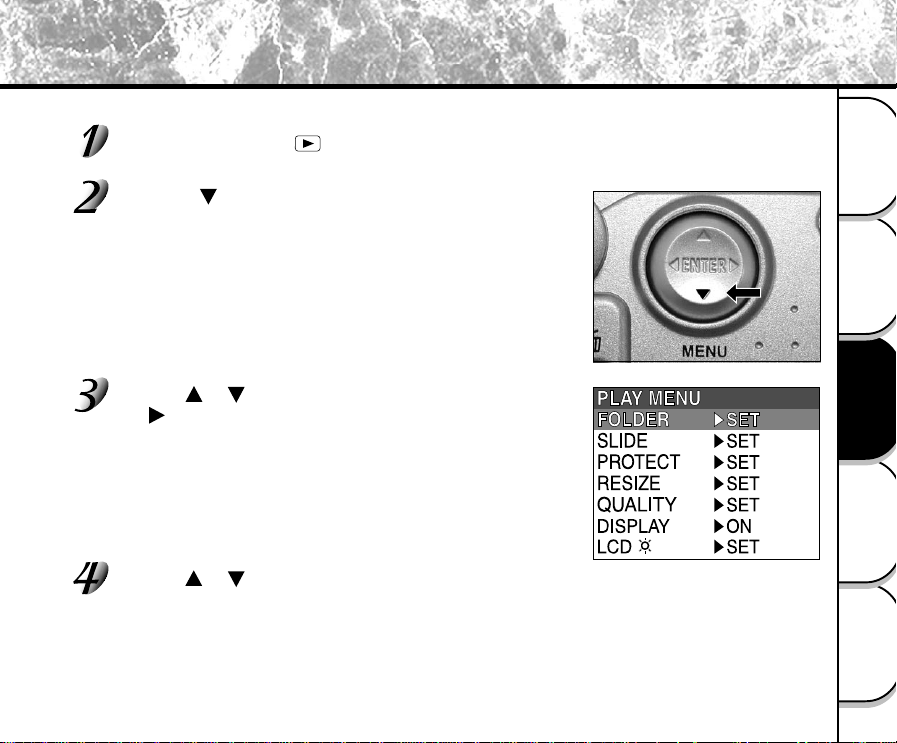
- 69 -
Basic
Photography
Playing Back/
Erasing Images
Other
Applications
Additional
Information
Getting Ready
Selecting the Folder to Play Back
➡
Select the folder to play back when the currently loaded SmartMedia™ contains two or more folders.
Set the mode dial to [ ].
The last image frame or the thumbnail display appears on the LCD monitor.
Press the (MENU) button.
The PLAY MENU is displayed.
Use the or buttons to select [FOLDER], and press
the
button.
The names of the folders in the currently loaded SmartMedia™
are displayed.
Use the or buttons to select the folder to be displayed, and press the ENTER
button.
- 70 -
Basic
Photography
Playing Back/
Erasing Images
Other
Applications
Additional
Information
Getting Ready
Selecting the Folder to Play Back (continued)
Memo
About Folder Names
Images photographed on this camera are recorded to a folder. You cannot choose in which folder to store
images. The [100] folder is created when you have photographed images. When the number of images
reaches the largest number (9999), a new folder [101] is created.
When there are two or more folders, the playback folder default is the one whose folder number is larger.
• When you use SmartMedia™ on your PC, a folder [xxxTOSHI] is created.
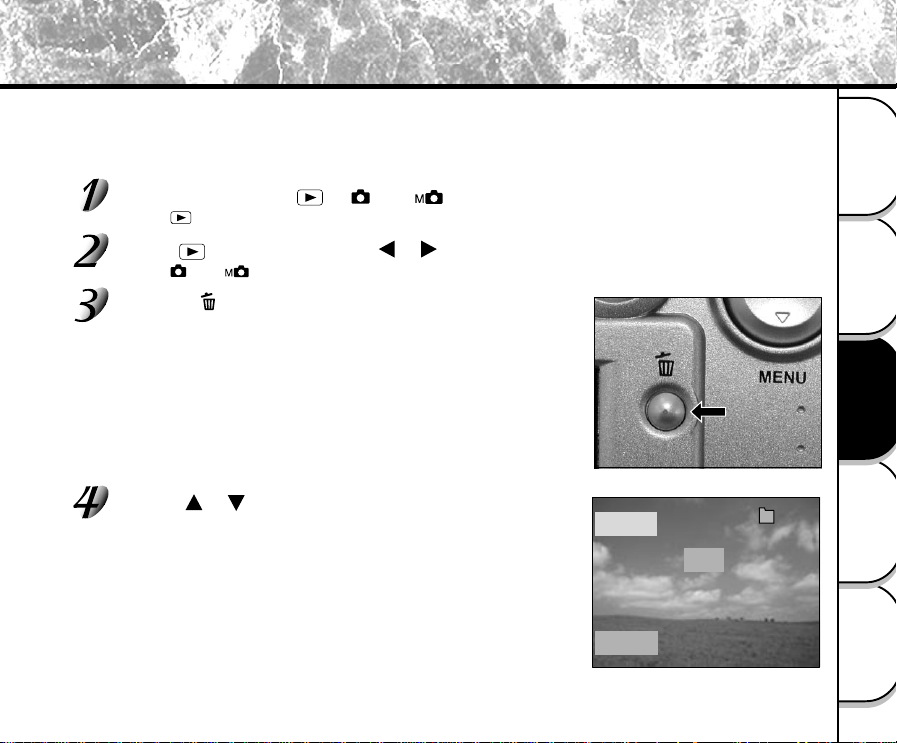
- 71 -
Basic
Photography
Playing Back/
Erasing Images
Other
Applications
Additional
Information
Getting Ready
Erasing Images (Erase Frame)
ERASE
FRAME
YES
100
0004
NO
Erases one image at a time.
Note, however, that images cannot be erased when they are protected (➲ Page 75) or the SmartMedia™ is write-
protected (➲ Page 31).
Set the mode dial to [ ], [ ] or [ ].
When [ ] is selected, the last image frame appears on the LCD monitor.
When [ ] is selected, use the or buttons to select the image to be erased.
When [ ] or [ ] is selected, the last image is selected.
Press the erase button.
[FRAME] or [LAST] is displayed at the bottom left of the screen.
Use the or buttons to select [YES], and press the
ENTER button.
This erases the image and returns to the previous mode.
To cancel erasing of image data, select [NO], and press the ENTER
button.
- 72 -
Basic
Photography
Playing Back/
Erasing Images
Other
Applications
Additional
Information
Getting Ready
To continue erasing images, repeat the above procedure from step 2.
Memo
• When [ PROTECT ] is displayed on the LCD monitor, cancel the protection (➲ Page 77).
• If you take a photograph after erasing an image, a number continuing from the last photographed image
is assigned as the image number.
Erasing Images (Erase Frame)
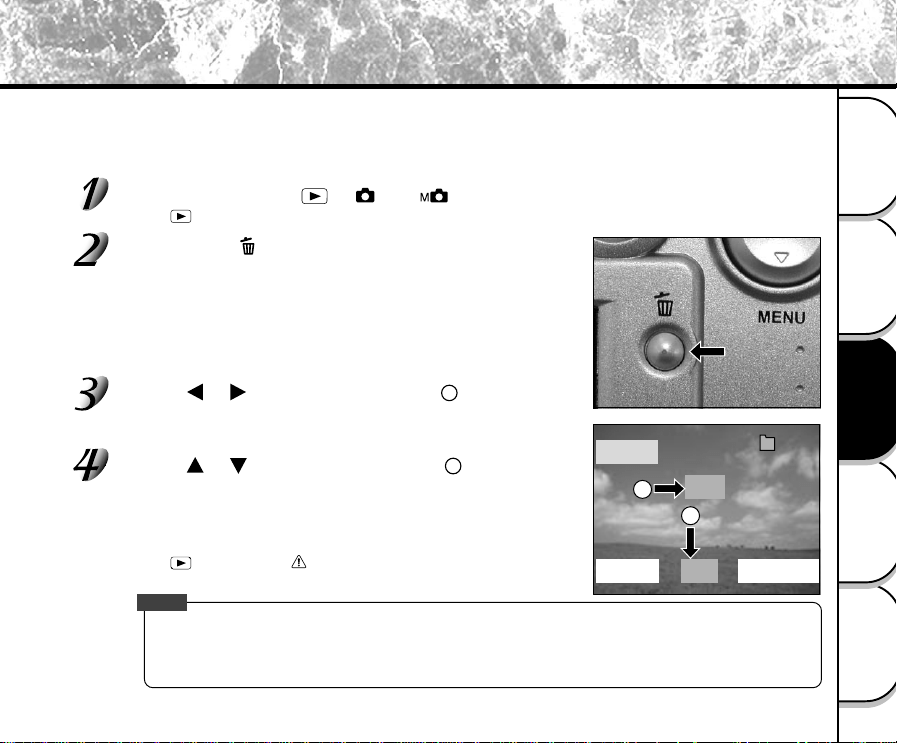
- 73 -
Basic
Photography
Playing Back/
Erasing Images
Other
Applications
Additional
Information
Getting Ready
Erasing All Images in a Folder (Erase All)
ERASE
FRAME
ALL
FORMAT
YES
100
0004
NO
2
1
Erases all images within the currently selected folder.
For details on folders, see “Selecting the Folder to Play Back” (➲ Page 69).
Note, however, that images cannot be erased when they are protected (➲ Page 75) or when the SmartMedia™ is
write-protected (➲ Page 31).
Set the mode dial to [ ], [ ] or [ ].
When [ ] is selected, the last image frame appears on the LCD monitor.
Hold down the erase button for two seconds.
The ERASE menu is displayed.
Use the or buttons to select [ALL] .
Make sure that [ALL] at the bottom center of the image is displayed in
yellow.
Use the or buttons to select [YES]
, and press
the ENTER button.
This erases the images and returns to the previous mode.
To cancel erasing of image data, select [NO], and press the ENTER
button.
When [ ] is selected, [ NO IMAGE] is displayed after the images
are erased (unless the SmartMedia™ contains protected images).
Memo
• The folder is not erased even if you execute ERASE ALL. PDR-M25 does not display the folder not
containing any image.
•To erase the images in another folder, specify the folder by [FOLDER] and then erase the images.
(➲ Page 71)
1
2
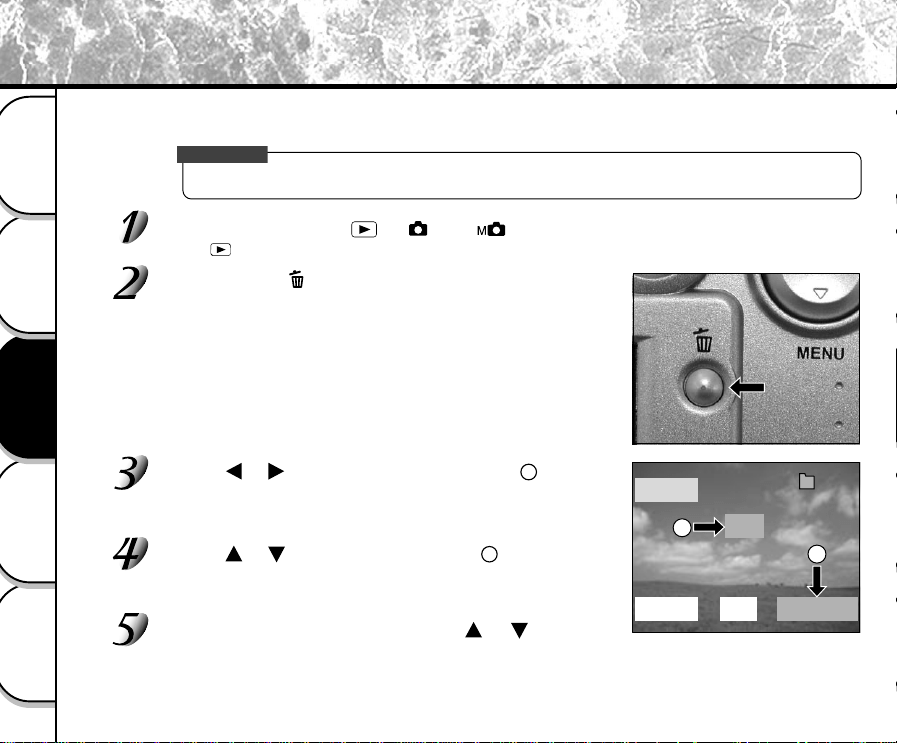
- 74 -
Basic
Photography
Playing Back/
Erasing Images
Other
Applications
Additional
Information
Getting Ready
Formatting erases all images currently recorded on the SmartMedia™ loaded on your camera. Protected images
(
➲
Page 75) are also erased. SmartMedia™ cannot be formatted if it is write-protected (
➲
Page 31).
IMPORTANT
• The SmartMedia™ must be formatted on the camera before use.
Set the mode dial to [ ], [ ] or [ ].
When [ ] is selected, the last image frame appears on the LCD monitor.
Hold down the erase button for two seconds.
The ERASE menu is displayed.
Use the or buttons to select [FORMAT]
1
.
Make sure that [FORMAT] is displayed in yellow at the bottom right of
the screen.
Use the or buttons to select [YES]
2
, and press the
ENTER button.
To cancel formatting, select [NO], and press the ENTER button.
To reset the image number, use the or buttons to
select [YES], and press the ENTER button.
To cancel resetting of image numbers, select [NO], and press the
ENTER button.
Formatting the SmartMedia™
ERASE
FRAME
ALL
FORMAT
YES
100
0004
NO
2
1
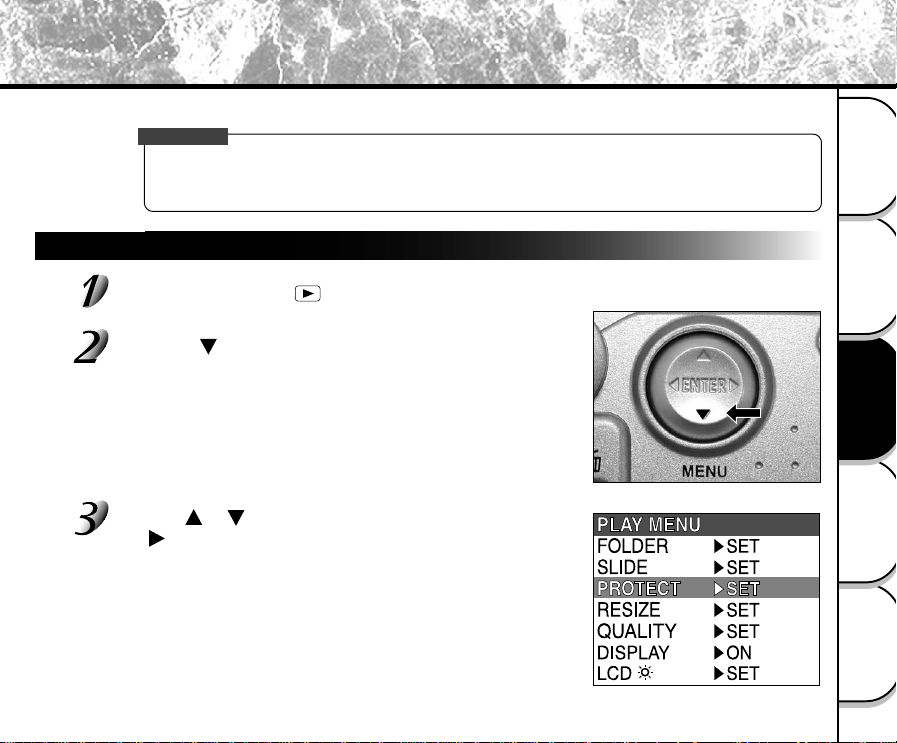
- 75 -
Basic
Photography
Playing Back/
Erasing Images
Other
Applications
Additional
Information
Getting Ready
Protecting Images
This feature prevents images from being erased.
IMPORTANT
• Formatting erases all the images on a SmartMedia™, regardless of whether they are protected or not.
•To protect the entire SmartMedia™, see “Write Protection” (➲ Page 31).
Protecting an Image
Set the mode dial to [ ].
The last image frame appears on the LCD monitor.
Press the (MENU) button.
The PLAY MENU is displayed.
Use the or buttons to select [PROTECT] and press
the
button.
The PROTECT menu is displayed.
➡
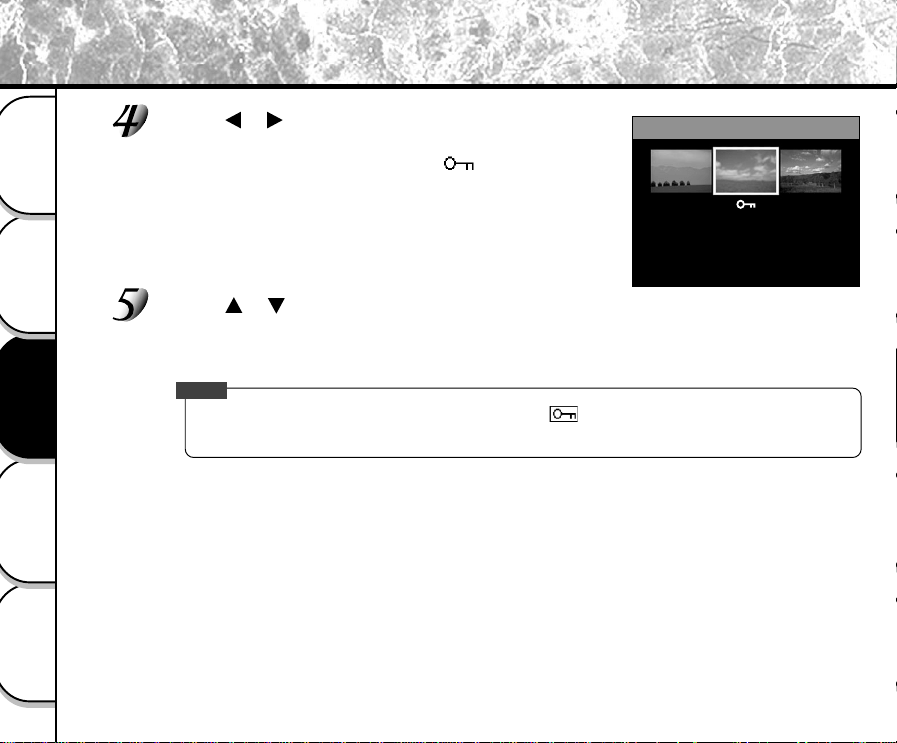
- 76 -
Basic
Photography
Playing Back/
Erasing Images
Other
Applications
Additional
Information
Getting Ready
Use the or buttons to select the desired image to
protect, and press the ENTER button.
This fixes the image to be protected, and [ ] is displayed under
the image.
To cancel the selection, press the ENTER button again.
To write-protect two or more images, repeat this procedure for each
image.
Use the or buttons to select [EXEC], and press the ENTER button.
To quit write-protection, select [CANCEL].
When write-protection ends, the screen returns to the PLAY MENU.
To quit the PLAY MENU, press the ENTER button.
Memo
• When the PROTECT setup screen is displayed again, [ ] is displayed under protected images.
•To cancel write-protection for an image, write-protection is simultaneously canceled if set at step 4.
Protecting Images (continued)
PROTECT
CANCEL
EXEC
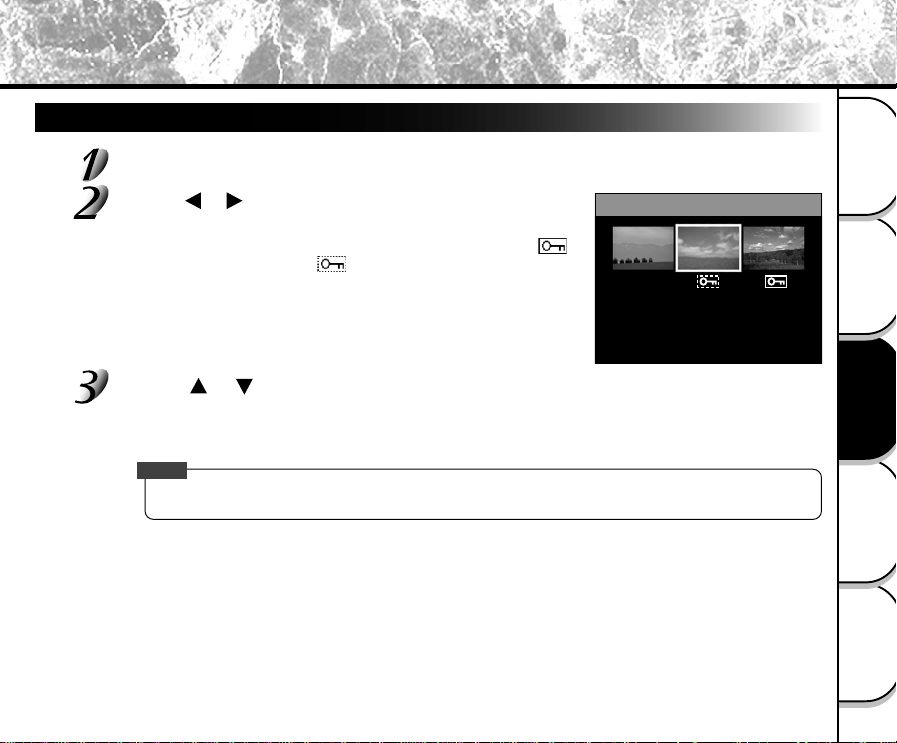
- 77 -
Basic
Photography
Playing Back/
Erasing Images
Other
Applications
Additional
Information
Getting Ready
Removing the Protection
Carry out steps 1 to 3 in “Protecting An Image”.
Use the or buttons to select the image to unprotect,
and press the ENTER button.
This fixes the images whose protection is to be removed, and [ ]
under the image changes to [ ].
To unprotect an image, press the ENTER button again.
To remove the protection from two or more images, repeat this
procedure for the necessary number of images.
Use the or buttons to select [EXEC], and press the ENTER button.
To quit write-protection, select [CANCEL].
When write-protection ends, the screen returns to the PLAY MENU.
To quit the PLAY MENU, press the ENTER button.
Memo
•To protect an image again, write-protection is simultaneously carried out if set at step 2.
Protecting Images (continued)
PROTECT
CANCEL
EXEC
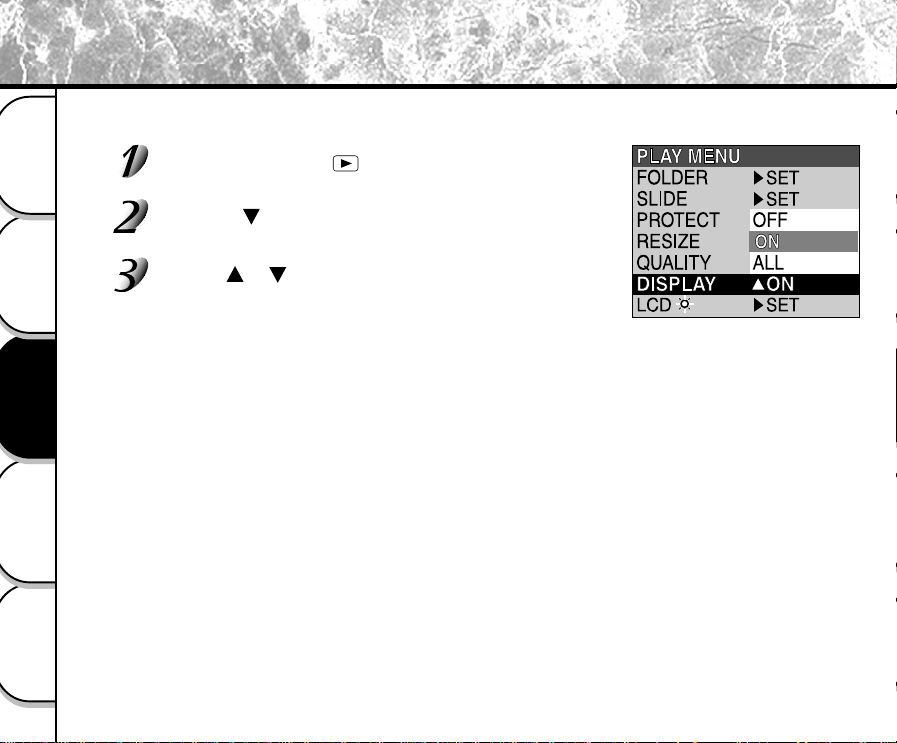
- 78 -
Basic
Photography
Playing Back/
Erasing Images
Other
Applications
Additional
Information
Getting Ready
Changing the Display Setting in Playback Mode
This setting allows you to switch the on-screen display.
Set the mode dial to [ ]
The last image frame appears on the LCD monitor.
Press the (MENU) button.
The PLAY MENU is displayed.
Use the or buttons to select [DISPLAY] and press
the ENTER button.
The DISPLAY menu is displayed.
[OFF] : Only the LCD monitor is turned on.
(To display the image only.)
[ON] : Both the LCD monitor and the on-screen display (Simplified) are turned on.
(To display the folder No. and image No.)
[ALL] : Both the LCD monitor and the on-screen display (Detailed) are turned on.
(To display the full on-screen display.)
- 79 -
Basic
Photography
Playing Back/
Erasing Images
Other
Applications
Additional
Information
Getting Ready
Changing the LCD Setting in Playback Mode
This setting allows you to adjust the brightness of the LCD monitor. This adjustment does not adjust the brightness
of the image to be recorded.
[-5] to [+5]
To adjust the brightness of the LCD monitor (➲ Page 85)
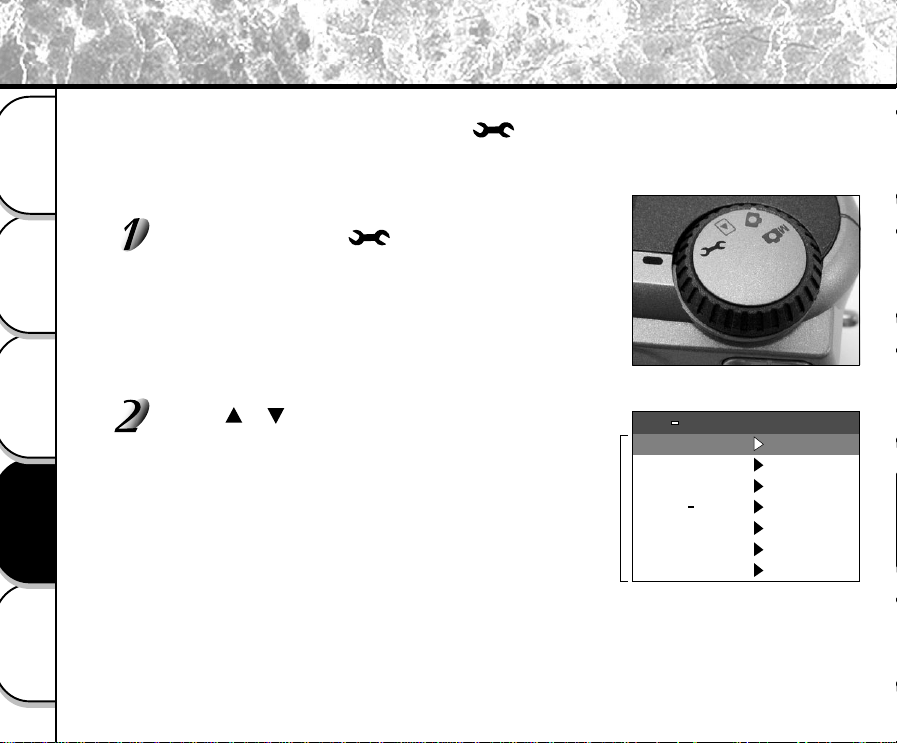
- 80 -
Basic
Photography
Playing Back/
Erasing Images
Other
Applications
Additional
Information
Getting Ready
Basic Photographic Settings (SET-UP mode)
This feature allows you to set up the environment for using your camera in addition to image-related settings. This is
called “setup”. The following items can be changed in the mode:
LANGUAGE/SOUND/TIME/AUTO-OFF/TV/IMAGE No./DEFAULT
The details set here are held in memory even if the camera is turned OFF.
Set the mode dial to [ ].
The SET-UP menu appears.
Use the or buttons to select the item you want to set.
☞ LANGUAGE ➲ Page 81
SOUND ➲ Page 81
TIME ➲ Page 82
AUTO-OFF ➲ Page 82
TV ➲ Page 83
IMAGE No. ➲ Page 83
DEFAULT ➲ Page 84
Setting item
SOUND
TIME
IMAGE No.
DEFAULT
AUTO OFF
TV
NTSC
SET
SET UP
LANGUAGE
ON
SET
SET
1MIN
English
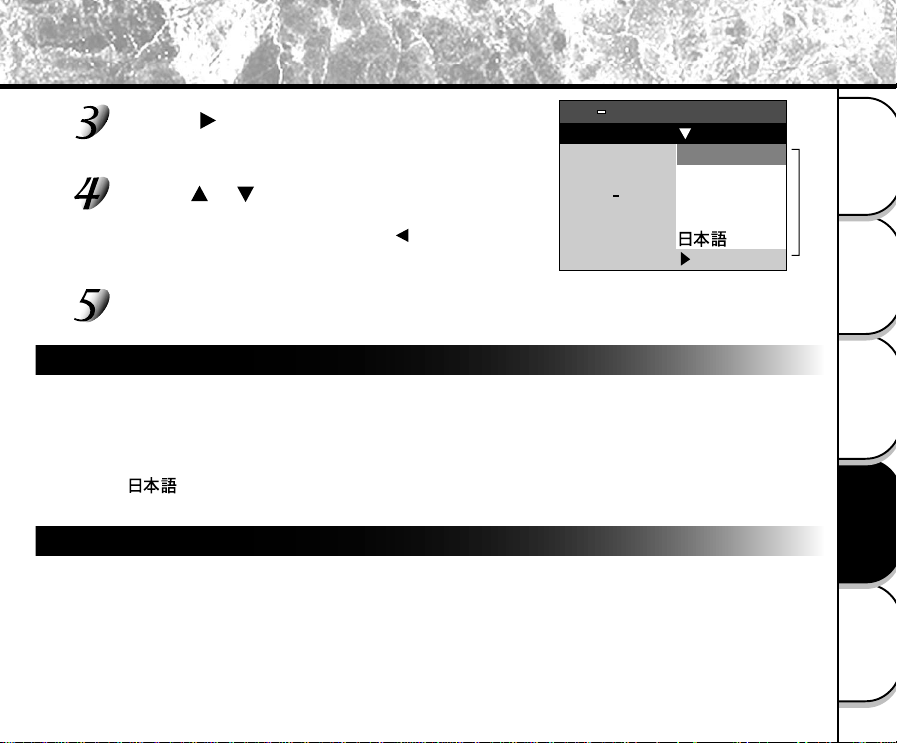
- 81 -
Basic
Photography
Playing Back/
Erasing Images
Other
Applications
Additional
Information
Getting Ready
Basic Photographic Settings (SET-UP mode) (continued)
Press the button.
The tab menu is displayed.
☞ How to set the time ➲ Page 81
Use the or buttons to change the setting in
the tab menu, and press the ENTER button.
To cancel changing of settings, press the button.
To quit the SET-UP menu, change the mode dial setting.
LANGUAGE
Sets the display language for menus displayed on the LCD monitor.
[English] (default) : English
[Deutsch] : German
[Français] : French
[Español] : Spanish
[ ] : Japanese
SOUND
Sets whether or not to sound the beep tone.
[ON] (default) : Sounds the beep tone according to the operating state or operation.
[OFF] : Does not sound the beep tone in any state.
Tab menu
SOUND
TIME
IMAGE No.
DEFAULT
TV
Español
LANGUAGE
English
Deutsch
Français
English
SET
AUTO OFF
SET UP
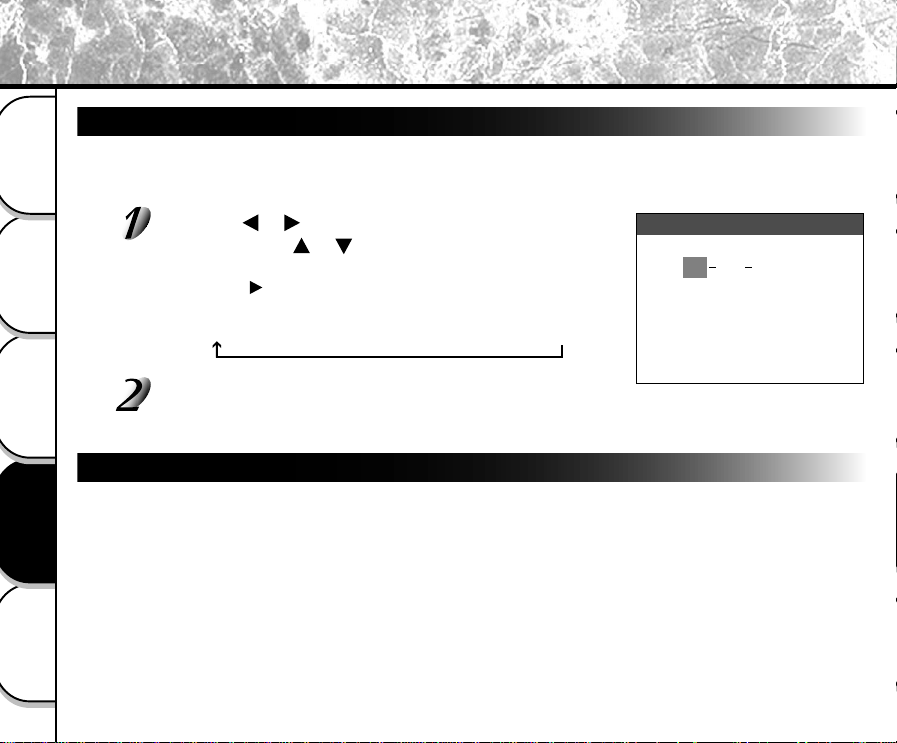
- 82 -
Basic
Photography
Playing Back/
Erasing Images
Other
Applications
Additional
Information
Getting Ready
Basic Photographic Settings (SET-UP mode) (continued)
TIME
Sets the date and time.
Seconds cannot be set.
Using the or buttons to select the item you want to
set, and use the
or buttons to set the value for each
item.
Pressing the button advances the selection in the following order:
Month ➔ Day ➔ Year ➔ Hour ➔ Minute ➔ SET ➔ CANCEL
Select [SET] and press the ENTER button.
To quit setting, select [CANCEL].
AUTO-OFF
If no operation is carried out for a fixed amount of time (default: about one minute), power consumption is
set to its minimum state (power almost turned off) to prevent battery wear. This is called the Auto Power
OFF mode. This setting allows you to set the time until the camera is set to the Auto Power OFF mode.
This function is not activated during automatic playback (➲ Page 64) or when transferring images into
computers. To return to the normal state from the Auto Power OFF mode, either change the mode dial or
press the shutter down fully (➲ Page 37).
[1 MIN] (default)
[2 MIN]
[3 MIN]
200101 10
::
005512
CANCELSET
TIME
- 83 -
Basic
Photography
Playing Back/
Erasing Images
Other
Applications
Additional
Information
Getting Ready
Basic Photographic Settings (SET-UP mode) (continued)
TV
Sets the video output format.
[NTSC] : NTSC video format (US, CANADA, JAPAN)
[PAL] : PAL video format (EUROPE)
IMAGE No.
Sets whether or not to reset the image number when you take photographs.
[CANCEL] : Does not reset the image number.
[RESET] : Reset the image number.
About Image Numbers and Folder Numbers
• When the image number is reset, a number starting from 0001 is assigned to an empty folder having
the smallest number of the SmartMedia™ that is inserted.
The folder number varies according to the state of the inserted SmartMedia™. To also reset the folder
number, format the SmartMedia™ first and reset the image number.
•A consecutive number continuing from the last photographed image is assigned as the image number
regardless of whether or not only one image or all images were erased.
• The largest image number is 9999. When this number is reached, a new folder is created, and the
image number is assigned starting from 0001.
☞ Selecting the FOLDER ➲ Page 69
• The largest folder number is 999. When the folder number reaches 999, format the SmartMedia™.
• When you use SmartMedia™ that was used for taking photographs on another camera, or swap
between two or more SmartMedia™, the data held by this camera is given priority as the image
number. The folder number is assigned according to the state of your camera or the SmartMedia™.
- 84 -
Basic
Photography
Playing Back/
Erasing Images
Other
Applications
Additional
Information
Getting Ready
Basic Photographic Settings (SET-UP mode) (continued)
DEFAULT
Sets whether or not to return the settings (except TIME, LANGUAGE, TV (video output format) and the
LCD monitor brightness) to their defaults.
[CANCEL] : Does not return settings to their defaults.
[OK] : Returns settings to their defaults.
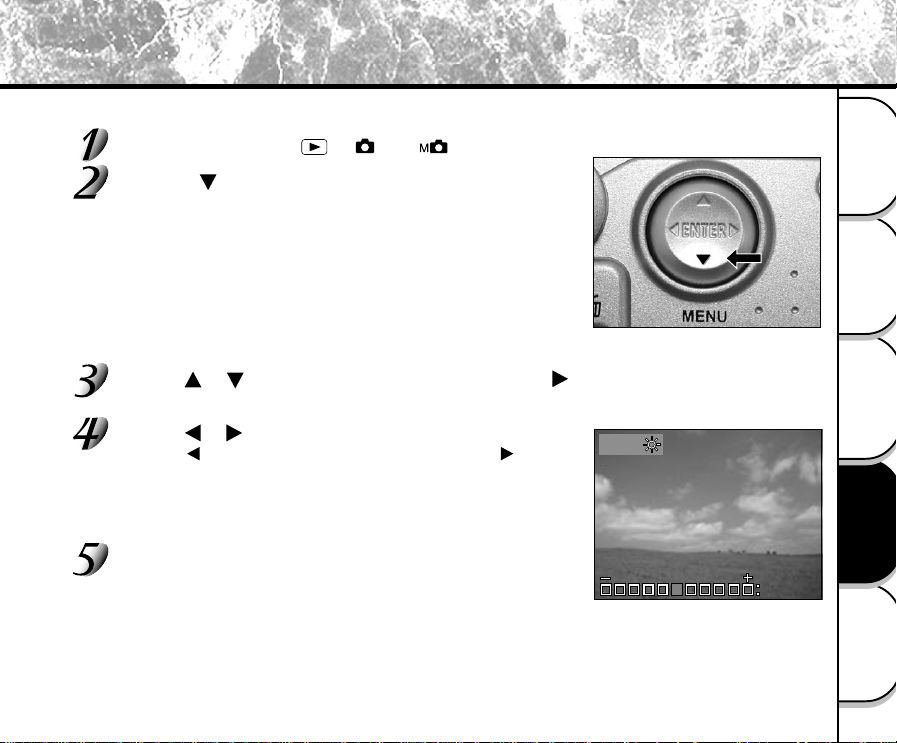
- 85 -
Basic
Photography
Playing Back/
Erasing Images
Other
Applications
Additional
Information
Getting Ready
Adjusting the LCD Monitor Brightness
This adjustment adjusts the brightness of the LCD monitor and not the brightness of the recorded image.
Set the mode dial to [ ], [ ] or [ ].
Press the (MENU) button.
The REC MENU or PLAY MENU is displayed.
You can set the LCD monitor brightness in either of these menus.
Use the or buttons to select [LCD] and press the button.
The image and the LCD menu are displayed.
Use the or buttons to adjust the brightness.
Press the button to darken (–) the LCD monitor, or the button to
lighten (+) the LCD monitor.
The LCD monitor can be adjusted within the range [–5] to [+5].
(Default is 0.)
Press the ENTER button.
This returns the camera to the previous mode.
LCD
o
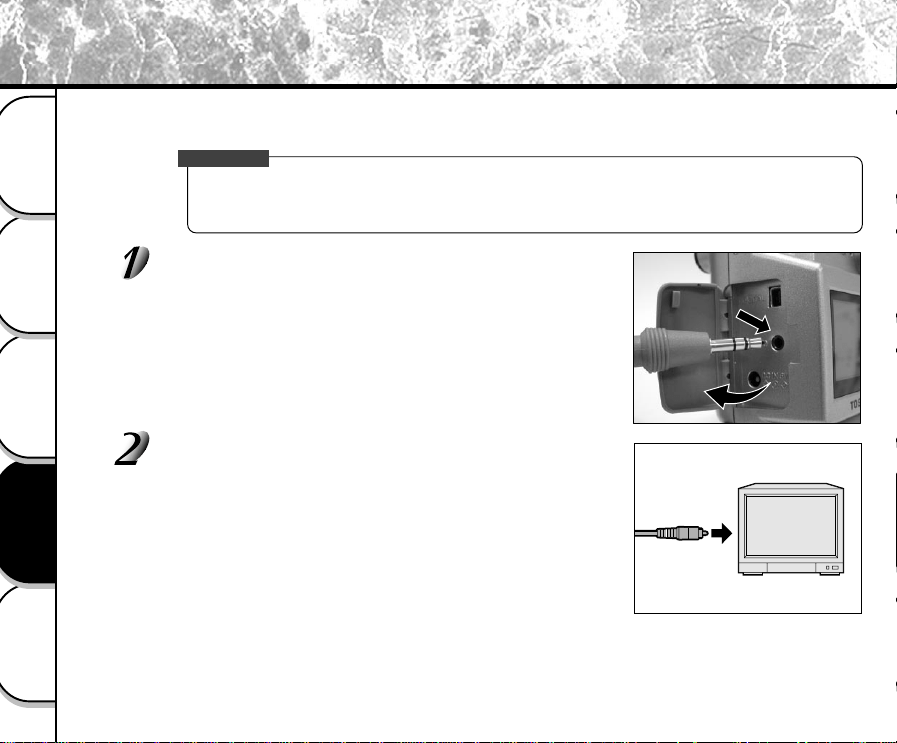
- 86 -
Basic
Photography
Playing Back/
Erasing Images
Other
Applications
Additional
Information
Getting Ready
Taking and Playing Back Photographs on a TV
Television sets can be used to compose images for photography or playback. To do this, the camera must first be
connected to the TV. We recommend using the AC adapter on an indoor power outlet when available.
IMPORTANT
• Before you connect your camera to other equipment, be sure to turn all other connected equipment OFF.
If you connect your camera to other equipment with the power still ON, the screen may flicker or the
image may not be displayed normally.
Connect the plug of the video cable (provided) to the
VIDEO terminal on the camera.
Connect the video cable plug to the VIDEO IN terminal on
the TV.
- 87 -
Basic
Photography
Playing Back/
Erasing Images
Other
Applications
Additional
Information
Getting Ready
Taking and Playing Back Photographs on a TV (continued)
Take photographs or play them back.
Details of operation are the same as taking photographs and playing them back on the LCD monitor.
☞
How to take photographs ➲ Page 40
How to play back images ➲ Page 61
Memo
• Nothing is displayed on the TV when the LCD monitor is set to OFF by turning the on-screen display off.
(To turn off the LCD monitor, switch the mode dial to REC
/PLAY mode. Press the (MENU)
button. Use the
or buttons to select [DISPLAY] and press the button. Use the or
buttons to select OFF, and press the ENTER button.
• Live images (moving image before photography) are less clear than playback images. (This is because
they are displayed at a lower resolution.)
- 88 -
Basic
Photography
Playing Back/
Erasing Images
Other
Applications
Additional
Information
Getting Ready
Transferring Images to a PC
You can transfer images photographed on your camera to a PC using the packaged CD-ROM and cable set.
Images recorded on SmartMedia™ can also be transferred to a PC using the PC card adapter (sold separately) or
floppy disk adapter (sold separately). (➲ Page 92)
To transfer images to a PC, software and USB driver must be installed.
For details, refer to the Software Manual and the User’s Guides for your PC.
Using SmartMedia™ on a PC
• Format the SmartMedia™ only on your camera.
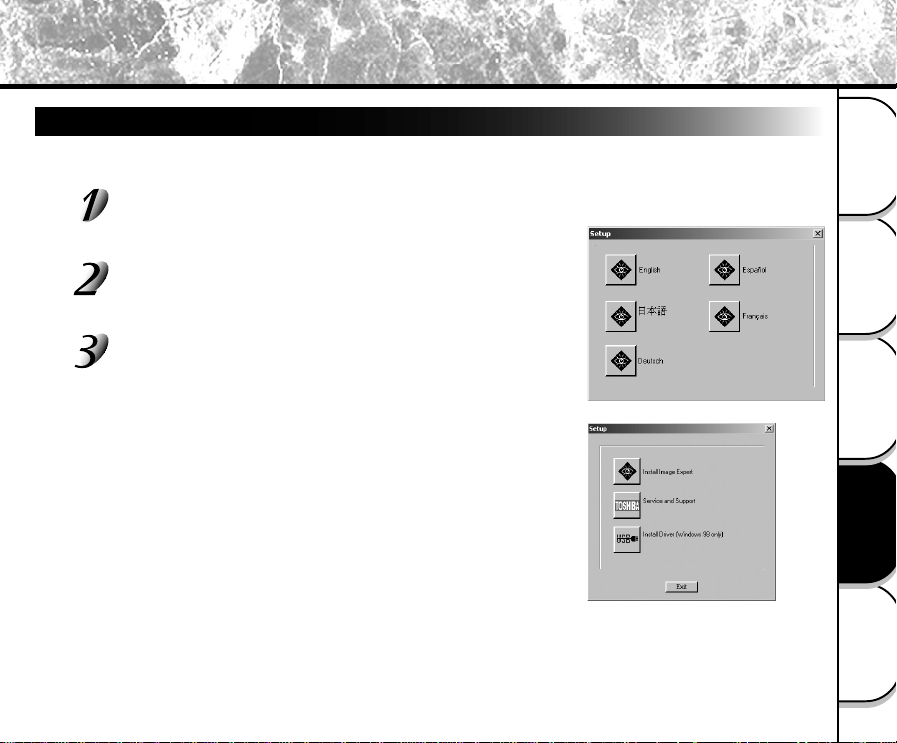
- 89 -
Basic
Photography
Playing Back/
Erasing Images
Other
Applications
Additional
Information
Getting Ready
For Windows 98 Only
Install this driver when the USB cable (provided) is used. The USB driver provided on the CD-ROM is
exclusively for Windows 98. Installing the USB driver for use in Windows 2000/ME is not necessary.
Insert the CD-ROM supplied with this software package into the CD drive.
The screen for selecting the display language appears.
Click "English".
Click "Install Driver".
Follow the on-screen instructions to continue the setup.
After the USB driver installation is complete, restart the computer.
Installing the USB Driver
- 90 -
Basic
Photography
Playing Back/
Erasing Images
Other
Applications
Additional
Information
Getting Ready
Installing the USB Driver (continued)
For MAC OS 9.0 or higher
PDR-M25 conforms with USB Mass Storage Class.
A mass storage class-compliant USB driver is already in stalled on the MAC OS 9.0 or higher. The USB driver
installation is not needed.
- 91 -
Basic
Photography
Playing Back/
Erasing Images
Other
Applications
Additional
Information
Getting Ready
Separately Sold Accessories
The following items are also available as separately sold items.
☞ Relationship between your camera and accessories ➲ “Connecting to Other Devices” (page 92)
For details on these accessories, refer to the Instruction Manual for the accessory you are using.
To purchase above accessories within the United States, please visit our website at
http://www.toshiba.com/taisisd/dsc
● AC Adapter
PDR-ACM1A (for U.S.A. and Canada)
PDR-ACM1E (for European Continent)
PDR-ACM1U (for U.K.)
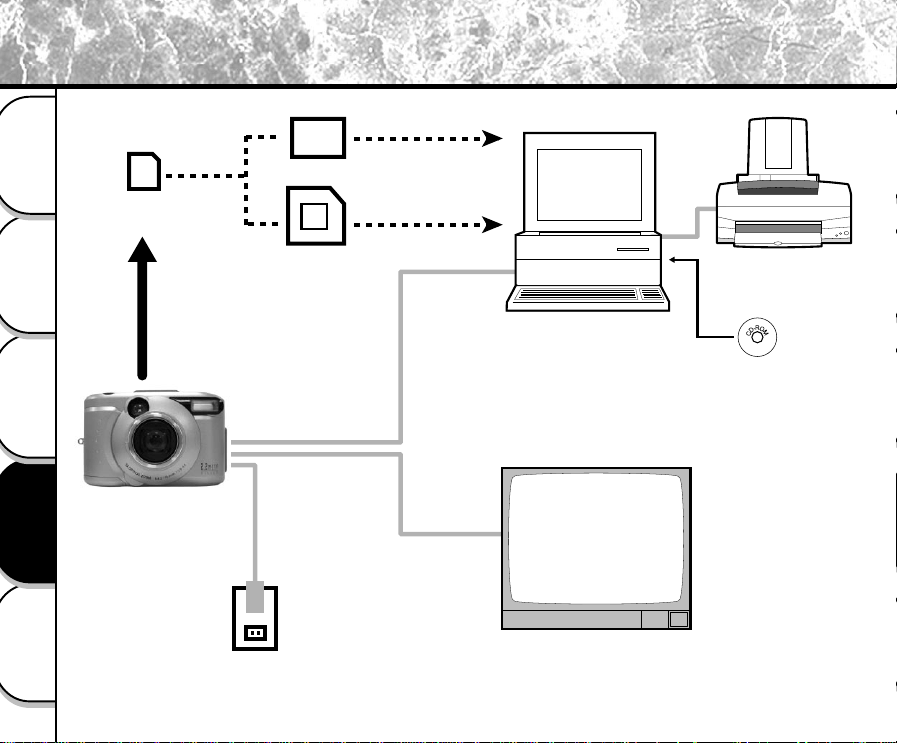
- 92 -
Basic
Photography
Playing Back/
Erasing Images
Other
Applications
Additional
Information
Getting Ready
SmartMedia™
(provided)
Floppy disk adapter
PC card adapter
PC
Printer
Software application
(CD-ROM) (provided)
USB cable
(provided)
Video cable
(provided)
AC adapter (sold separately)
Plug socket
TV monitor
PDR-M25
Connecting to Other Devices
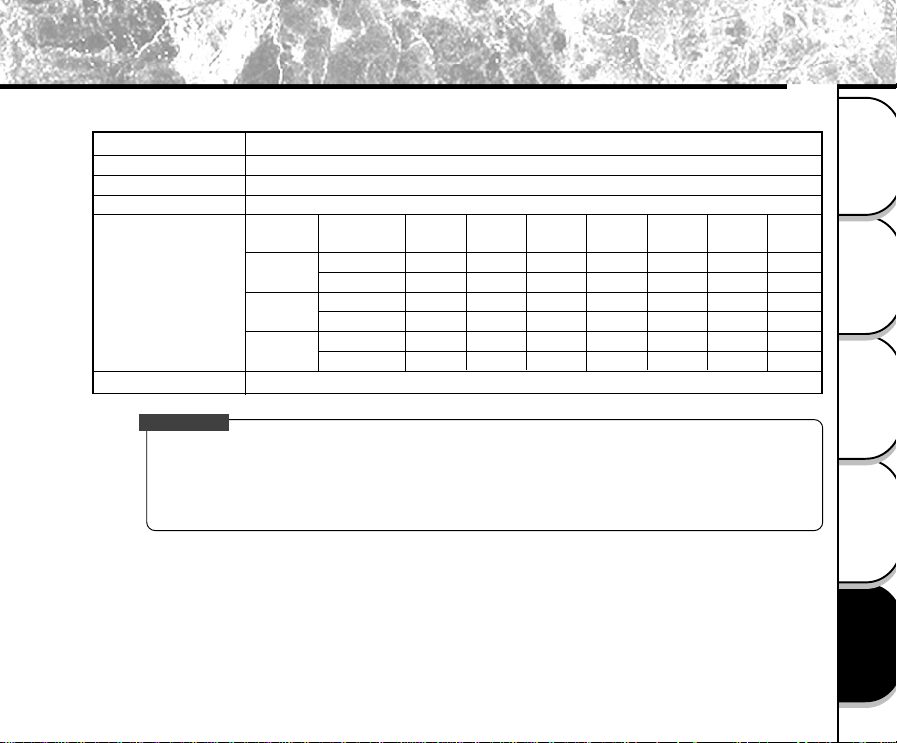
- 93 -
Basic
Photography
Playing Back/
Erasing Images
Other
Applications
Additional
Information
Getting Ready
Camera Body
Specifications
Toshiba Digital Still Camera PDR-M25
SmartMedia™ (3.3V) 2/4/8/16/32/64/128MB compatible
JPEG-compliant
Exif Ver.2.1-compliant
DCF Ver. 1.0-compliant
Quality
Mode
★★★
FINE
★★
NORMAL
★
BASIC
Model
Recording medium
Compression system
Image file format
Number of frames
(Approx.)
FULL size:
1792 x 1200 pixels
HALF size:
896 x 600 pixels
Conversion rules
4MB
3
14
7
28
14
55
8MB
7
29
14
58
29
112
16MB
15
60
30
117
60
225
32MB
32
121
60
236
121
453
Image
Size
FULL
HALF
FULL
HALF
FULL
HALF
64MB
65
243
122
475
243
907
2MB
1
7
3
14
7
29
IMPORTANT
• The number of images that can be photographed in the table above is only for reference, we do not
secure them.
• The size of the data to be recorded varies according to the amount of detail in the subject image. So, the
number of images that can be photographed after an image is recorded decreases. Sometimes this
amount decreases by two images.
128MB
131
486
246
951
486
1817
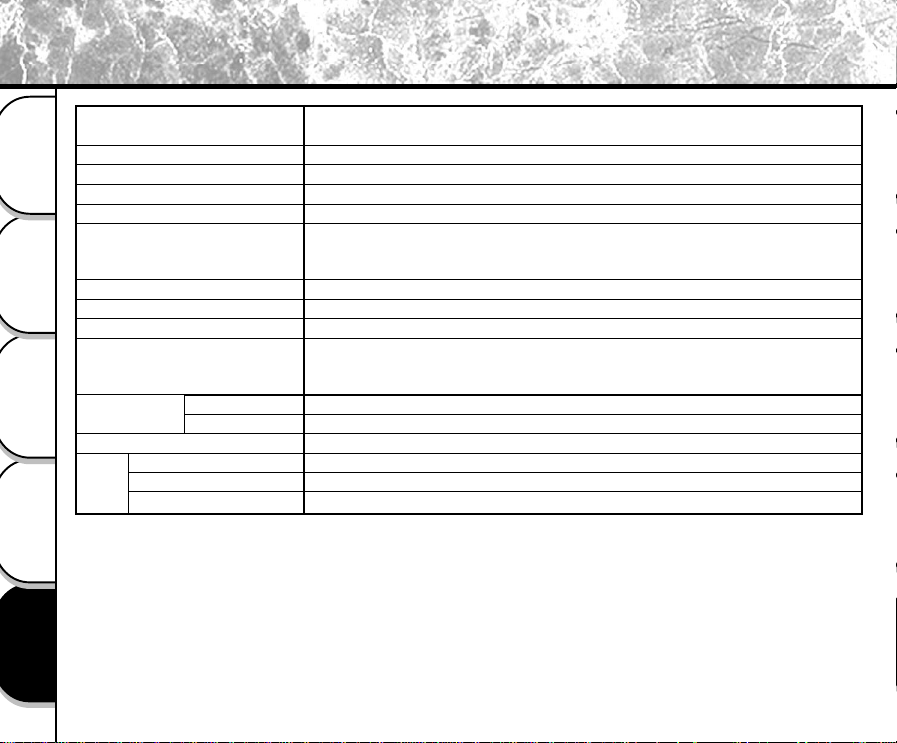
- 94 -
Basic
Photography
Playing Back/
Erasing Images
Other
Applications
Additional
Information
Getting Ready
Pickup elements
a
Sensitivity
Lens
Focal length
Viewfinder
Auto-focus
Metering system
Exposure control
Shutter
White balance
Focal range
Standard
Macro
Self-Timer
Modes
Flash Flash intensity control
Effective range
Specifications (continued)
1/2.6" CCD sensor (total pixels: approx. 2.3 million, effective pixels: approx. 2.2
million)
Equivalent to ISO 100/200/400
3X zoom lens W=F2.9/F6.9, T=F3.02/F6.9
f=6.2 mm – 18.6 mm (equivalent to 38mm - 114mm on a 35mm camera)
Real image type zoom finder
TTL system AF, focus adjusting range: approximately 3.15 in. (8 cm) at wide to
infinity
Detection system: Contrast detection system
TTL metering by image capture system
Program AE (exposure compensation available in Manual mode)
1/1000 to 1 sec.
Auto selected
Selectable in manual photography mode (outdoors, standard/cool white
fluorescent light, incandescent light)
Approx. 15.7in. (40 cm) to infinity
Approx. 3.15 in. (8cm) to infinity
2 seconds/10 seconds selectable
Auto, Red-Eye Reduction, Forced Flash, Suppressed Flash, Slow Sync
Automatic
Approx. 1.3 ft. (0.4 m) - 8.2ft. (2.5m)
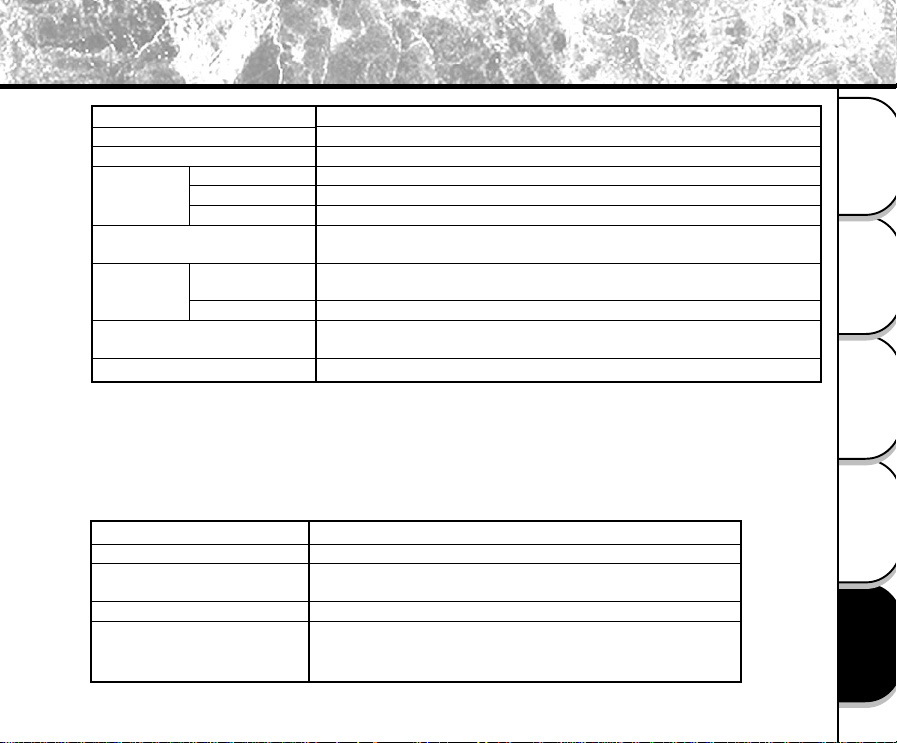
- 95 -
Basic
Photography
Playing Back/
Erasing Images
Other
Applications
Additional
Information
Getting Ready
Type Image memory card for digital cameras (SmartMedia
TM
)
Type of memory NAND flash memory
Operating conditions Temperature +32°F (0°C) to +104°F (+40°C)
Humidity 80% or less (no condensation)
Dimensions
1-
4
/
9
in. (37 mm) (W) x
3
/
100
in. (0.76 mm) (H) x 1-
7
/
9
in. (45 mm) (D)
Accessories Anti-static case (x1), index labels (x2), write-protect stickers
(x4)
SmartMedia™
Simultaneously recorded to image data (Exif file format)
Automatically adjusted until the year 2037
1.5" TFT(61,600 pixels)
DC 5 V
USB
NTSC or PAL system
4 x AA (Alkaline, Nickel Metal Hydride or Lithium) battery (
*2
) or AC
adapter (sold separately)
+41°F (+5°C) to +104°F (+40°C) (during operation)/–4°F (–20°C) to
+140°F (+60°C) (during storage)
30 to 80% (during operation) no condensation
4.13 in. (105 mm) (W) x 2.68 in. ( 68 mm) (H) x 2.17 in. (55 mm) (D)
(excluding protrusions)
Approx. 8.1 oz (230 g) (excluding accessories, battery and SmartMedia)
Date/Time
Automatic calendar function
LCD monitor (
*1
)
I/O terminal
DC IN terminal
DIGITAL terminal
VIDEO terminal
Power supply
Operating
conditions
Camera dimensions
Weight
*1
The LCD monitor on your digital camera is manufactured using advanced high-precision technology.
Though fine spots may appear on the LCD monitor, this is not a malfunction. The LCD monitor can be used
as it is.
*2
You can not use manganese dry battery in this camera.
Temperature
Humidity
Specifications (continued)
- 96 -
Basic
Photography
Playing Back/
Erasing Images
Other
Applications
Additional
Information
Getting Ready
Specifications (continued)
AC adapter (PDR-ACM1A) (sold separately)
Power supply AC120V 50/60Hz
Rated Input Capacity 18VA
Rated Output DC5V 1.5A
Operating temperature +32°F (0°C) ~ +104°F (+40°C)
Storage temperature +14°F (–10°C) ~ 158°F (+70°C)
Dimensions 1-
8
/
9
” (48 mm) (W) x 1-
1
/
4
” (26 mm) (H) x 2-
3
/
4
” (70 mm) (D)
Weight Approx. 3.5 oz (100 g)
Connector Cable Length Approx. 6.6 ft (2 m)
Power supply AC230V 50Hz
Rated Input Capacity 120 mA
Rated Output DC5.0V 1.5A
Operating temperature 0°C ~ +40°C
Storage temperature –10°C ~ +70°C
Dimensions 49.5 mm (1.9”) (W) x 60.5 mm (2.4”) (H) x 76 mm (3.0”) (D)
Weight Approx. 130 g (4.5 oz)
Connector Cable Length Approx. 2 m (6.6 ft)
AC adapter (PDR-ACM1U) (sold separately)
Power supply AC230V 50Hz
Rated Input Capacity 120 mA
Rated Output DC5.0V 1.5A
Operating temperature 0°C ~ +40°C
Storage temperature –10°C ~ +70°C
Dimensions 49.5 mm (1.9”) (W) x 66.5 mm (2.6”) (H) x 76 mm (3.0”) (D)
Weight Approx. 130 g (4.5 oz)
Connector Cable Length Approx. 2 m (6.6 ft)
AC adapter (PDR-ACM1E) (sold separately)
These specifications are subject to change without notice.
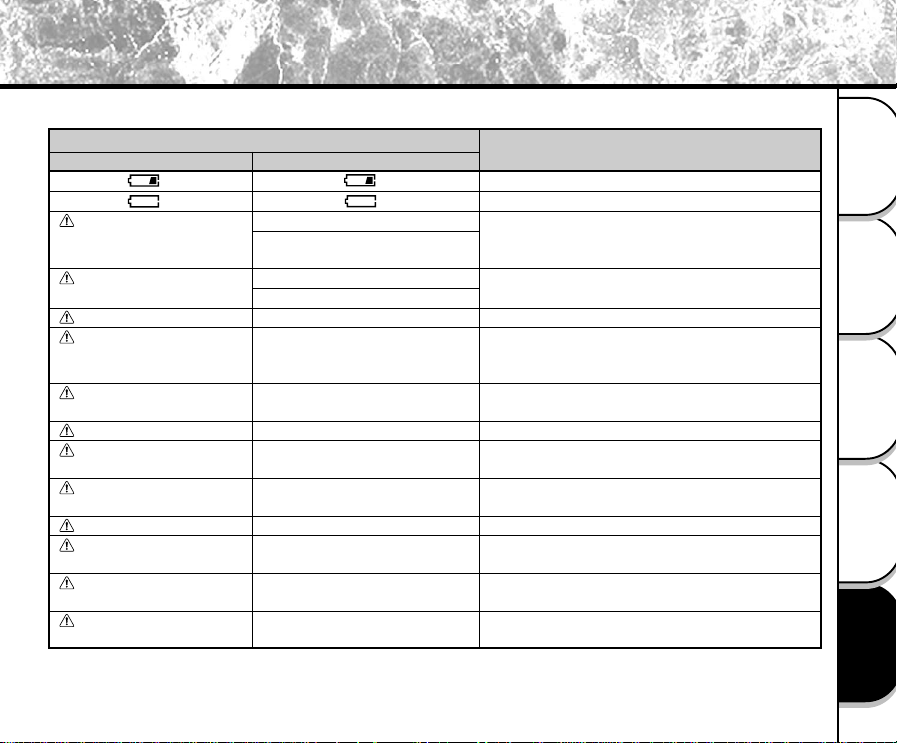
- 97 -
Basic
Photography
Playing Back/
Erasing Images
Other
Applications
Additional
Information
Getting Ready
Warnings and Messages Displayed on LCD Monitor
The following warnings, messages and icons are displayed on the LCD monitor and the status display.
LCD monitor
NO CARD
CARD FULL
NO IMAGE
UNFORMATED CARD
CARD ERROR
PROTECTED CARD
FRAME ERROR
UNMATCHED DATA
FRAME No. FULL
PROTECT
FOLDER No. ERROR
IMAGE No. ERROR
Meaning
Remaining battery power half or less
No battery power left
No SmartMedia™ is loaded
SmartMedia™ is loaded incorrectly
No more space on the SmartMedia™.
Recording is not possible.
Nothing is recorded to the SmartMedia™.
The SmartMedia™ is not formatted. (A message
prompting you to format the SmartMedia™ is
displayed.)
The SmartMedia™ is damaged.
The SmartMedia™ format is incorrect.
The SmartMedia™ is write-protected.
An attempt was made to playback incorrectly
recorded data.
An attempt was made to playback a frame not
recorded on this camera.
The frame number has reached 999-9999.
An attempt was made to erase a protected
image.
There already exists a folder with the same
number.
There already exists an image with the same
frame number in the folder.
Status display
Flashing (photography mode)
Nothing displayed (playback
mode)
Flashing (photography mode)
Number of image display 0
–––
–––
–––
–––
–––
–––
–––
–––
–––
–––
Display
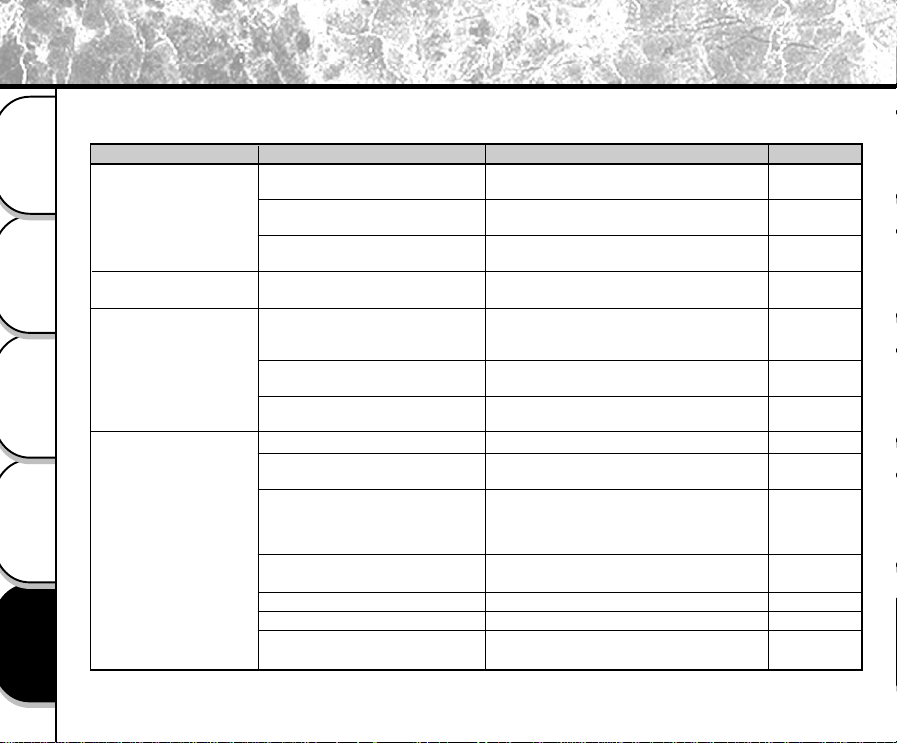
- 98 -
Basic
Photography
Playing Back/
Erasing Images
Other
Applications
Additional
Information
Getting Ready
Troubleshooting
First check the warning displayed on the LCD monitor (➲ Page 101) and the viewfinder lamp (➲ Page 39). Then
check the following items.
Remedy
Replace with new batteries.
Plug the adapter back in.
Turn on the POWER knob.
Replace with new batteries.
Put the battery in your pocket or another
warm place to heat it and then load it into
the camera just before you take a picture.
Wipe the battery terminals with a clean, dry
cloth.
Replace with new batteries.
Load a SmartMedia™.
Load the SmartMedia™ correctly.
• Load a new SmartMedia™.
• Erase photographed images or change
the size and quality to increase space on
the SmartMedia™.
Remove the write-protection or replace with
a new SmartMedia™.
Format the SmartMedia™.
Load a new SmartMedia™.
Either press the shutter button fully down,
or change the mode dial setting.
Causes
The batteries are exhausted.
The AC adapter plug has come
out of the power outlet.
The POWER knob is not turned
on.
The batteries are exhausted.
You are using the camera in
extremely cold conditions.
The terminals are dirty.
The battery has reached its
effective life.
No SmartMedia™ is loaded.
The SmartMedia™ is loaded
incorrectly.
Not enough space on the
SmartMedia™
The SmartMedia™ is write-
protected.
The SmartMedia™ is not formatted.
The SmartMedia™ is damaged.
The Auto Power OFF function is
activated.
Problem
No power supply
The camera turns OFF
during operation.
The battery runs out
quickly.
No photograph is taken
when the shutter button
is pressed.
See Page
P.23
P.26
P.32
P.23
–
–
P.23
P.28
P.28
P.28
P.65
P.67
P.31
P.74
P.28
P.37
P.80
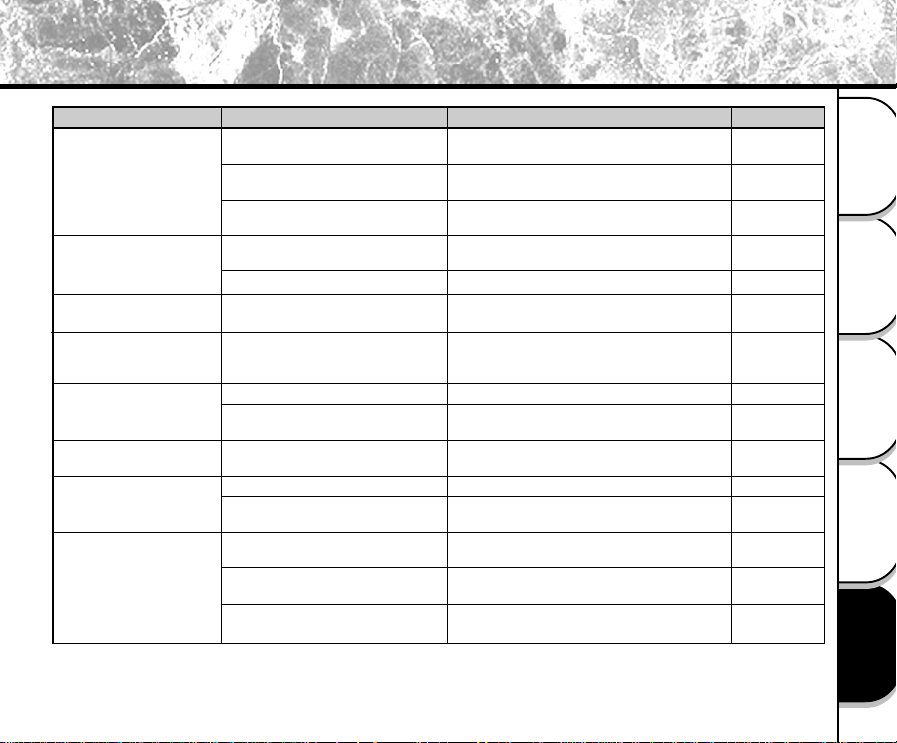
- 99 -
Basic
Photography
Playing Back/
Erasing Images
Other
Applications
Additional
Information
Getting Ready
Troubleshooting (continued)
Causes
The mode dial has been changed
to another setting.
The flash is set to Suppressed
Flash mode.
You pressed the shutter button
while the flash was charging.
The camera is set to Suppressed
Flash mode.
The batteries are exhausted.
No images in selected folder.
The subject is too far away.
The lens is not clean.
The image is out of focus.
The SmartMedia™ is
write-protected.
The frame is protected.
The SmartMedia™ is
write-protected
Camera malfunction.
The mode dial is not at the correct
position.
The camera is in the Auto Power
OFF mode.
See Page
P.33
P.49
P.51
P.49
P.23
P.69
P.49
–
P.47
P.31
P.77
P.31
–
–
P.37
P.80
Remedy
Set the mode dial to the correct setting.
Set the flash to Auto, Red-Eye Reduction or
Forced Flash mode.
Wait until charging is completed before
pressing the shutter button.
Set the flash to Auto, Red-Eye Reduction or
Forced Flash mode.
Replace with new batteries.
Select a different folder to play back.
Move closer to the subject.
(Approx. 1.3ft.(0.4m)-8.2ft.(2.5m))
Clean the lens.
Set macro photography to ON or OFF
according to the distance up to the subject.
Remove the write-protection.
Remove the write-protection.
Remove the write-protection.
Turn the power OFF and remove the
batteries once, and try again.
Set the mode dial to the correct setting.
Either press the shutter button fully down,
or change the mode dial setting.
Problem
I cannot use the flash to
take pictures.
The flash will not charge.
Images cannot be played
back.
The playback image is
too dark even though I
used the flash.
The playback image is
blurred.
I cannot format the
SmartMedia™.
I cannot erase all the
frames.
Nothing happens when I
use the buttons and
switches.
- 100 -
Basic
Photography
Playing Back/
Erasing Images
Other
Applications
Additional
Information
Getting Ready
Troubleshooting (continued)
Causes
The camera is in the PC mode.
Both the batteries and AC adapter
are removed with the power still ON.
Problem
Nothing is displayed
even through the LCD
monitor is set to ON.
The set date and time
disappears.
See Page
P.40
P.61
P.82
Remedy
Change the camera to the photography or
playback mode.
Set the date and time again.
- 101 -
Basic
Photography
Playing Back/
Erasing Images
Other
Applications
Additional
Information
Getting Ready
Glossary
● AF/AE
AF (auto-focus) ··· A function for automatically
focusing your camera.
AE ··· A function for automatically setting your
camera’s exposure.
AF/AE lock ··· Locking of the focus and exposure
settings.
● DCF (Design rule for Camera File System)
A file system standard defined by the JEIDA (Japan
Electronic Industry Development Association) that is
required for exchanging data between digital still
cameras or a digital camera and a printer. This
standard defines the hierarchy and file names used
when storing image files on memory cards or other
recording medium.
● Exif File Format (Exchangeable Image File
Format)
A color still image format for digital still cameras
approved by the JEIDA (Japan Electronic Industry
Development Association). JPEG-compliant, this
format is compatible with TIFF and JPEG and can be
used in image processing software for most personal
computers.
● JPEG
A file format used for compressing and saving color
images. The compression ratio can be selected, but
the higher the compression ratio, the worse image
quality becomes. This format is widely used in the
paint software for PCs and on the Internet.
● PC Card
A generic term for cards that meet the PC Card
Standard.
● Red-Eye Effect
The phenomenon where people’s eyes sometimes
appear red in the picture when you use a flash to
photograph them in low-light conditions. This is
caused by the light of the flash reflecting off the inside
of the eye.
● White Balance
When the brightness of the light changes, the human
eye adapts so that a white object still looks white. On
the other hand, devices such as digital still cameras
see a white subject as white by first adjusting the
balance to suit the color of the ambient light around
the subject. This adjustment process is referred to as
matching the white balance.
● SmartMedia™
Name of a recording medium defined by the SSFDC
Forum. This recording medium can be used over and
over again.
● Formatting
Transforming the contents of the SmartMedia™ to a
recordable state. (This is sometimes called
“initialization”.)
● Exposure Compensation
When the screen contains an extremely bright or dark
object, the camera automatically adjusts the
brightness, resulting in the subject being reproduced
darker or lighter. Exposure compensation adjusts for
this.
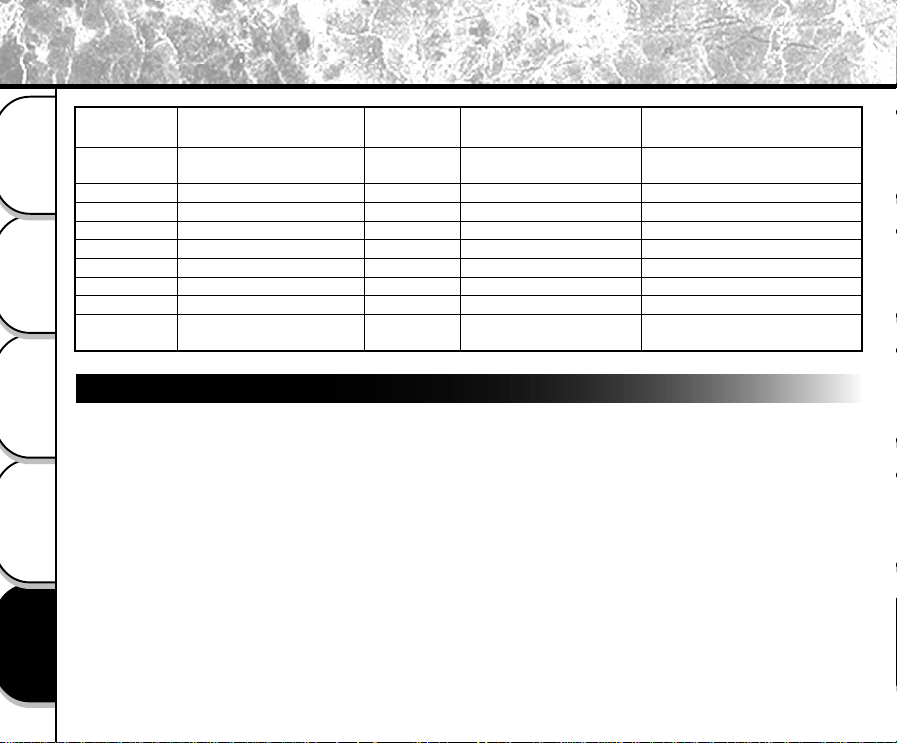
- 102 -
Basic
Photography
Playing Back/
Erasing Images
Other
Applications
Additional
Information
Getting Ready
Global Contacts
website
www.toshiba.com/taisisd
a
www.toshiba.com.hk
www.toshiba.fr/produits/video/index.htm
www.toshiba.de/consumer
www.toshiba.it/
www.cp.toshiba.com.sg
www.toshiba.ch
www.toshiba.co.uk
www.toshiba.com/taisisd
a
Country/Region
Canada
s
China Hong Kong
France
Germany
Italy
Singapore
Switzerland
United Kingdom
United States
a
Company name
Toshiba America Informtion
Systems,Inc
Toshiba Hong Kong Ltd.
Toshiba Systèmes (France)
Toshiba Europe Gmbh
Toshiba Consumer Products (Italia)
Toshiba Singapore Pte
Toshiba Europe Gmbh Swiss Branch
Toshiba
(UK) Ltd.
Toshiba America Informtion
Systems,Inc
Phone number
for inquiry
(800) 829-8318
6
2956-0222
01 47 28 28 50
(02131) 158 01
(039) 6099342
270-7776
01-946 07 77
(01932) 828828
(800) 829-8318
6
e-mail
6 a
NA
NA
6 a
For customers in the United States and Canada
Register your product On-Line
There are many advantages to being a member of the Toshiba Digital Camera community. Toshiba provides free
firmware upgrades for applicable models, allowing you to get the latest technology and enhancement for your
camera direct fromthe web site. There are links, updates and notices for special options available to the Toshiba
Digital Community, like pecial adapter mounts for Tele-photo, Wide-angle, and other filters and lenses desinged
specifically for your digital camera. There are frequent discounts and promotions on printing services, carring cases,
service plans, and digital camera accessories. To find out more, visit the Toshiba Digital Community at www.toshiba.
com/taisisd