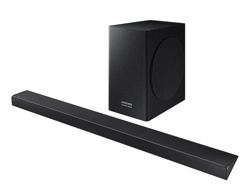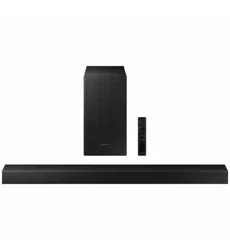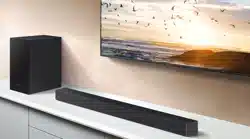

HW-S60A / S61A
FULL MANUAL
Imagine the possibilities
Thank you for purchasing this Samsung product.
To receive more complete service, please register
your product at www.samsung.com/register
ENG - 2
SAFETY INFORMATION
SAFETY WARNINGS
TO REDUCE THE RISK OF ELECTRIC SHOCK, DO
NOT REMOVE THE COVER (OR BACK).
NO USER-SERVICEABLE PARTS ARE INSIDE.
REFER SERVICING TO QUALIFIED SERVICE
PERSONNEL.
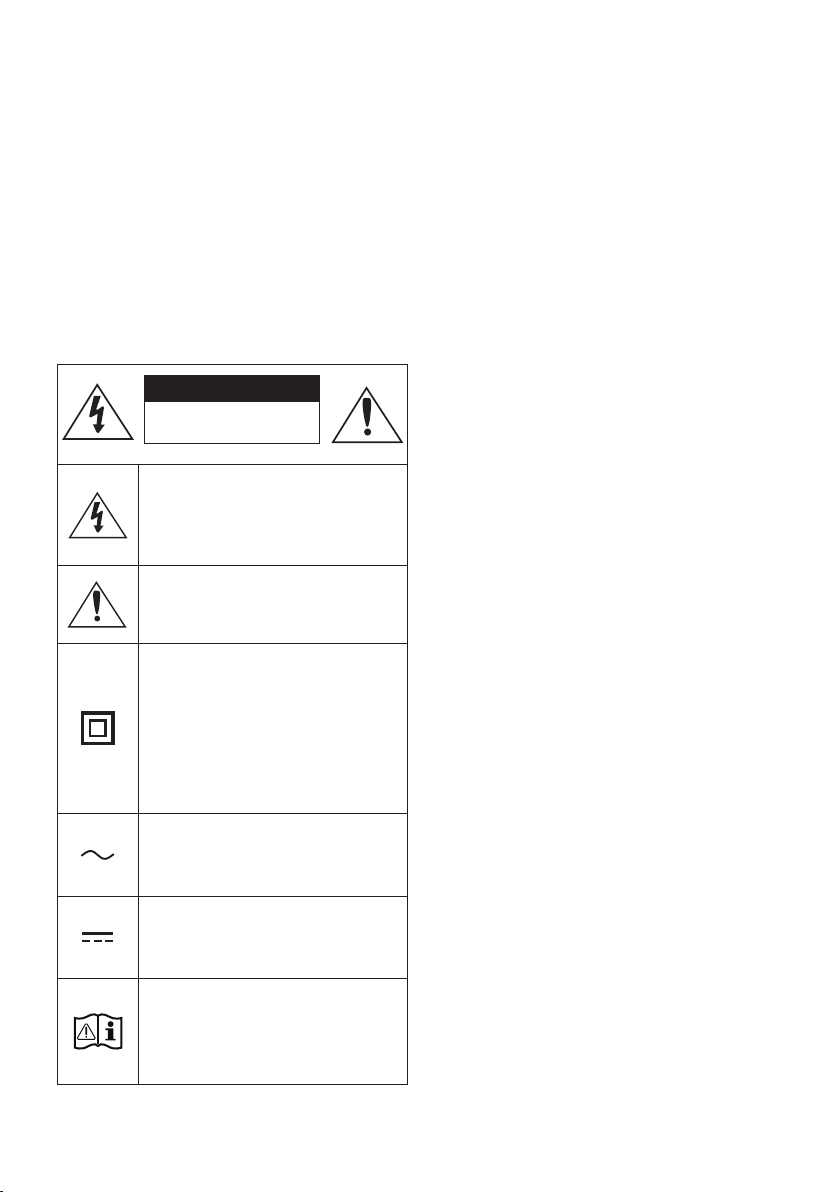
Refer to the table below for an explanation of
symbols which may be on your Samsung product.
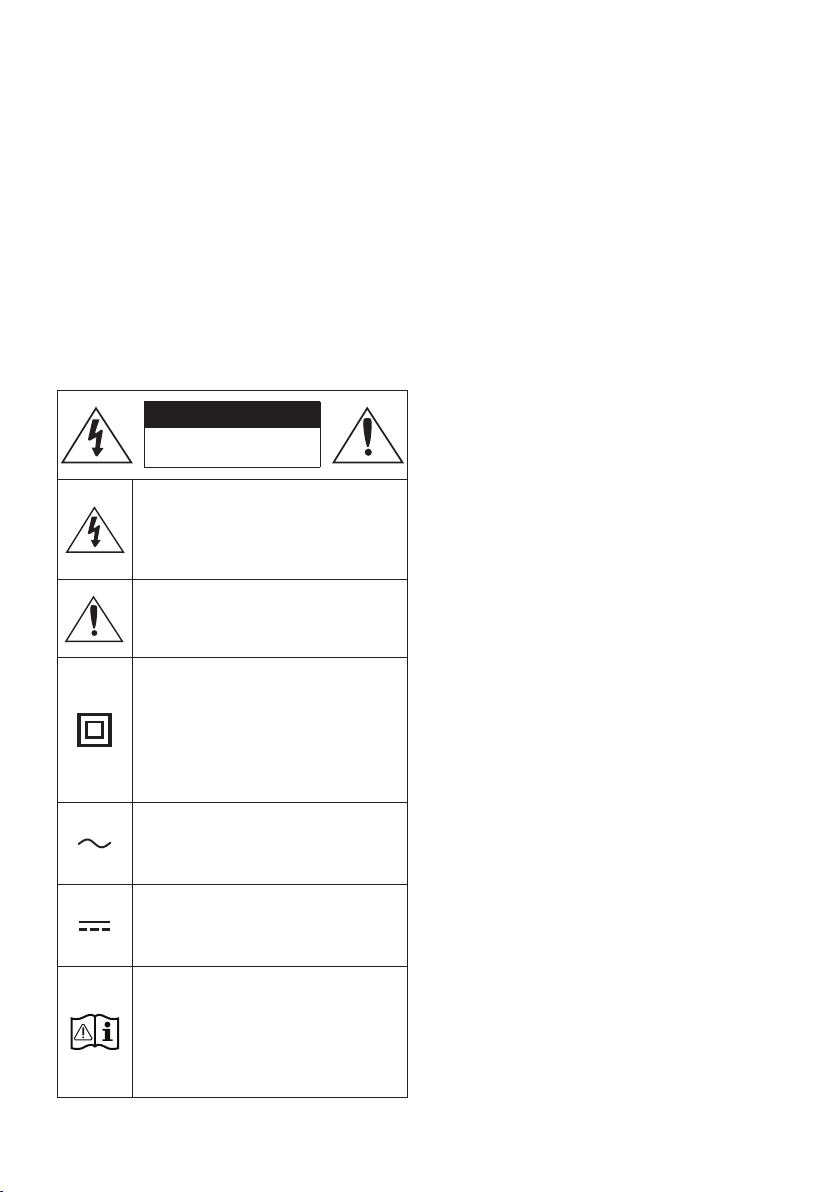
CAUTION
RISK OF ELECTRIC SHOCK.
DO NOT OPEN.
This symbol indicates that high voltage
is present inside. It is dangerous to
make any kind of contact with any
internal part of this product.
This symbol indicates that this product
has included important literature
concerning operation and maintenance.
Class II product : This symbol indicates
that it does not require a safety
connection to electrical earth (ground).
If this symbol is not present on a
product with a power cord, the product
MUST have a reliable connection to
protective earth (ground).
AC voltage : This symbol indicates that
the rated voltage marked with the
symbol is AC voltage.
DC voltage : This symbol indicates that
the rated voltage marked with the
symbol is DC voltage.
Caution, Consult instructions for use :
This symbol instructs the user to
consult the user manual for further
safety related information.
WARNING
• To reduce the risk of re or electric shock, do
not expose this appliance to rain or moisture.
CAUTION
• TO PREVENT ELECTRIC SHOCK, MATCH WIDE
BLADE OF PLUG TO WIDE SLOT, FULLY INSERT.
• This apparatus shall always be connected to a
AC outlet with a protective grounding
connection.
• To disconnect the apparatus from the mains,
the plug must be pulled out from the mains
socket, therefore the mains plug shall be
readily operable.
• Do not expose this apparatus to dripping or
splashing. Do not put objects lled with
liquids, such as vases on the apparatus.
• To turn this apparatus off completely, you
must pull the power plug out of the wall
socket. Consequently, the power plug must
be easily and readily accessible at all times.

ENG - 3
PRECAUTIONS
1. Ensure that the AC power supply in your
house complies with the power
requirements listed on the identication
sticker located on the bottom of your
product. Install your product horizontally, on
a suitable base (furniture), with enough
space around it for ventilation (7~10 cm).
Make sure the ventilation slots are not
covered. Do not place the unit on ampliers
or other equipment which may become hot.
This unit is designed for continuous use. To
fully turn off the unit, disconnect the AC plug
from the wall outlet. Unplug the unit if you
intend to leave it unused for a long period of
time.
2. During thunderstorms, disconnect the AC
plug from the wall outlet. Voltage peaks due
to lightning could damage the unit.
3. Do not expose the unit to direct sunlight or
other heat sources. This could lead to
overheating and cause the unit to
malfunction.
4. Protect the product from moisture (i.e.
vases), and excess heat (e.g. a replace) or
equipment creating strong magnetic or
electric elds. Unplug the power cable from
the AC wall socket if the unit malfunctions.
Your product is not intended for industrial
use. It is for personal use only. Condensation
may occur if your product has been stored in
cold temperatures. If transporting the unit
during the winter, wait approximately
2 hours until the unit has reached room
temperature before using.
5. The battery used with this product contains
chemicals that are harmful to the
environment. Do not dispose of the battery
in the general household trash. Do not
expose the battery to excess heat, direct
sunlight, or re. Do not short circuit,
disassemble, or overheat the battery.
CAUTION : Danger of explosion if the battery
is replaced incorrectly. Replace only with the
same or equivalent type.

ENG - 4
Fabric cleaning
Remove any dirt or stain on the product surface
immediately.
Removing and cleaning can be less effective for
some substances or if left for a prolonged time.
CAUTION
• Use a vacuum cleaner or an adhesive lint
roller to remove dust, handprints, and the
likes.
– Some cleaning brushes may damage the
product, depending on the materials they
contain.
– Towels and cleaning clothes may leave
lint or dirt on the product.
• Do not use a nail or other tools to scratch the
dirt off. It may damage the fabric.
• To remove oil or liquid stains, use a clean
white cloth moist with water. If the stain
persists, wipe it with a mixture of water and
neutral detergent (such as dishwashing
soaps) and a cloth.
– A non-neutral detergent or cleaner may
cause discolouration or fabric damage.
– After cleaning, use a dry cloth or
hairdryer to dry the area.
– Do not use excessive force to avoid
discolouration or fabric damage.

ENG - 5
CONTENTS
01 Checking the Components 7
Inserting Batteries before using the Remote Control (AA batteries X 2) ------------------------- 7
02 Product Overview 8
Top Panel of the Soundbar ------------------------- 8
Bottom Panel of the Soundbar ------------------------- 10
03 Using the Remote Control 11
How to Use the Remote Control
-------------------------
11
Using the Hidden Buttons (Buttons with more than one function)
-------------------------
14
Output specications for the different sound effect modes
-------------------------
14
Adjusting the Soundbar volume with a TV remote control ------------------------- 15
04 Connecting the Soundbar 16
Connecting Electrical Power
-------------------------
16
Connecting an SWA-9100S (Sold Separately),
SWA-W500 (Sold Separately) to your Soundbar
-------------------------
16
05 Using a wired connection to the TV 17
Method 1. Connecting with HDMI
-------------------------
17
Method 2. Connecting using an Optical Cable
-------------------------
19
06 Using a wireless connection to the TV 20
Method 1. Connecting via Bluetooth
-------------------------
20
Method 2. Connecting via Wi-Fi
-------------------------
22
07 Connecting an External Device 23
Connecting using an Optical Cable
-------------------------
23

ENG - 6
08 Connecting a Mobile Device 24
Method 1. Connecting via Bluetooth
-------------------------
24
Method 2. Connecting via Wi-Fi (Wireless Network)
-------------------------
27
Getting Started with Amazon Alexa (Built-in Alexa)
-------------------------
28
Getting Started with Alexa on Amazon Product (Works with Alexa)
-------------------------
30
Using the Tap Sound
-------------------------
32
09 Connecting To Apple AirPlay 2 33
10 Installing the Wall Mount 34
Installation Precautions
-------------------------
34
Wallmount Components
-------------------------
34
11 Installing the Soundbar in front of TV 36
12 Software Update 37
Auto Update
-------------------------
37
USB Update
-------------------------
37
Reset
-------------------------
38
13 Troubleshooting 39
14 Licence 41
15 Open Source Licence Notice 41
16 Important Notes About Service 41
17 SpecicationsandGuide 42
Specications
-------------------------
42
ENG - 7
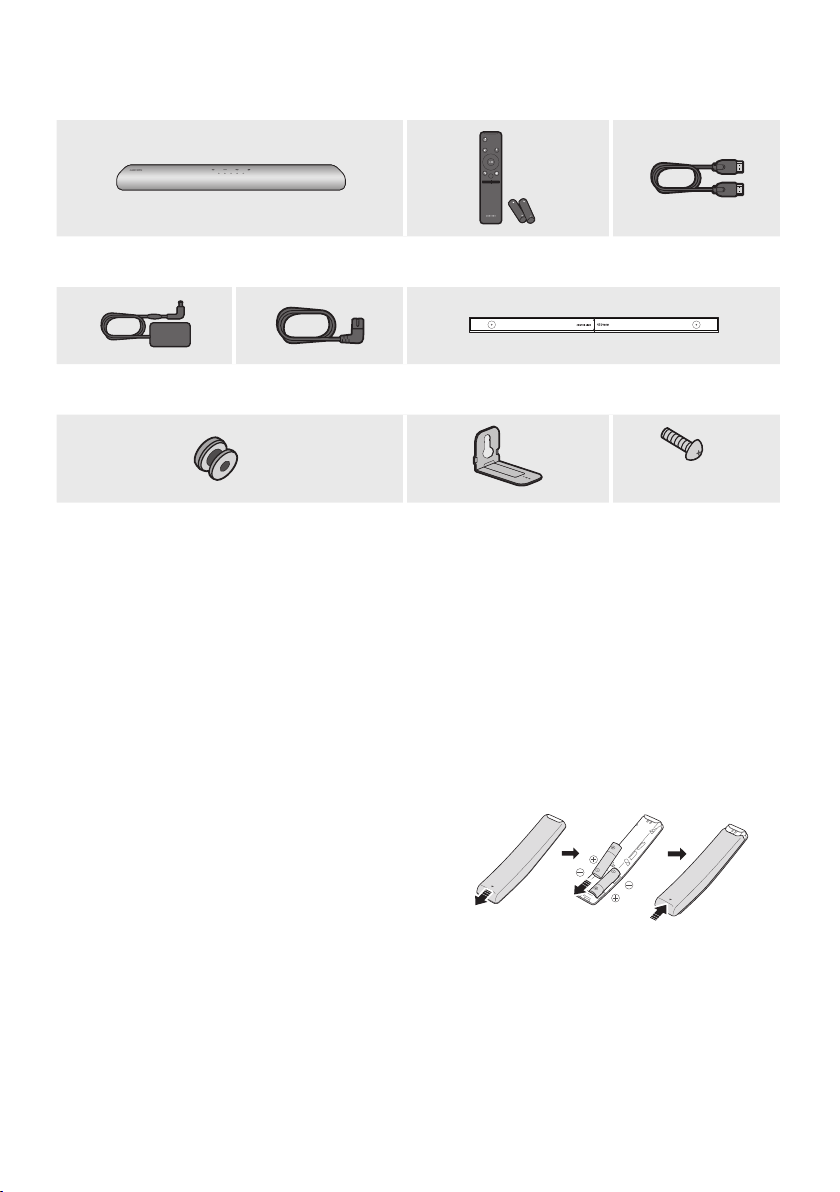
01 CHECKING THE COMPONENTS
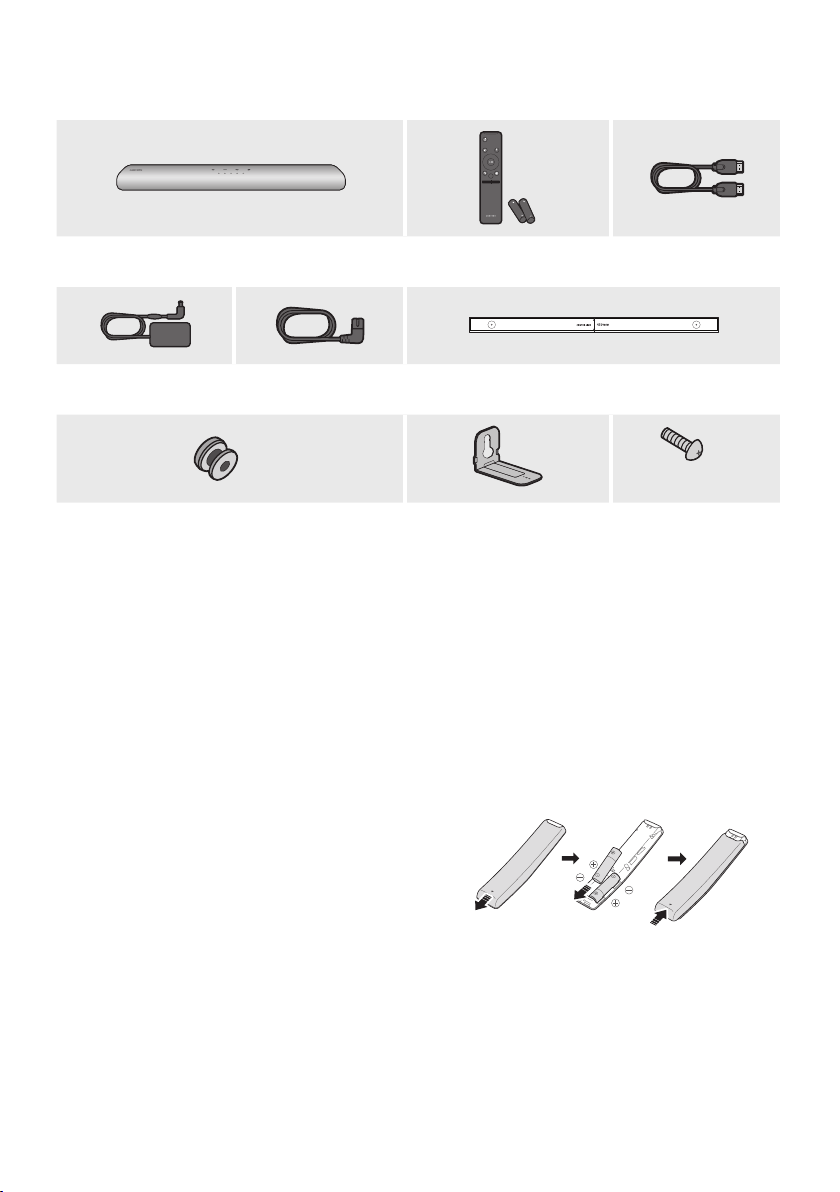
VOL WOOFER
SOUNDBAR
SOUND
MODE
PAIR
Soundbar Main Unit Soundbar Remote Control
/
Batteries
HDMI Cable
AC/DC Adapter
(Soundbar)
Power Cord
(Soundbar)
Wall Mount Guide
x 2
x 2
(M4 x L10)
x 2
Holder-Screw Bracket-Wall Mount Screw
• For more information about the power supply and power consumption, refer to the label attached
to the product. (Label: Bottom of the Soundbar Main Unit)
• To purchase additional components or optional cables, contact a Samsung Service Centre or
Samsung Customer Care.
• For more information about the wallmount see page 34.
• Design, specications, and App screen are subject to change without prior notice.
• The appearance of the accessories may differ slightly from the illustrations above.
Inserting Batteries before using the Remote Control (AA batteries X 2)
Slide the back cover in the direction of the arrow
until it is completely removed. Insert 2 AA batteries
(1.5V) oriented so that their polarity is correct. Slide
the back cover back into position.
ENG - 8
02 PRODUCT OVERVIEW
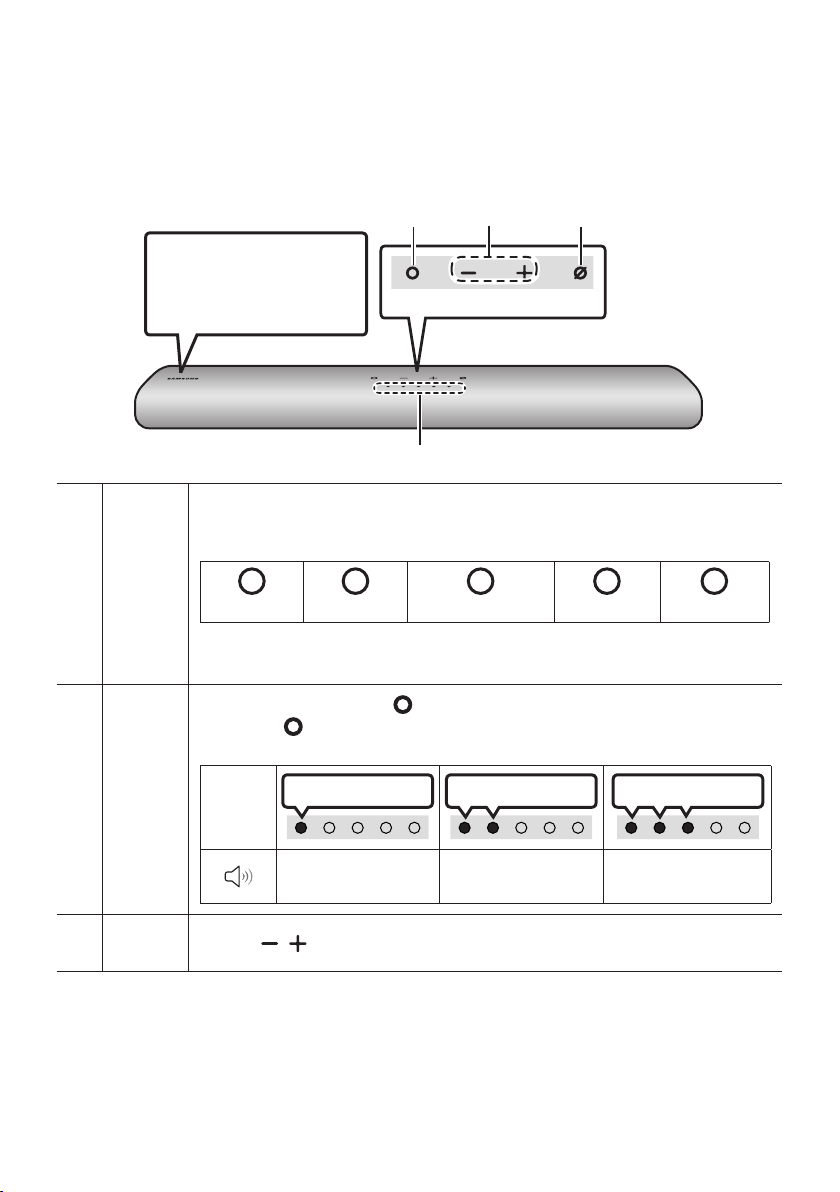
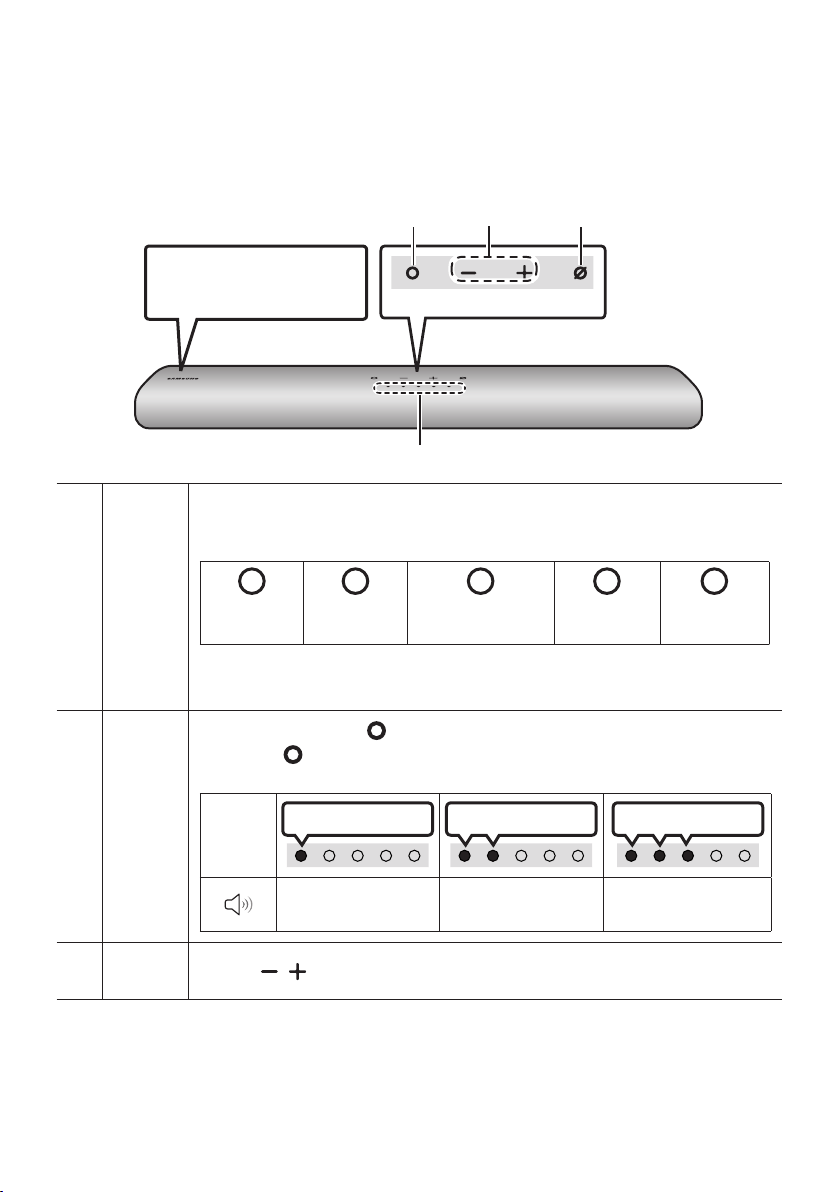
Top Panel of the Soundbar
Top Panel
Position the product so that
the SAMSUNG logo is
located on the top.
LED
indicator
The LED Indicator ashes, glows, or changes colour depending on the Soundbar's current
mode or status. The colour of the LED indicator and the number of lights indicate the active
mode as described below.
W
White LED
W
White LED
M
Multicolour LED
W
White LED
W
White LED
• The Multicolour LED changes to White, Cyan, Green, Red, and Blue depending on the
mode or status.
Multi
Function
Button
• In standby mode, press the (Multi Function) button to turn on the Soundbar.
• Press the (Multi Function) button to change the mode. Each time you change the
mode, the LED lights in white and then turns off.
LED
Indicator
White On -> Off White On -> Off White On -> Off
“Digital Audio In” or
“TV ARC”
“Wi-Fi” “Bluetooth”
Volume
Button
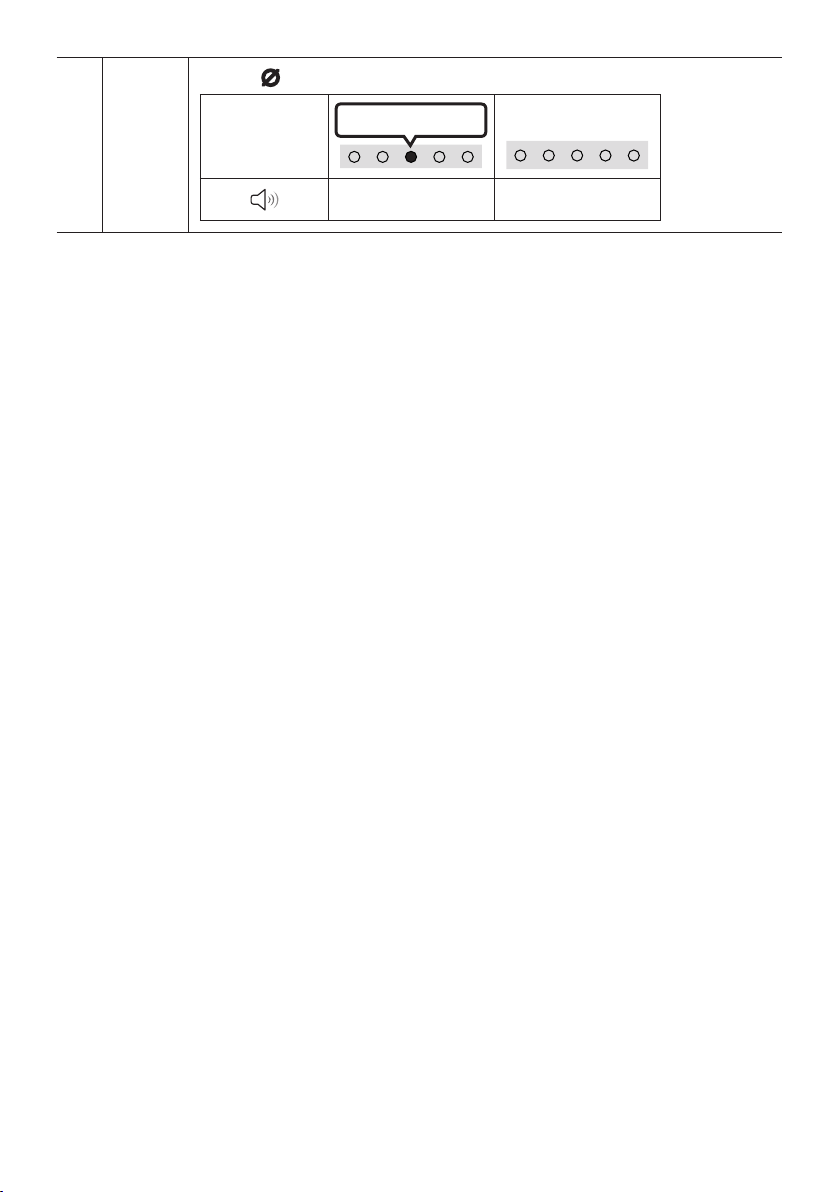
Press the (Volume) button to adjust the volume.
ENG - 9
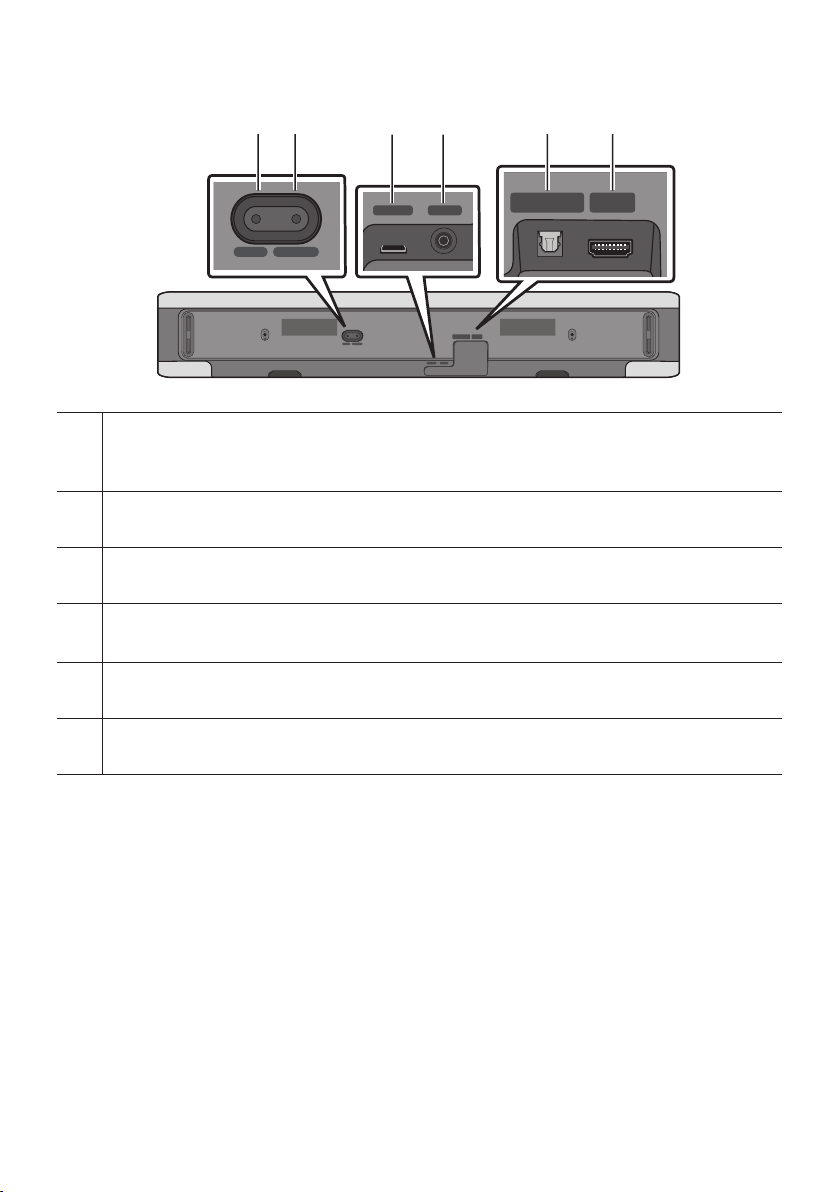
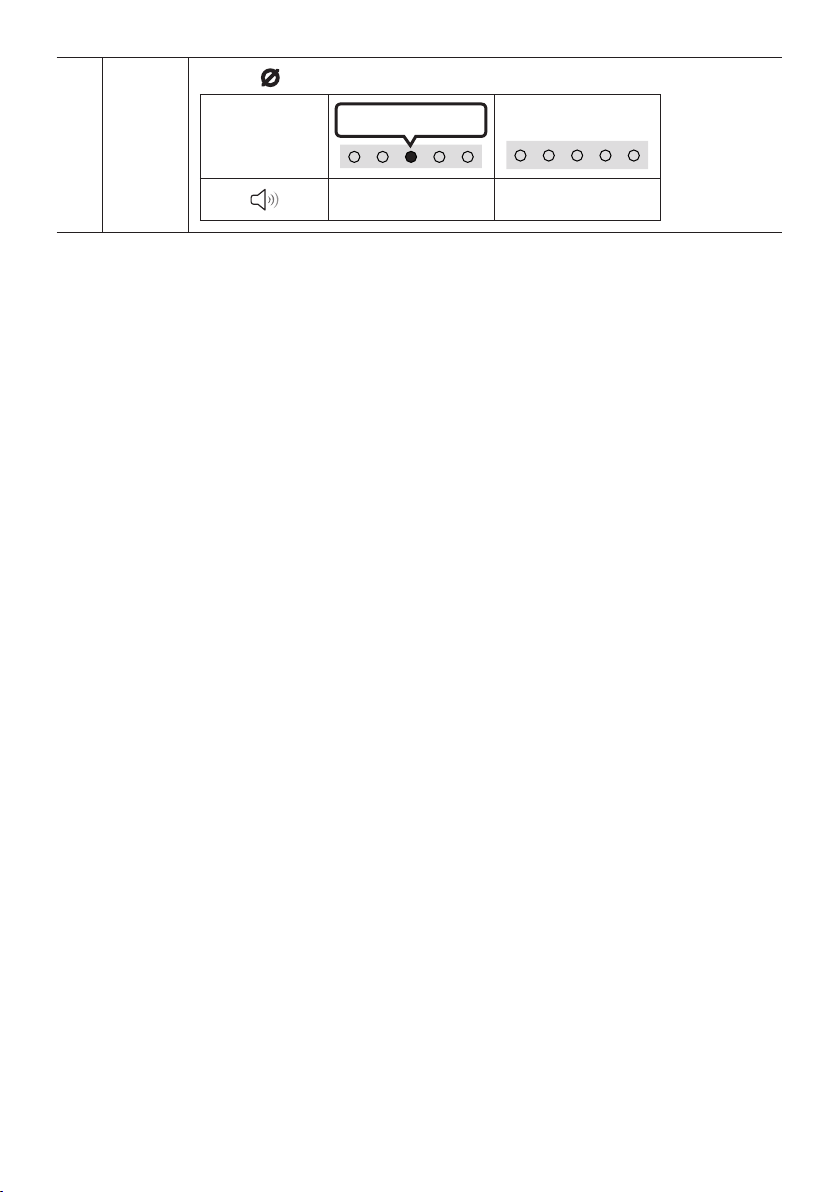
Mic
On/Off
Button
Press the (Mic On/Off) button to turn on or off the microphone.
LED Indicator
Red On
“Mic Off” “Mic On”
• When you plug in the AC cord, the power button will begin working in 4 to 6 seconds.
• When you turn on this unit, there will be a 4 to 5 second delay before it produces sound.
• If you hear sounds from both the TV and Soundbar, go to the Settings menu for the TV audio and
change the TV speaker to External Speaker.
• You can turn on and off audio feedback by using SmartThings app. To learn about using the
SmartThings app, refer to “Method 2. Connecting via Wi-Fi (Wireless Network)”.
ENG - 10
Bottom Panel of the Soundbar
SERVICE DC 19V
HDMI
(ARC)
DIGITAL AUDIO IN
(OPTICAL)
ID SET NETWORK
SERVICE DC 19V
HDMI
(ARC)
DIGITAL AUDIO IN
(OPTICAL)
SERVICE DC 19V
HDMI OUT
(TV-ARC)
DIGITAL AUDIO IN
(OPTICAL)
DIGITAL AUDIO IN
(OPTICAL)
ID SET NETWORK
SERVICE DC 19V
HDMI
(ARC)
DIGITAL AUDIO IN
(OPTICAL)
ID SET NETWORK
SERVICE DC 19V
HDMI
(ARC)
DIGITAL AUDIO IN
(OPTICAL)
SERVICE DC 19V
HDMI OUT
(TV-ARC)
DIGITAL AUDIO IN
(OPTICAL)
DIGITAL AUDIO IN
(OPTICAL)
ID SET NETWORK
SERVICE DC 19V
HDMI
(ARC)
DIGITAL AUDIO IN
(OPTICAL)
ID SET NETWORK
SERVICE DC 19V
HDMI
(ARC)
DIGITAL AUDIO IN
(OPTICAL)
SERVICE DC 19V
HDMI OUT
(TV-ARC)
DIGITAL AUDIO IN
(OPTICAL)
DIGITAL AUDIO IN
(OPTICAL)
ID SET NETWORK
SERVICE DC 19V
HDMI
(ARC)
DIGITAL AUDIO IN
(OPTICAL)
ID SET NETWORK
SERVICE DC 19V
HDMI
(ARC)
DIGITAL AUDIO IN
(OPTICAL)
SERVICE DC 19V
HDMI OUT
(TV-ARC)
DIGITAL AUDIO IN
(OPTICAL)
DIGITAL AUDIO IN
(OPTICAL)
ID SET NETWORK
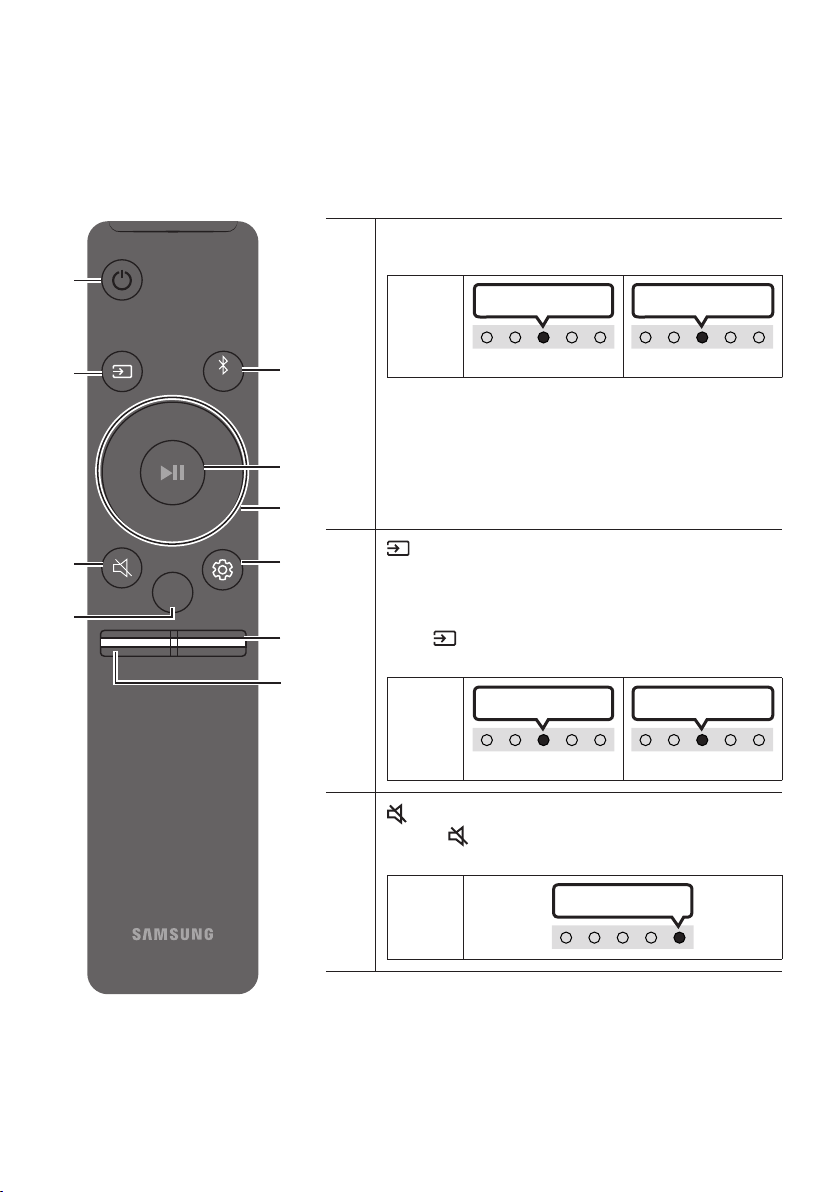
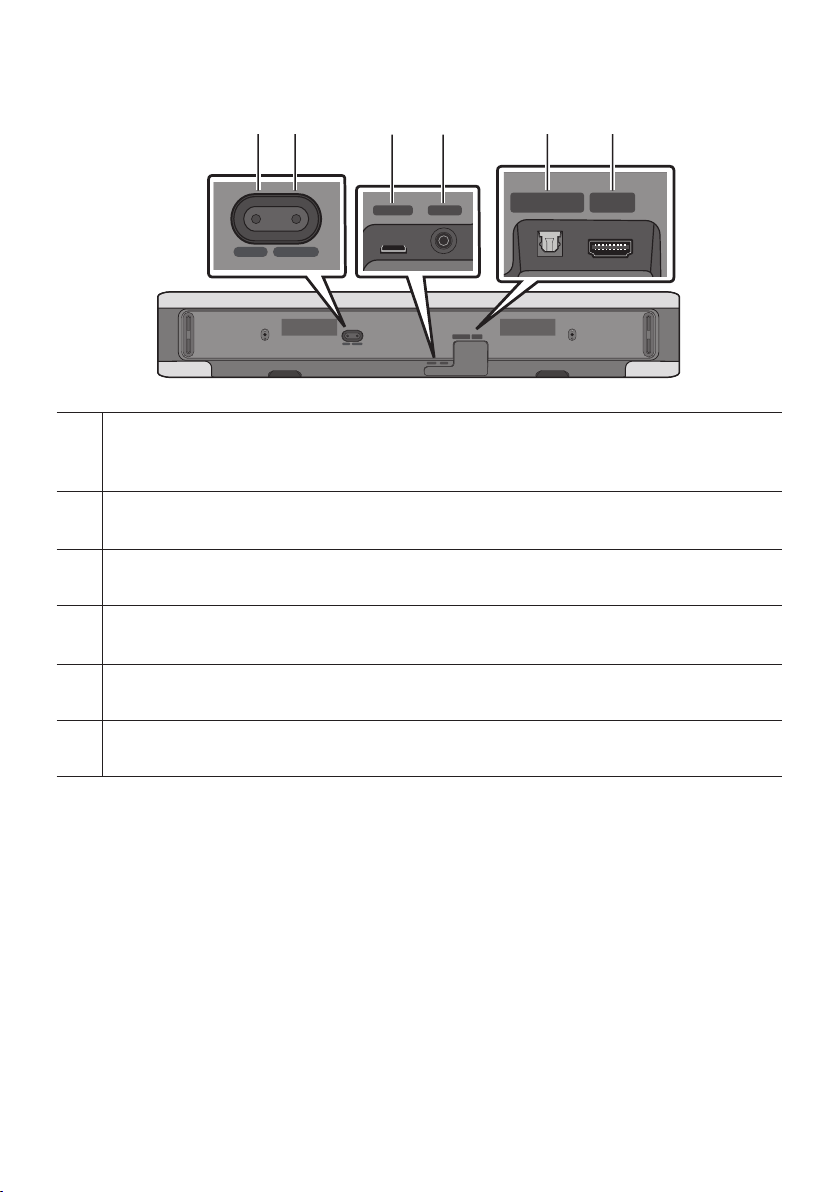
ID SET
Press to connect the Soundbar to Surround speakers and a subwoofer wirelessly.
(The surround speaker, subwoofer are sold separately.)
NETWORK
Press to connect to a wireless network (Wi-Fi) via the SmartThings app.
SERVICE
Connect a USB storage device to upgrade the product's software.
DC 19V (Power Supply In)
Connect the AC/DC power adapter. (See page 16)
DIGITAL AUDIO IN (OPTICAL)
Connect to the digital (optical) output of an external device. (See page 23)
HDMI (ARC)
Connect to the HDMI (ARC) port on a TV. (See page 17)
• When disconnecting the power cable of the AC/DC power adapter from a wall outlet, pull the plug.
Do not pull the cable.
• Do not connect this unit or other components to an AC outlet until all connections between
components are complete.
ENG - 11
03 USING THE REMOTE CONTROL
How to Use the Remote Control
VOL WOOFER
SOUNDBAR
SOUND
MODE
PAIR
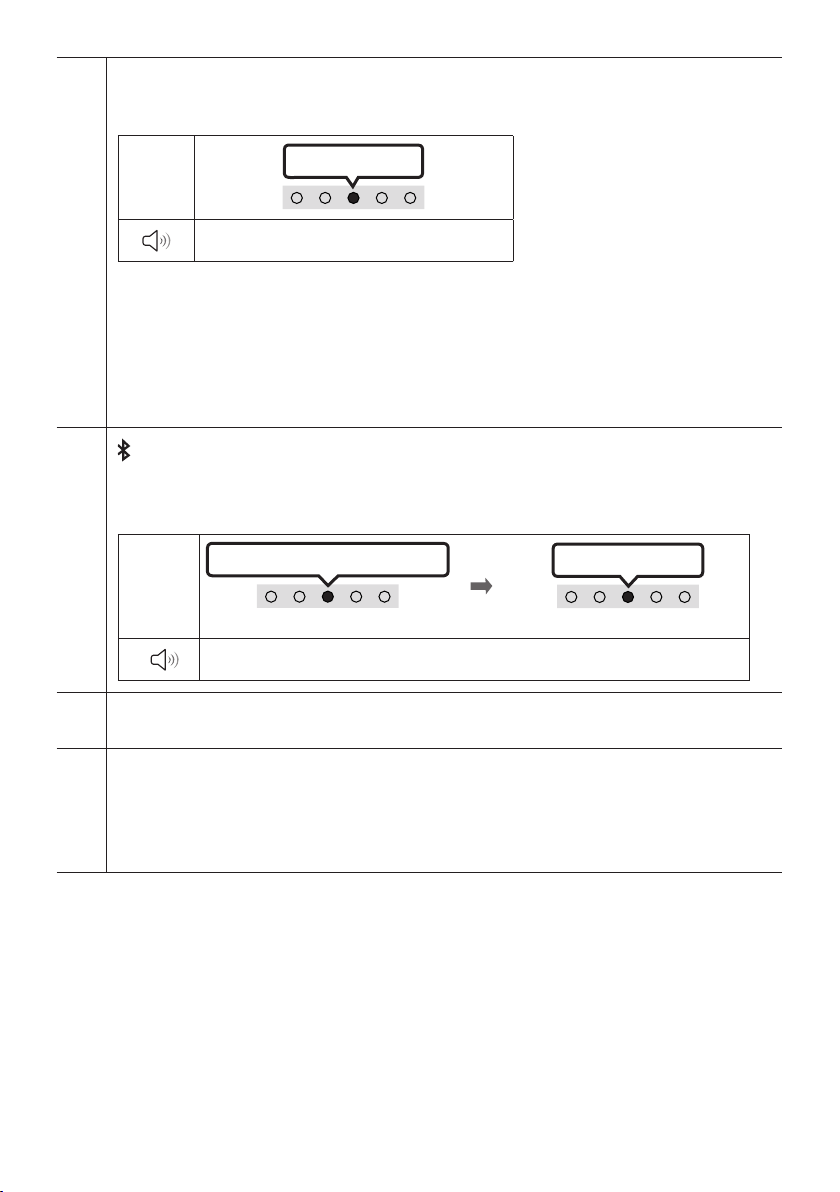
Power
Turns the Soundbar on and off.
LED
Indicator
Cyan Blinks X1
On
Off
Red Blinks X3
• Auto Power Down Function
The unit turns off automatically in the following
situations:
– In “Digital Audio In” or “TV ARC” / “Wi-Fi” /
“Bluetooth” mode if there is no audio signal for 18
minutes.
(Source)
Press to select a source connected to the Soundbar.
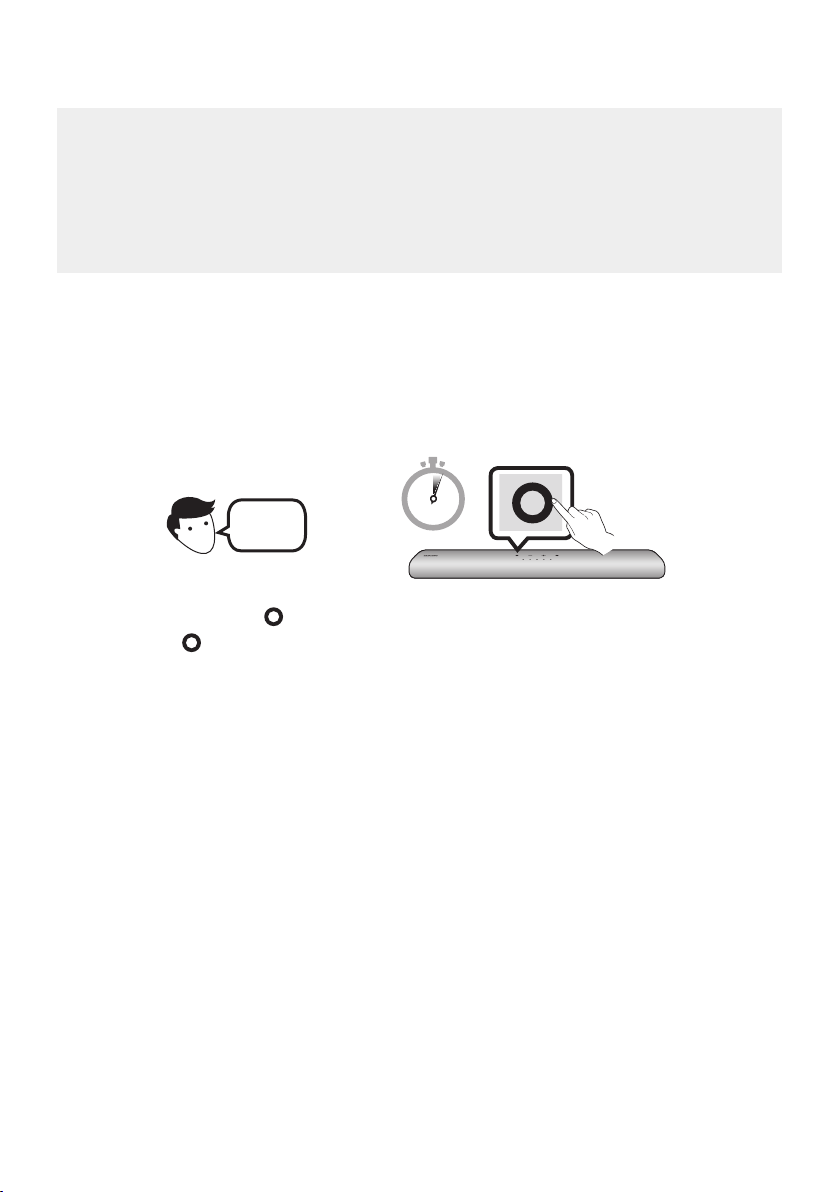
• Audio Feedback On/Off
You can turn on or off the Audio Feedback. Press and hold
the (Source) button on the remote control for
5 seconds while the Soundbar is off (Standby mode).
LED
Indicator
Cyan Blinks X1
On
Off
Red Blinks X1
(Mute)
Press the (Mute) button to mute the sound.
Press it again to unmute the sound.
LED
Indicator
Blinks X Repeatly
ENG - 12
SOUND MODE
By pressing the button, you can select the desired audio mode. Each time the mode changes, the
Multicolour LED blinks in white.
LED
Indicator
White Blinks X1
“Standard” “Music” “Adaptive Sound”
• Standard
Outputs the original sound.
• Music
Provides more natural and room lling sound for music content.
• Adaptive Sound
Analyzes the content in real time and automatically provides the optimal sound eld based on the
characteristics of the content.
Bluetooth PAIR
Switch the Soundbar to Bluetooth pairing mode.
When you press the button, the LED display changes as shown below.
• Until pairing is complete, the Multicolour LED changes as Red → Green → Blue in turn.
LED
Indicator
Red → Green → Blue Blinks
Pairing
Connection is complete
Cyan Blinks X3
“Ready to connect via Bluetooth.”
p (Play / Pause)
You can also play or pause music by pressing the button.
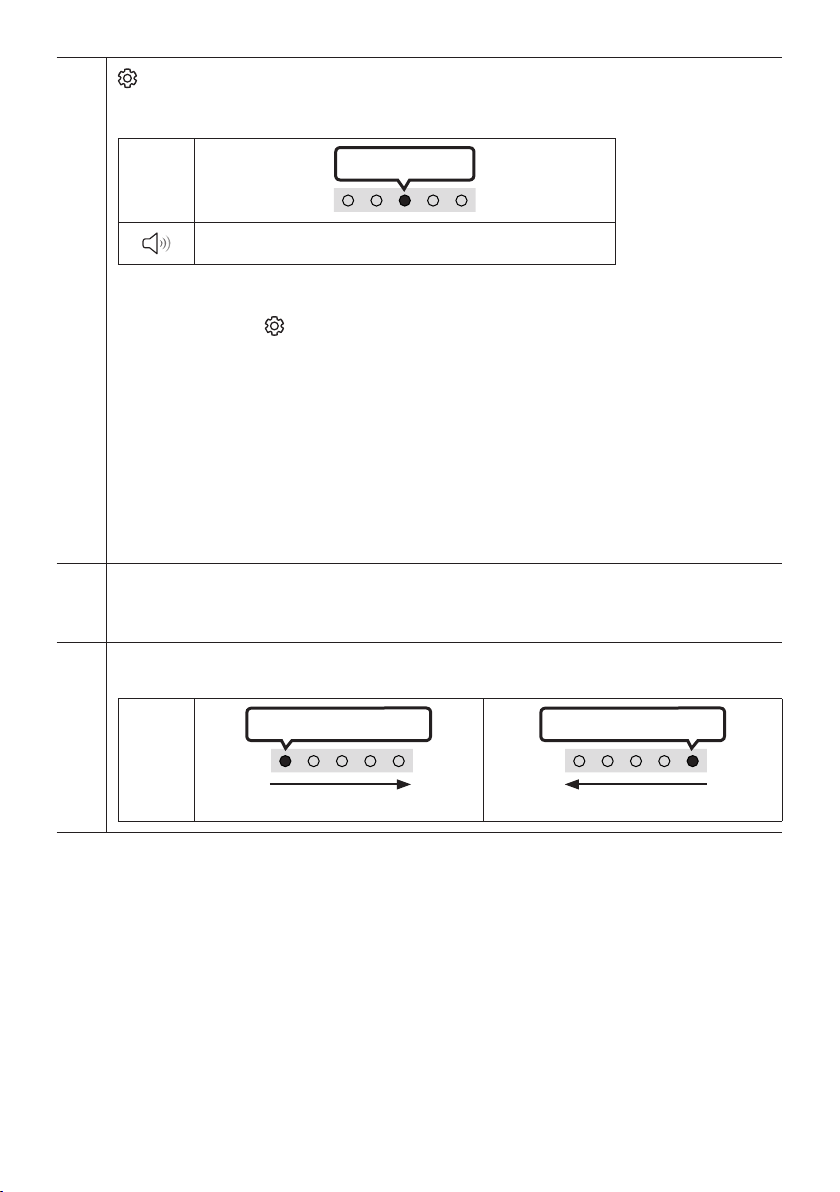
Up/Down/Left/Right
Press Up/Down/Left/Right on the button to select or set functions.
• Music Skip
Press the Right button to select the next music le. Press the Left button to select the previous
music le.
ENG - 13
(Sound Control)
By pressing the button, you can select the desired audio mode. The desired item can be adjusted using
the Up/Down buttons. Each time the mode changes, the Multicolour LED blinks in white.
LED
Indicator
White Blinks X1
“Treble” “Bass” “Sync” “Centre Level” “Side Level”
– To control the volume of the treble or bass sound, select “Treble” or “Bass” in Sound Settings, and
then adjust the volume between -6~+6 by using the Up/Down buttons.
– Press and hold the (Sound Control) button for about 5 seconds to adjust the sound for each
frequency band. 150Hz, 300Hz, 600Hz, 1.2kHz, 2.5kHz, 5kHz, and 10kHz are selectable using the
Left/Right buttons and each can be adjusted to a setting between -6 to +6 using the Up/Down
buttons. (Make sure the Sound mode is set to “Standard”.)
– To control the volume of the each speaker select “Centre Level” or “Side Level” in Sound Settings,
and then adjust the volume between -6~+6 by using the Up/Down buttons.
– If the video on the TV and audio from the Soundbar are not synchronised, select “Sync” in Sound
Control, and then set the audio delay between 0~300 milliseconds by using the Up/Down buttons.
– “Sync” is only supported for some functions.
– If Surround Speakers are connected, select “Rear Level” and then use the Up/Down buttons to
adjust the volume within a -6 to +6 range.
WOOFER (BASS) LEVEL
Push the button up or down to adjust the level of the woofer (bass) to -12 or between -6 to +6. To set the
woofer (bass) volume level to 0 (Default), press the button.
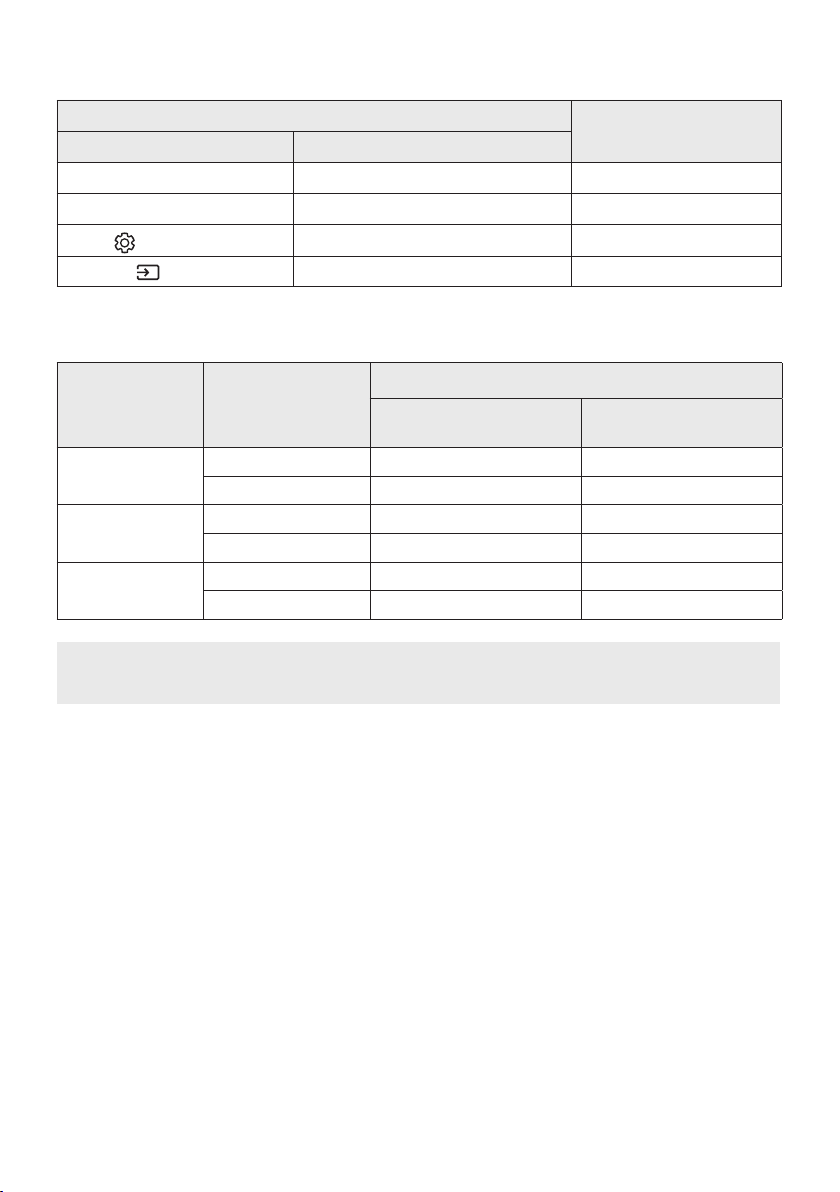
VOLUME
Push the button up or down to adjust the volume.
LED
Indicator
White moves to right X1
Volume Up
White moves to left X1
Volume Down
ENG - 14
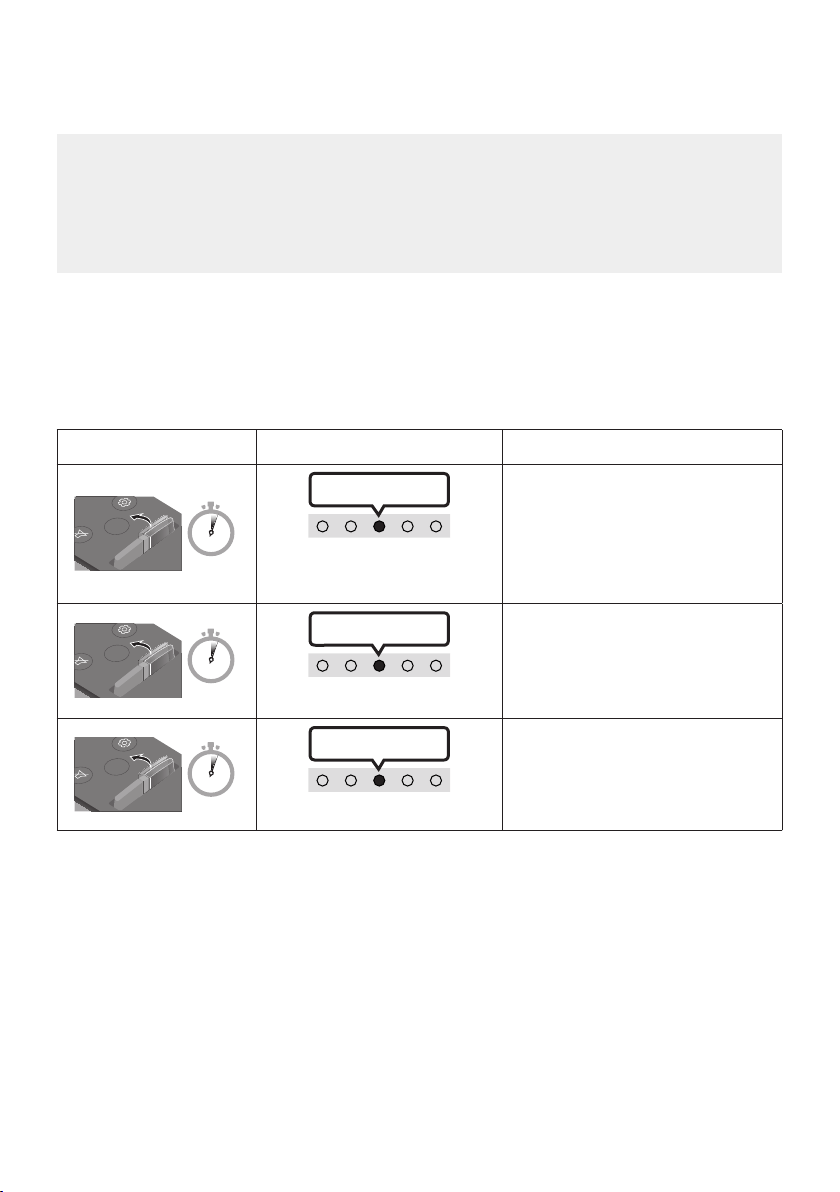
Using the Hidden Buttons (Buttons with more than one function)
Hidden Button
Reference page
Remote Control Button Function
WOOFER (Up) TV remote control On/Off (Standby) page 15
Up ID SET
(Sound Control)
7 Band EQ page 13
(Source)
Audio Feedback On/Off (Standby) page 11
Outputspecicationsforthedifferentsoundeffectmodes
Effect Input
Output
With Subwoofer Only
With Subwoofer & Wireless
Rear Speaker Kit
Standard
2.0 ch 2.1 ch 2.1 ch
5.1 ch 2.1 ch 5.1 ch
Music
2.0 ch 5.1 ch 7.1 ch
5.1 ch 5.1 ch 7.1 ch
Adaptive Sound
2.0 ch 5.1 ch 7.1 ch
5.1 ch 5.1 ch 7.1 ch
• The Samsung Wireless Rear Speaker Kit, and Subwoofer can be purchased separately.
To purchase a Kit or the Subwoofer, contact the vendor you purchased the Soundbar from.
ENG - 15
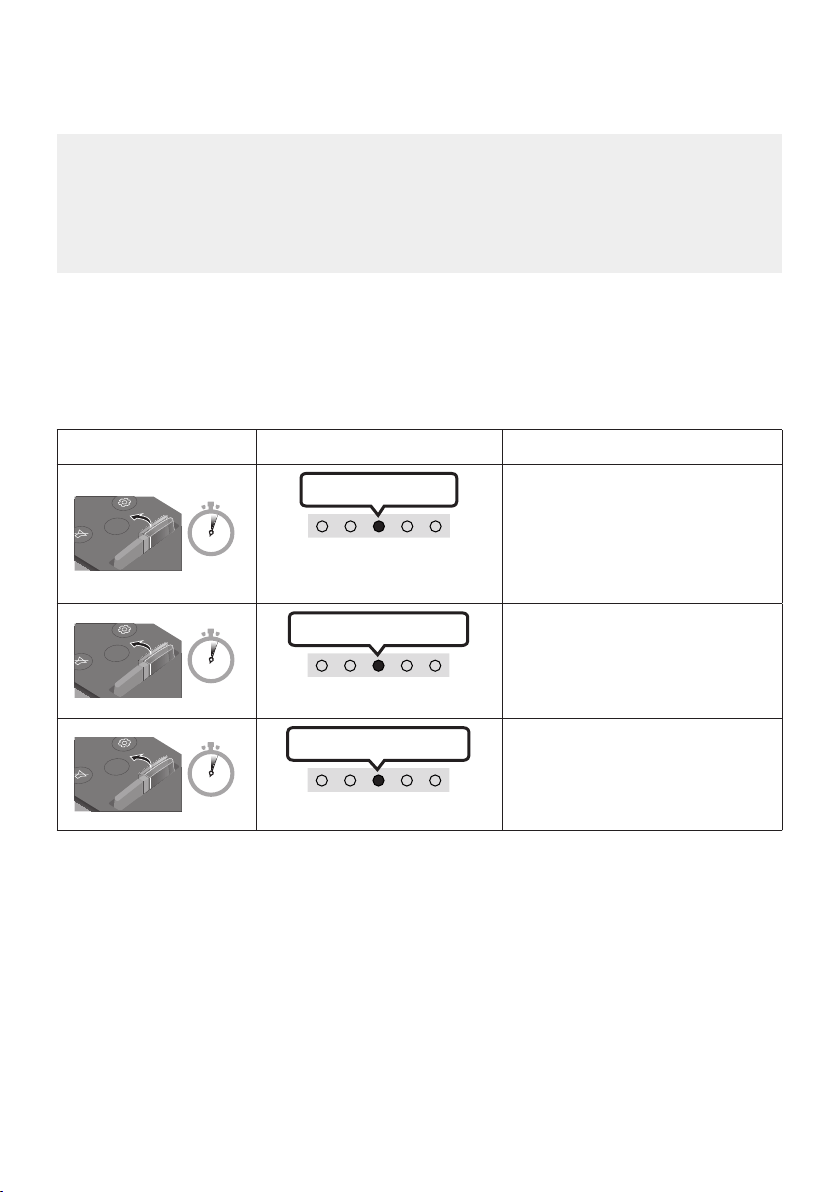
Adjusting the Soundbar volume with a TV remote control
Adjust the Soundbar volume using the TV’s remote control.
• This function can be used with IR remote controls only. Bluetooth remote controls (remote
controls that require pairing) are not supported.
• Set the TV speaker to External Speaker to use this function.
• Manufacturers supporting this function:
VIZIO, LG, Sony, Sharp, PHILIPS, PANASONIC, TOSHIBA, Hisense, RCA
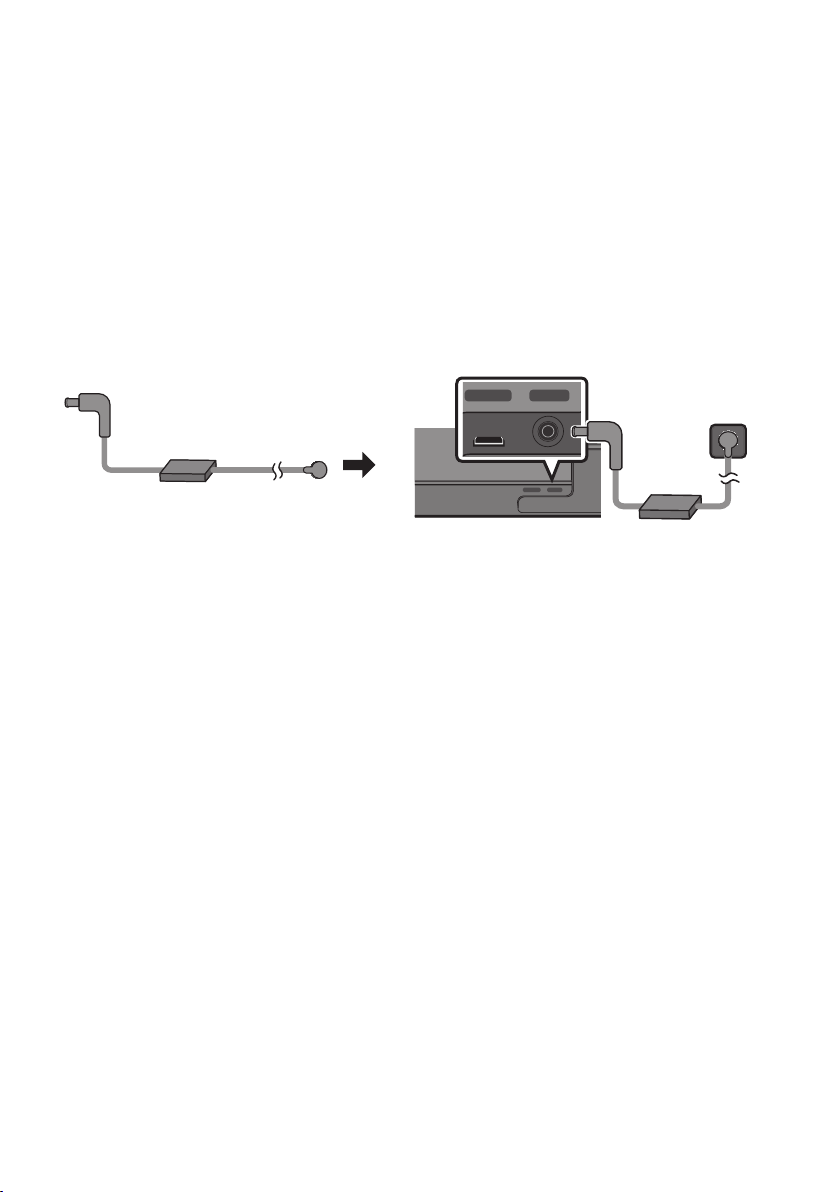
1. Turn Off the Soundbar.
2. Push up and hold the WOOFER button for 5 seconds.
Each time you push the WOOFER button up and hold it for 5 seconds, the mode switches in the
following order: “Off-TV Remote” (Default mode), “Samsung-TV Remote”, “All-TV Remote”.
The LED indicator status changes each time the mode is changed, as shown below.
Remote Control Button LED Indicator Status
SOUND
MODE
VOL
WOOFER
SOUNDBAR
5 Sec
"Off-TV Remote"
(Default mode)
Red Blinks X1
Disable the TV remote control.
SOUND
MODE
VOL
WOOFER
SOUNDBAR
5 Sec
"Samsung-TV Remote"
Cyan Blinks X1
Enable a Samsung TV’s IR remote
control.
SOUND
MODE
VOL
WOOFER
SOUNDBAR
5 Sec
"All-TV Remote"
Blue Blinks X1
Enable a third-party TV’s IR remote
control.
ENG - 16
04 CONNECTING THE SOUNDBAR
Connecting Electrical Power
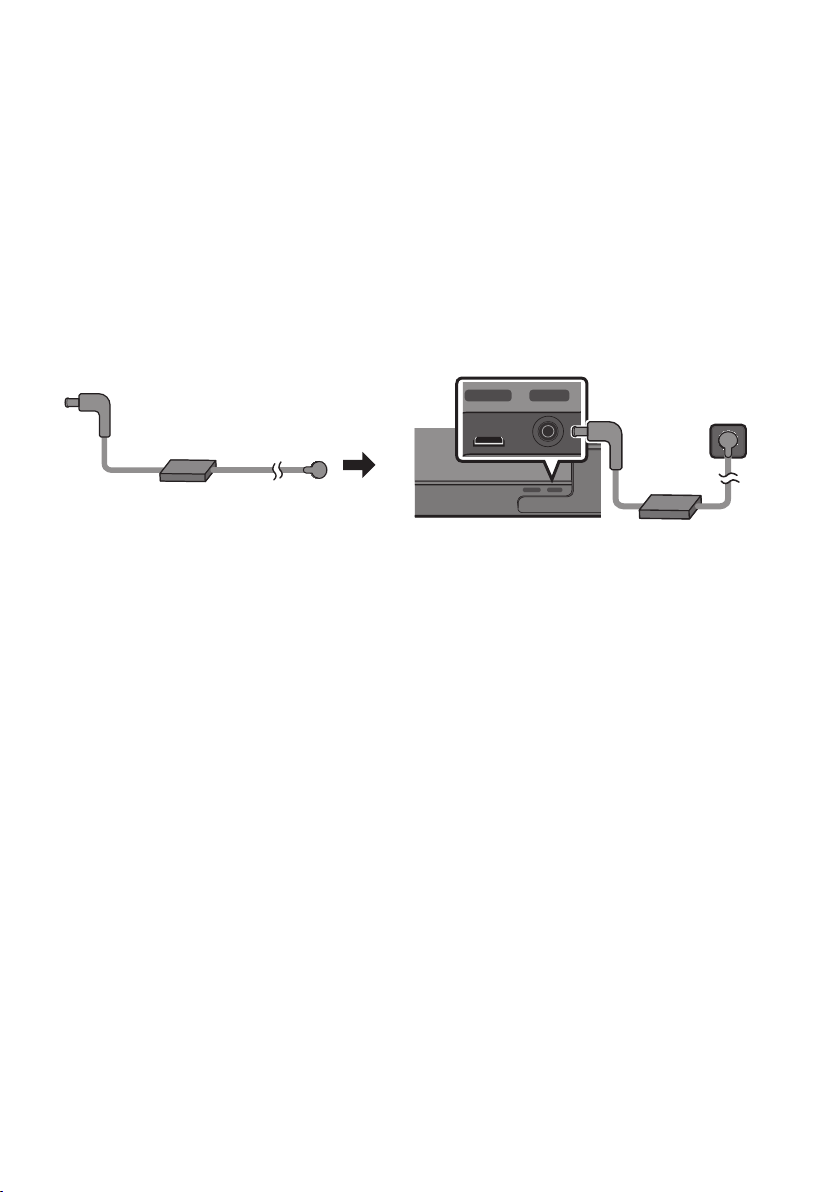
Use the power components to connect the Soundbar to an electrical outlet in the following order:
• For more information about the required electrical power and power consumption, refer to the
label attached to the product. (Label: Bottom of the Soundbar Main Unit)
1. First connect the power cable to the AC/DC adapter.
Connect the AC/DC adapter (with the power cable) to the Soundbar.
2. Connect the power cord to a wall socket.
DC 19V
Power Cord
AC/DC Adapter
SERVICE DC 19V
HDMI
(ARC)
DIGITAL AUDIO IN
(OPTICAL)
ID SET NETWORK
SERVICE DC 19V
HDMI
(ARC)
DIGITAL AUDIO IN
(OPTICAL)
SERVICE DC 19V
HDMI OUT
(TV-ARC)
DIGITAL AUDIO IN
(OPTICAL)
DIGITAL AUDIO IN
(OPTICAL)
ID SET NETWORK
SERVICE DC 19V
HDMI
(ARC)
DIGITAL AUDIO IN
(OPTICAL)
ID SET NETWORK
SERVICE DC 19V
HDMI
(ARC)
DIGITAL AUDIO IN
(OPTICAL)
SERVICE DC 19V
HDMI OUT
(TV-ARC)
DIGITAL AUDIO IN
(OPTICAL)
DIGITAL AUDIO IN
(OPTICAL)
ID SET NETWORK
DC 19V
Bottom of the Soundbar Main Unit
NOTES
• If you unplug and reconnect the power cord when the product is turned on, the Soundbar turns on
automatically.
• Make sure to rest the AC/DC Adapter at on a table or the oor. If you place the AC/DC Adapter so
that it is hanging with the AC cord input facing upwards, water or other foreign substances could
enter the Adapter and cause the Adapter to malfunction.
Connecting an SWA-9100S (Sold Separately), SWA-W500 (Sold
Separately) to your Soundbar
Expand to true wireless surround sound by connecting the Samsung Wireless Rear Speaker Kit
(SWA-9100S, sold separately) and Wireless Subwoofer (SWA-W500, sold separately) to your Soundbar.
For detailed information on connections, see the Samsung Wireless Rear Speaker Kit and Wireless
Subwoofer manual.
ENG - 17
05 USING A WIRED CONNECTION TO THE TV
Method 1. Connecting with HDMI
CAUTION
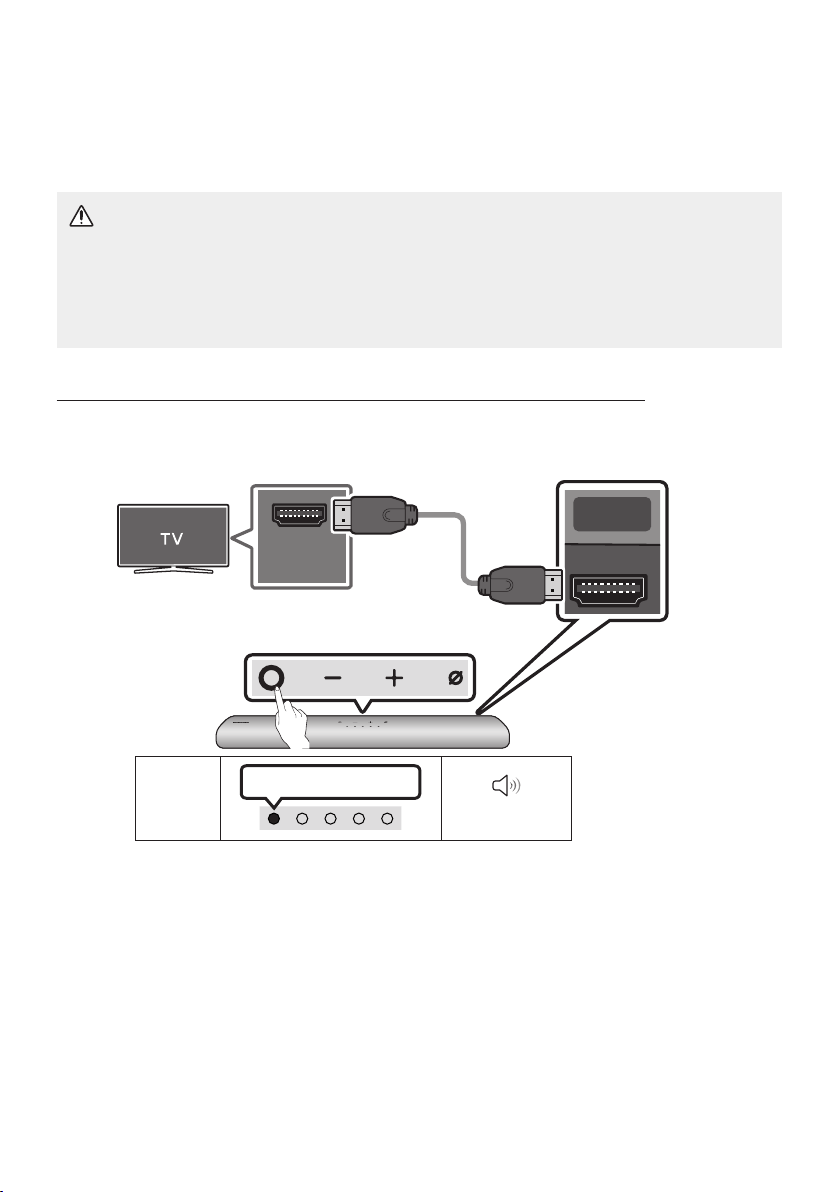
• When both the HDMI cable and optical cable are connected, the HDMI signal is received rst.
• To connect the HDMI cable between the TV and Soundbar, be sure to connect the terminals
marked ARC. Otherwise, the TV sound may not be output.
• The recommended cable is High Speed HDMI Cable with Ethernet.
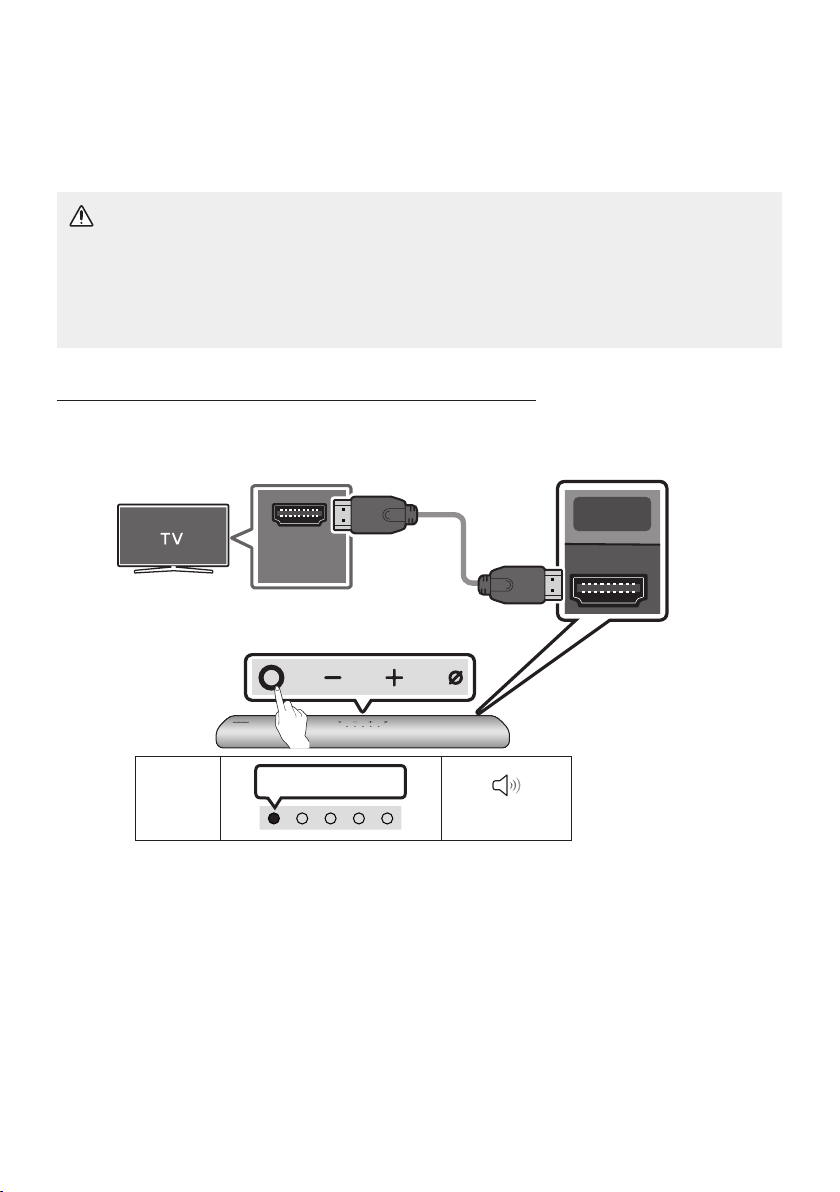
Connecting the TV that supports HDMI ARC (Audio Return Channel)
HDMI IN
(ARC)
SERVICE DC 19V
HDMI
(ARC)
DIGITAL AUDIO IN
(OPTICAL)
Connect to the HDMI IN
(ARC) port of your TV.
HDMI Cable
Bottom of the
Soundbar
Connect to the HDMI (ARC) port of the
Soundbar main unit.
Top of the Soundbar
LED
Indicator
White On -> Off
“Digital Audio In”
1. With the Soundbar and TV turned off, connect the HDMI cable as shown in the gure.
2. Turn on the Soundbar and TV.
3. TV sound is output from the Soundbar.

ENG - 18
• When the TV sound is not output, press the (Multi Function) button at the top of the
Soundbar or the (Source) button on the remote control to select the “Digital Audio In”
mode.
• When the sound is not output, check the HDMI Cable connection again.
• Use the volume buttons on the TV’s remote control to change the volume on the Soundbar.
NOTES
• When you connect the TV that supports the HDMI ARC (Audio Return Channel) to the Soundbar
with an HDMI cable, you can transmit the digital video and audio data without connecting a
separate optical cable.
• We recommend you use a coreless HDMI cable if possible. If you use a cored HDMI cable, use one
whose diameter is less than 14 mm.
• This function is not available if the HDMI cable does not support ARC.
• When the audio in a broadcast is encoded in Dolby Digital and the “Digital Output Audio Format” on
your TV is set to PCM, we recommend that you change the setting to Dolby Digital. When the
setting on the TV is changed, you will experience better sound quality. (The TV menu may use
different words for Dolby Digital and PCM depending on the TV manufacturer.)
ENG - 19
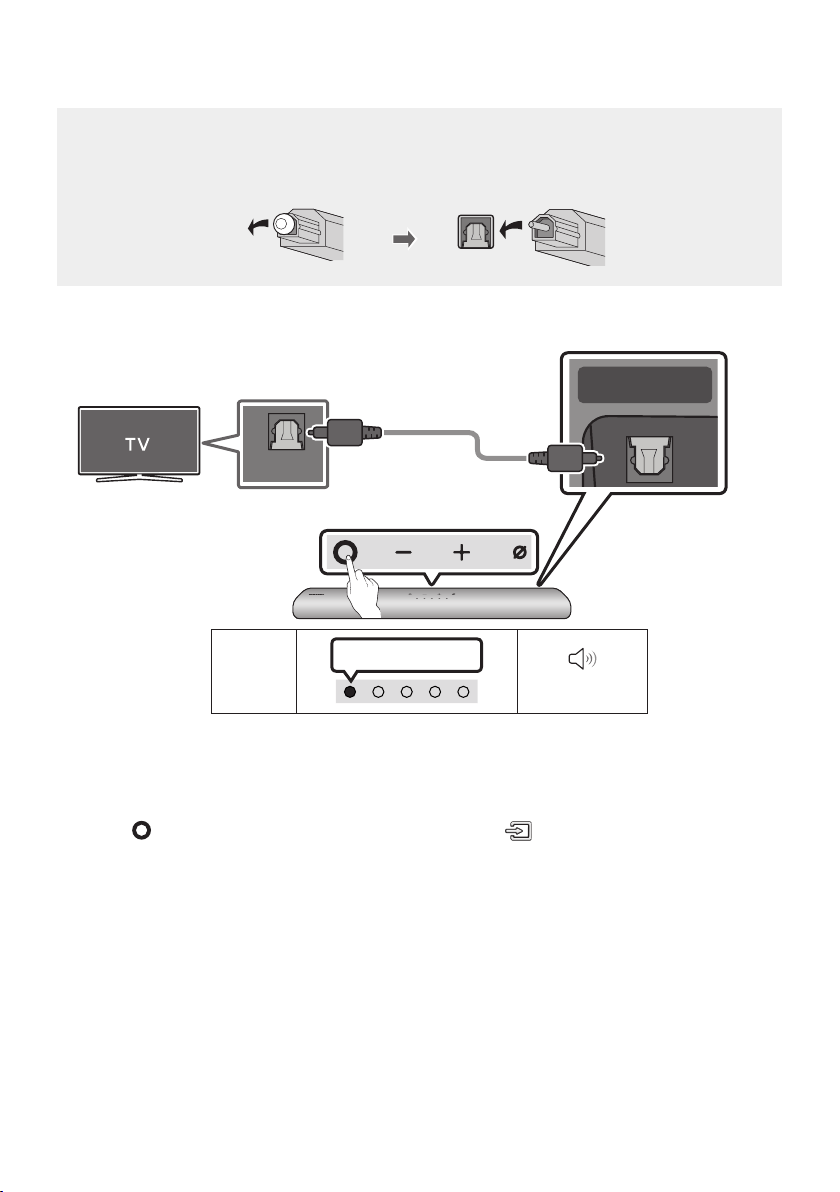
Method 2. Connecting using an Optical Cable
Pre-connection Checklist
• When both the HDMI cable and optical cable are connected, the HDMI signal is received rst.
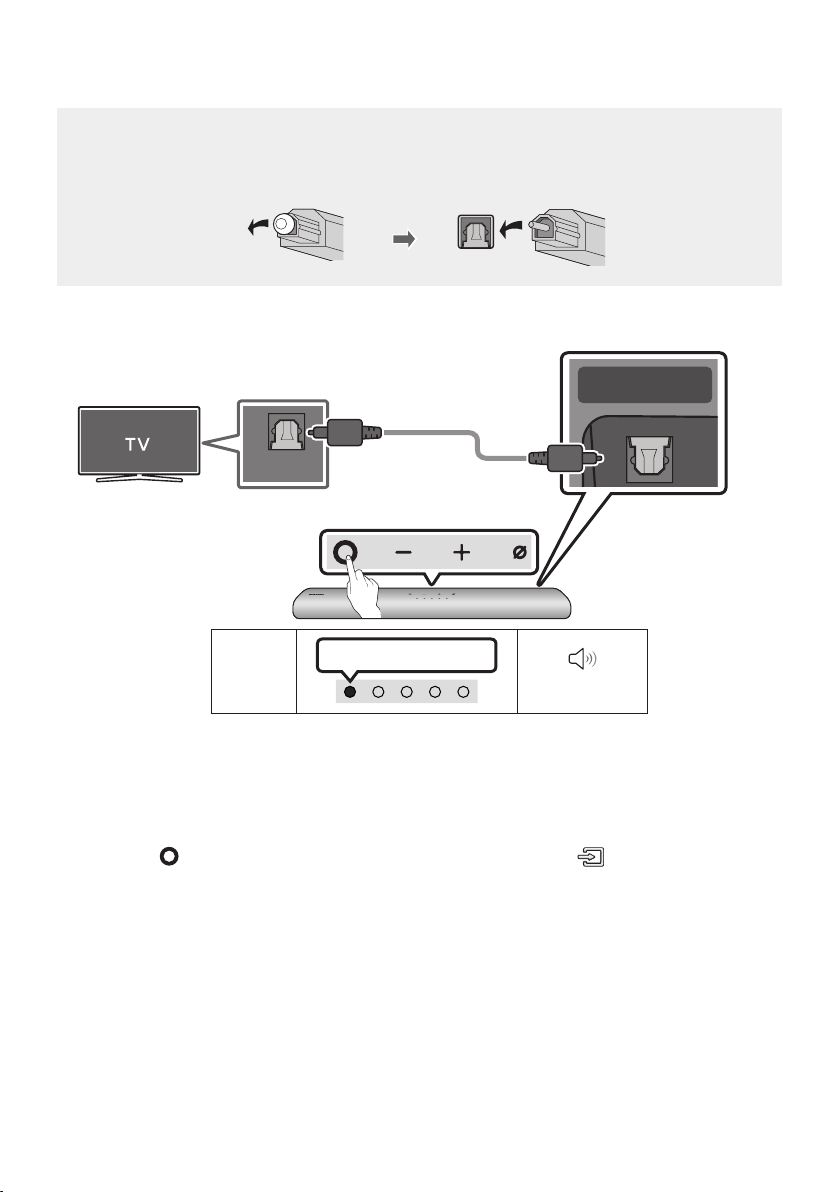
• When you use an optical cable and the terminals have covers, be sure to remove the covers.
LED
Indicator
White On -> Off
“Digital Audio In”
OPTICAL OUT
SERVICE DC 19V
HDMI OUT
(TV-ARC)
DIGITAL AUDIO IN
(OPTICAL)
Bottom of the Soundbar
Optical Cable
(not supplied)
Top of the Soundbar
1. With the TV and Soundbar turned off, connect the DIGITAL AUDIO IN (OPTICAL) port on the
Soundbar and the OPTICAL output port on the TV with the optical cable (not supplied), as shown in
the gure.
2. Turn on the Soundbar and TV.
3. Press the (Multi Function) button at the top of the Soundbar or the (Source) button on the
remote control and then select the “Digital Audio In” mode. Then the announcement, “Digital
Audio In” is output.
4. The TV sound is output from the Soundbar.
ENG - 20
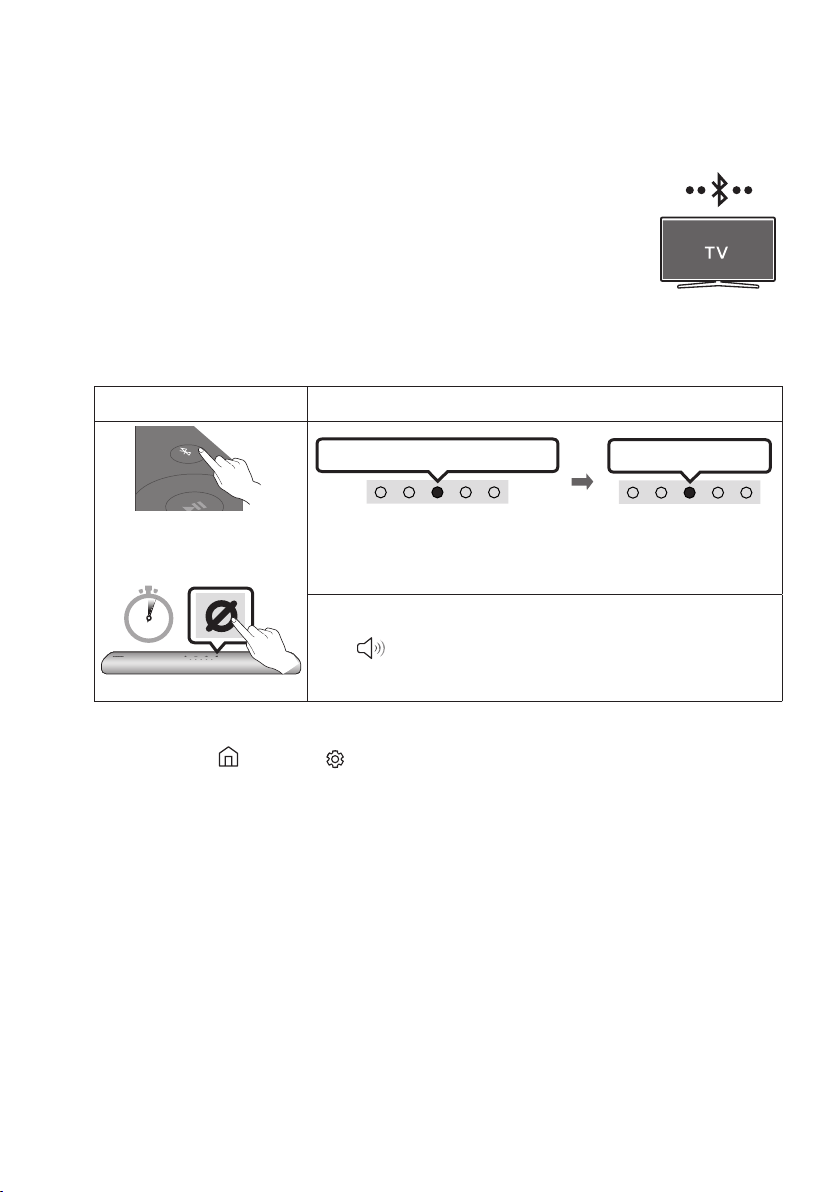
06 USING A WIRELESS CONNECTION TO THE TV
Method 1. Connecting via Bluetooth
When a Samsung TV is connected using Bluetooth, you can hear stereo sound
without the hassle of cabling.
• Only one Samsung TV can be connected at a time.
• Samsung TV that supports Bluetooth can be connected. Check the
specications of your TV.
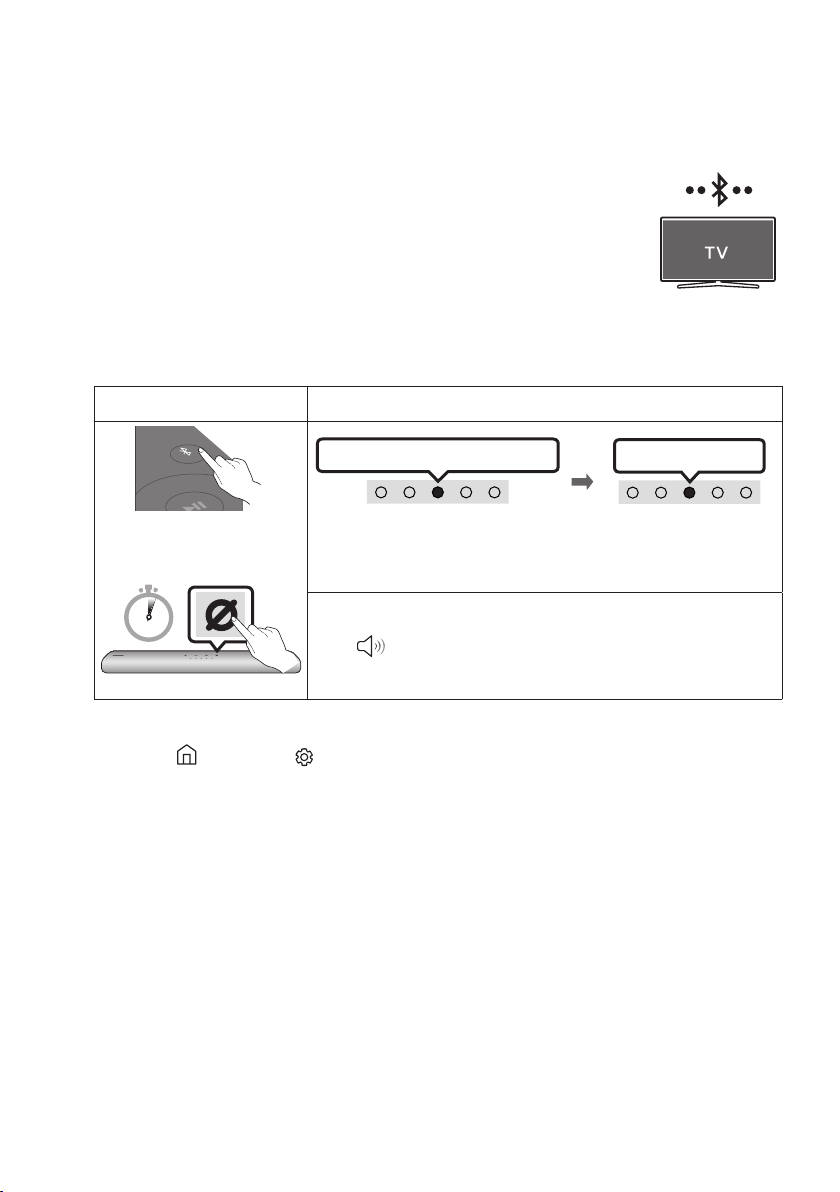
The initial connection
1.
Bluetooth Pairing button LED Indicator
SOUND
MODE
PAIR
OR
Red → Green → Blue Blinks
Pairing
Connection is complete
Cyan Blinks X3
When in “Bluetooth” mode
5 Sec
• Until pairing is complete, the Multicolour LED changes as Red →
Green → Blue in turn.
“Ready to connect via Bluetooth.”
2. Select Bluetooth mode on the Samsung TV.
(e.g. Home ( ) Settings ( ) Sound Sound Output Bluetooth Speaker List
[AV] Samsung Soundbar S60A / [AV] Samsung Soundbar S61A (Bluetooth))
3. Select “[AV] Samsung Soundbar S60A / [AV] Samsung Soundbar S61A” from the list on TV’s
screen.
An available Soundbar is indicated with “Need Pairing” or “Paired” on the TV’s Bluetooth device
list. To connect the Samsung TV to the Soundbar, select the message, and then establish a
connection.
4. You can now hear Samsung TV sound from the Soundbar.
• If there is a connection log between the Soundbar and Samsung TV, the Soundbar is
automatically connected by changing its mode to “Bluetooth”

ENG - 21
If the device fails to connect
• If you have an existing Soundbar (e.g., [AV] Samsung Soundbar S60A / [AV] Samsung Soundbar
S61A) on the list of speakers on the Samsung TV, delete it.
• Then repeat steps 1 through 3.
Disconnecting the Soundbar from the Samsung TV
Press the (Multi Function) button at the top of the Soundbar or the (Source) button on the
remote control to select the mode other than “Bluetooth”.
• Disconnecting takes time because the Samsung TV must receive a response from the Soundbar.
(The time required may differ, depending on the Samsung TV model.)
Notes on Bluetooth connection
• Locate a new device within 1 m to connect via Bluetooth communication.
• If asked for a PIN code when connecting a Bluetooth device, enter <0000>.
• The Soundbar automatically turns off after 18 minutes in the Ready state.
• The Soundbar may not perform Bluetooth search or connection correctly under the following
circumstances:
– If there is a strong electrical eld around the Soundbar.
– If several Bluetooth devices are simultaneously paired with the Soundbar.
– If the Bluetooth device is turned off, not in place, or malfunctions.
• Electronic devices may cause radio interference. Devices that generate electromagnetic waves
must be kept away from the Soundbar main unit - e.g., microwaves, wireless LAN devices, etc.

ENG - 22
Method 2. Connecting via Wi-Fi
Pre-connection Checklist
• Wi-Fi connection is available only on Samsung TV.
• Check whether the wireless router (Wi-Fi) is turned on and the TV is connected to the router.
• The TV and Soundbar must be connected to the same wireless network (Wi-Fi).
• If your wireless router (Wi-Fi) uses a DFS channel, you will not be able to establish a Wi-Fi
connection between the TV and Soundbar. Contact your Internet service provider for details.
• Because the menus may differ depending on the year of manufacture, refer to your TV manual.
• To connect the TV to the Soundbar via Wi-Fi, connect the Soundbar to the wireless router rst.
See page 27, for details on how to establish a Wi-Fi connection.
1. For more information about Wi-Fi connection to the Soundbar, see page 27, “Method 2.
Connecting via Wi-Fi (Wireless Network)”.
2. Change the input source of the TV by using the Audio menu to Soundbar.
• Samsung TVs released in 2017 or later
Home ( ) Settings ( ) Sound Sound Output [AV] Samsung Soundbar S60A /
[AV] Samsung Soundbar S61A (Wi-Fi)
ENG - 23
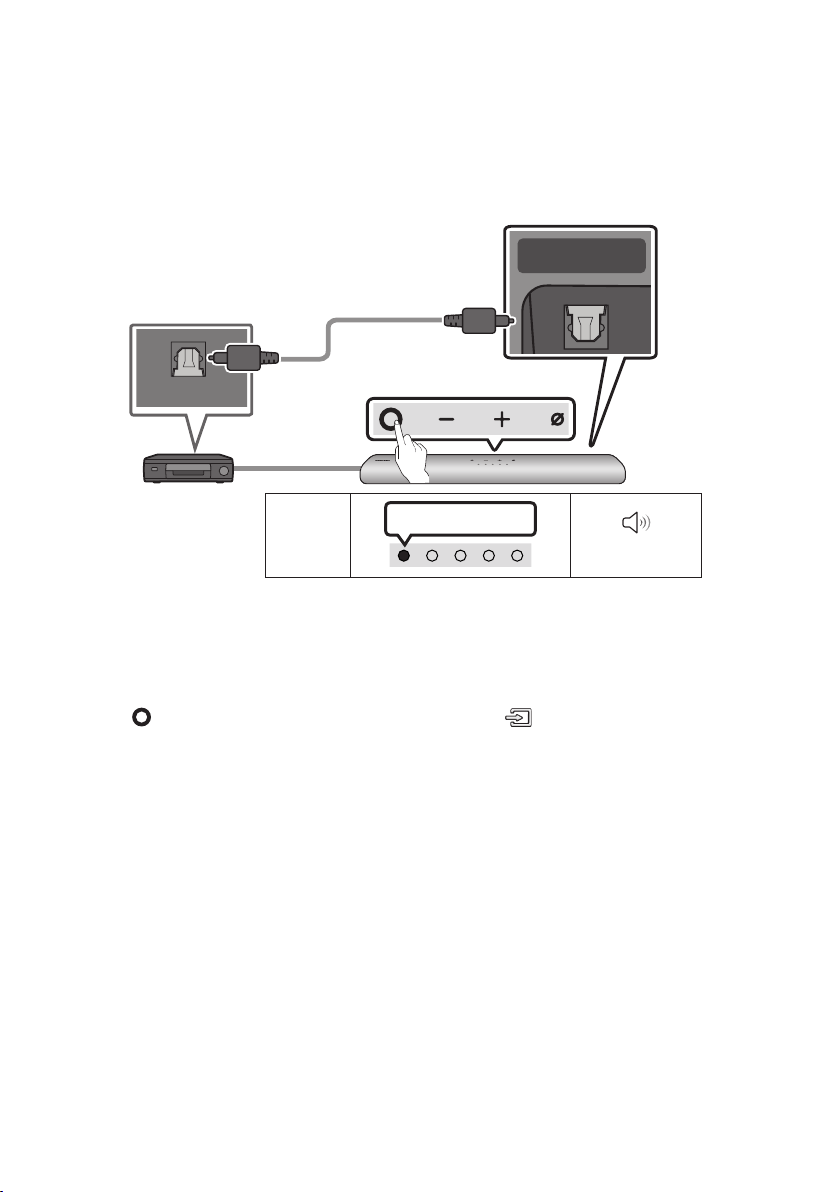
07 CONNECTING AN EXTERNAL DEVICE
Connecting using an Optical Cable
LED
Indicator
White On -> Off
“Digital Audio In”
- AUDIO -
R L
OPTICAL OUT
SERVICE DC 19V
HDMI OUT
(TV-ARC)
DIGITAL AUDIO IN
(OPTICAL)
Bottom of the Soundbar
Optical Cable
(not supplied)
Top of the Soundbar
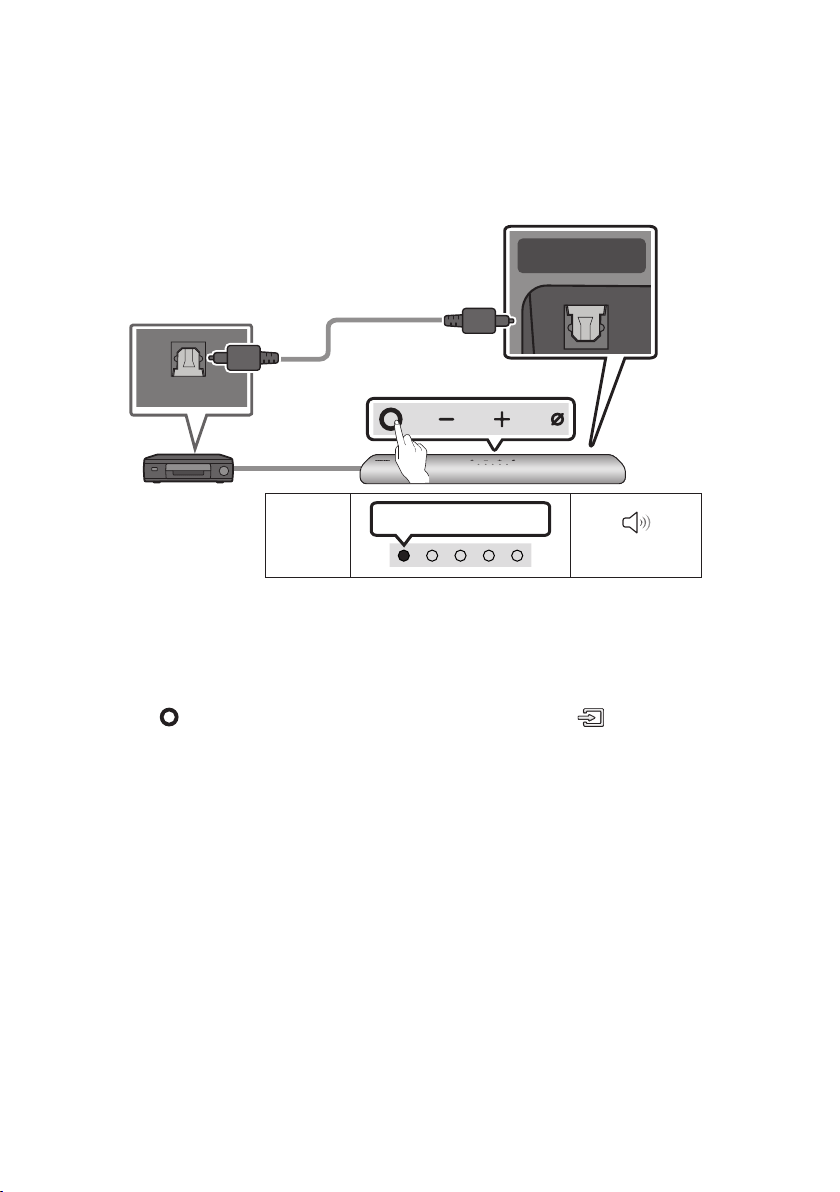
BD / DVD player / Set-top
box / Game console
1. With the external device and Soundbar turned off, connect the DIGITAL AUDIO IN (OPTICAL) port
on the Soundbar and the OPTICAL output port on the external device with the optical cable (not
supplied), as shown in the gure.
2. Turn on the Soundbar and external device.
3. Press the (Multi Function) button at the top of the Soundbar or the (Source) button on the
remote control and then select the “Digital Audio In” mode. Then the announcement, “Digital
Audio In” is output.
4. The external device sound is output from the Soundbar.
ENG - 24
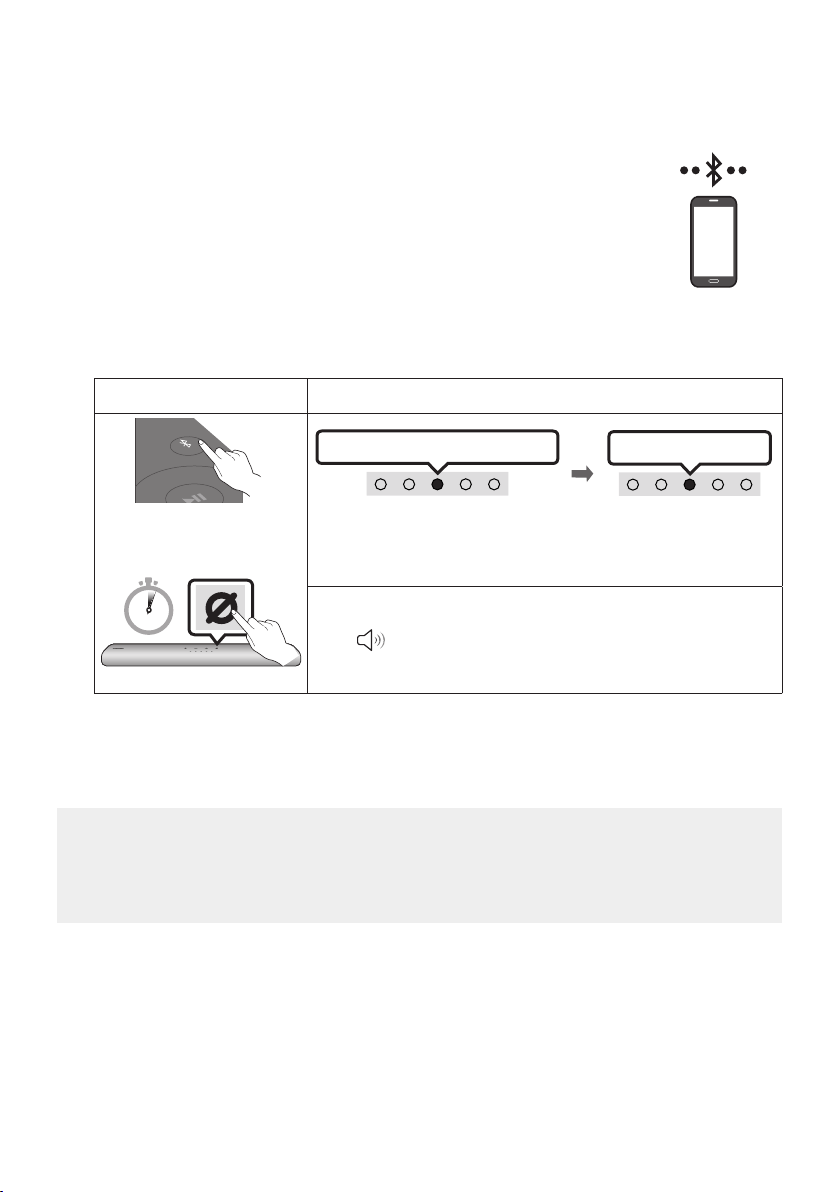
08 CONNECTING A MOBILE DEVICE
Method 1. Connecting via Bluetooth
When a mobile device is connected using Bluetooth, you can hear stereo sound
without the hassle of cabling.
• When you connect a paired Bluetooth device with the Soundbar off, the
Soundbar automatically turns on.
The initial connection
• When connecting to a new Bluetooth device, make sure the device is within 1 m distance.
1.
Bluetooth Pairing button LED Indicator
SOUND
MODE
PAIR
OR
Red → Green → Blue Blinks
Pairing
Connection is complete
Cyan Blinks X3
When in “Bluetooth” mode
5 Sec
• Until pairing is complete, the Multicolour LED changes as Red →
Green → Blue in turn.
“Ready to connect via Bluetooth.”
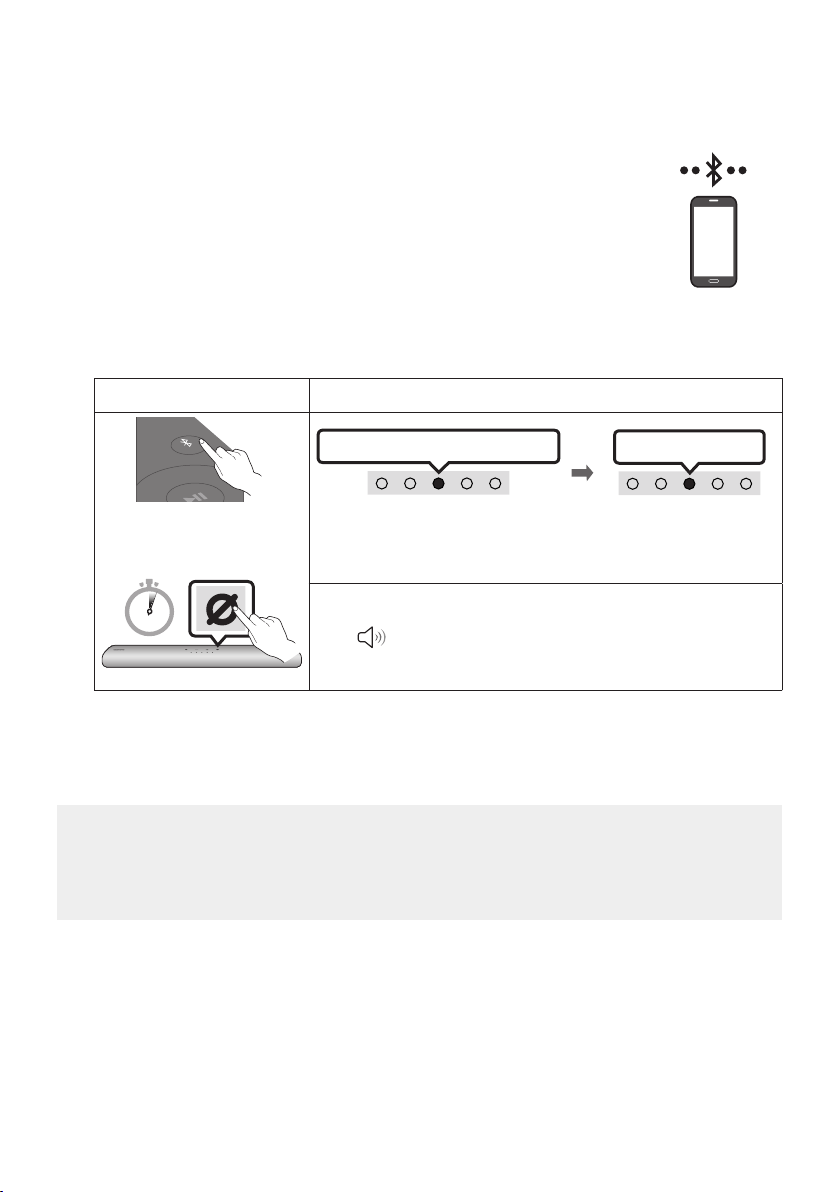
2. On your device, select “[AV] Samsung Soundbar S60A / [AV] Samsung Soundbar S61A” from the
list that appears.
3. Play music les from the device connected via Bluetooth through the Soundbar.
If the device fails to connect
• If you have an existing Soundbar (e.g., [AV] Samsung Soundbar S60A / [AV] Samsung Soundbar
S61A) on the list of speakers on the Mobile device, delete it.
• Then repeat steps 1 and 2.
mobile device

ENG - 25
Notes on Bluetooth connection
• Locate a new device within 1 m to connect via Bluetooth communication.
• If asked for a PIN code when connecting a Bluetooth device, enter <0000>.
• The Soundbar automatically turns off after 18 minutes in the Ready state.
• The Soundbar may not perform Bluetooth search or connection correctly under the following
circumstances:
– If there is a strong electrical eld around the Soundbar.
– If several Bluetooth devices are simultaneously paired with the Soundbar.
– If the Bluetooth device is turned off, not in place, or malfunctions.
• Electronic devices may cause radio interference. Devices that generate electromagnetic waves
must be kept away from the Soundbar main unit - e.g., microwaves, wireless LAN devices, etc.
• The Soundbar supports SBC data (44.1kHz, 48kHz).
• Connect only to a Bluetooth device that supports the A2DP (AV) function.
• You cannot connect the Soundbar to a Bluetooth device that supports only the HF (Hands Free)
function.
• When connecting the Soundbar to a Bluetooth device, place them as close to each other as possible.
• The farther the Soundbar and Bluetooth device are from each other, the lower the sound quality
will become.
The Bluetooth connection may break when the devices are out of the effective range.
• The Bluetooth connection may not function as intended in areas with poor reception.
• A Bluetooth device may experience noise or malfunction under in the following conditions:
– When the body is in contact with the signal transceiver on the Bluetooth device or Soundbar
– In corners or when there is an obstacle in proximity, such as a wall or partition, where electrical
changes may occur.
– When exposed to radio interferences by other products operating on the same frequency
ranges, such as medical equipment, microwave ovens, and wireless LAN devices.
– Obstacles such as doors and walls may still impact the sound quality even when the devices
are within the effective range.
• Note that your Soundbar cannot be paired with other Bluetooth devices while using the Bluetooth
option.
• This wireless device may cause electrical interference during operation.

ENG - 26
Disconnecting the Bluetooth device from a Soundbar
You can disconnect a Bluetooth device from the Soundbar. For instructions, see the Bluetooth device’s
user manual.
• The Soundbar will be disconnected.
• If the Soundbar is disconnected from the Bluetooth device, the multicolour LED indicator on the
Soundbar blinks "Red” three times.
Disconnecting the Soundbar from the Bluetooth device
Press the (Multi Function) button at the top of the Soundbar or the (Source) button on the
remote control to select the mode other than “Bluetooth”.
• Disconnecting takes time because the Bluetooth device must receive a response from the
Soundbar. (Disconnection time may differ, depending on the Bluetooth device)
• If the Soundbar is disconnected from the Bluetooth device, the multicolour LED indicator on the
Soundbar blinks "Red” three times.
ENG - 27
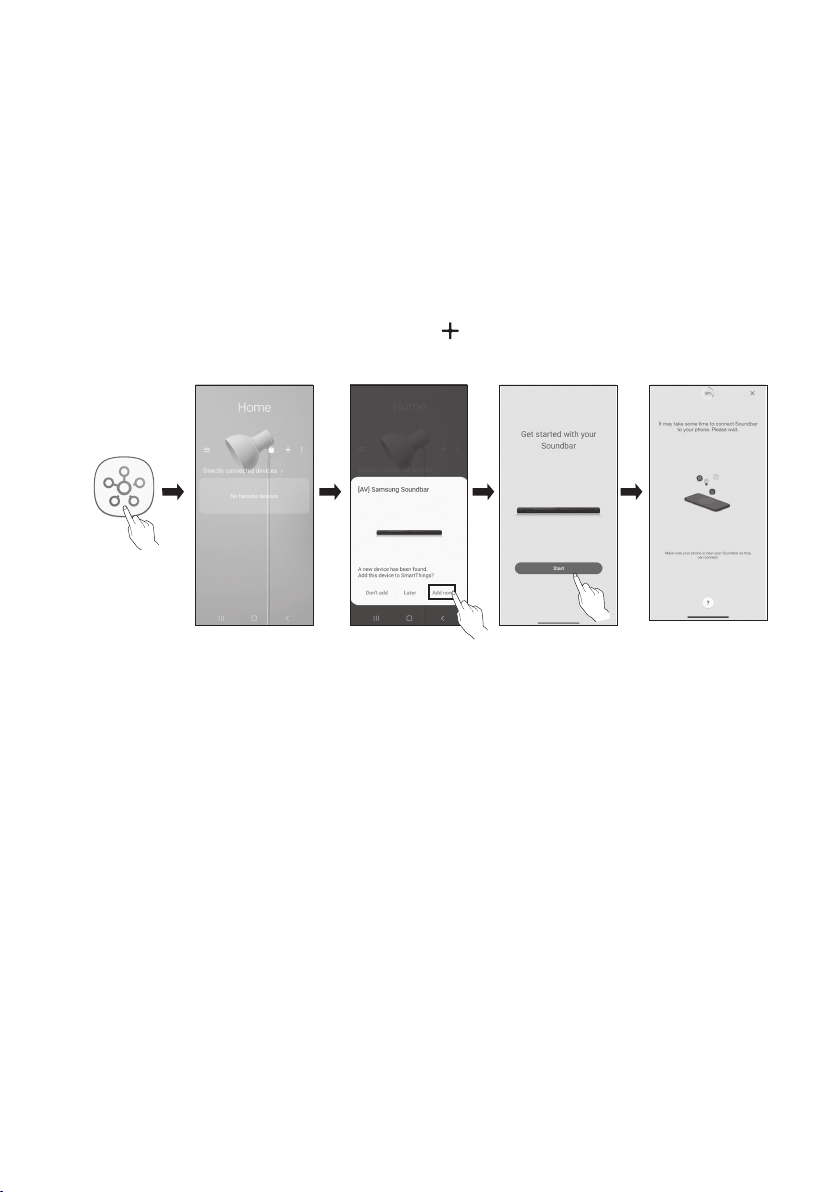
Method 2. Connecting via Wi-Fi (Wireless Network)
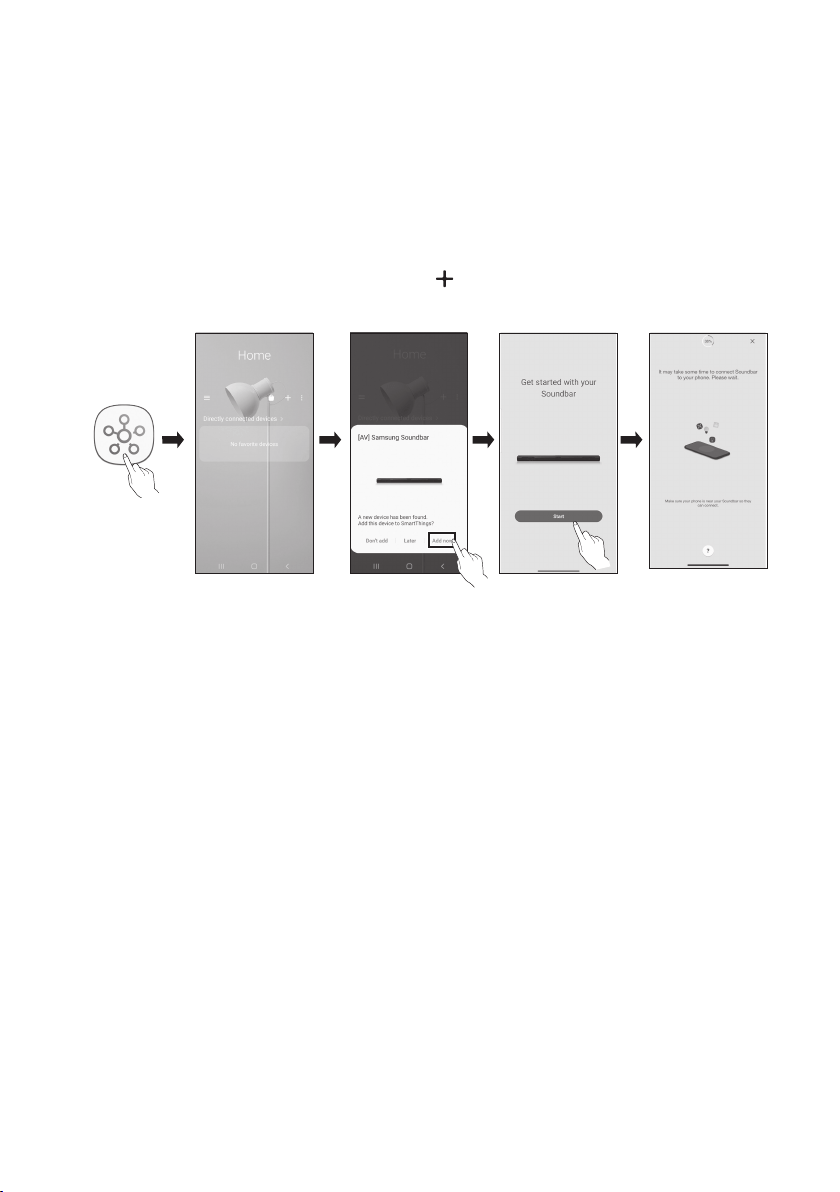
To connect a Soundbar to a mobile device via a wireless network (Wi-Fi), the SmartThings app is
required.
The initial connection
1. Install and launch the SmartThings app from your mobile device (smartphone or tablet).
2. On the app, follow the screen instructions to add the Soundbar.
• The automatic pop-up (the second screenshot below) may not show on some devices.
If the pop-up window does not appear, press “ ” on the Home screen. The Soundbar is added
to the app.
Launch App Add deviceAuto pop-up
SmartThings
App
ENG - 28
Getting Started with Amazon Alexa (Built-in Alexa)
• Amazon Alexa is a service provided by Amazon.
• This function may not be supported depending on the model or geographical area.
• This function only supports some languages, and the supported functions may differ depending on the
geographical area.
• Forproductspecicationorcompatibility,refertotheSamsungwebsite(www.samsung.com).
Using Alexa, you can play music, listen to news, see weather forecasts, and control home appliances.
To use Amazon Alexa, an Amazon account is required to connect the Soundbar over the network.
1. Install the SmartThings app on your mobile device and then launch it.
2. Enter the Alexa account by following the instructions on the app and then log in the service.
Top of the Soundbar
3 Sec
"Alexa"
OR
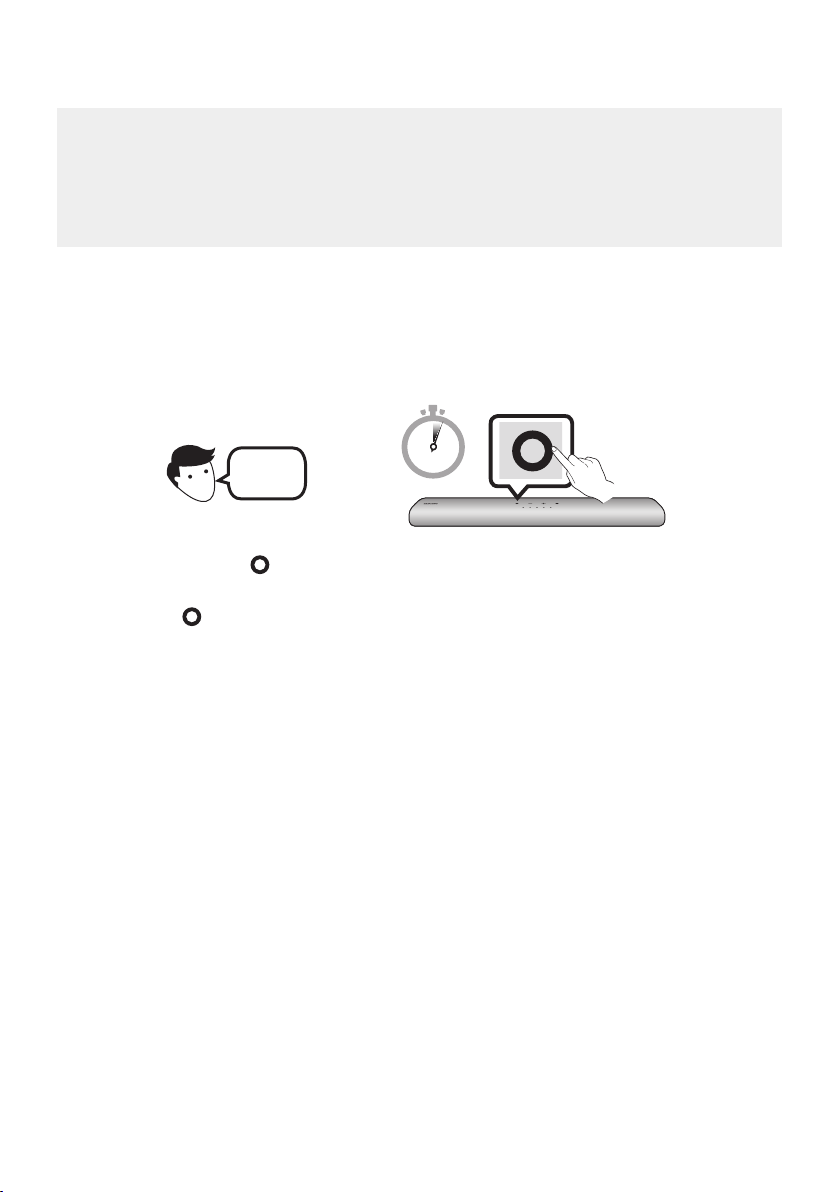
3. Call Alexa or press the (Multi Function) button on the Soundbar for 3 seconds to use the Alexa
service.
• Press the (Multi Function) button for 3 seconds to call Alexa. Say with the button pressed to
enable voice recognition.
• The LED indicator status on the Soundbar changes depending on the Alexa status. See page
31 for details.
ENG - 29
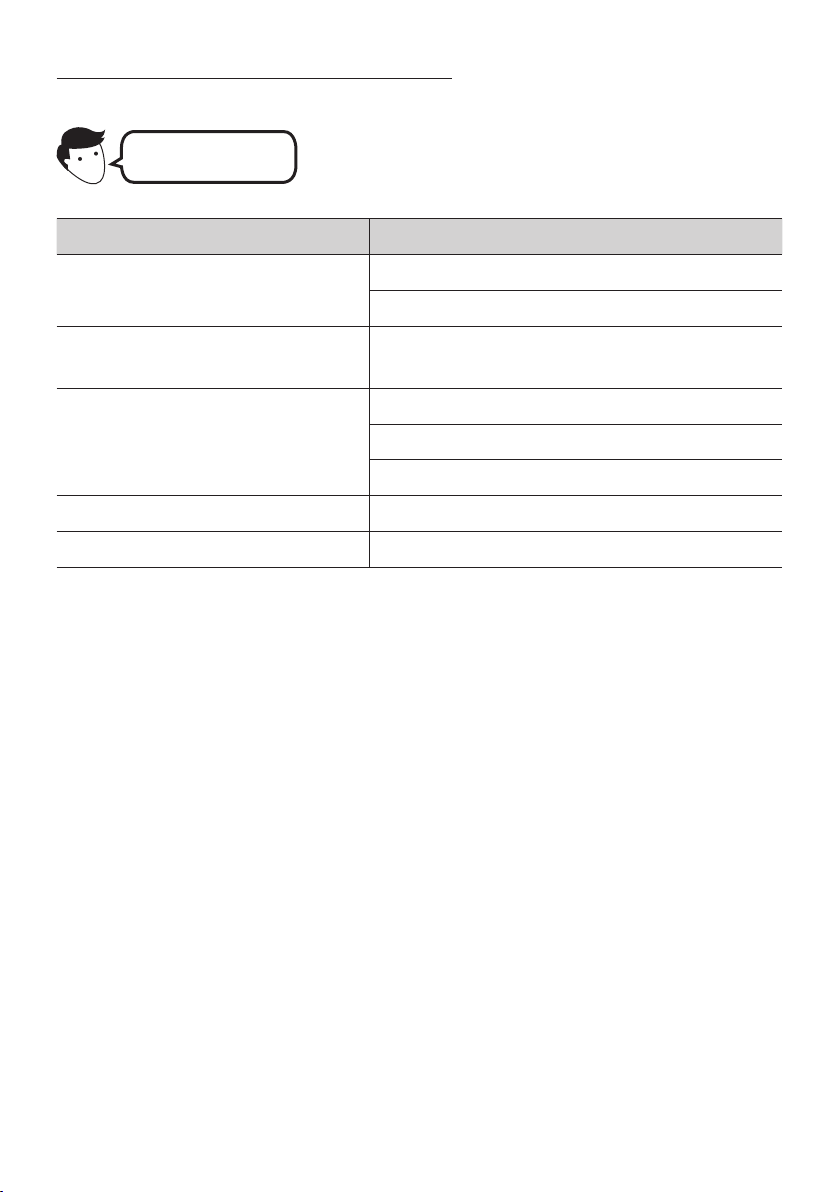
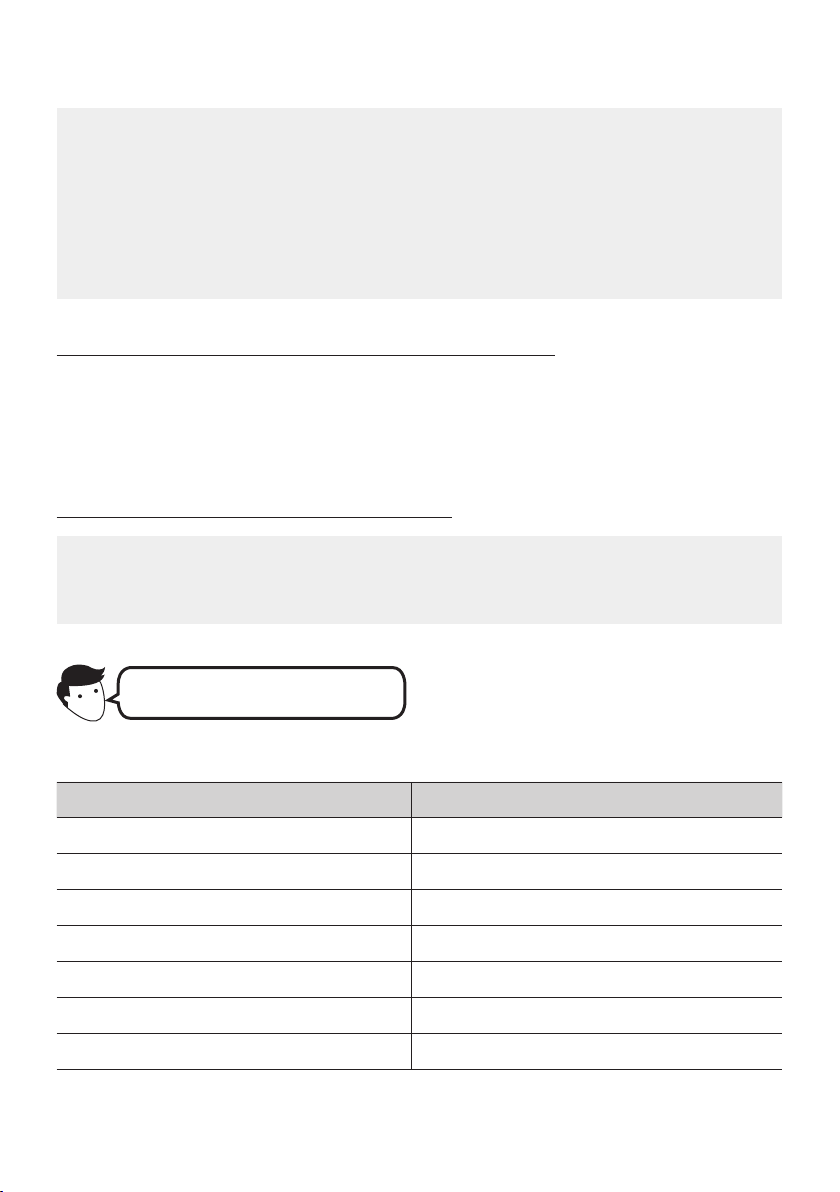
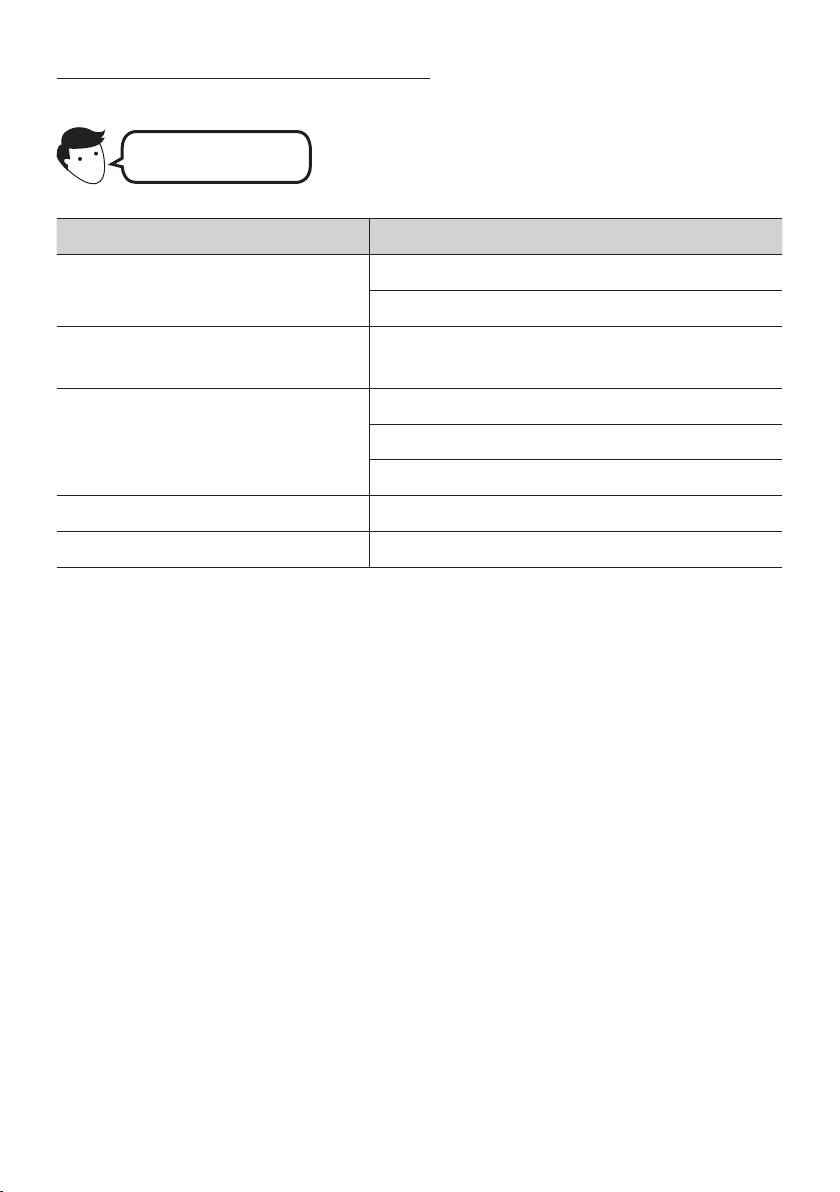
Use voice commands to control the Soundbar
Trigger + Command
Things to try Example of what to say
Volume control
"Alexa, turn up the volume."
“Alexa, turn down the volume”
Listening to streaming content from
Amazon Music
"Alexa, play some jazz music"
Playback control
"Alexa, play next song."
“Alexa, stop the music.”
“Alexa, what is this song?”
Weather information "Alexa, what’s the weather?"
Timer scheduling “Alexa, set a timer for 10 minutes.”
ENG - 30
Getting Started with Alexa on Amazon Product (Works with Alexa)
• This function may not be supported depending on the model or geographical area.
• This function only supports some languages, and the supported functions may differ depending on the
geographical area.
• Forproductspecicationorcompatibility,refertotheSamsungwebsite(www.samsung.com).
• This service is provided by Amazon and can be terminated at any time. Samsung does not assume
responsibility for service availability.
• Amazon Alexa
app screen is subject to change without prior notice.
Connect and use with an Amazon product (Amazon Echo)
Use an Amazon Echo product to control your Soundbar and enjoy music services provided by Amazon
Echo. To use Amazon Alexa, an Amazon account is required to connect the Soundbar over the network.
1. Install the SmartThings app on your mobile device and then launch it.
2. Enter the Alexa account by following the instructions on the app and then log in the service.
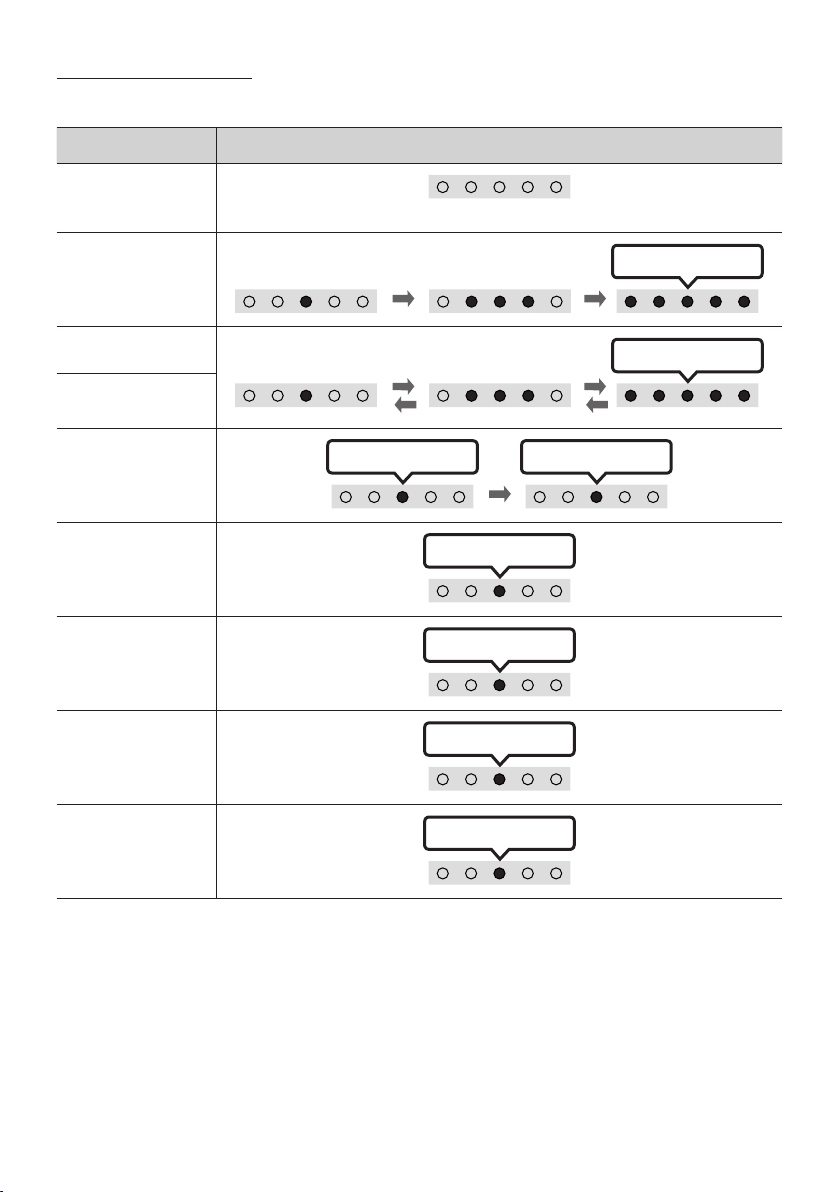
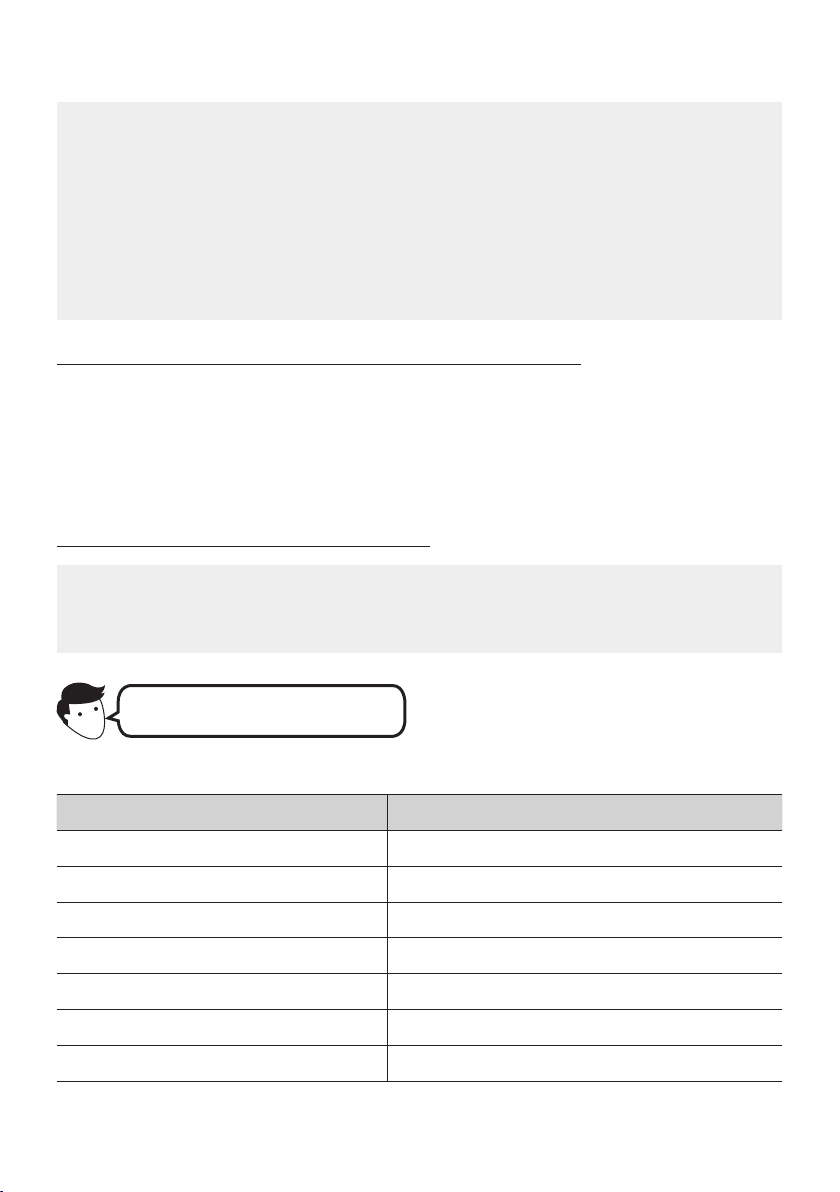
Use voice commands to control the Soundbar
• The Amazon Echo service you can use with your Soundbar is limited to music. Other services
provided by Amazon Echo, such as news and weather, can only be accessed through your
Amazon Echo product.
Trigger + Command + Speaker name
* To use voice commands for the Soundbar named “Living room”
Action Voice Command
To set the volume level to 5 "Alexa Set the volume to 5 on Living room"
To increase the volume level "Alexa Volume up on Living room"
To mute the sound "Alexa Mute on Living room"
To listen to a radio station named KISS FM "Alexa Play Kiss FM on Living room"
To play the next song "Alexa Next song on Living room"
To stop the audio "Alexa Stop on Living room"
To turn the audio off "Alexa Turn off on Living room"
ENG - 31
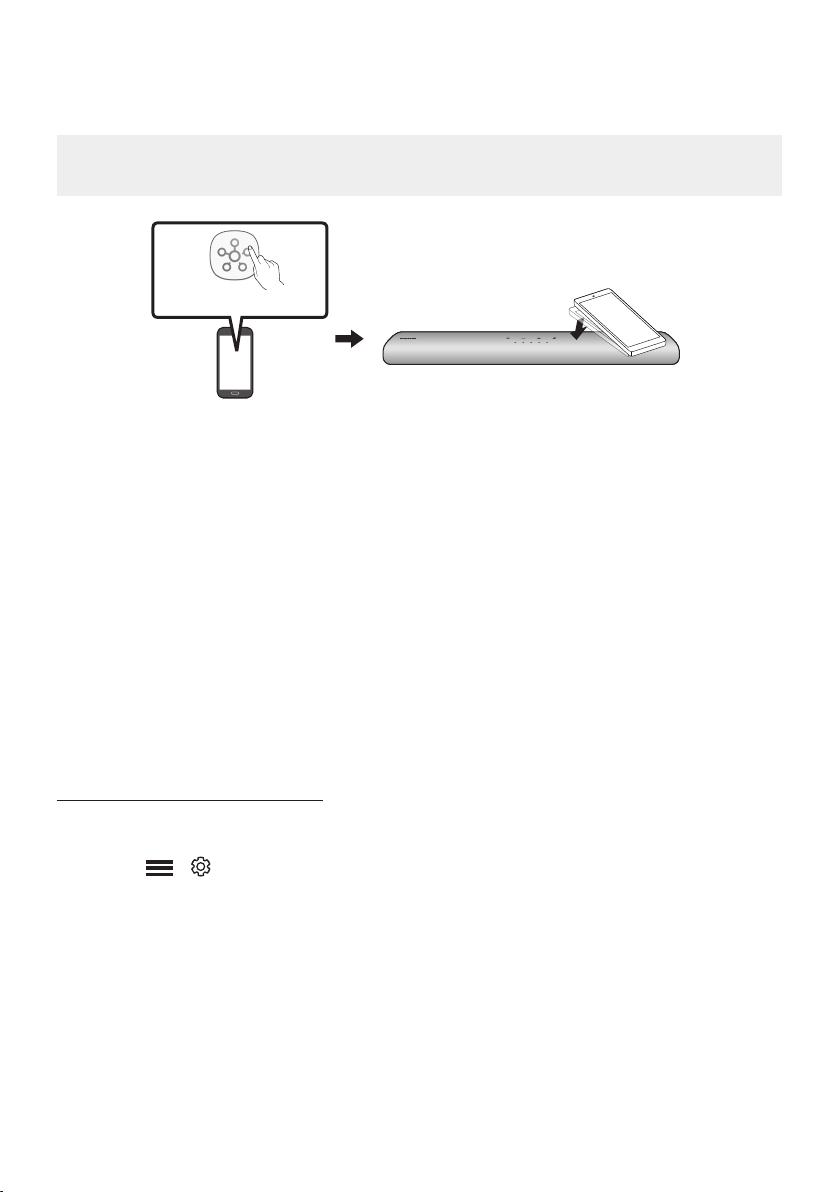
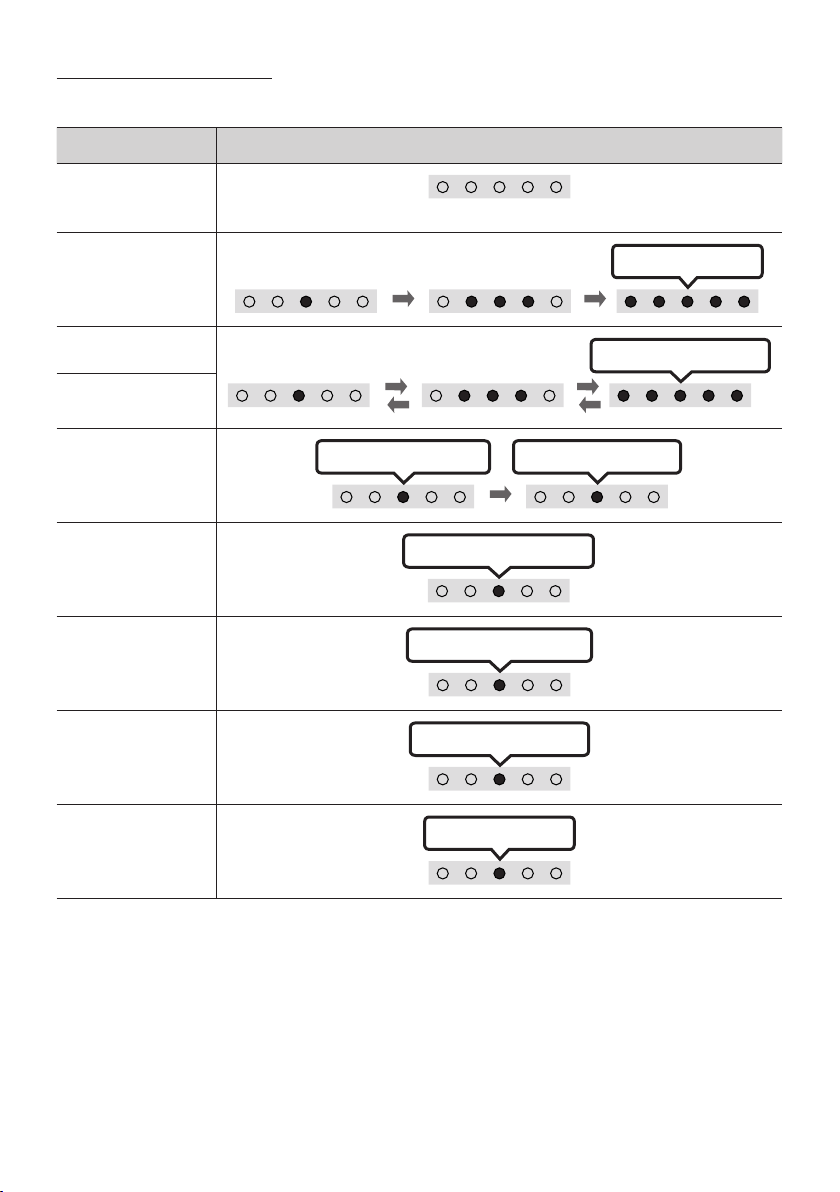
Alexa indicator status
The LED indicator status on the Soundbar changes depending on the Alexa status, as shown below.
Alexa status LED indicator on Soundbar
Idle
Off
Listening
Cyan On
Thinking
Cyan Blinks X1
Speaking
Timer Alarms and
Reminders
Cyan Blinks X2 Blue Blinks X2
Notication
Yellow Blinks X2
Alexa service
unavailable
Red Blinks X3
Network
disconnected
Red Blinks X3
Mic Off
Red On
ENG - 32
Using the Tap Sound
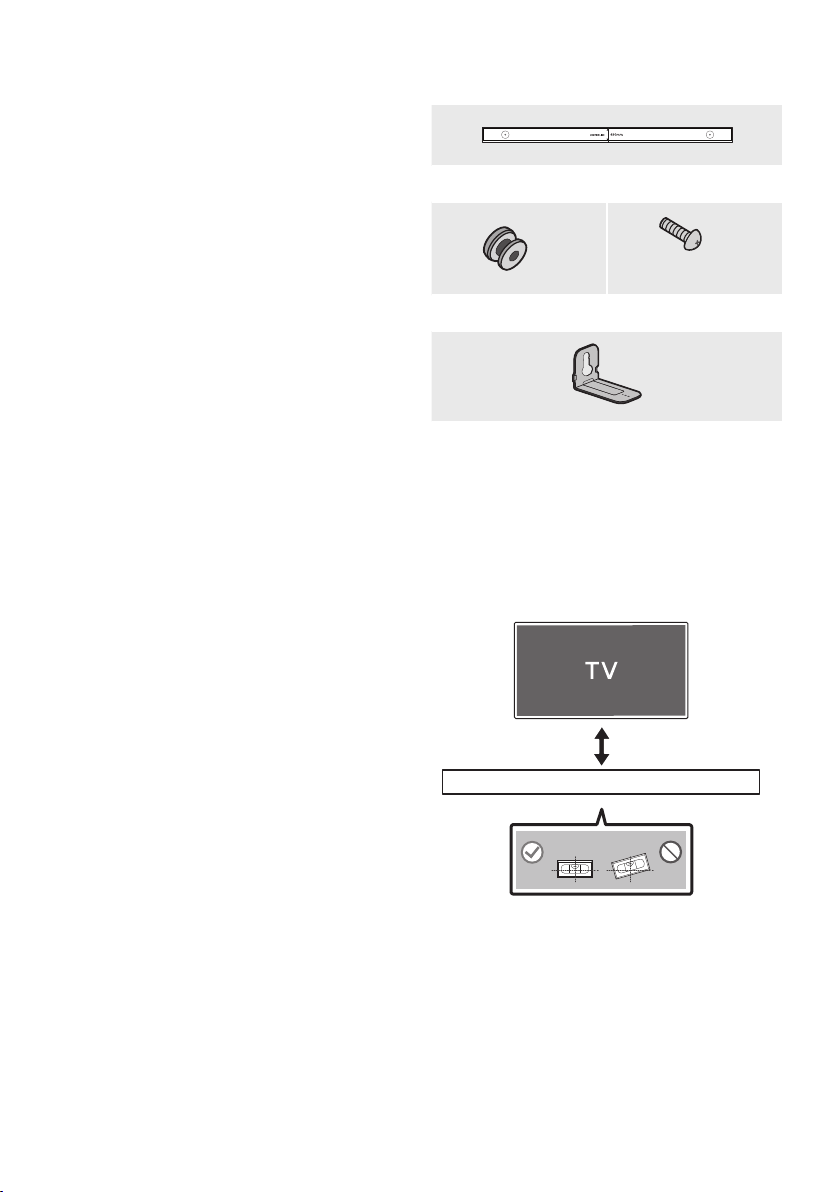
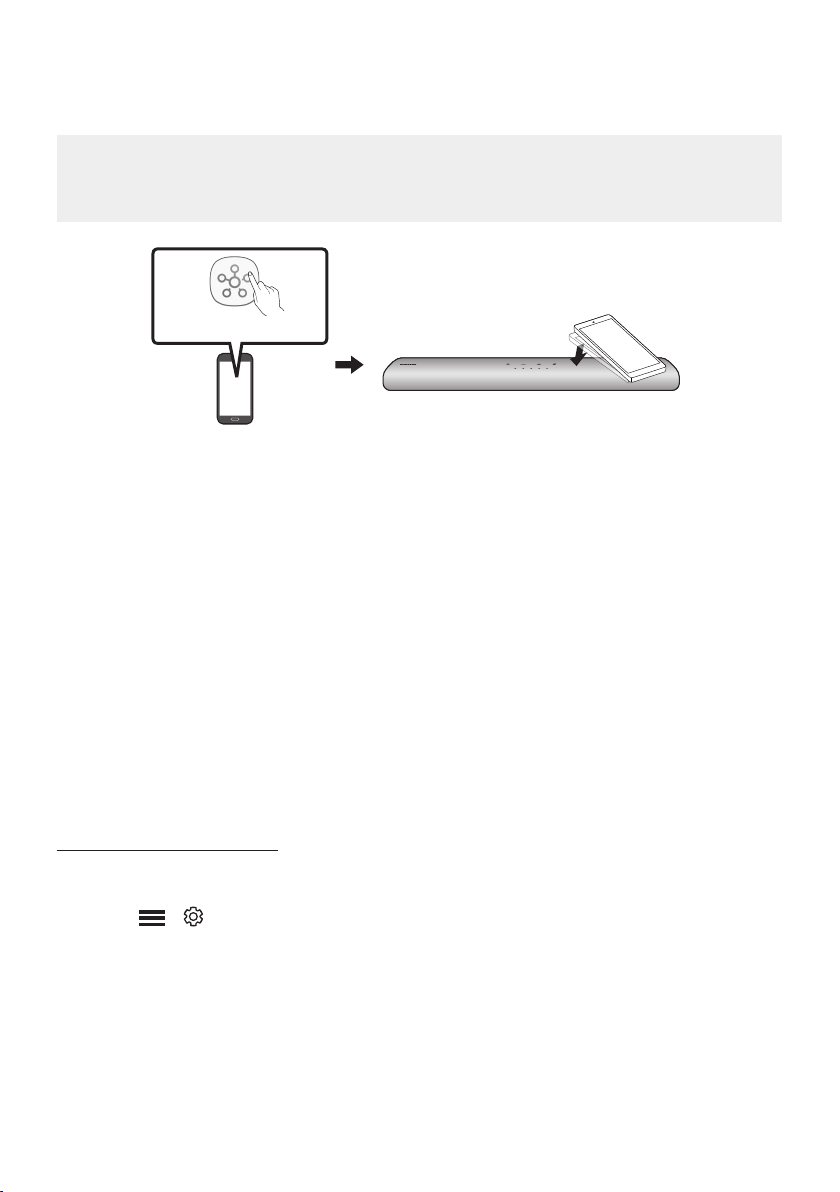
Tap the Soundbar with your mobile device to play audio from the mobile device through the Soundbar.
• This function may not be supported, depending on the mobile device.
• This function is only compatible with Samsung mobile devices with Android 8.1 or later.
Mobile device
SmartThings App
Top of the Soundbar
1. Turn on the Tap Sound function on your mobile device.
• For details on how to turn on the function, refer to “Enable the Tap Sound function” below.
2. Tap the Soundbar with the mobile device. Select “Start now” in the displayed message window.
A connection is established between the mobile device and Soundbar via Bluetooth.
3. Play audio from the mobile device through the Soundbar.
• This function connects a mobile device to the Soundbar via Bluetooth by detecting vibration
that occurs when the device touches the Soundbar.
• Make sure the mobile device does not tap a sharp corner of the Soundbar. The Soundbar or
mobile device may become scratched or damaged.
• It is recommended that the mobile device be covered with a case. Lightly tap the wide area in
the upper portion of the Soundbar, without using excessive force.
• To use this function, update the SmartThings app to the latest version.
The function may not be supported, depending on the app version.
Enable the Tap Sound function
Use the SmartThings app to turn on the Tap View, Tap Sound function.
1. On the mobile device, run the SmartThings app.
2. Select ( → ) in the SmartThings app screen displayed on the mobile device.
3. Set “Tap View, Tap Sound” to On to allow the function to work when a mobile device moves close to
the Soundbar.
NOTES
• When the mobile device is in power-saving mode, the Tap Sound function does not work.
• The Tap Sound function may not work if there are devices near the Soundbar that cause radio
interference such as electric devices. Make sure devices that may cause radio interference are
placed at a sufcient distance away from the Soundbar.

ENG - 33
09 CONNECTING TO APPLE AIRPLAY 2
• This feature may not be available in some countries.
Connect and use with an Apple product
• With AirPlay 2, you can control your home’s audio system from your iPhone, iPad, HomePod, or
Apple TV.
• This Samsung Soundbar supports AirPlay 2 and requires iOS 11.4 or later.
NOTE
• Conrm that the Soundbar is connected to Wi-Fi. (Refer to “Method 2. Connecting via Wi-Fi
(Wireless Network)”.)
ENG - 34
10 INSTALLING THE
WALL MOUNT
Installation Precautions
• Install on a vertical wall only.
• Do not install in a place with high
temperature or humidity.
• Verify whether the wall is strong enough to
support the product’s weight. If not, reinforce
the wall or choose another installation point.
• Purchase and use the xing screws or
anchors appropriate for the kind of wall you
have (plaster board, iron board, wood, etc.). If
possible, x the support screws into wall
studs.
• Purchase wall mounting screws according to
the type and thickness of the wall you want to
mount the Soundbar on.
– Diameter: M5
– Length: 35 mm or longer recommended.
• Connect cables from the unit to external
devices before you install the Soundbar on
the wall.
• Make sure the unit is turned off and
unplugged from the power source before you
install it. Otherwise, it may cause an electric
shock.
Wallmount Components
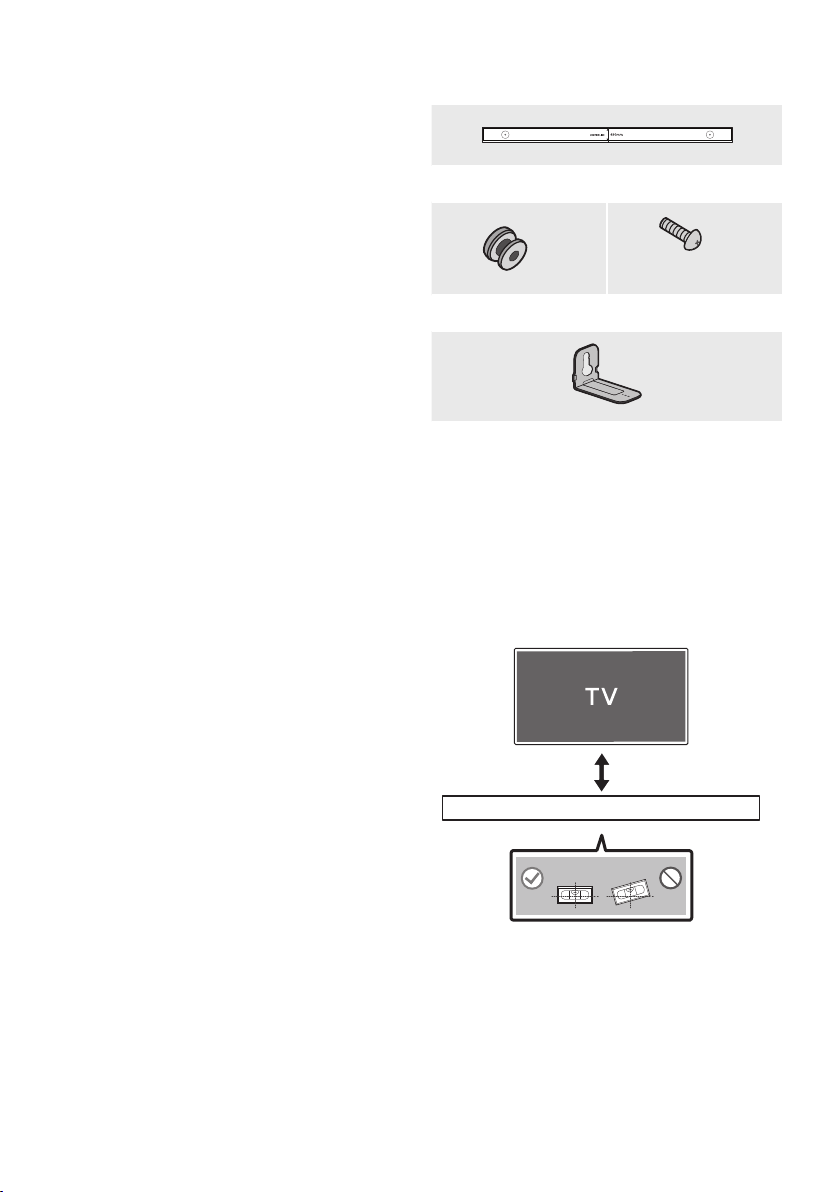
Wall Mount Guide
x 2
(M4 x L10)
x 2
Holder-Screw Screw
x 2
Bracket-Wall Mount
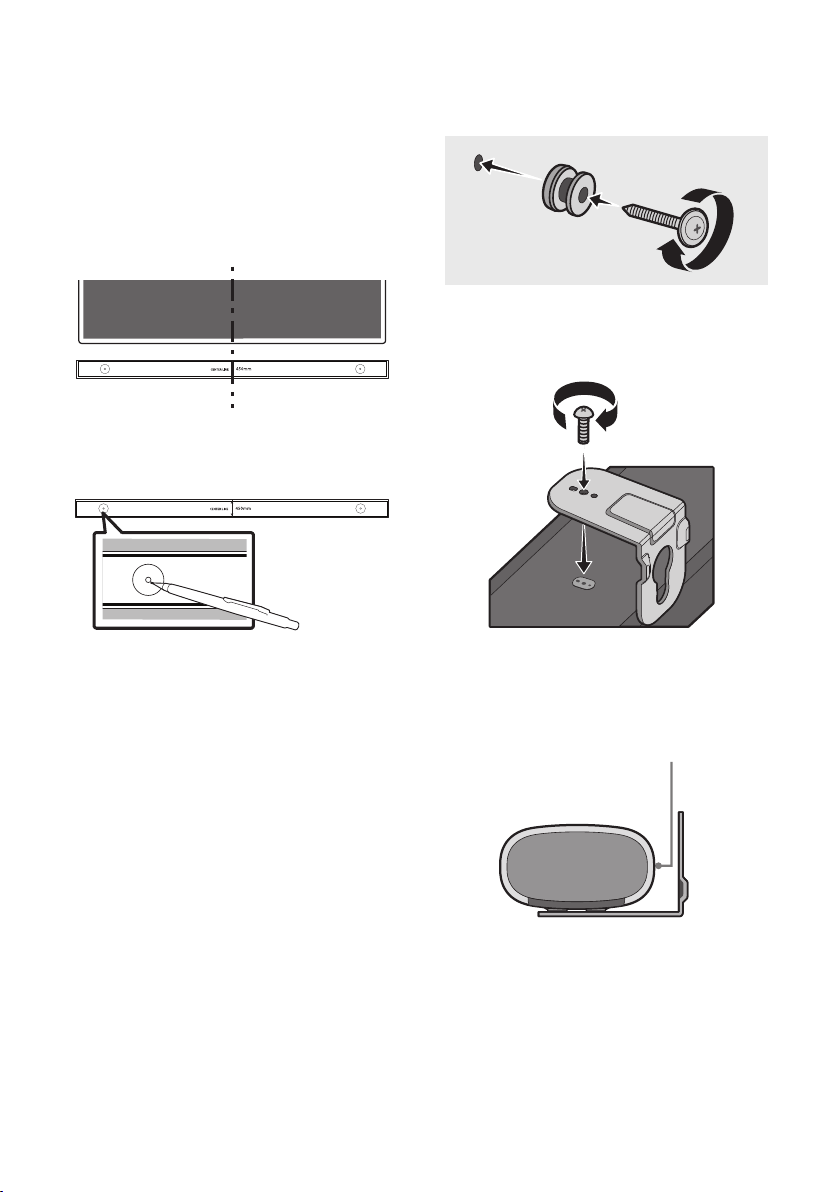
1. Place the Wall Mount Guide against the wall
surface.
• The Wall Mount Guide must be level.
• If your TV is mounted on the wall, install
the Soundbar at least 5 cm below the TV.
5 cm or more
ENG - 35
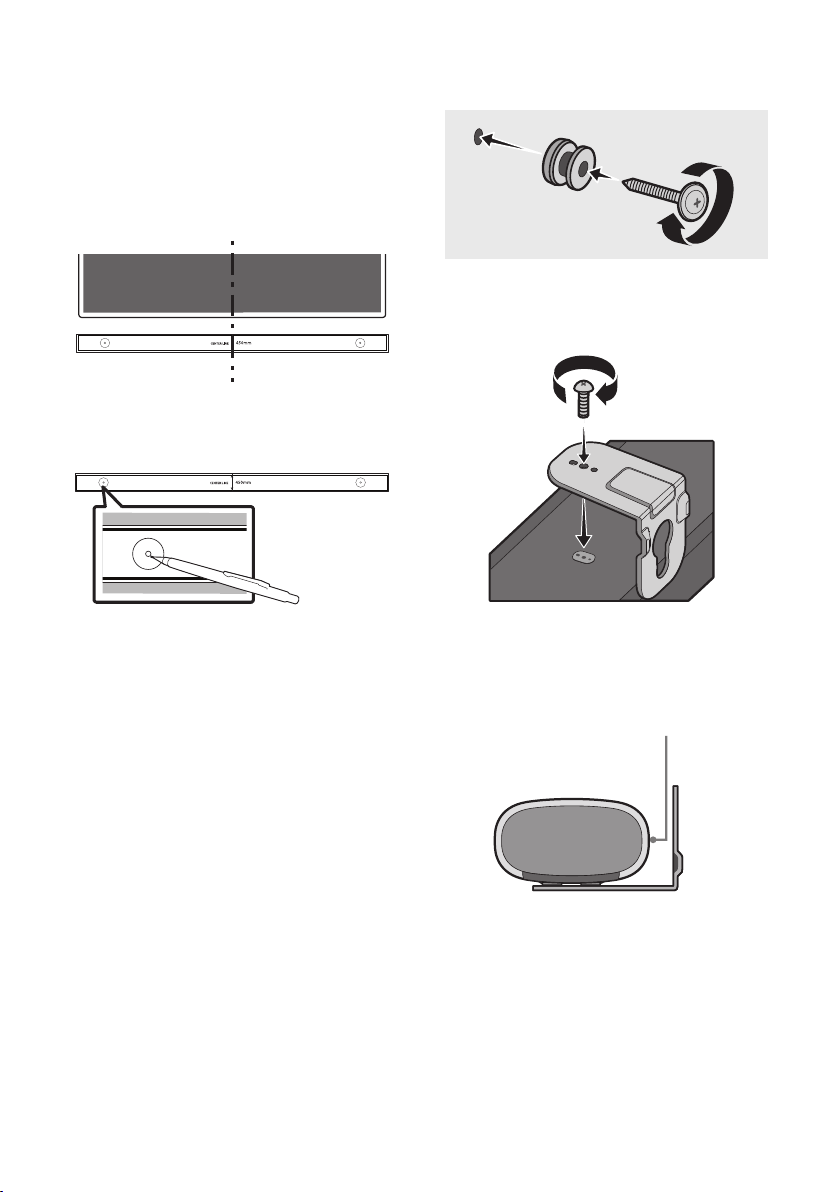
2. Align the Wall Mount Guide’s Centre Line
with the centre of your TV (if you are
mounting the Soundbar below your TV), and
then x the Wall Mount Guide to the wall
using tape.
• If you are not mounting below a TV, place
the Centre Line in the centre of the
installation area.
Centre Line
3. Use a pen to mark the positions of the holes
and remove the Wall Mount Guide.
4. Using an appropriately sized drill bit, drill a
hole in the wall at each marking.
• If the markings do not correspond to the
positions of studs, make sure you insert
appropriate anchors into the holes before
you insert the support screws. If you use
anchors, make sure the holes you drill are
large enough for the anchors you use.
5. Push a screw (not supplied) through each
Holder-Screw, and then screw each screw
rmly into a support screw hole.
6. Install the 2 Bracket-Wall Mounts in the
correct orientation on the bottom of the
Soundbar using 2 Screws.
• When assembling, make sure the hanger
part of the Bracket-Wall Mounts are
located behind the rear of the Soundbar.
Rear of Soundbar
Right end of Soundbar
ENG - 36
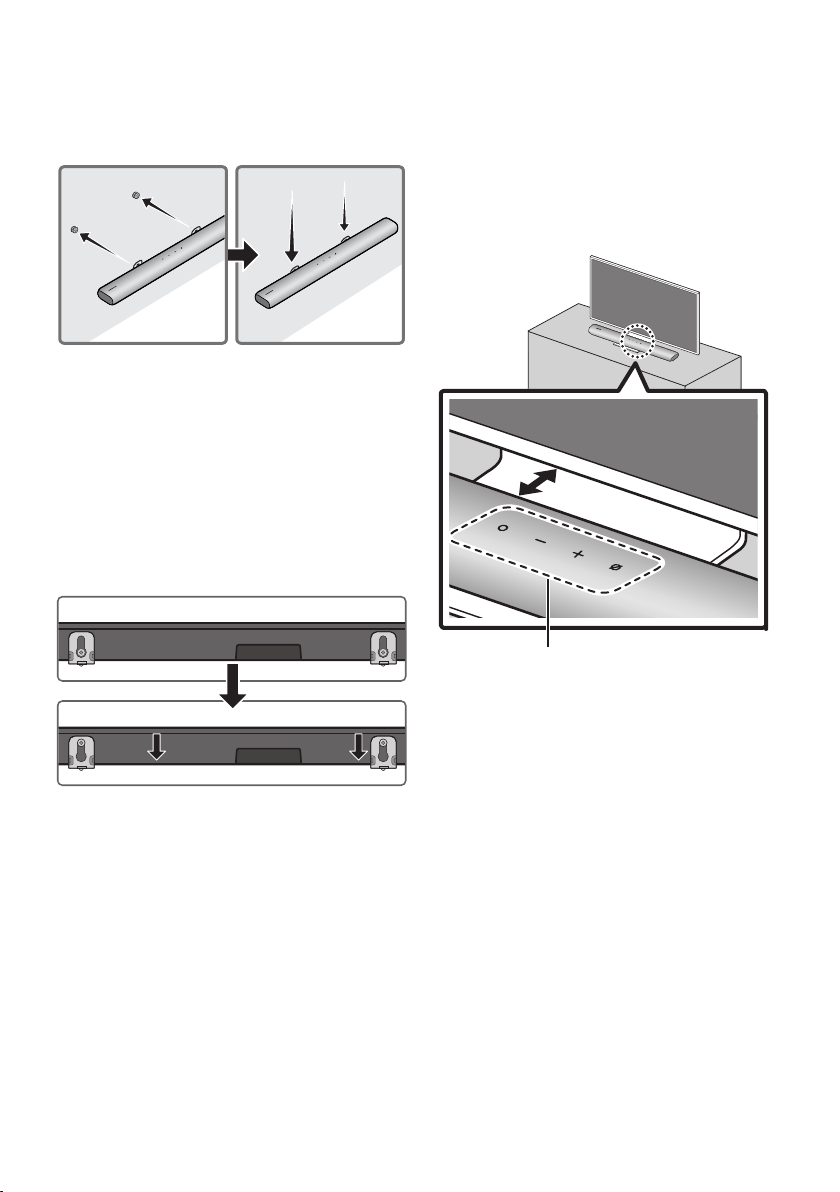
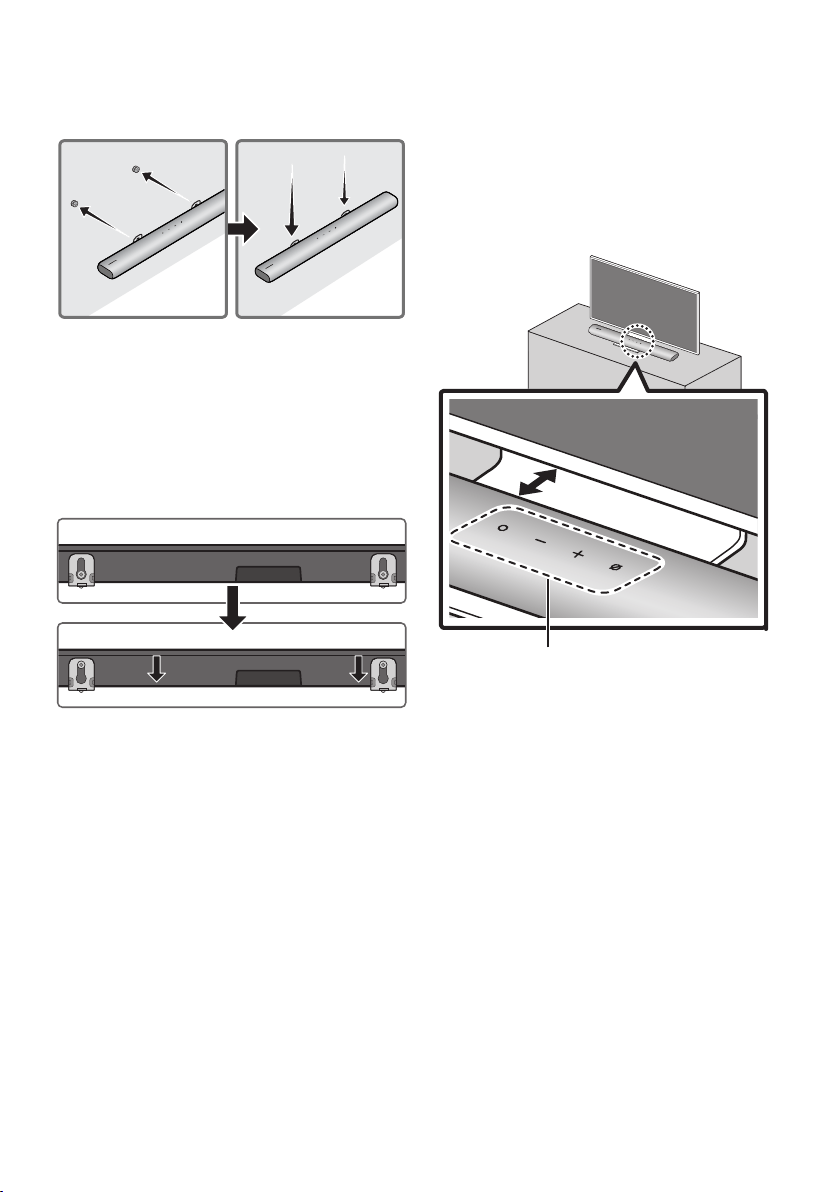
7. Install the Soundbar with the attached
Bracket-Wall Mounts by hanging the
Bracket-Wall Mounts on the Holder-Screws
on the wall.
8. Slide the Soundbar down as shown below so
that the Bracket-Wall Mounts rest securely
on the Holder-Screws.
• Insert the Holder-Screws into the wide
(bottom) part of the Bracket-Wall
Mounts, and then slide the Bracket-Wall
Mounts down so that the Bracket-Wall
Mounts rest securely on the
Holder-Screws.
11 INSTALLING THE
SOUNDBAR IN
FRONT OF TV
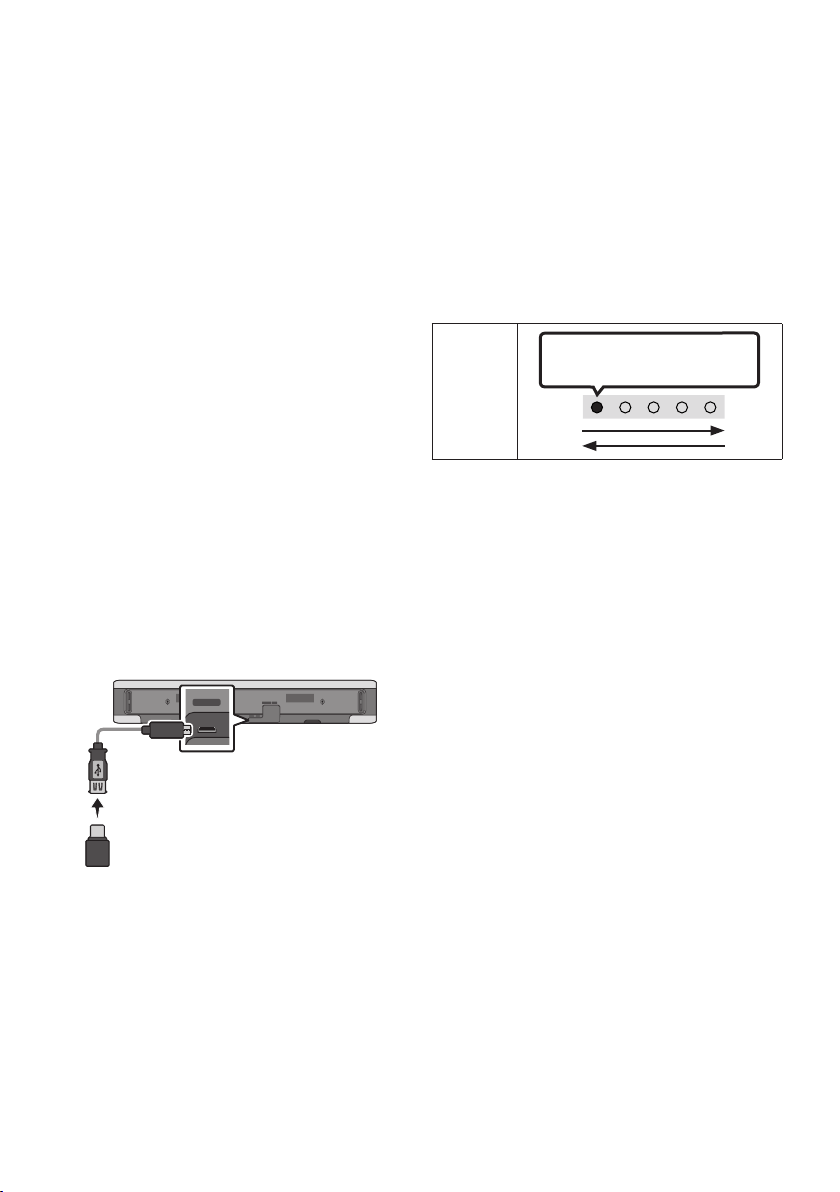
3cm or more
Microphone
Installing the centre of the Soundbar to the centre
of the TV as illustrated in the image.
At this time, place the Soundbar at least 3cm
away from the TV so that there is no interference
with voice recognition.
NOTES
• Make sure the Soundbar is placed on a at
and solid surface.
• Insufcient gap from the TV may cause voice
recognition and acoustic problems.
ENG - 37
12 SOFTWARE
UPDATE
Auto Update
When the Soundbar is connected to the Internet,
software updates automatically occur even when
the Soundbar is turned off.
• To use the Auto Update function, the
Soundbar must be connected to the Internet.
The Wi-Fi connection to the Soundbar will be
terminated if the Soundbar’s power cord is
disconnected or the power is cut off. If the
power is cut off, when the power comes back
on or you reconnect the power cord, turn on
the Soundbar, and then reconnect it to the
Internet.
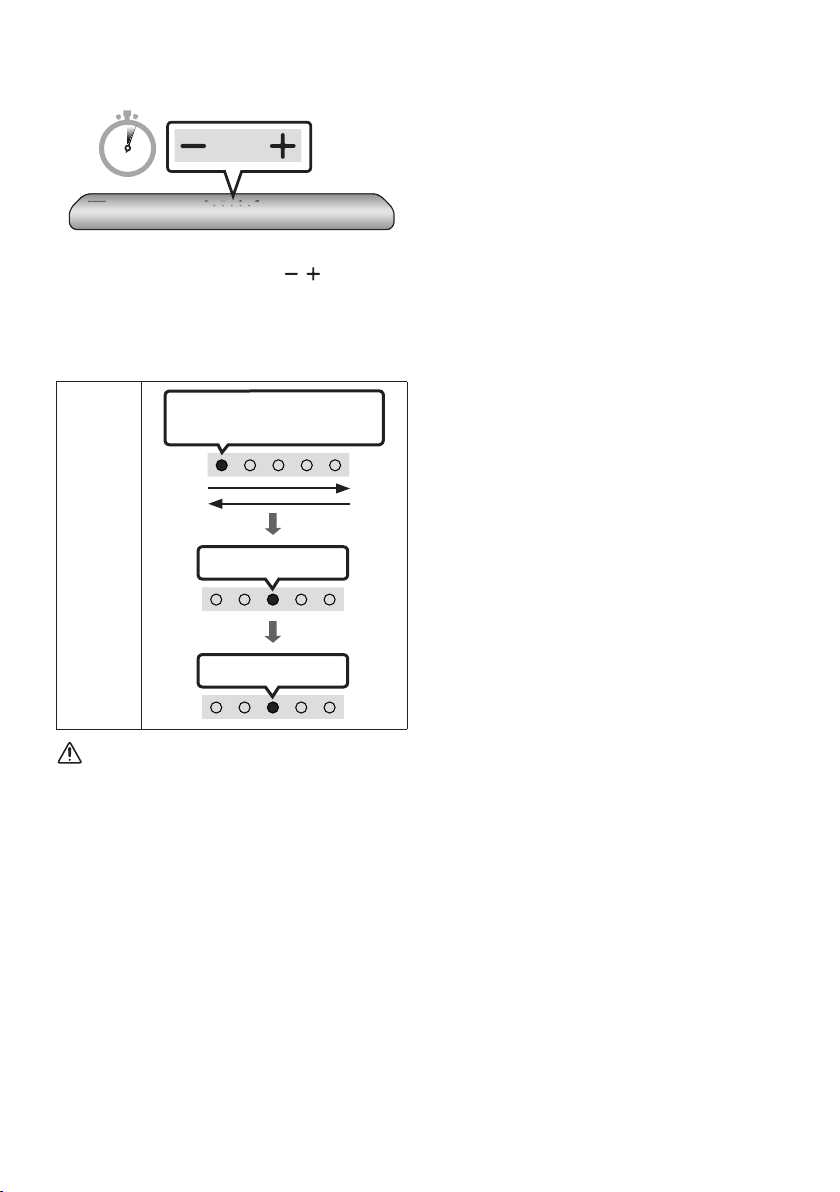
USB Update
Bottom of the Soundbar
Micro USB to
USB adapter Cable
(not supplied)
SERVICE DC 19V
HDMI
(ARC)
DIGITAL AUDIO IN
(OPTICAL)
ID SET NETWORK
SERVICE
DC 19V
Samsung may offer updates for the Soundbar’s
systemrmwareinthefuture.
When an update is available, you can update the
Soundbar by connecting the USB drive that
contains the update rmware to the SERVICE
port of the Soundbar.
1. Go to (www.samsung.com) → search for the
model name from the customer support
menu option.
• For more information about update, refer
to Upgrade Guide.
2. Download the upgrade le (USB type).
3. Unzip the le to create a folder with the le
name.
4. Store the created folder in a USB and then
connect it to the Soundbar.
5. Turn on the Soundbar. Then the product is
updated within 3 minutes.
LED
Indicator
White moves from left to right
and right to left
• During update, do not turn it off or
remove the USB.
• If the yellow LED is on after the software
update is completed, this means that an
additional update is in progress. When
this happens, don't turn off the power or
remove the USB.
• If update does not proceed, reconnect the
Soundbar power cord.
• When the latest version is installed, no
update is performed.
• Depending on the USB type, update may
not be supported.
ENG - 38
Reset
5 Sec
With the Soundbar on, press the (Volume)
buttons on the body at the same time for at least
5 seconds. The LED display changes as shown
below and then the Soundbar is reset.
LED
Indicator
Cyan Blinks X3
Red Blinks → Off
White moves from left to right
and right to left
CAUTION
• All the settings of the Soundbar are reset.
Be sure to perform this only when a reset is
required.
ENG - 39
13 TROUBLESHOOTING
Refer to the instructions below if this product does not function properly.
Soundbar does not turn on.
; Check whether the power cord of the
Soundbar is correctly inserted into the
outlet.
Soundbar works erratically.
; After removing the power cord, insert it
again.
; Remote the power cord from the external
device and try again.
; If there is no signal, the Soundbar
automatically turns off after a certain
period of time. Turn on the power. (See
page 11.)
In case the remote control does not work.
; Point the remote directly at the Soundbar.
; Replace the batteries with new ones.
The Soundbar does not output any sound.
; The volume of the Soundbar is too low or
muted. Adjust the volume.
; When any external device (STB, Bluetooth
device, mobile device, etc.) is connected,
adjust the volume of the external device.
; For sound output of the TV, select
Soundbar. (Samsung TV: Home ( ) →
Settings ( ) → Sound → Sound Output →
Select Soundbar)
; The cable connection to the Soundbar may
not be loose. Remove the cable and
connect again.
; Remove the power cord completely,
reconnect, and turn the power on.
; Reset the product and try again.
(See page 38.)
In case the TV is not connected via HDMI
(ARC).
; Check whether the HDMI cable is correctly
connected to the ARC terminal.
(See page17)
; Connection may not be possible due to the
connected external device (set-top box,
game console, etc.). Directly connect the
Soundbar.
; HDMI-CEC may not be activated on the TV.
Turn on the CEC on the TV menu. (Samsung
TV: Home ( ) → Settings ( ) → General
→ External Device Manager → Anynet+
(HDMI-CEC) ON)
There is no sound in when connecting to the
TV in HDMI (ARC) mode.
; Your device is unable to play the input
signal. Change the TV’s audio output to
PCM or Dolby Digital.
(For a Samsung TV: Home ( ) → Settings
( ) → Sound → Expert Settings → Digital
Output Audio Format)

ENG - 40
The Soundbar will not connect via Bluetooth.
; When connecting a new device, switch to
Bluetooth Pairing for connection. (Press the
PAIR button on the remote control or
press the (Mic On/Off) button on the
body for at least 5 seconds.)
; If the Soundbar is connected to another
device, disconnect that device rst to
switch the device.
; Reconnect it after removing the Bluetooth
speaker list on the device to connect.
(Samsung TV: Home ( ) → Settings ( )
→ Sound → Sound Output → Bluetooth
Speaker List)
; Remove and reconnect the power plug,
then try again.
; Reset the product and try again.
(See page 38.)
The sound drops out when connected via
Bluetooth.
; Some devices can cause radio interference
if they are located too close to the
Soundbar. e. g. microwaves, wireless
routers, etc.
; If your device that is connected via
Bluetooth moves too far away from the
Soundbar, it may cause the sound to drop
out. Move the device closer to the
Soundbar.
; If a part of your body is in contact with the
Bluetooth transceiver or the product is
installed on metal furniture, the sound may
drop out. Check the installation
environment and conditions for use.
Unable to connect to Wi-Fi.
; Check whether your wireless router is on.
; Turn off the router, turn it back on, and then
try again.
; The Soundbar will not connect if the
wireless signal is too weak. Try moving the
router closer to the Soundbar, or
eliminating any obstacles that are between
the Soundbar and the router, if possible.
; If your wireless router is new, you will need
to recongure the speaker’s network
settings.
The Soundbar does not turn on automatically
with the TV.
; When you turn off the Soundbar while
watching TV, power synchronization with
the TV is disabled. First turn off the TV.
ENG - 41
14 LICENCE
Manufactured under license from Dolby
Laboratories. Dolby, Dolby Audio and the
double-D symbol are trademarks of Dolby
Laboratories Licensing Corporation.
For DTS patents, see http://patents.dts.com.
Manufactured under license from DTS, Inc. (for
companies headquartered in the U.S./Japan/
Taiwan) or under license from DTS Licensing
Limited (for all other companies). DTS, Digital
Surround, and the DTS logo are registered
trademarks or trademarks of DTS, Inc. in the
United States and other countries. © 2020 DTS,
Inc. ALL RIGHTS RESERVED.
The terms HDMI and HDMI High-Denition
Multimedia Interface, and the HDMI Logo are
trademarks or registered trademarks of HDMI
Licensing Administrator, Inc. in the United
States and other countries.
• Use your phone, tablet or computer as a
remote control for Spotify. Go to spotify.
com/connect to learn how
• The Spotify Software is subject to third
party licences found here :
https://www.spotify.com/connect/third-
party-licenses.
• Apple, AirPlay, iPhone, iPad, HomePod, and
Apple TV are trademarks of Apple Inc.,
registered in the U.S. and other countries.
• Use of the Works with Apple badge means
that an accessory has been designed to
work specically with the technology
identied in the badge and has been
certied by the developer to meet Apple
performance standards.
15 OPEN SOURCE
LICENCE NOTICE
To send inquiries and requests for questions
regarding open sources, contact Samsung Open
Source (http://opensource.samsung.com)
16 IMPORTANT
NOTES ABOUT
SERVICE
Figures and illustrations in this User Manual are
provided for reference only and may differ from
actual product appearance.
ENG - 42
17 SPECIFICATIONS AND GUIDE
Specications
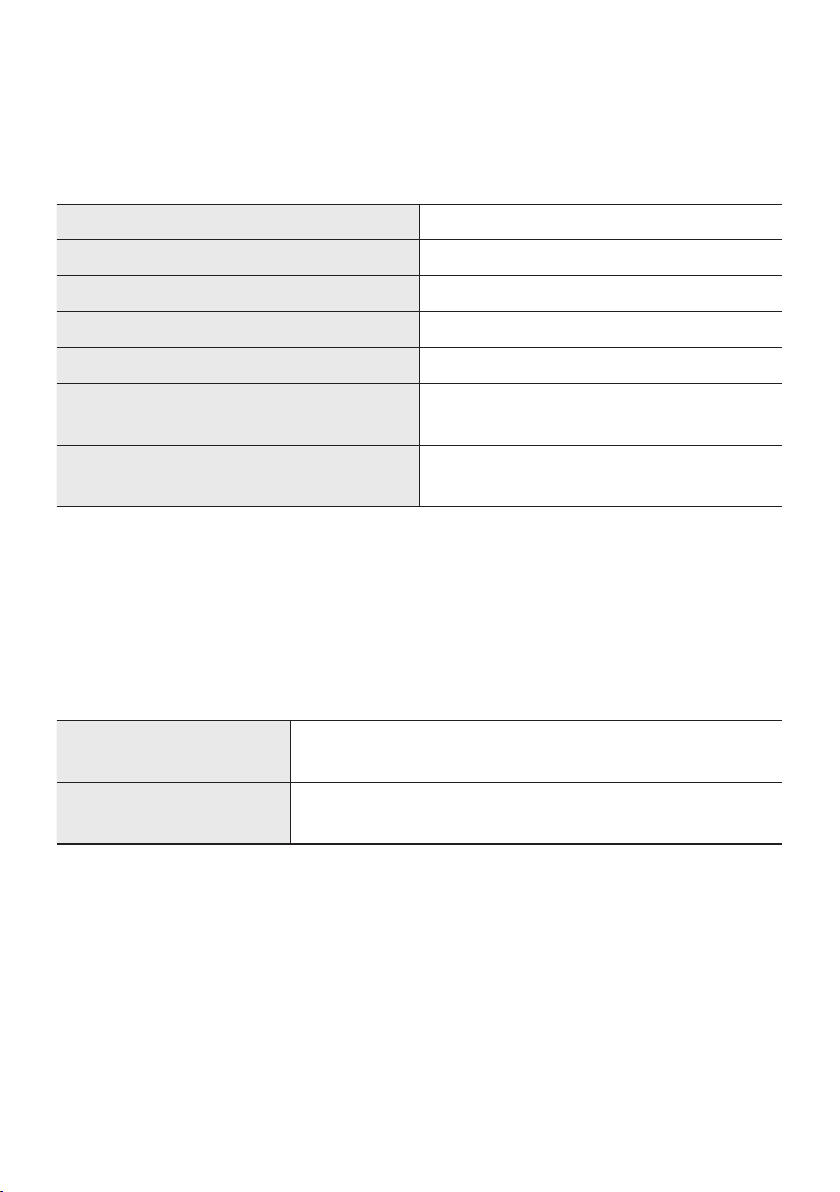
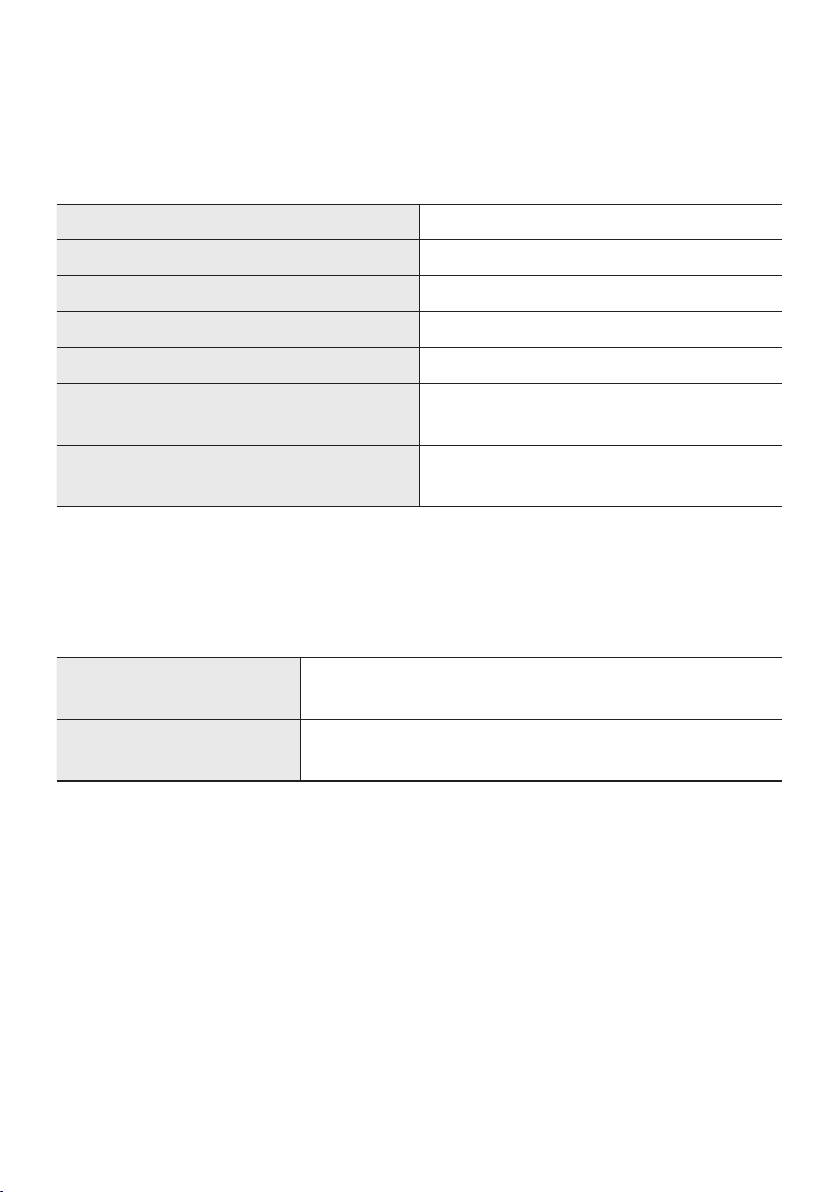
Model Name HW-S60A / S61A
Weight 3.0 kg
Dimensions (W x H x D) 764.0 x 68.0 x 125.0 mm
Operating Temperature Range +5°C to +35°C
Operating Humidity Range 10 % ~ 75 %
AMPLIFIER
Rated Output power (30W x 2) + (30W x 2) + (30W x 2) + 20W
Supported play formats
LPCM 2ch, Dolby Audio™
(supporting Dolby® Digital), DTS
NOTES
• Samsung Electronics Co., Ltd reserves the right to change the specications without notice.
• Weight and dimensions are approximate.
• For India Only
“This product is RoHS compliant”
Precaution : The Soundbar will restart automatically if you turn on/turn off Wi-Fi.
Wi-Fi
Port deactivation method
Press the ID SET button on the bottom panel of the Soundbar for
30 seconds to turn Wi-Fi On / Off.
Bluetooth
Port deactivation method
Press the NETWORK button on the bottom panel of the Soundbar
for 30 seconds to turn Bluetooth On / Off.
VIE - 2
THÔNG TIN AN TOÀN
CNH BO AN TON
CHÚ Ý
NGUY CƠ BỊ ĐIỆN GIẬT
KHÔNG MỞ
CNH BO
CHÚ Y

VIE - 3
PHÒNG NGA
1.
2.
3.
4.
5.
CHÚ Ý :

VIE - 4
Vệ sinh kết cấu
Loại bỏ bất kỳ bụi bẩn hoặc vết bẩn nào trên bề
mặt sản phẩm ngay lập tức.
CẨN THẬN
–
–
–
–
–

VIE - 5
NI DUNG
01 Kiểm tra thành phần 7
-------------------------
02 Tổng quan về sản phẩm 8
------------------------- 8
-------------------------
03 Sử dụng Điều khiển từ xa 11
-------------------------
-------------------------
-------------------------
-------------------------
04 Kết nối Soundbar 16
-------------------------
-------------------------
05 Dùng kết nối có dây với TV 17
-------------------------
-------------------------
06 Dùng kết nối không dây với TV 20
-------------------------
-------------------------
22
07 Kết nối thiết bị bên ngoài 23
-------------------------
23

08 Kết nối thiết bị di động 24
-------------------------
24
-------------------------
-------------------------
28
-------------------------
-------------------------
32
09 Kết Nối Với Apple AirPlay 2 33
10 Lắp giá treo tường 34
-------------------------
34
-------------------------
34
11 Lắp Đặt Soundbar Trước TV 36
12 Cập nhật phần mềm 37
-------------------------
-------------------------
-------------------------
38
13 Xử l s cô 39
14 Giấy Php 41
15 Thông báo Giấy php Ngun m 41
16 Lưu Quan Trọng về Dịch vụ 41
17 Thông số kỹ thuật và Hướng dẫn 42
-------------------------
42
01 KIỂM TRA THNH PHẦN
VOL WOOFER
SOUNDBAR
SOUND
MODE
PAIR
Thiết bị chính Soundbar Pin/điều khiển từ xa
Soundbar
Cáp HDMI
Bộ chuyển đổi AC/DC
(Soundbar)
Dây ngun
(Soundbar)
Thanh dẫn giá treo tường
Vít đỡ Giá gắn tường-Giá treo
tường
Vít
34
Lắp Pin trước khi dùng Điều khiển từ xa (pin AA X 2)
VIE - 8
02 TỔNG QUAN VỀ SN PHẨM
Bảng mặt trên của Soundbar
Bảng mặt trên
Đèn báo
LED
W
W
M
W
W
Màu trắngMàu xanh lơMàu xanh láMàu đỏ Màu
lam
Nút Đa
chức
năng
(Đa chức năng)
(Đa chức năng)
Sáng màu trắng -> Tắt Sáng màu trắng -> Tắt Sáng màu trắng -> Tắt
“Digital Audio In
“TV ARC”
“Wi-Fi” “Bluetooth”
Nút Âm
lượng
(Âm lượng)
Nút Bật/
tắt micrô
(Bật/tắt micrô)
Sáng màu đỏ
“Mic Off” “Mic On”
Cài đặt
Loa ngoài
SmartThings
“Phương pháp 2. Kết nối qua Wi-Fi (Mạng không
dây)”
Mặt dưới của Soundbar
SERVICE DC 19V
HDMI
(ARC)
DIGITAL AUDIO IN
(OPTICAL)
ID SET NETWORK
SERVICE DC 19V
HDMI
(ARC)
DIGITAL AUDIO IN
(OPTICAL)
SERVICE DC 19V
HDMI OUT
(TV-ARC)
DIGITAL AUDIO IN
(OPTICAL)
DIGITAL AUDIO IN
(OPTICAL)
ID SET NETWORK
SERVICE DC 19V
HDMI
(ARC)
DIGITAL AUDIO IN
(OPTICAL)
ID SET NETWORK
SERVICE DC 19V
HDMI
(ARC)
DIGITAL AUDIO IN
(OPTICAL)
SERVICE DC 19V
HDMI OUT
(TV-ARC)
DIGITAL AUDIO IN
(OPTICAL)
DIGITAL AUDIO IN
(OPTICAL)
ID SET NETWORK
SERVICE DC 19V
HDMI
(ARC)
DIGITAL AUDIO IN
(OPTICAL)
ID SET NETWORK
SERVICE DC 19V
HDMI
(ARC)
DIGITAL AUDIO IN
(OPTICAL)
SERVICE DC 19V
HDMI OUT
(TV-ARC)
DIGITAL AUDIO IN
(OPTICAL)
DIGITAL AUDIO IN
(OPTICAL)
ID SET NETWORK
SERVICE DC 19V
HDMI
(ARC)
DIGITAL AUDIO IN
(OPTICAL)
ID SET NETWORK
SERVICE DC 19V
HDMI
(ARC)
DIGITAL AUDIO IN
(OPTICAL)
SERVICE DC 19V
HDMI OUT
(TV-ARC)
DIGITAL AUDIO IN
(OPTICAL)
DIGITAL AUDIO IN
(OPTICAL)
ID SET NETWORK
ID SET
NETWORK
SmartThings
SERVICE
DC 19V (Đầu vào ngun điện)
DIGITAL AUDIO IN (OPTICAL)
23
HDMI (ARC)
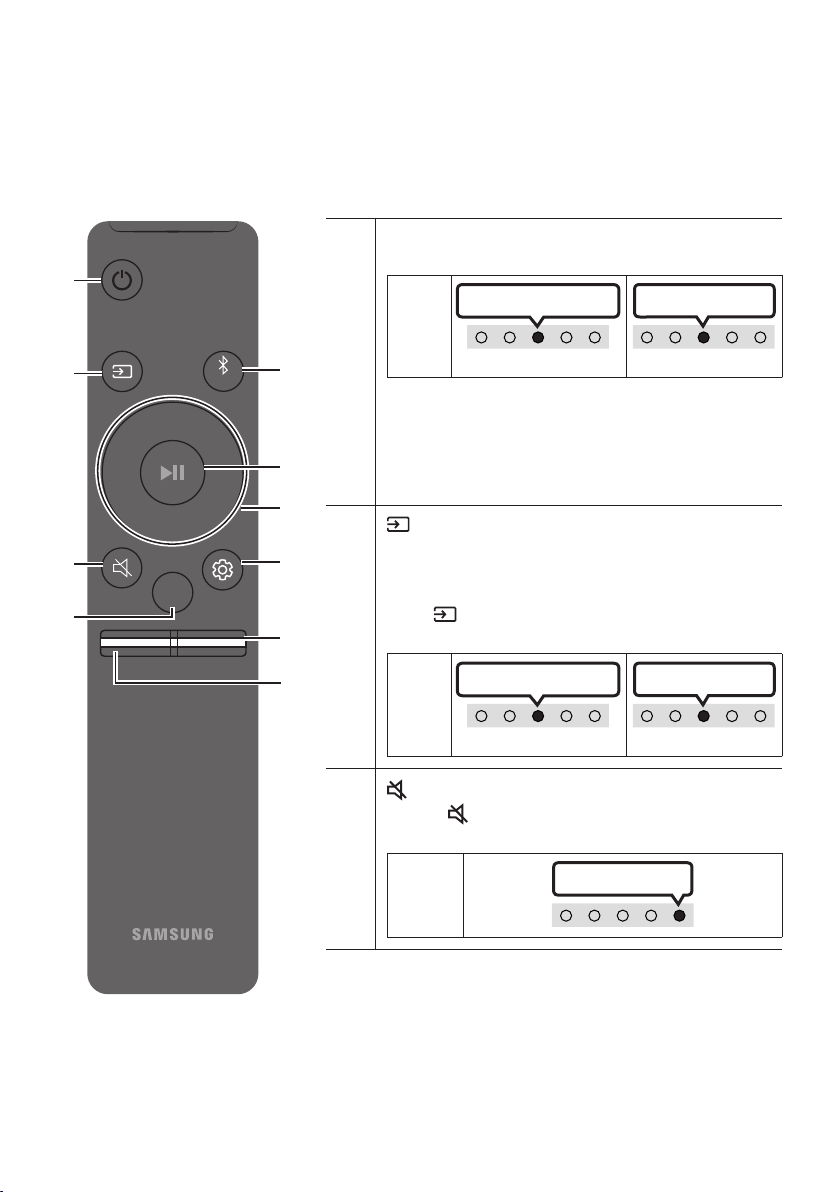
03 SỬ DỤNG ĐIỀU KHIỂN T XA
Cách sử dụng điều khiển từ xa
VOL WOOFER
SOUNDBAR
SOUND
MODE
PAIR
Bật/tắt
Nhấp nháy màu xanh lơ 1 lần
Bật Tắt
Nhấp nháy màu đỏ 3 lần
Chức năng Auto Power Down
– Digital Audio In“TV ARCWi-Fi
“Bluetooth
(Ngun tín hiệu)
Bật/tắt phản hi âm thanh
(Ngun tín hiệu)
Nhấp nháy màu xanh lơ 1 lần
Bật Tắt
Nhấp nháy màu đỏ 1 lần
(Tắt tiếng)
(Tắt tiếng)
Nhấp nháy X lần lặp lại
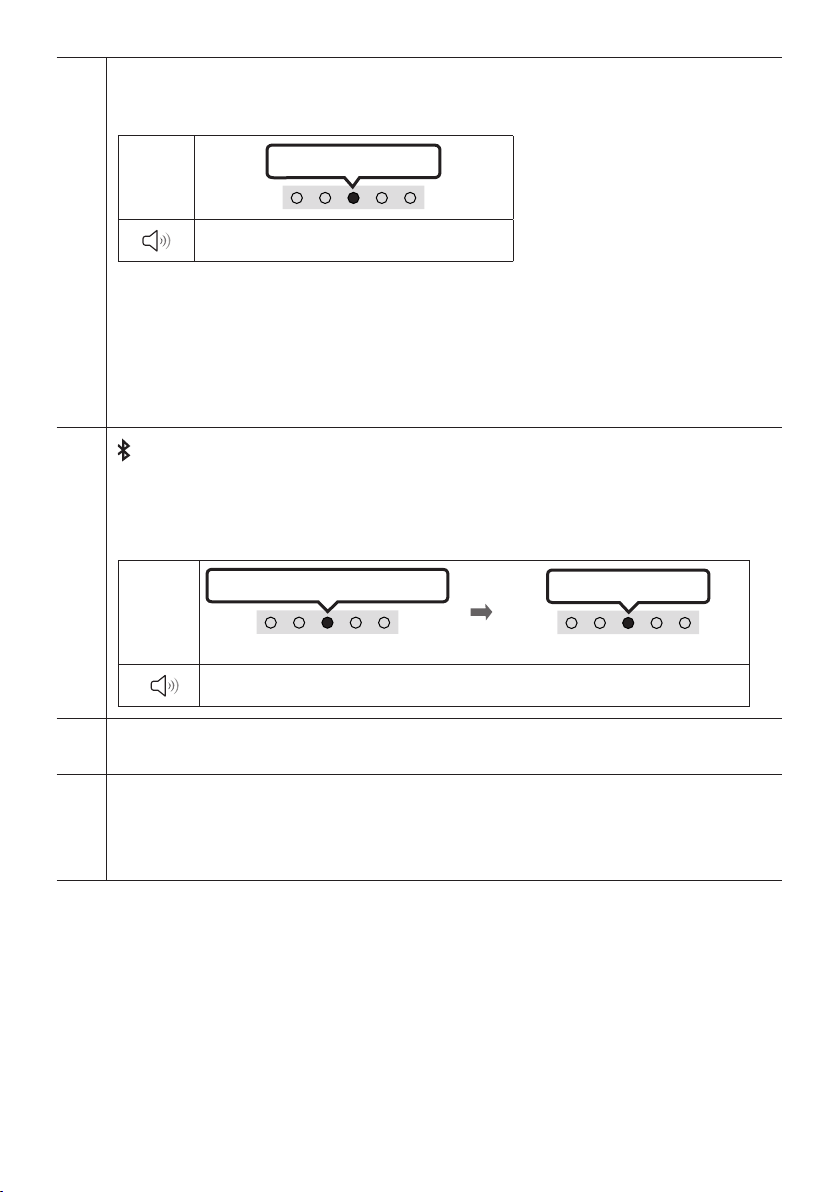
SOUND MODE
Nhấp nháy màu trắng 1 lần
“Standard” “Music” “Adaptive Sound”
Standard
Music
Adaptive Sound
Bluetooth PAIR
Màu đỏ Màu xanh láMàu
lam
Màu đỏ Màu xanh lá Màu lam nhấp nháy
Ghép nối
Kết nối hoàn tất
Nhấp nháy màu xanh lơ 3 lần
“Ready to connect via Bluetooth.”
p (Phát/tạm dừng)
Lên/Xuống/Trái/Phải
LênXuốngTráiPhải
Bỏ qua nhạc
PhảiTrái
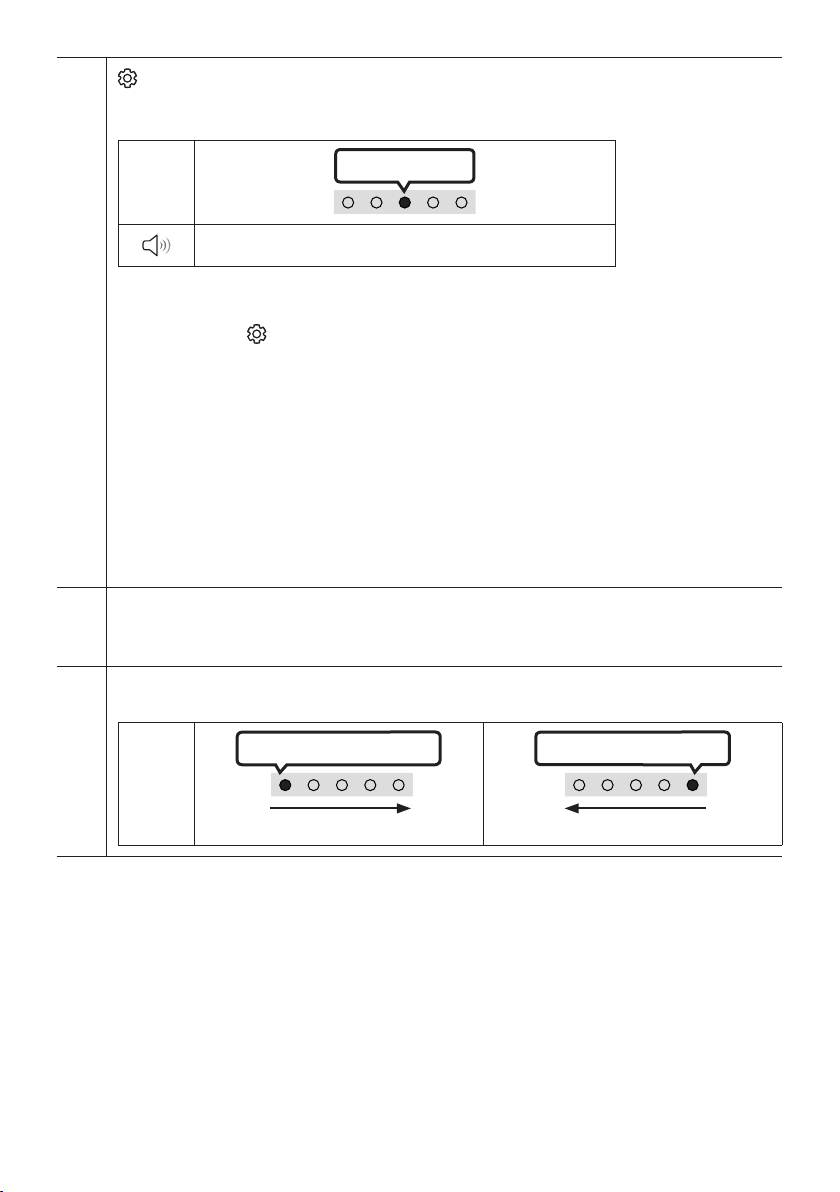
(Điều khiển âm thanh)
Lên/Xuống
White Blinks X1
“Treble” “Bass” “Sync” “Centre Level” “Side Level”
– TrebleBass
Lên/Xuống
– (Điều khiển âm thanh)
Trái/PhảiLên/Xuống
Standard
– Centre LevelSide Level
Lên/Xuống
– Sync
Lên/Xuống
– “Sync
– Rear Level Lên/Xuống
MỨC WOOFER (ÂM TRẦM)
ÂM LƯỢNG
Màu trắng chuyển sang phải 1 lần
Màu trắng chuyển sang trái 1 lần
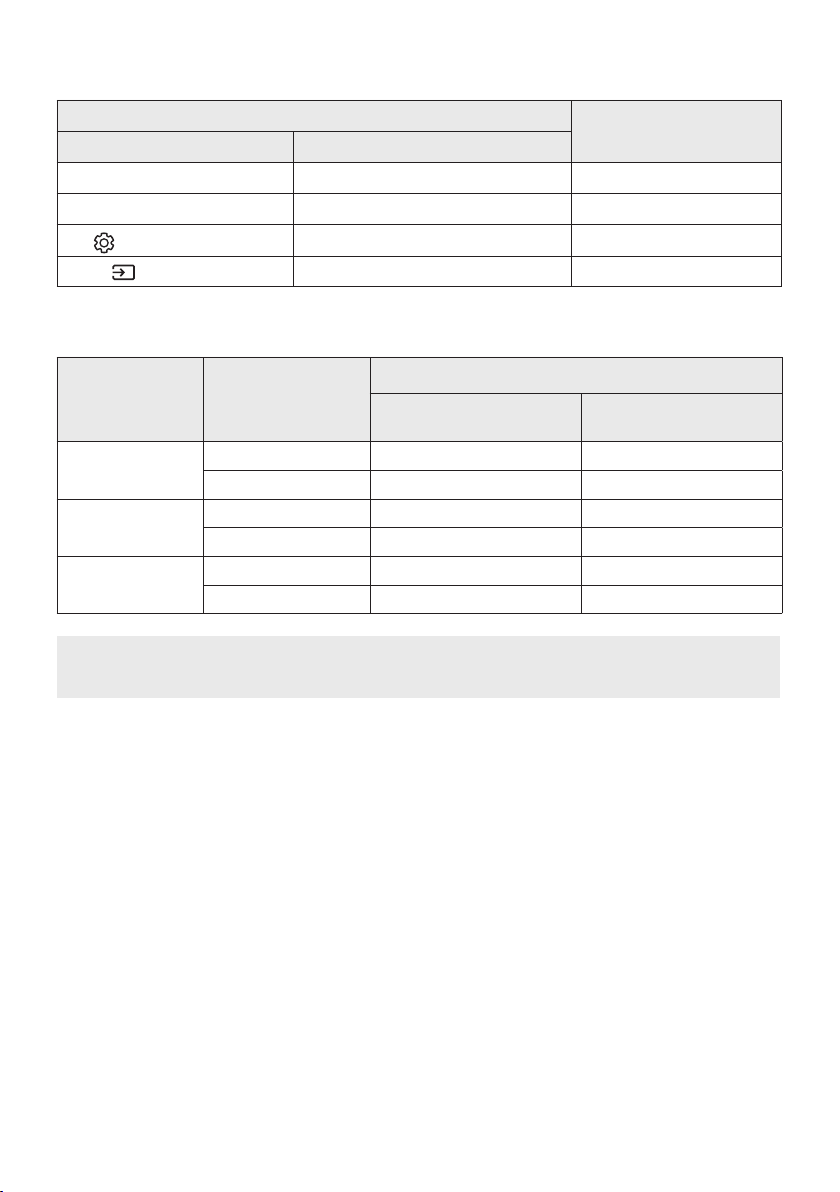
Sử dụng các Nút Ẩn (Các nút có nhiều chức năng)
Nút Ẩn
Trang tham khảo
Nút trên Điều khiển Từ xa Chức năng
Thông số kỹ thuật đầu ra cho các chế độ hiệu ứng âm thanh khác nhau
Hiệu ứng Đầu vào
Đầu ra
Chỉ với Loa siêu trầm
Với Loa siêu trầm & Bộ loa
sau không dây
Điều chỉnh âm lượng Soundbar bằng điều khiển từ xa TV
Loa ngoài
1.
2. WOOFER
WOOFEROff-TV
RemoteSamsung-TV RemoteAll-TV Remote
Nút trên Điều khiển Từ xa Đèn báo LED Trạng thái
SOUND
MODE
VOL
WOOFER
SOUNDBAR
5 Sec
Nhấp nháy màu đỏ 1 lần
SOUND
MODE
VOL
WOOFER
SOUNDBAR
5 Sec
Nhấp nháy màu xanh lơ 1 lần
SOUND
MODE
VOL
WOOFER
SOUNDBAR
5 Sec
Nhấp nháy màu lam 1 lần
04 KẾT NỐI SOUNDBAR
Kết nối ngun điện
1.
2.
DC 19V
Dây ngun
Bộ chuyển đổi AC/DC
SERVICE DC 19V
HDMI
(ARC)
DIGITAL AUDIO IN
(OPTICAL)
ID SET NETWORK
SERVICE DC 19V
HDMI
(ARC)
DIGITAL AUDIO IN
(OPTICAL)
SERVICE DC 19V
HDMI OUT
(TV-ARC)
DIGITAL AUDIO IN
(OPTICAL)
DIGITAL AUDIO IN
(OPTICAL)
ID SET NETWORK
SERVICE DC 19V
HDMI
(ARC)
DIGITAL AUDIO IN
(OPTICAL)
ID SET NETWORK
SERVICE DC 19V
HDMI
(ARC)
DIGITAL AUDIO IN
(OPTICAL)
SERVICE DC 19V
HDMI OUT
(TV-ARC)
DIGITAL AUDIO IN
(OPTICAL)
DIGITAL AUDIO IN
(OPTICAL)
ID SET NETWORK
DC 19V
Mặt đáy của thiết bị chính Soundbar
GHI CHÚ
Kết nối SWA-9100S (Bán riêng), SWA-W500 (Bán riêng) với
Soundbar của bạn
Mở rộng sang âm thanh vòm hoàn toàn không dây bằng cách kết nối Bộ loa sau không dây Samsung
(SWA-9100S, bán riêng) và Loa siêu trầm không dây (SWA-W500, bán riêng) với Soundbar của bạn.
Để biết thông tin chi tiết về các kết nối, xem sách hướng dẫn Bộ loa sau không dây và Loa siêu trầm
không dây của Samsung.
05 DÙNG KẾT NỐI CÓ DÂY VỚI TV
Phương pháp 1. Kết nối với HDMI
CHÚ Y
High Speed HDMI Cable with Ethernet
Kết nối TV có hỗ trợ HDMI ARC (Kênh chuyển âm thanh)
HDMI IN
(ARC)
SERVICE DC 19V
HDMI
(ARC)
DIGITAL AUDIO IN
(OPTICAL)
Kết nối với cổng HDMI IN
(ARC) của TV.
Cáp HDMI
Mặt đáy của
Soundbar
Kết nối với cổng HDMI (ARC) của thiết
bị chính Soundbar.
Mặt trên của Soundbar
Sáng màu trắng -> Tắt
“Digital Audio In”
1.
2.
3.

(Đa chức năng)
(Ngun tín hiệu)Digital Audio In
GHI CHÚ
Phương pháp 2. Kết nối bằng Cáp quang
Danh sách kiểm tra trước khi kết nối
Sáng màu trắng -> Tắt
“Digital Audio In”
OPTICAL OUT
SERVICE DC 19V
HDMI OUT
(TV-ARC)
DIGITAL AUDIO IN
(OPTICAL)
Mặt đáy của Soundbar
Cáp quang
(không đi kèm)
Mặt trên của Soundbar
1. DIGITAL AUDIO IN (OPTICAL)
2.
3. (Đa chức năng) (Ngun tín hiệu)
Digital Audio InDigital Audio In
4.
06 DÙNG KẾT NỐI KHÔNG DÂY VỚI TV
Phương pháp 1. Kết nối qua Bluetooth
Kết nối ban đầu
1.
Nút Ghp nối Bluetooth Đèn báo LED
SOUND
MODE
PAIR
HOẶC
Màu đỏ Màu xanh lá Màu lam nhấp nháy
Ghép nối
Kết nối hoàn tất
Nhấp nháy màu xanh lơ 3 lần
Bluetooth”
5 Sec
Màu đỏ Màu xanh láMàu lam
“Ready to connect via Bluetooth.”
2.
3. [AV] Samsung Soundbar S60A / [AV] Samsung Soundbar S61A
Cần ghp nốiĐã ghp nối
4.
Bluetooth”

Nếu thiết bị không kết nối được
[AV] Samsung Soundbar S60A / [AV] Samsung Soundbar
S61A
Ngắt kết nối Soundbar khỏi TV Samsung
(Đa chức năng) (Ngun tín hiệu)
Bluetooth
Lưu khi kết nối Bluetooth
–
–
–

VIE - 22
Phương pháp 2. Kết nối qua Wi-Fi
Danh sách kiểm tra trước khi kết nối
bộ định tuyến không dây (Wi-Fi)TV có được kết nối với bộ định
tuyến không
1. Phương pháp 2. Kết nối
qua Wi-Fi (Mạng không dây)
2.
TV Samsung được phát hành năm 2017 hoặc muộn hơn
VIE - 23
07 KẾT NỐI THIẾT BỊ BÊN NGOI
Kết nối bằng Cáp quang
Sáng màu trắng -> Tắt
“Digital Audio In”
- AUDIO -
R L
OPTICAL OUT
SERVICE DC 19V
HDMI OUT
(TV-ARC)
DIGITAL AUDIO IN
(OPTICAL)
Mặt đáy của Soundbar
Cáp quang
(không đi kèm)
Mặt trên của Soundbar
BD / Đầu DVD /
Hộp thu phát kỹ thuật số /
Máy chơi game
1. DIGITAL AUDIO IN (OPTICAL)
2.
3. (Đa chức năng) (Ngun tín hiệu)
Digital Audio InDigital Audio In
4.
VIE - 24
08 KẾT NỐI THIẾT BỊ DI ĐNG
Phương pháp 1. Kết nối qua Bluetooth
Kết nối ban đầu
1.
Nút Ghp nối Bluetooth Đèn báo LED
SOUND
MODE
PAIR
HOẶC
Màu đỏ Màu xanh lá Màu lam nhấp nháy
Ghép nối
Kết nối hoàn tất
Nhấp nháy màu xanh lơ 3 lần
Bluetooth”
5 Sec
Màu đỏ Màu xanh láMàu lam
“Ready to connect via Bluetooth.”
2. [AV] Samsung Soundbar S60A / [AV] Samsung Soundbar S61A
3.
Nếu thiết bị không kết nối được
[AV] Samsung Soundbar S60A / [AV] Samsung Soundbar
S61A
Thiết bị di động

VIE - 25
Lưu khi kết nối Bluetooth
–
–
–
–
–
–
–

Ngắt kết nối giữa thiết bị Bluetooth và Soundbar
"Màu đỏ
Ngắt kết nối giữa Soundbar và thiết bị Bluetooth
(Đa chức năng) (Ngun tín hiệu)
Bluetooth
"Màu đỏ
Phương pháp 2. Kết nối qua Wi-Fi (Mạng không dây)
SmartThings
Kết nối ban đầu
1. SmartThings
2.
Home
Ứng dụng
SmartThings
VIE - 28
Bắt đầu với Amazon Alexa (Tích hợp Alexa)
Chức năng này có thể không được hỗ trợ tùy thuộc vào kiểu máy hoặc khu vc địa l.
Chức năng này chỉ hỗ trợ một số ngôn ngữ và các chức năng được hỗ trợ có thể khác nhau tùy
theo khu vc địa l.
Để biết thông số kỹ thuật hoặc tính tương thích của sản phẩm, tham khảo trang web Samsung
(www.samsung.com).
1. SmartThings
2.
Mặt trên của Soundbar
3 Sec
"Alexa"
HOẶC
3. (Đa chức năng)
(Đa chức năng)
Sử dụng lệnh thoại để điều khiển Soundbar
Từ kích hoạt + lệnh thoại
Việc cần làm Ví dụ lệnh cần nói
“Alexa, tăng âm lượng.”
“Alexa, giảm âm lượng”
“Alexa, phát nhạc jazz”
“Alexa, phát bài hát tiếp theo.”
“Alexa, ngừng nhạc.”
“Alexa, đây là bài hát nào?”
“Alexa, thời tiết thế nào?”
“Alexa, đặt hẹn giờ 10 phút.”
Bắt đầu với Alexa trên Sản phẩm Amazon (Phối hợp với Alexa)
Chức năng này có thể không được hỗ trợ tùy thuộc vào kiểu máy hoặc khu vc địa l.
Chức năng này chỉ hỗ trợ một số ngôn ngữ và các chức năng được hỗ trợ có thể khác nhau tùy theo khu
vc địa l.
Để biết thông số kỹ thuật hoặc tính tương thích của sản phẩm, tham khảo trang web Samsung
(www.samsung.com).
Amazon Alexa
Kết nối và sử dụng với sản phẩm của Amazon (Amazon Echo)
1. SmartThings
2.
Sử dụng lệnh thoại để điều khiển Soundbar
Từ kích hoạt + lệnh thoại + Tên loa
* Cách sử dụng các lệnh thoại cho Soundbar được đặt tên là “Phòng khách”
Hành động Lệnh thoại
"Alexa, đặt âm lượng mức 5 cho loa Phòng khách"
"Alexa, tăng âm lượng cho loa Phòng khách"
"Alexa, tắt tiếng loa Phòng khách"
"Alexa, phát Kiss FM trên loa Phòng khách"
"Alexa, phát bài hát tiếp theo trên loa Phòng khách"
"Alexa, dừng loa Phòng khách"
"Alexa, tắt loa Phòng khách"
Trạng thái đèn báo Alexa
Trạng thái Alexa Đèn báo LED trên Soundbar
Không hoạt động
Lắng nghe
Sáng màu xanh lơ
Suy nghĩ
Nhấp nháy màu xanh lơ 1 lần
Nói
Báo động và nhắc
hẹn giờ
Nhấp nháy màu xanh lơ 2 lần
Nhấp nháy màu lam 2 lần
Thông báo
Nhấp nháy màu vàng 2 lần
Dịch vụ Alex không
khả dụng
Nhấp nháy màu đỏ 3 lần
Mạng bị ngắt kết
nối
Nhấp nháy màu đỏ 3 lần
Tắt micrô
Sáng màu đỏ
VIE - 32
Sử dụng Tap Sound
Thiết bị di động
Ứng dụng SmartThings
Mặt trên cùng của Soundbar
1. Tap Sound
Bật Chức năng Tap Sound
2. Bắt đầu ngay
3.
SmartThings
Bật Chức năng Tap Sound
SmartThingsTap View, Tap Sound
1. SmartThings
2. SmartThings
3. Tap View, Tap Sound
GHI CHÚ
Tap Sound
Tap Sound

VIE - 33
09 KẾT NỐI VỚI APPLE AIRPLAY 2
Kết nối và sử dụng với Sản phẩm của Apple
LƯU Ý
“Phương pháp 2. Kết nối qua Wi-Fi (Mạng
không dây)”
VIE - 34
10 LẮP GI TREO
TƯỜNG
Những điểm cần cân nhắc khi
lắp đặt
–
–
Chi tiết treo tường
Thanh dẫn giá treo tường
Vít đỡ Vít
Giá gắn tường-Giá treo tường
1. Thanh dẫn giá treo tường
Thanh dẫn giá treo tường
5 cm tr lên
VIE - 35
2. Trục trung tâm của Thanh dẫn giá
treo tường
Thanh dẫn giá treo tường
Trục
trung tâm
Trục trung tâm
3.
Thanh dẫn giá treo tường
4.
5. Vít đỡ
6. Giá đỡ gắn trên tường
Đinh vít
Giá đỡ gắn trên tường
Mặt sau của Soundbar
Đầu bên phải của Soundbar
7. Giá đỡ gắn trên tường
Giá đỡ gắn trên tườngVít
đỡ
8.
Giá đỡ gắn trên tường
Vít đỡ
Vít đỡ Giá
đỡ gắn trên tườngGiá đỡ
gắn trên tườngGiá đỡ gắn trên
tườngVít đỡ
11 LẮP ĐẶT
SOUNDBAR
TRƯỚC TV
3 cm tr lên
Micrô
GHI CHÚ
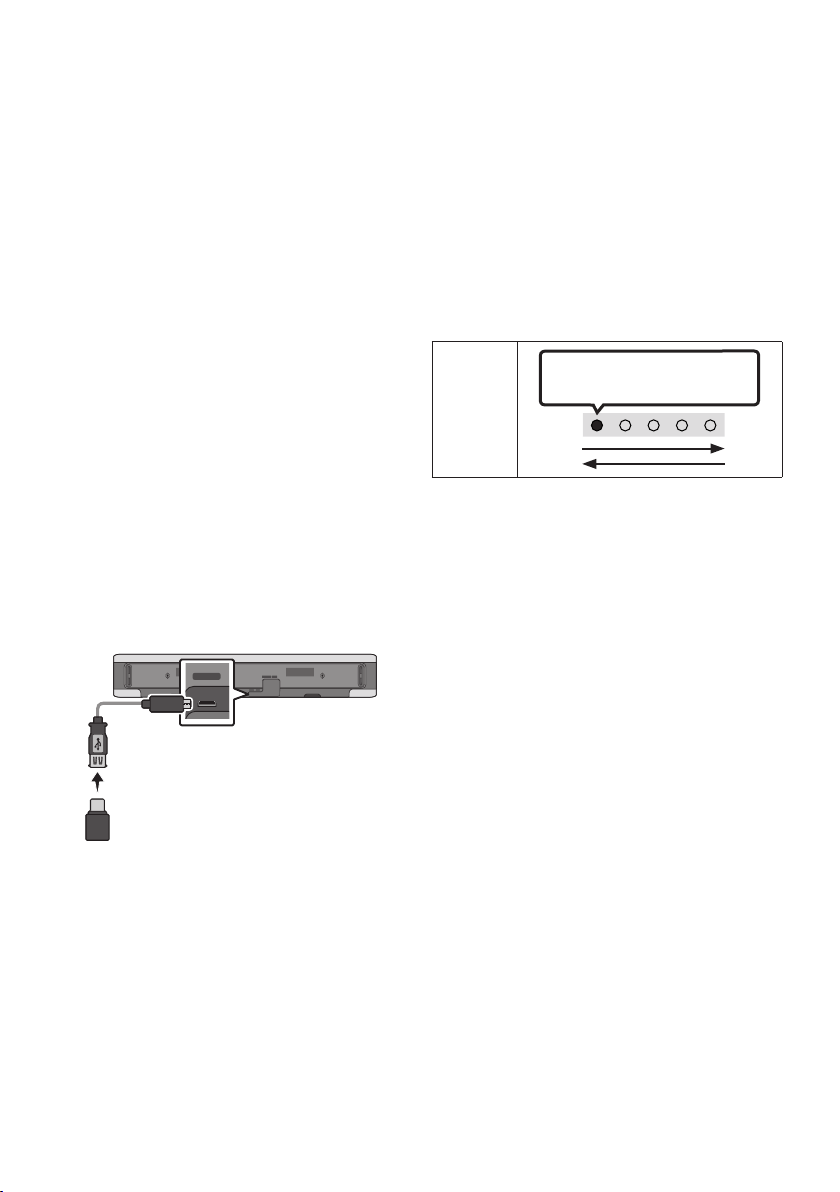
12 CẬP NHẬT PHẦN
MỀM
T động cập nhật
Cập nhật USB
Mặt đáy của Soundbar
Cáp chuyển đổi
Micro USB thành
USB (không đi kèm)
SERVICE DC 19V
HDMI
(ARC)
DIGITAL AUDIO IN
(OPTICAL)
ID SET NETWORK
SERVICE
DC 19V
Samsung có thể cung cấp bản cập nhật cho vi
chương trình hệ thống của Soundbar trong
tương lai.
SERVICE
1.
2.
3.
4.
5.
Màu trắng di chuyển từ trái sang
phải và từ phải sang trái
VIE - 38
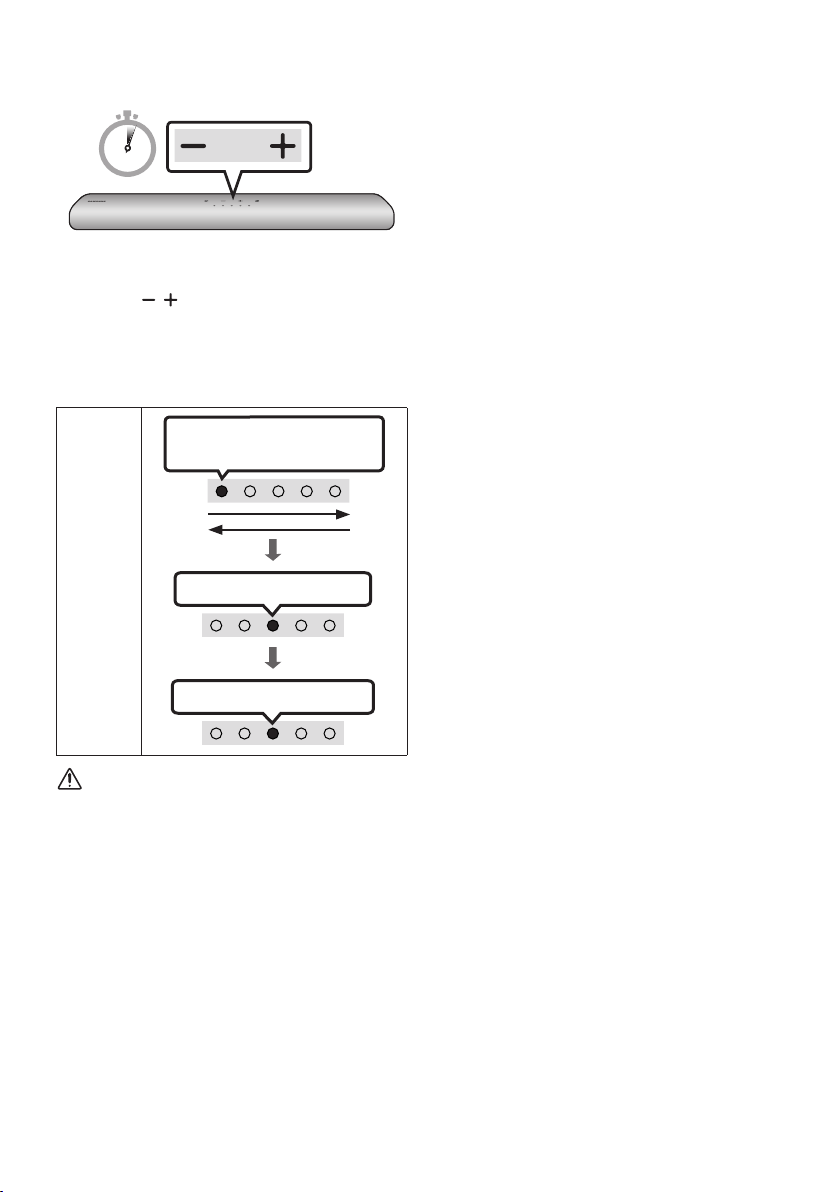
Đặt lại
5 Sec
(Âm lượng)
Nhấp nháy màu xanh lơ 3 lần
Nhấp nháy màu đỏTắt
Màu trắng di chuyển từ trái sang
phải và từ phải sang trái
CHÚ Y
13 XỬ LÝ S CÔ
Soundbar không bật.
;
Soundbar hoạt động chập chờn.
;
;
;
Trong trường hợp điều khiển từ xa không hoạt
động.
;
;
Soundbar không phát ra bất kỳ âm thanh nào.
;
;
;
;
;
;
38
Trong trường hợp TV không được kết nối qua
HDMI (ARC).
;
;
;
Không có âm thanh khi kết nối với TV chế độ
HDMI (ARC).
;
Soundbar sẽ không kết nối qua Bluetooth.
;
PAIR
(Bật/tắt Micrô)
;
;
;
;
38
Rớt âm thanh khi được kết nối qua Bluetooth.
;
;
;
Không thể kết nối với Wi-Fi.
;
;
;
;
Soundbar không t động bật với TV.
;
14 GIY PHP
15 THÔNG BO GIY
PHP NGUN MỞ
16 LƯU Ý QUAN
TRỌNG VỀ DỊCH
VỤ
VIE - 42
17 THÔNG SỐ KỸ THUẬT V HƯỚNG DẪN
Thông số kỹ thuật
GHI CHÚ
Thận trọng: Soundbar sẽ t động khi động lại nếu bạn bật/tắt Wi-Fi.
ID SET
NETWORK

TRUNG TÂM BO HNH SAMSUNG
A. ĐIỀU KIỆN BO HNH:
1. Sản phẩm còn trong thời hạn Bảo hành da vào tin nhắn
từ tổng đài 6060
2. Nếu không có tin nhắn từ tổng đài 6060, sẽ áp dụng thời hạn
Bảo hành cho sản phẩm như sau:
-
-
-
-
-
-
-
3. Sản phẩm phải còn đầy đủ nhãn máy để kiểm tra hoặc các
chứng từ liên quan.
4. Sản phẩm không nằm trong trường hợp bị từ chối bảo
hành.
5. Các sản phẩm do SAMSUNG sản xuất và phân phối chính
thức tại thị trường Việt Nam sẽ được bảo hành tại các
Trung Tâm Bảo Hành trên toàn quốc do SAMSUNG VINA
ủy quyền.
B. ĐIỀU KIỆN T CHỐI BO HNH:
Trung Tâm Bảo Hành sẽ từ chối bảo hành hoặc sẽ sửa
chữa có tính phí trong những trường hợp máy hỏng
không phải lỗi của nhà sản xuất như sau:
1.
2.
-
-
-
3.
4.
5.
6.
7.
QUÝ KHCH VUI LÒNG LIÊN HỆ VỚI CHÚNG TÔI THEO SỐ
ĐIỆN THOẠI (Miễn phí cuộc gọi).
1800 588 889
Cảm ơn Qu khách đã la chọn và sử dụng sản phẩm của
Công ty TNHH Điện Tử SAMSUNG VINA.
1.
-
-
-
QUÝ KHCH HÃY LIÊN HỆ CHÚNG TÔI THEO SỐ ĐIỆN
THOẠI (Miễn phí cuộc gọi)
1800 588 889
2.
- [
14 số Sê Ri máy]
-
3.
-
-
-
THÔNG TIN BO HNH
© 2021 Samsung Electronics Co., Ltd. All rights reserved.
Contact SAMSUNG WORLD WIDE
If you have any questions or comments relating to Samsung products, please contact the SAMSUNG customer
care Centre.
Country /Area Samsung Service Centre
Web Site
`
Asia Pacifi c
CHINA 400-810-5858 www.samsung.com/cn/support
TAIWAN
0800-329-999
0809-00-5237 ( B2B / Dealer)
www.samsung.com/tw/support
HONG KONG 3698 4698
www.samsung.com/hk/support (Chinese)
www.samsung.com/hk_en/support (English)
MACAU 0800 333
SINGAPORE 1800 7267864 | 1800-SAMSUNG www.samsung.com/sg/support
AUSTRALIA 1300 362 603 www.samsung.com/au/support
NEW ZEALAND 0800 726 786 www.samsung.com/nz/support
VIETNAM 1800 588 889 www.samsung.com/vn/support
THAILAND 1800-29-3232 (Toll free for all product) www.samsung.com/th/support
MYANMAR +95-1-2399-888 www.samsung.com/mm/support
CAMBODIA 1800-20-3232 (Toll free)
www.samsung.com/th/support
LAOS +856-214-17333
MALAYSIA
1800-88-9999
+603-7713 7420 (Overseas contact)
www.samsung.com/my/support
INDONESIA
021-5699-7777
0800-112-8888 (All Product, Toll Free)
www.samsung.com/id/support
PHILIPPINES
1-800-10-726-7864 [ PLDT Toll Free ]
1-800-8-726-7864 [ Globe Landline and Mobile ]
02-8-422-2111 [ Standard Landline ]
www.samsung.com/ph/support
INDIA
1800 40 SAMSUNG (1800 40 7267864) (Toll-Free)
1800 5 SAMSUNG (1800 5 7267864) (Toll-Free)
www.samsung.com/in/support
NEPAL
16600172667 (Toll Free for NTC Only)
9801572667 (Toll Free for Ncell users)
BANGLADESH
08000-300-300 (Toll free)
09612-300-300
SRI LANKA 011 SAMSUNG (011 7267864)