2-636-467-12(1)
© 2005 Sony Corporation
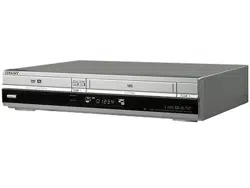
Video Cassette Recorder/
DVD Recorder
Operating Instructions
RDR-VX515
For customers in the U.S.A
Owner’s Record
The model and serial numbers are located at the rear of the unit.
Record the serial number in the space provided below. Refer to them
whenever you call upon your Sony dealer regarding this product.
Model No. RDR-VX515
Serial No.______________
For customers in Canada
If this product is not working properly, please call 1-877-602-2008 for
Peace of Mind Warranty Replacement service.
For other product related questions please contact our Customer
Information Service Centre at 1-877-899-7669 or write to us at:
Customer Information Service 115 Gordon Baker Road, Toronto,
Ontario, M2H 3R6
2
WARNING
To reduce the risk of fire or
electric shock, do not expose
this apparatus to rain or
moisture.
To avoid electrical shock, do not
open the cabinet. Refer servicing
to qualified personnel only.
The AC power cord must be
changed only at a qualified
service shop only.
This appliance is classified as a
CLASS 1 LASER product. The
CLASS 1 LASER PRODUCT
MARKING is located on the rear
exterior.
CAUTION
The use of optical instruments with this
product will increase eye hazard. As
the laser beam used in this VCR-DVD
recorder is harmful to eyes, do not
attempt to disassemble the cabinet.
Refer servicing to qualified personnel
only.
This symbol is intended
to alert the user to the
presence of uninsulated
“dangerous voltage”
within the product’s
enclosure that may be of sufficient
magnitude to constitute a risk of
electric shock to persons.
This symbol is intended
to alert the user to the
presence of important
operating and
maintenance (servicing)
instructions in the literature
accompanying the appliance.
CAUTION
TO PREVENT ELECTRIC SHOCK,
MATCH WIDE BLADE OF PLUG
TO WIDE SLOT, FULLY INSERT.
CAUTION
You are cautioned that any change or
modifications not expressly approved
in this manual could void your
authority to operate this equipment.
Note
This equipment has been tested and
found to comply with the limits for a
Class B digital device, pursuant to Part
15 of the FCC Rules. These limits are
designed to provide reasonable
protection against harmful interference
in a residential installation. This
equipment generates, uses, and can
radiate radio frequency energy and, if
not installed and used in accordance
with the instructions, may cause
harmful interference to radio
communications. However, there is no
guarantee that interference will not
occur in a particular installation. If this
equipment does cause harmful
interference to radio or television
reception, which can be determined by
turning the equipment off and on, the
user is encouraged to try to correct the
interference by one or more of the
following measures:
– Reorient or relocate the receiving
antenna.
– Increase the separation between the
equipment and receiver.
– Connect the equipment into an outlet
on a circuit different from that to
which the receiver is connected.
– Consult the dealer or an experienced
radio/TV technician for help.
Precautions
On safety
Should any solid object or liquid fall
into the cabinet, unplug the recorder
and have it checked by qualified
personnel before operating it any
further.
On power sources
• Operate the recorder only on
120 V AC, 60 Hz.
• The recorder is not disconnected
from the AC power source as long
as it is connected to the wall outlet,
even if the recorder itself has been
turned off.
• If you are not going to use the
recorder for a long time, be sure to
disconnect the recorder from the
wall outlet. To disconnect the AC
power cord, grasp the plug itself;
never pull the cord.
On placement
• Place the recorder in a location
with adequate ventilation to
prevent heat build-up in the
recorder.
• If the recorder is brought directly
from a cold to a warm location, or
is placed in a very damp room,
moisture may condense on the
lenses inside the recorder and
cause damage to the video head,
tape, and the optical block. Should
this occur, the recorder may not
operate properly. When you first
install the recorder, or when you
move it from a cold to a warm
location, remove the disc and tape
and leave the recorder turned on
for about three hours before
operating the recorder.
• Do not place the recorder on a soft
surface such as a rug that might
block the ventilation holes.
• Do not place the recorder in a
confined space such as a bookshelf
or similar unit.
• Do not place the recorder in a
location near heat sources, or in a
place subject to direct sunlight,
excessive dust, or mechanical
shock.
• Do not place the recorder in an
inclined position. It is designed to

3
be operated in a horizontal
position only.
• Keep the recorder, discs, and
cassettes away from equipment
with strong magnets, such as
microwave ovens, or large
loudspeakers.
• Do not place heavy objects on the
recorder.
• To prevent fire or shock hazard, do
not place objects filled with
liquids, such as vases, on the
apparatus.
• When you move the recorder, take
out any discs. If you do not, the
disc may be damaged.
On recording
• Contents of the recording cannot
be compensated for if the
recording or playback is not made
due to a malfunction of the
recorder, disc, etc.
• Make trial recordings before
making the actual recording.
Copyrights
• Television programs, films, video
tapes, discs, and other materials
may be copyrighted. Unauthorized
recording of such material may be
contrary to the provisions of the
copyright laws. Also, use of this
recorder with cable television
transmission may require
authorization from the cable
television transmitter and/or
program owner.
• This product incorporates
copyright protection technology
that is protected by U.S. patents
and other intellectual property
rights. Use of this copyright
protection technology must be
authorized by Macrovision, and is
intended for home and other
limited viewing uses only unless
otherwise authorized by
Macrovision. Reverse engineering
or disassembly is prohibited.
Copy guard function
Since the recorder has a copy guard
function, programs received through
an external tuner (not supplied) may
contain copy protection signals
(copy guard function) and as such
may not be recordable, depending
on the type of signal.
If you have any questions or
problems concerning your recorder,
please consult your nearest Sony
dealer.
IMPORTANT SAFETY
INSTRUCTIONS
1 Read these instructions.
2 Keep these instructions.
3 Heed all warnings.
4 Follow all instructions.
5 Do not use this apparatus near
water.
6 Clean only with dry cloth.
7 Do not block any ventilation
openings. Install in accordance
with the manufacturer’s
instructions.
8 Do not install near any heat
sources such as radiators, heat
registers, stoves, or other
apparatus (including amplifiers)
that produce heat.
9 Do not defeat the safety purpose
of the polarized or grounding-
type plug. A polarized plug has
two blades with one wider than
the other. A grounding type plug
has two blades and a third
grounding prong. The wide
blade or the third prong are
provided for your safety. If the
provided plug does not fit into
your outlet, consult an
electrician for replacement of
the obsolete outlet.
10 Protect the power cord from
being walked on or pinched
particularly at plugs,
convenience receptacles, and the
point where they exit from the
apparatus.
11 Only use attachments/
accessories specified by the
manufacturer.
12 Use only with the cart, stand,
tripod, bracket, or table specified
by the manufacturer, or sold
with the apparatus. When a cart
is used, use caution when
moving the cart/apparatus
combination to avoid injury
from tip-over.
13 Unplug this apparatus during
lightning storms or when unused
for long periods of time.
14 Refer all servicing to qualified
service personnel. Servicing is
required when the apparatus has
been damaged in any way, such
as power-supply cord or plug is
damaged, liquid has been spilled
or objects have fallen into the
apparatus, the apparatus has
been exposed to rain or
moisture, does not operate
normally, or has been dropped.
IMPORTANT NOTICE
Caution: This recorder is capable
of holding a still video image or
on-screen display image on your
television screen indefinitely. If
you leave the still video image or
on-screen display image displayed
on your TV for an extended period
of time you risk permanent
damage to your television screen.
Plasma display panels and
projection televisions are
especially susceptible to this.
,continued
4
About this manual
• Instructions in this manual describe the controls on the
remote. You can also use the controls on the recorder if
they have the same or similar names as those on the
remote.
• The on-screen display illustrations used in this manual
may not match the graphics displayed on your TV
screen.
• The explanations regarding discs in this manual refer to
discs created on this recorder. The explanations do not
apply to discs that are created on other recorders and
played back on this recorder.
* MP3 (MPEG1 Audio Layer 3) is a standard format
defined by ISO/MPEG which compresses audio data.
Icon Meaning
Functions available for DVD+RWs
Functions available for DVD-RWs
in VR (Video Recording) mode
Functions available for DVD-RWs
in video mode
Functions available for DVD+Rs
Functions available for DVD-Rs
Functions available for DVD
VIDEOs
Functions available for VIDEO CDs
or CD-Rs/CD-RWs in video CD
format
Functions available for music CDs
or CD-Rs/CD-RWs in music CD
format
Functions available for DATA CDs
(CD-Rs/CD-RWs containing MP3
*
audio tracks or JPEG files)
Functions available for DATA
DVDs (DVD+RWs/DVD-RWs/
DVD+Rs/DVD-Rs containing
MP3* audio tracks or JPEG files)
Functions available for VHS
VIDEOs
+
RW
-
RWVR
-
RW
Video
+
R
-
R
DVD
VCD
CD
DATA CD
DATA DVD

5
Table of Contents
WARNING . . . . . . . . . . . . . . . . . . . . . . . . . . . . . . . . . . . . . . . . . . . . . . . . . . . . . . . . . . 2
Precautions . . . . . . . . . . . . . . . . . . . . . . . . . . . . . . . . . . . . . . . . . . . . . . . . . . . . . . . . . . 2
What is a Video Cassette Recorder/DVD Recorder? . . . . . . . . . . . . . . . . . . . . . . . . . . 8
How to Use the On-Screen Menus . . . . . . . . . . . . . . . . . . . . . . . . . . . . . . . . . . . . . . . 10
Hookups and Settings . . . . . . . . . . . . . . . . . . . . . . . . . . . . . . . . . . . . . 12
Hooking Up the Recorder . . . . . . . . . . . . . . . . . . . . . . . . . . . . . . . . . . . . . . . . . . . . . . 12
Step 1: Unpacking . . . . . . . . . . . . . . . . . . . . . . . . . . . . . . . . . . . . . . . . . . . . . . . . . . . . 12
Step 2: Connecting the Antenna Cable . . . . . . . . . . . . . . . . . . . . . . . . . . . . . . . . . . . . 12
Step 3: Connecting to Your TV . . . . . . . . . . . . . . . . . . . . . . . . . . . . . . . . . . . . . . . . . . 15
Step 4: Connecting to Your AV Amplifier (Receiver). . . . . . . . . . . . . . . . . . . . . . . . . . 17
Step 5: Connecting the Power Cord . . . . . . . . . . . . . . . . . . . . . . . . . . . . . . . . . . . . . . 19
Step 6: Preparing the Remote. . . . . . . . . . . . . . . . . . . . . . . . . . . . . . . . . . . . . . . . . . . 19
Step 7: Easy Setup . . . . . . . . . . . . . . . . . . . . . . . . . . . . . . . . . . . . . . . . . . . . . . . . . . . 22
Connecting Another VCR or Similar Device . . . . . . . . . . . . . . . . . . . . . . . . . . . . . . . . 26
Quick Guide to Disc Types . . . . . . . . . . . . . . . . . . . . . . . . . . . . . . . . . . 28
Recordable and Playable Discs . . . . . . . . . . . . . . . . . . . . . . . . . . . . . . . . . . . . . . . . . 28
12 cm/8 cm Discs . . . . . . . . . . . . . . . . . . . . . . . . . . . . . . . . . . . . . . . . . . . . . . . . . . . . 30
Playable Discs . . . . . . . . . . . . . . . . . . . . . . . . . . . . . . . . . . . . . . . . . . . . . . . . . . . . . . 30
DVD Operation
DVD Playback . . . . . . . . . . . . . . . . . . . . . . . . . . . . . . . . . . . . . . . . . . . 32
Playing . . . . . . . . . . . . . . . . . . . . . . . . . . . . . . . . . . . . . . . . . . . . . . . . . . . . . . . . . . . .32
Playback Options . . . . . . . . . . . . . . . . . . . . . . . . . . . . . . . . . . . . . . . . . . . . . . . . . . . . 33
Playing a Title From the Title List . . . . . . . . . . . . . . . . . . . . . . . . . . . . . . . . . . . . . . . . 37
Searching for a Title/Chapter/Track, etc. . . . . . . . . . . . . . . . . . . . . . . . . . . . . . . . . . . 38
Playing MP3 Audio Tracks . . . . . . . . . . . . . . . . . . . . . . . . . . . . . . . . . . . . . . . . . . . . . 40
Playing JPEG Image Files . . . . . . . . . . . . . . . . . . . . . . . . . . . . . . . . . . . . . . . . . . . . . 41
Displaying the Playing Time and Play Information . . . . . . . . . . . . . . . . . . . . . . . . . . . 43
DVD Recording . . . . . . . . . . . . . . . . . . . . . . . . . . . . . . . . . . . . . . . . . . 45
Before Recording . . . . . . . . . . . . . . . . . . . . . . . . . . . . . . . . . . . . . . . . . . . . . . . . . . . . 45
DVD Recording Without the Timer . . . . . . . . . . . . . . . . . . . . . . . . . . . . . . . . . . . . . . . 46
DVD Timer Recording . . . . . . . . . . . . . . . . . . . . . . . . . . . . . . . . . . . . . . . . . . . . . . . . 48
Recording From Connected Equipment With a Timer (Synchro Rec) . . . . . . . . . . . . 50
Changing or Canceling DVD Timer Settings (Timer List) . . . . . . . . . . . . . . . . . . . . . . 52
Recording From Connected Equipment Without a Timer . . . . . . . . . . . . . . . . . . . . . . 53
DVD Editing . . . . . . . . . . . . . . . . . . . . . . . . . . . . . . . . . . . . . . . . . . . . 55
Before Editing . . . . . . . . . . . . . . . . . . . . . . . . . . . . . . . . . . . . . . . . . . . . . . . . . . . . . . . 55
Editing a Title . . . . . . . . . . . . . . . . . . . . . . . . . . . . . . . . . . . . . . . . . . . . . . . . . . . . . . . 56
Changing the Name of a Title . . . . . . . . . . . . . . . . . . . . . . . . . . . . . . . . . . . . . . . . . . . 60
Creating a Playlist . . . . . . . . . . . . . . . . . . . . . . . . . . . . . . . . . . . . . . . . . . . . . . . . . . . . 61
Editing a Playlist . . . . . . . . . . . . . . . . . . . . . . . . . . . . . . . . . . . . . . . . . . . . . . . . . . . . . 62
Formatting/Renaming/Protecting a Disc . . . . . . . . . . . . . . . . . . . . . . . . . . . . . . . . . . . 66
,continued

6
VCR Operation
VCR Playback . . . . . . . . . . . . . . . . . . . . . . . . . . . . . . . . . . . . . . . . . . . 67
Playing . . . . . . . . . . . . . . . . . . . . . . . . . . . . . . . . . . . . . . . . . . . . . . . . . . . . . . . . . . . .67
Playback Options . . . . . . . . . . . . . . . . . . . . . . . . . . . . . . . . . . . . . . . . . . . . . . . . . . . . 69
Searching Using Various Functions . . . . . . . . . . . . . . . . . . . . . . . . . . . . . . . . . . . . . .70
Displaying the Playing Time and Play Information . . . . . . . . . . . . . . . . . . . . . . . . . . . 71
Selecting the Sound During Playback . . . . . . . . . . . . . . . . . . . . . . . . . . . . . . . . . . . . . 72
VCR Recording . . . . . . . . . . . . . . . . . . . . . . . . . . . . . . . . . . . . . . . . . . 73
Before Recording . . . . . . . . . . . . . . . . . . . . . . . . . . . . . . . . . . . . . . . . . . . . . . . . . . . . 73
VCR Recording Without the Timer . . . . . . . . . . . . . . . . . . . . . . . . . . . . . . . . . . . . . . . 74
VCR Timer Recording . . . . . . . . . . . . . . . . . . . . . . . . . . . . . . . . . . . . . . . . . . . . . . . . . 76
Recording From Connected Equipment With a Timer (Synchro Rec) . . . . . . . . . . . . 78
Changing or Canceling VCR Timer Settings (Timer List) . . . . . . . . . . . . . . . . . . . . . . 79
Recording From Connected Equipment Without a Timer . . . . . . . . . . . . . . . . . . . . . . 81
Dubbing (TAPE y DVD) . . . . . . . . . . . . . . . . . . . . . . . . . . . . . . . . . . . 82
Dubbing From a VHS Tape to a DVD . . . . . . . . . . . . . . . . . . . . . . . . . . . . . . . . . . . . . 82
Dubbing From a DVD to a VHS Tape . . . . . . . . . . . . . . . . . . . . . . . . . . . . . . . . . . . . . 83
Finalizing a Disc (Preparing a Disc for Playback on Other Equipment) . . . . . . . . . . . 86
DV/D8 Dubbing (DV/D8 t DVD) . . . . . . . . . . . . . . . . . . . . . . . . . . . . . . 88
Before DV/D8 Dubbing . . . . . . . . . . . . . . . . . . . . . . . . . . . . . . . . . . . . . . . . . . . . . . . . 88
Connecting a Digital Video Camera to the DV IN Jack . . . . . . . . . . . . . . . . . . . . . . . . 88
Dubbing From a DV/D8 Format Tape to a DVD . . . . . . . . . . . . . . . . . . . . . . . . . . . . . 89
Settings and Adjustments . . . . . . . . . . . . . . . . . . . . . . . . . . . . . . . . . . 92
Using the Setup Displays . . . . . . . . . . . . . . . . . . . . . . . . . . . . . . . . . . . . . . . . . . . . . . 92
Antenna Reception Setting (Tuner Preset) . . . . . . . . . . . . . . . . . . . . . . . . . . . . . . . . . 93
Clock Setting (Clock Set) . . . . . . . . . . . . . . . . . . . . . . . . . . . . . . . . . . . . . . . . . . . . . . 94
Video Settings (Video) . . . . . . . . . . . . . . . . . . . . . . . . . . . . . . . . . . . . . . . . . . . . . . . . 95
Audio Settings (Audio) . . . . . . . . . . . . . . . . . . . . . . . . . . . . . . . . . . . . . . . . . . . . . . . . 97
Recording and VCR Settings (Features) . . . . . . . . . . . . . . . . . . . . . . . . . . . . . . . . . . 99
Language, Parental Control Settings/Factory Settings (Options) . . . . . . . . . . . . . . . 100
Easy Setup (Resetting the Recorder) . . . . . . . . . . . . . . . . . . . . . . . . . . . . . . . . . . . . 102
Additional Information . . . . . . . . . . . . . . . . . . . . . . . . . . . . . . . . . . . . 103
Troubleshooting . . . . . . . . . . . . . . . . . . . . . . . . . . . . . . . . . . . . . . . . . . . . . . . . . . . . 103
Notes About This Recorder . . . . . . . . . . . . . . . . . . . . . . . . . . . . . . . . . . . . . . . . . . . . 108
Specifications . . . . . . . . . . . . . . . . . . . . . . . . . . . . . . . . . . . . . . . . . . . . . . . . . . . . . . 109
About i.LINK . . . . . . . . . . . . . . . . . . . . . . . . . . . . . . . . . . . . . . . . . . . . . . . . . . . . . . . 110
Guide to Parts and Controls . . . . . . . . . . . . . . . . . . . . . . . . . . . . . . . . . . . . . . . . . . . 112
Glossary . . . . . . . . . . . . . . . . . . . . . . . . . . . . . . . . . . . . . . . . . . . . . . . . . . . . . . . . . . 117
DVD Audio/Subtitle Language . . . . . . . . . . . . . . . . . . . . . . . . . . . . . . . . . . . . . . . . . 118
Index . . . . . . . . . . . . . . . . . . . . . . . . . . . . . . . . . . . . . . . . . . . . . . . . . . . . . . . . . . . . . 120

7
8
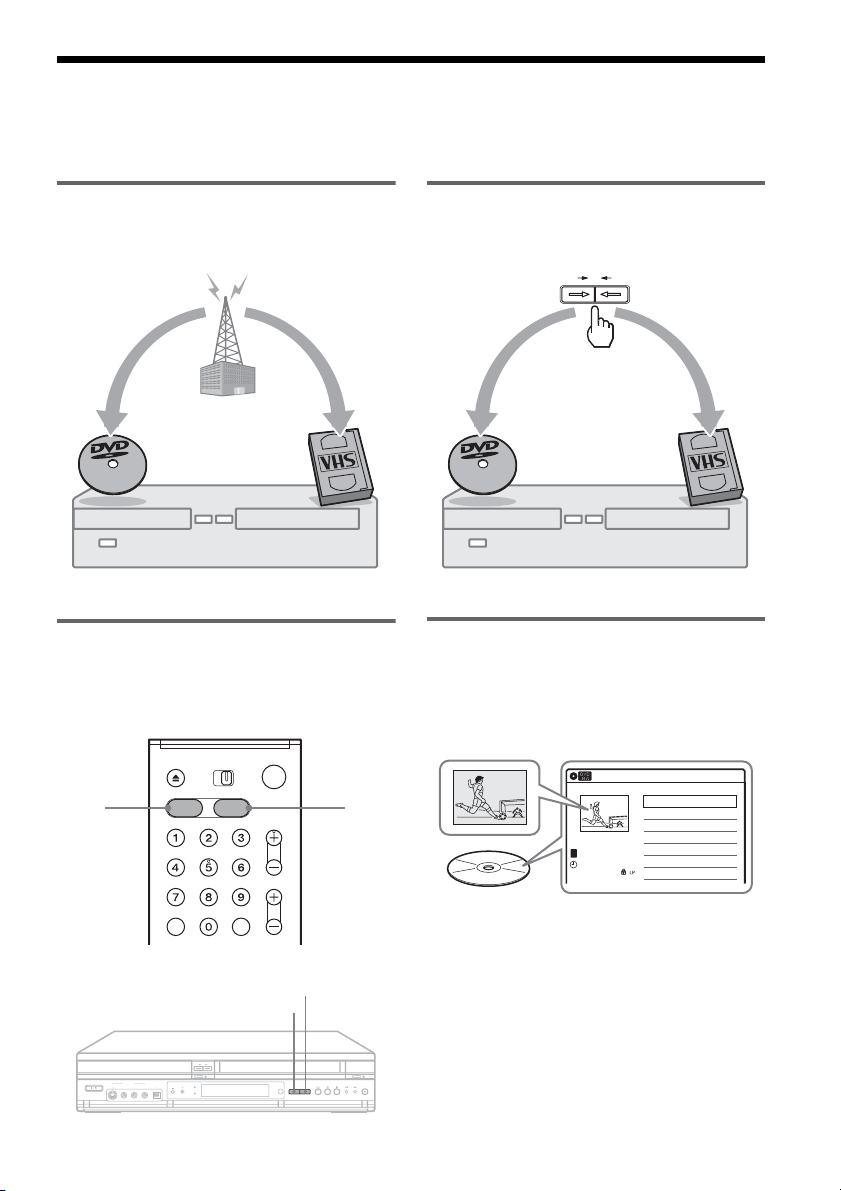
What is a Video Cassette Recorder/DVD Recorder?
This is a DVD recorder with built-in VHS video deck, and allows recording/playback of DVD discs and
VHS tapes. DVD editing is also possible.
Recording and timer recording
Record TV programs on a DVD or VHS tape,
either manually or using the timer.
Easy selection between DVD and
VCR
Simply press the DVD or VIDEO button to select
the media format you want to use.
Easy dubbing
Dub in either direction between a DVD disc and
VHS tape with the simple press of a button.
* Note that copy-protected signals will not be recorded.
Quick access to recorded titles -
Title List
Display the Title List to view all titles on a disc
and select a title for playback or editing.
DVD VIDEO
DVD
VIDEO
VIDEODVD
10:10 AM
>
>
>
>
CH 23
08:00 PM
May/02/2005
T
No.1/4
01
02
03
04
Title Length Edit
CH 23 01:29:03
CH 66 00:31:23
CH 95 01:59:00
CH 97 00:58:56
Title List (Original)
9
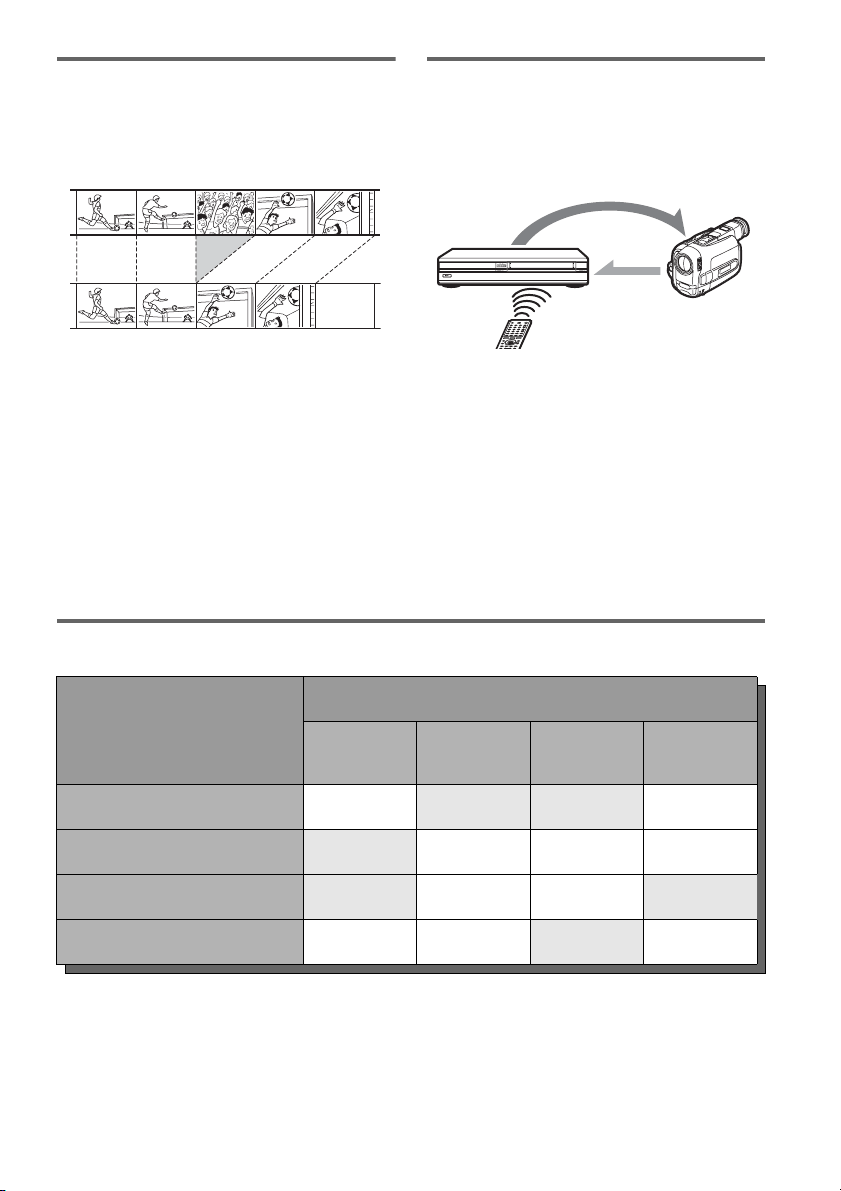
Creating your own program - Playlist
Record a program on a DVD-RW (VR mode),
then erase, move or add scenes as you like without
changing the original contents.
One Touch Dubbing - DV/D8 Dubbing
Connect your digital video camera to the DV IN
jack and press the ONE TOUCH DUBBING
button to dub a DV/D8 format tape over to a disc.
Operation restrictions
*1
When pressing DVD, VCR playback stops.
*2
When pressing VIDEO, DVD playback stops.
*3
Only the same program can be recorded on a DVD and a VHS tape.
Original
Playlist
control
dubbing
Current Operation
Possible Simultaneous Operations
VCR
Playback
VCR
Recording
DVD
Playback
DVD
Recording
Playing a VHS tape
*1
— No No Yes
Recording on a VHS tape No — Yes Yes
*3
Playing a DVD
*2
No Yes — No
Recording on a DVD Yes Yes
*3
No —
10
How to Use the On-Screen
Menus
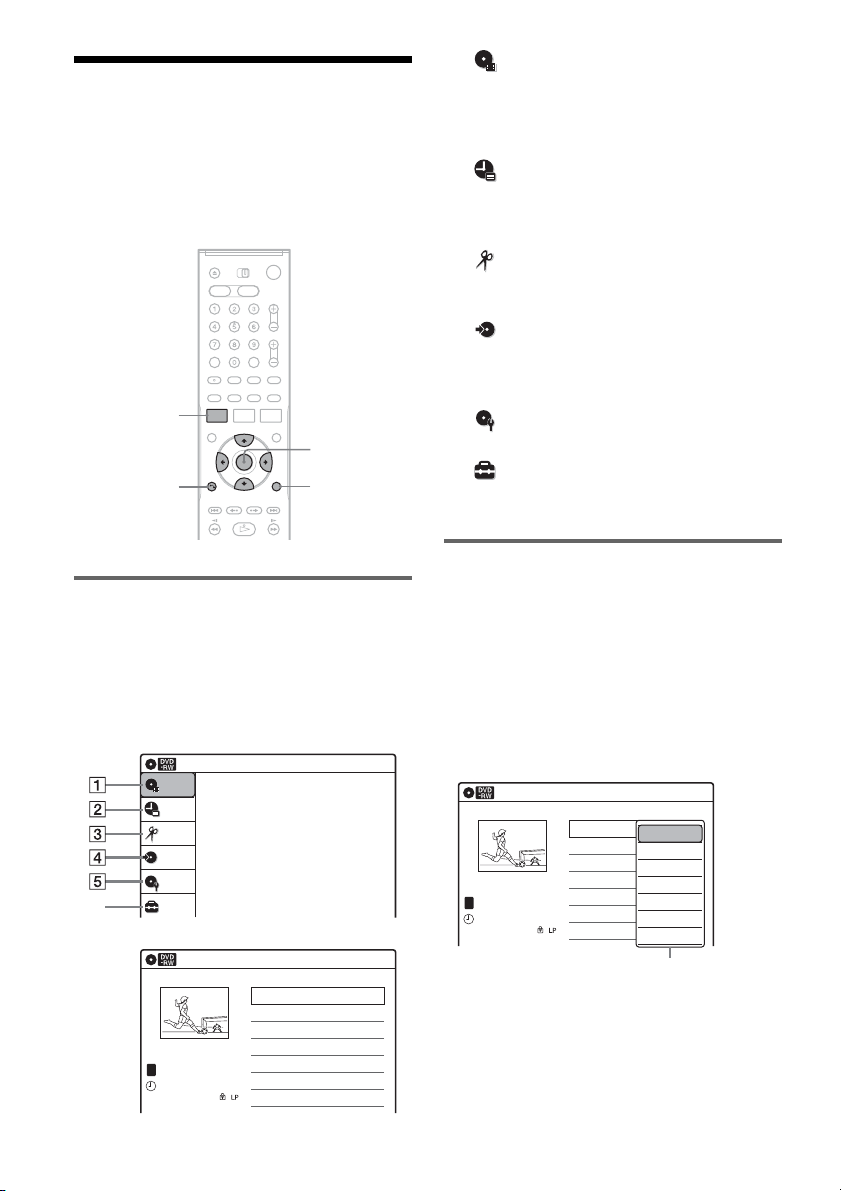
The following three displays are mainly used to
operate this recorder. Once you become familiar
with the basic operations, you will find the
recorder easy to use.
System Menu
The System Menu appears when you press
SYSTEM MENU, and provides entries to all of
the recorder’s main functions, such as timer
recording and setup.
Select an option by pressing M/m and ENTER.
A “Title List”
Displays the list of the disc contents,
including the recording information and
movie thumbnail image, which allows you to
select a title to play or edit.
B “Timer”
Used to set a new timer recording for a disc or
VHS tape, as well as change or cancel the
timer recordings you set.
C “Edit”
Used to create or edit a Playlist (unfinalized
DVD-RWs (VR mode) only).
D “Dubbing”
Used to dub from a disc to a VHS tape and
vice versa, and also dub from a DV/D8 format
tape to a disc.
E “Disc Setting”
Used to rename, format, or finalize a disc.
F “Setup”
Displays the “Setup” display for setting up the
recorder to suit your preferences.
Sub-menu
The sub-menu appears when you select an item
from a list menu (e.g., a title from the Title List
menu), and press ENTER. The sub-menu displays
options applicable only to the selected item. The
displayed options differ depending on the
situation and disc type.
Select an option by pressing M/m and ENTER.
Example: The Title List menu
M/m/</,,
ENTER
SYSTEM
MENU
TOOLSO RETURN
Title List (Original)
10:10 AM
Press ENTER :
Title Menu for DVD Title List.
Setup
Disc Setting
Edit
Title List
Timer
Dubbing
6
10:10 AM
01 CH 23 >01:29:03
02 CH 66 >00:31:23
03 CH 95 >01:59:00
04 CH 97 >00:58:56
CH
23
08:00 PM
May/02/2005
T
No. Title Length Edit
Title List (Original)
1/4
Title List (Original)
10:10 AM
No. Title Length Edit
01 CH 23 >01:29:03
02 CH 66 >00:31:23
03 CH 95 >01:59:00
04 CH 97 >00:58:56
CH 23
May/02/2005
08:00 PM
T
1/4
Play
Title Erase
Chapter Erase
Protect
Title Name
A·B Erase
Divide Title
Options for the selected item
11
TOOLS
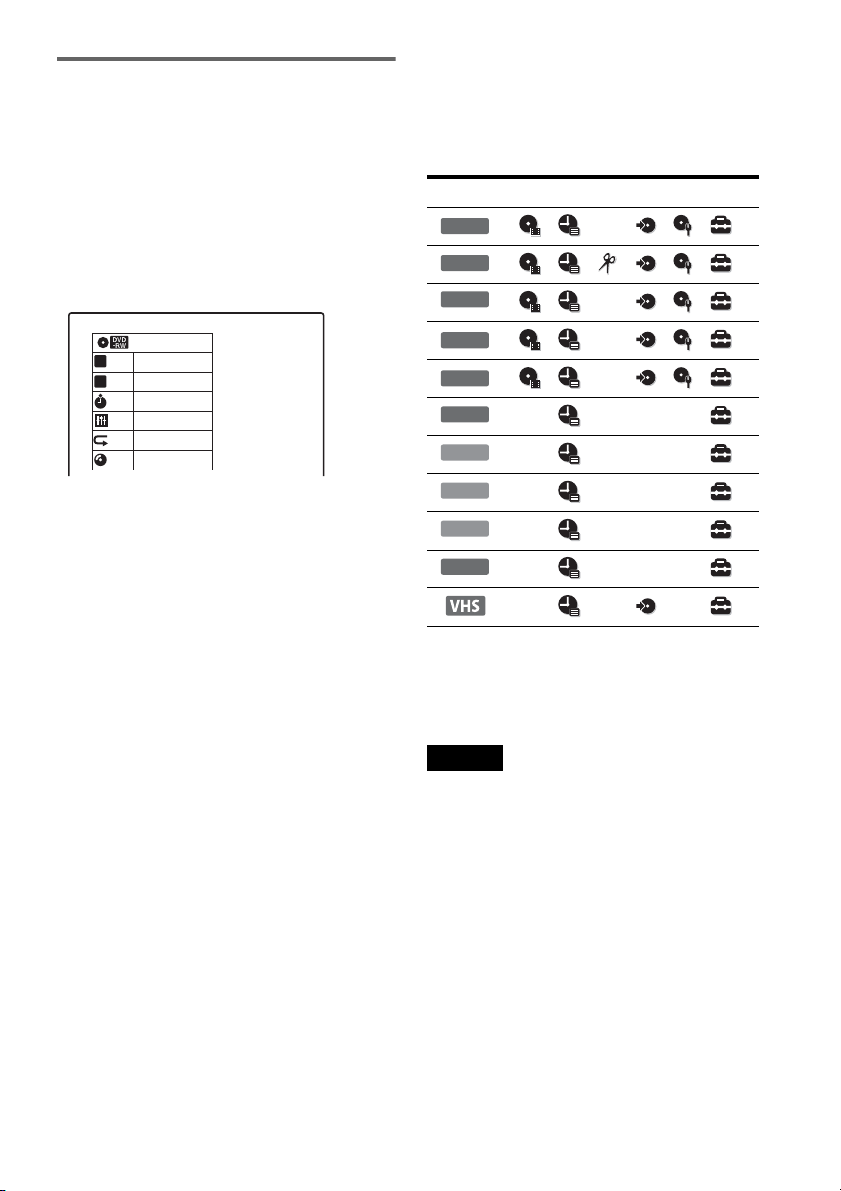
The TOOLS menu appears when you press
TOOLS. You can search for a title/chapter/track,
check the playing and remaining time, or change
audio and repeat settings. The displayed options
differ depending on the media type.
Press M/m to select an option, press </, to
select the desired item, and press ENTER.
Example: When you press TOOLS while a
DVD-RW (VR mode) is playing.
Selectable options
Selectable options on the System Menu differ
depending on the media type, disc condition, and
operating status.
Example: When a disc or a VHS tape is stopped.
*1
Unfinalized disc only
*2
With a disc inserted
To return to the previous display
Press O RETURN.
Notes
• The TOOLS menu may not appear during DVD
recording.
• The System Menu does not appear when recording on
a DVD, or dubbing from VHS tape to a DVD.
• You cannot use the DVD or VIDEO buttons with the
System Menu turned on.
1/4
1/1
00:00:25
T
C
Title
Chapter
Time
Repeat
Remain
Audio
Off
00:01:30
ENG Dolby 5.1ch (1/3)
Type Selectable option
+
RW
-
RWVR
*1
-
RW
Video
*1
+
R
*1 *1
-
R
*1 *1
DVD
VCD
CD
DATA CD
DATA DVD
*2

12
Hookups and Settings
Hooking Up the Recorder
Follow steps 1 to 7 to hook up and adjust the
settings of the recorder.
Notes
• Plug cords securely to prevent unwanted noise.
• See the instructions supplied with the components to be
connected.
• You cannot connect this recorder to a TV that does not
have a video input jack.
• Be sure to disconnect the power cord of each
component before connecting.
Step 1: Unpacking
Check that you have the following items:
• Audio/video cord
(phono plug × 3 y phono plug × 3) (1)
• Antenna cable (1)
• Remote commander (remote) (1)
• Size AA (R6) batteries (2)
Step 2: Connecting the
Antenna Cable
Select one of the following antenna hookups. Do
not connect the power cord until you reach
“Connecting the Power Cord” on page 19.
Note to CATV system installer (in USA)
This reminder is provided to call the CATV
system installer’s attention to Article 820- 40 of
the NEC that provides guidelines for proper
grounding and, in particular, specifies that the
cable ground shall be connected to the grounding
system of the building, as close to the point of
cable entry as practical.
Notes
• If your antenna is a flat cable (300-ohm twin lead
cable), use an external antenna connector (not
supplied) to connect the antenna to the recorder.
• If you have separate cables for VHF and UHF
antennas, use a UHF/VHF band mixer (not supplied) to
connect the antenna to the recorder.
If you have Hookup
Cable box or satellite receiver with a
video/audio output
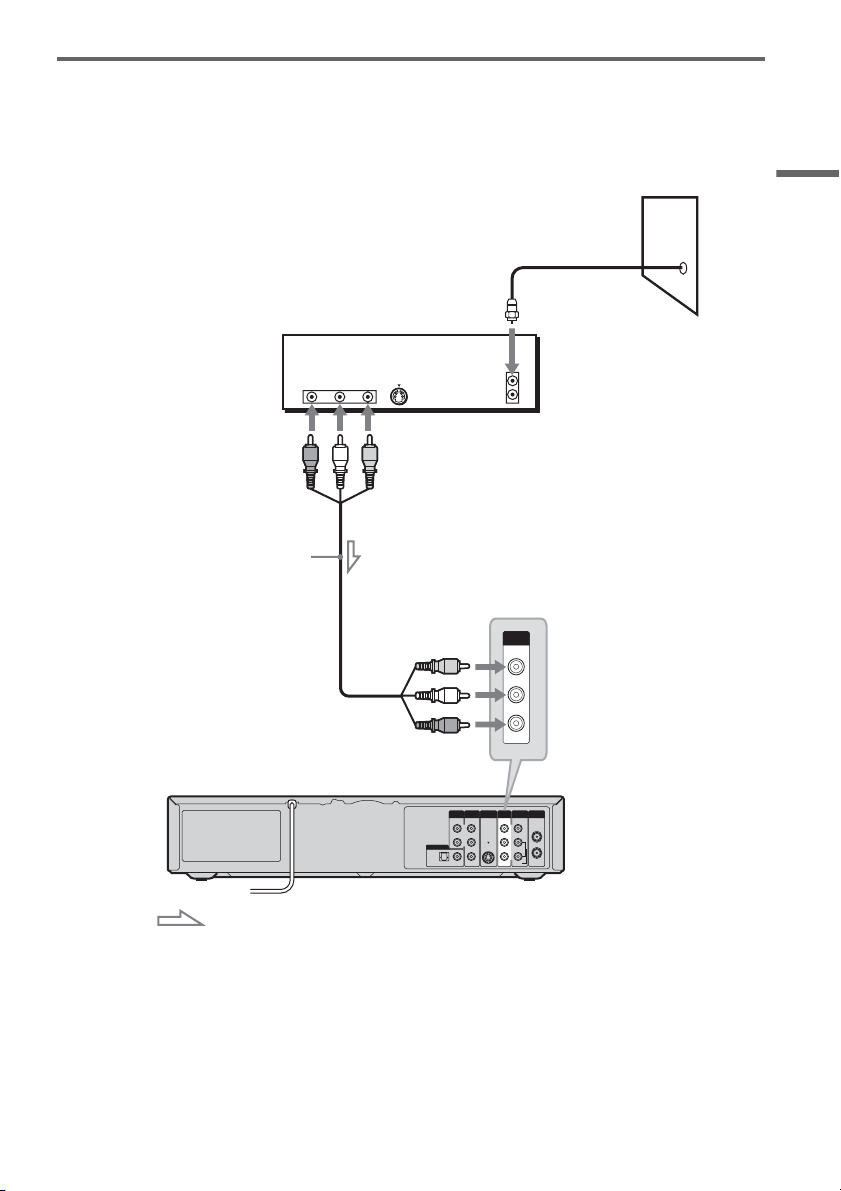
A (page 13)
Cable box with an antenna output
only
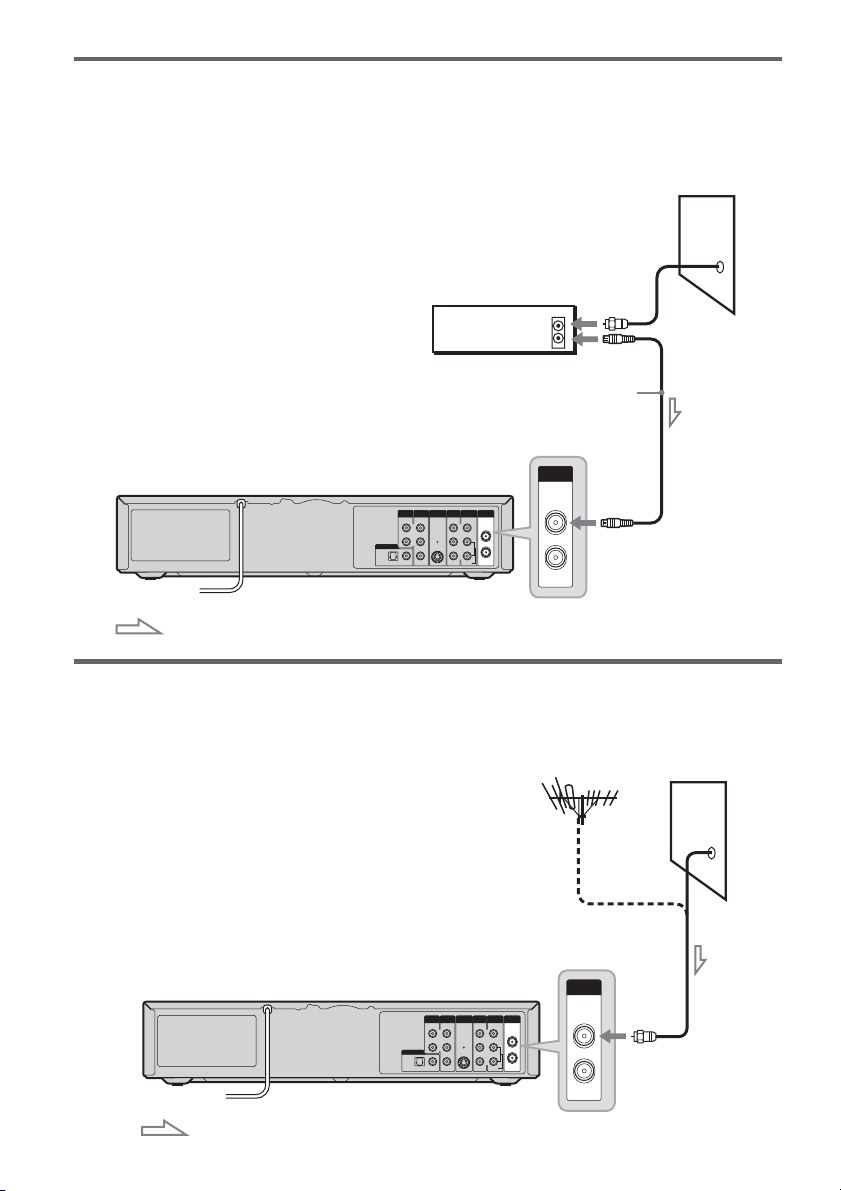
B (page 14)
Cable without cable box, or antenna
only (no cable TV)
C (page 14)
13
Hookups and Settings
A: Cable box or satellite receiver with a video/audio output
With this hookup, you can record any channel on the cable box or satellite receiver. Be sure that the
satellite receiver or cable box is turned on.
To watch cable or satellite programs, you need to match the channel on the recorder (L1) to the input jack
connected to the cable box or satellite receiver (LINE 1 IN).
IN
L
R
VIDEO
AUDIO
OUT
VHF/UHFLINE OUT
VIDEO
YL
P
B
R
P
R
AUDIO
LINE 1 IN
AUDIO OUT S VIDEO OUT
COMPONENT
VIDEO OUT
DIGITAL AUDIO OUT
OPTICAL COAXIAL
ANT IN
RL
S VIDEO
AUDIO
OUT
VIDEO
OUT
TO TV
VIDEO
LINE 1 IN
AUDIO
to LINE 1 IN
VCR-DVD recorder
Audio/video cord
(supplied)
: Signal flow
Cable box/satellite receiver
Wall
,continued
14
B: Cable box with an antenna output only
With this hookup, you can record any channel on the satellite receiver or cable box. Be sure that the
satellite receiver or cable box is turned on.
To watch cable programs, you need to match the channel on the recorder (2ch, 3ch or 4ch) to the antenna
output channel on the cable box (2ch, 3ch or 4ch).
C: Cable without cable box, or antenna only (no cable TV)
Use this hookup if you watch cable channels without a cable box. Also use this hookup if you are using
a VHF/UHF antenna or separate VHF and UHF antennas.
With this hookup, you can record any channel by selecting the channel on the recorder.
IN
L
R
VIDEO
AUDIO
OUT
VHF/UHFLINE OUT
VIDEO
YL
P
B
R
P
R
AUDIO
LINE 1 IN
AUDIO OUT S VIDEO OUT
COMPONENT
VIDEO OUT
DIGITAL AUDIO OUT
OPTICAL COAXIAL
IN
OUT
VHF/UHF
ANT IN
TO TV
to VHF/UHF IN
Wall
VCR-DVD recorder
Antenna cable (supplied)
: Signal flow
Cable box
IN
L
R
VIDEO
AUDIO
OUT
VHF/UHFLINE OUT
VIDEO
YL
P
B
R
P
R
AUDIO
LINE 1 IN
AUDIO OUT S VIDEO OUT
COMPONENT
VIDEO OUT
DIGITAL AUDIO OUT
OPTICAL COAXIAL
IN
OUT
VHF/UHF
VCR-DVD recorder
to VHF/UHF IN
: Signal flow
Wall
15
Hookups and Settings
Step 3: Connecting to Your TV
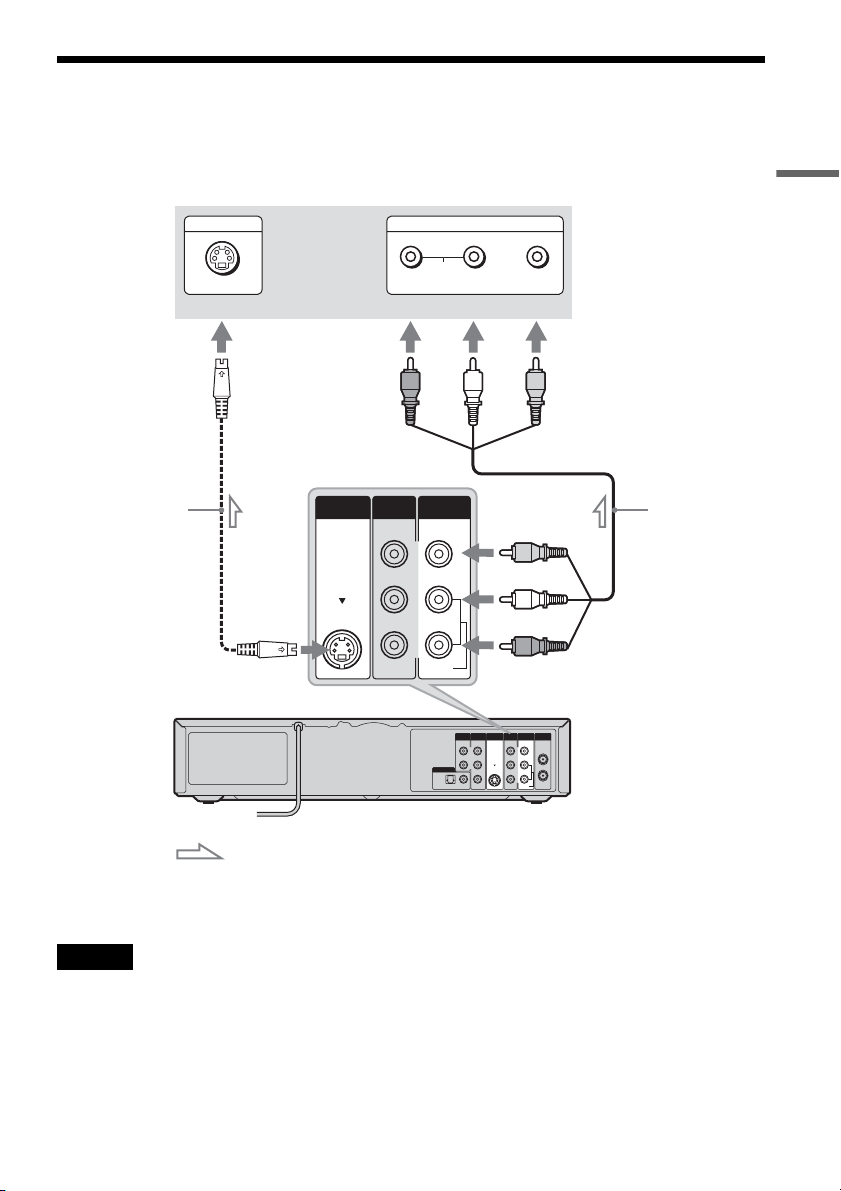
Connect the supplied audio/video cord to the LINE OUT (AUDIO L/R/VIDEO) jacks of the recorder.
To enjoy higher quality images, connect an S video cord (not supplied) instead of the yellow (video) plug.
When using this connection, be sure to connect the audio cord to the LINE OUT (AUDIO L/R) jacks.
When playing “wide screen” images
Some recorded images may not fit your TV screen. To change the picture size, see page 95.
Notes
• Do not connect more than one type of video cord between the recorder and your TV at the same time.
• During DVD recording, you cannot watch VHS pictures by pressing VIDEO, as the S VIDEO OUT jack will output
DVD video signals only.
• Do not connect your TV’s audio output jacks to the LINE IN (AUDIO L/R) jacks at the same time. This will cause
unwanted noise to come from your TV’s speakers.
IN
L
R
VIDEO
AUDIO
OUT
VHF/UHFLINE OUT
VIDEO
YL
P
B
R
P
R
AUDIO
LINE 1 IN
AUDI O OUT S VIDEO OUT
COMPONENT
VIDEO OUT
DIGITAL AUDIO OUT
OPTICAL COAXIAL
L
R
VIDEO
AUDIO
LINE OUT
VIDEO
AUDIO
LINE 1 IN
S VIDEO OUT
AUDIO
INPUT
R L VIDEO
INPUT
S VIDEO
: Signal flow
VCR-DVD recorder
TV or projector
(red)
Audio/video cord
(supplied)
to LINE OUT (VIDEO/AUDIO L/R)
(white) (yellow)
(yellow)
(white)
(red)
to S VIDEO OUT
S video cord
(not supplied)
,continued

16
If your TV has component video input jacks
Connect the COMPONENT VIDEO OUT jacks using a component video cord (not supplied) or three
video cords (not supplied) of the same kind and length. You will enjoy accurate color reproduction and
high quality images.
If your TV accepts progressive 480p format signals, you must use this connection and then set
“Progressive” of “Video” to “On” in the “Setup” display (page 96). The PROGRESSIVE indicator lights
up when the recorder outputs progressive signals.
When using this connection, be sure to connect the audio cord to the LINE OUT (AUDIO L/R) jacks.
z Hint
Video signal can also be output from the COMPONENT VIDEO OUT jack when playing a VHS tape.
Note
During DVD recording, you cannot watch VHS pictures by pressing VIDEO, as the COMPONENT VIDEO OUT jacks
will output DVD video signals only.
IN
L
R
VIDEO
AUDIO
OUT
VHF/UHFLINE OUT
VIDEO
YL
P
B
R
P
R
AUDIO
LINE 1 IN
AUDIO OUT S VIDEO OUT
COMPONENT
VIDEO OUT
DIGITAL AUDIO OUT
OPTICAL COAXIAL
Y
P
B
P
R
COMPONENT
VIDEO OUT
COMPONENT VIDEO IN
P
B
P
R
Y
AUDIO
LR
INPUT
L
R
VIDEO
AUDIO
LINE OUT
(red)
(blue)
(green)
(green) (blue) (red)
Component video cord
(not supplied)
: Signal flow
TV or projector
Audio/video cord (supplied)
(white) (red)
(white)
(red)
to LINE OUT (AUDIO L/R)
to COMPONENT VIDEO OUT
VCR-DVD recorder
17
Hookups and Settings
Step 4: Connecting to Your AV Amplifier (Receiver)
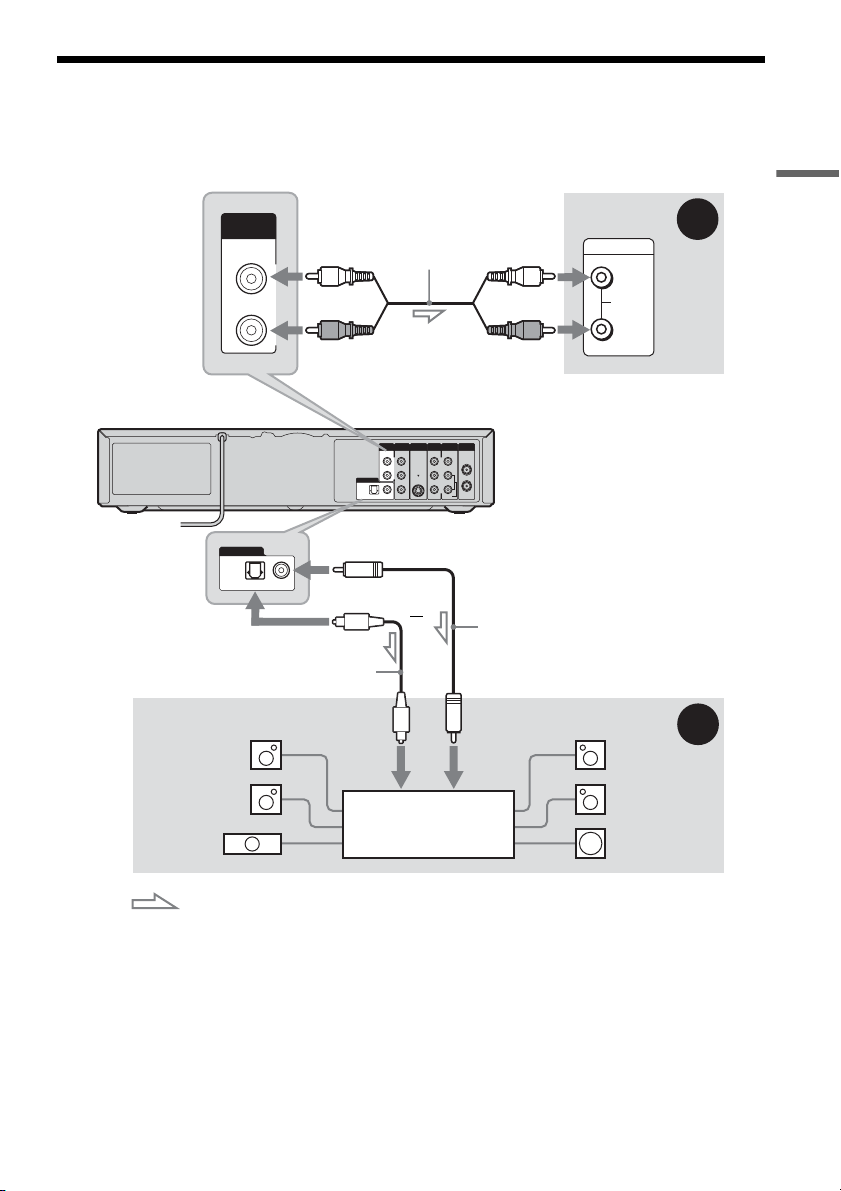
Select one of the following patterns A or B, according to the input jack on your AV amplifier (receiver).
This will enable you to listen to DVD audio tracks through your AV amplifier (receiver).
IN
L
R
VIDEO
AUDIO
OUT
VHF/UHFLINE OUT
VIDEO
YL
P
B
R
P
R
AUDIO
LINE 1 IN
AUDI O OUT S VIDEO OUT
COMPONENT
VIDEO OUT
DIGITAL AUDIO OUT
OPTICAL COAXIAL
AUDIO
INPUT
L
R
L
R
AUDIO OUT
B
A
DIGITAL AUDIO OUT
OPTICAL COAXIAL
AV amplifier (receiver)
with a decoder
(red)
Audio cord
(not supplied)
: Signal flow
Coaxial digital cord
(not supplied)
to DIGITAL AUDIO OUT
(COAXIAL or OPTICAL)
to AUDIO OUT (L/R)
Optical digital cord (not supplied)
Rear (L)
VCR-DVD recorder
(white)
(white)
(red)
[Speakers]
Front (L)
[Speakers]
Rear (R)
Front (R)
Subwoofer
or
Center
to optical
digital input
to coaxial
digital input
AV amplifier (receiver)
,continued
18
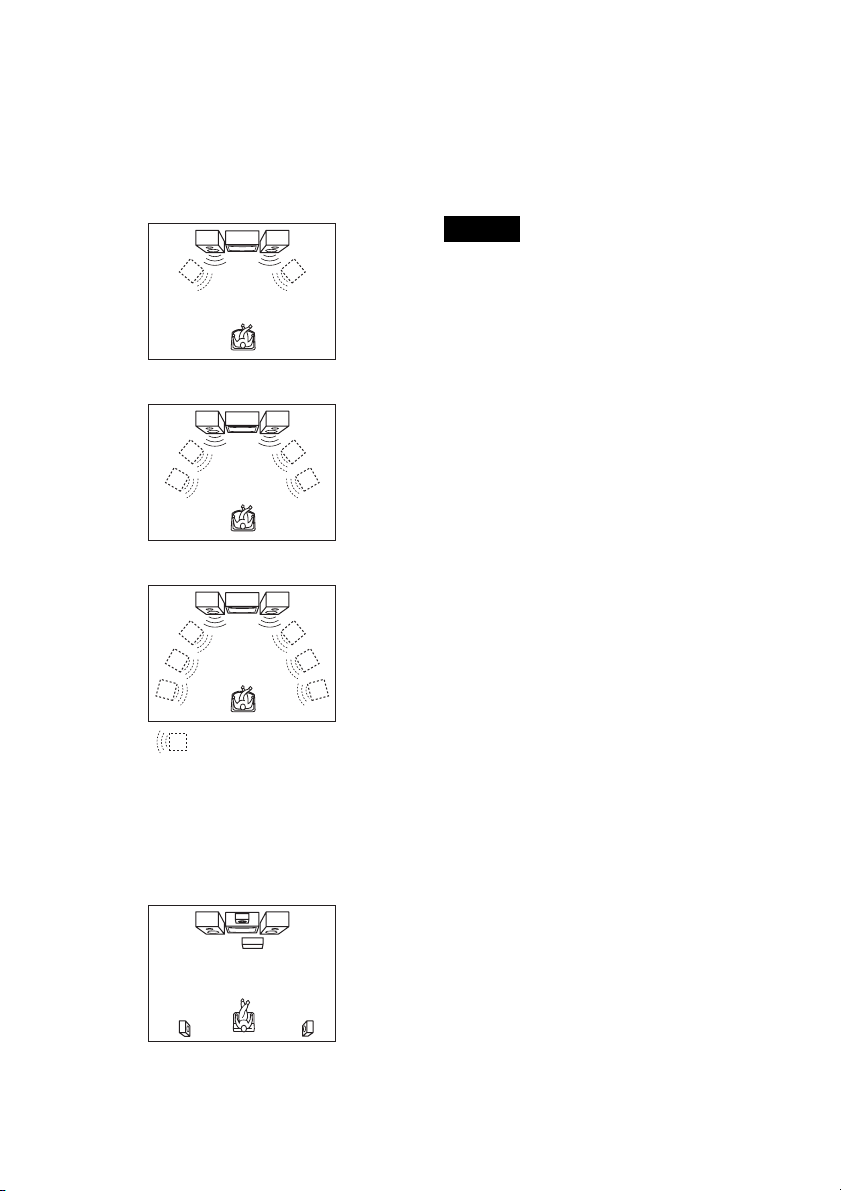
A Connecting to audio L/R jacks
This connection uses a stereo amplifier’s
(receiver’s) two front speakers for sound.
You can enjoy the surround function that creates
virtual speakers from two stereo speakers. Select
from “Surround1,” “Surround2,” or “Surround3”
of the surround effects (page 33).
Surround 1
Surround 2
Surround 3
B Connecting to a digital audio input jack
Use this connection if your AV amplifier
(receiver) has a Dolby
*1
Digital or DTS
*2
decoder
and a digital input jack. You can enjoy the
surround effect of Dolby Digital (5.1ch) or DTS
(5.1ch).
*1
Manufactured under license from Dolby Laboratories.
“Dolby” and the double-D symbol are trademarks of
Dolby Laboratories.
*2
“DTS” and “DTS Digital Out” are trademarks of
Digital Theater Systems, Inc.
z Hints
• For correct speaker location, see the operating
instructions supplied with the connected components.
• During VHS playback, the DIGITAL AUDIO OUT
jacks can also output digital audio signals.
Notes
• During DVD recording, the DIGITAL AUDIO OUT
jacks output DVD audio signals only. You cannot hear
VHS sound by pressing VIDEO.
• After you have completed the connection, make the
appropriate settings under “Audio Connection Setup”
in Easy Setup (page 22). Otherwise, no sound or a loud
noise will come from your speakers.
• With a coaxial or optical digital connection, you cannot
use the virtual surround effects of this recorder.
• The recorder cannot play Linear PCM soundtracks of 2
channels or more.
• When outputting from the DIGITAL AUDIO OUT
jacks, you cannot switch the bilingual sounds on a
DVD-RW (VR mode) by pressing AUDIO.
Virtual speaker
19
Hookups and Settings
Step 5: Connecting the
Power Cord
Plug the recorder and TV power cords into an AC
outlet. After you connect the power cord, you
must wait for a short while before
operating the recorder. You can operate the
recorder only after the front panel display lights up
and the recorder enters standby mode.
If you connect additional equipment to this
recorder (page 26), be sure to connect the power
cord only after all connections are complete.
Step 6: Preparing the
Remote
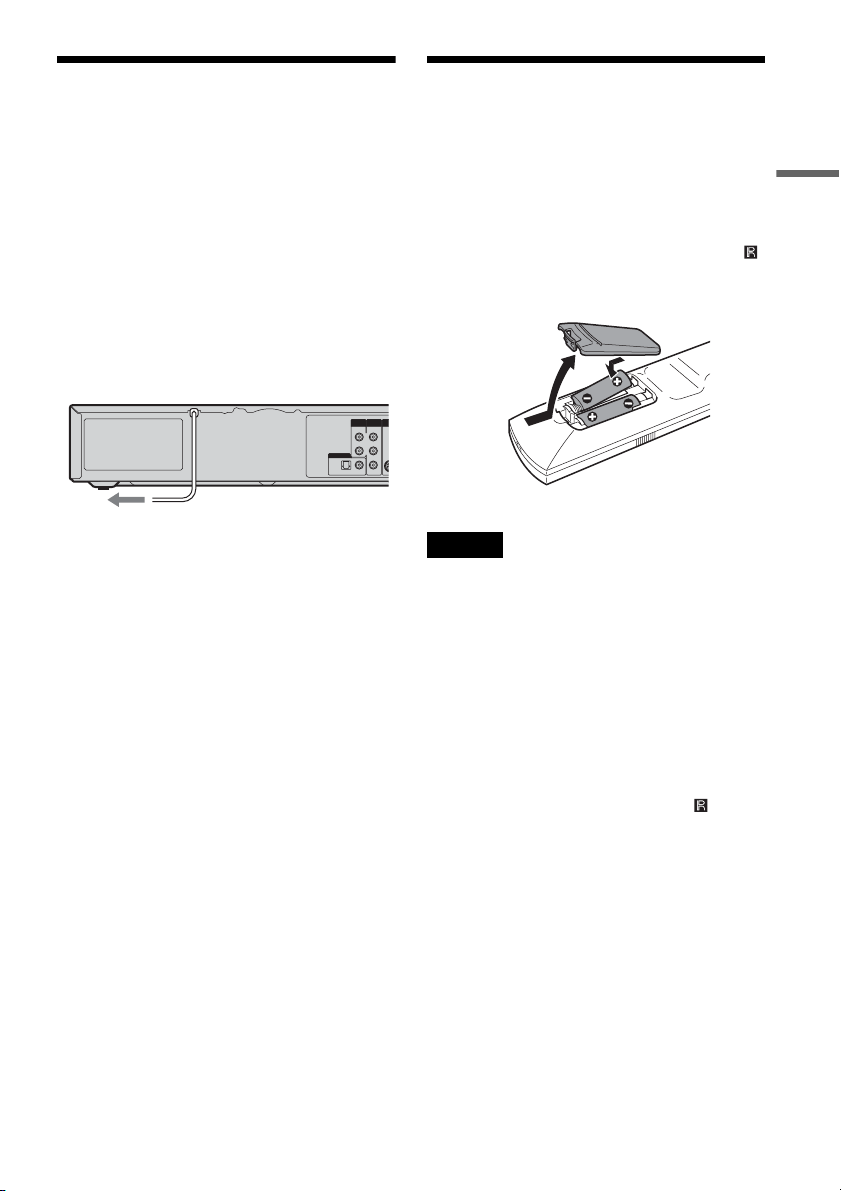
You can control the recorder using the supplied
remote. Insert two size AA (R6) batteries by
matching the 3 and # ends on the batteries to the
markings inside the battery compartment. When
using the remote, point it at the remote sensor
on the recorder.
Notes
• If the supplied remote interferes your other Sony DVD
recorder or player, change the command mode number
for this recorder (page 24).
• Use the batteries correctly to avoid possible leakage
and corrosion. Do not touch the liquid with bare hands
should leakage occur. Observe the following:
– Do not use a new battery with an old battery, or
batteries of different manufacturers.
– Do not attempt to recharge the batteries.
– If you do not intend to use the remote for an extended
period of time, remove the batteries.
– If battery leakage occurs, wipe out any liquid inside
the battery compartment, and insert new batteries.
• Do not expose the remote sensor (marked on the
front panel) to strong light, such as direct sunlight or
lighting apparatus. The recorder may not respond to the
remote.
• With normal use, the batteries should last about three to
six months.
• Do not leave the remote in an extremely hot or humid
place.
• Do not drop any foreign object into the remote casing,
particularly when replacing the batteries.
YL
P
B
R
P
R
AUDIO OUT S VI
D
COMPONENT
VIDEO OUT
DIGITAL AUDIO OUT
OPTICAL COAXIAL
to AC outlet
,continued
20
Controlling TVs with the remote
You can adjust the remote control’s signal to
control your TV.
If you connect the recorder to an AV amplifier
(receiver), you can also use the supplied remote to
control the AV amplifier’s (receiver’s) volume.
Notes
• Depending on the connected unit, you may not be able
to control your TV or AV amplifier (receiver) with
some or all of the buttons below.
• If you enter a new code number, the code number
previously entered will be erased.
• When you replace the batteries of the remote, the code
number may be reset to the default setting. Set the
appropriate code number again.
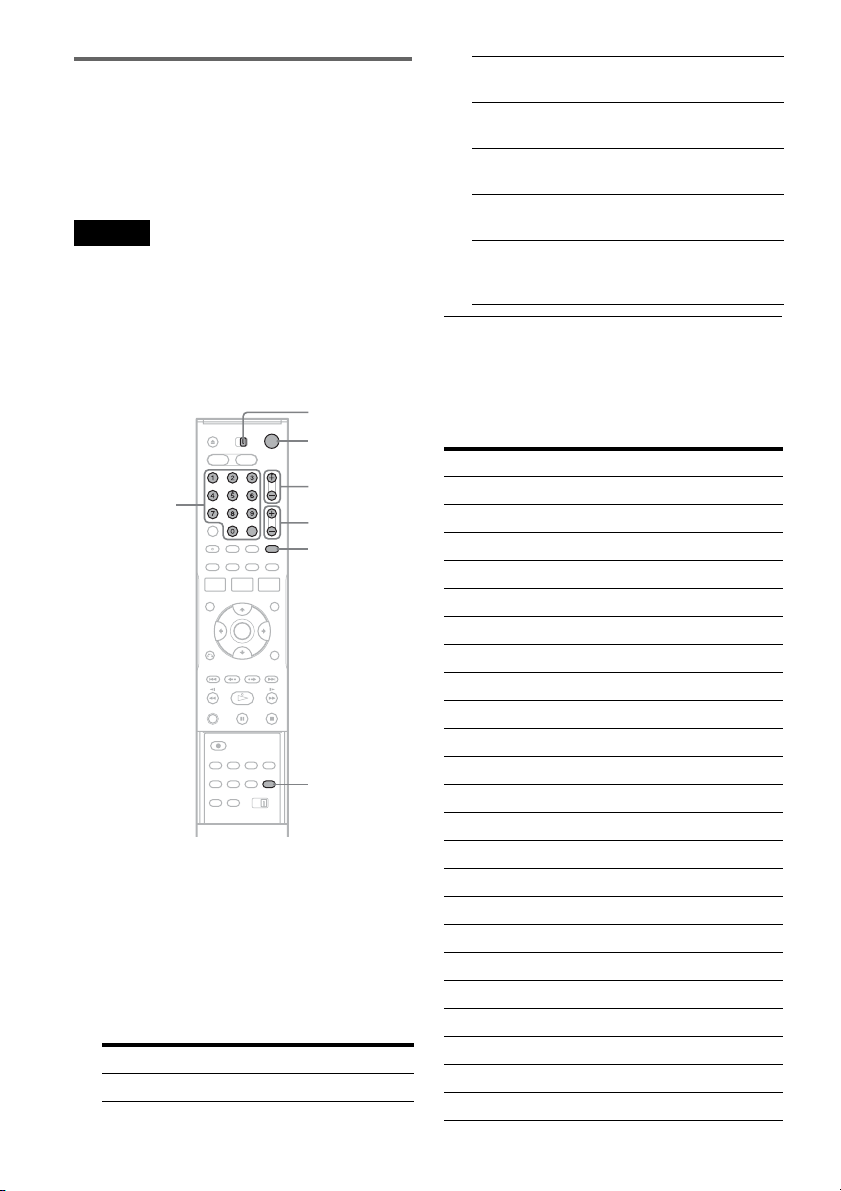
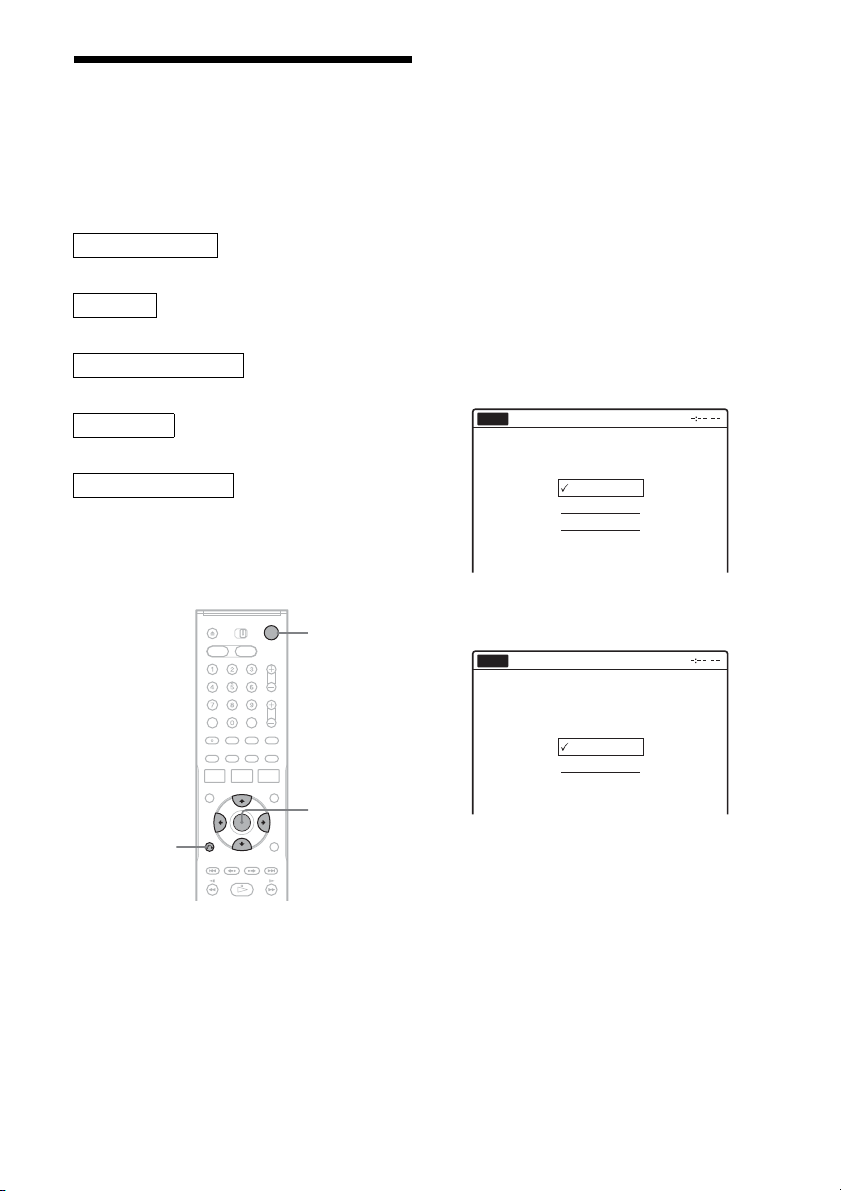
1 Slide the TV/DVD·VIDEO switch to TV.
2 Hold down "/1.
3 Enter your TV’s manufacturer code (see
below) using the number buttons.
4 Release "/1.
When the TV/DVD·VIDEO switch is set to
TV, the remote performs the following:
Code numbers of controllable TVs
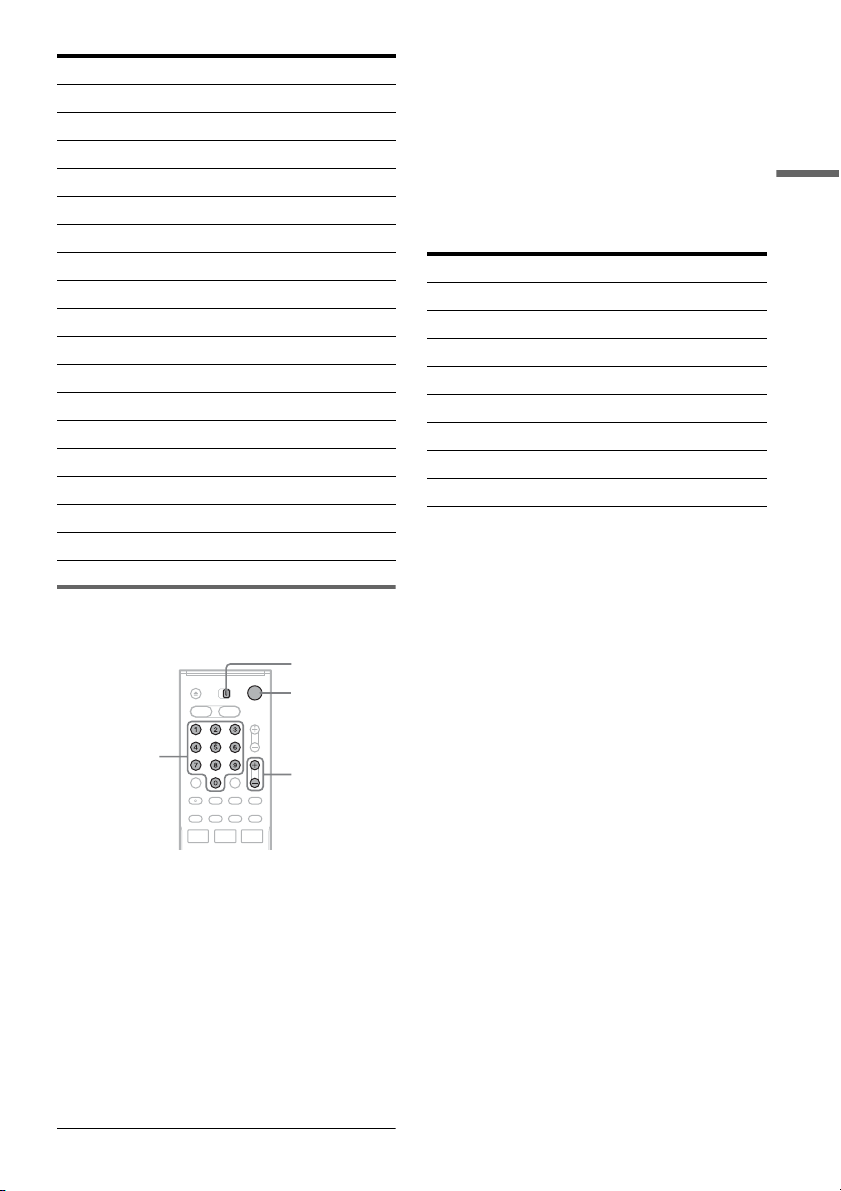
If more than one code number is listed, try
entering them one at a time until you find the one
that works with your TV.
Press To
"/1 Turn your TV on or off
TV/DVD·VIDEO
switch
"/1
VOL +/–
Number
buttons,
SET
TV/VIDEO
CH +/–
WIDE MODE
VOL +/– Adjust the volume of
your TV
CH +/– Select the channel on
your TV
TV/VIDEO Switch your TV’s input
source
Number buttons and
SET
Select the channel on a
Sony TV
WIDE MODE Switch to or from the
wide mode of a Sony
wide-screen TV
Manufacturer Code number
Sony 01 (default)
Akai 04
AOC 04
Centurion 12
Coronado 03
Curtis-Mathes 12, 14
Daewoo 04, 22
Daytron 03, 12
Fisher 11
General Electric 04, 06, 10
Hitachi 02, 03, 04
J.C.Penney 04, 10, 12
JVC 09
KMC 03
LG/Gold Star 03, 04, 17
Magnavox 03, 04, 08, 12, 21
Marantz 04, 13
MGA/Mitsubishi 04, 12, 13, 17
NEC 04, 12
Panasonic 06, 19
Philco 02, 03, 04, 08
Philips 08, 21
Pioneer 06, 16
21
Hookups and Settings
Controlling the volume of your AV
amplifier (receiver) with the remote
1 Slide the TV/DVD·VIDEO switch to
DVD·VIDEO.
2 Hold down "/1, and enter the
manufacturer code (see the table below)
for your AV amplifier (receiver) using the
number buttons.
3 Release "/1.
The VOL +/– buttons control the AV
amplifier’s volume.
If you want to control the TV’s volume, slide
the TV/DVD·VIDEO switch to TV.
z Hint
If you want to control the TV’s volume even when the
TV/DVD·VIDEO switch is set to DVD·VIDEO, repeat
the steps above and enter the code number 90 (default).
Code numbers of controllable AV amplifiers
(receivers)
If more than one code number is listed, try
entering them one at a time until you find the one
that works with your AV amplifier (receiver).
Portland 03
Proscan 10
Quasar 06, 18
Radio Shack 05, 10, 14
RCA 04, 10
Sampo 12
Samsung 03, 04, 12, 20
Sanyo 11, 14
Scott 12
Sears 07, 10, 11
Sharp 03, 05, 18
Sylvania 08, 12
Teknika 03, 08, 14
Toshiba 07, 18
Wards 03, 04, 12
Yorx 12
Zenith 14, 15
Manufacturer Code number
TV/DVD·VIDEO
switch
"/1
VOL +/–
Number
buttons
Manufacturer Code number
Sony 78, 79, 80, 91
Denon 84, 85, 86
Kenwood 92, 93
Onkyo 81, 82, 83
Pioneer 99
Sansui 87
Technics 97, 98
Yamaha 94, 95, 96
22
Step 7: Easy Setup
Follow the steps below to make the minimum
number of basic adjustments for using the
recorder. If you do not complete Easy Setup, it
will appear each time you turn on your recorder.
Settings are made in the following order.
m
m
m
m
m
1 Turn on the TV.
2 Press "/1.
The recorder turns on.
3 Switch the input selector on your TV so that
the signal from the recorder appears on
your TV screen.
“Initial setting necessary to operate the DVD
recorder will be made. You can change them
later using setup.” appears.
• If this message does not appear, select “Easy
Setup” in the “Setup” display to run Easy
Setup (page 102).
4 Press ENTER.
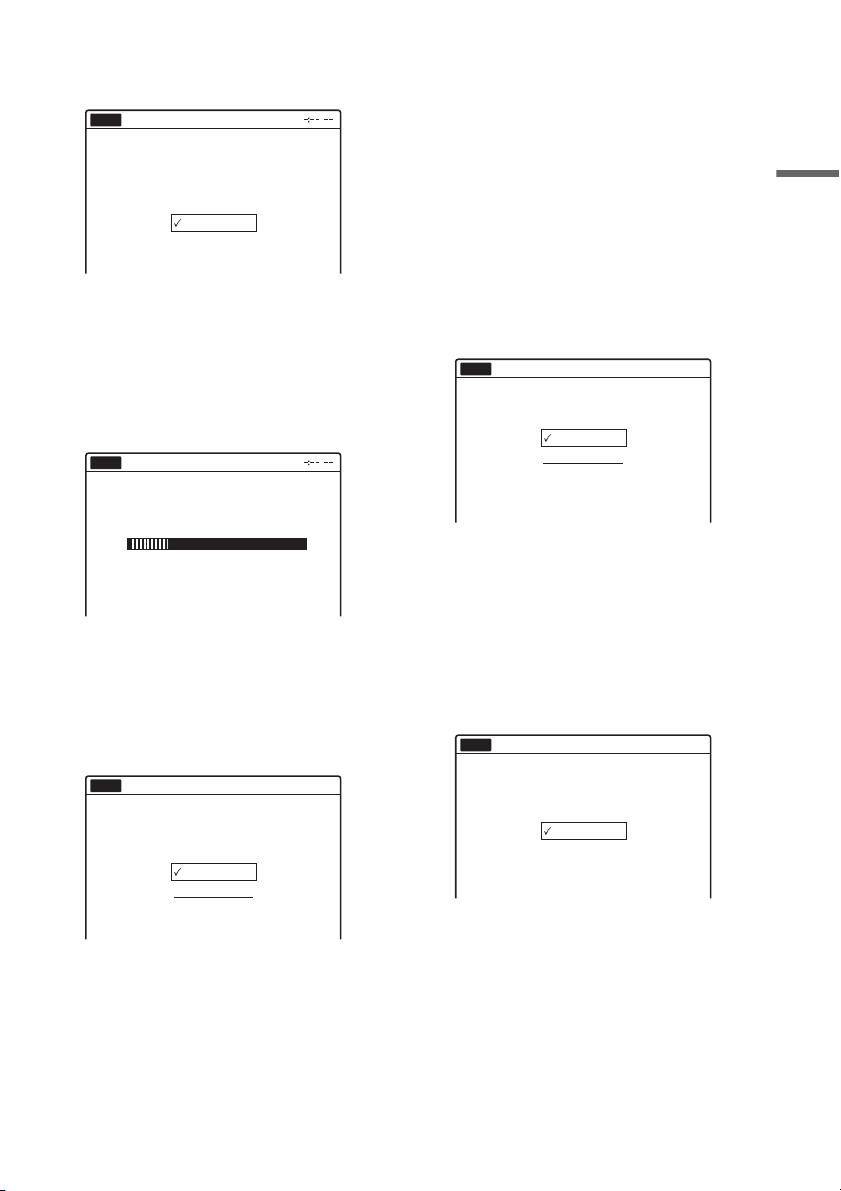
The setup display for selecting the language
used in the on-screen display appears.
5 Select a language, and press ENTER.
The setup display for clock setting appears.
6 Select “Auto,” and press ENTER.
The recorder will automatically search for a
channel that carries a time signal when you
turn off the recorder after finishing Easy
Setup.
• If broadcasters in your area are not sending
time signals, select “Manual,” and press
ENTER. Press M/m to set the month and
press ,. Set the day, year, hour, minutes,
and AM/PM in the same way. The day of the
week is set automatically.
OSD Language Setup
Clock Setup
Tuner and Channel Setup
TV Type Setup
Audio Connection Setup
Finished!
M/m/</,,
ENTER
O RETURN
"/1
English
Français
Español
Easy Setup
Select the screen language.
No Disc
Select a method for setting the clock.
If you select "Auto", this recorder will look
for a time signal when you turn it off.
Auto
Manual
Easy Setup
No Disc
23
Hookups and Settings
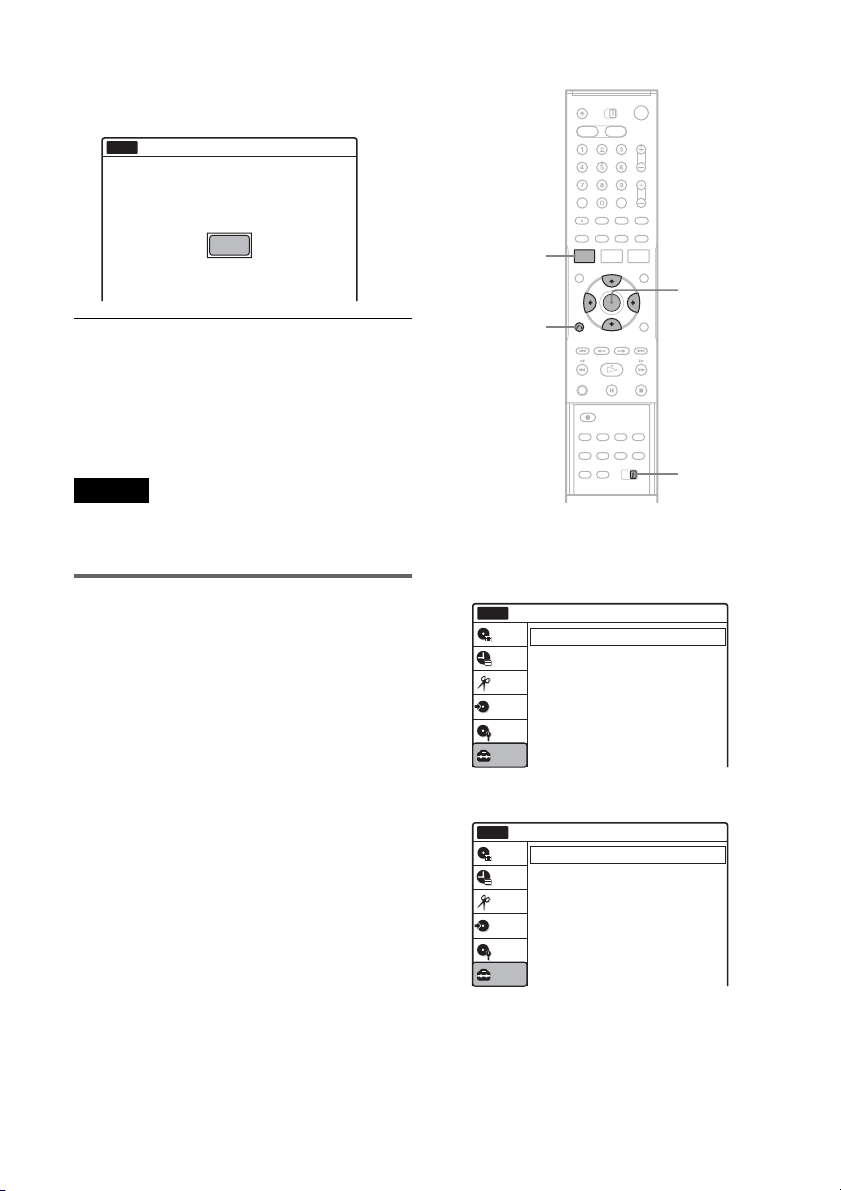
7 Select whether or not you have a cable
connection.
If you use an antenna only (no cable TV),
select “Antenna.”
For all other connections, select “Cable.”
8 Press ENTER.
The Tuner Preset function automatically starts
searching for all of the receivable channels
and presets them.
To set the channels manually, see page 94.
After the Tuner Preset is finished, the setup
display for selecting the picture size of the
connected TV appears.
9 Select the setting that matches your TV
type.
“4:3 Letter Box”: For standard TVs.
Displays “wide screen” pictures with bands
on the upper and lower sections of the screen.
“4:3 Pan Scan”: For standard TVs.
Automatically displays “wide screen”
pictures on the entire screen and cuts off the
sections that do not fit.
“16:9”: For wide-screen TVs or standard TVs
with a wide screen mode.
For details, see “Video Settings (Video)” on
page 95.
10
Press ENTER.
The setup display for selecting the type of
Dolby Digital signal appears.
11
Select the type of Dolby Digital signal you
want to send to your amplifier (receiver).
If your AV amplifier (receiver) has a Dolby
Digital decoder, select “Dolby Digital.”
Otherwise, select “D-PCM.”
12
Press ENTER.
The setup display for selecting the type of
DTS signal appears.
13
Select whether or not you want to send a
DTS signal to your amplifier (receiver),
and press ENTER.
If your AV amplifier (receiver) has a DTS
decoder, select “On.” Otherwise, select “Off.”
Select the way in which you will receive
channels.
Antenna
Cable
Easy Setup
No Disc
Searching for receivable channels. 25
Please wait.
Easy Setup
No Disc
16 : 9
4 : 3 Letter Box
4 : 3 Pan Scan
Easy Setup
Select your TV screen type.
10:10 AM
No Disc
D-PCM
Dolby Digital
Easy Setup
Dolby Digital
10:10 AM
No Disc
On
Off
Easy Setup
DTS
10:10 AM
No Disc
,continued
24
14
Press ENTER when “Finish” appears.
Easy Setup is finished. All connections and
setup operations are complete.
To return to the previous display
Press O RETURN.
z Hint
If you want to run Easy Setup again, select “Easy Setup”
in the “Setup” display (page 102).
Note
To record TV programs using the timer, you must set the
clock accurately.
If you have a Sony DVD player or
more than one Sony DVD recorder
If the supplied remote interferes with your other
Sony DVD recorder or player, set the command
mode number for this recorder and the supplied
remote to one that differs from the other Sony
DVD recorder or player.
The default command mode setting for this
recorder and the supplied remote is DVD 3.
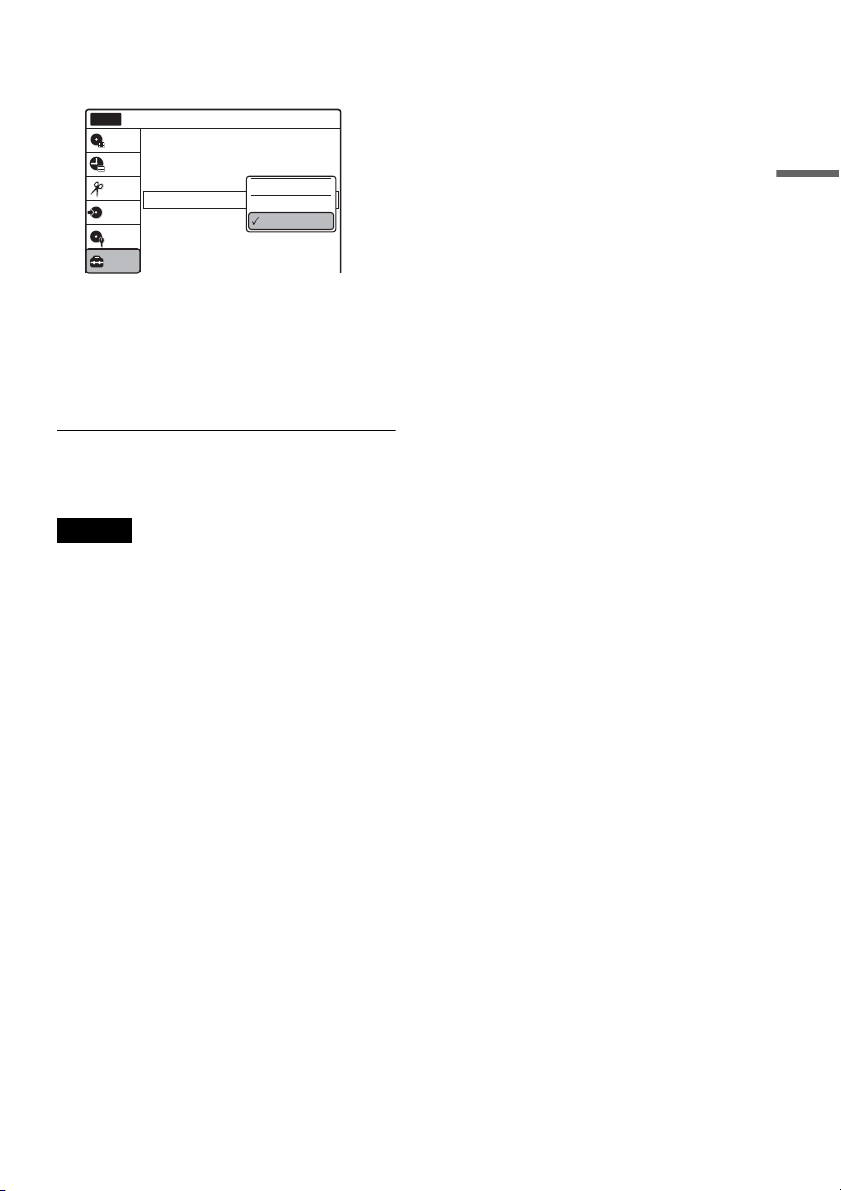
1 Press SYSTEM MENU.
The System Menu appears.
2 Select “Setup,” and press ENTER.
3 Select “Options,” and press ENTER.
Finish
Easy Setup
Easy Setup is finished.
10:10 AM
No Disc
SYSTEM
MENU
M/m/</,,
ENTER
COMMAND
MODE switch
O RETURN
10:10 AM
Tuner Preset
Clock Set
Video
Audio
Features
Options
Easy Setup
Setup
Disc Setting
Edit
Title List
Timer
Dubbing
Setup
No Disc
Options
Language
Parental
Front Display
Command Mode
Factory Setting
: Auto
: DVD 3
10:10 AM
Setup
Disc Setting
Edit
Title List
Timer
Dubbing
No Disc
25
Hookups and Settings
4 Select “Command Mode,” and press
ENTER.
5 Select the command mode (“DVD 1,”
“DVD 2,” or “DVD 3”), and press ENTER.
6 Slide the COMMAND MODE switch on the
remote so it matches the mode you
selected above.
To return to the previous display
Press O RETURN.
Note
If the command mode does not match, the recorder’s
command mode appears on the front panel display when
you operate the remote. Set the remote’s command mode
to one that matches the recorder’s.
Options
Language
Parental
Front Display
Command Mode
Factory Setting
: Auto
: DVD1 No
10:10 AM
Setup
Disc Setting
Edit
Title List
Timer
Dubbing
No Disc
DVD 1
DVD 2
DVD 3
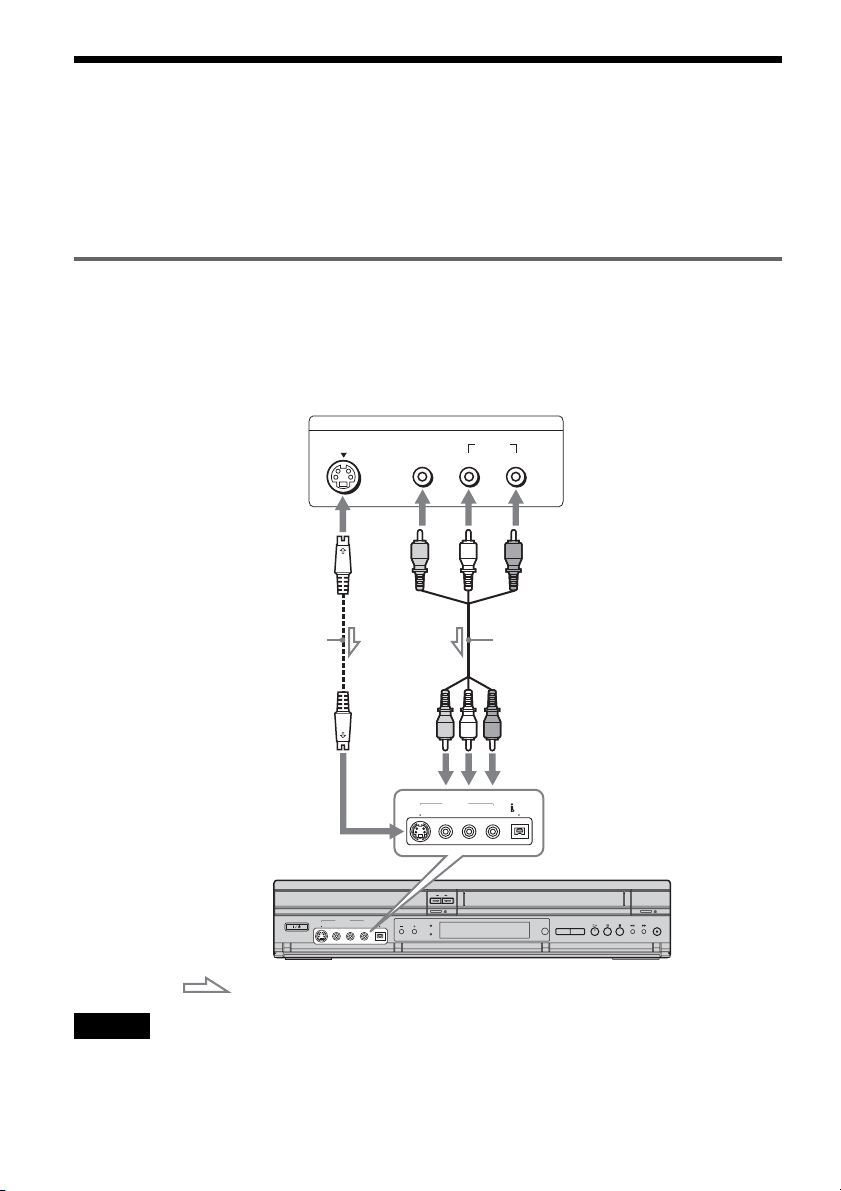
26
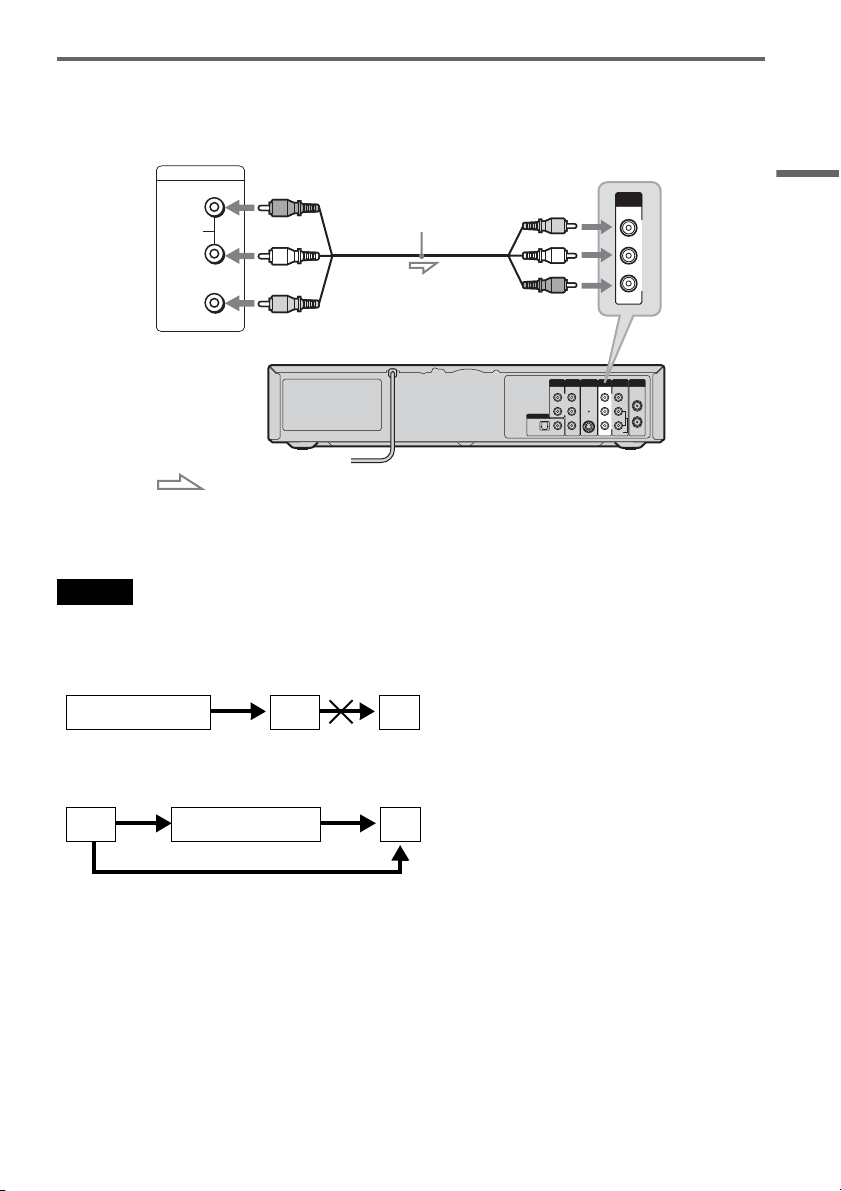
Connecting Another VCR or Similar Device
After disconnecting the recorder’s power cord from an AC outlet, connect the other VCR or similar
recording device to the LINE IN jacks of this recorder. See also the instruction manual supplied with the
connected equipment.
To record on this recorder, see “Recording From Connected Equipment With a Timer (Synchro Rec)” on
page 50 and page 78. Connect the equipment to the LINE 1 IN jacks of the recorder to record using the
Synchro Rec function.
Connecting to the LINE 2 IN jacks on the front panel
Connect other VCR or similar device to the LINE 2 IN jacks of this recorder. If the equipment has an
S video jack, you can use an S video cord (not supplied) instead of the yellow (video) plug of the audio/
video cord.
You can connect a second DVD player and record DVDs.
Notes
• You cannot dub a copy guard DVD VIDEO to this DVD recorder.
• Do not connect the yellow LINE IN (VIDEO) jack when using an S video cord.
S VIDEO
AUDIO
LR
VIDEO
(MONO)
DV I N
S VIDEO
VIDEO
LINE 2 IN
L AUDIO R
OUTPUT
Other VCR, etc.
Audio/video cord
(not supplied)
S video cord
(not supplied)
to LINE 2 IN
VCR-DVD recorder
: Signal flow
27
Hookups and Settings
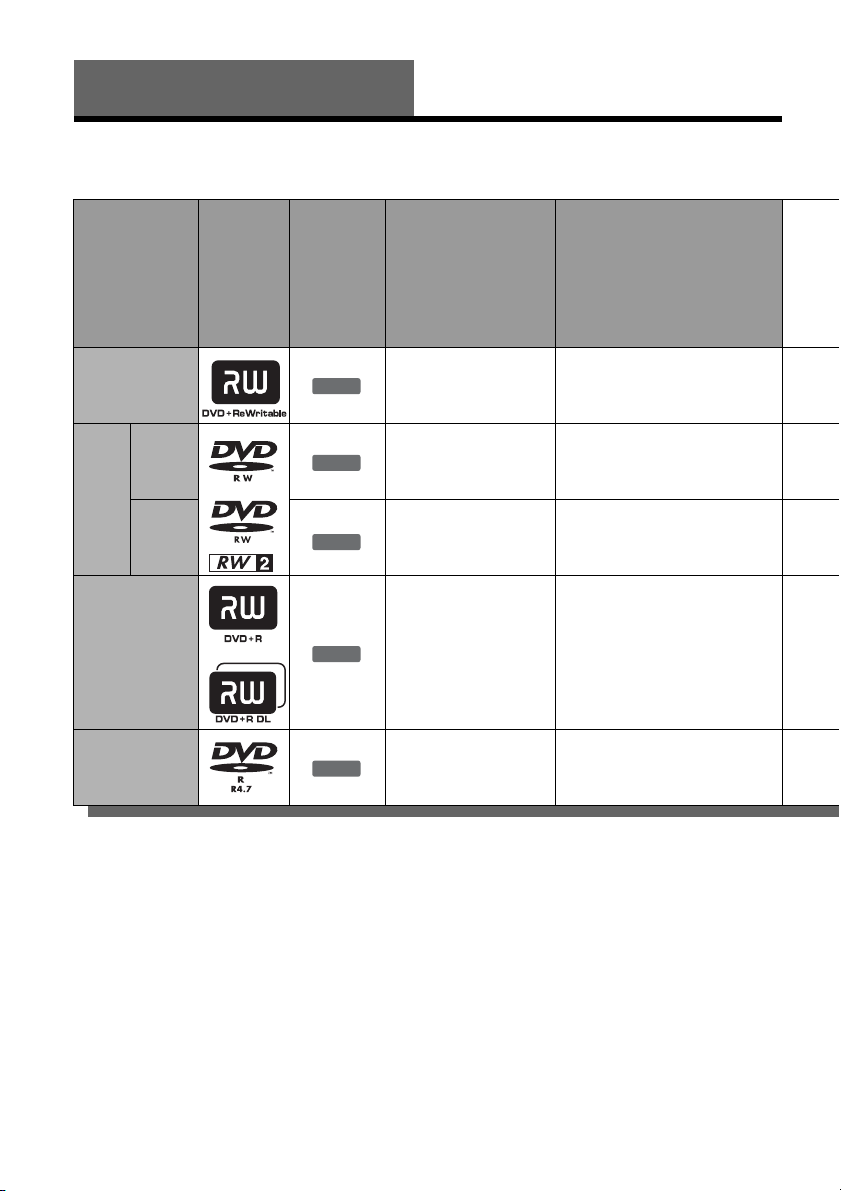
Connecting to the LINE 1 IN jacks
You can connect a second VCR or similar device.
z Hint
When the connected equipment outputs only monaural sound, connect an audio cord to the LINE 2 IN AUDIO L
(MONO) jack.
Notes
• Do not connect the output jack of this recorder to another equipment’s input jack with the other equipment’s output
jack connected to the input jack of this recorder. Noise (feedback) may result.
• Pictures containing copy protection signals that prohibit any copying cannot be recorded.
• If you pass the recorder signals via the VCR, you may not receive a clear image on your TV screen.
Be sure to connect your VCR to the VCR-DVD recorder and your TV in the order shown below. To watch video tapes,
watch the tapes through a second line input on your TV.
• If the recorder’s power cord is disconnected, you will not be able to view the signals from the connected VCR.
• Do not connect more than one type of video cord between the recorder and your TV at the same time.
LINE OUTPUT
AUDIO
R
L
VIDEO
IN
L
R
VIDEO
AUDIO
OUT
VHF/UHFLINE OUT
VIDEO
YL
P
B
R
P
R
AUDIO
LINE 1 IN
AUDIO OUT S VIDEO OUT
COMPONENT
VIDEO OUT
DIGITAL AUDIO OUT
OPTICAL COAXIAL
VIDEO
AUDIO
LINE 1 IN
Other VCR, etc.
VCR-DVD recorder
Audio/video cord
(not supplied)
: Signal flow
to LINE 1 IN
VCRVCR-DVD recorder TV
VCR VCR-DVD recorder TV
Line input 1
Line input 2
28
Quick Guide to Disc Types
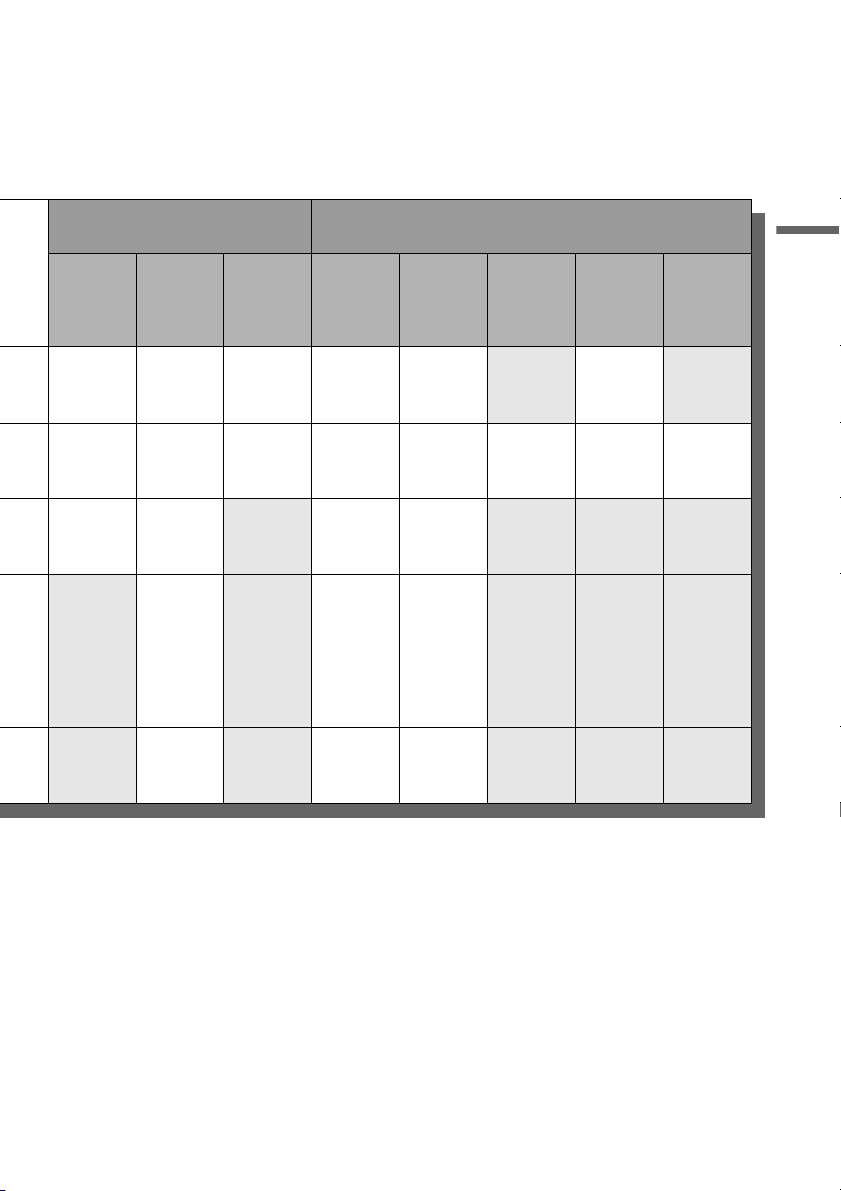
Recordable and Playable Discs
Usable disc versions (as of May 2005)
• 4×-speed or slower DVD+RWs
• 2×-speed or slower DVD-RWs (Ver.1.1, Ver.1.1
with CPRM
*1
)
• 4×-speed or slower DVD-RWs (Ver.1.2, Ver.1.2
with CPRM)
• 8×-speed or slower DVD+Rs
• 8×-speed or slower DVD-Rs (Ver.2.0)
• 2.4×-speed DVD+R DL (Double Layer) discs
“DVD+RW,” “DVD-RW,” “DVD+R,” “DVD+R DL,”
and “DVD-R” logos are trademarks.
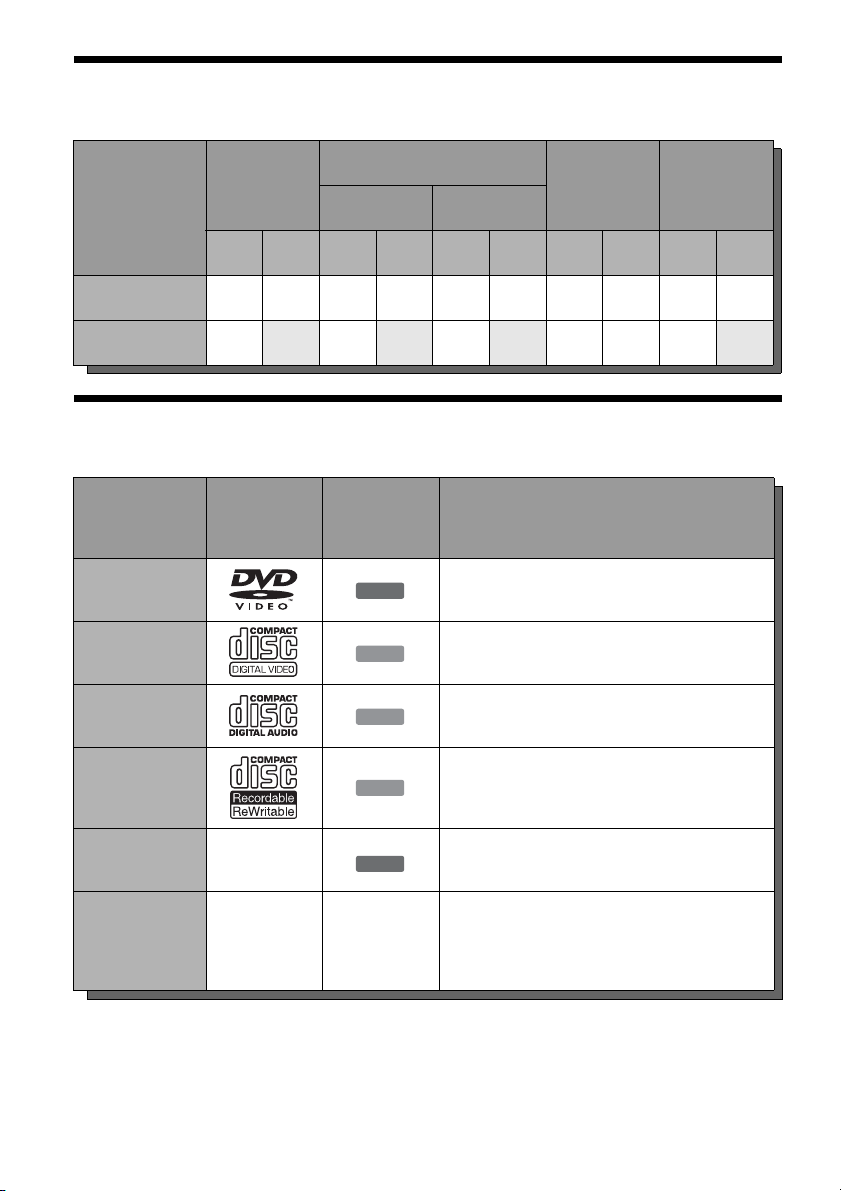
Disc Type
Disc
Logo
Icon used
in this
manual
Formatting
(new discs)
Compatibility with other
DVD players (finalizing)
DVD+RW
Automatically
formatted
Playable on DVD+RW
compatible players
(automatically finalized)
DVD-
RW
VR
mode
Format in VR mode
*2
(page 66)
Playable only on VR mode
compatible players (finalization
unnecessary) (page 86)
Video
mode
Format in Video
mode
*2
(page 66)
Playable on most DVD players
(finalization necessary)
(page 86)
DVD+R
Automatically
formatted
Playable on DVD+R compatible
players (finalization necessary)
(page 86)
DVD+R DL
DVD-R
Automatically
formatted
Playable on most DVD players
(finalization necessary)
(page 86)
+
RW
-
RWVR
-
RW
Video
+
R
-
R
29
Quick Guide to Disc Types
Discs that cannot be recorded on
• DVD-RWs (Ver.1.0)
• DVD+RWs that are not 2.4×-speed compatible
• 8 cm discs
• DVD-R DL (Dual Layer) discs
• DVD-Rs in VR mode (Video Recording format)
•DVD-Rs with CPRM
*1
*1
CPRM (Content Protection for Recordable Media) is
a coding technology that protects copyrights for
images.
*2
Unused DVD-RWs are automatically formatted
according to the setting of “Format DVD” in
“Features” setup (page 100).
*3
Erasing titles only frees up disc space if you erase the
last title.
*4
Erasing titles does not free up disc space.
Recording Features Editing Features
Rewrite
(page 66)
Auto
Chapter
(page 48)
Manual
Chapter
(page 59)
Change
Title
Name
(page 60)
Erase
Title/
Chapter
(page 56)
A-B
Erase
(page 57)
Divide
Title
(page 58)
Playlist
(page 61)
YesYesYesYesYes
*3
/No No Yes No
Yes Yes Yes Yes Yes/Yes Yes Yes Yes
Yes Yes No Yes Yes
*3
/No No No No
No Yes No Yes Yes
*4
/No No No No
No Yes No Yes Yes
*4
/No No No No
30
12 cm/8 cm Discs
Playable Discs
“DVD VIDEO” and “CD” logos are trademarks.
* A logical format of files and folders on DATA-CDs, defined by ISO (International Standard Organization).
Operation
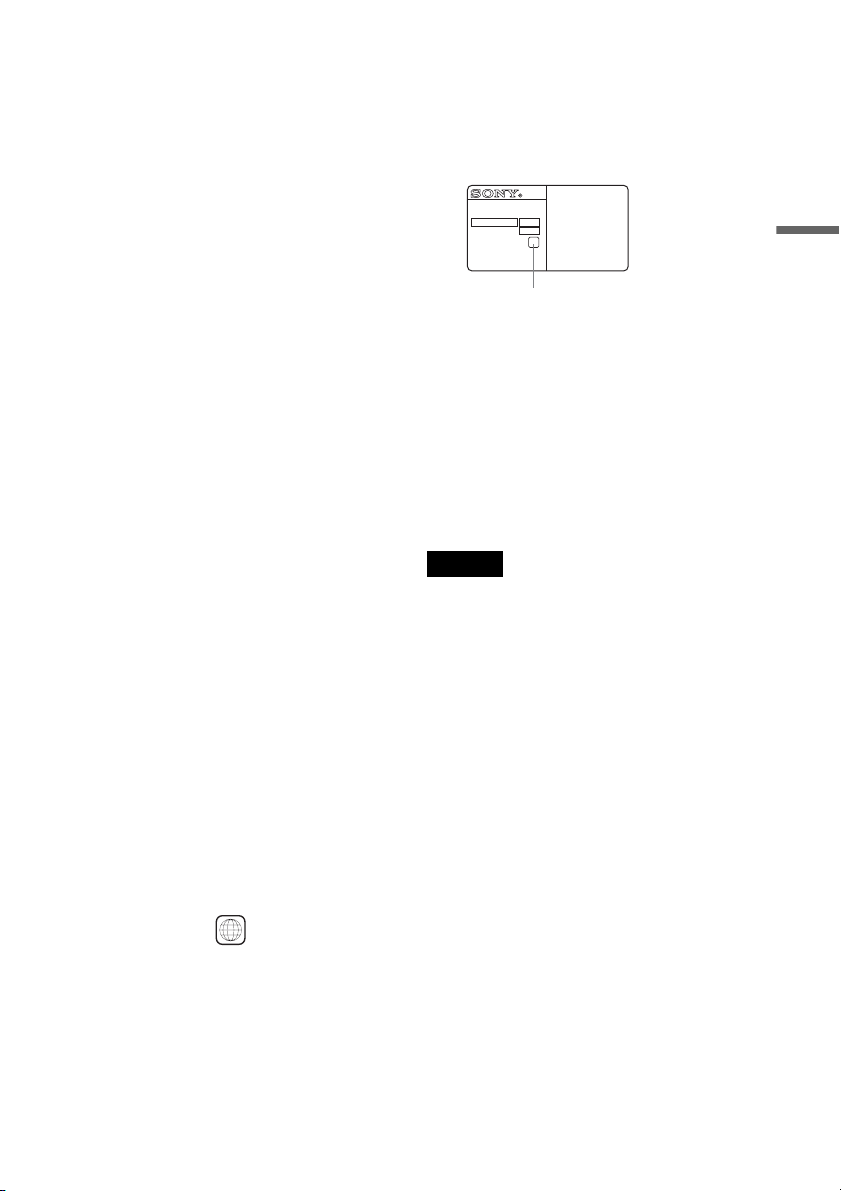
DVD+RW
DVD-RW
DVD+R DVD-R
VR mode Video mode
12 cm 8 cm 12 cm 8 cm 12 cm 8 cm 12 cm 8 cm 12 cm 8 cm
Playback Yes Yes Yes Yes Yes Yes Yes — Yes Yes
Recording Yes No Yes No Yes No Yes — Yes No
Disc Type Disc Logo
Icon Used
in This
Manual
Characteristics
DVD VIDEO
Discs such as movies that can be purchased or
rented
VIDEO CD
VIDEO CDs or CD-Rs/CD-RWs in VIDEO CD
format (with PBC function)
CD
Music CDs or CD-Rs/CD-RWs in music CD
format that can be purchased
DATA CD
CD-Rs/CD-RWs created on a PC or similar
device in music format, or MP3 or JPEG format
that conforms to ISO9660* Level 1/Level 2
DATA DVD —
DVD+RWs/DVD-RWs/DVD+Rs/DVD-Rs in
MP3 or JPEG format conforming to UDF
8 cm DVD+RW/
DVD-RW/DVD-R
——
8 cm DVD+RWs, DVD-RWs, and DVD-Rs
recorded with a DVD video camera (Still images
recorded with a DVD video camera cannot be
played.)
DVD
VCD
CD
DATA CD
DATA DVD
31
Quick Guide to Disc Types
Discs that cannot be played
• CD-Rs/CD-RWs, other than those recorded in
music CD format, MP3 or JPEG format, or
Video CD format
• Data part of CD-Extras
• DVD-ROMs
•CD-ROMs
• DVD Audio discs
• DVD-R DL (Dual Layer) discs
• DVD-Rs recorded in VR mode (Video
Recording format)
•DVD-Rs with CPRM
• DVD-RAMs
• HD layer on Super Audio CDs
• DVD VIDEOs with a different region code
(see page 31)
• A disc recorded in a color system other than
NTSC, such as PAL or SECAM
Note on playback operations of DVD VIDEOs/
VIDEO CDs
Some playback operations of DVD VIDEOs/
VIDEO CDs may be intentionally set by software
producers. Since this recorder plays DVD
VIDEOs/VIDEO CDs according to the disc
contents the software producers designed, some
playback features may not be available. Also, see
the instructions supplied with the DVD VIDEOs/
VIDEO CDs.
Note on DualDiscs
A DualDisc is a two sided disc product which
mates DVD recorded material on one side with
digital audio material on the other side.
However, since the audio material side does not
conform to the Compact Disc (CD) standard,
playback on this product is not guaranteed.
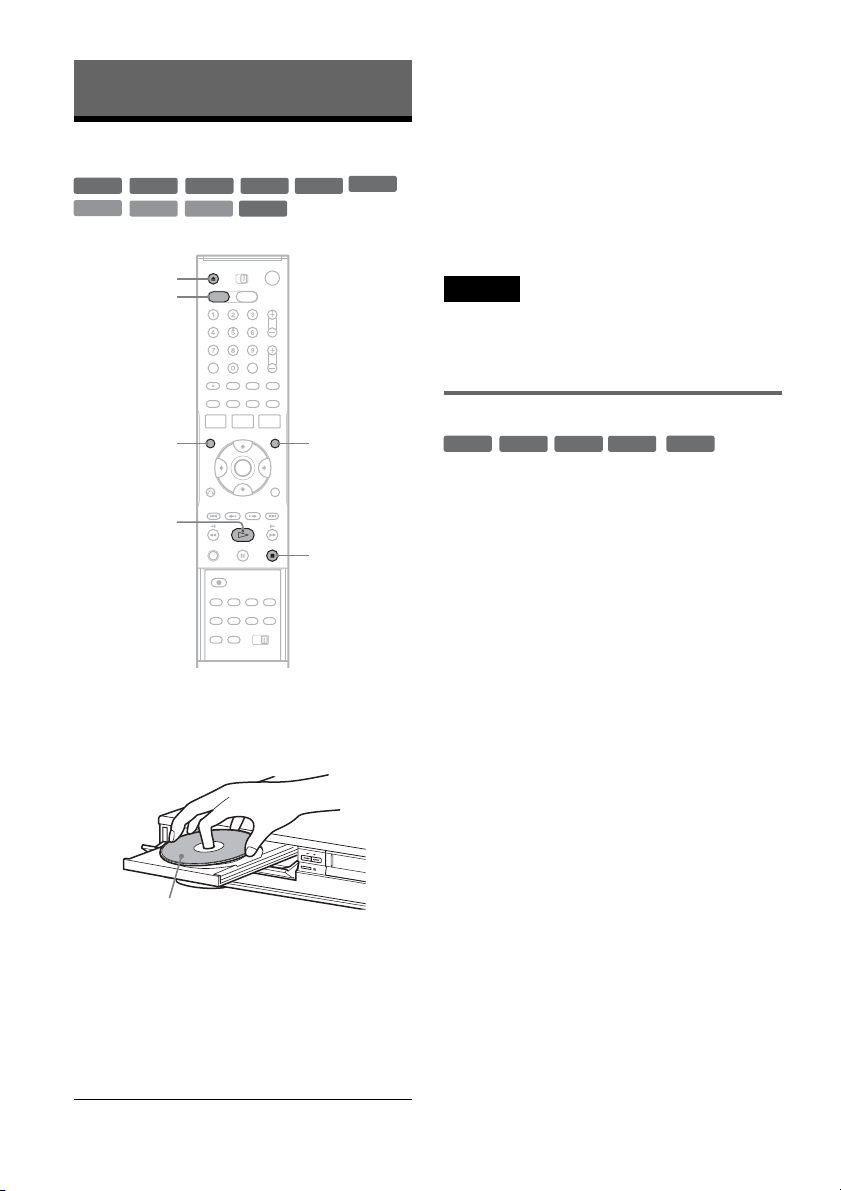
Region code (DVD VIDEO only)
Your recorder has a region code printed on the rear
of the unit and will only play DVD VIDEOs
(playback only) labeled with identical region
codes. This system is used to protect copyrights.
DVD VIDEOs labeled will also play on this
recorder.
If you try to play any other DVD VIDEO, a
message will appear on the TV screen to indicate
that the disc is not playable. Depending on the
DVD VIDEO, no region code indication may be
labeled even though playing the DVD VIDEO is
prohibited by area restrictions.
Music discs encoded with copyright protection
technologies
This product is designed to playback discs that
conform to the Compact Disc (CD) standard.
Recently, various music discs encoded with
copyright protection technologies are being
marketed by some record companies. Please be
aware that among those discs, there are some that
do not conform to the CD standard and may not be
playable by this product.
Notes
• Some DVD+RWs/DVD+Rs, DVD-RWs/DVD-Rs, or
CD-RWs/CD-Rs cannot be played on this recorder due
to the recording quality or physical condition of the
disc, or the characteristics of the recording device and
authoring software. The disc will not play if it has not
been correctly finalized. For more information, see the
operating instructions for the recording device.
• You cannot mix VR mode and Video mode on the same
DVD-RW. To change the disc’s format, reformat the
disc (page 66). Note that the disc’s contents will be
erased after reformatting.
• You cannot shorten the time required for recording
even with high-speed discs. Also, you cannot record on
the disc if the disc is not 1x speed compatible.
• It is recommended that you use discs with “For Video”
printed on their packaging.
• You cannot add new recordings to DVD-RWs (Video
mode) or DVD-Rs that contain recordings made on
other DVD equipment.
• You may not be able to further record on a DVD+RW
recorded on other equipment. Note that recording on
such discs may cause the recorder to rewrite the DVD
menu.
• If the disc contains PC data unrecognizable by this
recorder, the data may be erased.
ALL
NO.
RDR-VX515
X
Region code
32
DVD Playback
Playing
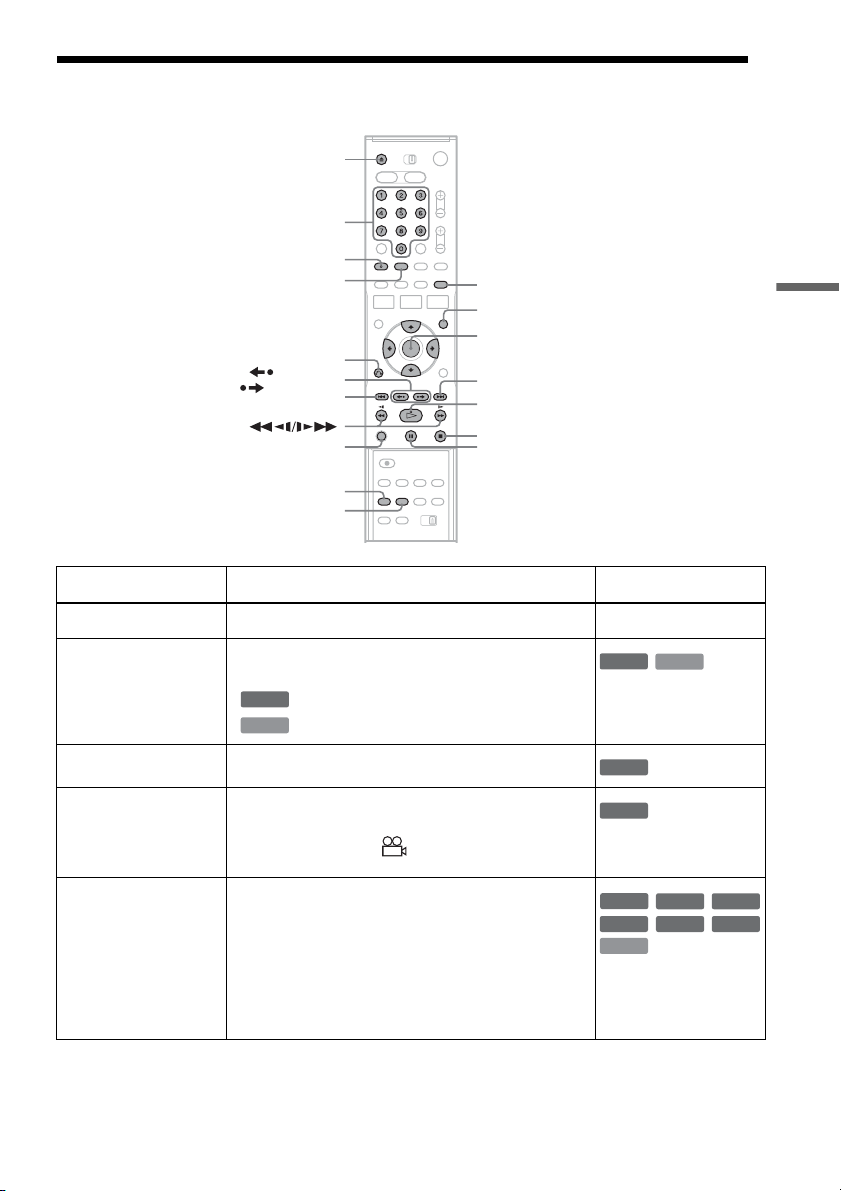
1 Press DVD to operate the DVD recorder.
2 Press Z OPEN/CLOSE, and place a disc on
the disc tray.
3 Press Z OPEN/CLOSE to close the disc
tray.
Wait until “LOAD” disappears from the front
panel display.
4 Press H PLAY.
Playback starts.
To stop playback
Press x STOP.
z Hints
• You can play DATA CDs or DATA DVDs with MP3
tracks or JPEG files (page 40, 41).
• If you insert a DVD VIDEO, VIDEO CD, or CD,
playback starts automatically depending on the disc.
• When playing a DVD+RW, DVD-RW, DVD+R, and
DVD-R, you can select the title from the Title List
menu (page 37).
Notes
• To play a disc recorded with other equipment on this
recorder, finalize the disc on the recording equipment
first.
• For simultaneous VHS and DVD operation, see page 9.
Using the DVD’s Menu
When you play a DVD VIDEO, or a finalized
DVD+RW, DVD-RW (Video mode), DVD+R, or
DVD-R, you can display the disc’s menu by
pressing TOP MENU or MENU.
+
RW
+
R
DVD
VCD
CD
-
RWVR
-
RW
Video
-
R
DATA DVD
DATA CD
x STOP
Z OPEN/
CLOSE
MENU
H PLAY
DVD
TOP MENU
Playback side facing down
+
RW
+
R
DVD
-
RW
Video
-
R
+
R
-
R
33
DVD Playback
Playback Options
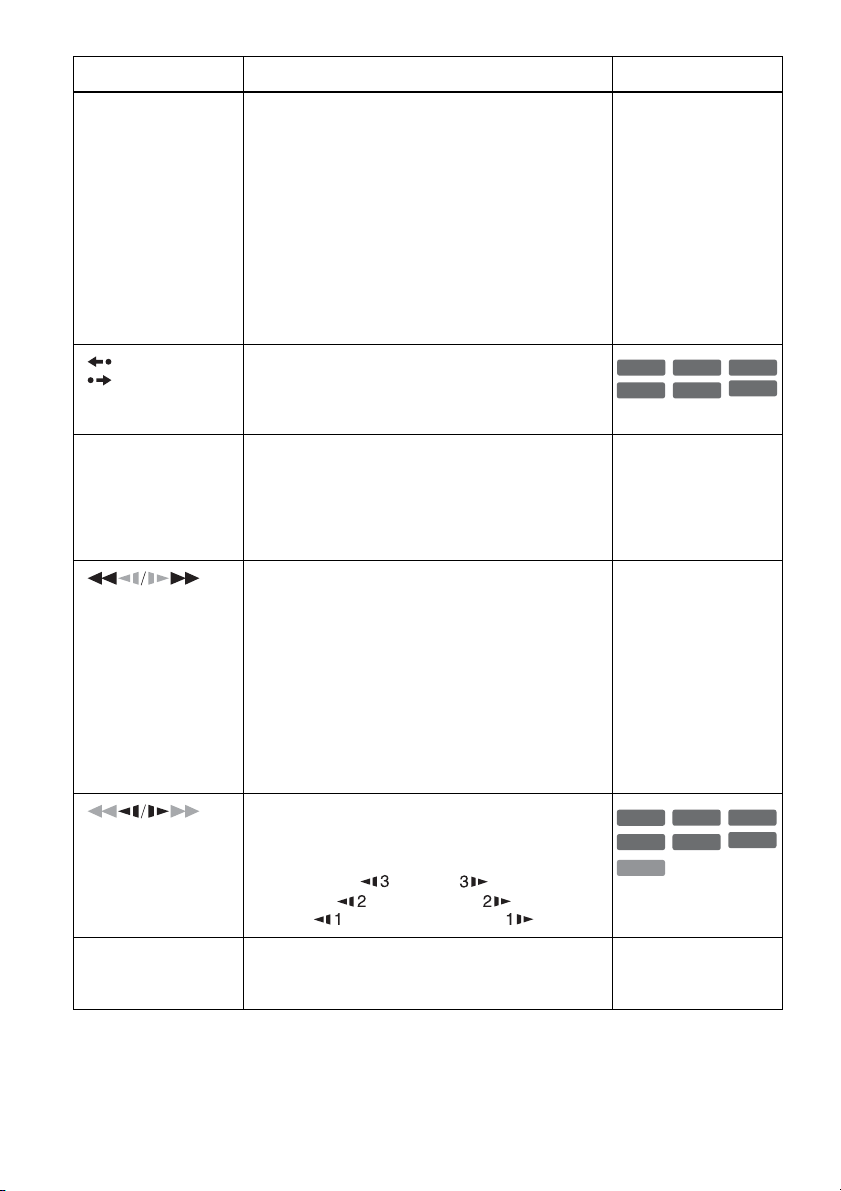
Button Operation Disc
Z OPEN/CLOSE Stops playing and opens the disc tray. All discs
AUDIO Selects one of the audio tracks recorded on the disc
when pressed repeatedly.
: Selects the audio source.
: Selects stereo or monaural audio tracks.
SUBTITLE Selects a subtitle language when pressed repeatedly.
.
ANGLE Selects an angle when pressed repeatedly.
If various angles (multi-angles) for a scene are
recorded on the disc, “ ” appears in the front panel
display.
ZOOM Zooms into a scene during playback or still mode
when pressed repeatedly.
Magnification changes as follows:
normal t ×2 t ×4 t normal
The zoom function may not work depending on the
DVD.
To zoom in a JPEG image, see page 42.
Z OPEN/CLOSE
X PAUSE
AUDIO
. PREV
REPLAY/
ADVANCE
x STOP
SUBTITLE
SUR
ZOOM
REPEAT
MENU
H PLAY
M/m/</,,
ENTER
Number buttons
O RETURN
> NEXT
ANGLE
DVD
VCD
DVD
VCD
DVD
DVD
DVD
VCD
+
RW
-
RWVR
-
RW
Video
+
R
-
R
,continued
34
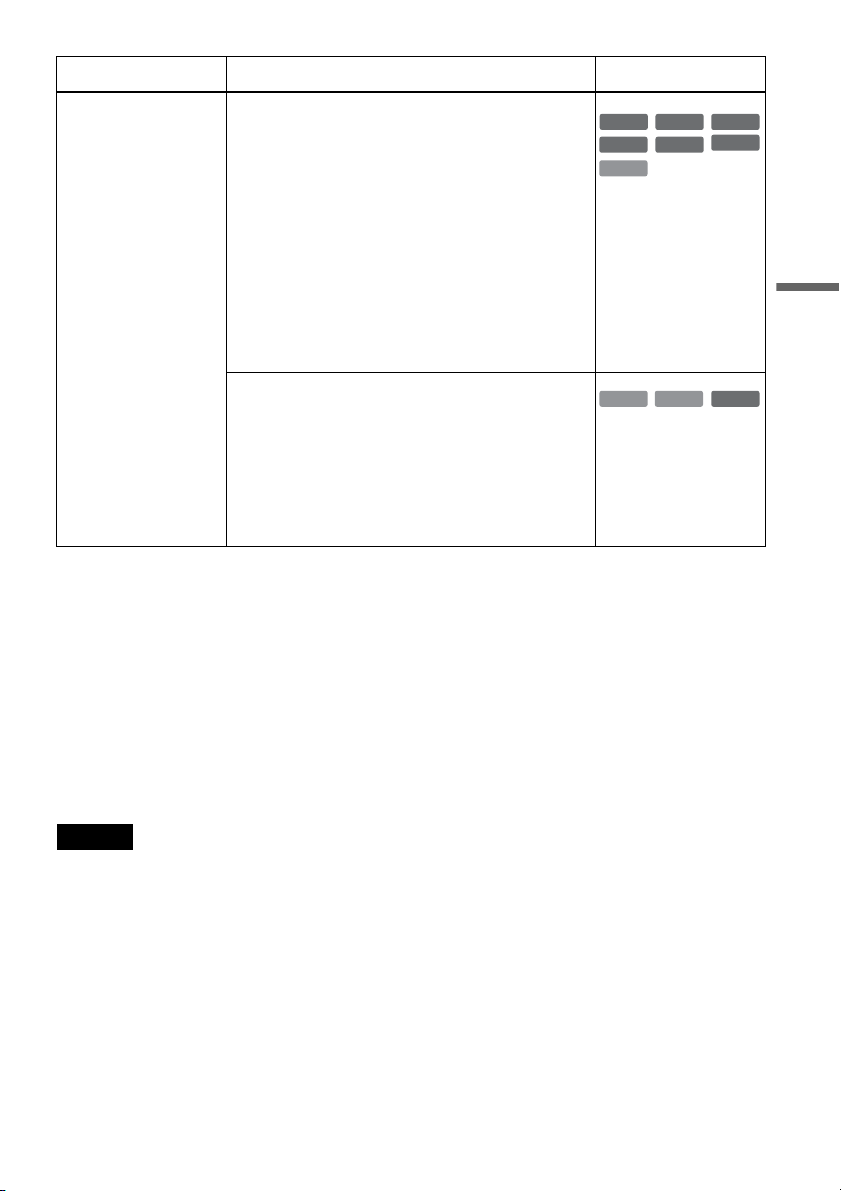
SUR
(surround)
Surround lets you enjoy surround sound effects by
using sound imaging to create virtual rear speakers
from a stereo TV or two front speakers (page 18).
Selects one of the effects when pressed repeatedly.
“Off”: No surround effect.
“Surround1”: Creates one set of virtual surround
speakers.
“Surround2”: Creates two sets of virtual surround
speakers.
“Surround3”: Creates three sets of virtual surround
speakers.
This feature is effective when you use two separate
front speakers.
All discs
REPLAY/
ADVANCE
• Replays or briefly fast forwards a scene when
pressed during playback.
• Goes to the previous or next frame when pressed
during pause mode.
. PREV/
NEXT >
• Goes to the beginning of the current or next title/
chapter/scene/track and starts playback when
pressed during playback.
• Goes to the beginning of the previous title/chapter/
scene/track when .PREV is pressed within three
seconds after starting a title/chapter/scene/track.
All discs
(fast reverse/fast
forward)
Fast reverses or fast forwards the disc when pressed
during playback.
Search speed changes with each press:
fast reverse fast forward
FR1 T t FF1
*1
FR2
*2
T T t t FF2
*2
FR3
*3
T T T t t t FF3
*3
All discs
*1
FF1 with sound
(Scan Audio) is
available for DVDs
with Dolby Digital
soundtracks.
*2
FR2 and FF2 are not
available for MP3.
*3
FR3 and FF3 are only
available for DVDs
and VIDEO CDs.
(slow)
Plays in slow motion when pressed in pause mode.
Playback speed changes with each press:
reverse slow motion forward slow motion
T t
T T t t
T T T t t t
* Playback direction
only
X PAUSE Pauses playback.
If you pause playback for more than five minutes,
playback starts automatically.
All discs
Button Operation Disc
+
RW
-
RWVR
-
RW
Video
+
R
DVD
-
R
VCD
*
+
RW
+
R
-
RWVR
-
RW
Video
DVD
-
R
35
DVD Playback
To resume normal playback, press H PLAY.
z Hints
• You can change playback options, such as subtitle,
audio track, angle, etc., using the TOOLS menu
(page 11).
• During playback or pause mode, the recorder’s m/
M buttons and the remote’s .PREV/>NEXT
buttons work the same way (page 34). Hold the buttons
down during playback to fast forward or fast reverse. In
pause mode, you can play in slow motion. Three speeds
are available, depending on the duration of the press.
• See “DVD Audio/Subtitle Language” on page 118 for
the meaning of the language abbreviation.
Notes
• You cannot use the repeat play function with VIDEO
CDs while the PBC function is on (page 36).
• When the playback signal does not contain a signal for
the surround speakers, the surround effects will be
difficult to hear.
• When you select one of the surround modes, turn off
the surround settings of the connected TV or amplifier
(receiver).
• If you pause playback of a CD, or DATA CD/DATA
DVD containing MP3 audio tracks, playback will not
start until you press H PLAY or X PAUSE.
• Make sure that your listening position is between and
at an equal distance from your speakers, and that the
speakers are located in similar surroundings.
• Sound will be interrupted during Scan Audio
(page 36).
Notes on playing DTS soundtracks on a CD
When playing DTS-encoded CDs, excessive noise
will be heard from the analog stereo jacks. To
avoid possible damage to the audio system, the
consumer should take proper precautions when
the analog stereo jacks of the recorder are
connected to an amplification system. To enjoy
DTS Digital Surround™ playback, an external
5.1-channel decoder system must be connected to
the digital jack of the recorder.
Notes on playing DVDs with a DTS soundtrack
DTS audio signals are output only through the
DIGITAL AUDIO OUT (COAXIAL or
OPTICAL) jack.
When you play a DVD with DTS soundtracks, set
“Digital Out” – “DTS” to “On” of “Audio” in the
“Setup” display (page 97).
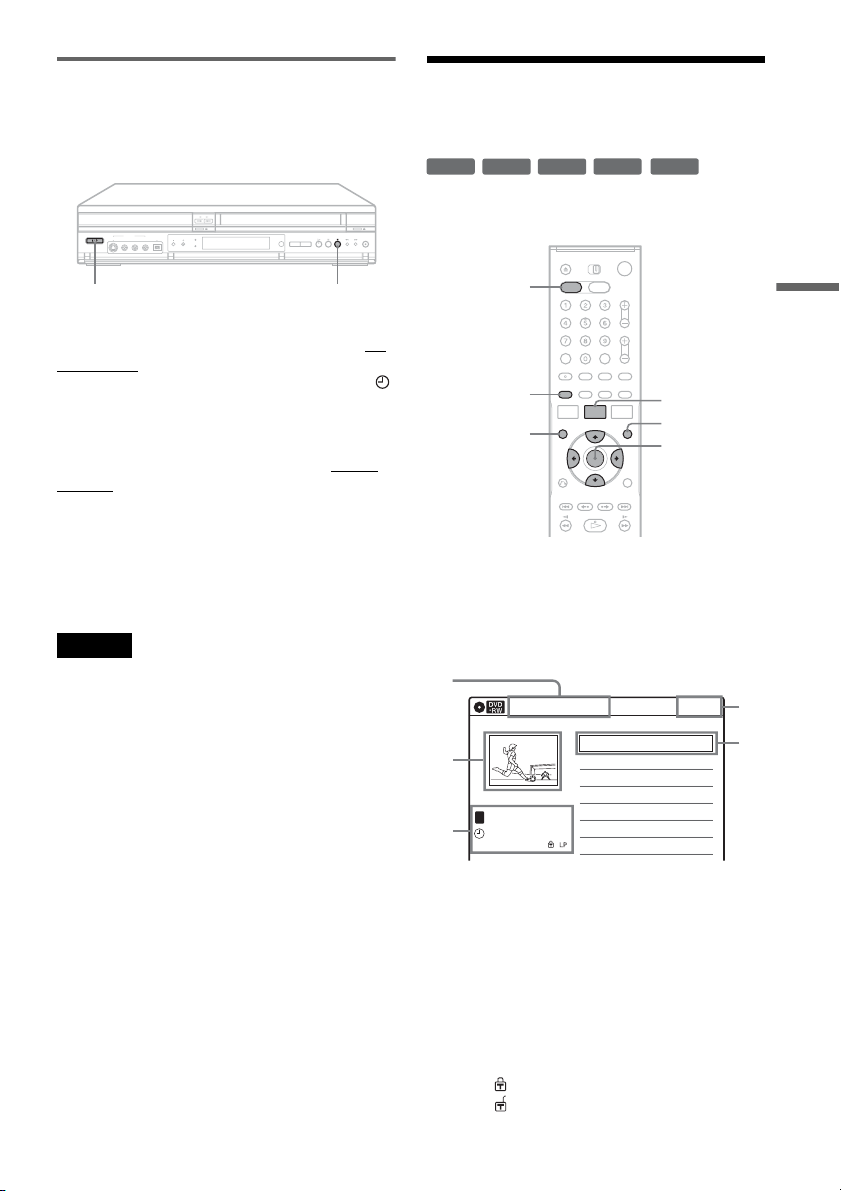
REPEAT Displays the items to be repeated when pressed.
Select an item using M/m, and press ENTER.
To cancel Repeat Play, select “Off” and press ENTER.
Press O RETURN to turn off the display.
When playing a DVD
“Chapter”: Repeats the current chapter.
“Title”: Repeats the current title on a disc.
“A-B” (Repeat A-B Play): Repeats a specific portion
(page 36).
When playing a VIDEO CD (with PBC function off)
“Track”: Repeats the current track.
“Disc”: Repeats all of the tracks.
“A-B” (Repeat A-B Play): Repeats a specific portion
(page 36).
* With PBC function off
Selects the item to be repeated when pressed
repeatedly. To cancel Repeat Play, select “Off.”
When playing a CD
“Track”: Repeats the current track.
“Disc”: Repeats all of the tracks.
When playing a DATA CD/DATA DVD (MP3 audio)
“File”: Repeats the current track.
“Folder”: Repeats the current album.
Button Operation Disc
VCD
+
RW
-
RWVR
-
RW
Video
+
R
DVD
*
-
R
DATA CD
CD
DATA DVD
,continued

36
Playing quickly with sound (Scan
Audio)
(DVDs with Dolby Digital soundtracks
only)
You can play quickly with dialog or sound during
FF1 fast-forward of a DVD with Dolby Digital
soundtracks. Simply press M during playback.
z Hint
To turn off the Scan Audio function, set “Scan Audio” of
“Audio” to “Off” in the “Setup” display (page 98).
Note
Sound will be interrupted during Scan Audio.
Playing VIDEO CDs with PBC
functions
PBC (Playback Control) allows you to play
VIDEO CDs interactively using a menu on your
TV screen.
When you start playing a VIDEO CD with PBC
functions, a menu appears.
Select an item using the number buttons and press
ENTER. Then follow the instructions in the menu
(press H PLAY when “Press SELECT”
appears).
Operations differ depending on the disc. See the
instructions supplied with the disc.
To cancel PBC Playback
Press MENU to display “Menu: Off.” To use the
PBC functions, press MENU again to display
“Menu:On.”
Resuming playback from the point
where you stopped the disc (Resume
Play)
Press H PLAY again after stopping a disc to
resume playback from the same point.
To start from the beginning, press x STOP twice,
and press H PLAY.
The point where you stopped playing is cleared
when:
– you open the disc tray.
– you play another title.
– you switch the Title List menu to Original or
Playlist (DVD-RW (VR mode) only).
– you edit the title after stopping playback.
– you make a recording.
Repeating a specific portion
(Repeat A-B Play)
1 During playback, press REPEAT.
2 Select “A” using M/m.
3 Press ENTER at the starting point (point A) of
the portion to be played repeatedly.
“A-” appears.
4 Continue playing or press m/M to locate
the ending point (point B), and press ENTER.
Repeat A-B Play starts.
To return to normal playback, press REPEAT to
select “Off,” and press ENTER. Press O
RETURN to turn off the display.
* Only with PBC function off.
Playing restricted DVDs (Parental
Control)
If you play a restricted DVD, a message appears
asking whether you want to override the
restriction.
1 Select “OK” and press ENTER.
The display for entering your password
appears.
2 Enter your four digit password using the
number buttons.
The recorder starts playback.
To register or change the password, see “Parental
(DVD VIDEOs only)” on page 101.
VCD
+
RW
+
R
VCD
-
RWVR
-
RW
Video
*
DVD
-
R
DVD
37
DVD Playback
Locking the recorder (Child Lock)
You can lock all of the buttons on the recorder so
that the settings are not canceled by mistake.
With the recorder turned on, hold down "/1 on
the recorder. The recorder turns off and “CHILD
LOCK” appears in the front panel display. The
indicator remains lit if there is a timer setting. The
recorder will not work except for timer recordings.
To unlock the recorder, hold down "/1 on the
recorder until “CHILD LOCK” disappears from
the front panel display. The recorder is unlocked
and turns on.
To stop timer recording while the recorder is
locked, press x twice. The recording stops and the
recorder is unlocked.
Note
The recorder will be unlocked when:
– you stop timer recording by pressing x.
– you insert a tape.
Playing a Title From the
Title List
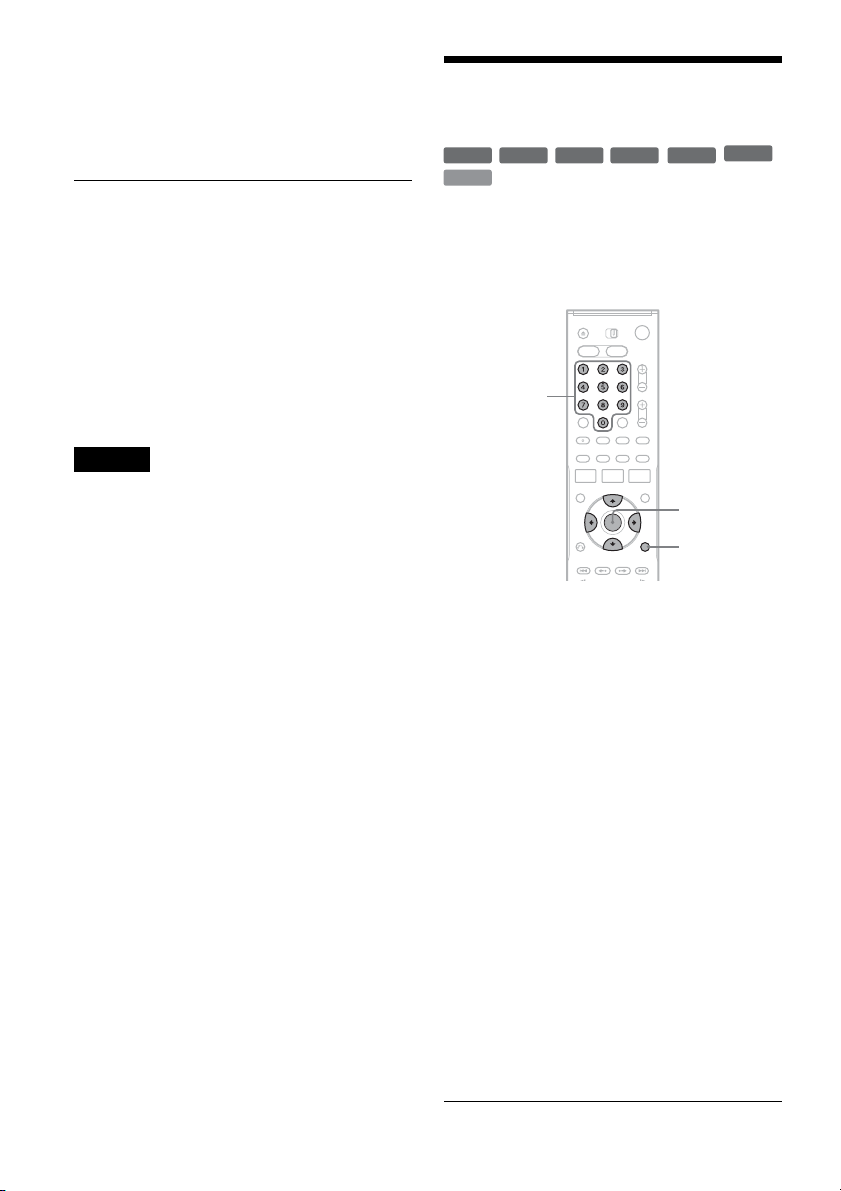
The Title List menu displays the program titles on
the disc.
1 Press DVD to operate the DVD recorder.
2 Place a disc on the disc tray.
3 Press TITLE LIST.
Example: DVD-RW (VR mode)
A Title type (DVD-RWs (VR mode)
only):
Displays the title type, “Title List
(Original)” or “Playlist.”
B Movie thumbnail image
C Title information:
Displays the title number, title name,
recording date, and recording mode.
“ ” indicates a protected title, while
“ ” indicates unprotected.
D Clock
"/1 x
+
RW
-
RWVR
-
RW
Video
+
R
-
R
TITLE LIST
MENU
TOP MENU
ORIGINAL/
PLAYLIST
DVD
M/m/</,,
ENTER
10:10 AM
01 CH 23 >01:29:03
02 CH 66 >00:31:23
03 CH 95 >01:59:00
04 CH 97 >00:58:56
CH
23
08:00 PM
May/02/2005
T
No. Title Length Edit
Title List (Original)
1/4
1
2
3
4
3
,continued
38
4 Select the title, and press ENTER.
The sub-menu appears.
5 Select “Play,” and press ENTER.
Playback starts from the selected title on the
disc.
About the Title List for DVD-RWs (VR mode)
You can switch the Title List to show original or
Playlist.
While the Title List menu is turned on, press
ORIGINAL/PLAYLIST repeatedly to select
either “Title List (Original)” or “Playlist.”
For details, see “Edit options for DVD-RWs (VR
mode)” on page 55.
To turn off the Title List
Press TITLE LIST.
Notes
• The Title List does not appear for DVD-RWs (Video
mode), DVD+Rs, or DVD-Rs that have been finalized.
To view a title, press TOP MENU or MENU (page 32).
• The Title List may not appear for discs created on other
DVD recorders.
• Letters that cannot be displayed are replaced with “
*
.”
Searching for a Title/
Chapter/Track, etc.
You can search a DVD by title or chapter, and
VIDEO CD by track or scene. As titles and tracks
are assigned individual numbers on the disc, select
the title or track by entering its number. You can
also search for a scene using the time code.
1 Press TOOLS during playback.
The TOOLS menu appears.
2 Select a search method.
“Title” (for DVDs)
“Chapter” (for DVDs)
“Track” (for VIDEO CDs with PBC function
off)
“Time” (for DVDs/VIDEO CDs): Searches
for a starting point using the time code.
3
Press
M
/
m
/
<
/
,
to select the number of
the title, chapter, track, etc., you want, or
press the number buttons to enter the time
code.
For example: “Time”
To find a scene at 2 hours, 10 minutes, and 20
seconds, enter “21020.”
If you make a mistake, wait a moment until
the display returns to the elapsed playing time
display, then select another number.
4 Press ENTER.
The recorder starts playback from the selected
point.
To turn off the display, press TOOLS.
+
RW
+
R
DVD
VCD
-
RWVR
-
RW
Video
-
R
TOOLS
M/m/</,,
ENTER
Number
buttons
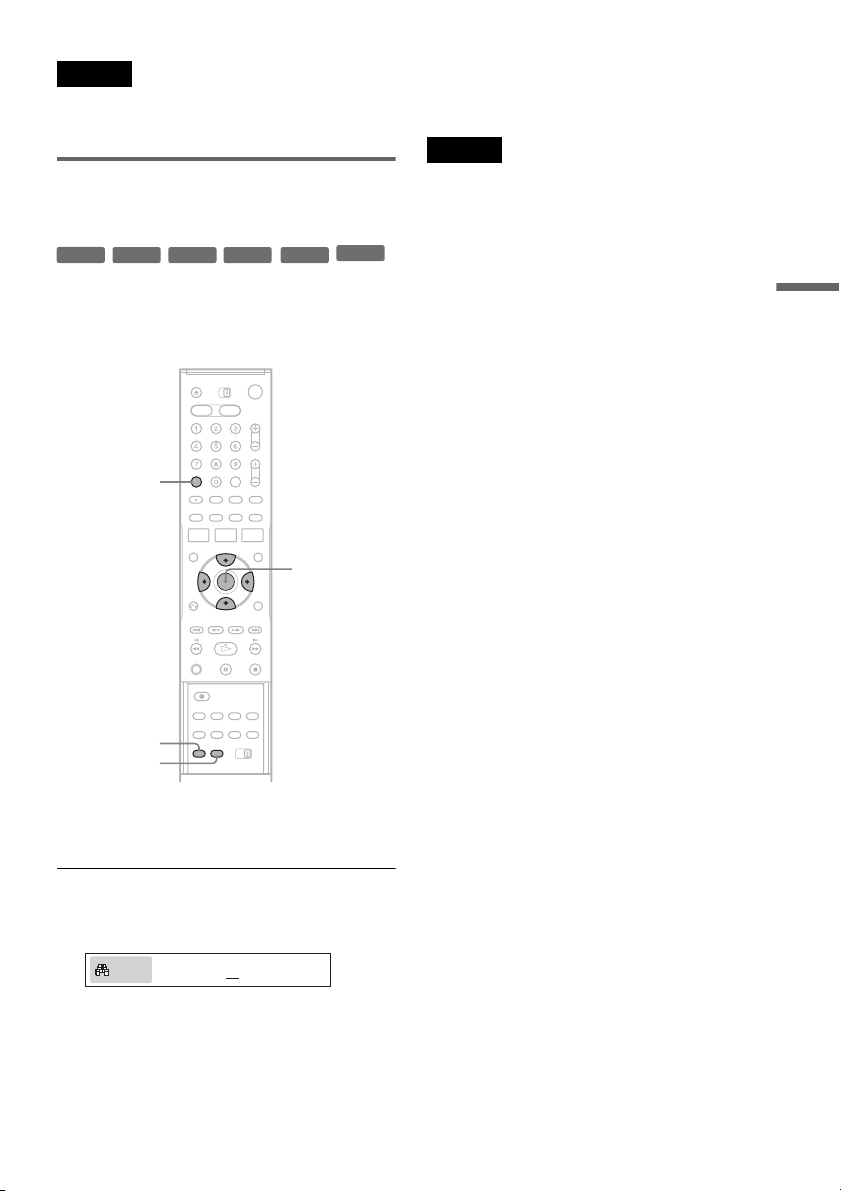
39
DVD Playback
Note
Depending on the disc, you may not be able to use the
TOOLS menu to search for a title/chapter/track, or enter
the time code for a playback point.
Bookmarking a favorite scene
(Bookmark)
You can have the recorder store specific portions
of a disc in memory and play them immediately
whenever you want (Bookmark). Up to ten
bookmarks per disc can be set.
During playback, press MARKER at a favorite
scene.
The bookmark is set.
To play from bookmarks
1 During playback, press SEARCH.
2 Press </, to select a bookmark, and press
ENTER.
Playback starts from the selected bookmark.
To erase bookmarks
1 During playback, press SEARCH.
2 Press </, to select the bookmark to be
erased.
3 Press CLEAR.
Note
When you eject the disc, the bookmark information is
cleared.
+
RW
+
R
DVD
-
RWVR
-
RW
Video
-
R
SEARCH
CLEAR
MARKER
M/m/</,,
ENTER
01 02 03 04 05 -- -- -- -- -- N:5
Search
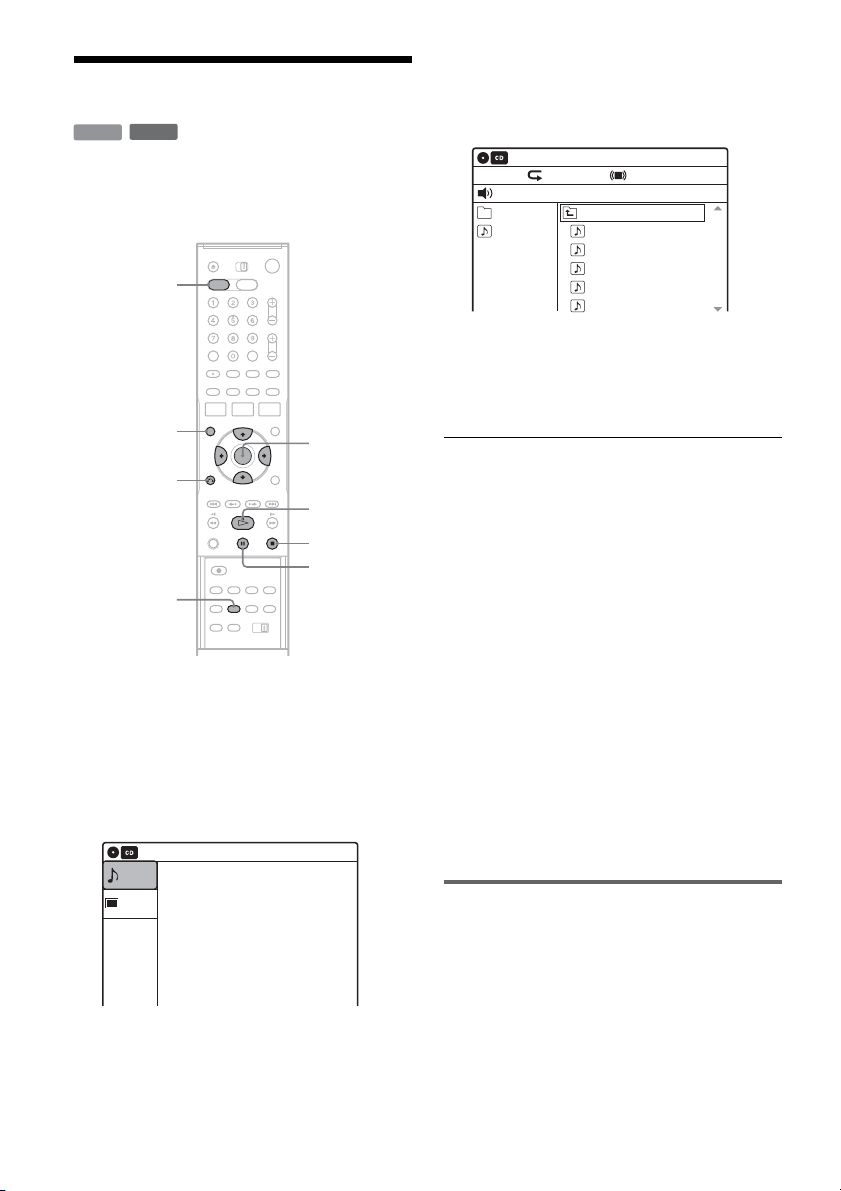
40
Playing MP3 Audio Tracks
You can play MP3 audio tracks on DATA CDs
(CD-Rs/CD-RWs) or DATA DVDs (DVD+RWs/
DVD-RWs/DVD+Rs/DVD-Rs).
1 Press DVD to operate the DVD recorder.
2 Place a DATA CD/DATA DVD on the disc
tray.
When you insert a DATA CD/DATA DVD
containing MP3 audio tracks and JPEG image
files, the display for selecting a media type
appears.
If you insert a DATA CD/DATA DVD
containing only MP3 audio files, the “Music”
display appears. Go to step 4.
3 Select “Music,” and press ENTER.
The “Music” display appears.
4 Select an album, and press ENTER.
5 Select a track, and press ENTER.
Playback starts from the selected track.
When a track or album is being played, the
title is shown in a box.
To stop playback
Press x STOP.
To pause playback
Press X PAUSE.
To restart playback, press H PLAY or X
PAUSE.
To play repeatedly
Press REPEAT repeatedly during playback.
“Off”: Does not play repeatedly.
“File”: Repeats the current track.
“Folder”: Repeats the current album.
To return to the previous display
Press O RETURN.
To switch between MP3 audio tracks and JPEG
image files
Press x STOP, and press TOP MENU.
About MP3 audio tracks
You can play back DATA CDs (CD-Rs/CD-RWs)
or DATA DVDs (DVD+RWs/DVD-RWs/
DVD+Rs/DVD-Rs) recorded in MP3 (MPEG-1
Audio Layer III) format. However, the discs must
be recorded according to ISO9660 Level 1/Level
2 or Joliet format and DATA DVDs of Universal
Disk Format (UDF) for the recorder to recognize
the tracks (or files).
DATA CD
DATA DVD
REPEAT
M/m/</,,
ENTER
x STOP
O RETURN
DVD
TOP MENU
X PAUSE
H PLAY
10:10 AM
Photo
Music
Press ENTER :
Music menu for the CD
Stop 00:00:00
Prev Directory
01-Track1.mp3
02-Track2.mp3
03-Track3.mp3
04-Track4.mp3
05-Track5.mp3
MP3_001
0/9
10:10 AM
Music
Repeat:Off Surround:Off

41
DVD Playback
See the instructions supplied with the CD-R/CD-
RW/DVD-R/DVD-RW drives and the recording
software (not supplied) for details on the recording
format.
z Hints
• Since a disc with many trees takes longer to start
playback, it is recommended that you create albums
with no more than two trees.
• When playback of all the MP3 audio tracks within the
album finishes, the recorder stops.
Notes
• The recorder may not be able to play some DATA CDs
or DATA DVDs created in the Packet Write format.
• The recorder will play any data with the extension
“.MP3,” even if they are not in MP3 format. Playing
such data may generate a loud noise which could
damage your speaker system.
• Only one session of a multi-session DATA DVD can
be played back.
• The recorder does not conform to audio tracks in
MP3PRO format.
• The recorder can recognize up to 499 MP3 audio tracks
within a single album. The recorder may not recognize
some discs depending on the recording device used for
recording or the disc condition.
• The recorder can play MP3 audio tracks recorded in the
following sampling frequencies: 32 kHz, 44.1 kHz,
48 kHz.
• ID3 tags cannot be displayed.
• Only alphabet and numbers can be used for album or
track names. Anything else is displayed as an asterisk.
Playing JPEG Image Files
You can play JPEG image files on DATA CDs
(CD-Rs/CD-RWs) or DATA DVDs (DVD+RWs/
DVD-RWs/DVD+Rs/DVD-Rs).
1 Press DVD to operate the DVD recorder.
2 Place a DATA CD/DATA DVD on the disc
tray.
When you insert a DATA CD/DATA DVD
containing MP3 audio tracks and JPEG image
files, the display for selecting a media type
appears.
If you insert a DATA CD/DATA DVD
containing only JPEG files, the “Photo”
display appears. Go to step 4.
DATA CD
DATA DVD
H PLAY
O RETURN
M/m/</,,
ENTER
./>
DVD
TOP MENU
x STOP
TOOLS
10:10 AM
Photo
Music
Press ENTER :
Music menu for the CD
,continued
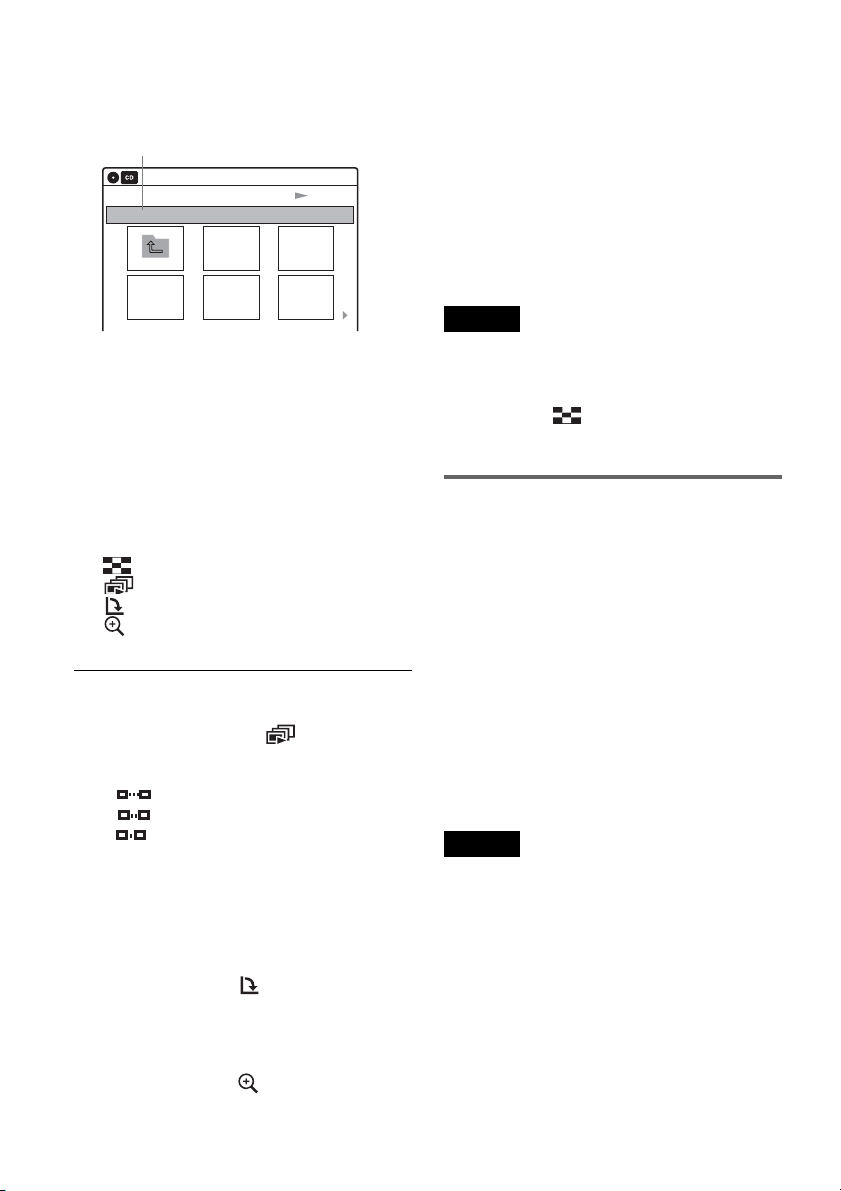
42
3 Select “Photo,” and press ENTER.
The “Photo” display appears.
4 Select a folder, and press ENTER.
To display the previous or next page, press
./>.
5 Select an image file, and press ENTER.
The selected image is displayed over the
entire screen.
To display the previous or next image, press
./>.
The following menu icons appear in the upper
part of the screen.
: Returns to the “Photo” display.
: Starts the slide show (page 42).
: Rotates the image (page 42).
: Zooms the image (page 42).
Press TOOLS to turn on/off the menu icons.
To play the slide show
1 Press </, to select “ ,” and press
ENTER.
The “Slide Show Speed” menu appears.
“”: Slow
“”: Normal
“”: Fast
2 Press </, to select the desired play speed,
and press ENTER.
Slide show starts from the selected image. To
stop playing, press x STOP.
To rotate the selected image
Press </, to select “ ,” and press ENTER.
Each time you press ENTER, the image turns
clockwise by 90°.
To zoom in an image
Press </, to select “ ,” and press ENTER.
Each time you press ENTER, the magnification
changes as follows:
2× t 4× t 2× t normal
To return to the previous display
Press O RETURN.
To switch between MP3 audio tracks and JPEG
image files
Press x STOP, and press TOP MENU.
z Hint
You can also start the slide show by pressing H PLAY
in step 5 above.
Notes
• You cannot use M/m/</, to move the image within
the screen while zooming.
• Slide show can play in only one direction.
• You cannot rotate or zoom during slide show.
•
If you select “ ” in the rotated image display,
the images in the “Photo” display will not be
rotated.
About JPEG image files
You can play back DATA CDs (CD-Rs/CD-RWs)
or DATA DVDs (DVD+RWs/DVD-RWs/
DVD+Rs/DVD-Rs) recorded in JPEG format.
However, the discs must be recorded according to
ISO9660 Level 1/Level 2 or Joliet format and
DATA DVDs of Universal Disk Format (UDF)
for the recorder to recognize the tracks (or files).
See the instructions supplied with the CD-R/CD-
RW/DVD-R/DVD-RW drives and the recording
software (not supplied) for details on the recording
format.
z Hint
If you add numbers (01, 02, 03, etc.) to the front of the
file names, the files will be played in that order.
Notes
• The recorder can only play the files with the extension
“.JPG” or “.JPEG.”
• Some DATA CDs or DATA DVDs cannot be played
on this recorder depending on file format.
• If you add the extension “.JPG” or “.JPEG” to data not
in JPEG format, a message appears indicating that the
format is not supported.
• Only one session of a multi-session DATA DVD can
be played back.
• Depending on the disc or the size of image files,
playback may take some time to start.
• The recorder can recognize up to 999 JPEG image files
within a single folder. The recorder may not recognize
some discs depending on the recording device used for
recording or the disc condition.
Slide Show
\\abc\defg
Page 1 / 2
10:10 AM
Photo
Directory information
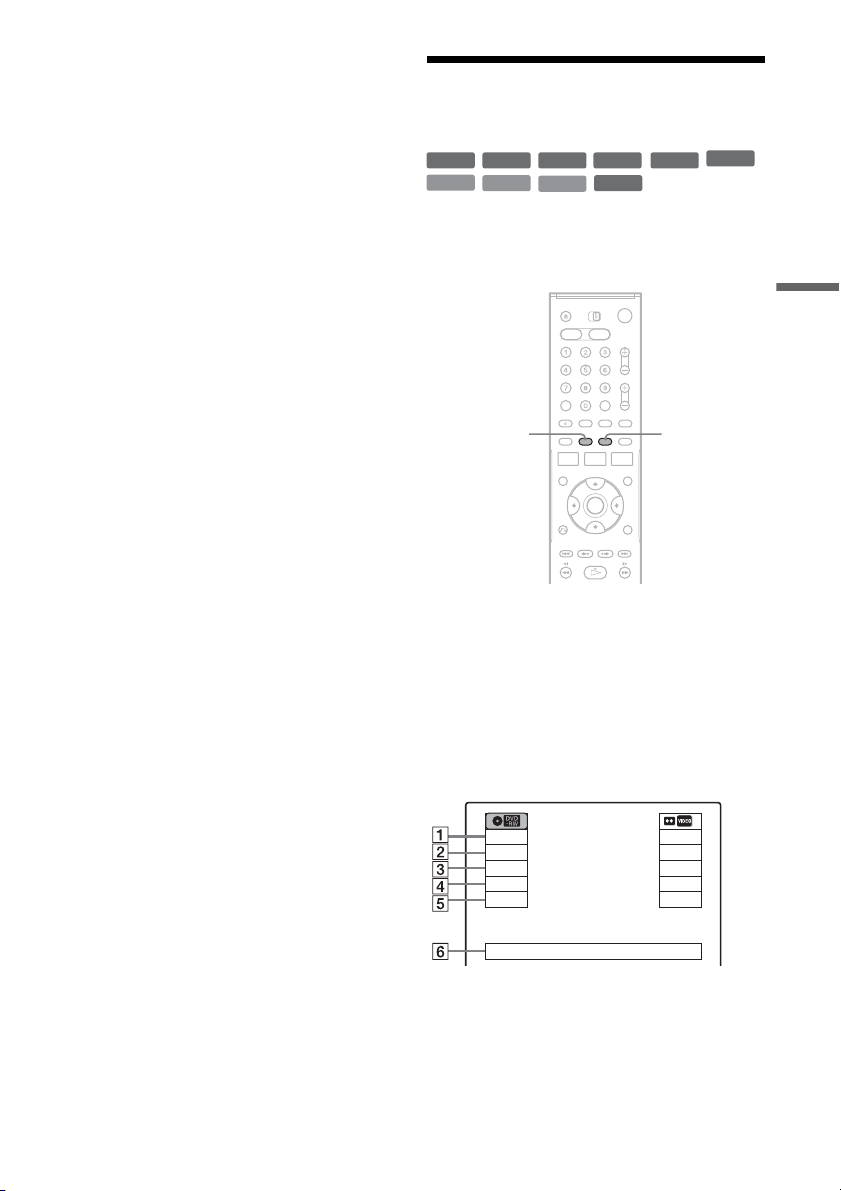
43
DVD Playback
• Progressive and lossless compression JPEG image files
are not supported.
• The image size that the recorder can display is limited
to width 32 - 7680 pixels by height 32 - 8192 pixels.
Displaying the Playing Time
and Play Information
You can check disc information, such as playing
time, recording mode, and remaining disc space.
Press DISPLAY.
The information display appears.
Each time you press the button, the display
changes as follows:
Disc and tape information/date and time
m
Disc information only
m
No display
◆ DVD
A Playing status
B Playing time
C Recording mode
+
R
DVD
VCD
CD
-
RWVR
-
RW
Video
+
RW
-
R
DATA CD
DATA DVD
TIME/TEXTDISPLAY
Stop
0:30:00
SP
Rem 01:30
CH 110
Mon May 02. 2005 10:10 AM
Play
1:23:45
HQ
Rem 16:15
Original
,continued
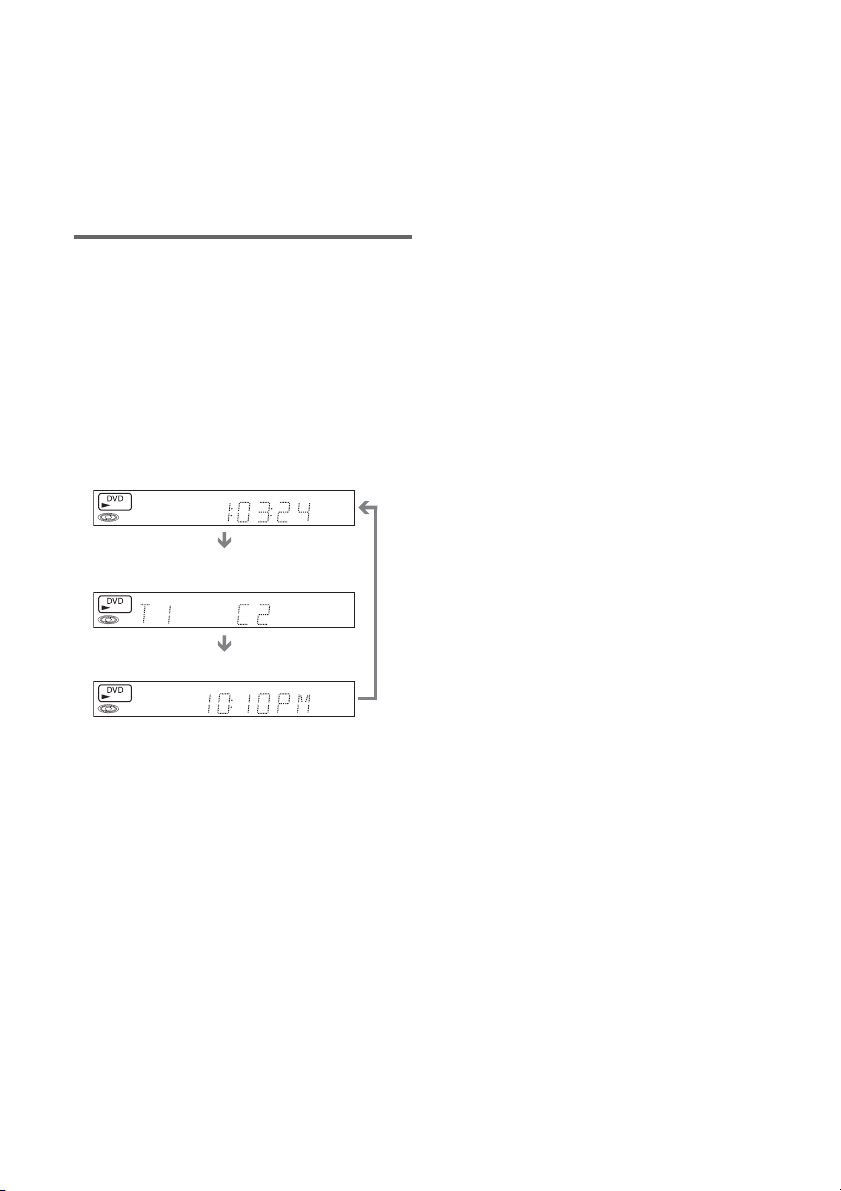
44
D Remaining disc space (in stop mode)
Remaining time of the current title (during
playback)
E Channel or input source
*
F Date and time
* Title type (original or Playlist) for DVD-RWs (VR
mode).
Viewing information on the front
panel display
You can view the information on the front panel
display.
Press TIME/TEXT repeatedly.
The displays differ depending on the disc type or
playing status.
Example: When playing a DVD
Example: When a DVD is stopped
Example: When playing a CD
Playing time of the current title
Current title number and current chapter
number
Clock
Clock
m
Current title and chapter number
m
Remaining disc space
m
Channel or input source
Playing time of the current track
m
Current track number
m
Clock
45
DVD Recording
DVD Recording
Before Recording
Before you start recording…
• This recorder can record on various discs types.
Select the disc type according to your needs
(page 28).
• Check that the disc has enough available space
for the recording (page 43). For DVD+RWs or
DVD-RWs, you can free up disc space by
erasing titles (page 56).
z Hint
To play a disc recorded with this recorder on other
equipment, finalize the disc (page 86).
Notes
• Timer recordings will start with or without the recorder
turned on. The recorder automatically turns off after a
recording has finished.
• This recorder records at ×1 speed.
• This recorder shares a single tuner for both the DVD
recorder and the VCR. You cannot record different
programs to a DVD and a VHS tape at the same time.
Recording mode
Like the SP or EP recording mode of VCRs, this
recorder has eight different recording modes.
Select a recording mode according to the time and
picture quality you need. For example, if picture
quality is your top priority, select the High Quality
mode (HQ). If recording time is your priority,
Super Extended Play mode (SEP) can be a
possible choice. Note that the recording time in the
following table is an approximate guide.
Press REC MODE repeatedly to switch the
recording modes.
Note
Situations below may cause slight inaccuracies with the
recording time.
– Recording a program with poor reception, or a program
or video source of low picture quality
– Recording on a disc that has already been edited
– Recording only a still picture or just sound
Recording a stereo/SAP program
The recorder can receive and record stereo/SAP
programs.
Stereo programs
When a stereo program is received, the
“STEREO” indicator lights up in the front panel
display. If there is noise in the stereo program,
press AUDIO repeatedly until the “MONO”
indicator disappears from the TV screen. The
sound will be recorded in monaural but with less
noise.
SAP (Second Audio Program)
When a SAP is received, the “SAP” indicator
lights up in the front panel display. To record only
SAP sound, set “Tuner Audio” of “Audio” to
“SAP” in the “Setup” display (page 97).
I want to record with the
best possible picture
quality, so I’ll select HQ.
Recording mode Recording time
(minute)
HQ (High quality) 60
HSP R 90
SP (Standard mode) 120
LSP r 150
LP r 180
EP r 240
SLP r 360
SEP (Long duration) 480
,continued
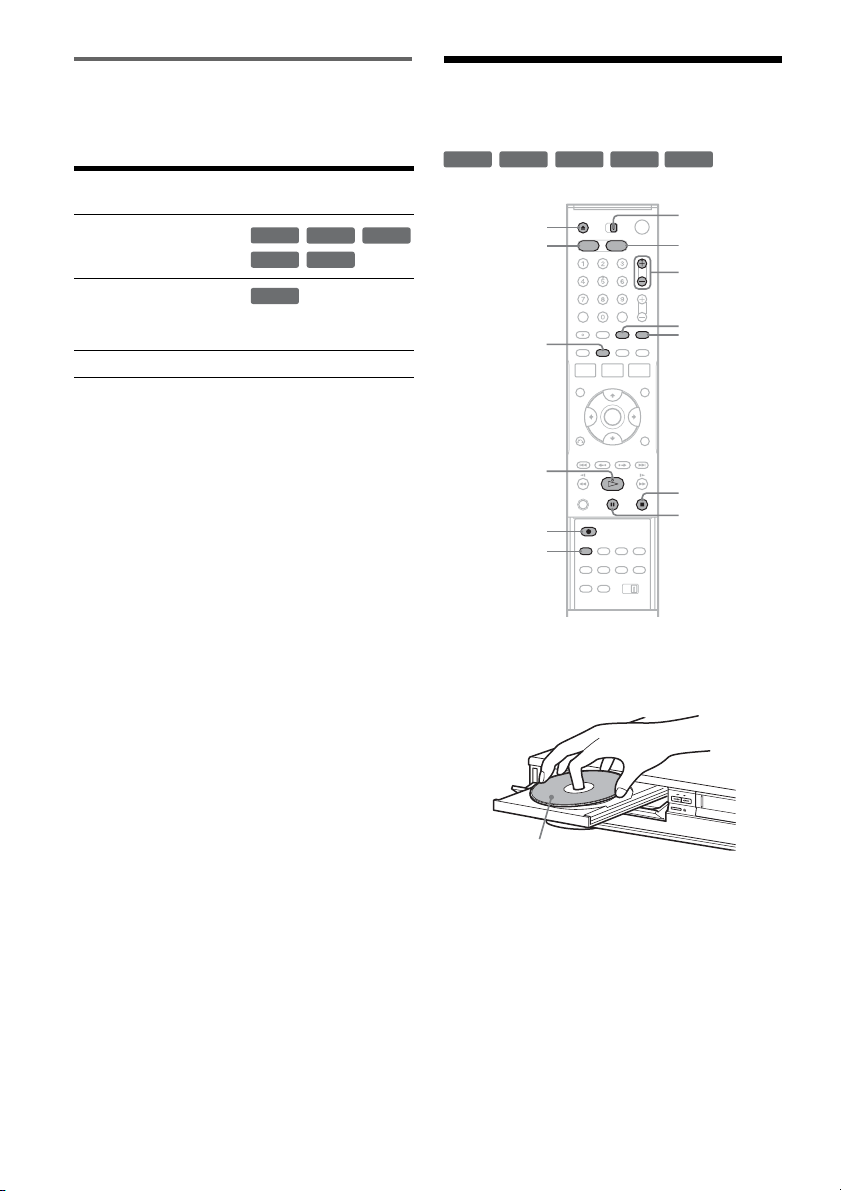
46
Unrecordable pictures
Pictures with copy protection cannot be recorded
on this recorder. Recording stops when a copy
guard signal is detected.
* The recorded disc can be played only on CPRM
compatible equipment (page 29).
DVD Recording Without the
Timer
1 Press DVD to operate the DVD recorder.
2 Press Z OPEN/CLOSE, and place a
recordable disc on the disc tray.
3 Press Z OPEN/CLOSE to close the disc
tray.
Wait until “LOAD” disappears from the front
panel display.
Unused DVD-RWs are formatted in VR mode
automatically. To format in Video mode, see
page 100.
4 Press CH +/– or INPUT SELECT repeatedly
to select the channel or input source you
want to record.
Copy control
signals
Recordable discs
Copy-Free
Copy-Once
Ver.1.1 with CPRM*
Ver.1.2 with CPRM*
Copy-Never None
+
RW
-
RWVR
-
RW
Video
+
R
-
R
-
RWVR
+
RW
+
R
-
RWVR
-
RW
Video
-
R
REC MODE
X PAUSE
x STOP
CH +/–
TV/VIDEO
z REC
Z OPEN/
CLOSE
H PLAY
VIDEODVD
DISPLAY
INPUT
SELECT
TV/DVD·VIDEO
switch
Recording side facing down
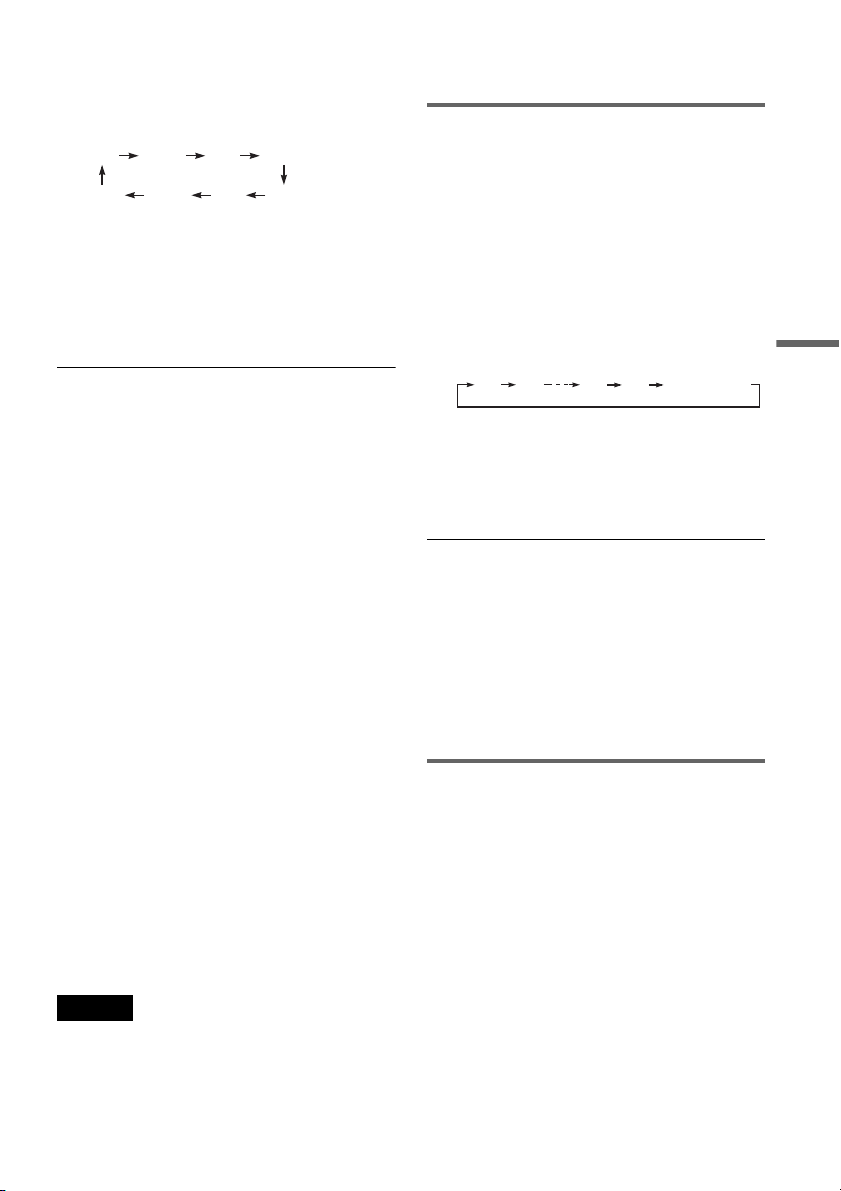
47
DVD Recording
5 Press REC MODE repeatedly to select the
recording mode.
The display changes on the TV screen as
follows:
For details about the recording mode, see
page 45.
6 Press z REC.
Recording starts.
Recording continues until you stop the
recording or the disc is full.
To stop recording
Press x STOP.
Note that it may take a few seconds for the
recorder to stop recording.
To pause recording
Press X PAUSE.
To restart recording, press X PAUSE again.
To watch another TV program while recording
1 Slide the TV/DVD·VIDEO switch to TV.
2 Press TV/VIDEO to set the TV to the TV
input.
3 Select another channel on the TV.
To watch a VHS tape while recording
Press VIDEO to operate the VCR, insert a tape,
then press H PLAY.
z Hints
• To play a disc recorded with this recorder on other
equipment, finalize the disc (page 86).
• You can use the number buttons for channel selection.
Enter the channel number, and press SET.
• You can select a video source from the LINE 1 IN or
LINE 2 IN jacks using the INPUT SELECT button.
• You can turn off the TV during recording. If you are
using a cable box or a satellite receiver, make sure to
leave it on.
Notes
• Recording may not start immediately after z REC is
pressed.
• You cannot change the recording mode during
recording or recording pause.
• If there is a power failure, the program you are
recording may be erased.
• You cannot change the channel or input source during
recording.
Recording using the Quick Timer
(One-touch Timer Recording)
You can set the recorder to record in 30-minute
increments.
1 Press DVD to oparate the DVD recorder.
2 Press z REC repeatedly to set the
duration.
Each press increases the time by 30 minutes,
up to eight hours (12 hours for DVD+R DL
(Double Layer) discs).
“c” and “OTR” light up, and the remaining
recording time appears in the front panel
display.
When the counter reaches “0:00,” the recorder
stops recording and turns off.
To cancel the Quick Timer
Press z REC repeatedly until the counter appears
in the front panel display. The recorder returns to
normal recording mode.
To stop recording.
Press x STOP twice.
Note that it may take a few seconds for the
recorder to stop recording.
Checking the disc status while
recording
You can check the recording information such as
recording time or disc type.
Press DISPLAY during recording.
The information display appears.
Press the button repeatedly to change the display
(page 43).
HQ SPHSP LSP
SEP EPSLP LP
0:30 1:00 7:30 8:00
(normal
recording)
,continued
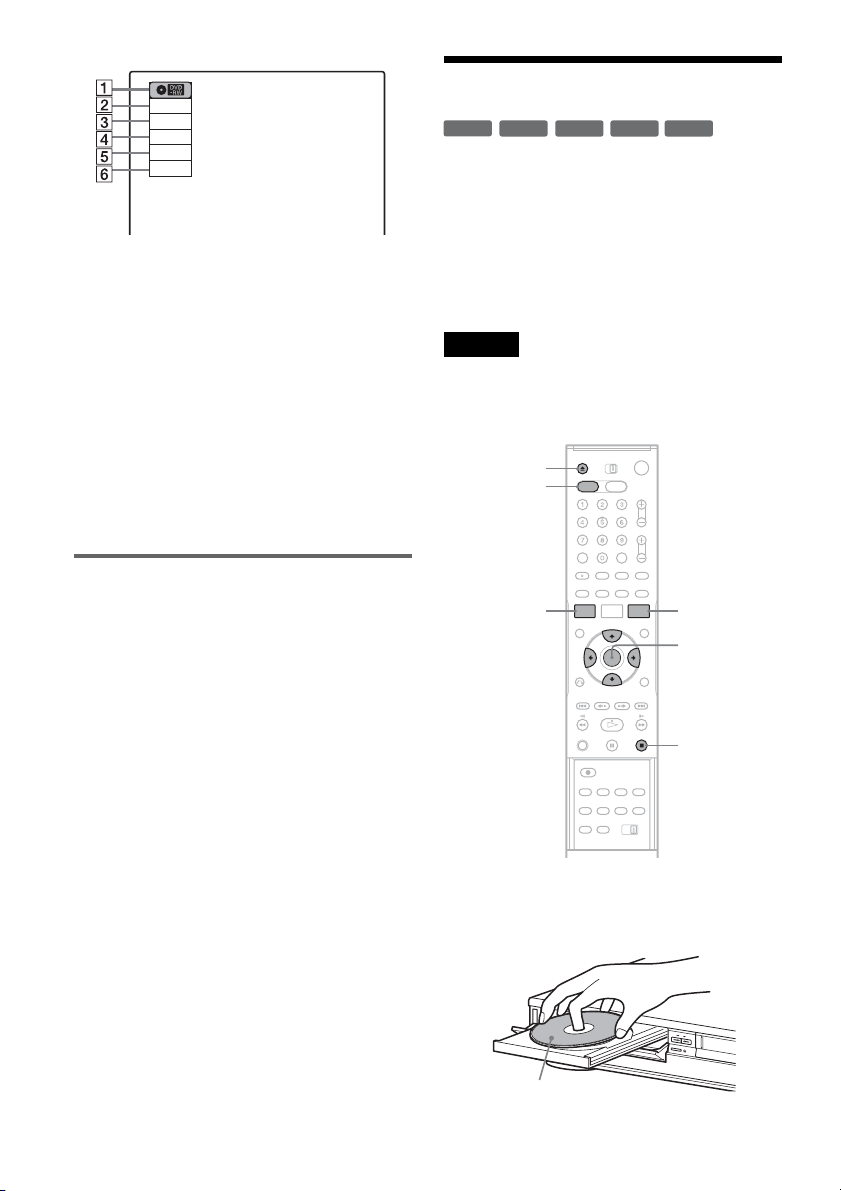
48
A Disc type
B Recording status
C Recording time
D Recording mode
E Remaining disc space
F Channel or input source
z Hint
You can view the information also in the front panel
display. Press TIME/TEXT repeatedly to change the
display. Note that TIME/TEXT does not work during
One-touch Timer Recording.
Creating chapters in a title
The recorder will automatically divide a recording
(a title) into chapters by inserting chapter marks at
5 or 15-minute intervals during recording. Select
the interval, “5 Min” (default) or “15 Min” in
“DVD Auto Chapter” of “Features” in the “Setup”
display (page 99).
If you do not want to divide titles, select “Off.”
z Hint
You can create chapters manually when playing
DVD+RWs or DVD-RWs (VR mode) (page 59).
DVD Timer Recording
You can set the timer for a total of 12 programs
together with DVD and VCR timer recording, up
to one month in advance.
Note that the maximum continuous recording time
for a single title is 12 hours. Contents beyond this
time will not be recorded.
Follow the steps below to set each timer recording
item.
Note
Do not operate your cable box or satellite receiver just
before or during a timer recording. This may prevent the
accurate recording of a program.
1 Press DVD to operate the DVD recorder.
2 Press Z OPEN/CLOSE, and place a
recordable disc on the disc tray.
Record
0:00:03
HQ
Rem 02:28
CH 1
+
RW
+
R
-
RWVR
-
RW
Video
-
R
M/m/</,,
ENTER
Z OPEN/
CLOSE
x STOP
SYSTEM
MENU
DVD
TIMER
Recording side facing down
49
DVD Recording
3 Press Z OPEN/CLOSE to close the disc
tray.
Wait until “LOAD” disappears from the front
panel display.
Unused DVD-RWs are formatted in VR mode
automatically. To format in Video mode, see
page 100.
4 Press TIMER.
5 Select an item using </, and adjust
using M/m.
A “RecTo”: Select “DVD.”
B “Date”: Sets the date using M.
To record the same program every day or
the same day every week, press m.
The item changes as follows:
Today y Sun-Sat (Sunday to Saturday)
y Mon-Sat (Monday to Saturday) y
Mon-Fri (Monday to Friday) y Sun
(every Sunday) y Mon (every Monday)
y … y Sat (every Saturday) y
1 month later y … y Today
C “Start”: Sets the start time.
D “Stop”: Sets the stop time.
E “CH”: Selects the channel or input
source.
F “Mode”: Selects the recording mode
(page 45).
To use the Rec Mode Adjust function
(page 49), select “AUTO.”
If you make a mistake, select the item and
change the setting.
6 Press ENTER.
The Timer List menu (page 52) appears.
The c indicator lights up in the front panel
display, and the recorder is ready to start
recording.
If the c indicator flashes in the front panel
display, check that a recordable disc is
inserted and that there is enough disc space for
the recording.
There is no need to turn off the recorder before
the timer recording starts.
If timer settings overlap, a message appears.
To change or cancel a timer recording, select
“Edit” from the Timer List (page 52).
7 Press SYSTEM MENU to turn off the menu.
To stop recording
Press x STOP twice.
Note that it may take a few seconds for the
recorder to stop recording.
If timer settings overlap
The program that starts first has priority and the
second program starts recording only after the first
program has finished. If the programs start at the
same time, the program listed first in the menu has
priority. If the end time of one setting and the start
time of another timer setting is the same, the
beginning of the program that starts later will be
cut.
To change or cancel timer recording
See “Changing or Canceling DVD Timer Settings
(Timer List)” on page 52.
To use the Rec Mode Adjust function
If the remainning disc space is not enough for the
current recording, the recorder automatically
01 DVD 04/15 09:00PM 10:00PM CH8
--- --/-- --:-- --:-- ---- ---04
--- --/-- --:-- --:-- ---- ---05
--- --/-- --:-- --:-- ---- ---06
03 --- --/-- --:-- --:-- ---- ---
02 DVD 04/30 09:15PM 09:45PM CH11
10:10 AM
No Rec To Date Start End Source Mode Edit
Timer – Standard
No.1
: PM
DVD
PM
:
Today 09 00 10 00 CH 8 SP
12 3 4 56
RecTo Date Start Stop CH Mode
7:00 8:00 9:00 10:00
7:00 8:00 9:00 10:00
Program 1
Program 2
will be cut off
Program 1
Program 2
will be cut off
,continued
50
adjusts the recording mode. Select “AUTO” for
“Mode” when setting the timer.
z Hints
• You can play the recorded program by selecting the
program title in the Title List menu.
• When the start time and the channel or input source to
be recorded are the same but the “RecTo” setting
differs, the program is recorded to both the DVD disc
and the VHS tape.
• You can also turn on the timer programming menu
from the System Menu. Press SYSTEM MENU to
select “Timer,” and select “Timer-Standard.”
Notes
• To record a cable or satellite program, turn on the cable
box or satellite receiver and select the program you
want to record. Leave the cable box or satellite receiver
turned on until the recorder finishes recording.
• Even when correctly set, the program may not be
recorded if another recording is underway, or other
prioritized timer setting overlaps.
• Before the timer recording starts, “TIMER REC”
flashes in the front panel display.
• The recorder automatically turns off when a timer
recording finishes, even if the recording started with
the recorder turned on.
• The recorder does not record programs with Copy-
Never signals. Such recordings stop after a few
seconds.
Recording From Connected
Equipment With a Timer
(Synchro Rec)
You can set the recorder to automatically record
programs from connected equipment that has a
timer function (such as a satellite tuner). Connect
the equipment to the LINE 1 IN jacks on the rear
of the recorder (page 27).
When the connected equipment turns on, the
recorder starts recording a program from the LINE
1 IN jacks.
1 Press DVD to operate the DVD recorder.
2 Insert a recordable disc.
3 Select the line input audio.
Set “Line Audio Input” of “Audio” to
“Stereo” or “Main/Sub” in the “Setup”
display (page 99).
+
RW
+
R
-
RWVR
-
RW
Video
-
R
M/m/</,,
ENTER
SYNCHRO
REC
x STOP
REC MODE
SYSTEM
MENU
DVD
51
DVD Recording
4 Press REC MODE repeatedly to select the
recording mode.
The display changes on the TV screen as
follows:
For details about the recording mode, see
page 45.
5 Press SYSTEM MENU while the recorder is
in stop mode.
6 Select “Setup,” and press ENTER.
7 Select “Features,” and press ENTER.
The “Features” setup appears.
8 Select “Synchro Recording,” and press
ENTER.
9 Select “to DVD,” and press ENTER.
10
Press SYSTEM MENU to turn off the menu.
11
Set the timer on the connected equipment
to the time you want to record, and turn it
off.
12
Press SYNCHRO REC.
The SYNCHRO REC indicator lights up on
the front panel and the recorder stands by for
Synchro-Rec.
The recorder starts recording when a signal is
received from the connected equipment.
When the connected equipment turns off, the
recording stops and the recorder turns off.
To stop recording
Press x STOP twice.
To cancel a Synchro-Rec standby
Press SYNCHRO REC before recording starts.
The SYNCHRO REC indicator on the recorder
turns off.
If you press SYNCHRO REC during Synchro-
Rec, the recording stops, the SYNCHRO REC
indicator turns off, and the recorder turns off.
If the timer settings of a Synchro-Recording
and another timer recording overlap
Regardless of whether or not the program is a
Synchro-Rec program, the program that starts first
has priority. The recorder starts recording the
second program about ten seconds after the first
program has finished. If the end time of one
setting and the start time of another timer setting is
the same, the beginning of the program that starts
later will be cut.
Notes
• The recorder starts recording only after detecting the
video signal from the connected equipment. The
beginning of the program may not be recorded
regardless of whether or not the recorder’s power is on
or off.
• To use the connected equipment during Synchro-Rec
standby, cancel the standby mode by pressing
SYNCHRO REC. To return to standby mode again, be
sure to turn off the equipment and press SYNCHRO
REC, before Synchro-Rec starts.
• The Synchro-Rec function does not work with some
tuners. For details, see the tuner’s operating
instructions.
• During Synchro-Rec standby, the Auto Clock Set
function does not work (page 94).
• After a recording has finished, the recorder enters the
Synchro-Rec standby mode until the SYNCHRO REC
indicator turns off.
• If Synchro-Rec starts with the recorder turned on, the
recorder will turn off when the recording ends.
• The recorder does not record programs with Copy-
Never signals. Such recordings stop after a few
seconds.
HQ SPHSP LSP
SEP EPSLP LP
7:00 8:00 9:00 10:00
Program 1
Program 2
will be cut off
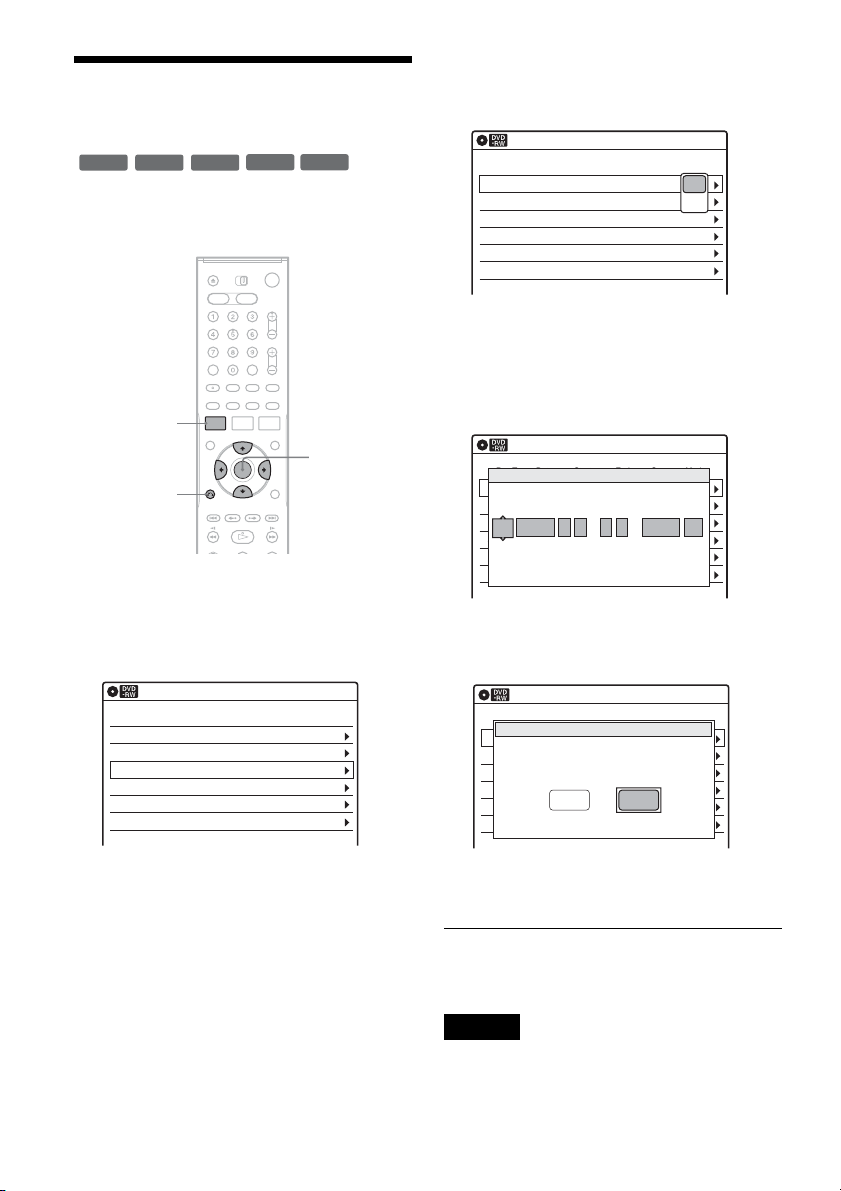
52
Changing or Canceling DVD
Timer Settings (Timer List)
You can change or cancel timer settings using the
Timer List menu.
1 Press SYSTEM MENU.
The System Menu appears.
2 Select “Timer,” and press ENTER.
3 Select “Timer List,” and press ENTER.
Timer information displays the recording
date, time, recording mode, etc.
If there are more than six timer settings, press
m to display the next page.
4 Select the timer setting you want to change
or cancel, and press ENTER.
The sub-menu appears.
5 Select one of the options, and press
ENTER.
“Edit”: Changes the timer setting.
Select an item using </, and adjust using
M/m. Press ENTER.
“Del”: Erases the timer setting.
Select “OK” and press ENTER when asked
for confirmation.
6 Press SYSTEM MENU to turn off the Timer
List.
To return to the previous display
Press O RETURN.
Notes
• Even when correctly set, the program may not be
recorded if another recording is underway, or other
prioritized timer setting overlaps. For priority, see
page 49.
+
RW
+
R
-
RWVR
-
RW
Video
-
R
SYSTEM
MENU
M/m/</,,
ENTER
O RETURN
01 DVD 04/15 09:00PM 10:00PM CH8
--- --/-- --:-- --:-- ---- ---04
--- --/-- --:-- --:-- ---- ---05
--- --/-- --:-- --:-- ---- ---06
03 --- --/-- --:-- --:-- ---- ---
02 DVD 04/30 09:15PM 09:45PM CH11
10:10 AM
SP
SP
Timer List
No RecTo Date Start Stop CH Mode Edit
01 DVD 04/15 09:00PM 10:00PM CH8
--- --/-- --:-- --:-- ----
---04
--- --/-- --:-- --:-- ---- ---05
--- --/-- --:-- --:-- ---- ---06
03 --- --/-- --:-- --:-- ----
---
02 DVD 04/30 09:15PM 09:45PM CH11
10:10 AM
Timer List
No RecTo Date Start Stop CH Mode Edit
Edit
Del
01 DVD 04/15 09:00PM 10:00PM CH8
--- --/-- --:-- --:-- ---- ---04
--- --/-- --:-- --:-- ---- ---05
--- --/-- --:-- --:-- ---- ---06
03 --- --/-- --:-- --:-- ---- ---
02 DVD 04/30 09:15PM 09:45PM CH11
10:10 AM
No Rec To Date Start End Source Mode Edit
Timer – Standard
No.1
: PM
DVD
PM
:
04/15 09 00 10 00 CH 8 SP
RecTo Date Start Stop CH Mode
01 DVD 04/15 09:00PM 10:00PM CH8
--- --/-- --:-- --:-- ----
---04
--- --/-- --:-- --:-- ---- ---05
--- --/-- --:-- --:-- ---- ---06
03 --- --/-- --:-- --:-- ----
---
02 DVD 04/30 09:15PM 09:45PM CH11
10:10 AM
No Rec To Date Start End Source Mode Edit
Timer List
Do you want to erase ‘No.01’?
OK Cancel
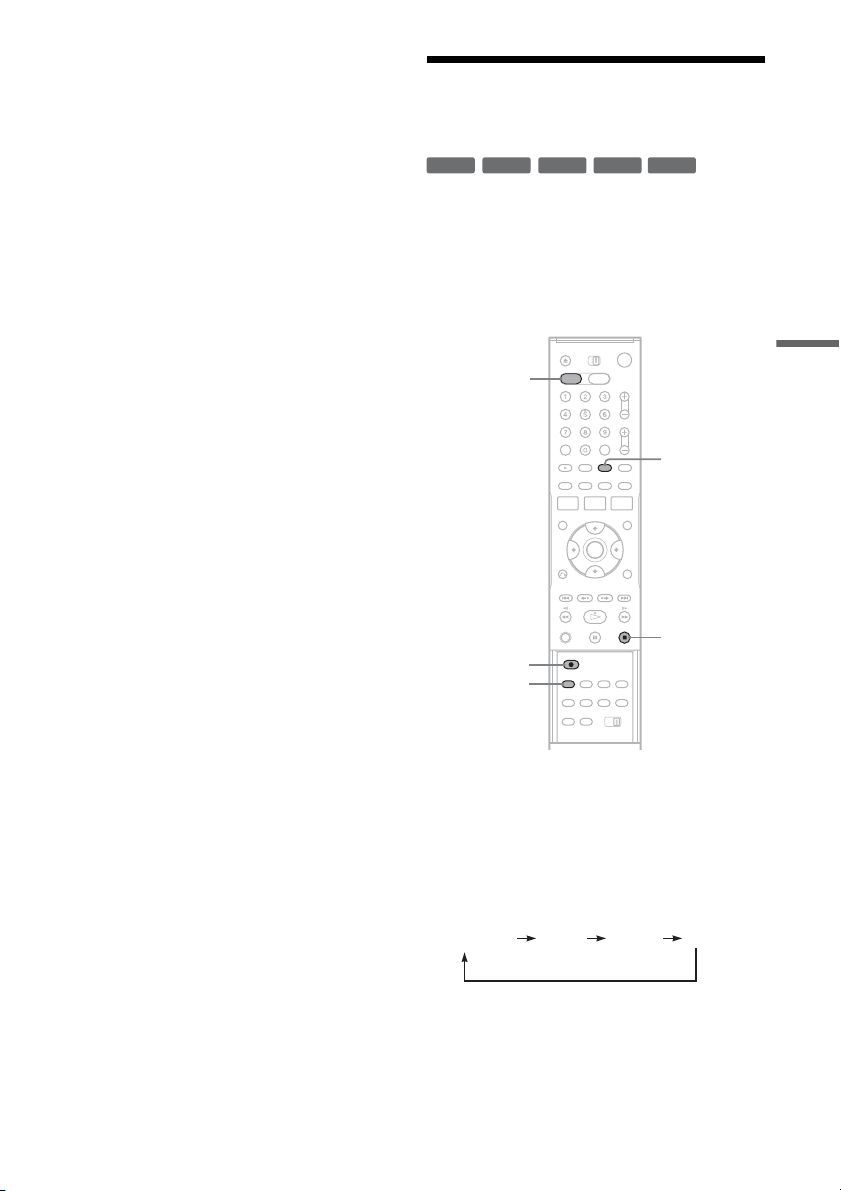
53
DVD Recording
• You cannot change the timer settings for a recording
currently underway.
• The Timer List displays both the DVD recorder and
VCR timer settings.
Recording From Connected
Equipment Without a Timer
You can record from a connected VCR or similar
device. For connection details, see “Connecting
Another VCR or Similar Device” on page 26.
Use the DV IN jack on the front panel if the
equipment has a DV/D8 output jack (i.LINK
jack).
1 Press DVD to operate the DVD recorder.
2 Insert a recordable disc.
3 Press INPUT SELECT repeatedly to select
an input source according to the
connection you made.
The front panel display changes as follows:
+
RW
+
R
-
RWVR
-
RW
Video
-
R
INPUT
SELECT
x STOP
REC MODE
DVD
z REC
LINE2 DVLINE1
Channel
,continued

54
4 Press REC MODE repeatedly to select the
recording mode.
The display changes on the TV screen as
follows:
For details about the recording mode, see
page 45.
5 Select the line input audio.
Set “Line Audio Input” of “Audio” to
“Stereo” or “Main/Sub” in the “Setup”
display (page 99).
6 Insert the source tape into the connected
equipment and set to playback pause.
7 Press z REC on this recorder and the
pause or play button on the connected
equipment at the same time.
Recording starts.
To stop recording, press x STOP on this
recorder.
If you connect a digital video camera with a DV
IN jack
See “Dubbing from a DV/D8 Format Tape to a
DVD” (page 89) for an explanation of how to
record from the DV IN jack.
Notes
• A video game image may not be recorded clearly.
• The recorder does not record programs with Copy-
Never signals. Such recordings stop after a few
seconds.
• During recording or recording pause, you cannot
change the recording mode.
• You cannot change the channel or input source during
recording.
HQ SPHSP LSP
SEP EPSLP LP
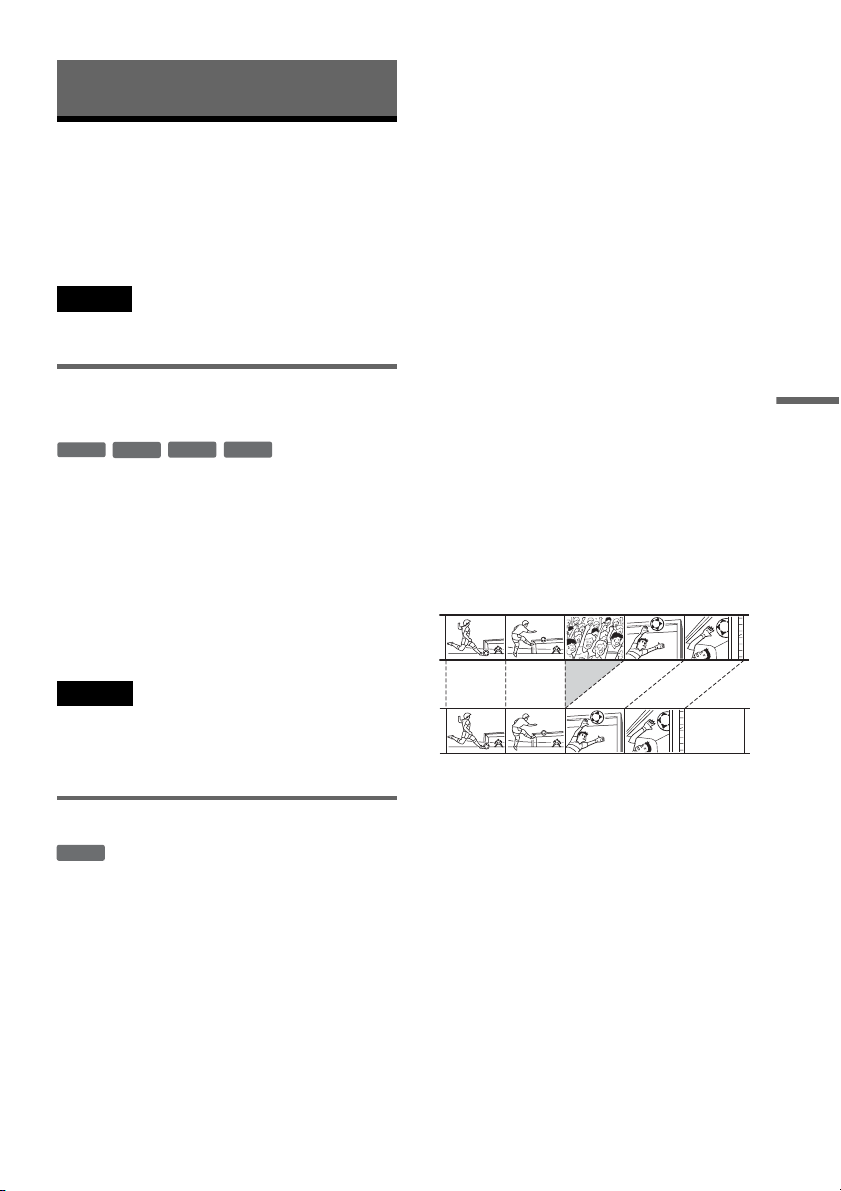
55
DVD Editing
DVD Editing
Before Editing
This recorder offers various edit options for
various disc types. Before you edit, check the disc
type in the front panel display, and select the
option available for your disc (page 28).
Note
You may lose the edited contents if you remove the disc
or a timer recording starts while editing.
Edit options for DVD+RWs/DVD-RWs
(Video mode)/DVD+Rs/DVD-Rs
You can perform simple edits. Since Video mode
titles are actual recordings on the disc, you cannot
undo any edits you make. The edit functions
available for Video mode titles are:
– Renaming a title (page 60).
– Erasing a title (page 56).
– Setting protection against erasure (DVD+RWs
only) (page 56).
– Dividing a title (DVD+RWs only) (page 58).
Notes
• Once the disc is finalized, you cannot edit or record on
the disc (except for DVD+RWs).
• If a message appears and indicates that the disc’s
control information is full, erase unnecessary titles.
Edit options for DVD-RWs (VR mode)
You can enjoy advanced edit functions. First you
have two options for a DVD-RW (VR mode):
editing either the original recording (called the
“original”), or the playback information created
from the original (called a “Playlist”). Since each
is different in nature and offers different merits,
read the following and select the one that better
suits your needs.
To edit original titles
Edits made to the original titles are final. If you
plan to retain an unaltered original recording,
create and edit a Playlist (see below). The edit
functions available for original titles are:
– Renaming a title (page 60).
– Erasing a title (page 56).
– Erasing a chapter (page 57).
– Setting protection against erasure (page 56).
– Erasing a section of a title (A-B Erase) (page 57).
– Dividing a title (page 58).
To create and edit Playlist titles
A Playlist is a group of Playlist titles created from
the original title for editing purposes. When you
create a Playlist, only the control information
necessary for playback, such as the playback
order, is stored on the disc. Since the original titles
are left unaltered, Playlist titles can be re-edited.
If you erase an original title used in a Playlist, that
Playlist is also erased.
Example: You have recorded the final few
matches of a soccer tournament on a DVD-RW
(VR mode). You want to create a digest with the
goal scenes and other highlights, but you also want
to keep the original recording.
In this case, you can compile highlight scenes as a
Playlist title. You can even rearrange the scene
order within the Playlist title. See “Editing a
Playlist” on page 62.
The advanced edit functions available for Playlist
titles are:
– Renaming a title (page 60).
– Erasing a title (page 56).
– Erasing a chapter (page 57).
– Erasing a section of a title (A-B Erase) (page 57).
– Editing a Playlist scene (page 62).
– Dividing a title (page 58).
– Combining titles (page 63).
-
RW
Video
+
RW
+
R
-
R
-
RWVR
,continued
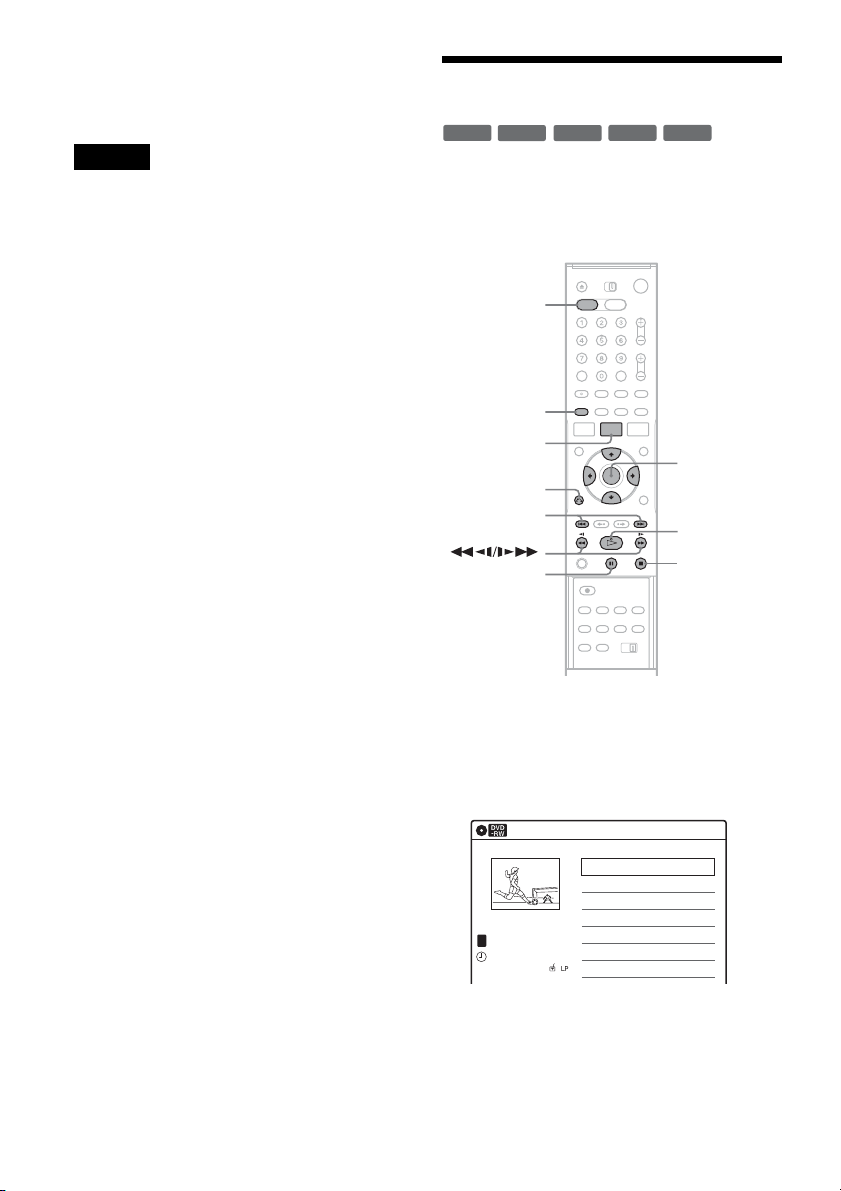
56
z Hint
You can switch the Title List to show original or Playlist.
While the Title List menu is turned on, press ORIGINAL/
PLAYLIST repeatedly.
Notes
• You cannot protect Playlist titles.
• If a message appears and indicates that the disc’s
control information is full, erase unnecessary titles.
• Once the disc is finalized, you cannot create or edit
Playlist titles on the disc.
Editing a Title
This section explains the basic edit functions. Note
that editing is irreversible. To edit a DVD-RW
(VR mode) without changing the original
recordings, create a Playlist title (page 61).
1 Press DVD to operate the DVD recorder.
2 Press TITLE LIST.
When editing a DVD-RW (VR mode), press
ORIGINAL/PLAYLIST to switch to the
“Title List (Original),” if necessary.
3 Select a title, and press ENTER.
The sub-menu appears.
-
RWVR
-
RW
Video
+
RW
+
R
-
R
M/m/</,,
ENTER
TITLE LIST
H PLAY
x STOP
X PAUSE
DVD
ORIGINAL/
PLAYLIST
./>
O RETURN
Title List (Original)
10:10 AM
>
>
CH
23
08:00 PM
May/02/2005
T
No. Title Length Edit
01 CH 23 01:29:03
02 CH 66 00:31:23
03 CH 95 >01:59:00
04 CH 97 >00:58:56
1/4
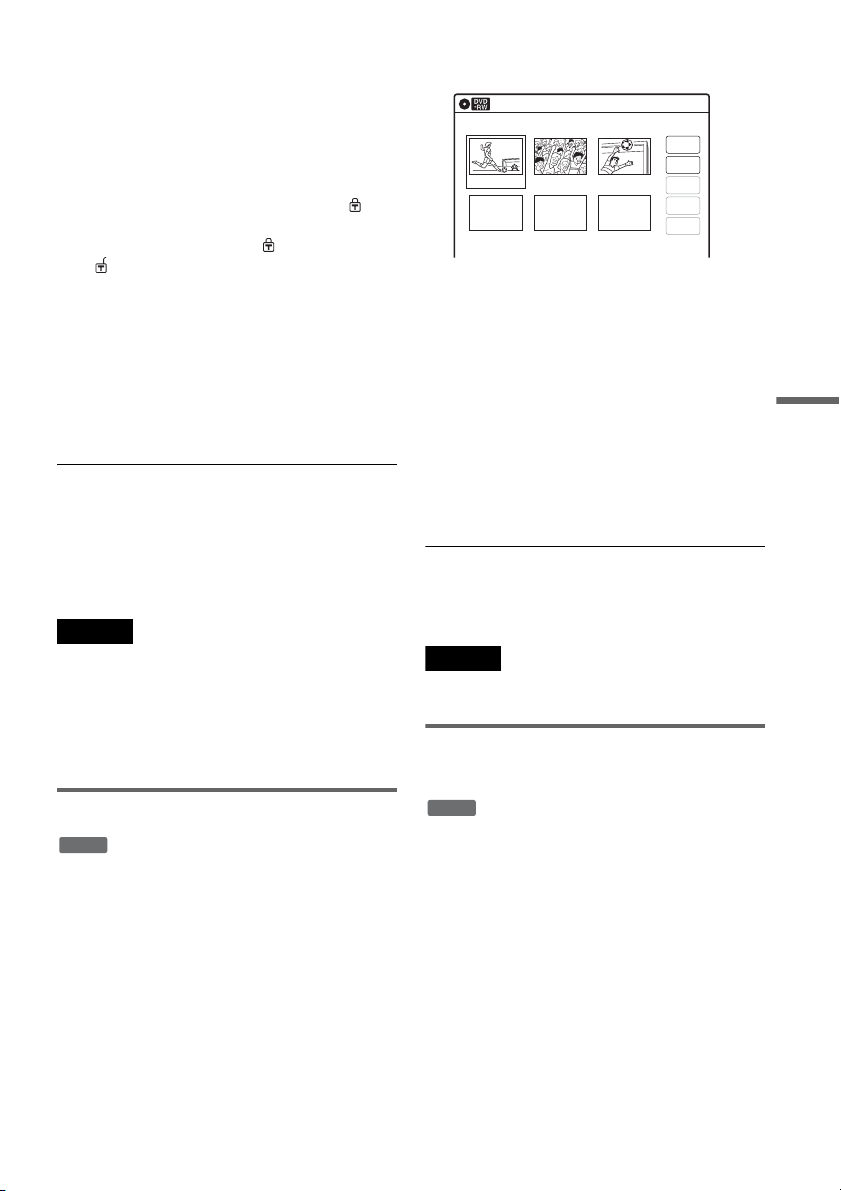
57
DVD Editing
4 Select an option, and press ENTER.
You can select from the following:
“Title Erase”: Erases the selected title. Select
“OK” when asked for confirmation.
“Chapter Erase”
*1
: Allows you to select a
chapter in the title and erase it (see below).
“Protect”
*2
: Protects the title. Select “On”
when the Protection display appears. “ ”
appears for the protected title. To cancel the
protection, select “Off.” “ ” changes to
“.”
“Title Name”: Allows you to rename the title
(page 60).
“A-B Erase”
*1
: Erases a section of the title
(see below).
“Divide Title”
*2
: Divides a title into two
(page 58).
*1
DVD-RWs (VR mode) only
*2
DVD+RWs and DVD-RWs (VR mode) only
z Hints
• You can also rename a disc (page 66).
• For a DVD+R or DVD-R, erasing titles does not free up
disc space. For DVD+RWs and DVD-RWs (Video
mode), you can free up space only by erasing the last
title.
Notes
• When editing a DVD-RW (Video mode), DVD+R, or
DVD-R, finish all editing before finalizing the disc.
You cannot edit a finalized disc.
• You cannot erase protected titles or erase chapters from
a protected title.
• If you erase an original title used in a Playlist, that
Playlist is also erased.
Erasing a chapter (Chapter Erase)
You can select a chapter within a title and erase it.
Note that erasing chapters from original titles
cannot be undone.
1 Press TITLE LIST.
Press ORIGINAL/PLAYLIST to switch to the
“Title List (Original),” if necessary.
2 Select a title, and press ENTER.
The sub-menu appears.
3 Select “Chapter Erase,” and press ENTER.
The display for erasing chapters appears.
4 Select the chapter you want to erase, and
press ENTER.
“Check” is selected. To preview the chapter,
press ENTER. When playback finishes or
when you press O RETURN, the display
returns to “Chapter Erase (Original).”
5 Select “Erase,” and press ENTER.
The display asks for confirmation.
6 Select “OK,” and press ENTER.
The selected chapter is erased from the title.
To erase other chapters, repeat from step 4.
z Hint
You can also erase chapters from a Playlist title
(page 62).
Note
If you erase an original title used in a Playlist, that Playlist
is also erased.
Erasing a section of a title
(A-B Erase)
You can select a section (scene) within a title and
erase it. Note that erasing scenes from original
titles cannot be undone.
1 Press TITLE LIST.
Press ORIGINAL/PLAYLIST to switch to the
“Title List (Original),” if necessary.
2 Select a title, and press ENTER.
The sub-menu appears.
3 Select “A-B Erase,” and press ENTER.
The display for setting point A and B appears.
-
RWVR
Chapter Erase (Original)
10:10 AM
Chapter 1 / 3 Title No.01
Check
Erase
03 00:04:2002 00:00:1001 00:00:34
Modify
Move
Add
-
RWVR
,continued
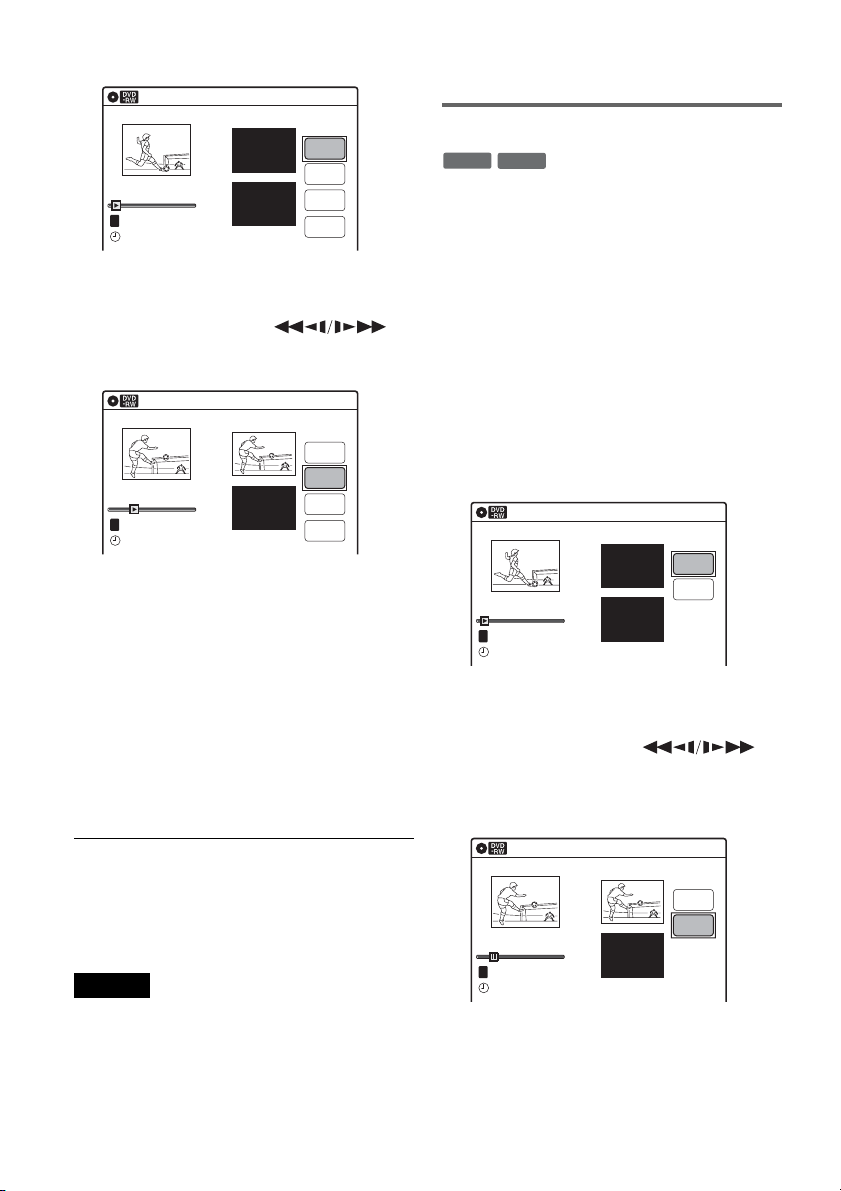
58
“Start” is selected.
4 Press ENTER at the start point of the
section to be erased (point A).
You can use H PLAY, ,
./>, x STOP, and X PAUSE to find
the point. “End” is selected.
5 Press ENTER at the end point of the section
(point B).
“Erase” is selected.
To reset the start or end point, select “Start” or
“End” and repeat from step 4 or 5.
6 Press ENTER.
The display asks for confirmation.
7 Select “OK,” and press ENTER.
The scene is erased.
To continue, repeat from step 4.
To finish, select “Finish,” and press ENTER.
z Hints
• A chapter mark is inserted after the scene was erased.
The chapter mark divides the title into separate chapters
on either side of the mark.
• You can also erase a section of a Playlist title (page 62).
Notes
• Images or sound may be momentarily interrupted at the
point where you erase a section of a title.
• Sections shorter than five seconds may not be erased.
• The start and end points of a title may be different from
what you have set.
• The total playing time of the title does not change even
if a scene was erased.
• If you erase an original title used in a Playlist, that
Playlist is also erased.
Dividing a title into two (Divide Title)
You can divide a title into two. Note that dividing
original titles cannot be undone.
1 Press TITLE LIST.
When editing a DVD-RW(VR mode), press
ORIGINAL/PLAYLIST to switch to the
“Title List (Original),” if necessary.
2 Select a title, and press ENTER.
The sub-menu appears.
3 Select “Divide Title,” and press ENTER.
The display for setting the dividing point
appears.
“Point” is selected.
4 Press ENTER at the point where you want to
divide the title.
You can use H PLAY, ,
./>, x STOP, and X PAUSE to find
the point.
“Divide” is selected.
5 Press ENTER.
The display asks for confirmation.
To reset the dividing point, select “No” and
press ENTER, then repeat from step 4.
A-B Erase
10:10 AM
Title No.01
End 00:00:00
Start 00:00:00
Start
End
Erase
Finish
00:00:07
T
Title No.1
May/02/2005 08:00 PM
A-B Erase
10:10 AM
Title No.01
End 00:00:00
Start 00:00:10
Start
End
Erase
Finish
00:00:10
T
Title No.1
May/02/2005 08:00 PM
-
RWVR
+
RW
Divide Title (Original)
10:10 AM
Title No.01
T
Point
Divide
00:00:07
Title No. 1
Start 00:00:00
End 00:00:00
May/02/2005 08:00 PM
10:10 AM
Title No.01
T
00:00:10
Divide Title (Original)
Title No. 1
End 00:00:10
Start 00:00:00
Point
Divide
May/02/2005 08:00 PM
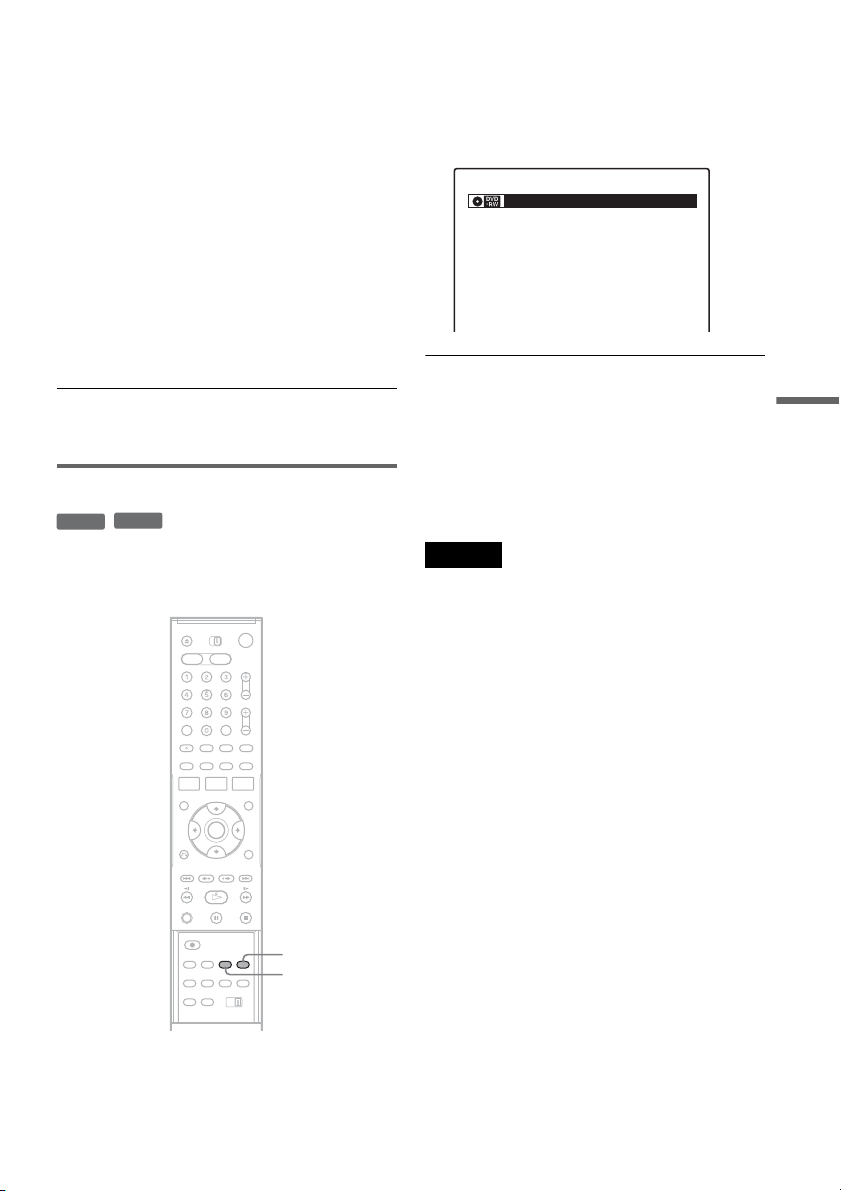
59
DVD Editing
6 Select “Yes,” and press ENTER.
The display asks whether to use the same title
name as before.
To use the same name, select “Yes” and press
ENTER to finish.
7 Select “No,” and press ENTER.
The display asks whether to rename the title.
8 Select “Yes,” and press ENTER.
The “Title Name” display appears.
9 Follow steps 5 to 7 of “Changing the Name
of a Title” (page 60) to complete
renaming.
The divided title appears in the Title List with
the new name.
z Hint
You can also divide a Playlist title (page 62).
Creating chapters manually
You can manually insert a chapter mark at any
point you like during playback.
Press CHAPTER MARK at the point where you
want to divide the title into chapters.
Each time you press the button, “Marking...”
appears on the screen, and the scenes before and
after the mark become separate chapters.
To erase chapter marks
You can combine two chapters by erasing the
chapter mark during playback.
During playback, press CHAPTER MARK
ERASE.
The current chapter combines with the previous
chapter.
Notes
• If a message appears and indicates that no more chapter
marks can be added, you may not be able to record or
edit.
• You cannot add or erase chapter marks on protected
titles or discs.
-
RWVR
+
RW
CHAPTER
MARK
CHAPTER
MARK ERASE
Marking...VR
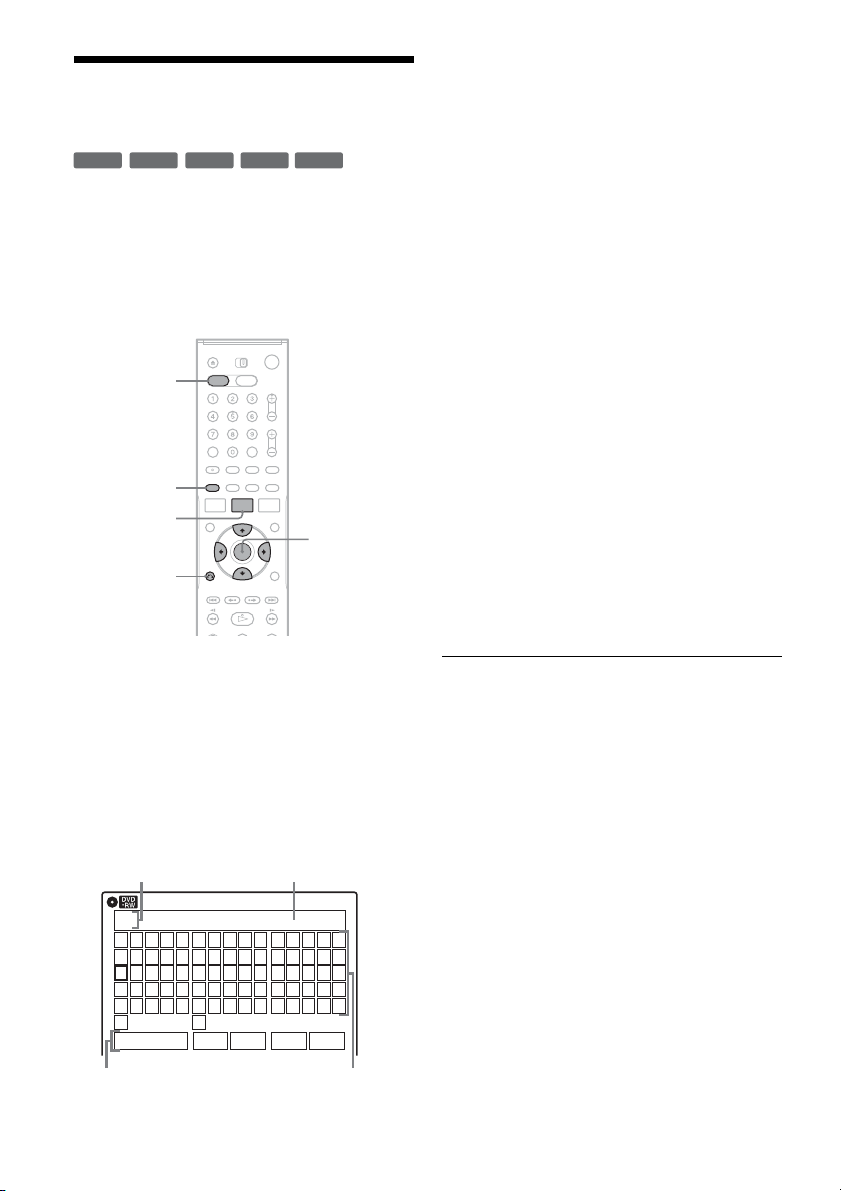
60
Changing the Name of a
Title
You can enter a title name of up to 32 characters.
Since the displayed number of characters is
limited, their appearance in menus such as Title
List may be different. When the display for
entering characters appears, follow the steps
below.
1 Press DVD to operate the DVD recorder.
2 Press TITLE LIST.
When editing a DVD-RW (VR mode), press
ORIGINAL/PLAYLIST to switch to the
“Title List (Original),” if necessary.
3 Select a title, and press ENTER.
The sub-menu appears.
4 Select “Title Name,” and press ENTER.
The “Title Name” display appears.
5 Select the character you want to enter
using M/m/</,, and press ENTER.
The selected character appears in the input
row.
You can only enter characters and symbols
that are displayed.
• To change the cursor position, select the
input row using M, and press </,.
• To erase a character, select either of the
following setting buttons and press ENTER.
“Backspace”: Erases the character to the left
of the cursor.
“Delete”: Erases the character at the cursor
position.
“Clear”: Erases all the characters in the input
row.
• To insert a space, move the cursor to the
desired position, select “Space,” and press
ENTER.
• To insert a character, move the cursor to the
desired position, select the character, and
press ENTER.
6 Repeat step 5 to enter the remaining
characters.
To return to the Title List without renaming
the title, press O RETURN.
7 Select “Finish,” and press ENTER.
z Hint
You can also rename a disc (page 66). Follow steps 5 to
7 above when the “Disc Name” display appears.
+
R
-
RWVR
-
RW
Video
+
RW
-
R
M/m/</,,
ENTER
O RETURN
TITLE LIST
DVD
ORIGINAL/
PLAYLIST
Title Name
K
_
A B C D E
F G H I J
K L M N O
P Q R S T
U V W X Y
Z
a b c d e
f g h i j
k l m n o
p q r s t
u v w x y
z
1 2 3 4 5
6 7 8 9 0
- _ + = .
~
!
@ # $
%
^
& ( )
Backspace Space Delete Clear Finish
10:10 AM
Input row
Character paletteSetting buttons
Cursor

61
DVD Editing
Creating a Playlist
Playlist titles allow you to edit without changing
the original recordings (see “Edit options for
DVD-RWs (VR mode)” on page 55). You can
create a Playlist title by combining up to 99
sections (scenes) from original titles.
Notes
• If you erase an original title used in a Playlist, that
Playlist is also erased.
• Once the disc is finalized, you cannot create Playlist
titles on the disc.
1 Press DVD to operate the DVD recorder.
2 Press SYSTEM MENU while the recorder is
in stop mode.
3 Select “Edit,” and press ENTER.
4 Select “Create Playlist,” and press ENTER.
The display for creating a Playlist appears.
“Start” is selected.
5 Press ENTER at the start point.
You can use H PLAY, ,
./>, x STOP, and X PAUSE to find
the point.
“End” is selected.
6 Press ENTER at the end point.
“Make” is selected.
To reset the start or end point, select “Start” or
“End” and repeat step 5 or 6.
7 Press ENTER.
The selected section is captured as a scene. To
continue, repeat from step 5.
8 When you finish capturing scenes, select
“Finish” and press ENTER.
-
RWVR
M/m/</,,
ENTER
SYSTEM
MENU
H PLAY
TITLE LIST
x STOP
X PAUSE
DVD
ORIGINAL/
PLAYLIST
./>
Press ENTER :
Title Menu for DVD Title List.
10:10 AM
Title List (Original)
Setup
Disc Setting
Edit
Title List
Timer
Dubbing
10:10 AM
Create Playlist
Edit Playlist
Edit
Setup
Disc Setting
Edit
Title List
Timer
Dubbing
Create Playlist
10:10 AM
Scene No.01
End 00:00:00
Start 00:00:00
T
Start
End
Make
Finish
00:00:07
---/--/---- --:--
Playlist No. 01
10:10 AM
Scene No.01
T
Finish
00:00:10
Create Playlist
Playlist No. 01
End 00:00:00
Start 00:00:10
Start
End
Make
---/--/---- --:--
,continued
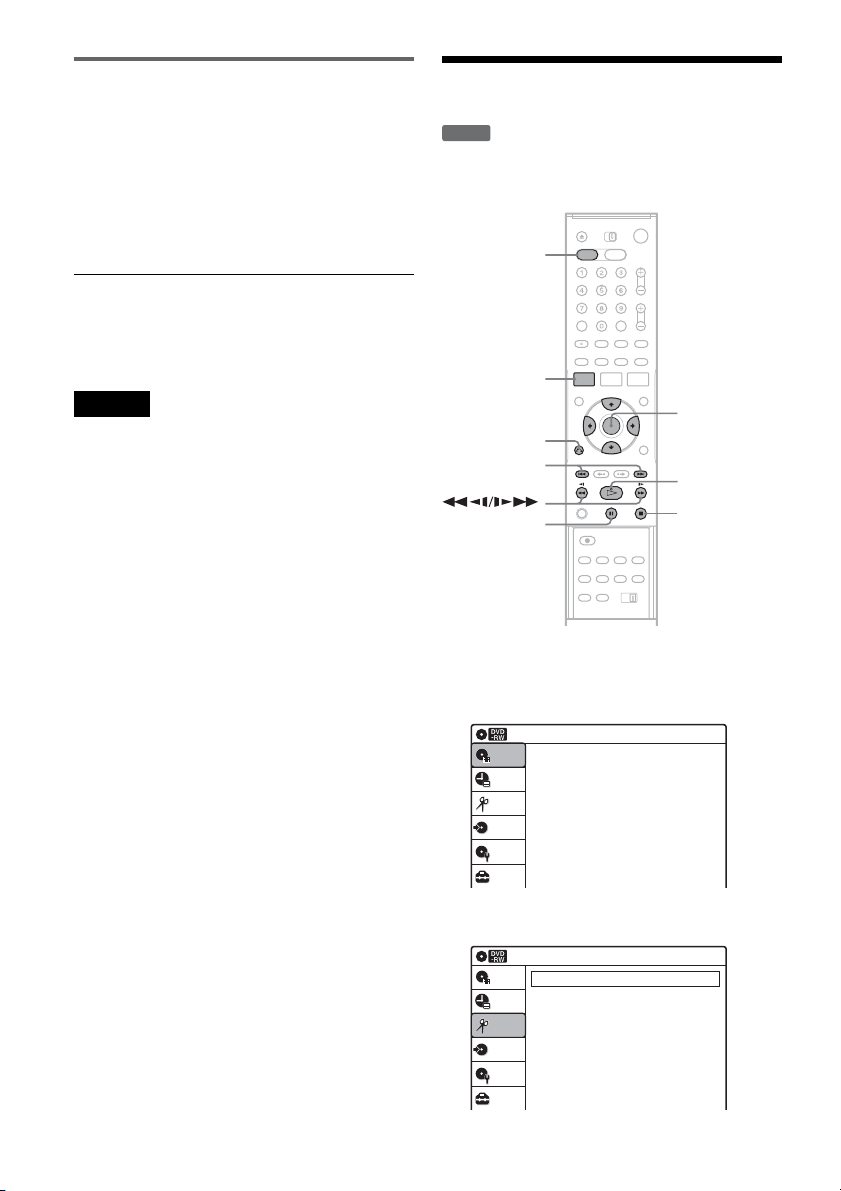
62
Playing a Playlist title
1 Press TITLE LIST.
2 Press ORIGINAL/PLAYLIST to switch to the
“Playlist” Title List.
3 Select a Playlist title, and press ENTER.
The sub-menu appears.
4 Select “Play,” and press ENTER.
z Hint
When a Playlist title is created, the start and end points
will become chapter marks, and each scene will become
a chapter.
Notes
• The picture may pause when an edited scene is played.
• The start and end points in a title may be different from
what you have set.
Editing a Playlist
You can edit Playlist titles or scenes within them,
without changing the actual recordings.
1 Press DVD to operate the DVD recorder.
2 Press SYSTEM MENU while the recorder is
in stop mode.
3 Select “Edit,” and press ENTER.
-
RWVR
SYSTEM
MENU
DVD
M/m/</,,
ENTER
H PLAY
x STOP
X PAUSE
O RETURN
./>
Press ENTER :
Title Menu for DVD Title List.
10:10 AM
Title List (Original)
Setup
Disc Setting
Edit
Title List
Timer
Dubbing
10:10 AM
Create Playlist
Edit Playlist
Edit
Setup
Disc Setting
Edit
Title List
Timer
Dubbing
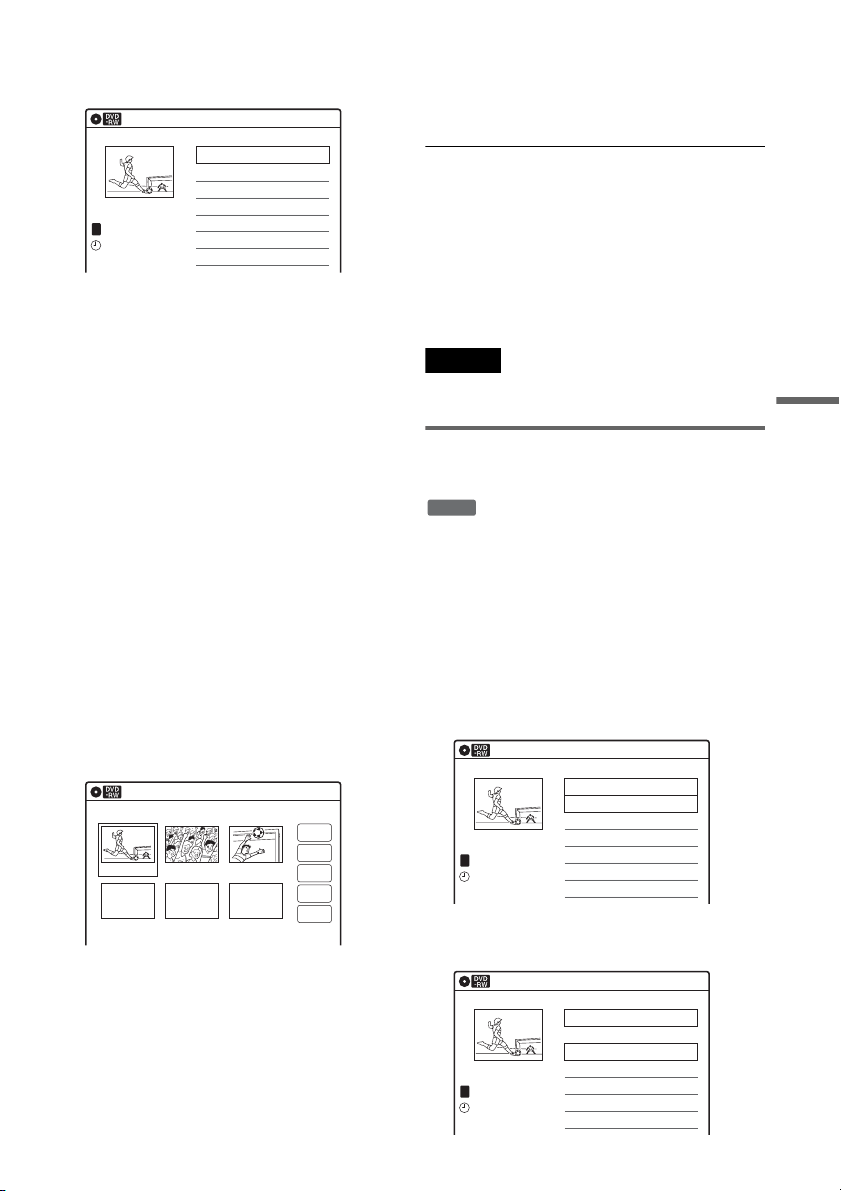
63
DVD Editing
4 Select “Edit Playlist,” and press ENTER.
The “Playlist” Title List appears.
5 Select a Playlist title, and press ENTER.
The sub-menu appears.
6 Select an option, and press ENTER.
Select from the following options. For details,
see the pages in parentheses.
“Title Erase”: Erases the title. Select “OK”
when asked for confirmation.
“Chapter Erase”: Allows you to select
chapters in the Playlist title to erase (page 57).
“Title Name”: Allows you to rename the title
(page 60).
“A-B Erase”: Allows you to select sections in
the title to erase (page 57).
“Edit Scene”: Allows you to re-edit scenes in
the Playlist title. Go to step 7.
“Divide Title”: Divides the title in two at a
desired point (page 58).
“Combine Titles”: Allows you to combine
two titles into one (page 63).
7 Select “Edit Scene,” and press ENTER.
The display for editing scenes appears.
“Check”: Allows you to preview a scene.
Starts playback of the selected scene when
you press ENTER. The display returns to the
“Edit Scene” display when the playback
finishes or when you press O RETURN.
“Erase”: Erases a scene (page 64).
“Modify”: Allows you to change the start and
end point of a scene (page 64).
“Move”: Allows you to change scene order
(page 65).
“Add”: Allows you to add other scenes before
a selected scene (page 65).
To return to the previous display
Press O RETURN.
To turn off the display
Press SYSTEM MENU.
z Hint
The Resume Play function will work for scene playback.
Note
Once the disc is finalized, you cannot edit Playlist titles
on the disc.
Combining two titles into one
(Combine Titles)
You can select a Playlist title and combine it with
another Playlist title.
1 Follow steps 1 to 5 of “Editing a Playlist”
(page 62) to select a Playlist title.
The sub-menu appears.
2 Select “Combine Titles,” and press
ENTER.
The next title below is also selected.
3 Select a Playlist title to be combined.
Playlist
10:10 AM
01 CH 32 >00:05:04
02 CH 96 >00:00:51
CH 32
03:25 PM
May/02/2005
T
No. Title Length Edit1/2
Edit Scene
10:10 AM
Scene No.1 / 3 Playlist No.01
Check
Erase
Modify
Move
Add
03 00:04:2002 00:00:1001 00:00:34
-
RWVR
Playlist
10:10 AM
>
>
CH 32
03:25 PM
May/02/2005
T
No. Title Length Edit
01 CH 32 00:05:04
02 CH 96 00:00:51
03 CH 95 >01:59:00
04 CH 97 >00:58:56
1/4
Playlist
10:10 AM
>
>
CH 95
11:30 PM
May/15/2005
T
No. Title Length Edit
01 CH 32 00:05:04
02 CH 96 00:00:51
03 CH 95 >01:59:00
04 CH 97 >00:58:56
3/4
,continued
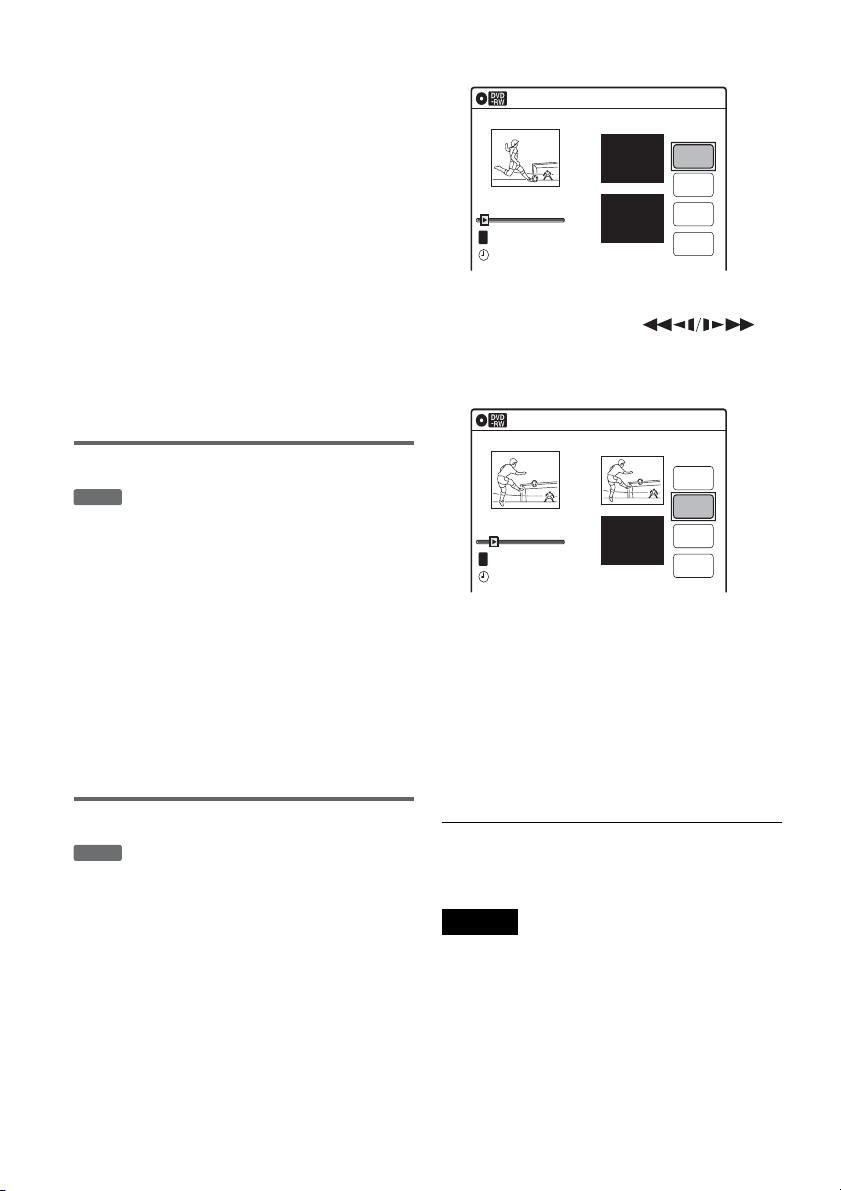
64
4 Press ENTER.
The display asks for confirmation.
5 Select “Yes,” and press ENTER.
The display asks whether to use the same title
name as before.
To use the same name, select “Yes” and press
ENTER to finish.
6 Select “No,” and press ENTER.
The display asks whether to rename the title.
7 Select “Yes,” and press ENTER.
The “Title Name” display appears.
8 Follow steps 5 to 7 of “Changing the Name
of a Title” (page 60) to complete
renaming.
The two Playlist titles become one Playlist
title with the new name.
Erasing a scene (Erase)
You can erase a selected scene.
1 Follow steps 1 to 7 of “Editing a Playlist”
(page 62).
2 Select a scene in the “Edit Scene” display
and press ENTER.
3 Select “Erase,” and press ENTER.
The display asks for confirmation.
4 Select “OK,” and press ENTER.
The selected scene is erased.
To erase other scenes, repeat from step 2.
Modifying a scene (Modify)
You can change the start and end point of the
selected scene.
1 Follow steps 1 to 7 of “Editing a Playlist”
(page 62).
2 Select a scene in the “Edit Scene” display
and press ENTER.
3 Select “Modify,” and press ENTER.
“Start” is selected.
4 Press ENTER at the start point.
You can use H PLAY, ,
./>, x STOP, and X PAUSE to find
the point.
“End” is selected.
5 Press ENTER at the end point.
“Change” is selected.
To reset the start or end point, select “Start” or
“End” and repeat step 4 or 5.
6 Press ENTER.
The display returns to the “Edit Scene”
display.
The re-selected section is captured as a scene.
To modify other scenes, repeat from step 2.
To cancel modifying
Select “Cancel,” and press ENTER.
Note
The start and end point of a scene may be different from
what you have set.
-
RWVR
-
RWVR
Modify
10:10 AM
T
Change
Cancel
00:00:07
Playlist No. 01
Scene No.01
End 00:00:00
Start 00:00:00
Start
End
May/02/2005 03:25 PM
Modify
10:10 AM
Scene No.01
T
00:00:10
May/02/2005 03:25 PM
Playlist No. 01
Change
Cancel
End 00:00:00
Start 00:00:10
Start
End
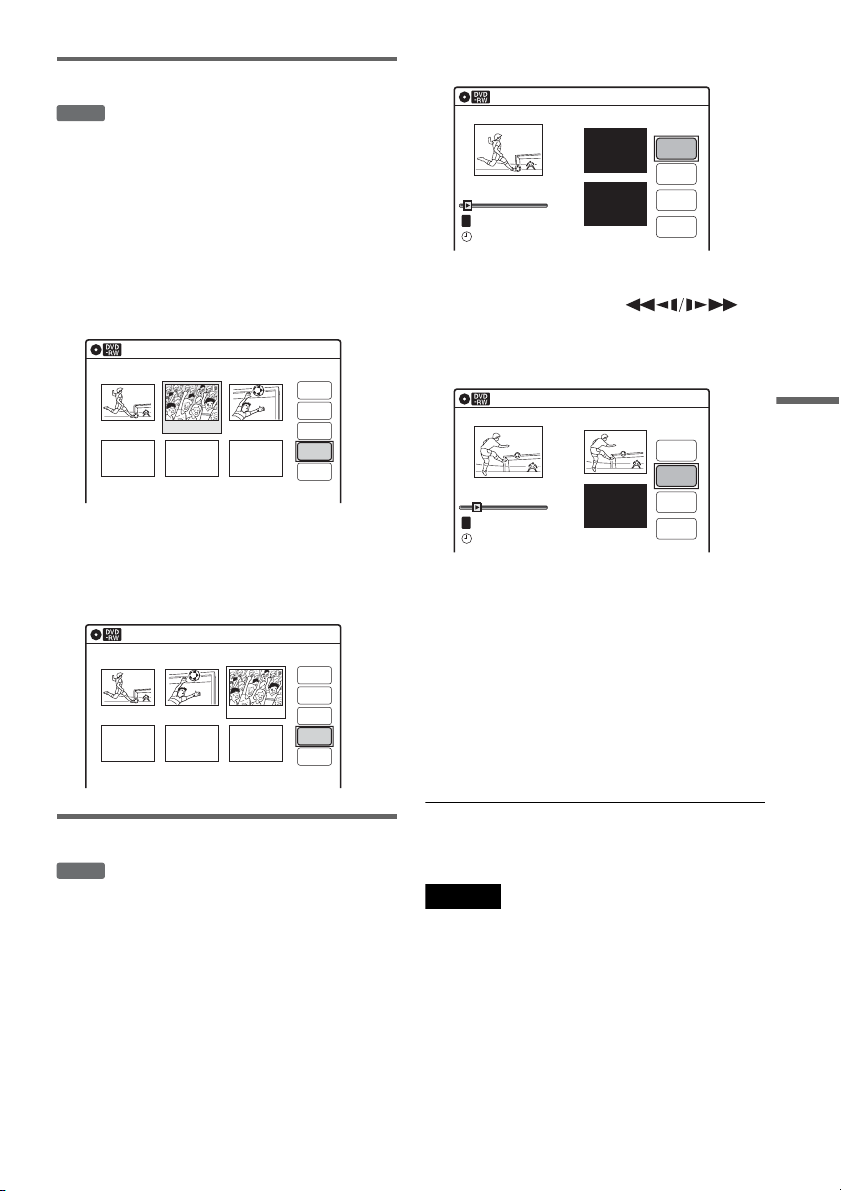
65
DVD Editing
Moving a scene (Move)
You can change the scene order within the Playlist
title.
1 Follow steps 1 to 7 of “Editing a Playlist”
(page 62).
2 Select a scene in the “Edit Scene” display
and press ENTER.
3 Select “Move,” and press ENTER.
4 Select a new location using </,, and
press ENTER.
The selected scene moves to the new location.
To move other scenes, repeat from step 2.
Adding a scene (Add)
You can add a scene before the selected scene.
1 Follow steps 1 to 7 of “Editing a Playlist”
(page 62).
2 Select a scene in the “Edit Scene” display,
and press ENTER.
3 Select “Add,” and press ENTER.
“Start” is selected.
4 Press ENTER at the start point.
You can use H PLAY, ,
./>, x STOP, and X PAUSE to find
the point.
“End” is selected.
5 Press ENTER at the end point.
“Add” is selected.
To reset the start or end point, select “Start” or
“End” and repeat step 4 or 5.
6 Press ENTER.
The display returns to the “Edit Scene”
display.
The selected section is added before the
selected scene.
To add other scenes, repeat from step 2.
To cancel adding
Select “Cancel,” and press ENTER.
Note
The start and end point of a scene may be different from
what you have set.
-
RWVR
Edit Scene
10:10 AM
Scene No. 2 / 3
Check
Erase
Modify
Move
Add
03 00:04:2002 00:00:1001 00:00:34
Playlist No.01
Edit Scene
10:10 AM
Scene No. 3 / 3
Check
Modify
Add
Erase
02 00:04:20 03 00:00:1001 00:00:34
Playlist No.01
Move
-
RWVR
Add
10:10 AM
T
00:00:07
Playlist No. 01
Scene No.01
Add
Cancel
End 00:00:00
Start 00:00:00
Start
End
May/02/2005 03:25 PM
Add
10:10 AM
Scene No.01
T
00:00:10
Playlist No. 01
Add
Cancel
End 00:00:00
Start 00:00:10
Start
End
May/02/2005 03:25 PM
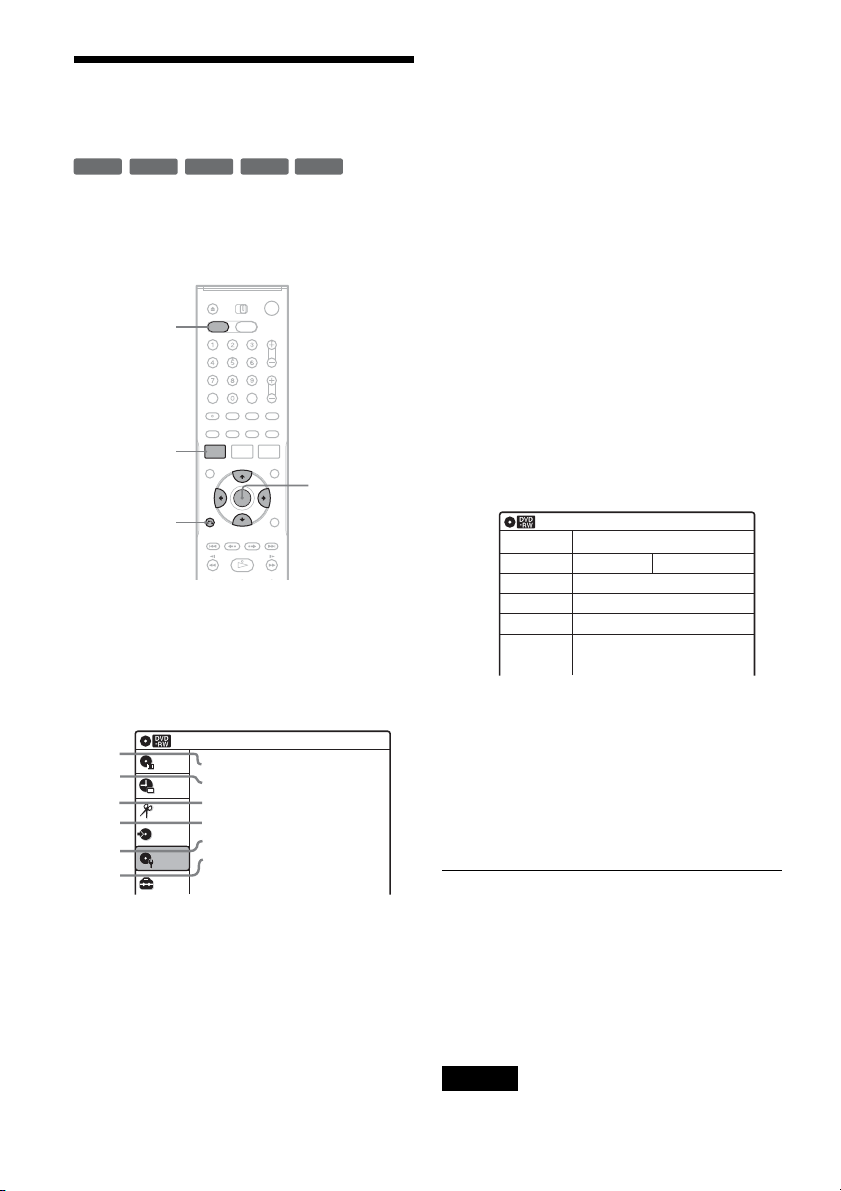
66
Formatting/Renaming/
Protecting a Disc
The “Disc Setting” display allows you to check the
disc information or change the disc name.
Depending on the disc type, you can also format or
set protection.
1 Press DVD to operate the DVD recorder.
2 Press SYSTEM MENU while the recorder is
in stop mode.
3 Select “Disc Setting,” and press ENTER.
The “Disc Setting” display appears.
4 Select an option, and press ENTER.
A “Disc Name”: Allows you to rename a
disc.
For details on how to enter characters,
see page 60.
B “Disc Protect” (DVD-RWs (VR mode)
only): Protects all titles on the disc
when “Protected” is selected. To cancel
the protection, select “Not Protected.”
C “Disc Format” (DVD+RWs/DVD-
RWs only): Erases all contents of the
disc, including protected titles, and
makes a blank disc.
For DVD-RWs, select a recording
format (“VR Mode” or “Video Mode”)
according to your needs.
D “Disc Finalize”: Finalizes a disc. See
page 86 for details.
E “Disc Information”: Displays the
following information.
• Disc name
• Disc type (and recording format for a
DVD-RW(VR mode))
• Total number of titles
• Protect setting
• The oldest and most recent recording
date
• The total available recording time in
each recording mode
F “Erase All Titles” (DVD+RWs/DVD-
RWs only): Erases all titles on the disc
(except protected titles). Select “OK”
when asked for confirmation.
For DVD-RWs (VR mode), Playlist
titles created with protected titles are
also erased.
To return to the previous display
Press O RETURN.
z Hints
• You can set protection for individual titles (page 56).
• By reformatting, you can change the recording format
on DVD-RWs, or record again on DVD-RWs (Video
mode) that have been finalized.
Note
You can label a disc using up to 32 characters; however,
the name may not display on other DVD equipment.
+
RW
-
RWVR
-
RW
Video
+
R
-
R
SYSTEM
MENU
DVD
M/m/</,,
ENTER
O RETURN
Disc Setting
10:10 AM
Disc Name :
Disc Protect : Not Protected
Disc Format : VR Mode
Disc Finalize : Unfinalized
Disc Information
Erase All Titles
Setup
Disc Setting
Edit
Title List
Timer
Dubbing
2
3
4
5
1
6
10:10 AM
Disc Information
Disc Name
Media
Title No.
Protected
Date
Remainder
Disc 1
DVD-RW VR ModeFormat
Original 6 / Playlist 1
Not Protected
04/05/2005 ~ 04/30/2005
HQ : 0H 57M
LSP : 2H 23M
SLP : 5H 46M
HSP : 1H 26M
LP : 2H 52M
SEP : 7H 40M
SP : 1H 55M
EP : 3H 50M
4.4/4.7GB
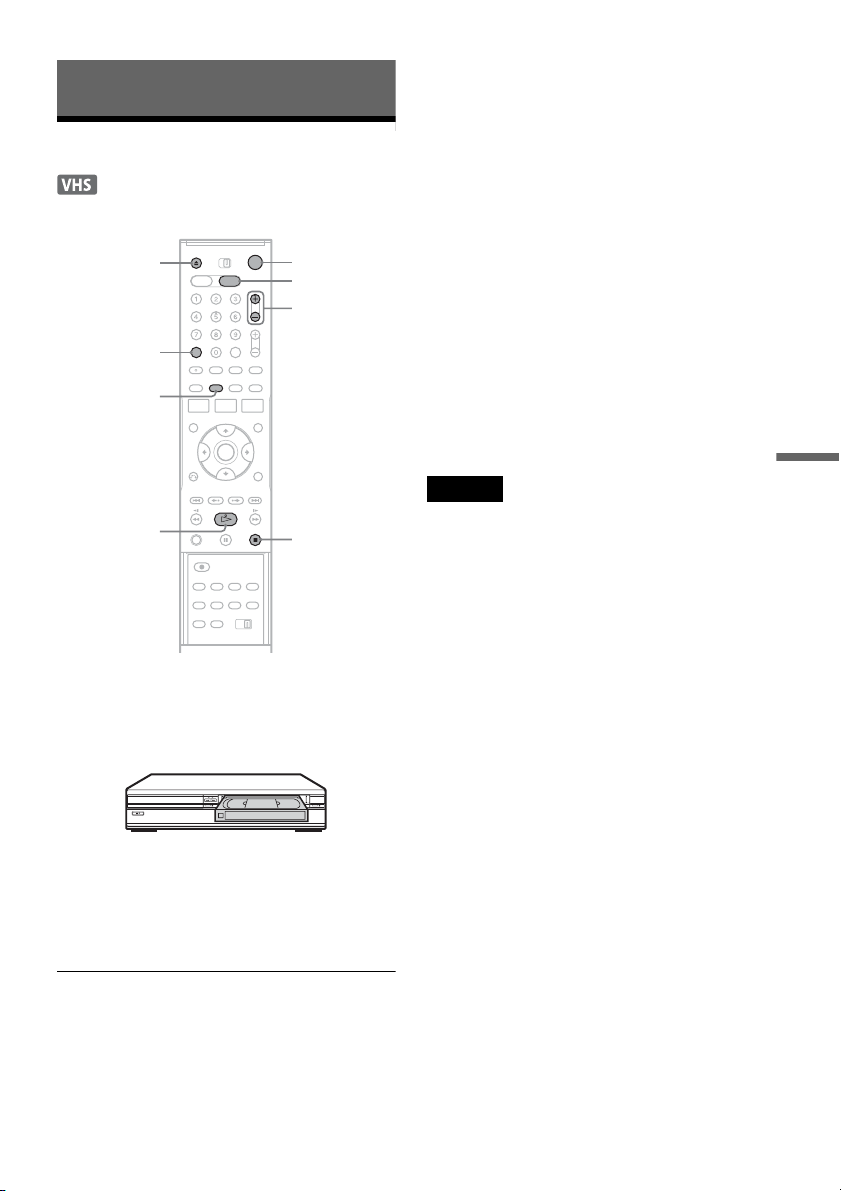
67
VCR Playback
VCR Playback
Playing
1 Press VIDEO to operate the VCR.
2 Insert a tape.
Playback starts automatically if you insert a
tape with its safety tab removed.
3 Press H PLAY.
The front panel display shows the playing
time.
When the tape reaches the end, it will rewind
automatically.
To stop playback
Press x STOP.
To eject the tape
Press Z OPEN/CLOSE.
To turn off the power while rewinding (Rewind
Shut Off)
Press "/1 while the tape is rewinding. The power
will turn off but the tape will keep rewinding until
it reaches the end.
To use the time counter
Press CLEAR at the point where you want to find
later. The counter in the front panel display resets
to “0:00:00.”
To search for the 0:00:00 point automatically, see
page 70.
To display the counter on the TV screen, press
DISPLAY.
Notes
• During playback, the VCR automatically detects the
recording system (S-VHS/VHS) and the recording
mode (SP or EP) from the tape. LP mode recordings
made on other equipment will play, but picture quality
is not guaranteed.
• The counter resets to “0:00:00” whenever a tape is
reinserted.
• The counter stops counting when it comes to a portion
with no recording.
• The counter resets to “0:00:00” after ten hours, and
starts recounting.
• When playback does not start even if you insert a tape
with its safety tab removed, set “VCR Function” –
“Auto Play” of “Features” to “On” in the “Setup”
display (page 100).
• If you switch to the VCR while playing a disc, DVD
playback stops.
• The VCR does not record in S-VHS format, but will
play S-VHS tapes by automatically detecting the
format, but picture quality will be lower than usual S-
VHS. Image may be unclear if playback options such
as slow-motion, etc., are used.
• Playback of S-VHS tapes recorded in EP (3x) mode is
not guaranteed.
• The VCR is not compatible with the PAL or SECAM
color system. Only NTSC tapes can be played.
• For simultaneous VHS and DVD operation, see page 9.
x STOP
"/1
DISPLAY
CLEAR
H PLAY
Z OPEN/
CLOSE
VIDEO
TRACKING +/–
,continued
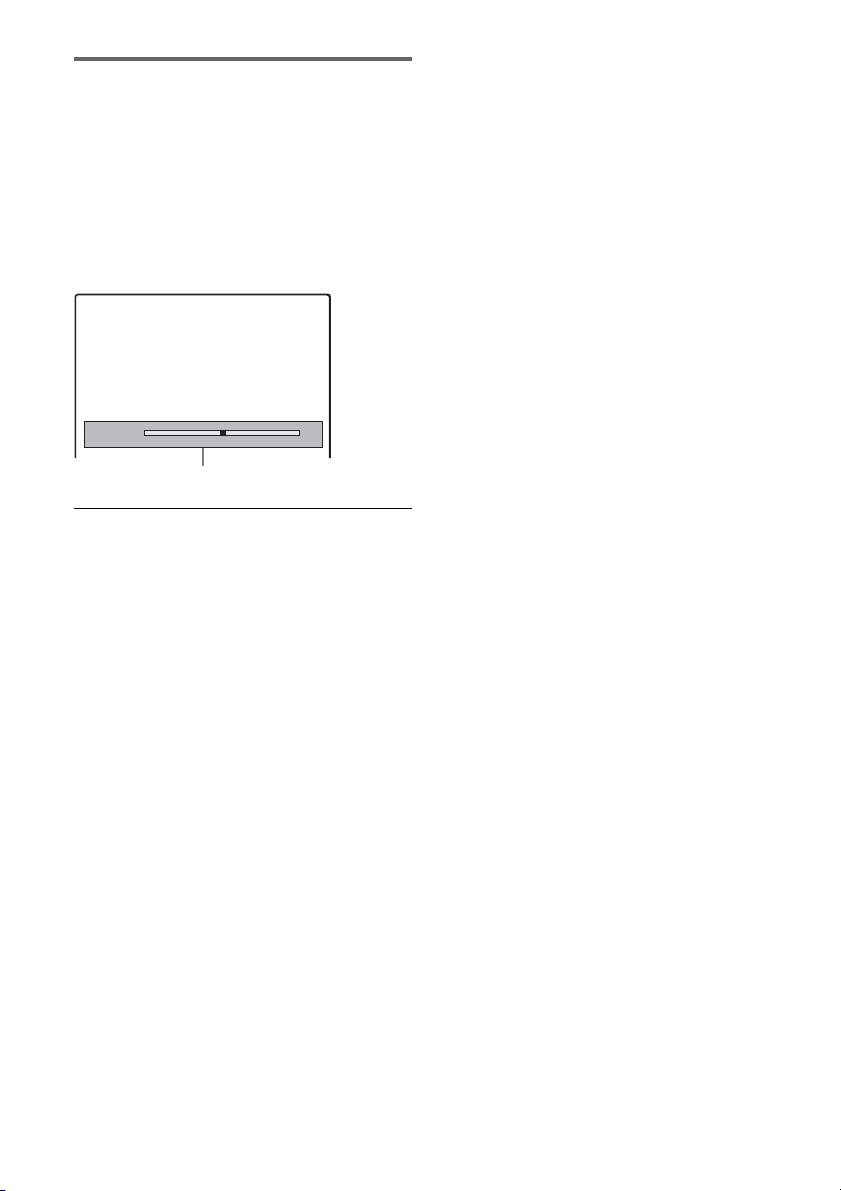
68
Adjusting the picture (tracking)
You can manually adjust tracking if the recording
quality is too poor to be remedied by the VCR’s
automatic tracking (a tracking meter appears
during the automatic tracking).
Press TRACKING +/–.
The tracking meter appears.
Press TRACKING +/– repeatedly until the
distortion disappears.
To resume automatic tracking
Press TRACKING + and TRACKING – on the
recorder at the same time for more than ten
seconds. Or, eject the tape and reinsert it.
Tracking
Tracking meter
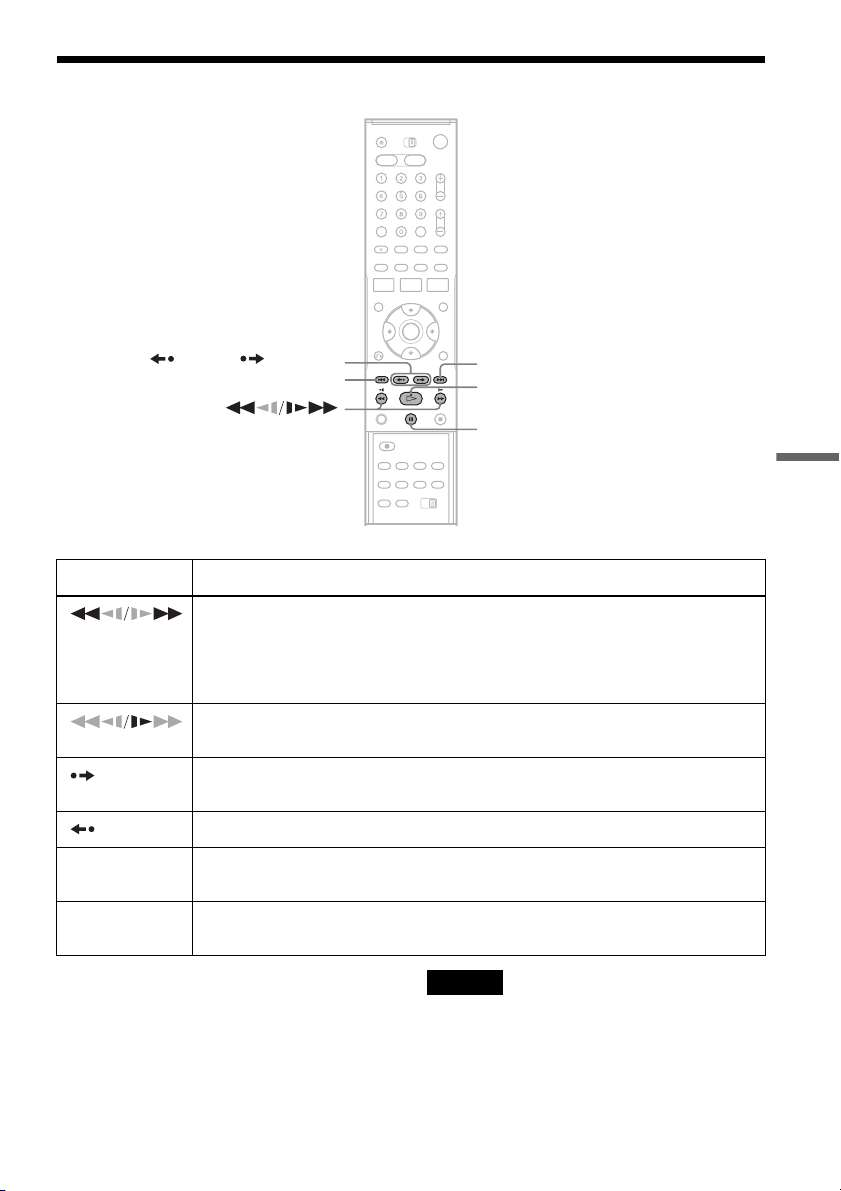
69
VCR Playback
Playback Options
*1
Can be pressed up to four times to forward about
two minutes.
*2
For 10 seconds in SP or LP mode/for 15 seconds in EP
mode.
To resume normal playback, press H PLAY.
Notes
• The sound is muted during playback at various speeds.
• The picture may show noise during high-speed reverse
play.
Button Operation
(fast reverse/fast
forward)
• Fast reverses or fast forwards when pressed during stop mode.
When you hold down during fast reverse or fast forward, you can view the picture.
• Plays at high speed when briefly pressed during playback.
When you hold down the button during playback, the high-speed play continues until
you release the button.
(slow)
Plays in slow motion when pressed in pause mode.
ADVANCE • Advances one frame for each press in pause mode.
• Fast forwards the current scene for 30 seconds when pressed during playback.
*1
REPLAY Replays the previous scene when pressed during playback.
*2
. PREV/
NEXT >
Press during playback. Playback speed changes with each press:
–×7 y –×5 y –×3 y STILL y SLOW y PLAY y ×2 y ×3 y ×5 y ×7
X PAUSE Pauses playback.
If you pause playback for more than five minutes, playback starts automatically.
X PAUSE
> NEXT
REPLAY/ ADVANCE
. PREV
H PLAY
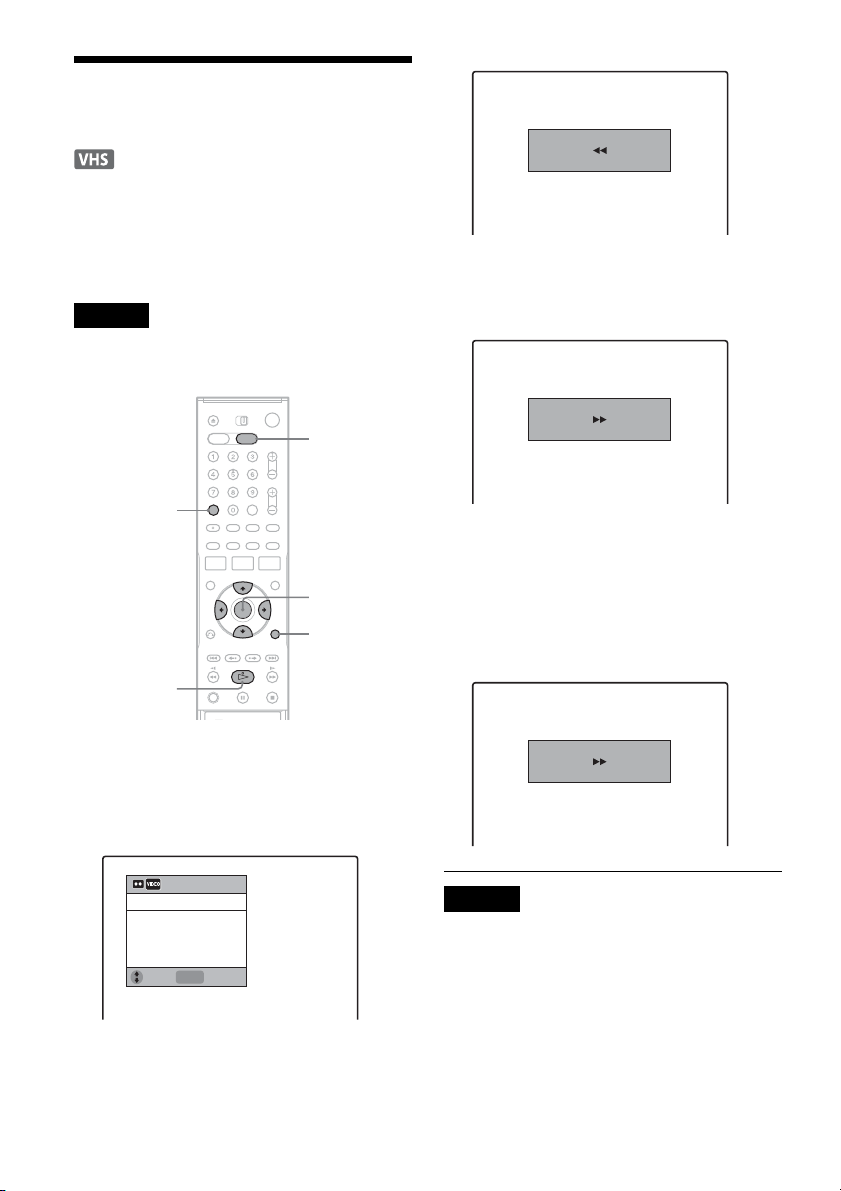
70
Searching Using Various
Functions
The VCR automatically marks the tape with an
index signal at the point where each recording
begins.
You can easily find a specific point using various
search functions.
Note
During DVD recording, you cannot use VCR search
functions.
1 Press VIDEO to operate the VCR.
2 Press TOOLS.
3 Select a search method from the TOOLS
menu, and press ENTER.
“Go To Zero”: Searches for the 0:00:00 point
on the tape counter.
To reset the counter to 0:00:00, press CLEAR.
“End Search”: Searches for the beginning of a
blank space. If no blank space is found, the
tape will reach the end.
“Forward Inrto Scan”/”Reverse Intro Scan”:
Searches for an index mark and plays back for
about five seconds at that point.
Press H PLAY to view that program. If you
do not press H PLAY, the VCR
automatically searches for the next index
mark, or until it reaches the end of the tape.
Notes
• The VCR may not recognize the end of a blank space
depending on its length.
• No index signal is marked if you pause a recording and
then keep recording the same program. To mark an
index, press x STOP or change the channel once
during recording pause.
M/m/</,,
ENTER
H PLAY
VIDEO
TOOLS
CLEAR
ENTER
Enter
Go To Zero
End Search
Forward Intro Scan
Reverse Intro Scan
Move
0:00:00
Go to Zero
0:00:13
End search
–0:00:01
Scan and play
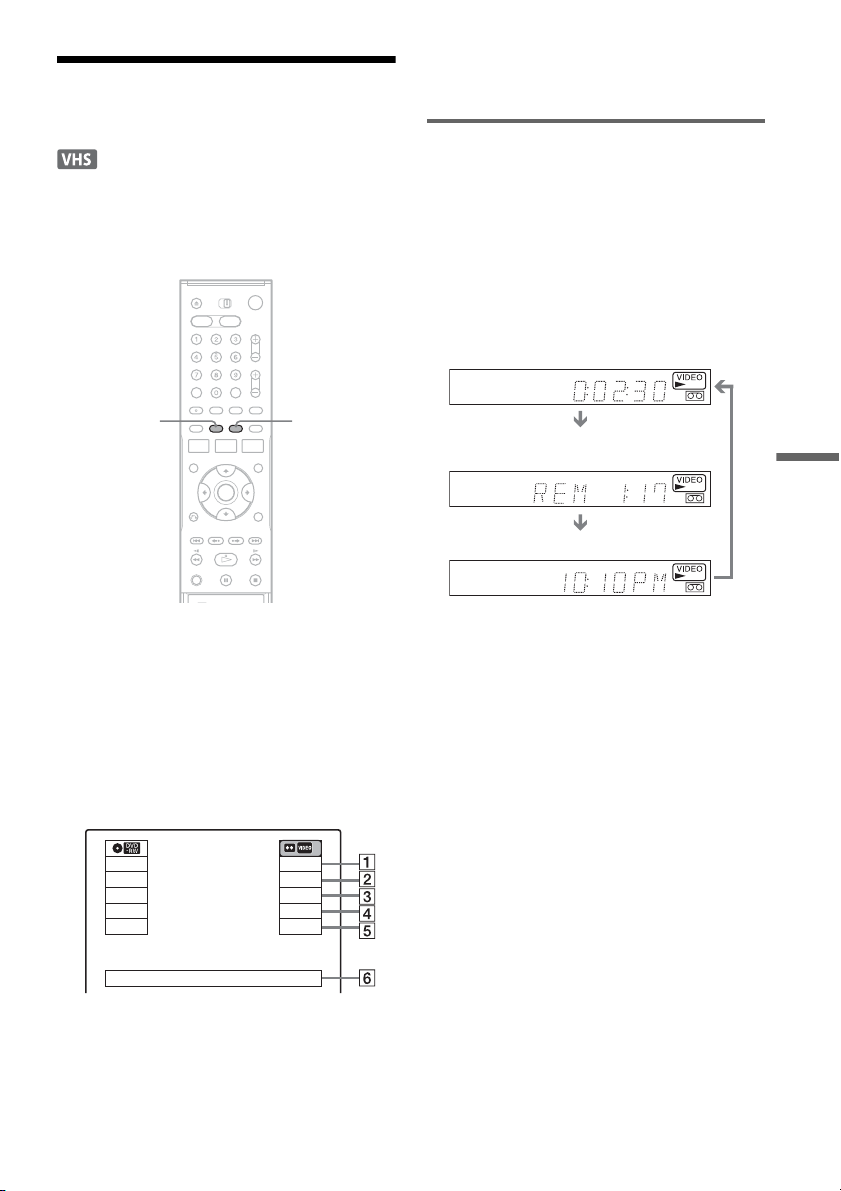
71
VCR Playback
Displaying the Playing Time
and Play Information
You can check playback information, such as
elapsed or remaining time, recording mode, etc.,
on the TV screen.
Press DISPLAY during playback.
The information display appears.
Each time you press the button, the display
changes as follows:
Tape and disc information/date and time
m
Tape information only
m
No display
A Playing status
B Time counter (elapsed time)
C Recording mode
D Remaining tape length
E Channel or input source
F Date and time
Viewing information on the front
panel display
You can view the information on the front panel
display.
Press TIME/TEXT repeatedly.
The displays differ depending on the status.
Example: When playing a tape
Example: When a tape is in stop mode
Clock
m
Elapsed time
m
Remaining tape length
m
Channel or input source
DISPLAY TIME/TEXT
Stop
1:23:45
HQ
Rem 16:15
Original
Play
0:30:00
SP
Rem 01:30
CH 110
Mon May 02. 2005 10:10 AM
Elapsed time
Remaining tape length
Clock
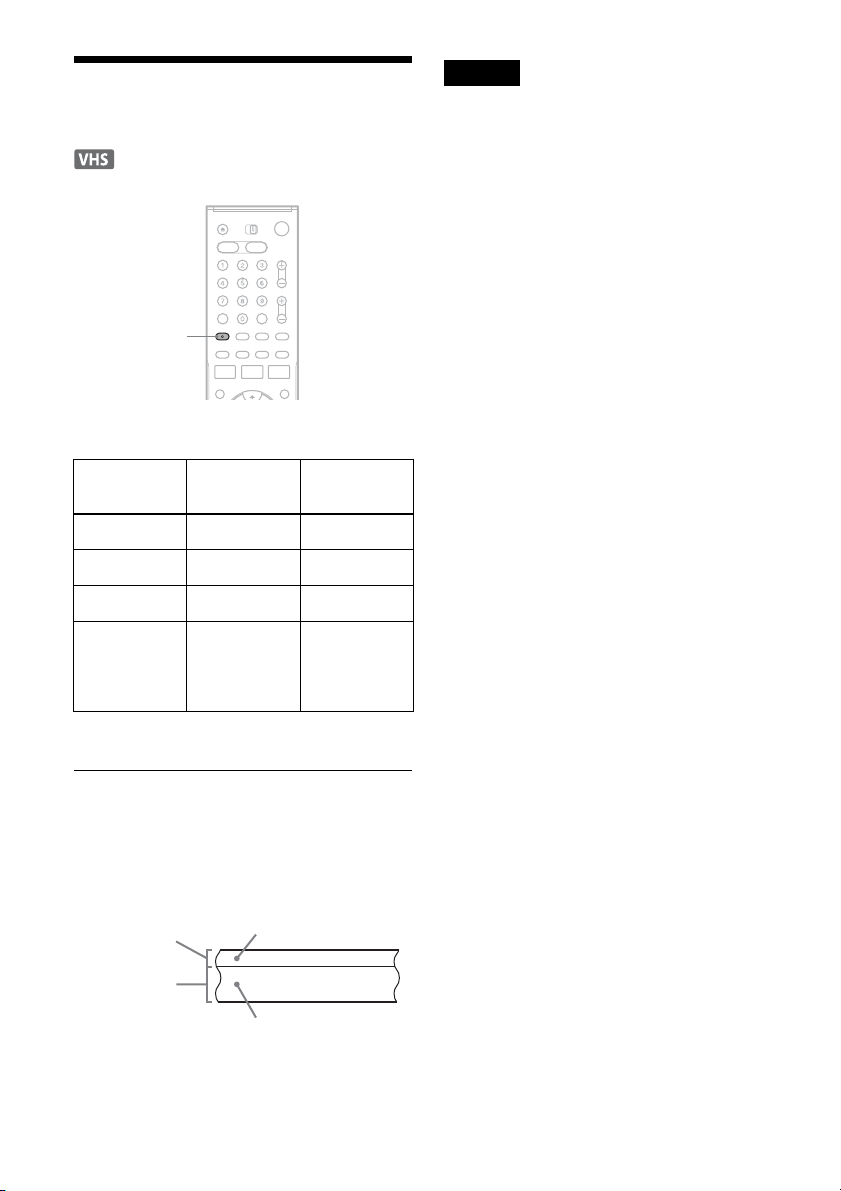
72
Selecting the Sound During
Playback
Press AUDIO repeatedly during playback.
* No indicator appears in the front panel display when
you play a tape without Hi-fi recording.
How sound is recorded on a video tape
The VCR records sound onto two separate tracks.
Hi-fi audio is recorded onto the main track along
with the picture. Monaural sound is recorded onto
the normal audio track along the edge of the tape.
Notes
• To play a tape in stereo, you must use the A/V
connections.
• When you play a tape recorded in monaural, the sound
is heard in monaural regardless of the AUDIO setting.
To listen to On-screen
display
Front panel
display
Stereo Hi-Fi STEREO
Left channel Left STEREO
Right channel Right STEREO
Monaural
sound on the
normal audio
track
Mono STEREO*
AUDIO
Normal audio track
Hi-fi audio track
(main track)
Monaural sound
Stereo sound
(left/right channels)
73
VCR Recording
VCR Recording
Before Recording
Before you start recording…
• This VCR records in VHS format, not S-VHS
format.
• Check that the tape is longer than the recording
time (page 71).
Notes
• Timer recordings will start with or without the recorder
turned on. Once started, the recorder cannot be turned
off. The recorder automatically turns off after a
recording has finished.
• This recorder shares a single tuner for both the DVD
recorder and the VCR. You cannot record different
programs to a DVD and a VHS tape at the same time.
• This recorder has the copy guard function. Programs
that contain a Copy-Never copy guard signal cannot be
correctly recorded on the VCR.
To save a recording
To prevent accidental erasure, break off the safety
tab as illustrated. To record on the tape again,
cover the tab hole with adhesive tape.
Recording mode
“EP” (Extended Play) and “SP” (Standard Play) is
available for recording mode (tape speed). “EP”
provides recording time three times as long as
“SP.” However, “SP” produces better picture and
audio quality.
Maximum recording time
Notes
• Tapes recorded in EP (×3) mode by this VCR cannot be
played back on VHS video decks with SP mode only.
• Noise may appear in the image when tapes recorded in
EP (×3) mode by this VCR are played back on other
VHS video decks with EP mode.
Recording a stereo/SAP program
The recorder can receive and record stereo/SAP
programs.
Stereo programs
When a stereo program is received, the
“STEREO” indicator lights up in the front panel
display. If there is noise in the stereo program,
press AUDIO repeatedly until the “MONO”
indicator disappears from the TV screen. The
sound will be recorded in monaural but with less
noise.
SAP (Second Audio Program)
When a SAP is received, the “SAP” indicator
lights up in the front panel display. To record only
SAP sound, set “Tuner Audio” of “Audio” to
“SAP” in the “Setup” display (page 97).
Tape Length SP EP
T-120 2 hrs 6 hrs
T-160 2 hrs 40 mins 8 hrs
T-180 3 hrs 9 hrs
Safety tab
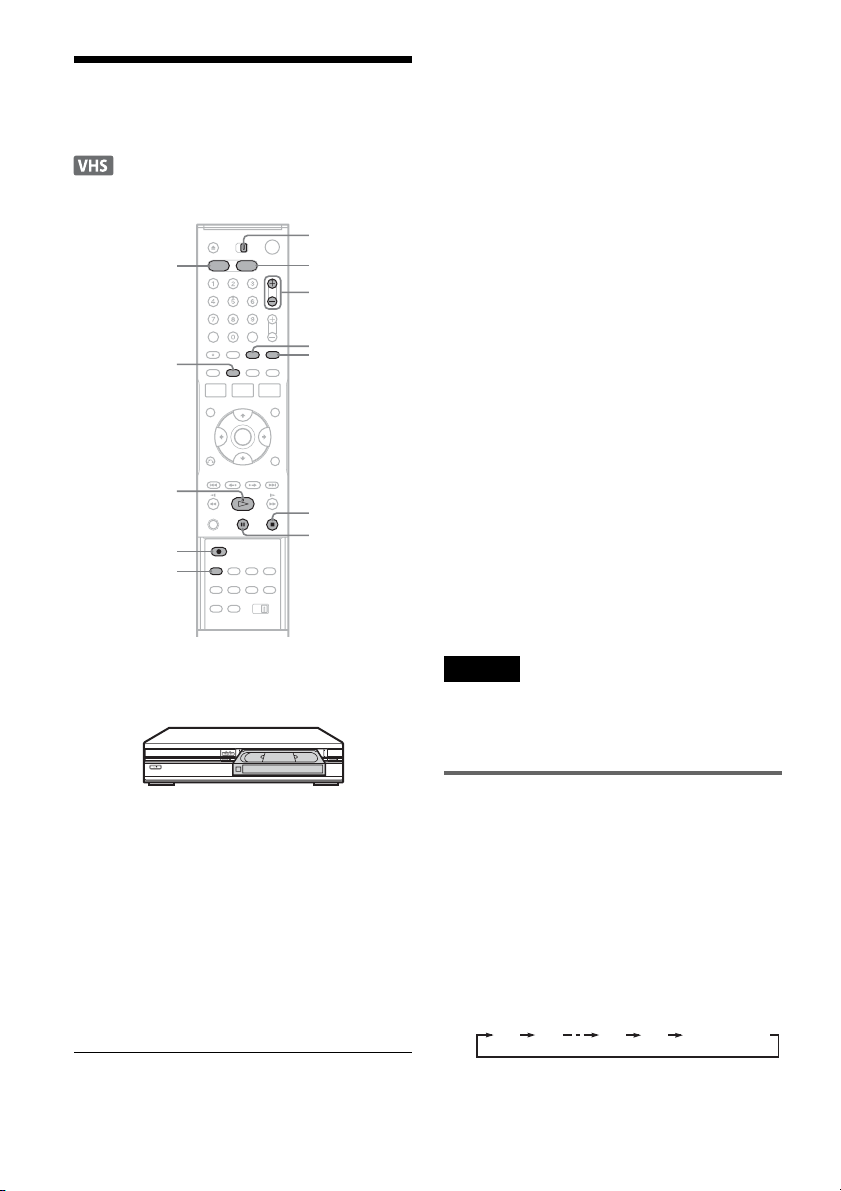
74
VCR Recording Without the
Timer
1 Press VIDEO to operate the VCR.
2 Insert a tape with its safety tab in place.
3 Press CH +/– or INPUT SELECT repeatedly
to select the channel or input source you
want to record.
4 Press REC MODE repeatedly to select the
recording mode, “SP” or “EP.”
For details about the recording mode, see
page 73.
5 Press z REC.
“REC” appears in the front panel display, and
recording starts.
To stop recording
Press x STOP.
To pause recording
Press X PAUSE.
To restart recording, press X PAUSE again.
If you pause recording for more than five minutes,
recording stops automatically.
To watch another TV program while recording
1 Slide the TV/DVD·VIDEO switch to TV.
2 Press TV/VIDEO to set the TV to the TV
input.
3 Select another channel on the TV.
To watch a DVD while recording
Press DVD to operate the DVD recorder, insert a
disc, and press H PLAY.
z Hints
• To select a channel, you can use the number buttons.
Enter the channel number, and press SET.
• You can select a video source from the LINE 1 IN or
LINE 2 IN jacks using the INPUT SELECT button.
• Tape information displayed on the TV screen will not
be recorded on the tape.
• You can turn off the TV during recording. If you are
using a cable box or a satellite receiver, make sure to
leave it on.
Notes
• You cannot change the recording mode, channel, or
input source while recording.
• If you insert a tape with its safety tab removed, the tape
is ejected when you press z REC.
Recording using the Quick Timer
(One-touch Timer Recording)
You can set the recorder to record in 30-minute
increments.
1 Press VIDEO to operate the VCR.
2 Press z REC repeatedly to set the
duration.
Each press increases the time by 30 minutes,
up to six hours.
“c” and “OTR” light up, and the remaining
recording time appears in the front panel
display.
REC MODE
H PLAY
X PAUSE
x STOP
z REC
VIDEO
TV/VIDEO
CH +/–
DVD
INPUT
SELECT
TV/DVD·VIDEO
switch
DISPLAY
0:30 1:00 5:30 6:00
(normal
recording)
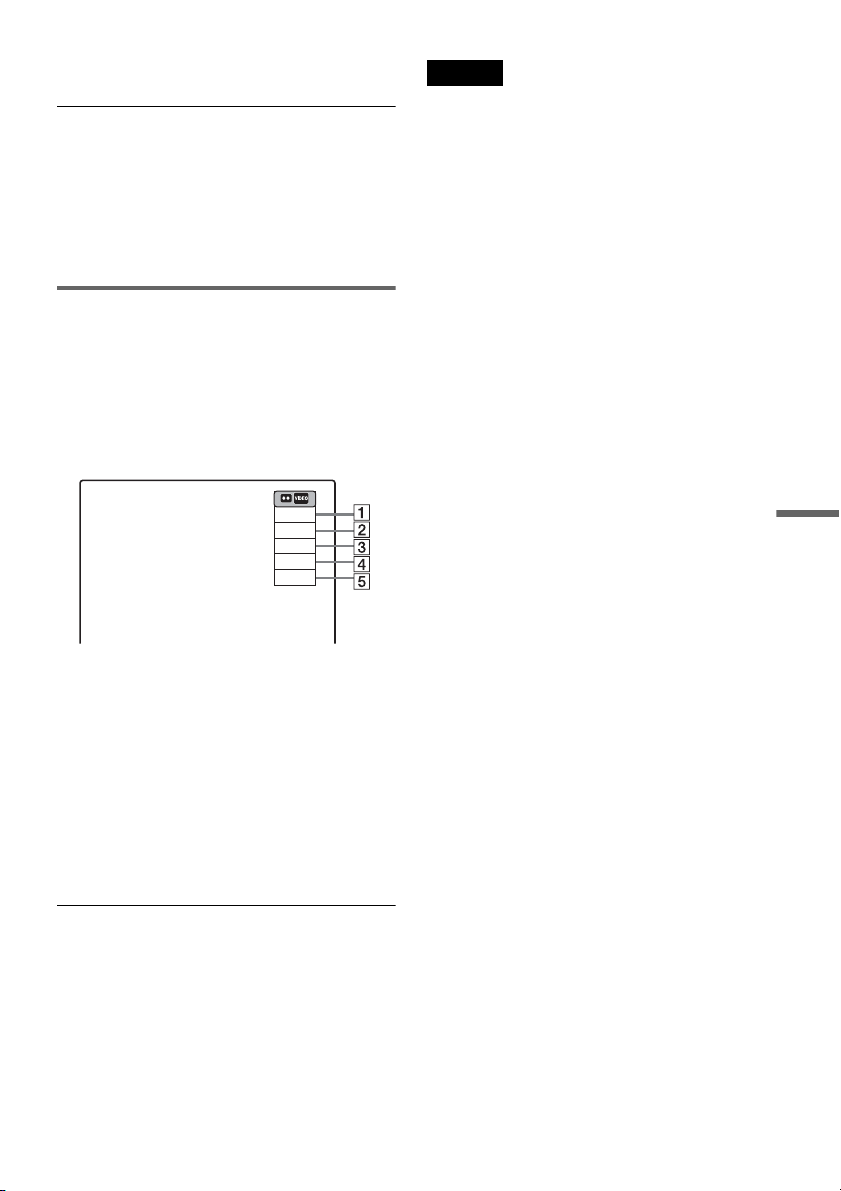
75
VCR Recording
When the counter reaches “0:00,” the recorder
stops recording and turns off.
To cancel the Quick Timer
Press z REC repeatedly until the counter appears
in the front panel display. The recorder returns to
normal recording mode.
To stop recording
Press x STOP twice.
Checking the remaining tape length
You can check recording information, such as
remaining tape length or recording mode, etc.
Press DISPLAY while recording.
The information display appears.
Press the button repeatedly to change the display
(page 71).
A Recording status
B Time counter
C Recording mode
D Remaining tape length
E Current channel
To check the remaining tape length, set “VCR
Function” – “Tape Length” of “Features” in the
“Setup” display correctly (page 100).
z Hint
You can view the information also in the front panel
display. Press TIME/TEXT repeatedly to change the
display. Note that TIME/TEXT does not work during
One-touch Timer Recording.
Notes
• The remaining tape length may not be indicated
accurately for short tapes such as T-20 or T-30, or tapes
recorded in LP mode.
• After DISPLAY is pressed, it may take one minute for
the remaining tape length to appear.
Record
0:30:00
SP
Rem 01:30
CH 110
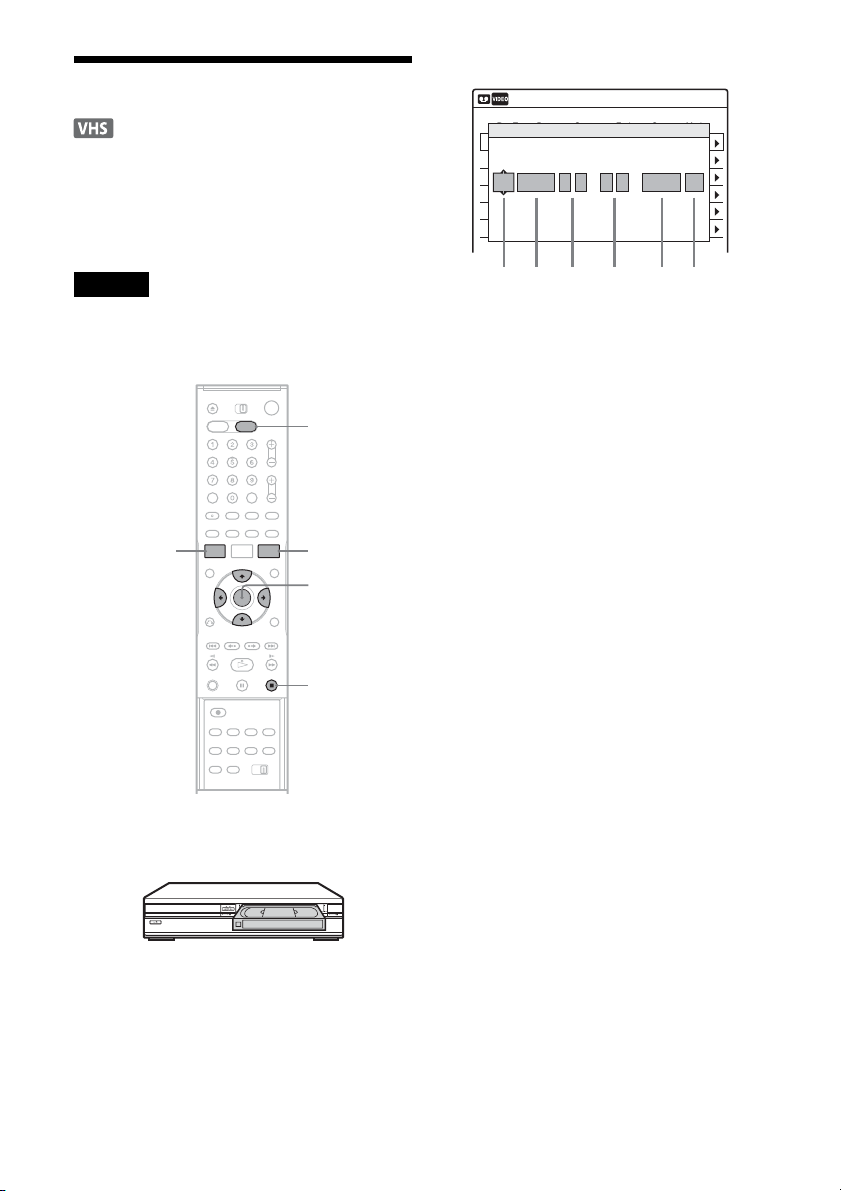
76
VCR Timer Recording
You can set the timer for a total of 12 programs
together with DVD and VCR timer recording, up
to one month in advance.
Follow the steps below to set each timer recording
items.
Note
Do not operate your cable box or satellite receiver just
before or during a timer recording. This may prevent the
accurate recording of a program.
1 Press VIDEO to operate the VCR.
2 Insert a tape with its safety tab in place.
3 Press TIMER.
4 Select an item using </, and adjust
using M/m.
A “RecTo”: Select “VCR.”
B “Date”: Sets the date using M.
To record the same program every day or
the same day every week, press m.
The item changes as follows:
Today y Sun-Sat (Sunday to Saturday)
y Mon-Sat (Monday to Saturday) y
Mon-Fri (Monday to Friday) y Sun
(every Sunday) y Mon (every Monday)
y … y Sat (every Saturday) y
1 month later y … y Today
C “Start”: Sets the start time.
D “Stop”: Sets the stop time.
E “CH”: Selects the channel or input
source.
F “Mode”: Selects the recording mode;
“SP” or “EP.” To use the Rec Mode
Adjust function (page 77), select
“AUTO.”
If you make a mistake, select the item and
change the setting.
5 Press ENTER.
The Timer List menu (page 79) appears. The
c indicator lights up in the front panel
display, and the recorder is ready to start
recording.
If the c indicator flashes in the front panel
display, check that a tape with its safety tab in
place is inserted.
There is no need to turn off the recorder before
the timer recording starts.
If timer settings overlap, a message appears.
To change or cancel a timer recording, select
“Edit” from the Timer List (page 79).
M/m/</,,
ENTER
SYSTEM
MENU
TIMER
x STOP
VIDEO
01 VHS 4/15 09:00PM 10:00PM CH8
--- --/-- --:-- --:-- ---- ---04
--- --/-- --:-- --:-- ---- ---05
--- --/-- --:-- --:-- ---- ---06
03 --- --/-- --:-- --:-- ---- ---
02 VHS 4/30 09:15PM 09:45PM CH11
10:10 AM
No Rec To Date Start End Source Mode Edit
No.1
: PM
VCR
PM
:
Today 09 00 10 00 CH 8 SP
12 3 4 56
Timer – Standard
RecTo Date Start Stop CH Mode
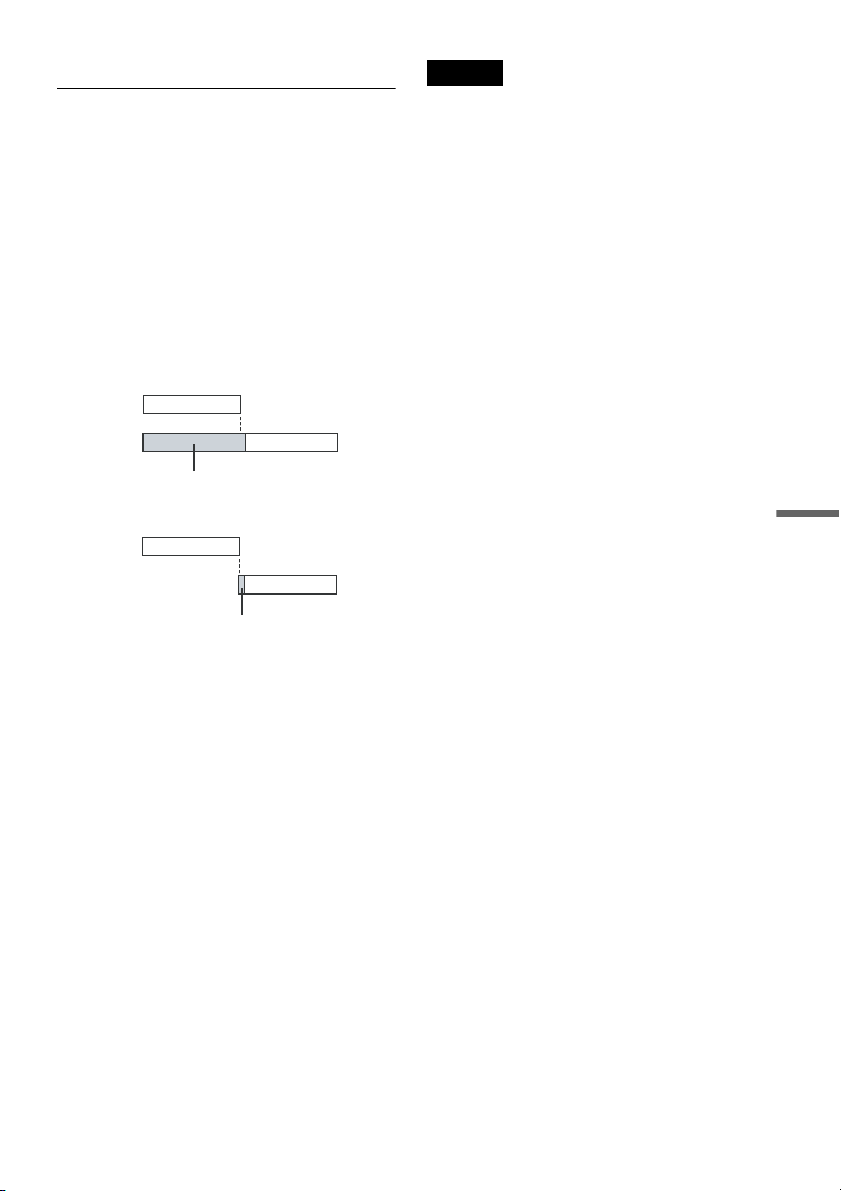
77
VCR Recording
6 Press SYSTEM MENU to turn off the menu.
To stop recording
Press x STOP twice.
If timer settings overlap
The program that starts first has priority and the
second program starts recording only after the first
program has finished. If the programs start at the
same time, the program listed first in the menu has
priority. If the end time of one setting and the start
time of another timer setting is the same, the
beginning of the program that starts later will be
cut.
To change or cancel timer recording
See “Changing or Canceling VCR Timer Settings
(Timer List)” on page 79.
To use the Rec Mode Adjust function
If the remaining tape length is too short for the
current recording, the VCR automatically changes
the recording mode from SP to EP.
When setting the timer, select “AUTO” in
“Mode,” and check that the “Tape Length” setting
is correct for the inserted tape (“VCR Function” -
“Tape Length” of “Features” in the “Setup”
display (page 100)).
z Hints
• When the start time and the channel or input source to
be recorded are the same but the “RecTo” setting
differs, the program is recorded to both the DVD disc
and the VHS tape.
• You can also turn on the Timer programming menu
from the System Menu. Press SYSTEM MENU to
select “Timer,” and select “Timer-Standard.”
Notes
• To record a cable or satellite program, turn on the cable
box or satellite receiver and select the program you
want to record. Leave the cable box or satellite receiver
turned on until the recorder finishes recording.
• Even when correctly set, the program may not be
recorded if another recording is underway, or other
prioritized timer setting overlaps.
• You cannot record on a tape with its safety tab
removed.
• Before the timer recording starts, “TIMER REC”
flashes in the front panel display.
• The recorder automatically turns off when a timer
recording finishes, even if the recording started with
the recorder turned on.
7:00 8:00 9:00 10:00
7:00 8:00 9:00 10:00
Program 1
Program 2
Program 1
will be cut off
will be cut off
Program 2
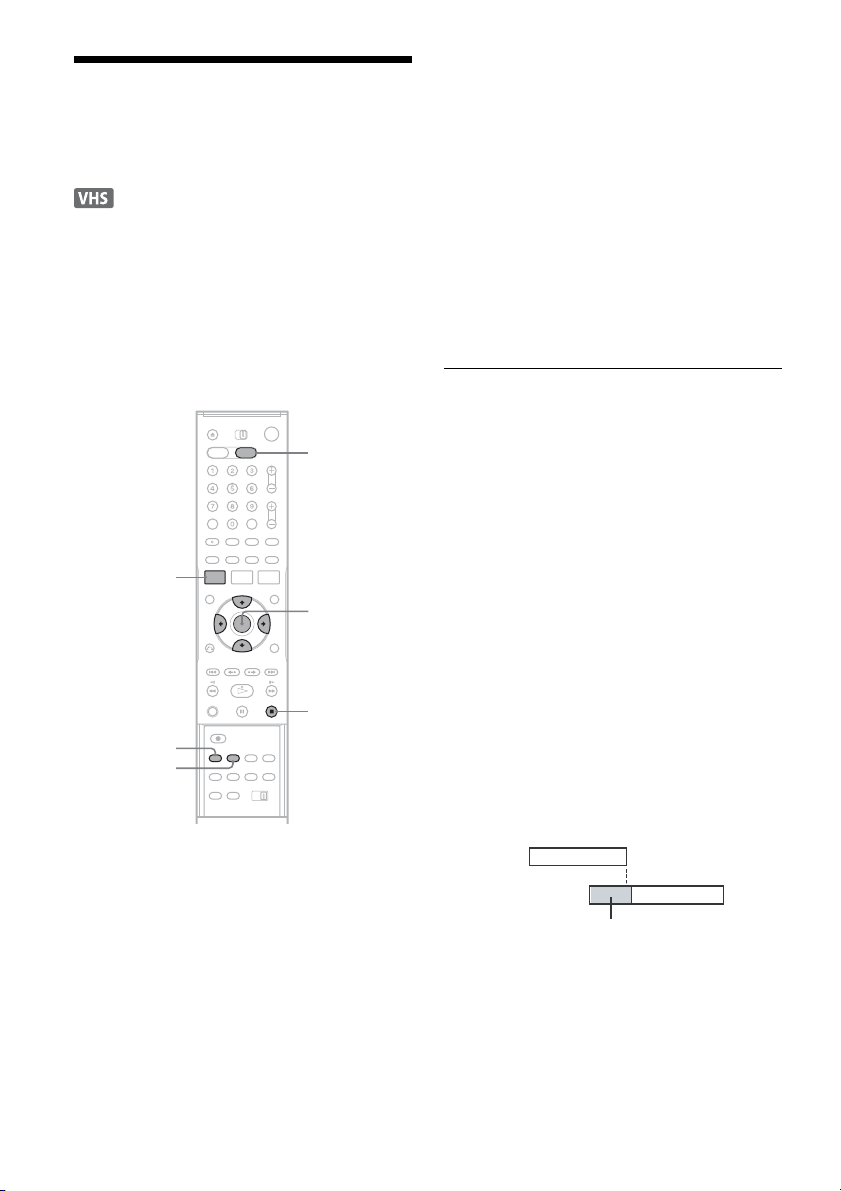
78
Recording From Connected
Equipment With a Timer
(Synchro Rec)
You can set the recorder to automatically record
programs from connected equipment that has a
timer function (such as a satellite tuner). Connect
the equipment to the LINE 1 IN jacks on the rear
of the recorder (page 27).
When the connected equipment turns on, the
recorder starts recording a program from the LINE
1 IN jacks.
1 Press VIDEO to operate the VCR.
2 Insert a tape with its safety tab in place.
3 Press REC MODE repeatedly to select the
recording mode, “SP” or “EP.”
4 Press SYSTEM MENU while the recorder is
in stop mode.
5 Select “Setup,” and press ENTER.
6 Select “Features,” and press ENTER.
The “Features” setup appears.
7 Select “Synchro Recording,” and press
ENTER.
8 Select “to Video,” and press ENTER.
9 Press SYSTEM MENU to turn off the menu.
10
Set the timer on the connected equipment
to the time of the program you want to
record, and turn it off.
11
Press SYNCHRO REC.
The SYNCHRO REC indicator lights up on
the front panel and the recorder stands by for
Synchro-Rec.
The recorder starts recording when a signal is
received from the connected equipment.
When the connected equipment turns off, the
recording stops and the recorder turns off.
To stop recording
Press x STOP twice.
To cancel Synchro-Rec function
Press SYNCHRO REC before recording starts.
The SYNCHRO REC indicator on the recorder
turns off.
If you press SYNCHRO REC during Synchro-
Rec, the recording stops, the SYNCHRO REC
indicator turns off, and the recorder turns off.
If the timer settings of a Synchro-Recording
and another timer recording overlap
Regardless of whether or not the program is a
Synchro-Rec program, the program that starts first
has priority and the second program starts
recording only after the first program has finished.
If the end time of one setting and the start time of
another timer setting is the same, the beginning of
the program that starts later will be cut.
SYNCHRO
REC
x STOP
REC MODE
SYSTEM
MENU
M/m/</,,
ENTER
VIDEO
7:00 8:00 9:00 10:00
Program 1
Program 2
will be cut off
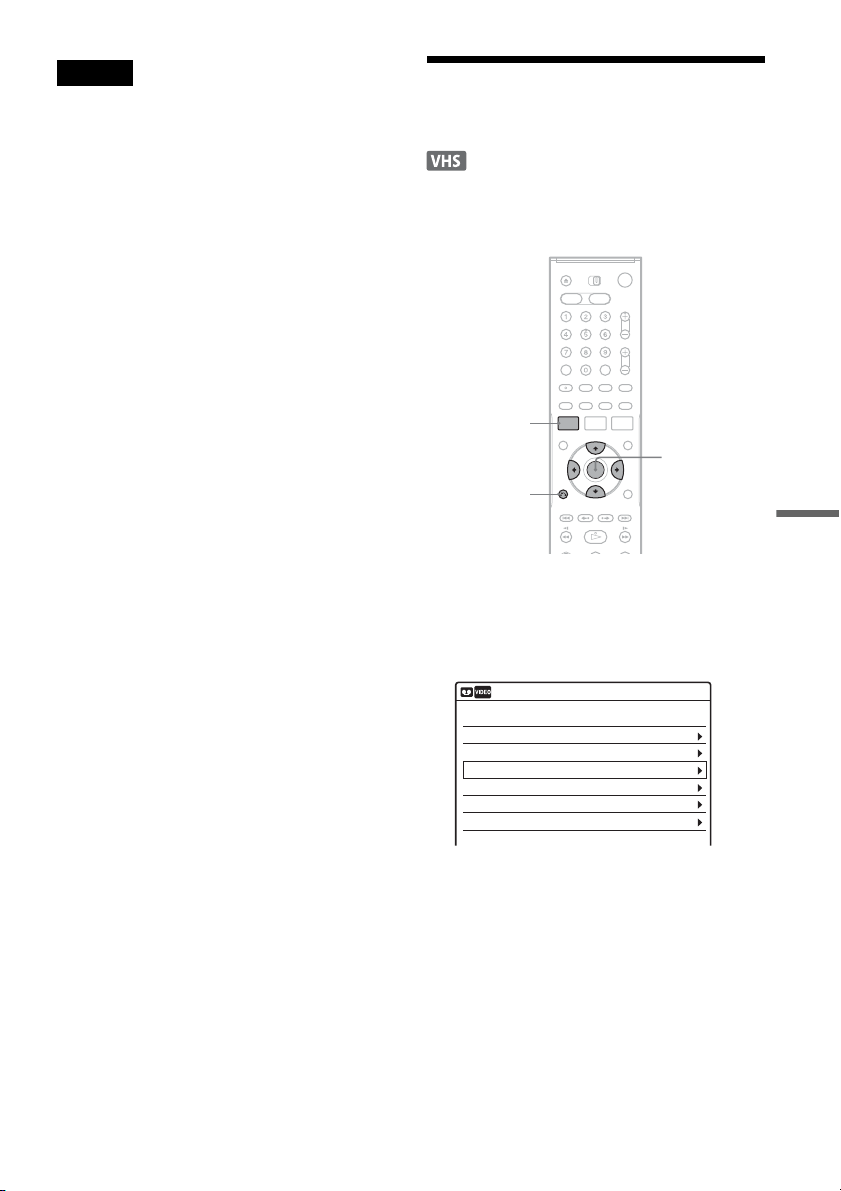
79
VCR Recording
Notes
• The recorder starts recording only after detecting the
video signal from the connected equipment. The
beginning of the program may not be recorded
regardless of whether or not the recorder’s power is on
or off.
• To use the connected equipment during Synchro-Rec
standby, cancel the standby mode by pressing
SYNCHRO REC. To return to standby mode again, be
sure to turn off the equipment and press SYNCHRO
REC, before Synchro-Rec starts.
• The Synchro-Rec function does not work with some
tuners. For details, see the tuner’s operating
instructions.
• During Synchro-Rec standby, the Auto Clock Set
function does not work.
• After a recording has finished, the recorder enters the
Synchro-Rec standby mode until the SYNCHRO REC
indicator turns off.
• You cannot record on a tape with its safety tab
removed.
• If Synchro-Rec starts with the recorder turned on, the
recorder will turn off when the recording ends.
Changing or Canceling VCR
Timer Settings (Timer List)
You can change or cancel timer settings using the
Timer List menu.
1 Press SYSTEM MENU.
The System Menu appears.
2 Select “Timer,” and press ENTER.
3 Select “Timer List,” and press ENTER.
Timer information displays the recording
date, time, recording mode, etc.
If there are more than six timer settings, press
m to display the next page.
SYSTEM
MENU
M/m/</,,
ENTER
O RETURN
01 VCR 04/15 09:00PM 10:00PM CH8
--- --/-- --:-- --:-- ---- ---04
--- --/-- --:-- --:-- ---- ---05
--- --/-- --:-- --:-- ---- ---06
03 --- --/-- --:-- --:-- ---- ---
02 VCR 04/30 09:15PM 09:45PM CH11
10:10 AM
SP
SP
Timer List
No RecTo Date Start Stop CH Mode Edit
,continued
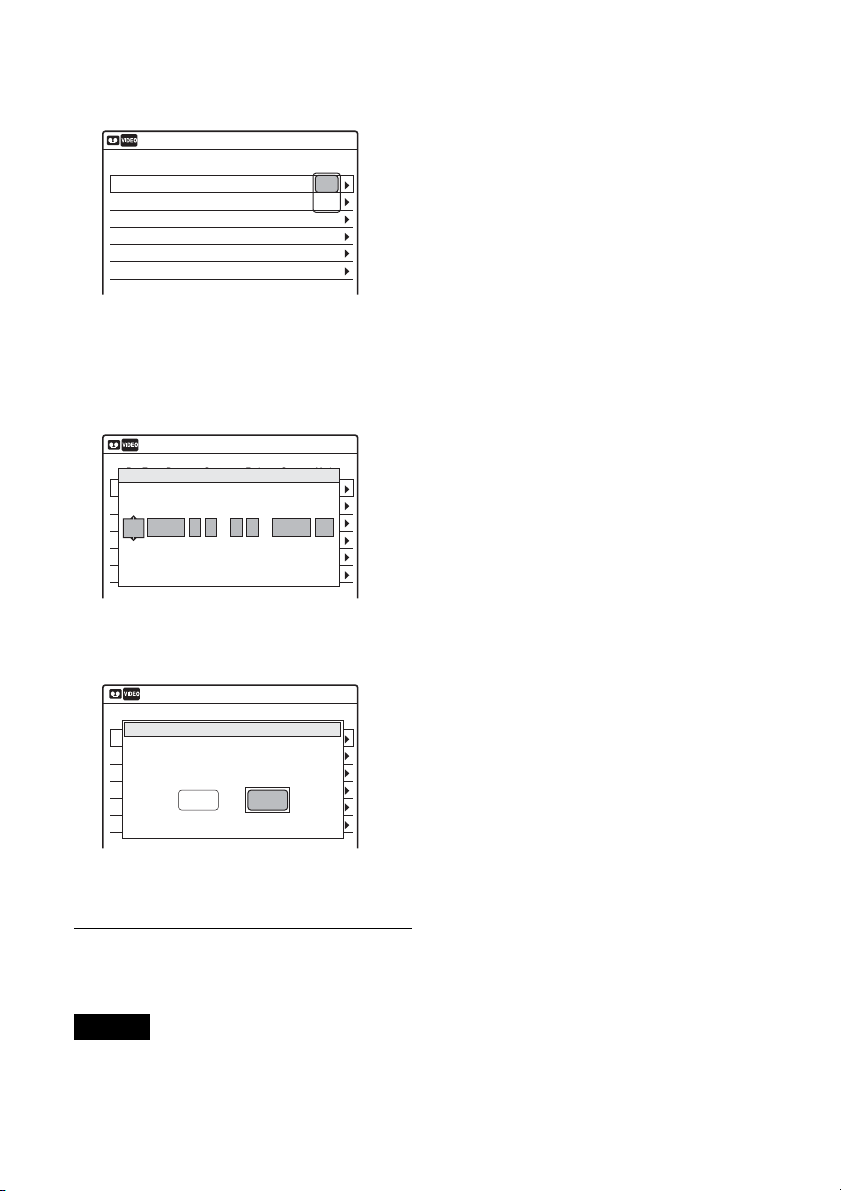
80
4 Select the timer setting you want to change
or cancel, and press ENTER.
The sub-menu appears.
5 Select one of the options, and press
ENTER.
“Edit”: Changes the timer setting.
Select an item using </, and adjust using
M/m. Press ENTER.
“Del”: Erases the timer setting.
Select “OK” and press ENTER when asked
for confirmation.
6 Press SYSTEM MENU to turn off the Timer
List.
To return to the previous display
Press O RETURN.
Notes
• Even when correctly set, the program may not be
recorded if another recording is underway, or other
prioritized timer setting overlaps. For priority, see
page 77.
• You cannot change the timer settings for a recording
currently underway.
• The Timer List displays both the DVD recorder and
VCR timer settings.
Del
Edit01 VCR 04/15 09:00PM 10:00PM CH8
--- --/-- --:-- --:-- ---- ---04
--- --/-- --:-- --:-- ---- ---05
--- --/-- --:-- --:-- ---- ---06
03 --- --/-- --:-- --:-- ---- ---
02 VCR 04/30 09:15PM 09:45PM CH11
10:10 AM
Timer List
No RecTo Date Start Stop CH Mode Edit
01 DVD 04/15 09:00PM 10:00PM CH8
--- --/-- --:-- --:-- ---- ---04
--- --/-- --:-- --:-- ---- ---05
--- --/-- --:-- --:-- ---- ---06
03 --- --/-- --:-- --:-- ---- ---
02 DVD 04/30 09:15PM 09:45PM CH11
10:10 AM
Timer – Standard
No Rec To Date Start End Source Mode Edit
No.1
: PM
VCR
PM
:
04/15 09 00 10 00 CH 8 SP
RecTo Date Start Stop CH Mode
01 VHS 4/15 09:00PM 10:00PM CH8
--- --/-- --:-- --:-- ---- ---04
--- --/-- --:-- --:-- ---- ---05
--- --/-- --:-- --:-- ---- ---06
03 --- --/-- --:-- --:-- ---- ---
02 VHS 4/30 09:15PM 09:45PM CH11
10:10 AM
Timer List
No Rec To Date Start End Source Mode Edit
Do you want to erase “No.01”?
OK
Cancel
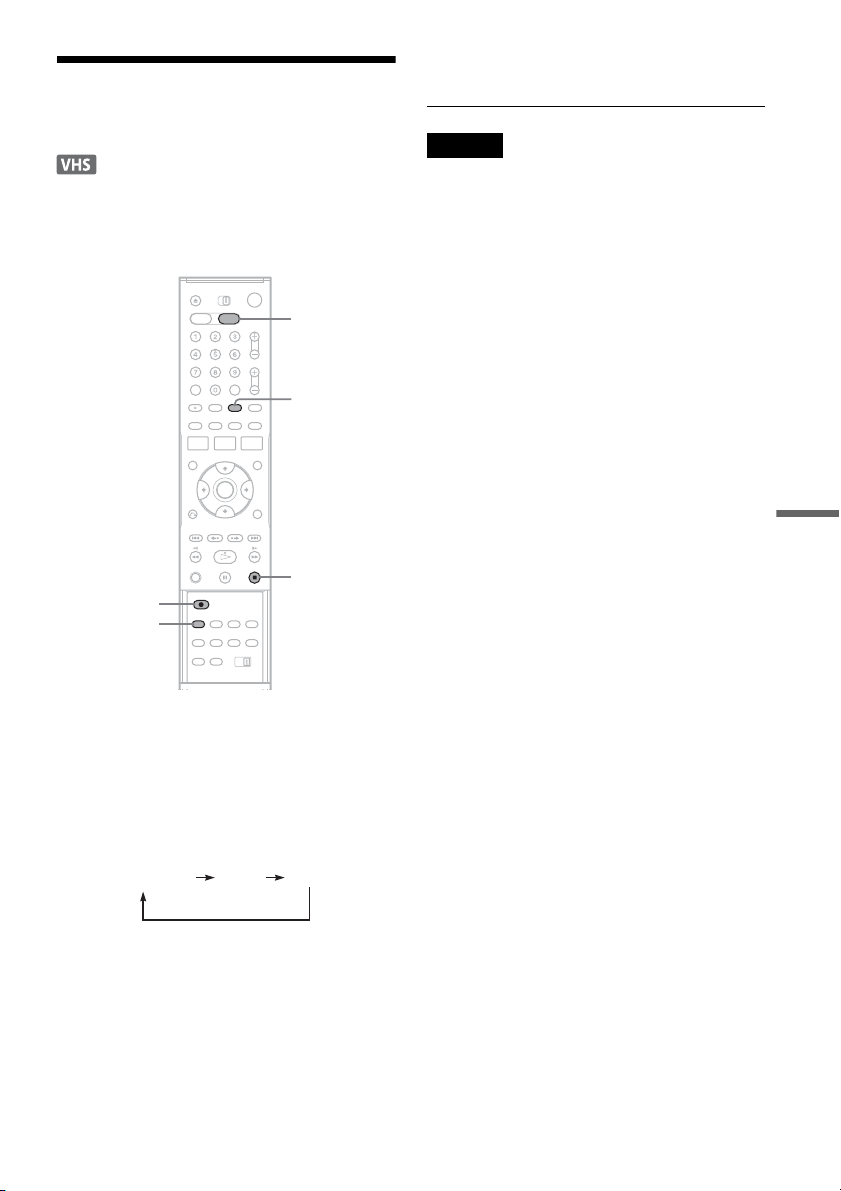
81
VCR Recording
Recording From Connected
Equipment Without a Timer
You can record from a connected VCR or similar
device. For connection details, see “Connecting
Another VCR or Similar Device” on page 26.
1 Press VIDEO to operate the VCR.
2 Insert a tape with its safety tab in place.
3 Press INPUT SELECT repeatedly to select
an input source according to the
connection you made.
The front panel display changes as follows:
4 Press REC MODE repeatedly to select the
recording mode, “SP” or “EP.”
5 Insert the source tape into the connected
equipment and set to playback pause.
6 Press z REC on this recorder and the
pause or play button on the connected
equipment at the same time.
Recording starts.
To stop recording, press x STOP on this
recorder.
Notes
• A video game image may not be recorded clearly.
• You cannot record on a tape with its safety tab
removed.
• During recording or recording pause, you cannot
change the recording mode.
• You cannot change the channel or input source during
recording.
INPUT
SELECT
VIDEO
z REC
x STOP
REC MODE
LINE2LINE1
Channel
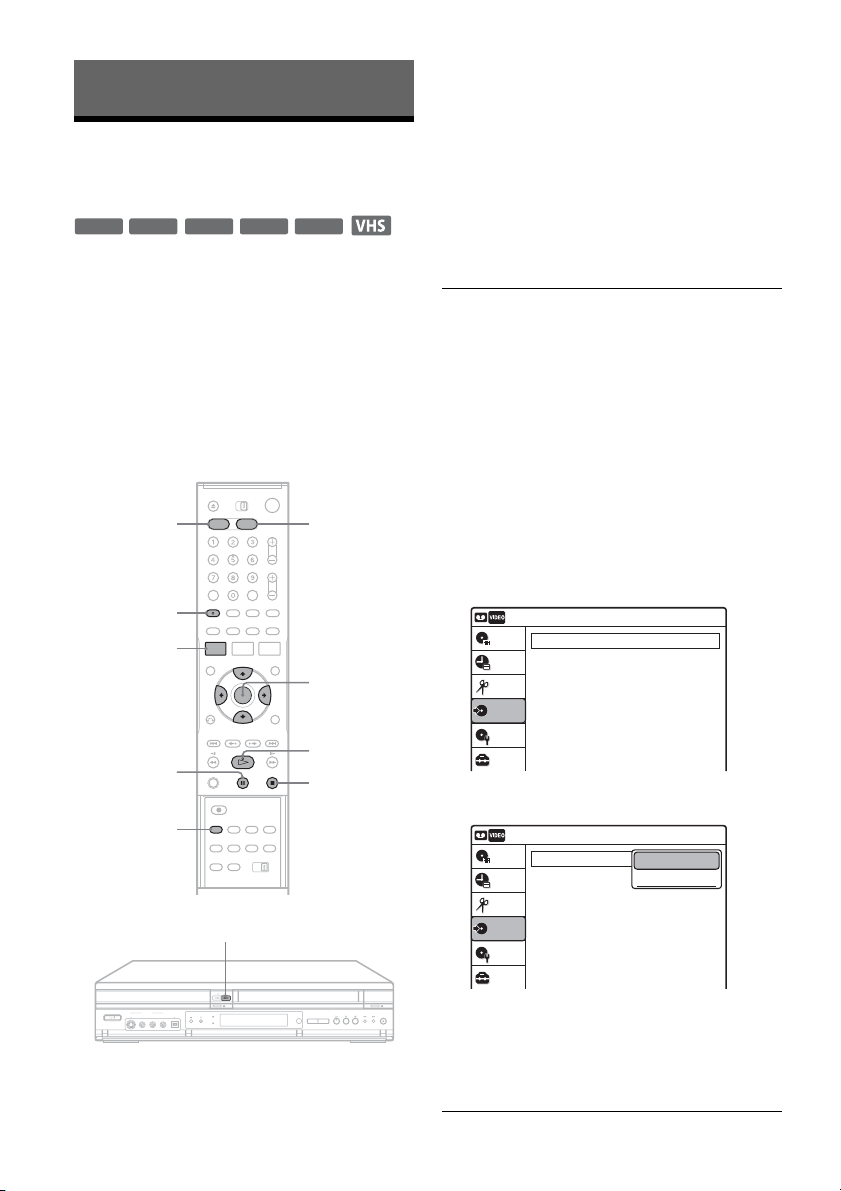
82
Dubbing (TAPE y DVD)
Dubbing From a VHS Tape to
a DVD
You can easily record (dub) a VHS tape to a disc.
Before dubbing, make the necessary audio settings
on the VCR.
◆How titles and chapters are created
The recorder takes each recording on the VHS tape
and automatically divides them into titles as they
are dubbed to a disc. These titles are then further
divided into chapters at either 5 or 15-minute
intervals, according to the “DVD Auto Chapter”
setting of “Features” in the “Setup” display.
1 Press DVD and insert a recordable disc.
To select the recording mode, press REC
MODE repeatedly (see page 45).
2 Insert a source VHS tape.
3 Press VIDEO to operate the VCR.
4 Start playing the VHS tape, and then press
x STOP or X PAUSE at the point where
you want to start dubbing.
To select VCR sound, press AUDIO during
playback (see page 72).
5 Press T VIDEO on the recorder.
Dubbing starts.
To stop dubbing
Press x STOP.
Note that it may take a few seconds for the
recorder to stop dubbing.
To play discs recorded with this recorder on
other DVD equipment
Finalize the disc (see page 86).
To dub using the on-screen menu
1 After step 4 above, press SYSTEM MENU.
2 Select “Dubbing” from the System Menu, and
press ENTER.
3 Select “Simple Dubbing,” and press ENTER.
4 Select “VIDEO t DVD,” and press ENTER.
The display asks for confirmation.
5 Select “Yes,” and press ENTER.
Dubbing starts.
-
RWVR
-
RW
Video
+
RW
+
R
-
R
M/m/</,,
ENTER
REC MODE
x STOP
SYSTEM
MENU
DVD
AUDIO
VIDEO
X PAUSE
H PLAY
T VIDEO
Dubbing
10:10 AM
Simple Dubbing
Program Dubbing
DV/D8 Dubbing
Setup
Disc Setting
Edit
Title List
Timer
Dubbing
Dubbing
10:10 AM
Simple Dubbing
Program Dubbing
DV/D8 Dubbing
Setup
Disc Setting
Edit
Title List
Timer
Dubbing
VIDEO --> DVD
DVD --> VIDEO
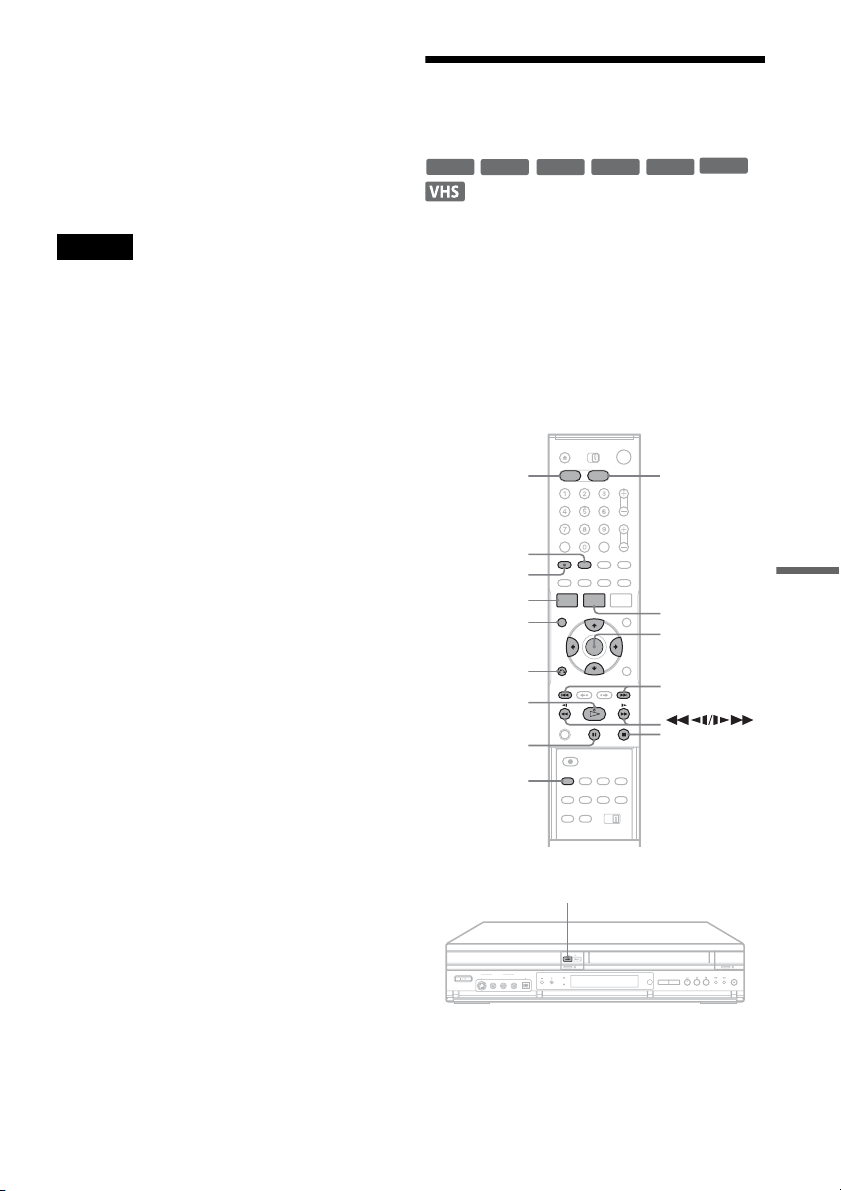
83
Dubbing (TAPE y DVD)
z Hints
• A black (no signal) screen at the end of the dubbed disc
is not a malfunction. This screen is recorded if a time
discrepancy exists between the disc and tape when the
recording is stopped.
• When dubbing a VHS tape to a DVD, the VHS tape
counter value may differ slightly from the DVD
recording time.
• VCR playback sound is output during dubbing.
Notes
• Dubbing cannot be made when:
– using a non-recordable DVD.
– using VHS software with copy guard functions.
• Dubbing stops when:
– the VHS tape reaches the end and stops.
– the VHS video deck or the DVD deck is stopped.
– the disc remaining time runs out.
• The System Menu, TOOLS menu, and information
display are not displayed during dubbing.
• Copyrights
– Recordings made from VHS tapes and other
copyrighted material are solely for individual
enjoyment, and other unauthorized use is prohibited
under copyright law.
– Unauthorized editing of copyrighted material is
prohibited under copyright law.
Dubbing From a DVD to a
VHS Tape
You can record (dub) a DVD title to a VHS tape.
Note that when you record copy-protected
software to a tape, picture may appear disrupted
when you play back the tape.
You can also select titles or scenes and dub them
all at once. See “Dubbing selected titles and scenes
(Program Dubbing)” on page 84.
Before dubbing, make the necessary audio settings
on the DVD recorder.
1 Press VIDEO and insert a VHS tape with its
safety tab in place.
To select the recording mode, SP or EP, press
REC MODE repeatedly (see page 73).
-
RWVR
-
RW
Video
+
RW
+
R
DVD
-
R
M/m/</,,
ENTER
x STOP
REC MODE
SYSTEM
MENU
VIDEO
AUDIO
SUBTITLE
TOP MENU
DVD
TITLE LIST
H PLAY
X PAUSE
./>
O RETURN
DVD t
,continued
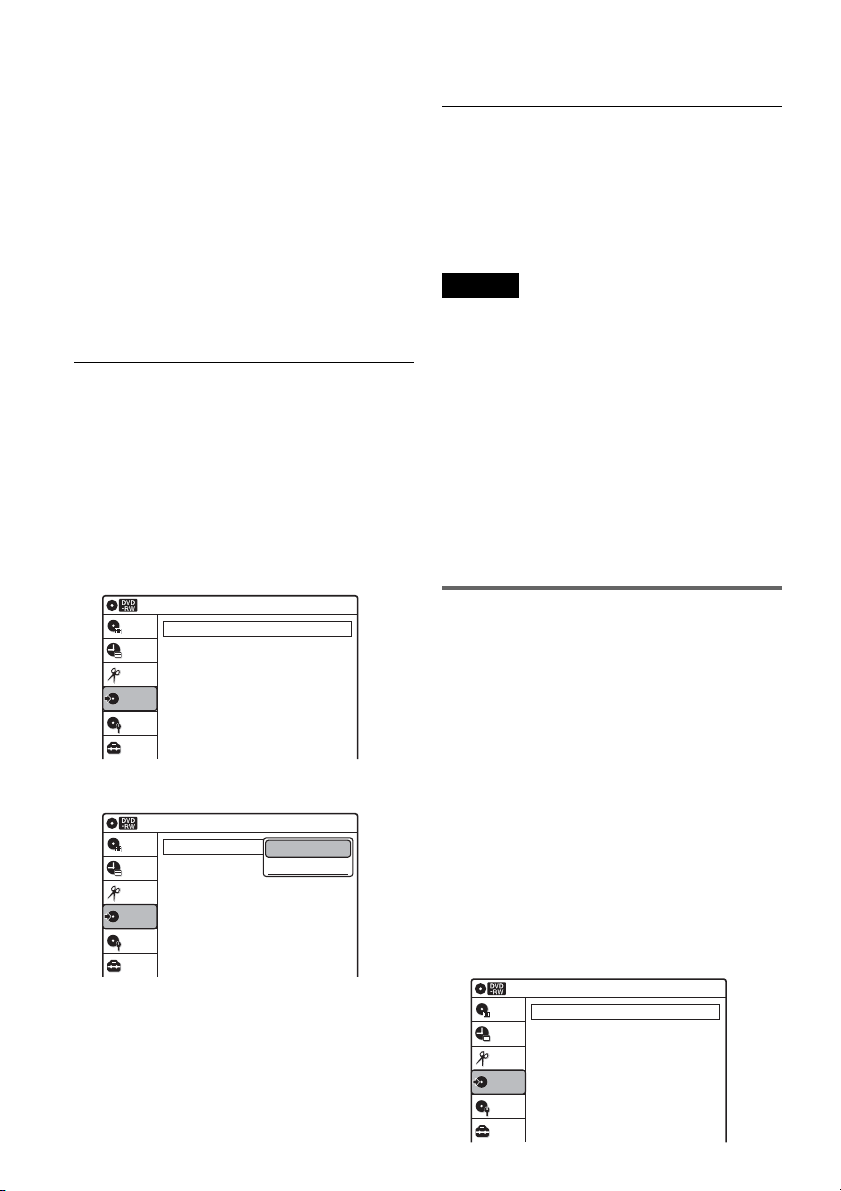
84
2 Insert a source disc.
3 Press DVD to operate the DVD recorder.
4 Press TOP MENU or TITLE LIST to select a
title.
5 Start playing the DVD, and then press x
STOP or X PAUSE at the point where you
want to start dubbing.
To select DVD sound, language, or subtitle,
press AUDIO or SUBTITLE during playback
(see page 33).
6 Press DVD t on the recorder.
Dubbing starts.
To stop dubbing
Press x STOP.
Note that it may take a few seconds for the
recorder to stop dubbing.
To dub using the on-screen menu
1 After step 5 above, press SYSTEM MENU.
2 Select “Dubbing” from the System Menu, and
press ENTER.
3 Select “Simple Dubbing,” and press ENTER.
4 Select “DVD t VIDEO,” and press ENTER.
The display asks for confirmation.
5 Select “Yes,” and press ENTER.
Dubbing starts.
If the disc’s menu appears when DVD
playback finishes, press x STOP to stop
dubbing. Otherwise the disc’s menu is
recorded until the tape reaches its end.
z Hints
• The brightness of the playback picture may differ from
normal DVD playback picture.
• The DVD playback time may differ slightly from the
VHS tape counter value.
• The sound being played back (main, sub, etc.) is the
dubbed sound.
Notes
• Dubbing cannot be made when “Progressive” of
“Video” is set to “On” in the “Setup” display.
• Dubbing stops when:
– the DVD is played back to the end and stops.
– the DVD deck or the VHS video deck is stopped.
– the tape remaining time runs out.
• The System Menu, TOOLS menu, and information
display are not displayed during dubbing.
• Copyrights
– Recordings made from discs and other copyrighted
material are solely for individual enjoyment, and
other unauthorized use is prohibited under copyright
law.
– Unauthorized editing of copyrighted material is
prohibited under copyright law.
Dubbing selected titles and scenes
(Program Dubbing)
You can select titles or scenes from a DVD, and
dub the contents to a VHS tape all at once.
1 Press VIDEO and insert a VHS tape with its
safety tab in place.
To select the recording mode, SP or EP, press
REC MODE repeatedly (see page 73).
2 Press DVD and insert a source disc.
To select DVD sound, language, or subtitle,
press AUDIO or SUBTITLE during playback
(see page 33).
3 Press SYSTEM MENU.
The System Menu appears.
4 Select “Dubbing,” and press ENTER.
Dubbing
10:10 AM
Simple Dubbing
Program Dubbing
DV/D8 Dubbing
Setup
Disc Setting
Edit
Title List
Timer
Dubbing
Dubbing
10:10 AM
Simple Dubbing
Program Dubbing
DV/D8 Dubbing
Setup
Disc Setting
Edit
Title List
Timer
Dubbing
VIDEO --> DVD
DVD --> VIDEO
Dubbing
10:10 AM
Simple Dubbing
Program Dubbing
DV/D8 Dubbing
Setup
Disc Setting
Edit
Title List
Timer
Dubbing
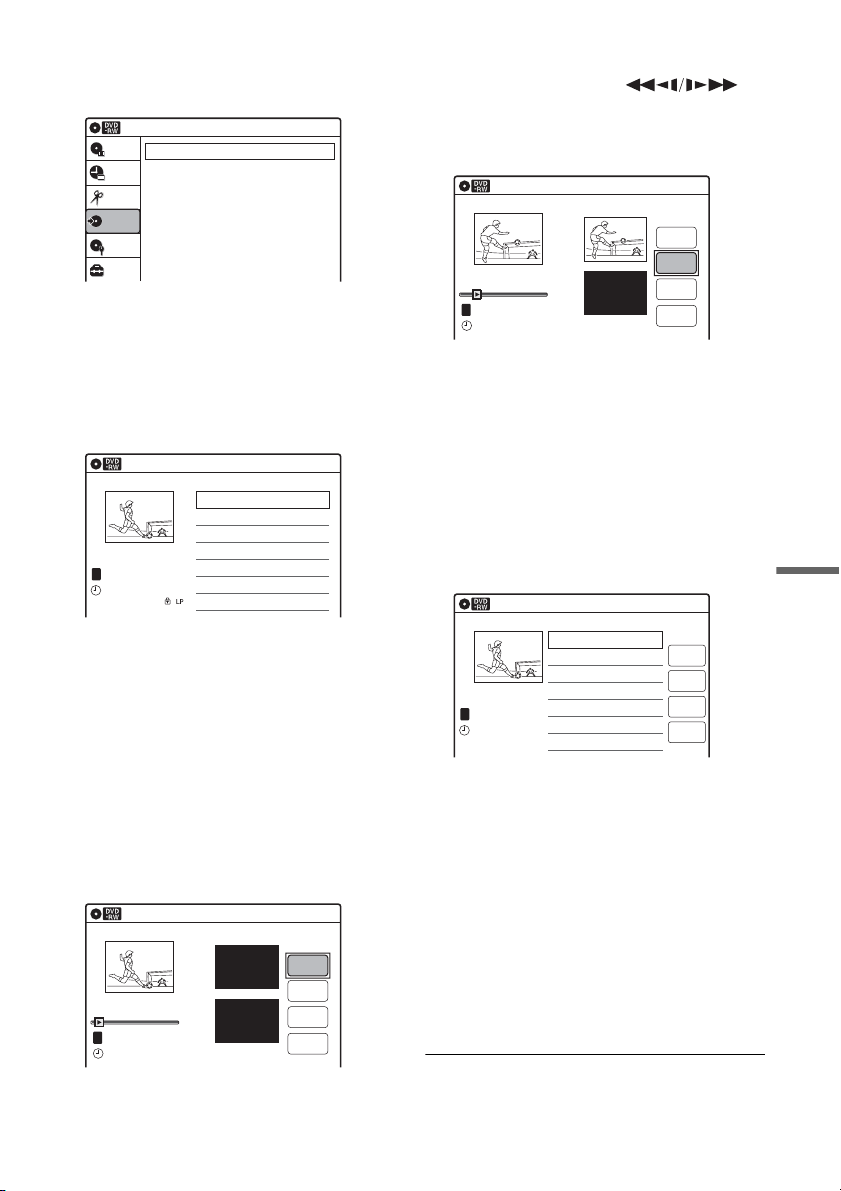
85
Dubbing (TAPE y DVD)
5 Select “Program Dubbing,” and press
ENTER.
6 Select “Create Dubbing List,” and press
ENTER.
If you have performed Program Dubbing
before, the display asks for confirmation. To
continue, select “Yes” and press ENTER.
The display for selecting titles appears.
7 Select the title you want to dub, and press
ENTER.
The sub-menu appears.
To dub the entire title, select “Title Dubbing”
and press ENTER. The Program Dubbing List
appears with the selected title. Go to step 13.
To select a scene to dub, go to step 8.
8 Select “Scene Dubbing,” and press
ENTER.
The display for setting a scene appears.
“Start” is selected.
9 Press ENTER at the start point.
You can use H PLAY, ,
./>, x STOP, and X PAUSE to find
the point.
“End” is selected.
10Press ENTER at the end point.
“Make” is selected.
To reset the start or end point, select “Start” or
“End” and repeat from step 9 or 10.
11Press ENTER.
To continue, repeat from step 9.
12Select “Finish,” and press ENTER.
The Program Dubbing List appears with the
selected scene.
13Select an option and press ENTER, if
necessary.
To add other titles or scenes, select “Addition”
and press ENTER, and repeat from step 7.
To cancel the selected title or scene, select
“Erase” and press ENTER. When asked for
confirmation, select “OK” and press ENTER.
To view the selected title or scene, select
“Check” and press ENTER.
To cancel dubbing, press O RETURN.
14Select “Dubbing,” and press ENTER.
Dubbing starts.
Dubbing
10:10 AM
Create Dubbing List
Program Dubbing List
Setup
Disc Setting
Edit
Title List
Timer
Dubbing
Create Dubbing List
10:10 AM
>
>
CH 32
T
No. Title Length Edit
01 CH 32 00:05:04
02 CH 96 00:00:51
May/02/2005
03:25 PM
1/2
Scene Dubbing
10:10 AM
Scene No.01
T
---/--/---- --:--
Dubbing List No. 1
Make
Finish
Start
End
Start 00:00:00
End 00:00:00
00:00:07
10:10 AM
Scene No.01
T
00:00:10
---/--/---- --:--
Dubbing List No. 1
Make
Finish
Start
End
Scene Dubbing
Start 00:00:10
End 00:00:00
Program Dubbing List
10:10 AM
>
CH 32
T
No. Title Length Edit
01 CH 32 00:05:04
May/02/2005
03:25 PM
Addition
Check
Dubbing
Erase
,continued
86
To stop dubbing
Press x STOP.
Note that it may take a few seconds for the
recorder to stop dubbing.
z Hints
• The brightness of the playback picture may differ from
normal DVD playback picture.
• The DVD playback time may differ slightly from the
VHS tape counter value.
• The sound being played back (main, sub, etc.) is the
dubbed sound.
Notes
• Dubbing cannot be made when “Progressive” of
“Video” is set to “On” in the “Setup” display.
• Dubbing stops when:
– the DVD is played back to the end and stops.
– the DVD deck or the VHS video deck is stopped.
– the tape remaining time runs out.
• The System Menu, TOOLS menu, and information
display are not displayed during dubbing.
• Copyrights
– Recordings made from discs and other copyrighted
material are solely for individual enjoyment, and
other unauthorized use is prohibited under copyright
law.
– Unauthorized editing of copyrighted material is
prohibited under copyright law.
• Once you eject the disc, the Program Dubbing List is
erased.
Finalizing a Disc (Preparing
a Disc for Playback on
Other Equipment)
Finalizing is necessary in order to play discs
recorded with this recorder on other DVD
equipment.
When you finalize a DVD+RW/DVD-RW (Video
mode)/DVD+R/DVD-R, a DVD menu will be
automatically created, which can be displayed on
other DVD equipment.
Before finalizing, check the differences between
the disc types in the table below.
Differences between the disc types
Discs are automatically finalized when
removed from the recorder. If you want
to record on it again, reformat the disc
(page 66). Note however, that
reformatting a disc erases all its
contents.
Finalizing is unnecessary when playing a
disc on VR format compatible equipment.
Even if your other DVD equipment is
VR format compatible, you may need to
finalize the disc, especially if the
recording time is short. After finalizing,
you cannot edit or record on the disc. If
you want to edit or record on it again,
unfinalize or reformat the disc (page 66).
Note however, that reformatting a disc
erases all its contents.
Finalizing is necessary in order to play
on equipment other than this recorder.
After finalizing, you cannot edit or
record on the disc. If you want to edit or
record on it again, unfinalize or reformat
the disc (page 66). Note however, that
reformatting a disc erases all its
contents.
Finalizing is necessary in order to play
on equipment other than this recorder.
After finalizing, you cannot further edit
or record on the disc.
-
RWVR
-
RW
Video
+
RW
+
R
-
R
+
RW
-
RWVR
-
RW
Video
+
R
-
R
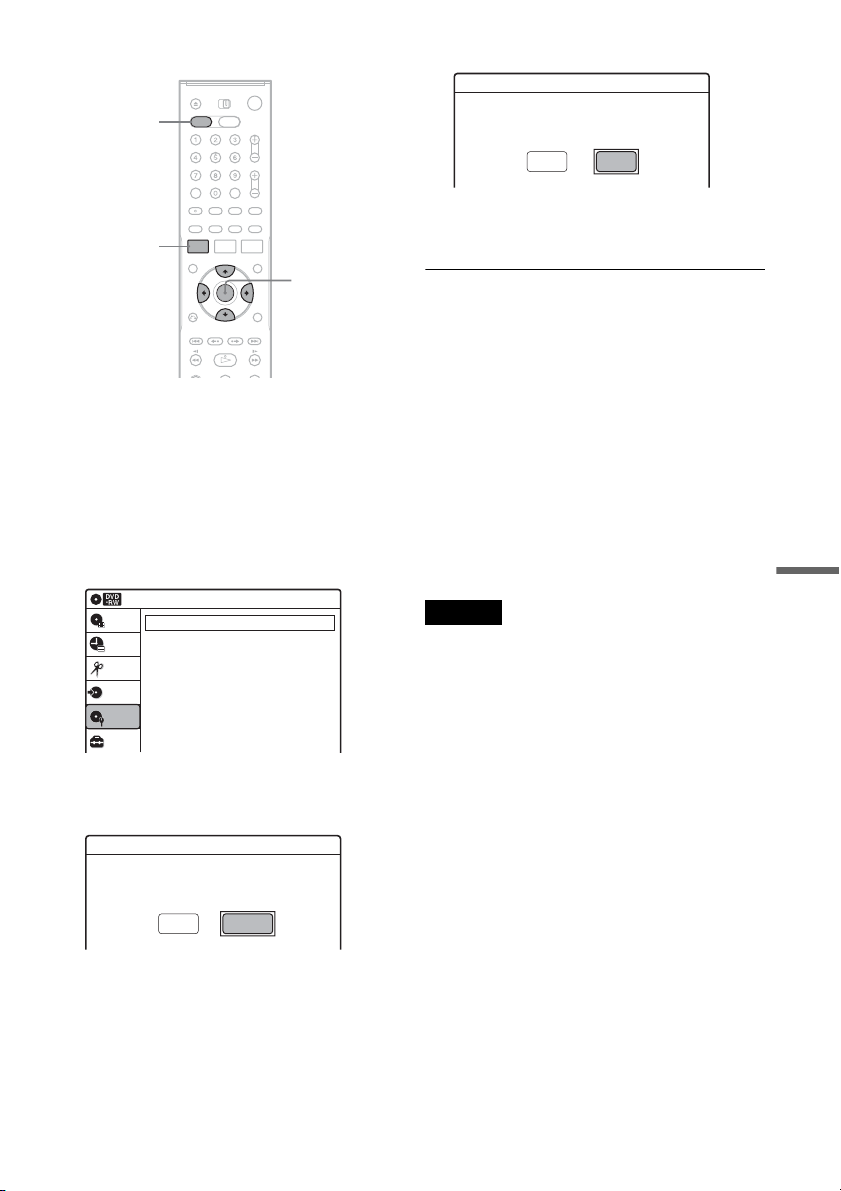
87
Dubbing (TAPE y DVD)
1 Press DVD to operate the DVD recorder.
2 Insert a disc.
3 Press SYSTEM MENU while the recorder is
in stop mode.
The System Menu appears.
4 Select “Disc Setting,” and press ENTER.
The “Disc Setting” display appears.
5 Select “Disc Finalize,” and press ENTER.
The display asks for confirmation.
6 Select “Finalize,” and press ENTER.
The display asks for confirmation again.
7 Select “OK,” and press ENTER.
The recorder starts finalizing the disc.
To turn off the display
Press SYSTEM MENU.
To unfinalize a DVD-RW (VR mode)
If you cannot record or edit on a DVD-RW (VR
mode) that has been finalized, unfinalize the disc
by selecting “Unfinalize” in step 6 above.
z Hints
• You can check whether the disc has been finalized or
not. If you cannot select “Finalize” in step 6 above, the
disc has already been finalized.
• To check the disc information, select “Disc
Information” in the “Disc Setting” display and press
ENTER. See page 66 for details.
Notes
• A finalized disc may not play, depending on the
condition of the disc, recording, or the DVD
equipment.
• The recorder may not be able to finalize a disc if it was
recorded on another recorder.
SYSTEM
MENU
DVD
M/m/</,,
ENTER
Disc Setting
10:10 AM
Disc Name :
Disc Protect : Not Protected
Disc Format : VR Mode
Disc Finalize : Unfinalized
Disc Information
Erase All Titles
Setup
Disc Setting
Edit
Title List
Timer
Dubbing
Do you want to finalize this disc ?
UnfinalizeFinalize
Disc will be finalized.
Do you want to continue ?
CancelOK
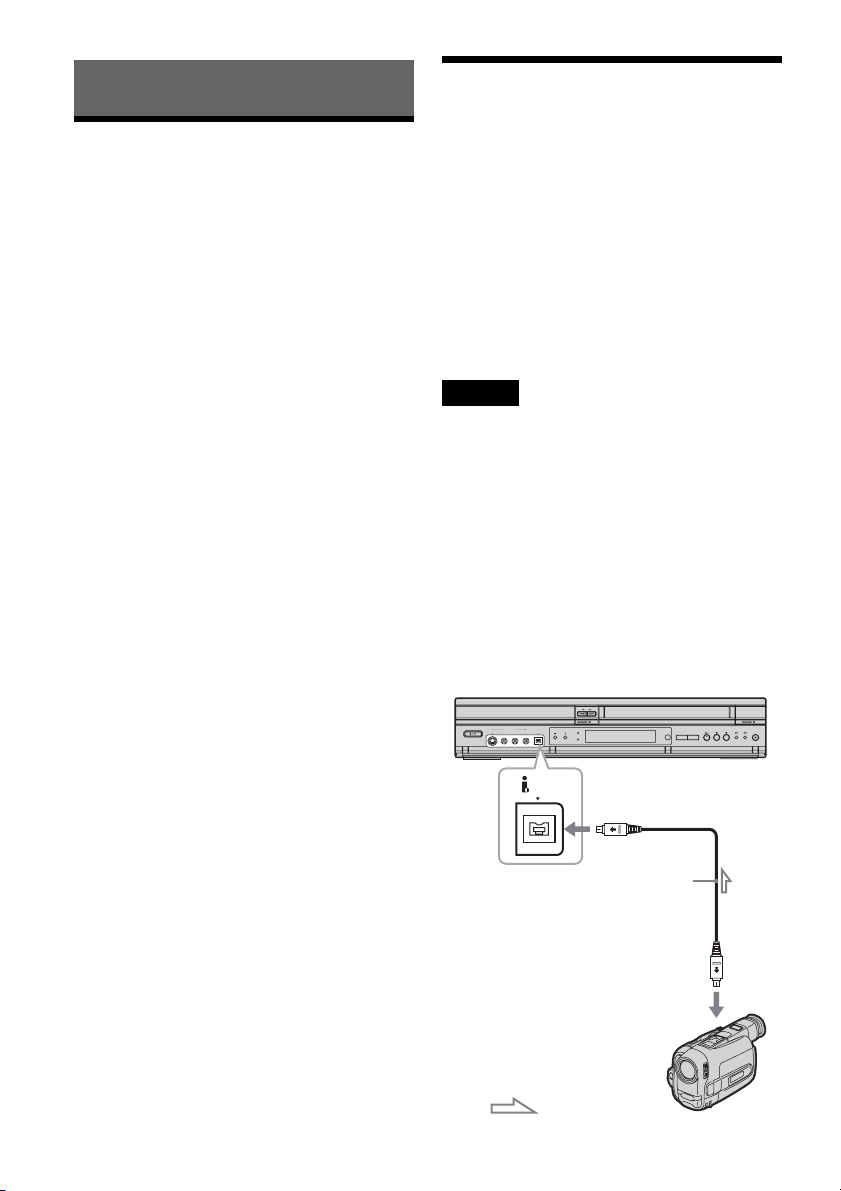
88
DV/D8 Dubbing (DV/D8 t DVD)
Before DV/D8 Dubbing
This section explains dubbing with a digital video
camera via the DV IN jack on the front panel. If
you want to dub by way of the LINE IN jacks, see
“Recording From Connected Equipment With a
Timer (Synchro Rec)” on page 50.
To record from the DV IN jack
The DV IN jack on this recorder conforms to the
i.LINK standard. You can connect any other
equipment that has an i.LINK (DV) jack, and
record digital signals.
Follow the instructions in “Connecting a Digital
Video Camera to the DV IN Jack,” and then move
on to the section on dubbing. For more
information about i.LINK, see “About i.LINK” on
page 110.
z Hint
If you plan to do additional editing on a disc after the
initial dub, use the DV IN jack and record on a DVD-RW
(VR mode).
Connecting a Digital Video
Camera to the DV IN Jack
You can connect a digital video camera to the DV
IN jack on the recorder to record or edit from a
DV/D8 format tape. Operation is straightforward
because the DVD recorder will fast forward and
rewind the tape for you – you do not need to
operate your digital video camera. Do the
following to start using the “DV/D8 Edit”
functions of this recorder.
See the instruction manual supplied with the
digital video camera as well before connecting.
Notes
• The DV IN jack is for input only. It will not output
signals.
• You cannot use the DV IN jack when:
– your digital video camera does not work with this
recorder. Connect the camera to the LINE IN jack and
follow the instructions of “Recording From
Connected Equipment Without a Timer” on page 53.
– the input signal is not in DVC-SD format. Do not
connect a MICRO MV format digital video camera
even if it has an i.LINK jack.
– the images on the tape contain copy protection
signals, which limit recording.
Hookups
DV IN
i.LINK cable
(not supplied)
To DV IN
VCR-DVD recorder
DV output
Digital video camera
: Signal flow
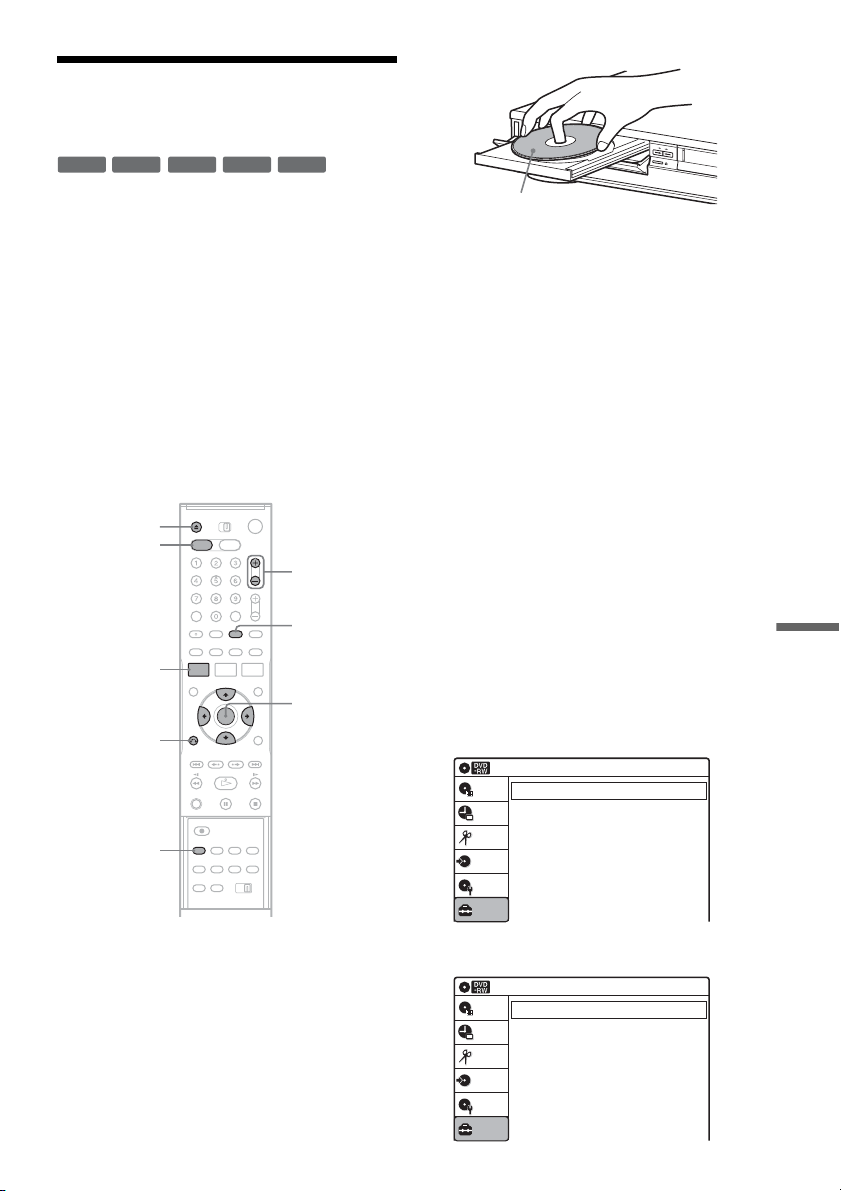
89
DV/D8 Dubbing (DV/D8 t DVD)
Dubbing From a DV/D8
Format Tape to a DVD
You can record a DV/D8 format tape onto a disc.
The recorder controls the digital video camera.
You can fast forward, rewind, play in slow motion,
and stop the tape to select the scenes using the on-
screen menu.
To simply dub the entire contents of a DV/D8
format tape (One Touch Dubbing), see page 91.
◆How titles and chapters are created
The dubbed contents on the disc become one title,
and the title is then divided into chapters at either
5 or 15-minute intervals, according to the “DVD
Auto Chapter” setting of “Features” in the “Setup”
display.
1 Press DVD to operate the DVD recorder.
2 Press Z OPEN/CLOSE, and place a
recordable disc on the disc tray.
3 Press Z OPEN/CLOSE to close the disc
tray.
Wait until “LOAD” disappears from the front
panel display.
Unused DVD-RWs are formatted in VR mode
automatically. To format in Video mode, see
page 100.
4 Insert the source DV/D8 format tape into
your digital video camera.
For the recorder to record or edit, your digital
video camera must be set to video playback
mode.
5 Press INPUT SELECT repeatedly to select
“DV.”
6 Press REC MODE repeatedly to select the
recording mode.
For details about the recording mode, see
page 45.
7 Press SYSTEM MENU while the recorder is
in stop mode.
The System Menu appears.
8 Select “Setup,” and press ENTER.
9 Select “Audio,” and press ENTER.
-
RWVR
-
RW
Video
+
RW
+
R
-
R
REC MODE
INPUT
SELECT
Z OPEN/
CLOSE
SYSTEM
MENU
M/m/</,,
ENTER
O RETURN
DVD
CH +/–
Recording side facing down
Setup
Tuner Preset
Clock Set
Video
Audio
Features
Options
Easy Setup
10:10 AM
Setup
Disc Setting
Edit
Title List
Timer
Dubbing
Audio
10:10 AM
Tuner Audio
Digital Out
Downmix
Audio DRC
Scan Audio
DV Audio Input
Line Audio Input
: Main
: Dolby Surround
: Standard
: On
: Stereo 1
: Stereo
Setup
Disc Setting
Edit
Title List
Timer
Dubbing
,continued
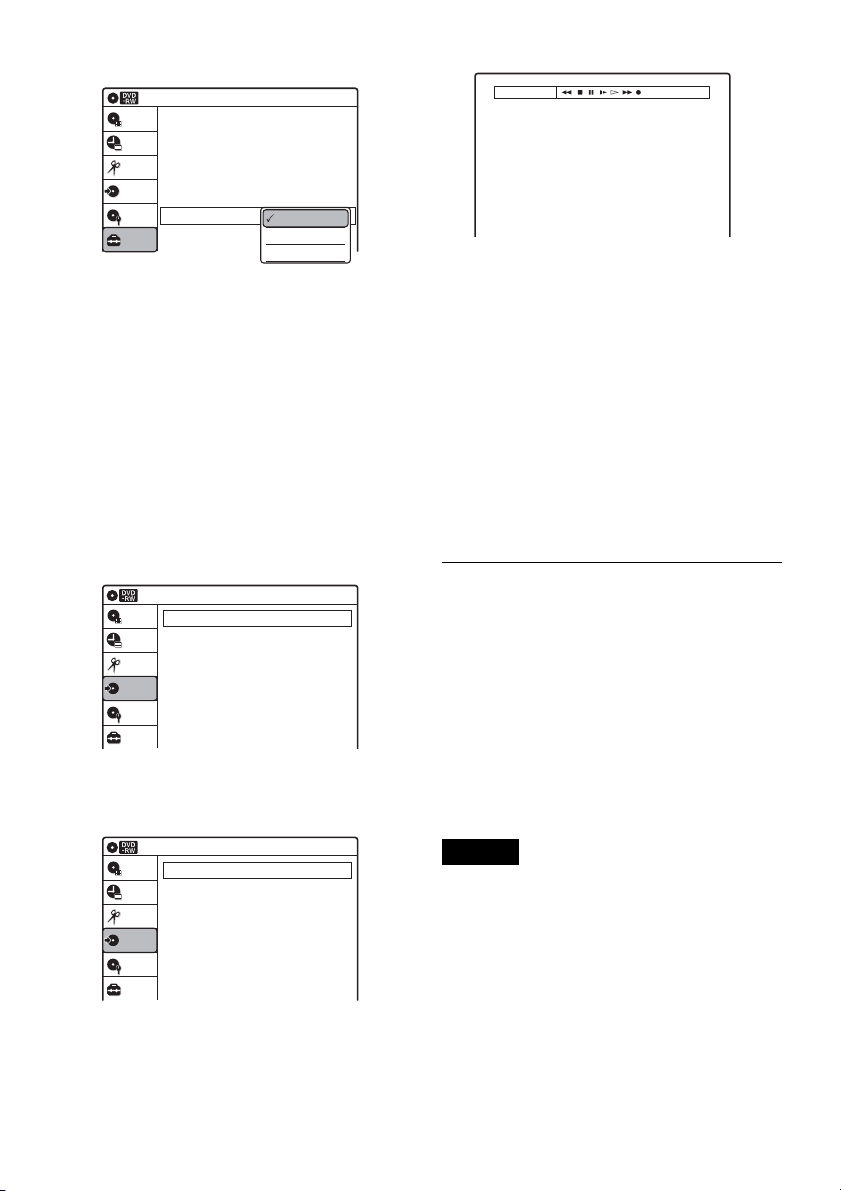
90
10
Select “DV Audio Input,” and press ENTER.
“Stereo 1”: Records original sound only.
Normally select this when dubbing a DV
format tape.
“Stereo 2”: Records additional audio only.
“Mix”: Records original and additional
sounds.
Select “Stereo 2” or “Mix” if you have added
a second audio channel when recording with
your digital video camera. For the details, see
page 99.
11
Select an option, and press ENTER.
12
Press O RETURN twice.
13
Select “Dubbing,” and press ENTER.
14
Select “DV/D8 Dubbing,” and press
ENTER.
15
Select “DV/D8 Simple Dubbing,” and
press ENTER.
The following display appears.
If “DV” or “DV Camera Mode” is displayed
instead of “DV Tape Mode,” check that the
digital video camera is correctly connected
and its power turned on, and that its mode is
set for dubbing.
16Find the dubbing start point on the tape,
and stop or pause playback.
Press </, to select m, x, X, y, H, or
M on the TV screen and press ENTER to
find the point, and stop or pause with x or X.
17
Press , to select z on the TV screen, and
press ENTER.
Dubbing starts.
To stop during recording
Select x on the TV screen, and press ENTER.
Note that it may take a few seconds for the
recorder to stop recording.
To turn off the display for DV/D8 dubbing
Press INPUT SELECT or CH +/–.
z Hint
If “DV Camera Mode” appears on the screen, you can use
z on the TV screen to record the camera image directly
on the recorder.
Notes
• If you want to play the disc on other DVD equipment,
finalize the disc (page 86).
• You cannot connect more than one piece of digital
video equipment to the recorder.
• You cannot record the date, time, or contents of a DV/
D8 format tape onto the disc.
• If you record from a DV/D8 format tape with a
soundtrack that is recorded in multiple sampling
frequencies (48 kHz, 44.1 kHz, or 32 kHz), no sound,
or an unnatural sound will be output when playing back
the sampling frequency switch point on the disc.
• The recorded picture may be momentarily affected if
the picture size of the source image changes, or if there
is nothing recorded on the tape.
Audio
10:10 AM
Tuner Audio
Digital Out
Downmix
Audio DRC
Scan Audio
DV Audio Input
Line Audio Input
: Dolby Surround
: Standard
: On
:
:
: Main
Setup
Disc Setting
Edit
Title List
Timer
Dubbing
Stereo 1
Stereo 2
Mix
Dubbing
10:10 AM
Simple Dubbing
Program Dubbing
DV/D8 Dubbing
Setup
Disc Setting
Edit
Title List
Timer
Dubbing
Dubbing
10:10 AM
DV/D8 Simple Dubbing
DV/D8 One Touch Dubbing
Setup
Disc Setting
Edit
Title List
Timer
Dubbing
DV Tape Mode
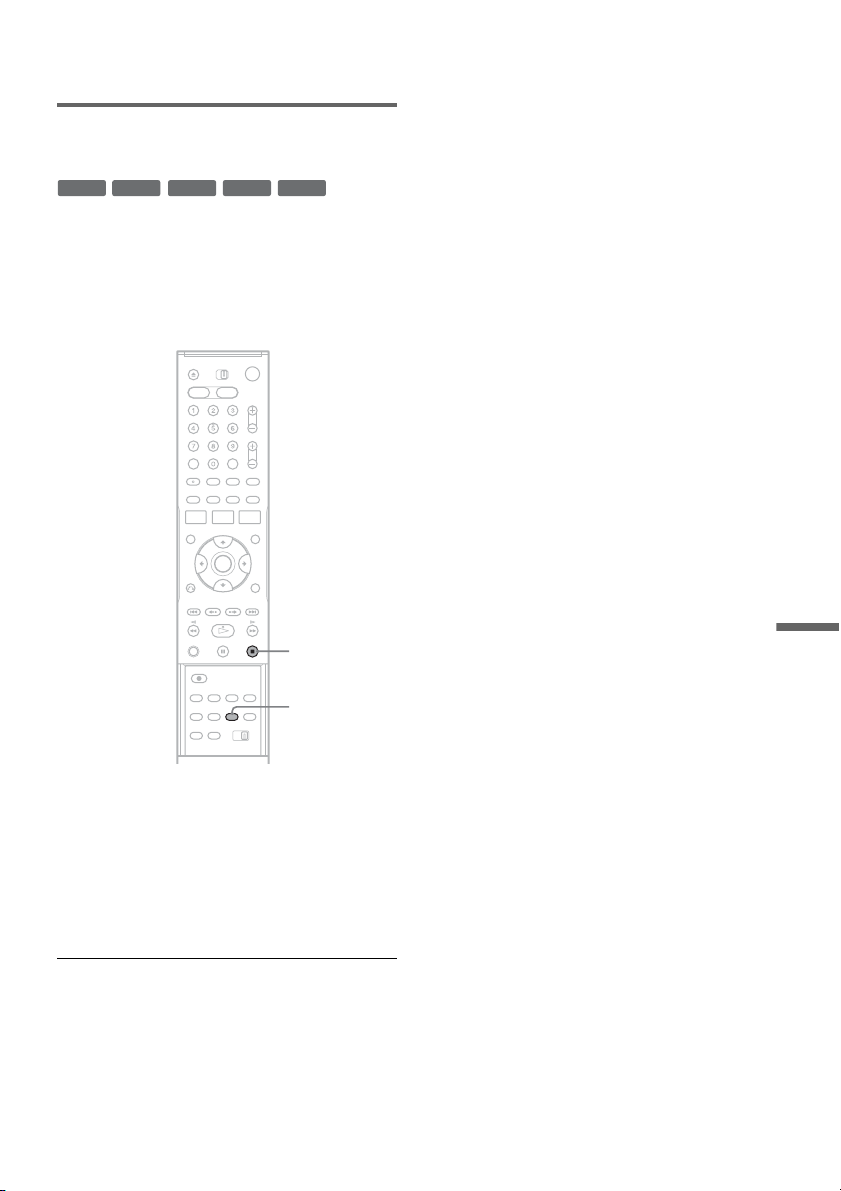
91
DV/D8 Dubbing (DV/D8 t DVD)
• Noise may occur when you switch the audio sampling
mode (48 kHz/16 bits t 32 kHz/12 bits).
Dubbing an entire DV/D8 format tape
to a DVD (One Touch Dubbing)
You can record the entire contents of a DV/D8
format tape onto a disc with a single press of the
ONE TOUCH DUBBING button. The recorder
controls the digital video camera for the whole
process, and completes the recording.
Follow steps 1 to 11 of “Dubbing From a DV/D8
Format Tape to a DVD” (page 89), and press
ONE TOUCH DUBBING on the remote.
The recorder rewinds the tape in the digital video
camera and then starts recording the tape contents
from the beginning.
When playback of the tape stops, One Touch
Dubbing ends automatically.
To stop during recording
Press x STOP.
Note that it may take a few seconds for the
recorder to stop recording.
z Hint
You can also perform One Touch Dubbing when you
select “DV/D8 One Touch Dubbing” and press ENTER
in step 15 of “Dubbing From a DV/D8 Format Tape to a
DVD” on page 89. Follow the instructions appearing on
the TV screen.
-
RWVR
-
RW
Video
+
RW
+
R
-
R
ONE TOUCH
DUBBING
x STOP
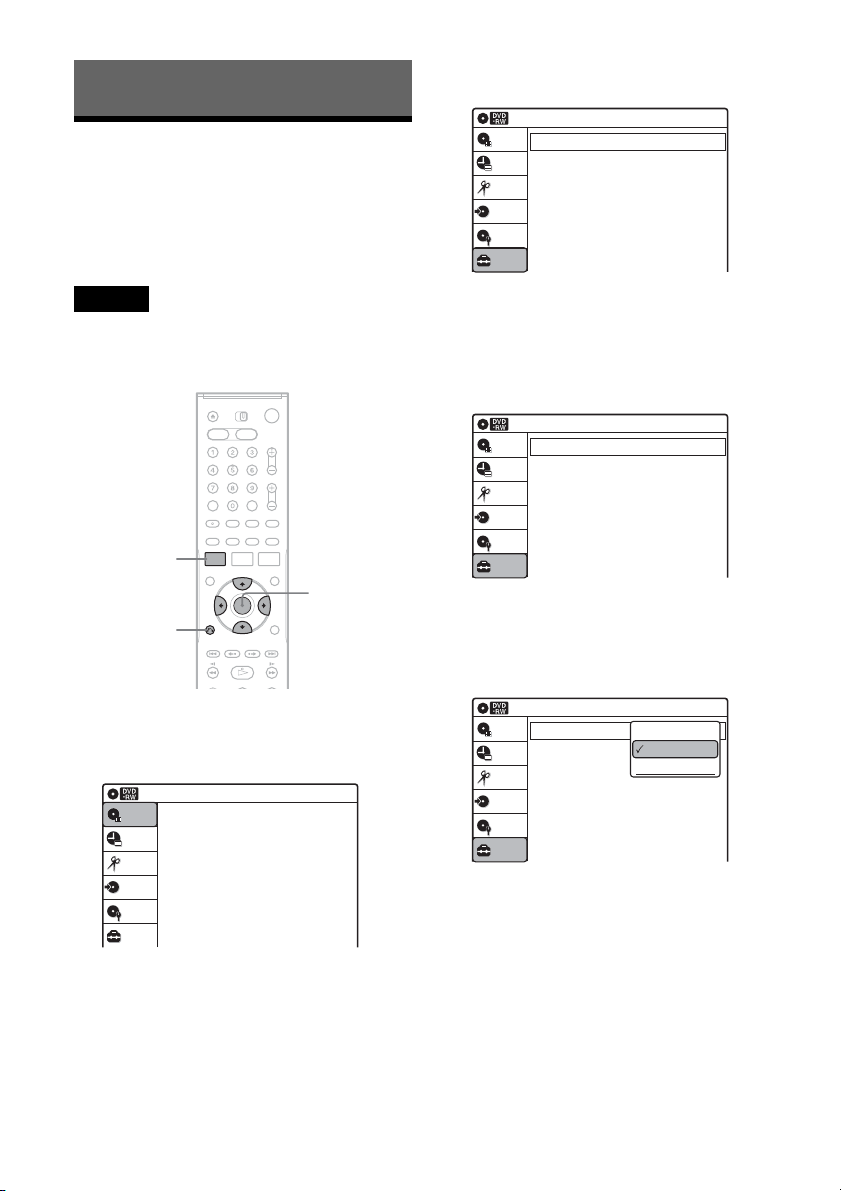
92
Settings and Adjustments
Using the Setup Displays
By using the setup displays, you can make various
adjustments to items such as picture and sound, as
well as select a language for the subtitles.
The setup displays are used in the following way.
Note
Playback settings stored on the disc take priority over the
setup display settings, and not all of the functions
described may work.
1 Press SYSTEM MENU while the recorder is
in stop mode.
The System Menu appears.
2 Select “Setup,” and press ENTER.
The “Setup” display appears.
3 Select “Tuner Preset,” “Clock Set,”
“Video,” “Audio,” “Features,” “Options,”
or “Easy Setup,” and press ENTER.
The selected setup display appears.
Example: “Video” setup
4 Select the item you want to set up, and
press ENTER.
Available options for the item appear.
Example: “TV Type”
M/m/</,,
ENTER
SYSTEM
MENU
O RETURN
10:10 AM
Title List (Original)
Press ENTER :
Title Menu for DVD Title List.
Setup
Disc Setting
Edit
Title List
Timer
Dubbing
10:10 AM
Setup
Tuner Preset
Clock Set
Video
Audio
Features
Options
Easy Setup
Setup
Disc Setting
Edit
Title List
Timer
Dubbing
Video
10:10 AM
TV Type
Black Level
Picture Control
Progressive
: Standard
: Off
: 4:3 Letter Box
: On
Setup
Disc Setting
Edit
Title List
Timer
Dubbing
10:10 AM
TV Type
Black Level
Picture Control
Progressive
Video
: Composite
: Off
: 4:3 Letter Box
: On
Setup
Disc Setting
Edit
Title List
Timer
Dubbing
16:9
4:3 Letter Box
4:3 Pan Scan
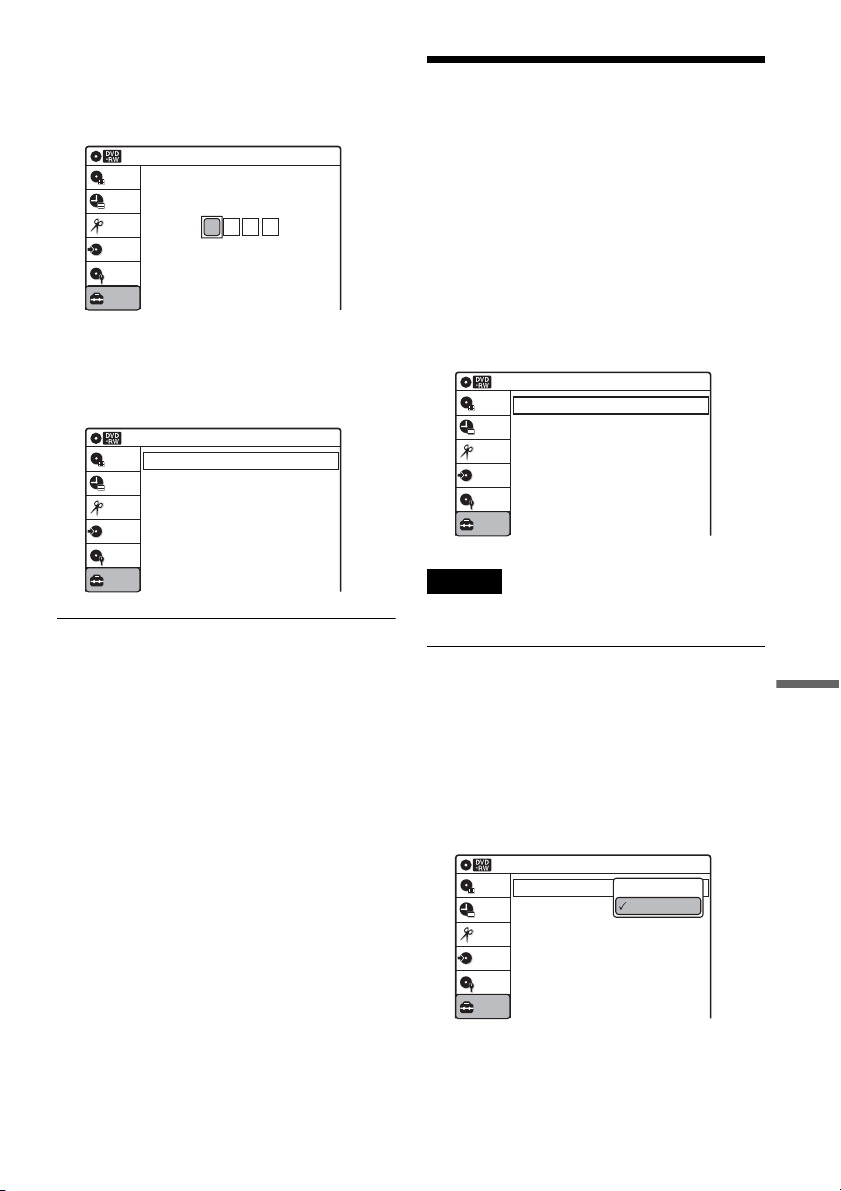
93
Settings and Adjustments
Some items display a dialog box that requires
additional settings.
Example: When “Parental” in “Options”
setup is selected.
5 Select an option, and press ENTER.
The currently selected option is displayed
next to the setup item.
Example: When “16:9” is set.
To return to the previous display
Press O RETURN.
To turn off the display
Press SYSTEM MENU.
Antenna Reception Setting
(Tuner Preset)
The “Tuner Preset” setup allows you to make
tuner settings for the recorder.
1 Press SYSTEM MENU while the recorder is
in stop mode.
2 Select “Setup,” and press ENTER.
3 Select “Tuner Preset,” and press ENTER.
The “Tuner Preset” setup appears with the
following options.
Note
You cannot preset channels for a connected cable box or
satellite receiver.
Auto Preset
Automatically presets the receivable channels.
The recorder can receive VHF channels 2 to 13,
UHF channels 14 to 69, and unscrambled CATV
channels 1 to 125. First, we recommend that you
preset the receivable channels in your area using
automatic presetting methods.
1 Select “Antenna/Cable,” and press ENTER.
“Antenna”: Presets VHF and UHF channels.
“Cable”: Presets cable TV channels.
2 Select an option, and press ENTER.
3 Select “Auto Preset,” and press ENTER.
10:10 AM
Create the password.
Create the password.
Setup
Disc Setting
Edit
Title List
Timer
Dubbing
Video
10:10 AM
TV Type
Black Level
Picture Control
Progressive
: Standard
: Off
: 16:9
: On
Setup
Disc Setting
Edit
Title List
Timer
Dubbing
10:10 AM
Setup
Disc Setting
Edit
Title List
Timer
Dubbing
Antenna/Cable
Auto Preset
Manual Set
: Cable
Tuner Preset
10:10 AM
Setup
Disc Setting
Edit
Title List
Timer
Dubbing
Antenna/Cable
Auto Preset
Manual Set
: Antenna
Tuner Preset
Antenna
Cable
,continued
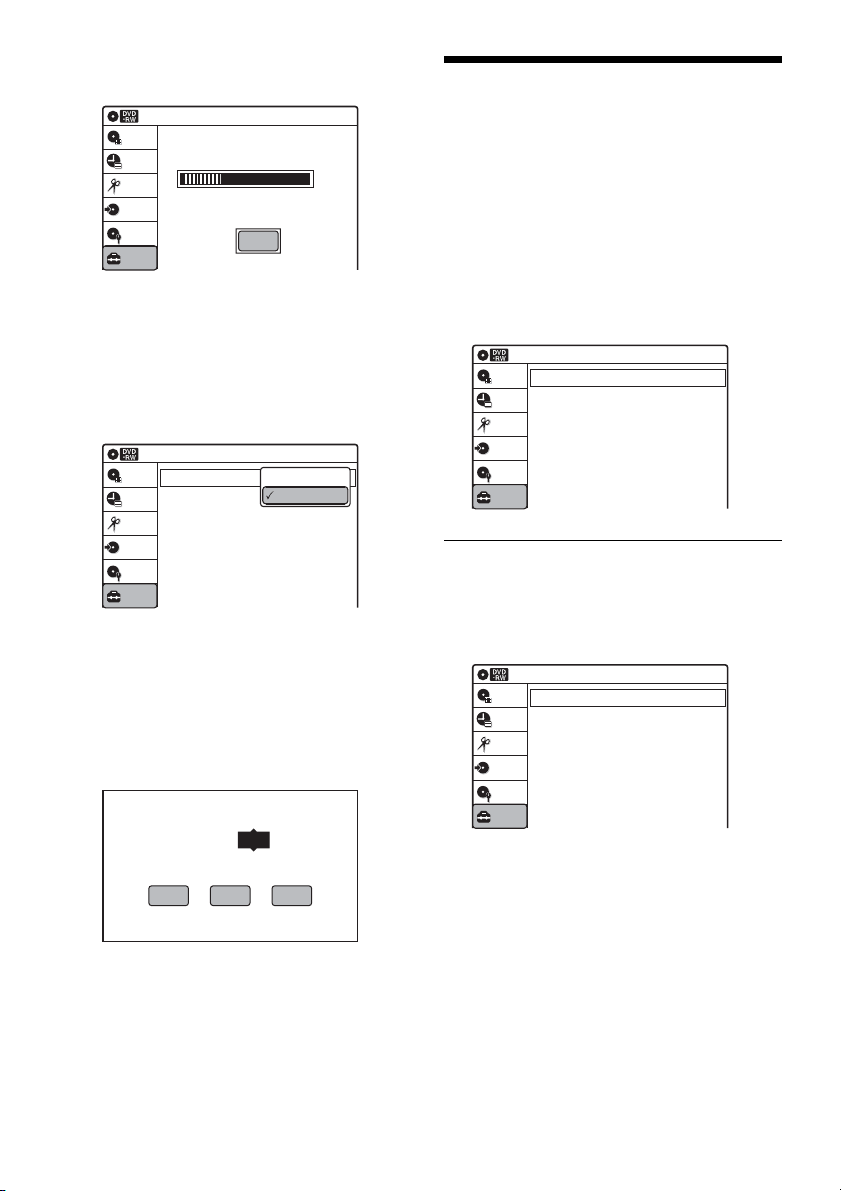
94
All receivable channels are preset in
numerical sequence.
Manual Set
Presets or disables channels manually.
If some channels could not be set using the “Auto
Preset” or “Easy Setup” function, you can set them
manually.
1 Select “Antenna/Cable,” and press ENTER.
“Antenna”: Presets VHF and UHF channels.
“Cable”: Presets cable TV channels.
2 Select an option, and press ENTER.
3 Select “Manual Set,” and press ENTER.
4 Select the channel you want to preset/disable
using M/m or CH +/–, and press ENTER.
5 Select “Add” or “Erase” using </,, and
press ENTER.
To cancel the setting, select “Exit” and press
ENTER.
6 To preset or disable another channel, repeat
steps 4 and 5.
Clock Setting (Clock Set)
The “Clock Set” setup allows you to make clock
settings for the recorder.
1 Press SYSTEM MENU while the recorder is
in stop mode.
2 Select “Setup,” and press ENTER.
3 Select “Clock Set,” and press ENTER.
The “Clock Set” setup appears with the
following options.
Auto (Auto Clock Set)
Turns on the Auto Clock Set function when a channel
in your local area broadcasts a time signal.
1 Select “Auto,” and press ENTER.
2 Select “Clock Set CH,” “Time Zone,” or
“Daylight Saving” and press ENTER.
3 Adjust these settings by pressing M/m and
ENTER.
◆ Clock Set CH
Select a channel that carries a time signal
using M/m.
Use this option if you know of a channel that
carries a time signal. Most PBS member
stations broadcast a time signal. For the fastest
response, select your local PBS station. Leave
the setting at “Auto” to have the recorder
10:10 AM
Auto Preset
Searching for receivable channels: 3
Scanning... Please wait.
Setup
Disc Setting
Edit
Title List
Timer
Dubbing
Stop
10:10 AM
Setup
Disc Setting
Edit
Title List
Timer
Dubbing
Antenna/Cable
Auto Preset
Manual Set
: Antenna
Tuner Preset
Antenna
Cable
Select a channel:
69
EraseAdd
Exit
Clock Set
10:10 AM
Auto
Manual
Setup
Disc Setting
Edit
Title List
Timer
Dubbing
Auto
10:10 AM
Clock Set CH
Time Zone
Daylight Saving
: Auto
: Auto
: Auto
Setup
Disc Setting
Edit
Title List
Timer
Dubbing
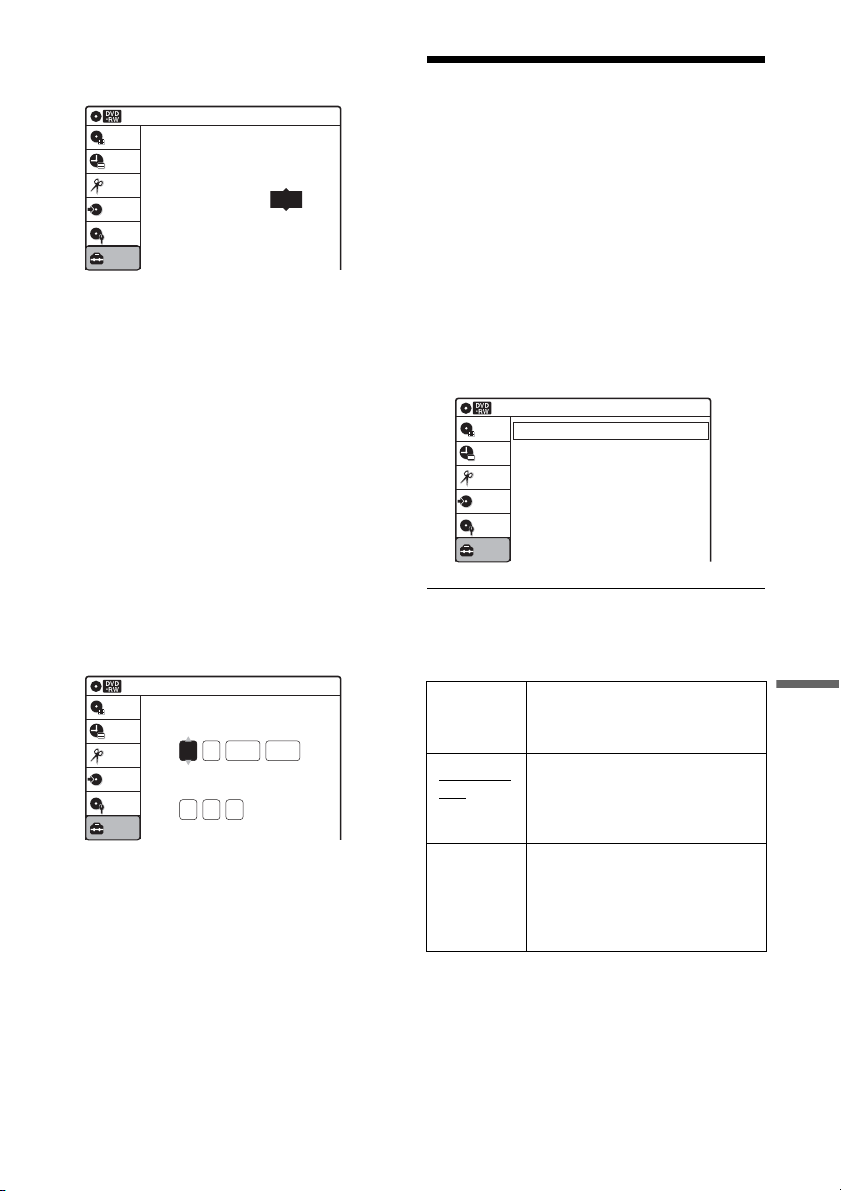
95
Settings and Adjustments
automatically search for a channel that carries
a time signal.
◆ Time Zone
Select the time zone for your area, or select
“Auto” to have the recorder automatically set
your time zone.
The options are:
Auto y Atlantic y Eastern y Central
y Mountain y Pacific y Alaska y
Hawaii y Auto
◆ Daylight Saving
Select “On” or “Off” (standard time), or select
“Auto” to have the recorder automatically set
the daylight saving time.
Manual
If the Auto Clock Set function did not set the clock
correctly for your local area, set the clock
manually.
1 Select “Manual,” and press ENTER.
2 Press M/m to set the month, and press ,.
Set the day, year, hour, minutes, and AM/PM
in sequence. Press </, to select the item to
be set, then press M/m to set the item. The day
of the week is set automatically.
3 Press ENTER to start the clock.
Video Settings (Video)
The “Video” setup allows you to adjust items
related to the image, such as size and color.
Choose the settings according to the type of TV,
tuner, or decoder connected to the recorder.
1 Press SYSTEM MENU while the recorder is
in stop mode.
2 Select “Setup,” and press ENTER.
3 Select “Video,” and press ENTER.
The “Video” setup appears with the following
options. The default settings are underlined.
TV Type
Selects the aspect ratio of the connected TV (4:3
standard or wide).
Clock Set CH
10:10 AM
Select a Channel:
Auto
Setup
Disc Setting
Edit
Title List
Timer
Dubbing
2005
Sat
01 01
10 : 10
AM
10:10 AM
Clock Set
Set the time and date.
Hour Min
AM/PM
Month Day Year
Setup
Disc Setting
Edit
Title List
Timer
Dubbing
16:9 Select this when connecting to a
wide-screen TV or TV with a
wide mode function.
4:3 Letter
Box
Select this when connecting to a
4:3 screen TV. Displays a wide
picture with bands on the upper
and lower portions of the screen.
4:3 Pan
Scan
Select this when connecting to a
4:3 screen TV. Automatically
displays a wide picture on the
entire screen and cuts off the
portions that do not fit.
Video
10:10 AM
TV Type
Black Level
Picture Control
Progressive
: Standard
: Off
: 4:3 Letter Box
: On
Setup
Disc Setting
Edit
Title List
Timer
Dubbing
,continued
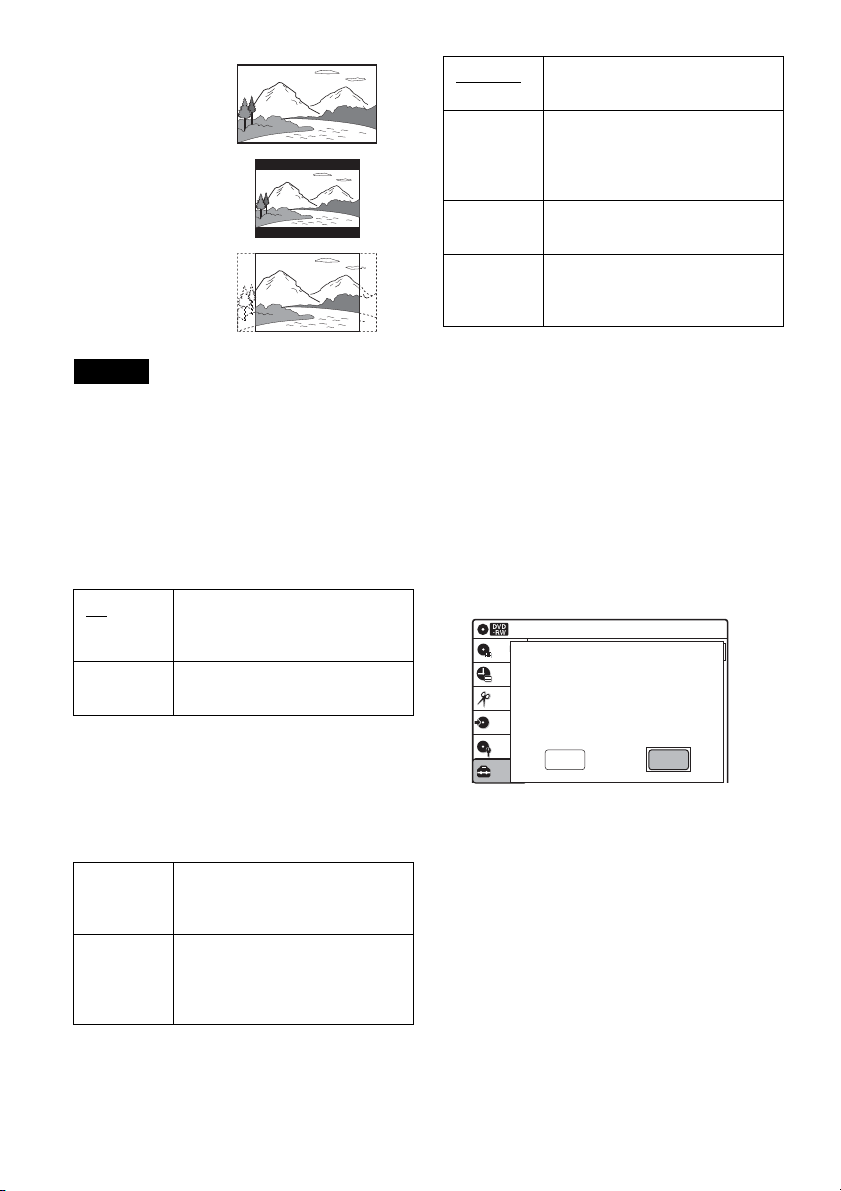
96
Note
Depending on the disc, “4:3 Letter Box” may be selected
automatically instead of “4:3 Pan Scan” or vice versa.
Black Level
Selects the black level (setup level) for the video
signals output from the LINE OUT jacks
(page 15).
This setting is not effective when the
PROGRESSIVE indicator lights up in the front
panel and the recorder outputs progressive signals.
Picture Control
You can adjust the video signal of DVD or
VIDEO CD (with PBC function off) from the
recorder to obtain the picture quality you want.
Select the setting that best suits the program you
are watching.
z Hint
When you watch a movie, “Cinema 1” or “Cinema 2” is
recommended.
Progressive
If your TV accepts progressive (480p) format
signals, you will enjoy accurate color reproduction
and high quality image.
1 Select “Progressive,” and press ENTER.
2 Select “On,” and press ENTER.
3 Follow the instructions appearing on the TV
screen.
1Ensure your TV is (480p) Progressive Scan
capable.
2Connect with Component Video Output
jacks (red/green/blue connections).
See “If your TV has component video input
jacks” on page 16.
3Select [OK] to test your video signal.
4If video signal appears OK, video
connection is complete.
4 Select “OK” and press ENTER.
The PROGRESSIVE indicator on the
recorder lights up.
If picture is distorted, press O RETURN.
Check the connection (page 16).
On Raises the standard black level.
Select this when the picture
appears too dark.
Off Sets the black level of the output
signal to the standard level.
Dynamic 1 Produces a bold dynamic picture
by increasing the picture contrast
and the color intensity.
Dynamic 2 Produces a more dynamic picture
than Dynamic 1 by further
increasing the picture contrast
and the color intensity.
16:9
4:3 Letter Box
4:3 Pan Scan
Standard Off
Displays a standard picture.
Cinema 1 White colors become brighter
and black colors become richer,
and the color contrast is
increased.
Cinema 2 Enhances details in dark areas by
increasing the black level.
Personal Adjusts “Contrast,” “Brightness,”
“Color,” and “Hue” using M/m/
</,.
Video
10:10 AM
TV Type
Black Level
Picture Control
Progressive
: Standard
: Off
: 4:3 Pan Scan
: On
Setup
Disc Setting
Edit
Title List
Timer
Dubbing
OK Cancel
Progressive Scan Output
1) Ensure your TV is (480P) progressive scan capable.
2) Connect with component video output jacks.
(red/green/blue connections)
3) Select [OK] to test your video signal.
4) If video signal appears OK,
video connection is complete.
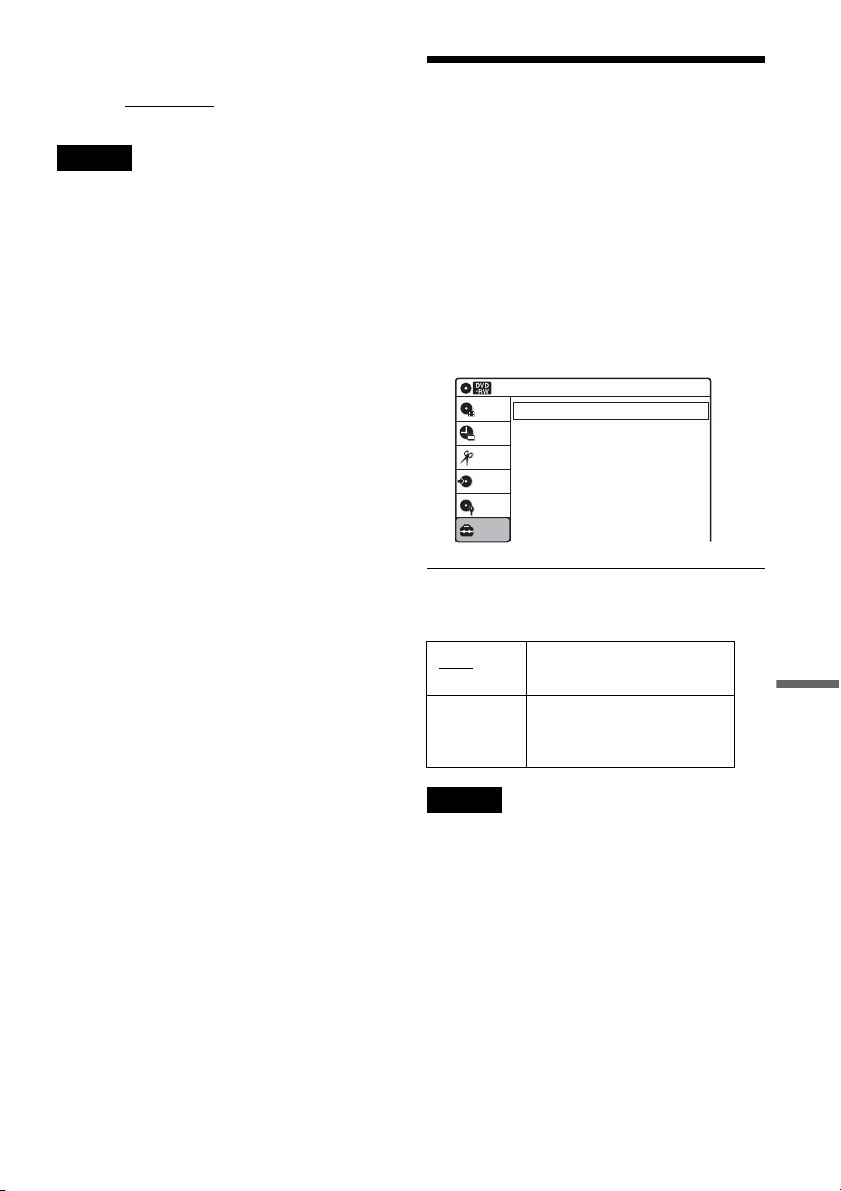
97
Settings and Adjustments
z Hint
The “Progressive” setting can be canceled by pressing
X PAUSE on the recorder
continuously for five seconds
or more, or selecting “Off” in step 2.
Note
If you select progressive signals when you connect the
recorder to a TV that cannot accept the signal in
progressive format, the image quality will deteriorate. In
this case, set “Progressive” to “Off.”
Audio Settings (Audio)
The “Audio” setup allows you to adjust the sound
according to the playback and connection
conditions.
1 Press SYSTEM MENU while the recorder is
in stop mode.
2 Select “Setup,” and press ENTER.
3 Select “Audio,” and press ENTER.
The “Audio” setup appears with the following
options. The default settings are underlined.
Tuner Audio
Selects the sound to be recorded.
Note
If no SAP sound is received, the main sound is recorded
regardless of the setting.
Digital Out
The following setup items switch the method of
outputting audio signals when you connect a
component such as an amplifier (receiver) with a
digital input jack.
For connection details, see “Connecting to Your
AV Amplifier (Receiver)” on page 17.
Press ENTER, and select “Dolby Digital Output”
or “DTS.”
Main Records only the main
sound.
SAP Records only the SAP
(Second Audio Program)
sound.
10:10 AM
Tuner Audio
Digital Out
Downmix
Audio DRC
Scan Audio
DV Audio Input
Line Audio Input
: Main
: Dolby Surround
: Standard
: On
: Stereo 1
: Stereo
Audio
Setup
Disc Setting
Edit
Title List
Timer
Dubbing
,continued
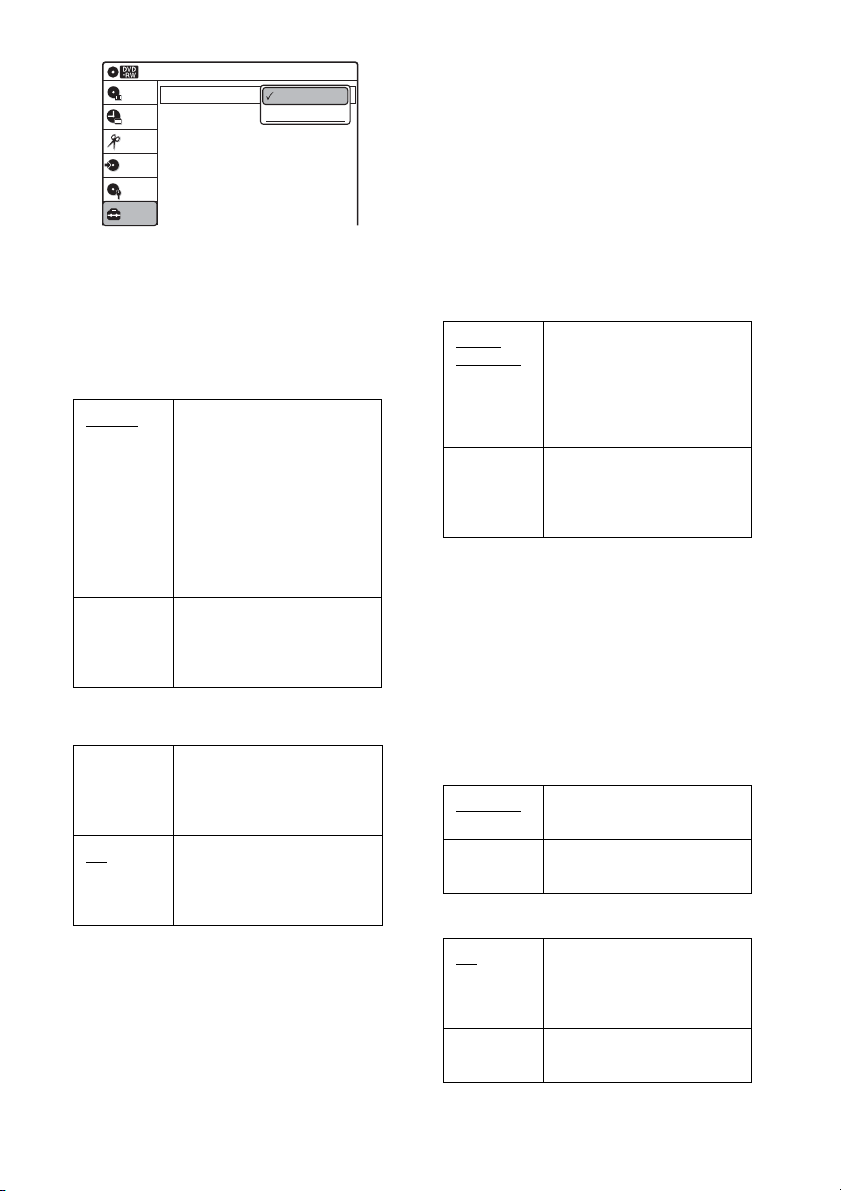
98
If you connect a component that does not accept
the selected audio signal, a loud noise (or no
sound) will come out from the speakers, and may
affect your ears or cause speaker damage.
• Dolby Digital Output (DVDs only)
Selects the type of Dolby Digital signal.
• DTS (DVD VIDEOs only)
Selects whether or not to output DTS signals.
Downmix (DVDs only)
Switches the method for mixing down to two
channels when you play a DVD which has rear
sound elements (channels) or is recorded in Dolby
Digital format. For details on the rear signal
components, see “A Connecting to audio L/R
jacks” on page 18. This function affects the output
of the following jacks:
– LINE OUT (AUDIO L/R) jacks
– AUDIO OUT L/R jacks
– DIGITAL AUDIO OUT (OPTICAL or
COAXIAL) jack when “Dolby Digital Output”
is set to “D-PCM” (page 97).
Audio DRC (Dynamic Range Control) (DVDs
only)
Makes the sound clear when the volume is turned
down when playing a DVD that conforms to
“Audio DRC.” This affects the output from the
following jacks:
– LINE OUT (AUDIO L/R) jacks
– AUDIO OUT L/R jacks
– DIGITAL AUDIO OUT (OPTICAL or
COAXIAL) jack only when “Dolby Digital
Output” is set to “D-PCM” (page 97).
Scan Audio (DVDs only)
D-PCM Select this when the recorder
is connected to an audio
component lacking a built-in
Dolby Digital decoder. You
can select whether the
signals conform to Dolby
Surround or not by making
adjustments to the
“Downmix” item in “Audio”
setup (page 98).
Dolby
Digital
Select this when the recorder
is connected to an audio
component with a built-in
Dolby Digital decoder.
On Select this when the recorder
is connected to an audio
component with a built-in
DTS decoder.
Off
Select this when the recorder
is connected to an audio
component without a built-in
DTS decoder.
10:10 AM
Dolby Digital Output
DTS
Digital Out
: 4:3 Letter Box
On
Setup
Disc Setting
Edit
Title List
Timer
Dubbing
D-PCM
Dolby Digital
Dolby
Surround
Normally select this
position.
Multi-channel audio signals
are output to two channels
for enjoying surround
sounds.
Normal Multi-channel audio signals
are downmixed to two
channels for use with your
stereo.
Standard
Normally select this
position.
Wide
Range
Gives you the feeling of
being at a live performance.
On
Outputs audio signals during
FF1 fast-forward of a DVD
disc with Dolby Digital
soundtracks.
Off No sound is output during
FF1 fast-forward.
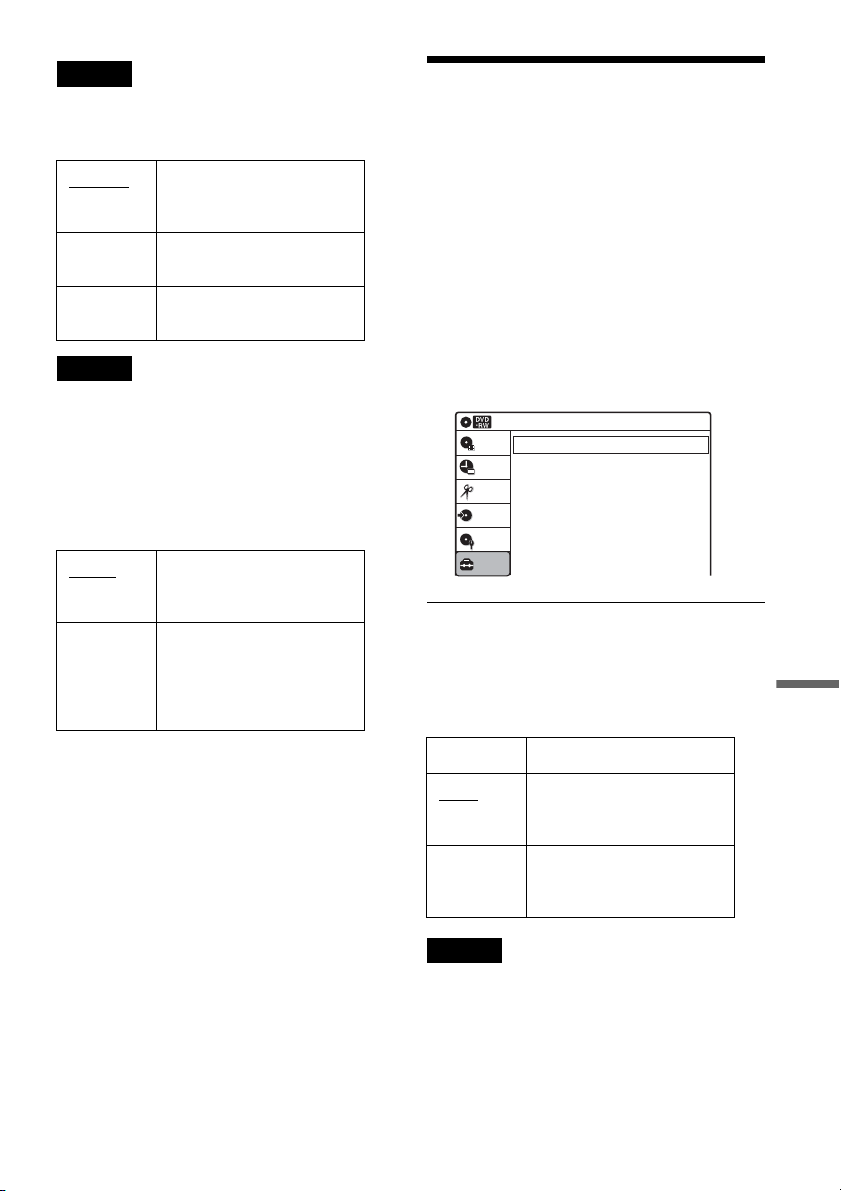
99
Settings and Adjustments
Note
Sound will be interrupted during Scan Audio.
DV Audio Input
Note
Select “Stereo 2” or “Mix” if you have added a second
audio channel when recording with your digital video
camera.
Line Audio Input
When recording from equipment connected to the
LINE 1 IN or LINE 2 IN jack to a DVD disc in this
recorder, select line input audio.
z Hint
Audio selected with the connected equipment is recorded
on a disc other than DVD-RWs(VR mode).
Recording and VCR Settings
(Features)
The “Features” setup allows you to change the
tape length, auto play and auto repeat settings.
1 Press SYSTEM MENU while the recorder is
in stop mode.
2 Select “Setup,” and press ENTER.
3 Select “Features,” and press ENTER.
The “Features” setup appears with the
following options. The default settings are
underlined.
DVD Auto Chapter
Automatically divides a recording (a title) into
chapters by inserting chapter markings at
specified intervals. The markings are inserted
while the recording is being made.
Note
Actual intervals may differ depending on the size of the
recording. The selected setting should be regarded as an
approximate chapter interval.
Stereo 1 Records original sound only.
Normally select this when
dubbing a DV format tape.
Stereo 2 Records additional audio
only.
Mix Records both original and
additional sounds.
Stereo
Records stereo sound only.
Select this for discs other
than DVD-RWs (VR mode).
Main/Sub Records the two different
soundtracks on DVD-RWs
(VR mode). You can select
either soundtrack when
playing back the disc.
Off No chapter mark is inserted.
5 Min
Inserts chapter marks at
approximately 5 minute
intervals.
15 Min Inserts chapter marks at
approximately 15 minute
intervals.
Setup
Disc Setting
Edit
Title List
Timer
Dubbing
10:10 AM
DVD Auto Chapter
Format DVD
VCR Function
Synchro Recording
Features
: 5 Min
: VR
: to DVD
,continued
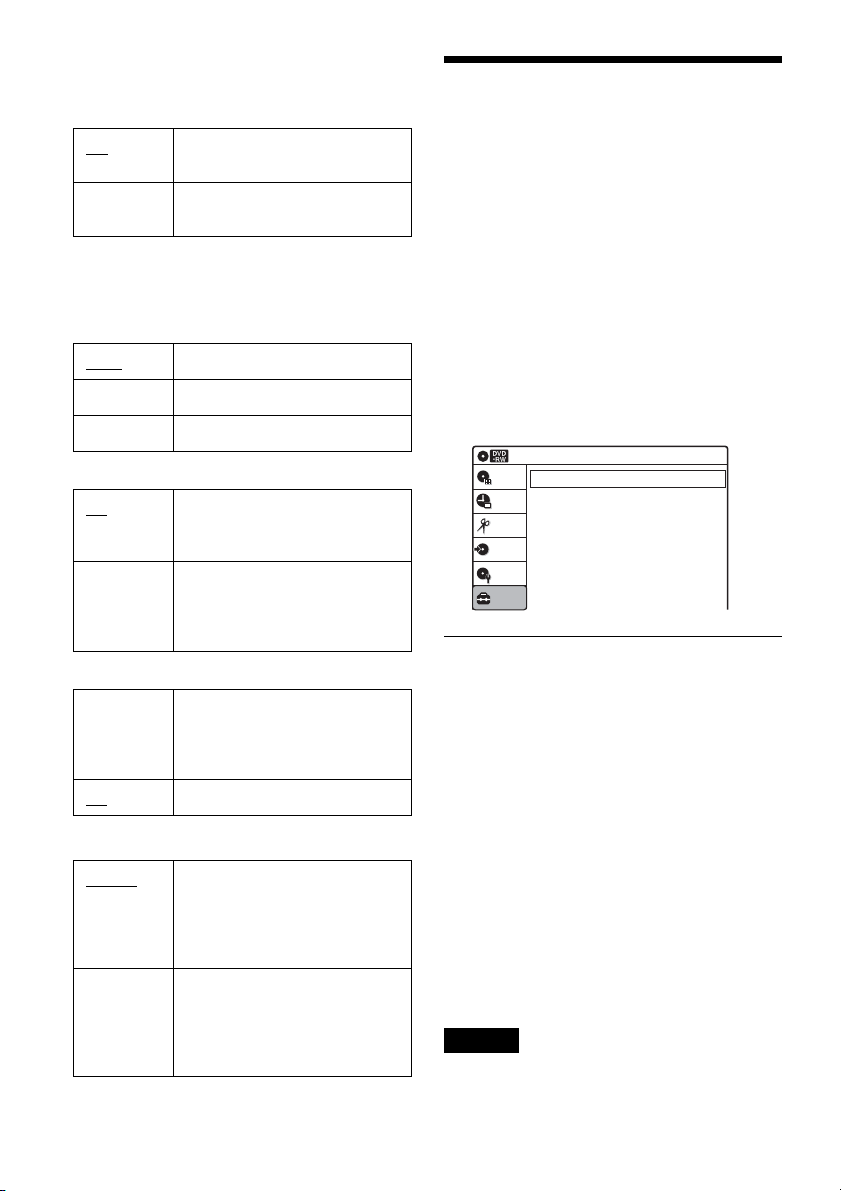
100
Format DVD (DVD-RWs only)
Selects the format for an unused DVD-RW, when
first inserted.
VCR Function
Press ENTER and select “Tape Length,” “Auto
Play,” or “Auto Repeat.”
◆ Tape Length
◆ Auto Play
◆ Auto Repeat
Synchro Recording
Language, Parental Control
Settings/Factory Settings
(Options)
The “Options” setup allows you to set up other
operational settings.
1 Press SYSTEM MENU while the recorder is
in stop mode.
2 Select “Setup,” and press ENTER.
3 Select “Options,” and press ENTER.
The “Options” setup appears with the
following options. The default settings are
underlined.
Language
◆ OSD (On-Screen Display)
Switches the display language on the screen.
◆ Disc Menu (DVD VIDEOs only)
Switches the language for the DVD menu.
◆ Audio (DVD VIDEOs only)
Switches the language of the soundtrack.
When you select “Original,” the language given
priority in the disc is selected.
◆ Subtitle (DVD VIDEOs only)
Switches the language of the subtitles recorded on
the disc.
When you select “Auto,” the subtitle language
changes according to the language you selected
for the soundtrack. See page 118 for an
explanation of the language abbreviations.
Note
If you select a language in “Disc Menu,” “Subtitle,” or
“Audio” that is not recorded on the DVD VIDEO, one of
the recorded languages will be automatically selected.
VR Automatically formats the disc in
VR mode.
Video Automatically formats the disc in
Video mode.
T120
For T-120 or shorter length tapes.
T160 For T-160 length tapes.
T180 For T-180 or longer length tapes.
On
Starts playback automatically,
when you insert a tape with its
safety tab removed.
Off Turns off Auto Play. You need to
press H PLAY to start
playback, even if you insert a tape
with its safety tab removed.
On Plays back a tape repeatedly. The
VCR rewinds the tape to the
beginning and restarts playback
automatically.
Off
Turns off Auto Repeat.
to DVD
Sets the recorder to record
programs from connected
equipment that has a timer
function (such as a satellite tuner)
to a DVD disc.
to Video Sets the recorder to record
programs from connected
equipment that has a timer
function (such as a satellite tuner)
to a VHS tape.
Language
Parental
Front Display
Command Mode
Factory Setting
: Auto
: DVD 3
10:10 AM
Options
Setup
Disc Setting
Edit
Title List
Timer
Dubbing
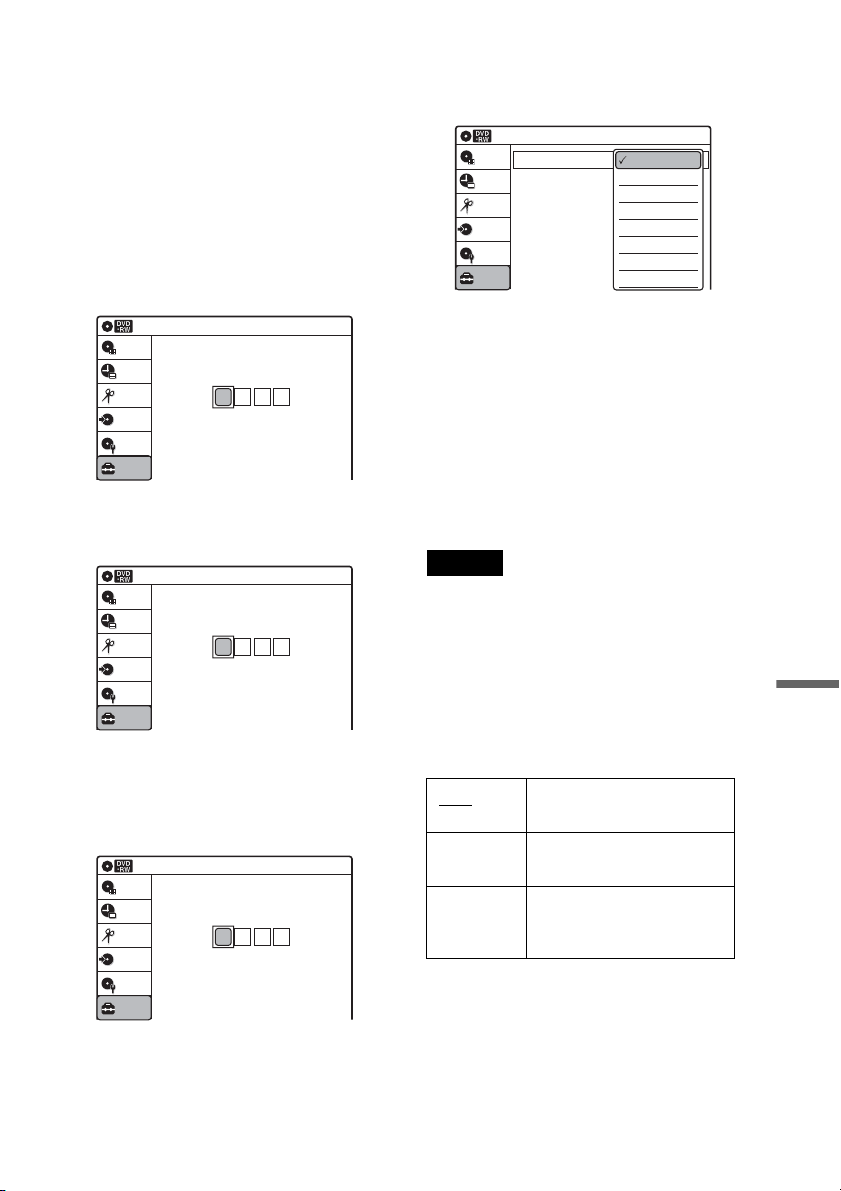
101
Settings and Adjustments
Parental (DVD VIDEOs only)
Playback of some DVD VIDEOs can be limited
according to a predetermined level, such as the age
of the users. Scenes may be blocked or replaced
with different scenes.
1 After step 3 above, select “Parental,” and
press ENTER.
• If you have not entered a password, the
display for registering a new password
appears.
Enter a 4-digit password using the number
buttons.
The display for confirming the password
appears.
Re-enter the password.
• When you have already registered a
password, the display for entering the
password appears.
Enter a 4-digit password using the number
buttons.
2 Select “Rating Level,” and press ENTER.
The selection items for “Rating Level” are
displayed.
The lower the value, the stricter the limitation.
3 Select the level, and press ENTER.
The Parental setting is complete.
• To cancel the Parental setting for the disc,
set “Rating Level” to “Off” in step 3.
• To change the password, select “Change
Password” in step 2, and press ENTER.
When the display for registering a password
appears, enter a new four-digit password
using the number buttons.
Notes
• If you forget your password, select “Factory Setting” of
“Options” in the “Setup” display.
• Playback of discs without the Parental Control function
cannot be limited on this recorder.
• Depending on the disc, you may be asked to change the
Parental Control level while playing the disc. In this
case, enter your password, then change the level.
Front Display
Adjusts the lighting of the front panel display.
10:10 AM
Create the password.
Create the password.
Setup
Disc Setting
Edit
Title List
Timer
Dubbing
10:10 AM
Confirm the password.
Create the password.
Setup
Disc Setting
Edit
Title List
Timer
Dubbing
10:10 AM
Enter the password.
Enter the password.
Setup
Disc Setting
Edit
Title List
Timer
Dubbing
Auto Adjusts to low lighting when
power is off.
Bright Maintains bright lighting
when power is off.
Dimmer Maintains low lighting
regardless of whether power
is on or off.
Rating Level
Change Password
: On: Level 8 (Adults)
10:10 AM
Parental
Setup
Disc Setting
Edit
Title List
Timer
Dubbing
Off
Level 8 (Adults)
Level 7
Level 6
Level 5
Level 4
Level 3
Level 2
,continued
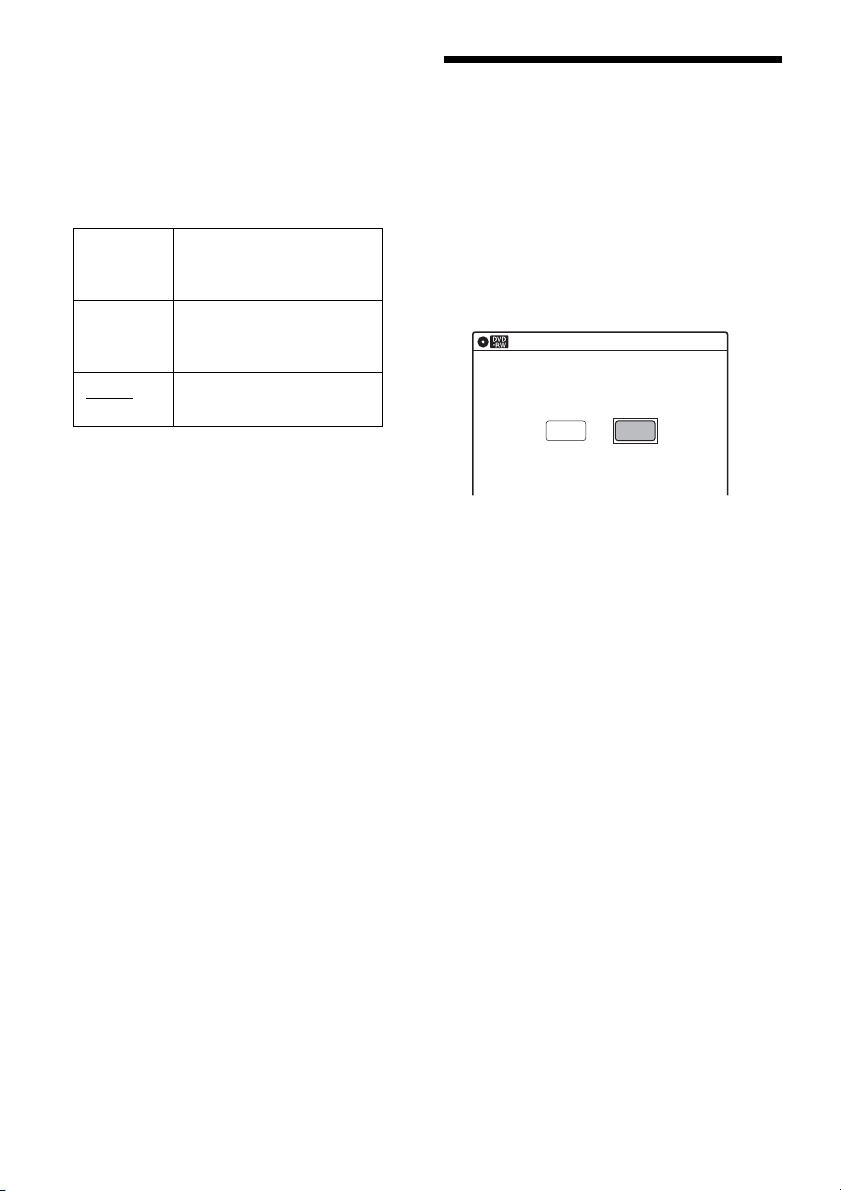
102
Command Mode
Changes the command mode of this recorder if
other DVD equipment is assigned the same
command mode. Be sure to match the
COMMAND MODE switch on the remote to the
setting made here. For details, see “If you have a
Sony DVD player or more than one Sony DVD
recorder” on page 24.
Factory Setting
Allows you to return the setup settings to their
default settings. Note that all of your previous
settings will be lost.
1 After step 3 above, select “Factory Setting,”
and press ENTER.
2 Select “Start,” and press ENTER.
The setup settings return to their default
settings.
3 Press ENTER when "Finish" appears.
The power automatically turns off and then on
again, and the recorder is reset to the factory
settings.
When the “Easy Setup” display appears,
follow the instructions for Easy Setup
(page 22) from step 4.
Easy Setup
(Resetting the Recorder)
Select this to run the Easy Setup program.
1 Press SYSTEM MENU while the recorder is
in stop mode.
2 Select “Setup,” and press ENTER.
3 Select “Easy Setup,” and press ENTER.
4 Select “Start,” and press ENTER.
5 Follow the instructions for Easy Setup
(page 22) from step 5.
DVD 1 Select this if the default
command mode conflicts
with other DVD equipment.
DVD 2 Select this if the default
command mode conflicts
with other DVD equipment.
DVD 3
The default command mode
of the recorder.
10:10 AM
Easy Setup
Follow the guide to make initial settings.
Before you start,
check that you have made all necessary connections.
Start Cancel

103
Additional Information
Additional Information
Troubleshooting
If you experience any of the following difficulties
while using the recorder, use this troubleshooting
guide to help remedy the problem before
requesting repairs. Should any problem persist,
consult your nearest Sony dealer.
Power
The power does not turn on.
, Check that the AC power cord is connected
securely.
Picture
There is no picture.
, Re-connect all connecting cords securely.
, The connecting cords are damaged.
, Check the connection to your TV (page 12).
, Switch the input selector on your TV (such as to
“VIDEO”) so that the signal from the recorder
appears on the TV screen.
Picture noise appears.
, Check the connection to your TV (page 12) and
switch the input selector on your TV so that the
signal from the recorder appears on the TV
screen.
, If the picture output signal from your recorder
passes through your VCR to get to your TV, or if
you are connected to a combination TV/VIDEO
player, the copy-protection signal applied to
some DVD programs could affect picture
quality. If you still experience this problem even
when you connect your recorder directly to your
TV, try connecting your recorder to your TV’s
S VIDEO input.
, You have set the recorder to progressive format
(the PROGRESSIVE indicator lights up) even
though your TV cannot accept the progressive
signal. In this case, set “Progressive” to “Off” in
“Video” setup (page 96).
, Even if your TV is compatible with progressive
format (480p) signals, the image may be affected
when you set the recorder to progressive format.
In this case, set “Progressive” to “Off” in
“Video” setup (page 96).
TV program reception does not fill the screen.
, Set the channel manually in “Tuner Preset” setup
(page 93).
, Select the correct source using the INPUT
SELECT button, or select a channel of any TV
program using the CH +/– buttons.
TV program pictures are distorted.
, Reorient the TV antenna.
, Adjust the picture (see the TV’s instruction
manual).
, Place the recorder and TV farther apart.
, Place the TV and any bunched antenna cables
farther apart.
TV channels cannot be changed.
, The channel is disabled (page 94).
, A timer recording started, which cause the
channels to change.
The picture from equipment connected to the
recorder’s input jack does not appear on the
screen.
, If the equipment is connected to the LINE 1 IN
jack, select “LINE1” in the front panel display by
pressing INPUT SELECT.
If the equipment is connected to the LINE 2 IN
jacks, select “LINE2” in the front panel display
by pressing INPUT SELECT.
The playback picture or TV program from the
equipment connected through the recorder is
distorted.
, If the playback picture output from a DVD
player, VCR, or tuner goes through your recorder
before reaching your TV, the copy-protection
signal applied to some programs could affect
picture quality. Disconnect the playback
equipment in question and connect it directly to
your TV.
The picture does not fill the screen.
, Set “TV Type” in “Video” setup to fit the aspect
ratio of your TV (page 95).
The picture does not fill the screen, even
though the aspect ratio is set in “TV Type” in
“Video” setup.
, The aspect ratio of the disc is fixed on your DVD.
,continued

104
Sound
There is no sound.
, Re-connect all connections securely.
, The connecting cord is damaged.
, The input source setting on the amplifier or the
connection to the amplifier is incorrect.
, The recorder is in reverse play, fast-forward,
slow motion, or pause mode.
, If the audio signal does not come through the
DIGITAL AUDIO OUT (OPTICAL or
COAXIAL) jack, check the “Audio” setup
settings (page 97).
Sound is noisy.
, When playing a CD with DTS soundtracks, noise
will come from the LINE OUT (AUDIO L/R) or
AUDIO OUT L/R jacks (page 35).
The sound volume is low.
, The sound volume is low on some DVDs.
The sound volume may improve if you set
“Audio DRC” in “Audio” setup to “Wide
Range” (page 98).
An alternate audio track cannot be recorded or
played.
, Second Audio Program (SAP) is not available
for all programs. The program you are recording
does not have a second audio program.
, You have set “Tuner Audio” in “Audio” setup to
“Main” (page 97). Select “SAP” to record
alternate audio programs.
, If you have connected an AV amplifier to the
DIGITAL AUDIO OUT (OPTICAL or
COAXIAL) jack and want to change the audio
track for a DVD-RW (VR mode) during
playback, set “Dolby Digital Output” in “Audio”
setup to “D-PCM” (page 97).
, When recording to a disc other than DVD-RWs
(VR mode), set “Line Audio Input” in “Audio”
setup to “Stereo.”
DVD Playback
The disc does not play.
, The disc is upside down. Insert the disc with the
labeled side facing up.
, The disc is not correctly inserted.
, Moisture has condensed inside the recorder.
Remove the disc and leave the recorder turned on
for about half an hour until the moisture
evaporates.
, If the disc was recorded on another recorder, the
recorder cannot play the disc if it was not
finalized (page 86).
The disc does not start playback from the
beginning.
, Resume play was activated (page 36).
, You have inserted a disc whose Title menu or
DVD menu automatically appears on the TV
screen when it is first inserted. Use the menu to
start playback.
The recorder starts playing the disc
automatically.
, The DVD VIDEO features an auto playback
function.
Playback stops automatically.
, If the disc has an auto pause signal, the recorder
stops playback at the auto pause signal.
Some functions such as Stop, Search, or Slow-
motion Play cannot be performed.
, Depending on the disc, you may not be able to do
some of the operations above. See the instruction
manual supplied with the disc.
, While the recorder is reading disc information,
playback operations will not work.
The language for the soundtrack cannot be
changed.
, Multilingual tracks are not recorded on the disc
being played.
, The DVD VIDEO prohibits the changing of the
language for the soundtrack.
, Try changing the language using the DVD
VIDEO’s menu.
105
Additional Information
The subtitle language cannot be changed or
turned off.
, Multilingual subtitles are not recorded on the
DVD VIDEO.
, The DVD VIDEO prohibits changing of the
subtitles.
, Try changing the subtitle using the DVD
VIDEO’s menu.
, The subtitles cannot be changed for the titles
recorded on this recorder.
The angles cannot be changed.
, Multi-angles are not recorded on the DVD
VIDEO being played.
, You are trying to change the angles when “ ”
does not appear in the front panel display
(page 33).
, The DVD VIDEO prohibits changing angles.
, Try changing the angle using the DVD VIDEO’s
menu.
, The angles cannot be changed for the titles
recorded on this recorder.
The MP3 audio track cannot be played.
, The DATA CD is not recorded in the MP3
format that conforms to ISO9660 Level 1/
Level 2.
, The MP3 audio track does not have the extension
“.MP3.”
, The data is not formatted in MP3 even though it
has the extension “.MP3.”
, The data is not MPEG1 Audio Layer 3 data.
, The recorder cannot play audio tracks in
MP3PRO format.
The JPEG image file cannot be played.
, The DATA CD is not recorded in a JPEG format
that conforms to ISO9660 Level 1/Level 2.
, The JPEG image file does not have the extension
“.JPG” or “.JPEG.”
, The data is not formatted in JPEG even though it
has the extension “.JPG” or “JPEG.”
, The length or width of the image is more than
4,720 dots.
The title of the MP3 audio album/ track or JPEG
image folder/file is not correctly displayed.
, The recorder can only display numbers and
alphabet. Other characters are displayed as
asterisks.
DVD Recording/Timer recording/
Editing
The channel cannot be changed from the
channel you are recording.
, Set the TV’s input source to “TV.”
Recording does not start immediately after
z REC is pressed.
, Operate the recorder only after “LOAD,”
“FORMAT,” or “INF WRITE” disappears from
the front panel display.
Nothing was recorded even though the timer
setting is set correctly.
, There was a power failure during recording.
, Disconnect the AC power cord from the AC
outlet, and connect it again.
, The program contains copy protection signals
that restrict copying.
, The program that starts first has priority and the
second program starts recording only after the
first program has finished. If the programs start
at the same time, the program listed first in the
menu has priority (page 49).
, There is no DVD inserted in the recorder.
, There is not enough disc space for the recording.
Recording does not stop immediately after
x STOP is pressed.
, It will take a few seconds for the recorder to input
disc data before recording can stop.
Timer recording is not complete or did not start
from the beginning.
, There was a power failure during recording. If
the power recovers when there is a timer
recording, the recorder resumes recording.
The clock is automatically set by EDS, but it is
reset during a power failure when the EDS signal
cannot be received (page 94).
, The program that starts first has priority and the
second program starts recording only after the
first program has finished. If the programs start
at the same time, the program listed first in the
menu has priority (page 49).
, There is not enough disc space for the recording.
,continued

106
The c indicator flashes after timer recording is
set.
, Insert a recordable disc (page 28).
, Insert a disc with enough space for the recording.
, The disc has 99 or more titles, which prevents
further recording.
, The disc is protected (page 66).
The SYNCHRO REC indicator flashes after
Synchro-Recording is set.
, Insert a recordable disc (page 28).
, Insert a disc with enough space for the recording.
, The disc has 99 or more titles, which prevents
further recording.
, The disc is protected (page 66).
Contents previously recorded were erased.
, Data that has been recorded on a DVD with a PC
will be erased from the disc when the disc is
inserted.
VCR Playback
The playback picture does not appear on the TV
screen.
,
Make sure the TV is set to the channel for the VCR.
If a monitor is used, set it to video input.
The picture is not clear.
, Adjust the tracking by the TRACKING +/–
buttons.
, The video heads are dirty (see page 108). Clean
the video heads using a Sony video head cleaning
cassette. If a Sony cleaning cassette is not
available in your area, have the heads cleaned at
your nearest Sony dealer (a standard service fee
will be charged). Do not use a commercially
available liquid type cleaning cassette, as it may
damage the video heads.
, The video heads may have to be replaced.
Consult your local Sony dealer for more
information.
, The tape is defective.
The picture rolls vertically during picture
search.
, Adjust the vertical hold control on the TV or
monitor.
The picture has no sound.
, The tape is defective.
, Check the audio cord connection.
A tape cannot be inserted.
, Check that a tape is not already in the tape
compartment.
VCR Recording
The channel cannot be changed from the one
you are recording.
, Set the TV’s input source to “TV.”
No TV program appears on the TV screen.
,
Make sure the TV is set to the channel for the VCR.
If a monitor is used, set it to video input.
,
Select the correct source with the CH +/– or
INPUT SELECT buttons. Select a channel number
when recording TV programs; select “LINE1” or
“LINE2” when recording from other equipment.
TV reception is poor.
, Adjust the TV antenna.
The tape starts playing as soon as it is
inserted.
, The safety tab has been removed. To record on
this tape, cover the tab hole.
The tape is ejected when z REC is pressed.
, Check that the safety tab has not been removed.
Nothing happens when z REC is pressed.
, Make sure the tape is not at its end.
VCR Timer recording
The timer does not operate.
, Check that the clock is set.
, Make sure a tape has been inserted.
, Check that the safety tab has not been removed.
, Make sure the tape is not at its end.
, Make sure a program has been set for timer
recording.
, Make sure the timer settings are set for a future
time.
, Check that the cable box is turned on.
, “- -:- -“ appears in the front panel display if the
recorder is disconnected from the wall outlet for
more than one minute. Reset the clock and timer.

107
Additional Information
, Turn the power off and unplug the AC power
cord.
, The program that starts first has priority and the
second program starts recording only after the
first program has finished. If the programs start
at the same time, the program listed first in the
menu has priority (page 77).
The c indicator flashes after timer recording is
set.
, Check that the safety tab has not been removed.
The SYNCHRO REC indicator flashes after
Synchro-Recording is set.
, Check that the safety tab has not been removed.
Display
Menus or displays do not appear on the
screen.
, While the recorder is reading disc information,
the System Menu, TOOLS menu, or information
display will not appear.
“- -:- -” appears in the front panel display.
, Set the clock again (page 94).
The c indicator is flashing.
, The disc does not have enough space.
, Insert a recordable disc or a tape with its safety
tab in place inside the recorder.
Remote control
The remote does not function.
, Batteries are weak.
, The remote is too far from the recorder.
, The remote’s manufacturer code returned to the
default setting when you replaced the batteries.
Reset the code (page 19).
, Turn on the recorder.
, The remote is not pointed at the remote sensor on
the recorder.
, Different command modes are set for the
recorder and remote. Set the same command
mode (page 24).
, Slide the TV/DVD·VIDEO switch to
DVD·VIDEO (page 20).
Other Sony equipment responds to the remote.
, The same command mode is set for both the
Sony DVD equipment. Set a different command
mode for the recorder (page 24).
Others
The recorder does not operate properly.
, Restart the recorder. Press down "/1 on the
recorder for more than ten seconds until “SONY
DVD” appears in the front panel display.
, When static electricity, etc., causes the recorder
to operate abnormally, turn off the recorder and
wait until the clock appears in the front panel
display. Then, unplug the recorder and after
leaving it off for a while, plug it in again.
The disc tray does not open after you press
Z OPEN/CLOSE.
, It may take a few seconds for the disc tray to
open after you have recorded or edited a disc.
This is because the recorder is adding disc data to
the disc.
The disc tray does not open and “TRAY
LOCKED” appears in the front panel display.
, Contact your Sony dealer or local authorized
Sony service facility.
“CAN NOT RECORD BECAUSE OF HIGH TEMP.”
appears in the front panel display.
, Check that the vent on the rear of the recorder is
not blocked. Then, turn off the recorder, wait
until the clock appears in the front panel display,
and disconnect the AC power cord. Leave the
recorder off for a while, then re-connect the
power cord, and press "/1 on the recorder.
“CHILD LOCK” appears in the front panel
display.
, The recorder is locked. Cancel the Child Lock
(page 37).
Control by AV mouse is not possible.
, Some satellite receivers may not support AV
mouse.
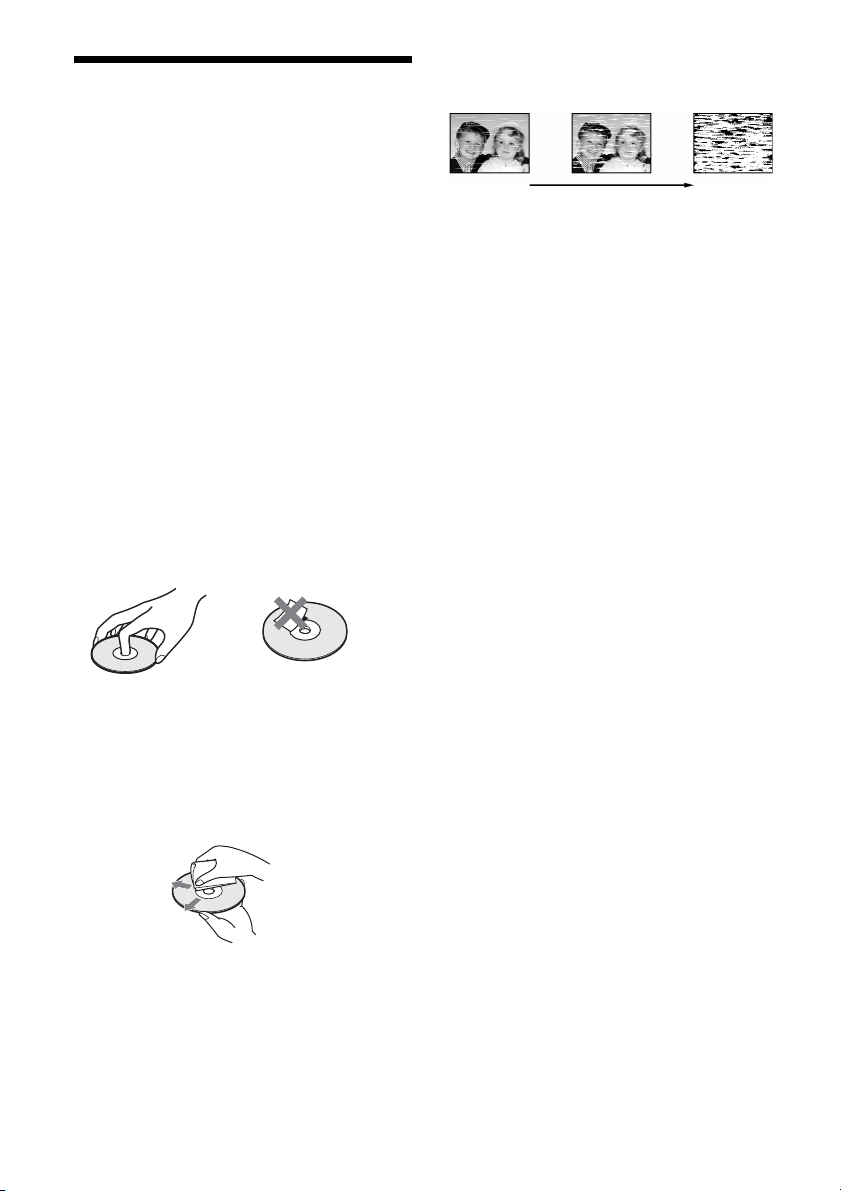
108
Notes About This Recorder
On adjusting volume
Do not turn up the volume while listening to a
section with very low level inputs or no audio
signals. If you do, the speakers may be damaged
when a peak level section is played.
On cleaning
Clean the cabinet, panel, and controls with a soft
cloth slightly moistened with a mild detergent
solution. Do not use any type of abrasive pad,
scouring powder or solvent such as alcohol or
benzine.
On cleaning discs
Do not use a commercially available cleaning
disc. It may cause a malfunction.
Notes about the discs
• To keep the disc clean, handle the disc by its
edge. Do not touch the surface. Dust,
fingerprints, or scratches on the disc may cause
it to malfunction.
• Do not expose the disc to direct sunlight or heat
sources such as hot air ducts, or leave it in a car
parked in direct sunlight as the temperature may
rise considerably inside the car.
• After playing, store the disc in its case.
• Clean the disc with a cleaning cloth. Wipe the
disc from the center out.
• Do not use solvents such as benzine, thinner,
commercially available disc/lens cleaners, or
anti-static spray intended for vinyl LPs.
• Do not use the following discs.
– A disc that has a non-standard shape (e.g.,
card, heart).
– A disc with a label or sticker on it.
– A disc that has cellophane tape or sticker
adhesive on it.
Symptoms caused by contaminated video
heads
When the video heads are dirty, clean the video
heads using a Sony video head cleaning cassette.
If a Sony cleaning cassette is not available in your
area, have the heads cleaned at your nearest Sony
dealer (a standard service fee will be charged). Do
not use a commercially available liquid type
cleaning cassette, as it may damage the video
heads.
initial
contamination
terminal

109
Additional Information
Specifications
System
[DVD recorder section]
Laser
Semiconductor laser
Audio recording format
Dolby Digital
Video recording format
MPEG Video
[VCR section]
Format
VHS NTSC standard
Video recording system
Rotary head helical scanning FM system
Video heads
Double azimuth four heads
Video signal
NTSC color, EIA standards
Tape speed
SP: 33.35 mm/s (1
3
/8 inches/s)
EP: 11.12 mm/s (
7
/16 inches/s)
LP: 16.67 mm/s (
11
/16 inches/s),
playback only
Maximum recording/playback time
8 hrs. in EP mode (with T-160 tape)
Rewind time
Approx. 1 min (with T-120 tape)
[Tuner section]
Channel coverage
VHF 2 to 13
UHF 14 to 69
CATV A-8 to A-1, A to W, W+1 to W+84
Antenna
75-ohm antenna terminal for VHF/UHF
[Timer section]
Clock
Quartz locked
Timer indication
12-hour cycle
Timer setting
12 programs in total (max.)
Inputs and outputs
LINE 1 IN and LINE 2 IN
VIDEO IN, phono jack (1 each)
Input signal: 1 Vp-p, 75 ohms, unbalanced,
sync negative
AUDIO IN, phono jacks (2 each)
Input level: 327 mVrms
Input impedance: more than 47 kilohms
LINE 2 IN
S VIDEO, 4-pin, mini-DIN jack
Y: 1.0 Vp-p, unbalanced, sync negative
C: 0.286 Vp-p, load impedance 75 ohms
DV IN, 4-pin jack, i.LINK S100
LINE OUT
VIDEO OUT, phono jack (1)
Output signal: 1 Vp-p, 75 ohms,
unbalanced, sync negative
AUDIO OUT, phono jacks (2)
Standard output: 327 mVrms
Load impedance: 47 kilohms
Output impedance: less than 10 kilohms
DIGITAL AUDIO OUT
OPTICAL, Optical output jack
–18 dBm (wave length: 660 nm)
COAXIAL, phono jack
Output signal: 0.5 Vp-p, 75 ohms
COMPONENT VIDEO OUT (Y, PB, PR)
Phono jack
Y: 1.0 Vp-p/P
B, PR: 0.7 Vp-p, 75 ohms
S VIDEO OUT
4-pin, mini-DIN jack
Y: 1.0 Vp-p, unbalanced, sync negative
C: 0.286 Vp-p, load impedance 75 ohms
,continued

110
General
Power requirements
120 V AC, 60 Hz
Power consumption
40 W
Power back-up
Back-up duration: 0 min
Operating temperature
5°C to 35°C (41°F to 95°F)
Storage temperature
–20°C to 60°C (–4°F to 140°F)
Operating humidity
25% to 80%
Dimensions including projecting parts
and controls (w/h/d)
Approx. 430 × 85 × 334 mm
(Approx. 17 × 3
3
/8 × 13
1
/4 inches)
Mass
Approx. 4.9 kg (Approx. 10.8 lbs)
Supplied accessories
Remote commander (remote) (1)
Size AA (R6) batteries (2)
Antenna cable (1)
Audio/video cord (1)
Design and specifications are subject to change
without notice.
About i.LINK
The DV IN jack on this recorder is an i.LINK-
compliant DV IN jack. This section describes the
i.LINK standard and its features.
What is i.LINK?
i.LINK is a digital serial interface for handling
digital video, digital audio and other data in two
directions between equipment having the i.LINK
jack, and for controlling other equipment.
i.LINK-compatible pieces of equipment can be
connected by a single i.LINK cable. Possible
applications are operations and data transactions
with various digital AV equipment. When two or
more i.LINK-compatible equipment are
connected to this recorder in a daisy chain,
operations and data transactions are possible with
not only the equipment that this recorder is
connected to but also with other devices via the
directly connected equipment.
Note, however, that the method of operation
sometimes varies according to the characteristics
and specifications of the equipment to be
connected, and that operations and data
transactions are sometimes not possible on some
connected equipment.
Note
Normally, only one piece of equipment can be connected
to this recorder by the i.LINK cable (DV connecting
cable). When connecting this recorder to i.LINK-
compatible equipment having two or more i.LINK jacks
(DV jacks), see the instruction manual of the equipment
to be connected.
About the name “i.LINK”
i.LINK is a more familiar term for IEEE 1394 data
transport bus proposed by SONY, and is a
trademark approved by many corporations.
IEEE 1394 is an international standard
standardized by the Institute of Electrical and
Electronics Engineers.

111
Additional Information
i.LINK baud rate
i.LINK’s maximum baud rate varies according to
the equipment. Three maximum baud rates are
defined:
S100 (approx. 100 Mbps*)
S200 (approx. 200 Mbps)
S400 (approx. 400 Mbps)
The baud rate is listed under “Specifications” in
the instruction manual of each equipment. It is
also indicated near the i.LINK jack on some
equipment.
The maximum baud rate of equipment on which it
is not indicated such as this unit is “S100.”
When units are connected to equipment having a
different maximum baud rate, the baud rate
sometimes differs from the indicated baud rate.
* What is Mbps?
Mbps stands for megabits per second, or the amount of
data that can be sent or received in one second. For
example, a baud rate of 100 Mbps means that 100
megabits of data can be sent in one second.
i.LINK functions on this recorder
For details on how to dub when this recorder is
connected to other video equipment having DV
jacks, see page 88.
The DV jack on this recorder can only input DVC-
SD signals. It cannot output signals. The DV jack
will not accept MICRO MV signals from
equipment such as a MICRO MV digital video
camera with an i.LINK jack.
For further precautions, see the notes on page 88.
For details on precautions when connecting this
recorder, also see the instruction manuals for the
equipment to be connected.
Required i.LINK cable
Use the Sony i.LINK 4-pin-to-4-pin cable (during
DV/D8 dubbing).
i.LINK and are trademarks.
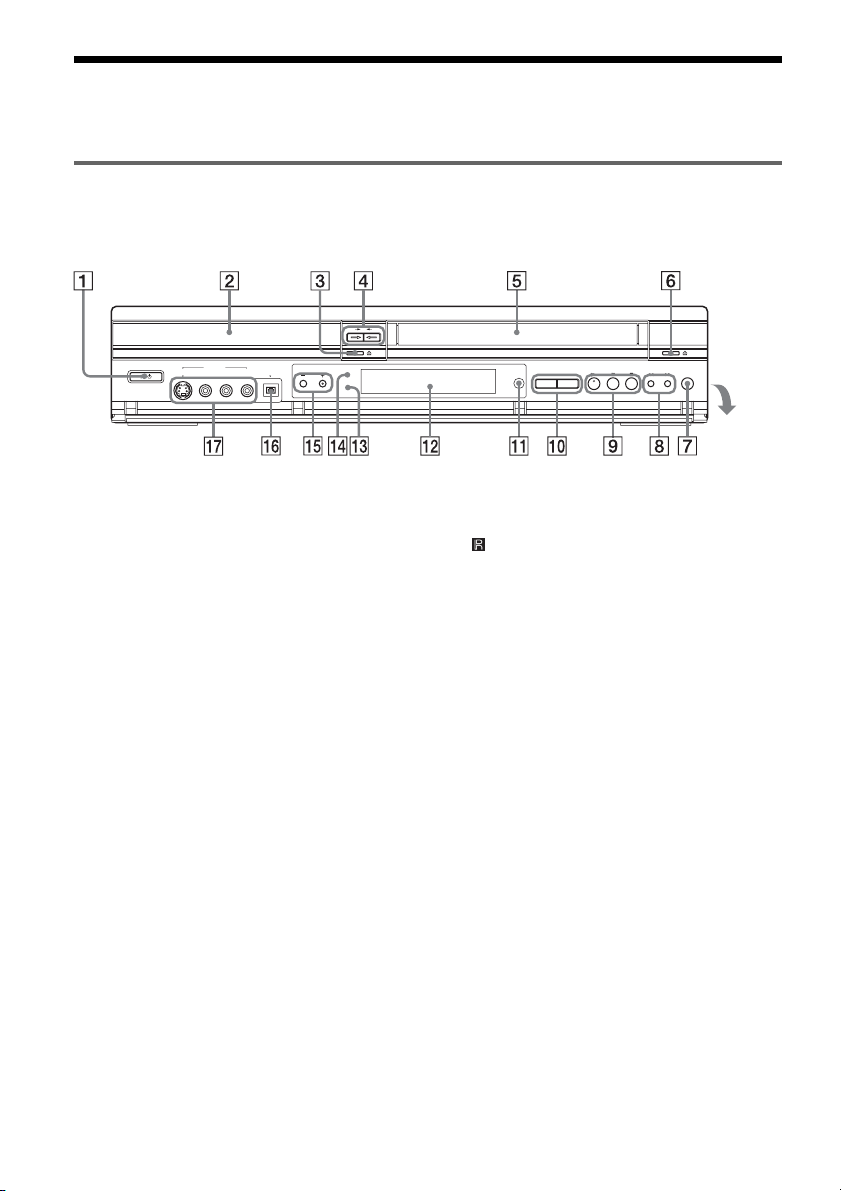
112
Guide to Parts and Controls
For more information, see the pages in parentheses.
Front panel
Buttons on the recorder have the same function as the buttons on the remote if they have the same or
similar names.
A "/1 (on/standby) button (22)
B Disc tray (32, 46, 89)
C A (open/close) button (32, 46, 89)
D DVD t button (83)
T VIDEO button (82)
E Tape compartment (67, 74)
F A (eject) button (67)
G z REC (record) button (46, 74)
H m/M (rewind/fast-forward) buttons
(35)
I H (play) button* (32, 67)
X (pause) button (33, 46, 69, 74)
x (stop) button (32, 46, 67, 74)
J SELECT DVD/VIDEO buttons (32, 46, 67,
74)
K (remote sensor) (19)
L Front panel display (44, 71)
M SYNCHRO REC indicator (50, 78)
N PROGRESSIVE indicator (16, 96)
O CHANNEL/TRACKING +/– buttons* (20,
46, 68, 74)
P DV IN jack (88)
Q LINE 2 IN (S VIDEO/VIDEO/AUDIO L/
R) jacks (26)
* H and CHANNEL + buttons have a tactile dot. Use
the tactile dot as a reference.
Open the
cover
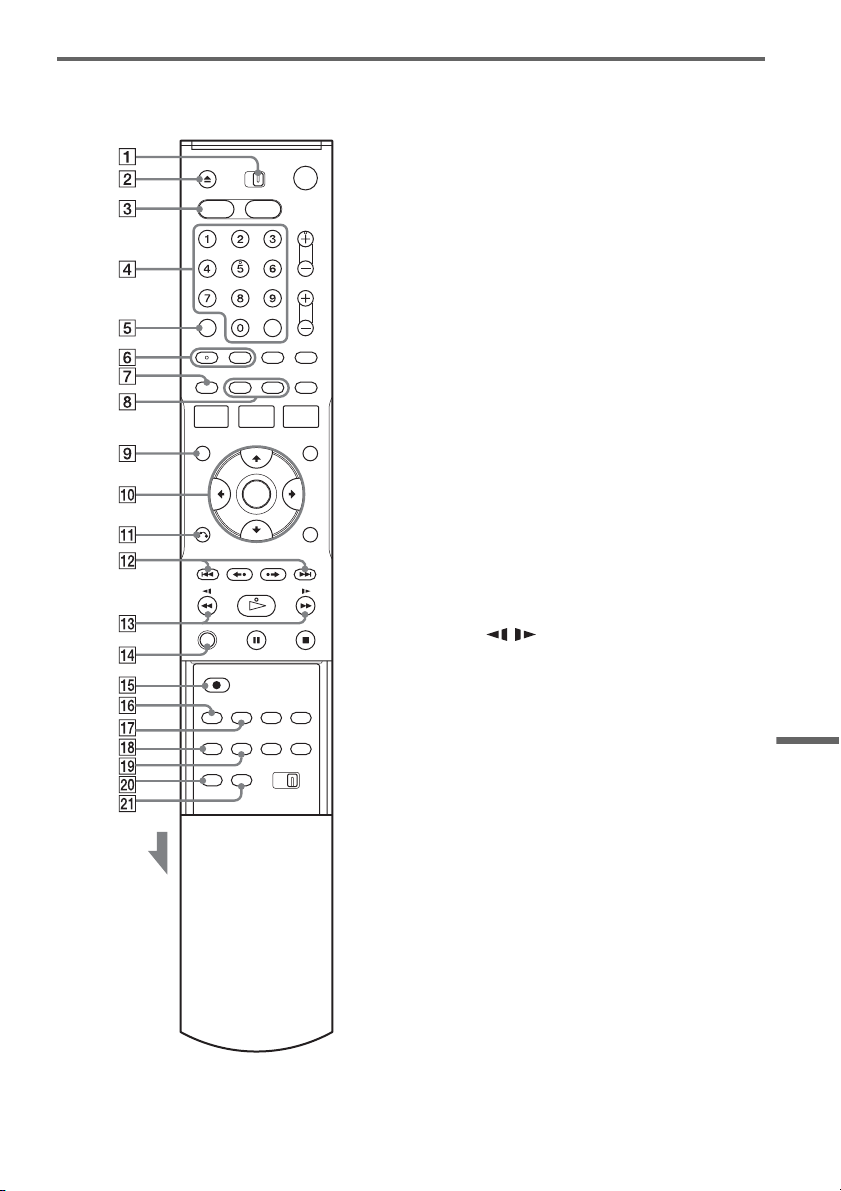
113
Additional Information
Remote
For DVD functions
Buttons with an orange dot next to them can be
used with your TV when the TV/DVD·VIDEO
switch is set to TV.
A TV/DVD·VIDEO switch (20)
B Z OPEN/CLOSE button (32, 46, 89)
C DVD button (32, 46)
D Number buttons* (20, 33)
SET button (20)
E CLEAR button (39)
F AUDIO button* (33)
SUBTITLE button (33)
G ORIGINAL/PLAYLIST button (37, 56)
H DISPLAY button (43)
TIME/TEXT button (44)
I TOP MENU button (32)
J M/m/</,/ENTER button (22)
K O RETURN button (22)
L . PREV (previous)/> NEXT
buttons (33)
M m / M (search) buttons (33)
N ZOOM button (33)
O z REC (record) button (46)
P REC MODE button (46, 89)
Q SYNCHRO REC button (50)
R ANGLE button (33)
S REPEAT button (33)
T MARKER button (39)
U SEARCH button (39)
* Number 5 and AUDIO buttons have a tactile dot. Use
the tactile dot as a reference.
Slide the cover
,continued
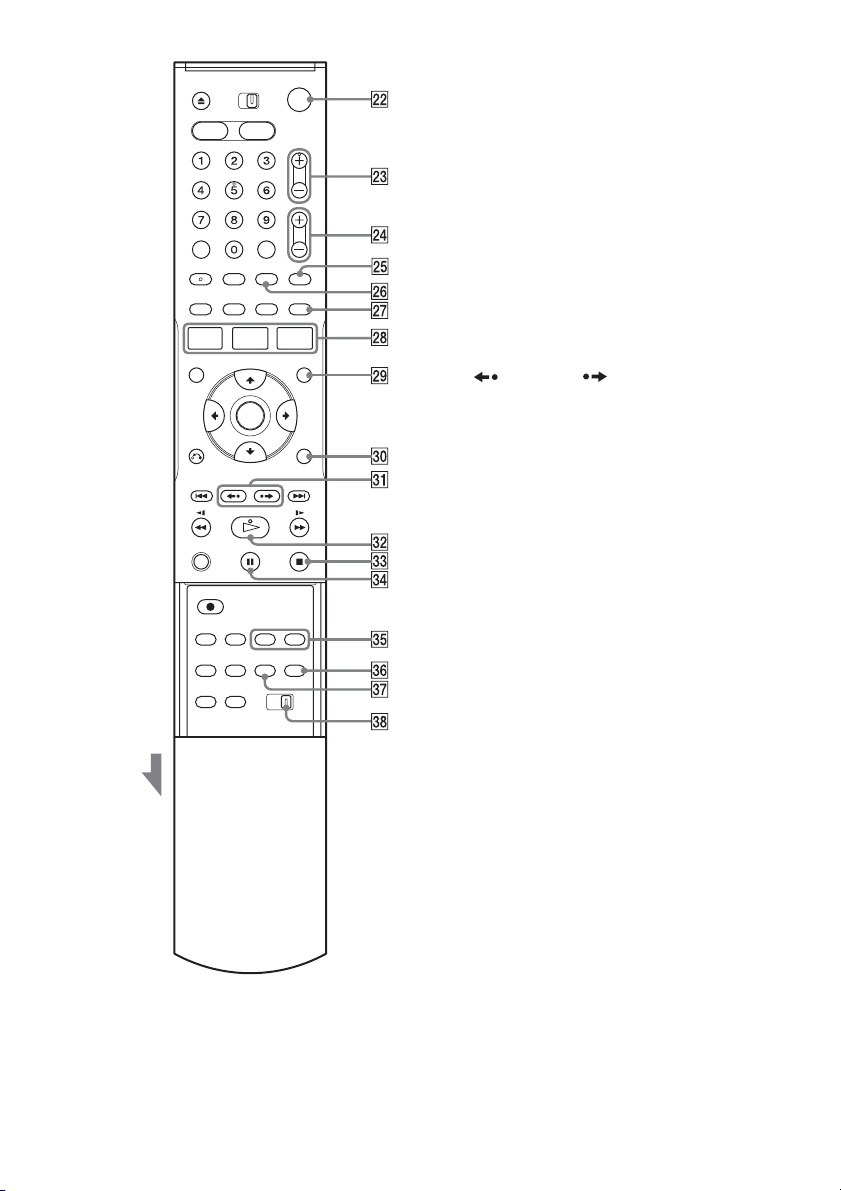
114
V ?/1 (on/standby) button (22)
W CH (channel) +/– buttons* (20, 46)
X VOL (volume) +/– buttons (20)
Y TV/VIDEO button (20)
Z INPUT SELECT button (46, 53, 89)
wj SUR (surround) button (33)
wk SYSTEM MENU button (10)
TITLE LIST button (37, 56)
TIMER button (48)
wl MENU button (32)
e; TOOLS button (38)
ea REPLAY/ ADVANCE buttons
(33)
es H PLAY button* (32)
ed x STOP button (32, 46)
ef X PAUSE button (46)
eg CHAPTER MARK/CHAPTER MARK
ERASE buttons (59)
eh WIDE MODE button (20)
ej ONE TOUCH DUBBING button (91)
ek COMMAND MODE switch (DVD 1, 2, 3)
(24)
* CH + and H PLAY buttons have a tactile dot. Use the
tactile dot as a reference.
Slide the cover
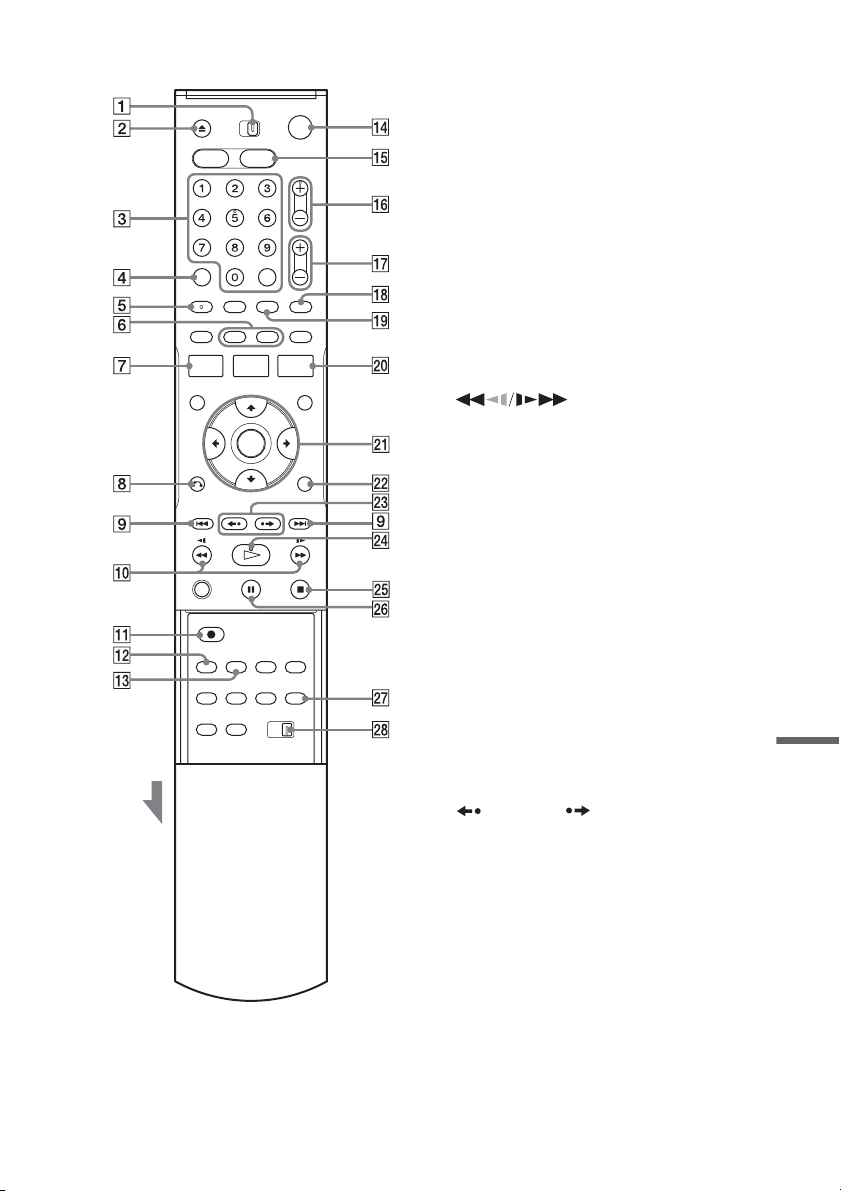
115
Additional Information
For VCR functions A TV/DVD·VIDEO switch (20)
B Z OPEN/CLOSE (eject) button (67)
C Number buttons* (20)
SET button (20)
D CLEAR button (67)
E AUDIO button* (72)
F DISPLAY button (71)
TIME/TEXT button (71)
G SYSTEM MENU button (10)
H O RETURN button (22)
I . PREV (previous)/> NEXT
buttons (69)
J (search) buttons (69)
K z REC (record) button (74)
L REC MODE button (74)
M SYNCHRO REC button (78)
N ?/1 (on/standby) button (22)
O VIDEO button (67, 74)
P CH (channel)/TRACKING +/– buttons*
(20, 74, 68)
Q VOL (volume) +/– buttons (20)
R TV/VIDEO button (20)
S INPUT SELECT button (74)
T TIMER button (76)
U M/m/</,/ENTER button (22)
V TOOLS button (70)
W REPLAY/ ADVANCE buttons
(69)
X H PLAY button* (67)
Y x STOP button (67, 74)
Z X PAUSE button (69, 74)
wj WIDE MODE button (20)
wk COMMAND MODE switch (DVD 1, 2, 3)
(24)
* Number 5, AUDIO, CH +, and H PLAY buttons have
a tactile dot. Use the tactile dot as a reference.
Slide the cover
,continued
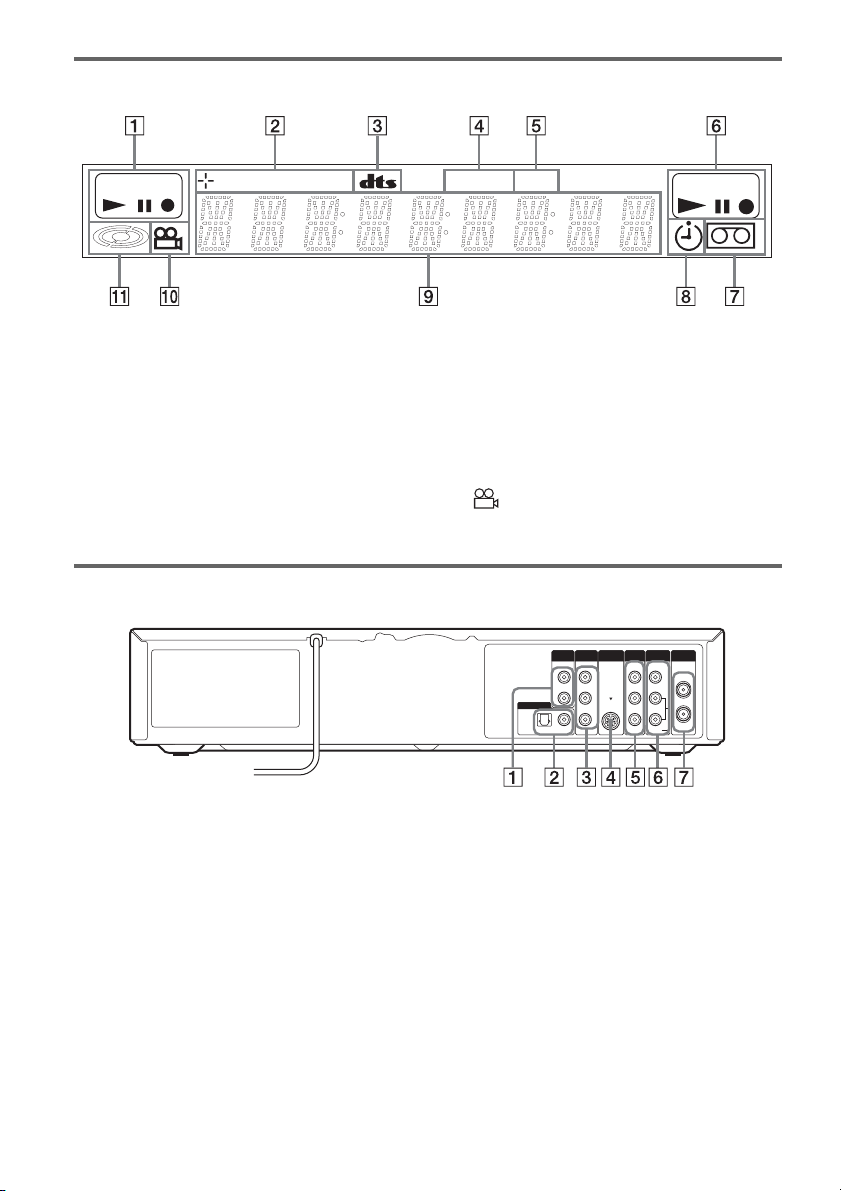
116
Front panel display
A DVD Playing/recording status
B Disc type/recording format
C Audio signal indicators
D STEREO indicator (45, 73)
E SAP (Second Audio Program) indicator
(45, 73)
F VIDEO Playing/recording status
G Tape indicator
H Timer indicator
I Displays the following (44, 71):
• Playing time/remaining time
• Current title/chapter/track/index number
• Recording time/recording mode
•Clock
• Channel
J (angle) indicator (33)
K Disc indicator
Rear panel
A AUDIO OUT L/R jacks (17)
B DIGITAL AUDIO OUT (COAXIAL/
OPTICAL) jacks (17)
C COMPONENT VIDEO OUT (Y, P
B, PR)
jacks (16)
D S VIDEO OUT jack (15)
E LINE 1 IN (VIDEO/AUDIO L/R) jacks
(27)
F LINE OUT (VIDEO/AUDIO L/R) jacks
(15, 16)
G VHF/UHF IN/OUT jacks (14)
DVD
RW
VR
VCD SAP
VIDEO
STEREO
IN
L
R
VIDEO
AUDIO
OUT
VHF/UHFLINE OUT
VIDEO
YL
P
B
R
P
R
AUDIO
LINE 1 IN
AUDIO OUT S VIDEO OUT
COMPONENT
VIDEO OUT
DIGITAL AUDIO OUT
OPTICAL COAXIAL

117
Additional Information
Glossary
Chapter (page 38)
Sections of a picture or a music feature that are
smaller than titles. A title is composed of several
chapters. Depending on the disc, no chapters may
be recorded.
Copy protection signals (page 46)
Copy restriction set by copyright owners, etc.
These signals are included in some software or TV
programs and restrict recording on this recorder.
Dolby Digital (page 97)
Digital audio compression technology developed
by Dolby Laboratories. This technology conforms
to multi-channel surround sound. The rear channel
is stereo and there is a discrete subwoofer channel
in this format. Dolby Digital provides the same
discrete channels of high quality digital audio
found in “Dolby Digital” theater surround sound
systems. Good channel separation is realized
because all of the channel data is recorded
discretely, and little deterioration occurs because
all channel data processing is digital.
DTS (page 97)
Digital audio compression technology by Digital
Theater Systems, Inc. This technology conforms
to multi-channel surround sound. The rear channel
is stereo and there is a discrete subwoofer channel
in this format. DTS provides the same discrete
channels of high quality digital audio.
Good channel separation is realized because all of
the channel data is recorded discretely, and little
deterioration occurs because all channel data
processing is digital.
DVD+RW (page 28)
A DVD+RW (read “plus RW”) is a recordable and
rewritable disc. DVD+RWs use a recording
format that is comparable to the DVD VIDEO
format.
DVD-RW (page 28)
A DVD-RW is a recordable and rewritable disc
that is the same size as a DVD VIDEO. The DVD-
RW has two different modes: VR mode and Video
mode. DVDs created in Video mode have the
same format as a DVD VIDEO, while discs
created in VR (Video Recording) mode allow the
contents to be programmed or edited.
DVD+R (page 28)
A DVD+R (read “plus R”) is a recordable disc that
is the same size as a DVD VIDEO. Contents can
be recorded only once to a DVD+R, and will have
the same format as a DVD VIDEO.
DVD-R (page 28)
A DVD-R is a recordable disc that is the same size
as a DVD VIDEO. Contents can be recorded only
once to a DVD-R, and will have the same format
as a DVD VIDEO.
DVD VIDEO (page 30)
A disc that contains up to eight hours of moving
pictures on a disc the same diameter as a CD.
The data capacity of a single-layer and single-
sided DVD is 4.7 GB (Giga Byte), which is 7
times that of a CD. The data capacity of a double-
layer and single-sided DVD is 8.5 GB, a single-
layer and double-sided DVD is 9.4 GB, and
double-layer and double-sided DVD is 17 GB.
The picture data uses the MPEG 2 format, which
is a worldwide standard of digital compression
technology. The picture data is compressed to
about 1/40 (average) of its original size. The DVD
also uses a variable rate coding technology that
changes the data to be allocated according to the
status of the picture. Audio information is
recorded in a multi-channel format, such as Dolby
Digital, allowing you to enjoy a more real audio
presence.
Furthermore, various advanced functions such as
the multi-angle, multilingual, and Parental
Control functions are provided on the DVD.
,continued
118
Interlace format
Interlace format shows every other line of an
image as a single “field” and is the standard
method for displaying images on television. The
even number field shows the even numbered lines
of an image, and the odd numbered field shows the
odd numbered lines of an image.
Original (page 55)
Titles actually recorded on a DVD-RW (VR
mode). Erasing original titles frees up disc space.
Playlist (page 55)
Playback information created from the actual
recordings on a DVD-RW (VR mode). A Playlist
leaves the original titles as they are, and contains
only the information needed to control playback.
A Playlist title takes up very little disc space.
Progressive format (page 96)
Compared to the Interlace format that alternately
shows every other line of an image (field) to create
one frame, the Progressive format shows the entire
image at once as a single frame. This means that
while the Interlace format can show 30 frames/60
fields in one second, the Progressive format can
show 60 frames in one second. The overall picture
quality increases and still images, text, and
horizontal lines appear sharper.
Title (page 38)
The longest section of a picture or music feature
on a DVD, movie, etc., in video software, or the
entire album in audio software.
Track (page 38)
Sections of a music feature on a CD (the length of
a song).
DVD Audio/Subtitle
Language
When you play a DVD VIDEO, the language of
the selected audio track or subtitle is abbreviated
as follows. See page 100 to change the audio track
or subtitle.
Abbreviation Language
ARA Arabic
BUL Bulgarian
CHI Chinese
CRO Croatian
CZE Czech
DAN Danish
DEU German
ENG English
ESP Spanish
FIN Finish
FRA French
GRE Greek
HUN Hungarian
IDN Indonesian
IND Hindi
ISL Icelandic
ITA Italian
IWR Hebrew
JPN Japanese
KOR Korean
MAL Malay
NLD Dutch
NOR Norwegian
POL Polish
POR Portuguese
RUS Russian
SVE Swedish
THA Thai
119
Additional Information
TUR Turkish
VIE Vietnamese
ZAF Afrikaans
Abbreviation Language

120
Index
Words in quotations appear in
the on-screen displays.
Numerics
16:9 23, 95
4:3 Letter Box
23, 95
4:3 Pan Scan
23, 95
A
“A-B Erase” 57
“Add”
63, 65
ADVANCE
34, 69
ANGLE
33
Antenna
14
AUDIO
33, 72
“Audio”
100
Audio cords
17
“Audio DRC”
98
Audio settings
97
Auto Clock Set
94
“Auto Play”
100
“Auto Preset”
93
“Auto Repeat”
100
B
Batteries 19
“Black Level”
96
Bookmark
39
C
Cable box 13, 14
Changing or Canceling Timer
Settings (Timer List) 52, 79
Chapter
117
“Chapter Erase”
57
CHAPTER MARK
59
CHAPTER MARK ERASE
59
“Check”
63
Child Lock
37
Cleaning discs
108
Cleaning the video heads
106
CLEAR
67
“Clock Set CH”
94
Clock Set settings
94
“Combine Titles”
63
“Command Mode”
25, 102
COMPONENT VIDEO OUT
16
Connecting
the antenna cable
12
to your AV/amplifier
(receiver) 17
to your TV
15
Controlling TVs with the
remote
20
Copy protection
46, 117
Copy-Free
46
Copy-Never
46
Copy-Once
46
Counter
67
CPRM
28
“Create Dubbing List”
85
“Create Playlist”
61
Creating chapters
48, 59
D
“Daylight Saving” 95
“Del”
52, 80
“Digital Out”
97
“Disc Finalize”
66, 87
“Disc Format”
66
“Disc Information”
66
“Disc Menu”
100
“Disc Name”
66
“Disc Protect”
66
“Disc Setting”
66, 87
Disc types
28
Display
front panel display
116
Setup Display
92
“Divide Title”
58, 63
Dolby Digital
23, 98, 117
“Downmix”
98
DTS
23, 35, 98, 117
“Dubbing”
82, 84
“DV Audio Input”
90, 99
“DV/D8 Dubbing”
90
“DV/D8 One Touch
Dubbing” 91
“DV/D8 Simple Dubbing”
90
“DVD Auto Chapter”
99
DVD Editing
55
DVD VIDEO
30, 117
DVD+R
28, 117
DVD+R DL
28
DVD+RW
28, 117
DVD-R
28, 117
DVD-RW
28, 117
E
Easy Setup 102
“Edit”
52, 80
“Edit Playlist”
63
“Edit Scene”
63
Enter characters
60
EP mode
74
“Erase”
57
“Erase All Titles”
66
F
“Factory Setting” 102
Fast forward
34, 69
Fast reverse
34, 69
Feature settings
99
Finalizing
86
“Format DVD”
100
“Front Display”
101
Front panel
112
Front panel display
116
H
Handling discs 108
I
i.LINK 88, 110
INPUT SELECT
46, 74, 89
Interlace format
118
J
JPEG image files 41
L
“Language” 100
Language Abbreviation
118
LINE 1 IN
27
LINE 2 IN
26
“Line Audio Input”
50, 54,
99
M
Manual Clock Set 95

121
“Manual Set” 94
MARKER
39
MENU
32
Menu
Top menu 32
“Modify”
63
“Move”
63
MP3 audio tracks
40
N
NEXT 34, 69
Number buttons
20, 38
O
One Touch Dubbing 91
On-screen display
Setup Display 92
Sub-menu
10
System Menu
10
TOOLS menu
11
Options settings
100
Original
38, 118
ORIGINAL/PLAYLIST
38,
56
“OSD” language
22, 100
P
“Parental” 101
Parental Control
36
Parts and controls
112
PAUSE
34, 47, 69, 74
PBC
36
“Picture control”
96
PLAY
32, 67
Playable discs
30
Playback
32, 67
MP3 audio tracks
40
Repeat Play
35
Resume Play
36
Slow-motion play
33
Playlist
38, 61, 118
Power cord
19
PREV
34, 69
Program Dubbing
84
“Progressive”
96
Progressive format
118
“Protect”
57
Q
Quick Timer 47, 74
R
Rear panel 116
REC
47, 74
REC MODE
47, 74
Recording
45, 73
recordable discs
28
recording format
28
recording mode
45
tape speed
73
while watching another
program
47,
74
Recording mode
45
Recording time
45, 48
Region code
31
Remaining time
75
Remote
19, 113
REPEAT
35
Repeat A-B Play
36
REPLAY
34, 69
Resetting
102
Resume Play
36
Rotate
42
S
Safety tab 73
SAP (Second Audio Program)
45, 73
Satellite receiver
13
“Scan Audio”
36, 98
“Scene Dubbing”
85
Searching
for “Chapter” 38
for “Title”
38
for “Track”
38
Time Search
38
Settings
92
Setup Display
92
“Simple Dubbing”
84
SP mode
74
Stereo programs
45, 73
STOP
32, 47, 67, 74
Sub-menu
10
SUBTITLE
33
“Subtitle”
100
SURROUND
34
SYNCHRO REC
51, 78
“Synchro Recording”
51, 78,
100
System Menu
10
T
“Tape Length” 100
Tape speed
73
“Time Zone”
95
TIME/TEXT
44, 71
TIMER
49, 76
Timer List
52, 79
Timer recording
48, 76
change or cancel
52, 79
Title
118
“Title Dubbing”
85
“Title Erase”
57, 63
TITLE LIST
37, 56
Title List
37
“Title Name”
57, 63
TOOLS
11
TOP MENU
32
Track
118
TRACKING
68
Tracking adjustment
68
Troubleshooting
103
“Tuner Audio”
97
Tuner Preset
23
Tuner Preset settings
93
“TV Type”
95
TV/DVD·VIDEO
20
TV/VIDEO
47, 74
U
“Unfinalize” 87
Unrecordable pictures
46
V
“VCR Function” 100
VIDEO CD
30
Video mode
28
Video settings
95
VR mode
28
Z
ZOOM 33
Zoom
42



Sony Corporation Printed in China AK68-00859A
