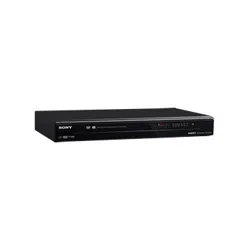
SONY RDR-GX355 QSG US 3-096-495-11(1) AK68-01356A
©2007 Sony Corporation
Printed in China
3-
096-495-11(1)
AK68-01356A
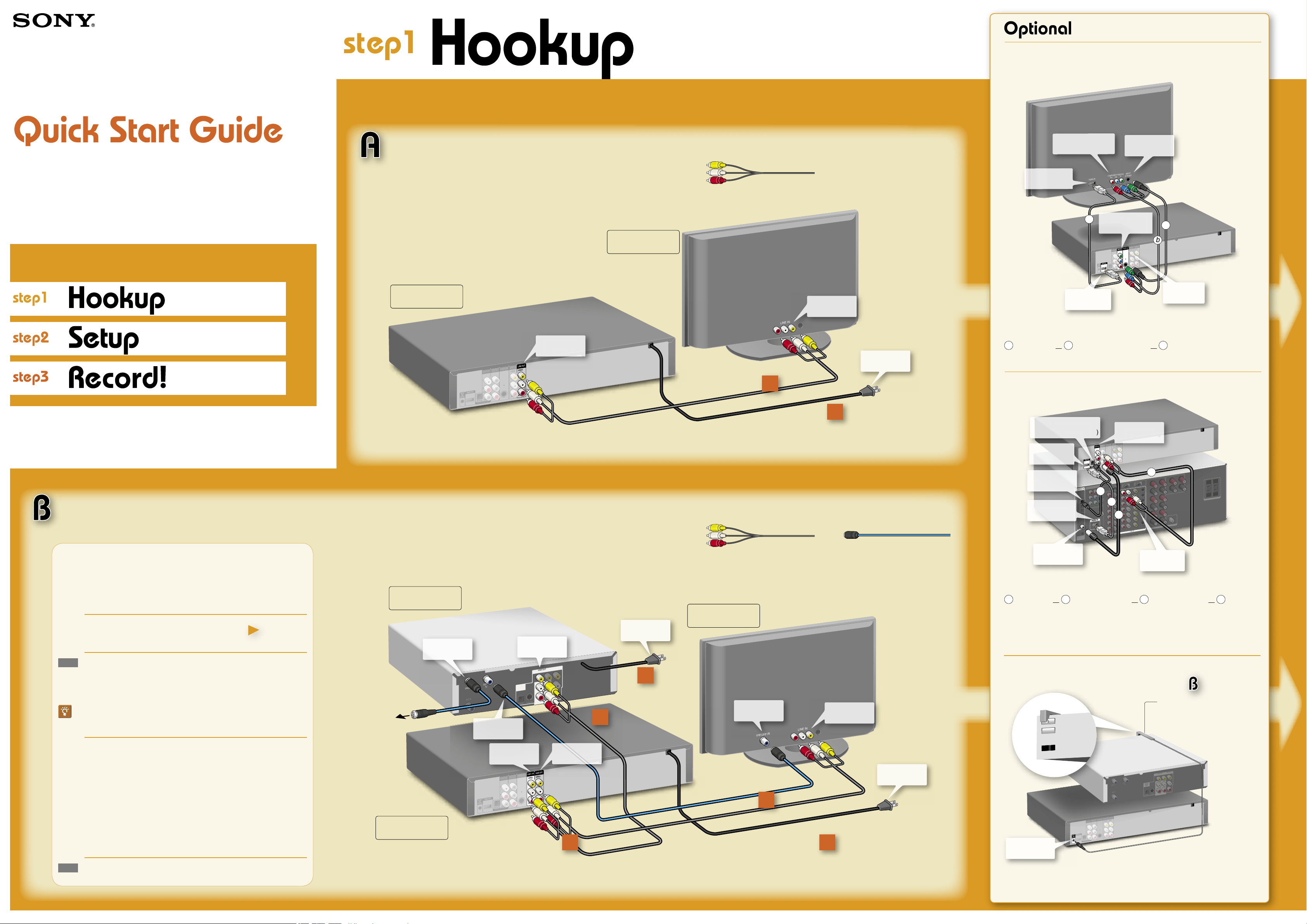
Connecting an S video cord or a
component video cord or an HDMI cord
L
R
V
I
D
E
O
A
U
D
I
O
L
I
N
E
O
U
T
V
I
D
E
O
Y
L
P
B
R
P
R
A
U
D
I
O
L
I
N
E
1
I
N
A
U
D
I
O
O
U
T
S
V
I
D
E
O
O
U
T
CO
M
P
O
NE
NT
V
I
DE
O
O
UT
DI
G
I
T
A
L
A
UDI
O
O
UT
O
P
T
I
C
A
L
C
O
A
X
I
A
L
H
D
M
I
O
U
T
P
R
S
E
T
T
O
P
B
O
X
C
O
N
T
R
O
L
Y
I
N
P
U
T
S
V
I
D
E
O
P
B
P
R
C
O
M
P
O
N
E
N
T
V
I
D
E
O
I
N
H
D
M
I
I
N
DVD Recorder
a
b
c
to COMPONENT
VIDEO IN
Television
to S VIDEO IN
to S VIDEO
OUT
to COMPONENT
VIDEO OUT
to HDMI IN
to HDMI OUT
Connect one of the following cords (not supplied) instead of the video cord. (One
audio/video cord supplied.)You will enjoy high quality images.
a
S video cord or
b
Component video cords or
c
HDMI cord
For further explanations, see “Video Settings (Video)” in the Operating Instructions.
Connecting an AV amplifier (receiver)
L
I
N
E
I
N
D
I
G
I
T
A
L
I
N
H
D
M
I
I
N
L
R
L
R
V
I
D
E
O
A
U
D
I
O
LI
N
E
O
U
T
V
I
D
E
O
Y
L
P
B
R
P
R
A
U
D
I
O
LI
N
E
1 I
N
A
U
D
I
O
O
U
T
S
V
I
D
E
O
O
U
T
C
O
M
P
O
N
E
N
T
V
I
D
E
O
O
U
T
D
I
G
I
T
A
L
A
U
D
I
O
OU
T
O
P
T
I
C
A
L
C
O
A
X
I
A
L
H
D
M
I
OU
T
S
E
T
T
O
P
B
O
X
C
O
N
T
R
O
L
a
b
c
d
to DIGITAL IN
(COAXIAL)
to LINE IN
(AUDIO)
to DIGITAL AUDIO OUT
(COAXIAL or OPTICAL)
AUDIO OUT
L/R
to HDMI OUT
to HDMI IN
AV Amplifier
DVD Recorder
to DIGITAL IN
(OPTICAL)
Connect one of the following cords (not supplied).
a
audio cords or
b
coaxial digital cord or
c
optical digital cord or
d
HDMI
cord
Connecting to an AV amplifier (receiver) with digital cords will enable you to listen
to Dolby Digital or DTS surround effects. For further explanations, see “Connecting
to Your AV Amplifier (Receiver)” in the Operating Instructions.
Connecting the Set Top Box controller
L
R
V
I
D
E
O
A
U
D
I
O
L
I
N
E
O
U
T
V
I
D
E
O
Y
L
P
B
R
P
R
A
U
D
I
O
L
I
N
E
1
I
N
A
U
D
I
O
O
U
T
S
V
I
D
E
O
O
U
T
C
O
M
P
O
N
E
N
T
V
I
D
E
O
O
U
T
D
I
G
I
T
A
L
A
U
D
I
O
O
U
T
O
P
T
I
C
A
L
C
O
A
X
I
A
L
H
D
M
I
O
U
T
P
R
S
E
T
T
O
P
B
O
X
C
O
N
T
R
O
L
C
A
V
L
E
I
N
O
U
T
T
O
T
V
A
N
T
I
N
O
P
T
I
C
A
L
S
V
I
D
E
O
V
I
D
E
O
O
U
T
C
O
MP
O
N
E
N
T
O
U
T
D
I
G
I
T
A
L
A
U
D
I
O
OU
T
for
Place it so that the tip of the
controller is near the remote
control reception window on
your set top box.
Cable Box/
Satellite Receiver
DVD
Recorder
to SET TOP
BOX CONTROL
You can have the recorder control channels on the cable box or satellite receiver
for timer recording. Connect the Set Top Box controller (supplied), and select “Yes”
in step 6 of Setup on the next page.
Follow the three steps below to connect, setup and make
recordings on your DVD recorder.
RDR-GX355
Before hookup
This DVD recorder does not include a tuner.
To record TV programs on the DVD recorder from a connected device, you need
to connect the DVD recorder to a tuner that has audio/video output jacks.
You have :
Cable Box With Video/Audio Output
– or –
Satellite Receiver With Video/Audio Output
hint
If you have been using your VCR connected to an antenna, connect this DVD
recorder to the VCR using an audio/video cord. This way, you can record TV
programs.
If you have neither of the above tuners :
You have :
Cable Box/Satellite Receiver Without Video/Audio
Output
Please contact your cable service or satellite service company
to ask cable box or satellite receiver with video/audio output.
Cable With No Cable Box
Please contact your cable service to ask cable box with video/
audio output.
Antenna Only (No Cable TV/No Satellite Receiver)
You need to subscribe to a cable TV or satellite TV service
and to get a cable box or satellite receiver with video/audio
output.
hint
For any inquiry, please visit the Sony web site : http://esupport.sony.com/
See right
: Hookup for Playback and
Recording
L
I
NE IN
L
R
V
I
D
E
O
A
U
D
I
O
L
I
N
E
O
U
T
V
I
D
E
O
Y
L
P
B
R
P
R
A
U
D
I
O
L
I
N
E
1
I
N
A
U
D
I
O
O
U
T
S
V
I
D
E
O
O
U
T
C
O
MP
O
NE
N
T
V
I
D
E
O
O
U
T
D
I
G
I
T
A
L
A
U
DI
O
O
U
T
O
P
T
I
C
A
L
C
O
A
X
I
A
L
H
D
M
I
O
U
T
P
R
S
E
T
T
O
P
B
O
X
C
O
N
T
R
O
L
Connect power
cords last!
DVD Recorder
to LINE OUT
to LINE IN
Television
to an
AC outlet
V
H
F
/
U
H
F
I
N
L
I
NE IN
L
R
V
I
D
E
O
A
U
D
I
O
L
I
N
E
O
U
T
V
I
D
E
O
Y
L
P
B
R
P
R
A
U
D
I
O
L
I
N
E
1
I
N
A
U
D
I
O
O
U
T
S
V
I
D
E
O
O
U
T
C
O
MP
O
NE
N
T
V
I
D
E
O
O
U
T
D
I
G
I
T
A
L
A
U
D
I
O
O
U
T
O
P
T
I
C
A
L
C
O
A
X
I
A
L
H
D
M
I
O
U
T
P
R
S
E
T
T
O
P
B
O
X
C
O
N
T
R
O
L
DI
G
I
T
AL
A
UD
I
O
O
U
T
C
O
M
P
O
N
E
N
T
O
U
T
A
N
T I
N
OP
T
I
C
A
L
S
V
I
D
E
O
C
A
V
L
E I
N
O
U
T
T
O
T
V
V
I
D
E
O
O
UT
to VIDEO OUT/
AUDIO OUT
Connect all
power cords last!
DVD Recorder
Cable Box /
Satellite Receiver
to an
AC outlet
to LINE OUT
to VHF/UHF IN
to LINE IN
Television
to an
AC outlet
to OUT TO
TV
to LINE 1 IN
to your antenna
wall jack
to CABLE IN
4
2
1
4
3
Select a connection
To enjoy DVD playback, select connection A. In addition, if you want to record TV programs from a connected tuner, make
additional connections by referring to connection B.
: Hookup for Playback
X1
You will need:
(one audio/video cord is supplied)
X2
You will need:
(one audio/video cord is supplied)
X2
(one
antenna
cable is supplied)
2
1
SONY RDR-GX355 QSG US 3-096-495-11(1) AK68-01356A
11
22
33
44
55
66
77
88
00
99
E
NT
E
R
11 22 33
44 55 66
77 88
00
99
DISPLAY
OPTIONS
NEXT
PLAY
PAUSE
REC
VOL CH
TV
SYNCHRO REC REC MODE
ADVANCE
RETURN
PREV
STOPCLEAR
REPLAY
AUDIOMENU
TOP
MENU
INPUT
ORIGINAL/
PLAYLIST
CH/
TRACKING
DIGITAL/
ANALOG
OPEN/
CLOSE
INPUT
SUBTITLE
SET
SYSTEM
MENU
TITLE
LIST
TIMER
ENTER
TIME/TEXT
ANGLE
RETURN
/
(on/standby)
SYSTEM MENU
I
n
i
t
ial
s
ett
i
ng n
ec
es
sa
r
y
t
o op
erat
e
t
he
D
VD
r
e
co
r
d
er
wil
l b
e
m
ad
e.
Y
ou c
an c
h
a
ng
e
the
m
l
a
t
e
r u
sing
se
t
u
p.
Ea
sy
S
etup
EN
TE
R
S
Y
S
TE
M
M
E
N
U
E
nt
e
r
R
e
turn
E
xi
t
S
t
a
r
t
6
Press
M
/
m
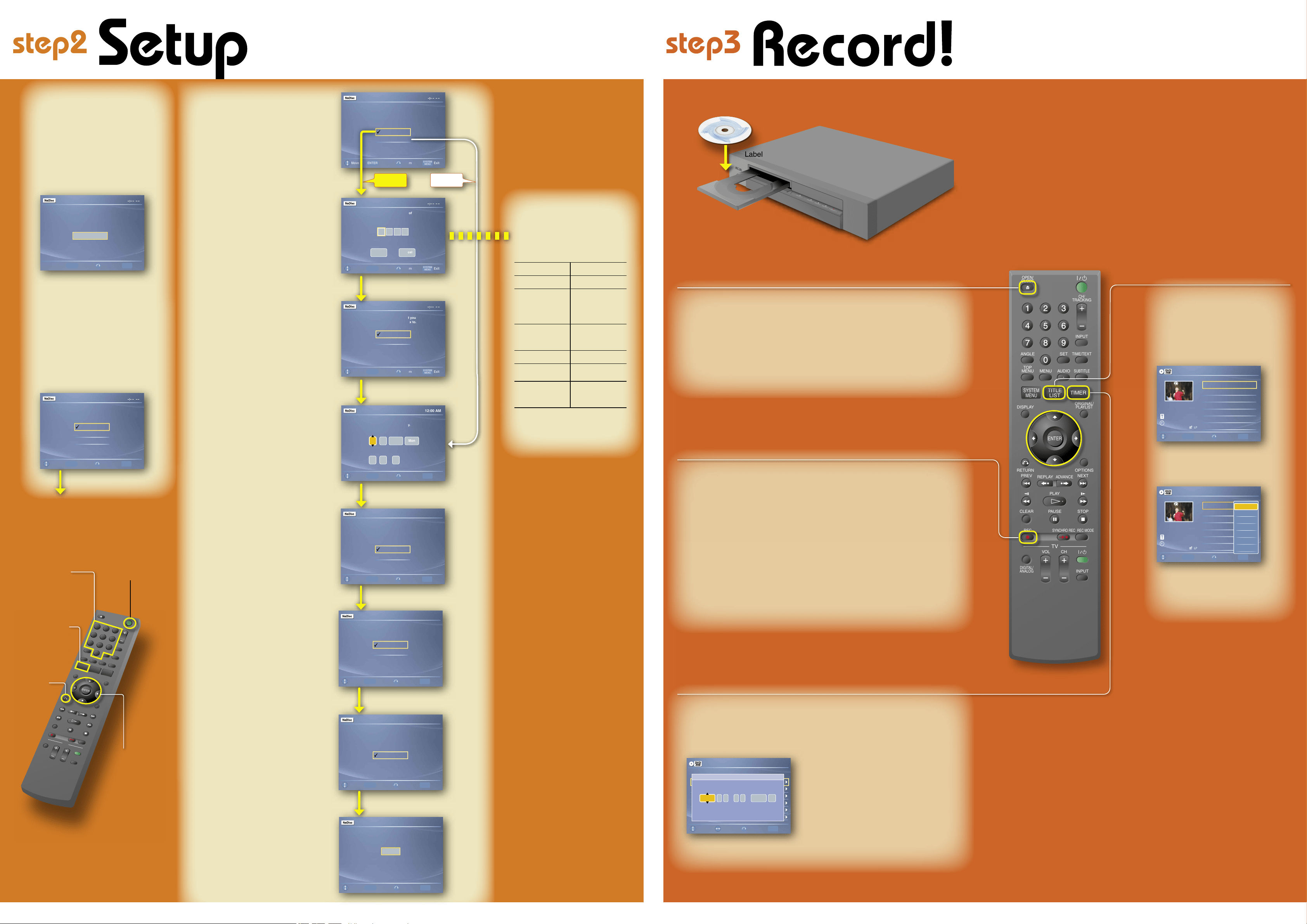
to select whether or
not you want to use the Set Top
Box control function, then press
ENTER.
7
Press the number buttons to enter
the brand code of your cable box
or satellite receiver. Then select
“OK” and press ENTER.
Some examples of brand codes are shown
on the right.
8
Press
M
/
m
to select the cable
box/satellite receiver output
channel, then press ENTER.
If you connected your cable box or satellite
receiver to the DVD recorder’s audio/video
input, select the “Line” number you connected
to.
9
Press
M
/
m
to set the month and
press
,
.
Set the day, year, hour, minutes,
and AM/PM in the same way. Then
press ENTER.
10
Press
M
/
m
to select the type
of TV you have, then press
ENTER.
If you have a wide-screen TV, select “16:9.”
If you have a standard TV, select either “4:3
Letter Box”(shrink to fit) or “4:3 Pan Scan”
(stretch to fit). This will determine how "wide-
screen" images are displayed on your TV.
11
Press
/
to select the type of
Dolby Digital signal you want
to send to your AV amplifier
(receiver), then press ENTER.
If your AV amplifier (receiver) has a Dolby
Digital decoder, select “Dolby Digital.” If not,
select “D-PCM.”
12
Press
/
to select the type of
DTS signal you want to send
to your AV amplifier (receiver),
then press ENTER.
If your AV amplifier has a DTS decoder,
select “On.” If not, select “Off.”
13
When “Finish” appears, press
ENTER to complete Easy
Setup.
Test your
Set Top Box
controller
If you connected a Set Top Box
controller, do the following:
1
Turn on the recorder and
the cable box/satellite
receiver.
2
Point the remote at the
recorder (not at the cable
box/satellite receiver).
3
Press CH+/− and confirm
that the channel changes
on the cable box/satellite
receiver window.
If the recorder does not control
your cable box or satellite receiver,
see “If you cannot get the recorder
to control your cable box/satellite
receiver” at the end of “Step 7: Easy
Setup” in the Operating Instructions.
1
Turn on your TV and any other
connected equipment such as
your cable box or satellite receiver.
2
Press I/1 on the DVD recorder.
3
Switch the input selector on
your TV so that the signal from
the recorder appears on your TV
screen.
If “Initial setting necessary to operate the
DVD recorder will be made. You can change
them later using setup.” does not appear on
your TV screen, select “Easy Setup” from
“Setup” in the System Menu.
4
Press ENTER.
5
Press
M
/
m
to select a language for
the on-screen display, then press
ENTER.
Yes
No
Easy Setup
Do you want to control
your set top box with this recorder?
(Changes to the current setting will
erase all timer settings.)
ENTER
SYSTEM
MENU
Move
Enter Return Exit
Easy Setup
Cancel
Enter the brand code of
your set top box.
ENTER
SYSTEM
MENU
Move
Enter Return Exit
OK
Line1
Line2
Easy Setup
Select the input line that you
connected the set top box to.
ENTER
SYSTEM
MENU
Move
Enter Return Exit
Easy Setup
ENTER
SYSTEM
MENU
Move
Enter Return Exit
Hour Min
AM/PM
Month
Set the time and date manually.
Day Year
:
00 AM12
01
01 2007 Mon
12:00 AM
Select your TV screen type.
Easy Setup
10:10 AM
16 : 9
4 : 3 Letter Box
4 : 3 Pan Scan
ENTER
SYSTEM
MENU
Move
Enter Return Exit
YES
NO
Select the screen language.
English
Français
Español
Easy Setup
ENTER
SYSTEM
MENU
Move
Enter Return Exit
Easy Setup is finished.
Finish
Easy Setup
10:10 AM
ENTER
SYSTEM
MENU
Move
Enter Return Exit
Dolby Digital
Easy Setup
10:10 AM
D-PCM
Dolby Digital
ENTER
SYSTEM
MENU
Move
Enter Return Exit
DTS
Easy Setup
10:10 AM
On
Off
ENTER
SYSTEM
MENU
Move
Enter Return Exit
/
/
/
ENTER
Press ENTER to
make a selection
Number buttons
Label side facing up
Playback the
Recorded DVD Disc
1
Press TITLE LIST.
The Title List menu appears.
2
Press
/
to select the title you
want to play and press ENTER.
The sub-menu appears.
3
Press
/
to select “Play” and
press ENTER.
Playback starts from the beginning of the
title.
The Easy Setup display automatically appears on your TV screen when you turn
on your recorder for the first time. Follow the steps below to make the minimum
number of basic adjustments to use the recorder.
If you make a mistake, press
RETURN.
1/4
Title List(Original)
LINE 1
May/02/2007
08:00 PM
10:10 AM
No. Title Length Edit
01 >
02 >
03 >
04 >
LINE 1 01:29:03
LINE 1 00:31:23
LINE 1 01:59:00
LINE 1 00:58:56
ENTER
SYSTEM
MENU
Move
Enter Return Exit
1/4
Title List (Original)
May/02/2007
08:00 PM
10:10 AM
No. Title Length Edit
01 >
02 >
03 >
04 >
01:29:03
00:31:23
01:59:00
00:58:56
ENTER
SYSTEM
MENU
Move
Enter Return Exit
LINE 1
LINE 1
LINE 1
LINE 1
LINE 1
Play
Title Erase
Chapter Erase
Protect
Title Name
A-B Erase
Divide Title
Insert a DVD Disc
1
Press DVD to operate the DVD
recorder.
2
Press
OPEN/CLOSE and
place a recordable DVD on the
disc tray.
1
Select a channel.
• When using a Set Top Box controller
Press CH+/− buttons to select the
cable box or satellite receiver’s
channel.
• When not using a Set Top Box
controller.
Press INPUT to select input source
until “LINE 1” appears in the front
panel display. Then select a channel
on the connected cable box or satellite
receiver.
2
Press REC MODE repeatedly
to select the recording mode.
HQ, HSP, SP, LSP, ESP, LP, EP, or SLP
HQ offers the best quality picture,
but with the shortest recording time.
Recording time increases with each
successive mode, but the picture quality
gradually deteriorates.
3
Press
REC.
The recorder starts recording. To stop
recording, press
STOP.
Record a TV Program
1
Press TIMER.
The Timer menu appears.
2
Press
M
/
m
to set Date, Start
and End time, Channel or Input
source and Rec Mode.
As for selecting “Ch(channel)”, see above
“Record a TV program.” The way to select
“Ch(channel)” may differ in the case of a
Set Top Box controller.
3
Press ENTER.
Leave the cable box/satellite receiver
turned on and do not change its selected
channel until the recorder finishes the
timer recording.
Record a TV Program using Timer
Timer - Standard
10:10 AM
No. Rec To Mode Edit
01
02
03
04
DVD
---
DVD
---
---
---
---
05 ---
06 ---
Data
04/15
04/30
--/--
--/--
--/--
--/--
Start
09:00PM
09:15PM
--:--
--:--
--:--
--:--
End
10:00PM
09:45PM
--:--
--:--
--:--
--:--
Source
CH8
CH11
---
---
---
---
---
SYSTEM
MENU
Adjust
Move
Return Exit
No.01
: PM PM
:
Date Start End Ch Mode
SPLine 1001009 00Today
Today
Examples
of Brand
Codes
Cable box brand Code number
Sony 1006
Scientific Atlanta 0008,0277,0017,00
06,0237,0025,0477,
0207,0877,0003,00
12,0000,0021,1877
Motorola 0476,0276,1476,08
10,1376,1254,0400,
1106
Pace 0237
Samsung 0040,0144,0023,00
03,0070,0000
General
Instruments
0476,0011,0014,00
98,0810,0024,0003,
0015,0276
For brand codes other than the above,
see the “Cable Box/Satellite Receiver
Brand Code” list of the Operating
Instructions (page 100).
3
Press
OPEN/CLOSE again
to close the disc tray.
Wait until “LOAD” disappears from the
front panel display.
See “Quick Guide to Disc Types” in the
Operating Instructions for more details
about the differences between disc types.