US
ES
3-281-874-11(1)
© 2007 Sony Corporation
DVD Recorder
Operating Instructions
RDR-GX255
Operating Instructions
Manual de instrucciones
2
WARNING
To reduce the risk of fire or
electric shock, do not expose
this apparatus to rain or
moisture.
To avoid electrical shock, do not
open the cabinet. Refer servicing
to qualified personnel only.
The AC power cord must be
changed only at a qualified
service shop.
Batteries or batteries installed
apparatus shall not be exposed
to excessive heat such as
sunshine, fire or the like.
CAUTION
The use of optical instruments with this
product will increase eye hazard. As
the laser beam used in this DVD
recorder is harmful to eyes, do not
attempt to disassemble the cabinet.
Refer servicing to qualified personnel
only.
This label is located on the laser
protective housing inside the
enclosure.
This symbol is intended
to alert the user to the
presence of uninsulated
“dangerous voltage”
within the product’s
enclosure that may be of sufficient
magnitude to constitute a risk of
electric shock to persons.
This symbol is intended
to alert the user to the
presence of important
operating and
maintenance (servicing)
instructions in the literature
accompanying the appliance.
For customers in the U.S.A
Owner’s Record
The model and serial numbers are located
at the rear of the unit.
Record the serial number in the space
provided below. Refer to them
whenever you call upon your Sony dealer
regarding this product.
Model No. RDR-GX255
Serial No.______________
CAUTION
You are cautioned that any change or
modifications not expressly approved
in this manual could void your
authority to operate this equipment.
Note
This equipment has been tested and
found to comply with the limits for a
Class B digital device, pursuant to Part
15 of the FCC Rules. These limits are
designed to provide reasonable
protection against harmful interference
in a residential installation. This
equipment generates, uses, and can
radiate radio frequency energy and, if
not installed and used in accordance
with the instructions, may cause
harmful interference to radio
communications. However, there is no
guarantee that interference will not
occur in a particular installation. If this
equipment does cause harmful
interference to radio or television
reception, which can be determined by
turning the equipment off and on, the
user is encouraged to try to correct the
interference by one or more of the
following measures:
– Reorient or relocate the receiving
antenna.
– Increase the separation between the
equipment and receiver.
– Connect the equipment into an outlet
on a circuit different from that to
which the receiver is connected.
– Consult the dealer or an experienced
radio/TV technician for help.
Precautions
On safety
Should any solid object or liquid fall
into the cabinet, unplug the recorder
and have it checked by qualified
personnel before operating it any
further.
On power sources
• Operate the recorder only on
120 V AC, 60 Hz.
• The recorder is not disconnected
from the AC power source as long
as it is connected to the wall outlet,
even if the recorder itself has been
turned off.
• Install this system so that the
power cord can be unplugged from
the wall socket immediately in the
event of trouble.
• If you are not going to use the
recorder for a long time, be sure to
disconnect the recorder from the
wall outlet. To disconnect the AC
power cord, grasp the plug itself;
never pull the cord.
On placement
• Place the recorder in a location
with adequate ventilation to
prevent heat build-up in the
recorder.
• If the recorder is brought directly
from a cold to a warm location, or
is placed in a very damp room,
moisture may condense on the
lenses inside the recorder. Should
this occur, the recorder may not
operate properly. In this case,
remove the disc and leave the
recorder turned on for about half
an hour before operating the
recorder.
• Do not place the recorder on a soft
surface such as a rug that might
block the ventilation holes.
• Do not place the recorder in a
confined space such as a bookshelf
or similar unit.
• Do not place the recorder in a
location near heat sources, or in a
place subject to direct sunlight,
excessive dust, or mechanical
shock.
DANGER
VISIBLE AND INVISIBLE LASER RADIATION WHEN OPEN AVOID DIRECT EXPOSURE TO BEAM
CLASS 3B VISIBLE AND INVISIBLE LASER RADIATION WHEN OPEN. AVOID DIRECT EXPOSURE TO THE BEAM.
KLASSE 3B SICHTBARE UND UNSICHTBARE LASERSTRAHLUNG WENN GEÖFFNET. DIREKTEN KONTAKT MIT DEM
STRAHL VERMEIDEN.
SYNLIG OG USYNLIG LASERSTRÅLING AF KLASSE 3B VED ÅBNING. UNDGÅ DIREKTE UDSÆTTELSE FOR STRÅLING.
SYNLIG OG USYNLIG LASERSTRÅLING I KLASSE 3B NÅR DEKSEL ÅPNES. UNNGÅ DIREKTE EKSPONERING FOR STRÅLEN.
KLASS 3B SYNLIG OCH OSYNLIG LASERSTRÅLNING NÄR DENNA DEL ÄR ÖPPNAD. UNDVIK ATT DIREKT EXPONERA DIG
FÖR STRÅLNINGEN.
AVATTUNA LUOKAN 3B NÄKYVÄÄ JA NÄKYMÄTÖNTÄ LASERSÄTEILYÄ. VÄLTÄ SUORAA ALTISTUMISTA SÄTEELLE.
CAUTION
VORSICHT
ADVARSEL
ADVARSEL
VARNING
VAR O!
3
• Do not place the recorder in an
inclined position. It is designed to
be operated in a horizontal
position only.
• Keep the recorder and discs away
from equipment with strong
magnets, such as microwave
ovens, or large loudspeakers.
• Do not place heavy objects on the
recorder.
• To prevent fire or shock hazard, do
not place objects filled with
liquids, such as vases, on the
apparatus.
• When you move the recorder, take
out any discs. If you do not, the
disc may be damaged.
On recording
• Contents of the recording cannot
be compensated for if the
recording or playback is not made
due to a malfunction of the
recorder, disc, etc.
• Make trial recordings before
making the actual recording.
Copyrights
• Television programs, films, video
tapes, discs, and other materials
may be copyrighted. Unauthorized
recording of such material may be
contrary to the provisions of the
copyright laws. Also, use of this
recorder with cable television
transmission may require
authorization from the cable
television transmitter and/or
program owner.
• This product incorporates
copyright protection technology
that is protected by U.S. patents
and other intellectual property
rights. Use of this copyright
protection technology must be
authorized by Macrovision, and is
intended for home and other
limited viewing uses only unless
otherwise authorized by
Macrovision. Reverse engineering
or disassembly is prohibited.
Copy guard function
Since the recorder has a copy guard
function, programs received through
an external tuner (not supplied) may
contain copy protection signals
(copy guard function) and as such
may not be recordable, depending
on the type of signal.
If you have any questions or
problems concerning your recorder,
please consult your nearest Sony
dealer.
IMPORTANT SAFETY
INSTRUCTIONS
1) Read these instructions.
2) Keep these instructions.
3) Heed all warnings.
4) Follow all instructions.
5) Do not use this apparatus near
water.
6) Clean only with dry cloth.
7) Do not block any ventilation
openings. Install in accordance
with the manufacturer’s
instructions.
8) Do not install near any heat
sources such as radiators, heat
registers, stoves, or other
apparatus (including amplifiers)
that produce heat.
9) Do not defeat the safety purpose
of the polarized or grounding-
type plug. A polarized plug has
two blades with one wider than
the other. A grounding type plug
has two blades and a third
grounding prong. The wide
blade or the third prong are
provided for your safety. If the
provided plug does not fit into
your outlet, consult an
electrician for replacement of
the obsolete outlet.
10) Protect the power cord from
being walked on or pinched
particularly at plugs,
convenience receptacles, and the
point where they exit from the
apparatus.
11) Only use attachments/
accessories specified by the
manufacturer.
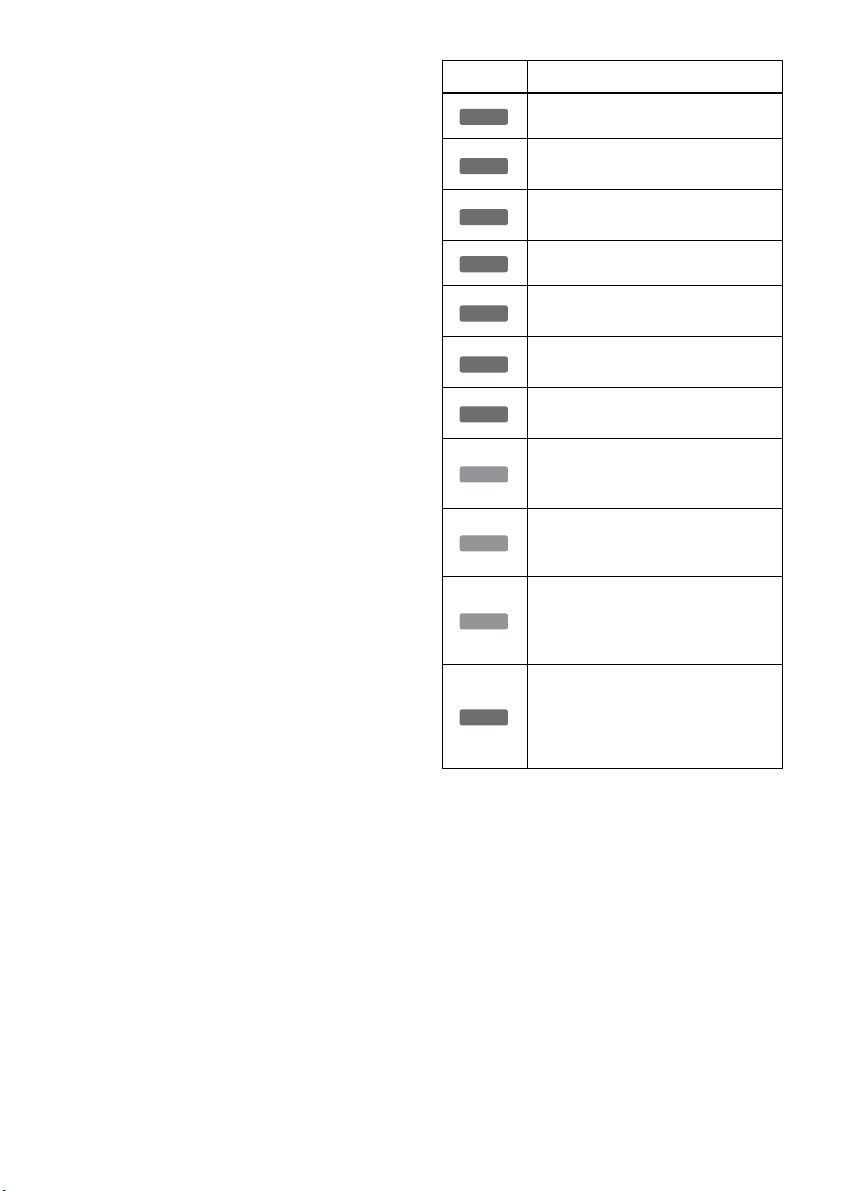
12) Use only with the cart, stand,
tripod, bracket, or table specified
by the manufacturer, or sold
with the apparatus. When a cart
is used, use caution when
moving the cart/apparatus
combination to avoid injury
from tip-over.
13) Unplug this apparatus during
lightning storms or when unused
for long periods of time.
14) Refer all servicing to qualified
service personnel. Servicing is
required when the apparatus has
been damaged in any way, such
as power-supply cord or plug is
damaged, liquid has been spilled
or objects have fallen into the
apparatus, the apparatus has
been exposed to rain or
moisture, does not operate
normally, or has been dropped.
IMPORTANT NOTICE
Caution: This recorder is capable
of holding a still video image or
on-screen display image on your
television screen indefinitely. If
you leave the still video image or
on-screen display image displayed
on your TV for an extended period
of time you risk permanent
damage to your television screen.
Plasma display panels and
projection televisions are
especially susceptible to this.
,continued
4
About this manual
• Instructions in this manual describe the controls on the
remote. You can also use the controls on the recorder if
they have the same or similar names as those on the
remote.
• The on-screen display illustrations used in this manual
may not match the graphics displayed on your TV
screen.
• The explanations regarding discs in this manual refer to
discs created on this recorder. The explanations do not
apply to discs that are created on other recorders and
played back on this recorder.
* MP3 (MPEG1 Audio Layer 3) is a standard format
defined by ISO/MPEG which compresses audio data.
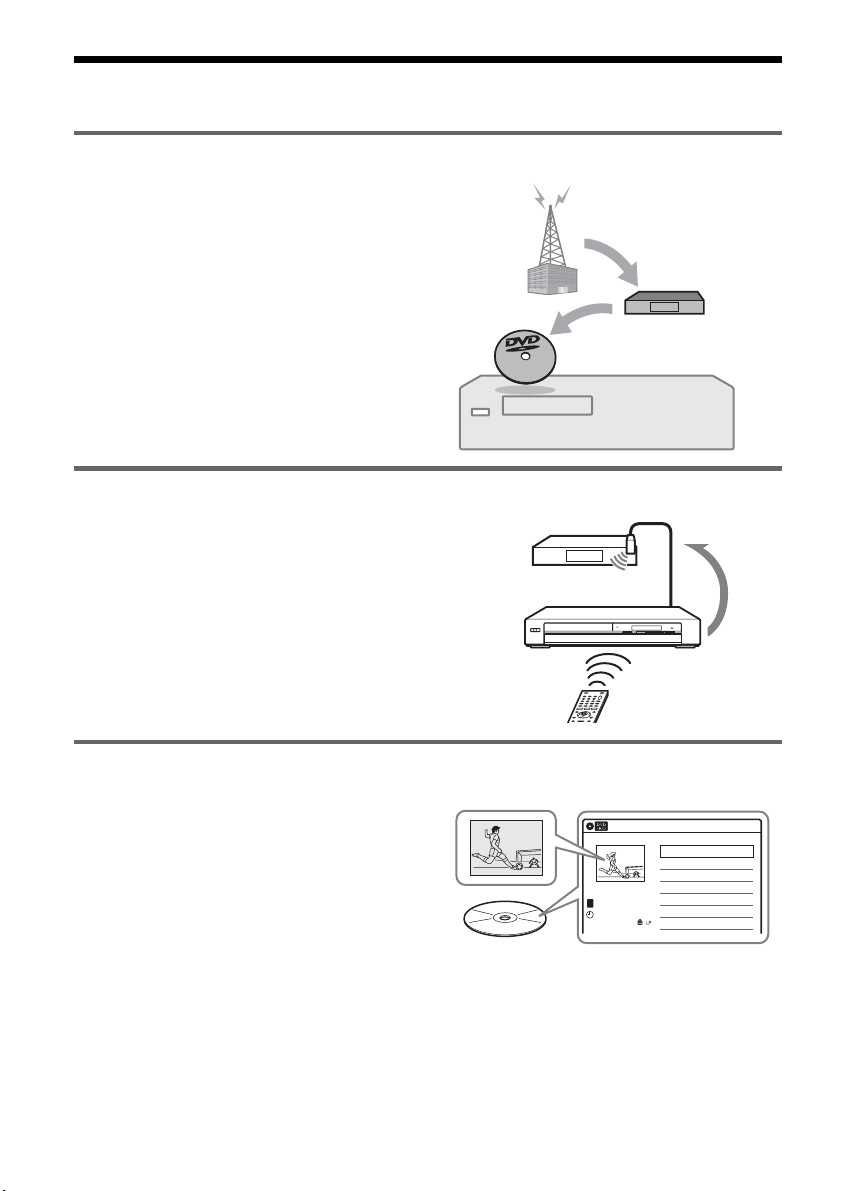
Icon Meaning
Functions available for DVD+RWs
Functions available for DVD-RWs
in VR (Video Recording) mode
Functions available for DVD-RWs
in video mode
Functions available for DVD+Rs
Functions available for DVD-Rs in
VR (Video Recording) mode
Functions available for DVD-Rs in
video mode
Functions available for DVD
VIDEOs
Functions available for VIDEO CDs
or CD-Rs/CD-RWs in video CD
format
Functions available for music CDs
or CD-Rs/CD-RWs in music CD
format
Functions available for DATA CDs
(CD-ROMs/CD-Rs/CD-RWs
containing MP3
* audio tracks or
JPEG image files)
Functions available for DATA
DVDs (DVD-ROMs/DVD+RWs/
DVD-RWs/DVD+Rs/DVD-Rs
containing MP3* audio tracks or
JPEG image files)
+
RW
-
RWVR
-
RW
Video
+
R
-
RVR
-
R
Video
DVD
VCD
CD
DATA CD
DATA DVD

5

6
Table of Contents
WARNING . . . . . . . . . . . . . . . . . . . . . . . . . . . . . . . . . . . . . . . . . . . . . . . . . . . . . . . . . . . 2
Precautions . . . . . . . . . . . . . . . . . . . . . . . . . . . . . . . . . . . . . . . . . . . . . . . . . . . . . . . . . . 2
Ways to Use Your DVD Recorder . . . . . . . . . . . . . . . . . . . . . . . . . . . . . . . . . . . . . . . . .8
How to Use the On-Screen Menus . . . . . . . . . . . . . . . . . . . . . . . . . . . . . . . . . . . . . . .10
Hookups and Settings . . . . . . . . . . . . . . . . . . . . . . . . . . . . . . . . . . . . . 12
Hooking Up the Recorder . . . . . . . . . . . . . . . . . . . . . . . . . . . . . . . . . . . . . . . . . . . . . . 12
Step 1: Unpacking . . . . . . . . . . . . . . . . . . . . . . . . . . . . . . . . . . . . . . . . . . . . . . . . . . . .12
Step 2: Connecting the Cable Box/Satellite Receiver (Tuner). . . . . . . . . . . . . . . . . . . 12
Step 3: Connecting to Your TV . . . . . . . . . . . . . . . . . . . . . . . . . . . . . . . . . . . . . . . . . . 15
Step 4: Connecting to Your AV Amplifier (Receiver) . . . . . . . . . . . . . . . . . . . . . . . . . .18
Step 5: Connecting the Power Cord . . . . . . . . . . . . . . . . . . . . . . . . . . . . . . . . . . . . . .20
Step 6: Preparing the Remote . . . . . . . . . . . . . . . . . . . . . . . . . . . . . . . . . . . . . . . . . . .21
Step 7: Easy Setup . . . . . . . . . . . . . . . . . . . . . . . . . . . . . . . . . . . . . . . . . . . . . . . . . . . 23
Connecting a VCR or Similar Device . . . . . . . . . . . . . . . . . . . . . . . . . . . . . . . . . . . . . 27
Quick Guide to Disc Types . . . . . . . . . . . . . . . . . . . . . . . . . . . . . . . . . . 30
Recordable and Playable Discs . . . . . . . . . . . . . . . . . . . . . . . . . . . . . . . . . . . . . . . . .30
Playable Discs . . . . . . . . . . . . . . . . . . . . . . . . . . . . . . . . . . . . . . . . . . . . . . . . . . . . . .33
Playback . . . . . . . . . . . . . . . . . . . . . . . . . . . . . . . . . . . . . . . . . . . . . . 35
Playing Discs . . . . . . . . . . . . . . . . . . . . . . . . . . . . . . . . . . . . . . . . . . . . . . . . . . . . . . . 35
Playback Options . . . . . . . . . . . . . . . . . . . . . . . . . . . . . . . . . . . . . . . . . . . . . . . . . . . . 36
Playing a Title From the Title List . . . . . . . . . . . . . . . . . . . . . . . . . . . . . . . . . . . . . . . .39
Searching for a Title/Chapter/Track, etc. . . . . . . . . . . . . . . . . . . . . . . . . . . . . . . . . . .40
Playing MP3 Audio Tracks and JPEG Image Files . . . . . . . . . . . . . . . . . . . . . . . . . . . 41
Displaying the Playing Time and Play Information . . . . . . . . . . . . . . . . . . . . . . . . . . . 44
Recording . . . . . . . . . . . . . . . . . . . . . . . . . . . . . . . . . . . . . . . . . . . . . 46
Before Recording . . . . . . . . . . . . . . . . . . . . . . . . . . . . . . . . . . . . . . . . . . . . . . . . . . . . 46
Recording From Connected Equipment Without the Timer . . . . . . . . . . . . . . . . . . . .47
Timer Recording From Connected Equipment . . . . . . . . . . . . . . . . . . . . . . . . . . . . . .49
Recording From Connected Equipment With a Timer (Synchro Rec) . . . . . . . . . . . . 51
Changing or Canceling Timer Settings (Timer List) . . . . . . . . . . . . . . . . . . . . . . . . . . 53
Recording From a VCR or Similar Device . . . . . . . . . . . . . . . . . . . . . . . . . . . . . . . . .54
Editing . . . . . . . . . . . . . . . . . . . . . . . . . . . . . . . . . . . . . . . . . . . . . . . 56
Before Editing . . . . . . . . . . . . . . . . . . . . . . . . . . . . . . . . . . . . . . . . . . . . . . . . . . . . . . . 56
Editing a Title . . . . . . . . . . . . . . . . . . . . . . . . . . . . . . . . . . . . . . . . . . . . . . . . . . . . . . .57
Changing the Name of a Title . . . . . . . . . . . . . . . . . . . . . . . . . . . . . . . . . . . . . . . . . . . 60
Creating a Playlist . . . . . . . . . . . . . . . . . . . . . . . . . . . . . . . . . . . . . . . . . . . . . . . . . . . . 61
Editing a Playlist . . . . . . . . . . . . . . . . . . . . . . . . . . . . . . . . . . . . . . . . . . . . . . . . . . . . . 63
Formatting/Renaming/Protecting a Disc . . . . . . . . . . . . . . . . . . . . . . . . . . . . . . . . . . . 67
Finalizing a Disc (Preparing a Disc for Playback on Other Equipment) . . . . . . . . . . . 69

7
DV/D8 Dubbing (DV/D8 t DVD) . . . . . . . . . . . . . . . . . . . . . . . . . . . . . . 71
Before DV/D8 Dubbing . . . . . . . . . . . . . . . . . . . . . . . . . . . . . . . . . . . . . . . . . . . . . . . . 71
Connecting a Digital Video Camera to the DV IN Jack . . . . . . . . . . . . . . . . . . . . . . . 71
Dubbing From a DV/D8 Format Tape to a DVD . . . . . . . . . . . . . . . . . . . . . . . . . . . . . 72
Settings and Adjustments . . . . . . . . . . . . . . . . . . . . . . . . . . . . . . . . . . . 75
Using the Setup Displays . . . . . . . . . . . . . . . . . . . . . . . . . . . . . . . . . . . . . . . . . . . . . . 75
Clock Setting (Clock Set) . . . . . . . . . . . . . . . . . . . . . . . . . . . . . . . . . . . . . . . . . . . . . . 76
Video Settings (Video) . . . . . . . . . . . . . . . . . . . . . . . . . . . . . . . . . . . . . . . . . . . . . . . . 77
Audio Settings (Audio) . . . . . . . . . . . . . . . . . . . . . . . . . . . . . . . . . . . . . . . . . . . . . . . . 79
Recording and Set Top Box Control Settings (Features) . . . . . . . . . . . . . . . . . . . . . . 81
Language, Parental Control Settings/Factory Settings (Options) . . . . . . . . . . . . . . . . 83
Easy Setup (Resetting the Recorder) . . . . . . . . . . . . . . . . . . . . . . . . . . . . . . . . . . . . . 85
Additional Information . . . . . . . . . . . . . . . . . . . . . . . . . . . . . . . . . . . . . 86
Troubleshooting . . . . . . . . . . . . . . . . . . . . . . . . . . . . . . . . . . . . . . . . . . . . . . . . . . . . . 86
Notes About This Recorder . . . . . . . . . . . . . . . . . . . . . . . . . . . . . . . . . . . . . . . . . . . . 90
Specifications . . . . . . . . . . . . . . . . . . . . . . . . . . . . . . . . . . . . . . . . . . . . . . . . . . . . . . . 91
About i.LINK . . . . . . . . . . . . . . . . . . . . . . . . . . . . . . . . . . . . . . . . . . . . . . . . . . . . . . . . 93
Guide to Parts and Controls . . . . . . . . . . . . . . . . . . . . . . . . . . . . . . . . . . . . . . . . . . . . 94
Glossary . . . . . . . . . . . . . . . . . . . . . . . . . . . . . . . . . . . . . . . . . . . . . . . . . . . . . . . . . . . 97
DVD Audio/Subtitle Language . . . . . . . . . . . . . . . . . . . . . . . . . . . . . . . . . . . . . . . . . . 99
Cable Box/Satellite Receiver Brand Code . . . . . . . . . . . . . . . . . . . . . . . . . . . . . . . . 100
Index . . . . . . . . . . . . . . . . . . . . . . . . . . . . . . . . . . . . . . . . . . . . . . . . . . . . . . . . . . . . . 105
8
Ways to Use Your DVD Recorder
Recording and timer recording
, Record TV programs on a DVD, either
manually or using the timer. You need to
connect a tuner such as a cable box to this
recorder.
Control your cable box or satellite receiver – Set top box control
, Connect the supplied set top box controller
to have the recorder change the channel of
your cable box or satellite receiver
(page 12).
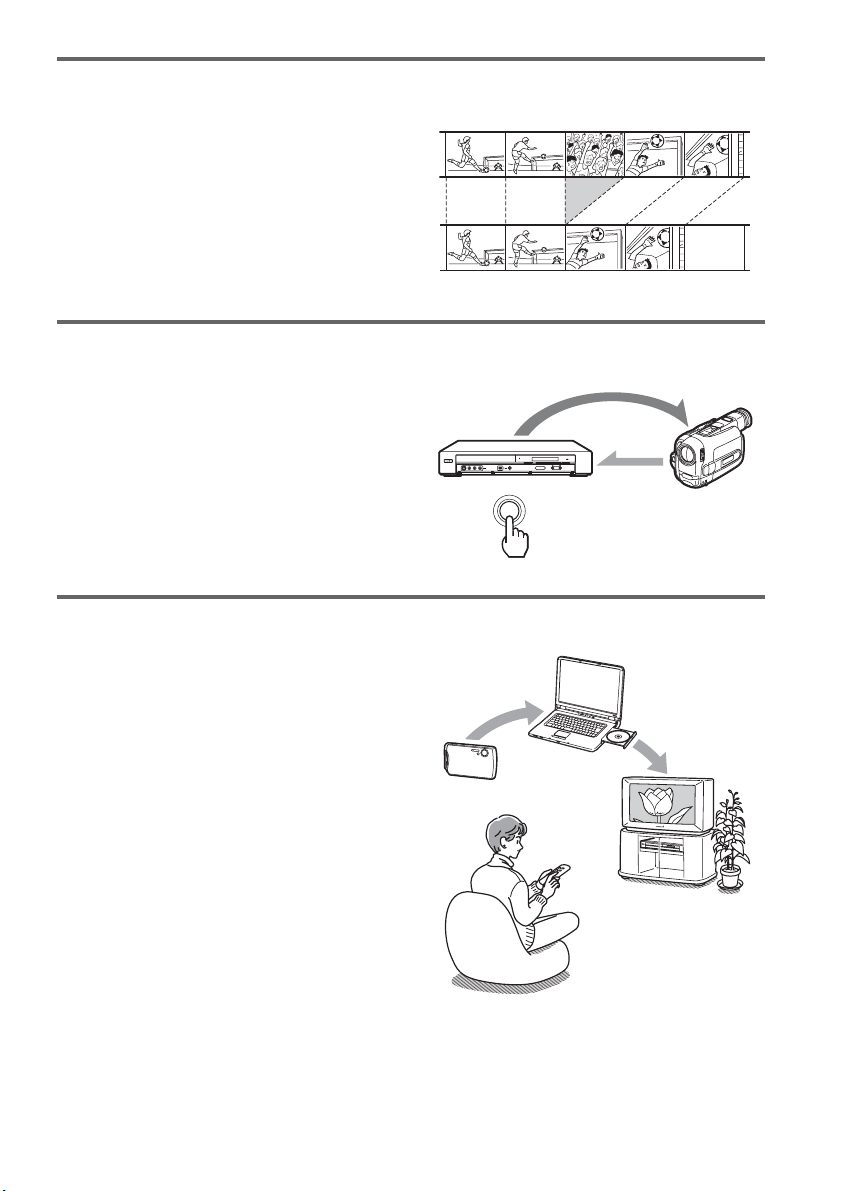
Quick access to recorded titles – Title List
, Display the Title List to view all titles on a
disc and select a title for playback or editing
(page 39).
103
CH 103!
Title List
10:10 AM
>
>
>
>
LINE 1
08:00 PM
May/02/2007
T
No.1/4
01
02
03
04
Title Length Edit
LINE 1 01:29:03
LINE 1 00:31:23
LINE 1 01:59:00
LINE 1 00:58:56
Title List (Original)
9
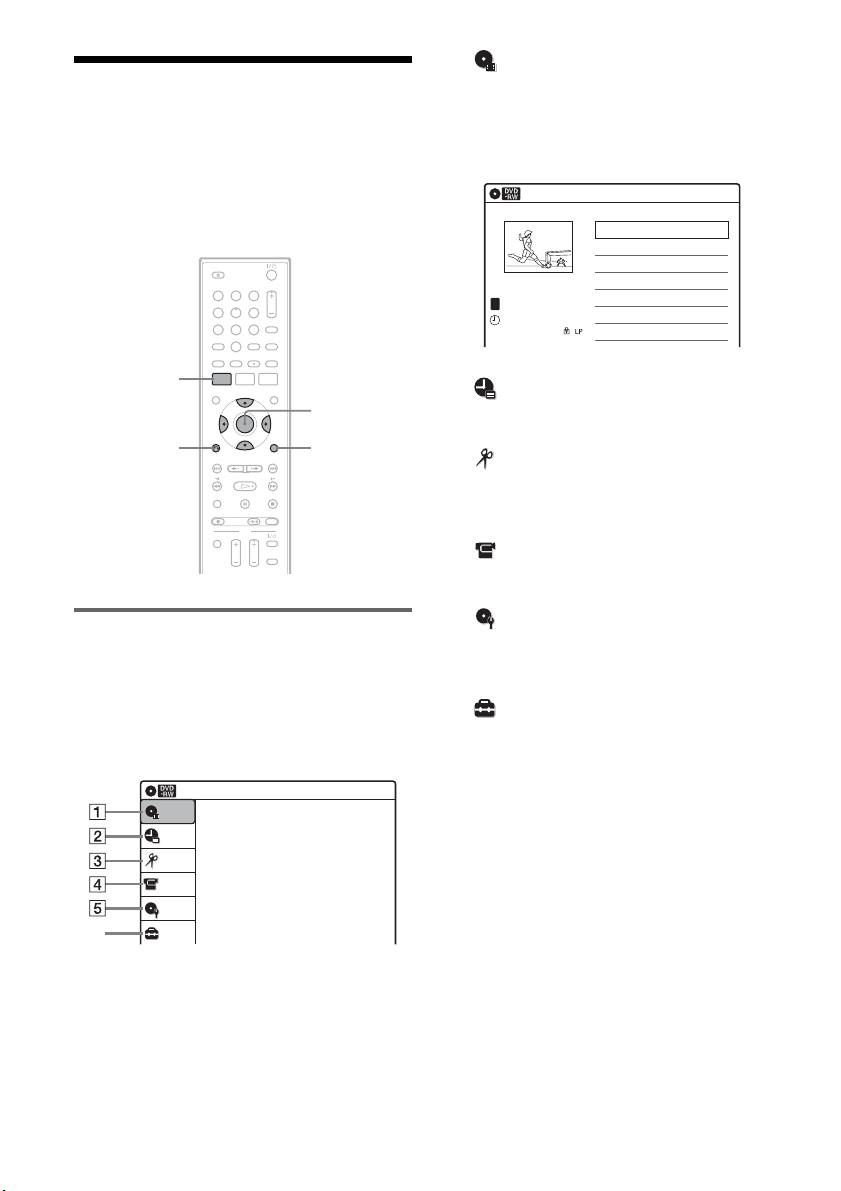
Creating your own program – Playlist
, Record a program on a DVD-RW (VR
mode) or DVD-R (VR mode), then erase,
move or add scenes as you like without
changing the original contents (page 61).
One Touch Dubbing – DV/D8 Dubbing
, Connect your digital video camera to the
DV IN jack and press the ONE TOUCH
DUBBING button to dub a DV/D8 format
tape over to a disc (page 71).
Playing JPEG image files or MP3 audio files
, You can enjoy viewing JPEG images on
your TV screen. First, take pictures with a
digital camera and save them in JPEG
format to a DATA CD (CD-RW/CD-R) or
DATA DVD (DVD+RW/DVD-RW/
DVD+R/DVD-R) on a PC. Then play the
disc on this recorder (page 41).
You can also play MP3 audio files on this
recorder (page 41).
A list of recordable and playable discs is on page 30.
Original
Playlist
ONE-TOUCH DUBBING
Control
Dubbing
Shoot
Save
Play!
10
How to Use the On-Screen
Menus
The following three displays are mainly used to
operate this recorder. Once you become familiar
with the basic operations, you will find the
recorder easy to use.
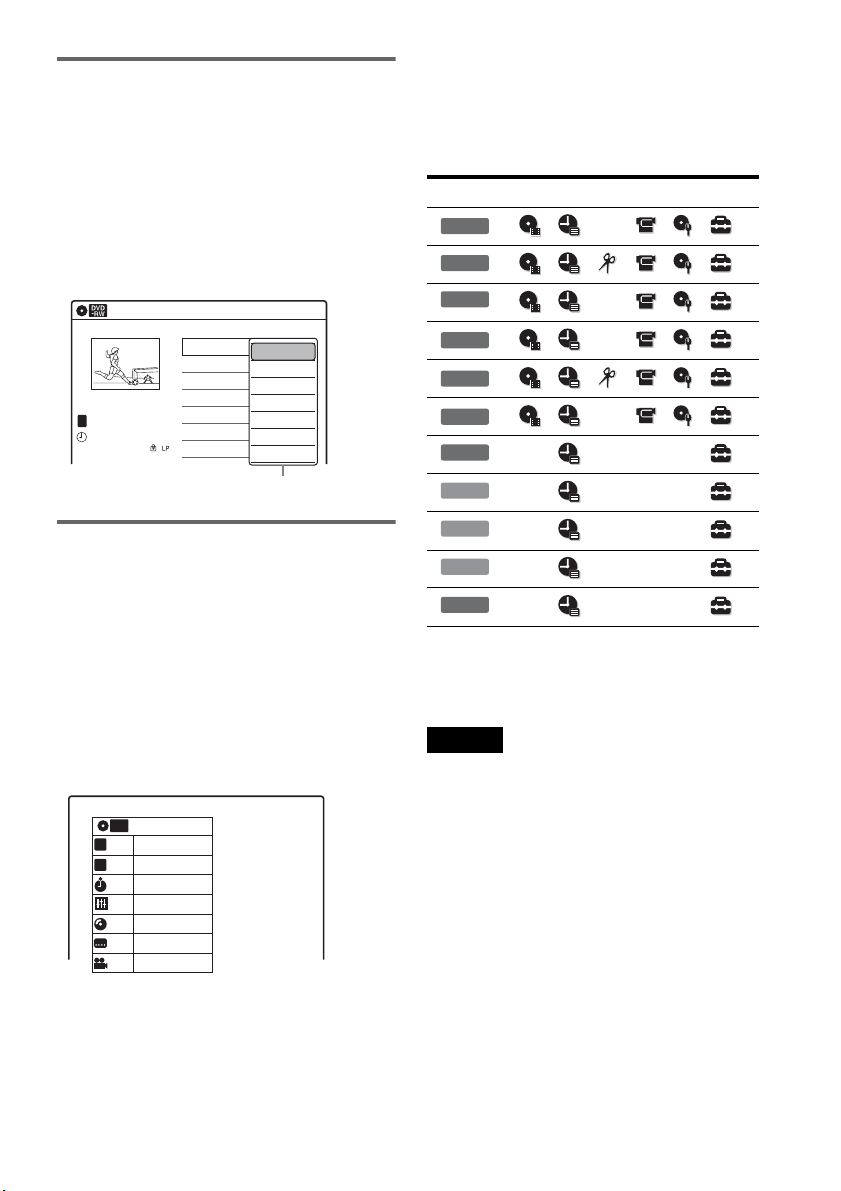
System Menu
The System Menu appears when you press
SYSTEM MENU, and provides entries to all of
the recorder’s main functions, such as timer
recording and setup.
Select an option by pressing M/m and ENTER.
A “Title List”
Displays the list of the disc contents,
including the recording information and
movie thumbnail image, which allows you to
select a title to play or edit.
B “Timer”
Used to set a new timer recording, as well as
change or cancel the timer recordings you set.
C “Edit”
Used to create or edit a Playlist (unfinalized
DVD-RWs (VR mode)/DVD-Rs (VR mode)
only).
D “DV/D8 Dubbing”
Used to dub from a DV/D8 format tape to a
disc.
E “Disc Setting”
Used to rename, protect, format, or finalize a
disc, or erase all titles on the disc. Also,
displays the disc information.
F “Setup”
Displays the “Setup” display for setting up the
recorder to suit your preferences.
M/m/</,,
ENTER
SYSTEM
MENU
OPTIONSO RETURN
11 22 33
44 55 66
77 88
00
99
Title List (Original)
10:10 AM
Press ENTER :
Title Menu for DVD Title List.
Setup
Disc Setting
Edit
Title List
Timer
DV/D8 Dubbing
6
10:10 AM
01 LINE 1 >01:29:03
02 LINE 1 >00:31:23
03 LINE 1 >01:59:00
04 LINE 1 >00:58:56
LINE
1
08:00 PM
May/02/2007
T
No. Title Length Edit
Title List (Original)
1/4
11
Sub-menu
The sub-menu appears when you select an item
from a list menu (e.g., a title from the Title List
menu), and press ENTER. The sub-menu displays
options applicable only to the selected item. The
displayed options differ depending on the
situation and disc type.
Select an option by pressing M/m and ENTER.
Example: The Title List menu
OPTIONS
The OPTIONS menu appears when you press
OPTIONS. You can search for a title/chapter/
track, check the playing and remaining time, or
change settings for audio/angle/subtitle. The
displayed options differ depending on the media
type.
Press M/m to select an option, press </, to
select the desired item, and press ENTER.
Example: When you press OPTIONS while a
DVD VIDEO is playing.
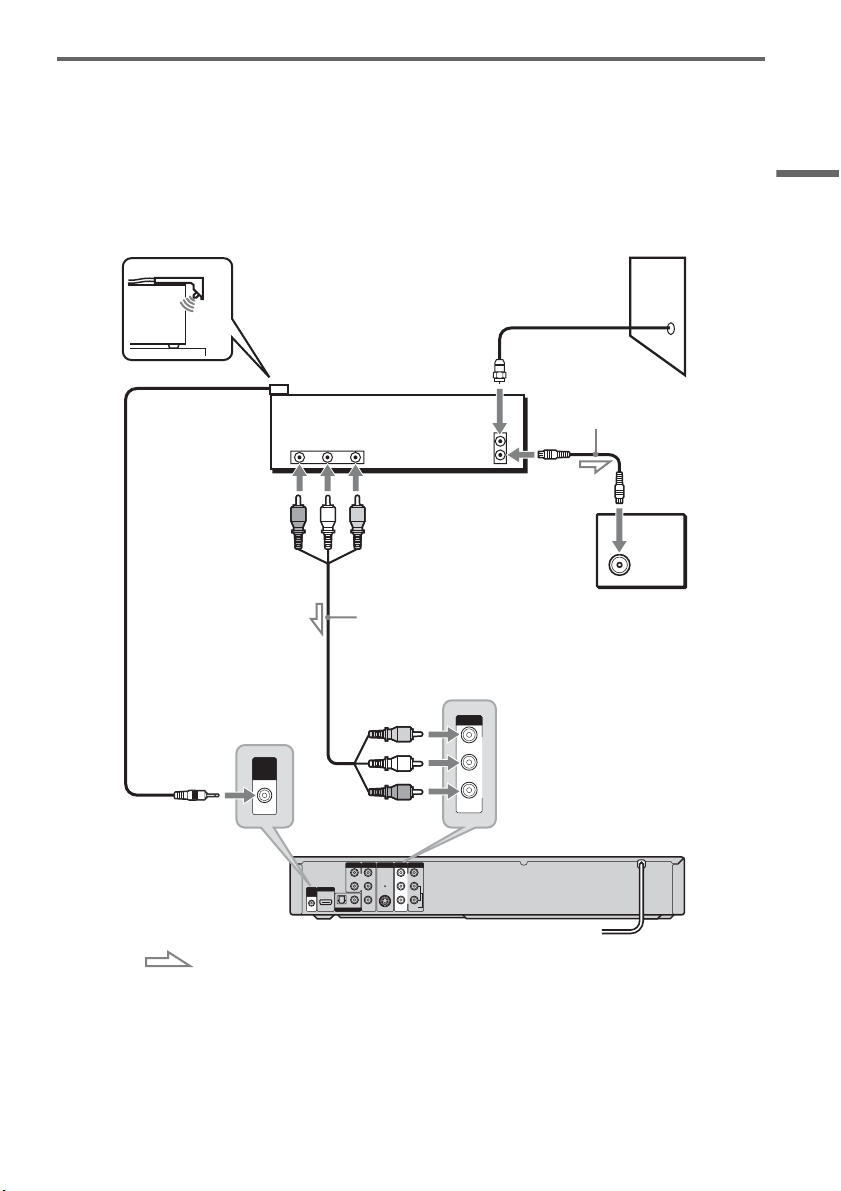
Selectable options
Selectable options on the System Menu differ
depending on the media type, disc condition, and
operating status.
Example: When a disc is stopped.
* Unfinalized disc only
To return to the previous display
Press O RETURN.
Notes
• The OPTIONS menu may not appear during DVD
recording.
• The System Menu does not appear when recording on
a DVD.
Title List (Original)
10:10 AM
No. Title Length Edit
01 LINE 1 >01:29:03
02 LINE 1 >00:31:23
03 LINE 1 >01:59:00
04 LINE 1 >00:58:56
LINE 1
May/02/2007
08:00 PM
T
1/4
Play
Title Erase
Chapter Erase
Protect
Title Name
A·B Erase
Divide Title
Options for the selected item
1/4
1/1
00:00:25
T
C
Title
Chapter
Time
Remain
Audio
Angle
00:01:30
Subtitle
2/2 ENG
1/1
ENG Dolby D2ch (1/1)
DVD
VIDEO
Type Selectable option
+
RW
-
RWVR
**
-
RW
Video
**
+
R
***
-
RVR
***
-
R
Video
***
DVD
VCD
CD
DATA CD
DATA DVD

12
Hookups and Settings
Hooking Up the Recorder
Follow steps 1 to 7 to hook up and adjust the
settings of the recorder.
Notes
• Plug cords securely to prevent unwanted noise.
• See the instructions supplied with the components to be
connected.
• You cannot connect this recorder to a TV that does not
have a video input jack.
• Be sure to disconnect the power cord of each
component before connecting. Do not connect the
power cord until you reach “Connecting the Power
Cord” on page 20.
Step 1: Unpacking
Check that you have the following items:
• Audio/video cord
(phono plug × 3 y phono plug × 3) (1)
• Remote commander (remote) (1)
• Set top box controller (1)
• Size AA (R6) batteries (2)
Step 2: Connecting the
Cable Box/Satellite
Receiver (Tuner)
This recorder does not include a TV tuner.
To record TV programs on this recorder, you need
to connect the recorder to a tuner that has audio/
video output jacks.
If you have been using your VCR connected to an
antenna, connect this recorder to your VCR using
an audio/video cord. In this way, you will be able
to record TV programs.
You cannot record on this recorder if you have:
– a cable box or satellite receiver without audio/
video outputs.
– cable with no cable box.
– antenna only (no cable TV).
In the cases above, contact your cable service or
satellite service company to see if they can
provide you with a compatible cable box or
satellite receiver.
Using the cable box/satellite
receiver control function
This function allows the recorder to control a
cable box or satellite receiver via the supplied set
top box controller. You can use the recorder’s
remote control to change channels on the cable
box/satellite receiver whenever the cable box/
satellite receiver and the recorder are turned on.
To use the cable box/satellite receiver control
function, you need to:
– Check the brand code of your cable box/satellite
receiver. See “Cable Box/Satellite Receiver
Brand Code” (page 100).
– Connect the set top box controller (page 13).
– Set the brand code number and the recorder’s
input that is connected to the cable box/satellite
receiver (page 23).
After setting up the cable box/satellite receiver
control, check that the recorder can correctly
control the cable box or satellite receiver
(page 26).
13
Hookups and Settings
Connecting a cable box/satellite receiver and set top box controller
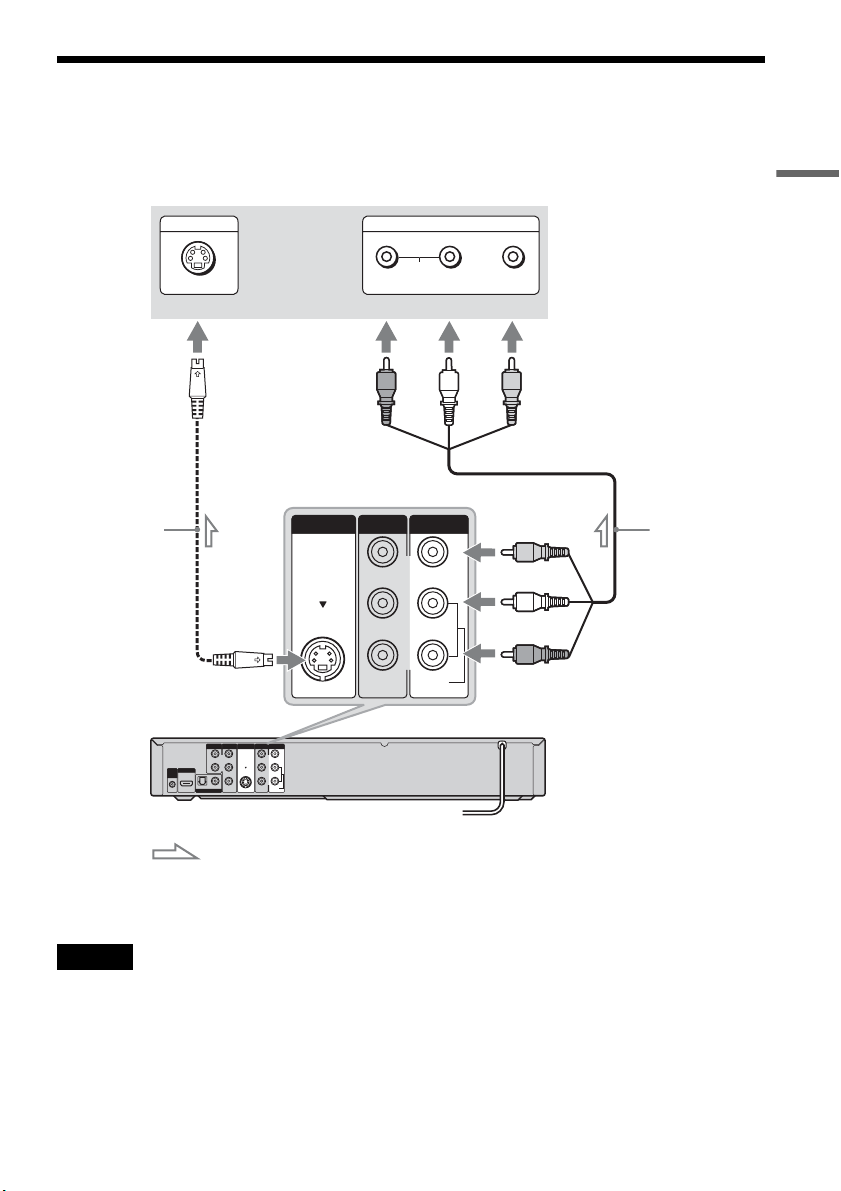
Connect the LINE IN jacks using an audio/video cord.
With this hookup, you can record any channel on the cable box or satellite receiver. Be sure that the cable
box or satellite receiver is turned on. This connection is necessary to use the Synchro-Rec function
(page 51).
To watch cable or satellite programs, you need to match the input source on the recorder (LINE 1) to the
input jack connected to the cable box or satellite receiver (LINE 1 IN).
Place the set top box controller near the remote sensor on the cable box/satellite receiver.
About AV path through
The recorder automatically sends the input signal from the LINE 1 IN jacks to the LINE OUT VIDEO/
AUDIO jacks without turning itself on.
When you connect a cable box or satellite receiver to the LINE 1 IN jacks and your TV to the LINE OUT
(VIDEO/AUDIO L/R) jacks (page 15), you can watch programs from a cable box or satellite receiver on
the TV even when the recorder is turned off.
L
R
VIDEO
AUDIO
LINE OUT
VIDEO
YL
P
B
R
P
R
AUDIO
LINE 1 IN
AUDIO OUT S VIDEO OUT
COMPONENT
VIDEO OUT
DIGITAL AUDIO OUT
OPTICAL COAXIAL
HDMI OUT
SETTOP
BOX
CONTROL
ANT IN
RL
AUDIO
OUT
VIDEO
OUT
TO TV
SETTOP
BOX
CONTROL
VIDEO
AUDIO
LINE 1 IN
Set top box
controller
(supplied)
Cable box/
satellite receiver
Antenna cable
(not supplied)
Wall
to antenna input
TV
Audio/video cord
(not supplied)
to SET TOP BOX
CONTROL
to LINE 1 IN
DVD recorder
: Signal flow
,continued

14
Notes
• Synchro-Recording does not work with some tuners. For details, see the tuner’s operating instructions.
• AV path through function does not work for:
– Input signals from the LINE 2 IN jacks.
– Output signals to S VIDEO OUT, COMPONENT VIDEO OUT, or HDMI OUT jacks.
15
Hookups and Settings
Step 3: Connecting to Your TV
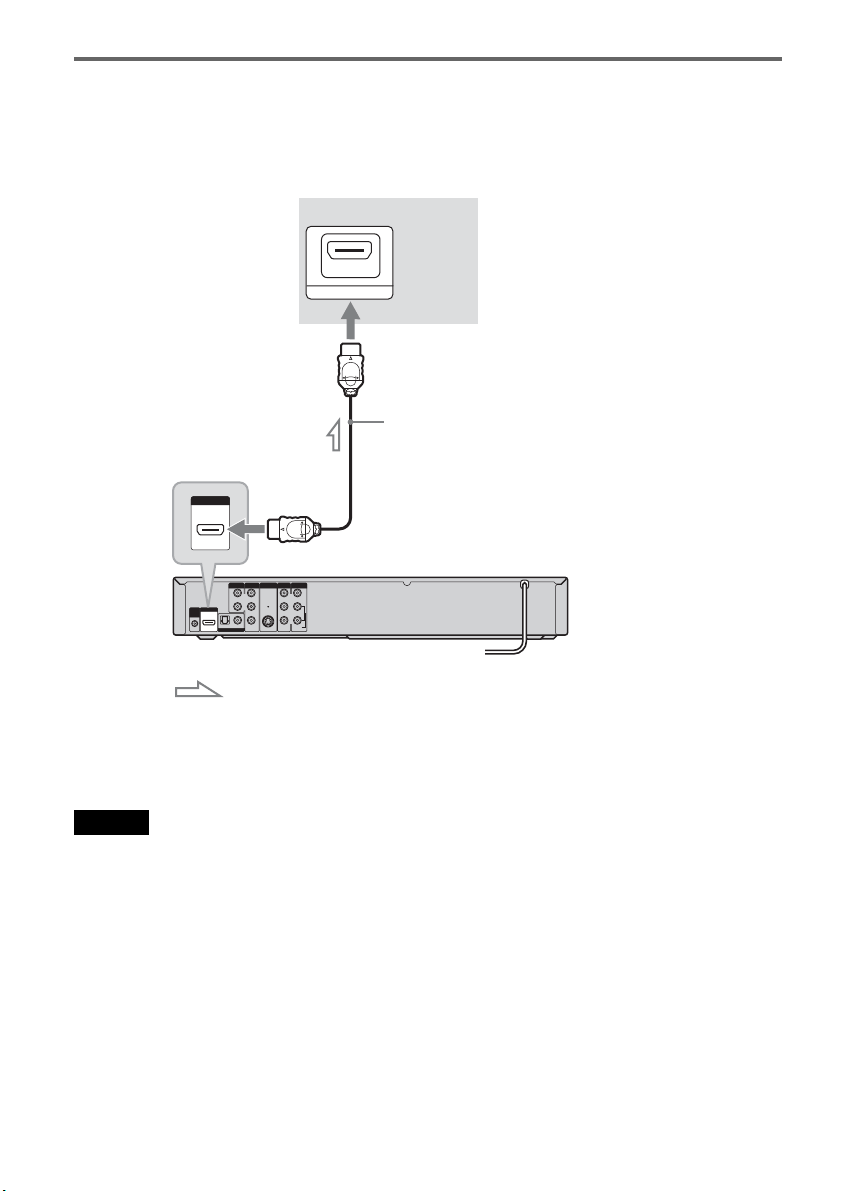
Connect the supplied audio/video cord to the LINE OUT (VIDEO/AUDIO L/R) jacks of the recorder.
To enjoy higher quality images, connect an S video cord (not supplied) instead of the yellow (video) plug.
When using this connection, be sure to connect the audio cord to the LINE OUT (AUDIO L/R) jacks.
When playing “wide screen” images
Some recorded images may not fit your TV screen. To change the picture size, see page 77.
Notes
• Do not connect to the S VIDEO OUT and yellow LINE OUT (VIDEO) jacks at the same time.
• Do not connect your TV’s audio output jacks to the LINE IN (AUDIO L/R) jacks at the same time. This will cause
unwanted noise to come from your TV’s speakers.
L
R
VIDEO
AUDIO
LINE OUT
VIDEO
YL
P
B
R
P
R
AUDIO
LINE 1 IN
AUDIO OUT S VIDEO OUT
COMPONENT
VIDEO OUT
DIGITAL AUDIO OUT
OPTICAL COAXIAL
HDMI OUT
SETTOP
BOX
CONTROL
AUDIO
INPUT
R L VIDEO
INPUT
S VIDEO
L
R
VIDEO
AUDIO
LINE OUT
VIDEO
AUDIO
LINE 1 IN
S VIDEO OUT
: Signal flow
S video cord
(not supplied)
TV or projector
(red) (white) (yellow)
Audio/video cord
(supplied)
(red)
(white)
(yellow)
to S VIDEO OUT
DVD recorder
to LINE OUT
(VIDEO/AUDIO L/R)
,continued
16
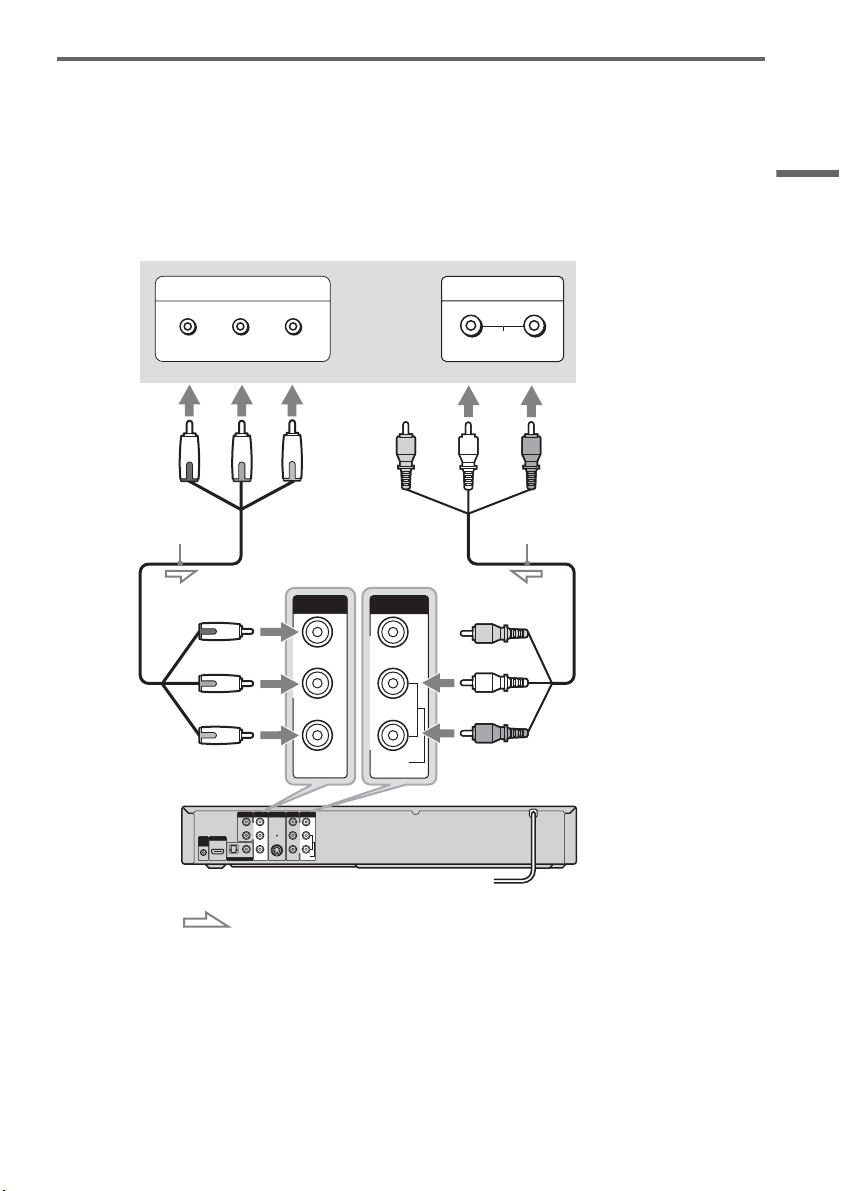
If your TV has an HDMI input jack
Connect the HDMI* OUT jack using a certified HDMI cord (not supplied). You will enjoy high quality
picture and sound. The HDMI indicator lights up on the front panel when the recorder outputs signals
through the HDMI OUT jack.
Be sure to turn off the recorder before connecting an HDMI cord.
* This DVD recorder incorporates High-Definition Multimedia Interface (HDMI™) technology.
HDMI, the HDMI logo and High-Definition Multimedia Interface are trademarks or registered trademarks of HDMI
Licensing LLC.
Note
You cannot connect the HDMI OUT jack to DVI jacks that are not HDCP compliant (e.g., DVI jacks on PC displays).
L
R
VIDEO
AUDIO
LINE OUT
VIDEO
YL
P
B
R
P
R
AUDIO
LINE 1 IN
AUDIO OUT S VIDEO OUT
COMPONENT
VIDEO OUT
DIGITAL AUDIO OUT
OPTICAL COAXIAL
HDMI OUT
SETTOP
BOX
CONTROL
HDMI IN
HDMI OUT
TV or
projector
HDMI cord (not supplied)
to HDMI OUT
: Signal flow
DVD recorder
to HDMI input
17
Hookups and Settings
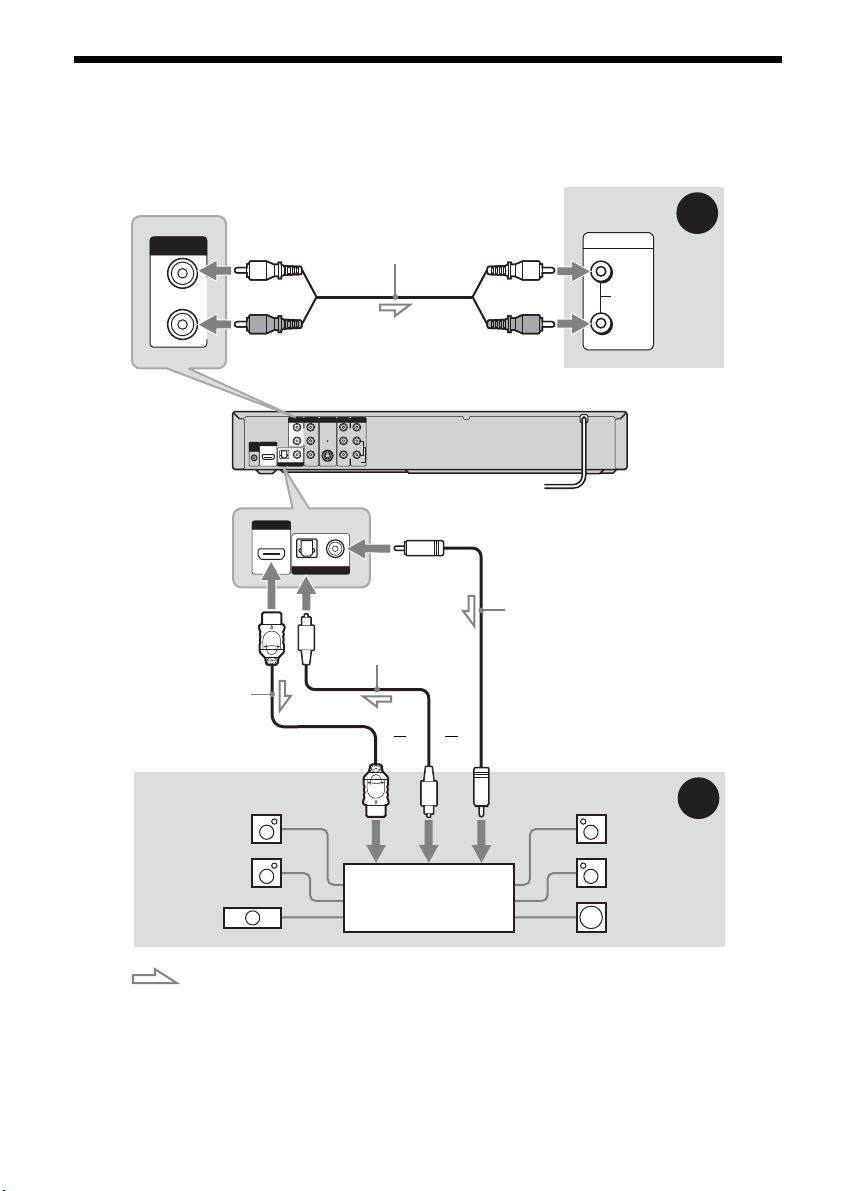
If your TV has component video input jacks
Connect the COMPONENT VIDEO OUT jacks using a component video cord (not supplied) or three
video cords (not supplied) of the same kind and length. You will enjoy accurate color reproduction and
high quality images.
If your TV accepts progressive 480p format signals, you must use this connection and then set
“Progressive” of “Video” to “On” in the “Setup” display (page 78). The “PROGRESSIVE” indicator
lights up when the recorder outputs progressive signals.
When using this connection, be sure to connect the audio cord to the LINE OUT (AUDIO L/R) jacks.
L
R
VIDEO
AUDIO
LINE OUT
VIDEO
YL
P
B
R
P
R
AUDIO
LINE 1 IN
AUDIO OUT S VIDEO OUT
COMPONENT
VIDEO OUT
DIGITAL AUDIO OUT
OPTICAL COAXIAL
HDMI OUT
SETTOP
BOX
CONTROL
COMPONENT VIDEO IN
P
B
P
R
Y
AUDIO
LR
INPUT
L
R
VIDEO
AUDIO
LINE OUT
Y
P
B
PR
COMPONENT
VIDEO OUT
: Signal flow
TV or projector
(red) (white) (green)
Component video cord
(not supplied)
(red)(blue)
(red)
(green)
(blue)
to COMPONENT
VIDEO OUT
Audio/video cord
(supplied)
(white)
(red)
to LINE OUT
(AUDIO L/R)
DVD recorder
18
Step 4: Connecting to Your AV Amplifier (Receiver)
Select one of the following patterns A or B, according to the input jack on your AV amplifier (receiver).
This will enable you to listen to DVD audio tracks through your AV amplifier (receiver).
L
R
VIDEO
AUDIO
LINE OUT
VIDEO
YL
P
B
R
P
R
AUDIO
LINE 1 IN
AUDIO OUT S VIDEO OUT
COMPONENT
VIDEO OUT
DIGITAL AUDIO OUT
OPTICAL COAXIAL
HDMI OUT
SETTOP
BOX
CONTROL
AUDIO
INPUT
L
R
B
A
L
R
AUDIO OUT
OPTICAL COAXIAL
HDMI OUT
DIGITAL AUDIO OUT
: Signal flow
AV amplifier (receiver)
(red)
(white)
Audio cord
(not supplied)
(white)
(red)
DVD recorder
to AUDIO OUT (L/R)
to DIGITAL AUDIO OUT
(COAXIAL or OPTICAL)
Optical digital cord
(not supplied)
Coaxial digital cord
(not supplied)
[Speakers]
Rear (L)
Front (L)
Center
to coaxial or
optical digital
input
[Speakers]
Rear (R)
Front (R)
Subwoofer
or
AV amplifier (receiver)
with a decoder
HDMI cord
(not supplied)
or
to HDMI OUT
to HDMI input
19
Hookups and Settings
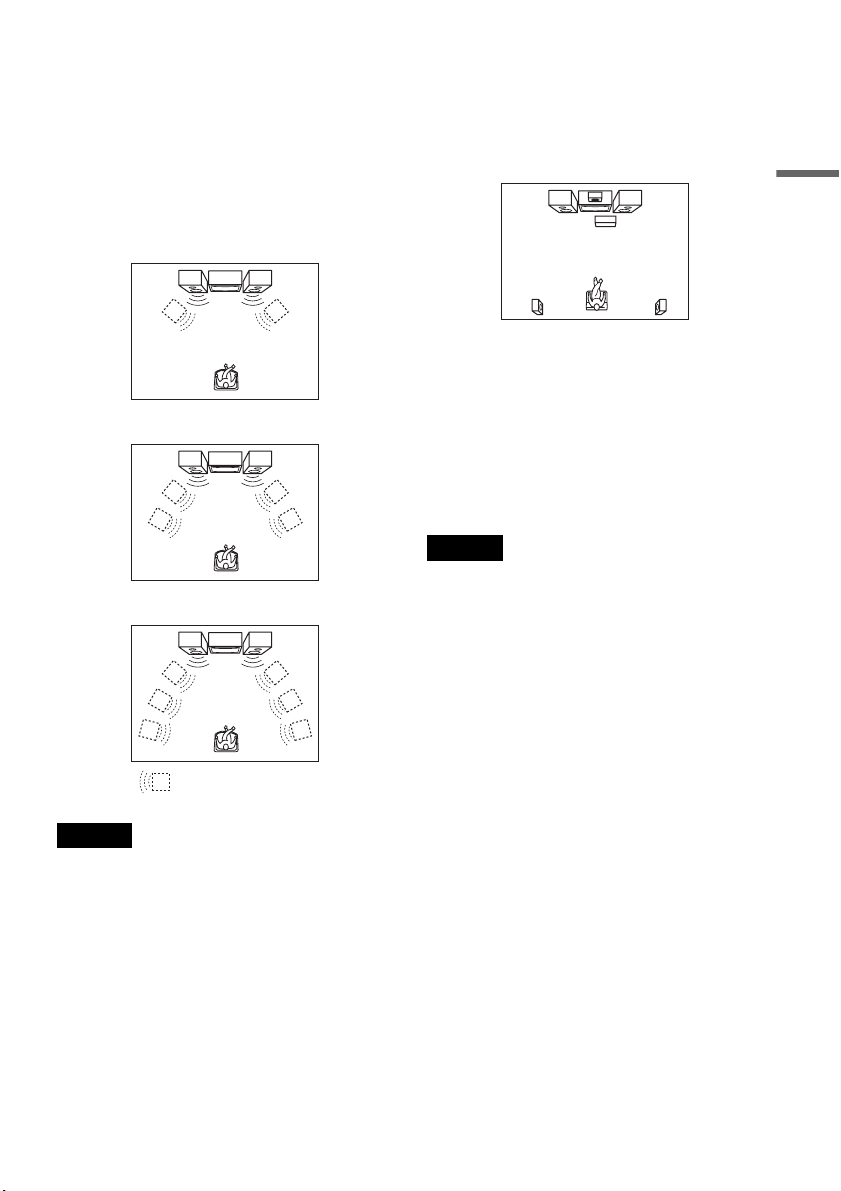
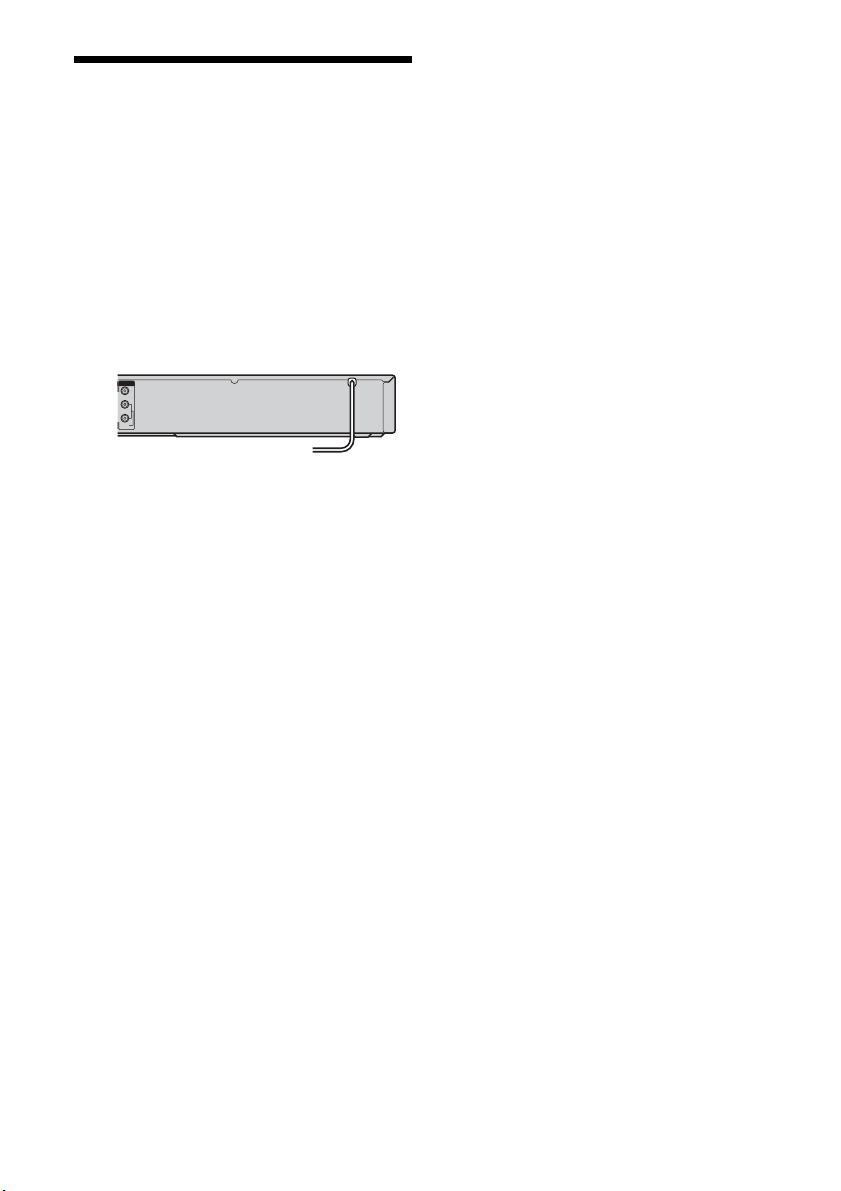
A Connecting to audio L/R jacks
This connection uses a stereo amplifier’s
(receiver’s) two front speakers for sound.
You can enjoy the surround function that creates
virtual speakers from two stereo speakers. Select
“Surround1,” “Surround2,” or “Surround3” in
“Surround” of “Audio” setup (page 80).
Surround 1
Surround 2
Surround 3
Note
Make sure that your listening position is between and at
an equal distance from your speakers, and that the
speakers are located in similar surroundings.
B Connecting to a digital audio input jack
Use this connection if your AV amplifier
(receiver) has a Dolby
*1
Digital or DTS
*2
decoder
and a digital input jack. You can enjoy the
surround effect of Dolby Digital (5.1ch) or DTS
(5.1ch).
*1
Manufactured under license from Dolby Laboratories.
“Dolby” and the double-D symbol are trademarks of
Dolby Laboratories.
*2
“DTS” and “DTS Digital Out” are trademarks of DTS,
Inc.
z Hint
For correct speaker location, see the operating
instructions supplied with the connected components.
Notes
• After you have completed the connection, make the
appropriate settings under “Audio Connection Setup”
in Easy Setup (page 23). Otherwise, no sound or a loud
noise will come from your speakers.
• With a coaxial or optical digital connection, you cannot
use the virtual surround effects of this recorder.
• When outputting from the DIGITAL AUDIO OUT
jacks, you cannot switch the bilingual sounds on a
DVD-RW (VR mode) or DVD-R (VR mode) by
pressing AUDIO.
• When you connect the recorder to an AV amplifier
(receiver) using an HDMI cord, you will need to do one
of the following:
– Connect the AV amplifier (receiver) to the TV with
an HDMI cord.
– Connect the recorder to the TV with a video cord
other than HDMI cord (component video cord,
S VIDEO cord, or audio/video cord).
Virtual speaker
20
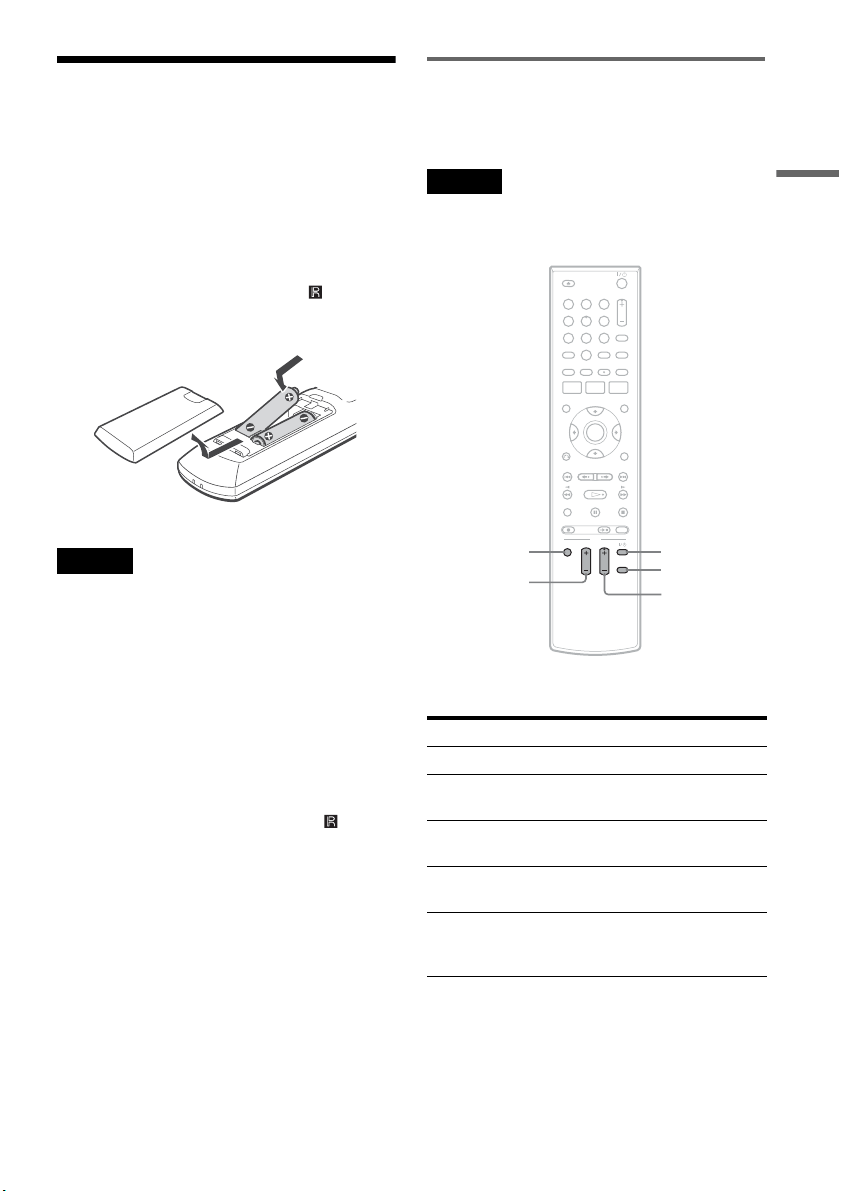
Step 5: Connecting the
Power Cord
Plug the recorder and TV power cords into an AC
outlet. After you connect the power cord, you
must wait for a short while before
operating the recorder. You can operate the
recorder only after the front panel display lights up
and the recorder enters standby mode.
If you connect additional equipment to this
recorder (page 27), be sure to connect the power
cord only after all connections are complete.
L
R
VIDEO
AUDIO
LINE OUT
to AC outlet <
21
Hookups and Settings
Step 6: Preparing the
Remote
You can control the recorder using the supplied
remote.
Insert two size AA (R6) batteries by matching the
3 and # ends on the batteries to the markings
inside the battery compartment. Be sure to close
the battery cover properly. When using the
remote, point it at the remote sensor on the
recorder.
Notes
• If the supplied remote interferes your other Sony DVD
recorder or player, change the command mode number
for this recorder (page 22).
• Use the batteries correctly to avoid possible leakage
and corrosion. Do not touch the liquid with bare hands
should leakage occur. Observe the following:
– Do not use a new battery with an old battery, or
batteries of different manufacturers.
– Do not attempt to recharge the batteries.
– If you do not intend to use the remote for an extended
period of time, remove the batteries.
– If battery leakage occurs, wipe out any liquid inside
the battery compartment, and insert new batteries.
• Do not expose the remote sensor (marked on the
front panel) to strong light, such as direct sunlight or
lighting apparatus. The recorder may not respond to the
remote.
• With normal use, the batteries should last about three to
six months.
• Do not leave the remote in an extremely hot or humid
place.
• Do not drop any foreign object into the remote casing,
particularly when replacing the batteries.
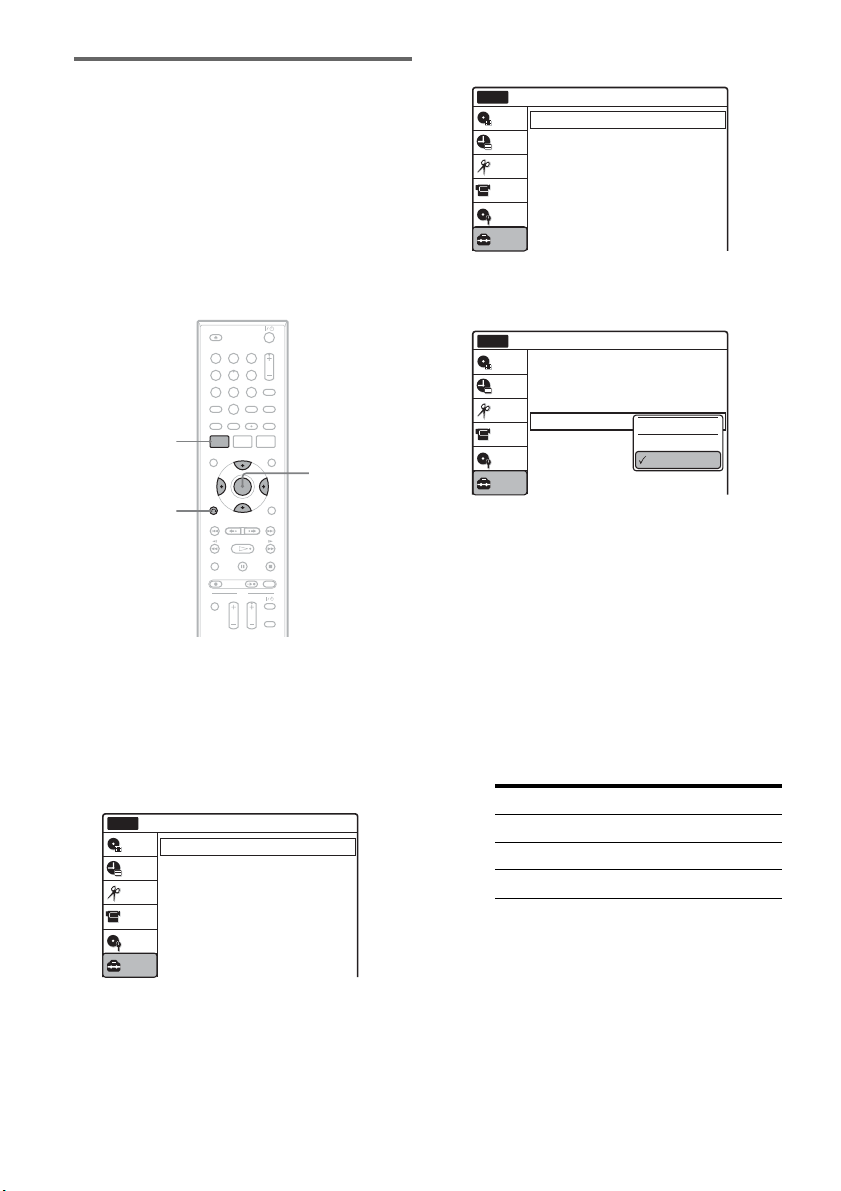
Controlling a Sony TV with the
remote
You can use this remote to operate your Sony TV.
Note
Depending on the TV, some or all of the buttons below
may not work for the TV.
The remote performs the following:
Press To
TV "/1 Turn your TV on or off
TV VOL +/– Adjust the volume of your
TV
TV CH +/– Select the channel on your
TV
TV INPUT Switch your TV’s input
source
TV DIGITAL/
ANALOG
Select the broadcast on
your TV that can switch
between digital and analog
11 22 33
44 55 66
77 88
00
99
TV "/1
TV VOL +/–
TV INPUT
TV CH +/–
TV DIGITAL/
ANALOG
,continued
22
If you have a Sony DVD player or
more than one Sony DVD recorder
If the supplied remote interferes with your other
Sony DVD recorder or player, set the command
mode number for this recorder and the supplied
remote to one that differs from the other Sony
DVD recorder or player after you have completed
“Step 7: Easy Setup.”
The default command mode setting for this
recorder and the supplied remote is DVD 3.
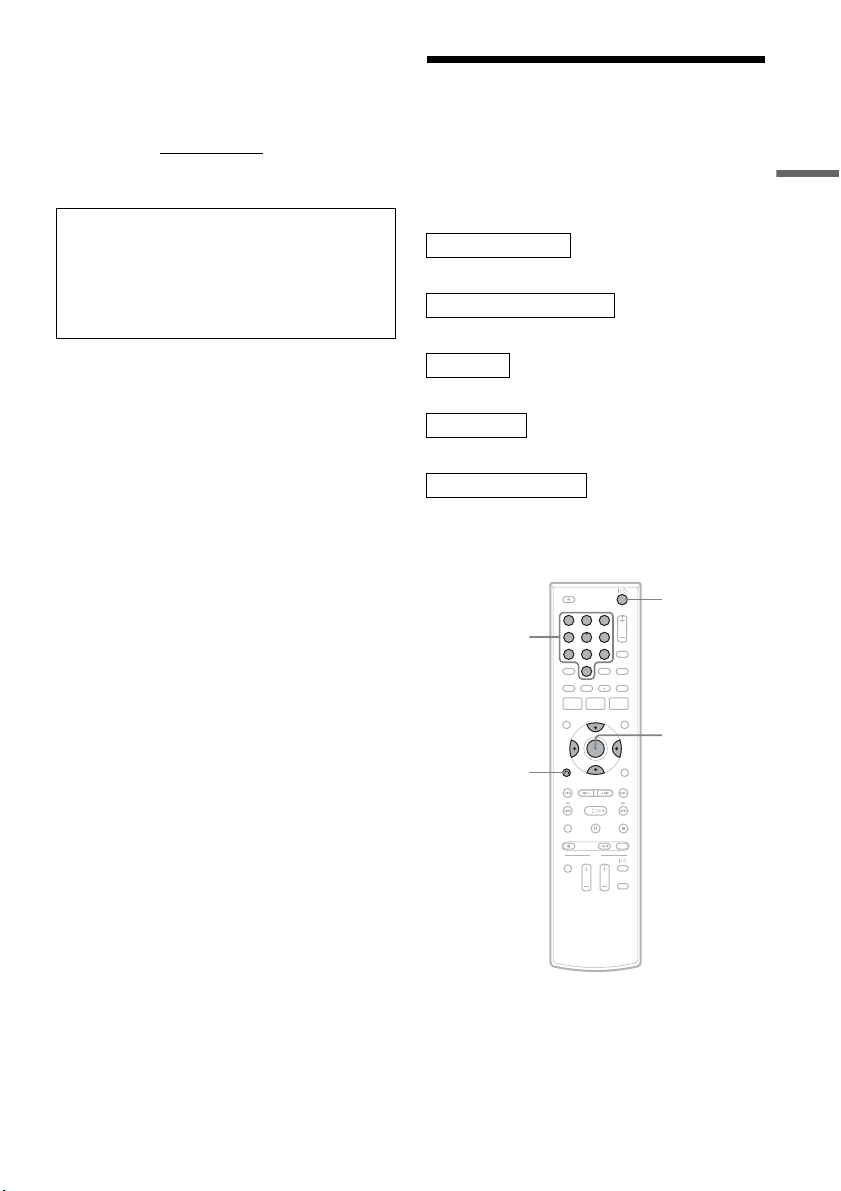
1 Check that Easy Setup (page 23) has been
finished. If Easy Setup has not been
finished, first perform Easy Setup.
2 Press SYSTEM MENU.
The System Menu appears.
3 Select “Setup,” and press ENTER.
4 Select “Options,” and press ENTER.
5 Select “Command Mode,” and press
ENTER.
6 Select a command mode (“DVD 1,” “DVD
2,” or “DVD 3”), and press ENTER.
7 Set the command mode for the remote so it
matches the command mode for the
recorder you set above.
Follow the steps below to set the command
mode on the remote.
A Hold down ENTER.
B While holding down ENTER, enter the
command mode code number using the
number buttons.
C Hold down both the number buttons and
ENTER at the same time for more than
three seconds.
11 22 33
44 55 66
77 88
00
99
SYSTEM
MENU
M/m/</,,
ENTER
O RETURN
10:10 AM
Clock Set
Video
Audio
Features
Options
Easy Setup
Setup
Disc Setting
Edit
Title List
Timer
Setup
No Disc
DV/D8 Dubbing
Command Mode Code number
DVD1 number button 1
DVD2 number button 2
DVD3 number button 3
Options
Language
Parental
Front Display
Command Mode
Factory Setting
: Auto
: DVD 3
10:10 AM
Setup
Disc Setting
Edit
Title List
Timer
No Disc
DV/D8 Dubbing
Options
Language
Parental
Front Display
Command Mode
Factory Setting
: Auto
: DVD1 No
10:10 AM
Setup
Disc Setting
Edit
Title List
Timer
No Disc
DV/D8 Dubbing
DVD 1
DVD 2
DVD 3
23
Hookups and Settings
To return to the previous display
Press O RETURN.
To check the command mode for the recorder
Press x (stop) on the recorder when the recorder
is turned off. The command mode for the recorder
appears in the front panel display.
Step 7: Easy Setup
Follow the steps below to make the minimum
number of basic adjustments for using the
recorder. If you do not complete Easy Setup, it
will appear each time you turn on your recorder.
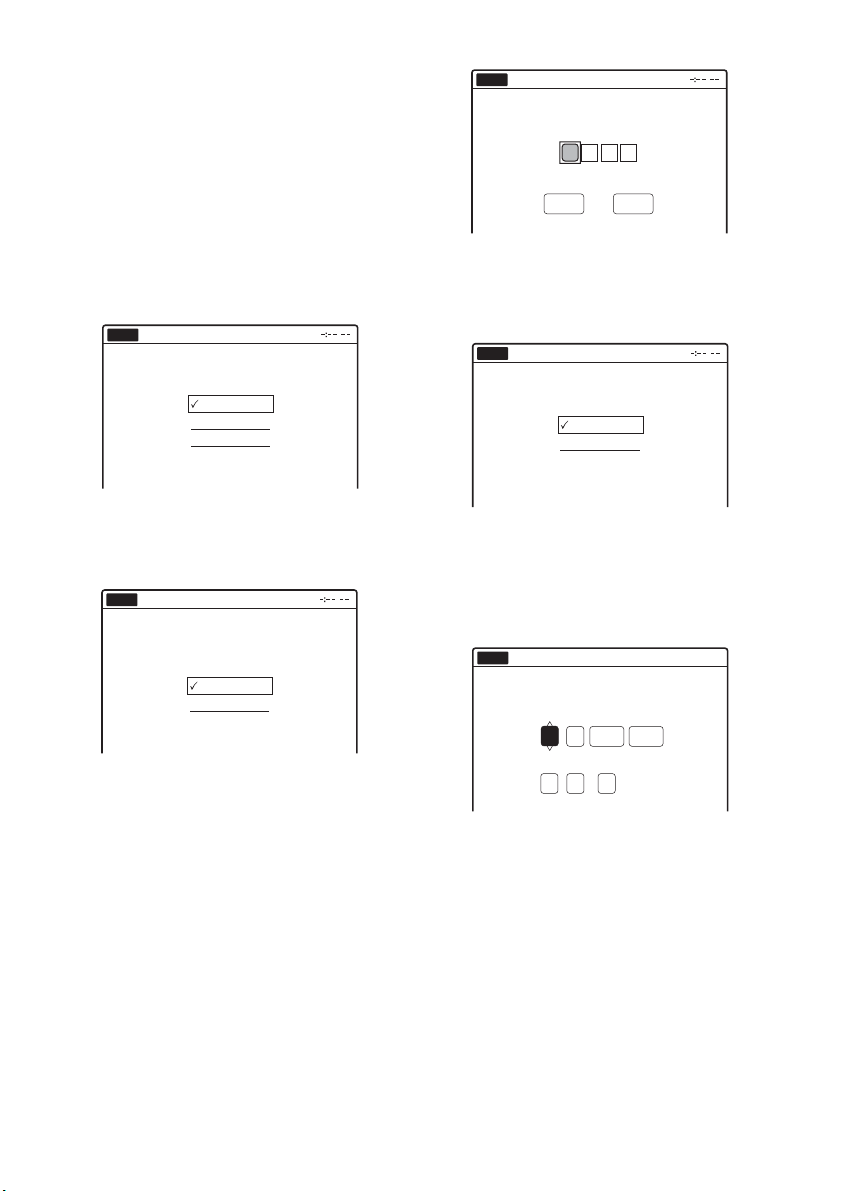
Settings are made in the following order.
m
m
m
m
m
1 Turn on the TV.
2 Press "/1.
The recorder turns on.
If the command mode for the recorder has not
been changed, set the command mode for the
remote to the default setting of DVD3. If the
command mode for the remote is changed to
DVD1 or DVD2, you will be unable to operate
this recorder.
OSD Language Setup
Cable Box/Sat. Control Setup
Clock Setup
TV Type Setup
Audio Connection Setup
Finished!
11 22 33
44 55 66
77 88
00
99
M/m/</,,
ENTER
O RETURN
"/1
Number
buttons
,continued
24
3 Switch the input selector on your TV so that
the signal from the recorder appears on
your TV screen.
“Initial setting necessary to operate the DVD
recorder will be made. You can change them
later using setup.” appears.
• If this message does not appear, select “Easy
Setup” in the “Setup” display to run Easy
Setup (page 85).
4 Press ENTER.
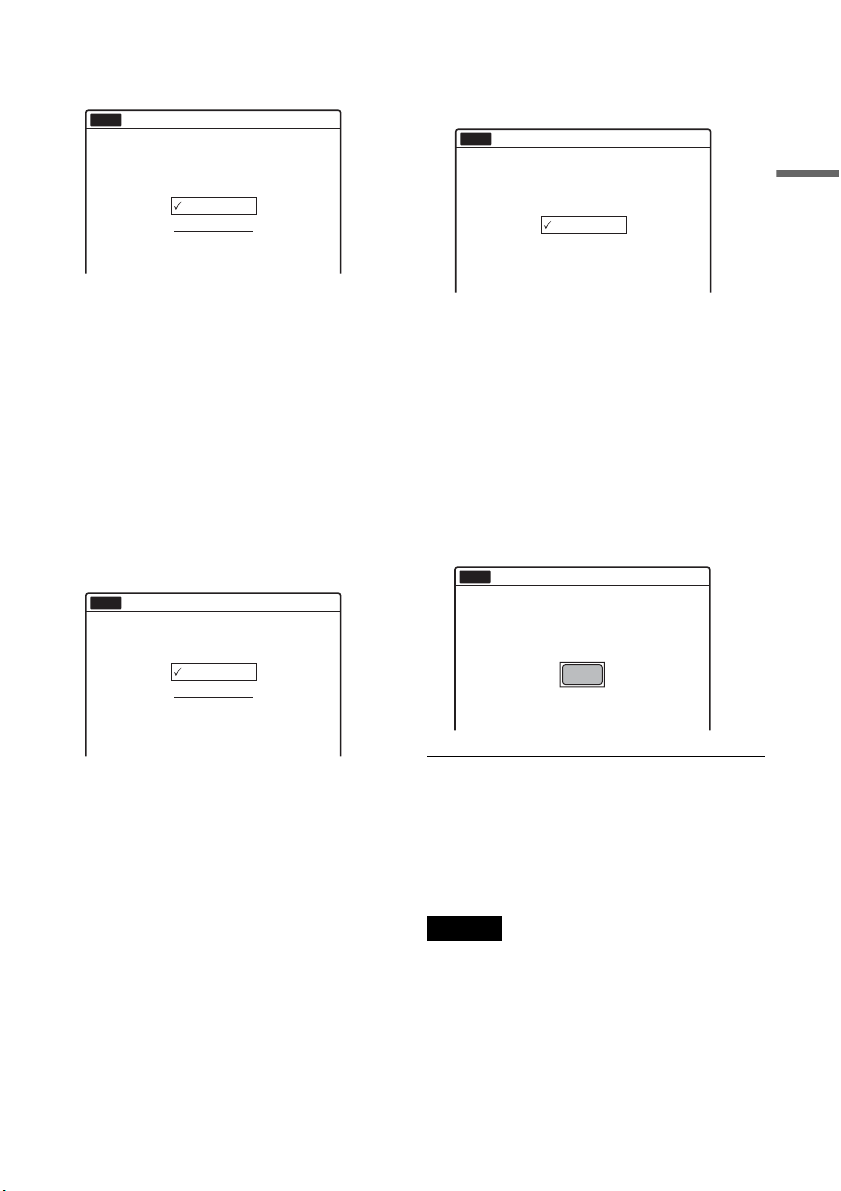
The setup display for selecting the language
used in the on-screen display appears.
5 Select a language, and press ENTER.
The setup display for cable box/satellite
receiver control appears.
6 Select whether or not you use the cable
box/satellite receiver control, and press
ENTER.
If you want to use the cable box/satellite
receiver control (page 12), select “Yes.”
If not, select “No,” then go to step 10.
7 Press the number buttons to enter the
brand code of your cable box/satellite
receiver.
See “Cable Box/Satellite Receiver Brand
Code” (page 100).
• To re-enter the code number, select
“Cancel” and return to step 6.
8 Select “OK,” and press ENTER.
9 Select the recorder’s audio/video input
(“Line1” or “Line2”) that is connected to
the cable box/satellite receiver, and press
ENTER.
The setup display for clock setting appears.
10
Press M/m to set the month and press ,.
Set the day, year, hour, minutes, and AM/PM
in the same way, then press ENTER. The day
of the week is set automatically.
The setup display for selecting the picture size
of the connected TV appears.
English
Français
Español
Easy Setup
Select the screen language.
No Disc
Do you want to control
your set top box with this recorder?
(Changes to the current setting will
erase all timer settings.)
Ye s
No
Easy Setup
No Disc
Easy Setup
No Disc
OK Cancel
Enter the brand code of
your set top box.
Select the input line that you
connected the set top box to.
Line1
Line2
Easy Setup
No Disc
Hour Min
AM/PM
Month
Set the time and date manually.
Day Year
00 AM12 :
01
01 2007 Mon
No Disc
Easy Setup
12:00 AM
01
25
Hookups and Settings
11
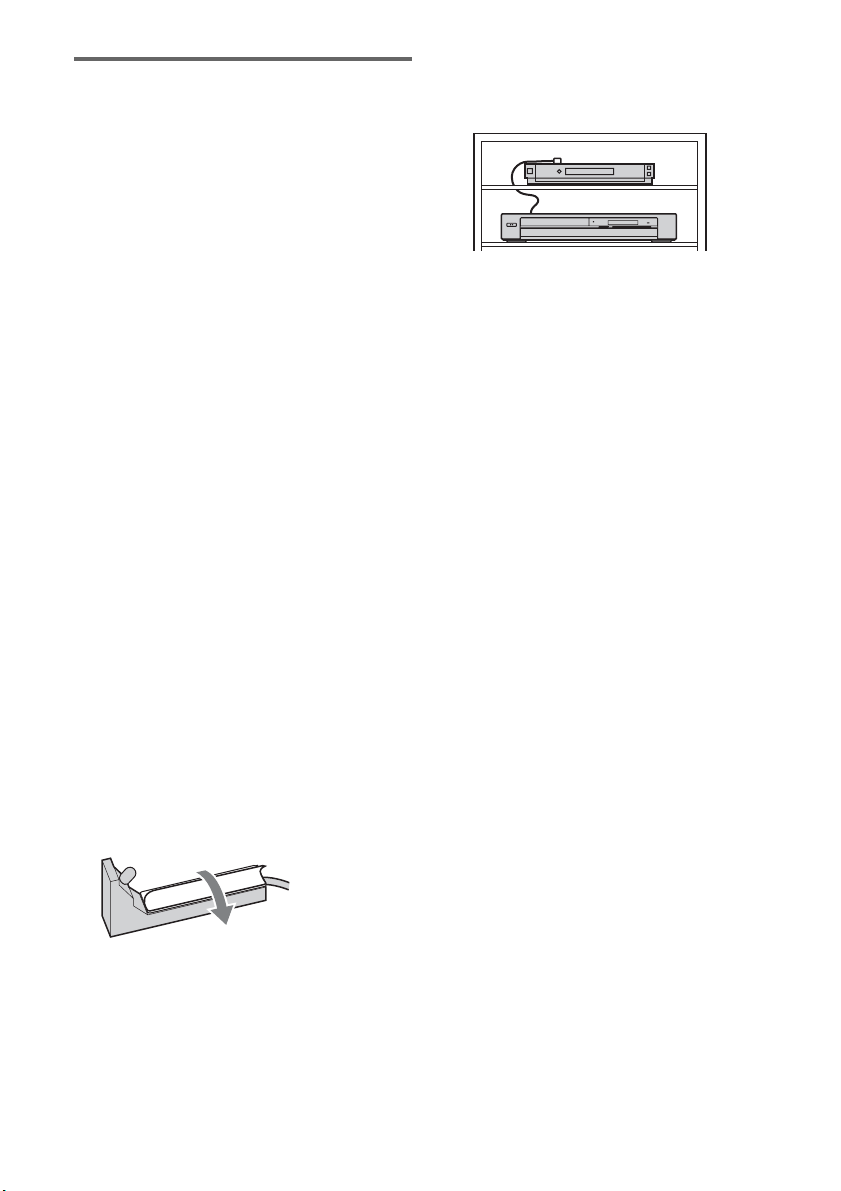
Select the setting that matches your TV
type.
“16:9”: For wide-screen TVs or standard TVs
with a wide screen mode.
“4:3 Letter Box”: For standard TVs.
Displays “wide screen” pictures with bands
on the upper and lower sections of the screen.
“4:3 Pan Scan”: For standard TVs.
Automatically displays “wide screen”
pictures on the entire screen and cuts off the
sections that do not fit.
For details, see “Video Settings (Video)” on
page 77.
12
Press ENTER.
The setup display for selecting the type of
Dolby Digital signal appears.
13
Select the type of Dolby Digital signal you
want to send to your amplifier (receiver).
If your AV amplifier (receiver) has a Dolby
Digital decoder, select “Dolby Digital.”
Otherwise, select “D-PCM.”
14
Press ENTER.
The setup display for selecting the type of
DTS signal appears.
15
Select whether or not you want to send a
DTS signal to your amplifier (receiver),
and press ENTER.
If your AV amplifier (receiver) has a DTS
decoder, select “On.” Otherwise, select “Off.”
16
Press ENTER when “Finish” appears.
Easy Setup is finished. All connections and
setup operations are complete.
If you use the cable box/satellite receiver
control, check that the control works correctly
(page 26).
To return to the previous display
Press O RETURN.
z Hint
If you want to run Easy Setup again, select “Easy Setup”
in the “Setup” display (page 85).
Note
To record TV programs using the timer, you must set the
clock accurately.
16 : 9
4 : 3 Letter Box
4 : 3 Pan Scan
Easy Setup
Select your TV screen type.
10:10 AM
No Disc
D-PCM
Dolby Digital
Easy Setup
Dolby Digital
10:10 AM
No Disc
On
Off
Easy Setup
DTS
10:10 AM
No Disc
Finish
Easy Setup
Easy Setup is finished.
10:10 AM
No Disc
,continued
26
Checking the cable box/satellite
receiver control setting
1 Turn on the recorder and the cable box/
satellite receiver.
2 Point the recorder’s remote at the recorder
(not at the cable box/satellite receiver).
3 Press CH +/– and check that the channel
changes on the cable box/satellite receiver
window.
4 Press the number buttons and check that
the channel changes on the cable box/
satellite receiver window.
If you cannot get the recorder to control your
cable box/satellite receiver
Check the settings at “Set Top Box Control” in
“Features” setup (page 82).
Check the connection and place the set top box
controller near the cable box/satellite receiver
(page 12).
If your cable box or satellite receiver still does not
operate with this recorder, contact your cable or
satellite company to see if they can provide you
with a compatible cable box or satellite receiver.
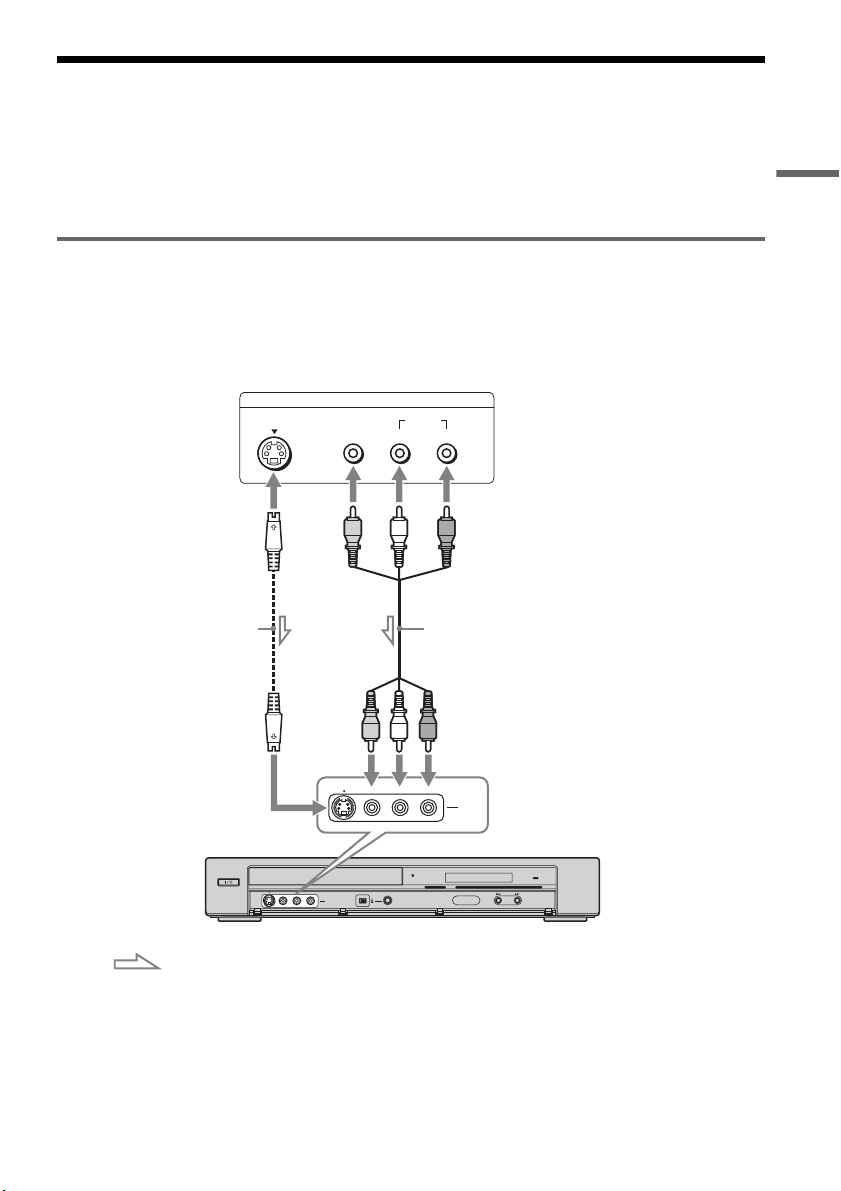
To fix the set top box controller to your cable
box/satellite receiver
Once you have confirmed that the set top box
controller controls your cable box or satellite
receiver, affix it in place.
1 Attach the supplied double-sided tape to the
set top box controller.
Remove the backings on the double-sided
tape.
2 Affix it so that the set top box controller is
near the remote control sensor on your cable
box/satellite receiver.
27
Hookups and Settings
Connecting a VCR or Similar Device
After disconnecting the recorder’s power cord from an AC outlet, connect a VCR or similar recording
device to the LINE IN jacks of this recorder. See also the instruction manual supplied with the connected
equipment.
If you connect equipment that has a timer function, you can use the Synchro Rec function (page 51). In
this case, connect the equipment to the LINE 1 IN jacks (page 13).
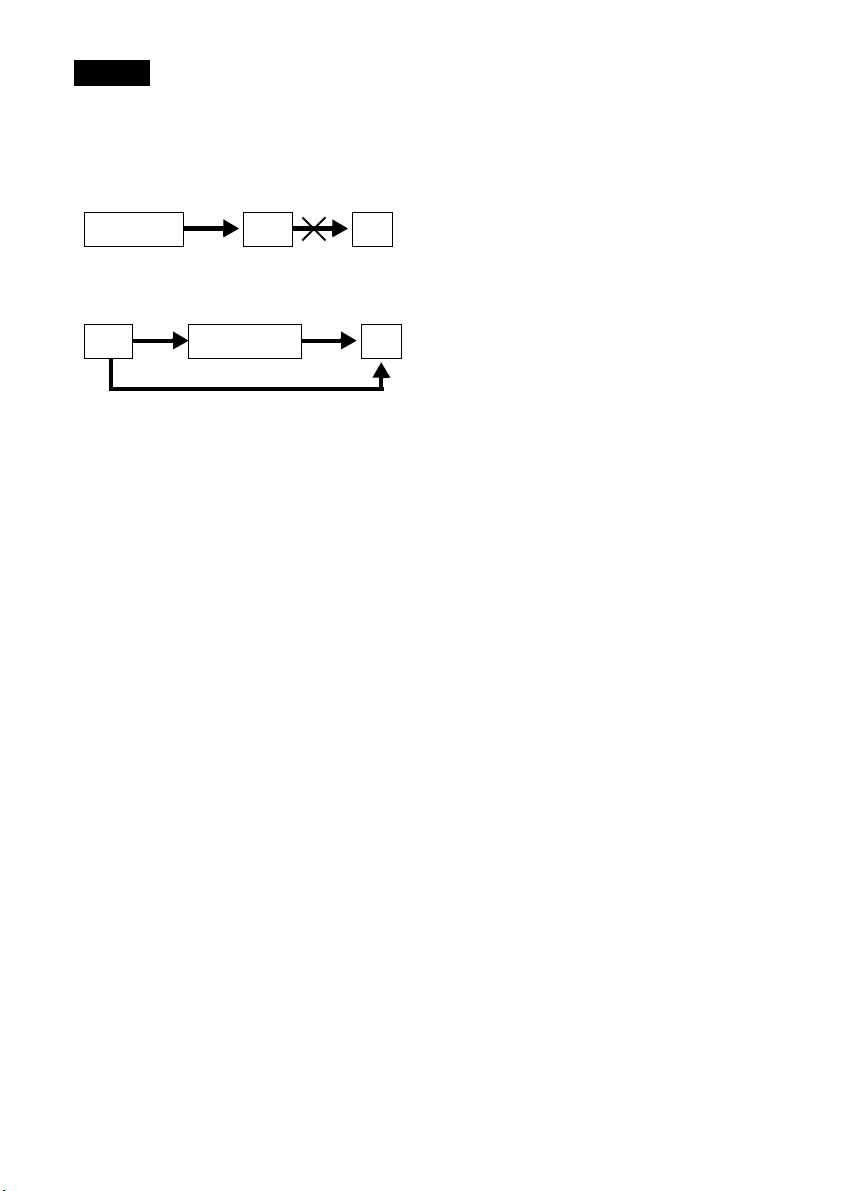
Connecting to the LINE 2 IN jacks on the front panel
Connect a VCR or similar device to the LINE 2 IN jacks of this recorder. If the equipment has an S video
jack, you can use an S video cord (not supplied) instead of the yellow (video) plug of the audio/video cord.
Do not connect to the S VIDEO and yellow VIDEO jacks at the same time.
You can connect a second DVD player and record DVDs.
z Hints
• When the connected equipment outputs only monaural sound, connect an audio cord to the white LINE IN AUDIO L
(mono) jack.
• To record from connected equipment, select an input source (LINE1 or LINE2) to match the jack you connected to
(page 54).
HDMI
DV IN
L(MONO) AUDIO RVIDEOS VIDEO
LINE-2 IN
ONE-TOUCH DUBBING
S VIDEO
AUDIO
LR
VIDEO
OUTPUT
L(MONO) AUDIO RVIDEOS VIDEO
LINE-2 IN
VCR, etc.
S video cord
(not supplied)
Audio/video cord
(not supplied)
DVD recorder
to LINE 2 IN
: Signal flow
,continued
28
Notes
• Do not connect more than one type of video cord between the recorder and your TV at the same time.
• Pictures containing copy protection signals that prohibit any copying cannot be recorded. You cannot dub from DVD
VIDEOs to this recorder.
• Do not connect the output jack of this recorder to another equipment’s input jack with the other equipment’s output
jack connected to the input jack of this recorder. Noise (feedback) may result.
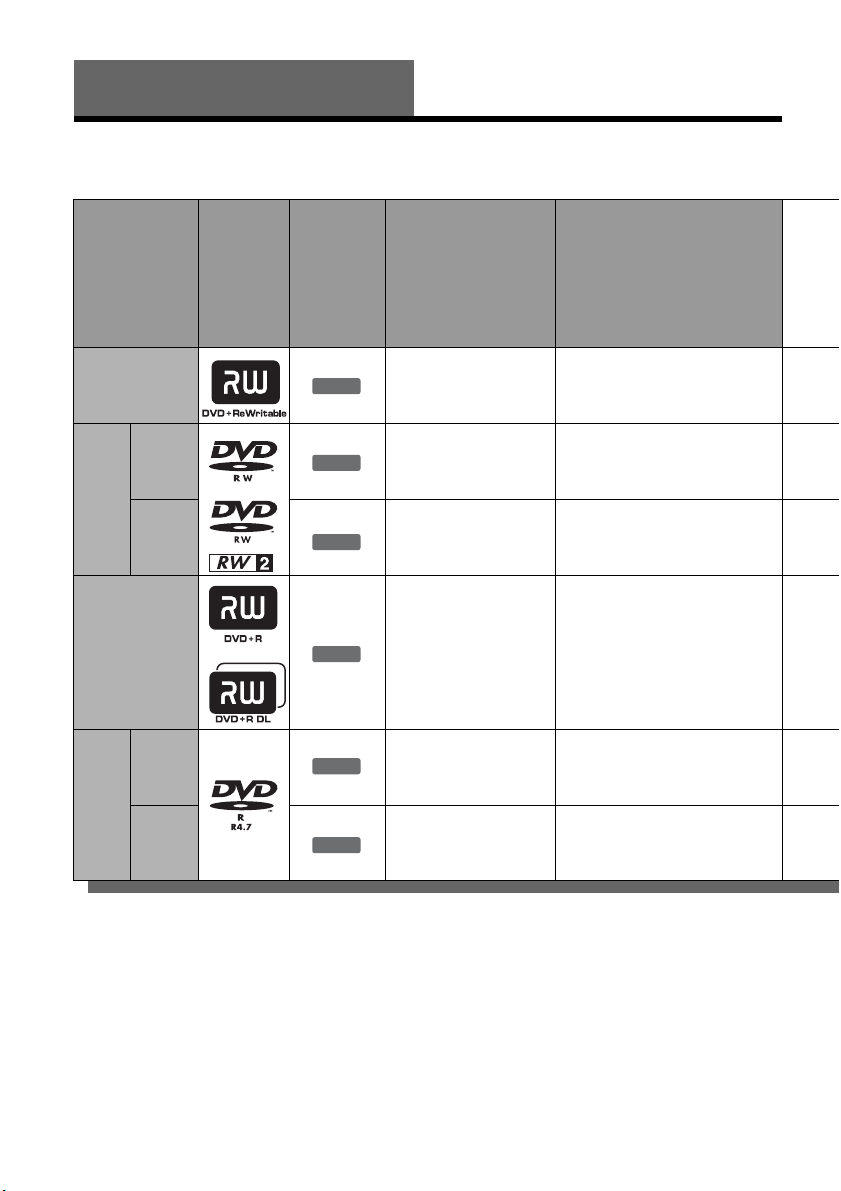
• If you pass the recorder signals via the VCR, you may not receive a clear image on your TV screen.
Be sure to connect your VCR to the DVD recorder and your TV in the order shown below. To watch video tapes,
watch the tapes through a second line input on your TV.
VCRDVD recorder TV
VCR DVD recorder TV
Line input 1
Line input 2

29
Hookups and Settings
30
Quick Guide to Disc Types
Recordable and Playable Discs
Usable disc versions (as of December 2006)
• 8×-speed or slower DVD+RWs
• 6×-speed or slower DVD-RWs (Ver.1.1, Ver.1.2
with CPRM
*1
)
• 16×-speed or slower DVD+Rs
• 16×-speed or slower DVD-Rs (Ver.2.0, Ver.2.1
with CPRM)
• 8×-speed or slower DVD+R DL (Double Layer)
discs
*6
“DVD+RW,” “DVD-RW,” “DVD+R,” “DVD+R DL,”
and “DVD-R” logos are trademarks.
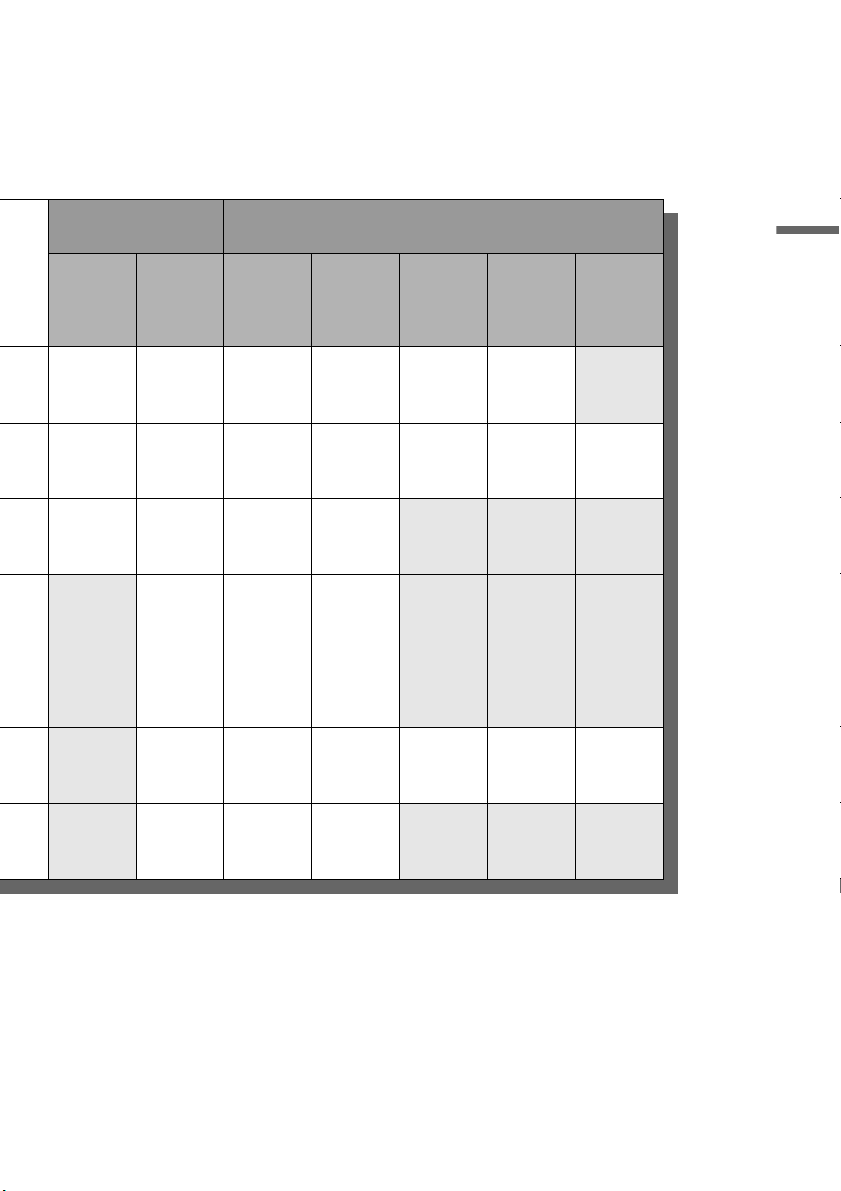
Disc Type
Disc
Logo
Icon used
in this
manual
Formatting
(new discs)
Compatibility with other
DVD players (finalizing)
DVD+RW
Automatically
formatted
Playable on DVD+RW
compatible players
(automatically finalized)
DVD-
RW
VR
mode
Format in VR mode
*2
(page 47)
Playable only on VR mode
compatible players (finalization
unnecessary) (page 69)
Video
mode
Format in Video
mode
*2
(page 47)
Playable on most DVD players
(finalization necessary)
(page 69)
DVD+R
Automatically
formatted
Playable on DVD+R compatible
players (finalization necessary)
(page 69)
DVD+R DL
DVD-
R
VR
mode
Format in VR mode
using the “Disc Setting”
display (page 67)
Playable only on DVD-R VR
mode compatible players
(finalization necessary)
(page 69)
Video
mode
Automatically
formatted in Video
mode
Playable on most DVD players
(finalization necessary)
(page 69)
+
RW
-
RWVR
-
RW
Video
+
R
-
RVR
-
R
Video
31
Quick Guide to Disc Types
*1
CPRM (Content Protection for Recordable Media) is
a coding technology that protects copyrights for
images.
*2
Unused DVD-RWs are automatically formatted
according to the setting of “Format DVD-RW” in
“Features” setup (page 82).
*3
Erasing titles only frees up disc space if you erase the
last title.
*4
Erasing titles or chapters frees up disc space.
*5
Erasing titles or chapters does not free up disc space.
*6
When using DVD+R DL (Double Layer) discs, see
the instructions supplied with the discs.
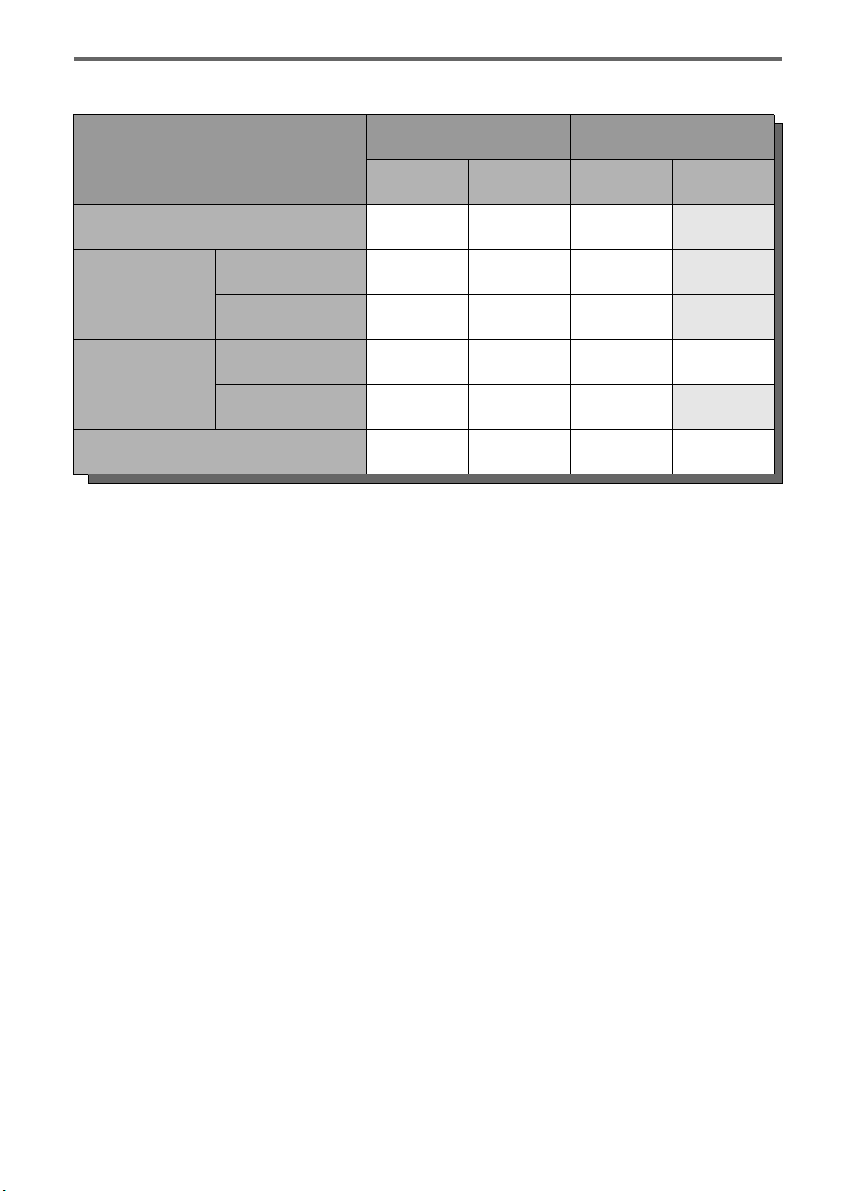
Recording Features Editing Features
Rewrite
(page 67)
Auto
Chapter
(page 49)
Change
Title
Name
(page 60)
Erase
Title/
Chapter
(page 57)
A-B
Erase
(page 58)
Divide
Title
(page 59)
Playlist
(page 61)
Yes Yes Yes Yes/No
*3
Yes Yes No
Yes Yes Yes Yes/Yes
*4
Yes Yes Yes
Yes Yes Yes Yes/No
*3
No No No
No Yes Yes Yes/No
*5
No No No
No Yes Yes Yes/Yes
*5
Yes Yes Yes
No Yes Yes Yes/No
*5
No No No
,continued
32
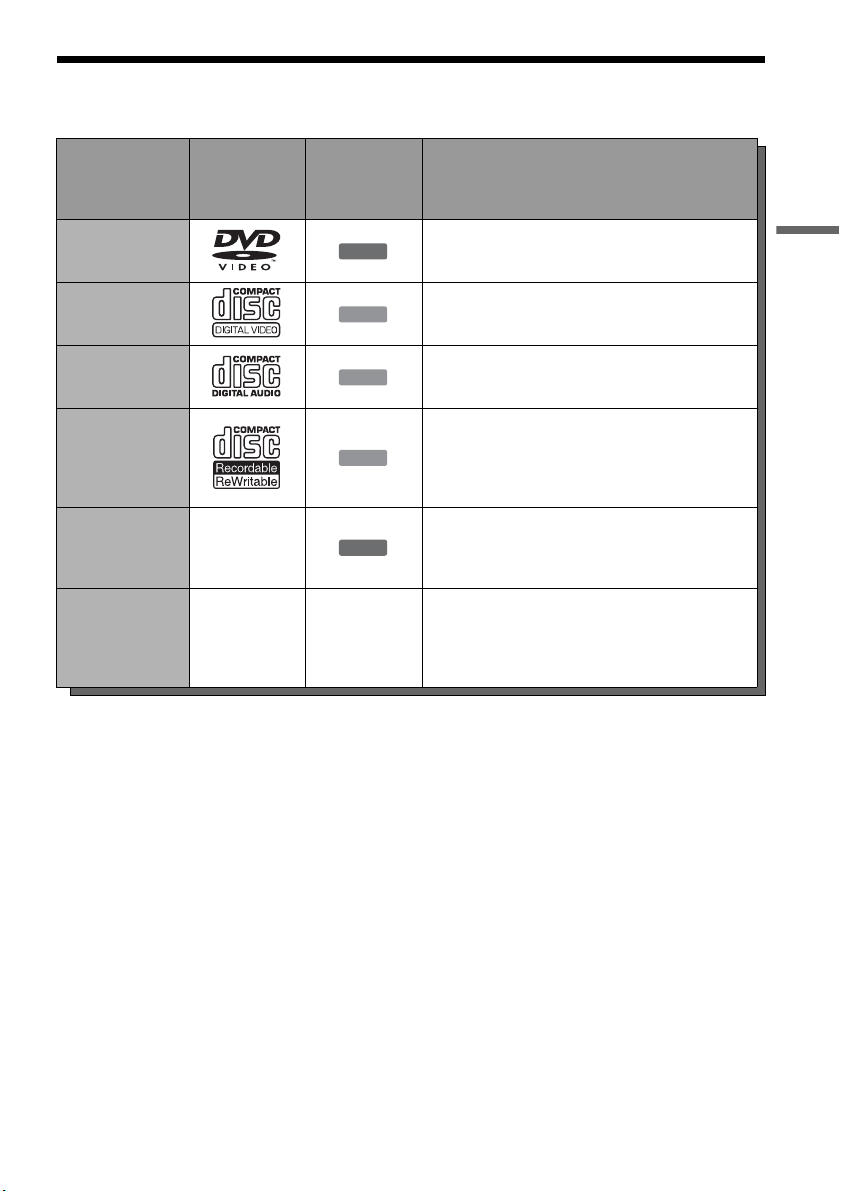
12 cm/8 cm discs
Discs that cannot be recorded on
•8 cm discs
Disc Type
12 cm 8 cm
Playback Recording Playback Recording
DVD+RW Yes Yes Yes No
DVD-RW
VR mode Yes Yes Yes No
Video mode Yes Yes Yes No
DVD-R
VR mode Yes Yes — —
Video mode Yes Yes Yes No
DVD+R Yes Yes — —
33
Quick Guide to Disc Types
Playable Discs
“DVD VIDEO” and “CD” logos are trademarks.
* A logical format of files and folders on DATA-CDs,
defined by ISO (International Organization for
Standardization).
Discs that cannot be played
• CD-ROMs/CD-Rs/CD-RWs that are not
recorded in music CD or Video CD format, or do
not contain MP3 audio tracks or JPEG image
files.
• Data part of CD-Extras
• DVD-ROMs that are not recorded in DVD
Video format, or do not contain MP3 audio
tracks or JPEG image files.
• DVD Audio discs
• HD layer on Super Audio CDs
• DVD VIDEOs with a different region code
(see page 34)
• A disc recorded in a color system other than
NTSC, such as PAL or SECAM
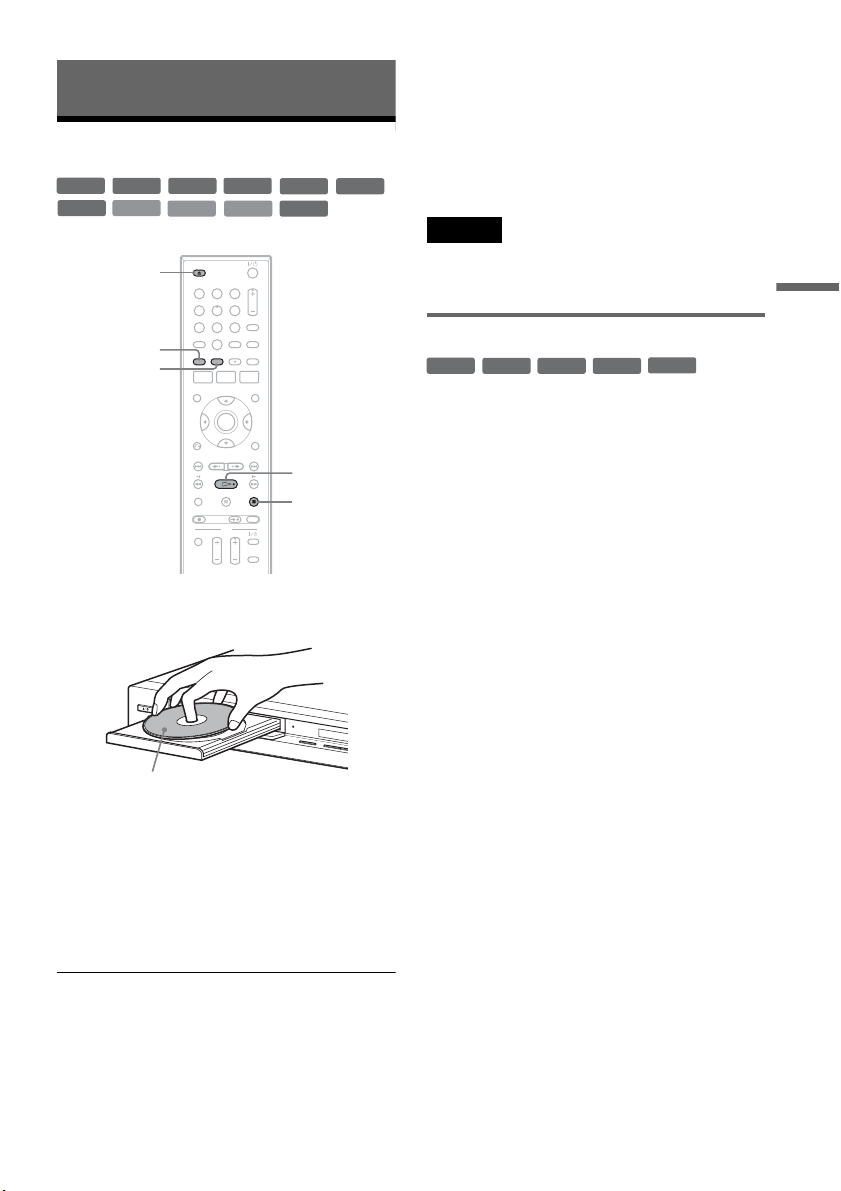
Disc Type Disc Logo
Icon Used
in This
Manual
Characteristics
DVD VIDEO
Discs such as movies that can be purchased or
rented
VIDEO CD
VIDEO CDs or CD-Rs/CD-RWs in VIDEO CD
format (with PBC function)
CD
Music CDs or CD-Rs/CD-RWs in music CD
format that can be purchased
DATA CD
CD-ROMs/CD-Rs/CD-RWs created on a PC or
similar device in music format, or MP3 or JPEG
format that conforms to ISO9660* Level 1/
Level 2
DATA DVD —
DVD-ROMs/DVD+RWs/DVD-RWs/DVD+Rs/
DVD-Rs in MP3 or JPEG format conforming to
Universal Disk Format (UDF)
8 cm DVD+RW/
DVD-RW/DVD-R
——
8 cm DVD+RWs, DVD-RWs, and DVD-Rs
recorded with a DVD video camera (Still images
recorded with a DVD video camera cannot be
played.)
DVD
VCD
CD
DATA CD
DATA DVD
,continued

34
Note on playback operations of DVD VIDEOs/
VIDEO CDs
Some playback operations of DVD VIDEOs/
VIDEO CDs may be intentionally set by software
producers. Since this recorder plays DVD
VIDEOs/VIDEO CDs according to the disc
contents the software producers designed, some
playback features may not be available. Also, see
the instructions supplied with the DVD VIDEOs/
VIDEO CDs.
Note on DualDiscs
A DualDisc is a two sided disc product which
mates DVD recorded material on one side with
digital audio material on the other side.
However, since the audio material side does not
conform to the Compact Disc (CD) standard,
playback on this product is not guaranteed.
Region code (DVD VIDEO only)
Your recorder has a region code printed on the rear
of the unit and will only play DVD VIDEOs
(playback only) labeled with identical region
codes. This system is used to protect copyrights.
DVD VIDEOs labeled will also play on this
recorder.
If you try to play any other DVD VIDEO, a
message will appear on the TV screen to indicate
that the disc is not playable. Depending on the
DVD VIDEO, no region code indication may be
labeled even though playing the DVD VIDEO is
prohibited by area restrictions.
Music discs encoded with copyright protection
technologies
This product is designed to playback discs that
conform to the Compact Disc (CD) standard.
Recently, various music discs encoded with
copyright protection technologies are being
marketed by some record companies. Please be
aware that among those discs, there are some that
do not conform to the CD standard and may not be
playable by this product.
Note on DVD+RWs/DVD+Rs, DVD-RWs/DVD-
Rs, or CD-RWs/CD-Rs recorded on other
equipment
Some DVD+RWs/DVD+Rs, DVD-RWs/DVD-
Rs, or CD-RWs/CD-Rs cannot be played on this
recorder due to the recording quality or physical
condition of the disc, or the characteristics of the
recording device and authoring software. The disc
will not play if it has not been correctly finalized.
For more information, see the operating
instructions for the recording device.
Notes
• You cannot mix VR mode and Video mode on the same
DVD-RW or DVD-R. To change the DVD-RW’s
format, reformat the disc (page 67). Note that a disc’s
contents will be erased after reformatting.
• You cannot shorten the time required for recording
even with high-speed discs. Also, you cannot record on
the disc if the disc is not 1x speed compatible.
• It is recommended that you use discs with “For Video”
printed on their packaging.
• You cannot add new recordings to DVD-RWs (Video
mode), DVD+Rs, or DVD-Rs (Video mode) recorded
on other equipment.
• You may not be able to further record on a DVD+RW
recorded on other equipment. Note that recording on
such discs may cause the recorder to rewrite the DVD
menu.
• If the disc contains PC data unrecognizable by this
recorder, the data may be erased.
ALL
X
Region code
35
Playback
Playback
Playing Discs
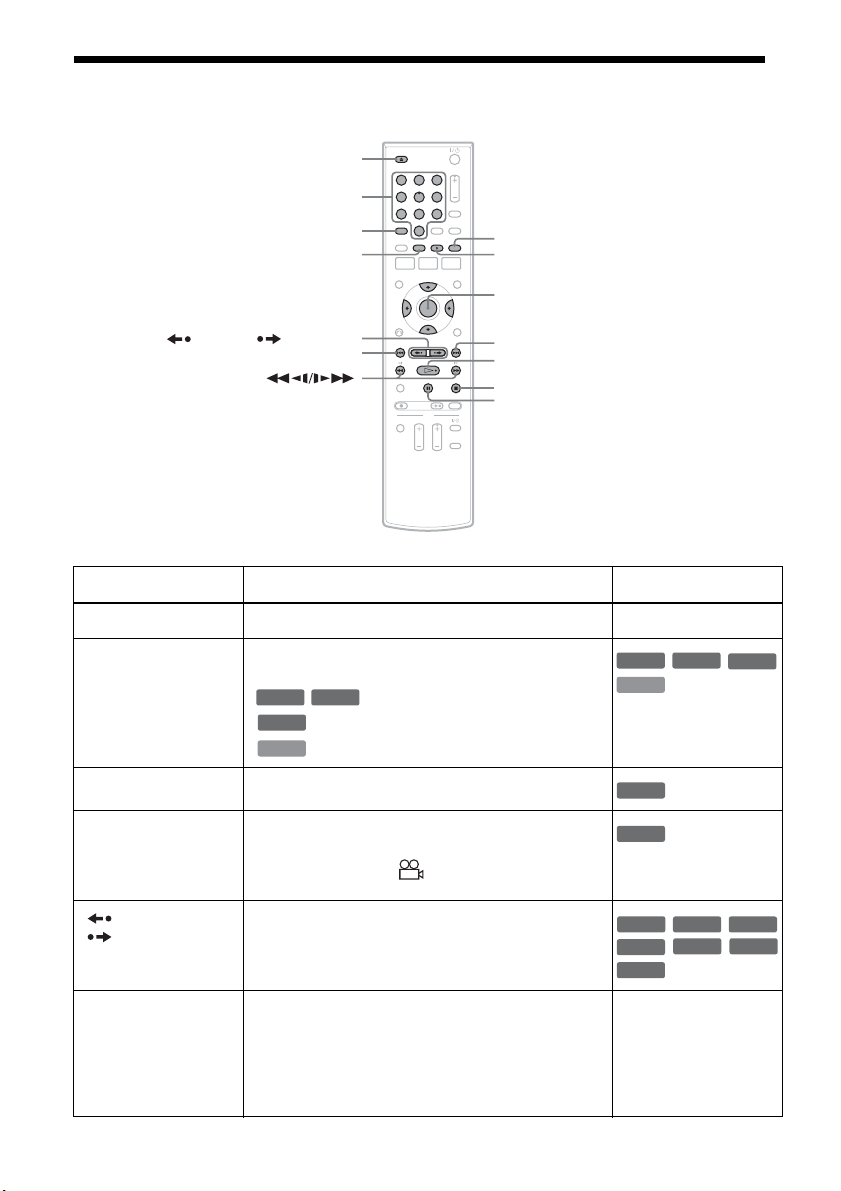
1 Press Z OPEN/CLOSE, and place a disc on
the disc tray.
2 Press Z OPEN/CLOSE to close the disc
tray.
Wait until “LOAD” disappears from the front
panel display.
3 Press H PLAY.
Playback starts.
To stop playback
Press x STOP.
z Hints
• You can play DATA CDs or DATA DVDs with MP3
audio tracks or JPEG image files (pages 41 or 42).
• If you insert a DVD VIDEO, VIDEO CD, or CD,
playback starts automatically depending on the disc.
• When playing a DVD+RW, DVD-RW, DVD+R and
DVD-R, you can select the title from the Title List
menu (page 39).
Note
To play a disc recorded with other equipment on this
recorder, finalize the disc on the recording equipment
first.
Using the DVD’s Menu
When you play a DVD VIDEO, or a finalized
DVD+RW, DVD-RW (Video mode), DVD+R, or
DVD-R (Video mode), you can display the disc’s
menu by pressing TOP MENU or MENU.
+
RW
+
R
DVD
VCD
CD
-
RWVR
-
RW
Video
DATA DVD
DATA CD
-
RVR
-
R
Video
11 22 33
44 55 66
77 88
00
99
x STOP
Z OPEN/
CLOSE
MENU
H PLAY
TOP MENU
D
V
IN
L
(
M
O
N
O
)
A
U
D
I
O
R
V
I
D
E
O
S
V
I
D
E
O
L
I
N
E
-
2
I
N
O
NE-TO
U
CH DU
BBING
Playback side facing down
+
RW
+
R
DVD
-
RW
Video
+
R
-
R
Video
36
Playback Options
Button Operation Disc
Z OPEN/CLOSE Stops playing and opens the disc tray. All discs
AUDIO Selects one of the audio tracks recorded on the disc
when pressed repeatedly.
: Selects the main or sub sound.
: Selects the audio source.
: Selects stereo or monaural audio tracks.
SUBTITLE Selects a subtitle language when pressed repeatedly.
.
ANGLE Selects an angle when pressed repeatedly.
If various angles (multi-angles) for a scene are
recorded on the disc, “ ” appears in the front panel
display.
REPLAY/
ADVANCE
• Replays or briefly fast forwards a scene when
pressed during playback.
• Goes to the previous or next frame when pressed
during pause mode.
. PREV/
NEXT >
• Goes to the beginning of the current or next title/
chapter/scene/track and starts playback when
pressed during playback.
• Goes to the beginning of the previous title/chapter/
scene/track when .PREV is pressed within three
seconds after starting a title/chapter/scene/track.
All discs
11 22 33
44 55 66
77 88
00
99
Z OPEN/CLOSE
X PAUSE
AUDIO
. PREV
REPLAY/ ADVANCE
x STOP
SUBTITLE
MENU
H PLAY
M/m/</,,
ENTER
Number buttons
> NEXT
ANGLE
-
RWVR
-
RVR
DVD
VCD
DVD
-
RWVR
-
RVR
VCD
DVD
DVD
+
RW
-
RWVR
-
RW
Video
+
R
DVD
-
RVR
-
R
Video
37
Playback
To resume normal playback after playing at various speeds, press H PLAY.
z Hints
• You can change playback options, such as subtitle,
audio track, angle, etc., using the OPTIONS menu
(page 11).
• During playback or pause mode, you can also use the
./> buttons on the recorder as the remote’s m/
M buttons. Hold the buttons down during playback to
fast forward or fast reverse. In pause mode, you can
play in slow motion. Three speeds are available,
depending on the duration of the press.
• See “DVD Audio/Subtitle Language” on page 99 for
the meaning of the language abbreviation.
Notes
• If you pause playback of a CD, or DATA CD/DATA
DVD containing MP3 audio tracks, playback will not
start until you press H PLAY or X PAUSE.
• Sound will be interrupted during Scan Audio
(page 38).
Notes on playing DTS soundtracks on a CD
When playing DTS-encoded CDs, excessive noise
will be heard from the analog stereo jacks. To
avoid possible damage to the audio system, the
consumer should take proper precautions when
the analog stereo jacks of the recorder are
connected to an amplification system. To enjoy
DTS Digital Surround™ playback, an external
5.1-channel decoder system must be connected to
the digital jack of the recorder.
Notes on playing DVDs with a DTS soundtrack
DTS audio signals are output only through the
DIGITAL AUDIO OUT (COAXIAL or
OPTICAL)/HDMI OUT jack.
When you play a DVD with DTS soundtracks, set
“Digital Out” – “DTS” to “On” of “Audio” in the
“Setup” display (page 79).
If you connect the recorder to audio equipment
without a DTS decoder, do not set “DTS” to “On”
in “Audio” setup. A loud noise (or no sound) may
come out from the speakers, which might disturb
your ears or cause damage to the speakers.
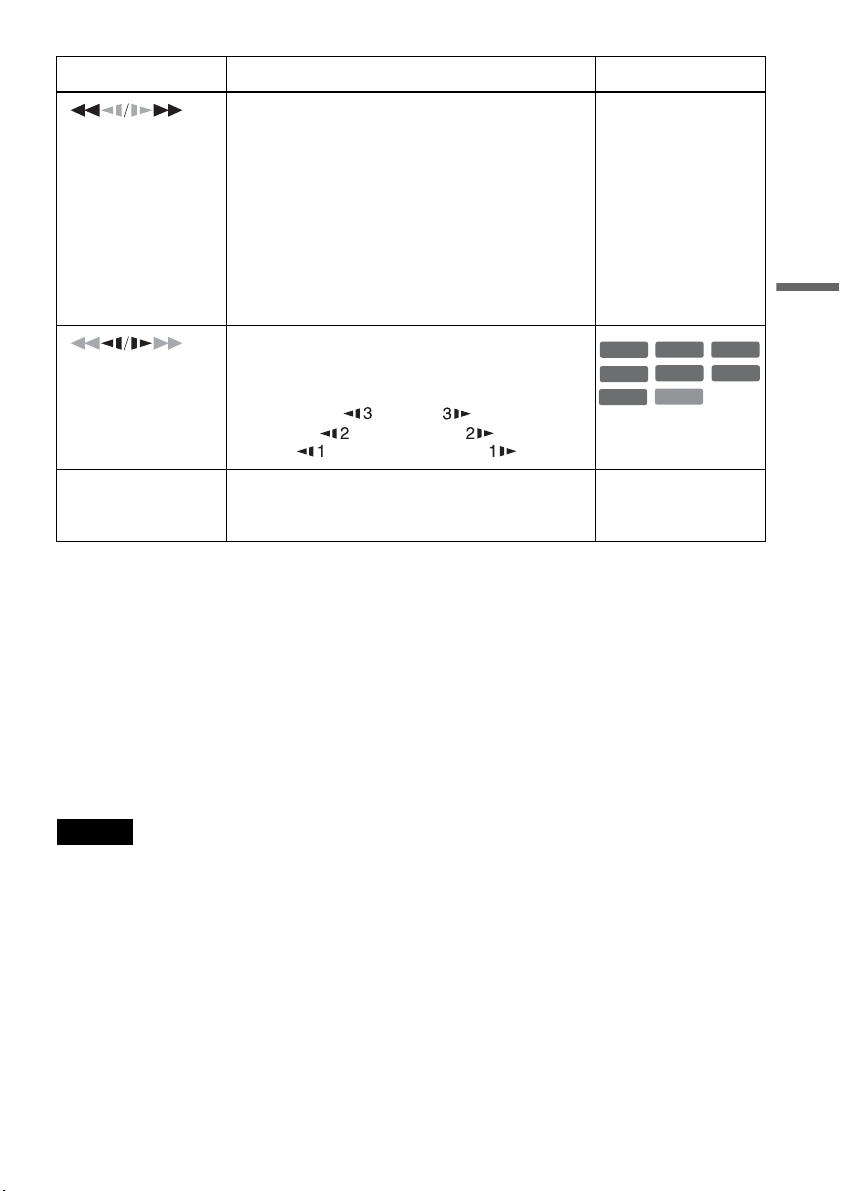
(fast reverse/fast
forward)
Fast reverses or fast forwards the disc when pressed
during playback.
Search speed changes with each press:
fast reverse fast forward
FR1 T t FF1
*1
FR2
*2
T T t t FF2
*2
FR3
*3
T T T t t t FF3
*3
All discs
*1
FF1 with sound
(Scan Audio) is
available for DVDs
with Dolby Digital
soundtracks.
*2
FR2 and FF2 are not
available for MP3.
*3
FR3 and FF3 are only
available for DVDs
and VIDEO CDs.
(slow)
Plays in slow motion when pressed in pause mode.
Playback speed changes with each press:
reverse slow motion forward slow motion
T t
T T t t
T T T t t t
* Playback direction
only
X PAUSE Pauses playback.
If you pause playback for more than five minutes,
playback starts automatically.
All discs
Button Operation Disc
VCD
+
RW
+
R
-
RWVR
-
RW
Video
DVD
-
RVR
-
R
Video
*
,continued
38
Playing quickly with sound (Scan
Audio)
(DVDs with Dolby Digital soundtracks
only)
You can play quickly with dialog or sound during
FF1 fast-forward of a DVD with Dolby Digital
soundtracks. Simply press M during playback.
z Hint
To turn off the Scan Audio function, set “Scan Audio” of
“Audio” to “Off” in the “Setup” display (page 80).
Note
Sound will be interrupted during Scan Audio.
Playing VIDEO CDs with PBC
functions
PBC (Playback Control) allows you to play
VIDEO CDs interactively using a menu on your
TV screen.
When you start playing a VIDEO CD with PBC
functions, a menu appears.
Select an item using the number buttons and press
ENTER. Then follow the instructions in the menu
(press H PLAY when “Press SELECT”
appears).
Operations differ depending on the disc. See the
instructions supplied with the disc.
To cancel PBC Playback
Press MENU to display “Menu: Off.” To use the
PBC functions, press MENU again to display
“Menu:On.”
Resuming playback from the point
where you stopped the disc (Resume
Play)
Press H PLAY again after stopping a disc to
resume playback from the same point.
To start from the beginning, press x STOP twice,
and press H PLAY.
The point where you stopped playing is cleared
when:
– you open the disc tray.
– you play another title.
– you switch the Title List menu to original or
Playlist (DVD-RW (VR mode)/DVD-R (VR
mode) only).
– you edit the title after stopping playback.
– you make a recording.
Playing restricted DVDs (Parental
Control)
If you play a restricted DVD, a message appears
asking whether you want to override the
restriction.
1 Select “OK” and press ENTER.
The display for entering your password
appears.
2 Enter your four digit password using the
number buttons.
The recorder starts playback.
To register or change the password, see “Parental
(DVD VIDEOs only)” on page 83.
Locking the recorder (Child Lock)
You can lock all of the buttons on the recorder so
that the settings are not canceled by mistake.
With the recorder turned on and stopped, hold
down x (stop) on the recorder
for more than ten
seconds. The recorder turns off and “CHILD
LOCK” appears in the front panel display. The
indicator remains lit if there is a timer setting. The
recorder will not work except for timer recordings.
To unlock the recorder, hold down x on the
recorder until “CHILD LOCK” disappears from
the front panel display. The recorder is unlocked
and turns on.
To stop timer recording while the recorder is
locked, press x twice. The recording stops and the
recorder is unlocked.
Note
The recorder will be unlocked when you stop timer
recording by pressing x.
VCD
DVD
39
Playback
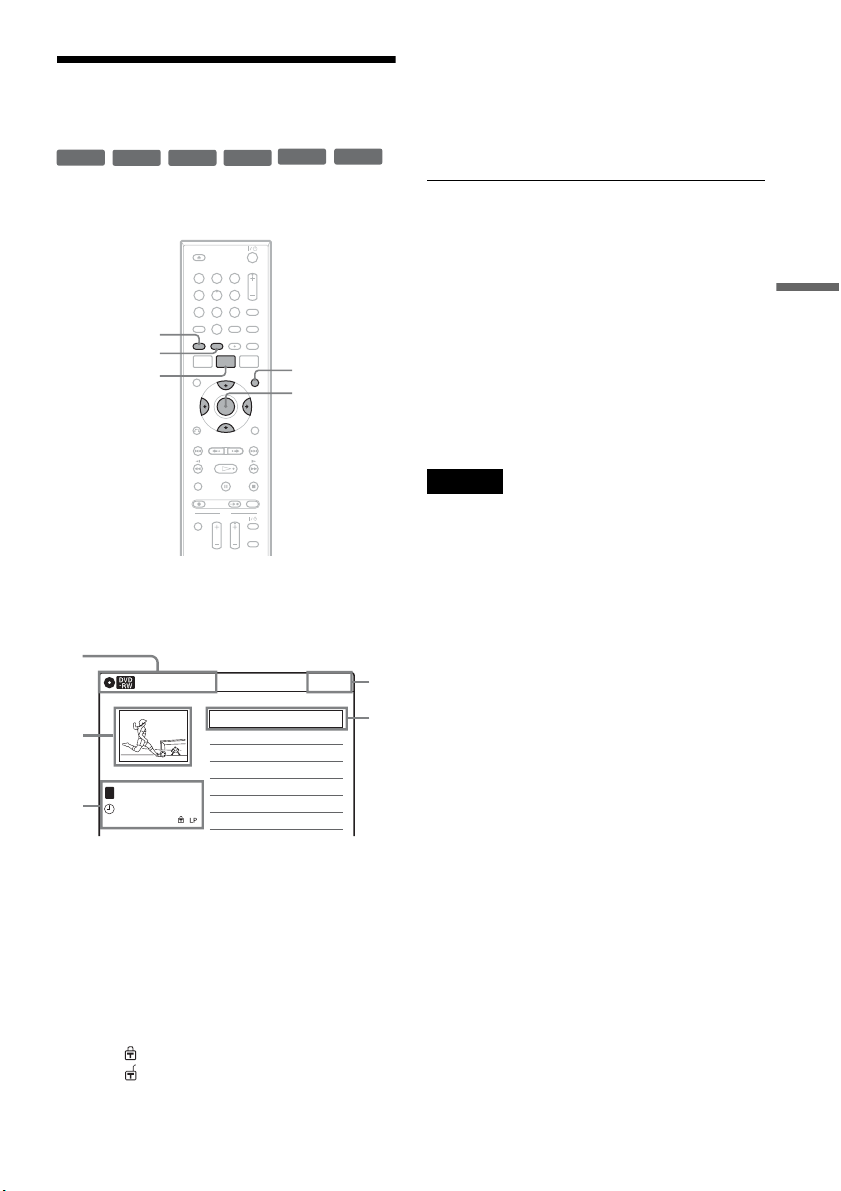
Playing a Title From the
Title List
The Title List menu displays the program titles on
the disc.
1 Place a disc on the disc tray.
2 Press TITLE LIST.
Example: DVD-RW (VR mode)
A Disc type:
Displays a disc type.
Also displays the title type (original or
Playlist) for DVD-RWs (VR mode) and
DVD-Rs (VR mode).
B Movie thumbnail image
C Title information:
Displays the title number, title name,
recording date, and recording mode.
“ ” indicates a protected title, while
“ ” indicates unprotected.
D Clock
3 Select the title, and press ENTER.
The sub-menu appears.
4 Select “Play,” and press ENTER.
Playback starts from the selected title on the
disc.
About the Title List for DVD-RWs (VR mode)
and DVD-Rs (VR mode)
You can switch the Title List to show an original
or Playlist.
While the Title List menu is turned on, press
ORIGINAL/PLAYLIST repeatedly to select
either “Title List (Original)” or “Playlist.”
For details, see “Edit options for DVD-RWs (VR
mode)/DVD-Rs (VR mode)” on page 56.
To turn off the Title List
Press TITLE LIST.
Notes
• The Title List does not appear for DVD-RWs (Video
mode), DVD+Rs, or DVD-Rs (Video mode) that have
been finalized. To view a title, press TOP MENU or
MENU (page 35).
• The Title List may not appear for discs created on other
DVD recorders.
• Letters that cannot be displayed are replaced with “
*
.”
+
RW
+
R
-
RWVR
-
RW
Video
-
RVR
-
R
Video
11 22 33
44 55 66
77 88
00
99
TITLE LIST
MENU
TOP MENU
ORIGINAL/
PLAYLIST
M/m/</,,
ENTER
10:10 AM
01 LINE 1 >01:29:03
02 LINE 1 >00:31:23
03 LINE 1 >01:59:00
04 LINE 1 >00:58:56
LINE
1
08:00 PM
May/02/2007
T
No. Title Length Edit
Title List (Original)
1/4
1
2
3
4
3
40
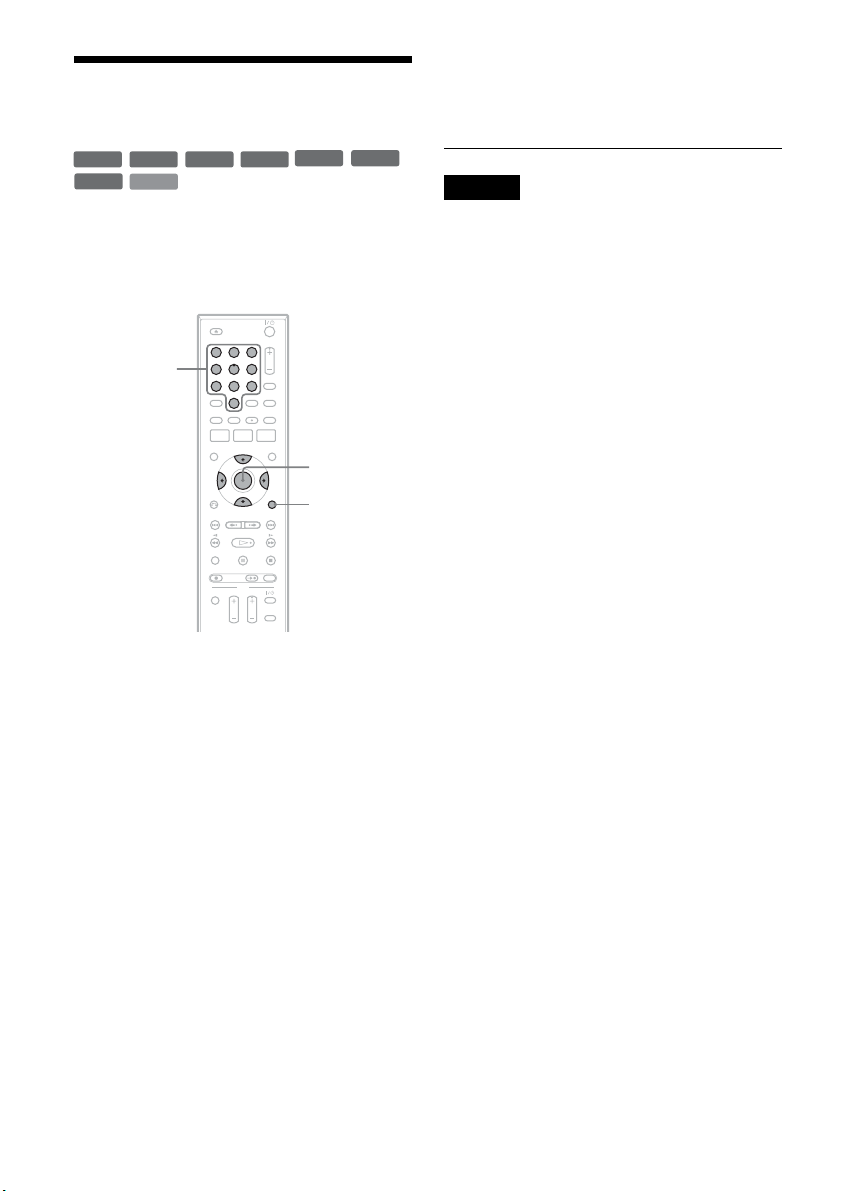
Searching for a Title/
Chapter/Track, etc.
You can search a DVD by title or chapter, and
VIDEO CD by track or scene. As titles and tracks
are assigned individual numbers on the disc, select
the title or track by entering its number. You can
also search for a scene using the time code.
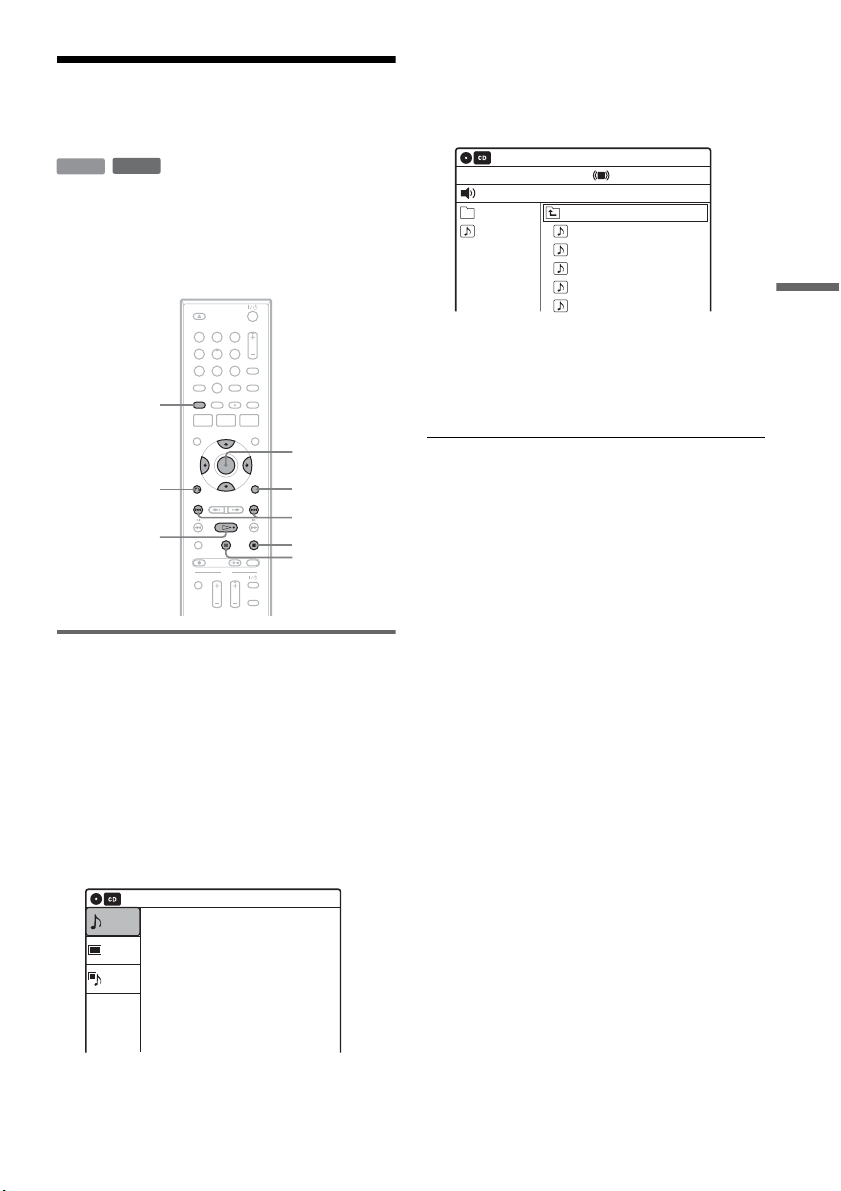
1 Press OPTIONS during playback.
The OPTIONS menu appears.
2 Select a search method.
“Title” (for DVDs)
“Chapter” (for DVDs)
“Track” (for VIDEO CDs with PBC function
off)
“Time” (for DVDs/VIDEO CDs with PBC
function off): Searches for a starting point
using the time code.
3
Press
M
/
m
/
<
/
,
to select the number of
the title, chapter, track, etc., you want, or
press the number buttons to enter the time
code.
For example: “Time”
To find a scene at 2 hours, 5 minutes, and 20
seconds, enter “20520.”
If you make a mistake, wait a moment until
the display returns to the elapsed playing time
display, then select another number.
4 Press ENTER.
The recorder starts playback from the selected
point.
To turn off the display, press OPTIONS.
Notes
• Depending on the disc, you may not be able to use the
OPTIONS menu to search for a title/chapter/track, or
enter the time code for a playback point.
• When playing a Playlist title, you may not be able to
search for a scene using the time code.
+
RW
+
R
VCD
-
RWVR
-
RW
Video
DVD
-
RVR
-
R
Video
11 22 33
44 55 66
77 88
00
99
OPTIONS
M/m/</,,
ENTER
Number
buttons
41
Playback
Playing MP3 Audio Tracks
and JPEG Image Files
You can play DATA CDs (CD-ROMs/CD-Rs/
CD-RWs)/DATA DVDs (DVD-ROMs/
DVD+RWs/DVD-RWs/DVD+Rs/DVD-Rs) that
contain MP3 audio tracks or JPEG image files.
Playing MP3 audio tracks
You can play MP3 audio tracks on DATA CDs or
DATA DVDs.
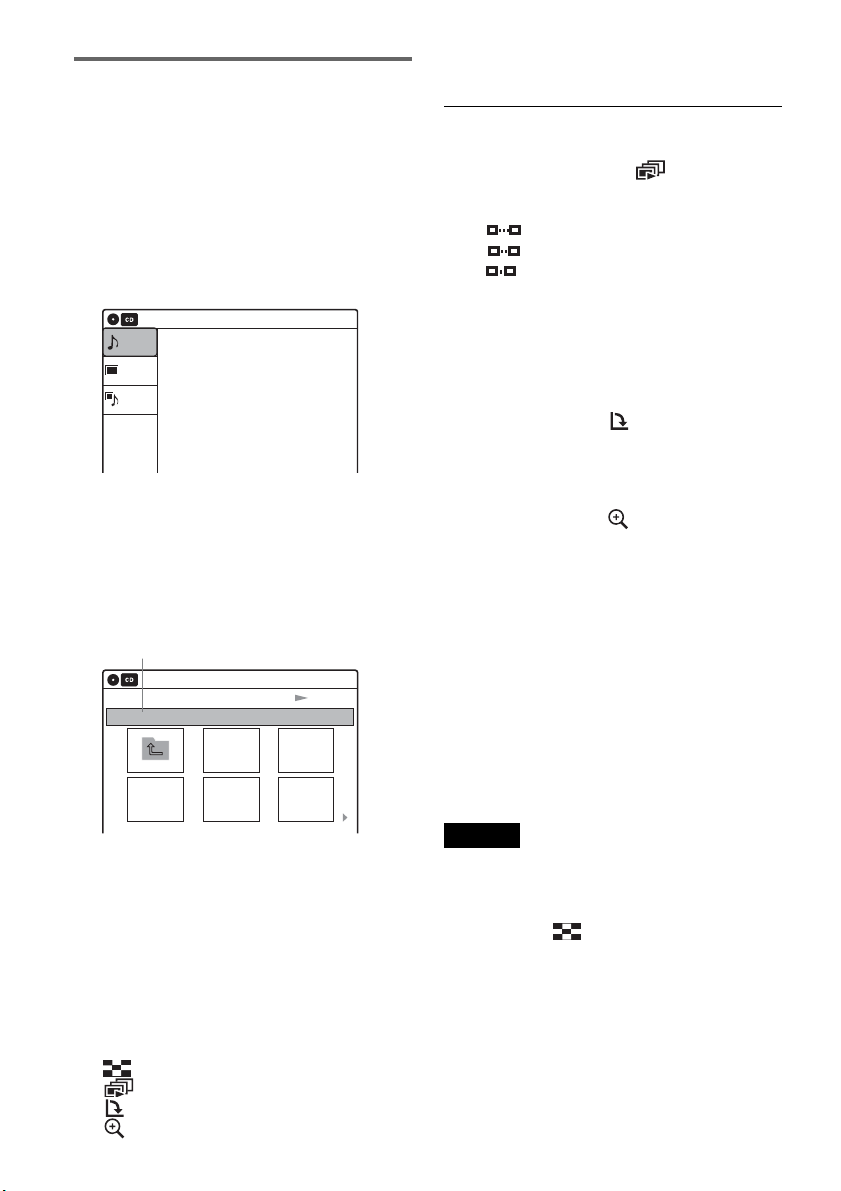
1 Place a DATA CD/DATA DVD on the disc
tray.
When you insert a DATA CD/DATA DVD
containing MP3 audio tracks and JPEG image
files, the display for selecting a media type
appears. When you select “Mix,” you can
enjoy a slide show with sound (page 43).
If you insert a DATA CD/DATA DVD
containing only MP3 audio tracks, the
“Music” display appears. Go to step 3.
2 Select “Music,” and press ENTER.
The “Music” display appears.
3 Select an album, and press ENTER.
4 Select a track, and press ENTER.
Playback starts from the selected track.
When a track or album is being played, the
title is shown in a box.
To stop playback
Press x STOP.
To pause playback
Press X PAUSE.
To restart playback, press H PLAY or X
PAUSE.
To return to the previous display
Press O RETURN.
To switch between MP3 audio tracks and JPEG
image files
Press x STOP, and press TOP MENU.
z Hint
When playback of all the MP3 audio tracks within the
album finishes, the recorder stops.
DATA CD
DATA DVD
11 22 33
44 55 66
77 88
00
99
H PLAY
O RETURN
M/m/</,,
ENTER
./>
TOP MENU
x STOP
OPTIONS
X PAUSE
10:10 AM
Photo
Music
Mix
Press ENTER :
Music menu for this disc.
Stop 00:00:00
Prev Directory
01-Track1.mp3
02-Track2.mp3
03-Track3.mp3
04-Track4.mp3
05-Track5.mp3
MP3_001
0/9
10:10 AM
Music
Surround:Off
,continued
42
Playing JPEG image files
You can play JPEG image files on DATA CDs or
DATA DVDs.
1 Place a DATA CD/DATA DVD on the disc
tray.
When you insert a DATA CD/DATA DVD
containing MP3 audio tracks and JPEG image
files, the display for selecting a media type
appears.
When you select “Mix,” you can
enjoy a slide show with sound (page 43).
If you insert a DATA CD/DATA DVD
containing only JPEG image files, the
“Photo” display appears. Go to step 3.
2 Select “Photo,” and press ENTER.
The “Photo” display appears.
3 Select a folder, and press ENTER.
To display the previous or next page, press
./>.
4 Select an image file, and press ENTER.
The selected image is displayed over the
entire screen.
To display the previous or next image, press
./>.
The following menu icons appear in the upper
part of the screen.
: Returns to the “Photo” display.
: Starts the slide show (page 42).
: Rotates the image (page 42).
: Zooms the image (page 42).
Press OPTIONS to turn on/off the menu
icons.
To play the slide show
1 Press </, to select “ ,” and press
ENTER.
The “Slideshow Speed” menu appears.
“”: Slow
“”: Normal
“”: Fast
2 Press </, to select the desired play speed,
and press ENTER.
The slide show starts from the selected image.
To stop playing, press x STOP.
To rotate the selected image
Press </, to select “ ,” and press ENTER.
Each time you press ENTER, the image turns
clockwise by 90°.
To zoom in an image
Press </, to select “ ,” and press ENTER.
Each time you press ENTER, the magnification
changes as follows:
2× t 4× t 2× t normal
To return to the previous display
Press O RETURN.
To switch between MP3 audio tracks and JPEG
image files
Press x STOP, and press TOP MENU.
z Hint
You can also start the slide show by pressing H PLAY
in step 4 above.
Notes
• You cannot use M/m/</, to move the image within
the screen while zooming.
• Slide show can play in only one direction.
• You cannot rotate or zoom during slide show.
•
If you select “ ” in the rotated image display,
the images in the “Photo” display will not be
rotated.
10:10 AM
Photo
Music
Press ENTER :
Mix
Music menu for this disc.
Slideshow
\abc\defg
Page 1 / 2
10:10 AM
Photo
Directory information
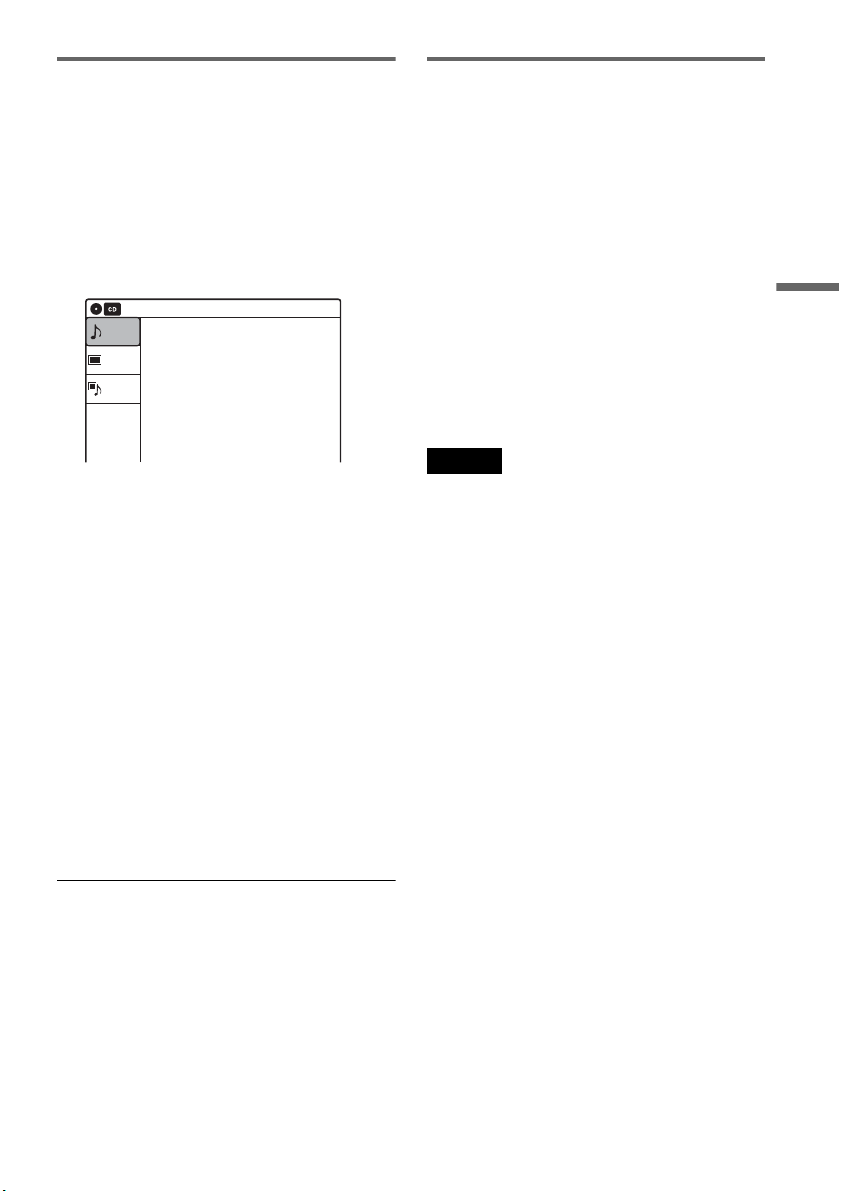
43
Playback
Enjoying a slide show with sound
When a disc contains both MP3 audio tracks and
JPEG image files, you can enjoy a slide show with
sound.
1 Insert a DATA CD/DATA DVD containing
both the MP3 audio tracks and JPEG image
files.
The display for selecting a media type
appears.
2 Select “Mix,” and press ENTER.
The “Music” display appears.
3 Select an album, and press ENTER.
4 Select a track, and press ENTER.
Playback starts from the selected track, and
the display asks for confirmation.
5 Select “Yes,” and press ENTER.
The “Photo” display appears.
6 Select the folder you want to view, and
press ENTER.
7 Press H PLAY to start the slide show.
The “Slideshow Speed” menu appears.
8 Press </, to select the slide show
speed, and press ENTER.
The slide show starts with sound.
To stop the slide show
Press x STOP.
z Hints
• When playing JPEG images, you can also use the on-
screen menu. For details, see “Playing JPEG image
files” (page 42).
• The slide show is played repeatedly until MP3
playback stops.
About MP3 audio tracks and JPEG
image files
MP3 is audio compression technology that
satisfies the ISO/IEC MPEG regulations.
JPEG is image compression technology.
You can play back DATA CDs (CD-ROMs/CD-
Rs/CD-RWs) or DATA DVDs (DVD-ROMs/
DVD+RWs/DVD-RWs/DVD+Rs/DVD-Rs)
recorded in MP3 (MPEG1 Audio Layer 3) and
JPEG format.
However, this recorder only plays DATA CDs
whose logical format is ISO9660 Level 1/Level 2
or Joliet, and DATA DVDs of Universal Disk
Format (UDF).
See the instructions supplied with the disc drives
and the recording software (not supplied) for
details on the recording format.
Note
The recorder may not be able to play some DATA CDs
or DATA DVDs created in the Packet Write format.
MP3 audio tracks or JPEG image files that the
recorder can play
The recorder can play the following tracks and
files:
– MP3 (MPEG1 Audio Layer 3) audio tracks.
– MP3 audio tracks with the extension “.MP3.”
– JPEG image files with the extension “.JPEG” or
“.JPG.”
z Hints
• If you add numbers (01, 02, 03, etc.) to the front of the
file names, the files will be played in that order.
• Since a disc with many trees takes longer to start
playback, it is recommended that you create albums
with no more than two trees.
10:10 AM
Photo
Music
Press ENTER :
Mix
Music menu for this disc.
,continued
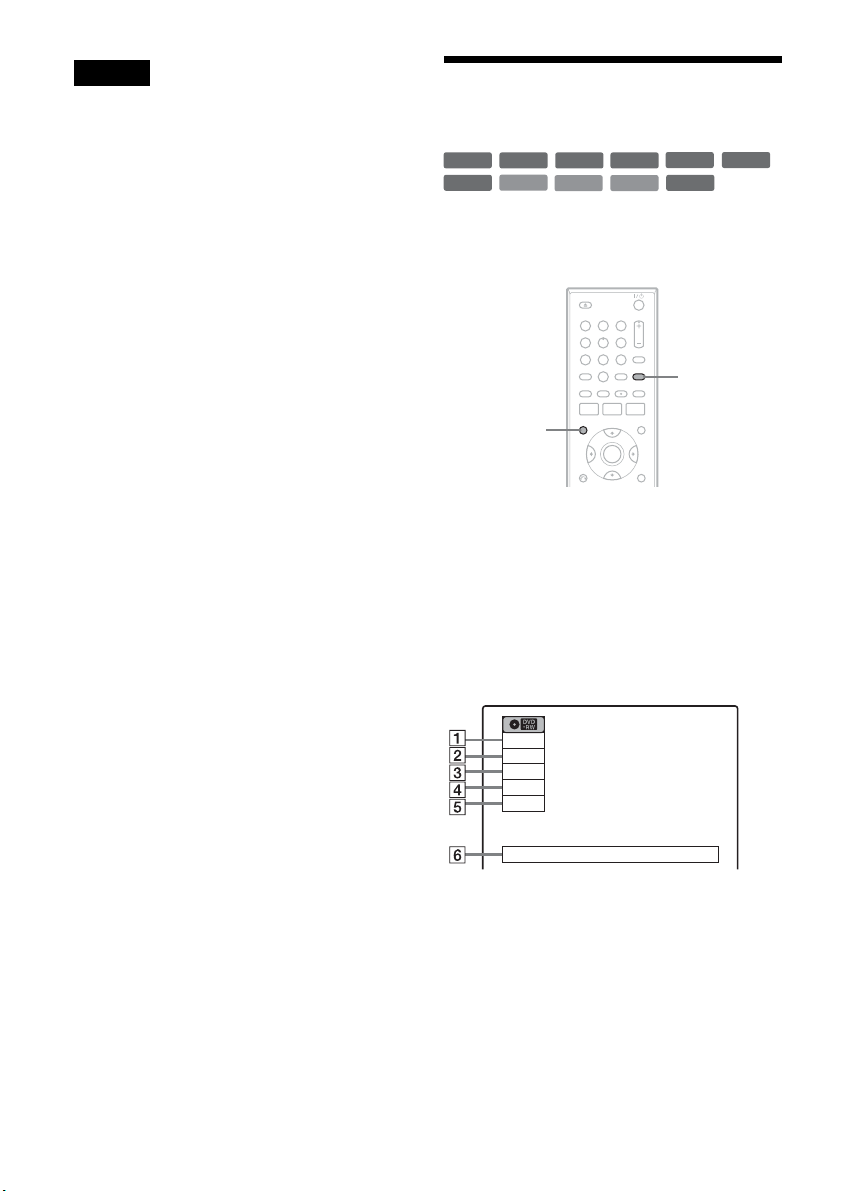
44
Notes
• Some DATA CDs or DATA DVDs cannot be played
on this recorder depending on file format.
• Only one session of a multi-session DATA DVD can
be played back.
• Only alphabet and numbers can be used for album or
track names. Anything else is displayed as an asterisk.
• The recorder will play any data with the extension
“.MP3,” even if they are not in MP3 format. Playing
such data may generate a loud noise which could
damage your speaker system.
• The recorder does not conform to audio tracks in
MP3PRO format.
• The recorder can recognize up to 499 MP3 audio tracks
within a single album. The recorder may not recognize
some discs depending on the recording device used for
recording or the disc condition.
• The recorder can play MP3 audio tracks recorded in the
following sampling frequencies: 32 kHz, 44.1 kHz,
48 kHz.
• ID3 tags cannot be displayed.
• If you add the extension “.JPG” or “.JPEG” to data not
in JPEG format, a message appears indicating that the
format is not supported.
• Depending on the disc or the size of image files,
playback may take some time to start.
• The recorder can recognize up to 999 JPEG image files
within a single folder. The recorder may not recognize
some discs depending on the recording device used for
recording or the disc condition.
• Progressive and lossless compression JPEG image files
are not supported.
• The image size that the recorder can display is limited
to width 32 - 7680 pixels by height 32 - 8192 pixels.
• JPEG image files that conform to the DCF* image file
format are not supported.
* “Design rule for Camera File system”: Image standards
for digital cameras regulated by JEITA (Japan
Electronics and Information Technology Industries
Association).
Displaying the Playing Time
and Play Information
You can check disc information, such as playing
time, recording mode, and remaining disc space.
Press DISPLAY.
The information display appears.
Each time you press the button, the display
changes as follows:
Disc information/date and time
m
Disc information only
m
No display
A Playing status
B Playing time
C Recording mode
D Remaining disc space (in stop mode)
Remaining time of the current title (during
playback
*1
)
E Input source
*2
F Date and time
+
R
DVD
VCD
CD
-
RWVR
-
RW
Video
+
RW
DATA CD
DATA DVD
-
RVR
-
R
Video
11 22 33
44 55 66
77 88
00
99
TIME/TEXT
DISPLAY
Wed May 02. 2007 10:10 AM
Play
0:05:30
HQ
Rem 00:25
Original
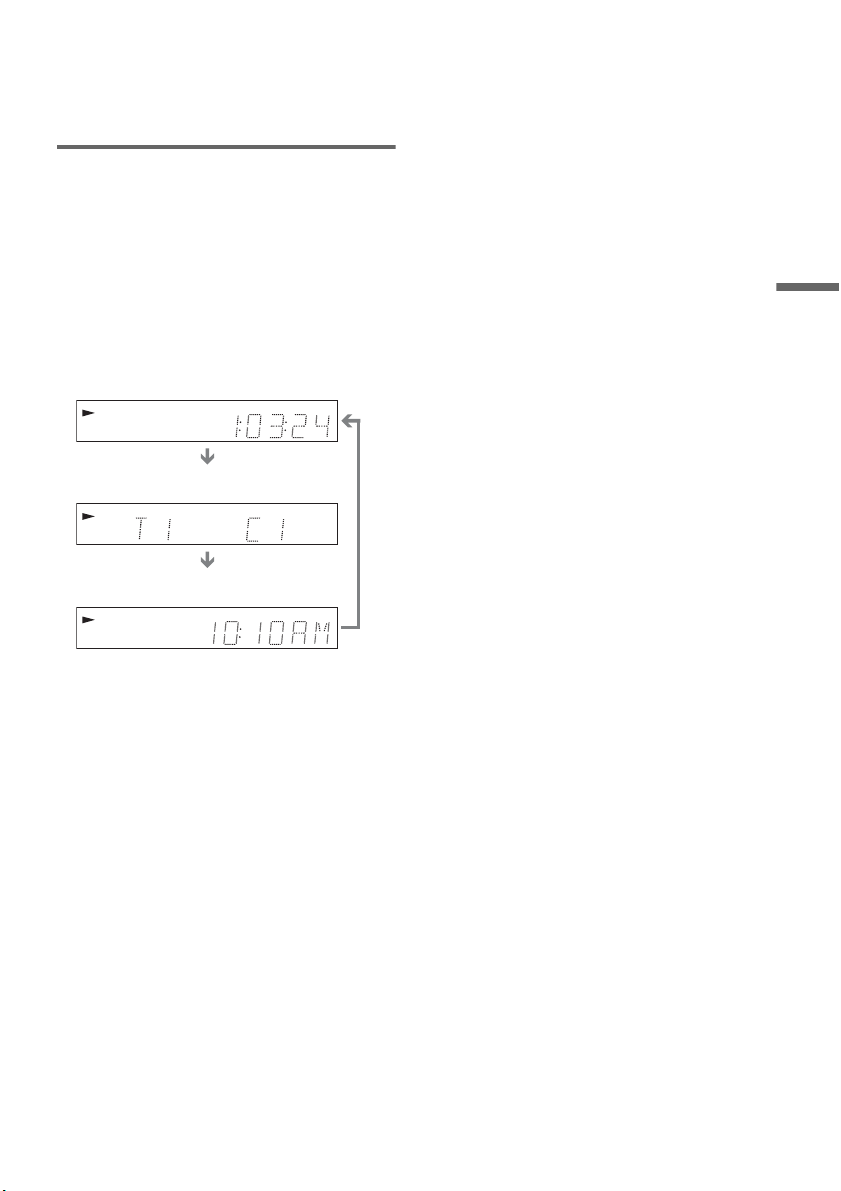
45
Playback
*1
Also appears in stop mode with Resume Play
activated (page 38).
*2
Title type (original or Playlist) for DVD-RWs (VR
mode)/DVD-Rs (VR mode).
Viewing information on the front
panel display
You can view the information on the front panel
display.
Press TIME/TEXT repeatedly.
The displays differ depending on the disc type or
playing status.
Example: When playing a DVD
Example: When a DVD is stopped
Example: When playing a CD
RW
VR
VCDVD
SAP
SYNCHRO
PROGRESSIVE
REC
STEREO
D
RW
VR
VCDVD
SAP
SYNCHRO
PROGRESSIVE
REC
STEREO
D
RW
VR
VCDVD
SAP
SYNCHRO
PROGRESSIVE
REC
STEREO
D
Playing time of the current title
Current title number and current chapter
number
Clock
Clock
m
Current title and chapter number
m
Remaining disc space
m
Input source
Playing time of the current track
m
Current track number
m
Clock
46
Recording
Before Recording
Before you start recording…
• This recorder can record on various disc types.
Select the disc type according to your needs
(page 30).
• Check that the disc has enough available space
for the recording (page 44). For DVD+RWs or
DVD-RWs, you can free up disc space by
erasing titles (page 57).
• Check that the recorder is connected to a tuner
such as a cable box or satellite receiver. See also
the tuner’s instruction manual (page 12).
z Hint
To play a disc recorded with this recorder on other
equipment, finalize the disc (page 69).
Notes
• Timer recordings will start with or without the recorder
turned on. The recorder automatically turns off after a
recording has finished.
• This recorder records at ×1 speed.
Recording mode
Like the SP or EP recording mode of VCRs, this
recorder has eight different recording modes.
Select a recording mode according to the time and
picture quality you need. For example, if picture
quality is your top priority, select “HQ” (high
quality). If recording time is your priority, “SLP”
can be a possible choice.
Press REC MODE repeatedly to switch the
recording modes.
Recording mode and recording time
The following table is an approximate guide for
the recording time on a single DVD (4.7 GB).
z Hint
The approximate recording time for DVD+R DL
(Double Layer) discs is as follows:
HQ: 1 hour 48 minutes
HSP: 2 hours 42 minutes
SP: 3 hours 37 minutes
LSP: 4 hours 31 minutes
ESP: 5 hours 25 minutes
LP: 7 hours 14 minutes
EP: 10 hours 51 minutes
SLP: 14 hours 28 minutes
Notes
• When in a recording mode other than HQ, the recorder
compresses the audio/video data before recording.
Since the compression rate needs to decrease for fast-
moving images or if picture noise is present, recorded
data size increases, and available recording time
becomes shorter. When recording such pictures, a
recording mode offering longer recording time is
recommended.
• Situations below may cause inaccuracies with the
recording time.
– Recording fast-moving or images containing picture
noise.
– Recording a program with poor reception, or a
program or video source of low picture quality
– Recording on a disc that has already been edited
– Recording only a still picture or just sound
• Since the recording mode for recorded titles is
calculated after sampling the recorded data during
playback, it may be displayed differently from the
mode you selected when recording. However, the
actual recording itself is correctly made in the selected
mode.
I want to record with the
best possible picture
quality, so I’ll select HQ.
Recording mode Approximate
recording time
(minute)
HQ (High quality) 60
HSP R 90
SP (Standard mode) 120
LSP r 150
ESP r 180
LP r 240
EP r 360
SLP (Long duration) 480
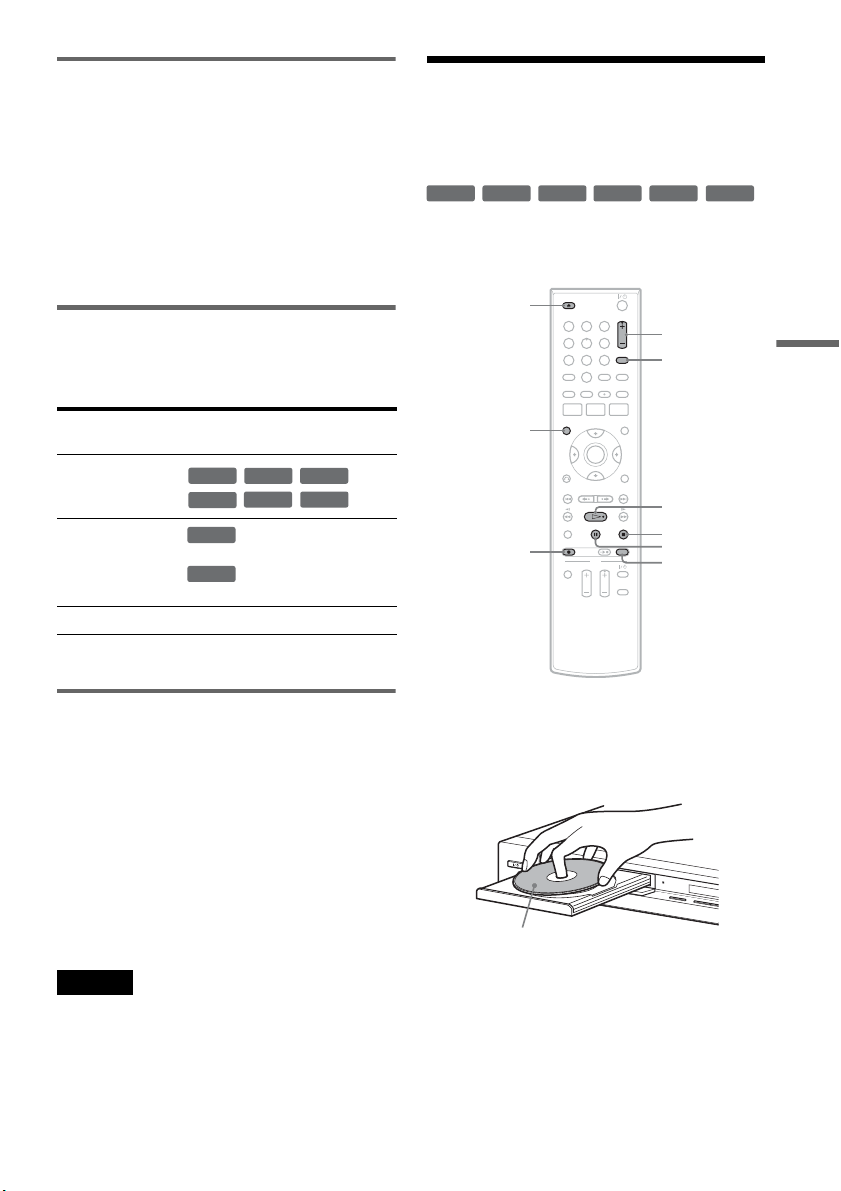
47
Recording
Recording main and sub sounds
You can record the different soundtracks on a
DVD-RW (VR mode) or DVD-R (VR mode) from
equipment connected to the LINE 1 IN or LINE 2
IN jacks. When playing the disc, you can select
main or sub sound by pressing the AUDIO button.
Set “Line Audio Input” in “Audio” setup to
“Main/Sub” in the Setup Display (page 81).
When recording on other discs, select either sound
track with the connected equipment before
recording.
Unrecordable pictures
Pictures with copy protection cannot be recorded
on this recorder. Recording stops when a copy
guard signal is detected.
* The recorded disc can be played only on CPRM
compatible equipment (page 30).
Formatting a new disc
New, unformatted discs are automatically
formatted when first inserted in the recorder.
For DVD-RWs/DVD-Rs, you can select a
recording format (VR mode or Video mode)
according to your needs (page 30).
• Unused DVD-RWs are automatically formatted
according to the setting of “Format DVD-RW”
in “Features” setup (page 82).
• Unused DVD-Rs are automatically formatted in
Video mode. To format in VR mode, change the
recording format using the “Disc Setting”
display (page 67).
Notes
• You cannot mix VR mode and Video mode on the same
DVD-RW or DVD-R.
• You can change the recording format on DVD-RWs by
reformatting (page 67).
• You cannot change the recording format on used DVD-
Rs.
• The recorder records on new DVD-Rs in Video mode
unless you first format the discs in VR mode.
Recording From Connected
Equipment Without the
Timer
You can record TV programs on the recorder
through the connected cable box/satellite receiver.
1 Turn on the recorder and the connected
cable box/satellite receiver.
2 Press Z OPEN/CLOSE, and place a
recordable disc on the disc tray.
3 Press Z OPEN/CLOSE to close the disc
tray.
Wait until “LOAD” disappears from the front
panel display.
Unused discs are automatically formatted. For
the DVD-RW/DVD-R’s recording format
(VR mode or Video mode), see “Formatting a
new disc” on page 47.
Copy control
signals
Recordable discs
Copy-Free
Copy-Once
Ver.1.1, Ver.1.2 with CPRM*
Ver.2.0, Ver.2.1 with CPRM*
Copy-Never None
+
RW
-
RWVR
-
RW
Video
+
R
-
RVR
-
R
Video
-
RWVR
-
RVR
+
RW
+
R
-
RWVR
-
RW
Video
-
RVR
-
R
Video
11 22 33
44 55 66
77 88
00
99
REC MODE
X PAUSE
x STOP
CH +/–
z REC
Z OPEN/
CLOSE
H PLAY
DISPLAY
INPUT
D
V IN
L
(
M
O
N
O
)
A
U
D
I
O
R
V
I
D
E
O
S
V
I
D
E
O
L
I
N
E
-
2
I
N
O
N
E-TO
UC
H D
UB
BIN
G
Recording side facing down
,continued
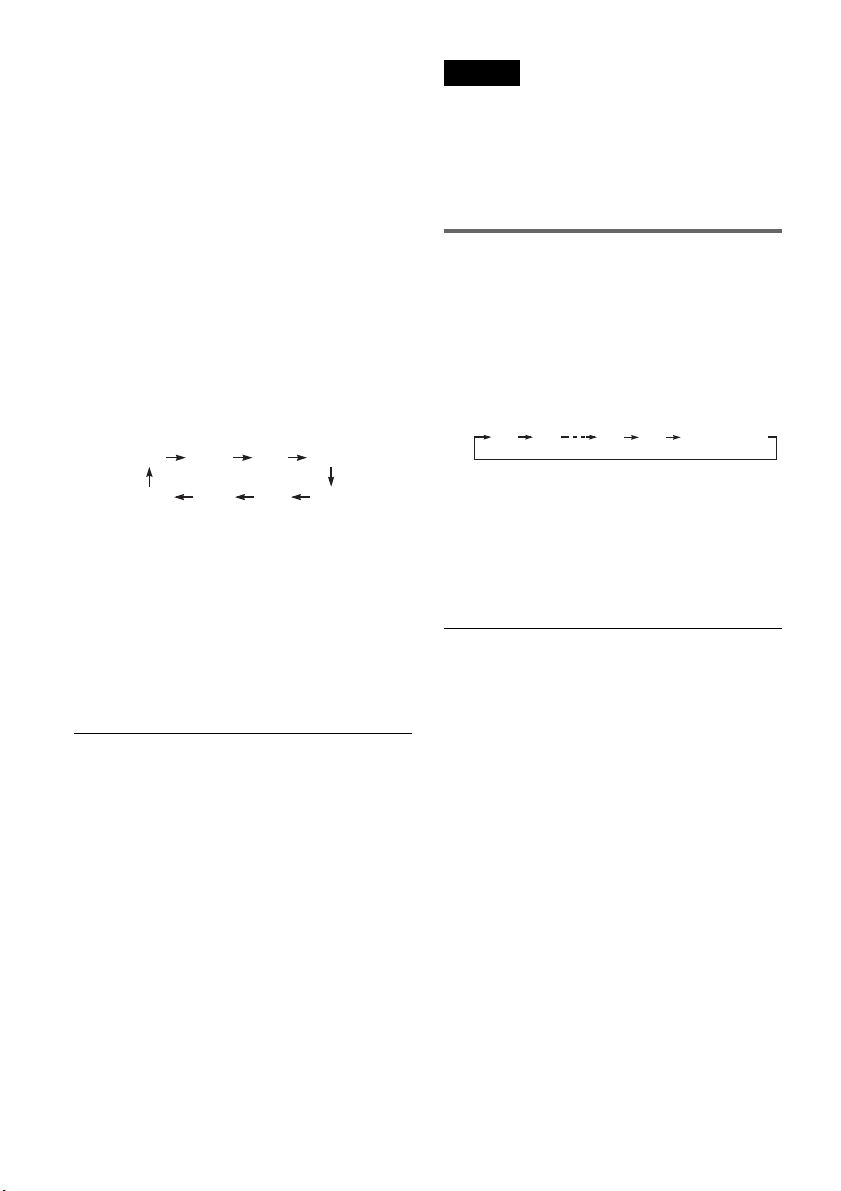
48
4 Press CH +/– or INPUT repeatedly to select
the channel or input source you want to
record.
• When using the cable box/satellite receiver
control, select the channel by pressing
CH +/– on this recorder’s remote. The
recorder’s input is switched to the connected
input (LINE1 or LINE2). You can also use
the number buttons.
• When not using the cable box/satellite
receiver control, select the connected input
(LINE1 or LINE2) by pressing INPUT, and
then select the channel on the cable box/
satellite receiver's side.
5 Press REC MODE repeatedly to select the
recording mode.
The display changes on the TV screen as
follows:
For details about the recording mode, see
page 46.
6 Press z REC.
Recording starts.
Recording continues until you stop the
recording or the disc is full.
Leave the cable box/satellite receiver turned
on and do not change the channel you are
recording.
To stop recording
Press x STOP.
Note that it may take a few seconds for the
recorder to stop recording.
To pause recording
Press X PAUSE.
To restart recording, press X PAUSE again.
z Hints
• To play a disc recorded with this recorder on other
equipment, finalize the disc (page 69).
• You can turn off the TV during recording.
Notes
• Recording may not start immediately after z REC is
pressed.
• You cannot change the recording mode during
recording or recording pause.
• If there is a power failure, the program you are
recording may be erased.
• You cannot change the input source during recording.
Recording using the Quick Timer
(One-touch Timer Recording)
You can set the recorder to record in 30-minute
increments.
Press z REC repeatedly to set the duration.
Each press increases the time by 30 minutes,
up to eight hours*.
“c” and “OTR” light up, and the remaining
recording time appears in the front panel
display.
When the time counter reaches “0:00,” the
recorder stops recording and turns off.
* 14 hours 30 minutes for DVD+R DL (Double Layer)
discs.
To cancel the Quick Timer
Press z REC repeatedly until the counter appears
in the front panel display. The recorder returns to
normal recording mode.
To stop recording
Press x STOP twice.
Note that it may take a few seconds for the
recorder to stop recording.
HQ SPHSP LSP
SLP LPEP ESP
0:30 1:00 7:30 8:00
(Normal
recording)
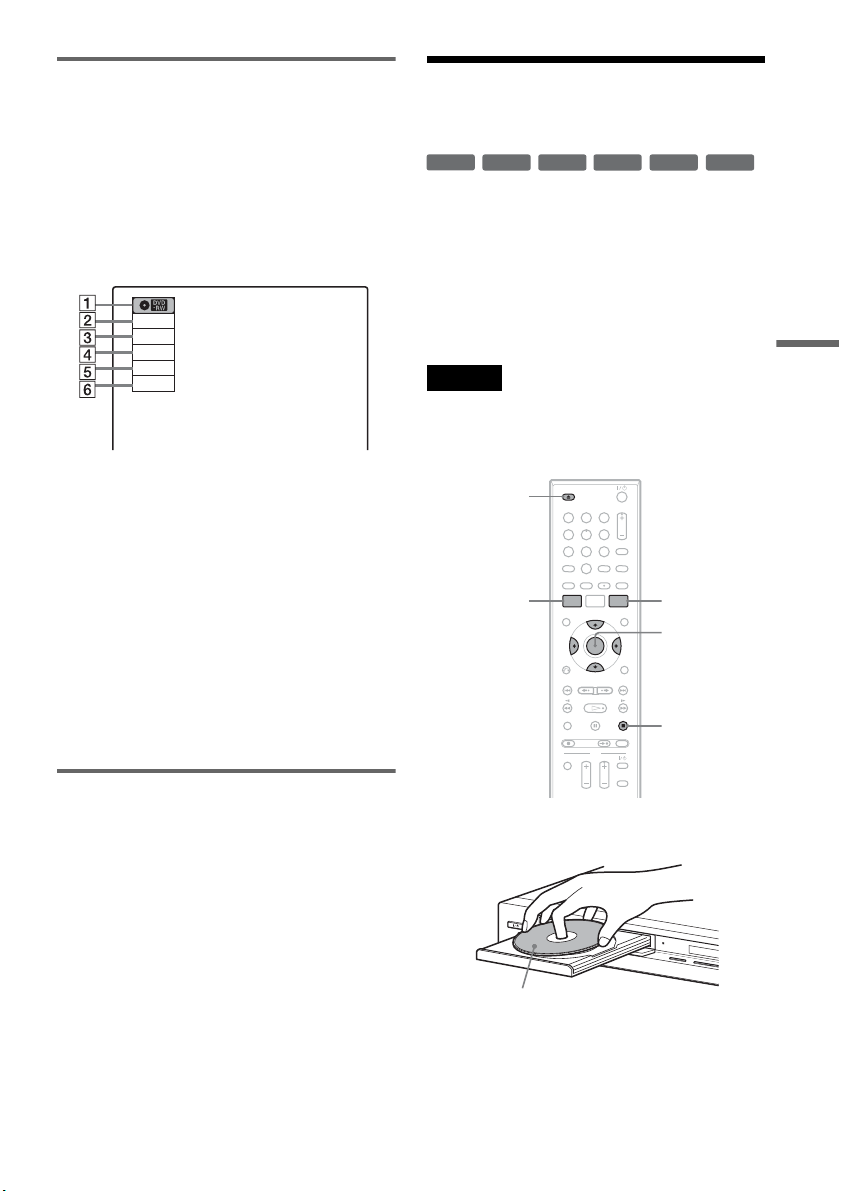
49
Recording
Checking the disc status while
recording
You can check the recording information such as
recording time or disc type.
Press DISPLAY during recording.
The information display appears.
Press the button repeatedly to change the display
(page 44).
A Disc type
B Recording status
C Recording time
D Recording mode
E Remaining disc space
F Input source
z Hint
You can view the information also in the front panel
display. Press TIME/TEXT repeatedly to change the
display. Note that TIME/TEXT does not work during
One-touch Timer Recording.
Creating chapters in a title
The recorder will automatically divide a recording
(a title) into chapters by inserting chapter marks at
5 or 15-minute intervals during recording. Select
the interval, “5 Min” (default) or “15 Min” in
“DVD Auto Chapter” of “Features” in the “Setup”
display (page 81).
If you do not want to divide titles, select “Off.”
Timer Recording From
Connected Equipment
You can set the timer for a total of 12 programs, up
to one month in advance.
Note that the maximum continuous recording time
for a single title is 12 hours. Contents beyond this
time will not be recorded.
If you record from connected equipment that has a
timer function, you can use the Synchro Rec
function (page 51).
Note
Do not operate your cable box or satellite receiver just
before or during a timer recording. This may prevent the
accurate recording of a program.
1 Press Z OPEN/CLOSE, and place a
recordable disc on the disc tray.
Record
0:00:03
HQ
Rem 00:59
Line1
+
RW
+
R
-
RWVR
-
RW
Video
-
RVR
-
R
Video
11 22 33
44 55 66
77 88
00
99
M/m/</,,
ENTER
Z OPEN/
CLOSE
x STOP
SYSTEM
MENU
TIMER
D
V IN
L
(
M
O
N
O
)
A
U
D
I
O
R
V
I
D
E
O
S
V
I
D
E
O
L
I
N
E
-
2
I
N
O
N
E-TOU
CH
DUBBING
Recording side facing down
,continued
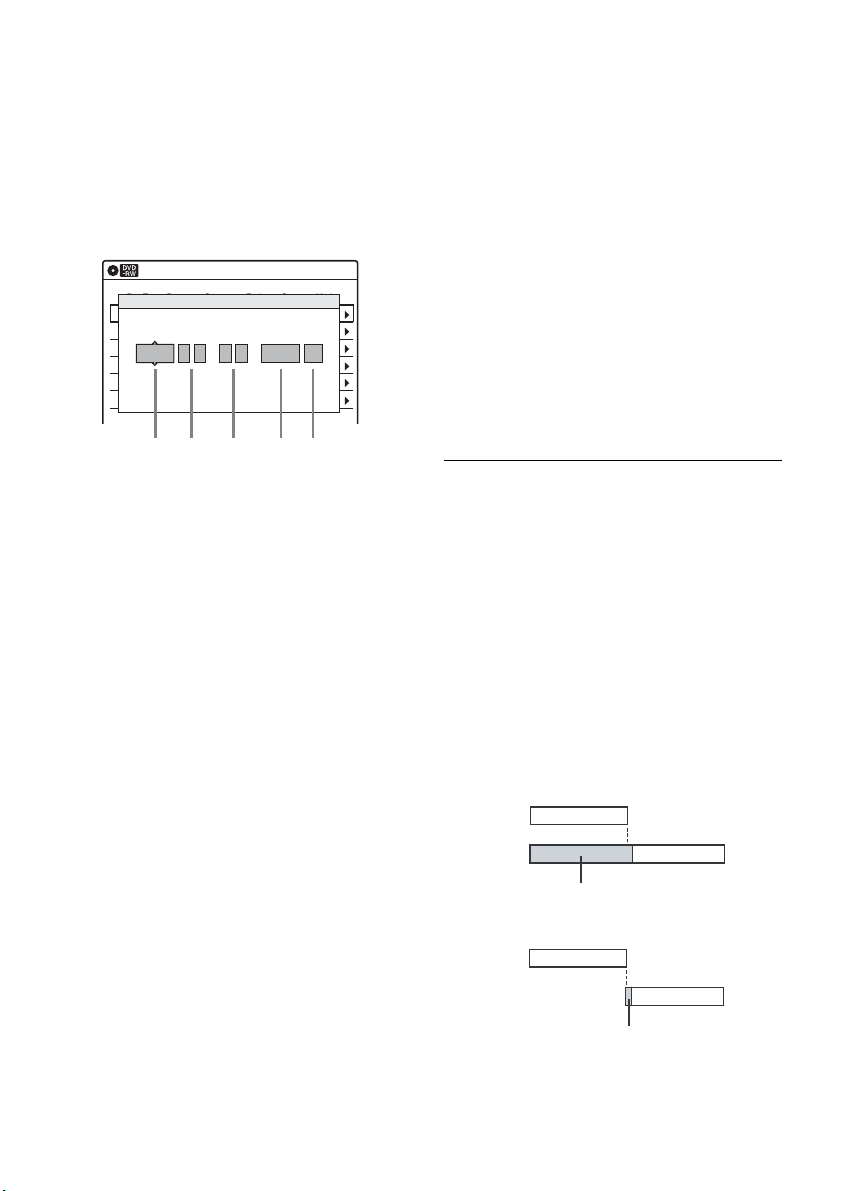
50
2 Press Z OPEN/CLOSE to close the disc
tray.
Wait until “LOAD” disappears from the front
panel display.
Unused discs are automatically formatted. For
the DVD-RW/DVD-R’s recording format
(VR mode or Video mode), see “Formatting a
new disc” on page 47.
3 Press TIMER.
4 Select an item using </, and adjust
using M/m.
A “Date”: Sets the date using M.
To record the same program every day or
the same day every week, press m.
The item changes as follows:
Today y Sun-Sat (Sunday to Saturday)
y Mon-Sat (Monday to Saturday) y
Mon-Fri (Monday to Friday) y Sun
(every Sunday) y Mon (every Monday)
y … y Sat (every Saturday) y
1 month later y … y Today
B “Start”: Sets the start time.
C “End”: Sets the stop time.
D “Ch”: Selects the channel or input
source.
• When using the cable box/satellite
receiver control, select the channel.
• When not using the cable box/satellite
receiver control, select the input, Line1
or Line2. Select the channel on the
connected cable box/satellite receiver's
side before the timer recording starts.
E “Mode”: Selects the recording mode
(page 46).
To use the Rec Mode Adjust function
(page 51), select “AUTO.”
If you make a mistake, select the item and
change the setting.
5 Press ENTER.
The Timer List menu (page 53) appears.
The c indicator lights up in the front panel
display, and the recorder is ready to start
recording.
•If the c indicator flashes in the front panel
display, check that a recordable disc is
inserted and that there is enough disc space
for the recording.
• If timer settings overlap, a message appears.
To change or cancel a timer recording, select
“Edit” from the Timer List (page 53).
6 Press SYSTEM MENU to turn off the menu.
There is no need to turn off the recorder before
the timer recording starts.
Leave the cable box/satellite receiver turned
on and do not change the channel selected on
the cable box/satellite receiver until the
recorder finishes the timer recording.
To stop recording
Press x STOP twice.
Note that it may take a few seconds for the
recorder to stop recording.
If timer settings overlap
The program that starts first has priority and the
second program starts recording only after the first
program has finished. If the programs start at the
same time, the program listed first in the menu has
priority. If the end time of one setting and the start
time of another timer setting is the same, the
beginning of the program that starts later will be
cut.
To change or cancel timer recording
See “Changing or Canceling Timer Settings
(Timer List)” on page 53.
01 DVD 04/15 09:00PM 10:00PM CH8
--- --/-- --:-- --:-- ---- ---04
--- --/-- --:-- --:-- ---- ---05
--- --/-- --:-- --:-- ---- ---06
03 --- --/-- --:-- --:-- ---- ---
02 DVD 04/30 09:15PM 09:45PM CH11
10:10 AM
No Rec To Date Start End Source Mode Edit
Timer – Standard
No.01
: PM PM
:
09 00 10 00 Line1 SP
12 3 45
Date Start End Ch Mode
Tod ay
7:00 8:00 9:00 10:00
7:00 8:00 9:00 10:00
Program 1
Program 2
will be cut off
Program 1
Program 2
will be cut off
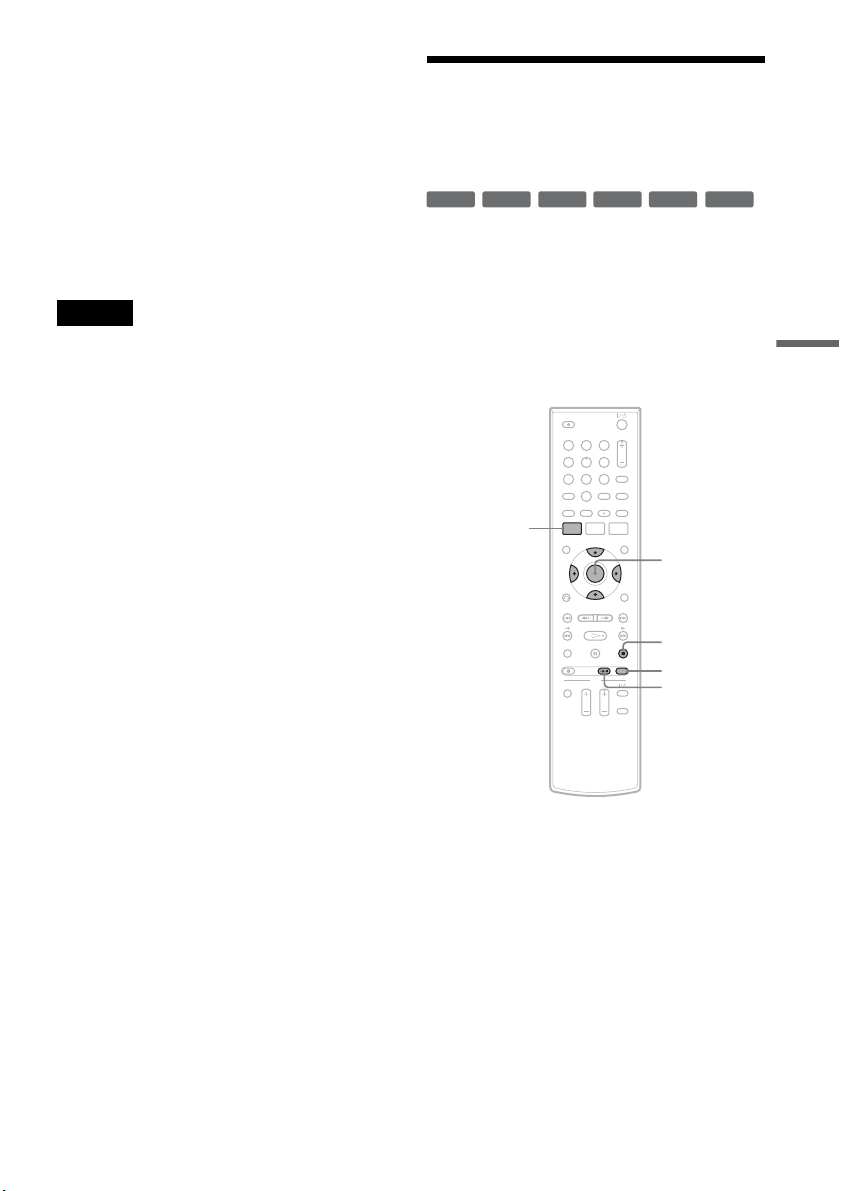
51
Recording
To use the Rec Mode Adjust function
If the remaining disc space is not enough for the
current recording, the recorder automatically
adjusts the recording mode. Select “AUTO” for
“Mode” when setting the timer.
z Hints
• You can play the recorded program by selecting the
program title in the Title List menu.
• You can also turn on the timer programming menu
from the System Menu. Press SYSTEM MENU to
select “Timer,” and select “Timer-Standard.”
Notes
• Even when correctly set, the program may not be
recorded if another recording is underway, or other
prioritized timer setting overlaps.
• Before the timer recording starts, “TIMER REC”
flashes in the front panel display.
• The recorder automatically turns off when a timer
recording finishes, even if the recording started with
the recorder turned on.
• The recorder does not record programs with Copy-
Never signals. Such recordings stop after a few
seconds.
Recording From Connected
Equipment With a Timer
(Synchro Rec)
You can set the recorder to automatically record
programs from connected equipment that has a
timer function (such as a satellite tuner). Connect
the equipment to the LINE 1 IN jacks on the rear
of the recorder (page 13).
When the connected equipment turns on, the
recorder starts recording a program from the LINE
1 IN jacks.
1 Insert a recordable disc.
2 Select the line input audio.
Set “Line Audio Input” of “Audio” setup to
“Stereo” or “Main/Sub” in the “Setup”
display (page 81).
+
RW
+
R
-
RWVR
-
RW
Video
-
RVR
-
R
Video
11 22 33
44 55 66
77 88
00
99
M/m/</,,
ENTER
SYNCHRO
REC
x STOP
REC MODE
SYSTEM
MENU
,continued
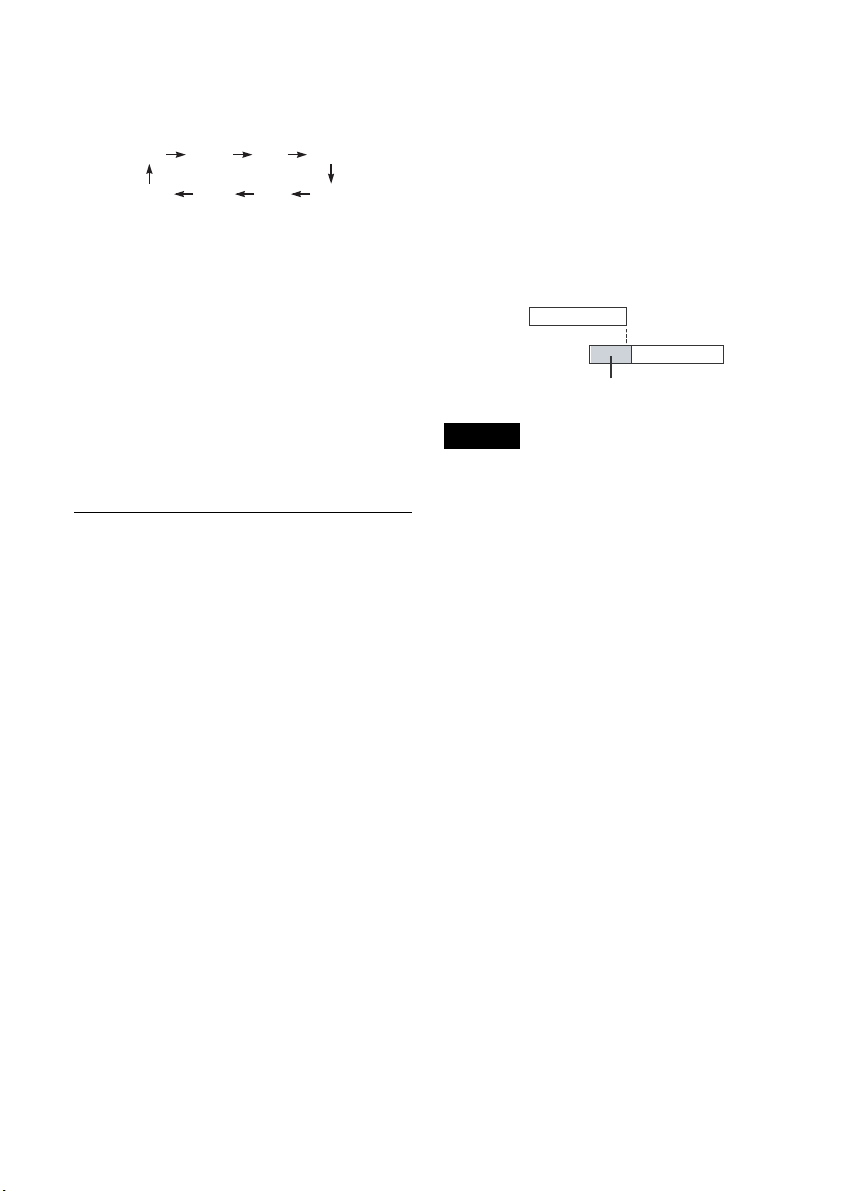
52
3 Press REC MODE repeatedly to select the
recording mode.
The display changes on the TV screen as
follows:
For details about the recording mode, see
page 46.
4
Set the timer on the connected equipment
to the time you want to record, and turn it
off.
5
Press SYNCHRO REC.
The “SYNCHRO REC” indicator lights up on
the front panel display and the recorder stands
by for Synchro-Rec.
The recorder starts recording when a signal is
received from the connected equipment.
When the connected equipment turns off, the
recording stops and the recorder turns off.
To stop recording
Press x STOP twice.
To cancel a Synchro-Rec function
Press SYNCHRO REC before recording starts.
The SYNCHRO REC indicator turns off.
If you press SYNCHRO REC during Synchro-
Rec, the recording stops, the SYNCHRO REC
indicator turns off, and the recorder turns off.
If the timer settings of a Synchro-Recording
and another timer recording overlap
Regardless of whether or not the program is a
Synchro-Rec program, the program that starts first
has priority. The recorder starts recording the
second program about ten seconds after the first
program has finished. If the end time of one
setting and the start time of another timer setting is
the same, the beginning of the program that starts
later will be cut.
Notes
• The recorder starts recording only after detecting the
video signal from the connected equipment. The
beginning of the program may not be recorded
regardless of whether or not the recorder’s power is on
or off.
• To use the connected equipment during Synchro-Rec
standby, cancel the standby mode by pressing
SYNCHRO REC. To return to standby mode again, be
sure to turn off the equipment and press SYNCHRO
REC, before Synchro-Rec starts.
• The Synchro-Rec function does not work with some
tuners. For details, see the tuner’s operating
instructions.
• After a recording has finished, the recorder enters the
Synchro-Rec standby mode until the SYNCHRO REC
indicator turns off.
• If Synchro-Rec starts with the recorder turned on, the
recorder will turn off when the recording ends.
• The recorder does not record programs with Copy-
Never signals. Such recordings stop after a few
seconds.
HQ SPHSP LSP
SLP LPEP ESP
7:00 8:00 9:00 10:00
Program 1
Program 2
will be cut off
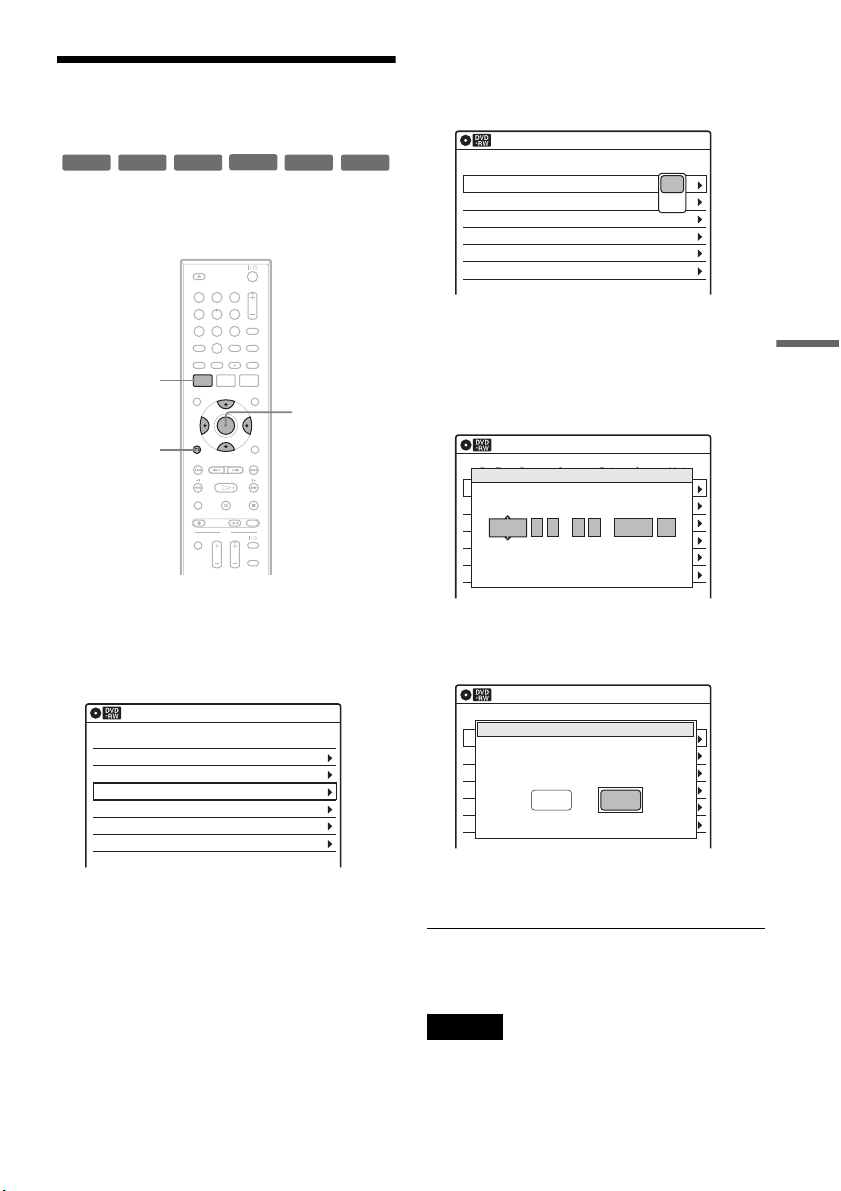
53
Recording
Changing or Canceling
Timer Settings (Timer List)
You can change or cancel timer settings using the
Timer List menu.
1 Press SYSTEM MENU.
The System Menu appears.
2 Select “Timer,” and press ENTER.
3 Select “Timer List,” and press ENTER.
Timer information displays the recording
date, time, recording mode, etc.
If there are more than six timer settings, press
m to display the next page.
4 Select the timer setting you want to change
or cancel, and press ENTER.
The sub-menu appears.
5 Select one of the options, and press
ENTER.
“Edit”: Changes the timer setting.
Select an item using </, and adjust using
M/m. Press ENTER.
“Erase”: Erases the timer setting.
Select “OK” and press ENTER when asked
for confirmation.
6 Press SYSTEM MENU to turn off the Timer
List.
To return to the previous display
Press O RETURN.
Notes
• Even when correctly set, the program may not be
recorded if another recording is underway, or other
prioritized timer setting overlaps. For priority, see
page 50.
+
RW
+
R
-
RWVR
-
RW
Video
-
RVR
-
R
Video
11 22 33
44 55 66
77 88
00
99
SYSTEM
MENU
M/m/</,,
ENTER
O RETURN
01 04/15 09:00PM 10:00PM Line1
--/-- --:-- --:-- ---- ---04
--/-- --:-- --:-- ---- ---05
--/-- --:-- --:-- ---- ---06
03 --/-- --:-- --:-- ---- ---
02 04/30 09:15PM 09:45PM Line1
10:10 AM
SP
SP
Timer List
No Date Start End Ch Mode Edit
01 04/15 09:00PM 10:00PM Line1
--/-- --:-- --:-- ---- ---04
--/-- --:-- --:-- ---- ---05
--/-- --:-- --:-- ---- ---06
03 --/-- --:-- --:-- ---- ---
02 04/30 09:15PM 09:45PM Line1
10:10 AM
Timer List
No Date Start End Ch Mode Edit
Edit
Erase
01 DVD 04/15 09:00PM 10:00PM CH8
--- --/-- --:-- --:-- ---- ---04
--- --/-- --:-- --:-- ---- ---05
--- --/-- --:-- --:-- ---- ---06
03 --- --/-- --:-- --:-- ---- ---
02 DVD 04/30 09:15PM 09:45PM CH11
10:10 AM
No Rec To Date Start End Source Mode Edit
Timer – Standard
No.01
: PM PM
:
09 00 10 00 Line1 SP
Date Start End Ch Mode
04/15
01 04/15 09:00PM 10:00PM CH8
--/-- --:-- --:-- ---- ---04
--/-- --:-- --:-- ---- ---05
--/-- --:-- --:-- ---- ---06
03 --/-- --:-- --:-- ---- ---
02 04/30 09:15PM 09:45PM CH11
10:10 AM
No Date Start End Source Mode Edit
Timer List
Do you want to erase ‘No.01’?
OK
Cancel
,continued
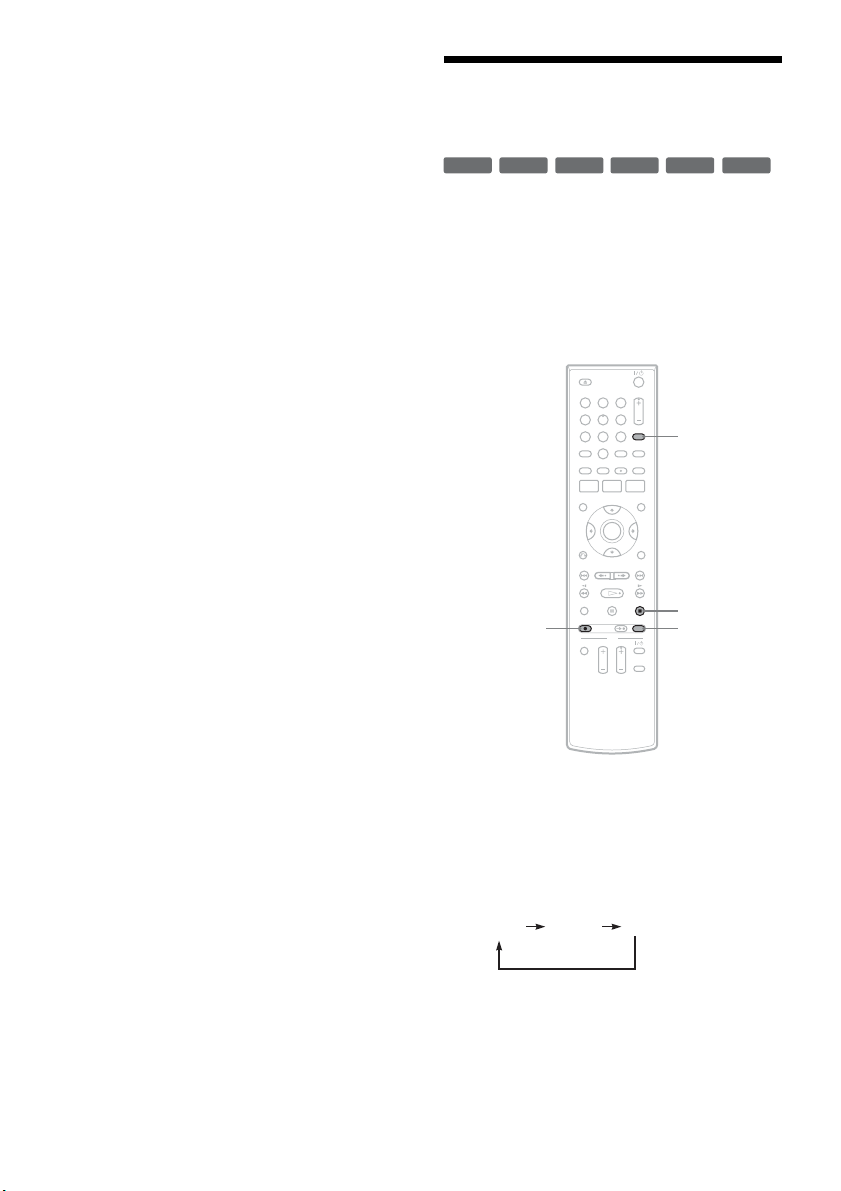
54
• You cannot change the timer settings for a recording
currently underway.
Recording From a VCR or
Similar Device
You can record from a connected VCR or similar
device. For connection details, see “Connecting a
VCR or Similar Device” on page 27.
Use the DV IN jack on the front panel if the
equipment has a DV/D8 output jack (i.LINK
jack). To record from a digital video camera
connected to the DV IN jack, see page 71.
1 Insert a recordable disc.
2 Press INPUT repeatedly to select an input
source according to the connection you
made.
The front panel display changes as follows:
+
RW
+
R
-
RWVR
-
RW
Video
-
RVR
-
R
Video
11 22 33
44 55 66
77 88
00
99
INPUT
x STOP
REC MODE
z REC
LINE2 DVLINE1

55
Recording
3 Press REC MODE repeatedly to select the
recording mode.
The display changes on the TV screen as
follows:
For details about the recording mode, see
page 46.
4 Select the line input audio.
Set “Line Audio Input” of “Audio” setup to
“Stereo” or “Main/Sub” in the “Setup”
display (page 81).
5 Insert the source tape into the connected
equipment and set to playback pause.
6 Press z REC on this recorder and the
pause or play button on the connected
equipment at the same time.
Recording starts.
To stop recording, press x STOP on this
recorder.
Notes
• A video game image may not be recorded clearly.
• The recorder does not record programs with Copy-
Never signals. Such recordings stop after a few
seconds.
• During recording or recording pause, you cannot
change the recording mode.
• You cannot change the input source during recording.
HQ SPHSP LSP
SLP LPEP ESP
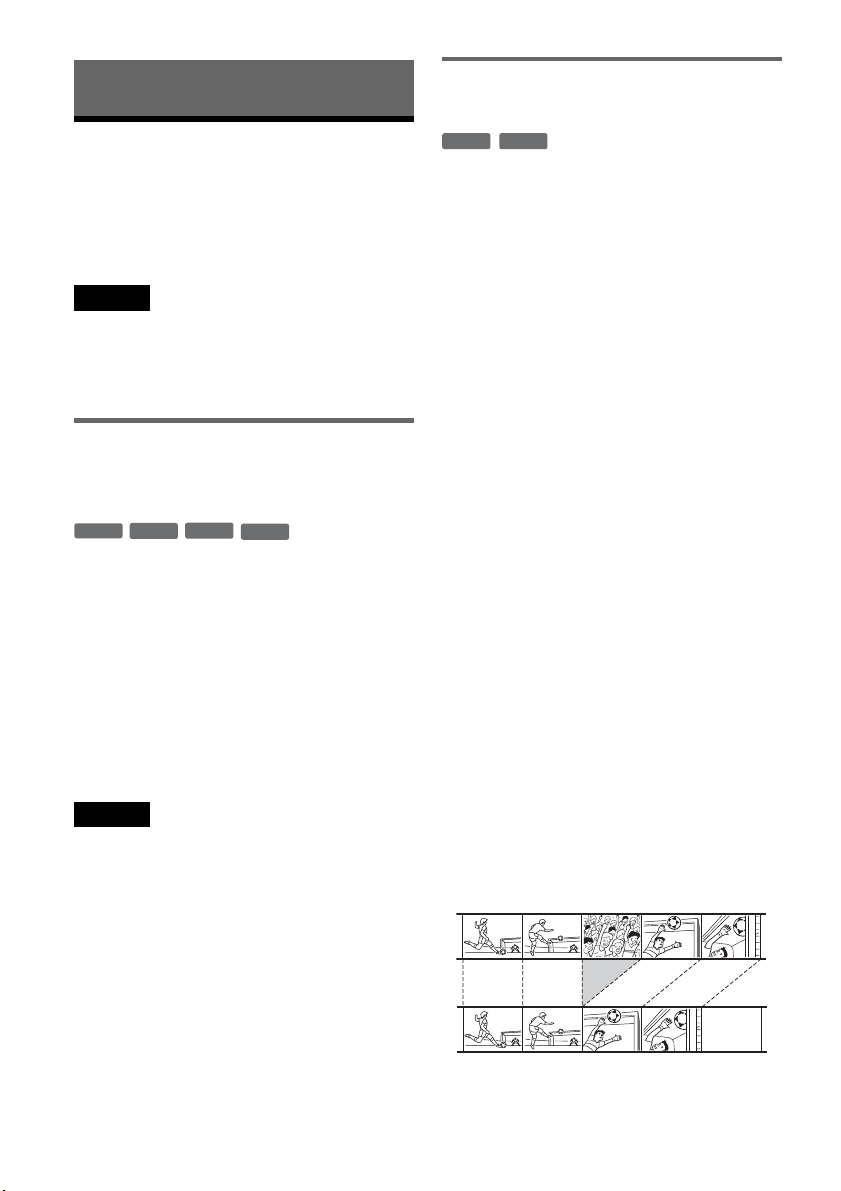
56
Editing
Before Editing
This recorder offers various edit options for
various disc types. Before you edit, check the disc
type in the front panel display, and select the
option available for your disc (page 30).
Notes
• You may lose the edited contents if you remove the disc
or a timer recording starts while editing.
• You cannot edit recordings on DVD-RWs (Video
mode), DVD+Rs, or DVD-Rs (Video mode) recorded
on other DVD equipment.
Edit options for DVD+RWs/DVD-RWs
(Video mode)/DVD+Rs/DVD-Rs
(Video mode)
You can perform simple edits. Since Video mode
titles are actual recordings on the disc, you cannot
undo any edits you make. The edit functions
available for Video mode titles are:
– Renaming a title (page 60).
– Erasing a title (page 57).
– Setting protection against erasure (DVD+RWs
only) (page 57).
– Erasing a section of a title (A-B Erase)
(DVD+RWs only) (page 58).
– Dividing a title (DVD+RWs only) (page 59).
Notes
• Once the disc is finalized, you cannot edit or record on
the disc (except for DVD+RWs).
• If a message appears and indicates that the disc’s
control information is full, erase unnecessary titles.
Edit options for DVD-RWs (VR mode)/
DVD-Rs (VR mode)
You can enjoy advanced edit functions. First you
have two options for a DVD-RW (VR mode) and
DVD-R (VR mode): editing either the original
recording (called the “original”), or the playback
information created from the original (called a
“Playlist”). Since each is different in nature and
offers different merits, read the following and
select the one that better suits your needs.
To edit original titles
Edits made to the original titles are final. If you
plan to retain an unaltered original recording,
create and edit a Playlist (see below). The edit
functions available for original titles are:
– Renaming a title (page 60).
– Erasing a title (page 57).
– Erasing a chapter (page 58).
– Setting protection against erasure (page 57).
– Erasing a section of a title (A-B Erase) (page 58).
– Dividing a title (page 59).
To create and edit Playlist titles
A Playlist is a group of Playlist titles created from
the original title for editing purposes. When you
create a Playlist, only the control information
necessary for playback, such as the playback
order, is stored on the disc. Since the original titles
are left unaltered, Playlist titles can be re-edited.
If you erase an original title used in a Playlist, that
Playlist is also erased.
Example: You have recorded the final few
matches of a soccer tournament on a DVD-RW
(VR mode). You want to create a digest with the
goal scenes and other highlights, but you also want
to keep the original recording.
-
RW
Video
+
RW
+
R
-
R
Video
-
RWVR
-
RVR
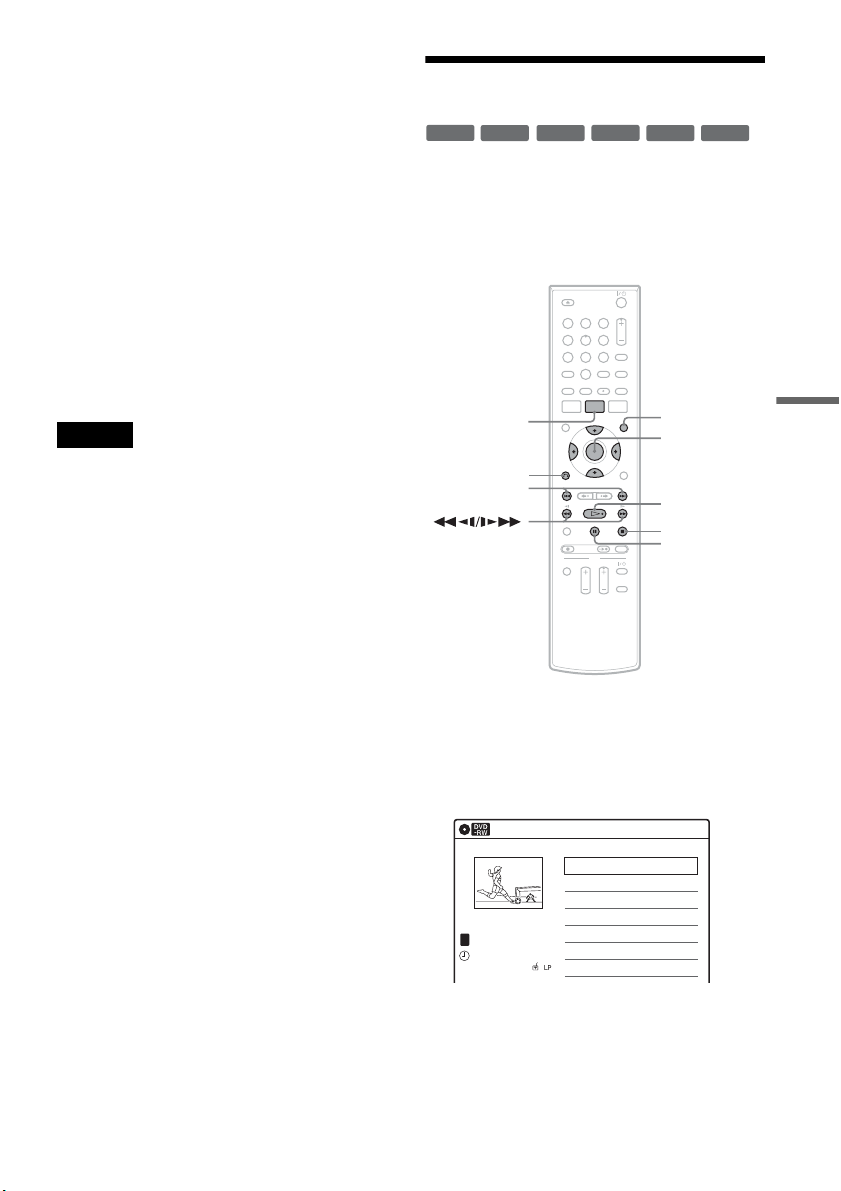
57
Editing
In this case, you can compile highlight scenes as a
Playlist title. You can even rearrange the scene
order within the Playlist title. See “Editing a
Playlist” on page 63.
The advanced edit functions available for Playlist
titles are:
– Renaming a title (page 60).
– Erasing a title (page 57).
– Erasing a chapter (page 58).
– Erasing a section of a title (A-B Erase) (page 58).
– Editing a Playlist scene (page 63).
– Dividing a title (page 59).
– Combining titles (page 64).
z Hint
You can switch the Title List to show original or Playlist.
While the Title List menu is turned on, press ORIGINAL/
PLAYLIST repeatedly.
Notes
• You cannot protect Playlist titles.
• If a message appears and indicates that the disc’s
control information is full, erase unnecessary titles.
• You cannot create or edit Playlist titles on a finalized
disc. When you want to edit or record on the DVD-RW
(VR mode) again, unfinalize the disc (page 69).
Editing a Title
This section explains the basic edit functions. Note
that editing is irreversible. To edit a DVD-RW
(VR mode) or DVD-R (VR mode) without
changing the original recordings, create a Playlist
title (page 61).
1 Press TITLE LIST.
When editing a DVD-RW (VR mode) or
DVD-R (VR mode), press ORIGINAL/
PLAYLIST to switch to the “Title List
(Original),” if necessary.
2 Select a title, and press ENTER.
The sub-menu appears.
-
RWVR
-
RW
Video
+
RW
+
R
-
R
Video
-
RVR
11 22 33
44 55 66
77 88
00
99
M/m/</,,
ENTER
TITLE LIST
H PLAY
x STOP
X PAUSE
ORIGINAL/
PLAYLIST
./>
O RETURN
Title List (Original)
10:10 AM
>
>
LINE
1
08:00 PM
May/02/2007
T
No. Title Length Edit
01 LINE 1 01:29:03
02 LINE 1 00:31:23
03 LINE 1 >01:59:00
04 LINE 1 >00:58:56
1/4
,continued
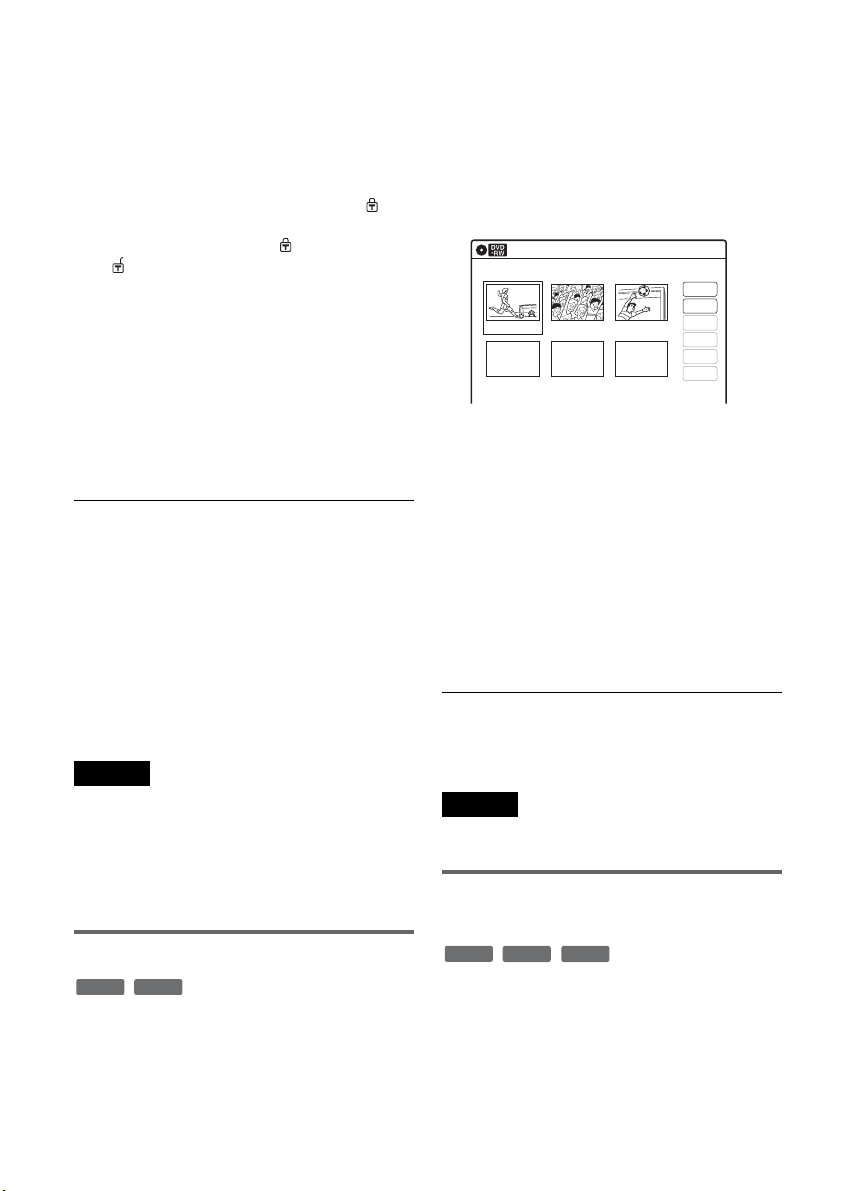
58
3 Select an option, and press ENTER.
You can select from the following:
“Title Erase”: Erases the selected title. Select
“OK” when asked for confirmation.
“Chapter Erase”
*1
: Allows you to select a
chapter in the title and erase it (see below).
“Protect”
*2
: Protects the title. Select “On”
when the Protection display appears. “ ”
appears for the protected title. To cancel the
protection, select “Off.” “ ” changes to
“.”
“Title Name”: Allows you to rename the title
(page 60).
“A-B Erase”
*2
: Erases a section of the title
(see below).
“Divide Title”
*2
: Divides a title into two
(page 59).
*1
DVD-RWs (VR mode) and DVD-Rs (VR mode)
only
*2
DVD+RWs, DVD-RWs (VR mode), and DVD-R
(VR mode) only
About freeing up disc space
Erasing titles, chapters, or scenes:
– frees up disc space on a DVD-RW (VR mode).
– frees up disc space on a DVD+RW/DVD-RW
(Video mode) only when you erase the last title
or chapter.
– cannot free up disc space on a DVD+R/DVD+R
DL/DVD-R.
z Hint
You can also rename a disc (page 67).
Notes
• When editing a DVD-RW (Video mode), DVD+R, or
DVD-R, finish all editing before finalizing the disc.
You cannot edit a finalized disc.
• You cannot erase protected titles or erase chapters from
a protected title.
• If you erase an original title used in a Playlist, that
Playlist is also erased.
Erasing a chapter (Chapter Erase)
You can select a chapter within a title and erase it.
Note that erasing chapters from original titles
cannot be undone.
1 Press TITLE LIST.
Press ORIGINAL/PLAYLIST to switch to the
“Title List (Original),” if necessary.
2 Select a title, and press ENTER.
The sub-menu appears.
3 Select “Chapter Erase,” and press ENTER.
The display for erasing chapters appears.
4 Select the chapter you want to erase, and
press ENTER.
“Check” is selected. To preview the chapter,
press ENTER. When playback finishes or
when you press O RETURN, the display
returns to “Chapter Erase (Original).”
5 Select “Erase,” and press ENTER.
The display asks for confirmation.
6 Select “OK,” and press ENTER.
The selected chapter is erased from the title.
To erase other chapters, repeat from step 4.
z Hint
You can also erase chapters from a Playlist title
(page 63).
Note
If you erase an original title used in a Playlist, that Playlist
is also erased.
Erasing a section of a title
(A-B Erase)
You can select a section (scene) within a title and
erase it. Note that erasing scenes from original
titles cannot be undone.
-
RWVR
-
RVR
Chapter Erase (Original)
10:10 AM
Chapter No. 1 / 3 Title No.01
03 00:04:2002 00:00:1001 00:00:34
Check
Erase
Modify
Move
Add
Copy
-
RWVR
-
RVR
+
RW
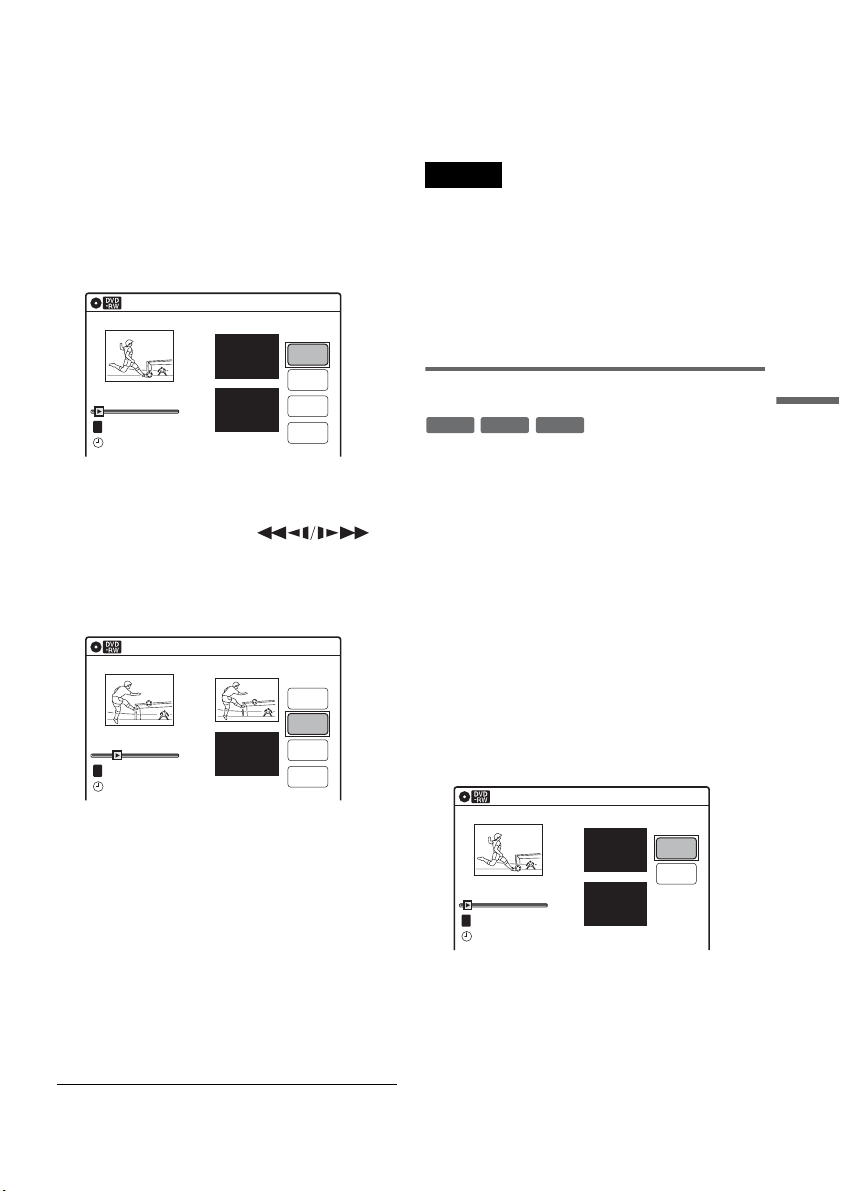
59
Editing
1 Press TITLE LIST.
When editing a DVD-RW (VR mode) or
DVD-R (VR mode), press ORIGINAL/
PLAYLIST to switch to the “Title List
(Original),” if necessary.
2 Select a title, and press ENTER.
The sub-menu appears.
3 Select “A-B Erase,” and press ENTER.
The display for setting point A and B appears.
“Start” is selected.
4 Press ENTER at the start point of the
section to be erased (point A).
You can use H PLAY, ,
./> and X PAUSE to find the point. At
the point you want to select, press H PLAY
or X PAUSE, and press ENTER.
“End” is selected.
5 Press ENTER at the end point of the section
(point B).
“Erase” is selected.
To reset the start or end point, select “Start” or
“End” and repeat from step 4 or 5.
6 Press ENTER.
The display asks for confirmation.
7 Select “OK,” and press ENTER.
The scene is erased.
To continue, repeat from step 4.
To finish, select “Finish,” and press ENTER.
z Hints
• A chapter mark is inserted after the scene was erased.
The chapter mark divides the title into separate chapters
on either side of the mark.
• You can also erase a section of a Playlist title (page 63).
Notes
• Images or sound may be momentarily interrupted at the
point where you erase a section of a title.
• Sections shorter than five seconds may not be erased.
• The start and end points of a title may be different from
what you have set.
• The total playing time of the title does not change even
if a scene was erased.
• If you erase an original title used in a Playlist, that
Playlist is also erased.
Dividing a title into two (Divide Title)
You can divide a title into two. Note that dividing
original titles cannot be undone.
1 Press TITLE LIST.
When editing a DVD-RW (VR mode) or
DVD-R (VR mode), press ORIGINAL/
PLAYLIST to switch to the “Title List
(Original),” if necessary.
2 Select a title, and press ENTER.
The sub-menu appears.
3 Select “Divide Title,” and press ENTER.
The display for setting the dividing point
appears.
“Point” is selected.
A-B Erase
10:10 AM
Title No.01
End 00:00:00
Start 00:00:00
Start
End
Erase
Finish
00:00:07
T
Title No.01
May/02/2007 08:00 PM
A-B Erase
10:10 AM
Title No.01
End 00:00:00
Start 00:00:10
Start
End
Erase
Finish
00:00:10
T
Title No.01
May/02/2007 08:00 PM
-
RWVR
+
RW
-
RVR
Divide Title (Original)
10:10 AM
Title No.01
T
Point
Divide
00:00:07
Title No. 01
Start 00:00:00
End 00:00:00
May/02/2007 08:00 PM
,continued
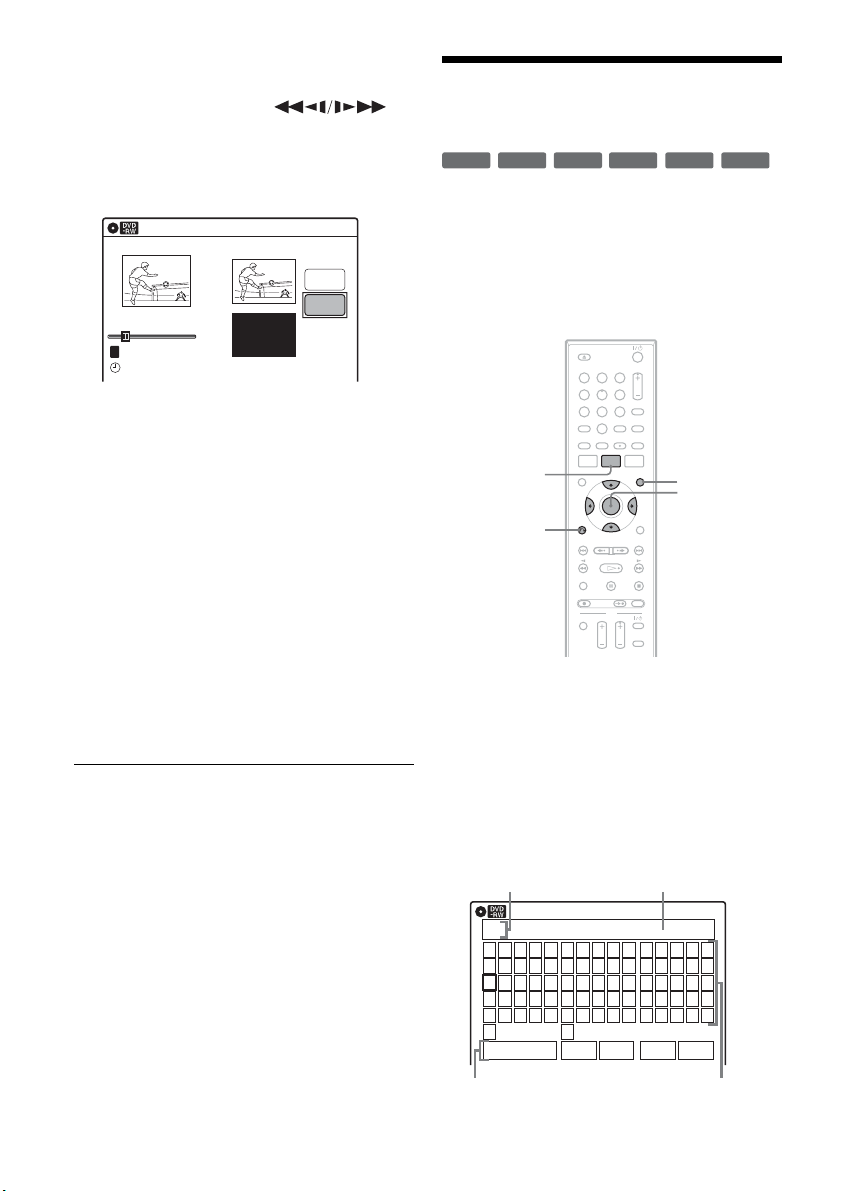
60
4 Press ENTER at the point where you want to
divide the title.
You can use H PLAY, ,
./> and X PAUSE to find the point. At
the point you want to select, press H PLAY
or X PAUSE, and press ENTER.
“Divide” is selected.
5 Press ENTER.
The display asks for confirmation.
To reset the dividing point, select “No” and
press ENTER, then repeat from step 4.
6 Select “Yes,” and press ENTER.
The display asks whether to rename the title.
To use the same name as before, select “No”
and press ENTER to finish.
7 Select “Yes,” and press ENTER.
The “Title Name” display appears.
8 Follow steps 4 to 6 of “Changing the Name
of a Title” (page 60) to complete
renaming.
The divided title appears in the Title List with
the new name.
z Hints
• You can also divide a Playlist title (page 63).
• If the dividing point is set too close to the beginning of
the title, the title cannot be divided.
Changing the Name of a
Title
You can enter a title name of up to 32 characters.
Since the displayed number of characters is
limited, their appearance in menus such as Title
List may be different. When the display for
entering characters appears, follow the steps
below.
1 Press TITLE LIST.
When editing a DVD-RW (VR mode) or
DVD-R (VR mode), press ORIGINAL/
PLAYLIST to switch to the “Title List
(Original),” if necessary.
2 Select a title, and press ENTER.
The sub-menu appears.
3 Select “Title Name,” and press ENTER.
The “Title Name” display appears.
10:10 AM
Title No.01
T
00:00:10
Divide Title (Original)
Title No. 01
End 00:00:10
Start 00:00:00
Point
Divide
May/02/2007 08:00 PM
+
R
-
RWVR
-
RW
Video
+
RW
-
RVR
-
R
Video
11 22 33
44 55 66
77 88
00
99
M/m/</,,
ENTER
O RETURN
TITLE LIST
ORIGINAL/
PLAYLIST
Title Name
K
_
A B C D E
F G H I J
K L M N O
P Q R S T
U V W X Y
Z
a b c d e
f g h i j
k l m n o
p q r s t
u v w x y
z
1 2 3 4 5
6 7 8 9 0
- _ + = .
~
!
@ # $
%
^
& ( )
Backspace Space Delete Clear Finish
10:10 AM
Input row
Character paletteSetting buttons
Cursor
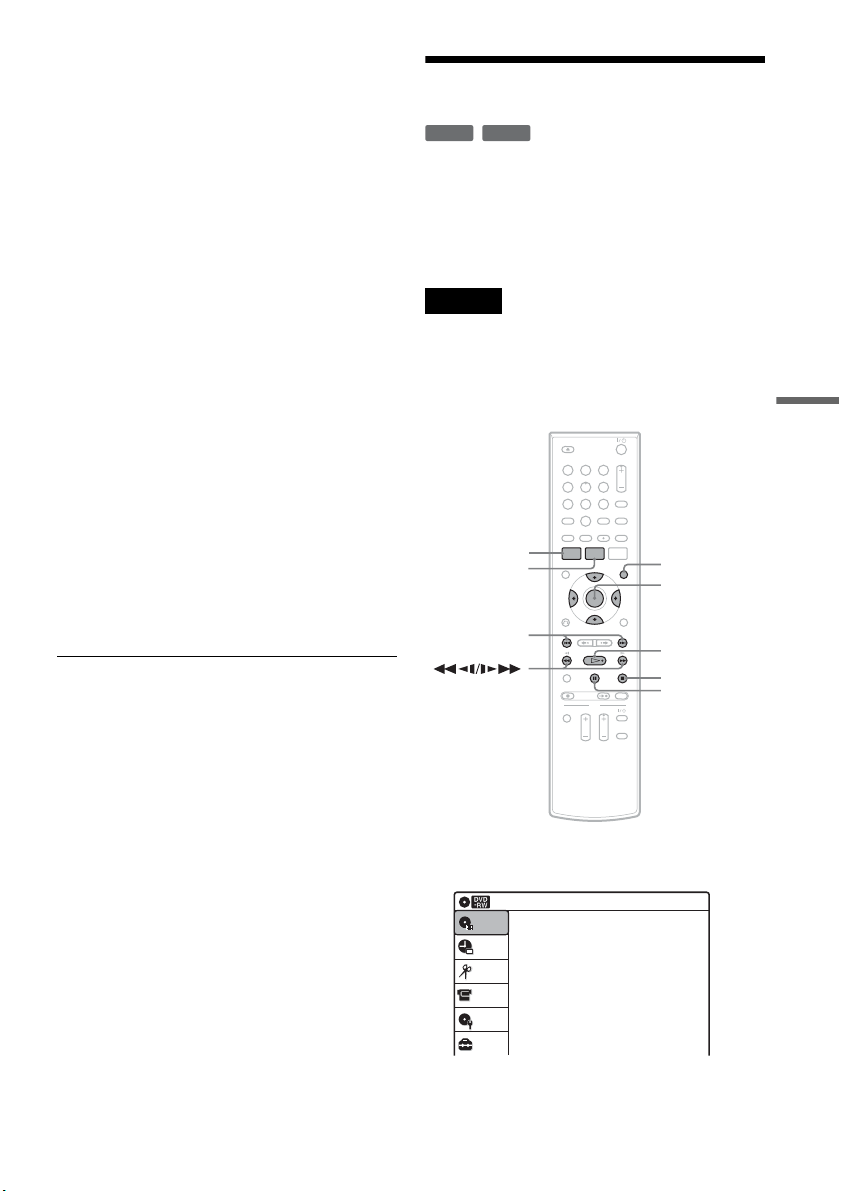
61
Editing
4 Select the character you want to enter
using M/m/</,, and press ENTER.
The selected character appears in the input
row.
You can only enter characters and symbols
that are displayed.
• To change the cursor position, select the
input row using M, and press </,.
• To erase a character, select either of the
following setting buttons and press ENTER.
“Backspace”: Erases the character to the left
of the cursor.
“Delete”: Erases the character at the cursor
position.
“Clear”: Erases all the characters in the input
row.
• To insert a space, move the cursor to the
desired position, select “Space,” and press
ENTER.
• To insert a character, move the cursor to the
desired position, select the character, and
press ENTER.
5 Repeat step 4 to enter the remaining
characters.
To return to the Title List without renaming
the title, press O RETURN.
6 Select “Finish,” and press ENTER.
z Hint
You can also rename a disc (page 67). Follow steps 4 to
6 above when the “Disc Name” display appears.
Creating a Playlist
Playlist titles allow you to edit without changing
the original recordings (see “Edit options for
DVD-RWs (VR mode)/DVD-Rs (VR mode)” on
page 56). You can create a Playlist title by
combining up to 99 sections (scenes) from original
titles.
Notes
• If you erase an original title used in a Playlist, that
Playlist is also erased.
• You cannot create or edit Playlist titles on a finalized
disc. When you want to edit or record on the DVD-RW
(VR mode) again, unfinalize the disc (page 69).
1 Press SYSTEM MENU while the recorder is
in stop mode.
-
RWVR
-
RVR
11 22 33
44 55 66
77 88
00
99
M/m/</,,
ENTER
SYSTEM
MENU
H PLAY
TITLE LIST
x STOP
X PAUSE
ORIGINAL/
PLAYLIST
./>
Press ENTER :
Title Menu for DVD Title List.
10:10 AM
Title List (Original)
Setup
Disc Setting
Edit
Title List
Timer
DV/D8 Dubbing
,continued
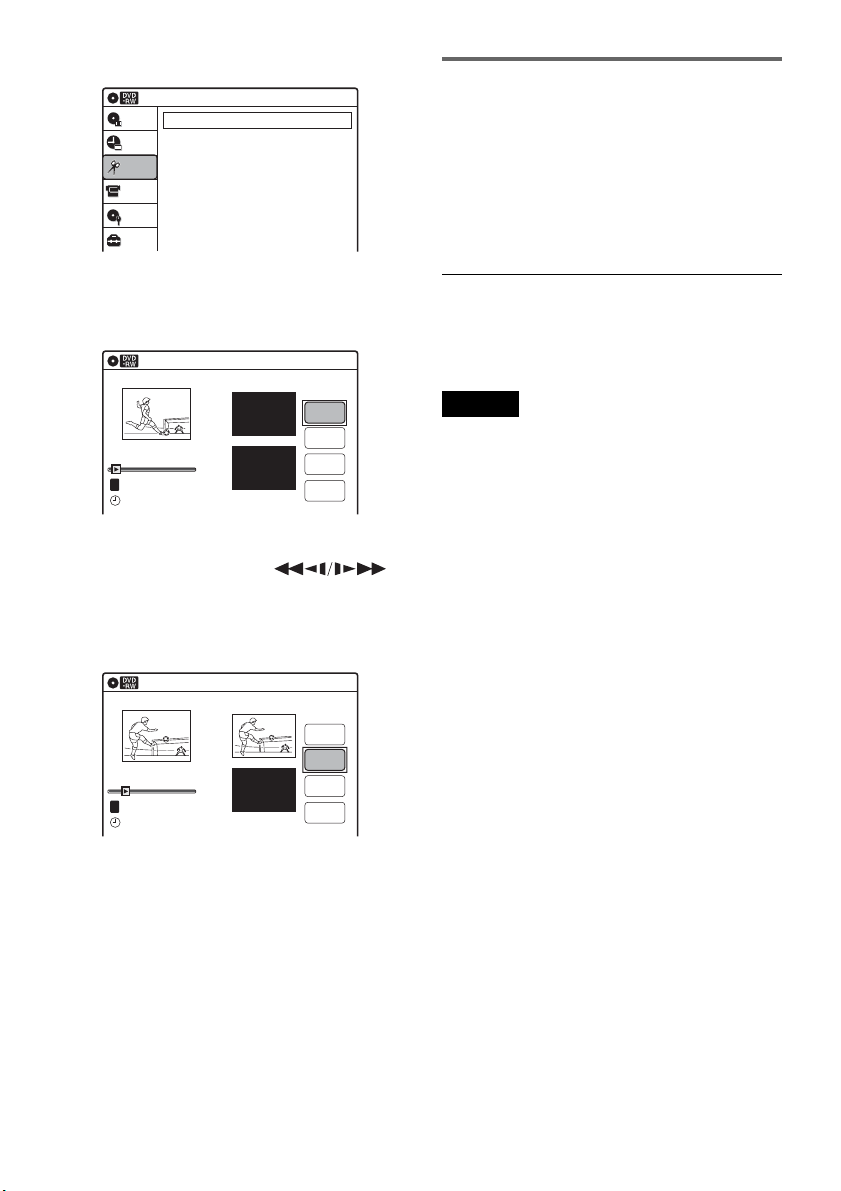
62
2 Select “Edit,” and press ENTER.
3 Select “Create Playlist,” and press ENTER.
The display for creating a Playlist appears.
“Start” is selected.
4 Press ENTER at the start point.
You can use H PLAY, ,
./> and X PAUSE to find the point. At
the point you want to select, press H PLAY
or X PAUSE, and press ENTER.
“End” is selected.
5 Press ENTER at the end point.
“Make” is selected.
To reset the start or end point, select “Start” or
“End” and repeat step 4 or 5.
6 Press ENTER.
The selected section is captured as a scene. To
continue, repeat from step 4.
7 When you finish capturing scenes, select
“Finish” and press ENTER.
Playing a Playlist title
1 Press TITLE LIST.
2 Press ORIGINAL/PLAYLIST to switch to the
“Playlist” Title List.
3 Select a Playlist title, and press ENTER.
The sub-menu appears.
4 Select “Play,” and press ENTER.
z Hint
When a Playlist title is created, the start and end points
will become chapter marks, and each scene will become
a chapter.
Notes
• The picture may pause when an edited scene is played.
• The start and end points in a title may be different from
what you have set.
10:10 AM
Create Playlist
Edit Playlist
Edit
Setup
Disc Setting
Edit
Title List
Timer
DV/D8 Dubbing
Create Playlist
10:10 AM
Scene No.01
End 00:00:00
Start 00:00:00
T
Start
End
Make
Finish
00:00:07
---/--/---- --:--
Playlist No. 01
10:10 AM
Scene No.01
T
Finish
00:00:10
Create Playlist
Playlist No. 01
End 00:00:00
Start 00:00:10
Start
End
Make
---/--/---- --:--
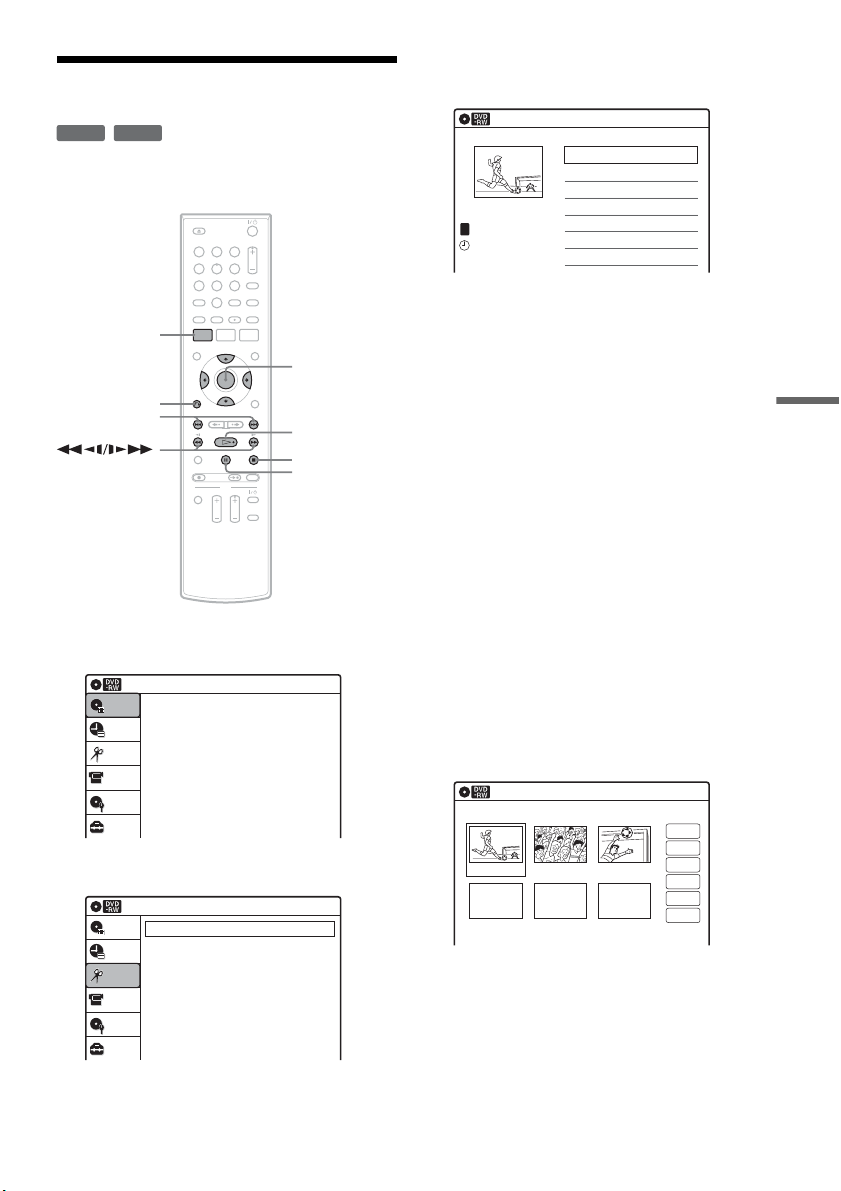
63
Editing
Editing a Playlist
You can edit Playlist titles or scenes within them,
without changing the actual recordings.
1 Press SYSTEM MENU while the recorder is
in stop mode.
2 Select “Edit,” and press ENTER.
3 Select “Edit Playlist,” and press ENTER.
The “Playlist” Title List appears.
4 Select a Playlist title, and press ENTER.
The sub-menu appears.
5 Select an option, and press ENTER.
Select from the following options. For details,
see the pages in parentheses.
“Title Erase”: Erases the title. Select “OK”
when asked for confirmation.
“Chapter Erase”: Allows you to select
chapters in the Playlist title to erase (page 58).
“Title Name”: Allows you to rename the title
(page 60).
“A-B Erase”: Allows you to select sections in
the title to erase (page 58).
“Edit Scene”: Allows you to re-edit scenes in
the Playlist title. Go to step 6.
“Divide Title”: Divides the title in two at a
desired point (page 59).
“Combine Titles”: Allows you to combine
two titles into one (page 64).
6 Select “Edit Scene,” and press ENTER.
The display for editing scenes appears.
“Check”: Allows you to preview a scene.
Starts playback of the selected scene when
you press ENTER. The display returns to the
“Edit Scene” display when the playback
finishes or when you press O RETURN.
“Erase”: Erases a scene (page 64).
“Modify”: Allows you to change the start and
end point of a scene (page 64).
-
RWVR
-
RVR
11 22 33
44 55 66
77 88
00
99
SYSTEM
MENU
M/m/</,,
ENTER
H PLAY
x STOP
X PAUSE
O RETURN
./>
Press ENTER :
Title Menu for DVD Title List.
10:10 AM
Title List (Original)
Setup
Disc Setting
Edit
Title List
Timer
DV/D8 Dubbing
10:10 AM
Create Playlist
Edit Playlist
Edit
Setup
Disc Setting
Edit
Title List
Timer
DV/D8 Dubbing
Playlist
10:10 AM
01 LINE 1 >00:05:04
02 LINE 1 >00:00:51
03:25 PM
May/02/2007
T
No. Title Length Edit1/2
LINE
1
Edit Scene
10:10 AM
Scene No.01 / 03 Playlist No.01
03 00:04:2002 00:00:1001 00:00:34
Check
Erase
Modify
Move
Add
Copy
,continued
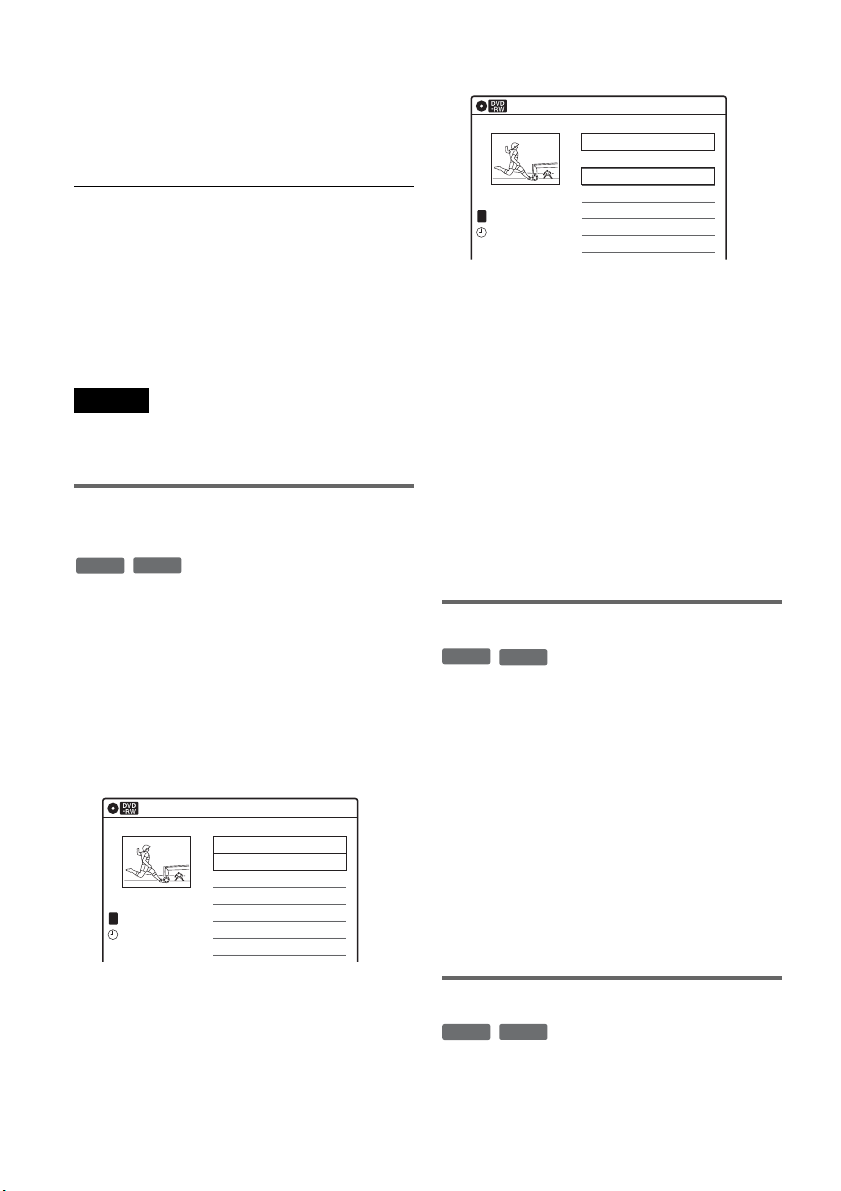
64
“Move”: Allows you to change scene order
(page 65).
“Add”: Allows you to add other scenes before
a selected scene (page 65).
“Copy”: Allows you to copy a scene
(page 66).
To return to the previous display
Press O RETURN.
To turn off the display
Press SYSTEM MENU.
z Hint
The Resume Play function will work for scene playback.
Note
You cannot create or edit Playlist titles on a finalized
disc. When you want to edit or record on the DVD-RW
(VR mode) again, unfinalize the disc (page 69).
Combining two titles into one
(Combine Titles)
You can select a Playlist title and combine it with
another Playlist title.
1 Follow steps 1 to 4 of “Editing a Playlist”
(page 63) to select a Playlist title.
The sub-menu appears.
2 Select “Combine Titles,” and press
ENTER.
The next title below is also selected.
3 Select a Playlist title to be combined.
4 Press ENTER.
The display asks for confirmation.
5 Select “Yes,” and press ENTER.
The display asks whether to rename the title.
To use the same name as before, select “No”
and press ENTER to finish.
6 Select “Yes,” and press ENTER.
The “Title Name” display appears.
7 Follow steps 4 to 6 of “Changing the Name
of a Title” (page 60) to complete
renaming.
The two Playlist titles become one Playlist
title with the new name.
Erasing a scene (Erase)
You can erase a selected scene.
1 Follow steps 1 to 6 of “Editing a Playlist”
(page 63).
The “Edit Scene” display appears.
2 Select the scene you want to erase, and
press ENTER.
3 Select “Erase,” and press ENTER.
The display asks for confirmation.
4 Select “OK,” and press ENTER.
The selected scene is erased.
To erase other scenes, repeat from step 2.
Modifying a scene (Modify)
You can change the start and end point of the
selected scene.
-
RWVR
-
RVR
Playlist
10:10 AM
>
>
LINE
1
03:25 PM
May/02/2007
T
No. Title Length Edit
01 LINE 1 00:05:04
02 LINE 1 00:00:51
03 LINE 1 >01:59:00
04 LINE 1 >00:58:56
1/4
Playlist
10:10 AM
>
>
11:30 PM
May/15/2007
T
No. Title Length Edit
01 LINE 1 00:05:04
02 LINE 1 00:00:51
03 LINE 1 >01:59:00
04 LINE 1 >00:58:56
3/4
LINE
1
-
RWVR
-
RVR
-
RWVR
-
RVR
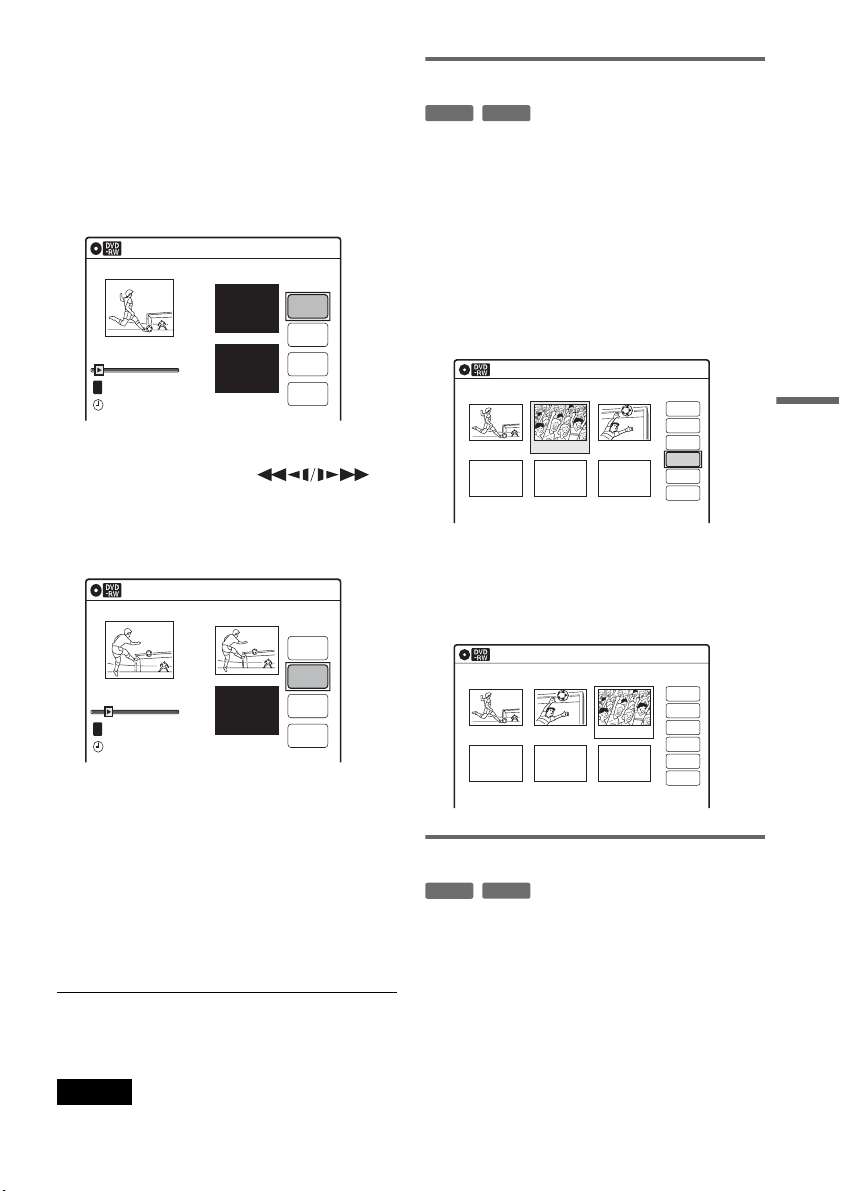
65
Editing
1 Follow steps 1 to 6 of “Editing a Playlist”
(page 63).
The “Edit Scene” display appears.
2 Select the scene you want to modify, and
press ENTER.
3 Select “Modify,” and press ENTER.
“Start” is selected.
4 Press ENTER at the start point.
You can use H PLAY, ,
./> and X PAUSE to find the point. At
the point you want to select, press H PLAY
or X PAUSE, and press ENTER.
“End” is selected.
5 Press ENTER at the end point.
“Change” is selected.
To reset the start or end point, select “Start” or
“End” and repeat step 4 or 5.
6 Press ENTER.
The display returns to the “Edit Scene”
display.
The re-selected section is captured as a scene.
To modify other scenes, repeat from step 2.
To cancel modifying
Select “Cancel,” and press ENTER.
Note
The start and end point of a scene may be different from
what you have set.
Moving a scene (Move)
You can change the scene order within the Playlist
title.
1 Follow steps 1 to 6 of “Editing a Playlist”
(page 63).
The “Edit Scene” display appears.
2 Select the scene you want to move, and
press ENTER.
3 Select “Move,” and press ENTER.
4 Select a new location using </,, and
press ENTER.
The selected scene moves to the new location.
To move other scenes, repeat from step 2.
Adding a scene (Add)
You can add a scene before the selected scene.
1 Follow steps 1 to 6 of “Editing a Playlist”
(page 63).
The “Edit Scene” display appears.
2 Select the location where you want to add,
and press ENTER.
A new scene will be added before the selected
scene.
Modify
10:10 AM
T
Change
Cancel
00:00:07
Playlist No. 01
Scene No.01
End 00:00:00
Start 00:00:00
Start
End
May/02/2007 03:25 PM
Modify
10:10 AM
Scene No.01
T
00:00:10
May/02/2007 03:25 PM
Playlist No. 01
Change
Cancel
End 00:00:00
Start 00:00:10
Start
End
-
RWVR
-
RVR
Edit Scene
10:10 AM
Scene No. 02 / 03
03 00:04:2002 00:00:1001 00:00:34
Playlist No.01
Check
Erase
Modify
Move
Add
Copy
Edit Scene
10:10 AM
Scene No. 03 / 03
02 00:04:20 03 00:00:1001 00:00:34
Playlist No.01
Check
Erase
Modify
Move
Add
Copy
-
RWVR
-
RVR
,continued
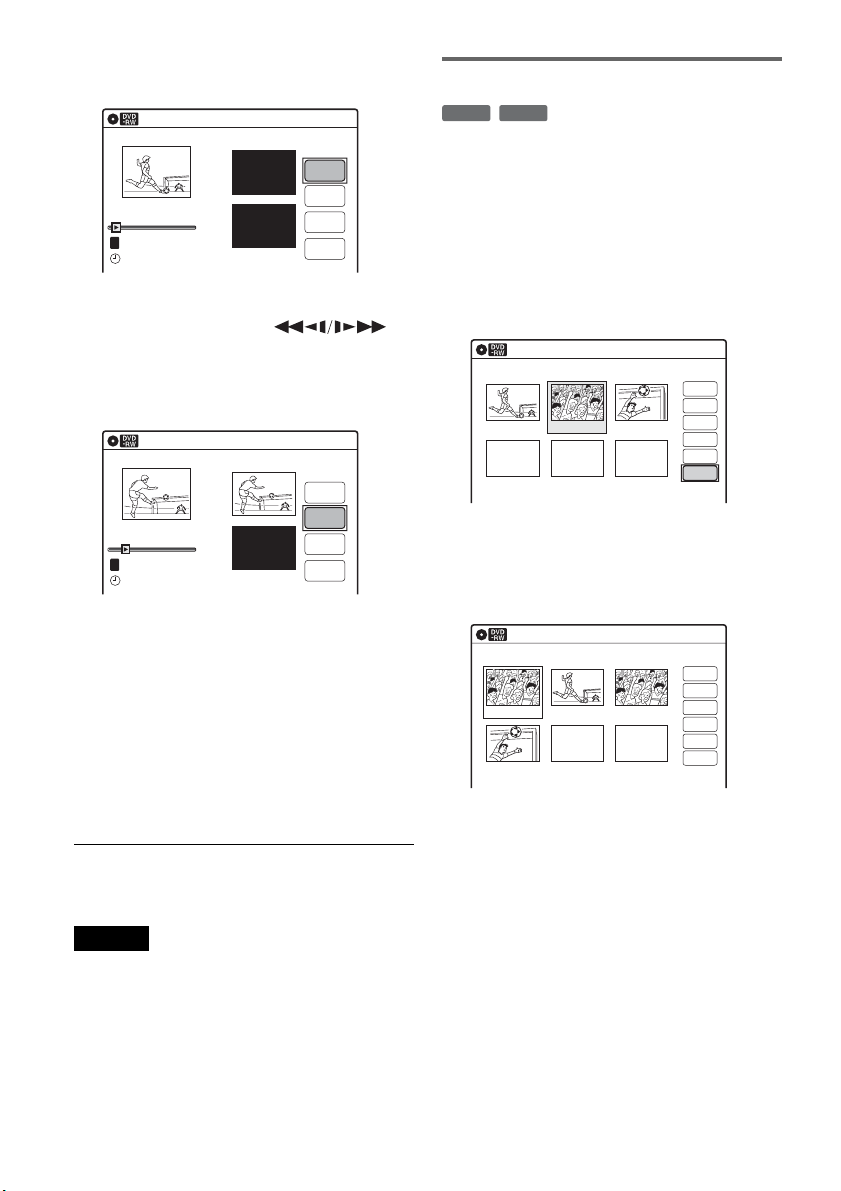
66
3 Select “Add,” and press ENTER.
“Start” is selected.
4 Press ENTER at the start point.
You can use H PLAY, ,
./> and X PAUSE to find the point. At
the point you want to select, press H PLAY
or X PAUSE, and press ENTER.
“End” is selected.
5 Press ENTER at the end point.
“Add” is selected.
To reset the start or end point, select “Start” or
“End” and repeat step 4 or 5.
6 Press ENTER.
The display returns to the “Edit Scene”
display.
The selected section is added before the scene
selected in step 2.
To add other scenes, repeat from step 2.
To cancel adding
Select “Cancel,” and press ENTER.
Note
The start and end point of a scene may be different from
what you have set.
Copying a scene (Copy)
You can copy and add a selected scene.
1 Follow steps 1 to 6 of “Editing a Playlist”
(page 63).
The “Edit Scene” display appears.
2 Select the scene you want to copy, and
press ENTER.
3 Select “Copy,” and press ENTER.
4 Select a location to copy to using </,
and press ENTER.
The scene is copied to the selected location.
To copy other scenes, repeat from step 2.
Add
10:10 AM
T
00:00:07
Playlist No. 01
Scene No.01
Add
Cancel
End 00:00:00
Start 00:00:00
Start
End
May/02/2007 03:25 PM
Add
10:10 AM
Scene No.01
T
00:00:10
Playlist No. 01
Add
Cancel
End 00:00:00
Start 00:00:10
Start
End
May/02/2007 03:25 PM
-
RWVR
-
RVR
Edit Scene
10:10 AM
Scene No. 02 / 03
03 00:04:2002 00:00:1001 00:00:34
Check
Erase
Modify
Move
Add
Copy
Playlist No.01
Edit Scene
10:10 AM
Scene No. 01 / 04
04 00:04:20
03 00:00:1002 00:00:3401 00:00:10
Playlist No.01
Check
Erase
Modify
Move
Add
Copy
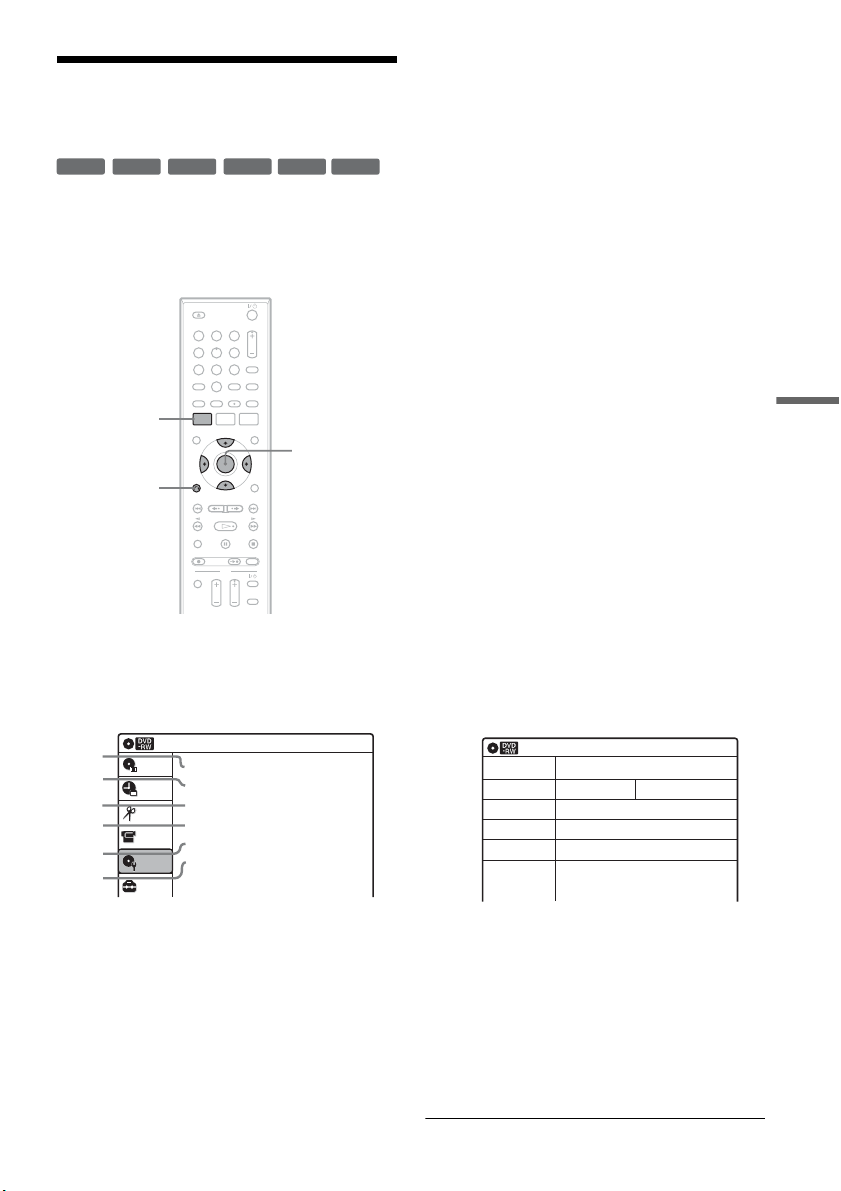
67
Editing
Formatting/Renaming/
Protecting a Disc
The “Disc Setting” display allows you to check the
disc information or change the disc name.
Depending on the disc type, you can also format or
set protection.
1 Press SYSTEM MENU while the recorder is
in stop mode.
2 Select “Disc Setting,” and press ENTER.
The “Disc Setting” display appears.
3 Select an option, and press ENTER.
A “Disc Name”: Allows you to rename a
disc.
For details on how to enter characters,
see page 60.
B “Disc Protect” (DVD+RWs/DVD-RWs
(VR mode)/DVD-Rs (VR mode) only):
Protects all titles on the disc when
“Protected” is selected. To cancel the
protection, select “Not Protected.”
C “Disc Format” (DVD+RWs/DVD-
RWs/DVD-Rs only): Erases all
contents of the disc, including protected
titles, and makes a blank disc (except
DVD-Rs).
For DVD-RWs, select a recording
format (“VR Mode” or “Video Mode”)
according to your needs.
To format unused DVD-Rs in VR
mode, select “VR Mode” and then
“OK.”
D “Disc Finalize”: Finalizes a disc. See
page 69 for details.
E “Disc Information”: Displays the
following information.
• Disc name
• Disc type (and recording format for a
DVD-RW (VR mode)/DVD-R (VR
mode))
• Total number of titles
• Protect setting
• The oldest and most recent recording
date
• The total available recording time in
each recording mode
F “Erase All Titles” (DVD+RWs/DVD-
RWs/DVD-Rs (VR mode) only):
Erases all titles on the disc (except
protected titles). Select “OK” when
asked for confirmation.
For DVD-RWs (VR mode)/DVD-Rs
(VR mode), Playlist titles created with
protected titles are also erased.
+
RW
-
RWVR
-
RW
Video
+
R
-
RVR
-
R
Video
11 22 33
44 55 66
77 88
00
99
SYSTEM
MENU
M/m/</,,
ENTER
O RETURN
Disc Setting
10:10 AM
Disc Name :
Disc Protect : Not Protected
Disc Format : VR Mode
Disc Finalize : Unfinalized
Disc Information
Erase All Titles
Setup
Disc Setting
Edit
Title List
Timer
DV/D8 Dubbing
2
3
4
5
1
6
10:10 AM
Disc Information
Disc Name
Media
Title No.
Protected
Date
Remainder
Disc 1
DVD-RW VR ModeFormat
Original 6 / Playlist 1
Not Protected
4/05/2007 ~ 4/30/2007
HQ : 0H 57M
LSP : 2H 23M
EP : 5H 46M
HSP : 1H 26M
ESP : 2H 52M
SLP : 7H 40M
SP : 1H 55M
LP : 3H 50M
4.4/4.7GB
,continued

68
To return to the previous display
Press O RETURN.
z Hints
• You can set protection for individual titles (page 57).
• By reformatting, you can change the recording format
on DVD-RWs, or record again on DVD-RWs (Video
mode) that have been finalized.
Notes
• You can label a disc using up to 32 characters;
however, the name may not display on other DVD
equipment.
• You cannot label an unused DVD-R (Video mode)
disc. Label the disc after you first record on it.
• You cannot mix VR mode and Video mode on the same
DVD-RW or DVD-R.
• You cannot change the recording format on used DVD-
Rs.
• The recorder records on new DVD-Rs in Video mode
unless you first format the discs in VR mode (page 47).
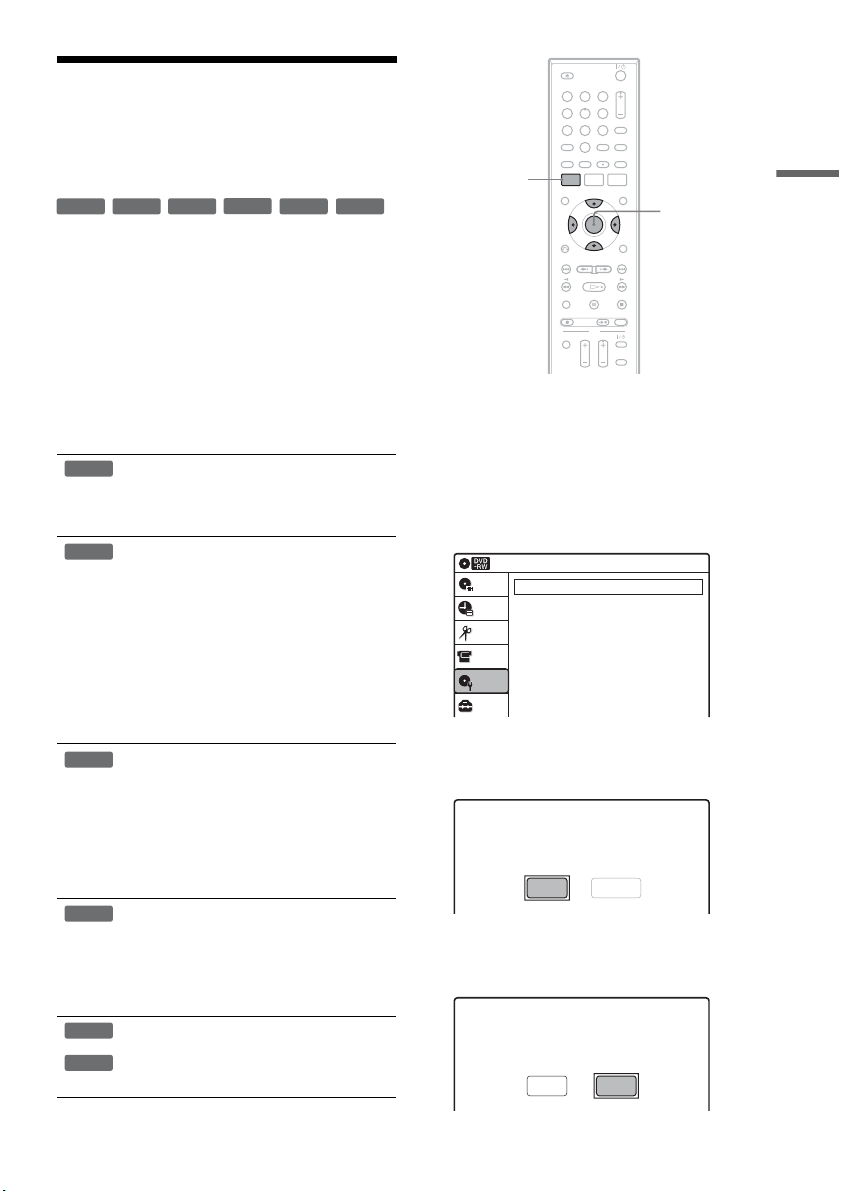
69
Finalizing a Disc (Preparing
a Disc for Playback on
Other Equipment)
Finalizing is necessary in order to play discs
recorded with this recorder on other DVD
equipment.
When you finalize a DVD+RW/DVD-RW (Video
mode)/DVD+R/DVD-R (Video mode), a DVD
menu will be automatically created, which can be
displayed on other DVD equipment.
Before finalizing, check the differences between
the disc types in the table below.
Differences between the disc types
1 Insert a disc.
2 Press SYSTEM MENU while the recorder is
in stop mode.
The System Menu appears.
3 Select “Disc Setting,” and press ENTER.
The “Disc Setting” display appears.
4 Select “Disc Finalize,” and press ENTER.
The display asks for confirmation.
5 Select “Finalize,” and press ENTER.
The display asks for confirmation again.
Discs are automatically finalized when
removed from the recorder. You can edit
or record on the disc even after
finalizing.
Finalizing is unnecessary when playing a
disc on VR format compatible equipment.
Even if your other DVD equipment is
VR format compatible, you may need to
finalize the disc, especially if the
recording time is short. After finalizing,
you cannot edit or record on the disc. If
you want to edit or record on it again,
unfinalize or reformat the disc (page 67).
Note however, that reformatting a disc
erases all its contents.
Finalizing is necessary in order to play
on equipment other than this recorder.
After finalizing, you cannot edit or
record on the disc. If you want to edit or
record on it again, unfinalize or reformat
the disc (page 67). Note however, that
reformatting a disc erases all its
contents.
Finalizing is necessary in order to play
on equipment other than this recorder.
The finalized discs can be played on
other VR mode compatible players.
After finalizing, you cannot further edit
or record on the disc.
Finalizing is necessary in order to play
on equipment other than this recorder.
After finalizing, you cannot further edit
or record on the disc.
-
RWVR
-
RW
Video
+
RW
+
R
-
RVR
-
R
Video
+
RW
-
RWVR
-
RW
Video
-
RVR
+
R
-
R
Video
11 22 33
44 55 66
77 88
00
99
SYSTEM
MENU
M/m/</,,
ENTER
Disc Setting
10:10 AM
Disc Name :
Disc Protect : Not Protected
Disc Format : VR Mode
Disc Finalize : Unfinalized
Disc Information
Erase All Titles
Setup
Disc Setting
Edit
Title List
Timer
DV/D8 Dubbing
Do you want to finalize this disc ?
UnfinalizeFinalize
Disc will be finalized.
Do you want to continue ?
CancelOK
,continued

70
6 Select “OK,” and press ENTER.
The recorder starts finalizing the disc.
To turn off the display
Press SYSTEM MENU.
To unfinalize a DVD-RW (VR mode)
If you cannot record or edit on a DVD-RW (VR
mode) that has been finalized, unfinalize the disc
by selecting “Unfinalize” in step 5 above.
z Hints
• You can check whether the disc has been finalized or
not. If you cannot select “Finalize” in step 5 above, the
disc has already been finalized.
• To check the disc information, select “Disc
Information” in the “Disc Setting” display and press
ENTER. See page 67 for details.
Notes
• Depending on the condition of the disc, the recording,
or the DVD equipment, discs may not play even if the
discs are finalized.
• The recorder may not be able to finalize a disc if it was
recorded on another recorder.
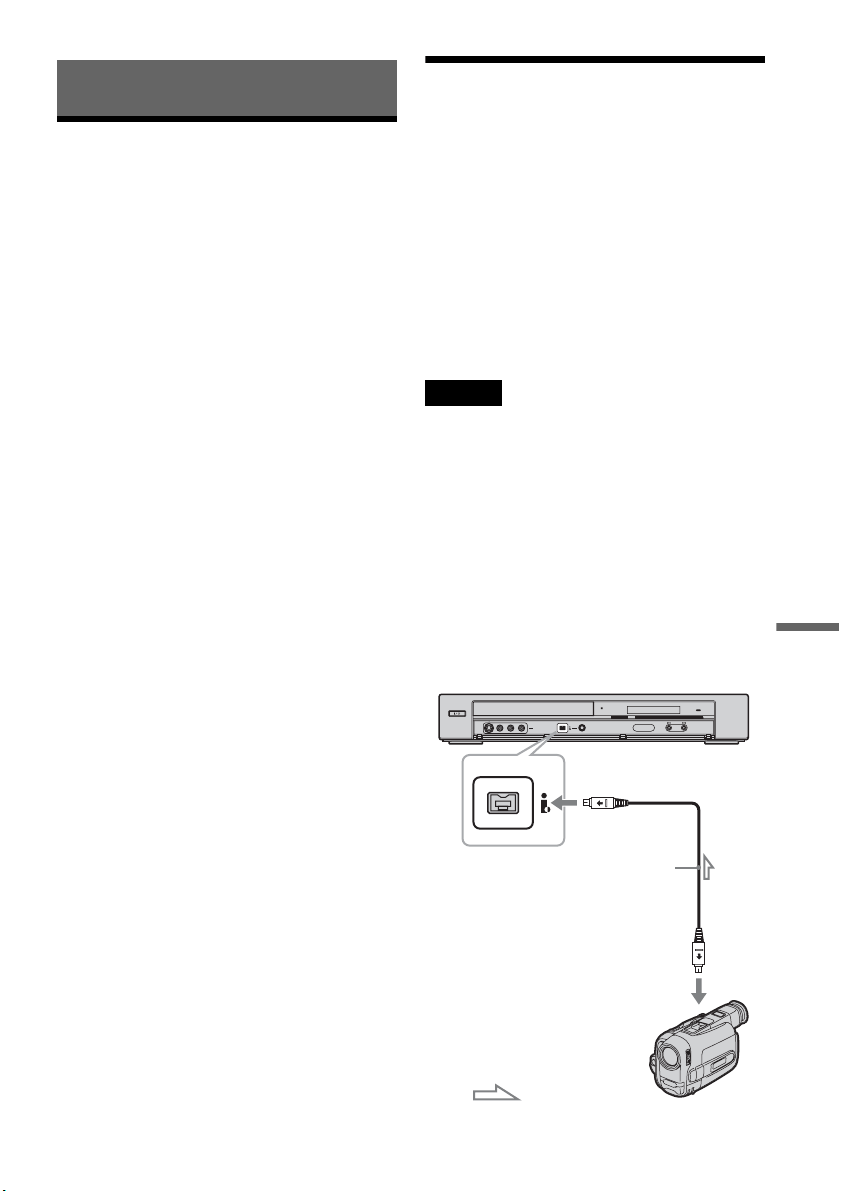
71
DV/D8 Dubbing (DV/D8 t DVD)
DV/D8 Dubbing (DV/D8 t DVD)
Before DV/D8 Dubbing
This section explains dubbing with a digital video
camera via the DV IN jack on the front panel. If
you want to dub by way of the LINE IN jacks, see
“Recording From a VCR or Similar Device” on
page 54.
To record from the DV IN jack
The DV IN jack on this recorder conforms to the
i.LINK standard. You can connect any other
equipment that has an i.LINK (DV) jack, and
record digital signals.
Follow the instructions in “Connecting a Digital
Video Camera to the DV IN Jack,” and then move
on to the section on dubbing. For more
information about i.LINK, see “About i.LINK” on
page 93.
z Hint
If you plan to do additional editing on a disc after the
initial dub, use the DV IN jack and record on a DVD-RW
(VR mode) or DVD-R (VR mode). Note that erasing
unwanted scenes does not free up disc space for DVD-Rs
(VR mode).
Connecting a Digital Video
Camera to the DV IN Jack
You can connect a digital video camera to the DV
IN jack on the recorder to record or edit from a
DV/D8 format tape. Operation is straightforward
because the DVD recorder will fast forward and
rewind the tape for you – you do not need to
operate your digital video camera. Do the
following to start using the “DV/D8 Edit”
functions of this recorder.
See the instruction manual supplied with the
digital video camera as well before connecting.
Notes
• The DV IN jack is for input only. It will not output
signals.
• You cannot use the DV IN jack when:
– your digital video camera does not work with this
recorder. Connect the camera to the LINE IN jack and
follow the instructions of “Recording From a VCR or
Similar Device” on page 54.
– the input signal is not in DVC-SD format. Do not
connect a MICROMV format digital video camera
even if it has an i.LINK jack.
– the images on the tape contain copy protection
signals, which limit recording.
Hookups
HDMI
DV IN
L(MONO) AUDIO RVIDEOS VIDEO
LINE-2 IN
ONE-TOUCH DUBBING
DV IN
DVD recorder
to DV IN
: Signal flow
i.LINK cable
(not supplied)
to DV output
Digital video camera
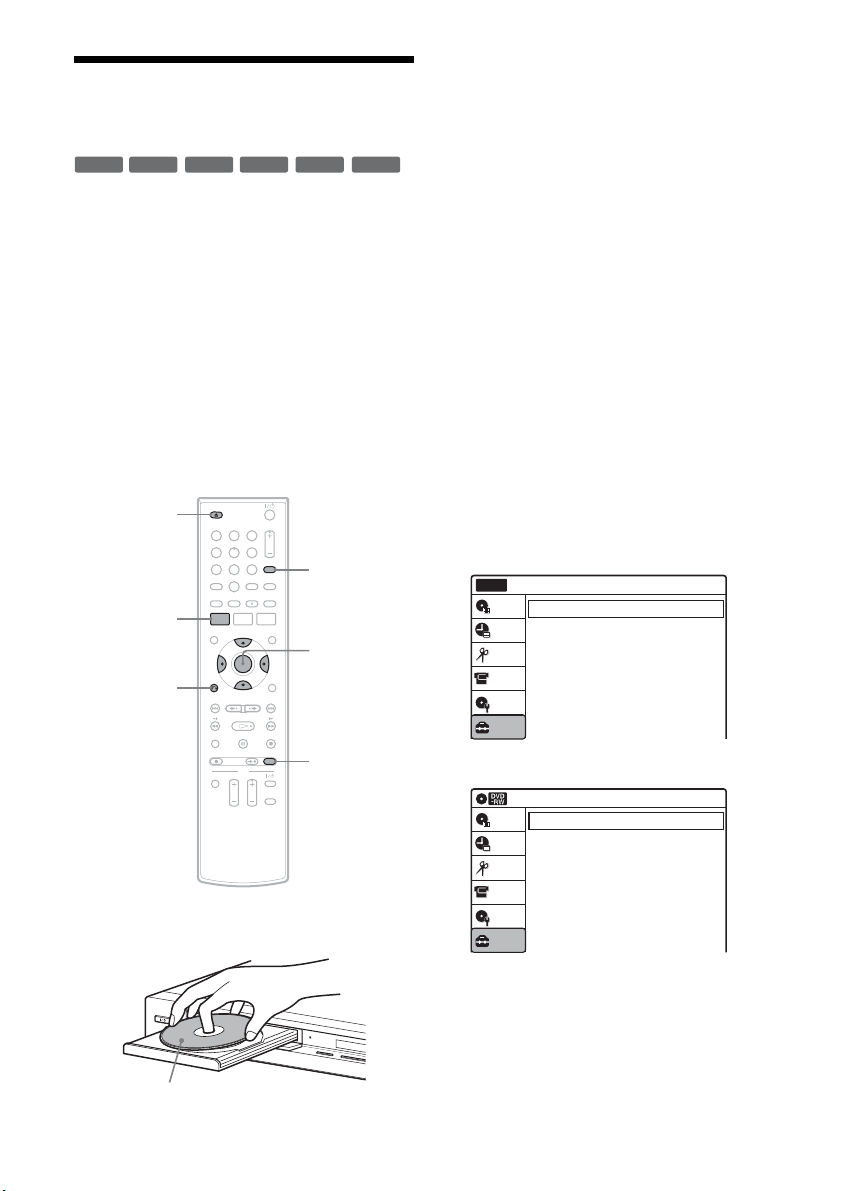
72
Dubbing From a DV/D8
Format Tape to a DVD
You can record a DV/D8 format tape onto a disc.
The recorder controls the digital video camera.
You can fast forward, rewind, play in slow motion,
and stop the tape to select the scenes using the on-
screen menu.
To simply dub the entire contents of a DV/D8
format tape (One Touch Dubbing), see page 74.
◆How titles and chapters are created
The dubbed contents on the disc become one title,
and the title is then divided into chapters at either
5 or 15-minute intervals, according to the “DVD
Auto Chapter” setting of “Features” in the “Setup”
display.
1 Press Z OPEN/CLOSE, and place a
recordable disc on the disc tray.
2 Press Z OPEN/CLOSE to close the disc
tray.
Wait until “LOAD” disappears from the front
panel display.
Unused discs are automatically formatted. For
the DVD-RW/DVD-R’s recording format
(VR mode or Video mode), see “Formatting a
new disc” on page 47.
3 Insert the source DV/D8 format tape into
your digital video camera.
For the recorder to record or edit, your digital
video camera must be set to video playback
mode.
4 Press INPUT repeatedly to select “DV.”
5 Press REC MODE repeatedly to select the
recording mode.
For details about the recording mode, see
page 46.
6 Press SYSTEM MENU while the recorder is
in stop mode.
The System Menu appears.
7 Select “Setup,” and press ENTER.
8 Select “Audio,” and press ENTER.
-
RWVR
-
RW
Video
+
RW
+
R
-
RVR
-
R
Video
11 22 33
44 55 66
77 88
00
99
REC MODE
INPUT
Z OPEN/
CLOSE
SYSTEM
MENU
M/m/</,,
ENTER
O RETURN
D
V IN
L
(
M
O
N
O
)
A
U
D
I
O
R
V
I
D
E
O
S
V
I
D
E
O
L
I
N
E
-
2
I
N
O
NE-TO
UCH
DUBBING
Recording side facing down
10:10 AM
Clock Set
Video
Audio
Features
Options
Easy Setup
Setup
Disc Setting
Edit
Title List
Timer
Setup
No Disc
DV/D8 Dubbing
Audio
10:10 AM
Digital Out
Downmix
Audio DRC
Audio (HDMI)
Scan Audio
Surround
DV/D8 Audio Input
Line Audio Input
: Dolby Surround
: Standard
: Auto
: On
: Off
: Stereo 1
: Stereo
Setup
Disc Setting
Edit
Title List
Timer
DV/D8 Dubbing
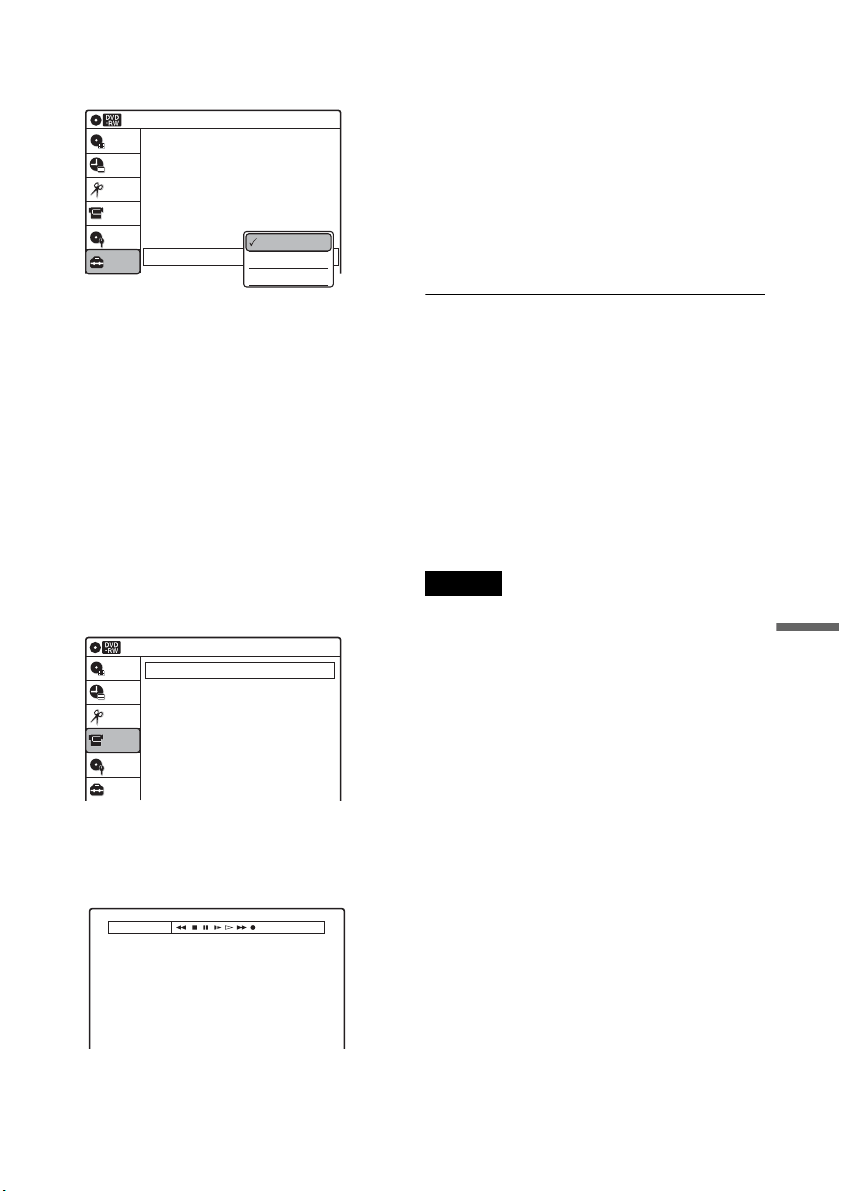
73
DV/D8 Dubbing (DV/D8 t DVD)
9
Select “DV/D8 Audio Input,” and press
ENTER.
“Stereo 1”: Records original sound only.
Normally select this when dubbing a DV
format tape.
“Stereo 2”: Records additional audio only.
“Mix”: Records original and additional
sounds.
Select “Stereo 2” or “Mix” if you have added
a second audio channel when recording with
your digital video camera. For the details, see
page 81.
10
Select an option, and press ENTER.
11
Press O RETURN twice.
12
Select “DV/D8 Dubbing,” and press
ENTER.
13
Select “DV/D8 Simple Dubbing,” and
press ENTER.
The following display appears.
If “DV” or “DV Camera Mode” is displayed
instead of “DV Tape Mode,” check that the
digital video camera is correctly connected
and its power turned on, and that its mode is
set for dubbing.
14
Find the dubbing start point on the tape,
and stop or pause playback.
Press </, to select m, x, X, y, H, or
M on the TV screen and press ENTER to
find the point, and stop or pause with x or X.
15
Press , to select z on the TV screen, and
press ENTER.
Dubbing starts.
To stop recording
Select x on the TV screen, and press ENTER.
Note that it may take a few seconds for the
recorder to stop recording.
To turn off the display for DV/D8 dubbing
Press INPUT.
z Hint
If “DV Camera Mode” appears on the screen, you can use
z on the TV screen to record the camera image directly
on the recorder.
Notes
• If you want to play the disc on other DVD equipment,
finalize the disc (page 69).
• You cannot connect more than one piece of digital
video equipment to the recorder.
• You cannot record the date, time, or contents of a DV/
D8 format tape onto the disc.
• If you record from a DV/D8 format tape with a
soundtrack that is recorded in multiple sampling
frequencies (48 kHz, 44.1 kHz, or 32 kHz), no sound,
or an unnatural sound will be output when playing back
the sampling frequency switch point on the disc.
• The recorded picture may be momentarily affected if
the picture size of the source image changes, or if there
is nothing recorded on the tape.
• Noise may occur when you switch the audio sampling
mode (48 kHz/16 bits t 32 kHz/12 bits).
Audio
10:10 AM
Digital Out
Downmix
Audio DRC
Audio (HDMI)
Scan Audio
Surround
DV/D8 Audio Input
Line Audio Input
: Dolby Surround
: Standard
: Auto
: On
: Off
: Stereo 1
: Stereo
Setup
Disc Setting
Edit
Title List
Timer
DV/D8 Dubbing
Stereo 1
Stereo 2
Mix
DV/D8 Dubbing
10:10 AM
DV/D8 Simple Dubbing
DV/D8 One Touch Dubbing
Setup
Disc Setting
Edit
Title List
Timer
DV/D8 Dubbing
DV Tape Mode
,continued
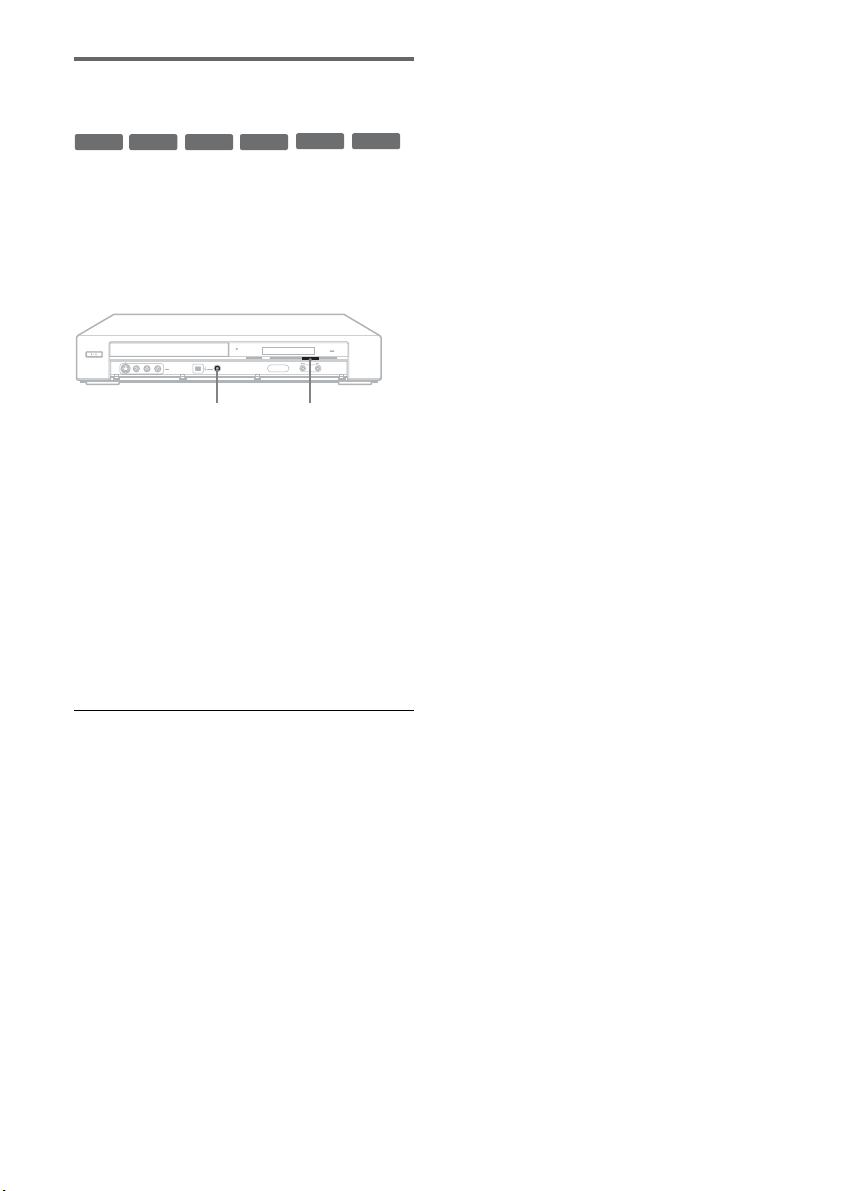
74
Dubbing an entire DV/D8 format tape
to a DVD (One Touch Dubbing)
You can record the entire contents of a DV/D8
format tape onto a disc with a single press of the
ONE-TOUCH DUBBING button. The recorder
controls the digital video camera for the whole
process, and completes the recording.
1 Follow steps 1 to 10 of “Dubbing From a
DV/D8 Format Tape to a DVD” (page 72),
and press SYSTEM MENU to turn off the
display.
2 Press ONE-TOUCH DUBBING on the
recorder.
The recorder rewinds the tape in the digital
video camera and then starts recording the
tape contents from the beginning.
When playback of the tape stops, One Touch
Dubbing ends automatically.
To stop recording
Press x (stop).
Note that it may take a few seconds for the
recorder to stop recording.
z Hint
You can also perform One Touch Dubbing when you
select “DV/D8 One Touch Dubbing” and press ENTER
in step 14 of “Dubbing From a DV/D8 Format Tape to a
DVD” on page 72. Follow the instructions appearing on
the TV screen.
-
RWVR
-
RW
Video
+
RW
+
R
-
RVR
-
R
Video
ONE-TOUCH DUBBING
x
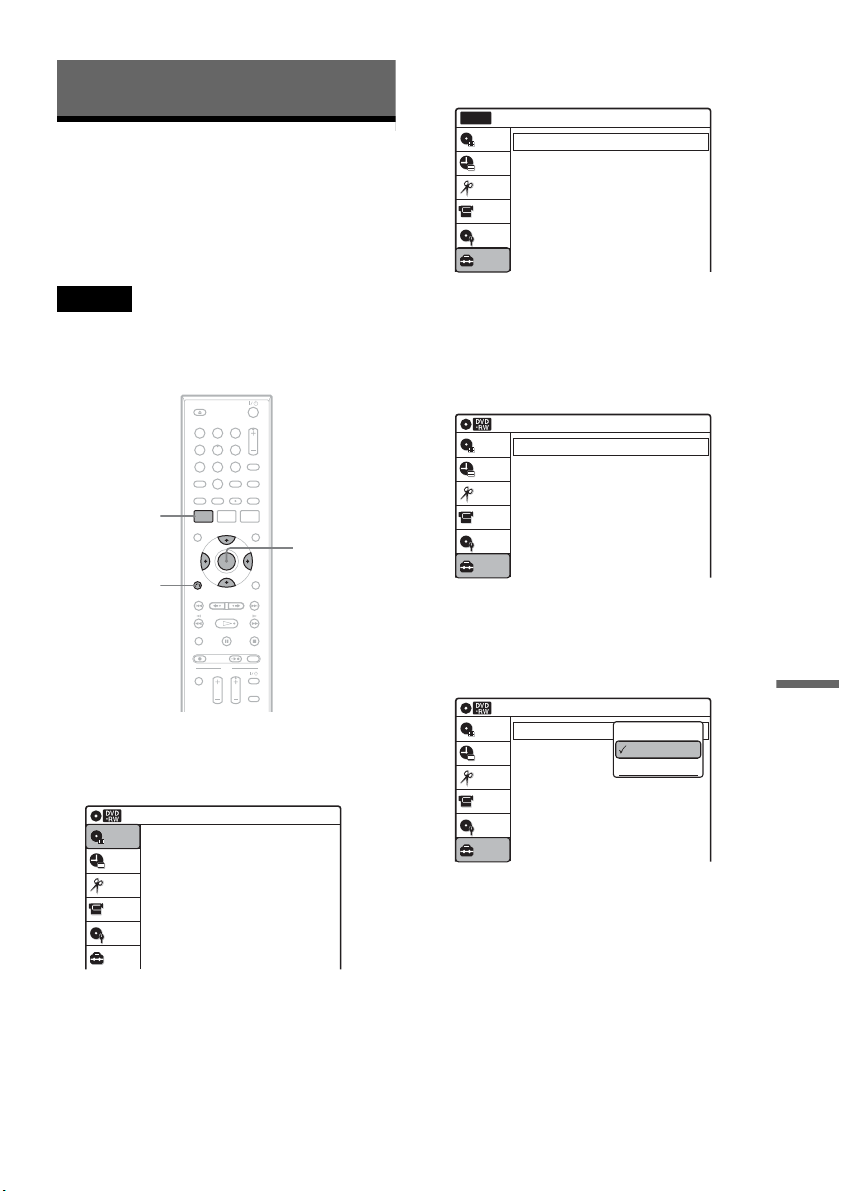
75
Settings and Adjustments
Settings and Adjustments
Using the Setup Displays
By using the setup displays, you can make various
adjustments to items such as picture and sound, as
well as select a language for the subtitles.
The setup displays are used in the following way.
Note
Playback settings stored on the disc take priority over the
setup display settings, and not all of the functions
described may work.
1 Press SYSTEM MENU while the recorder is
in stop mode.
The System Menu appears.
2 Select “Setup,” and press ENTER.
The “Setup” display appears.
3 Select “Clock Set,” “Video,” “Audio,”
“Features,” “Options,” or “Easy Setup,”
and press ENTER.
The selected setup display appears.
Example: “Video” setup
4 Select the item you want to set up, and
press ENTER.
Available options for the item appear.
Example: “TV Type”
M/m/</,,
ENTER
11 22 33
44 55 66
77 88
00
99
SYSTEM
MENU
O RETURN
10:10 AM
Title List (Original)
Press ENTER :
Title Menu for DVD Title List.
Setup
Disc Setting
Edit
Title List
Timer
DV/D8 Dubbing
10:10 AM
Clock Set
Video
Audio
Features
Options
Easy Setup
Setup
Disc Setting
Edit
Title List
Timer
Setup
No Disc
DV/D8 Dubbing
Video
10:10 AM
TV Type
HDMI Resolution
Video (HDMI)
Black Level
Picture Control
Progressive
: 4:3 Letter Box
: Auto
: Y Cb Cr
: On
: Standard
: Off
Setup
Disc Setting
Edit
Title List
Timer
DV/D8 Dubbing
Video
10:10 AM
TV Type
HDMI Resolution
Video (HDMI)
Black Level
Picture Control
Progressive
: 4:3 Letter Box
: Auto
: Y Cb Cr
: On
: Standard
: Off
Setup
Disc Setting
Edit
Title List
Timer
DV/D8 Dubbing
16:9
4:3 Letter Box
4:3 Pan Scan
,continued
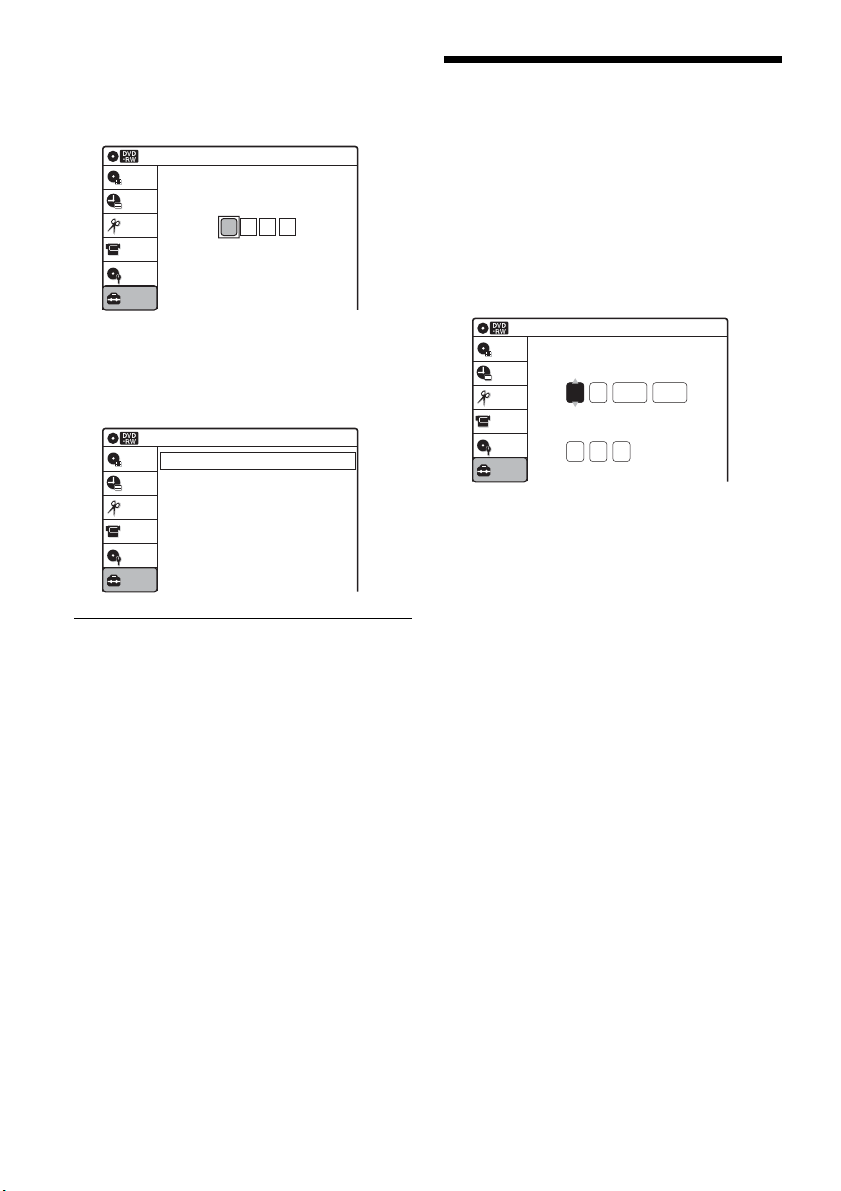
76
Some items display a dialog box that requires
additional settings.
Example: When “Parental” in “Options”
setup is selected.
5 Select an option, and press ENTER.
The currently selected option is displayed
next to the setup item.
Example: When “16:9” is set.
To return to the previous display
Press O RETURN.
To turn off the display
Press SYSTEM MENU.
Clock Setting (Clock Set)
The “Clock Set” setup allows you to make clock
settings for the recorder.
1 Press SYSTEM MENU while the recorder is
in stop mode.
2 Select “Setup,” and press ENTER.
3 Select “Clock Set,” and press ENTER.
The clock setting display appears.
4 Press M/m to set the month, and press ,.
Set the day, year, hour, minutes, and AM/PM
in sequence. Press </, to select the item to
be set, then press M/m to set the item. The day
of the week is set automatically.
5 Press ENTER to start the clock.
10:10 AM
Setup
Disc Setting
Edit
Title List
Timer
Create the password.
Create the password
DV/D8 Dubbing
Video
10:10 AM
TV Type
HDMI Resolution
Video (HDMI)
Black Level
Picture Control
Progressive
: 16:9
: Auto
: Y Cb Cr
: On
: Standard
: Off
Setup
Disc Setting
Edit
Title List
Timer
DV/D8 Dubbing
2007
Mon
01 01
10 : 10
AM
10:10 AM
Clock Set
Set the time and date manually.
Hour Min
AM/PM
Month Day Year
Setup
Disc Setting
Edit
Title List
Timer
DV/D8 Dubbing
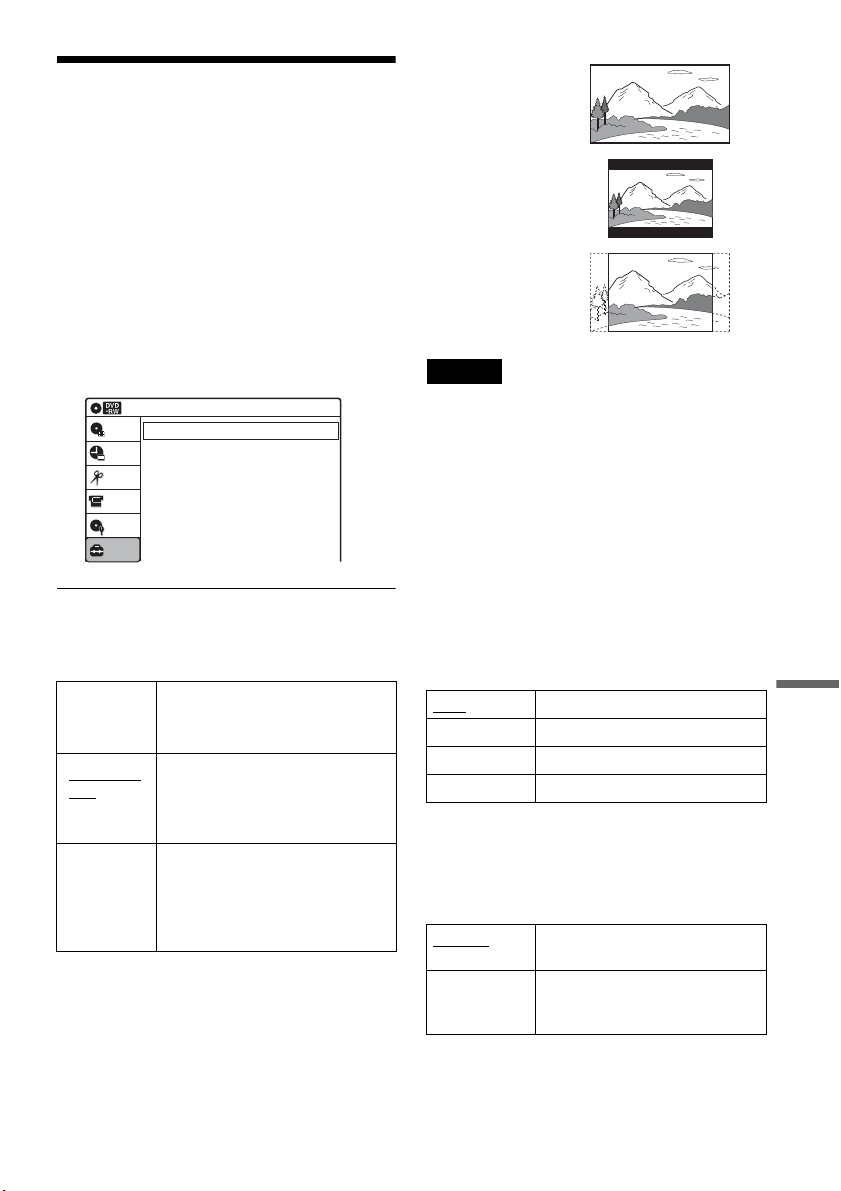
77
Settings and Adjustments
Video Settings (Video)
The “Video” setup allows you to adjust items
related to the image, such as size and color.
Choose the settings according to the type of TV,
tuner, or decoder connected to the recorder.
1 Press SYSTEM MENU while the recorder is
in stop mode.
2 Select “Setup,” and press ENTER.
3 Select “Video,” and press ENTER.
The “Video” setup appears with the following
options. The default settings are underlined.
TV Type
Selects the aspect ratio of the connected TV (4:3
standard or wide).
Note
Depending on the disc, “4:3 Letter Box” may be selected
automatically instead of “4:3 Pan Scan” or vice versa.
HDMI Resolution
Selects the type of video signals output from the
HDMI OUT jack. When you select “Auto”
(default), the recorder outputs video signals of the
highest resolution acceptable for your TV. If the
picture is not clear, unnatural or not to your
satisfaction, try another option that suits the disc
and your TV/projector, etc. For details, refer also
to the instruction manual supplied with the TV/
projector, etc.
The setting is effective only when you connect an
HDMI equipped TV to the HDMI OUT jack.
Video (HDMI)
Selects the type of output from the HDMI OUT
jack.
The setting is effective only when you connect an
HDMI equipped TV to the HDMI OUT jack.
Black Level
Selects the black level (setup level) for the video
signals output from the LINE OUT jacks
(page 15).
16:9 Select this when connecting to a
wide-screen TV or TV with a
wide mode function.
4:3 Letter
Box
Select this when connecting to a
4:3 screen TV. Displays a wide
picture with bands on the upper
and lower portions of the screen.
4:3 Pan
Scan
Select this when connecting to a
4:3 screen TV. Automatically
displays a wide picture on the
entire screen and cuts off the
portions that do not fit.
Video
10:10 AM
TV Type
HDMI Resolution
Video (HDMI)
Black Level
Picture Control
Progressive
: 4:3 Letter Box
: Auto
: Y Cb Cr
: On
: Standard
: Off
Setup
Disc Setting
Edit
Title List
Timer
DV/D8 Dubbing
Auto Normally, select this.
1920×1080i Sends 1920×1080i video signals.
1280×720P Sends 1280×720p video signals.
720×480P Sends 720×480p video signals.
Y Cb Cr
Normally, select this when
connecting to an HDMI device.
RGB Gives brighter colors and deeper
black. Select this if colors are
weak.
16:9
4:3 Letter Box
4:3 Pan Scan
,continued
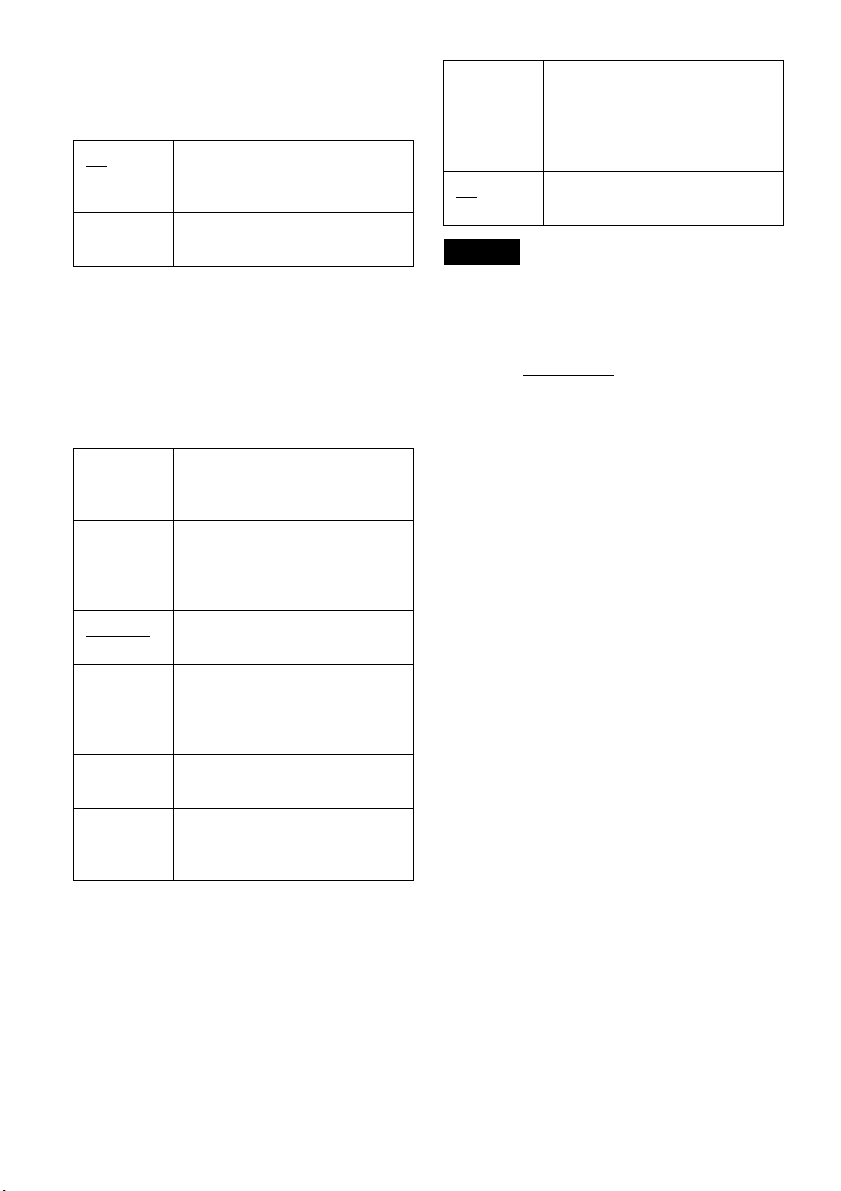
78
This setting is not effective when the
“PROGRESSIVE” indicator lights up on the front
panel display and the recorder outputs progressive
signals.
Picture Control
Selects the picture control for the video signals
output from the LINE OUT jacks (page 15).
You can adjust the video signal of DVD or
VIDEO CD (with PBC function off) from the
recorder to obtain the picture quality you want.
Select the setting that best suits the program you
are watching.
z Hint
When you watch a movie, “Cinema 1” or “Cinema 2” is
recommended.
Progressive
If your TV accepts progressive (480p) format
signals, you will enjoy accurate color reproduction
and high quality image.
Connect your TV to the COMPONENT VIDEO
OUT jacks (page 17).
Notes
• If you select progressive signals when you connect the
recorder to a TV that cannot accept the signal in
progressive format, the image quality will deteriorate.
In this case, set “Progressive” to “Off.” Or, while the
recorder is in stop mode, and then hold down
X PAUSE on the recorder
for five seconds or more.
• When you connect your TV using an HDMI cable, the
“Progressive” setting is set to “On.”
On Raises the standard black level.
Select this when the picture
appears too dark.
Off Sets the black level of the output
signal to the standard level.
Dynamic 1 Produces a bold dynamic picture
by increasing the picture contrast
and the color.
Dynamic 2 Produces a more dynamic picture
than “Dynamic 1” by further
increasing the picture contrast
and the color.
Standard
Displays a standard picture
(function turned off).
Cinema 1 White colors become brighter
and black colors become richer,
and the color contrast is
increased.
Cinema 2 Enhances details in dark areas by
increasing the black level.
Personal Adjusts “Contrast,” “Brightness,”
“Color,” and “Hue” using M/m/
</,.
On Set the recorder to output
progressive signals.
The “PROGRESSIVE” indicator
lights up on the front panel
display.
Off
Outputs video signals in interlace
format.
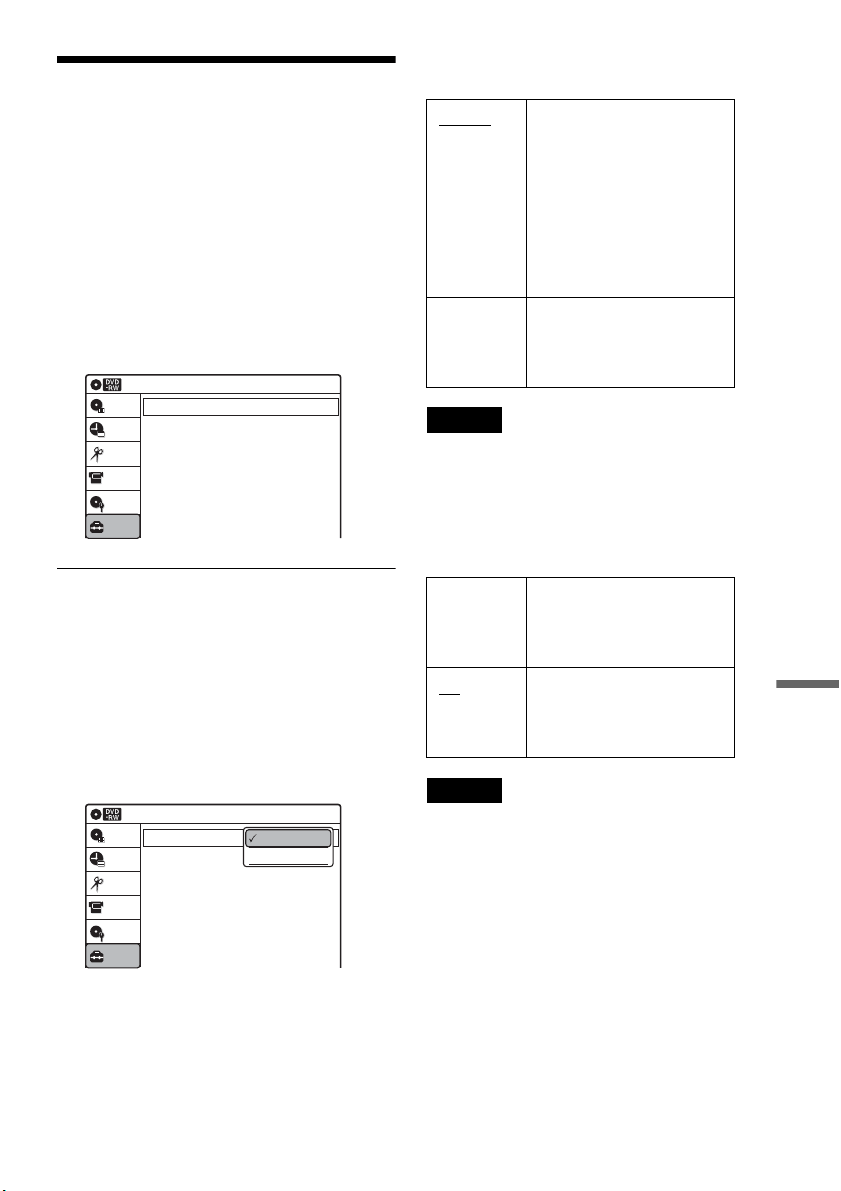
79
Settings and Adjustments
Audio Settings (Audio)
The “Audio” setup allows you to adjust the sound
according to the playback and connection
conditions.
1 Press SYSTEM MENU while the recorder is
in stop mode.
2 Select “Setup,” and press ENTER.
3 Select “Audio,” and press ENTER.
The “Audio” setup appears with the following
options. The default settings are underlined.
Digital Out
The following setup items switch the method of
outputting audio signals when you connect a
component such as an amplifier (receiver) to the
DIGITAL AUDIO OUT (OPTICAL or
COAXIAL)/HDMI OUT jack.
For connection details, see “Connecting to Your
AV Amplifier (Receiver)” on page 18.
Press ENTER, and select “Dolby Digital” or
“DTS.”
If you connect a component that does not accept
the selected audio signal, a loud noise (or no
sound) will come out from the speakers, and may
affect your ears or cause speaker damage.
◆ Dolby Digital (DVDs only)
Selects the type of Dolby Digital signal.
Note
If the HDMI OUT jack is connected to equipment not
compatible with Dolby Digital signals, D-PCM signals
will be automatically output, even when “Dolby Digital”
is selected.
◆ DTS (DVD VIDEOs only)
Selects whether or not to output DTS signals.
Note
If the HDMI OUT jack is connected to equipment not
compatible with DTS signals, no signal will be output,
regardless of the “DTS” setting.
Audio
10:10 AM
Digital Out
Downmix
Audio DRC
Audio (HDMI)
Scan Audio
Surround
DV/D8 Audio Input
Line Audio Input
: Dolby Surround
: Standard
: Auto
: On
: Off
: Stereo 1
: Stereo
Setup
Disc Setting
Edit
Title List
Timer
DV/D8 Dubbing
10:10 AM
Dolby Digital
DTS
Digital Out
: 4:3 Letter Box
On
Setup
Disc Setting
Edit
Title List
Timer
DV/D8 Dubbing
D-PCM
Dolby Digital
D-PCM Select this when the recorder
is connected to an audio
component lacking a built-in
Dolby Digital decoder. You
can select whether the
signals conform to Dolby
Surround or not by making
adjustments to the
“Downmix” item in “Audio”
setup (page 80).
Dolby
Digital
Select this when the recorder
is connected to an audio
component with a built-in
Dolby Digital decoder.
On Select this when the recorder
is connected to an audio
component with a built-in
DTS decoder.
Off
Select this when the recorder
is connected to an audio
component without a built-in
DTS decoder.
,continued
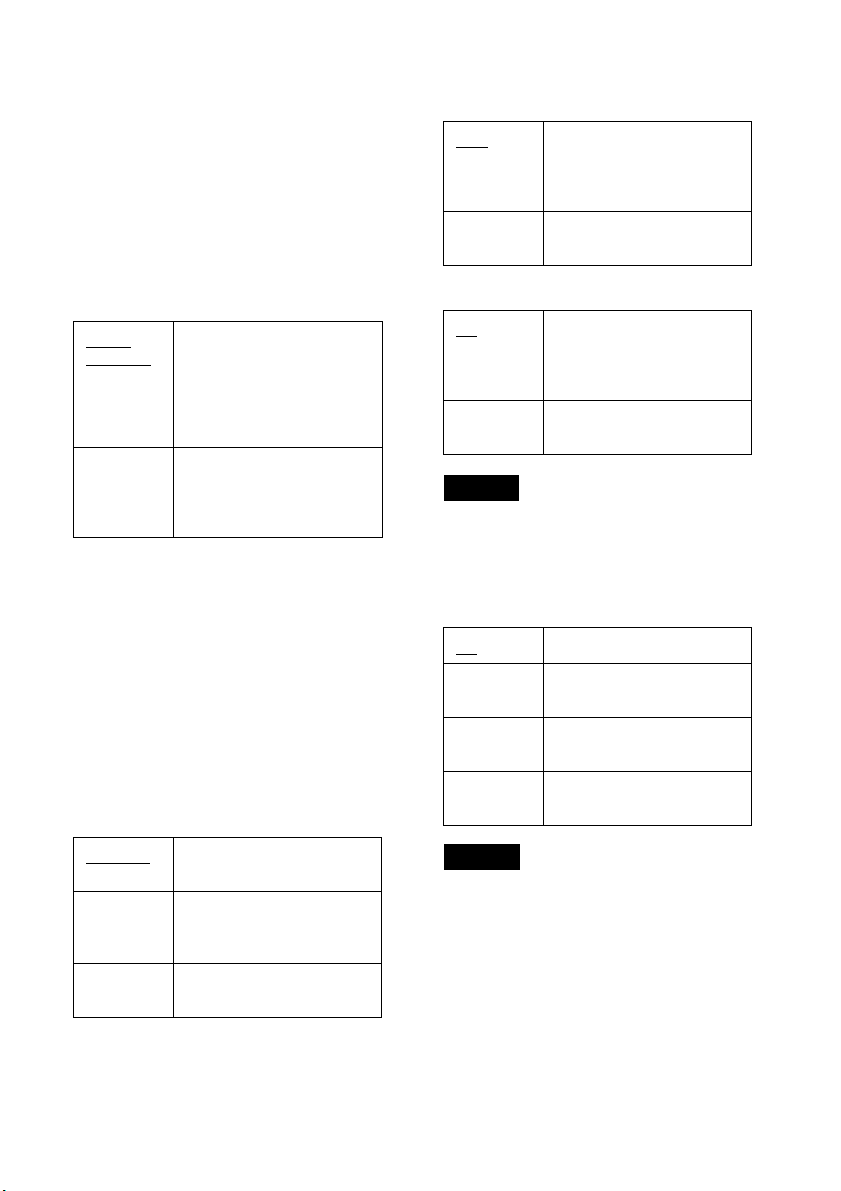
80
Downmix (DVDs only)
Switches the method for mixing down to two
channels when you play a DVD which has rear
sound elements (channels) or is recorded in Dolby
Digital format. For details on the rear signal
components, see “A Connecting to audio L/R
jacks” on page 19. This function affects the output
of the following jacks:
– LINE OUT (AUDIO L/R) jacks
– AUDIO OUT L/R jacks
– DIGITAL AUDIO OUT (OPTICAL or
COAXIAL)/HDMI OUT jack when “Dolby
Digital” is set to “D-PCM” (page 79).
To enjoy the surround effect of Dolby Digital, turn
off the surround settings of this recorder (page 98).
Audio DRC (Dynamic Range Control) (DVDs
only)
Makes the sound clear when the volume is turned
down when playing a DVD that conforms to
“Audio DRC.” This affects the output from the
following jacks:
– LINE OUT (AUDIO L/R) jacks
– AUDIO OUT L/R jacks
– DIGITAL AUDIO OUT (OPTICAL or
COAXIAL)/HDMI OUT jack only when
“Dolby Digital” is set to “D-PCM” (page 79).
Audio (HDMI) (DVD VIDEOs only)
Selects the output method from the HDMI OUT
jack.
Scan Audio (DVDs only)
Note
Sound will be interrupted during Scan Audio.
Surround
Turns on the surround function to create virtual
rear speakers from a stereo TV or two separate
front speakers (page 19).
Notes
• When the playback signal does not contain a signal for
the surround speakers, the surround effects will be
difficult to hear.
• When you select one of the surround modes, turn off
the surround settings of the connected TV or amplifier
(receiver).
Dolby
Surround
Normally select this
position.
Multi-channel audio signals
are output to two channels
for enjoying surround
sounds.
Normal Multi-channel audio signals
are downmixed to two
channels for use with your
stereo.
Standard
Normally select this
position.
TV Mode Makes low sounds clear
even if you turn the volume
down.
Wide
Range
Gives you the feeling of
being at a live performance.
Auto Normally, select this.
Outputs audio signals
according to the “Dolby
Digital” settings.
PCM Converts Dolby Digital to
PCM.
On
Outputs audio signals during
FF1 fast-forward of a DVD
disc with Dolby Digital
soundtracks.
Off No sound is output during
FF1 fast-forward.
Off
No surround effect
Surround1 Creates one set of virtual
surround speakers
Surround2 Creates two sets of virtual
surround speakers
Surround3 Creates three sets of virtual
surround speakers
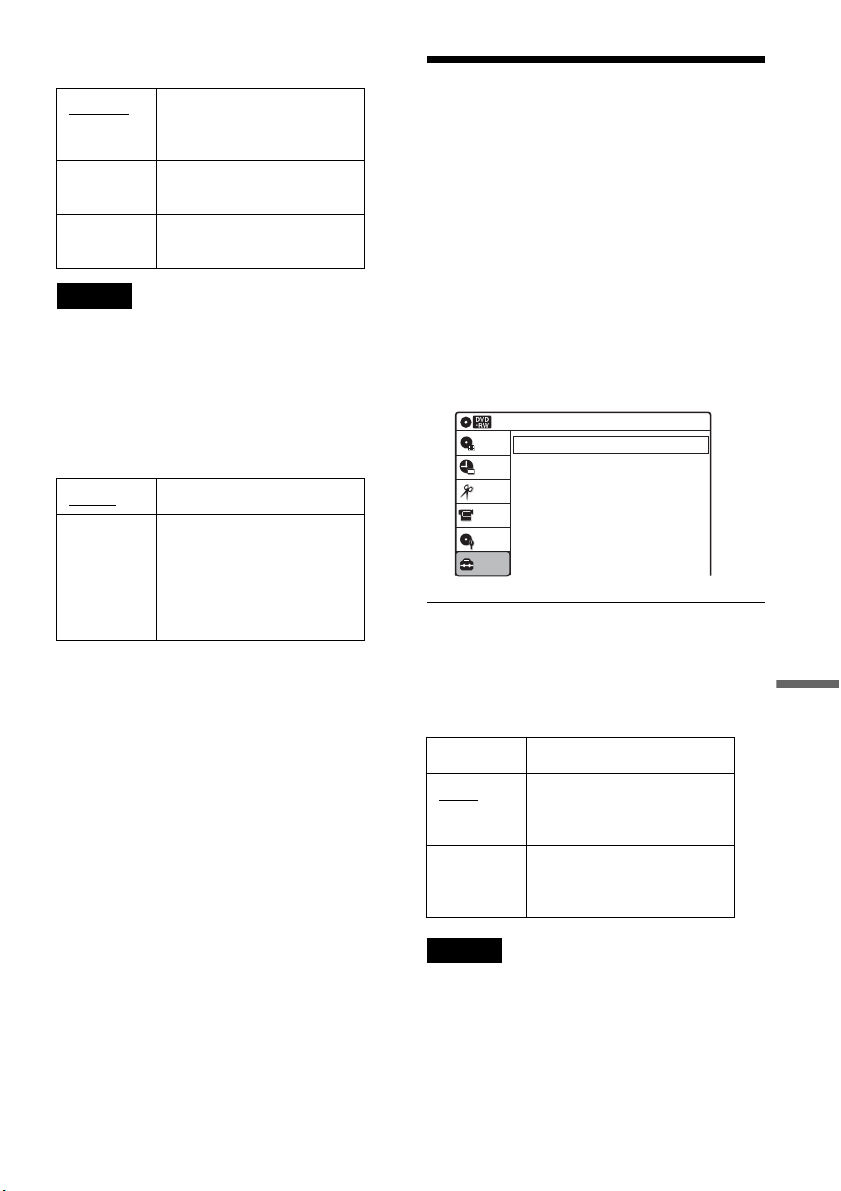
81
Settings and Adjustments
DV/D8 Audio Input
Note
Select “Stereo 2” or “Mix” if you have added a second
audio channel when recording with your digital video
camera.
Line Audio Input
When recording from equipment connected to the
LINE 1 IN or LINE 2 IN jacks to a DVD disc in
this recorder, select line input audio.
z Hint
When recording on a disc other than DVD-RWs (VR
mode)/DVD-Rs (VR mode), select either sound track
with the connected equipment before recording.
Recording and Set Top Box
Control Settings (Features)
The “Features” setup allows you to make
recording and set top box control settings.
1 Press SYSTEM MENU while the recorder is
in stop mode.
2 Select “Setup,” and press ENTER.
3 Select “Features,” and press ENTER.
The “Features” setup appears with the
following options. The default settings are
underlined.
DVD Auto Chapter
Automatically divides a recording (a title) into
chapters by inserting chapter markings at
specified intervals. The markings are inserted
while the recording is being made.
Note
Actual intervals may differ depending on the size of the
recording. The selected setting should be regarded as an
approximate chapter interval.
Stereo 1 Records original sound only.
Normally select this when
dubbing a DV format tape.
Stereo 2 Records additional audio
only.
Mix Records both original and
additional sounds.
Stereo
Records stereo sound only.
Main/Sub Records the two different
soundtracks on DVD-RWs
(VR mode)/DVD-Rs (VR
mode). You can select either
soundtrack when playing
back the disc.
Off No chapter mark is inserted.
5 Min
Inserts chapter marks at
approximately 5 minute
intervals.
15 Min Inserts chapter marks at
approximately 15 minute
intervals.
Setup
Disc Setting
Edit
Title List
Timer
10:10 AM
DVD Auto Chapter
Format DVD-RW
Set Top Box Control
Features
: 5 Min
: VR
DV/D8 Dubbing
,continued

82
Format DVD-RW (DVD-RWs only)
Selects the recording format for an unused DVD-
RW, when first inserted.
Set Top Box Control
You can control your cable box/satellite receiver
using the supplied set top box controller. See
“Step 7: Easy Setup” for details. Press ENTER,
and select “On” or “Off.”
When “Set Top Box Control” is set to “On,” you
can make the following settings. Note that when
you change “Set Top Box Control” to “On” or
“Off,” all timer recording settings will be
canceled.
◆ Brand Code
See “Cable Box/Satellite Receiver Brand Code”
(page 100) for the brand code for your cable box
or satellite receiver, and enter the code using the
number buttons and ENTER.
◆ Connections
Selects the connection you used for your cable box
or satellite receiver. Select the connection from
“Line1” or “Line2.”
◆ Ch. Digit lock
Allows you to select whether to fix the digits for
your cable box or satellite receiver.
◆ Mode for SET button
Select “Mode 1” or “Mode 2” if your cable box or
satellite receiver requires pressing an ENTER
button or a SET button etc., after entering the
channel number. If “Mode 1” does not work, try
“Mode 2.” If your cable box or satellite receiver
does not respond to either setting, contact the
manufacturer of the cable box or satellite receiver.
VR Automatically formats the disc in
VR mode.
Video Automatically formats the disc in
Video mode.
On Turns on the cable box/satellite
receiver control function. See
“Using the cable box/satellite
receiver control function”
(page 12).
Off
Turns off the cable box/satellite
receiver control function. Select
this if you do not want to use the
supplied set top box controller.
Off
Select this when your cable box or
satellite receiver only accepts a
three or more digit channel
number. Normally select this.
Lock to
2 digits
Select this only when your cable
box or satellite receiver only
accepts a two digit channel
number.
Off No code is sent when SET is
pressed. Normally select this.
Mode 1 Sends the channel number you
entered.
Mode 2 Sends the channel number you
entered.
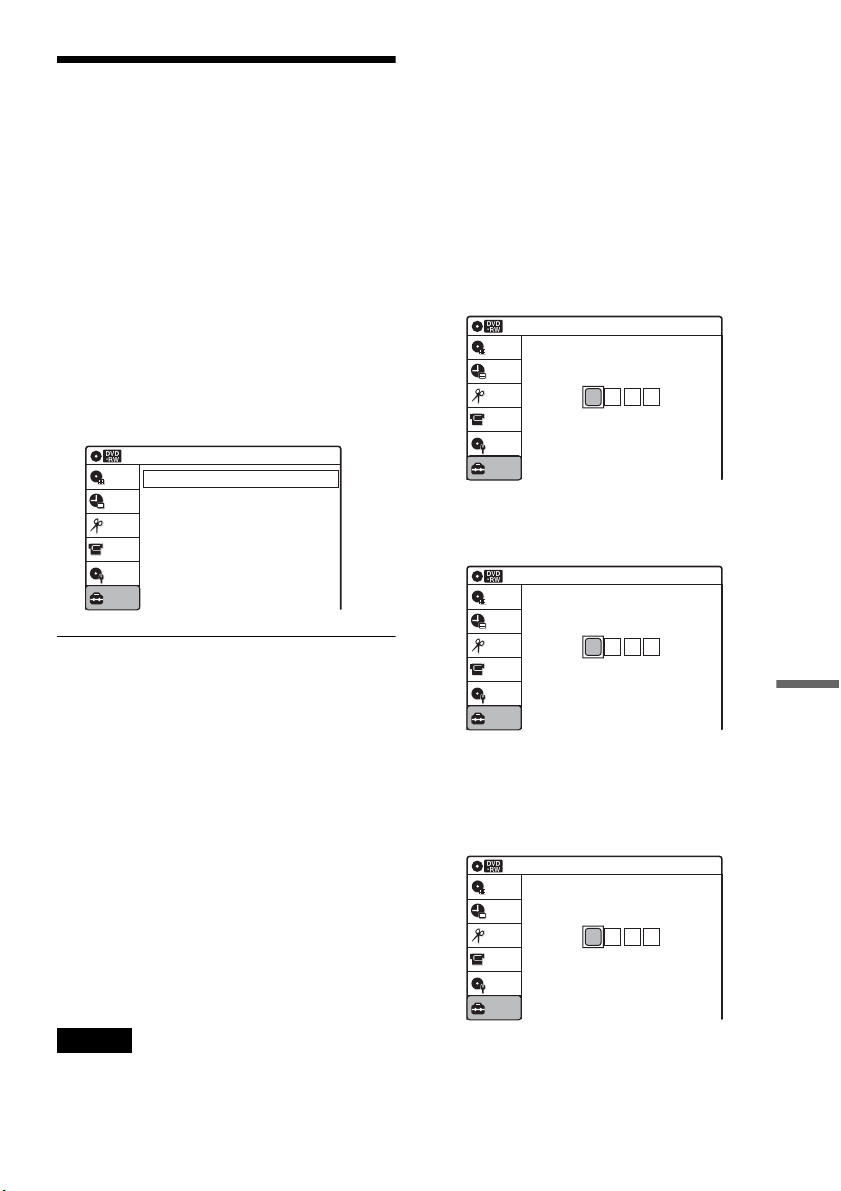
83
Settings and Adjustments
Language, Parental Control
Settings/Factory Settings
(Options)
The “Options” setup allows you to set up other
operational settings.
1 Press SYSTEM MENU while the recorder is
in stop mode.
2 Select “Setup,” and press ENTER.
3 Select “Options,” and press ENTER.
The “Options” setup appears with the
following options. The default settings are
underlined.
Language
◆ OSD (On-Screen Display)
Switches the display language on the screen.
◆ Disc Menu (DVD VIDEOs only)
Switches the language for the DVD menu.
◆ Audio (DVD VIDEOs only)
Switches the language of the soundtrack.
When you select “Original,” the language given
priority in the disc is selected.
◆ Subtitle (DVD VIDEOs only)
Switches the language of the subtitles recorded on
the disc.
When you select “Auto,” the subtitle language
changes according to the language you selected
for the soundtrack. See page 99 for an explanation
of the language abbreviations.
Note
If you select a language in “Disc Menu,” “Subtitle,” or
“Audio” that is not recorded on the DVD VIDEO, one of
the recorded languages will be automatically selected.
Parental (DVD VIDEOs only)
Playback of some DVD VIDEOs can be limited
according to a predetermined level, such as the age
of the users. Scenes may be blocked or replaced
with different scenes.
1 After step 3 above, select “Parental,” and
press ENTER.
• If you have not entered a password, the
display for registering a new password
appears.
Enter a 4-digit password using the number
buttons.
The display for confirming the password
appears.
Re-enter the password.
• When you have already registered a
password, the display for entering the
password appears.
Enter a 4-digit password using the number
buttons.
Language
Parental
Front Display
Command Mode
Factory Setting
: Auto
: DVD 3
10:10 AM
Options
Setup
Disc Setting
Edit
Title List
Timer
DV/D8 Dubbing
10:10 AM
Create the password.
Create the password
Setup
Disc Setting
Edit
Title List
Timer
DV/D8 Dubbing
10:10 AM
Confirm the password.
Create the password
Setup
Disc Setting
Edit
Title List
Timer
DV/D8 Dubbing
10:10 AM
Enter your password.
Enter your password
Setup
Disc Setting
Edit
Title List
Timer
DV/D8 Dubbing
,continued
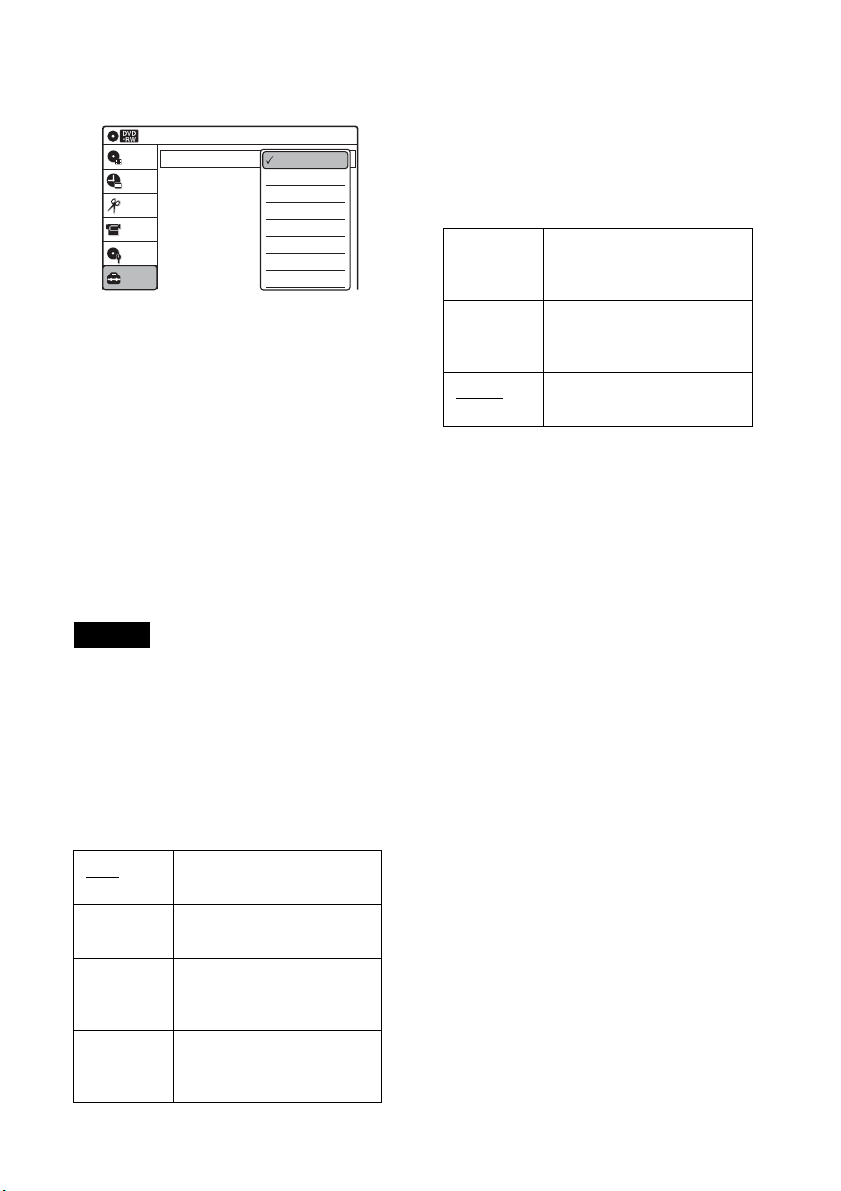
84
2
Select “Rating Level,” and press ENTER.
The selection items for “Rating Level” are
displayed.
The lower the value, the stricter the limitation.
3 Select the level, and press ENTER.
The Parental setting is complete.
• To cancel the Parental setting for the disc, set
“Rating Level” to “Off” in step 3.
• To change the password, select “Change
Password” in step 2, and press ENTER. When
the display for registering a password appears,
enter a new four-digit password using the
number buttons.
z Hint
If you enter a wrong number, press < or CLEAR and re-
enter.
Notes
• If you forget your password, select “Factory Setting” of
“Options” in the “Setup” display.
• Playback of discs without the Parental Control function
cannot be limited on this recorder.
• Depending on the disc, you may be asked to change the
Parental Control level while playing the disc. In this
case, enter your password, then change the level.
Front Display
Adjusts the lighting of the front panel display.
Command Mode
Changes the command mode of this recorder if
other DVD equipment is assigned the same
command mode. Be sure to match the command
mode of the supplied remote to the setting made
here. For details, see “If you have a Sony DVD
player or more than one Sony DVD recorder” on
page 22.
Factory Setting
Allows you to return the setup settings to their
default settings. Note that all of your previous
settings will be lost.
1 After step 3 on page 83, select “Factory
Setting,” and press ENTER.
2 Select “Start,” and press ENTER.
The setup settings return to their default
settings.
3 Press ENTER when “Finish” appears.
The power automatically turns off and then on
again, and the recorder is reset to the factory
settings.
When the “Easy Setup” display appears,
follow the instructions for Easy Setup
(page 23) from step 4.
Auto Adjusts to low lighting when
power is off.
Bright Maintains bright lighting
when power is off.
Dimmer Maintains low lighting
regardless of whether power
is on or off.
Off Turns off the lighting when
power is off. Maintains the
lighting when power is on.
Rating Level
Change Password
: Level 1 (Kids)
10:10 AM
Parental
Setup
Disc Setting
Edit
Title List
Timer
DV/D8 Dubbing
Off
Level 8 (Adults)
Level 7
Level 6
Level 5
Level 4
Level 3
Level 2
DVD 1 Select this if the default
command mode conflicts
with other DVD equipment.
DVD 2 Select this if the default
command mode conflicts
with other DVD equipment.
DVD 3
The default command mode
of the recorder.
85
Settings and Adjustments
Easy Setup
(Resetting the Recorder)
Select this to run the Easy Setup program.
1 Press SYSTEM MENU while the recorder is
in stop mode.
2 Select “Setup,” and press ENTER.
3 Select “Easy Setup,” and press ENTER.
4 Select “Start,” and press ENTER.
5 Follow the instructions for Easy Setup
(page 23) from step 5.
10:10 AM
Easy Setup
Follow the guide to make initial settings.
Before you start,
Check that you have made all necessary connections.
Start Cancel

86
Additional Information
Troubleshooting
If you experience any of the following difficulties
while using the recorder, use this troubleshooting
guide to help remedy the problem before
requesting repairs. Should any problem persist,
consult your nearest Sony dealer.
Power
The power does not turn on.
, Check that the AC power cord is connected
securely.
Picture
There is no picture.
, Re-connect all connecting cords securely.
, The connecting cords are damaged.
, Check the connection to your TV (page 15).
, Switch the input selector on your TV (such as to
“VIDEO”) so that the signal from the recorder
appears on the TV screen.
Picture noise appears.
, Check the connection to your TV (page 15) and
switch the input selector on your TV so that the
signal from the recorder appears on the TV
screen.
, If the picture output signal from your recorder
passes through your VCR to get to your TV, or if
you are connected to a combination TV/VIDEO
player, the copy-protection signal applied to
some DVD programs could affect picture
quality. If you still experience this problem even
when you connect your recorder directly to your
TV, try connecting your recorder to your TV’s
S VIDEO input.
, You have set the recorder to progressive format
(the “PROGRESSIVE” indicator lights up) even
though your TV cannot accept the progressive
signal. In this case, set “Progressive” to “Off” in
“Video” setup (page 78), or press DVD in stop
mode to operate the DVD recorder and then hold
down X PAUSE on the recorder
for five seconds
or more.
, Even if your TV is compatible with progressive
format (480p) signals, the image may be affected
when you set the recorder to progressive format.
In this case, set “Progressive” to “Off” in
“Video” setup (page 78), or press DVD in stop
mode to operate the DVD recorder and then hold
down X PAUSE on the recorder
for five seconds
or more.
There is no picture or the picture noise appears
when connected to the DV IN jack.
, Try the following: 1Turn the recorder off and
on again.
2Turn the connected equipment off
and on again. 3Disconnect and then connect the
i.LINK cable again.
There is no picture or the picture noise appears
when connected to the HDMI OUT jack.
, Try the following: 1Turn the recorder off and
on again.
2Turn the connected equipment off
and on again. 3Disconnect and then connect the
HDMI cord again.
, If the HDMI OUT jack is used for video output,
changing the “HDMI Resolution” setting in the
“Video” setup may solve the problem (page 77).
Connect the TV and the recorder using a video
jack other than the HDMI OUT, and switch the
TV’s input to the connected video input so that
you can see the on-screen displays. Change the
“HDMI Resolution” setting in the “Video” setup,
and switch the TV’s input back to HDMI. If the
picture still does not appear, repeat the steps and
try other options.
, The recorder is connected to an input device that
is not HDCP compliant (page 16).
The channel on the cable box/satellite receiver
has been changed.
, The set top box controller is connected and “Set
Top Box Control” is set to “On.” Check the “Set
Top Box Control” settings in “Features” setup
(page 82).
The picture from equipment connected to the
recorder’s input jack does not appear on the
screen.
, If the equipment is connected to the LINE 1 IN
jack, select “LINE1” in the front panel display by
pressing INPUT.
If the equipment is connected to the LINE 2 IN
jacks, select “LINE2” in the front panel display
by pressing INPUT.
The playback picture or TV program from the
equipment connected through the recorder is
distorted.

87
Additional Information
, If the playback picture output from a DVD
player, VCR, or tuner goes through your recorder
before reaching your TV, the copy-protection
signal applied to some programs could affect
picture quality. Disconnect the playback
equipment in question and connect it directly to
your TV.
The picture does not fill the screen.
, Set “TV Type” in “Video” setup to fit the aspect
ratio of your TV (page 77).
The picture does not fill the screen, even
though the aspect ratio is set in “TV Type” in
“Video” setup.
, The aspect ratio of the disc is fixed on your DVD.
Sound
There is no sound.
, Re-connect all connections securely.
, The connecting cord is damaged.
, The input source setting on the amplifier or the
connection to the amplifier is incorrect.
, The recorder is in reverse play, fast-forward,
slow motion, or pause mode.
, If the audio signal does not come through the
DIGITAL AUDIO OUT (OPTICAL or
COAXIAL) jack, check the “Audio” setup
settings (page 79).
No sound is output from the HDMI OUT jack.
, Try the following: 1Turn the recorder off and
on again.
2Turn the connected equipment off
and on again. 3Disconnect and then connect the
HDMI cord again.
, The HDMI OUT jack is connected to a DVI
device (DVI jacks do not accept audio signals).
, The equipment connected to the HDMI OUT
jack does not conform to the audio signal format.
Sound is noisy.
, When playing a CD with DTS soundtracks, noise
will come from the LINE OUT (AUDIO L/R) or
AUDIO OUT L/R jacks (page 37).
The sound volume is low.
, The sound volume is low on some DVDs.
The sound volume may improve if you set
“Audio DRC” in “Audio” setup to “Wide
Range” (page 80).
An alternate audio track cannot be recorded or
played.
, If you have connected an AV amplifier to the
DIGITAL AUDIO OUT (OPTICAL or
COAXIAL) jack and want to change the audio
track for a DVD-RW (VR mode)/DVD-R (VR
mode) during playback, set “Dolby Digital” in
“Audio” setup to “D-PCM” (page 79).
, When recording to a disc other than DVD-RWs
(VR mode)/DVD-Rs (VR mode), set “Line
Audio Input” in “Audio” setup to “Stereo.”
Playback
The disc does not play.
, The disc is upside down. Insert the disc with the
labeled side facing up.
, The disc is not correctly inserted.
, Moisture has condensed inside the recorder.
Remove the disc and leave the recorder turned on
for about half an hour until the moisture
evaporates.
, If the disc was recorded on another recorder, the
recorder cannot play the disc if it was not
finalized (page 69).
The disc does not start playback from the
beginning.
, Resume play was activated (page 38).
, You have inserted a disc whose Title menu or
DVD menu automatically appears on the TV
screen when it is first inserted. Use the menu to
start playback.
The recorder starts playing the disc
automatically.
, The DVD VIDEO features an auto playback
function.
Playback stops automatically.
, If the disc has an auto pause signal, the recorder
stops playback at the auto pause signal.
Some functions such as Stop, Search, or Slow-
motion Play cannot be performed.
, Depending on the disc, you may not be able to do
some of the operations above. See the instruction
manual supplied with the disc.
, While the recorder is reading disc information,
playback operations will not work.
,continued

88
The language for the soundtrack cannot be
changed.
, Multilingual tracks are not recorded on the disc
being played.
, The DVD VIDEO prohibits the changing of the
language for the soundtrack.
, Try changing the language using the DVD
VIDEO’s menu.
The subtitle language cannot be changed or
turned off.
, Multilingual subtitles are not recorded on the
DVD VIDEO.
, The DVD VIDEO prohibits changing of the
subtitles.
, Try changing the subtitle using the DVD
VIDEO’s menu.
, The subtitles cannot be changed for the titles
recorded on this recorder.
The angles cannot be changed.
, Multi-angles are not recorded on the DVD
VIDEO being played.
, You are trying to change the angles when “ ”
does not appear in the front panel display
(page 36).
, The DVD VIDEO prohibits changing angles.
, Try changing the angle using the DVD VIDEO’s
menu.
, The angles cannot be changed for the titles
recorded on this recorder.
The MP3 audio track cannot be played.
, The DATA CD is not recorded in the MP3
format that conforms to ISO9660 Level 1/
Level 2.
, The MP3 audio track does not have the extension
“.MP3.”
, The data is not formatted in MP3 even though it
has the extension “.MP3.”
, The data is not MPEG1 Audio Layer 3 data.
, The recorder cannot play audio tracks in
MP3PRO format.
, When playing a disc containing JPEG image
files, “Photo” is selected (page 41).
The JPEG image file cannot be played.
, The DATA CD is not recorded in a JPEG format
that conforms to ISO9660 Level 1/Level 2.
, The JPEG image file does not have the extension
“.JPG” or “.JPEG.”
, The data is not formatted in JPEG even though it
has the extension “.JPG” or “JPEG.”
, The length or width of the image is more than
4,720 dots.
, When playing a disc containing MP3 audio
tracks, “Music” is selected (page 42).
The title of the MP3 audio album/ track or JPEG
image folder/file is not correctly displayed.
, The recorder can only display numbers and
alphabet. Other characters are displayed as
asterisks.
Recording/Timer recording/Editing
The channel cannot be changed from the
channel you are recording.
, Set the TV’s input source to “TV.”
Recording does not start immediately after
z REC is pressed.
, Operate the recorder only after “LOAD,”
“FORMAT,” or “INF WRITE” disappears from
the front panel display.
Nothing was recorded even though the timer
setting is set correctly.
, There was a power failure during recording.
, Disconnect the AC power cord from the AC
outlet, and connect it again.
, The program contains copy protection signals
that restrict copying.
, The program that starts first has priority and the
second program starts recording only after the
first program has finished. If the programs start
at the same time, the program listed first in the
menu has priority (page 50).
, There is no DVD inserted in the recorder.
, There is not enough disc space for the recording.
, The connected cable box/satellite receiver was
turned off.
, The set top box controller was incorrectly
connected (page 12).
, The settings in “Set Top Box Control” in
“Features” setup have been changed (page 82).
Recording does not stop immediately after
x STOP is pressed.
, It will take a few seconds for the recorder to input
disc data before recording can stop.

89
Additional Information
Timer recording is not complete or did not start
from the beginning.
, There was a power failure during recording.
, The recorder’s internal clock stopped due to a
power failure that lasted for more than 30
minutes. Reset the clock (page 76). Reset the
clock (page 76).
, The channel or input changed from the one you
are recording.
, The program that starts first has priority and the
second program starts recording only after the
first program has finished. If the programs start
at the same time, the program listed first in the
menu has priority (page 50).
, There is not enough disc space for the recording.
The c indicator flashes after timer recording is
set.
, Insert a recordable disc (page 30).
, The disc does not have any space for recording.
, The disc has 99 or more titles, which prevents
further recording.
, The disc is protected (page 67).
The SYNCHRO REC indicator flashes after
Synchro-Recording is set.
, Insert a recordable disc (page 30).
, The disc has 99 or more titles, which prevents
further recording.
, The disc is protected (page 67).
Contents previously recorded were erased.
, Data that has been recorded on a DVD with a PC
will be erased from the disc when the disc is
inserted.
Display
Menus or displays do not appear on the
screen.
, While the recorder is reading disc information,
the System Menu, OPTIONS menu, or
information display will not appear.
“- -:- -” appears in the front panel display.
, Set the clock again (page 76).
The c indicator is flashing.
, The disc does not have any space for recording.
, Insert a recordable disc inside the recorder.
The recording mode indication is incorrect.
, Since the recording mode for recorded titles is
calculated after sampling the recorded data
during playback, it may be displayed differently
from the mode you selected when recording.
However, the actual recording itself is correctly
made in the selected mode.
Remote control
The remote does not function.
, Batteries are weak.
, The remote is too far from the recorder.
, Turn on the recorder.
, The remote is not pointed at the remote sensor on
the recorder.
, Different command modes are set for the
recorder and remote. Set the same command
mode (page 22).
Other Sony equipment responds to the remote.
, The same command mode is set for both the
Sony DVD equipment. Set a different command
mode for the recorder (page 22).
Others
The recorder does not operate properly.
, When static electricity, etc., causes the recorder
to operate abnormally, turn off the recorder and
wait until the clock appears in the front panel
display. Then, unplug the recorder and after
leaving it off for a while, plug it in again.
The disc tray does not open after you press
Z OPEN/CLOSE.
, It may take a few seconds for the disc tray to
open after you have recorded or edited a disc.
This is because the recorder is adding disc data to
the disc.
,continued
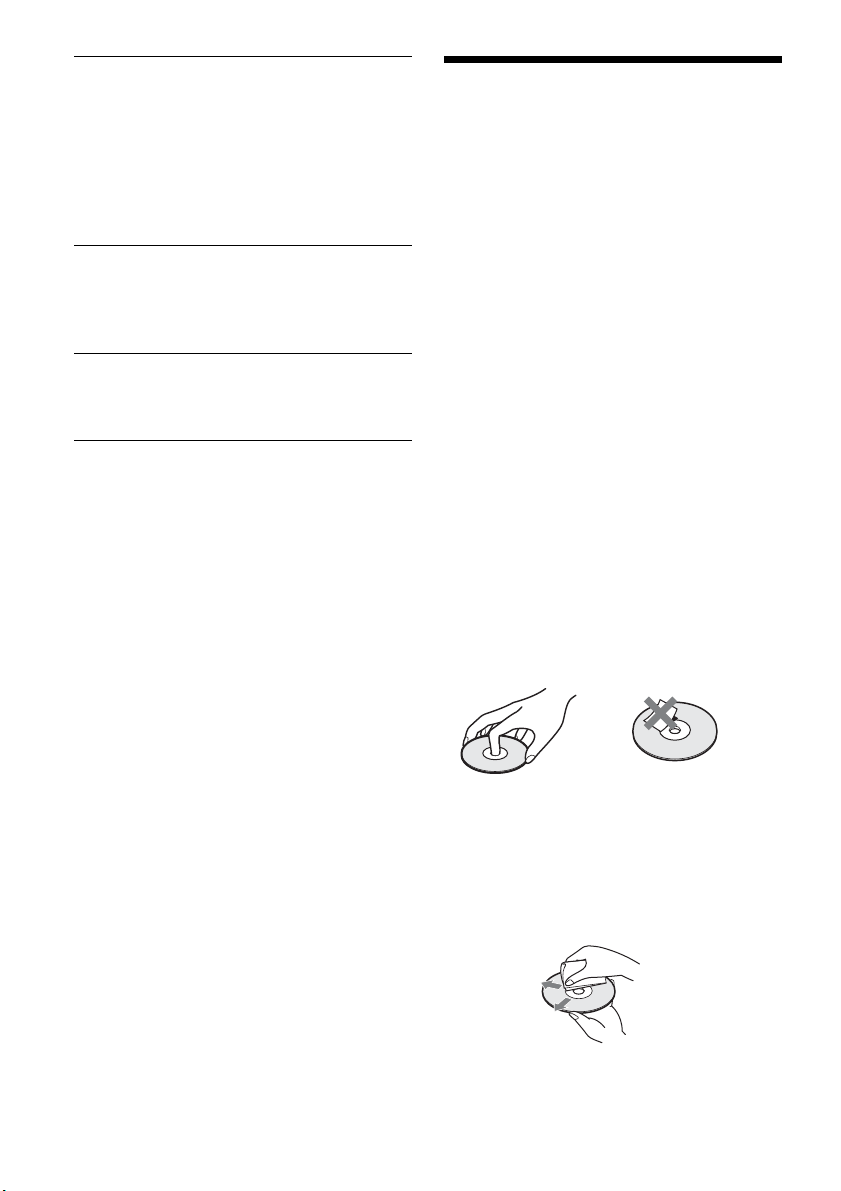
90
“Cannot record because of high temperature.”
appears on the TV screen.
, Check that the vent on the rear of the recorder is
not blocked. Then, turn off the recorder, wait
until the clock appears in the front panel display,
and disconnect the AC power cord. Leave the
recorder off for a while, then re-connect the
power cord, and press "/1 on the recorder.
“CHILD LOCK” appears in the front panel
display.
, The recorder is locked. Cancel the Child Lock
(page 38).
Control by AV mouse is not possible.
, Some satellite receivers may not support AV
mouse.
The Set Top Box Control function does not
work.
, Turn on the recorder.
Notes About This Recorder
On adjusting volume
Do not turn up the volume while listening to a
section with very low level inputs or no audio
signals. If you do, the speakers may be damaged
when a peak level section is played.
On cleaning
Clean the cabinet, panel, and controls with a soft
cloth slightly moistened with a mild detergent
solution. Do not use any type of abrasive pad,
scouring powder or solvent such as alcohol or
benzine.
On cleaning discs, disc/lens cleaners
Do not use cleaning discs or disc/lens cleaners
(including wet or spray types). These may
cause the apparatus to malfunction.
On replacement of parts
In the event that this unit is repaired, repaired parts
may be collected for reuse or recycling purposes.
Notes about the discs
• To keep the disc clean, handle the disc by its
edge. Do not touch the surface. Dust,
fingerprints, or scratches on the disc may cause
it to malfunction.
• Do not expose the disc to direct sunlight or heat
sources such as hot air ducts, or leave it in a car
parked in direct sunlight as the temperature may
rise considerably inside the car.
• After playing, store the disc in its case.
• Clean the disc with a cleaning cloth. Wipe the
disc from the center out.
• Do not use solvents such as benzine, thinner,
commercially available disc/lens cleaners, or
anti-static spray intended for vinyl LPs.
• Do not use the following discs.

91
Additional Information
– A disc that has a non-standard shape (e.g.,
card, heart).
– A disc with a label or sticker on it.
– A disc that has cellophane tape or sticker
adhesive on it.
Specifications
System
[DVD recorder section]
Laser
Semiconductor laser
Audio recording format
Dolby Digital
Video recording format
MPEG Video
[Timer section]
Clock
Quartz locked
Timer indication
12-hour cycle
Timer setting
12 programs (max.)
,continued

92
Inputs and outputs
LINE 1 IN and LINE 2 IN
VIDEO IN, phono jack (1 each)
Input signal: 1 Vp-p, 75 ohms, unbalanced,
sync negative
AUDIO IN, phono jacks (2 each)
Input level: 327 mVrms
Input impedance: more than 47 kilohms
LINE 2 IN
S VIDEO, 4-pin, mini-DIN jack
Y: 1.0 Vp-p, unbalanced, sync negative
C: 0.286 Vp-p, load impedance 75 ohms
DV IN, 4-pin jack, i.LINK S100
LINE OUT
VIDEO OUT, phono jack (1)
Output signal: 1 Vp-p, 75 ohms,
unbalanced, sync negative
AUDIO OUT, phono jacks (2)
Standard output: 327 mVrms
Load impedance: 47 kilohms
Output impedance: less than 10 kilohms
DIGITAL AUDIO OUT
OPTICAL, Optical output jack
–18 dBm (wave length: 660 nm)
COAXIAL, phono jack
Output signal: 0.5 Vp-p, 75 ohms
COMPONENT VIDEO OUT (Y, PB, PR)
Phono jack
Y: 1.0 Vp-p/P
B, PR: 0.7 Vp-p, 75 ohms
S VIDEO OUT
4-pin, mini-DIN jack
Y: 1.0 Vp-p, unbalanced, sync negative
C: 0.286 Vp-p, load impedance 75 ohms
SET TOP BOX CONTROL
Mini jack
HDMI
HDMI 19 pin-Standard Connector
General
Power requirements
120 V AC, 60 Hz
Power consumption
17 W
Power back-up
Back-up duration: 30 min
Operating temperature
5°C to 35°C (41°F to 95°F)
Storage temperature
–20°C to 60°C (–4°F to 140°F)
Operating humidity
25% to 80%
Dimensions including projecting parts
and controls (w/h/d)
Approx. 430 × 70 × 284 mm
(Approx. 17 × 2
7
/8 × 11
1
/4 inches)
Mass
Approx. 3.1 kg (Approx. 6.8 lbs)
Supplied accessories
Remote commander (remote) (1)
Size AA (R6) batteries (2)
Audio/video cord (1)
Set top box controller (1)
Design and specifications are subject to change
without notice.

93
Additional Information
About i.LINK
The DV IN jack on this recorder is an i.LINK-
compliant DV IN jack. This section describes the
i.LINK standard and its features.
What is i.LINK?
i.LINK is a digital serial interface for handling
digital video, digital audio and other data in two
directions between equipment having the i.LINK
jack, and for controlling other equipment.
i.LINK-compatible pieces of equipment can be
connected by a single i.LINK cable. Possible
applications are operations and data transactions
with various digital AV equipment. When two or
more i.LINK-compatible equipment are
connected to this recorder in a daisy chain,
operations and data transactions are possible with
not only the equipment that this recorder is
connected to but also with other devices via the
directly connected equipment.
Note, however, that the method of operation
sometimes varies according to the characteristics
and specifications of the equipment to be
connected, and that operations and data
transactions are sometimes not possible on some
connected equipment.
Note
Normally, only one piece of equipment can be connected
to this recorder by the i.LINK cable (DV connecting
cable). When connecting this recorder to i.LINK-
compatible equipment having two or more i.LINK jacks
(DV jacks), see the instruction manual of the equipment
to be connected.
About the name “i.LINK”
i.LINK is a more familiar term for IEEE 1394 data
transport bus proposed by SONY, and is a
trademark approved by many corporations.
IEEE 1394 is an international standard
standardized by the Institute of Electrical and
Electronics Engineers.
i.LINK baud rate
i.LINK’s maximum baud rate varies according to
the equipment. Three maximum baud rates are
defined:
S100 (approx. 100 Mbps*)
S200 (approx. 200 Mbps)
S400 (approx. 400 Mbps)
The baud rate is listed under “Specifications” in
the instruction manual of each equipment. It is
also indicated near the i.LINK jack on some
equipment.
The maximum baud rate of equipment on which it
is not indicated such as this unit is “S100.”
When units are connected to equipment having a
different maximum baud rate, the baud rate
sometimes differs from the indicated baud rate.
*What is Mbps?
Mbps stands for megabits per second, or the amount of
data that can be sent or received in one second. For
example, a baud rate of 100 Mbps means that 100
megabits of data can be sent in one second.
i.LINK functions on this recorder
For details on how to dub when this recorder is
connected to other video equipment having DV
jacks, see page 71.
The DV jack on this recorder can only input DVC-
SD signals. It cannot output signals. The DV jack
will not accept MICROMV signals from
equipment such as a MICROMV digital video
camera with an i.LINK jack.
For further precautions, see the notes on page 71.
For details on precautions when connecting this
recorder, also see the instruction manuals for the
equipment to be connected.
Required i.LINK cable
Use the Sony i.LINK 4-pin-to-4-pin cable (during
DV/D8 dubbing).
i.LINK and are trademarks.
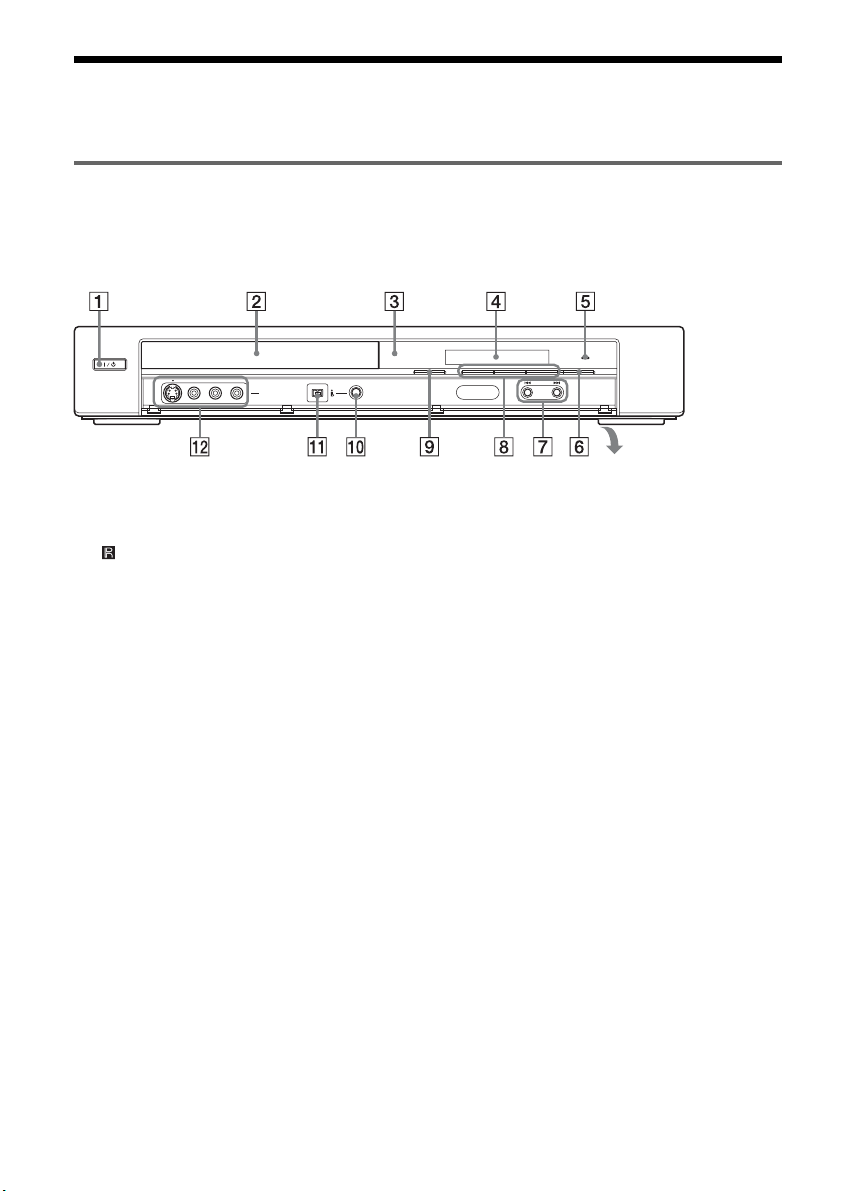
94
Guide to Parts and Controls
For more information, see the pages in parentheses.
Front panel
Buttons on the recorder have the same function as the buttons on the remote if they have the same or
similar names.
A "/1 (on/standby) switch (23)
B Disc tray (35, 47, 72)
C (remote sensor) (21)
D Front panel display (45)
E HDMI indicator (16)
F z REC (record) button (47)
G ./> (previous/next) buttons (36)
H N (play) button (35)
X (pause) button (36, 47)
x (stop) button (35, 47)
I Z (open/close) button (35, 47, 72)
J ONE-TOUCH DUBBING button (74)
K DV IN jack (71)
L LINE 2 IN (S VIDEO/VIDEO/AUDIO L
(MONO)/R) jacks (27)
HDMI
DV IN
L(MONO) AUDIO RVIDEOS VIDEO
LINE-2 IN
ONE-TOUCH DUBBING
Open the cover
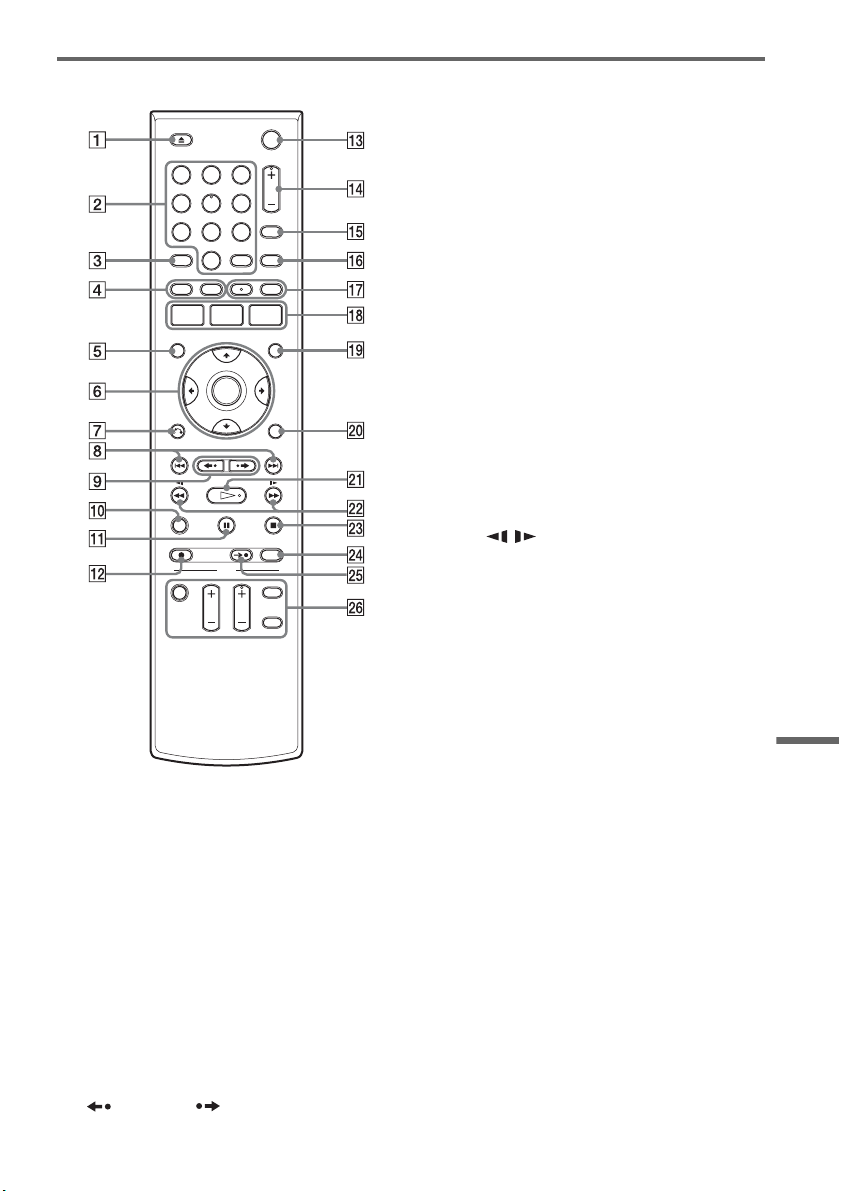
95
Additional Information
Remote
A Z OPEN/CLOSE button (35, 47, 72)
B Number buttons* (36)
SET button (82)
C ANGLE button (36)
D TOP MENU button (35)
MENU button (35)
E DISPLAY button (44)
F M/m/</,/ENTER button (23)
G O RETURN button (23)
H . PREV (previous)/> NEXT
buttons (36)
I REPLAY/ ADVANCE buttons
(36)
J CLEAR button (83)
K X PAUSE button (47)
L z REC (record) button (47)
M ?/1 (on/standby) switch (23)
N CH (channel) +/– button* (47)
O INPUT button (47, 54, 72)
P TIME/TEXT button (45)
Q AUDIO button* (36)
SUBTITLE button (36)
R SYSTEM MENU button (10)
TITLE LIST button (39, 57)
TIMER button (49)
S ORIGINAL/PLAYLIST button (39, 57)
T OPTIONS button (40)
U H PLAY button* (35)
V m / M (search) buttons (36)
W x STOP button (35, 47)
X REC MODE button (47, 72)
Y SYNCHRO REC button (51)
Z TV buttons
• ?/1 (on/standby) switch (21)
• INPUT button (21)
• CH (channel) +/– button* (21)
• VOL (volume) +/– button (21)
• DIGITAL/ANALOG button (21)
* Number 5, AUDIO, CH +, and H PLAY buttons have
a tactile dot. Use the tactile dot as a reference.
11 22 33
44 55 66
77 88
00
99
,continued
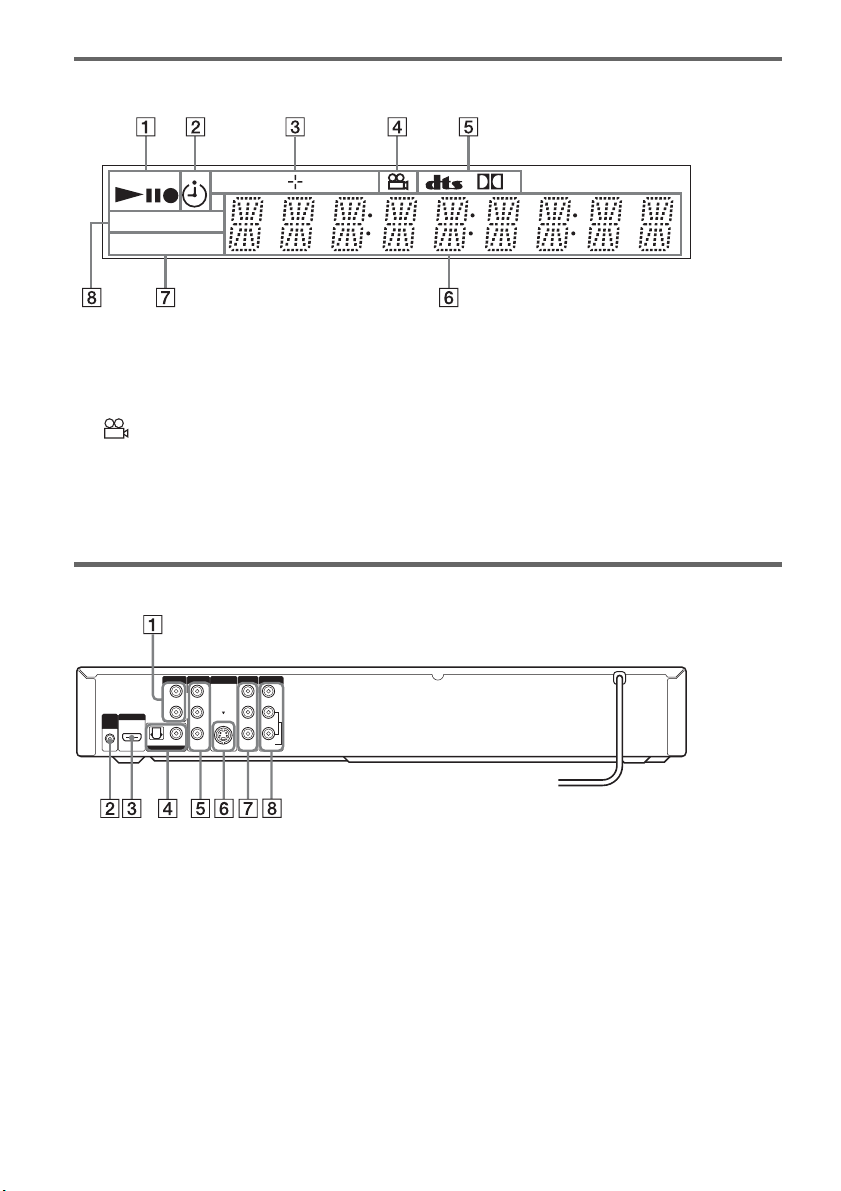
96
Front panel display
A Playing/recording status
B Timer indicator
C Disc type/recording format
D (angle) indicator (36)
E Audio signal indicators
F Displays the following (45):
• Playing time/remaining time
• Current title/chapter/track/index number
• Recording time/recording mode
•Clock
• Channel
G PROGRESSIVE indicator (17, 78)
H SYNCHRO REC indicator (51)
Rear panel
A AUDIO OUT L/R jacks (18)
B SET TOP BOX CONTROL jack (13)
C HDMI OUT jack (16)
D DIGITAL AUDIO OUT (COAXIAL/
OPTICAL) jacks (18)
E COMPONENT VIDEO OUT (Y, P
B, PR)
jacks (17)
F S VIDEO OUT jack (15)
G LINE 1 IN (VIDEO/AUDIO L/R) jacks
(13)
H LINE OUT (VIDEO/AUDIO L/R) jacks
(15, 17)
RW
VR
VCDVD
SYNCHRO
PROGRESSIVE
REC
D
L
R
VIDEO
AUDIO
LINE OUT
VIDEO
YL
P
B
R
P
R
AUDIO
LINE 1 IN
AUDIO OUT S VIDEO OUT
COMPONENT
VIDEO OUT
DIGITAL AUDIO OUT
OPTICAL COAXIAL
HDMI OUT
SETTOP
BOX
CONTROL

97
Additional Information
Glossary
Chapter (page 40)
Sections of a picture or a music feature that are
smaller than titles. A title is composed of several
chapters. Depending on the disc, no chapters may
be recorded.
Copy protection signals (page 47)
Copy restriction set by copyright owners, etc.
These signals are included in some software or TV
programs and restrict recording on this recorder.
Dolby Digital (page 79)
Digital audio compression technology developed
by Dolby Laboratories. This technology conforms
to multi-channel surround sound. The rear channel
is stereo and there is a discrete subwoofer channel
in this format. Dolby Digital provides the same
discrete channels of high quality digital audio
found in “Dolby Digital” theater surround sound
systems. Good channel separation is realized
because all of the channel data is recorded
discretely, and little deterioration occurs because
all channel data processing is digital.
DTS (page 79)
Digital audio compression technology by DTS,
Inc. This technology conforms to multi-channel
surround sound. The rear channel is stereo and
there is a discrete subwoofer channel in this
format. DTS provides the same discrete channels
of high quality digital audio.
Good channel separation is realized because all of
the channel data is recorded discretely, and little
deterioration occurs because all channel data
processing is digital.
DVD+RW (page 30)
A DVD+RW (read “plus RW”) is a recordable and
rewritable disc. DVD+RWs use a recording
format that is comparable to the DVD VIDEO
format.
DVD-RW (page 30)
A DVD-RW is a recordable and rewritable disc
that is the same size as a DVD VIDEO. The DVD-
RW has two different modes: VR mode and Video
mode. DVDs created in Video mode have the
same format as a DVD VIDEO, while discs
created in VR (Video Recording) mode allow the
contents to be programmed or edited.
DVD+R (page 30)
A DVD+R (read “plus R”) is a recordable disc that
is the same size as a DVD VIDEO. Contents can
be recorded only once to a DVD+R, and will have
the same format as a DVD VIDEO.
DVD-R (page 30)
A DVD-R is a recordable disc that is the same size
as a DVD VIDEO. Contents can be recorded only
once to a DVD-R. The DVD-R has two different
modes: VR mode and Video mode. DVDs created
in Video mode have the same format as a DVD
VIDEO, while discs created in VR (Video
Recording) mode allow the contents to be
programmed or edited.
DVD VIDEO (page 33)
A disc that contains up to eight hours of moving
pictures on a disc the same diameter as a CD.
The data capacity of a single-layer and single-
sided DVD is 4.7 GB (Giga Byte), which is 7
times that of a CD. The data capacity of a double-
layer and single-sided DVD is 8.5 GB, a single-
layer and double-sided DVD is 9.4 GB, and
double-layer and double-sided DVD is 17 GB.
The picture data uses the MPEG 2 format, which
is a worldwide standard of digital compression
technology. The picture data is compressed to
about 1/40 (average) of its original size. The DVD
also uses a variable rate coding technology that
changes the data to be allocated according to the
status of the picture. Audio information is
recorded in a multi-channel format, such as Dolby
Digital, allowing you to enjoy a more real audio
presence.
Furthermore, various advanced functions such as
the multi-angle, multilingual, and Parental
Control functions are provided on the DVD.
,continued

98
HDMI (High-Definition Multimedia Interface)
(page 16)
HDMI is an interface that supports both video and
audio on a single digital connection. The HDMI
connection carries standard to high definition
video signals and multi-channel audio signals to
AV components such as HDMI equipped TVs, in
digital form without degradation.
The HDMI specification supports HDCP (High-
bandwidth Digital Contents Protection), a copy
protection technology that incorporates coding
technology for digital video signals.
Interlace format
Interlace format shows every other line of an
image as a single “field” and is the standard
method for displaying images on television. The
even number field shows the even numbered lines
of an image, and the odd numbered field shows the
odd numbered lines of an image.
Original (page 56)
Titles actually recorded on a DVD-RW (VR
mode) or DVD-R (VR mode). Erasing original
titles frees up disc space on DVD-RWs.
Playlist (page 56)
Playback information created from the actual
recordings on a DVD-RW (VR mode) or DVD-R
(VR mode). A Playlist leaves the original titles as
they are, and contains only the information needed
to control playback. A Playlist title takes up very
little disc space.
Progressive format (page 78)
Compared to the Interlace format that alternately
shows every other line of an image (field) to create
one frame, the Progressive format shows the entire
image at once as a single frame. This means that
while the Interlace format can show 30 frames/60
fields in one second, the Progressive format can
show 60 frames in one second. The overall picture
quality increases and still images, text, and
horizontal lines appear sharper.
Title (page 40)
The longest section of a picture or music feature
on a DVD, movie, etc., in video software, or the
entire album in audio software.
Track (page 40)
Sections of a music feature on a CD (the length of
a song).
99
Additional Information
DVD Audio/Subtitle
Language
When you play a DVD VIDEO, the language of
the selected audio track or subtitle is abbreviated
as follows. See page 83 to change the audio track
or subtitle.
Abbreviation Language
ARA Arabic
BUL Bulgarian
CHI Chinese
CRO Croatian
CZE Czech
DAN Danish
DEU German
ENG English
ESP Spanish
FIN Finnish
FRA French
GRE Greek
HUN Hungarian
IDN Indonesian
IND Hindi
ISL Icelandic
ITA Italian
IWR Hebrew
JPN Japanese
KOR Korean
MAL Malay
NLD Dutch
NOR Norwegian
POL Polish
POR Portuguese
RUS Russian
SVE Swedish
THA Thai
TUR Turkish
VIE Vietnamese
ZAF Afrikaans
Abbreviation Language

100
Cable Box/Satellite
Receiver Brand Code
When you want to use the set top box control
function, find the brand code number of your cable
box/satellite receiver from the list and enter it in
step 7 of Easy Setup (page 23).
If more than one code number is listed, try
entering them one at a time until you find the one
that works with your cable box/satellite receiver.
Cable box brand Code number
3M 0033
ABC 0003, 0007, 0011, 0017,
0008, 0014, 0001, 0013,
0206, 0047, 0237, 0033
Accuphase 0003, 0007, 0013, 0047,
0001, 0011, 0017, 0014,
0206
Acorn 1102, 0237
Action 0237
Active 0237, 1102
Aim 0015
Allegro 0315, 0153
Amark 0008, 0277, 0144, 0056
American 0060
Americast 0899
Antronix 0207, 0022
Anvision 0211, 0111
Apache 0770
Arbatron 0014, 0011, 0003, 0476
Archer 0153, 0022, 0207, 0039,
0797, 0237, 0260
ASE 1080
Auna 1269
BBT 0267
BCC 0276
Belcor 0056, 0022
Bell & Howell 0014
Bell Atlantic 0641
Bell South 0899
Bestlink 0303
Betavue 0022
British Telecom 0003
BVS 0641
Cable Healthcare 0769, 0058
Cable Star 0056
Cabletenna 0022, 0039
Cableview 0022
Century 0153, 0618, 0008, 0315
Citation 0017
Citizen 0153, 0315, 0078, 0242
Clearmaster 0883
ClearMax 0883, 1247
Colour Voice 0031, 0025
Comband 0233, 0232
Comtec 0274
Comtronics 0060, 0040
Comtronics Eagle 0040, 0060
Contec 0019
Coolmax 0883
Curtis Mathes 0015, 0242
Dae Ryung Eagle 0008
Daeryung 0008, 0877, 0477, 0277,
1877
Diamond 0035
Digeo 1476
Digi 0637
Director 0476
Dumont 0637
Eagle Comtronics 0060, 0028
Eastern 0002, 0274, 0418
Electricord 0078
Emerson 0797, 0303, 0015, 0014
Everquest 0040, 0015
Focus 0400
Fosgate 0276
Fujitsu 0246
Funai 0248, 0019
FutureVision 0649
Cable box brand Code number

101
Additional Information
Garrard 0153
Gateway 0764
GC Electronics 0207, 0056, 0330, 0016,
0040, 0077, 0030
GE 0232, 0233, 0144, 0021
Gemini 0015, 0070, 0057, 0242,
0014, 0797, 0013, 0400
General Instrument 0476, 0011, 0014, 0098,
0810, 0024, 0003, 0015,
0276
GHZ 0078
Gibraltar 0003
Global 1327
GMI 0069, 0057, 0015, 0797
GoldStar 0144, 0040
Goodmind 0770, 0797
Gradiente 1136
Hamlin 0020, 0009, 0034, 0259,
0015, 0273, 0206
Healthway Interactive 0058, 1020, 1015, 0769
Hitachi 0011, 0154, 0009, 0008,
0003, 0033, 0014, 0255
Houston Tracker 0011
Hwalin 0303
Hytek 0007
IBM 0670
IEEC 1018
Interbuy 0274
IPC Guest Services 0893
Jasco 0315, 0153, 0015
Jebsee 0014, 0400
Jerrold 0003, 0014, 0276, 0011,
0012, 0020, 0024, 0015,
0047, 0098, 0476, 0031,
0029, 0111, 0032, 0054,
0810, 0028
Kuang Yu 0024
Leon 0069, 0015
LG 0040, 0144
Linsay 0440
Macom 0033
Cable box brand Code number
Maestro 0812
Magnavox 0797, 0027, 0032, 0334,
0069
Millennium 0618, 0153
Memorex 0000
Mitsubishi 0003
Motorola 0476, 0276, 1476, 0810,
1376, 1254, 0400, 1106
Movie Time 0156, 0078, 0063, 0203
MS 0069, 0015, 1018, 0303
MultiVision 0012
Myrio 1117
NET 0274
Next Level 0764, 1316, 1315, 1314
Nexus 0770
Northcoast 0671, 0314
Nova Vision 0277, 0008
Novabeam 0277
Novaplex 0618, 0277, 0017, 0008
NSC 0156, 0070, 0203, 0063,
0400, 0012, 0618, 0022,
0637, 0010, 0044
Oak 0007, 0019, 0303, 0248,
0017
Omega 0015
Omniview 0371
Optimus 0021
Pace 0237
Pacific Bell 0843
Panasonic 0107, 0021, 0144, 0008,
0124, 0307, 0000, 0040
Panther 0637
Paragon 0000, 0525, 0008
Penney 0637, 0000
Philips 0025, 0031, 0290, 0027,
0030, 0153, 0060, 0242,
0028, 0334, 0211, 0029,
0259, 0307, 0652, 0013,
0069, 0649, 0255, 0305,
0032, 0111, 0317
Pioneer 0144, 0023, 0533, 1877,
0877, 0260
Cable box brand Code number
,continued

102
Popular Mechanics 0400
Prelude 0770
Prism 0012, 0013, 0059
Protelcon 0786
Pulsar 0000, 0040
Quasar 0000
Quest 0144, 0020
R Line 0040
RadioShack 0883, 0015, 0315, 0303,
0797
Rampage 0255
Ranger 1247
RCA 0021, 0060, 0797, 0047,
1256, 0843
Realistic 0207, 0153
Recoton 0153, 0400
Regal 0259, 0020, 0273, 0279,
0276
Regency 0002, 0020, 0682
Rembrandt 0070, 0153, 0040, 0022,
0011
RK 0304, 0306, 0479
Runco 0000
Samsung 0040, 0144, 0023, 0003,
0070, 0000
Sasktel 1737
Scientific Atlanta 0008, 0277, 0017, 0006,
0237, 0025, 0477, 0207,
0877, 0003, 0012, 0000,
0021, 1877
Seam 0510
Sears 0510
Sejin 1265
Siemens 0246
Sigma 0019
Signal 0040, 0015, 0011, 0035
Signature 0011
SkyCable 0112
Skygiant 1091
SL Marx 0040
Cable box brand Code number
Sony 1006
Spectradyne 0769, 0058
Spectravision 0058
Sprucer 0021, 0307, 0010, 0144
Standard Components 0203, 0096, 0155
Starcom 0003, 0015, 0047, 0014,
0098, 0305
Stargate 0015, 0040, 0770, 0865,
0797, 0305, 0014
Starquest 0015
StarSight 0542, 0422
Stealth 0274
Stellar One 0807
Storm 1018, 0637
Suena Madritel 1230
Supercable 0276
Supermax 0883
Sylvania 0001
Tandy 0258
Tatung 0097
Teac 1018
Technics 0029
Teknika 0146
Teleavia 0040
TeleCaption 0221
Teleview 0063, 0040
Texscan 0001, 0096, 0010
TFC 0310
Thomson 1256
Timeless 0418, 0274, 0040
Tocom 0012, 0013, 0029, 0019,
0059, 0017
Torx 0003
Toshiba 0000
Trans PX 0303, 0276, 0153, 0315
Trinity 1248
Tristar 0883
TS 0255, 0024, 1018, 0003,
0303
Cable box brand Code number

103
Additional Information
Tusa 0015
TV COMM 0035, 0019
TV Guide 1476
TV86 0063, 0040
Uniden 0022, 0225
Unika 0207, 0153, 0022
United Artists 0007
United Cable 0003, 0014, 0011, 0276
Universal 0191, 0078, 0207, 0056,
0022, 0039, 0153, 0077,
0322, 0315
US Electronics 0276, 0008, 0003, 0017
V2 0883
Verizon 0246
Videoway 0250, 0000
VideoWorks 0124
Vidtech 0244
Viewmaster 0883, 0770
Viewstar 0258, 0289, 0060, 0063,
0211, 0027, 0111, 0030,
0121
Vision 0883
Visionetics 1264
Vortex View 0883
WaveMaster 0565
Wiso 0078
Zenith 0000, 0525, 0054, 0017,
0039, 0153, 0060, 0315,
0191, 0899
Zentek 0400
Cable box brand Code number
Satellite receiver
brand
Code number
AlphaStar 0772
Atlantic Telephone 1333
Bell ExpressVu 0775
Century 0856
Chaparral 0216
Crossdigital 1109
DirecTV 0749, 0566, 0392, 1749,
0099, 1109, 1076, 1442,
1856, 0247, 1142, 1639,
0724, 0639, 0819
Dish Network System 0775, 1005, 1170
Dishpro 0775, 1005
Echostar 0775, 1170, 1005
Expressvu 0775
Galaxis 0863
GE 0566
General Instrument 0361, 0869, 0627
GOI 0775
Gradiente 0856
Hitachi 0819, 0749
Houston Tracker 0775
HTS 0775
Hughes Network Systems 0749, 1749, 1442, 1142
Humax 1176, 1359, 1048, 0863,
0283
Innova 0099
Jerrold 0361, 0036, 0627
JVC 0775, 1170
Magnavox 0722, 0724
McIntosh 0869
Memorex 0724
Mitsubishi 0749
Motorola 0869
NEC 1270, 0496, 0499, 0507,
0508
Netsat 0099
Next Level 0869
Optimus 0724
Panasonic 0247, 0701
,continued

104
Paysat 0724
Philips 1076, 0099, 1142, 0724,
0722, 0749, 1442, 1749,
0856, 0775
Primestar 0361, 0627, 0869
Proscan 0392, 0566
QNS 1367
RadioShack 0869
RCA 0566, 0392, 0143, 0855
Samsung 1109, 1276
Sky 0856, 0099, 1856
Sony 0639, 1639
Star Choice 0869
Star Trak 0869, 0772
Thomson 0566, 0392
Tivo 1142, 1442
Toshiba 0790, 0749, 1749, 1285
UEC 1333, 1358
Uniden 0724, 0722
Video Cipher II Plus 0361
Zenith 0856, 1856
Satellite receiver
brand
Code number

105
Index
Words in quotations appear in
the on-screen displays.
Numerics
16:9 25, 77
4:3 Letter Box
25, 77
4:3 Pan Scan
25, 77
A
“A-B Erase” 58
“Add”
64, 65
ADVANCE
36
ANGLE
36
AUDIO
36
“Audio”
83
“Audio (HDMI)”
80
Audio cords
18
“Audio DRC”
80
Audio settings
79
B
Batteries 21
“Black Level”
77
“Brand Code”
82
C
Cable box 13
Cable box brand
100
Cable box brand code
100
“Ch. Digit lock”
82
Changing or canceling timer
settings (Timer List) 53
Chapter
97
“Chapter Erase”
58
“Check”
63
Child Lock
38
Cleaning discs
90
Clock Set settings
76
“Combine Titles”
64
“Command Mode”
22, 84
COMPONENT VIDEO OUT
17
Connecting
the cable box/satellite
receiver
12
to your AV/amplifier
(receiver)
18
to your TV
15
“Connections”
82
Controlling a Sony TV with
the remote
21
“Copy”
66
Copy protection
47, 97
Copy-Free
47
Copy-Never
47
Copy-Once
47
CPRM
30
“Create Playlist”
62
Creating chapters
49
D
“Digital Out” 79
“Disc Finalize”
67, 69
“Disc Format”
67
“Disc Information”
67
“Disc Menu”
83
“Disc Name”
67
“Disc Protect”
67
“Disc Setting”
67, 69
Disc types
30
Display
front panel display 96
Setup Display
75
“Divide Title”
59, 63
Dolby Digital
25, 79, 97
“Downmix”
80
DTS
25, 37, 79, 97
“DV/D8 Audio Input”
73, 81
“DV/D8 Dubbing”
73
“DV/D8 One Touch
Dubbing” 74
“DV/D8 Simple Dubbing”
73
“DVD Auto Chapter”
81
DVD Editing
56
DVD VIDEO
33, 97
DVD+R
30, 97
DVD+R DL
30
DVD+RW
30, 97
DVD-R
30, 97
DVD-RW
30, 97
E
Easy Setup 85
“Edit”
53
“Edit Playlist” 63
“Edit Scene”
63
Enter characters
60
“Erase”
53, 58
“Erase All Titles”
67
F
“Factory Setting” 84
Fast forward
37
Fast reverse
37
Feature settings
81
Finalizing
69
“Format DVD-RW”
82
Formatting
47, 67
“Front Display”
84
Front panel
94
Front panel display
96
H
Handling discs 90
HDMI
16, 98
“HDMI Resolution”
77
I
i.LINK 71, 93
INPUT
48, 72
Interlace format
98
J
JPEG image files 42
L
“Language” 83
Language abbreviation
99
LINE 1 IN
13
LINE 2 IN
27
“Line Audio Input”
51, 55,
81
M
MENU 35
Menu
Top menu 35
“Mode for SET button”
82
“Modify”
64
“Move”
65
MP3 audio tracks
41
,continued

106
N
NEXT 36
Number buttons
40
O
One Touch Dubbing 74
On-screen display
OPTIONS menu
11
Setup Display
75
Sub-menu
11
System Menu
10
OPTIONS
11
Options settings
83
Original
39, 98
ORIGINAL/PLAYLIST
39,
57
“OSD” language
24, 83
P
“Parental” 83
Parental Control
38
Parts and controls
94
PAUSE
37, 48
PBC
38
“Picture Control”
78
PLAY
35
Playable discs
33
Playback
35
JPEG image files
42
MP3 audio tracks
41
Resume Play
38
Slow-motion play
37
Playlist
39, 61, 98
Power cord
20
PREV
36
“Progressive”
78
Progressive format
98
“Protect”
58
Q
Quick Timer 48
R
Rear panel 96
REC
48
REC MODE
48
Recording
46
recordable discs
30
recording format
30
recording mode
46
Recording mode
46
Recording time
46, 49
Region code
34
Remaining time
44
Remote
21, 95
REPLAY
36
Resetting
85
Resume Play
38
Rotate
42
S
Satellite receiver 13
Satellite receiver brand code
103
“Scan Audio”
38, 80
Searching
for “Chapter” 40
for “Title”
40
for “Track”
40
Time Search
40
Set top box control
12, 24, 82
Set top box controller
12, 26
Settings
75
Setup Display
75
Slide show
42, 43
STOP
35, 48
Sub-menu
11
SUBTITLE
36
“Subtitle”
83
“Surround”
80
SYNCHRO REC
52
System Menu
10
T
TIME/TEXT 45
TIMER
50
Timer List
53
Timer recording
49
change or cancel
53
Title
98
“Title Erase”
58, 63
TITLE LIST
39, 57
Title List
39
“Title Name”
58, 63
TOP MENU
35
Track
98
Troubleshooting
86
“TV Type” 77
U
“Unfinalize” 70
Unrecordable pictures
47
V
“Video (HDMI)” 77
VIDEO CD
33
Video mode
30
Video settings
77
VR mode
30
Z
Zoom 42


2
ES
Índice
Este manual muestra la configuración básica y el funcionamiento de la grabadora de DVD.
Para obtener más información, consulte el manual de instrucciones en inglés.
Conexiones y ajustes . . . . . . . . . . . . . . . . . . . . . . . . . . . . . . . . . . . . . . . 3
Conexión de la grabadora . . . . . . . . . . . . . . . . . . . . . . . . . . . . . . . . . . . . . . . . . . . . . . .3
Paso 1: Desembalaje. . . . . . . . . . . . . . . . . . . . . . . . . . . . . . . . . . . . . . . . . . . . . . . . . . .3
Paso 2: Conexión del decodificador de cable/receptor vía satélite (sintonizador). . . . .3
Paso 3: Conexión al televisor . . . . . . . . . . . . . . . . . . . . . . . . . . . . . . . . . . . . . . . . . . . .5
Paso 4: Conexión del cable de alimentación. . . . . . . . . . . . . . . . . . . . . . . . . . . . . . . . .8
Paso 5: Preparación del mando a distancia . . . . . . . . . . . . . . . . . . . . . . . . . . . . . . . . .8
Paso 6: Configuración fácil . . . . . . . . . . . . . . . . . . . . . . . . . . . . . . . . . . . . . . . . . . . . . .9
Funcionamiento básico
Reproducción . . . . . . . . . . . . . . . . . . . . . . . . . . . . . . . . . . . . . . . . . . . 13
Reproducción de discos . . . . . . . . . . . . . . . . . . . . . . . . . . . . . . . . . . . . . . . . . . . . . . .13
Opciones de reproducción . . . . . . . . . . . . . . . . . . . . . . . . . . . . . . . . . . . . . . . . . . . . . 14
Reproducción de un título de la Lista títulos . . . . . . . . . . . . . . . . . . . . . . . . . . . . . . . . 16
Grabación . . . . . . . . . . . . . . . . . . . . . . . . . . . . . . . . . . . . . . . . . . . . . 17
Antes de grabar . . . . . . . . . . . . . . . . . . . . . . . . . . . . . . . . . . . . . . . . . . . . . . . . . . . . .17
Grabación desde un equipo conectado sin temporizador . . . . . . . . . . . . . . . . . . . . . . 18
Grabación con temporizador desde un equipo conectado . . . . . . . . . . . . . . . . . . . . . 20

Conexiones y ajustes
3
ES
Conexiones y ajustes
Conexión de la grabadora
Siga los pasos del 1 al 6 para conectar y realizar
los ajustes de la grabadora.
Notas
• Enchufe los cables firmemente para prevenir
perturbaciones no deseadas.
• Consulte las instrucciones suministradas con los
componentes que va a conectar.
• No es posible conectar la grabadora a un televisor que
no disponga de toma de entrada de video.
• Asegúrese de desconectar el cable de alimentación de
cada componente antes de realizar las conexiones. No
conecte el cable de alimentación hasta haber llegado al
apartado “Conexión del cable de alimentación” en la
página 8.
Paso 1: Desembalaje
Compruebe que dispone de los siguientes
elementos:
• Cable de audio/video
(clavija fono × 3 y clavija fono × 3) (1)
• Mando a distancia (1)
• Controlador del decodificador (1)
• Pilas de tamaño AA (R6) (2)
Paso 2: Conexión del
decodificador de cable/
receptor vía satélite
(sintonizador)
Esta grabadora no incluye un sintonizador de
televisión.
Para grabar programas de televisión con este
dispositivo, es necesario conectarlo a un
sintonizador que tenga tomas de salida de audio/
video.
Si ha estado utilizando la videograbadora
conectada a una antena, conecte esta grabadora a
la videograbadora mediante un cable de audio/
video. De este modo, podrá grabar programas de
televisión.
No es posible grabar en esta grabadora si tiene:
– un decodificador de cable o un receptor vía
satélite sin salidas de audio/video.
– cable sin decodificador de cable.
– sólo antena (sin cable de televisión).
En los casos mencionados anteriormente, póngase
en contacto con la empresa suministradora para
consultar si podrían proporcionarle un
decodificador de cable o un receptor vía satélite
compatible.
Utilización de la función de control
del decodificador de cable/receptor
vía satélite
Esta función permite que la grabadora controle el
decodificador de cable o el receptor vía satélite
mediante el controlador del decodificador
suministrado. También es posible utilizar el
mando a distancia de la grabadora para cambiar
canales en el decodificador de cable/receptor vía
satélite, siempre que ambos estén encendidos.
Para utilizar la función de control del
decodificador de cable/receptor vía satélite, es
necesario:
– comprobar el código de marca del decodificador
de cable/receptor vía satélite. Consulte “Cable
Box/Satellite Receiver Brand Code” en el
manual de instrucciones en inglés (página 100).
– conectar el controlador del decodificador
(página 4).
– ajustar el número del código de marca y la
entrada de la grabadora que está conectada al
decodificador de cable/receptor vía satélite
(página 9).
Una vez configurado el control del decodificador
de cable/receptor vía satélite, compruebe que la
grabadora controla correctamente el dispositivo
en cuestión (página 11).
ES
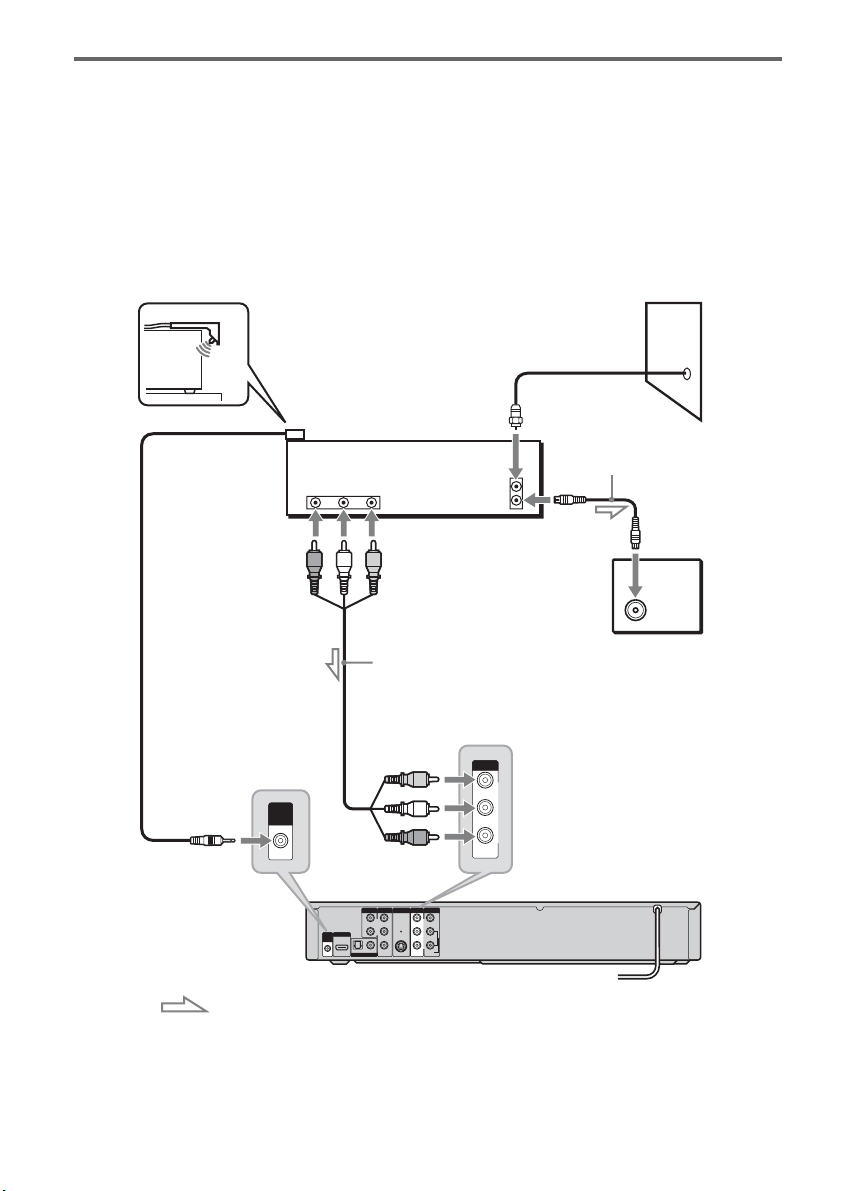
4
ES
Conexión del decodificador de cable/receptor vía satélite y del controlador
del decodificador
Conecte las tomas LINE IN mediante un cable de audio/video.
Con esta conexión, puede grabar cualquier canal del decodificador de cable o receptor vía satélite.
Asegúrese de que el receptor vía satélite o decodificador de cable está encendido.
Para ver programas por cable o vía satélite, debe hacer coincidir la fuente de entrada de la grabadora
(LINE 1) con la toma de entrada que está conectada al decodificador de cable o receptor vía satélite
(LINE 1 IN).
Coloque el controlador del decodificador cerca del sensor remoto del decodificador de cable/receptor vía
satélite.
L
R
VIDEO
AUDIO
LINE OUT
VIDEO
YL
P
B
R
P
R
AUDIO
LINE 1 IN
AUDIO OUT S VIDEO OUT
COMPONENT
VIDEO OUT
DIGITAL AUDIO OUT
OPTICAL COAXIAL
HDMI OUT
SETTOP
BOX
CONTROL
ANT IN
RL
AUDIO
OUT
VIDEO
OUT
TO TV
SETTOP
BOX
CONTROL
VIDEO
AUDIO
LINE 1 IN
Controlador
del
decodificador
(suministrado)
Decodificador de
cable/receptor
vía satélite
Cable de antena
(no suministrado)
Pared
a la entrada de
antena
Televisor
Cable de audio/video
(no suministrado)
a SET TOP
BOX CONTROL
a la toma
LINE 1 IN
: Flujo de señales
Grabadora de DVD
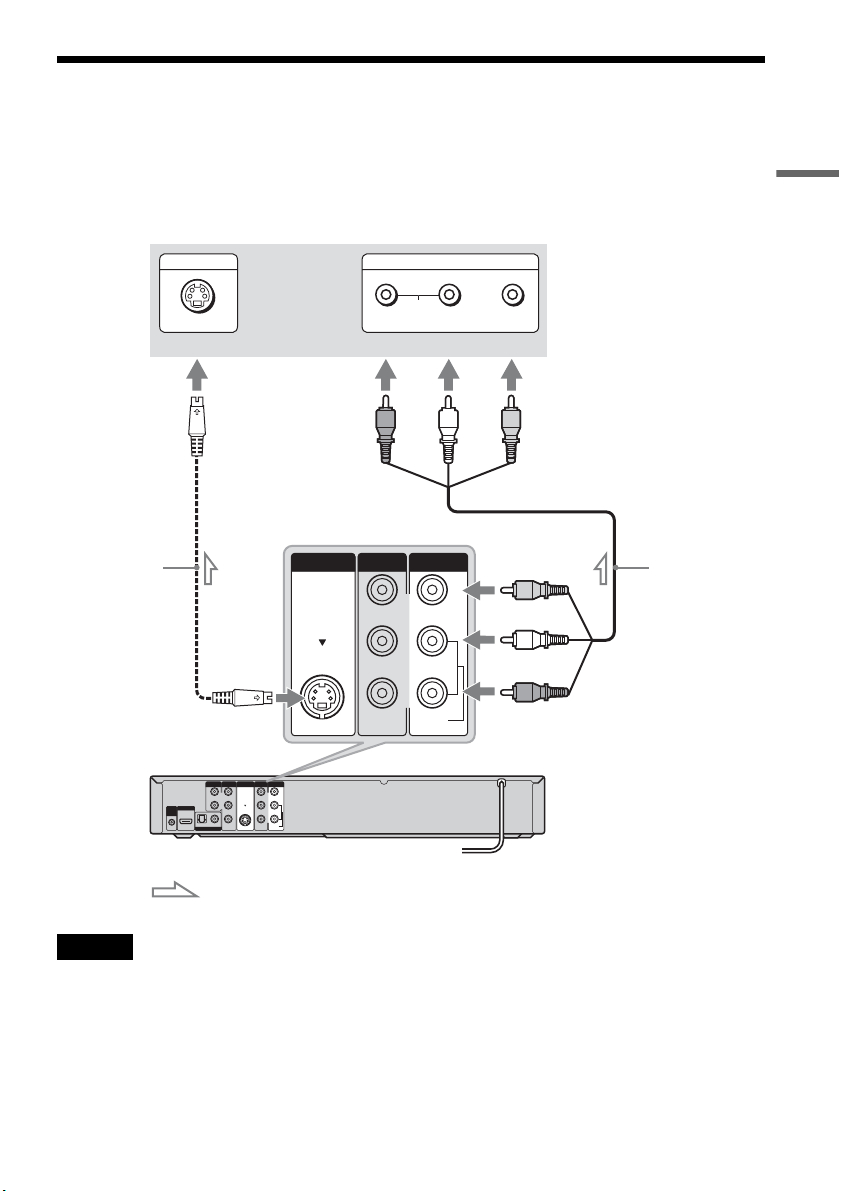
Conexiones y ajustes
5
ES
Paso 3: Conexión al televisor
Conecte el cable de audio/video suministrado a las tomas LINE OUT (VIDEO/AUDIO L/R) de la
grabadora.
Para disfrutar de una calidad de imagen superior, conecte un cable de S video (no suministrado) en lugar
de la clavija amarilla (video). Si utiliza esta conexión, asegúrese de conectar el cable de audio a las tomas
LINE OUT (AUDIO L/R).
Notas
• No realice la conexión a la tomas S VIDEO OUT y LINE OUT (VIDEO) amarilla a la vez.
• No conecte las tomas de salida de audio del televisor a las tomas LINE IN (AUDIO L/R) a la vez. De lo contrario, se
producirá ruido no deseado en los altavoces del televisor.
L
R
VIDEO
AUDIO
LINE OUT
VIDEO
YL
P
B
R
P
R
AUDIO
LINE 1 IN
AUDIO OUT S VIDEO OUT
COMPONENT
VIDEO OUT
DIGITAL AUDIO OUT
OPTICAL COAXIAL
HDMI OUT
SETTOP
BOX
CONTROL
AUDIO
INPUT
R L VIDEO
INPUT
S VIDEO
L
R
VIDEO
AUDIO
LINE OUT
VIDEO
AUDIO
LINE 1 IN
S VIDEO OUT
: Flujo de señales
Cable de S video
(no suministrado)
Televisor o
proyector
(rojo) (blanco) (amarillo)
Cable de
audio/video
(suministrado)
(rojo)
(blanco)
(amarillo)
a S VIDEO OUT
Grabadora de DVD
a LINE OUT
(VIDEO/AUDIO L/R)
,continúa
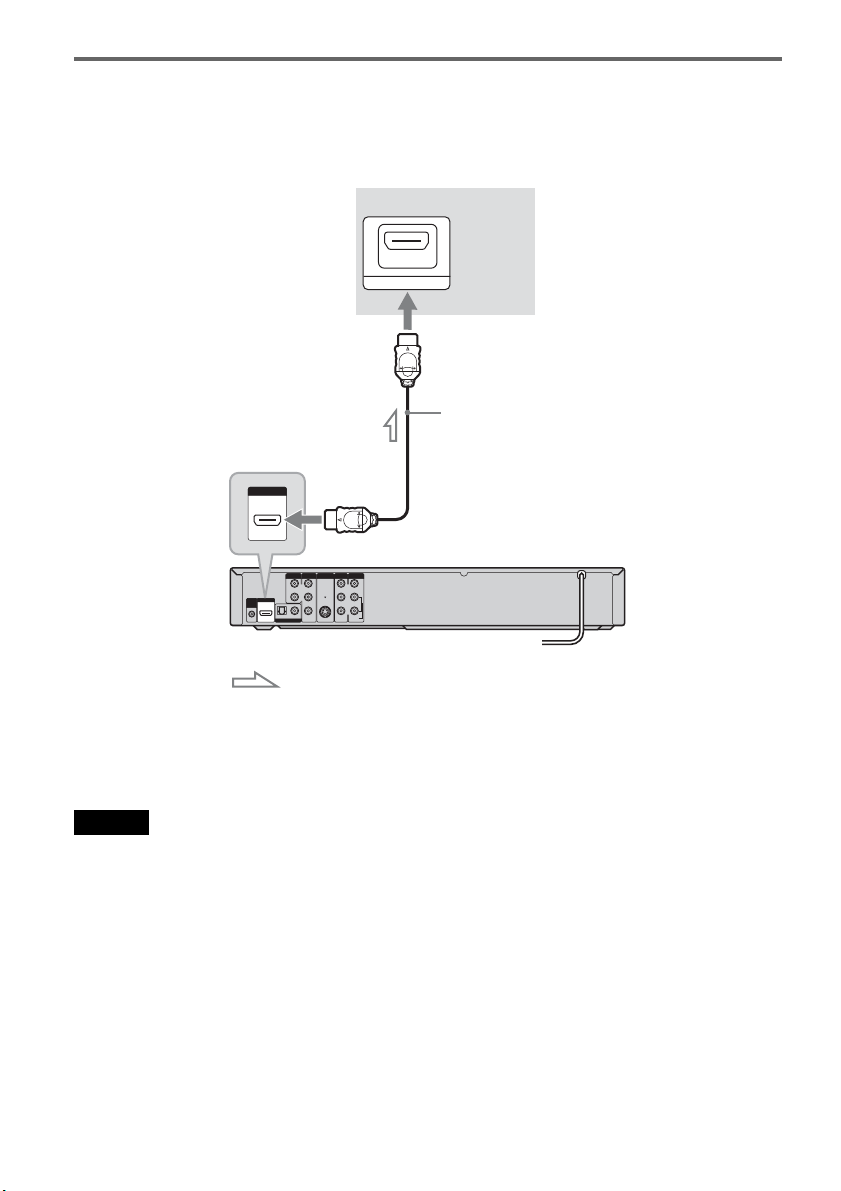
6
ES
Si el televisor dispone de una toma de entrada de HDMI
Conecte la toma de salida HDMI* OUT mediante un cable HDMI certificado (no suministrado).
Disfrutará de imágenes y sonido de alta calidad. El indicador de HDMI se ilumina en el panel frontal
cuando la grabadora emite señales a través de la toma de salida HDMI OUT.
Asegúrese de apagar la grabadora antes de conectar un cable HDMI.
* Esta grabadora de DVD incorpora la tecnología de High-Definition Multimedia Interface (HDMI™).
HDMI, el logotipo de HDMI y High-Definition Multimedia Interface son marcas comerciales o marcas comerciales
registradas de HDMI Licensing LLC.
Nota
No es posible conectar la toma de salida HDMI OUT a tomas DVI que no sean compatibles con HDCP (por ejemplo,
tomas DVI en pantallas de PC).
L
R
VIDEO
AUDIO
LINE OUT
VIDEO
YL
P
B
R
P
R
AUDIO
LINE 1 IN
AUDIO OUT S VIDEO OUT
COMPONENT
VIDEO OUT
DIGITAL AUDIO OUT
OPTICAL COAXIAL
HDMI OUT
SETTOP
BOX
CONTROL
HDMI IN
HDMI OUT
Televisor o
proyector
Cable HDMI (no suministrado)
a HDMI OUT
: Flujo de señales
Grabadora de DVD
a la entrada de HDMI
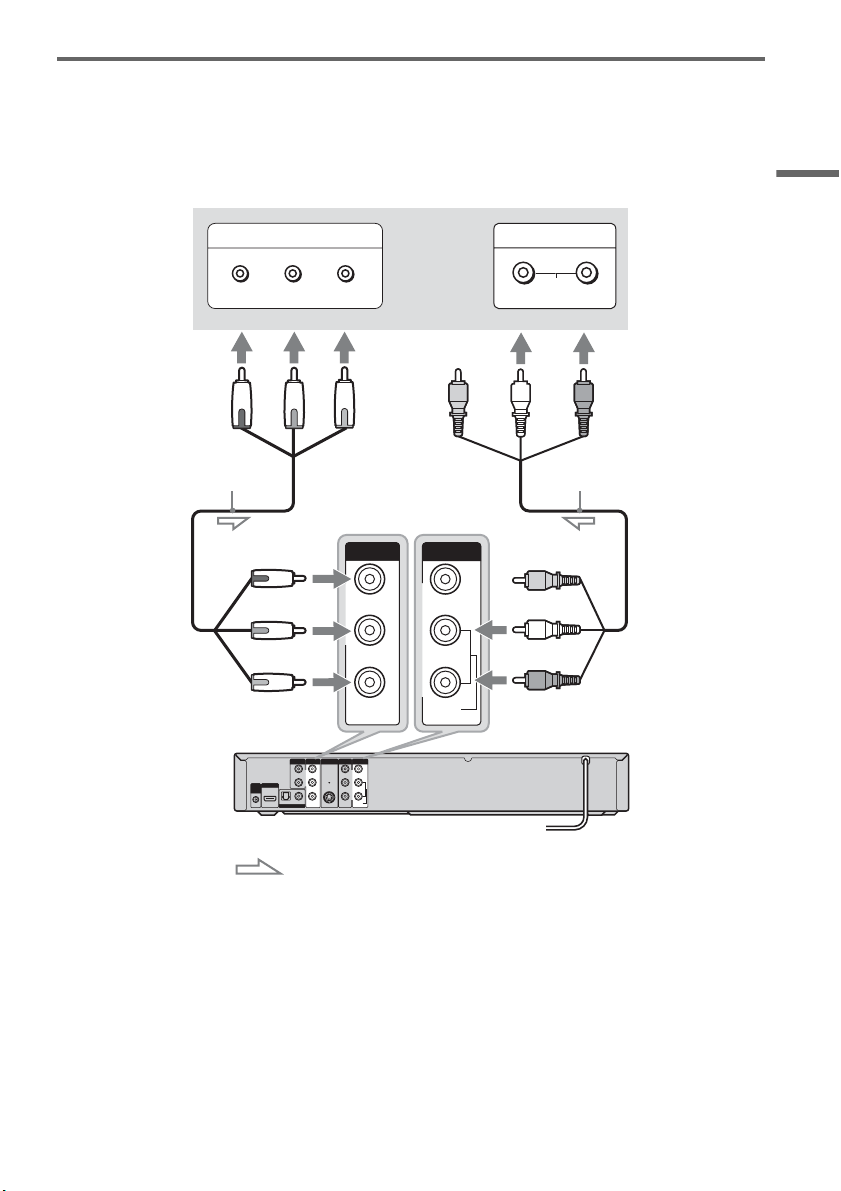
Conexiones y ajustes
7
ES
Si el televisor tiene tomas de entrada de video componente
Conecte las tomas COMPONENT VIDEO OUT mediante un cable de video componente (no
suministrado) o tres cables de video (no suministrados) del mismo tipo y longitud. Disfrutará de una fiel
reproducción del color y de imágenes de alta calidad.
Si utiliza esta conexión, asegúrese de conectar el cable de audio a las tomas LINE OUT (AUDIO L/R).
L
R
VIDEO
AUDIO
LINE OUT
VIDEO
YL
P
B
R
P
R
AUDIO
LINE 1 IN
AUDIO OUT S VIDEO OUT
COMPONENT
VIDEO OUT
DIGITAL AUDIO OUT
OPTICAL COAXIAL
HDMI OUT
SETTOP
BOX
CONTROL
COMPONENT VIDEO IN
P
B
P
R
Y
AUDIO
LR
INPUT
L
R
VIDEO
AUDIO
LINE OUT
Y
P
B
PR
COMPONENT
VIDEO OUT
: Flujo de señales
Televisor o
proyector
(rojo) (blanco)(verde)
Cable de video componente
(no suministrado)
(rojo)(azul)
(rojo)
(verde)
(azul)
a COMPONENT
VIDEO OUT
Cable de audio/video
(suministrado)
(blanco)
(rojo)
a LINE OUT
(AUDIO L/R)
Grabadora de DVD
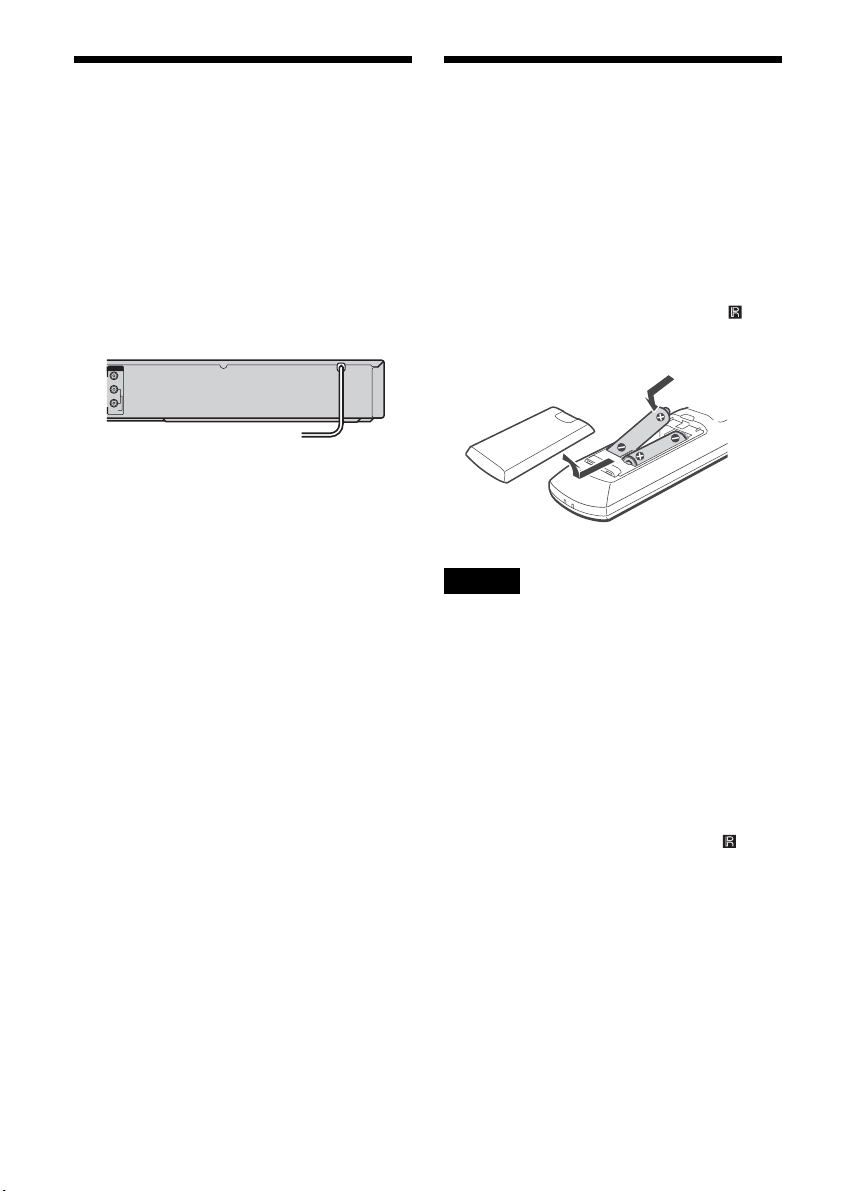
8
ES
Paso 4: Conexión del cable
de alimentación
Enchufe los cables de alimentación de la
grabadora y del televisor a una toma de ca. A
continuación, debe esperar unos instantes
antes de utilizar la grabadora. Podrá
utilizarla sólo después de que la pantalla del panel
frontal se ilumine y la grabadora pase al modo de
espera.
Paso 5: Preparación del
mando a distancia
La grabadora puede controlarse con el mando a
distancia suministrado.
Inserte dos pilas de tamaño AA (R6) haciendo
coincidir sus extremos 3 y # con las marcas del
interior del compartimiento de las pilas.
Asegúrese de cerrar la tapa de las pilas
correctamente. Cuando utilice el mando a
distancia, oriéntelo hacia el sensor remoto de la
grabadora.
Notas
• Utilice correctamente las pilas para evitar posibles
daños por fugas y corrosión. No toque el líquido
directamente con las manos si se produjera alguna
fuga. Respete las indicaciones siguientes:
– No utilice una pila nueva con otra usada, ni pilas de
distintos fabricantes.
– No intente cargar las pilas.
– Si no tiene intención de utilizar el mando a distancia
durante un periodo de tiempo prolongado, extraiga
las pilas.
– Si se produce una fuga de las pilas, seque todo líquido
que haya en el compartimiento de las pilas e inserte
pilas nuevas.
• No exponga el sensor remoto (marcado con en el
panel frontal) a luz intensa, tal como la luz directa del
sol o de aparatos de iluminación. La grabadora podría
no responder al control del mando a distancia.
• Con un uso normal, la duración de las pilas es
aproximadamente de tres a seis meses.
• No deje el mando a distancia en un lugar
excesivamente cálido o húmedo.
• No deje caer ningún objeto extraño dentro de la carcasa
del mando a distancia, especialmente cuando
reemplace las pilas.
L
R
VIDEO
AUDIO
LINE OUT
a la toma de ca <
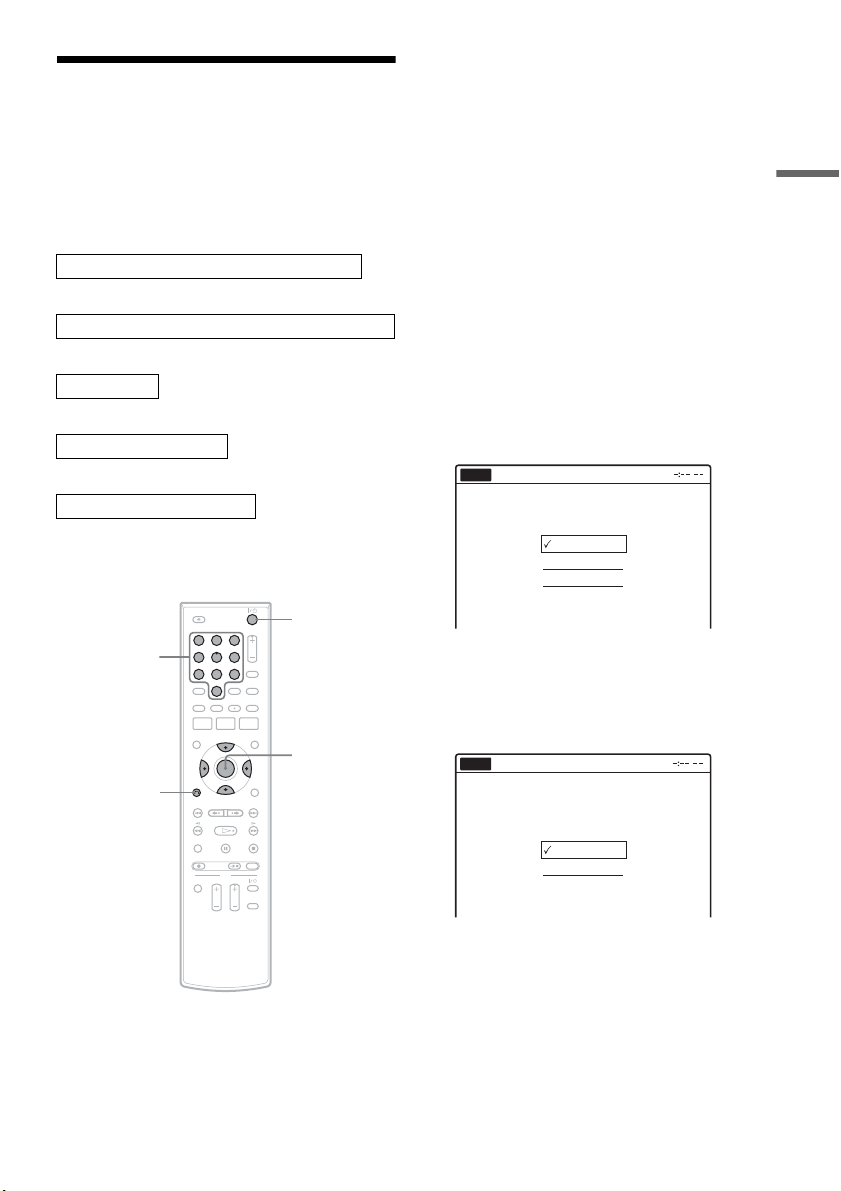
Conexiones y ajustes
9
ES
Paso 6: Configuración fácil
Siga los pasos que se indican a continuación para
realizar el mínimo número de ajustes básicos
necesarios para utilizar la grabadora. Si no
completa la Configuración fácil, aparecerá cada
vez que encienda la grabadora.
Los ajustes se realizan en el orden siguiente.
m
m
m
m
m
1 Encienda el televisor.
2 Presione "/1.
La grabadora se enciende.
3 Cambie el selector de entrada del televisor
para que la señal de la grabadora aparezca
en la pantalla del televisor.
Aparecerá el siguiente mensaje “Initial setting
necessary to operate the DVD recorder will be
made. You can change them later using
setup.” (“Se realizarán los ajustes iniciales
necesarios para usar la grabadora DVD. Podrá
cambiarlos posteriormente utilizando la
configuración.”).
• Si no aparece este mensaje, presione
SYSTEM MENU y seleccione
“Configuración fácil” en la pantalla
“Configuración” para ejecutar la
Configuración fácil.
4 Presione ENTER.
Aparece la pantalla de configuración que le
permite seleccionar el idioma utilizado en las
indicaciones en pantalla.
5 Seleccione un idioma y presione ENTER.
Aparecerá la pantalla de configuración para el
control del decodificador de cable/receptor
vía satélite.
6 Seleccione si se utiliza o no el control del
decodificador de cable/receptor vía
satélite; a continuación, presione ENTER.
Si desea utilizar el control del decodificador
de cable/receptor vía satélite (página 3),
seleccione “Sí”.
De lo contrario, seleccione “No”, y vaya al
paso 10.
Ajuste del idioma de las indicaciones en pantalla
Ajuste del control del decodificador de cable/receptor sat
Ajuste del reloj
Ajuste del tipo de televisor
Ajuste de la conexión de audio
Fin
11 22 33
44 55 66
77 88
00
99
M/m/</,,
ENTER
O RETURN
"/1
Botones
numéricos
English
Français
Español
Easy Setup
Select the screen language.
No Disc
¿Desea controlar el decodificador
con esta grabadora?
(Todo cambio al ajuste actual borrará
los ajustes del temporizador.)
Sí
No
Configuración fácil
No Disc
,continúa
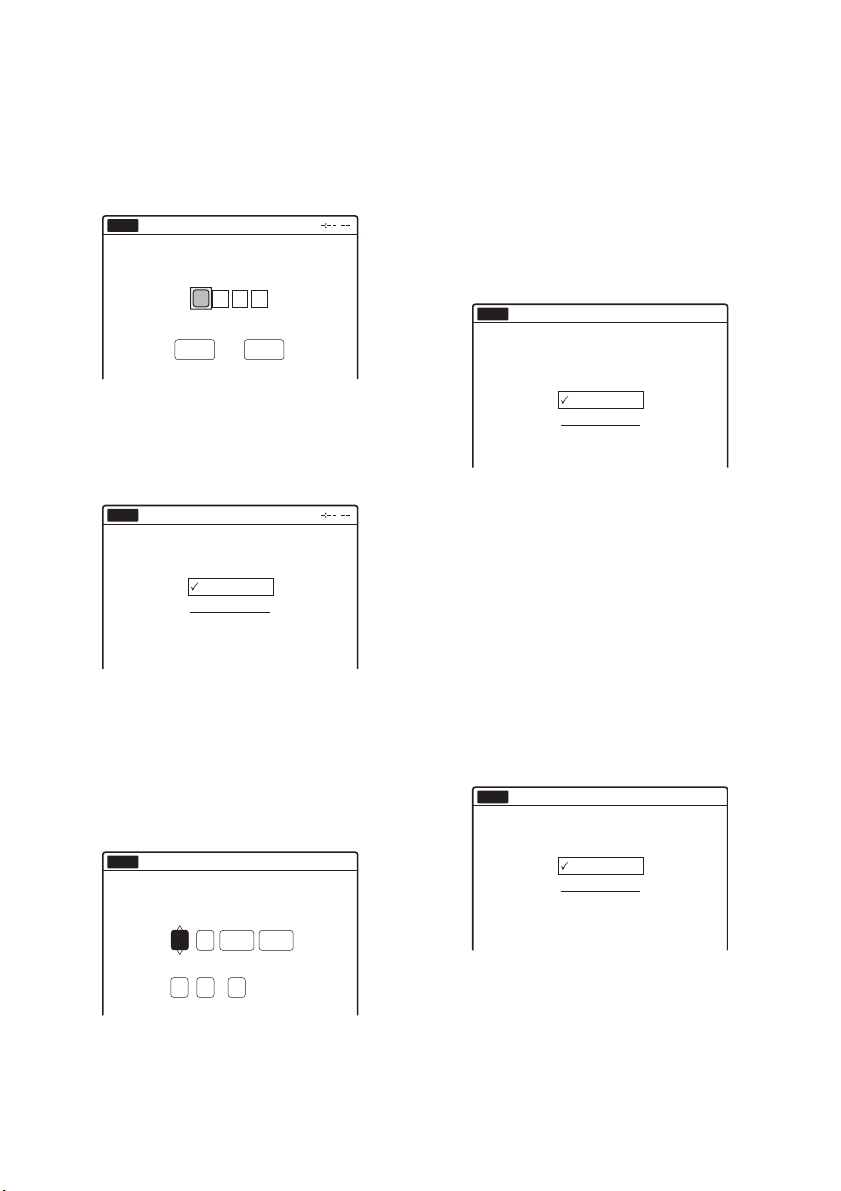
10
ES
7 Presione los botones numéricos para
introducir el código de marca del
decodificador de cable/receptor vía
satélite.
Consulte “Cable Box/Satellite Receiver
Brand Code” en el manual de instrucciones en
inglés (página 100).
• Para volver a introducir el número del
código, seleccione “Cancelar” y vuelva al
paso 6.
8 Seleccione “Aceptar” y presione ENTER.
9 Seleccione la entrada de audio/video de la
grabadora (“Línea1” o “Línea2”) que está
conectada al decodificador de cable/
receptor vía satélite y, a continuación,
presione ENTER.
Aparecerá la pantalla de configuración para
ajustar el reloj.
10
Presione M/m para establecer el mes y
presione ,.
Establezca el día, el año, la hora, los minutos
y AM/PM del mismo modo y, a continuación,
presione ENTER. El día de la semana se
ajusta automáticamente.
Aparecerá la pantalla de configuración para
seleccionar el tamaño de la imagen del
televisor conectado.
11
Seleccione el ajuste que coincida con su
tipo de televisor.
“16:9”: para televisores con pantalla
panorámica o televisores estándar con modo
panorámico.
“4:3 Tipo buzón”: para televisores estándar.
Muestra imágenes “panorámicas” con franjas
en las secciones superior e inferior de la
pantalla.
“4:3 Explo pan”: para televisores estándar.
Muestra automáticamente imágenes
“panorámicas” que ocupan toda la pantalla y
corta las secciones que no caben.
12
Presione ENTER.
Aparece la pantalla de configuración para
seleccionar el tipo de señal Dolby Digital.
13
Seleccione el tipo de señal Dolby Digital
que desea enviar al amplificador
(receptor).
Si el amplificador (receptor) de AV cuenta
con un decodificador Dolby Digital,
seleccione “Dolby Digital”. En caso
contrario, seleccione “D-PCM”.
Configuración fácil
No Disc
Aceptar Cancelar
Introduzca el código de marca
del decodificador.
Seleccione la línea de entrada a
la que ha conectado el decodificador.
Línea1
Línea2
Configuración fácil
No Disc
Hora Min
AM/PM
Mes
Ajuste la hora y la fecha manualmente.
Día Año
00 AM12 :
01 2007 Lun
No Disc
Configuración fácil
12:00 AM
:
01
16 : 9
4 : 3 Tipo buzón
4 : 3 Explo pan
10:10 AM
Seleccione el tipo de pantalla de su TV.
Configuración fácil
No Disc
D-PCM
Dolby Digital
10:10 AM
Dolby Digital
Configuración fácil
No Disc
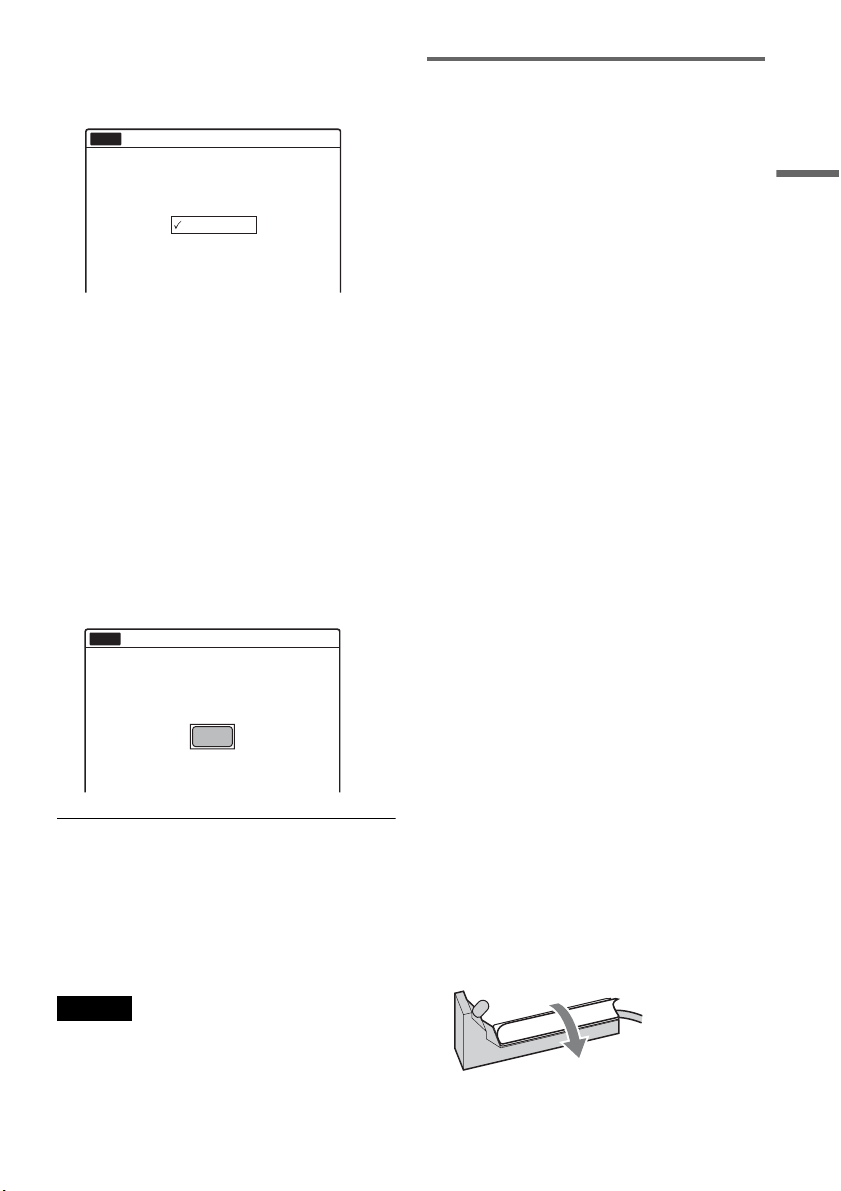
Conexiones y ajustes
11
ES
14
Presione ENTER.
Aparece la pantalla de configuración para
seleccionar el tipo de señal DTS.
15
Seleccione si desea o no enviar una señal
DTS al amplificador (receptor), y presione
ENTER.
Si el amplificador (receptor) de AV cuenta
con un decodificador DTS, seleccione “Sí”.
En caso contrario, seleccione “No”.
16
Presione ENTER cuando aparezca
“Finalizar”.
La Configuración fácil ha finalizado. Se han
realizado todas las conexiones y operaciones
de configuración.
Si utiliza el control de decodificador de cable/
receptor vía satélite, compruebe que el control
funciona correctamente (página 11).
Para volver a la indicación anterior
Presione O RETURN.
z Observación
Si desea ejecutar la Configuración fácil de nuevo,
presione SYSTEM MENU y seleccione “Configuración
fácil” en la pantalla “Configuración”.
Nota
Para grabar programas de televisión utilizando el
temporizador, deberá ajustar el reloj con exactitud.
Comprobar el ajuste de control del
decodificador de cable/receptor vía
satélite
1 Encienda la grabadora y el decodificador
de cable/receptor vía satélite.
2 Oriente el mando a distancia de la
grabadora hacia ésta (no hacia el
decodificador de cable/receptor vía
satélite).
3 Presione CH +/– y compruebe que el canal
cambia en la ventana del decodificador de
cable/receptor vía satélite.
4 Presione los botones numéricos y
compruebe que el canal cambia en la
ventana del decodificador de cable/
receptor vía satélite.
Si no consigue que la grabadora controle el
decodificador de cable/receptor vía satélite
Vuelva a ejecutar la configuración fácil y
compruebe los ajustes (página 9).
Compruebe la conexión y coloque el controlador
del decodificador cerca del decodificador de
cable/receptor vía satélite (página 3).
Si el decodificador de cable/receptor vía satélite
sigue sin funcionar correctamente con la
grabadora, póngase en contacto con la empresa
suministradora para que le proporcionen un
decodificador de cable o receptor vía satélite
compatible.
Arreglar el controlador del decodificador para
el decodificador de cable/receptor vía satélite
Una vez confirmado que el controlador del
decodificador controla el decodificador de cable o
receptor vía satélite, colóquelo en su sitio.
1 Coloque la cinta de doble capa suministrada
en el controlador del decodificador.
Retire las partes de apoyo de la cinta de doble
capa.
Sí
No
10:10 AM
DTS
Configuración fácil
No Disc
Finalizar
10:10 AM
Finalizada la configuración fácil.
Configuración fácil
No Disc
,continúa
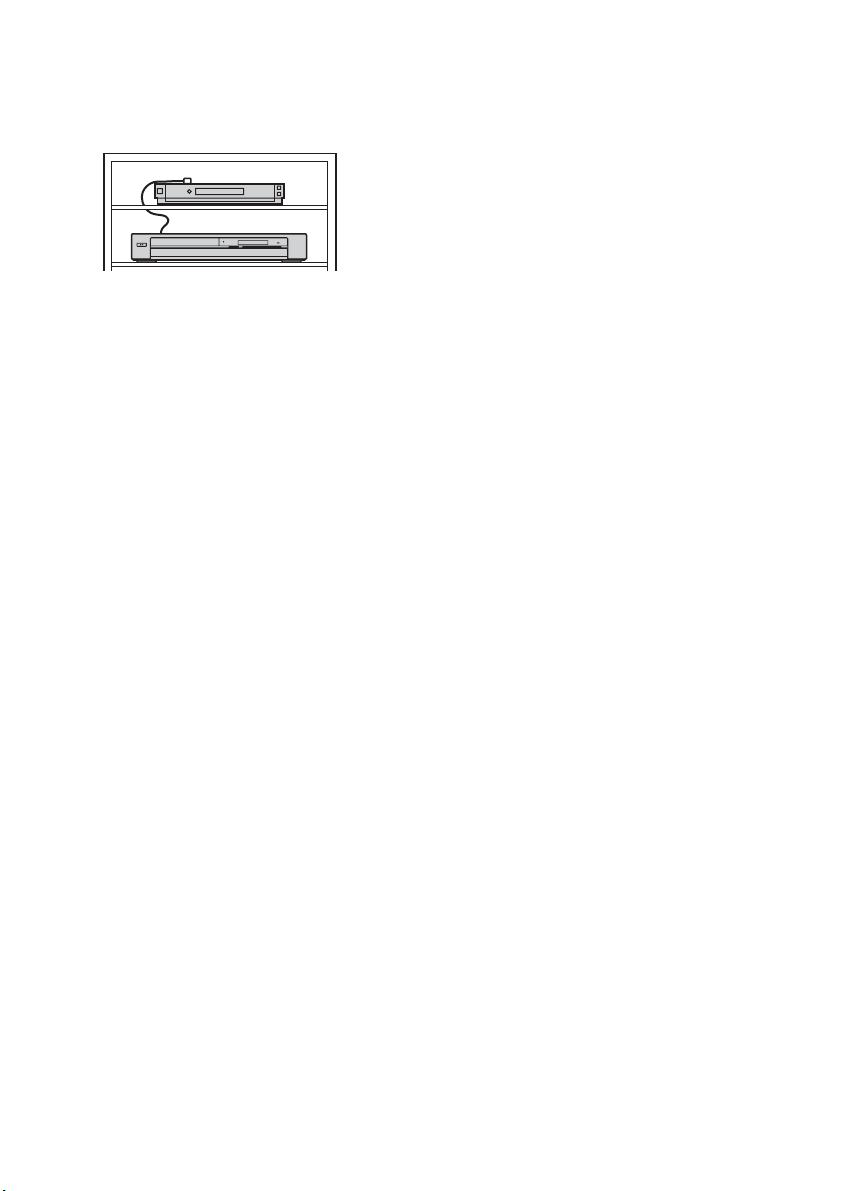
12
ES
2 Colóquelo de manera que el controlador del
decodificador esté cerca del sensor de control
remoto del decodificador de cable/receptor
vía satélite.
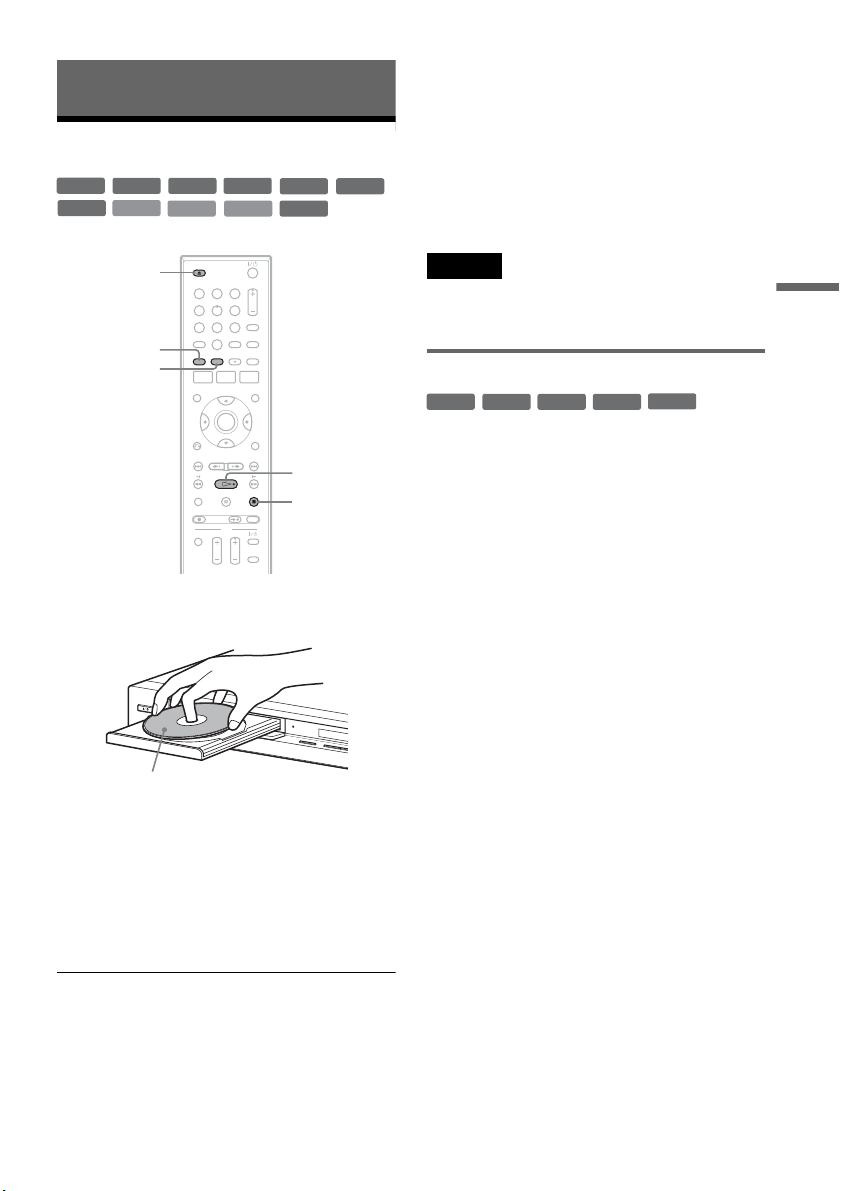
13
ES
Reproducción
Reproducción
Reproducción de discos
1 Presione Z OPEN/CLOSE y coloque un
disco en la bandeja de discos.
2 Presione Z OPEN/CLOSE para cerrar la
bandeja de discos.
Espere hasta que “LOAD” desaparezca de la
pantalla del panel frontal.
3 Presione H PLAY.
Se inicia la reproducción.
Para detener la reproducción
Presione x STOP.
z Observaciones
• Es posible reproducir DATA CD o DATA DVD con
pistas de audio en formato MP3 o archivos de imagen
en formato JPEG.
• Si inserta un DVD VIDEO, VIDEO CD o un CD, la
reproducción se iniciará automáticamente en función
del disco.
• Al reproducir un DVD+RW, DVD-RW, DVD+R y
DVD-R, podrá seleccionar el título del menú Lista
títulos (página 16).
Nota
Para reproducir un disco grabado con otro equipo en esta
grabadora, primero finalice el disco en el equipo de
grabación.
Utilización del menú del DVD
Cuando reproduzca un DVD VIDEO, o un
DVD+RW, DVD-RW (Modo Video), DVD+R o
DVD-R (Modo Video) finalizado, podrá acceder
al menú del disco presionando TOP MENU o
MENU.
+
RW
+
R
DVD
VCD
CD
-
RWVR
-
RW
Video
DATA DVD
DATA CD
-
RVR
-
R
Video
11 22 33
44 55 66
77 88
00
99
x STOP
Z OPEN/
CLOSE
MENU
H PLAY
TOP MENU
D
V
IN
L
(
M
O
N
O
)
A
U
D
I
O
R
V
I
D
E
O
S
V
I
D
E
O
L
I
N
E
-
2
I
N
O
NE-TO
U
CH DU
BBING
La cara de reproducción debe mirar
hacia abajo
+
RW
+
R
DVD
-
RW
Video
+
R
-
R
Video
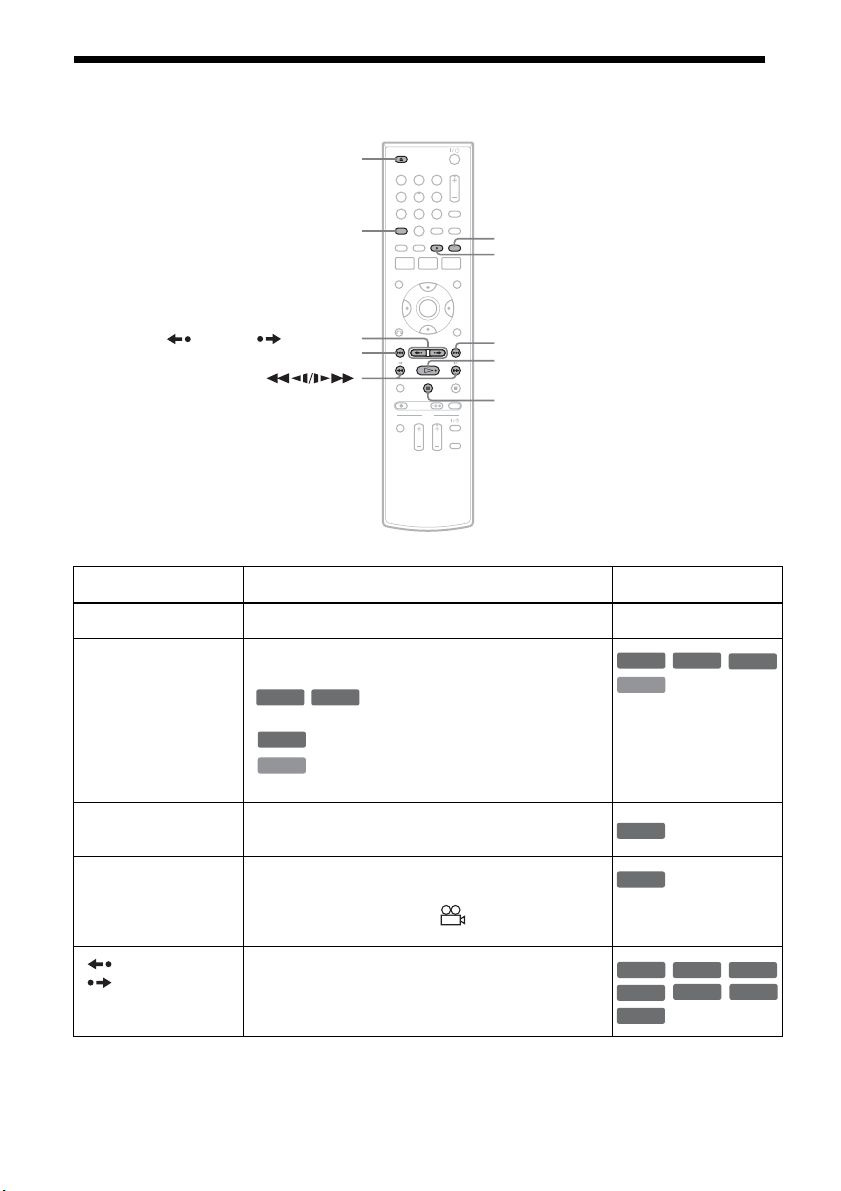
14
ES
Opciones de reproducción
Botón Operación Disco
Z OPEN/CLOSE Detiene la reproducción y abre la bandeja de discos. Todos los discos
AUDIO Selecciona una de las pistas de audio grabadas en el
disco cuando se presiona varias veces.
: selecciona el sonido principal o
secundario.
: selecciona la fuente de audio.
: selecciona las pistas de audio estéreo o
monoaurales.
SUBTITLE Selecciona el idioma de los subtítulos cuando se
presiona varias veces.
.
ANGLE Selecciona un ángulo cuando se presiona varias veces.
Si se grabaron varios ángulos (multiángulo) de una
escena en el disco, aparece “ ” en la pantalla del
panel frontal.
REPLAY/
ADVANCE
• Vuelve a reproducir o avanza rápidamente una
escena si se presiona durante la reproducción.
• Se desplaza al fotograma anterior o siguiente si se
presiona en el modo de pausa.
11 22 33
44 55 66
77 88
00
99
Z OPEN/CLOSE
X PAUSE
AUDIO
. PREV
REPLAY/ ADVANCE
SUBTITLE
H PLAY
> NEXT
ANGLE
-
RWVR
-
RVR
DVD
VCD
DVD
VCD
-
RWVR
-
RVR
DVD
DVD
+
RW
-
RWVR
-
RW
Video
+
R
DVD
-
RVR
-
R
Video
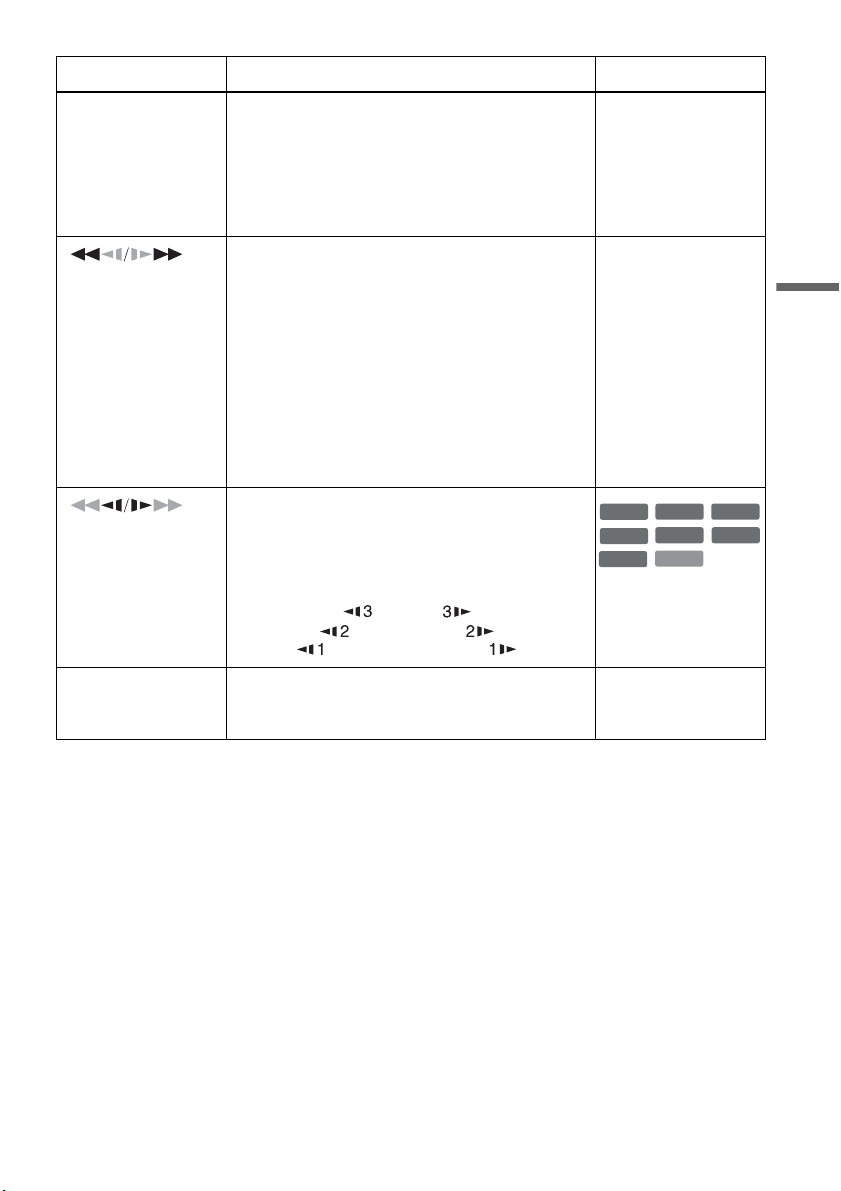
15
ES
Reproducción
Para reanudar la reproducción normal después de reproducir a diferentes velocidades, presione
H PLAY.
. PREV/
NEXT >
• Se desplaza al principio del título/capítulo/escena/
pista actual o siguiente e inicia la reproducción
cuando se presiona durante la reproducción.
• Se desplaza al principio del título/capítulo/escena/
pista anterior si se presiona .PREV en los
3 segundos posteriores al inicio de un título/capítulo/
escena/pista.
Todos los discos
(retroceso rápido/
avance rápido)
Avanza o retrocede rápidamente el disco cuando se
presiona durante la reproducción.
La velocidad de búsqueda cambia cada vez que
presiona el botón:
retroceso rápido avance rápido
FR1 T t FF1
*1
FR2
*2
T T t t FF2
*2
FR3
*3
T T T t t t FF3
*3
Todos los discos
*1
FF1 con sonido
(Explorar audio) está
disponible para DVD
con pistas de sonido
Dolby Digital.
*2
FR2 y FF2 no están
disponibles para
MP3.
*3
FR3 y FF3 sólo están
disponibles para
DVD y VIDEO CD.
(lento)
Reproduce a cámara lenta cuando se presiona en el
modo de pausa.
La velocidad de reproducción cambia cada vez que se
presiona el botón:
retroceso a cámara lenta avance a cámara lenta
T t
T T t t
T T T t t t
* Sólo dirección de
reproducción
X PAUSE Hace una pausa en la reproducción.
Si ésta dura más de cinco minutos, la reproducción se
inicia automáticamente.
Todos los discos
Botón Operación Disco
VCD
+
RW
+
R
-
RWVR
-
RW
Video
DVD
-
RVR
-
R
Video
*
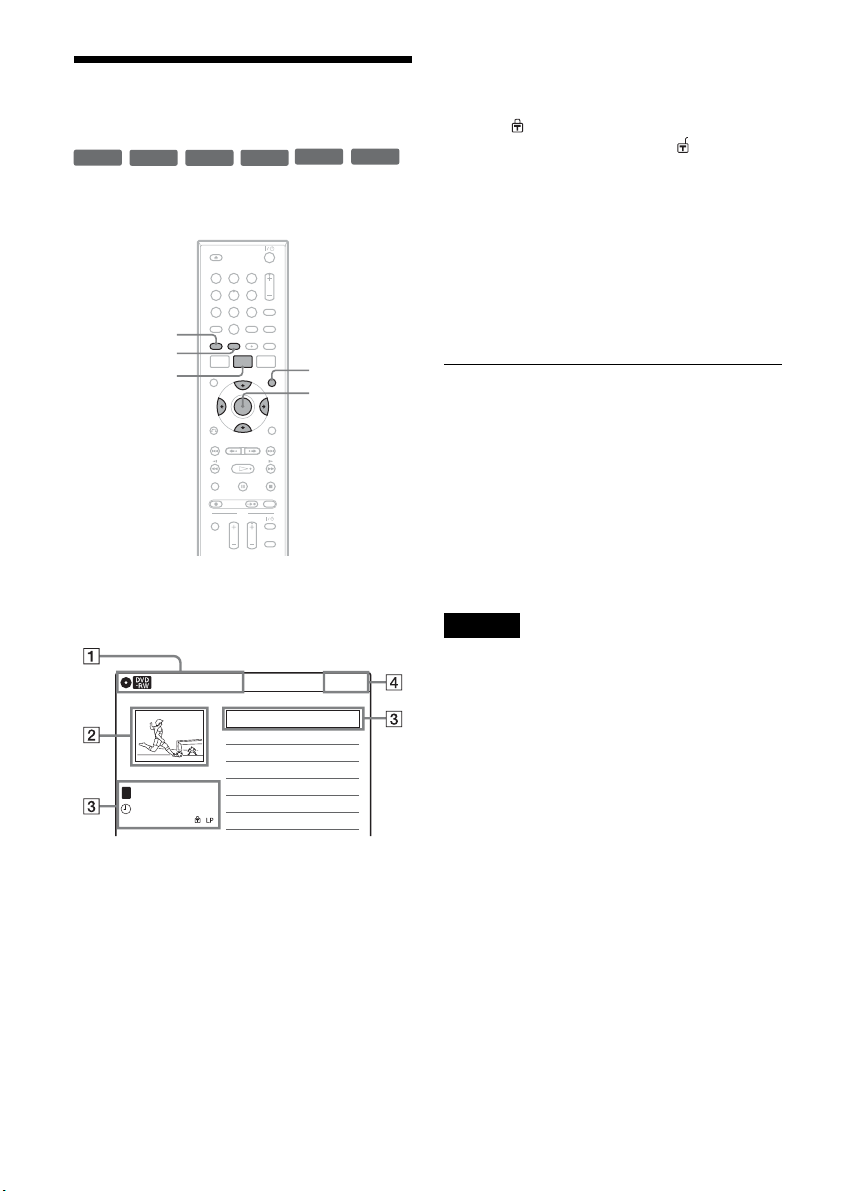
16
ES
Reproducción de un título
de la Lista títulos
El menú Lista títulos muestra los títulos de los
programas del disco.
1 Coloque un disco en la bandeja de discos.
2 Presione TITLE LIST.
Ejemplo: DVD-RW (modo VR)
A Tipo de disco:
Muestra el tipo de disco.
También muestra los tipos de título
(original o Playlist) para DVD-RW
(Modo VR) y DVD-R (Modo VR).
B Imagen en miniatura de película
C Información del título:
Muestra el número del título, su nombre,
la fecha y el modo de grabación.
“ ” indica que se trata de un título
protegido, mientras que “ ” indica que
está desprotegido.
D Reloj
3 Seleccione el título y presione ENTER.
Aparece el submenú.
4 Seleccione “Reproducir” y presione
ENTER.
La reproducción comienza desde el título
seleccionado en el disco.
Acerca de las listas de títulos para DVD-RW
(Modo VR) y DVD-R (Modo VR)
Es posible cambiar la lista de títulos para que se
muestre un título original o una Playlist.
Presione ORIGINAL/PLAYLIST varias veces
mientras se muestra el menú Lista títulos para
seleccionar “Lista títulos (Original)” o “Playlist”.
Para quitar la lista de títulos
Presione TITLE LIST.
Notas
• La lista de títulos no aparece con DVD-RW (Modo
Video), DVD+R o DVD-R (Modo Video) que hayan
finalizado. Para visualizar un título, presione TOP
MENU o MENU (página 13).
• Es posible que la lista de títulos no aparezca en discos
creados en otras grabadoras de DVD.
• Las letras que no pueden mostrarse se reemplazan por
“
*
”.
+
RW
+
R
-
RWVR
-
RW
Video
-
RVR
-
R
Video
11 22 33
44 55 66
77 88
00
99
TITLE LIST
MENU
TOP MENU
ORIGINAL/
PLAYLIST
M/m/</,,
ENTER
10:10 AM
01 LINE 1 >01:29:03
02 LINE 1 >00:31:23
03 LINE 1 >01:59:00
04 LINE 1 >00:58:56
LINE 1
08:00 PM
May/02/2007
T
No. Edit.1/4 Título Long.
Lista títulos (Original)
17
ES
Grabación
Grabación
Antes de grabar
Antes de empezar la grabación…
Compruebe que la grabadora está conectada a un
sintonizador como, por ejemplo, un decodificador
de cable o receptor vía satélite (página 3).
Consulte también el manual de instrucciones del
sintonizador.
Modo de grabación
Esta grabadora dispone de ocho modos de
grabación distintos, al igual que los modos de
grabación SP o EP de las videograbadoras.
Seleccione el modo de grabación en función del
tiempo y la calidad de imagen deseada. Por
ejemplo, si la calidad de la imagen es su principal
prioridad, seleccione el modo “HQ” (alta calidad).
Si su principal prioridad es el tiempo de grabación,
el modo “SLP” puede ser su alternativa.
Presione REC MODE varias veces para
cambiar los modos de grabación.
Modo de grabación y tiempo de grabación
La siguiente tabla es una guía aproximada del
tiempo de grabación en un DVD (4,7 GB).
z Observación
El tiempo de grabación aproximado para los discos
DVD+R DL (doble capa) es el que se indica a
continuación:
HQ: 1 hora y 48 minutos
HSP: 2 horas y 42 minutos
SP: 3 horas y 37 minutos
LSP: 4 horas y 31 minutos
ESP: 5 horas y 25 minutos
LP: 7 horas y 14 minutos
EP: 10 horas y 51 minutos
SLP: 14 horas y 28 minutos
Notas
• En modos de grabación distintos a HQ, la grabadora
comprime los datos de audio/video antes de la
grabación. Dado que las escenas de movimientos
rápidos o la existencia de ruido en la imagen requieren
que las tasas de compresión disminuyan, el tamaño de
los datos grabados aumenta y el tiempo de grabación
disponible se acorta. En la grabación de estas
imágenes, se recomienda un modo de grabación que
proporcione un tiempo de grabación más largo.
• Los siguientes casos pueden producir inexactitudes en
el tiempo de grabación.
– Grabación de imágenes con ruido de imagen o
escenas de movimiento rápido.
– Grabación de un programa con recepción defectuosa,
o una fuente de programa o video con imagen de baja
calidad
– Grabación en un disco ya editado
– Grabación de imágenes fijas o sonido únicamente
• Debido a que el modo de grabación de títulos grabados
se calcula después del muestreo de datos grabados
durante la reproducción, es posible que se muestre
diferente del modo que seleccionó durante la
grabación. Sin embargo, la grabación real se realizó
correctamente en el modo seleccionado.
Deseo grabar con la
mejor calidad de imagen
posible, por eso
seleccionaré HQ.
Modo de grabación Tiempo de
grabación
(minutos)
aproximado
HQ (alta calidad) 60
HSP R 90
SP (Modo estándar) 120
LSP r 150
ESP r 180
LP r 240
EP r 360
SLP (Larga duración) 480
,continúa
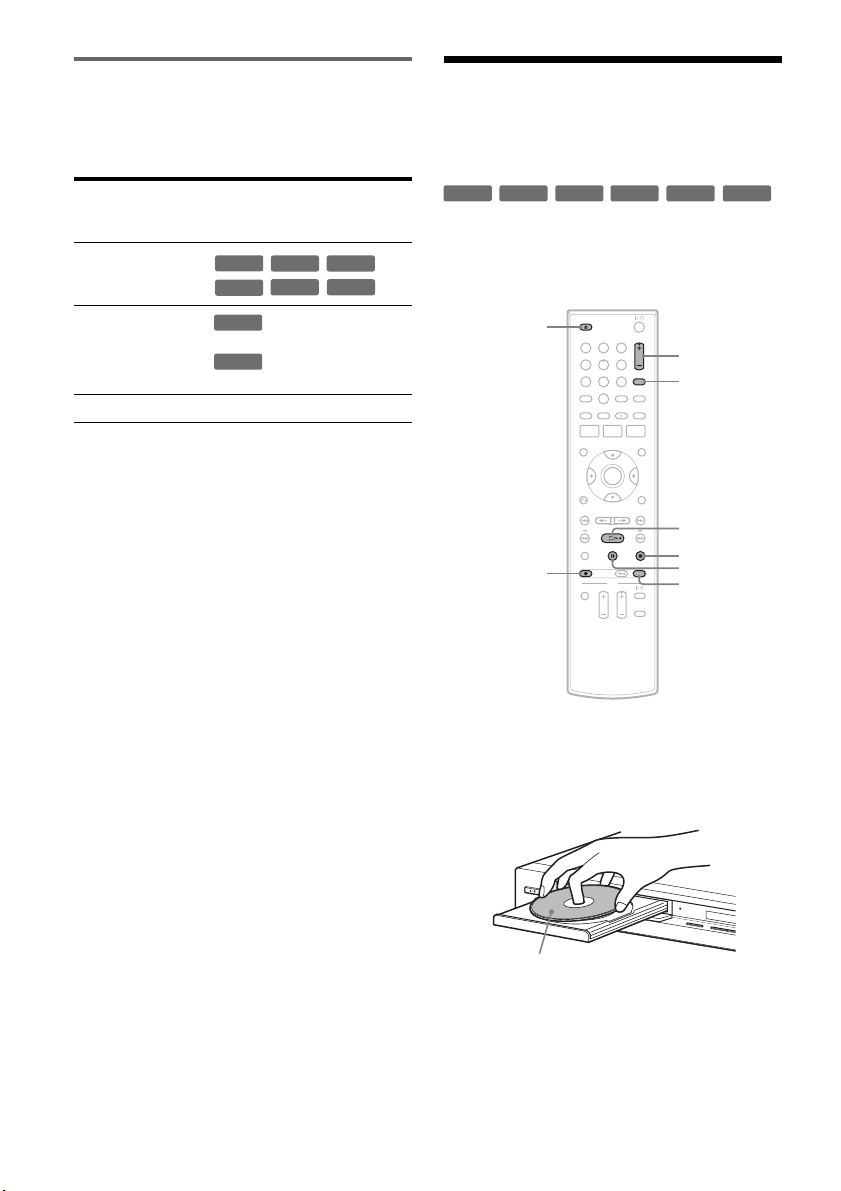
18
ES
Imágenes que no pueden grabarse
En esta grabadora no pueden grabarse imágenes
con protección contra copias. La grabación se
detiene cuando se detecta una señal de protección
contra copias.
* El disco grabado sólo puede reproducirse en un equipo
compatible con CPRM.
Grabación desde un equipo
conectado sin
temporizador
Es posible grabar programas de televisión en la
grabadora a través del decodificador de cable/
receptor vía satélite conectado.
1 Encienda la grabadora y el decodificador
de cable/receptor vía satélite.
2 Presione Z OPEN/CLOSE y coloque un
disco grabable en la bandeja de discos.
3 Presione Z OPEN/CLOSE para cerrar la
bandeja de discos.
Espere hasta que “LOAD” desaparezca de la
pantalla del panel frontal.
Señales de
control
de copias
Discos grabables
Copy-Free
Copy-Once
Ver.1.1, Ver.1.2 con CPRM*
Ver.2.0, Ver.2.1 con CPRM*
Copy-Never Ninguna
+
RW
-
RWVR
-
RW
Video
+
R
-
RVR
-
R
Video
-
RWVR
-
RVR
+
RW
+
R
-
RWVR
-
RW
Video
-
RVR
-
R
Video
11 22 33
44 55 66
77 88
00
99
REC MODE
X PAUSE
x STOP
CH +/–
z REC
Z OPEN/
CLOSE
H PLAY
INPUT
D
V IN
L
(
M
O
N
O
)
A
U
D
I
O
R
V
I
D
E
O
S
V
I
D
E
O
L
I
N
E
-
2
I
N
O
NE-TO
U
C
H D
U
BBING
La cara de grabación debe mirar hacia
abajo
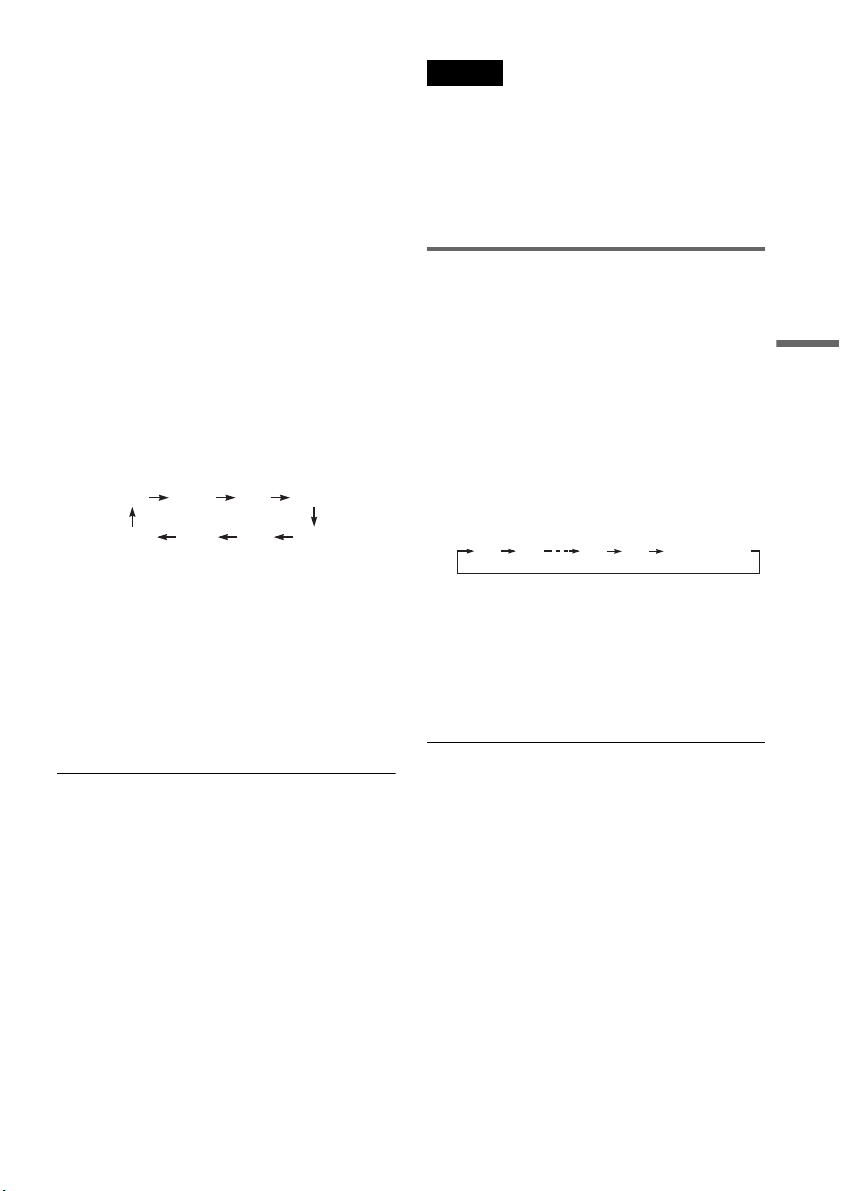
19
ES
Grabación
4 Presione CH +/– o INPUT varias veces para
seleccionar el canal o la fuente de entrada
que desee grabar.
• Cuando utilice el control de decodificador
de cable/receptor vía satélite, seleccione el
canal presionando CH +/– en el mando a
distancia de esta grabadora. La entrada de la
grabadora se cambia a la entrada conectada
(LINE1 o LINE2). También es posible
utilizar los botones numéricos.
• Cuando no utilice el control de
decodificador de cable/receptor vía satélite,
seleccione la entrada conectada (LINE1 o
LINE2) presionando INPUT y, a
continuación, seleccione el canal en el
decodificador de cable/receptor vía satélite.
5 Presione REC MODE varias veces para
seleccionar el modo de grabación.
La pantalla cambiará en la pantalla del
televisor del modo siguiente:
Para obtener más detalles sobre el modo de
grabación, consulte la página 17.
6 Presione z REC.
Comienza la grabación.
La grabación continúa hasta que usted la
detiene o el disco se llena.
Deje el decodificador de cable/receptor vía
satélite encendido y no cambie el canal que
está grabando.
Para detener la grabación
Presione x STOP.
Tenga en cuenta que la grabadora demora algunos
segundos en detener la grabación.
Para hacer una pausa en la grabación
Presione X PAUSE.
Para reiniciar la grabación, presione X PAUSE de
nuevo.
Notas
• Es posible que la grabación no se inicie
inmediatamente después de presionar
z REC.
• No se puede cambiar el modo de grabación mientras
graba o durante una pausa de grabación.
• Si se produce un corte en el suministro eléctrico, se
eliminará el programa que se está grabando.
• No es posible cambiar la fuente de entrada durante la
grabación.
Grabación mediante la función
Quick Timer (Grabación con
temporizador presionando un solo
botón)
Puede ajustar la grabadora para que grabe en
incrementos de 30 minutos.
Presione z REC varias veces para definir la
duración.
Cada vez que presione el botón, aumentará el
tiempo en 30 minutos, hasta un máximo de
ocho horas*.
“c” y “OTR” se iluminan y el tiempo de
grabación restante aparece en la pantalla del
panel frontal.
Cuando el contador llega a “0:00”, la
grabadora detiene la grabación y se apaga.
* 14 horas 30 minutos para discos DVD+R DL (doble
capa).
Para cancelar el Quick Timer
Presione z REC varias veces hasta que aparezca
el contador en la pantalla del panel frontal. La
grabadora vuelve al modo de grabación normal.
Para detener la grabación
Presione x STOP dos veces.
Tenga en cuenta que la grabadora demora algunos
segundos en detener la grabación.
HQ SPHSP LSP
SLP LPEP ESP
0:30 1:00 7:30 8:00
(Grabación
normal)
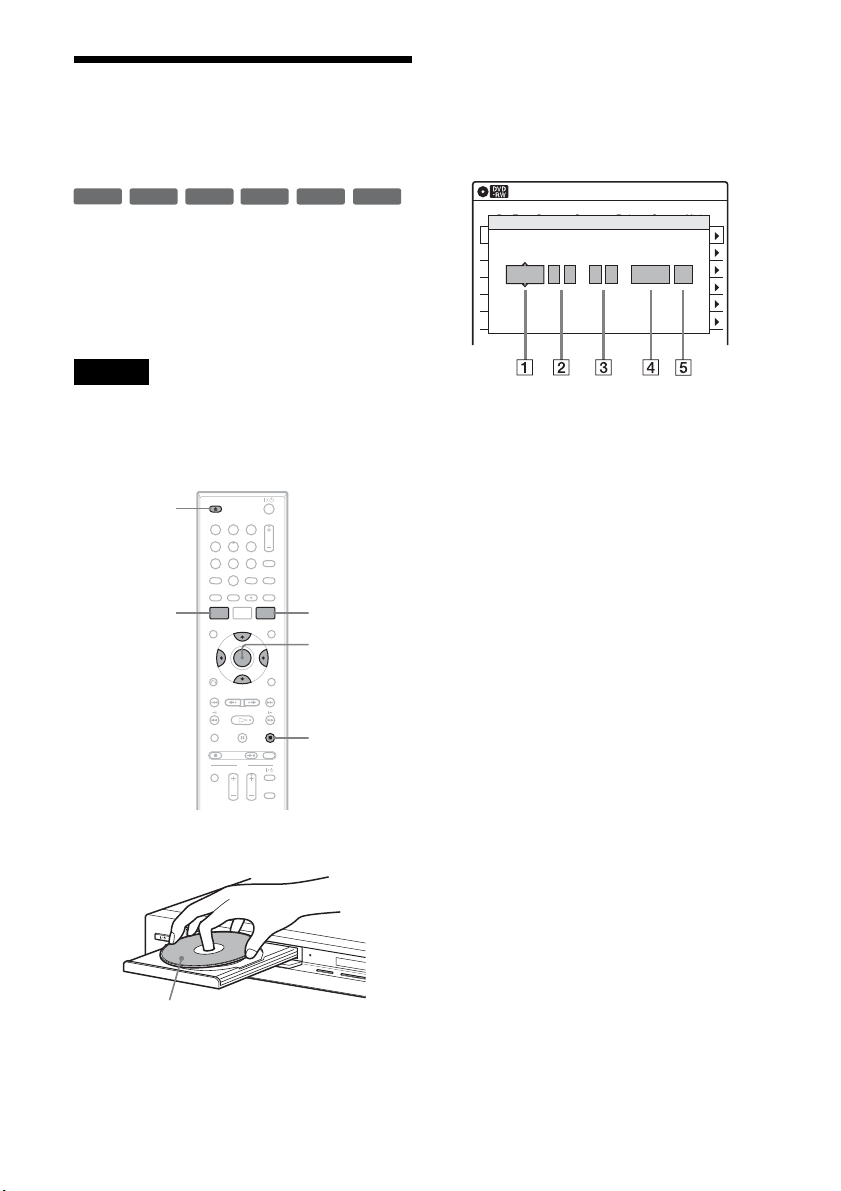
20
ES
Grabación con
temporizador desde un
equipo conectado
Puede ajustar el temporizador para un total de 12
programas con un máximo de un mes de
anticipación.
Tenga en cuenta que el tiempo de grabación
continua máximo de un único título es de 12 horas.
El contenido que supere este tiempo no se grabará.
Nota
No opere el decodificador de cable ni el receptor vía
satélite justo antes ni durante una grabación con
temporizador, ya que ello puede impedir la grabación
correcta de un programa.
1 Presione Z OPEN/CLOSE y coloque un
disco grabable en la bandeja de discos.
2 Presione Z OPEN/CLOSE para cerrar la
bandeja de discos.
Espere hasta que “LOAD” desaparezca de la
pantalla del panel frontal.
3 Presione TIMER.
4 Seleccione un elemento utilizando </,
y ajústelo utilizando M/m.
A “Fecha”: ajusta la fecha mediante M.
Para grabar el mismo programa todos los
días o el mismo día todas las semanas,
presione m.
El elemento cambia de la siguiente
manera:
Hoy y Dom-Sáb (de domingo a sábado)
y Lun-Sáb (de lunes a sábado) y
Lun-Vie (de lunes a viernes) y
Dom (todos los domingos) y
Lun (todos los lunes) y … y
Sáb (todos los sábados) y
1mes más tarde y … y Hoy
B “Inicio”: establece la hora de inicio.
C “Fin”: establece la hora de finalización.
D “Can”: selecciona el canal o la fuente
de entrada.
• Cuando utilice el control de
decodificador de cable/receptor vía
satélite, seleccione el canal.
• Cuando no utilice el control de
decodificador de cable/receptor vía
satélite, seleccione la entrada, Linea1 o
Linea2. Seleccione el canal en el
decodificador de cable/receptor vía
satélite conectado antes de iniciar la
grabación con temporizador.
+
RW
+
R
-
RWVR
-
RW
Video
-
RVR
-
R
Video
11 22 33
44 55 66
77 88
00
99
M/m/</,,
ENTER
Z OPEN/
CLOSE
x STOP
SYSTEM
MENU
TIMER
DV IN
L
(
M
O
N
O
)
A
U
D
I
O
R
V
I
D
E
O
S
V
I
D
E
O
L
I
N
E
-
2
I
N
O
N
E-TO
U
CH
DU
BBING
La cara de grabación debe mirar hacia
abajo
01 DVD 04/15 09:00PM 10:00PM CH8
--- --/-- --:-- --:-- ---- ---04
--- --/-- --:-- --:-- ---- ---05
--- --/-- --:-- --:-- ---- ---06
03 --- --/-- --:-- --:-- ---- ---
02 DVD 04/30 09:15PM 09:45PM CH11
10:10 AM
No Rec To Date Start End Source Mode Edit.
Temporizador – Estándar
No.01
: PM PM
:
Hoy 09 00 10 00 Línea1 SP
Can ModoFecha Inicio Fin

21
ES
Grabación
E “Modo”: selecciona el modo de
grabación (página 17).
Para utilizar la función Ajustar modo
grab. (página 21), seleccione “AUTO”.
Si se equivoca, seleccione el elemento y
cambie el ajuste.
5 Presione ENTER.
Aparecerá el menú Lista de temporizador.
Se ilumina el indicador c en la pantalla del
panel frontal, y la grabadora está lista para
comenzar a grabar.
• Si parpadea el indicador c en la pantalla del
panel frontal, compruebe que hay un disco
grabable insertado y que en el disco hay
suficiente espacio para la grabación.
6 Presione SYSTEM MENU para quitar el
menú.
No es necesario apagar la grabadora antes de
que empiece la grabación con temporizador.
Deje el decodificador de cable/receptor vía
satélite encendido y no cambie el canal
seleccionado hasta que la grabadora finalice la
grabación con temporizador.
Para detener la grabación
Presione x STOP dos veces.
Tenga en cuenta que la grabadora demora algunos
segundos en detener la grabación.
Para utilizar la función Ajustar modo grab.
Si el espacio restante en el disco no es suficiente
para realizar la grabación actual, la grabadora
ajustará el modo de grabación automáticamente.
Seleccione “AUTO” en “Modo” al ajustar el
temporizador.
Notas
• Aunque lo ajuste correctamente, es posible que el
programa no se grabe si se está realizando otra
grabación o si se superpone otro ajuste de temporizador
con prioridad.
• Antes de comenzar la grabación con temporizador,
“TIMER REC” parpadea en la pantalla del panel
frontal.
• La grabadora se apaga automáticamente cuando
finaliza una grabación con temporizador, incluso
aunque la grabación comenzase con la grabadora
encendida.
• La grabadora no graba programas con señales Copy-
Never. Este tipo de grabaciones se detienen al cabo de
unos segundos.

Sony Corporation Printed in China AK68-01461A