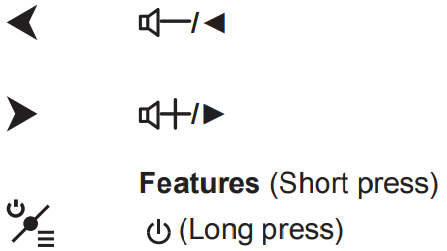
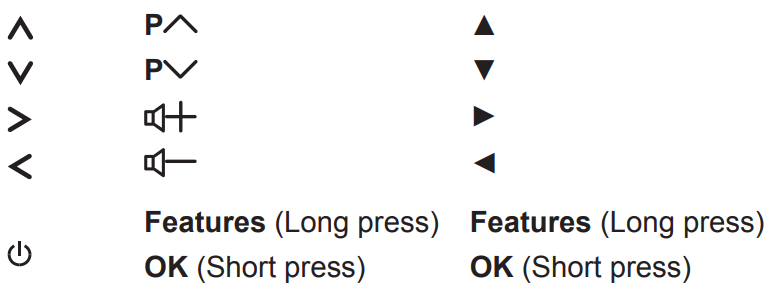
If the batteries in your remote control are run down, you can use the buttons on your TV set. They have the following functions:
For models with below buttons on the set:
For models with below buttons on the set:
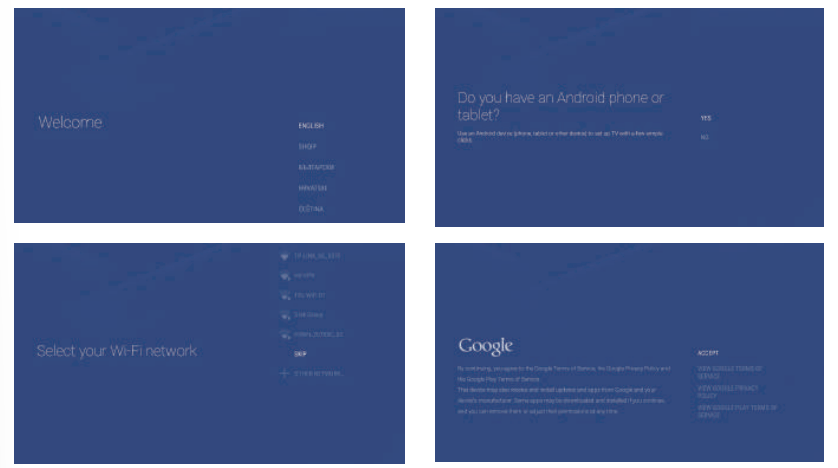
Initial Setup
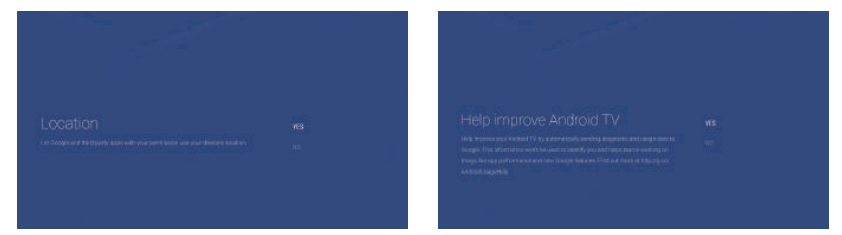
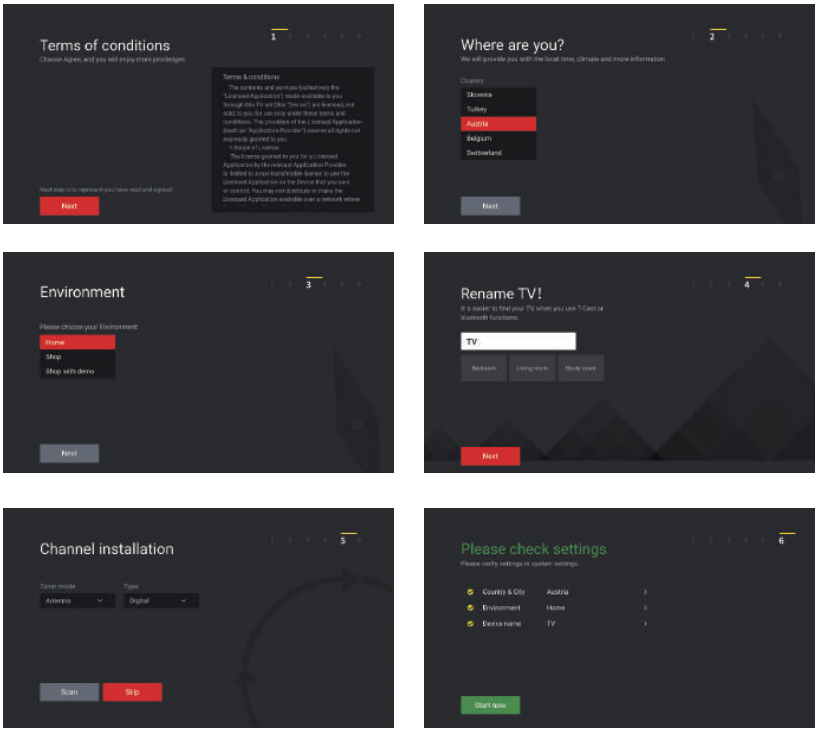
The first time you switch the set on, the Welcome screen appears, which guides you through the initial setup process. Follow the on-screen instructions to finish the initial setup process such as selecting the language, connecting to the network, scanning channels, and more. During each step, either make a choice or skip the step. If you skip a step, you can perform the setup later from the settings menu.
Part 1, Google setup
Part 2, TCL initial setup
Sockets
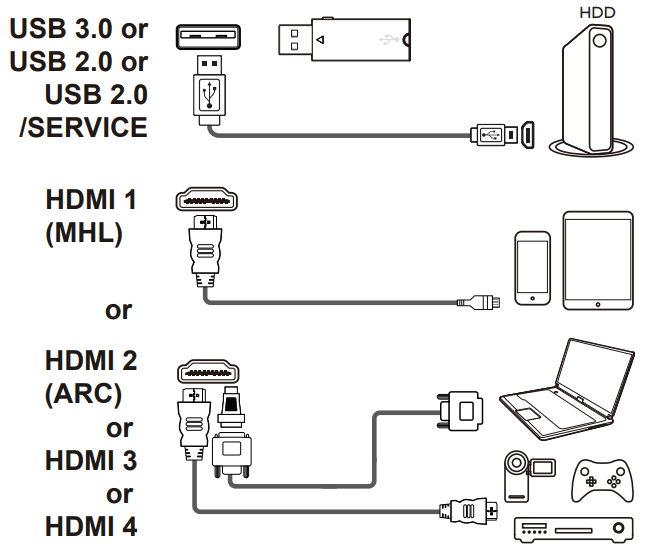
USB 3.0 or USB2.0 or USB 2.0/SERVICE socket (input)
These sockets can be used to connect a USB device.
Note: The number of USB sockets on the TV may vary according to TV model.
HDMI1(MHL) or HDMI2(ARC) or HDMI3 or HDMI4 socket (input)
The HDMI (High-Definition Multimedia Interface) socket can be used to connect a Blu-ray player, PC with a compatible video card installed, certain DVD players or a high-definition compatible digital satellite decoder. This socket provides an uncompressed digital connection that carries both video and audio data by way of an integrated mini-plug cable.
Note: Only HDMI sockets with the MHL identification will support the MHL function, MHL stands for Mobile High-definition Link, and allows you to link an MHL capable mobile device to the television.
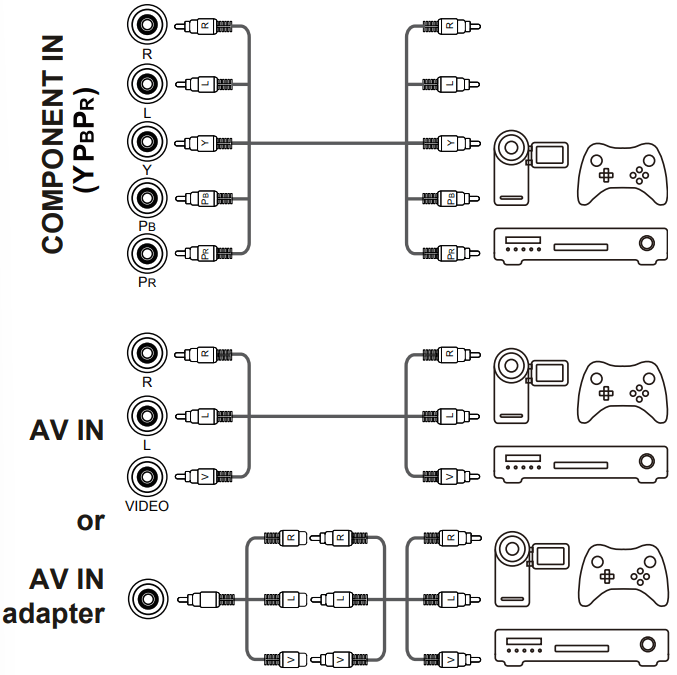
COMPONENT IN(YPBPR) socket (input)
These YPbPr sockets can be used to connect a device that has component video sockets, such as a DVD player. The component sockets can recognize if the device you're connecting to is Y Pb Pr compatible. The component sockets provide excellent picture quality because the video is separated into three independent parts.
AV IN adapter socket
The AV IN adapter socket can be used to connect the attached AV adapter cable with VIDEO and AUDIO L & R IN sockets. The AV IN sockets can be used to connect a range of equipment, including video recorders, camcorders, decoders, satellite receivers, DVD players, or games consoles. The VIDEO IN socket provides composite video connection.
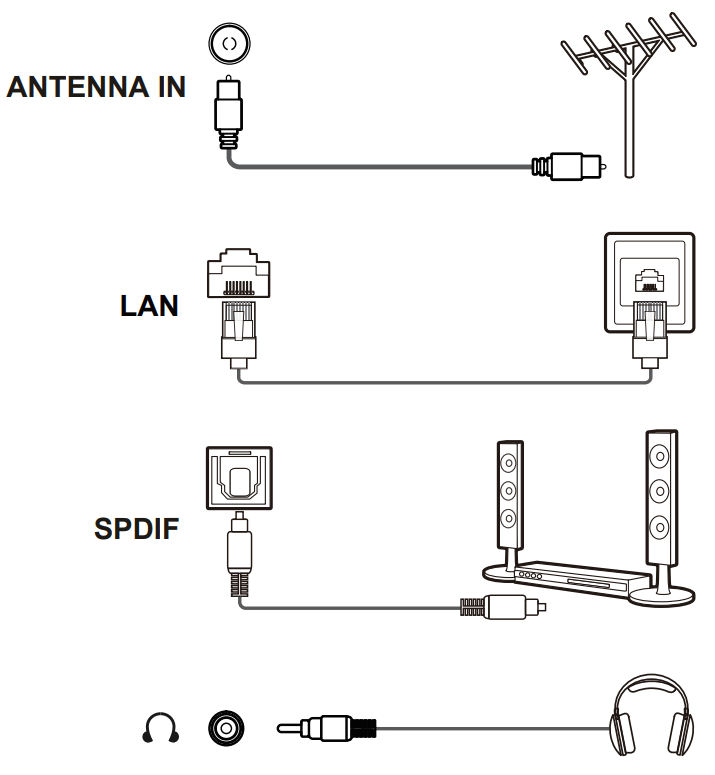
ANTENNA IN socket (input)
This socket can be used to connect an outside aerial. LAN RJ45 plug for connecting to external modem or network access equipment.
SPDIF socket (output)
The SPDIF socket can be used to connect a compatible digital audio receiver.
Headphone socket (output)
This socket can be used to connect headphones or stereo earphones. Warning: Excessive sound pressure from earphones and headphones can cause hearing loss.
Remote Control Functions
To switch the sound off and back on.
Standby / quit standby.
Numeric buttons To enter channel numbers or a digit.
To access or exit TCL TV+ launcher.
LIST To display the channel list.
To control the volume.
To display programme information, if available.
To display the Settings menu.
To change channels.
To access or exit the Smart TV homepage.
To display the Option menu.
Navigation direction buttons.
OK To confirm an entry or selection.
To return to the previous menu or quit an App.
To select input source.
EXIT To exit the Settings menu.
To select a sound type available for selected analogue TV pro gramme; to select an audio language available for selected digital TV programme.
GUIDE To toggle the Electronic Programme Guide on or off (only avail able for digital channels).
TEXT To toggle Teletext on or off.
SUBT. To select a subtitle language available for selected digital TV programme.
Colour buttons To select tasks or Teletext pages; to be used for HbbTV function.
To start fast reverse.
To pause playback.
To start fast forward.
To record programs under DTV source.
To start playback.
To stop playback.
NETFLIX To access the NETFLIX application. (Not available for some models.)
Installing Batteries
1. Push to open the back cover as illustrated.
2. Insert two AAA batteries according to the polarities marked on the batteries case.
3. Replace the back cover as illustrated.
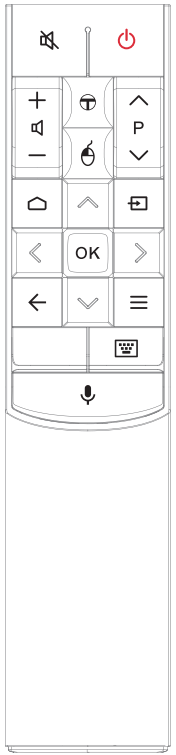
Exclusive Remote Control
To switch the sound off and back on.
Standby / quit standby.
To control the volume.
To access or exit TCL TV+ launcher.
To turn on the mouse function.
To change channels.
To access or exit the Smart TV homepage.
To select input source.
Navigation direction buttons.
OK To confirm an entry or selection
To return to the previous menu or quit an App.
To display the Option menu.
To pop up the virtual remote control keyboard when available.
To turn on the voice function. (Available only when the network connection is normal.)
Note: This remote control is available only for selected models. The remote control type may be changed without notice. When using the MOUSE or VOICE CONTROL button for the first time,you will be prompted to pair the remote with the TV. Please follow the on-screen guide for paring instructions.
1. Hold the bottom part of the remote control, use a plastic coin-shaped object to twist the switch to the "Open" location as illustrated. 2. Pull out the battery cover. 3. Insert two AAA batteries according to the polarities marked on the battery case. 4. Replace the battery cover and use a plastic coinshaped object to twist the switch to the "Closed" position.
Network Connection
WARNING Your TV will require an internet connection to operate all functions. Data usage charges may apply. Please refer to your Internet Service Provider (ISP) for additional information.
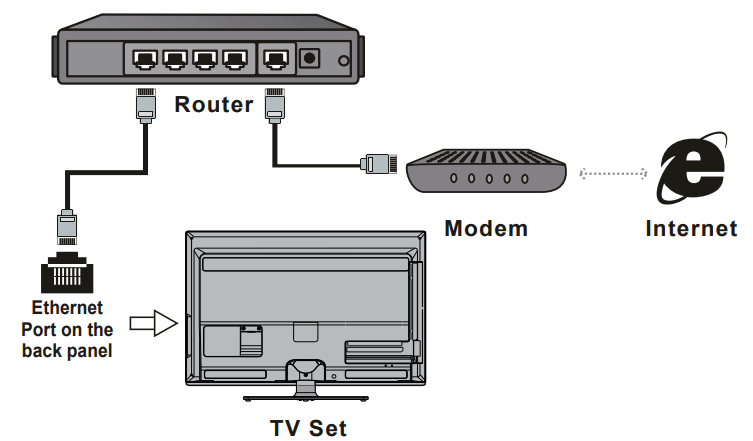
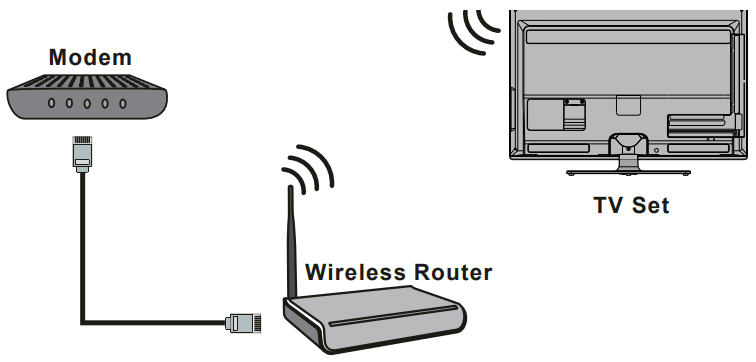
To access the internet, you must subscribe to high speed broadband internet service from your internet service provider. Your TV can be connected to your home network in two ways:
• Wired, using the RJ45 (LAN) connector on the back panel.
• Wireless, using the internal wireless or external wireless USB adapter and your home wireless network.
Note: The following instructions are just the usual ways to connect your TV to the wired or wireless network. The connection method may be different depending on your actual network configuration. If you have any questions about your home network, please refer to your ISP(Internet Service Provider).
Connecting to a wired network
1.Ensure you have:
• An ethernet cable long enough to reach your TV
• A router or modem with an available Ethernet port
• A high-speed internet connection
• An Ethernet (LAN) port on the back of the TV
2. Connect your ethernet cable to the router and to the Ethernet port on the back of the TV.
3. Use the Network Settings to configure the TV.
Connecting to a wireless network
1. Ensure you have:
• A router broadcasting a high-speed wireless signal
• A high-speed internet connection
2. Use the Network Settings to configure the TV.
Network Settings
Connecting to a wireless network
Press on the remote control. The Smart TV homepage is displayed.
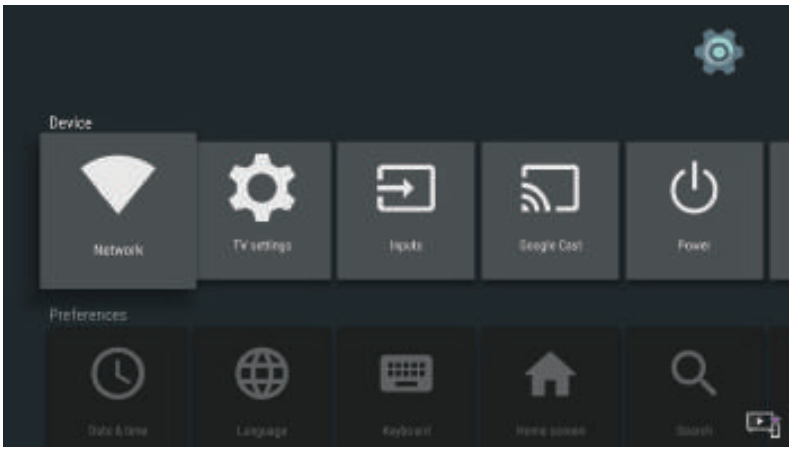
Press ▲/▼ to move to the Settings area, select Settings and press OK to enter.
Move to the Device area, select Network and press OK to enter. The Network menu is displayed.
Select Wi-Fi and press OK to enter.
Set Wi-Fi to On. All available wireless networks will be displayed.
Press ▲/▼ to highlight the name of your wireless network and press OK.
Using the on-screen keyboard and the remote, enter your network's password, then hightlight Enter on the on-screen keyboard and press OK. Once connected, the wireless network will be saved. Next time when you connect to the same network, you do not have to re-enter the password.
Press to close the menu and return to the Smart TV homepage.
Connecting to a wired network
From the Nework menu, select Ethernet and press OK to enter.
Press ▲/▼ to select Advanced options and press OK.
Press ▲/▼ to select Proxy settings and press OK.
Select MANUAL, using the on-screen keyboard and the remote, enter your network's proxy information step by step.
Press ▲/▼ to select IP settings and press OK.
Select DHCP or STATIC. If you select STATIC, you must enter your network's IP address, gateway, network prefix length, DNS1, and DNS2 step by step.
Press t o close the menu and return to the Smart TV homepage.
Detecting your network status
From the Nework menu, select Network Detection and press OK to enter.
The Network Detection screen displays the connection method of your network connection.
Press to close the menu and return to the Smart TV homepage.
Basic TV Operation
Accessing Channels
Using the numeric buttons: press the corresponding numeric buttons on the remote control to access the channels.
Using the buttons: press the buttons on the remote control or the corresponding buttons on the TV set to scroll through the channels.
Using the LIST button: press the LIST button on the remote control to display the channel list and press and OK to select channels.
Watching Connected Devices
Press on the remote control to display the source list. Press ▲/▼ to select TV or other input sources and press OK to confirm.
You can also press on the remote control to display the homepage, press ▲/▼ to move to the Source area, then press ◄/► and OK to select the input source.
Adjusting Volume
Volume control: press the buttons on the remote control or the corresponding buttons on the TV set to increase or decrease the volume.
Sound mute: press the button to temporarily mute the sound. Press this button again or the button to restore the sound.
Accessing Smart TV Homepage
Allows you to enjoy Internet Applications (Apps) and specially adapted Internet websites, and perform system settings for your TV. You can make controlling with the TV remote control.
WARNING:
Configure the network settings before using Smart TV applications.
Slow responses and/or interruptions may occur, depending on your network conditions.
If you experience a problem using an application, please contact the content provider.
According to circumstances of the content provider, an application’s updates or the application itself may be discontinued.
Depending on your country's regulations, some applications may have limited service or not be supported.
Changes in application content may be made without prior notice by the service provider.
Press on the remote control to display the Smart TV homepage.
Press ▲/▼/◄/► and OK to enter the desired Apps, functions or settings.
Press to return to the homepage.
To exit the homepage, use ▲/▼/◄/► to move to the source you'd like to choose, then press OK to enter.
Note: Since the connection with Internet takes time, it’s recommended that you wait a few minutes to use the Smart TV feature after activation of TV from standby.
Accessing T-Launcher
Allows you to enjoy Internet Applications (Apps) and videos
Press on the remote control to display the T-Launcher.
Press ▲/▼/◄/► and OK to enter the desired Apps or videos.
Press to return to the launcher.
Press again to exit the T-Launcher.
Using Google Settings
Allows you to not only adjust device settings, such as network, TV settings, inputs, Google Cast and apps, etc., but also set preferences.
Press on the remote control to display the Smart TV homepage.
Press ▲/▼/◄/► and OK to enter the Google settings.
Press ▲/▼/◄/► to choose the items and press OK to enter.
Press to return to previous interface.
Press EXIT to close the menu.
Using TV Settings menu
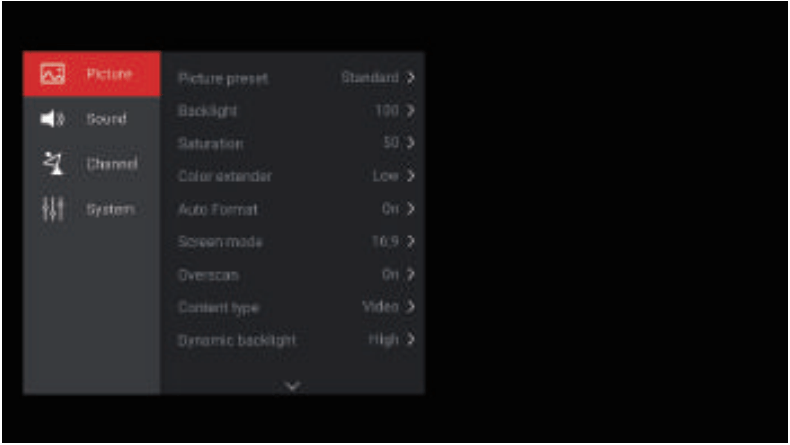
Allows you to adjust TV settings, such as picture and sound.
Press on the remote control to display the Settings menu.
Press ▲/▼ to select the desired item, then press OK/► to enter the corresponding submenu.
In submenus, press ▲/▼ to select menu options, then press OK/► to enter the option list, the adjustment interface, or the corresponding submenu.
Press to return to the previous menu.
Press EXIT or to close the menu.
Note: You can also press on the remote control, select Settings (if available) and press OK to enter the Settings menu. Some options may not be available for certain signal sources.
Using more of your TV
Installing Channels
This section describes how to search and store channels automatically. This may be done in any of the cases below:
you have skipped the channel installation step in the initial setup;
you are prompted that there are no channels in TV mode;
you want to update your channels.
In TV mode, press on the remote control and select Channel > Channel scan. Press OK/► to enter.
The TV installs and arranges channels according to your country. Press ▲/▼ to select Country, and press OK/► to enter. Enter the default password 1234 or your own password in case you have changed the password in the System > Lock menu. Press ▲/▼ to select your country and press OK to confirm.
Press ▲/▼ to select Automatic search and press OK/► to enter.
Press ▲/▼ to select Channel type and press ◄/► to select Digital, Analogue or Digital&Analogue.
After configuration is completed, press ▼ to select Search and press OK to start scanning channels.
The channel search may take a few minutes. After the automatic search, channels are arranged in a preset order. If you wish to hide or move channels, press on the remote control, select Channel > Channel organizer and press OK/► to enter.
Using Subtitles
You can enable subtitles for each TV channel.
Subtitles are broadcast via Teletext or DVB-T/DVB-C digital broadcasts. With digital broadcasts, you have the additional option of selecting a preferred subtitle language.
Turning on/off subtitles
Press on the remote control, select Channel > Subtitle and press OK/► to enter.
Select the Subtitle option, press OK/► to enter, press ▲/▼ to select On or Off and press OK to confirm.
Press EXIT or to close the menu.
Enabling subtitle languages on digital TV channels
Press on the remote control, select Channel > Subtitle > Digital subtitle language 1st and press OK/► to enter.
Press ▲/▼ to select a subtitle language as your preferred language and press OK to confirm.
Press ▲/▼ to select Digital subtitle language 2nd and press OK/► to enter.
Press ▲/▼ to select a secondary subtitle language and press OK to confirm.
Press EXIT or to close the menu.
Shortcut operation: Press SUBT. on the remote control to directly select a subtitle language available for the selected digital TV programme.
Selecting a subtitle type on digital TV channels
Press on the remote control, select Channel > Subtitle > Subtitle type and press OK/► to enter.
Press ▲/▼ to select a subtitle type and press OK to confirm. You can select Hearing impaired to display the hearing impaired subtitles with your selected language.
Press EXIT or to close the menu.
Using Teletext
Selecting decoding page language
Press on the remote control, select Channel > Teletext > Decoding page language and press OK/► to enter.
Press ▲/▼ to select a proper type of language in which Teletext will display and press OK to confirm.
Press EXIT or to close the menu.
Digital Teletext language
On digital TV channels, depending on the broadcaster, you may be able to enjoy a service with multiple initial
Teletext pages in different languages. This function allows you to select an available language as primary language, which relates to different initial Teletext pages.
Press on the remote control, select Channel > Teletext > Digital teletext language and press OK/► to enter.
Press ▲/▼ to select a language and press OK to confirm.
Press EXIT or to close the menu.
Network waking up
This function allows you to turn on your TV from standby mode via a network. To use this function, please make sure:
Your TV is connected to an effective home network;
The desired controller, such as a smartphone, is connected to the same network as your TV;
An App which supports network waking up function, has been installed into the controller;
Network standby is set to On in the Network menu.
When the TV is in network standby mode, you can use the App to wake up the TV remotely
T-Link
Use this function to search for CEC devices connected to the HDMI sockets in your TV and enable auto power on and auto standby between the TV and CEC devices.
Enabling or disabling T-Link
Press on the remote control, select System > T-Link and press OK/► to enter.
Press ▲/▼ to select On or Off and press OK to confirm.
Press EXIT or to close the menu.
Using Auto Power on
Enables the TV to automatically power on when you power on a CEC device (e.g. DVD) with the device’s remote. Select On to enable this function.
Using Auto Standy
Enables all CEC devices to automatically go to the standby mode when you turn off the TV with the TV remote. Select On to enable this function.
Note: The CEC functions depend on the devices connected and it is possible that some devices may not interoperate correctly when connected to this TV. The user manual or the manufacturer of the problematic devices should be consulted for further information.
Time Shift
Allows you to pause, fast forward and rewind live TV, so you don’t have to miss any part of your favourite programs. Before you use the function, connect a USB drive to the TV first. For the first time, you should complete the disk setup for the USB drive.
Press on the remote control and select Time Shift, then press OK/► to confirm.
Follow the directions on the screen to do the disk setup if you use time shift for the first time.
After the disk setup is done, time shift will start, and the time shift menu displays on the screen.For later use, press and select Time Shift. press OK/► to display the time shift menu and operate according to the on-screen prompt.
Pressing Stop button stops the time shift and exits.
When the time shift menu disappears and only the timing of the time shift remains on the screen, you can press OK to call out the time shift menu.
Notes:
This feature is available only for digital channels.
Before you plug the USB drive to TV, make sure you have backed up the data on the drive to avoid unforeseen malfunction and data loss.
We recommend that you use a USB drive with at least 1GB free space and a disk speed faster than MB/sec.
The bigger the USB drive free space for time shift, the bigger the recording length.
Quick Access of Time Shift: Insert a USB disk, pressPLAY(►) on the remote control, it will access Time Shift automatically.
HbbTV
HbbTV (Hybrid broadcast broadband TV) is a service offered by certain broadcasters and available only on some digital TV channels. HbbTV delivers interactive television over broadband Internet. These interactive features are added to and enrich the normal digital programmes, and include services such as digital teletext, electronic programme guide, games, voting, specific information related to the current programme, interactive advertising, information magazines, catch-up TV, etc.
To use HbbTV please ensure your TV is connected to Internet and HbbTV is switched on.
Notes:
HbbTV services are broadcast- or countrydependent and may be unavailable in your area.
You cannot download files to your TV with HbbTV function.
Application provider or broadcasting related conditions may cause an HbbTV application to be unavailable momentarily.
To access HbbTV applications you must connect your TV to the Internet via a broadband link.
HbbTV applications may not work correctly in case of network related issues.
HbbTV access
Press on the remote control, select System > Advanced settings > HbbTV and press OK/► to enter.
Press ▲/▼ to select On and press OK to confirm.
When you tune to a digital TV channel that offers HbbTV, this will be signalled to you by an on-screen indication (generally a red button, but other colour buttons may also be used). Press the indicated colour button to open the interactive pages.
Use ▲/▼/◄/► and the colour buttons to navigate through the HbbTV pages and press OK to confirm.
HbbTV deactivation
To avoid disturbances that may be caused by HbbTV broadcasting tests, you can turn off the HbbTV function:
Press on the remote control, select System > Advanced settings > HbbTV and press OK/► to enter.
Press ▲/▼ to select Off and press OK to confirm.
Golive
GoLive is a revolutionary international video entertainment platform that delivers a diverse selection of content from all over the world to virtually any connected TV, phone, tablet, or box. Our unique technology ensures an optimized viewing experience that is adapted to suit a range of internet speeds, broadcasting high-quality streams of the programs and events you want on whatever device you choose, whichever country you're in. And the information displayed will be updated periodically. Golive requires a subscription.
Google Cast
Google Cast™ lets you cast your favorite videos, games, and apps from your mobile device, in full quality, to your
TV. Just one tap of the Cast button on your Android or iOS screen is all you need to supersize the things you love. Cast your content then continue browsing on your phone or tablet.
T Cast
T Cast lets you enjoy plenty of videos, rich of applications by scaning the QR code on the TV screen and downloading T Cast
PVR(Personal Video Recorder)
Allows you to record your favourite TV programs. Before you use the function, connect a USB drive to the TV first.
Note: The feature is available only in selected products and, due to specific TV network limitations and country technical requirements, might not be available in product or place of installation. Feature might also be blocked by TV network due to copyright protection (HD content, recording protection). Please use on the remote control to check if the feature is available in your product.
Press on the remote control and select PVR.
Press OK/► to enter and select Record. It starts to record automatically
Press BLUE button on the remote control and use to adjust the recording duration.
Press OK/ to stop recording manually, the recorded file will be saved. In normal operation, the recording will stop automatically when the recording duration expires.
In recording, the PVR mini pane will also show on the screen to indicate the recording progress.
To watch the recorded program, exit PVR mode first, Press and select PVR > PVR List, or press and go to Apps > MediaCenter > USB > File > PVR, then select the related record file. Press OK to play. (It is the same if you record a digital radio program).
Notes:
This feature is available only for digital nonencrypted channels. Even when CICAM (CI or CI+) is inserted, this feature is not available on encrypted channels.
Before you connect the USB drive to the TV, make sure you have backed up the data in the drive to avoid the loss of your important data due to unforeseen malfunction.
The bigger the USB drive free memory for the PVR function, the bigger the recording length.
If you want to change channel or signal source during recording, store the recording data before changing the channel or source.
The TV cannot play files normally if the parameters of the file exceed the limitations of the system, the file format is not supported, the file is damaged, or the file cannot be decoded.
Do not disconnect the USB drive when the system is reading a file or transmitting data, otherwise the system or the drive may be damaged.
Using EPG (Electronic Program Guide)
EPG is an on-screen guide that displays scheduled digital TV programs. You can navigate, select and view programs.
Press GUIDE on the remote control, the Program Guide menu will appear, which allows you to get information about the current or next program playing on each channel. Navigate through the different programs using the ▲/▼/◄/► buttons on the remote control.
Use the related buttons shown at the bottom of the screen to view EPG.
Filter: Program guide filter for digital TV programs.
Press to display the type list of the program.
Navigate through the different types using the buttons on the remote control.
Select one or more types, which you want to highlight from the type list, press OK to select or deselect. A checkmark will appear to the left of the type when selected.
Press ► to select Apply and press OK to confirm.
Custom schedule: Press ▲/▼ to select a program, then press the RED button to set the schedule. Use the ▲/▼ buttons to highlisht [Add to schedule], Press OK to add the selected program into your schedule list.
Select date: Press the GREEN button to select date.
Schedule list: Press the YELLOW button to view your schedule list.
More details: Press the BLUE button to learn more.
3. Press GUIDE or EXIT to exit EPG.
Bluetooth Function not available for some models)
Bluetooth® is a wireless technology standard for exchanging data over short distance between Bluetooth devices. You can connect Bluetooth audio device, mouse or keyboard via the TV.
Press on the remote control, move to the Settings area, select Settings and press OK to enter.
Move to the Remote & accessories area, select Add accessory and press OK to enter. The TV will search nearby Bluetooth devices automatically.
Select an available device, press OK and follow the guides on the screen to connect it.
Note: Bluetooth technology (if available in your TV) uses GHz frequency thus close proximity to WiFi access points, routers or microwave ovens might interfere with Bluetooth audio streaming. If you face interruptions in audio reception, you should restart your Bluetooth device to find frequency with less interferences and if you continue to face issues you should move closer to TV or increase space between TV and source of interferences.
The Bluetooth word mark and logos are registered trademarks owned by Bluetooth SIG, Inc. and any use of such marks by TCL is under license. Other trademarks and trade names are those of their respective owners.
FreeviewPlus
FreeviewPlus is a new television service which provide a state of the art EPG and seamless access to Catch Up TV from free-to-air networks with the simple press of a button. FreeviewPlus provides an unrivalled user experience and places free to air television at the forefront of innovation, with services that include:
A 7-day, easy-to-use EPG
All available Catch Up TV on the TV screen
Featured recommendations
Ability to browse by genre and search programmes for the next 7 days
A favourite function with reminders for live and Catch Up programmes
What you need
You need a high-speed (broadband) internet connection to the TV.
To launch FreeviewPlus
When you are watching TV, you will briefly see a prompt at the top left of the screen. Press the green colour key on the remote control to launch FreeviewPlus. Follow the on-screen instructions and use the colour keys, arrow keys, and OK button to navigate.
FreeviewPlus uses HbbTV technology which combines broadcast and broadband. Internet connection is required. Data usage and conditions apply.
FreeviewPlus is available through out Austrilia but Catch Up services vary by region – please check www. freeview.com.au to see what’s available in your area. More information about FreeviewPlus can be found on www.freeview.com.au.
Netflix settings
Netflix provides on-demand movies and TV shows delivered via the Internet. Netflix is available in certain countries.Unlimited membership is required. More information can be found at www.netflix.com <http:// www.netflix.com></http:> .
Note: you can directly access Netflix via clicking the
Netflix button on the remote control.
Password in Parental Control
The default password is 1234. You can change it to a new one.
The super password is 0423. If you forget your code, enter the super password to override any existing codes.
Problems & Solutions
Fail to link to the network.
Check if your TV is connected with the network;
Reboot your TV;
Consult your internet service provider, to confirm if access of your router is supported. Refer to the operation manual of your router.
Make sure your TV is connected to a router, and make sure your router is powered on. Check that your router/modem has an internet connection, and that your Ethernet cables/wireless connection is OK. Test your connection with a computer to make sure it is OK.
Should the problem persist, contact customer service.
The video could not be played smoothly.
Videos from your USB flash drive --- It may result from data transmission, or its code flow is far beyond the supported formats of this TV set.
Videos downloaded from internet, or online videos.
a. It may be caused by the lower bandwidth of your network. A high network speed is required to handle online videos.
b. Peak internet usage times may affect the bandwidth.
c. Check if any other computers on the same network are also operating, as they may be using up bandwidth. Especially if they are downloading or playing online videos.
d. The video may not be smooth itself, it is not the problem of your TV or network.
When two mobile hard disks are connected with the TV at the same time, they will not be recognized some times.
All mobile hard disks consume a lot of power, which may result in power supply problems. We recommend inserting only one hard disk, or a low power consumption mobile hard disk.
The video from a mobile hard disk (USB) is playing with no sound.
The audio format of the video in your mobile hard disk is not supported by the TV player.
Some videos fail to play.
The formats of the videos may not be supported by the TV, especially videos shot by certain kinds of cameras, generally with their private protocol of formats, which are not compatible with your TV.
Video stops playing midway.
Mistakes may occur when videos are copied or compressed, so they may automatically stop playing during playback.
What should I pay attention to, when I do SW updating
No power cuts when SW updating;
Avoid any operations with your remote control when SW updating;
Depending on your internet connection speed, the software updating process may take some time.
There are no distinct changes of TV interface after SW updating.
Under certain conditions, SW updating may not only update or add new functions but also improve the performance of the TV set, without distinct changes to the user interface. Also, there may be no changes to the user interface at all.
Troubleshooting
No picture, no sound
Check if the fuse or circuit breaker is working.
Plug another electrical device into the outlet to make sure it is working or turned on.
Power plug is in a bad contact with the outlet.
Check the signal source.
No colour
Change the colour system.
Adjust the saturation.
Try another channel. Black-white programme may be received.
Remote control does not work
Change the batteries.
Batteries are not installed correctly.
Main power is not connected.
No picture, normal sound
Adjust the brightness and contrast.
Broadcasting failure may happen.
Normal picture, no sound
Press the VOLUME UP button to increase volume.
Volume is set to mute, press the Mute button to restore sound.
Change the sound system.
Broadcasting failure may happen.
Unorderly ripples on the picture
It is usually caused by local interference, such as cars, daylight lamps and hair driers. Adjust the antenna to minimize the interference.
Snowy dots and interference
If the antenna is located in the fringe area of a television signal where the signal is weak, the picture may be marred by dots. When the signal is extremely weak, it may be necessary to install a special antenna to improve the reception.
Adjust the position and orientation of the indoor/ outdoor antenna.
Check the connection of antenna.
Fine tune the channel.
Try another channel. Broadcasting failure may happen.
Ignition
Black spots or horizontal streaks appear, or the picture flutters or drifts. This is usually caused by interference from car ignition system, neon lamps, electric drills, or other electrical appliance.
Ghost
Ghosts are caused by the television signal following two paths. One is the direct path, the other is reflected from tall buildings, hills, or other objects. Changing the direction or position of the antenna may improve the reception.
Radio frequency interference
This interference produces moving ripples or diagonal streaks, and in some case, loss of contrast in the picture.
Find out and remove the radio interference source.
To bring you better visual experience, please remove all labels, if any, from TV front panel and screen before use.
Figures and illustrations in this User Manual are provided for reference only and may differ from actual product appearance. Product design and specifications may be changed without notice.

 To switch the sound off and back on.
 Standby / quit standby.
 To access or exit TCL TV+ launcher.
 To control the volume.
 To display programme information, if available.
 To display the Settings menu.
 To change channels.
 To access or exit the Smart TV homepage.
 To display the Option menu.
 Navigation direction buttons.
 To return to the previous menu or quit an App.
 To select input source.
 To select a sound type available for selected analogue TV pro gramme; to select an audio language available for selected digital TV programme.
 To start fast reverse.
 To pause playback.
 To start fast forward.
 To record programs under DTV source.
 To start playback.
 To stop playback.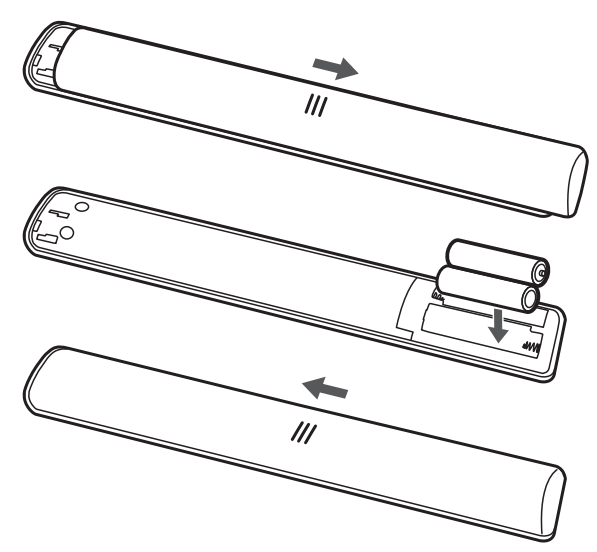
 To turn on the mouse function.
 Navigation direction buttons.
 To pop up the virtual remote control keyboard when available.
 To turn on the voice function. (Available only when the network connection is normal.)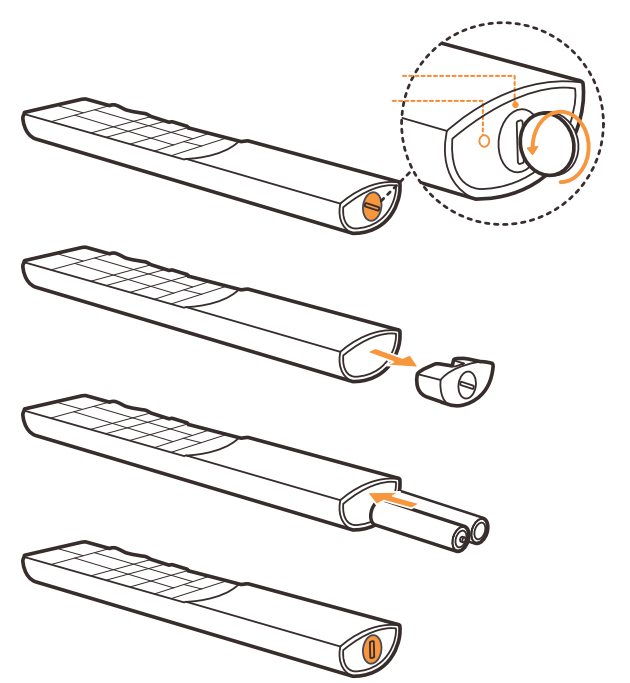
 on the remote control. The Smart TV homepage is displayed.
 buttons: press the
  and OK to select channels.
 on the remote control to display the source list. Press ▲/▼ to select TV or other input sources and press OK to confirm.
 on the remote control to display the homepage, press ▲/▼ to move to the Source area, then press ◄/► and OK to select the input source.
 buttons on the remote control or the corresponding buttons on the TV set to increase or decrease the volume.
 button to temporarily mute the sound. Press this button again or the
  button to restore the sound.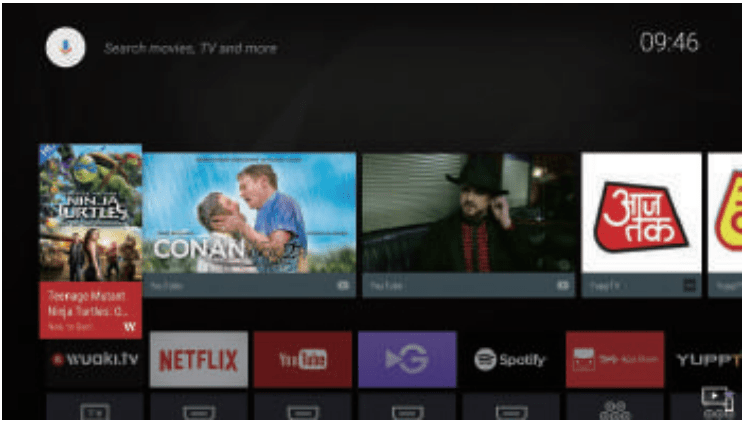
 to return to the homepage.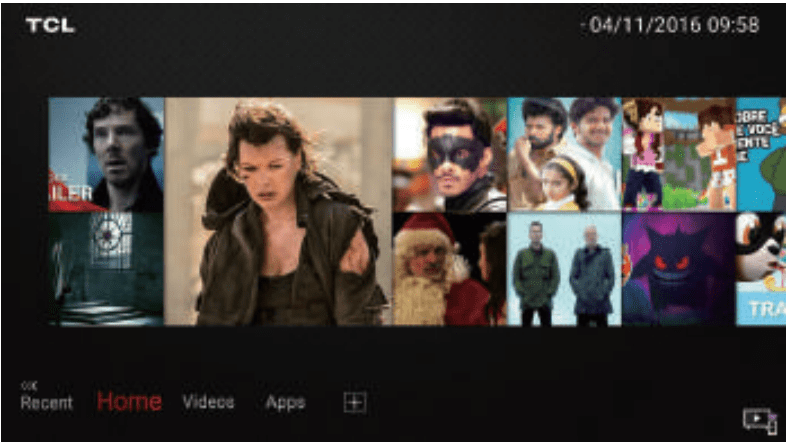
 on the remote control to display the T-Launcher.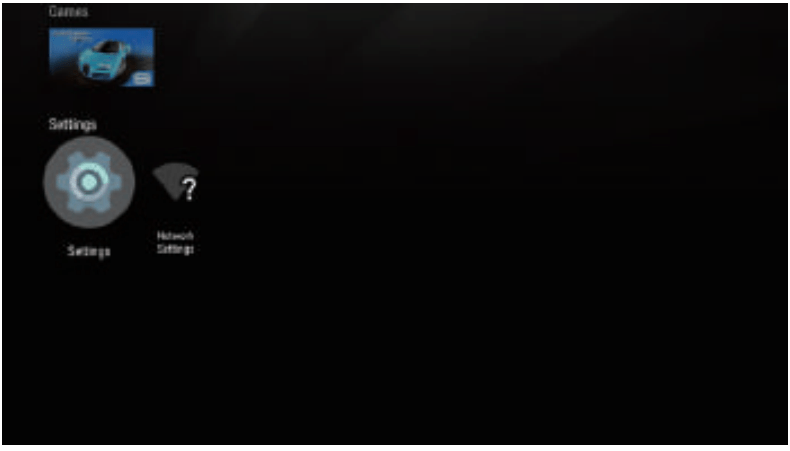
 on the remote control to display the Settings menu.
 on the remote control and select Channel > Channel scan. Press OK/► to enter.
 on the remote control and select Time Shift, then press OK/► to confirm.
 and select Time Shift. press OK/► to display the time shift menu and operate according to the on-screen prompt.
 on the remote control, select System > Advanced settings > HbbTV and press OK/► to enter.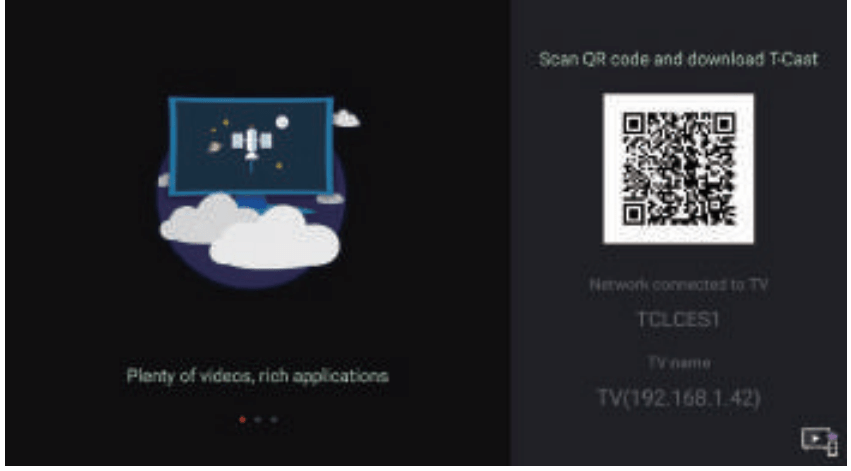
 on the remote control to check if the feature is available in your product.
 to stop recording manually, the recorded file will be saved. In normal operation, the recording will stop automatically when the recording duration expires.
 and go to Apps > MediaCenter > USB > File > PVR, then select the related record file. Press OK to play. (It is the same if you record a digital radio program).
 on the remote control, move to the Settings area, select Settings and press OK to enter.