www.philips.com/welcome
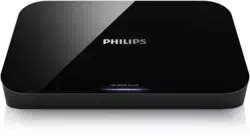
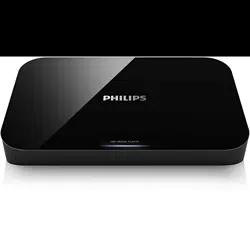
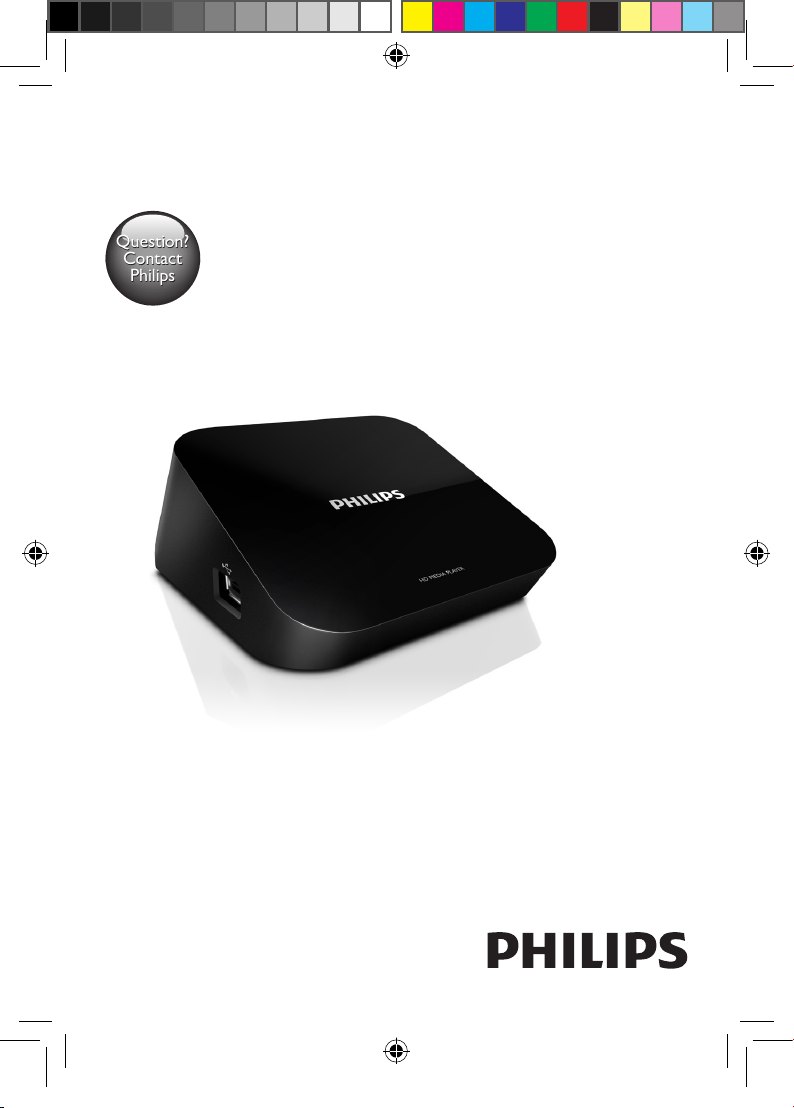
User manual
HMP2000
Always there to help you
Register your product and get support at
Question?
Contact
Philips
Question?
Contact
Philips
HMP2000_05_UM_V2.1.indd 1 9/5/2012 11:40:32 AM

EN Please refer to the safety information before using the product.
Trademark notice
HDMI, the HDMI logo, and High-Denition Multimedia Interface are trademarks or registered
trademarks of HDMI licensing LLC in the United States and other countries.
Manufactured under license from Dolby Laboratories. Dolby and the double-D symbol are
trademarks of Dolby Laboratories.
Windows Media and the Windows logo are trademarks, or registered trademarks of Microsoft Corporation in the
United States and/or other countries.
“This product contains technology subject to certain intellectual property rights of Microsoft. Use or
distribution of this technology outside of this product is prohibited without the appropriate license(s)
from Microsoft.”
Content owners use Microsoft PlayReadyTM content access technology to protect their intellectual
property, including copyrighted content. This device uses PlayReady technology to access PlayReady
protected content and/or WMDRM-protected content. If the device fails to properly enforce
restrictions on content usage, content owners may require Microsoft to revoke the device’s ability
to consume PlayReady-protected content. Revocation should not affect unprotected content or
content protected by other content access technologies. Content owners may require you to upgrade
PlayReady to access their content. If you decline an upgrade, you will not be able to access content that
requires the upgrade.
HMP2000_05_UM_V2.1.indd 2 9/5/2012 11:40:32 AM
3EN
3EN
Safety and notice
Read and understand all instructions before you use this player. If damage is caused by failure to follow
the instructions, the warranty does not apply.
Safety
Risk of electric shock or re!
•
Never expose the product and accessories to rain or water. Never place liquid containers, such
as vases, near the product. If liquids are spilt on or into the product, disconnect it from the power
outlet immediately. Contact Philips Consumer Care to have the product checked before use.
•
Never place the product and accessories near naked ames or other heat sources, including direct
sunlight.
•
Never insert objects into the ventilation slots or other openings on the product.
•
Where the mains plug or an appliance coupler is used as the disconnect device, the disconnect
device shall remain readily operable.
•
Disconnect the product from the power outlet before lightning storms.
•
When you disconnect the power cord, always pull the plug, never the cable.
Risk of short circuit or re!
•
Before you connect the product to the power outlet, ensure that the power voltage matches the
value printed on the back of the product. Never connect the product to the power outlet if the
voltage is different.
•
Never expose the remote control or batteries to rain, water or excessive heat.
•
Avoid force coming onto power plugs. Loose power plugs can cause arcing or re.
Risk of injury or damage to the product!
•
Never place the product or any objects on power cords or on other electrical equipment.
•
If the product is transported in temperatures below 5°C, unpack the product and wait until its
temperature matches room temperature before connecting it to the power outlet.
Risk of overheating!
•
Never install this product in a conned space. Always leave a space of at least four inches around
the product for ventilation. Make sure that curtains or other objects never cover the ventilation slots
on the product.
Risk of contamination!
•
Remove the battery if it is exhausted or if the remote control is not to be used for an extended
period of time.
•
Batteries contain chemical substances, they should be disposed of properly.
Risk of swallowing batteries!
•
The product/remote control may contain a coin type battery, which can be swallowed. Keep the
battery out of reach of children at all times!
Care of the environment
Your product is designed and manufactured with high quality materials and components, which can
be recycled and reused.
When this crossed-out wheeled bin symbol is attached to a product it means that the product is
covered by the European Directive 2002/96/EC.
HMP2000_05_UM_V2.1.indd 3 9/5/2012 11:40:32 AM
4 EN
4 EN
Please inform yourself about the local separate collection system for electrical and electronic products.
Please act according to your local rules and do not dispose of your old products with your normal
household waste. Correct disposal of your old product helps to prevent potential negative
consequences for the environment and human health.
Your product contains batteries covered by the European Directive 2006/66/EC, which cannot be
disposed with normal household waste.Please inform yourself about the local rules on separate
collection of batteries because correct disposal helps to prevent negative consequences for the
environmental and human health.
Compliance
This product complies with the radio interference requirements of the European Community.
Copyright
This item incorporates copy protection technology that is protected by U.S.
patents and other intellectual property rights of Rovi Corporation. Reverse
engineering and disassembly are prohibited.
2011 © Koninklijke Philips Electronics N.V.
Specications are subject to change without notice. Trademarks are the property of Koninklijke Philips
Electronics N.V or their respective owners. Philips reserves the right to change products at any time
without being obliged to adjust earlier supplies accordingly.
Warranty
•
Risk of injury, damage to the player or void of warranty! Never attempt to repair the player yourself.
•
Use the player and accessories only as intended by the manufacturer. The caution sign printed on
the back of the player indicates risk of electric shock.
•
Never remove the player cover. Always contact Philips Customer Support for service or repairs.
•
Any operation expressly prohibited in this manual, or any adjustments and assembly procedures not
recommended or authorized in this manual shall void the warranty.
Philips Electronics Hong Kong Ltd. hereby offers to deliver, upon request, a copy of the complete
corresponding source code for the copyrighted open source software packages used in this product for
which such offer is requested by the respective licenses.
This offer is valid up to three years after product purchase to anyone
in receipt of this information. To obtain source code, please contact [email protected]. If you
prefer not to use email or if you do not receive conrmation receipt within a week after mailing to this
email address, please write to “Open Source Team, Philips Intellectual Property & Standards, P.O. Box
220, 5600 AE Eindhoven, The Netherlands.” If you do not receive timely conrmation of your letter,
please email to the email address above.
0168
HMP2000_05_UM_V2.1.indd 4 9/5/2012 11:40:32 AM
5EN
Contents
1 Control and play 10
Use the remote control 10
Text entry 11
Select play options 12
2 Browsemediales 13
Browse all les 14
Browse movie les 15
Browse music les 16
Browse photo les 17
3 Play from online services 18
Connect to the Internet 18
Watch online TV or shared video 19
Enjoy Internet services 19
4 Manageles 21
Copy or move les and folders 21
Delete les and folders 22
Rename les and folders 22
Create music playlists 22
Create photo albums 23
HMP2000_05_UM_V2.1.indd 5 9/5/2012 11:40:33 AM
7EN
Register your product and get support at
www.philips.com/welcome
HMP7000
HDMI IN
HMP2000_05_UM_V2.1.indd 7 9/5/2012 11:40:33 AM
8 EN
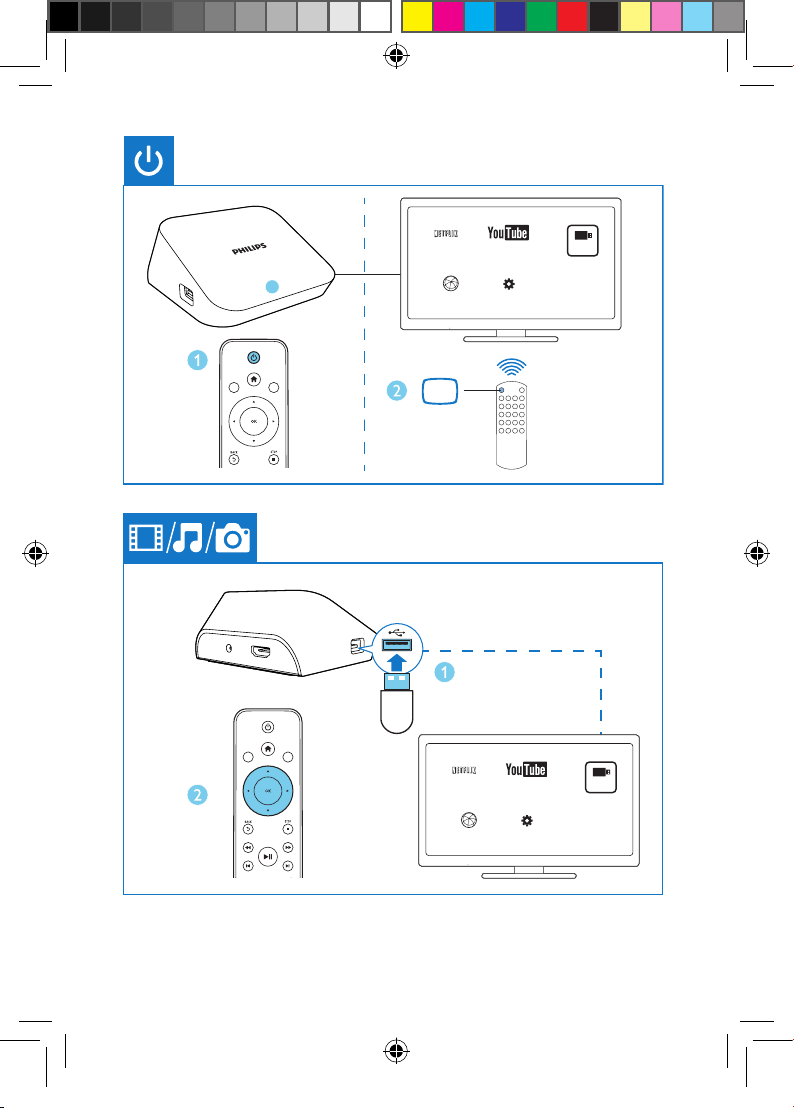
SOURCE
TV
NETFLIX
SetupInternet Service
USB
TM
Youtube
NETFLIX
SetupInternet Service
USB
TM
Youtube
HMP2000_05_UM_V2.1.indd 8 9/5/2012 11:40:34 AM
9EN
Private AP SettingPrivate AP
S
ettin
g
OK
Wireless
Network Info
NETFLIX
SetupInternet Service
USB
TM
Youtube
HMP2000_05_UM_V2.1.indd 9 9/5/2012 11:40:35 AM
10 EN
1 Control and play
Use the remote control
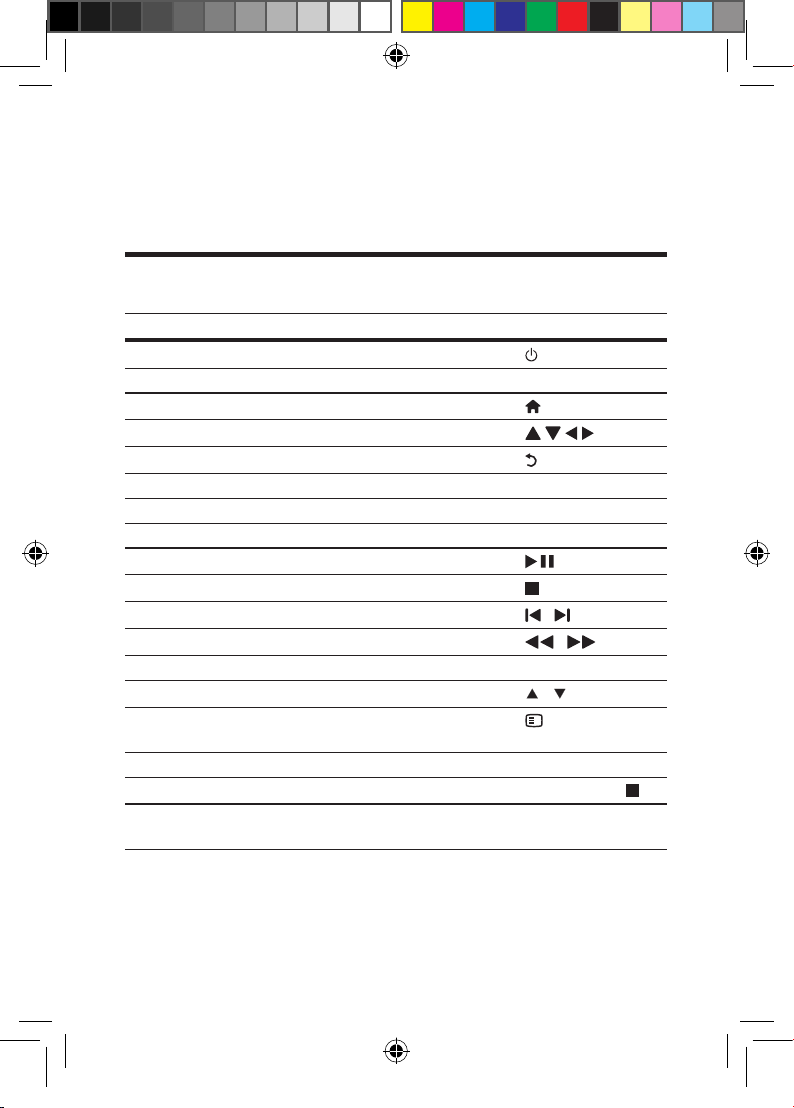
Function Buttons / Actions
Switch the player on or to standby mode
Navigate between screens or through options
• Return to the Home screen
• Navigate through options
• Back one level
• Conrm the option OK
View options menu for media play or le navigation OPTIONS
Control the play
• Start, pause, or resume the play
• Stop the play
• Skip to the previous/ next media le
/
• Search backwards or forward within current le
/
• Access subtitle settings SUBTITLE
• Rotate a photo
/
• Display the information about current le during
play
• Access online videos and TV episodes from Netix Netix
Remove current connected device safely
Press and hold
Manage les/ folders under [Folder] on or between con-
nected storage devices
EDIT
*If there is no button press or media play on the playerfor 5 minutes, the screen
saver is activated.
*If there is no button press or media play on the playerfor 15 minutes, the device
switches to standby mode automatically except that:
HMP2000_05_UM_V2.1.indd 10 9/5/2012 11:40:38 AM
11EN
• You enter text on the onscreen keyboard;
• You select setup options under [Setup].
Textentry
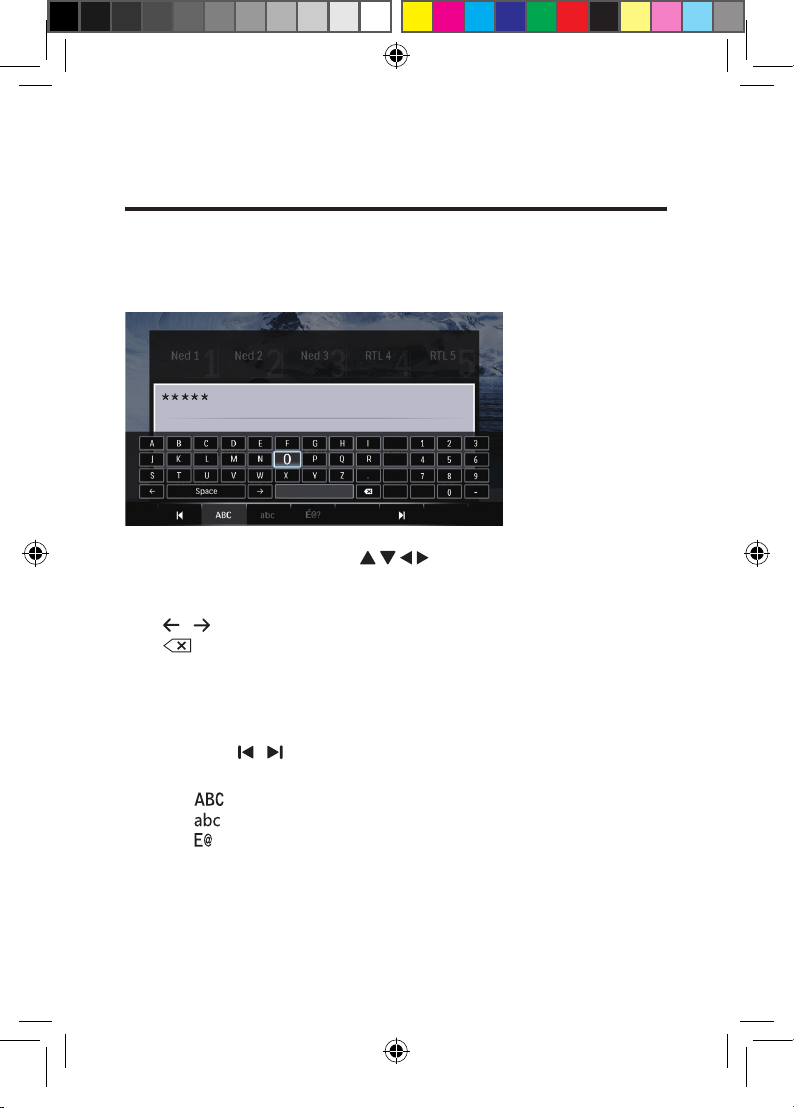
With the onscreen keyboard, use the remote control to enter text.
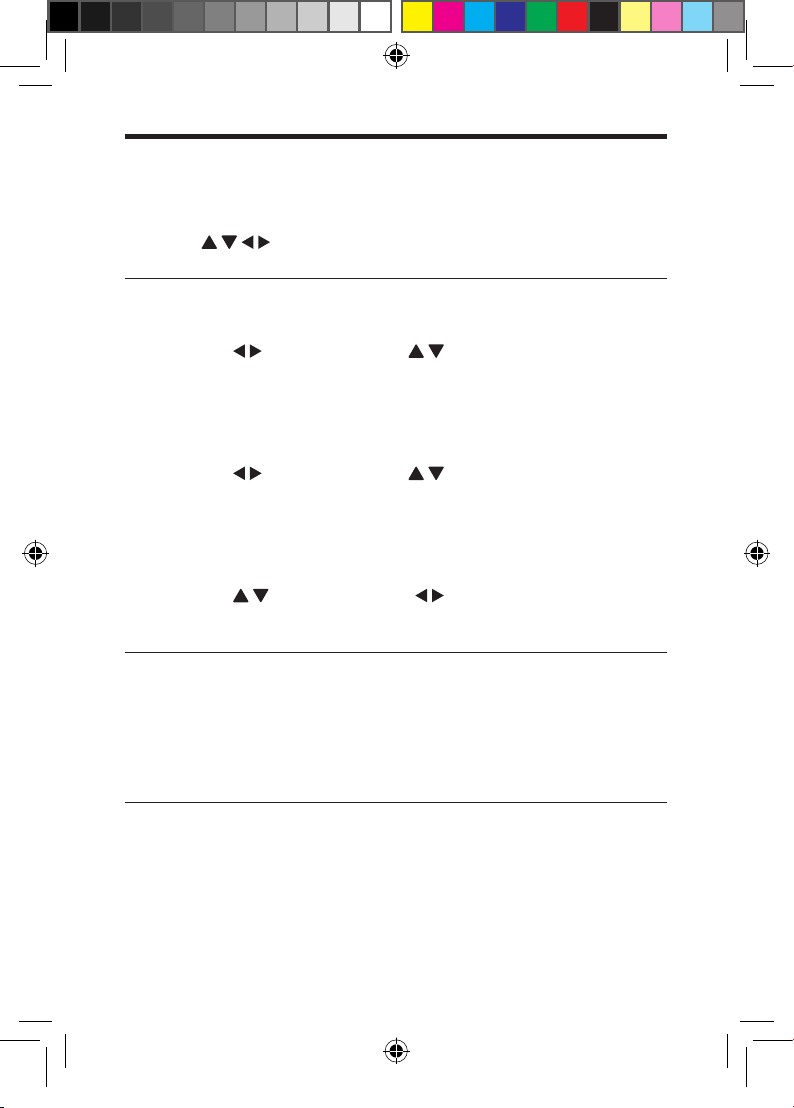
1 On the remote control, press to move to a key, press OK to
select the letter or symbol.
2 Do the following to select input options:
/ : Move the cursor to the left or right.
: Delete the entry before the cursor.
3 When the text entry is complete, select OK on the onscreen keyboard to
exit.
To select input mode,
• Select / on the onscreen keyboard.
» On the onscreen keyboard, current input mode is highlighted.
: English input in upper case
: English input in low case
: symbols
OK
HMP2000_05_UM_V2.1.indd 11 9/5/2012 11:40:41 AM
12 EN
Select play options
1 During play, press OPTIONS on the remote control.
2 Press to select an option. Press OK to conrm.
Video options
[Subtitle]: Adjust subtitle settings.
• Press to select an item and to adjust values. Then press OK
to conrm.
[Audio]: Select an audio language.
[Night mode]: Equalize loud and soft sounds to play media at a low volume level
at night.
[GOTO]: Skip play to the specic time.
• Press to select an item and to adjust values. Then press OK
to conrm.
[Repeat Title]: Repeat the current title.
[Repeat All]: Repeat the movie le.
[Repeat Off]: Turn off a repeat mode.
[Video Setting]: Adjust the video settings.
• Press to select an item and to adjust values. Then press
OKto conrm.
Audio option
[Repeat Off]: Turn off a repeat mode.
[Repeat One]: Repeat the current music le.
[Repeat All]: Repeat all the music ies.
[ShufeLoop]: Play music les in a random loop.
Photo options
[Slide Timing]: Set a display interval for a slideshow.
[Slide Transition]: Select a transition effect for a slideshow.
[Repeat Off]: Turn off a repeat mode.
[Repeat All]: Repeat all the photo ies.
HMP2000_05_UM_V2.1.indd 12 9/5/2012 11:40:42 AM
13EN
[ShufeLoop]: Play photo les in a random loop.
[Background Music]: Select and play a music le during slideshow.
[Video Setting]: Adjust the video settings.
2 Browse media files
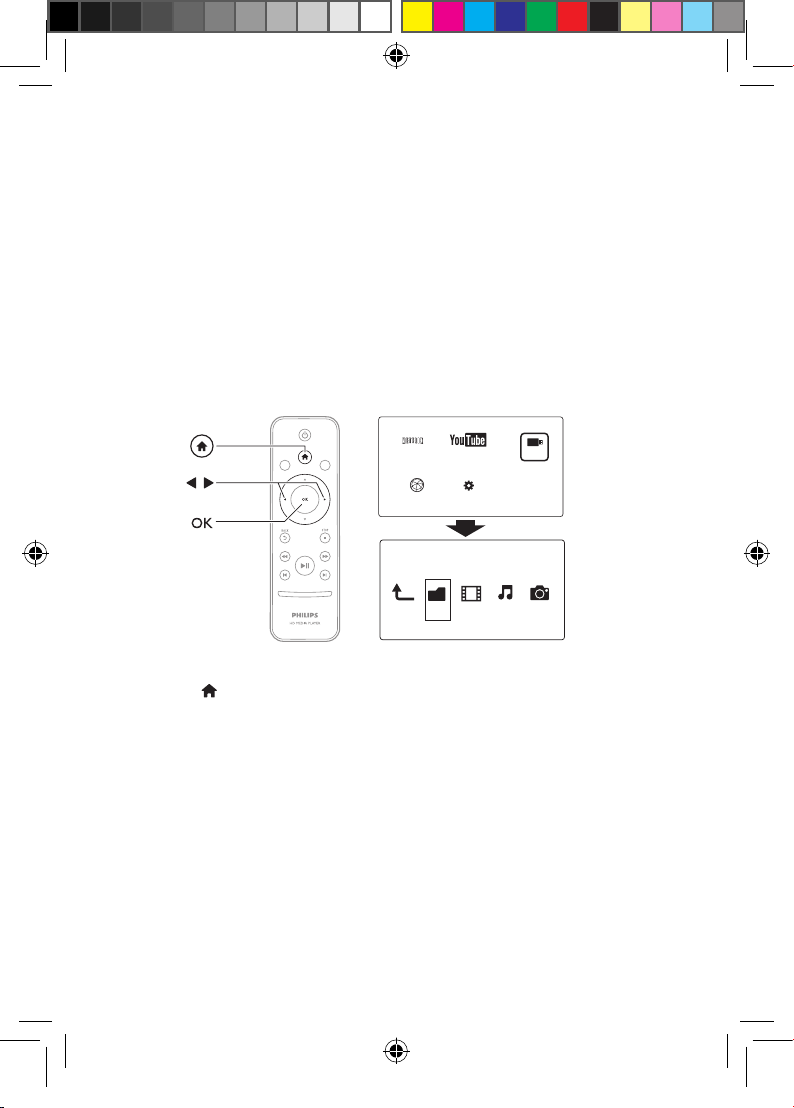
You can browse media les stored in a USB storage device.
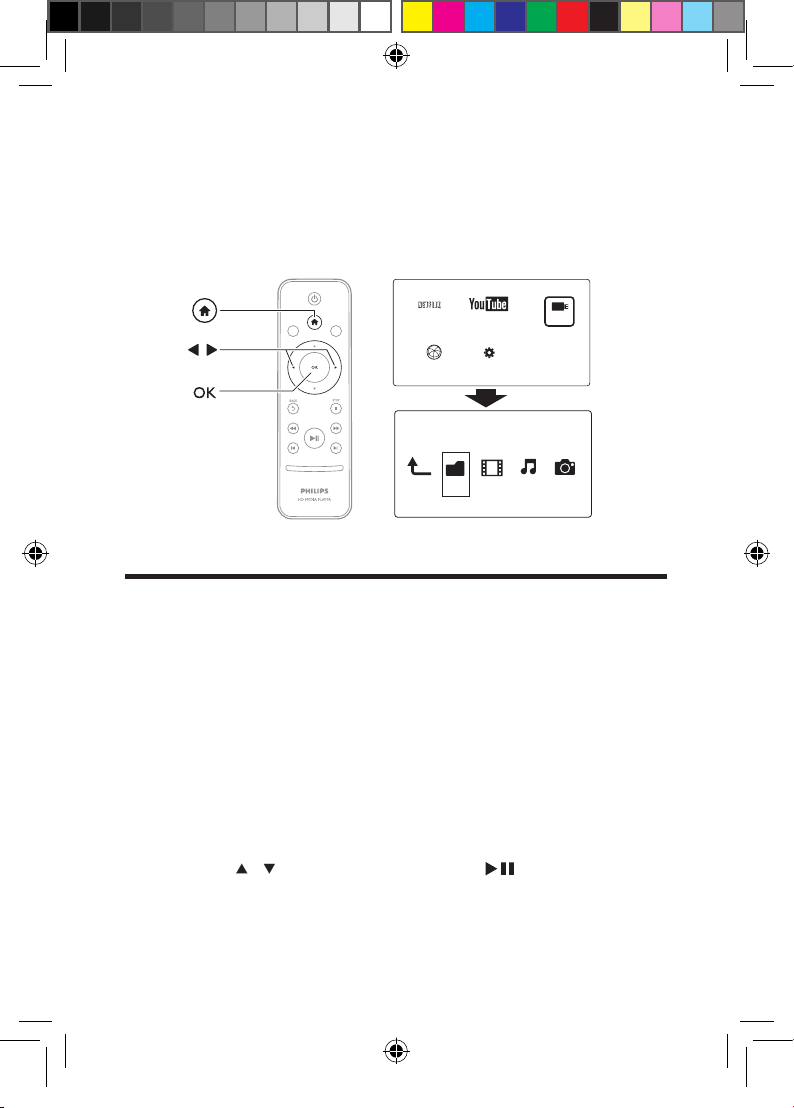
1 Press .
2 Select [USB].
3 Select a mode to browse media les.
• [Folder]
• [Movies]
• [Music]
• [Photos]
a
b
c
Folder Movies Music Photos
NETFLIX
SetupInternet Service
USB
TM
Youtube
HMP2000_05_UM_V2.1.indd 13 9/5/2012 11:40:42 AM
14 EN
Browseallles
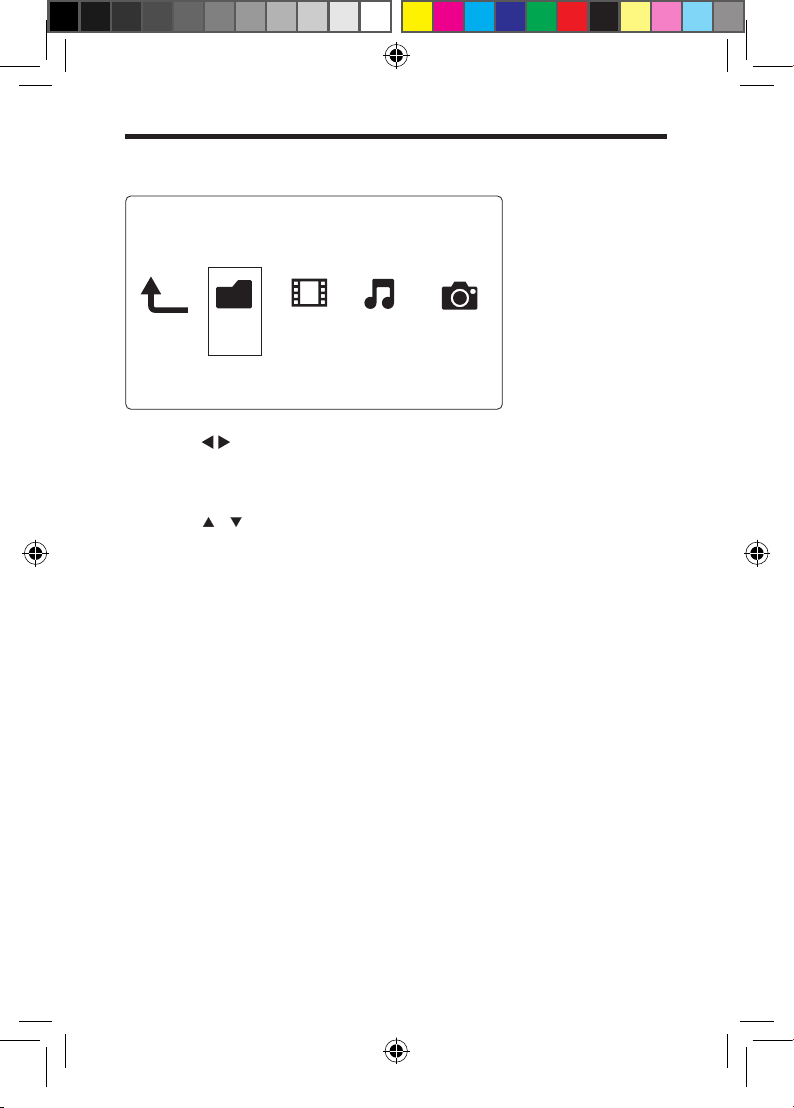
1 Press to select [Folder] and press OK to conrm.
2 Select your USB storage device and press OK.
3 Press OPTIONS in the le browser.
4 Press / to select a mode to view or arrange les.
[Thumbnails]: Display thumbnails of les or folder.
[List]: Display les or folder in a list.
[Preview]: Display les or folders with a preview window.
[All Media] Display all media les.
[Movies]: Display movie les.
[Photos]: Display photo les.
[Music]: Display music les.
Folder Movies MusicPhotos
HMP2000_05_UM_V2.1.indd 14 9/5/2012 11:40:43 AM
15EN
Browsemovieles
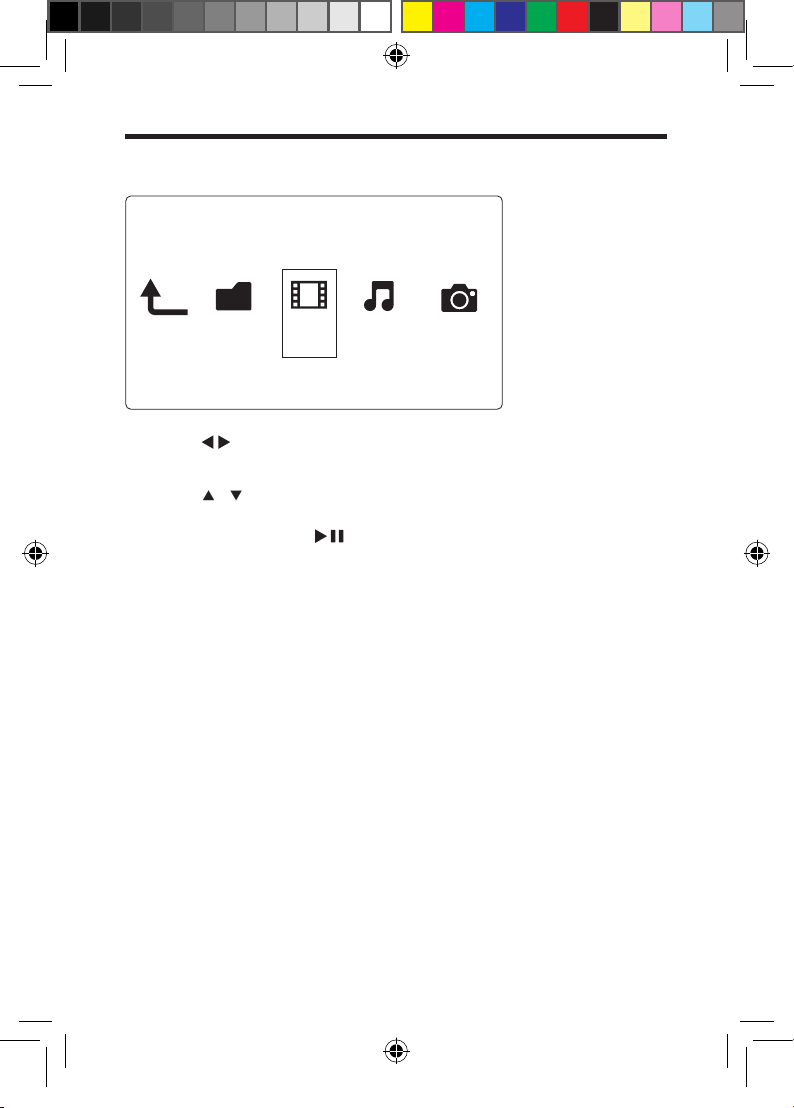
1 Press to select [Movies] and press OK to conrm.
2 Press OPTIONS in the le browser.
3 Press / to select a mode to view or arrange les.
[Search]: Search movie les. Follow on screen instruction to type in key words in
the mini keyboard and press to start search.
[Thumbnails]: Display thumbnails of movie les.
[List]: Display movie les in a list.
[Preview]: Display les or folders with a preview window.
[All Movies]: Display all movies les.
[Show DVDs]: Display all les in DVD ISO format.
[Flash Animation]: Display all ash les.
[Go to Folder]: Go to the folder where the selected le is placed.
[Name]: List movies les in an alphabetical order of their names.
[Size]: List movies les in the ascending order of their sizes.
[Most Viewed]: List most viewed movie les.
[Recently Added]: List movie les added recently.
Folder Movies Music Photos
HMP2000_05_UM_V2.1.indd 15 9/5/2012 11:40:43 AM
16 EN
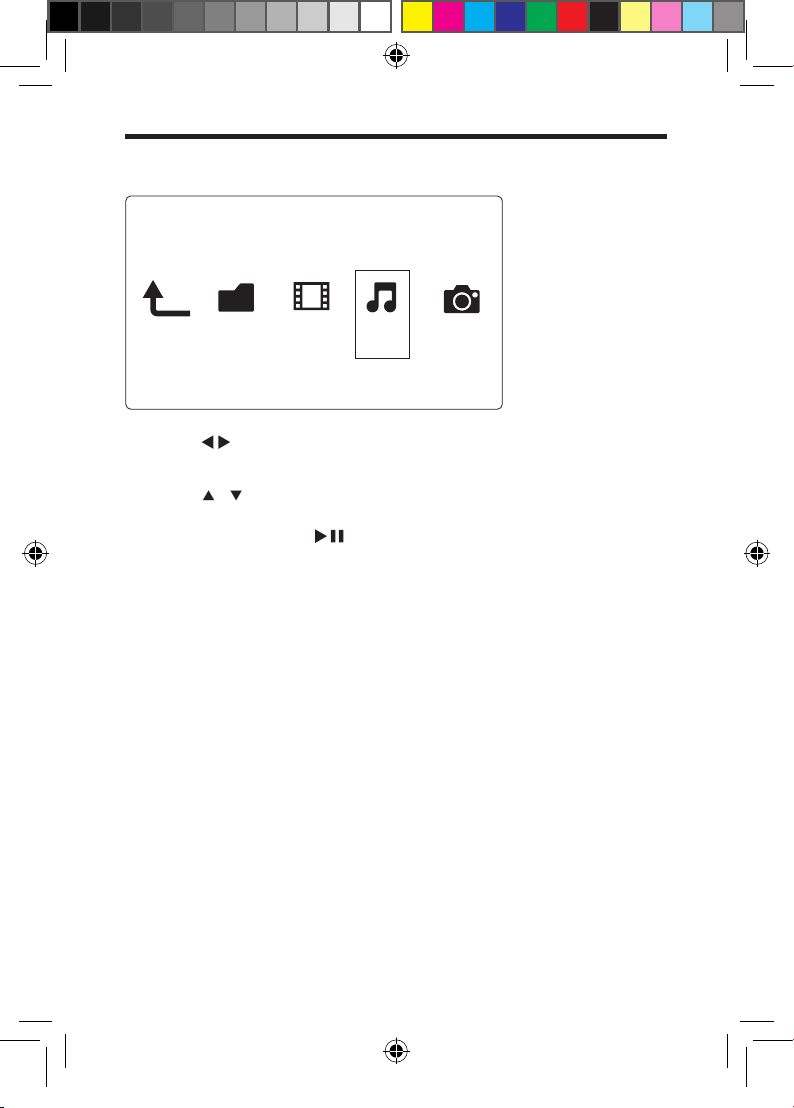
Browsemusicles
1 Press to select [Music] and press OK to conrm.
2 Press OPTIONS in the le browser.
3 Press / to select a mode to view or arrange les.
[Search]: Search music les. Follow on screen instruction to type in key words in
the mini keyboard and press to start search.
[Thumbnails]: Display thumbnails of music les.
[List]: Display music les in a list.
[Preview]: Display music les with a preview window.
[Go to Folder]: Go to the folder where the selected le is placed.
[All Songs]: Display all music les.
[Albums]: Display music les by albums.
[Artists]: Display music les by artists.
[Genres]: Sort music les by genres.
[Years]: Sort music les by years.
[Playlists]: Display play lists.
[Recently Played]: List music les played recently.
[Recently Added]: List music les added recently.
[Name]: List music les in an alphabetical order of their names.
FolderMoviesMusic Photos
HMP2000_05_UM_V2.1.indd 16 9/5/2012 11:40:44 AM
17EN
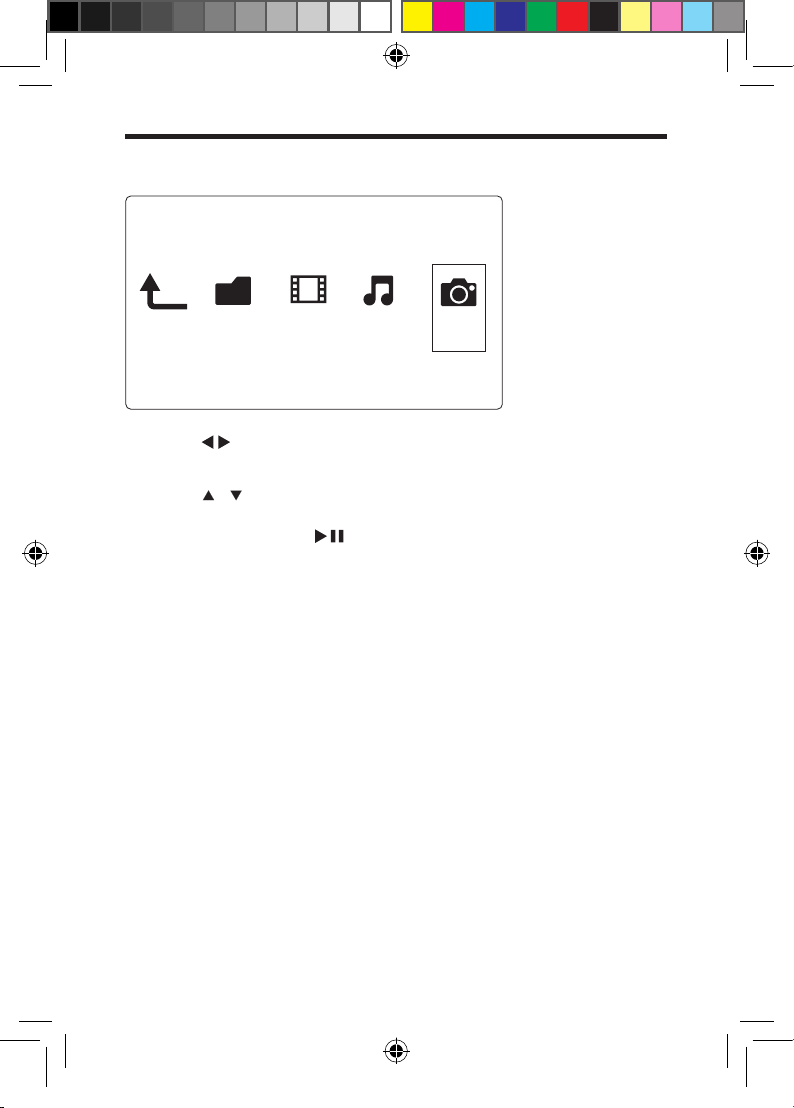
Browsephotoles
1 Press to select [Photos]and press OK to conrm.
2 Press OPTIONS in the le browser.
3 Press / to select a mode to view or arrange les.
[Search]: Search photo les. Follow on screen instruction to type in key words in
the mini keyboard and press to start search.
[Thumbnails]: Display thumbnails of photo les or folder.
[List]: Display les or folder in a list.
[Preview]: Display les or folders with a preview window.
[Photo Directory]: Display photo les in the directory mode.
[Leaf Folder View]: Display photo les in the leaf folder mode.
[Date view]: Sort photo les by date modied.
[All Photos]: Display all photos les.
[Albums]: Sort photo les by albums.
[Go to Folder]: Go to the folder where the selected le is placed.
[Name]: List photo les in an alphabetical order of their names.
[Recently Added]: List photo les added recently.
[Recently Played]: List photo les played recently.
Folder Movies MusicPhotos
HMP2000_05_UM_V2.1.indd 17 9/5/2012 11:40:44 AM
18 EN
3 Play from online services
Connect the playerto the Internet. You can enjoy online services on the TV.
Note
• Koninklijke Philips Electronics N.V. bears no responsibility for content provided by Net TV service
providers.
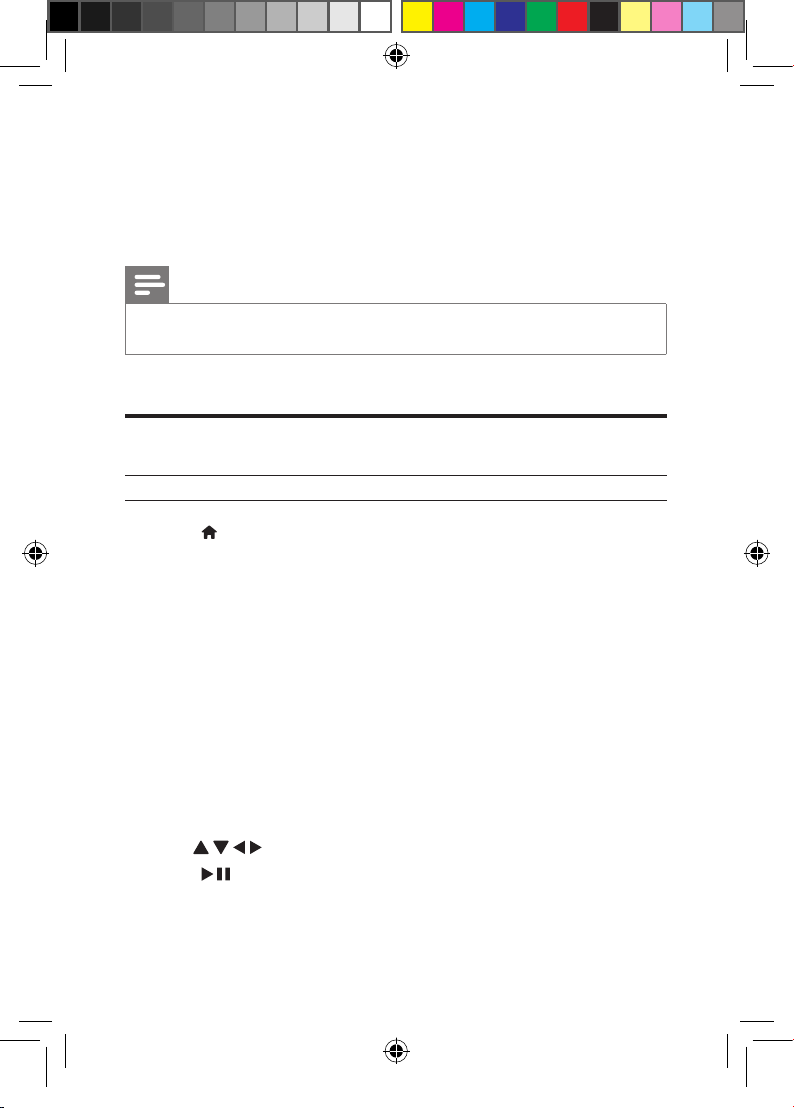
Connect to the Internet
What you need A wired router that is connected to the Internet
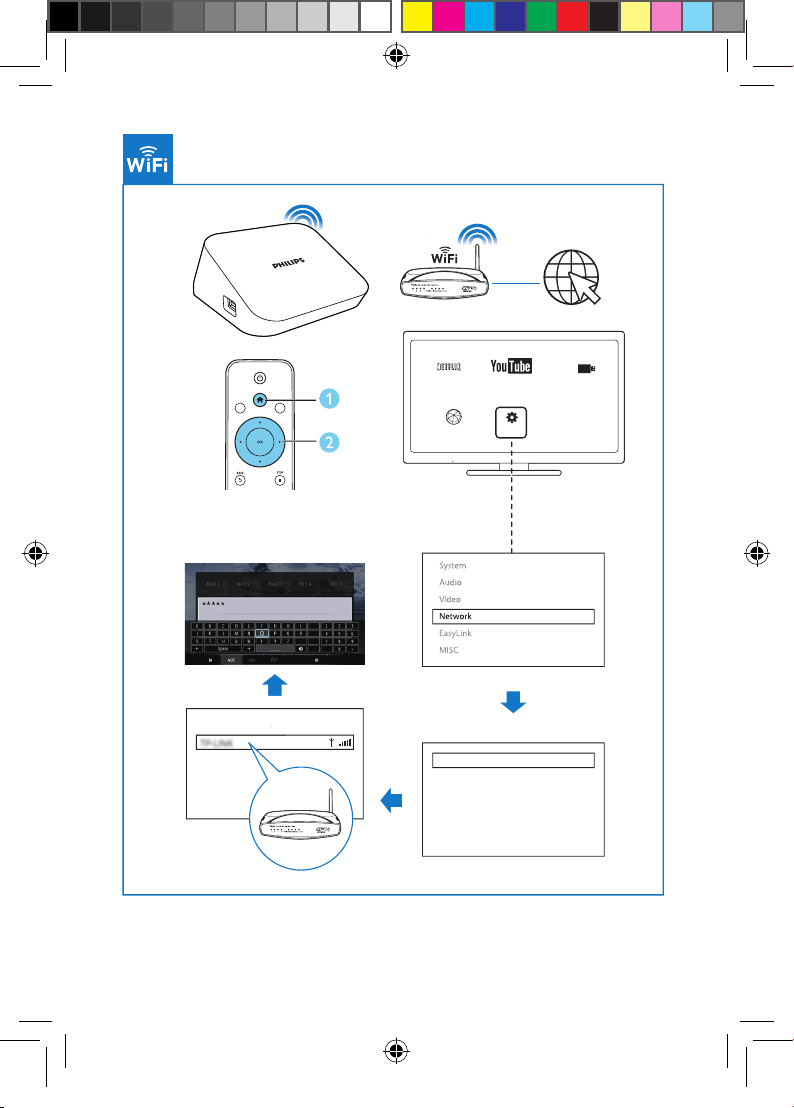
1 Press .
» The home page is displayed.
2 Select [Setup] and press OK.
» The setup menu is displayed.
3 Select [Network]>[Wireless]and press OK.
» A list of available wireless networks is displayed.
4 Select your network from the list and press OK.
» A mini keyboard is displayed.
• If your network is encrypted with a Wired Equivalent Privacy (WEP)
key, select [Hexcode] or [ASCII] to enter the key in hex or ASCII
format from the option menu.
• If your network is not in the list, select [Private AP Setting] to enter the
SSID of your network and web key.
5 Use and OK to enter your key.
6 Press to conrm.
» A connection test is started
» The status of network connection is displayed after the test is completed.
HMP2000_05_UM_V2.1.indd 18 9/5/2012 11:40:44 AM
19EN
7 Press OK to exit.
Note
• To re-scan available wireless networks, press EDIT.
Watch online TV or shared video
What you need Connect this player to the Internet. (see "Set up a
network").
1 On the Home screen of the player, select [Netix].
» The Home page of Netix is displayed.
• To enjoy YouTube video, select [YouTube] on the Home screen.
2 On the remote control, do the following to browse the Web pages on your
TV.
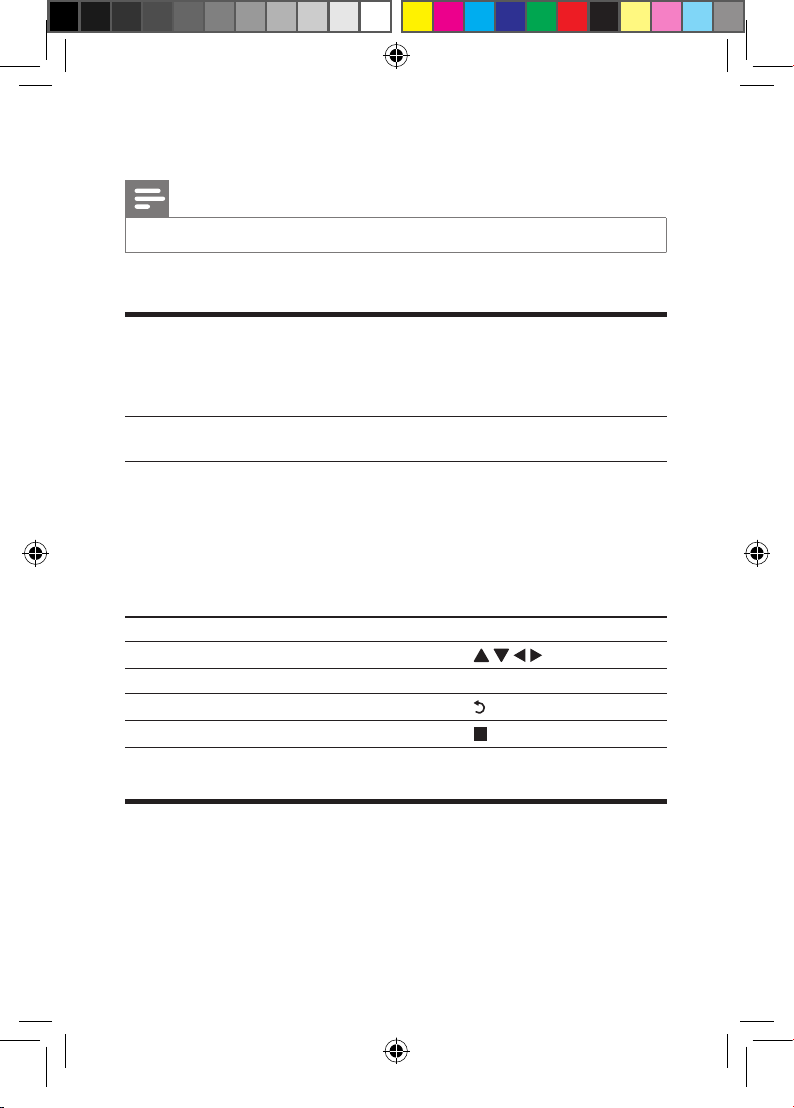
Function Button/Action
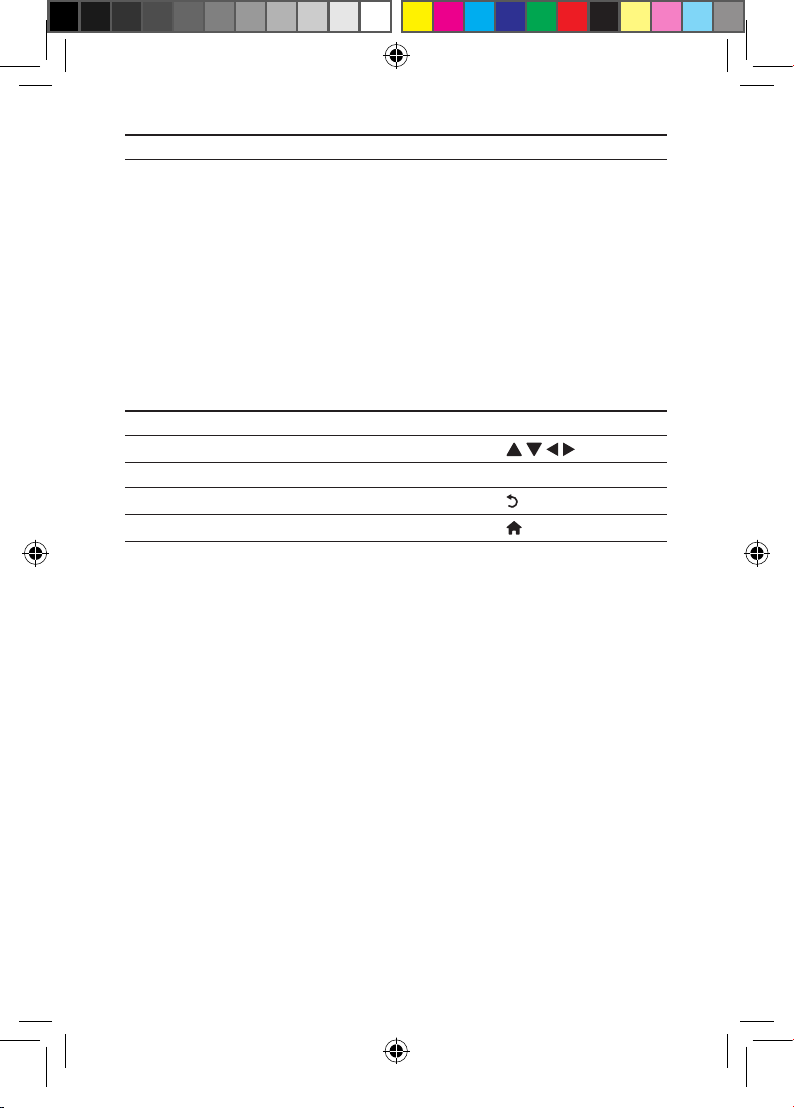
Select an option
Conrm an option OK
Exit the Netix
Stop play
Enjoy Internet services
With this player, you can access online services, such as movies, pictures, music, and
games.
HMP2000_05_UM_V2.1.indd 19 9/5/2012 11:40:45 AM
20 EN
What you need Connect this player to the Internet. (see "Set up a network").
1 On the Home screen of the player, select [Internet Services] and
press OK.
» The Internet services are displayed.
2 Select a service.
• [Facebook]: a social networking service
• [AccuWeather]: an online weather forecasting service worldwide
• [Piccasa]: an online photo album
3 Follow the on-screen instruction and use your remote control to enjoy the
services.
Function Button/Action
Select a service or item.
Conrm a selection. OK
Return to a previous page, or delete input text.
Return to the home page.
HMP2000_05_UM_V2.1.indd 20 9/5/2012 11:40:45 AM
21EN
4 Manage files
On the player, select the source device on the Home screen. Go to [Folder], and
you can manage les on the connected storage devices.
Copyormovelesandfolders
On the player, you can copy or move les and folders on or between connected
storage devices.
1 In [Folder], select a le or folder in the list of les/ folders.
To select multiple les,
a On the remote control, press EDIT.
» A list of options is displayed.
b Select [Multiple Select].
» A le list is created for you to add les or folders.
c Press / toselectaleorfolder.Press toconrm.
2 On the remote control, press EDIT.
a
b
c
Folder Movies Music Photos
NETFLIX
SetupInternet Service
USB
TM
Youtube
HMP2000_05_UM_V2.1.indd 21 9/5/2012 11:40:45 AM

22 EN
3 On the pop-up list of options, select [Copy] or [Move].
4 Select a folder on current or another connected device as the destination.
Press to conrm.
» The selected les or folders are copied or moved to the destination.
Deletelesandfolders
1 Follow Step 1-3 under "Copy or move les and folders" (see 'Copy or move
les and folders' on page 8).
2 On the pop-up list of options, select [Delete].
» The selected les or folders are deleted from the player.
Renamelesandfolders
1 In [Folder], select a le or folder in the list of les/ folders.
2 On the remote control, press EDIT.
3 On the pop-up list of options, select [Rename].
4 On the pop-up onscreen keyboard, edit the le/ folder name (see 'Text
entry' on page 2).
Create music playlists
On the player, you can create playlists for music les you want to play together.
1 In [Folder], select music les.
a On the remote control, press EDIT.
» A list of options is displayed.
b Select [Multiple Select].
» A le list is created for you to add les.
HMP2000_05_UM_V2.1.indd 22 9/5/2012 11:40:45 AM
23EN
c Press / toselectale.Press toconrm.
2 On the remote control, press EDIT.
3 On the pop-up list of options, select [Save Playlist].
4 Name the playlist as needed.
» A music playlist is created.
Create photo albums
On the player, you can create photo albums for picture les.
1 In [Folder], select picture les.
a On the remote control, press EDIT.
» A list of options is displayed.
b Select [Multiple Select].
» A le list is created for you to add les.
c Press / toselectale.Press toconrm.
2 On the remote control, press EDIT.
3 On the pop-up list of options, select [Save Photo Album].
4 Name the photo album as needed.
» A photo album is created.
HMP2000_05_UM_V2.1.indd 23 9/5/2012 11:40:46 AM
24 EN
5 Setup
You can change the setup options of the player.
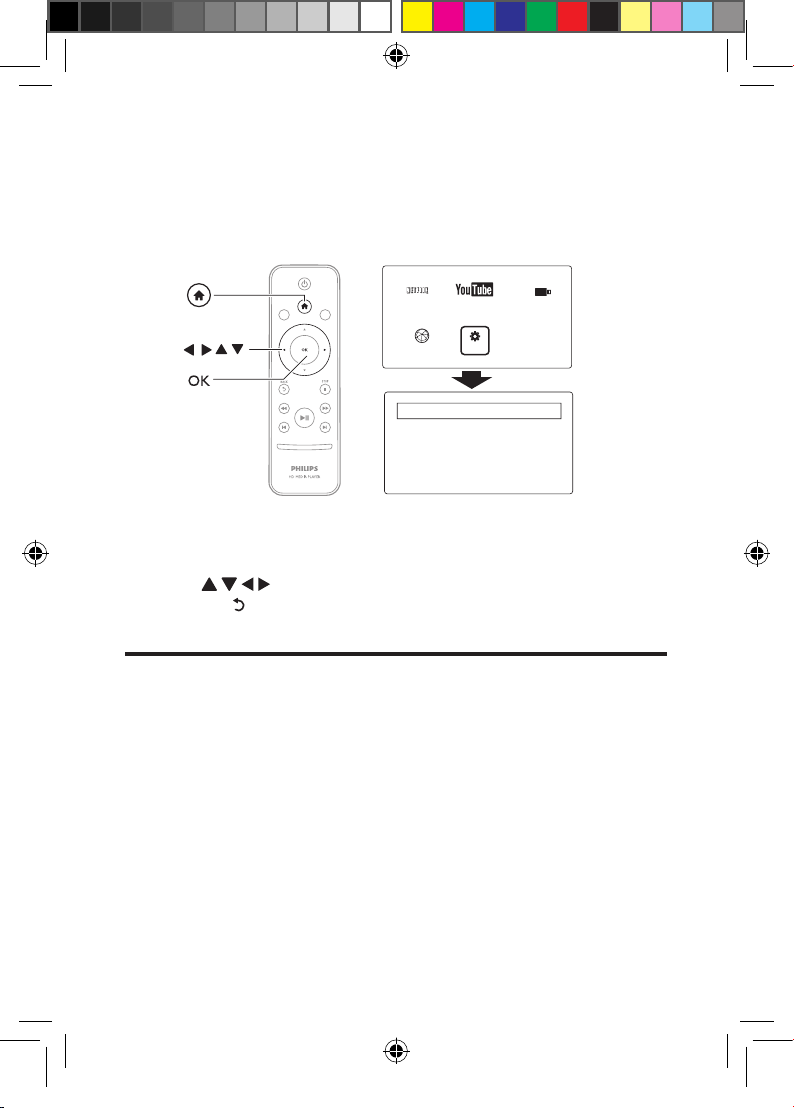
1 On the Home screen, select [Setup].
» The setup menu is displayed.
2 Press to select an option. Press OK to conrm the option.
• Press to return to the upper-level menu.
System
[Menu Language]: Select the language for onscreen menus.
[Subtitle]: Select the subtitle language for videos.
[Screen Saver]: Enable the screen saver when the player is in the idle mode
for a selected time span, for example, in pause or stop mode.
[Device Name]: Change the name of this player.
[Resume Play]: Resume video play from the last stop position.
[Factory Default]: Restore factory settings.
NETFLIX
SetupInternet Service
USB
TM
Youtube
EasyLink
MISC
Audio
System
Network
Video
a
b
c
HMP2000_05_UM_V2.1.indd 24 9/5/2012 11:40:46 AM
25EN
Audio
[HDMI Output]: Select audio output for the HDMI connector. Use the
HDMI output for the LPCM sound of more than two channels.
[Lip Sync]: Synchronize audio with video play.
Video
[Aspect Ratio]: Select display aspect ratio.
*[TV System]: Select the video resolution that your TV supports. See your
TV manual for details.
*[1080P 24Hz]: Use 1080p 24 Hz for video output, where 1080p 24 Hz
denotes the resolution and frame rate.
[Deep Color]: Display colors with more shades and hues when the video
content is recorded in Deep Color mode and the TV supports this feature.
Note
• *If the video resolution is incompatible with your TV, you can see a blank screen. To recover the
display, wait for 10 seconds.
Network
[Wireless]: Set up a wireless network connection.
[Network Info]: Display current network status, such as the MAC address,
and current IP address and subnet mask.
MISC
[Version Info]: Display the information about the player.
HMP2000_05_UM_V2.1.indd 25 9/5/2012 11:40:46 AM
26 EN
[Device Name]: Change the name of this player
[Online upgrade]: Update the rmware of the player from the Internet.
[USB upgrade]: Update the rmware of the player through a USB storage
device.
6 EasyLink
The playersupports Philips EasyLink which uses the HDMI CEC (Consumer
Electronics Control) protocol. You can use a single remote control to control
EasyLink compliant devices that are connected through HDMI.
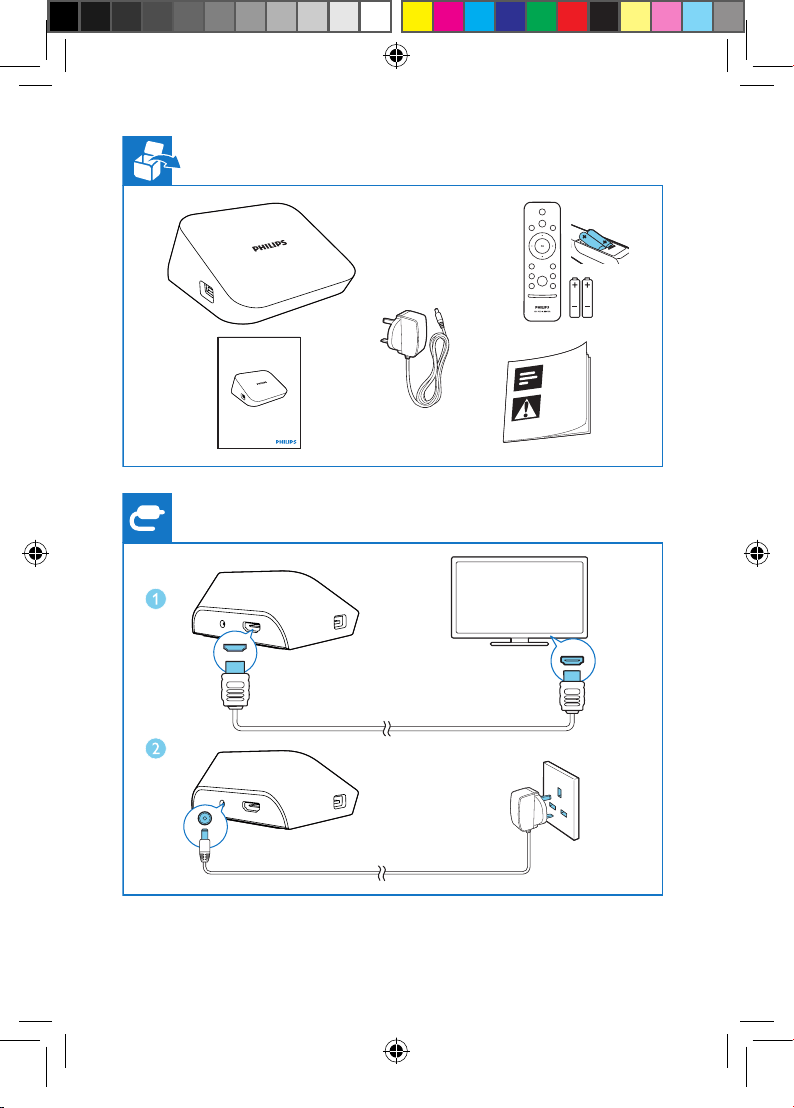
1 Through HDMI, connect the player to a TV compliant with the HDMI CEC
protocol.
2 On the TV, switch on the functions to allow HDMI CEC operations (Consult
the user manual of the TV).
3 On the player, switch on [Easy Link].
• On the Home screen, select [Setup] > [Easy Link]. Select [On].
4 In [Easy Link], you can select the following options:
[One Touch Play]
When you start play on the player, the TV switches to the HDMI input channel
automatically.
[One Touch Standby]
When you switch the TV to the standby mode, the player switches to the
standby mode automatically.
[Auto Power On From TV]
When you switch to the input channel of the playeron the TV,the player can
switch on automatically from the standby mode.
Note
• Philips does not guarantee 100% interoperability with all HDMI CEC devices.
HMP2000_05_UM_V2.1.indd 26 9/5/2012 11:40:46 AM
27EN
7 Update the firmware
Before you update the rmware, check current rmware version of the player.
Tocheckthermwareversion,
• On the Home screen, go to [Setup] > [MISC] > [Version Info.].
UpdatethermwarethroughtheInternet
1 Connect the player to the Internet.
2 On the Home screen of the player, select [Setup] > [MISC] > [Online upgrade].
» If a rmware update is detected, you are prompted to start the update.
3 Follow onscreen instructions to complete the update.
» When the update is complete, the player switches off automatically, and
then switches on again.
Updatethermwarethroughastoragedevice
1 On your computer, do the following:
• Go to www.philips.com/support to nd the latest rmware.
• Search for your model and click on "Software and drivers".
• Download the rmware update and save the le to the root directory
of a USB storage device.
2 On the player, do the following:
• Connect the USB storage device.
• On the Home screen, select [Setup] > [MISC]> [USB upgrade].
» If a rmware update is detected, you are prompted to start the update.
3 Follow onscreen instructions to complete the update.
» When the update is complete, the playerswitches off automatically, and
then switches on again.
HMP2000_05_UM_V2.1.indd 27 9/5/2012 11:40:46 AM
28 EN
Caution
• Keep the playerpowered and the storage device mounted before the rmware update is complete.
8 Troubleshooting
If you contact Philips, you will be asked for the model and serial number of this
player. The model number and serial number are at the bottom of this player.
Write the numbers here:
Model No. __________________________
Serial No. ___________________________
No picture.
• Refer to the TV user manual for how to select the correct video input
channel
No sound output from the TV.
• Make sure that the audio cables are connected to the audio input sockets
that are grouped with the selected video input sockets.
The contents of the USB storage device cannot be read.
• The format of this USB storage device is not supported.
• The supported memory size is 1TB maximum.
• Make sure that this player supports these les. (Refer to "Specications" >
"Playable media")
• DRM-protected video les that are stored on a USB storage device cannot
be played through an analog video connection (for example, composite). You
need to use an HDMI connection to play these les.
HMP2000_05_UM_V2.1.indd 28 9/5/2012 11:40:47 AM
29EN
9 Specification
Note
• Specication and design are subject to change without notice.
File
• Video: MPEG 1/2, H.264, VC-1, H.263, WMV (V9), AVI, TS, M2TS, TP, TRP, ISO,
VOB, DAT, MP4, MPG, MOV (H.264), ASF, FLV(640 x 480), MKV, M4V.
• Audio: Audio: Dolby digital, AAC, OGG, MKA, MP3, WAV, APE, FLAC, LPCM,
PCM, WMA (V9), IMP/MS ADPCM, WMA Pro
• Picture: .JPEG, JPG, PNG, TIFF, GIF (unanimated GIF), BMP, TIF, M-JPEG, HD-JPEG
USB storage device
• Compatibility: Hi-Speed USB (2.0)
Subtitle support
• .srt, .sub, .smi, .ssa, .ass, .txt, .psb, .idx+.sub
Video
• Signal system: PAL /NTSC
• HDMI output: 480i, 480p, 576i, 576p, 720p, 1080i, 1080p, 1080p24
Audio
• Analog stereo output
• Signal to noise ratio (1 kHz): > 90 dB (A-weighted)
• Dynamic Range (1 kHz): > 80 dB (A-weighted)
• Frequency response: +/-0.2 dB
Main Unit
• Dimensions (L x W x H): 136 x 86 x 52 mm
• Net Weight: 0.41 Kg
Power
• Input: DC 5V 1.5A
• Power consumption: < 7.5 W
• Power consumption in standby mode: < 1 W
HMP2000_05_UM_V2.1.indd 29 9/5/2012 11:40:47 AM

30 EN
NOTICE
SOFTWARE END USER LICENSE AGREEMENT
THIS SOFTWARE END USER LICENSE AGREEMENT (“THIS AGREEMENT”)
IS A LEGAL AND BINDING AGREEMENT BETWEEN YOU (EITHER AN
INDIVIDUAL OR ENTITY) AND PHILIPS CONSUMER LIFESTYLE B.V. A
DUTCH LIMITED LIABILITY COMPANY, WITH ITS PRINCIPAL OFFICE AT
HIGH TECH CAMPUS 37, 5656 AE EINDHOVEN, THE NETHERLANDS
AND ITS SUBSIDIARY COMPANIES (INDIVIDUALLY AND COLLECTIVELY
“PHILIPS”). THIS AGREEMENT GIVES YOU THE RIGHT TO USE CERTAIN
SOFTWARE (THE “SOFTWARE”) INCLUDING USER DOCUMENTATION
IN ELECTRONIC FORM WHICH MAY HAVE BEEN PROVIDED SEPARATELY
OR TOGETHER WITH A PHILIPS PRODUCT (THE “DEVICE”) OR A PC. BY
DOWNLOADING, INSTALLING OR OTHERWISE USING THE SOFTWARE,
YOU ACCEPT AND AGREE TO BE BOUND BY ALL OF THE TERMS AND
CONDITIONS OF THIS AGREEMENT. IF YOU DO NOT AGREE TO THESE
TERMS AND CONDITIONS, DO NOT DOWNLOAD, INSTALL OR
OTHERWISE USE THE SOFTWARE. IF YOU ACQUIRED THE SOFTWARE IN
TANGIBLE MEDIA E.G. CD WITHOUT THE OPPORTUNITY TO REVIEW THIS
LICENSE AND DO NOT ACCEPT THESE TERMS, YOU MAY RECEIVE A FULL
REFUND OF THE AMOUNT, IF ANY, THAT YOU PAID FOR THE SOFTWARE
IF YOU RETURN THE SOFTWARE UNUSED WITH PROOF OF PAYMENT
WITHIN 30 DAYS FROM THE DATE OF PURCHASE.
1. Grant of License. This Agreement grants you a non-exclusive,
nontransferable, non-sub licensable license to install and use, on the Device
or a PC, as applicable, one (1) copy of the specied version of the Software
in object code format as set out in the user documentation solely for your
personal use. The Software is “in use” when it is loaded into the temporary
or permanent memory (i.e. RAM, hard disk, etc.) of the PC or the Device.
HMP2000_05_UM_V2.1.indd 30 9/5/2012 11:40:47 AM

31EN
2. Ownership. The Software is licensed and not sold to you. This Agreement
grants you only the right to use the Software, but you do not acquire any
rights, express or implied, in the Software other than those specied in this
Agreement. Philips and its licensors retain all right, title, and interest in and
to the Software, including all patents, copyrights, trade secrets, and other
intellectual property rights incorporated therein. The Software is protected
by copyright laws, international treaty provisions, and other intellectual
property laws. Therefore, other than as expressly set forth herein, you may
not copy the Software without prior written authorization of Philips, except
that you may make one (1) copy of the Software for your back-up purposes
only. You may not copy any printed materials accompanying the Software,
nor print more than one (1) copy of any user documentation provided in
electronic form, except that you may make one (1) copy of such printed
materials for your back-up purposes only.
3. License Restrictions. Except as provided otherwise herein, you shall not
rent, lease, sublicense, sell, assign, loan, or otherwise transfer the Software.
You shall not, and you shall not permit any third party, to reverse engineer,
decompile, or disassemble the Software, except to the extent that applicable
law expressly prohibits the foregoing restriction. You may not remove or
destroy any product identication, copyright notices, or other proprietary
markings or restrictions from the Software. All titles, trademarks, and
copyright and restricted rights notices shall be reproduced on your back up
copy of the Software. You may not modify or adapt the Software, merge the
Software into another program or create derivative works based upon the
Software.
4. Termination of certain functionality. The Software may contain
components of certain licensed software including software licensed from
Microsoft Corporation (“Microsoft”) which implements Microsoft’s digital
rights management technology for Windows Media. Content providers are
using the digital rights management technology for Windows Media (“WM-
DRM”) to protect the integrity of their content (“Secure Content”) so
that their intellectual property, including copyright, in such content is not
misappropriated. Your Device may also use WM-DRM software to transfer
or play Secure Content (“WM-DRM Software”). If the security of such
HMP2000_05_UM_V2.1.indd 31 9/5/2012 11:40:47 AM

32 EN
WM-DRM Software is compromised, Microsoft may revoke (either on
its own or upon the request of the owners of Secure Content (“Secure
Content Owners”)) the WM-DRM Software’s right to acquire new licenses
to copy, store, transfer, display and/or play Secure Content. Revocation does
not alter the WM-DRM Software’s ability to play unprotected content.
A list of revoked WM-DRM Software is sent to your PC and/or your
Device whenever you download a license for Secure Content. Microsoft
may, in conjunction with such license, also download revocation lists onto
your Device on behalf of Secure Content Owners, which may disable
your Device’s ability to copy, store, display, transfer, and/or play Secure
Content. Secure Content Owners may also require you to upgrade some
of the WM-DRM components distributed with this Software (“WM-DRM
Upgrades”) before accessing their content. When you attempt to play
Secure Content, WM-DRM Software built by Microsoft will notify you that
a WM-DRM Upgrade is required and then ask for your consent before the
WM-DRM Upgrade is downloaded. WM-DRM Software built by Philips
may do the same. If you decline the upgrade, you will not be able to access
Secure Content that requires the WM-DRM Upgrade; however, you will still
be able to access unprotected content and Secure Content that does not
require the upgrade. WM-DRM features that access the Internet, such as
acquiring new licenses and/or performing a required WM-DRM Upgrade,
can be switched off. When these features are switched off, you will still be
able to play Secure Content if you have a valid license for such content
already stored on your Device. However, you will not be able to use certain
of the WM-DRM Software features that require Internet access such as
the ability to download content that requires the WM-DRM Upgrade. All
title and intellectual property rights in and to the Secure Content is the
property of the respective Secure Content owners and may be protected
by applicable copyright or other intellectual property laws and treaties. This
Agreement grants you no rights to use such Secure Content. To summarize,
if the Software contains Microsoft WM-DRM components – Secure
Content you desire to download, copy, store, display, transfer, and/or play
is protected by the Microsoft WM-DRM components of the Software.
Microsoft, Secure Content Owners, or Secure Content distributors may
deny you access, or restrict your access, to Secure Content even after you
HMP2000_05_UM_V2.1.indd 32 9/5/2012 11:40:47 AM

33EN
have paid for, and/or obtained, it. Neither your consent nor the consent
or approval of Philips is necessary for any of them to deny, withhold
or otherwise restrict your access to Secure Content. Philips does not
guaranty that you will be able to download, copy, store, display, transfer,
and/or play Secure Content.
5. Open Source Software. (a) This software may contain components that are
subject to open-source terms, as stated in the documentation accompanying
the Device. This Agreement does not apply to this software as such. (b) Your
license rights under this Agreement do not include any right or license to
use, distribute or create derivative works of the Software in any manner that
would subject the Software to Open Source Terms. “Open Source Terms”
means the terms of any license that directly or indirectly (1) create, or
purport to create, obligations for Philips with respect to the Software and/
or derivative works thereof; or (2) grant, or purport to grant, to any third
party any rights or immunities under intellectual property or proprietary
rights in the Software or derivative works thereof.
6. Termination. This Agreement shall be effective upon installation or first
use of the Software and shall terminate (i) at the discretion of Philips, due
to your failure to comply with any term of this Agreement; or (ii) upon
destruction of all copies of the Software and related materials provided to
you by Philips hereunder. Philips’s rights and your obligations shall survive
the termination of this Agreement.
7. Upgrades. Philips may, at its sole option, make upgrades to the Software
available by general posting on a website or by any other means or
methods. Such upgrades may be made available pursuant to the terms of
this Agreement or the release of such upgrades to you may be subject to
your acceptance of another agreement.
8. Support Services. Philips is not obligated to provide technical or other
support (“Support Services”) for the Software. If Philips does provide you
with Support Services, these will be governed by separate terms to be
agreed between you and Philips.
9. Limited Software Warranty. Philips provides the Software ‘as is’ and
without any warranty except that the Software will perform substantially
HMP2000_05_UM_V2.1.indd 33 9/5/2012 11:40:47 AM

34 EN
in accordance with the documentation accompanying the Software for
a period of one year after your rst download, installation or use of the
Software, whichever occurs rst. Philips’ entire liability and your exclusive
remedy for breach of this warranty shall be, at Philips’ option, either (i)
return of the price paid by you for the Software (if any); or (b) repair or
replacement of the Software that does not meet the warranty set forth
herein and that is returned to Philips with a copy of your receipt. This
limited warranty shall be void if failure of the Software has resulted from
any accident, abuse, misuse or wrongful application. Any replacement
Software will be warranted for the remainder of the original warranty
period or thirty (30) days, whichever is longer. This limited warranty shall
not apply to you if the Software was provided to you free of charge on an
evaluation only basis.
10. NO OTHER WARRANTIES. EXCEPT AS SET FORTH ABOVE, PHILIPS
AND ITS LICENSORS DO NOT WARRANT THAT THE SOFTWARE
WILL OPERATE ERROR FREE OR UNINTERRUPTED, OR WILL MEET
YOUR REQUIREMENTS. YOU ASSUME ALL RESPONSIBILITIES FOR
SELECTION OF THE SOFTWARE TO ACHIEVE YOUR INTENDED
RESULTS, AND FOR THE INSTALLATION OF, USE OF, AND RESULTS
OBTAINED FROM THE SOFTWARE. TO THE MAXIMUM EXTENT
PERMITTED BY APPLICABLE LAW, PHILIPS AND ITS LICENSORS
DISCLAIM ALL WARRANTIES AND CONDITIONS, WHETHER EXPRESS
OR IMPLIED, INCLUDING BUT NOT LIMITED TO THE IMPLIED
WARRANTIES OF MERCHANTABILITY, FITNESS FOR A PARTICULAR
PURPOSE, AND ACCURACY OR COMPLETENESS OF RESULTS WITH
RESPECT TO THE SOFTWARE AND THE ACCOMPANYING MATERIALS.
THERE IS NO WARRANTY AGAINST INFRINGEMENT. PHILIPS DOES
NOT WARRANT THAT YOU WILL BE ABLE TO DOWNLOAD, COPY,
STORE, DISPLAY, TRANSFER, AND/OR PLAY SECURE CONTENT.
11. LIMITATION OF LIABILITY. UNDER NO CIRCUMSTANCES WILL
PHILIPS OR ITS LICENSORS BE LIABLE FOR ANY CONSEQUENTIAL,
SPECIAL, INDIRECT, INCIDENTAL OR PUNITIVE DAMAGES
WHATSOEVER, INCLUDING, WITHOUT LIMITATION, DAMAGES FOR
LOSS OF PROFITS OR REVENUES, BUSINESS INTERRUPTION, LOSS OF
HMP2000_05_UM_V2.1.indd 34 9/5/2012 11:40:47 AM

35EN
BUSINESS INFORMATION, LOSS OF DATA, LOSS OF USE OR OTHER
PECUNIARY LOSS, EVEN IF PHILIPS OR ITS LICENSORS HAVE BEEN
ADVISED OF THE POSSIBILITY OF SUCH DAMAGES. IN NO EVENT
SHALL PHILIPS’ OR ITS LICENSORS’ AGGREGATE LIABILITY FOR
DAMAGES ARISING OUT OF THIS AGREEMENT EXCEED THE GREATER
OF THE PRICE ACTUALLY PAID BY YOU FOR THE SOFTWARE OR FIVE
POUNDS STERLING (5.00).
12. Trademarks. Certain of the product and Philips names used in this
Agreement, the Software, and the printed user documentation may
constitute trademarks of the Philips, its licensors or other third parties. You
are not authorized to use any such trademarks.
13. ExportAdministration.You agree that you will not directly or indirectly,
export or re-export the Software to any country for which the United
States Export Administration Act, or any similar United States law or
regulation requires an export license or other U.S. Government approval,
unless the appropriate export license or approval has rst been obtained.
By downloading or installing the Software you agree to abide by this Export
provision.
14. Governing law. This Agreement is governed by the laws of your country of
residence , without reference to its conict of laws principles. Any dispute
between you and Philips regarding this Agreement shall be subject to the
non-exclusive jurisdiction of the courts of your country of residence.
15. General. This Agreement contains the entire agreement between you
and Philips and supersedes any prior representation, undertaking or other
communication or advertising with respect to the Software and user
documentation. If any part of this Agreement is held invalid, the remainder
of this Agreement will continue in full force and effect. This Agreement shall
not prejudice the statutory rights of any party dealing as a consumer.
EULA-English (UK)
September 2009
HMP2000_05_UM_V2.1.indd 35 9/5/2012 11:40:47 AM
36 EN
Philips Consumer Lifestyle
_
_
_
Philips Consumer Lifestyle AMB 544-9056
HK-1152-HMP2000 Year 2011
........................................................ ...........................................................................
(Report No. / Numéro du Rapport) (Year in which the CE mark is affixed / Année au cours de
laquelle le marquage CE a été apposé)
EC DECLARATION OF CONFORMITY
(DECLARATION DE CONFORMITE CE)
We / Nous, PHILIPS CONSUMER LIFESTYLE B.V.
(Name / Nom de l’entreprise)
TUSSENDIEPEN 4, 9206 AD DRACHTEN, THE NETHERLANDS
(address / adresse)
Declare under our responsibility that the electrical product(s):
(Déclarons sous notre propre responsabilité que le(s) produit(s) électrique(s):)
Philips HMP200xy/05, /12, /51, /58
(“x” can be 0 - 9 for cabinet colour
difference, “y” can be A-Z or blank)
....................................................................... ...........................................................
(brand name, nom de la marque) (Type version or model, référence ou modèle)
HD Media Player
..............................................................................................
(
product description, description du produit)
To which this declaration relates is in conformity with the following harmonized standards:
(Auquel cette déclaration se rapporte, est conforme aux normes harmonisées suivantes)
(title, number and date of issue of the standard / titre, numéro et date de parution de la norme)
EN55013: (2001), Am1 (2003), Am2 (2006)
EN55020: (2007)
EN55022: (2006), Am1 (2007)
EN61000-3-2: (2006), Am2 (2009)
EN61000-3-3: (2008)
EN301489-1 V1.8.1 (2008)
EN301489-17 V2.1.1 (2009)
EN300328 V1.7.1 (2006)
EN62311: (2008)
EN60065: (2002), Am1 (2006), Am11 (2008)
EN62301: (2005)
Following the provisions of :
(Conformément aux exigences essentielles et autres dispositions pertinentes de:)
2006/95/EC (Low Votage Directive)
1999/5//EC (R&TTE Directive)
2009/125/EC (ErP Directive)
- EC/1275/2008
- EC/278/2009
And are produced under a quality scheme at least in conformity with ISO 9001 or CENELEC
Permanent Documents
(Et sont fabriqués conformément à une qualité au moins conforme à la norme ISO 9001 ou aux Documents Permanents CENELEC)
TUV SUD PSB Pte Ltd. CB test
TUV SUD China R&TTE test
The Notified Body ............................................... performed ......................................................
(L’Organisme Notifié) (Name and number/ nom et numéro) (a effectué) (description of intervention /
description de l’intervention)
SG-TN-01958
NC/16474
And issued the certificate, . ................................................................
(et a délivré le certificat) (certificate number / numéro du certificat)
.
Drachten, Netherlands, Dec.23, 2011 A.Speelman, CL Compliance Manager
.......................................................... ............................................................................................
(place,date / lieu, date) (signature, name and function / signature, nom et fonction)
HMP2000_05_UM_V2.1.indd 36 9/5/2012 11:40:47 AM

37EN
HMP2000_05_UM_V2.1.indd 37 9/5/2012 11:40:47 AM

38 EN
HMP2000_05_UM_V2.1.indd 38 9/5/2012 11:40:47 AM

39EN
HMP2000_05_UM_V2.1.indd 39 9/5/2012 11:40:47 AM
Specifications are subject to change without notice
© 2012 Koninklijke Philips Electronics N.V.
All rights reserved.
HMP2000_05_UM_V2.1 wk1236.3
HMP2000_05_UM_V2.1.indd 40 9/5/2012 11:40:48 AM

1 2 3 4
5 6 7 8
9 10 11 12
13 14 15
countries not thus excluded. In such case, this License incorporates the limitation as
if written in the body of this License.
9.
The Free Software Foundation may publish revised and/or new versions of the
General Public License from time to time. Such new versions will be similar in spirit
to the present version, but may differ in detail to address new problems or concerns.
Each version is given a distinguishing version number. If the Program species a version
number of this License which applies to it and “any later version”, you have the option
of following the terms and conditions either of that version or of any later version
published by the Free Software Foundation. If the Program does not specify a version
number of this License, you may choose any version ever published by the Free Software
Foundation.
10.
If you wish to incorporate parts of the Program into other free programs whose
distribution conditions are different, write to the author to ask for permission. For
software which is copyrighted by the Free Software Foundation, write to the Free
Software Foundation; we sometimes make exceptions for this. Our decision will be
guided by the two goals of preserving the free status of all derivatives of our free
software and of promoting the sharing and reuse of software generally.
NO WARRANTY
11.
. BECAUSE THE PROGRAM IS LICENSED FREE OF CHARGE, THERE IS NO
WARRANTY FOR THE PROGRAM, TO THE EXTENT PERMITTED BY
APPLICABLE LAW. EXCEPT WHEN OTHERWISE STATED IN WRITING THE
COPYRIGHT HOLDERS AND/OR OTHER PARTIES PROVIDE THE PROGRAM
“AS IS” WITHOUT WARRANTY OF ANY KIND, EITHER EXPRESSED OR
IMPLIED, INCLUDING, BUT NOT LIMITED TO, THE IMPLIED WARRANTIES
OF MERCHANTABILITY AND FITNESS FOR A PARTICULAR PURPOSE. THE
ENTIRE RISK AS TO THE QUALITY AND PERFORMANCE OF THE PROGRAM
IS WITH YOU. SHOULD THE PROGRAM PROVE DEFECTIVE, YOU ASSUME
THE COST OF ALL NECESSARY SERVICING, REPAIR OR CORRECTION.
12.
IN NO EVENT UNLESS REQUIRED BY APPLICABLE LAW OR AGREED TO IN
WRITING WILL ANY COPYRIGHT HOLDER, OR ANY OTHER PARTY WHO
MAY MODIFY AND/OR REDISTRIBUTE THE PROGRAM AS PERMITTED
ABOVE, BE LIABLE TO YOU FOR DAMAGES, INCLUDING ANY GENERAL,
SPECIAL, INCIDENTAL OR CONSEQUENTIAL DAMAGES ARISING OUT OF
THE USE OR INABILITY TO USE THE PROGRAM (INCLUDING BUT NOT
LIMITED TO LOSS OF DATA OR DATA BEING RENDERED INACCURATE
OR LOSSES SUSTAINED BY YOU OR THIRD PARTIES OR A FAILURE OF THE
PROGRAM TO OPERATE WITH ANY OTHER PROGRAMS), EVEN IF SUCH
HOLDER OR OTHER PARTY HAS BEEN ADVISED OF THE POSSIBILITY OF
SUCH DAMAGES.
Linus Torvalds
Ad 18. Busybox: Version 2 of the GPL is the only version of the GPL which this versions
of BusyBox may be distributed under.
GNU GENERAL PUBLIC LICENSE
Version 2, June 1991
Copyright (C) 1989, 1991 Free Software Foundation, Inc.
675 Mass Ave, Cambridge, MA 02139, USA
Everyone is permitted to copy and distribute verbatim copies of this license document,
but changing it is not allowed.
Preamble
The licenses for most software are designed to take away your freedom to share and
change it. By contrast, the GNU General Public License is intended to guarantee your
freedom to share and change free software--to make sure the software is free for all its
users. This General Public License applies to most of the Free Software Foundation’s
software and to any other program whose authors commit to using it. (Some other Free
Software Foundation software is covered by the GNU Library General Public License
instead.) You can apply it to your programs, too.
When we speak of free software, we are referring to freedom, not price. Our General
Public Licenses are designed to make sure that you have the freedom to distribute copies
of free software (and charge for this service if you wish), that you receive source code or
can get it if you want it, that you can change the software or use pieces of it in new free
programs; and that you know you can do these things.
To protect your rights, we need to make restrictions that forbid anyone to deny you
these rights or to ask you to surrender the rights. These restrictions translate to certain
responsibilities for you if you distribute copies of the software, or if you modify it.
For example, if you distribute copies of such a program, whether gratis or for a fee, you
must give the recipients all the rights that you have. You must make sure that they, too,
receive or can get the source code. And you must show them these terms so they know
their rights.
We protect your rights with two steps: (1) copyright the software, and (2) offer you this
license which gives you legal permission to copy, distribute and/or modify the software.
Also, for each author’s protection and ours, we want to make certain that everyone
understands that there is no warranty for this free software. If the software is modied
by someone else and passed on, we want its recipients to know that what they have is
not the original, so that any problems introduced by others will not reect on the original
authors’ reputations.
Finally, any free program is threatened constantly by software patents. We wish to avoid
the danger that redistributors of a free program will individually obtain patent licenses, in
but does not normally print such an announcement, your work based on the
Program is not required to print an announcement.)
These requirements apply to the modied work as a whole. If identiable sections of that
work are not derived from the Program, and can be reasonably considered independent
and separate works in themselves, then this License, and its terms, do not apply to those
sections when you distribute them as separate works. But when you distribute the same
sections as part of a whole which is a work based on the Program, the distribution of
the whole must be on the terms of this License, whose permissions for other licensees
extend to the entire whole, and thus to each and every part regardless of who wrote it.
Thus, it is not the intent of this section to claim rights or contest your rights to work
written entirely by you; rather, the intent is to exercise the right to control the
distribution of derivative or collective works based on the Program.
In addition, mere aggregation of another work not based on the Program
with the Program (or with a work based on the Program) on a volume of
a storage or distribution medium does not bring the other work under
the scope of this License.
3.
You may copy and distribute the Program (or a work based on it, under Section 2) in
object code or executable form under the terms of Sections 1 and 2 above provided
that you also do one of the following:
a) Accompany it with the complete corresponding machine-readable source code,
which must be distributed under the terms of Sections 1 and 2 above on a medium
customarily used for software interchange; or,
b) Accompany it with a written offer, valid for at least three years, to give any
third party, for a charge no more than your cost of physically performing source
distribution, a complete machine-readable copy of the corresponding source
code, to be distributed under the terms of Sections 1 and 2 above on a medium
customarily used for software interchange; or,
c) Accompany it with the information you received as to the offer to distribute
corresponding source code. (This alternative is allowed only for noncommercial
distribution and only if you received the program in object code or executable form
with such an offer, in accord with Subsection b above.)
The source code for a work means the preferred form of the work for making
modications to it. For an executable work, complete source code means all the source
code for all modules it contains, plus any associated interface denition les, plus the
scripts used to control compilation and installation of the executable. However, as a
special exception, the source code distributed need not include anything that is normally
distributed (in either source or binary form) with the major components (compiler,
kernel, and so on) of the operating system on which the executable runs, unless that
component itself accompanies the executable.
If distribution of executable or object code is made by offering access to copy from
a designated place, then offering equivalent access to copy the source code from the
same place counts as distribution of the source code, even though third parties are not
compelled to copy the source along with the object code.
effect making the program proprietary. To prevent this, we have made it clear that any
patent must be licensed for everyone’s free use or not licensed at all.
The precise terms and conditions for copying, distribution and modication follow.
GNU GENERAL PUBLIC LICENSE
TERMS AND CONDITIONS FOR COPYING, DISTRIBUTION AND MODIFICATION
0.
This License applies to any program or other work which contains a notice placed
by the copyright holder saying it may be distributed under the terms of this General
Public License. The “Program”, below, refers to any such program or work, and a
“work based on the Program” means either the Program or any derivative work
under copyright law: that is to say, a work containing the Program or a portion of
it, either verbatim or with modications and/or translated into another language.
(Hereinafter, translation is included without limitation in the term “modication”.)
Each licensee is addressed as “you”.
Activities other than copying, distribution and modication are not covered by this
License; they are outside its scope. The act of running the Program is not restricted, and
the output from the Program is covered only if its contents constitute a work based on
the Program (independent of having been made by running the Program). Whether that
is true depends on what the Program does.
1.
You may copy and distribute verbatim copies of the Program’s source code as you
receive it, in any medium, provided that you conspicuously and appropriately publish
on each copy an appropriate copyright notice and disclaimer of warranty; keep intact
all the notices that refer to this License and to the absence of any warranty; and give
any other recipients of the Program a copy of this License along with the Program.
You may charge a fee for the physical act of transferring a copy, and you may at your
option offer warranty protection in exchange for a fee.
2.
You may modify your copy or copies of the Program or any portion of it, thus
forming a work based on the Program, and copy and distribute such modications or
work under the terms of Section 1 above, provided that you also meet all of these
conditions:
a) You must cause the modied les to carry prominent notices stating that you
changed the les and the date of any change.
b) You must cause any work that you distribute or publish, that in whole or in part
contains or is derived from the Program or any part thereof, to be licensed as a
whole at no charge to all third parties under the terms of this License.
c) If the modied program normally reads commands interactively when run, you
must cause it, when started running for such interactive use in the most ordinary
way, to print or display an announcement including an appropriate copyright notice
and a notice that there is no warranty (or else, saying that you provide a warranty)
and that users may redistribute the program under these conditions, and telling the
user how to view a copy of this License. (Exception: if the Program itself is interactive
4.
You may not copy, modify, sublicense, or distribute the Program except as expressly
provided under this License. Any attempt otherwise to copy, modify, sublicense or
distribute the Program is void, and will automatically terminate your rights under this
License. However, parties who have received copies, or rights, from you under this
License will not have their licenses terminated so long as such parties remain in full
compliance.
5.
You are not required to accept this License, since you have not signed it. However,
nothing else grants you permission to modify or distribute the Program or its
derivative works. These actions are prohibited by law if you do not accept this License.
Therefore, by modifying or distributing the Program (or any work based on the
Program), you indicate your acceptance of this License to do so, and all its terms and
conditions for copying, distributing or modifying the Program or works based on it.
6.
Each time you redistribute the Program (or any work based on the Program), the
recipient automatically receives a license from the original licensor to copy, distribute
or modify the Program subject to these terms and conditions. You may not impose
any further restrictions on the recipients’ exercise of the rights granted herein. You
are not responsible for enforcing compliance by third parties to this License.
7.
If, as a consequence of a court judgment or allegation of patent infringement or
for any other reason (not limited to patent issues), conditions are imposed on you
(whether by court order, agreement or otherwise) that contradict the conditions
of this License, they do not excuse you from the conditions of this License. If you
cannot distribute so as to satisfy simultaneously your obligations under this License
and any other pertinent obligations, then as a consequence you may not distribute
the Program at all. For example, if a patent license would not permit royalty-free
redistribution of the Program by all those who receive copies directly or indirectly
through you, then the only way you could satisfy both it and this License would be to
refrain entirely from distribution of the Program.
If any portion of this section is held invalid or unenforceable under any particular
circumstance, the balance of the section is intended to apply and the section as a whole is
intended to apply in other circumstances.
It is not the purpose of this section to induce you to infringe any patents or other
property right claims or to contest validity of any such claims; this section has the sole
purpose of protecting the integrity of the free software distribution system, which is
implemented by public license practices. Many people have made generous contributions
to the wide range of software distributed through that system in reliance on consistent
application of that system; it is up to the author/donor to decide if he or she is willing to
distribute software through any other system and a licensee cannot impose that choice.
This section is intended to make thoroughly clear what is believed to be a consequence
of the rest of this License.
8.
If the distribution and/or use of the Program is restricted in certain countries either
by patents or by copyrighted interfaces, the original copyright holder who places the
Program under this License may add an explicit geographical distribution limitation
excluding those countries, so that distribution is permitted only in or among
END OF TERMS AND CONDITIONS
How to Apply These Terms to Your New Programs
If you develop a new program, and you want it to be of the greatest possible use to
the public, the best way to achieve this is to make it free software which everyone can
redistribute and change under these terms.
To do so, attach the following notices to the program. It is safest to attach them to the
start of each source le to most effectively convey the exclusion of warranty; and each
le should have at least the “copyright” line and a pointer to where the full notice is
found.
<one line to give the program’s name and a brief idea of what it does.>
Copyright (C) 19yy <name of author>
This program is free software; you can redistribute it and/or modify it under the terms of
the GNU General Public License as published by the Free Software Foundation; either
version 2 of the License, or (at your option) any later version.
This program is distributed in the hope that it will be useful, but WITHOUT ANY
WARRANTY; without even the implied warranty of MERCHANTABILITY or FITNESS
FOR A PARTICULAR PURPOSE. See the GNU General Public License for more details.
You should have received a copy of the GNU General Public License along with this
program; if not, write to the Free Software Foundation, Inc., 675 Mass Ave, Cambridge,
MA 02139, USA.
Also add information on how to contact you by electronic and paper mail.
If the program is interactive, make it output a short notice like this when it starts in an
interactive mode:
Gnomovision version 69, Copyright (C) 19yy name of author
Gnomovision comes with ABSOLUTELY NO WARRANTY; for details type `show w’.
This is free software, and you are welcome to redistribute it under certain conditions;
type `show c’ for details.
The hypothetical commands `show w’ and `show c’ should show the appropriate parts of
the General Public License. Of course, the commands you use maybe called something
other than `show w’ and `show c’; they could even be mouse-clicks or menu items--
whatever suits your program.
You should also get your employer (if you work as a programmer) or your school, if any,
to sign a “copyright disclaimer” for the program, if necessary. Here is a sample; alter the
names:
Yoyodyne, Inc., hereby disclaims all copyright interest in the program `Gnomovision’
(which makes passes at compilers) written by James Hacker.
<signature of Ty Coon>, 1 April 1989 Ty Coon, President of Vice
OR CONSEQUENTIAL DAMAGES (INCLUDING, BUT NOT LIMITED TO,
PROCUREMENT OF SUBSTITUTE GOODS OR SERVICES; LOSS OF USE, DATA,
OR PROFITS; OR BUSINESS INTERRUPTION) HOWEVER CAUSED AND ON ANY
THEORY OF LIABILITY, WHETHER IN CONTRACT, STRICT LIABILITY, OR TORT
(INCLUDING NEGLIGENCE OR OTHERWISE) ARISING IN ANY WAY OUT OF
THE USE OF THIS SOFTWARE, EVEN IF ADVISED OF THE POSSIBILITY OF SUCH
DAMAGE.
6. Libexif, Ebase, Mp3info, ipodDB, qDecoder, Libneon, httpc,
Libotf, Fribidi, DirectFB, Libcharguess, QT & Uclibc
GNU LESSER GENERAL PUBLIC LICENSE
Version 2.1, February 1999
Copyright (C) 1991, 1999 Free Software Foundation, Inc. 51 Franklin Street, Fifth Floor,
Boston, MA 02110-1301 USA Everyone is permitted to copy and distribute verbatim
copies of this license document, but changing it is not allowed. [This is the rst released
version of the Lesser GPL. It also counts as the successor of the GNU Library Public
License, version 2, hence the version number 2.1.]
Preamble
The licenses for most software are designed to take away your freedom to share and
change it. By contrast, the GNU General Public Licenses are intended to guarantee your
freedom to share and change free software--to make sure the software is free for all its
users.
This license, the Lesser General Public License, applies to some specially designated
software packages--typically libraries--of the Free Software Foundation and other
authors who decide to use it. You can use it too, but we suggest you rst think carefully
about whether this license or the ordinary General Public License is the better strategy
to use in any particular case, based on the explanations below.
When we speak of free software, we are referring to freedom of use, not price. Our
General Public Licenses are designed to make sure that you have the freedom to
distribute copies of free software (and charge for this service if you wish); that you
receive source code or can get it if you want it; that you can change the software and use
pieces of it in new free programs; and that you are informed that you can do these things.
To protect your rights, we need to make restrictions that forbid distributors to deny you
these rights or to ask you to surrender these rights. These restrictions translate to certain
responsibilities for you if you distribute copies of the library or if you modify it.
For example, if you distribute copies of the library, whether gratis or for a fee, you must
give the recipients all the rights that we gave you. You must make sure that they, too,
This General Public License does not permit incorporating your program into
proprietary programs. If your program is a subroutine library, you may consider it
more useful to permit linking proprietary applications with the library. If this is what
you want to do, use the GNU Library General Public License instead of this License.
3. Lzma
LZMA SDK is placed in the public domain.
4. Wpa_supplicant
Copyright (c) 2003-2010, Jouni Malinen <j@w1.> and contributors.
This program is free software available under under the terms of the GNU General
Public License version 2 as published by the Free Software Foundation.
Alternatively, this software may be distributed, used, and modied under the terms
of BSD license. See README for more details. In distributing wpa_supplicant, Philips
distributes this software under the BSD license.
5. OpenSSL (libSSL), Webkit & tcpdump
Copyright (c) <year>, <copyright holder>
All rights reserved.
Redistribution and use in source and binary forms, with or without modication, are
permitted provided that the following conditions are met:
1.
Redistributions of source code must retain the above copyright notice, this list of
conditions and the following disclaimer.
2.
Redistributions in binary form must reproduce the above copyright notice, this list of
conditions and the following disclaimer in the documentation and/or other materials
provided with the distribution.
3.
All advertising materials mentioning features or use of this software must display
the following acknowledgement: This product includes software developed by the
<organization>.
4.
Neither the name of the <organization> nor the names of its contributors may be
used to endorse or promote products derived from this software without specic
prior written permission.
THIS SOFTWARE IS PROVIDED BY <COPYRIGHT HOLDER> ‘’AS IS’’ AND ANY
EXPRESS OR IMPLIED WARRANTIES, INCLUDING, BUT NOT LIMITED TO, THE
IMPLIED WARRANTIES OF MERCHANTABILITY AND FITNESS FOR A PARTICULAR
PURPOSE ARE DISCLAIMED. IN NO EVENT SHALL <COPYRIGHT HOLDER>
BE LIABLE FOR ANY DIRECT, INDIRECT, INCIDENTAL, SPECIAL, EXEMPLARY,
receive or can get the source code. If you link other code with the library, you must
provide complete object les to the recipients, so that they can relink them with the
library after making changes to the library and recompiling it. And you must show them
these terms so they know their rights.
We protect your rights with a two-step method: (1) we copyright the library, and (2) we
offer you this license, which gives you legal permission to copy, distribute and/or modify
the library.
To protect each distributor, we want to make it very clear that there is no warranty
for the free library. Also, if the library is modied by someone else and passed on, the
recipients should know that what they have is not the original version, so that the original
author’s reputation will not be affected by problems that might be introduced by others.
Finally, software patents pose a constant threat to the existence of any free program.
We wish to make sure that a company cannot effectively restrict the users of a free
program by obtaining a restrictive license from a patent holder. Therefore, we insist that
any patent license obtained for a version of the library must be consistent with the full
freedom of use specied in this license.
Most GNU software, including some libraries, is covered by the ordinary GNU General
Public License. This license, the GNU Lesser General Public License, applies to certain
designated libraries, and is quite different from the ordinary General Public License. We
use this license for certain libraries in order to permit linking those libraries into non-free
programs.
When a program is linked with a library, whether statically or using a shared library, the
combination of the two is legally speaking a combined work, a derivative of the original
library. The ordinary General Public License therefore permits such linking only if the
entire combination ts its criteria of freedom. The Lesser General Public License permits
more lax criteria for linking other code with the library.
We call this license the “Lesser” General Public License because it does Less to protect
the user’s freedom than the ordinary General Public License. It also provides other free
software developers Less of an advantage over competing non-free programs. These
disadvantages are the reason we use the ordinary General Public License for many libraries.
However, the Lesser license provides advantages in certain special circumstances.
For example, on rare occasions, there may be a special need to encourage the widest
possible use of a certain library, so that it becomes a de-facto standard. To achieve this,
non-free programs must be allowed to use the library. A more frequent case is that a free
library does the same job as widely used non-free libraries. In this case, there is little to
gain by limiting the free library to free software only, so we use the Lesser General Public
License.
In other cases, permission to use a particular library in non-free programs enables a
greater number of people to use a large body of free software. For example, permission
to use the GNU C Library in non-free programs enables many more people to use the
whole GNU operating system, as well as its variant, the GNU/Linux operating system.
Although the Lesser General Public License is Less protective of the users’ freedom, it
does ensure that the user of a program that is linked with the Library has the freedom
and the wherewithal to run that program using a modied version of the Library.
The precise terms and conditions for copying, distribution and modication follow. Pay
close attention to the difference between a “work based on the library” and a “work that
uses the library”. The former contains code derived from the library, whereas the latter
must be combined with the library in order to run.
TERMS AND CONDITIONS FOR COPYING, DISTRIBUTION AND
MODIFICATION
0. This License Agreement applies to any software library or other program which
contains a notice placed by the copyright holder or other authorized party saying it
may be distributed under the terms of this Lesser General Public License (also called
“this License”). Each licensee is addressed as “you”.
A “library” means a collection of software functions and/or data prepared so as to be
conveniently linked with application programs (which use some of those functions and
data) to form executables.
The “Library”, below, refers to any such software library or work which has been
distributed under these terms. A “work based on the Library” means either the
Library or any derivative work under copyright law: that is to say, a work containing
the Library or a portion of it, either verbatim or with modications and/or translated
straightforwardly into another language. (Hereinafter, translation is included without
limitation in the term “modication”.)
“Source code” for a work means the preferred form of the work for making modications
to it. For a library, complete source code means all the source code for all modules it
contains, plus any associated interface denition les, plus the scripts used to control
compilation and installation of the library.
Activities other than copying, distribution and modication are not covered by this
License; they are outside its scope. The act of running a program using the Library is not
restricted, and output from such a program is covered only if its contents constitute a
work based on the Library (independent of the use of the Library in a tool for writing it).
Whether that is true depends on what the Library does and what the program that uses
the Library does.
1.
You may copy and distribute verbatim copies of the Library’s complete source code
as you receive it, in any medium, provided that you conspicuously and appropriately
publish on each copy an appropriate copyright notice and disclaimer of warranty;
keep intact all the notices that refer to this License and to the absence of any
warranty; and distribute a copy of this License along with the Library.
You may charge a fee for the physical act of transferring a copy, and you may at your
option offer warranty protection in exchange for a fee.
You should have received a copy of the GNU General Public License along with this
program; if not, write to the Free Software Foundation, Inc., 675 Mass Ave, Cambridge,
MA 02139, USA.
Also add information on how to contact you by electronic and paper mail.
If the program is interactive, make it output a short notice like this when it starts in an
interactive mode:
Gnomovision version 69, Copyright (C) 19xx name of author Gnomovision comes with
ABSOLUTELY NO WARRANTY; for details type `show w’. This is free software, and you
are welcome to redistribute it under certain conditions; type `show c’ for details.
The hypothetical commands `show w’ and `show c’ should show the appropriate parts of
the General Public License. Of course, the commands you use may be called something
other than `show w’ and `show c’; they could even be mouse-clicks or menu items--
whatever suits your program.
You should also get your employer (if you work as a programmer) or your school, if any,
to sign a “copyright disclaimer” for the program, if necessary. Here a sample; alter the
names:
Yoyodyne, Inc., hereby disclaims all copyright interest in the program `Gnomovision’ (a
program to direct compilers to make passes at assemblers) written by James Hacker.
<signature of Ty Coon>, 1 April 1989
Ty Coon, President of Vice
That’s all there is to it!
2. VMLinux,USB,FAT,Busybox,brctl,Gdb,orprole,Binutils,
Dosfstools, Hotplug, Mtdtool, PPPoE, udftool, Nand write,
Flash-erase, Mkyaff2image, MK.jffs2, Squanshfs, Coreutils,
Samba & PTP
Ad 1. Linux/MIPS is a port of HYPERLINK “http://www.linux.org” Linux to the
HYPERLINK “http://www.wikipedia.org/wiki/MIPS_architecture” \o “wikipedia:MIPS
architecture” MIPS architecture. It is available under the terms of the HYPERLINK
“http://www.linux-mips.org/wiki/GNU_General_Public_License” \o “GNU General
Public License” GNU General Public License with the following exception.
NOTE! This copyright does *not* cover user programs that use kernel services by normal
system calls - this is merely considered normal use of the kernel, and does *not* fall
under the heading of “derived work”.
Also note that the GPL below is copyrighted by the Free Software Foundation, but the
instance of code that it refers to (the linux kernel) is copyrighted by me and others who
actually wrote it.
License Texts and Acknowledgements for any open
source software used in this Philips product
Instructions to obtain source code for this software can be found in the user manual, or
in the supplied safety leaet (if available).
1. Awk, Yaffs2, Ntfstool, Wget, Zmodem, Wireless tool & Parted
GNU GENERAL PUBLIC LICENSE
Version 1, February 1989
Copyright (C) 1989 Free Software Foundation, Inc.
51 Franklin St, Fifth Floor, Boston, MA 02110-1301 USA Everyone is permitted to copy
and distribute verbatim copies of this license document, but changing it is not allowed.
Preamble
The license agreements of most software companies try to keep users at the mercy of
those companies. By contrast, our General Public License is intended to guarantee your
freedom to share and change free software--to make sure the software is free for all its
users. The General Public License applies to the Free Software Foundation’s software
and to any other program whose authors commit to using it. You can use it for your
programs, too.
When we speak of free software, we are referring to freedom, not price. Specically, the
General Public License is designed to make sure that you have the freedom to give away
or sell copies of free software, that you receive source code or can get it if you want it,
that you can change the software or use pieces of it in new free programs; and that you
know you can do these things.
To protect your rights, we need to make restrictions that forbid anyone to deny you
these rights or to ask you to surrender the rights. These restrictions translate to certain
responsibilities for you if you distribute copies of the software, or if you modify it.
For example, if you distribute copies of a such a program, whether gratis or for a fee, you
must give the recipients all the rights that you have. You must make sure that they, too,
receive or can get the source code. And you must tell them their rights.
We protect your rights with two steps: (1) copyright the software, and
(2) offer you this license which gives you legal permission to copy, distribute and/or
modify the software.
Also, for each author’s protection and ours, we want to make certain that everyone
understands that there is no warranty for this free software. If the software is modied
by someone else and passed on, we want its recipients to know that what they have is
not the original, so that any problems introduced by others will not reect on the original
a) accompany it with the complete corresponding machine-readable source code,
which must be distributed under the terms of Paragraphs 1 and 2 above; or,
b) accompany it with a written offer, valid for at least three years, to give any third
party free (except for a nominal charge for the cost of distribution) a complete
machine-readable copy of the corresponding source code, to be distributed under
the terms of Paragraphs 1 and 2 above; or,
c) accompany it with the information you received as to where the corresponding
source code may be obtained. (This alternative is allowed only for noncommercial
distribution and only if you received the program in object code or executable form
alone.)
Source code for a work means the preferred form of the work for making modications
to it. For an executable le, complete source code means all the source code for all
modules it contains; but, as a special exception, it need not include source code for
modules which are standard libraries that accompany the operating system on which the
executable le runs, or for standard header les or denitions les that accompany that
operating system.
4.
You may not copy, modify, sublicense, distribute or transfer the Program except
as expressly provided under this General Public License. Any attempt otherwise
to copy, modify, sublicense, distribute or transfer the Program is void, and will
automatically terminate your rights to use the Program under this License. However,
parties who have received copies, or rights to use copies, from you under this
General Public License will not have their licenses terminated so long as such parties
remain in full compliance.
5.
By copying, distributing or modifying the Program (or any work based on the Program)
you indicate your acceptance of this license to do so, and all its terms and conditions.
6.
Each time you redistribute the Program (or any work based on the Program), the
recipient automatically receives a license from the original licensor to copy, distribute
or modify the Program subject to these terms and conditions. You may not impose
any further restrictions on the recipients’ exercise of the rights granted herein.
7.
The Free Software Foundation may publish revised and/or new versions of the
General Public License from time to time. Such new versions will be similar in spirit
to the present version, but may differ in detail to address new problems or concerns.
Each version is given a distinguishing version number. If the Program species a version
number of the license which applies to it and “any later version”, you have the option of
following the terms and conditions either of that version or of any later version published
by the Free Software Foundation. If the Program does not specify a version number of
the license, you may choose any version ever published by the Free Software Foundation.
8.
If you wish to incorporate parts of the Program into other free programs whose
distribution conditions are different, write to the author to ask for permission. For
software which is copyrighted by the Free Software Foundation, write to the Free
Software Foundation; we sometimes make exceptions for this. Our decision will be
authors’ reputations. The precise terms and conditions for copying, distribution and
modication follow.
GNU GENERAL PUBLIC LICENSE
TERMS AND CONDITIONS FOR COPYING, DISTRIBUTION AND MODIFICATION
0.
This License Agreement applies to any program or other work which contains a
notice placed by the copyright holder saying it may be distributed under the terms
of this General Public License. The “Program”, below, refers to any such program or
work, and a “work based on the Program” means either the Program or any work
containing the Program or a portion of it, either verbatim or with modications.
Each licensee is addressed as “you”.
1.
You may copy and distribute verbatim copies of the Program’s source code as you
receive it, in any medium, provided that you conspicuously and appropriately publish
on each copy an appropriate copyright notice and disclaimer of warranty; keep
intact all the notices that refer to this General Public License and to the absence of
any warranty; and give any other recipients of the Program a copy of this General
Public License along with the Program. You may charge a fee for the physical act of
transferring a copy.
2.
You may modify your copy or copies of the Program or any portion of it, and copy
and distribute such modications under the terms of Paragraph 1 above, provided
that you also do the following:
a) cause the modied les to carry prominent notices stating that you changed the
les and the date of any change; and
b) cause the whole of any work that you distribute or publish, that in whole or in
part contains the Program or any part thereof, either with or without modications,
to be licensed at no charge to all third parties under the terms of this General Public
License (except that you may choose to grant warranty protection to some or all
third parties, at your option).
c) If the modied program normally reads commands interactively when run, you
must cause it, when started running for such interactive use in the simplest and most
usual way, to print or display an announcement including an appropriate copyright
notice and a notice that there is no warranty (or else, saying that you provide a
warranty) and that users may redistribute the program under these conditions, and
telling the user how to view a copy of this General Public License.
d) You may charge a fee for the physical act of transferring a copy, and you may at
your option offer warranty protection in exchange for a fee. Mere aggregation of
another independent work with the Program (or its derivative) on a volume of a
storage or distribution medium does not bring the other work under the scope of
these terms.
3.
You may copy and distribute the Program (or a portion or derivative of it, under
Paragraph 2) in object code or executable form under the terms of Paragraphs 1 and
2 above provided that you also do one of the following:
guided by the two goals of preserving the free status of all derivatives of our free
software and of promoting the sharing and reuse of software generally.
NO WARRANTY
9.
BECAUSE THE PROGRAM IS LICENSED FREE OF CHARGE, THERE IS NO
WARRANTY FOR THE PROGRAM, TO THE EXTENT PERMITTED BY
APPLICABLE LAW. EXCEPT WHEN OTHERWISE STATED IN WRITING THE
COPYRIGHT HOLDERS AND/OR OTHER PARTIES PROVIDE THE PROGRAM
“AS IS” WITHOUT WARRANTY OF ANY KIND, EITHER EXPRESSED OR
IMPLIED, INCLUDING, BUT NOT LIMITED TO, THE IMPLIED WARRANTIES
OF MERCHANTABILITY AND FITNESS FOR A PARTICULAR PURPOSE. THE
ENTIRE RISK AS TO THE QUALITY AND PERFORMANCE OF THE PROGRAM
IS WITH YOU. SHOULD THE PROGRAM PROVE DEFECTIVE, YOU ASSUME
THE COST OF ALL NECESSARY SERVICING, REPAIR OR CORRECTION.
10.
IN NO EVENT UNLESS REQUIRED BY APPLICABLE LAW OR AGREED TO IN
WRITING WILL ANY COPYRIGHT HOLDER, OR ANY OTHER PARTY WHO
MAY MODIFY AND/OR REDISTRIBUTE THE PROGRAM AS PERMITTED
ABOVE, BE LIABLE TO YOU FOR DAMAGES, INCLUDING ANY GENERAL,
SPECIAL, INCIDENTAL OR CONSEQUENTIAL DAMAGES ARISING OUT OF
THE USE OR INABILITY TO USE THE PROGRAM (INCLUDING BUT NOT
LIMITED TO LOSS OF DATA OR DATA BEING RENDERED INACCURATE
OR LOSSES SUSTAINED BY YOU OR THIRD PARTIES OR A FAILURE OF THE
PROGRAM TO OPERATE WITH ANY OTHER PROGRAMS), EVEN IF SUCH
HOLDER OR OTHER PARTY HAS BEEN ADVISED OF THE POSSIBILITY OF
SUCH DAMAGES.
END OF TERMS AND CONDITIONS
Appendix: How to Apply These Terms to Your New Programs If you develop a new
program, and you want it to be of the greatest possible use to humanity, the best way
to achieve this is to make it free software which everyone can redistribute and change
under these terms.
To do so, attach the following notices to the program. It is safest to attach them to the
start of each source le to most effectively convey the exclusion of warranty; and each le
should have at least the “copyright” line and a pointer to where the full notice is found.
<one line to give the program’s name and a brief idea of what it does.>
Copyright (C) 19yy <name of author>
This program is free software; you can redistribute it and/or modify it under the terms of
the GNU General Public License as published by the Free Software Foundation; either
version 1, or (at your option) any later version.
This program is distributed in the hope that it will be useful, but WITHOUT ANY
WARRANTY; without even the implied warranty of MERCHANTABILITY or FITNESS
FOR A PARTICULAR PURPOSE. See the GNU General Public License for more details.
16
2. You may modify your copy or copies of the Library or any portion of it, thus
forming a work based on the Library, and copy and distribute such modications or
work under the terms of Section 1 above, provided that you also meet all of these
conditions:
• a) The modied work must itself be a software library.
• b) You must cause the les modied to carry prominent notices stating that you
changed the les and the date of any change.
• c) You must cause the whole of the work to be licensed at no charge to all third
parties under the terms of this License.
• d) If a facility in the modied Library refers to a function or a table of data to
be supplied by an application program that uses the facility, other than as an
argument passed when the facility is invoked, then you must make a good faith
effort to ensure that, in the event an application does not supply such function
or table, the facility still operates, and performs whatever part of its purpose
remains meaningful.
(For example, a function in a library to compute square roots has a purpose that is
entirely well-dened independent of the application. Therefore, Subsection 2d requires
that any application-supplied function or table used by this function must be optional: if
the application does not supply it, the square root function must still compute square
roots.)
These requirements apply to the modied work as a whole. If identiable sections of that
work are not derived from the Library, and can be reasonably considered independent
and separate works in themselves, then this License, and its terms, do not apply to those
sections when you distribute them as separate works. But when you distribute the same
sections as part of a whole which is a work based on the Library, the distribution of
the whole must be on the terms of this License, whose permissions for other licensees
extend to the entire whole, and thus to each and every part regardless of who wrote it.
Thus, it is not the intent of this section to claim rights or contest your rights to work
written entirely by you; rather, the intent is to exercise the right to control the
distribution of derivative or collective works based on the Library.
In addition, mere aggregation of another work not based on the Library with the Library
(or with a work based on the Library) on a volume of a storage or distribution medium
does not bring the other work under the scope of this License.
3.
You may opt to apply the terms of the ordinary GNU General Public License instead
of this License to a given copy of the Library. To do this, you must alter all the notices
that refer to this License, so that they refer to the ordinary GNU General Public
License, version 2, instead of to this License. (If a newer version than version 2 of
the ordinary GNU General Public License has appeared, then you can specify that
version instead if you wish.) Do not make any other change in these notices.
Once this change is made in a given copy, it is irreversible for that copy, so the ordinary
GNU General Public License applies to all subsequent copies and derivative works made
from that copy.
HMP5000 Open Source Software (license text) V1.2.indd 1 6/16/2011 10:47:29 AM

21 22 23 24
2625 27 28
29 30 31
(d) Licensee shall make all reasonable efforts to discontinue distribution, copying and use
of any MIPS Deliverables that are replaced by a new, upgraded or updated version of any
such MIPS Deliverables, including distribution to any sublicensee of such new, upgraded
or updated versions.
(e) Licensee shall not make any statement of any kind or in any format, that any MIPS
Deliverable is certied, or that its performance in connection with any product is
warranted, indemnied or guaranteed in any way by MIPS or any party on MIPS’ behalf.
(f) Neither YAMON, MIPS nor any other trademark owned or licensed in by MIPS
may be used by Licensee, any sublicensee thereof or any party on their behalf without
prior written consent by MIPS, including at MIPS’ sole discretion a trademark license
agreement preapproved by MIPS.
5. ASSIGNMENT
Licensee may not assign or otherwise transfer any of its rights or obligations under this
Agreement to any third party without MIPS’ prior written consent, and any attempt
to do so will be null and void. This prohibition against Licensee’s assignment shall apply
even in the event of merger, re-organization, or when a third party purchases all or
substantially all of Licensee’s assets. Subject to the foregoing, this Agreement will be
binding upon and will inure to the benet of the parties and their respective permitted
successors and assigns.
6. LIMITATIONS OF MIPS’ SUPPORT-RELATED OBLIGATIONS
This Agreement does not entitle Licensee to hard-copy documentation or to support,
training or maintenance of any kind from MIPS, including documentary, technical, or
telephone assistance.
7. TERM AND TERMINATION
(a) This Agreement shall commence on the Effective Date. If Licensee fails to perform
or violates any obligation under this Agreement, then upon thirty (30) days written
notice to Licensee specifying such default (the “Default Notice”), MIPS may terminate
this Agreement without liability, unless the breach specied in the Default Notice has
been cured within the thirty (30) day period. This 30-day period may be extended upon
mutual, written consent between the parties.
(b) Upon the termination of this Agreement due to Licensee’s material breach hereof,
Licensee shall (1) immediately discontinue use of the MIPS Deliverables, (2) promptly
return all MIPS Deliverables to MIPS, (3) destroy all copies of MIPS Deliverables made
by Licensee, and (4) destroy all copies of derivative works of MIPS Deliverables made
by Licensee while in breach of this Agreement. All licenses granted hereunder shall
terminate as of the effective date of termination.
(c) The rights and obligations under this Agreement which by their nature should survive
termination, including but not limited to Sections 3 - 16, will remain in effect after
expiration or termination hereof. Subject to Licensee’s compliance with the surviving
sections of this Agreement identied herein, any sublicenses rightfully granted and
derivative works rightfully developed pursuant to Section 2 shall survive the termination
of this Agreement.
YOU OR THIRD PARTIES OR A FAILURE OF THE LIBRARY TO OPERATE WITH
ANY OTHER SOFTWARE), EVEN IF SUCH HOLDER OR OTHER PARTY HAS
BEEN ADVISED OF THE POSSIBILITY OF SUCH DAMAGES.
END OF TERMS AND CONDITIONS
How to Apply These Terms to Your New Libraries
If you develop a new library, and you want it to be of the greatest possible use to the
public, we recommend making it free software that everyone can redistribute and
change. You can do so by permitting redistribution under these terms (or, alternatively,
under the terms of the ordinary General Public License).
To apply these terms, attach the following notices to the library. It is safest to attach them to
the start of each source le to most effectively convey the exclusion of warranty; and each le
should have at least the “copyright” line and a pointer to where the full notice is found.
one line to give the library’s name and an idea of what it does. Copyright (C) year name
of author This library is free software; you can redistribute it and/or modify it under
the terms of the GNU Lesser General Public License as published by the Free Software
Foundation; either version 2.1 of the License, or (at your option) any later version. This
library is distributed in the hope that it will be useful, but WITHOUT ANY WARRANTY;
without even the implied warranty of MERCHANTABILITY or FITNESS FOR A
PARTICULAR PURPOSE. See the GNU Lesser General Public License for more details.
You should have received a copy of the GNU Lesser General Public License along with
this library; if not, write to the Free Software Foundation, Inc., 51 Franklin Street, Fifth
Floor, Boston, MA 02110-1301 USA
Also add information on how to contact you by electronic and paper mail.
You should also get your employer (if you work as a programmer) or your school, if any, to
sign a “copyright disclaimer” for the library, if necessary. Here is a sample; alter the names:
Yoyodyne, Inc., hereby disclaims all copyright interest in the library `Frob’ (a library for
tweaking knobs) written by James Random Hacker. signature of Ty Coon, 1 April 1990 Ty
Coon, President of Vice
That’s all there is to it!
7. LibPNG
The PNG Reference Library is supplied “AS IS”. The Contributing Authors and Group
42, Inc. disclaim all warranties, expressed or implied, including, without limitation, the
warranties of merchantability and of tness for any purpose. The Contributing Authors
and Group 42, Inc. assume no liability for direct, indirect, incidental, special, exemplary,
or consequential damages, which may result from the use of the PNG Reference Library,
even if advised of the possibility of such damage.
Permission is hereby granted to use, copy, modify, and distribute this source code, or
portions hereof, for any purpose, without fee, subject to the following restrictions:
1.
The origin of this source code must not be misrepresented.
“Software” shall mean software containing YAMON Code, any other source and/or
object code provided by MIPS at its sole discretion, and any Documentation contained in
such software at MIPS’ sole discretion.
“YAMON Code” shall mean source and/or object code for the YAMON monitor
software, Ver. 1.01, or later (including any updates provided or made available by MIPS
solely at its discretion).
2. MIPS LICENSE GRANTS
(a) Subject to Licensee’s compliance with the terms and conditions of this Agreement and
payment of any fees owed to MIPS, MIPS grants to Licensee a non-exclusive, worldwide,
non-transferable, royalty-free, fully-paid limited right and license to:
(i) use the MIPS Deliverables at Licensee’s facilities solely for Licensee’s internal evaluation
and development purposes (and to use, copy and reproduce and have reproduced
Documentation solely to facilitate those uses of MIPS Deliverables that are allowed
hereunder), and to sublicense Licensee’s rights granted in this Subsection 2(a)(i) to
Licensee’s consultants for their use of the MIPS Deliverables at their facilities for their
internal evaluation and development purposes;
(ii) make, use, import, copy, reproduce, have reproduced, modify, create derivative works
from YAMON Code only in conjunction with making, using, importing, offering for sale
and selling or otherwise distributing Authorized Product and only for use exclusively
with such Authorized Product, and to sublicense its rights granted in this Subsection
2(a)(ii), including the right to grant further sublicenses, provided that with respect to
any sublicensee, (A) any IP Rights arising in any modication or derivative work created
by such sublicensee shall be licensed back to MIPS together with the right by MIPS to
sublicense such rights and grant further sublicenses, and (B) the obligations of Subsection
2(c) below shall apply equally to any YAMON Code modied and/or sublicensed by
such sublicensee. These obligations shall be deemed to have been satised by Licensee’s
delivery of a copy of this Agreement to its sublicensee(s).
(b) MIPS further grants to Licensee a non-exclusive, worldwide, non-transferable,
royalty-free, fully-paid limited right and license under MIPS’ IP Rights in any MIPS Code
Modications in existence now or at any time during the term of this Agreement
(including those IP Rights assigned to MIPS or licensed to MIPS with sufcient sublicensing
rights to satisfy the license grant in this Subsection 2(b)) to the limited extent that
Licensee may make, use and import such MIPS Code Modications only in conjunction
with making, using, importing, offering for sale and selling or otherwise distributing
Authorized Product and only for use exclusively with such Authorized Product, and
sublicense its rights granted in this Subsection 2(b), including the right to grant further
sublicenses under the preconditions set forth in Subsection 2(a)(ii) above. Licensee
acknowledges and agrees that MIPS (or any third party) is under no obligation to deliver
MIPS Code Modications; rather, this license right is intended solely to provide a freedom
to use such modications when created independently by Licensee or any sublicensee
thereof.
(c) Any YAMON Code modied and/or sublicensed pursuant to this Agreement must (i)
contain all copyright and other notices contained in the original YAMON Code provided
2. Altered versions must be plainly marked as such and must not be misrepresented as
being the original source.
3.
This Copyright notice may not be removed or altered from any source or altered
source distribution.
The Contributing Authors and Group 42, Inc. specically permit, without fee, and
encourage the use of this source code as a component to supporting the PNG le format
in commercial products. If you use this
source code in a product, acknowledgment is not required but would be appreciated.
8. YAMON
YAMON™ SOFTWARE LICENSE AGREEMENT (“Agreement”)
IMPORTANT- This Agreement legally binds you (either an individual or an entity), the
end user (“Licensee”), and MIPS Technologies, Inc. (“MIPS”) whose street address and
fax information is 1225 Charleston Road, Mountain View, California 94043, Fax Number
(650) 567-5154.
1. DEFINITIONS-ThefollowingdenitionsapplytothisAgreement:
“Authorized Product” shall mean a product developed by MIPS or under a license that
was granted by MIPS.
“Documentation” shall mean documents (including any updates provided or made
available by MIPS solely at its discretion), and any information, whether in written,
magnetic media, electronic or other format, provided to Licensee describing the
Software, its operation and matters relating to its use.
“GPL Materials” shall mean any source or object code provided by MIPS to Licensee
under the terms of the GNU General Public License, Version 2, June 1991 or later
(“GNU GPL”).
“IP Rights” shall mean intellectual property rights including, but not limited to, patent,
copyright, trade secret and mask work rights.
“Licensee Code Modications” shall mean any modications to YAMON Code and/or
other code provided to Licensee by MIPS, made by or on behalf of Licensee.
“MIPS Code Modications” shall mean modications to YAMON Code and/or other
code provided to Licensee by MIPS or any third party licensed by MIPS, wherein such
third party grants back to MIPS a license under such code modications with the rights to
sublicense and grant further sublicenses.
“MIPS Deliverables” shall mean the Software, Documentation and any other information
or materials provided by MIPS to Licensee pursuant to this Agreement except for GPL
Materials.
by MIPS to Licensee, (ii) cause modied les to carry prominent notices stating that
Licensee (or any sublicensee) changed the les and the date of any change, and (iii) be
sublicensed under terms that disclaim all warranties from MIPS and limit all liability of
MIPS pursuant to Sections 8, 9, 11 and 12 herein.
(d) All other rights to the MIPS Deliverables not stated in this Section 2 are reserved to
MIPS. Except as set out in this Section 2, Licensee shall not rent, lease, sell, sublicense,
assign, loan, or otherwise transfer or convey the MIPS Deliverables to any third party.
These license grants are effective as of the Effective Date. No license is granted for any
other purpose.
(e) To the extent MIPS provides any GPL Materials to Licensee, use of such materials
shall, notwithstanding any provision of this Agreement to the contrary, be governed by
the GNU GPL.
3. LICENSEE CODE MODIFICATIONS
In partial consideration for the rights and licenses granted under Section 2 herein,
Licensee agrees to grant and does hereby grant to MIPS a perpetual, irrevocable, non-
exclusive worldwide, royalty-free, fully-paid limited right and license under Licensee’s IP
Rights in any Licensee Code Modications (including those IP Rights assigned to Licensee
or licensed to Licensee with sufcient sublicensing right to satisfy the license grant in
this Section 3) to the extent that MIPS may make, use and import such Licensee Code
Modications only in conjunction with making, using, importing, offering for sale and
selling or otherwise distributing Authorized Product and only for use exclusively with
such Authorized Product, and sublicense its rights granted in this Section 3, including
the right to grant further sublicenses. MIPS acknowledges and agrees that Licensee (or
any third party) is under no obligation to deliver Licensee Code Modications; rather,
this license right is intended solely to provide a freedom to use such modications when
created independently by MIPS or any sublicensee thereof.
4. OWNERSHIP AND PREVENTION OF MISUSE OF MIPS DELIVERABLES
(a) This Agreement does not confer any rights of ownership in or to the MIPS
Deliverables to Licensee; Licensee does not acquire any rights, express or implied, in
the MIPS Deliverables other than those specied in Section 2 above. Licensee agrees
that all title and IP Rights in the MIPS Deliverables remain in MIPS (subject only, if and
to the extent applicable, to the rights of a MIPS supplier with respect to a particular
MIPS Deliverable(s)). Licensee agrees that it shall take all reasonable steps to prevent
unauthorized copying of the MIPS Deliverables.
(b) MIPS owns all right, title and interest in the YAMON Code and other MIPS
Deliverables (subject only, if and to the extent applicable, to the rights of a MIPS supplier
with respect to a particular MIPS Deliverable(s)). Licensee shall own all right, title and
interest in the modications and derivative works of the YAMON Code created by
Licensee, subject to MIPS’ rights in the underlying original YAMON Code as provided
under this Agreement.
(c) Licensee agrees to provide reasonable feedback to MIPS including, but not limited to,
usability of the MIPS Deliverables. All feedback made by Licensee shall be the property of
MIPS and may be used by MIPS for any purpose.
8. DISCLAIMER OF WARRANTIES
THE MIPS DELIVERABLES ARE PROVIDED “AS IS”. MIPS MAKES NO WARRANTIES
WITH REGARD TO ANY OF THE MIPS DELIVERABLES, AND EXPRESSLY
DISCLAIMS ALL WARRANTIES, WHETHER EXPRESS, IMPLIED, STATUTORY OR
OTHERWISE, INCLUDING, BUT NOT LIMITED TO, THE IMPLIED WARRANTIES OF
TITLE, MERCHANTABILITY, FITNESS FOR A PARTICULAR PURPOSE AND NON-
INFRINGEMENT OF THIRD PARTY RIGHTS.
9. LIMITATION OF LIABILITY AND REMEDY
(a) Licensee acknowledges the MIPS Deliverables are provided to Licensee only for the
purpose set forth in Section 2. Licensee shall hold harmless and indemnify MIPS from any
and all actual or threatened liabilities, claims or defenses based on the sublicensing, use,
copying, installation, demonstration and/or modication of any of the MIPS Deliverables
by Licensee, any sublicensee of Licensee or any party on their behalf. Licensee shall have
sole responsibility for adequate protection and backup of any data and/or equipment
used with the MIPS Deliverables, and Licensee shall hold harmless and indemnify MIPS
from any and all actual or threatened liabilities, claims and defenses for lost data, re-run
time, inaccurate output, work delays or lost prots resulting from use and/or modication
of the MIPS Deliverables, or any portion thereof, under this Agreement. Licensee
expressly acknowledges and agrees that any research or development performed with
respect to the MIPS Deliverables is done entirely at Licensee’s own risk.
(b) NEITHER PARTY SHALL BE LIABLE TO THE OTHER PARTY OR TO ANY
THIRD PARTY FOR ANY DAMAGES INCLUDING, BUT NOT LIMITED TO,
SPECIAL, CONSEQUENTIAL, PUNITIVE, INDIRECT, EXEMPLARY OR INCIDENTAL
DAMAGES, WHETHER SUCH DAMAGES ARISE UNDER A TORT, CONTRACT
OR OTHER CLAIM, OR DAMAGES TO SYSTEMS, DATA OR SOFTWARE, EVEN IF
SUCH PARTY HAS BEEN INFORMED OF THE POSSIBILITY OF SUCH DAMAGES.
THIS LIMITATION ON LIABILITY SHALL SURVIVE EVEN IF THE LIMITED REMEDY
PROVIDED HEREIN FAILS OF ITS ESSENTIAL PURPOSE. IN NO CASE WILL MIPS’
LIABILITY FOR DAMAGES UNDER THIS AGREEMENT EXCEED THE AMOUNTS
RECEIVED BY MIPS AS FEES UNDER THIS AGREEMENT.
10. WAIVER; MODIFICATION
Any waiver of any right or default hereunder will be effective only in the instance given
and will not operate as or imply a waiver of any other or similar right or default on any
subsequent occasion. No waiver or modication of this Agreement or of any provision
hereof will be effective unless in writing and signed by the party against whom such
waiver or modication is sought to be enforced.
11. HAZARDOUS APPLICATIONS
The MIPS Deliverables are not intended for use in any nuclear, aviation, mass transit,
medical, or other inherently dangerous application. MIPS EXPRESSLY DISCLAIMS
ANY EXPRESS OR IMPLIED WARRANTY OF FITNESS FOR SUCH USE. LICENSEE
REPRESENTS AND WARRANTS THAT IT WILL NOT USE THE MIPS DELIVERABLES
FOR SUCH PURPOSES.
15. GOVERNING LAW AND JURISDICTION
This Agreement shall be governed by the laws of the State of California, excluding
California’s choice of law rules. With the exception of MIPS’ rights to enforce its
intellectual property rights in the MIPS Deliverables, all disputes arising out of this
Agreement shall be subject to the exclusive jurisdiction and venue of the state and
federal courts located in Santa Clara County, California, and the parties consent to the
personal and exclusive jurisdiction and venue of these courts. The parties expressly
disclaim the application of the United Nations Convention on the International Sale of
Goods to this Agreement.
16. ENTIRE AGREEMENT
This Agreement and the GNU GPL constitute the entire agreement between MIPS
and Licensee regarding the MIPS Deliverables and GPL Materials provided to Licensee
hereunder, and shall supersede and control over any other prior or contemporaneous
shrinkwrap and/or clickwrap agreements regarding the same. Any additions or
modications must be made in a subsequent, written agreement signed by both parties.
9. Boost crc.php
Boost Software License - Version 1.0 - August 17th, 2003
Permission is hereby granted, free of charge, to any person or organization obtaining
a copy of the software and accompanying documentation covered by this license (the
“Software”) to use, reproduce, display, distribute, execute, and transmit the Software,
and to prepare derivative works of the Software, and to permit third-parties to whom
the Software is furnished to do so, all subject to the following:
The copyright notices in the Software and this entire statement, including the above
license grant, this restriction and the following disclaimer, must be included in all copies
of the Software, in whole or in part, and all derivative works of the Software, unless such
copies or derivative works are solely in the form of machine-executable object code
generated by a source language processor.
THE SOFTWARE IS PROVIDED “AS IS”, WITHOUT WARRANTY OF ANY KIND,
EXPRESS OR IMPLIED, INCLUDING BUT NOT LIMITED TO THE WARRANTIES OF
MERCHANTABILITY, FITNESS FOR A PARTICULAR PURPOSE, TITLE AND NON-
INFRINGEMENT. IN NO EVENT SHALL THE COPYRIGHT HOLDERS OR ANYONE
DISTRIBUTING THE SOFTWARE BE LIABLE FOR ANY DAMAGES OR OTHER
LIABILITY, WHETHER IN CONTRACT, TORT OR OTHERWISE, ARISING FROM,
OUT OF OR IN CONNECTION WITH THE SOFTWARE OR THE USE OR OTHER
DEALINGS IN THE SOFTWARE.
12. SEVERABILITY
In the event any provision of this Agreement (or portion thereof ) is determined to
be invalid, illegal or otherwise unenforceable, then such provision will, to the extent
permitted, not be voided but will instead be construed to give effect to its intent to the
maximum extent permissible under applicable law and the remainder of this Agreement
will remain in full force and effect according to its terms. IN THE EVENT THAT ANY
REMEDY HEREUNDER IS DETERMINED TO HAVE FAILED OF ITS ESSENTIAL
PURPOSE, ALL LIMITATIONS OF LIABILITY AND EXCLUSIONS OF DAMAGES
SHALL REMAIN IN EFFECT.
13. RIGHTS IN DATA
Licensee acknowledges that all software and software related items licensed by MIPS
to Licensee pursuant to this Agreement are “Commercial Computer Software” or
“Commercial Computer Software Documentation” as dened in FAR 12.212 for civilian
agencies and DFARS 227.7202 for military agencies, and that in the event that Licensee
is permitted under this Agreement to provide such items to the U.S. government, such
items shall be provided under terms at least as restrictive as the terms of this Agreement.
14. MISCELLANEOUS
(a) The MIPS Deliverables and GPL Materials may be subject to U.S. export or import
control laws and export or import regulations of other countries. Licensee agrees
to comply strictly with all such laws and regulations and acknowledges that it has the
responsibility to obtain such licenses to export, re-export, or import as may be required
after delivery to Licensee. Licensee shall indemnify, defend and hold MIPS harmless from
any damages, fees, costs, nes, expenses, charges and any actual or threatened civil and/
or criminal claims or defenses arising from any failure of Licensee and/or its customers to
comply with any obligations arising under this Section 14(a).
(b) Any notice required or permitted by this Agreement must be in writing and must
be sent by email, by facsimile, by recognized commercial overnight courier, or mailed by
United States registered mail, effective only upon receipt, to the legal departments of
MIPS or Licensee (if Licensee has no legal department, then to an ofcer of Licensee, a
contact person specied by Licensee or Licensee’s place of business).
(c) The headings contained herein are for the convenience of reference only and are
not intended to dene, limit, expand or describe the scope or intent of any clause or
provision of this Agreement.
(d) The parties hereto are independent contractors, and nothing herein shall be
construed to create an agency, joint venture, partnership or other form of business
association between the parties hereto.
(e) Licensee acknowledges that, in providing Licensee with the MIPS Deliverables, MIPS
has relied upon Licensee’s agreement to be bound by the terms of this Agreement.
Licensee further acknowledges that it has read, understood, and agreed to be bound by
the terms of this Agreement, and hereby reafrms its acceptance of those terms.
10. sqlite
SQLite Copyright
All of the deliverable code in SQLite has been dedicated to the HYPERLINK
“http://en.wikipedia.org/wiki/Public_Domain” public domain by the authors.
11. Expat, XML2, jQuery & libcurl
Copyright (C) <year> by <copyright holders>
Permission is hereby granted, free of charge, to any person obtaining a copy of this
software and associated documentation les (the “Software”), to deal in the Software
without restriction, including without limitation the rights to use, copy, modify, merge,
publish, distribute, sublicense, and/or sell copies of the Software, and to permit persons
to whom the Software is furnished to do so, subject to the following conditions:
The above copyright notice and this permission notice shall be included in all copies or
substantial portions of the Software.
THE SOFTWARE IS PROVIDED “AS IS”, WITHOUT WARRANTY OF ANY KIND,
EXPRESS OR IMPLIED, INCLUDING BUT NOT LIMITED TO THE WARRANTIES
OF MERCHANTABILITY, FITNESS FOR A PARTICULAR PURPOSE AND
NONINFRINGEMENT. IN NO EVENT SHALL THE AUTHORS OR COPYRIGHT
HOLDERS BE LIABLE FOR ANY CLAIM, DAMAGES OR OTHER LIABILITY,
WHETHER IN AN ACTION OF CONTRACT, TORT OR OTHERWISE, ARISING
FROM, OUT OF OR IN CONNECTION WITH THE SOFTWARE OR THE USE OR
OTHER DEALINGS IN THE SOFTWARE.
12. Freetype License
The FreeType Project LICENSE
----------------------------
2006-Jan-27
Copyright 1996-2002, 2006 by
David Turner, Robert Wilhelm, and Werner Lemberg
Introduction
============
The FreeType Project is distributed in several archive packages; some of them may
contain, in addition to the FreeType font engine, various tools and contributions which
rely on, or relate to, the FreeType Project.
This license applies to all les found in such packages, and which do not fall under their
own explicit license. The license affects thus the FreeType font engine, the test programs,
documentation and makeles, at the very least.
This license was inspired by the BSD, Artistic, and IJG (Independent JPEG Group)
licenses, which all encourage inclusion and use of free software in commercial and
freeware products alike. As a consequence, its main points are that:
o We don’t promise that this software works. However, we will be interested in any kind
of bug reports. (`as is’ distribution)
o You can use this software for whatever you want, in parts or full form, without having
to pay us. (`royalty-free’ usage)
o You may not pretend that you wrote this software. If you use it, or only parts of it, in a
program, you must acknowledge somewhere in your documentation that you have used
the FreeType code. (`credits’)
We specically permit and encourage the inclusion of this software, with or without
modications, in commercial products. We disclaim all warranties covering The FreeType
Project and assume no liability related to The FreeType Project.
Finally, many people asked us for a preferred form for a credit/disclaimer to use in
compliance with this license. We thus encourage you to use the following text:
“Portions of this software are copyright <year> The FreeType Project (www.freetype.
org). All rights reserved.”
“Please replace <year> with the value from the FreeType version you actually use.”
Legal Ter ms
===========
0. Denitions
--------------
Throughout this license, the terms `package’, `FreeType Project’, and `FreeType archive’
refer to the set of les originally distributed by the authors (David Turner, Robert
Wilhelm, and Werner Lemberg) as the `FreeType Project’, be they named as alpha, beta
or nal release.
`You’ refers to the licensee, or person using the project, where `using’ is a generic term
including compiling the project’s source code as well as linking it to form a `program’ or
`executable’. This program is referred to as `a program using the FreeType engine’.
This license applies to all les distributed in the original FreeType Project, including
all source code, binaries and documentation, unless otherwise stated in the le in its
original, unmodied form as distributed in the original archive. If you are unsure whether
or not a particular le is covered by this license, you must contact us to verify this.
The FreeType Project is copyright (C) 1996-2000 by David Turner, Robert Wilhelm, and
Werner Lemberg. All rights reserved except as specied below.
OSS_2011_HMP2000_V1.3
19 20
This section is intended to make thoroughly clear what is believed to be a consequence
of the rest of this License.
12.
If the distribution and/or use of the Library is restricted in certain countries either
by patents or by copyrighted interfaces, the original copyright holder who places the
Library under this License may add an explicit geographical distribution limitation
excluding those countries, so that distribution is permitted only in or among
countries not thus excluded. In such case, this License incorporates the limitation as
if written in the body of this License.
13.
The Free Software Foundation may publish revised and/or new versions of the
Lesser General Public License from time to time. Such new versions will be similar
in spirit to the present version, but may differ in detail to address new problems or
concerns.
Each version is given a distinguishing version number. If the Library species a version
number of this License which applies to it and “any later version”, you have the option of
following the terms and conditions either of that version or of any later version published
by the Free Software Foundation. If the Library does not specify a license version number,
you may choose any version ever published by the Free Software Foundation.
14.
If you wish to incorporate parts of the Library into other free programs whose
distribution conditions are incompatible with these, write to the author to ask for
permission. For software which is copyrighted by the Free Software Foundation,
write to the Free Software Foundation; we sometimes make exceptions for this. Our
decision will be guided by the two goals of preserving the free status of all derivatives
of our free software and of promoting the sharing and reuse of software generally.
NO WARRANTY
15. BECAUSE THE LIBRARY IS LICENSED FREE OF CHARGE, THERE IS NO
WARRANTY FOR THE LIBRARY, TO THE EXTENT PERMITTED BY
APPLICABLE LAW. EXCEPT WHEN OTHERWISE STATED IN WRITING THE
COPYRIGHT HOLDERS AND/OR OTHER PARTIES PROVIDE THE LIBRARY
“AS IS” WITHOUT WARRANTY OF ANY KIND, EITHER EXPRESSED OR
IMPLIED, INCLUDING, BUT NOT LIMITED TO, THE IMPLIED WARRANTIES
OF MERCHANTABILITY AND FITNESS FOR A PARTICULAR PURPOSE. THE
ENTIRE RISK AS TO THE QUALITY AND PERFORMANCE OF THE LIBRARY IS
WITH YOU. SHOULD THE LIBRARY PROVE DEFECTIVE, YOU ASSUME THE
COST OF ALL NECESSARY SERVICING, REPAIR OR CORRECTION.
16.
IN NO EVENT UNLESS REQUIRED BY APPLICABLE LAW OR AGREED TO IN
WRITING WILL ANY COPYRIGHT HOLDER, OR ANY OTHER PARTY WHO
MAY MODIFY AND/OR REDISTRIBUTE THE LIBRARY AS PERMITTED ABOVE,
BE LIABLE TO YOU FOR DAMAGES, INCLUDING ANY GENERAL, SPECIAL,
INCIDENTAL OR CONSEQUENTIAL DAMAGES ARISING OUT OF THE USE OR
INABILITY TO USE THE LIBRARY (INCLUDING BUT NOT LIMITED TO LOSS OF
DATA OR DATA BEING RENDERED INACCURATE OR LOSSES SUSTAINED BY
• b) Give prominent notice with the combined library of the fact that part of it
is a work based on the Library, and explaining where to nd the accompanying
uncombined form of the same work.
8.
You may not copy, modify, sublicense, link with, or distribute the Library except
as expressly provided under this License. Any attempt otherwise to copy, modify,
sublicense, link with, or distribute the Library is void, and will automatically terminate
your rights under this License. However, parties who have received copies, or rights,
from you under this License will not have their licenses terminated so long as such
parties remain in full compliance.
9.
You are not required to accept this License, since you have not signed it. However,
nothing else grants you permission to modify or distribute the Library or its
derivative works. These actions are prohibited by law if you do not accept this
License. Therefore, by modifying or distributing the Library (or any work based on
the Library), you indicate your acceptance of this License to do so, and all its terms
and conditions for copying, distributing or modifying the Library or works based on
it.
10.
Each time you redistribute the Library (or any work based on the Library), the
recipient automatically receives a license from the original licensor to copy,
distribute, link with or modify the Library subject to these terms and conditions.
You may not impose any further restrictions on the recipients’ exercise of the rights
granted herein. You are not responsible for enforcing compliance by third parties
with this License.
11.
If, as a consequence of a court judgment or allegation of patent infringement or
for any other reason (not limited to patent issues), conditions are imposed on you
(whether by court order, agreement or otherwise) that contradict the conditions
of this License, they do not excuse you from the conditions of this License. If you
cannot distribute so as to satisfy simultaneously your obligations under this License
and any other pertinent obligations, then as a consequence you may not distribute
the Library at all. For example, if a patent license would not permit royalty-free
redistribution of the Library by all those who receive copies directly or indirectly
through you, then the only way you could satisfy both it and this License would be to
refrain entirely from distribution of the Library.
If any portion of this section is held invalid or unenforceable under any particular
circumstance, the balance of the section is intended to apply, and the section as a whole
is intended to apply in other circumstances.
It is not the purpose of this section to induce you to infringe any patents or other
property right claims or to contest validity of any such claims; this section has the sole
purpose of protecting the integrity of the free software distribution system which is
implemented by public license practices. Many people have made generous contributions
to the wide range of software distributed through that system in reliance on consistent
application of that system; it is up to the author/donor to decide if he or she is willing to
distribute software through any other system and a licensee cannot impose that choice.
17 18
• a) Accompany the work with the complete corresponding machine-readable
source code for the Library including whatever changes were used in the work
(which must be distributed under Sections 1 and 2 above); and, if the work is an
executable linked with the Library, with the complete machine-readable “work
that uses the Library”, as object code and/or source code, so that the user can
modify the Library and then relink to produce a modied executable containing
the modied Library. (It is understood that the user who changes the contents
of denitions les in the Library will not necessarily be able to recompile the
application to use the modied denitions.)
• b) Use a suitable shared library mechanism for linking with the Library. A
suitable mechanism is one that (1) uses at run time a copy of the library already
present on the user’s computer system, rather than copying library functions
into the executable, and (2) will operate properly with a modied version of
the library, if the user installs one, as long as the modied version is interface-
compatible with the version that the work was made with.
• c) Accompany the work with a written offer, valid for at least three years, to
give the same user the materials specied in Subsection 6a, above, for a charge
no more than the cost of performing this distribution.
• d) If distribution of the work is made by offering access to copy from a
designated place, offer equivalent access to copy the above specied materials
from the same place.
• e) Verify that the user has already received a copy of these materials or that you
have already sent this user a copy.
For an executable, the required form of the “work that uses the Library” must include
any data and utility programs needed for reproducing the executable from it. However,
as a special exception, the materials to be distributed need not include anything that
is normally distributed (in either source or binary form) with the major components
(compiler, kernel, and so on) of the operating system on which the executable runs,
unless that component itself accompanies the executable.
It may happen that this requirement contradicts the license restrictions of other
proprietary libraries that do not normally accompany the operating system. Such a
contradiction means you cannot use both them and the Library together in an executable
that you distribute.
7.
You may place library facilities that are a work based on the Library side-by-side in
a single library together with other library facilities not covered by this License, and
distribute such a combined library, provided that the separate distribution of the
work based on the Library and of the other library facilities is otherwise permitted,
and provided that you do these two things:
• a) Accompany the combined library with a copy of the same work based on the
Library, uncombined with any other library facilities. This must be distributed
under the terms of the Sections above.
This option is useful when you wish to copy part of the code of the Library into a
program that is not a library.
4.
You may copy and distribute the Library (or a portion or derivative of it, under
Section 2) in object code or executable form under the terms of Sections 1 and 2
above provided that you accompany it with the complete corresponding machine-
readable source code, which must be distributed under the terms of Sections 1 and
2 above on a medium customarily used for software interchange.
If distribution of object code is made by offering access to copy from a designated place,
then offering equivalent access to copy the source code from the same place satises the
requirement to distribute the source code, even though third parties are not compelled
to copy the source along with the object code.
5.
A program that contains no derivative of any portion of the Library, but is designed
to work with the Library by being compiled or linked with it, is called a “work that
uses the Library”. Such a work, in isolation, is not a derivative work of the Library,
and therefore falls outside the scope of this License.
However, linking a “work that uses the Library” with the Library creates an executable
that is a derivative of the Library (because it contains portions of the Library), rather
than a “work that uses the library”. The executable is therefore covered by this License.
Section 6 states terms for distribution of such executables.
When a “work that uses the Library” uses material from a header le that is part of
the Library, the object code for the work may be a derivative work of the Library even
though the source code is not. Whether this is true is especially signicant if the work can
be linked without the Library, or if the work is itself a library. The threshold for this to be
true is not precisely dened by law.
If such an object le uses only numerical parameters, data structure layouts and
accessors, and small macros and small inline functions (ten lines or less in length), then the
use of the object le is unrestricted, regardless of whether it is legally a derivative work.
(Executables containing this object code plus portions of the Library will still fall under
Section 6.)
Otherwise, if the work is a derivative of the Library, you may distribute the object code
for the work under the terms of Section 6. Any executables containing that work also fall
under Section 6, whether or not they are linked directly with the Library itself.
6.
As an exception to the Sections above, you may also combine or link a “work that
uses the Library” with the Library to produce a work containing portions of the
Library, and distribute that work under terms of your choice, provided that the
terms permit modication of the work for the customer’s own use and reverse
engineering for debugging such modications.
You must give prominent notice with each copy of the work that the Library is used in it
and that the Library and its use are covered by this License. You must supply a copy of
this License. If the work during execution displays copyright notices, you must include the
copyright notice for the Library among them, as well as a reference directing the user to
the copy of this License. Also, you must do one of these things:
1. No Warranty
THE FREETYPE PROJECT IS PROVIDED `AS IS’ WITHOUT WARRANTY OF
ANY KIND, EITHER EXPRESS OR IMPLIED, INCLUDING, BUT NOT LIMITED
TO, WARRANTIES OF MERCHANTABILITY AND FITNESS FOR A PARTICULAR
PURPOSE. IN NO EVENT WILL ANY OF THE AUTHORS OR COPYRIGHT
HOLDERS BE LIABLE FOR ANY DAMAGES CAUSED BY THE USE OR THE
INABILITY TO USE OF THE FREETYPE PROJECT.
2 Redistribution
This license grants a worldwide, royalty-free, perpetual and irrevocable right and license
to use, execute, perform, compile, display, copy, create derivative works of, distribute and
sublicense the FreeType Project (in both source and object code forms) and derivative
works thereof for any purpose; and to authorize others to exercise some or all of the
rights granted herein, subject to the following conditions:
o Redistribution of source code must retain this license le (`FTL.TXT’) unaltered;
any additions, deletions or changes to the original les must be clearly indicated in
accompanying documentation. The copyright notices of the unaltered, original les must
be preserved in all copies of source les.
o Redistribution in binary form must provide a disclaimer that states that the software is
based in part of the work of the FreeType Team, in the distribution documentation. We
also encourage you to put an URL to the FreeType web page in your documentation,
though this isn’t mandatory.
These conditions apply to any software derived from or based on the FreeType Project,
not just the unmodied les. If you use our work, you must acknowledge us. However,
no fee need be paid to us.
3. Advertising
Neither the FreeType authors and contributors nor you shall use the name of the other
for commercial, advertising, or promotional purposes without specic prior written
permission.
We suggest, but do not require, that you use one or more of the following phrases to
refer to this software in your documentation or advertising materials: `FreeType Project’,
`FreeType Engine’, `FreeType library’, or `FreeType Distribution’.
As you have not signed this license, you are not required to accept it. However, as the
FreeType Project is copyrighted material, only this license, or another one contracted
with the authors, grants you the right to use, distribute, and modify it. Therefore, by
using, distributing, or modifying the FreeType Project, you indicate that you understand
and accept all the terms of this license.
4. Contacts
There are two mailing lists related to FreeType:
o freetype@nongnu.org
Discusses general use and applications of FreeType, as well as future and wanted
additions to the library and distribution. If you are looking for support, start in this list if
you haven’t found anything to help you in the documentation.
o freetype-devel@nongnu.org
Discusses bugs, as well as engine internals, design issues, specic licenses, porting, etc.
Our home page can be found at
http://www.freetype.org
--- end of FTL.TXT ---
13. pppd
/ pppd.h - PPP daemon global declarations.
Copyright (c) 1984-2000 Carnegie Mellon University. All rights reserved.
Redistribution and use in source and binary forms, with or without modication, are
permitted provided that the following conditions are met:
1.
Redistributions of source code must retain the above copyright notice, this list of
conditions and the following disclaimer.
2.
Redistributions in binary form must reproduce the above copyright notice, this list of
conditions and the following disclaimer in the documentation and/or other materials
provided with the distribution.
3.
The name “Carnegie Mellon University” must not be used to endorse or promote
products derived from this software without prior written permission. For
permission or any legal details, please contact
Ofce of Technology Transfer, Carnegie Mellon University, 5000 Forbes Avenue,
Pittsburgh, PA 15213-3890, (412) 268-4387, fax: (412) 268-7395, tech-transfer@
andrew.cmu.edu
4.
Redistributions of any form whatsoever must retain the following acknowledgment:
“This product includes software developed by Computing Services at Carnegie
Mellon University (http://www.cmu.edu/computing/).”
CARNEGIE MELLON UNIVERSITY DISCLAIMS ALL WARRANTIES WITH
REGARD TO THIS SOFTWARE, INCLUDING ALL IMPLIED WARRANTIES OF
MERCHANTABILITY AND FITNESS, IN NO EVENT SHALL CARNEGIE MELLON
UNIVERSITY BE LIABLE FOR ANY SPECIAL, INDIRECT OR CONSEQUENTIAL
DAMAGES OR ANY DAMAGES WHATSOEVER RESULTING FROM LOSS OF USE,
DATA OR PROFITS, WHETHER IN AN ACTION OF CONTRACT, NEGLIGENCE OR
OTHER TORTIOUS ACTION, ARISING OUT OF OR IN CONNECTION WITH THE
USE OR PERFORMANCE OF THIS SOFTWARE.
HMP5000 Open Source Software (license text) V1.2.indd 2 6/16/2011 10:47:32 AM