
Fast Charging
Twin Charger
T3 | T7 | T11 | T22
Commercial User Guide
Pod Point Twin Charger - Commercial User Guide PP-D-190098-3
TS-UK-C-UG
The Pod Point App is available for both iOS and
Android mobile devices.
For iOS devices, download
on the App Store.
For Android devices,
download on the
Google Playstore.
You will need to create a Pod Point account in
our app to use our network . If payment is
required to charge you will need to top-up the
full amount onto your digital wallet.
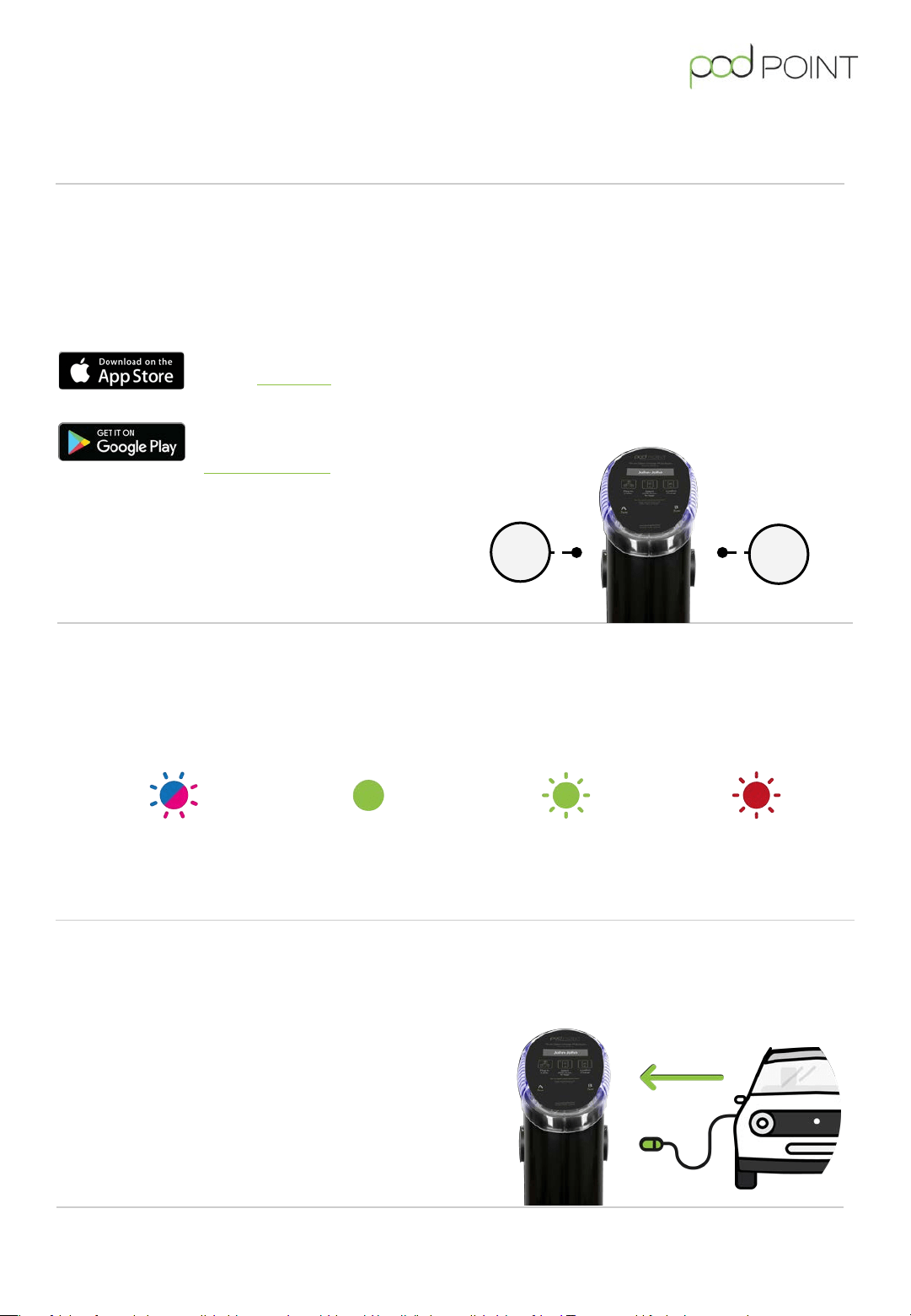
The Twin features two lights on either side of the charger to inform the driver of the status of each charging
socket.they are connecting to.
3. Twin Charger lighting guide
4. Connect your vehicle to start charging
Using your charging cable, connect your vehicle to
the Twin Charger.
Charging will start immediately, the cable will be
locked and a solid green light will be shown via the
status light.
2. Understanding the charging-doors
The Twin Charger features two charging sockets
protected by hinged doors.
These are named “ Socket A & B” in the Pod Point
App.
Both sockets are compatible with standard mode
3 charging cables and can be used to charge two
vehicles simultaneously.
1. Download the Pod Point App
Blue Light/Flashing Pink
Ready to charge
Green
Charging
Flashing Green
Finished charging
Flashing Red
Error
A
B
Note: If you do not confirm your charge using the
Pod Point App within 15 minutes, charging will stop.
Note: Only certified mode 3 cables are to be used on
the Twin Charger. In-cable adapters or converters are not
permitted for use,
Twin Charger
This user guide covers the standard Pod Point Twin Chargers that are not
RFID-authentication enabled and charge is confirmed using the Pod Point App only.
Pod Point Twin Charger - Commercial User Guide PP-D-190098-3
TS-UK-C-UG
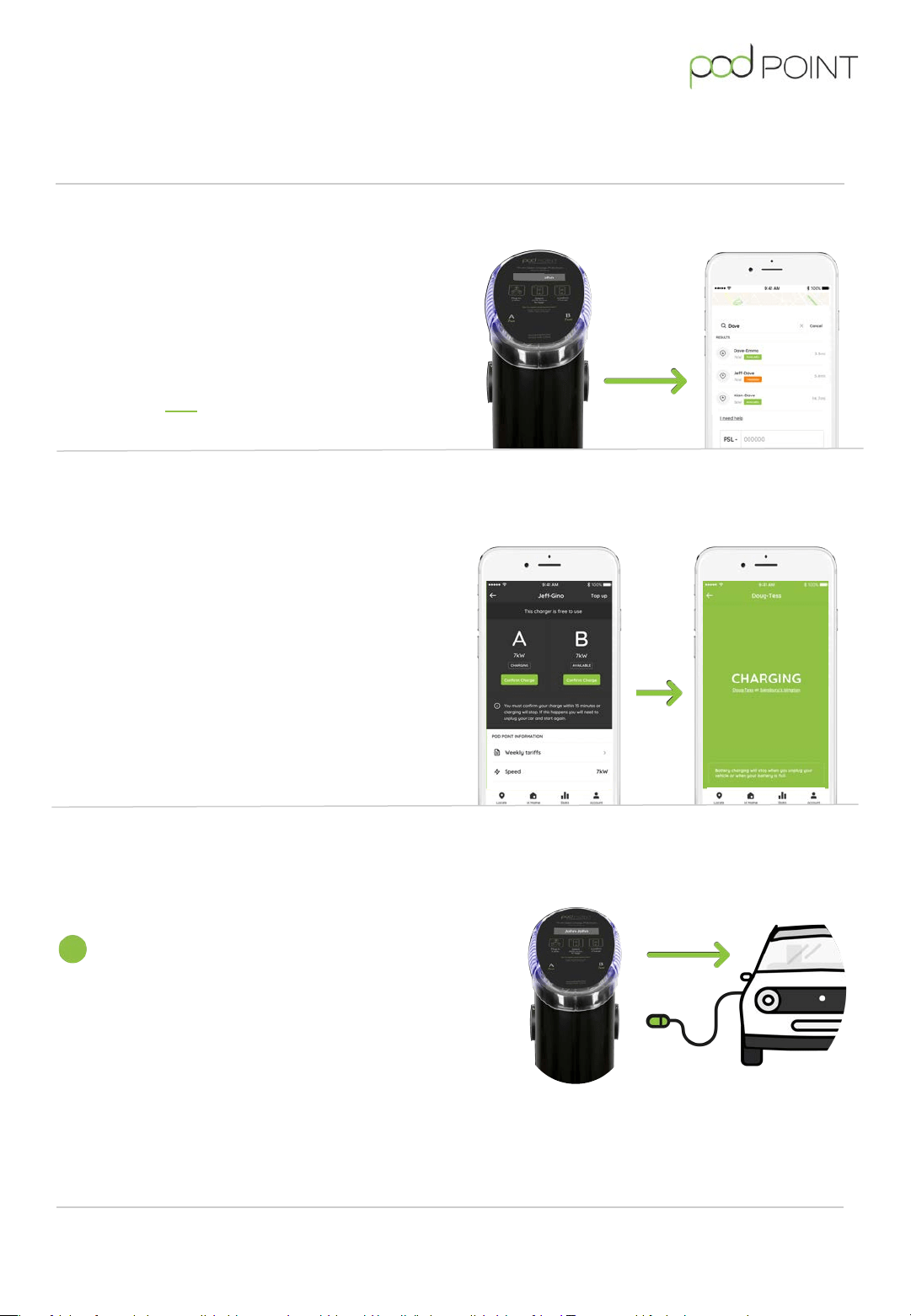
6. Confirming your charge
To use most of our Twin Chargers you will need to
confirm charge within 15 minutes of your charging
session starting via the Pod Point App. If your session is
not confirmed then charging will stop.
To confirm your charge simply tap the “Confirm
Charge” button in-app underneath the door you are
charging from (see screen 1) you will then see screen 2
in-app to confirm you have started charging.
7. Ending your charge
Once your vehicle is fully charged the Twin
Charger status light will be flashing green and
the charge from the Twin charger will stop
automatically.
Alternatively if you would like to stop charging
before your battery is full, simply unlock and remove
the cable from your vehicle.
Twin Charger
This user guide covers the standard Pod Point Twin Chargers that are not
RFID-authentication enabled and charge is confirmed using the Pod Point App only.
5. Find your charger in-app
Use the name of your charger to locate it within the Pod
Point App.
You can also search by the address or postcode of the
chargepoint.
You can also find all of our chargers on the Pod Point
Network online here.
Dave-Emma
Screen 1
Screen 2
Pod Point Twin Charger - Commercial User Guide PP-D-190098-3
TS-UK-C-UG

Call us for support on 020 7247 4114
Email us at [email protected]
Tweet us at @Pod_Point
Website: pod-point.com