
Rapid Charging
Delta 25kW
User Guide
Pod Point: Delta 25kW User Guide PP-D-200239-1
D25-UK-C-UG
Delta 25kW User Guide
Pod Point: Delta 25kW User Guide PP-D-200239-1
D25-UK-C-UG
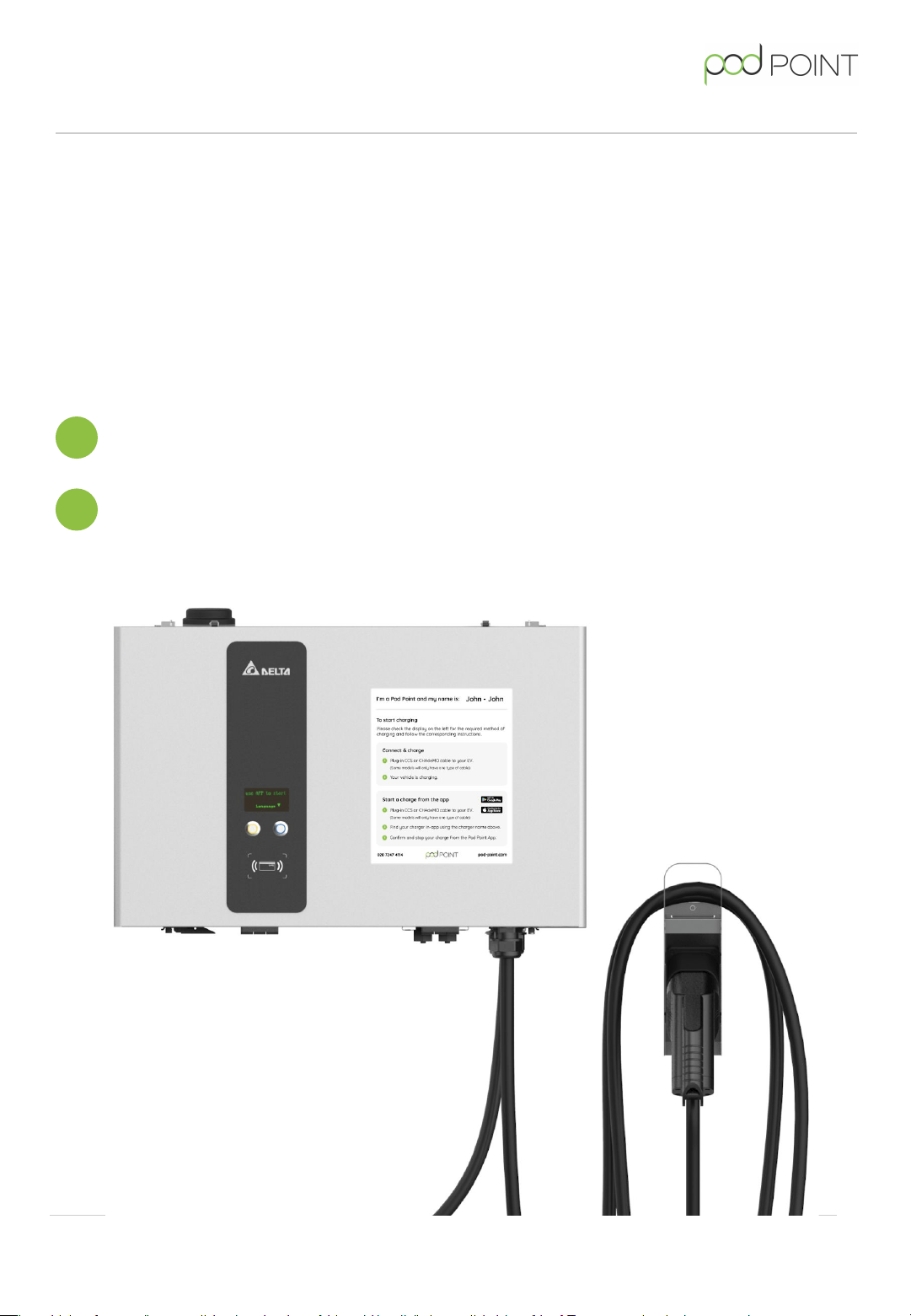
This user guide is for drivers using the Delta 25kW rapid charger.
The method of confirming/paying for charging will either be through the Pod Point
App or your Delta 25kW will be set up as Plug & Play, meaning drivers will not have to
confirm charging.
Please check the display on the charger for the required method and follow the set of
instructions that apply to your charger setup.
Page 3 - Charging and paying with Plug & Play
Page 4 - Charging and paying with the Pod Point App
1
2
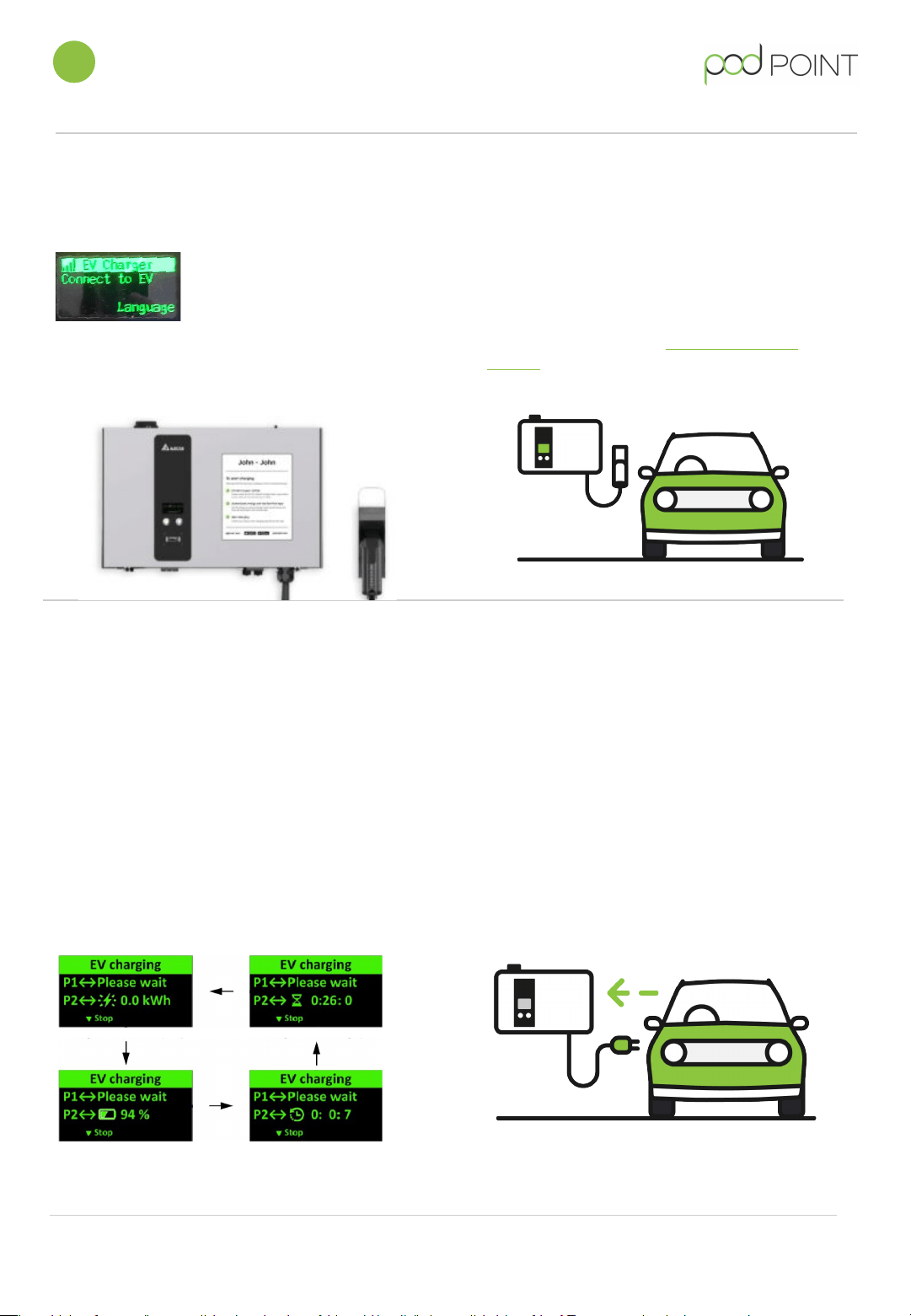
2. Connect your vehicle.
Using the CCS charging cable, connect the
Delta 25kW to your vehicle.
After more charging information on your
vehicle? Check out our vehicle charging
guides.
1. Check Delta 25kW Charger status.
3. Energy will start flowing and your
vehicle will be charging.
This method of charging does not require
any form of authentication.
You’ll be able to see the state of charging
on the display.
Note:
Messaging on the display may vary.
4. Finishing your charging session.
Pod Point: Delta 25kW User Guide PP-D-200239-1
D25-UK-C-UG
When the screen displays to
connect to EV, the Delta
25kW is ready to charge.
Note:
Messaging on the
display may vary.
The Delta 25 kW will charge your EV’s
battery to it’s maximum capacity unless
stopped early.
To stop charging, simply press the orange
button (or whichever button is indicated on
the screen) and unplug your vehicle before
returning the cable to the charger.
Charging and paying with Plug & Play
1
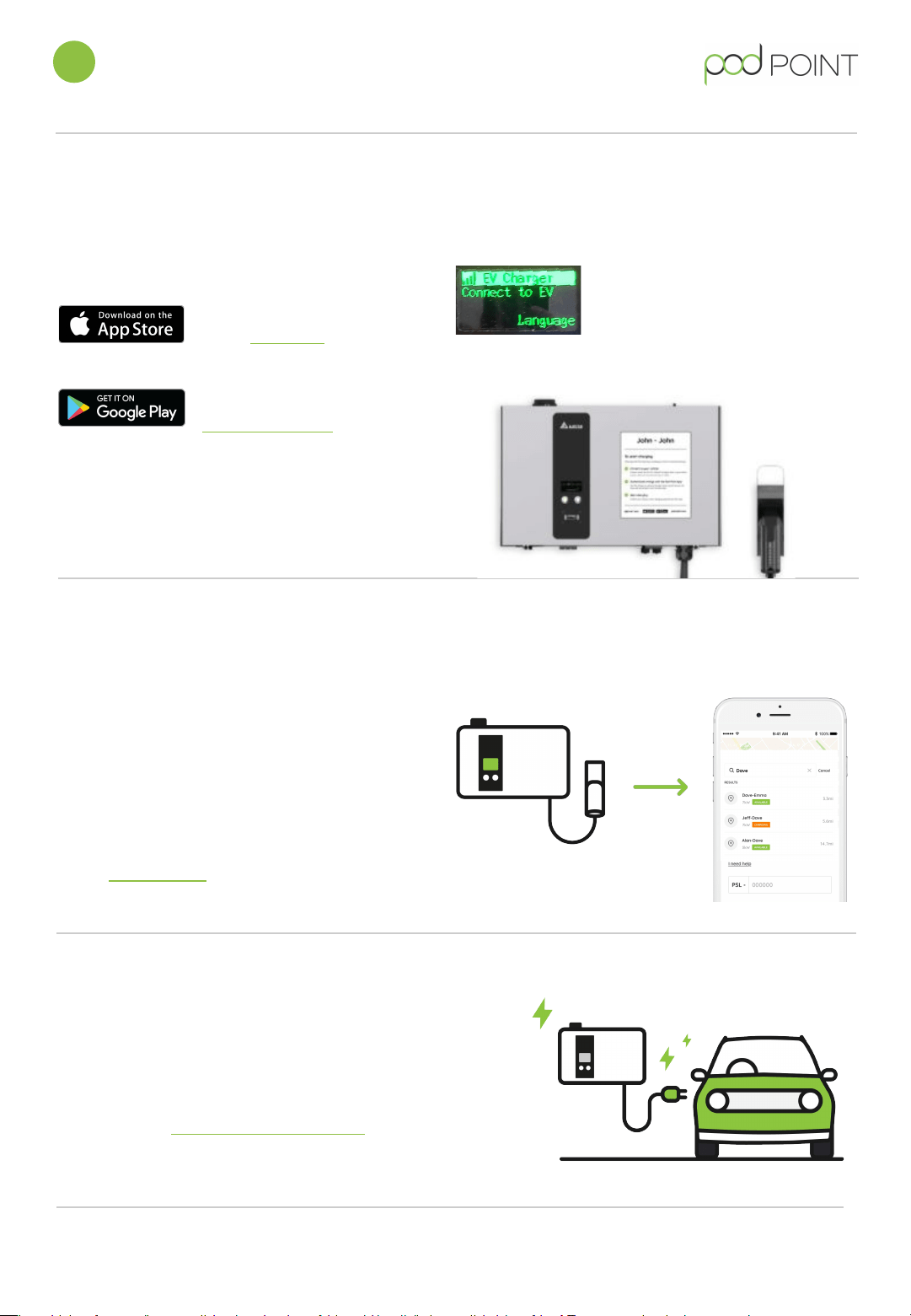
2. Check Delta 25kW Charger status.
When the screen displays to
connect to EV, the Delta 25kW is
ready to charge.
Note:
Messaging on the display may vary.
The Pod Point App is available for both iOS and
Android mobile devices.
For iOS devices, download
on the App Store.
For Android devices,
download on the
Google Play store.
You’ll need to create a Pod Point Account in our
app to use our network . If payment is required
to charge, you’ll need to load enough funds to
cover your entire charging session.
1. Download the Pod Point App.
4. Connect your vehicle to the charger.
Using the CCS charging cable, connect the Delta
25kW to your vehicle.
After more charging information on your vehicle?
Check out our vehicle charging guides .
3. Find your charger in-app.
Use the name of your charger to locate it
within the Pod Point App. The name can be
found on the sticker on the front of the unit.
You can also search by the address or
postcode of the chargepoint.
You can also find all of our chargers on our
online Charge Map. (charge.pod-point.com)
Pod Point: Delta 25kW User Guide PP-D-200239-1
D25-UK-C-UG
Charging and paying with the Pod Point App
2
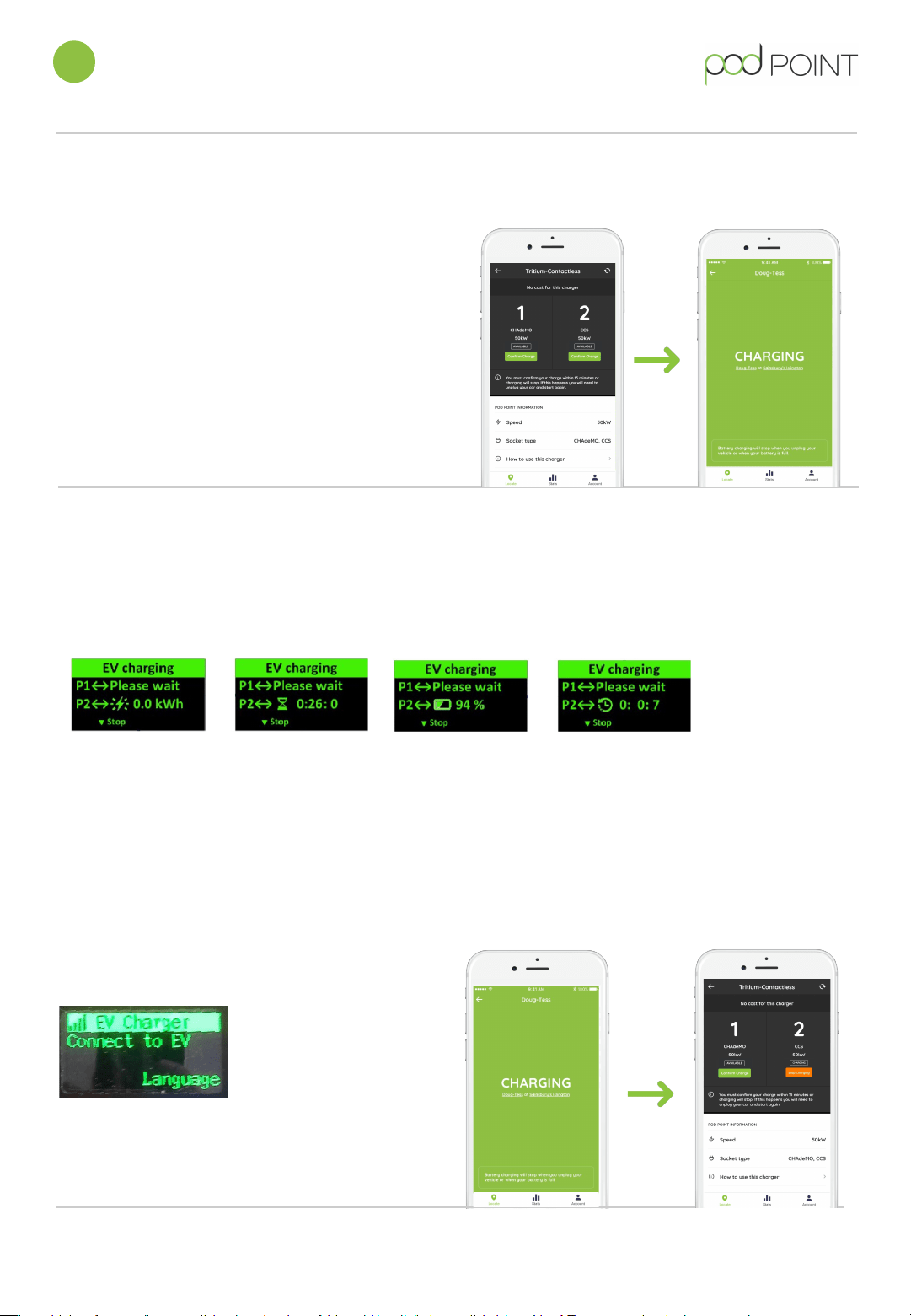
6. Check your charge status.
7. Stopping a charging session.
5. Confirm to start charging.
To successfully start a charge on the Delta 25kW,
you will need to confirm charge via the Pod Point
App.
If your session is not confirmed then charging will
not start.
To confirm your charge simply tap the “Confirm
Charge” button in-app underneath the door you
are charging from (see screen 1) you will then see
screen 2 in-app to confirm you have started
charging.
Charger detail screen
Charging screen
Charger detail screen
Charging screen
You can only stop your charging session via the Pod
Point App. The Delta 25kW will charge your EV’s battery
to it’s maximum capacity unless stopped early.
To stop charging, using the top left-hand-corner arrow
go back to the charger detail screen and press the
“Stop Charging” button.
When the screen is
showing to disconnect
your EV, charging has
stopped.
Note:
Messaging on the
display may vary.
The Delta 25kW charging cable will now be able to be
unplugged from your vehicle and returned to the
charger.
Pod Point: Delta 25kW User Guide PP-D-200239-1
D25-UK-C-UG
You’ll be able to see your charging status on the display.
It will indicate whether your EV is charging and the charging progress.
Note:
Messaging on the display may vary.
Charging and paying with the Pod Point App
2