
Fast Charging
Solo 3 - Commercial & shared residential.
User Guide
Solo 3 - Commercial & shared residential PP-D-190096-3
User Guide S3-UK-C-UG
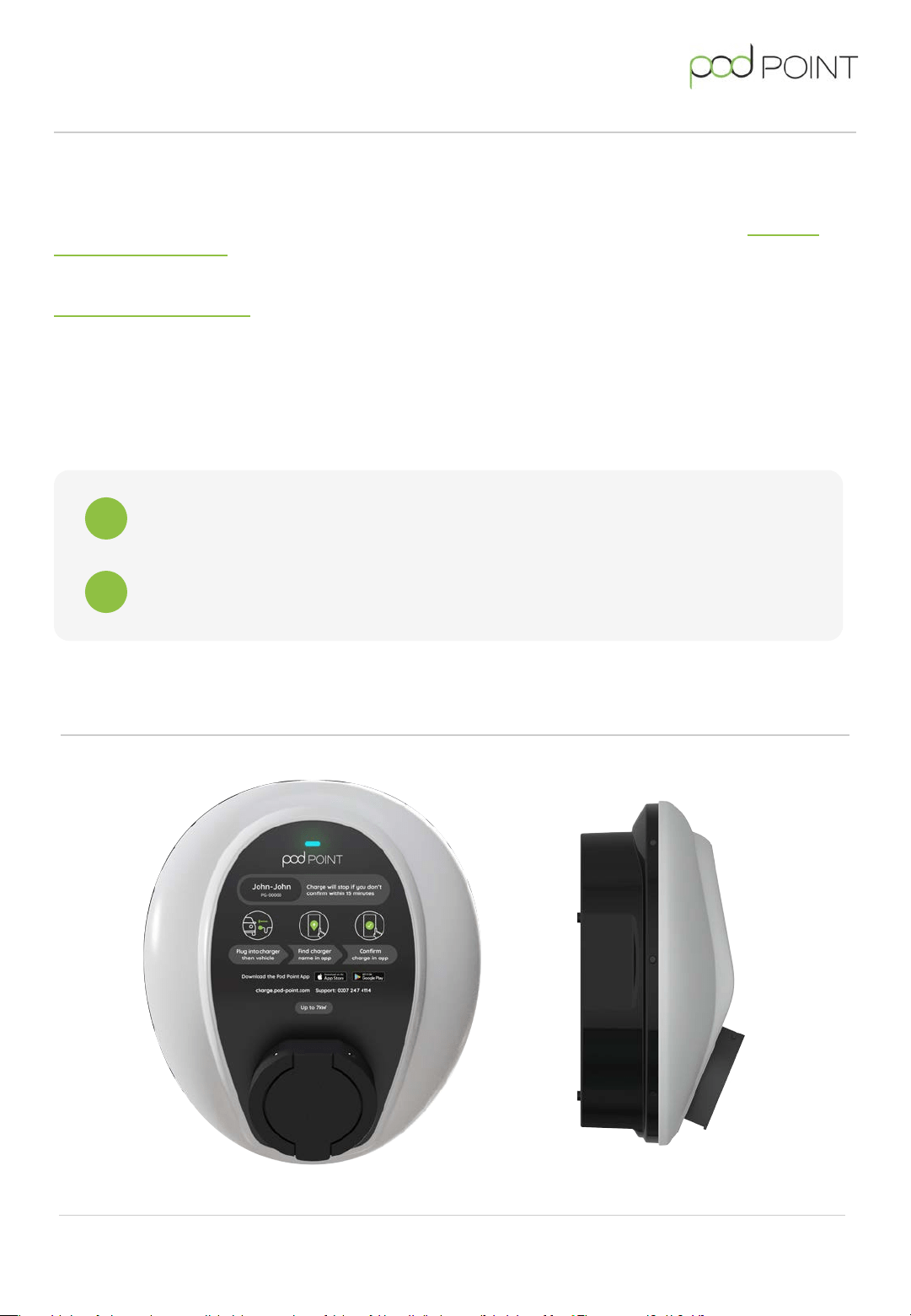
Solo 3- Commercial & shared residential
This user guide has been written for drivers using the Solo 3 in either a commercial or shared
residential setting (e.g drivers in flats or apartments with shared charging) if you are a business driver
charging from home, please use our home charging user guide, this can be found on our technical
documents web page - via pod-point.com
Alternatively if you’re charging on-the-go in a public place on the Pod Point Network please check our
Pod Point Network page to find specific charging instructions for the variety of chargers available on
our network (including rapid charging).
Drivers in flats and apartments: If you’re a residential driver with shared charging, it’s likely that you’ll
need to be set-up on your specific private network in order to access your chargers, please speak with
your property/facilities manager in order to complete this. Without an account set up - you won’t be
able to see your chargers on our app.
1
2
Charging using the Pod Point App
Plug & Play charging (no app required)
Note: It’s likely your chargers will be set up to accept one of the above authentication methods, If you’re unsure
which method your chargers require, please speak with the person most likely to of set up your charging.
Solo 3 - Commercial & shared residential PP-D-190096-3
User Guide S3-UK-C-UG
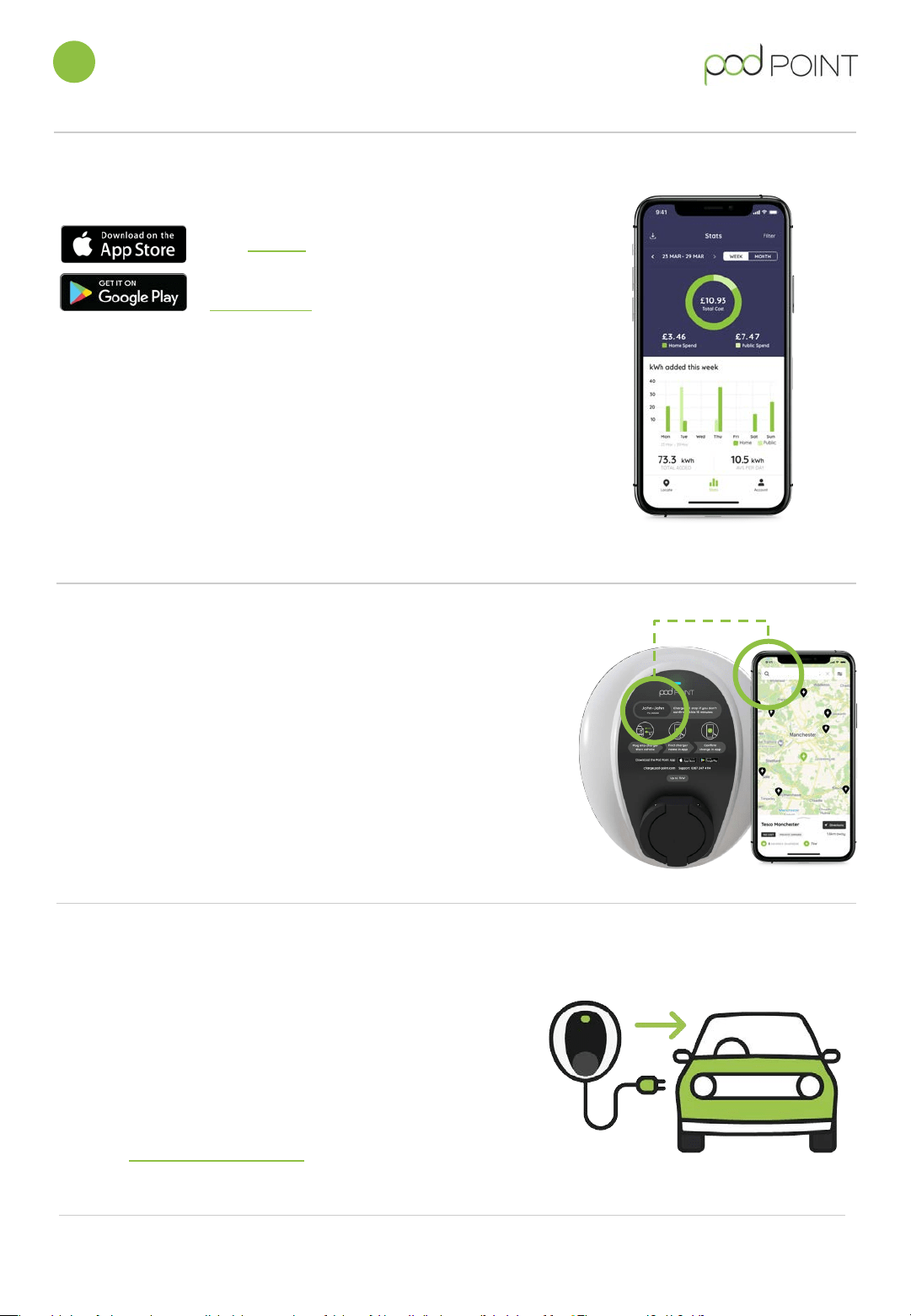
1. Download the Pod Point App
3. Plug-in to the Solo 3 first, then your vehicle
Using an appropriate charging cable, plug-in to the Solo 3 first
and then your vehicle, charging should start fairly quickly and
will be signalled by a solid green light on the Solo 3.
For security, the charging cable will be locked into the Solo 3
when charging starts.
Need for more charging info specific to your vehicle?
Check our vehicle charging guides.
2. Find the charger you need using its name
If you’ve given our app permission to use your location, it
may load with your nearest charger automatically - if not,
or you’re unsure:
Find the name of your charger towards the top of the Solo,
it is 2x 4 letter names (John-John) - enter this into the search
bar on the Pod Point App and you’ll see the charger you need
to use.
Residential drivers with shared charging should ensure they’re set up as a
user on the building’s shared charging to be able to “see” their chargers
in-app. If in doubt, please speak with your property or facilities
management.
Charging using the Pod Point App
1
Solo 3 - Commercial & shared residential PP-D-190096-3
User Guide S3-UK-C-UG
For iOS devices, download
on the App Store.
For Android devices,
download on the
Google Play store.
If you're using a public charger on the Pod Point Network, you can either create a
Pod Point account in our app to use our network or alternatively, use guest access.
If you’re a commercial/fleet/workplace driver, please ensure your Pod Point
account email matches your organisation's domain (e.g “@mybusiness.com”-
typically your work email address) as this will normally be used when allowing access
to workplace/business charging)
If you’re a residential driver with shared charging: Please ensure your property
manager has been notified of your Pod Point Account email address and has set you
up as a user with access to charging.
If payment is required to charge you will need to top-up the full amount onto your
digital wallet or provide your card details.
Tip: The quickest and easiest way to start charging, is to
plug-in immediately and find and confirm your charger
within 15 minutes.
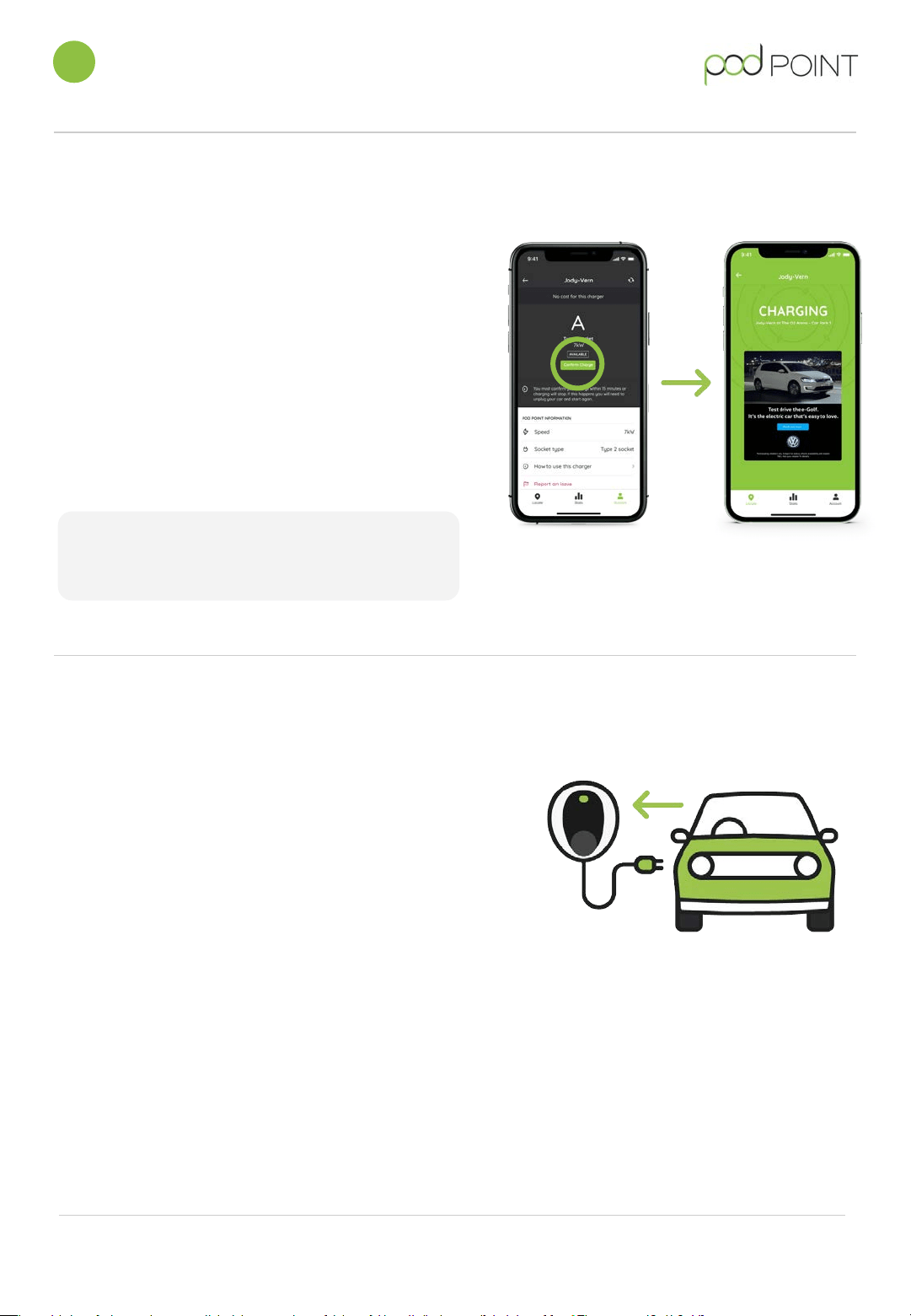
4. Confirm your charge within 15 minutes
Charging using the Pod Point App
1
You’ll need to confirm your charge in-app once charging
has started within 15 minutes otherwise charging will stop,
this is done by tapping the button highlighted in the green
circle on the right.
Once your charge is confirmed, you’ll be able to continue
charging as normal for however long is required.
You’ll know when a charge has been confirmed as you’ll
see the next screen located on the furthest right here >.
Once your EV is fully charged, charging will stop.
To stop early, unlock your vehicle and simply remove the
cable from your vehicle.
A flashing green light indicates that the vehicle’s battery is fully
charged or charging has paused/stopped.
The charging cable can now be unlocked from the Solo 3
if applicable and you can disconnect the car from the Solo 3.
5. Stopping a charge
Solo 3 - Commercial & shared residential PP-D-190096-3
User Guide S3-UK-C-UG
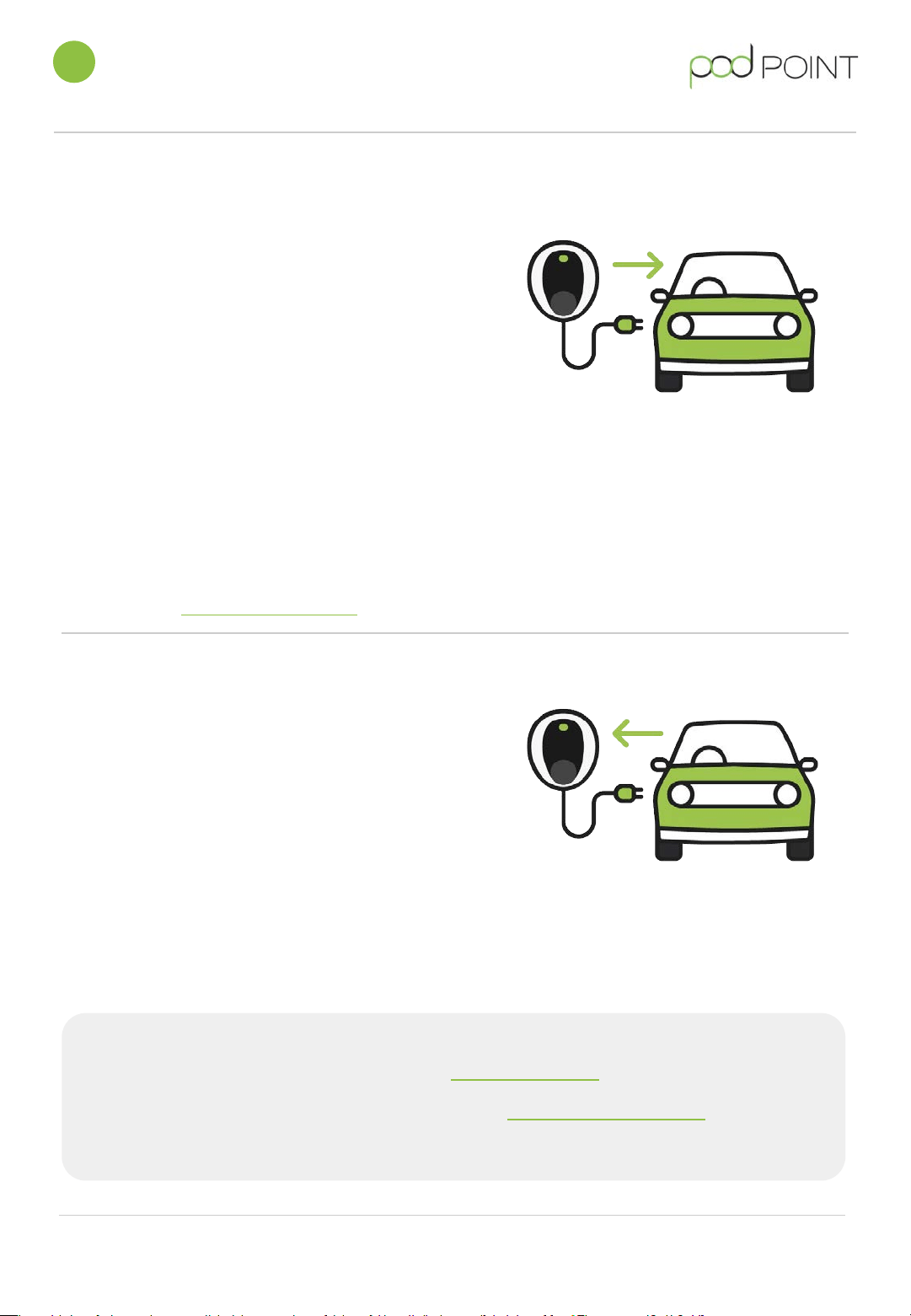
1. Starting a charging session.
The Solo 3 will be either universal or tethered with a
Type 1 or Type 2 charging cable.
● Plug in to the Solo 3 first (socketed), then to
your vehicle.
● Charging will start immediately and the Solo 3
status light will be solid green.
● The cable will be locked to the vehicle
charging socket when charging starts for
security reasons.
Plug & Play Charging
2
2. Ending a charging session
● A flashing green light suggests charging has
stopped, this usually means the vehicle’s battery
is full.
● Unlock your vehicle and remove the charging
cable from your vehicle first.
● The charging cable can now be
unplugged from the charger.
Explore what else the Pod Point App can do
Find a place to charge on the Pod Point Network
Need for more charging info specific to your
vehicle?
Check our vehicle charging guides.
Solo 3 - Commercial & shared residential PP-D-190096-3
User Guide S3-UK-C-UG
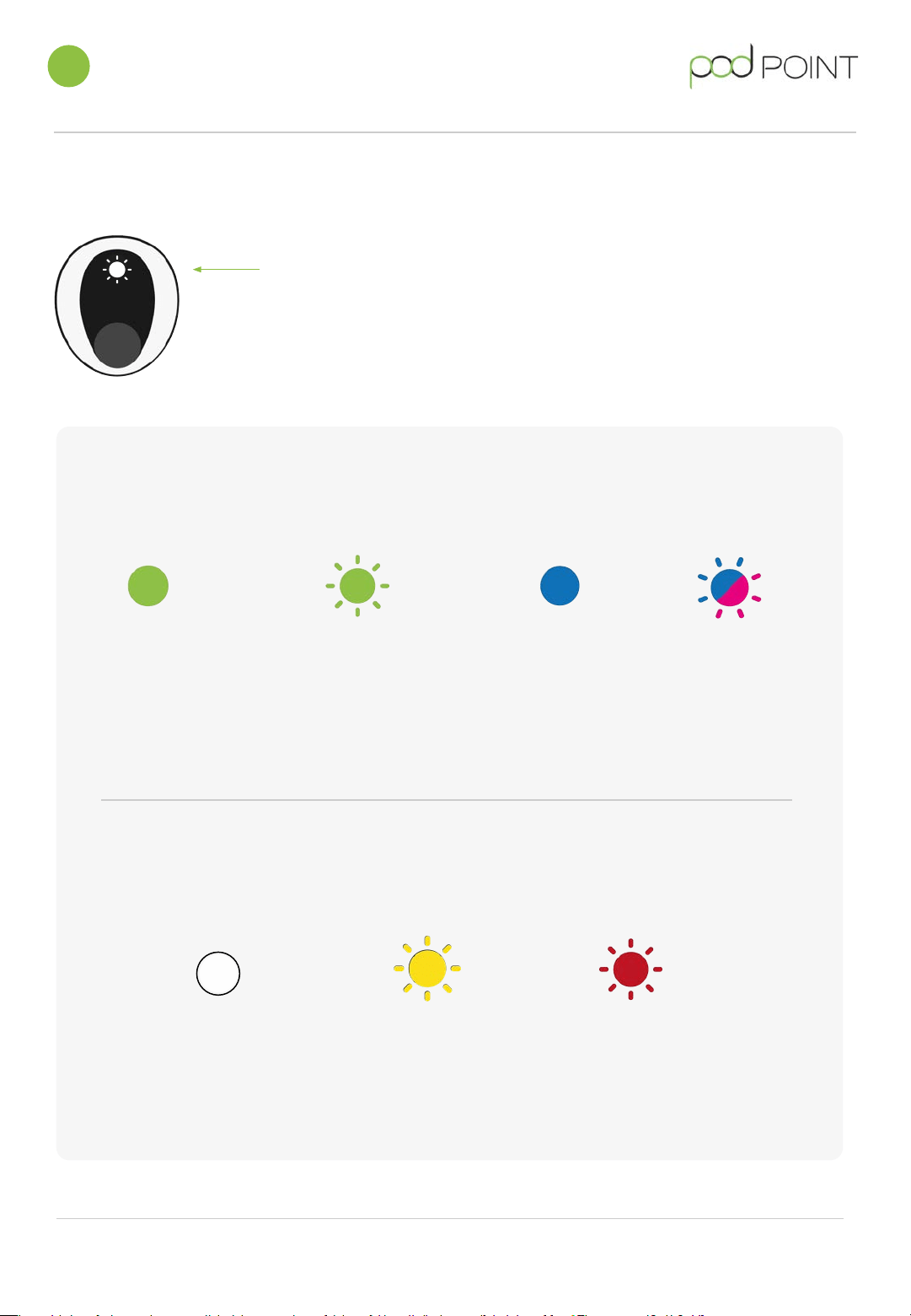
A guide to the Solo 3’s status lights
3
Solid
green
Flashing
green
Solid
blue
Flashing
blue/pink
The Solo 3 is
charging your
vehicle.
Your EV’s battery is full
Or
Your EV is waiting to start
a scheduled charge
(set by your vehicle)
The Solo 3 is in
standby mode.
The Solo 3 is
communicating
with Pod Point.
Flashing
yellow
Solid/
flashing red
The Solo 3 is balancing
the rate of charge via
Auto Power Balancing
feature (charging is
paused)
There is a fault
with the
Solo 3.
The Solo 3’s status light is located here
Solid
white
The Solo 3 has
lost its Wi-Fi
connection.
Solo 3 - Commercial & shared residential PP-D-190096-3
User Guide S3-UK-C-UG

Call us for support on 020 7247 4114
Email us at [email protected]
Tweet us at @Pod_Point
Website: pod-point.com