
Fast Charging
Solo Charger - Commercial
S3 | S7 | S22 User Guide
Pod Point Solo Charger - Commercial PP-D-200055-2
User Guide S-UK-C-UG
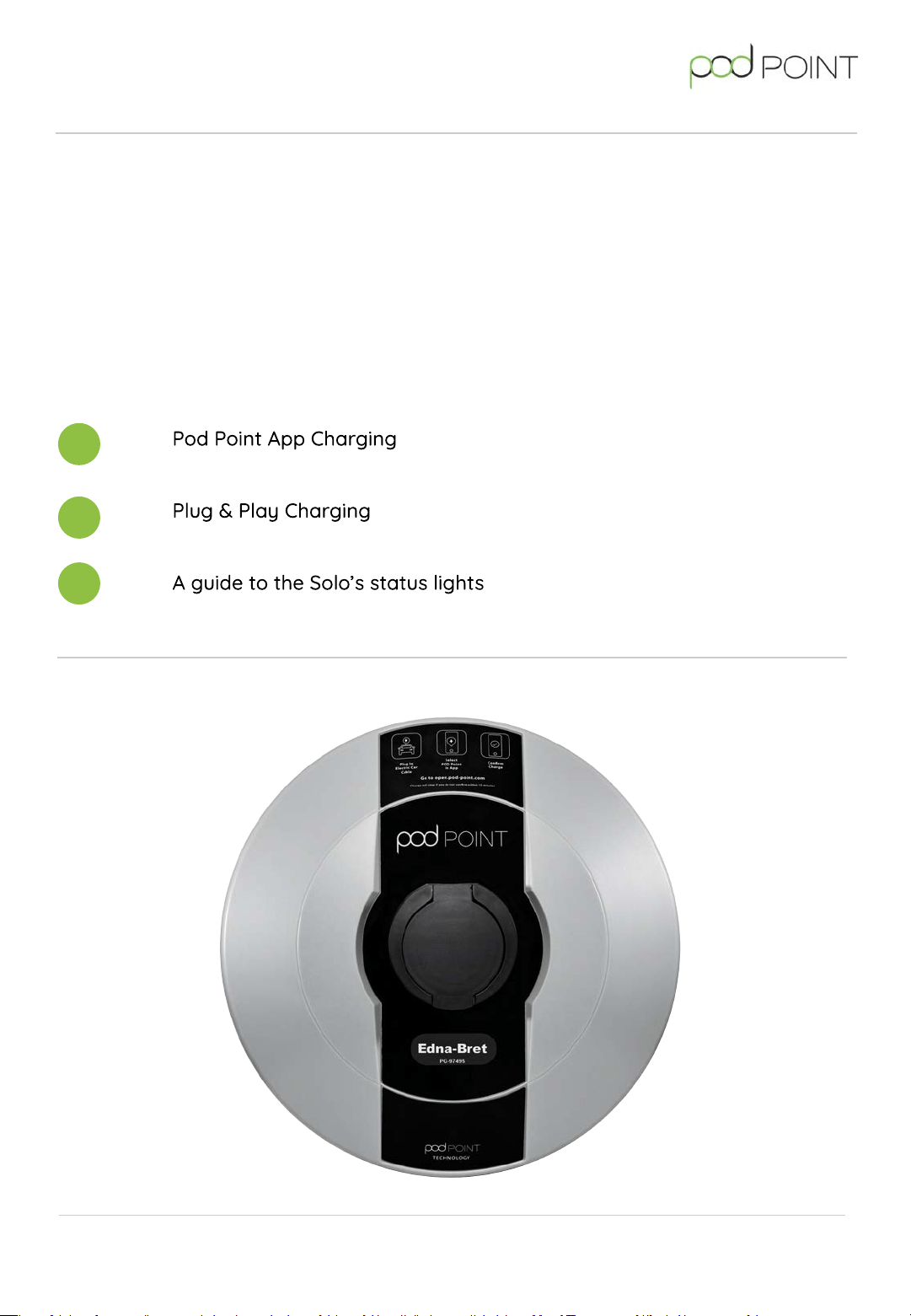
Solo Charger
This user guide has been written for business drivers using the Pod Point Solo Charger.
There are multiple methods available to authenticate your charging session. These methods
will typically be setup when your chargers are installed. This user guide covers in-app (Pod
Point App) and Plug & Play authentication methods only.
To find out the methods of authentication available and in more detail, please speak with
relevant person within your organisation.
1
2
Pod Point Solo Charger - Commercial PP-D-200055-2
User Guide S-UK-C-UG
3
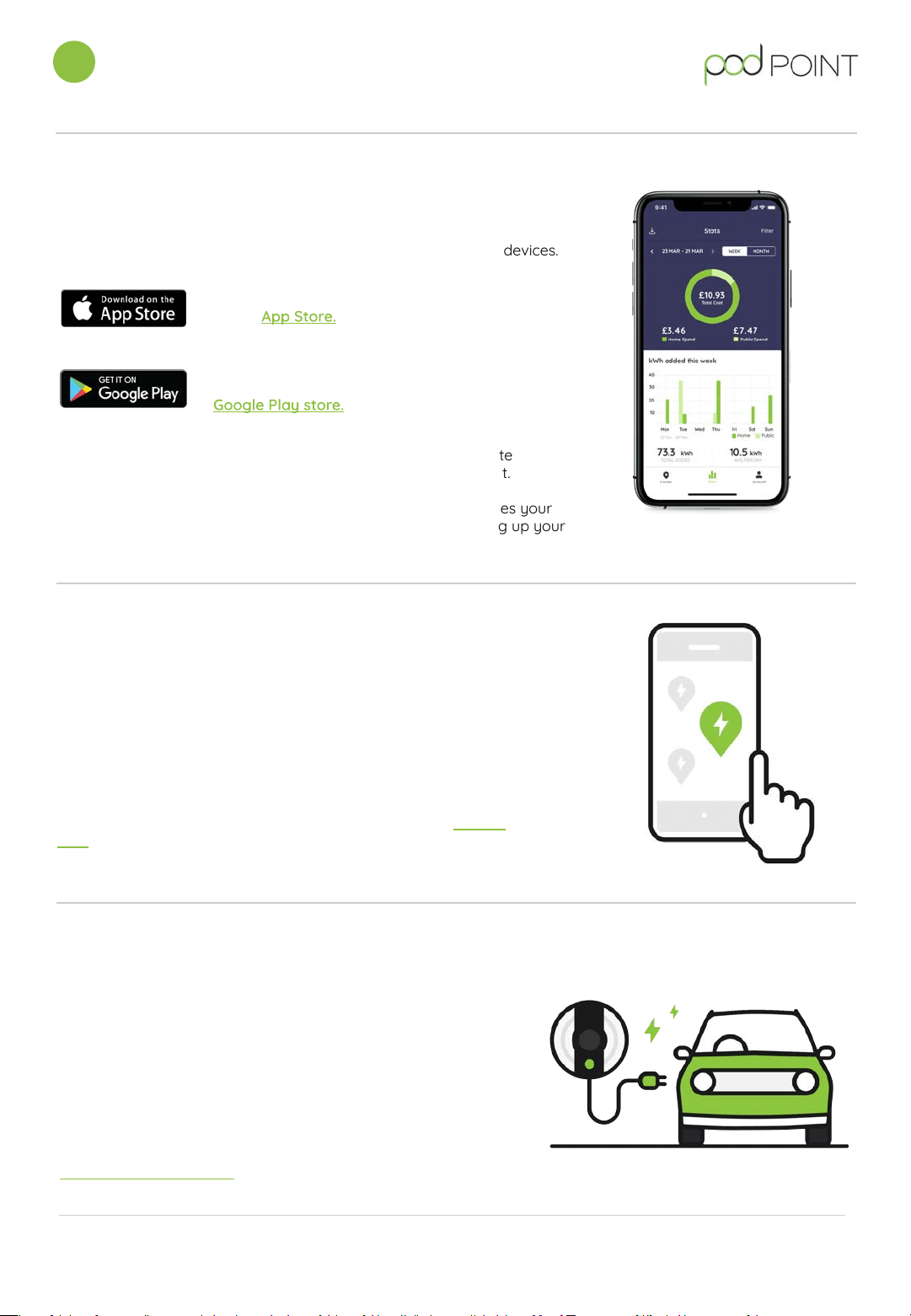
The Pod Point App is available for both iOS and Android mobile devices.
For iOS devices, download
on the
For Android devices,
download on the
Depending on how your chargers are configured, to authenticate
charging with the Pod Point App you'll need a Pod Point Account.
Please ensure the email address you use to sign up with, matches your
organisation's domain as this will normally be used when setting up your
organisation's chargers.
1. Download the Pod Point App
3. Connect your vehicle to start
Using an appropriate charging cable, plug the cable into the
car (and into the Solo if its a socketed model). Charging will
start immediately and a solid green light will start to show on
the Solo to indicate it’s charging.
For security, the charging cable will be locked into the Solo
when charging starts.
After more charging information on your vehicle? Check our
vehicle charging guides.
2. Find your charger in-app
Use the name of your charger to locate it within the Pod Point App.
The name can be found on the sticker on the front of the Solo.
If your chargers are public you can also search by the address or
postcode of the chargepoint.
You can also find all of our public chargers on our online Charge
Map. (charge.pod-point.com)
Pod Point App Charging
1
Pod Point Solo Charger - Commercial PP-D-200055-2
User Guide S-UK-C-UG
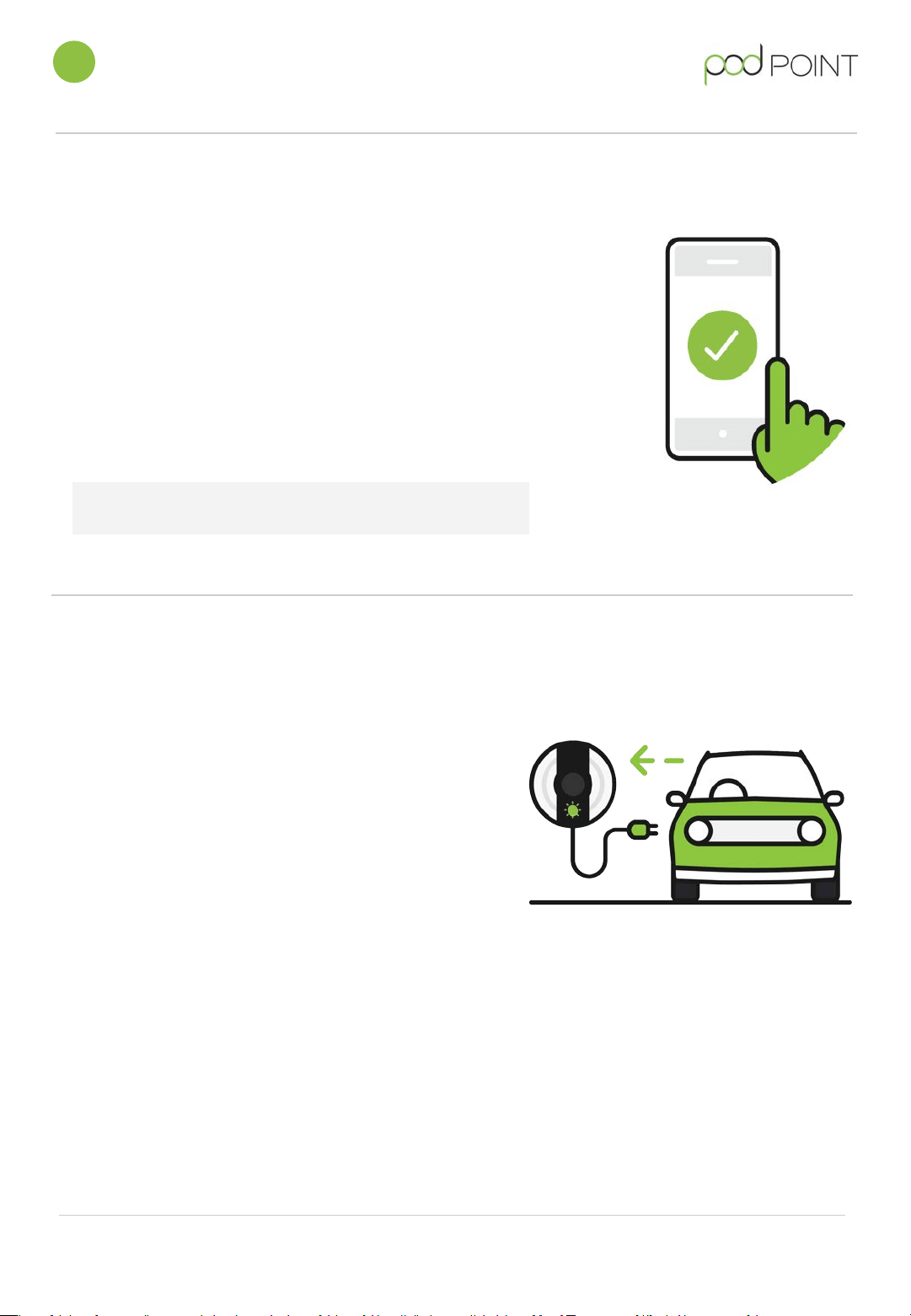
4. Confirming your charging session
Pod Point App Charging
1
Pod Point Solo Charger - Commercial PP-D-200055-2
User Guide S-UK-C-UG
Within 15 minutes of charging, the charging session will have to be
confirmed via the Pod Point App
Drivers can create a user account with Pod Point and authenticate
in-app each time they wish to charge. Once authenticated in-app,
a confirmed charging session can successfully continue.
In the 15-minute time frame after plugging in energy is flowing
without authentication. This allows users the time to authenticate
the charge without losing charging time.
Once your EV is fully charged, charging will stop. To stop
early, simply remove the cable from your vehicle.
Flashing green light indicates that the vehicle’s battery is
fully charged or charging has paused/stopped.
The charging cable can now be unlocked from the Solo
charger if applicable And you can disconnect the car from
the chargepoint.
5. Finishing a charging session
Note:
The charging will stop after 15 minutes if the session is
not confirmed.
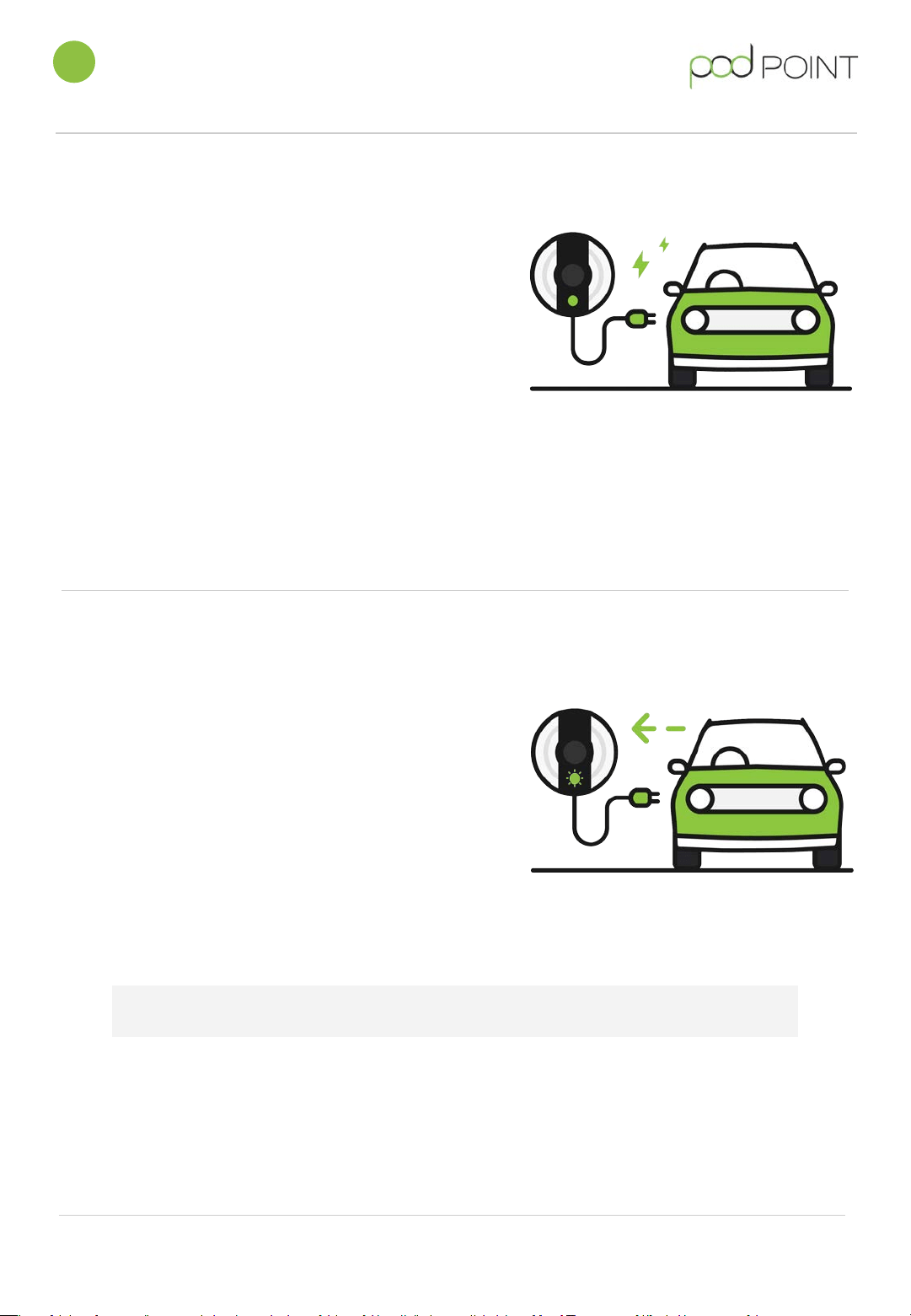
6. Starting a charging session.
The Solo Charger will be either universal or tethered
with a Type 1 or Type 2 charging cable.
● Plug in your car
● Charging will start immediately and the Solo
status light will be solid green
● The cable will be locked to the vehicle door
when charging starts for security reasons
Plug & Pay Charging
2
7. Ending a charging session
● The charging session is finished when the
Solo starts flashing a green light.
● The vehicle and cable can now be
unplugged from the charger
Pod Point Solo Charger - Commercial PP-D-200055-2
User Guide S-UK-C-UG
For more information on the Solo's status lights, please check the next page.
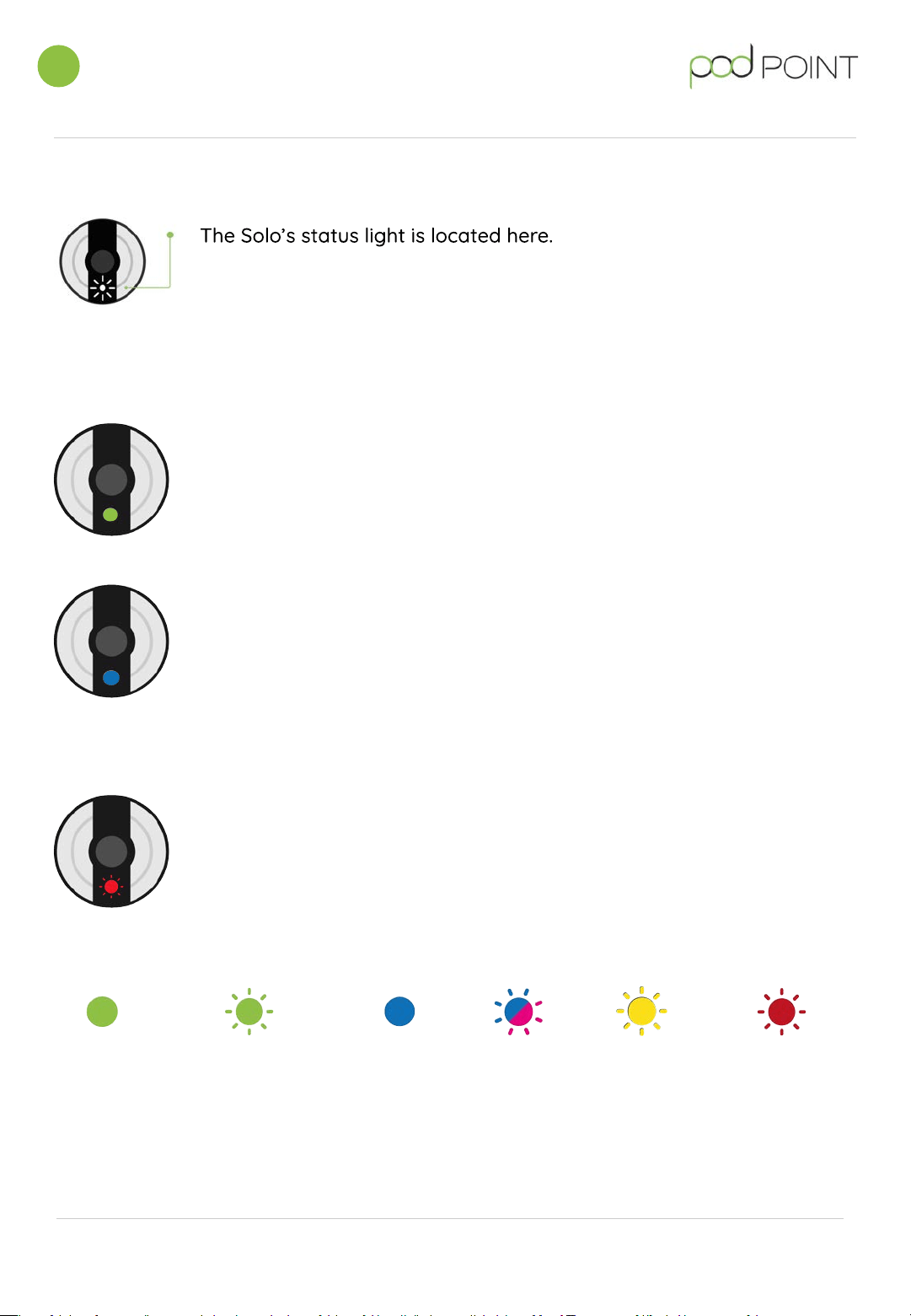
A guide to the Solo’s status lights
Pod Point Solo Charger - Commercial PP-D-200055-2
User Guide S-UK-C-UG
Solid green Flashing
green
Solid blue Flashing
Blue/pink
Flashing
Yellow
Solid/flashing
red
The Solo is
charging your
vehicle.
Your EV’s battery is full
Or
Your EV is waiting to
start a scheduled charge
(set by your vehicle)
The Solo is in
standby mode.
The Solo is
communicating
with Pod Point.
The solo is locked
(keylock active)
There is a fault with
the Solo charger
Starting a charging session
To start a charge, simply plug in your charging cable and the Solo Charger’s
status light will turn a solid green, you have successfully started charging your
vehicle.
Stopping a charging session
Stopping a charging session is easy, simply unlock and disconnect the charging
cable from your vehicle and the Solo Charger will turn itself to standby - signified
by a solid blue light.
The Solo may also communicate with Pod Point during this time, signified by the
pink flashing at the same time.
Error states and contacting support
If the Solo Charger has an error this should be reflected in its status lighting
colour (typically solid or flashing red)
We’d encourage our commercial/business customers to reach out their Pod
Point account manager as a first port of call - after that, please contact our
customer support team (020 7247 4114)
3
Status light guide
Our guide to all lights shown by the Solo are as below:

Call us for support on 020 7247 4114
Email us at [email protected]
Tweet us at @Pod_Point
Website: pod-point.com