User Manual
Version 1.4

Table of Contents
Get started 7
What's in the box 7
Set up Versa 2 8
Charge your watch 8
Set up with your phone 9
Connect to Wi-Fi 9
See your data in the Fitbit app 10
Unlock Fitbit Premium 11
Wear Versa 2 12
Placement for all-day wear vs. exercise 12
Handedness 13
Wear and care tips 13
Change the band 14
Remove a band 14
Attach a band 15
Basics 16
Navigate Versa 2 16
Basic navigation 16
Button shortcuts 17
Quick settings 18
Adjust settings 20
Check battery level 22
Set up device lock 22
Adjust always-on display 23
Turn off the screen 24
Clock Faces and Apps 26
Change the clock face 26
Open apps 27
2

Organize apps 27
Download additional apps 27
Remove apps 27
Update apps 28
Voice Assistant 29
Set up Amazon Alexa Built-in 29
Interact with your voice assistant 29
Check Alexa alarms, reminders, and timers 31
Lifestyle 32
Starbucks 32
Agenda 32
Weather 32
Notifications from your phone 34
Set up notifications 34
See incoming notifications 34
Manage notifications 35
Turn off notifications 35
Answer or reject phone calls 36
Respond to messages (Android phones) 37
Timekeeping 38
Set an alarm 38
Dismiss or snooze an alarm 38
Use the timer or stopwatch 39
Activity and Wellness 40
See your stats 40
Track a daily activity goal 41
Choose a goal 41
Track your hourly activity 41
Track your sleep 42
Set a sleep goal 42
Learn about your sleep habits 42
See your heart rate 43
3

Practice guided breathing 43
Check your stress management score 44
Advanced health metrics 44
Exercise and Heart Health 46
Track your exercise automatically 46
Track and analyze exercise with the Exercise app 47
GPSrequirements 47
Customize your exercise settings and shortcuts 48
Check your workout summary 50
Check your heart rate 50
Custom heart-rate zones 52
Earn Active Zone Minutes 52
Check your daily readiness score 53
Share your activity 53
View your cardio fitness score 54
Music 55
Connect Bluetooth headphones or speakers 55
Control music with Versa 2 56
Control music with the Spotify - Connect &Control app 57
Contactless Payments 58
Use credit and debit cards 58
Set up contactless payments 58
Make purchases 59
Change your default card 61
Pay for transit 61
Update, Restart, and Erase 62
Update Versa 2 62
Restart Versa 2 62
Shutdown Versa 2 63
Erase Versa 2 63
Troubleshooting 64
Heart-rate signal missing 64
4

GPS signal missing 64
Can't connect to Wi-Fi 65
Other issues 66
General Info and Specifications 67
Sensors andComponents 67
Materials 67
Wireless technology 67
Haptic feedback 67
Battery 68
Memory 68
Display 68
Band size 68
Environmental conditions 69
Learn more 69
Return policy and warranty 69
Regulatory and Safety Notices 70
USA:Federal Communications Commission(FCC) statement 70
Canada:Industry Canada (IC)statement 71
European Union (EU) 72
IP Rating 74
Argentina 74
Australia and New Zealand 74
Belarus 74
Customs Union 75
China 75
India 77
Indonesia 77
Israel 77
Japan 77
Mexico 78
Morocco 78
Nigeria 78
Oman 79
Pakistan 79
5

Get started
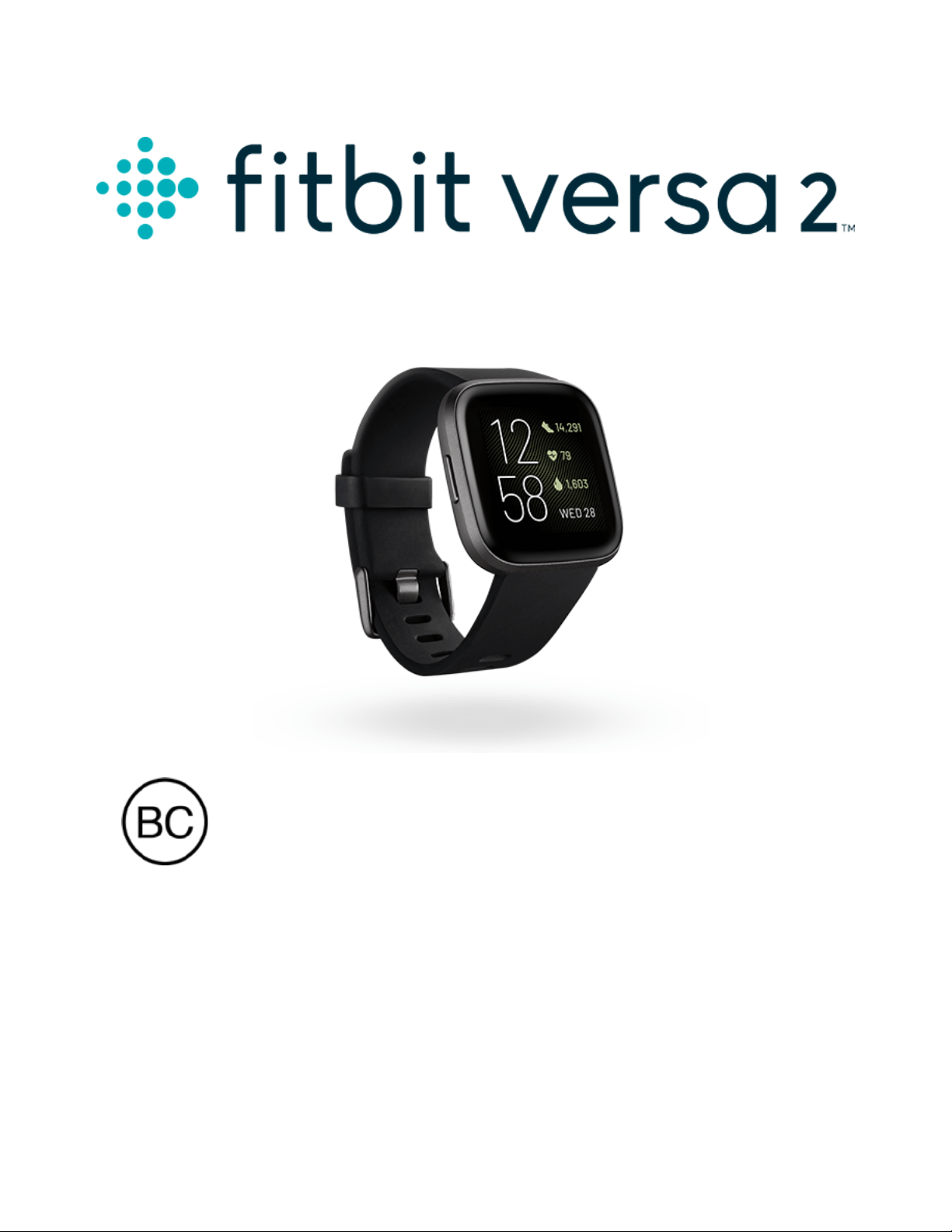
Elevate your day with Fitbit Versa 2, the premium health and fitness watch with
Amazon Alexa Built-in, fitness features, apps, and more.
Take a moment to review our complete safety information at fitbit.com/safety.
Versa 2 is not intended to provide medical or scientific data.
What's in the box
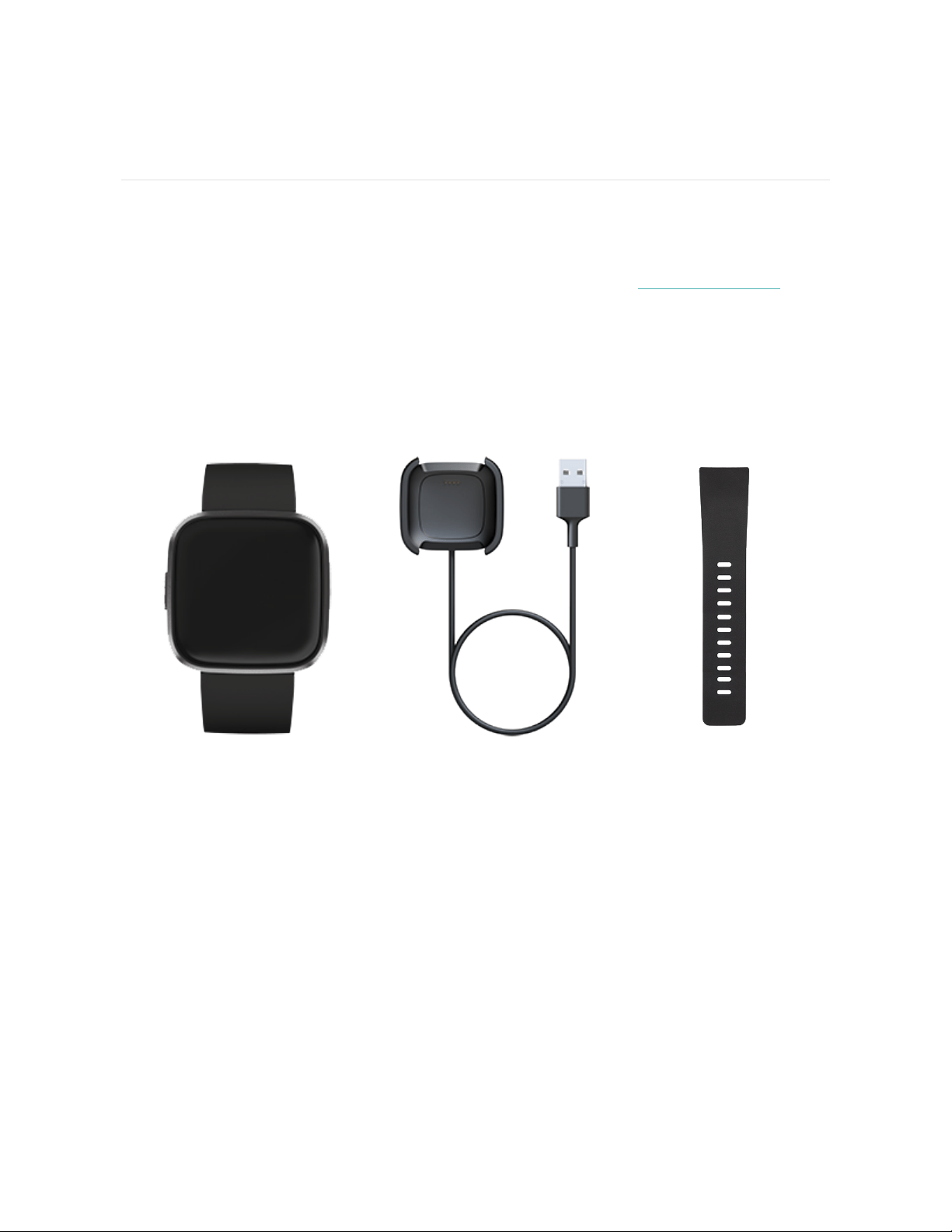
Your Versa 2 box includes:
Watch with small band
(color and material varies)
Charging cable Additional large band
The detachable bands on Versa 2 come in a variety of colors and materials, sold
separately.
7
Set up Versa 2
Use the Fitbit app for iPhones and Android phones.
To create a Fitbit account, you're prompted to enter your birthdate, height, weight,
and sex to calculate your stride length and to estimate distance, basal metabolic
rate, and calorie burn. After you set up your account, your first name, last initial, and
profile picture are visible to all other Fitbit users. You have the option to share other
information, but most of the information you provide to create an account is private
by default.
Charge your watch
A fully-charged Versa 2 has a battery life of 6+ days. Battery life and charge cycles
vary with use and other factors; actual results will vary.
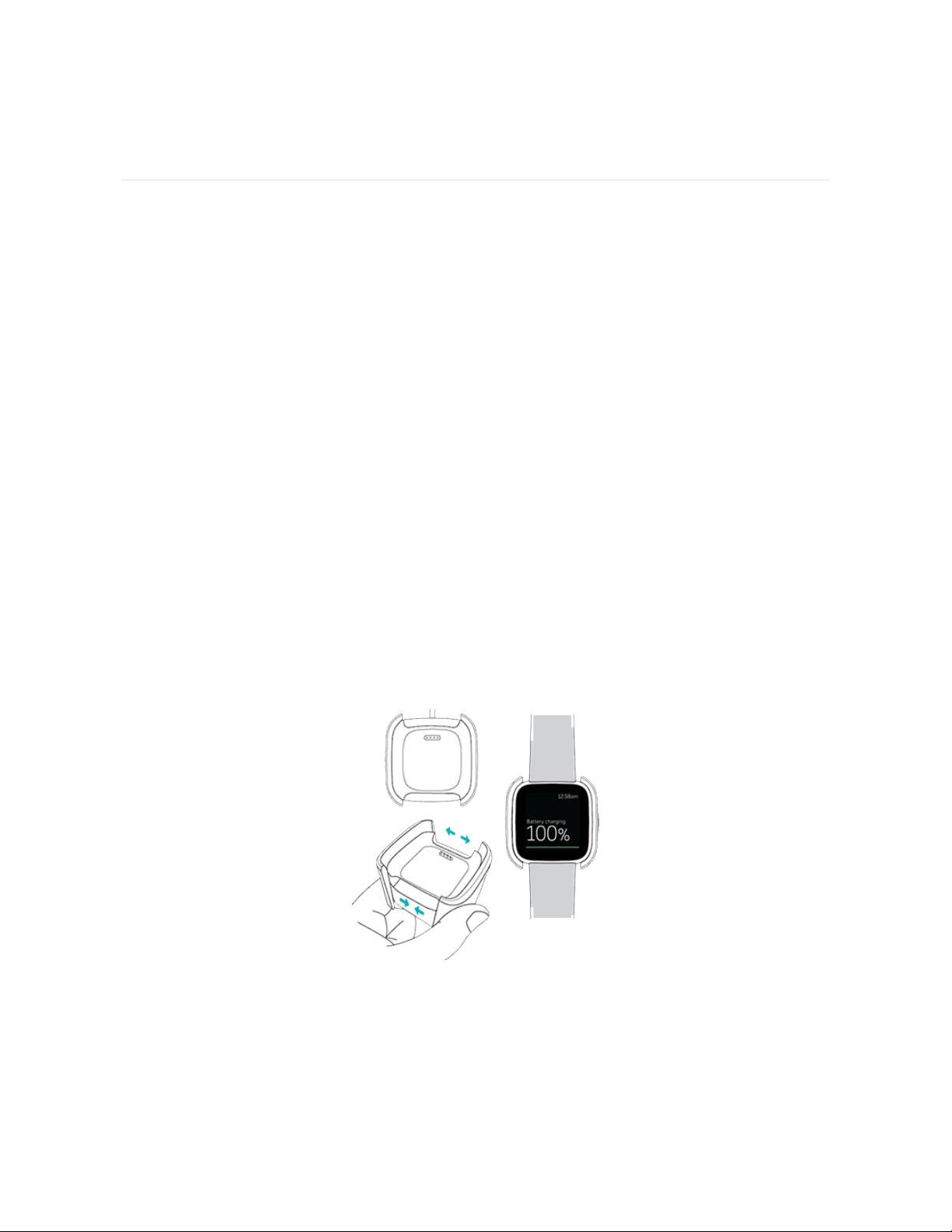
To charge Versa 2:
1. Plug the charging cable into the USB port on your computer, a UL-certified
USB wall charger, or another low-energy charging device.
2. Pinch the clip and place Versa 2 in the charging cradle. The pins on the
charging cradle must align with the gold contacts on the back of the watch.
The percent charged appears on screen.
8
While the watch charges, tap the screen twice to turn the screen on and check the
battery level. Tap again to use Versa 2.
Set up with your phone
Set up Versa 2 with the Fitbit app for iPhones and iPads or Android phones. The
Fitbit app is compatible with most popular phones. See fitbit.com/devices to check
if your phone is compatible.
To get started:
1. Download the Fitbit app:
l
Apple App Store for iPhones
l
Google Play Store for Android phones
2. Install the app, and open it.
3. Tap Sign in with Google, and follow the on-screen instructions to set up your
device.
When you're done with setup, read through the guide to learn more about your new
watch and then explore the Fitbit app.
For more information, see the related help article.
Connect to Wi-Fi
During setup, you're prompted to connect Versa 2 to your Wi-Fi network. Versa 2
uses Wi-Fi to more quickly download apps from the Fitbit Gallery and for faster,
more reliable OS updates.
9

Versa 2 can connect to open, WEP, WPA personal, and WPA2 personal Wi-Fi
networks. Your watch won't connect to 5GHz, WPA enterprise, or public Wi-Fi
networks that require more than a password to connect—for example, logins,
subscriptions, or profiles. If you see fields for a username or domain when
connecting to the Wi-Fi network on a computer, the network isn't supported.
For best results, connect Versa 2 to your home Wi-Fi network. Make sure you know
the network password before connecting.
For more information, see the related help article.
See your data in the Fitbit app
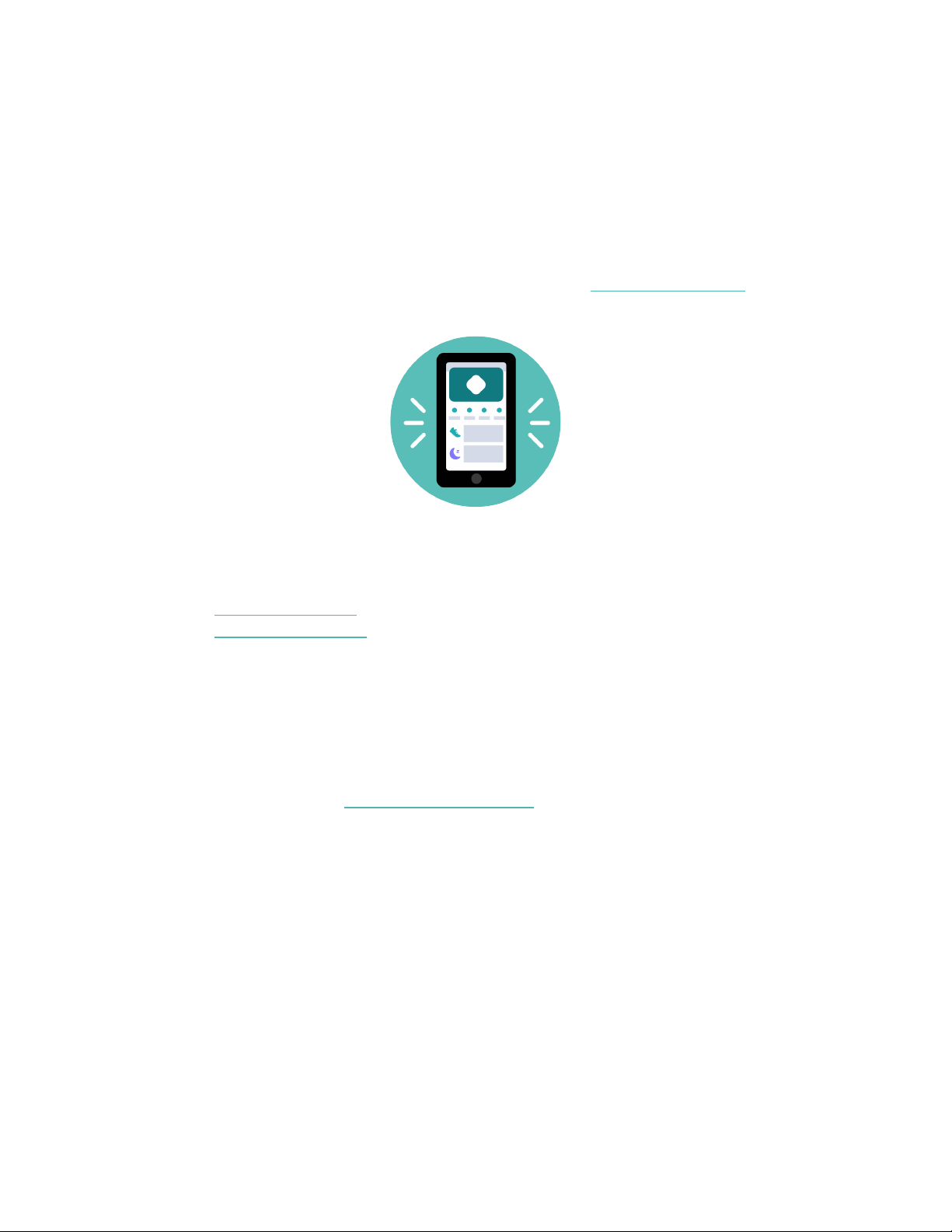
Open the Fitbit app on your phone to see your health metrics, activity and sleep
data, choose a workout or mindfulness session, and more.
10

Unlock Fitbit Premium
Fitbit Premium is your personalized resource in the Fitbit app that helps you stay
active, sleep well, and manage stress. A Premium subscription includes programs
tailored to your health and fitness goals, personalized insights, hundreds of
workouts from fitness brands, guided meditations, and more.
Customers can redeem a Fitbit Premium trial subscription in the Fitbit app.
For more information, see the related help article.
11
Wear Versa 2
WearVersa 2 around your wrist. If you need to attach a different size band, or if you
purchased another band, see the instructions in "Change the band" on page14.
Placement for all-day wear vs. exercise
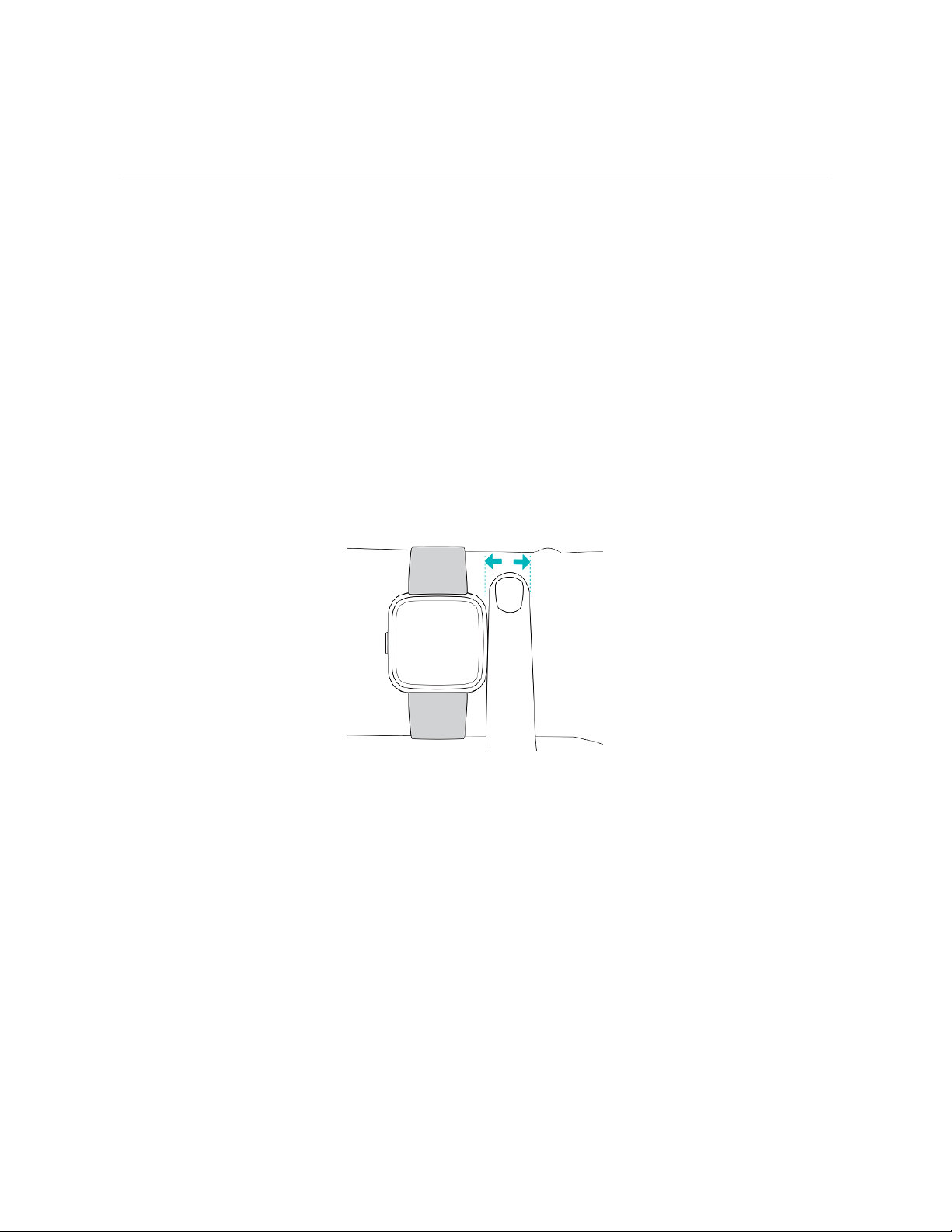
When you're not exercising, wear Versa 2 a finger's width above your wrist bone.
In general, it's always important to give your wrist a break on a regular basis by
removing your watch for around an hour after extended wear. We recommend
removing your watch while you shower. Although you can shower while wearing
your watch, not doing so reduces the potential for exposure to soaps, shampoos,
and conditioners, which can cause long-term damage to your watch and may cause
skin irritation.
For optimized heart-rate tracking while exercising:
l
During a workout, experiment with wearing your watch a bit higher on your
wrist for an improved fit. Many exercises, such as bike riding or weight lifting,
cause you to bend your wrist frequently, which could interfere with the heart-
rate signal if the watch is lower on your wrist.
12

l
Wear your watch on top of your wrist, and make sure the back of the device is
in contact with your skin.
l
Consider tightening your band before a workout and loosening it when you’re
done. The band should be snug but not constricting (a tight band restricts
blood flow, potentially affecting the heart-rate signal).
Handedness
For greater accuracy, you must specify whether you wear Versa 2 on your dominant
or non-dominant hand. Your dominant hand is the one you use for writing and
eating. To start, the Wrist setting is set to non-dominant. If you wear Versa 2 on
your dominant hand, change the Wrist setting in the Fitbit app:
From the Today tab in the Fitbit app, tap the icon in the top left Versa 2 tile
Wrist Dominant.
Wear and care tips
l
Clean your band and wrist regularly with a soap-free cleanser.
l
If your watch gets wet, remove and dry it completely after your activity.
l
Take your watch off from time to time.
For more information, visit the Fitbit Wear & Care page.
13
Change the band
Versa 2 comes with a small band attached and an additional large, bottom band in
the box. Boththe top and bottom bands can be swapped with accessory bands,
sold separately on fitbit.com. For band measurements, see "Band size" on page68.
Fitbit Versa and Fitbit Versa Lite Edition bands are compatible with Versa 2.
Remove a band
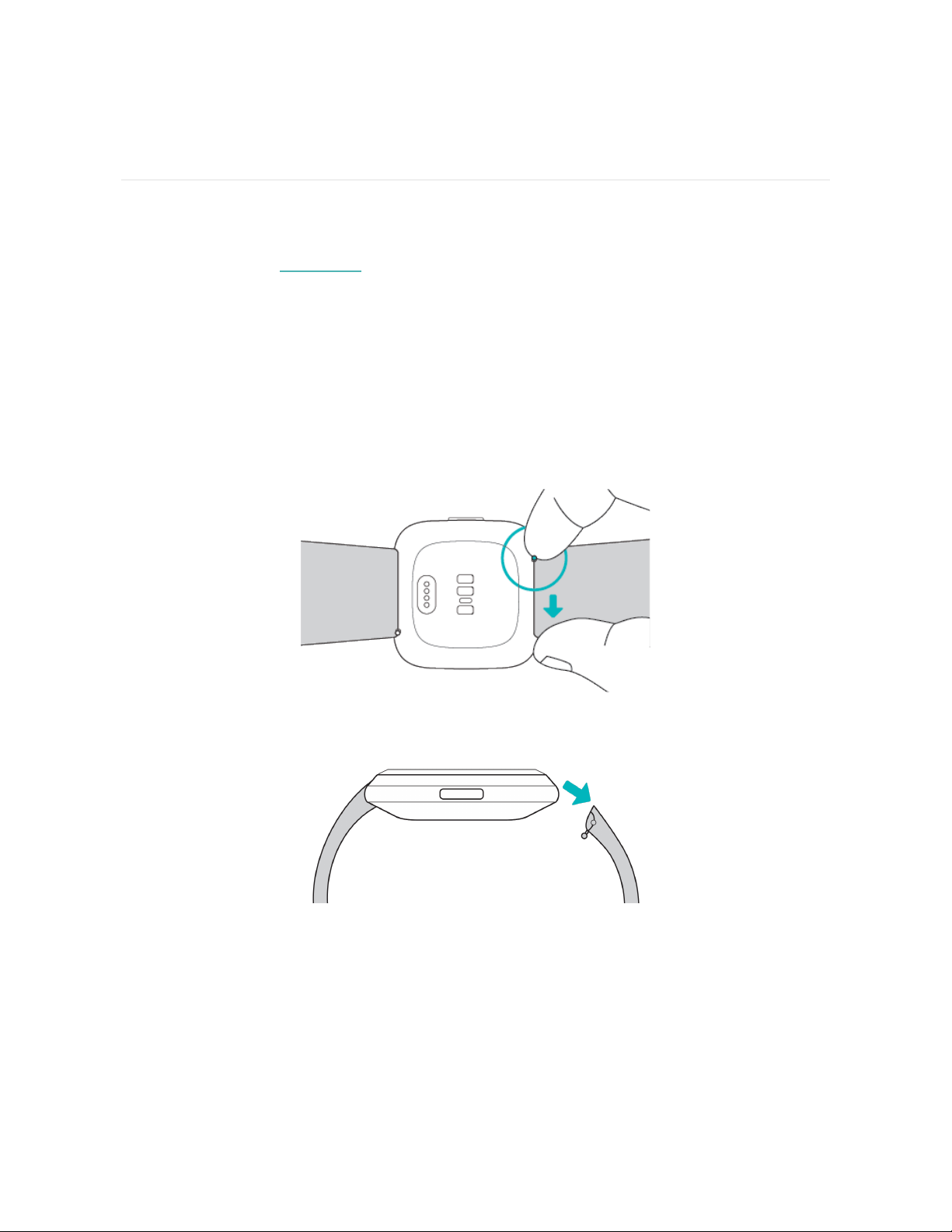
1. Turn over Versa 2 and find the quick-release lever.
2. While pressing the quick-release lever inward, gently pull the band away from
the watch to release it.
3. Repeat on the other side.
14
Attach a band
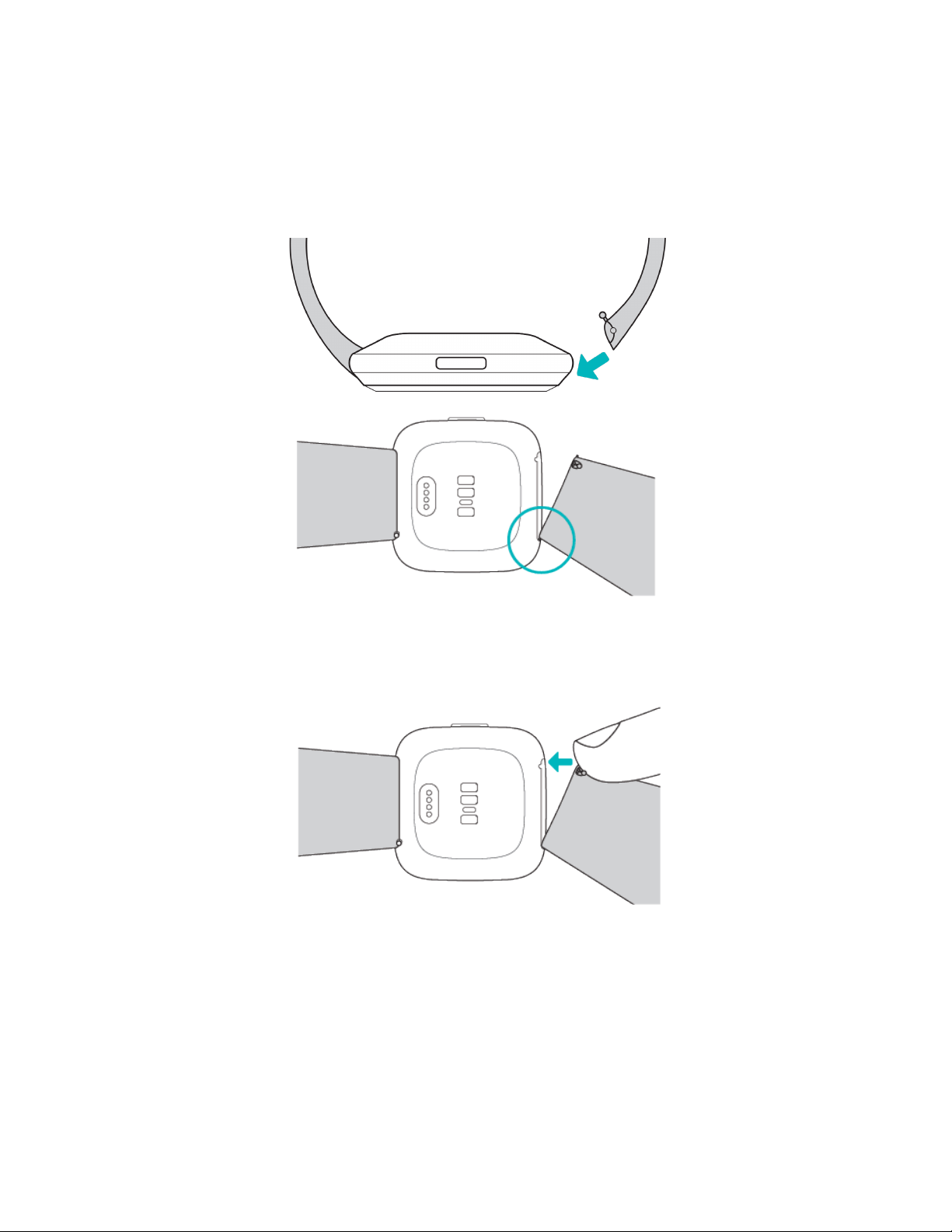
1. To attach a band, hold the band at a 45° angle and slide the pin (the side
opposite the quick-release lever) into the notch on the watch.
2. While pressing the quick-release lever inward, slide the other end of the band
into place.
3. When both ends of the pin are inserted, release the quick-release lever.
15

Basics
Learn how to manage settings, set a personal PIN code, navigate the screen, and
check the battery level.
Navigate Versa 2
Versa 2 has a colorAMOLEDtouchscreen display and 1 button.
Navigate Versa 2 by tapping the screen, swiping side to side and up and down, or
pressing the button. To preserve battery, the watch’s screen turns off when not in
use, unless you turn on the always-on display setting. For more information, see
"Adjust always-on display" on page23.
Basic navigation
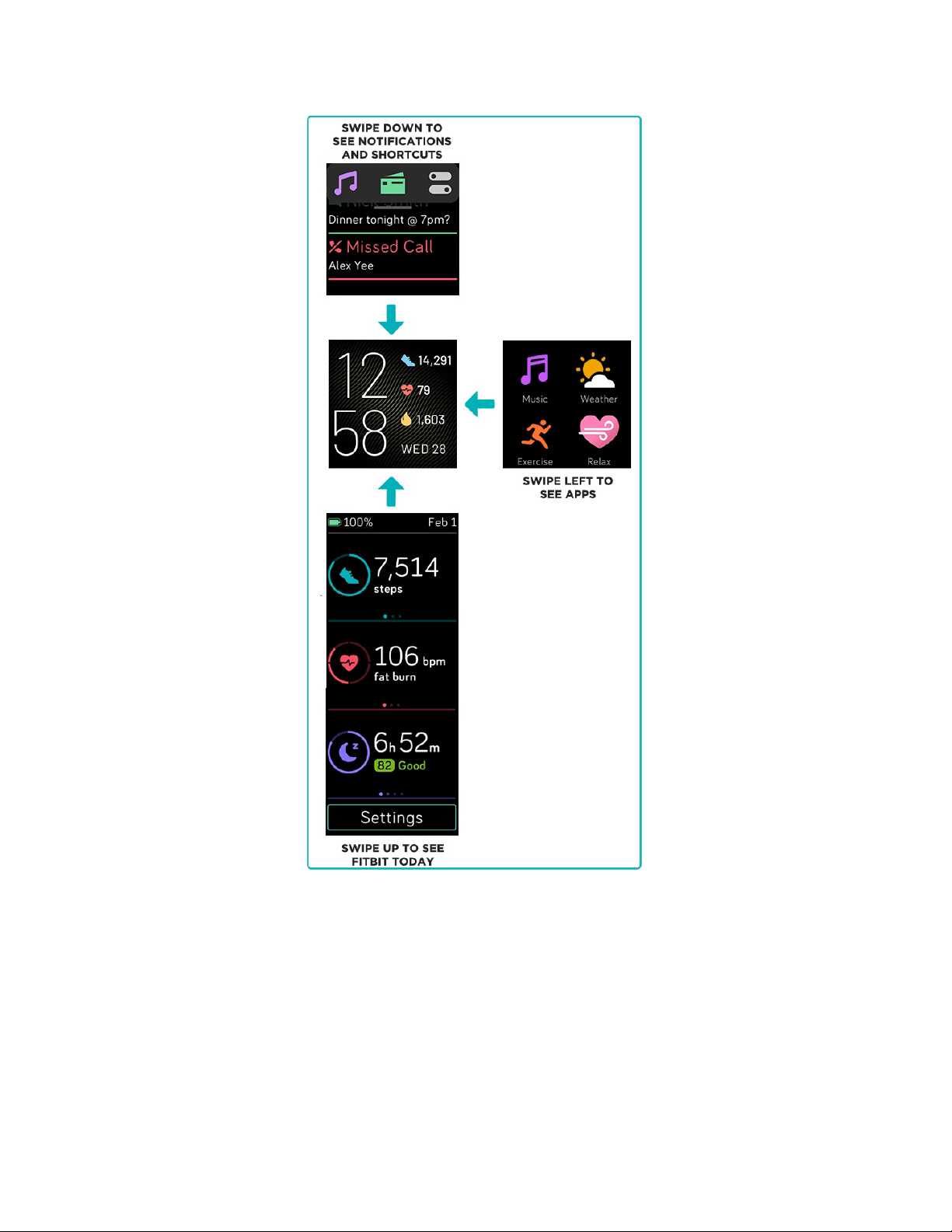
The home screen is the clock.
l
Swipe down to see notifications.
l
Swipe down from the top of the screen again to access the shortcuts to music
controls, Fitbit Pay, and quick settings. The shortcuts disappear after 2
seconds. Swipe down to see them again.
l
Swipe up to see your daily stats.
l
Swipe left to see the apps on your watch.
l
Press the button to go back to a previous screen or return to the clock face.
16
Button shortcuts
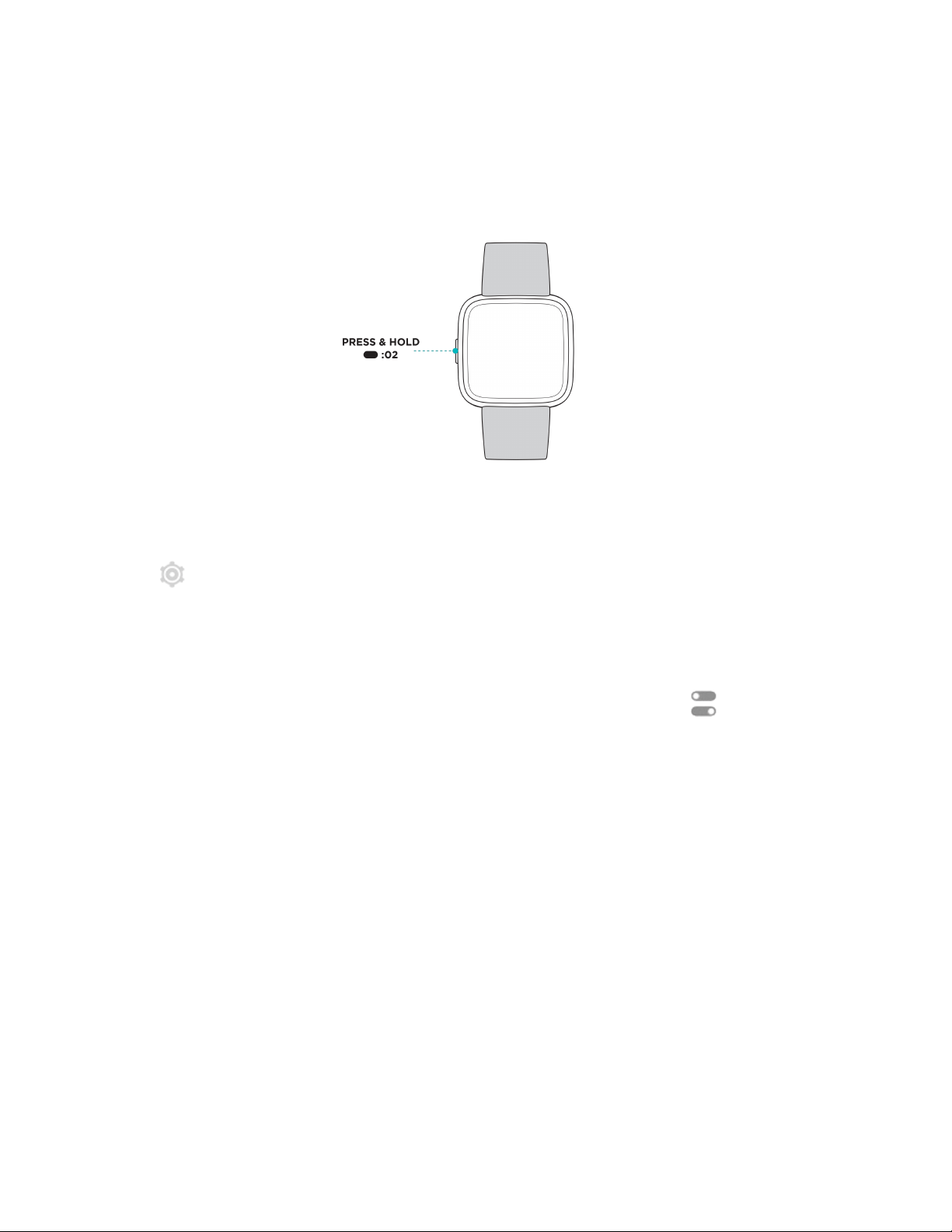
Press and hold the button on Versa 2 for a faster way to access certain features.
17
Choose a shortcut
Hold the button for 2 seconds to activate Fitbit Pay, Alexa, music controls,
notifications, or certain apps.
The first time you use the button shortcut, you select which feature it activates. To
later change which feature activates when you hold the button, open the Settings
app on your watch and tap the Left Button option.
Quick settings
Swipe down from the top of your screen. After your notifications appear, swipe
down again to open the control center. Tap the quick settings icon to access
certain settings.
18
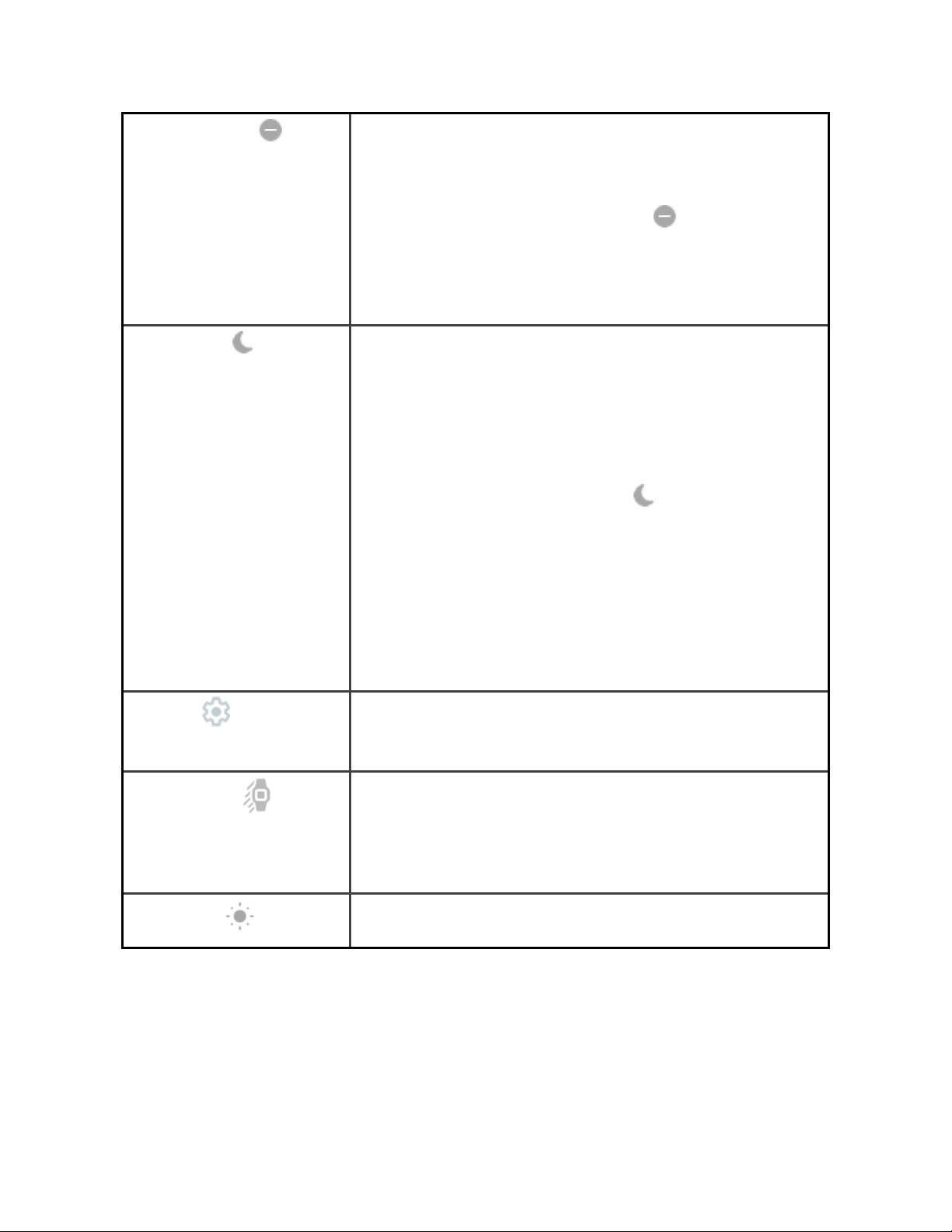
Do Not Disturb
When the do not disturb setting is on:
l
Notifications, goal celebrations, and reminders
are muted.
l
You see a do not disturb icon at the top of the
screen when you swipe up to see your stats.
You can't turn on the do not disturb setting and sleep
mode at the same time.
Sleep Mode
When the sleep mode setting is on:
l
Notifications, goal celebrations, and reminders
are muted.
l
The screen's brightness is set to dim.
l
The Always-On Display clock face is turned off.
l
The screen stays dark when you turn your wrist.
l
You see a Sleep Mode icon at the top of the
screen when you swipe up to see your stats.
Sleep mode turns off automatically when you set a
sleep schedule. For more information, see "Adjust
settings" on the next page.
You can't turn on the do not disturb setting and sleep
mode at the same time.
Settings
For additional settings, tap the Settings icon to open
the Settings app. For more information, see "Adjust
settings" on the next page.
Screen Wake
When you set screen wake to automatic, the screen
turns on each time you turn your wrist.
Whenyou set screen wake to manual, press the button
or tap the screen to turn on the display.
Brightness
Adjust the screen brightness.
19
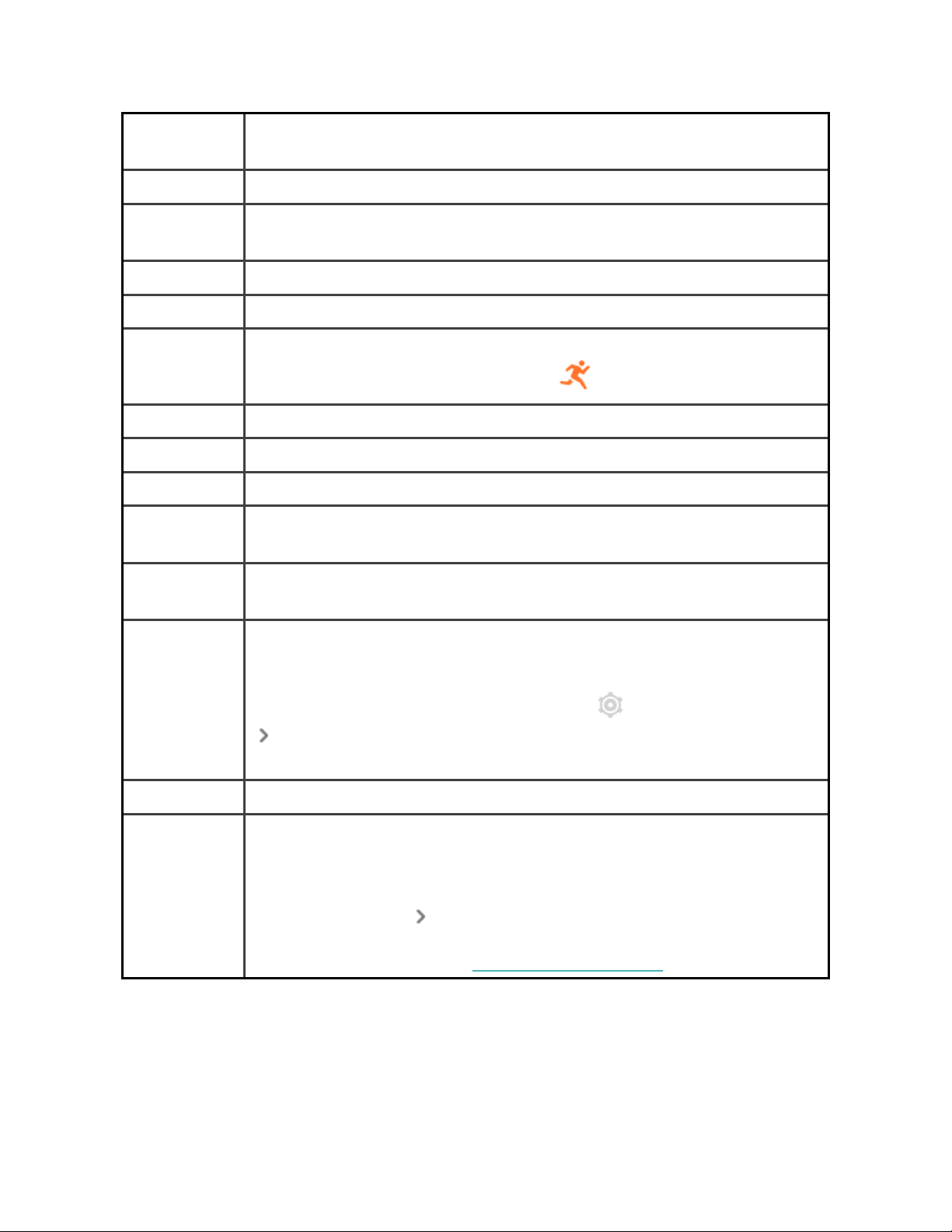
Active Zone
Minutes
Turn Active Zone Minutes weekly goal notifications on or off.
Alexa Turn Alexa notifications on or off.
Always-On
Display
Adjust Always-On Display settings, including the information you
see on the clock face.
Bluetooth Manage connected Bluetooth devices.
Brightness Change the screen's brightness.
Do Not
Disturb
Turn off all notifications or choose to automatically turn on do not
disturb while using the Exercise app .
Heart Rate Turn heart-rate tracking on or off.
Left Button Choose the feature the button activates.
Microphone Choose whether your watch can access the microphone.
Screen
Timeout
Choose how long the screen stays on after you stop interacting
with your watch.
Screen
Wake
Change whether the screen turns on when you turn your wrist.
Sleep Mode Adjust sleep mode settings, including setting a schedule for the
mode to automatically turn on and off.
To set a schedule, open the Settings app and tap Sleep Mode
Schedule. Sleep mode automatically turns off at the time you
schedule, even if you manually turned it on.
Vibrations Adjust your watch's vibration strength.
About Versa
2
View your watch's regulatory information and activation date,
which is the day your watch's warranty begins. The activation date
is the day you set up your device.
Tap About Versa 2 System Info to see the activation date.
For more information, see the related help article.
21
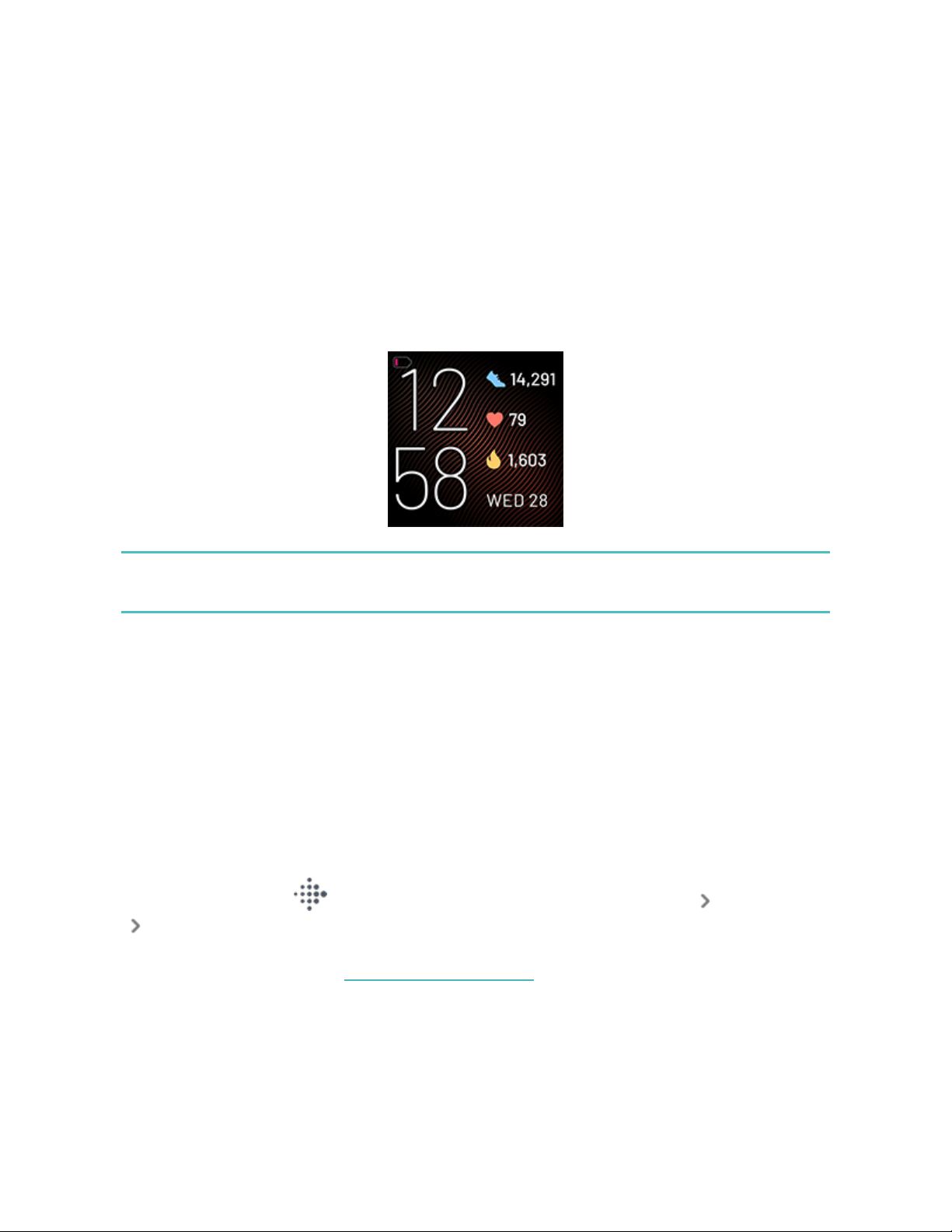
Tap a setting to adjust it.Swipe up to see the full list of settings.
Check battery level
Swipe down from the top of the screen. The battery level icon is in the top left.
If your watch's battery is low (fewer than 24 hours remaining), a red battery
indicator appears on the clock face. If your watch's battery is critically low (fewer
than 4 hours remaining), the battery indicator flashes.
Wi-Fi won't work on Versa 2 when the battery is 25% or less, and you'll be unable to
update your device.
Set up device lock
To help keep your watch secure, turn on device lock in the Fitbit app, which
prompts you to enter a personal 4-digit PINcode to unlock your watch. If you set
up contactless payments on your watch, device lock is turned on automatically and
you're required to set a code. If you don't use contactless payments, device lock is
optional.
Turn on device lock or reset your PINcode in the Fitbit app:
From the Today tab in the Fitbit app, tap the icon in the top left Versa 2 tile
Device Lock.
For more information, see the related help article.
22
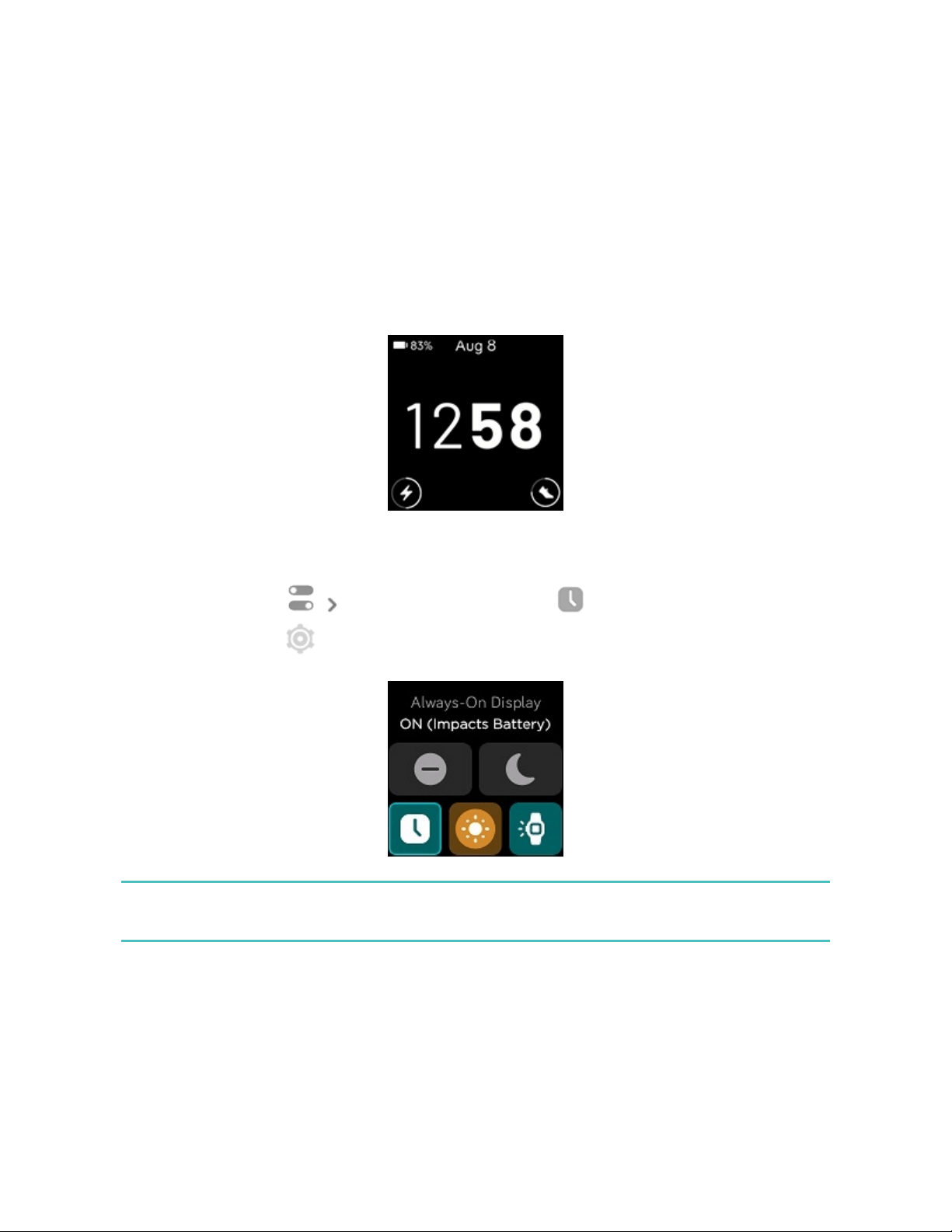
Adjust always-on display
Turn on always-on display to show the time on your watch, even when you're not
interacting with the screen. Many clock faces have their own always-on display
mode. If a clock face doesn’t have this feature, you see the default always-on
display clock face. On the default always-on display clock face, choose between an
analog or digital clock face, whether to show the watch's battery level, and your
progress toward 2 of your core stats.
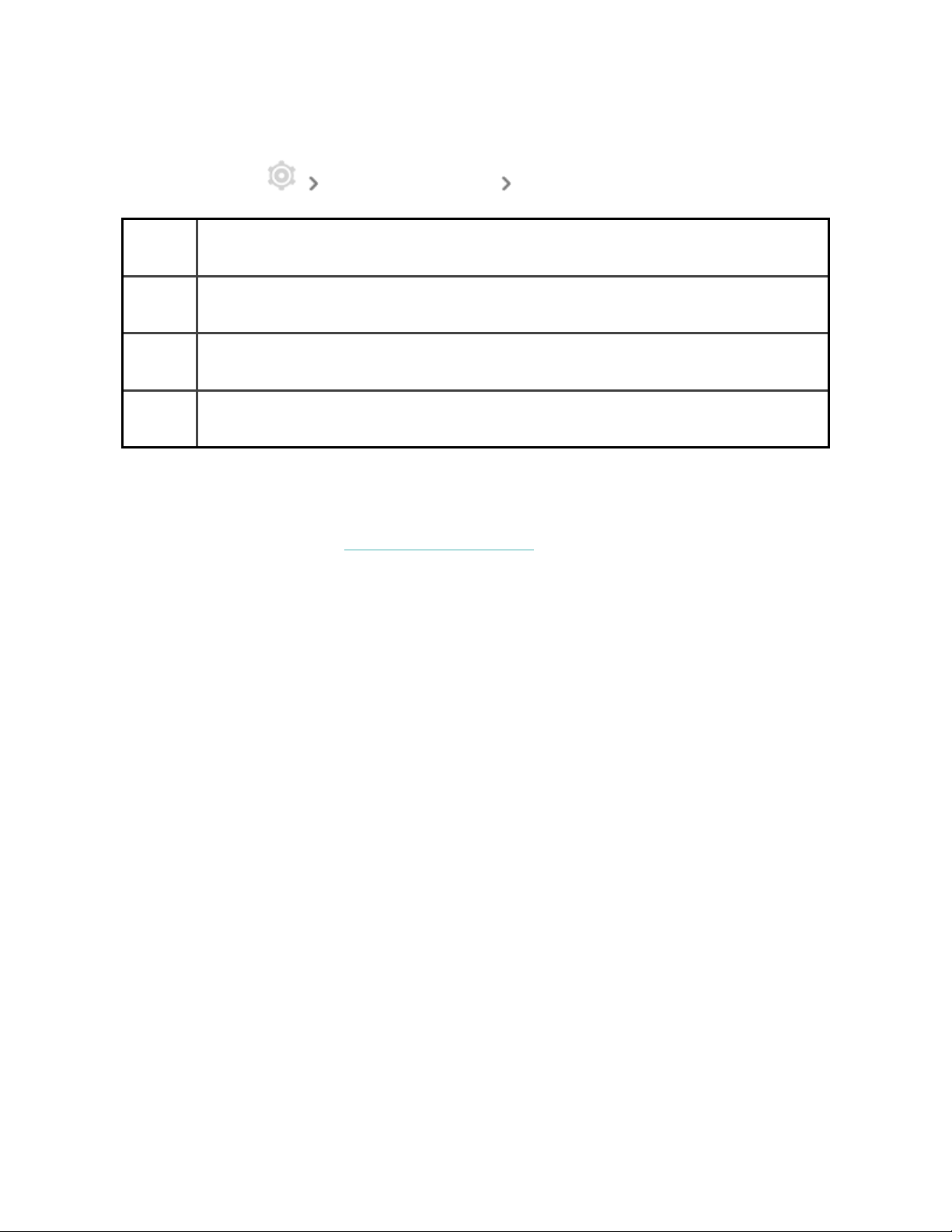
To turn always-on display on or off, swipe down from the top of your screen. After
your notifications appear, swipe down again to open the control center. Tap the
quick settings icon Always-On Display icon , or find Always-On Display
in the Settings app .
Note that turning on this feature impacts your watch's battery life. When always-on
display is turned on, Versa 2 requires more frequent charging.
23
To adjust what’s shown on the screen when using the default always-on display
clock face, or to set off-hours when always-on display automatically turns off, open
the Settings app Always-On Display Customize.
Clock
Style
Choose between a digital or analog clock face when using the default
Always-On Display clock face.
Status
bar
Turn on a remaining battery indicator when using the default Always-On
Display clock face.
Core
Stats
Show your progress toward 2 core stats of your choice when using the
default Always-On Display clock face.
Off-
hours
Set the display to automatically turn off during certain hours.
Always-ondisplay automatically turns off when your watch's battery is critically
low.
For more information, see the related help article.
Turn off the screen
To turn off your watch's screen when not in use, briefly cover the watch face with
your opposite hand, press the button, or turn your wrist away from your body.
24

Note that if you turn on the always-on display setting, the screen won't turn off.
25
Clock Faces and Apps
The Fitbit Gallery offers apps and clock faces to personalize your watch and meet a
variety of health, fitness, timekeeping, and everyday needs.
Change the clock face
The Fitbit Gallery offers a variety of clock faces to personalize your watch.
1.
From the Today tab in the Fitbit app, tap the icon in the top left Versa
2 tile.
2.
Tap Gallery Clocks tab.
3. Browse the available clock faces. Tap a clock face to see a detailed view.
4. Tap Install to add the clock face to Versa 2.
Save up to 5 clock faces to switch between them:
l
When you select a new clock face, it’s automatically saved unless you already
have 5 saved clock faces.
l
To see your saved clock faces from your watch, open the Clocks app and
swipe to find the clock face you want to use. Tap to select it.
l
To see your saved clock faces in the Fitbit app, tap the Today tab icon
in the top left your device image Gallery. See your saved clock faces in
My Clock Faces.
26

l
To remove a clock face, tap the clock face Remove clock face.
l
To switch to a saved clock face, tap the clock face Select.
Open apps
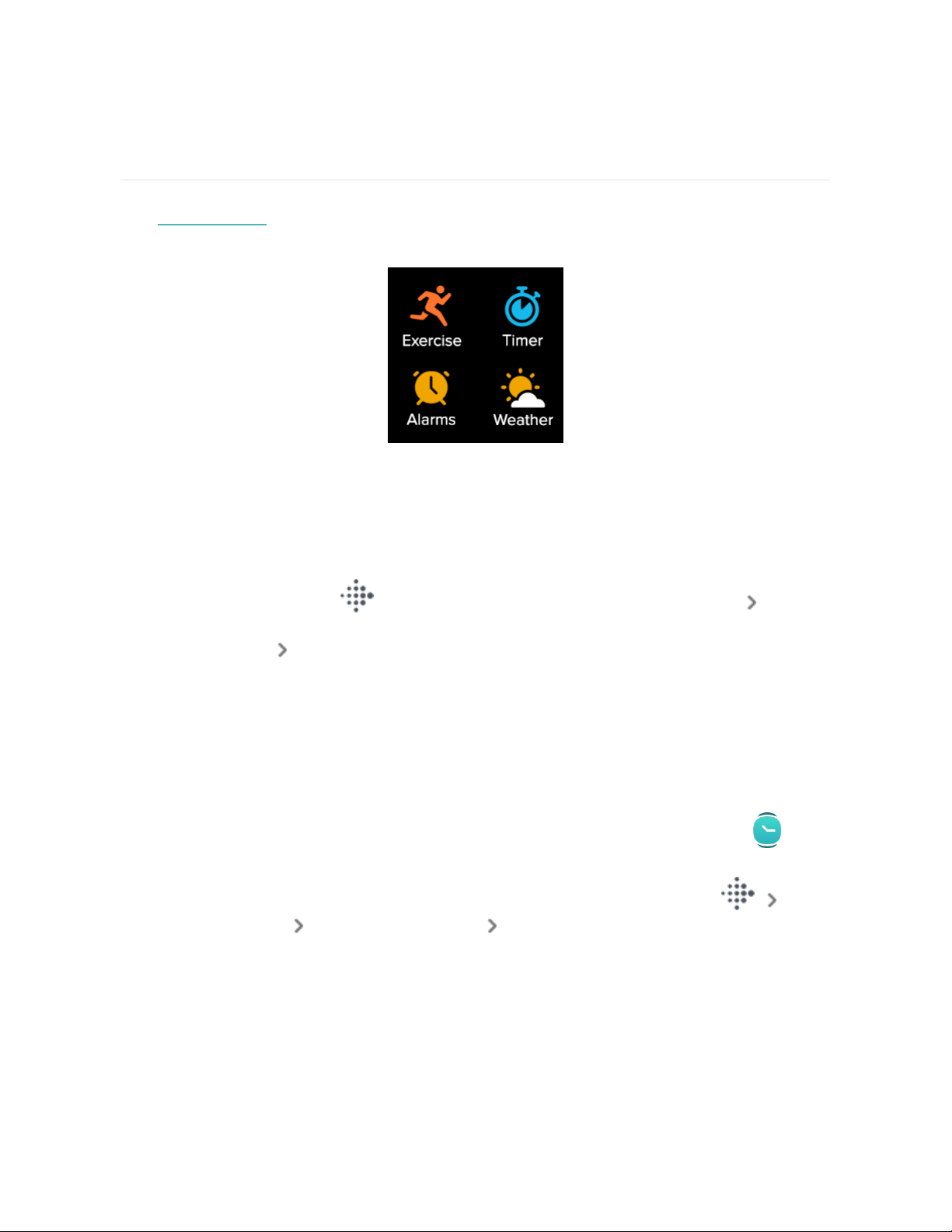
From the clock face, swipe left to see the apps installed on your watch. To open an
app, tap it.
Organize apps
To change the placement of an app on Versa 2, press and hold an app until it's
selected, and drag it to a new location. The app is selected when the icon increases
slightly in size and the watch vibrates.
Download additional apps
1.
From the Today tab in the Fitbit app, tap the icon in the top left Versa
2 tile.
2.
Tap Gallery Apps tab.
3. Browse the available apps. When you find one you want to install, tap it.
4. Tap Install to add the app to Versa 2.
For more information, see the related help article.
Remove apps
You can remove most apps installed on Versa 2:
1.
From the Today tab in the Fitbit app, tap the icon in the top left Versa
2 tile.
2. Tap Gallery.
3. Tap the app you want to remove. You might need to swipe up to find it.
4. TapUninstall.
27

Update apps
Apps update over Wi-Fi as needed. Versa 2 searches for updates when plugged into
the charger and in range of your Wi-Fi network.
You can also manually update apps:
1.
From the Today tab in the Fitbit app, tap the icon in the top left Versa
2 tile.
2. Tap Gallery. Find the app you want to update. You might need to swipe up to
find it.
3. Tap the Update button next to the app.
28

Voice Assistant
Check the weather, set timers and alarms, control your smart home devices, and
more by speaking to your watch.
Set up Amazon Alexa Built-in
1.
From the Today tab in the Fitbit app, tap the icon in the top left Versa
2 tile.
2.
TapAmazon Alexa Sign in with Amazon.
3. Tap Get Started.
4. Log in to your Amazon account or create one if necessary.
5. Follow the on-screen instructions and read about what Alexa can do, and tap
Close to return to your device settings in the Fitbit app.
To change the language Alexa recognizes:
1.
From the Today tab in the Fitbit app, tap the icon in the top left Versa
2 tile.
2. TapAmazon Alexa.
3. Tap the current language to change it, or tap Logout to stop using Alexa on
your watch.
Interact with your voice assistant
1.
Open the Alexa app on your watch. Note that the Fitbit app must be
running in the background on your phone.
2. Say your request.
29

You don't need to say "Alexa" before speaking your request. For example:
l
Set a timer for 10 minutes.
l
Set an alarm for 8:00 a.m.
l
What's the temperature outside?
l
Remind me to make dinner at 6:00 p.m.
l
How much protein is in an egg?
l
Ask Fitbit to start a run.*
l
Start a bike ride with Fitbit.*
*To ask Alexa to open the Exercise app on your watch, you must first set up the
Fitbit skill for Alexa. For more information, see the related help article. These
commands are currently available in English, German, French, Italian, Spanish, and
Japanese.
Amazon Alexa isn't available in all countries. For more information, see
fitbit.com/voice.
Note that saying “Alexa” doesn’t activate the voice assistant on your watch—you
must open the voice assistant app on your watch before the microphone turns on.
The microphone turns off when you close your voice assistant, or when your
watch’s screen turns off.
For added functionality, install the Amazon Alexa app on your phone. With the app,
your watch can access additional Alexa skills. Note that not all skills work with Versa
2, as they must be able to display feedback as text on the watch’s screen. Versa 2
doesn’t have a speaker, so you won’t hear Alexa respond.
For more information, see the related help article.
30
Check Alexa alarms, reminders, and timers
1.
Open the Alexa app on your watch.
2.
Tap the alerts icon and swipe left or right to navigate between alarms,
reminders, and timers.
3. Tap an alarm to turn it on or off. To adjust or cancel a reminder or timer, tap
the Alexa icon and say your request.
Note that Alexa's alarms and timers are separate from those you set in the Alarms
app or Timer app .
31
Lifestyle
Use apps to stay connected to what you care about most. See "Clock Faces and
Apps" on page26 for instructions on how to add and delete apps.
For more information, see the related help article.
Starbucks
Add your Starbucks card or Starbucks Rewards program number in the Fitbit
Gallery in the Fitbit app, and then use the Starbucks app to pay from your wrist.
For more information, see the related help article.
Agenda
Connect your phone's calendar in the Fitbit app to see upcoming calendar events
for today and tomorrow in the Agenda app on your watch.
For more information, see the related help article.
Weather
See the weather in your current location, as well as 2 additional locations you
choose, in the Weather app on your watch.
To check the weather, open the Weather app to see conditions in your current
location. Swipe left to view the weather in other locations you added.
If the weather for your current location doesn't appear, check that you turned on
location services for the Fitbit app. If you change locations or don't see updated
32

data for your current location, sync your watch to see your new location and latest
data in the Weather app.
Choose your unit of temperature in the Fitbit app. For more information, see the
related help article.
To add or remove a city:
1.
From the Today tab in the Fitbit app, tap the icon in the top left Versa
2 tile.
2. Tap Gallery.
3. Tap the Weather app. You might need to swipe up to find it.
4.
Tap Settings Add city to add up to 2 additional locations or tap Edit the
Xicon to delete a location. Note that you can't delete your current location.
33

Notifications from your phone
Versa 2 can show call, text, calendar, and app notifications from your phone to keep
you informed. Keep your watch within 30 feet of your phone to receive
notifications.
Set up notifications
Check that Bluetooth on your phone is on and that your phone can receive
notifications (often under Settings Notifications). Then set up notifications:
1.
From the Today tab in the Fitbit app, tap the icon in the top left Versa
2 tile.
2. Tap Notifications.
3. Follow the on-screen instructions to pair your watch if you haven't already.
Call, text, and calendar notifications are turned on automatically.
4. To turn on notifications from apps installed on your phone, including Fitbit and
WhatsApp, tap App Notifications and turn on the notifications you want to
see.
Note that if you have an iPhone, Versa 2 shows notifications from all calendars
synced to the Calendar app. If you have an Android phone, Versa 2 shows calendar
notifications from the calendar app you chose during setup.
For more information, see the related help article.
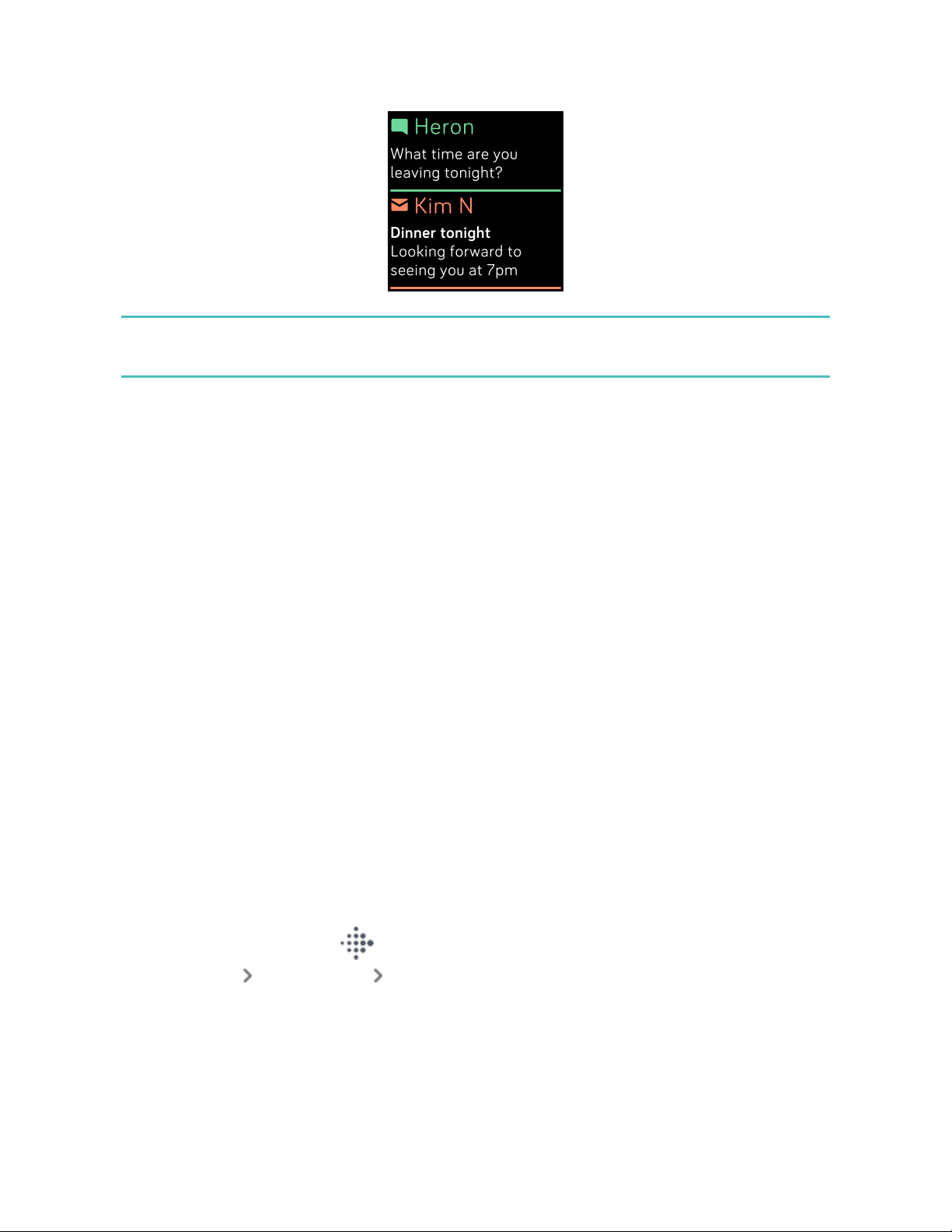
See incoming notifications
A notification causes your watch to vibrate. If you don't read the notification when it
arrives, you can check it later by swiping down from the top of the screen.
34
If your watch's battery is critically low, notifications won't causeVersa 2 to vibrate
or the screen to turn on.
Manage notifications
Versa 2 stores up to 30 notifications, after which the oldest are replaced as you
receive new ones.
To manage notifications:
l
Swipe down from the top of the screen to see your notifications and tap any
notification to expand it.
l
To delete a notification, tap to expand it, then swipe to the bottom and tap
Clear.
l
To delete all notifications at once, swipe to the top of your notifications and
tap Clear All.
Turn off notifications
Turn off certain notifications in the Fitbit app, or turn off all notifications in quick
settings on Versa 2. When you turn off all notifications, your watch won't vibrate
and the screen won't turn on when your phone receives a notification.
To turn off certain notifications:
1.
From the Today tab in the Fitbit app on your phone, tap the icon in the
top left Versa 2 tile Notifications.
35
2. Turn off the notifications you no longer want to receive on your watch.
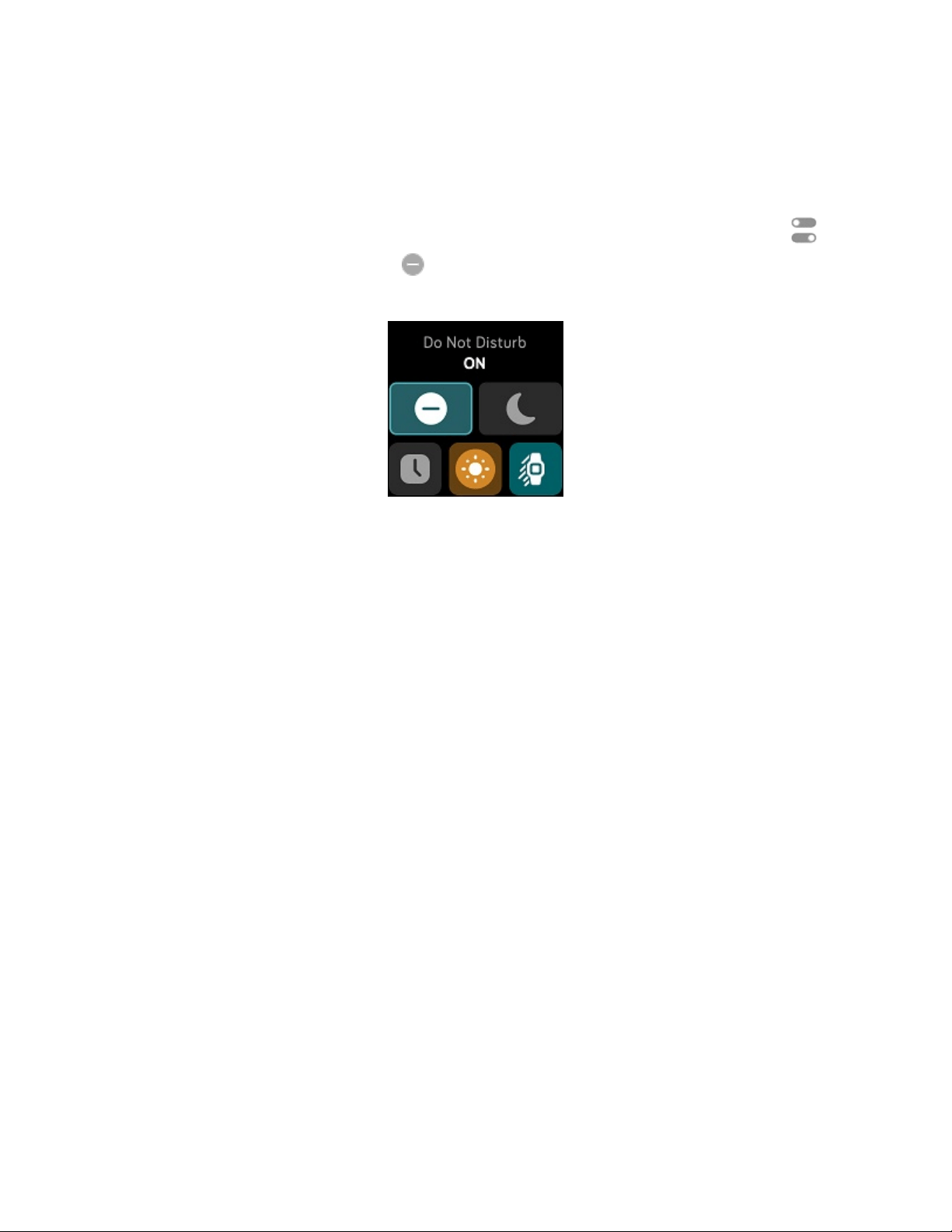
To turn off all notifications:
1. Swipe down from the top of your screen. After your notifications appear,
swipe down again to open the control center. Tap the quick settings icon .
2.
Tap the do not disturb icon . All notifications, including goal celebrations
and reminders, are turned off.
Note that if you use the do not disturb setting on your phone, you don't receive
notifications on your watch until you turn off this setting.
Answer or reject phone calls
If paired to an iPhone or Android phone, Versa 2 lets you accept or reject incoming
phone calls. If your phone is running an older version of the Android OS, you can
reject, but not accept, calls on your watch.
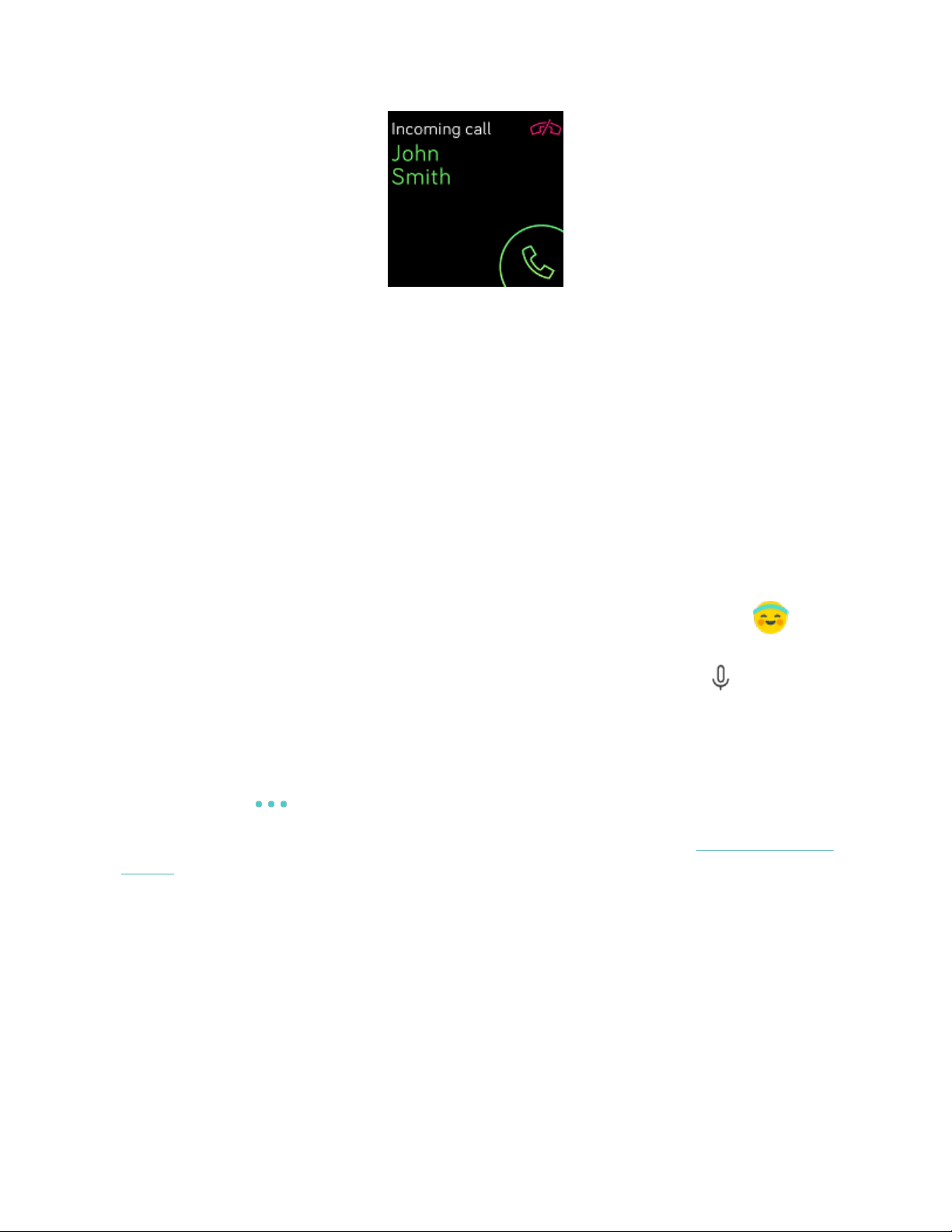
To accept a call, tap the green phone icon on your watch's screen. Note that you
can't speak into the watch—accepting a phone call answers the call on your nearby
phone. To reject a call, tap the red phone icon to send the caller to voicemail.
The caller's name appears if that person is in your contacts list; otherwise you see a
phone number.
36
Respond to messages (Android phones)
Respond directly to text messages and notifications from certain apps on your
watch with preset quick replies or by speaking your reply into Versa 2. Keep your
phone nearby with the Fitbit app running in the background to respond to
messages from your watch.
To respond to a message:
1. Open the notification you want to respond to.
2. Tap Reply. If you don’t see an option to reply to the message, replies aren’t
available for the app that sent the notification.
3.
Choose a text reply from the list of quick replies or tap the emoji icon to
choose an emoji. Tap More replies or More emojis to see additional options.
4.
To reply to a message with your voice, tap the microphone icon and say
your message. If the message is correct, tap Send, or tap Retry to try again. If
you notice a mistake after you send the message, tap Undo within 3 seconds
to cancel the message.
l
To change the language recognized by the microphone, tap the 3 dots
icon next to Languages and select a different language.
For more information, including how to customize quick replies, see the related help
article.
37

Timekeeping
Alarms vibrate to wake or alert you at a time you set. Set up to 8 alarms to occur
once or on multiple days of the week. You can also time events with the stopwatch
or set a countdown timer.
Note that alarms and timers you set with a voice assistant are separate from the
ones you set in the Alarms app and Timer app. For more information, see "Voice
Assistant" on page29.
Set an alarm
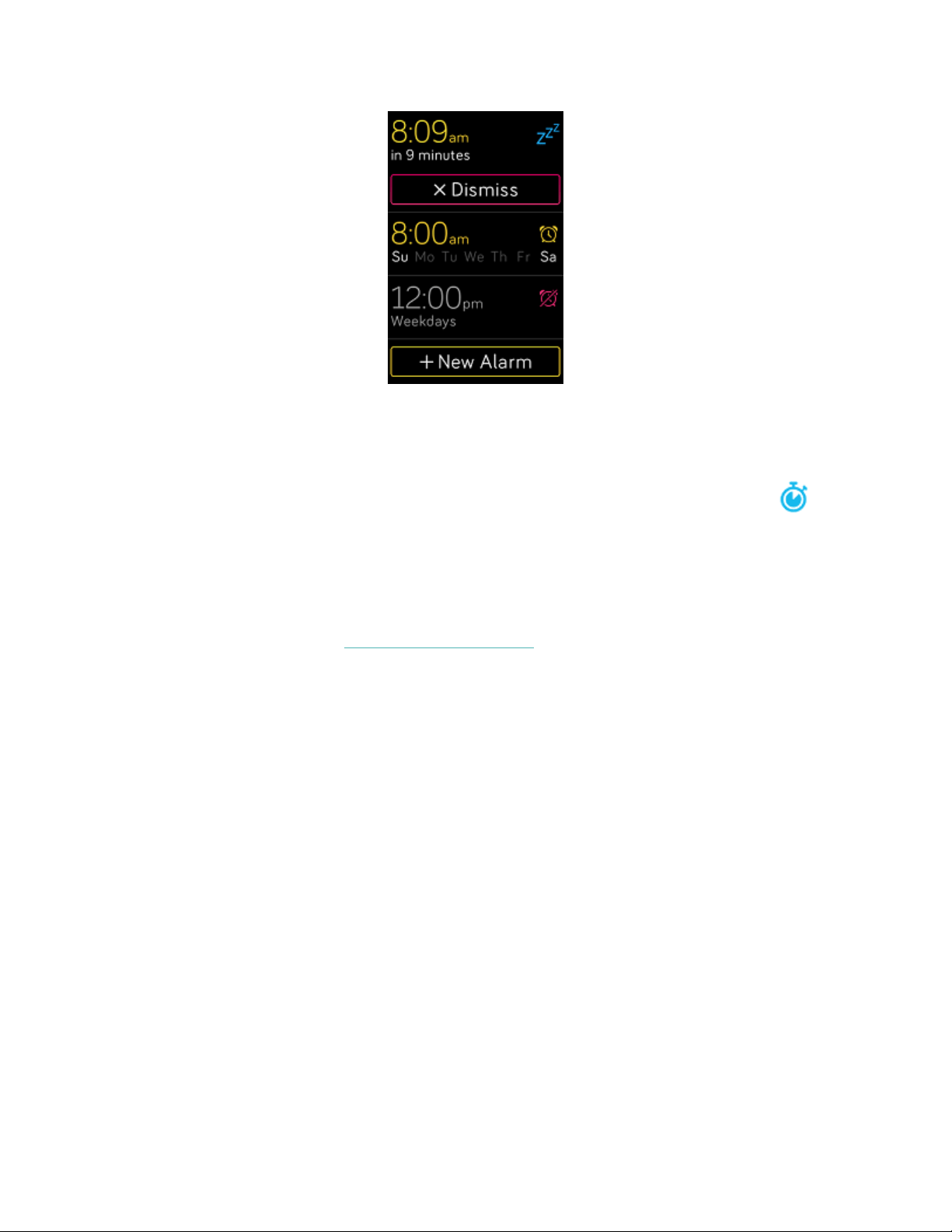
Set one-time or recurring alarms with the Alarms app . When an alarm goes off,
your watch vibrates.
When setting an alarm, turn on Smart Wake to allow your watch to find the best
time to wake you starting 30 minutes before the alarm time you set. It avoids
waking you during deep sleep so you're more likely to wake up feeling refreshed. If
Smart Wake can’t find the best time to wake you, your alarm alerts you at the set
time.
For more information, see the related help article.
Dismiss or snooze an alarm
To dismiss the alarm, tap the check mark. To snooze the alarm for 9 minutes, tap the
Zzz icon.
Snooze the alarm as many times as you want. Versa 2 automatically goes into
snooze mode if you ignore the alarm for more than 1 minute.
38
Use the timer or stopwatch
Time events with the stopwatch or set a countdown timer with the Timer app
on your watch. You can run the stopwatch and countdown timer at the same time.
If always-on display is on, the screen continues to display the stopwatch or
countdown timer until it ends or you exit the app.
For more information, see the related help article.
39
Activity and Wellness
Versa 2 continuously tracks a variety of stats whenever you wear it, including hourly
activity, heart rate, and sleep. Data automatically syncs with the Fitbit app
throughout the day.
See your stats
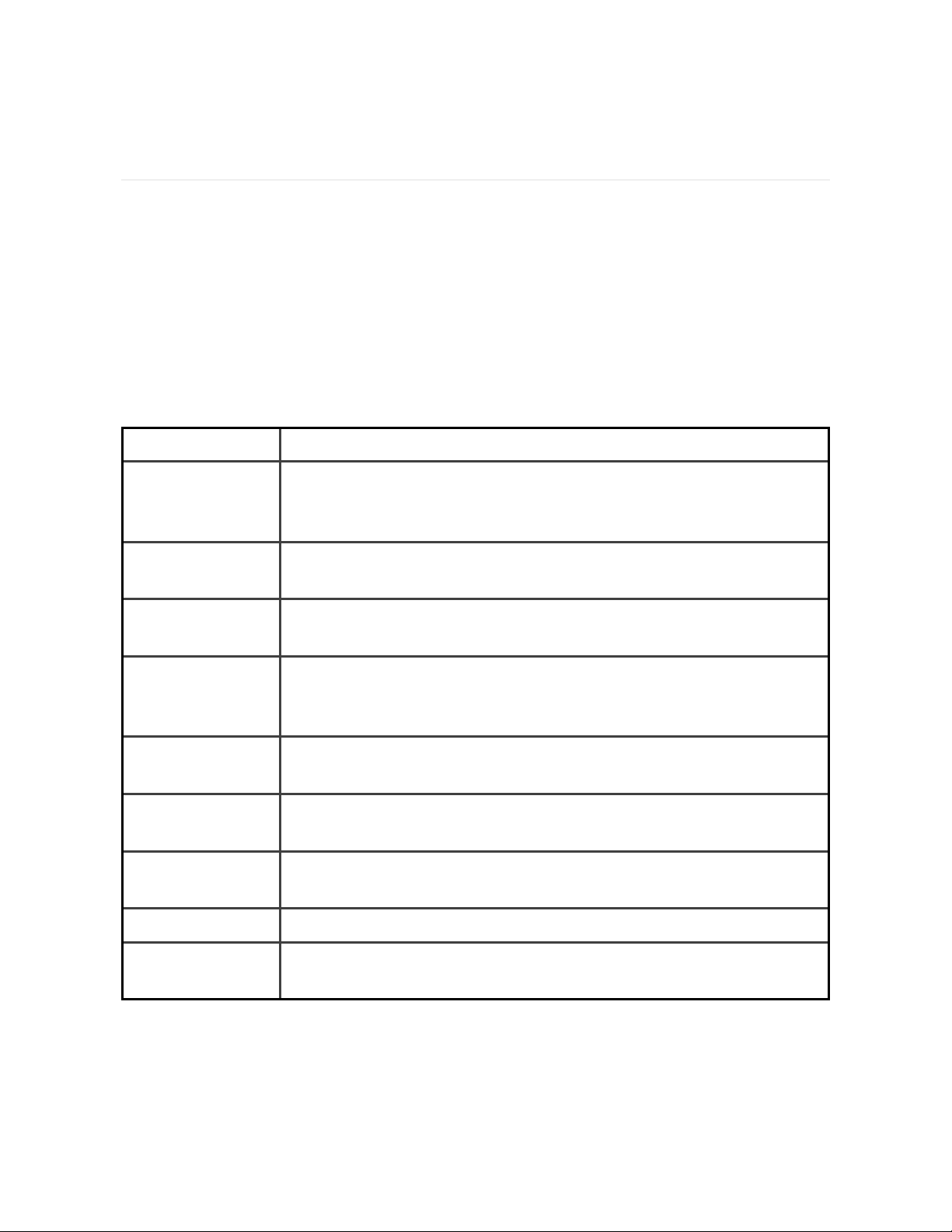
Swipe up from the clock face on your watch to access Fitbit Today, which shows up
to 7 of these stats:
Badges The next daily and lifetime badges you’ll unlock
Core stats Steps taken today, distance covered, floors climbed, calories
burned, Active Zone Minutes, and goal history over the past 7
days
Exercise Number of days you met your exercise goal this week and up to
5 of your most recently tracked exercises
Food Calories eaten, calories remaining, and your macronutrient
breakdown by percentage
Heart rate Current heart rate and either your heart-rate zone or resting
heart rate (if not in a zone), time spent in each heart-rate zone,
and your cardio fitness score
Hourly steps Steps taken this hour, and the number of hours you met your
hourly activity goal
Cycle track Information on the current stage of your menstrual cycle, if
applicable
Sleep Sleep duration and sleep score, and your sleep history over the
past 7 days
Water Water intake logged today and history over the past 7 days
Weight Remaining weight left to lose or gain to reach your goal, your
current weight, and your progress since you last set your goal
40

Swipe left or right on each tile to view the complete set of stats. Tap the + icon on
the water tile or weight tile to log an entry.
To reorder the tiles, press and hold a row, then drag it up or down to change its
position. Tap Settings at the bottom of the screen to choose which stats you see.
Find your complete history and other information detected by your watch in the
Fitbit app.
Track a daily activity goal
Versa 2 tracks your progress toward a daily activity goal of your choice. When you
reach your goal, your watch vibrates and shows a celebration.
Choose a goal
Set a goal to help you get started on your health and fitness journey. To begin, your
goal is to take 10,000 steps per day. Choose to change the number of steps, or pick
a different activity goal.
For more information, see the related help article.
Track progress toward your goal on Versa 2. For more information, see "See your
stats" on the previous page.
Track your hourly activity
Versa 2 helps you stay active throughout the day by keeping track of when you're
stationary and reminding you to move.
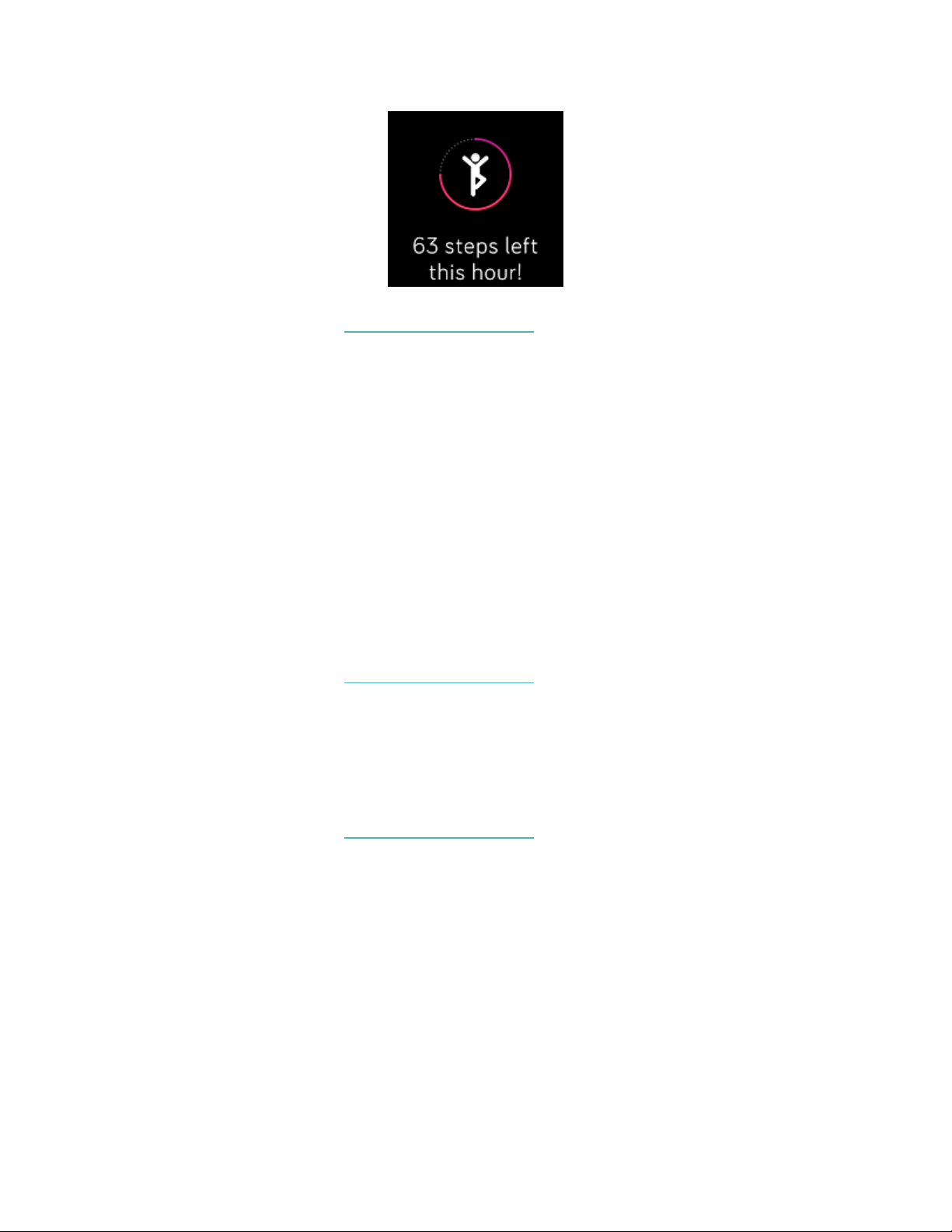
Reminders nudge you to walk at least 250 steps each hour. You feel a vibration and
see a reminder on your screen at 10 minutes before the hour if you haven't walked
250 steps. When you meet the 250-step goal after receiving the reminder, you feel
a second vibration and see a congratulatory message.
41
For more information, see the related help article.
Track your sleep
Wear Versa 2 to bed to automatically track basic stats about your sleep, including
your time asleep, sleep stages (time spent in REM, light sleep, and deep sleep), and
sleep score (the quality of your sleep).
Versa 2 also tracks your estimated oxygen variation throughout the night to help
you uncover potential breathing disturbances, as well as your skin temperature to
see how it varies from your personal baseline.
To see your sleep stats, sync your watch when you wake up and check the Fitbit
app, or swipe up from the clock face on your watch.
For more information, see the related help article.
Set a sleep goal
To start, you have a sleep goal of 8 hours of sleep per night. Customize this goal to
meet your needs.
For more information, see the related help article.
Learn about your sleep habits
With a Fitbit Premium subscription, see more details about your sleep score and
how you compare to your peers, which can help you build a better sleep routine and
wake up feeling refreshed.
42
For more information, see the related help article.
See your heart rate
Versa 2 tracks your heart rate throughout the day. Swipe up from the clock face to
see your real-time heart rate and your resting heart rate. For more information, see
"See your stats" on page40. Certain clock faces show your real-time heart rate on
the clock screen.
During a workout, Versa 2 shows your heart-rate zone to help you target the
training intensity of your choice.
For more information, see "Check your heart rate" on page50.
Practice guided breathing
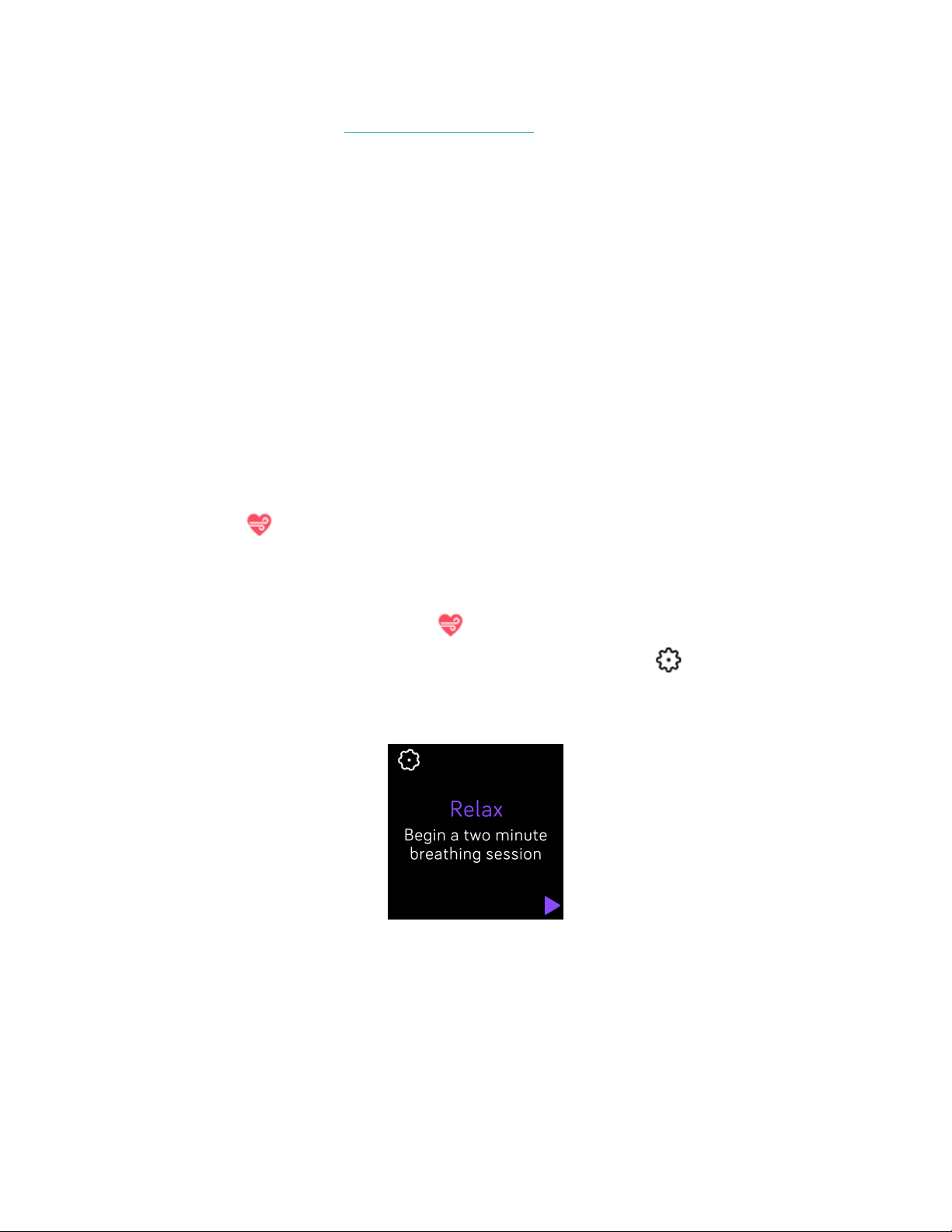
The Relax app on Versa 2 provides personalized guided breathing sessions to
help you find moments of calm throughout the day. All notifications are
automatically disabled during the session.
1.
On Versa 2, open the Relax app .
2.
The 2-minute session is the first option. Tap the gear icon to choose the 5-
minute session or turn off the optional vibration. Press the button on your
watch to return to the Relax screen.
3. Tap the play icon to start the session and follow the on-screen instructions.
43

After the exercise, a summary appears that shows your alignment (how closely you
followed the breathing prompt), your heart rate at the start and end of the session,
and how many days you completed a guided breathing session this week.
For more information, see the related help article.
Check your stress management score
Based on your heart rate, exercise, and sleep data, your stress management score
helps you see if your body is showing signs of stress on a daily basis. The score
ranges from 1 to 100, where a higher number means your body is showing fewer
signs of physical stress. To see your daily stress management score, wear your
watch to sleep, and open the Fitbit app on your phone the next morning. From the
Today tab , tap the Stress Management tile.
Log how you feel throughout the day to get a clearer picture of how your mind and
body respond to stress. With a Fitbit Premium subscription, see details about your
score breakdown.
For more information, see the related help article.
Advanced health metrics
Know your body better with health metrics in the Fitbit app. This feature helps you
view key metrics tracked by your Fitbit device over time so that you can see trends
and assess what’s changed.
Metrics include:
l
Oxygen saturation (SpO2)
l
Skin temperature variation
l
Heart-rate variability
l
Resting heart rate
l
Breathing rate
44

Note: This feature is not intended to diagnose or treat any medical condition and
should not be relied on for any medical purposes. It is intended to provide
information that can help you manage your well-being. If you have any concerns
about your health, please talk to a healthcare provider. If you believe you are
experiencing a medical emergency, call emergency services.
For more information, see the related help article.
45
Exercise and Heart Health
Automatically track exercise or track activity with the Exercise app to see real-time
stats and a post-workout summary.
Check the Fitbit app to share your activity with friends and family, see how your
overall fitness level compares to your peers, and more.
During a workout, you can control music playing in Spotify using the Spotify -
Connect &Control app , or control music playing on your phone. To play music
stored on your watch, open the app and choose the music you want to listen to.
Then go back to the Exercise app and start a workout. To control music playing
while you exercise, swipe down from the top of your screen. After your notifications
appear, swipe down again to open the control center. Tap the music controls icon
. Note that you need to pair a Bluetooth audio device, such as headphones or a
speaker, to Versa 2 to hear music stored on your watch.
For more information, see "Music" on page55.
Track your exercise automatically
Versa 2 automatically recognizes and records many high-movement activities
which are at least 15 minutes long. See basic stats about your activity in the Fitbit
app on your phone. From the Today tab , tap the Exercise tile .
For more information, see the related help article.
46
Track and analyze exercise with the Exercise app
Track specific exercises with the Exercise app on Versa 2 to see real-time stats,
including heart-rate data, calories burned, elapsed time, and a post-workout
summary on your wrist. For complete workout stats, and a workout intensity map if
you used GPS, tap the Exercise tile in the Fitbit app.
Versa 2 uses the GPS sensors on your nearby phone to capture GPSdata.
GPSrequirements
Connected GPS is available for all supported phones with GPSsensors. For more
information, see the related help article.
1. Turn on Bluetooth and GPS on your phone.
2. Make sure Versa 2 is paired to your phone.
3. Make sure the Fitbit app has permission to use GPS or location services.
4. Check that GPS is turned on for the exercise.
1.
Open the Exercise app and swipe up to find an exercise.
2.
Tap the gear icon and make sure connected GPS is set to On. You
may have to swipe up to find this option.
5. Keep your phone with you while you exercise.
To track an exercise:
1.
On Versa 2, open the Exercise app and swipe to find an exercise. You can
also ask Alexa to open the Exercise app or start tracking a workout. For more
information, see "Interact with your voice assistant" on page29.
2. Tap the exercise to choose it. To see additional exercise types, tap More at the
bottom.
3.
Tap the play icon to begin the exercise, or tap the flag icon to choose
a time, distance, or calorie goal depending on the activity.
47
4.
When you're done with your workout or want to pause, tap the pause icon .
5.
Tap the play icon to resume your workout, or tap the flag icon to finish.
6. When prompted, confirm you want to end the workout. Your workout
summary appears.
7. Tap Done to close the summary screen.
Notes:
l
Versa 2 shows 3 real-time stats. Swipe the middle stat to see all of your real-
time stats.
l
If you set an exercise goal, your watch alerts you when you’re halfway to your
goal and when you reach the goal.
l
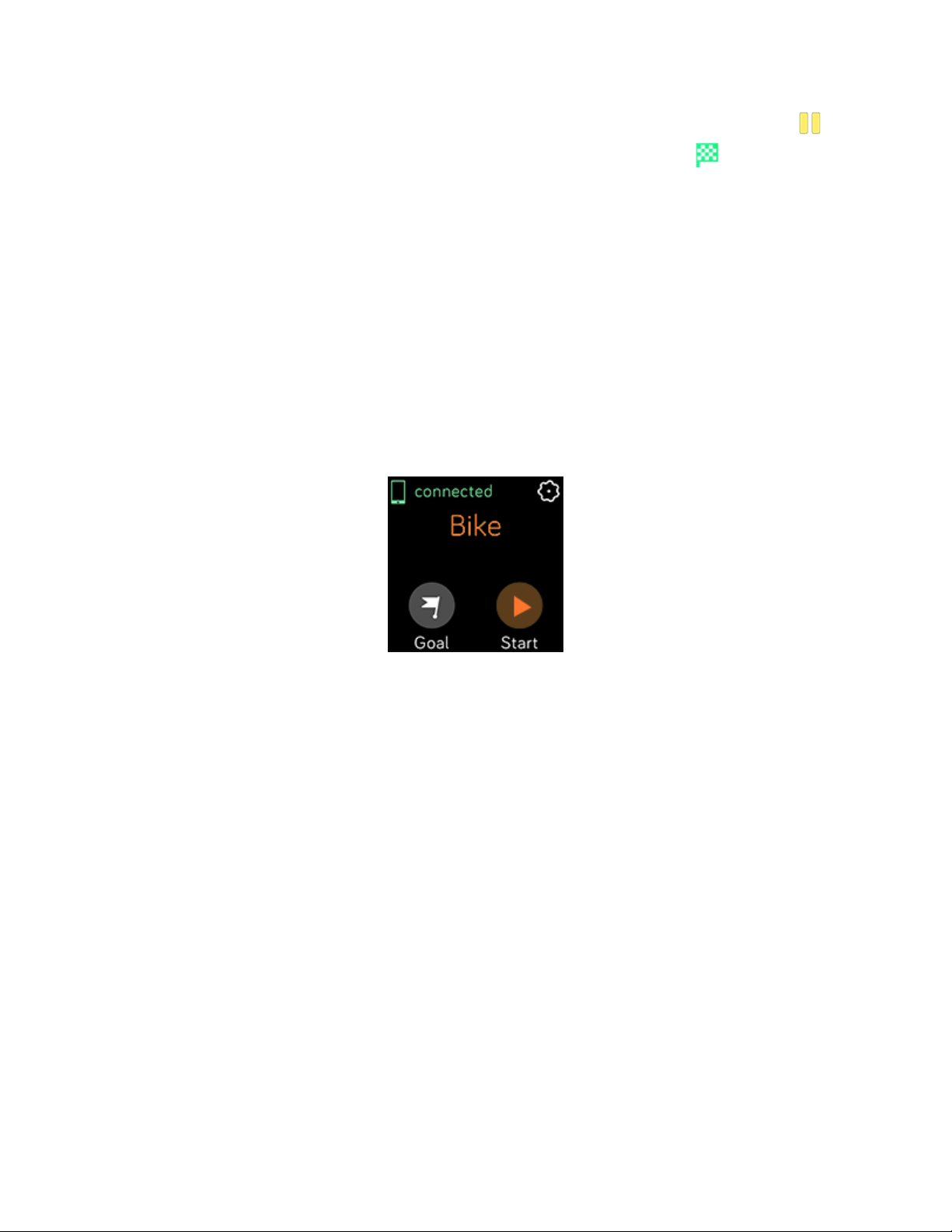
If the exercise uses GPS, an icon appears in the top left as your watch
connects to your phone's GPS sensors. When the screen says "connected" and
Versa 2 vibrates, GPS is connected.
Customize your exercise settings and shortcuts
Customize settings for each exercise type on your watch. Settings include:
48

Always-on Screen Keep the screen on during exercise
Auto-Pause Automatically pause a run or bike ride when you stop moving
Automatic Lap
Settings
When Show Laps is set to Automatic, customize how laps are
counted
Connected GPS Track your route using GPS
Run Detect Automatically open the exercise app when your watch
detects a run.
Show Laps Receive notifications when you reach certain milestones
during your workout
Customize Stats Choose what stats you want to see when tracking an exercise
Settings vary based on the exercise. To adjust the settings for each type of exercise:
1.
On Versa 2, open the Exercise app .
2. Tap the exercise you want to adjust.
3.
Tap the gear icon and swipe through the list of settings.
4. Tap a setting to adjust it.
5. When you're done, press the button to return to the exercise screen and start
your workout.
To change or reorder the exercise shortcuts in the Exercise app :
1.
From the Today tab in the Fitbit app, tap the icon in the top left Versa
2 tile.
2. Tap Exercise Shortcuts.
l
To add a new exercise shortcut, tap the + icon and select an exercise.
l
To remove an exercise shortcut, swipe left on a shortcut.
l
To reorder an exercise shortcut, tap Edit (iPhones only), and press and
hold the menu icon , then drag it up or down.
49

Check your workout summary
After you complete a workout, Versa 2 shows a summary of your stats.
Check the Exercise tile in the Fitbit app to see additional stats and a workout
intensity map if you used GPS.
Check your heart rate
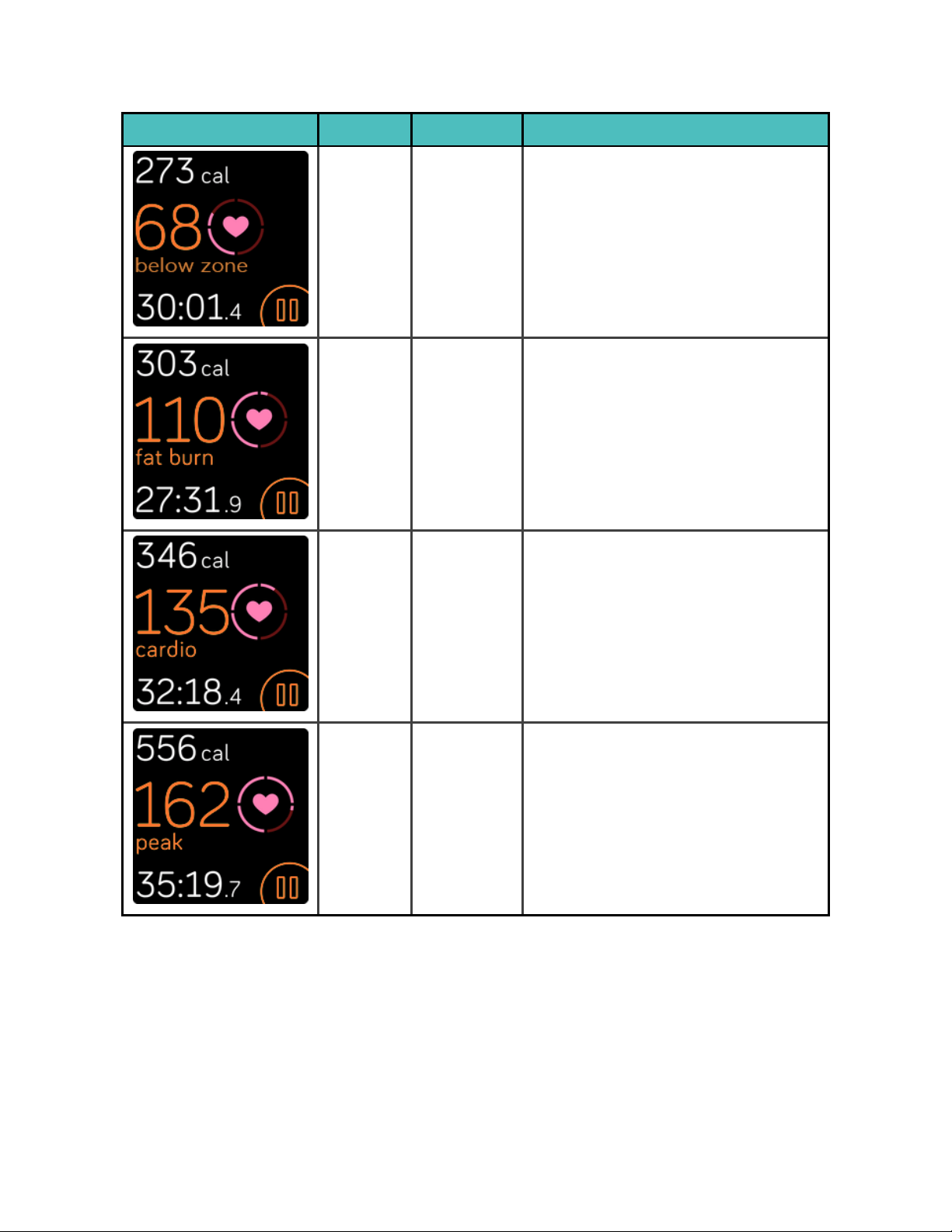
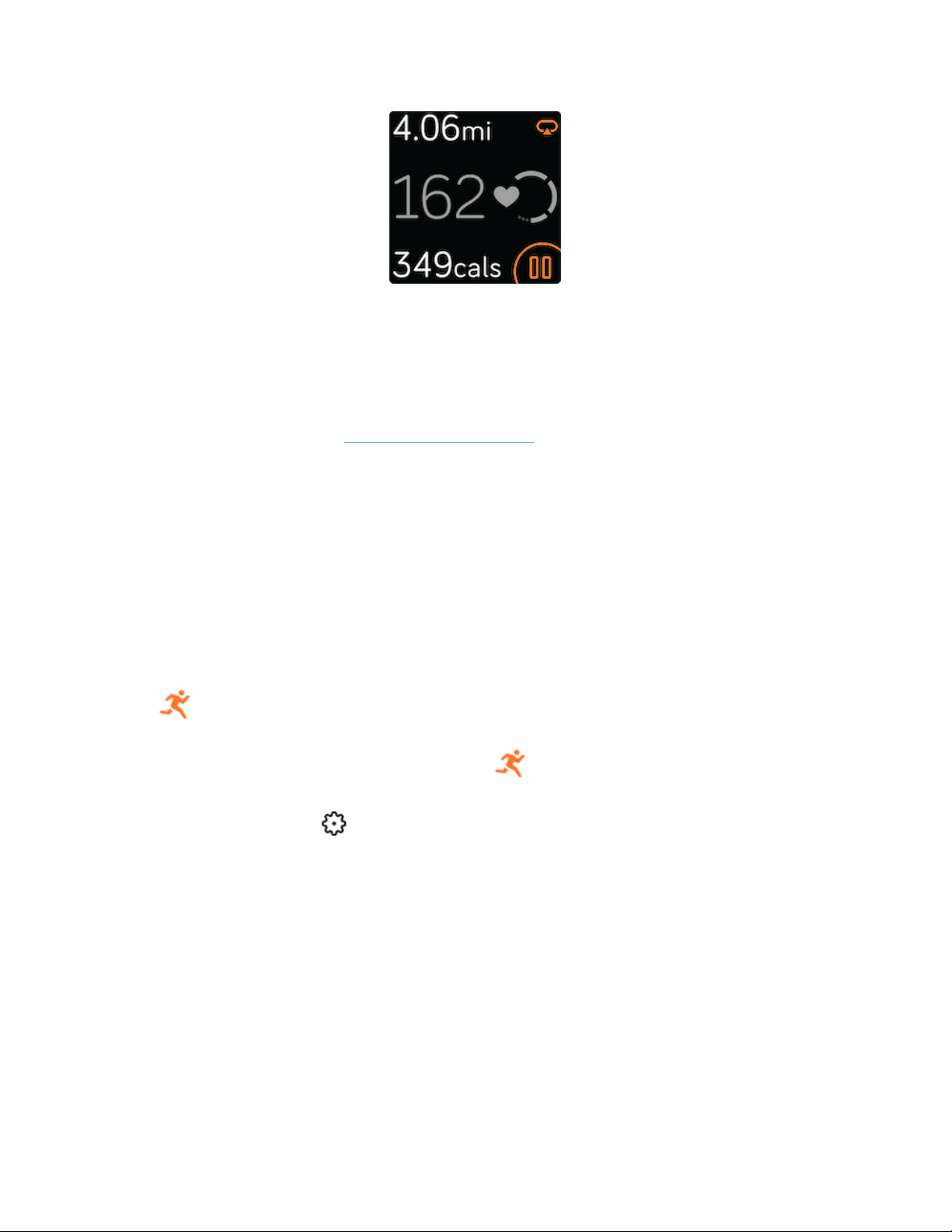
Versa 2 personalizes your heart-rate zones using your heart rate reserve, which is
the difference between your maximum heart rate and your resting heart rate. To
help you target the training intensity of your choice, check your heart rate and
heart-rate zone on your watch during exercise. Versa 2 notifies you when you enter
a heart-rate zone.
50
Icon Zone Calculation Description
Below
Zone
Below
40%of
your heart
rate
reserve
Below the fat burn zone, your
heart beats at a slower pace.
Fat Burn
Zone
Between
40% and
59% of
your heart
rate
reserve
In the fat burn zone, you’re likely in
a moderate activity such as a brisk
walk. Your heart rate and
breathing might be elevated, but
you can still carry on a
conversation.
Cardio
Zone
Between
60% and
84% of
your heart
rate
reserve
In the cardio zone, you’re likely
doing a vigorous activity such as
running or spinning.
Peak
Zone
Greater
than 85% of
your heart
rate
reserve
In the peak zone, you’re likely
doing a short, intense activity that
improves performance and speed,
such as sprinting or high-intensity
interval training.
Note that the heart-rate value appears gray if your watch is searching for a stronger
reading.
51
Custom heart-rate zones
Instead of using these heart-rate zones, you can create a custom zone in the Fitbit
app to target a specific heart-rate range.
For more information, see the related help article.
Earn Active Zone Minutes
Earn Active Zone Minutes for time spent in the fat burn, cardio, or peak heart-rate
zones. To help you maximize your time, you earn 2 Active Zone Minutes for each
minute you’re in the cardio or peak zones.
1 minute in the fat burn zone = 1 Active Zone Minute
1 minute in the cardio or peak zones = 2 Active Zone Minutes
To receive a notification when you enter a heart-rate zone when using the Exercise
app :
1.
On your watch, open the Exercise app .
2. Tap the exercise you want to track.
3.
Tap the gear icon in the top right.
4. Turn Zone Notifications on.
A few moments after you enter a different heart-rate zone during your exercise,
your watch buzzes so that you know how hard you’re working. The number of times
your watch vibrates indicates which zone you’re in:
52
Light buzz = below zone
1 buzz = fat burn zone
2 buzzes = cardio zone
3 buzzes = peak zone
To start, your weekly goal is set to 150 Active Zone Minutes. You’ll receive
notifications as you reach your goal.
Check your daily readiness score
Understand what’s best for your body with the daily readiness score, available with
a Fitbit Premium subscription. Your score ranges from 1 to 100, based on your
activity, sleep, and heart-rate variability. A high score means you’re ready to
exercise, while a low score suggests you should focus on recovery.
When you check your score, you also see a breakdown of what impacted your
score, a personalized activity goal for the day, and recommended workouts or
recovery sessions.
To see your daily readiness score, wear your tracker to sleep, and open the Fitbit
app on your phone the next morning. From the Today tab , tap the Readiness
tile .
For more information, see the related help article.
Share your activity
After you complete a workout, open the Fitbit app to share your stats with friends
and family.
For more information, see the related help article.
53

View your cardio fitness score
View your overall cardiovascular fitness on your wrist or in the Fitbit app. See your
cardio fitness score and cardio fitness level, which shows how you compare to your
peers.
On your watch, swipe up to Fitbit Today and find the heart-rate tile. Swipe left to
see your time spent in each heart-rate zone for the day. Swipe left again to see your
cardio fitness score and cardio fitness level.
For more information, see the related help article.
54
Music
Listen to music with Bluetooth headphones or speakers without needing your
phone.
Connect Bluetooth headphones or speakers
Connect up to 8 Bluetooth audio devices to listen to music from your watch.
To pair a new Bluetooth audio device:
1. Activate pairing mode on your Bluetooth headphones or speaker.
2.
On Versa 2, open the Settings app Bluetooth.
3. Tap +Audio Device. Versa 2 searches for nearby devices.
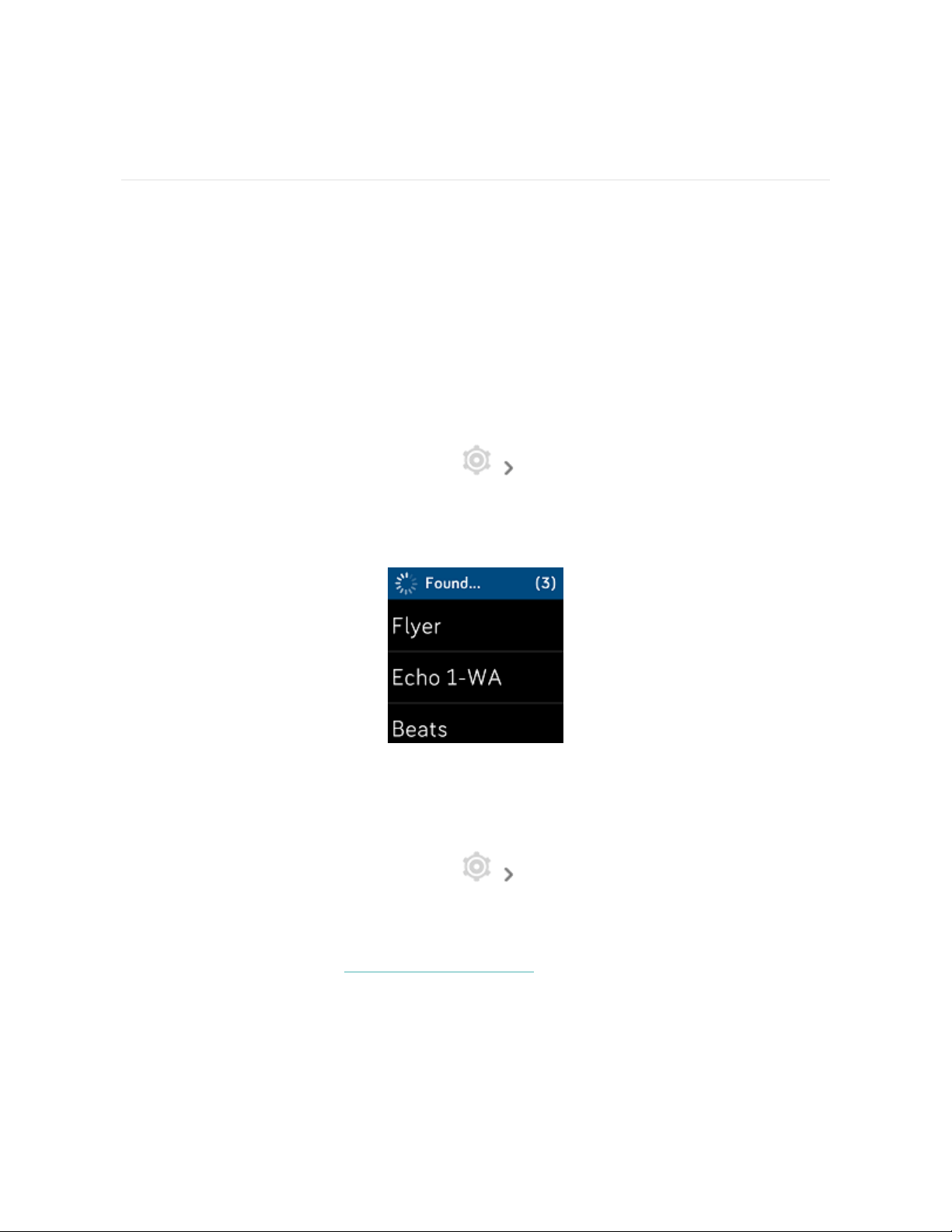
4. When Versa 2 finds nearby Bluetooth audio devices, it shows a list on the
screen. Tap the name of the device you want to pair.
When pairing is complete, a check mark appears on the screen.
To listen to music with a different Bluetooth device:
1.
On Versa 2, open the Settings app Bluetooth.
2. Tap the device you want to use, or pair a new device. Then wait a moment for
the device to connect.
For more information, see the related help article.
55
Control music with Versa 2
Control music playing on Versa 2 or on your phone.
To choose the music source:
1. Swipe down from the top of your screen. After your notifications appear,
swipe down again to open the control center. Tap the music controls icon
.
2. Tap the 3 dots icon.
3. Tap the phone or watch icon to switch the source.
If you have an Android phone, turn on Bluetooth Classic to control music on your
phone:
1.
Open the Settings app on Versa 2 Bluetooth Restore Music
Controls.
2. On your phone, navigate to the Bluetooth settings where paired devices are
listed. Your phone will scan for available devices.
3. Tap Versa 2 (Classic).
To control music:
1. While music is playing, swipe down from the top of your screen. After your
notifications appear, swipe down again to open the control center. Tap the
music controls icon .
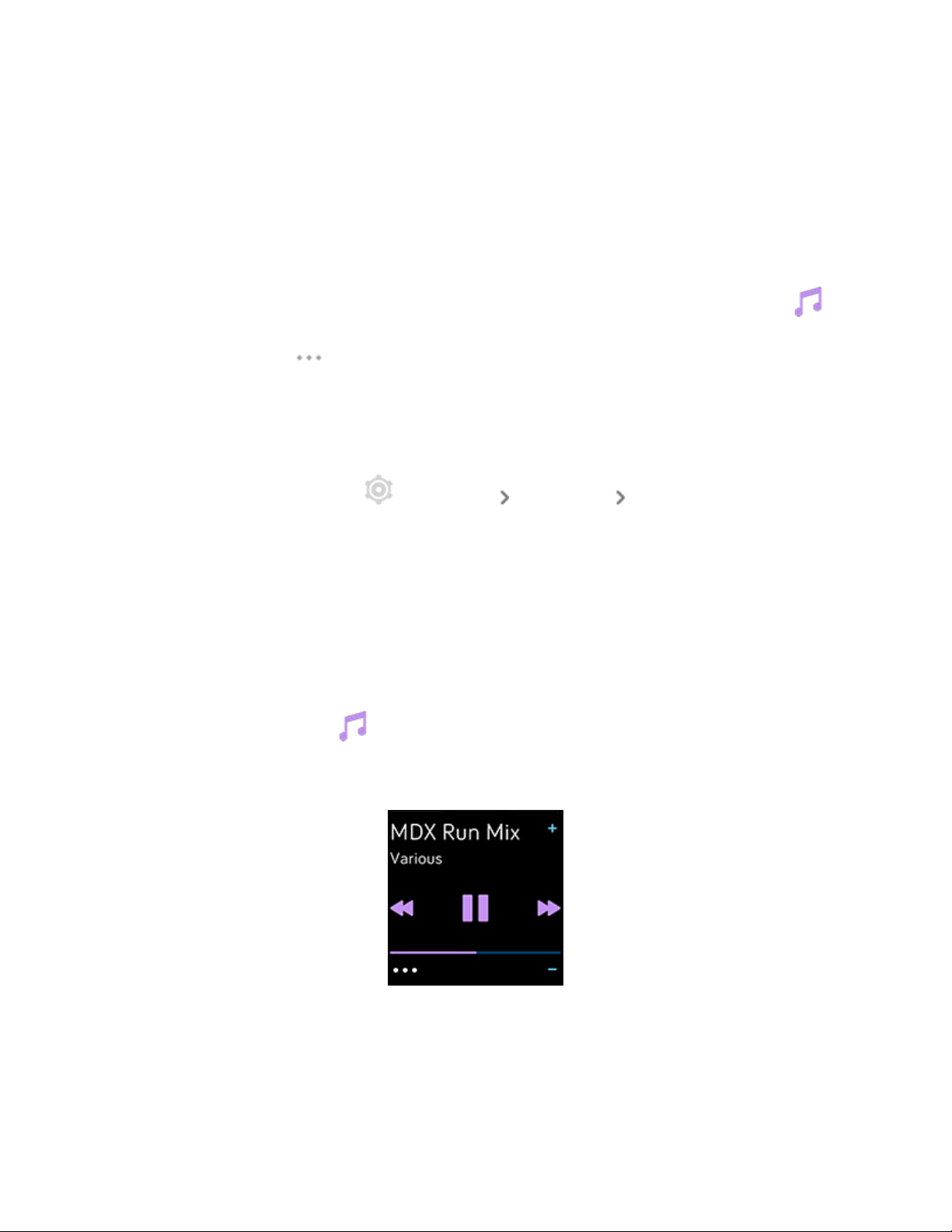
2. Play, pause, or tap the arrow icons to skip to the next track or previous track.
Tap the +and - icons to control the volume.
56

Control music with the Spotify - Connect &Control
app
Use the Spotify app on Versa 2 to control Spotify on your phone, computer, or
other Spotify Connect device. Navigate between playlists, like songs, and switch
between devices from your watch. Note that at this time, the Spotify app only
controls music playing on your paired device, so your device must remain nearby
and connected to the internet. You need a Spotify Premium subscription to use this
app. For more information about Spotify Premium, see spotify.com.
For instructions, see the related help article.
57

Contactless Payments
Versa 2 includes a built-in NFC chip, which lets you use your credit and debit cards
on your watch.
Use credit and debit cards
Set up Fitbit Pay in the Fitbit app, and use your watch to make purchases in stores
that accept contactless payments.
We’re always adding new locations and card issuers to our list of partners. To see if
your payment card works on your Fitbit device, see:
l
Fitbit Pay:fitbit.com/fitbit-pay/banks
Set up contactless payments
To use contactless payments, add at least 1 credit or debit card from a participating
bank to the Fitbit app. The Fitbit app is where you add and remove payment cards,
set a default card for your watch, edit a payment method, and review recent
purchases.
1.
From the Today tab in the Fitbit app, tap the icon in the top left Versa
2 tile.
2. Tap the Wallet tile.
3. Follow the on-screen instructions to add a payment card. In some cases, your
bank might require additional verification. If you're adding a card for the first
time, you might be prompted to set a 4-digit PIN code for your watch. Note
that you also need passcode protection enabled for your phone.
4. After you add a card, follow the on-screen instructions to turn on notifications
for your phone (if you haven't already done so)to complete the setup.
You can add up to 6 payment cards to the Wallet and choose which card to set as
the default payment option.
58
Make purchases
Make purchases using your Fitbit device at any store that accepts contactless
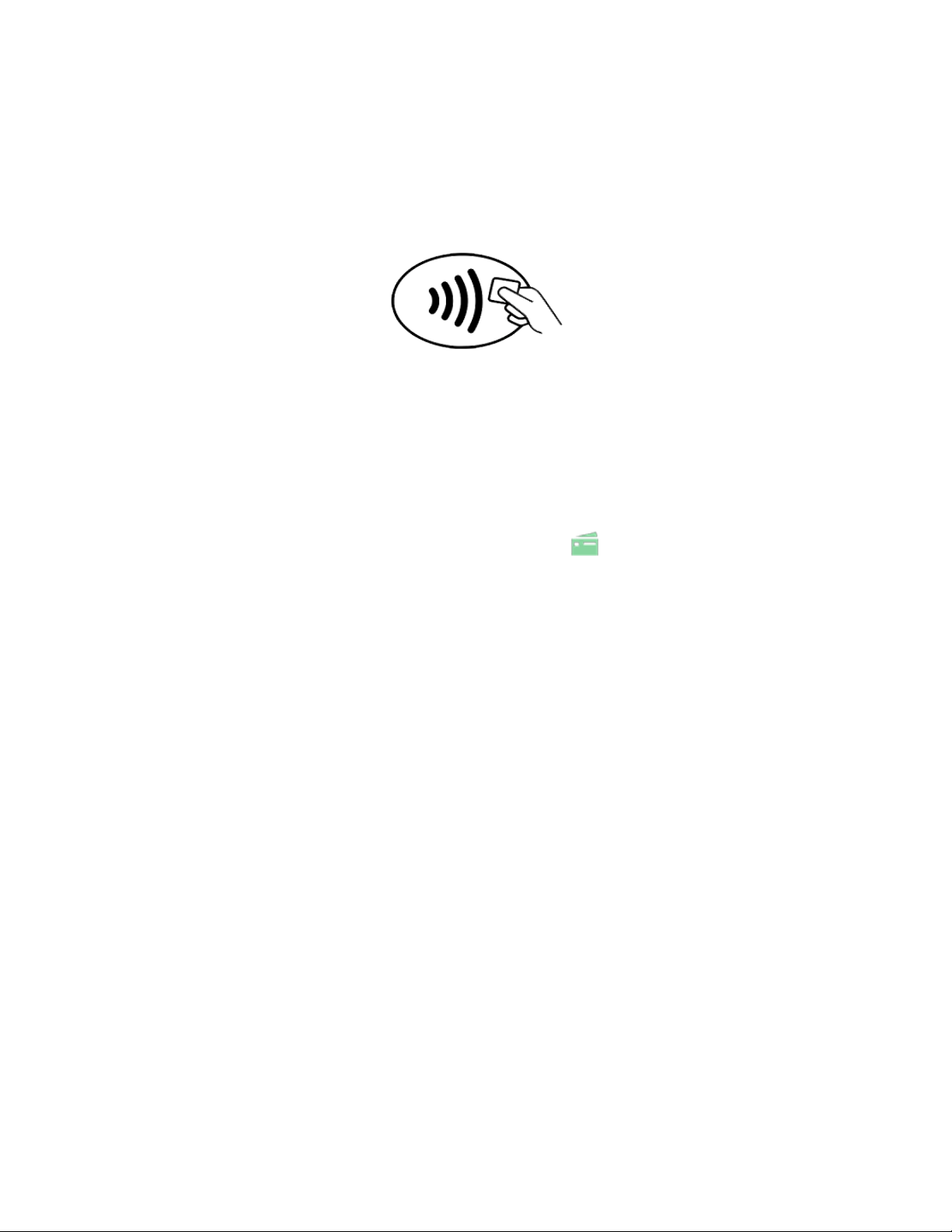
payments. To determine if the store accepts contactless payments, look for the
symbol below on the payment terminal:
All customers except those in Australia:
1. Activate Fitbit Pay.
l
If you chose Fitbit Pay as your button shortcut, hold the button on your
watch for 2 seconds.
l
If you chose a different button shortcut, swipe down from the top of
your screen. After your notifications appear, swipe down again to open
the control center. Tap the Fitbit Pay icon if you chose a different
button shortcut.
2. If prompted, enter your 4-digit watch PINcode. Your default card appears on
the screen.
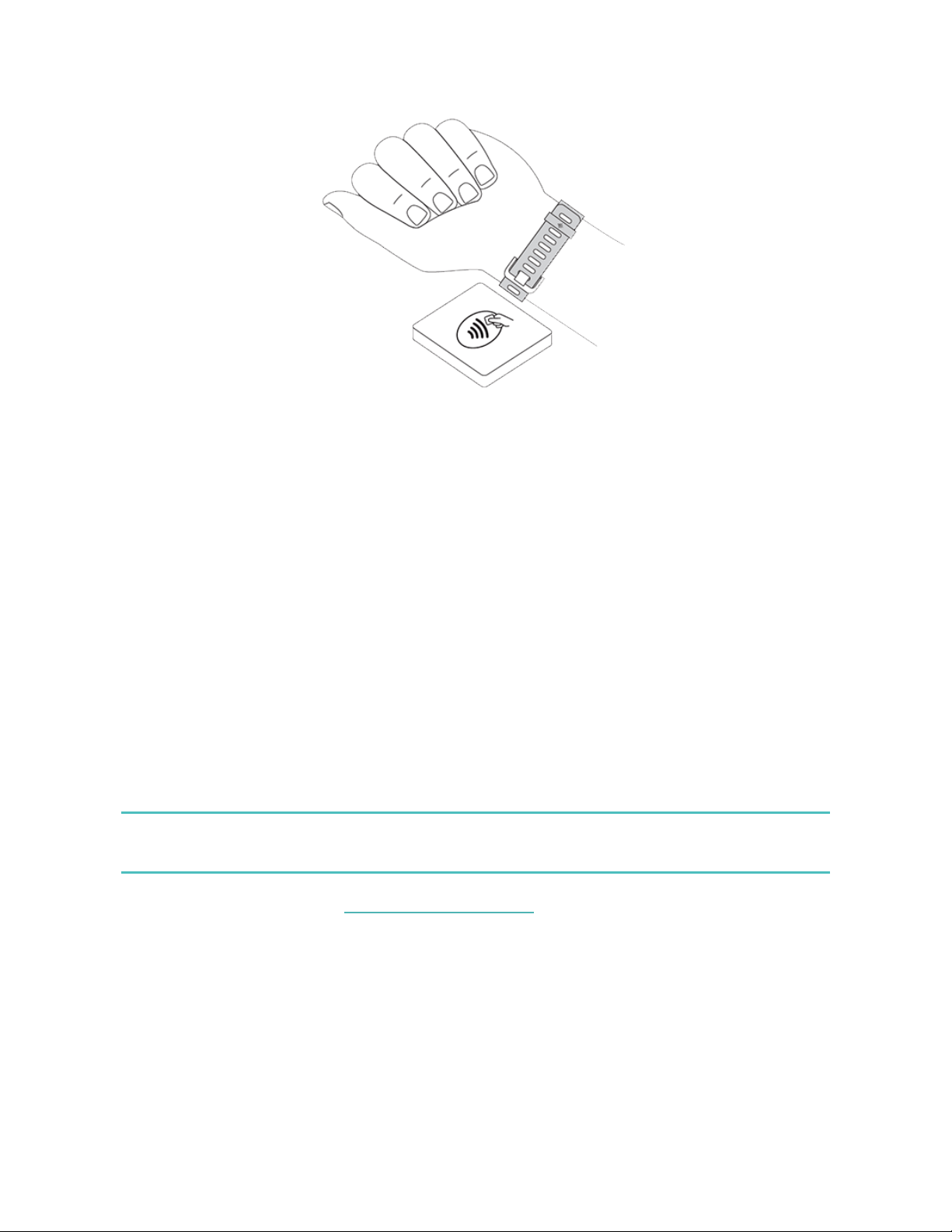
3. To pay with your default card, hold your wrist near the payment terminal. To
pay with a different card, swipe to find the card you want to use, and hold
your wrist near the payment terminal.
59
Customers in Australia:
1. If you have a credit or debit card from an Australian bank, hold your watch
near the payment terminal to pay. If your card is from a bank outside of
Australia, or if you wish to pay with a card that is not your default card,
complete steps 1-3 in the section above.
2. If prompted, enter your 4-digit watch PINcode.
3. If the purchase amount exceeds $100 AU, follow the instructions on the
payment terminal. If prompted for a PIN code, enter the PIN code for your
card (not your watch).
When the payment succeeds, your watch vibrates and you see a confirmation on
the screen.
If the payment terminal doesn't recognize your Fitbit device, make sure the watch
face is near the reader and that the cashier knows you're using a contactless
payment.
For added security, you must wear Versa 2 on your wrist to use contactless
payments.
For more information, see the related help article.
60
Change your default card
1.
From the Today tab in the Fitbit app, tap the icon in the top left Versa
2 tile.
2. Tap the Wallet tile.
3. Find the card you want to set as the default option.
4. Tap Set as Default on Versa 2.
Pay for transit
Use contactless payments to tap on and off at transit readers that accept
contactless credit or debit card payments. To pay with your watch, follow the steps
listed in "Use credit and debit cards" on page58.
Pay with the same card on your Fitbit watch when you tap the transit reader at the
start and end of your trip. Make sure your device is charged before beginning your
trip.
61

Update, Restart, and Erase
Some troubleshooting steps may require you to restart your watch, while erasing it
is useful if you want to give Versa 2 to another person. Update your watch to
receive new Fitbit OSupdates.
Update Versa 2
Update your watch to get the latest feature enhancements and product updates.
When an update is available, a notification appears in the Fitbit app. After you start
the update, follow the progress bars on Versa 2 and in the Fitbit app until the
update is complete. Keep your watch and phone close to each other during the
update.
Updating Versa 2 may be demanding on the battery. We recommend plugging your
watch into the charger before starting an update.
For more information, see the related help article.
Restart Versa 2
To restart your watch, press and hold the button for 10 seconds until you see the
Fitbit logo on the screen, and then release the button.
Restarting your watch doesn't delete any data.
Versa 2 has small holes on the device for the altimeter and microphone. Don’t
attempt to restart your device by inserting any items, such as paper clips, into these
holes as you can damage Versa 2.
62

Shutdown Versa 2
To turn off your watch, open the Settings app About Shutdown.
To turn on your watch, press the button.
For information about how to store Versa 2 long term, see the related help article.
Erase Versa 2
If you want to give Versa 2 to another person or wish to return it, first clear your
personal data:
On Versa 2, open the Settings app About Factory Reset.
63
Troubleshooting
If Versa 2 isn't working properly, see our troubleshooting steps below.
Heart-rate signal missing
Versa 2 continuously tracks your heart rate while you're exercising and throughout
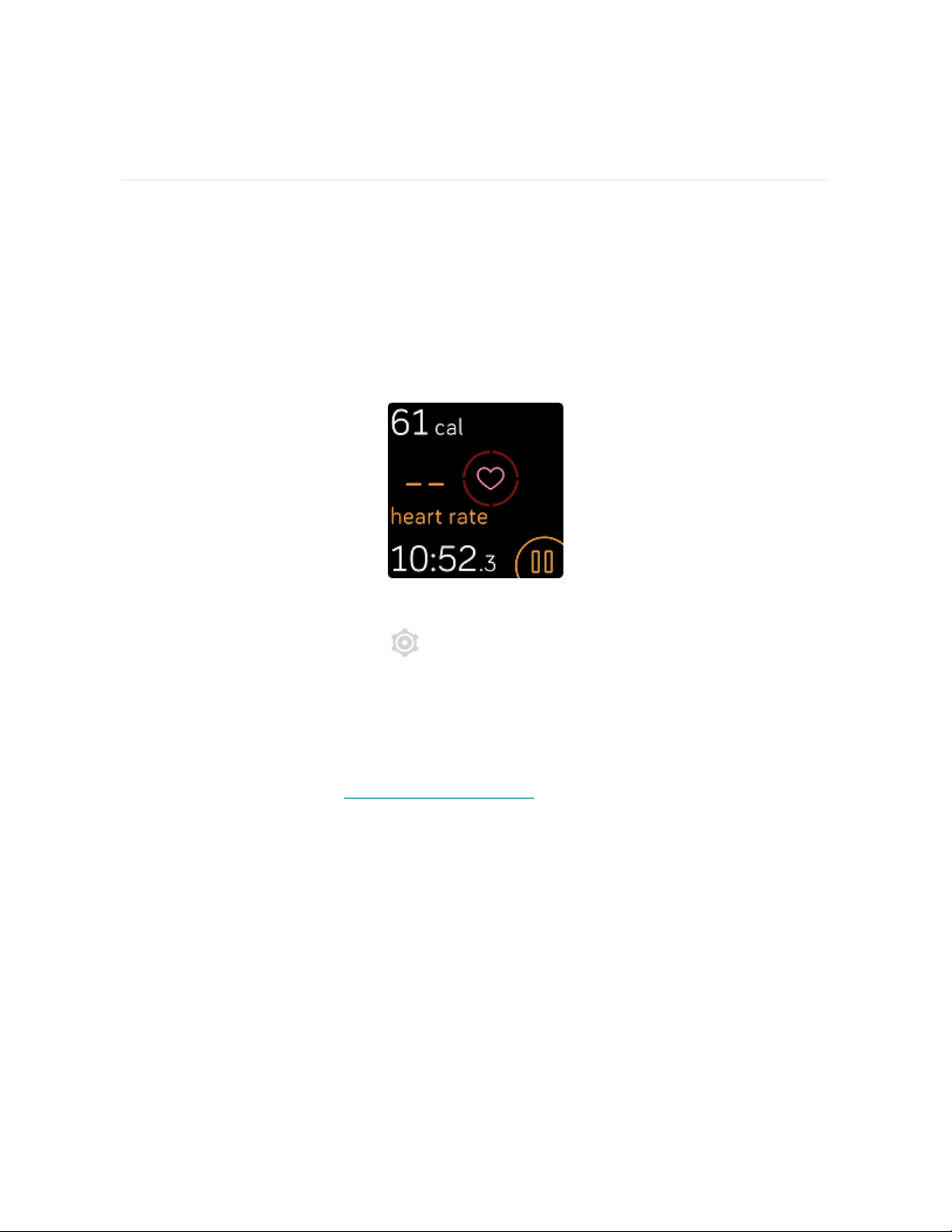
the day. If the heart-rate sensor on your watch has difficulty detecting a signal,
dashed lines appear.
If your watch doesn't detect a heart-rate signal, first make sure heart-rate tracking
is turned on in the Settings app on your watch. Next, make sure you're wearing
your watch correctly, either by moving it higher or lower on your wrist or by
tightening or loosening the band. Versa 2 should be in contact with your skin. After
holding your arm still and straight for a short time, you should see your heart rate
again.
For more information, see the related help article.
GPS signal missing
Environmental factors, including tall buildings, dense forest, steep hills, and thick
cloud cover, can interfere with your phone's ability to connect to GPSsatellites. If
your phone is searching for a GPS signal during an exercise, connecting appears at
the top of the screen.
64
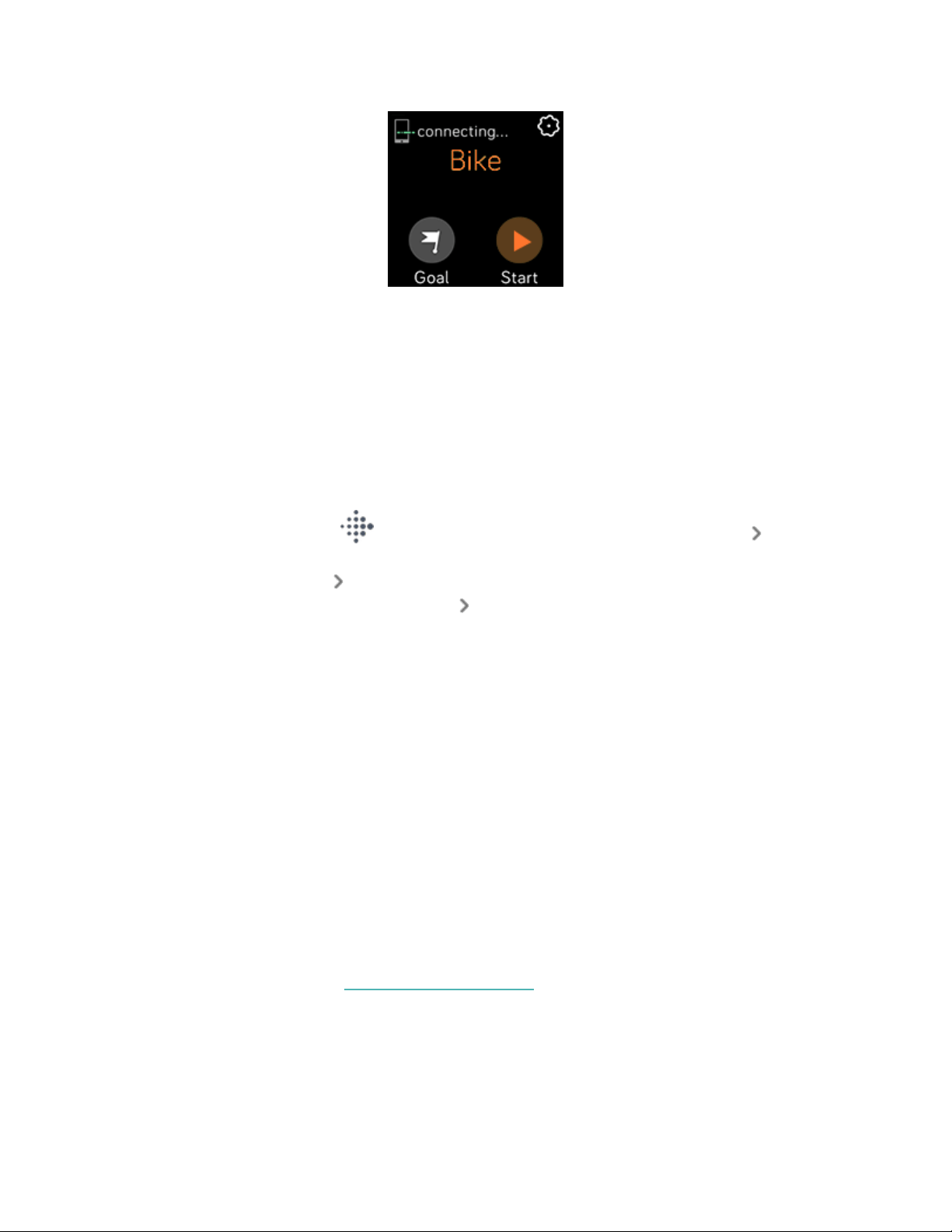
For best results, wait for your phone to find the signal before you start your
workout.
Can't connect to Wi-Fi
If Versa 2 can't connect to Wi-Fi, you might have entered an incorrect password, or
the password might have changed:
1.
From the Today tab in the Fitbit app, tap the icon in the top left Versa
2 tile.
2.
Tap Wi-Fi Settings Next.
3.
Tap the network you want to use Remove.
4. Tap Add Network and follow the on-screen instructions to reconnect the Wi-
Fi network.
To check if your Wi-Fi network is working correctly, connect another device to your
network; if it connects successfully, try again to connect your watch.
If Versa 2 still won't connect to Wi-Fi, make sure that you're attempting to connect
your watch to a compatible network. For best results, use your home Wi-Fi network.
Versa 2 can't connect to 5GHz Wi-Fi, WPAenterprise, or public networks that
require logins, subscriptions, or profiles. For a list of compatible network types, see
"Connect to Wi-Fi" on page9.
After you verify the network is compatible, restart your watch and try connecting to
Wi-Fi again. If you see other networks appear in the list of available networks, but
not your preferred network, move your watch closer to your router.
For more information, see the related help article.
65


General Info and Specifications
Sensors andComponents
Fitbit Versa 2 contains the following sensors and motors:
l
Optical heart-rate tracker
l
Altimeter, which tracks altitude changes
l
3-axis accelerometer, which tracks motion patterns
l
Ambient light sensor
l
Vibration motor
l
Microphone
Materials
The housing and buckle on Versa 2 are made of anodized aluminum. While
anodized aluminum can contain traces of nickel, which can cause an allergic
reaction in someone with nickel sensitivity, the amount of nickel in all Fitbit
products meets the European Union's stringent Nickel Directive.
The Versa 2 classic band is made of a premium, comfortable silicone similar to that
used in many sport watches.
Wireless technology
Versa 2 contains a Bluetooth 4.0 radio transceiver, Wi-Fi chip, and NFCchip.
Haptic feedback
Versa 2 contains a vibration motor for alarms, goals, notifications, reminders, and
apps.
67
Battery
Versa 2 contains a rechargeable lithium-polymer battery.
Memory
Versa 2 stores your data, including daily stats, sleep information, and exercise
history, for 7 days. See your historical data in the Fitbit app.
Display
Versa 2 has a color AMOLED display.
Band size
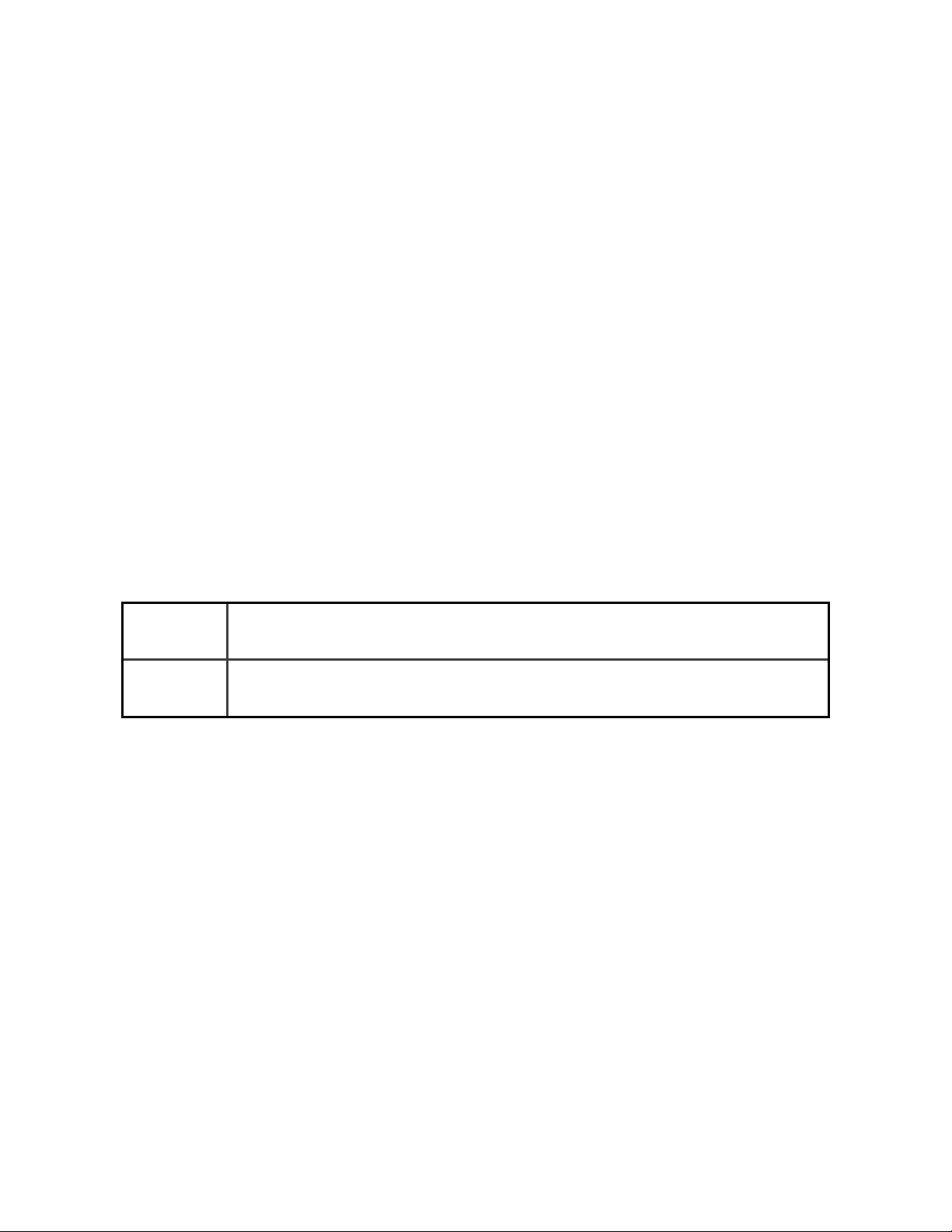
Band sizes are shown below. Note that accessory bands sold separately may vary
slightly.
Small band Fits a wrist between 5.5 - 7.1 inches (140 mm - 180 mm)in
circumference
Large
band
Fits a wrist between 7.1 - 8.7 inches (180 mm - 220 mm)in
circumference
68
Environmental conditions
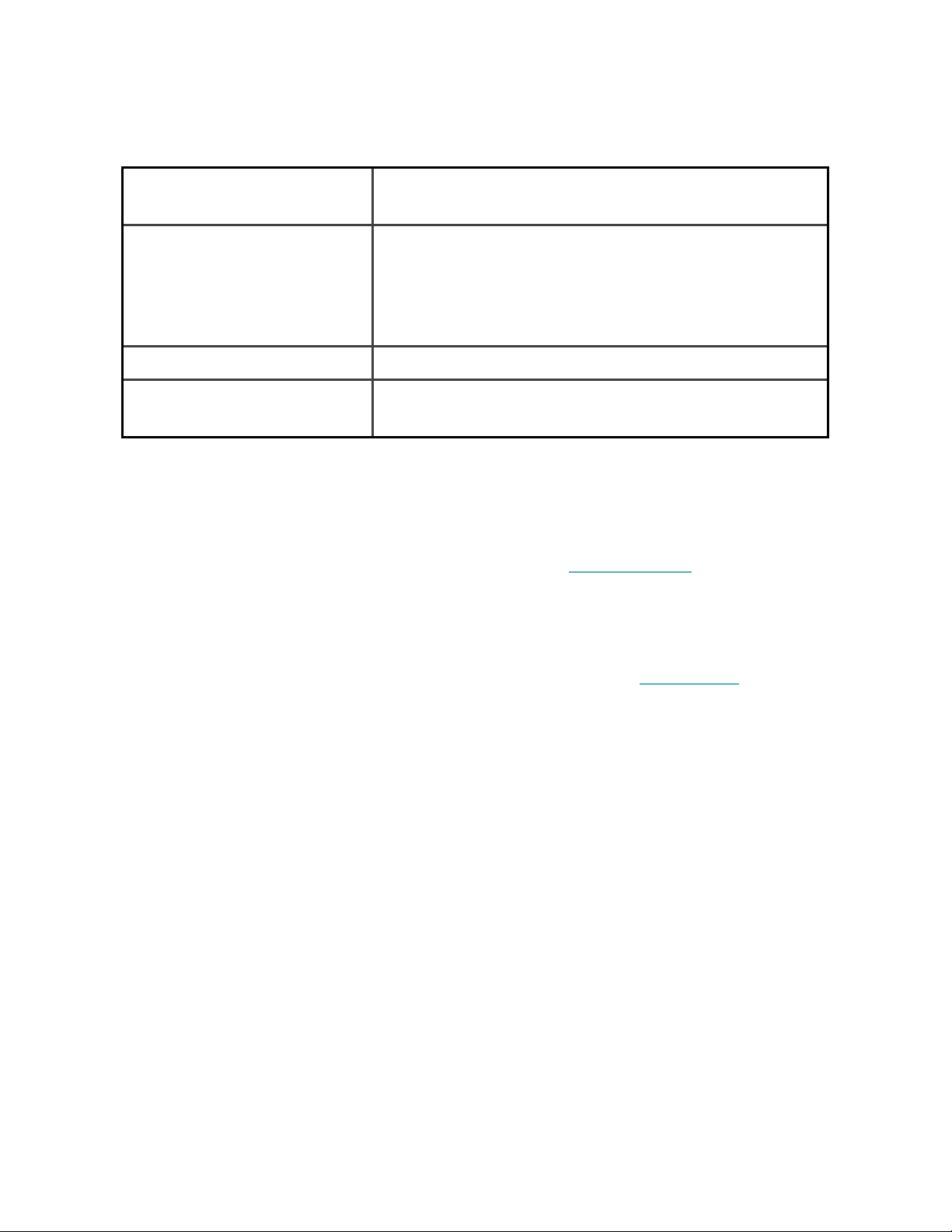
Operating temperature 14° to 113° F
(-10° to 45° C)
Non-operating temperature -4° to 14° F
(-20° to -10° C)
113° to 140°F
(45° to 60° C)
Water resistance Water resistant up to 50 meters
Maximum operating altitude 28,000 feet
(8,534 m)
Learn more
To learn more about your watch, how to track your progress in the Fitbit app, and
how to build healthy habits with Fitbit Premium, visit help.fitbit.com.
Return policy and warranty
Find warranty information and the fitbit.com return policy on our website.
69

Regulatory and Safety Notices
Notice to the User: Regulatory content for certain regions can also be viewed on
your device. To view the content:
Settings About Regulatory Info
USA:Federal Communications Commission(FCC)
statement
Model FB507:
FCC ID:XRAFB507
Notice to the User: The FCC ID can also be viewed on your device. To view the
content:
Settings About Regulatory Info
Supplier's Declaration of Conformity
Unique Identifier: FB507
Responsible Party – U.S. Contact Information
199 Fremont Street, 14th Floor
San Francisco, CA
94105
United States
877-623-4997
FCC Compliance Statement (for products subject to Part 15)
This device complies with Part 15 of the FCC Rules.
Operation is subject to the following two conditions:
70

1. This device may not cause harmful interference and
2. This device must accept any interference, including interference that may
cause undesired operation of the device.
FCC Warning
Changes or modifications not expressly approved by the party responsible for
compliance could void the user’s authority to operate the equipment.
Note: This equipment has been tested and found to comply with the limits for a
Class B digital device, pursuant to part 15 of the FCC Rules. These limits are
designed to provide reasonable protection against harmful interference in a
residential installation. This equipment generates, uses and can radiate radio
frequency energy and, if not installed and used in accordance with the instructions,
may cause harmful interference to radio communications. However, there is no
guarantee that interference will not occur in a particular installation. If this
equipment does cause harmful interference to radio or television reception, which
can be determined by turning the equipment off and on, the user is encouraged to
try to correct the interference by one or more of the following measures:
l
Reorient or relocate the receiving antenna.
l
Increase the separation between the equipment and receiver.
l
Connect the equipment into an outlet on a circuit different from that to which
the receiver is connected.
l
Consult the dealer or an experienced radio/TV technician for help.
This device meets the FCC and IC requirements for RF exposure in public or
uncontrolled environments.
Canada:Industry Canada (IC)statement
Model/Modèle FB507
IC: 8542A-FB507
Notice to the User: The IC ID can also be viewed on your device. To view the
content:
Settings About Regulatory Info
71

Avis à l'utilisateur: L'ID de l'IC peut également être consulté sur votre appareil. Pour
voir le contenu:
Paramètres À propos Informations réglementaires
This device meets the IC requirements for RF exposure in public or uncontrolled
environments.
Cet appareil est conforme aux conditions de la IC en matière de RF dans des
environnements publics ou incontrôlée
IC Notice to Users English/French in accordance with current issue of RSS GEN:
This device complies with Industry Canada license exempt RSS standard(s).
Operation is subject to the following two conditions:
1. this device may not cause interference, and
2. this device must accept any interference, including interference that may
cause undesired operation of the device.
Cet appareil est conforme avec Industrie Canada RSS standard exempts de licence
(s). Son utilisation est soumise à Les deux conditions suivantes:
1. cet appareil ne peut pas provoquer d’interférences et
2. cet appareil doit accepter Toute interférence, y compris les interférences qui
peuvent causer un mauvais fonctionnement du dispositif
European Union (EU)
Frequency Bands and Power
Data given here is the maximum radio-frequency power transmitted in the
frequency band(s) in which the radio equipment operates.
WiFi 2400-2483.5 MHz < 20 dBm EIRP
Bluetooth 2400-2483.5 MHz < 20 dBm EIRP
NFC 13.56 MHz < 42 dBuA/m at 10m
Specific Absorption Rate (SAR) value for FB507: direct contact with limb, 0.1 W/kg;
72

direct contact with torso, 0.1 W/kg; center-to-head at 10mm separation, 0.385
W/kg
Simplified EU Declaration of Conformity
Hereby, Fitbit LLC declares that the radio equipment type Model FB507 is in
compliance with Directive 2014/53/EU. The full text of the EU declaration of
conformity is available at the following internet address: www.fitbit.com/safety
Vereinfachte EU-Konformitätserklärung
Fitbit LLC erklärt hiermit, dass die Funkgerättypen Modell FB507 die Richtlinie
2014/53/EU erfüllen. Der vollständige Wortlaut der EU-Konformitätserklärungen
kann unter folgender Internetadresse abgerufen werden: www.fitbit.com/safety
Declaración UE de Conformidad simplificada
Por la presente, Fitbit LLC declara que el tipo de dispositivo de radio Modelo FB507
cumple con la Directiva 2014/53/UE. El texto completo de la declaración de
conformidad de la UE está disponible en la siguiente dirección de Internet:
www.fitbit.com/safety
Déclaration UE de conformité simplifiée
Fitbit LLC déclare par la présente que les modèles d’appareils radio FB507 sont
conformes à la Directive2014/53/UE. Les déclarations UE de conformité sont
disponibles dans leur intégralité sur le site suivant: www.fitbit.com/safety
Dichiarazione di conformità UE semplificata
Fitbit LLC dichiara che il tipo di apparecchiatura radio Modello FB507 è conforme
alla Direttiva 2014/53/UE. Il testo completo della dichiarazione di conformità UE è
disponibile al seguente indirizzo Internet: www.fitbit.com/safety
73
IP Rating
Model FB507 has a water resistance rating of IP X8 under IEC standard 60529, up to
a depth of 50 meters.
Please refer to the beginning of this section for instructions on how to access your
product’s IP rating.
Argentina
C-23275
Australia and New Zealand
Belarus
74

Customs Union
China
Notice to the User: Regulatory content can also be viewed on your device.
Instructions to view content from your menu:
Settings About Regulatory Info
75
China RoHS
部件名称
Part Name
有毒和危险品
Toxic and Hazardous Substances or Elements
Model FB507
铅
(Pb)
水银
(Hg)
镉
(Cd)
六价铬
(Cr(VI))
多溴化苯
(PBB)
多溴化二苯
醚
(PBDE)
表带和表扣
(Strap and
Buckle)
O O O O O O
电子
(Electronics)
-- O O O O O
电池
(Battery)
O O O O O O
充电线
(Charging
Cable)
O O O O O O
本表格依据 SJ/T 11364 的规定编制
O = 表示该有害物质在该部件所有均质材料中的含量均在 GB/T 26572规定的限量要求以下
(indicates that thecontent of the toxic and hazardous substance in all the
Homogeneous Materialsof the part is below the concentration limit requirement as
described inGB/T 26572).
X = 表示该有害物质至少在该部件的某一均质材料中的含量超出 GB/T 26572规定的限量要
求 (indicates that the content of the toxic and hazardoussubstance in at least
oneHomogeneous Material of the part exceeds theconcentration limit requirement
as described inGB/T 26572).
CMIIT ID 2019DJ7444
76
Frequency band: 2400-2483.5 MHz NFC: 13.56MHz
Transmitted power: Max EIRP, 15.4dBm
Occupied bandwidth: BLE: 2MHz, BT: 1MHz, NFC: 2.3 kHz, WiFi: 20MHz
Modulation system: BLE: GFSK, BT: GSFK/QPSK/8PSK, NFC: ASK, WiFi:
DSSS/OFDM
CMIIT ID displayed: On packaging
India
Notice to the User: Regulatory content for this region can also be viewed on your
device. To view the content:
Settings About Regulatory Info
Indonesia
62652/SDPPI/2019
3788
Israel
Japan
Notice to the User: Regulatory content for this region can also be viewed on your
device. To view the content:
Settings About Regulatory Info
77
Mexico
La operación de este equipo está sujeta a las siguientes dos condiciones:
1. Es posible que este equipo o dispositivo no cause interferencia perjudicial y
2. Este equipo o dispositivo debe aceptar cualquier interferencia, incluyendo la
que pueda causar su operación no deseada
Morocco
AGREE PAR L’ANRT MAROC
Numéro d’agrément: MR 20768 ANRT 2019
Date d’agrément: 29/08/2019
Nigeria
Connection and use of this communications equipment is permitted by the Nigerian
Communications Commission.
78

Oman
OMAN - TRA
TRA/TA-
R/7991/19
D090258
Pakistan
TAC No: 9.9585/2019
Model: FB507
Serial No: Refer to retail box
Year of Manufacture: 2019
Paraguay
NR: 2022-01-I-0058
79
Philippines
Serbia
80
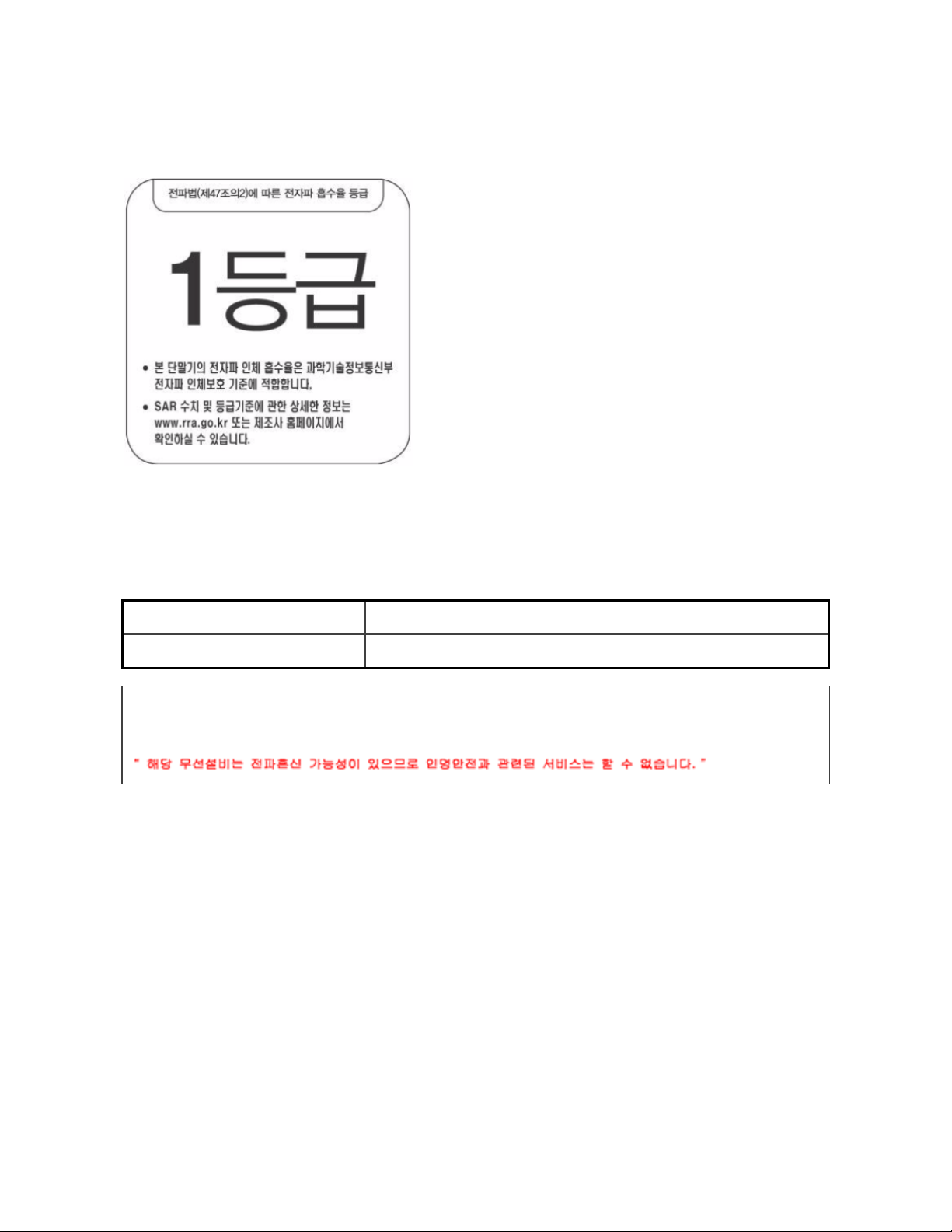
South Korea
본 제품의 전자파흡수율은 과학기술정보통신부의「전자파 인체보호기준」을 만족합니다.
본 제품은 국립전파연구원의「전자파흡수율 측정기준」에 따라 최대출력 조건에서 머리에 근접
하여 시험되었으며, 최대 전자파흡수율 측정값은 다음과같습니다.
모델명 (Model) 머리 전자파흡수율 (Head SAR)
FB507 0.127 W/kg
클래스 B 장치 (가정 사용을위한 방송 통신 기기) : EMC 등록 주로 가정용 (B 급)으로하고, 모든
지역에서 사용할 수 있습니다 얻을이 장치.
Translation:
Class B devices (broadcast communications equipment for home use): EMC
registration is mainly for household use (B class) and can be used in all areas get
this device.
81

Taiwan
用戶注意:您可以透過下面步驟取得臺灣NCC審驗合格標籤號碼及警
設定 關於 Versa 2 法規資訊
Translation:
Notice to the User: You can obtain the Taiwan NCC verification label number and
warnings through the following steps:
Settings About Versa 2 Regulatory info
注意!
依據 低功率電波輻射性電機管理辦法
第十二條 經型式認證合格之低功率射頻電機,非經許可,公司、商號或使用者均不得擅
自變更頻率、加大 功 率 或 變 更 原 設 計 之 特 性 及 功 能
第十四條
低功率射頻電機之使用不得影響飛航安全及干擾合法通信;經發現有干擾現象時,應立
即停用,並改善至 無 干 擾 時 方 得 繼 續 使 用 。
前項合法通信,指 依 電 信 法 規 定 作 業 之 無 線 電 通 信 。
低功率射頻電機須忍受合法通信或工業、科 學 及 醫 療 用電波輻射性電機設備之干擾。
Translation:
Article 12
Without permission, any company, firm or user shall not alter the frequency,
increase the power, or change the characteristics and functions of the original
design of the certified lower power frequency electric machinery.
Article 14
82

The application of low power frequency electric machineries shall not affect the
navigation safety nor interfere a legal communication, if an interference is found,
the service will be suspended until improvement is made and the interference no
longer exists. The foregoing legal communication refers to the wireless
telecommunication operated according to the telecommunications laws and
regulations. The low power frequency electric machinery should be able to tolerate
the interference of the electric wave radiation electric machineries and equipment
for legal communications or industrial and scientific applications.
使用過度恐傷害視力」
使用30分鐘請休息10分鐘。2歲以下幼兒不看螢幕,2歲以上每天看螢 幕 不 要 超 過 1小 時 。
Translation:
“Excessive use may cause damage to vision”
Rest for 10 minutes after every 30 minutes.
Children under 2 years old should stay away from this product. Children 2 years old
or more should not see the screen for more than 1 hour.
電池警語:
此裝置使用鋰電池。
若未遵照下列準則,則 裝 置 內的 鋰 離 子 電 池 壽 命 可 能 會 縮短或有損壞裝置、發 生 火 災 、
化學品灼傷、電解 液 洩 漏 及 / 或 受 傷 的 風 險 。
l
請勿拆解、鑿孔或 損 壞 裝 置 或 電 池 。
l
請勿取出或嘗試取出使用者不可自行更換的電池。
l
請勿將電池曝露於火焰、爆 炸 或 其 他 危 險 中 。
l
請勿使用尖銳物品取出電池。
Translation:
Battery warning:
This device uses a lithium-ion battery.
83

If the following guidelines are not followed, the life of the lithium-ion battery in the
device may be shortened or there is a risk of damage to the device, fire, chemical
burn, electrolyte leakage and / or injury.
l
Do not disassemble, puncture or damage the device or battery.
l
Do not remove or try to remove the battery that the user cannot replace.
l
Do not expose the battery to flames, explosions or other hazards.
l
Do not use sharp objects to remove the battery.
84
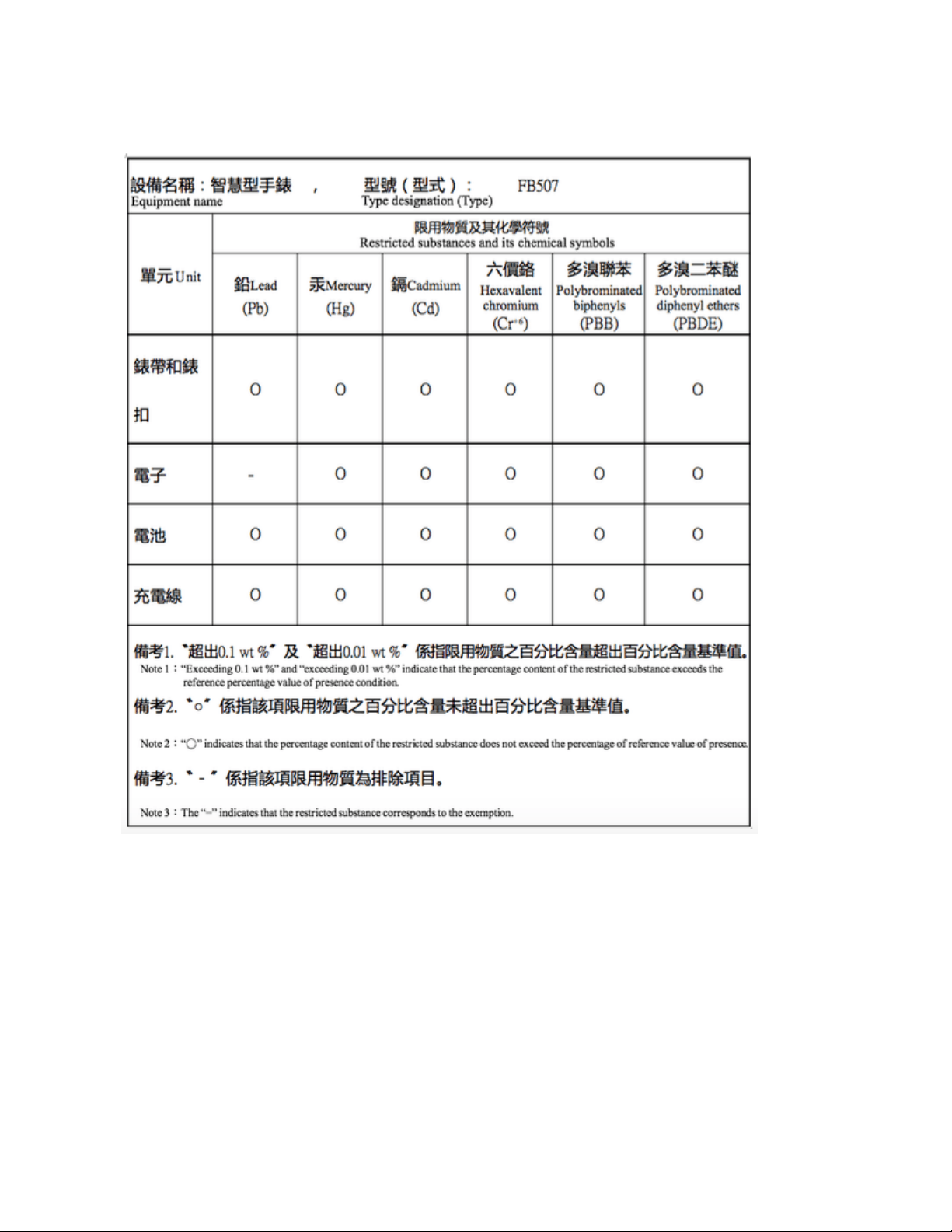
Taiwan RoHS
United Arab Emirates
TRA Registered No: ER73716/19
Dealer No: DA35294/14
85

Model: FB507
Type: Smartwatch
United Kingdom
Simplified UK Declaration of Conformity
Hereby, Fitbit LLC declares that the radio equipment type Model FB507 is in
compliance with Radio Equipment Regulations 2017. The full text of the UK
declaration of conformity is available at the following internet address:
www.fitbit.com/legal/safety-instructions
Vietnam
Zambia
ZMB / ZICTA / TA / 2019 / 8 / 21
86

Safety Statement
This equipment has been tested to comply with safety certification in accordance
with the specifications of EN Standard: EN60950-1:2006 + A11:2009 + A1:2010 +
A12:2011 + A2:2013 & EN62368-1:2014 + A11:2017.
87