
User Guide
Kasa Smart Wi-Fi Light Switch, 3-Way Dimmer Kit
KS230Kit
© 2021 TP-Link 1910013033 REV1.0.0

Contents
About This Guide ···················································· 1
Introduction
······························································· 2
Appearance
······························································· 3
Set Up Your Smart 3-Way Dimmer Kit
········· 5
Main Device Controls
··········································· 6
Adjust Brightness
··················································· 7
Set Preset Brightness
·········································· 8
Set Schedules
························································10
Set Timer
···································································13
Set Away Mode
······················································14
Manage Device Settings
··································15
Reset Your Smart 3-Way Dimmer Kit
·········22
Create Groups
························································25
Create Scenes························································29
Smart Actions
·························································31
Voice Control & Third-Party Support
·········44
Authentication
························································48
1
About This Guide
This guide provides a brief introduction to Smart 3-Way Dimmer Kit and the Kasa Smart app, as well as regulatory information.
Features available in Kasa Smart may vary by model and software version. Kasa Smart and 3-Way Dimmer Kit availability may also vary by region. All
images, steps, and descriptions in this guide are only examples and may not reect your actual Kasa Smart experience.
Conventions
In this guide, the following convention is used:
Convention Description
Teal
Key information appears in teal, including management page text such as menus, items, buttons and so on.
Underline
Hyperlinks are in teal and underlined. You can click to redirect to a website.
More Info
• Specications can be found on the product page at https://www.tp-link.com.
• Our Technical Support and troubleshooting information can be found at https://www.tp-link.com/support.
• A TP-Link Community is provided for you to discuss our products at https://community.tp-link.com.
• Frequently Asked Questions (FAQs) can be found at https://www.tp-link.com/support/faq/.
2
Introduction
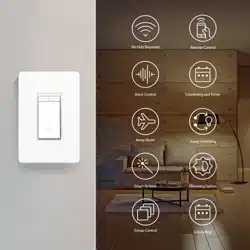
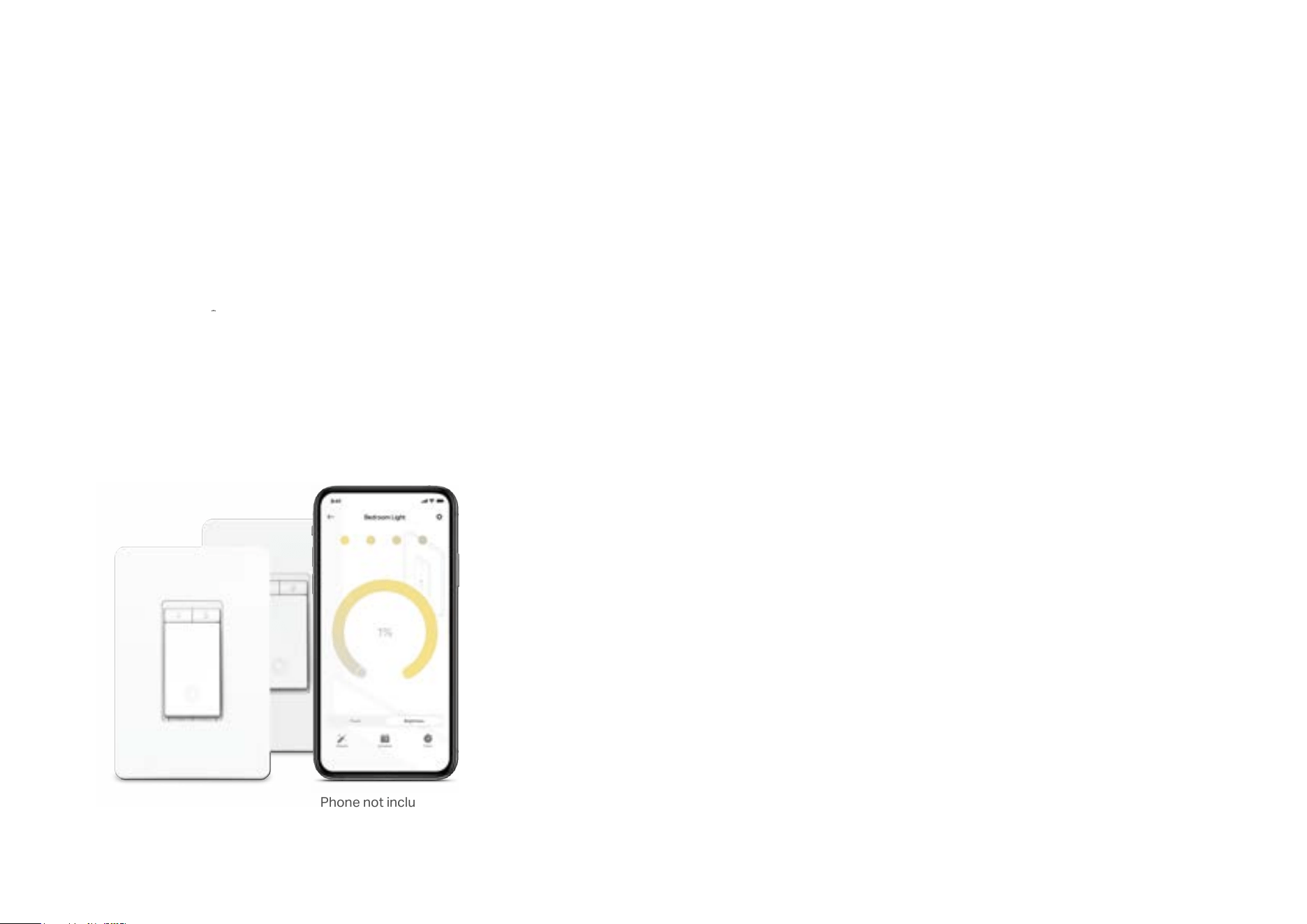
With the Smart 3-Way Dimmer Kit, you can control the ambiance of any space with the push of a button. Download the Kasa Smart app and control
your dimmer remotely. The Kasa Smart app provides easy step-by-step installation instructions and convenient remote control from anywhere.
• Brightness Control - Control the brightness of your lights to set the perfect ambiance for any activity.
• Three-Way Control - Manually control your lights from two separate locations.
• Hands-free Experience - Control your lights by voice commands through support from Amazon Alexa and Google Assistant.
• Fade On/O - Turn the lights on and o gradually, reduce the strain on your eyes.
• Set Schedules - Program lights to turn o and on or turn to a set brightness at set times throughout the day or night.
• Smart Actions - Seamlessly control every Kasa device in a room with one touch of the smart switch.
Phone not included;
Works with iOS and Android
3
Appearance
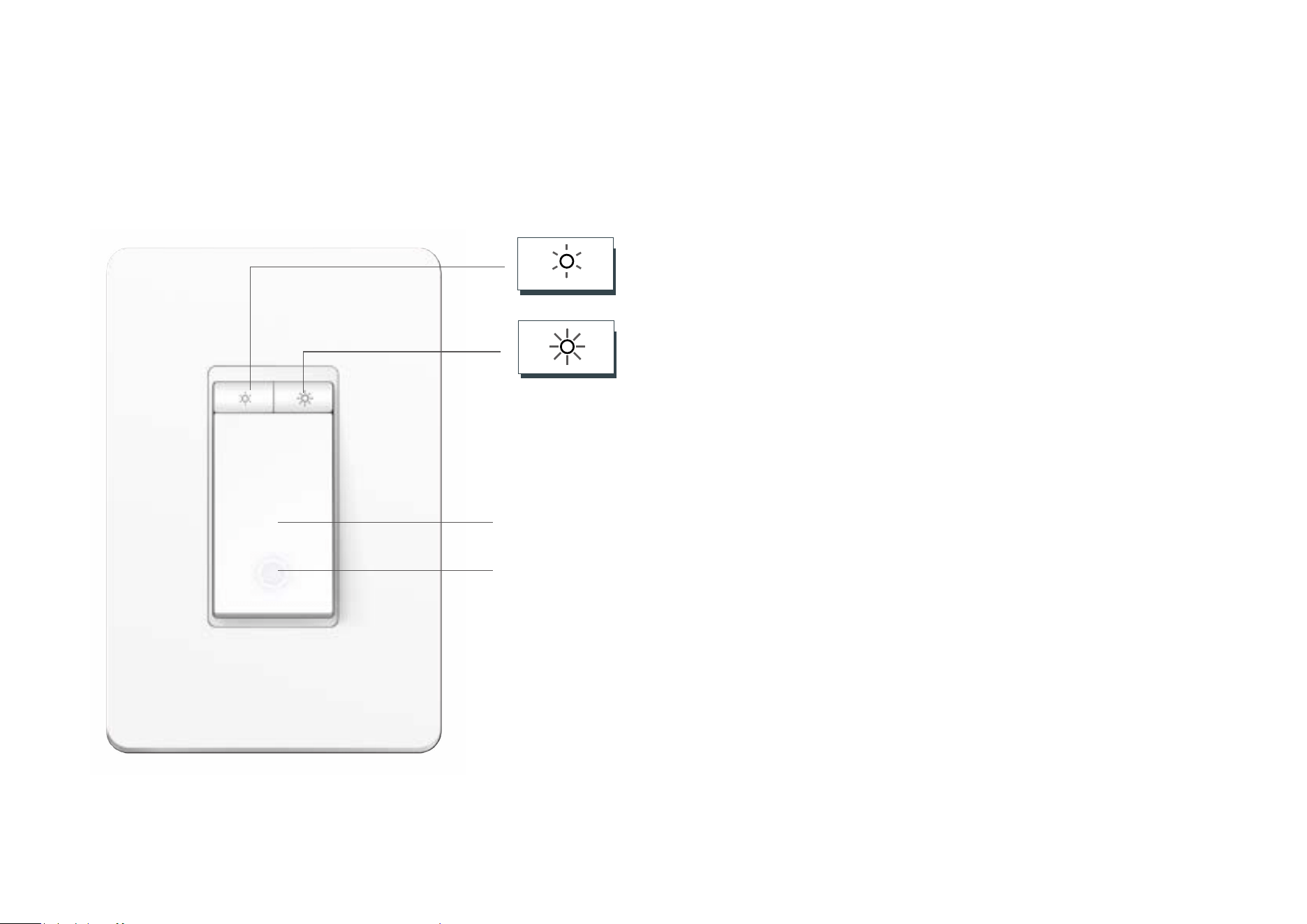
The Smart 3-Way Dimmer Kit is compatible with incandescent, LED, Halogen, and compact uorescent light bulbs. It includes a main dimmer and a
satellite dimmer.
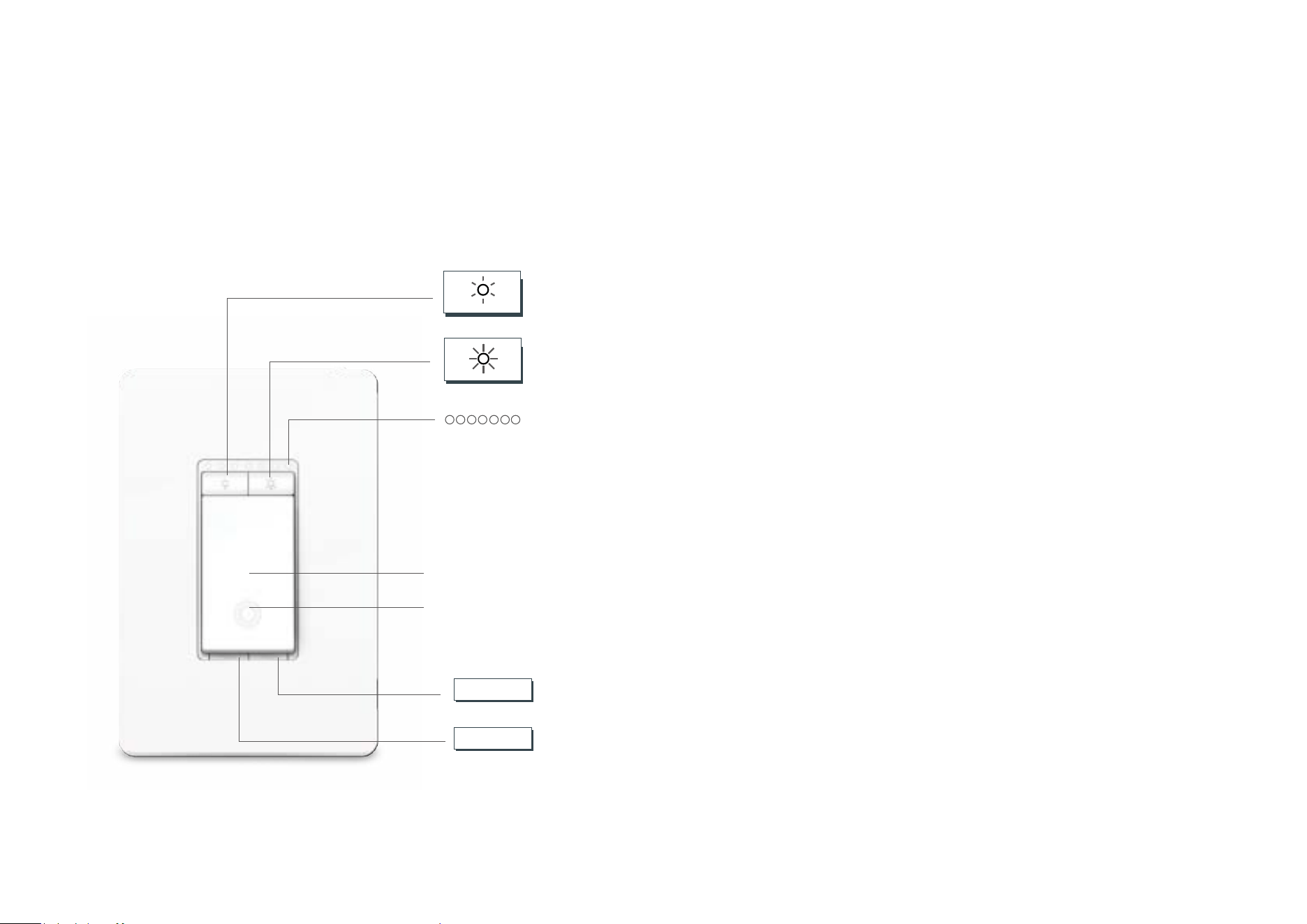
See below for the main dimmer and check the next page for the satellite dimmer.
RESET
RESTART
Press and hold (about 5 seconds) until the status LED blinks amber and green alter-
nately to reset Wi-Fi connection while keeping previous settings.
Press and hold (about 10 seconds) until the status LED blinks amber rapidly to factory
reset the3-way dimmer kit.
Press to reboot the 3-way dimmer kit.
Press to decrease the lighting brightness.
Press to increase the lighting brightness.
Status LED
Lit up when the light is switched OFF to show the Smart Dimmer location in the dark.
On/O Button
Indicate the current lighting brightness.
Main Dimmer
4
Press to decrease the lighting brightness.
Press to increase the lighting brightness.
Status LED
Always on. It shows the Smart Dimmer location in the dark.
On/O Button
Satellite Dimmer
5
Set Up Your Smart 3-Way Dimmer Kit
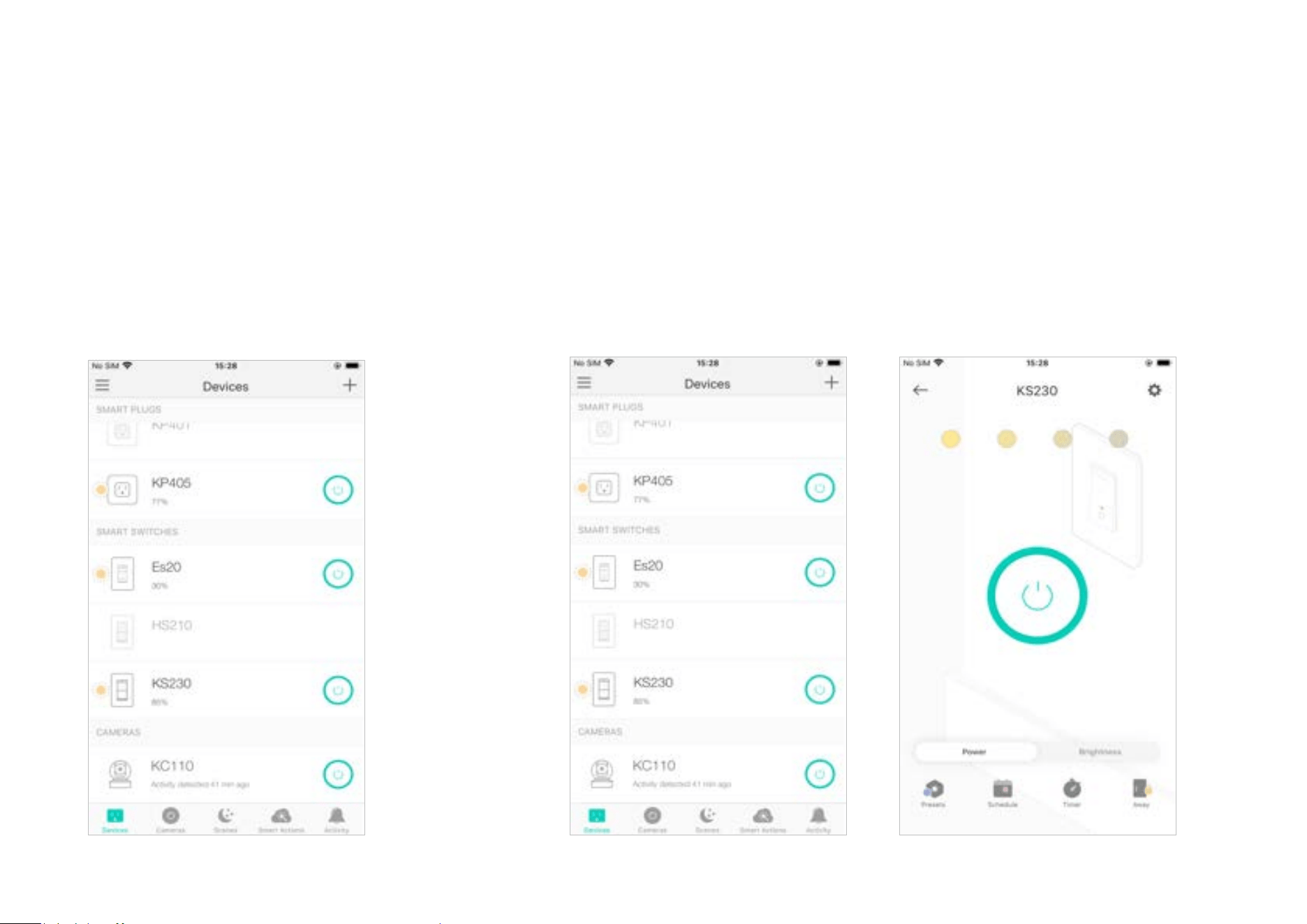
Follow the steps below to set up your Smart 3-Way Dimmer Kit via Kasa Smart app.
1. Download Kasa Smart app
Go to Google Play or the App Store or scan
the QR code below to download the Kasa
Smart app on your Android or iOS smartphone
or tablet.
2. Log in or sign up with TP-Link ID
Open the app. Use your TP-Link ID to log in.
If you don’t have a TP-Link ID, tap Create
Account and the app will guide you through
the rest.
4. Install and set up
Tap the button in the app. Follow the app
instructions to wire your Smart 3-Way Dimmer
Kit and then complete the setup.
6
Main Device Controls
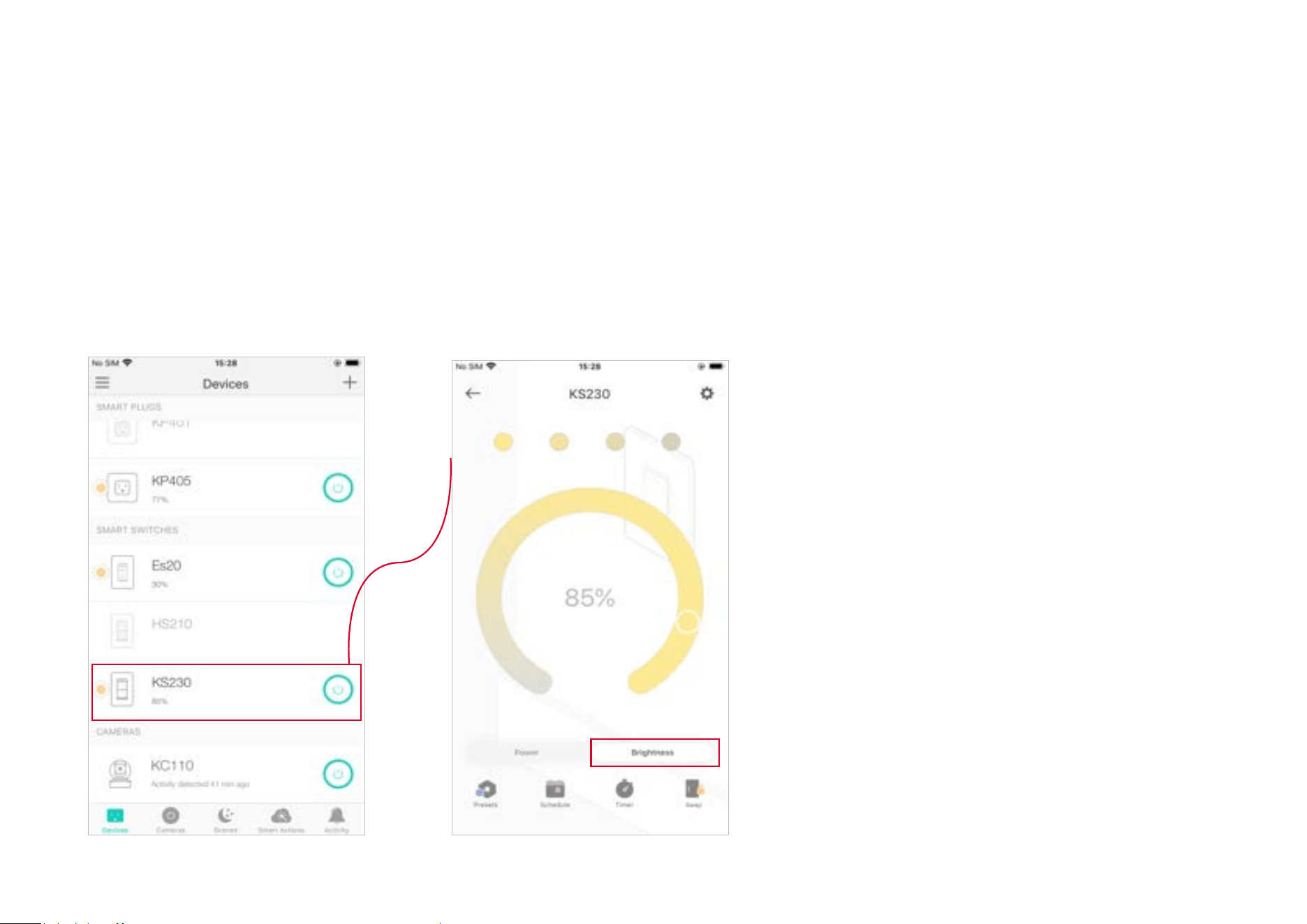
After you successfully set up your Smart 3-Way Dimmer Kit, you will see the home page of the Kasa Smart app. Here you can view and manage all
devices that you've added to Kasa. Tap your 3-way dimmer to control and manage it.
Home Page
You can see all your Kasa devices listed in
the Home page.
Turn on/o the 3-way dimme
Turn on/o your 3-way dimmer quickly by tapping the on/o switch in the home page.
Tapping the device to enter its Status page, you can also check or change its status.
7
Adjust Brightness
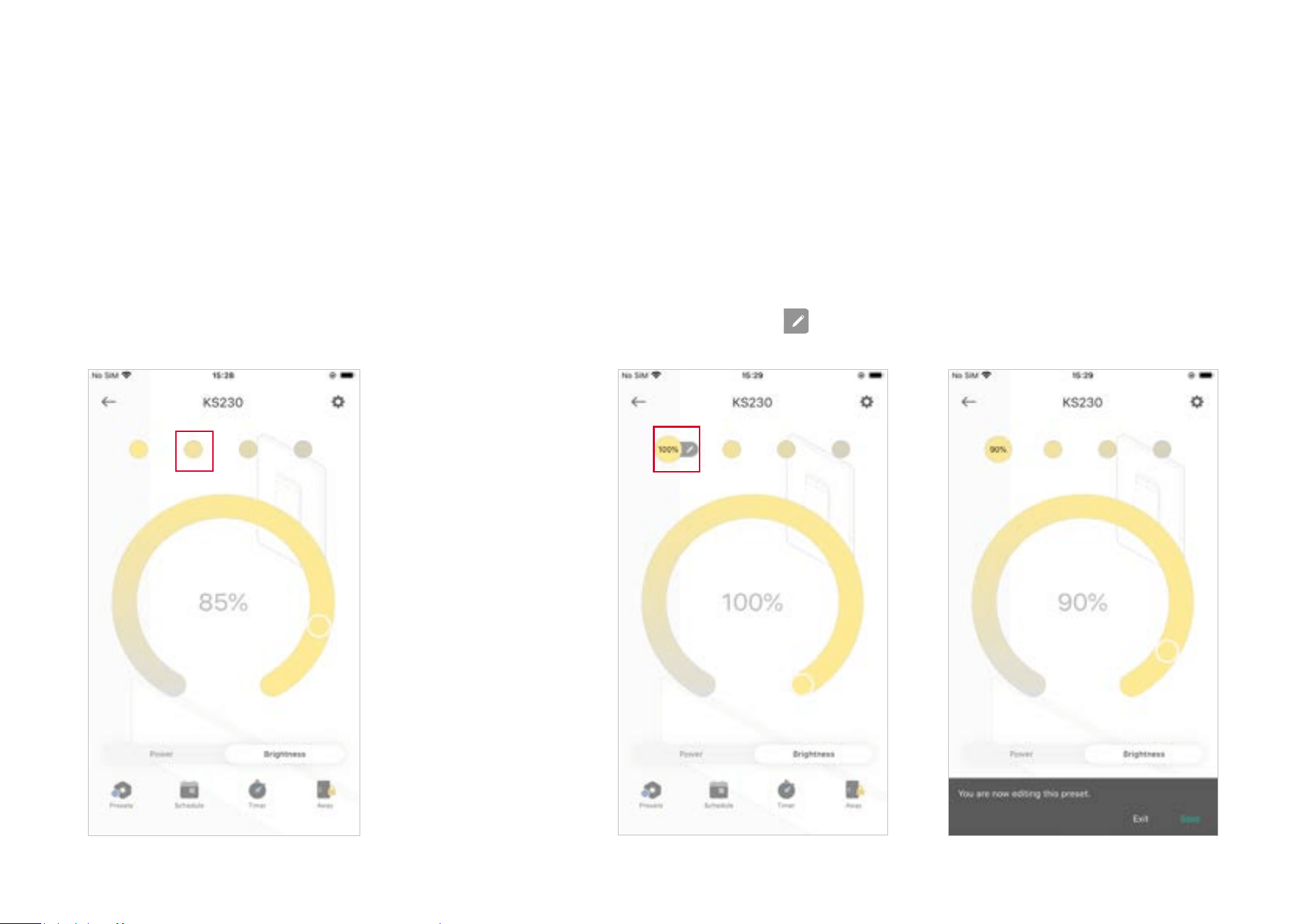
Adjust the brightness of your light from 1% to 100% to have the perfect atmosphere for any activities.
Go to the status page and tap the Brightness tab. Your light will change brightness to the value you set.
8
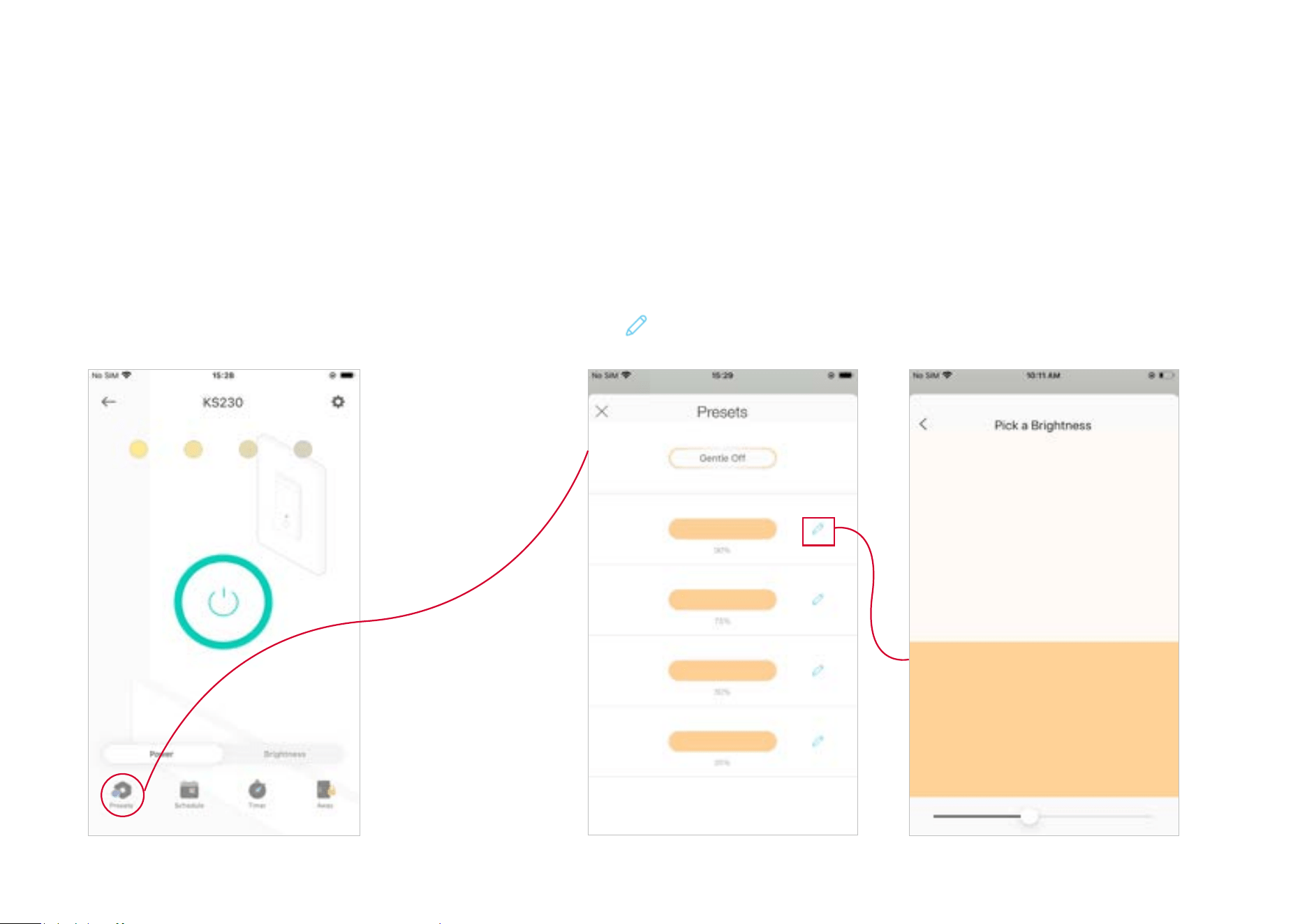
1. Go to the status page and tap the Brightness tab. Tap
the circle on the top and choose a brightness. A preset
brightness is set successfully.
2. Change the preset brightness.
Tap a preset, then tap
beside it. A pop up message will appear in the bottom.
Choose another brightness level and tap Save.
Set Preset Brightness
Set preset brightness levels so you can switch to the desired brightness with just one tap. You can set up to
4 preset brightness levels.
Method 1- In the Status Page
9
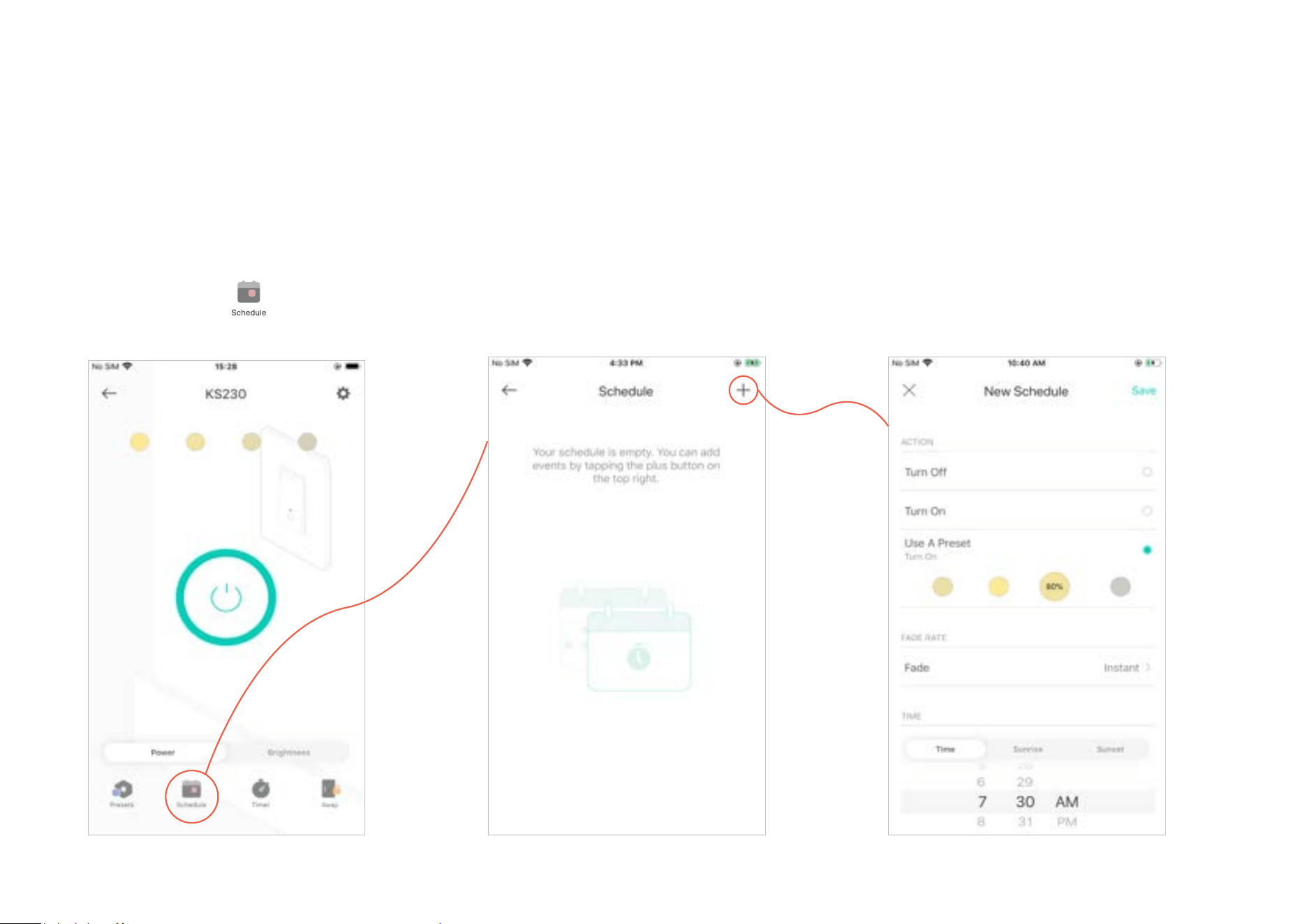
Method 2- Through the Presets Tab
1. Go to the status page and tap the Presets tab. 2. Change the preset brightness.
Tap
beside a Preset to customize its brightness. Or tap Gentle O to fade your
light o slowly when you turn o light..
10
Set Schedules
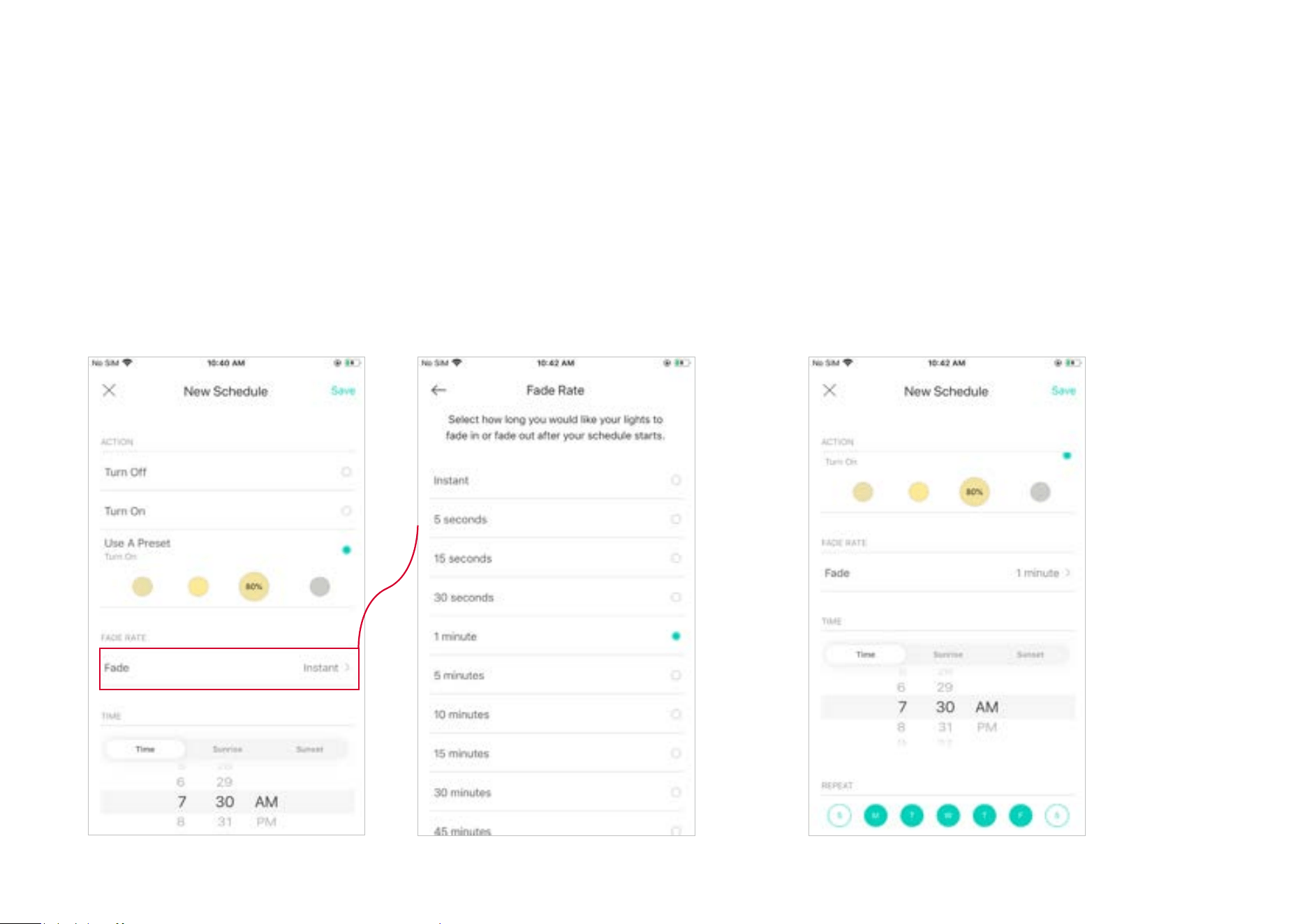
Schedule: Set schedules to automatically turn on/o the light at set times according to your daily routine.
1. Tap your 3-way dimmer in the Home
page, and then tap
.
2. Tap + on the top right corner. 3. Choose an action for your light to do, for
example, simply turn on/o at certain time,
or turn on at a preset brightness.
11
4. Set fade rate, i.e., how long you would like your light to fade in or fade out after
your schedule starts.
5. Select the time and repeating frequency at which
you want your schedule to run.
12
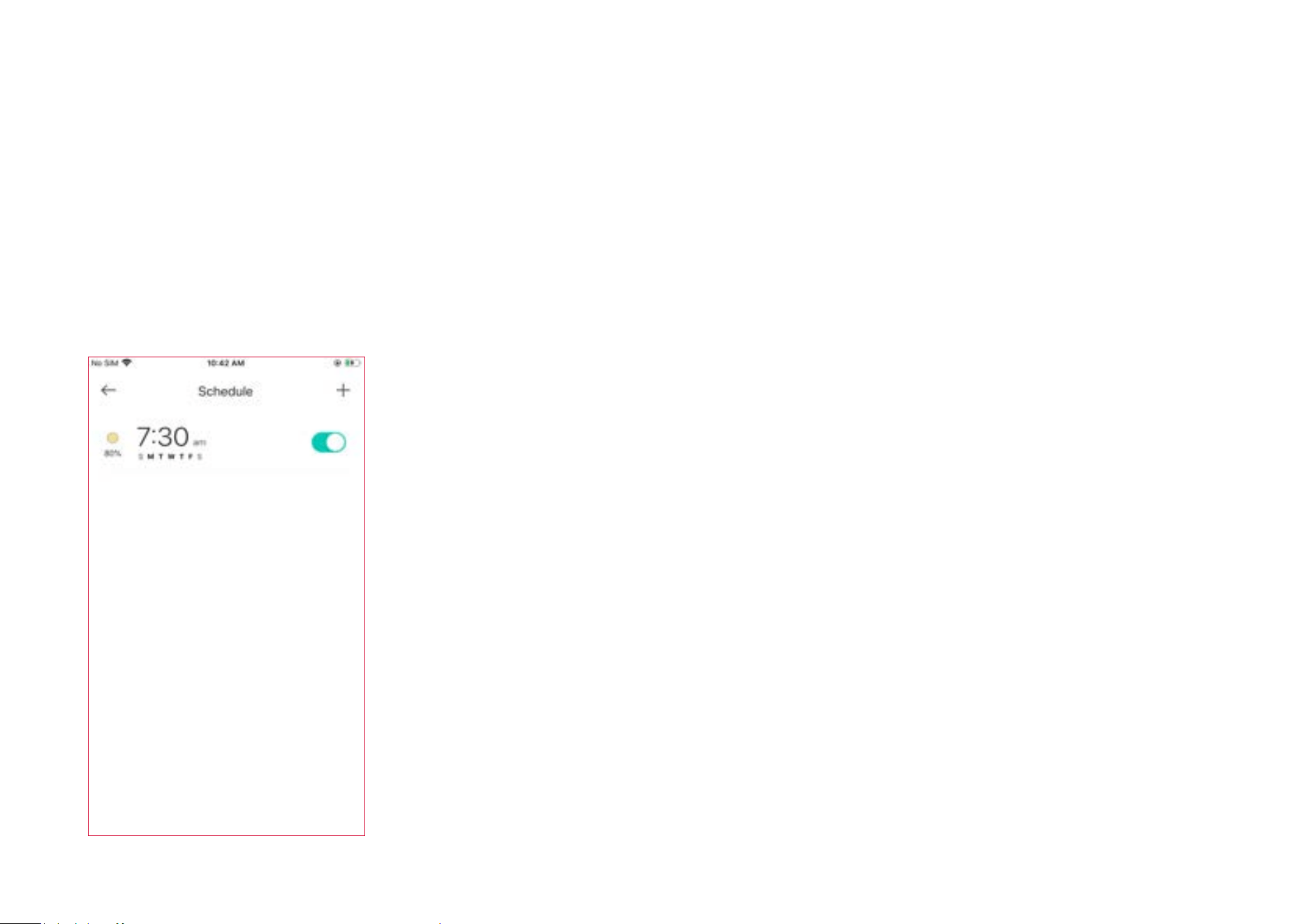
6. The schedule you have created is listed in the Schedule Page. Now your light will be turned on to 80% brightness at 7:30 AM every weekday.
You can add more schedules following the same steps.
13
Set Timer
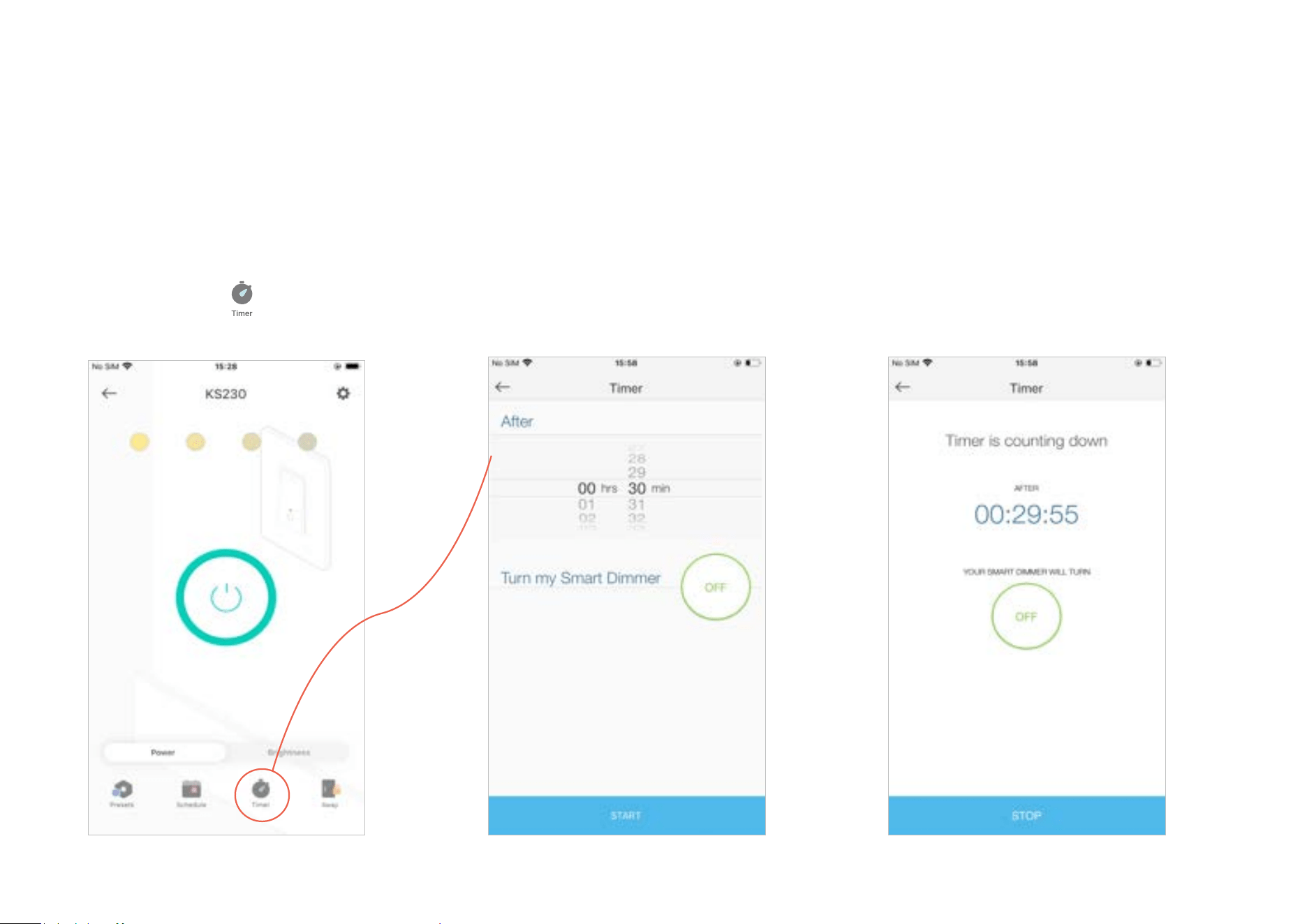
Timer: Set the timer for your light to automatically turn on/o after the time ends.
1. Tap your 3-way dimmer in the Home
page, and then tap
.
2. Set the time after which the light will be
automatically turned on/o.
E.g. When I turn on the light, I want it to be
o after 30 minutes.
2. Tap START and you'll see the timer is
counting down. Tap STOP to stop the Timer
at any time.
14
Set Away Mode
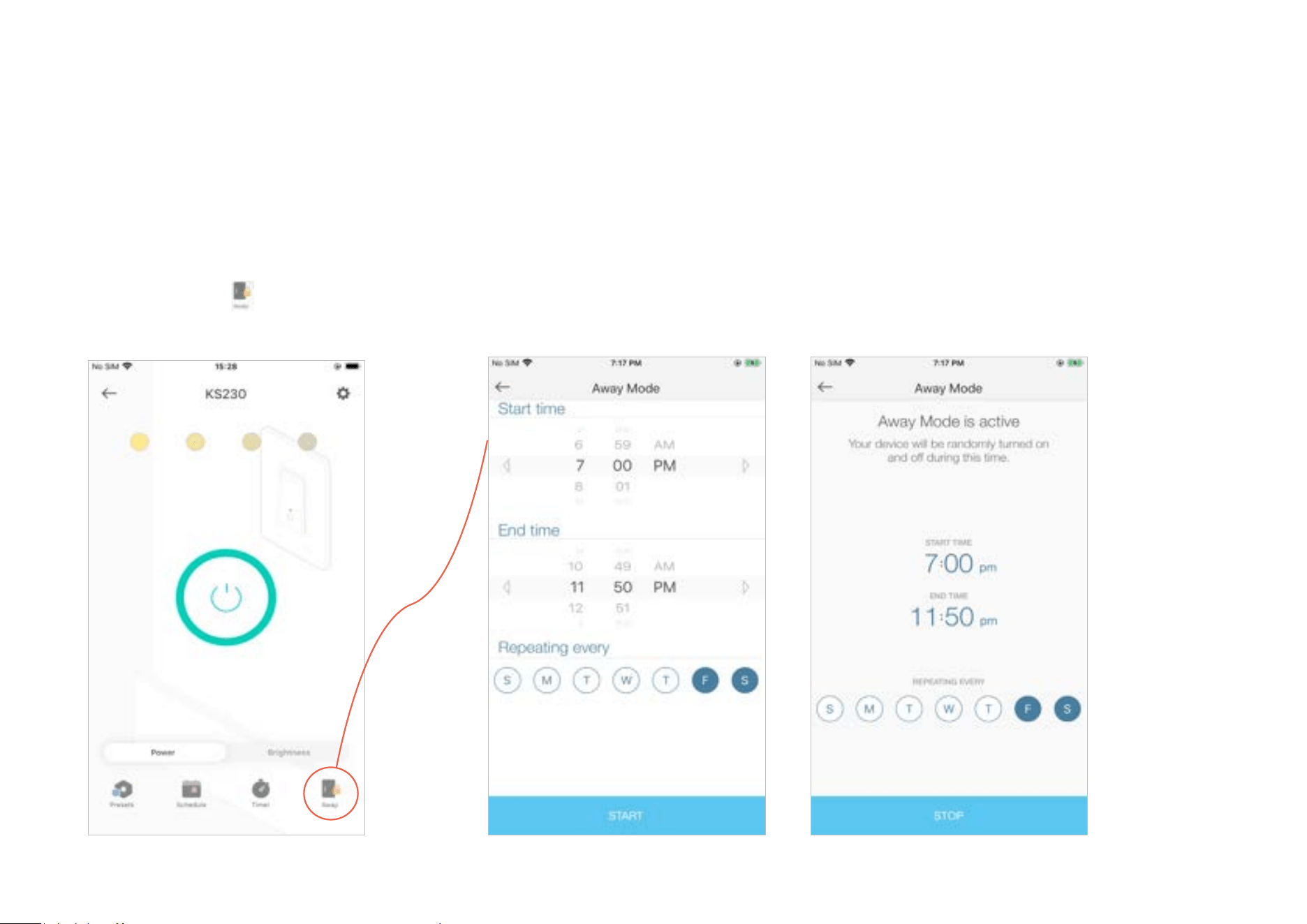
Away Mode: Set Away Mode for your light to turn on/o automatically at random intervals while you are
away to make the appearance that someone is at home.
1. Tap your 3-way dimmer in the Home
page, and then tap
.
2. Set the start and end time during which the light will be automatically turned on and o at
random intervals, and the repeating frequency.
E.g. I want the light to turn on and o randomly between 7:00 PM to 11:50 PM every Friday and
Saturday.
15
Manage Device Settings
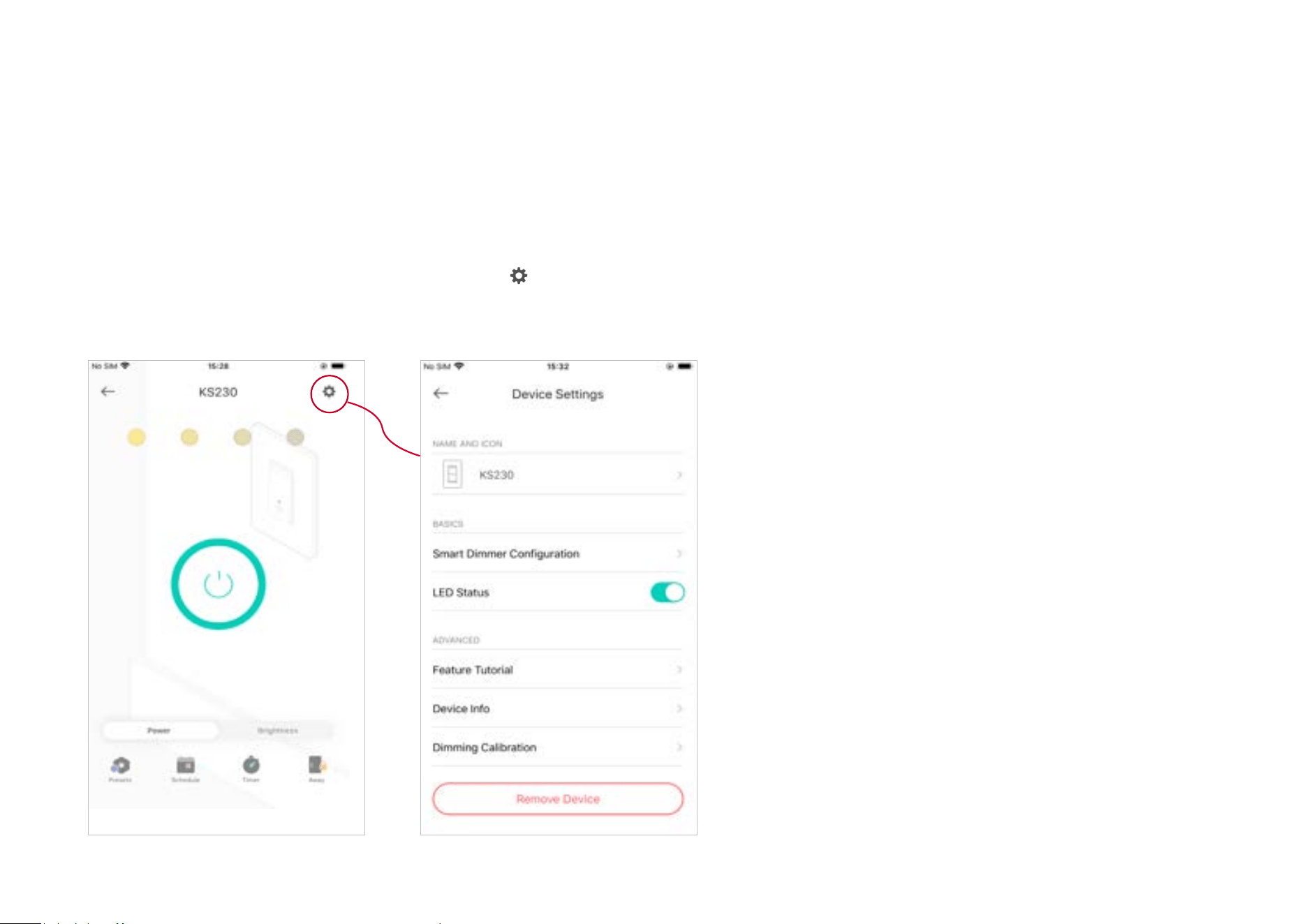
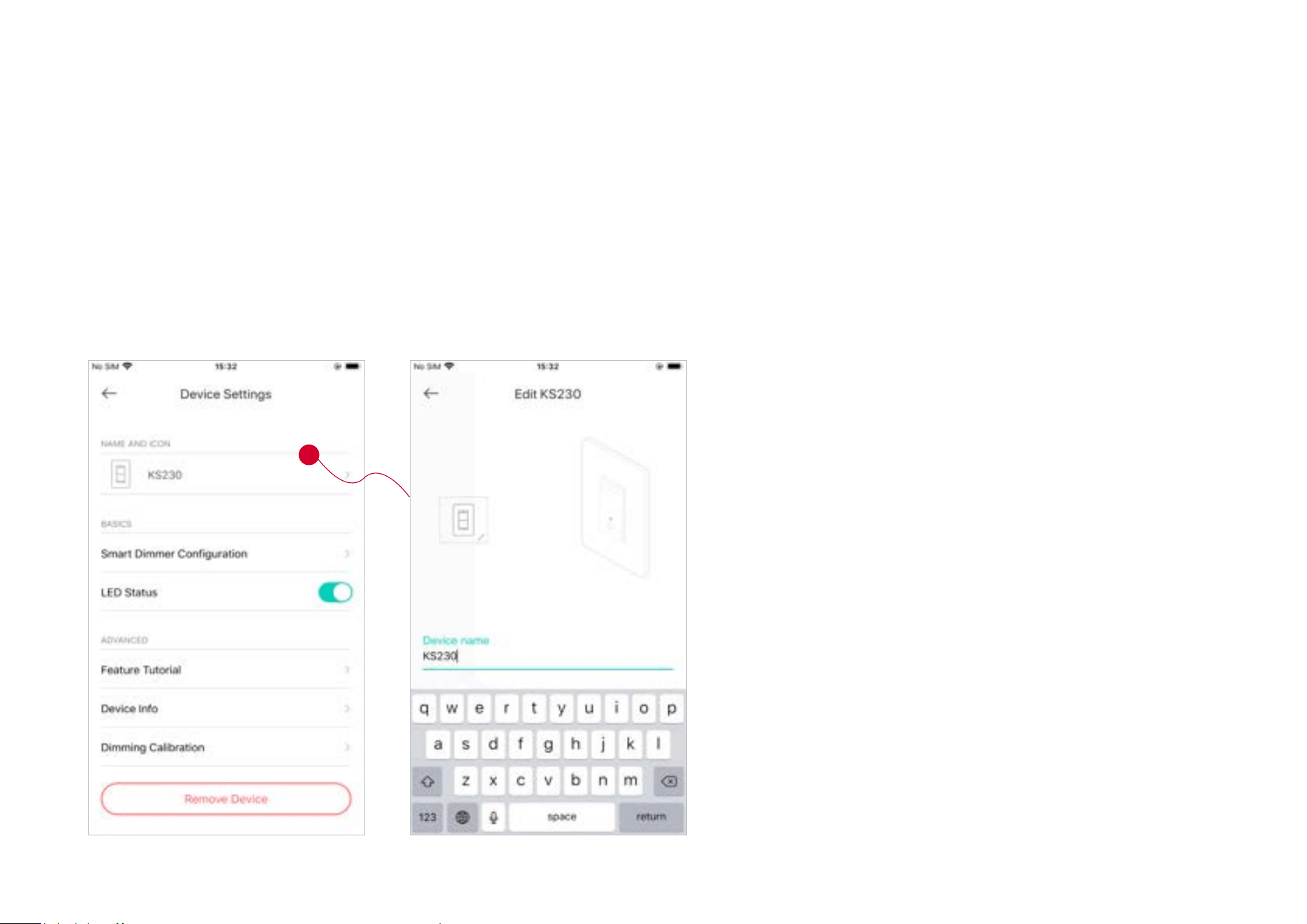
You can change the settings in the Device Settings page.
Tap your 3-way dimmer in the Home page and then tap to enter the Device Settings page.
16
Change the name and icon of the 3-way dimmer.
Change Device Name & Icon
17
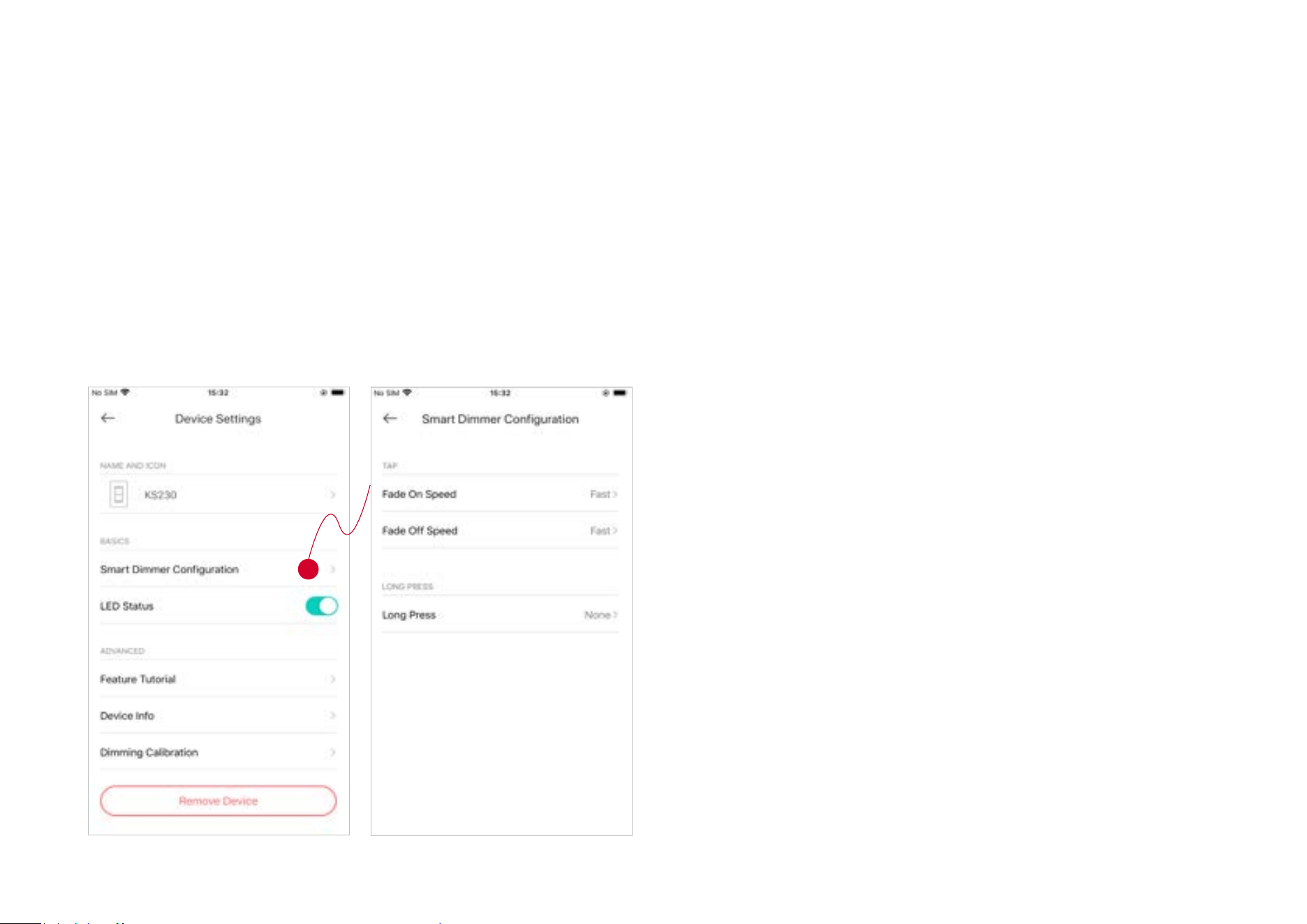
Set how fast you want your light to turn on/o and the eects you want your light to show when you long press your 3-way dimmer.
Customize Smart Dimmer Conguration Settings
18
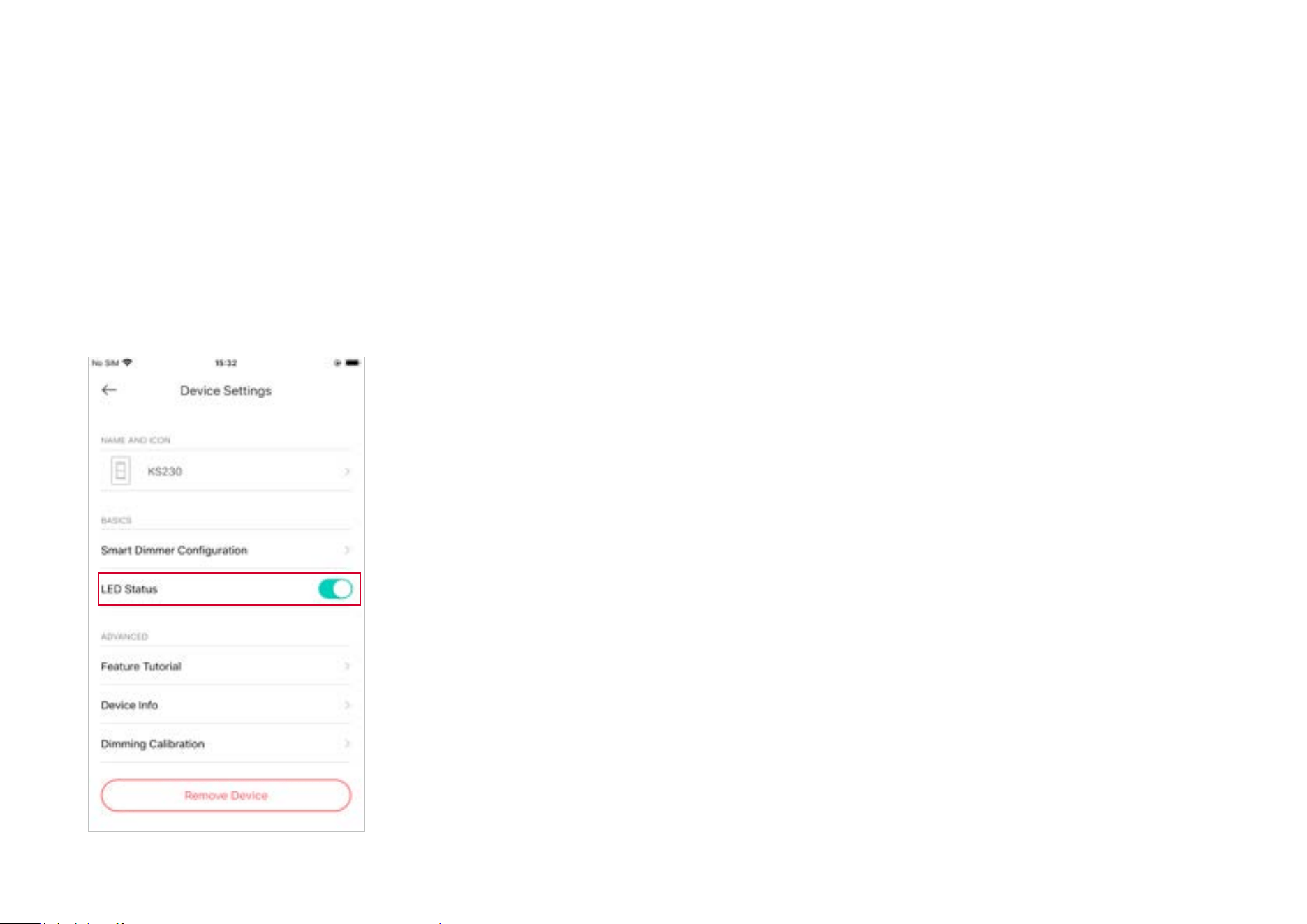
The LED is an indicator of the dimmer's position at night. When turned o, it won't illuminate when light xture is o.
Note: The only controls the on and o of the main dimmer switch LED.
Turn On/O LED
19
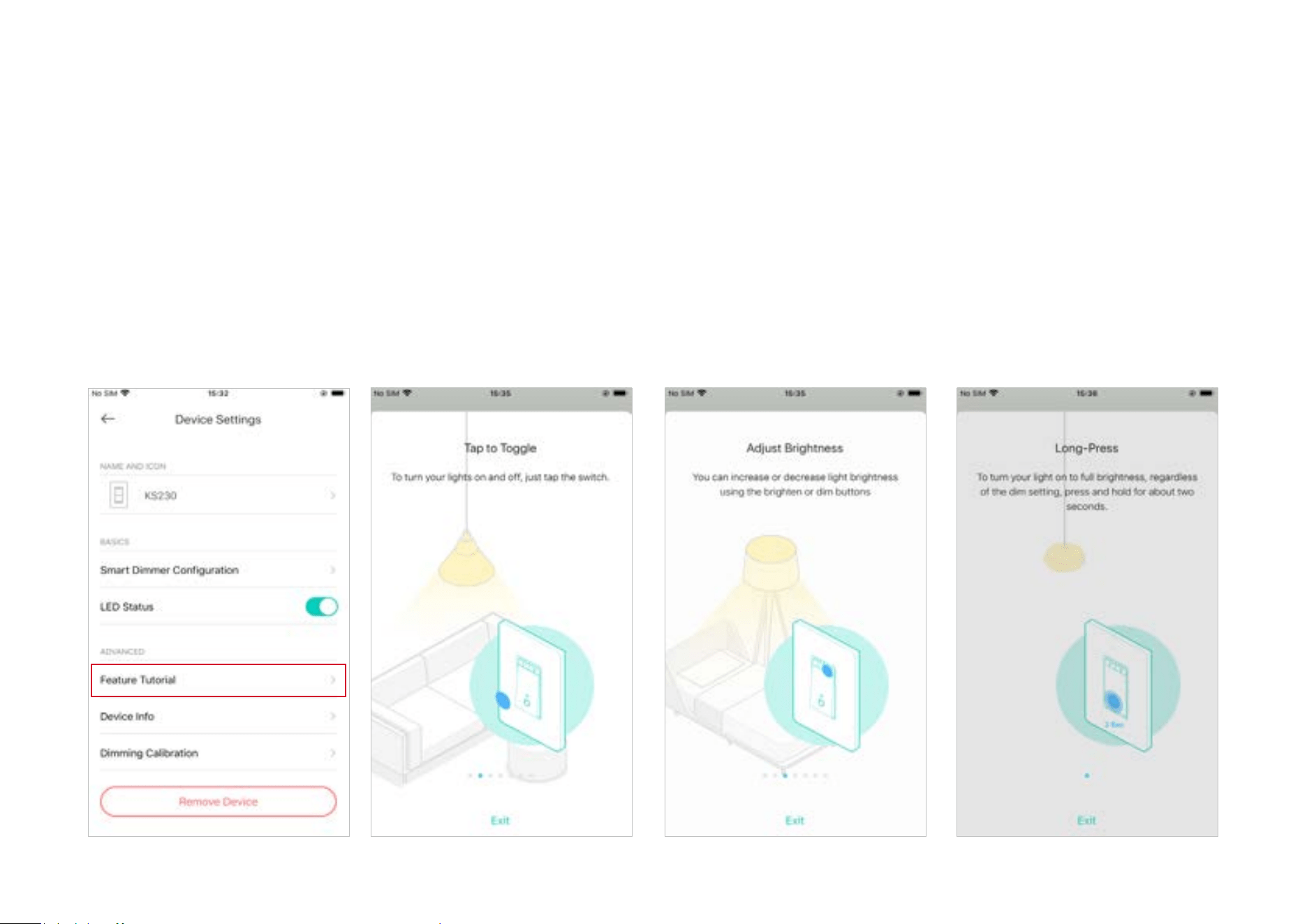
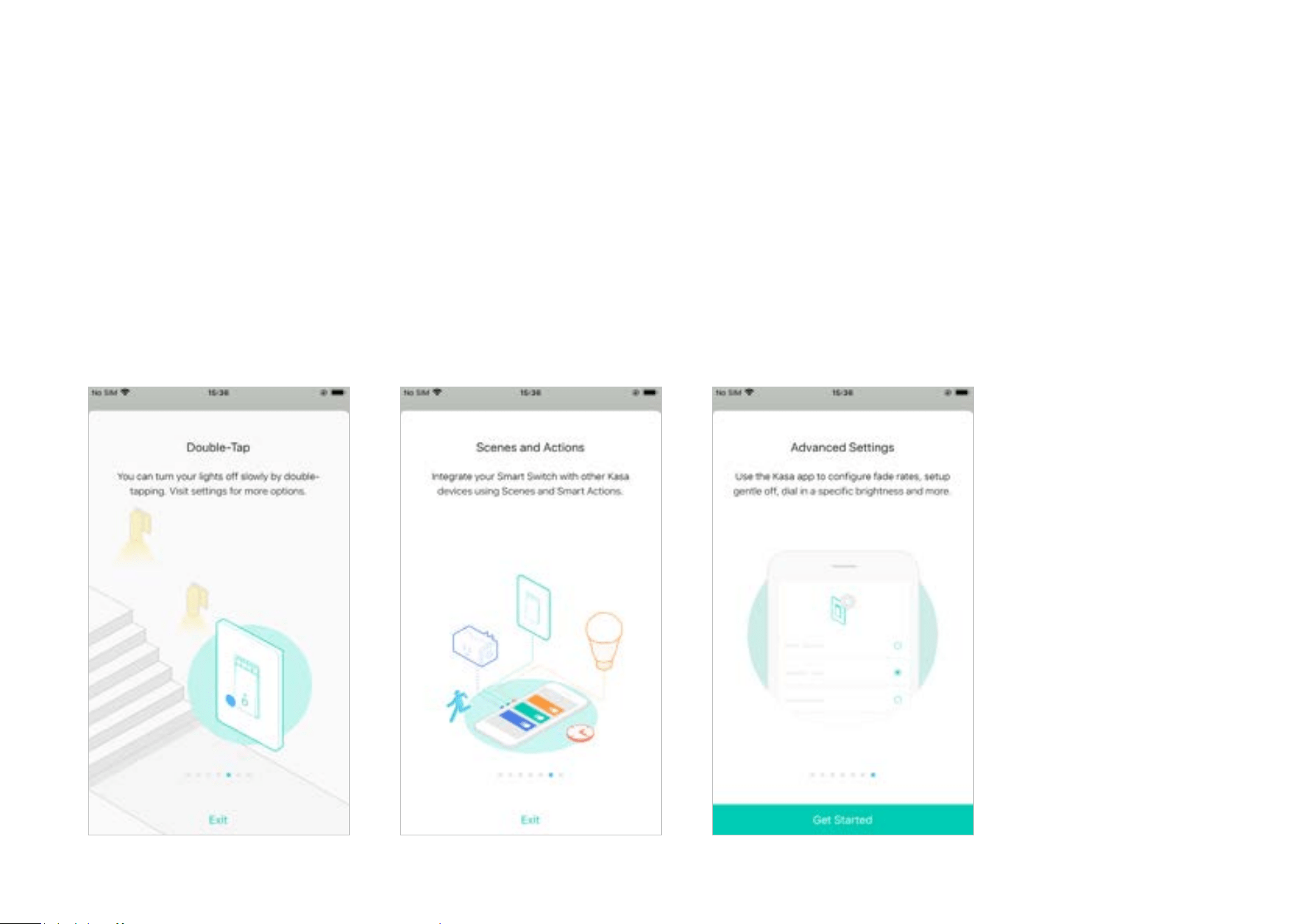
Check the main advanced features of your 3-way dimmer.
Check Feature Tutorial
20
21
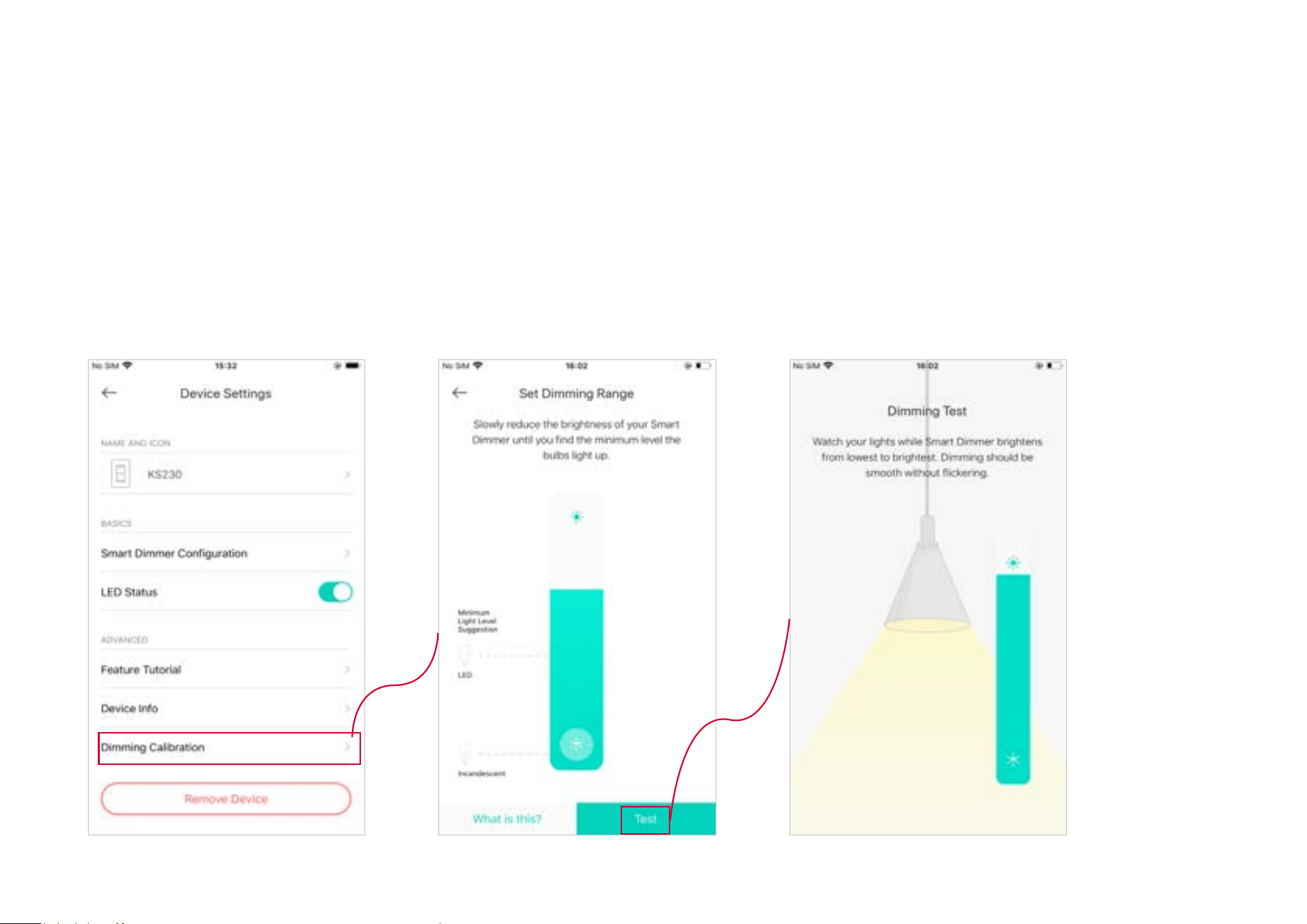
Calibrate your light to avoid ickering.
Test the dimming range of your 3-way dimmer by slowly reducing the brightness of your light until you nd the minimum level of brightness.
Dimming Calibration
22
Reset Your Smart 3-Way Dimmer Kit
There are three methods to reset your Smart 3-Way Dimmer.
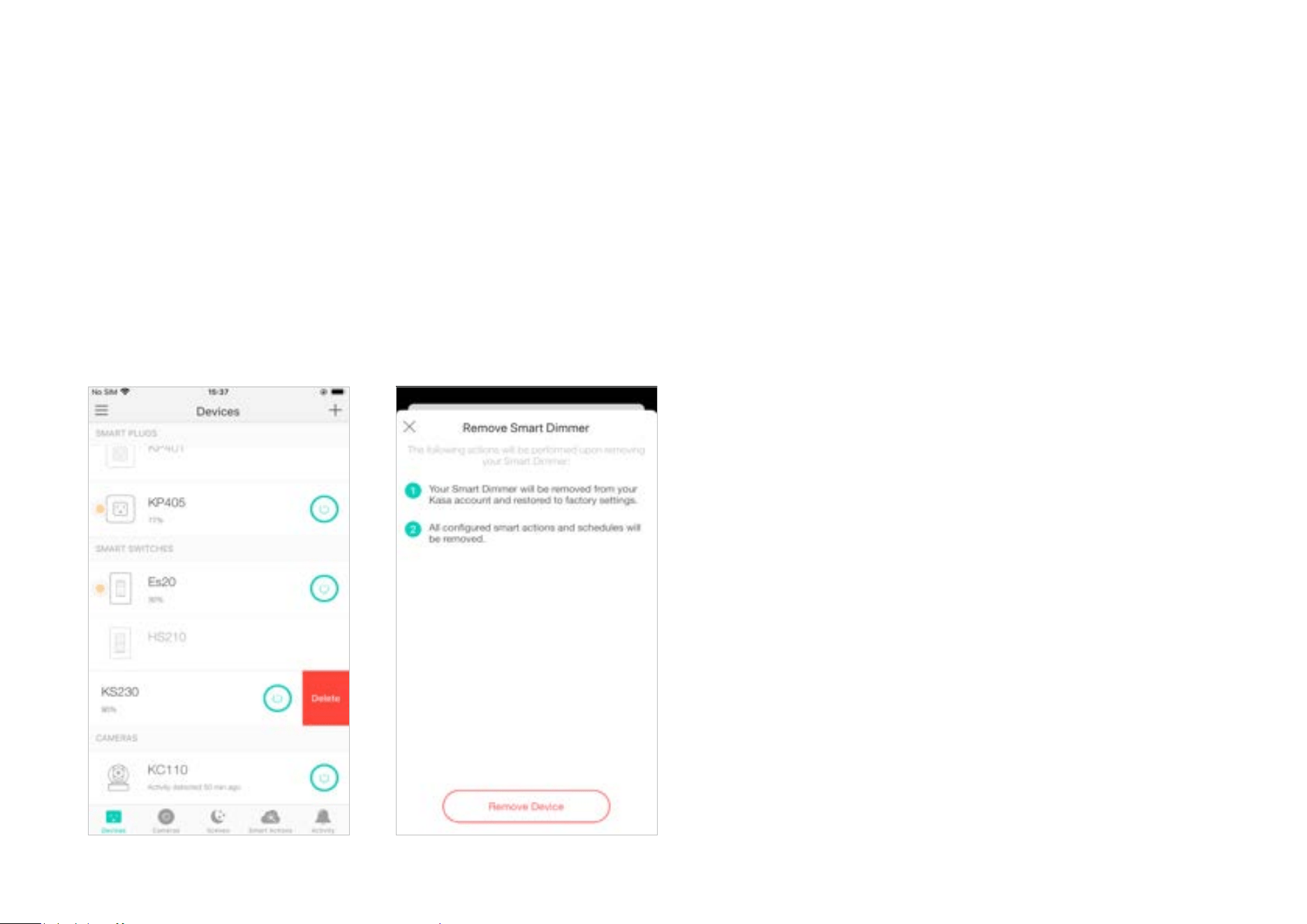
Method 1
Swipe left your Smart 3-Way Dimmer and tap Delete. Then tap Remove Device. Your Smart 3-Way Dimmer will be removed from your Kasa account and
restored to factory settings.
23
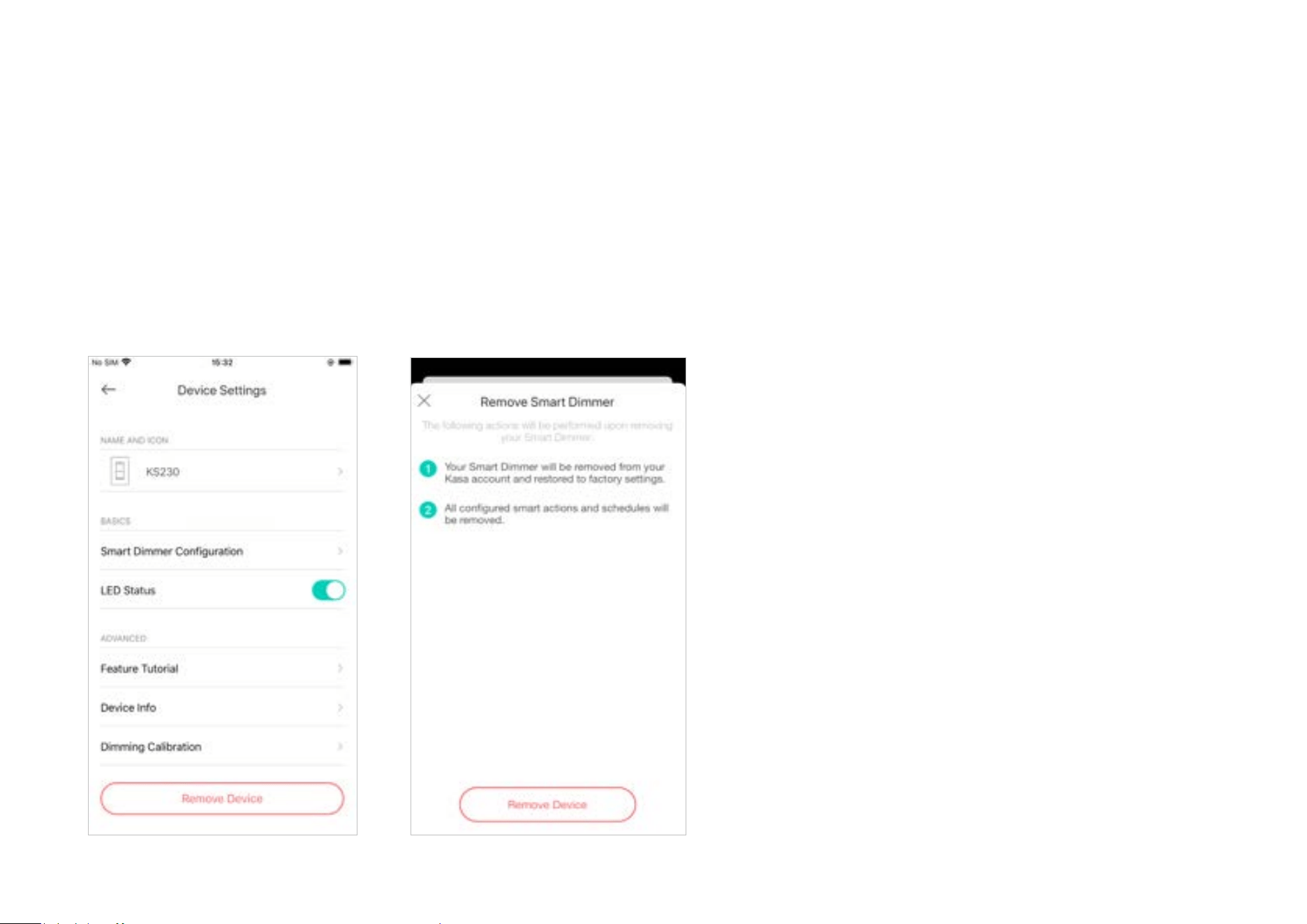
Method 2
Tap your Smart 3-Way Dimmer and go to the Devices Settings page. Then tap Remove Device in the bottom. Your Smart 3-Way Dimmer Switch will be
removed from your Kasa account and restored to factory settings.
24
Method 3
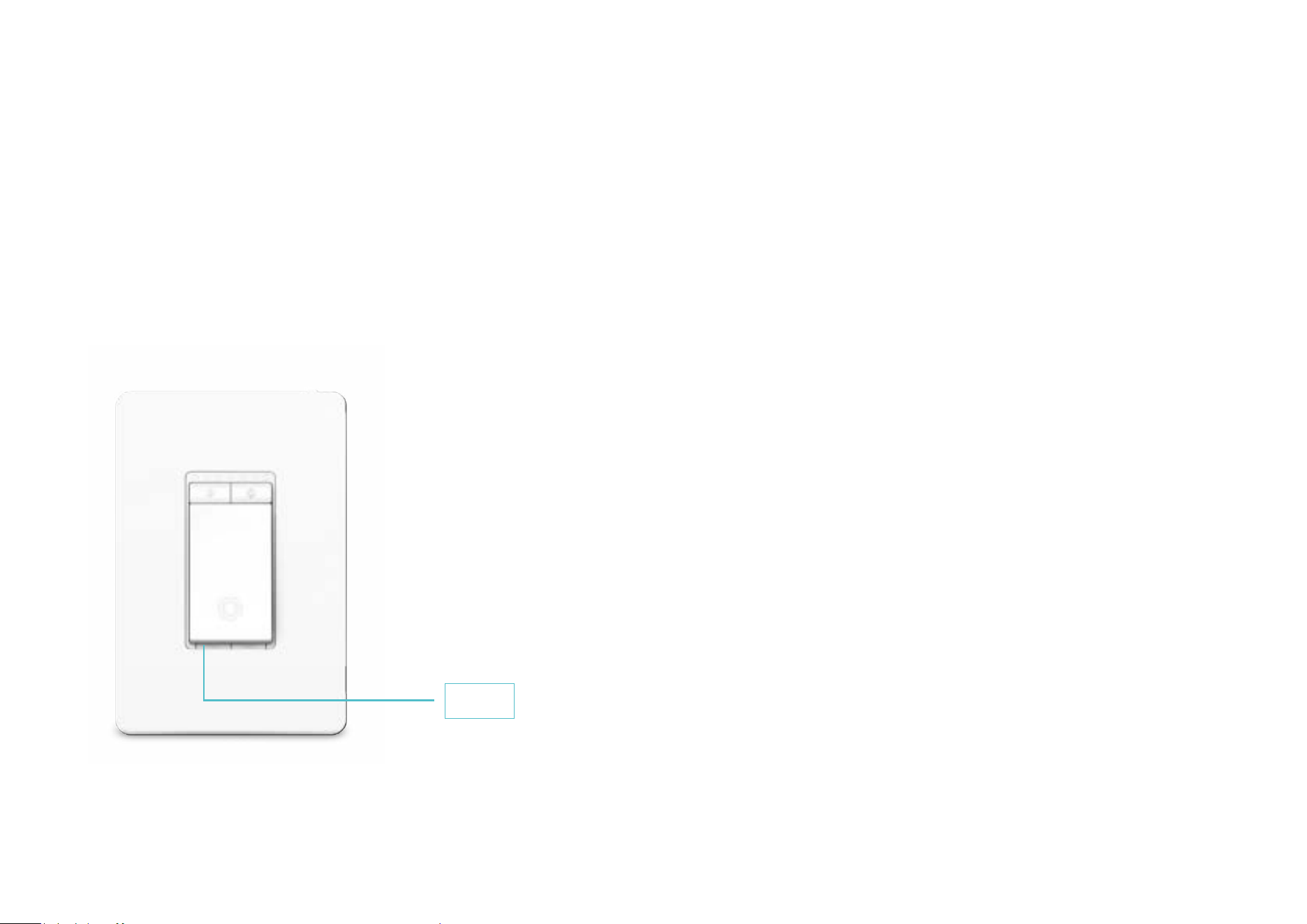
Press and hold the Reset button on the panel of the main dimmer switch for 10s to restore your it to factory default settings.
Press and hold the Reset button on the panel of the main dimmer switch for 5s to reset Wi-Fi while keeping previous settings.
Reset
25
Create Groups
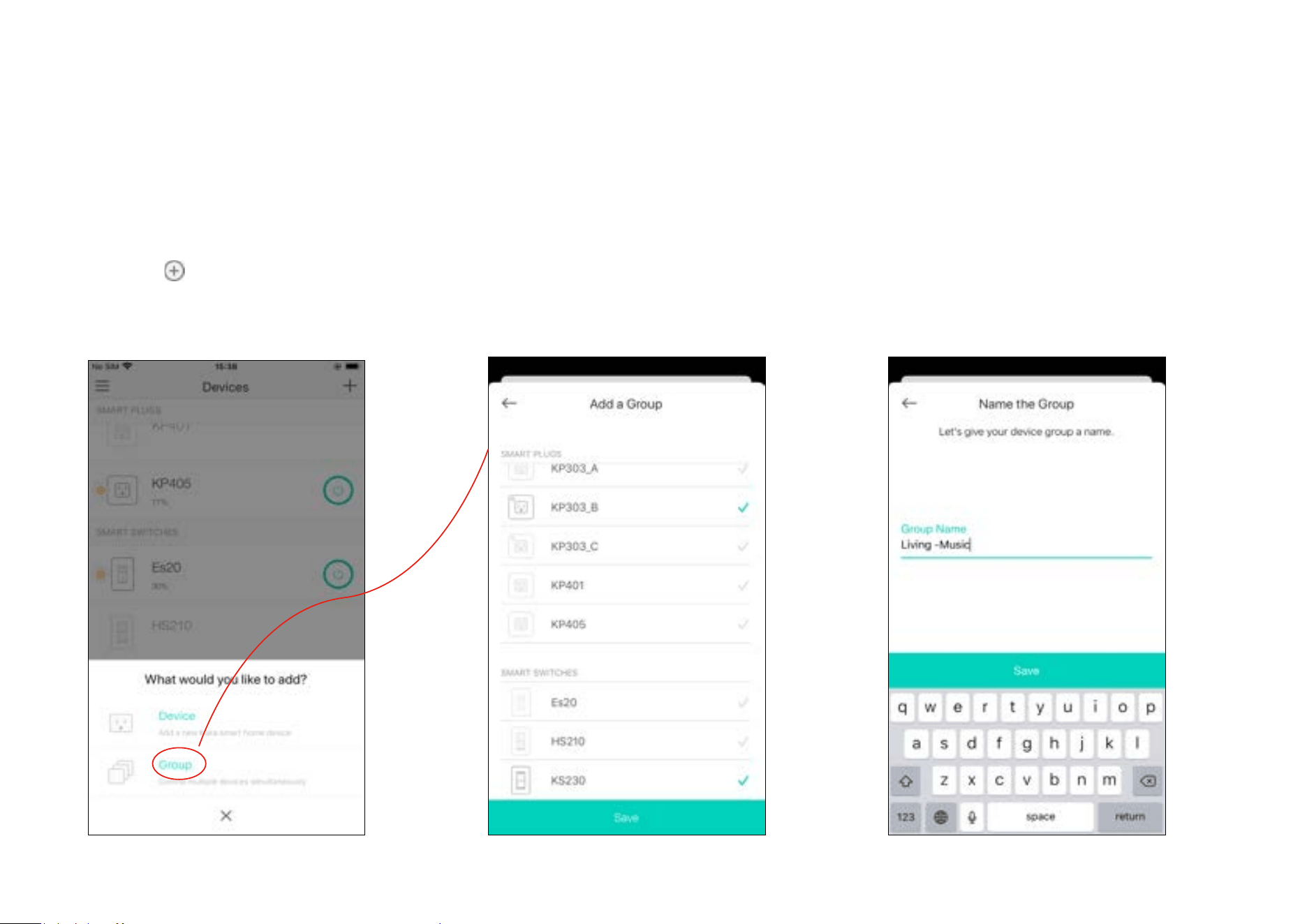
With groups, you can control multiple devices simultaneously. This page allows you to add your Smart 3-Way Dimmer and your other Kasa smart
devices to a group for unied management.
1. Create groups
1. Tap the button in the Home page of the
Kasa Smart app, and select Group.
2. Select your Smart 3-Way Dimmer and other
Kasa smart devices and tap Save.
E.g. Group my Smart 3-Way Dimmer and Kasa
smart plug (with a speaker plugged in) together.
3. Name the group.
26
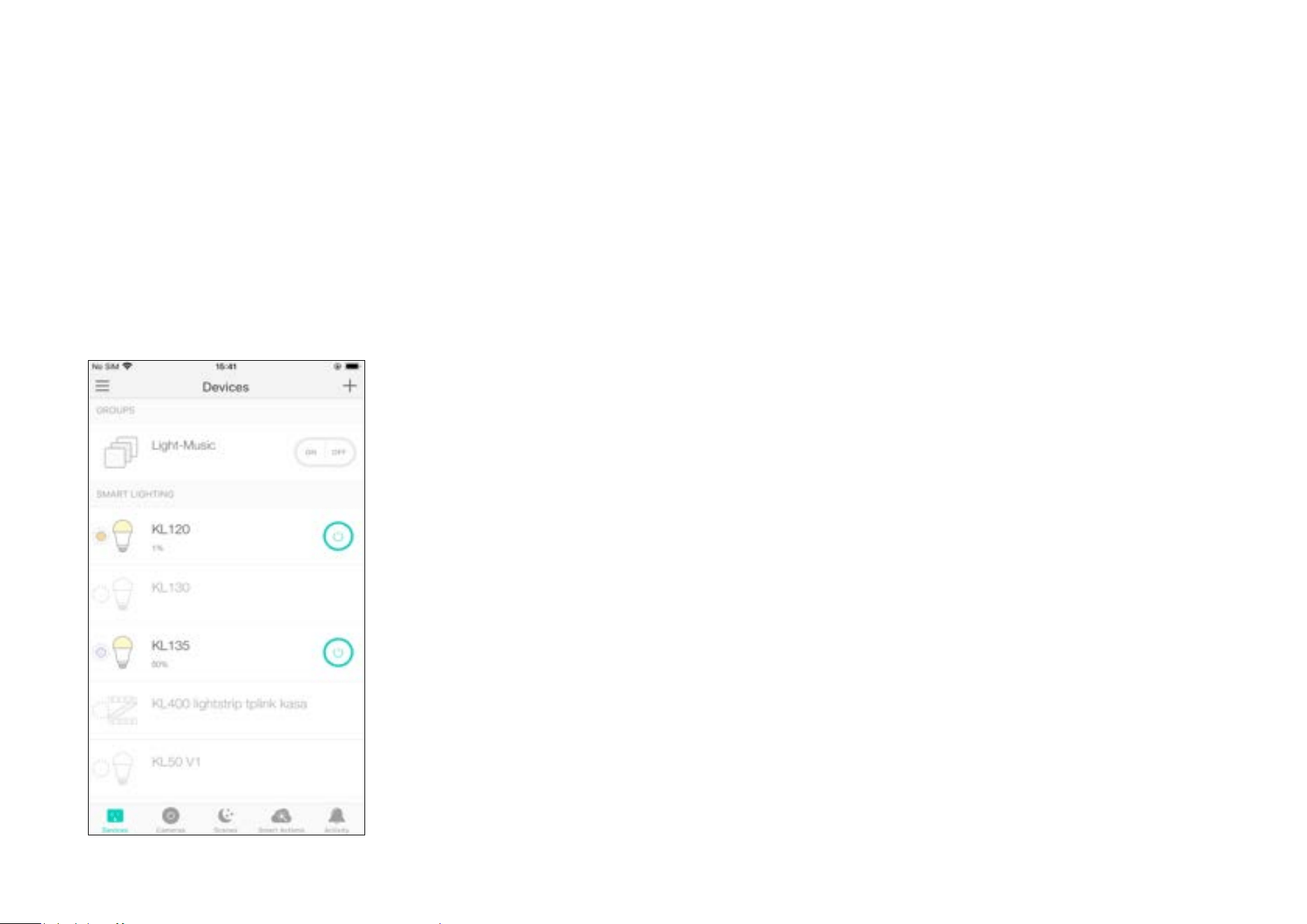
4. The created group is listed in the Home page. You can tap ON or OFF to turn on or o the devices together in the group.
27
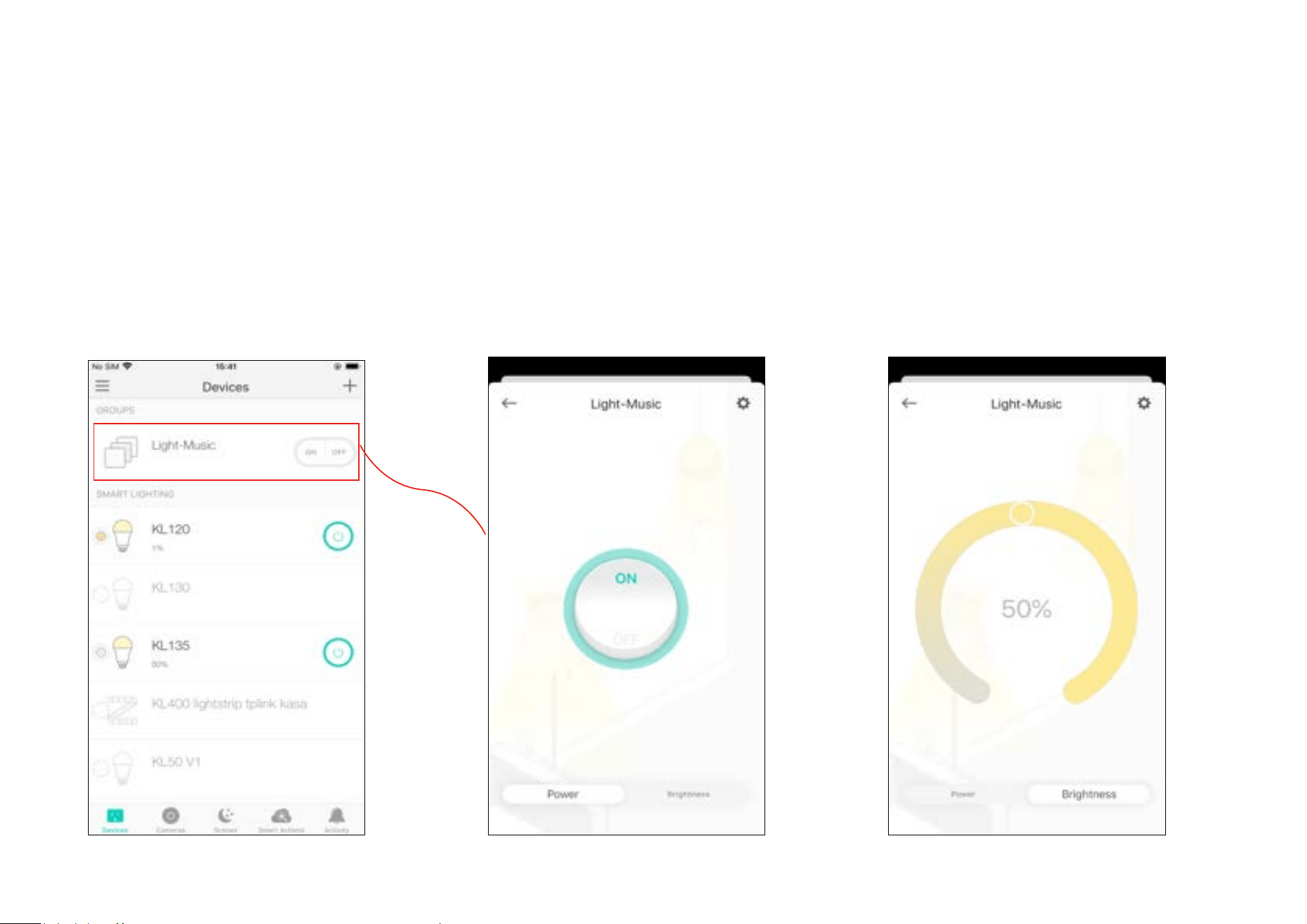
2. Manage the group
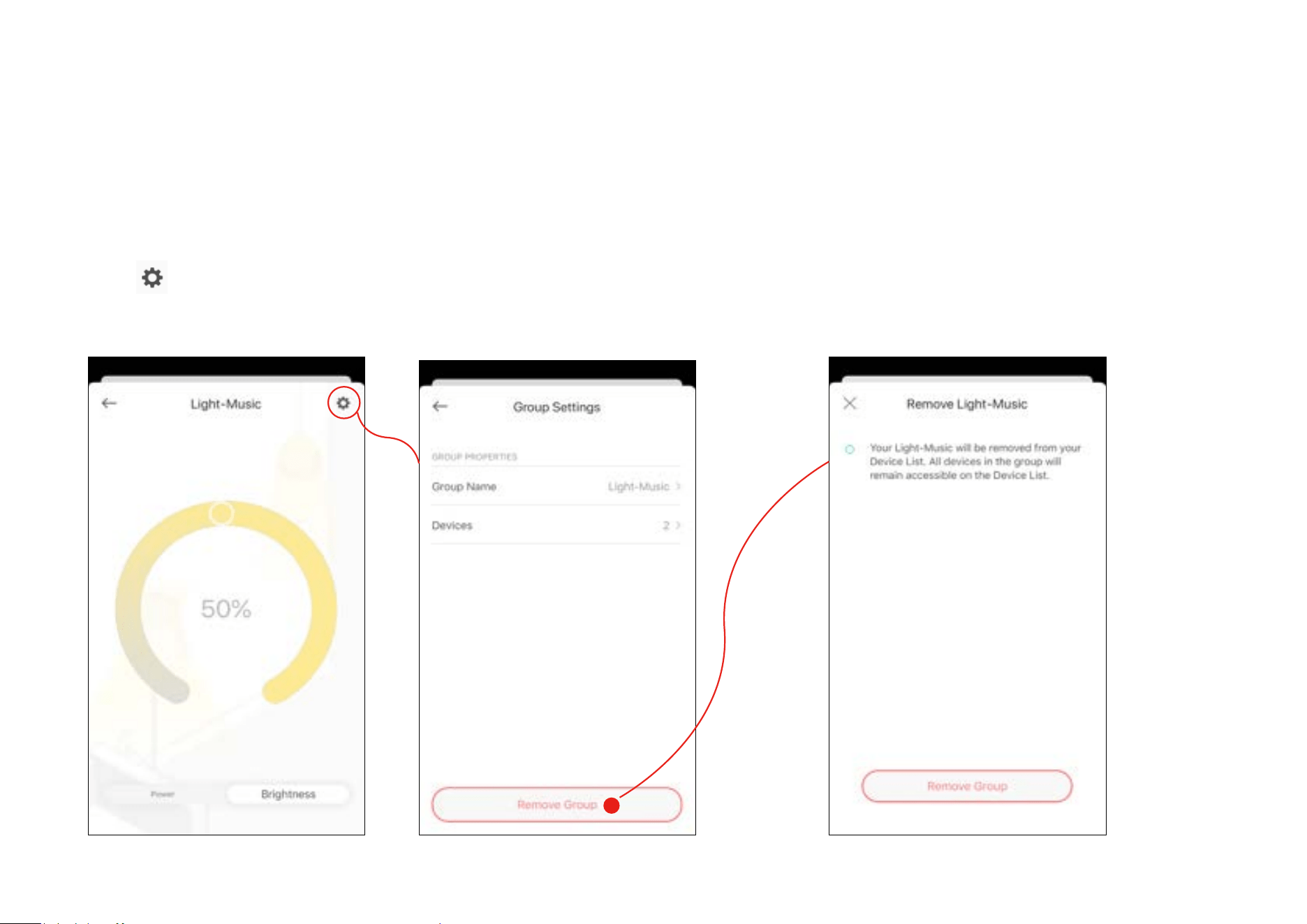
1. Tap the group you want to manage. 2. Turn on or o the Group in the status
page.
3. Tap Brightness to adjust the brightness of
your 3-way dimmer.
28
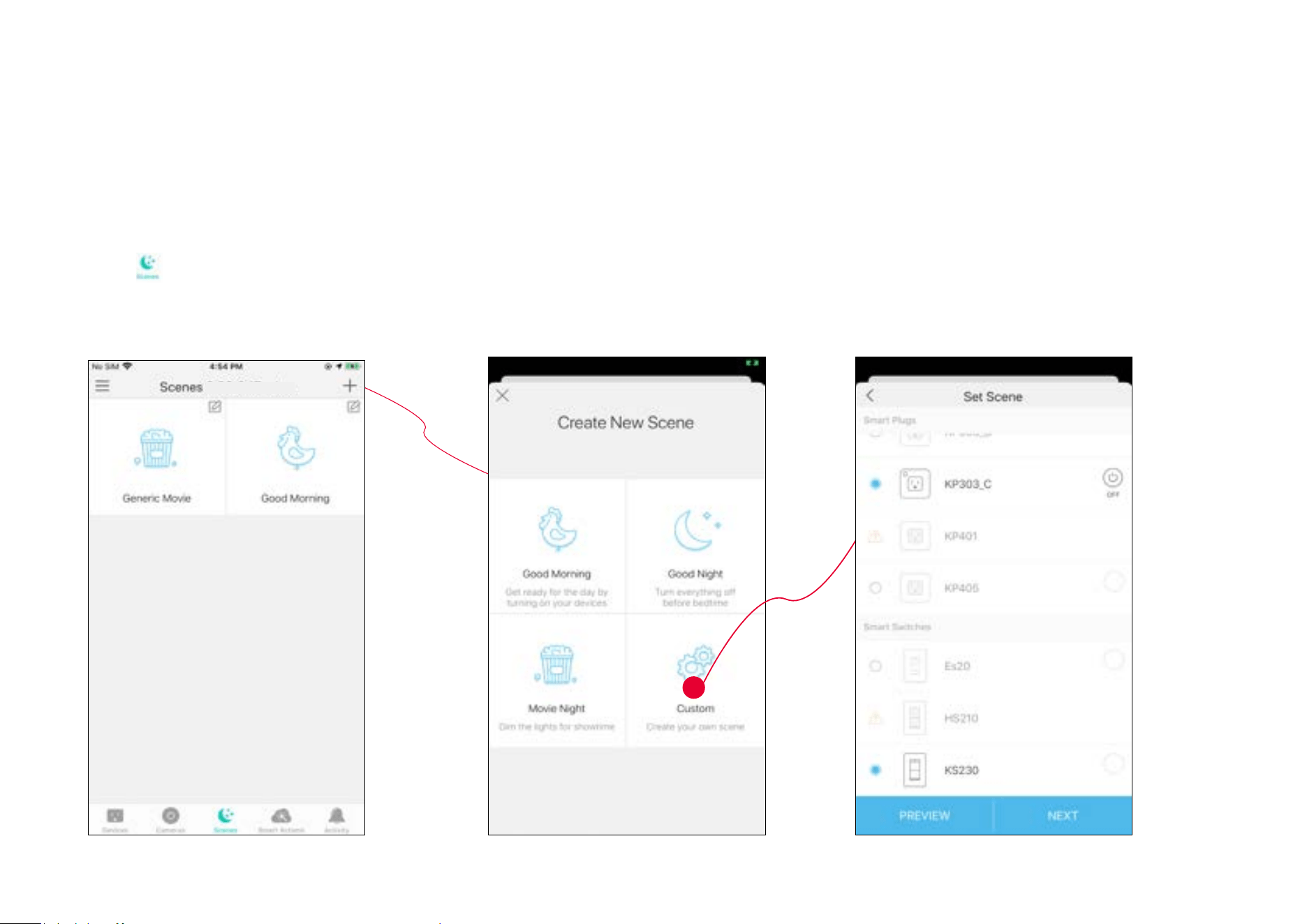
4. Tap
in the top right corner to enter the settings page. You can change the group
name or devices in the group as you like.
5. Tap Remove Group if you want to remove the
group from your device list. Then double conrm it.
All devices in the group will remain accessible on
the device list.
29
Create Scenes
A scene is a preset group of smart devices that can be programmed, customized and activated simultaneously at the touch of a button from your
smartphone or tablet, allowing you to easily set your mood, activity or t any special occasion. To create a scene with your Smart 3-Way Dimmer, you
need other Kasa smart devices, a smart plug for example.
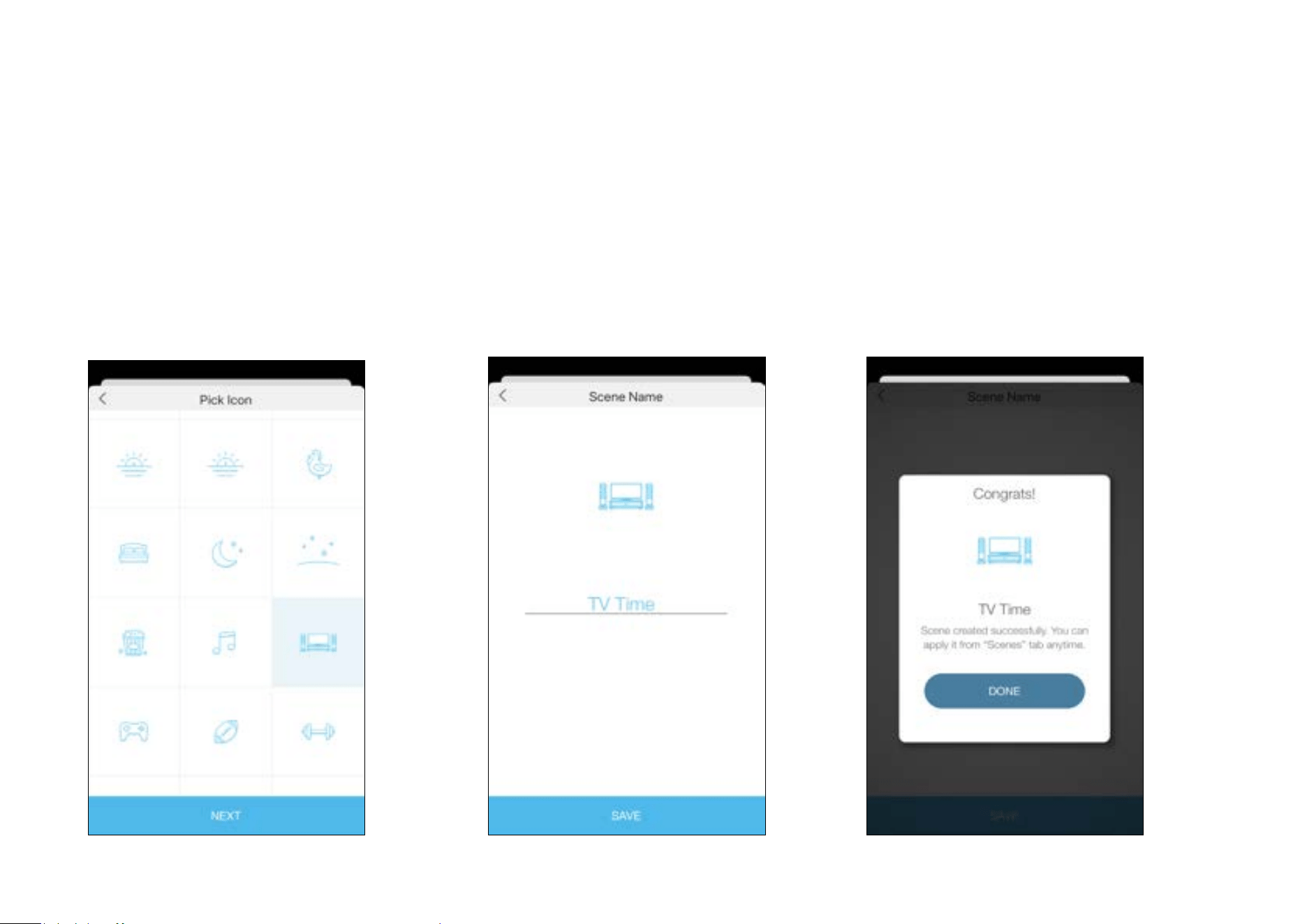
1. Tap
at the bottom, then tap + at the
top right corner.
2. Select a scene or create your own scene.
3. Select devices for the scene to work on and
set their status respectively.
E.g. Turn on 3-way dimmer and turn o study
room lamp plugged in a Kasa smart plug with a tap.
30
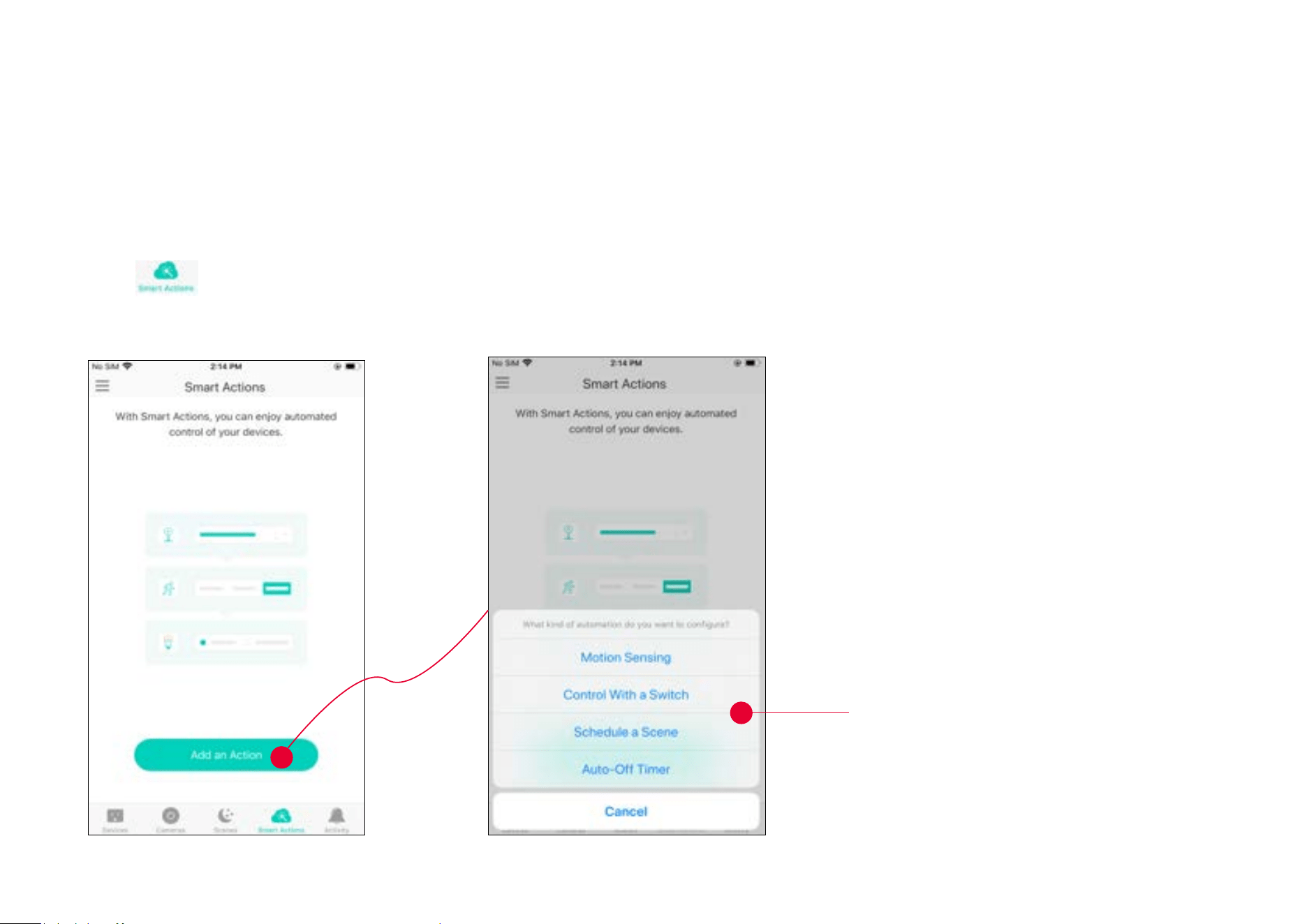
4. Pick an icon for your scene. 5. Name your scene.
6. Your scene is created successfully. Just tap
the scene to activate it.
31
Smart Actions
Smart Actions is a function provided that enables device interconnections and home automations. With Smart Actions, your Kasa devices can work
together to create a smarter smart home. From the moment you wake up to the moment you drift asleep, Smart Actions make your home safer and
more comfortable.
1. Tap
at the bottom, then tap Add
an Action.
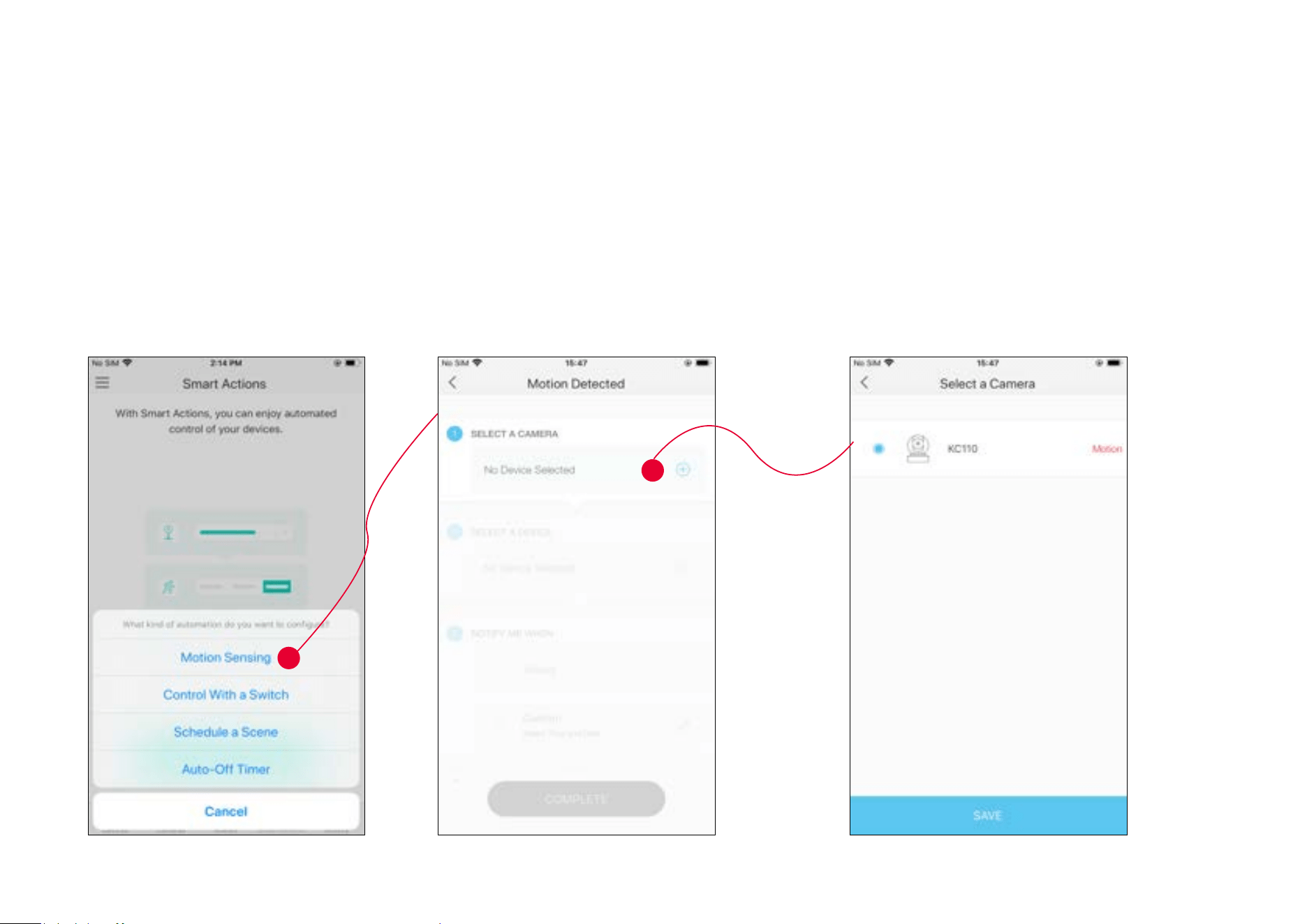
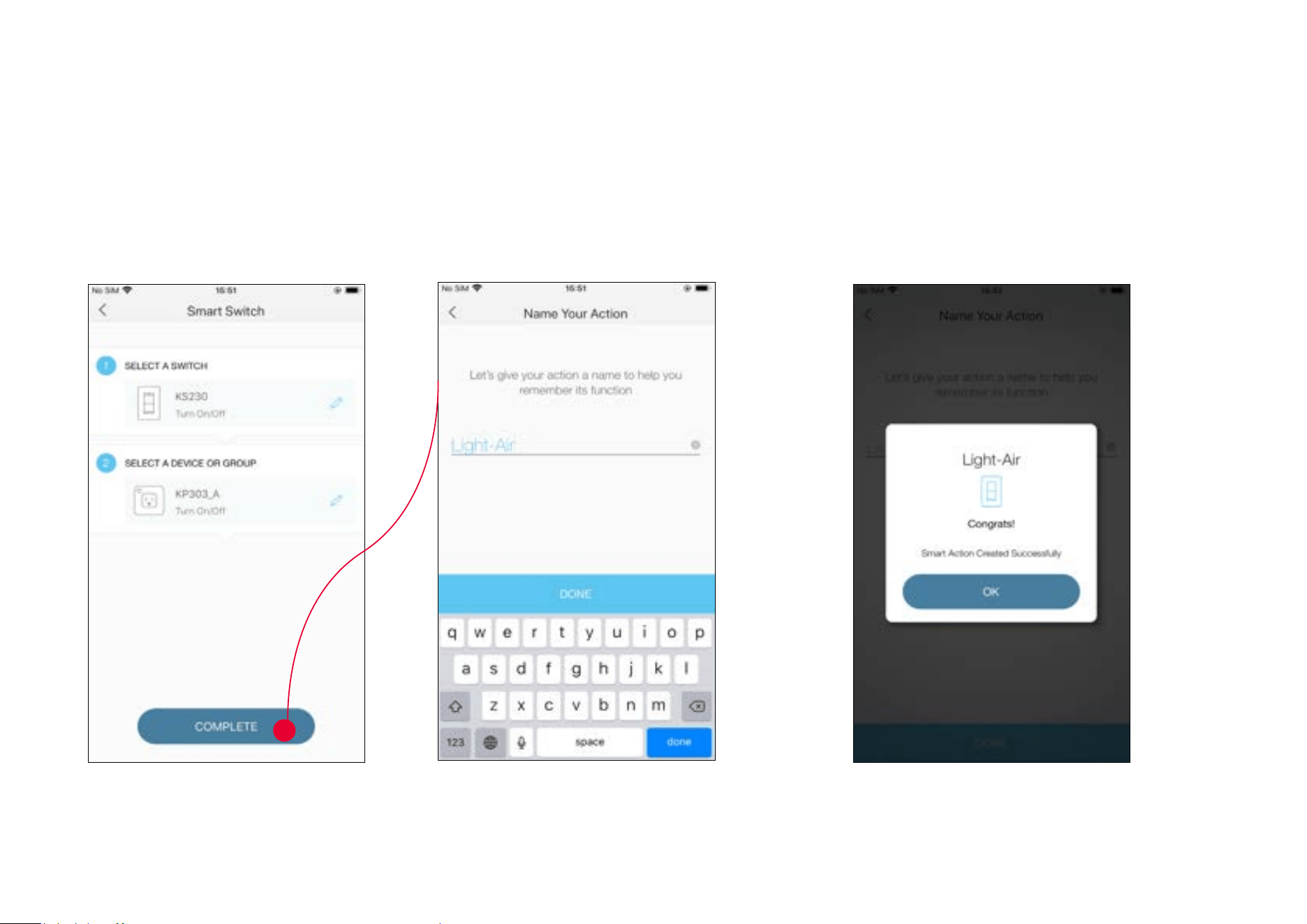
2. Select an automation type for your Smart Actions.
Motion Sensing: Take actions when a Kasa
camera senses a motion.
Control With a Switch: Extend the Smart Switch
control to other Kasa Smart devices. Turn on/
o a group of devices with the Smart Switch all
together.
Schedule a Scene: Schedule a “Scene” to be
turned on automatically at the time specied.
Auto-o Timer: Whenever a smart device is
turned on, turn it o after the designated amount
of time.
32
1. Tap Motion Sensing.
2. Select your Kasa smart camera.
1. Congure Motion Sensing If you already have a Kasa Smart Camera
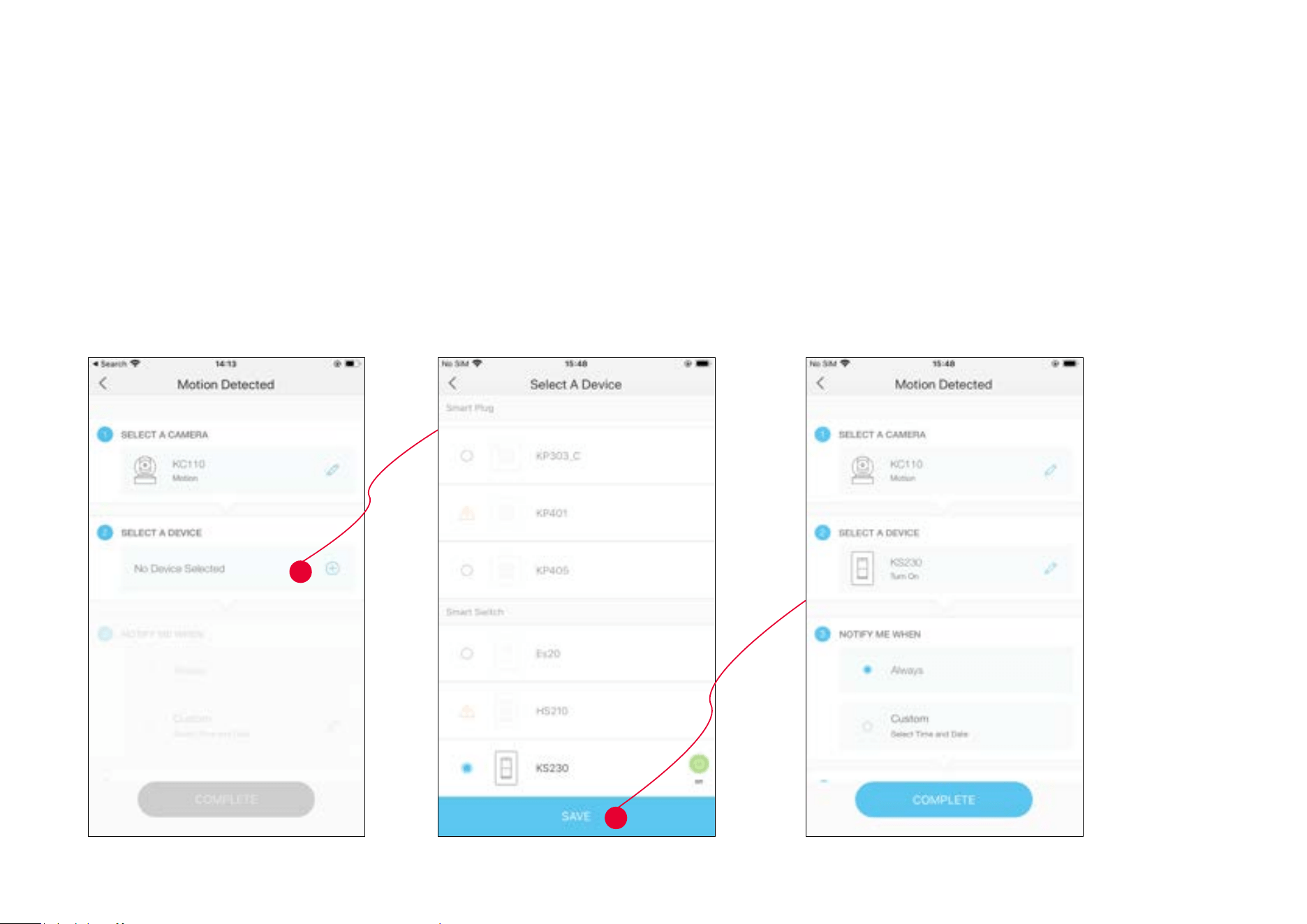
E.g. When my Kasa camera senses a motion, the light will be turned on.
33
3. Add your 3-way dimmer.
34
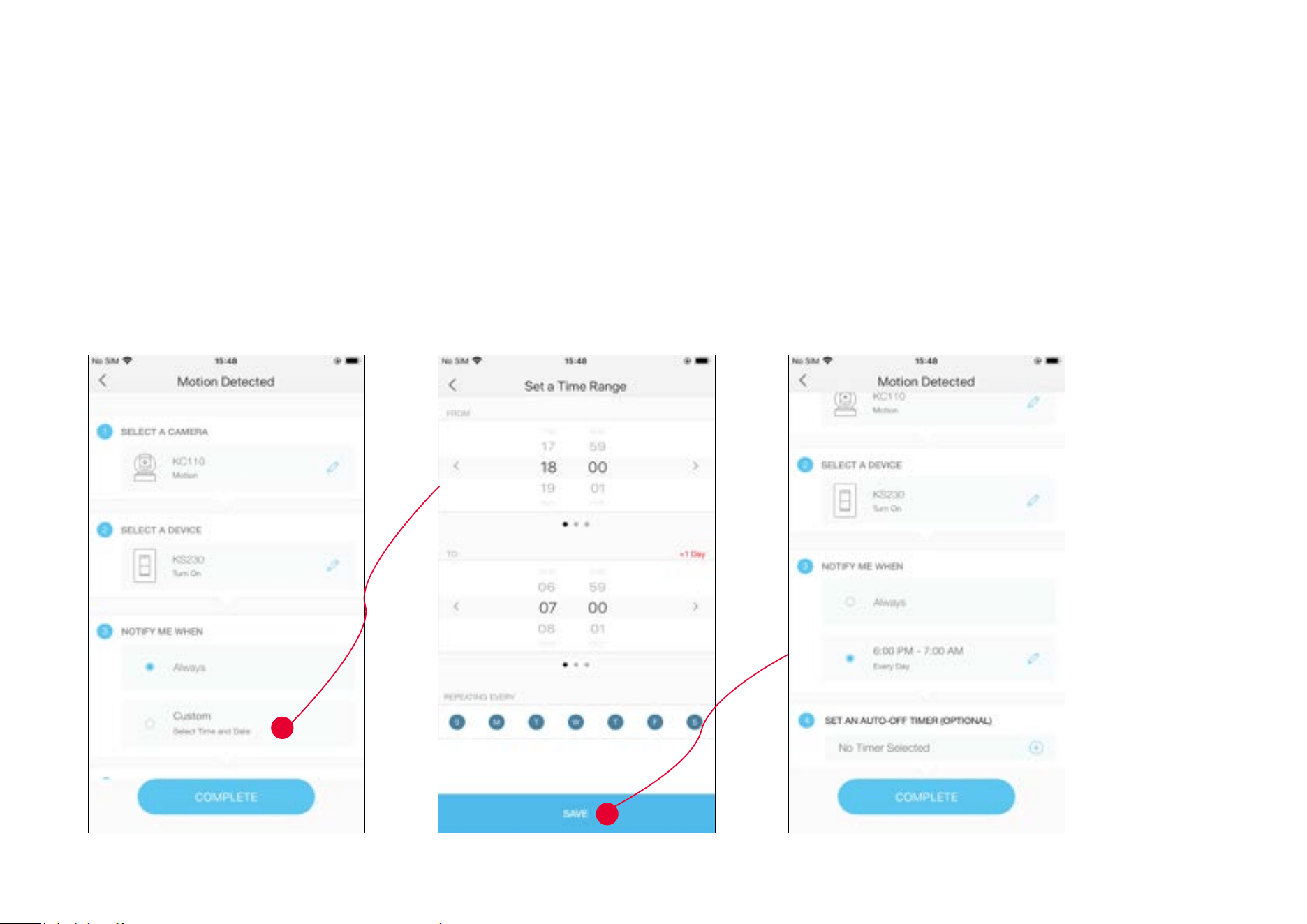
4. Set the time when you want the action to run. You can choose Always or tap Custom to choose time according to your needs.
E.g. I want the motion to trigger the light on from 18:00 to 7:00 of next day every day.
35
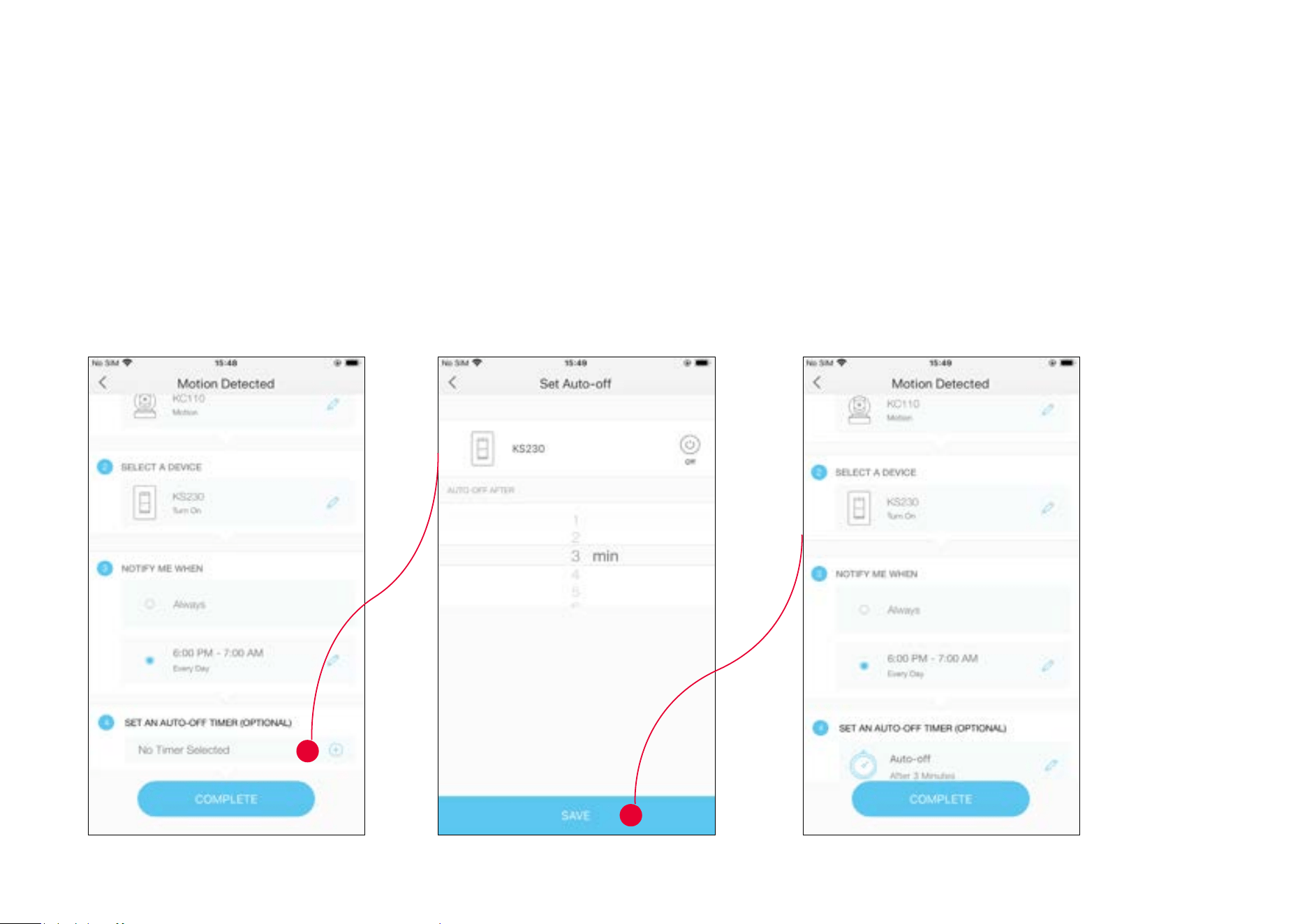
5. (Optional) Set an auto-o timer then tap Complete. Then your light will be turned o after the time you set.
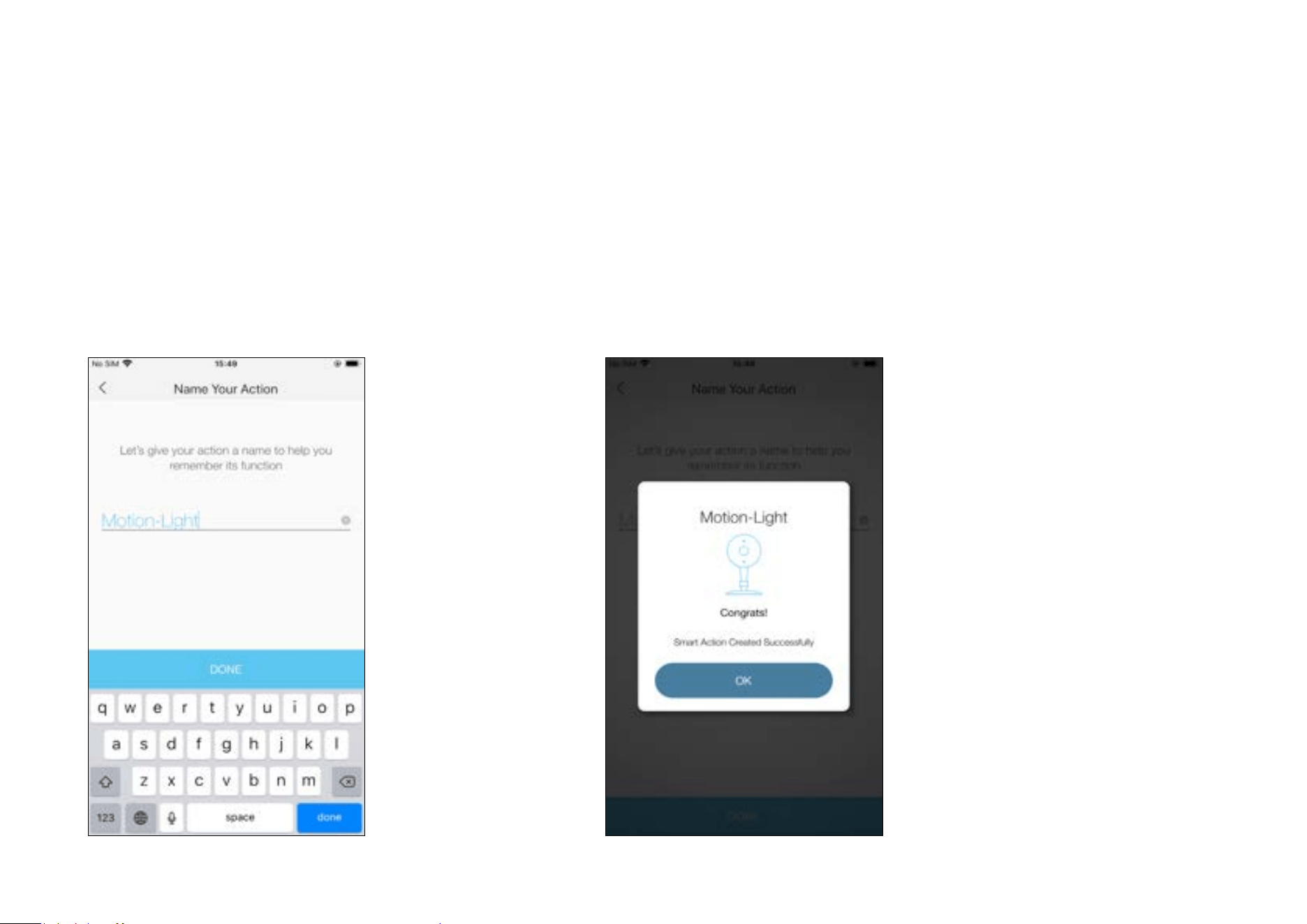
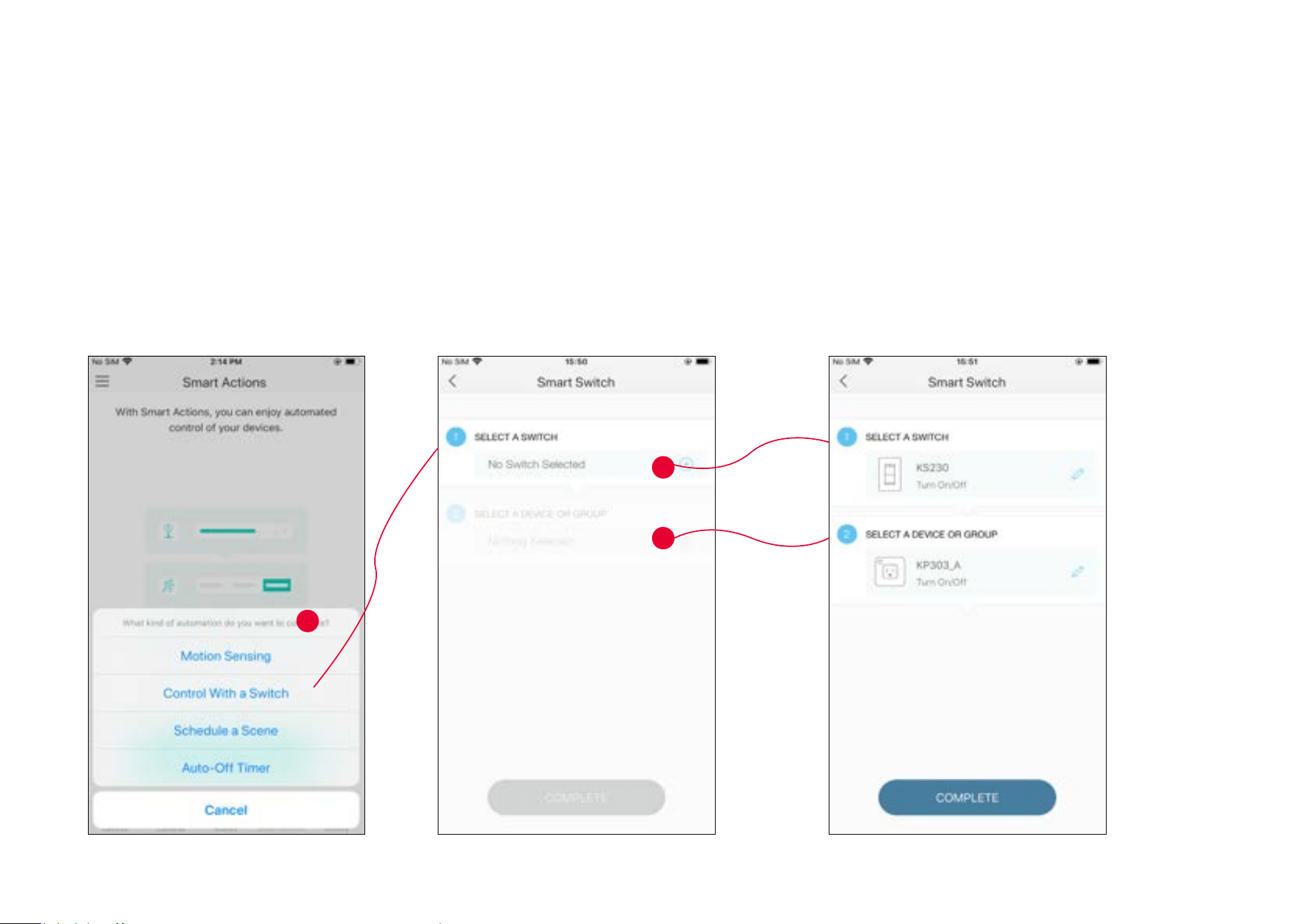
36
6. Name the action. 7. The Smart Action is created successfully and displayed in the Smart Actions
list.
37
1. Tap Control With a Switch.
2. Add your 3-way dimmer. Then select your Kasa
smart plug which your air conditioner is plugged in.
2. Congure Control With a Switch If you already have other Kasa smart devices
E.g. When I turn on/o my 3-way dimmer, also turn on/o the air conditioner (plugged in my Kasa smart plug).
38
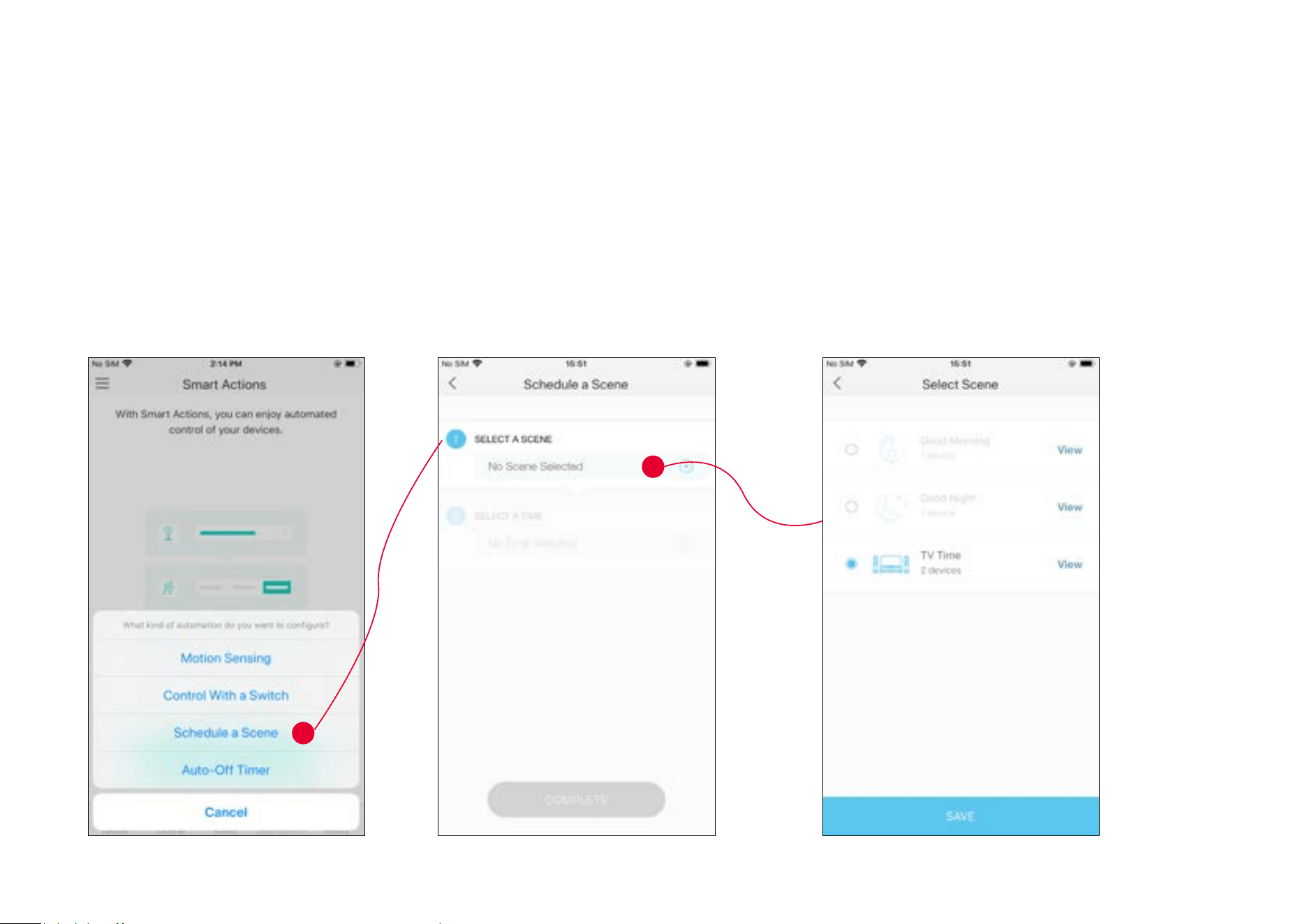
3. Name your action for easy identication.
4. Now Your Smart Action is created successfully
and is displayed in the smart actions list.
39
1. Tap Schedule a Scene.
2. Select a scene that you have created.
3. Congure Schedule a Scene
E.g. I want to turn on automatically the scene I have created at scheduled time.
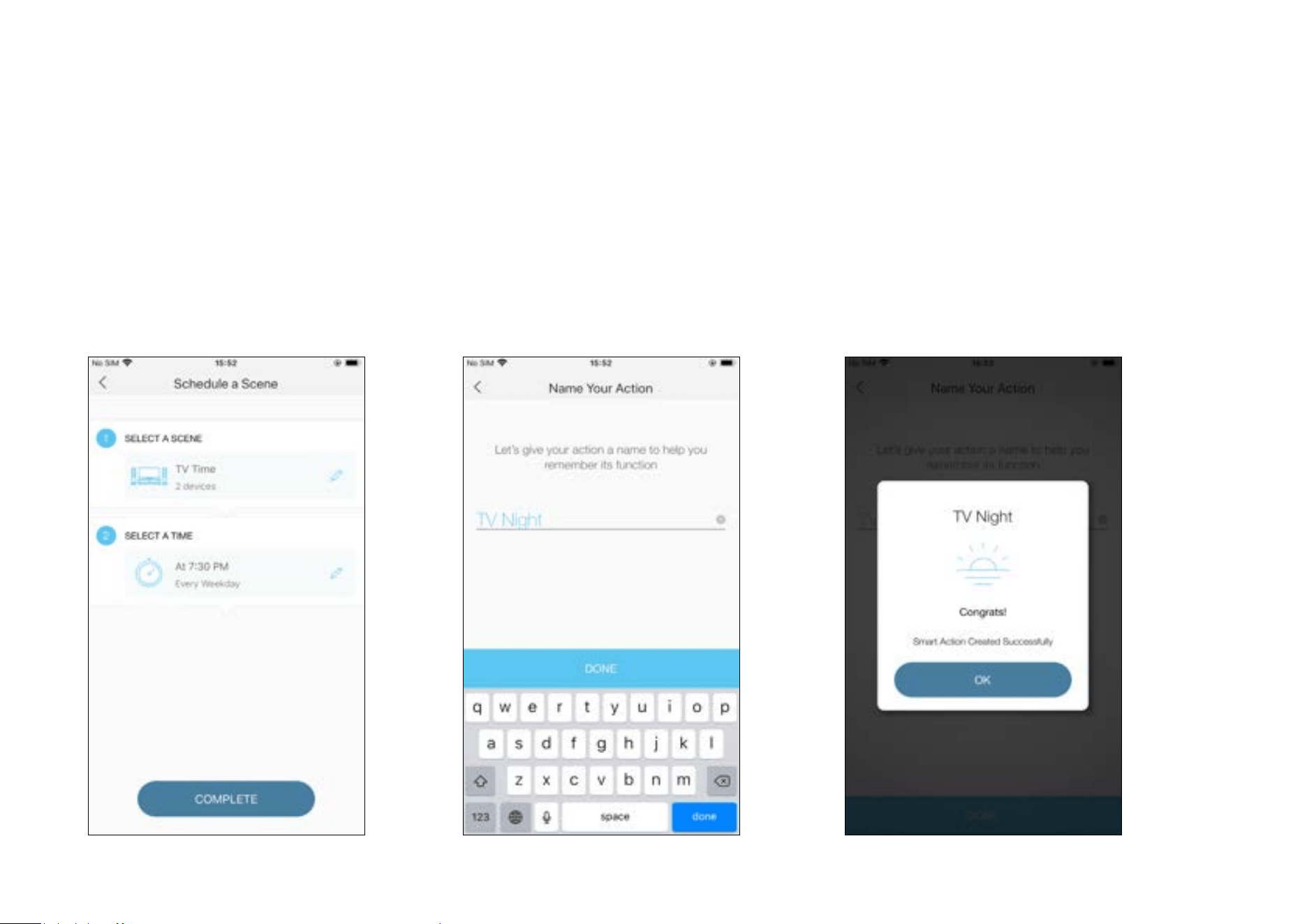
40
3. Set the time and frequency at which you
want your scene to be activated.
4. The Smart Action is created successfully and
displayed in the Smart Actions list.
4. Name your action.
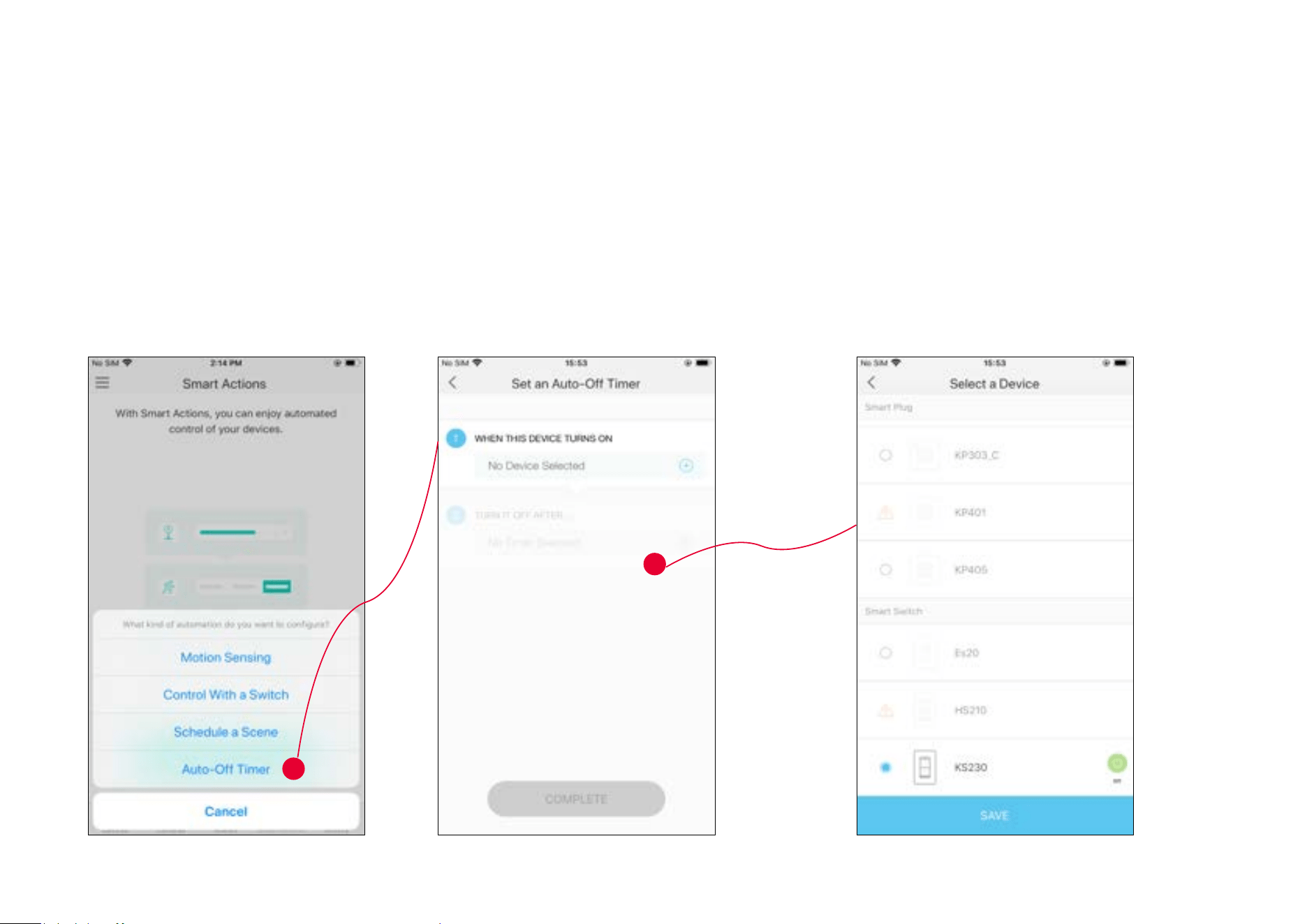
41
1. Tap Auto-O Timer.
2. Select your 3-way dimmer.
4. Congure Auto-O Timer
E.g. I want to turn o my Kasa Smart 3-Way Dimmer after 3 minutes whenever it turns on.
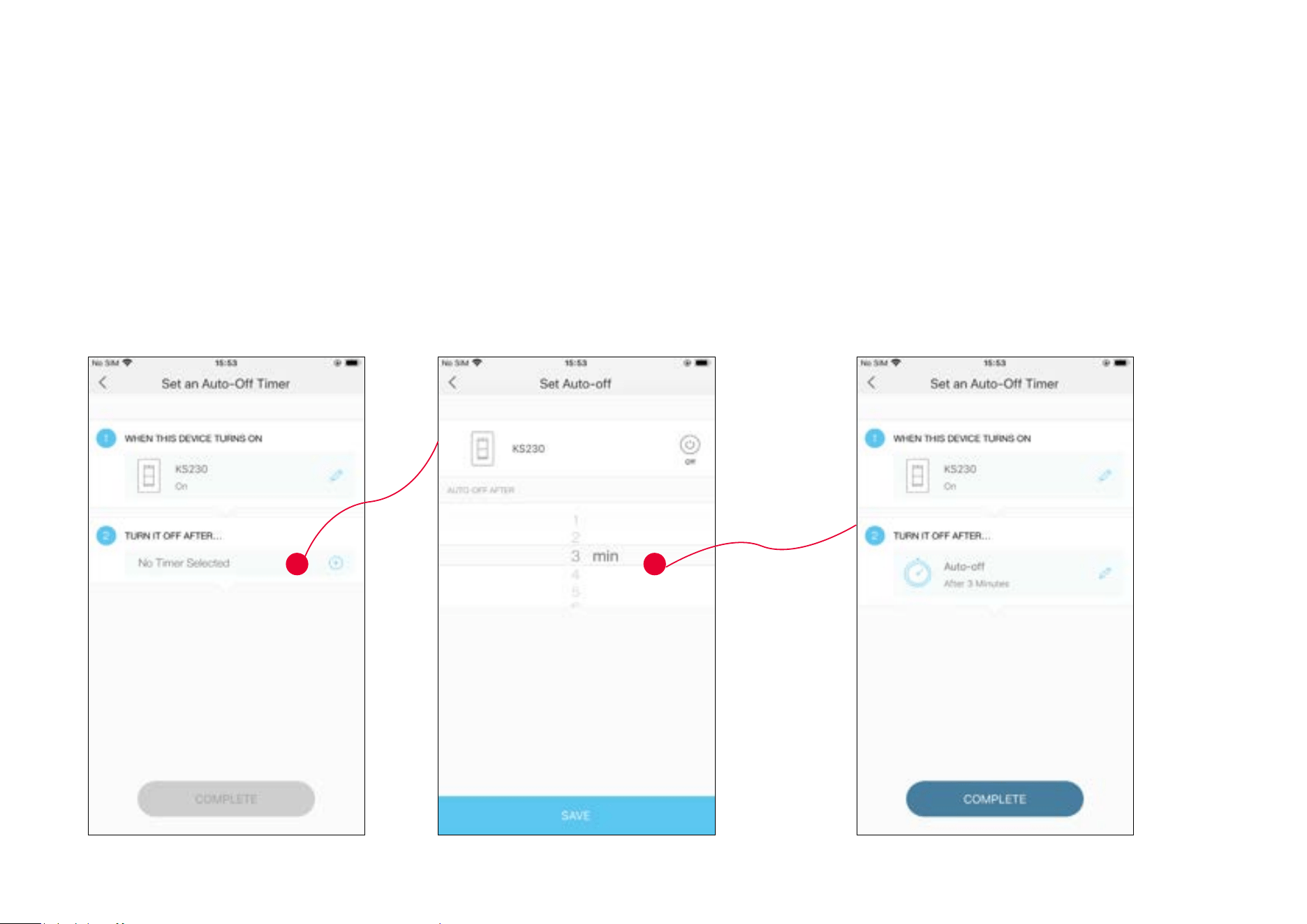
42
3. Set the time after which your dimmer switch will be o.
4. Tap COMPLETE.
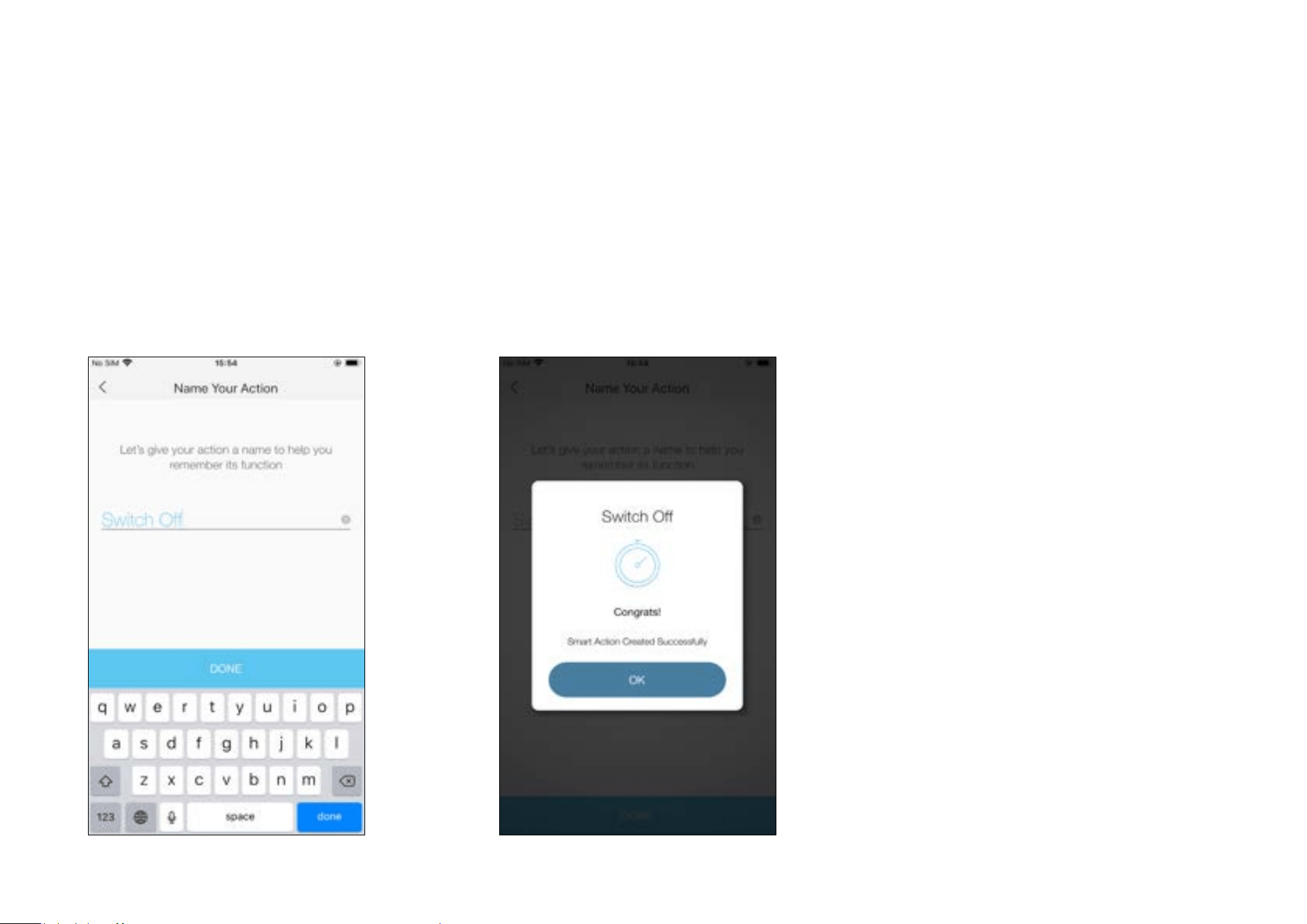
43
5. Name your action for easy identication. 6. The Smart Action is created successfully.
44
Voice Control & Third-Party Support
Use the Kasa Smart app to pair your Smart 3-Way Dimmer Kit with Amazon Alexa or Google Home Assistant, and enjoy a full hands-free experience.
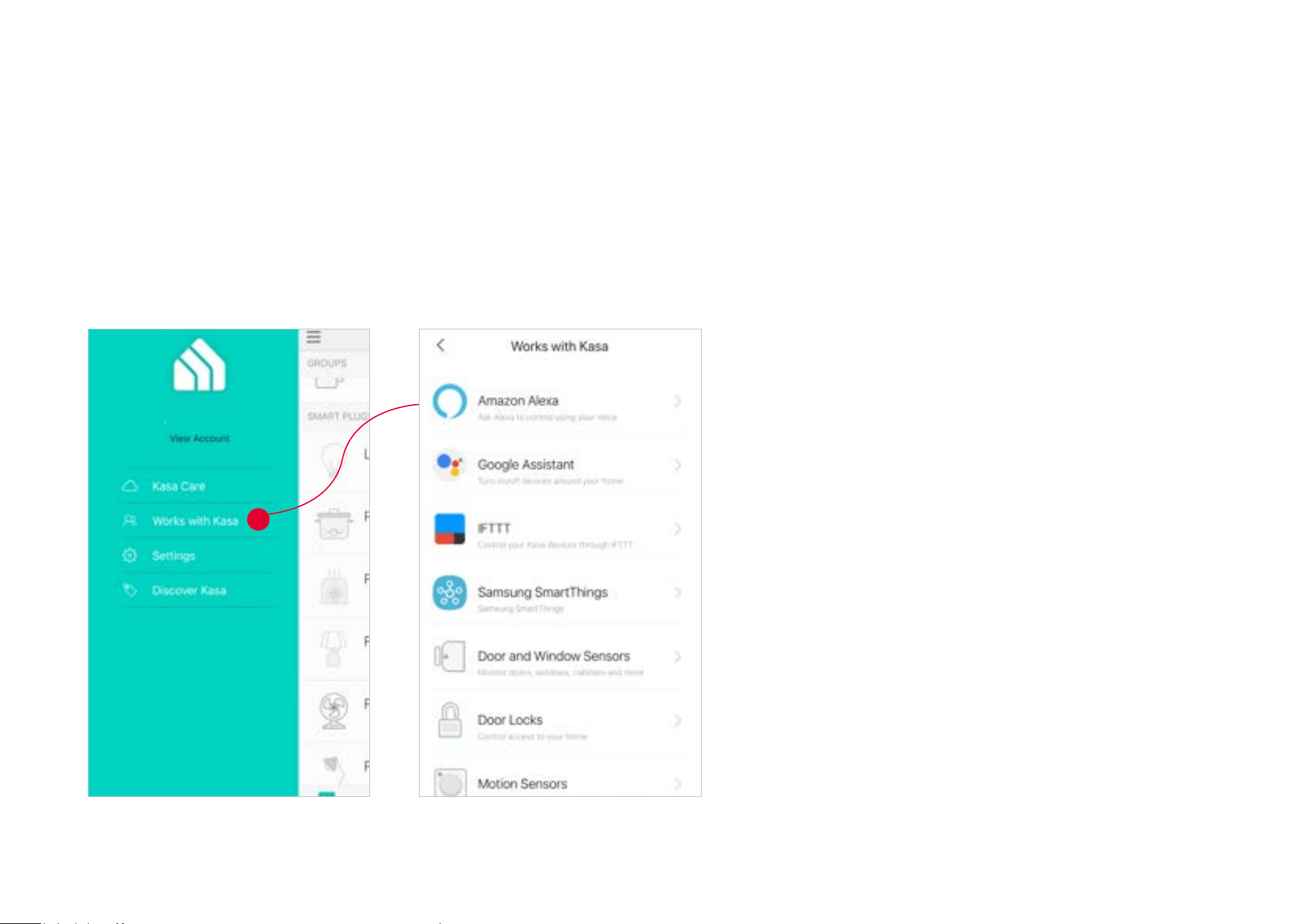
Kasa helps manage the rest of your smart home too, working with Samsung SmartThings to trigger changes when you arrive home or leave for the day.
Launch the Kasa Smart app. Go to the sidebar and tap Works with Kasa. You can choose Amazon Alexa / Google Assistant / IFTTT / Samsung
SmartThings for detailed instructions.
45
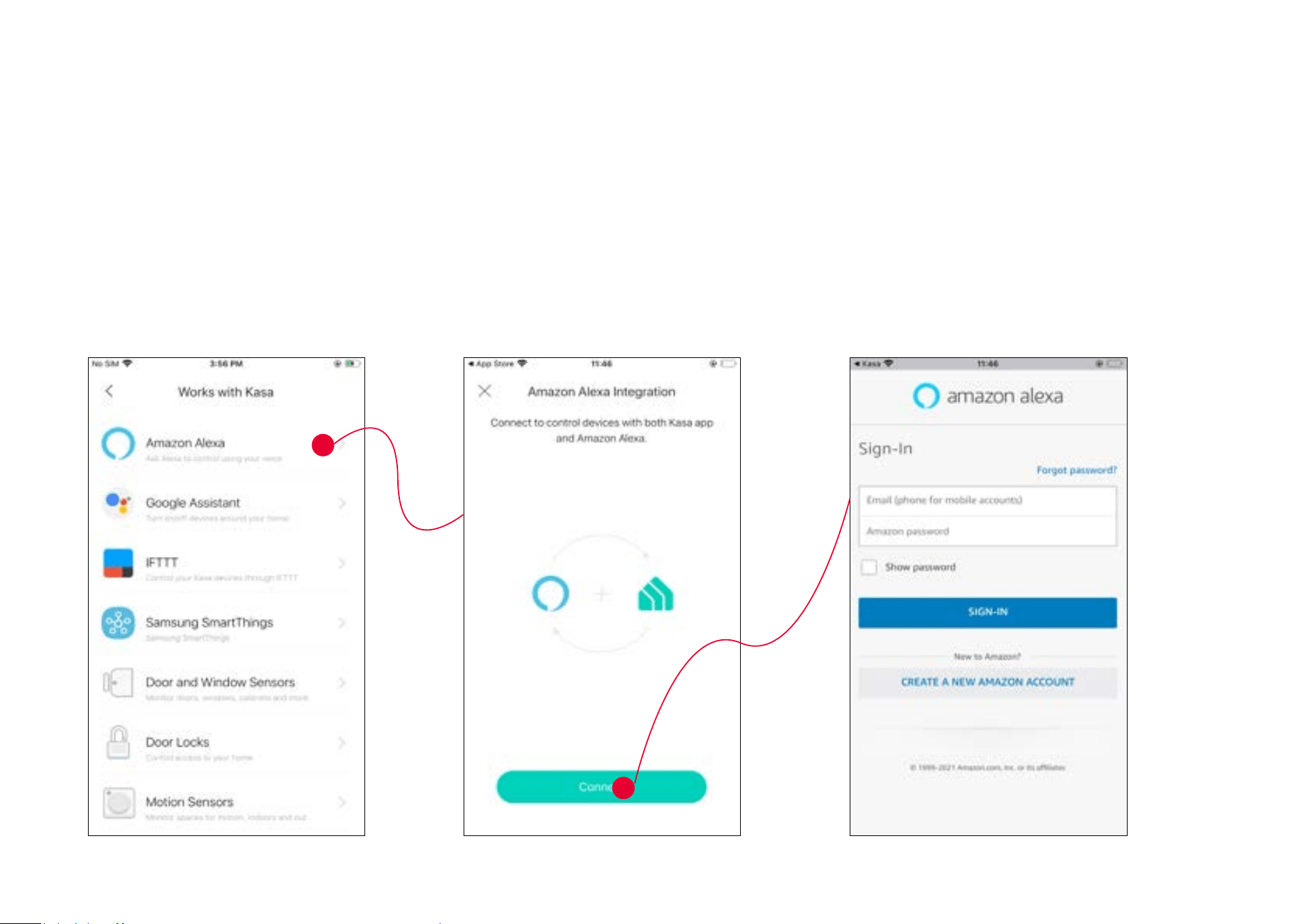
1. Tap Amazon Alexa. 2. Tap Connect.
3. Sign in with your amazon account.
1. Set up Amazon Alexa
46
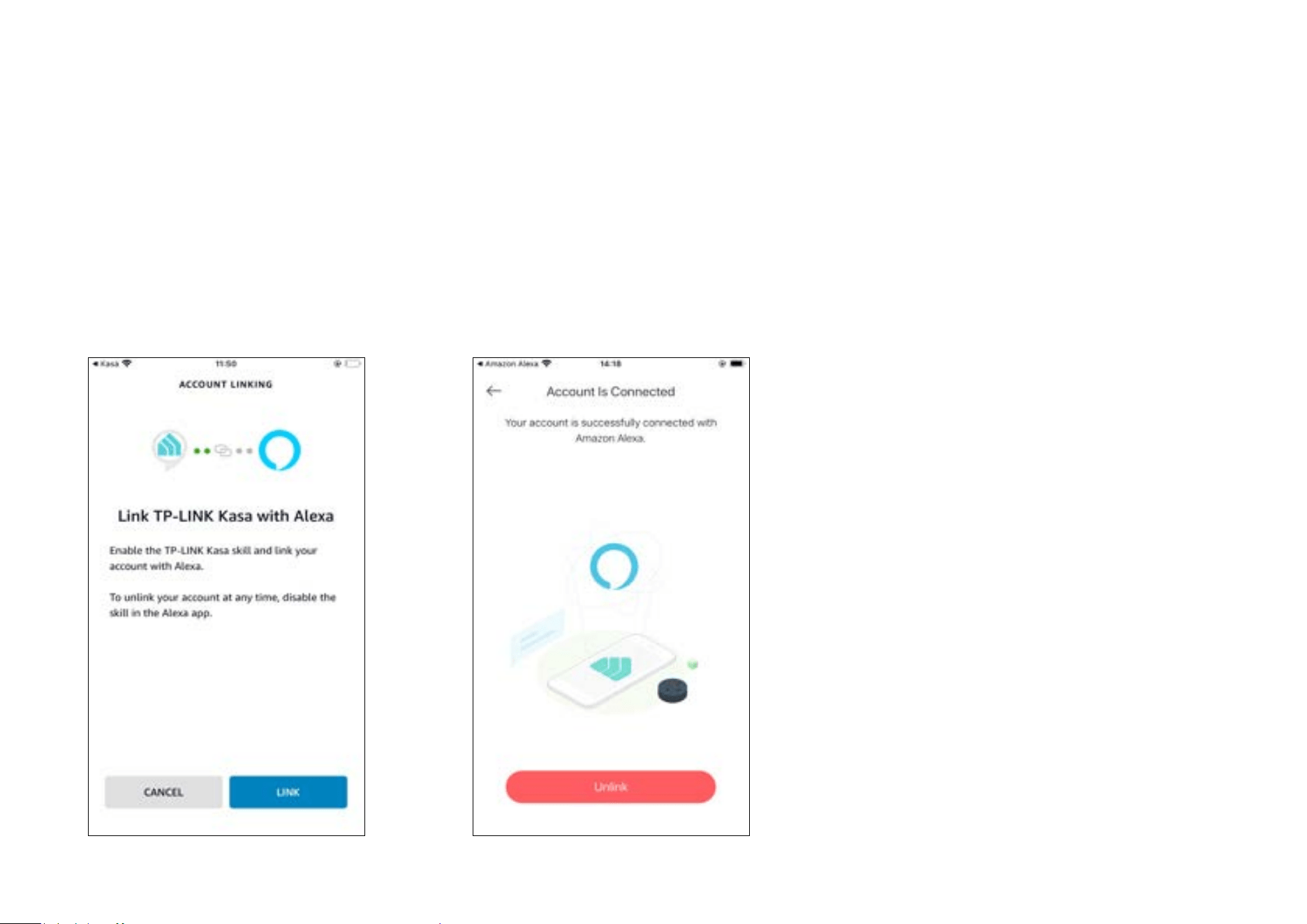
3. After sign-in, tap LINK. 4. Your TP-Link ID has been successfully linked with your amazon account. You can use Alexa voice
commands to control your 3-way dimmer switch.
47
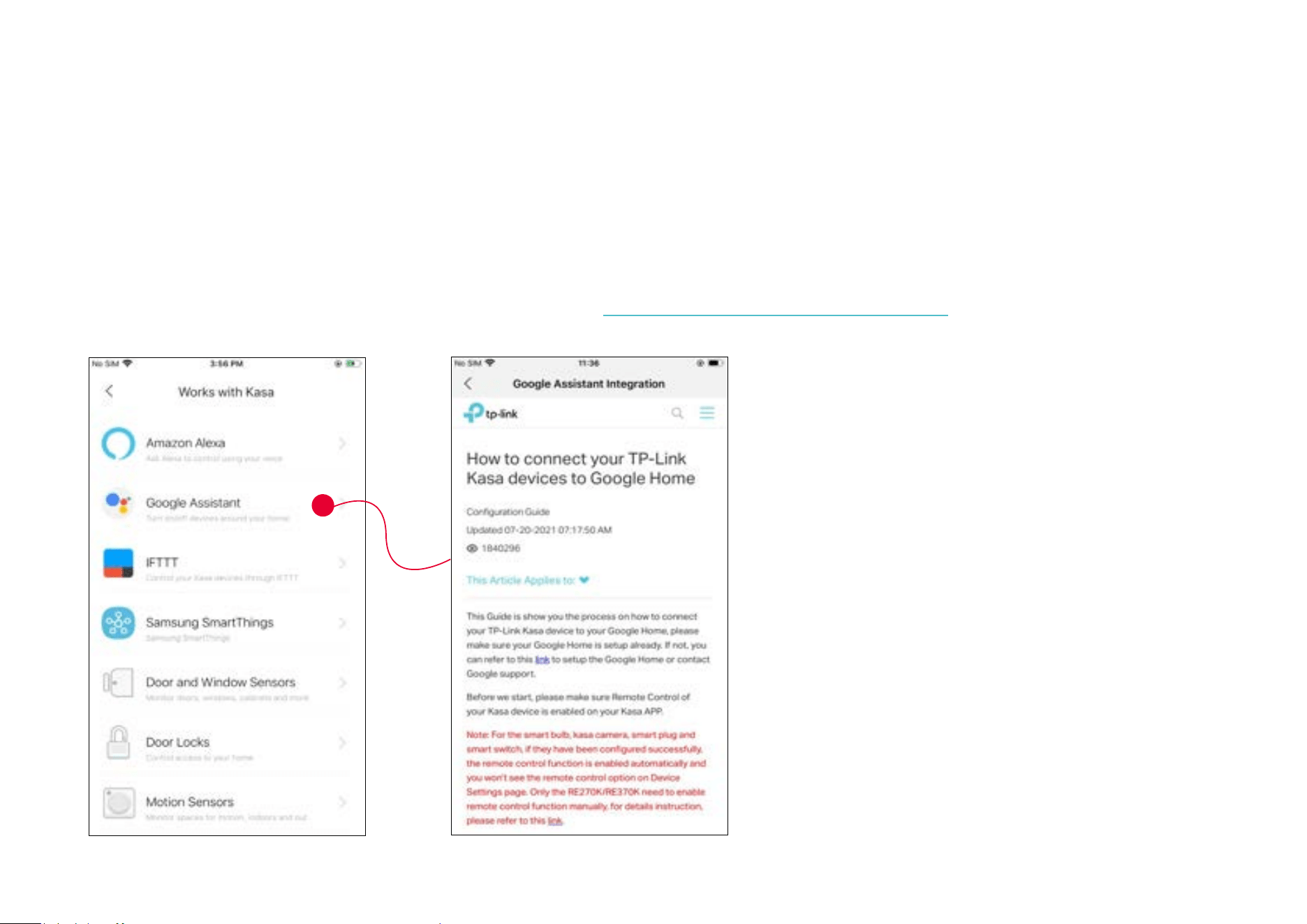
1. Tap Google Assistant.
2. Follow instructions to conenct your device to your Google Home.
Or nd the FAQ at https://www.tp-link.com/en/support/faq/1534/.
2. Set up Google Assistant

48
Authentication
FCC compliance information statement
Product Name: Kasa Smart Wi-Fi Light Switch, 3-Way Dimmer Kit
Model Number: KS230 KIT
Responsible party:
TP-Link USA Corporation
Address: 10 Mauchly, Irvine, CA 92618
Website: https://www.tp-link.com/us/
Tel: +1 626 333 0234
Fax: +1 909 527 6804
E-mail: [email protected]om
This equipment has been tested and found to comply with the limits for a Class B digital device, pursuant to part 15 of the FCC Rules. These limits are
designed to provide reasonable protection against harmful interference in a residential installation. This equipment generates, uses and can radiate
radio frequency energy and, if not installed and used in accordance with the instructions, may cause harmful interference to radio communications.
However, there is no guarantee that interference will not occur in a particular installation. If this equipment does cause harmful interference to radio
or television reception, which can be determined by turning the equipment off and on, the user is encouraged to try to correct the interference by
one or more of the following measures:
• Increase the separation between the equipment and receiver.
• Connect the equipment into an outlet on a circuit different from that to which the receiver is connected.
• Consult the dealer or an experienced radio/ TV technician for help.
This device complies with part 15 of the FCC Rules. Operation is subject to the following two conditions:
1. This device may not cause harmful interference.

49
2. This device must accept any interference received, including interference that may cause undesired operation.
Any changes or modifications not expressly approved by the party responsible for compliance could void the user’s authority to operate the
equipment.
Note: The manufacturer is not responsible for any radio or TV interference caused by unauthorized modifications to this equipment. Such modifications
could void the user’s authority to operate the equipment.
FCC RF Radiation Exposure Statement
This equipment complies with FCC RF radiation exposure limits set forth for an uncontrolled environment. This device and its antenna must not be
co-located or operating in conjunction with any other antenna or transmitter.
“To comply with FCC RF exposure compliance requirements, this grant is applicable to only Mobile Configurations. The antennas used for this
transmitter must be installed to provide a separation distance of at least 20 cm from all persons and must not be co-located or operating in conjunction
with any other antenna or transmitter.”
We, TP-Link USA Corporation, has determined that the equipment shown as above has been shown to comply with the applicable technical standards,
FCC part 15. There is no unauthorized change is made in the equipment and the equipment is properly maintained and operated.
Issue Date: 2021.11.22

50
Canadian Compliance Statement
This device complies with Industry Canada license-exempt RSSs. Operation is subject to the following two conditions:
1. This device may not cause interference, and
2. This device must accept any interference, including interference that may cause undesired operation of the device.
Le présent appareil est conforme aux CNR d’Industrie Canada applicables aux appareils radio exempts de licence. L’exploitation est autorisée aux
deux conditions suivantes :
1. l’appareil ne doit pas produire de brouillage;
2. l’utilisateur de l’appareil doit accepter tout brouillage radioélectrique subi, meme si le brouillage est susceptible d’en compromettre le fonctionnement.
Radiation Exposure Statement:
This equipment complies with IC radiation exposure limits set forth for an uncontrolled environment. This equipment should be installed and operated
with minimum distance 20cm between the radiator & your body.
Déclaration d’exposition aux radiations:
Cet équipement est conforme aux limites d’exposition aux rayonnements IC établies pour un environnement non contrôlé. Cet équipement doit être
installé et utilisé avec un minimum de 20 cm de distance entre la source de rayonnement et votre corps.
Industry Canada Statement
CAN ICES-3 (B)/NMB-3(B)
NCC & BSMI Notice
注意!
取得審驗證明之低功率射頻器材,非經核准,公司、商號或使用者均不得擅自變更頻率、加大功率或變更原設計之特性及功能。
低功率射頻器材之使用不得影響飛航安全及干擾合法通信;經發現有干擾現象時,應立即停用,並改善至無干擾時方得繼續使用。
前述合法通信,指依電信管理法規定作業之無線電通信。
低功率射頻器材須忍受合法通信或工業、科學及醫療用電波輻射性電機設備之干擾。
安全諮詢及注意事項
• 請使用原裝電源供應器或只能按照本產品注明的電源類型使用本產品。
51
• 清潔本產品之前請先拔掉電源線。請勿使用液體、噴霧清潔劑或濕布進行清潔。
• 注意防潮,請勿將水或其他液體潑灑到本產品上。
• 插槽與開口供通風使用,以確保本產品的操作可靠並防止過熱,請勿堵塞或覆蓋開口。
• 請勿將本產品置放於靠近熱源的地方。除非有正常的通風,否則不可放在密閉位置中。
• 不要私自拆開機殼或自行維修,如產品有故障請與原廠或代理商聯繫。
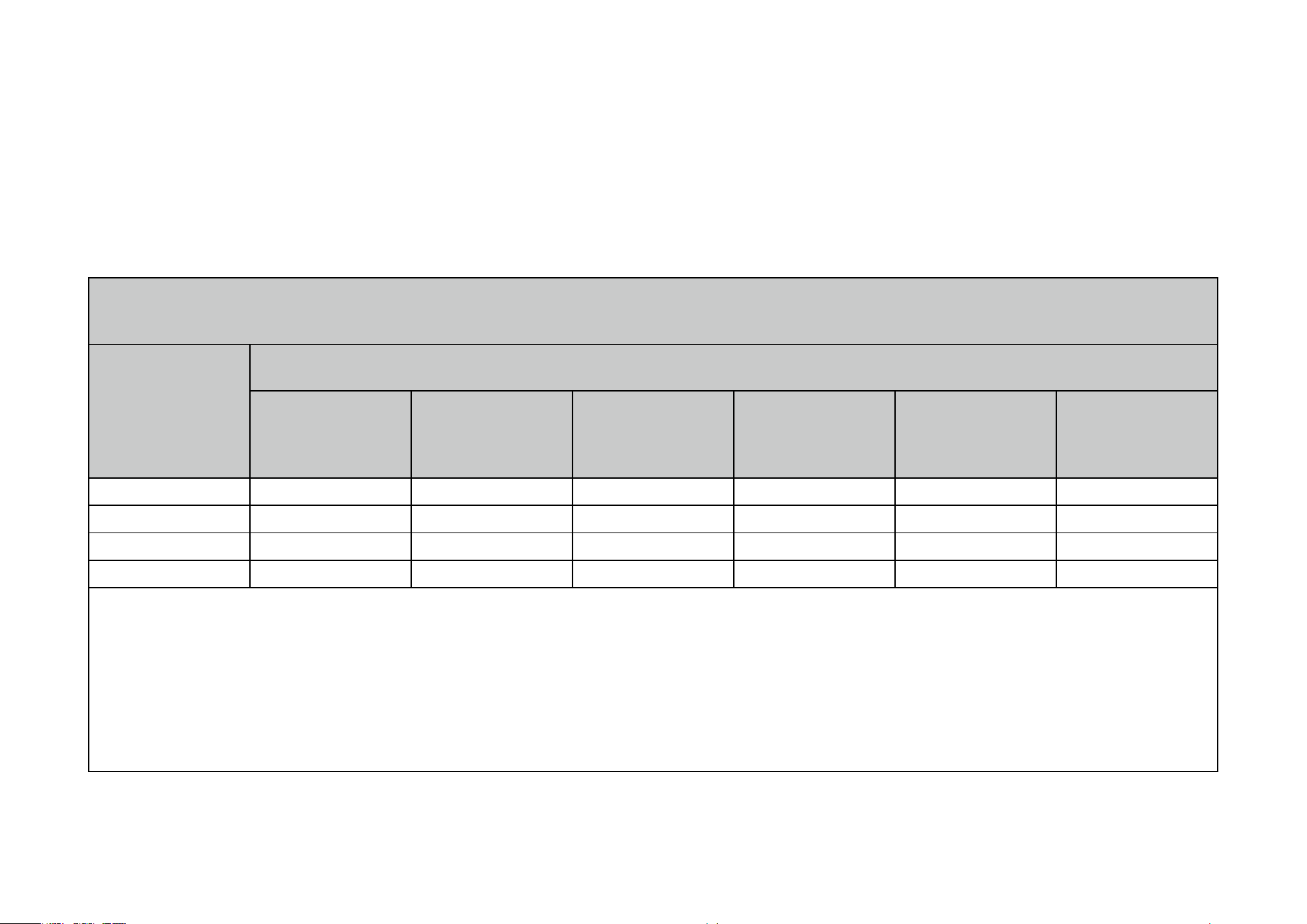
限用物質含有情況標示聲明書
設備名稱:
Equipment name
Kasa Smart Wi-Fi Light Switch, 3-Way Dimmer Kit
型號(型式):
Type designation (Type)
KS230Kit
單元
Unit
限用物質及其化學符號
Restricted substances and its chemical symbols
鉛
Lead
(Pb)
汞
Mercury
(Hg)
鎘
Cadmium
(Cd)
六價鉻
Hexavalent
chromium
(Cr+6)
多溴聯苯
Polybrominated
biphenyls
(PBB)
多溴二苯醚
Polybrominated
diphenyl ethers
(PBDE)
PCB ○ ○ ○ ○ ○ ○
外殼 ○ ○ ○ ○ ○ ○
電源供應板 — ○ ○ ○ ○ ○
其他及其配件 − ○ ○ ○ ○ ○
備考 1.〝超出 0.1 wt %〞及〝超出 0.01 wt %〞係指限用物質之百分比含量超出百分比含量基準值
Note 1:“Exceeding 0.1 wt %” and “exceeding 0.01 wt %” indicate that the percentage content of the restricted substance exceeds
the reference percentage value of presence condition.
備考 2.〝○〞係指該項限用物質之百分比含量未超出百分比含量基準值。
Note 2:“○” indicates that the percentage content of the restricted substance does not exceed the percentage of reference value of
presence.
備考 3.〝−〞係指該項限用物質為排除項目。
Note 3:The “−” indicates that the restricted substance corresponds to the exemption.
52
Safety Information
• Keep the device away from water, fire, humidity or hot environments.
• Do not attempt to disassemble, repair, or modify the device.
• Do not use the device where wireless devices are not allowed.
• Alert to service person
CAUTION
DOUBLE POLE / NEUTRAL FUSING
Please read and follow the above safety information when operating the device. We cannot guarantee that no accidents or damage will occur due to
improper use of the device. Please use this product with care and operate at your own risk.
Warnings
• Install only in a suitable UL Listed outlet box (suitable dimensions: W > 2.83in./72mm, H > 1.81in./46mm, D > 3.15in./80mm).
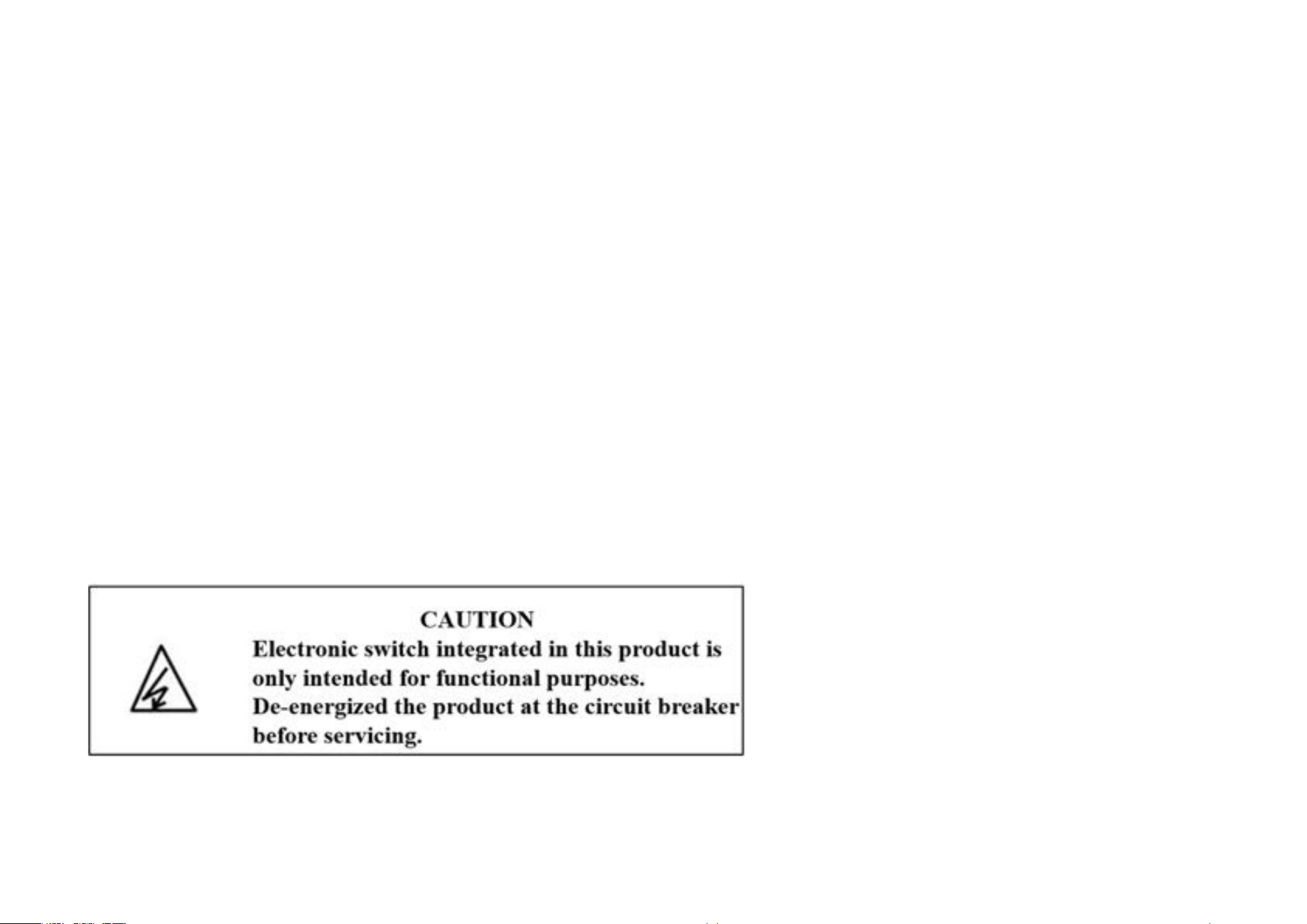
• CAUTION - Risk of Electric Shock - More than one disconnect switch may be required to de-energize the equipment before servicing.
• The manufacturer’s assigned screw torque.
• Tighten terminal screws to 13 lbf-in
• Supported specified line number for the thread terminal copper wire: 12AWG 14AWG and 16AWG.
• Operating Temperature: 0 ºC-40 ºC (32°F-104°F)
53
Explanation of the symbols on the product label
Symbol Explanation
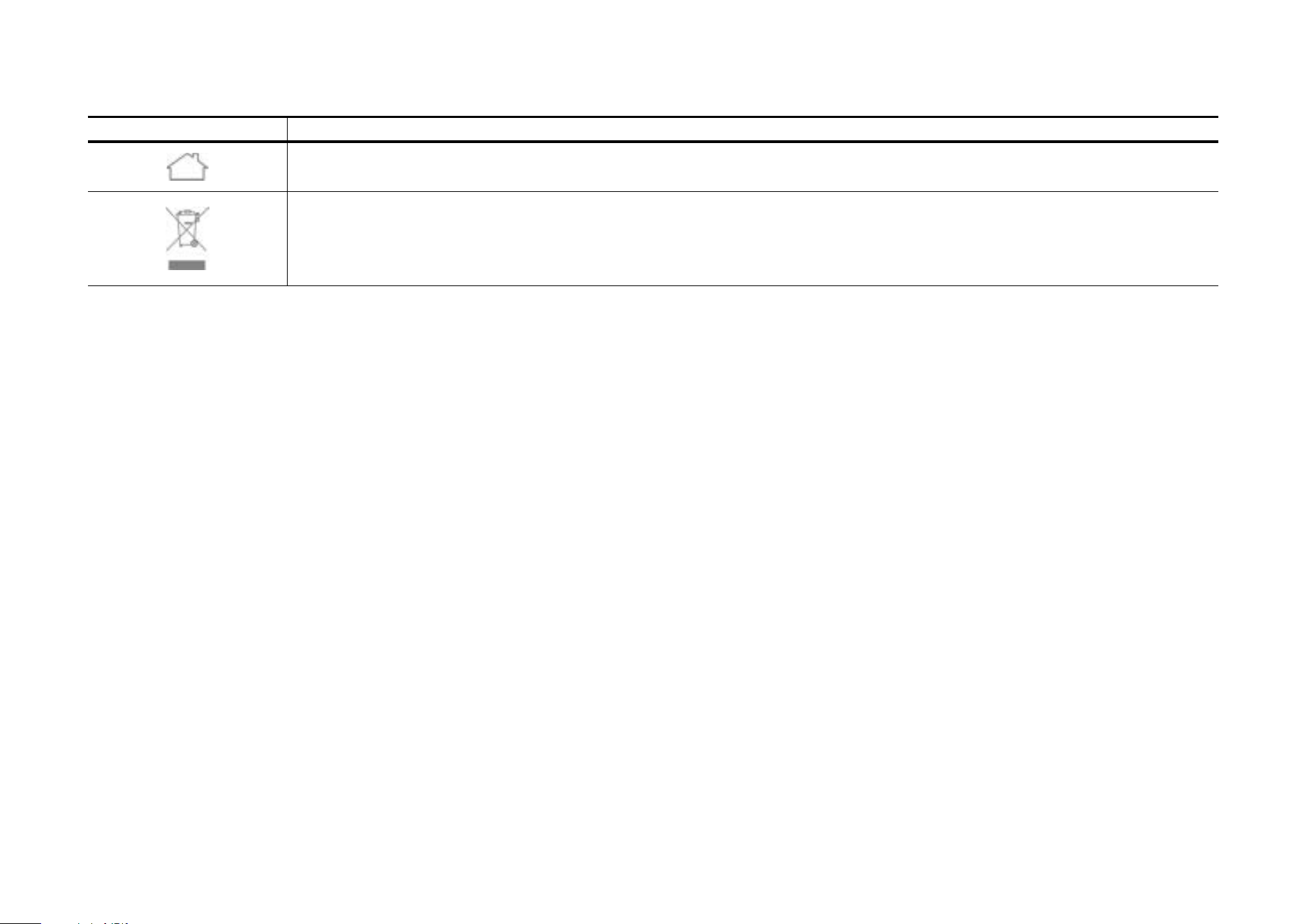
Indoor use only
RECYCLING
This product bears the selective sorting symbol for Waste electrical and electronic equipment (WEEE). This means that this product must be handled pursuant to
European directive 2012/19/EU in order to be recycled or dismantled to minimize its impact on the environment.
User has the choice to give his product to a competent recycling organization or to the retailer when he buys a new electrical or electronic equipment.
