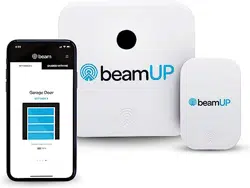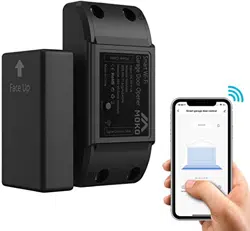
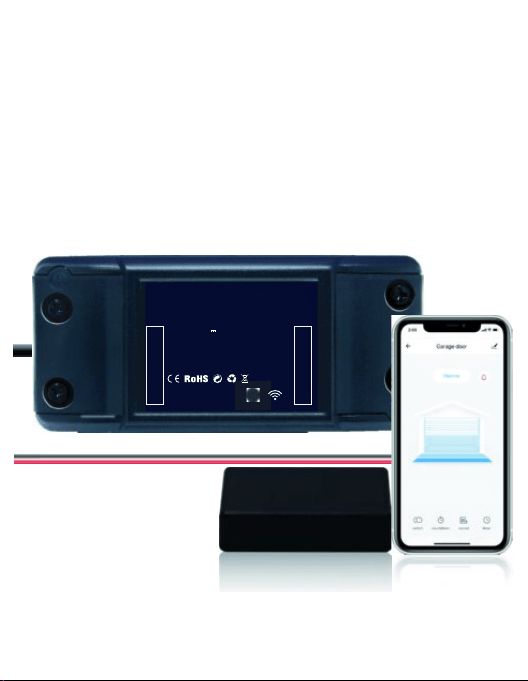
Smart Garage
Input: DC 5V 1A
Smart Wi-Fi
Garage Door Opener
Made in China
Signal Control Cable
Power Cable
ON/OFF
Material: ABS V0 flame retardant
Wireless Standard:
IEEE 802.11 b/g/n,2.4GHz
WARNING
TO PREVENT SERIOUS INJURY FROM YOUR MOVING GARAGE
DOOR OR GATES:
DO NOT let children use Smart Garage Door Opener product and app without
adult supervision.
ONLY operate your Smart Garage Door Opener device when you are in clear
view of your garage or gate, and you have verified that there are no objects
are obstructing the operation of the door.
ALWAYS wait for garage door or gate to be completely closed.
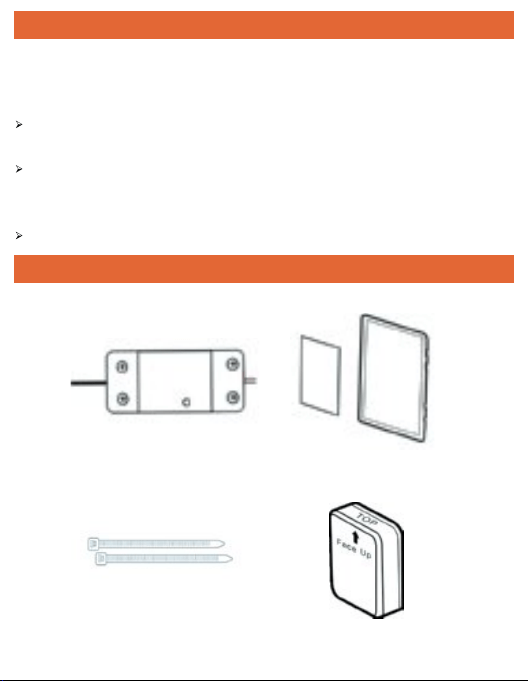
Smart Garage Controller Magic Tape
Sensor Mounting Bracket Wireless Door Sensor
WHAT’S IN THE BOX
COMPATIBILITY CHECK
Verify the Smart Garage Door Controller works with your
garage door
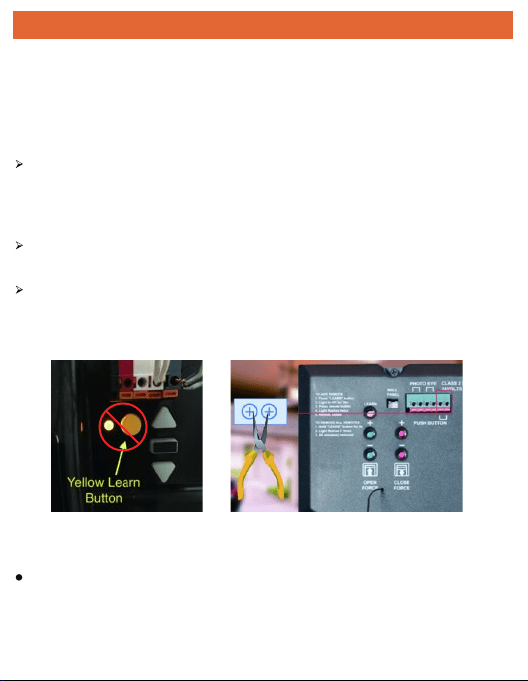
Garage door openers with yellow / purple learn buttons will likely NOT work.
2. Manually ensure your garage door opener is compatible with the
Smart Garage Door Controller.
Follow the wires from the wall mounted garage controller to your garage door
opener.
Where the wall mounted garage door controller wires connect to the opener,
use a needle nose plier or paperclip to touch the two garage door opener
terminals together.
If the garage door opens or closes, the Smart Garage Door Controller is
compatible with your garage door opener; these will be the terminals the
Smart Garage Door Controller will plug into.
1. Look for your garage door opener on the included “Garage Door
Compatibility Guide”.
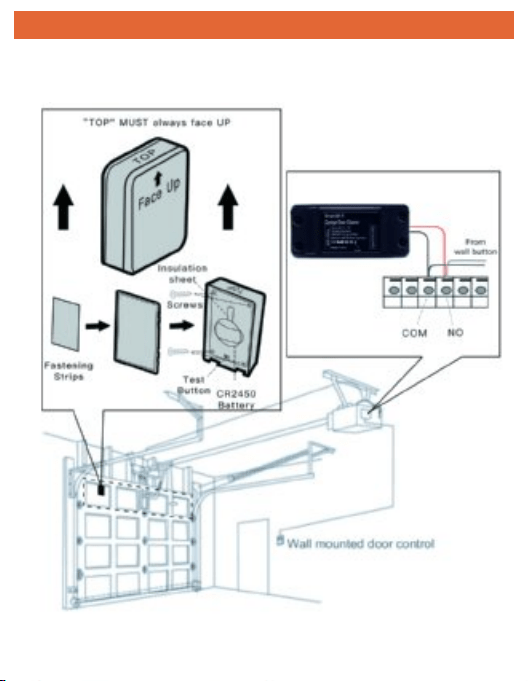
INSTALLATION
Installation Overview
INSTALLATION
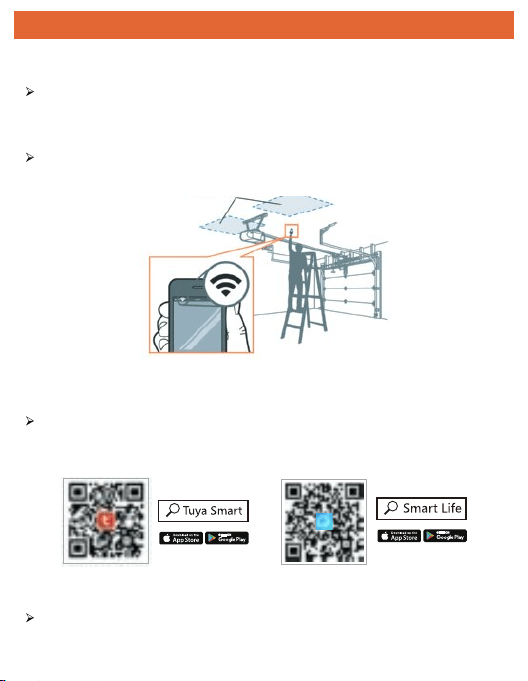
1. Check your Wi-Fi
Check the Wi-Fi signal in the garage, where the Smart Garage
Controller will be mounted 4 to 5 feet away from the garage door
opener.
If your Wi-Fi is 5GHz,please set it to be 2.4GHz.
3. Power up your device
Find a convenient location and power the Smart Garage Controller
by plugging it in. The blue LED will start blinking.
2. Download the APP
Install “Tuya Smart”or“Smart Life” app on your mobile phone from
Apple app store or Google Play store.
INSTALLATION
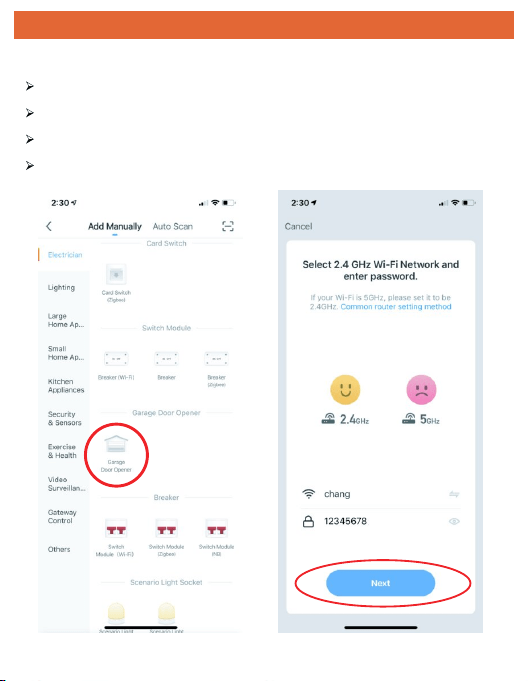
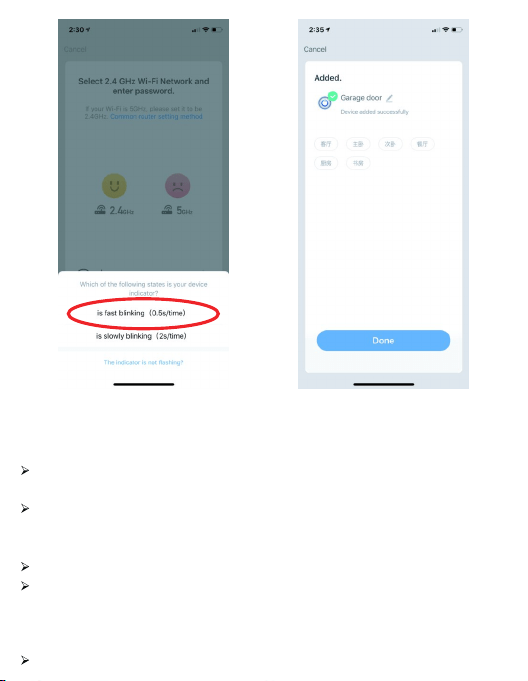
4. Add device in the APP
Launch the app and Tap the icon"+"on the right top add a device.
Select "Eletrician", then select "Garage Door Opener".
Connect to your Wi-Fi network, enter password, then select "Next".
Tap "is fast blinking (0.5s/time)",it will auto-connect with device.
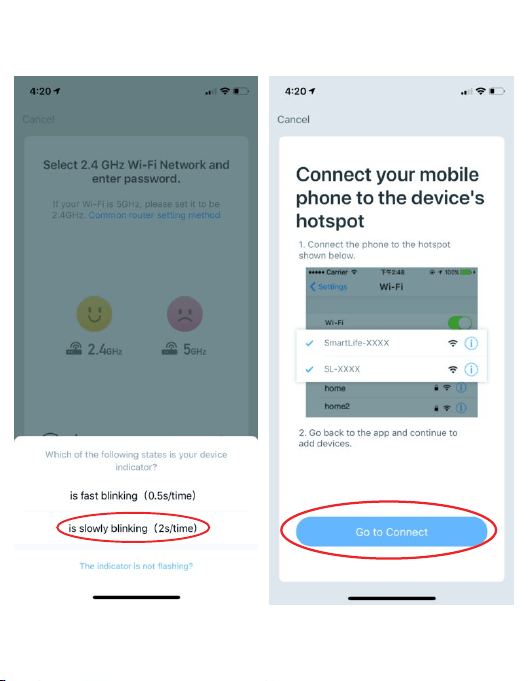
Note:(AP Mode Connection)
Press the "on/off" button for 8 seconds and make sure your devices
light is flashing slowly.
Tap the icon"+"on the right top,Select "Eletrician", then select "Garage
Door Opener". Connect to your Wi-Fi network, enter password, then select
"Next".
Tap "is slowly blinking (2s/time)" , then tap Go to Connect
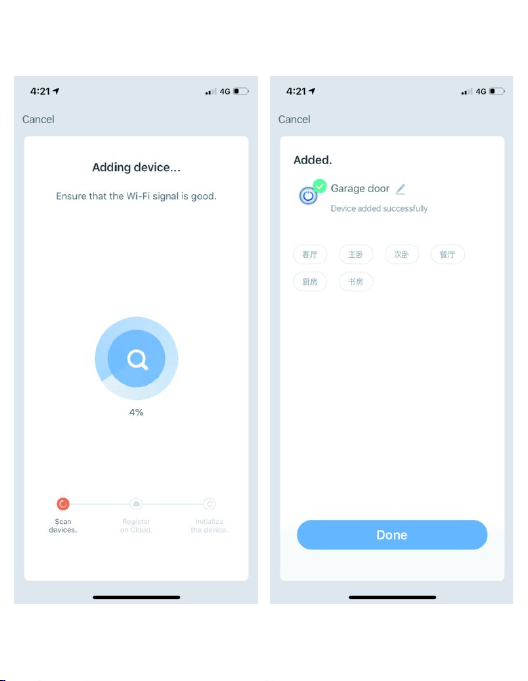
Now,you will see the mobile phone WIFI.There will be a connection option:
"Smartlife-XXX",select it.In the tap that your wifi is already connected to,
it will state,"Smartlife-XXX" on it and return to"Smart life" The APP Screen,
and you will see the connection percentage.
Waiting until the connection is successful.
If connection failed under normal connection,and it maybe is a network
problem.You can now be connected with the following steps:"AP MODE "
INSTALLATION
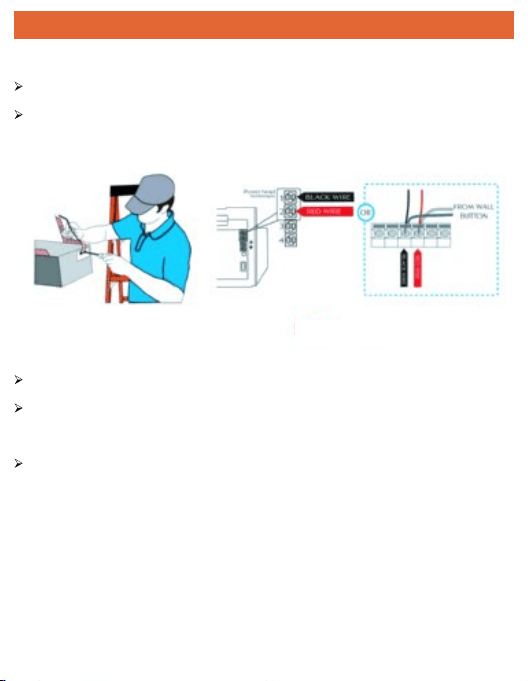
5. STEP 1 : Connect Controller to Opener
Locate the 2 exposed wires coming out of the Controller
Insert the 2 exposed wires into the terminals on the back of your Garage
Door Opener
6. STEP 2 : Install the Door Sensor
Remove the pull tab from the sensor to activate the battery.
Install the door sensor to a clean and dry location on the top panel of the
garage door using the fastening strips, or provided hardware.
Note:
If using screws, only install to solid wood or insulated doors. DO NOT drill
through door.
After installation, the wireless sensor does not respond and the APP does not
notify. Please follow the steps below:
1)Please single click 5 times on the on / off button of the controller,
the red and blue lights flash alternately
2) Open the wireless sensor and click on the button inside
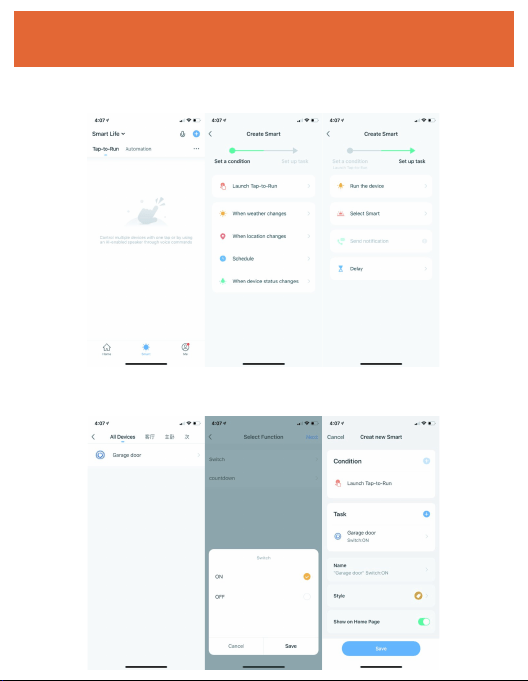
Quick Guide of Using Siri to Control
Smart Devices
1. Log in the “Smart life” app, select “Smart” at the bottom
2. Tap “ ╋ “ , select “launch Tap To Run”, select “Run the device”
3. Select “Garage door”, tap “switch”, then select “ON”, click “Save”,
and click“Save” again.
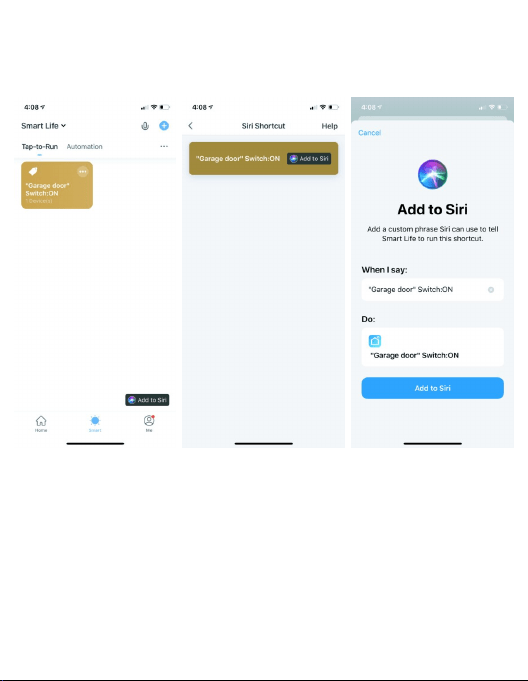
4. Back to the “Smart” page, tap the “Add to Siri” icon at the right bottm.
Select the tab “Garage door” switch: ON.
5. Select Add to Siri. Now you can say the magic word “Open the garage
door”.
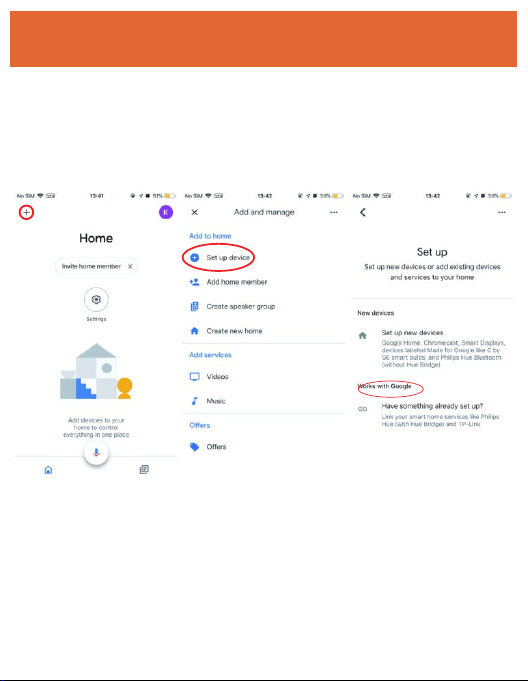
Quick guide to link Smart Life account
to Google Home
Before link Smart Life to Google Home:
1. Launch "Google Home " app ,tap on the menu on upper left corner. Go to
"Set up device". Then select "Works with Google"
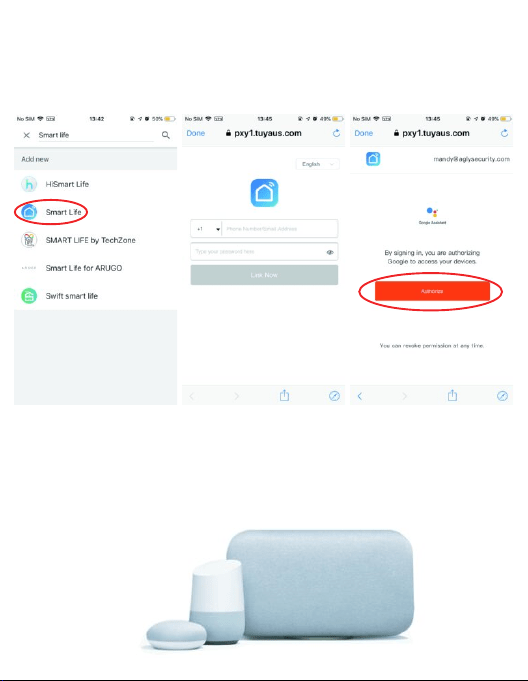
2. Enter ”Tuya Smart” or ”Smart Life” in the search field and search.
3.Tap”Tuya Smart” or ”Smart Life”,Enter your account information and Tap on
" Link now" to link your account to your Google home account .
Voice commands:
“Hey Google, open my {device name}”.
“Can I have your security code?”
“{One two x x}”
“Hey Google, close my {device name }”
“Hey Google, is my{device name}opened / closed”
4.If your account is a phone number,you should select your country,If your
account in an email address,please select a random country/region code.
5. Select "Authorize" that you are authorizing Google to access your devices.
Quick guide to link Smart Life account
to Amazon alexa
Before link Smart Life to Amazon alexa:
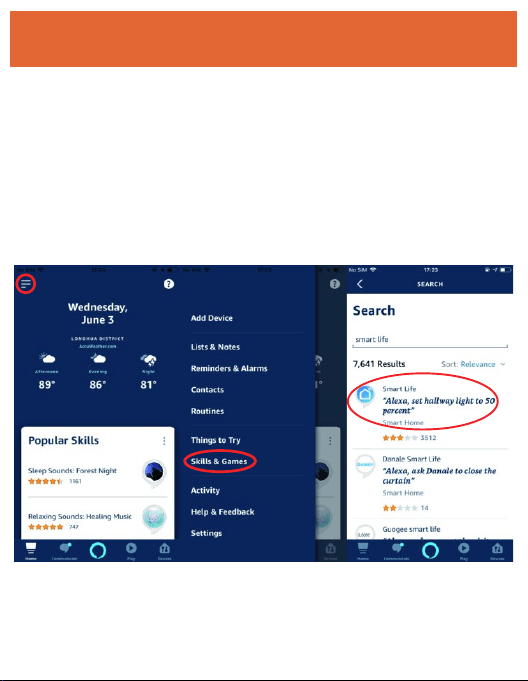
1. Launch "Amazon alexa" app ,tap on the menu on upper left corner.
Go to "Skills & Games".
2. Enter ”Tuya Smart” or ”Smart Life” in the search field and search.
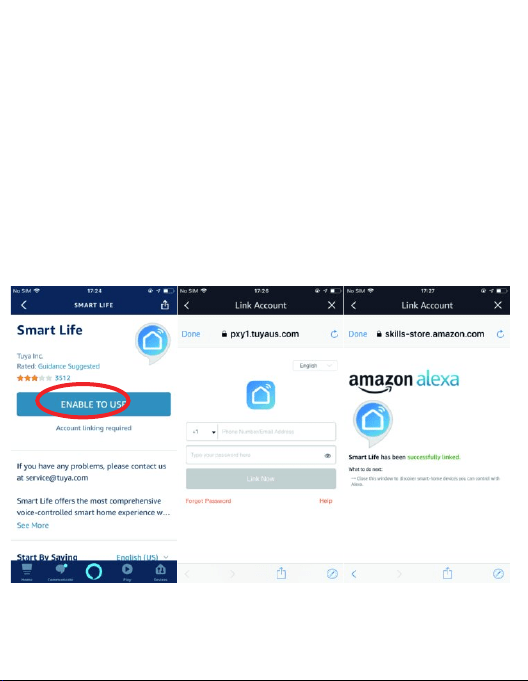
3.Tap”Tuya Smart” or ”Smart Life”,Enter your account information and tap on
“ENABLE TO USE”to link your account to your Amazon account.
4.If your account is a phone number,you should select your country,If your
account in an email address,please select a random country/region code.
Voice commands:
“Alexa,Open{device name}”
“Can I have your security code?”
“{One two x x}”
“Alexa,Close{device name}”
“Alexa,is my{device name}opened / closed?”
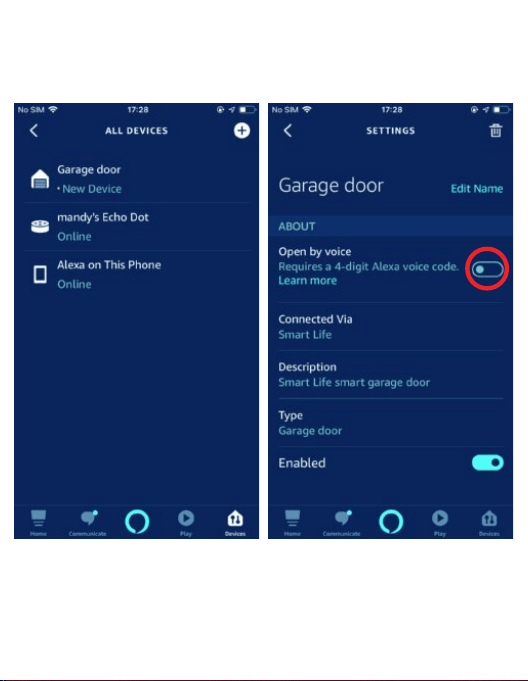
More Setting:Create a code to open by voice,then enter ALL DEVICES to
select garage door.Setting the voice command,which you can perform a serious
of actions.