You can view detailed information about external devices that can be connected to the TV. It shows you how to connect various external devices, such as video devices, game consoles, and PCs using pictures. If you select the connection method and an external device, the connection details appear.
HDMI (ARC) is supported by some models. Check the HDMI port name of the purchased product's model.
Video Device: HDMI
Smartphone: Screen Sharing (Smart View), SmartThings, Apple AirPlay, Tap View
PC: HDMI, Screen Sharing (Wireless), Apple AirPlay
Input Device: Keyboard, Mouse, USB Gamepad, Bluetooth Device
Game Console: HDMI
External Storage: USB Flash Drive, Hard Disk Drive (HDD)
The connection method and available external devices may differ depending on the model.
Using HDMI Troubleshooting, you can check the connection to HDMI cable and external devices (takes approximately 2 minutes).
CONNECTING AN ANTENNA
CONNECTING TO THE INTERNET
Configure network settings to connect to an available network.
Establishing a wired Internet connection
If you connect a LAN cable, the TV automatically accesses the Internet.
If the TV does not automatically connect to the network, refer to "Network Issues" in "Troubleshooting."
Use a CAT 7 (*STP type) cable for the connection.
Shielded Twisted Pair
The TV will not be able to connect to the Internet if your network speed is below 10 Mbps.
This function may not be supported depending on the model.
Establishing a wireless Internet connection
Make sure that you have the wireless access point's SSID (name) and password settings before attempting to connect. The network name (SSID) and security key are available on the wireless access point's configuration screen. See the wireless access point's user manual for more information.
If no wireless access point is found, select Add Network at the bottom of the list and enter the network name (SSID).
If your wireless access point has a WPS or PBC button, select Use WPS at the bottom of the list, and then push the WPS or PBC button on your access point within 2 minutes. The TV will connect automatically.
To view or delete previously connected network names (SSIDs), move the focus to Manage Saved Networks, and then press the Select button.
Checking the Internet connection status
Resetting Your Network
Turning on the TV with a mobile device
Connecting an IP control device to the TV
You can connect an IP control device to the TV remotely to manage your IP device.
To use this function, Power On with Mobile must be turned on.
Turning this feature on may allow other IP control devices to control your TV. We recommend turning this feature on only if an authorized third-party custom controller is installed and or configured specifically for a Samsung TV and if your Wi-Fi network is password protected.
This function may not be supported depending on the model.
Changing the name of the TV
Screen Sharing (Smart View) with your Mobile Device
CONNECTION NOTES
Connection notes for HDMI
The following types of HDMI cables are recommended:
High Speed HDMI Cable
High Speed HDMI Cable with Ethernet
Premium High Speed HDMI Cable
Premium High Speed HDMI Cable with Ethernet
Ultra High Speed HDMI Cable
Use an HDMI cable with a thickness of 0.66 inches (17 mm) or less.
Using a non-certified HDMI cable may result in a blank screen or a connection error.
Some HDMI cables and devices may not be compatible with the TV due to different HDMI specifications.
This TV does not support HDMI Ethernet Channel. Ethernet is a Local Area Network (LAN) built with coaxial IEEE.
Use a cable shorter than 10 feet (3 m) to get the best UHD viewing quality.
Many computer graphics adaptors do not have HDMI ports, but have DVI or DisplayPort ports instead. If your PC HDMI video out, connect your PC with a DVI to HDMI or HDMI to DisplayPort cable.
When the TV is connected to an external device, such as a DVD/BD player or a set-top box via HDMI, power sync In the power sync mode, the TV continues to detect and connect external HDMI cable. This function can be deactivated by removing the HDMI cable of the connected device.
Connection notes for computers
If you want to connect your PC and TV wirelessly, both of them must be connected to each other on the same network.
When sharing content with other network-based devices, such as those in an IP (Internet Protocol) storage system, sharing may not be supported due to the network’s configuration, quality, or functionality, for example, if the network has an NAS (Network-Attached Storage) device.
Connection notes for mobile devices
To use the Smart View function, the mobile device must support a mirroring function, such as Screen Mirroring Smart View. To check whether your mobile device supports the mirroring function, refer to the mobile device's user manual.
The Screen Sharing (Smart View) feature may not operate smoothly in a 2.4GHz environment. For better GHz is recommended. 5GHz may be available depending on the model.
To use Wi-Fi Direct, the mobile device must support the Wi-Fi Direct function. To check whether your mobile Wi-Fi Direct function, refer to the mobile device's user manual.
The mobile device and your Smart TV must be connected to each other on the same network.
Use AirPlay if you are an iPhone or iPad user. For more information, refer to:
Source > Connection Guide > Smartphone > Apple AirPlay.
The video or audio may stop intermittently, depending on network conditions.
When sharing content with other network-based devices, such as those in an IP (Internet Protocol) storage system, sharing may not be supported due to the network’s configuration, quality, or functionality, for example, NAS (Network-Attached Storage) device.
PERIPHERALS
With a Samsung Remote Control - Using the Universal Remote
You can control external devices connected to the TV using a Samsung remote control. To control external devices, register them by following the instructions on the screen.
Using Anynet+ (HDMI-CEC)
Control an external device connected via Anynet+ (HDMI-CEC) with the remote control.
Set Anynet+ (HDMI-CEC) to On.
Connect an HDMI-CEC-compliant device to the TV.
Turn on the connected external device.
The device is automatically connected to the TV. After the connection process is finished you can access the menu of the connected device using your TV remote and control the device.
The connecting process can take up to 2 minutes to complete.
Controlling the TV with a Bluetooth keyboard, mouse, or gamepad
You can connect a keyboard, mouse, or gamepad to make it easier to control the TV.
Connecting a USB keyboard, mouse, or gamepad Plug the keyboard, mouse or gamepad cable into the USB port
If your device was not detected, position the keyboard close to the TV, and then select Refresh. The TV scans for available devices again.
If you connect a mouse, it is available only in the Internet app.
For more information, refer to the Bluetooth device's user manual.
This function may not be supported depending on the model or geographical area.
Connecting a Bluetooth keyboard, mouse, or gamepad
If your device was not detected, position the keyboard close to the TV, and then select Refresh. The TV scans for available devices again.
If you connect a mouse, it is available only in the Internet app.
Using the keyboard and mouse
Button
Description
Directional keys
Use to navigate the menu, or move the focus to highlight items on the Home Screen.
Windows key
Displays the TV settings
Enter key
Selects or runs a focused item
ESC key
Returns to the previous screen
F1 / F2 / F3 / F4 key
Color buttons
F5 key
Displays the Home Screen
F6 key
Displays the Source screen
F7 key
Displays the Channel List
F8 key
Mutes the sound
F9 / F10 key
Adjusts the volume
F11 / F12 key
Changes the channel
Page Up / Page Down S
Scrolls a web page displayed by the Internet app.
Left-click
Available only in the Internet app. You can click a menu or link to start a function as you do on a PC.
Right-click
Available only in the Internet app. You can use the following functions:
The options displayed in the menu may differ depending on the selected item.
Open
Open Link in New Tab
Enable Scroll Mode
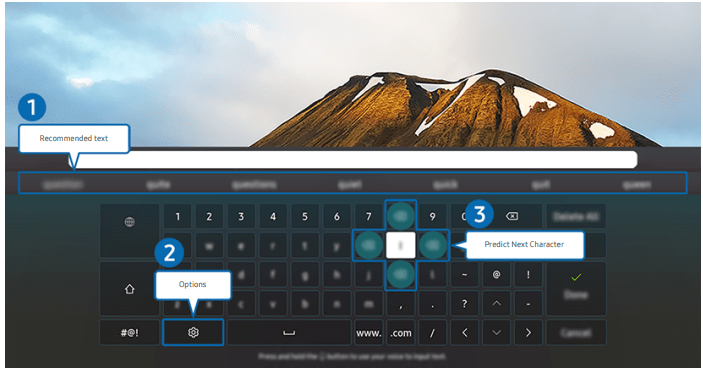
Entering Text using the On-Screen Virtual Keyboard
1. Recommended text
When you type a word you want to use as a search term, this function displays related suggestions from which you can choose one.
2. Options
Select on the virtual keyboard screen. The following options are available:
● Recommended text
● Reset Recommended Text Memory
● Predict Next Character (when using direction buttons)
● Language
3. Predict Next Character
Each time you type a character on the virtual keyboard, the next characters predicted to be typed are displayed. You can use the directional buttons on the remote control to select one.
SMART FEATURES
Using Smart Hub
From Smart Hub, you can use the Internet search function, install and use various apps, view photos and videos or listen to music stored on external storage devices, and perform more functions.
Some Smart Hub services are paid services.
To use Smart Hub, the TV must be connected to the Internet.
Some Smart Hub features may not be supported depending on the service provider, language or geographical area.
Smart Hub service outages can be caused by disruptions in your Internet service.
To use Smart Hub, you must agree to the Smart Hub service agreement and the collection and use of personal information. Without giving consent, you cannot use the additional features and services. You can view the entire text of the Terms & Privacy by navigating to
If you want to stop using Smart Hub, you can cancel the agreement. To cancel the Smart Hub service agreement, select Reset Smart Hub
Displaying the Home Screen
Press the button.
1. Settings
e-Manual: You can open the user manual embedded in your TV.
Intelligent Mode In Intelligent Mode, the TV recognizes and analyzes the surroundings, noise, content, and usage patterns to provide the best viewing experience. To turn Intelligent Mode on or off, press the Select button. To set detailed options, press the up directional button, and then select Intelligent Mode Settings.
Picture Mode: You can select the picture mode that provides the best viewing experience. To change the picture mode, press the Select button. To make fine adjustments, press the up directional button, and then select Picture Setup.
Sound Output You can select which speakers the TV uses for audio output. To change the audio output, press the Select button. To connect to a Bluetooth speaker, press the up directional button, and then select Bluetooth Speaker List.
Game Mode You can enable game mode to optimize the TV's settings for playing video games with a gaming console, such as a PlayStation™, Xbox™, or Nintendo Switch™. To turn Game Mode on or off, press the Select button. To set the detailed options, press the up directional button, and then select Go to Game Mode Settings..
Caption You can watch TV broadcasts with captions. To activate or deactivate the Caption function, press the Select button. To run Accessibility Shortcuts, press the up directional button, and then select Accessibility Shortcuts.
Sleep Timer You can have the TV automatically turn off at a specific time. To change the sleep time, press the Select button. To set the specific time at which the TV turns off automatically, press the up directional button, and then select Set Up Off Timer.
Network You can view the current network and Internet status. Press the up directional button, and then select Network Status or Network Settings.
Color Tone You can select a color tone suitable for your viewing preferences. To change to a color tone that you want, press the Select button.
Picture Clarity You can optimize pictures that contain a lot of motions. To turn this function on or off, press the Select button. To set the detailed options, press the up directional button, and then select Picture Clarity Settings.
Digital Output Audio Format You can select an output format for digital audio. Note that the Dolby Digital+ option is only available via HDMI (eARC) for external devices that support the Dolby Digital+ format.
Device Care You can run Device Care to diagnose and optimize your TV. Device Care can also check and optimize the TV's storage. If any problem is found, the TV can call for technical support.
All Settings Display the Settings menu.
2. Source: You can select an external device connected to the TV.
3. Search: You can search for channels, programs, movie titles, and apps from Smart Hub
4. Apps: You can enjoy a wide range of content, including news, sports, weather, and games by installing the corresponding apps on your TV.
5.. Home: This menu appears first when you press the button. Then you can quickly access Samsung Account, Notification or Privacy Choices.
Samsung Account
Go to the Samsung Account screen to create a new account or sign out of your account.
Notification
You can view a list of notifications for all events that occur on your TV. A notification appears on the screen when it is time to schedule viewing, schedule recording, etc.
If you move the focus to Notification, and then press the Select button, a notification window appears on the right and the following functions are available:
• Delete All: You can delete all your notifications.
• Settings: You can select services you want to be notified about. When you select Allow sound, notifications are displayed with a notification sound.
Privacy Choices You can view and set the privacy policy for Smart Hub and various other services.
6. Universal Guide
Universal Guide is an app that allows you to search for and enjoy various content, such as TV shows, dramas, and movies, in one place. Universal Guide can recommend content tailored to your preferences.
You can use this feature on your mobile device with the Samsung SmartThings app
Art When you are not watching TV or when the TV is turned off, you can use the Art mode function to edit image content, such as artworks, photos, or to display the content.
7. Removing an item on the Home Screen
Move the focus to the app you want to move, press and hold the Select button on the remote control, and then select Move in option menu. Move the app to the desired position by pressing the left or right directional button, and then press the Select button. The selected app is moved on the Home screen.
8. Removing an item on the Home Screen
Move the focus to the app you want to delete, press and hold the Select button on the remote control, and then select Remove in option menu. The selected app is deleted.
Launching Smart Hub automatically
When you set Autorun Smart Hub to on, the TV displays the Home Screen automatically when you turn the TV on. You can turn this function on or off. Press the Select button at the current menu.
Launching the last used app automatically
If Autorun Last App is set to on, the last used app is automatically run when you turn on the TV. You can turn this function on or off. Press the Select button at the current menu.
Testing Smart Hub connections
Resetting Smart Hub
You can reset the Smart Hub settings. To reset Smart Hub, enter the PIN. The default PIN is "0000." You can set the PIN in: > Settings > General System > Manager > Change PIN.
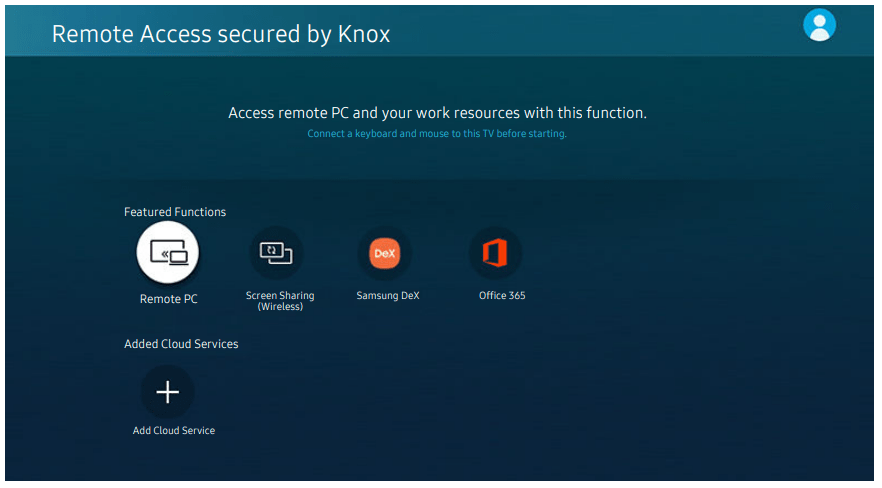
Using Remote Access
You can use the TV to access your PC via Remote PC, Screen Sharing (Wireless) or Cloud Service.
Connecting a Remote PC
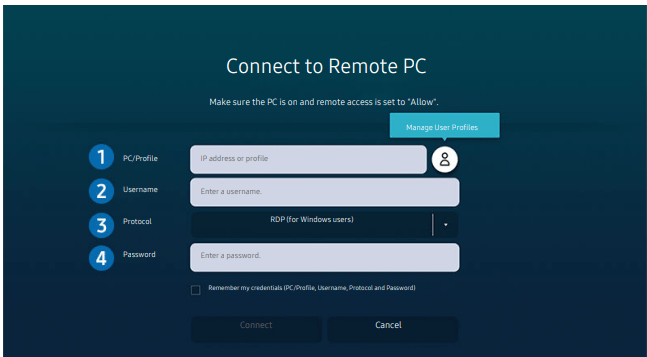
Provides Remote Desktop Connection (RDP) for remotely connecting to a PC running on Windows and Virtual Network Computing (VNC) for a PC running on Mac. To remotely connect to a PC, you must enter the IP address of the remote PC or select a saved profile Enter a correct username and password and select a correct protocol. If there is any computer that can be accessed via the same network, the found IP and protocol are displayed.
To register a frequently used PC, move the focus to Manage UserProfile, and then press the Select button. When a popup window appears, select Add, and then enter the PC information.
When your PC enters in power saving mode, connection is not available. It is recommended to cancel the power saving mode.
It is recommended to connect the wired network because the screen or sound may be interrupted depending on the network condition.
1. Configure your computer’s settings to use the Remote Access function.
Windows OS
Right-click the My Computer icon on Desktop or Windows Explorer and then click Properties.
Click Advanced System Settings. The System Properties window appears.
Click the Remote tab and then select the Allow Remote Assistance connections to this computer.
Mac OS:
Select Menu System Preferences and then click Sharing.
Select the Screen Sharing and Remote Login check box.
Run the resolution changing app downloaded from App Store and then change the resolution to 1440 x 900 or lower.
2. Enter the required settings for connecting the computer remotely
Enter the IP address of the PC you want to connect to.
In case of Windows, when the computer to connect is within the same network (router/AP), run “cmd" command in Settings Network and Internet View Network properties or in Start Run, and then run “ipconfig” to check the IPv4 address of the computer.
In case of Mac, you can check the IP address in Settings Remote Access.
When the TV and computer are not within the same network, it is required to know the public IP and configure the router and AP. Check whether the router connected to the computer supports port forwarding. When the company provides additional security features such as firewall, seek help from a security officer.
Enter the Username of the computer.
How to check the Username: Control Panel User Account Control in Windows, System Preferences Users & Groups in Mac.
Select the Protocol for the computer’s OS. (Windows: RDP, Mac: VNC)
Enter the password for the login account.
For use of PIN, do not enter PIN but the specified password of the computer.
Playing Multimedia Content on a Remote PC
When you move the mouse cursor to the top of the screen after accessing a remote computer, the top bar appears. When the sharing folder icon is clicked in the top bar, the folders shared on Windows or Mac OS appear. You can play back any media content in a folder.
To use this function, the folder sharing option on the computer to access must have been enabled as shown below:
Windows OS:
Run Windows Explorer and then move to the folder to share.
Right-click the folder and then click Properties.
After the Properties window appears, click the Sharing tab and then click Advanced Sharing.
After the Advanced Sharing window appears, select the Share this folder check box.
Mac OS:
Select Menu System Preferences and then click Sharing.
Select the File Sharing check box.
To add a folder to share, click the Add+ button at the bottom.
Select a folder and then click Add+.
Using Cloud Service
You can access the cloud service by selecting the cloud service icon added to Remote Access.
The screen on the web page may differ from that of a computer.
You can copy or paste any text. Some image formats are supported.
For easy and secured login in Cloud Service, Remote Access Pass is additionally supported as well as Samsung Pass.
Setting Samsung Pass or Remote Access Pass.
Set Samsung Pass or Remote Access Pass to Use in >Source >Remote Access >Run the Remote Access browser Additionally select Office 365 or Add Cloud Service) Internet Menu Settings.
Remote Access Pass allows you to easily manage the cloud service ID and password without biometric authentication on mobile devices. For this purpose, you must be signed in to your Samsung account. The password is encrypted to be safely stored on your TV.
However, the log in to Remote Access Pass may not work depending on the site policy.
To securely access the cloud service, you can use the browser's automatic shutdown or clear the history logs.
Before accessing the cloud service, refer to "Read Before Using the Internet Function."
The cloud service supports the following keyboard shortcuts:
F1: Returns to Remote Access's Home screen.
F8: Mutes the sound.
F9/F10: Adjusts the volume.
F11: Switches between full screen or default screen
Using the Apps Service
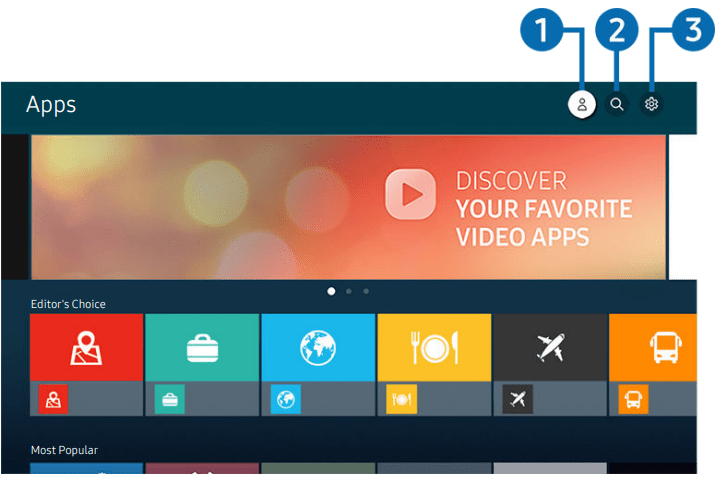
You can enjoy a wide range of content, including news, sports, weather, and games by installing the corresponding apps on your TV.
To use this feature, the TV must be connected to the Internet.
When Smart Hub is launched for the first time, the default apps are automatically installed. The default apps may differ depending on the geographical area.
Samsung Account
App Search You can search for available apps.
Settings You can manage the installed apps.
Managing installed apps
Select Settings on Apps. You can manage installed apps.
Removing an app 1. Select an app to delete. 2. Select Delete. The selected app is deleted.
Adding apps to the Home Screen 1. Select an app to add. 2. Select Add to Home. 3. After the Home screen appears, move the selected app to the desired location. 4. Press the Select button. The selected app is added to the Home Screen.
Locking and unlocking apps 1. Select an app to lock or unlock. 2. Select Lock/Unlock. The selected app is locked or unlocked.
Moving apps 1. Select an app to move. 2. Select Move. 3. Move the app to the desired location. 4. Press the Select button.
Reinstalling an app 1. Select the app to install again. 2. Select Reinstall. Reinstallation starts.
Checking the app information details 1. Select the app to check. 2. Select View Details. 3. The app information screen appears.
Automatically updating apps
Installed apps can be automatically updated. If you do not want apps automatically updated, set Auto Update to OFF.
Using the Gallery App
You can enjoy various content synchronized with a mobile device that supports the Samsung cloud. The available content types are photos, videos, stories, and other content shared through your groups. If you have shared content from your groups, you can access them in notifications.
1. Open category
Move to at the top left of the screen using the directional buttons on the remote control to view by category the content synchronized with the Samsung Cloud.
2. View: Daily / View: Monthly
Sort the content by day or month.
3. Samsung Account
Go to the Samsung Account screen to create a new account or sign in to your account.
4. Gallery Settings
Restrict access to the Gallery app to protect your privacy, or view the user agreement and privacy policy.
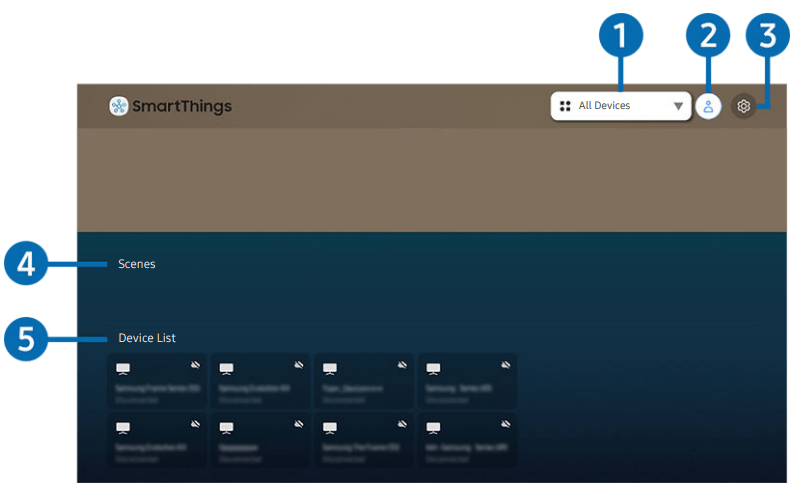
Using the SmartThings App
From your TV, you can monitor and configure smart devices you connected to the SmartThings service via the SmartThings app installed on them. You can receive notifications about the statuses of your smart devices.
1. Location selection list
Press the Select button to identify all connected devices or the devices specific to a location
2. Samsung Account
Go to the Samsung Account screen to create a new account or sign in to your account.
3. Settings
Turn notifications on or off for the connected smart devices.
4. Scenes
Control multiple devices with one command after setting scenes via the SmartThings app on your mobile device.
5. Device list
View a list of the connected smart devices and their statuses. You can add a new device through the SmartThings app on your mobile device. Please refer to the user guide of the SmartThings app on your mobile device for more details.
Using the e-Manual
(Search): Select an item from the search results to load the corresponding page.
(Sitemap): t displays the lists for each item in e-Manual
A-Z (Index): Select a keyword to navigate to the relevant page.
Moving to FAQ: You can find the troubleshooting of the selected symptom
(Recently Viewed Topics): Select a topic from the list of recently viewed topics.
6. (Try Now): Allows you to access the corresponding menu item and try out the feature right away.
7. (Link): Access an underlined topic referred to on an e-Manual page immediately.
Using Bixby
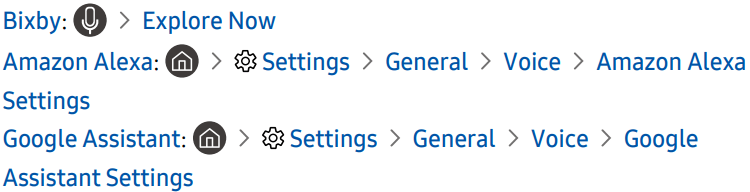
Set Voice Assistant to Bixby. Speak into the microphone on your Samsung Smart Remote to control your TV.
This function is available only if Voice Assistant is set to Bixby.
Settings > General > Voice > Voice Assistant
This function is supported only in The Frame.
Bixby is available only when the TV is connected to the Internet.
To use Bixby, you must register and sign in to your Samsung account. Some functions may not be supported if you are not signed in to your Samsung account.
Bixby only supports some languages, and the supported functions may differ depending on the geographical area.
Bixby may not be supported depending on the geographical area.
Starting Bixby using buttons on the Samsung Smart Remote
Press and hold the button on your Samsung Smart Remote, say a command, and then release the button.
To view the Bixby guide, press thebutton once:
When you press the button, the Explore Now button appears at the bottom of the screen. Press the Select button to go to the Explore Bixby screen.
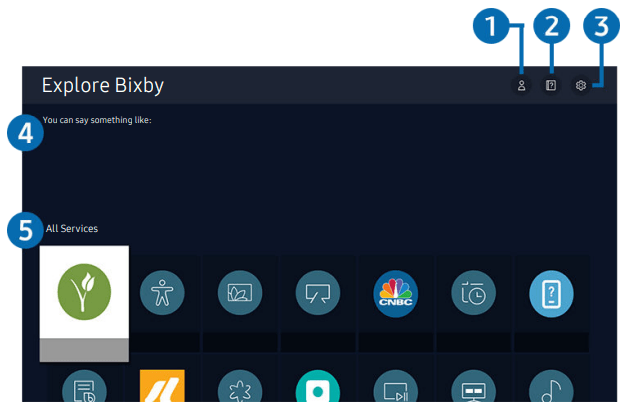
Learning about My Bixby
1. My Profile
Go to the My Profile screen to create a new account or register a voice ID. When a voice ID is registered, you can log in with your voice and see the icon that Bixby generated for your voice.
You can delete a voice ID after selecting My profile. When the voice ID is deleted, its icon also disappears.
If you are signed out of your Samsung account, select My profile to sign in.
2. Tutorials: The pop-up window on using Bixby appears.
3. Settings: You can change the settings for using Bixby.
These functions may not be supported depending on the geographical area.
These functions can be set in Bixby Voice settings.
Language: You can change Bixby's language.
The languages of the TV and other apps will not change.
Bixby only supports some languages.
Voice response: You can change or turn off Bixby's voice.
This function may not be supported depending on the language selected for Bixby.
Sound feedback
Play a sound when Bixby starts and stops listening.
Privacy
You can permit or prohibit Bixby from utilizing your personal information when you are using Bixby services.
4. Recommended commands
Displays recommended commands you can use to control the TV with Bixby given the current context.
If you do not want to see the recommended commands, set Voice Hint to Off (Settings > General >Voice >Voice Hint).
5. All Services
You can learn the voice commands that let you use Bixby in various situations. Use the directional buttons to move to the desired command, and then press the Select button. You can operate the TV with various voice commands.
Read Before Using Bixby The supported voice interaction languages and features may differ depending on the geographical area.
If the language set differs from the language of your country, some features are not available.
Bixby is available only when the TV is connected to the Internet.
Even if the TV is connected to the Internet, there may be no response due to a Bixby server error.
The existing functional specifications may be changed if Bixby is updated.
Bixby is available only on TVs that support it and come with remote controls that have a microphone.
Symbols including "-" and special characters are not supported. Consequently, if a word or sentence contains numeric values or symbols, the function may not operate properly.
Searched results may not provide complete results.
You may be required to pay for some apps. Consequently, you may encounter a service application or contract.
To change the current channel by saying channel names as voice commands, you must finish Set Up Your Service Provider. If Set Up Your Service Provider is not completed, you can complete it using Reset ( Settings >General >Reset).
To use the voice text input function and the search function, you must consent to provisions allowing third parties to collect and use your voice data.
To use the Bixby function, you must:
Agree to Smart Hub's Terms of Use.
Agree to a guidance regarding the collection and use of personal information for the Smart Hub service.
Consent to the collection and use of personal information for the voice interaction-based service.
Provisions for using Bixby
The voice interaction rate differs with the volume/tone, pronunciation, and ambient sound environment (TV sound and ambient noise).
The optimal volume for voice commands is between 75 dB and 80 dB.
TV VIEWING
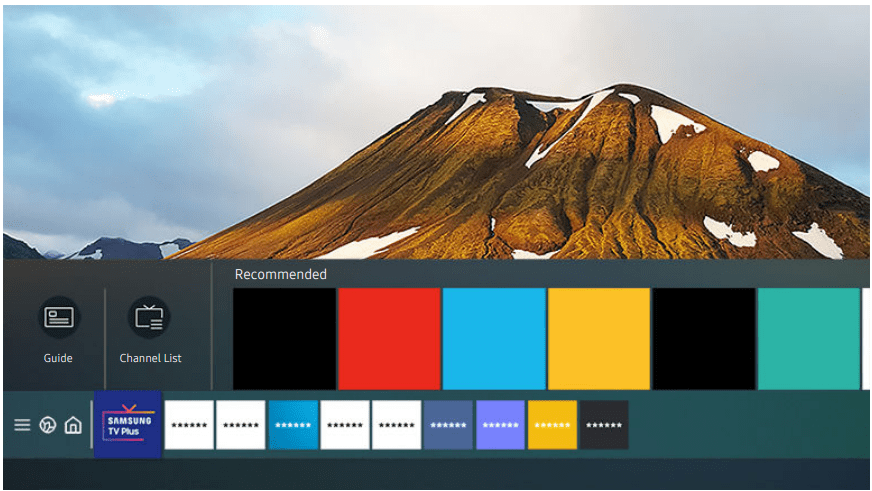
Using the Guide
In the Guide, you can see the daily programme schedules for each broadcaster, see programme information, choose a programme to watch and set up a schedule viewing or recording.
To view the Guide while watching TV, press the (Channel) button on the Samsung Smart Remote or press the GUIDE button on the standard remote control
To see information about analogue channels and use the analogue channel functions of the Guide, you must finish the service provider settings in initial setup.
To view the Guide, you must first set the TV's clock
Move the focus to the programme you want in the Guide, and then press and hold the Select button. You can use the following functions:
Schedule Viewing You can schedule the viewing of a broadcast scheduled program.
Cancel Scheduled Viewing You can cancel scheduled viewings.
View Details You can see detailed information about the selected program. The information may differ or may not be provided depending on the broadcast signal.
Setting Up a Schedule Viewing
Using the schedule viewing options from the guide screen
On the Guide screen, select a programme you would like to view, press and hold the Select button, and then select Schedule Viewing in the pop-up menu that appears.
Using the schedule viewing options while watching a programme
Press the Select button while watching TV. The Programme Info window appears. Select a programme that will be broadcast using the left or right directional buttons. Press the Select button, and then select Schedule Viewing to schedule viewing of that programme.
Using schedule viewing to view programmes at a specific time on a specific date
Setting the schedule Viewing Time
Using the Channel List
Using the Channel List, you can change the channel or check programs on other digital channels while watching TV. The Channel List screen contains the following icons:
: A favorite channel
If you press the left directional button when viewing the Channel List screen, you can use the following functions:
Air or Cable
To select Air or Cable, move the focus to Air or Cable, and then press the Select button. Air is suitable for homes equipped with separate, over-the-air antennas. Cable is suitable for homes that subscribe to a local cableservice, but do not have a cable box. You do not need to use this function if your TV is connected to a cable box or satellite box..
This function may not be supported depending on the incoming broadcast signal.
All Channels
Displays the channels that the TV found during the Auto Program channel search.
Favorites
Displays Favorites 1 to Favorites 5.
It displays only the favorites list that includes the favorite channel.
Samsung TV Plus
While the TV is connected to the Internet, you can watch popular programs or highlights for each theme through a virtual channel at any time. As with regular channels, the TV provides the daily program schedules for TV PLUS.
This function may not be supported depending on the model or geographical area.
Editing Channels
The Edit Channels screen contains the following icons:
: A favorite channel
On the Edit Channels screen, you can select channels and use the following functions:
Delete / Restore
After selecting a target channel to remove in Edit Channels, select Delete. Removed channels are not displayed in the Channel List.
Select any deleted channels and then select Restore to restore the channels to the list.
Rename Channel
After selecting a channel to change in Edit Channels, select Rename Channel to change the channel name
Save and Exit
Saves and closes the Edit Channels screen.
Using a Personal Favorites List
Press the left directional button on the remote control to select the desired Favorites list.
Press the right directional button to select Add Channels.
Select the desired channel in the list on the screen.
Press Add Channels to add the selected channel in the Favorites list.
Select Favorites 1 - Favorites 5 on the Edit Channels screen and the following functions are available:
Add Channels
In the channel list, select one or more channels to add in the favorite list and then select Add Channels.
Remove
Removes one or more channels from a favorites list.
Change order
Changes the order of one or more channels selected in a favorites list.
Rename Favorites
Renames a favorites list.
Save and Exit
Saves and closes the Edit Channels screen
PICTURE
Picture Quality
Dynamic
Makes the picture brighter and clearer in bright viewing environments.
Standard
Is the default mode suitable for general viewing environments.
Natural
Reduces eye strain for a comfortable viewing experience.
Movie
Is suitable for watching TV or movies in a dark room.
FILMMAKER MODE
You can watch the source content (e.g., movie) as it is. The image defined as FILMMAKER MODE automatically switches to FILMMAKER MODE while watching.
This function may not be supported depending on the model or geographical area.
FILMMAKER MODE may look darker than other picture modes.
You can change FILMMAKER MODE to a different Picture Mode. However, the changed Picture Mode will be maintained even after watching the picture defined by FILMMAKER MODE.
FILMMAKER MODE™ logo is a trademark of UHD Alliance, Inc.
Advanced picture settings
Configure the screen settings to your taste by using the following functions: • Brightness • Contrast • Sharpness • Color • Tint (G/R) • Apply Picture Settings • Picture Clarity Settings ( When LED Clear Motion is set to On, the screen appears darker than when it is Off.) • Contrast Enhancer • Film Mode ( This function is only available when the input signal is TV, AV, Component (480i, 1080i), or HDMI (1080i).) • Color Tone • White Balance • Gamma • Shadow Detail • RGB Only Mode ( This function may not be supported depending on the model.) • Color Space Settings • Reset Picture
Setting the Viewing Environment for External Devices
Setting the Viewing Environment for External Devices
Playing games on an optimised screen
Adjusting the image quality of HDR game
Using Cable Box IP Remote
Using Input Signal Plus
Using HDMI Black Level
SOUND
Configuring a Sound Mode and Expert Settings
You can select the available sound mode that you prefer for a content type or your listening environment.
Choosing a sound mode
You can select the available sound mode that you prefer for a content type or your listening environment.
Configure advanced sound settings
Balance
Equalizer
This function is not available when the Sound Mode function is set to Adaptive Sound or Amplify.
The name and properties of this function may appear differently depending on the connected external device.
HDMI-eARC Mode
You can connect an audio device that supports eARC via HDMI-eARC. Muting occurs temporarily during device connection.
HDMI (ARC) is supported by some models. Check the HDMI port name of the purchased product's model.
This function may not be supported depending on the model.
Digital Output Audio Format
Select the digital audio output format. If you select the Auto option, the audio device outputs automatically in a supported format.
If you select the Pass-Through option, audio data is output with no processing.
Digital Output Audio Delay
This feature is only available when the external device is connected via HDMI (eARC) and SPDIF (Sony Philips Digital Interface).
HDMI (ARC) is supported by some models. Check the HDMI port name of the purchased product's model.
Dolby Atmos Compatibility
You can set the TV to allow Dolby Digital+ with Atmos streams that are input from external devices.
Set to On if the audio device connected via HDMI (eARC) supports Dolby Atmos. The TV screen may flicker when this function is turned on or off.
If this function is on, set Digital Output Audio Format to Auto.
HDMI (ARC) is supported by some models. Check the HDMI port name of the purchased product's model.
Auto Volume
Automatically adjusts the sound to a certain level when changing channels or switching to another external input.
Sound Feedback
Reset Sound
Sound Support Functions
Selecting speakers
You can select which speakers the TV uses for audio output.
External speakers may not be controlled with the remote control. When an external speaker is enabled, some sound menus are not supported..
Listening to the TV through Bluetooth devices
You can connect Bluetooth audio devices to the TV. They must be paired using the TV's Bluetooth function. Refer to the user manual for your audio device such as Bluetooth speaker, sound bar, and headphones for detailed connection and usage
If the TV fails to find a Bluetooth audio device, place the device closer to the TV, and then select Refresh.
When you turn on a paired Bluetooth audio device, the TV detects it automatically, and then displays a pop-up window. Use this pop-up window to activate or deactivate the Bluetooth audio device.
The sound quality may be affected by the condition of the Bluetooth connection.
Before using a Bluetooth audio device, refer to "Read Before Using Bluetooth Devices."
This function may not be supported depending on the model.
Listening to the TV through a Samsung audio device that supports the Wi-Fi function
If you've connected one or more Samsung wireless audio devices that support the Wi-Fi function to the TV, you can create an optimal sound set up by configuring the surround effect settings. You can select any of the surround sound configurations, with or without a sound bar.
A surround sound configuration can be used if all of the following conditions are met:
Two or more Samsung wireless speakers of the same type must be connected to the same wireless network.
The Samsung audio devices that support the Wi-Fi function must be connected to the same wireless network as the TV.
Surround sound configurations with a sound bar may not be supported depending on the product.
If you activate the Screen Mirroring function while using Samsung audio devices that support the Wi-Fi function, the Wi-Fi connection is disconnected.
Mismatched video and audio lip-syncing may occur depending on the device type.
TROUBLESHOOTING
Picture Issues
Testing the picture
The problem
The problem
Flickering and Dimming
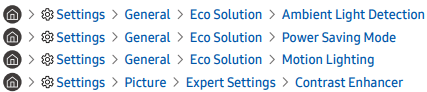
Disable Ambient Light Detection, Power Saving Mode, Motion Lighting, or Contrast Enhancer.
Run Picture Test. When the tested image quality is normal, check the signal of the connected device.
Component Connections and Screen Color
If the color on your TV screen is not correct or the black and white colors are off, run Picture Test.
If the test results indicate that the problem is not caused by the TV, do the following:
When using the component cable, confirm that the green (Y), blue (Pb), and red (Pr) jacks are plugged into their proper connectors.
For more information about how to connect an external device, run Connection Guide.
Screen Brightness
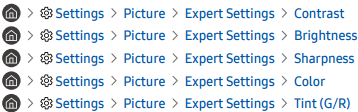
If the colors on your TV are correct but just a little too dark or bright, try adjusting the following settings first.
Blurring, or Juddering
If you notice blurring or juddering on the screen, use the Picture Clarity Settings function to resolve the issue.
Unwanted Powering Off
If your TV appears to turn off by itself, try disabling some of the TV's energy efficiency functions.
See if Sleep Timer has been enabled. The Sleep Timer automatically turns the TV off after a specific period of time.
If the Sleep Timer has not been enabled, see if Auto Power Off or Off Timer has been enabled and disable it.
Problems Powering On
If you are having problems powering on your TV, there are a number of things to check before calling the service department.
Confirm that the TV's power cord is connected correctly at both ends and that the remote control is operating normally.
Make sure that the antenna cable or cable TV cable is firmly connected. If you have a cable box or satellite box, confirm that it is plugged in and turned on.
Unable to find a Channel
If your TV is not connected to a cable box or satellite box, run Auto Program.
When using a broadcast receiver such as set-top box and IPTV, check the connection to the TV.
When the symptom persists, contact your service provider.
The TV image does not look as good as it did in the store
Store displays are tuned to a digital UHD channel or HD channel.
Change the output resolution of your devices, such as digital broadcast receiver, IPTV, and set-top box to UHD or HD.
Be sure to use an HDMI cable to enjoy high quality videos.
To connect the TV with your PC, make sure that your PC's graphic card supports UHD resolutions.
The picture is distorted
The compression of video content may cause picture distortions, especially in fast moving pictures from sports programs and action movies.
If the signal reception is weak or poor, screen distortion may be visible but it is not a malfunction.
Mobile phones used close to the TV (within 3.2 ft) may cause noise on analog and digital channels.
The color is wrong or missing
If you’re using a Component connection, make sure that the Component cables are connected to the correct jacks.
Incorrect or loose connections may cause color problems or a blank screen.
The color is poor or the picture is not bright enough
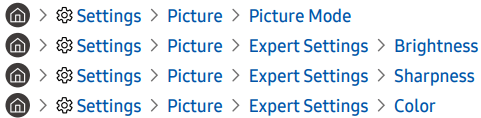
Go to Picture and then adjust the Picture Mode, Brightness, Sharpness, and Color settings.
See if Power Saving Mode has been enabled.
Try resetting the picture.
There is a dotted line on the edge of the screen
Change Picture Size Settings to 16:9 Standard.
The picture is black and white
Use a composite cable when you connect AV equipment to the TV.
If you are using the composite cable, connect the video cable (Yellow) to the VIDEO (Yellow / Green) input port.
The picture won’t display in full screen
HD channels will have black bars on either side of the screen when displaying upscaled SD (4:3) content.
Black bars will appear at the top and bottom of the screen when you watch movies that have aspect ratios different from your TV.
Adjust the picture size options on your external device or set the TV to full screen.
The Caption function in the TV menu is deactivated
When an external device is connected with an HDMI or Component cable, the Caption function is unavailable. Adjust the caption setting on the external device.
Captions appear on the TV screen
Turn off the Caption function in Caption Settings.
The HDR of the connected external device turns off
Expand the reception range of the corresponding HDMI input signal in Input Signal Plus.
Sound and Noise Issues
Testing the sound
The problem
Try this!
How can I connect an audio device to the TV?
The connection method may differ depending on the audio device, such as HDMI (eARC), Optical, Bluetooth, and Wi-Fi.
For more information about how to connect an audio device, run Connection Guide.
There is no sound or the sound is too low at maximum volume.
Check the volume control of your TV, and then check the volume control of the external device (cable box or satellite box, DVD, Blu-ray, etc.) connected to your TV.
Check the cable connection between an external device and the TV and then try cable connection again.
The picture is good but there is no sound.
Set Sound Output to TV Speaker.
If you are using an external device, check the device's audio output option.
For example, you may need to change your cable box's audio option to HDMI if the box connected to your TV is using an HDMI cable.
To listen to computer sound, connect an external speaker to the computer's audio output connector.
If your TV has a headphone jack, make sure there is nothing plugged into it.
Reboot the connected device by disconnecting and then reconnecting the device's power cable.
With a set-top box or cable box, check the cable connection and reboot the external device. When the symptom persists, contact your service provider.
No sound is heard.
Check whether Digital Output Audio Format is set to Pass-Through.
If you select the Pass-Through option to use an AV receiver that does not support Dolby Digital+, no sound is output with Dolby Digital+ content.
It is recommended to set Digital Output Audio Format to Auto when the connected receiver supports only the limited audio formats.
The speakers are making an odd sound.
Run Sound Test.
Make sure that the audio cable is connected to the correct audio output connector on the external device.
For antenna or cable connections, check the Signal Information. A low signal level may cause sound distortions.
The sound is interrupted.
The sound may frequently be interrupted when a Bluetooth speaker is used. Make sure that the Bluetooth speaker and the wireless access point are on a straight line, and the Bluetooth speaker is placed as close as possible to the TV.
To minimize interruptions, we recommend a wireless access point that uses a 5 GHz frequency.
When the symptom persists, it is recommended to use wired connection such as HDMI eARC and Optical.
Whenever a function is used on the TV or the channel is changed, the TV voices the activity.
The TV explains in voice-over the video scenes displayed on the screen.
Turn off the Voice Guide function in Voice Guide Settings.
The TV audio is not being played through the AV receiver.
Check the A/V receiver's power supply and its settings.
When connecting the optical cable between the TV and A/V receiver, make sure that the sound output is set Optical on your TV.
In case of HDMI eARC connection, make sure that it is connected to the eARC dedicated HDMI port on your TV. However, the eARC can be used only when the A/V receiver supports the eARC feature.
The sound is not heard clearly.
Change to an appropriate sound mode.
The volume of the external device cannot be adjusted.
Check the cable connection between the TV and the external device.
When connecting an external speaker such as home theater via HDMI, make sure it is connected to the HDMI (eARC) port on the TV. Make sure that the Settings > General > External Device Manager > Anynet+ (HDMI-CEC)
I want to turn off and on the TV and audio device at the same time.
When you connect the Samsung Soundbar to the TV via Bluetooth, the power turns off and on together. It may not be supported depending on the Samsung Soundbar model.
When you connect an audio device that supports HDMI eARC to the HDMI (eARC) port on the TV, the power turns off and on together.
Channel and Broadcast Issues
When the TV has difficulties receiving broadcasts, these steps may help resolve the problem
The problem
Try this!
"Weak or No Signal” displayed in TV mode or cannot find channel.
Make sure that the external device is connected securely and turned on. Move to Sources to switch to other input sources.
When using a set-top box or cable box, check the broadcast signals or the network that is connected to the external device.
The TV is not receiving all channels.
Confirm that the coaxial cable is securely connected to the TV. Run Reset or Auto Program.
The captions are not provided on a digital channel.
When watching channels with the antenna cable connected, run Caption Settings.
Some channels may not have caption data.
I want to turn off the captions.
When watching a channel on an external device such as set-top box and cable box, turn on the caption function on the device. For more information, contact your service provider.
Broadcasting is deactivated.
Broadcasting is only available when Source is set to TV.
Broadcasting cannot be accessed while you watch TV using a cable box or satellite box.
External Device Connectivity Issues
When the TV has difficulties connecting to external devices such as a PC, game console, or mobile device, these steps may help resolve the problem.
The problem
Try this!
The "Mode Not Supported" message appears.
Adjust the output resolution of the external device to a resolution supported by the TV.
The video is OK but there is no audio.
If you are using an HDMI connection, check the audio output setting on your PC.
If you are using a DVI to HDMI cable, a separate audio cable is required.
To listen to the computer sound, connect external speakers to the audio output connection of the computer.
I want to connect to a PC and mobile device via screen mirroring.
To wirelessly connect the TV to your PC, read the instructions at PC > Screen Sharing (Wireless) in Connection Guide, and then try to connect.
Confirm that the TV and your PC are connected to the same network.
To wirelessly connect the TV to your mobile device, read the instructions at Smartphone > Screen Sharing (Smart View) in Connection Guide, and then try to connect.
If the TV has difficulties connecting to your PC or mobile device due to surrounding radio interferences, change the frequency of the wireless access band, and then try to connect.
No screen appears when connecting the TV to an external device.
For more information about how to connect an external device, run Connection Guide.
Make sure that the external device is connected securely and turned on. Move to Sources to switch to other input sources.
Using HDMI Troubleshooting, you can check the connection to HDMI cable and external devices (takes approximately 2 minutes).
When using a set-top box or cable box, check the broadcast signals or the network that is connected to the external device.
The PC screen does not appear or it flickers.
When the PC screen does not appear or the PC is not recognized, check the power supply of the PC and then reconnect the HDMI cable between the PC and TV. When the symptom persists, check that the PC is in Sleep mode.
When the set resolution is not matched, the screen may flicker. For the PC supported resolution, see 'Read Before Connecting a Computer (Supported Resolutions).'
Network Issues
When the TV has difficulties connecting to the Internet, these steps may help resolve the problem.
If the TV has trouble with network connection or TV services, check the Smart Hub connection status.
The problem
Try this!
Wireless network connection failed.
Make sure that no items that can generate electromagnetic interferences are placed between the TV and the wireless/wired access point.
Check if the access point is turned on. If it is on, turn it off, wait 1 or 2 minutes, and then turn it on.
Enter the correct password if required.
Unable to connect to a wireless access point.
If the wireless connection fails, connect the TV to the access point via a LAN cable.
If the TV can connect to the Internet normally via the wired connection, there might be a problem with the access point. In this case, try using a different access point.
Wired network connection failed.
Check if the LAN cable is plugged in on both ends. If it is plugged in, check if the access point is turned on. If it is on, turn it off, wait 1 or 2 minutes, and then turn it on.
Auto IP configuration failed.
Check if the LAN cable is plugged in on both ends. If it is plugged in, check if the access point is turned on.
If the access point is on, turn it off, wait 1 or 2 minutes, and then turn it on.
Unable to connect to the network.
Disconnect and then reconnect the power cable of the TV, or press and hold the power button for 3 seconds.
Connected to a local network, but not to the Internet.
1. Check if the Internet LAN cable is connected to the access point's external LAN port.
2. Check the DNS setting in IP Settings.
Network setup is completed, but unable to connect to the Internet.
If the problem persists, contact your Internet service provider.
Anynet+ (HDMI-CEC) Issues
When Anynet+ (HDMI-CEC) isn't working, these steps may help resolve the problem
The problem
Try this!
What is Anynet+?
You can use the TV’s remote control to control external devices that support Anynet+ (HDMI-CEC) and that are connected to the TV via an HDMI cable. For example, if a connected external device supports Anynet+, you can have the connected device turn on or off when you turn the TV on or off.
Anynet+ does not work.
Confirm that the device is an Anynet+ device. The Anynet+ system supports Anynet+ devices only.
Check if the power cord of the Anynet+ device is properly connected.
Check the cable connections of the Anynet+ device.
Go to Anynet+ (HDMI-CEC) and see if Anynet+ (HDMI-CEC) has been set to On.
Anynet+ may not function when some other functions are active, including Channel Search, Smart Hub, Initial Setup, etc.
If you have disconnected and then reconnected the HDMI cable, scan for devices again or turn your TV off and on.
I want to start Anynet+.
I also want the connected devices to turn on when the TV is turned on.
Move the focus to the Anynet+ device at , press the up directional button to move to Anynet+ (HDMI-CEC), and then press the Select button.
Check if the Anynet+ device is properly connected to the TV, and then select Anynet+ (HDMI-CEC) menu to see if Anynet+ (HDMI-CEC) is set to On.
I want to exit Anynet+.
It is inconvenient to turn on other devices because the TV also turns on. It is inconvenient because the connected devices (e.g. set-top box) turn off together.
To turn off the Anynet+ function of a device connected to the TV, turn off the Anynet+ (HDMI-CEC) function of the device.
When Anynet+ (HDMI-CEC) is turned off, the sound bar connected via the HDMI (eARC) port does not turn off and on together with the TV. To prevent a specific device connected to the TV from turning off automatically, turn off the HDMI-CEC function on a specific device connected to the TV.
The message "Connecting to
Anynet+ device..." or
"Disconnecting from Anynet+
device" appears on the screen.
You cannot use the remote control when the TV is configuring Anynet+ or switching to the TV viewing screen.
Use the remote control after the TV has completed the Anynet+ configuration or has switched to the TV viewing screen.
The Anynet+ device won’t play.
You cannot use the play function when Reset is in progress.
The connected device is not displayed.
Check whether the device supports Anynet+.
Anynet+ devices must be connected to the TV using an HDMI cable. Make sure the device is connected to your TV with an HDMI cable. Some HDMI cables may not support Anynet+.
Check whether the HDMI cable is properly connected.
Go to Anynet+ (HDMI-CEC) and see if Anynet+ (HDMI-CEC) has been set to On.
Scan for Anynet+ devices again.
If the connection is terminated because there has been a power failure or the HDMI cable has been disconnected, please scan for the device again.
Remote Control Issues
The problem
Try this!
The remote control does not work.
The connection between the remote control and the TV may be lost.
Also, if the remote control is not working or slow, the batteries might be low or dead. If this is the case, replace the batteries. Alkaline batteries are recommended for longer battery life.
External devices cannot be operated with the TV remote control.
Check the cable connection between the TV and external devices.
When the symptom persists, set it manually in Source > Universal Remote Setup.
Apps
When apps aren't working, these steps may help resolve the problem
The problem
Try this!
I launched an app, but it’s in a different language. How can I change the language?
Languages supported by an app may be different from the TV Language set in the menu.
The ability to change the language depends on the app’s provider.
The app does not work properly.
Its image quality is poor.
Check the network connection. When the network speed is slow, the app may not work or its image quality may be poor.
The services of your application are not provided by the TV but by the application service provider.
Refer to the Help section on the application service provider’s website.
Media Files
When files don't play, this may help resolve the problem
The problem
Try this!
Some files are interrupted during playback.
This problem may occur with unsupported files or high-bitrate files. Most files can be played back, but some files may not play smoothly.
Some files can’t be played.
Some files that use an unsupported codec may not be played back.
Make sure that the codec is supported by the TV. For more information, refer to "Read Before Playing Photo, Video, or Music Files."
Voice Assistant Issues
When the Voice Assistant isn't working, these steps may help resolve the problem.
The problem
Try this!
The voice commands do not work well.
Voice commands may differ depending on the Voice Assistant.
Refer to the command examples for each Voice Assistant.
With Samsung Smart Remote, the following features are available except for voice recognition.
There is no response even if the voice entry button is pressed.
Try pairing the remote control with the TV.
During voice recognition, the heavy load message appears and the function does not work.
Unplug and then plug the TV power cable and then try again after 1 minute and 30 seconds. It may take a while if the voice recognition server is being inspected.
I want to see weather information of the desired area.
Say with the area name included.
Other issues
Use these procedures to resolve other issues that may occur in relation to the product.
The problem
Try this!
The TV is hot.
Watching TV for an extended period of time causes the panel to generate heat.
The heat from the panel is dissipated through internal vents running along the top of the TV.
The bottom, however, may feel hot to the touch after extended use.
Children watching TV need constant adult supervision to prevent them from touching the TV.
This heat, however, is not a defect and does not affect the TV's functionality.
The TV smells like plastic.
This smell is normal and will dissipate over time.
The settings are lost after 5 minutes or every time the TV is turned off.
If Usage Mode is set to Retail Mode, the TV's audio and video settings are automatically reset every 5 minutes.
Change Usage Mode to Home Mode.
The TV is tilted to the side.
Remove the base stand from the TV and reassemble it.
The stand is wobbly or crooked.
Refer to the Quick Setup Guide and make sure that the stand is assembled correctly.
PIP is not available.
PIP is available only when an external device is connected with an HDMI or Component cable.
Note that the function is unavailable when Smart Hub is active.
This function may not be supported depending on the model or geographical area.
A POP (TV's internal banner ad) appears on the screen.
Change Usage Mode to Home Mode.
The TV is making a popping noise.
The expansion and contraction of the TV's outer casing may cause a popping noise.
This does not indicate a product malfunction.
The TV is safe to use.
The TV is making a humming noise.
Your TV utilizes high-speed switching circuits and high levels of electrical current. Depending on the TV's brightness level, the TV may seem slightly noisier than a conventional TV.
Your TV has undergone strict quality control procedures that meet our demanding performance and reliability requirements.
Some noise coming from the TV is considered normal and is not an acceptable cause for an exchange or refund.
The software update over the Internet has failed.
Check the network connection status.
If the TV is not connected to a network, connect it to a network. The upgrade stops if you already have the latest software version.
The TV narrates the screen events in voice-over.
To turn off Voice Guide, move the focus from Accessibility Shortcuts to Voice Guide and then press the Select button. You can turn on or off Voice Guide. To run Accessibility Shortcuts, see the following:
Press and hold the +/- (Volume) button on your Samsung Smart Remote.
Press the AD/SUBT. button on the standard remote control or press and hold the MUTE button.
Press the CC/VD button or press and hold the MUTE button on your standard remote control.
Diagnosing TV operational issues
You can diagnose issues with your TV and Smart Hub and run reset functions.
You can use the Picture Test to help diagnose video issues and the Sound Test to diagnose sound issues. You can also view signal strength information for over-the-air digital signals, test the Smart Hub Internet connection, and run the Smart Hub and TV factory reset functions.
• Picture Test
• Sound Test
• HDMI Troubleshooting
• Signal Information
• Smart Hub Connection Test
• Reset Smart Hub
The problem
Try this!
Cannot select Signal Information in Self Diagnosis.
Verify that the current channel is a digital channel.
Signal Information is only available for digital channels.
Reset Smart Hub
Resets all Smart Hub settings to their factory defaults and deletes all information related to Samsung accounts, linked service accounts, Smart Hub service agreements, and Smart Hub applications.
Reset picture
Resets current picture settings to the default settings.
Reset sound
Resets current sound settings to the default settings.






 Source > Connection Guide > Smartphone > Apple AirPlay.




 on the virtual keyboard screen. The following options are available:
 button.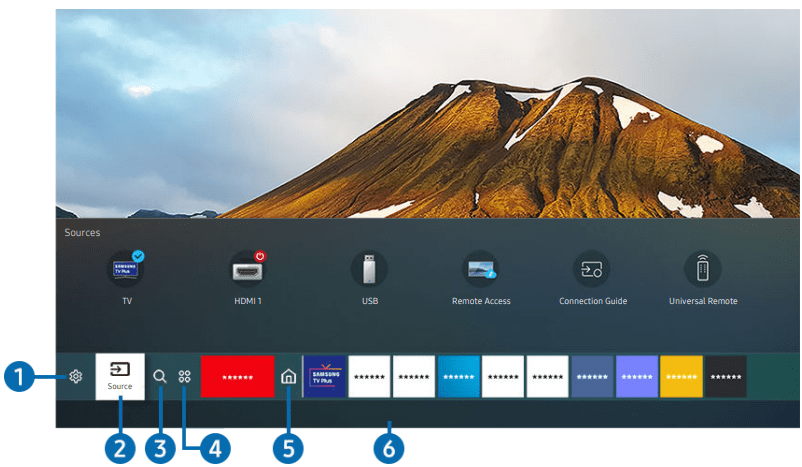
 Settings
 Source: You can select an external device connected to the TV.
 Search: You can search for channels, programs, movie titles, and apps from Smart Hub
 Apps: You can enjoy a wide range of content, including news, sports, weather, and games by installing the corresponding apps on your TV.
 button. Then you can quickly access Samsung Account, Notification or Privacy Choices.
 Notification
 Delete All: You can delete all your notifications.
 Settings: You can select services you want to be notified about. When you select Allow sound, notifications are displayed with a notification sound.
 Art When you are not watching TV or when the TV is turned off, you can use the Art mode function to edit image content, such as artworks, photos, or to display the content.




 >Source >Remote Access >Run the Remote Access browser Additionally select Office 365 or Add Cloud Service) Internet Menu Settings.
 Samsung Account
 App Search You can search for available apps.
 Settings You can manage the installed apps.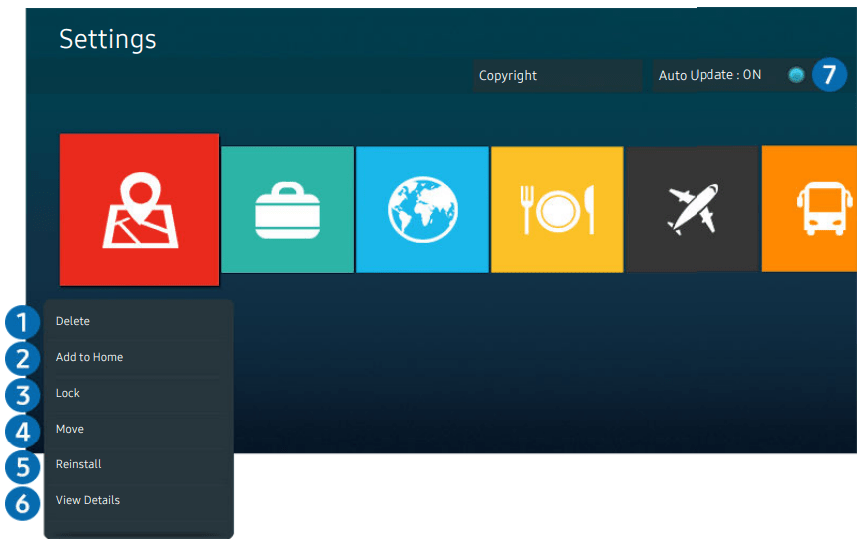

 Open category
 Samsung Account
 Gallery Settings


 (Search): Select an item from the search results to load the corresponding page.
 (Sitemap): t displays the lists for each item in e-Manual
 (Recently Viewed Topics): Select a topic from the list of recently viewed topics.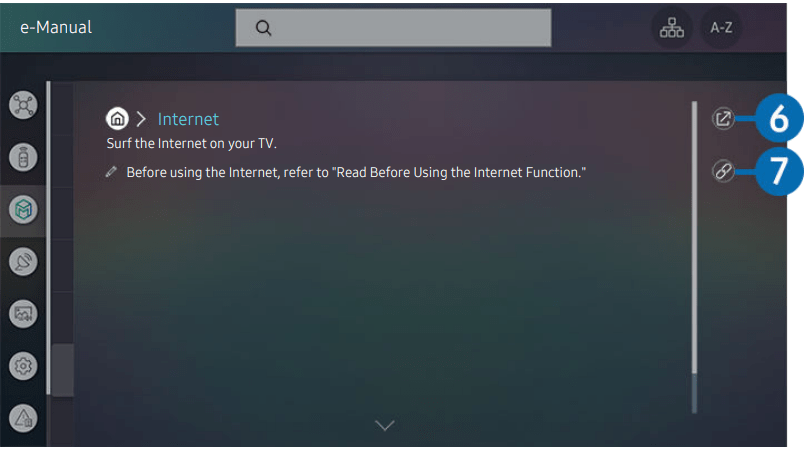
 (Try Now): Allows you to access the corresponding menu item and try out the feature right away.
 (Link): Access an underlined topic referred to on an e-Manual page immediately.
 Settings > General > Voice > Voice Assistant
 button on your Samsung Smart Remote, say a command, and then release the
 My Profile
 Tutorials: The pop-up window on using Bixby appears.
 .
. Settings >General >Reset).
 (Channel) button on the Samsung Smart Remote or press the GUIDE button on the standard remote control



 : A favorite channel














































 , press the up directional button to move to Anynet+ (HDMI-CEC), and then press the Select button.