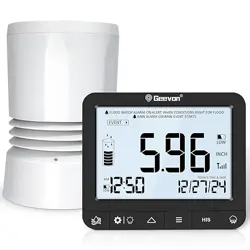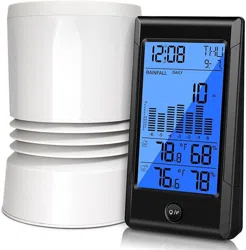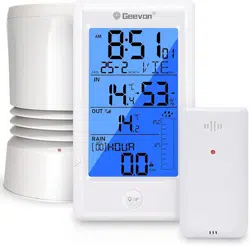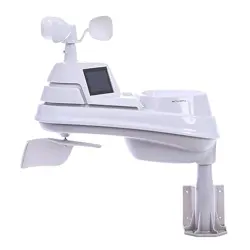
5 in 1 Wireless Rain Gauge
Item No.W208703
User Manual
Thank you for purchasing W208703 Wireless Rain Gauge.
Please take a moment to read this guide and store it for future reference.
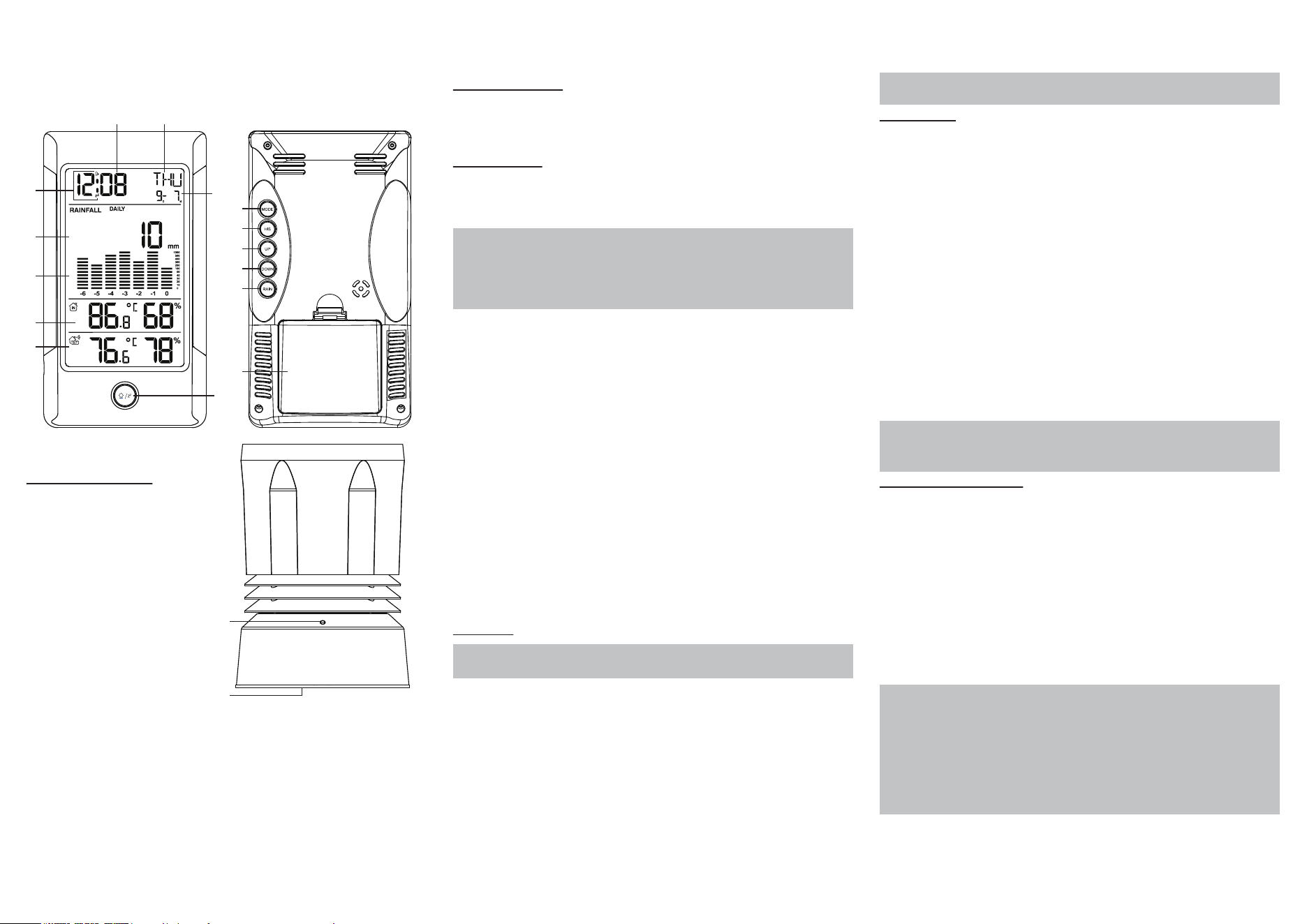
1.Controls and displays:
1. Time display
2. Weekday
3. Calendar
4. Alarm Clock and Snooze icons
5. Rainfall display
6. Rainfall history display
7. Indoor temperature / humidity
8. Outdoor temperature / humidity
external sensor
9. SNZ/LIGHT button
a. Turn on/off the backlight
b. Stop the alarm for 5 minutes
10. MODE button
a. Hold for 3 seconds during the normal mode to enter setting mode.
b. Press button during the normal mode to check the alarm time.
11. HIS button
Check the rainfall history record
12. UP button
a. Increase the current setting value.
b. In normal display mode, press this button to check Max./Min. Records.
13. DOWN button
a. Decrease the current setting value.
b. Switch between Celsius and Fahrenheit at any time
14. RAIN button
Check the rainfall records(daily,weekly,monthly,total.)
15. Battery Compartment 3xAA (batteries not included)
16. Wireless signal indicator (Flashes when data is being sent to the display unit)
17. Compartment 2xAA batteries (batteries not included)
2. Package Contents:
1. Display unit
2. Wireless rain gauge
3. Instructions Manual
3. Getting started
3.1 Inserting the batteries
• Place 3xAA batteries into the display unit.
• Place 2xAA batteries into the wireless rain gauge.
Note:
• The range is 150 ft. (50m) unobstructed. The wireless range may be reduced by
trees, walls, windows, etc.
• Do not place rain gauge in direct sunlight as this will give you an inaccurate
reading.
3.2 Replacing Batteries:
• We recommend using high quality batteries for the best product performance.
• Heavy duty or rechargeable batteries are not recommended.
• The outdoor sensor requires lithium batteries in low temperature conditions. Cold
temperatures would cause alkaline batteries work improperly.
• Do not mix old and new batteries. Do not mix alkaline, standard, and rechargeable
batteries.
3.3 Low Battery Indicator:
If the low battery indicator is displayed on the LCD for either the outdoor sensor or
the display unit, immediately change the batteries to prevent disruptions in
communications of the devices.
Default settings
1. Default time: 12:00 (Time form: 12H)
2. Default date: 01/01 (Year: 2019, date form: M/D)
3. Default week: TU (Language: EN, 7 languages can be selected)
5. Default temperature: °F
6. Rainfall unit: IN
6. Default alarm: AM 6:30, default: off, default snooze time: 5min.
4.Operation
Note:
Hold down the UP button or the Down button to select values faster.
Manually Setting the Time, Date & Units:
• Press and hold down the "MODE" button for 2 seconds until the display begins to
flash.
• Set the following information in the order listed:
• 12/24 hour format
• Hours
• Minutes
• Month/Day or Day/Month format
• Year
• Month
• Day
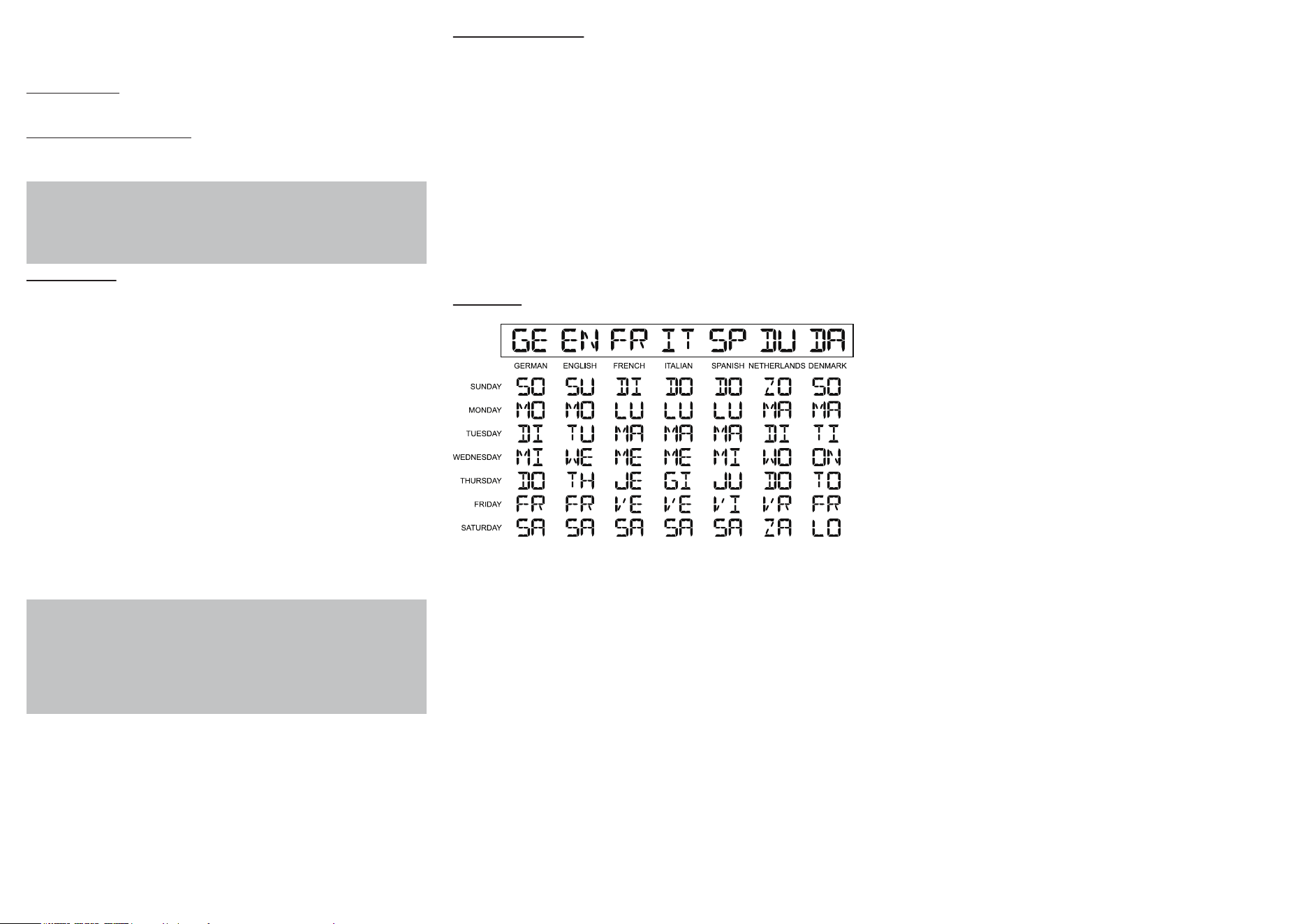
• Day of the week language:German, English, French, Italian, Spanish, Dutch and
Danish
• Rainfall unit
• To select individual values, press UP button or the DOWN button and confirm
each selection by pressing the MODE button.
Note:
You will automatically exit settings mode if no buttons are pressed for 10 seconds.
5.Alarm Clock:
Setting the alarm
• In standard mode, press “MODE” enters into the alarm mode.
• In alarm mode, hold the “MODE” button for 2 seconds to enter the alarm setting
mode, the setting order is Hour >>> Minute >>> Exit. Use the “UP” and “DOWN”
buttons to set the required hour and minute.
• Press “MODE” (or no key for 20 seconds) so exit and save the setting.
• To select individual values, press UP button or the DOWN button and confirm each
selection by pressing the MODE button.
• If you do not make an entry for 20 seconds, setting mode is exited automatically.
Activating/deactivating the alarm
In alarm mode, press “UP” or “DOWN” to turn the alarm ON or OFF. The alarm icon
will appear to disappear.
Stopping the alarm/snooze function
• When the alarm is triggered, the alarm symbol begins to flash and an alarm
sounds.
• By pressing any button (except the SNOOZE/LIGHT button to stop the alarm.
Otherwise, it will stop automatically after 2 minutes.
Note:
While the alarm signal is sounding, press the SNOOZE/LIGHT button to activate
the snooze function. The alarm will sound after 5 minutes.
6. Temperatue and humidity
6.1 Temperature
• Indoor temperature 0°C ~ 50°C (32°F ~ 122°F), display LL.L when below 0°C and
display HH.H when higher than 50°C.
• Outdoor temperature -40°C ~ 60°C (-40°F ~ 140°F), display LL.L when below
-40°C and display HH.H when higher than 60°C.
• Temperature resolution: 0.1°C
6.2 Humidity
• Indoor humidity range: 10%-99%
• Outdoor humidity range: 10%-99%
• Humidity resolution: 1 %RH
• When alarm ringing, temperature and humidity test will be stopped.
Note:
Accuracy
• Temperature accuracy:
-40°C ~ -20°C: ± 4°C
-20°C ~ 0°C: ± 2°C
0°C ~ +50°C: ±1°C
• Humidity accuracy:
±5% from 35% to 75% and ±10% from10% to 35% & 75% to 99%.
6.3 Setting the Temperature Units:
To switch the temperature measurement between Celsius and Fahrenheit, press
the “DOWN” button which is also the C/F option button. You can switch between
Celsius and Fahrenheit at any time (except when setting other setting options.)
1 2
4
5
6
9
3
8
7
10
11
12
13
14
15
16
17
6.4 Checking the MAX/MIN temperature and humidity
• Press the “UP” button to check MAX/MIN temperature and humidity.
• Hold the “UP” button to clear the record of MAX/MIN temperature and humidity.
7. LED BackLight:
• Press the SNZ / LIGHT button to active the backlight for 10 seconds.
8. Remote sensor transmission:
• Power the wireless rain gauge as described in Getting started, automatic data will
be transmitted.
Notes:
• Place the wireless rain gauge away from equipment that generates magnetic
fields such as mobile phones, televisions etc.
• In case of non receipt of the display, signal it is shown the character -. Press and
hold the DOWN button to receive RF signal.
9. Rainfall setting
• Rainfall: 0 mm ~ 9999 mm (0 inch ~ 393.6 inch)
• Resolution:
0.1 mm (0 mm ~ 1000 mm);
1 mm (1000 mm ~ 9999 mm);
0.1 inch (all range for inch)
• Rainfall unit: mm or inch
• The rainfall default displays the amount of daily rainfall. You can press “HIS” to
check the past 24 hour rainfall. And press and hold the “HIS” to clear the value.
• In standard mode, press “RAIN” button can switch check the rainfall, the switch
order: Daily → Weekly → Monthly → Total →
• The daily rainfall will be cleared automatically at 12:00 am (midnight)
• Weekly rainfall will be cleared automatically at 12:00 am every Sunday (between
Saturday and Sunday)
• Monthly rainfall will be cleared automatically at 12:00 am (30/31 to 1) on the 1st of
each month
• When display daily, weekly or monthly rainfall, Press “RAIN” for 2 seconds to clear
these current reading manually.
• The total rainfall need to clear separately (when display total rainfall, press "RAIN"
for 2 seconds to clear).
Note:
Fine rain = 0.25 mm/hour (0.01 inch)
Light rain = 1.0 mm/hour (0.04 inch)
Moderate rain = 4.0 mm/hour (0.16 inch)
Heavy rain = 16.0 mm/hour (0.63 inch)
Thunderstorm = 35.0 mm/hour (1.38 inch)
Strong thunderstorms = 100.0 mm/hour (3.94 inch)
10.Care and maintenance
Placement of the Device:
Proper placement of both the display unit and the outdoor sensor are critical to the
accuracy and performance of this product.
Display unit placement
Place the display unit in a dry area free of dirt and dust. Display unit right for
tabletop/countertop use.
Important Placement Guidelines
• To ensure accurate temperature measurement, place units out of direct sunlight
and away from any heat sources or vents.
• Display unit and outdoor sensor must be within 150 ft. (50m) of each other.
• To maximize wireless range, place units away from large metallic items, thick
walls, metal surfaces, or other objects that may limit wireless communication.
• To prevent wireless interference, place both units at least 3ft (1 m) away from
electronic devices (TV, computer, microwave, radio, etc.
Week display