INSTRUCTION MANUAL
INSTRUCTION MANUAL
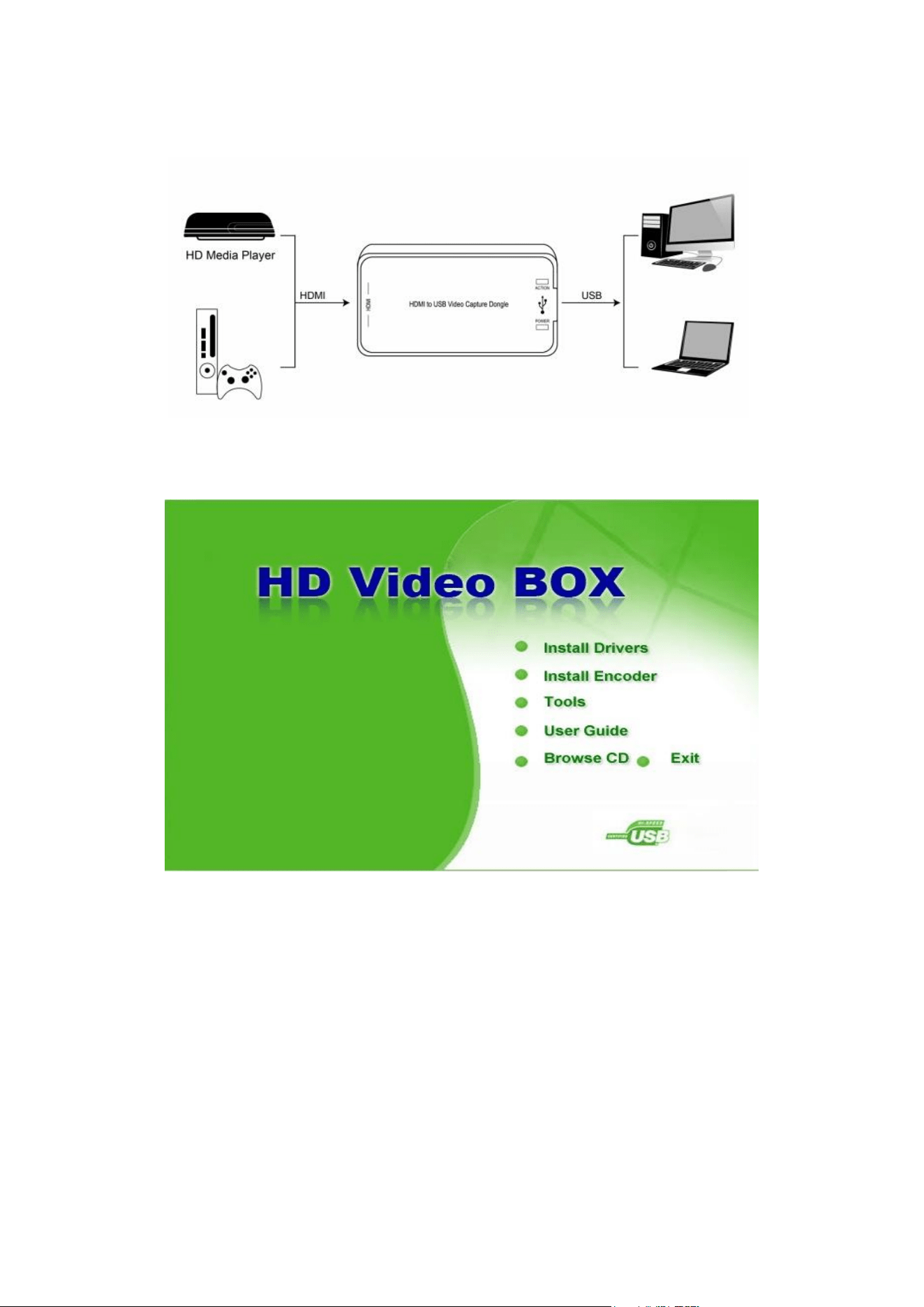
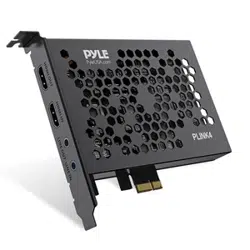
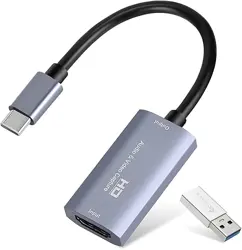
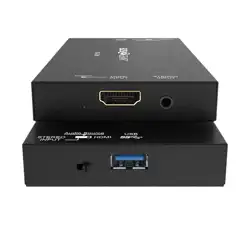
1. Connect the device via the diagram below.
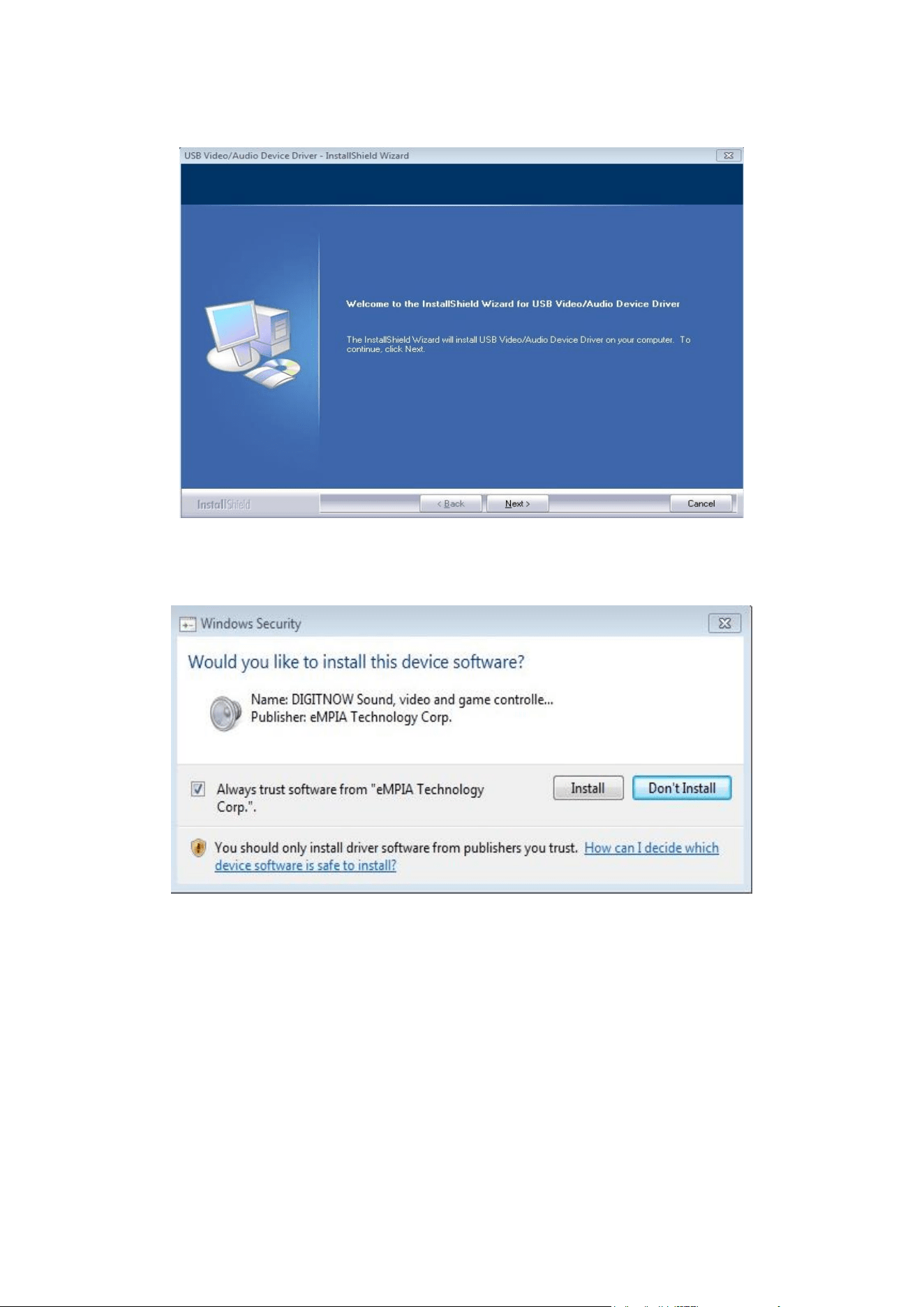
2. Open the software on your laptop or PC and select “lnstall Drivers”
1
3. Click “Next “
4. Select “Always trust software from eMPIA Technology Corp.”, then click “lnstall”.
2
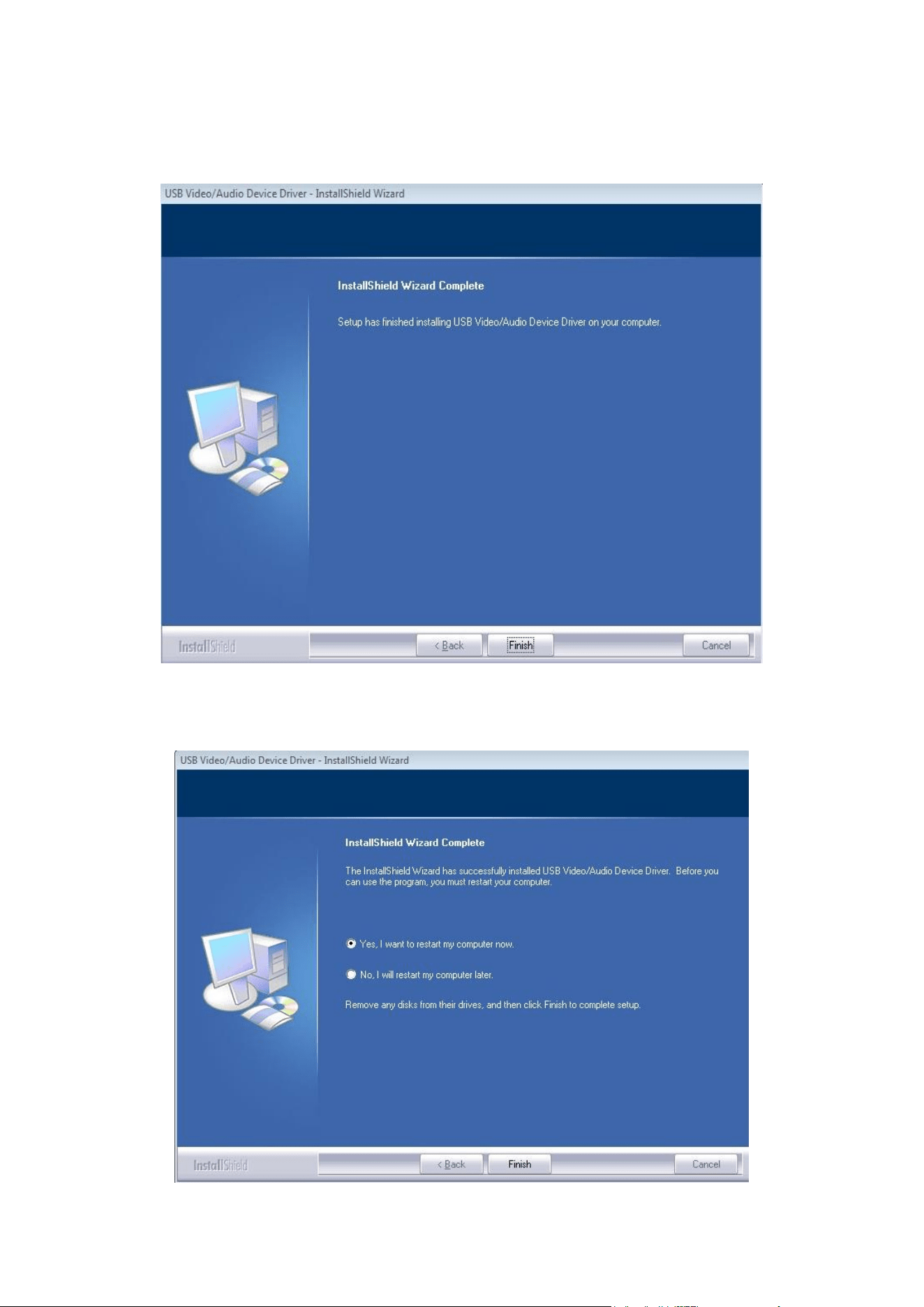
5. Click “Finish”
6. Choose “Yes, I want to restart my computer now”, then click “Finish”
3
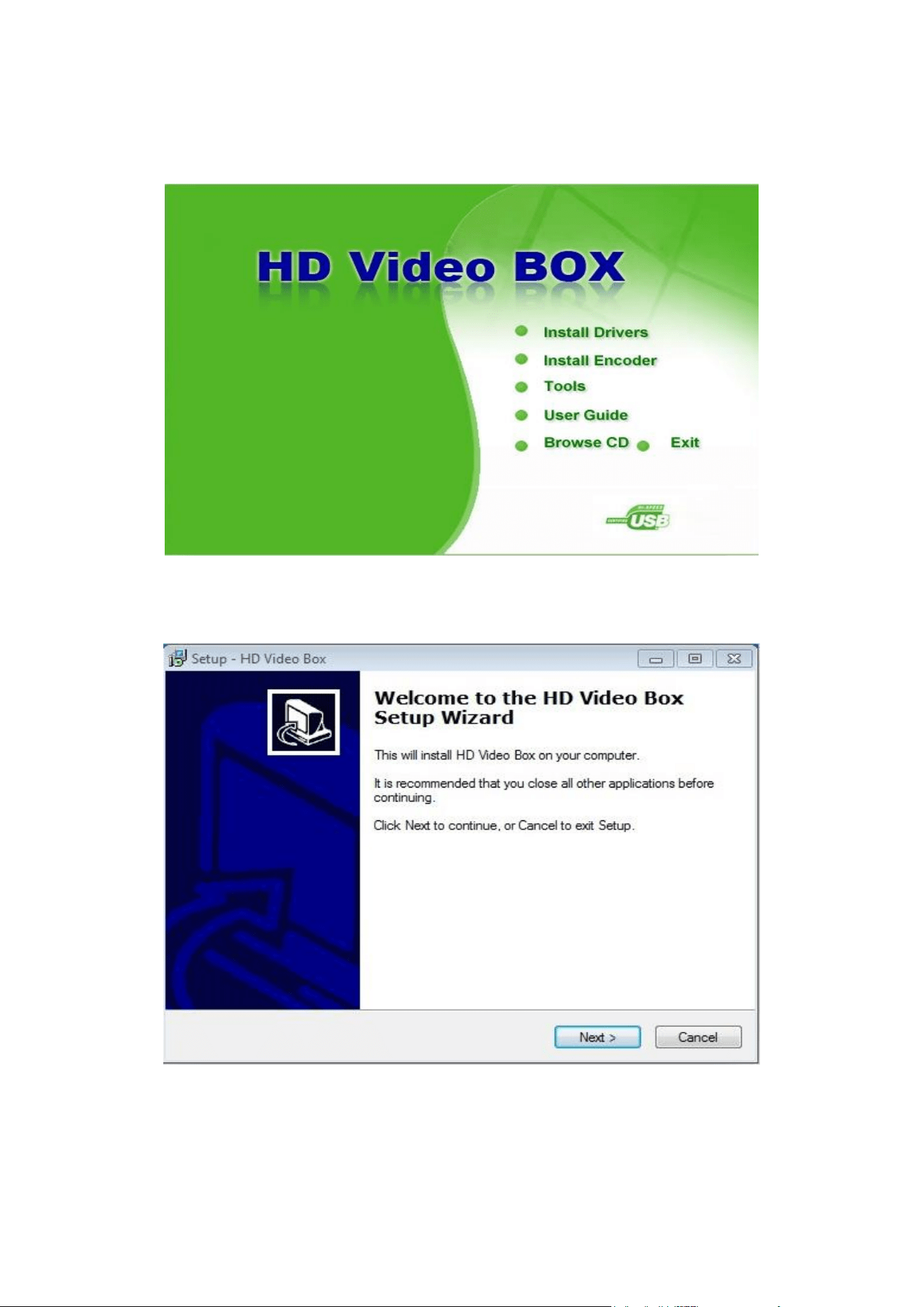
7. Open the software again and select “lnstall Encoder “
8. Click “Next”
4
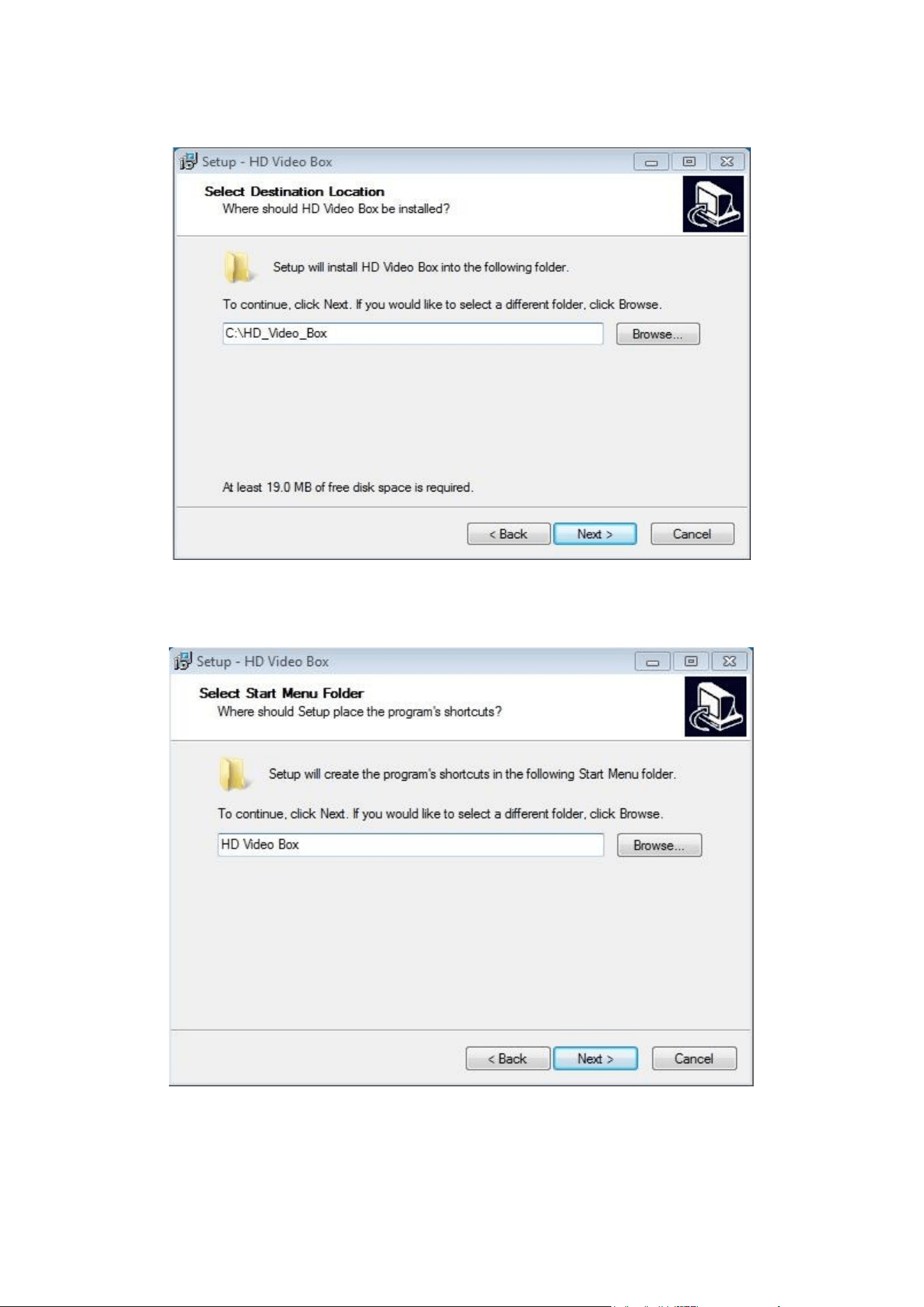
9. Click “ Next “
10. Click “Next”
5
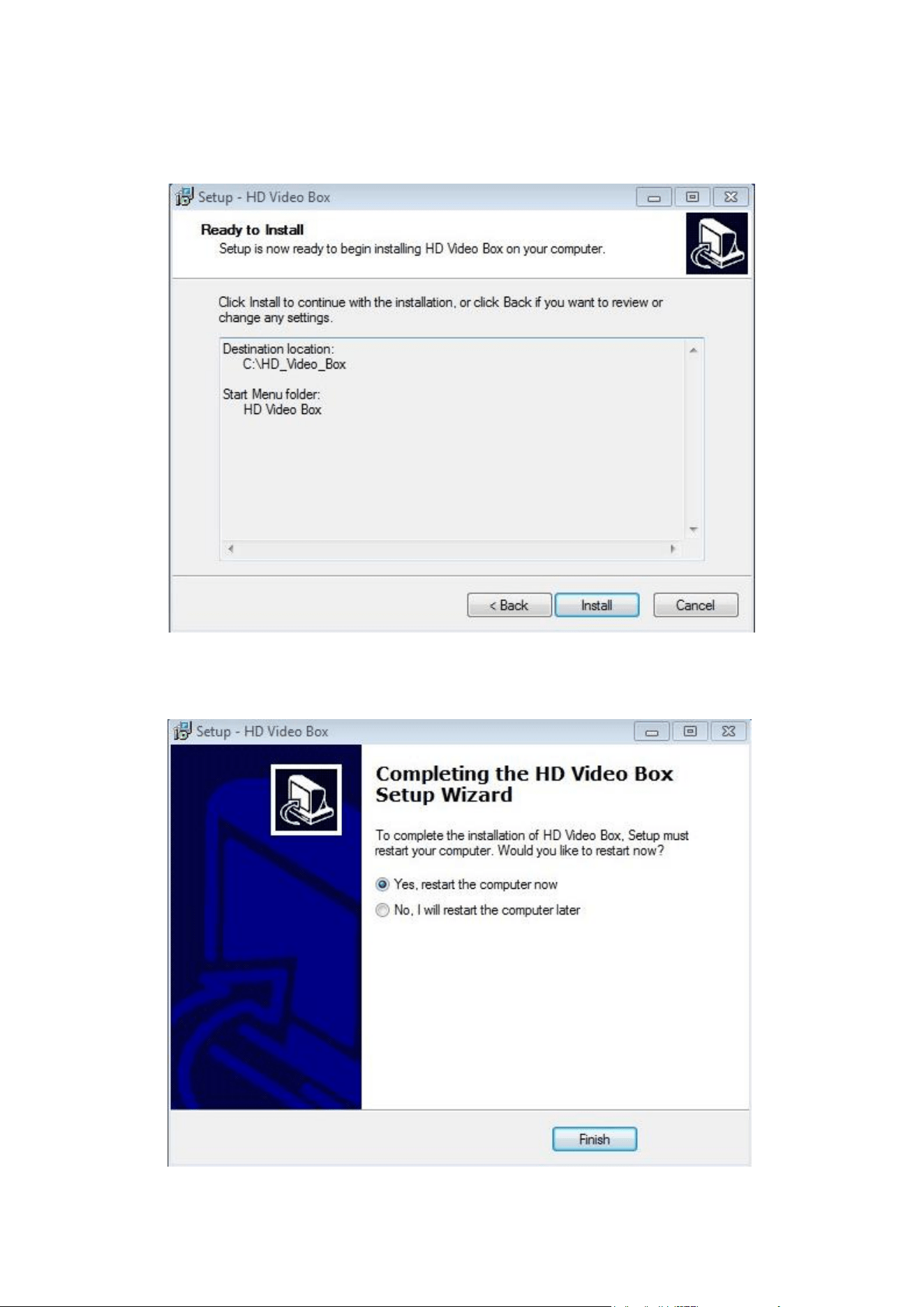
11. Click “lnstall”
12. Select “Yes, restart the computer now” , then click “Finish”
6
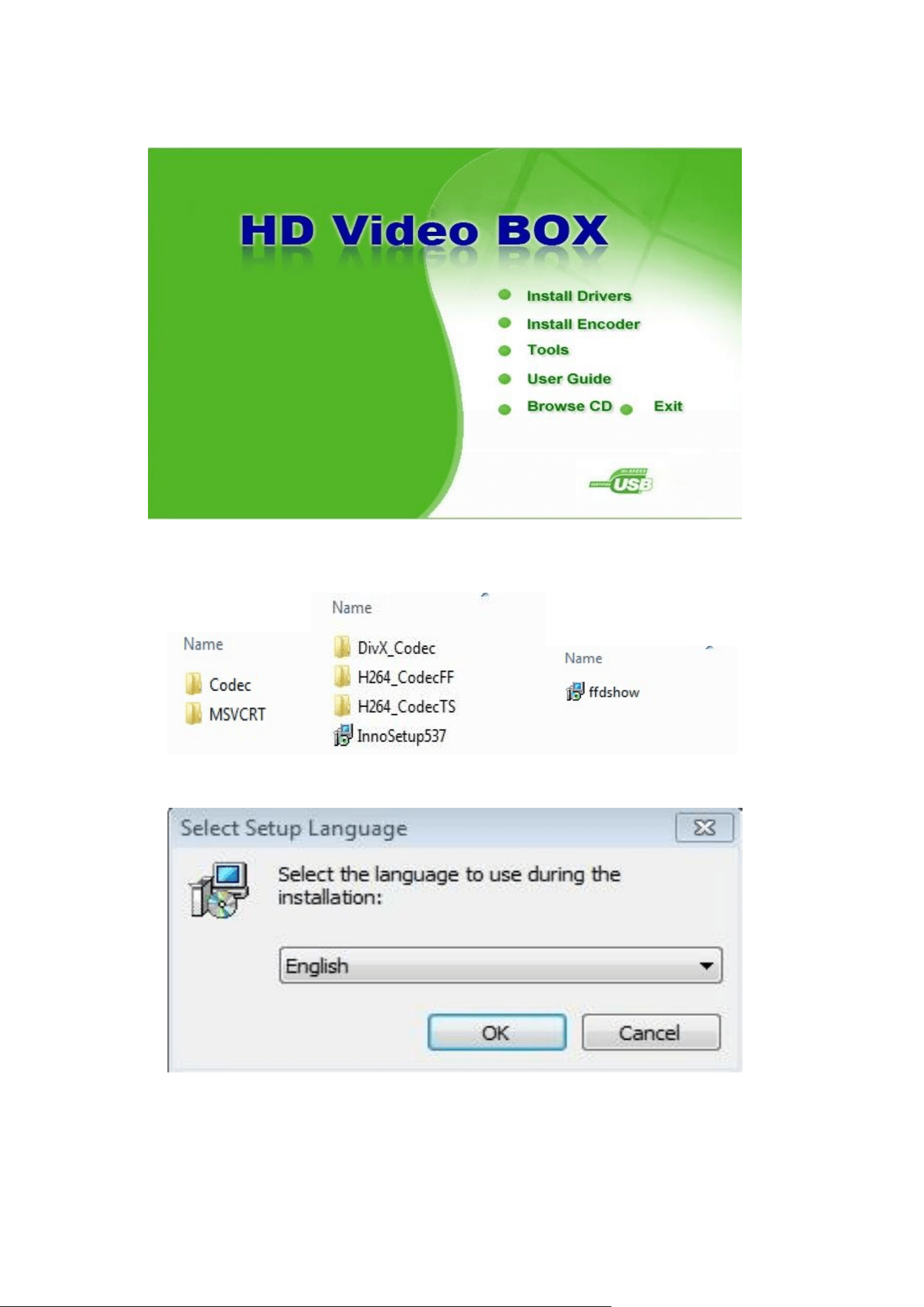
13. Open the software again and select “Tools “
13. Firstly open the folder of “Codec”,then open the folder of “H264_CodecFF”,
and click to install “ffdshow”
14. Choose the language,then click “OK”
7
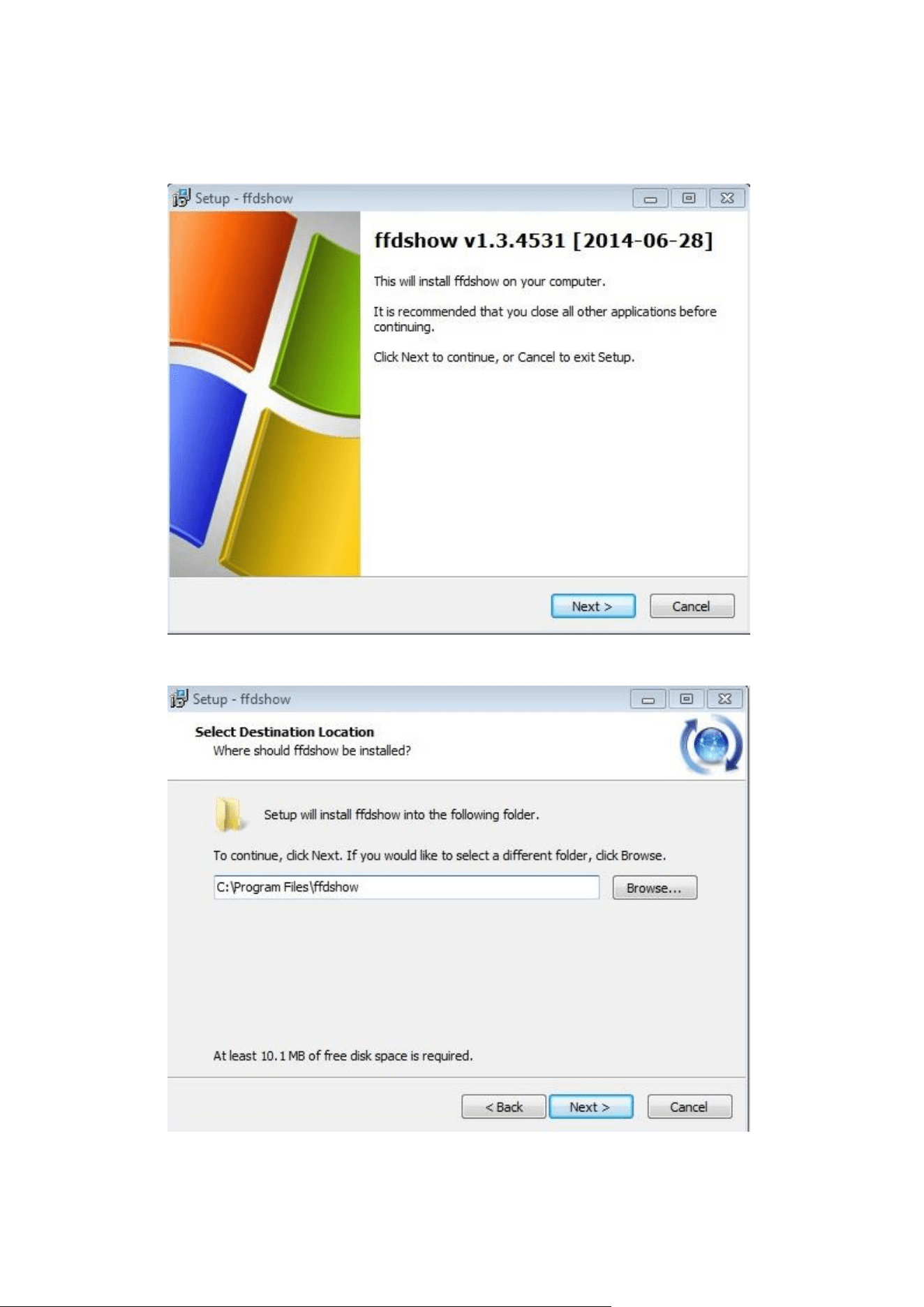
15. Click “Next”
16. Click “Next”
8
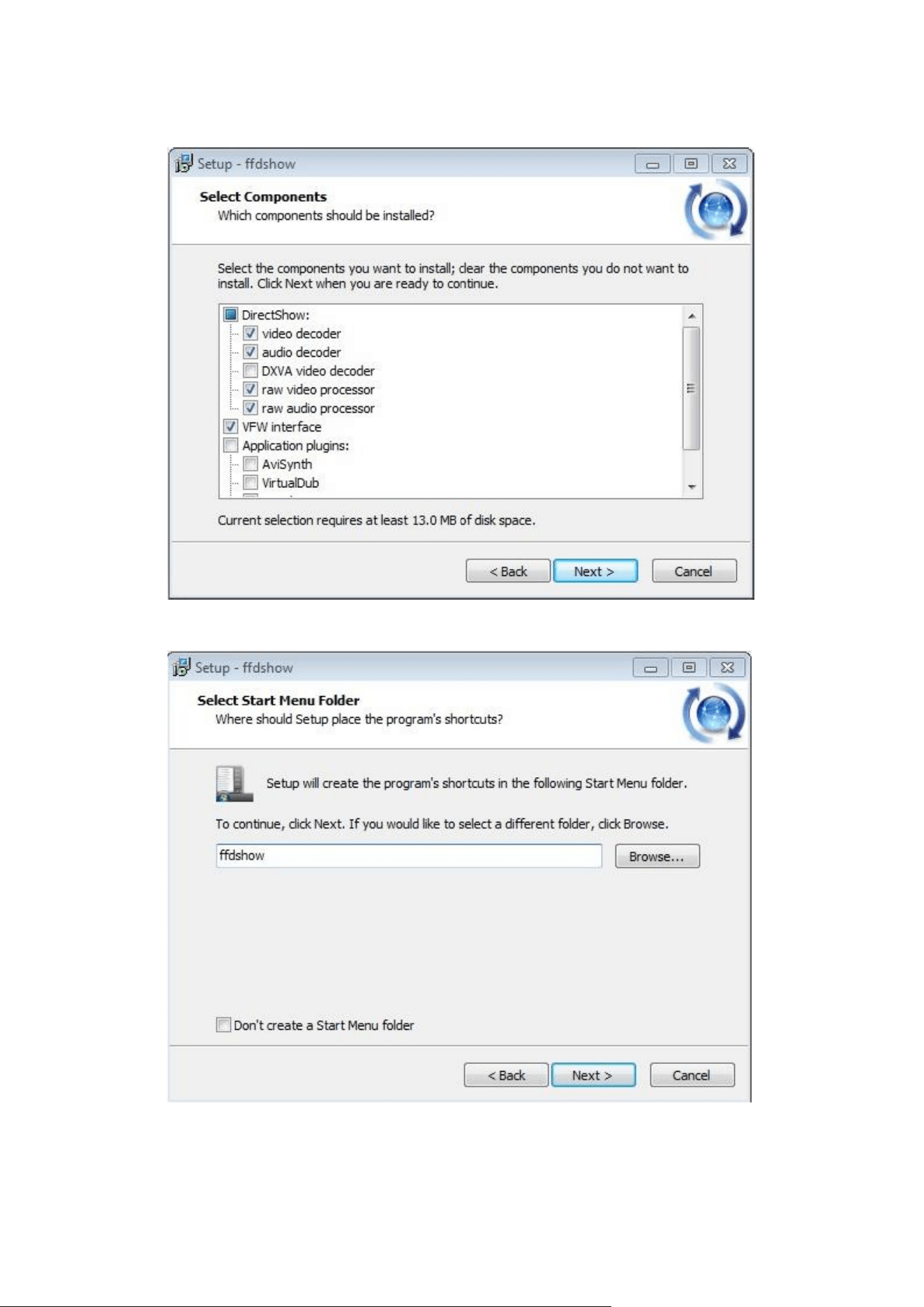
17. Click “Next”
18. Click “Next”
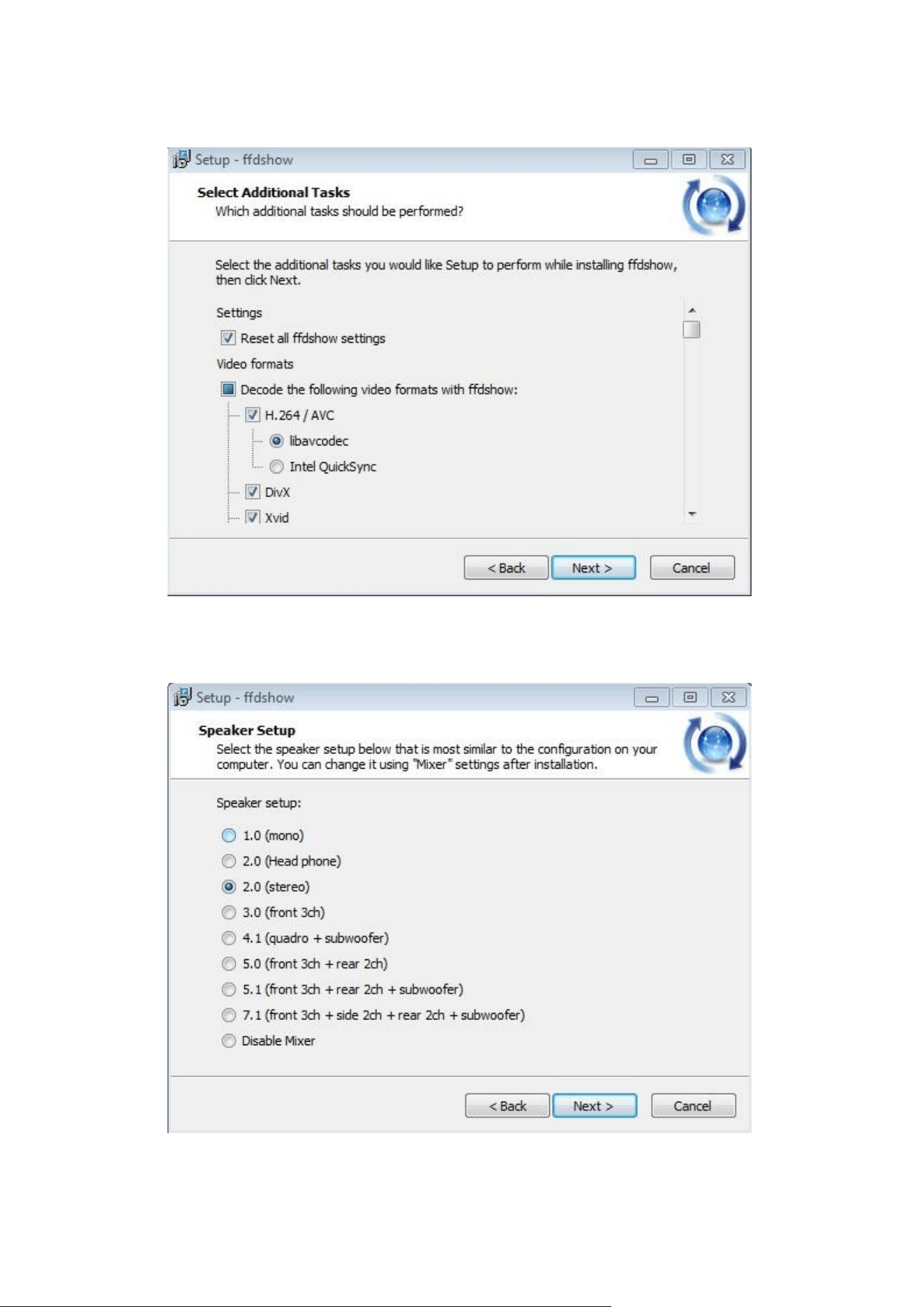
9
19. Click “Next”
20. Click “Next”
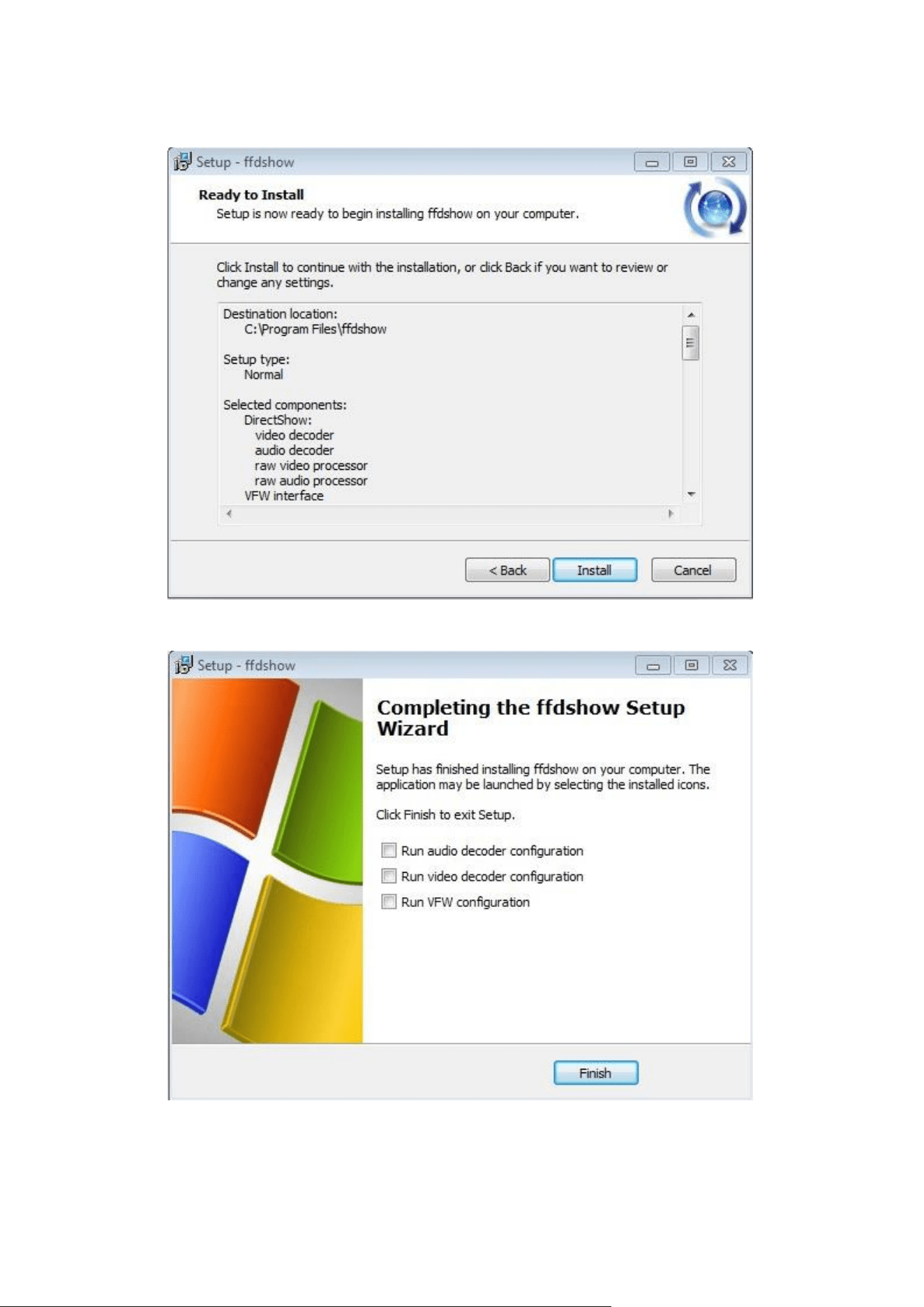
10
21. Click “Install”
22. Cllick “Finish”
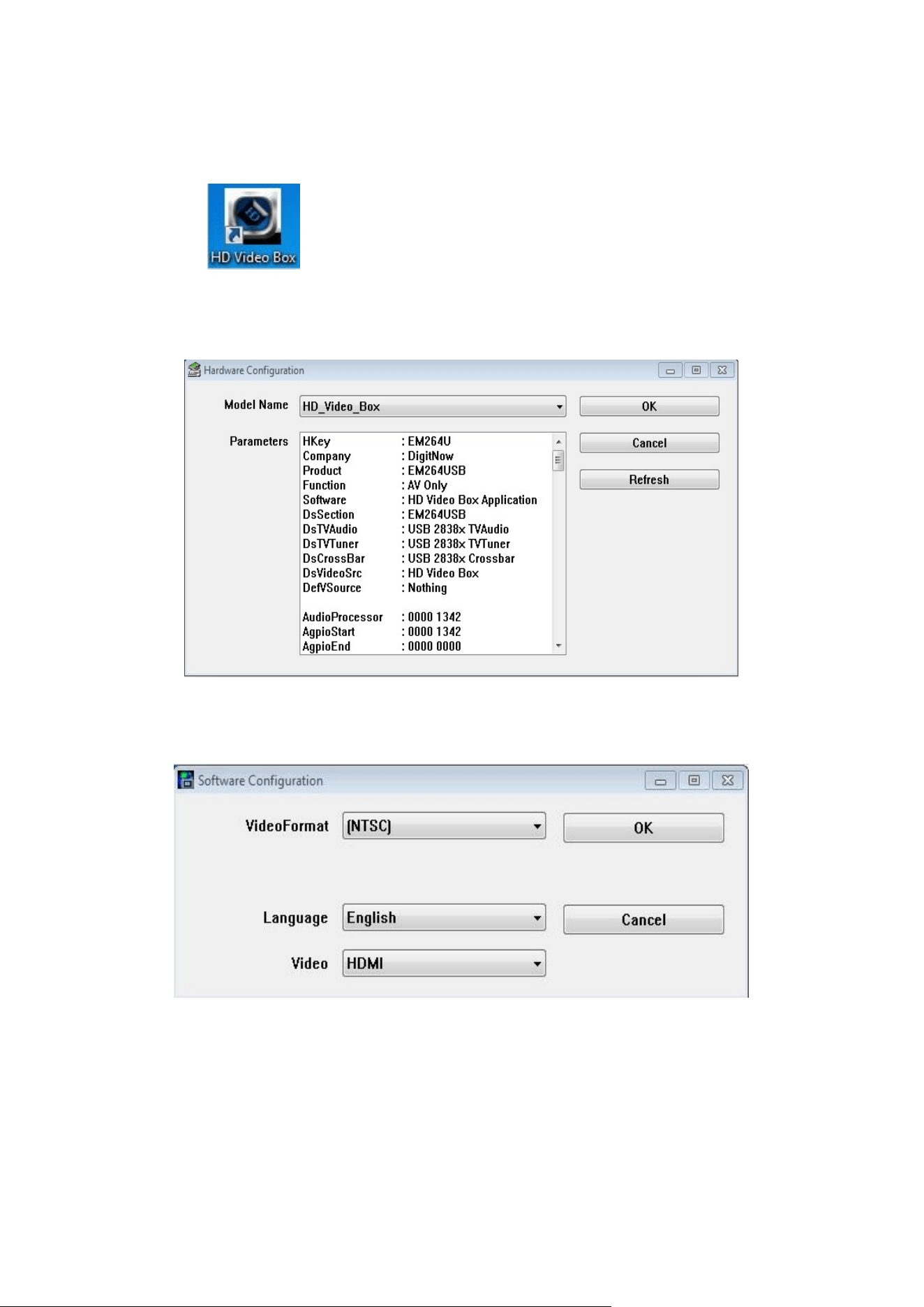
11
23. Find on your desktop
24. Click “OK”
25. Select the Video Format, Language, Video source, then click “OK”
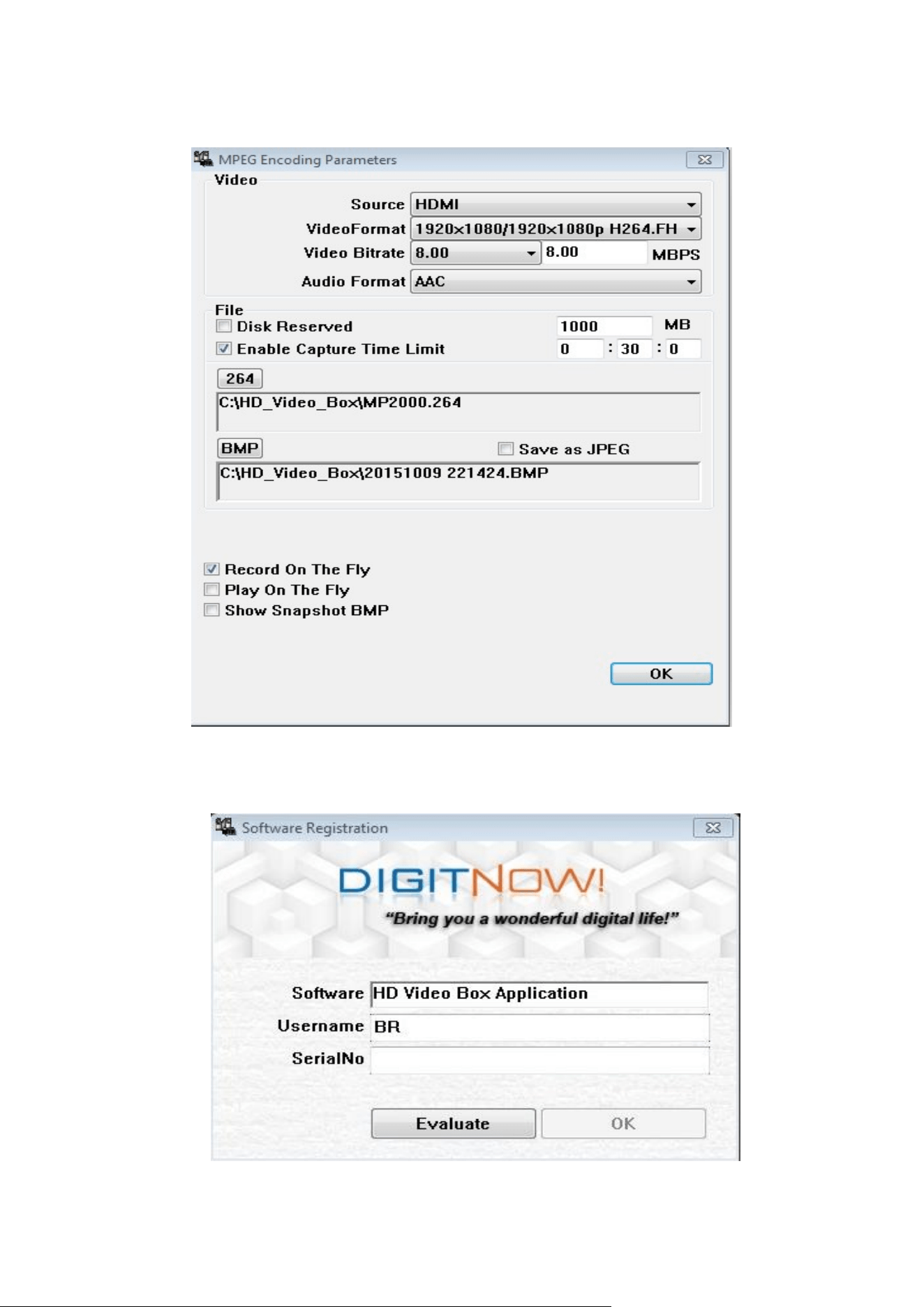
12
26. Set video parameters, then click “OK”
27. Enter the software serial number, then click “OK”
13
28. The installation is finished.
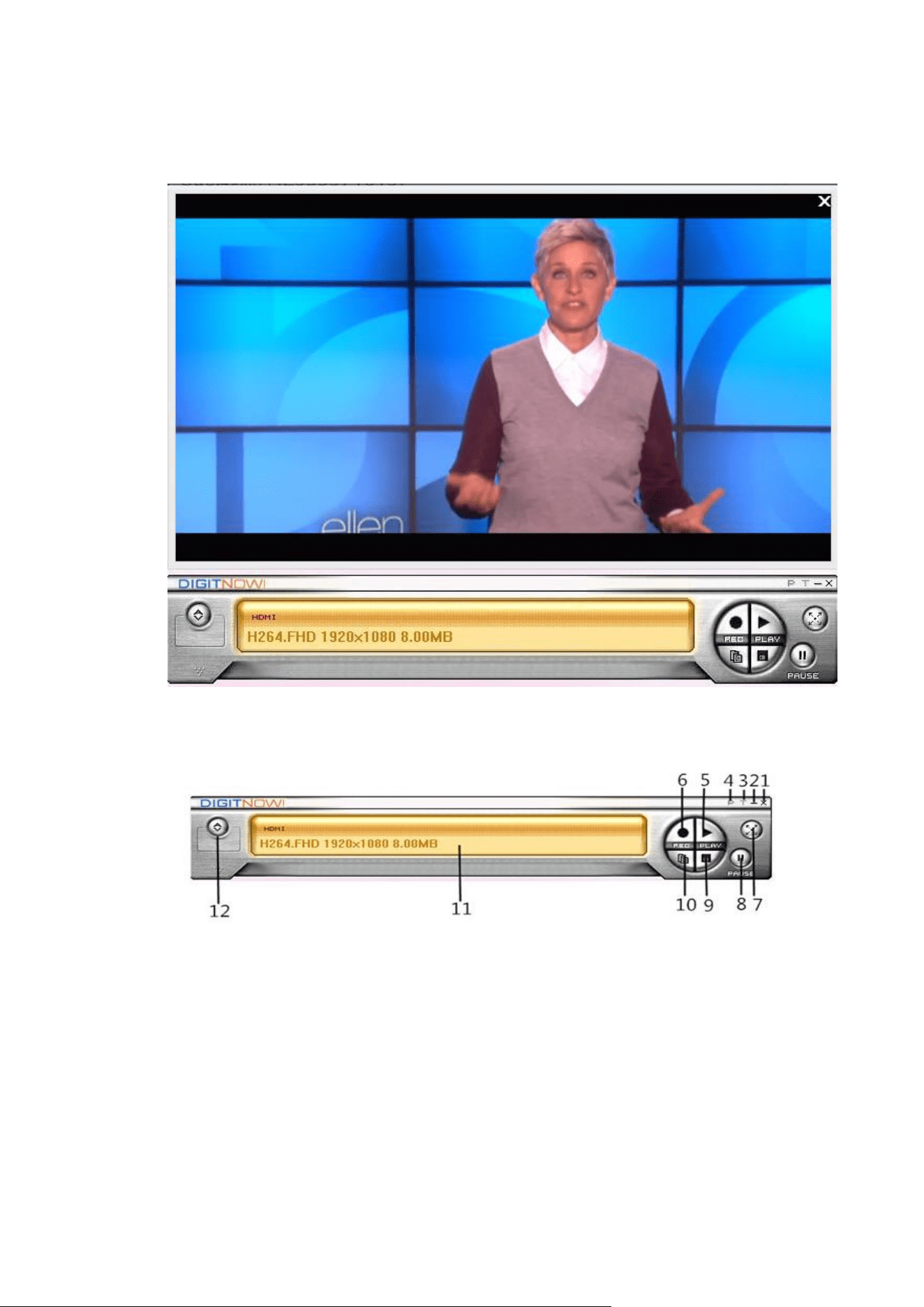
29. The function panel
1. Power off 2. Minimize 3. Top Most 4. Toggle Mode
5. Play 6.Record 7. Zoom Screen 8. Freeze
9. Snapshot BMP 10.Save Clipboard 11. Status Display
12. Video Setup

14
Function Panel Use:
1. Click “Power Off” to end the procedure.
2. Click “Minimize”, then panel will minimize to the status bar.
3. Click “Top Most”, then window will keep on top of other windows, and click “Top
Most” again to cancel.
4. Click “Toggle Mode” to close the preview window, and then click “Toggle Mode”
again to open the preview window.
5. Click “Play” to play the recorded video, and then click “Play” again to stop playing.
6. Click “Record” to start recording, then click again to stop recording (video
recording will be stored to the installation directory).
7. Click “Zoom Screen” to switch to full-screen display, and then click “Zoom
Screen” again to resume to window display.
8. Click “Freeze” to pause the recorded movie playback, then click “Freeze” again to
resume playback the recorded movie.
9. Click “Snapshot BMP” to capture video images in BMP format image (the
captured image will be saved to the installation directory).
10. Click “Save clipboard” to copy the images to paste elsewhere.
11. Click “Status Display” to display operating status.
12. Click “Video Setup” to set the video parameters.