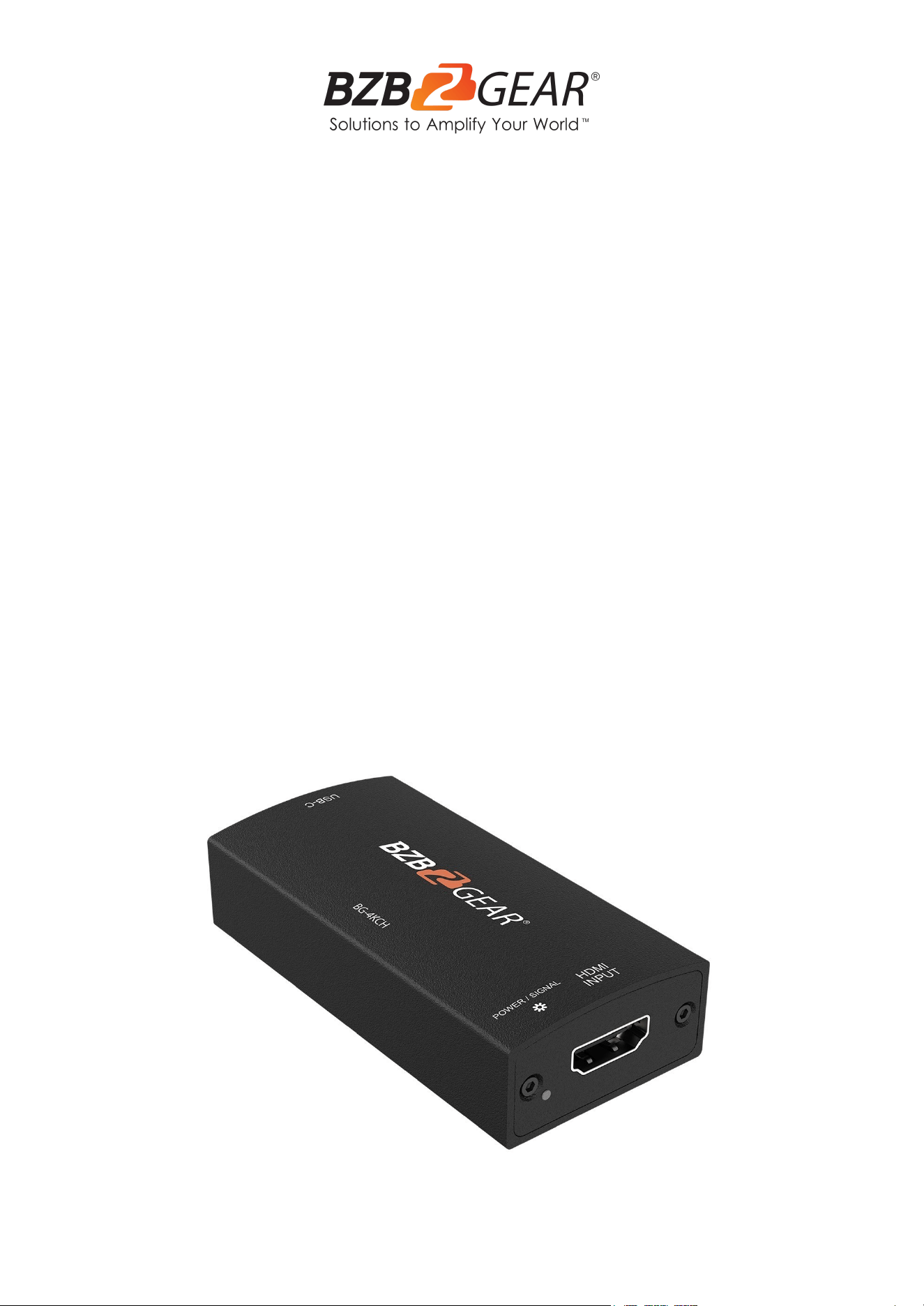
BG-4KCH
4K UHD/1080P FHD USB-C Video Capture Device/Box with Scaler
User Manual

BZBGEAR BG-4KCH PRODUCT MANUAL
Address: 830 National Drive #140, Sacramento, CA 95834, USA · Tel: +1(888)499-9906 · Email: support@bzbgear.com 2

BZBGEAR BG-4KCH PRODUCT MANUAL
TABLE OF CONTENTS
Statement 4
Safety Precaution 4
Introduction 5
Features 5
Packing List 5
Technical Specifications 6
Operation Controls and Functions 7
Video Streaming 7
Stream and record videos with OBS 11
Troubleshooting 14
Usb Pin Definition 15
Tech Support 16
Limited Product Warranty Terms 16
Mission Statement 16
Copyright 16
Address: 830 National Drive #140, Sacramento, CA 95834, USA · Tel: +1(888)499-9906 · Email: support@bzbgear.com 3

BZBGEAR BG-4KCH PRODUCT MANUAL
Statement
Please read these instructions carefully before connecting, operating, or configuring this
product. Please save this manual for future reference.
Safety Precaution
● To prevent damaging this product, avoid heavy pressure, strong vibration, or immersion
during transportation, storage, and installation.
● The housing of this product is made of organic materials. Do not expose to any liquid,
gas, or solids which may corrode the shell.
● Do not expose the product to rain or moisture.
● To prevent the risk of electric shock, do not open the case. Installation and maintenance
should only be carried out by qualified technicians.
● Do not use the product beyond the specified temperature, humidity, or power supply
specifications.
● This product does not contain parts that can be maintained or repaired by users.
Damage caused by dismantling the product without authorization from BZBGEAR is not
covered under the warranty policy.
● Installation and use of this product must strictly comply with local electrical safety
standards.
● Disconnect power cord by connector only. Do not pull on cable portion.
● Do not place or drop heavy or sharp-edged objects on power cord. A damaged cord
can cause fire or electrical shock hazards. Regularly check power cord for excessive
wear or damage to avoid possible fire / electrical hazards.
● Ensure unit is always properly grounded to prevent electrical shock hazard.
● Do not operate unit in hazardous or potentially explosive atmospheres. Doing so could
result in fire, explosion, or other dangerous results.
● Handle with care to avoid shocks in transit. Shocks may cause malfunction. When you
need to transport the unit, use the original packing materials, or alternate adequate
packing.
● Turn off the unit if an abnormality or malfunction occurs. Disconnect everything before
moving the unit.
Note: due to constant efforts to improve products and product features, specifications may
change without notice.
Address: 830 National Drive #140, Sacramento, CA 95834, USA · Tel: +1(888)499-9906 · Email: support@bzbgear.com 4

BZBGEAR BG-4KCH PRODUCT MANUAL
Introduction
The BG-4KCH USB-C 4K video capture box with scaler provides a simple and reliable way
to capture HDMI video signals. Users can capture HDMI signals from devices like PTZ
cameras, video game consoles, and PC’s for recording or broadcast to streaming services
such as YouTube, Twitch, and Facebook. The utilization of large volume image buffering
technology prevents video tearing, allowing for optimal image reproduction. Compact and
portable, the BG-4KCH is an ideal fit for a video technicians toolkit, as well as anyone
needing a convenient capture device.
Features
● HDMI video and audio streams over USB 3.1 Type-C Gen 1
● UVC1.0/1.1/1.5
● Video resolutions up to 4K2K@30
● Deinterlace & scaler*
● Auto-detection of video formats to ensure plug-play operation
● Recording Video Format: Software Compression
● Works on multiple operating systems/platforms (Windows 7/8.1/10/11, Mac, and
Linux OS)
● Compatible with most 3rd party software including YouTube, Twitch, Facebook, OBS
Studio, and Zoom
● USB 3.1 Gen 1 (RGB/YUY2/NV12) (capture up to 4K2K@30) and USB 2.0
(YUY2/NV12) (capture up to 720P@30)
● Low Latency (3~4ms at 1080P)
● System Requirements (Recommended)
➢ Windows® 7(SP1) / Windows 8.1 / Windows 10 / Windows 11
➢ PC: Intel® CoreTM i5-4440 3.10GHz + NVIDIA® GeForce® GTX 660 or
higher
➢ Laptop: Intel® Core i7-4810MQ + NVIDIA GeForce GTX 870M or higher
➢ 4GB RAM or higher
* Scale-up feature supports up to 1080P@60
Packing List
● 1 x BG-4KCH
● 1 x USB 3.0 A to C Cable (host to
device)
● 1x User Manual
● 1х Quick Start Guide
Address: 830 National Drive #140, Sacramento, CA 95834, USA · Tel: +1(888)499-9906 · Email: support@bzbgear.com 5
BZBGEAR BG-4KCH PRODUCT MANUAL
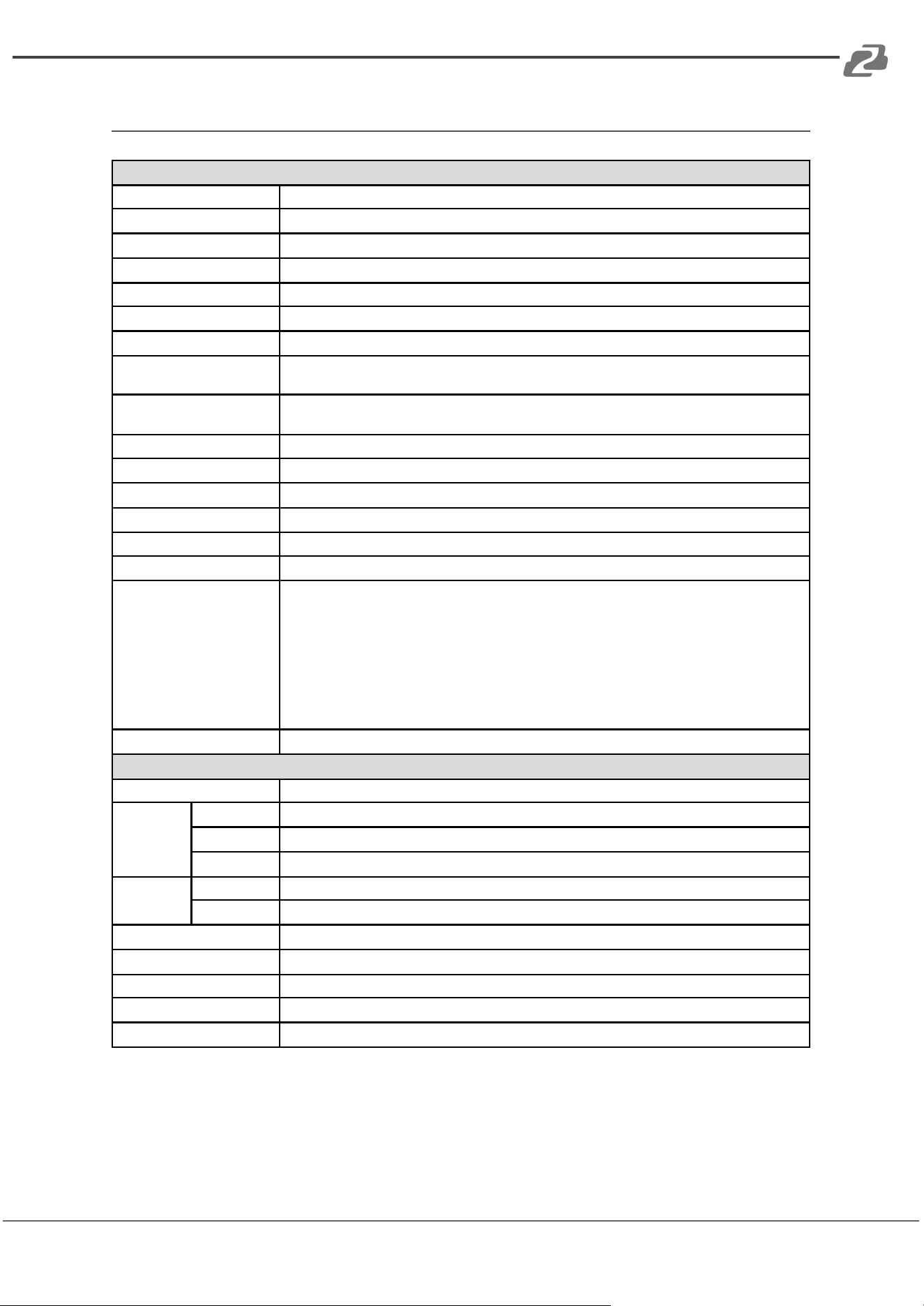
Technical Specifications
Technical
Usage
Video Capture Device
Input Video bandwidth
297MHz
Output bandwidth
Up to 350 Mbps (USB-C)
Video support (USB-C)
Up to 4K2K@30
Audio Input
HDMI Embedded Audio
Audio Format
2CH 16 bit PCM
Recording Mode
Software Compression
Recording Video Format
RGB/YUY2/NV12 (USB3.1 Gen 1),
YUY2/NV12 (USB2.0)
ESD protection
Human body model:
±15kV (air-gap discharge) & ±8kV (contact discharge)
PCB stack-up
4-layer board (impedance control — differential 100Ω; single 50Ω)
Firmware update
Feasible via USB-C Port
Input
1x HDMI
Output
1x USB-C
HDMI connector
Type A [19-pin female]
USB connector
USB 3.1 Type C (SuperSpeed USB)
Software compatibility
(not complete list)
OBS Studio (Windows, Linux, MAC),
Potplayer (Windows),
VLC (MAC, Linux),
AMCap (Windows),
XSplit Broadcast (Windows),
Skype (Windows, MAC),
Zoom (Windows),
Hangout (Windows),
TeamViewer (Windows)
OS Support
Windows 7 /8.1 /10 /11, Mac, and Linux OS
Mechanical
Housing
Metal enclosure
Dimensions
(L x W x H)
Model
3" x 1.5" x 0.7" [77 x 38 x 19mm]
Package
6.4" x 4.4" x 1.7" [165 x 111 x 42mm]
Carton
1'6" x 1'4" x 13.8" [490 x 426 x 352mm]
Weight
Model
2 oz [58g]
Package
5 oz [142g]
Power supply
USB-C
Power consumption
3 Watts (max)
Operation temperature
32~104°F / 0~40°C
Storage temperature
-4~140°F / -20~60°C
Relative humidity
20~90% RH (no condensation)
Address: 830 National Drive #140, Sacramento, CA 95834, USA · Tel: +1(888)499-9906 · Email: support@bzbgear.com 6
BZBGEAR BG-4KCH PRODUCT MANUAL
Operation Controls and Functions
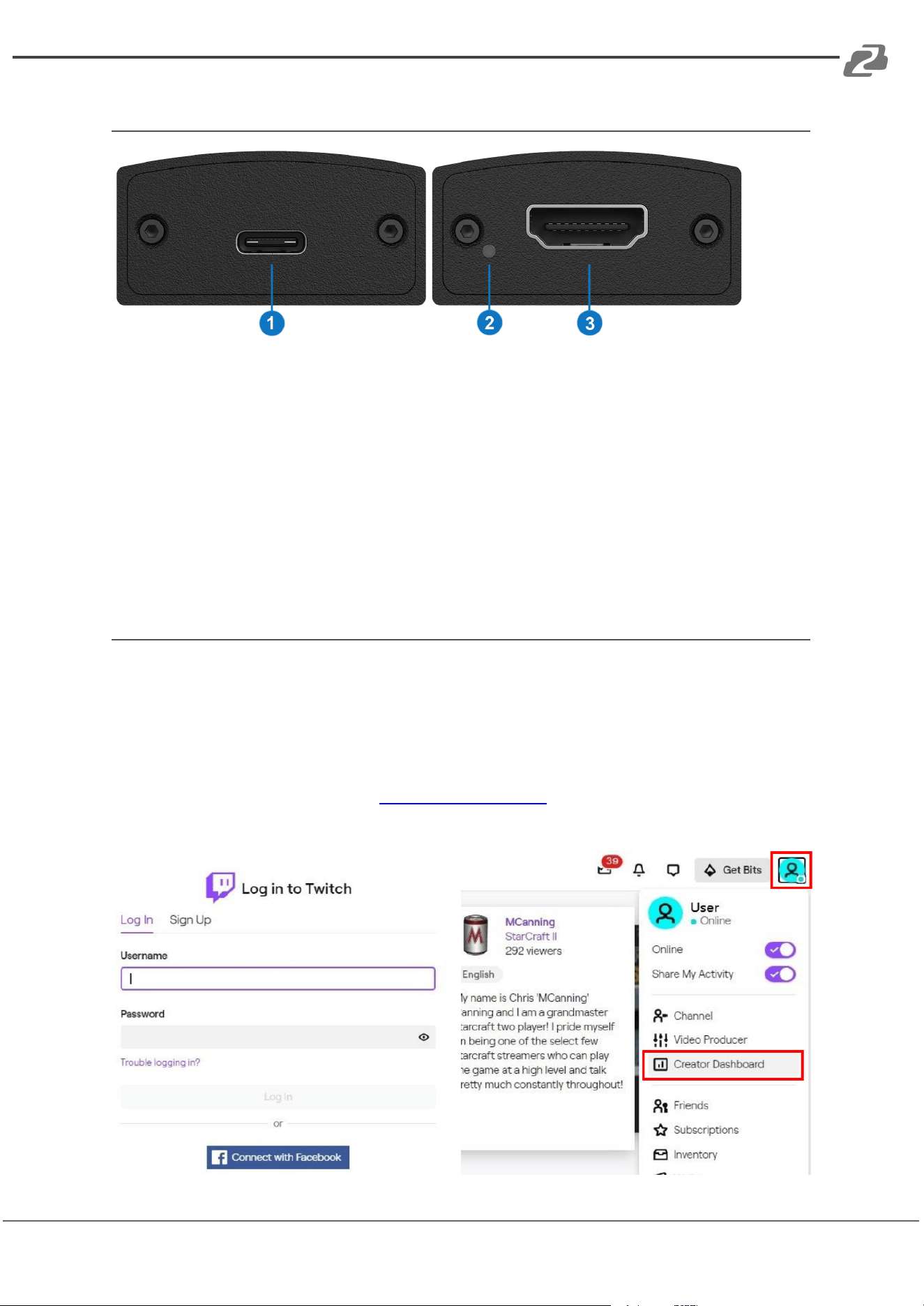
1. USB-C OUT: Connect to a USB host (PC, NB, MAC…)
2. LED INDICATOR: Power & input signal indicator LED
● [Blue] Device is powered on
● [Green] Input detecting an HDMI signal
● [Red]* Input source is HDCP protected and cannot be captured
3. HDMI IN: Connect to an HDMI source
*When the input source is HDCP protected, the LED will turn red to indicate the
content is legally encrypted and cannot be captured.
Video Streaming
Create a Video Stream
Users can create video streams on their streaming platform of choice. The below steps
show how to complete the video streaming settings for Twitch and YouTube using OBS.
Twitch
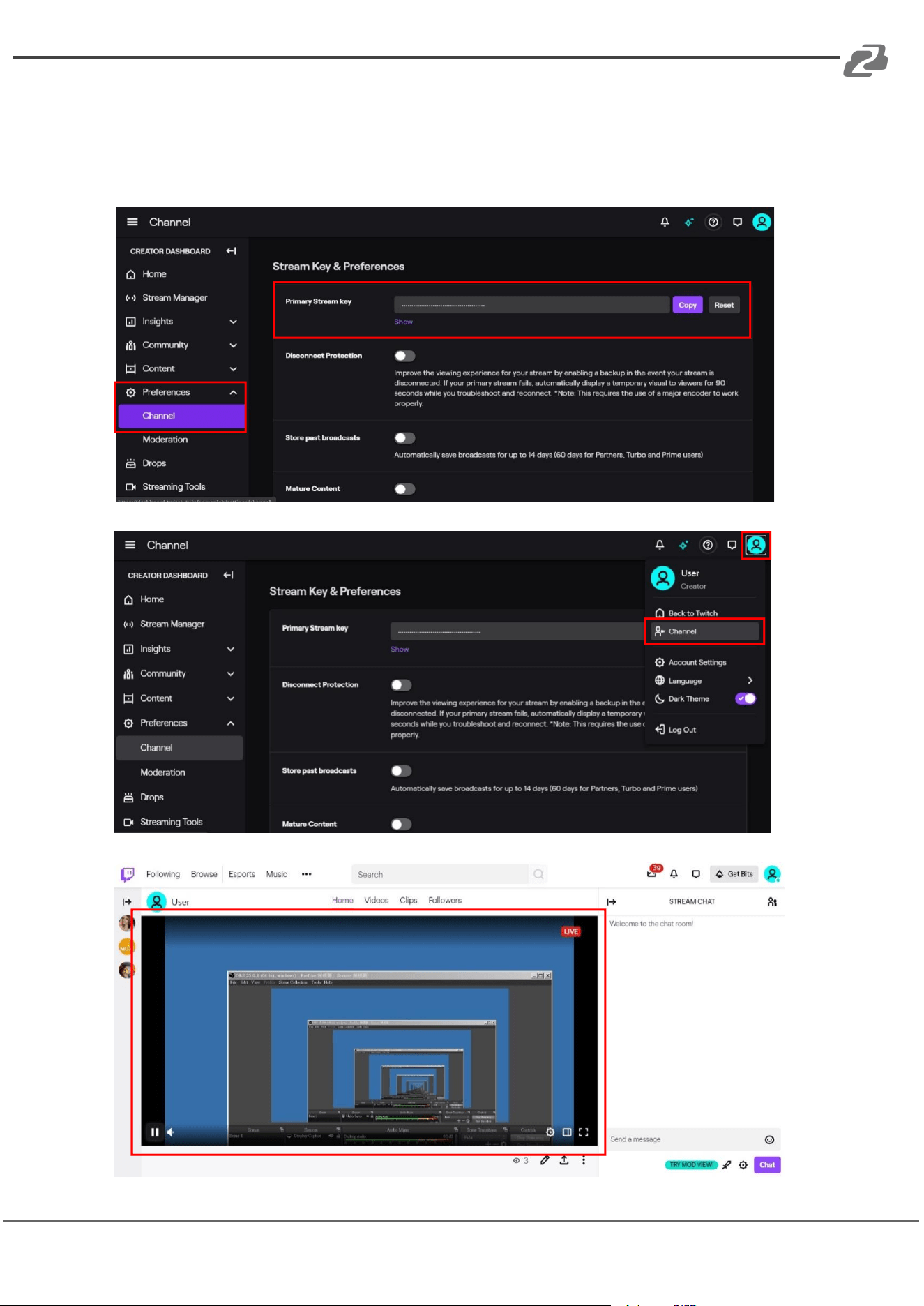
1. Browse the Twitch website (https://www.twitch.tv/) and log in, then select "Creator
Dashboard" from your account drop-down menu at the top right of the screen.
Address: 830 National Drive #140, Sacramento, CA 95834, USA · Tel: +1(888)499-9906 · Email: support@bzbgear.com 7
BZBGEAR BG-4KCH PRODUCT MANUAL
2. Find "Preferences" in the left menu, and click "Channel", then you will see
"Primary Steam key" on the screen. Copy the "Primary Steam key" and paste it
into the "Stream Key" field in the OBS, then click "Start Streaming" in the
software.
* Please refer to steps 4-6 of the OBS software control program.
3. Go back to Twitch and select "Channel" from your account drop-down menu.
4. At this point, you will see the player start live streaming.
Address: 830 National Drive #140, Sacramento, CA 95834, USA · Tel: +1(888)499-9906 · Email: support@bzbgear.com 8
BZBGEAR BG-4KCH PRODUCT MANUAL
YouTube
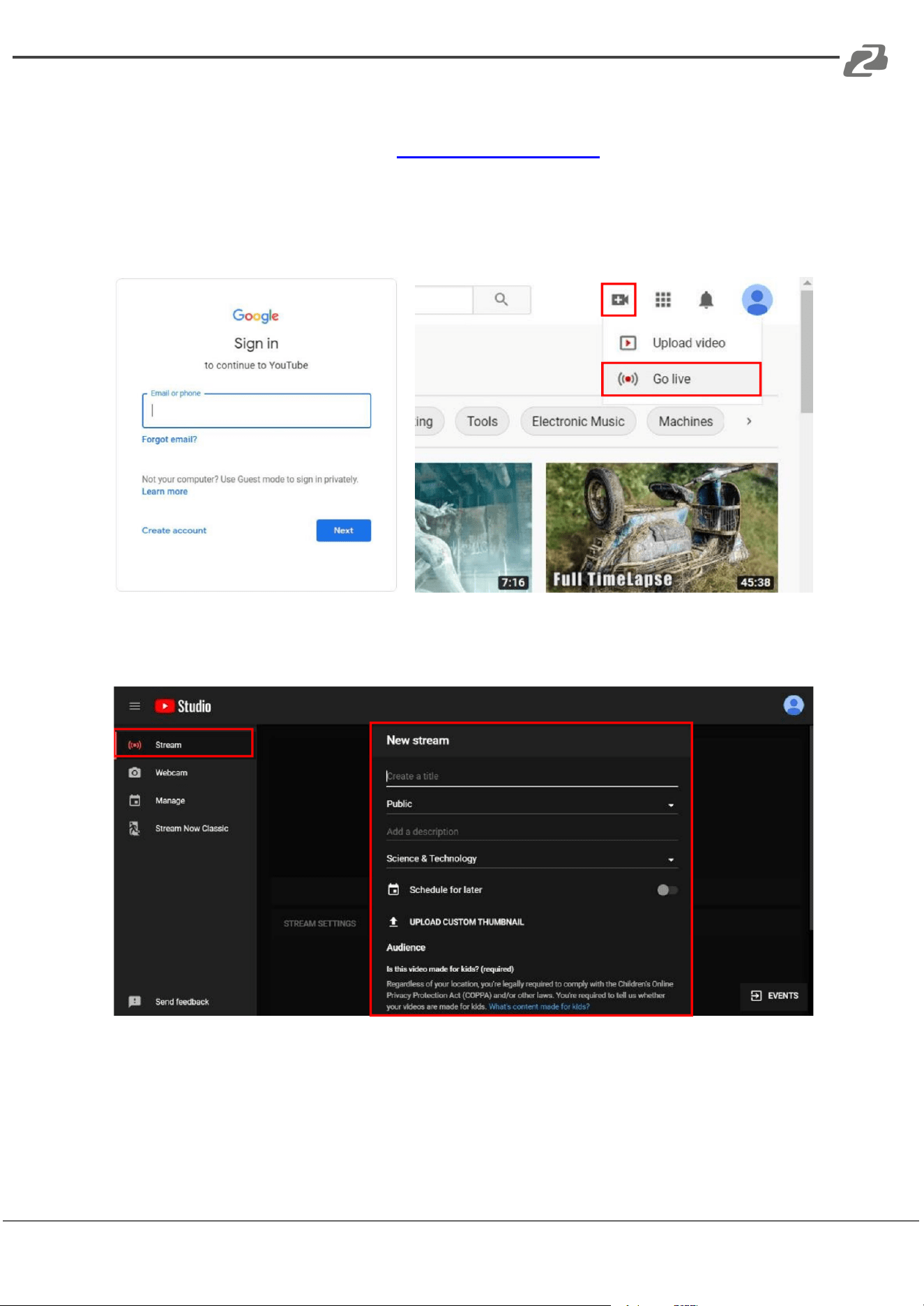
1. Browse the YouTube website (https://www.youtube.com/) and log in, then click "Go
live" from the "Create" icon menu at the top right of the screen.
* If your account is using YouTube for the first time to create a video stream, you
need to wait 24 hours to enable the function.
2. Click "Stream" in the left menu, and fill in the relevant information of the live video to
create a new stream.
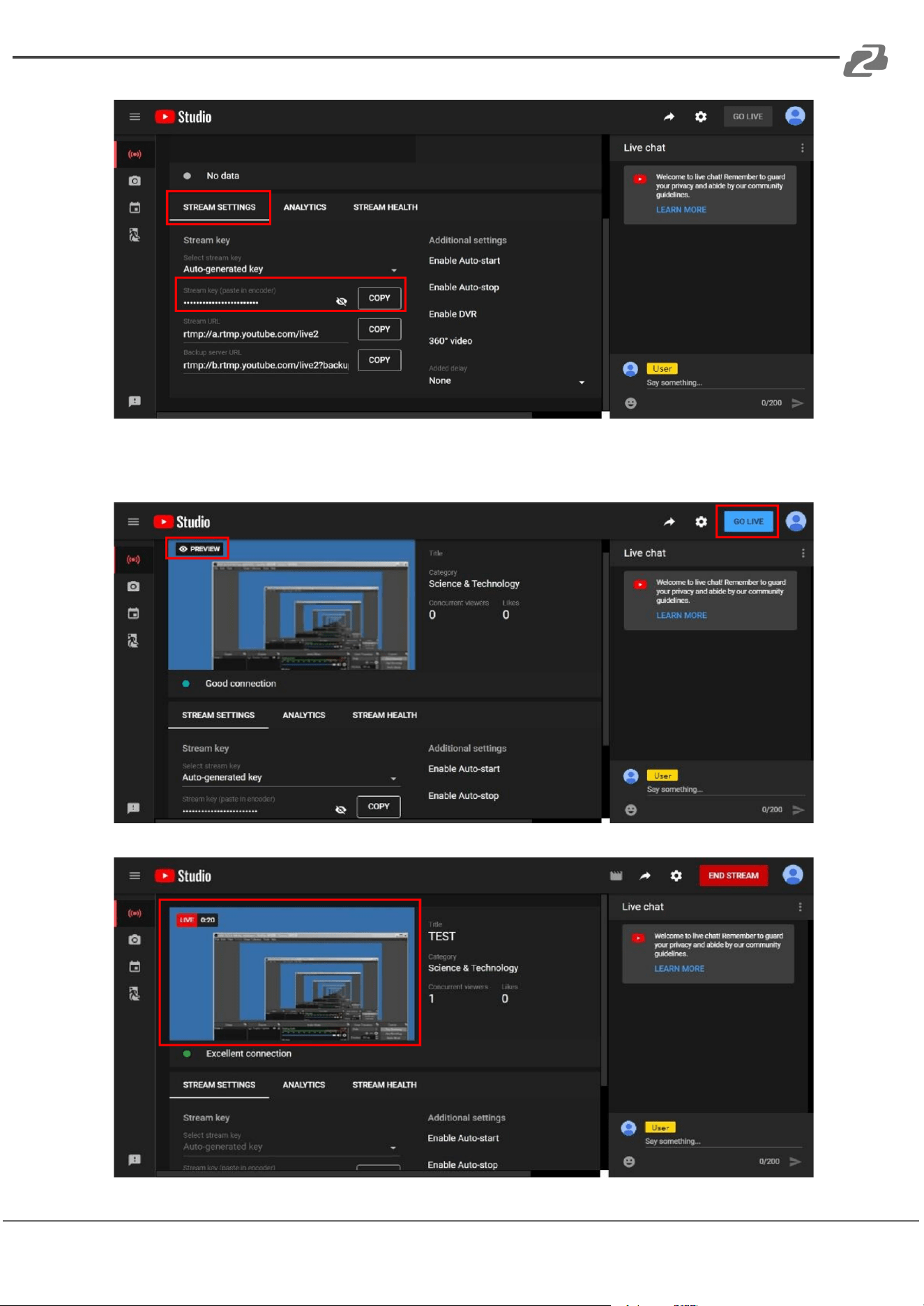
3. You will see "Stream key" from the “STREAM SETTINGS” below. Copy the
"Stream key" and paste it into the "Stream Key" field in the OBS, then click "Start
Streaming" in the software.
* Please refer to steps 4-6 of the OBS software control program.
Address: 830 National Drive #140, Sacramento, CA 95834, USA · Tel: +1(888)499-9906 · Email: support@bzbgear.com 9
BZBGEAR BG-4KCH PRODUCT MANUAL
4. Next, go back to YouTube, and then wait for 30-60 seconds, the player will display
the live preview. At the same time, the "GO LIVE" button at the top right will turn
blue, please press this button.
5. The player on YouTube will start live streaming.
Address: 830 National Drive #140, Sacramento, CA 95834, USA · Tel: +1(888)499-9906 · Email: support@bzbgear.com 10
BZBGEAR BG-4KCH PRODUCT MANUAL
Stream and record videos with OBS
OBS is a popular USB capture freeware and has excellent compatibility. Please start with
OBS if users are not familiar with USB capture devices.
Download the software
Browse the download page of the OBS official website (https://obsproject.com/download),
then select the suitable computer operating system and start downloading.
Start the software control program
After downloading the software, please open it and follow the below steps to complete the
video streaming settings.
Address: 830 National Drive #140, Sacramento, CA 95834, USA · Tel: +1(888)499-9906 · Email: support@bzbgear.com 11
BZBGEAR BG-4KCH PRODUCT MANUAL
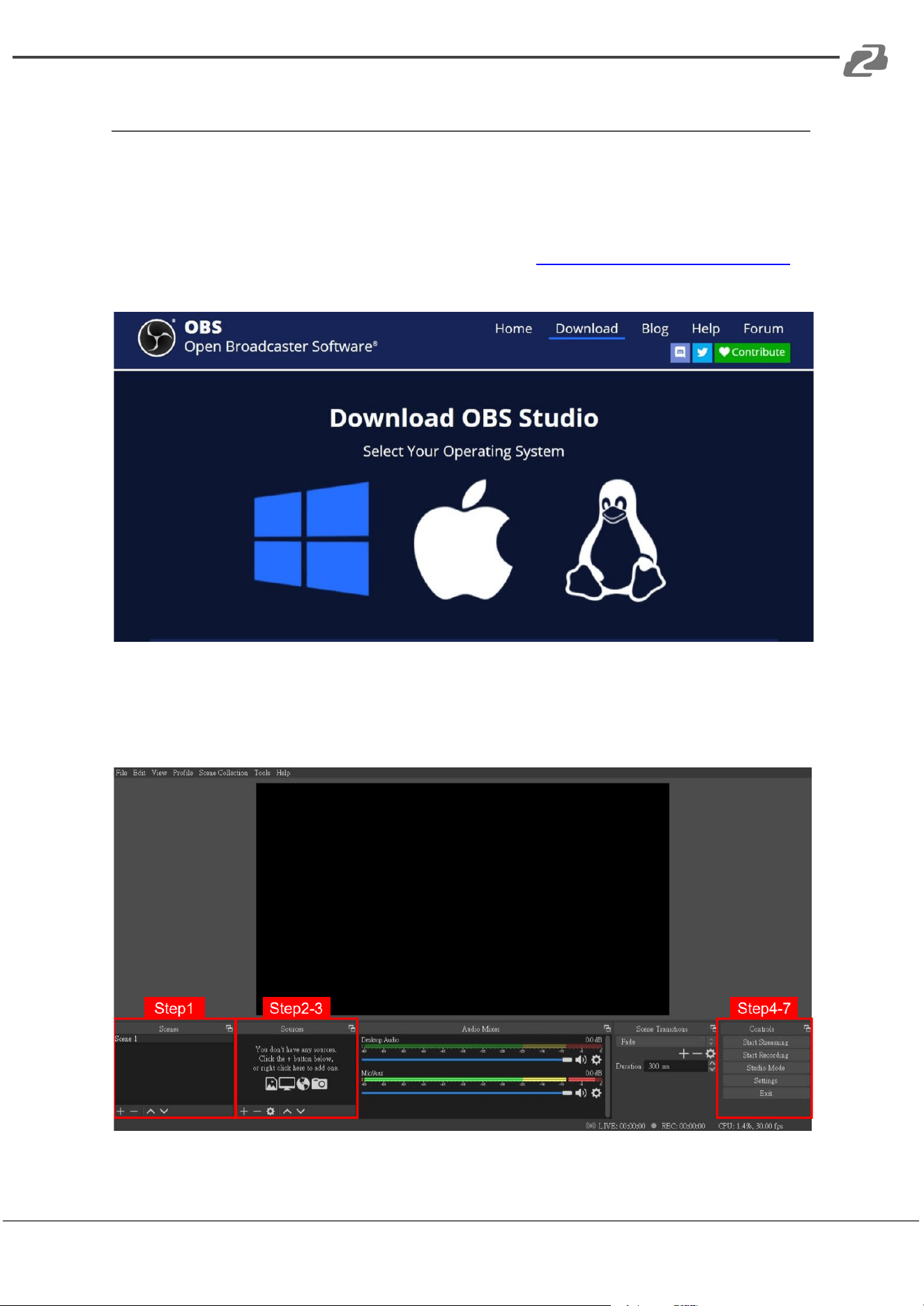
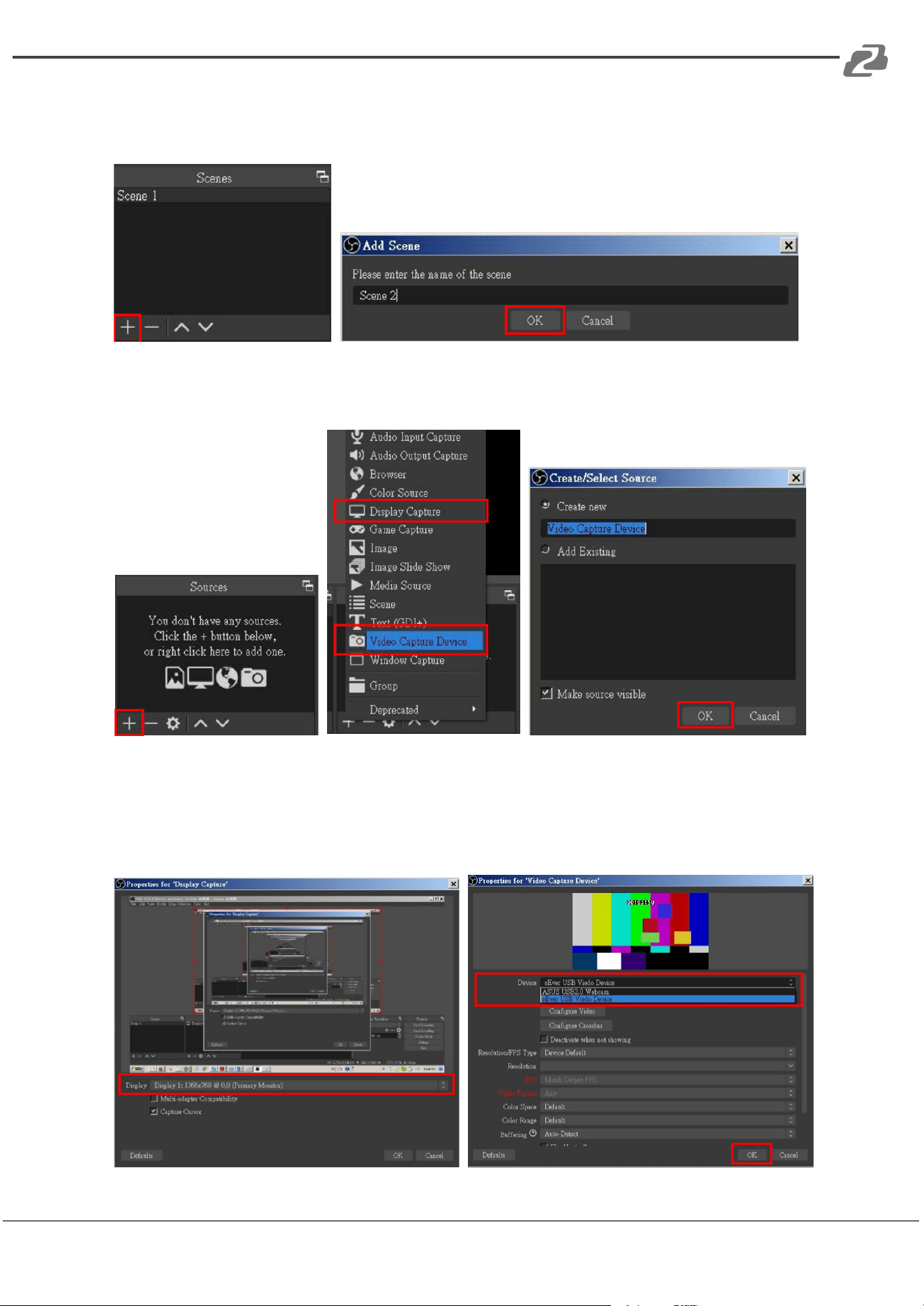
1. First, find the "Scenes" window, click "+" in the lower left corner, and then enter the
name of the scene to create a new scene.
2. Find the "Source" window, click "+" in the lower left corner, and then select
"Display Capture" or "Video Capture Device" to create a new source.
3. Next, you can set display capture properties. If you select "Display Capture" in step
2, you can select the primary monitor or other extended monitor as the display
source. If you select "Video Capture Device" in step 2, you can select USB video
device as the display source. After all settings are completed, click “OK”.
Address: 830 National Drive #140, Sacramento, CA 95834, USA · Tel: +1(888)499-9906 · Email: support@bzbgear.com 12
BZBGEAR BG-4KCH PRODUCT MANUAL
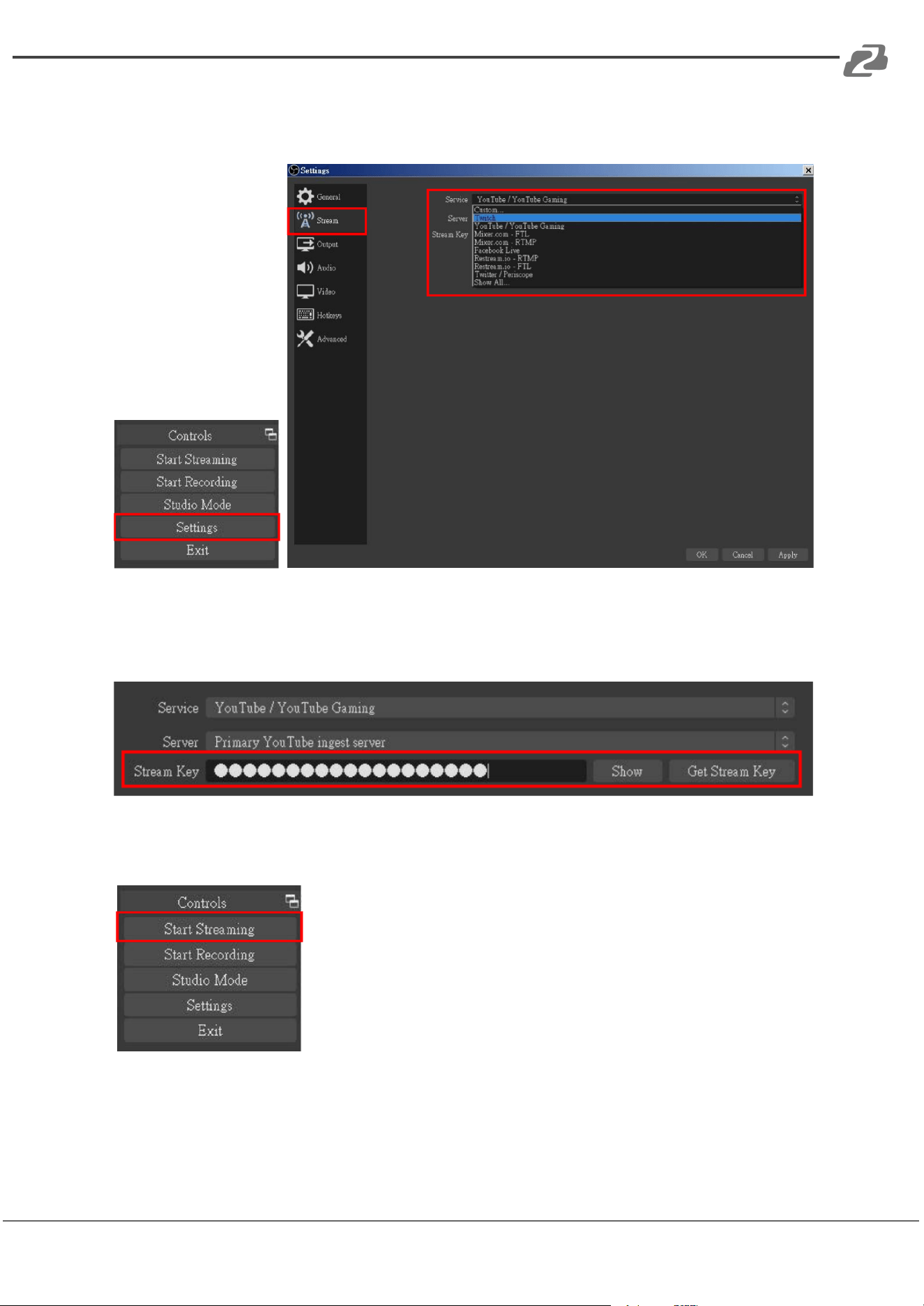
4. Click "Settings" and then select "Stream" to perform streaming settings. Users can
choose service providers, including Twitch, YouTube, etc.
5. Paste the stream key provided by the service provider into the "Stream Key" field,
then click "Apply" and "OK" after setting. In addition, users can lick "Get Stream
Key" at this step to open the service provider website.
6. Please click "Start Streaming". At this time, the screen after clicking "Start
Streaming" will be displayed in the live video.
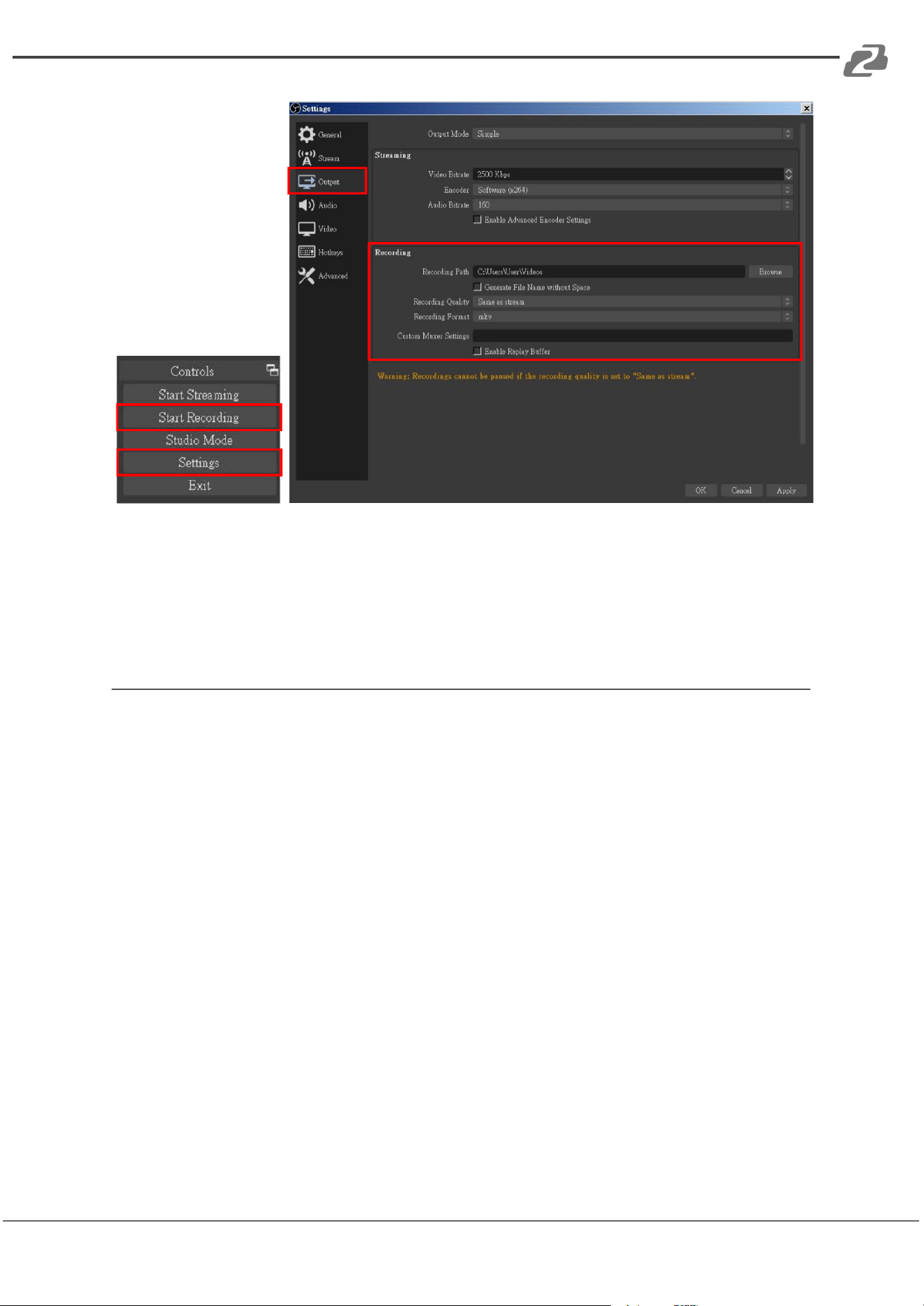
7. On the other hand, users can also click "Start Recording" to record videos with
OBS. Besides, you can click "Settings" and then select "Output" to set “Recording
Path” and “Recording Format”.
Address: 830 National Drive #140, Sacramento, CA 95834, USA · Tel: +1(888)499-9906 · Email: support@bzbgear.com 13
BZBGEAR BG-4KCH PRODUCT MANUAL
Note: The procedures the manual demonstrates are based on the interface that
each website provides at the time when the manual is written. The most current
method of live streaming should be similar to the above procedures but is subject to
change by the website interface update by the social media platform.
Troubleshooting
1. The BG-4KCH supports HDCP to protect legal content from copyright infringement. If an
HDMI input is eequipped with HDCP protection, the status LED will turn red to indicate the
presence of HDCP. No capture will be legally allowed if HDCP is detected. Please use
non-HDCP protected HDMI sources or disable HDCP in order to enable content capture.
Check connected device for an option to disable HDCP.
2. Due to the complexities of OS and computer hardware, different USB ports on your PC or
laptop may have different performance or limitations. If the device does not work on one
USB connection it still may work on another.
3. If video quality is low or the video connection is intermittent, try another HDMI cable.
Address: 830 National Drive #140, Sacramento, CA 95834, USA · Tel: +1(888)499-9906 · Email: support@bzbgear.com 14
BZBGEAR BG-4KCH PRODUCT MANUAL
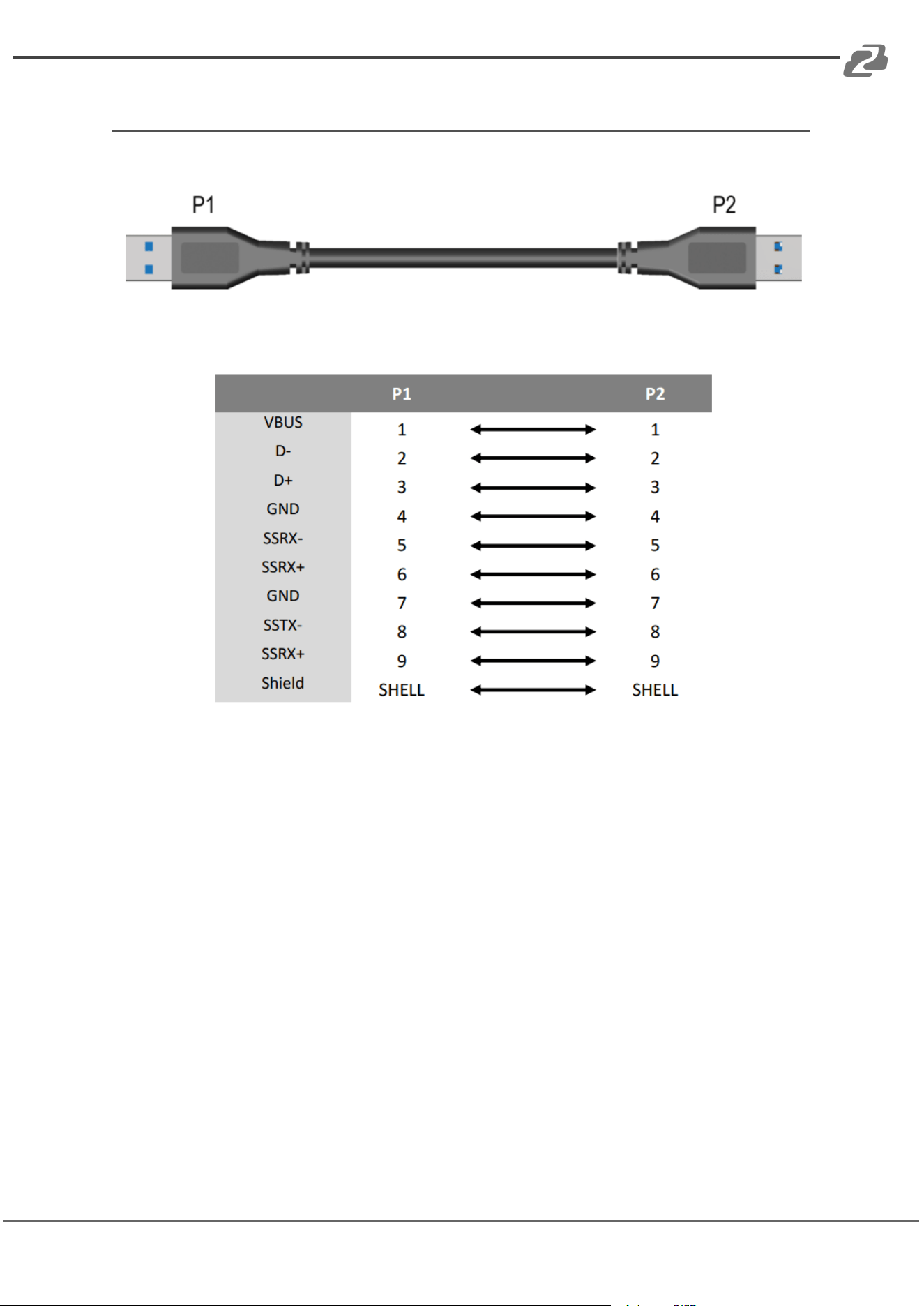
Usb Pin Definition
Address: 830 National Drive #140, Sacramento, CA 95834, USA · Tel: +1(888)499-9906 · Email: support@bzbgear.com 15

BZBGEAR BG-4KCH PRODUCT MANUAL
Tech Support
Have technical questions? We may have answered them already!
Please visit BZBGEAR’s support page (bzbgear.com/support) for helpful information and
tips regarding our products. Here you will find our Knowledge Base
(bzbgear.com/knowledge-base) with detailed tutorials, quick start guides, and step-by-step
troubleshooting instructions. Or explore our YouTube channel, BZB TV
(youtube.com/c/BZBTVchannel), for help setting up, configuring, and other helpful how-to
videos about our gear. Need more in-depth support? Connect with one of our technical
specialists directly:
Phone
1.888.499.9906
Email
support@bzbgear.com
Live Chat
bzbgear.com
Limited Product Warranty Terms
Pro Line: 5-year warranty from the date of purchase for AV/Broadcasting products bought
on or after August 1, 2024.
Essential Line: 3-year warranty from the date of purchase for AV/Broadcasting products
bought on or after August 1, 2024.
Cables: Lifetime Limited Product Warranty.
For complete warranty information, please visit bzbgear.com/warranty.
For questions, please call 1.888.499.9906 or email support@bzbgear.com.
Mission Statement
BZBGEAR is a breakthrough manufacturer of high-quality, innovative audiovisual equipment
ranging from AVoIP, professional broadcasting, conferencing, home theater, to live
streaming solutions. We pride ourselves on unparalleled customer support and services.
Our team offers system design consultation, and highly reviewed technical support for all
the products in our catalog. BZBGEAR delivers quality products designed with users in
mind.
Copyright
All the contents in this manual and its copyright are owned by BZBGEAR. No one is allowed
to imitate, copy, or translate this manual without BZBGEAR’s permission. This manual
contains no guarantee, standpoint expression or other implies in any form. Product
specification and information in this manual is for reference only and subject to change
without notice.
All rights reserved. No reproducing is allowed without acknowledgement.
Address: 830 National Drive #140, Sacramento, CA 95834, USA · Tel: +1(888)499-9906 · Email: support@bzbgear.com 16
