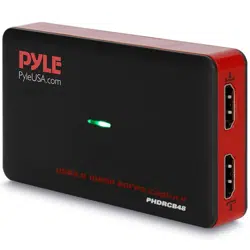

Live Streaming USB3.0 HDMI Video Recorder
with HDMI Pass through
USER MANUAL

www.PyleUSA.com
2
Live Streaming USB3.0 HDMI Video Recorder with HDMI Pass through
User Manual
With PHDRCB48 Full HD 1080 60 fps game capture, USB3.0 fastest speed,
captures up to 1080 60fps full HD. UVC Standard, no driver required, works
with most of 3rd party software and live video streaming for Skype,
Facebook, Youtube, etc.
Features:
1. USB3.0 Type - A port – Connect to computer with USB3.0 cable.
2. LED – Will be on when connected to computer.
3. HDMI Input port – Connect video source with HDMI cable.
4. HDMI Output port – Connect to TV monitor to view input video, it isn’t
necessary for capture function, but also for viewing video on a big
monitor.
Works on Windows
To begin, set the audio capture sample rate to 48Khz
Note:
Always set the audio capture sample rate, otherwise it will cause bad
audio quality
1. After connecting PHDRCB48 to computer, right click on “Speaker” of
your computer, choose “Recording devices”.

www.PyleUSA.com
3
2. Double click “FHD Webcamera” ----At “Advanced” choose the sample rate
to “2 channel 16 bit, 48000 Hz (DVD Quality)”
3. To adjust the input audio level, or no audio input, at “ Levels” , set the
value:

www.PyleUSA.com
4
Work with OBS Studio:
1. Connect PHDRCB48 to computer with USB3.0 cable, and connect video
source with HDMI cable, windows will install the driver automatically,
you will see “FHD Camera” in device manager. If you want view video on
a big monitor, you can connect the HDMI output of PHDRCB48 to your
TV monitor with HDMI cable.
2. Run OBS Studio, Click “+” icon under “Sources” window, and select “Video
Capture Device”, then select “FHD Camera” in the drop box next to
“Device”:
3. At Set Audio Output Mode to “Output desktop audio (WaveOut), Audio
Device to “FHD Webcamera”:

www.PyleUSA.com
5
4. Set the video latency for make the audio and video synchronized:
1. Right click “Video Capture Device” then click “Filters”:
2. Click to add “Video Delay (Async)” :
3. Set to 470ms (You can adjust it smaller or bigger until you nd the
audio and video is synchronized):

www.PyleUSA.com
6
5. Then you can record or stream video:
Works with other applications (e.g. VLC, Media encoder, Protplayer…):
Just run the application then choose capture device to “FHD Webcamera”.
Work on MAC:
Work with OBS Studio:
Download and install OBS studio, then do the same as above on windows.
Works with QuickTime Player:
1. Run QuickTime player, select “New Movie Recording”:
2. Choose “FHD Webcamera” under Camera and Microphone option:

www.PyleUSA.com
7
Works on Linux:
Work with OBS Studio:
Download and install OBS studio, then do the same as above on windows.
(note: Your Linux should meet OBS requirements)
Works with OBS VLC (shows example for Ubuntu):
1. Right click on window, select “Open Capture Device”:
2. Choose “Video camera” ---“/dev/video0” then click “play”

www.PyleUSA.com
8
Connections
Hardware Extra
Package Contents
Standards
Interface
Video Input, Output
Audio Input, Output
USB 3.0
HDMI
HDMI
Dimensions
Weight
95.5*57*16MM
56g
Device
Others
PHDRCB48
USB3.0 cable, manual
OS support
Resolution
Windows 7, 8, 10, OS X 10.9 or later, Linux
720 x 480 (60p), 720 x 576 (50p), 1280 x 720p (50p),
1280 x 720p(60p), 1920 x 1080 (50i), 1920 x 1080 (60i),
1920 x 1080 (24p), 1920 x 1080 (25p), 1920 x
1080 (30p), 1920 x 1080 (50p), 1920 x 1080 (60p)
Software
Compatibility:
Development
Interface
Compatibility:
Record Quality
OBS Studio (windows,OS X); Windows Media Encoder
(Windows); Adobe Flash Media Live -Encoder (Windows,
OS X); Real Producer Plus (Windows); VLC (Windows, OS X,
Linux); QuickTime Broadcaster (OS X); QuickTime Player
(OS X); Wirecast (Windows,OS X); vMix(Windows);
Potplayer (Windows)and etc.
Direct Show (Windows), DirectSound
(Windows),V4L2 (Linux), ALSA (Linux)
OS X (QuickTime)
Max 1080P 60fps