
Troubleshooting steps:
Double Check The Port
USB cable
USB Controller Drivers
Try All USB ports
Bandwidth
Reduce Resolution or Frame Rate
Advanced - Change USB transfer mode
Advanced - AMD B550/X570 Motherboards
Contact Customer Support
Double Check The Port
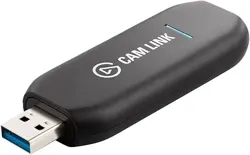
Ensure that the port the Elgato Cam Link 4K is plugged into is a USB 3.0 port. These ports can
often be identified by their blue interior color.
USB Cable
Ensure that the cable being used is the one that came with the capture device.
If a different cable is used, it may not be a USB 3.0 cable and it may cause issues.
Try removing the extension cable that comes with Elgato Cam Link 4K to check if that makes a
difference.

USB Controller Drivers
Make sure to install the latest drivers provided by your motherboard or notebook manufacturer
for the USB 3.x controller. This will ensure that the Elgato Game Capture device is able to
connect, and has the best possible performance.
Other controllers usually also work fine with Microsoft's drivers.
Some USB controllers, such as Intel, do not have separate drivers. Instead, these ports use basic
Microsoft drivers which cannot be re-installed.
Try All USB 3.0 Ports
Many motherboards have USB 3.0 controllers from different manufacturers, therefore it's worth
trying to connect Elgato Cam Link 4K to a different USB port, which is internally connected to
a different USB controller.
Other USB ports, such as USB 3.1 and USB 3.2 are backward compatible and support USB 3.0
devices. Try connecting Elgato Cam Link 4K to those USB ports as well.
Bandwidth
There could be bandwidth issues if too many devices are connected to the same internal USB
hub or controller. Please make sure the USB hub is USB 3.0 compatible.
Disconnecting other devices or connecting them to different ports can help.

USB ports are controlled by what is called a USB controller. These controllers are used for pairs
of USB ports. If both USB ports are occupied by high bandwidth devices such as USB capture
devices, external hard drives, webcams, etc the available bandwidth may be used up.
Reduce Source Resolution or Frame Rate
Elgato Cam Link 4K sends uncompressed video to the computer. Lowering the incoming
source resolution or frame rate directly results in Elgato Cam Link 4K using less USB
bandwidth.
Try lowering the source, usually a camera, resolution, or frame rate. For example, 1080p60 to
720p60 or 4K30 to 1080p30.
Advanced troubleshooting - Change USB transfer mode
These steps are for Windows 10 only
Changing the USB transfer mode of the Cam Link 4K can help solve issues. This is an advanced
troubleshooting step that can introduce other issues. If you are not comfortable doing this or are
unsure if this will help, please contact Elgato customer support.
1) Download and install the Elgato 4K Capture Utility software from http://e.lga.to/download
2) Open the 4K Capture Utility.
3) Press and hold down the CTRL key on the keyboard, and then click on "Open Preferences" at
the top right of the 4K Capture Utility software window.
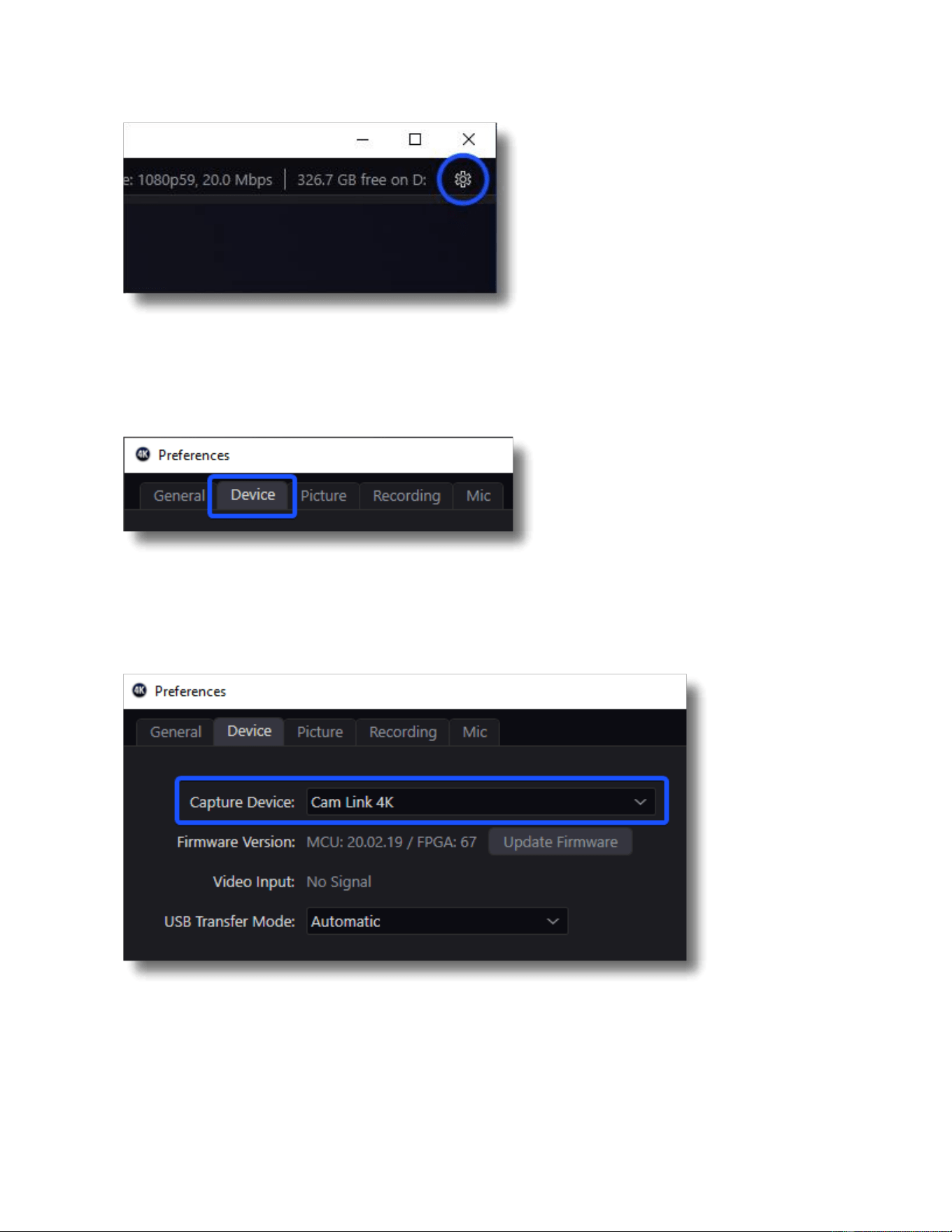
4) In the preferences window select the device tab.
5) In the device tab, make sure Cam Link 4K is the selected device.
6) Click on the USB Transfer Mode drop-down menu and select "Isochronous".
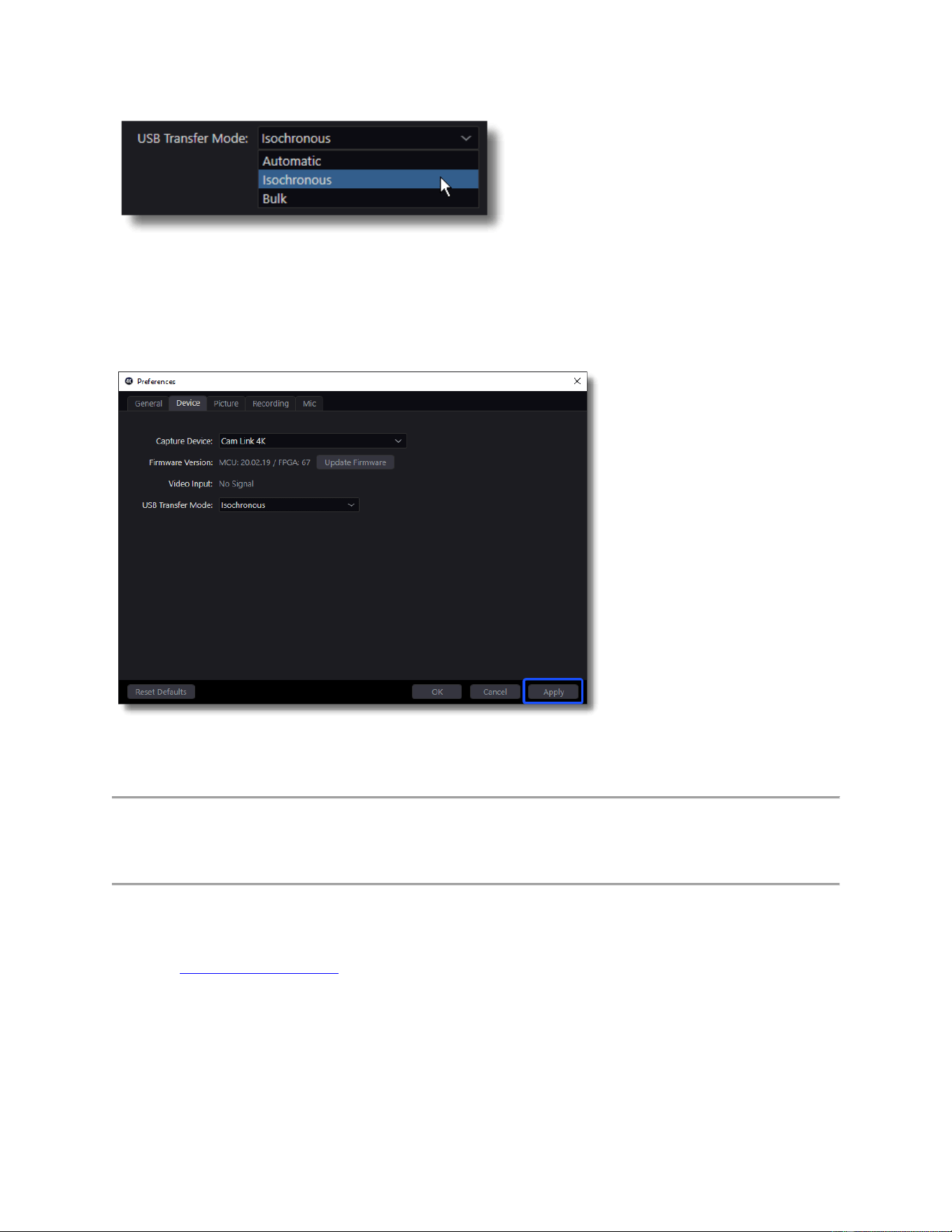
7) Now click on apply and OK. The signal from the Cam Link 4K may disappear for a few
seconds, then reappear.
Advanced troubleshooting - Set PCIe to Gen3
Update: AMD has announced that a new AGESA update, AGESA 1.2.0.2 will fix USB issues
on affected B550/X570 motherboards. BIOS updates containing the new AGESA version is
rolling out now.
Please check your motherboard manufacturer site for a new BIOS update.
---

The latest version of PCIe, PCIe 4.0, has been reported to cause USB bandwidth issues and USB
device dropouts on AMD B550 and X570 chipset motherboards. These issues may appear when
using a PCIe 4.0 capable motherboard with a PCIe 4.0 capable device such as a graphics card
(GPU) or NVMe SSD (Solid-state drive).
Setting the PCIe lane speed from Generation 4 (Gen4) to Generation 3 (Gen3) may help in cases
where USB devices such as Cam Link 4K are freezing or disconnecting at times.
Setting PCIe generation from Gen4 to Gen3 can be done in the motherboard BIOS.
Each motherboard model and manufacturer will have a different name and location inside the
motherboard BIOS for the PCIe generation setting.
The setting is usually found in Onboard Device Configuration settings and will be labeled as:
PCIEX_MODE
[AUTO]
[GEN 1]
[GEN 2]
[GEN 3]
[GEN 4]
Select [GEN 3] then save and exit the BIOS.
Contact Elgato Customer Support
If all these suggestions have been tried and the Elgato Cam Link 4K video still freezes, please
contact our customer support team by going to https://help.elgato.com/hc/requests/new