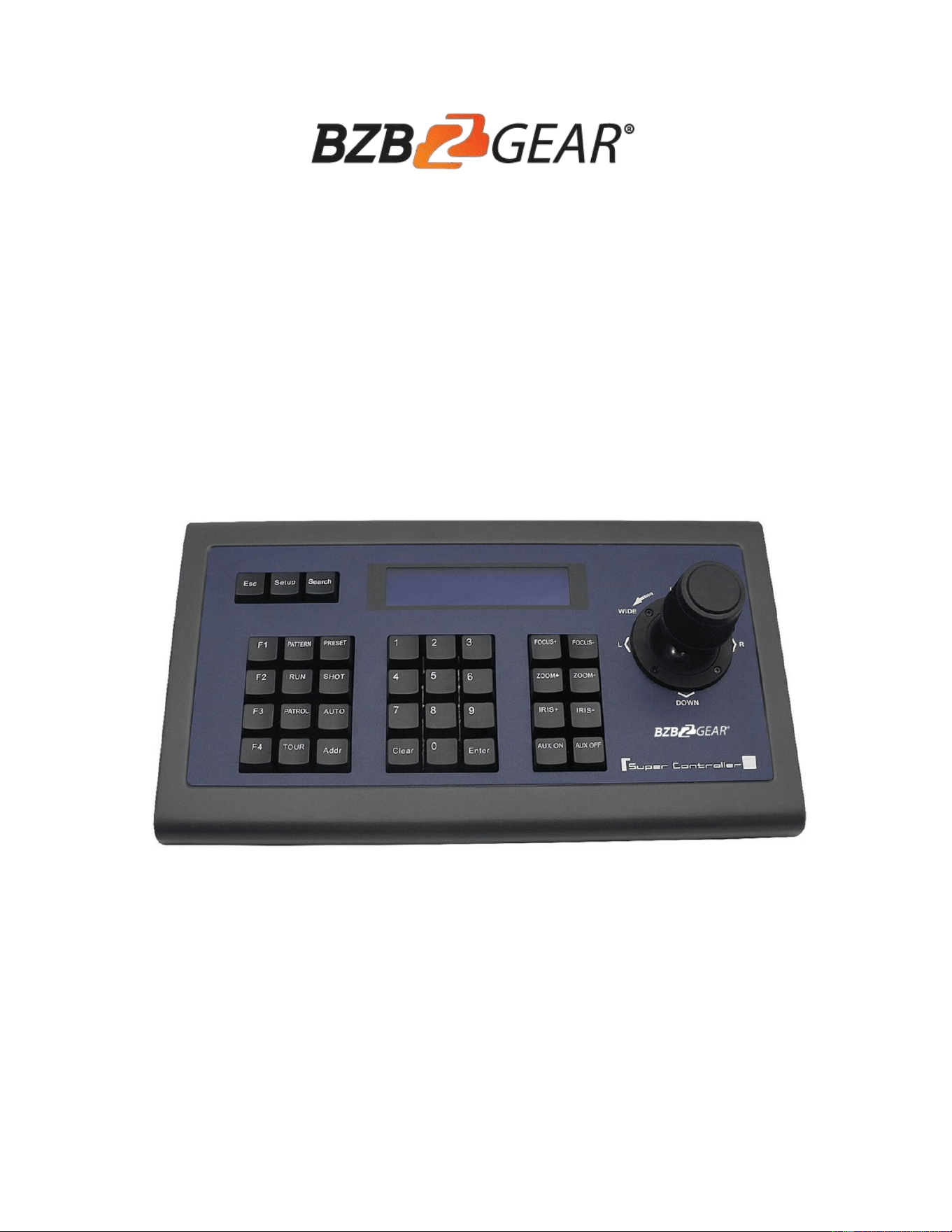
Model Number: BG-CJ-RS
Joystick Keyboard Installation & Operation Manual

2
Easy pan, tilt & zoom controls for any RS-232, RS485, RS422 VISCA, Pelco-P or
Pelco-D protocol camera!
Controls pan & tilt with variable speed.
Uses 3-Dimensional joystick with “twist” control for variable zoom.
Key Product Features
•
All Metal housing.
•
VISCA, PELCO-D and PELCO-P protocol support.
•
Large LCD Menu display. Key-press “BEEP” confirmation (optional – set on
or off).
•
Pan, tilt, zoom, iris and focus control.
•
Variable speed control of pan, tilt, zoom, focus, and presets.
•
Auto/Manual Focus and Iris.
•
Cameras #1-6 ‘Quick Key’ Select buttons. • Quick preset set & call (1 – 9)
•
Preset Save, Call and Clear.
•
Real time display of the current status.
•
Short circuit and overcurrent protection.
•
Automatic recovery program for the communication port(s).
Key Technical Specifications
•
Control Interfaces:
RS232 full-duplex, RS485 semi duplex, RS422 full-duplex.
•
Variable Baud Rate 1200 to 19200 bps.
•
Maximum communication distance: RS485: 3,937ft [1200m] using 24
gauge twisted pair cabling
•
Control a maximum 255 cameras via Pelco-D/P.
•
Voltage: 12VDC.
•
Power Consumption: 6W Max.
•
Display: LCD.
•
Working Temperature: 14°F ~ 122°F [-10° ~ +50° C].
•
Working Humidity: 10 ~ 90% (non-condensation).
•
Weight 3.3 lbs. [1.5 kg]
•
Dimensions: 12.6”(W) x 7.1”(D) x 4.3”(H) [320mm x 181mm x 110mm].

3
In the Box
•
Keyboard with three-axis control joystick.
•
5p screw terminal plug (RS422/RS485).
•
12VDC Power Supply.
•
This Manual.
Installation
•
Power Supply Interface (5.5mm x 12mm center pin JEITA style jack):
12VDC / 2000mA power supply.
•
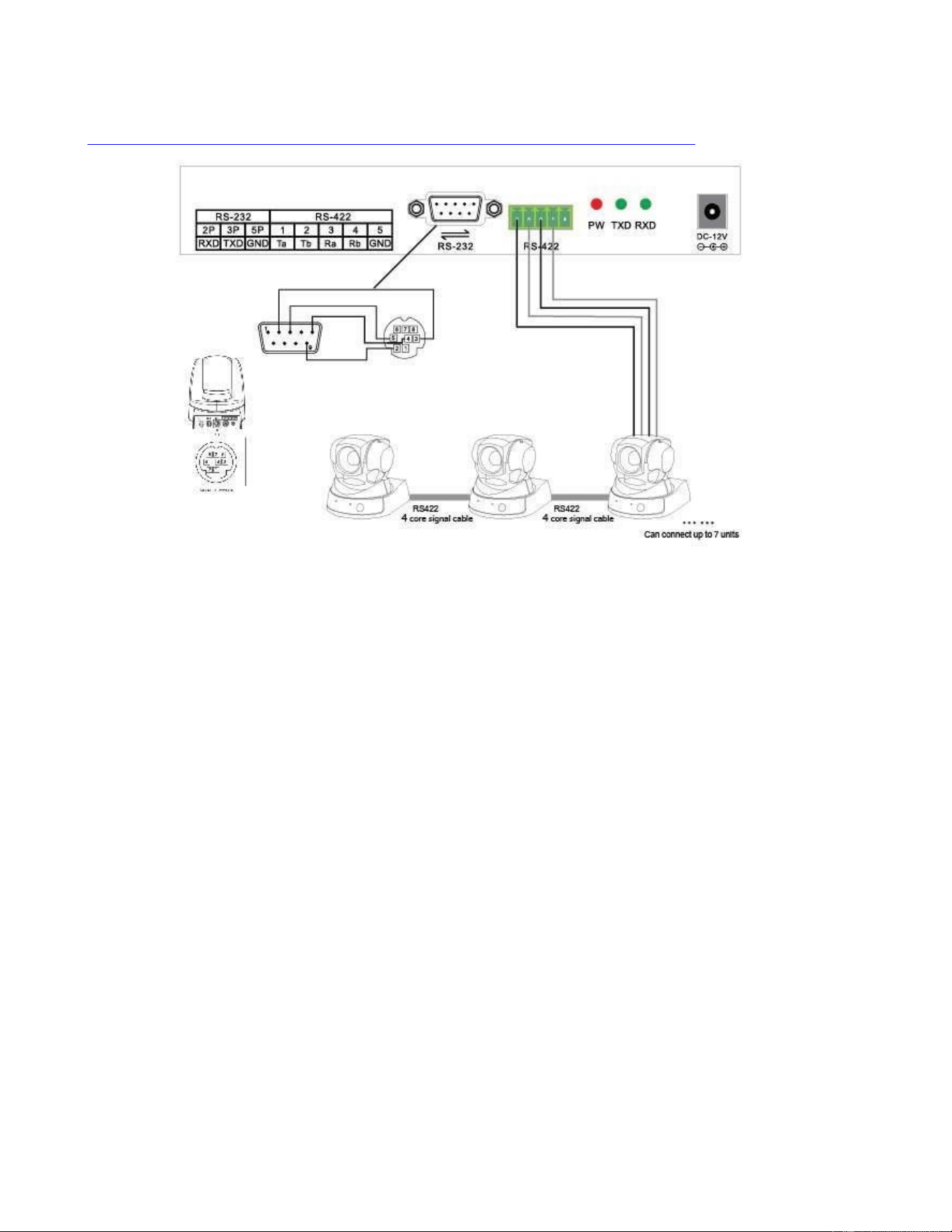
RS485/422 interface (5p screw terminal):
1:485+/422TxA, 2:485-/422TxB, 3:422RxA, 4:422RxB, 5:485/422Gnd.
•
RS232 interface (DB9M port): 2:Rx, 3:Tx, 5:Gnd.
Hardware Features
•
Keys: momentary push buttons (keys).
•
Joystick: 3-axis joystick.
•
Digital display: LCD display.
Control Mode
•
VISCA, PELCO-P and PELCO-D protocol support.
•
Control interfaces: o 5p Screw Terminal (RS485/RS422).
o DB9 (RS232).
•
Baud rate: 1200, 2400, 4800, 9600, 19200.
•
Parameters: 8 bits, 1 stop bit, No parity.

4
Keyboard/Joystick Operation
Basic Control
•
Pan & Tilt Control o Joystick movement provides variable speed pan
and tilt of the camera head.
•
Zoom Control
o
Rotation of the joystick controls variable speed zoom of the lens.
Clockwise rotation of the joystick = zoom in.
Counter-clockwise rotation of the joystick = zoom out.
Manual Control Options
•
Focus Control – (VISCA Only, Pelco-P &-D do not provide for “Man
Foc”) o Incremental Focus control can also be achieved using the
following keys: “Focus+”, “Focus-” (“Man Foc” is auto enabled upon
pressing Focus+ or Focus-).
o
Auto Focus can be enabled by pressing the “Auto Focus” key.
•
Iris Control – (VISCA Only, Pelco-P &-D do not provide for “Man Exp”)
o
Incremental Iris control can also be achieved using the following
keys: “Iris+”, “Iris-” (manual exposure is auto enabled upon pressing
Iris+ or Iris-). o Note: Some cameras do not have an “Iris” (or manual
Iris) mode. For this reason, Manual Exposure is used. Therefore, for
best results, use the camera’s IR remote to first select a desired
shutter speed before using “Man Exp”, “Iris+” and “Iris-"
•
Speed Control o Speed control can be adjusted by pressing the
“Speed” button.
o
You can adjust the Pan (0 – 24), Tilt (0 - 20), Zoom (1 - 7), Focus
(1 - 7), and Preset Speed (1 - 24).
Selecting a Camera
•
Input Number Keys o For entering numbers use the “0”
through “9” keys. o Press “Enter” key to complete commands.
o
Press the “Clear” key to clear entries before confirming with
“Enter” key.
•
Set the Camera ID to be controlled by joystick o Press “Cam
Addr” key, desired “Number” key and then “Enter” key. o
Alternatively, you can use the “Cam 1” through “Cam 6”
quick select buttons to quickly access cameras 1-6.

5
PTZ Presets
•
Set a PTZ Preset o Use joystick and keyboard to set up the desired
preset shot. Press the “Preset” key, press a “Number” key and then
the “Enter” key. To leave “Set” mode, press the “Esc” key. o
Alternatively, you can press and hold numeric 1-9 keys for 3+ seconds
for quick storing presets
•
Recall a PTZ Preset o Press the “Shot” key, press a “Number” key,
then the “Enter” key.
o
Alternatively, you can quick press numeric keys 1-9 for quick
calling presets
o
You may leave the unit in “Shot” mode and continue to enter
sequential preset calls. To leave “Shot” mode, press the “Esc”
key.
•
Clear a PTZ Preset o Press “Esc” key to return to main menu. Press
the “Clear” key, press a “Number” key and then the “Enter” key. To
leave “Clear” mode, press the “Esc” key.
•
Send camera to its “Home” PTZ Position o Press the “Home” key.
Note: When in Pelco-P or –D, this button will call preset 0, instead of
Home. Pelco-P and –D do not provide for a “Home” position. You must
first set preset 0 to use this feature with Pelco)
Notes on using presets with VISCA:
For your convenience, the BG-CJ-RS uses the same preset numbers whether
‘set’, ‘called’ or ‘cleared’ via hand-held IR remote, VISCA, Pelco-P or
Pelco-D. This is in contrast to Sony’s traditional offset of -1 between IR
remote commands and VISCA commands. If you are used to Sony’s
traditional method, you no longer need to make this adjustment.
Keyboard/Joystick Configuration - LCD Menu
•
Go to Main Menu or Backup up one Menu Level o Press
“Esc” key to return to main menu. Note: Repeated
presses may be required depending on how deep you are
in a menu.
•
Configure Keyboard/Joystick o Press and Hold the
“Setup” key for 3 seconds. o Enter the password. “8888”
is the default password.

6
o
Press the “Enter” key.
•
Keyboard Menu o “Set >>” Menu
o
Move joystick “left” and “right” to select between 1(CAM) or
2(SYS) o Press “Enter” key to confirm
the choice.
o
“SET >>CAM”: Menu
Move Joystick “left” and “right” or simply type camera ID to
select camera to configure.
Press “Enter” key to confirm the choice.
Move Joystick “up” and “down” to choose between setting
either the control protocol or baud rate settings.
Move Joystick “left” and “right” to select the desired
control protocol or baud rate (to match that of camera).
Repeat for all camera IDs required.
Press “Esc” to return to previous menu level.
o
“SET >>SYS”: Menu
Move Joystick “left” and “right” to select
system parameter to configure.
Press “Enter” key to confirm the choice.
1(EDIT PW)
•
OLD PW: Using “Number” keys,
enter the current password (default
= “8888”). Press “Enter” key to
confirm.
•
NEW PW: Using “Number” keys,
enter the desired password (4
numeric keys) Press “Enter” key to
confirm.
•
AGAIN PW: Using “Number” keys,
re-enter the desired password (4
numeric keys) Press “Enter” key to
confirm.
2(FACTORY)
•
Press “Enter” key to confirm.
•
SURE?: Press “Enter” key to
confirm.
3(LOAD ISP)
•
Press “Enter” key to confirm.
•
SURE?: Press “Enter” key to
confirm.

7
4(SOUND)
•
Move Joystick “left” and “right” to
turn key beep ON or OFF.
•
Press “Enter” key to confirm.
5(KB ID)
•
KB ID: Using “Number” keys, enter
the desired ID.
Press “Enter” key to confirm.
6(LOCK SET)
•
Move Joystick “left” and “right” to
turn KB lock ON or OFF. Press
“Enter” key to confirm.
•
LOCK PW: Using “Number” keys,
enter the desired password (4
numeric keys). Press “Enter” key to
confirm.
•
To unlock Keyboard/Joystick o
Press “Esc” key until LCD shows
“LOCKED”
o
LOCK PW: Using “Number” keys, enter the
desired password (4 numeric keys). Press
“Enter” key to confirm. o LCD screen will go
Black. Press “Enter” key again.
o
OPEN LOCK: Using “Number” keys, enter the
desired password (4 numeric keys). Press
“Enter” key to confirm.
8
Keyboard/Joystick Connection Wiring and Indicators
Indicators:
•
“PW” illuminates Red when unit is powered
•
“TXD” flashes green when unit is transmitting commands
•
“RXD” flashes green when unit is receiving responses
Power:
•
Keyboard/Joystick requires external 12VDC. Use only the 12VDC power supply
shipped with the unit.
The Keyboard/Joystick may be connected to cameras via RS232, RS485 or RS422.
•
For RS232, connect the DB9 port of the KB to the miniDin8 (VISCA) port of the
camera with pin-out as follows:
o
KB Tx – Pin 3 ---------- Camera Rx - Pin 5 o KB
Rx – Pin 2 ---------- Camera Tx - Pin 3 o KB Gnd –
Pin 5 ---------- Camera Gnd - Pin 4
•
For RS485, connect the 5p screw terminal port of the KB to the RS485 port of
the camera with pin-out as follows:
o
KB Ta – Pin 1 ---------- Camera (+) o KB Tb – Pin 2 ----------- Camera (-)

9
o
KB Gnd – Pin 5 ---------- Camera (G) (if present – some cameras will not
require a G)
•
For RS422, connect the 5p screw terminal port of the KB to the RS422 port of
the camera with pin-out as follows:
o
KB Ta – Pin 1 ----------- Camera (Rx-)
o
KB Tb – Pin 2 ----------- Camera (Rx+)
o
KB Ra – Pin 3 ----------- Camera (Tx-)
o
KB Rb – Pin 4 ----------- Camera (Tx+)
o
KB Gnd – Pin 5 ---------- Camera (G) (if present – some cameras will not
require a G)

10
Troubleshooting
•
Cannot Control Camera at all o Check that LCD is in the Main Menu. Press
“Esc” key to return to main menu, if needed. Note: Repeated presses may be
required depending on how deep you are in a menu, e.g. this can often
happen after setting presets and then attempting to Call presets without
exiting the Set menu.
o
Check that PW Indicator is solid Red. If not, check power supply
connection to KB and AC Mains. If still unlit, power supply or the KB may
be damaged.
o
Check both KB settings and camera settings to ensure that the following
ALL match:
Camera ID (e.g. 01, 02, etc…)
Camera Protocol (e.g. VISCA, PELCO-P, PELCO-D)
Baud Rate (e.g. 9600) o Check all KB-camera connections and
cabling per “Connection Wiring and Indicators” section above. o
Check TXD Indicator for Green flickering when cam is moved using
the joystick. If not flickering, KB or its joystick may be damaged.
•
Controlling more than 1 camera at a time.
o
Check all cameras to ensure that each has a unique ID. o Check all
camera settings in KB menu to make sure that the protocol setting for
that camera ID matches that of the actual camera. o Note, you cannot
typically mix VISCA, Pelco-P or Pelco-D cameras in the same daisy chain.
o
Check control wiring.
For RS232, cabling must flow from KB into the VISCA-in port of the
first camera and then from VISCA-out port of first camera to
VISCA-in port of next camera, etc... With daisy chained RS232, no
terminator is required on the last camera. A VISCA cross-over
cable must be used for all camera to camera connections. These
are available in various lengths.
For RS485 and RS422, all connections are in parallel (e.g. all cams’
485+ are connected to KB’s 485+ and all cams’ 485- are connected
to KB’s 485-) and termination may be required depending upon
overall cabling distances involved.

11
Warranty
BZBGEAR wants to assure you peace of mind. All BZBGEAR cameras and camera-
related products include our Stress-Free Three-Year Warranty.
For complete warranty information, please visit BZBGEAR.com/warranty.
For questions, please call 1.888.499.9906 or email [email protected].
Mission Statement
BZBGEAR manifests from the competitive nature of the audiovisual industry to
innovate while keeping the customer in mind. AV solutions can cost a pretty penny,
and new technology only adds to it. We believe everyone deserves to see, hear, and
feel the advancements made in today’s AV world without having to break the bank.
BZBGEAR is the solution for small to medium-sized applications requiring the latest
professional products in AV.
We live in a DIY era where resources are abundant on the internet. With that in mind,
our team offers system design consultation and expert tech support seven days a
week for the products in our BZBGEAR catalog. You’ll notice comparably lower prices
with BZBGEAR solutions, but the quality of the products is on par with the top brands
in the industry. The unparalleled support from our team is our way of showing we
care for every one of our customers. Whether you’re an integrator, home theater
enthusiast, or a do-it-yourselfer, BZBGEAR offers the solutions to allow you to focus
on your project and not your budget.
All the contents in this manual and its copyright are owned by BZBGEAR. No one is
permitted to imitate, copy, or translate this manual without BZBGEAR’s permission.
This manual contains no guarantee, standpoint expression or other implies in any
form. Product specification and information in this manual is for reference only and
subject to change without notice.
All rights reserved. No reproducing is allowed without acknowledgement.