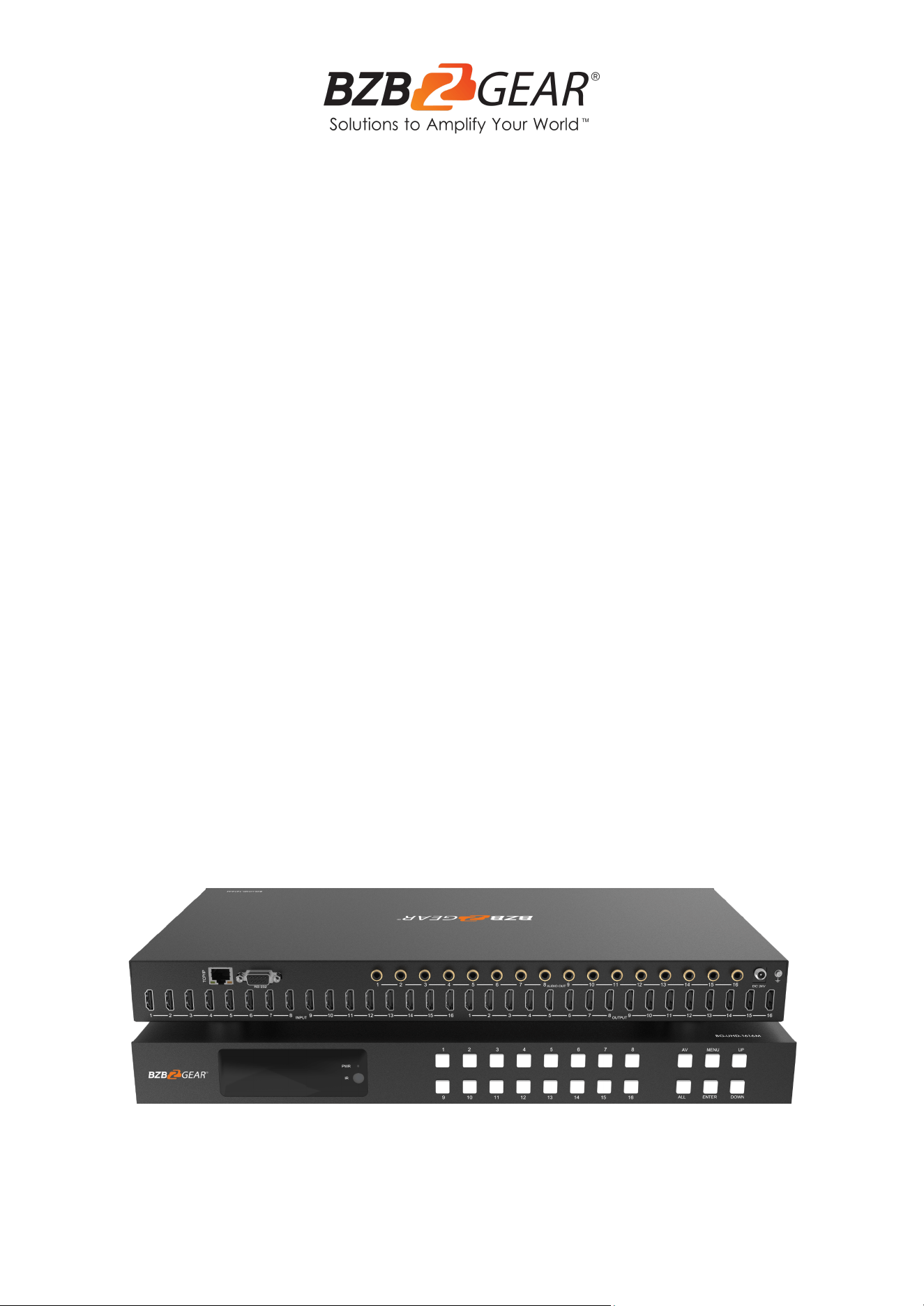
BG-UHD-1616M
16X16 4K UHD 18Gbps HDMI Matrix Switcher with Advanced EDID,
HDMI Downscaling & CEC Support
User Manual

BZBGEAR BG-UHD-1616M PRODUCT MANUAL
Address: 830 National Drive #140, Sacramento, CA 95834, USA · Tel: +1(888)499-9906 · Email: support@bzbgear.com 2

BZBGEAR BG-UHD-1616M PRODUCT MANUAL
TABLE OF CONTENTS
Statement 4
Safety Precaution 4
Introduction 5
Features 5
Packing List 5
Specifications 6
Operation Controls and Functions 7
IR Remote 8
EDID Management 9
Web GUI User Guide 11
RS-232 Control Commands 22
Application Diagram 26
Tech Support 27
Limited Product Warranty Terms 27
Mission Statement 28
Copyright 28
Address: 830 National Drive #140, Sacramento, CA 95834, USA · Tel: +1(888)499-9906 · Email: support@bzbgear.com 3
BZBGEAR BG-UHD-1616M PRODUCT MANUAL
Statement
Please read these instructions carefully before connecting, operating, or configuring this
product. Please save this manual for future reference.
Safety Precaution
● To prevent damaging this product, avoid heavy pressure, strong vibration, or immersion
during transportation, storage, and installation.
● The housing of this product is made of organic materials. Do not expose to any liquid,
gas, or solids which may corrode the shell.
● Do not expose the product to rain or moisture.
● To prevent the risk of electric shock, do not open the case. Installation and maintenance
should only be carried out by qualified technicians.
● Do not use the product beyond the specified temperature, humidity or power supply
specifications.
● This product does not contain parts that can be maintained or repaired by users.
Damage caused by dismantling the product without authorization from BZBGEAR is not
covered under the warranty policy.
● Installation and use of this product must strictly comply with local electrical safety
standards.
Address: 830 National Drive #140, Sacramento, CA 95834, USA · Tel: +1(888)499-9906 · Email: support@bzbgear.com 4

BZBGEAR BG-UHD-1616M PRODUCT MANUAL
Introduction
The BG-UHD-1616M is an 18Gbps 16x16 HDMI Matrix that supports video resolutions up
to 4K2K@60Hz YUV 4:4:4 and multi-channel digital audio from 16 HDMI sources to 16
HDMI displays. Audio can be extracted to digital coaxial and is supported for each of the
HDMI output ports.
While the HDMI output ARC function is enabled, the ARC audio from HDMI display devices
will be extracted to coaxial audio output. Each HDMI output of this 16x16 HDMI Matrix
supports 4K2K to 1080P downscaling independently. Control via the front panel buttons,
the included IR remote, RS-232, LAN, and Web GUI allows users to easily manage the
matrix.
Features
● HDMI 2.0b, HDCP 2.2/1.x, and DVI 1.0 compliant
● Video resolution up to 4K2K@60Hz (YUV 4:4:4) on all HDMI ports
● 18Gbps of video bandwidth
● HDR, HDR10, HDR10+, Dolby Vision, and HLG
● 4K->1080P downscaling available for each output
● HDMI audio pass-through of up to 7.1CH HD audio (LPCM, Dolby TrueHD, and
DTS-HD Master Audio)
● Audio extraction via digital coax
● ARC, CEC, and smart EDID management
● 1U rack mounted design with front panel OLED display
● Control via the front panel buttons, included IR remote, RS-232, LAN, and Web GUI
Packing List
● 1 x 18Gbps 16x16 HDMI Matrix
● 1 x 24V/3.75A Power Adapter
● 1 x IR Remote
● 1 x RS-232 Cable (1.5m Male-Female)
● 2 x Mounting Ear
● 1 x User Manual
Address: 830 National Drive #140, Sacramento, CA 95834, USA · Tel: +1(888)499-9906 · Email: support@bzbgear.com 5
BZBGEAR BG-UHD-1616M PRODUCT MANUAL
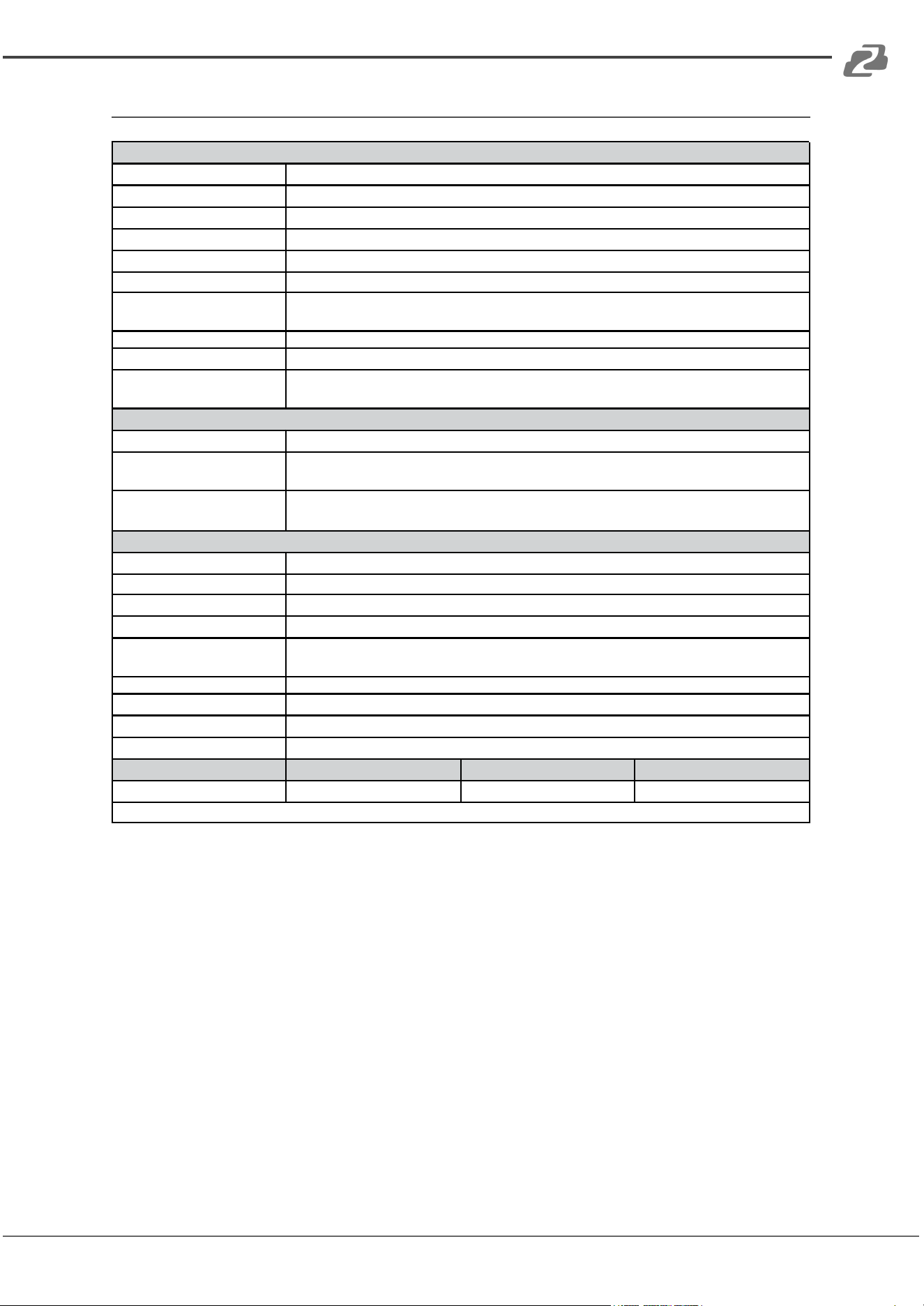
Specifications
Technical
HDMI Compliance
HDMI 2.0b
HDCP Compliance
HDCP 2.2/1.x
Video Bandwidth
18Gbps
Video Resolution
Up to 4K2K@60Hz (4:4:4)
Color Space
RGB, YCbCr 4:4:4/4:2:2/4:2:0
Color Depth
8-bit, 10-bit, 12-bit
HDMI Audio Formats
(Pass-through)
LPCM 2/5.1/7.1, Dolby Digital, DTS 5.1, Dolby Digital+, Dolby TrueHD, DTS-HD Master Audio,
Dolby Atmos, DTS:X
Coax Audio Formats
LPCM 2.0, Dolby Digital / Plus, DTS 5.1
HDR formats
HDR10, HDR10+, Dolby Vision, HLG
ESD Protection
Human-body Model:
±8kV (Air-gap discharge) , ±4kV (Contact discharge)
Connection
Input Ports
16× HDMI Type A [19-pin female]
Output Ports
16× HDMI Type A [19-pin female]
16× Coax Audio (RCA)
Control Ports
1× TCP/IP [RJ45]
1× RS-232 [D-Sub 9]
Mechanical
Housing
Metal Enclosure
Color
Black
Dimensions
440mm (W)×200mm (D)×44mm (H)
Weight
3.1kg
Power Supply
Input: AC 100 - 240V 50/60Hz, Output: DC 24V/3.75A
(US/EU standard, CE/FCC/UL certified)
Power Consumption
76.8W
Operating Temperature
-10°C ~ 45°C / 14°F ~ 113°F
Storage Temperature
-20°C ~ 60°C / -4°F ~ 140°F
Relative Humidity
20~90% RH (non-condensing)
Resolution / Cable length
4K60 - Feet / Meters
4K30 - Feet / Meters
1080P60 - Feet / Meters
HDMI IN / OUT
16ft / 5M
32ft / 10M
50ft / 15M
The use of “Premium High-Speed HDMI” cable is highly recommended.
Address: 830 National Drive #140, Sacramento, CA 95834, USA · Tel: +1(888)499-9906 · Email: support@bzbgear.com 6
BZBGEAR BG-UHD-1616M PRODUCT MANUAL
Operation Controls and Functions
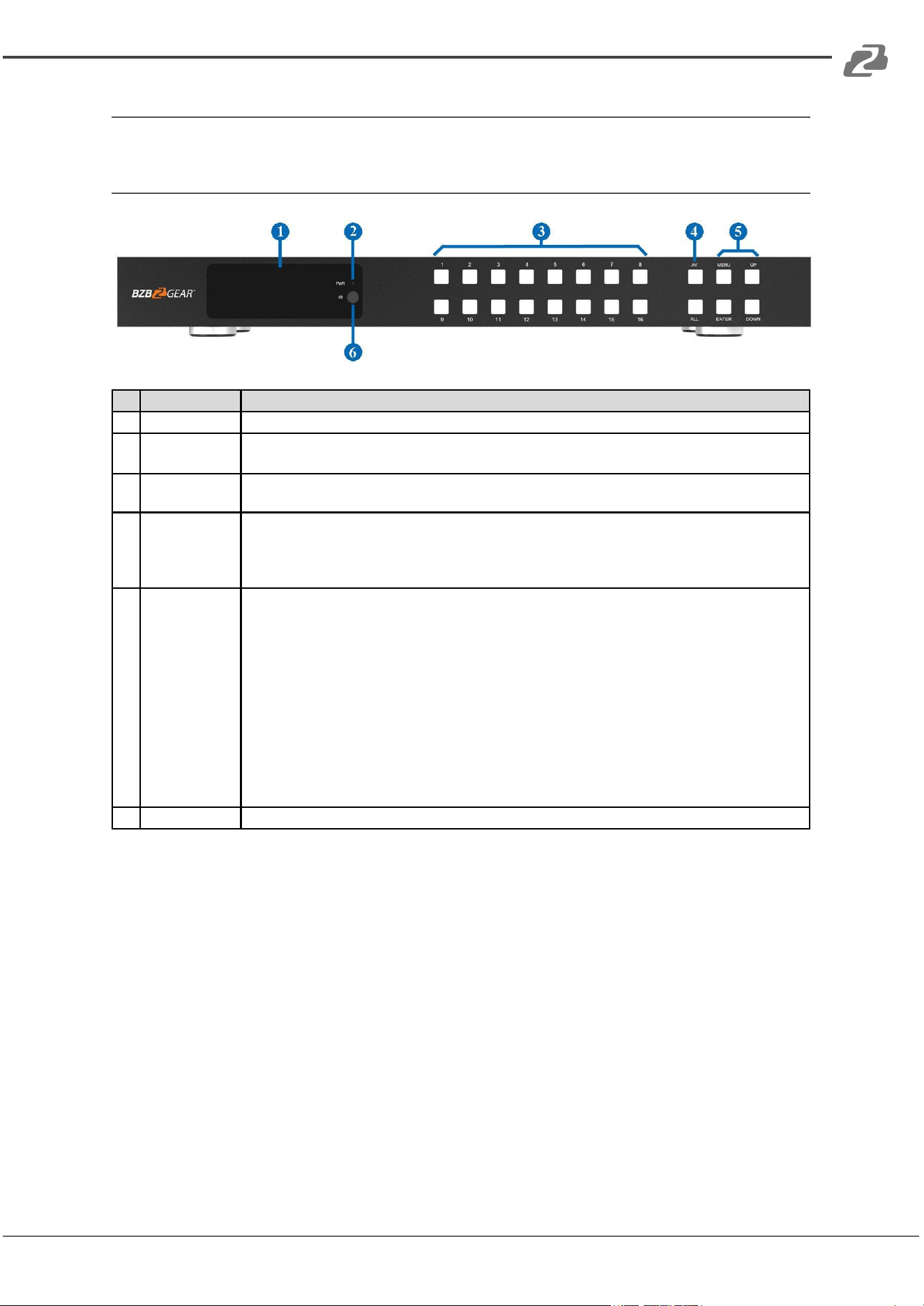
Front Panel
No.
Name
Function Description
1
OLED screen
Displays matrix switching status, input / output port, EDID, Baud rate, and current IP Address.
2
Power LED
The LED will illuminate green when the unit is connected to the power supply, and red when the unit is
in standby.
3
Input / Output
buttons
Press input button (1~16) first, then press the “AV” button, and then press output button (1~16,
including “ALL”) to select the corresponding input and output ports.
4
AV / ALL buttons
AV: Switch the signal source to output
e.g. Pressing “1 + AV +3” represents signal source 1 to output to display 3.
All: Represents all the output ports.
e.g. Pressing “1 + AV + ALL” represents signal source 1 to output to all displays.
5
MENU / ENTER /
UP / DOWN
EDID check: On the main OLED display screen, press the “MENU” button to enter the Matrix
switching status interface, then press the “UP/DOWN” button to check the status of all the ports.
EDID setting: On the main OLED display screen, press the “MENU” button to enter the EDID setting
interface, press the “UP/DOWN” button to select the required EDID and press the “ENTER” button. A
prompt “copy to input:” will appear. Then press the “UP/DOWN” button to select the input port to set,
and then press the “ENTER” button to confirm.
Baud rate setting: On the main OLED display screen, press the “MENU” button to enter the Baud rate
interface, and press the “UP/DOWN” button to select the required Baud rate, finally press the
“ENTER” button to confirm the setting.
IP Address check: On the main OLED display screen, press the“MENU” button to enter the IP
interface, then press the “UP/DOWN” button to check the current IP address. Pressing the “MENU”
button again will return to the main OLED display status.
6
IR Window
The IR receiver window only receives the IR remote signal from this product.
Address: 830 National Drive #140, Sacramento, CA 95834, USA · Tel: +1(888)499-9906 · Email: support@bzbgear.com 7
BZBGEAR BG-UHD-1616M PRODUCT MANUAL
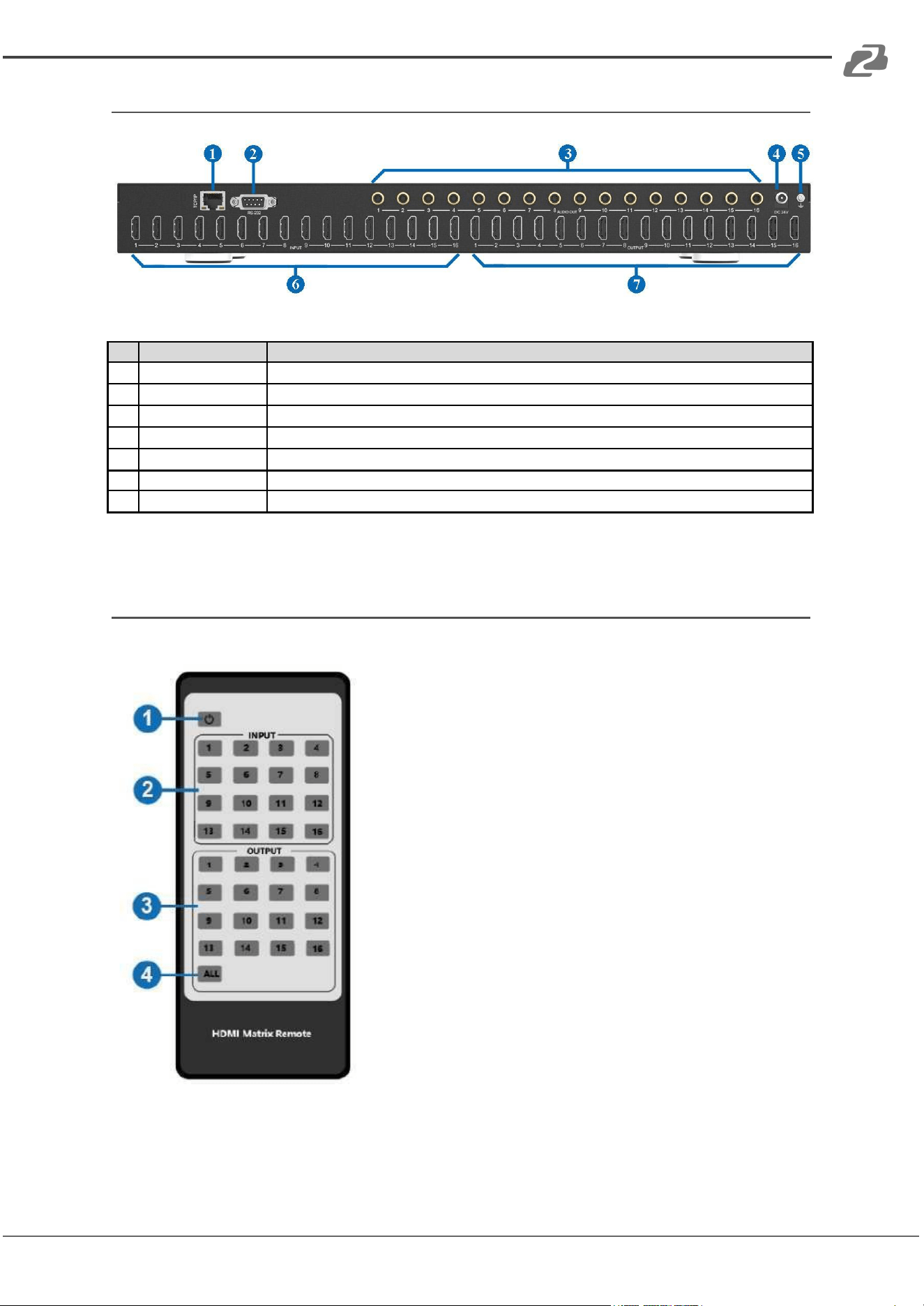
Rear Panel
No.
Name
Function Description
1
TCP/IP port
TCP/IP control port, connect to a PC or router with an RJ45 cable.
2
RS-232 port
Connect to a PC or control system by D-Sub 9-pin cable to transmit/receive RS-232 commands.
3
AUDIO OUT (1-16)
Connect to audio output devices such as audio amplifiers via a coaxial cable.
4
DC 24V
Connect to the supplied 24V power adapter.
5
GND
Connect the housing to ground.
6
INPUT ports (1-16)
Connect to an HDMI source device such as a media player or cable box with an HDMI cable.
7
OUTPUT ports (1-16)
Connect to an HDMI display device such as a TV or monitor with an HDMI cable.
IR Remote
1. Power on or Standby: Power on the Matrix or set it
to standby mode.
2. Input 1, 2, 3,…16: Select input port buttons.
3. Output 1, 2, 3,…16: Select output port buttons.
4. All: Select all outputs simultaneously.
Operating Instructions: Press the input button first and
then the press output button.
Example: Press input “1” button and then press the “All”
button. The input “1” source will output to all connected
display devices.
Address: 830 National Drive #140, Sacramento, CA 95834, USA · Tel: +1(888)499-9906 · Email: support@bzbgear.com 8
BZBGEAR BG-UHD-1616M PRODUCT MANUAL
EDID Management
The BG-UHD-1616M has 21 factory defined EDID settings, 2 user-defined EDID modes,
and 16 copy EDID modes. Select a defined EDID mode or copy EDID mode to an input port
through the front panel buttons, RS-232 control, or WebGUI.
Front panel button operation: On the main OLED display screen, press the “MENU”
button to enter the EDID setting interface. Press the “UP/DOWN” button to select the
required EDID setting and then press the “ENTER” button. A prompt “copy to input:” will
appear. Press the “UP/DOWN” button to select the input port you need to set and then
press the “ENTER” button again to confirm this operation.
RS-232 control operation: Connect the Matrix to a PC with a serial cable, then open a
Serial Command tool on the PC to send the ASCII commands to set the EDID settings. For
details, refer to “EDID Setting” under the ASCII command list section of this manual.
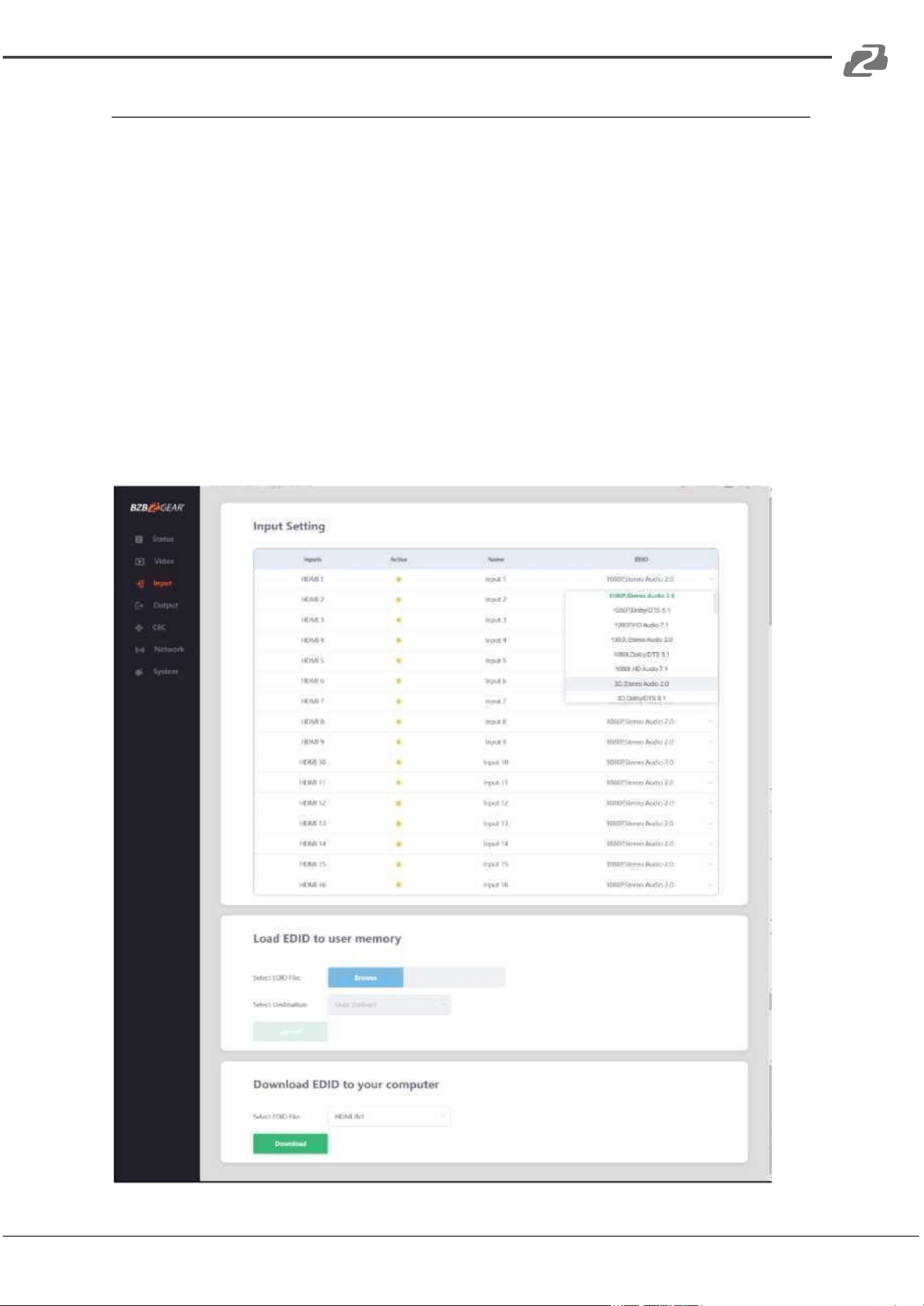
WebGUI Operation: On the Input Setting page of the web GUI, select an EDID option from
the dropdown to modify the selected input port settings.
Address: 830 National Drive #140, Sacramento, CA 95834, USA · Tel: +1(888)499-9906 · Email: support@bzbgear.com 9

BZBGEAR BG-UHD-1616M PRODUCT MANUAL
EDID Settings List:
EDID Mode
EDID Description
1
1080p, Stereo Audio 2.0
2
1080p, Dolby/DTS 5.1
3
1080p, HD Audio 7.1
4
1080i, Stereo Audio 2.0
5
1080i, Dolby/DTS 5.1
6
1080i, HD Audio 7.1
7
3D, Stereo Audio 2.0
8
3D, Dolby/DTS 5.1
9
3D, HD Audio 7.1
10
4K2K30_444, Stereo Audio 2.0
11
4K2K30_444, Dolby/DTS 5.1
12
4K2K30_444, HD Audio 7.1
13
4K2K60_420, Stereo Audio 2.0
14
4K2K60_420, Dolby/DTS 5.1
15
4K2K60_420, HD Audio 7.1
16
4K2K60_444, Stereo Audio 2.0
17
4K2K60_444, Dolby/DTS 5.1
18
4K2K60_444, HD Audio 7.1
19
4K2K60_444, Stereo Audio 2.0 HDR
20
4K2K60_444, Dolby/DTS 5.1 HDR
21
4K2K60_444, HD Audio 7.1HDR
22
USER1
23
USER2
24
Copy from hdmi output 1
25
Copy from hdmi output 2
26
Copy from hdmi output 3
27
Copy from hdmi output 4
28
Copy from hdmi output 5
29
Copy from hdmi output 6
30
Copy from hdmi output 7
31
Copy from hdmi output 8
32
Copy from hdmi output 9
33
Copy from hdmi output 10
34
Copy from hdmi output 11
35
Copy from hdmi output 12
36
Copy from hdmi output 13
37
Copy from hdmi output 14
38
Copy from hdmi output 15
39
Copy from hdmi output 16
Address: 830 National Drive #140, Sacramento, CA 95834, USA · Tel: +1(888)499-9906 · Email: support@bzbgear.com 10
BZBGEAR BG-UHD-1616M PRODUCT MANUAL
Web GUI User Guide
The BG-UHD-1616M may be controlled via a Web GUI. How to access the web interface is
shown below:
Step 1: Find the current IP Address. The default IP address is 192.168.1.100.
1. Find the IP address via the panel buttons. On the initial OLED display, press the
“MENU” button to enter the IP interface, then press the “UP/DOWN” button to
check the current IP address.
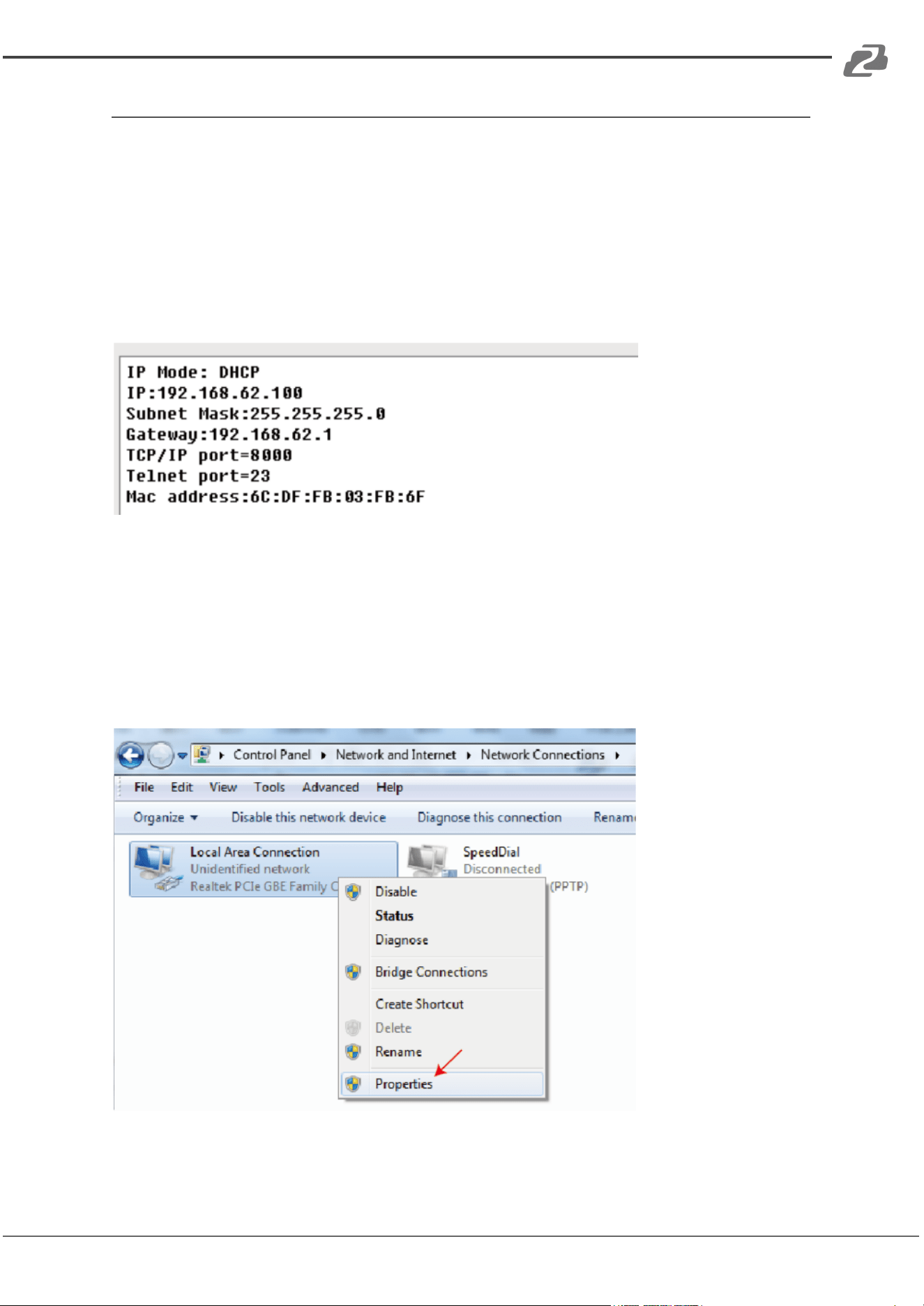
2. Find the IP address via RS-232 control. Send the command “ r ipconfig!” through an
ASCII Command tool, the following information will then populate:
IP:192.168.62.100 in the above figure is the IP Address of the Matrix (the IP address is
variable if its mode is set to DHCP).
For the details of ASCII control, please refer to the ASCII section of this manual.
Step 2: Connect the matrix LAN port directly to your PC using an ethernet cable.
Step 3: On the PC, go to Control Panel> Network and Internet> Network Connections>
Right click on Local Area Connections and select “Properties”.
Address: 830 National Drive #140, Sacramento, CA 95834, USA · Tel: +1(888)499-9906 · Email: support@bzbgear.com 11
BZBGEAR BG-UHD-1616M PRODUCT MANUAL
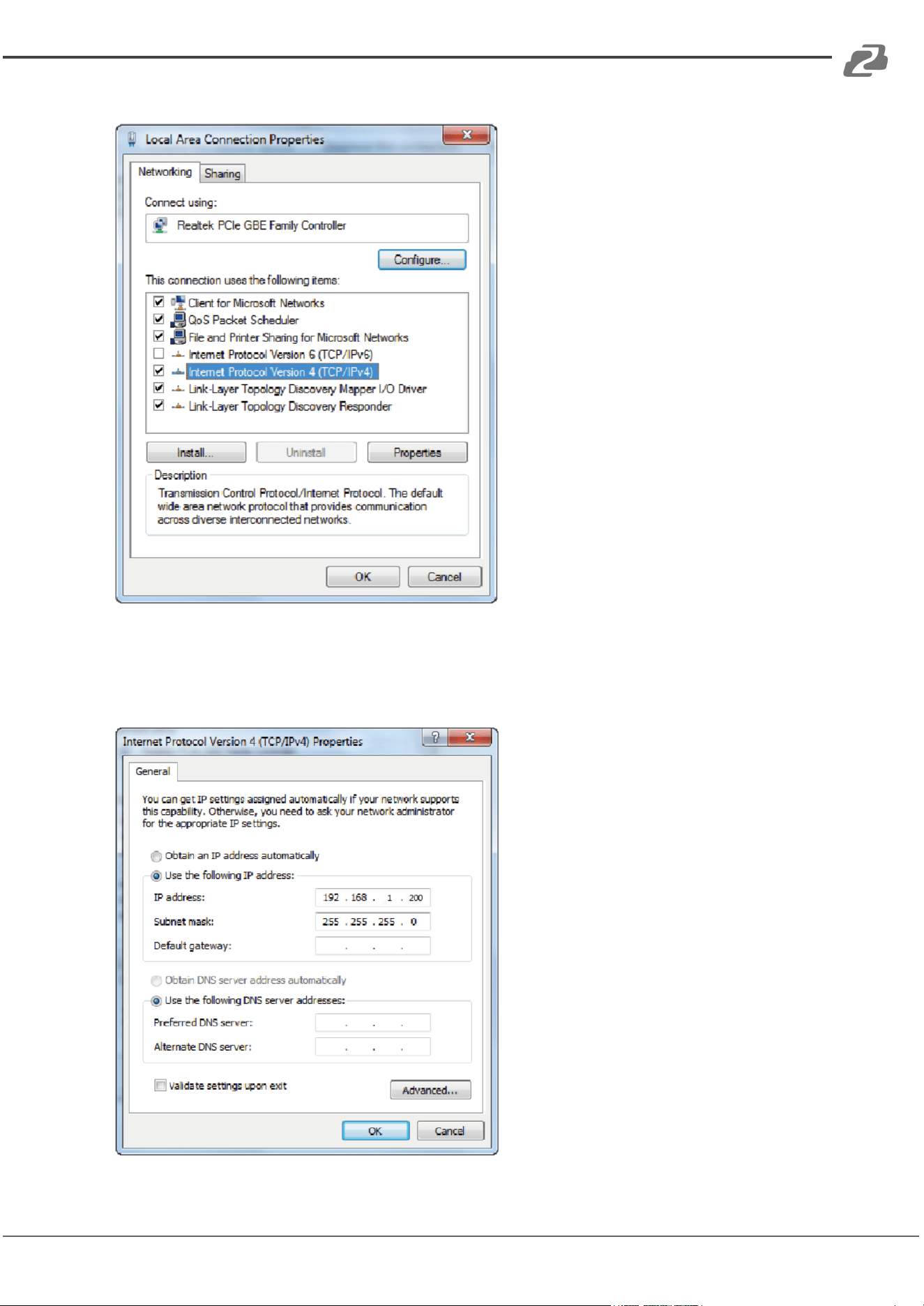
Step 4: Double click “Internet Protocol Version 4 (TCP/IPv4)”
Step 5: Select “Use the following IP address” input a non-conflicting IP address that
matches the scheme of your matrix (default 192.168.1.#). In the example below
192.168.1.200 is used as the IP address, 255.255.255.0 as the Subnet mask, and then click
on “OK.”
Address: 830 National Drive #140, Sacramento, CA 95834, USA · Tel: +1(888)499-9906 · Email: support@bzbgear.com 12
BZBGEAR BG-UHD-1616M PRODUCT MANUAL
Note: The IP address of the computer and matrix should be in the same network segment.
If the matrix's IP address is 192.168.10.100, the computer's IP should be 192.168.10.X
where X is 1~255 except 100.
Step 6: Input the current IP address of the Matrix into the PC's browser to access the Web
interface.
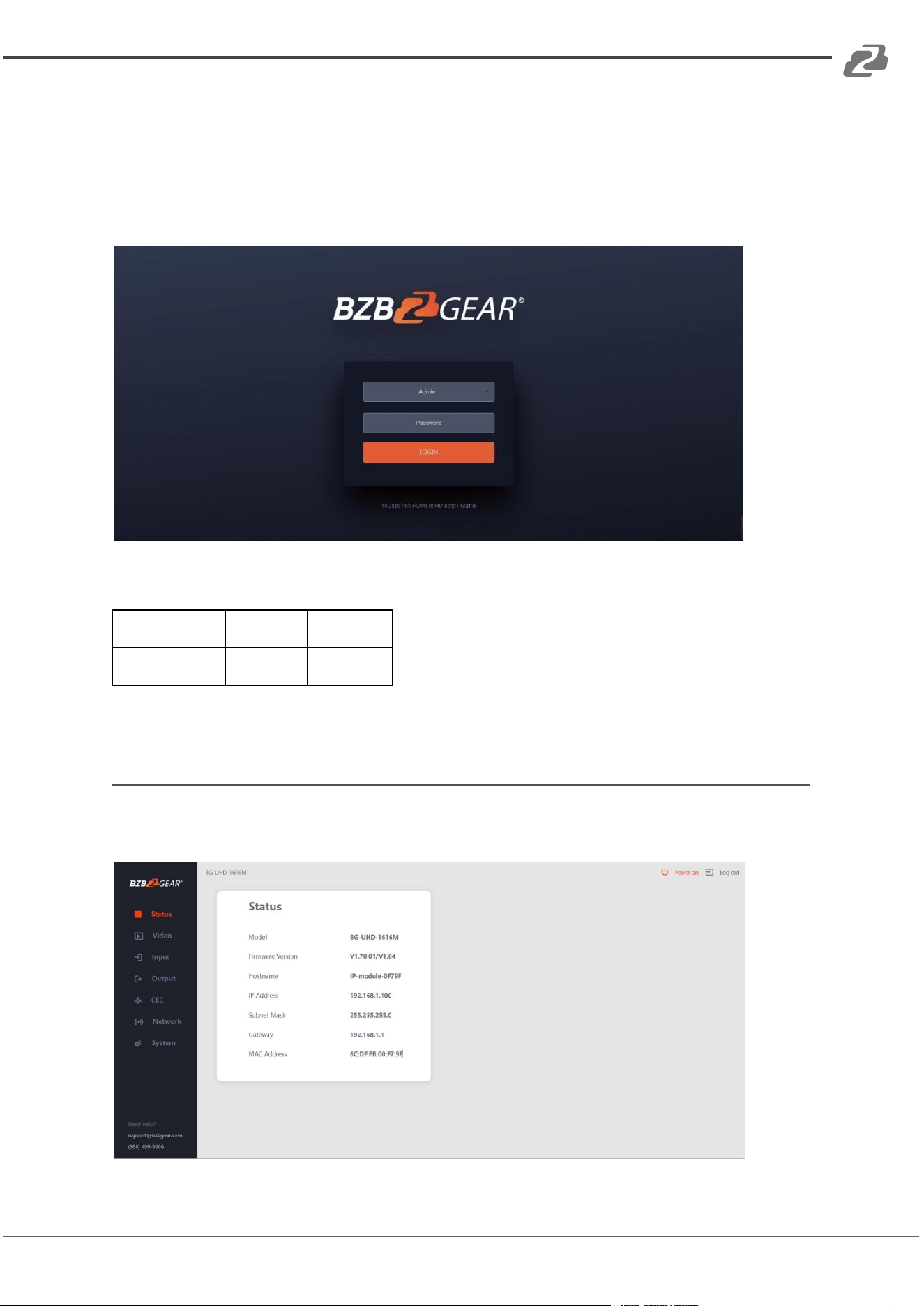
After entering the WebGUI page, the following login page will be displayed:
Select the Username from the list and enter the password. The default passwords are:
Username
User
Admin
Password
user
admin
After entering the password, click the “LOGIN” button and the Status page will appear.
Status Page
The Status page provides basic information about the model, installed firmware version,
and the network settings of the device.
Address: 830 National Drive #140, Sacramento, CA 95834, USA · Tel: +1(888)499-9906 · Email: support@bzbgear.com 13
BZBGEAR BG-UHD-1616M PRODUCT MANUAL
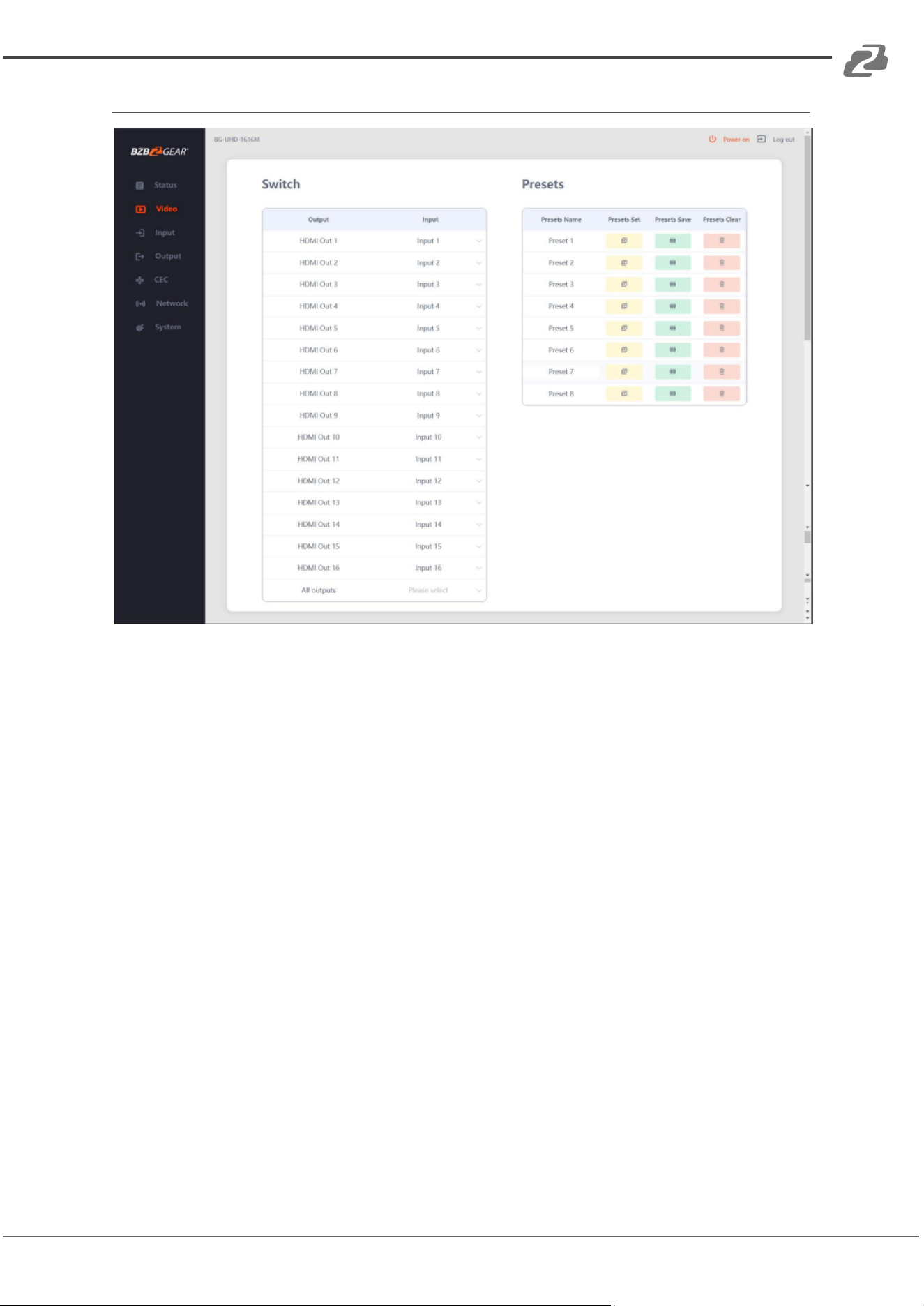
Video Page
The following operations may be performed on the Video page:
1. Output: The selected OUTPUT port’s input signal source may be modified.
2. All Output: All OUTPUT ports will be changed to the selected input source.
3. Input: Click the drop-down menu to select input source for the corresponding
OUTPUT port.
4. Presets Name: Name the current scene with a maximum length of 12 characters.
5. Presets Set: Recall the settings of the previously saved matrix switch configuration.
6. Presets Save: Save the matrix switch configuration as the selected preset.
7. Presets Clear: Clear the selected matrix switch preset configuration.
Address: 830 National Drive #140, Sacramento, CA 95834, USA · Tel: +1(888)499-9906 · Email: support@bzbgear.com 14
BZBGEAR BG-UHD-1616M PRODUCT MANUAL
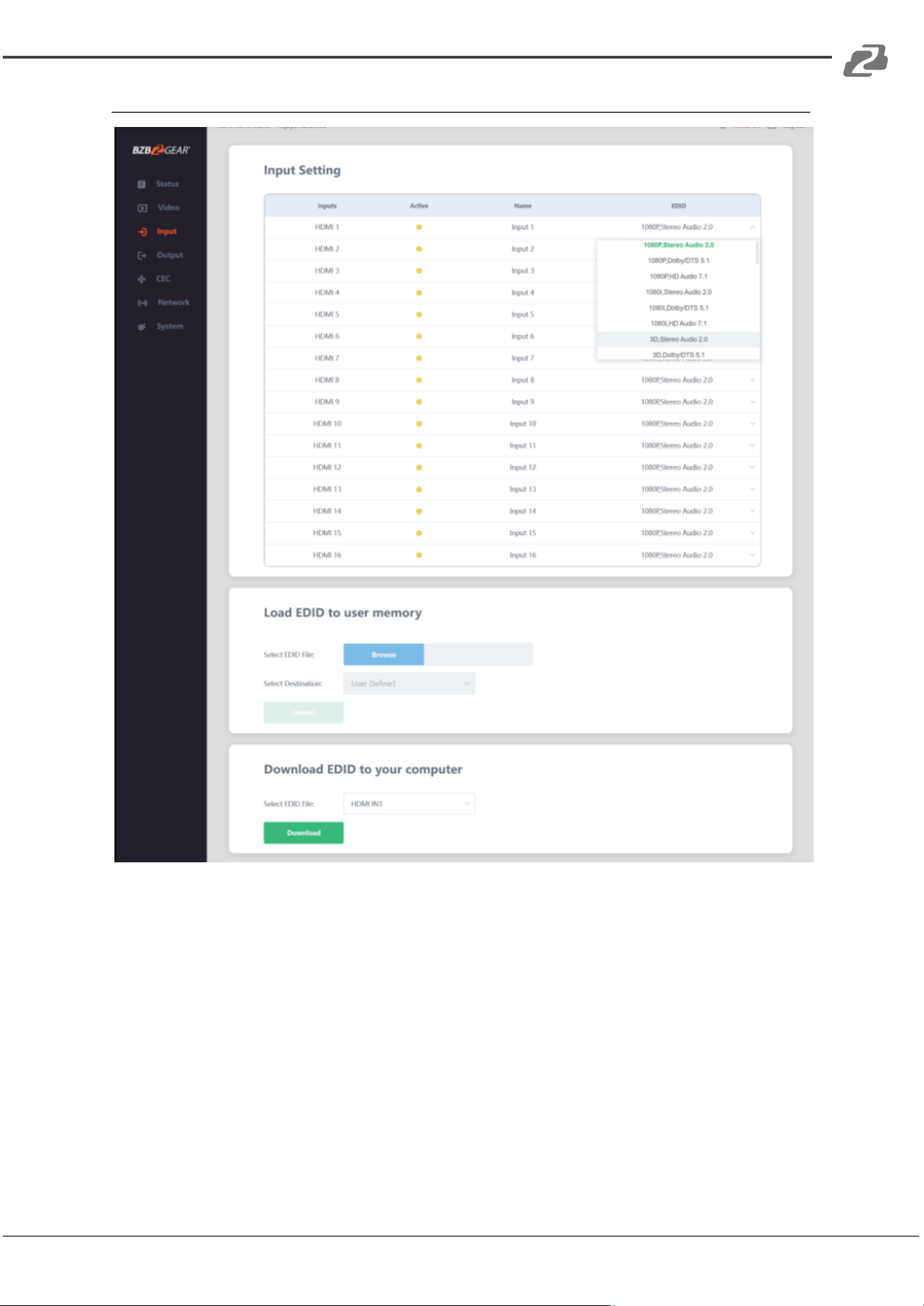
Input Page
The following operations may be performed on the Input page:
1. Inputs: Listed HDMI input channel of the device.
2. Active: Indicates if the channel is connected to an input source (Green=Connected /
Yellow=Disconnected).
3. Name: The input channel’s name can be modified up to a length of 12 characters.
4. EDID: Set the selected channel’s EDID. The specific operation is as follows:
Address: 830 National Drive #140, Sacramento, CA 95834, USA · Tel: +1(888)499-9906 · Email: support@bzbgear.com 15
BZBGEAR BG-UHD-1616M PRODUCT MANUAL
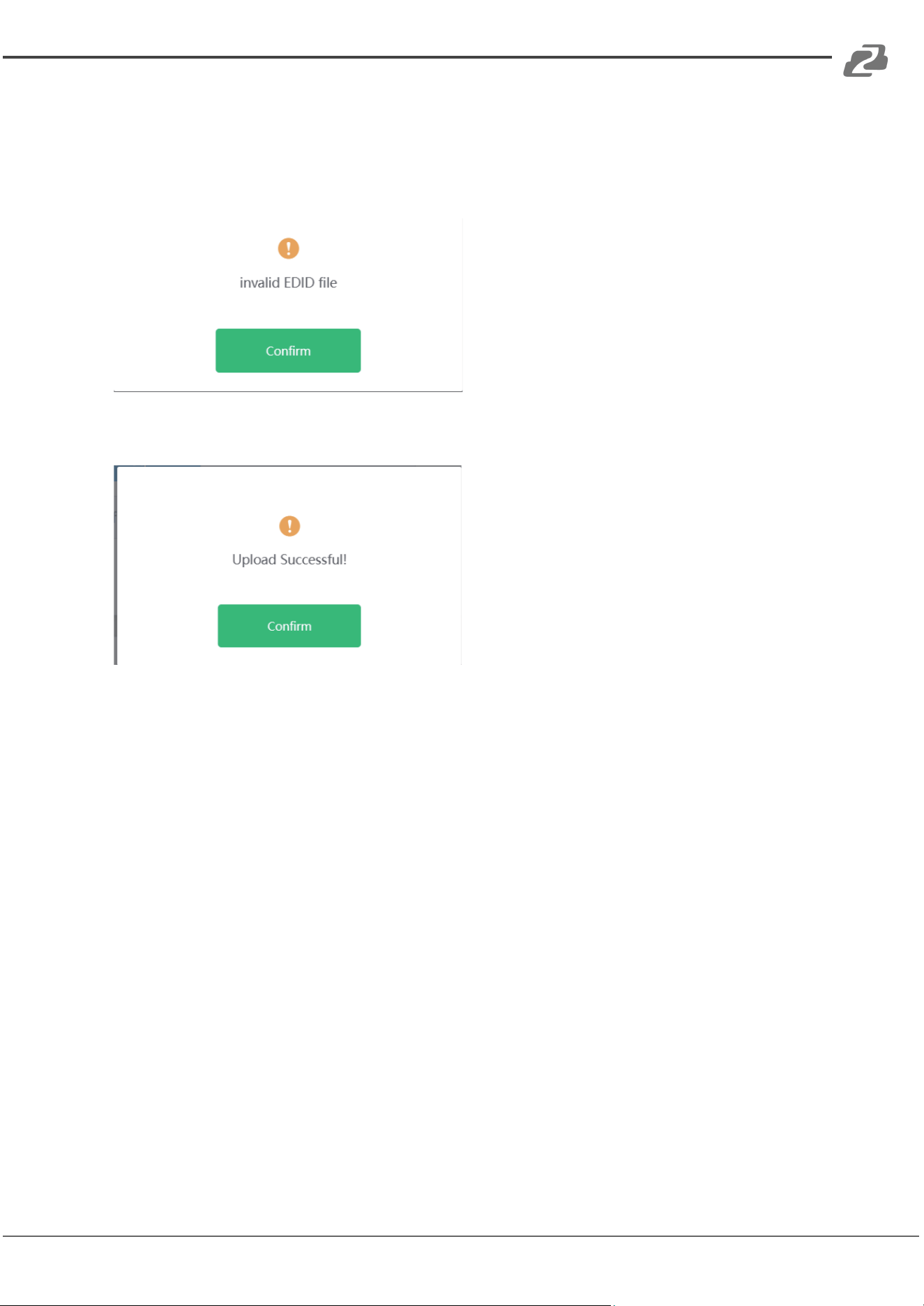
Load EDID to user memory
Click the “Browse” button, then select the bin file. Selecting the wrong EDID file will cause
the prompt below to display:
Select the correct file and then check the name of the selected file. Select “User 1” or “User
2” and then click “Upload”. After successful setting, the prompt below will be displayed:
Download the EDID File for the Corresponding Input Channel
Click the drop-down box of “Select EDID File” to select the corresponding input channel.
Then click “Download” to download the corresponding EDID file.
Address: 830 National Drive #140, Sacramento, CA 95834, USA · Tel: +1(888)499-9906 · Email: support@bzbgear.com 16
BZBGEAR BG-UHD-1616M PRODUCT MANUAL
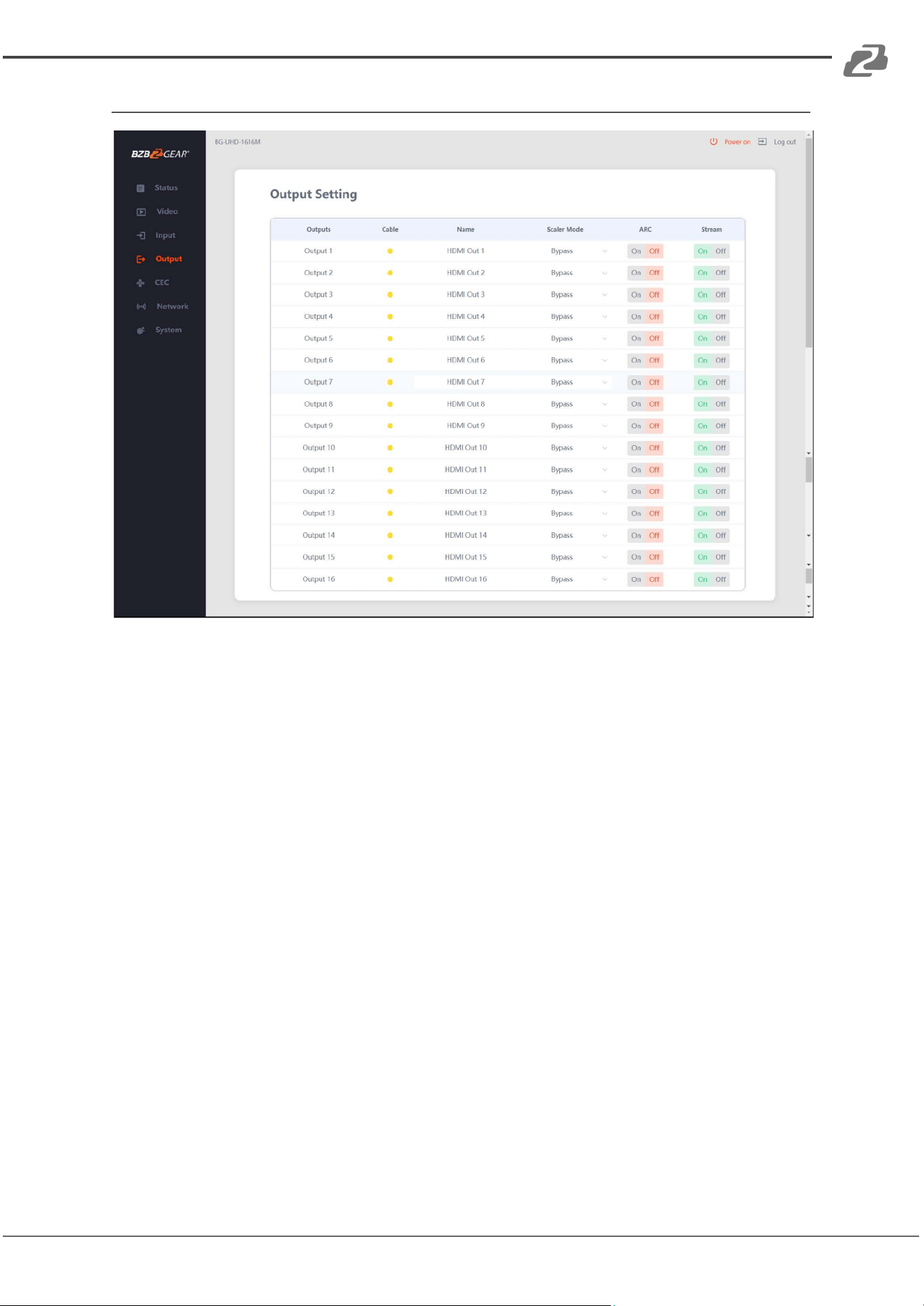
Output Page
The following operations may be performed on the Output page:
1. Outputs: Listed output channels of the device.
2. Cable: Indicates the connection status of the output ports. When the output port is
connected to an active display it will be green; when no display is detected it will be
yellow.
3. Name: Modify the output name by entering up to 12 characters in the name box.
4. Scaler Mode: Set the selected output’s resolution.
5. ARC: Turn on/off the ARC (audio return channel) function.
6. Stream: Turn on/off the output stream.
Address: 830 National Drive #140, Sacramento, CA 95834, USA · Tel: +1(888)499-9906 · Email: support@bzbgear.com 17
BZBGEAR BG-UHD-1616M PRODUCT MANUAL
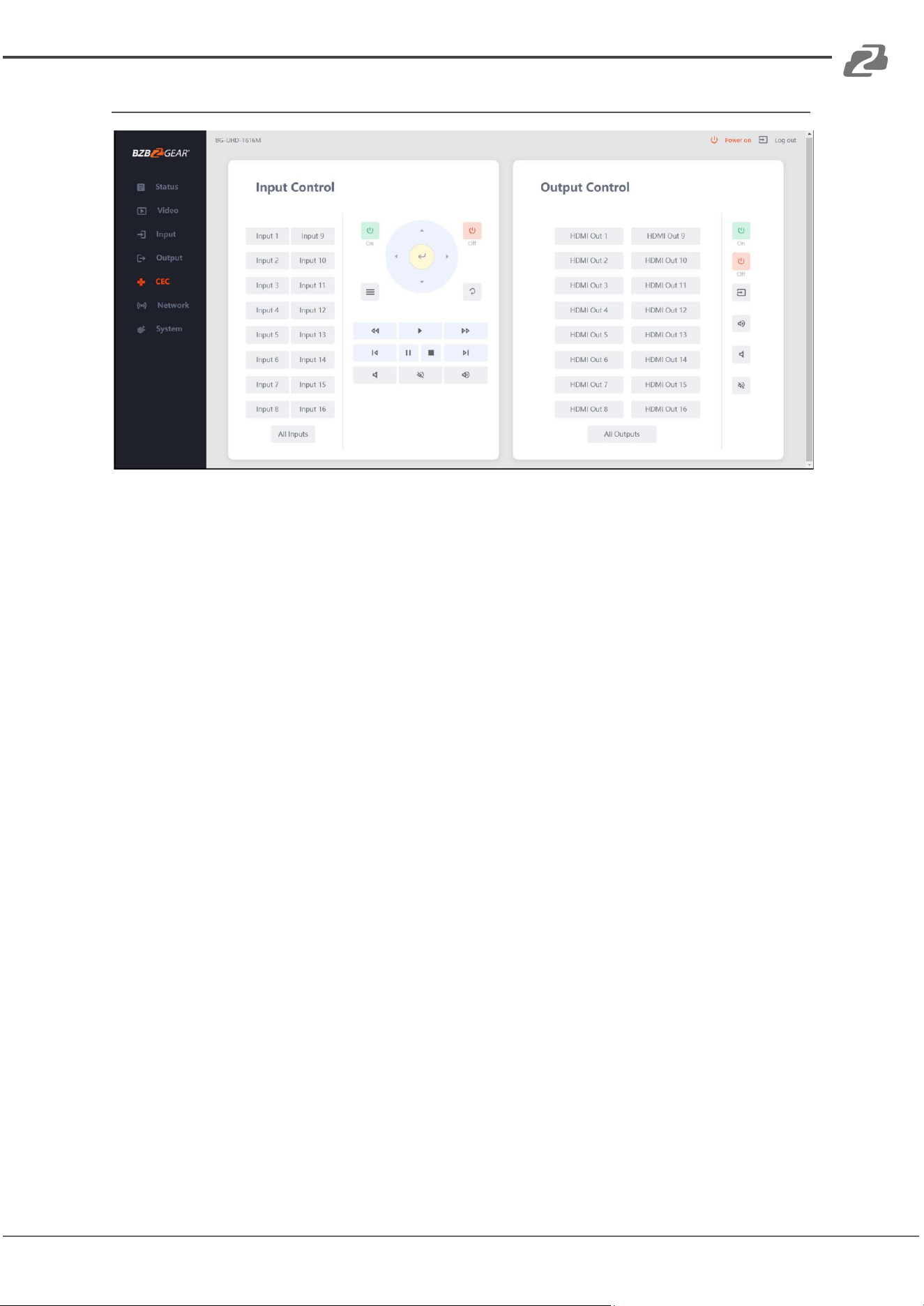
CEC Page
Perform CEC management on this page:
1. Input Control: Control the operation of each input source by clicking the icons on the
page.
2. Output Control: Control the operation of each display, such as power on/off, volume
+/-, and active source switching.
Note: CEC operation is dependent on the connected device and some features may not be
available or have the ability to be controlled by this unit.
Address: 830 National Drive #140, Sacramento, CA 95834, USA · Tel: +1(888)499-9906 · Email: support@bzbgear.com 18
BZBGEAR BG-UHD-1616M PRODUCT MANUAL
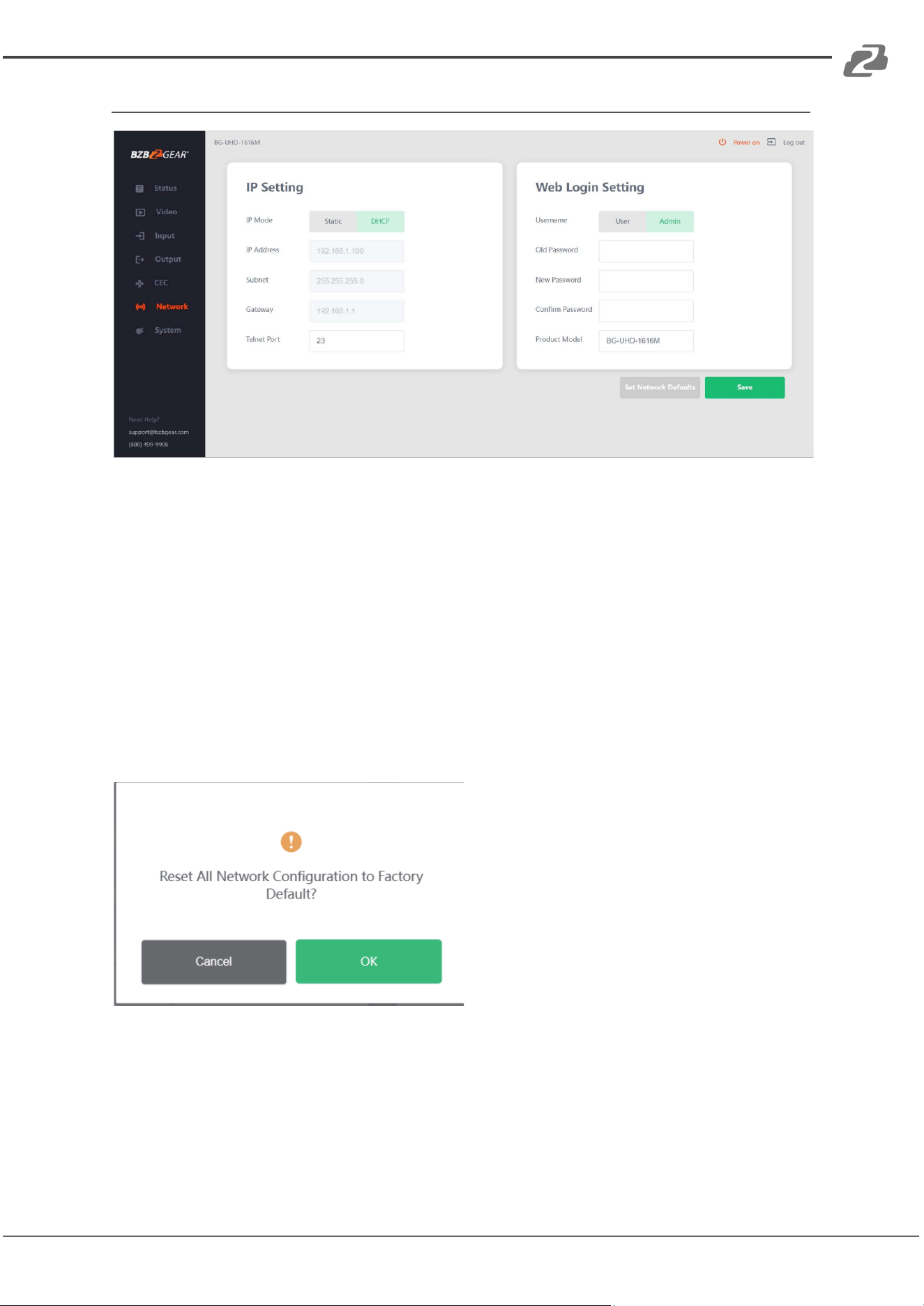
Network Page
Static
Manually configure the unit’s IP address, Subnet, Gateway, and then click ‘Save.’
DHCP
Set the device IP settings to DHCP and the unit will be automatically assigned an IP
address by your network if a router or DHCP server is present and then click ‘Save.’
Set the Default Network
Click “Set Network Defaults”, and the prompt below will display:
Click “OK” to search the IP Address will be set to the factory default settings. The unit will
automatically redirect you to the login page once complete
Address: 830 National Drive #140, Sacramento, CA 95834, USA · Tel: +1(888)499-9906 · Email: support@bzbgear.com 19
BZBGEAR BG-UHD-1616M PRODUCT MANUAL
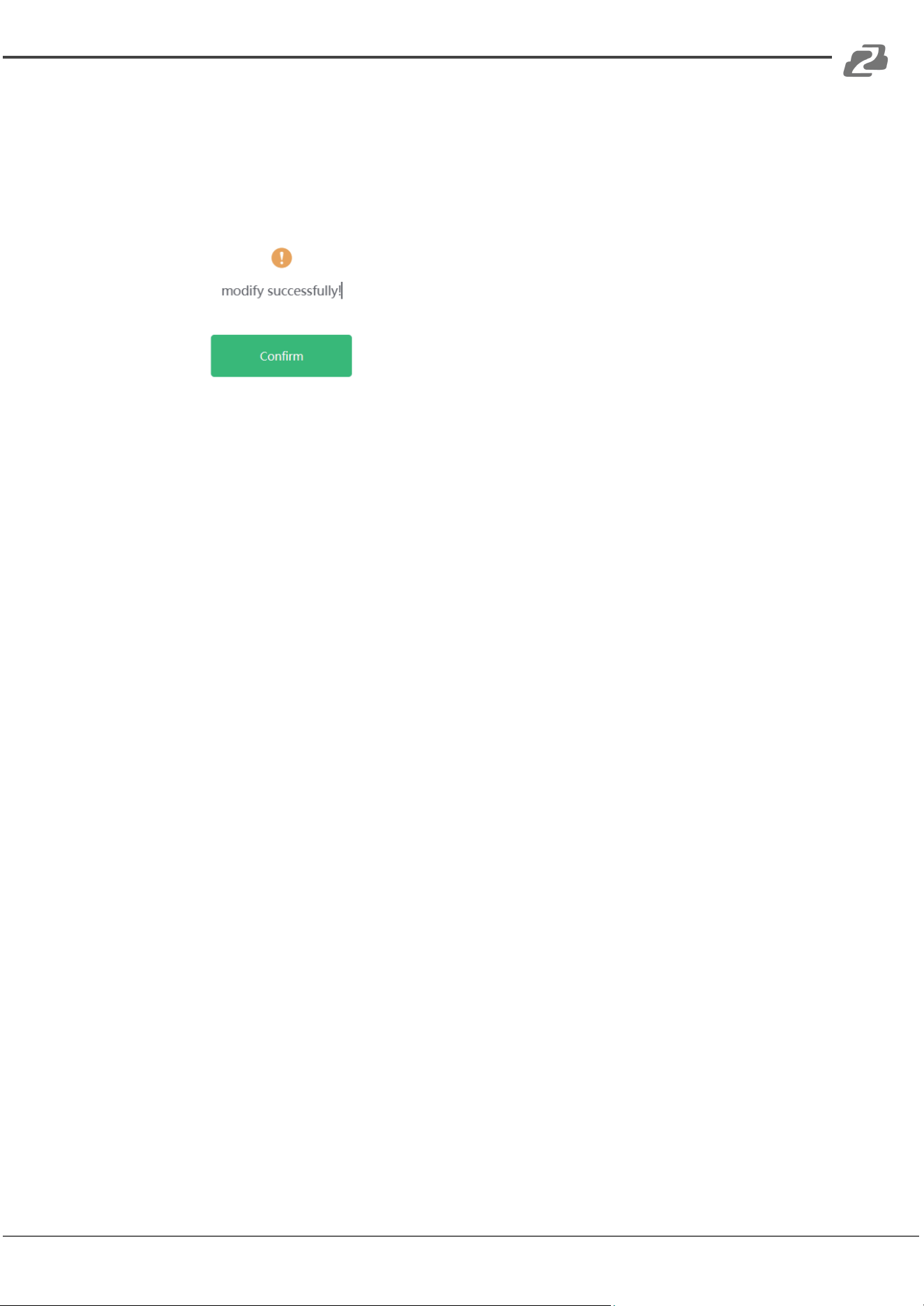
Modify Password
Click the username whose password you wish to edit, enter the correct old password, new
password, and confirm the new password, and then click “Save.” After successfully
modifying the password the following prompt will be displayed:
Rules for changing passwords:
1. The password field cannot be empty.
2. The new password can’t be the same as the old password.
3. The new password and confirm password must be the same.
Address: 830 National Drive #140, Sacramento, CA 95834, USA · Tel: +1(888)499-9906 · Email: support@bzbgear.com 20
BZBGEAR BG-UHD-1616M PRODUCT MANUAL
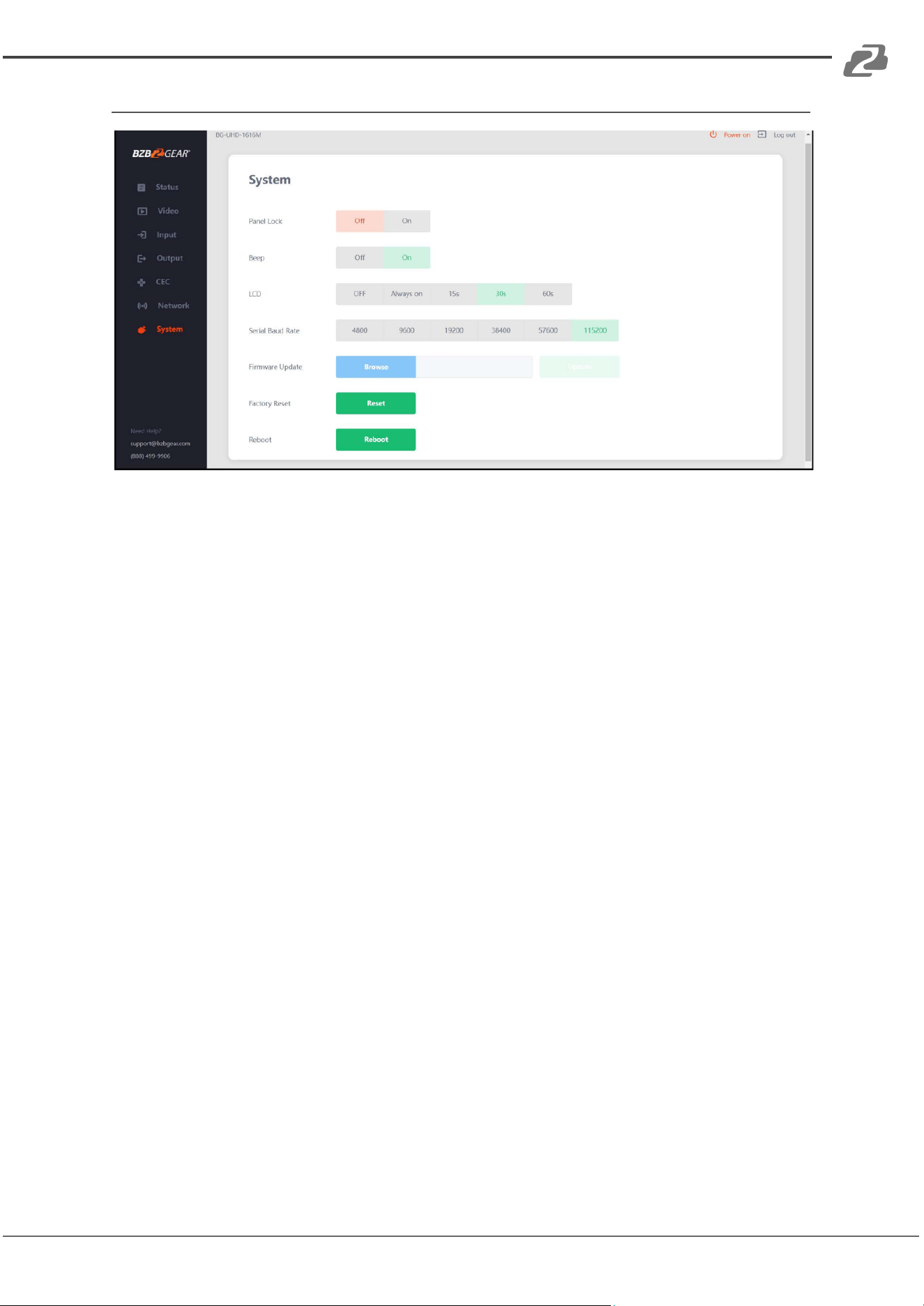
System Page
1. Panel Lock: Click the “Panel Lock” to lock/unlock the front panel buttons. When
toggled to “On” the front panel buttons will be unavailable; “Off” indicates the panel
buttons are available/functional.
2. Beep: Click the “Beep” toggle to turn on/off the beep confirmation when a setting,
input, output, etc. is modified.
3. LCD: Turn the LCD on/off and set idle time (15s/30s/60s) in which it stays
illuminated.
4. Serial Baud Rate: Click the value to set the Serial Baud Rate.
5. Firmware Update: Click “Browse” to select the update file, then click “Update” to
complete firmware update.
6. Factory Reset: Reset the unit to factory default settings by clicking “Reset”.
7. Reboot: Reboot the unit by clicking “Reboot”.
Note: After reset or reboot the switch will return to the login page.
Address: 830 National Drive #140, Sacramento, CA 95834, USA · Tel: +1(888)499-9906 · Email: support@bzbgear.com 21
BZBGEAR BG-UHD-1616M PRODUCT MANUAL
RS-232 Control Commands
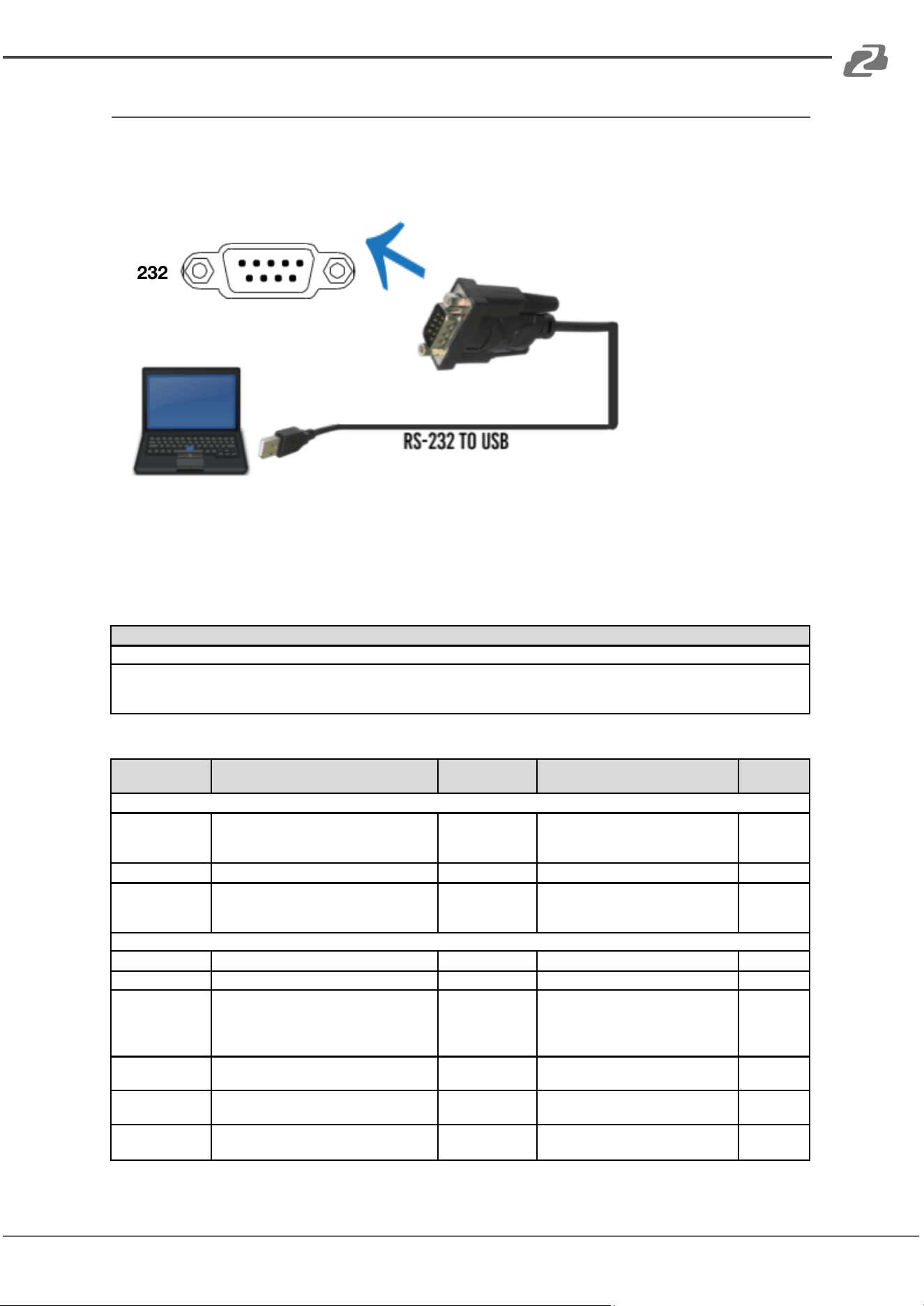
The BG-UHD-1616M supports RS-232 control. A serial cable with RS-232 male head and
DB9 transfer USB male head are required. The RS-232 head of the serial cable is connected
to the RS-232 control port with DB 9 on the back of the Matrix and the USB end of the
serial cable is connected to a PC. The connection method is as follows:
RS232
Open a Serial Command tool on a PC such as Access Port or DockLite to send ASCII
commands to control the Matrix.
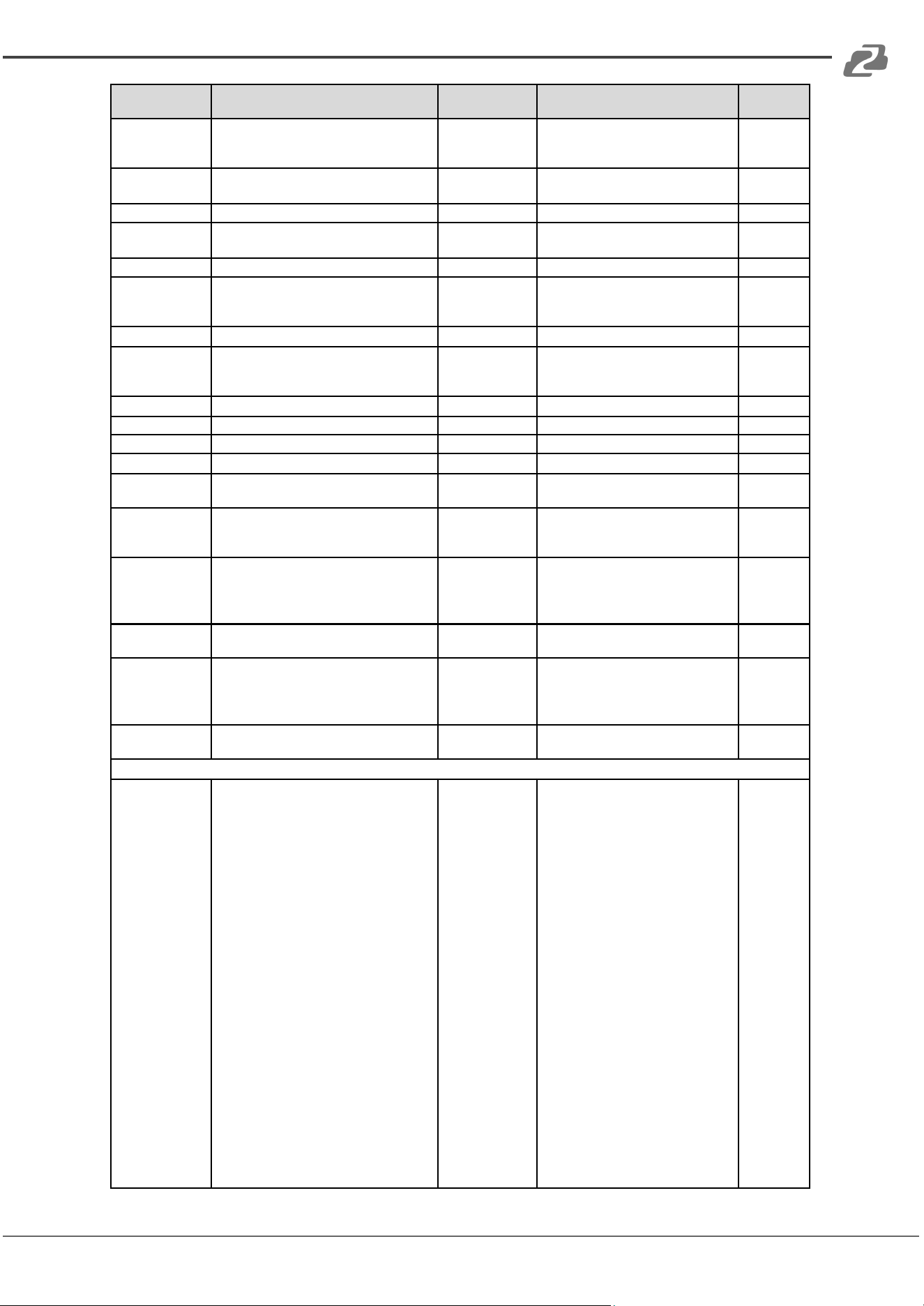
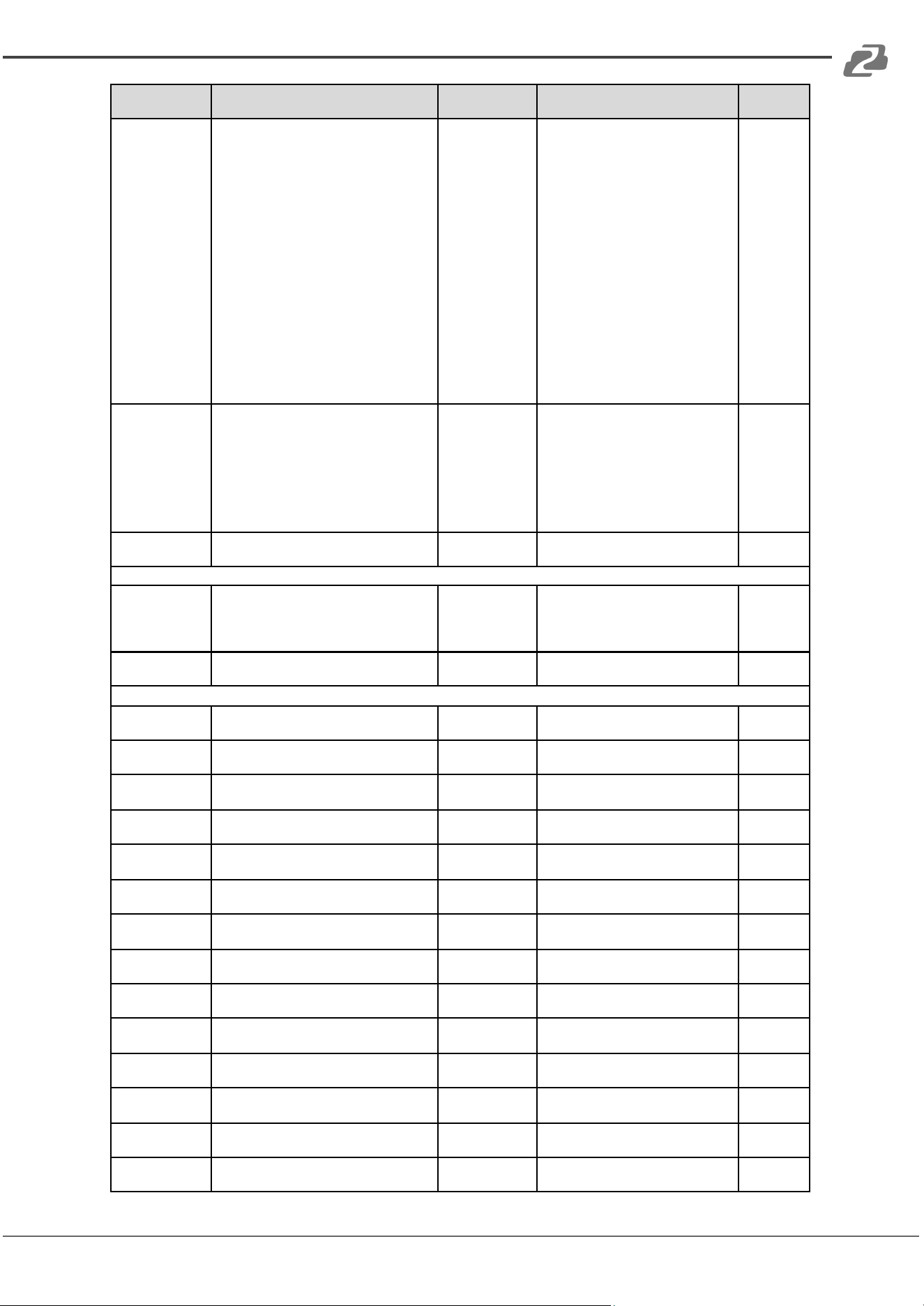
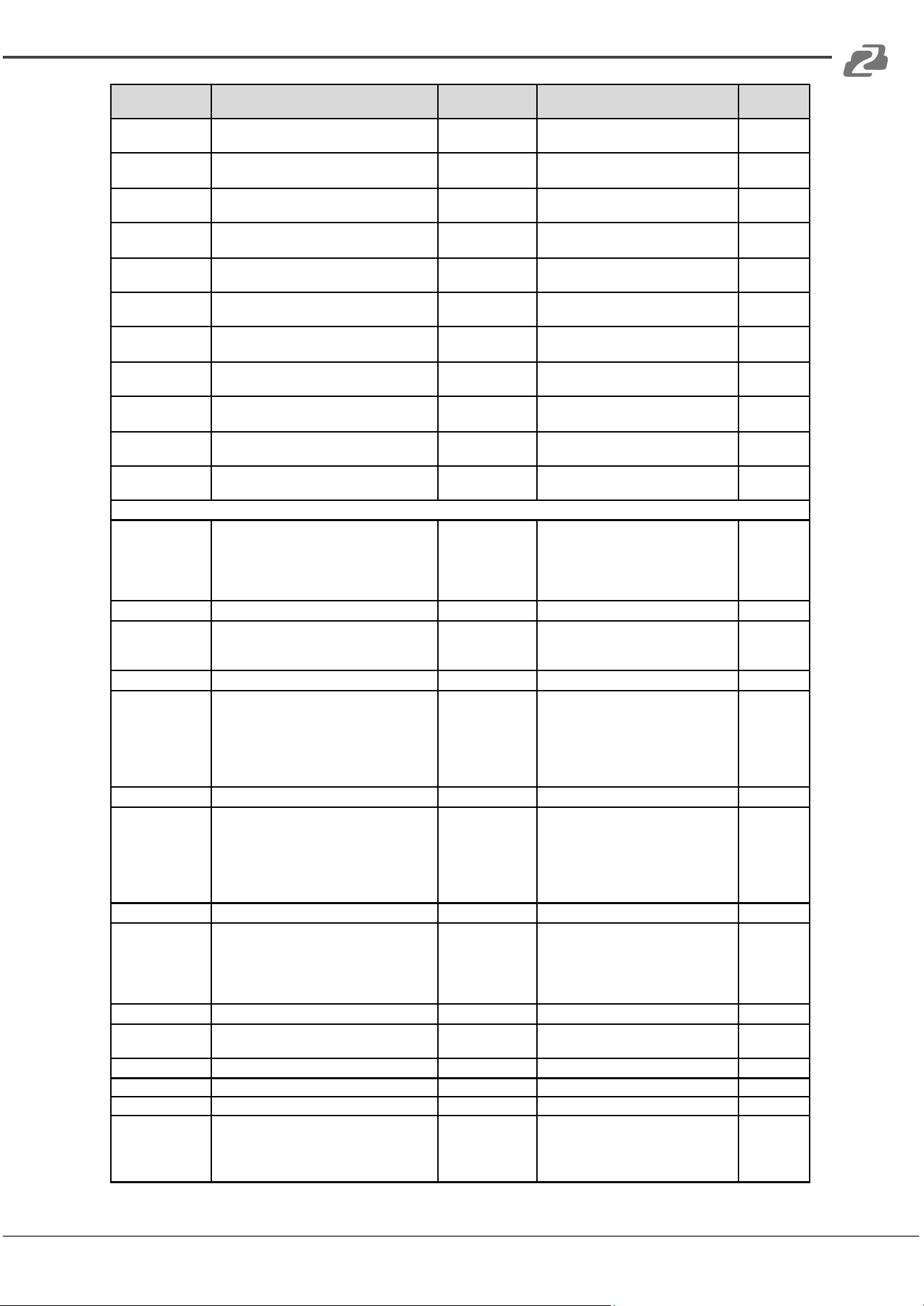
ASCII Command List:
ASCII Command
Serial port protocol. Baud rate: 115200, Data bits: 8bit, Stop bits:1, Check bit: 0
x - Parameter 1
y - Parameter 2
! - Delimiter
Command Code
Function Description
Example
Feedback
Default
Setting
Power
s power z!
Power on/off the device,z=0~1 (z=0
power off, z=1 power on)
s power 1!
Power on
System Initializing... Initialization
Finished! FW version x.xx.xx
power on
r power!
Get current power state
r power!
power on/power off
s reboot!
Reboot the device
s reboot!
Reboot...
System Initializing... Initialization
Finished! FW version x.xx.xx
System Setup
help!
List all commands
help!
r type!
Get device model
r type!
HDP-MXB1616
r status!
Get device current status
r status!
Get the unit all status: power, beep,
lock, in/ out connection, video/
audio crosspoint, edid, scaler,
network status
r fw version!
Get Firmware version
r fw version!
MCU BOOT: Vx.xx.xx MCU APP:
Vx.xx.xx WEB GUI: Vx.xx
r link in x!
Get the connection status of the x input
port, x=0~16(0=all)
r link in 1!
hdmi input 1: connect
r link out y!
Get the connection status of the y
output port, y=0~16(0=all)
r link out 1!
hdmi output 1: connect
Address: 830 National Drive #140, Sacramento, CA 95834, USA · Tel: +1(888)499-9906 · Email: support@bzbgear.com 22
BZBGEAR BG-UHD-1616M PRODUCT MANUAL
Command Code
Function Description
Example
Feedback
Default
Setting
s reset!
Reset to factory defaults
s reset!
Reset to factory defaults System
Initializing... Initialization Finished!
FW version x.xx.xx
s beep z!
Enable/Disable buzzer function, z=0~1
(z=0 beep off, z=1 beep on)
s beep 1!
beep on beep off
beep on
r beep!
Get buzzer state
r beep!
beep on / beep off
s lock z!
Lock/Unlock front panel button, z=0~1
(z=0 lock off,z=1 lock on)
s lock 1!
panel button lock on panel button
lock off
panel button
lock off
r lock!
Get panel button lock state
r lock!
panel button lock on/off
s lcd on time z!
Set LCD screen remain on time,
z=0~4(0:off, 1 :always on, 2:15s, 3:30s,
4:60s)
s lcd on time 1!
lcd on 15 seconds
lcd on 30
seconds
r lcd mode!
Get the backlight status of lcd screen
r lcd mode!
lcd always on
s save preset z!
Save switch state between all output
port and the input port to preset z,
z=1~8
s save preset 1!
save to preset 1
s recall preset z!
Call saved preset z scenarios, z=1~8
s recall preset 1!
recall from preset 1
s clear preset z!
Clear stored preset z scenarios, z=1~8
s clear preset 1!
clear preset 1
r preset z!
Get preset z information, z=1~8
r preset 1!
video/audio crosspoint
Output Setting
s in x av out y!
Set input x to output y,
x=1~16, y=0~16(0=all)
s in 1 av out 2!
input 1 -> output 2
PTP
r av out y!
Get output y signal status y=0~16(0=all)
r av out 0!
input 1 -> output 1 input 2 ->
output 2
input 16 -> output 16
s hdmi y stream
z!
Set output y stream on/off,
y=0~16(0=all)
z=0~1 (0:disable,1 :enable)
s hdmi 1 stream
1! s hdmi 0
stream 1!
Enable hdmi output 1 stream
Disable hdmi output 1 stream
Enable hdmi all outputs stream
Disable hdmi all outputs stream
enable
r hdmi y stream!
Get output y stream status,
y=0~16(0=all)
r hdmi 1 stream!
Enable hdmi output 1 stream
s hdmi y scaler z!
Set hdmi output y port output scaler
mode, y=0~16 (0=all), z=1~3(1 =bypass,
2=4k->1080p, 3=Auto)
s hdmi 1 scaler
1! s hdmi 0
scaler 1!
hdmi output 1 set to bypass mode
hdmi all outputs set to bypass
mode
hdmi all
outputs set
to bypass
mode
r hdmi y scaler!
Get hdmi output y port output mode
y=0~16(0=all)
r hdmi 1 scaler !
hdmi output 1 set to bypass mode
EDID Setting
s edid in x from z!
Set input x EDID from default
EDID z, x=0~16 (0=all), z=1~39
1, 1080p,Stereo Audio 2.0
2, 1080p,Dolby/DTS 5.1
3, 1080p,HD Audio 7.1
4, 1080i,Stereo Audio 2.0
5, 1080i,Dolby/DTS 5.1
6, 1080i,HD Audio 7.1
7, 3D,Stereo Audio 2.0
8, 3D,Dolby/DTS 5.1
9, 3D,HD Audio 7.1
10, 4K2K30_444,Stereo Audio 2.0
11, 4K2K30_444,Dolby/DTS 5.1
12, 4K2K30_444,HD Audio 7.1
13, 4K2K60_420,Stereo Audio 2.0
14, 4K2K60_420,Dolby/DTS 5.1
15, 4K2K60_420,HD Audio 7.1
16, 4K2K60_444,Stereo Audio 2.0
17, 4K2K60_444,Dolby/DTS 5.1
18, 4K2K60_444,HD Audio 7.1
19, 4K2K60_444,Stereo Audio 2.0
HDR
20, 4K2K60_444,Dolby/DTS 5.1
HDR
21, 4K2K60_444,HD Audio 7.1
HDR
s edid in 1 from
1! s edid in 0
from 1!
input 1 EDI D: 1080p, Stereo Audio
2.0
all inputs EDID:1080p, Stereo Audio
2.0
1080p,Stere
o Audio 2.0
Address: 830 National Drive #140, Sacramento, CA 95834, USA · Tel: +1(888)499-9906 · Email: support@bzbgear.com 23
BZBGEAR BG-UHD-1616M PRODUCT MANUAL
Command Code
Function Description
Example
Feedback
Default
Setting
22, USER1
23, USER2
24, copy from hdmi output 1
25, copy from hdmi output 2
26, copy from hdmi output 3
27, copy from hdmi output 4
28, copy from hdmi output 5
29, copy from hdmi output 6
30, copy from hdmi output 7
31, copy from hdmi output 8
32, copy from hdmi output 9
33, copy from hdmi output 10
34, copy from hdmi output 11
35, copy from hdmi output 12
36, copy from hdmi output 13
37, copy from hdmi output 14
38, copy from hdmi output 15
39, copy from hdmi output 16
r edid in x!
Get EDID status of the input x,
x=0~16(0=all input)
r edid in 0!
input 1 EDID: 4K2K60_444,
Stereo Audio 2.0
input 2 EDID: 4K2K60_444,
Stereo Audio 2.0
input 3 EDID: 4K2K60_444,
Stereo Audio 2.0
input 4 EDID: 4K2K60_444,
Stereo Audio 2.0
r edid data hdmi
y!
Get the EDID data of the hdmi output y
port, y=1~16
r edid data hdmi
1
EDID: 00 FF FF FF FF FF FF 00
Audio Setting
s hdmi y arc z!
Turn on/off ARC of HDMI output y,
y=0~16(0=all)
z=0~1 (z=0,off,z=1 on)
s hdmi 1 arc 1! s
hdmi 0 arc 1!
hdmi output 1 arc on hdmi output 1
arc off
hdmi all outputs arc on hdmi all
outputs arc off
r hdmi y arc!
Get the ARC state of HDMI output y,
y=0~16(0=all)
r hdmi 1 arc!
hdmi output 1 arc on
off
CEC Setting
s cec in x on!
set input x power on by CEC,
x=0~16(0=all input)
s cec in 1 on!
input 1 power on
s cec in x off!
set input x power off by CEC,
x=0~16(0=all input)
s cec in 1 off!
input 1 power off
s cec in x menu!
set input x open menu by CEC,
x=0~16(0=all input)
s cec in 1 menu!
input 1 open menu
s cec in x back!
set input x back operation by CEC,
x=0~16(0=all input)
s cec in 1 back!
input 1 back operation
s cec in x up!
set input x menu up operation by CEC,
x=0~16(0=all input)
s cec in 1 up!
input 1 menu up operation
s cec in x down!
set input x menu down operation by
cEc, x=0~16(0=all input)
s cec in 1 down!
input 1 menu down operation
s cec in x left!
set input x menu left operation by CEC,
x=0~16(0=all input)
s cec in 1 left!
input 1 menu left operation
s cec in x right!
set input x menu right operation by
CEC, x=0~16(0=all input)
s cec in 1 right!
input 1 menu right operation
s cec in x enter!
set input x menu enter by CEC,
x=0~16(0=all input)
s cec in 1 enter!
iInput 1 menu enter operation
s cec in x play!
set input x play by CEC, x=0~16(0=all
input)
s cec in 1 play!
input 1 play operation
s cec in x pause!
set input x pause by CEC, x=0~16(0=all
input)
s cec in 1 pause!
iInput 1 pause operation
s cec in x stop!
set input x stop by CEC, x=0~16(0=all
input)
s cec in 1 stop!
input 1 stop operation
s cec in x rew!
set input x rewind by CEC, x=0~16(0=all
input)
s cec in 1 rew!
input 1 rewind operation
s cec in x mute!
set input x volume mute by CEC,
x=0~16(0=all input)
s cec in 1 mute!
input 1 volume mute
Address: 830 National Drive #140, Sacramento, CA 95834, USA · Tel: +1(888)499-9906 · Email: support@bzbgear.com 24
BZBGEAR BG-UHD-1616M PRODUCT MANUAL
Command Code
Function Description
Example
Feedback
Default
Setting
s cec in x vol-!
set input x volume down by CEC,
x=0~16(0=all input)
s cec in 1 vol-!
input 1 volume down
s cec in x vol+!
set input x volume up by CEC,
x=0~16(0=all input)
s cec in 1 vol+!
input 1 volume up
s cec in x ff!
set input x fast forward by CEC,
x=0~16(0=all input)
s cec in 1 ff!
input 1 fast forward operation
s cec in x
previous!
set input x previous by CEC,
x=0~16(0=all input)
s cec in 1
previous!
input 1 previous operation
s cec in x next!
set input x next by CEC, x=0~16(0=all
input)
s cec in 1 next!
input 1 next operation
s cec hdmi out y
on!
set hdmi output y power on by CEC,
y=0~16(0=all output)
s cec hdmi out 1
on!
hdmi output 1 power on
s cec hdmi out y
off
set hdmi output y power off by CEC,
y=0~16(0=all output)
s cec hdmi out 1
on!
hdmi output 1 power off
s cec hdmi out y
mute!
set hdmi output y volume mute by CEC,
y=0~16(0=all output)
s cec hdmi out 1
mute!
hdmi output 1 volume mute
s cec hdmi out
yvol-!
set hdmi output y volume down by CEC,
y=0~16(0=all output)
s cec hdmi out
1vol-!
hdmi output 1 volume down
s cec hdmi out y
vol+!
set hdmi output y volume up by CEC,
y=0~16(0=all output)
s cec hdmi out 1
vol+!
hdmi output 1 volume
up
s cec hdmi out y
active!
set hdmi output y active source by CEC,
y=0~16(0=all output)
s cec hdmi out 1
active!
hdmi output 1 active source
Network Setting
r ipconfig!
Get the Current IP Configuration
r ipconfig!
IP Mode: Static IP: 192.168.1.72
Subnet Mask: 255.255.255.0
Gateway: 192.168.1.1 TCP/IP
port=8000 Telnet port=10 Mac
address: 00:1C:91:03:80:01
r mac addr!
Get network MAC address
r mac addr!
Mac address: 00:1C:91:03:80:01
s ip mode z!
Set network IP mode to static IP or
DHCP,
z=0~1 (z=0 Static, z=1 DHCP )
s ip mode 0!
Set IP mode:Static (Please use "s
net reboot!" command or repower
device to apply new config!)
r ip mode!
Get network IP mode
r ip mode!
IP Mode: Static
s ip addr
xxx.xxx.xxx.xxx!
Set network IP address
s ip addr
192.168.1.100!
Set IP address: 192.168.1.100
(Please use "s net reboot!"
command or repower device to
apply new config!)
DHCP on, Device can't config static
address, set DHCP off first.
r ip addr!
Get network IP address
r ip addr!
IP address: 192.168.1.100
s subnet
xxx.xxx.xxx.xxx!
Set network subnet mask
s subnet
255.255.255.0!
Set subnet Mask: 255.255.255.0
(Please use "s net reboot!"
command or repower device to
apply new config!)
DHCP on, Device can't config
subnet mask, set DHCP off first.
r subnet!
Get network subnet mask
r subnet!
Subnet Mask: 255.255.255.0
s gateway
xxx.xxx.xxx.xxx!
Set network gateway
s gateway
192.168.1.1!
Set gateway: 192.168.1.1 Please
use "s net reboot!" command or
repower device to apply new
config! DHCP on, Device can't
config gateway, set DHCP off first.
r gateway!
Get network gateway
r gateway!
Gateway:192.168.1.1
s tcp/ip port x!
Set network TCP/IP port (x=1~65535)
s tcp/ip port
8000!
Set TCP/IP port:8000
r tcp/ip port!
Get network TCP/IP port
r tcp/ip port!
TCP/IP port:8000
s telnet port x!
Set network telnet port (x=1~65535)
s telnet port 23!
Set Telnet port:23
r telnet port!
Get network telnet port
r telnet port!
Telnet port:23
s net reboot!
Reboot network modules
s network
reboot!
Network reboot...
IP Mode: Static IP: 192.168.1.72
Subnet Mask: 255.255.255.0
Gateway: 192.168.1.1 TCP/IP
Address: 830 National Drive #140, Sacramento, CA 95834, USA · Tel: +1(888)499-9906 · Email: support@bzbgear.com 25
BZBGEAR BG-UHD-1616M PRODUCT MANUAL
Command Code
Function Description
Example
Feedback
Default
Setting
port=8000 Telnet port=10 Mac
address: 00:1C:91:03:80:01
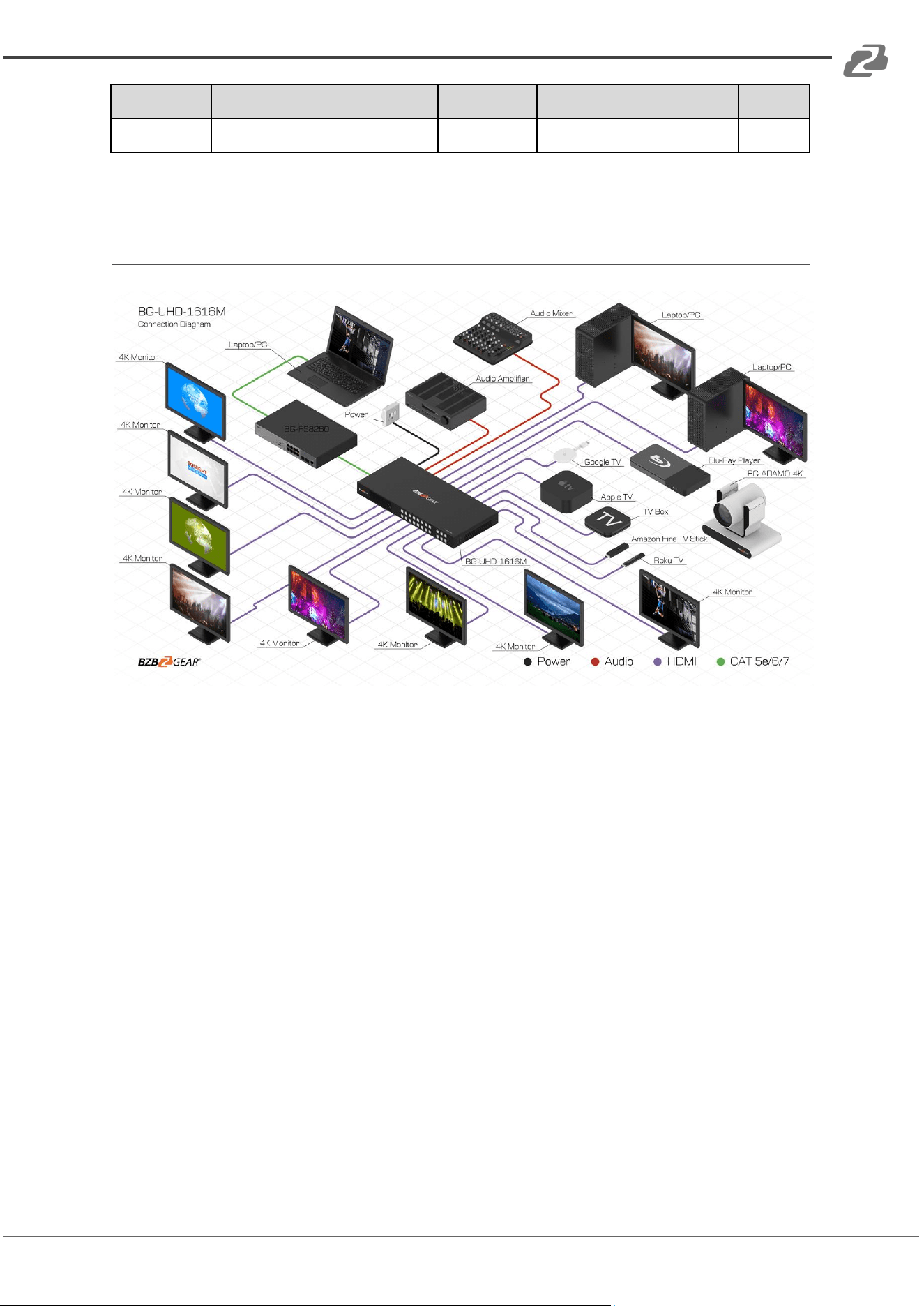
Application Diagram
Address: 830 National Drive #140, Sacramento, CA 95834, USA · Tel: +1(888)499-9906 · Email: support@bzbgear.com 26

BZBGEAR BG-UHD-1616M PRODUCT MANUAL
Tech Support
Have technical questions? We may have answered them already!
Please visit BZBGEAR’s support page (bzbgear.com/support) for helpful information and
tips regarding our products. Here you will find our Knowledge Base
(bzbgear.com/knowledge-base) with detailed tutorials, quick start guides, and step-by-step
troubleshooting instructions. Or explore our YouTube channel, BZB TV
(youtube.com/c/BZBTVchannel), for help setting up, configuring, and other helpful how-to
videos about our gear.
Need more in-depth support? Connect with one of our technical specialists directly:
Phone
1.888.499.9906
Email
support@bzbgear.com
Live Chat
bzbgear.com
Limited Product Warranty Terms
Pro Line: 5-year warranty from the date of purchase for AV/Broadcasting products bought
on or after August 1, 2024.
Essential Line: 3-year warranty from the date of purchase for AV/Broadcasting products
bought on or after August 1, 2024.
Cables: Lifetime Limited Product Warranty.
For complete warranty information, please visit bzbgear.com/warranty.
For questions, please call 1.888.499.9906 or email support@bzbgear.com.
Address: 830 National Drive #140, Sacramento, CA 95834, USA · Tel: +1(888)499-9906 · Email: support@bzbgear.com 27
BZBGEAR BG-UHD-1616M PRODUCT MANUAL
Mission Statement
BZBGEAR is a breakthrough manufacturer of high-quality, innovative audiovisual equipment
ranging from AVoIP, professional broadcasting, conferencing, home theater, to live
streaming solutions. We pride ourselves on unparalleled customer support and services.
Our team offers system design consultation, and highly reviewed technical support for all
the products in our catalog. BZBGEAR delivers quality products designed with users in
mind.
Copyright
All the contents in this manual and its copyright are owned by BZBGEAR. No one is allowed
to imitate, copy, or translate this manual without BZBGEAR’s permission. This manual
contains no guarantee, standpoint expression or other implies in any form. Product
specification and information in this manual is for reference only and subject to change
without notice.
All rights reserved. No reproducing is allowed without acknowledgement.
Address: 830 National Drive #140, Sacramento, CA 95834, USA · Tel: +1(888)499-9906 · Email: support@bzbgear.com 28