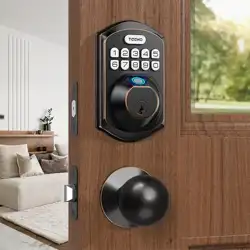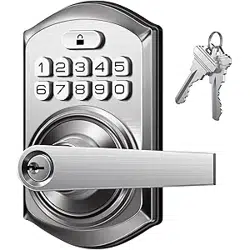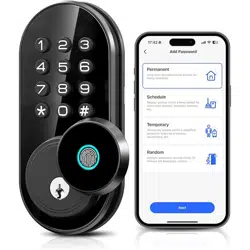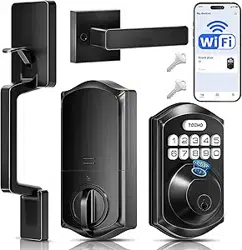

TE012W
Wi-Fi Connection FAQ
Teeho
W
Q.1
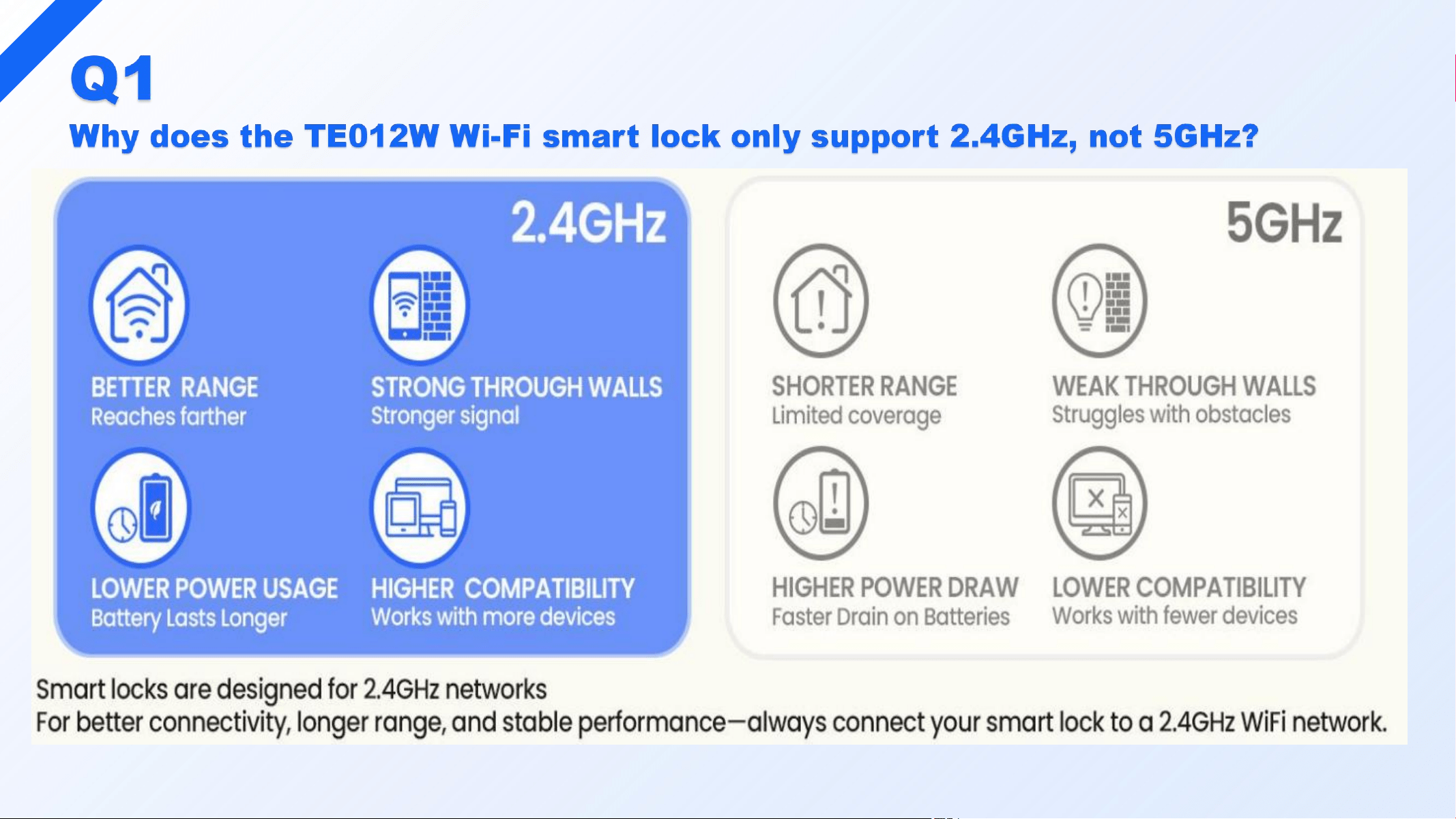
Why does the TE012W Wi-Fi smart lock only support 2.4GHz,
not 5GHz?
What if my router's 2.4GHz Wi-Fi is turned off or hidden?
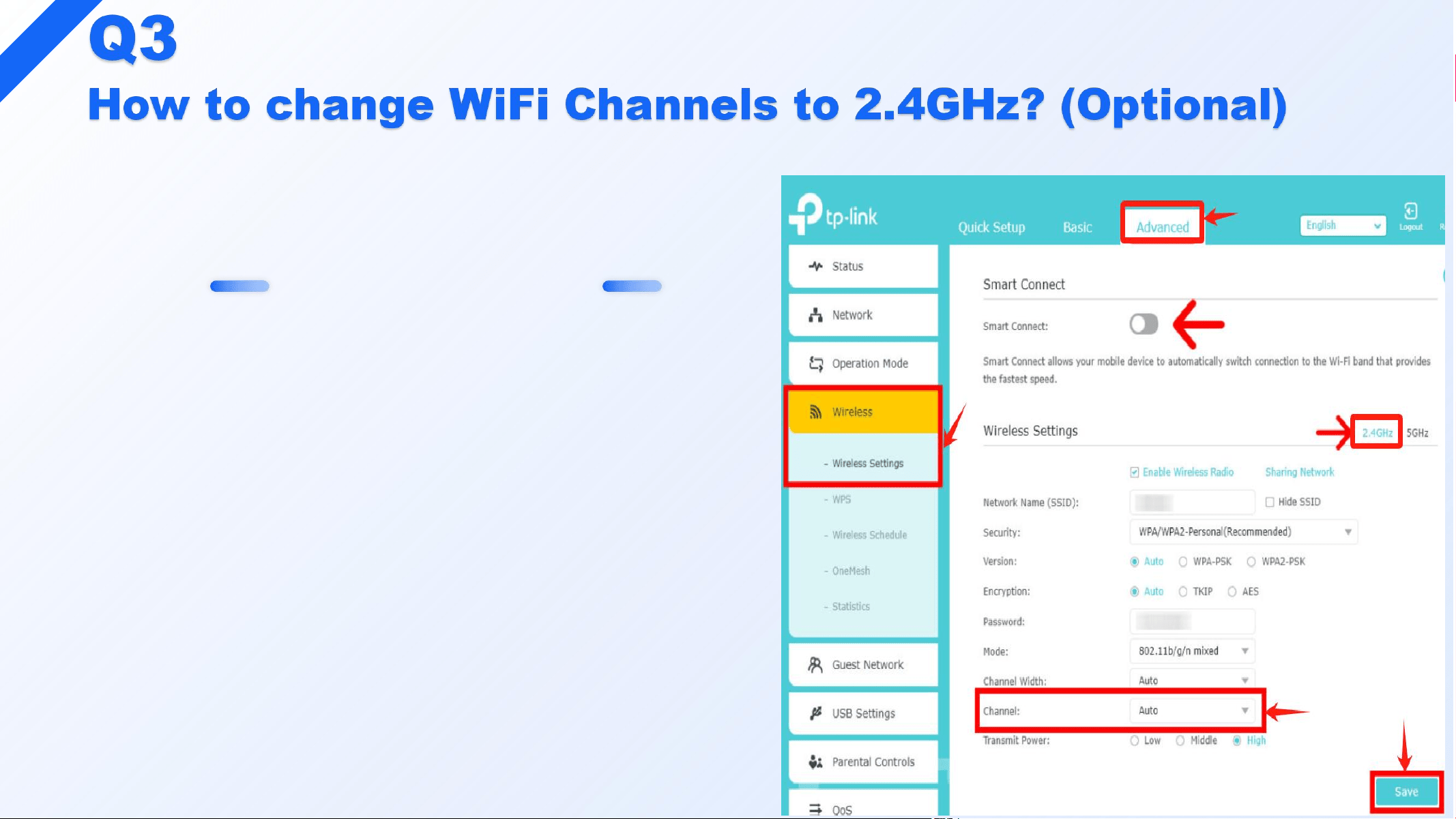
How to change WiFi Channels to 2.4GHz? (Optional)
How do I connect the TE012W lock to 2.4GHz Wi-Fi?
What to do if the TE012W lock fails to connect to Wi-Fi?
Q.2
Q.3
Q.4
Q.5
The TE012W lock can only detect and connect to 2.4GHz
Wi-Fi. If your router’s 2.4GHz band is disabled or hidden,
the lock won’t be able to find it.
Please go to your router settings and make sure the
2.4GHz band is enabled and broadcasting before setup.
STEP 1
STEP 2
STEP 3
Get Router IP Address
Find IP Address Based on Device
Access Router Settings
Note: Steps may vary depending on your router model. Please refer to your router’s manual or contact your internet
provider for help if needed.
You’ll need this to access the
router’s settings. If you already know
it, skip to Step 3.
1. On Windows:
Press Win + R, type cmd, and press Enter.
In the Command Prompt window, type
ipconfig and press Enter. Then look for the
line labeled Default Gateway—this is your
router’s IP address (e.g., 192.168.0.1).
2. On Mac:
Go to the Apple menu > System
Preferences > Network. Select your active
connection (Wi-Fi or Ethernet), then click
Advanced. Go to the TCP/IP tab and look
for the Router field—this is your IP address.
1. Open a web browser, type the IP
address into the address bar (e.g.,
http://192.168.0.1), and press Enter.
2. Alternatively, you can use your
router’s mobile App if available.
STEP 4
STEP 5
Log in to your router
Enable 2.4GHz Wi-Fi
Note: Steps may vary depending on your router model. Please refer to your router’s manual or contact your internet
provider for help if needed.
Enter the admin username and
password (usually printed on the
router label if unchanged).
Go to Wireless Settings > find
the Band or Channel settings.
Select 2.4GHz, and make sure
it is enabled and broadcasting
(see the TP-Link example).
Steps
Video
Link
1. Download the KK Home App, then register and log in.
2. Turn on Bluetooth and Location on your phone, and stay close to the lock.
3. In the App, tap Add Device > select TE012W to begin pairing.
4. After pairing, set your master code and user code.
5. Select your 2.4GHz Wi-Fi network and enter the correct password to connect.
For a visual guide, please refer to this video:
https://www.youtube.com/watch?v=ulk9wRrbBqc&t=58s
Note
If pairing fails, go to your phone’s Settings > Apps > KK Home > Permissions and ensure
Bluetooth and Location permissions are enabled.
Need further assistance? Call us at 1 (833) 878-3346 (Mon–Fri, 9:00 AM–5:00 PM PST).
1. Make sure your Wi-Fi signal is strong and stable.
2. Keep the router and lock within 65 ft (20 m), and avoid interference from walls or electronics like
microwaves.
3. Too many connected devices may reduce performance—try disconnecting a few.
4. Make sure both the App and lock firmware are up to date.
5. Test if your phone can connect to Wi-Fi in the same location. If your phone works but the lock
doesn't, call us at 1 (833) 878-3346 with your lock’s ESN for further support (Mon–Fri, 9:00 AM–5:00
PM PST).

Teeho